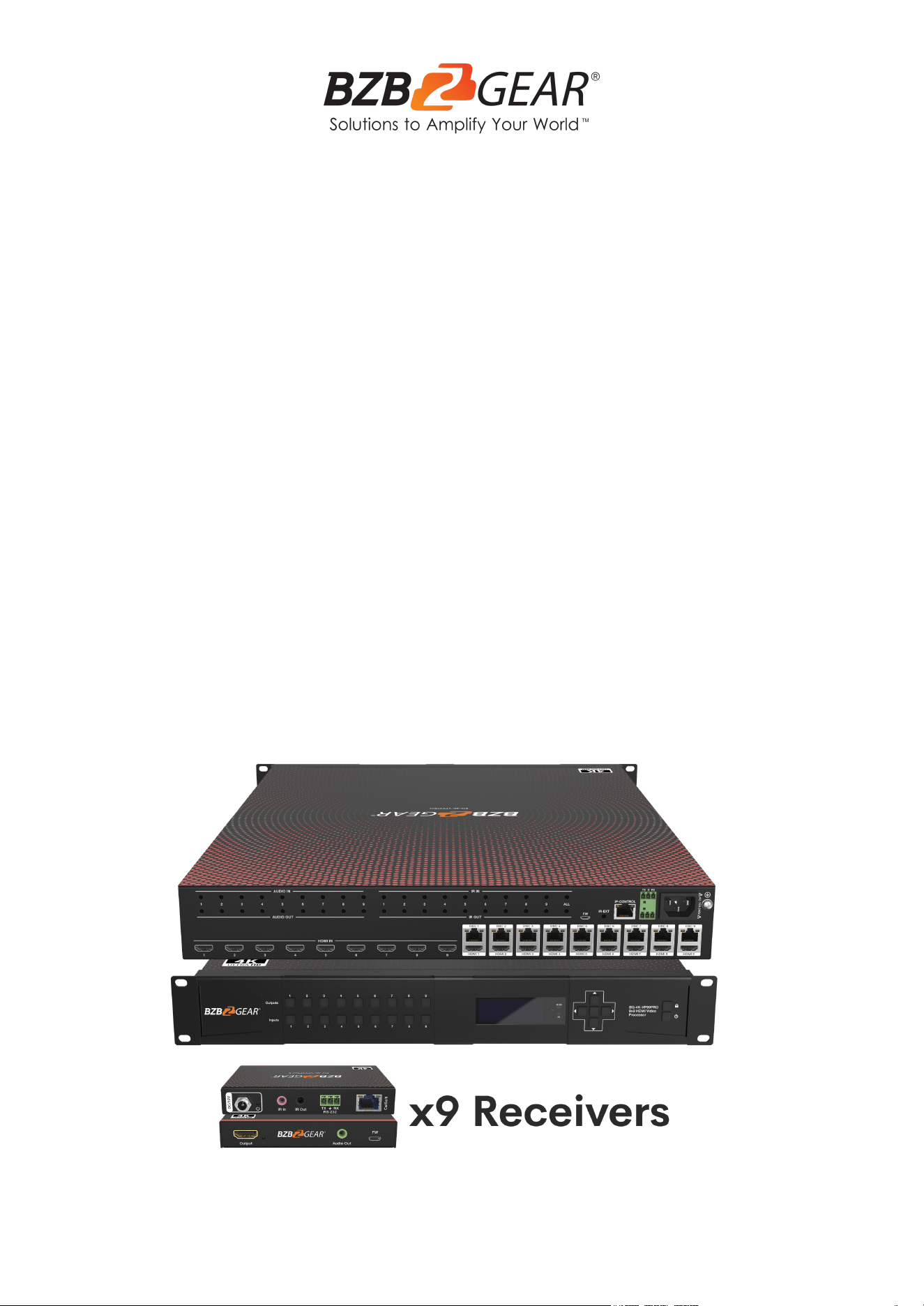
BG-4K-VP99PRO
4K60Hz HDMI 9x9 Seamless Matrix and Signal Extender (70m)
with Video Wall and Multiview Modes
User Manual

BZBGEAR BG-4K-VP99PRO PRODUCT MANUAL
Address: 830 National Drive #140, Sacramento, CA 95834, USA · Tel: +1(888)499-9906 · Email: support@bzbgear.com 2

BZBGEAR BG-4K-VP99PRO PRODUCT MANUAL
Table of Contents
Statement 4
Safety Precaution 4
Introduction 5
Features 5
Packing List 5
Specifications 6
Operation Controls and Functions 7
Video Switching Operation 9
Matrix Switching Instructions 9
Input/Output Channel Interface Instructions 9
Switch an Input to an Output 9
Video Control 10
Mode Control 14
Audio Setting 18
EDID Setting 19
Setup Section 21
Info Section 24
Remote Control 25
WEB Control 26
Network Control Instructions 26
Control Options: 26
Network Configuration: 26
Video Interface 28
Network Interface Settings 30
Setting and Displaying IP Information: 30
Device Control Options 31
Reboot: 31
Factory Run: 31
Factory User: 31
Standby: 31
RS-232 Control 33
IR System 34
Application Diagram 35
Tech Support 37
Limited Product Warranty Terms 37
Mission Statement 38
Copyright 38
Address: 830 National Drive #140, Sacramento, CA 95834, USA · Tel: +1(888)499-9906 · Email: support@bzbgear.com 3

BZBGEAR BG-4K-VP99PRO PRODUCT MANUAL
Statement
Please read these instructions carefully before connecting, operating, or configuring this
product. Please save this manual for future reference.
Safety Precaution
● To prevent damaging this product, avoid heavy pressure, strong vibration, or immersion
during transportation, storage, and installation.
● The housing of this product is made of organic materials. Do not expose to any liquid,
gas, or solids which may corrode the shell.
● Do not expose the product to rain or moisture.
● To prevent the risk of electric shock, do not open the case. Installation and maintenance
should only be carried out by qualified technicians.
● Do not use the product beyond the specified temperature, humidity, or power supply
specifications.
● This product does not contain parts that can be maintained or repaired by users.
Damage caused by dismantling the product without authorization from BZBGEAR is not
covered under the warranty policy.
● Installation and use of this product must strictly comply with local electrical safety
standards.
Address: 830 National Drive #140, Sacramento, CA 95834, USA · Tel: +1(888)499-9906 · Email: support@bzbgear.com 4

BZBGEAR BG-4K-VP99PRO PRODUCT MANUAL
Introduction
The BG-4K-VP99PRO is a 9x9 HDMI 2.0 over CAT5/6/7 matrix switcher with 3x3 Video Wall
and 9 source multiview capabilities. Experience the pinnacle of versatility and cutting-edge
technology with this advanced HDMI matrix switcher, perfect for a wide range of
professional AV installations.
With 9 HDMI inputs, 9 HDMI loop outs, 9 HDMI outputs, and 9 DSC outputs featuring
Power over Cable (POC) support, seamless integration with multiple sources, displays, and
audio systems is guaranteed. Additionally, for large-scale AV projects and installations, all
HDMI sources can be extended up to 70m(229ft) over CAT6/7 with resolutions up to
4K60Hz 4:4:4.
Features
● 9x HDMI input, 9x HDMI loopout, 9x HDMI output and 9x DSC output (POC)
● Resolutions up to HDMI 4K60Hz 4:4:4, deep color 12bit, bandwidth 10.2Gbps
● Transmit up to 70m using 4K@60hz with receivers
● Supports seamless matrix switching; video wall (max 3x3); preset setting, and
multiview modes.
● Balanced Audio Extraction
● Control via front panel buttons, IR Remote, TCP/IP control, or RS232 commands.
● Built-in EDID (4K30Hz, 1080P)
● HDCP 2.2/1.4 compliant
● Can cascade with other units to create max 10×10 video wall,
● Video wall image control 180°rotation, mirror, and bezel adjustments.
Packing List
● 1x BG-4K-VP99PRO
● 1x Power Adapter DC24V4A
● 1x Power Adapter DC12V3A
● 1x Remote Controller
● 9x BG-4K-VP99PRO-R
● 1x Mounting ear kit
● 9x IR-TX & IR-RX cable kit
● 1x CD and User manual
Address: 830 National Drive #140, Sacramento, CA 95834, USA · Tel: +1(888)499-9906 · Email: support@bzbgear.com 5
BZBGEAR BG-4K-VP99PRO PRODUCT MANUAL
Specifications
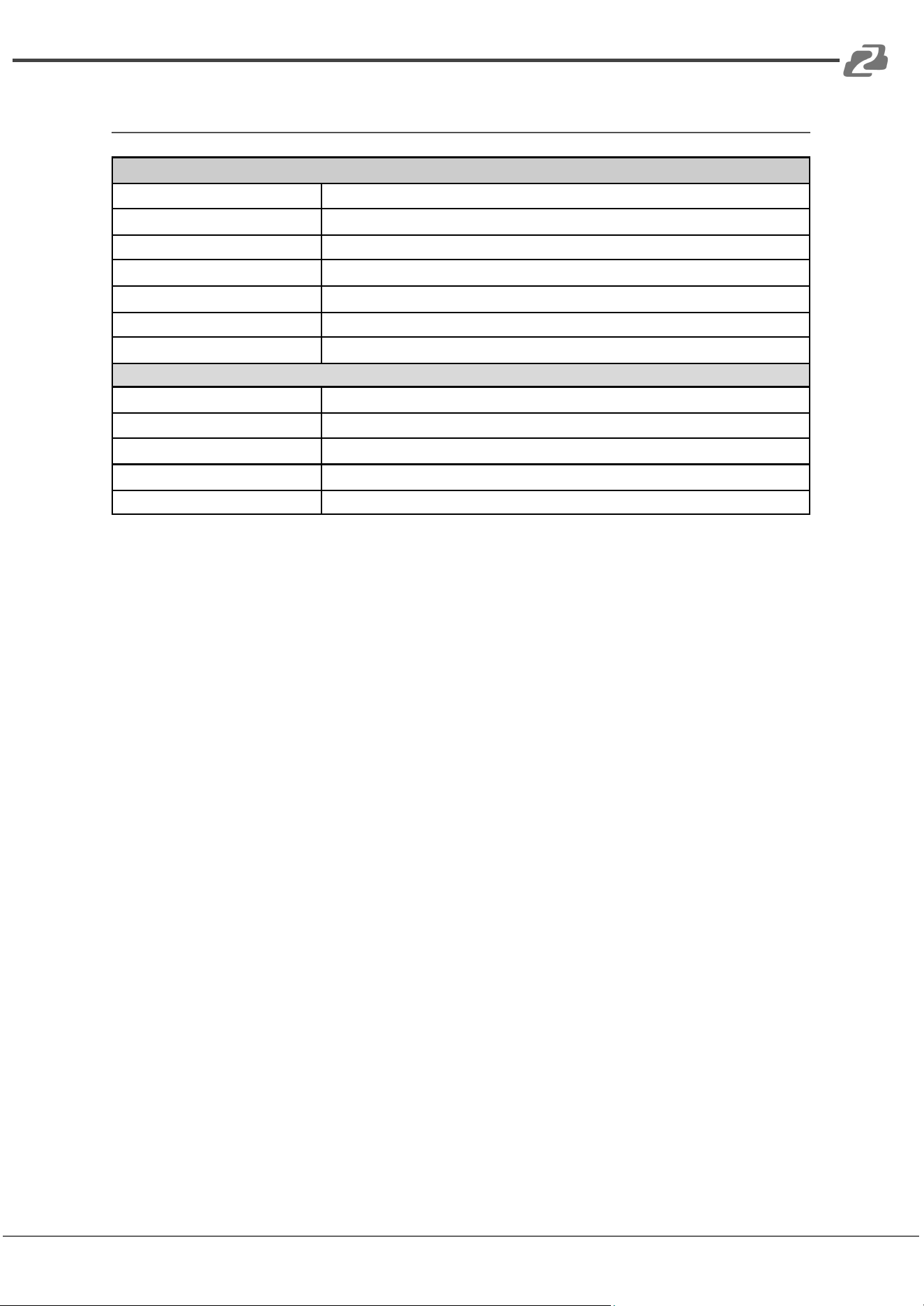
Technical Specifications
HDMI Input
9 x HDMI In
HDMI Output
9 x HDMI loop out, 9 x HDMI Out
Audio output
Analog (Balanced audio)
Video Format Supported
4K@60Hz/1080P/720P/576P/480P/480i
HDCP Compliant
HDCP 2.2 and HDCP 1.4
Control Options
Panel button/Remote/TCP/IP/RS232
Audio Format Supported
PCM, Dolby 5.1/7.1, DTS5.1/7.1 digital audio
Hardware Specifications
Operating Temperature Range
-5 to +40°C / 23 to +104 °F
Storage Temperature Range
-10 to +60°C / -14 to +140 °F
Operating Humidity Range
5 to 90 % RH (no condensation)
Dimensions
1.5U Rack Design L489 x W336 x H67.5 mm
Mass (Main Unit)
5.48 KG
Address: 830 National Drive #140, Sacramento, CA 95834, USA · Tel: +1(888)499-9906 · Email: support@bzbgear.com 6
BZBGEAR BG-4K-VP99PRO PRODUCT MANUAL
Operation Controls and Functions
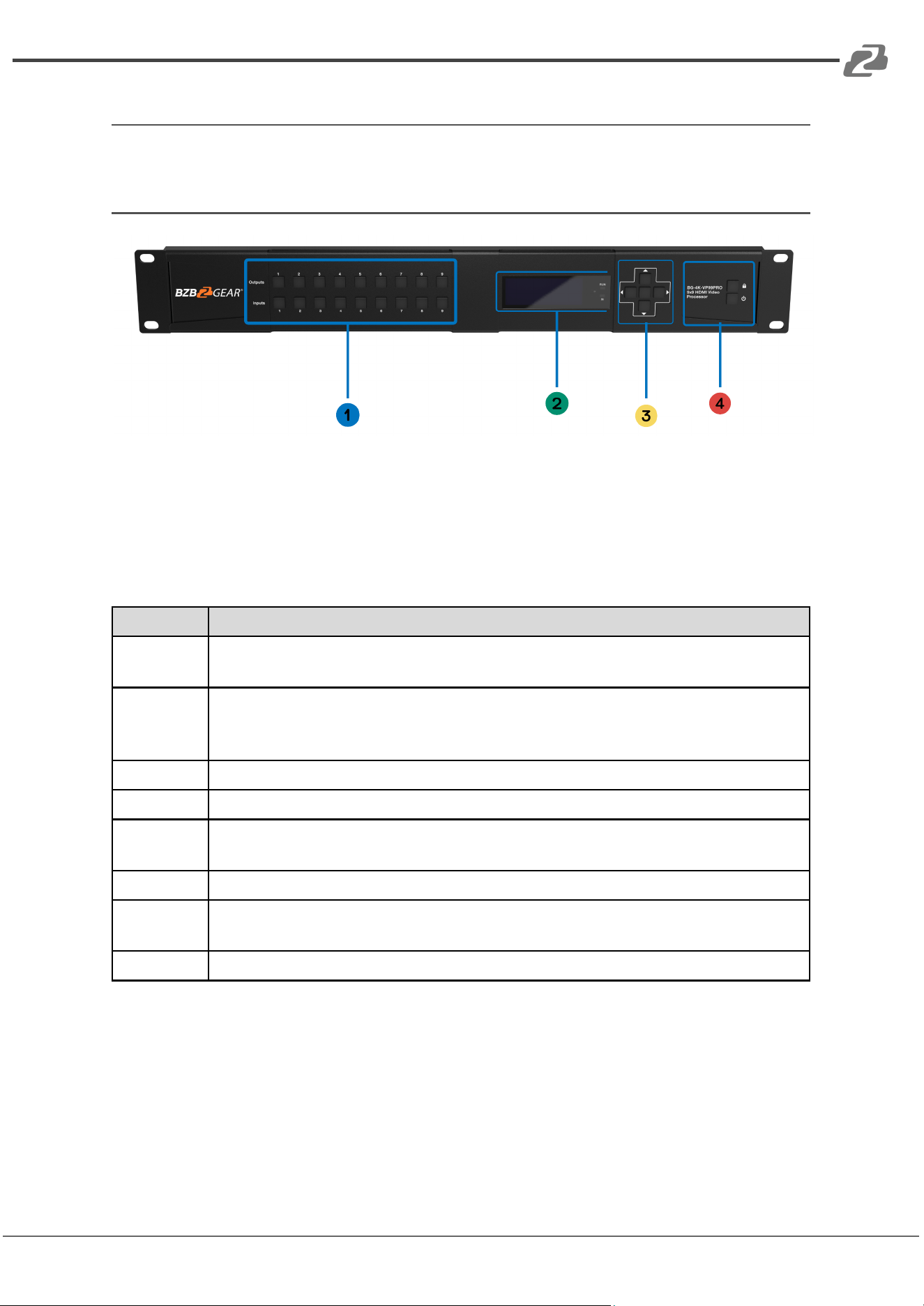
Front Panel
1. OUTPUT AND INPUT 1~9 (When switching, press Output first, then press Input)
2. LED Display
3. Menu Buttons: UP/DOWN/LEFT/RIGHT/ENTER (Center)
4. Function buttons: Panel Lock, Power (Stand-By Mode)
Button
Control Operations
Output 1-9
Press the Output button to select the output, pressing again will cancel the
selection; Long press will select all, pressing again will cancel selection.
Input 1-9
After pressing the output button, press an input button to select the input
(only after selecting the output can the input be selected) Long press an input
to enter video wall mode
ENTER
Enter menu
UP Arrow
UP
DOWN
Arrow
DOWN
LEFT Arrow
Left, Back one tab
Right
Arrow
Right
LOCK
Long press(3s) to lock the button panel; long press again to unlock.
Address: 830 National Drive #140, Sacramento, CA 95834, USA · Tel: +1(888)499-9906 · Email: support@bzbgear.com 7
BZBGEAR BG-4K-VP99PRO PRODUCT MANUAL
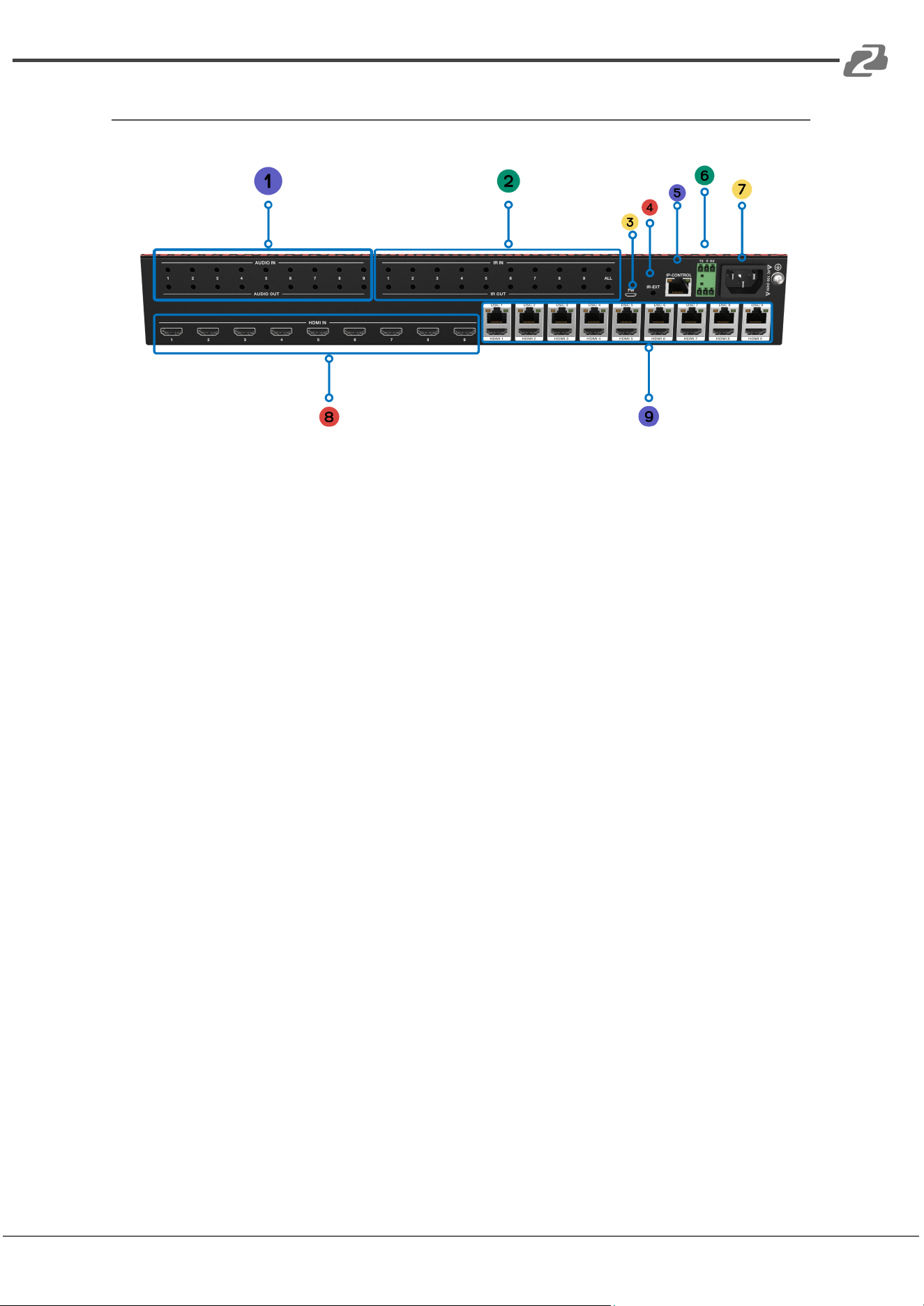
Rear Panel
1. 3.5mm Audio Input and Output Ports
2. IR Input and Output Ports
3. FW Interface: Used for firmware upgrades
4. IR Extension Port
5. Ethernet Port: CAT5/6/7
6. RS-232: 2X 3-Pin Phoenix; Top - Control and firmware updates; Bottom - Log
Access
7. DC Power Input: 24V
8. Input: HDMI 2.0 Input Ports
9. Output: CAT 5/6/7 Output Ports, HDMI 2.0 Loopout
Address: 830 National Drive #140, Sacramento, CA 95834, USA · Tel: +1(888)499-9906 · Email: support@bzbgear.com 8
BZBGEAR BG-4K-VP99PRO PRODUCT MANUAL
Video Switching Operation
Matrix Switching Instructions
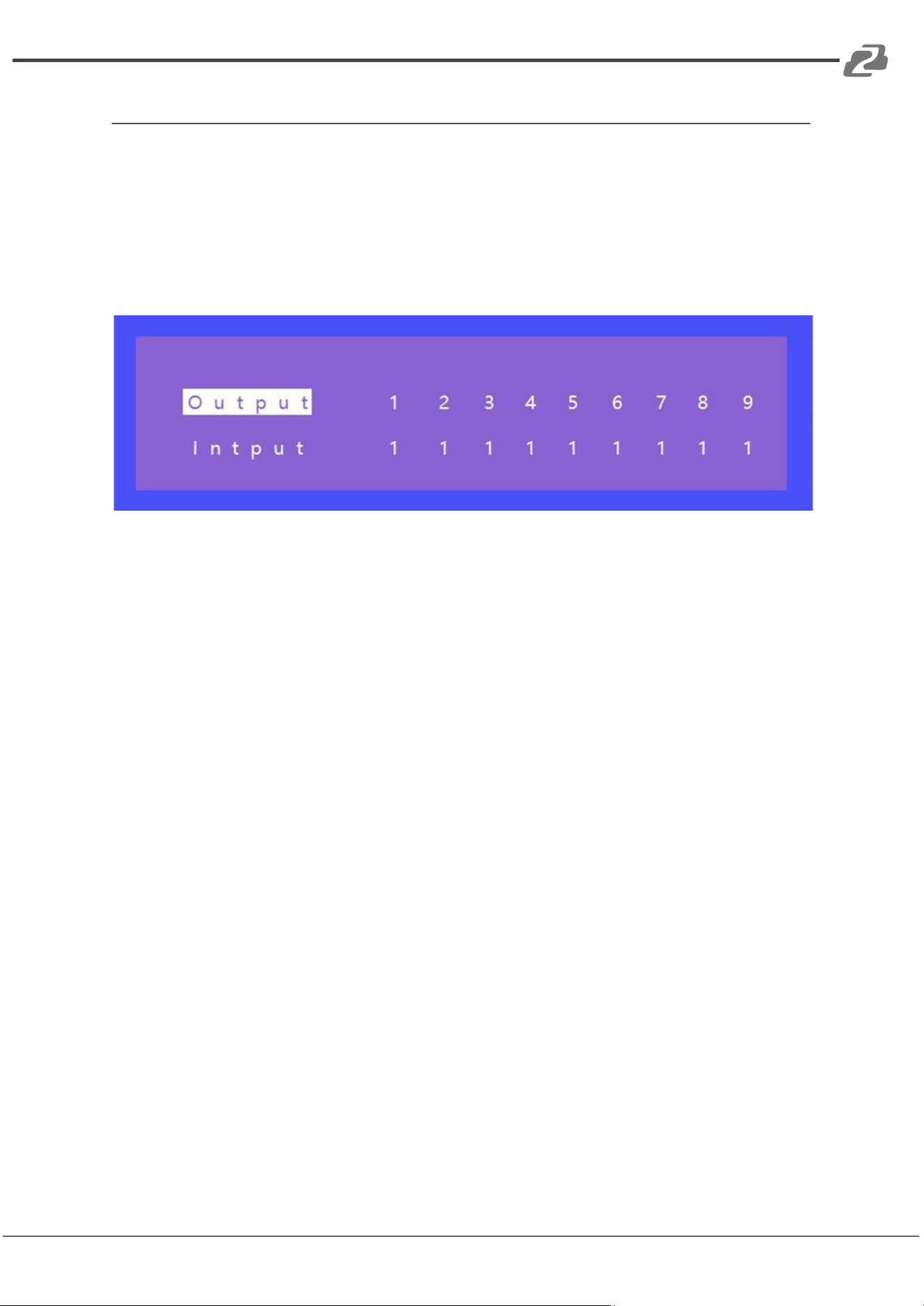
This matrix includes 9 channels that can be configured as either inputs or outputs
according to your display requirements. It allows switching any input signal to any one
output or to all outputs simultaneously.
Control operation is as follows:
Input/Output Channel Interface Instructions
Switch an Input to an Output
Use the following operations to switch the input channel to the desired output channel.
1. Switch Output 1 to Input 5
○ Operation: Press the output number “1” + Press the input number “5” to
complete the switch.
2. Switch Outputs 2, 5, & 8 to Input 7
○ Operation: Press the output numbers “2,” “5,” & “8” + Press the input
number “7” to complete the switch.
3. Switch All Outputs to Input 4
○ Operation: Long press any output number + Press the input number “4” to
complete the switch.
4. Enter Video Wall Mode
○ Operation: Long press any input button number (e.g., button 2) to enter
video wall mode. All outputs will switch to input 2 simultaneously.
Address: 830 National Drive #140, Sacramento, CA 95834, USA · Tel: +1(888)499-9906 · Email: support@bzbgear.com 9
BZBGEAR BG-4K-VP99PRO PRODUCT MANUAL
Video Control
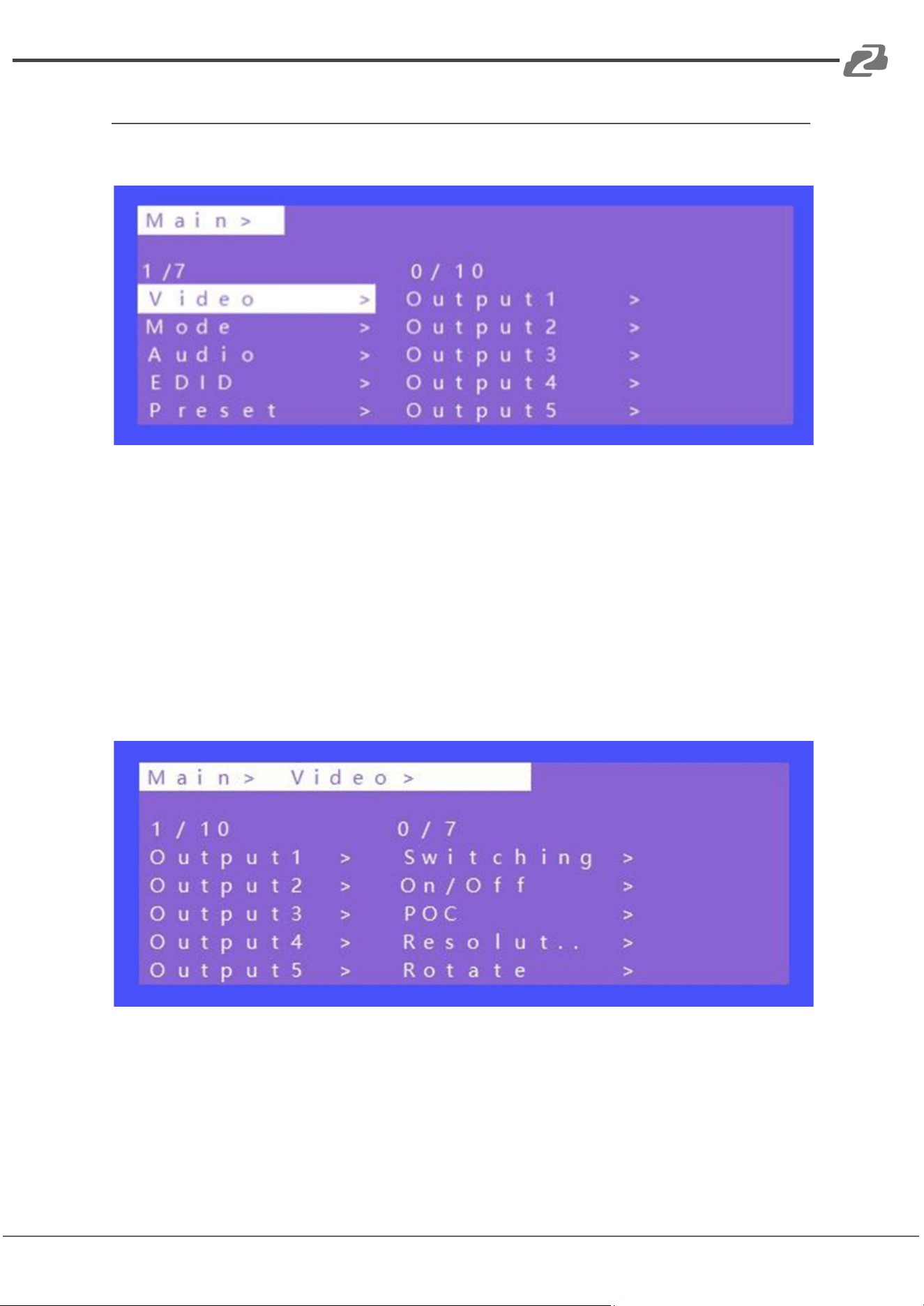
Press “MENU” on panel button to enter the main Menu interface:
1. Video: source switch
2. Mode: mode switch
3. Audio: audio setup
4. EDID: EDID setup
5. Preset: preset setup
6. INFO: info query
7. Setup: device setup
The video interface has 10 sub-menus: Output 1~9 and ALL.
Each sub-menu has 7 functions: switching(input/source), On/Off (video signal), PoC (power
switch), Resolution (output), Rotate (180º), Mirror, Advanced.
Video Interface
Address: 830 National Drive #140, Sacramento, CA 95834, USA · Tel: +1(888)499-9906 · Email: support@bzbgear.com 10
BZBGEAR BG-4K-VP99PRO PRODUCT MANUAL
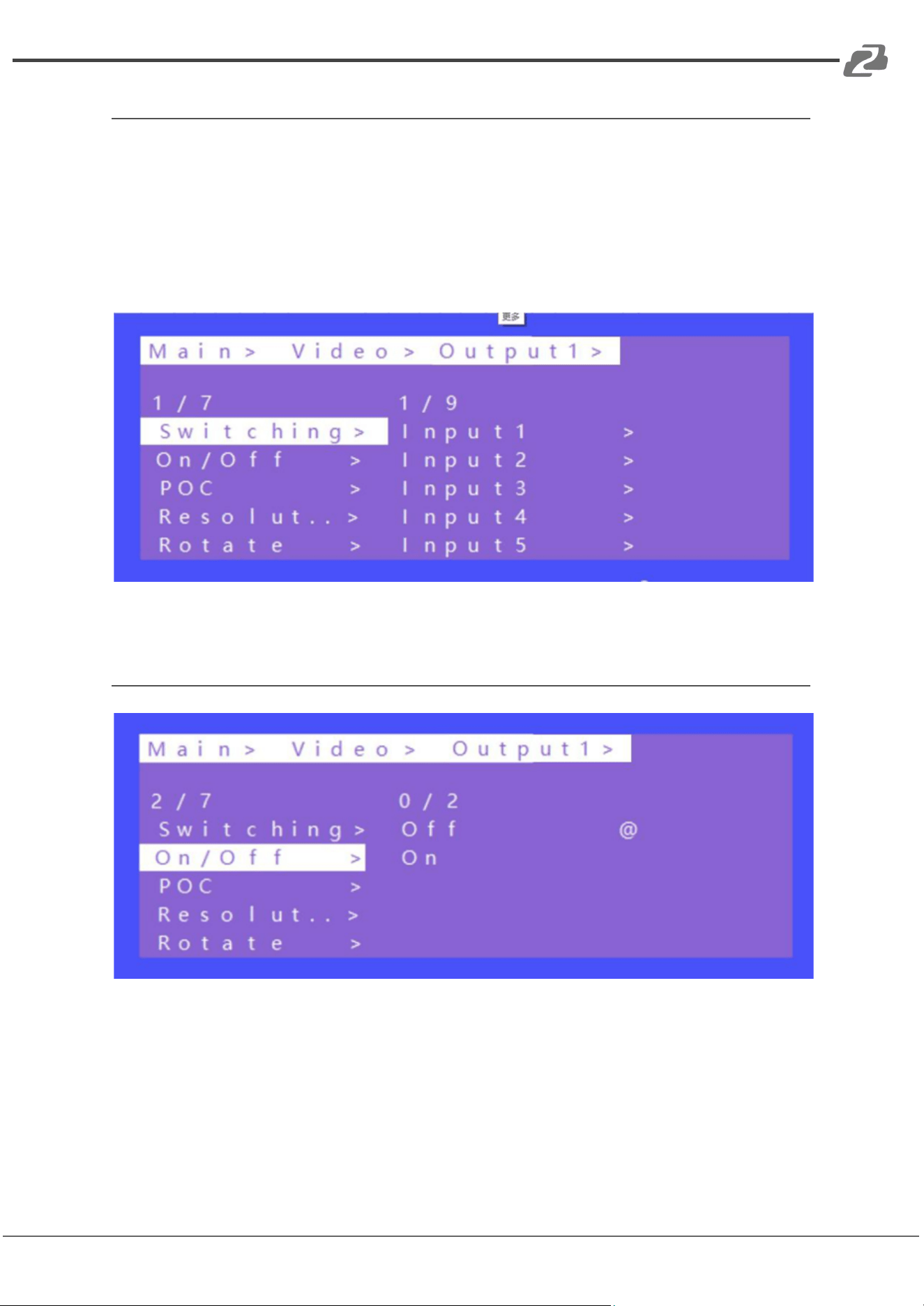
Video Switch
Switch any output to any input or switch all output to the same input
1. Choose “Video” in the menu and press “ENTER” button
2. Choose “Output1” and press “ENTER” button
3. Press “UP” and “DOWN” to select “Switching”, press “ENTER”
4. Press “UP” and “DOWN” to select “Input”
5. Press “ENTER”,switch video complete.
Switch Interface
Video On/Off Control
Video On/Off Interface
Address: 830 National Drive #140, Sacramento, CA 95834, USA · Tel: +1(888)499-9906 · Email: support@bzbgear.com 11
BZBGEAR BG-4K-VP99PRO PRODUCT MANUAL
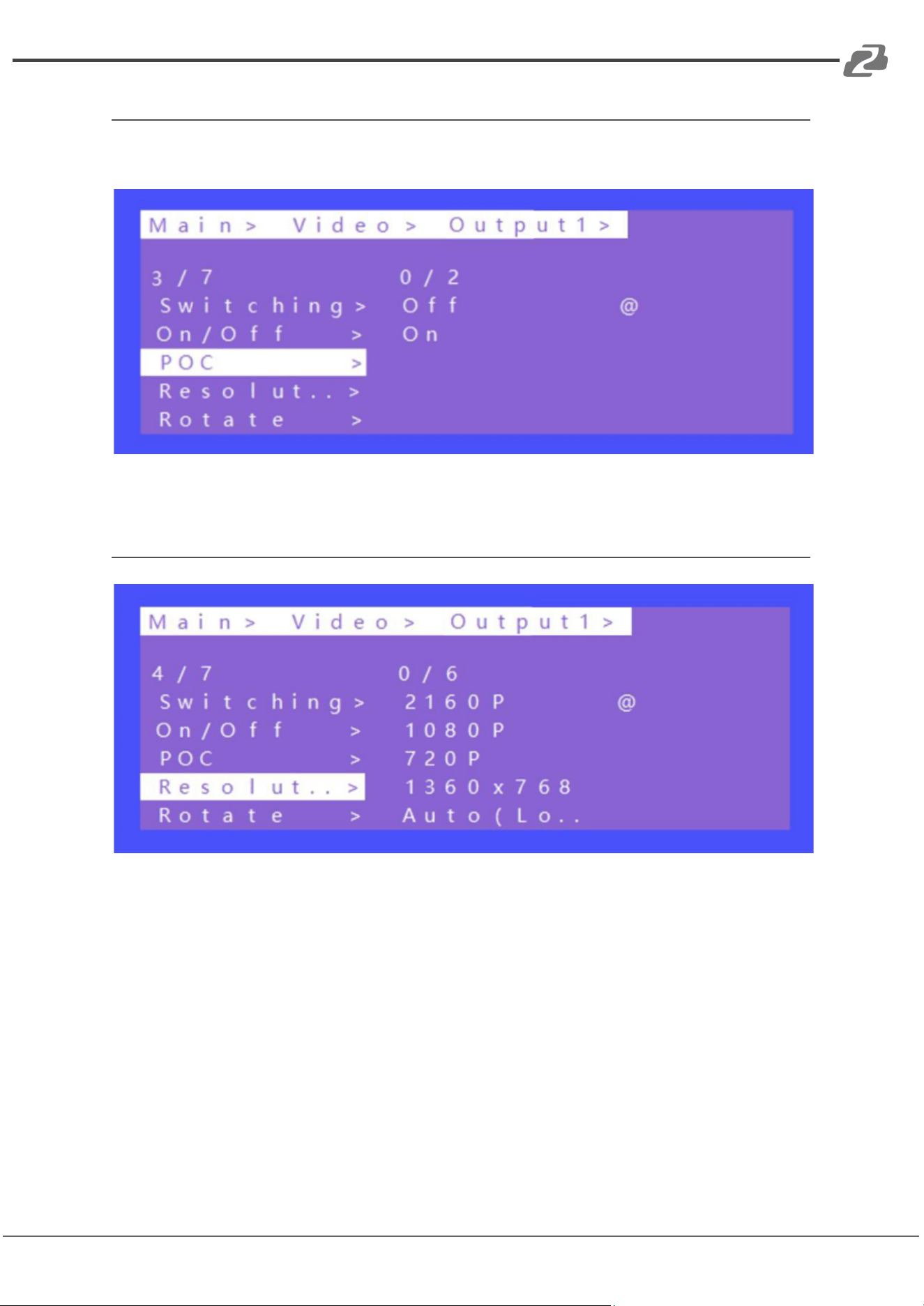
PoC On/Off
Turn on/off any one-channel power supply for the receiver (12V 3A power).
POC On/Off Interface
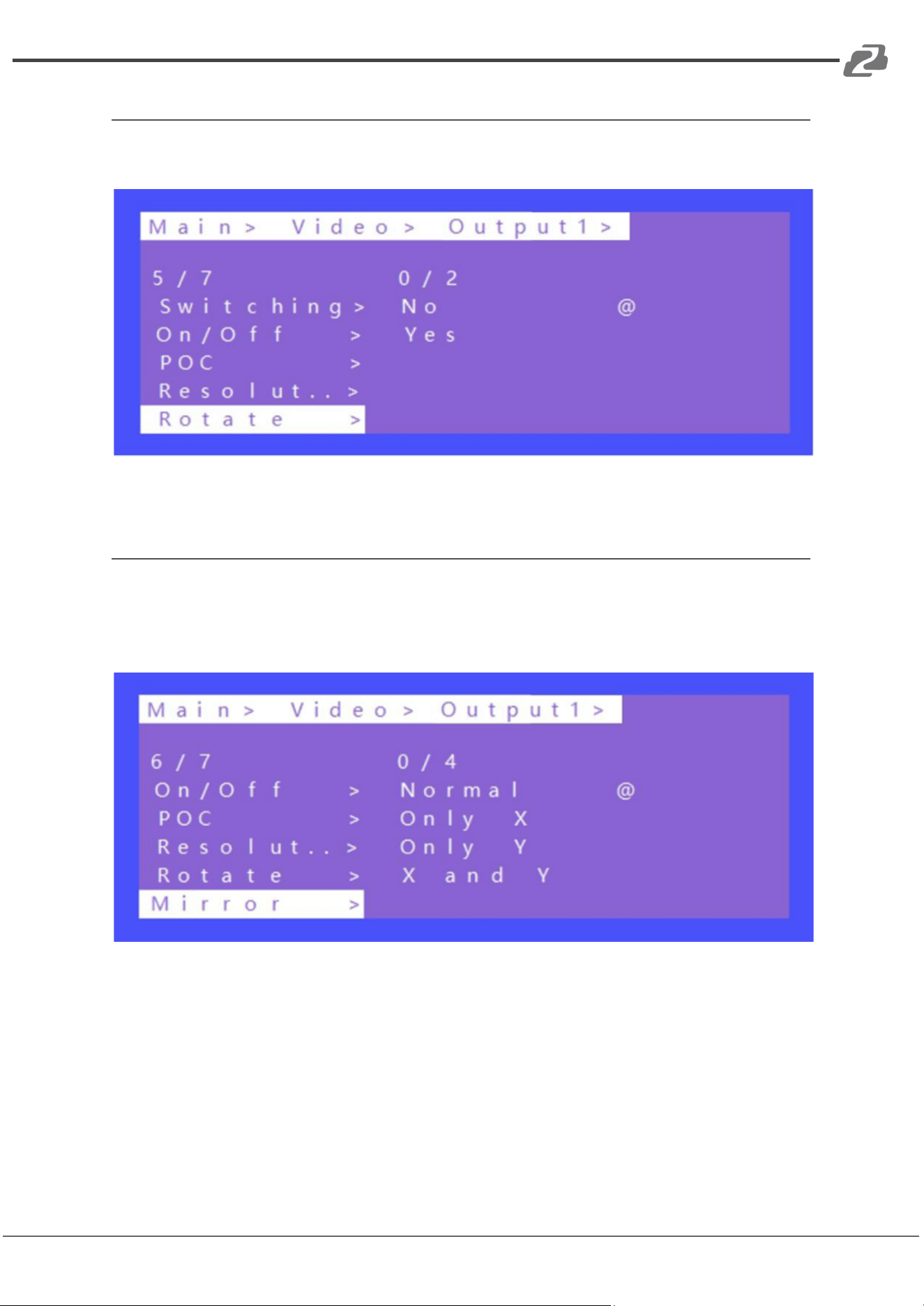
Output Resolution Selecting
Resolution Format Interface
Output resolution options: 2160P(default), 1080P, 720P, 1360x768, AUTO (local), and AUTO
(remote) .
(AUTO is the resolution supported by the automatic identification of the back-end TV).
Address: 830 National Drive #140, Sacramento, CA 95834, USA · Tel: +1(888)499-9906 · Email: support@bzbgear.com 12
BZBGEAR BG-4K-VP99PRO PRODUCT MANUAL
Rotate
Select any one or all outputs and rotate video (clockwise 180º)
Rotate Interface
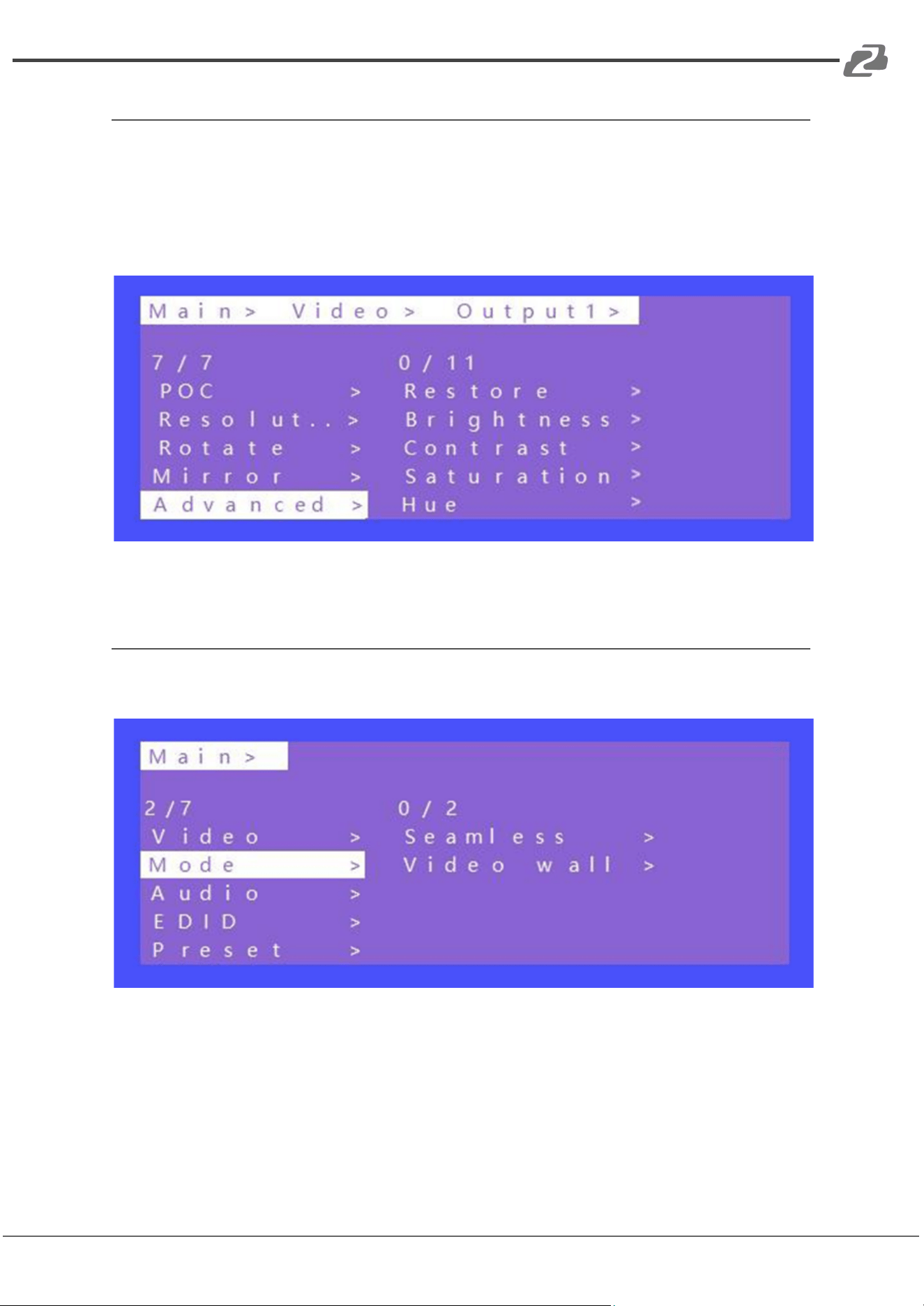
Mirror function
Mirror for any one or all video outputs. Options: Normal (default, not mirrored), Only X
(Mirror Horizontally), Only Y (Mirror Vertically), X and Y (Mirror Horizontally & Vertically,180°
rotate).
Mirror Interface
Address: 830 National Drive #140, Sacramento, CA 95834, USA · Tel: +1(888)499-9906 · Email: support@bzbgear.com 13
BZBGEAR BG-4K-VP99PRO PRODUCT MANUAL
Advanced Setup
Choose any one or all outputs for image color setup, including:
Restore(reset all for color setup), Brightness, Contrast, Saturation, Hue, R_Gain, G_Gain,
B_Gain, R_Offset,G_Offset, and B_Offset.
Each one can set 0~100, default is 50.
Advanced Interface
Mode Control
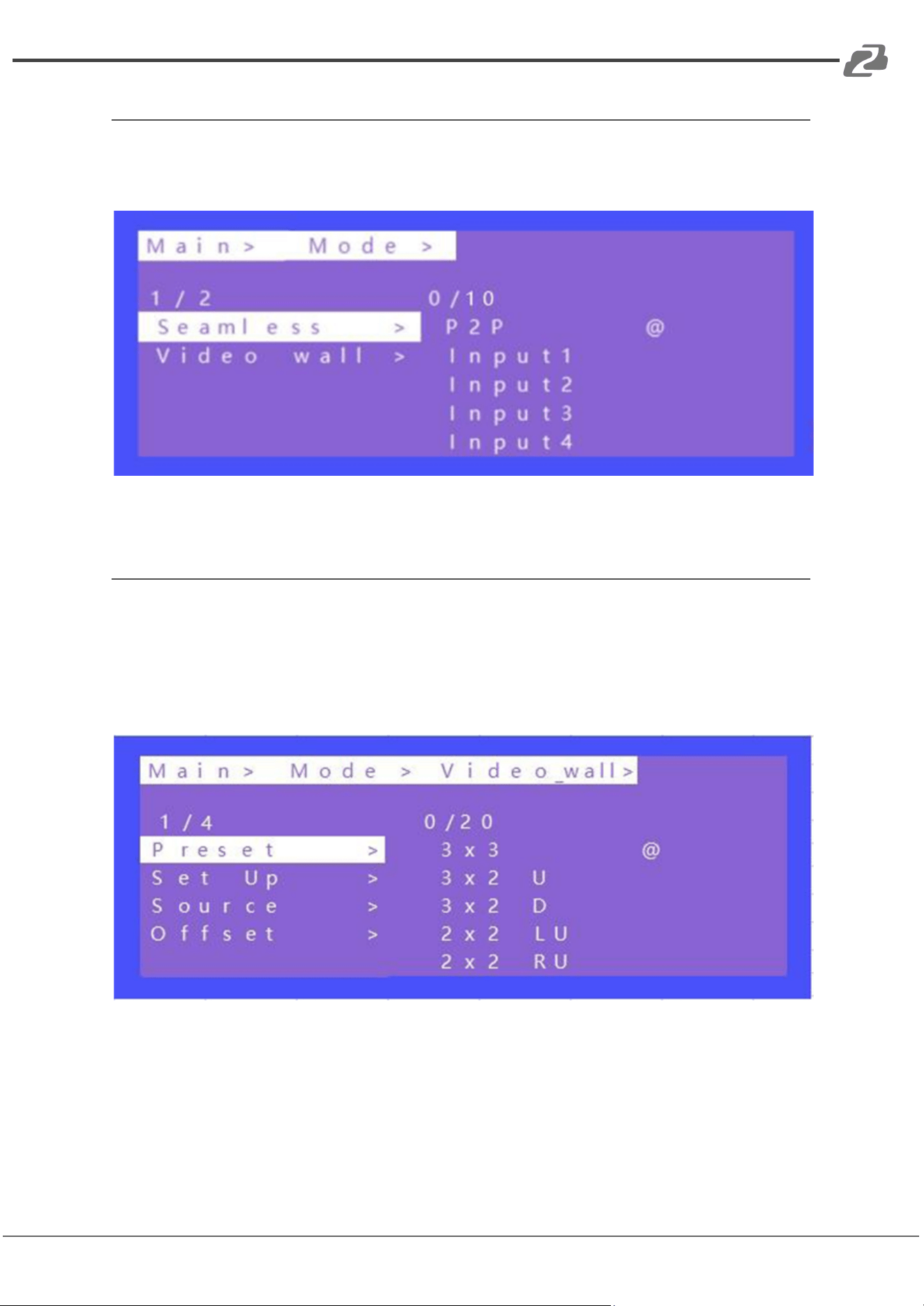
The control interface for Mode has 2 sub-menus: Seamless Matrix and Video Wall.
Mode Interface
Address: 830 National Drive #140, Sacramento, CA 95834, USA · Tel: +1(888)499-9906 · Email: support@bzbgear.com 14
BZBGEAR BG-4K-VP99PRO PRODUCT MANUAL
Seamless Matrix
Seamlessly switch an input for all video outputs.
(P2P: output1 choose input1,output2 choose input2,etc.)
Seamless Matrix Interface
Video Wall Mode
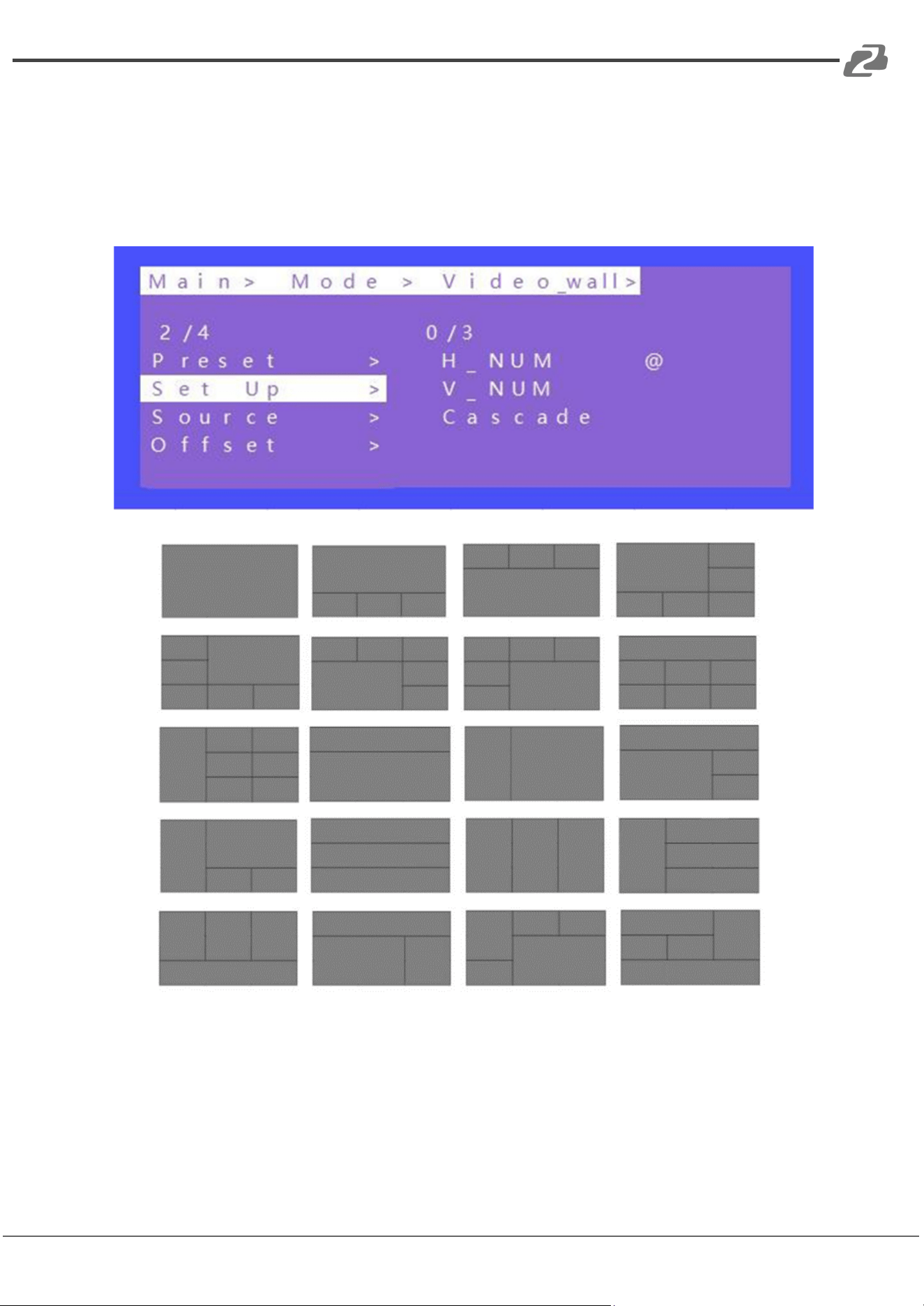
There are 4 sub-menus: Preset, Set Up (video wall size), Source (switch input), Offset
(horizontal and vertical margin settings)
A. Preset
There are 20 preset scenes in the Mode.
Explanation:
3x2 U means 3x2 Video wall on the TOP Side
2x2 LU means 2x2 Video wall is on the Left Upper side
Address: 830 National Drive #140, Sacramento, CA 95834, USA · Tel: +1(888)499-9906 · Email: support@bzbgear.com 15
BZBGEAR BG-4K-VP99PRO PRODUCT MANUAL
B. Set Up
H_NUM represents the number of screens on horizontal axis, option 1~10, default 1;
V_NUM represents the number of screens on vertical axis, option 1~10, default 1;
Cascade represents device in which layer for the cascade connection, option 1~12, default
1;
Address: 830 National Drive #140, Sacramento, CA 95834, USA · Tel: +1(888)499-9906 · Email: support@bzbgear.com 16
BZBGEAR BG-4K-VP99PRO PRODUCT MANUAL
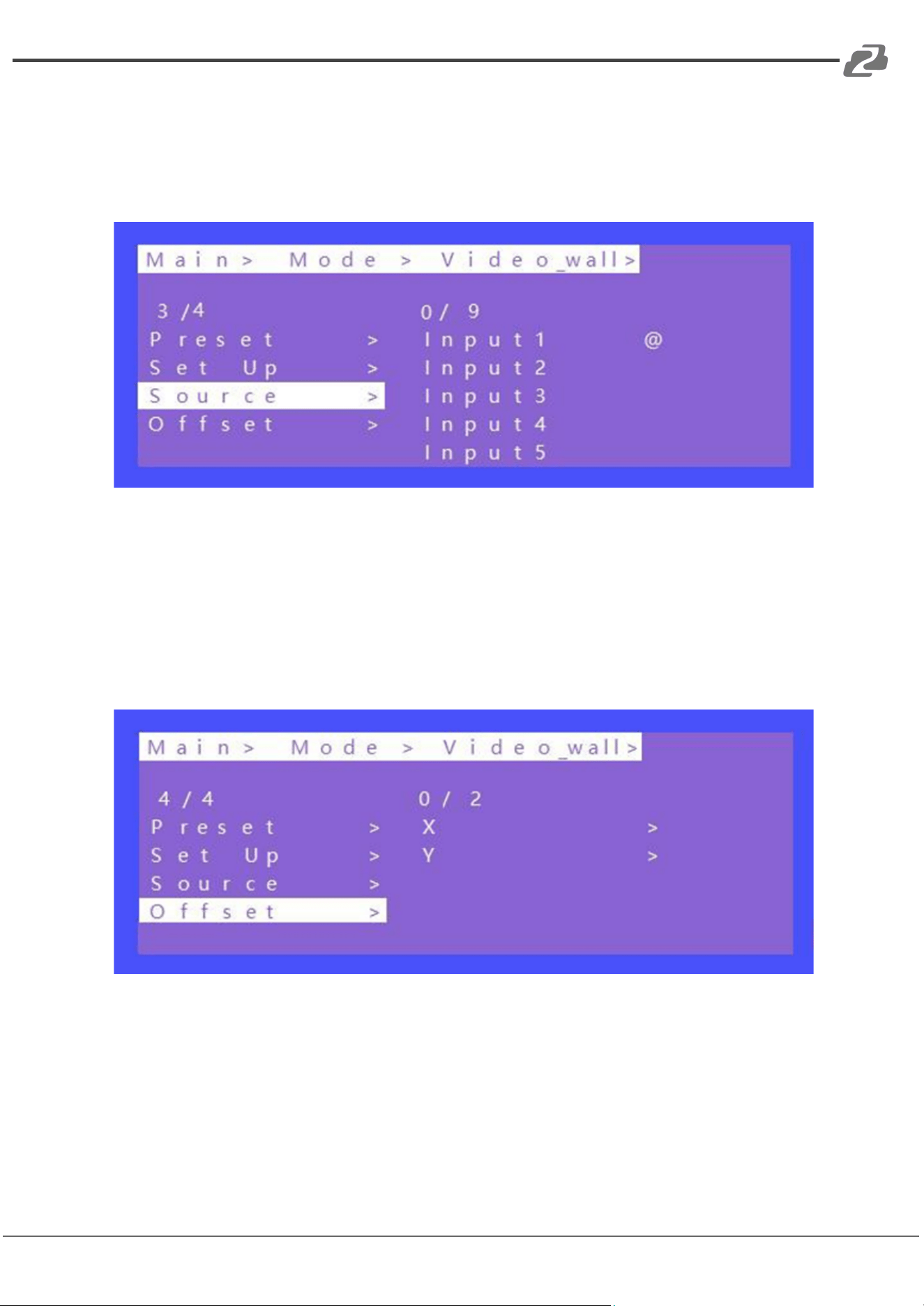
C. Source
To switch input source for video wall.
1. Use HDMI loop out port to connect next device for cascade when needed
2. Press “UP” and “DOWN” to select “Source”, press “ENTER”
3. Press “UP” and “DOWN” to select “Input1”
4. Press “ENTER”, switch video complete.
Source Interface
D. Offset
Choose all outputs for offset (horizontal and vertical margin settings) in video wall settings.
1. Press “UP” and “DOWN” to select “Offset” under video wall mode,press “ENTER”
2. Press “UP” and “DOWN” to select “X” or “Y”(301 options, 0~600, interval 2)
3. Press “ENTER”,Offset complete.
Address: 830 National Drive #140, Sacramento, CA 95834, USA · Tel: +1(888)499-9906 · Email: support@bzbgear.com 17
BZBGEAR BG-4K-VP99PRO PRODUCT MANUAL
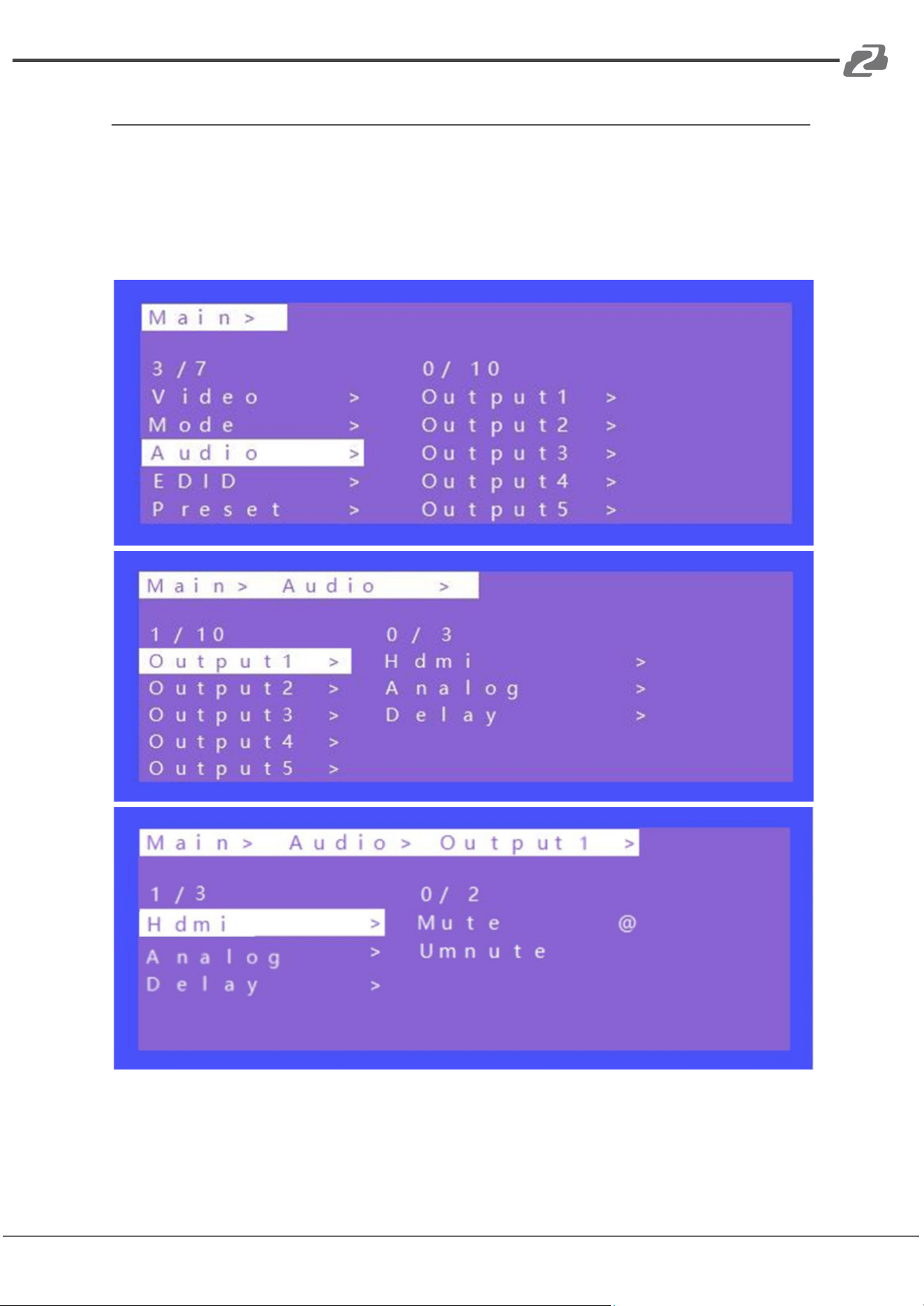
Audio Setting
There are 10 sub-menus in the Audio control Interface:
1. OUT 1~9
2. ALL
The Audio Setting interface can set each output individually or all outputs at once. Mute,
Unmute, or Delay can be selected for HDMI and Analog audio settings.
Audio Interface
Address: 830 National Drive #140, Sacramento, CA 95834, USA · Tel: +1(888)499-9906 · Email: support@bzbgear.com 18
BZBGEAR BG-4K-VP99PRO PRODUCT MANUAL
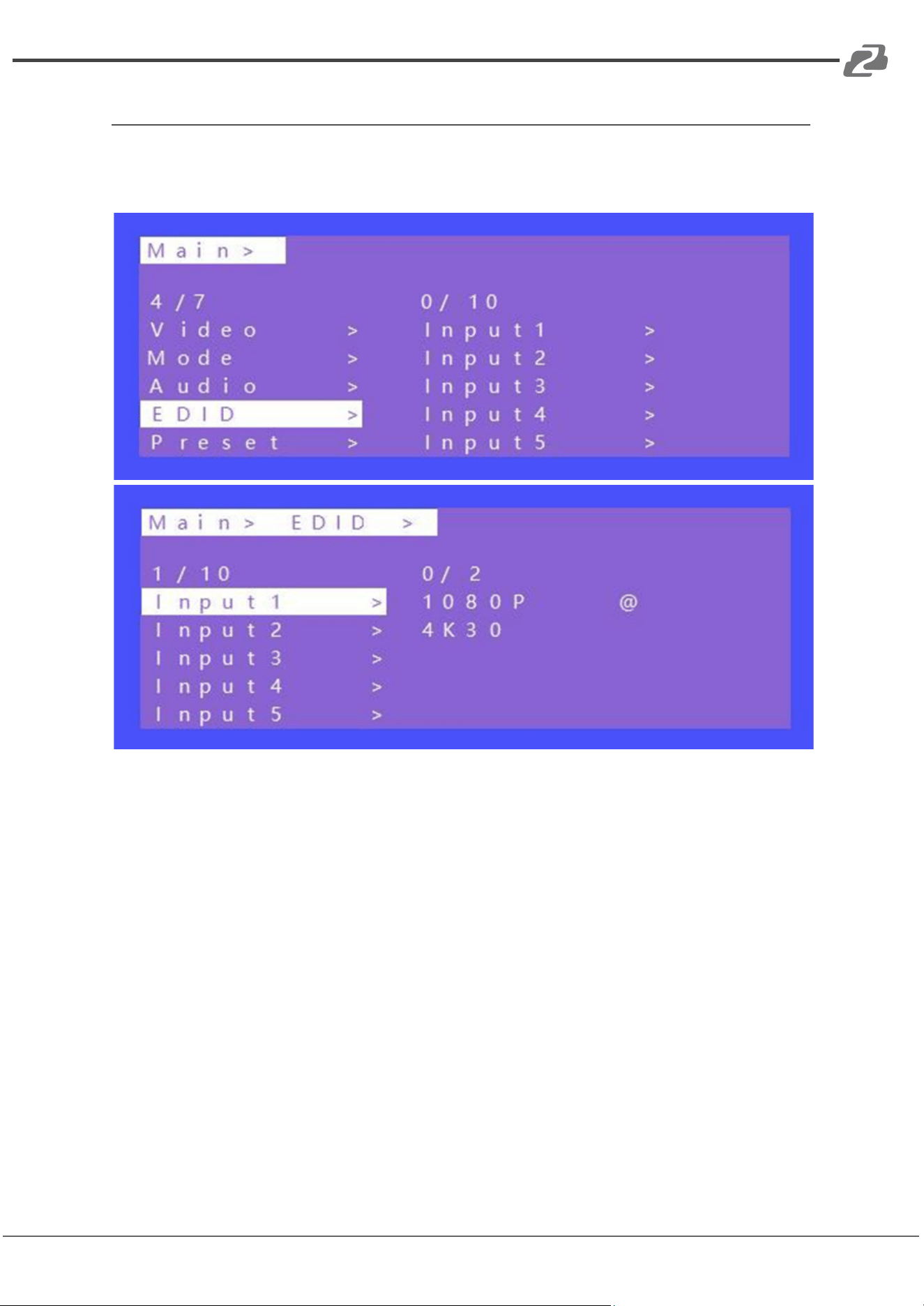
EDID Setting
Set each of the input ports’ EDID, there are two resolutions of Built-In EDID: 4K30hz;
1080P;
EDID Interface
Address: 830 National Drive #140, Sacramento, CA 95834, USA · Tel: +1(888)499-9906 · Email: support@bzbgear.com 19
BZBGEAR BG-4K-VP99PRO PRODUCT MANUAL
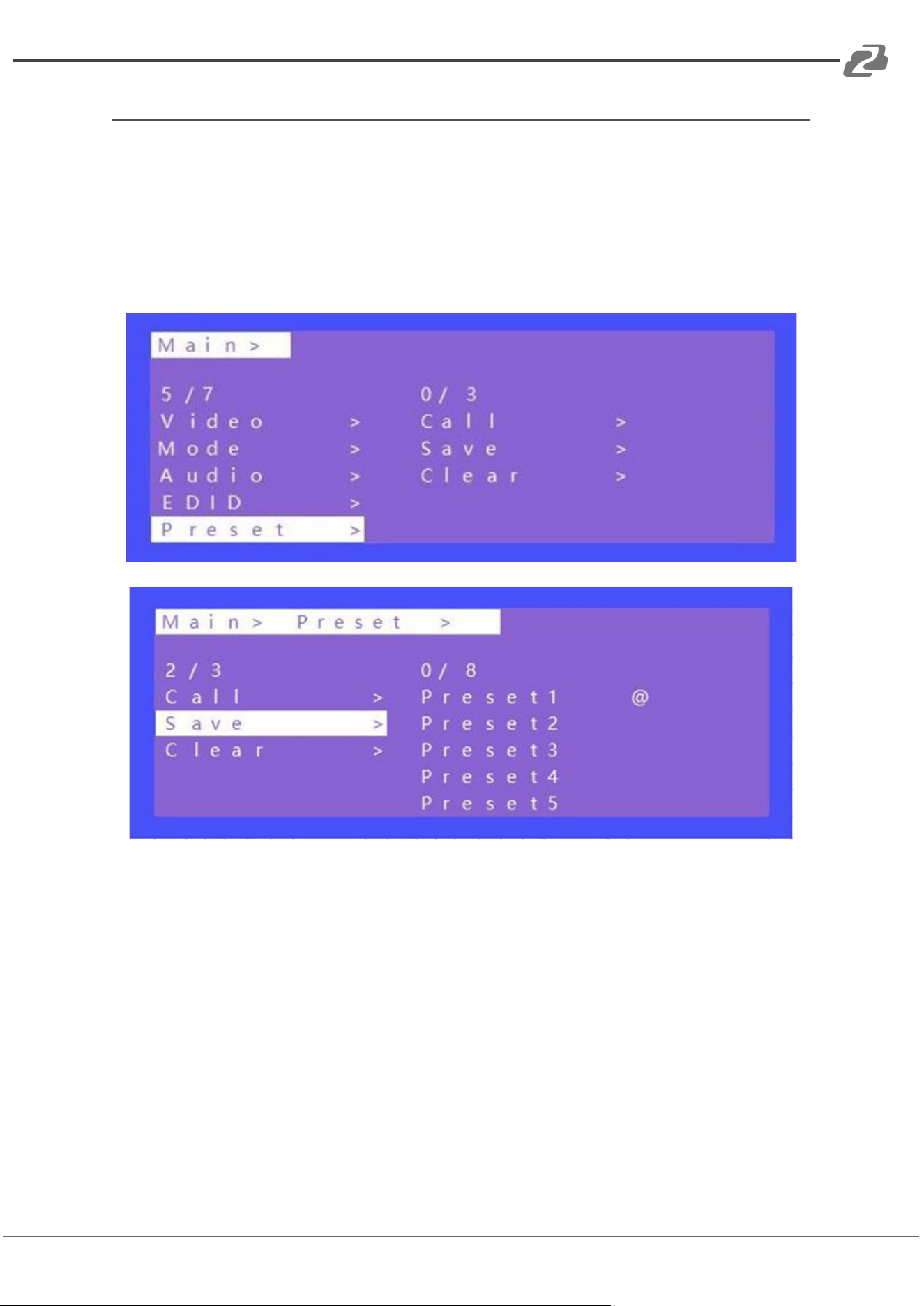
Preset Setting
1. Call: Call the preset video
2. Save: Save the preset settings
3. Clear: Remove the settings
There can be a total of 8 different presets. To modify the preset name users will need to
login to the WEB interface. The name will then synchronize with the on screen menu.
Preset Interface
(Note: Preset 1~8 default is P2P mode)
Address: 830 National Drive #140, Sacramento, CA 95834, USA · Tel: +1(888)499-9906 · Email: support@bzbgear.com 20
BZBGEAR BG-4K-VP99PRO PRODUCT MANUAL
Setup Section
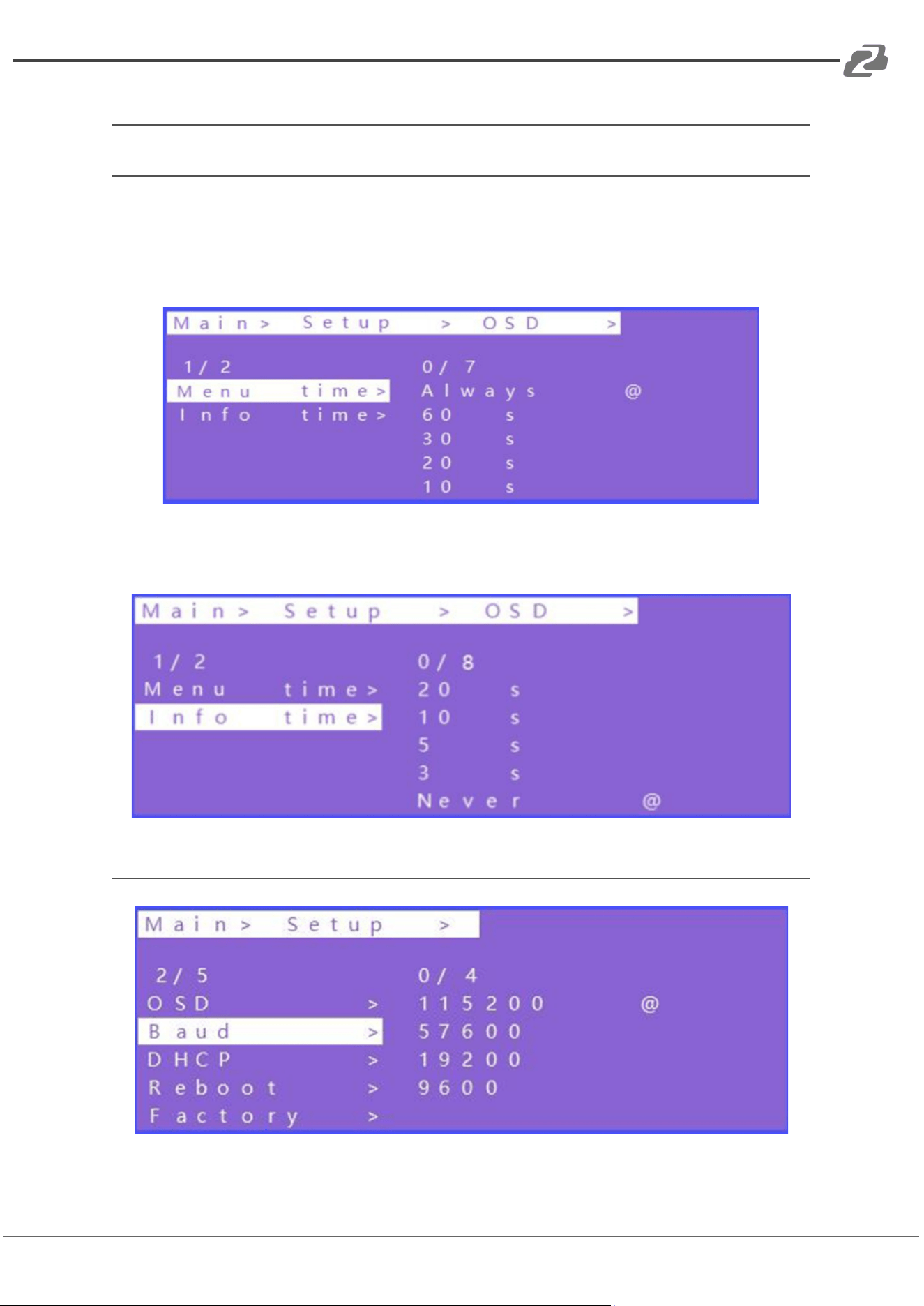
OSD Setting
OSD setting with 2 sub-menu:
Menu time: Timing OSD setting in Menu interface
Always means the OSD info will be showed all the time;
60s means the OSD info will be turn off after 60 seconds.
Info time: Timing OSD setting in Resolution information
In Info time setting, with an option “Never” means the Info OSD won’t be showed.
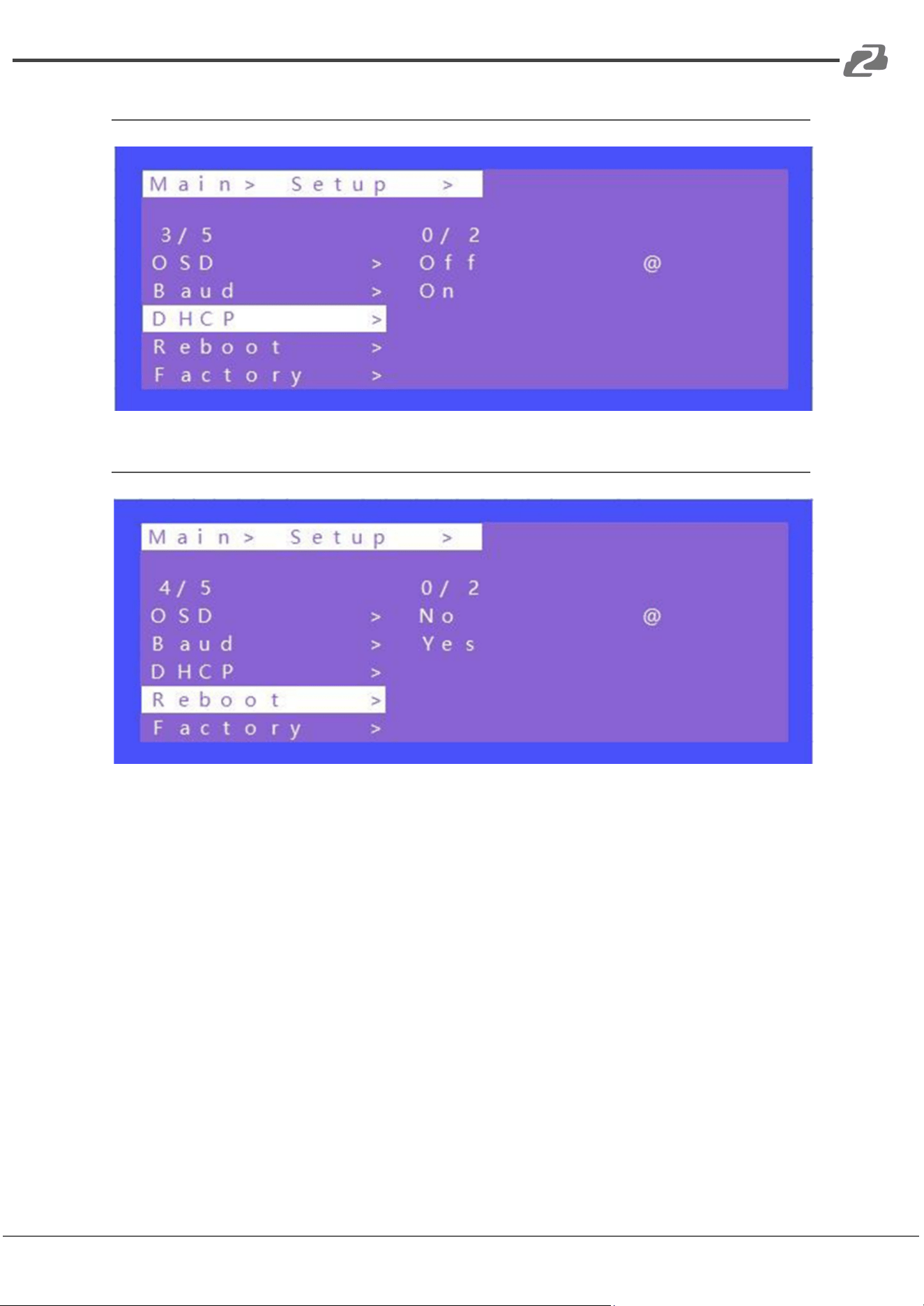
Baud Rate Setting (Default: 115200)
Address: 830 National Drive #140, Sacramento, CA 95834, USA · Tel: +1(888)499-9906 · Email: support@bzbgear.com 21
BZBGEAR BG-4K-VP99PRO PRODUCT MANUAL
DHCP Setting (Default: DHCP Off)
Reboot Setting
Address: 830 National Drive #140, Sacramento, CA 95834, USA · Tel: +1(888)499-9906 · Email: support@bzbgear.com 22
BZBGEAR BG-4K-VP99PRO PRODUCT MANUAL
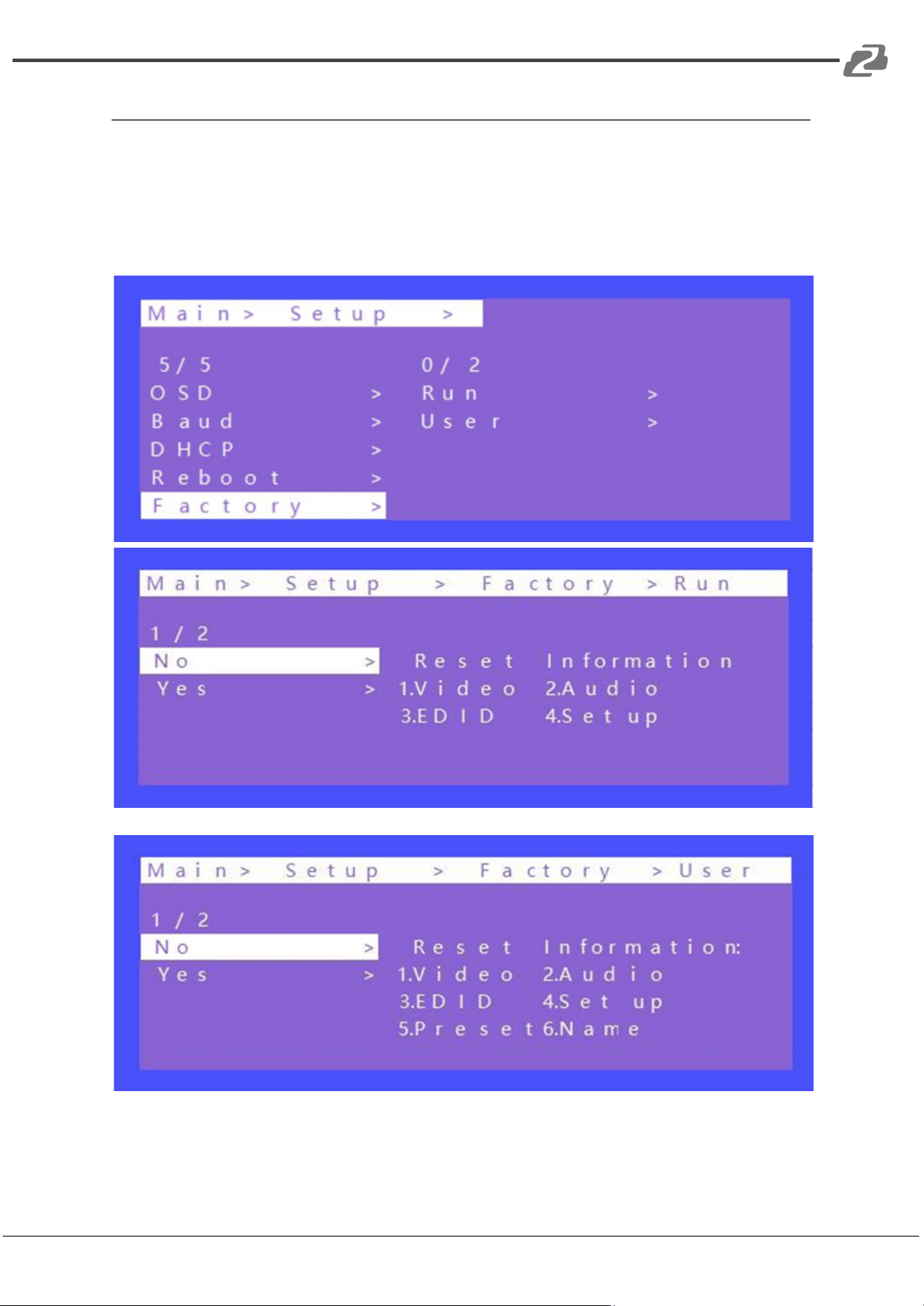
Factory Setting
It is an initialization setting for the device function. There are two factory settings:
1. Factory-Run
2. Factory-User
Factory-Run is the recovery operation data. (Keep the Preset setting)
Factory-User can restore the factory settings for all settings.
Address: 830 National Drive #140, Sacramento, CA 95834, USA · Tel: +1(888)499-9906 · Email: support@bzbgear.com 23
BZBGEAR BG-4K-VP99PRO PRODUCT MANUAL
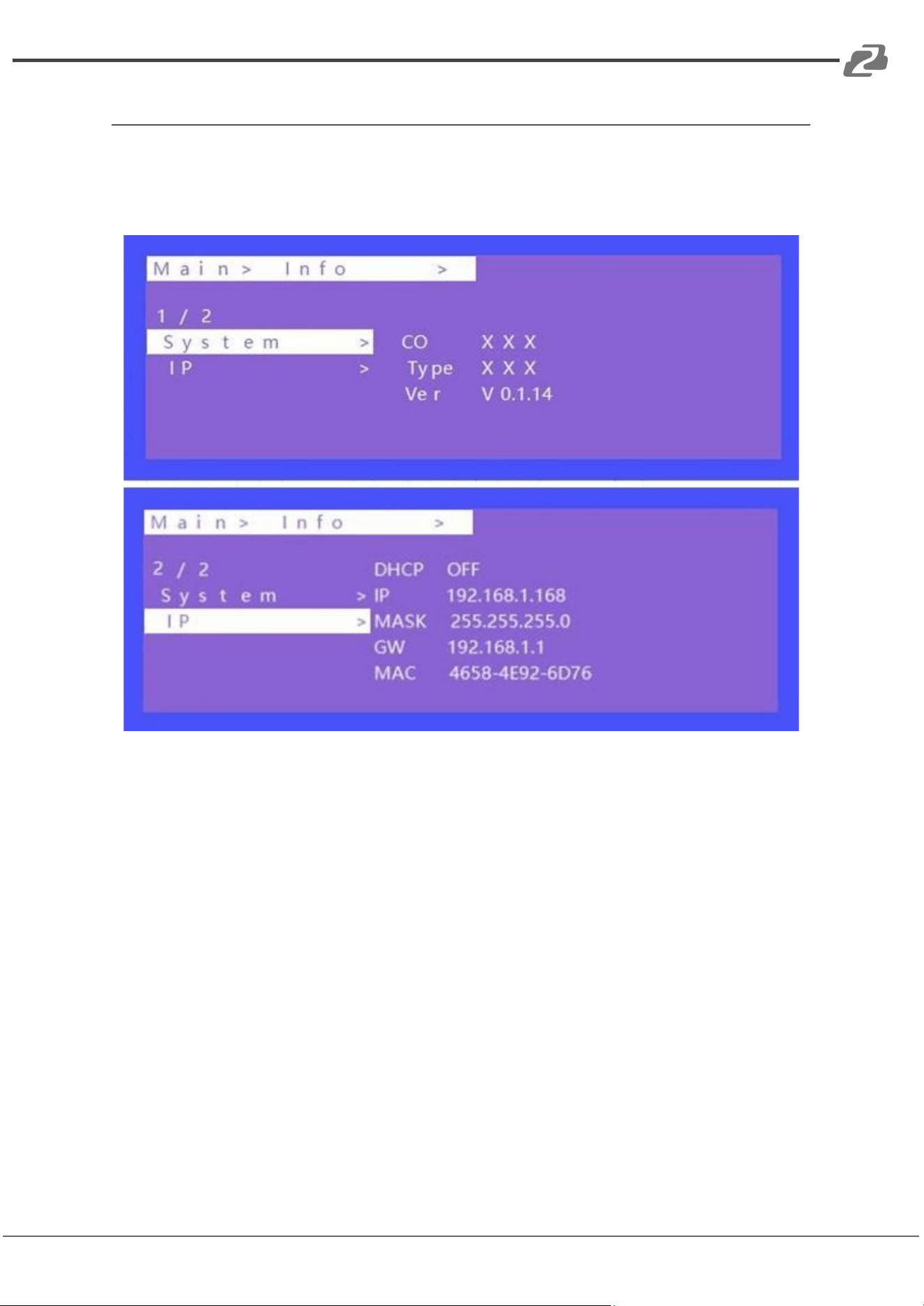
Info Section
View device information such as network information and system information.
The default IP address is 192.168.1.168.
Address: 830 National Drive #140, Sacramento, CA 95834, USA · Tel: +1(888)499-9906 · Email: support@bzbgear.com 24
BZBGEAR BG-4K-VP99PRO PRODUCT MANUAL
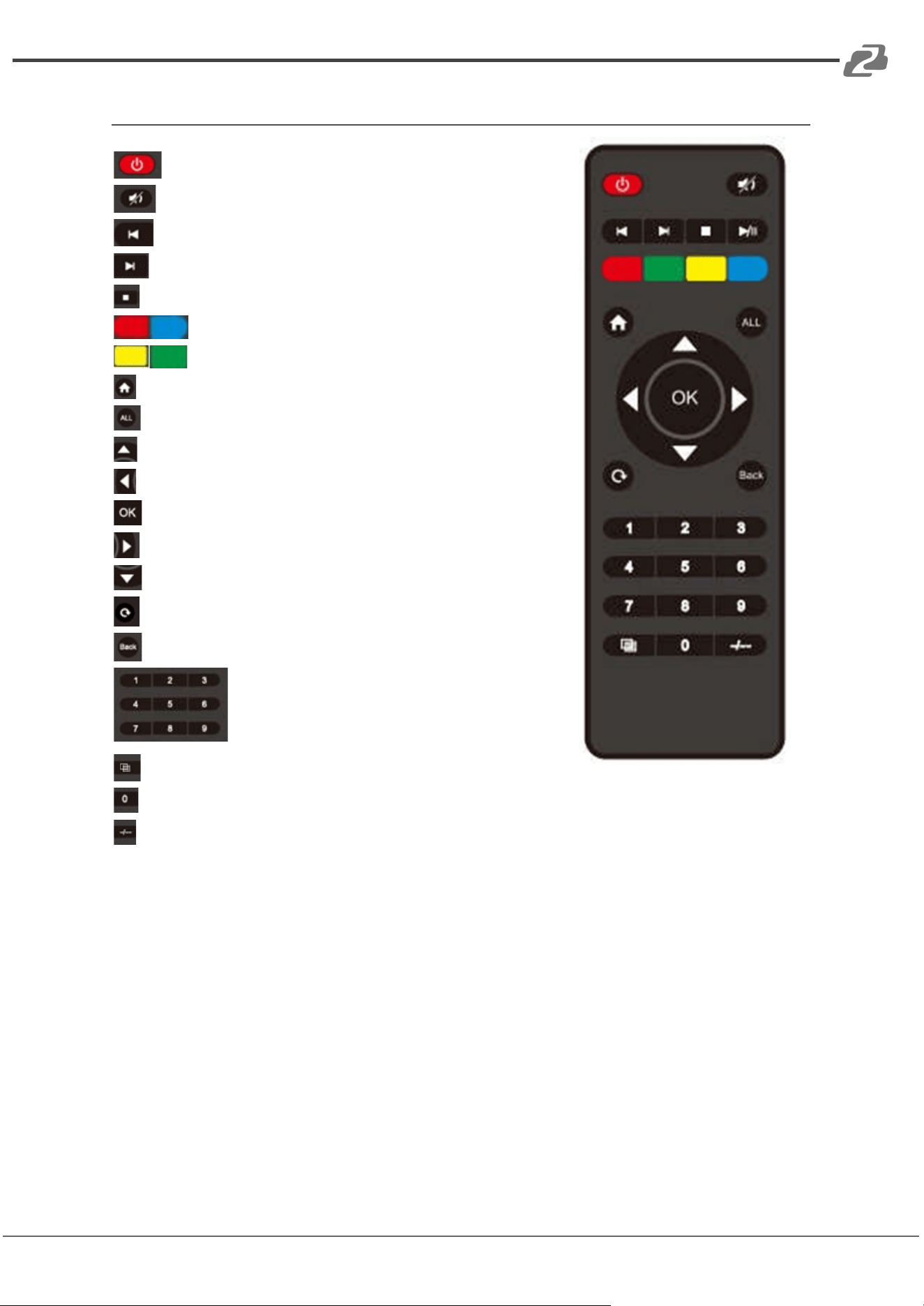
Remote Control
:Standby or power on
:Mute button
:Return to upper level
:Move to next level
:Picture off
:Page turn by 100 of the last sub-menu
:Page turn by 10 of the last sub-menu
:Menu
:All output
:Up
:Menu
:OK
:Enter
:Down
:Return or exit
:Menu
When selecting Output,means Out1--out4
When selecting Input,means In1--In4
:Preset
:(N/A)
:Point to Point 1-1, 2-2, 3-3, 4-4
Address: 830 National Drive #140, Sacramento, CA 95834, USA · Tel: +1(888)499-9906 · Email: support@bzbgear.com 25
BZBGEAR BG-4K-VP99PRO PRODUCT MANUAL
WEB Control
Network Control Instructions
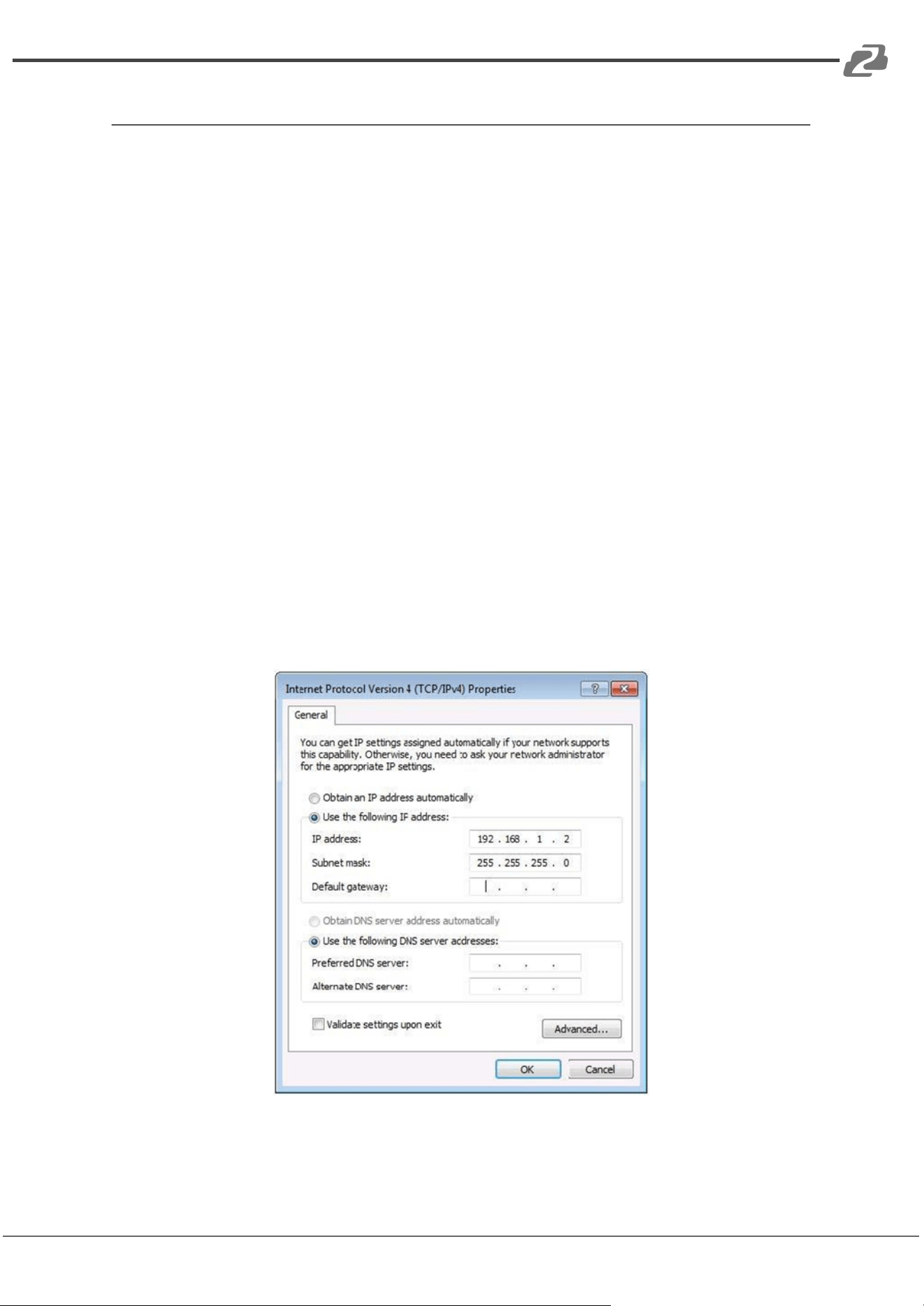
When the matrix is connected to a control device (such as a PC) through the TCP/IP
network port, it can be controlled via ASCII/HEX commands or through a web-based GUI.
Control Options:
1. Direct Control through TCP/IP Port:
○ Connect the matrix directly to a control device using the TCP/IP port.
2. Network Control:
○ Connect the matrix and the control device over a network. Ensure both
devices are on the same subnet, but with different last segments of their IP
addresses.
Network Configuration:
● Default IP Address of the Web Interface: 192.168.1.168
● Subnet Mask: 255.255.255.0
● Gateway: 192.168.1.1
● MAC Address: XXX-XXX-XXXX (specific to the unit)
Ensure the matrix and control device are configured correctly to facilitate communication
and control over the network.
Address: 830 National Drive #140, Sacramento, CA 95834, USA · Tel: +1(888)499-9906 · Email: support@bzbgear.com 26
BZBGEAR BG-4K-VP99PRO PRODUCT MANUAL
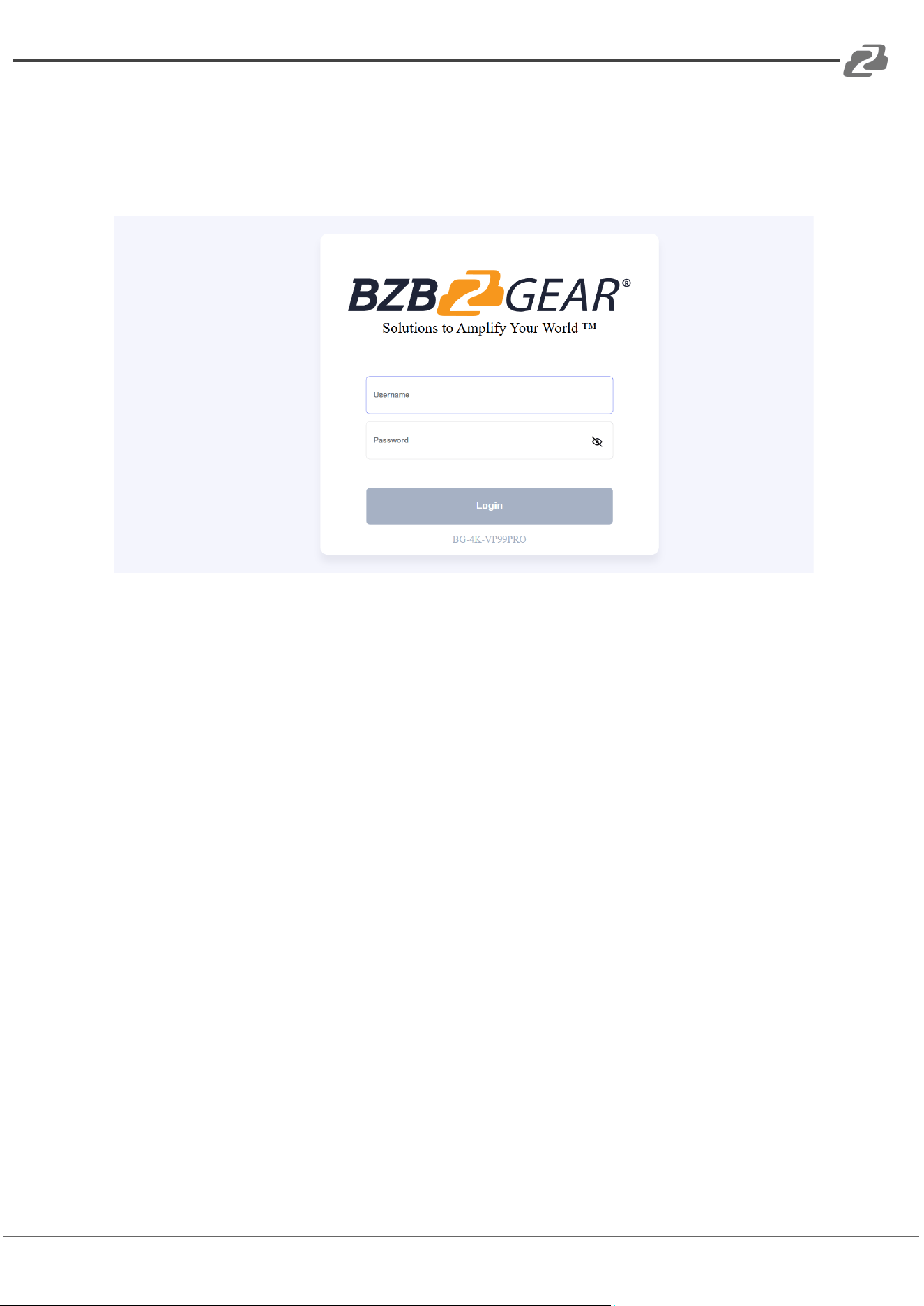
In your preferred web browser type in the default IP address of the unit or the one
shown in the on-screen display if the unit was set to DHCP or previously
configured.
Users will be directed to the login page of the device.
LOGIN Interface
Enter in the default admin credentials shown below and click “Login” to access
the user interface.
Username: admin
Password: admin
Address: 830 National Drive #140, Sacramento, CA 95834, USA · Tel: +1(888)499-9906 · Email: support@bzbgear.com 27
BZBGEAR BG-4K-VP99PRO PRODUCT MANUAL
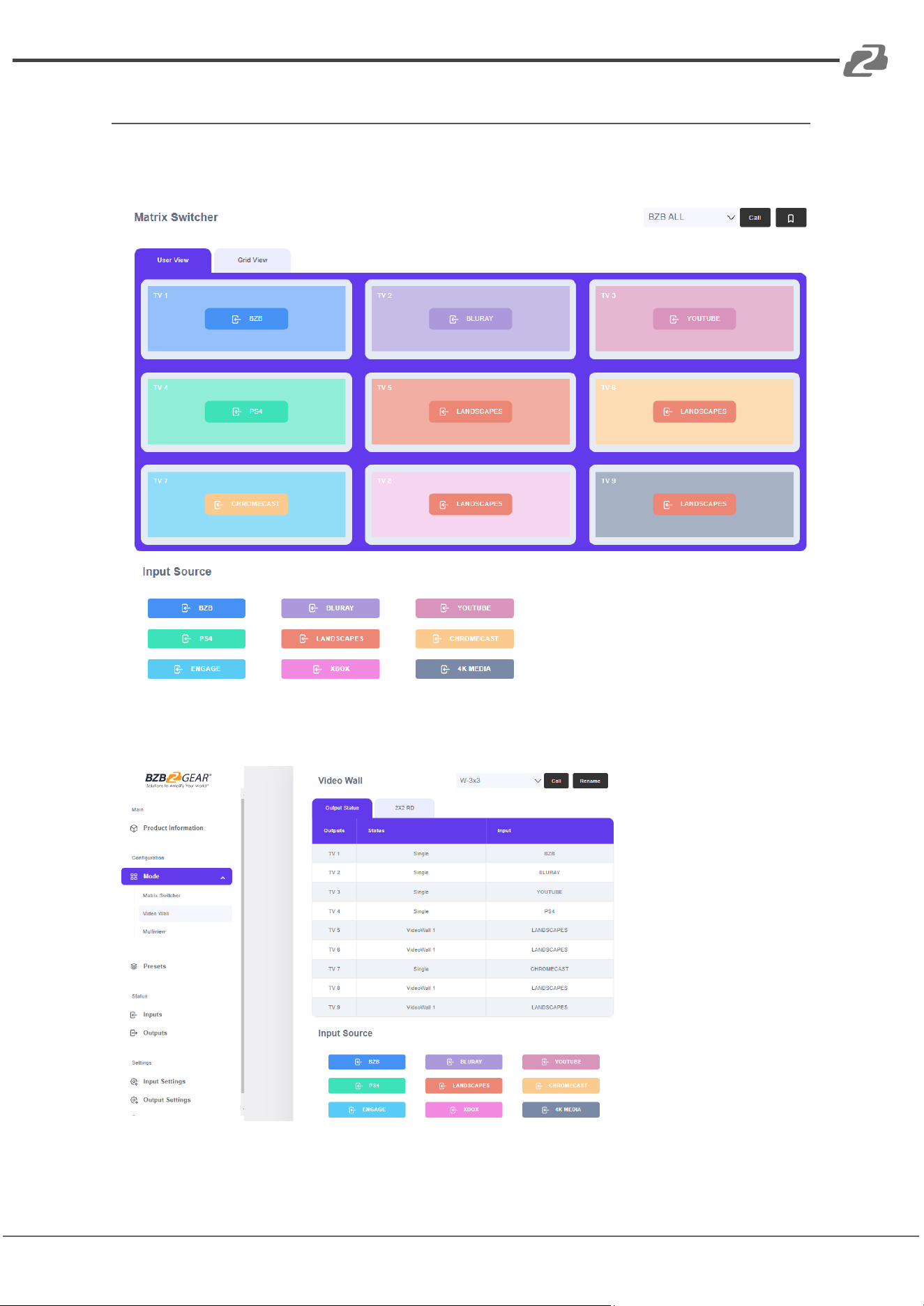
Video Interface
A. Matrix Interface
Video Output Interface
B. Video Wall Interface
Address: 830 National Drive #140, Sacramento, CA 95834, USA · Tel: +1(888)499-9906 · Email: support@bzbgear.com 28
BZBGEAR BG-4K-VP99PRO PRODUCT MANUAL
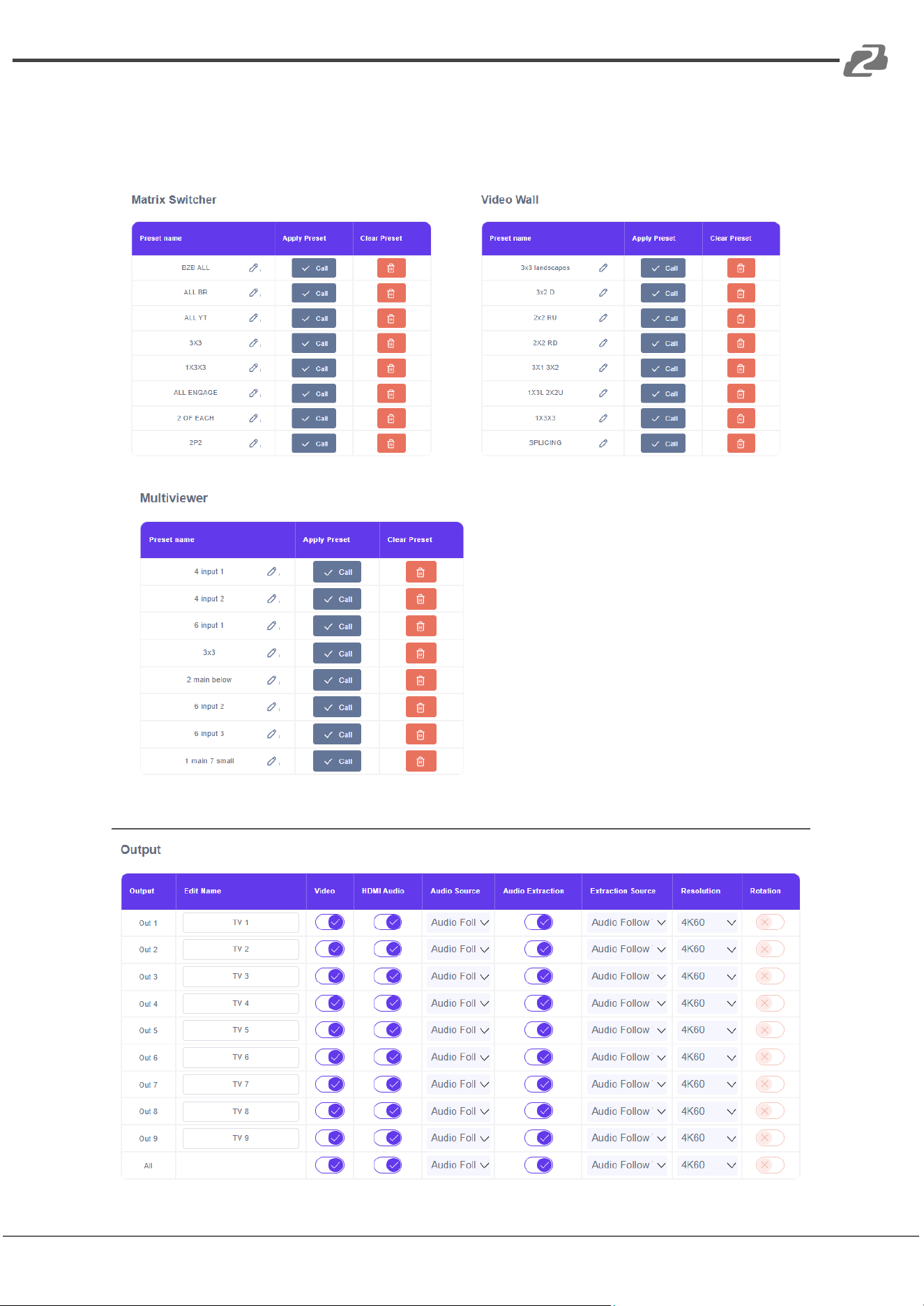
C. Preset Interface
Rename for each Preset scene, Save/ Call/ Clear preset.
Audio Interface
Address: 830 National Drive #140, Sacramento, CA 95834, USA · Tel: +1(888)499-9906 · Email: support@bzbgear.com 29
BZBGEAR BG-4K-VP99PRO PRODUCT MANUAL
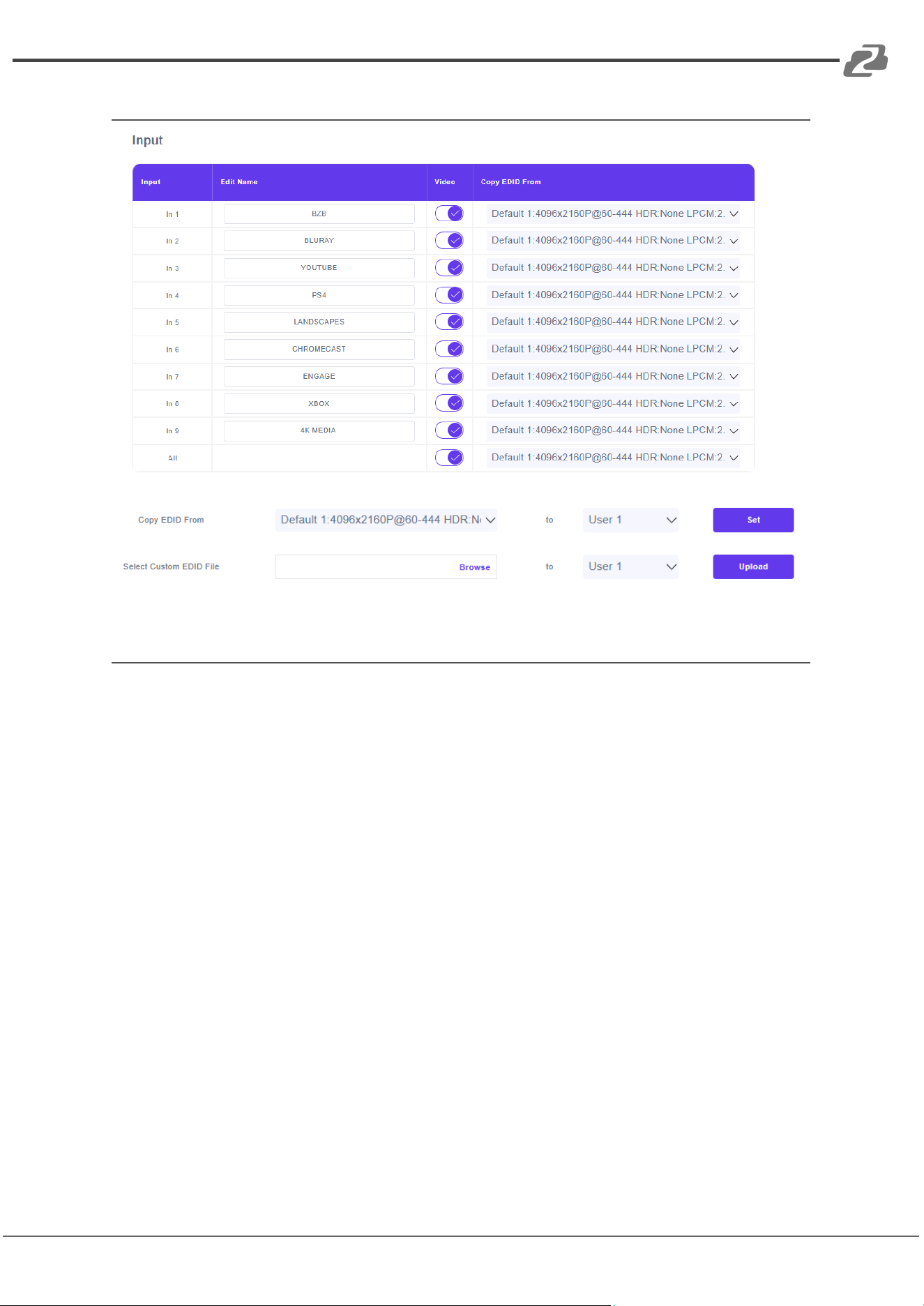
EDID Interface
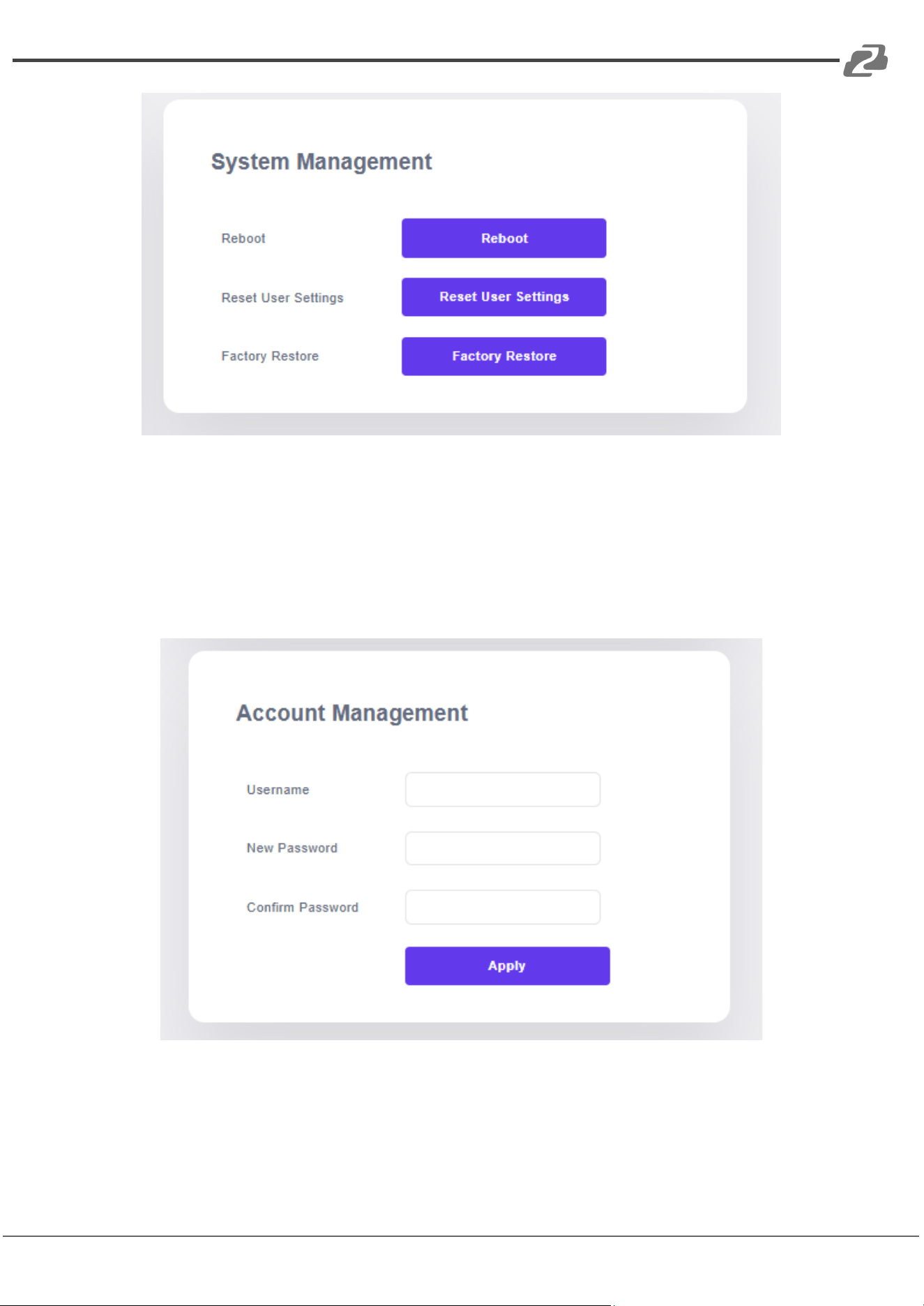
SYSTEM Interface
Include: Network, Reset, Password.
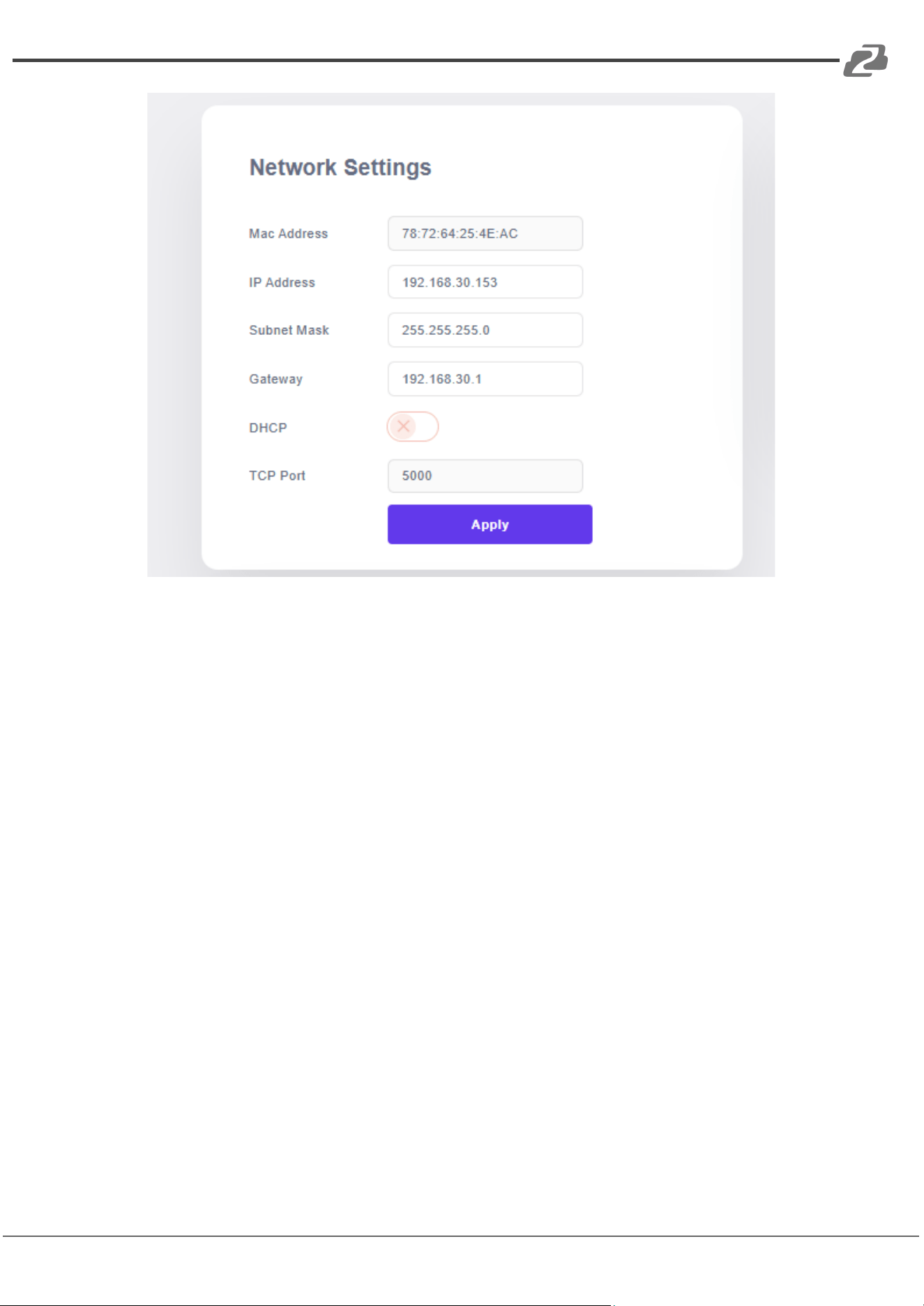
Network Interface Settings
Setting and Displaying IP Information:
1. MAC Address:
○ The MAC address is for display only and cannot be modified.
2. Static IP Address:
○ When DHCP is turned off, you can modify the static IP address.
○ Changes take effect after applying the new settings.
○ The web interface will automatically require a login again after an 8-second
countdown.
3. Dynamic IP Address:
○ When DHCP is turned on, the IP address field becomes unmodifiable (grayed
out).
○ Only the current IP address will be displayed.
Address: 830 National Drive #140, Sacramento, CA 95834, USA · Tel: +1(888)499-9906 · Email: support@bzbgear.com 30
BZBGEAR BG-4K-VP99PRO PRODUCT MANUAL
Reset Interface
Device Control Options
Reboot:
● Operation: Reboots the device.
Factory Run:
● Operation: Restores running data, including settings for video, audio, EDID, and
setup (preset settings are retained).
Factory User:
● Operation: Restores all settings to factory defaults.
Standby:
● Operation: Click to enter standby mode. Click again to wake up the device.
Address: 830 National Drive #140, Sacramento, CA 95834, USA · Tel: +1(888)499-9906 · Email: support@bzbgear.com 31
BZBGEAR BG-4K-VP99PRO PRODUCT MANUAL
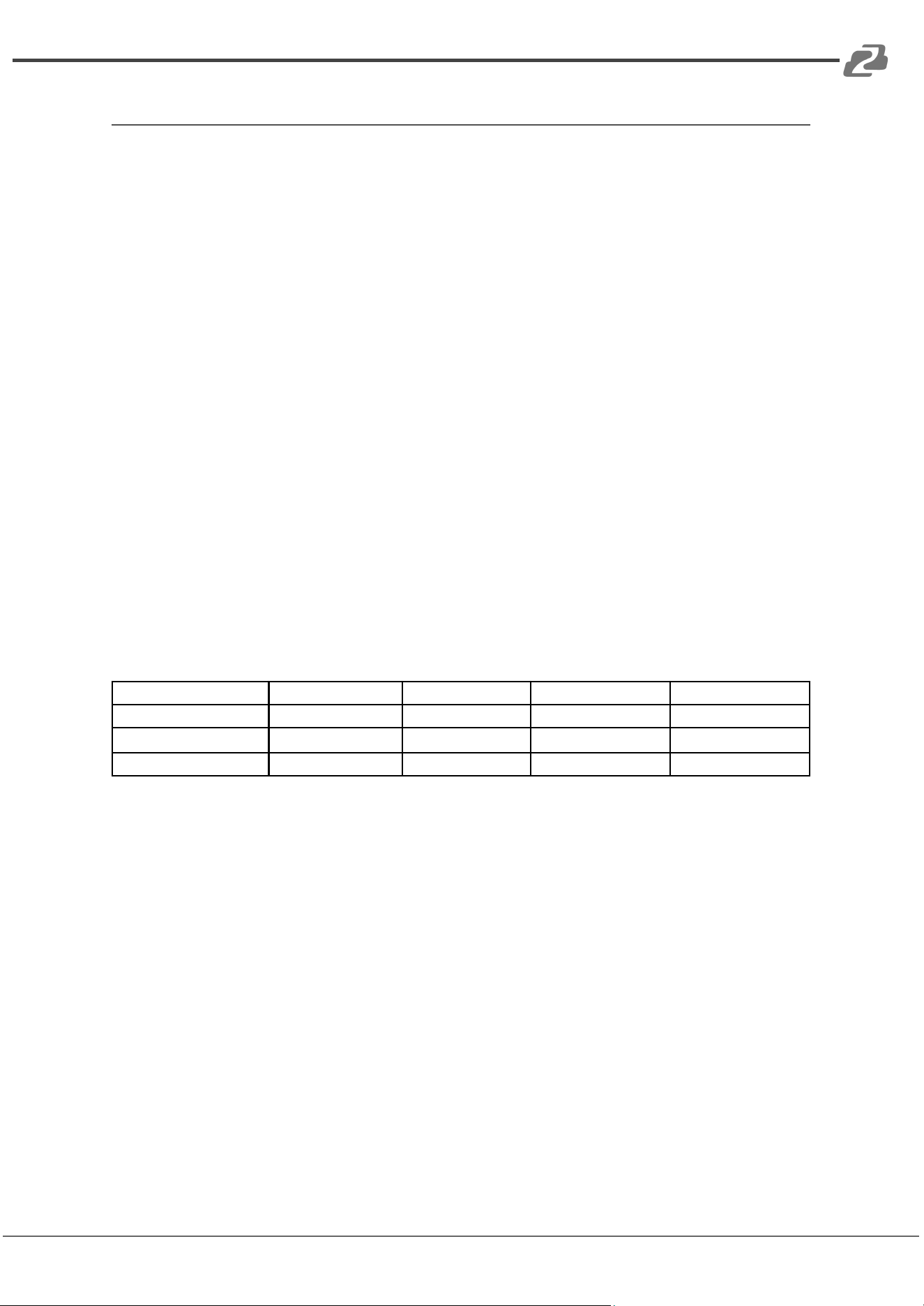
Password Interface
Modify password for current login account Default Account: admin
Default Password: admin
(Only support 5~15 bits, support alphabets/numbers/underline)
Address: 830 National Drive #140, Sacramento, CA 95834, USA · Tel: +1(888)499-9906 · Email: support@bzbgear.com 32
BZBGEAR BG-4K-VP99PRO PRODUCT MANUAL
RS-232 Control
Operations may vary depending on the control program used to send RS-232 commands.
Select the serial port that the unit is connected to on the PC using a serial cable.
● Baud rate: 115200 (default)
● Data bit: 8
● Stop bit: 1
● Check bit: none
Input commands in the command input area to control the local or remote receivers.
Instructions:
1. All commands start with “#”
a. “%c” command head
b. “d” parameters
c. “l” lock
2. The “_” in the commands cannot be omitted.
a. Parameter: %d: 0 means ALL
b. 1-x means specified output(1~9)
3. Command head & Parameter1 & Parameter2... need to have one “SPACE” between
them.
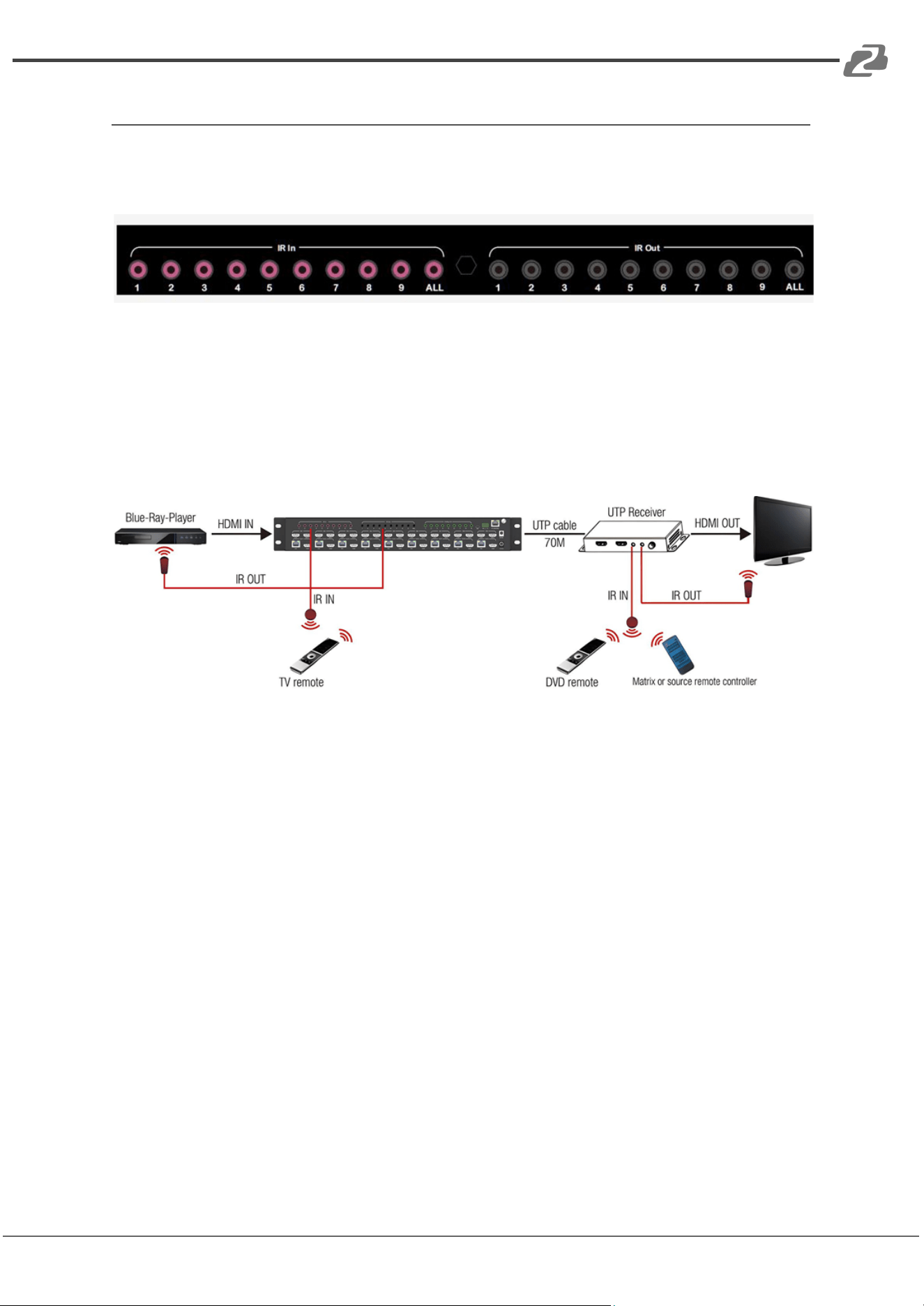
The following table is only an example. Please refer to the list of instructions.
Instruction description
instruction
parameter 1
parameter 2
parameter 3
Video switch
#video_%c
out%d
in%d
matrix=%d
Audio Mode Switch
#audio_%c
in%d
/
enc=%d
EDID
#EDID_%c
In%d
cfg=%d
/
Please refer to the "Command list" for details.
Example: video wall input switch to input3, video wall mode 3×2, cascade layer 2.
Operation format: #splice input=3 h=2 v=3 c=2
Address: 830 National Drive #140, Sacramento, CA 95834, USA · Tel: +1(888)499-9906 · Email: support@bzbgear.com 33
BZBGEAR BG-4K-VP99PRO PRODUCT MANUAL
IR System
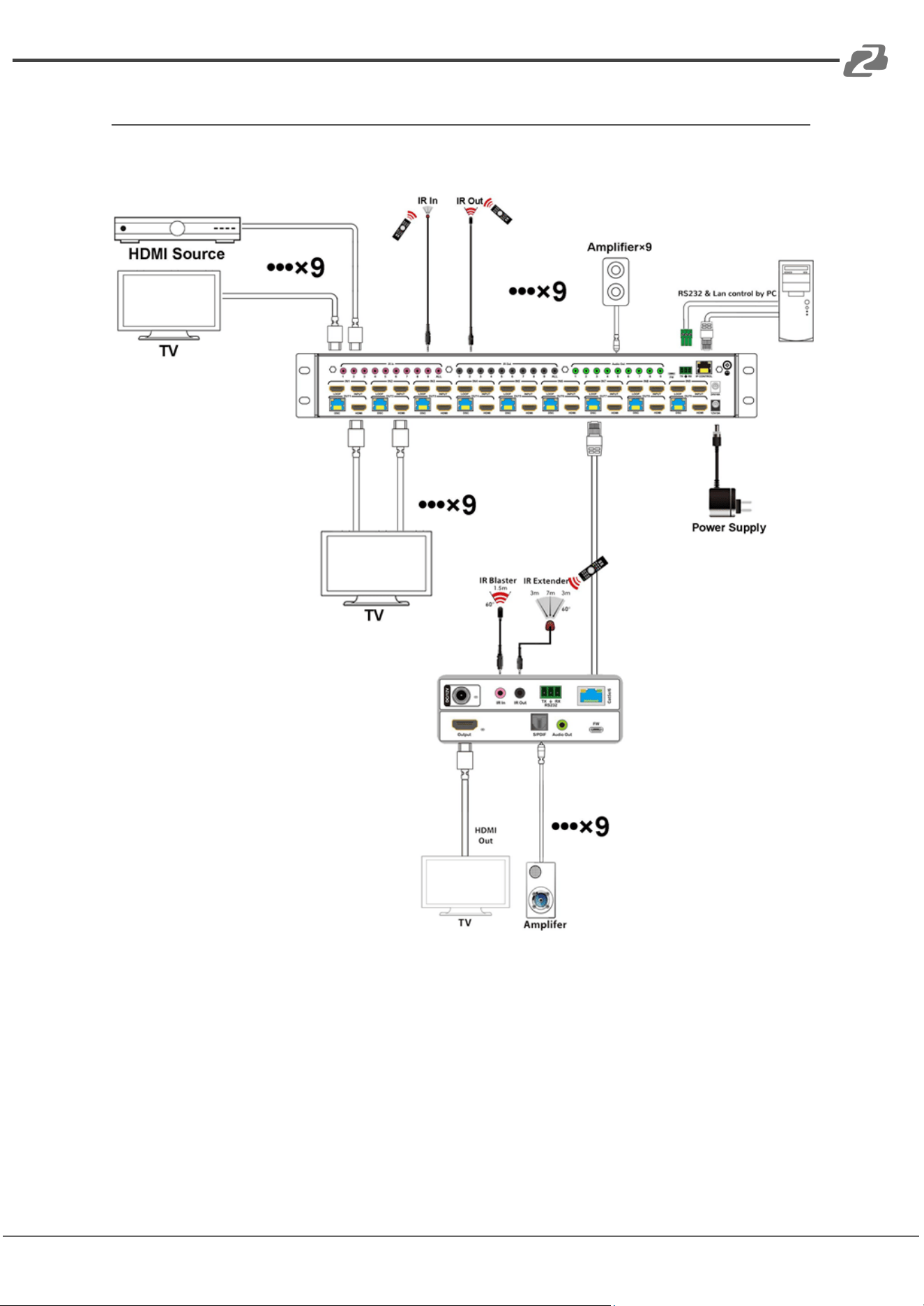
The matrix can pass the IR signal through the IR system to the HDMI source or pass the IR
signal from the HDMI source to the HDMI sink.
Dual way IR using:
Step 1: “IR IN” is for UTP output, “IR OUT” is for input channel
Step 2: “IR IN ALL” Controls all input IR; “IR OUT ALL” Controls all output IR.
Step 3: Receivers support connection with IR receiver to control the Matrix via remote.
Step 4: Matrix IR channel “IR IN” supports connection with IR-RX cable to control the
Matrix.
Address: 830 National Drive #140, Sacramento, CA 95834, USA · Tel: +1(888)499-9906 · Email: support@bzbgear.com 34
BZBGEAR BG-4K-VP99PRO PRODUCT MANUAL
Application Diagram
1. Seamless switch 9x9 HDMI Matrix
Address: 830 National Drive #140, Sacramento, CA 95834, USA · Tel: +1(888)499-9906 · Email: support@bzbgear.com 35
BZBGEAR BG-4K-VP99PRO PRODUCT MANUAL
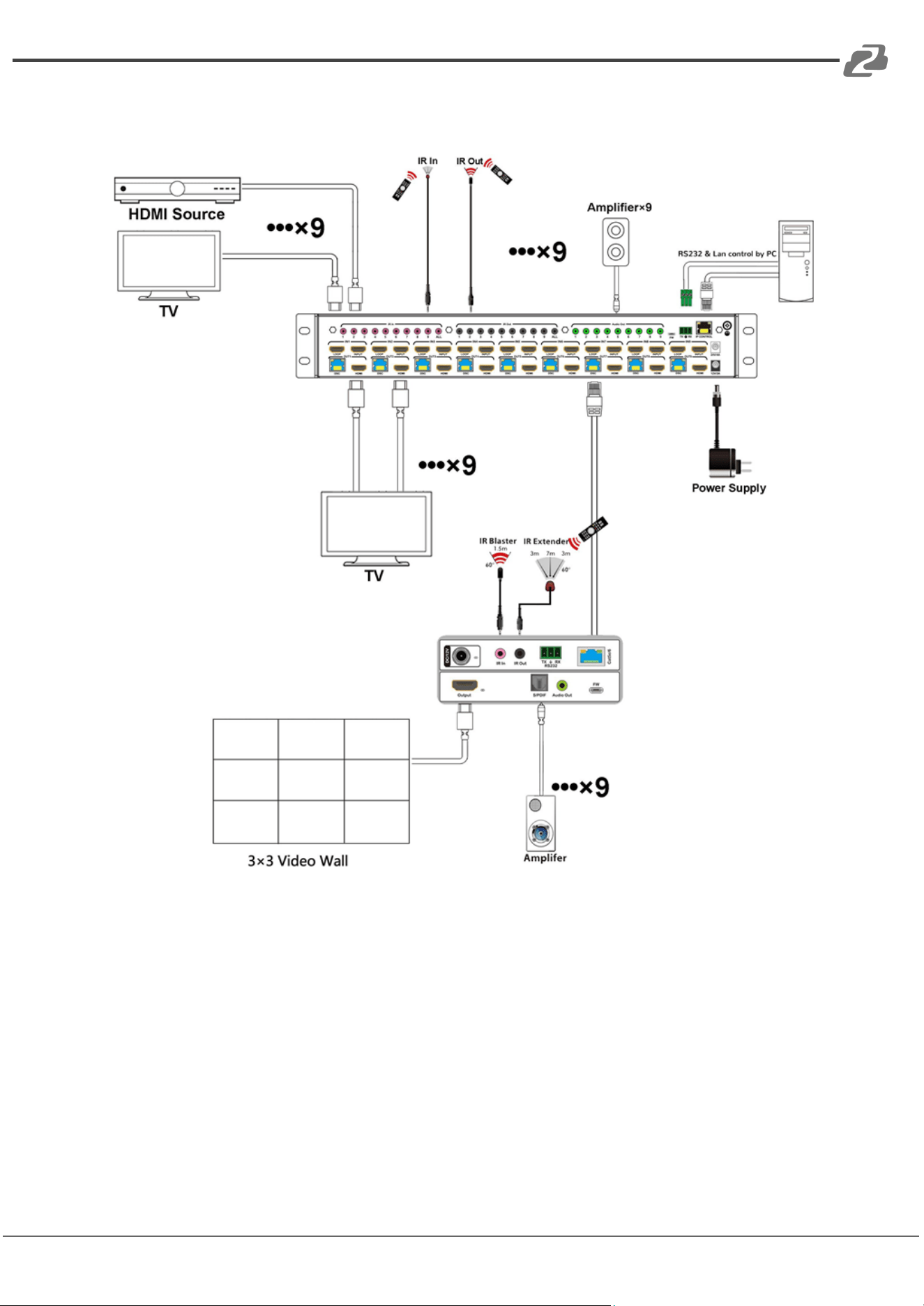
2. Diagram of 3x3 Video Wall Displaying
Address: 830 National Drive #140, Sacramento, CA 95834, USA · Tel: +1(888)499-9906 · Email: support@bzbgear.com 36

BZBGEAR BG-4K-VP99PRO PRODUCT MANUAL
Tech Support
Have technical questions? We may have answered them already!
Please visit BZBGEAR’s support page (bzbgear.com/support) for helpful information and
tips regarding our products. Here you will find our Knowledge Base
(bzbgear.com/knowledge-base) with detailed tutorials, quick start guides, and step-by-step
troubleshooting instructions. Or explore our YouTube channel, BZB TV
(youtube.com/c/BZBTVchannel), for help setting up, configuring, and other helpful how-to
videos about our gear.
Need more in-depth support? Connect with one of our technical specialists directly:
Phone
1.888.499.9906
Email
support@bzbgear.com
Live Chat
bzbgear.com
Limited Product Warranty Terms
Pro Line: 5-year warranty from the date of purchase for AV/Broadcasting products bought
on or after August 1, 2024.
Essential Line: 3-year warranty from the date of purchase for AV/Broadcasting products
bought on or after August 1, 2024.
Cables: Lifetime Limited Product Warranty.
For complete warranty information, please visit bzbgear.com/warranty.
For questions, please call 1.888.499.9906 or email support@bzbgear.com.
Address: 830 National Drive #140, Sacramento, CA 95834, USA · Tel: +1(888)499-9906 · Email: support@bzbgear.com 37

BZBGEAR BG-4K-VP99PRO PRODUCT MANUAL
Mission Statement
BZBGEAR is a breakthrough manufacturer of high-quality, innovative audiovisual equipment
ranging from AVoIP, professional broadcasting, conferencing, home theater, to live
streaming solutions. We pride ourselves on unparalleled customer support and services.
Our team offers system design consultation, and highly reviewed technical support for all
the products in our catalog. BZBGEAR delivers quality products designed with users in
mind.
Copyright
All the contents in this manual and its copyright are owned by BZBGEAR. No one is allowed
to imitate, copy, or translate this manual without BZBGEAR’s permission. This manual
contains no guarantee, standpoint expression or other implies in any form. Product
specification and information in this manual is for reference only and subject to change
without notice.
All rights reserved. No reproducing is allowed without acknowledgement.
Address: 830 National Drive #140, Sacramento, CA 95834, USA · Tel: +1(888)499-9906 · Email: support@bzbgear.com 38
