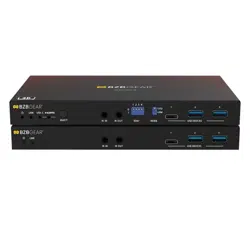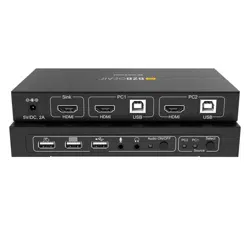
BG-UHD-KVM21A
2X1 4K UHD KVM Switcher with USB 2.0 and Audio Support
User Manual

BZBGEAR BG-UHD-KVM21A PRODUCT MANUAL
Address: 830 National Drive #140, Sacramento, CA 95834, USA · Tel: +1(888)499-9906 · Email: support@bzbgear.com 2

BZBGEAR BG-UHD-KVM21A PRODUCT MANUAL
TABLE OF CONTENTS
Statement 4
Safety Precaution 4
Introduction 5
Features 5
Compatibility: 5
Packing List 5
Technical Specifications 5
Operation Controls and Functions 6
Hardware Installation 7
Hotkey Commands 8
(HOTKEY) Notes: 12
Application Example 13
Tech Support 14
Limited Product Warranty Terms 14
Mission Statement 14
Copyright 14
Address: 830 National Drive #140, Sacramento, CA 95834, USA · Tel: +1(888)499-9906 · Email: support@bzbgear.com 3

BZBGEAR BG-UHD-KVM21A PRODUCT MANUAL
Statement
Please read these instructions carefully before connecting, operating, or configuring this
product. Please save this manual for future reference.
Safety Precaution
● Unpack the equipment carefully and save the original box and packing material for
possible future shipment.
● Follow basic safety precautions to reduce the risk of fire, electrical shock and injury to
persons.
● To prevent damaging this product, avoid heavy pressure, strong vibration, or immersion
during transportation, storage, and installation.
● Do not dismantle the housing or modify the module.
● Using supplies or parts not meeting the products’ specifications may cause damage,
deterioration or malfunction.
● Do not put any heavy items on the extension cable in case of extrusion.
● Install the device in a place with fine ventilation to avoid damage caused by overheat.
● Do not twist or pull by force ends of the optical cable. It can cause malfunction.
● The housing of this product is made of organic materials. Do not expose to any liquid,
gas, or solids which may corrode the shell.
● Unplug this device during lightning storms.
● Do not use liquid or aerosol cleaners to clean this unit. Clean only with a soft dry
microfiber cloth.
● Always unplug the power to the device before cleaning.
● If an object or liquid falls or spills on to the housing, unplug the module immediately.
● To prevent the risk of electric shock, do not open the case. Installation and maintenance
should only be carried out by qualified technicians.
● Do not use the product beyond the specified temperature, humidity, or power supply
specifications.
● This product does not contain parts that can be maintained or repaired by users.
Damage caused by dismantling the product without authorization from BZBGEAR is not
covered under the warranty policy.
● Installation and use of this product must strictly comply with local electrical safety
standards.
● Product specifications may be subject to technical upgrades without further notice.
● Unplug the power cord when left unused for a long period of time.
● Information on disposal for scrapped devices: do not burn or mix with general
household waste, please treat them as normal electrical wastes.
Address: 830 National Drive #140, Sacramento, CA 95834, USA · Tel: +1(888)499-9906 · Email: support@bzbgear.com 4
BZBGEAR BG-UHD-KVM21A PRODUCT MANUAL
Introduction
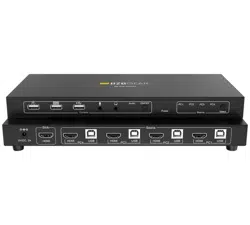
The BG-UHD-KVM21A is a 4K HDMI USB 2.0 KVM switch. With support for resolutions up
to 4K@30Hz, this device allows users to control two computers and share USB peripherals
from a single workstation. Perfect for offices, software programmers, and technical support
desks, users can easily switch between multiple operating systems without leaving their
seat.
Features
● Share an HDTV, display, USB keyboard, and mouse between two USB/HDMI
computers and devices.
● Includes an additional USB 2.0 sharing port with over-current detection and
protection.
● Switch between devices using the front push button or hotkey.
● Supports resolutions up to 4096 x 2160 at 60Hz and PC's UXGA 1920 x 1200
YCbCr420.
● Compatible with Dolby TrueHD and DTS HD Master Audio formats.
● HDMI 2.0 and HDCP compliant.
● Offers video bandwidth up to 18Gbps.
● Features a metal housing for improved RF shielding.
Compatibility:
● Windows, Mac, and Linux computers
● Game consoles, Blu-Ray DVD players, and other CE devices
Packing List
● 1x BG-UHD-KVM21A
● 1x Power Adapter
● 1x User Manual
● 1х Quick Start Guide
Technical Specifications
General
Supports resolutions
Max input: 4K@60Hz; max output: 4K@30Hz
Input Ports
2 HDMI, 2 USB 2.0 Host, 3 USB 2.0 Peripheral, 1 analog audio
Output Ports
1 HDMI, 1 Analog Audio
Control
Panel Buttons
Power Supply
AC 100 - 240V 50/60Hz
Weight
9.1oz [258g]
Dimensions
6.15"(W) x 2.7"(D) x 1"(H)
156mm (W) x 69mm (D) x 25mm (H)
Housing
Metal Enclosure
Address: 830 National Drive #140, Sacramento, CA 95834, USA · Tel: +1(888)499-9906 · Email: support@bzbgear.com 5
BZBGEAR BG-UHD-KVM21A PRODUCT MANUAL
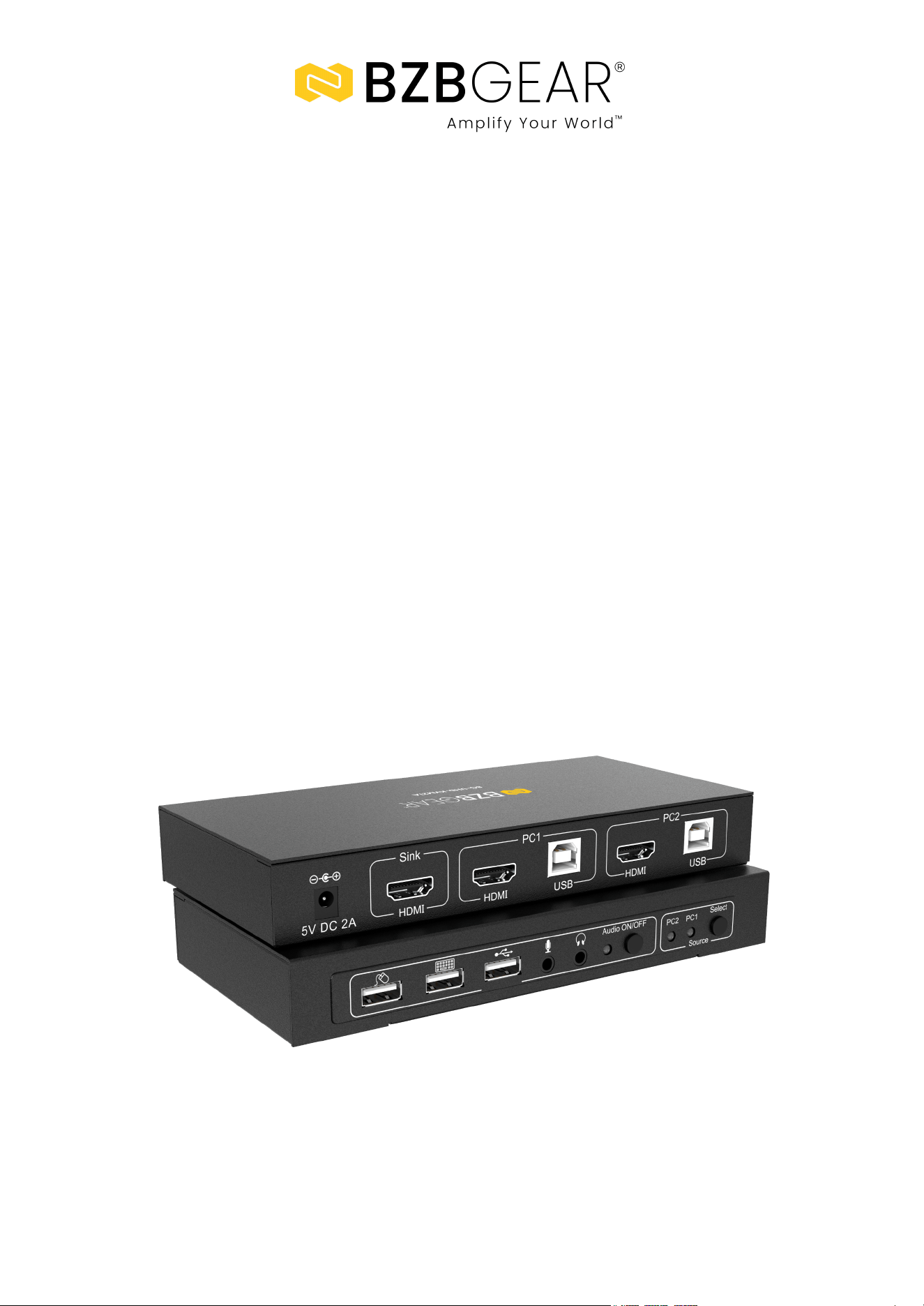
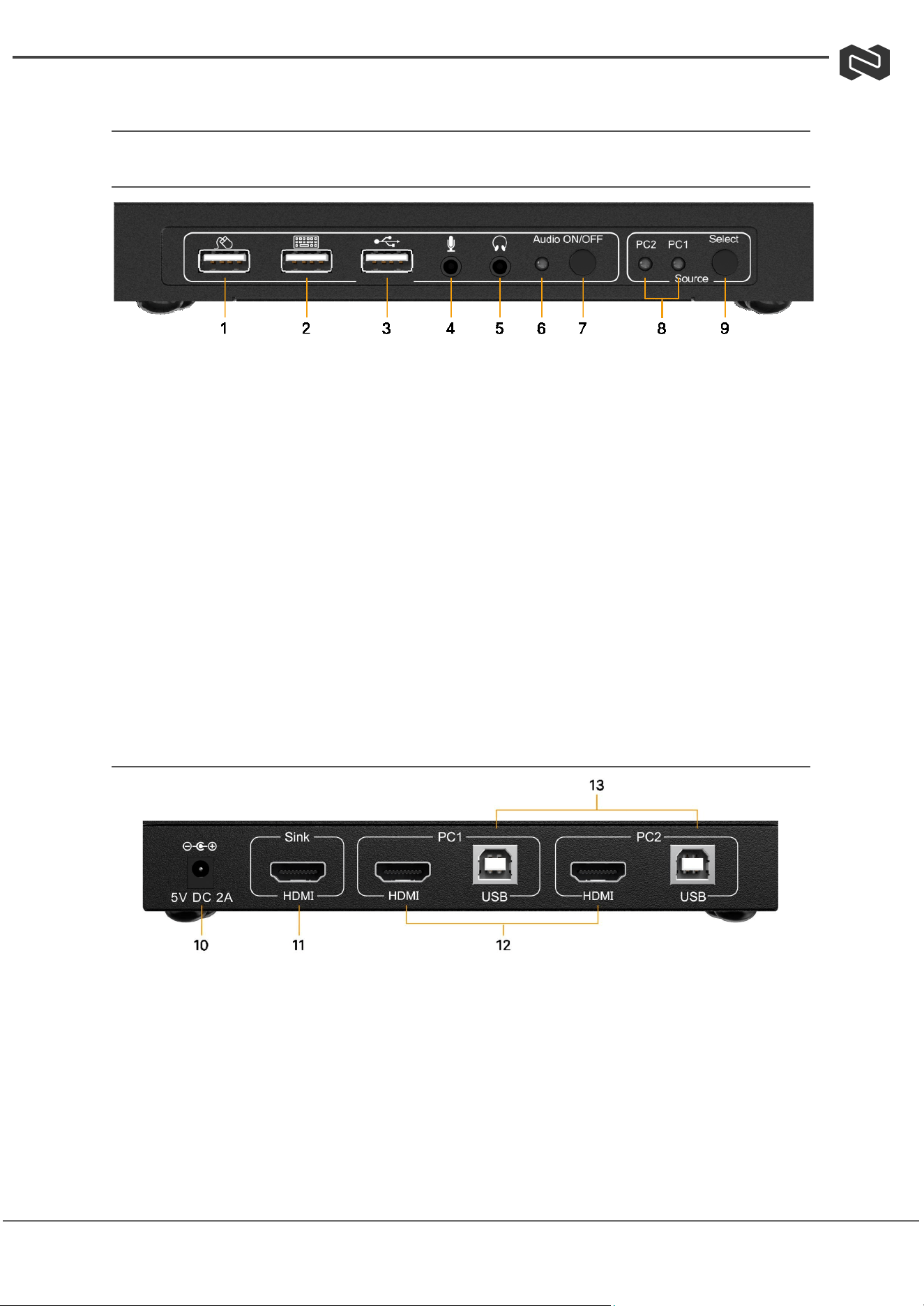
Operation Controls and Functions
Front Panel
1. USB Mouse Port: Connect to a USB mouse.
2. USB Keyboard Port: Connect to a USB keyboard.
3. USB Port: Connect to other USB devices.
4. MIC: Connect to a microphone.
5. Audio out: Connect to earphones.
6. Audio LED: Audio ON/OFF Indication.
7. Audio Switch: Switch to enable/disable the MIC/Audio out function.
8. Port LED: Indicate which HDMI source is selected.
9. Port Select: Switch between the HDMI sources.
Rear Panel
10. Power Jack: Connect to the included power adapter.
11. HDMI Sink: Connect to local HDMI Display.
12. PC1/2 HDMI Inputs: Connect to the source/remote device's HDMI output.
13. PC1/2 USB Type-B Port: Connect to the source/remote PC's USB port for USB
control.
Address: 830 National Drive #140, Sacramento, CA 95834, USA · Tel: +1(888)499-9906 · Email: support@bzbgear.com 6

BZBGEAR BG-UHD-KVM21A PRODUCT MANUAL
Hardware Installation
1. Power off all devices you plan to connect to the 2x1 USB HDMI KVM Switch 4K2K.
2. Connect a monitor/display to HDMI OUTPUT of the switch by an HDMI cable.
3. Connect a USB keyboard and a USB mouse to the USB keyboard and Mouse ports
of the switch.
4. Connect the computer's HDMI connector to the switch's INPUT 1 connector using
the HDMI cable.
5. Connect the computer's USB port to the switch's PC1 connector (USB Type B)
using the included USB cable.
6. For the second computer, follow steps 4 to 5 to connect the preferred
system/device to INPUT 2 and PC2.
7. Optional: Connect other USB peripherals you wish to share between the connected
computers/devices to the extra USB ports on the switch.
8. Connect the power adapter into the switch's Power Jack.
9. Power up the first computer/device and wait until it is fully booted up. Make sure
the keyboard and mouse work properly.
10. Once the first computer system is successfully setup, press the Switch button and
power up the second computer/device to verify the setup properly.
11. The installation is complete and the 2x1 USB HDMI KVM Switch is ready for use.
Note: At least 1 connected device has to be a PC with a USB port or the switching
mechanism will not function.
Address: 830 National Drive #140, Sacramento, CA 95834, USA · Tel: +1(888)499-9906 · Email: support@bzbgear.com 7
BZBGEAR BG-UHD-KVM21A PRODUCT MANUAL
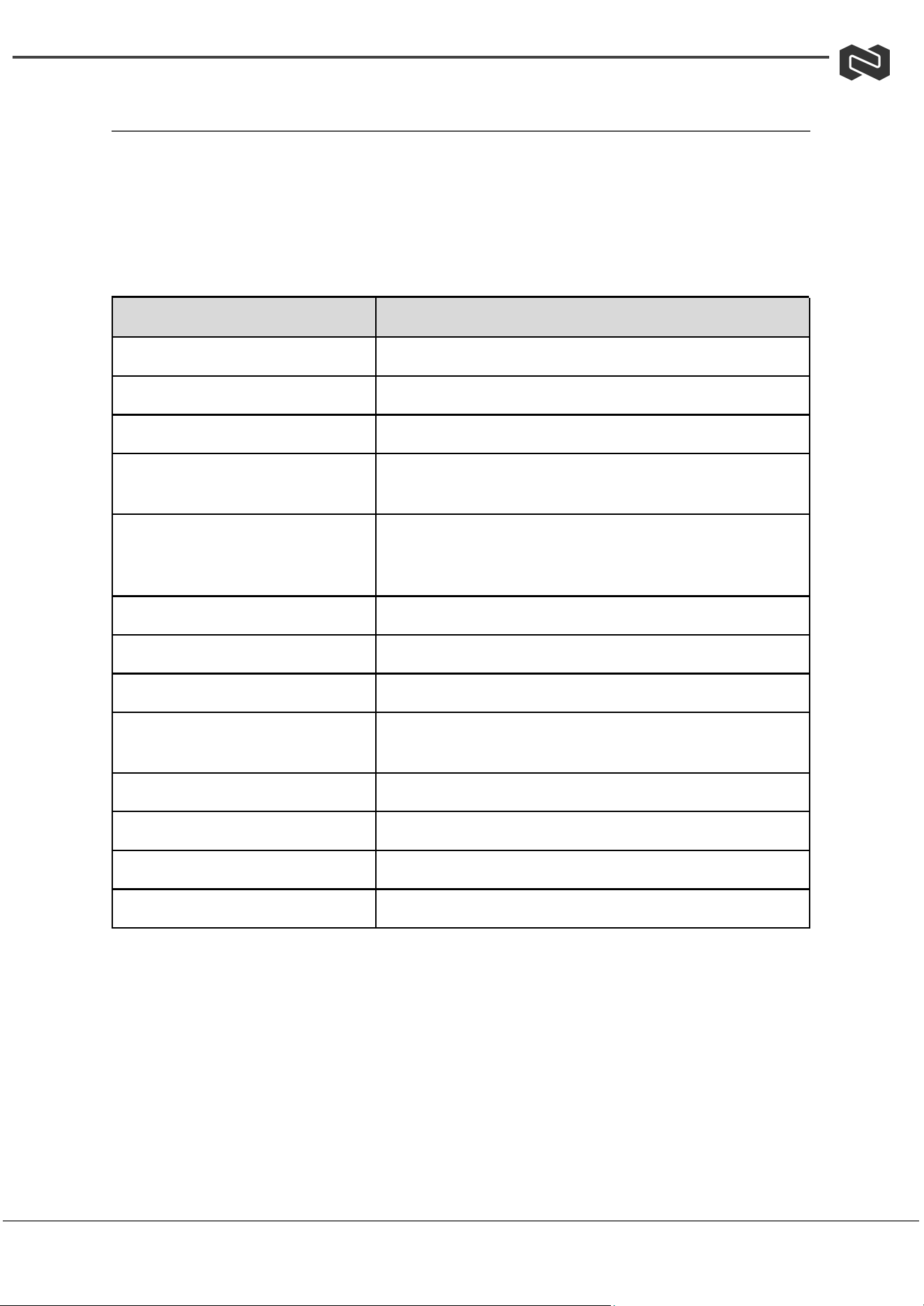
Hotkey Commands
The Switch can respond to several hotkey commands. The basic form of the hotkey
command is to tap the SCROLL LOCK key twice, then tap the command key(s). The
following table shows the various hotkey commands that can be performed.
Scroll:
Command
Function
[Scroll] ++ [Scroll] + [→or↓]
PC Switch to the next PC
[Scroll] ++ [Scroll] + [←or↑]
PC Switch to the previous PC
[Scroll] ++ [Scroll] + [B]
Turn the beep sound on or off.
[Scroll] ++ [Scroll] + [S]
Auto-scan mode every 5 seconds. ([Esc] switch to
regular key code)
[Scroll] ++ [Scroll] + [S] + [n][*2]
Set Auto-scan rate (number from 1 ~ 9, in intervals of
+5 seconds-999 seconds)
[Scroll] ++ [Scroll] + [K]
Turn the hotkey on or off
[Scroll] ++ [Scroll] + [R]
Reboot the KVM switch
[Scroll] ++ [Scroll] + [ESC]
Restore Factory Default
[Scroll] ++ [Scroll] + [N]
View the firmware version and display the version
number with a flashing indicator
[Scroll] ++ [Scroll] + [T][*3]
Turn Auto-Detection on or off
[Scroll] ++ [Scroll] + [F12]
Enable/disable the mouse cursor across the screen
[Scroll] ++ [Scroll] + [Caps]
Switch to [Caps] hotkey mode
[Scroll] ++ [Scroll] + [Num]
Switch to [Num] hotkey mode
Address: 830 National Drive #140, Sacramento, CA 95834, USA · Tel: +1(888)499-9906 · Email: support@bzbgear.com 8
BZBGEAR BG-UHD-KVM21A PRODUCT MANUAL
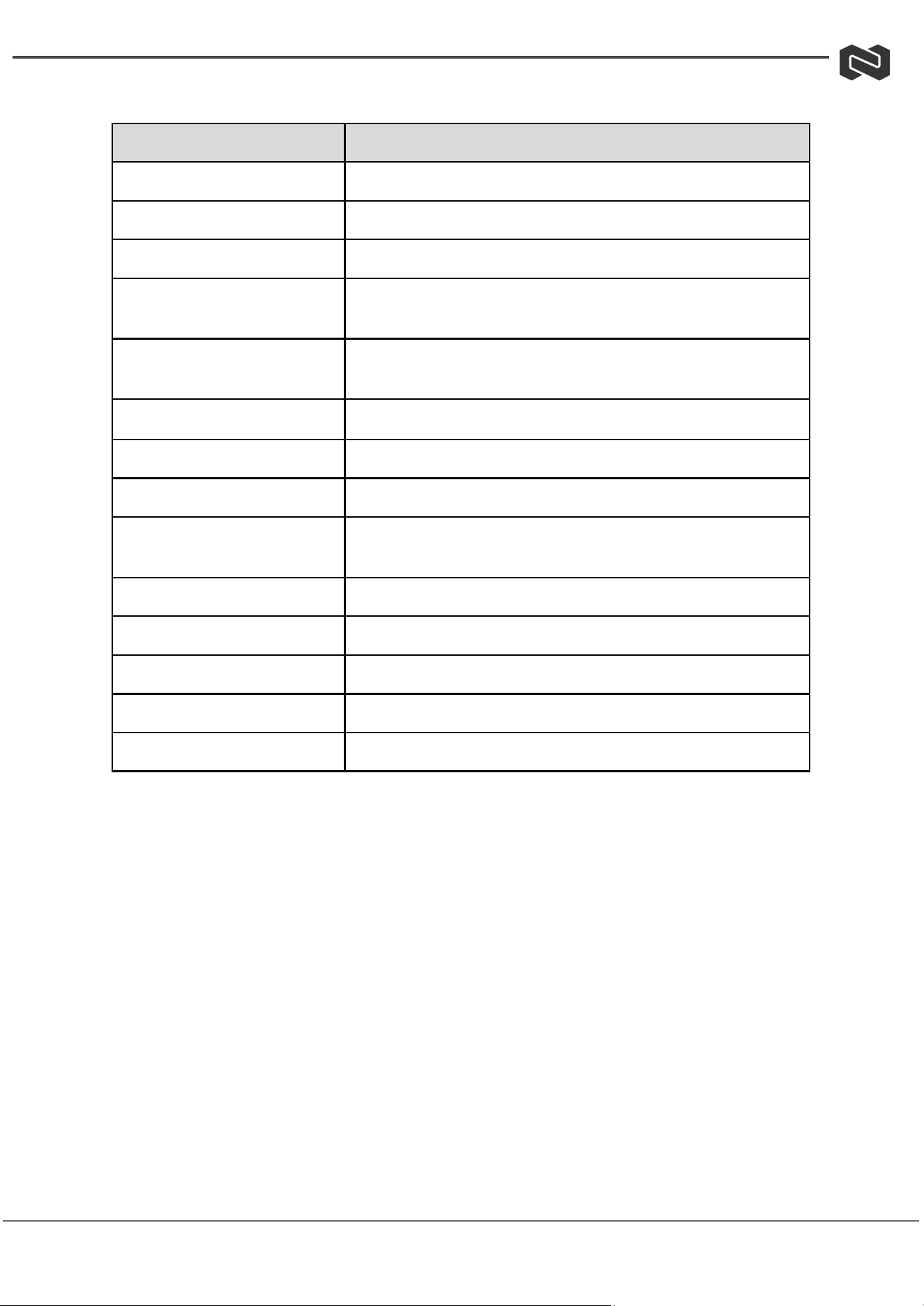
CAPS:
Command
Function
[Caps] ++ [Caps] + [→or↓]
PC Switch to the next PC
[Caps] ++ [Caps] + [←or↑]
PC Switch to the previous PC
[Caps] ++ [Caps] + [B]
Turn the beep sound on or off.
[Caps] ++ [Caps] + [S]
Auto-scan mode every 5 seconds. ([Esc] switch to
regular key code)
[Caps] ++ [Caps] + [S] + [n]
Set Auto-scan rate (number from 1 ~ 9, in intervals of
+5 seconds-999 seconds)
[Caps] ++ [Caps] + [K]
Turn the hotkey on or off
[Caps] ++ [Caps] + [R]
Reboot the KVM switch
[Caps] ++ [Caps] + [ESC]
Restore Factory Default
[Caps] ++ [Caps] + [N]
View the firmware version and display the version number
with a flashing indicator
[Caps] ++ [Caps] + [T]
Turn Auto-Detection on or off
[Caps] ++ [Caps] + [F12]
Enable/disable the mouse cursor across the screen
[Caps] ++ [Caps] + [Scroll]
Switch to [Caps] hotkey mode
[Caps] ++ [Caps] + [Num]
Switch to [Num] hotkey mode
[Caps] ++ [Caps] + [Ctrl]
Switch to [Ctrl+Shift] hotkey mode
Address: 830 National Drive #140, Sacramento, CA 95834, USA · Tel: +1(888)499-9906 · Email: support@bzbgear.com 9
BZBGEAR BG-UHD-KVM21A PRODUCT MANUAL
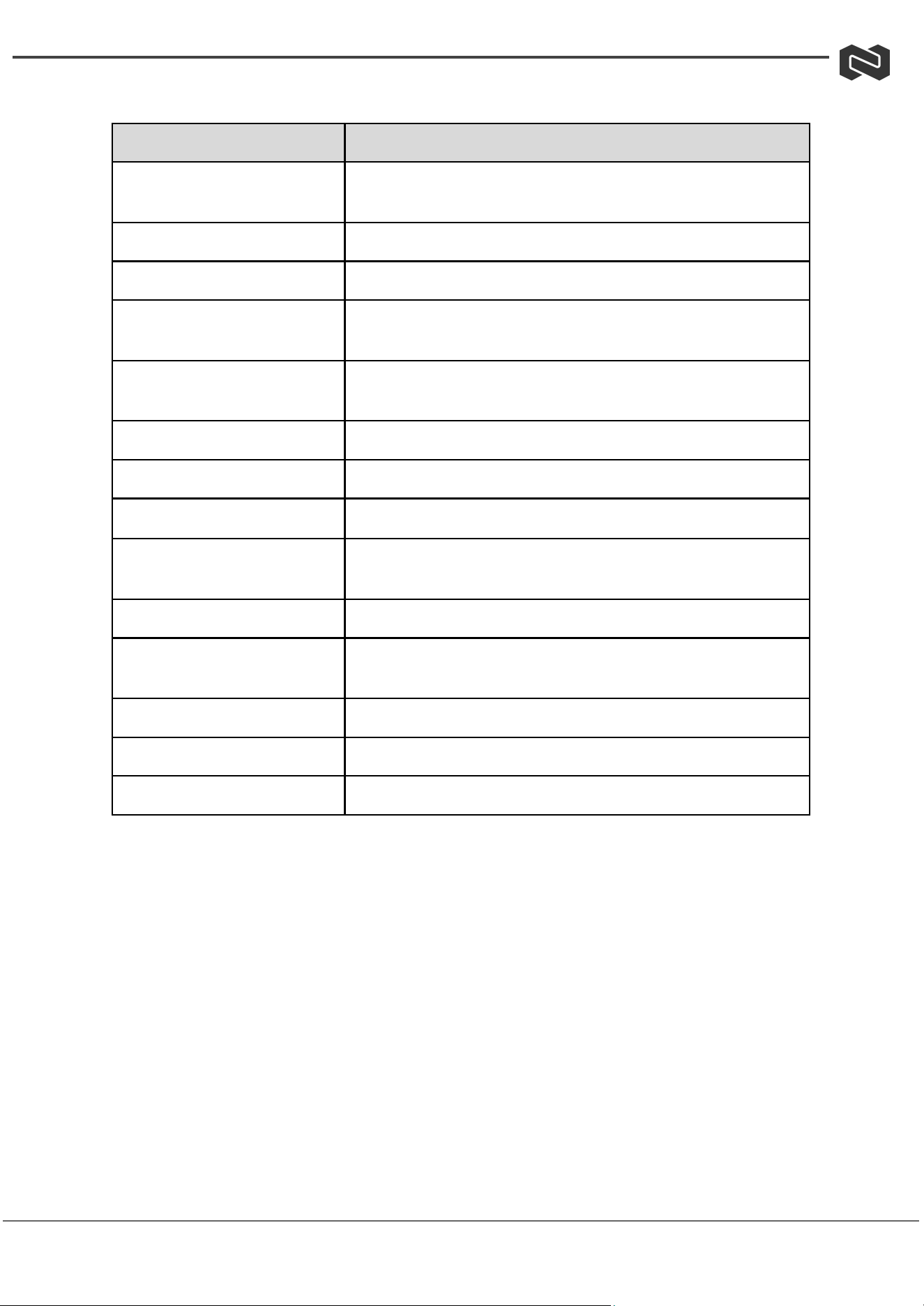
CTRL + SHIFT:
Command
Function
[Ctrl] ++ [Ctrl] or [Ctrl + Shift
+ →or↓]
PC Switch to the next PC
[Ctrl + Shift + ←or↑]
PC Switch to the previous PC
[Ctrl + Shift + B]
Turn the beep sound on or off.
[Ctrl + Shift + S]
Auto-scan mode every 5 seconds. ([Esc] switch to
regular key code)
[Ctrl + Shift + S + n]
Set Auto-scan rate (number from 1 ~ 9, in intervals of
+5 seconds-999 seconds)
[Ctrl + Shift + K]
Turn the hotkey on or off
[Ctrl + Shift + R]
Reboot the KVM switch
[Ctrl + Shift + ESC]
Restore Factory Default
[Ctrl + Shift + N]
View the firmware version and display the version number
w ith a flashing indicator
[Ctrl + Shift + T]
Turn Auto-Detection on or off
[Ctrl + Shift + F12]
Enable/disable the mouse cursor across the screen
[Ctrl + Shift + Scroll]
Switch to [Caps] hotkey mode
[Ctrl + Shift + Caps]
Switch to [Num] hotkey mode
[Ctrl + Shift + Num]
Switch to [Ctrl+Shift] hotkey mode
Address: 830 National Drive #140, Sacramento, CA 95834, USA · Tel: +1(888)499-9906 · Email: support@bzbgear.com 10
BZBGEAR BG-UHD-KVM21A PRODUCT MANUAL
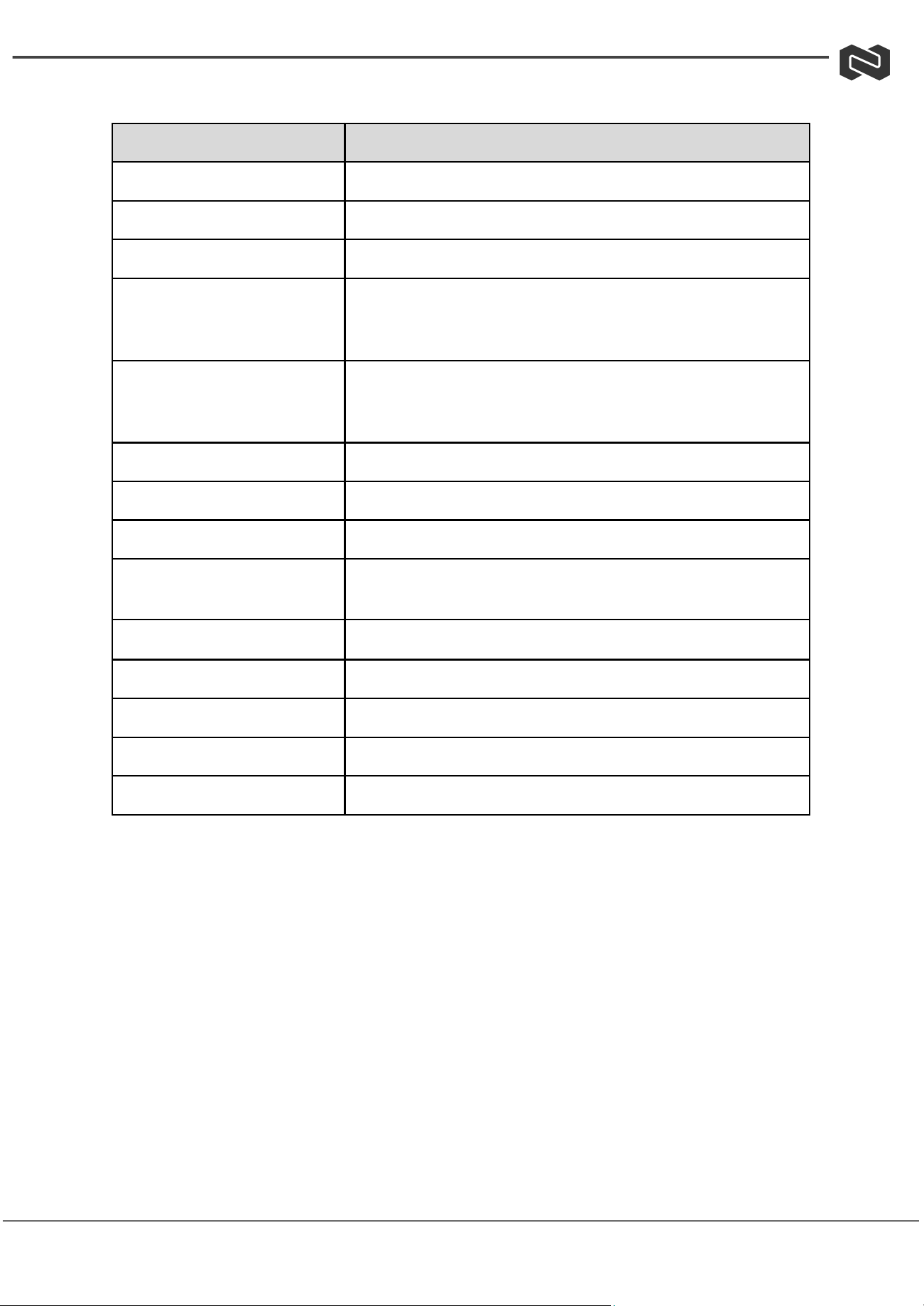
NUM:
Command
Function
[Num] ++ [Num] + [→or↓]
PC Switch to the next PC
[Num] ++ [Num] + [←or↑]
PC Switch to the previous PC
[Num] ++ [Num] + [B]
Turn the beep sound on or off.
[Num] ++ [Num] + [S]
Auto-scan mode every 5 seconds. ([Esc] switch to regular
key code)
[Num] ++ [Num] + [S] + [n]
Set Auto-scan rate (number from 1 ~ 9, in intervals of +5
seconds-999 seconds)
[Num] ++ [Num] + [K]
Turn the hotkey on or off
[Num] ++ [Num] + [R]
Reboot the KVM switch
[Num] ++ [Num] + [ESC]
Restore Factory Default
[Num] ++ [Num] + [N]
View the firmware version and display the version number
with a flashing indicator
[Num] ++ [Num] + [ T ]
Turn Auto-Detection on or off
[Num] ++ [Num] + [F12]
Enable/disable the mouse cursor across the screen
[Num] ++ [Num] + [ Scroll ]
Switch to [Caps] hotkey mode
[Num] ++ [Num] + [Caps]
Switch to [Num] hotkey mode
[Num] ++ [Num] + [Ctrl]
Switch to [Ctrl+Shift] hotkey mode
Address: 830 National Drive #140, Sacramento, CA 95834, USA · Tel: +1(888)499-9906 · Email: support@bzbgear.com 11

BZBGEAR BG-UHD-KVM21A PRODUCT MANUAL
(HOTKEY) Notes:
1. Hotkey Usage:
○ "++": Indicates quickly and continuously pressing the Scroll key twice.
○ Example: [Scroll] ++ [Scroll] + [1]
■ Quickly press the Scroll key twice.
■ Press the numeric "1" key.
■ The detection timeout between each hotkey code is 2 seconds. If the
Scroll key is pressed once and again after more than 2 seconds, the
combination is invalid.
2. "N" Sequence:
○ N can be 1, 2, or 3 numbers.
○ Example: Scroll ++ Scroll + S + 1 + 2 + 0
■ Quickly press the Scroll key twice.
■ Press and release the "S" key.
■ Press and release the "1" key.
■ Press and release the "2" key.
■ Press and release the "0" key.
■ This sets the polling time interval to 120 seconds.
3. Automatic Detection:
○ When enabled, CH9374B automatically detects the computer USB interface
connection and switches intelligently.
○ If a new computer USB connection is detected, it switches to the newly
connected computer.
○ If the enabled computer's USB connection is disconnected, it switches to the
next connected computer.
○ If the USB connection of a non-enabled computer is disconnected, it does
not switch.
○ When automatic detection is enabled, an automatic polling scan is also
enabled, and it will skip unconnected USB computers.
4. Ctrl and Shift Keys:
○ Ctrl and Shift keys can be used on either the left or right side.
5. Hotkey Combination:
○ Example: [Ctrl + Shift + 1]
■ "Ctrl" is not released.
■ "Shift" is not released.
■ Press and release the numeric "1" key.
■ Then, release all keys.
Address: 830 National Drive #140, Sacramento, CA 95834, USA · Tel: +1(888)499-9906 · Email: support@bzbgear.com 12
BZBGEAR BG-UHD-KVM21A PRODUCT MANUAL
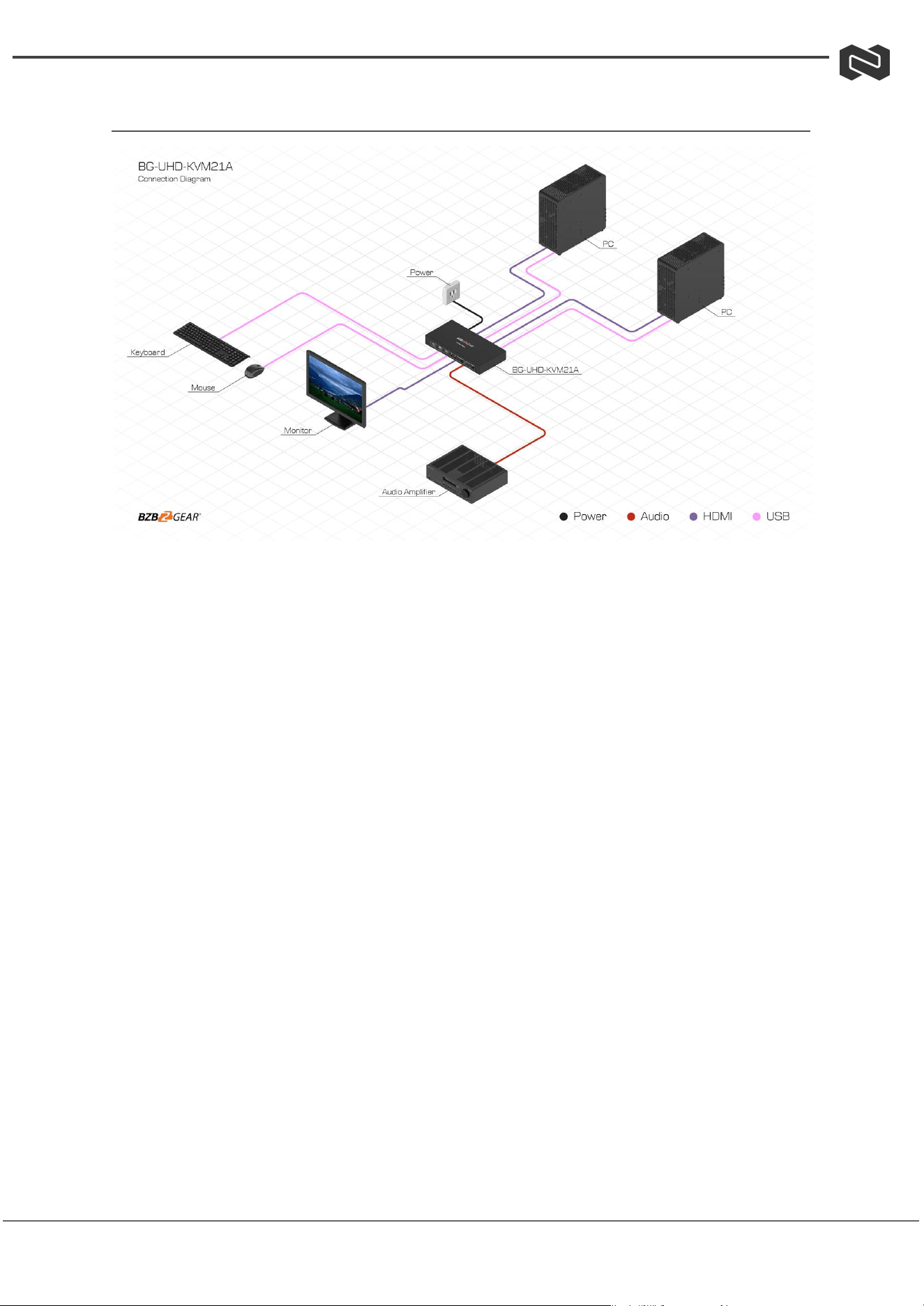
Application Example
Address: 830 National Drive #140, Sacramento, CA 95834, USA · Tel: +1(888)499-9906 · Email: support@bzbgear.com 13

BZBGEAR BG-UHD-KVM21A PRODUCT MANUAL
Tech Support
Have technical questions? We may have answered them already!
Please visit BZBGEAR’s support page (bzbgear.com/support) for helpful information and
tips regarding our products. Here you will find our Knowledge Base
(bzbgear.com/knowledge-base) with detailed tutorials, quick start guides, and step-by-step
troubleshooting instructions. Or explore our YouTube channel, BZB TV
(youtube.com/c/BZBTVchannel), for help setting up, configuring, and other helpful how-to
videos about our gear.
Need more in-depth support? Connect with one of our technical specialists directly:
Phone
1.888.499.9906
Email
support@bzbgear.com
Live Chat
bzbgear.com
Limited Product Warranty Terms
Pro Line: 5-year warranty from the date of purchase for AV/Broadcasting products bought
on or after August 1, 2024.
Essential Line: 3-year warranty from the date of purchase for AV/Broadcasting products
bought on or after August 1, 2024.
Cables: Lifetime Limited Product Warranty.
For complete warranty information, please visit bzbgear.com/warranty.
For questions, please call 1.888.499.9906 or email support@bzbgear.com.
Mission Statement
BZBGEAR is a breakthrough manufacturer of high-quality, innovative audiovisual equipment
ranging from AVoIP, professional broadcasting, conferencing, home theater, to live
streaming solutions. We pride ourselves on unparalleled customer support and services.
Our team offers system design consultation, and highly reviewed technical support for all
the products in our catalog. BZBGEAR delivers quality products designed with users in
mind.
Copyright
All the contents in this manual and its copyright are owned by BZBGEAR. No one is allowed
to imitate, copy, or translate this manual without BZBGEAR’s permission. This manual
contains no guarantee, standpoint expression or other implies in any form. Product
specification and information in this manual is for reference only and subject to change
without notice.
All rights reserved. No reproducing is allowed without acknowledgement.
Address: 830 National Drive #140, Sacramento, CA 95834, USA · Tel: +1(888)499-9906 · Email: support@bzbgear.com 14