
Software Solutions
User Guide
SUMMARY
These software solutions are available for use with HP printers.

About this edition
Edition 1, April 2025
© 2023–2025 HP Development Company, L.P.
Legal notices
This document contains proprietary
information that is protected by copyright.
All rights are reserved. No part of this
document may be photocopied, reproduced,
or translated to another language without
the prior written consent of HP.
Warranty
The information contained in this document
is subject to change without notice.
HP makes no warranty of any kind with
regard to this material, including, but
not limited to, the implied warranties of
merchantability and fitness for a particular
purpose.
HP shall not be liable for errors contained
herein or for incidental or consequential
damages in connection with the furnishing,
performance, or use of this material.

Table of contents
1 Drivers........................................................................................................................................................................................................................................................... 1
Introduction........................................................................................................................................................................................................................................ 1
Setup and installation................................................................................................................................................................................................................ 2
How to install a driver (assisted) under Windows...................................................................................................................................... 2
How to install a driver (.inf) under Windows.................................................................................................................................................... 4
V3 drivers.................................................................................................................................................................................................................................8
V4 drivers.................................................................................................................................................................................................................................9
XPS driver features........................................................................................................................................................................................................10
How to check the driver version under Windows and macOS.................................................................................................................. 12
How to check the driver version under Windows..................................................................................................................................... 12
How to check the driver version under macOS ........................................................................................................................................13
How to set up a print server................................................................................................................................................................................................ 15
V3 print architecture .....................................................................................................................................................................................................15
V4 print architecture .....................................................................................................................................................................................................15
Distribute MSI package............................................................................................................................................................................................... 15
Distribute an MSI package through GPO (server)........................................................................................................................15
Distribute an MSI package through GPO (client)............................................................................................................................17
Select job processing side .......................................................................................................................................................................................18
Preset synchronization tool .....................................................................................................................................................................................19
Transitioning from V3/V4 drivers to an IPP class driver.....................................................................................................................20
Troubleshooting .......................................................................................................................................................................................................................... 22
Bi-directionality troubleshooting......................................................................................................................................................................... 22
Installed base handbook........................................................................................................................................................................................... 23
Support elevation ...................................................................................................................................................................................................................... 25
How to reach HP Support ......................................................................................................................................................................................... 25
First actions ........................................................................................................................................................................................................................ 25
2 HP Click driver.................................................................................................................................................................................................................................... 26
Introduction.....................................................................................................................................................................................................................................27
Product features and benefits...............................................................................................................................................................................27
Comparison of HP Click driver and HP Click application...................................................................................................................27
Supported operating system.................................................................................................................................................................................28
Supported printers........................................................................................................................................................................................................ 28
Data flow overview........................................................................................................................................................................................................28
Setup and installation.............................................................................................................................................................................................................30
iii

Installation sources for HP Click driver ..........................................................................................................................................................30
Prerequisites for installation ...................................................................................................................................................................................31
Installation process........................................................................................................................................................................................................ 31
Printing process..........................................................................................................................................................................................................................35
Interface overview.........................................................................................................................................................................................................36
Deployment procedures.......................................................................................................................................................................................................38
Troubleshooting ..........................................................................................................................................................................................................................40
The name of the printer queue is not recognizable...............................................................................................................................40
The printer does not receive the job.................................................................................................................................................................. 41
Application non-response......................................................................................................................................................................................... 41
Print preview accuracy (Content clipped)..................................................................................................................................................... 42
Print preview accuracy (color)...............................................................................................................................................................................43
How to capture the log file of the installer.................................................................................................................................................... 43
How to collect all the information needed to diagnose a possible bug in the HP Click driver............................... 44
3 HP Click printing software......................................................................................................................................................................................................... 45
Introduction....................................................................................................................................................................................................................................46
Who is it for?.......................................................................................................................................................................................................................46
Getting started .................................................................................................................................................................................................................46
Installation.......................................................................................................................................................................................................................................50
Requirements ....................................................................................................................................................................................................................50
Supported printers........................................................................................................................................................................................................50
Supported file formats............................................................................................................................................................................................... 53
Supported languages..................................................................................................................................................................................................53
Updates..................................................................................................................................................................................................................................53
Licensing.......................................................................................................................................................................................................................................... 54
USB dongle license available................................................................................................................................................................................. 54
Trial license available................................................................................................................................................................................................... 54
Preferences....................................................................................................................................................................................................................................56
General preferences ....................................................................................................................................................................................................56
Printer preferences ........................................................................................................................................................................................................57
Help menu............................................................................................................................................................................................................................58
Job preparation........................................................................................................................................................................................................................... 59
Settings.................................................................................................................................................................................................................................. 59
Page options ......................................................................................................................................................................................................................60
Preview ....................................................................................................................................................................................................................................61
Nesting ..............................................................................................................................................................................................................................................62
Printing...............................................................................................................................................................................................................................................63
Troubleshooting ..........................................................................................................................................................................................................................64
Support tool........................................................................................................................................................................................................................65
Enable SNMP.................................................................................................................................................................................................................................65
4 HP SmartStream...............................................................................................................................................................................................................................67
What is it for? .................................................................................................................................................................................................................................67
Getting started ............................................................................................................................................................................................................................68
iv

Introduction....................................................................................................................................................................................................................................69
What do I see on the screen?.................................................................................................................................................................................69
How can I adjust the HP SmartStream window?..........................................................................................................................69
Notifications.............................................................................................................................................................................................................70
Recommended ways to set up the software.....................................................................................................................................71
Printers...............................................................................................................................................................................................................................................73
Preflight desk......................................................................................................................................................................................................................73
Add a printer........................................................................................................................................................................................................................73
Change a printer’s IP address or hostname................................................................................................................................................74
Delete a printer..................................................................................................................................................................................................................74
Printers pane.......................................................................................................................................................................................................................75
Accessory status .................................................................................................................................................................................................77
Set preferences ..........................................................................................................................................................................................................................80
General preferences ....................................................................................................................................................................................................80
Accounting preferences.............................................................................................................................................................................................81
Printer-specific preferences....................................................................................................................................................................................81
Presets ...................................................................................................................................................................................................................................84
Hot folders...........................................................................................................................................................................................................................84
Job preparation............................................................................................................................................................................................................................87
The job preparation process...................................................................................................................................................................................87
HP SmartStream Preflight Manager ................................................................................................................................................................88
File error detection.............................................................................................................................................................................................88
Resolution Center...............................................................................................................................................................................................89
Automatic attribute detection and setting assignment.........................................................................................................90
Job overview.......................................................................................................................................................................................................................91
Visual job overview.............................................................................................................................................................................................. 91
Job details................................................................................................................................................................................................................. 92
Edit a job................................................................................................................................................................................................................................ 92
Toolbar.........................................................................................................................................................................................................................93
Labels...........................................................................................................................................................................................................................93
Discipline ...................................................................................................................................................................................................................94
Job options..........................................................................................................................................................................................................................94
Gloss enhancer................................................................................................................................................................................................................96
Stamps ...................................................................................................................................................................................................................................96
Stamps in the preview.......................................................................................................................................................................................97
QR codes...................................................................................................................................................................................................................98
Printing on sheets...........................................................................................................................................................................................................99
Double-sided printing.....................................................................................................................................................................................100
Nesting..................................................................................................................................................................................................................................101
Nesting preferences on roll paper........................................................................................................................................................102
Nesting preferences on sheet paper..................................................................................................................................................103
Double-sided nesting......................................................................................................................................................................................103
Vertical trimmer.............................................................................................................................................................................................................104
How to use it..........................................................................................................................................................................................................104
Borderless printing......................................................................................................................................................................................................104
How to use it..........................................................................................................................................................................................................104
Move or copy a job or pages to another printer.....................................................................................................................................104
Delete a job .......................................................................................................................................................................................................................104
v

Page options ....................................................................................................................................................................................................................104
Extract pages .......................................................................................................................................................................................................105
Delete pages.........................................................................................................................................................................................................105
Filter pages........................................................................................................................................................................................................................105
Sort pages.........................................................................................................................................................................................................................106
Print settings....................................................................................................................................................................................................................106
General settings.................................................................................................................................................................................................108
Cropping....................................................................................................................................................................................................................110
Page options ...........................................................................................................................................................................................................111
Paper source options ......................................................................................................................................................................................112
Print preview................................................................................................................................................................................................................................. 114
Image, page, and roll.................................................................................................................................................................................................... 115
Preview features.............................................................................................................................................................................................................115
Preview tools.....................................................................................................................................................................................................................116
Undock the preview......................................................................................................................................................................................................116
Mirror ......................................................................................................................................................................................................................................116
Crystal Preview.................................................................................................................................................................................................................117
Printing.............................................................................................................................................................................................................................................120
Submit jobs for printing............................................................................................................................................................................................120
Filtered and unchecked pages ...........................................................................................................................................................................120
Job separators (HP PageWide XL only) ........................................................................................................................................................120
Printing queue.................................................................................................................................................................................................................. 121
Printing interruptions................................................................................................................................................................................................. 122
Cancel jobs .......................................................................................................................................................................................................................123
Exit the application while printing..................................................................................................................................................................... 123
Color management .................................................................................................................................................................................................................124
History.............................................................................................................................................................................................................................................. 125
Search the history........................................................................................................................................................................................................ 125
Reprint a job...................................................................................................................................................................................................................... 125
Reconfigure a job.......................................................................................................................................................................................................... 125
Remove jobs from the history.............................................................................................................................................................................. 125
Folding.............................................................................................................................................................................................................................................. 126
Scanning ........................................................................................................................................................................................................................................129
Using a multifunction printer that includes a scanner...................................................................................................................... 129
Connecting an HP PageWide XL scanner...................................................................................................................................................129
Add the hot folder in HP SmartStream..............................................................................................................................................130
Using an HP PageWide XL scanner.................................................................................................................................................................. 131
Accounting....................................................................................................................................................................................................................................135
Submission driver....................................................................................................................................................................................................................139
HP Applications Center............................................................................................................................................................................................139
Restrict account IDs...................................................................................................................................................................................................139
Troubleshooting .........................................................................................................................................................................................................................141
Error codes......................................................................................................................................................................................................................... 141
Troubleshooting tool................................................................................................................................................................................................... 142
Optional modules for advanced users ....................................................................................................................................................................144
Document organizer module...............................................................................................................................................................................144
vi

Tracking files added to the job.................................................................................................................................................................144
Rename pages ....................................................................................................................................................................................................144
Add metadata ......................................................................................................................................................................................................150
Pixel analysis module.................................................................................................................................................................................................. 151
Categories and thresholds ......................................................................................................................................................................... 151
Calculating pixel coverage ......................................................................................................................................................................... 152
Job details...............................................................................................................................................................................................................153
Workflow management module.........................................................................................................................................................................154
Ink-density profile..........................................................................................................................................................................................................154
How to use non-HP printers with HP SmartStream........................................................................................................................................155
Introduction.......................................................................................................................................................................................................................155
Installing the printer....................................................................................................................................................................................................155
Preparing a job................................................................................................................................................................................................................156
Other considerations .................................................................................................................................................................................................157
Printer status.........................................................................................................................................................................................................157
Printer queue ........................................................................................................................................................................................................158
History .......................................................................................................................................................................................................................158
Job summary........................................................................................................................................................................................................158
Resolution center..............................................................................................................................................................................................158
Preview......................................................................................................................................................................................................................158
Presets......................................................................................................................................................................................................................159
Printer preferences..........................................................................................................................................................................................159
Other limitations ................................................................................................................................................................................................159
Shortcut keys..............................................................................................................................................................................................................................160
Overall selectors...........................................................................................................................................................................................................160
Icon-toolbar selectors...............................................................................................................................................................................................160
Globals...................................................................................................................................................................................................................................161
Preview selectors .........................................................................................................................................................................................................162
Job selectors...................................................................................................................................................................................................................163
5 HP SmartTracker............................................................................................................................................................................................................................164
Launching HP SmartTracker the first time ............................................................................................................................................................164
Connectivity.................................................................................................................................................................................................................................166
HP SmartTracker’s email service......................................................................................................................................................................166
Server address configuration..............................................................................................................................................................................167
Configuration via Active Directory (AD) .......................................................................................................................................................168
Advanced Network Interface............................................................................................................................................................................... 170
Printers.............................................................................................................................................................................................................................................172
Configuring printers ....................................................................................................................................................................................................172
Editing a printer...............................................................................................................................................................................................................174
Creating a group of printers ..................................................................................................................................................................................175
Editing a group of printers.......................................................................................................................................................................................175
Deleting a group of printers ...................................................................................................................................................................................176
Permissions ..................................................................................................................................................................................................................................177
Options............................................................................................................................................................................................................................................180
Setting the application language......................................................................................................................................................................180
Setting the application units ................................................................................................................................................................................180
vii

Setting the currency...................................................................................................................................................................................................180
Setting the costs and prices configuration...............................................................................................................................................180
Setting a company logo for reports................................................................................................................................................................180
Selecting the required touch points................................................................................................................................................................180
Touch points ..........................................................................................................................................................................................................180
Costs..................................................................................................................................................................................................................................................181
Prices................................................................................................................................................................................................................................................182
About the home screen.......................................................................................................................................................................................................183
Configuring users of printers and printer groups............................................................................................................................................184
Marking a job as billable .....................................................................................................................................................................................................186
Filtering.............................................................................................................................................................................................................................................187
Removing a filter.......................................................................................................................................................................................................................188
Projects ...........................................................................................................................................................................................................................................188
Departments...............................................................................................................................................................................................................................188
Import/export CSV..................................................................................................................................................................................................................189
Configuration—import CSV ...................................................................................................................................................................................189
Export CSV .........................................................................................................................................................................................................................191
Generating reports..................................................................................................................................................................................................................191
Summary........................................................................................................................................................................................................................................192
Reports............................................................................................................................................................................................................................................195
Custom ............................................................................................................................................................................................................................................198
Custom jobs/pages (raw data)......................................................................................................................................................................................200
Custom logo................................................................................................................................................................................................................................. 201
Scheduling and emailing reports................................................................................................................................................................................ 202
Schedule and email user, project, or department reports .......................................................................................................................203
Printing workflow authentication................................................................................................................................................................................205
Printing from the user’s PC...................................................................................................................................................................................205
Authentication error cases..................................................................................................................................................................................206
Printing, scanning, or copying from the printer’s control panel .................................................................................................206
Database management.....................................................................................................................................................................................................208
Backup and restore database............................................................................................................................................................................208
Restore ................................................................................................................................................................................................................................209
Clean up database.....................................................................................................................................................................................................209
Support tool.................................................................................................................................................................................................................................210
Manual update............................................................................................................................................................................................................................ 211
Logging out.................................................................................................................................................................................................................................... 211
Index.............................................................................................................................................................................................................................................................. 212
viii

Drivers1
This is the User Guide for SW Solutions Drivers.
Introduction
The following is a summary of the compatibility matrix for the driver software.
Table 1-1
Compatibility matrix
OS Driver
Windows 10, 11
Windows Server 2012–2022
PCL3 v4 for design
PDF v4 for design
Windows 11 HP Click driver
macOS 13
macOS 14
macOS 15
Generic raster
PostScript
(+12 m p.I.)
Table 1-2 Recommendation Matrix
Priority
Fidelity and transparency Line accuracy
OS Windows 10, 11
Windows Server 2012–
2023
PDF PCL3 v4
macOS macOS PostScript driver macOS raster driver
Graphic and color applications CAD
Drivers 1
Setup and installation
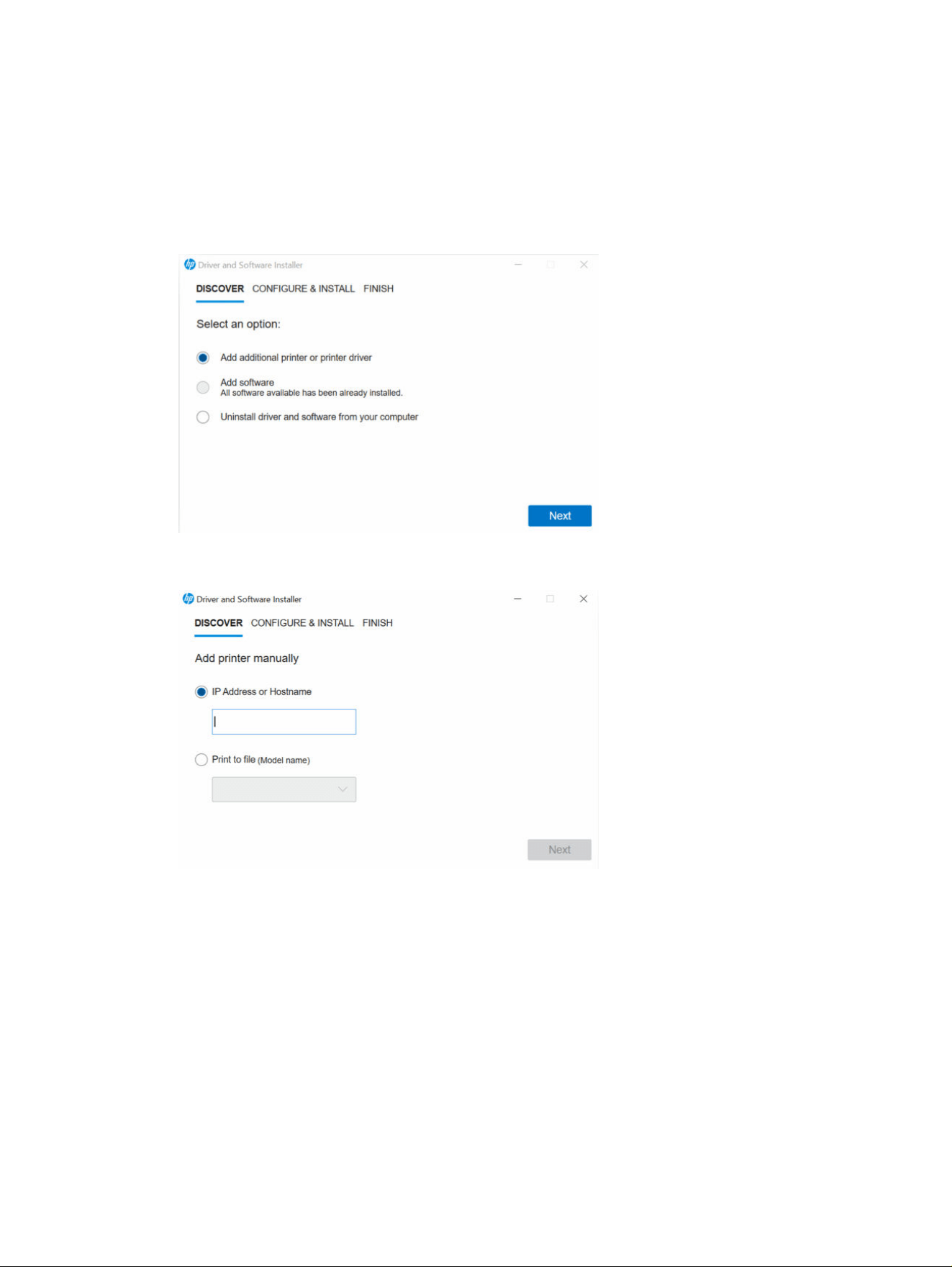
How to install a driver (assisted) under Windows
Follow the steps in the order presented.
1. Select Add additional printer or printer driver.
2. Add the IP or select the model name.
2
Chapter 1 Drivers
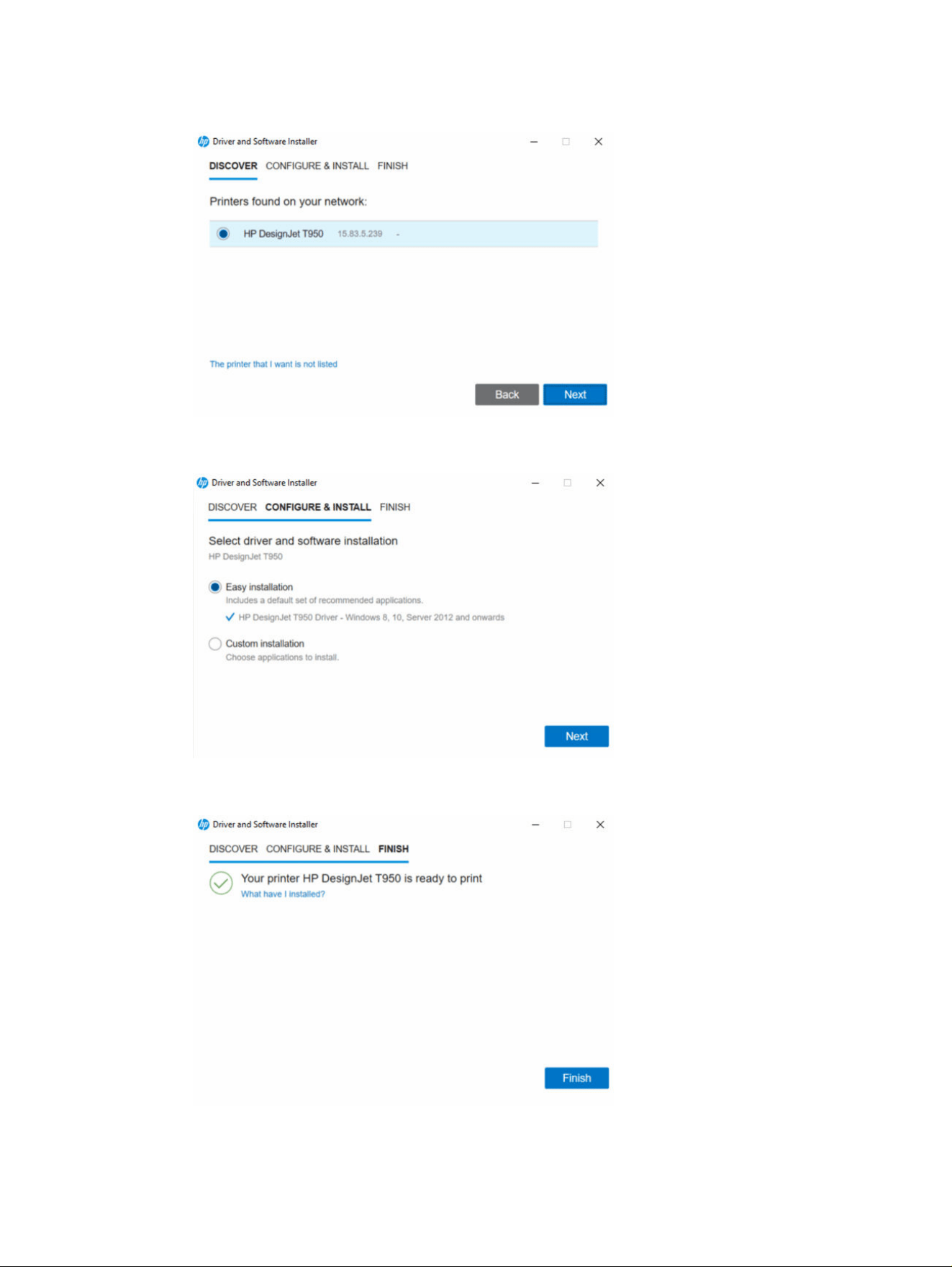
3. Select the printer that you want to add.
4. Choose between custom or easy installation.
5. Queue created and driver installation complete.
How to install a driver (assisted) under Windows
3
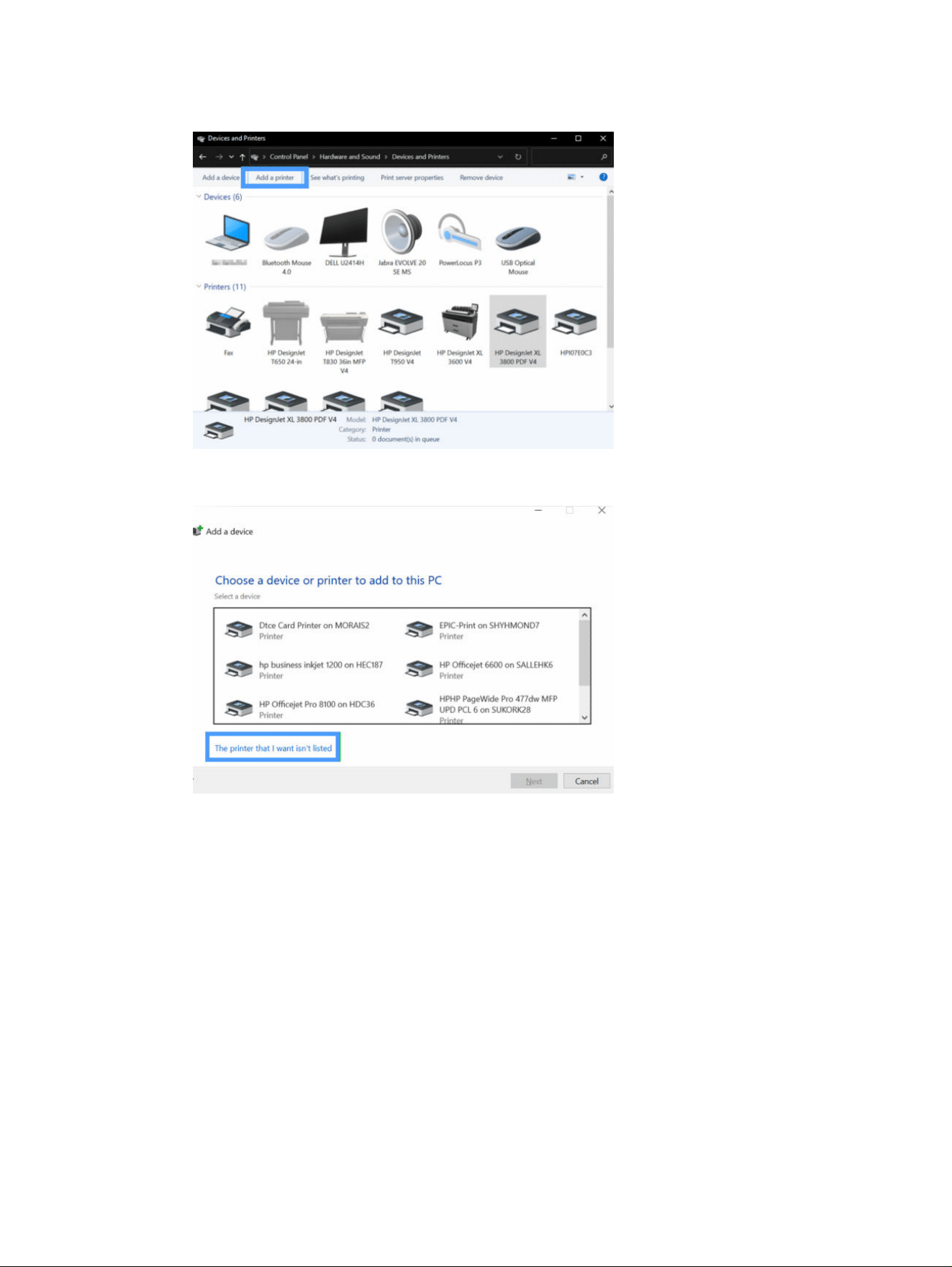
4. Click Add a printer.
5. Select The printer that I want isn’t listed.
How to install a driver (.inf) under Windows
5
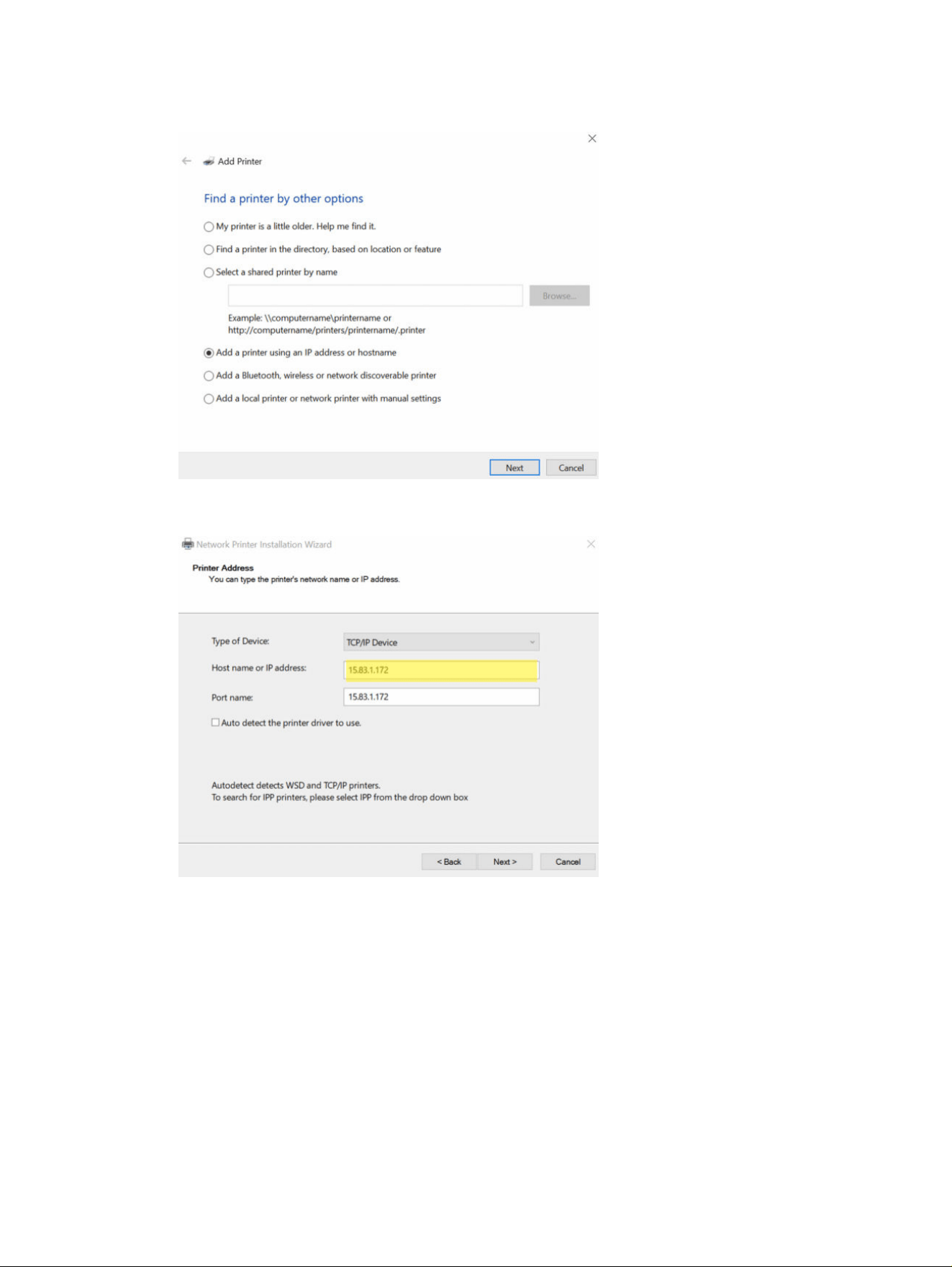
6. Select add IPP, TCP/IP.
7. Add the printer using the IP.
6
Chapter 1 Drivers
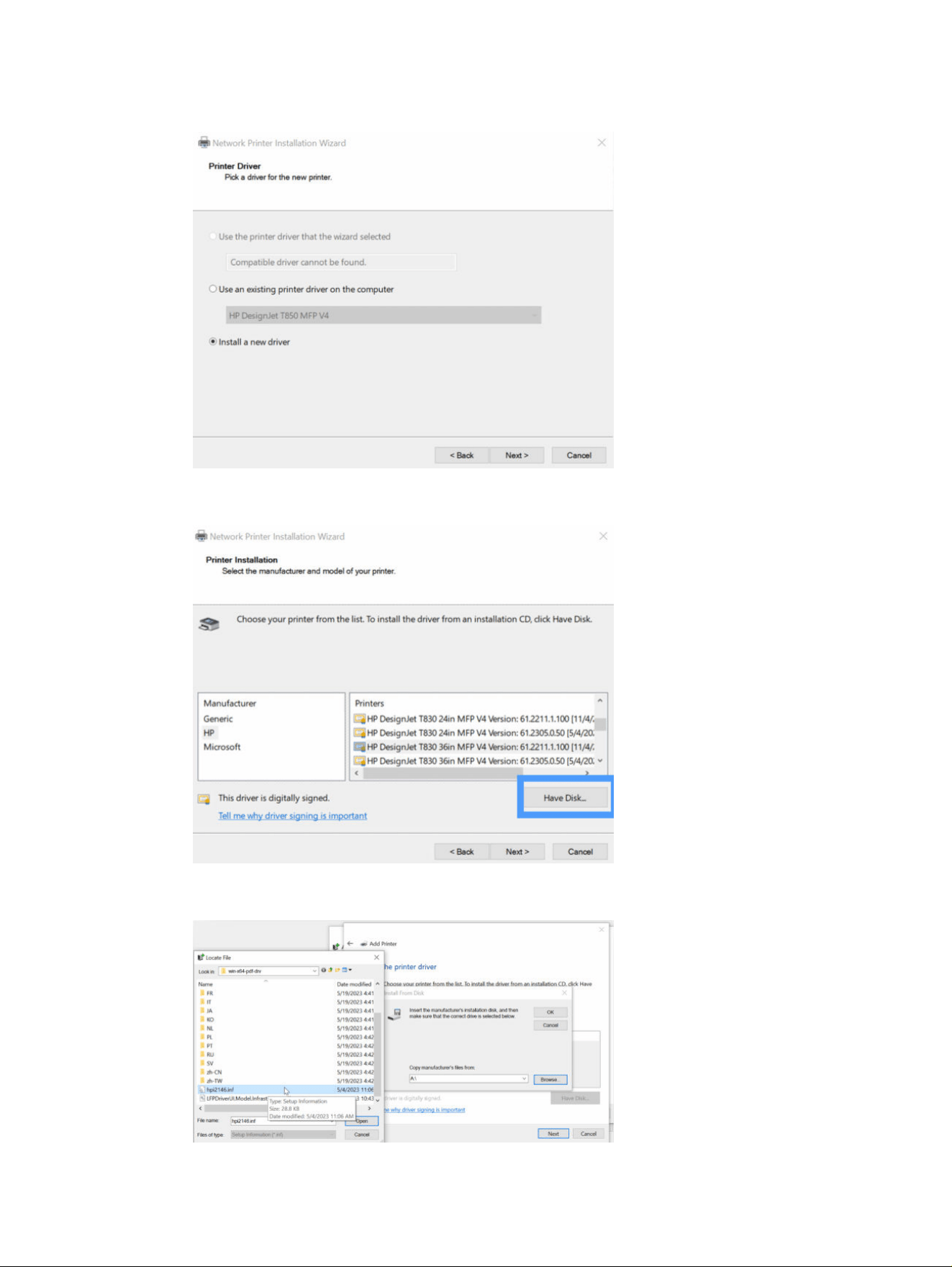
8. Select install a new driver.
9. Go to Have Disk.
10. Browse to the location of the .inf file and select it.
How to install a driver (.inf) under Windows
7
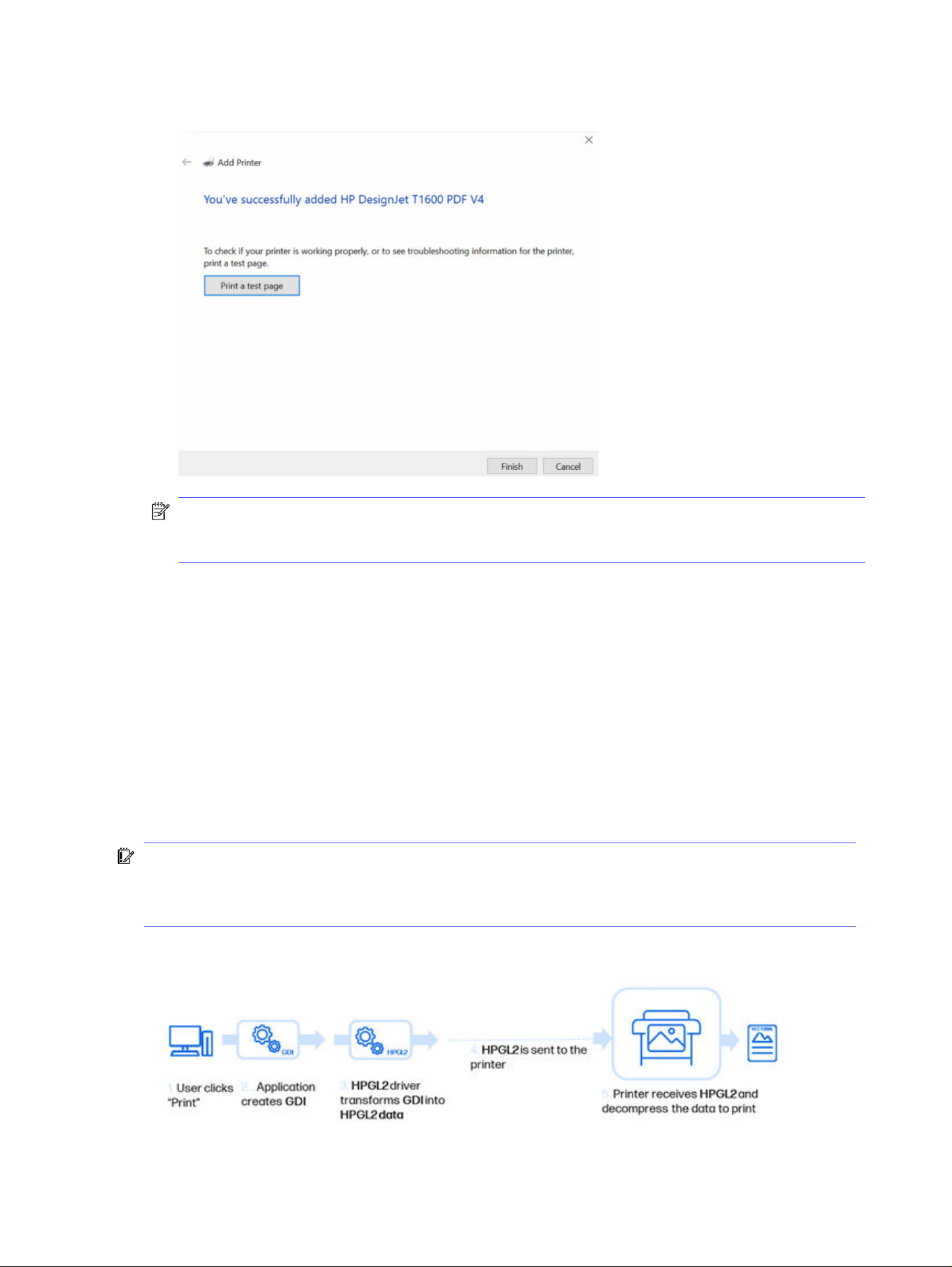
11. Driver has been successfully installed.
NOTE: It is strongly recommended to use an HP driver instead of the default Microsoft Class
driver for your printer because the HP driver often provides better compatibility, enhanced
features, improved print quality, and access to advanced settings.
V3 drivers
The following sections provide details for this topic.
HP-GL/2 drivers
The drivers that are specifically designed for certain products and support HP-GL/2 have been
discontinued. However, a generic HP-GL/2 driver has been tested and is now available.
The generic HP-GL/2 driver is available for elevations for the following printer series:
● HP DesignJet XL3800 printer series
● HP DesignJet T850/T950 printer series
IMPORTANT: The printer handles jobs, with PCL3 jobs being processed by a PC. It is faster in modern
plotter or old PC environments. It is not affected by Microsoft’s line-thickness issue, but this applies
only to XPS architecture with PCL3 and non-pass through PDF. It is not recommended to use it for
transparencies as there may be missing elements.
HP-GL/2 architecture
8
Chapter 1 Drivers
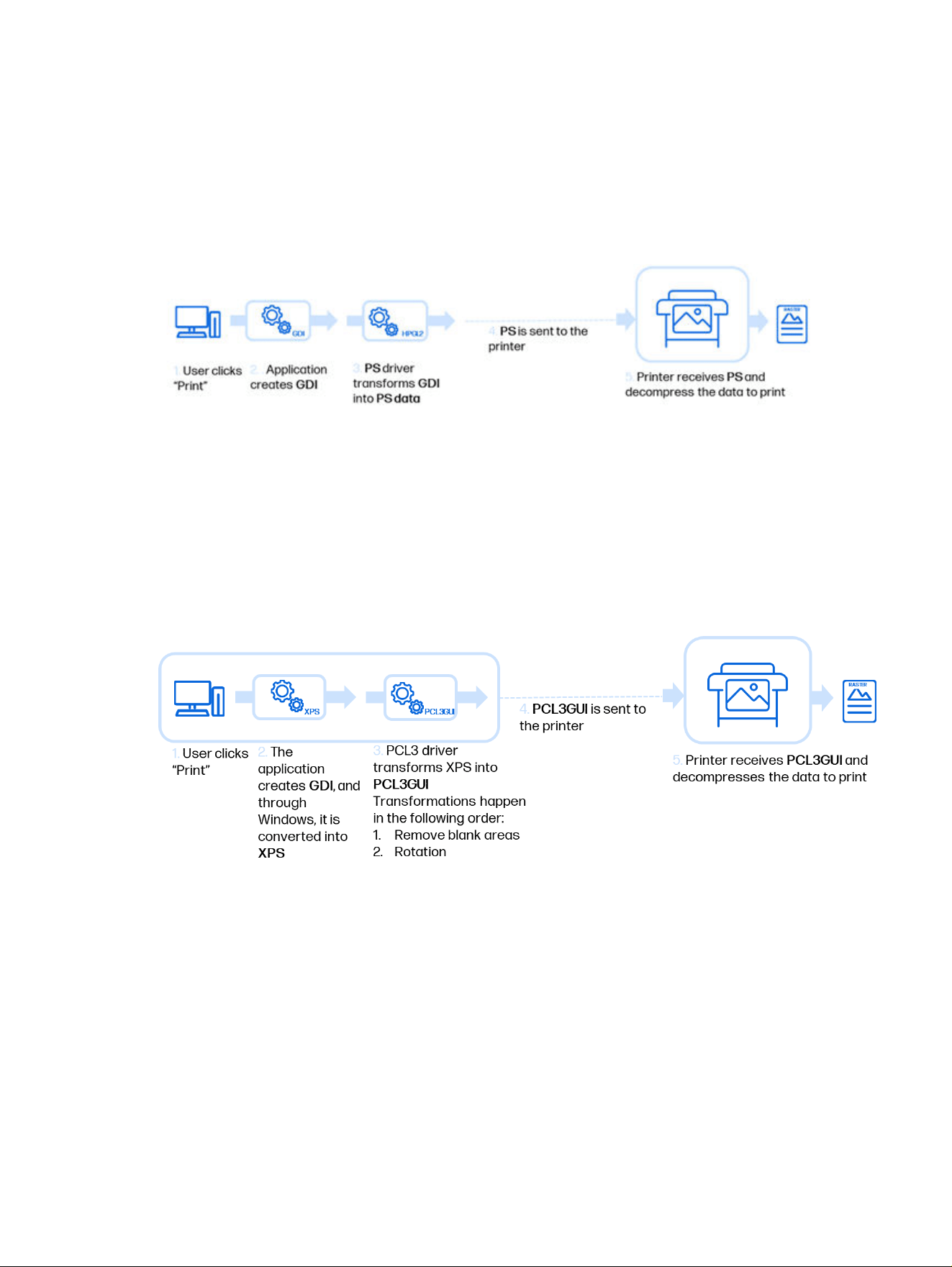
PostScript
A PostScript driver is a print driver that converts document data into a PostScript file, a page description
language used by many printers and graphic design software. This driver allows the operating system
and applications to communicate with PostScript-compatible printers, ensuring that documents are
printed with high fidelity and accuracy.
PostScript architecture
V4 drivers
PCL3
A PCL3 driver is a print driver developed by HP that processes print jobs using Printer Command
Language 3 (PCL3). This driver translates document data into PCL3 commands, enabling efficient
communication between the operating system and HP printers, ensuring proper formatting and print
quality.
PCL3 architecture
PDF
A PDF driver is a print driver that allows users to generate and print documents in PDF format directly
from applications. This driver ensures that documents retain their layout, fonts, and graphics accurately,
making it useful for creating digital documents or printing to PDF-compatible printers.
PDF passthrough-on architecture
Passthrough on: The printer receives a raw PDF file and processes it internally, reducing the workload on
the computer. This is efficient for printers with built-in PDF processing capabilities.
V4 drivers
9
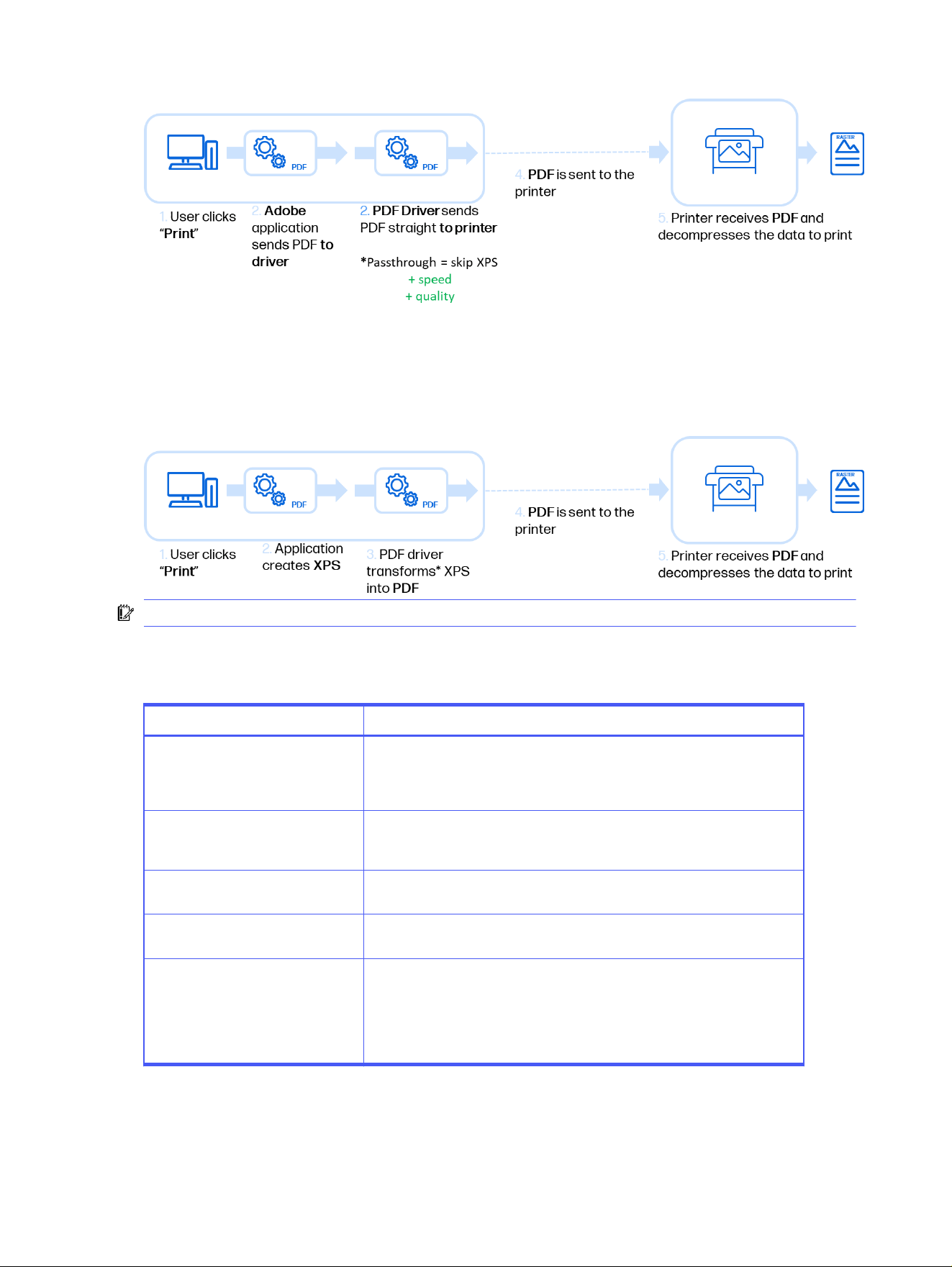
PDF passthrough-off architecture
Passthrough off: The PDF file is converted to another format (such as PostScript or PCL) before being
sent to the printer. This method ensures compatibility with printers that do not natively support PDF
printing, but may increase processing time on the computer.
IMPORTANT: Supported only by InDesign, Illustrator, and Acrobat.
XPS driver features
Table 1-3 XPS driver features
Features Explanation
Remove blank areas (RBA) Eliminates the white areas of the printed document to save paper.
NOTE: Affects only the top and bottom margins for PDF and applies to four
slides in PCL3.
A.R.S.S (Automatic Roll Switch
System
Allows the printer to switch between roll and tray paper sources without
user intervention. The driver must have bi-directional communication with
the printer and autorotation must be enabled to avoid clipping.
Autorotate (AR) The driver examines the page layout and content of a document to determine
the most appropriate orientation for printing.
Passthrough (only for PDF printed
from Adobe software)
Print settings disabled in the driver (application instead).
Preset Create a custom configuration and save it to keep the configuration
available in the preset dropdown.
NOTE: Unlike the V3 drivers, the presets created on the server will stay in
the server. There is a preset synchronization tool available internally (only for
escalations).
10 Chapter 1 Drivers

Bi-directionality
● Bi-directionality is used by V4 drivers in two features:
– Autorotate
– Paper source
● Driver queries printer via SNMP to obtain bi-directional information (regardless of server or local
installation).
● In general, the following information is received via bi-directionality:
– Printer status
– Paper and supply levels
– Job progress
– Error messages
– Configuration and settings
XPS driver features
11
How to check the driver version under Windows and macOS
This section explains how to check the driver version both under Windows and under macOS.
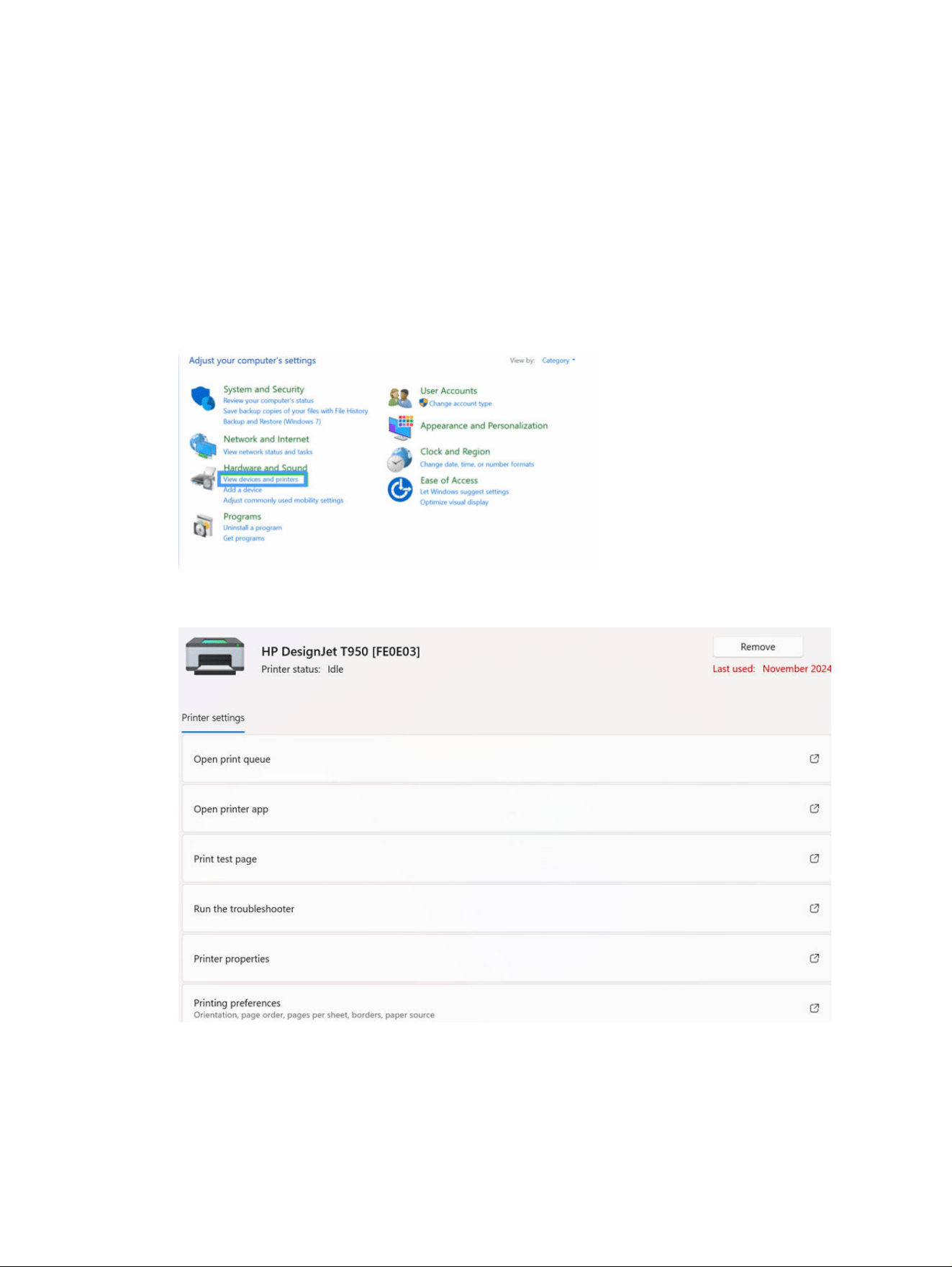
How to check the driver version under Windows
In the driver’s user interface, there is no information about the driver version. If you need to check it,
open “Print Management” and check the driver version.
Follow the steps in the order presented.
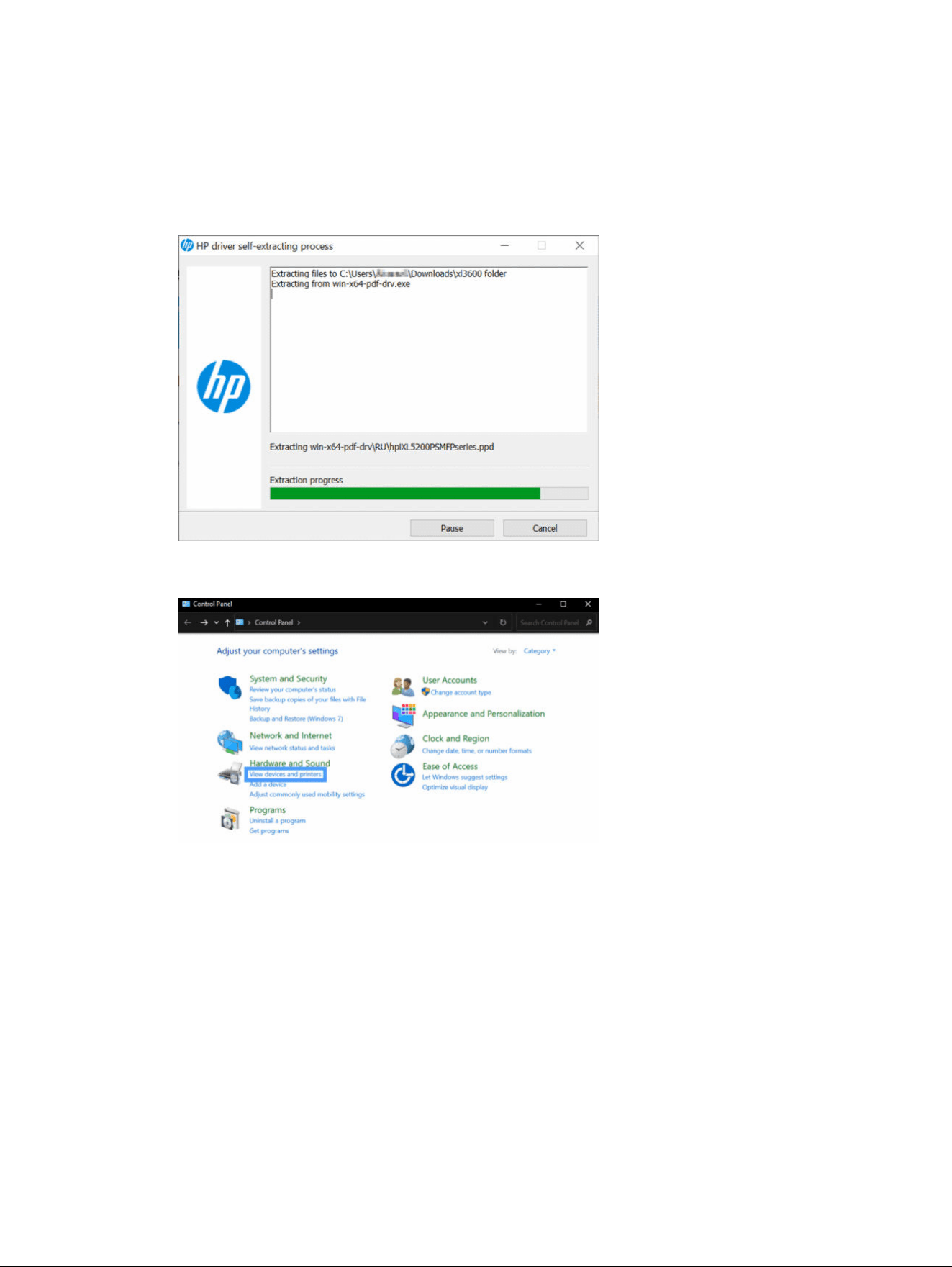
1. Open the Control Panel and go to View devices and printers.
2. Open the driver UI by clicking Printing Preferences.
12
Chapter 1 Drivers
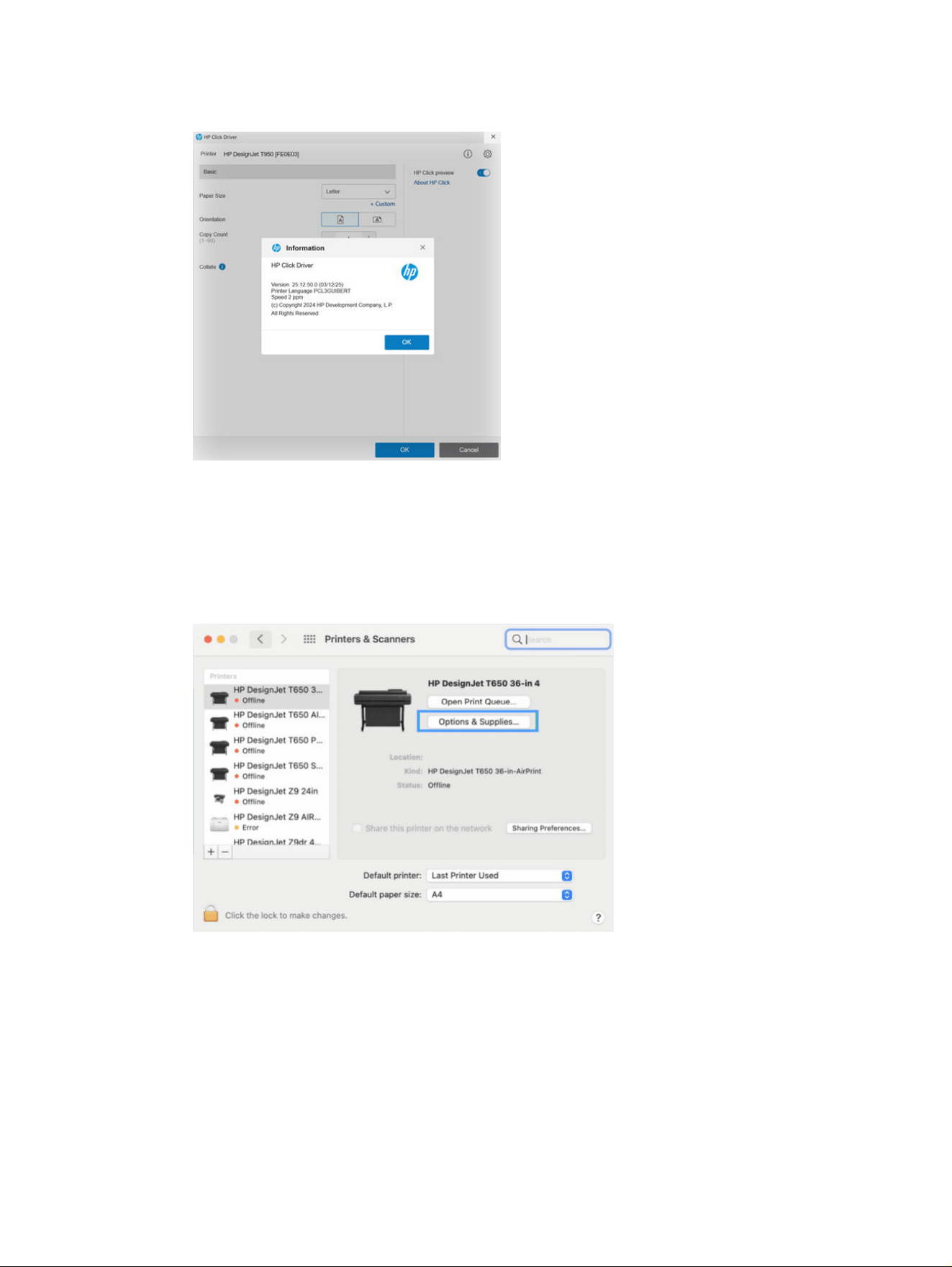
3. Click the information icon in the top right-hand corner of the screen.
How to check the driver version under macOS
This section explains how to check the version of the driver under macOS.
Follow the steps in the order presented.
1. Go to Printers & Scanners, find the printer that is using the driver, and click Options & Supplies.
How to check the driver version under macOS
13
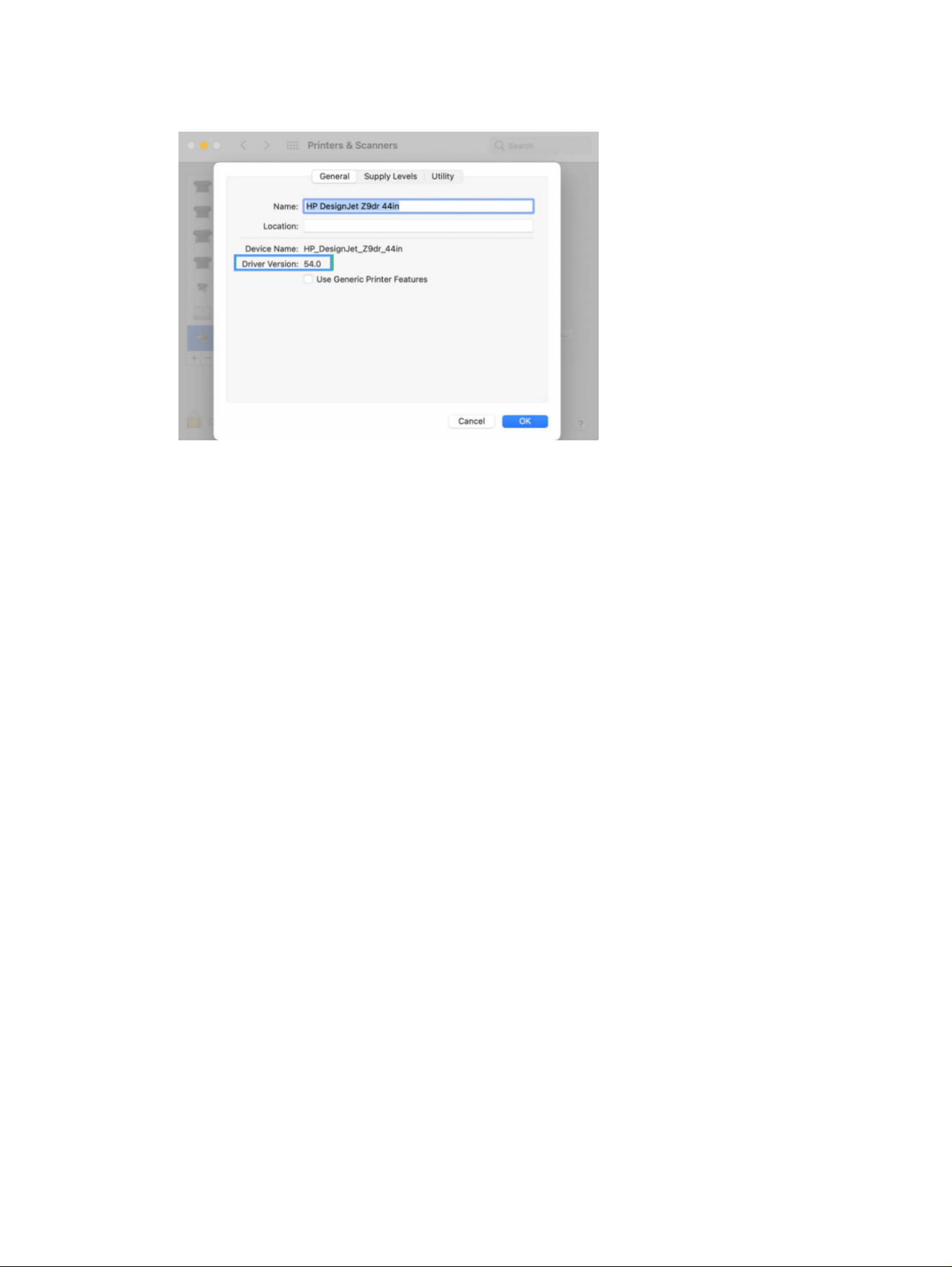
2. The version of the driver is in the General tab.
14 Chapter 1 Drivers

How to set up a print server
The objective of a print server is to streamline and optimize printing tasks throughout the network. The
print server works as an intermediary between client computers and printers, handling print jobs and
ensuring efficient print management.
V3 print architecture
1. Client connects to the shared printer on the server.
2. Server sends driver details to the client.
3. Client checks for an existing suitable driver.
4. If not found, client checks its local driver store for a simplified version of the driver.
5. If not found, client tries to download the simplified driver from the server.
6. If not found, client prompts user to provide the simplified driver manually.
V4 print architecture
1. Client connects to the shared printer on the server.
2. Server sends driver details to the client.
3. Client checks whether it has the necessary HP v4 driver.
4. If not found in local store, client uses Windows Update to fetch the HP v4 driver.
5. If Windows Update is unavailable, client prompts user to provide the HP v4 driver manually.
6. Once the HP v4 driver is installed, client uses Windows Update to fetch any necessary printer
extensions and PDFs.
Distribute MSI package
This section explains how to distribute an MSI package through GPO (server) and GPO (client).
Distribute an MSI package through GPO (server)
Distributing an MSI package can be useful in those environments in which Windows update is
unavailable.
Follow the steps in the order presented.
1. Install the driver and then save driver installer (.exe) as a .msi.
How to set up a print server
15
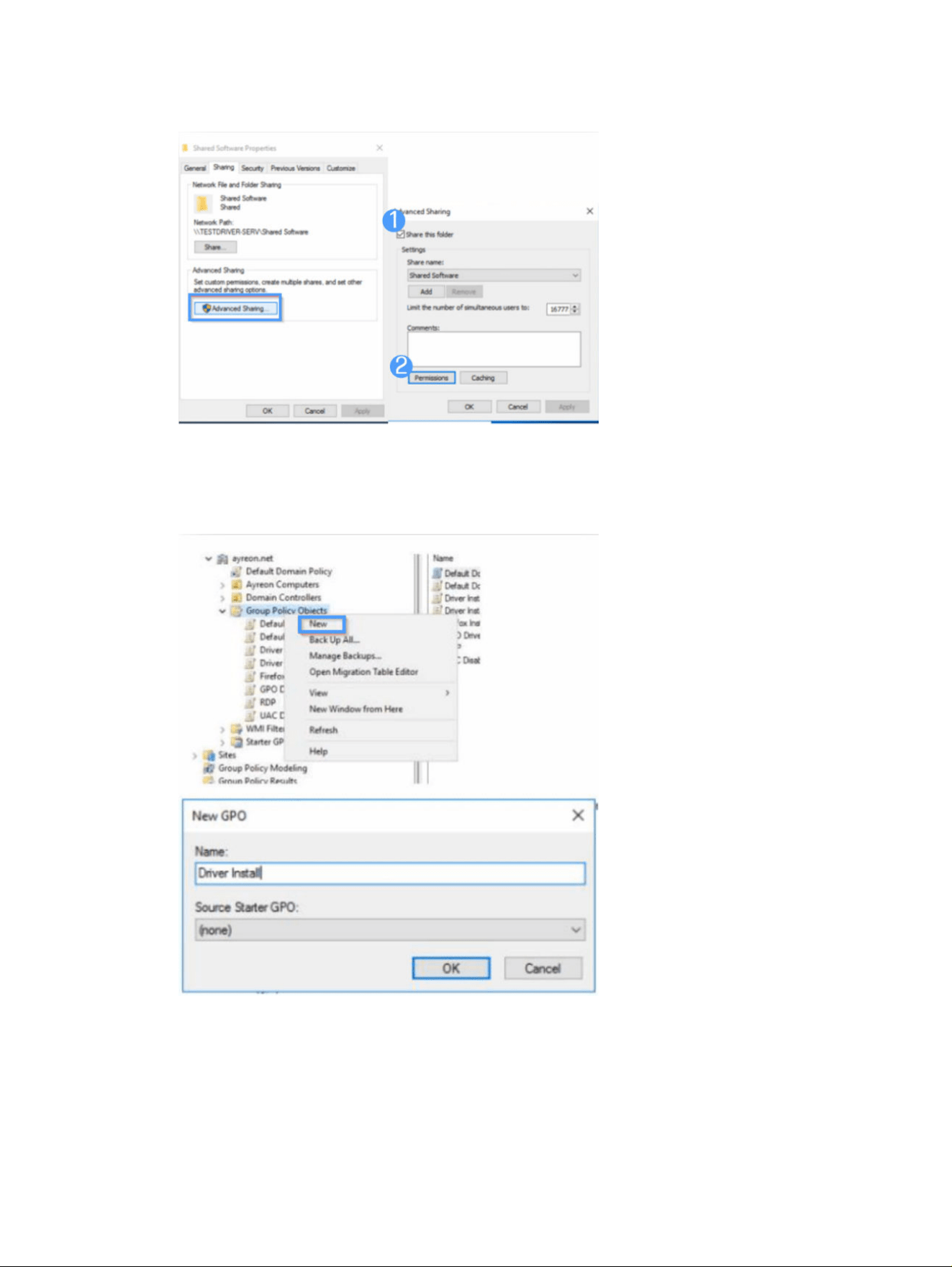
2. Share the folder that contains the .msi.
3. Allow reading permissions for ‘Domain Users’ and ‘Authenticated Users’.
4. Create the GPO (Group Policy Object) through Server Manager. Add the path where we allocated
the .msi and manages the employees or users who are going to use this policy.
16
Chapter 1 Drivers
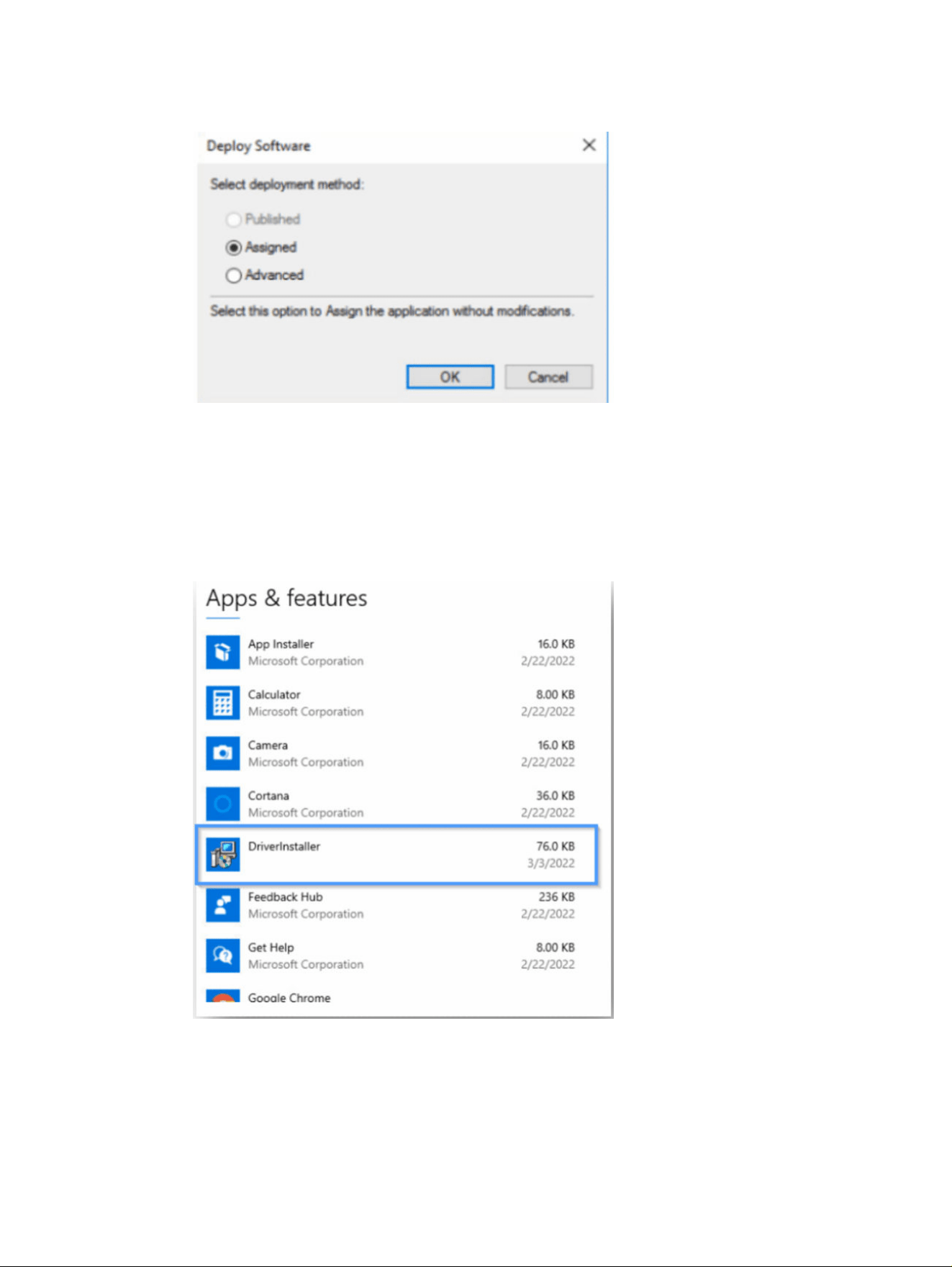
5. Set the deployment method as Assigned so it will self-install when booting up.
Distribute an MSI package through GPO (client)
On the client's side, it is necessary to restart the computer and update the policies.
Follow the steps in the order presented.
1. Users/employees must restart their computers or update the policies of their computer to install
the new policy (the .msi is trying to being installed).
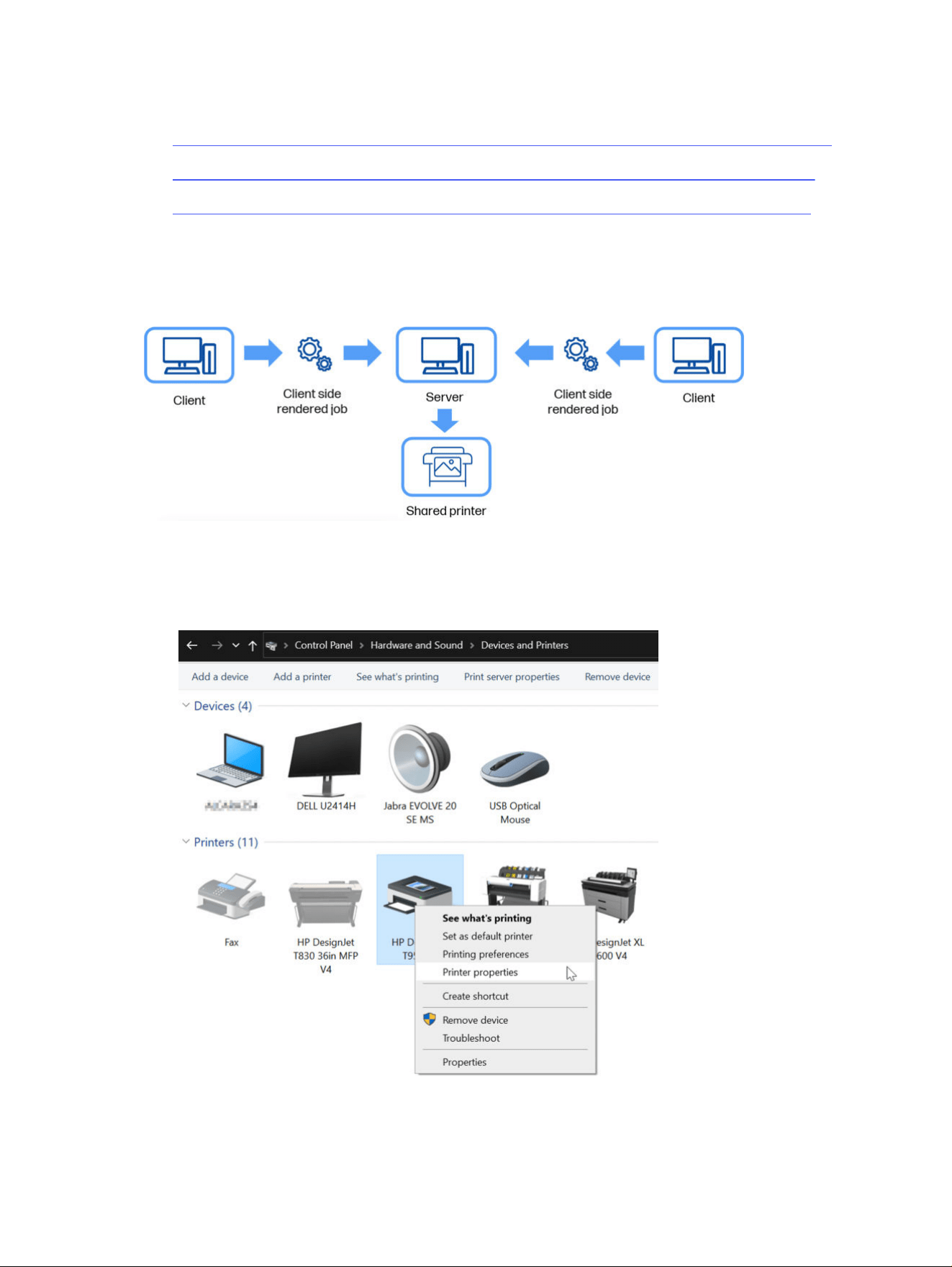
2. After rebooting the system, if the employee goes to Print Management they will see the driver
already installed.
3. Connect to the Server as usual and then connect to the shared printer. Afterwards, the queue
appears and tried to open, the UI will work.
Distribute an MSI package through GPO (client)
17
For detailed steps and visual guidance, refer to the video tutorials provided:
● https://myknowledge.hpcloud.hp.com/#/documents/97254738-b0d0-46d2-b433-304e62ac5964
● https://myknowledge.hpcloud.hp.com/#/documents/2825c2f1-2a4d-4027-985e-7f3c3a21398c
● https://myknowledge.hpcloud.hp.com/#/documents/0c22f217-6108-4c7e-a7d4-6081efe51ac3
Select job processing side
It is important to select the Render print jobs on the client computers checkbox to ensure an efficient
print when using a shared printer.
To share a printer, perform the following steps in the order presented:
1. Go to the Control Panel and select Hardware and Sound > Devices and Printers.
2. Right-click the printer you want to share, then click Printer properties.
18
Chapter 1 Drivers
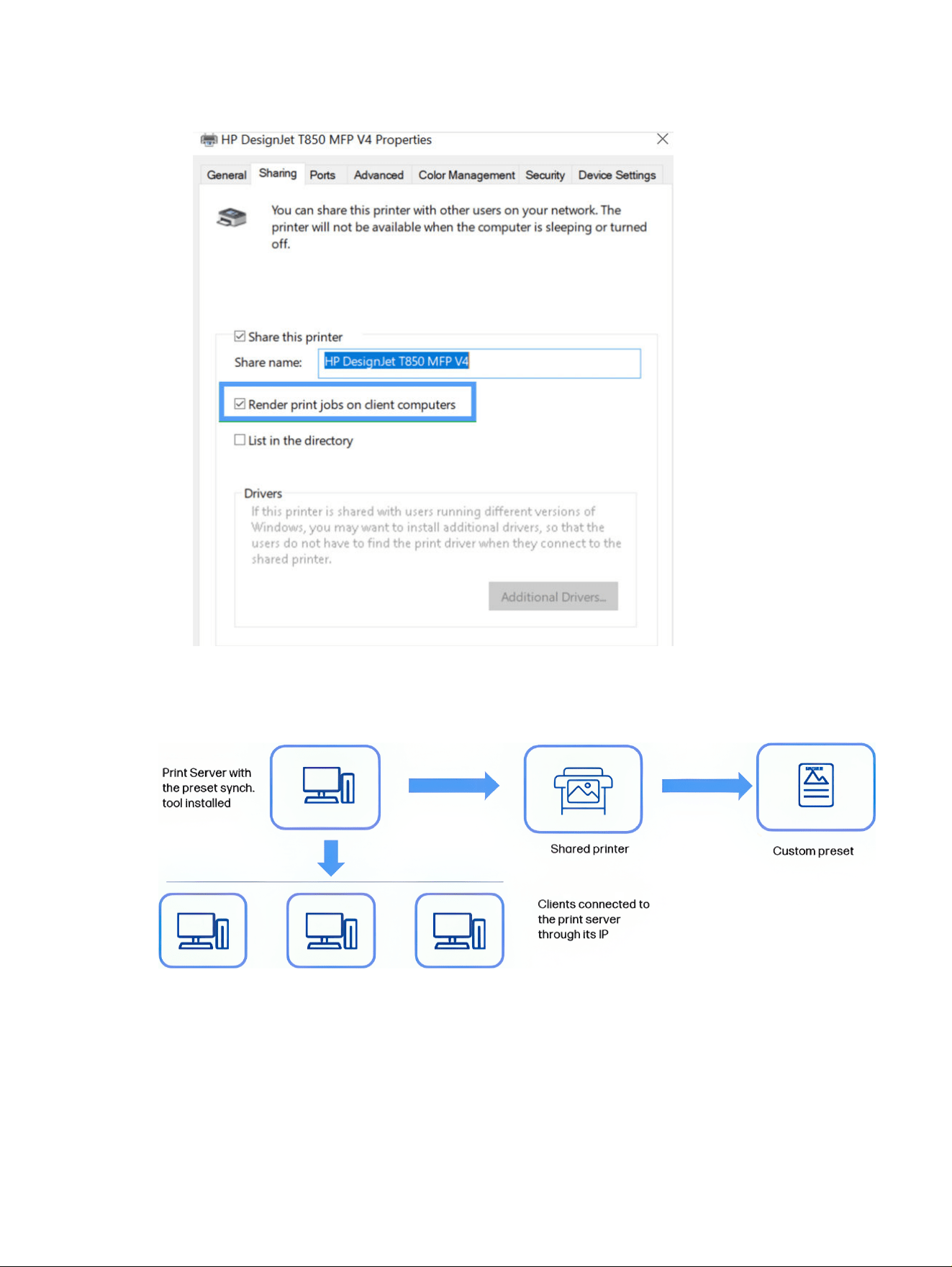
3. Mark the checkboxes for the Share this printer and Render print jobs on client computers options.
Preset synchronization tool
To share a preset in the V4 architecture, an external HP tool is used.
This tool enables you to share a custom preset created in a print server with all the clients that use the
shared printer.
Only the GBU has access to the preset synchronization tool. If you need to share a custom preset,
contact the GBU.
The installation of the preset synchronization tool is almost the same for the client and the server. The
only difference is that, on the client side, it is mandatory to add the IP address of the print server.
Preset synchronization tool
19

Transitioning from V3/V4 drivers to an IPP class driver
Migrating from legacy V3/V4 print drivers to the HP Click driver, powered by IPP class driver technology,
brings significant improvements in security, simplified IT management, and a smoother printing
experience. By utilizing Microsoft’s Print Support Apps (PSA) framework and the Internet Printing
Protocol (IPP) over HTTPS, the HP Click driver reduces many of the risks and complexities associated
with traditional drivers.
Understanding legacy V3 print drivers
Designed for early Windows versions (XP, 7).
Operate in kernel mode, meaning they have unrestricted access to the system.
Security risks: Vulnerabilities in drivers can be exploited to gain unauthorized system control.
Stability issues: Faulty drivers can cause system crashes, including Blue Screen Of Death (BSOD)
errors.
Kernel mode and its security vulnerabilities
Kernel mode allows drivers to execute with the highest privileges in the system, meaning:
● If a malicious or faulty driver runs in kernel mode, it can cause complete system failure.
● Attackers can exploit kernel-mode vulnerabilities to execute unauthorized code, steal data, or install
persistent malware.
● Buggy print drivers running in kernel mode can crash the entire OS, affecting business operations.
To mitigate these risks, modern driver architectures move away from kernel mode and operate in user
mode instead.
V4 print drivers: Limited improvement, persistent drawbacks
Microsoft introduced V4 print drivers as an attempt to reduce the reliance on kernel-mode execution
and improve manageability. However, V4 drivers still present drawbacks:
● Operate in user mode – Unlike V3 drivers, V4 print drivers execute in user mode, which reduces
system-wide failure risks but still has limitations.
● Security limitations – Although V4 drivers execute in user mode, they still require direct access to
system resources, creating potential attack vectors.
HP Click driver with PSA + IPP class driver
The HP Click driver eliminates the need for traditional drivers by leveraging:
● IPP over HTTPS for secure communication between printers and Windows.
● User-mode execution in an isolated environment, preventing system-wide failures.
● Microsoft Store-based updates, ensuring compliance with security best practices.
Advantages of HP Click driver
No kernel-mode execution – Reduces the risk of driver-based security threats.
20
Chapter 1 Drivers

Isolated execution environment – The driver runs in a sandboxed user mode, ensuring vulnerabilities are
contained within the application.
Prevents system-wide crashes – Eliminates the risk of BSODs caused by faulty drivers.
Automatic security updates – Ensures the latest protections through controlled Microsoft Store
updates.
Limited system exposure – Since the HP Click driver operates within an isolated environment, any
exploitation attempts remain at the application level and do not compromise system-wide integrity.
Reduced attack surface – Since PSA handles driver execution, it limits system-level exposure, further
strengthening security.
Supports cloud and network printing – Fully compatible with IPP over HTTPS for remote printing.
Microsoft-recommended printing solution – Ensures long-term support and compatibility.
Enhanced reliability – Since the driver operates within an isolated user-mode framework, any crashes
and errors do not propagate to the rest of the system.
Transitioning from V3/V4 drivers to an IPP class driver
21
Troubleshooting
Bi-directionality troubleshooting
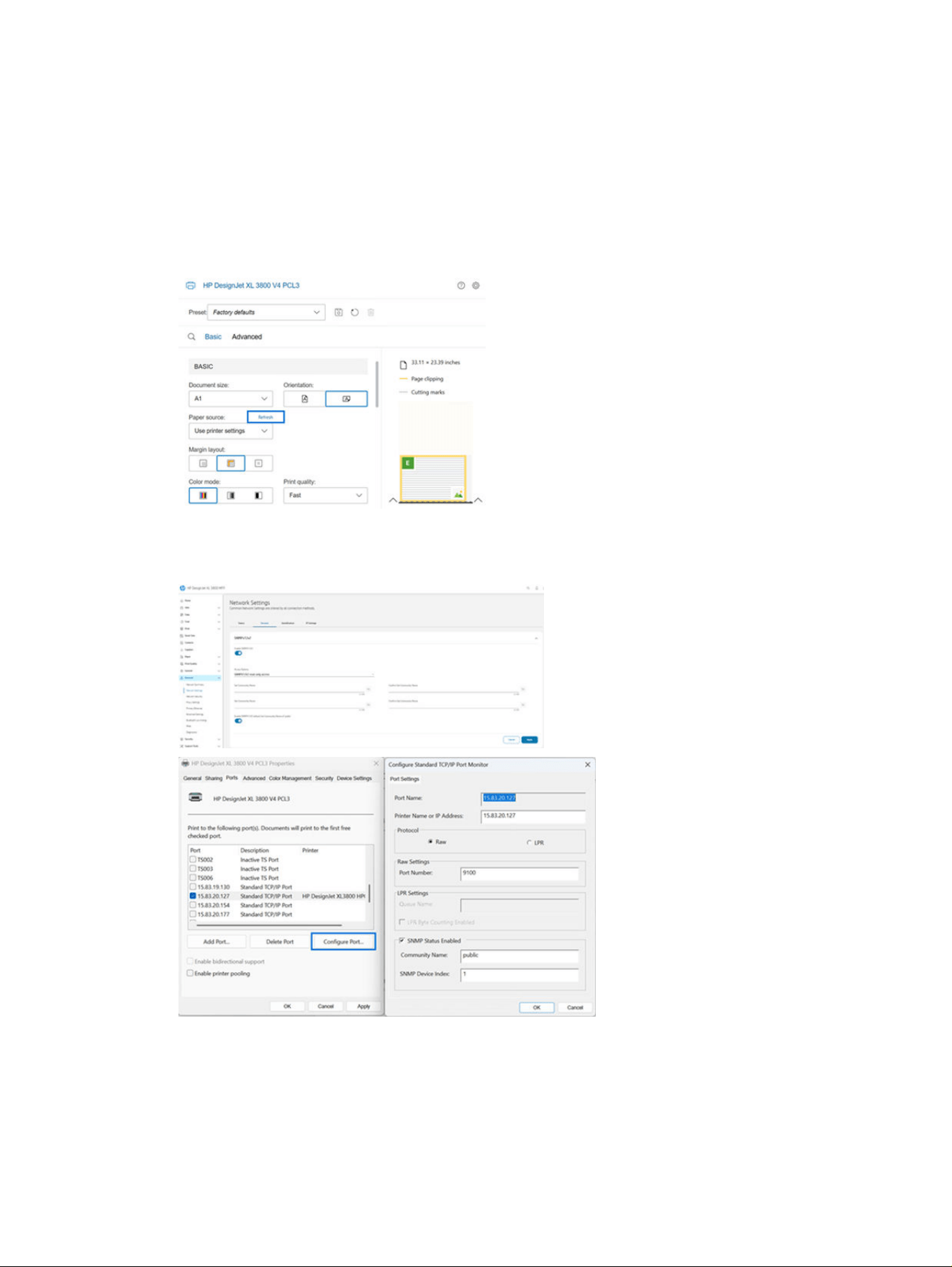
If bi-directionality is no longer present, try these steps to troubleshoot the issue.
1. Click the Refresh link in Paper source.
2. Check that SNMP is enabled in the Embedded Web Server and Configure Standard TCP/IP Port
Monitor.
22
Chapter 1 Drivers
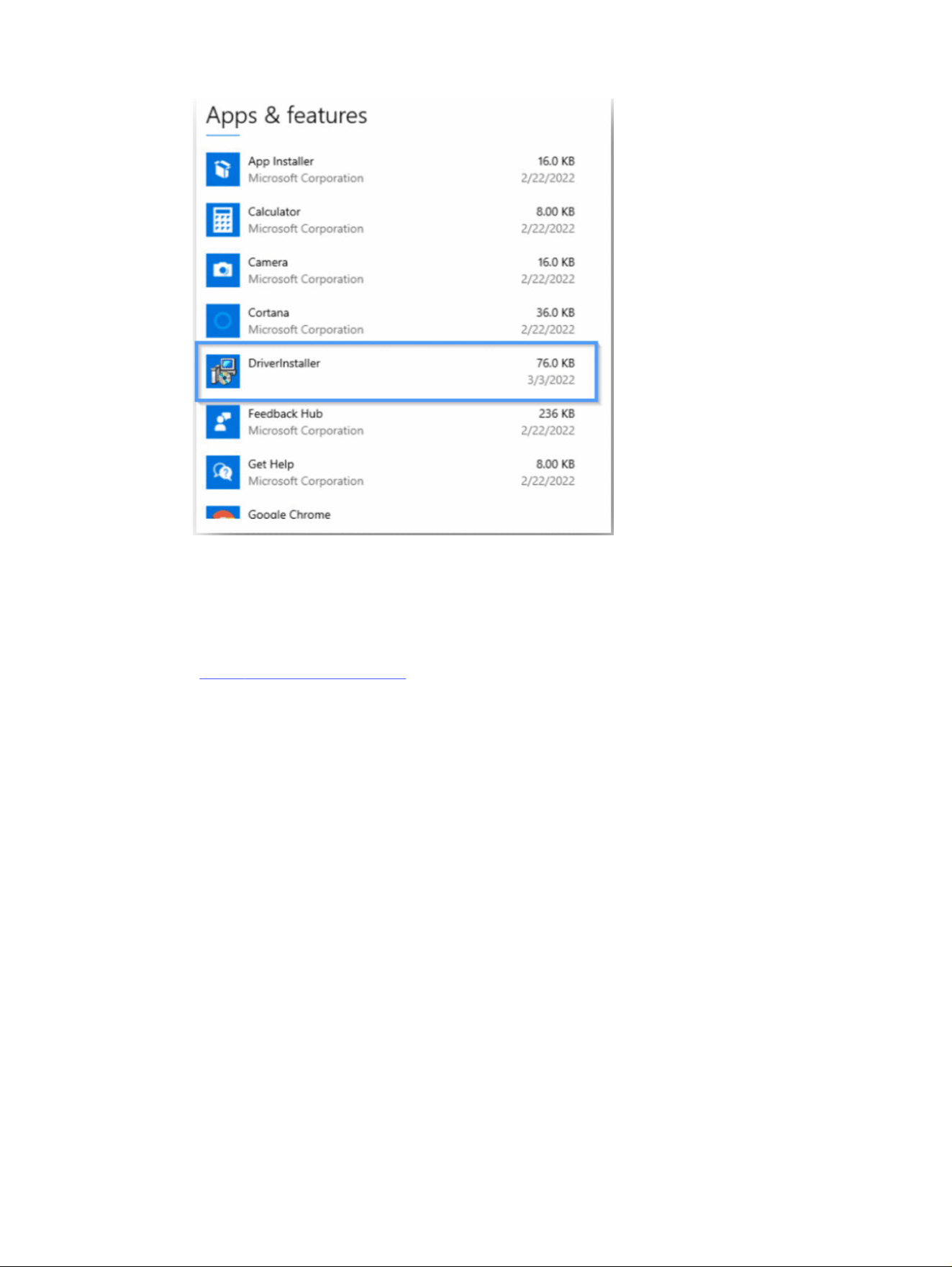
3. Change/Re-create the printer port.
Installed base handbook
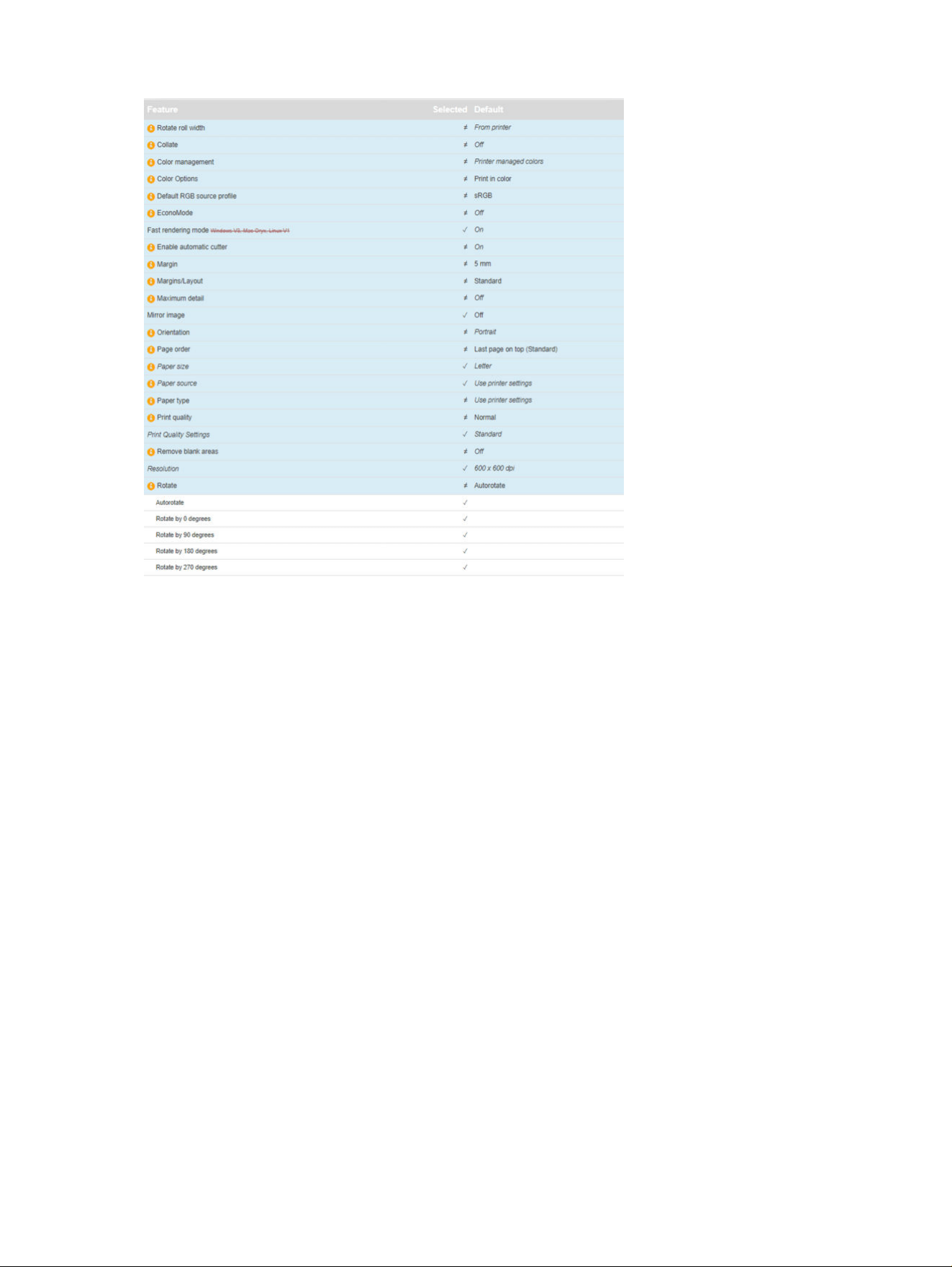
This is a valuable resource to understand the features available for a specific printer.
Go to https://dgt.bcn.rd.hpicorp.net/ to discover all the features available for a specific printer model.
For example, the features of the T950 MFP are listed in the following image:
Installed base handbook
23
24 Chapter 1 Drivers
Support elevation
How to reach HP Support
For the elevation process, the following information will be required:
● Driver version number
● Print path:
– Application version number
– Settings applied
● OS version number
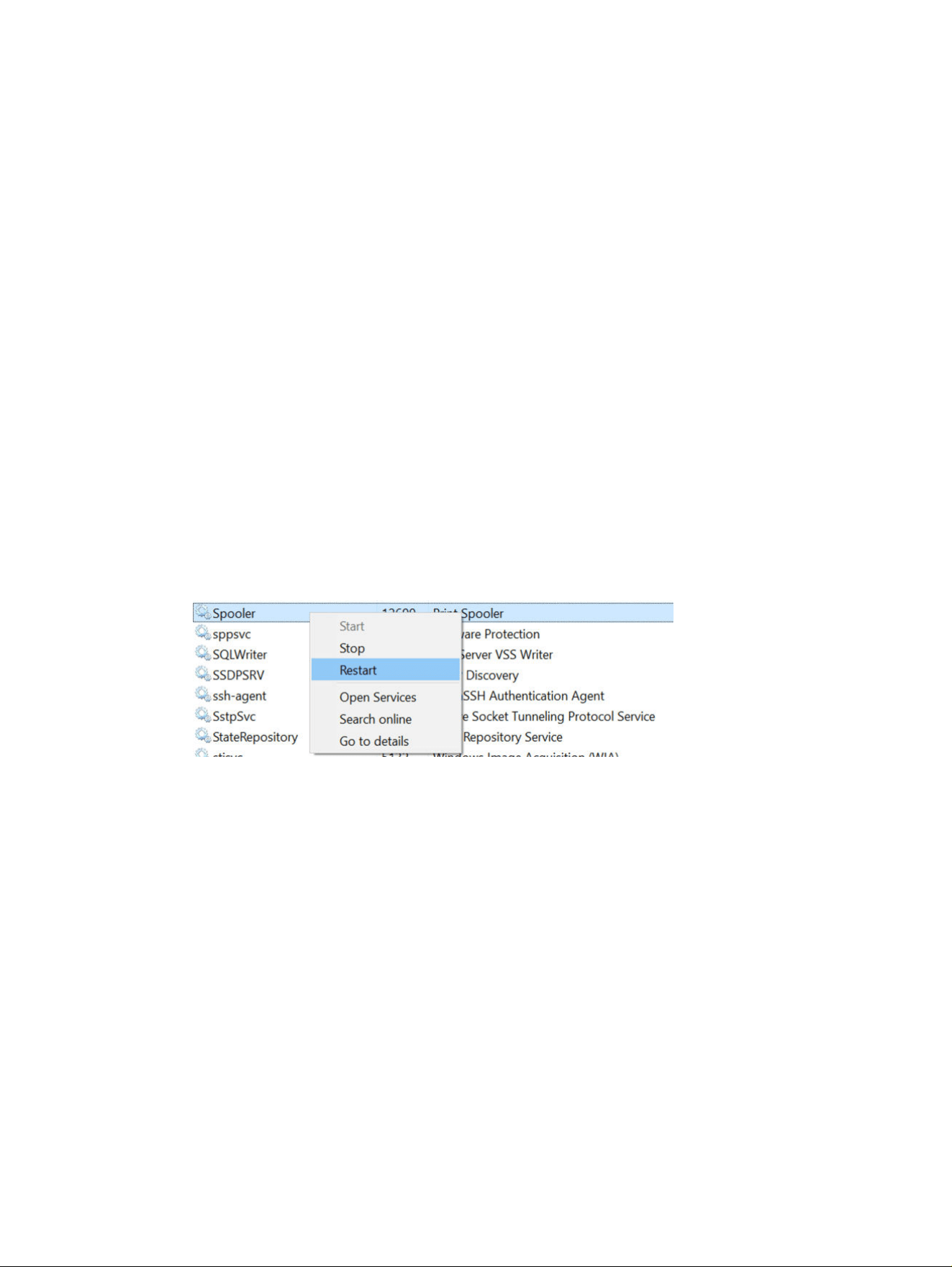
● Troubleshooting done: bi-di, spooler reset, reinstallation
● .prn file
First actions
1. The first action to take is to uninstall and reinstall (the Assisted Driver installer is recommended).
2. Restart the spooler: Open the Task Manager, go to Services , look for the Spooler service and
restart it.
Support elevation
25

HP Click driver2
This is the User Guide for SW Solutions HP Click Driver.
26
Chapter 2 HP Click driver

Introduction
The HP Click driver is an advanced, software-driven printer driver designed to optimize print workflows,
reduce errors, and improve user experience. By integrating Printer Support App (PSA) functions, it
simplifies the printing process for users.
Product features and benefits
Full integration with Windows 11
The HP Click driver seamlessly integrates with Windows 11, aligning with native system print paths to
enhance accessibility and ease of use.
The HP Click driver addresses common printing issues that often lead to reprints, offering a dependable,
high-quality solution for professionals who need accurate output with minimal intervention.
Efficiency in print flow
A streamlined, guided workflow from document selection to final print. This guided workflow includes
automatic adjustments and setting retention for quick, repeatable, and high-quality output.
Reliability and error management
Equipped with advanced error detection and management features, the driver helps users to prevent
common printing issues, ensuring that prints are accurate and meet quality expectations.
The HP Click driver is optimized for customers in small to medium enterprises, particularly in industries
such as AEC (Architecture, Engineering, and Construction). The key attributes include:
● Direct application printing: Users can print directly from commonly used applications (Windows)
without needing additional software.
● Compatibility with natural workflow: The driver’s integration into the existing Windows print path
allows users to work within their familiar digital environment, minimizing disruptions, and improving
productivity.
The HP Click driver addresses common printing issues that often lead to reprints, offering a dependable,
high-quality solution for professionals who need accurate output with minimal intervention.
Comparison of HP Click driver and HP Click application
The following table outlines the distinct capabilities of the HP Click driver compared to the HP Click
application, highlighting its exclusive features and functions for Windows 11 users.
Table 2-1
Comparison of HP Click driver and HP Click application
Feature HP Click driver HP Click application
Print preview Available, real-time Not available
Error protection Active error alerts and logs No built-in error protection
PDF saving Simultaneous print and save Not available
Print progress Visible and updated in real-time No detailed progress view
File compatibility Any Windows application PDF, JPEG, TIFF, DWF, HP-GL/2
Operating systems Windows 11 Windows, macOS
Introduction 27
Supported operating system
The HP Click driver currently runs under Windows 11.
Supported printers
The HP Click driver currently supports various HP DesignJet printers (including contractual and MFPs).
● HP DesignJet T210
● HP DesignJet T230
● HP DesignJet T250
● HP DesignJet T630
● HP DesignJet T650
● HP DesignJet T850
● HP DesignJet T858
● HP DesignJet T908
● HP DesignJet T918
● HP DesignJet T950
● HP DesignJet Studio
Data flow overview
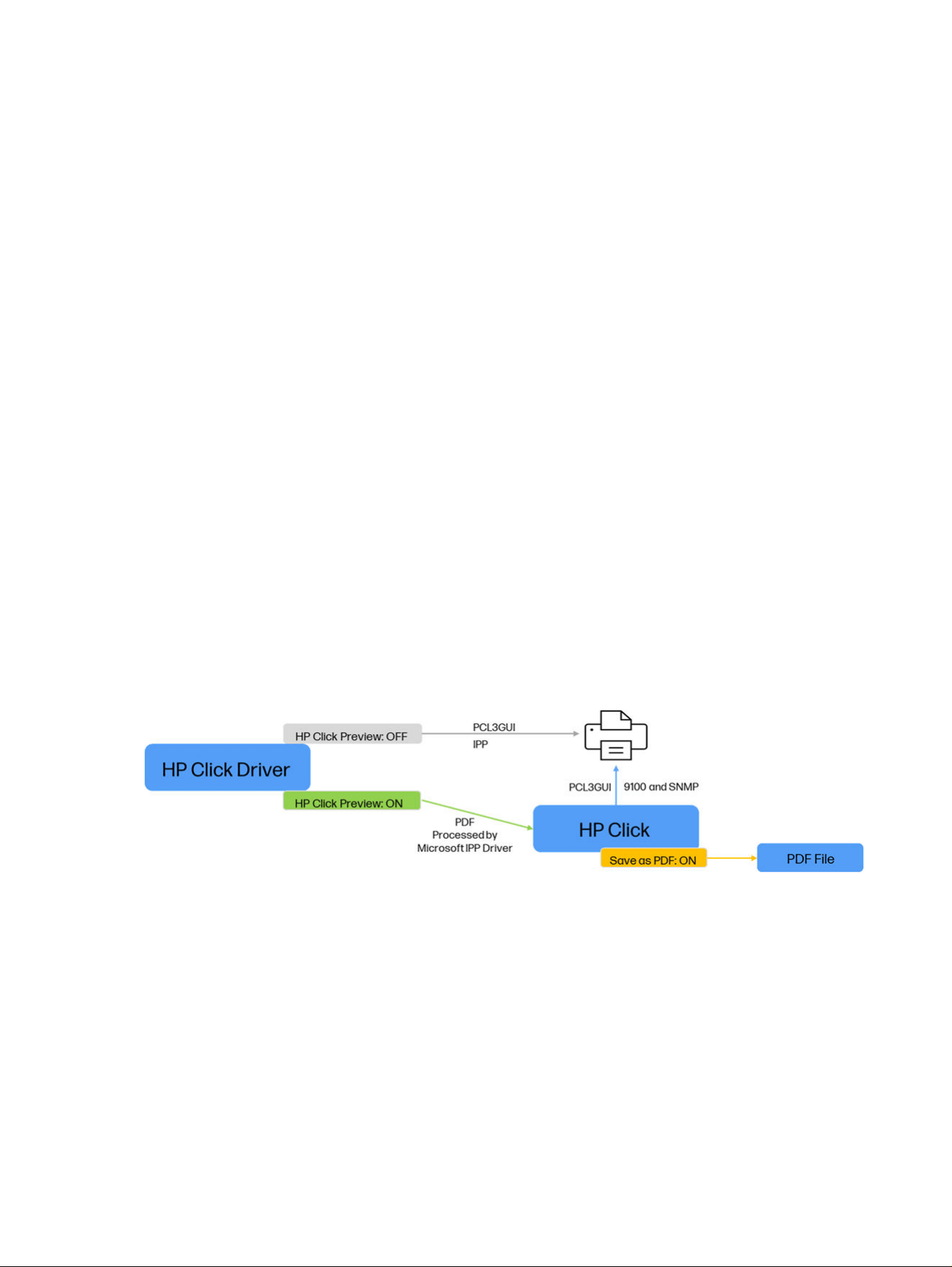
The HP Click driver’s data flow is designed to provide users with control over document preview and
error-free transmission.
1. Direct print (preview off): With print preview disabled, data is transmitted directly through the IPP
protocol in PCL3GUI format, bypassing the preview step.
2. Preview enabled: When the preview is on, print data is sent to the HP Click application, displaying a
preview for user confirmation and final adjustments before printing.
3. Save as PDF option: When enabled, a PDF of the document is saved concurrently with the print job.
Communication Protocols Utilized:
● IPP (Internet Printing Protocol): Supports direct network communication for print jobs.
● 9100 port: Facilitates direct data transmission from the device to the printer.
28
Chapter 2 HP Click driver

● SNMP (Simple Network Management Protocol): Provides real-time monitoring of the printer’s
operational status.
NOTE: Only SNMP v1/v2 are supported.
Data flow overview 29
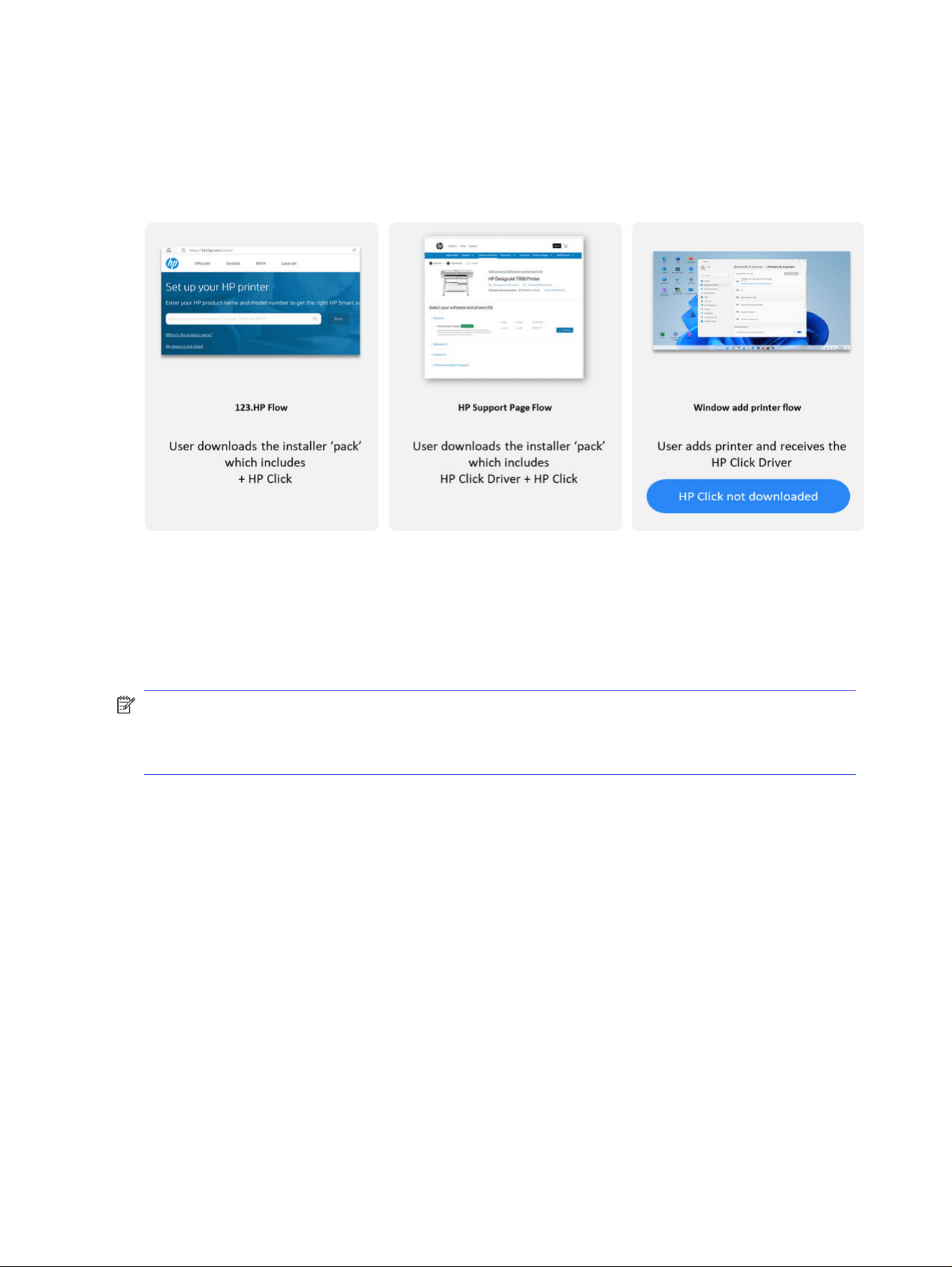
Setup and installation
Installation sources for HP Click driver
Users can download the HP Click driver from various sources.
1. HP 123 website: Navigate to 123.hp.com, select the printer model, and download the driver package.
2. HP Support page: Access the Software and Drivers section, choose Printers, and enter the printer
model for driver download.
3. Windows add-printer flow: Through the Windows Store, users can add and install the HP Click driver
directly to their system.
NOTE: Using the Windows Store option installs only the HP Click driver, not the full HP Click
application. If the user does not have HP Click previously installed, a pop-up will appear which
recommends downloading the HP Click application to access the print preview feature in the first print
after installing the HP Click driver.
30
Chapter 2 HP Click driver
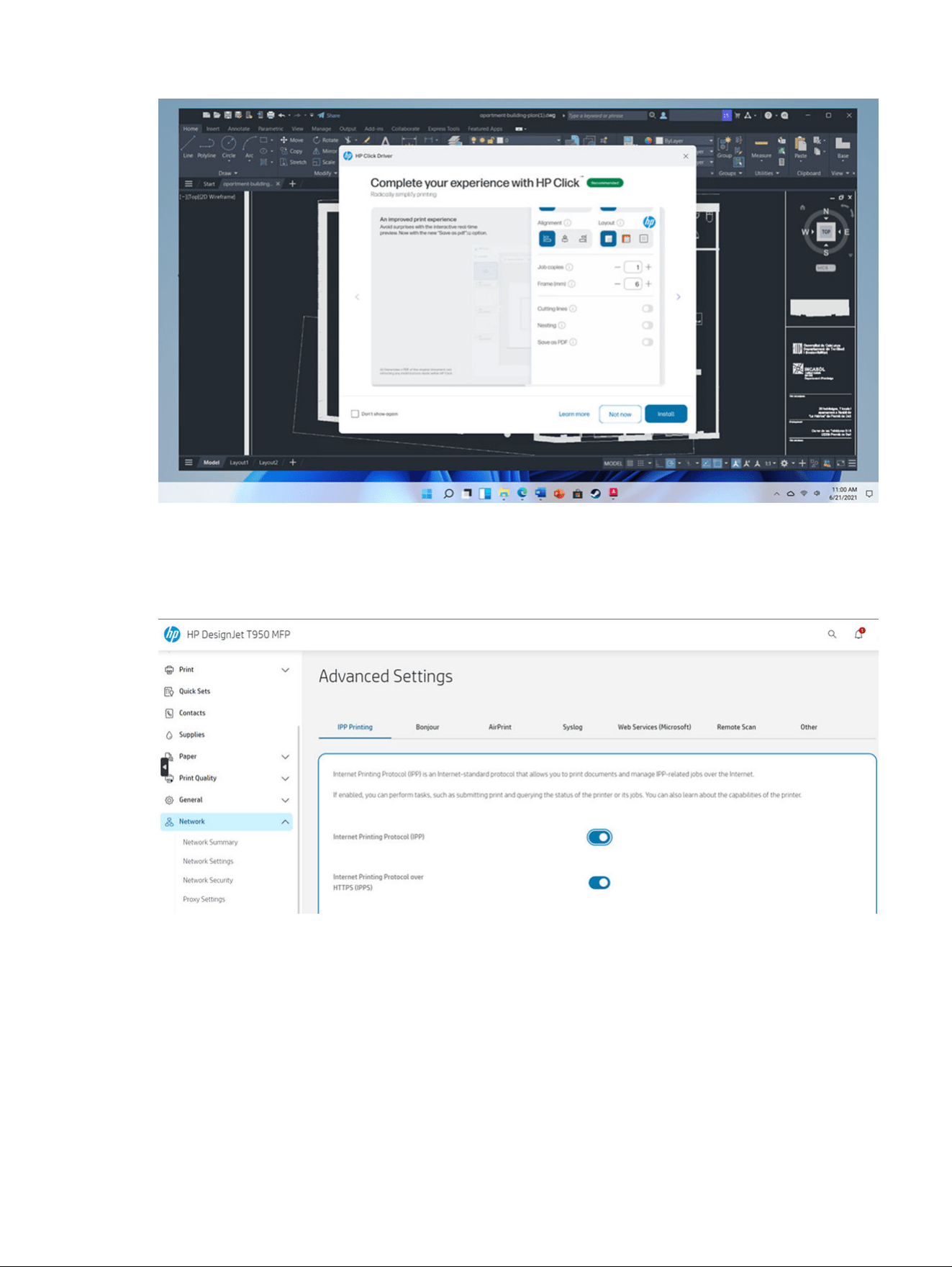
Prerequisites for installation
IPP (Internet Printing Protocol) must be enabled; it is on by default in the printers. If it is not, it must be
activated in the Embedded Web Server.
Installation process
Follow the steps in the order presented.
1. Download the installer package: Obtain from one of the approved sources previously mentioned.
2. Run the installer:
a. Automatic detection: Run the installer to detect compatible printers automatically on the
network.
b. Manual configuration: If detection fails, enter the device IP address manually for setup.
Prerequisites for installation
31
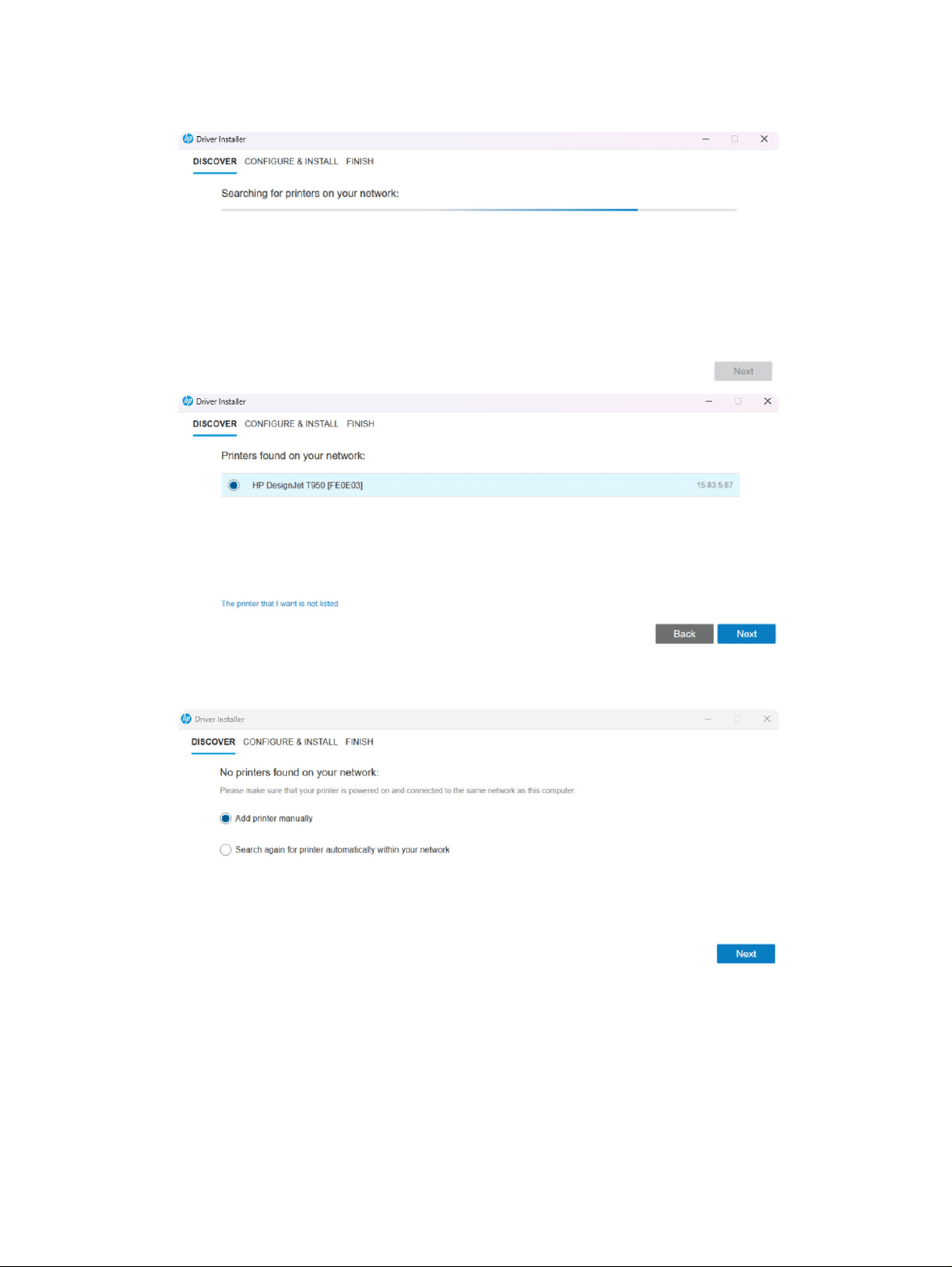
3. Printer queue setup: Confirm the printer queue for proper print job alignment within Windows.
4. If the autodiscovery did not find the device, continue by adding the device manually
32
Chapter 2 HP Click driver
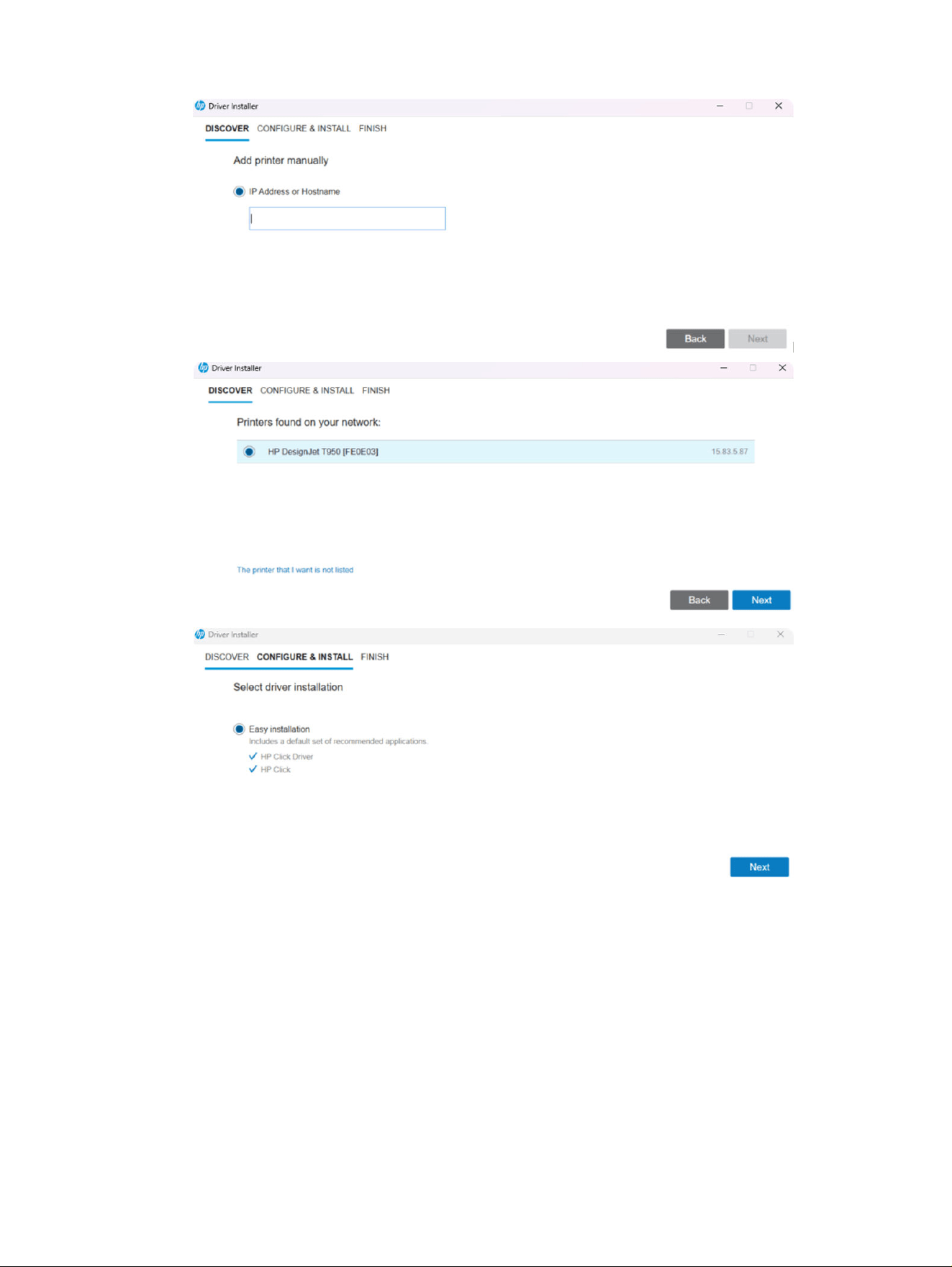
Installation process 33
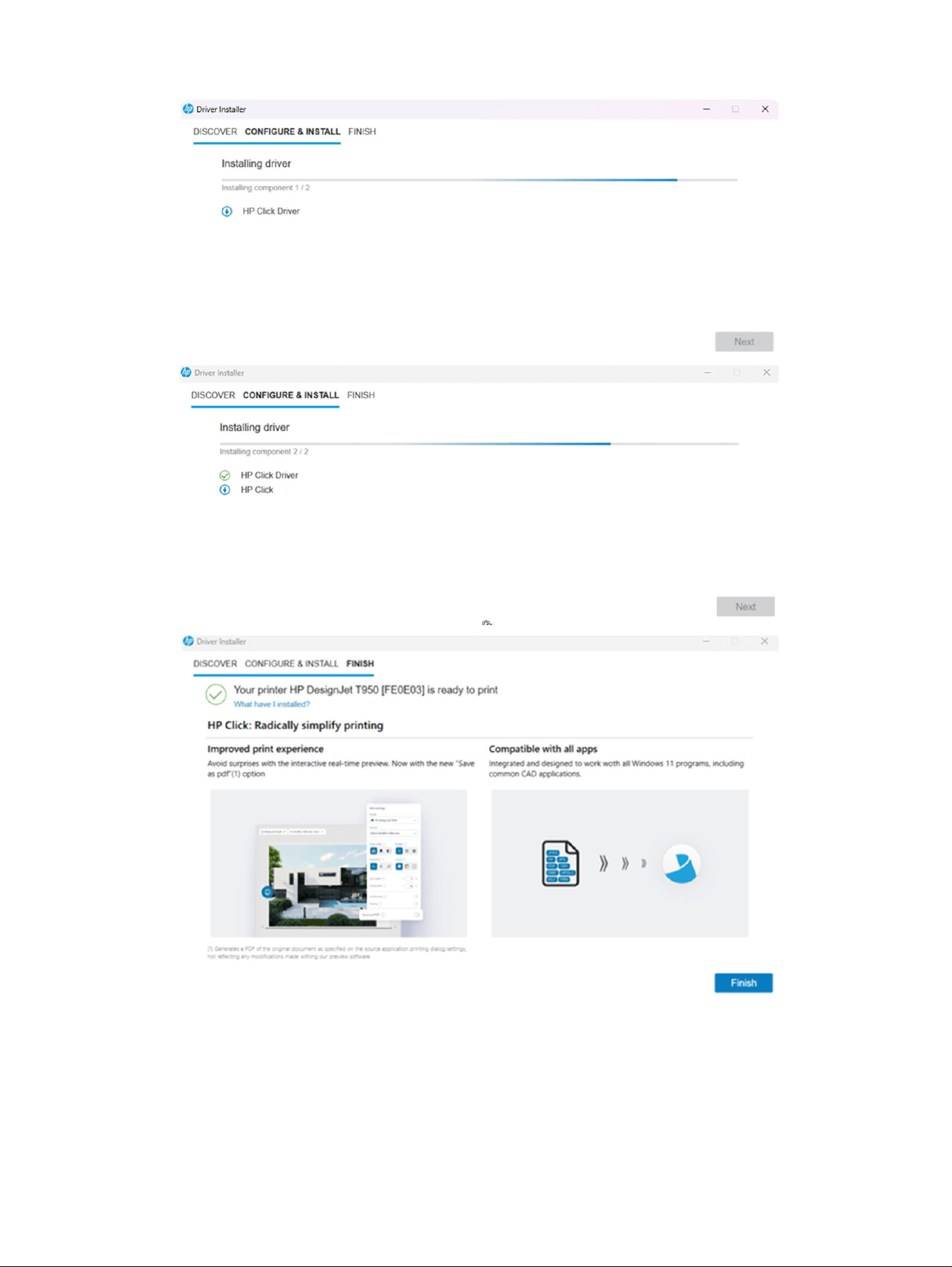
34 Chapter 2 HP Click driver
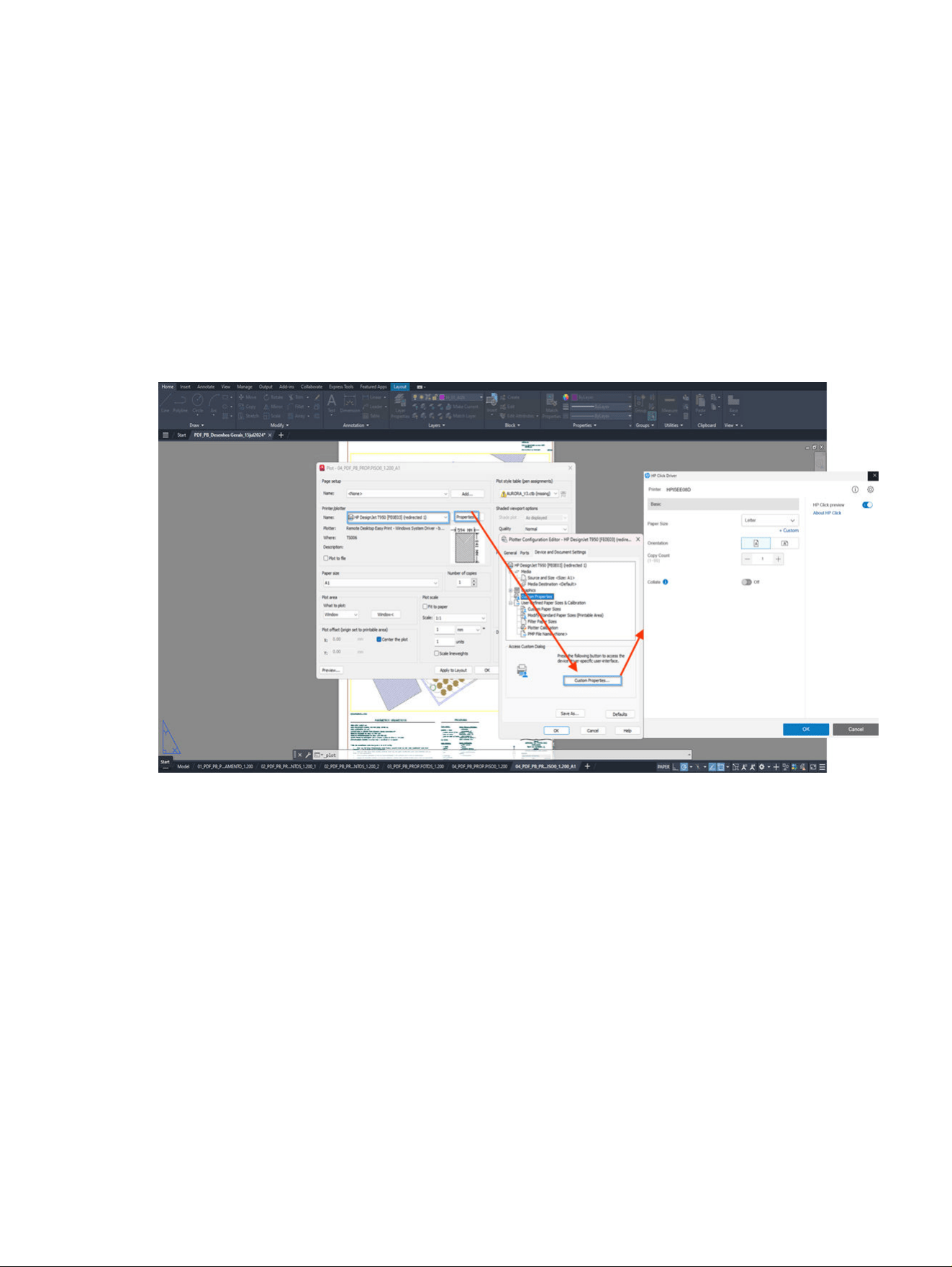
Printing process
Follow the steps in the order presented.
1. Open desired application: Start by opening a Windows-compatible application, such as AutoCAD,
Revit, Bluebeam, and so on.
2. Access Print menu: Open the file you wish to print, then select Print from the application menu.
3. Select HP Click driver queue: Choose the HP Click driver in the Print dialog as the designated print
queue.
4. Adjust print properties: In the driver’s UI, adjust necessary print settings for the current job.
5. Enable print preview: By default, the driver will show a preview. If not needed, disable to print directly.
Remember that the print preview can be disabled by clicking the toggle located in the top-right corner.
All print settings will then be shown.
Printing process
35
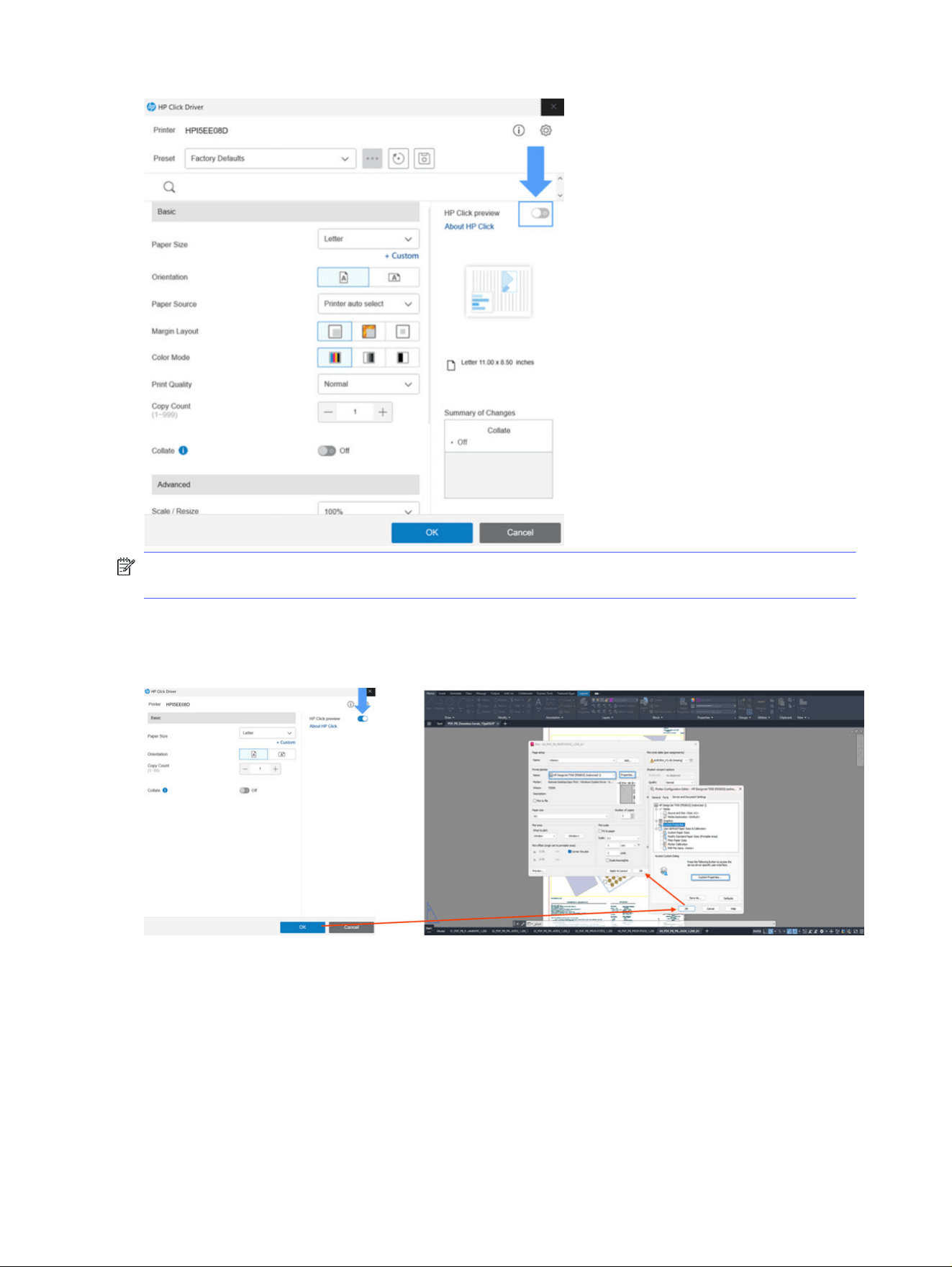
NOTE: When the print preview is disabled, users cannot adjust final settings in the preview before
sending the job.
If the user keeps the print preview enabled, some print settings can be adjusted in the driver UI. However,
when the user clicks Print in the application’s Print dialog, the print preview will appear, allowing access
to additional print settings and features.
Interface overview
The HP Click driver interface provides a user-friendly, interactive experience tailored for efficient control
and monitoring of print jobs. The interface is designed to simplify the printing process by offering clear
visual feedback, status updates, and direct access to essential settings.
36
Chapter 2 HP Click driver
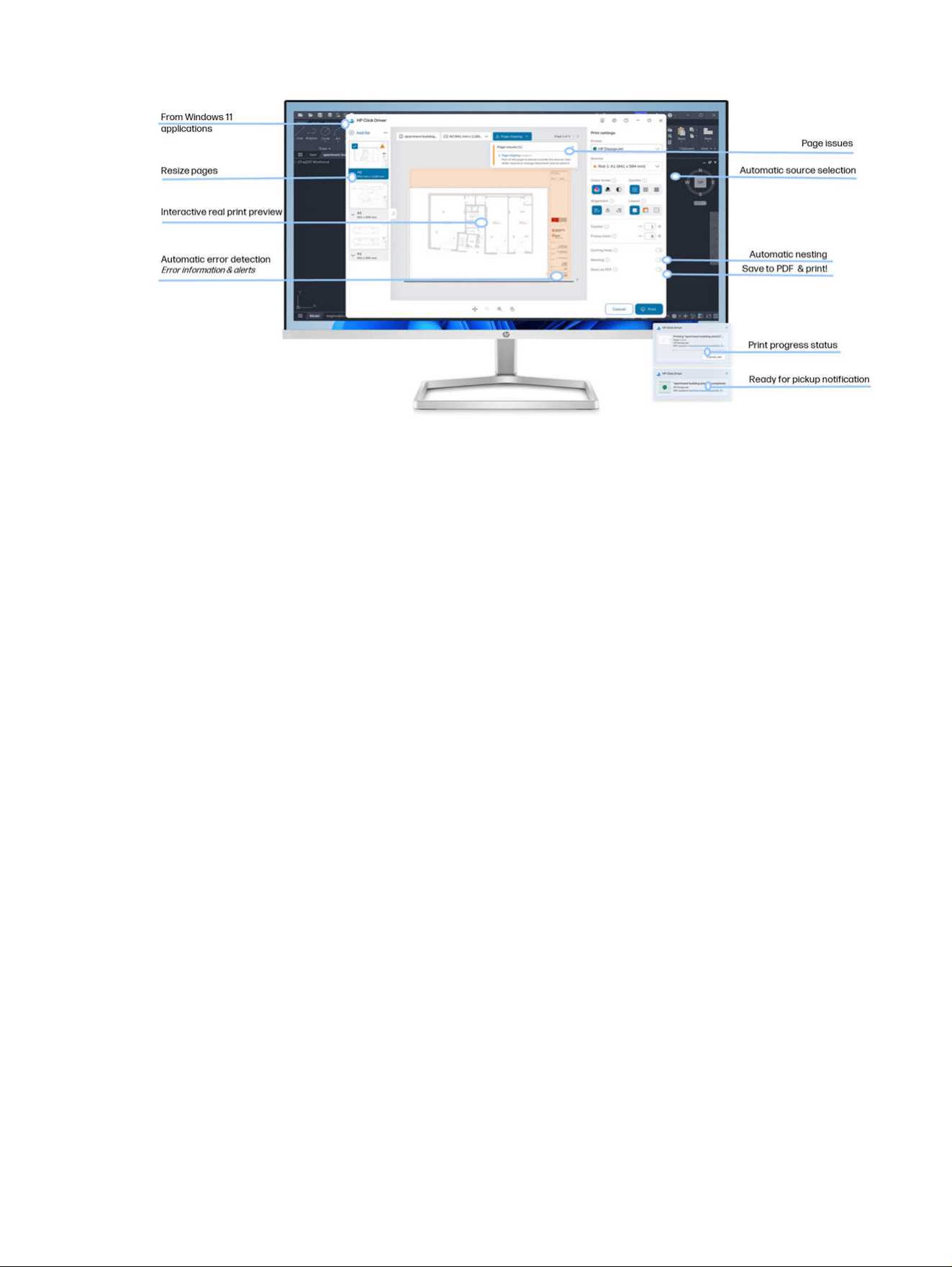
Interactive real-time print preview
The key components of the interface include:
1. Displays a true-to-print preview, which allows users to verify layout, scale, and formatting accuracy
before initiating the print job.
2. This preview minimizes print errors by ensuring the document’s appearance matches user
expectations.
Automatic error detection and alerts
1. The interface actively monitors for potential issues (such as paper-size mismatches and low-ink
warnings) and provides instant alerts.
2. Error messages are displayed in clear, accessible language, with troubleshooting prompts available
to assist users in resolving common problems.
Document-resizing options
1. Includes tools to resize pages directly within the interface, allowing users to fit documents to
specific paper sizes or adjust scale as needed.
2. Resizing maintains aspect ratios and layout integrity to ensure professional print results.
Save to PDF and print simultaneously
1. Users can choose to save a digital PDF copy of the document while sending it to print, supporting
document archiving and sharing needs.
2. This feature reduces the need for separate software and simplifies workflow for users who
frequently require digital and physical copies.
Automatic nesting for efficient paper use
1. The driver’s automatic nesting feature arranges multiple pages or images efficiently within the
paper’s printable area, minimizing waste.
2. Nesting options can be enabled or disabled depending on print job requirements.
Interface overview
37

Source selection automation
■
The interface automatically selects the optimal paper source based on the document’s size and
type, ensuring consistent print quality and reducing manual adjustments.
Real-time print progress status
1. Provides a status bar that displays the current stage of the print job, from spooling to printing,
keeping users informed of their job’s progress.
2. Notifications such as Ready for Pickup inform users when the print job is complete, enhancing user
convenience.
Deployment procedures
Using Windows Update
Workflow
1. Server setup
● Set up an IPP (Internet Printing Protocol) printer queue on the server.
2. Client setup
● Connect the client computer to the server and to the printer queue created on the server.
NOTE: The HP Click driver interface may not initially open correctly because the required
files are pending download from Windows Update.
3. Windows Update
● Download the .inf driver file via Windows Update.
4. Microsoft Store
● Download the HP Click driver .msix bundle from the Microsoft Store.
5. Verification:
● Once all necessary software components are downloaded and installed, the HP Click driver
interface should open correctly.
● You can now submit print jobs from the client to the server, which will forward them to the
connected physical printer.
Without using Windows Update
Workflow
● Install the HP Click driver and configure it to connect to a physical printer on the server.
Alternative installation methods
● Option A: Manual installation on client machines
38
Chapter 2 HP Click driver

– Manually install the driver on each client machine.
– Connect the client to the server to finalize the installation.
– This process ensures that all required files for the HP Click driver interface are available.
● Option B: Using the .msix file for deployment
– Purpose: The .msix file enables IT administrators to deploy the driver across multiple client
machines without requiring individual manual installations.
– Required files: Install the HP Click driver .inf file and the HP Click driver .msix bundle.
– Server setup: Set up an IPP (Internet Printing Protocol) printer queue.
Deployment procedures
39
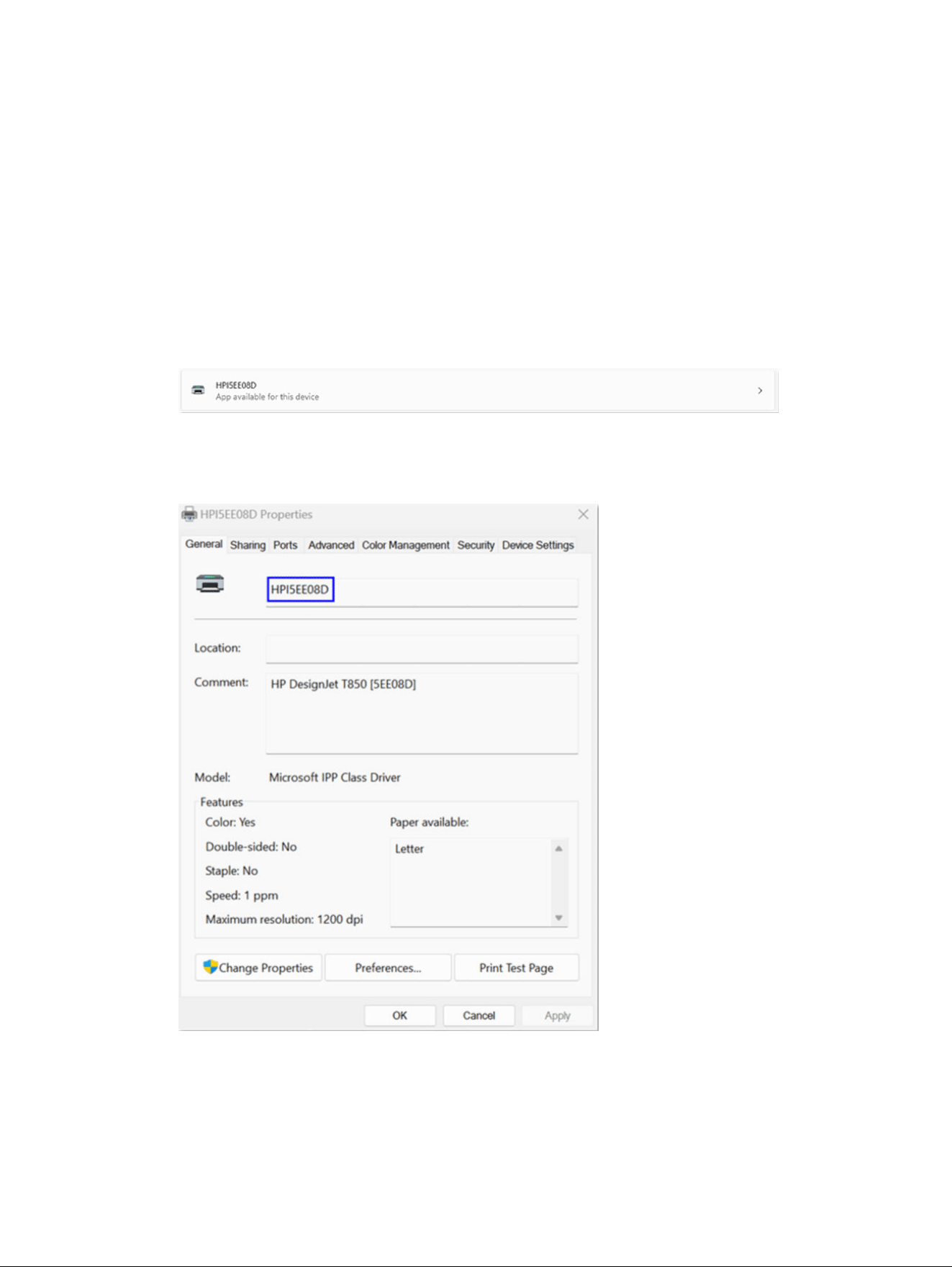
Troubleshooting
The following section provides information on troubleshooting.
The name of the printer queue is not recognizable
If you installed the HP Click driver but you cannot recognize its name, follow the steps in the order
presented.
1. Open Settings.
2. Go to Bluetooth & devices > Printers & scanners.
3. Find and select a printer queue that looks like the following.
4. Click Printer properties.
5. Modify the name to assign it the one you consider appropriate.
6. Click OK to save the changes.
7. Go back to Printers & scanners to see the printer queue with the new name assigned.
40
Chapter 2 HP Click driver
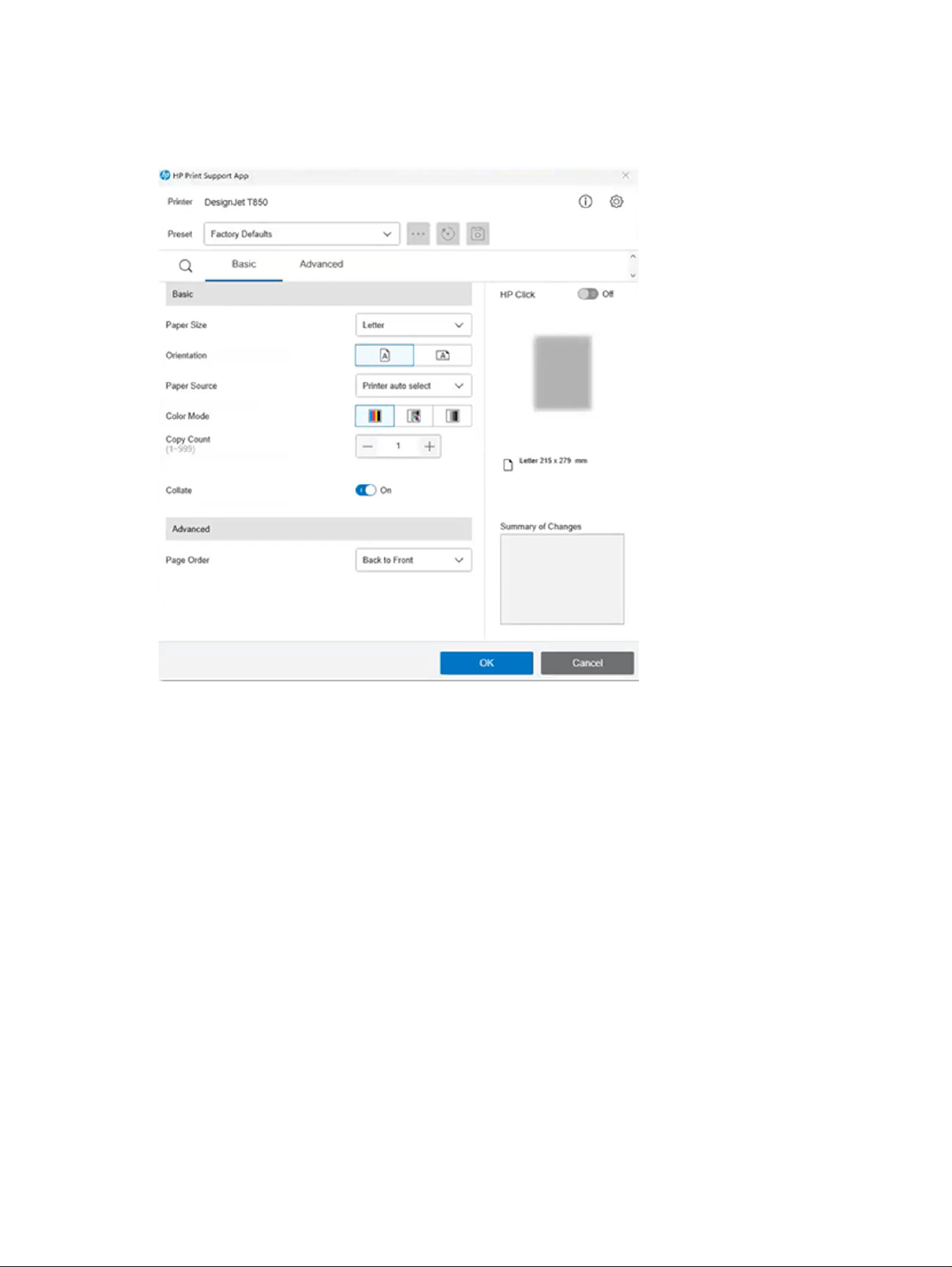
The printer does not receive the job
When you open the user interface, if it looks like the following image then follow the steps outlined below.
1. If the printer does not receive the print job when you send it, try restarting the printer.
2. If this does not resolve the issue, restart the computer too.
3. You should then be able to access the full user interface, and the driver should communicate
properly with the printer.
Application non-response
If any Windows application is unresponsive when selecting a printing device, ensure that the printer is
powered on and then restart the application.
The printer does not receive the job
41
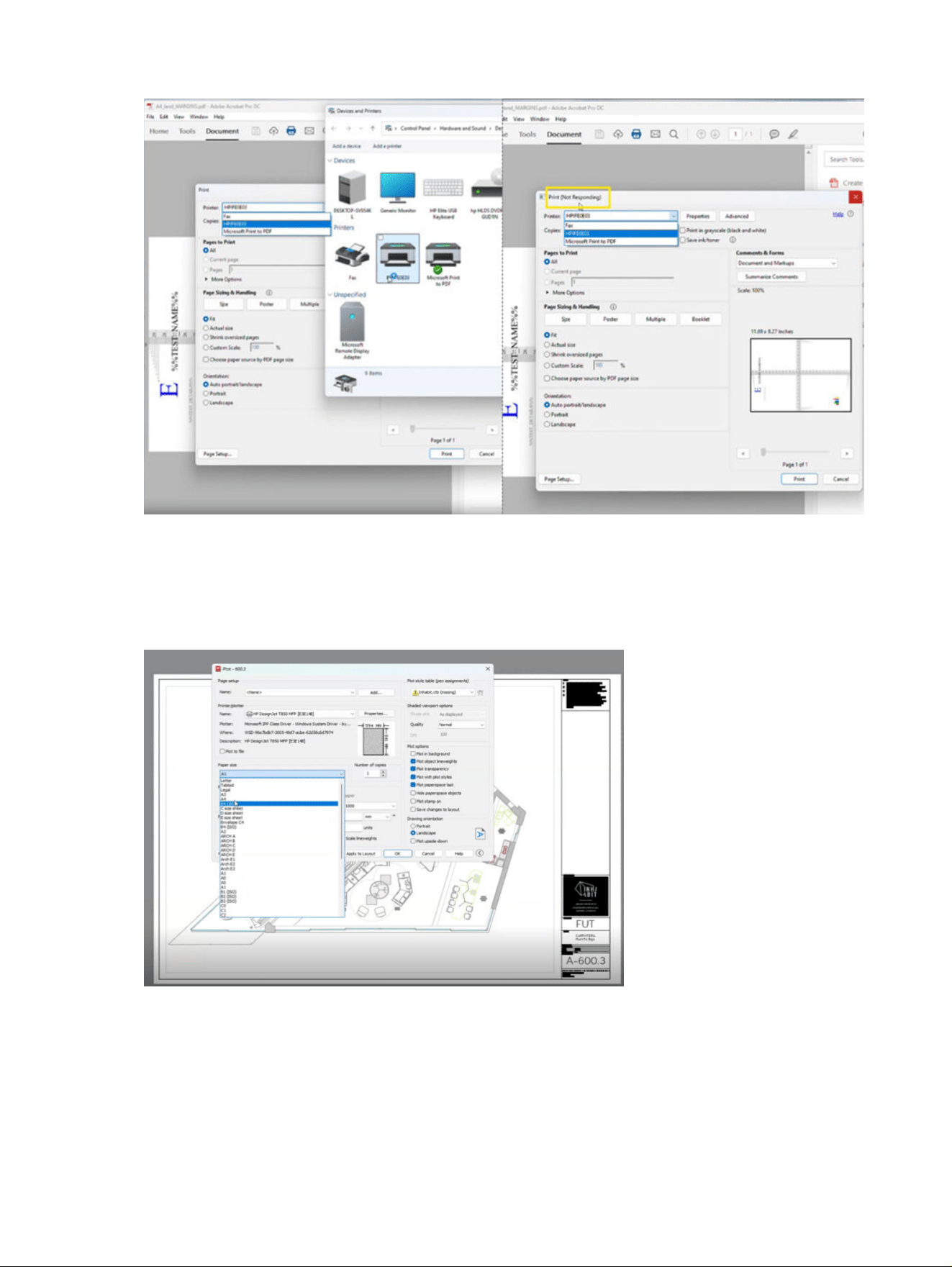
Print preview accuracy (Content clipped)
If you change the page size in the application’s print dialog, and the page size is smaller than the content
to be printed, and you do not select the ‘Fit to content’ option, the print preview result may not be
accurate. It will show only the portion of the content that fits within the size selected on the print dialog.
42
Chapter 2 HP Click driver
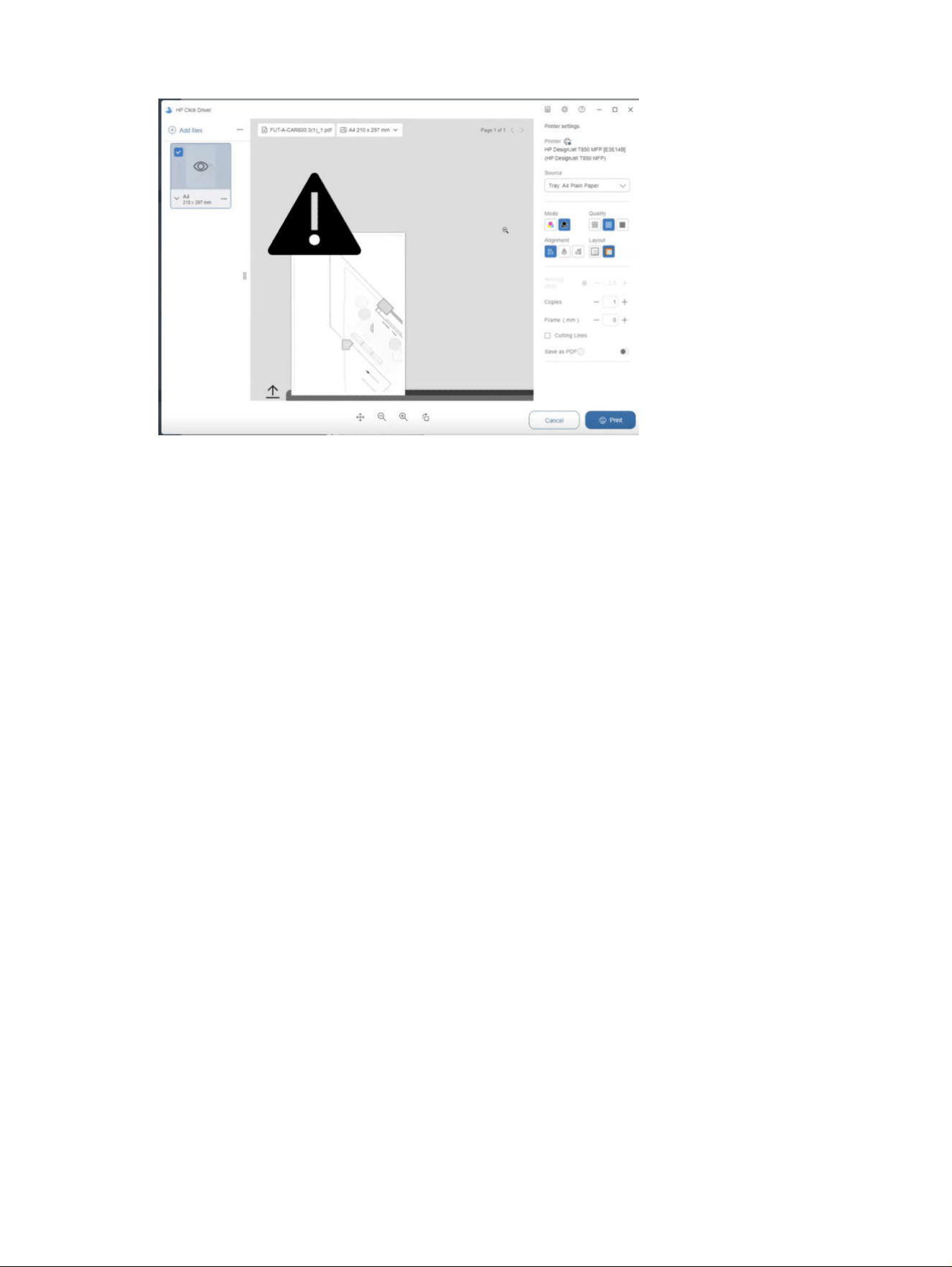
Troubleshooting
1. Cancel the job on the print preview.
2. Open the application print dialog again (CTRL+P) and select the appropriate page size or select Fit
to content on it.
3. Click Print and review the job on print preview.
Print preview accuracy (color)
If you change to grayscale in the application’s print dialog, these changes will be reflected in the print
preview. However, once in the preview, you cannot apply the color setting again.
Troubleshooting
1. Cancel the job on the print preview.
2. Open Application print dialog again (CTRL+P) and disable grayscale setting in the application’s print
dialog. Click Print and review the job on print preview.
How to capture the log file of the installer
How to capture the log file of the installer if any issues arise during the installation.
1. Open the folder “%temp%” in the File Explorer.
2. Search for HP.
3. Find the log file named HPDIntegratedInstaller.log.
4. Contact your service representative and share the file for investigation.
Print preview accuracy (color)
43
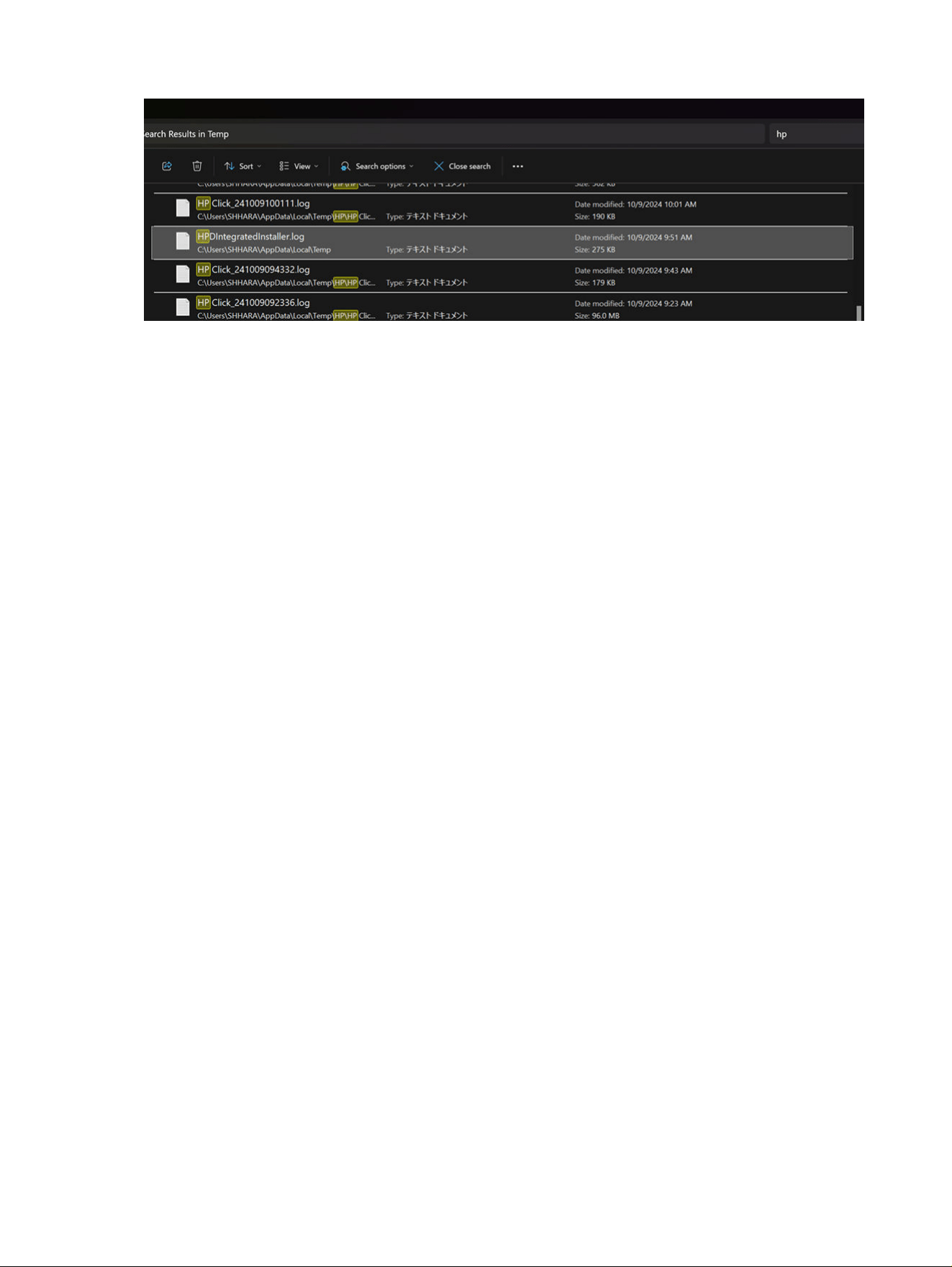
How to collect all the information needed to diagnose a possible bug in the HP
Click driver
1. Open a new File Explorer window and navigate to the %localappdata%
\Packages\AD2F1837.HPClickDriver_v10z8vjag6ke6\LocalState folder.
2. Edit AppConfig.xml in a text editor.
a. Set to true the logs and file dump:
<?xml version="1.0" encoding="utf-8" ?>
<Configuration>
<EnableDump>true</EnableDump>
<EnableLog>true</EnableLog>
<PdcTimeout>60</PdcTimeout>
</Configuration>
b. Save AppConfig.xml
3. After reproducing the issue, navigate to %localappdata%
\Packages\AD2F1837.HPClickDriver_v10z8vjag6ke6 and generate a zip file with the LocalState
folder.
4. Contact your service representative and share the LocalState zip file, it will contain all the logs and
files (including job prn) needed to diagnose the bug.
44
Chapter 2 HP Click driver

HP Click printing software3
This is the User Guide for SW Solutions HP Click printing software.
HP Click printing software
45
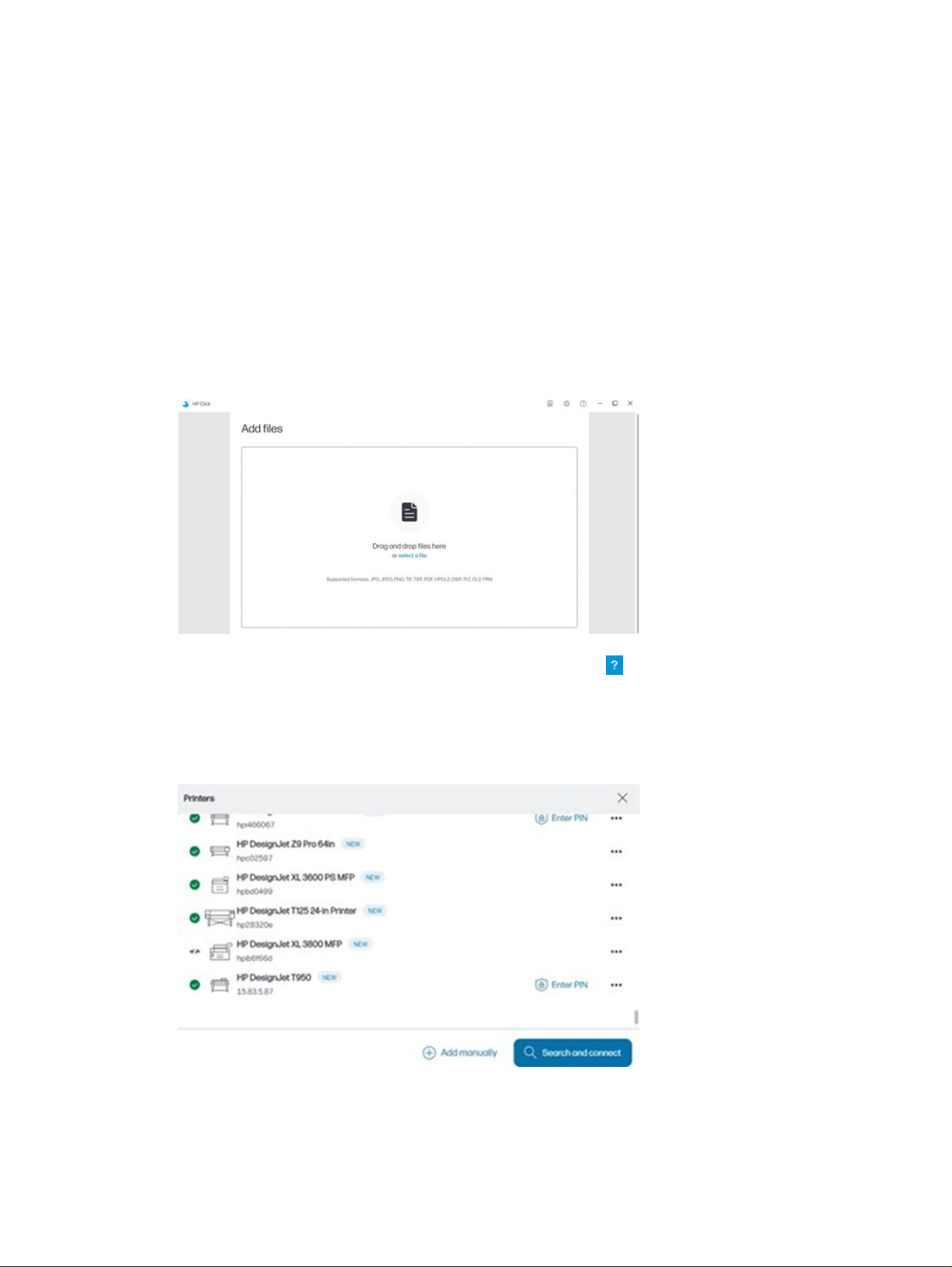
Introduction
Who is it for?
HP Click is an easy-to-use job-submittal tool designed for people with low-volume printing needs, who
want to print reliably. Ideal for a broad range of graphics and technical applications including posters,
roll-up banners, info-graphic presentations, maps, and CAD documents.
Getting started
The following steps provide the complete procedure for this topic.
1. Install the application.
2. Start the application. You will see a very simple window.
3. To see what’s new in the latest version of the application, click and then What’s new.
4. The application automatically detects any supported printers connected to your local network. It
automatically selects language, units of measurement, and a selection of page sizes according
to your operating system settings. (However, you can change all these things manually, and add
printers manually if necessary.)
46
Chapter 3 HP Click printing software
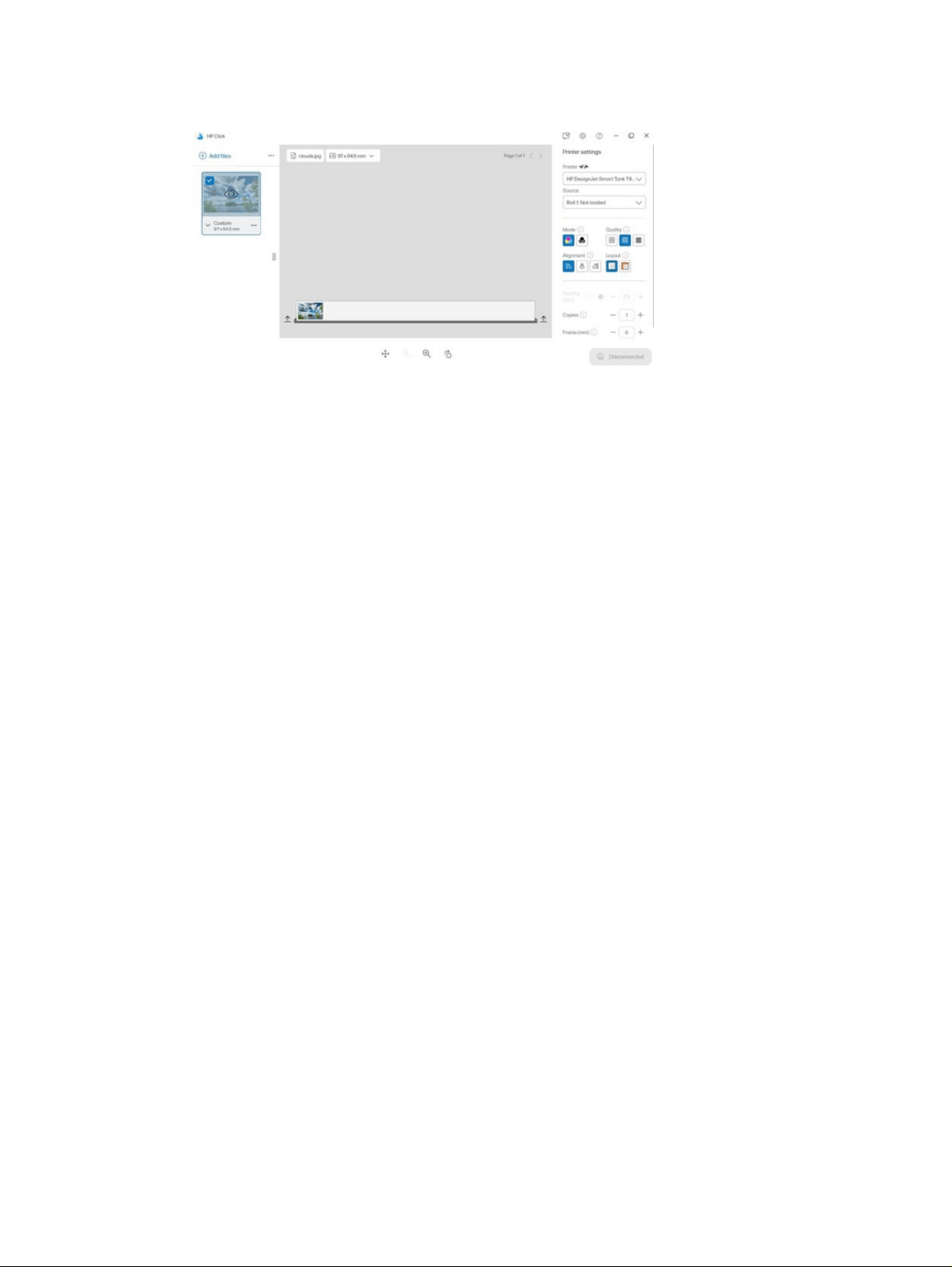
5. Select a printer at the top left of the window. You can also change print settings here.
Getting started 47
6. Take any compatible file that you want to print and drop it on the application window, or click Select
File in the center of the window to browse for your file. All the images will be collected on the left
side of the application window.
48 Chapter 3 HP Click printing software
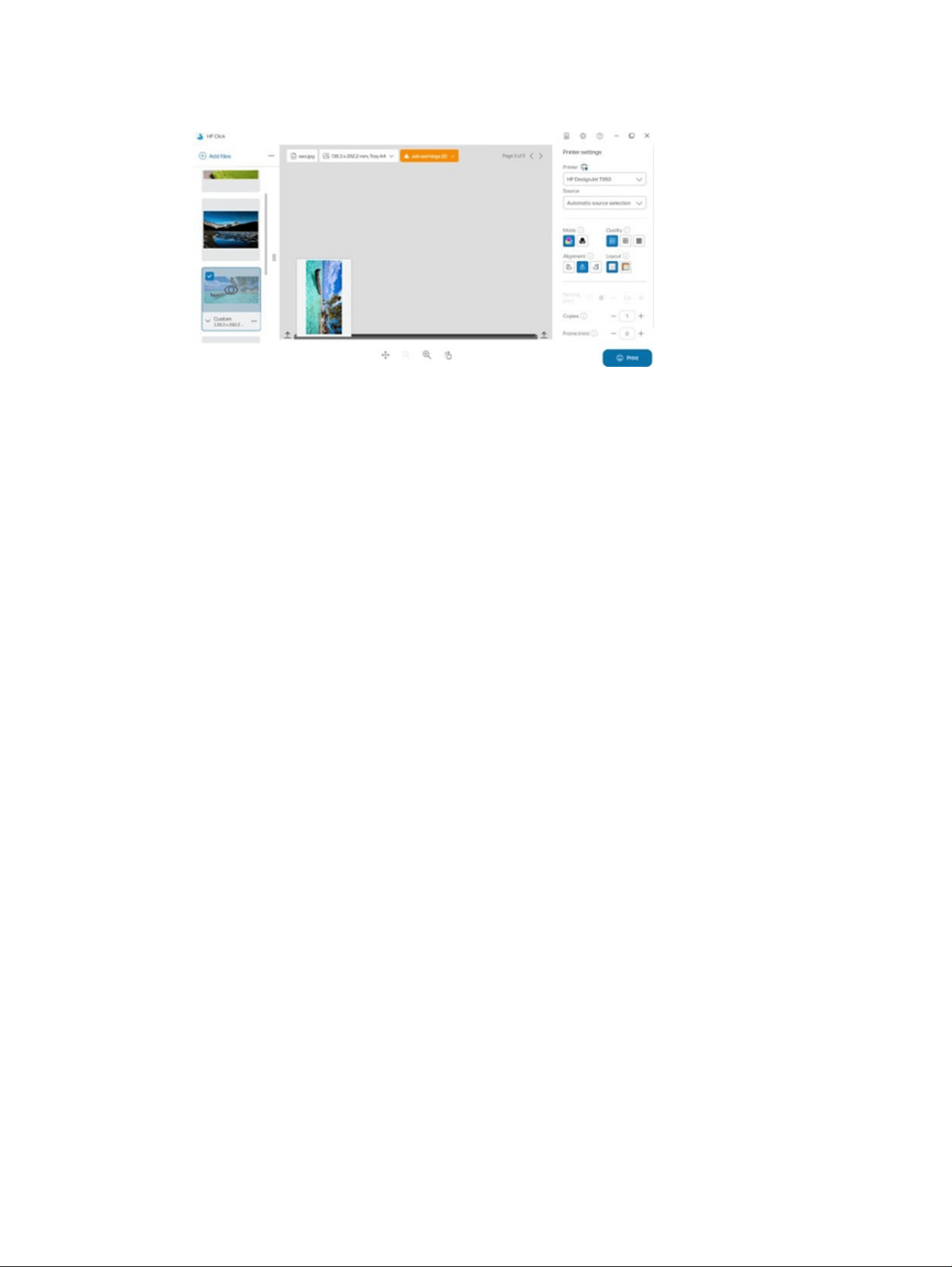
7. If you click an image, you will see a print preview of it.
8. When you are ready to print, click the Print button. By default, all pages are printed.
Getting started
49

Installation
Requirements
This topic explains the concepts involved in this subject.
Microsoft Windows 7 or later (64-bit only)
● Intel Core i3 2.4 GHz with four virtual cores/threads, or equivalent or better processor
● 4 GB of RAM, or more
● 3.5 GB of free space on hard disk, or more, plus 100 MB for each additional printer
● Screen resolution of 1280 × 1024 pixels, or more, tuned or calibrated to sRGB for optimal
performance
● Ethernet network, IPv4, 100 Mb/s or faster
Mac OS X 10.10 or later
● Intel Core i5 1.6GHz with dual core, or equivalent or better processor
● 4 GB of RAM, or more
● 3.5 GB of free space on hard disk, or more
● Screen resolution of 1280 × 1024 pixels, or more, tuned or calibrated to sRGB for optimal
performance
● Ethernet network, IPv4, 100 Mb/s or faster
Ensure that your computer is connected to the same subnet as your printers. Otherwise, ensure that
computer and printers are able to communicate through the 8080, 8085, 8086, 9100, 9102 TCP, and 161
UDP ports.
If you feel the need of improvement, the performance of the application can be improved by exceeding
the minimum specifications above: more than 4GB of RAM (which requires a 64-bit operating system),
a faster processor with more cores, a faster network, and a faster hard disk drive (ideally a solid-state
drive).
Supported printers
This topic explains the concepts involved in this subject.
HP Click currently supports the following printers:
● HP DesignJet D5800 Production Printer (60 in, available only in APJ)
● HP DesignJet Studio printer (24 and 36 in)
● HP DesignJet T100 printer (24 in)
● HP DesignJet T120 printer (24 in)
● HP DesignJet T125 printer (24 in)
50
Chapter 3 HP Click printing software

● HP DesignJet T130 printer (24 in)
● HP DesignJet T210 printer (24 in)
● HP DesignJet T230 printer (24 in)
● HP DesignJet T250 printer (24 in)
● HP DesignJet T520 printer (24 and 36 in)
● HP DesignJet T525 printer (24 and 36 in)
● HP DesignJet T530 printer (24 and 36 in)
● HP DesignJet T630 printer (24 and 36 in)
● HP DesignJet T650 printer (24 and 36 in)
● HP DesignJet T730 printer (36 in)
● HP DesignJet T790 printer (24 and 44 in, with and without PostScript)
● HP DesignJet T795 printer (44 in)
● HP DesignJet T830 MFP (24 and 36 in)
● HP DesignJet T920 printer (36 in, with and without PostScript)
● HP DesignJet T930 printer (36 in, with and without PostScript)
● HP DesignJet T940 Printer (36 in)
● HP DesignJet T1300 printer (44 in, with and without PostScript)
● HP DesignJet T1500 printer (36 in, with and without PostScript)
● HP DesignJet T1530 printer (36 in, with and without PostScript)
● HP DesignJet T1600 and T1600dr printers (36 in, with and without PostScript)
● HP DesignJet T1700 and T1700dr printers (44 in, with and without PostScript)
● HP DesignJet T1708 and T1708dr printers (44 in, with and without PostScript)
● HP DesignJet T2300 MFP (44/36 in, with and without PostScript)
● HP DesignJet T2500 MFP (36 in, with and without PostScript)
● HP DesignJet T2530 MFP (36 in, with and without PostScript)
● HP DesignJet T2600 and T2600dr MFPs (36 in, with and without PostScript)
● HP DesignJet T3500 MFP (36 in, with and without PostScript)
● HP DesignJet T7100 printer (42 in, with and without PostScript)
● HP DesignJet T7200 printer (42 in, with and without PostScript)
● HP DesignJet Z6 (24 and 44 in, with PostScript)
● HP DesignJet Z6dr (44 in, with PostScript)
Supported printers
51

● HP DesignJet Z9
+
(24 and 44 in, with PostScript)
● HP DesignJet Z9
+
dr (44 in, with PostScript)
● HP DesignJet Z2100 Photo printer (24 and 44 in)
● HP DesignJet Z2600 PostScript printer
● HP DesignJet Z3200 Photo printer (24 and 44 in, with and without PostScript)
● HP DesignJet Z5200 printer (44 in, with and without PostScript)
● HP DesignJet Z5400 printer (44 in, with and without PostScript)
● HP DesignJet Z5600 PostScript printer
● HP DesignJet Z6200 printer (42 and 60 in, with and without PostScript)
● HP DesignJet Z6600 printer (60 in, with and without PostScript)
● HP DesignJet Z6610 printer (60 in, with and without PostScript)
● HP DesignJet Z6800 printer (60 in, with and without PostScript)
● HP DesignJet Z6810 printer (42 and 60 in, with and without PostScript)
● HP DesignJet XL 3600 MFP (36 in, with PostScript)
● HP PageWide XL 3900/3920 MFP (40 in, PostScript only)
● HP PageWide XL 4000 printer and MFP (40 in, PostScript only)
● HP PageWide XL 4100 printer and MFP (40 in, PostScript only)
● HP PageWide XL 4200 printer and MFP (40 in, PostScript only)
● HP PageWide XL 4500 printer and MFP (40 in, PostScript only)
● HP PageWide XL 4600 printer and MFP (40 in, PostScript only)
● HP PageWide XL 4700 printer and MFP (40 in, PostScript only)
● HP PageWide XL 5000 printer and MFP (40 in, PostScript and AMS only)
– HP Click license required for printer in AMS region.
● HP PageWide XL 5100 printer and MFP (40 in, PostScript and AMS only)
– HP Click license required for printer in AMS region.
● HP PageWide XL 5200 printer and MFP (40 in, PostScript and AMS only)
– HP Click license required for printer in AMS region.
● HP PageWide XL Pro 5200 printer and MFP (40 in, PostScript and AMS only)
– HP Click license required for printer in AMS region.
NOTE: HP Click supports only HP original ink supplies.
52
Chapter 3 HP Click printing software

Supported file formats
This topic explains the concepts involved in this subject.
HP Click can print the following file formats:
● JPEG
● HP-GL/2
● PDF
● PNG
● TIFF
● DWF (Windows only)
Supported languages
HP Click can operate in English, Portuguese, Spanish, Catalan, French, Dutch, Italian, German, Polish,
Russian, Chinese Simplified, Chinese Traditional, Korean, or Japanese.
Updates
HP Click is updated automatically to incorporate bug and security fixes, add new features or
performance enhancements.
If you want to make sure you have the latest version of HP Click or want to manually download it, go to
http://www.hp.com/go/hpclick/software.
Supported file formats
53
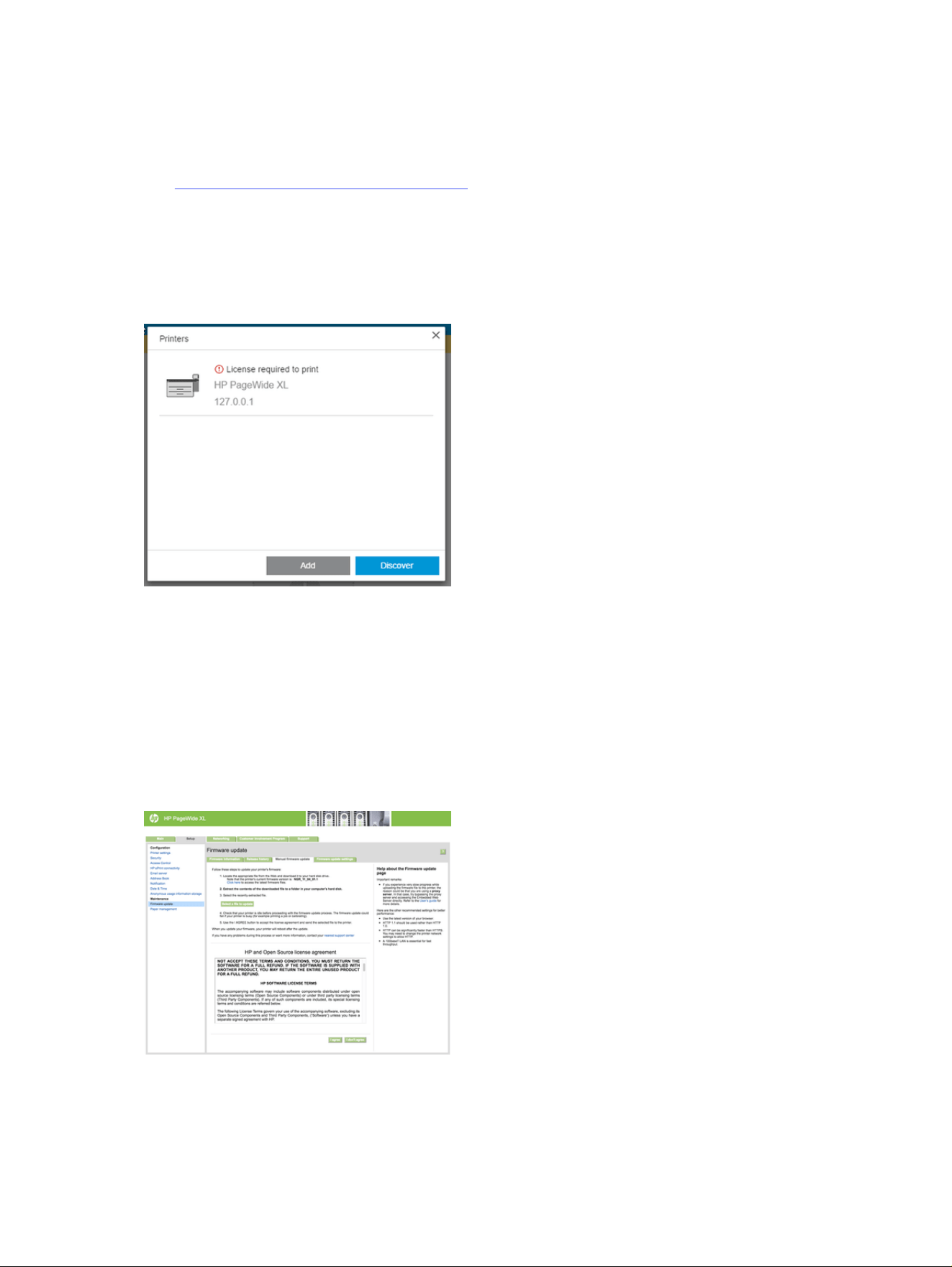
Licensing
For further information on how to install a USB license and to get the trial license, go to the website.
See http://www.hp.com/go/hpclick/howtoinstall.
USB dongle license available
Check the
HP PageWide XL Dongle Accessory Installation Guide
for HP Click, and make sure the USB
dongle license is correctly installed in the printer.
HP Click tells you if the license is not installed, with a message in the Preferences > Printers panel menu.
To check that a license has been correctly installed, use the printer’s control panel to view general
information, or the Embedded Web Server (see the printer’s user guide).
Trial license available
A trial license enables you to try the software free, for 60 days.
Open your Web browser and enter the printer’s IP address. Once in the printer’s Embedded Web Server,
click the General tab, then Firmware update. Follow the instructions to upload the trial license you just
downloaded.
HP Click shows how much trial license time remains in the Printers panel menu.
54
Chapter 3 HP Click printing software
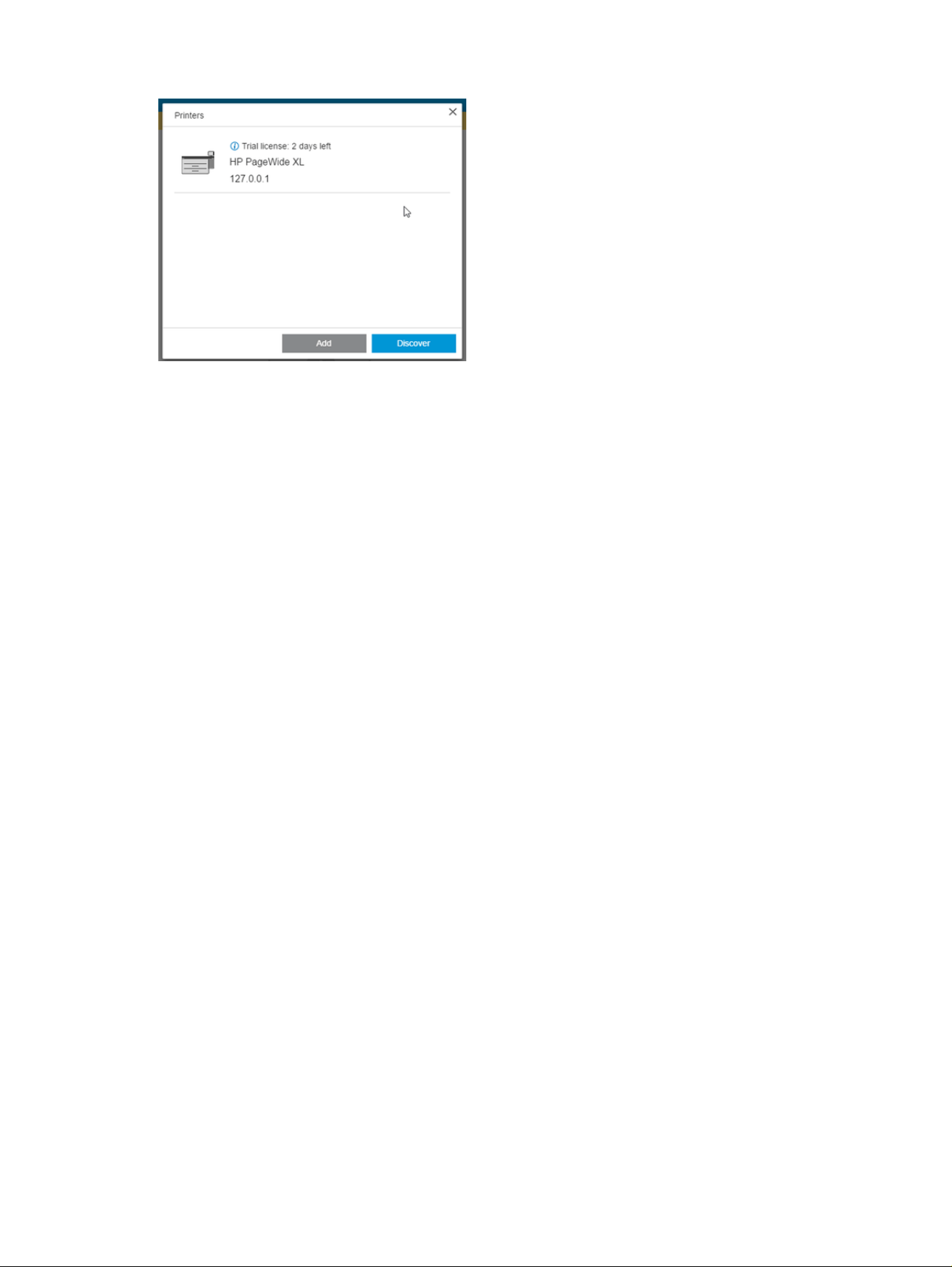
To check that a license has been correctly installed, use the printer’s control panel to view general
information, or the Embedded Web Server (see the printer’s user guide).
Trial license available
55
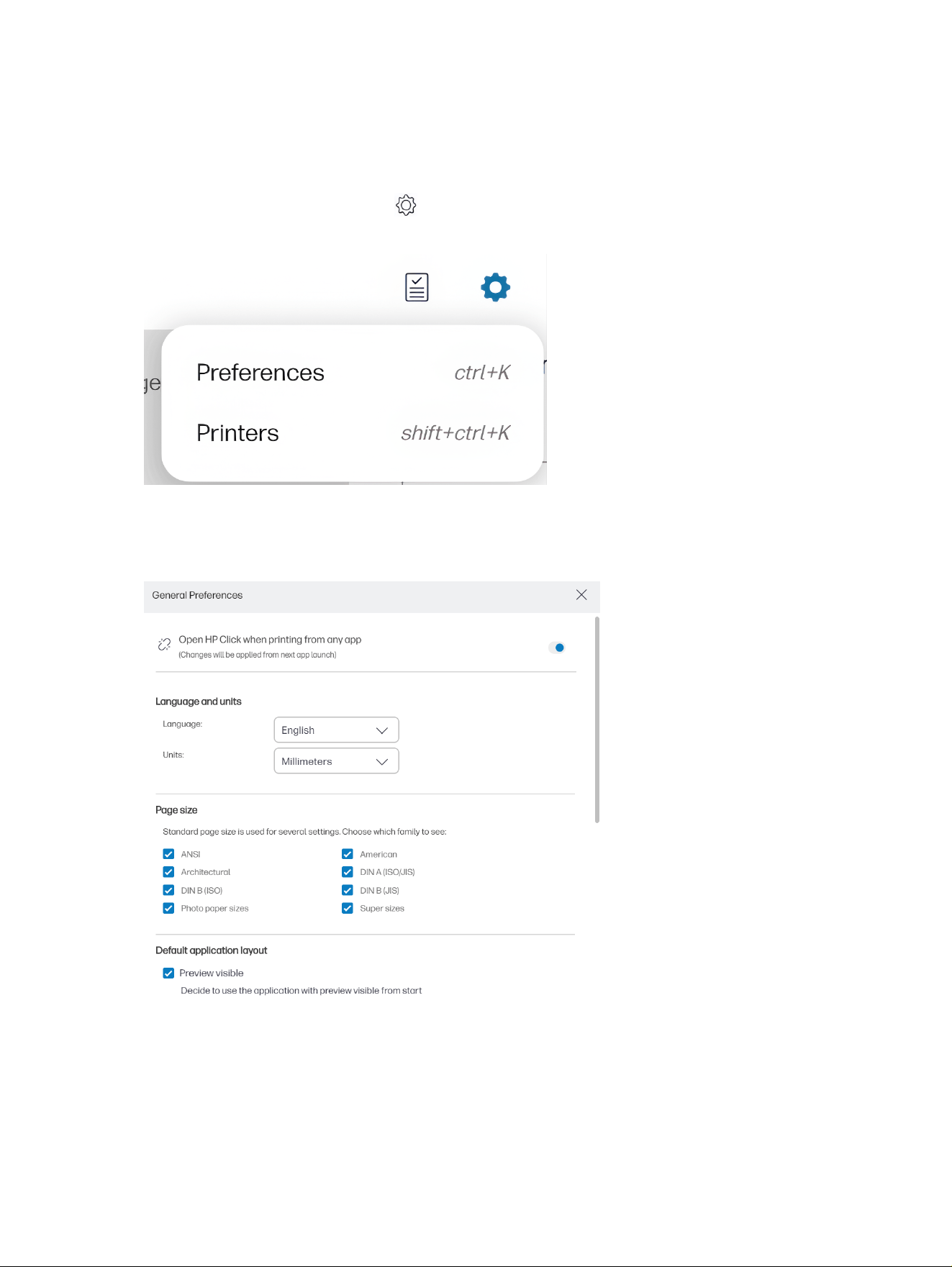
Preferences
The application preferences allow you to change the HP Click configuration, which is initially set
automatically.
To access the preferences, click the icon in the title bar, then click Preferences to change the general
preferences, or Printers to change the list of printers.
General preferences
The general preferences apply to all printers.
● Language and units: You can change the language of the text and the units of measurement
displayed by the application.
● Page size: There are various families of standard page sizes. You can choose which families you
wish to see in the application.
56
Chapter 3 HP Click printing software
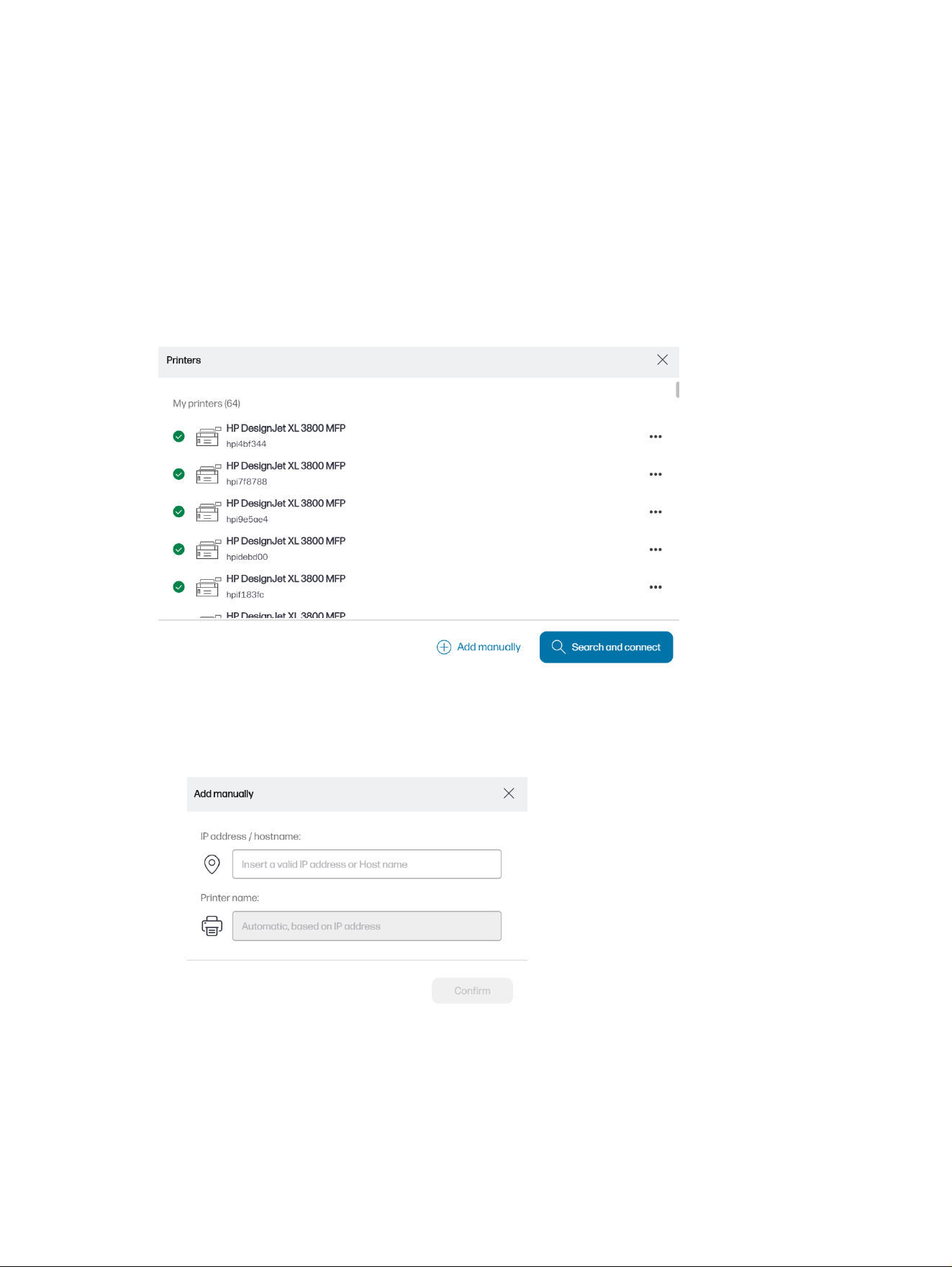
● Preview visible: If you check the box, the preview is visible from the start. Otherwise, it is displayed
when you double-click the page thumbnail.
● Thumbnail information visible: If you check the box, extra information is displayed under each
thumbnail.
● Nesting by page order: The page order is maintained when nesting is applied.
● Accessibility: You can choose to increase the character size of the text and/or use shortcuts.
Printer preferences
The printer preferences allow you to edit the list of printers displayed by the application.
● Click the Search and connect button to try to discover more printers by automatic search of your
local network.
● Click the Add manually button to add a printer manually, by entering its IP address or hostname.
● Click a particular printer to change its name or delete it.
Printer preferences
57
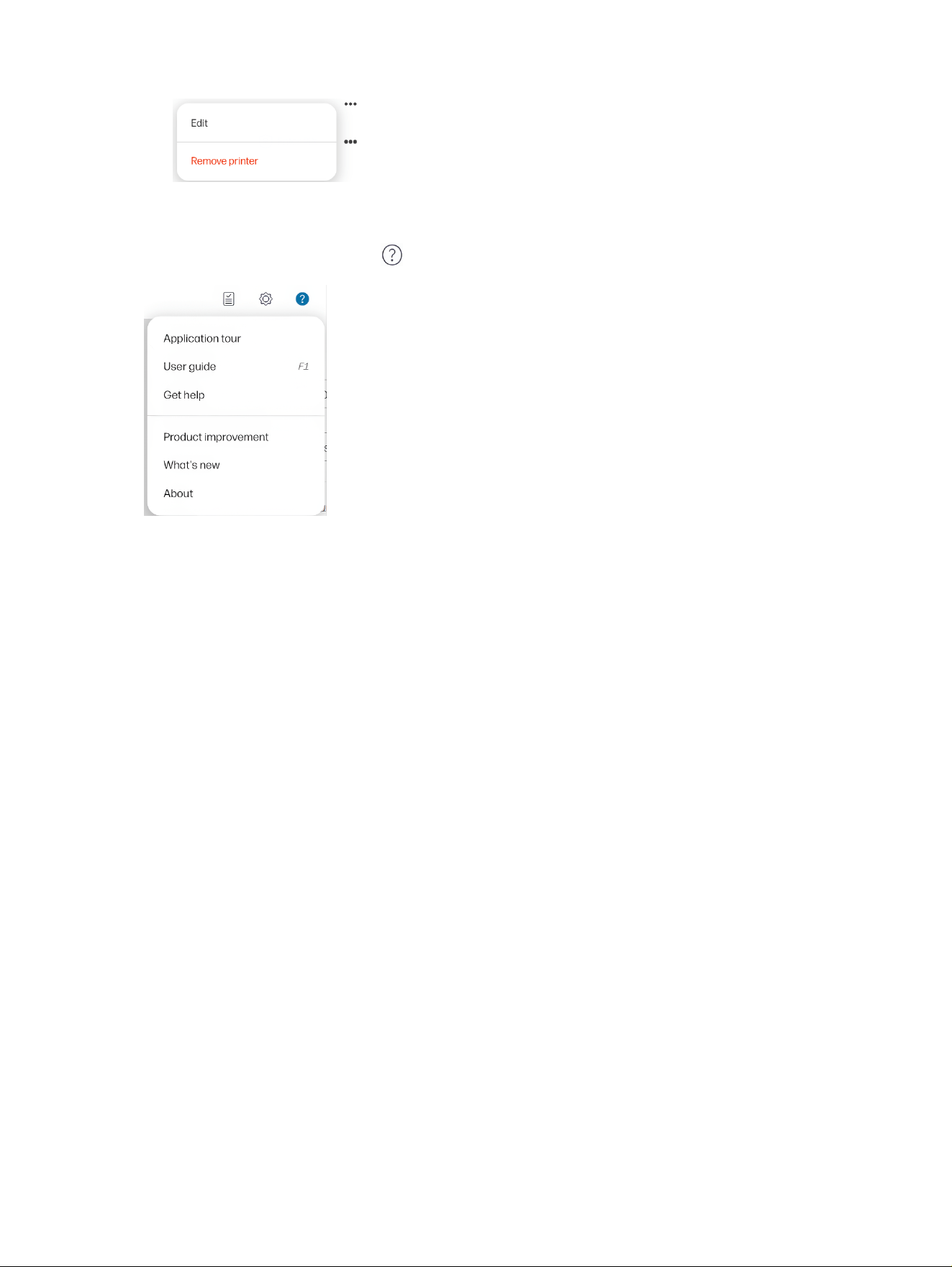
Help menu
To display the help menu, click the icon in the title bar.
● Application tour gives you an introduction to the application.
● User guide gives you more detailed information about the application.
● Get help gives you direct access to the HP Support team and allows you to submit questions.
● Product improvement collects anonymized data on how you use the application, to help HP in
designing future versions.
● What’s new displays a window listing the new features of this version of the application.
● About displays the version number of the application.
58
Chapter 3 HP Click printing software
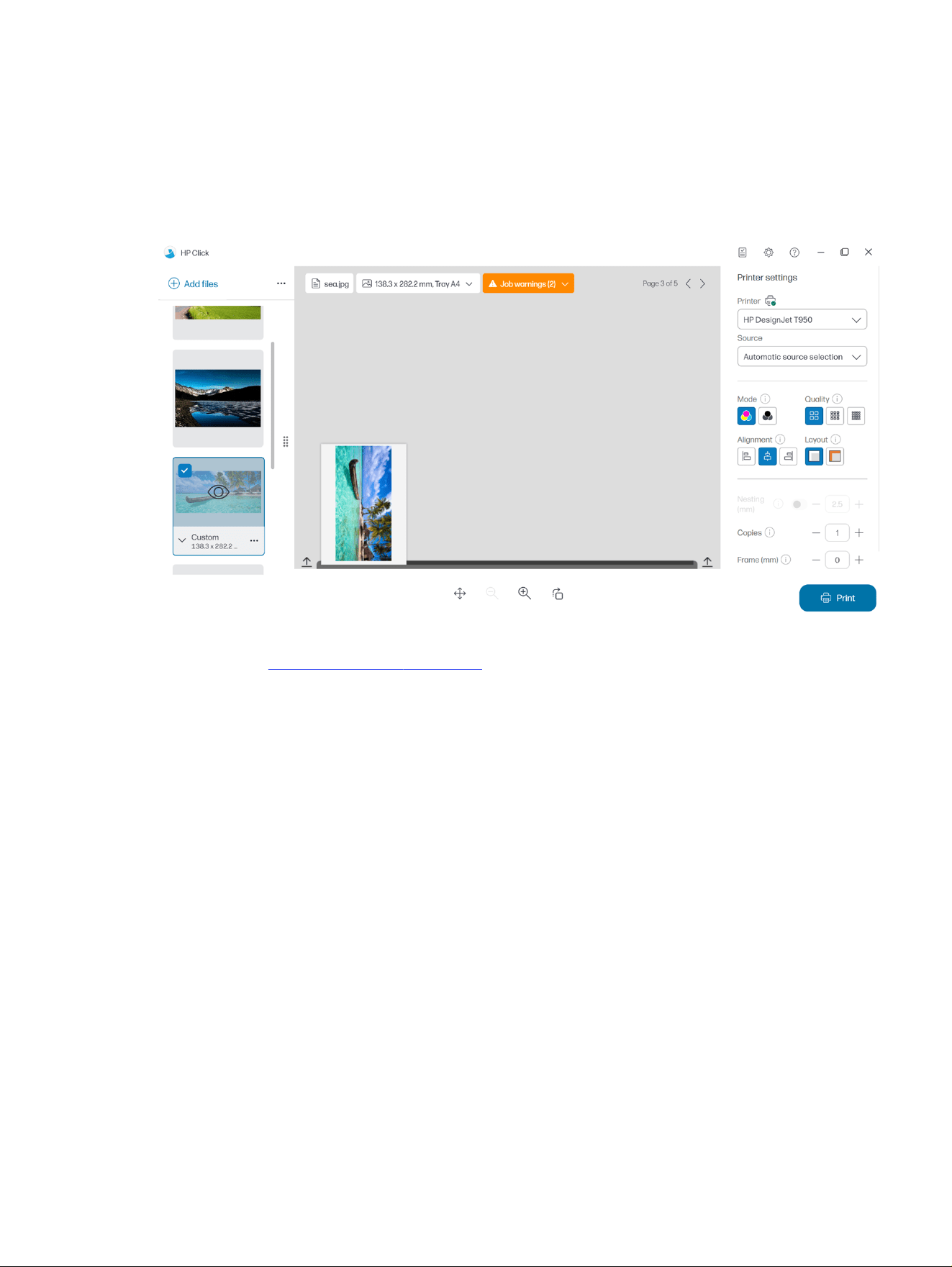
Job preparation
Settings
The print settings dialog is displayed when you click a job to see the preview on the right side of the
application window.
●
Printer: Select the printer you want to use from the list of connected printers. To connect another
printer, see Printer preferences on page 57.
With some printers, you will see links below the printer’s name that offer convenient access to
the printer’s Embedded Web Server, which gives you printer and print-job status information, and
enables you to change printer settings and manage the printer from your computer.
– Printer job queue: In which you can see the status of your print jobs and manage the job queue.
– Accounting: In which you can see information about the usage of consumable supplies by the
latest printed jobs. With some printers, there is a tab in which you can assign a cost to each print
job, which can be exported to an Excel file.
The Embedded Web Server has online help that provides fuller information about its features and
how to use them.
● Source: Select the paper source, which can be roll, tray, single sheet, or automatic selection (if
supported).
● Mode: Select color, grayscale, or black-and-white printing, depending on the modes available in the
printer.
● Quality: Select the print quality, which can be Fast, Normal, or Best. Higher quality usually means
lower speed of printing.
Job preparation
59
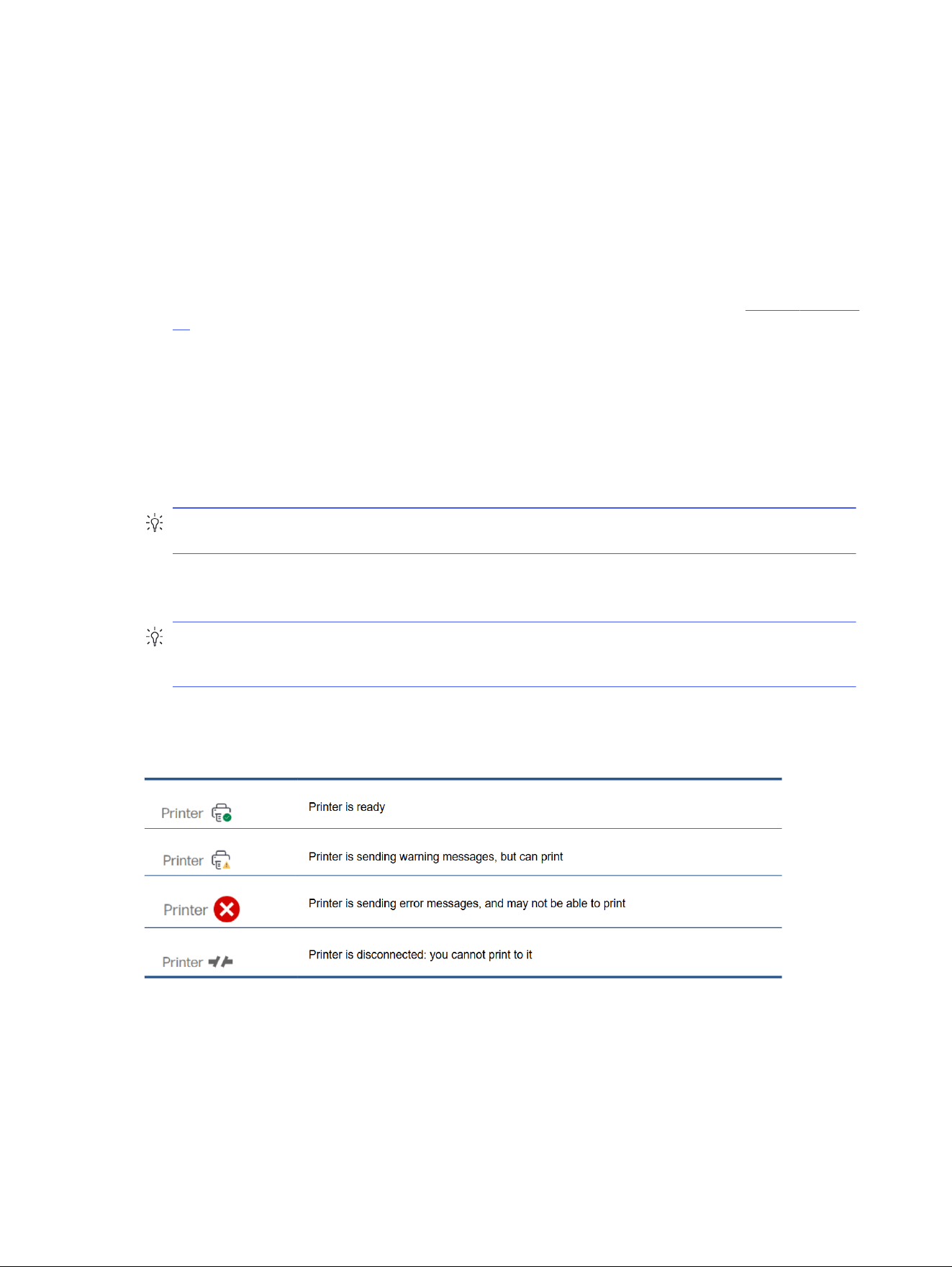
● Gloss enhancer: This setting is available only for the HP DesignJet Z9+ Printer series, if gloss
enhancer is installed, and if the loaded paper supports gloss enhancer. To use gloss enhancer ink
and achieve superior gloss uniformity, you need to install a separate kit available for the whole Z9+
series.
● Alignment: Select where content should be aligned on the roll/sheet.
● Layout: If this is checked, the application assumes that the printer margins are zero, and that it can
print across the full width of the paper. However, the printer will not print anything that falls within the
actual printer margins.
● Nesting: Turn nesting on or off (default: off) and select the gap between pages. See Nesting on page
62.
● Copies: Select the number of copies of the job to be printed, from 1 to 99. Two or more job copies will
be sent to the printer as collated sets.
● Cutting lines: If this is checked, additional marks are printed to indicate where the paper should be
cut to obtain the desired page size.
● Borderless: If your printer supports borderless printing and/or uses a specific trimming device, this
setting will be available when the conditions apply, based on the paper loaded.
TIP: Some paper types do not support borderless printing to the edges of the paper, but they may
support borderless printing using a vertical trimmer, if the printer has a vertical trimmer.
● V-trimmer: If vertical trimming is supported by the printer, additional cutting lines are displayed in the
page preview. Make sure this feature is activated in your printer.
TIP: HP recommends using Borderless if selected manually and V-trimmer if activated. Due to
printer margins, printable area may be reduced when using the vertical trimmer. If you prefer to
avoid clipping the image, deactivate it to use the whole surface of the paper.
● Remember last settings: If this is checked, the application will remember the last set of printing
settings that you selected, saving you some time and effort.
Printer status
Page options
Various options are available when you click a specific page in the application.
60
Chapter 3 HP Click printing software
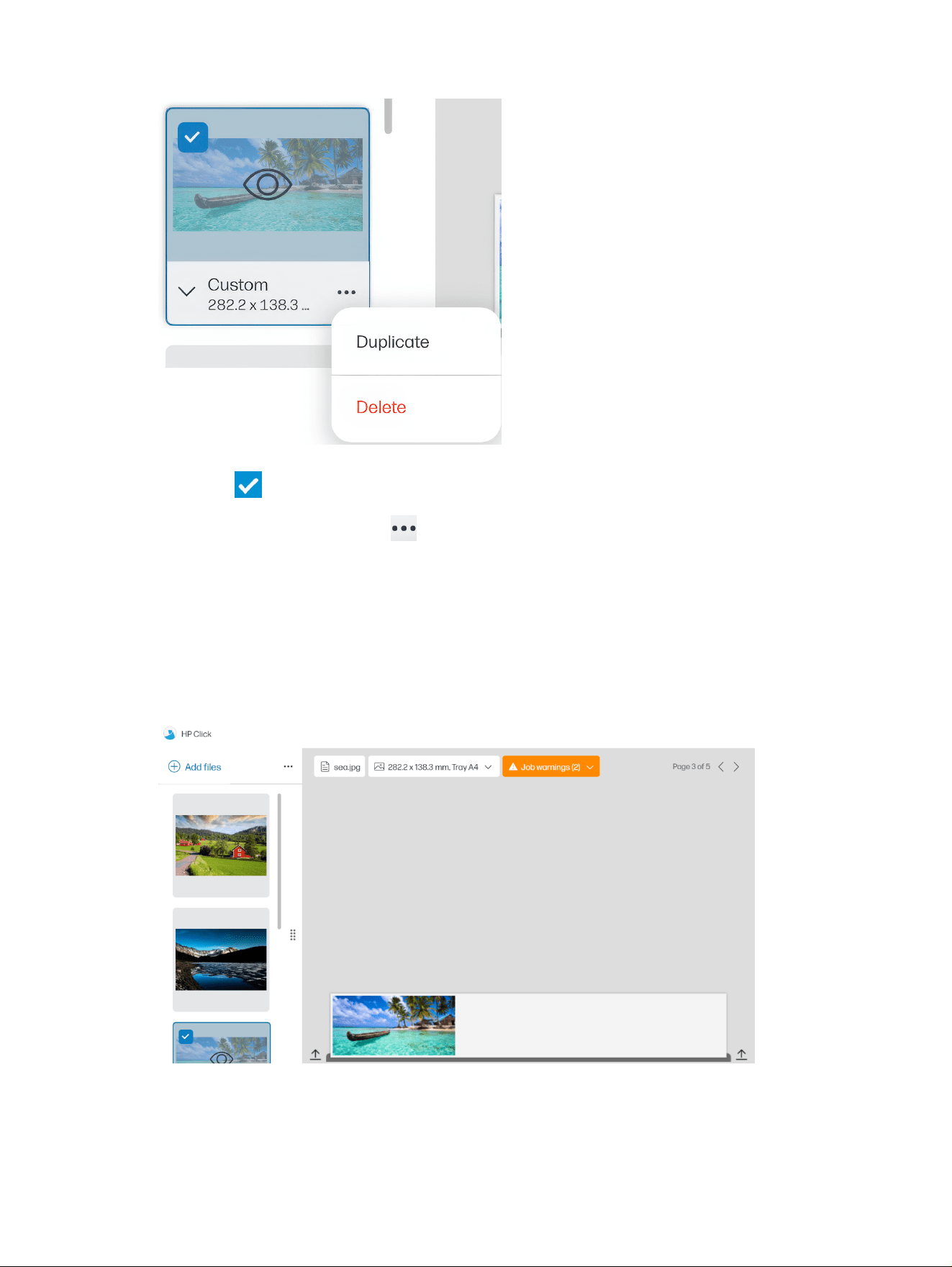
Page selected: By default, every page is selected for printing. If you do not want to print the selected
page, click
at the top left of the thumbnail to turn off printing for that page.
To see the following options, click below the image and to the right:
● Duplicate: Click to request extra copies of the selected pages.
● Delete: Click to delete the current page from the overall page layout.
Preview
When the preview is visible, it is displayed on the right-hand side of the window, while the page
thumbnails are displayed on the left.
Remember that the Print button prints all pages (unless you have turned off printing for some of them),
not just the page currently shown in the preview.
The preview reminds you if you have turned off printing for that page.
Preview
61
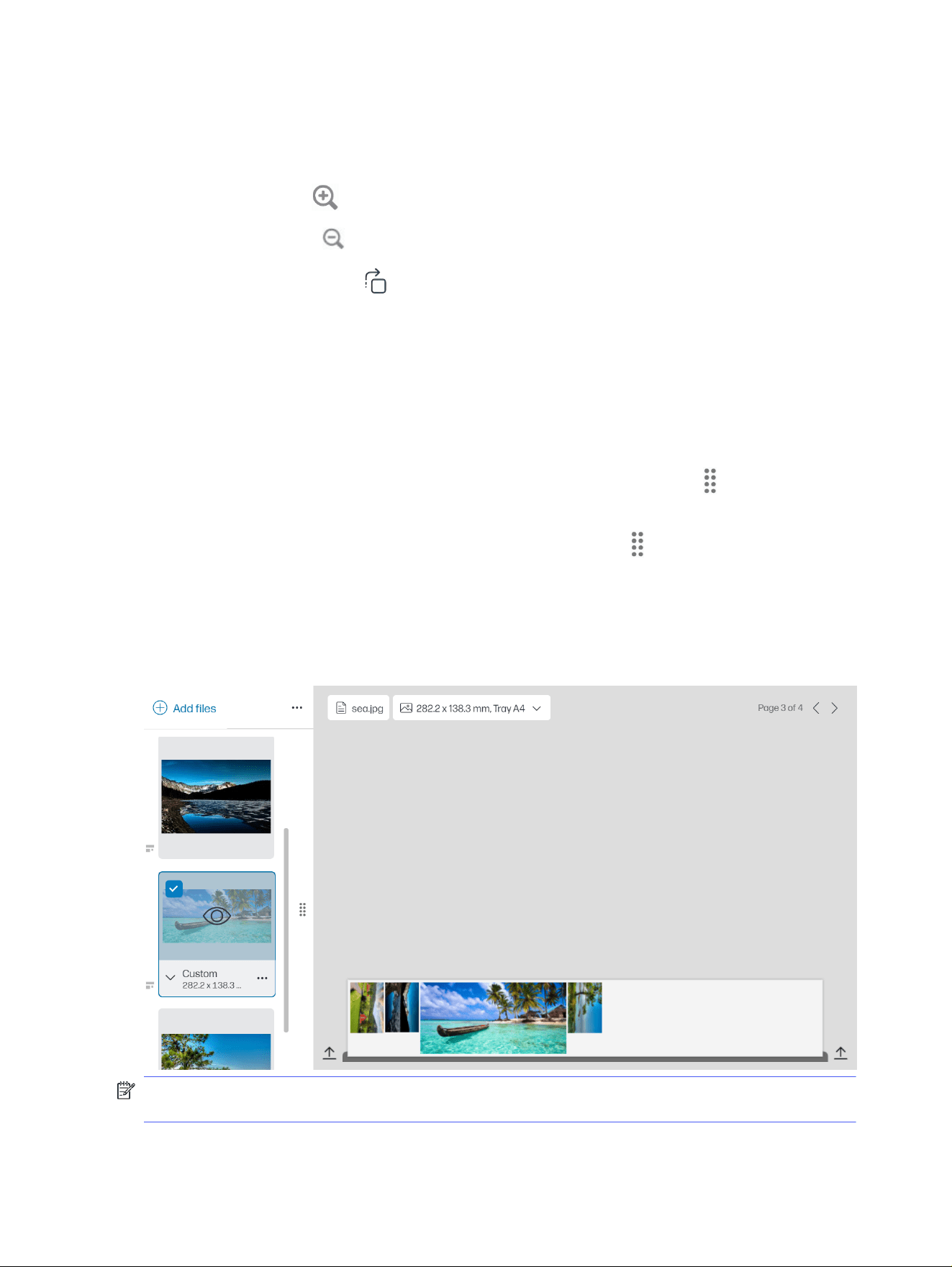
If your page is too large for the loaded paper, a yellow overlay in the preview indicates the part that will
be clipped (not printed).
Preview actions
● To zoom in, click the icon.
● To zoom out, click the icon.
● To rotate the page, click the icon.
● You can also hold down the Ctrl key and use the mouse wheel to zoom.
● To go to the next page, click >.
● To go to the previous page, click <.
● To move the preview image within the preview area, click anywhere in the image and drag it. This
does not affect the print.
● To remove the preview from the screen and display only the thumbnails, click in the center of the
thumbnails.
● To move the border between the preview and the thumbnails, drag to the left or right.
Nesting
Nesting enables you to save paper and time by printing two or more pages side by side on the paper, if
the paper is wide enough.
NOTE: The application may automatically change the order of the pages and/or rotate pages in order
to save paper. If you want to rotate or align a page manually, make sure nesting is disabled.
62
Chapter 3 HP Click printing software

You can turn nesting on and off for each printer using the icon in the settings, and you can also choose
the distance between nested pages.
With nesting enabled, you can check in the preview how many pages of your document are together on
an output page.
TIP: To apply nesting to multiple copies, add the desired pages again. Setting job copies does not
affect nesting.
The pages that are nested together on the same sheet are marked with the icon next to each
thumbnail.
Printing
When printing is possible, the Print button is enabled. If it is disabled, you must ensure that the printer is
connected and ready for printing, or use a different printer that is ready for printing.
When you click the Print button, all pages loaded into the application are printed, except those pages
that you have unchecked.
By default, pages are printed at the original size specified, unless you have used the resizing options.
If the printer can hold pages in a queue, all the pages are immediately sent to the printer. Otherwise, the
application holds each page until the printer is ready to receive it. The progress of sending the job to the
printer is indicated in the Print button.
You can see the jobs in the queue by selecting the Printer job queue link available in the Print settings
dialog, which will open a link to the Embedded Web Server in your default browser.
The application sends the pages of a job in the order in which they appear on the screen.
NOTE: The application provides information to the user about the status of the job sent to print:
Printed, Canceled, or Failed.
Printing
63
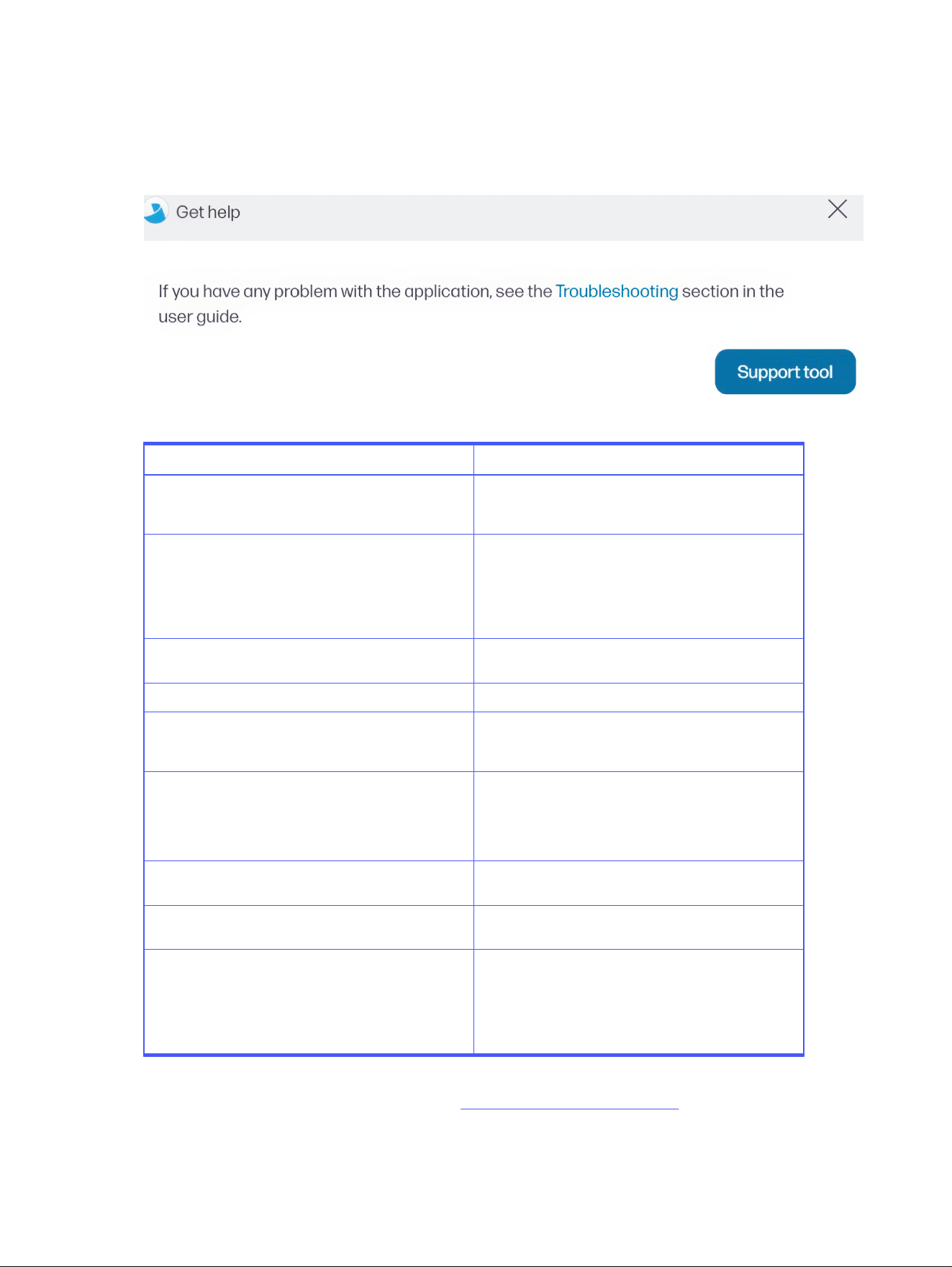
Troubleshooting
To access the troubleshooting tool, enter the section Get Help in the menu and tap the Support tool
button.
Table 3-1 Troubleshooting
Situation Suggested action
HP Click does not start, or fails while starting. Ensure that you are using a 64-bit operating system.
Uninstall and reinstall HP Click.
During the discovery process, a printer is not detected
nor added.
Sometimes, depending on the topology of the network,
the discovery process is unable to detect a printer. Add
the printer manually by IP address or hostname.
NOTE: Only HP printers can be connected to this
application.
When adding a printer by hostname, HP Click says that it
is “unreachable”.
Sometimes a computer cannot resolve the hostname.
Add the printer by IP address.
Adding a printer fails. Ensure that the printer is one of the supported printers.
HP Click says that a printer has an incompatible
firmware version.
Update the printer’s firmware to the latest version.
HP Click needs the latest printer firmware to work
correctly.
In the preview, the whole image is shaded yellow,
indicating that it will all be clipped.
Ensure that the printer has a roll selected and that the
roll is wide enough for the image.
Use the page options to reduce the size of the image so
that it will fit on the roll.
You have deleted one or more files by mistake. Once you have deleted a file, there is no way to restore it.
You will have to add each file again.
The error message “Unsupported file format” appears
when adding a file.
Check that the file is in one of the supported file formats.
The Print button is disabled. Ensure that at least one thumbnail is selected to print.
Ensure that there is a connection between the printer
and the computer.
Ensure that the printer is turned on.
If you need further help with HP Click, contact mailto:hpclick.support@hp.com.
64
Chapter 3 HP Click printing software
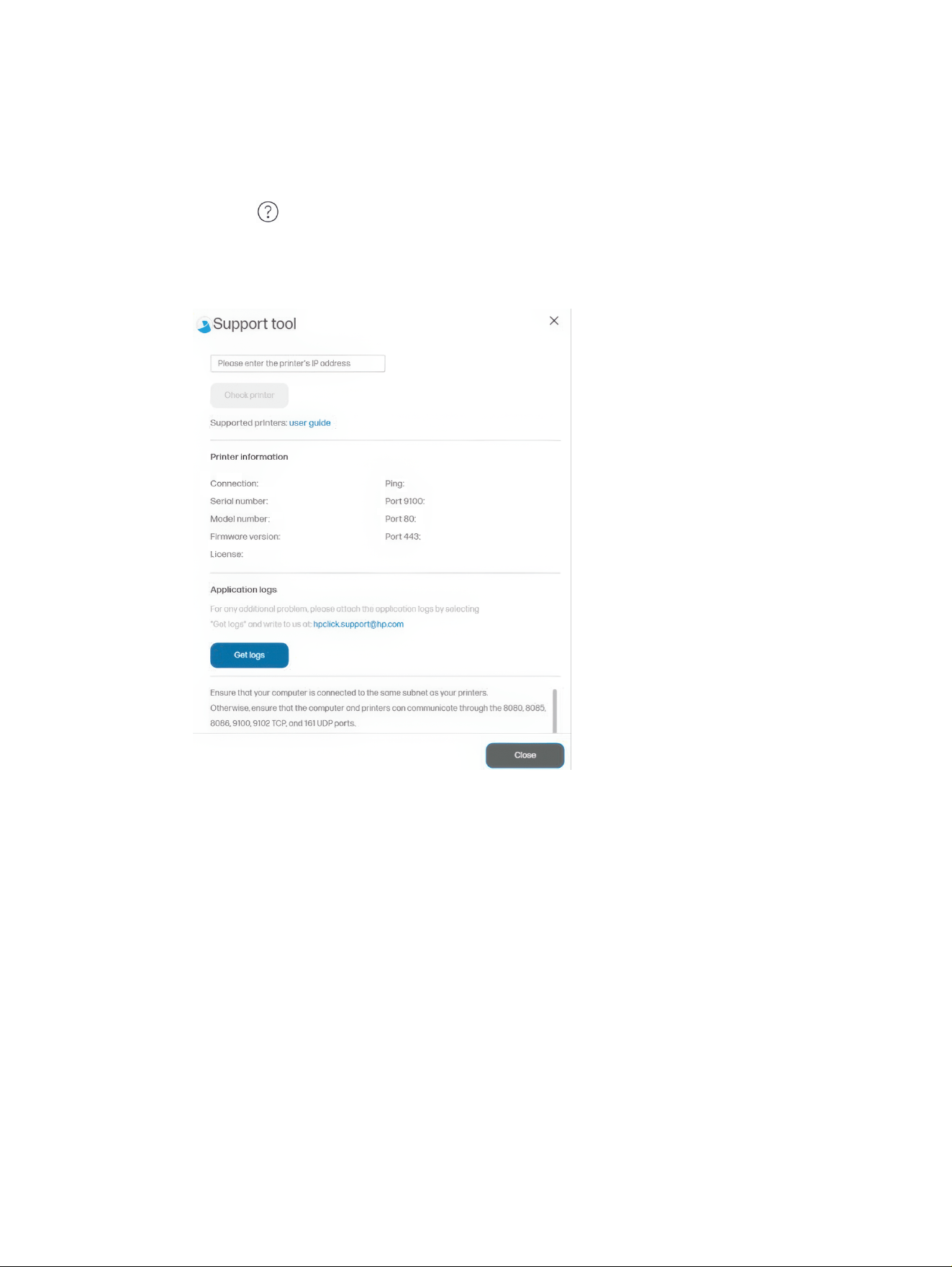
Support tool
The support tool can be very useful for troubleshooting.
The following steps will help you find the support tool embedded in HP Click:
1. Click the icon and go to the Get help menu.
2. Click Support tool.
3. Click Get logs.
The HP Click support tool provides information about the connected ports and the firmware version of
the printer. It also provides logs and the support email address.
Enable SNMP
SNMP can be configured through the Embedded Web Server, in the Network Settings.
Ensure the following to enable SNMP:
● SNMP v1/v2 is enabled.
● It has read/write access.
● The community name is set to public.
Support tool
65
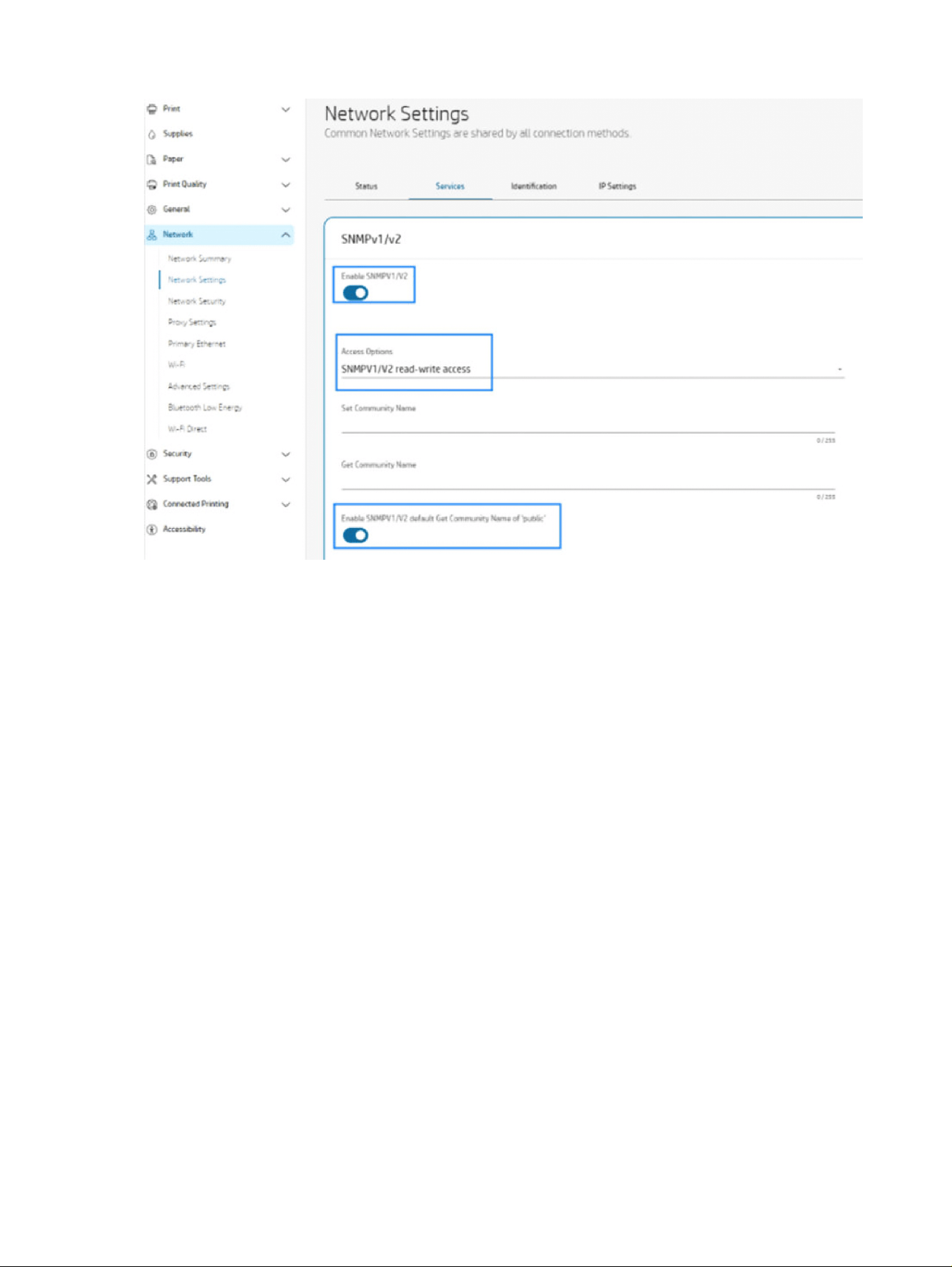
66 Chapter 3 HP Click printing software

HP SmartStream4
This is the User Guide for SW Solutions HP SmartStream.
What is it for?
HP SmartStream for HP PageWide XL printers and HP DesignJet Production printers is a professional
software solution that helps to improve your productivity and operator efficiency, while expanding
your color production. Now, your large-format production workflow will be twice as efficient for both
monochrome and color without changing your current workflow.
SPEED – Do jobs in half the time
● Respond to the tightest deadlines with ultra-fast HP SmartStream Preflight Manager file analysis
and processing.
● Reduce reprints—rely on native PDF management with Adobe PDF Print Engine 4.
● Stop changing settings one by one—create presets to bundle all desired settings, then reuse as
needed.
● Simplify production of large jobs—visualize clusters of pages by size and content.
● Stay productive with an easy and intuitive user interface.
EFFICIENCY – Streamline your production workflow
● Easily distribute the HP SmartStream configuration into different workstations—presets, hot folders,
printers.
● Make sure files are produced reliably with automatic detection of potential issues.
● Run HP PageWide XL and HP DesignJet production accessories—such as an online folder and
high-capacity or integrated stacker—using generic accessory support.
● Operate your non-HP large-format LED printers through standard drivers.*
● Manage all connected HP PageWide XL and HP DesignJet production printers in your fleet.
GROWTH – Expand with color production
● Efficiently produce all your GIS maps and point-of-sale (POS) posters on HP PageWide XL printers.
HP SmartStream
67

● Preview color, just as it will print, and adjust settings with interactive HP Crystal Preview Technology.
● Get the most out of your paper with nesting designed to minimize paper waste.
● Get accurate data for invoicing—the job report summary even includes pixel coverage.
Bring key efficiencies to your business by adding a powerful solution to enhance your current
production workflow. Now you can turn operator efficiency into operating profit with HP SmartStream
software for HP PageWide XL printers and HP DesignJet Production printers.
* Support is provided for a limited number of brands and models. For more information, see
http://www.hp.com/go/smartstreampagewidexl and http://www.hp.com/go/smartstreamdesignjet.
Getting started
The following steps provide the complete procedure for this topic.
1. Install the software and software licenses. See the installation guide.
2. Create a job in the job preparation pane, which gives you many tools for manipulating and setting
up each job before printing. To create your first job, select the printer that you want to use, and
drag and drop one or more files onto the job preparation pane (or click to browse for files). At
this point, the Preflight Manager checks each file and reports any errors in the file that could affect
printing. You can preview pages in the preview pane.
NOTE: The supported file formats are PDF, JPEG, TIFF, HP-GL/2, DWF, as well as SMJ and ZIP files
containing files in any of the preceding formats.
3. Send your job to the printing queue (using the Print job button), where you can monitor its progress.
TIP: If you are printing to an HP DesignJet printer, do not close the application or shut down the
computer until your job has printed.
4. Conveniently reprint past jobs from the application’s history tab.
NOTE: Whenever a new version of the application becomes available, it will notify you, and it can
update itself if you give permission.
68
Chapter 4 HP SmartStream
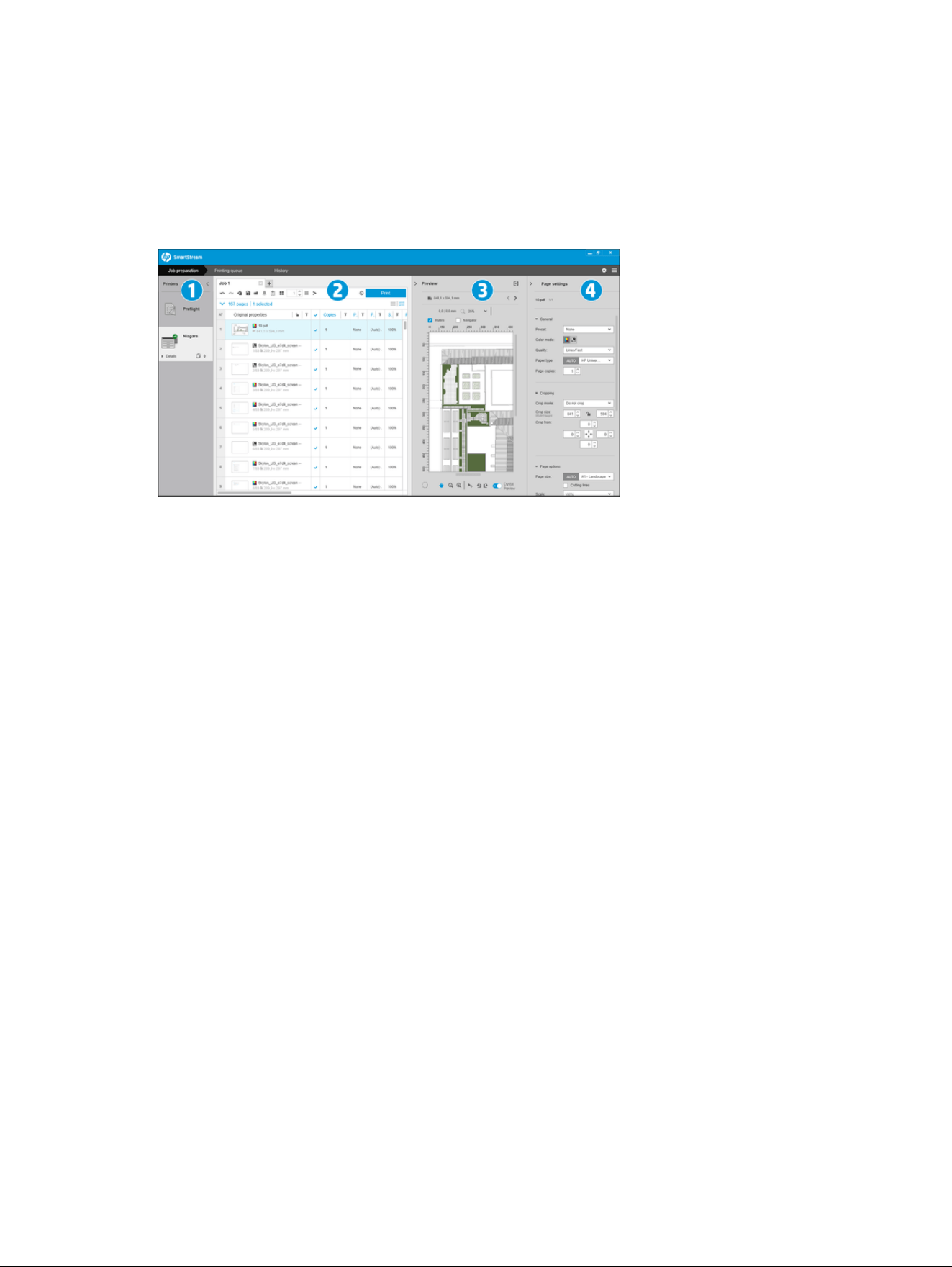
Introduction
The following sections provide details for this topic.
What do I see on the screen?
The following sections provide details for this topic.
HP SmartStream provides three tabs, only one of which is visible at a time:
● The job preparation tab, in which you prepare each job. This contains:
1. The printers pane, showing the printers available to the application and their status
You can select here the Preflight desk instead of a printer, if you want to prepare jobs without
assigning them to a specific printer.
2. The job preparation pane, showing the pages of the job
3. The preview pane, showing a preview of the selected page
4. The settings pane, which lists the print settings for the selected page
The printers pane, preview pane, and settings pane can be minimized.
● The printing queue tab, in which you can monitor the progress of each job
– The printers pane
– The printing queue pane, showing the jobs in the printing queue and their status
– The preview pane
● The history tab, from which you can reprint any past job
– The printers pane
– The history pane, showing the old jobs in the history
How can I adjust the HP SmartStream window?
The widths of each area can be changed according to your requirements.
● The printers pane (with Preflight desk) is minimized by default, but can be widened by clicking the
active printer.
Introduction
69
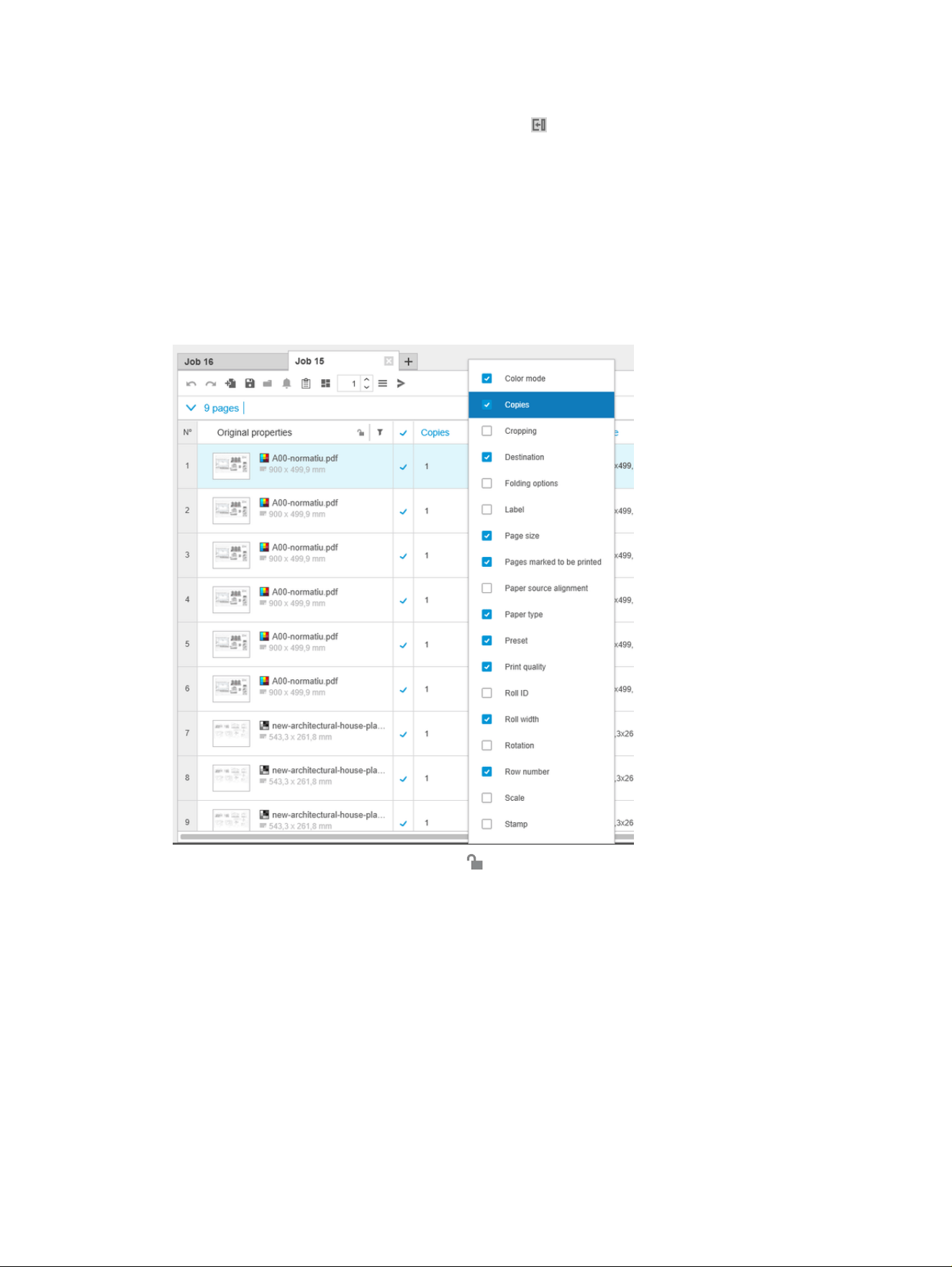
● The preview pane can be minimized by clicking > or the PREVIEW title, or widened by dragging the
left pane border to the left, or maximized by clicking in the top right corner of the pane.
● The settings pane is minimized by default, but can be widened by clicking < and then minimized
again by clicking >.
● The job preparation pane includes a horizontal scroll bar if necessary, so that all columns can be
accessed.
You can change the order of the columns by dragging the column headings.
You can show or hide columns by right-clicking anywhere in the column heading row, and then
checking or unchecking column names in the menu.
You can freeze the first column by clicking in the column heading.
Notifications
This topic provides a full set of reference information for this subject.
A notification is displayed briefly on the screen when certain events occur, such as:
● A job moves from the job preparation pane to the printing queue.
● A job moves from the printing queue to the history (when it has been printed).
● A stacker or folder has been installed or uninstalled.
The notification normally fades in, remains for 5 seconds, and then fades out. You can stop it from fading
by hovering over it, or see it again by hovering over the notification icon in the icon tray (if you have
enabled it).
70
Chapter 4 HP SmartStream

Recommended ways to set up the software
HP SmartStream can be set up in a variety of ways, the most common of which are described below.
End-to-end printing workflow
The end-to-end workflow is a basic flow designed around the needs of a single operator managing the
end-to-end flow of a job from job reception to preparation/preflight to printing and perhaps finishing.
For example, only one operator is in charge of printing, or possibly one operator per printer. In this case,
this operator has full control over the printing workflows and the printing queue using HP SmartStream.
In other cases, with multiple operators, each of them may be responsible for a single job end to end; that
is, from the reception of the job to its delivery.
An individual installation of HP SmartStream can perform all the required steps of an end-to-end printing
workflow, allowing an operator to prepare jobs and print to one or more printers.
Files can be added to the application from local or removable drives, local network, or remote locations,
as long as they are accessible by the operating system’s file explorer.
Distributed workflows
In a typical enterprise environment with this setup in place, the HP SmartStream solution allows users
(such as architects or engineers) to send jobs to the CRD (Central Reprographics Department), so that
the central print operator can print them.
This is not intended to replace using any printer present in the users’ own department to print samples
or a limited number of pages on their own. Rather, it is intended for jobs with many pages or high
urgency, when professional print operators should take care of the printing and finishing.
In order to streamline the job submission and subsequent processing by the print operator, the
installation of HP SmartStream in the CRD should have one or more hot folders configured that point to
a folder that any user in the enterprise can access. See Hot folders on page 84.
Likewise, each user’s installation of the HP SmartStream Submission Driver should point to a hot folder
that is connected to the CRD’s HP SmartStream software.
Recommended ways to set up the software
71

1. Job submission from the user’s computer
Users can:
● Send a print-ready file from their specialized application (such as CAD software) by selecting
the HP SmartStream Submission Driver from the application’s print menu. See Submission
driver on page 139.
● Select their desired color mode, paper type, page settings, number of copies, and finishing
options. See Job preparation on page 87.
● Assign the project and/or department ID to the job for tracking and/or accounting purposes.
See Accounting on page 135.
● Add any further instructions as a comment. See Accounting on page 135.
● Submit the file to the CRD with the job ticket information.
2. Job reception and printing in the CRD
The print operator can:
● Act on a notification that a new job has arrived in a hot folder, by opening it in the preparation
pane. See Job preparation on page 87.
● Check the instructions in the job ticket by opening the detailed job summary. See Accounting
on page 135.
● Make sure that a suitable roll is loaded in the printer, and that the finisher is ready.
● Change the page settings according to instructions, where they have not been applied
automatically when the job was added from the hot folder.
● Ensure that any issues detected (such as content in the printer margins) are tolerable, by
consulting the Resolution Center. See Resolution Center on page 89.
● Print the job and prepare the printout for delivery or pickup. See Printing on page 120.
NOTE: Configuring a hot folder for auto-print allows unattended processing and printing of incoming
jobs. See Hot folders on page 84.
72
Chapter 4 HP SmartStream
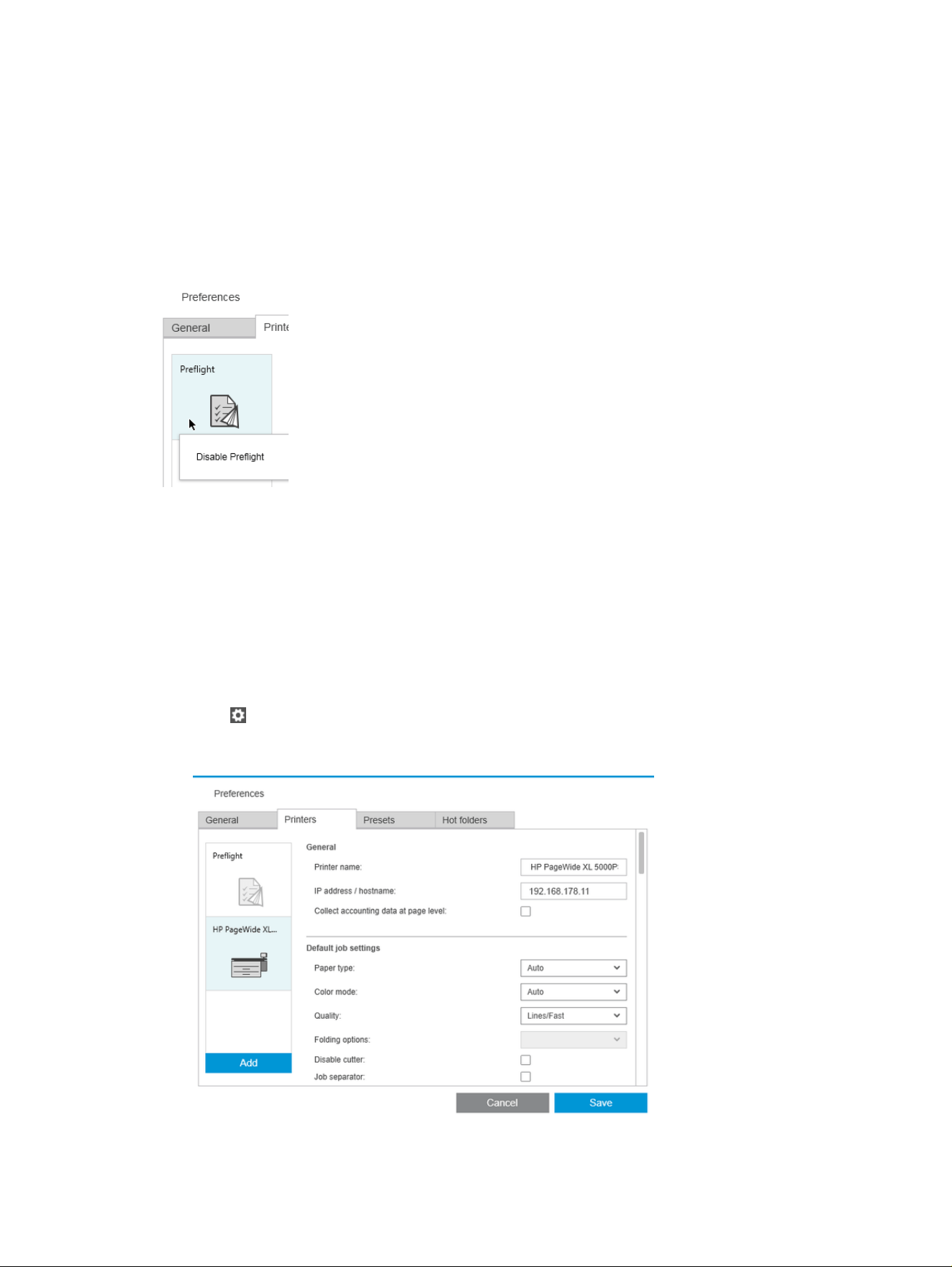
Printers
The following sections provide details for this topic.
Preflight desk
There is a Preflight entry in the list of printers, with which you can use the Preflight Manager to check
your files without printing them. It has only the settings that are appropriate without a printer, and has no
printing queue or history.
The Preflight desk can be disabled from the printer preferences by right-clicking the icon and selecting
Disable Preflight desk. Subsequently, the Preflight desk will no longer appear in the printers pane, but it
cannot be deleted, and can be re-enabled from the printer preferences.
Add a printer
The following steps provide the complete procedure for this topic.
1. Before you can add any printers, the software must be licensed. See the installation guide.
2. Ensure that the printer you want to add is turned on, awake, and accessible from your computer.
3. Click near the top right of the window.
4. Click the Printers tab.
Printers
73
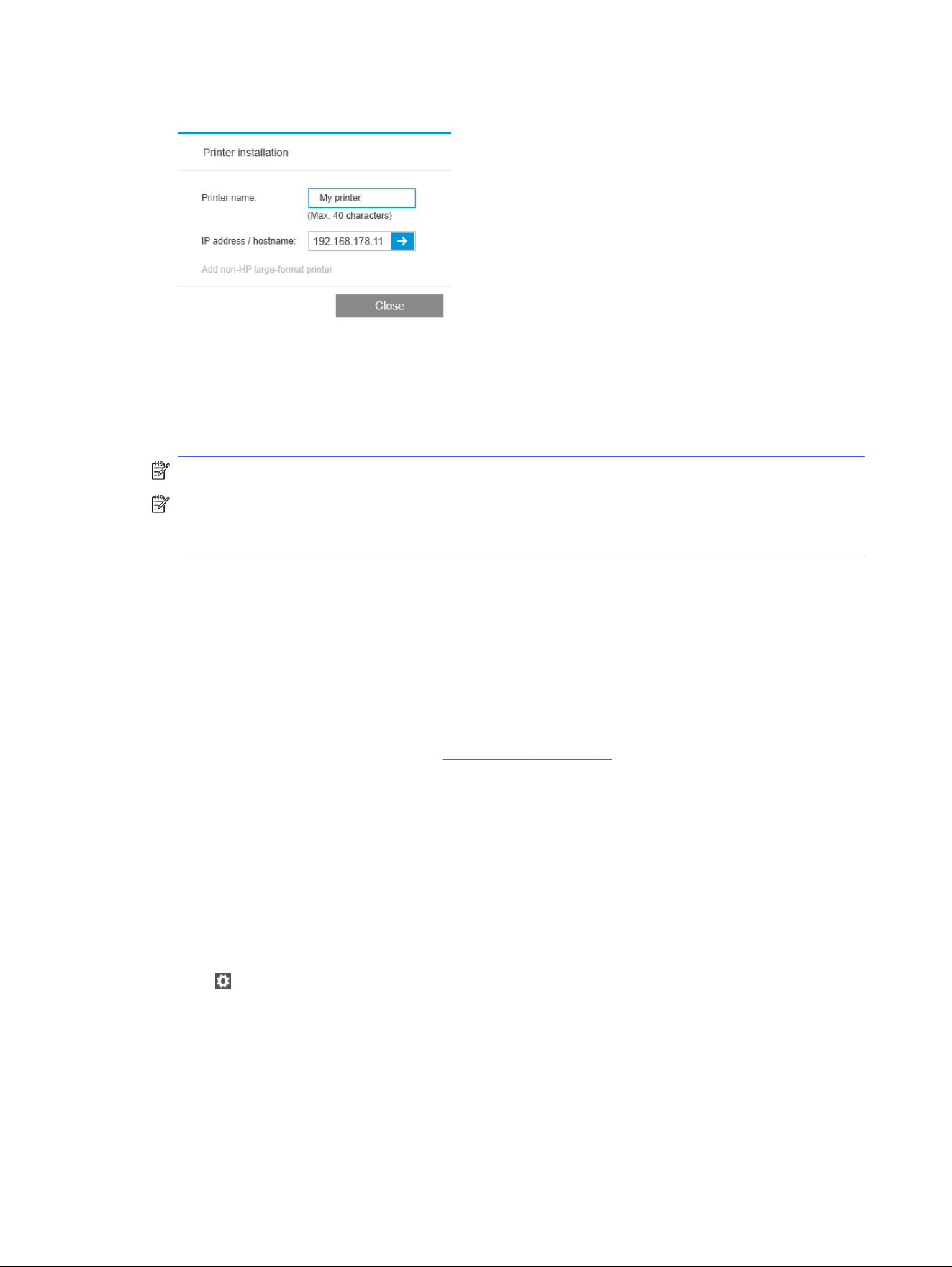
5. Click the Add Printer button.
6. You can give the printer a name (this is optional) and enter its IP address or hostname (this is
required), then click Continue. If you assign a name, you can choose any name you like; it will
be used only in the printers pane. If you do not know the printer’s IP address, the printer’s own
documentation will tell you how to find it. It is normally available from the Connectivity menu in the
printer’s control panel.
NOTE: You can change the IP address or hostname later in the printer preferences.
NOTE: Only supported printers are detected (see the installation guide), and only licensed printers
can be added to the application; any attempt to add an unlicensed printer will fail, unless you have a
trial version of the software (see the installation guide).
7. The application downloads a set of color profiles for the new printer.
The name you have given the new printer should now appear in the printers pane.
You can add more printers, in which case their names all appear in the printers pane.
Change a printer’s IP address or hostname
If the IP address of a printer changes, it is removed from HP SmartStream.
To add it again with the new IP address see Add a printer on page 73.
When you add it with the new IP address, HP SmartStream detects that it is the same printer with a new
IP address, and asks whether you would like to merge the two printers.
● Click Merge to merge the two printers: the new printer keeps the history of the old printer.
● Click Duplicate not to merge the printers: the new printer’s history starts off empty.
Delete a printer
The following steps provide the complete procedure for this topic.
1. Click near the top right of the window.
2. Click Preferences in the drop-down menu
74
Chapter 4 HP SmartStream
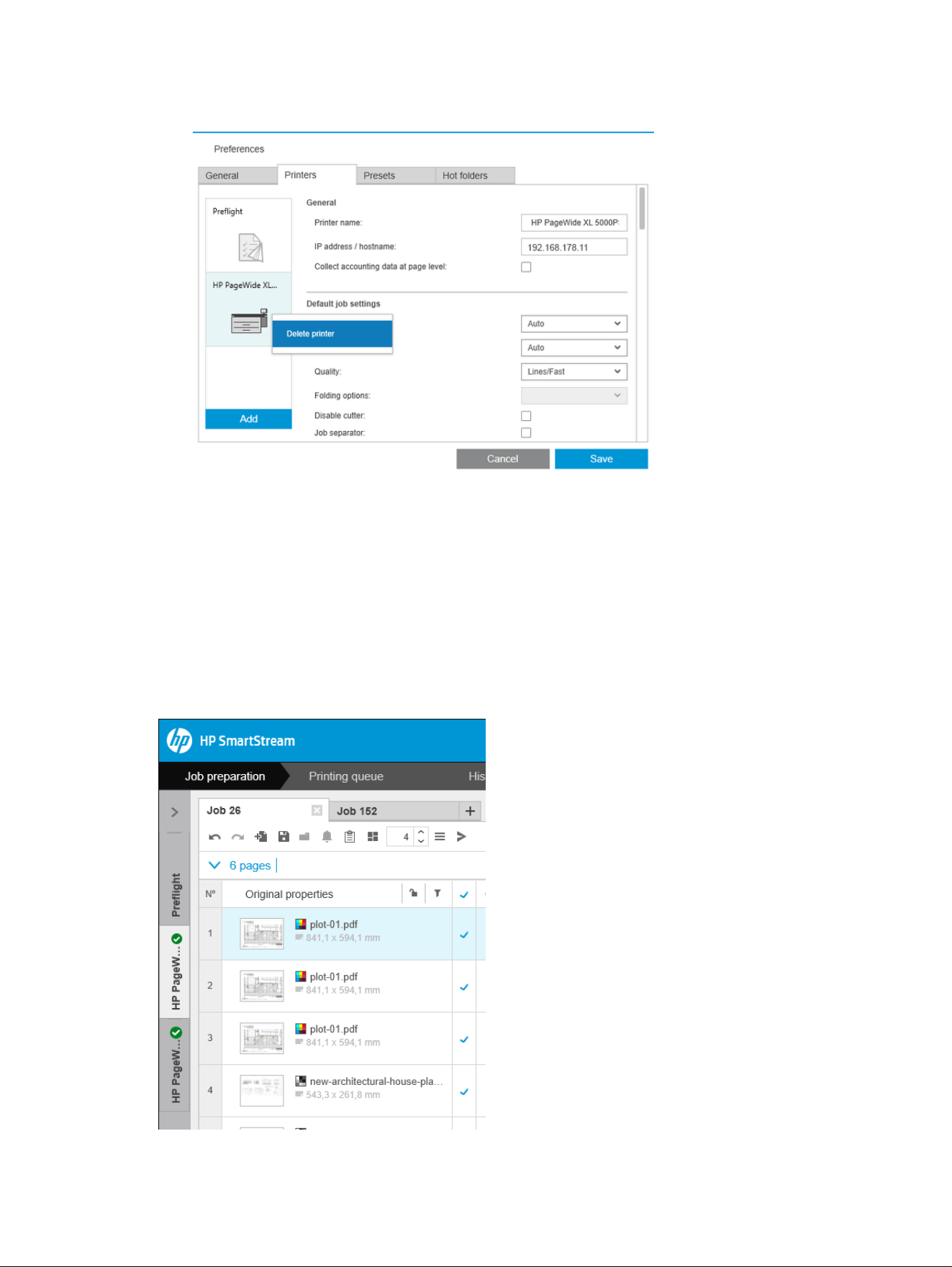
3. Right-click the printer that you want to remove, and click Delete printer in the popup window.
4. Another window warns you of the implications of removing the printer, and offers you the chance to
Cancel or Delete printer.
Printers pane
The printers pane is at the far left of the window. By default, it shows only the names of the printers that
you have added.
Click a printer name to select the active printer; the rest of the window always shows the jobs for the
active printer, in any of the three tabs.
The active printer is shown with a lighter background color than the others.
Printers pane
75
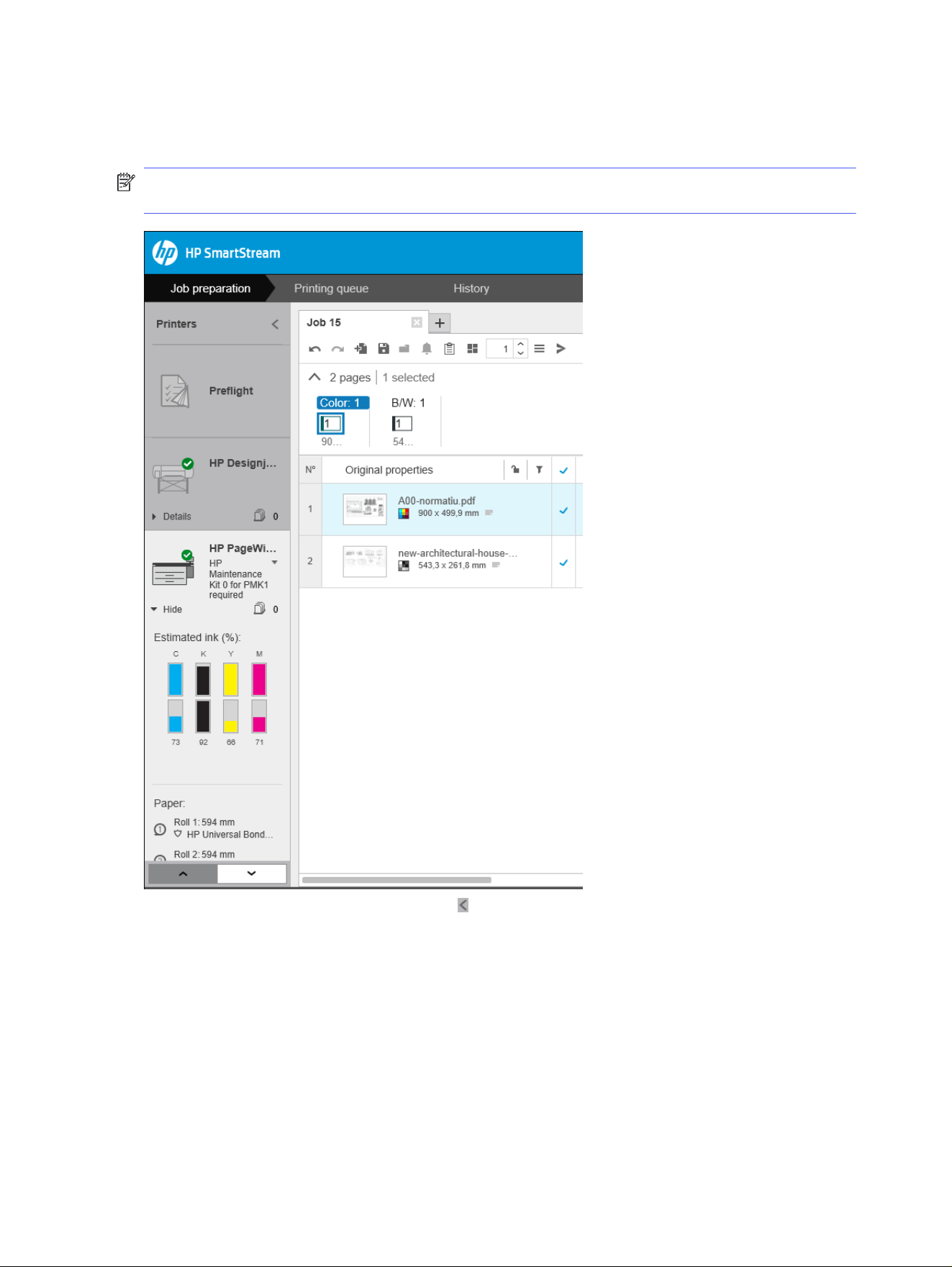
To widen the pane and see more information about each printer, click the active printer or double-click
an inactive printer (which also activates it). You can now see up-to-date status information on the printer
and its accessories.
NOTE: There may be a short delay while the application retrieves the status information from the
printer.
To return to the default narrow pane, click the icon in the top right corner.
To see more details about the active printer, click Details.
When fully expanded, the printers pane contains the following items:
76
Chapter 4 HP SmartStream
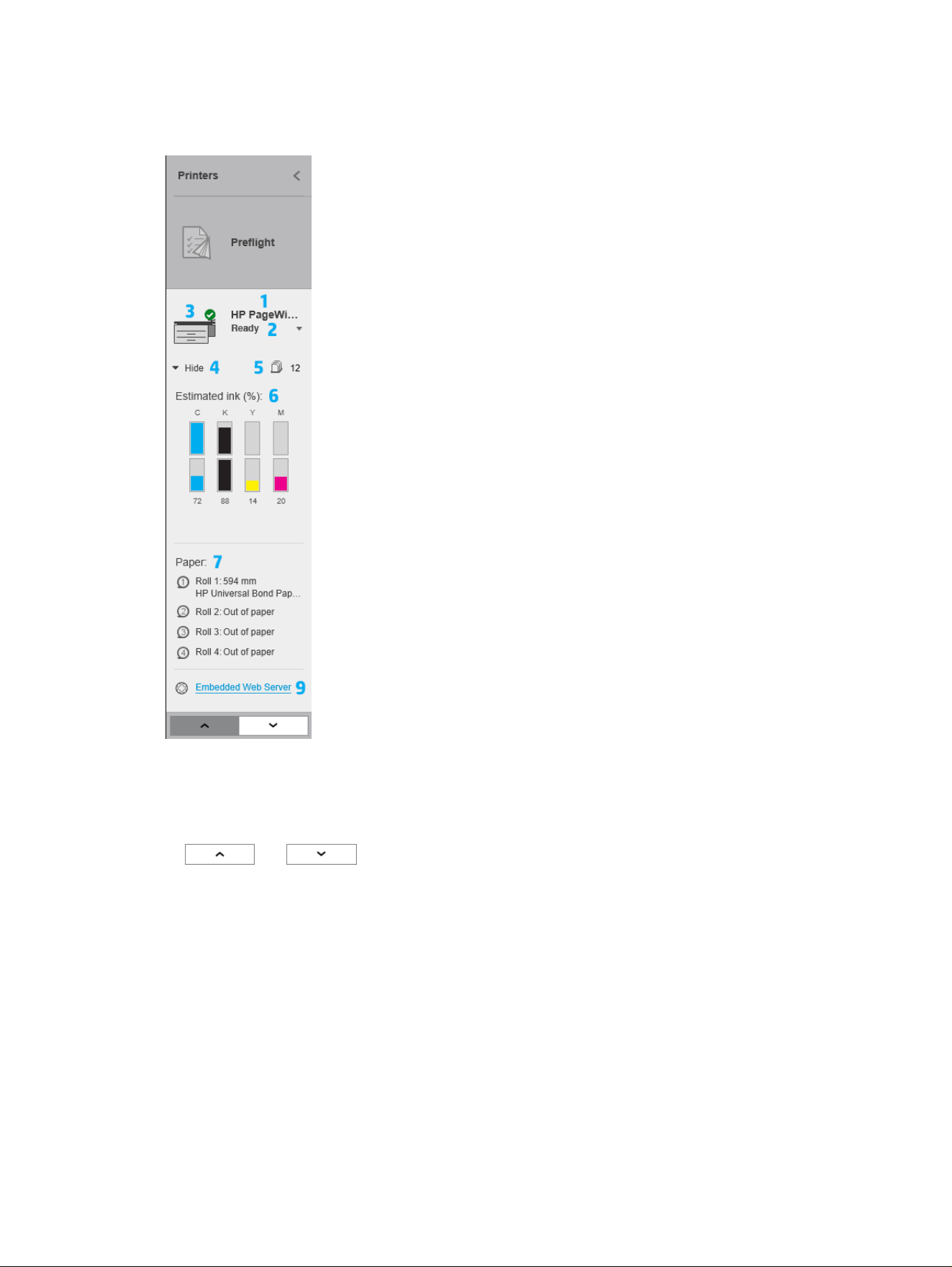
Table 4-1 Printers pane
Pane Items
1. The name of the printer
2. The overall status of the printer
3. A picture of the printer
4. An expander button to increase or decrease the number of details shown
5. The total number of pages in the queue for this printer.
6. The ink level in each ink cartridge
7. The dimensions and type of paper loaded on each roll, and a warning or error
message if necessary
8. The status of the folder and stacker, if any
9. A link that opens the printer’s Embedded Web Server
The collapsed printers pane (before clicking Details) contains only items 1 to 4 above.
If the pane is too small to show all of the printers, you can move up and down the list by clicking
the and buttons at the bottom of the pane.
Accessory status
This topic explains the concepts involved in this subject.
Accessory status
77

If a printer has a folder installed, its status may be described in the following ways. However, the status
values depend on the folder you are using: for more detail, check the documentation provided with the
folder.
Folder status
● Initializing: The folder is initializing and will be ready soon.
● Ready: The folder is ready or folding.
● Full: The folder is full, and you must remove the folded paper in order to continue printing.
● Jam: The folder is jammed, and you must clear the jam in order to continue printing.
● Open: A folder door is open, and you must close the door in order to continue printing.
● Detached: The folder is detached from the printer, and you must attach it in order to continue
printing.
● Disabled: The folder is disabled, and you must enable it in order to continue printing.
● Communication error: The printer cannot communicate with the folder; there are various possible
reasons (door open, folder turned off, communication cable disconnected).
● Internal error: The folder is not working correctly; there are various possible reasons (door open,
folder jammed or offline). An error code is displayed on the control panel; check the service
documentation for an explanation of it.
78
Chapter 4 HP SmartStream

If a printer has a stacker installed, its status may be described in the following ways. However, the status
values depend on the stacker you are using: for more details, check the documentation provided with
the stacker.
Stacker status
● Initializing: The stacker is initializing and start warming up soon.
● Warming up: The stacker is warming up and will be ready soon.
● Ready: The stacker is ready or stacking.
● : The printer is in manual mode: the stacker door is open.
● Full: The stacker is full, and you must remove the stacked paper in order to continue printing.
● Busy: The stacker is being cleaned, and you must wait for the cleaning procedure to finish.
● Upgrading firmware: The stacker firmware is being updated, and you must wait for the updating
procedure to finish.
● Jam: The stacker is jammed, and you must clear the jam in order to continue printing.
● Open: The stacker door is open, and you must close it in order to continue printing.
● Detached: The stacker is detached from the printer, and you must attach it in order to continue
printing.
● Disabled: The stacker is disabled, and printing will continue without using the stacker.
● Communication error: The printer cannot communicate with the stacker; the stacker may be turned
off or disconnected from the printer.
● Internal error: The stacker is not working correctly for some unknown reason. An error code is
displayed on the control panel; follow the instructions there.
Accessory status
79
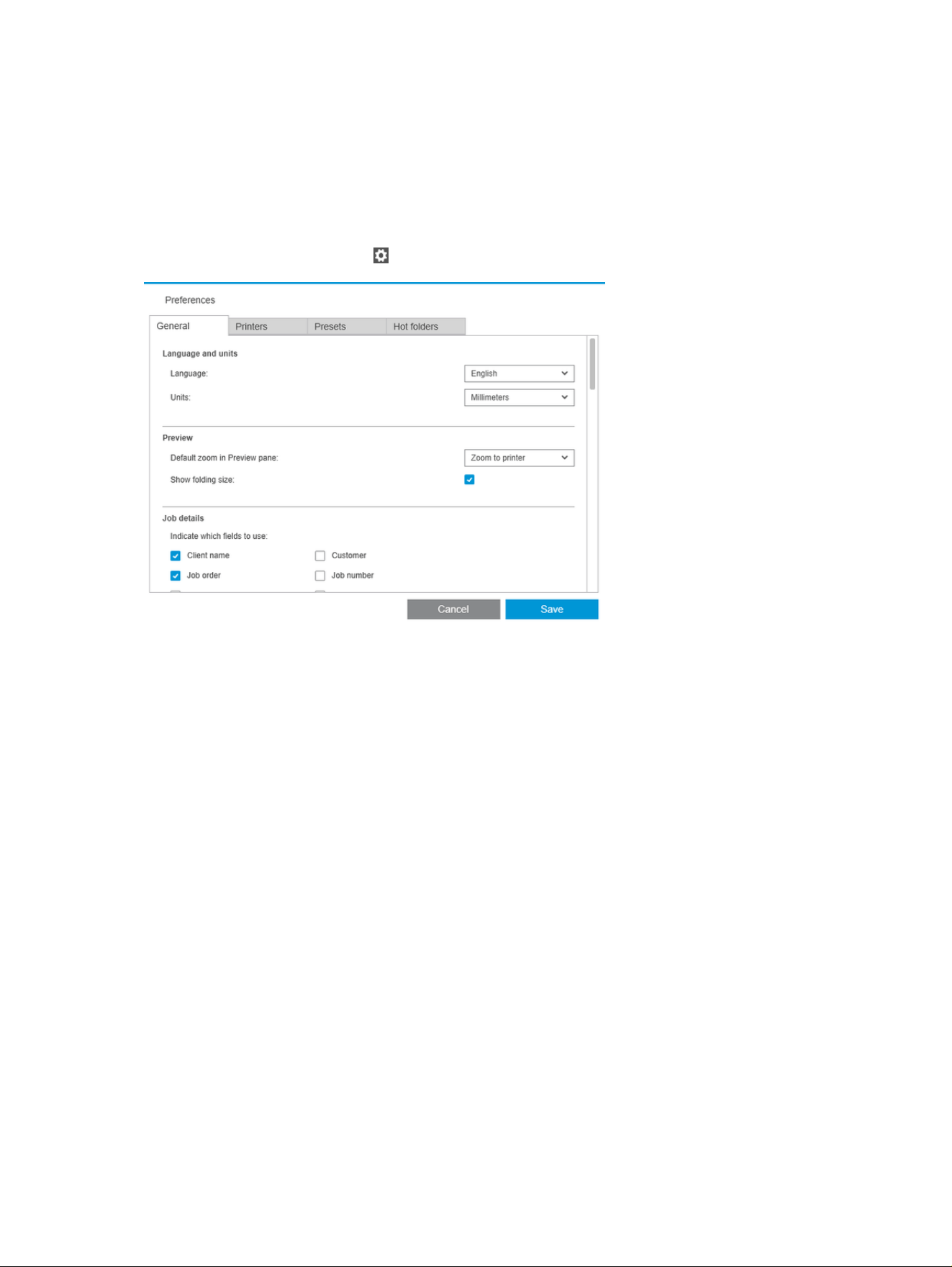
Set preferences
The preferences dialog allows you to configure HP SmartStream.
General preferences
The general preferences apply to all printers in the printers pane.
To set your preferences, click the icon near the top right of the window.
You can set:
● Language and units: The language of the text and the units of measurement displayed by the
application
● Preview
– Default zoom in Preview pane: The default zoom option used in the print preview
– Show folding size: Whether to display the folding size in the preview
● History: How long jobs should be retained in the history
● Page size: Which standard page sizes should be displayed in lists of page sizes, and whether page
sizes should be mapped to the nearest standard size
● Save options: Whether to embed the documents when saving jobs, increasing the job file size
● Resolution Center: Whether the Preflight Manager should omit warnings of specific kinds
● Checks before printing: Whether the Preflight Manager should perform the normal checks before
printing
● Batch rename save folder: The folder in which renamed pages are saved.
80
Chapter 4 HP SmartStream
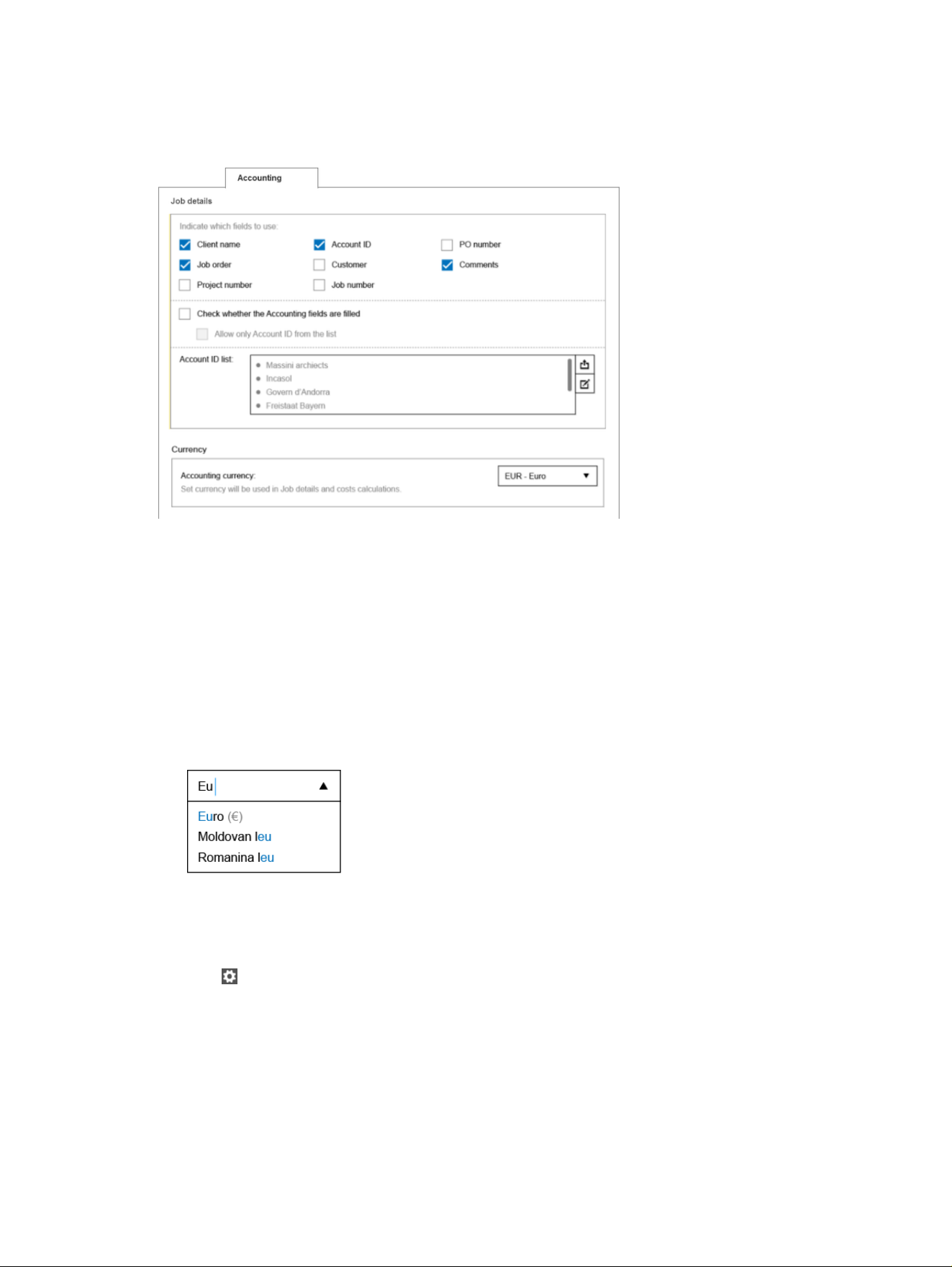
Accounting preferences
This topic provides a full set of reference information for this subject.
You can set:
● Job details: Choose which fields should be used in the job details, and manage account IDs.
– If you check the box Check whether Accounting fields are filled, HP SmartStream will require all
fields of the job summary to be filled in before sending the job to print.
– The Export button creates a CSV file containing the account IDs known to HP SmartStream.
● Currency: Choose the currency to be used in job details and cost calculations. You can start to enter
the name of the currency manually, in which case non-matching currencies are removed from the
list.
Printer-specific preferences
There are a number of preferences that you can set separately for each printer.
Click the icon near the top right of the window, then select the Printers tab in the Preferences window.
On the left side of the Printers tab, you can see a list of your printers: click the printer whose preferences
you would like to set.
Accounting preferences
81
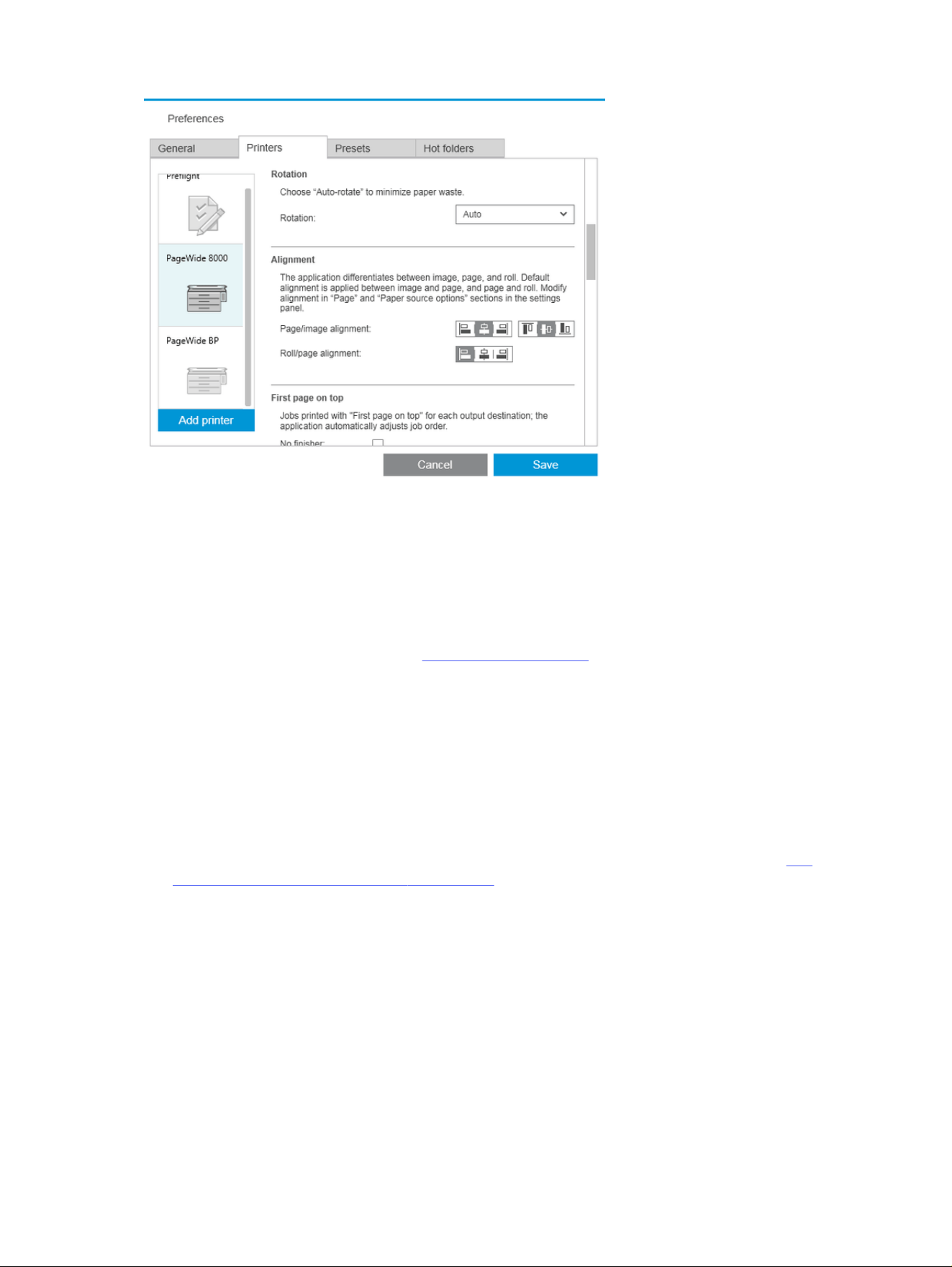
You may be able to set the following preferences, although the list of preferences can vary, depending on
your printer and its accessories:
● Printer name: Your chosen name for this particular printer in this application.
● IP address / hostname: The printer’s IP address or hostname.
● Collect accounting data at page level: Whether to gather page accounting data from the printer
(HP PageWide XL printers only). See Accounting on page 135.
● Paper type: Choose the default paper type.
● Color mode: Choose the default color mode.
● Quality: Choose the default print quality.
● Folding options: Choose the default folding style.
● Disable cutter: Whether to disable the automatic cutter.
● Job separator: Whether to print a job separator page after the last page of each job. See Job
separators (HP PageWide XL only) on page 120.
● Job separator roll ID: A roll number, or Any.
● Non-HP accessory name: Assign a name of your choice to a non-HP accessory connected to the
printer.
● Preflight Manager analysis: By default, a thumbnail of each page in a job is generated, and displayed
in the left column of the job preparation pane. You can choose a partial analysis to increase
the speed of the Preflight Manager, by unchecking the Always generate thumbnails box here; in
which case, a placeholder image is displayed in place of each thumbnail. However, by turning off
thumbnails you also disable some features of HP SmartStream, such as identifying the color mode
of your original documents, clipping detection, fast page preview, and automatic removal of white
areas.
82
Chapter 4 HP SmartStream
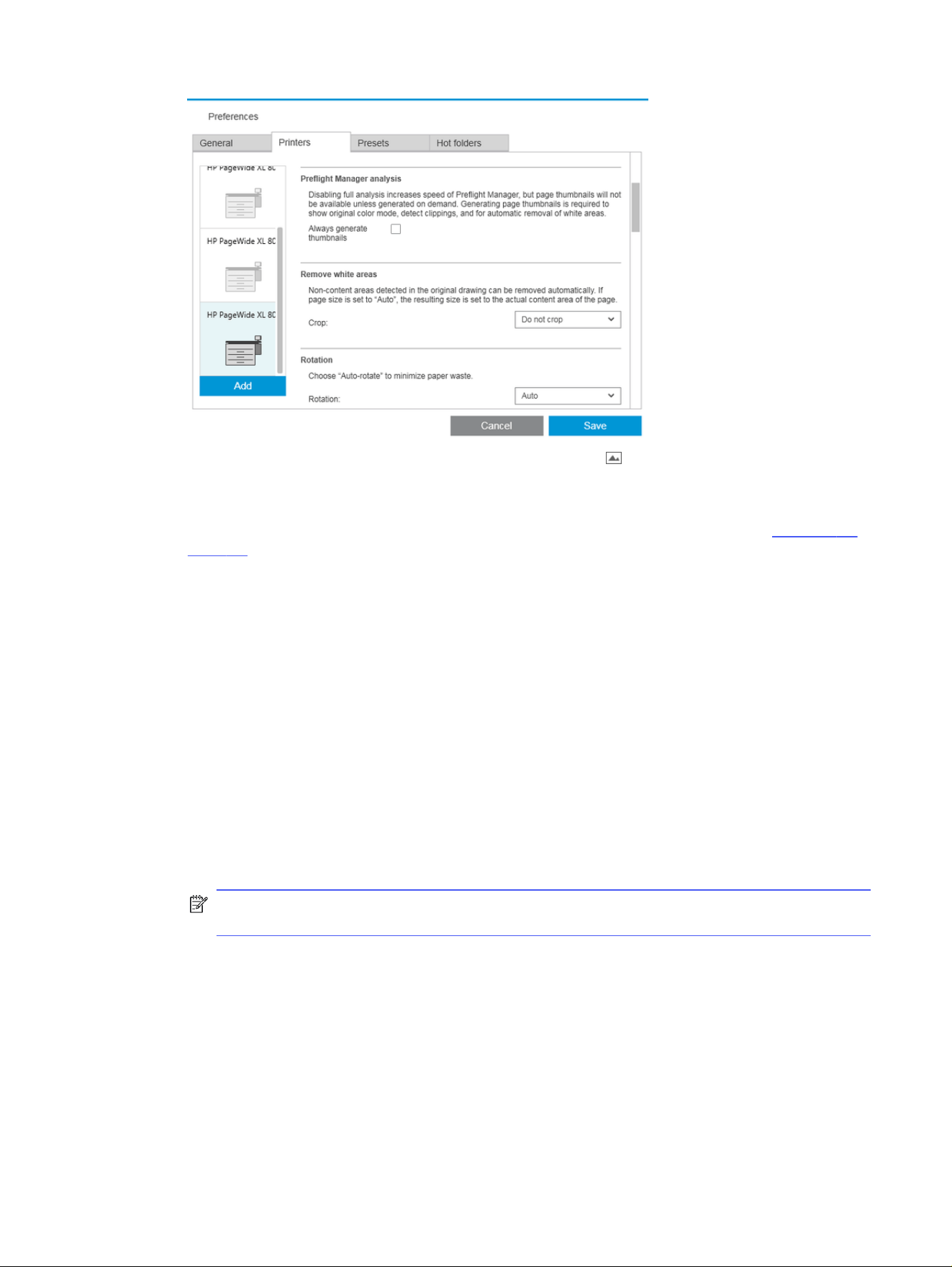
If thumbnail generation has been turned off, you can use the icon in the job header to generate
thumbnails for all pages in the current job at any point.
● Remove white areas: If you choose Remove white areas or Smart crop, your pages are automatically
cropped to remove white areas at the edges. You can also choose Custom crop. See Cropping on
page 110.
● Rotation: Choose the page rotation to be applied by default (Original, Auto, Landscape, or Portrait).
● Alignment
– Page/image alignment: Choose how the image is aligned with respect to the page.
– Roll/page alignment: Choose how the page is aligned with respect to the roll.
● First page on top: You can request printing with the first page on top (the reverse of the default
order) when using the stacker, when using the folder, and when using neither.
● Content in printer margin: The printer margins are normally 5 mm, but in some circumstances you
may be able to choose a printer margin of 3 mm, depending on the printer, the printer firmware, and
the paper type.
– You can choose whether the printer should try to detect content in the printer margins (never,
moderate analysis, or extensive analysis).
NOTE: Moderate analysis may not detect all clipping; extensive analysis detects all clipping
but may sometimes detect clipping when there is none (a false positive).
– If content is detected in the printer margin, the application can try to fix the problem
automatically by adjusting the paper source margins.
– When adding margins, you can choose between the minimum distance needed to avoid clipping
and the whole width of the printer margin.
● Paper and ink alerts: Whether to minimize paper and ink alerts.
Printer-specific preferences
83
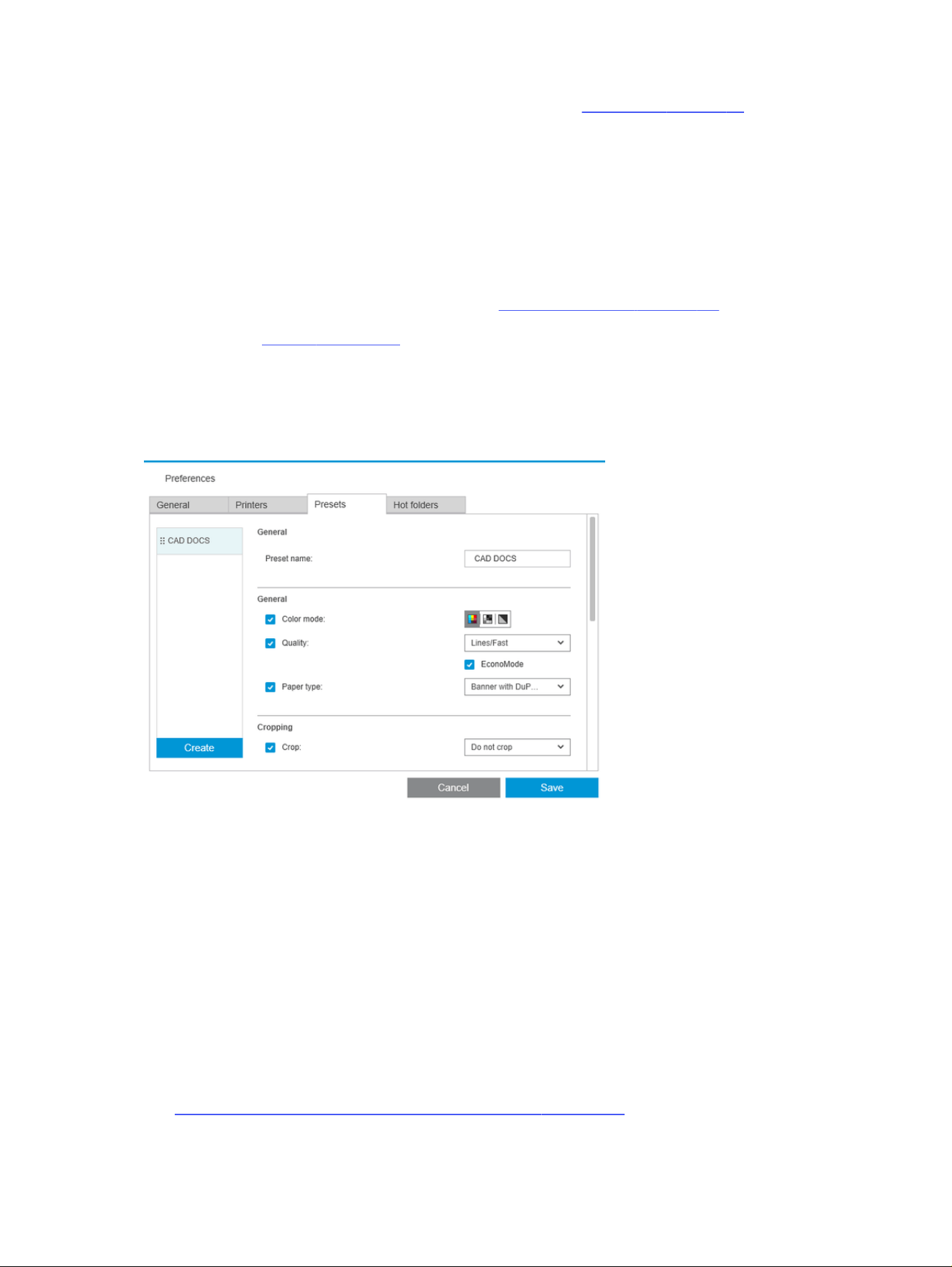
● Roll switching options: If you choose Non-stop printing (see Job options on page 94), the
application will try to carry on printing even if a roll runs out of paper while printing and there is
no roll of the same roll width loaded. In this case, it will look for a roll of the same paper type with
a wider roll. The narrowest suitable roll is selected. If there are multiple narrowest suitable rolls, the
application can choose between them according to one of the following rules:
– Minimize roll switches
– Use roll with less paper
● Color options: You can select Relative colorimetric, the default setting, or Perceptual, which
emulates the output of a PostScript driver. See Color management on page 124.
● Nesting: see Nesting on page 101.
Presets
A preset is a group of settings saved together under a single name.
You can create, modify, or delete presets in the Presets tab.
On the left, you can select from a list of presets that you have created. They are displayed in the same
order in the preset drop-down menu in the job preparation pane. You can delete a preset by right-clicking
its name in this list.
On the right, you can see the settings of the selected preset. A setting is part of the preset only if the box
to the left of the setting is checked.
You can use the Preset column in the job preparation pane to apply a preset to one or more pages, or to
a whole job.
Hot folders
This tab enables you to define hot folders for incoming and outgoing files. Once defined, the hot folder
allows you to import files into (or export files from) the application in an easy way.
See Using a multifunction printer that includes a scanner on page 129.
84
Chapter 4 HP SmartStream
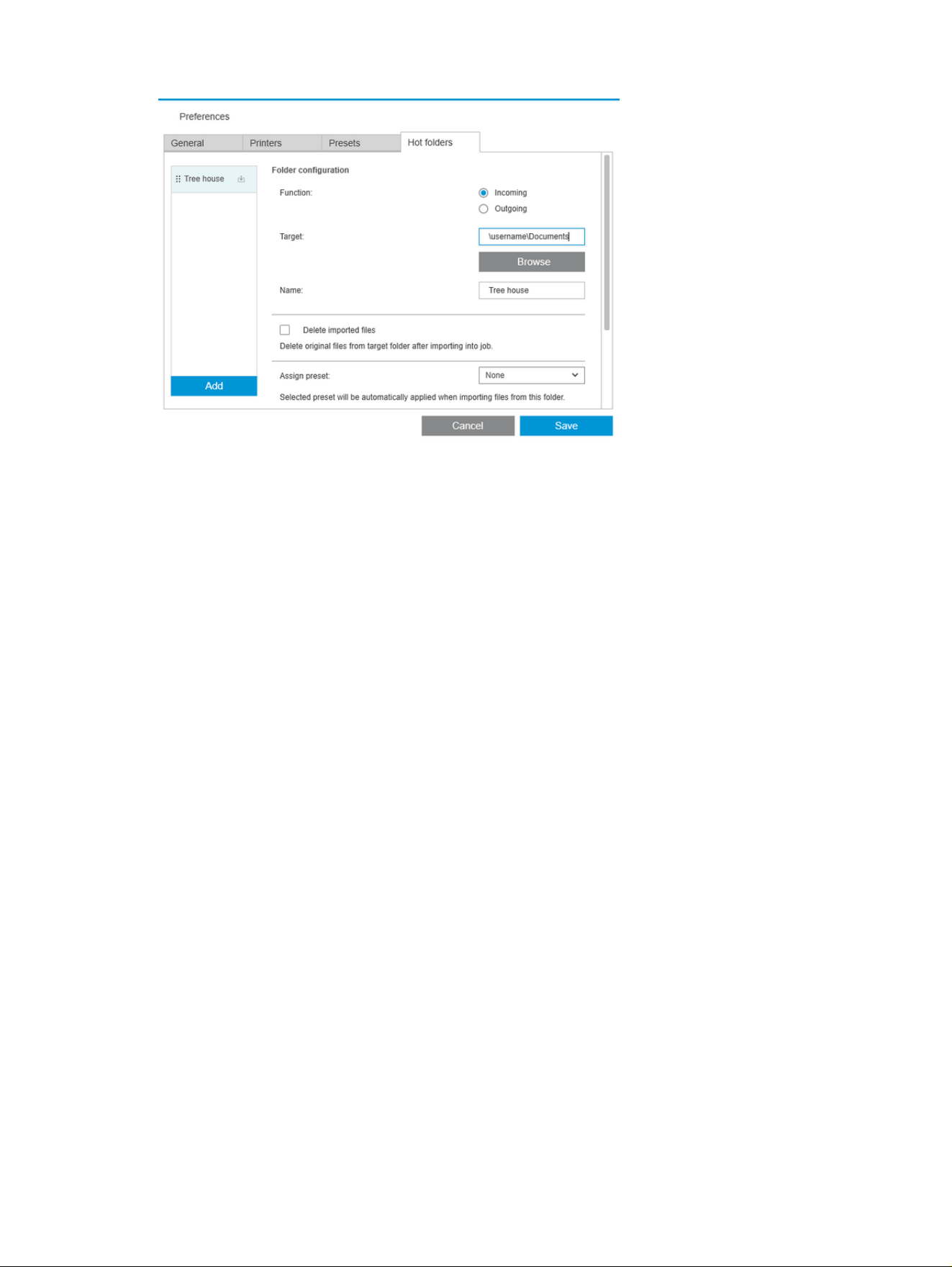
Hot folders 85
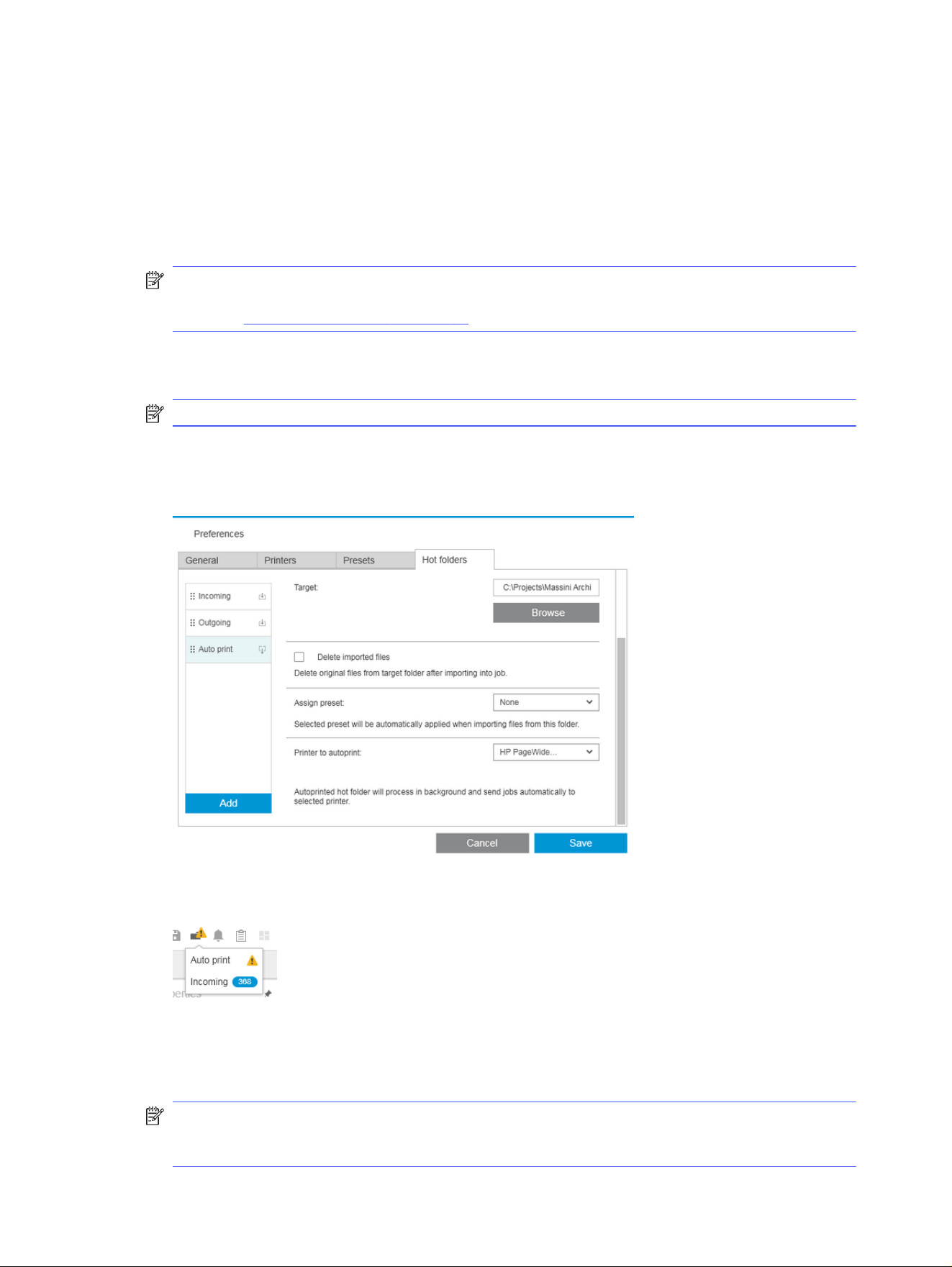
You can set:
● Function: Whether this particular hot folder is for incoming or outgoing files
● Target: The folder in your computer or network that will contain the hot folder
● Name: The name of the hot folder
● Delete imported files: Whether the imported documents should be deleted after importing them
NOTE: If you delete the imported files, you are recommended to attach the files when saving the
job, otherwise the application will not be able to find the files when you reopen the job. See Save
options in General preferences on page 80.
● Assign preset: An optional preset that may be applied automatically when files are added to or
dragged from this folder.
NOTE: You must create the preset in advance in order to select its name here.
● Printer to autoprint: A printer that will automatically print any files added to this hot folder. If you
select None, the files in the hot folder will not be automatically printed. You can specify here the
number of copies to be printed.
If the printer has any problem, automatic printing is suspended until the printer is ready again, and a
warning is added to the hot folder icon in the job preparation pane.
Log files for autoprint operations can be found in the My Documents\HP SmartStream\Auto-print
Logs folder. A log file contains information about the success or failure of the autoprint operation.
Any document added to the hot folder that cannot be processed correctly by the application will be
copied to a subfolder of the logs folder.
NOTE: Documents added to a hot folder with autoprint enabled will print as they are to the most
suitable roll available in the assigned printer. If the printer has no roll wide enough for the
document, the print of that document will be clipped.
86
Chapter 4 HP SmartStream
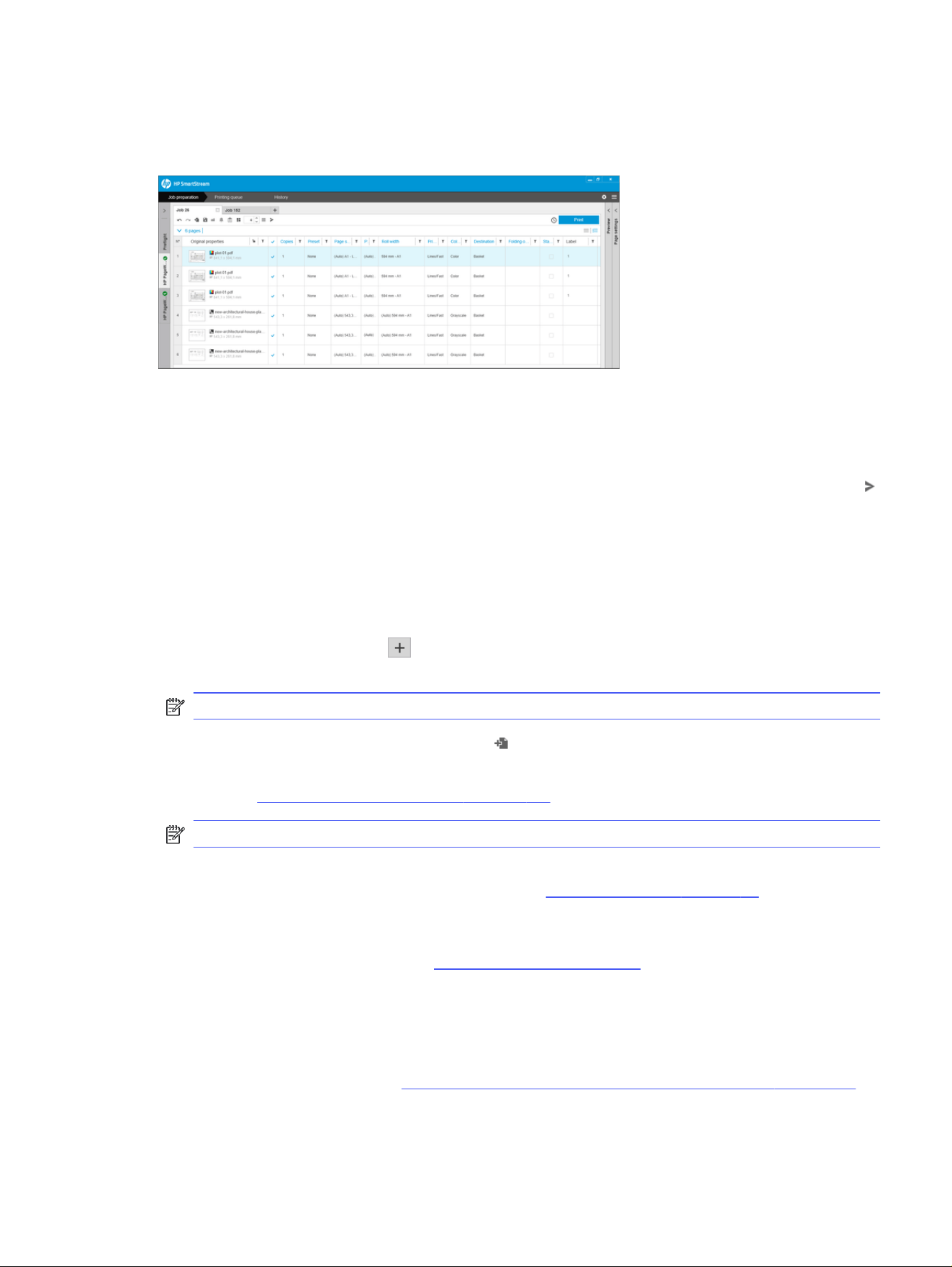
Job preparation
You can create and edit jobs in the job preparation pane.
HP SmartStream allows you to work in two different ways:
● You can select a specific printer and prepare a job for that printer.
● You can select the Preflight desk in order to prepare a job without specifying a specific printer. This
allows you to check page size and alignment. The job can be assigned to a printer later, by clicking
or by dragging the job to a printer in the printers pane.
The job preparation process
The following steps provide the complete procedure for this topic.
1. Select the printer that you want to use to print your job, or select the Preflight desk.
2. Create a new job by clicking at the top left of the job preparation pane, or by dragging files or
folders directly onto an empty job preparation pane.
NOTE: Whenever you add a new printer, an empty job is created automatically.
3. To add files or folders to a job, you can click , or drag and drop the files or folders onto the job
preparation pane.
See also Tracking files added to the job on page 144.
NOTE: You can drag and drop files directly from Microsoft Outlook to HP SmartStream.
4. A Preflight Manager window is displayed while the application is checking each file for problems.
This window disappears when the job is ready. See File error detection on page 88.
If problems are found that prevent files from being added, a report window appears with a
summary of the problems. This window remains open until you click Later. More details can be
seen in the Resolution Center. See Resolution Center on page 89.
If problems are found that do not prevent files from being added, the Preflight Manager does not
produce a report, but the details can be seen in the Resolution Center.
5. After checking the files, the application automatically suggests the paper type (unless the
preferences indicate to use one specific paper type), the page size, the rotation of the page on
the roll, and the roll width. See Automatic attribute detection and setting assignment on page 90.
Job preparation
87
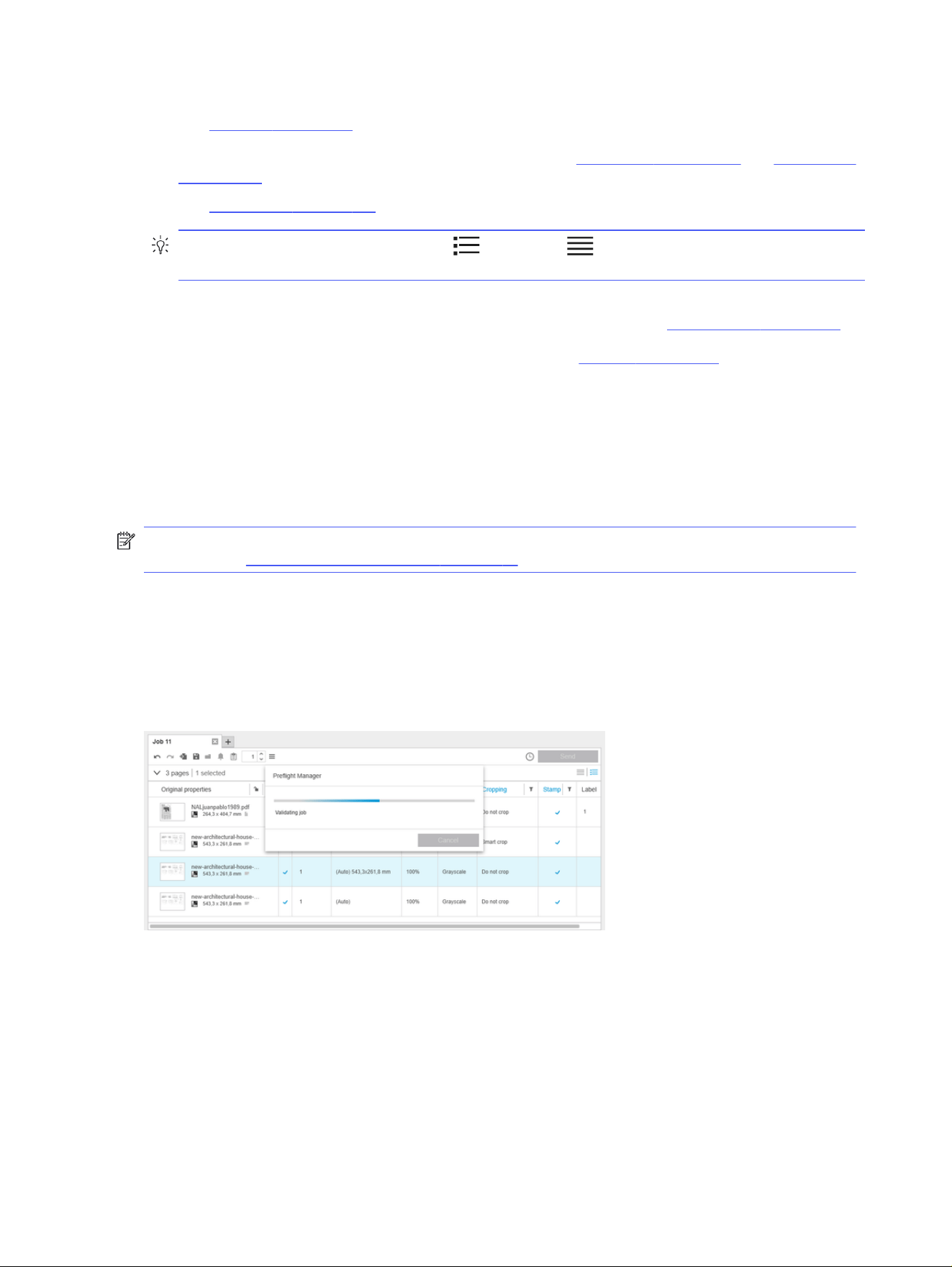
6. You can review and modify the settings using the job preparation pane and/or the settings pane.
See Edit a job on page 92.
You can also sort and/or filter the content of the grid. See Sort pages on page 106 and Filter pages
on page 105.
See Accounting on page 135 for information about clusters and the job details icon.
TIP: Changing the view from standard to compact turns off the display of thumbnails and
thus allows you to see more rows on the screen.
7. Use the print preview to see how a page will look when printed, how it will be positioned on the roll,
and whether your image will be clipped with your present settings. See Print preview on page 114.
8. When you are ready to print, click the Print job button. See Printing on page 120.
If you decide to print the job on a printer different from the one you originally selected, you can drag the
job tab to another printer tab.
HP SmartStream Preflight Manager
The Preflight Manager analyzes each file to check for errors, issue warnings, and propose various page
settings automatically.
NOTE: You can choose to perform only a limited Preflight Manager analysis. See Preflight Manager
analysis in the Printer-specific preferences on page 81.
File error detection
When files are added to a job, the Preflight Manager checks them for possible errors. If an error means
that a page cannot be printed, it is not added to the job preparation pane and is not included in the job.
All supported file types are checked. The Adobe Libraries are used for fast and accurate checking of
PDF files.
Errors that prevent adding files
In these cases, the file is not added to the job.
● The file format is not supported by HP SmartStream.
● The file is corrupted.
● A certificate is needed to open the file.
● You do not have enough free memory or enough free hard disk space to process the file.
88
Chapter 4 HP SmartStream

The author of a PDF file can specify an Open password that you must provide to open the file, and/or a
Permissions password that you must provide to print the file. If you try to add a password-protected PDF
file to a job, an Action Required window is displayed, in which you can enter the required password(s). If
you cannot provide a required password, the file is not added to the job.
A PDF file with a Permissions password but no Open password is treated as being in error, and is not
added to the job.
Errors that do not prevent adding files
In these cases, an explanation is added to the resolution center for your information, but the page is
added to the job and can be printed, unless you decide to exclude it.
● The page and/or image will be clipped. You can ask the application to try to fix this problem
automatically, or you can fix it manually after viewing the preview to see what will be clipped and
where.
NOTE: You can choose not to be notified about clipping that occurs within the printer margins.
See Printer-specific preferences on page 81.
● Some layers are not printable. You can check what will be printed in the preview.
● Some layers are not visible, but can be printed. You can check what will be printed in the preview.
● The following errors are found only in PDF files:
– Fonts are missing. The application can automatically substitute other fonts for the missing
fonts. Alternatively, you may be able to recreate the PDF file with the correct fonts embedded in
it.
– There are references to external items, which will not be printed. If you want to print these items,
they must be embedded in the file.
– The file contains one or more embedded PostScript objects that will not be printed.
When a page has an error, its thumbnail is outlined in yellow. When it is selected, its background color
changes to blue.
Resolution Center
The toolbar contains a Resolution Center icon. If a job contains no issues (everything is fine), this icon
is disabled.
If there are any issues with the job, you can click the button to see them. In addition, a warning icon is
displayed over the page thumbnail. You can double-click the warning icon to open the Resolution Center
at the page showing the issue.
The issues may consist of the following types:
● Information: These give you information but require no action.
● Warnings: These warn you of a possible problem that may require action. The action is explained.
Resolution Center
89
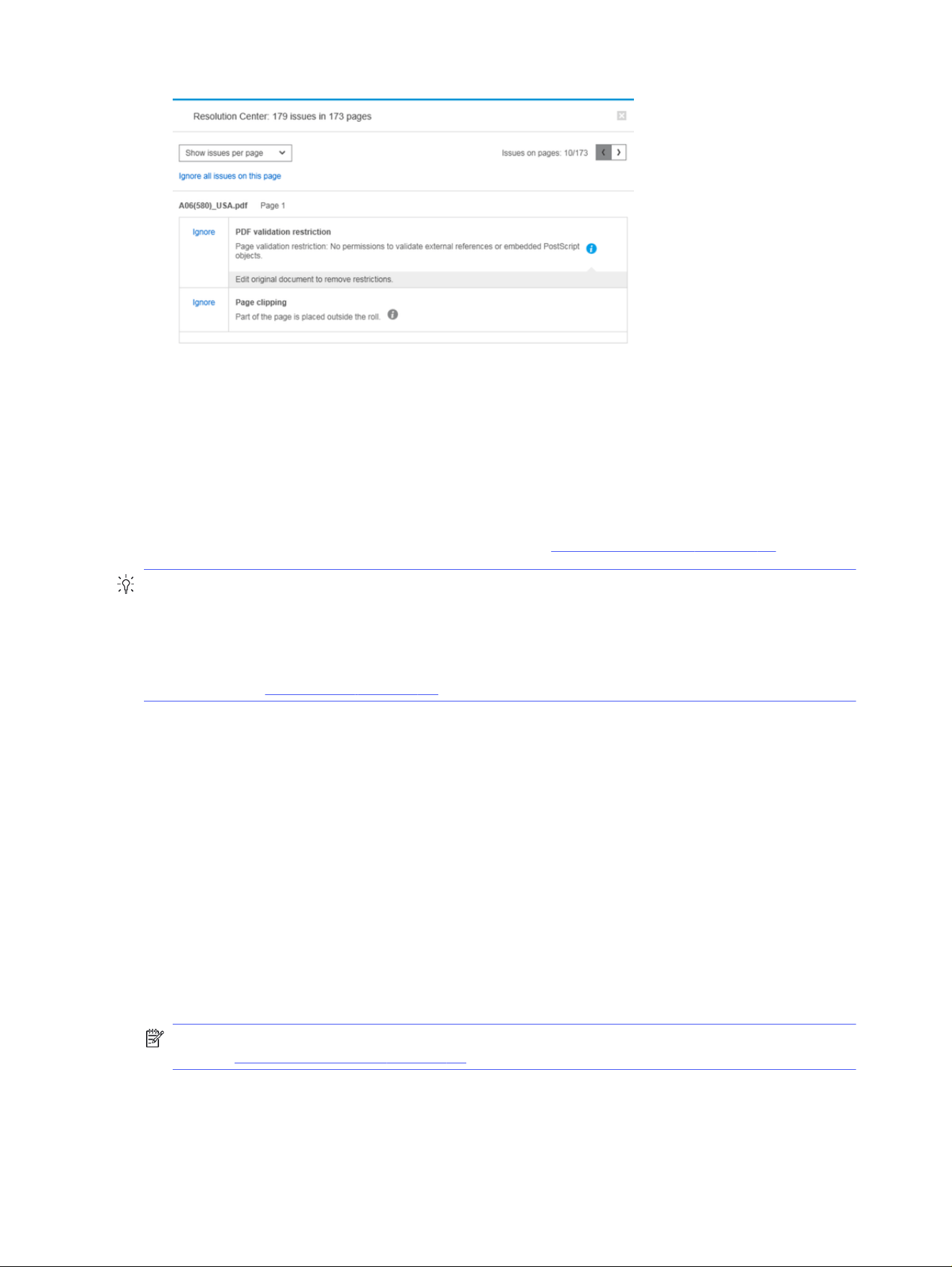
● Actions: These explain a situation and offer you options for responding to it.
In the resolution center, you can choose to see all the issues on a page, or you can choose a specific
type of issue and browse through the pages that have that issue.
Issues are shown per page, and you can navigate from page to page by using the buttons at the top
right.
You can choose to ignore specific issues, or use the General preferences to ignore all issues of a
specific kind, or not to perform checks before printing. See General preferences on page 80.
TIP: If I get a warning that the image will be clipped, what can I do about it?
You can click the Solve all button, in which case HP SmartStream will try to solve the problem
automatically.
Alternatively, you can use the preview to see exactly what the problem is, and solve it manually. For
more details, see Print preview on page 114.
Automatic attribute detection and setting assignment
This topic explains the concepts involved in this subject.
The following attributes are detected automatically for each page that is added to a job:
● The document name and the number of pages that it contains
● The original image size of the page
● Whether the page is in color or grayscale
The following settings are automatically assigned for each page:
● The page size
● The page rotation, if any
NOTE: In the paper source options, you can turn automatic rotation on or off by means of a check
box. See Paper source options on page 112.
90
Chapter 4 HP SmartStream
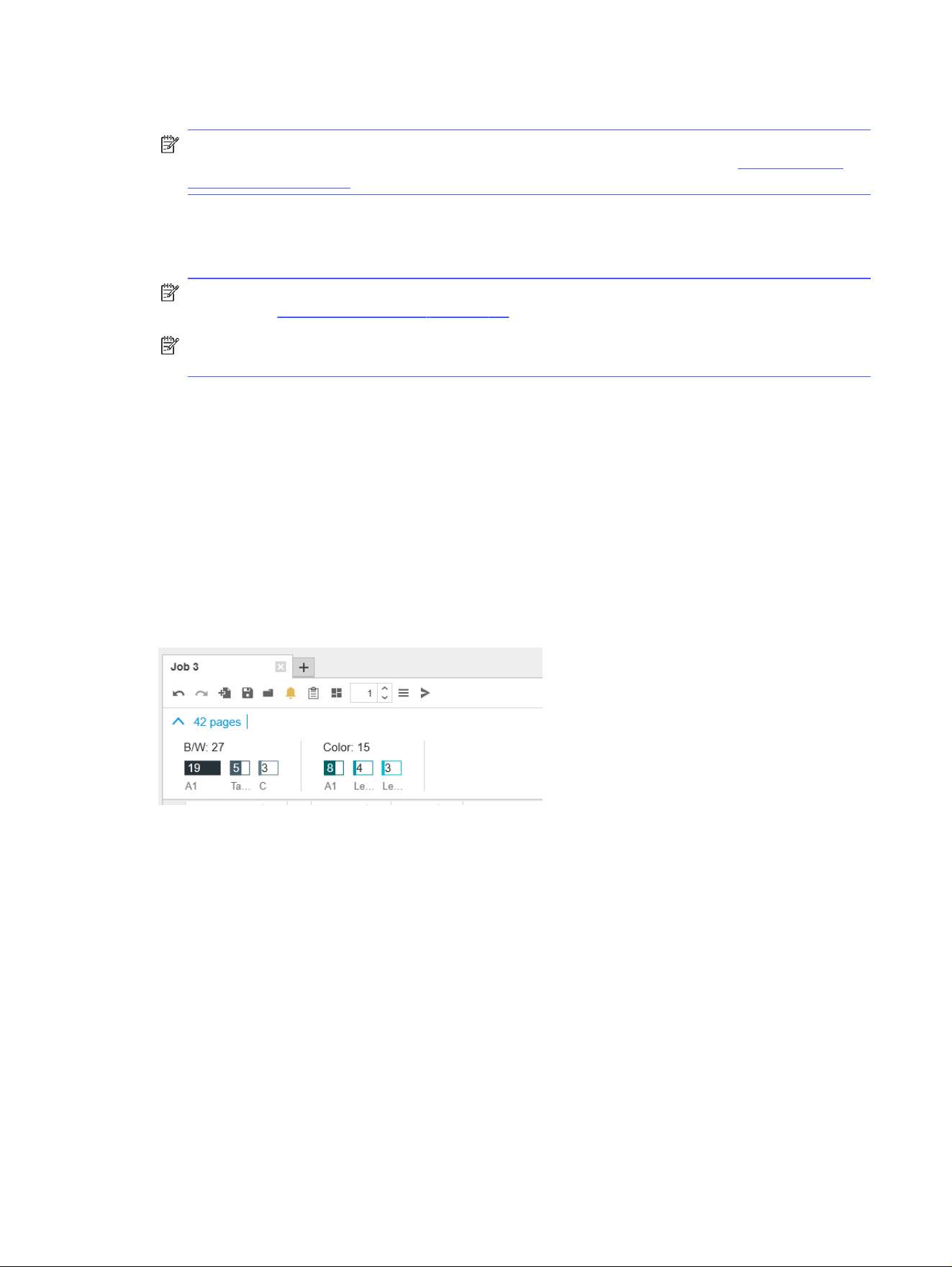
● The paper type, which is limited to the paper types currently loaded in the printer
NOTE: In the Preferences window, you can choose to use a specific default paper type when
adding pages, instead of using the paper type proposed by the application. See Printer-specific
preferences on page 81.
● The roll width, which depends on the page size
● The roll ID, which may depend on the roll width
NOTE: The roll ID is assigned automatically only if you have set it to Any in the paper source
options. See Paper source options on page 112.
NOTE: Your printer may enable you to set a roll to
protected
status. In this case, the roll ID is not
available for automatic assignment; you can print on that roll only by requesting it explicitly.
You can modify these proposed settings. If you have changed a setting and want to restore the
automatic value, click the AUTO button.
Job overview
The following sections provide details for this topic.
Visual job overview
The Preflight Manager generates a visual overview of each job, known as a cluster, which can be
displayed near the top of the job preparation pane. It divides the pages of the job into categories, first
dividing them into color or monochrome pages, and then dividing them by page size; showing a count of
the pages in each category.
Page clusters are a new feature that helps you to simplify the production of large jobs by giving you a
fast and clear understanding of the job composition from the beginning, knowing the number of pages
that each job has for each size and page content. In addition, you can easily select all pages in one
or more categories by clicking those categories. In this way you can apply and modify settings at a
category level.
The total page count is always displayed; you can open or close the display of categories.
If a filter is in operation, the pages hidden from the job preparation pane are also excluded from the
cluster.
Job overview
91
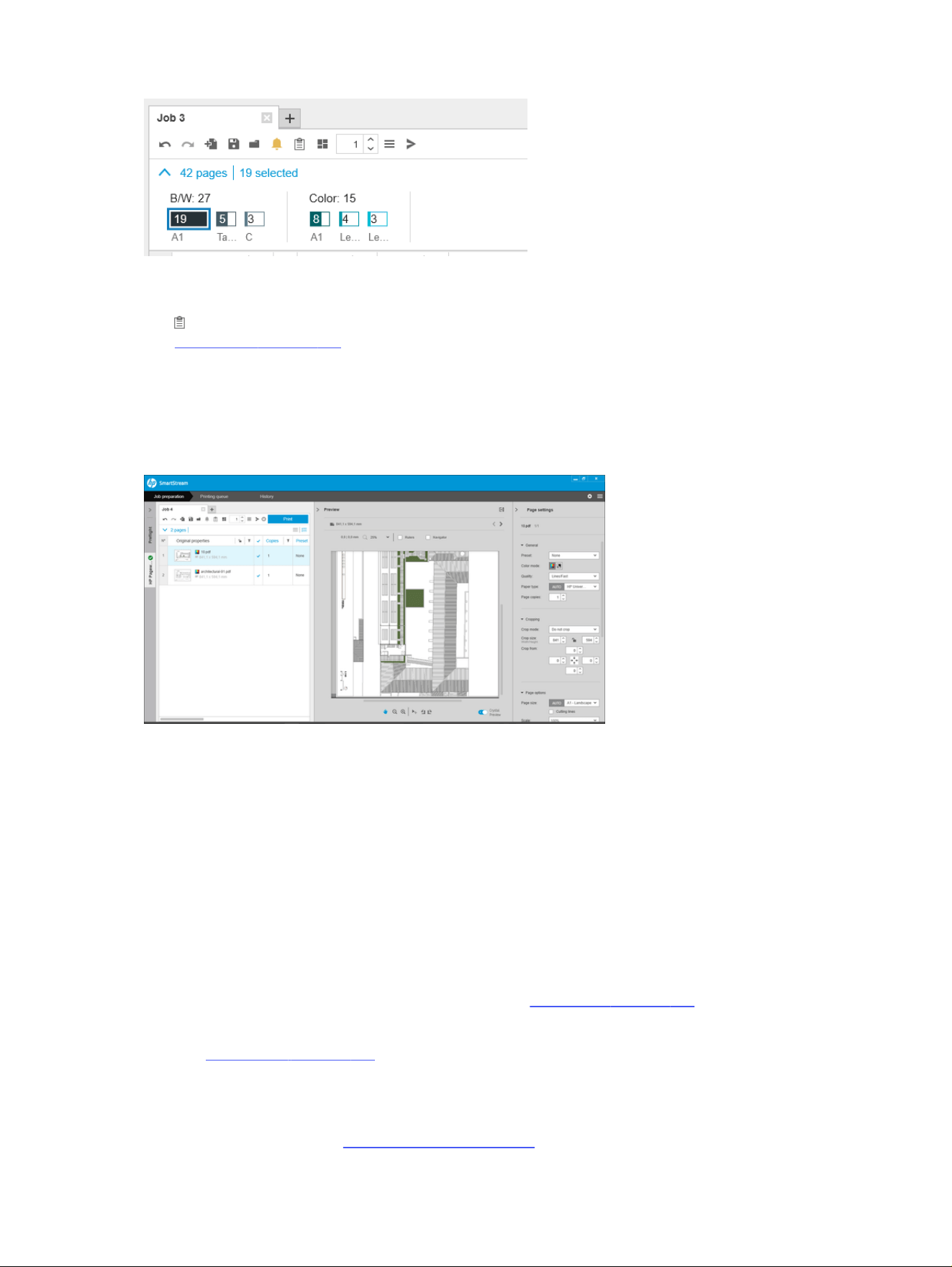
Job details
The icon in the toolbar displays information about the job that may be used for accounting purposes.
See Accounting on page 135.
The icon appears in the job preparation pane and in the history pane.
Edit a job
The following sections provide details for this topic.
You can edit a job in various ways to print the pages that you want, in the order that you want, and with
the print settings that you want.
● By selecting one or more pages and changing the print settings
You can change print settings in the job preparation pane or in the settings pane; the effect is the
same. The difference is that the display of settings in the job preparation pane can be customized:
you can change the order of the columns and remove columns that you don’t normally use. The
settings pane displays all available settings in a fixed order: it cannot be customized.
To display a list of all the possible columns that you can show or hide, right-click any column header.
● By clicking the column header to change the settings of the whole job
● By sorting the pages into a different sequence (see Sort pages on page 106)
● By applying a filter to one or more columns in the job preparation pane, and thus hiding some pages
(see Filter pages on page 105)
● By selecting one or more pages and dragging manually them up or down to a different position: this
changes the sequence in which the pages will be printed
● By renaming pages (see Rename pages on page 144)
92
Chapter 4 HP SmartStream
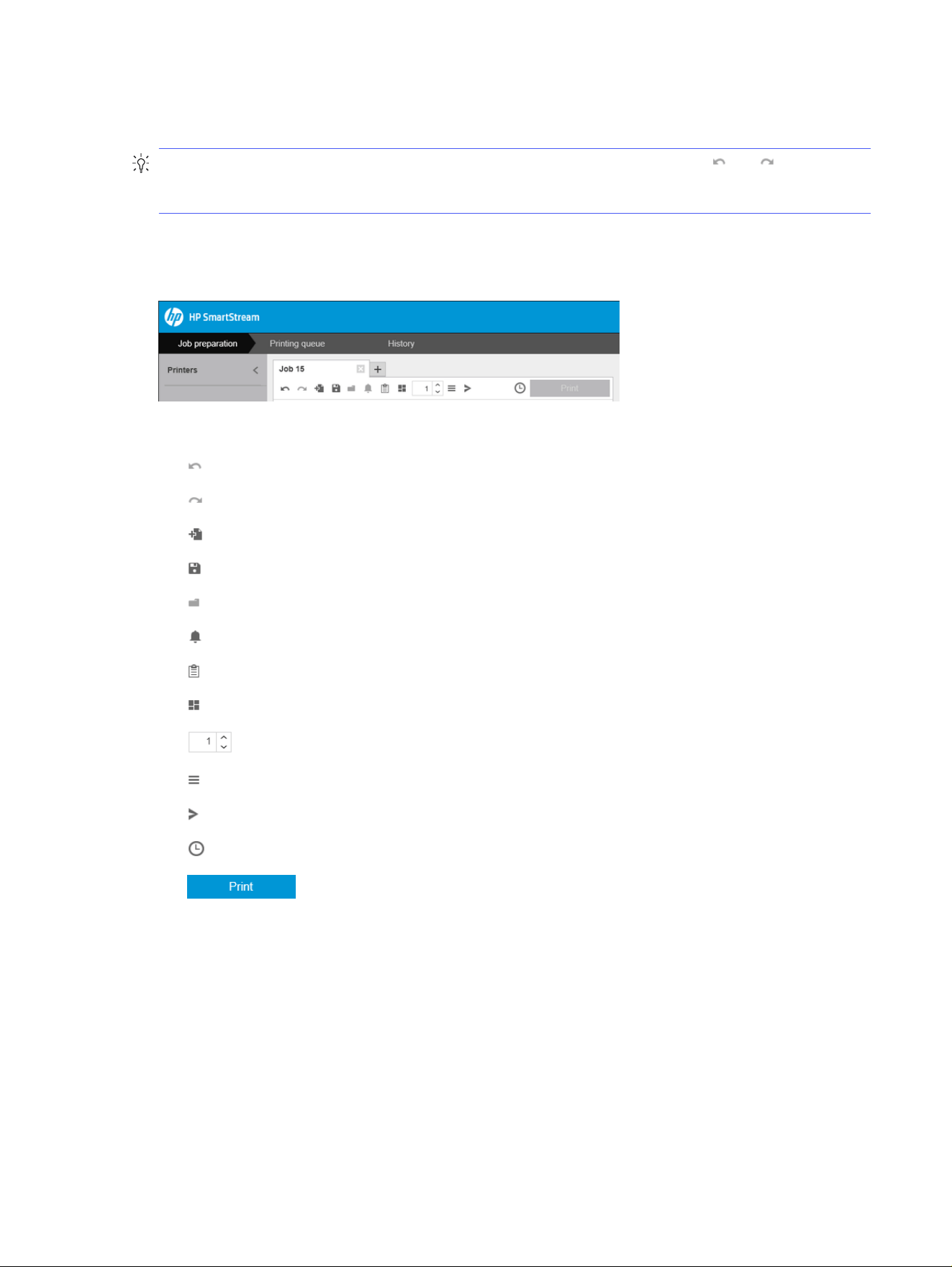
This is not a complete list of the possibilities. For further options, see the subsequent sections in this
chapter.
TIP: If you make a mistake or change your mind while editing a job, you can use and (or their Ctrl-
Z and Ctrl-Shift-Z shortcuts) to undo or redo edits to a single job. Actions other than job editing cannot
be undone.
Toolbar
This topic provides a full set of reference information for this subject.
The toolbar contains the following icons and buttons:
● to undo the last job editing action
● to redo the last action that was undone
● to add documents to a job or open a saved job
● to save a job
● to show the status of the hot folders
● to show the status of the resolution center
● to show the job details
● to toggle nesting on and off
● to change the number of copies of the job to be printed
● to select job options
● to send (in the context of a printer)
● to submit a job but put it on hold in the printing queue
● to print a job
Labels
The job preparation pane has a Label column that is hidden by default, but can be shown (right-click any
column header to show or hide columns).
If you choose to show this column, it initially contains the tag attached to each page of a PDF file.
However, you can edit these tags in the Label column, replacing them with any text you like. The new text
that you provide is saved as part of the job, but it is not saved in the PDF file.
Toolbar
93
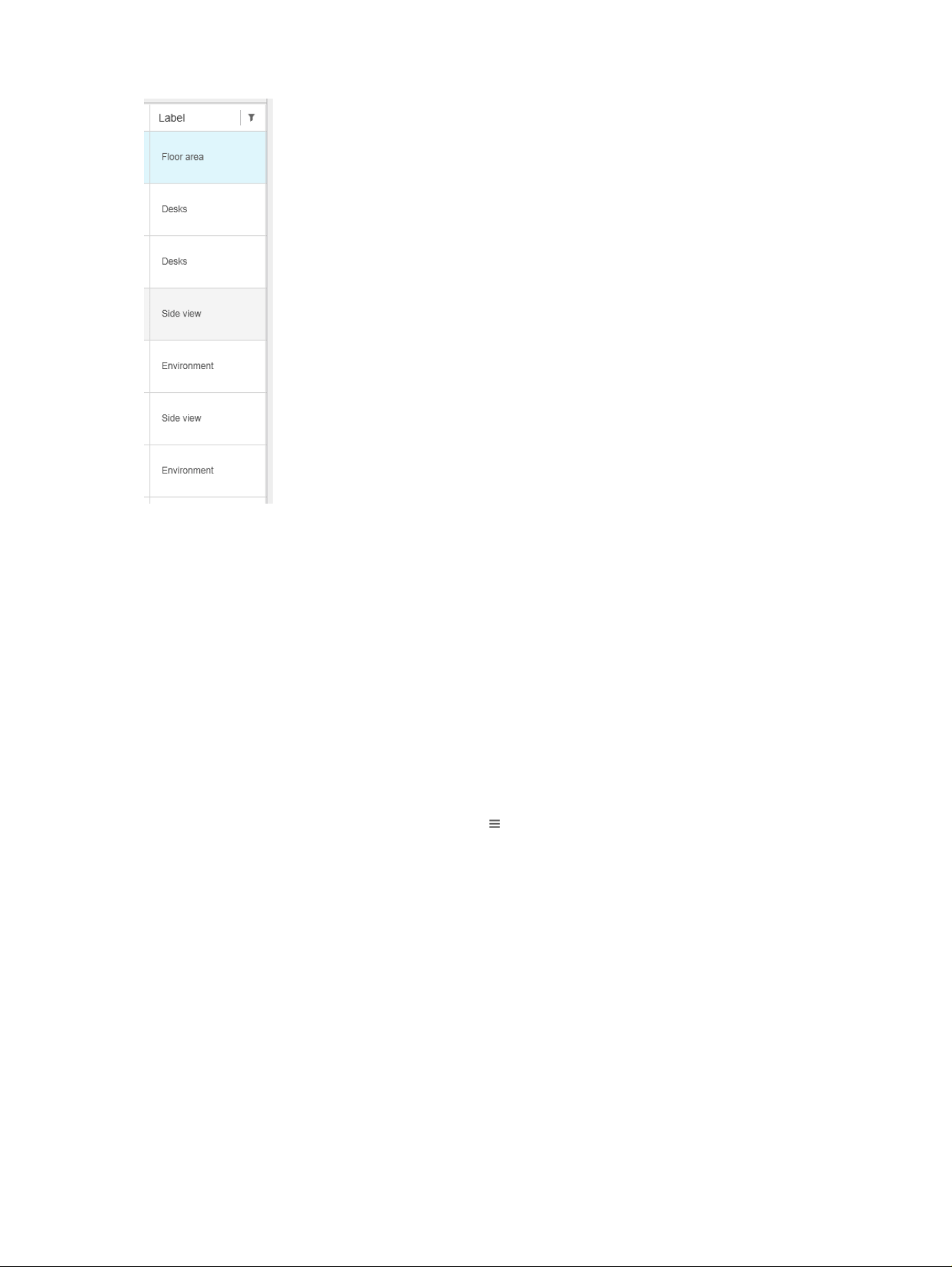
The existence of this column allows you to sort and filter pages according to tags that you can choose
yourself.
Discipline
The job preparation pane has a Discipline column that is hidden by default, but can be shown (right-click
any column header to show or hide columns).
If you choose to show this column, it initially contains a subset of categories. However, you can edit
these categories in the Discipline column, replacing them with any you like.
The existence of this column allows you to sort and filter pages according to tags that you can choose
yourself.
Job options
You can see the job options for any job by clicking in the toolbar of the preparation pane.
94
Chapter 4 HP SmartStream
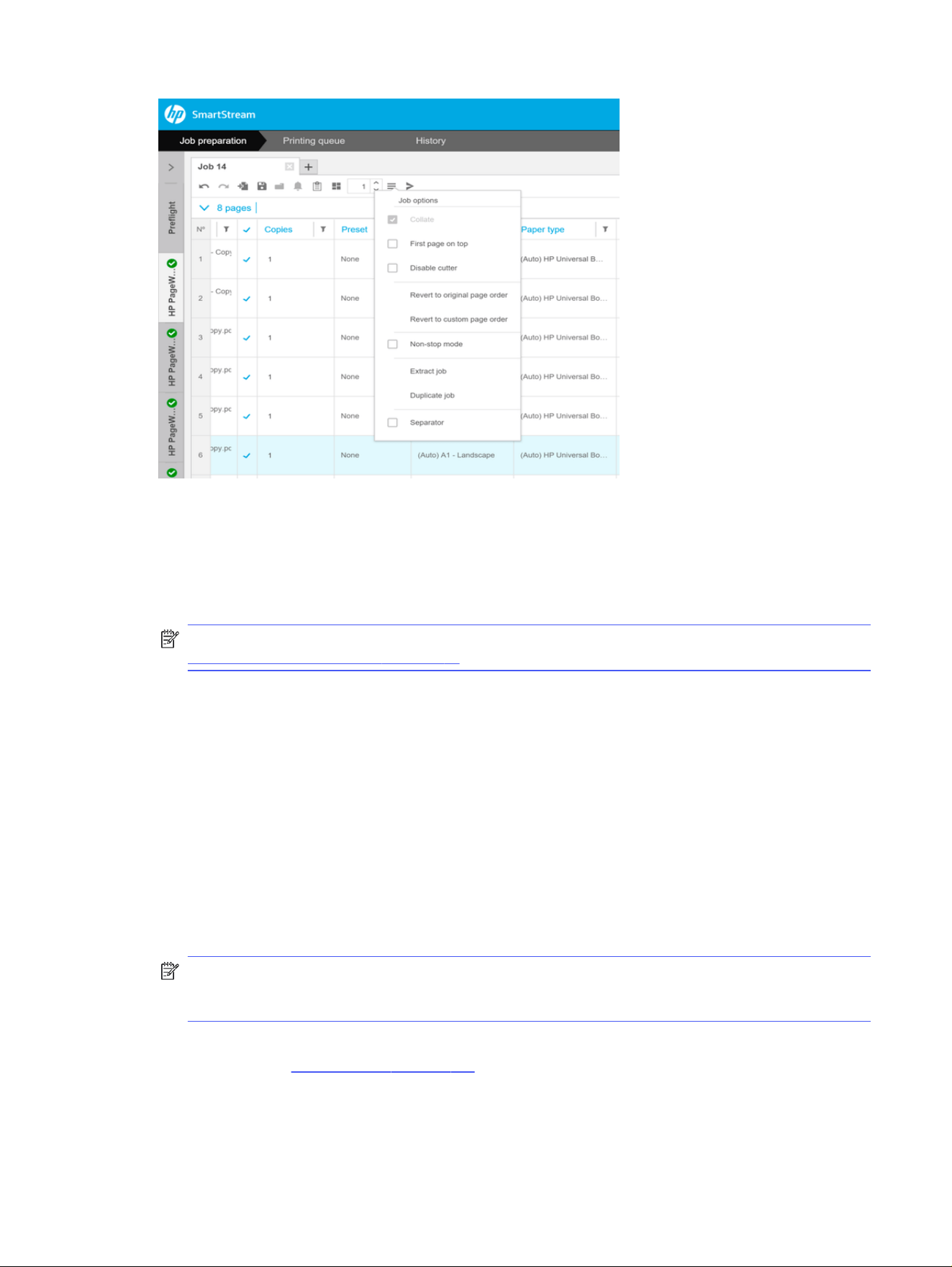
● Collate: If you choose to print more than one copy of the job, you can choose to collate the copies;
otherwise, the printer will print multiple copies of the first page, then multiple copies of the second
page, and so on.
● First page on top: You can choose to print the job with the first page on top, which may be convenient
if you are stacking the pages face-up as they emerge.
NOTE: You can choose in the Preferences window whether this option is on or off by default. See
Printer-specific preferences on page 81.
● Disable cutter: If the paper is cuttable and the cutter is turned on at the printer’s control panel, you
can turn it off here. If the paper is not cuttable or the cutter is turned off at the control panel, you
cannot turn it on from HP SmartStream.
● Revert to original page order: Restore the original sequence of pages in the job, as they were when
you created the job. This may be useful if you have sorted the pages or changed the order manually.
● Revert to custom page order: Restore the last manual sequence of pages in the job, as they were
when you last manually reordered them.
● Non-stop mode: The application checks the selected roll ID, roll width, and paper type for each page
against the currently loaded rolls in the printer. If a roll with the correct characteristics is not loaded,
a window appears asking you how to proceed. However, just before printing the page, if a roll is
detected of the correct paper type but wider than specified, printing will continue.
NOTE: This option allows you to print with minimal interruptions, while still respecting the paper
type specified in the job and avoiding clipping. A job may be printed on wider paper if the specified
width is not available.
● Extract job: You can extract a whole job and store it, in the same way that individual pages can be
extracted. See Extract pages on page 105.
Job options
95
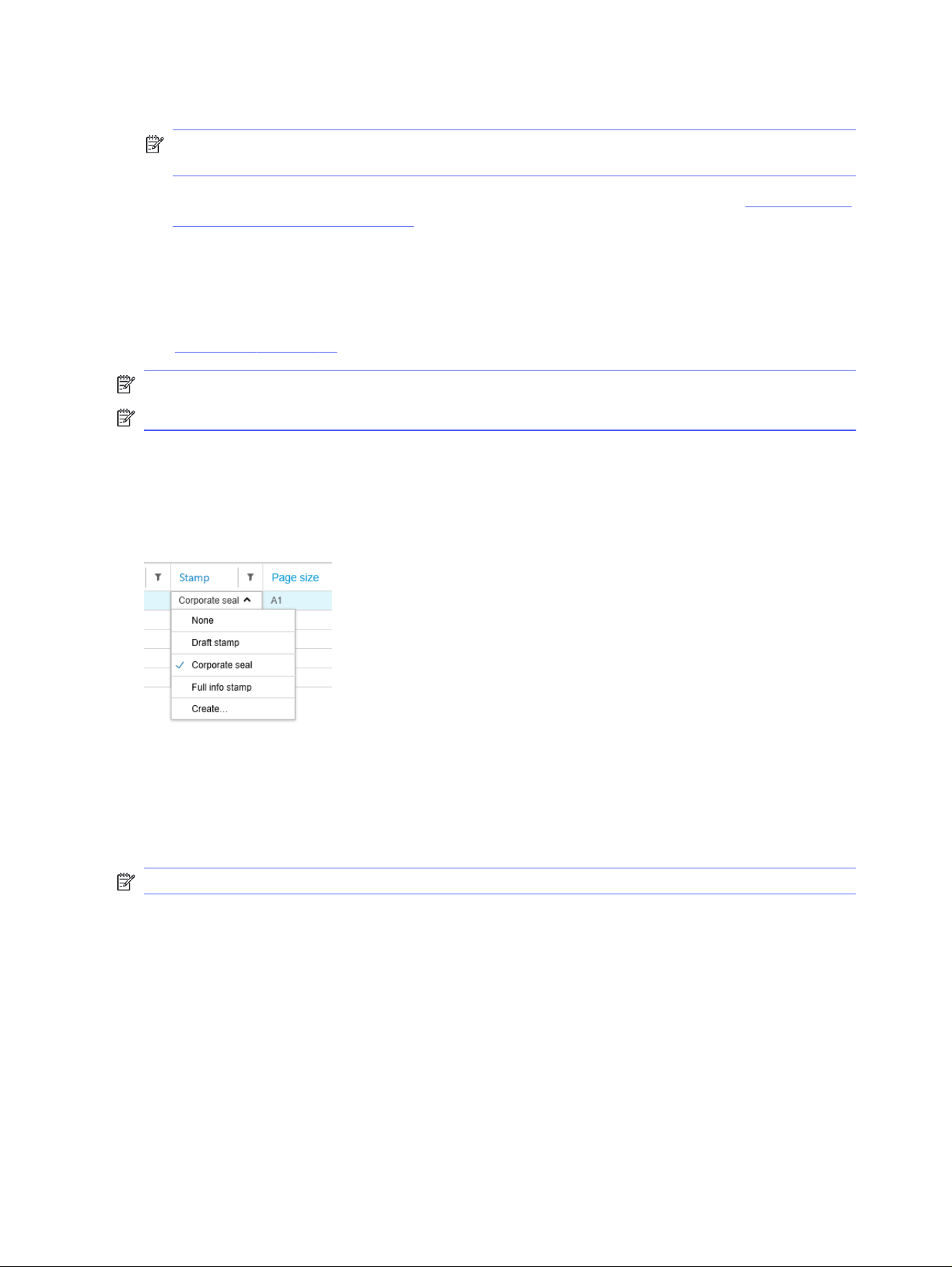
● Duplicate job: You can duplicate a whole job, including its job options and page settings.
NOTE: You can also duplicate a job by dragging it to the + tab at the top of the job preparation
pane.
● Separator: You can choose to print a job separator page for this particular job. See Job separators
(HP PageWide XL only) on page 120.
Gloss enhancer
Gloss enhancer is a layer of coating that you can apply to prints to create a special effect. It can be
switched on or off in the job options, and applies to the whole job.
See Job options on page 94.
NOTE: Gloss enhancer cannot be applied on all paper types.
NOTE: For printers that support this feature.
Stamps
In the preparation pane, in the Stamp column, you can choose to assign a stamp to a page or create a
new one. This prints a text and/or graphical stamp or watermark over the contents of the page; you can
assign the same stamp to all pages of a job, or particular stamps to particular pages.
You can specify the position of the stamp and the formatting of a text stamp: its font, size, color, angle,
opacity, and offset. You can add various dynamic fields to be displayed as part of the text.
TIFF, PNG, and JPEG files can be imported to provide a graphical stamp. You can also import one of these
files contained in a ZIP file. If the ZIP file is password-protected, you will need to give the password in
order to import the image successfully.
NOTE: A ZIP file within a ZIP file is not supported.
The stamp can consist of a maximum of five layers.
96
Chapter 4 HP SmartStream
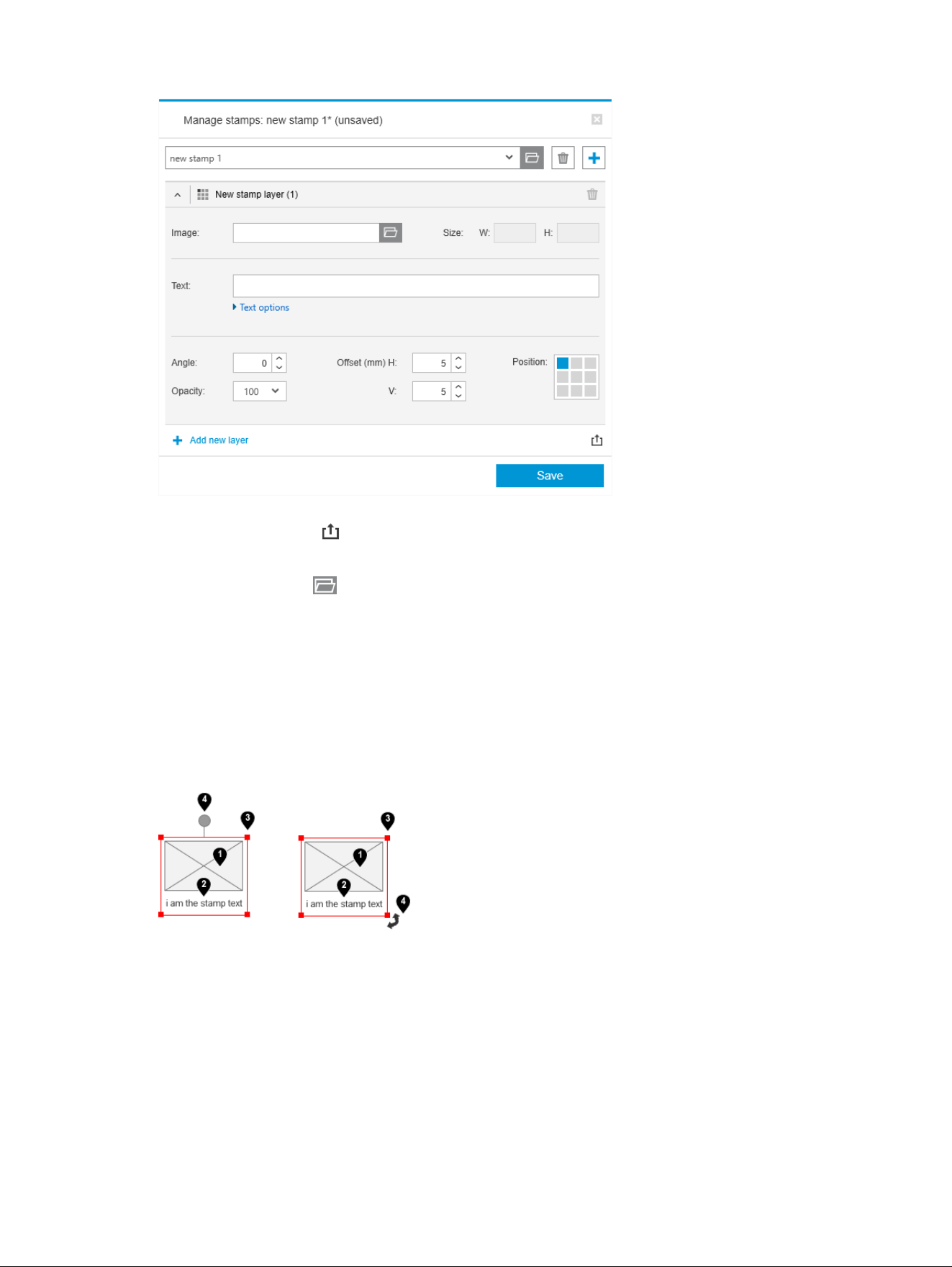
Export stamp template : You can export your stamp design as a template. Templates are saved in My
Documents\HP SmartStream\Stamps, with the .smst extension (HP SmartStream Stamp Template file).
Open stamp template : You can open a stamp design saved in a template file. All stamp fields are
filled with data from the template, or they become empty if the corresponding fields in the template are
empty.
Stamps in the preview
The stamp can be seen in the page preview. If you select the Move tool, each layer of the stamp is
indicated with a red rectangle. To select a stamp layer, the image, or the page, just click what you want to
select.
If you select a stamp layer, the following parts of it can be distinguished.
1. Stamp image
2. Stamp text
3. Stamp transformation controls
4. Stamp rotation tool
Stamps in the preview
97
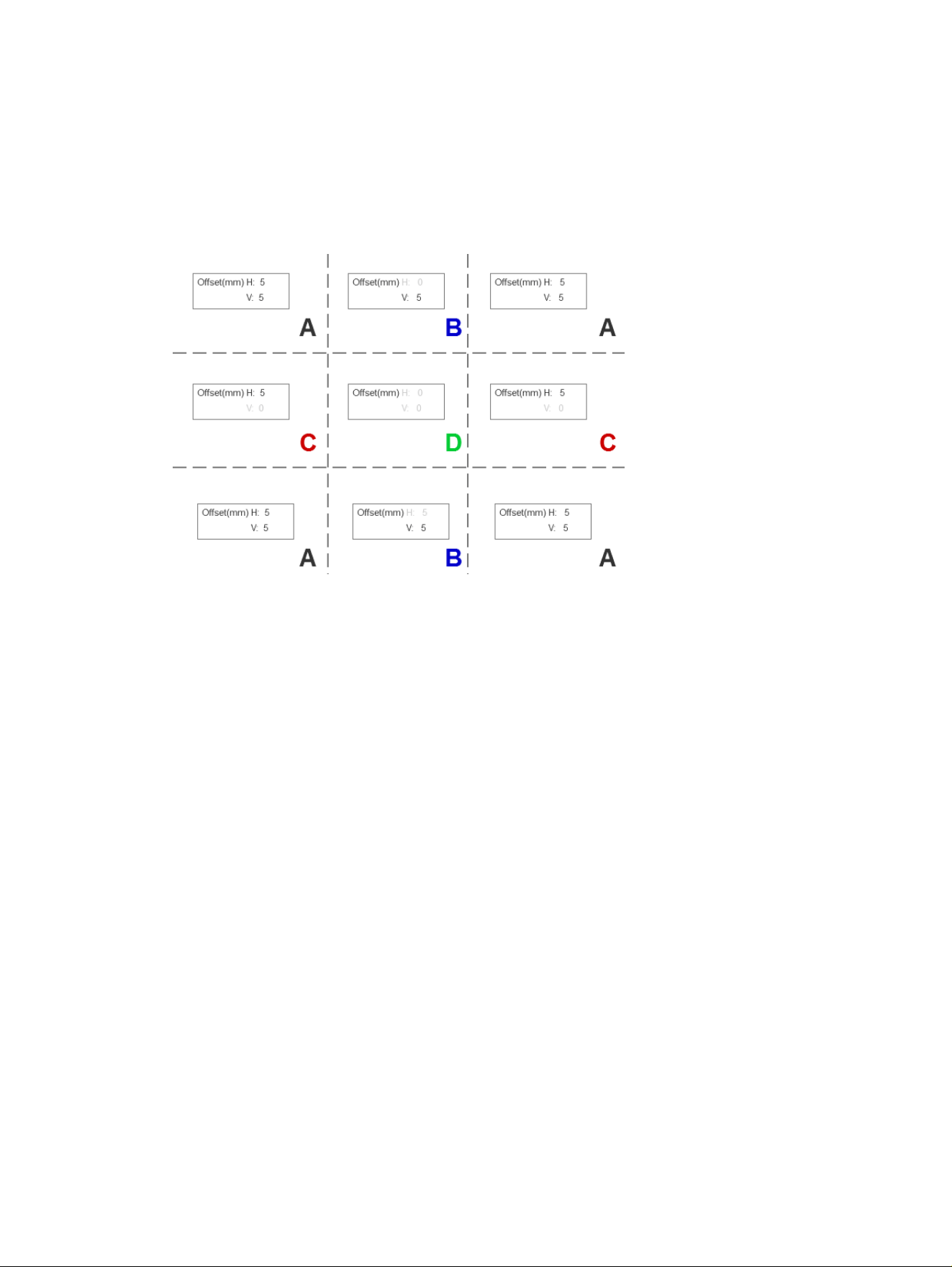
You can readjust a stamp in various ways after selecting the Move tool:
● You can resize it by dragging one of the corners of the red rectangle. The aspect ratio is preserved.
● You can rotate it by dragging the rotation tool: the gray circle above the center of the stamp. If you
hold down the Shift key while dragging, the rotation is constrained to steps of 15°.
● You can reposition it by dragging it into any of the positions in the predefined stamp grid.
If you double-click a stamp layer, the layer is opened in the stamps dialog box.
Remember that a stamp belongs to one page only. After editing it, you can copy it to all other pages of
the job, if you want to do that.
QR codes
You can generate a QR code and add it to an image.
In the preparation pane, in the QR & Stamp column, you can choose to assign a QR code to a page or
create a new one. You can assign the same code to all pages of a job, or particular codes to particular
pages.
98
Chapter 4 HP SmartStream
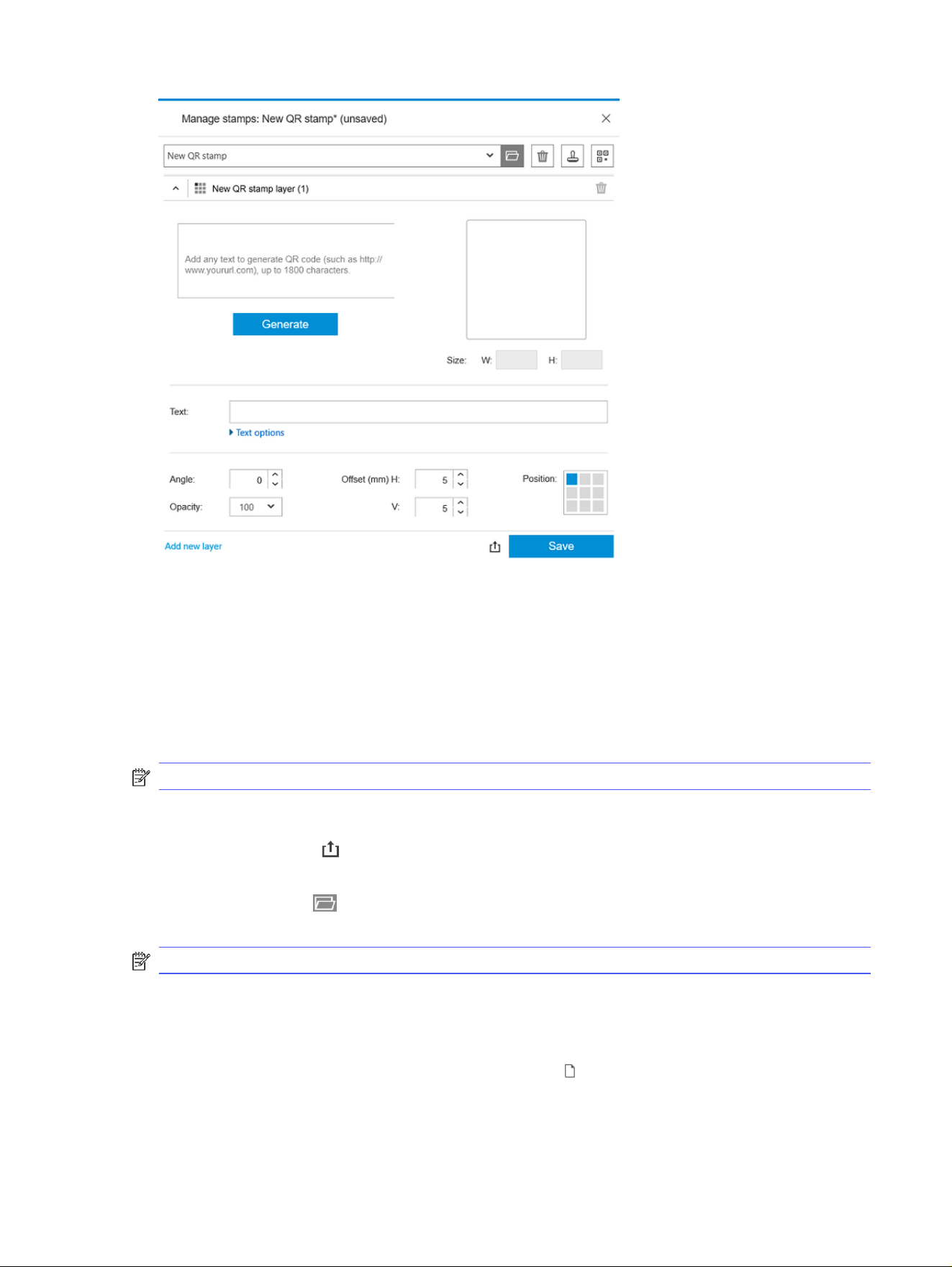
Introduce text, URL, vcard, and so on; then click the Generate button to generate and place the QR code
on the page.
You can specify the position and the formatting of a QR code: its font, size, color, angle, opacity, and
offset. You can add various dynamic fields to be displayed as part of the text.
TIFF, PNG, and JPEG files can be imported to provide a graphical QR code. You can also import one of
these files contained in a ZIP file. If the ZIP file is password-protected, you will need to give the password
in order to import the image successfully.
NOTE: A ZIP file within a ZIP file is not supported.
The QR code can consist of a maximum of five layers.
Export stamp template : You can export your QR code as a template. Templates are saved in My
Documents\HP SmartStream\Stamps, with the .smst extension (HP SmartStream Stamp Template file).
Open stamp template : You can open a QR code saved in a template file. All fields are filled with data
from the template, or they become empty if the corresponding fields in the template are empty.
NOTE: For printers that support this feature.
Printing on sheets
You can print on sheets of loose paper with fixed dimensions.
To change from roll view to sheet view, click the Sheet icon in the toolbar. The preparation grid then
displays different fields such as sheet size and thickness.
Printing on sheets
99
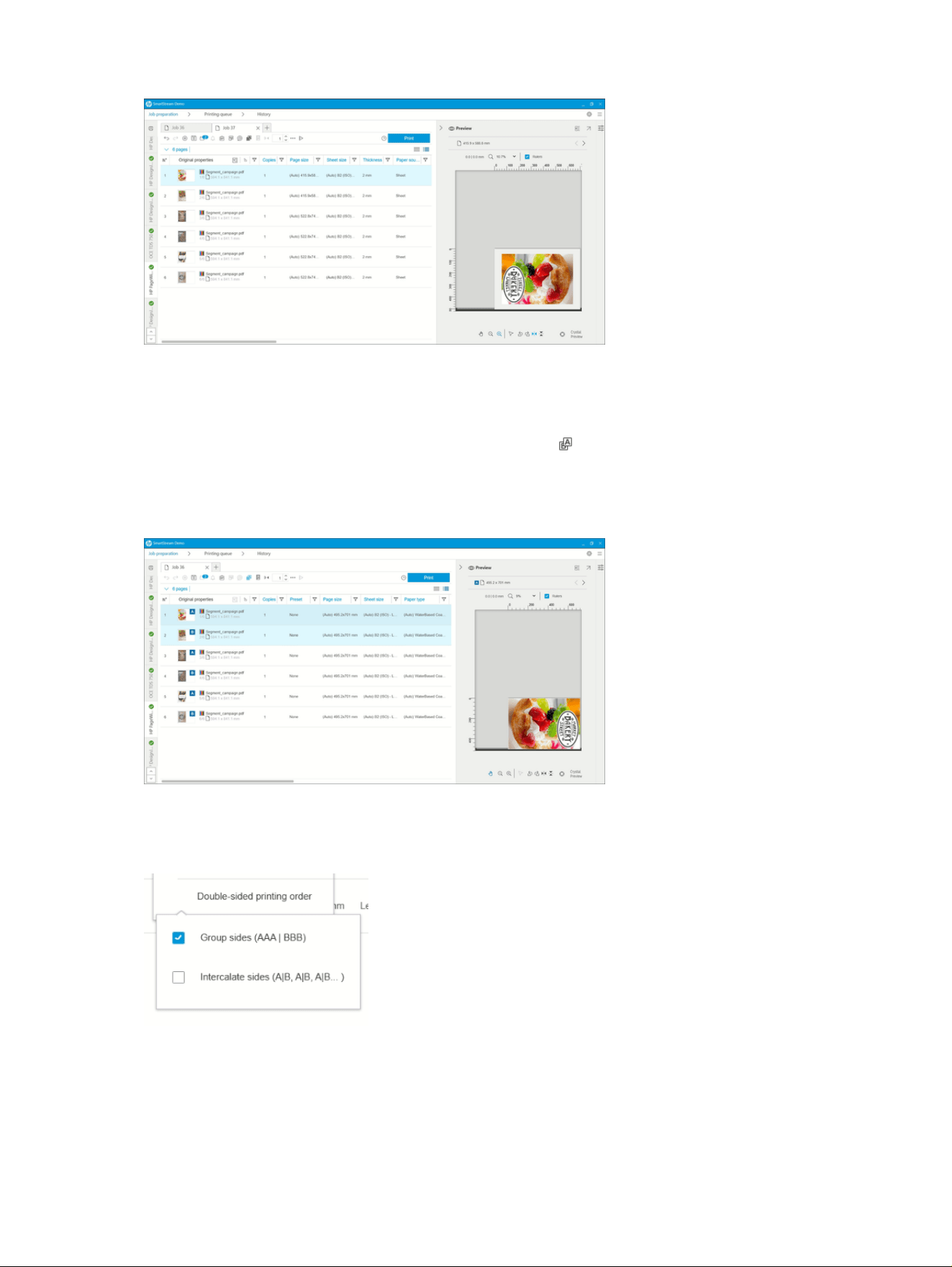
Double-sided printing
Double-sided printing allows you to print on both sides of a sheet of paper.
To enable double-sided printing, click the Double-Sided icon in the toolbar.
Once enabled, documents on the page are marked as side A or side B.
Documents are paired as A and B sides. Properties or actions applied to side A are replicated on side B.
Double-sided printing order
Select the printing order A|B, A|B, A|B, or AAA|BBB from the job options.
Automatic alignment
When aligning a document on side A, the application applies an automatic alignment to side B.
100
Chapter 4 HP SmartStream
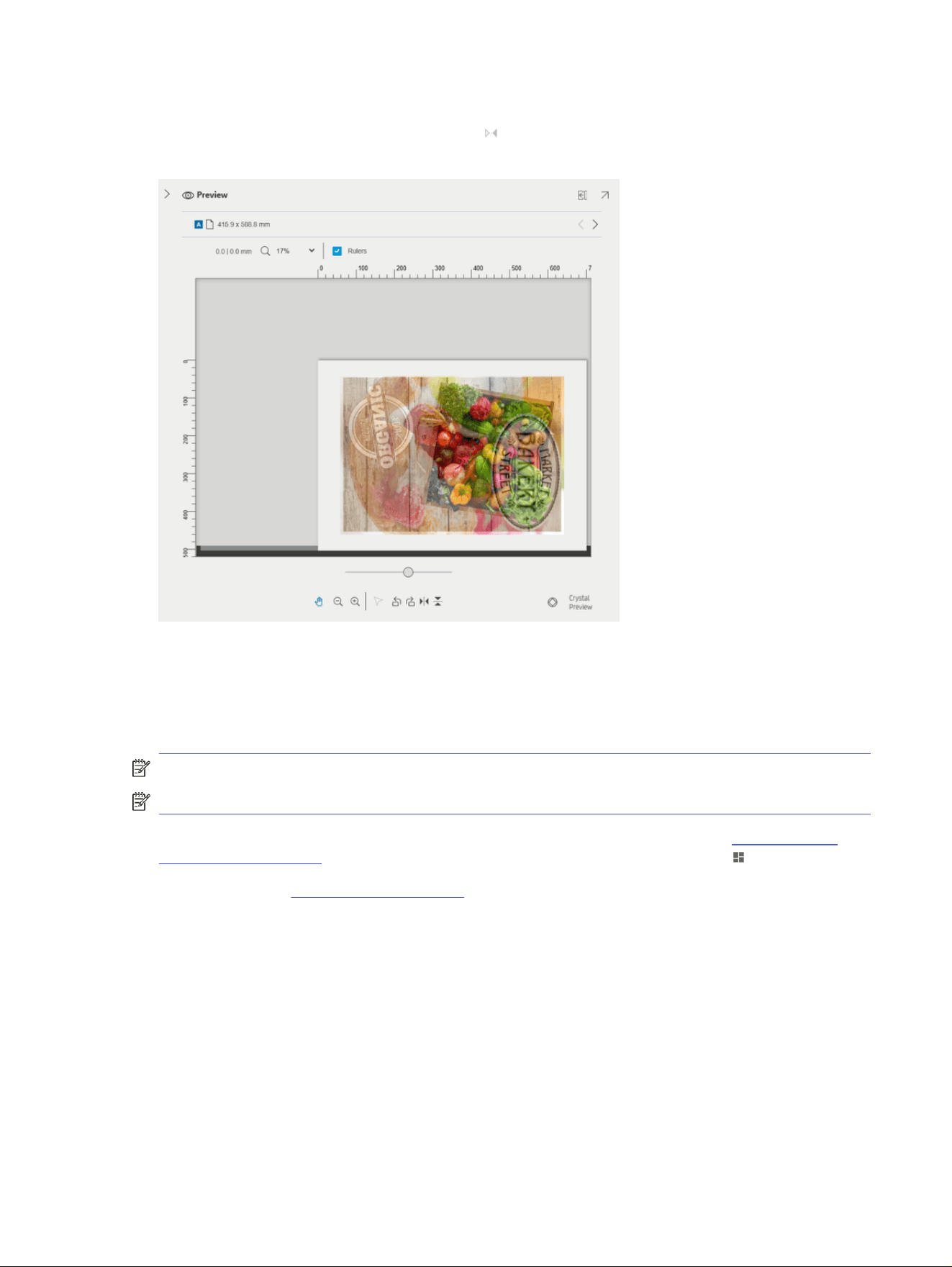
Side-to-side registration
Enabling this feature with the Registration icon allows you to preview double-sided documents, with a
slider to change the transparency of side A in order to see side B.
Nesting
Nesting enables you to save paper and time, by printing two or more pages side-by-side on the paper (if
the paper is wide enough). In this way, you can print the whole document more quickly, and avoid wasting
paper.
NOTE: When you nest a job, the paper type and print quality must be the same for all pages in the job.
NOTE: Nesting is not available if you have chosen the Preflight desk.
You can set the nesting parameters for each printer in the printer preferences (see Printer-specific
preferences on page 81), and you can turn nesting on and off for each job using the icon in the toolbar.
In the preview (see Print preview on page 114), you can see how your pages will be nested, and you can
move individual pages in the preview if you like. The order and positioning of pages that you set in the
preview will be respected in the final print.
Side-to-side registration
101
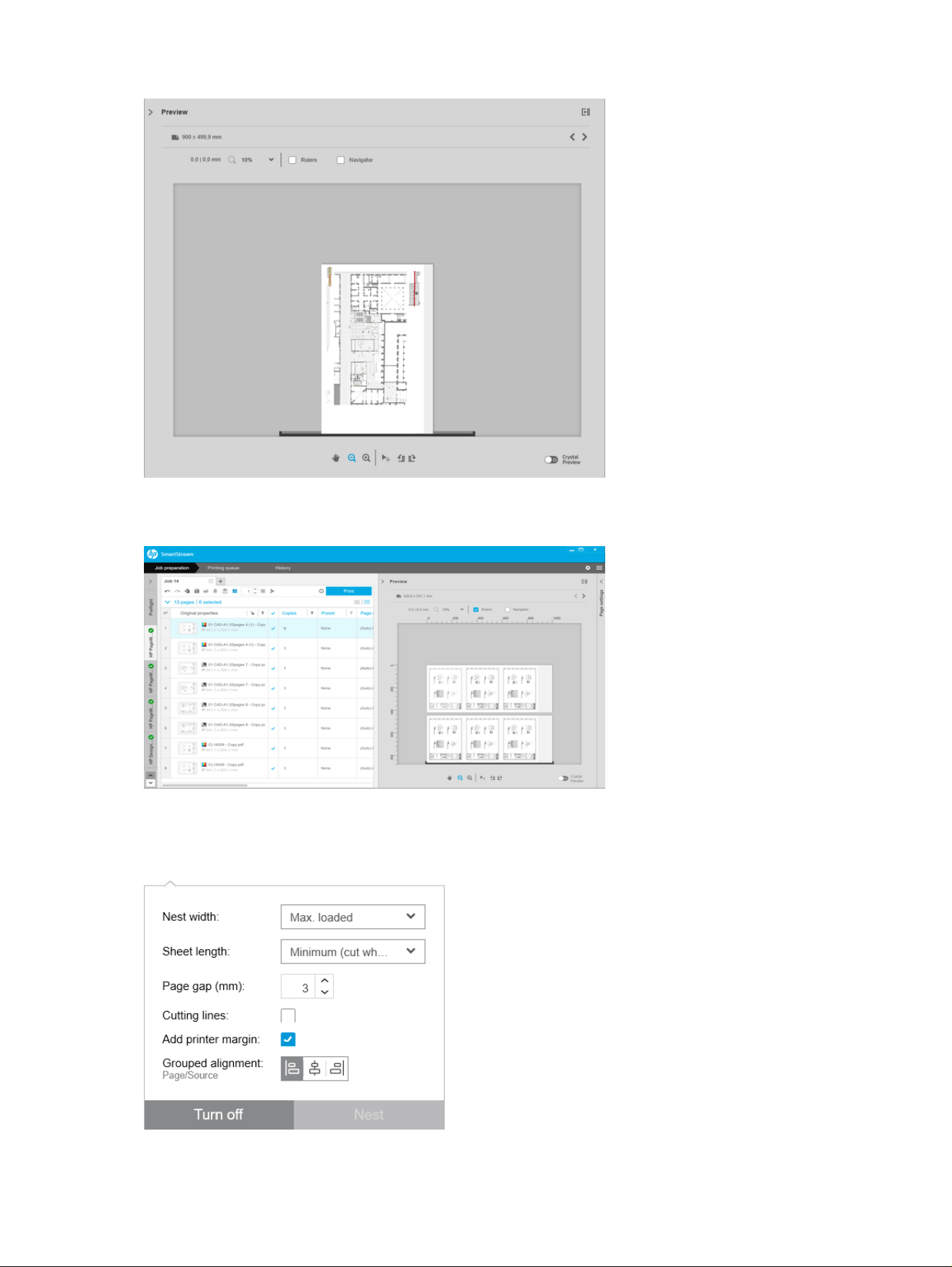
If you have asked for multiple copies of a page, the copies of that page can be nested, which is known as
N-up printing.
Nesting preferences on roll paper
This topic provides a full set of reference information for this subject.
102
Chapter 4 HP SmartStream
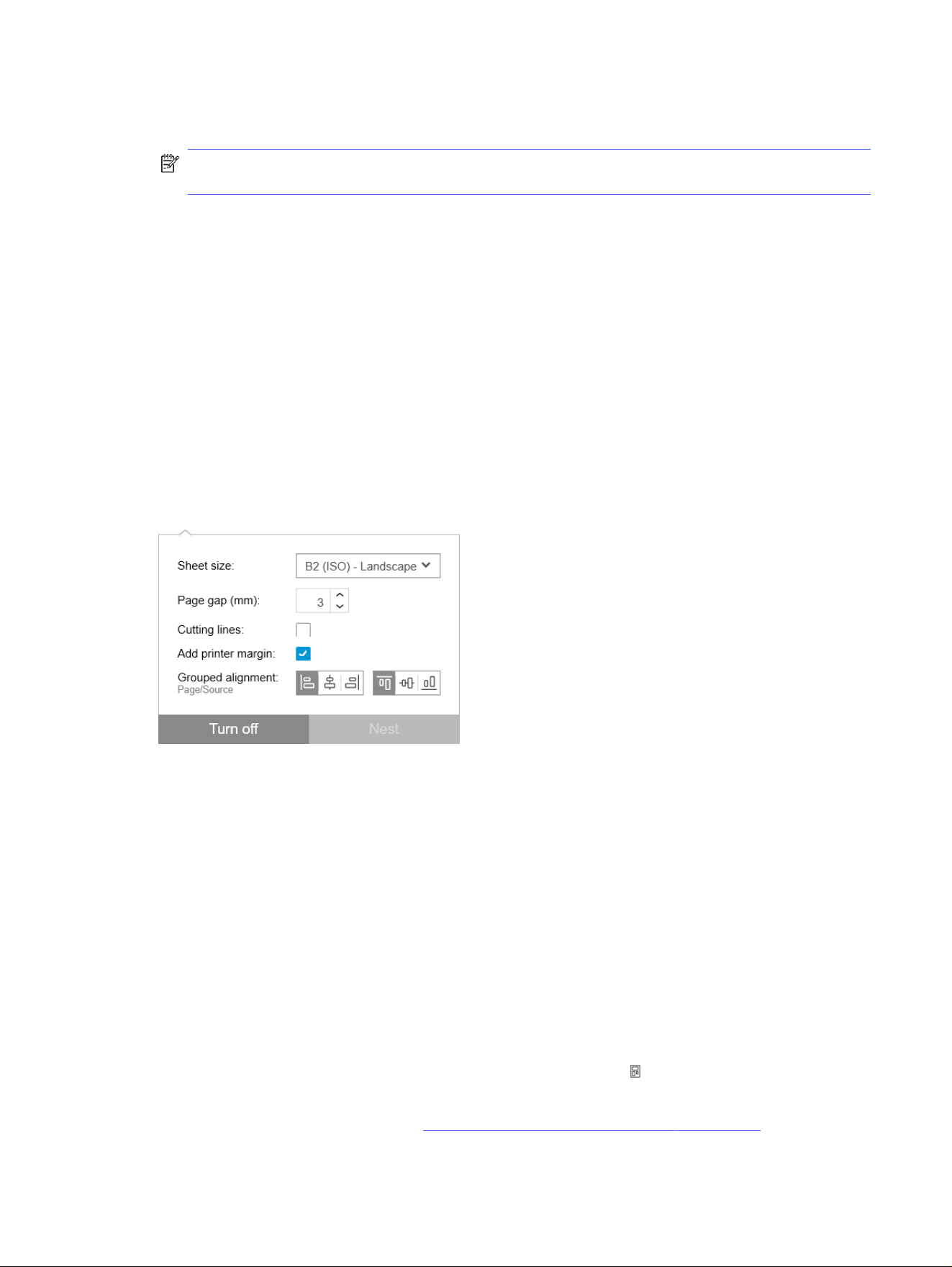
● Nest width: The maximum total width of the nested pages. Roll width (auto) by default, which uses the
width of the widest roll loaded into the printer.
NOTE: If there is a page in your document wider than the nest width you have selected, the width
of that page is used as the nest width.
● Sheet length: The printer is allowed to cut the paper into sheets of this length or greater. Minimum
by default, which means that the printer is allowed to cut the paper into sheets of any length. Or you
can choose to Disable cutter.
● Page gap: The spacing between pages, from 0 to 100 mm (3 mm by default).
● Cutting lines: If checked, the application adds cutting lines to all pages (unchecked by default).
● Add printer margin: If checked, the application avoids trying to print in the printer margins (checked
by default).
● Grouped alignment: Align all nested documents as a group horizontally to the left, center, or right;
and vertically to the top, middle, or bottom.
Nesting preferences on sheet paper
You can print multiple pages side-by-side on a sheet of paper, if your printer supports this feature.
● Sheet size: All sheets should be the same size.
● Page gap: The spacing between pages, from 0 to 100 mm (3 mm by default).
● Cutting lines: If checked, the application adds cutting lines to all pages (unchecked by default).
● Add printer margin: If checked, the application avoids trying to print in the printer margins (checked
by default).
● Grouped alignment: Align all nested documents as a group horizontally to the left, center, or right;
and vertically to the top, middle, or bottom.
Double-sided nesting
Double-sided nesting on sheets enables you to print multiple pages side-by-side on both sides of a sheet
of paper, if your printer supports this feature.
To enable double-sided nesting, click the Double-Sided Nesting icon in the toolbar.
You can set the nesting parameters for each printer in the printer preferences, and you can turn nesting
on sheets on and off for each job (see Nesting preferences on sheet paper on page 103).
Nesting preferences on sheet paper
103

Vertical trimmer
The vertical trimmer allows the printer to cut paper along the Y axis.
There are two cutters, one at the left of the printer that is fixed, and one at the right that moves along the
X axis. There is a limit on how close both trimmers can be.
How to use it
To enable the vertical trimmer, click
in the toolbar. When activated, the preview displays two vertical
lines to indicate where the page will be trimmed.
NOTE: For printers that support this feature.
Borderless printing
Borderless printing allows you to print on the whole paper surface, without margins.
How to use it
To enable borderless printing, click in the toolber. When activated, the preview displays a page with no
borders.
NOTE: For printers that support this feature.
Move or copy a job or pages to another printer
To move a job to another printer, click the job tab (containing the job name) and drag it to the other printer
in the printers pane.
Alternatively, you can use the Send button.
You can select one or more pages and drag them to a printer, in which case a new job is created for that
printer with those pages.
To copy instead of moving, hold down the Ctrl key during the operation.
Delete a job
To delete a job, click to the right of the job name in the job tab.
Alternatively, you can select Delete job from the job option menu in the job header.
Page options
You can right-click any selected pages to see a menu of options for those pages. The page options
enable you to extract or delete the selected pages, or ignore an issue affecting that page.
104
Chapter 4 HP SmartStream
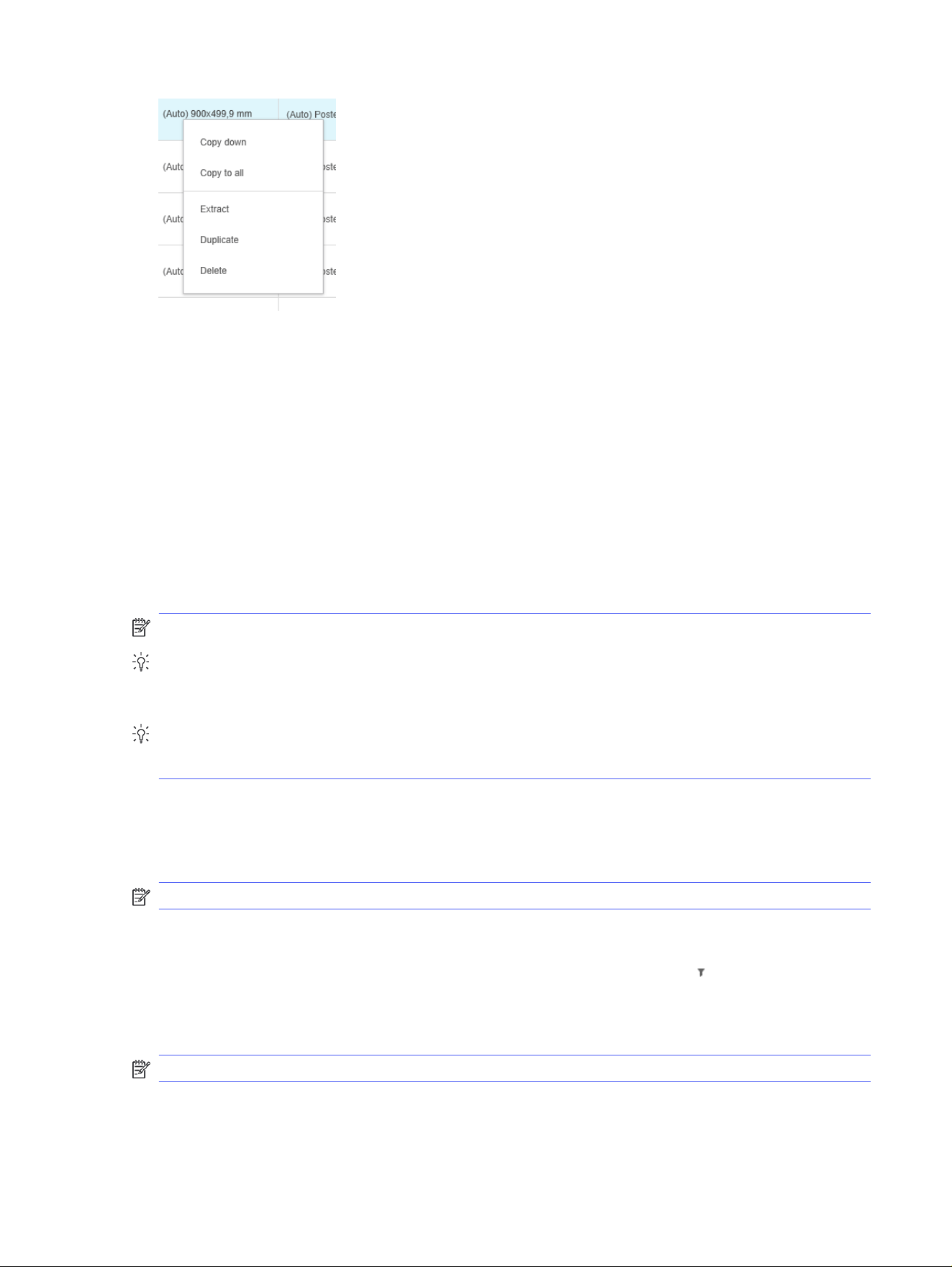
If you right-clicked on a table cell containing a print setting, you can choose to copy that setting to other
pages.
● Copy down copies the setting in the current cell to all pages below it in the table.
● Copy to all copies the setting in the current cell to all pages above and below it in the table.
If a filter is active, the setting is not copied to hidden pages.
Extract pages
You can extract pages from a job and store them elsewhere, to be printed later on another printer. This
may be useful for small-format or monochrome pages.
First select the pages that you want to extract, then right-click the selection and click Extract. Then
choose a folder in which the extracted pages will be stored.
NOTE: You can extract pages from PDF files only if extraction is not restricted.
TIP: How can I extract small-format pages?
Use a filter to remove large-format pages from the job preparation grid, and extract the whole job.
Alternatively, sort the pages by page size, select the smallest pages manually, and extract those pages.
TIP: How can I separate color and black-and-white pages?
Again, you can filter or sort the page.
Delete pages
To remove one or more pages permanently from a job, select the pages, then right-click the selection
and select Delete.
NOTE: The pages are removed from the job only: they are not removed from the original document.
Filter pages
You can hide a particular category of document or page by clicking one of the icons in the column
headers, unchecking one or more of the boxes in the menu, and clicking the Apply button. All unchecked
categories are then hidden and do not appear on the screen. Thus, you can hide items of a particular
page size, paper type, print quality, and so on.
NOTE: Only categories that are actually present in the job are shown in the filter menu.
Extract pages
105
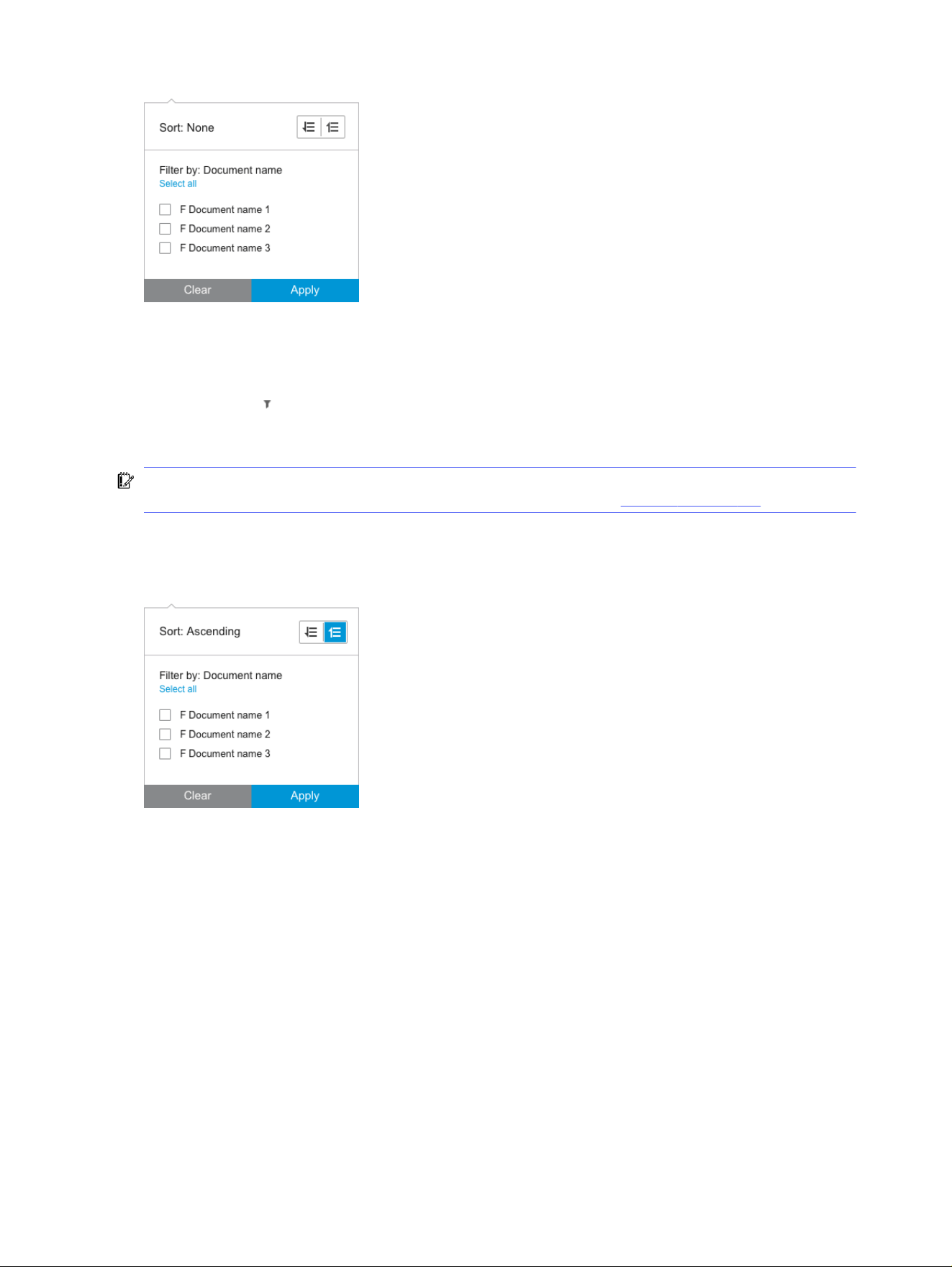
For example, if you want to see only the pages assigned to print on glossy paper, in order to apply a
superior print quality, you can use the filter to do so quickly and easily.
Multiple filters can be applied simultaneously to different columns.
You can click the icon in a column header to see what filter is active for that column. If all boxes are
unchecked, no filter is applied. When a specific filter has been applied, the filter icon changes to indicate
that at a glance.
IMPORTANT: If you click the Print job button while one or more filters are active, only the visible pages
(and not the hidden pages) are transferred to the printing queue. See Printing on page 120.
Sort pages
When you click a filter icon, you can also sort the items in the job preparation pane.
Sorting by document name is in alphabetical order. When there is a list of items in the popup window,
they are sorted into the order in which they appear in the list. When there are checkboxes, the ticked
boxes are sorted first and the unticked boxes afterwards (or the reverse, if you select reverse order).
After sorting, you can use the job options to restore either the original sequence in which the documents
were added to the job (Restore original position), or the last sequence into which they were arranged
manually (Restore manual position).
Print settings
The settings shown in this pane depend on the characteristics of the selected printer and its active
accessories.
106
Chapter 4 HP SmartStream
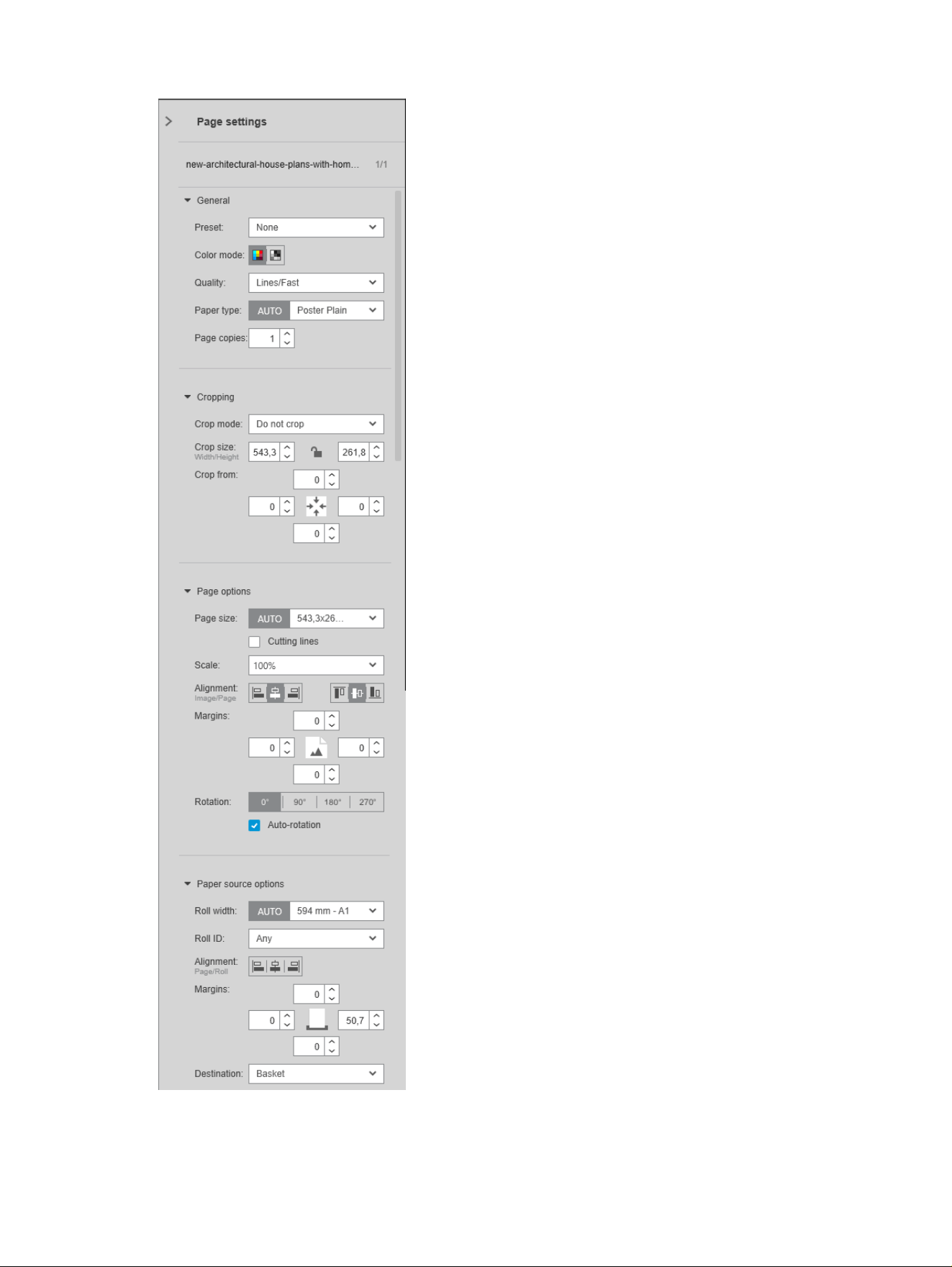
Print settings 107

Print settings can be changed either in the job preparation pane or in the settings pane. The changes
are applied to the currently selected item(s), which can be a single page or multiple pages.
NOTE: When a setting has been determined automatically by the application, such as the roll number,
paper type, page size, or rotation, (Auto) is displayed before the setting in the job preparation pane.
General settings
● Preset: Select a preset to be applied (see Presets on page 84).
● Color mode: With supported HP DesignJet T-series printers, you can select color, grayscale, or pure
black and white (initially set automatically from the color mode detected in the image).
With supported HP DesignJet Z-series printers, you can select color, grayscale with gray and black
inks only, or grayscale with the full set of inks (initially set automatically from the color mode
detected in the image).
With HP PageWide XL printers, you can select color or grayscale.
● Print quality:
– For HP DesignJet printers, the available options are Fast, Normal, and Best. The default value is
Normal.
There may also be a check box for EconoMode in the Settings pane, unchecked by default. The
job preparation pane does not show whether EconoMode is on or off.
– For HP PageWide XL and HP PageWide XL Pro printers (except the Pro 10000), the available
options are Lines/Fast, Uniform areas, and High detail.
Table 4-2
HP PageWide XL and HP PageWide XL Pro printers (except the Pro 10000)
If the image content is… Recommended
print mode
You will obtain…
A
Monochrome or color lines and text
Any content if maximum productivity is
needed
Lines/Fast
HIgh-quality lines with maximum
productivity
B Large areas of uniform colors Uniform areas
High-coverage graphics with more
uniform and saturated colors
C
Text or lines on top of color backgrounds
Highly complex drawings with plenty of
detail
High detail
Higher-resolution images with smooth
backgrounds, accurate lines, and sharp
text
108 Chapter 4 HP SmartStream
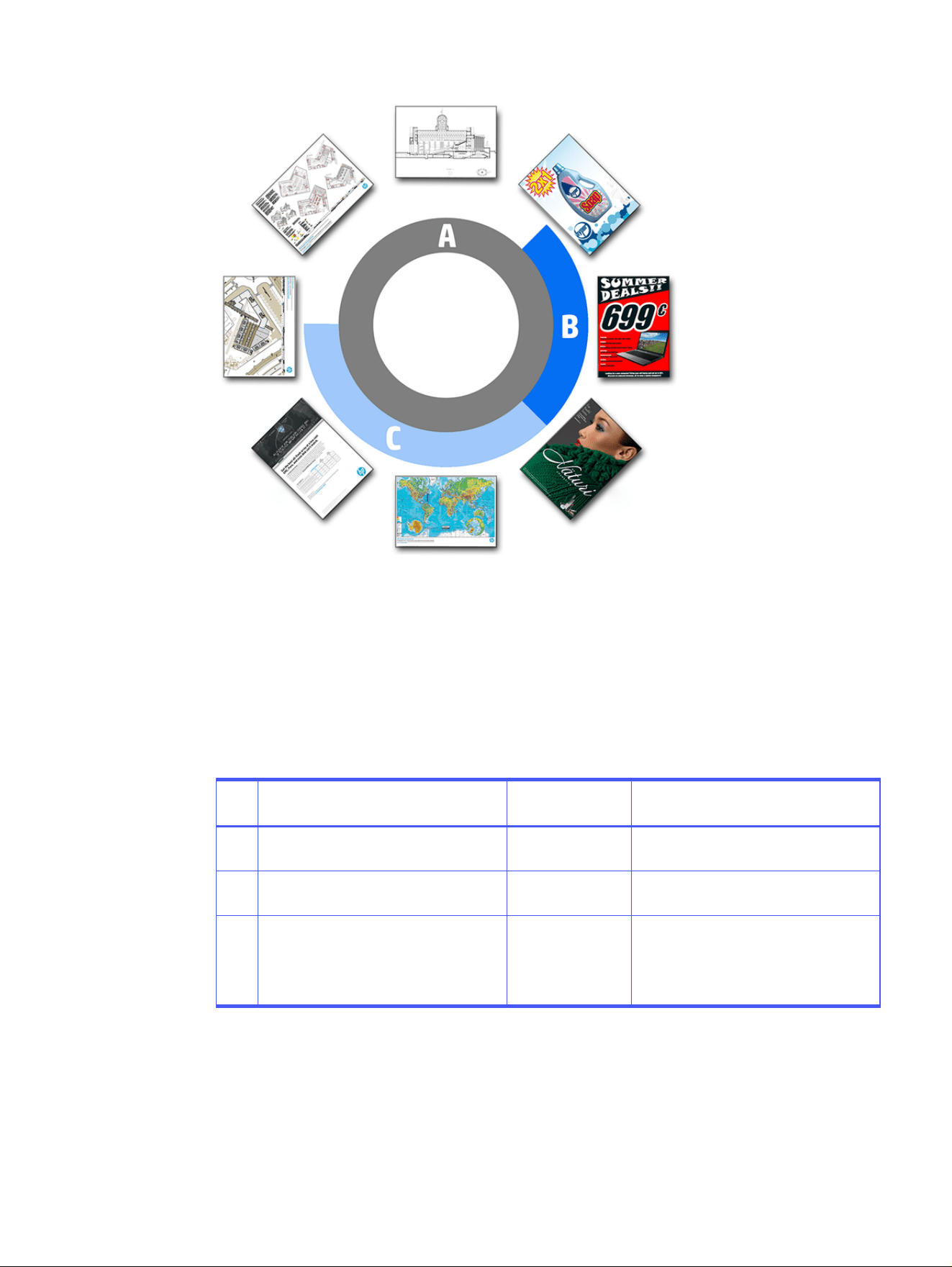
When printing blueprints
○ You are recommended to choose Lines/Fast in all cases, except when printing on Natural
Tracing Paper, when you should choose as indicated above.
○ Blueprints are printed in shades of blue (bluescale). For a more saturated result, you could
change the original file to pure black-and-white (not grayscale), in which case the print will
be in 100% blue and white.
– For the HP PageWide XL Pro 10000 printer, the available options are Fast, Normal, and Best.
Table 4-3
HP PageWide XL Pro 10000 printer
If the image content is… Recommended
print mode
You will obtain…
A Simple graphics Fast
Maximum productivity for printing
graphics
B Large areas of uniform colors Normal
Graphics with uniform and saturated
colors
C
Smooth background with fine detail
Complex designs with vivid colors and
transitions
Best
Best print quality and consistency
throughout the job
Best performance delivering top-quality
posters
General settings 109
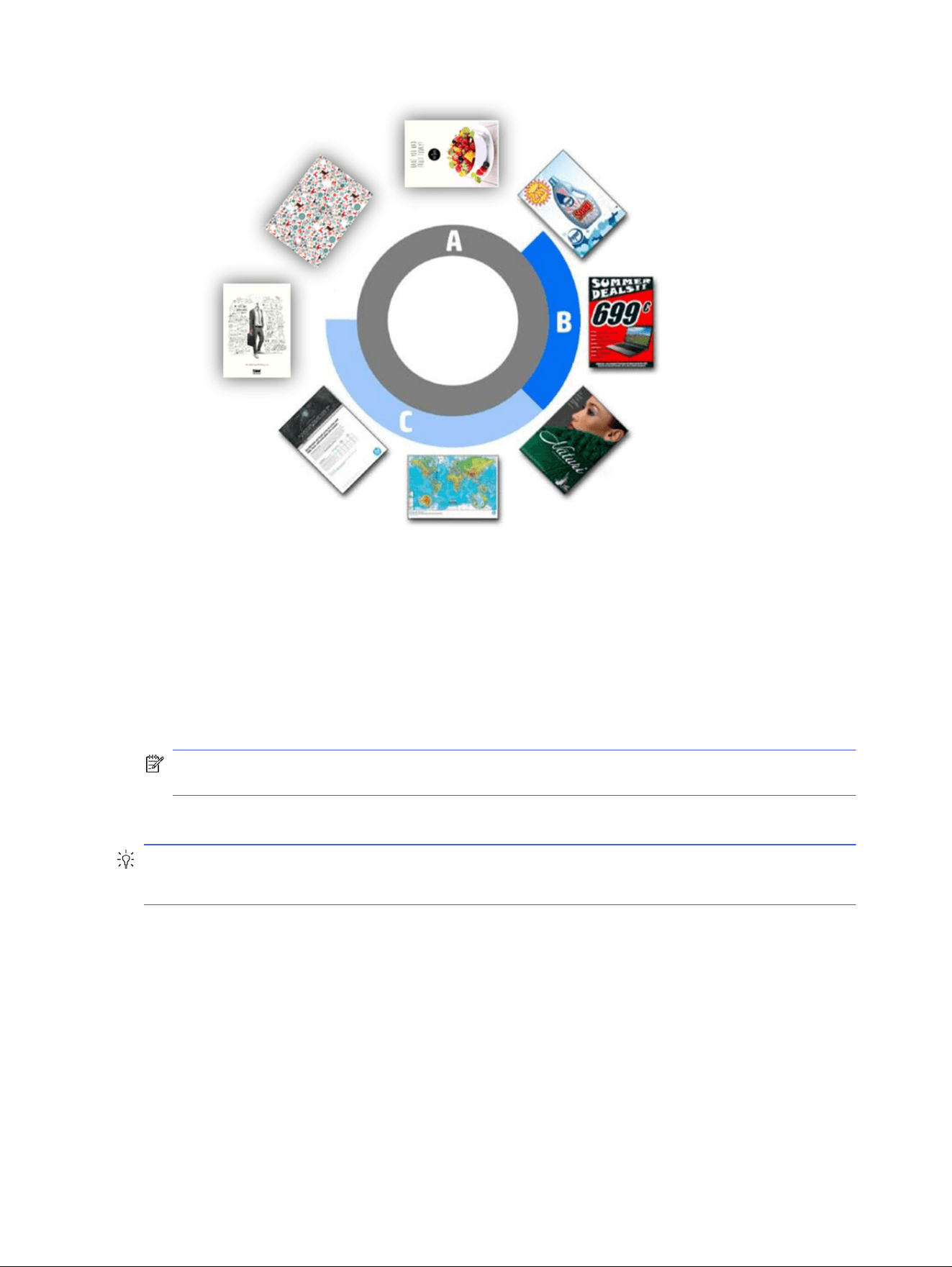
● Paper type: Your options are those provided by the printer. For each printer, you can choose in the
preferences dialog whether the paper type can be set automatically or not. If not, you can choose
the default paper type to be used by the printer.
– If the paper type is set automatically (which is the default behavior), it works in the same way as
the other automatic settings, and you can still choose to set the paper type manually for one or
more pages.
– If the paper type is not set automatically, it remains set to the default type unless you change it
manually.
NOTE: When printing blueprints, you should select one of the papers in the Blueprint Paper
category.
● Page copies: You can select how many copies are printed of that page.
TIP: How can I change and assign paper types?
In the print settings (general settings).
Cropping
You can choose from the following cropping options:
● Do not crop: No cropping is done (the default option).
● Remove white areas: Crop white areas around the edges of the image.
● Smart crop: Crop white areas around the edges of the image, and solve any issue arising from
content in printer margins.
110
Chapter 4 HP SmartStream
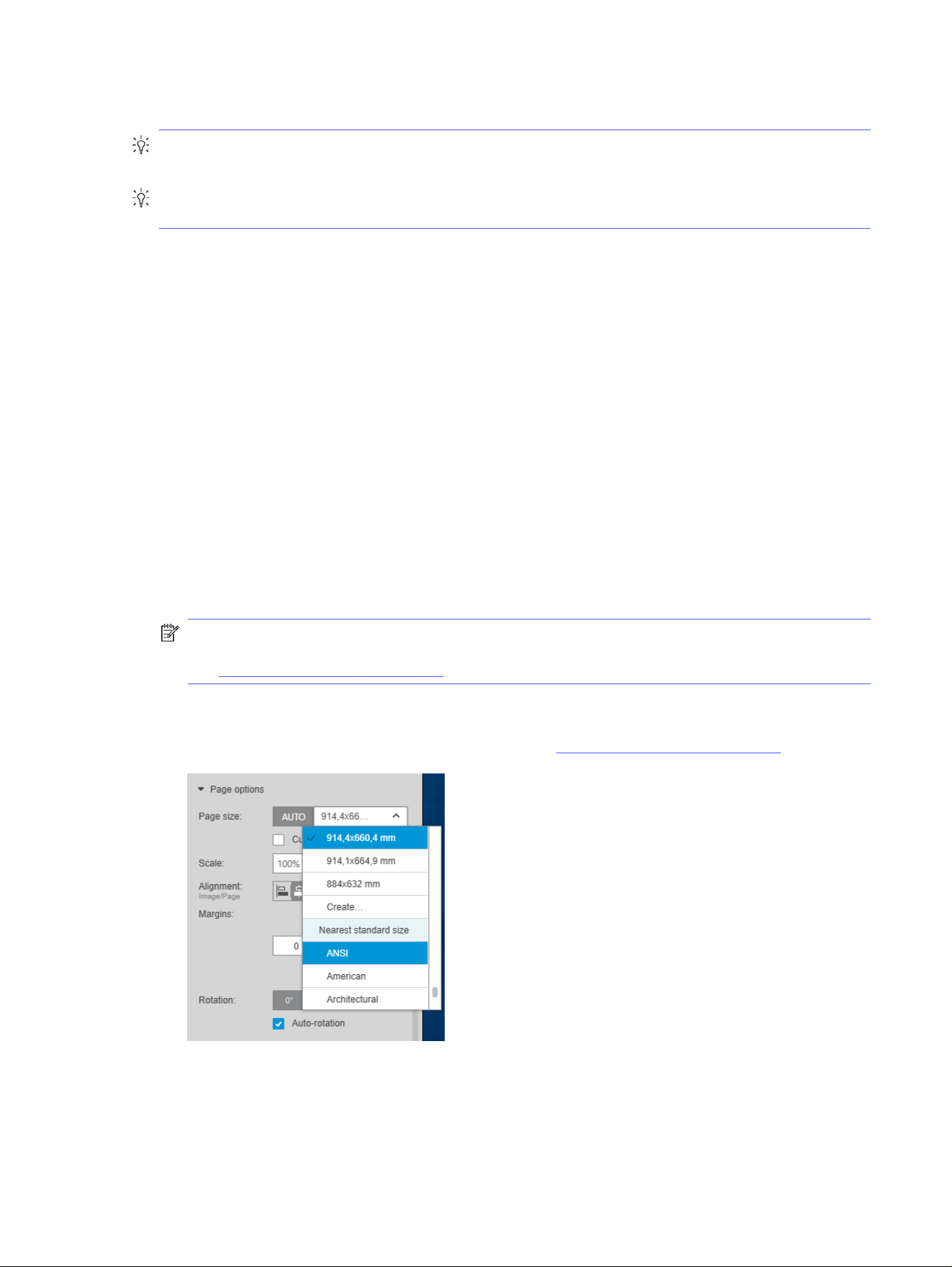
● Custom crop: Crop the image to a specified width and height.
TIP: The ability to crop white border areas automatically can save you a lot of work compared with
doing the same task manually for each page.
TIP: You can lock the width and height to preserve the aspect ratio of the cropped image, or release
the lock to change width and height independently.
If the page size is set automatically and you crop to a different page size, that becomes the new page
size. However, if you have set the page size manually, cropping does not change it.
After cropping, you can select Do not crop to restore the original image size.
Page options
● Scale: You can rescale the image to a different size—to a percentage of its original size, to fit a
particular page size, or to fit the current roll.
– When you rescale the image, the page margins are also rescaled.
– When the page size is set automatically, it will change automatically if you rescale the image.
– However, when you set the page size manually and then rescale the image, the page size is not
affected.
● Page size: This is initially set automatically, based on the dimensions of your original document, but
you can change it. The page-size list enables you to select portrait or landscape mode. You can also
click AUTO at any time to return to the automatic page size.
NOTE: If your original document has dimensions within 1.5 mm (0.6 in) of a standard size, the page
size is set to the standard size. You can disable the display of standard sizes in the preferences.
See General preferences on page 80.
To print your document on the nearest standard page size, scroll down to Nearest standard size in
the page-size list. Below it is a list of page-size families (ANSI, American, Architectural, and so on);
click the family you want to use. See also Page size in General preferences on page 80.
You can create, modify, and delete custom page sizes by selecting Create from the page-size list. A
custom page size is specific to a particular printer: it is not available for use with all printers.
Page options
111
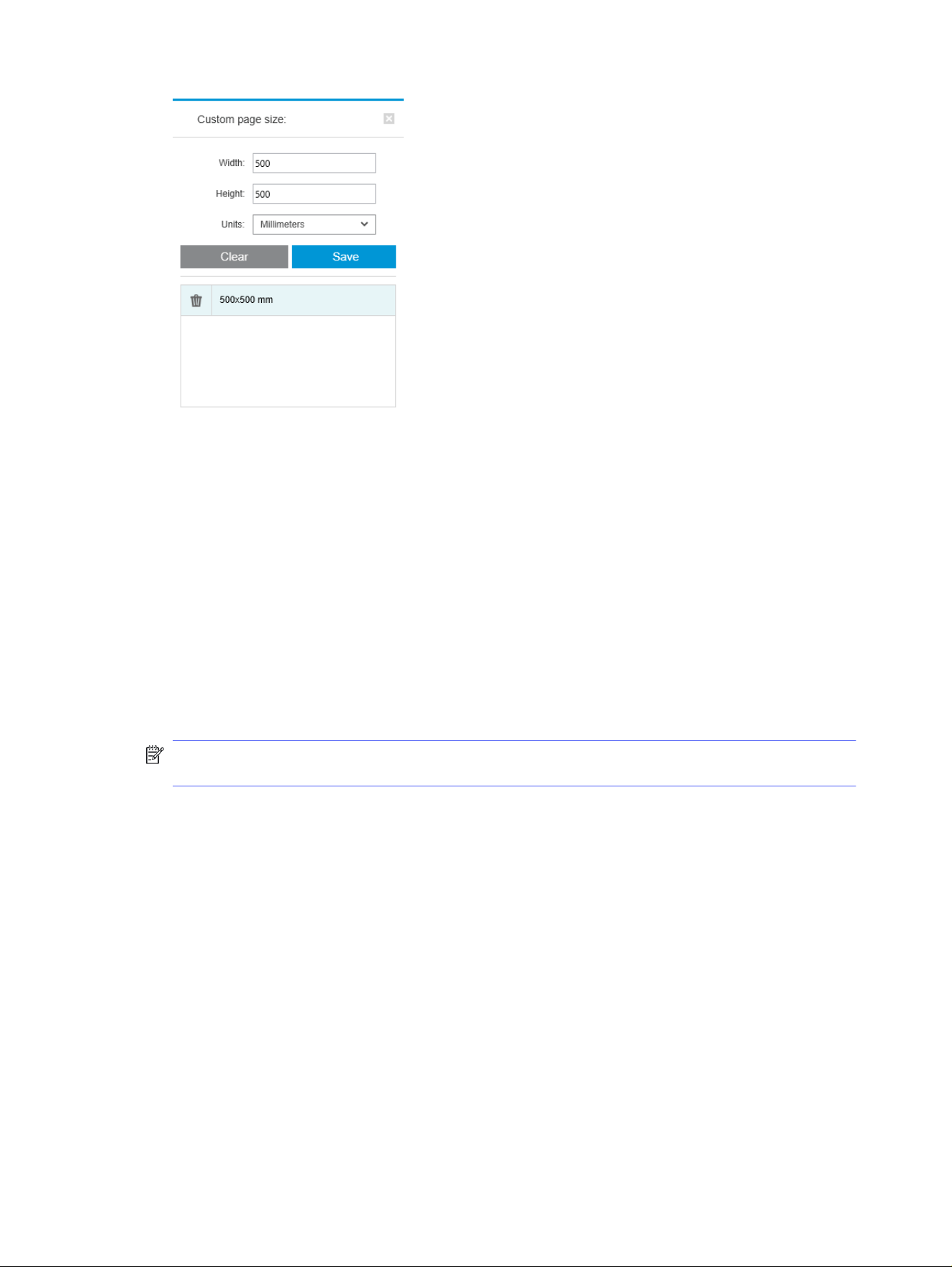
The application notifies you if you try to create a custom size that already exists; whether it is a
standard size or another custom size.
● Cutting lines: In the Settings pane, you can add dashed lines to show where the paper should be cut
to achieve the correct page size. Cutting lines can be printed only if they fall within the printable area
of the paper.
Cutting lines are turned off by default, but you can turn them on for particular pages, or change the
preferences to turn them on by default.
● Alignment: You can align the image to the left, right, center, top, or bottom of the page.
● Margins: In the Settings pane, you can change the margins between the printed image and the page
boundaries.
● Rotation: You can rotate the page and image by multiples of 90°, or select automatic rotation (the
default behavior), which seeks to minimize the use of paper.
NOTE: The Top, Bottom, Left, and Right fields when cropping or adjusting margins always take into
account the current rotation of the page (if any) as seen in the preview.
Paper source options
With these options, you can specify how the page should be printed on the available paper sources.
● Paper source: You can select a roll or single sheets, or select Any to tell HP SmartStream to select
the paper source automatically.
● Roll width: You can select the desired roll width, or select Any to tell HP SmartStream to select the
roll automatically.
● Alignment: You can specify how pages should be aligned on the roll.
● Margins: You can change the margins between the roll edges and and the page.
● Destination: You can select the destination of the printed output if the printer offers a choice. For
example, you may be able to choose between a basket and a stacker. If no choice is available, this
option is not shown.
112
Chapter 4 HP SmartStream
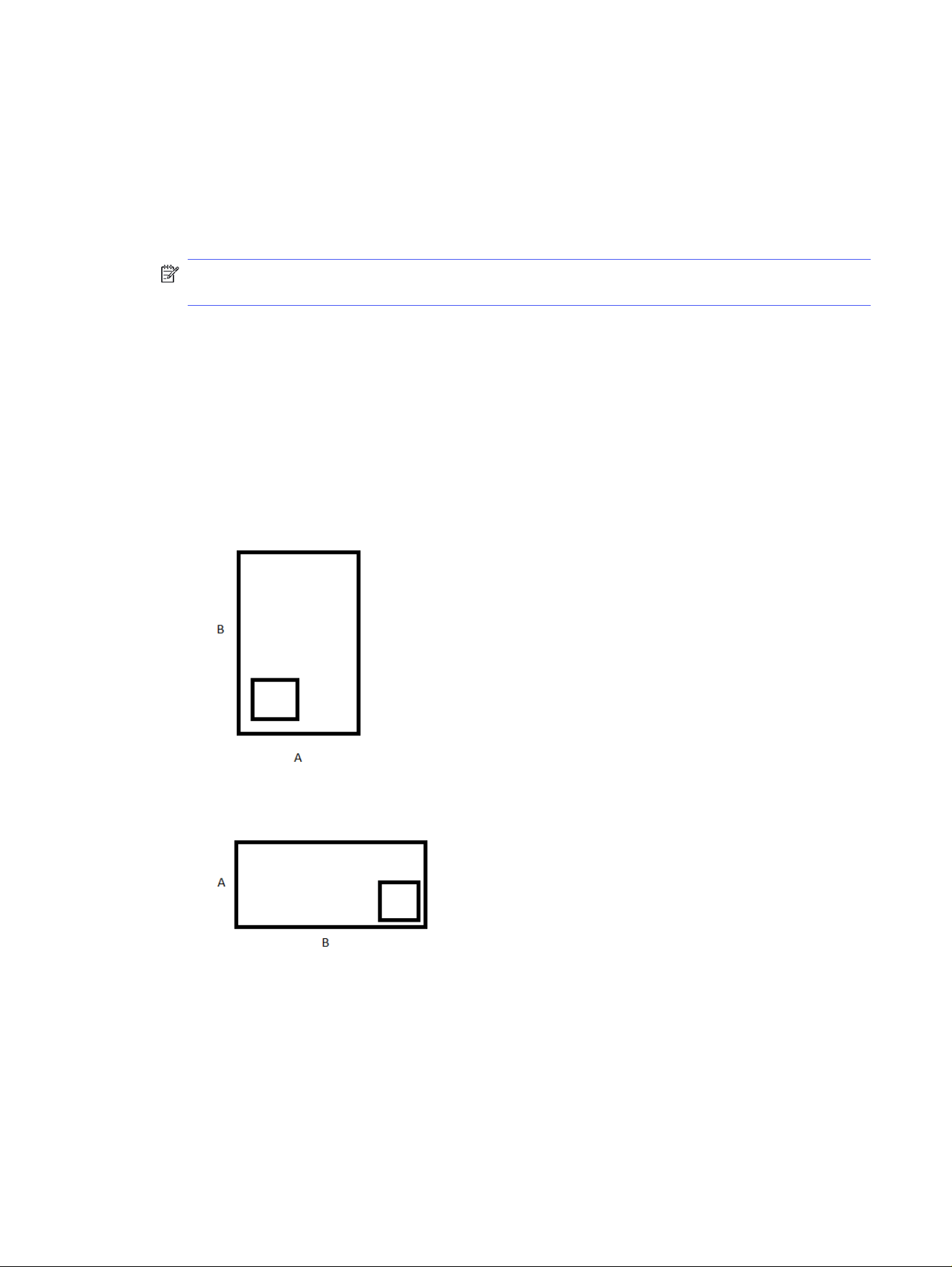
A Manual mode checkbox may be provided if the printer has a stacker that offers this option. If you
check the box, before the page is printed you will be reminded to put the printer into manual mode (it
cannot be done automatically).
● Folding style: If the printer has a folder installed, you can assign a folding style, display the folding
style in the preview, or create a new folding style (if the folder allows you to do that). For more
information on folding styles, see the printer or folder user’s guide. This option is not shown if no
folder is available.
NOTE: With auto-rotation enabled, pages with the folder as destination are rotated depending on
the selected folding style; see the list of rules below.
To help users to set rotation automatically for a job when there is a folding style selected, automatic
rotation is applied if any of the following folding style families are selected: DIN, inverse DIN, fan fold
only, mailer, or a custom folding style.
Autorotation applies the following rules:
– If page width is greater than or equal to page height (B ≥ A), rotate 270°.
– If page width is less than page height (B < A), rotate 180°.
– If page width is less than page height (B ≤ A), and page height is less than or equal to 305 mm,
and page width is less than or equal to 229mm (A ≤ 305 mm && B ≤ 229 mm), rotate 270°.
– If page width is greater than page height (B > A), and page width is less than or equal to 305 mm,
and page height is less than or equal to 229 mm (B ≤ 305 mm && A ≤ 229 mm), rotate 180°.
Paper source options
113
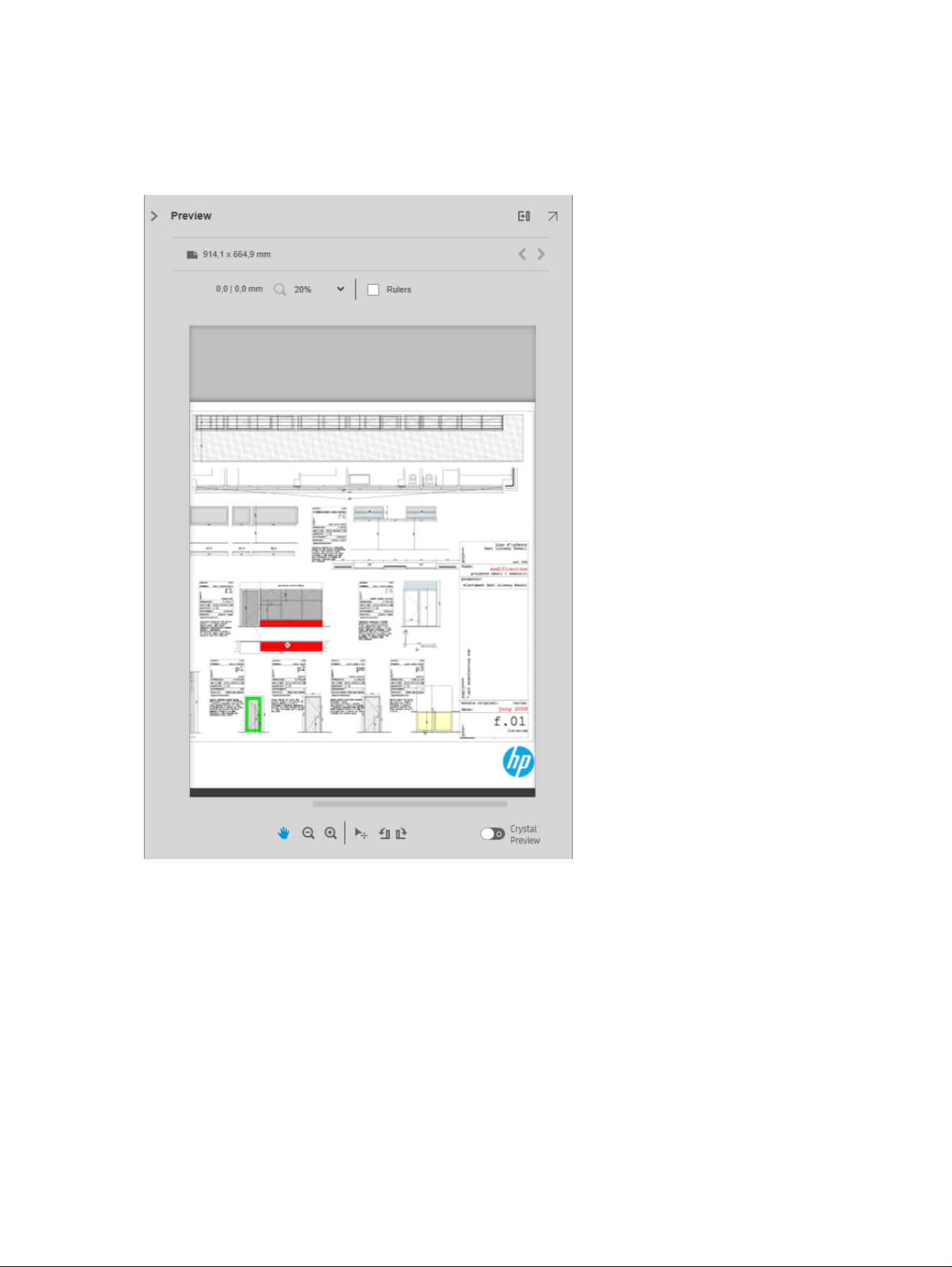
Print preview
The preview pane shows what your final print will look like, and adds a visual indication of margins and
clipping (if any).
The preview pane can be enlarged by dragging the left pane border further to the left, or maximized by
clicking the maximize button in the top right corner of the pane.
You can zoom in or out by using the Zoom drop-down menu (above the preview), or by pressing the Ctrl
key and moving the mouse wheel. You can also zoom in on a particular section of the preview by clicking
and dragging to form a rectangle enclosing that section.
If you have zoomed in so that the preview is too big to fit in the available space, you can view different
parts of it by using the scroll bars, or by pressing the space bar and dragging the image with the mouse
(panning). If you have a mouse wheel, you can use it to pan vertically or (with the Shift key) horizontally.
The interactive preview also allows you to adjust the paper and the page freely with the Move tool, or
rotate left or right with the Rotate buttons.
114
Chapter 4 HP SmartStream

Image, page, and roll
HP SmartStream distinguishes between the image, the page, and the roll.
The documents you want to print consist of one or more pages, called original pages. For each original
page, you can select it completely or crop it to select a particular part of it. The part of the original page
selected for printing is called the image.
Images are laid out on destination pages, called simply pages in HP SmartStream. The destination page
is the output you want to print. If cutting lines are requested, they will be drawn around this page. By
default, the destination page size is the same as the image size, but you can define a different page size
which may create margins between the image and the page. When there is a difference between the
image size and the page size, you can set how the image is aligned within the page in the page options.
See Page options on page 111.
Pages are printed on rolls of paper. The roll can be wider than the page, in which case you can set how
the page is aligned within the roll in the paper source options. See Paper source options on page 112.
Preview features
A preview shows the whole roll width (not just the page), and it shows the page boundaries and image
boundaries if they are different.
All previews are marked with boundaries in various ways:
● The background color of the page is white; any part of the roll outside the page is colored light gray.
● Printer margins are shown as dashed gray lines.
● If the image size differs from the page size, the boundaries of the image are shown as blue lines.
The printed image may be clipped for different reasons; these are indicated by warning icons in the job
preparation pane, and visually marked in the preview:
● Part of the image falls outside the page: The image is cropped, and the cropped edge is shown with
a solid yellow line. Also, the page options in the Settings pane include a negative margin.
● Part of the page falls outside the roll: That part of the page is highlighted in yellow. Also, the paper
source options in the Settings pane include a negative margin.
● One image is overlapped by another.
If the clipping indicated in the preview is not acceptable, there are various ways to avoid it, such as:
● Choose a wider roll.
● Reduce the widths of the margins (if possible).
● Rotate the page and/or the image.
● Rescale the page and/or the image.
Image, page, and roll
115
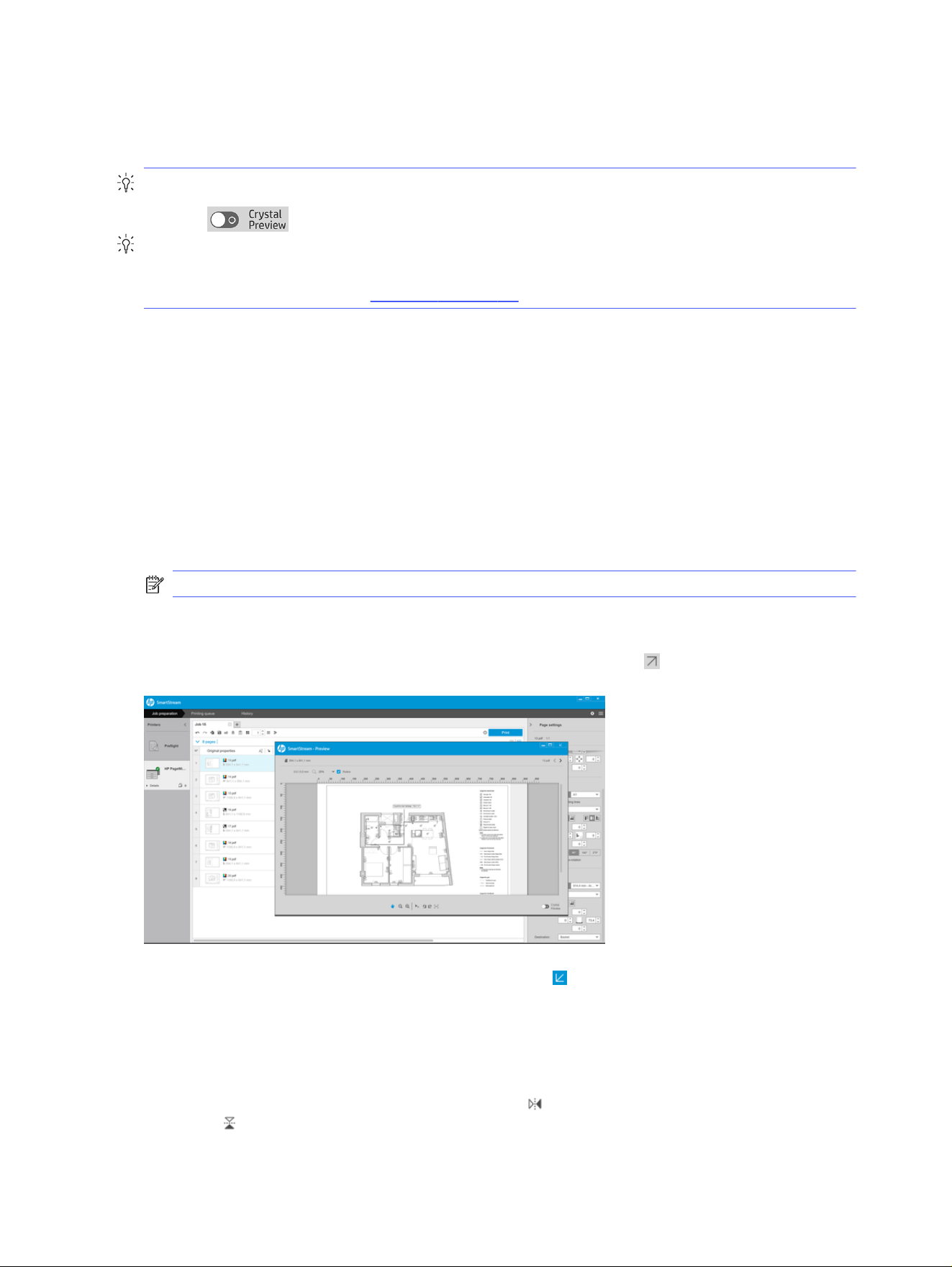
If the folder style does a cross and fan fold, the preview shows a green rectangle in the appropriate
corner. If the folder style only does a fan fold, the rectangle is shown at the top or bottom, across the
whole width of the roll.
TIP: How can I use the color proofing preview to see the real colors that will be printed?
Click the button.
TIP: How can I remove white areas from the edges of the page?
You can do this easily and automatically by selecting Remove white areas, which is one of the cropping
options in the print settings. See Cropping on page 110.
Preview tools
This topic explains the concepts involved in this subject.
The preview is interactive: it permits image manipulation using the tools provided in the preview pane:
● The Rotate buttons allow you to rotate the image.
● The Move tool allows you to select the image (click the image) or the page (click the edge of the
page), and move it to a new position on the paper.
You can also use the Move tool to resize an image, by dragging a corner of the image. To maintain
the image proportions (the aspect ratio), hold down the Shift key while resizing.
NOTE: The Move tool is disabled if the job has not been assigned to a printer.
Undock the preview
You can undock the preview into its own separate window by clicking the button at the top right of the
preview pane. This gives you more space for the other panes in the SmartStream window.
To return the preview to the SmartStream window, click the button at the top right of the preview
window.
Mirror
Mirroring allows you to reflect an image horizontally or vertically.
For horizontal mirroring, click the Horizontal Mirror icon , and for vertical mirroring click the Vertical
Mirror icon .
116
Chapter 4 HP SmartStream
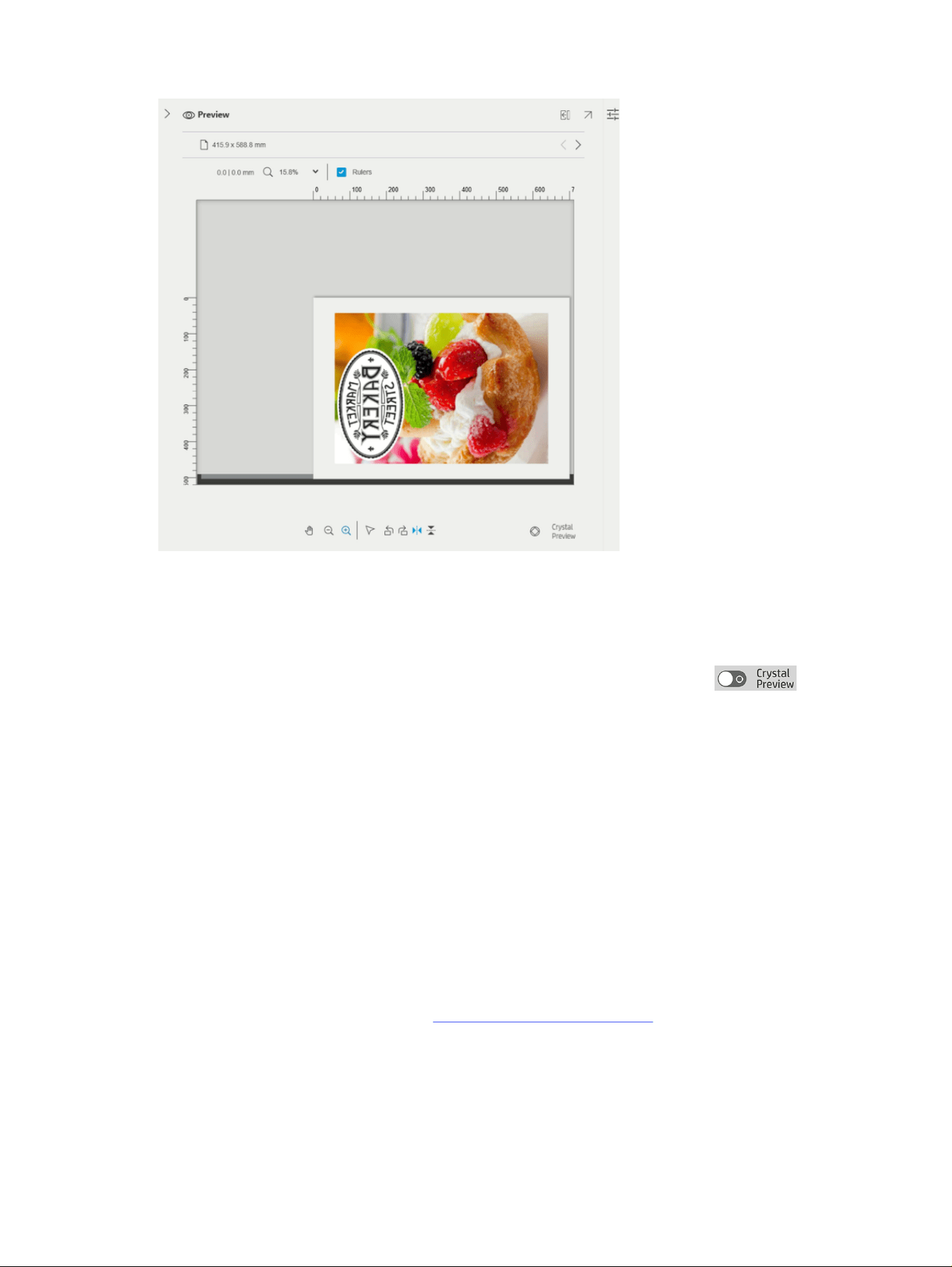
Crystal Preview
If HP SmartStream finds problems in a PDF file, in some cases it can continue and print the file, but the
thumbnail and preview may not correctly represent the final print.
In these cases, you can display an accurate soft-proofing preview by clicking the button
near the bottom left of the preview pane.
The following scenarios require the Crystal Preview, which uses the Adobe Libraries:
● Fonts are used but not found in the PDF file nor in the system.
● Some PDF layers are enabled or disabled differently, depending on whether they are viewed or
printed.
● There are references to external documents or images.
● Embedded PostScript (EPS) is contained in the PDF file.
The Crystal Preview provides an accurate preview whatever the characteristics of the file, showing you
exactly what will be printed, so that you can evaluate the printed colors, and judge for yourself the effect
of any problems in the file. However, the Crystal Preview may take longer to generate than the default
preview.
It performs full color management (see Color management on page 124), and can understand and
handle the following PDF features correctly:
● Output intent
● Transparency
● Overprinting
Crystal Preview
117
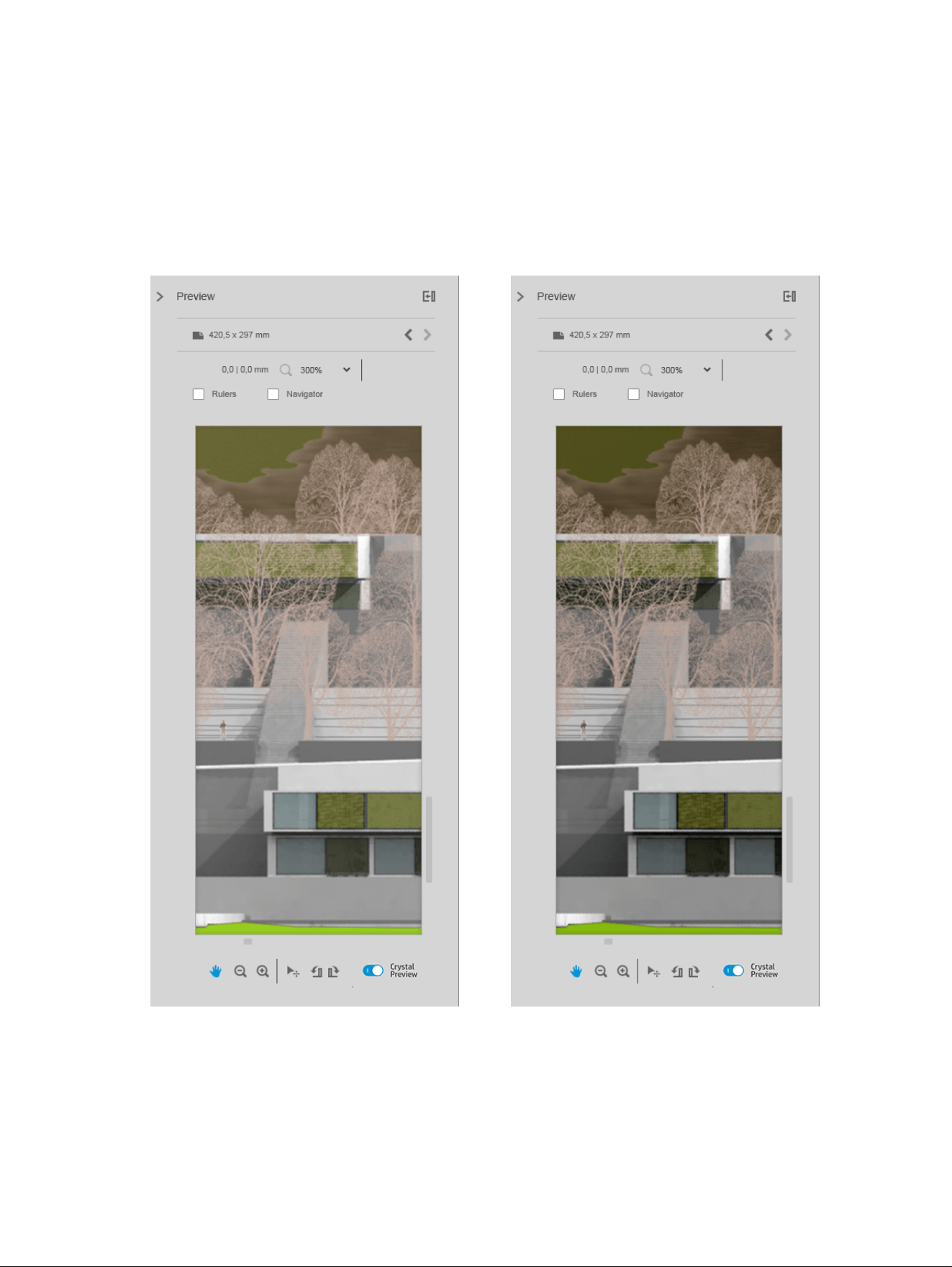
● Rendering spot colors with the HP Professional PANTONE Emulation Library
While the computer is busy generating a Crystal Preview, the toolbar buttons in the Preview pane are
disabled.
The example below illustrates the use of soft proofing to judge the printed colors.
Table 4-4 Soft proofing
Crystal Preview for glossy paper Crystal Preview for plain paper
118 Chapter 4 HP SmartStream
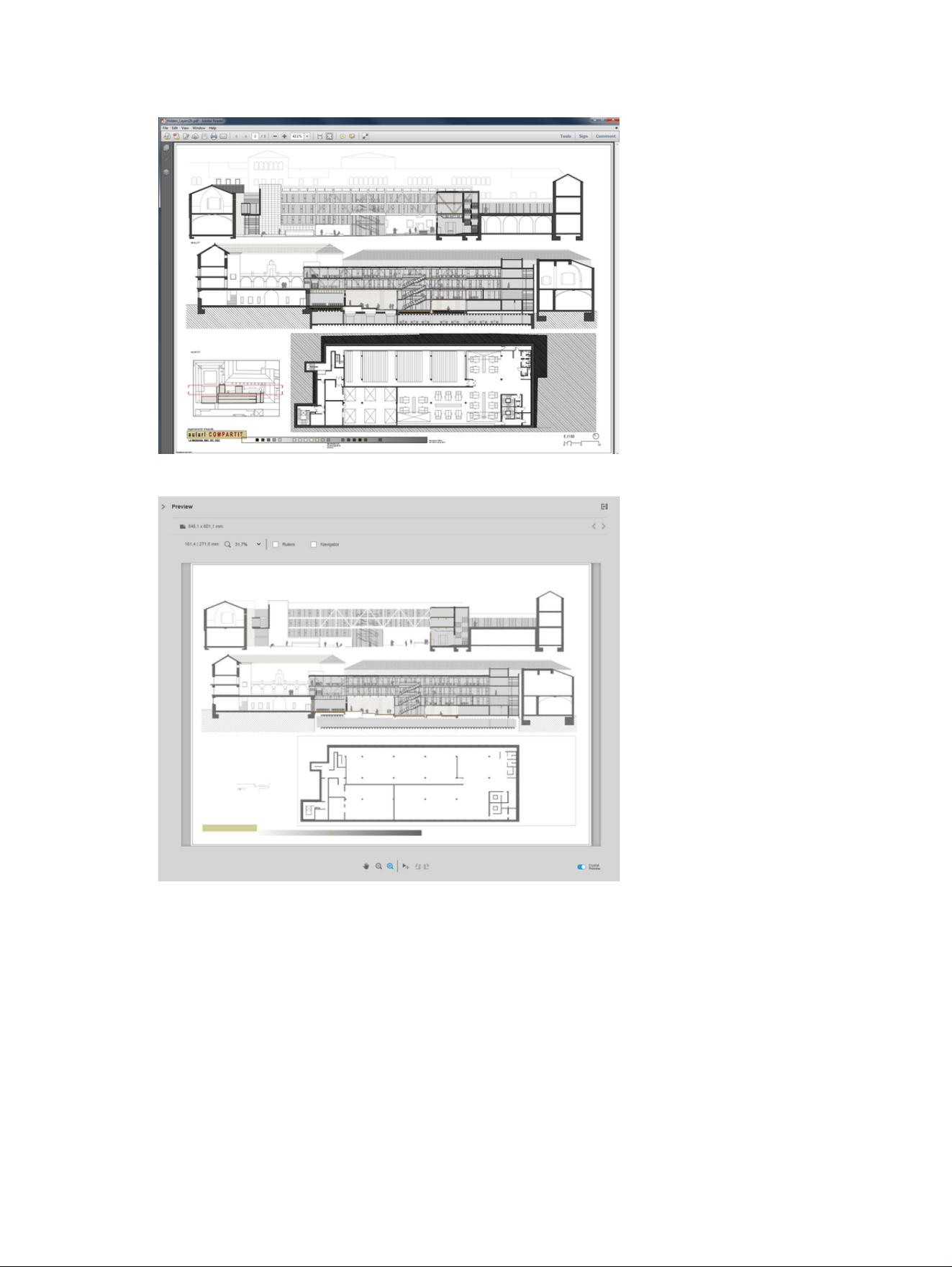
PDF file with unprintable layers
Crystal Preview showing what will be printed
Crystal Preview
119
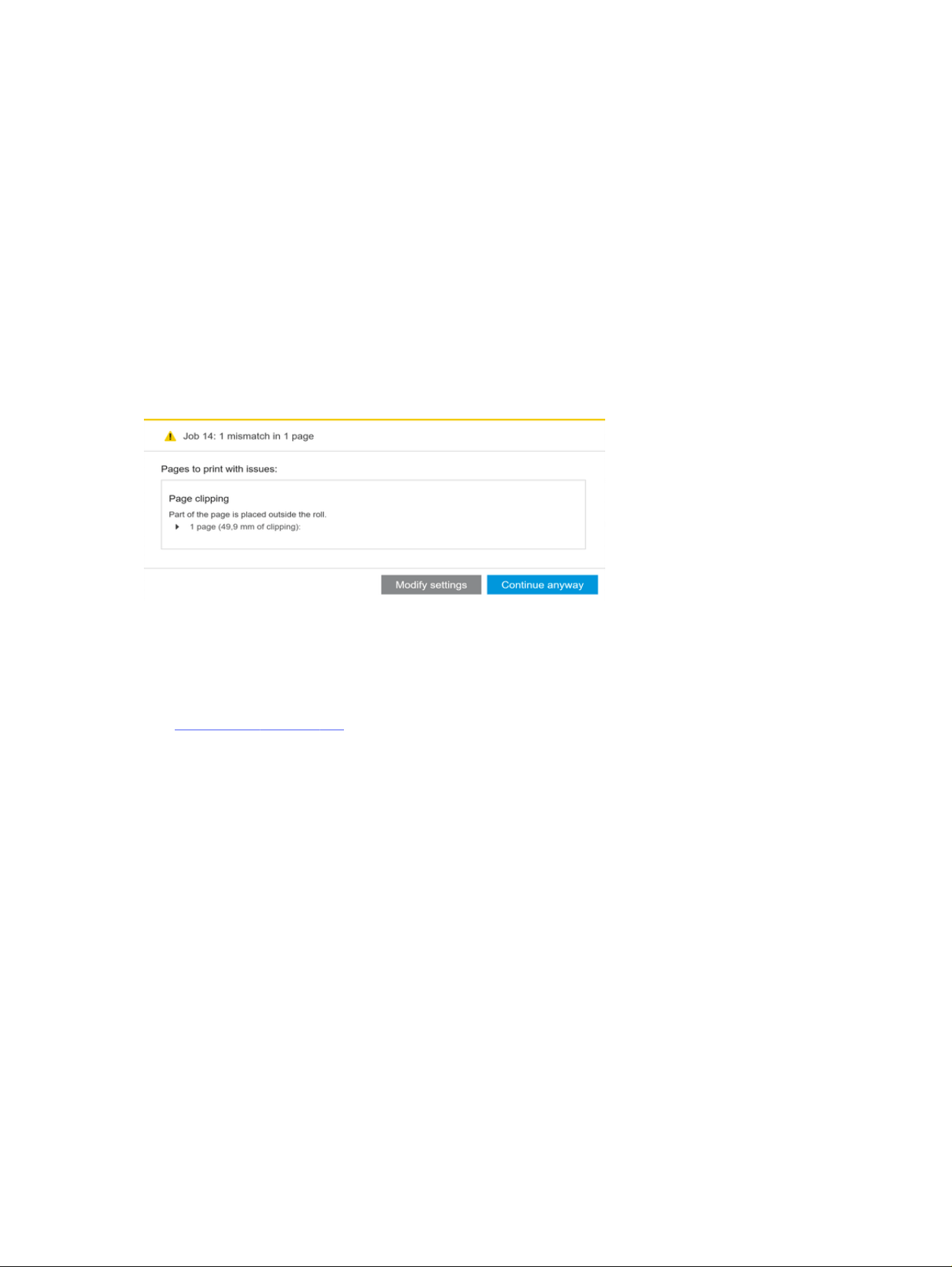
Printing
Submit jobs for printing
From the job preparation pane, you can submit the selected job(s) for printing by clicking the Print job
button at the top right.
Jobs are checked for possible problems before being added to the printing queue. If any problems are
found, you can choose between the following options:
● Modify settings: The job is not added to the printing queue but is kept in the job preparation pane so
that you can try to solve the problems.
● Continue anyway: The job is added to the printing queue without modification. If the problem
consists of clipping an image, the image will be clipped. Other problems, such as a paper type
mismatch, may cause a pause and notification while printing.
Filtered and unchecked pages
If you have hidden some pages by using a filter, they disappear from the screen and are not printed.
However, if you remove the filter, those pages reappear in the job preparation pane.
See Filter pages on page 105.
If you have excluded some pages by unchecking the box in the Print column, they remain visible on the
screen. When you click Print job and the job is printed, the excluded pages are not printed, but they are
added to the history together with the printed pages.
Job separators (HP PageWide XL only)
A job separator is a page of information about a printing job.
If you have chosen to print job separators, a separator is printed as soon as all pages of the job have
been printed, regardless of the First page on top setting. You can choose to print job separators in the
printer-specific preferences (for all jobs of a particular printer), or in the job options (for a particular job).
A job separator is not counted as part of the job for accounting purposes.
120
Chapter 4 HP SmartStream
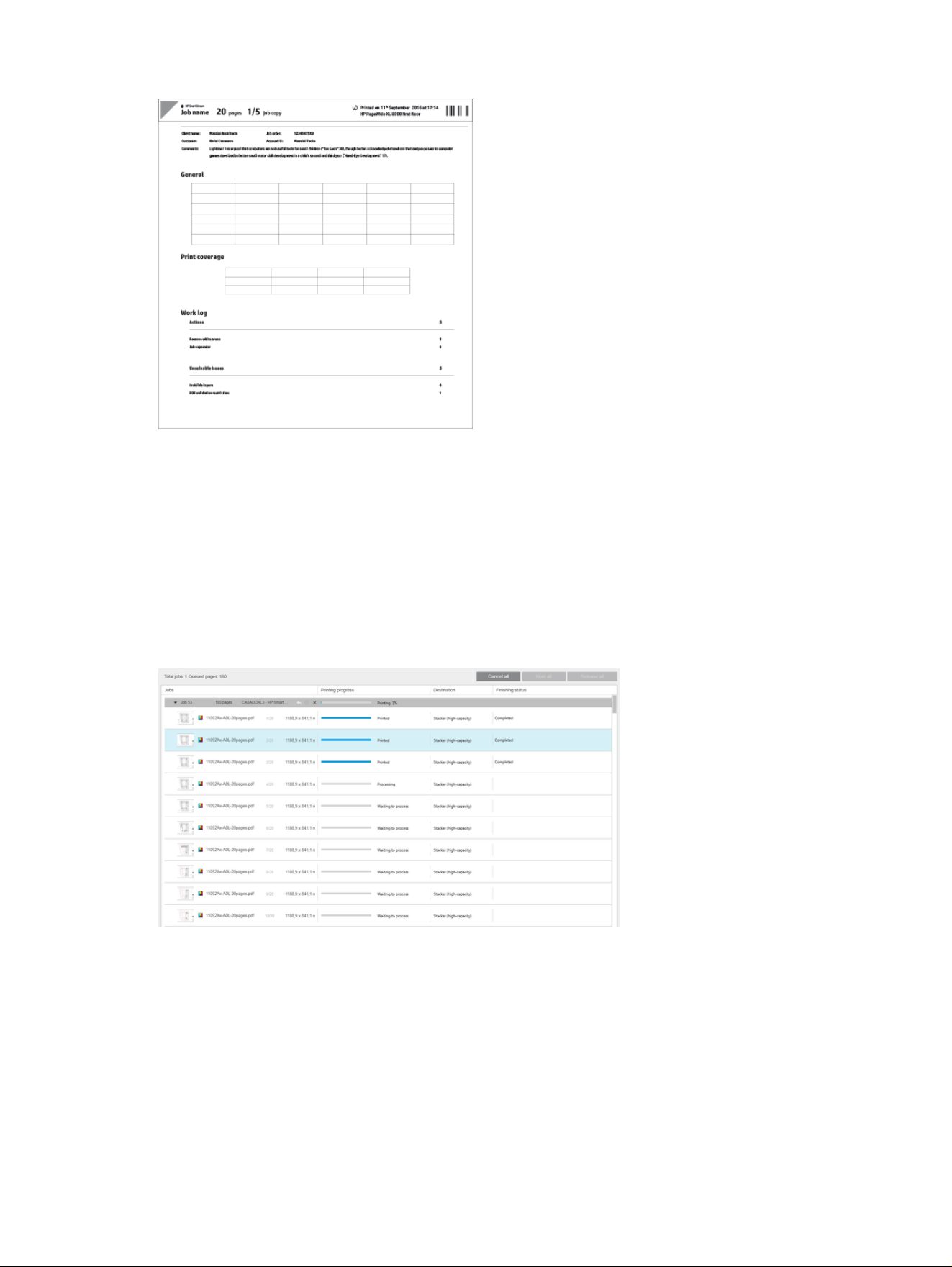
It is sent to the same destination as the last printed page, with the same width as the last printed page,
and the same height as the last printed page plus 5 cm. It is printed in grayscale (no color).
A job with collated copies has a separator for each collated copy.
A job separator is indicated in the printing queue and history as ‘(+1)’ after the stated number of pages of
the job. It is not indicated in the job preparation pane.
Printing queue
You can monitor the printing process by clicking Printing queue near the top of the window.
In the printing queue tab, you can see the progress of each job and document in the active printer queue,
including the destination of the print, which may be the stacker, the folder, or the basket.
At the top of the printing queue are the Cancel all and Hold all buttons, which can be clicked to cancel or
put on hold all jobs in the queue. There is also a Release all button to release all jobs that have been held.
In the Actions column, at job level only, there is a Cancel button to cancel the job. If the job has not
started printing, there is also a Hold button to put the job on hold, and a Modify settings button that
returns the job to the job preparation pane so that you can modify the print settings.
Printing queue
121

If you are printing to an HP PageWide XL printer:
● You can cancel only your own jobs from the application. You can cancel jobs created by other people
from the printer’s control panel.
● You can change the order of the jobs in the queue.
The job at the top of the queue is printed first, and any jobs added to the queue are added at the bottom.
You can change the order of the jobs in the queue by dragging a job into a different position, except for
jobs that are currently printing or about to be printed. You cannot drag a job to a different printer.
Before printing, each page of a job is checked for mismatches between the job settings and the loaded
roll (for instance, the wrong paper type is loaded). If there is a mismatch, you can resolve the problem by
modifying the print settings, loading a different roll, or canceling the job.
Job status
● The current status of a job is displaying below the printing progress bar. A normal, successful job
passes through the following states: Waiting to process in printer*, Waiting to process**, Processing
in printer*, Processing**, Waiting to print, Printing, Printed.
● If the job encounters some problem, you may see: Paused, Failed.
● If you interrupt the job in some way, you may see: On hold in printer*, On hold for mismatch,
Canceling, Canceled, Pausing, Printer paused*, Releasing.
● In the Finishing column, you may see: Servicing*, Stacking, Folding, Completed.
* HP PageWide printers only
** HP DesignJet printers only
Printing interruptions
This topic explains the concepts involved in this subject.
There are various situations in which printing may be interrupted, such as:
● A paper jam in the printer
● A problem with the cutter, stacker, or folder
● The printer runs out of paper
● The printer runs out of ink
● The connection to the printer has been lost
● A page cannot be rendered for one of various possible reasons
● The printer is paused, perhaps because a cover is open
122
Chapter 4 HP SmartStream

In such situations, a popup window explains what has happened, and offers options depending on the
situation. For example:
● Paper jam: If there is a paper jam, you will have to clear the jam and restart the printer. This means
that the job that was printing when the jam occurred will be left uncompleted, and the whole job will
appear in the history with the unprinted pages marked as failed.
● Out of paper: If the current roll runs out of paper, there are various possible consequences. These
depend on the validation mode (see Printer-specific preferences on page 81) and the job settings
(such as roll ID) that you assigned. In some cases, if the printer finds another roll of the required
paper type and roll width, it will continue printing automatically; in these cases, a page that was
interrupted while printing is normally reprinted in full on the second roll. Such a page is marked with
a warning in the history.
You may see the following options in an out-of-paper situation:
– Cancel: This cancels the job and moves it to the history.
– Modify settings: This cancels the job and moves it back to the job preparation pane.
– Assigned roll/Continue: This allows you to choose a roll of the same or greater width to continue
printing the current job.
– Hold: This puts the current job on hold.
If the connection to the printer is lost or printing is impossible for some other reason, the current job is
canceled and the jobs remaining in the queue are put on hold. You can choose to print the jobs when the
printer problem has been fixed.
Cancel jobs
This topic explains the concepts involved in this subject.
There are three ways of canceling print jobs:
● In the printing queue, click the Cancel button in the Actions column, next to the job name, to cancel
that job.
● In the printing queue, click the Cancel all button at the top of the queue to cancel all jobs for a
particular printer.
NOTE: With an HP PageWide XL printer, all jobs for that printer are shown, but Cancel all cancels
only the HP SmartStream jobs.
● Use the printer’s control panel to cancel the job that is currently printing. Any other jobs for that
printer in the HP SmartStream queue are also canceled.
Exit the application while printing
If you are printing to an HP DesignJet printer, and you try to close the HP SmartStream application while
there are still jobs in the printing queues, you are warned and offered the opportunity to change your
mind. If you go ahead and close the application, any jobs in the printing queues are canceled and moved
to the history.
Cancel jobs
123

This does not occur if you are printing to an HP PageWide XL printer, because in that case the queue is
stored in the printer.
Color management
HP SmartStream provides many advanced color management features with a very simple user
interface. ICC V4 and V2 color profiles are fully supported for all supported file types, plus black
point compensation, PDF output intent, HP Professional PANTONE emulation, and Crystal Preview soft-
proofing.
See Crystal Preview on page 117.
HP Professional PANTONE Emulation (HP PPE) is a technology that replaces PANTONE color names with
RGB or CMYK colors calculated specifically for your printer and paper at print time, in the same way
that professional graphic artists and prepress professionals prepare PANTONE emulations by hand. The
results are professional-quality emulations of PANTONE colors that look as similar to the originals as
possible with a given combination of printer and paper.
Crystal Preview soft-proofing uses the Adobe Libraries to emulate on your screen what your print will
look like on paper, using color profiles provided with your printer to take account of the characteristics of
paper, ink, and printing mode.
Supported color spaces
● PDF: Any color space supported by PDF 1.7
● JPEG: Gray, RGB, CMYK, and ITU/Fax CIE L
*
a
*
b
*
● TIFF: Monochrome, indexed, gray, RGB, CMYK, and CIE L
*
a
*
b
*
● HPGL2: Adobe RGB, sRGB, and Device RGB
Color options
Color management is automatically applied by HP SmartStream to provide optimal color output.
However, you can choose between two color management options in the Preferences window (see
Printer-specific preferences on page 81):
● Relative colorimetric: This is the default option. It favors more saturated colors and modern CMYK
standards. It uses relative colorimetric rendering intent and black point compensation, sRGB IEC
61966-2.1 as the default RGB color space, and ISO Coated v2 as the default CMYK color space.
● Perceptual: This option provides color consistency with a printer using a PostScript driver. It uses
perceptual rendering intent, sRGB IEC 61966-2.1 as the default RGB color space, and SWOP as the
default CMYK color space.
124
Chapter 4 HP SmartStream

History
The HP SmartStream history preserves a record of printed jobs in case you want to reprint any of them
later; perhaps with changed settings.
NOTE: You can also save jobs outside the history, using the icon in the toolbar. See Toolbar on page
93.
The history contains a tab for each printer, which has its own separate history.
The history includes various items of information about the original job, including its success or failure.
To manage the size of the history, you can set a time limit in the general preferences: jobs older than this
are deleted from the history. See General preferences on page 80.
TIP: How can I reprint from the history in case of a mismatch?
Click the Reprint button, and correct the mismatch by changing the loaded paper or changing the print
settings in the job preparation tab.
Search the history
There is a search field that you can use to search for past jobs or documents by name.
Reprint a job
To reprint a job, click the Reprint button in the job action column.
● If the job was printed on an HP PageWide XL printer, the reprint is done by the printer.
● In the case of other printers, the job is returned to the job preparation pane for error detection;
if there are no errors, the job moves automatically to the printing queue and is sent to the active
printer. If you want to change the printer, click and hold the Prepare to print button, which displays a
menu of all the available printers; select the one you want.
NOTE: You can reprint only a whole job; you cannot select part of a job. You can select the number of
copies.
NOTE: If the printer no longer has the same rolls available, there may be a mismatch between the job
and the available rolls, in which case you are offered the opportunity to modify the job settings.
Reconfigure a job
To change settings or revalidate an old job, click the Prepare to print button in the job action column. The
job is moved to the job preparation pane.
Any settings that were originally set automatically are recalculated, which may change the settings,
depending on the rolls loaded. Settings that were set manually remain unchanged. You can change any
of the settings manually.
Remove jobs from the history
You can remove an individual job by clicking the Remove button in the job action column.
History
125
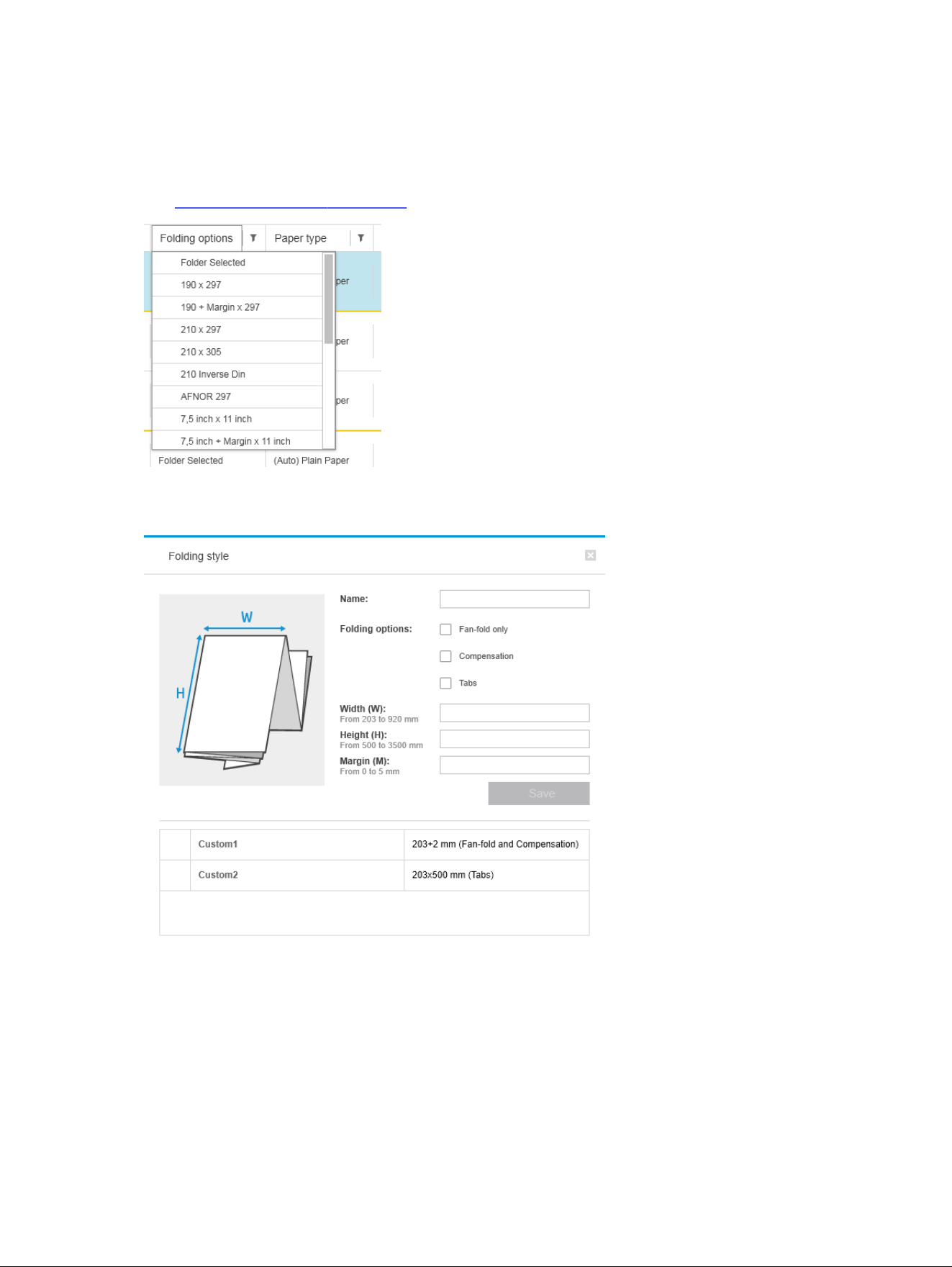
Folding
If your printer has a folder installed, you can select the folding style as one of the print options. Also, you
can choose to print jobs in reverse order whenever the folder is in use.
See Paper source options on page 112.
If the folder permits custom folding styles, you can create them by selecting Create from the folding
style print option and then filling in the specifications of your custom folding style.
You can specify in the dialog the dimensions of your custom folding style. You can also choose from the
following options:
● Fan-fold only: The folding style is fan-fold, and has no cross-fold part.
● Compensation: The folding style performs compensation if necessary.
126
Chapter 4 HP SmartStream
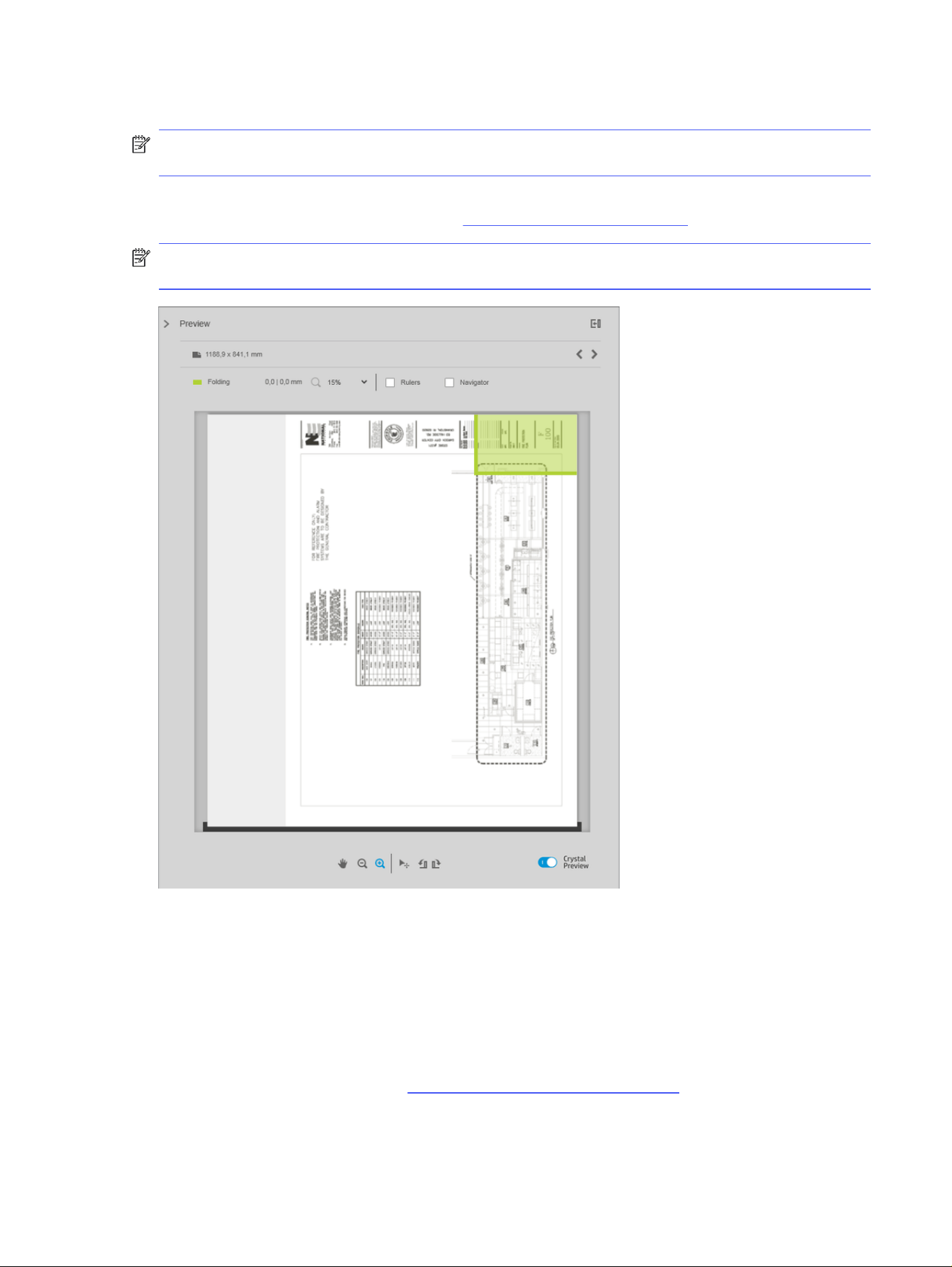
● Tabs: The folding style uses tabs (this option appears only if the folder has tabs).
NOTE: If you are using an HP PageWide printer, any custom folding style created with the printer’s
control panel will automatically be synchronized to HP SmartStream.
You can specify in the application preferences whether you want to see the dimensions of the folded
paper indicated in green in the preview. See General preferences on page 80.
NOTE: In some cases, the folded dimensions may not be shown because the application does not
know them.
The green rectangle in the preview indicates which part of the page will be on top after folding. If the
page contains some header or summary information describing its contents, you may want to ensure
that this is in the green rectangle, so that it will be easily visible once the page has been folded. To move
the contents of the page, you can use the rotation, alignment, and/or margins options (among the paper
source options in the settings pane).
The following steps are recommended to check that the required content is in the green rectangle, and
to adjust the page if necessary:
1. Set the default alignment between page and roll in the preferences so that the page is placed on
the correct side of the roll (see Printer-specific preferences on page 81). You need to do this only
once.
2. Select the first page of the job to see it in the preview.
Folding
127

3. Zoom in on the green rectangle. You may want to maximize the preview.
4. If required, use the E key on the keyboard to rotate the page 90° counterclockwise or the R key to
rotate 90° clockwise.
5. Use the down-arrow navigation key to select and preview the next page.
128 Chapter 4 HP SmartStream

Scanning
The following sections provide details for this topic.
TIP: If you have no scanner connected, you can still use the printer-specific preferences to set up a
hot folder from which you can import files conveniently into a job. See Printer-specific preferences on
page 81.
Using a multifunction printer that includes a scanner
If you have a multifunction device with a scanner in the printers pane, you can scan directly into
HP SmartStream.
1. Use the Embedded Web Server of your multifunction device to set up a scan folder in which
scanned pages will be stored for use by HP SmartStream.
Every printer compatible with HP SmartStream includes an Embedded Web Server that you can
use to monitor printing activity and perform various other functions from any Web-connected
device. You can access the Embedded Web Server by clicking the link in the printers pane.
2. In the HP SmartStream preferences for your multifunction device, set the scan folder to the same
folder that you selected in step 1. See Printer-specific preferences on page 81.
3. Use the control panel of your multifunction device to send a scanned page as a file to
HP SmartStream.
4. The application automatically detects the incoming file and displays a notification (see
Notifications on page 70).
NOTE: New files in a hot folder are automatically detected only if they are newer than the previous
file detected in that folder. If you copy old files into the folder, they will not be detected.
5. To import the files into a job, click the hot folder name. All files are imported that have not already
been imported into a job. Clicking opens a window that allows you to select specific files to
import.
NOTE: The number in the icon tells you how many files are waiting to be imported. If there are
no new files, the icon is disabled.
Connecting an HP PageWide XL scanner
If you have a stand-alone scanner, you must ensure that it is connected to your network.
1. Physically connect it to the network: connect a network cable to the scanner.
2. On the scanner’s control panel, click to open the file manager.
3. Click the Network button.
Scanning
129
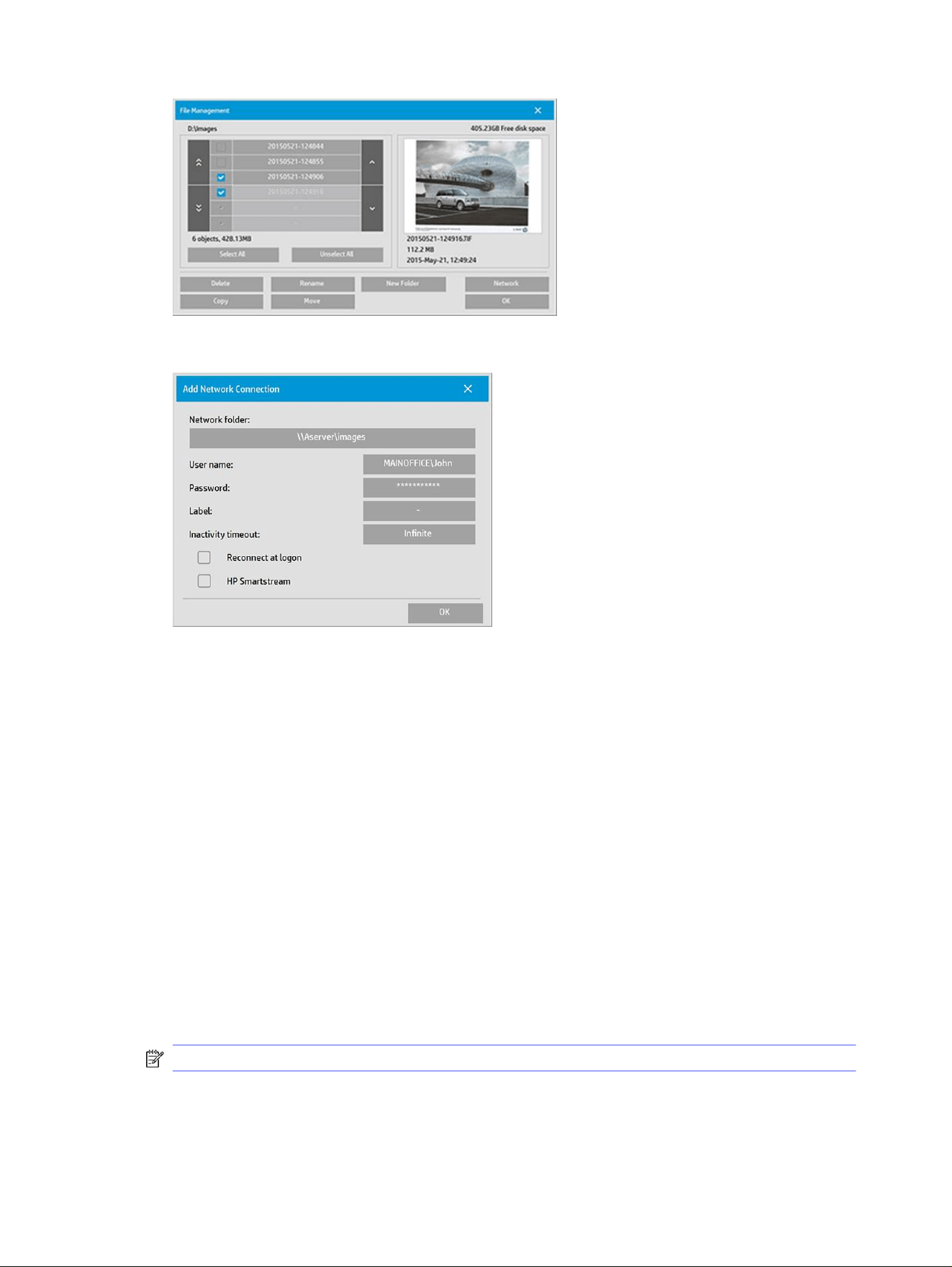
4. Click the Add Network Connection button. After clicking it, you should see the following screen.
Add Network Connection settings
Contact your network administrator if you need help with any of these settings.
● Network folder: Enter the full path name to the location on the network.
● User name: The login username for the network server.
● Password: The login password for the network server.
● Label: This is what your scanner will display in its browse dialogs.
● Inactivity timeout: You can set an individual timeout value (in minutes) for your network connections,
for added security.
● Reconnect at logon: If this is left unchecked, your network connection definition will automatically be
deleted when you shut down the scanner. Check the box to tell the scanner to store the connection
and reactivate it whenever the scanner is restarted.
● HP SmartStream: Check this box to display an icon in the file browser, which helps you to link to the
HP SmartStream hot folder.
NOTE: The scanner and HP SmartStream must point to the same folder.
Add the hot folder in HP SmartStream
The following steps provide the complete procedure for this topic.
130
Chapter 4 HP SmartStream
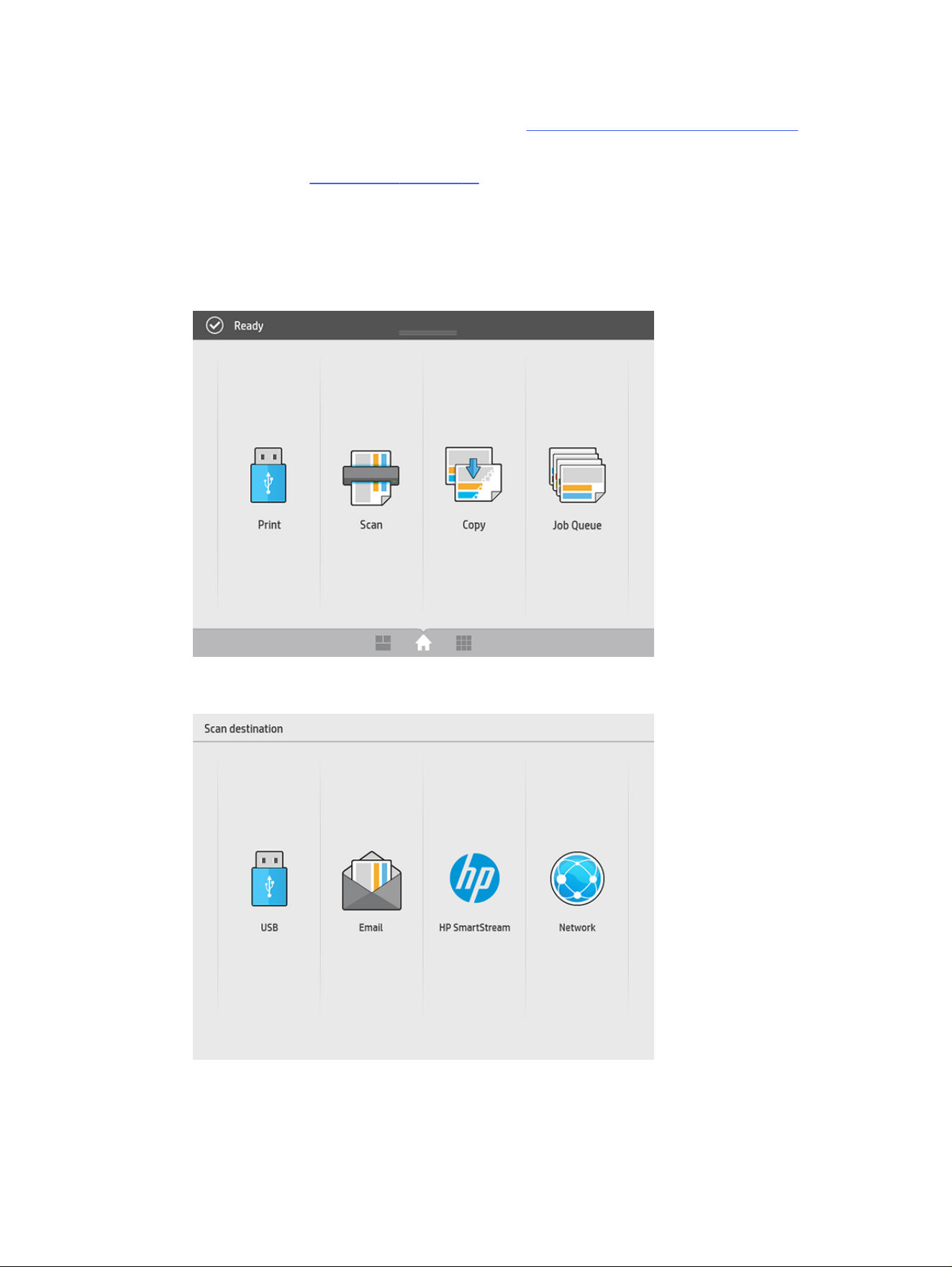
1. In the HP SmartStream preferences for your scanner, set the scan folder to the same folder that
you selected in the scanner’s control panel. See Printer-specific preferences on page 81.
2. When you scan a document, the application automatically detects the incoming file and displays a
notification. See Notifications on page 70.
Using an HP PageWide XL scanner
The following steps provide the complete procedure for this topic.
1. Click the Scan icon.
2. Select the scan destination.
● Scan to USB
● Scan to email (an email address will be requested)
Using an HP PageWide XL scanner
131
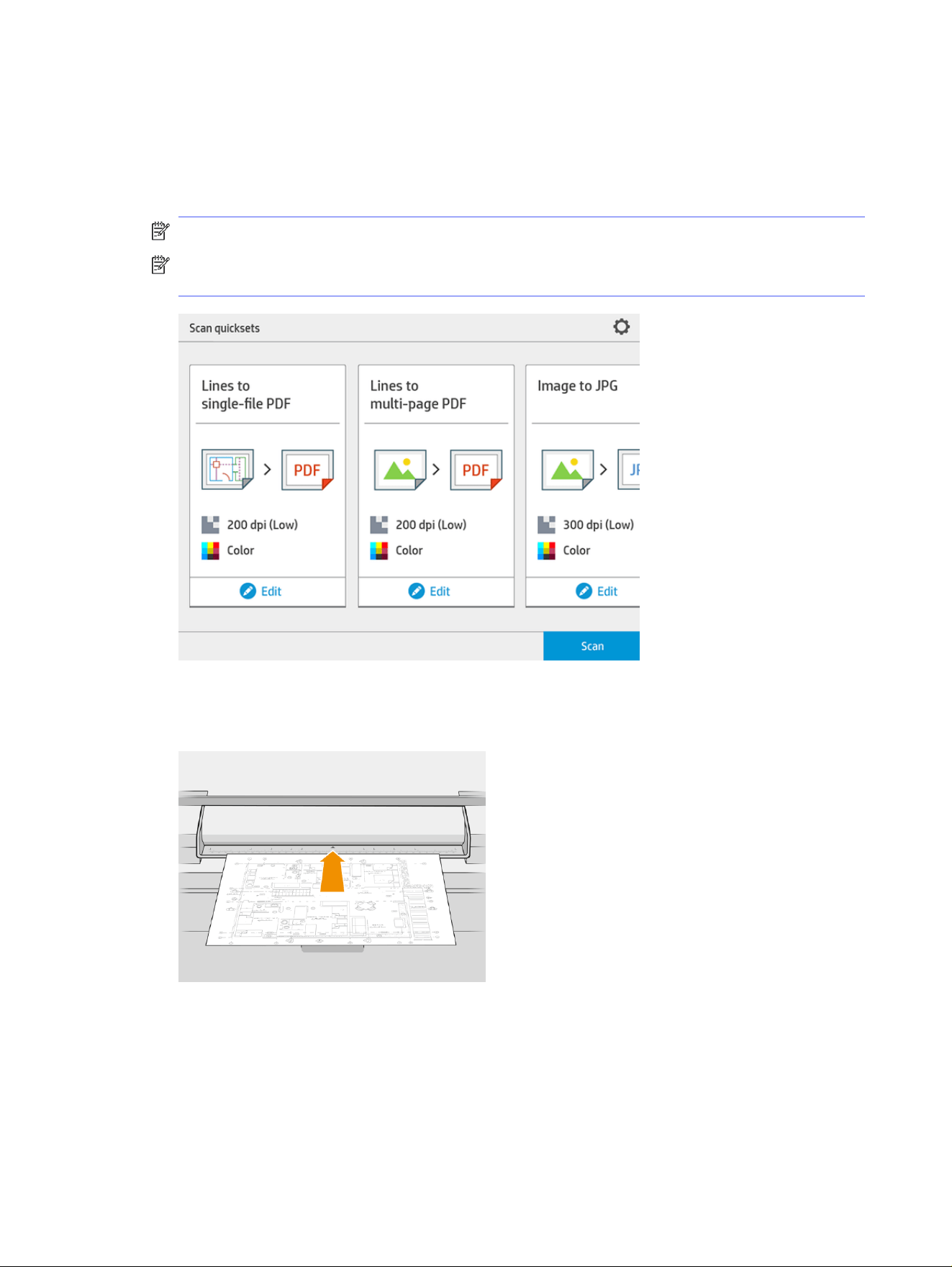
● Scan to HP SmartStream
● Scan to network
3. Select a quickset for this session and click Continue. You can scan with the same quickset for the
whole session.
NOTE: Clicking New scan at the end of the scanning process does not end the session.
NOTE: A quickset is associated with a single-page or multipage scan; remember to select the
appropriate one.
To change a quickset temporarily during a scan session, click Edit below the quickset.
4. Insert the original, facing upwards.
132
Chapter 4 HP SmartStream
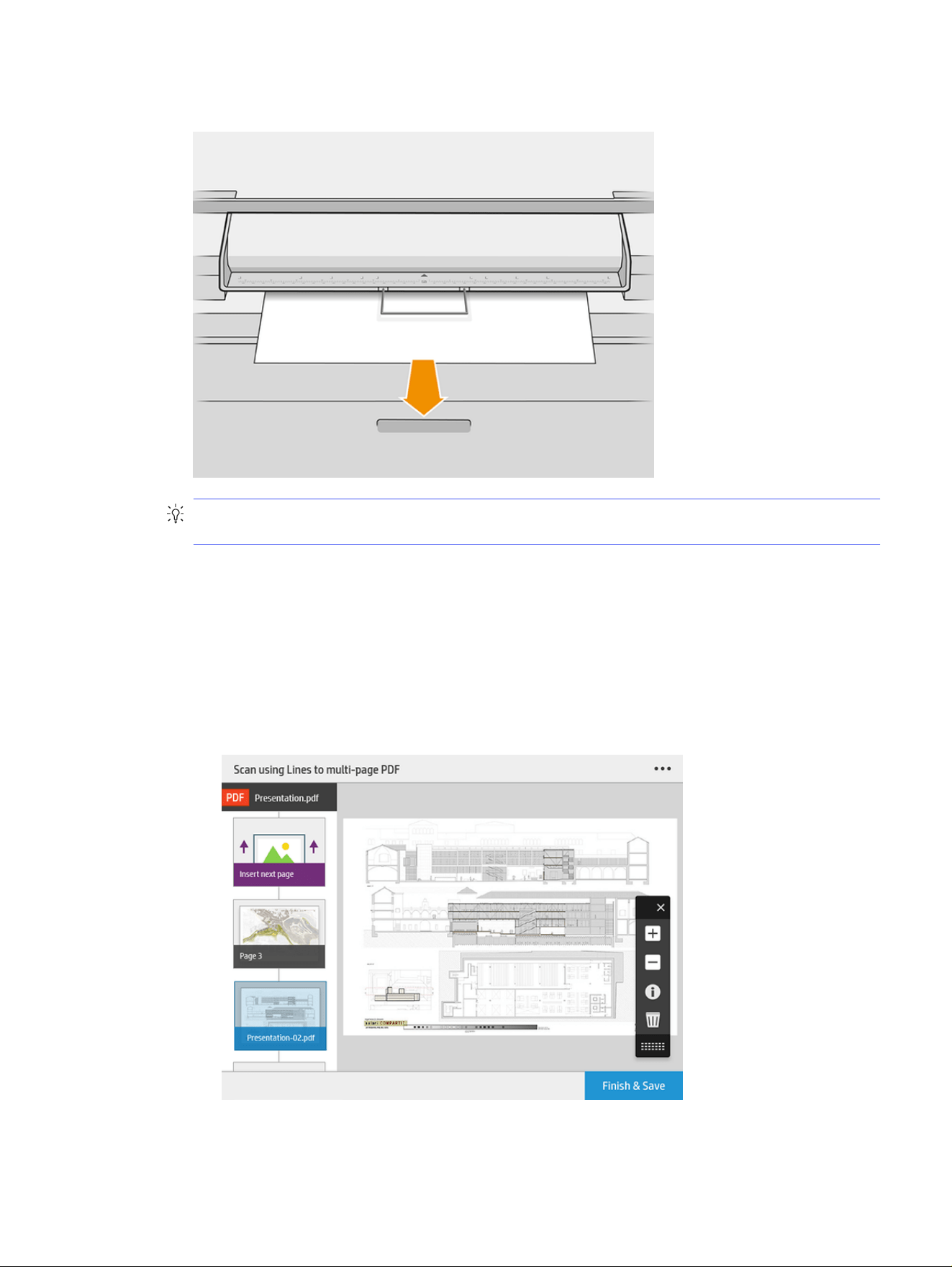
5. Pick up the original when the scanner releases it.
TIP: To release the page, you can select automatic release in the quickset settings, or keep the
original on hold until you click Release page or insert a new original.
6. If the pre-scan option is activated in the quickset options, the scanner prescans the document, and
you can select the area to scan. When the pre-scanned job appears, move or resize the selection
area to define the area to scan. In the toolbar, you can zoom in and out of the document, and use
the third button to adjust the selected area to fit the screen size.
7. One of the most useful quickset options is the one to scan a multipage or single-page document.
● Multipage: The result will be a single document containing all the scanned pages.
When scanning a multipage document, insert the next page when prompted.
● Single-page: The result will be a single-page PDF or TIFF document.
Using an HP PageWide XL scanner
133
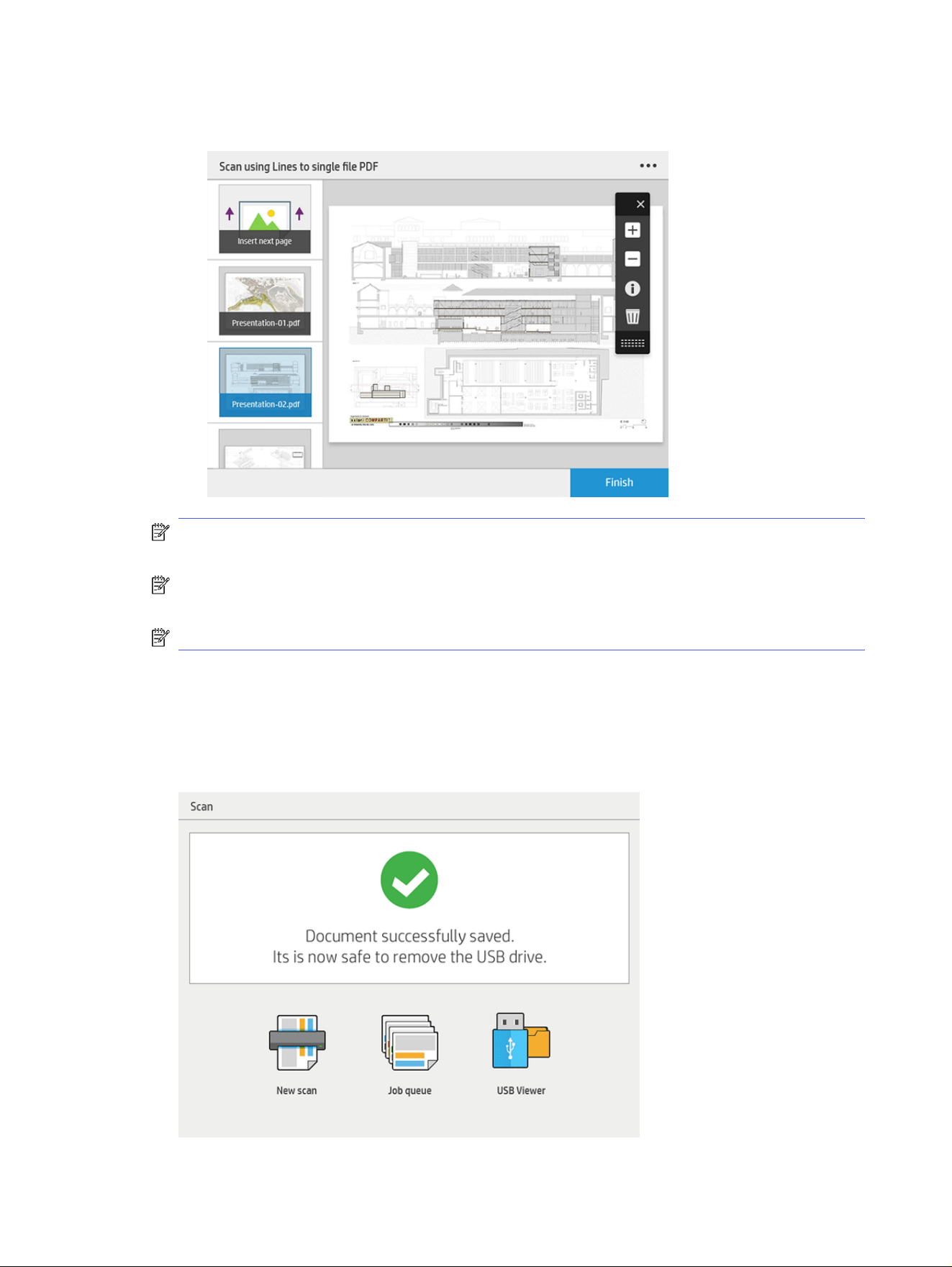
When scanning a single page, the document is automatically saved. If you insert another page,
a new document is created.
NOTE: By clicking … you can change the scan settings for the following pages. Change the
settings as you like and click Apply to next scan.
NOTE: You can zoom, and see scanner information about the selected page, with the toolbar
buttons. In a multipage document, you can delete a page.
NOTE: When you are scanning to a USB flash drive, the space remaining on the drive is displayed.
8. Exit the scan by clicking Finish (for single-page documents), or save the document and exit by
clicking Send/Save (for multipage documents).
9. Click New scan to scan again with the same settings. Click Job queue to see the status of the
scanned jobs. With USB viewer (only when scanning to USB) you can go to the USB flash drive to
confirm that the job is there and preview it.
134
Chapter 4 HP SmartStream
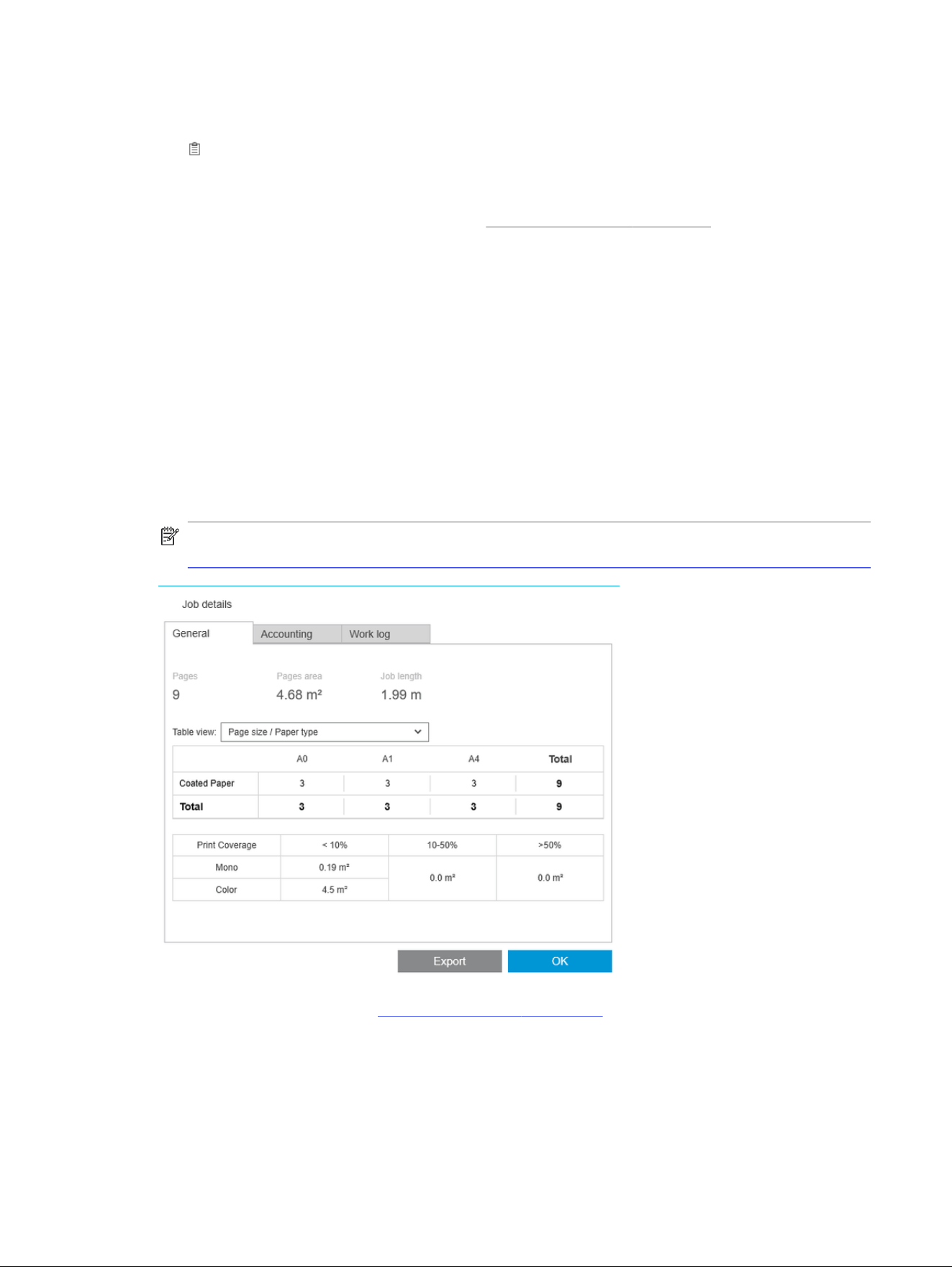
Accounting
The icon in the toolbar displays information about the job that may be used for accounting purposes.
The icon appears in the job preparation pane and in the history pane; but some of the information is
available only from the history pane, after the job has been printed.
You can decide in the general preferences (see General preferences on page 80) what information is
displayed.
The General tab normally includes:
● Total number of pages; total area of paper printed (not including wasted paper outside the page
area); and total length of paper printed
● Number of pages per paper-type category
● Number of pages per page size
● Number of pages per color mode
● Number of pages per page length
● Area of paper used per print-coverage category
NOTE: A job analysis module is available that can calculate the print coverage per page in
advance, so that you can plan your jobs.
In the general preferences (see General preferences on page 80), you can move two sliders to adjust the
three print-coverage categories shown in this tab.
Accounting
135
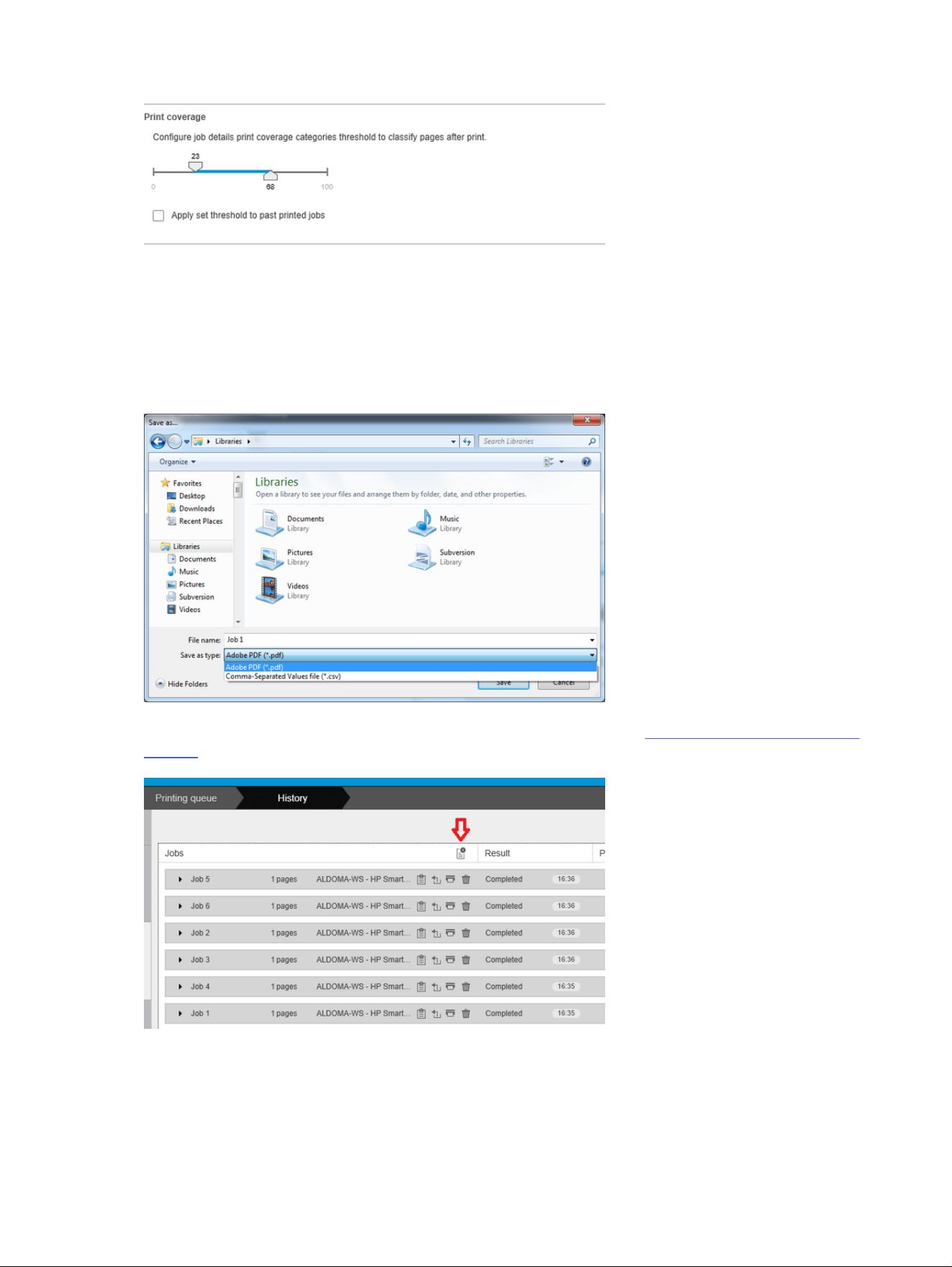
The units of measurement used in the job details are those you have chosen for the application in
general.
If you have selected the Preflight desk, you will see here only the page counts, with no paper types nor
printed area.
You can click the Export button to export the job details to a file in the PDF or CSV format.
If you have chosen to gather page accounting data from the printer (see Printer-specific preferences on
page 81), the history pane will contain an icon to access the accounting data.
The Accounting tab contains information that you can attach to the job for accounting purposes.
136
Chapter 4 HP SmartStream
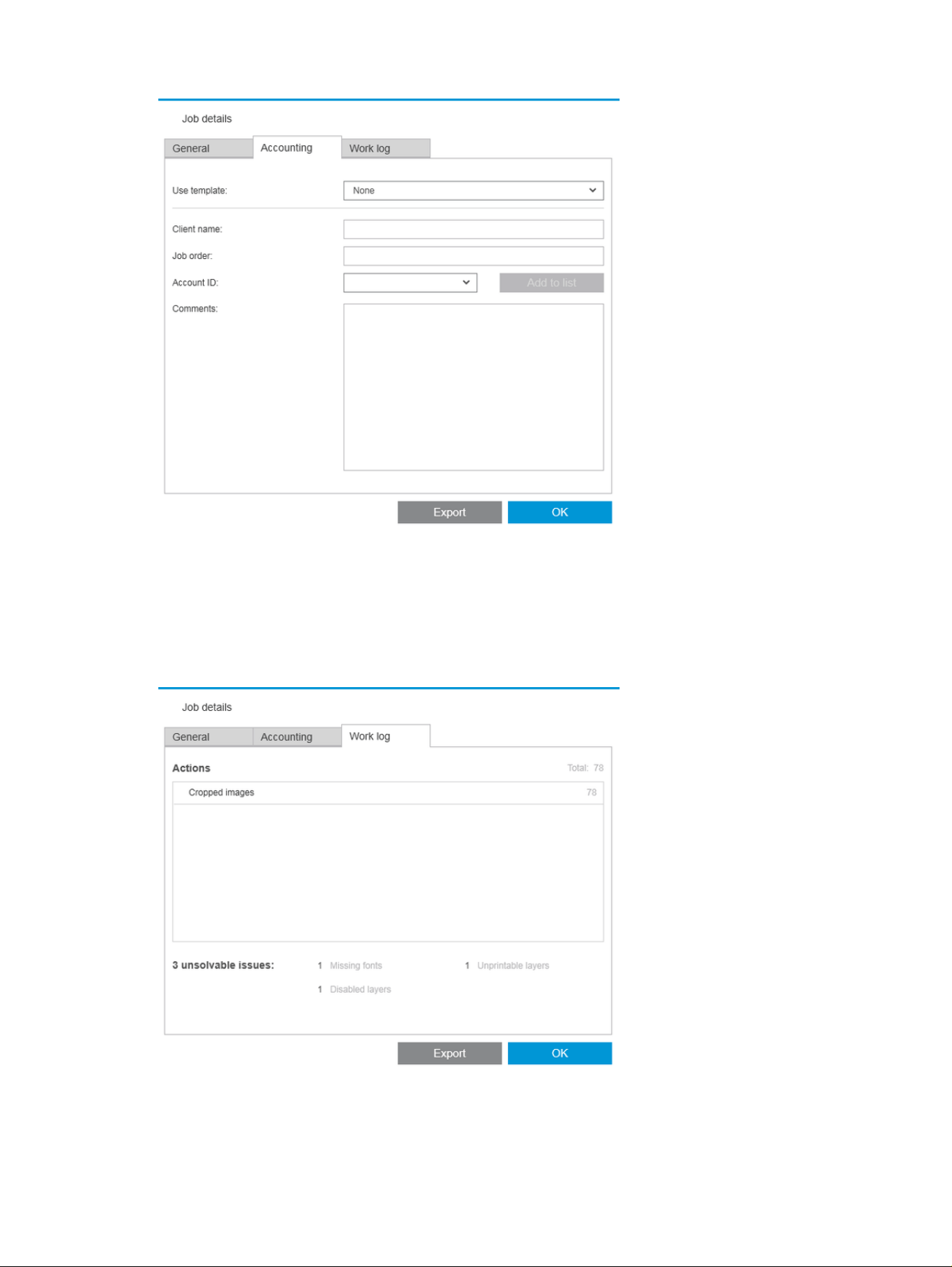
You can select a previously-created template from the Use template list as an alternative to filling in the
fields manually. To create a template, click Create at the bottom of the Use template list. Accounting
templates are saved in My Documents\HP SmartStream\Accounting templates with the .smat extension
(HP SmartStream Accounting Template file).
The Work log tab contains a summary of the settings that were applied to the printed pages, and a
summary of any unsolvable issues.
Accounting
137

If you want a higher level of accounting details, such as getting to know which users sent jobs to print,
and generating and customizing reports with accounting information, consider using HP SmartTracker
software. Your service representative can give you more information about HP SmartTracker.
138 Chapter 4 HP SmartStream
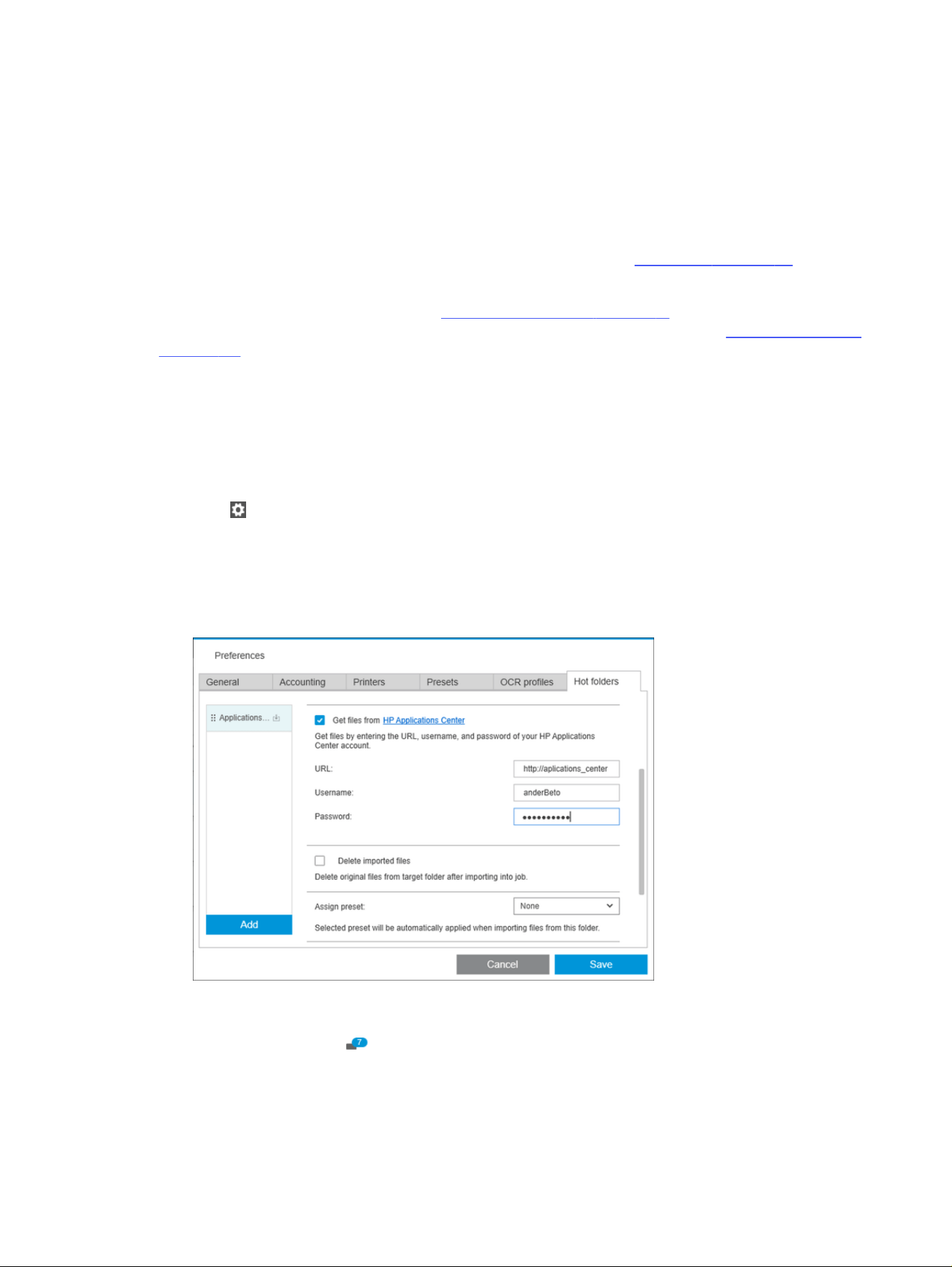
Submission driver
The HP SmartStream Submission Driver enables you to send content from any application (including
CAD and graphics applications) and any file format (including DWF, DWG, Microsoft Office, and so on) to
be prepared and printed with HP SmartStream.
The submission driver appears among your system’s list of printers and creates a package containing
the content to be printed plus the print instructions and accounting information. Once submitted, the
package is sent to the hot folder monitored by HP SmartStream. See Hot folders on page 84.
The submission driver is an ideal companion for HP SmartStream in enterprise environments with
Central Reprographic Departments (see Distributed workflows on page 71), or for anyone using
applications that are unable to save HP SmartStream-supported file formats (see Color management
on page 124).
HP Applications Center
In particular, the submission driver enables you to use HP SmartStream to prepare and print files from
the HP Applications Center.
To set this up:
1. Click .
2. Click the Hot folders tab.
3. Add a new incoming hot folder and enter its path and name.
4. Check the box Get files from Applications Center.
5. Enter the Applications Center URL, and your username and password.
The hot-folder toolbar icon will notify you of any Applications Center files in the hot folder, as usual.
Restrict account IDs
By default, the submission driver accepts any account ID entered by the user, but it can be set up to
offer a closed list of permissible account IDs.
Submission driver
139
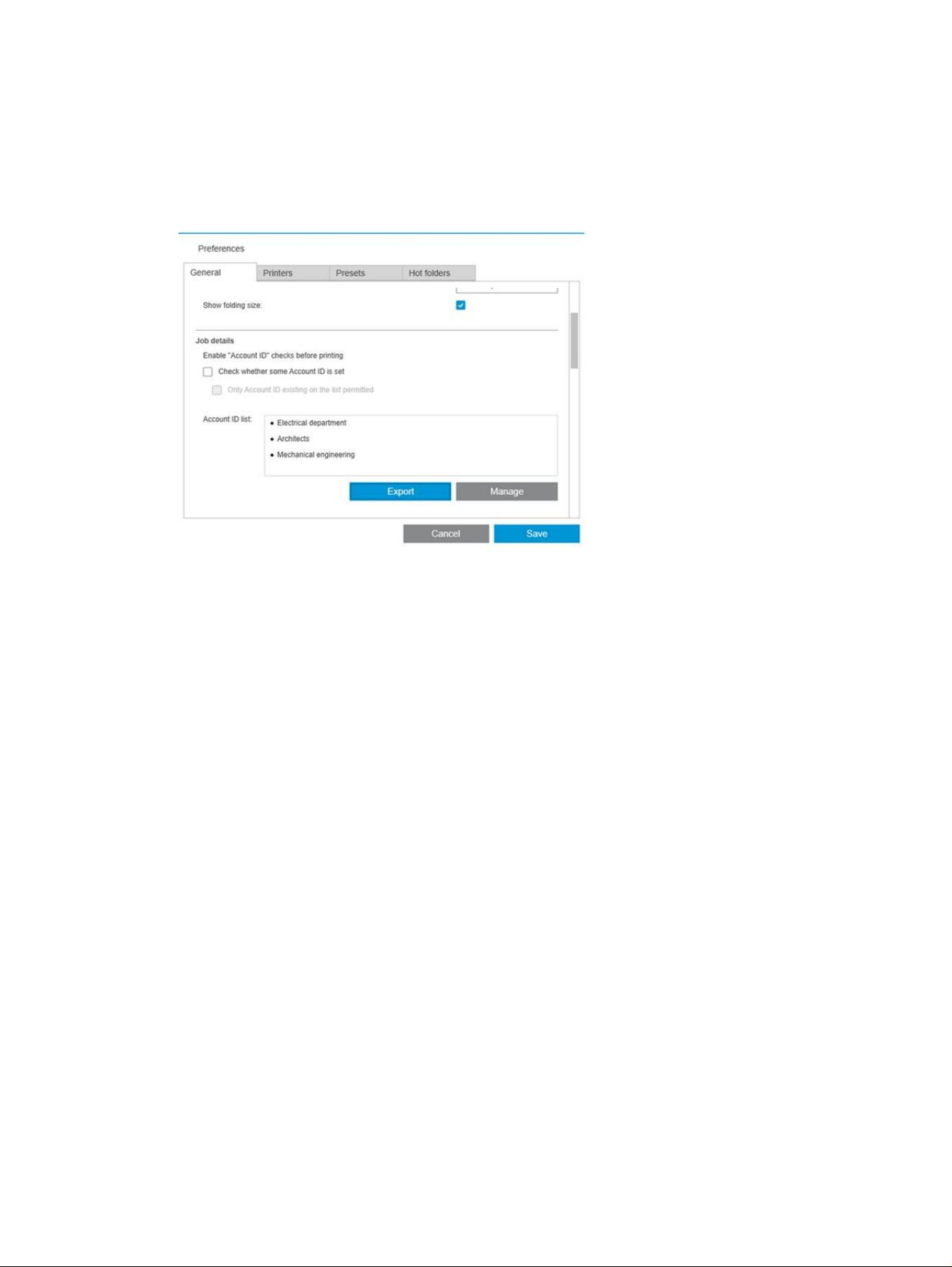
1. Go to the driver’s Advanced tab and select Account IDs file.
2. Enter the name of a CSV file containing the list of permissible account IDs.
The CSV file can be automatically generated from HP SmartStream, using the account IDs known
to the application. In the General tab of the application preferences, click the Export button and
select a folder in which to create the file.
140 Chapter 4 HP SmartStream

Troubleshooting
The following sections provide details for this topic.
Error codes
There are some issues that may cause an application error window to be displayed, showing one or
more error codes and descriptions. These are listed in the table below.
Table 4-5 Error codes
Error code Short description Full description
2001-0199 Non-recoverable generic
database error
An internal database error has occurred. Restart the application.
If the problem persists, contact your reseller.
2002-0186 Disk error: can’t create temporary
storage in infrastructure
The application does not have sufficient system resources to create
temporary data. You are recommended to restart the application.
Before restarting the application, check that, for example, your hard disk
has sufficient free space.
2002-1086 Disk error in analysis The application does not have sufficient system resources to perform
the file analysis. It is recommended to restart the application. Before
restarting the application you can check if for example your system has
sufficient disk space.
2002-1087 Analysis: application or resources
not found or no access
permissions
The application stopped working. One of its resources is not responding.
You are recommended to restart the application.
If the problem persists, the application may need to be reinstalled.
Contact your reseller if necessary.
2002-2086 Disk error: can’t create temporary
storage in job processing
The application does not have sufficient system resources to process a
job you want to print. You are recommended to restart the application.
Before restarting the application, check that, for example, your hard disk
has sufficient free space.
2002-2087 Application or resources not found
or no access permissions
The application stopped working. One of its resources is not responding.
You are recommended to restart the application.
If the problem persists, the application may need to be reinstalled.
Contact your reseller if necessary.
2002-5086 Disk error: HP-GL/2 can’t write to
disk
The application does not have sufficient system resources to process
an HP-GL/2 file. You are recommended to restart the application. Before
restarting the application, check that, for example, your hard disk has
sufficient free space.
2002-5186 Disk error in Imaging Library The application does not have sufficient system resources to analyze
a raster document. You are recommended to restart the application.
Before restarting the application, check that, for example, your hard disk
has sufficient free space.
2002-6186 Disk error in PDF Library The application does not have sufficient system resources to analyze a
PDF document. You are recommended to restart the application. Before
restarting the application, check that, for example, your hard disk has
sufficient free space.
2202-5144 Disk error: can’t create temporary
storage in Imaging Library
The application does not have sufficient system resources. You
are recommended to restart the application. Before restarting the
application, check that, for example, your hard disk has sufficient free
space.
Troubleshooting 141
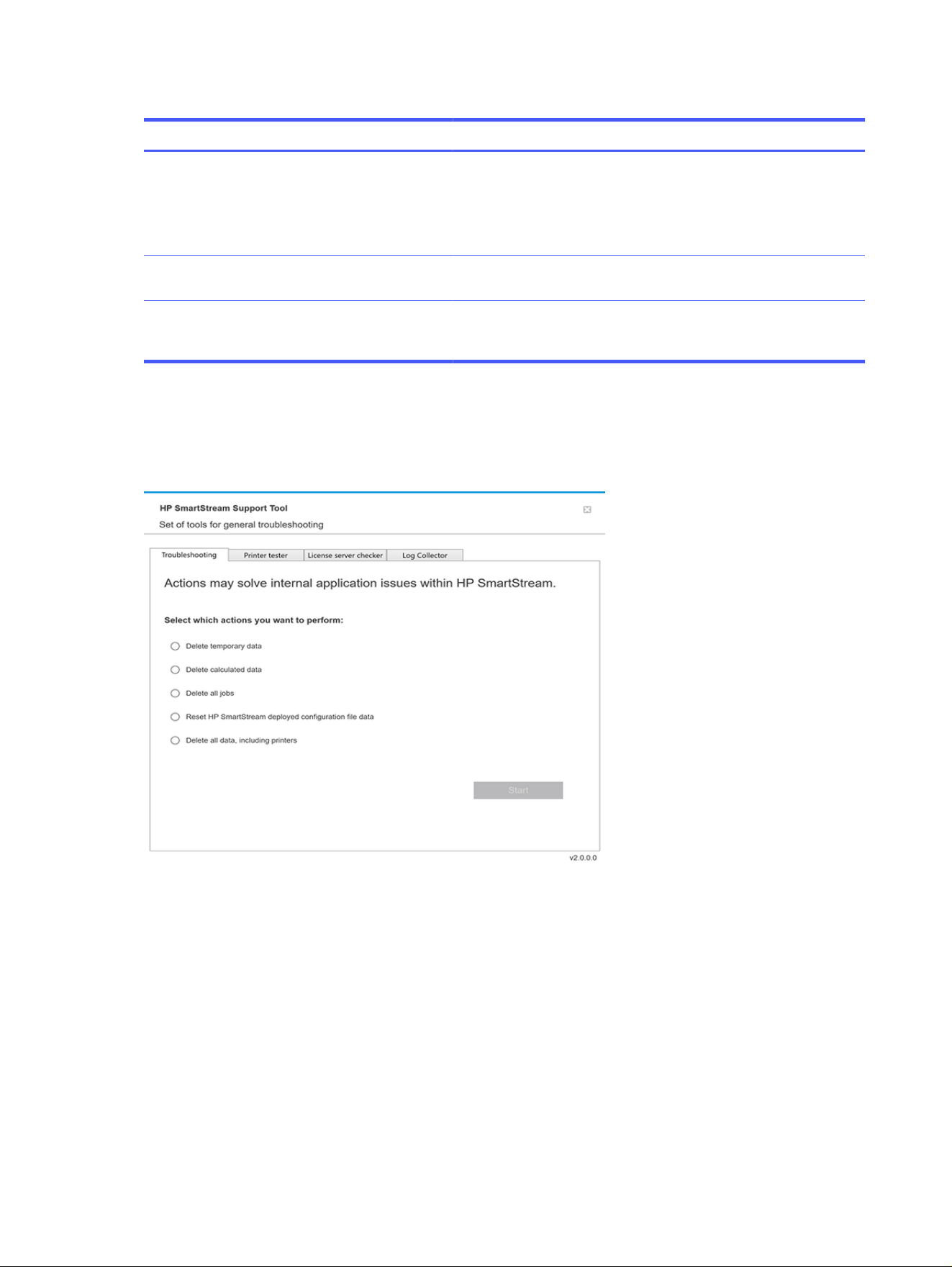
Table 4-5 Error codes (continued)
Error code Short description Full description
2202-8089 Unsupported printer or required
license
Check that the printer you are trying to use is supported by the
application (see the installation guide). In particular, check that it is a
PostScript printer.
Check that the required licenses are installed (see the installation
guide).
Printer protocol unsupported
version. Upgrade SW application.
This application is not compatible with the printer. Contact your reseller
for upgrade possibilities, or download the upgrade from the link.
Printer protocol unsupported
version. Upgrade printer FW.
The firmware of one of the installed printers is not compatible. Check
whether firmware updates are available for your printers, or download
the update from the link.
Troubleshooting tool
There is a troubleshooting tool provided in the HP SmartSteam program group, which offers various
options to help you to recover from a problem.
1. Delete temporary data: Delete only temporary files in
C:\Users\User\AppData\Local\Temp\HP\HPSmartStream. The database (folder and files) is not
deleted.
Also delete all files in C:\Users\User\AppData\Local\Roaming\HP\HPSmartStream.
2. Delete calculated data: Delete all items in option 1, plus jobs in preparation. This option can be used
if you have a job in preparation that is causing an error, and you cannot delete it any other way.
3. Delete all jobs: Delete all items in options 1 and 2, plus all other jobs, including the job history, and
all HP SmartStream application data in the Windows registry (persistent settings).
142
Chapter 4 HP SmartStream

4. Reset HP Smart Stream Configuration Tool configuration: Deletes information in the registry related
to the latest configuration file applied. This option can be used if you want to reapply the latest
configuration file.
5. Delete all data, including printers: Delete all items in options 1 to 4, plus the database. Licenses are
not deleted. This option can be used to reset the software if you are experiencing frequent errors; it
may be more convenient than reinstalling the software.
Choose the option you wish to use and click Start; or click Close to use none of them.
Troubleshooting tool 143
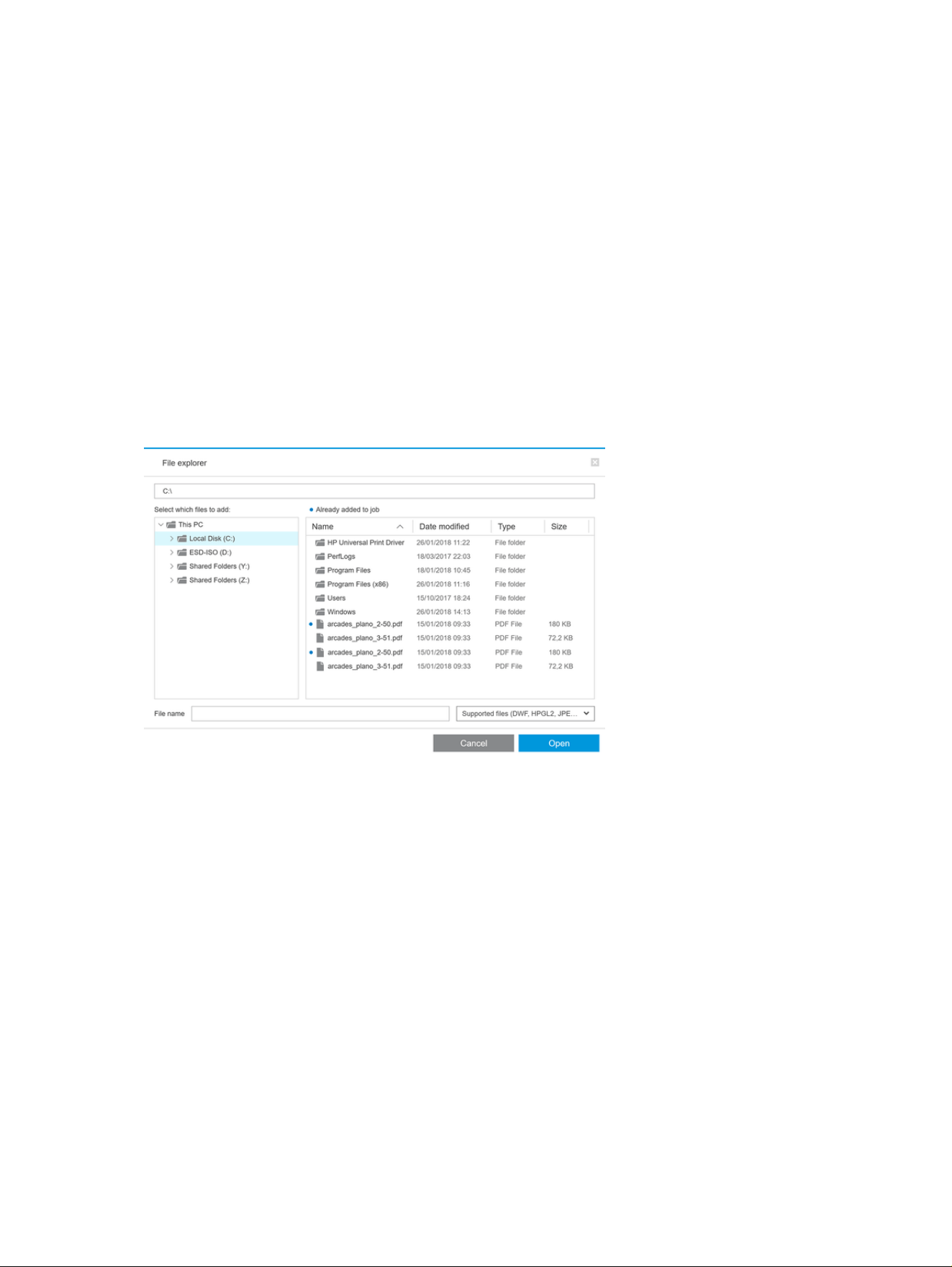
Optional modules for advanced users
Three optional modules are available for HP SmartStream: the document organizer module, the pixel
analysis module, and the workflow management module.
Each module requires a specific electronic license. If the license is not present, the features of the
module will not appear in the application.
Document organizer module
The document organizer module allows you to track files that you have already added to a job, and to
rename documents and pages in several different ways.
Tracking files added to the job
The application remembers which files you have added to your job. When you use the HP SmartStream
file explorer to locate more files to add, any files in the folder that you have already added are marked
with a blue dot.
Files that are added by dragging and dropping are also remembered.
However, the application no longer remembers the added files after the job has been printed.
Rename pages
Documents and pages can be renamed in three different ways: manual renaming, batch renaming, and
OCR renaming.
Renaming overwrites the original files. Therefore, if you want to retain the original files, copy them before
renaming.
If you rename a single page of a multipage PDF file, the page is extracted from the original document.
DWF, HP-GL/2, and TIFF files are not supported for renaming.
Manual renaming
You can rename one or more documents or pages manually.
144
Chapter 4 HP SmartStream
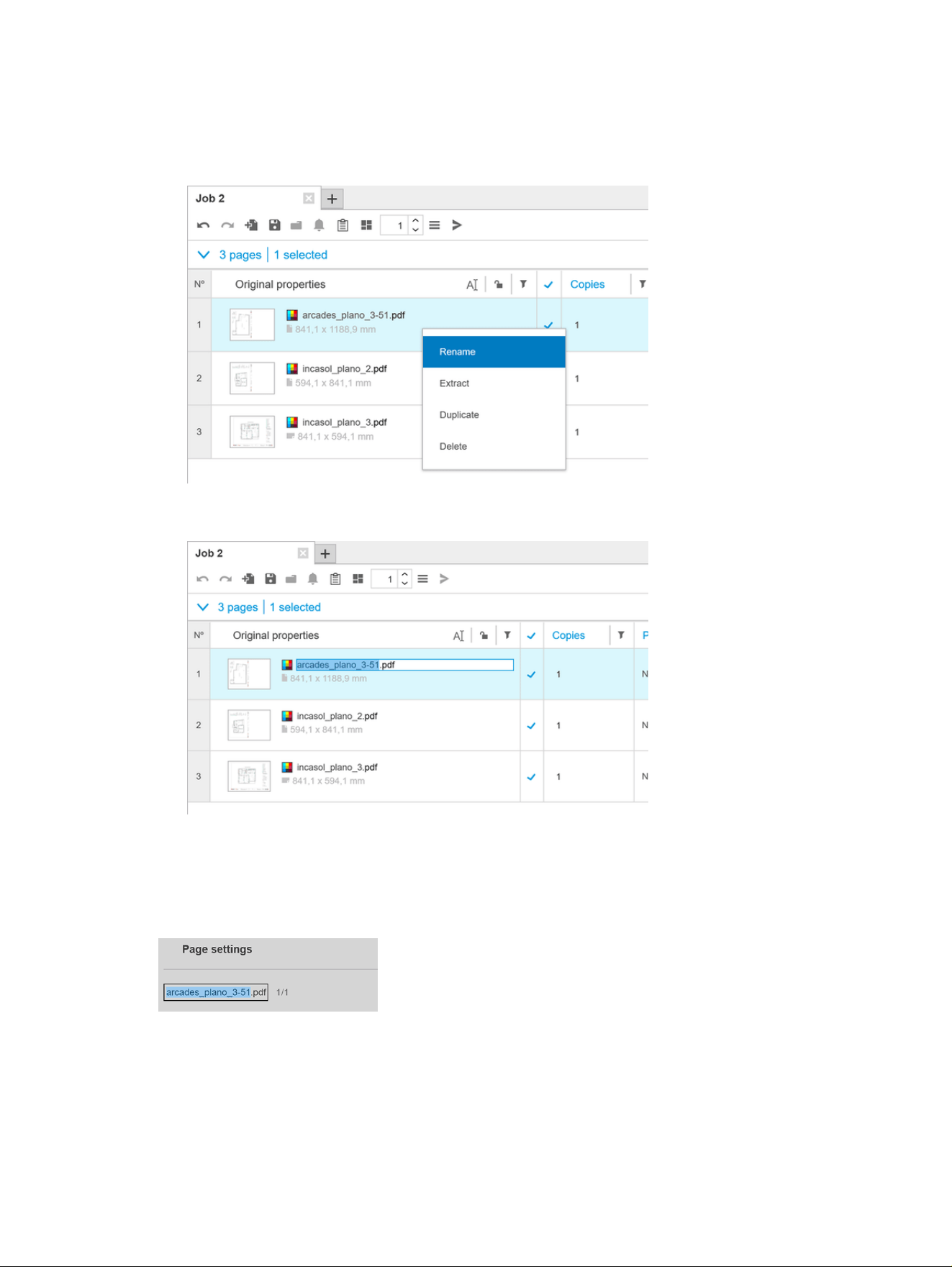
To rename a page manually:
● Right-click the current page name in the job preparation pane, and select Rename from the popup
menu.
● Alternatively, ensure that the page is selected, and press F2.
Press Enter to confirm the new name.
To rename the next page, press Tab. To rename the previous page, press Shift Tab.
Manual renaming can also be done in the settings pane.
If you enter a name that is already in use, the application will suggest another name.
Manual renaming
145
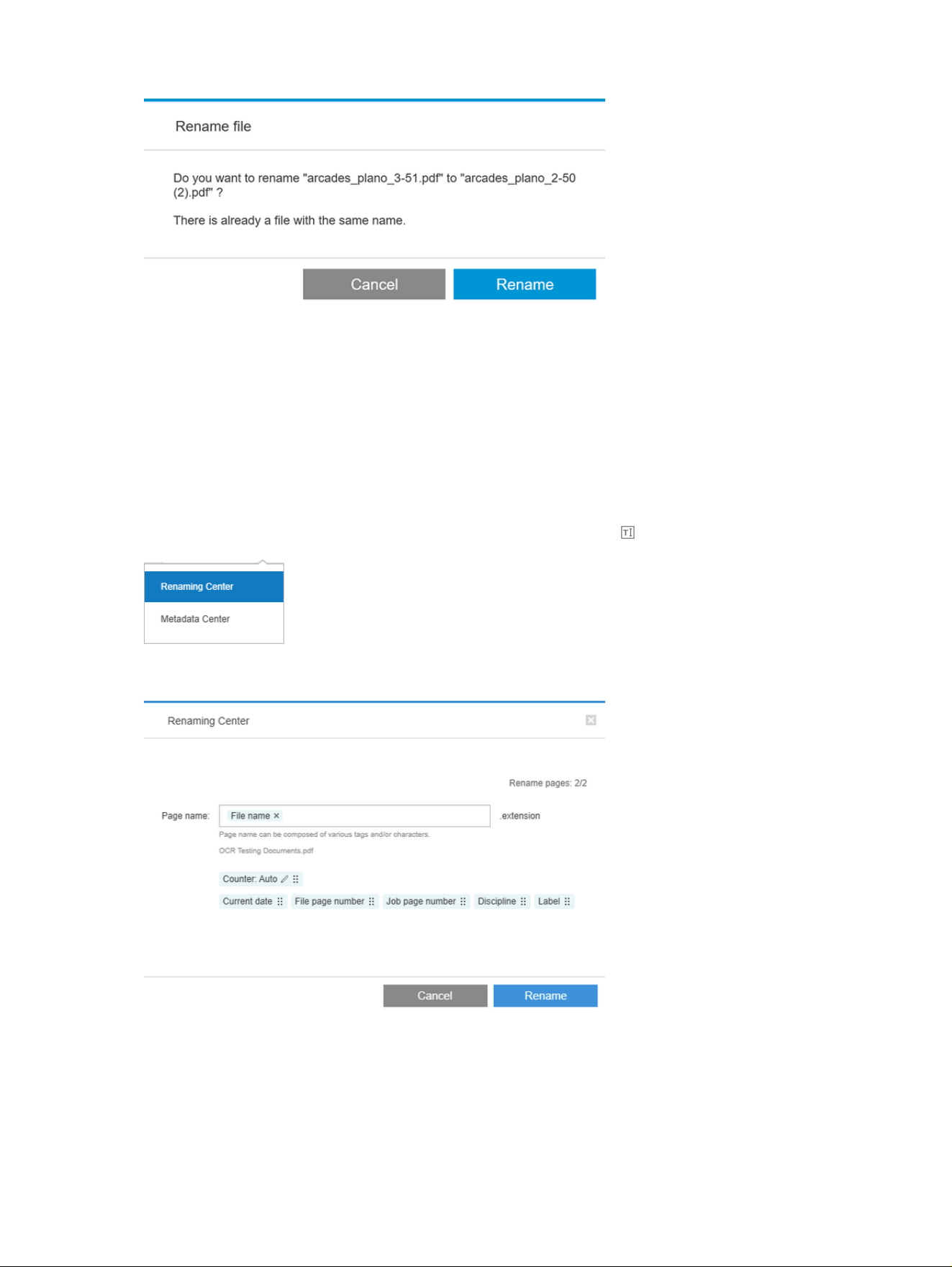
If you select multiple pages to rename at once, the name you enter will be used for all pages, with an
added numerical suffix to distinguish between them. The suffix for the first page will be 1, 01, or 001,
depending on the number of renamed pages.
Batch renaming
You can rename multiple documents or pages in a single batch.
First select the pages you want to rename in the job preparation pane. If none are selected, all pages will
be renamed.
Near the left of the column headers in the job preparation pane, click and then Renaming Center.
The following dialog box appears, in which you can specify the new filenames that you want to use.
The new page names can be composed of a prefix, a main part, a suffix, and the filename extension
(which you cannot edit).
You can fill each part of the new name by entering text (avoid using special characters), and/or by
clicking one of the variables below: file name, file page number. and so on.
146
Chapter 4 HP SmartStream
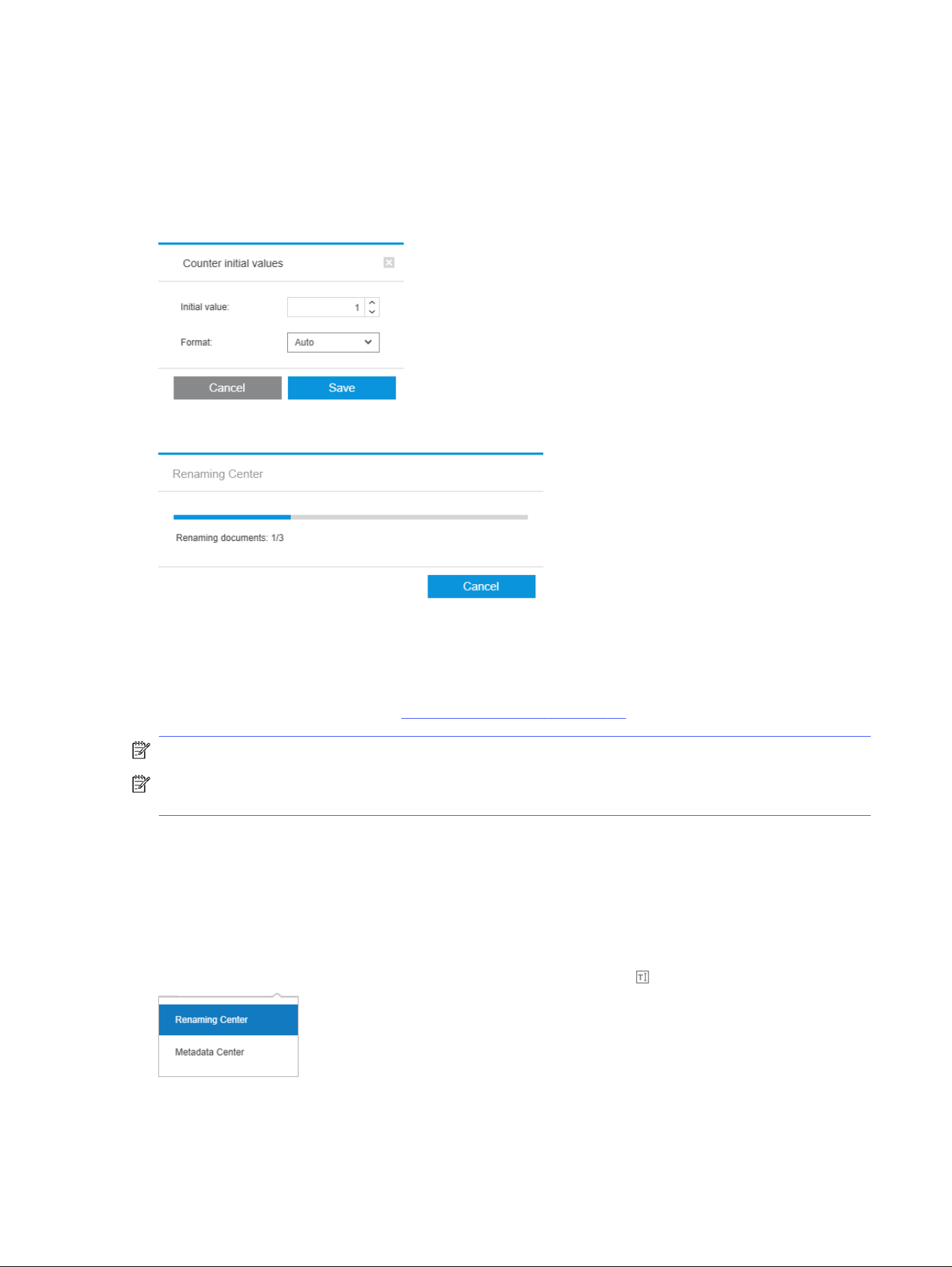
If used, the Current date variable is displayed in the standard format that you have selected in your
operating system.
By default, the suffix consists of a numerical counter, starting from 1, 01, or 001, depending on the
number of renamed pages. But this is not obligatory: you can remove the counter from the suffix.
Alternatively, you can change the starting value and format of the counter by clicking the icon in the
counter.
When you have specified how you want to rename the pages, click Rename to start renaming.
While the renaming operation is in progress, you can cancel it at any time. If you cancel it, all pages are
restored to the names they had at the beginning of the operation.
By default, the renamed files remain in their original folder, but you can specify a different batch-rename
save folder in the preferences; see General preferences on page 80.
NOTE: Any pages whose extensions are not supported by the application will not be renamed.
NOTE: If you try to give a file a name that already exists in the same folder, the application will modify
the new name automatically.
OCR renaming
OCR stands for Optical Character Recognition: the software technique of interpreting pixels as text. You
can use this technique to obtain a filename to be used in renaming.
First select the pages you want to rename in the job preparation pane. If none are selected, all pages will
be renamed.
Near the left of the column headers in the job preparation pane, click and then Renaming Center.
In the Renaming Center dialog box, click Define OCR areas.
OCR renaming
147
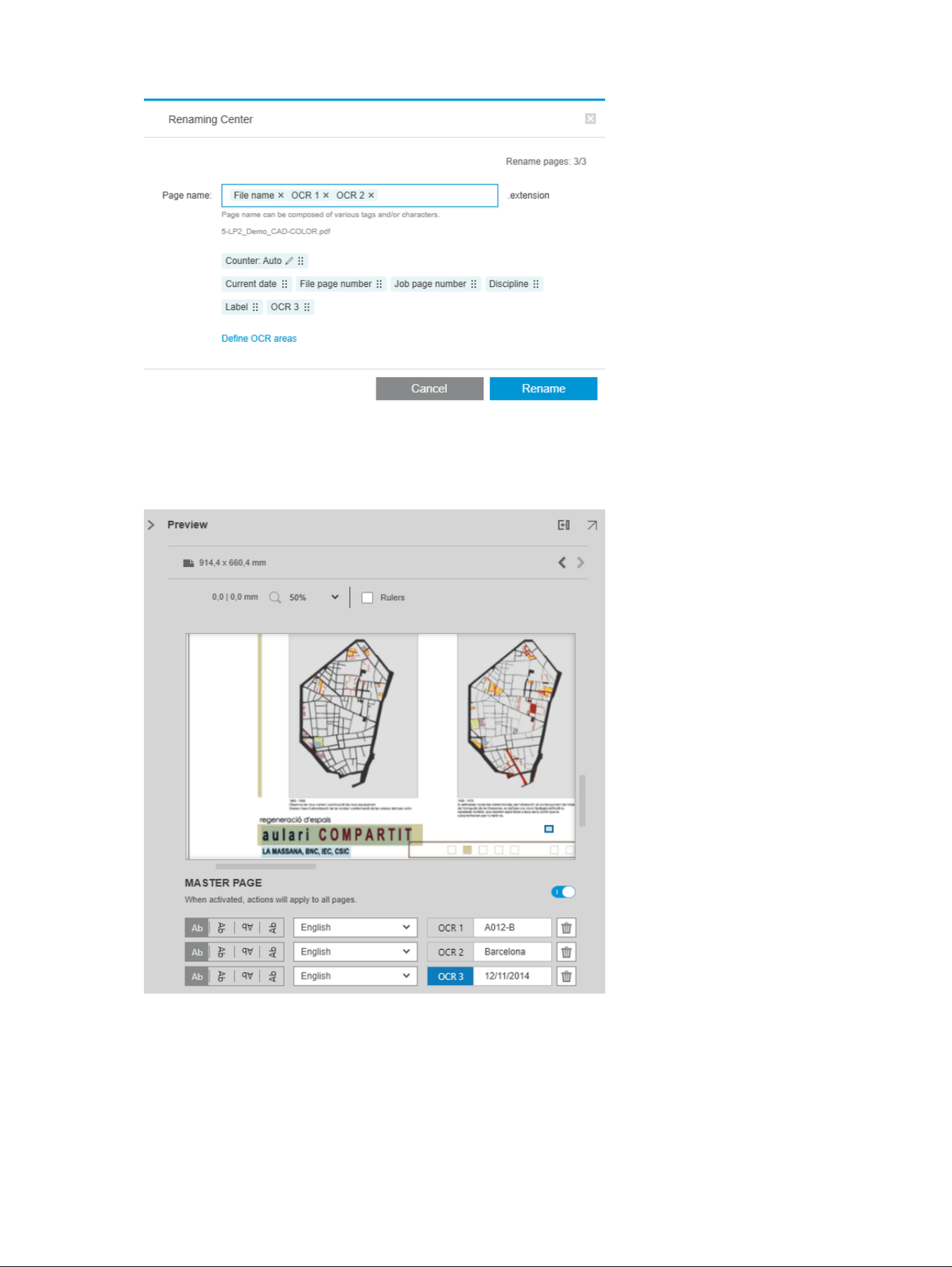
In the preview pane, you can define up to three OCR areas containing text to be used in renaming. Each
area is defined by drawing a rectangle around it on the preview image, enclosing the text.
Areas can be added, modified, or deleted.
When you have specified in the Renaming Center dialog box how you want to rename the pages, click
Rename to start renaming.
148
Chapter 4 HP SmartStream
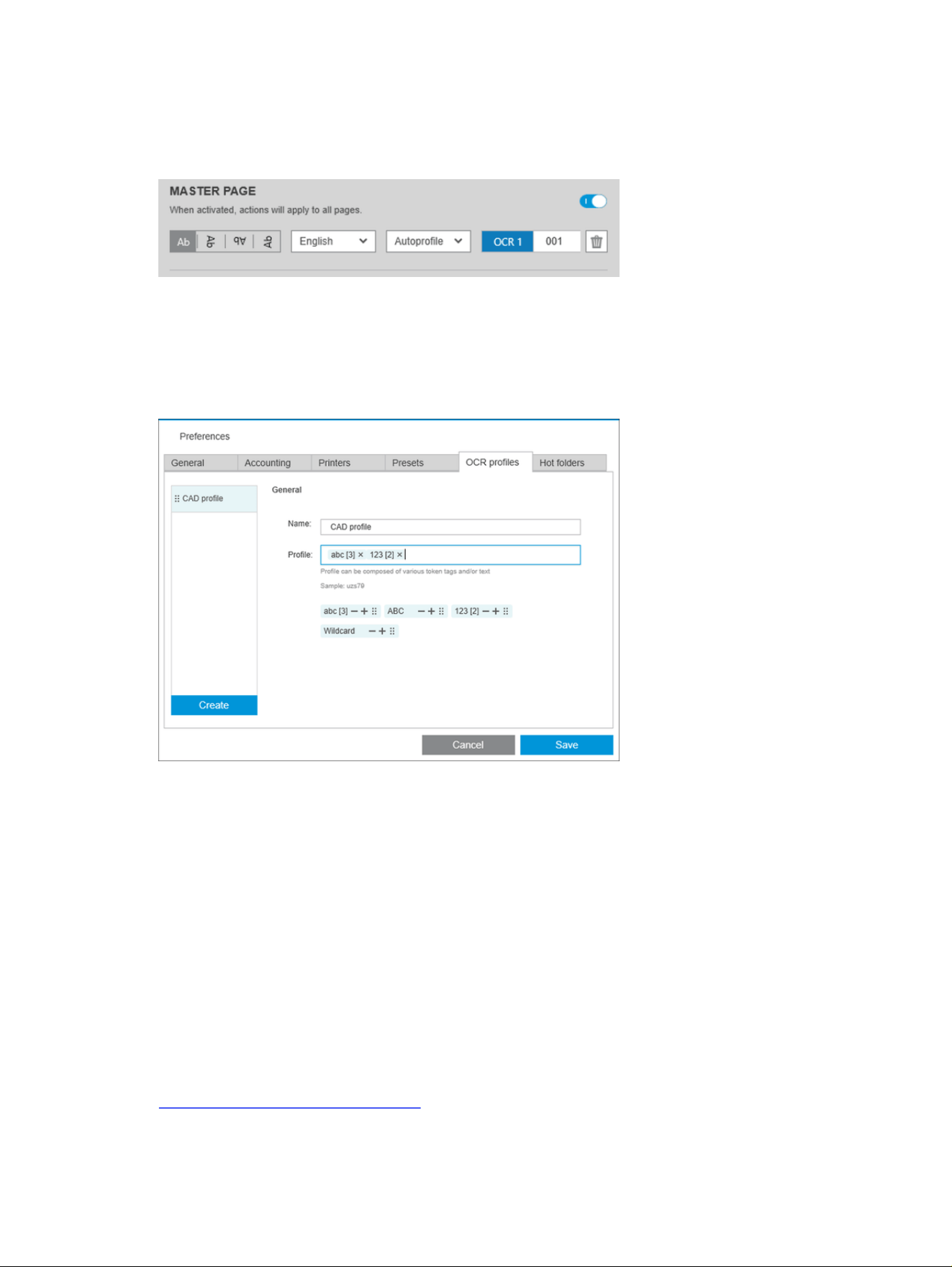
Autoprofiles
During Optical Character Recognition you can select Autoprofile, in which case the application will try to
detect a pattern in the text.
The autoprofile has a tooltip that shows the autodetected pattern.
Create a new OCR profile
The OCR profiles tab enables you to save named OCR profiles, each one specifying rules for interpreting
scanned text.
1. Click Create.
2. Enter a name for the new profile.
3. Enter the profile specification. You can enter characters directly and/or drag one of the patterns
shown below.
4. Click Save to save the new profile.
Your OCR profiles are listed on the left; you can reorder the list, and delete profiles from it (right-click,
then Delete).
OCR simulation
In the OCR simulation window, you can see the OCR results and manually correct any that need
adjustment. You can choose different OCR profiles and see the results.
In the Renaming Center, click OCR simulation to check the OCR results before applying them. See
Create a new OCR profile on page 149.
Autoprofiles
149
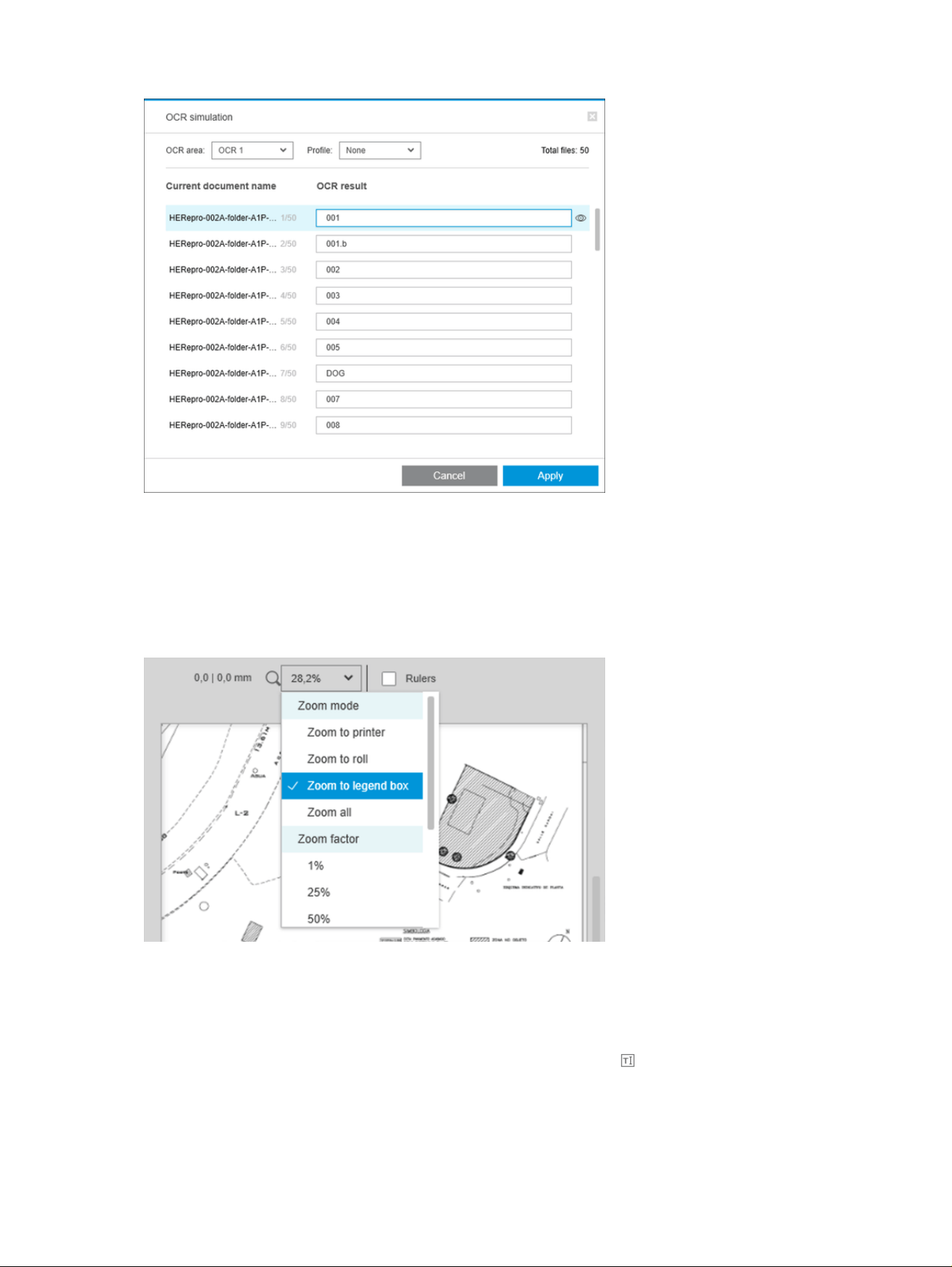
When you have finished with this window, you can click Apply to apply the results as displayed, or Cancel
not to apply them. Both buttons close the window.
Zoom to legend box
In the preview zoom drop-down menu, select Zoom to legend box. This displays the title box in the
viewport and helps you to identify and focus on a document’s legend box.
Add metadata
First select in the job preparation pane the pages to which you want to add metadata. If none are
selected, the metadata will be added to all pages.
Near the left of the column headers in the job preparation pane, click and then Metadata Center.
150
Chapter 4 HP SmartStream
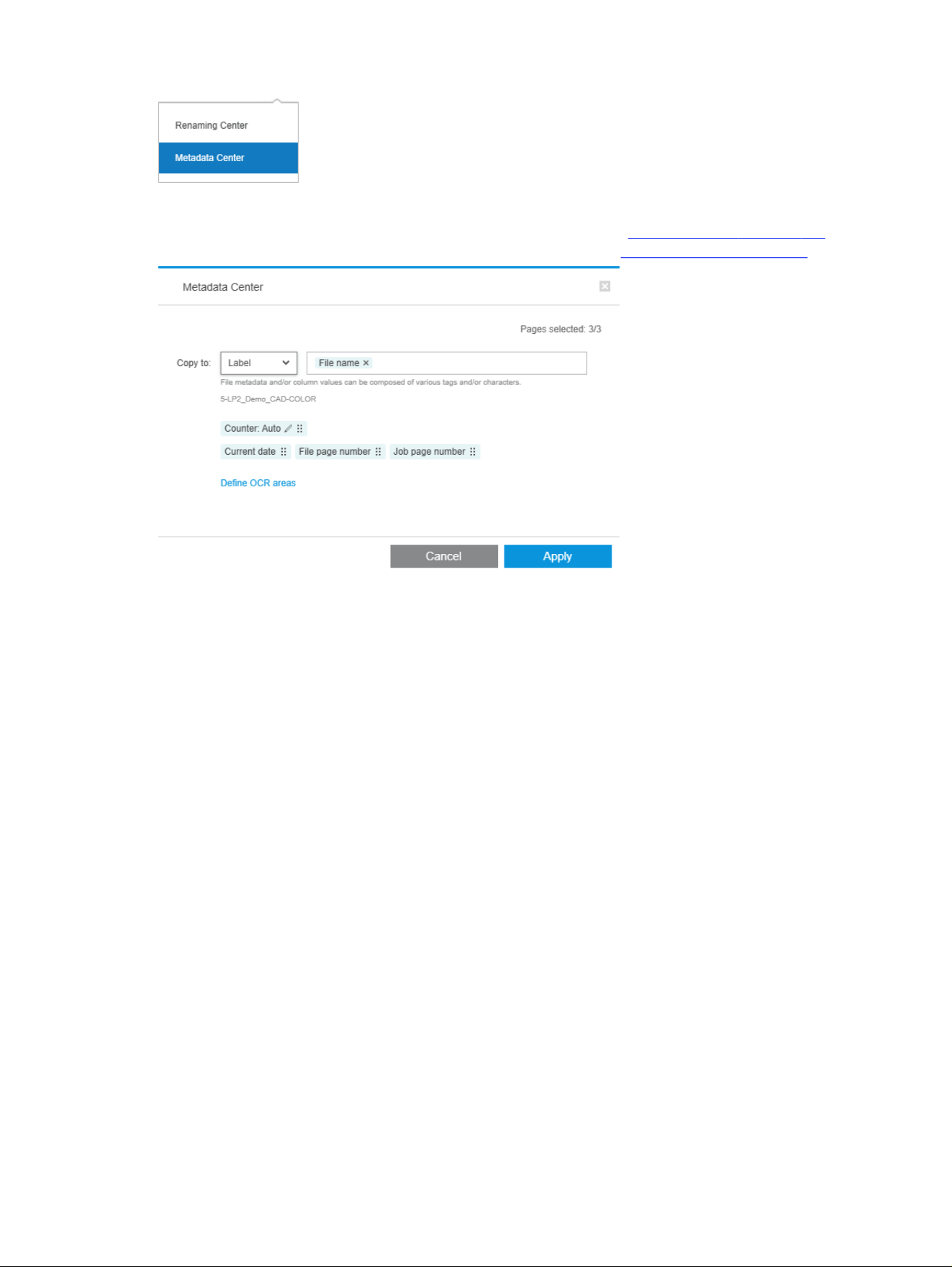
In the Metadata Center dialog box, you can enter metadata that will appear in the Label or Discipline
column in the job preparation pane. As in a renaming operation (see Batch renaming on page 146), there
are various variables you can use, including one OCR variable (see OCR renaming on page 147).
When you have specified the metadata you want to add, click Apply.
Pixel analysis module
With the pixel analysis module, the application can calculate the pixel coverage of pages and classify
them into custom categories that you can set in the preferences. A report then appears in the job
details, with an estimate of the total page cost.
Categories and thresholds
If the pixel analysis module license is active, you will find the pixel coverage section at the bottom
of the application’s accounting preferences, in which you can specify pixel coverage thresholds and
categories.
Pixel analysis module
151
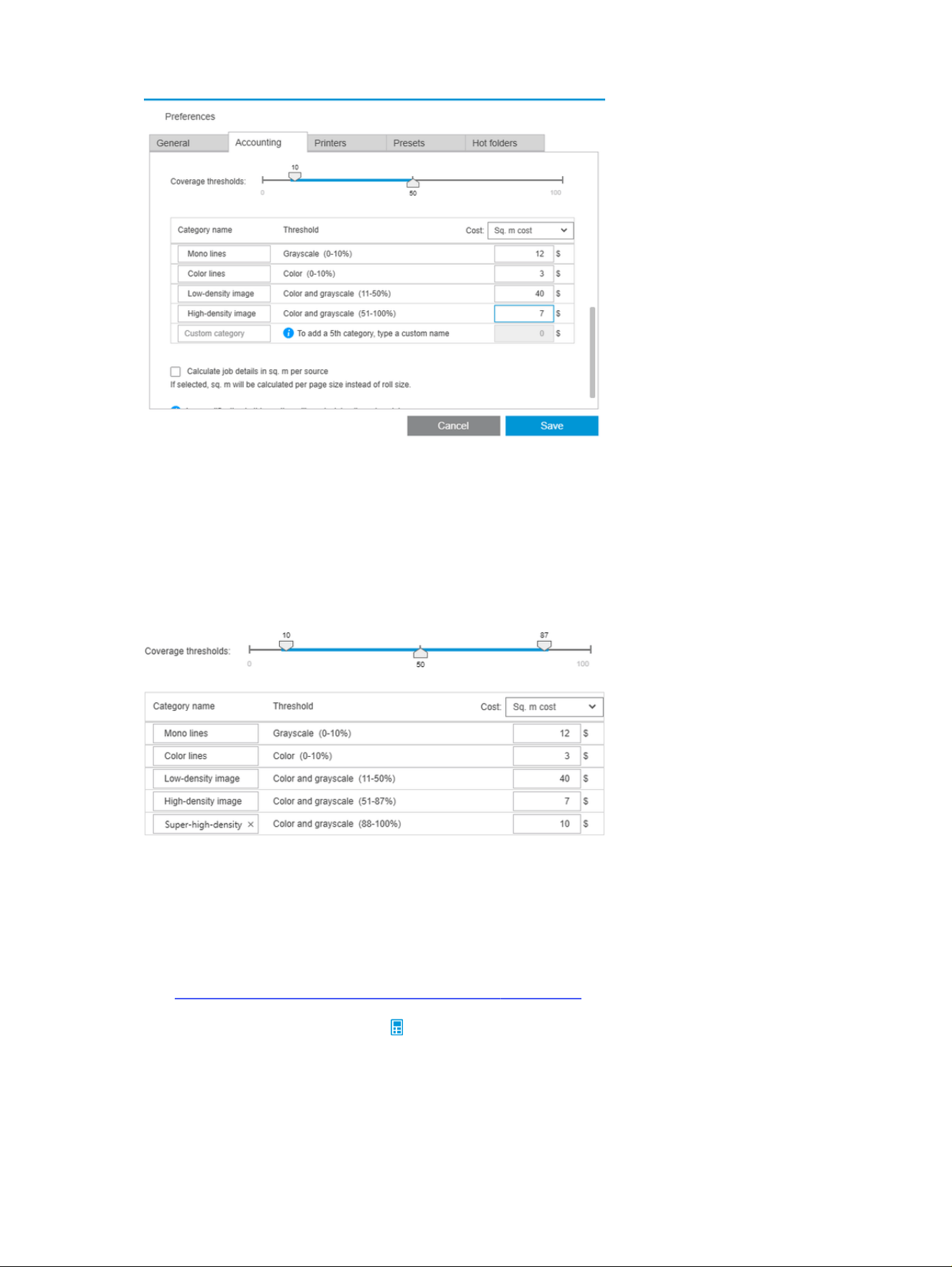
When you use the application for the first time, default categories are set up as shown above, with no
prices.
You can edit these categories and set prices for each category, per square meter or per page. Costs
can be calculated for the total amount of paper used (the roll width) or only for the paper that is actually
printed on (the page width).
The fifth category is optional. To use it, just enter a name of your own choice where you see Custom
category on the screen. You will then see a extra marker in the threshold slider, as shown below.
When you click Save, your changes are saved and applied to all past as well as future jobs.
Calculating pixel coverage
If the pixel analysis module license is active, the Coverage column appears in the job preparation pane.
This column is visible by default, but it can be made to disappear or reappear like the other columns.
See How can I adjust the HP SmartStream window? on page 69.
To analyze pixel coverage, just click in the column header. Pixel coverage can be calculated for a
single page, or for all pages in a job.
152
Chapter 4 HP SmartStream
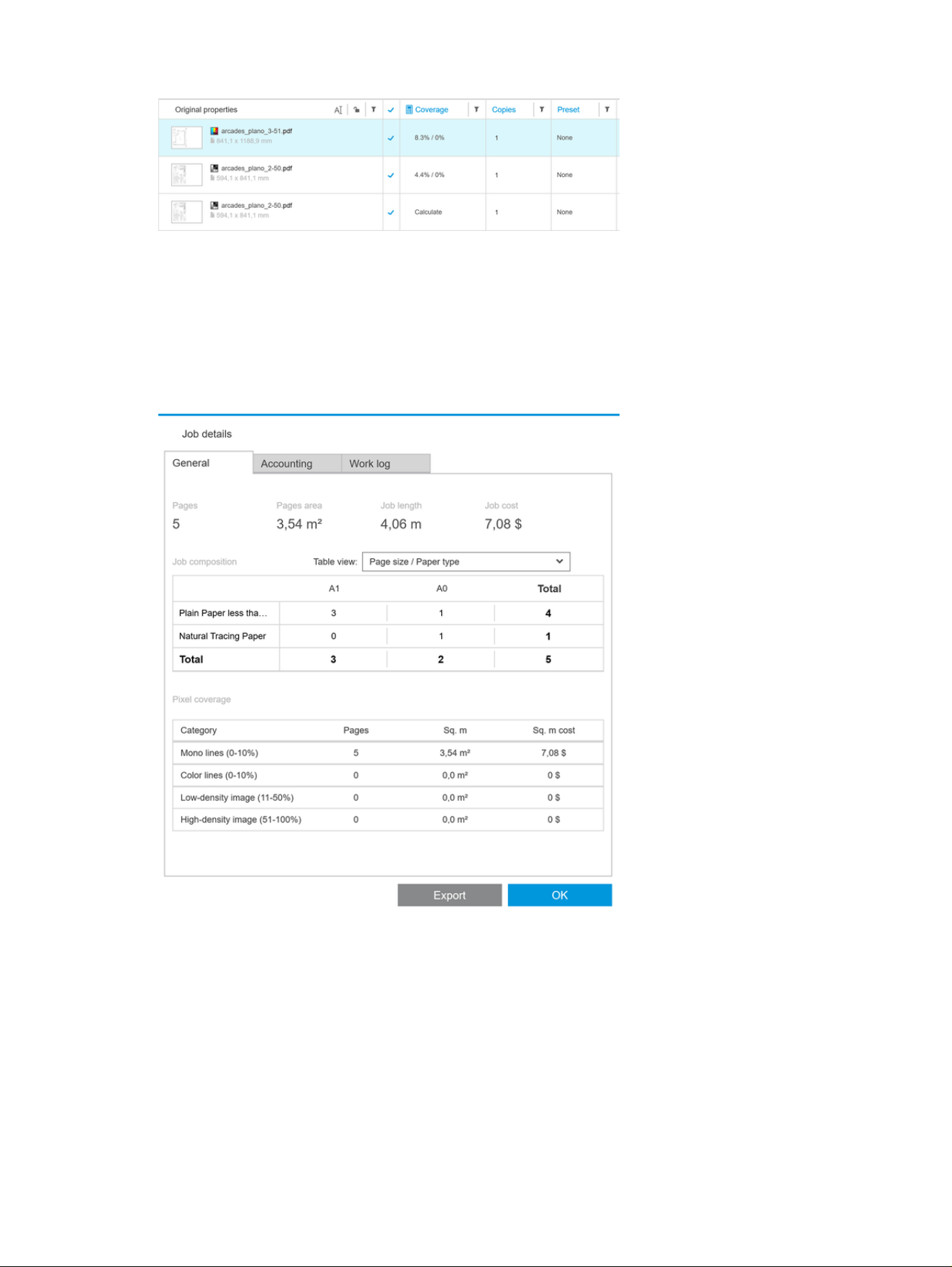
When pixel coverage has been calculated, the Coverage column displays two values: the total
percentage coverage of the surface, and the color percentage coverage.
Coverage of pages or documents can be recalculated at any time.
Job details
The job details window includes a table summarizing the pixel coverage analysis.
Click Export to export the job details report to a CSV or PDF file. The exported report includes a detailed
list of all pages with page statistics.
Job details
153
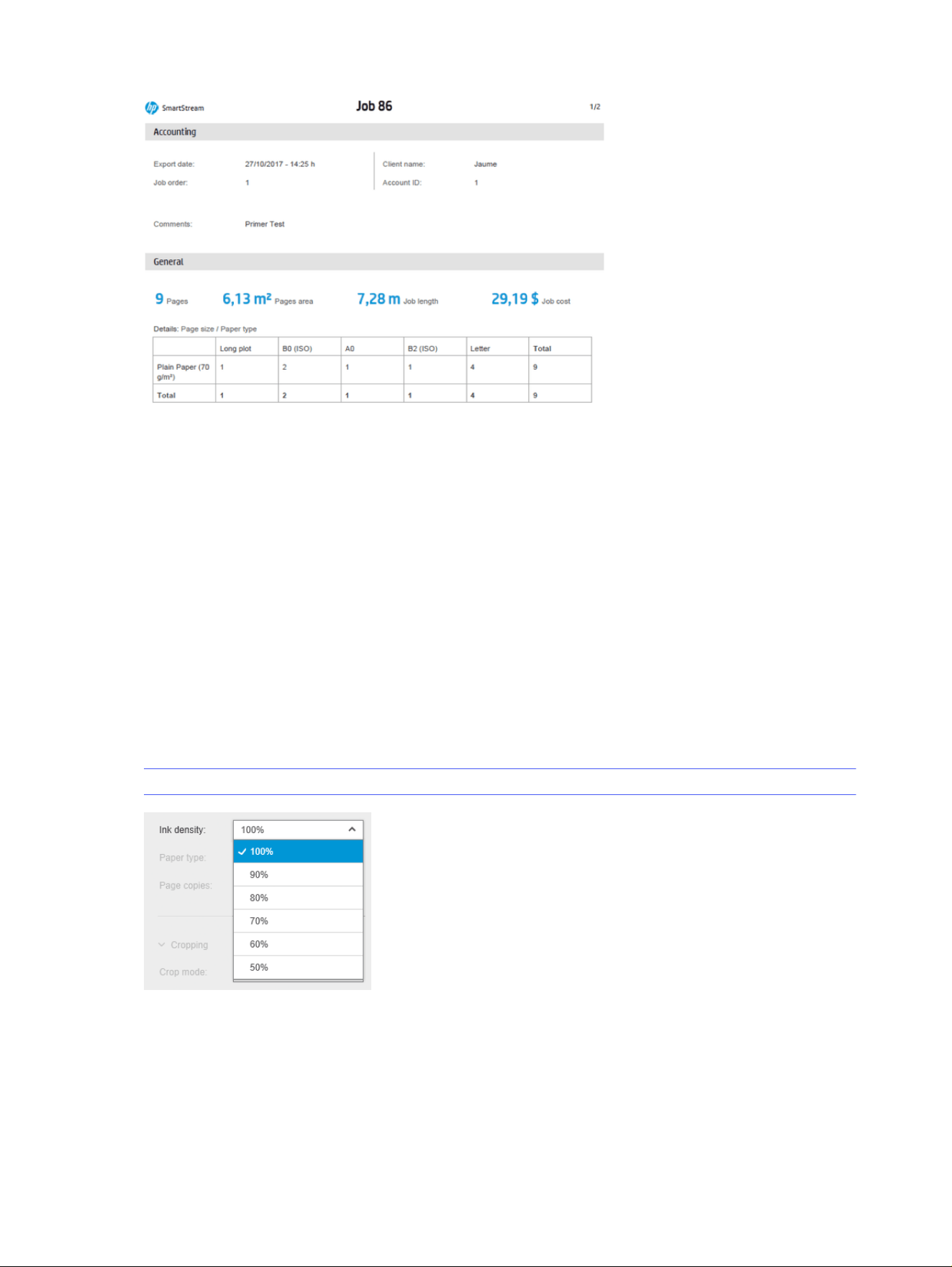
Workflow management module
The workflow management module allows HP SmartStream to use Job Definition Format (JDF) files.
JDF is a technical standard in use with XML files. HP SmartStream JDF supports job settings such as
job name, job copies, and collate; and document settings such as number of copies, color mode, and
destination.
When a JDF file is added it will be analyzed as a separate job, regardless of the job in which it was
inserted.
Once the JDF file has been analyzed, only the files referenced by the JDF will exist as documents in the
application; the JDF file itself is not preserved as an item within the application (as with SMJ and ZIP
files).
Ink-density profile
The ink-density profile allows you to select the percentage of ink to be used for printing a job.
NOTICE: This feature is available only for the HP PageWide XL Pro 10000 printer.
154
Chapter 4 HP SmartStream

How to use non-HP printers with HP SmartStream
The following sections provide details for this topic.
Introduction
HP SmartStream can print to some non-HP large-format printers by using specific drivers, each of which
may cover multiple non-HP printers.
Table 4-6 Officially supported printers and their drivers.
Printer model Windows driver
OCE TDS600 OCE WPD1.22
OCE TDS700
OCE WPD2.13
OCE TDS750
OCE TDS800
OCE TDS860
OCE PLOTWAVE 750
OCE PLOTWAVE 900
OCE CW600
OCE CW650
OCE CW500
OCE CW700
KIP 5000 – 5000 MF
KIP wide-format driver installer v.8.159.0.0 WHQL - GL2 v.0.3.4103.159 (GL2/RTL)
KIP 7000 – 7000 MF
KIP 7700 – 7700 MF
KIP 8000
KIP 9900
RICOH AFICIO MP W5100 RICOH Aficio MP W5100 PS (v.6.0.0.0)
XEROX DOCUWIDE 6055 XEROX WHQL Driver version 1.8.2
Installing the printer
Before you can add any printers, the software must be non-HP licensed. The license for non-HP printers
enables the non-HP mode in SmartStream, so users will be able to print to multiple non-HP printers with
only one license.
Contact your HP sales representative to acquire an EON code with a non-HP full license (T9B46AAE:
HP SmartStream Print Controller for Non-HP MV-HV devices E-LTU). You can test the new functionality by
using the trial license for non-HP printers for 60 days. See how to get the EON code for the trial license
here: http://www.hp.com/go/smartstreampagewidexl/software.
Once the non-HP license is added to the License Manager, follow these instructions to add non-HP
printers:
How to use non-HP printers with HP SmartStream
155
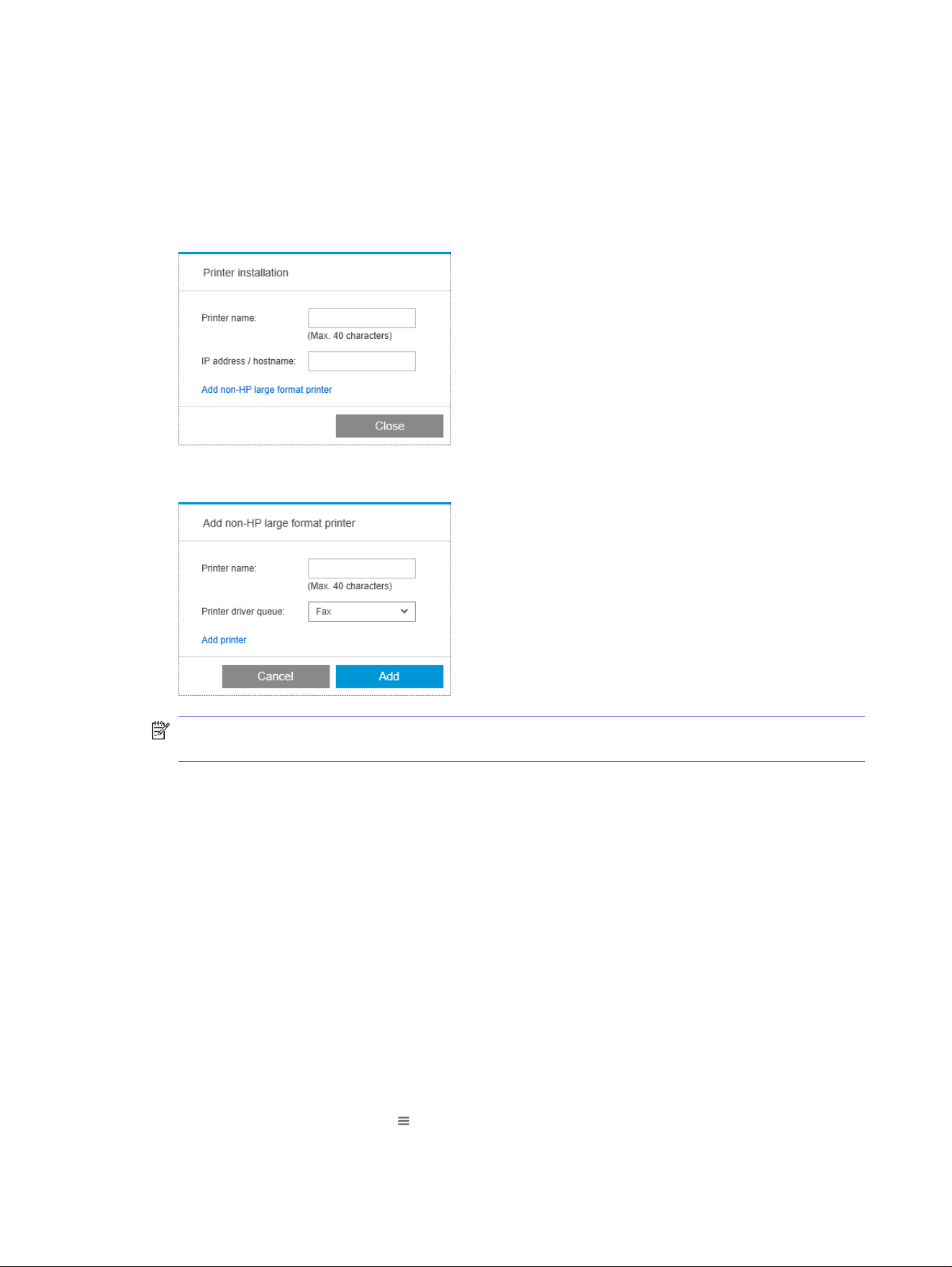
1. Click Preferences near the top right of the window.
2. Click the Printers tab.
3. Click the Add printer button.
4. Click Add non-HP large format printer (visible only when there are compatible printer drivers
installed in the system).
5. Give the printer a name (optionally) and select a driver.
NOTE: Only drivers that are installed and compatible with HP Smartstream will appear; so you
must install the driver in advance.
6. Click the Add button.
Preparing a job
Non-HP printers are driver-supported in HP SmartStream, which means that there are some differences
in functionality compared with HP printers.
In the job preparation or settings pane you will be able to edit only the following print settings for each
page:
● General settings: Color mode
● Page options: Page size, scale, orientation, alignment on page, rotation on page
● Cropping
● Advanced options: Copies
Print settings can be changed in either the job preparation pane or the settings pane. Other settings
must be defined at job level, with the icon.
156
Chapter 4 HP SmartStream
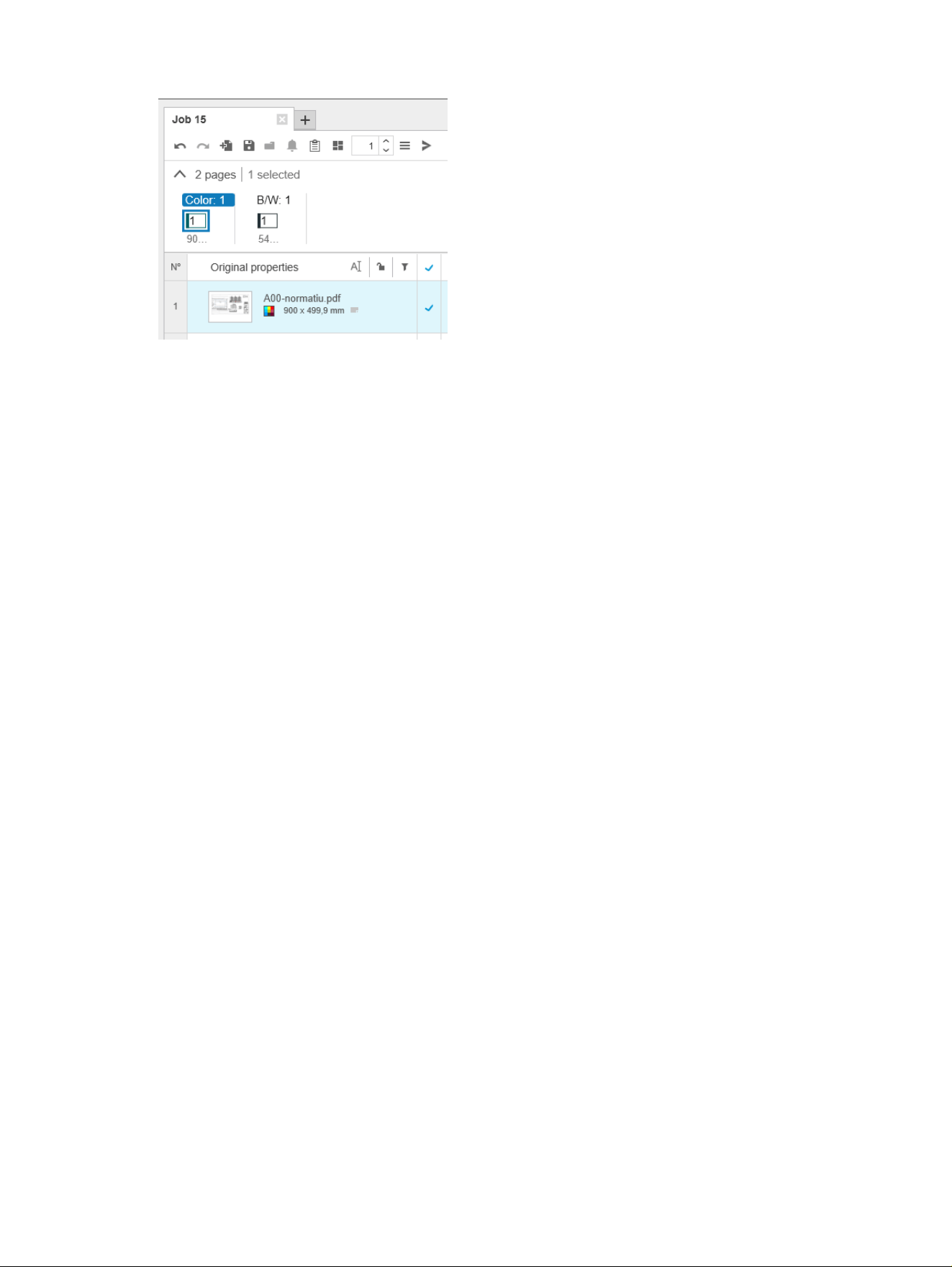
Here you can define the following job settings or actions:
● Copies
● Collate
● Revert to original page order
● Revert to custom page order
● Print job
● Extract
● Delete job
For non-HP printers, Advanced options at job level is enabled within the above list. Select this option to
open the printer driver. Here you can change driver default values and save them, so that they apply
to the whole job. In this way, you can define additional settings such as the output destination or print
quality.
However, the following driver settings will not be saved: they are always overwritten by those defined at
page level in the job preparation pane.
● General settings: Color mode
● Page options: Page size, scale, orientation, alignment on page, rotation on page
Therefore, you are not recommended to change these settings in the driver.
Other considerations
Compared with HP printers, non-HP printer integration in HP SmartStream has some limitations in the
following areas.
Printer status
Only three statuses are reported.
● Ready
● Paused
● Error
Other considerations
157
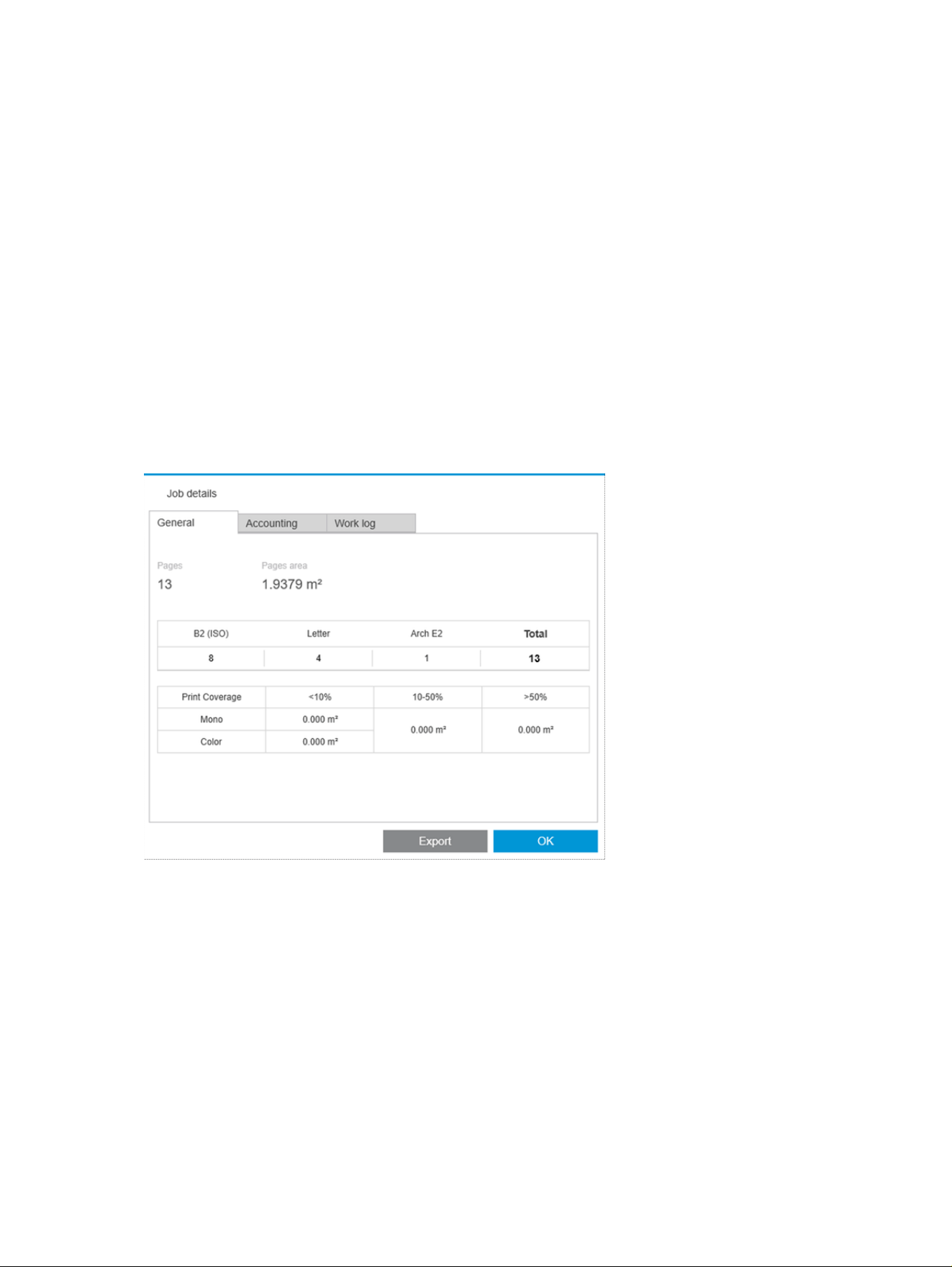
Printer queue
Jobs being processed are categorized based on the submittal process instead of the printing process.
● Submitting
● Submitted
● About to submit
● Preparing to submit
● Waiting to submit
History
Jobs sent to print are categorized as Submitted, Failed, or Canceled.
Job summary
No printer paper type field is included.
Resolution center
Alerts of three kinds do not appear.
● Output destination
● Rolls
● Paper size mismatch
Preview
Three features are disabled.
● Crystal Preview
158
Chapter 4 HP SmartStream

● Zoom to roll
● Zoom to printer
Presets
Only some of the settings available when defining a preset will be applied to a non-HP printer.
● Color mode
● Print quality
● Page options (cutting lines, rotation, paper alignment)
● Cropping
Printer preferences
Only some of the printer preference settings are available.
● Printer name
● Print quality
● Remove white areas
● Rotation
● Page/image alignment
● Roll/page alignment
● Content in printer margin
● Color options
● Nesting
Other limitations
This topic explains the concepts involved in this subject.
● Print-preview orientation inconsistency: If the printer has a Save paper setting activated, the
orientation of the HP SmartStream preview may not match the orientation of the print.
● Long plots: Some printers may not permit prints longer than 5 m, which will be canceled.
Presets
159

Shortcut keys
You can use keyboard shortcuts (keys or combinations of keys) to do things that you would otherwise do
with a mouse.
Overall selectors
This topic provides a full set of reference information for this subject.
Table 4-7 Overall selectors
Key Function
Esc Cancel
F3 Maximize job preparation pane (close other panes) or restore previous state
F4 Printers panel open/close
F5 Navigator panel open/close
F6 Preview panel open/close
F7 Settings panel open/close
Tab Tabulate through content
Q Printing queue tab
Alt E Rotate left
Alt R Rotate right
Y History tab
O Options menu
F Freeze column on/off
J Job preparation tab
In job preparation tab, focus on job
K Preferences
Enter or Spacebar Press selected button, or select element in focus
Home Go to first page (or first of selection)
End Go to last page (or last of selection)
Page Up or up arrow Go to previous page
Page Down or down
arrow
Go to next page
Left arrow Scroll left
Right arrow Scroll right
Icon-toolbar selectors
This topic provides a full set of reference information for this subject.
160
Chapter 4 HP SmartStream

Table 4-8 Icon-toolbar selectors
Key Function
Ctrl D Duplicate job
Ctrl W Remove job
Ctrl R Resolution center
Ctrl T Nest job on/off
Shift Ctrl T Nest drop-down options
Ctrl O Open/add documents
Shift Ctrl O Original position order
Ctrl P Print
Shift Ctrl P Job options
Ctrl S Save
Ctrl F Hot folder (open drop-down menu and focus)
Ctrl J Job details
Ctrl Z Undo
Shift Ctrl Z Redo
Shift Ctrl X Extract
Shift Ctrl C Focus job copies
Shift Ctrl M Restore manual/custom order
Ctrl Enter Send
Globals
This topic provides a full set of reference information for this subject.
Table 4-9
Globals
Key Function
F1 Help (open user’s guide)
F2 Rename active tab
Alt F4 Close application
Shift F10 Display shortcuts
Ctrl W Cancel active job in print queue or history
Shift Ctrl W Cancel all in print queue
Ctrl R Release active job in print queue or history
Shift Ctrl R Release all in print queue
Ctrl U Details, or collapse current printer
Ctrl I Drop-down information on printer status
Globals 161

Table 4-9 Globals (continued)
Key Function
Ctrl A Select all (with focus on pane)
Ctrl F Focus on search in history
Ctrl H Hold active job in print queue or history
Shift Ctrl H Hold all in print queue
Ctrl N New tab
Ctrl X Cut text
Ctrl C Copy text
Ctrl V Paste text
Shift Ctrl N New job with selection
Windows up arrow Maximize
Windows down arrow Minimize
Preview selectors
This topic provides a full set of reference information for this subject.
Table 4-10
Preview selectors
Key Function
Esc Cancel crop
Ctrl 0 Zoom all
Ctrl - Zoom out
Ctrl + Zoom in
E Rotate left
R Rotate right
H Select Hand tool (pan)
L Rulers on/off
Z Select Zoom-in tool
X Crystal Preview on/off
C Select Crop tool
V Select Move tool
Shift Scale proportionally with the Move tool
Ctrl Enable mouse wheel with the zoom tool selected
Alt Temporary inverse zoom (resumes previous state on release)
Spacebar Temporarily select hand tool (resumes previous state on release)
Ctrl Spacebar Temporarily select zoom (resumes previous state on release)
162 Chapter 4 HP SmartStream

Table 4-10 Preview selectors (continued)
Key Function
Enter or Spacebar or C Confirm crop
< or up arrow or Page
Up
Previous
> or down arrow or
Page Down
Next
Arrow keys Scroll with the Hand tool
Go to an adjacent page with the Move tool
Move the image with the Crop tool
Job selectors
These shortcuts can be used in job preparation, in the job queue, or in the history.
Table 4-11
Job selectors
Key Function
Ctrl 1 First job
Ctrl 2 to 8 Job 2 to 8
Ctrl 9 Last job
Ctrl Tab Next job
Shift Ctrl Tab Previous job
Ctrl D Deselect all
Job selectors 163
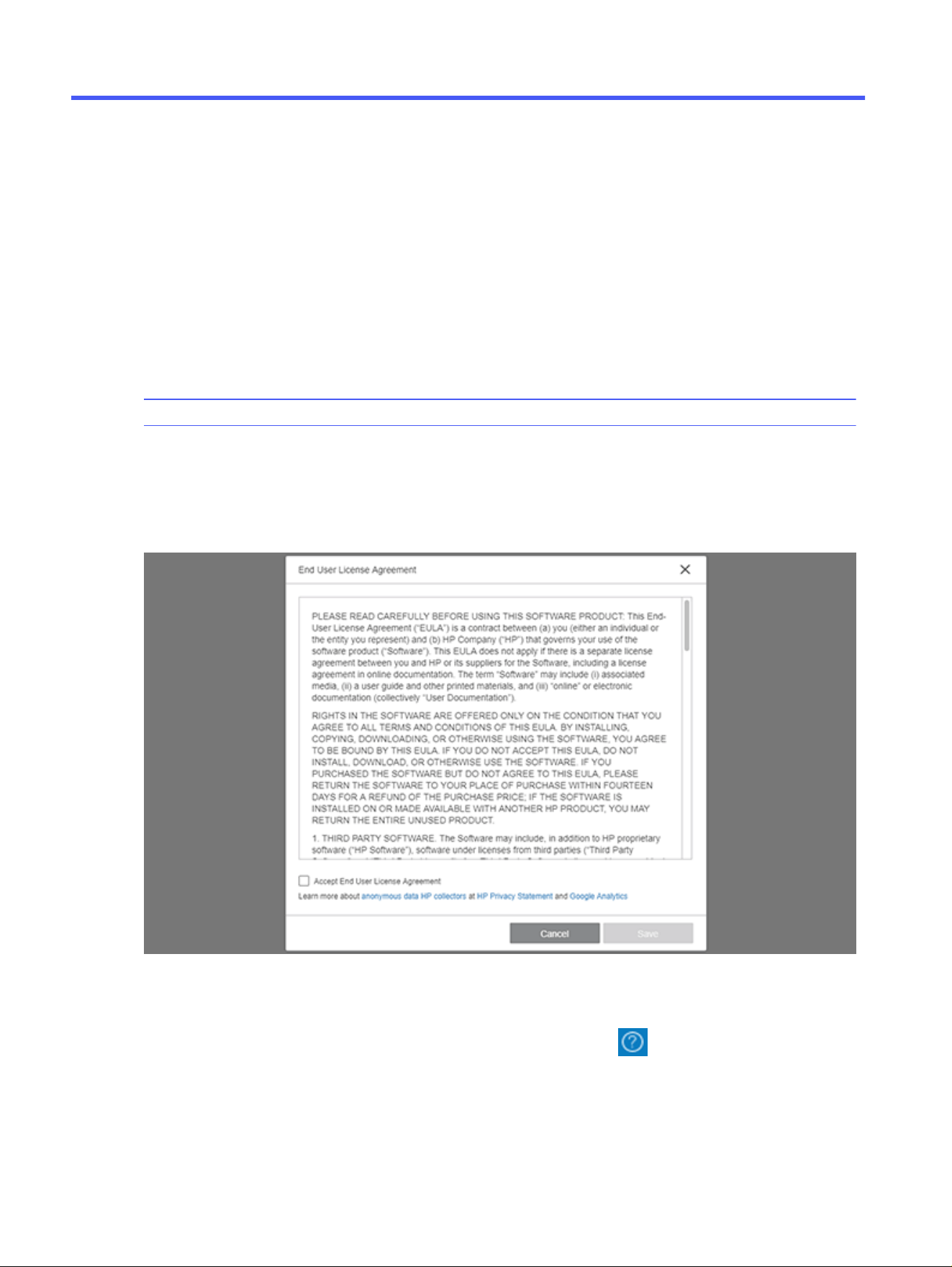
HP SmartTracker5
HP SmartTracker has been designed to help you control your printing costs and accurately charge your
customers for the prints you do for them.
NOTICE: HP SmartTracker software is compatible only with Original HP ink supplies.
Launching HP SmartTracker the first time
The first time you access the application, a popup with the EULA (End User License Agreement) terms is
displayed, as shown below:
You must accept these terms and click Save in order to use HP SmartTracker.
If at any time you want to stop sending personal data, if logged-in as an administrator, you can opt out. To
do so, or to review the data collection terms and conditions, click the icon on the main screen and
choose Product Improvement. A window opens as shown below:
164
Chapter 5 HP SmartTracker
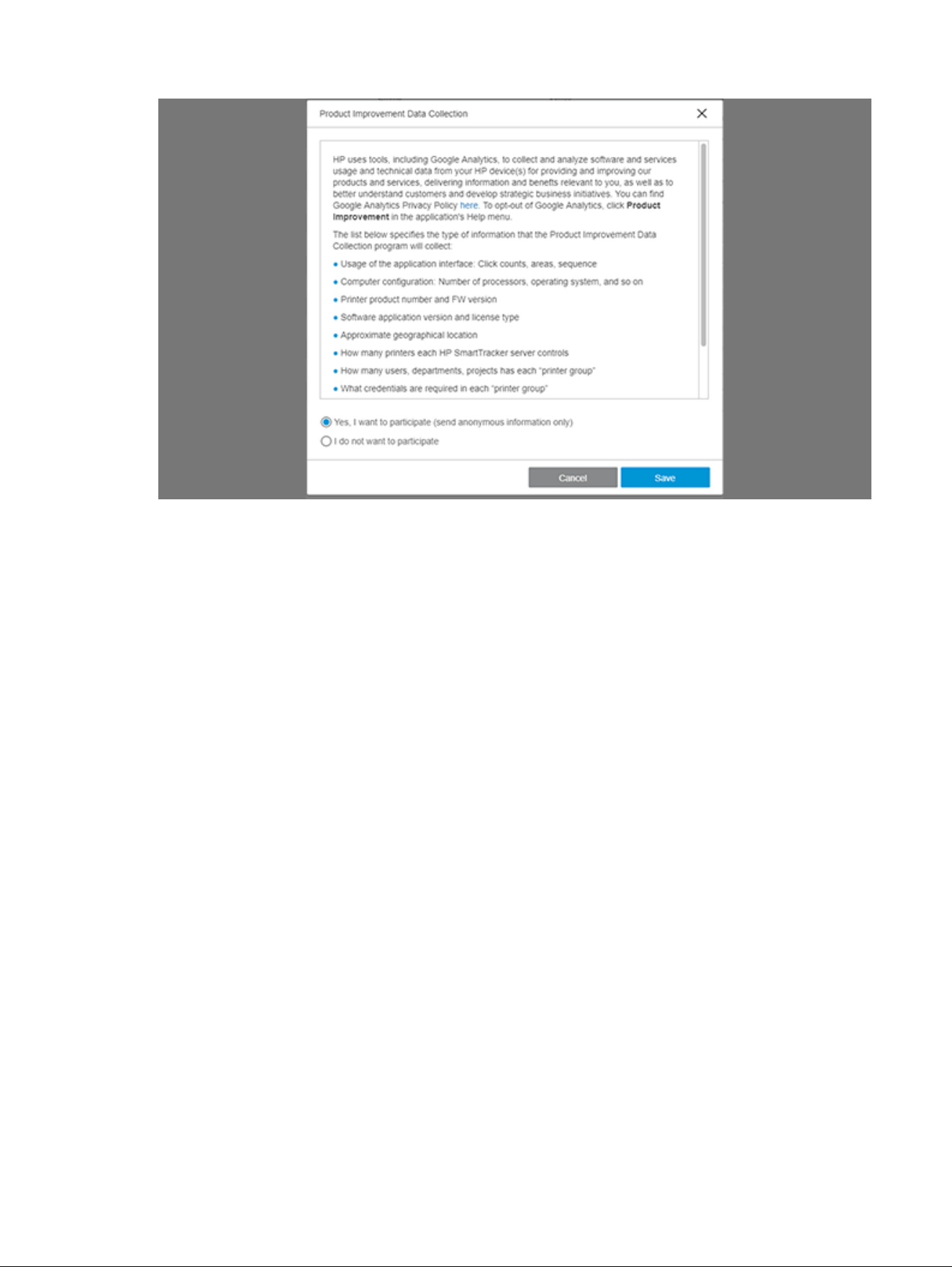
Choose whether you want to participate or not and click the Save button.
Launching HP SmartTracker the first time
165
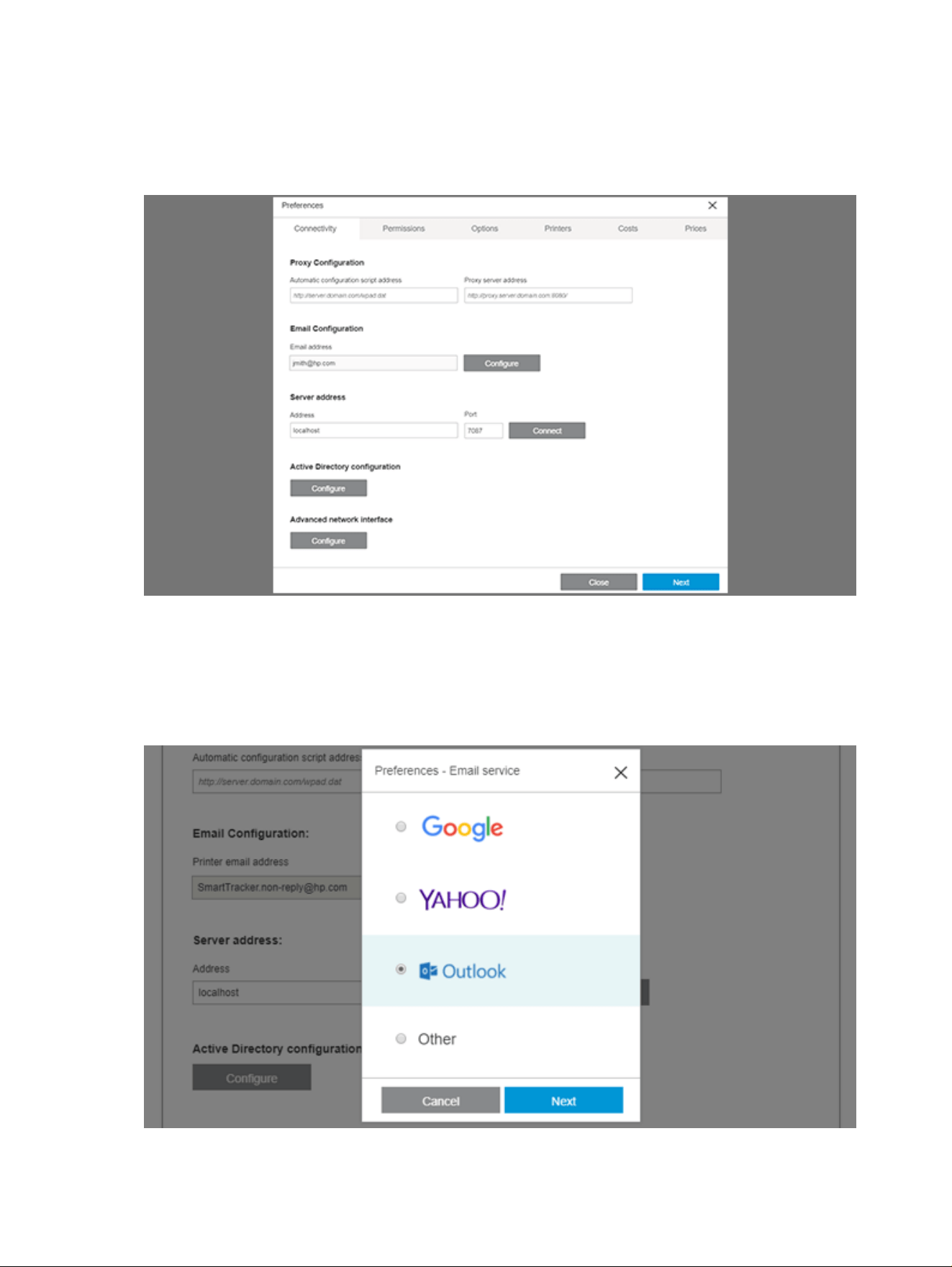
Connectivity
The first time that the HP SmartTracker application opens, the Preferences panel is automatically
displayed. The Connectivity tab is selected by default.
HP SmartTracker’s email service
HP SmartTracker has an email service that it uses whenever it needs to send messages. It is highly
recommended to configure this service during setup.
To configure this service, click the Configure button. The following window is displayed:
166
Chapter 5 HP SmartTracker
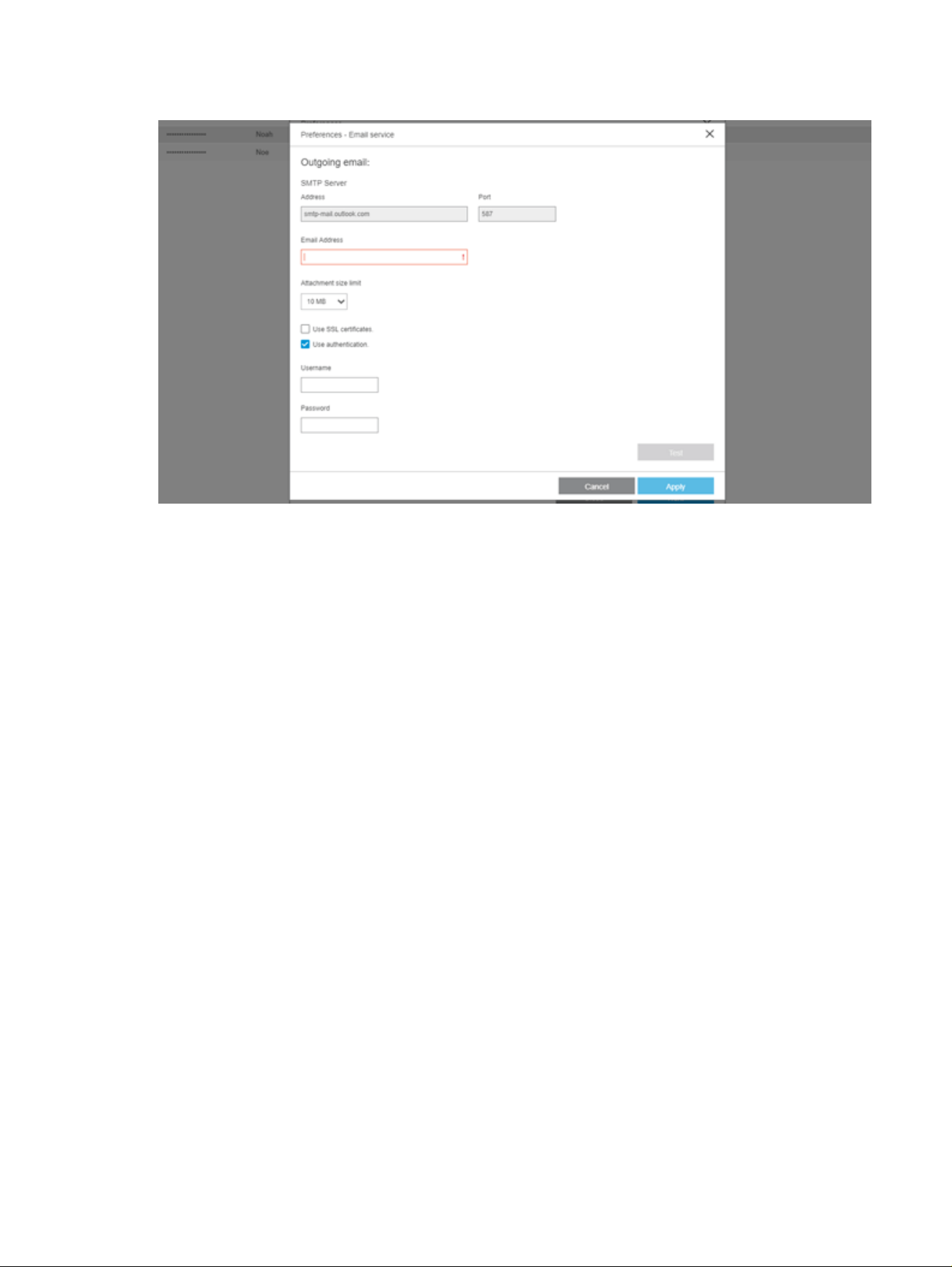
Configure the preferred e-mail service, then click Next. The following window is displayed:
Enter the email address and port in the corresponding fields of this window. Select the attachment size
limit from the drop-down list. The Test button can be used to send an email to the administrator, using the
settings you make here, and allows you to check the configuration before applying it.
You can also enable the use of SSL certificates and authentication by marking the corresponding
checkboxes.
Once you have entered all the data, click the Apply button to return to the Preferences panel.
Server address configuration
When setting the HP SmartTracker server address and port number, make sure that you enter the same
server address and port number as you used during the installation of HP SmartTracker Server. By
default, the port number is 7087.
Server address configuration
167
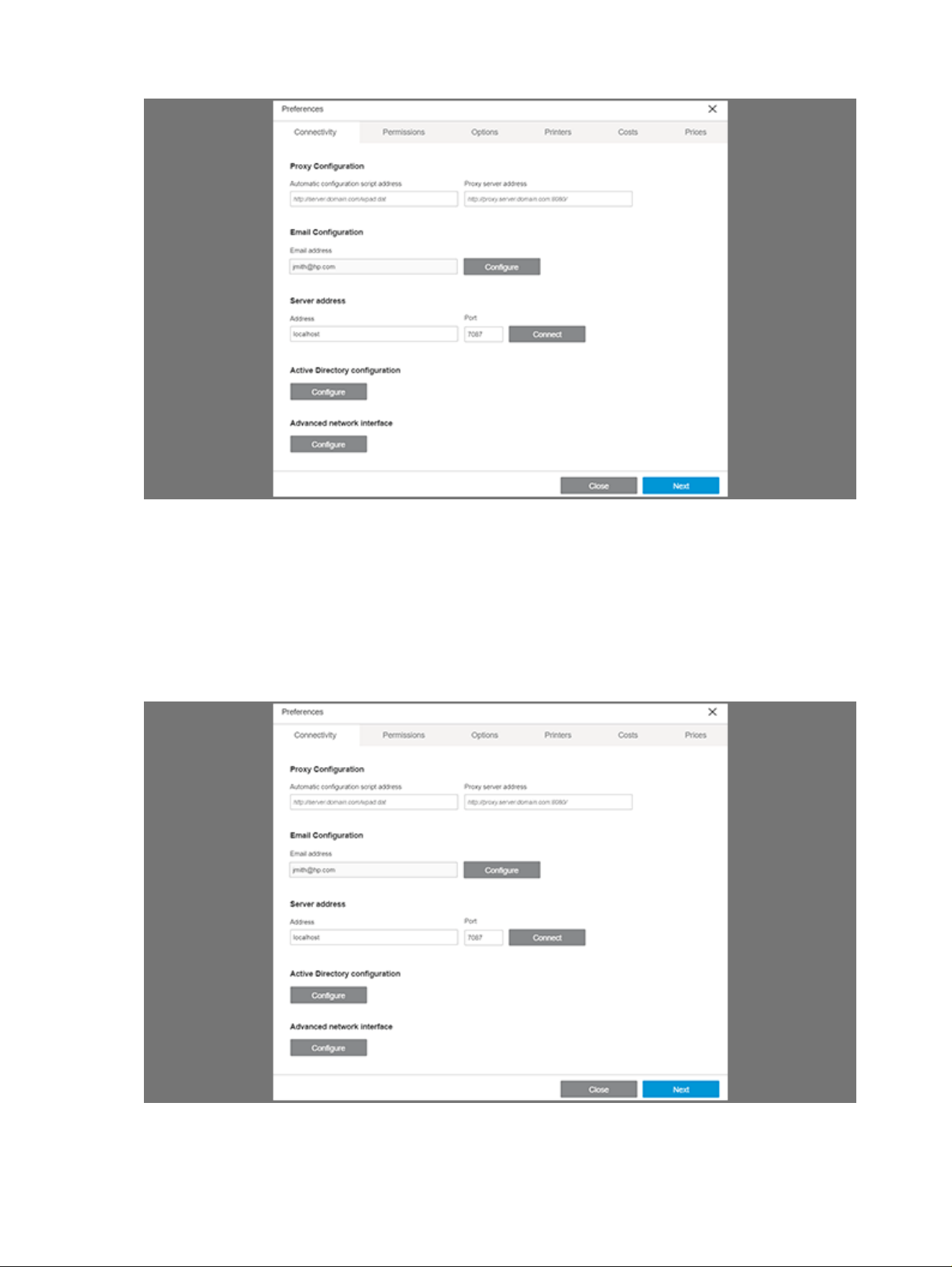
Next, click the Connect button to validate the data.
Once you have entered all the necessary data, click the Next button.
Configuration via Active Directory (AD)
If you want HP SmartTracker to make use of your active directory, you need to configure Active Directory
Configuration in the Preferences panel.
Go to the Connectivity tab and click the corresponding Configure button.
168
Chapter 5 HP SmartTracker
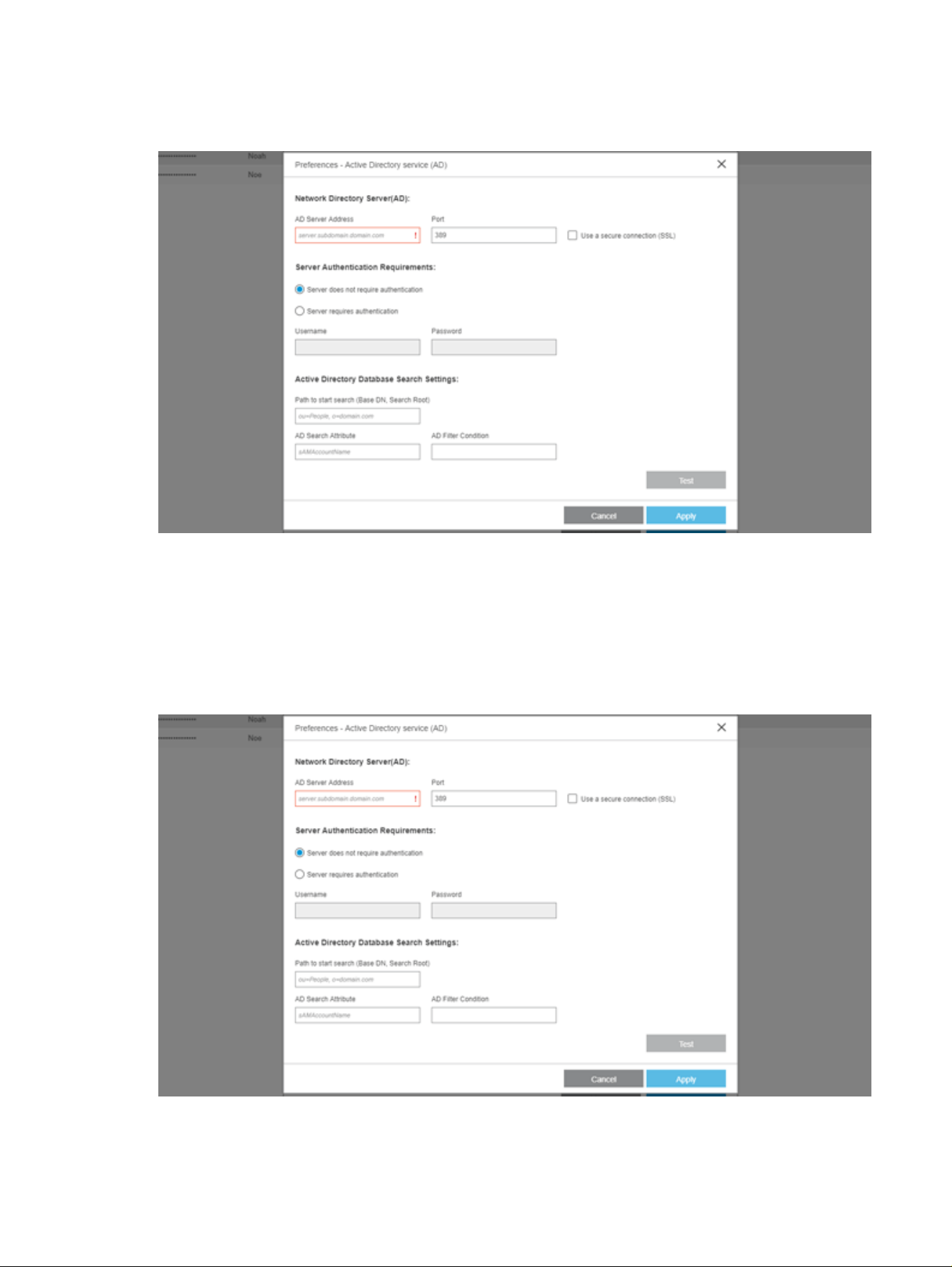
The Server does not require authentication option is enabled by default. The Username and Password
fields are disabled, as illustrated below:
Add the address of your Active Directory server in the AD Server Address and Port fields.
If the Active Directory server has been configured to use a secure connection (SSL), check the Use a
secure connection (SLL) checkbox.
If the Active Directory server has been configured to request authentication, select the Server requires
authentication option, the Username and Password fields will be enabled, enter here the details of a user
that has permissions to search in the active directory.
Configuration via Active Directory (AD)
169
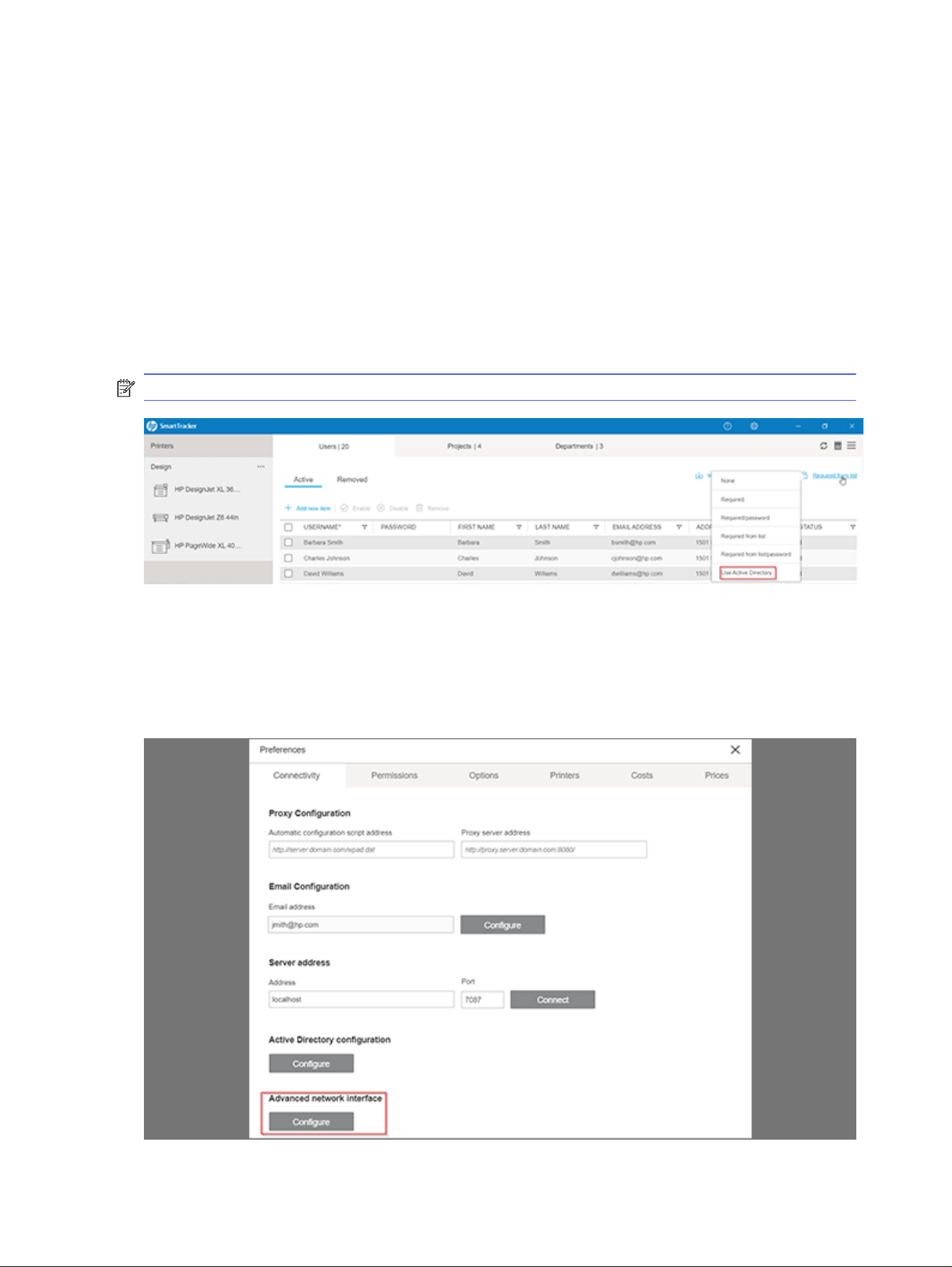
The Path to start search (Base DN, Search Root) is the location where the search in the active directory
tree will start. This is a compulsory field.
In the AD Search Attribute field, add the SAM Account Name Attribute field of the AD tree structure to
search for. This is a compulsory field.
In the AD Filter Condition field, add a complex filter to be applied during the search for the user. This is a
optional field.
Click the Test button to verify the connection before saving changes.
Click the Apply button to save the changes, at the same time a background test for the connection is
performed. If an error is encountered, a warning will be displayed.
Click the Cancel button to close the window without saving any changes.
NOTE: In order for the AD to work, locker of users must be Use Active directory.
Advanced Network Interface
Log in as administrator, access the Preferences > Connectivity, and the Advanced Network Interface is
visible. As HP SmartTracker requires all setup to be done within the same network, it is possible that,
in environments where more than one LAN is defined, communication between the client-server printer
could fail. With this feature an administrator can select the desired network interface.
170
Chapter 5 HP SmartTracker
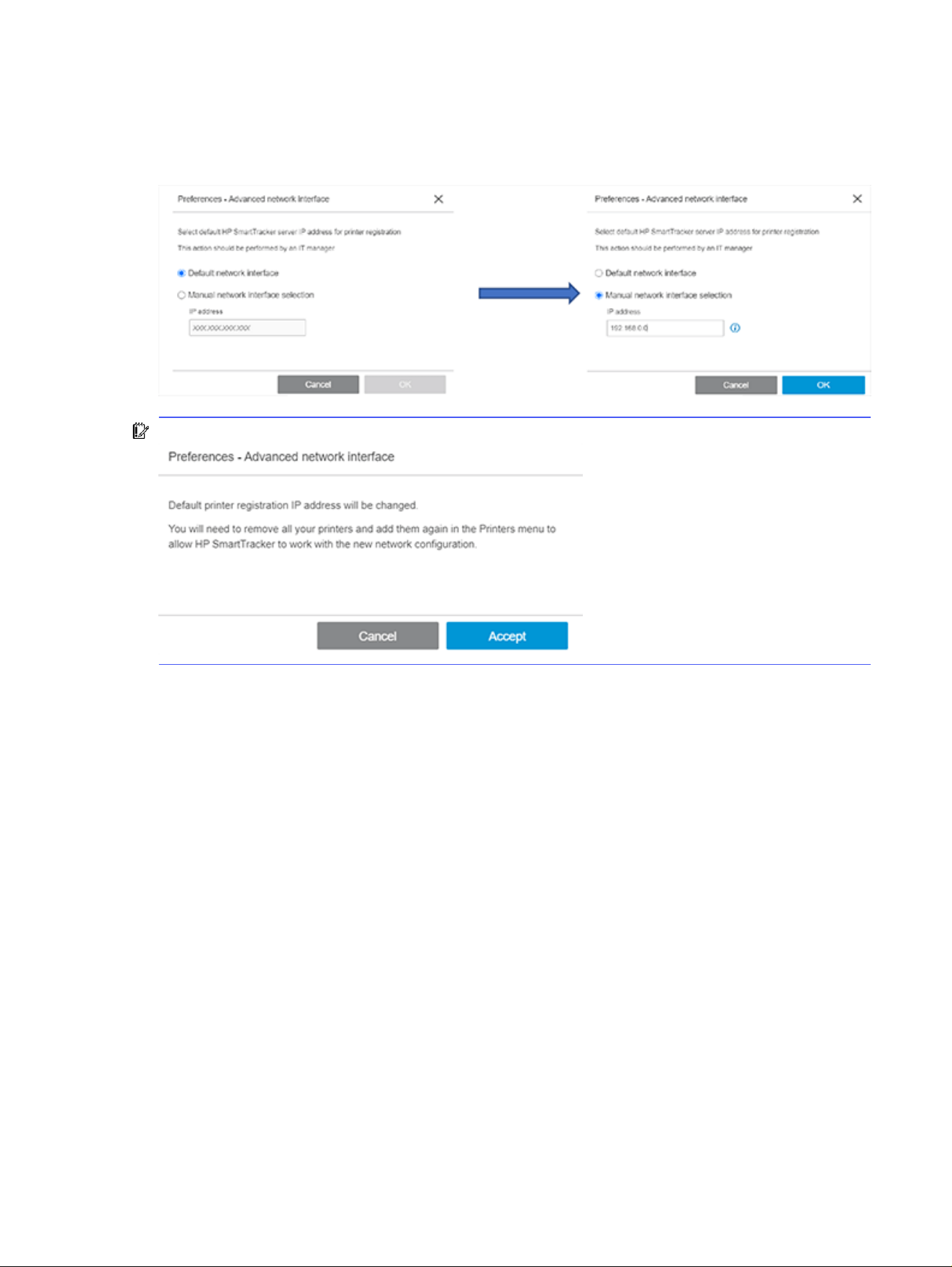
When configuring the network interface, a popup window appears to apply the changes. The network
interface that HP SmartTracker detected is used as the default.
If you want to select a different network, it can be manually changed by adding a new IP.
IMPORTANT: When changing the network interface, this message appears:
This message informs you as administrator that the printers already added to HP SmartTracker need to
be removed and added again for them to "be informed" about the latest manually introduced IP.
If the administrator clicks Accept, it changes the default network interface to the new one; if the
administrator clicks Cancel, it goes back to the previous window.
Advanced Network Interface
171
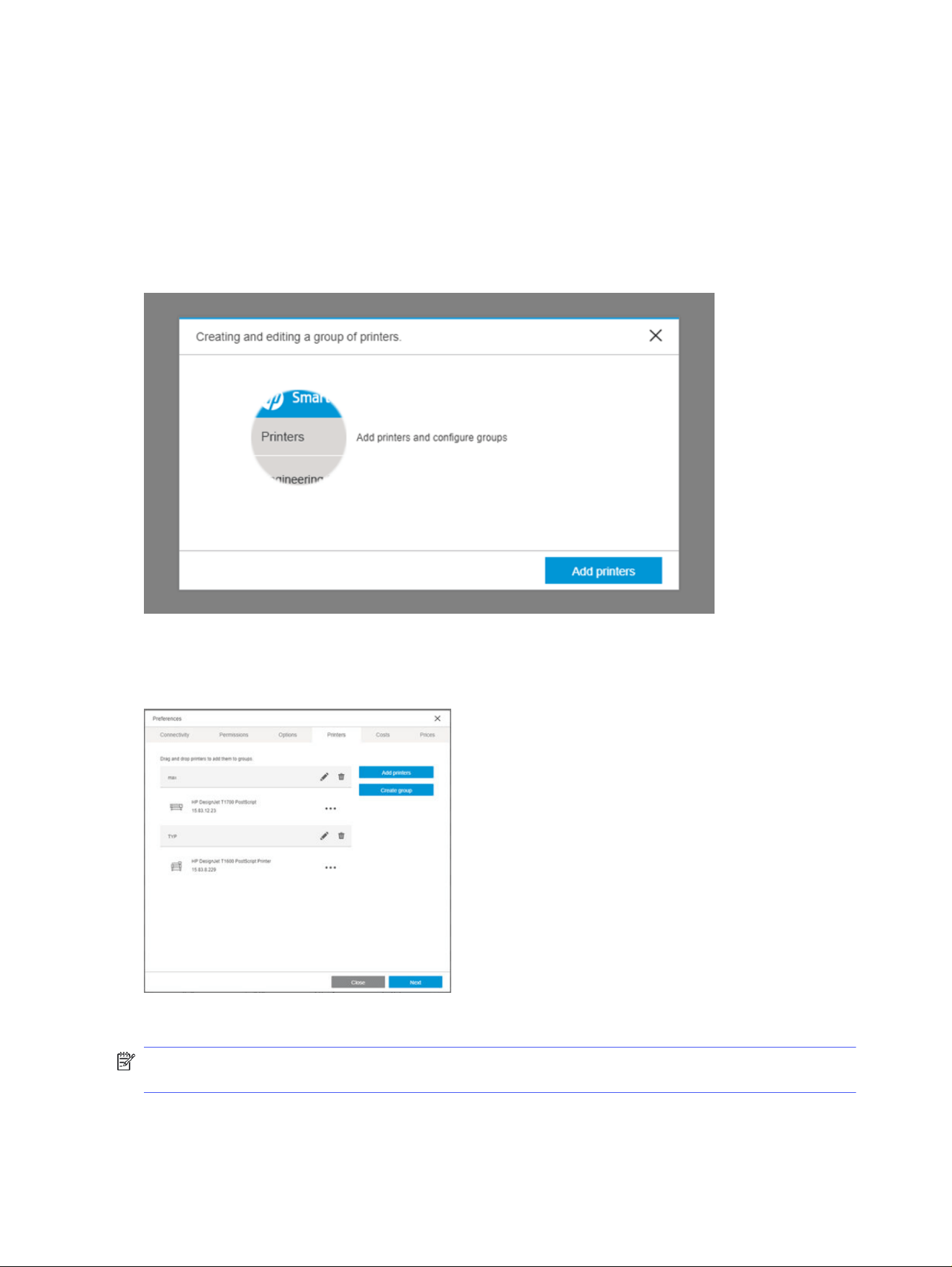
Printers
Configuring printers
You can, at any time you choose, search for and add printers.
If you have completed all the configuration steps and you have no printers already configured, the
screen illustrated below will automatically be displayed the first time the HP SmartTracker application is
launched:
By clicking the Add printers button in the window illustrated above, or alternatively, when you have
printers already configured, by going to the Preferences panel and opening the Printers tab, a window
similar to the one shown below will open:
Any previously added printers will appear in the list illustrated above.
NOTE: Printers to be managed by HP SmartTracker must have been configured with an administrator
password in both the printer itself and in HP SmartTracker.
Click Add printers and HP SmartTracker will automatically search for any supported printers that are
connected to your network as illustrated below:
172
Chapter 5 HP SmartTracker
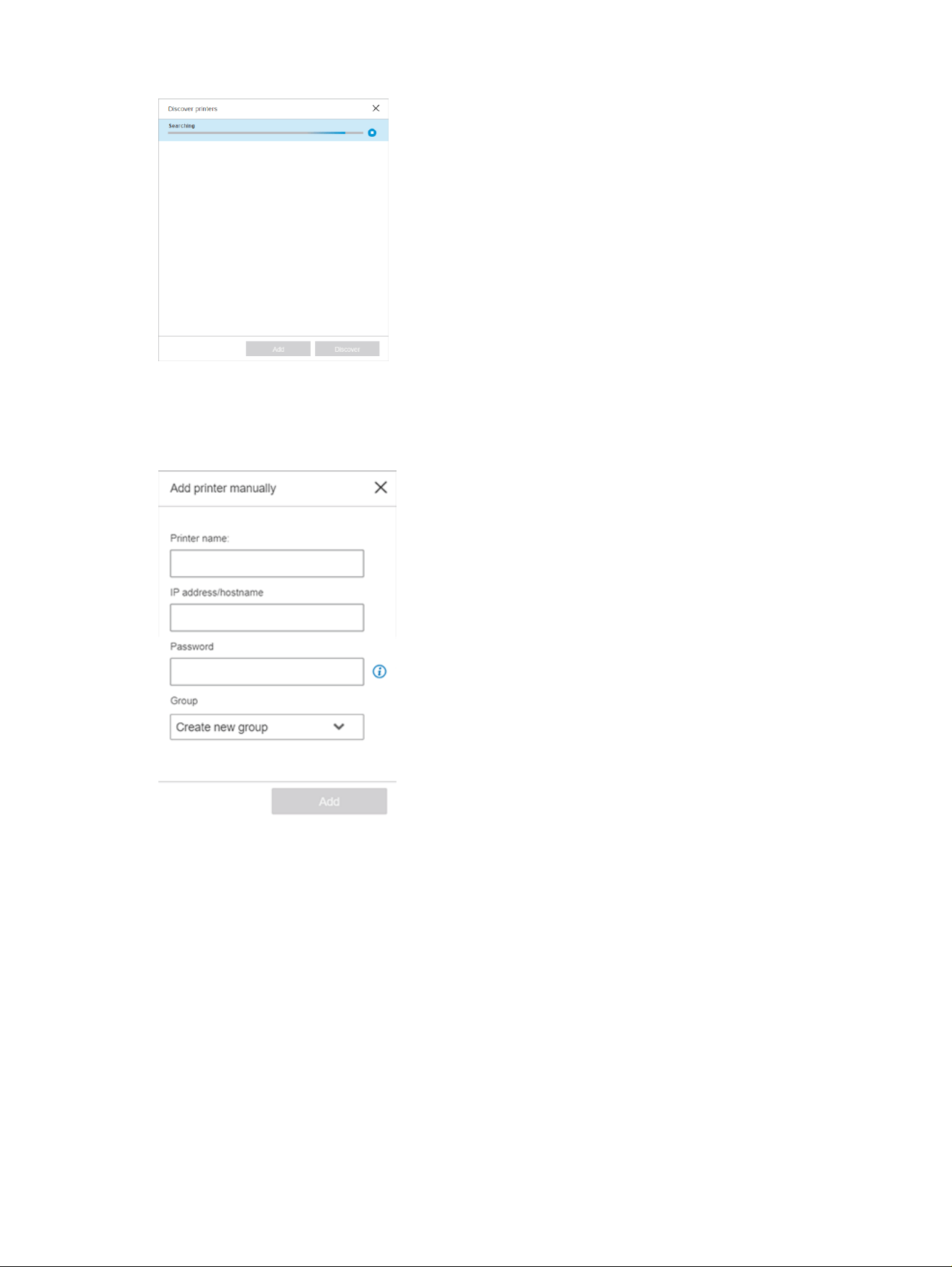
Select the printer you want to add and click the Add button.
As an alternative to choosing the automatic discovery mode, you could stop the discovery process and,
without selecting any printer, click the Add button. In this case you will see the following screen:
Enter the name you would like to assign to the printer, its IP address/hostname, the administrator
password, and assign an existing group[1] where the printer will be placed, or create a new one if desired.
Below is an example:
Configuring printers
173
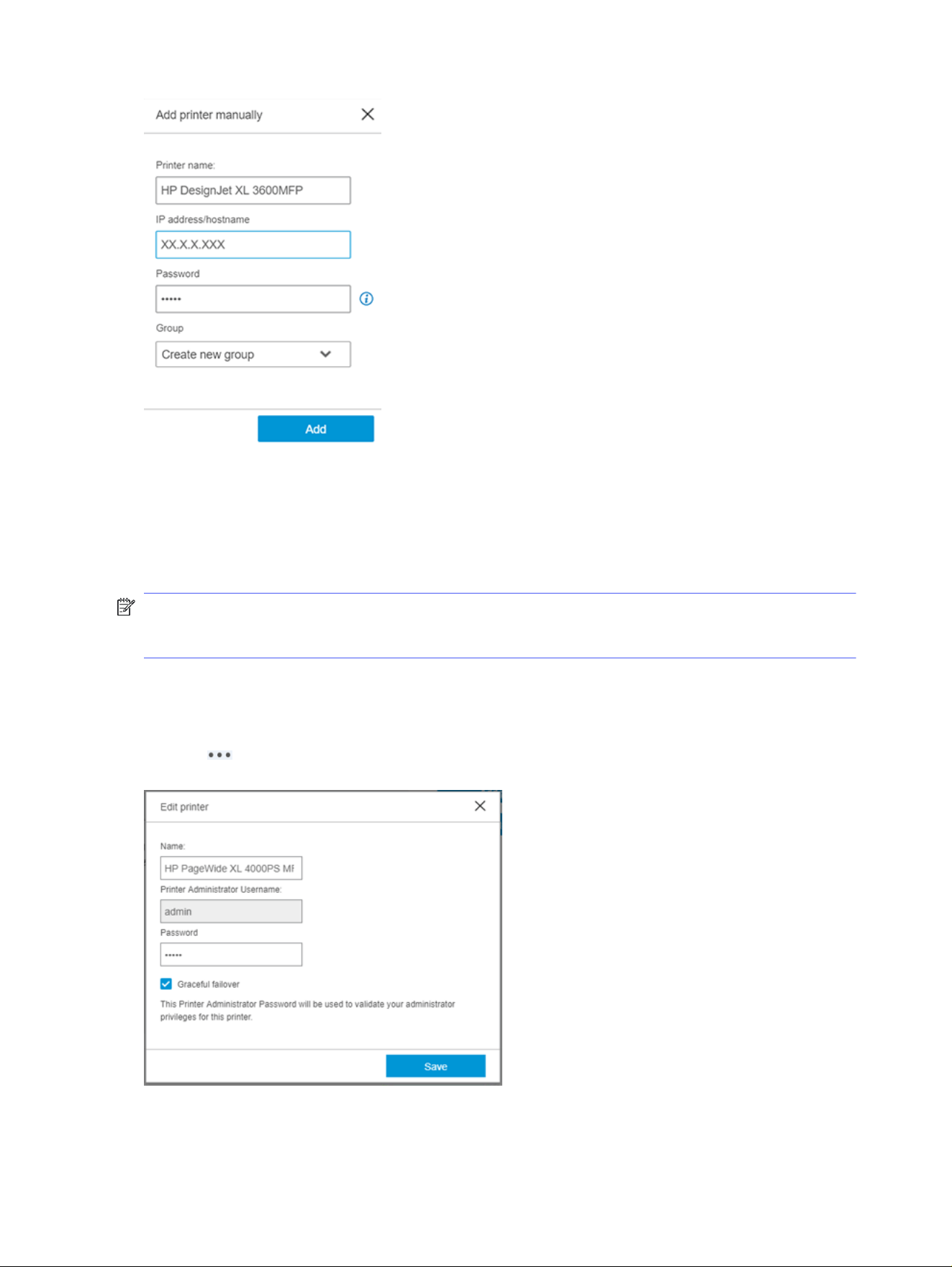
Once you have filled in all the required fields, click the Add button. If the fields are correct, the printer will
be added to HP SmartTracker.
[1] Groups can be used to aggregate different printers under the same clump. This can interact
when being in the Summary/Reports view as when selecting the group name, the view will show the
consumption of the whole group.
NOTE: Printers that are to be used with HP SmartTracker must have an administrator’s password that
has been configured using the printer’s Embedded Web Server. See the
HP SmartTracker Installation
Guide
for further information.
Editing a printer
Click the Printers tab in the Preferences panel.
Click the icon alongside the printer you want to edit, choose Edit from the menu that opens and you
will see a screen as illustrated below:
By default, Graceful Failover mode is selected.
174
Chapter 5 HP SmartTracker
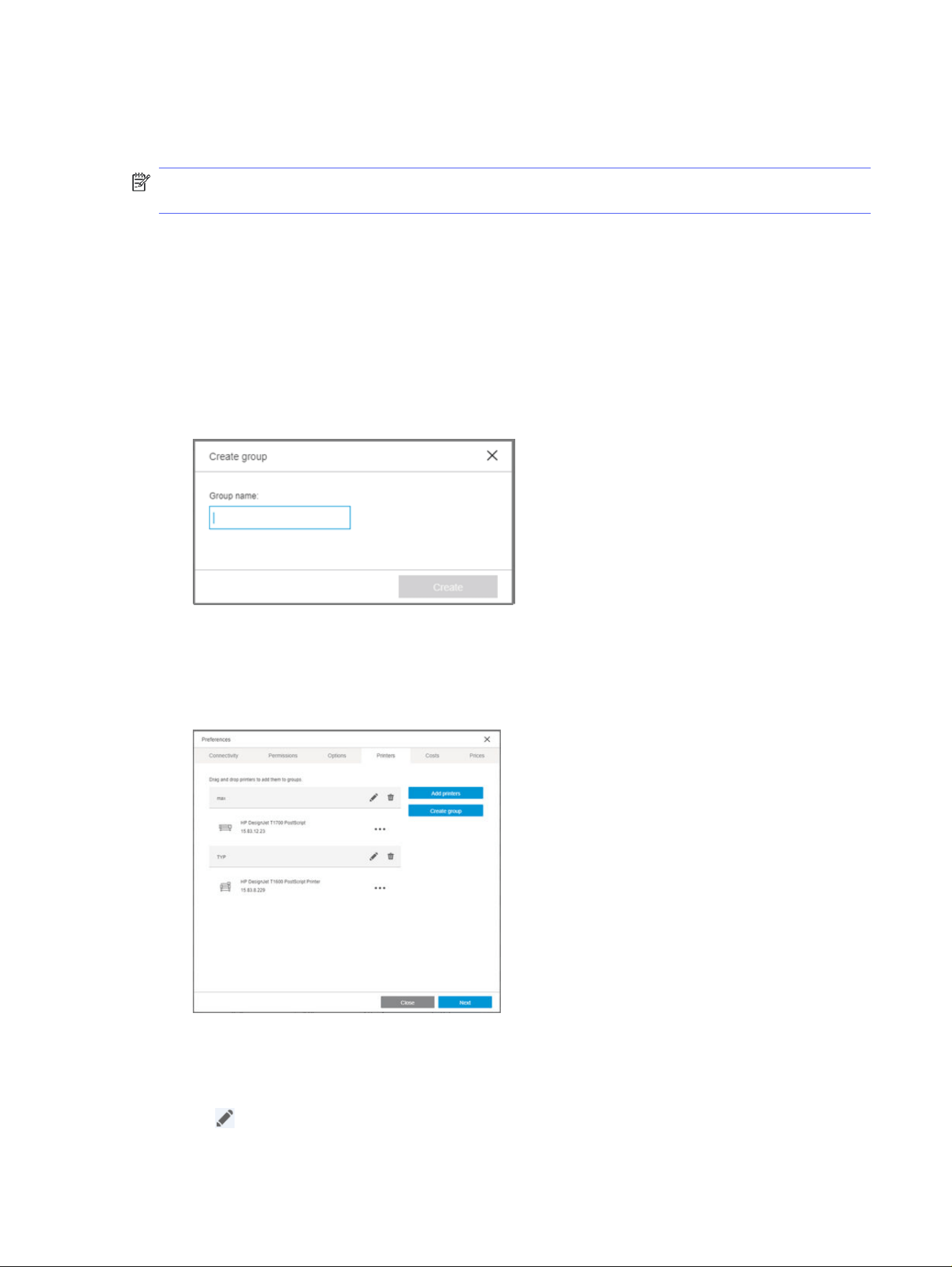
Graceful failover mode determines printing behavior in the event that the server fails. If it is enabled in
a printer, it means that even if HP SmartTracker fails, jobs will still be printed. If it is not selected and the
server fails, no jobs will be printed.
NOTE: If there is a server failure, any jobs that have been printed will be included in the reports and
assigned to “Unknown”.
You can edit the printer name and/or password.
Make the changes and click the Save button.
Creating a group of printers
Ensure that there are printers available.
1. Click the Printers tab in the Preferences panel.
2. Click the Create group button. You will see the following screen:
3. Enter the group name.
4. Click the Create button.
5. Select the printers you want to add, and drag-and-drop them into the group.
6. Click the Next button.
Editing a group of printers
Use the icon to edit a particular group of printers.
Creating a group of printers
175
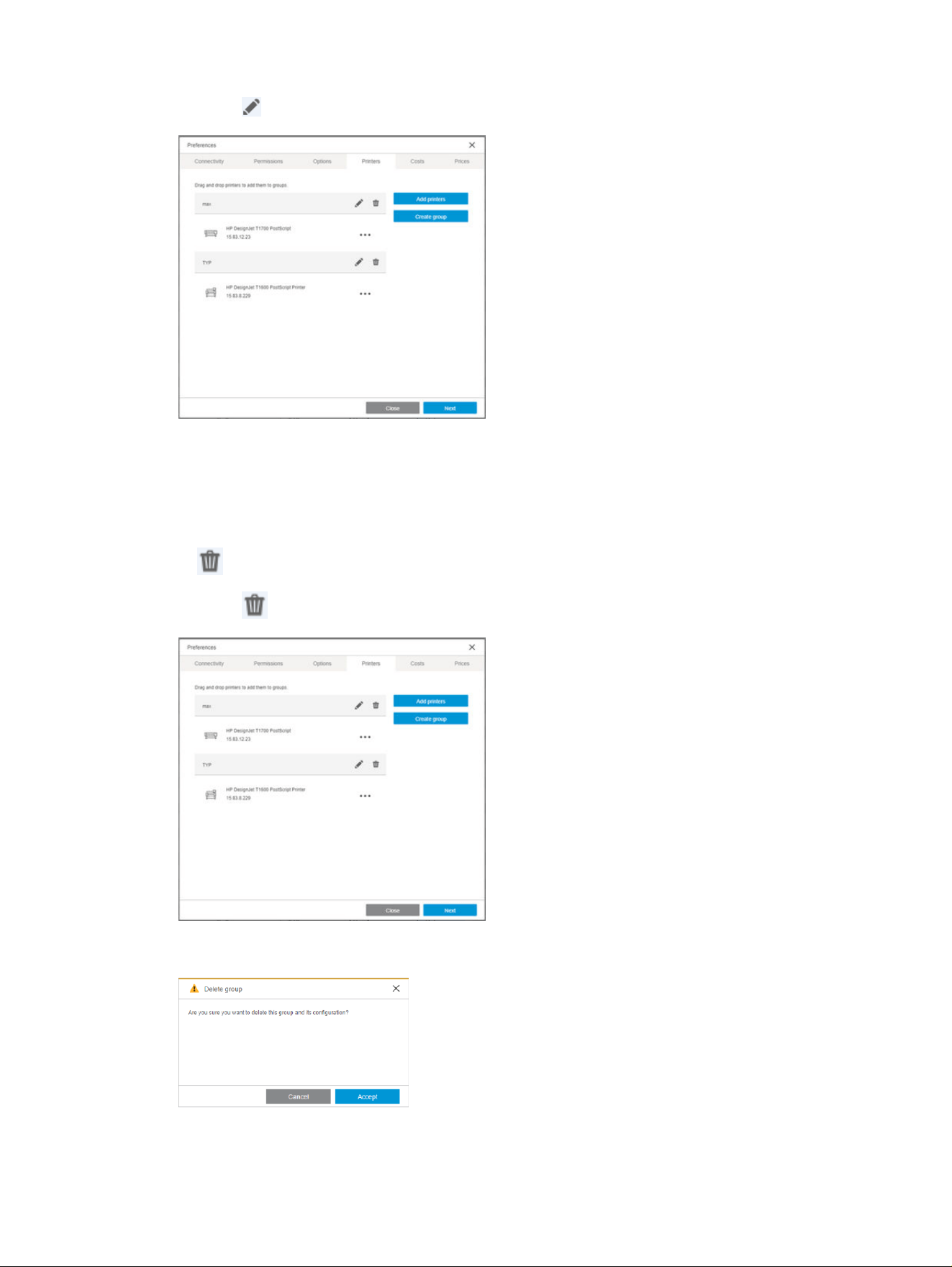
1. Click the icon.
2. Make the changes.
3. Click the Done button.
Deleting a group of printers
Use the icon to remove a particular group of printers.
1. Click the icon.
2. Click the Accept button.
You are now returned to the home screen.
176
Chapter 5 HP SmartTracker
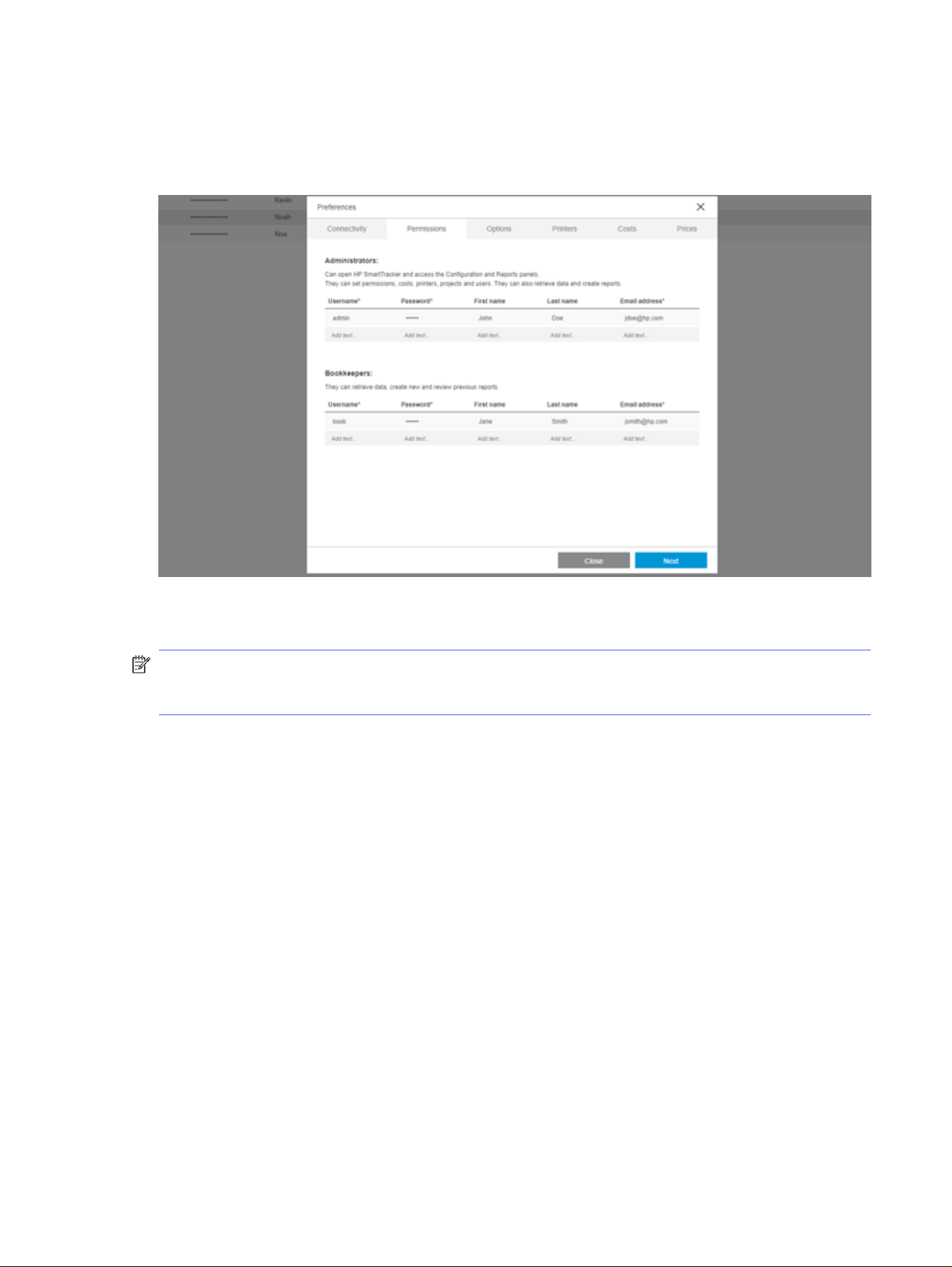
Permissions
In the Permissions tab you can assign permissions to administrators and bookkeepers. At this point
there is a minimum requirement to configure at least one administrator.
In this screen you can configure two types of HP SmartTracker user: administrator and bookkeeper.
Users of the printers will be configured later.
NOTE: It is mandatory to enter an email address in the screen above. Provided that
HP SmartTracker’s email server is correctly configured, it is this address that will be used to receive
notifications sent by HP SmartTracker.
Administrators can:
● Open the configuration panel and reports.
● Create new reports.
● Retrieve data.
● Set permissions, costs, prices, printers, projects, users, and groups.
● Set language, measurement units, and currency to be used by HP SmartTracker.
● View previous reports.
Bookkeepers can:
● Create new reports.
● Retrieve data.
● View previous reports.
The first time you configure permissions you must create at least one user who is an administrator.
Permissions
177
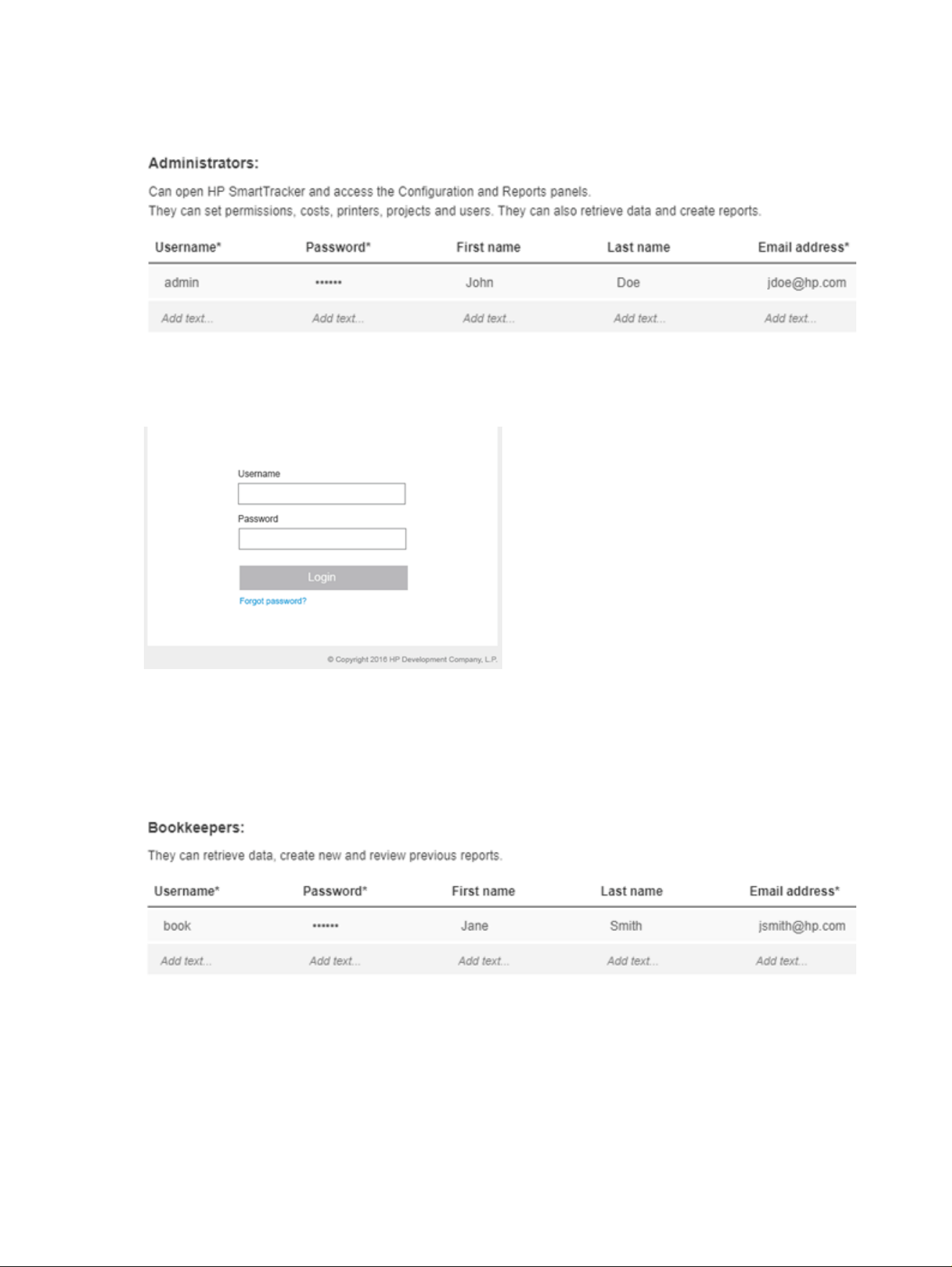
To create an administrator user, enter data directly in the fields in the Administrators section of the
Permissions tab illustrated below:
Press the Enter key.
Once an administrator user has been created, the login screen, illustrated below, appears:
The above screen will become the initial screen for your HP SmartTracker application.
Enter your username and password and click the Login button to return to the Preferences panel.
Here you can add more administrators and/or create bookkeepers.
To create a bookkeeper, enter the data directly into the fields in the Bookkeepers section:
Press the Enter key.
To edit a user, click the data, make the necessary changes, then press the Enter key.
178
Chapter 5 HP SmartTracker

To delete a user, right-click it.
NOTE: There is no request for confirmation when you delete a user. If you delete a user by mistake,
you will have to re-enter that user’s data.
Permissions 179

Options
In the Options tab you can configure a variety of settings for the HP SmartTracker application:
application language, accounting units, accounting currency, logo to be included in reports, and touch
points where authentication will be required.
Setting the application language
You can select the language to be used by the application from the ones available in the Language
drop-down list.
Setting the application units
You can select which units are to be used for paper accounting purposes, either imperial (inches, square
feet) or metric (millimeters, square meters).
Setting the currency
In this section you can select the currency to be used by typing its three character code (such as USD or
EUR).
Setting the costs and prices configuration
You can choose to assign the cost or price value based on the ink or paper type used in print jobs.
Distribution of cost/price can be done by print category (Mono lines, Color lines, Low density and High
density images) or by total coverage (Color and Mono percentage).
NOTE: The selection you make here applies to all printers and will be effective for the Costs and
Prices tabs. Changing this selection in one of these tabs will automatically change the selection used
by the other tab.
Setting a company logo for reports
A company logo can be added to your custom_reports by clicking the Upload button and navigating to
the image (jpg or png format) of your choice; some restrictions exist.
Your current company logo can be removed by clicking the Remove button.
Selecting the required touch points
By checking job submission points, you can select the touch points that will require authentication and
tracking (by default all points require authentication).
If a submission point is left unchecked, unauthenticated printing will be enabled, consequently there will
be no tracking of activities that use that submittal point.
Touch points
You can select whether HP SmartTracker requires authentication from the following print agents:
HP SmartStream, HP Click, Driver, and the printer.
NOTE: If a print agent is left deselected, unidentified users are free to print from that particular print
agent.
180
Chapter 5 HP SmartTracker
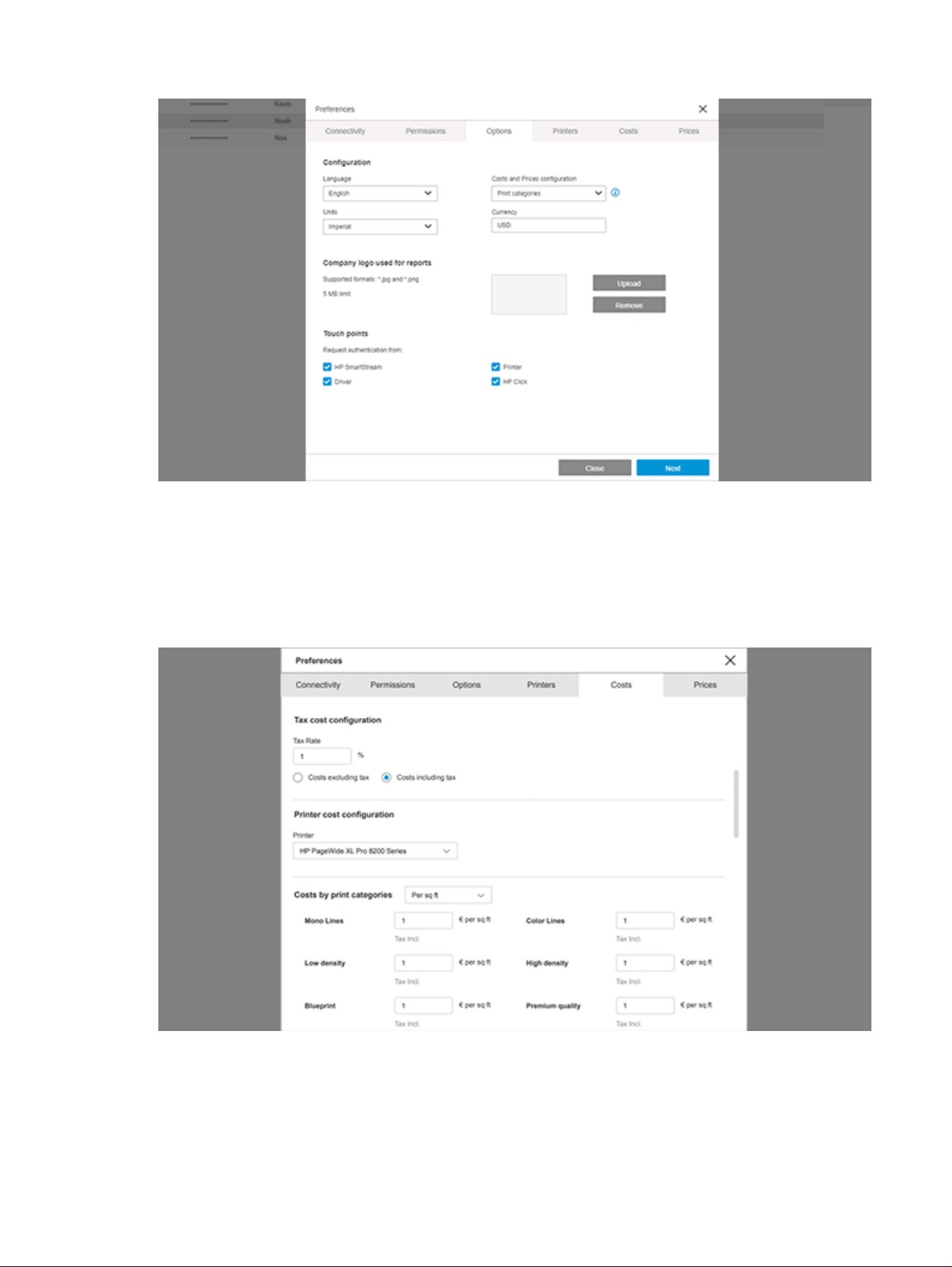
Costs
Click the Costs tab. This is where you can configure the units to be used for accounting and those that
will also appear in the reports.
If, for example, you selected Print categories in the Options tab:
If, for example, you selected Print Coverage in the Options tab:
Costs
181
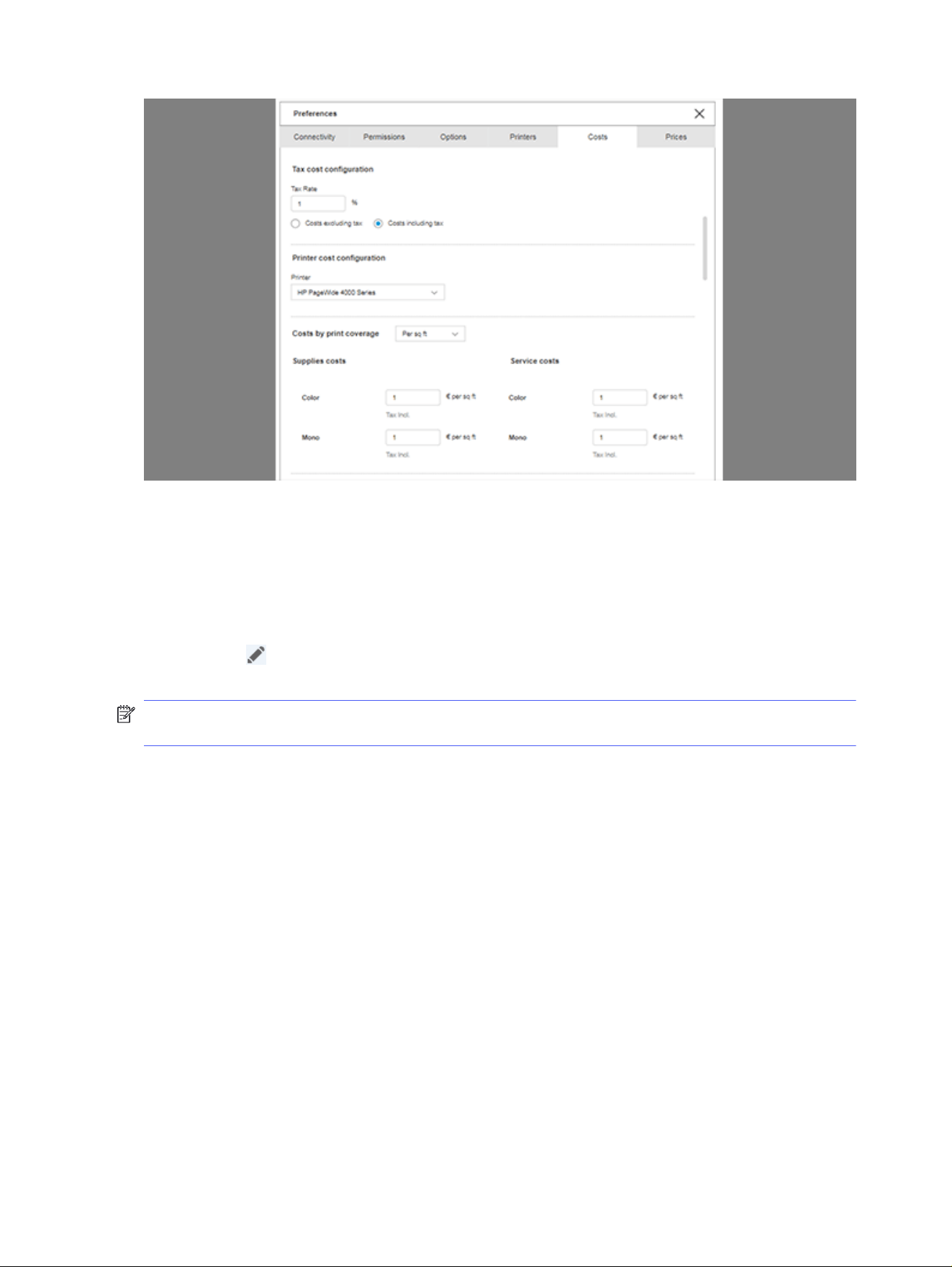
You can introduce costs specific to each of the printer models installed.
You can assign the costs based on milliliter usage, area printed, area used, and linear meters. You can
also select the Hybrid option which provides a combination of two metrics.
If you need to change the metrics, you can select an alternative unit of measurement from the drop-
down menu.
By clicking the icon a window opens showing the complete list of possible paper types and you can
select which of them will be taken into account and the cost associated with each of them.
NOTE: In Costs and Prices you can introduce the total price with or without taxes. Later in the reports,
you can select whether to apply the tax or not.
Prices
When you click the Prices tab, you will see the screen illustrated here:
182
Chapter 5 HP SmartTracker
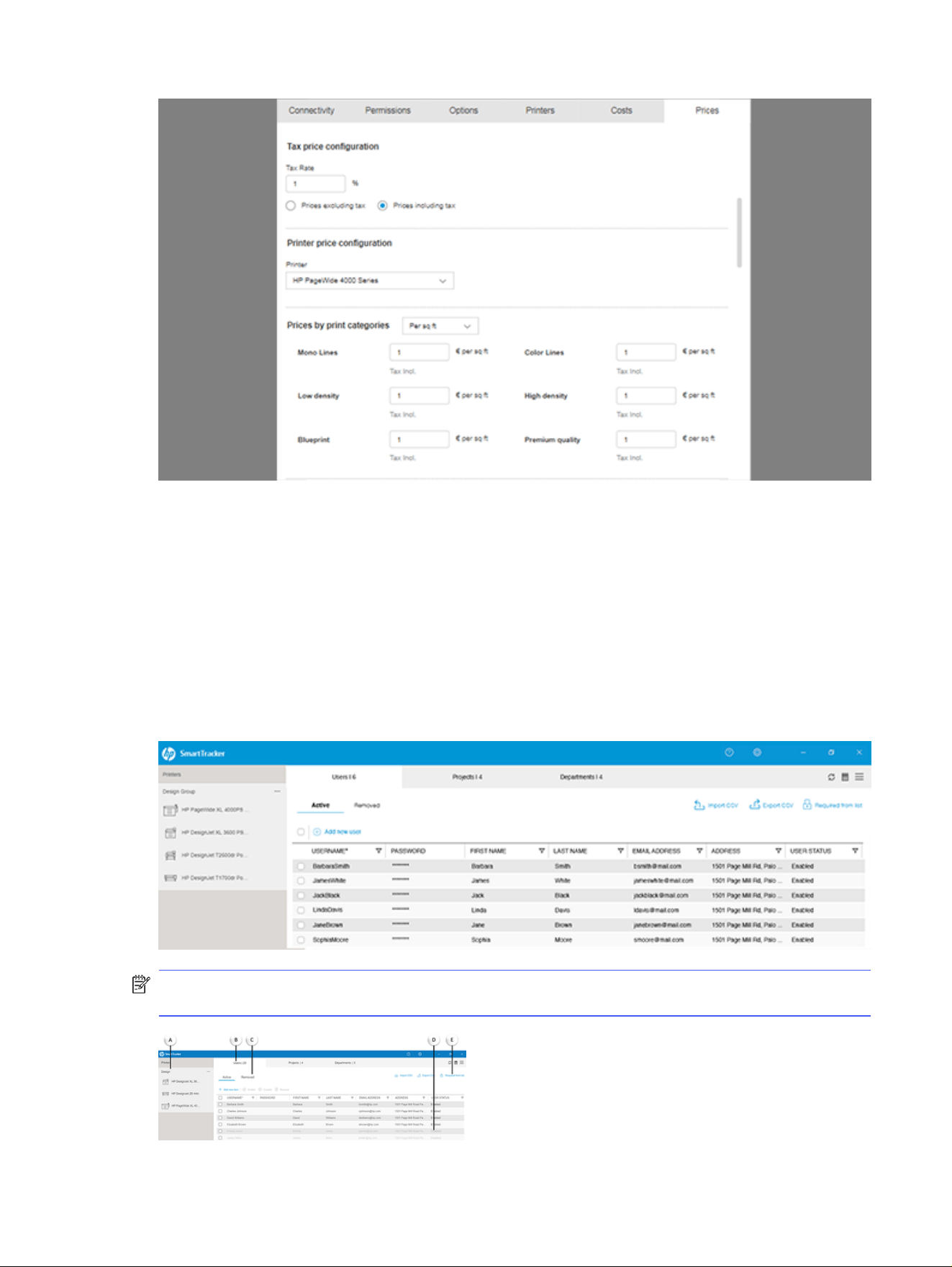
In this tab you can include the prices to be charged to your customers. The introduction of prices works
in exactly the same way as the introduction of costs.
About the home screen
The home screen consists of a vertical bar on the left-hand side where all printers and printer groups
that you configured are listed. There are three tabs, by default they are named: Users, Projects, and
Departments. The User tab name is not editable, the remaining two can be renamed, but only by
Administrators.
Each tab has a grid where you can enter data for each printer and printer group:
NOTE: The information displayed in the grid depends on the printer group you currently have selected
on the left-hand side.
About the home screen
183
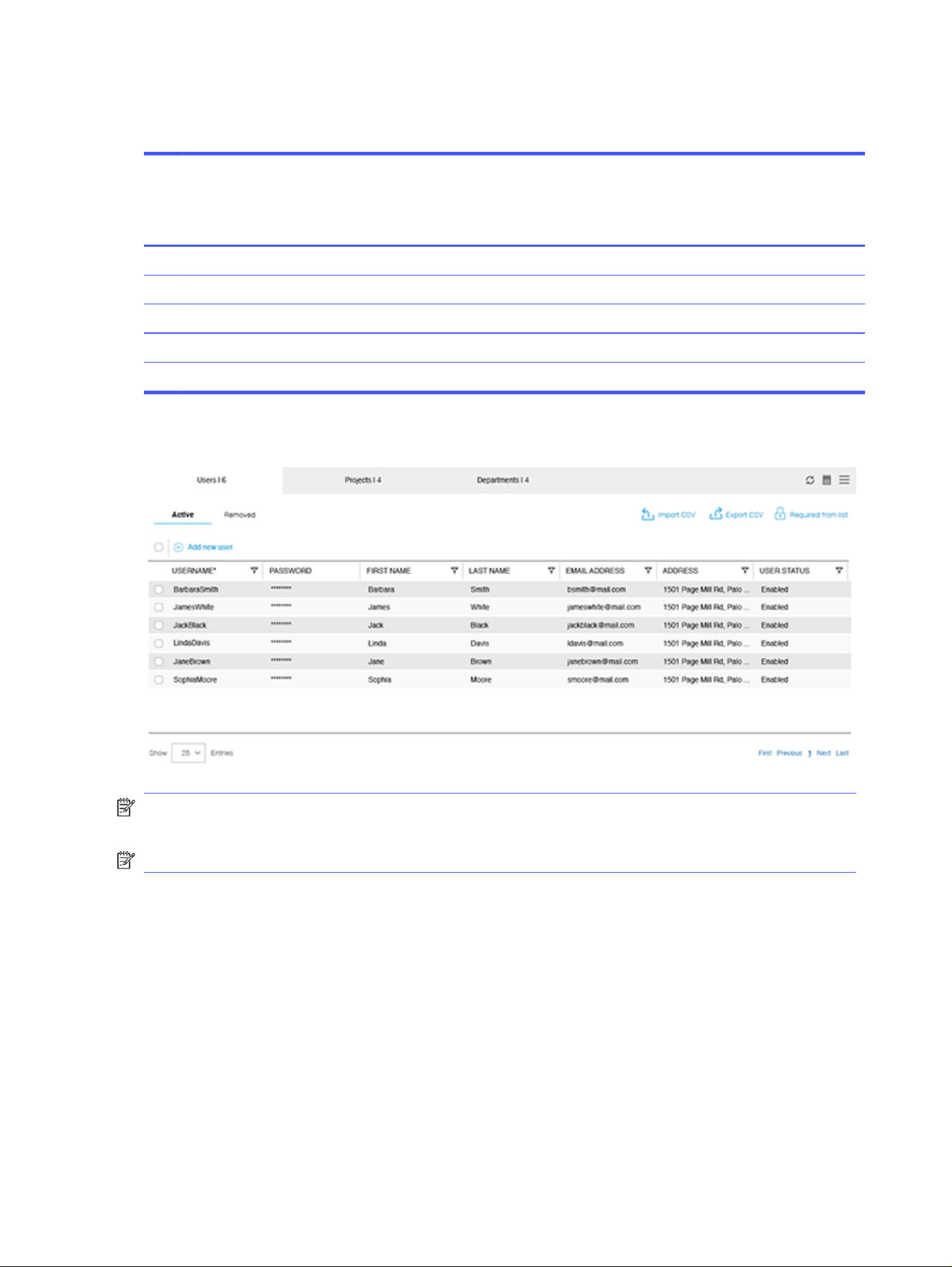
Below are brief explanations of the various parts of the screen.
Table 5-1 Parts of the screen
Part
of
the
scre
en
Description
A Example of a printer group.
B Users tab containing grid with data for the selected printer group.
C Removed items view with the Users, Projects and Departments already removed.
D Users, Projects or Departments in Disabled status are not available from the agents’ authentication form.
E Authentication mode.
You can edit the home screen tabs and customize the data to suit your needs.
NOTE: FOR ADMINISTRATORS ONLY: To edit the name of one of the Projects or Departments tabs,
double-click the tab name.
NOTE: The Projects and Departments tabs cannot both have the same name.
The number that appears in each tab corresponds to the number of active rows in the grid.
Configuring users of printers and printer groups
Here we configure the users of the printers and the various printer groups, not to be confused with
administrators and bookkeepers, who are users of the application.
Select a printer/printer group from the list on the left-hand side.
Click the Users tab.
A grid appears on screen where you can enter and store all the data for that printer group, as seen in the
following screen:
184
Chapter 5 HP SmartTracker
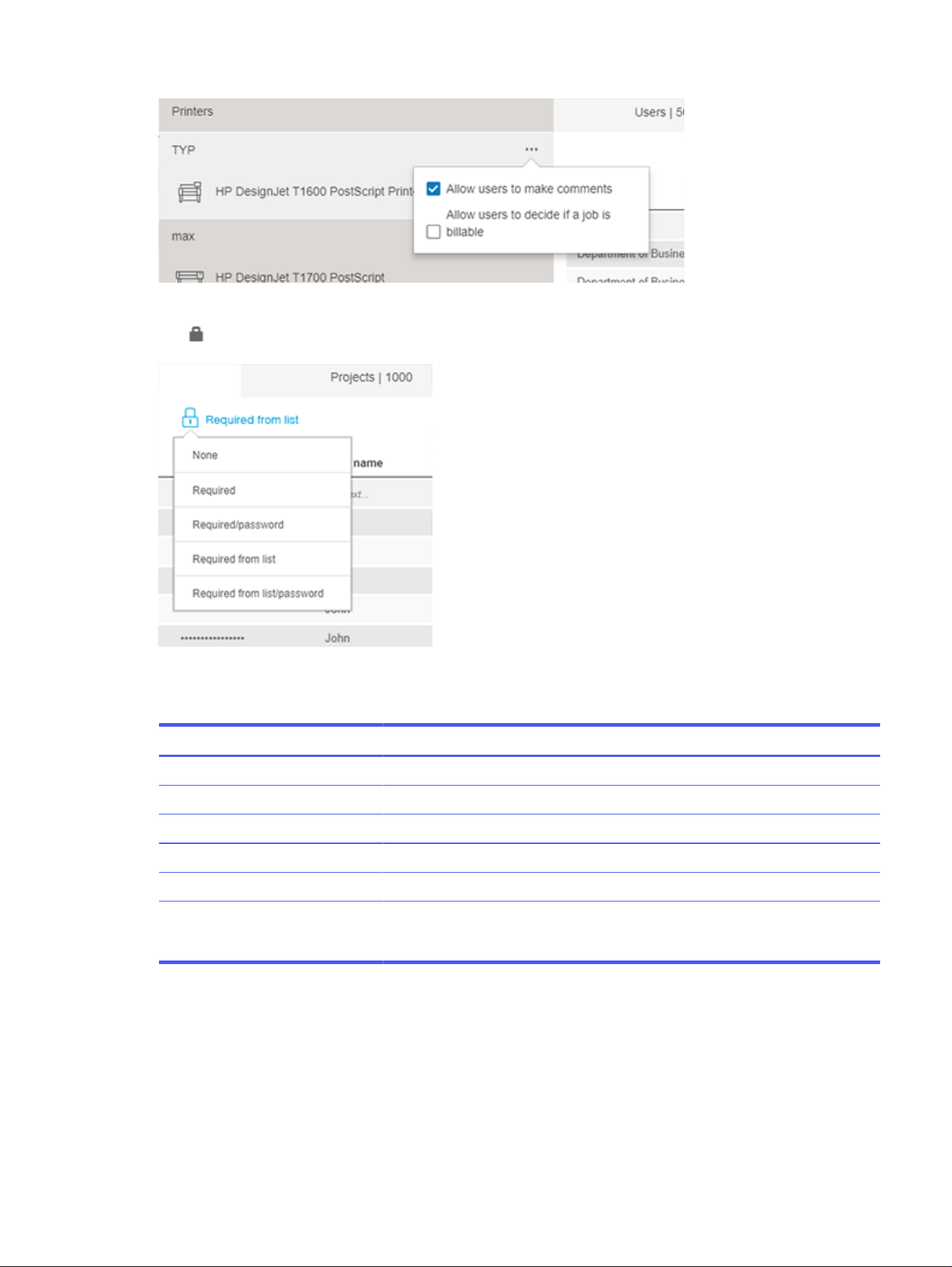
By default, the authentication mode to control access to the printer is set to None. To change it, click
the
icon and choose the option you want from the drop-down list:
Below is an explanation of the authentication options in the menu:
Table 5-2
Authentication options
Option Description
None: No authentication needed.
Required: System asks for a Username.
Required/password: System asks for a username and password.
Required from list: Username can be selected from a drop-down list.
Required from list/password: Username can be selected from a drop-down list and a password must be entered.
Use Active Directory: User is identified using their credentials as configured in the earlier section titled
Active Directory. (This option appears only after having configured “Active Directory
Configuration” correctly.)
Configuring users of printers and printer groups 185
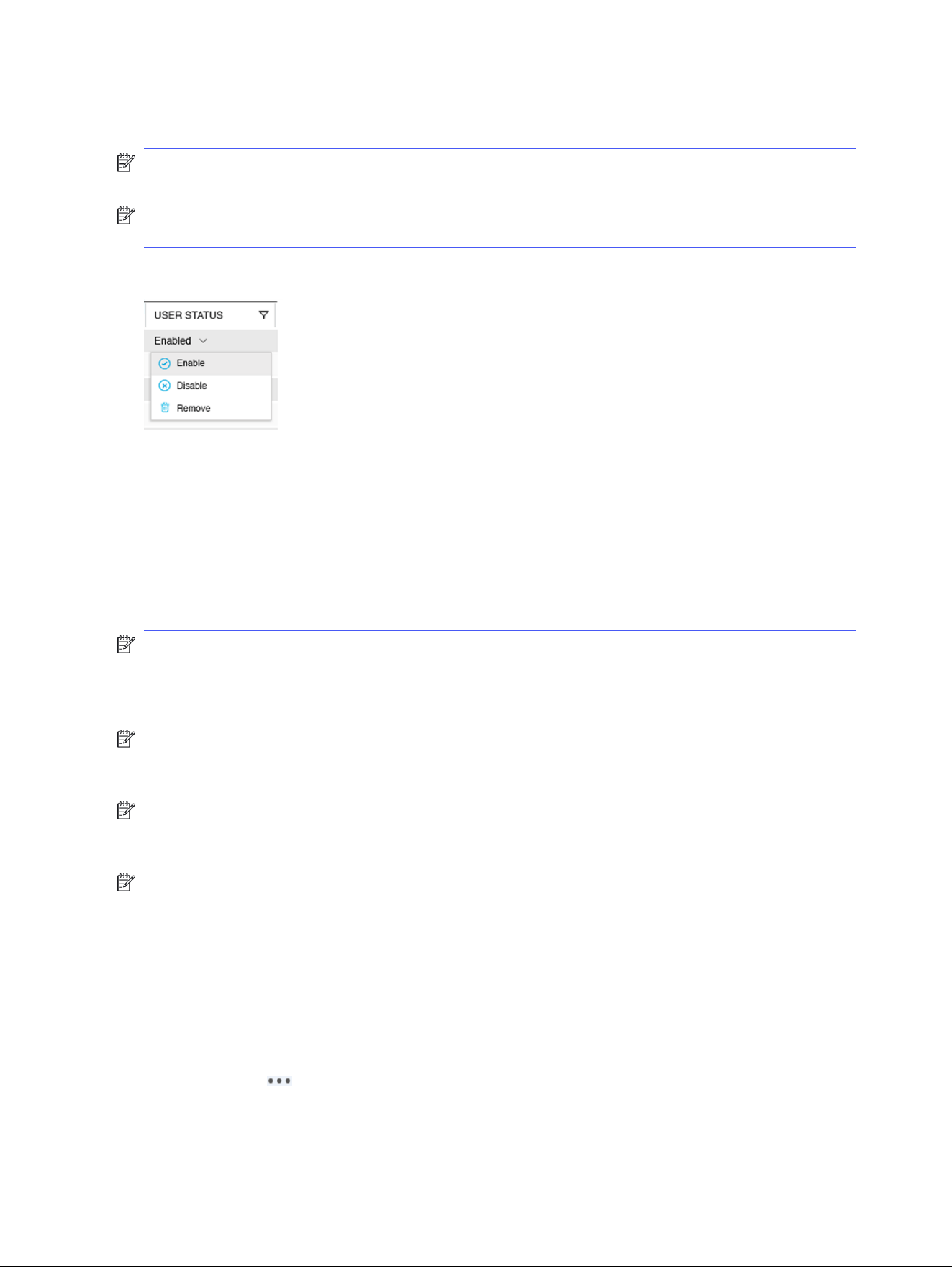
To add users, click Add new item to enter the data directly in the fields where it says Enter… and click the
Enter key after you have filled in the last field.
NOTE: Users, Projects, Departments cannot be given the names “Guest”, “Others”, “Service”, or
“Unknown”.
NOTE: Users, Projects, Departments maximum length is 100 characters in English. For other
languages with special characters the length can be smaller.
To filter by a Status, right-click it. You will see the following screen:
Below is an explanation of the options in the menu:
Table 5-3
Options in the menu
Option Description
Enabled/Disabled: Enable or disable selected row.
Removed: Remove selected row.
NOTE: Disabled users are those with credentials that are not valid for printing temporarily. As a result
they will not appear in a drop-down list. The credentials can be enabled at any time.
To enable a Disabled user, select the row using the checkbox and click Enable.
NOTE: Users, projects and departments that are no longer valid in the organization can be removed
from this list. They go to the Removed view that can be emptied from the Cleanup tab in the Database
Management menu (explained later).
NOTE: When Use Active Directory is selected as the authentication method, the existing list is
disabled and a warning message Using Active Directory, HP SmartTracker users are disabled is
displayed.
NOTE: Multiple selection is available to execute the same operation as Enable, Disable or Remove for
the selected rows.
Marking a job as billable
You can decide, on a job-by-job basis, which particular jobs are billable or non-billable.
In the same illustration you can see a setting where, like the setting discussed above, you can choose to
provide users with the option to add a comment to a job.
To do so, click the icon next to the printer group.
186
Chapter 5 HP SmartTracker
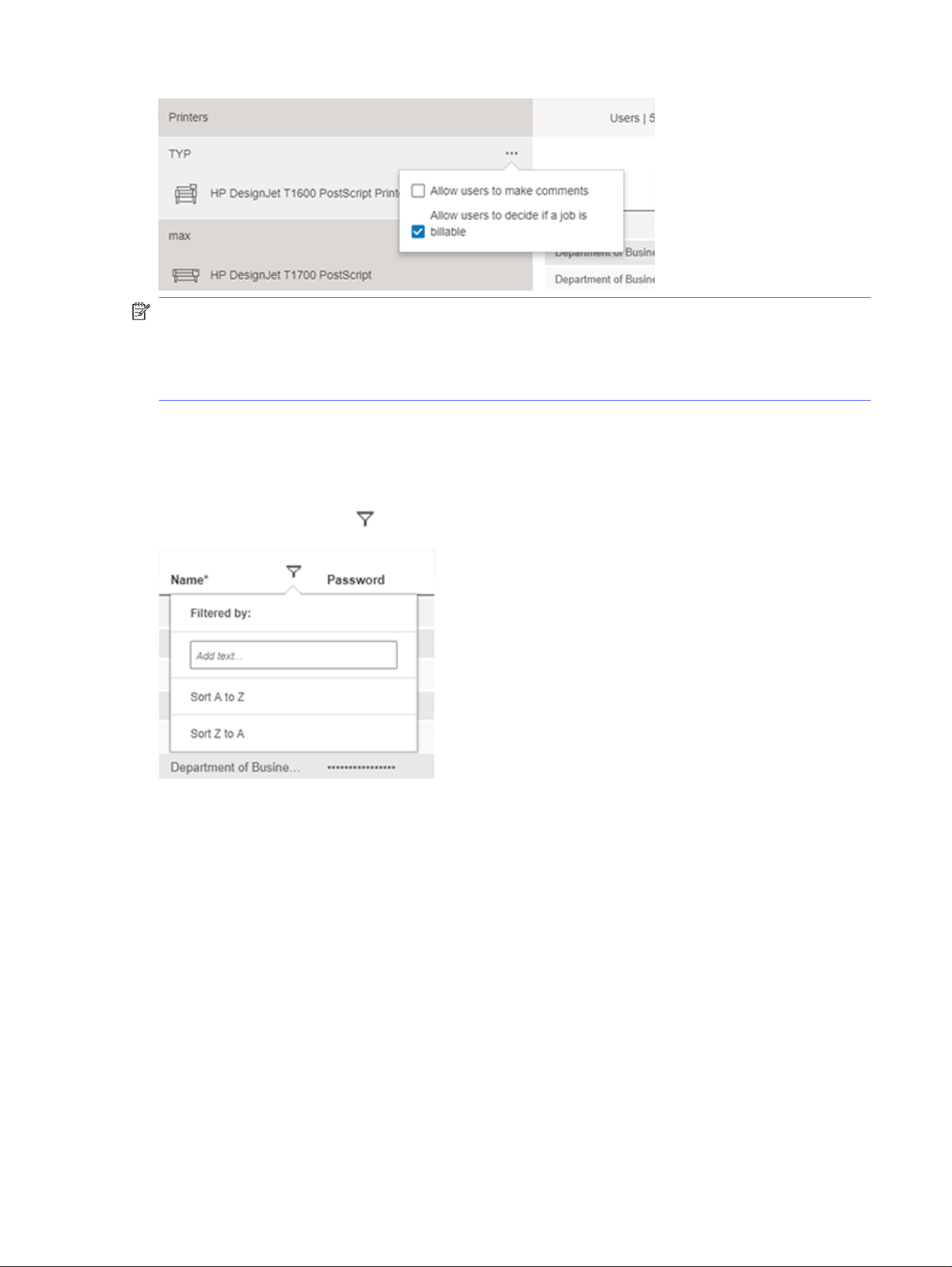
NOTE: In the illustration above you will see the “Allow users to decide if a job is billable” field, it can be
enabled or disabled. Your choice for this setting is independent of, and should not be confused with, the
decision regarding whether, or not, all jobs for the printer are billable. To modify this setting you must
select each printer group, one by one, and make the appropriate selection. If this setting is enabled,
HP SmartTracker will ask you to make this decision every time you send a job to the printer.
Select the options you want and click out of the box.
Filtering
You can filter by clicking the icon and choosing an option from the drop-down list:
Below are brief descriptions of the options in the menu.
Table 5-4
Options in the menu
Option Description
Text box: you can type directly in the field to filter the content of the table dynamically.
Sort Z to A: organizes users in reverse alphabetical order.
Sort A to Z: organizes users in alphabetical order.
You can also filter by enabled and/or disabled users by clicking the User status column filter.
Once a filter is selected, the icon turns blue.
Filtering
187
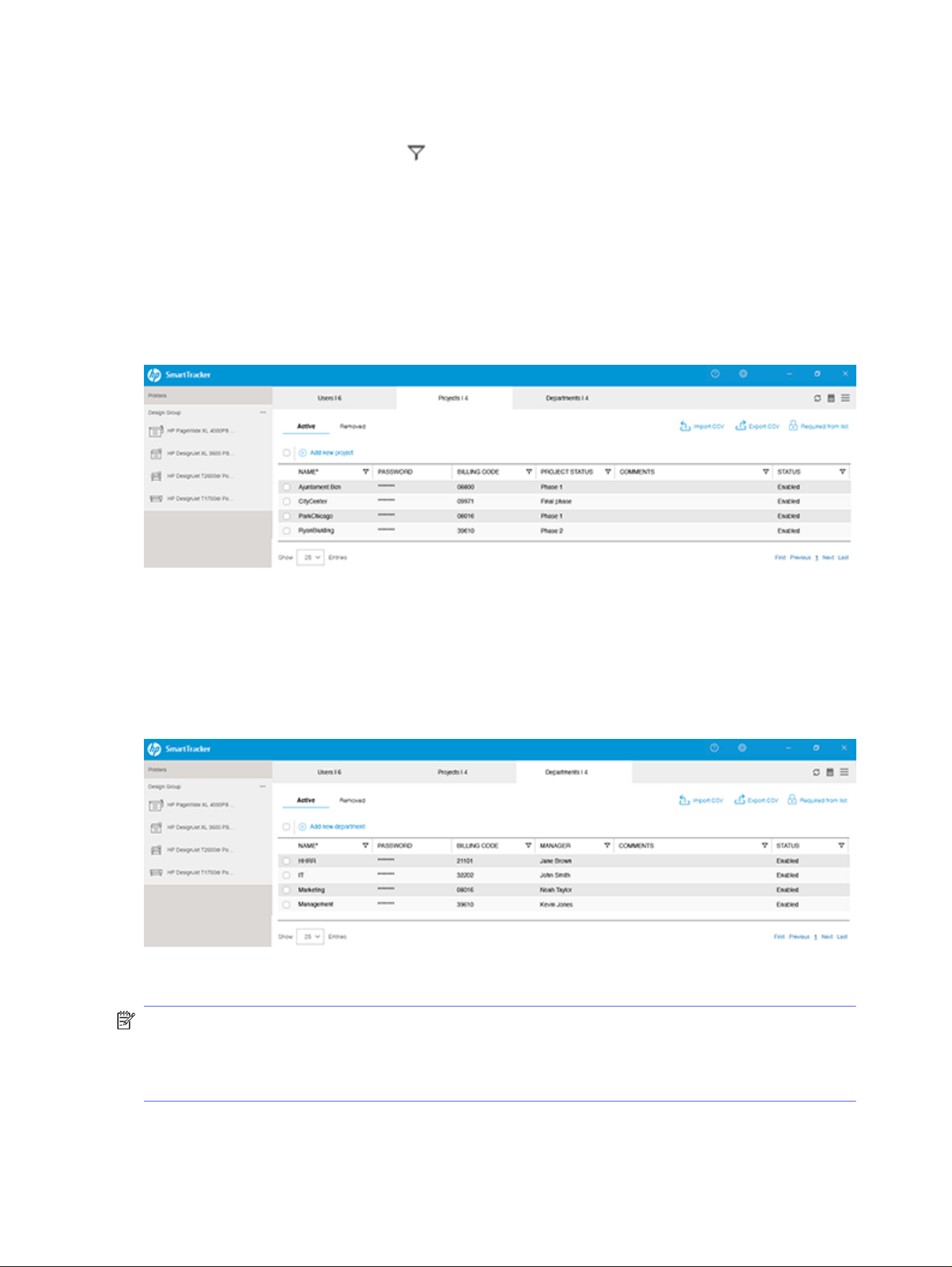
Removing a filter
To remove the dynamic filter, click the icon to open the filter and then delete the text from the box.
Click out of the filter.
Other filters are only removed once you exit the current view. To exit the current view, click a different
printer group.
Projects
Click the Projects tab. This is where you can configure data for the projects using the selected printer
group.
To create project data, click Add new item to enter the data directly in the fields where it says Enter… and
click Enter after you have filled in the last field.
Departments
Click the Departments tab. This is where you can configure data about the departments included in this
printer group.
To add data for different departments, click Add new item to enter data directly in the fields where it says
Enter… and click Enter after you have filled in the last field.
NOTE: In the three tabs you will find here, you can edit:
● The name of the tab (Departments and Projects)—administrators only
● The names of several of the columns
188
Chapter 5 HP SmartTracker
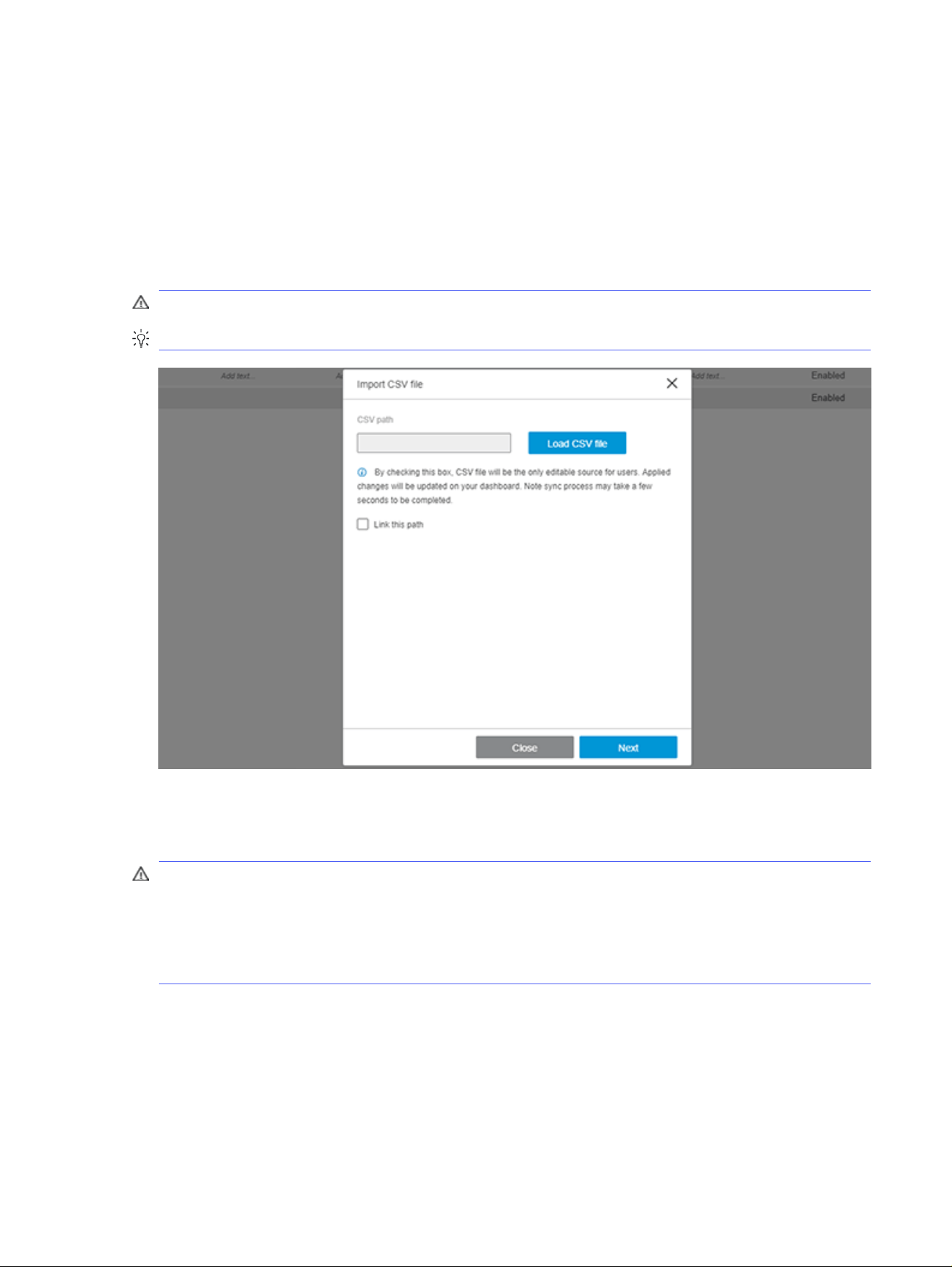
Import/export CSV
Configuration—import CSV
You can import or export a CSV file in order to import or export user, project, and department
configurations to or from the HP SmartTracker application.
To import a .CSV file into HP SmartTracker, click the Import CSV option on the home screen, a window like
the one illustrated below will be displayed:
WARNING! The CSV imported file requires specific fields delimitation and formatting.
TIP: Export a CSV file first, add your data, and then import it.
If you choose to check the Link this path checkbox, the imported CSV file must be located in the same
PC where the HP SmartTracker Server application is installed (a network folder, or a path to another PC
in which an instance of HP SmartTracker Client is running, will not work).
WARNING! If you check the Link this path checkbox, a warning message will be displayed. The reason
for this is that with this checkbox selected you are creating a dynamic link with this file. This causes the
configuration you have uploaded here to be refreshed, within the space of a few minutes, to reflect any
changes made in this file, for as long as this option is checked. If the Link this path option is checked
and properly configured, the Users/Projects/Departments management will be disabled in the
HP SmartTracker Client’s home screen.
After you click Next, the following window is displayed:
Import/export CSV
189
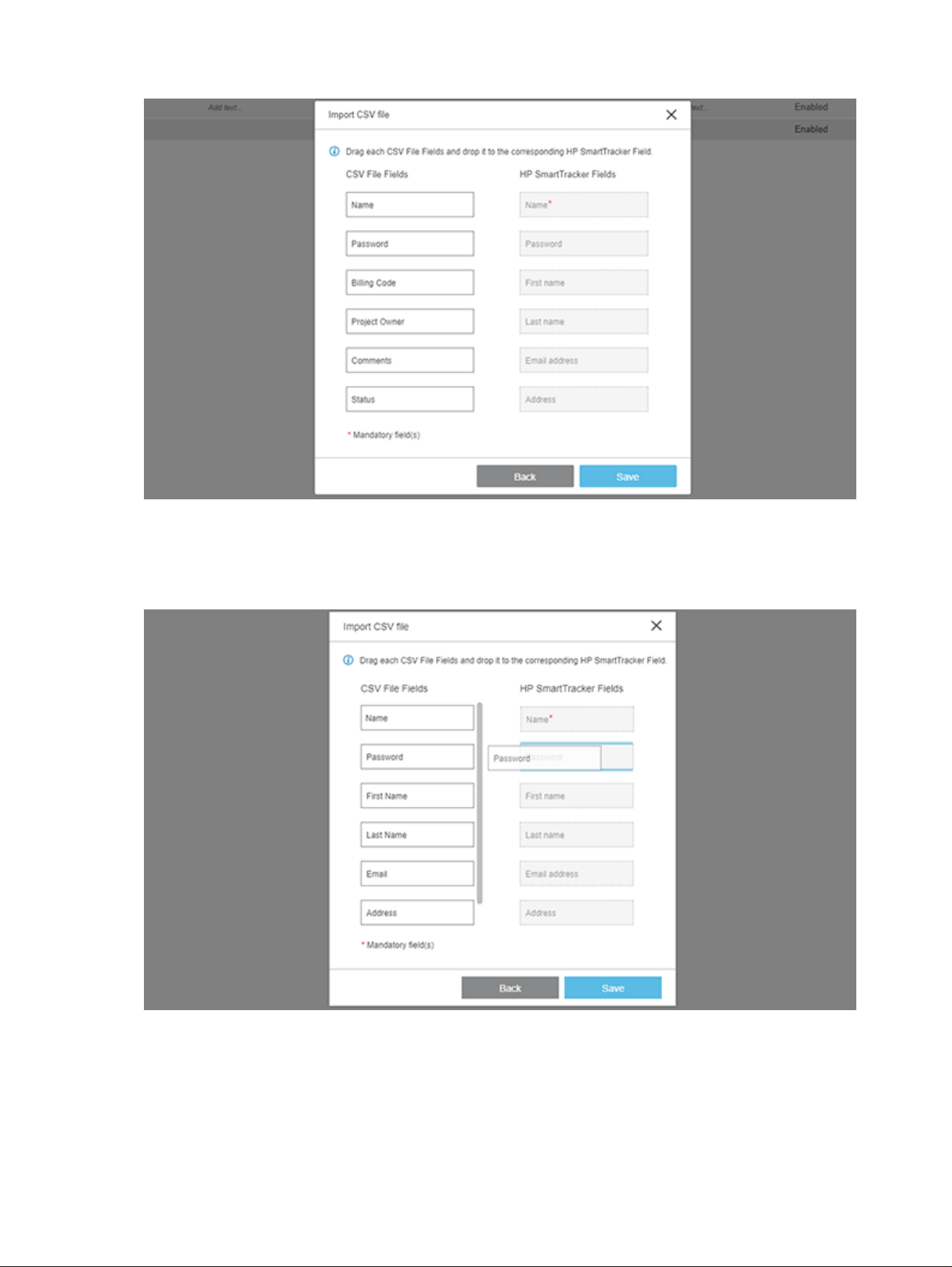
All the fields from the imported CSV file and the existing fields from the tab, are displayed.
To create a mapping between the two columns of fields, you need to drag and drop the fields from left
column to the right column.
After finishing the drag and drop process, click Save and the configuration is completed. If changes
are made in the source CSV file, and during the CSV file import process you enabled the Link this path
option, the changes are, after a few minutes delay, applied to the HP SmartTracker database.
190
Chapter 5 HP SmartTracker
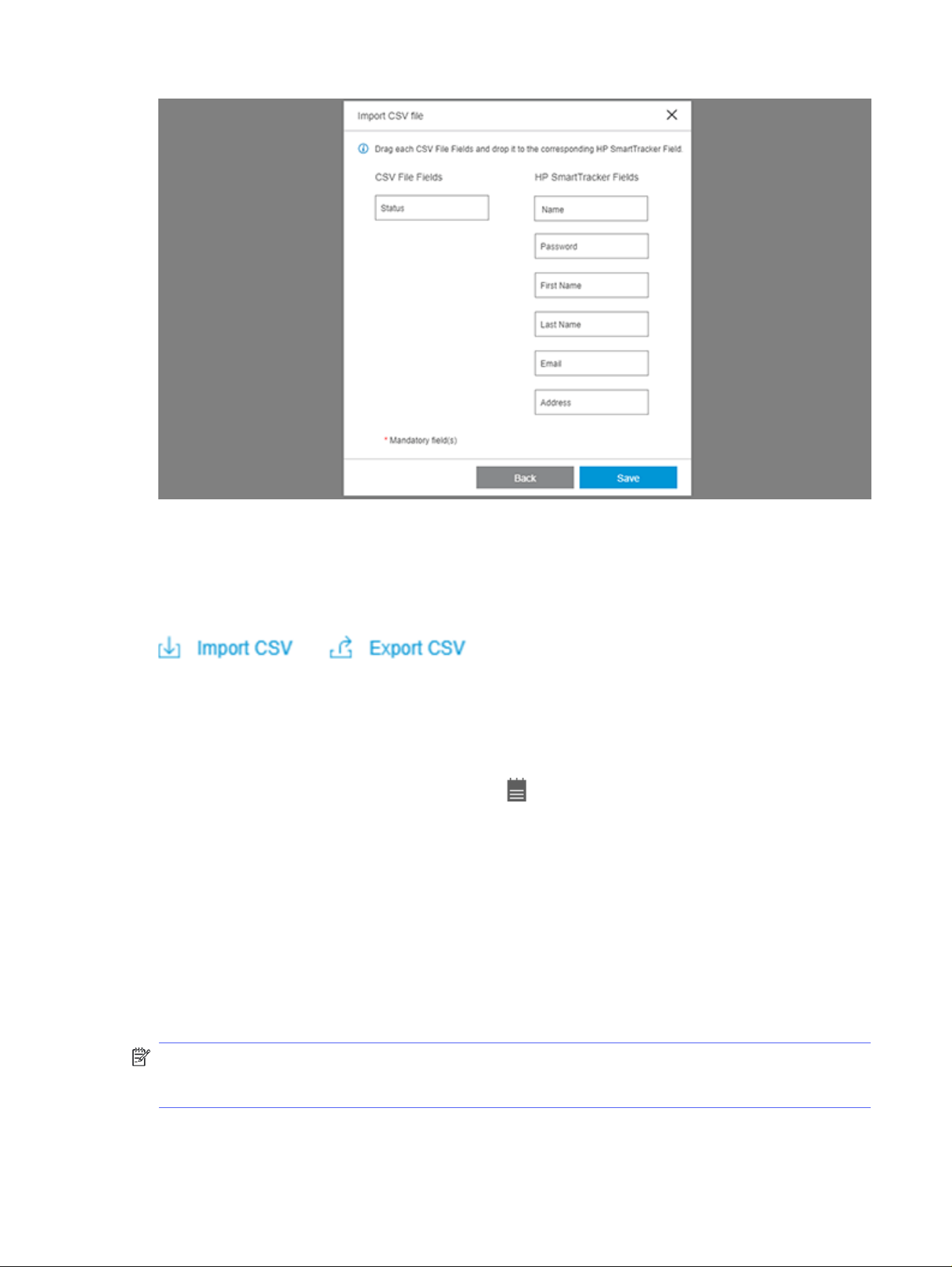
Export CSV
To export a CSV file, first you should enter all the data that you want to export, on the home screen.
Click the Export CSV option:
Generating reports
For bookkeeper users, the Reports screen is the home screen.
However, administrator users will have to click the icon to open the Reports screen.
This screen provides three options: Summary, Reports, and Custom.
The Summary report can provide an overview of: all printers; a specific printer group or; a specific
printer.
The Custom report lets you customize the content of your report to contain the tables and charts you
choose.
The Reports option is a standard report that provides a detailed analysis of either a particular user, a
department, a project, or individual jobs.
Default reports can be created per printer and per printer group.
NOTE: Cumulative cost/price data are updated once a day based on the costs/prices configured. If
changes are made to the configured cost/price data, these changes will be immediately effective,
however the changes will not have any effect on the cumulative data from previous days.
Export CSV
191
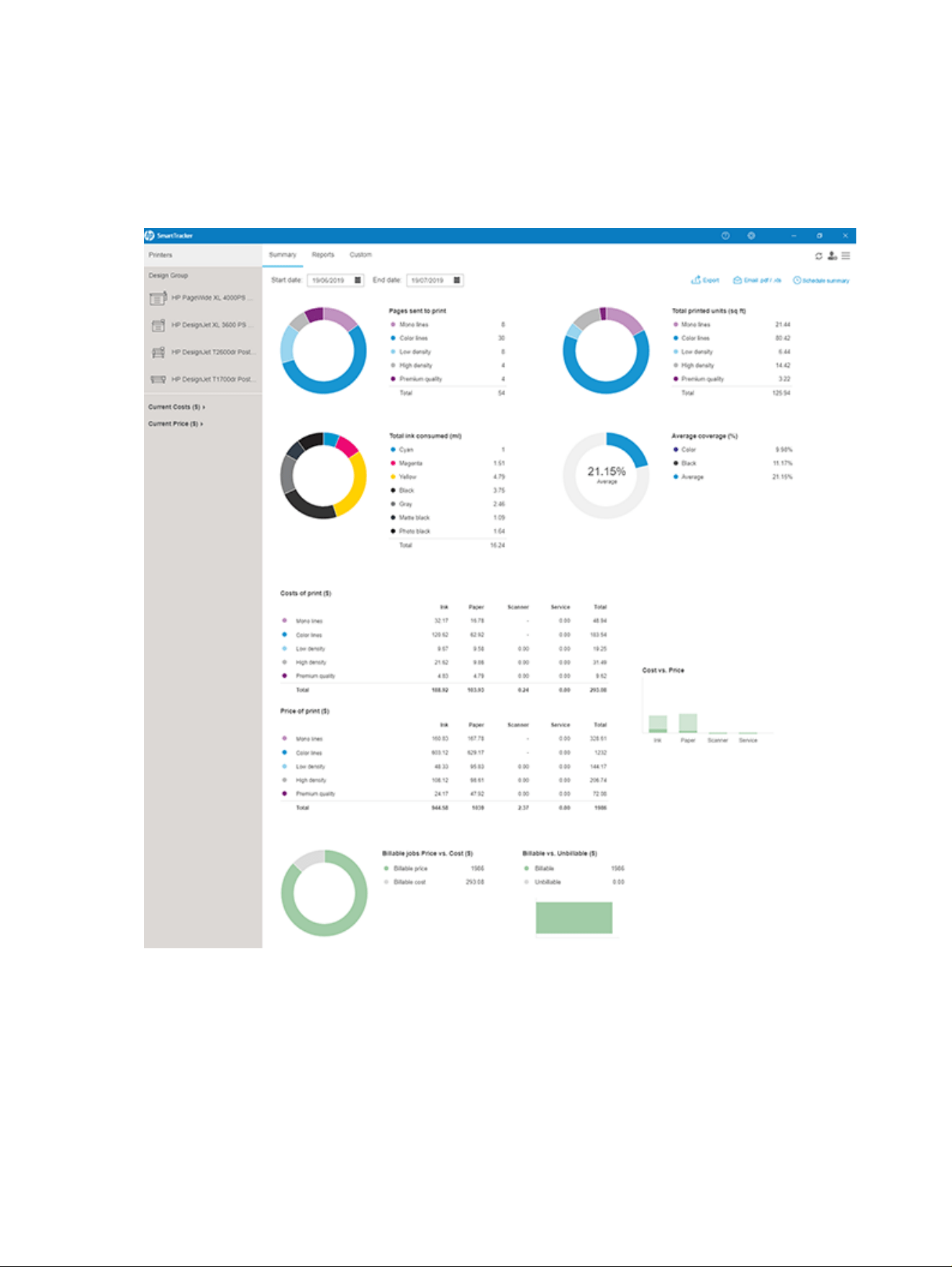
Summary
The information presented in the summary screens reflect how the costs/prices have been entered:
Print categories or Printing supplies. The graphics here are illustrations of one possible configuration.
Here are examples of Summary reports:
You can view a global summary for all printers, a specific printer group or a specific printer.
You can choose the time frame of when the data is collected.
192
Chapter 5 HP SmartTracker
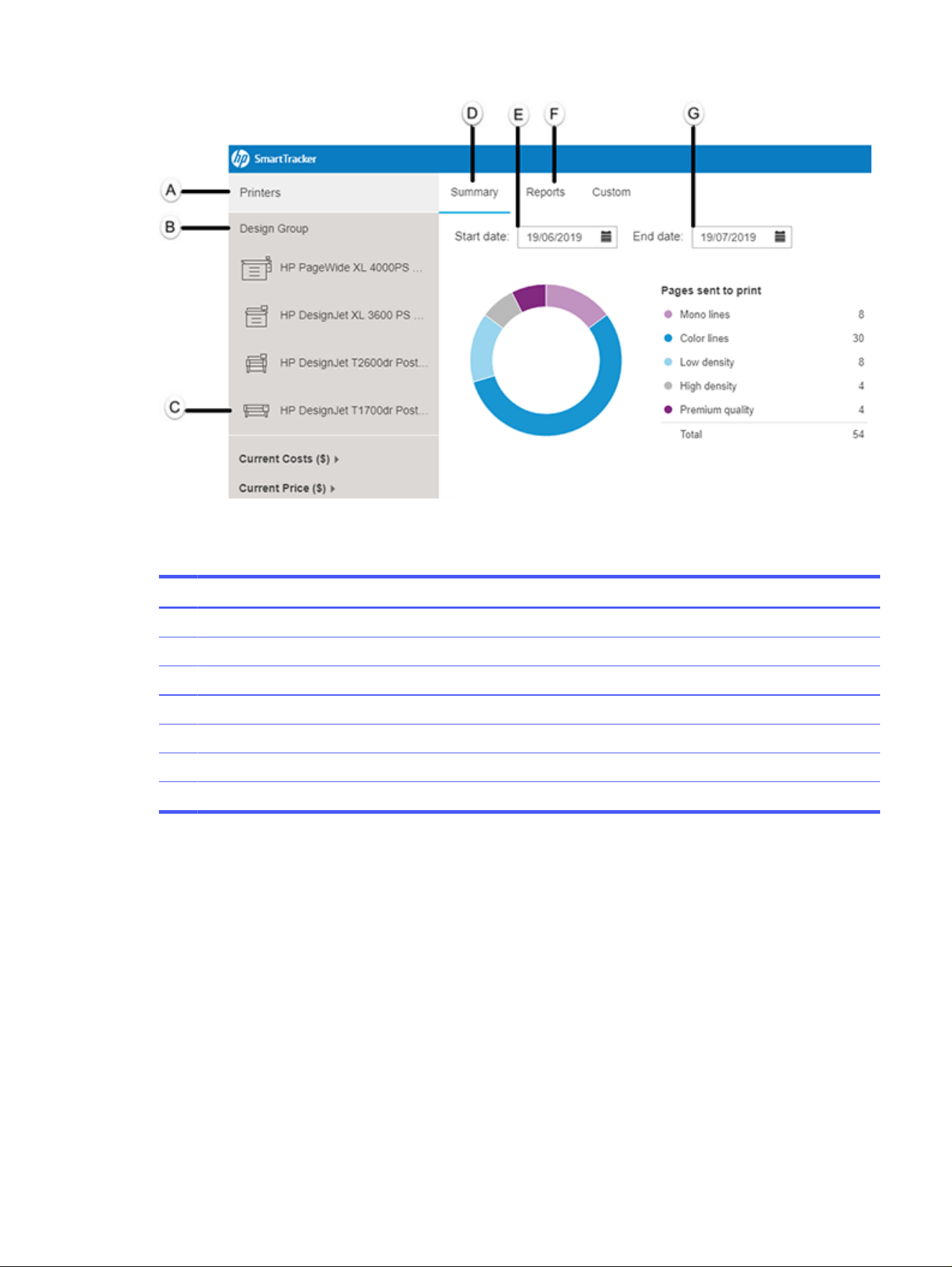
Below are brief descriptions of the various parts of the screen:
Table 5-5
Parts of the screen
Part Description
A View global summary for all printers.
B View global summary for selected printer group.
C View global summary for selected printer.
D Summary: Totals of cost and usage for the period.
E Set the date that the data started being collected.
F Report: totals by users, projects or departments.
G Set the date that the data stopped being collected.
You can export the data in different file formats.
Summary
193
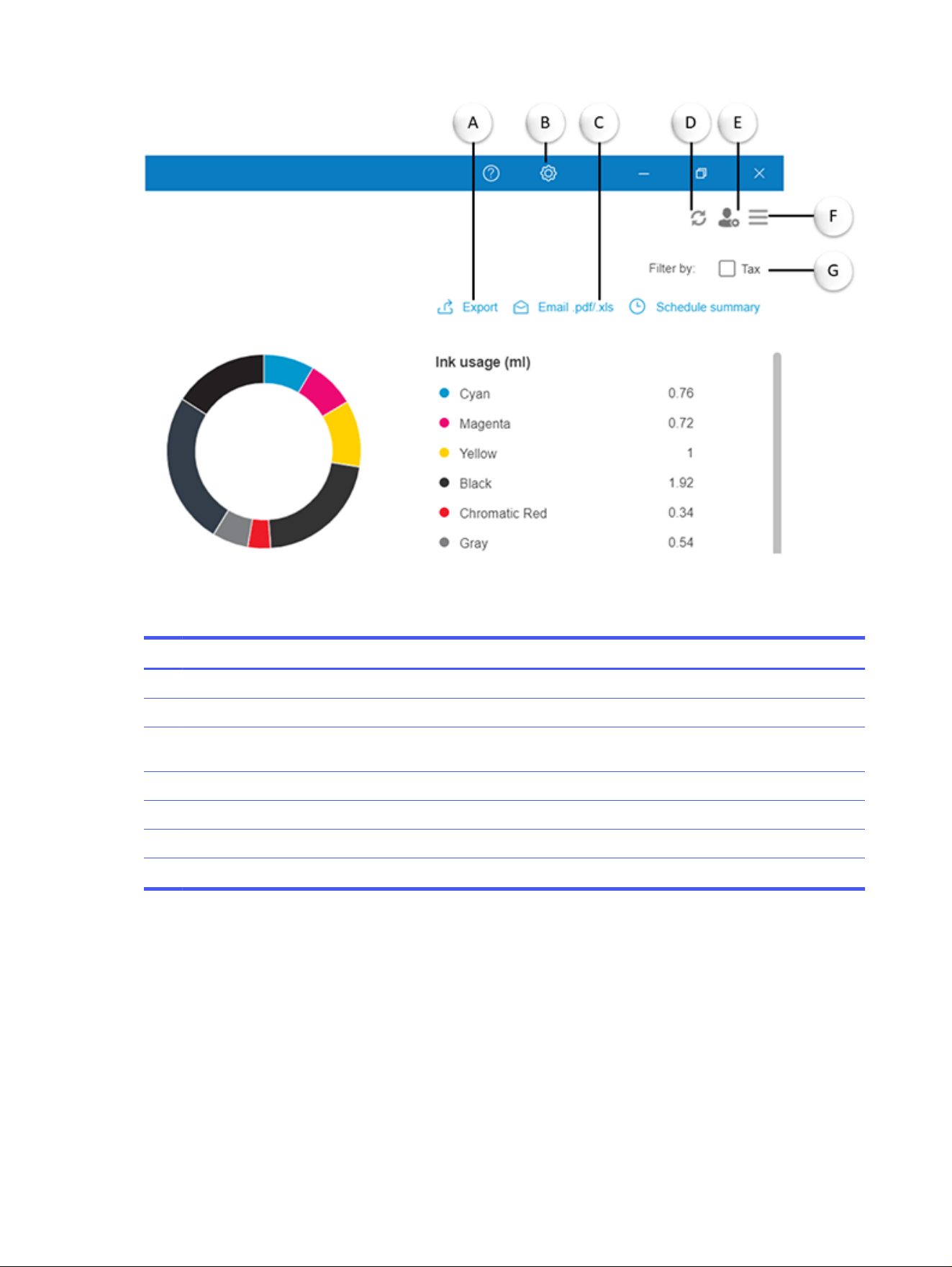
Below are brief descriptions of the various parts of the screen:
Table 5-6
Parts of the screen
Part Description
A Export data as PDF or Excel file.
B Open the Preferences panel*.
C Send data in an email as a PDF or Excel file. (This option is active only if the HP SmartTracker Email Server was properly
configured in the Connectivity tab.)
D Refresh current view.
E Open the Administrator panel*.
F Open the menu.
G Include/exclude taxes.
* These icons are visible to administrator users only.
There are pie charts displaying the total number of pages and printed units according to the settings you
configured in the Preferences panel. There is another pie chart with the total ink consumed by color and
a wheel showing the percentage average coverage:
194
Chapter 5 HP SmartTracker
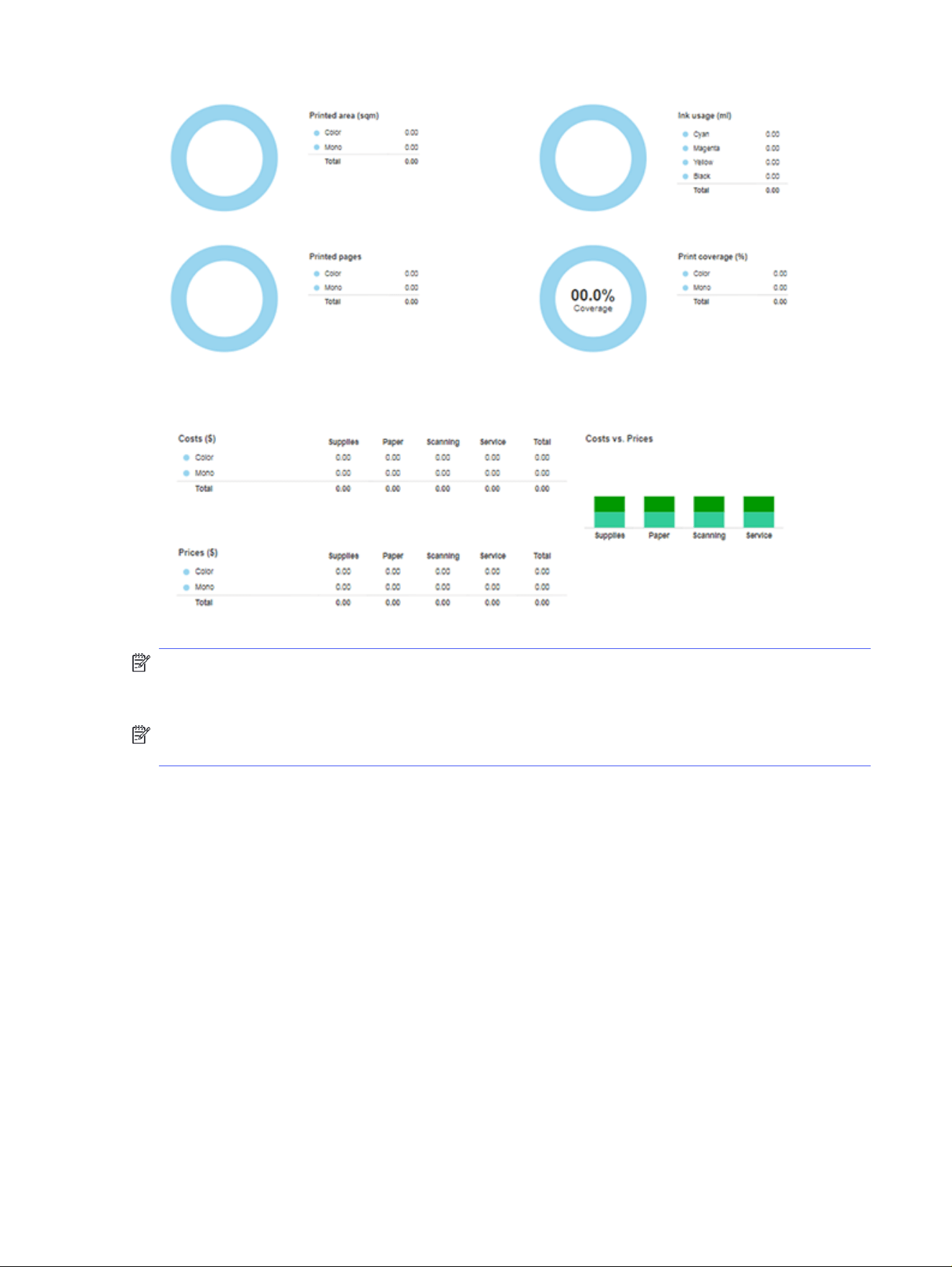
The summary provides a comparative overview of both costs and prices:
NOTE: The graphics that appear in the Summary tab depend on the preferences you have selected.
Any unselected features will appear in gray in the report. If you set any values to zero, the charts will
appear as empty, even though the features were selected.
NOTE: When you select the Tax checkbox, reports take into account the tax rate configured in the
Costs/Prices tab.
Reports
There are four types of standard reports: by Users, by Projects, by Departments, and Export All (raw data
of all jobs in a CSV file format).
Here are examples of reports by Projects:
Reports
195
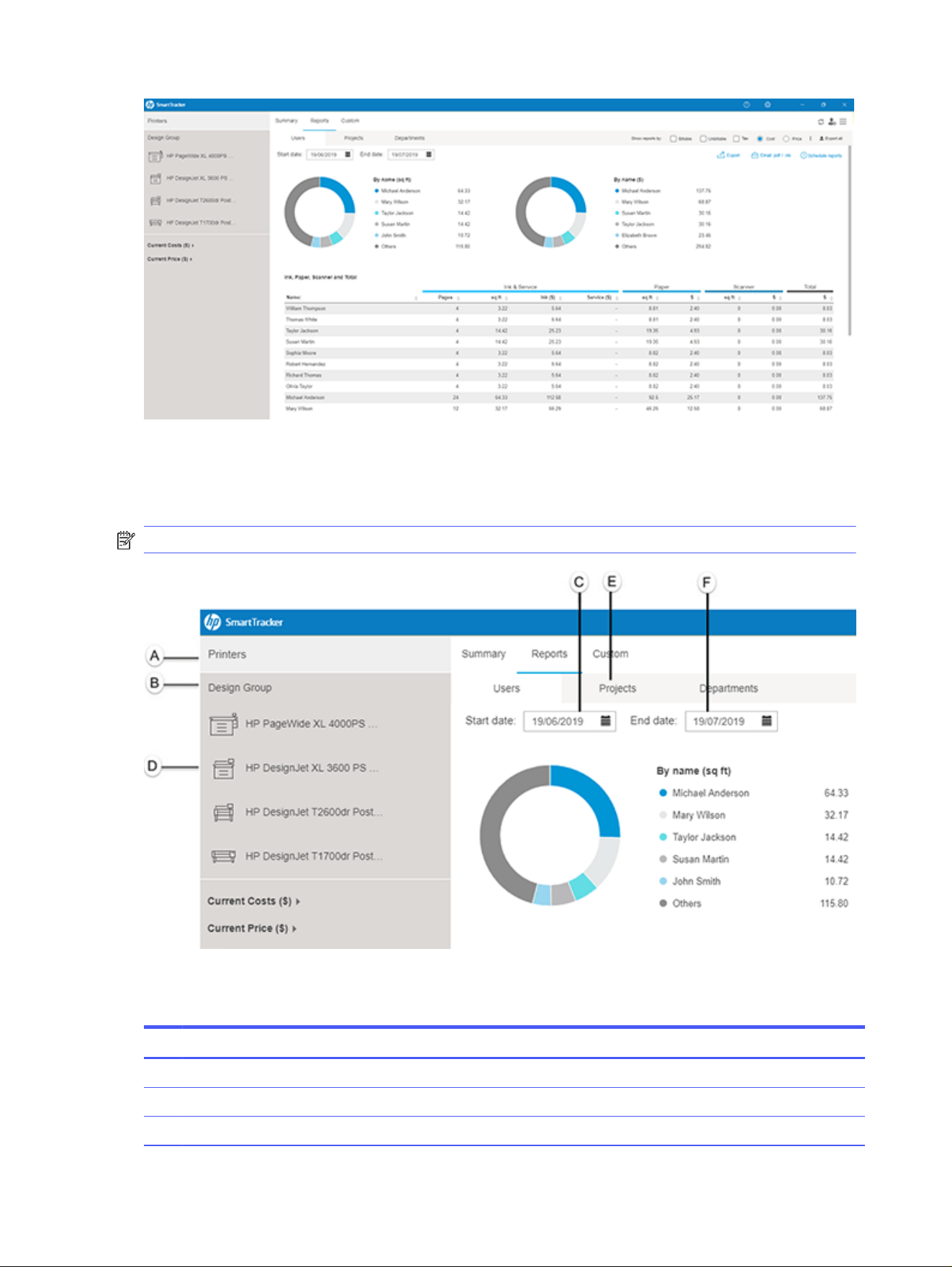
You can view the default report for all printers, a specific printer group or a specific printer.
You can choose the time frame of when the data is collected and the file format to be used when the
data is exported.
NOTE: The application uses the time recorded by the server at the moment the job is printed.
Below are brief descriptions of the various parts of the screen:
Table 5-7
Various parts of the screen
Part Description
A View report for all printers.
B View report for selected printer group.
C Set the date that the data started being collected.
196 Chapter 5 HP SmartTracker
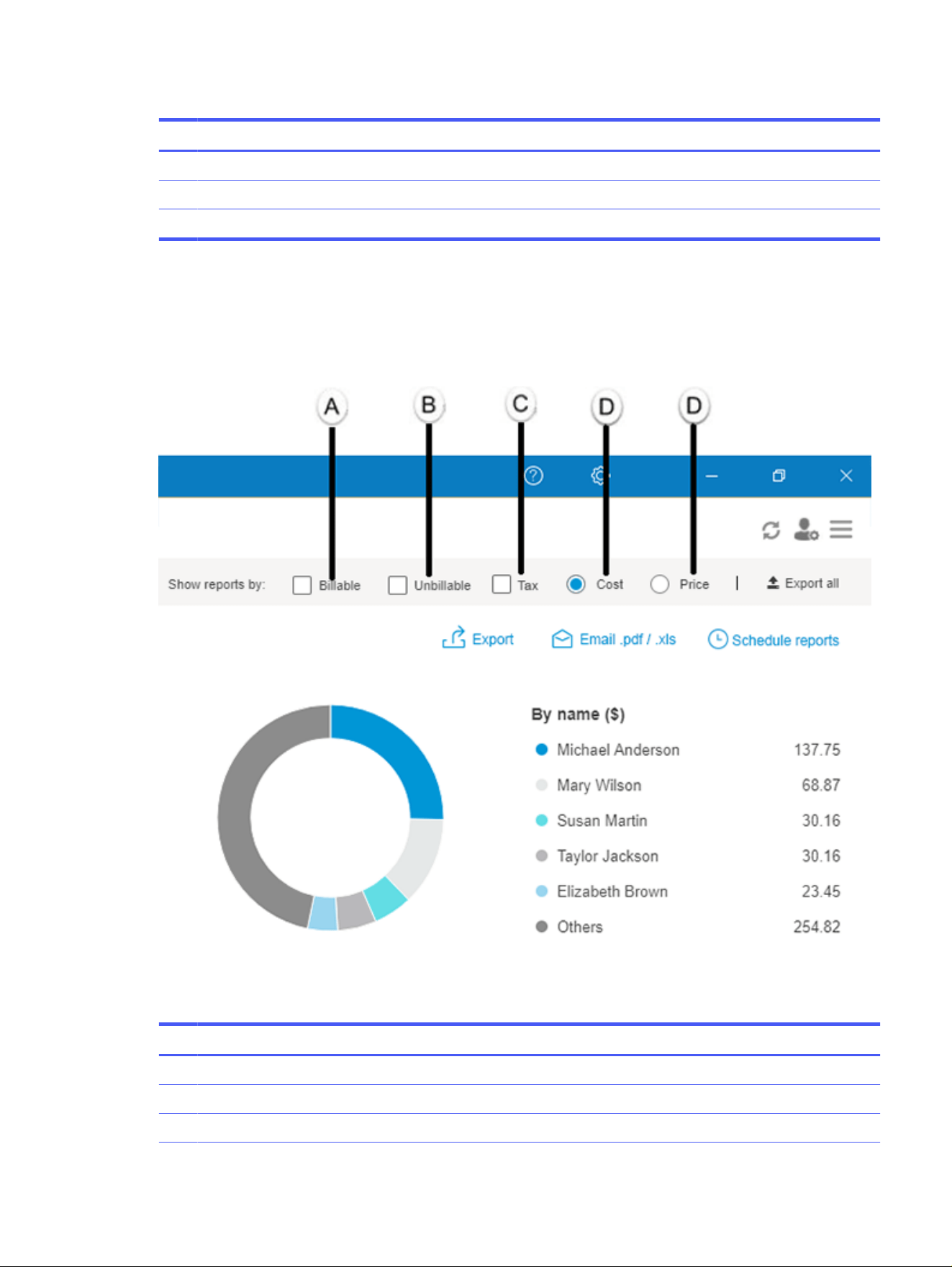
Table 5-7 Various parts of the screen (continued)
Part Description
D View report for selected printer.
E View reports for projects included in the selected printer group.
F Set the date that the data stopped being collected.
In the example above, the Projects tab is selected. However, you can also view reports for users and
departments by clicking the respective tabs.
You can view the data by billable jobs, non-billable jobs as well as jobs by price or by cost. At the top of
the screen you can select the options that fit your needs. This is shown in the next image.
Below are brief descriptions of the various parts of the screen:
Table 5-8
Various parts of the screen
Part Description
A Activate to view only billable jobs.
B Activate to view only non-billable jobs.
C Activate to view quantities taking tax into account.
Reports 197
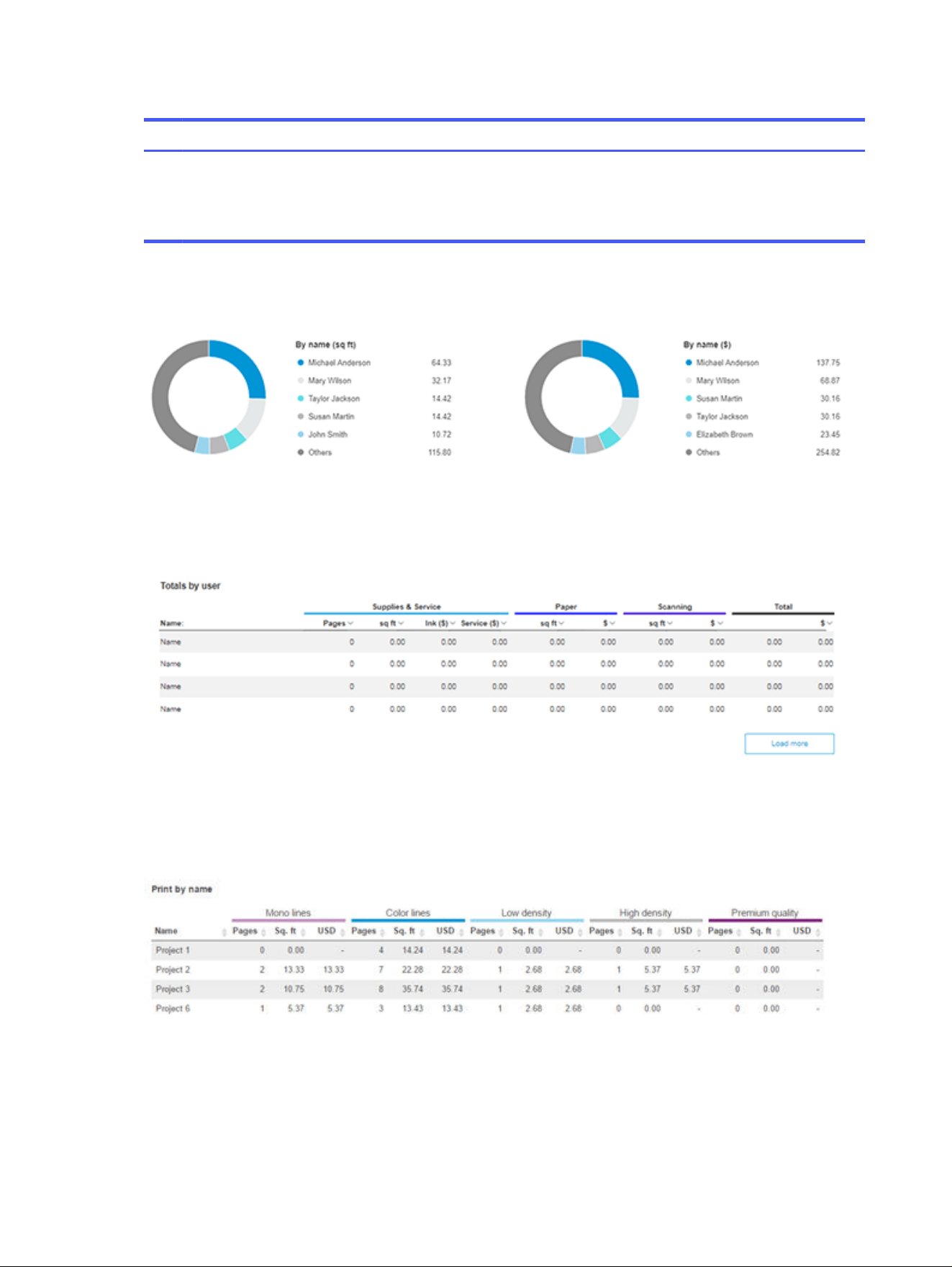
Table 5-8 Various parts of the screen (continued)
Part Description
D Select one of the following options:
Cost: View report data by cost.
Price: View report data by price.
Data is organized by name in pie charts according to the units of measurement and currency selected
when you configured the Preferences panel:
The doughnut charts make it easy to view the percentage of the categories being consumed.
There are tables listing the data by ink, paper, and scanner usage according to data recorded by the
printers:
The table makes it easy to view and compare data per project including the number of pages used,
quantity of ink consumed, the total cost and the total price.
You can see specific data for the preferences you configured in the table:
Custom
Choose the Custom tab to create your own report according to your needs.
198
Chapter 5 HP SmartTracker
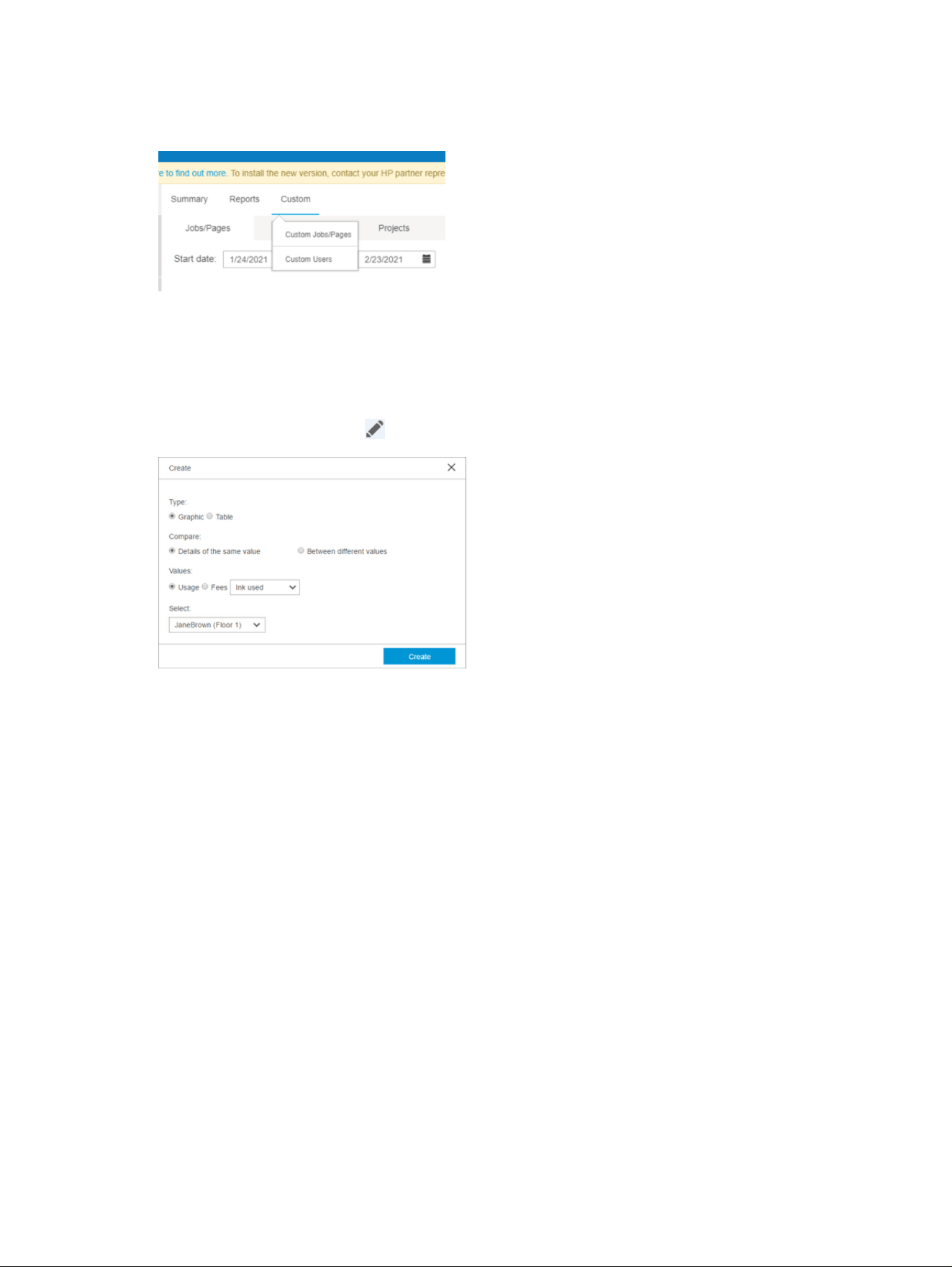
Next, decide if you want to create a report based on users, projects or departments. Make your choice
by clicking the corresponding sub-tab. In the example below, the Projects sub-tab is selected:
You can see the template of your custom report contains gray panels. The smaller panels are where the
graphs you choose will be displayed. The larger panels are for displaying tables depending on the data
you choose to show.
To create a panel, click the New panel button.
To configure a panel, click the icon. The following window opens:
The type of image you want to display affects the options available later:
● Graphic: To add a graph
● Table: To add a table
If you selected Graphic, you can choose which values to compare:
● Same values: To add a pie chart
● Different values: To add a bar chart
You can then choose the units you want to display in your custom report:
● Usage: This will display the use of ink, paper, and scanner
● Fees: This will display data by cost/price, billable, non-billable, both billable and non-billable together.
Select the value you want to show based on the unit you chose above.
Finally, select the name of the project you are creating the report for. In this example, the report is for
a project since the project sub-tab was selected at the beginning. However you also have the option to
create reports for departments and users.
If on the other hand you selected Table, the window below is displayed:
Custom
199
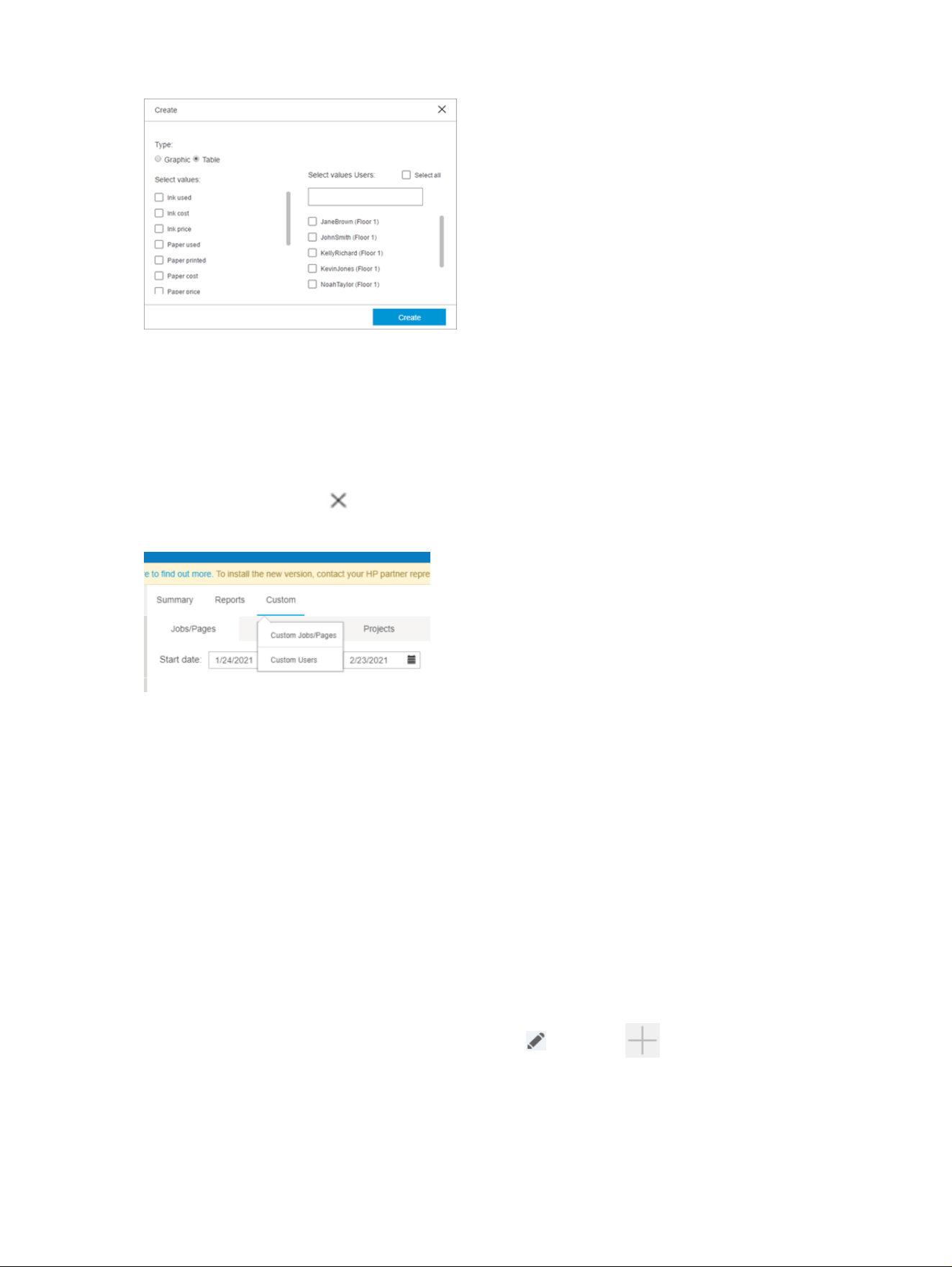
You can now choose all the values and projects (or users or departments, depending on the sub-tab
selected) that you want to see in the report. Selected projects/users/departments move to the top of the
list.
Click the Create button to save your choices and close the window.
Once you have created the panels you want, you can drag-and-drop them to the position you prefer.
To delete a panel, click the icon.
To view previously created custom reports, hover over the Custom menu:
Click the report you want to open.
To delete a report, hover over the Custom menu and, when the menu appears, choose the report you
want to delete. Once the report is displayed on-screen, click the Delete button. If you hover over the
Custom tab again, you will see that the deleted report no longer appears in the list.
You can also create a customized raw data report with all the information related to the jobs and pages,
and export it to a csv formatted file. First you must select the information per job to be exported, such as
Username, Project, Department, Date, Ink cost by usage, Paper price, and so on. The end and start dates
for the report must also be selected.
Custom jobs/pages (raw data)
Custom jobs/pages reports are a special type of data table report in which the user can select the
information to be shown for each job that has been printed during the selected time frame.
When viewing a report already created and clicking the icon or the icon, a new window will
appear showing all the available values for a job. The user can select values to be used in the report,
rename the column names, and change the order in which they should appear.
Once all the desired values have been selected and placed in the correct order, the user can click the
Save button to close the window and confirm the selections made.
200
Chapter 5 HP SmartTracker
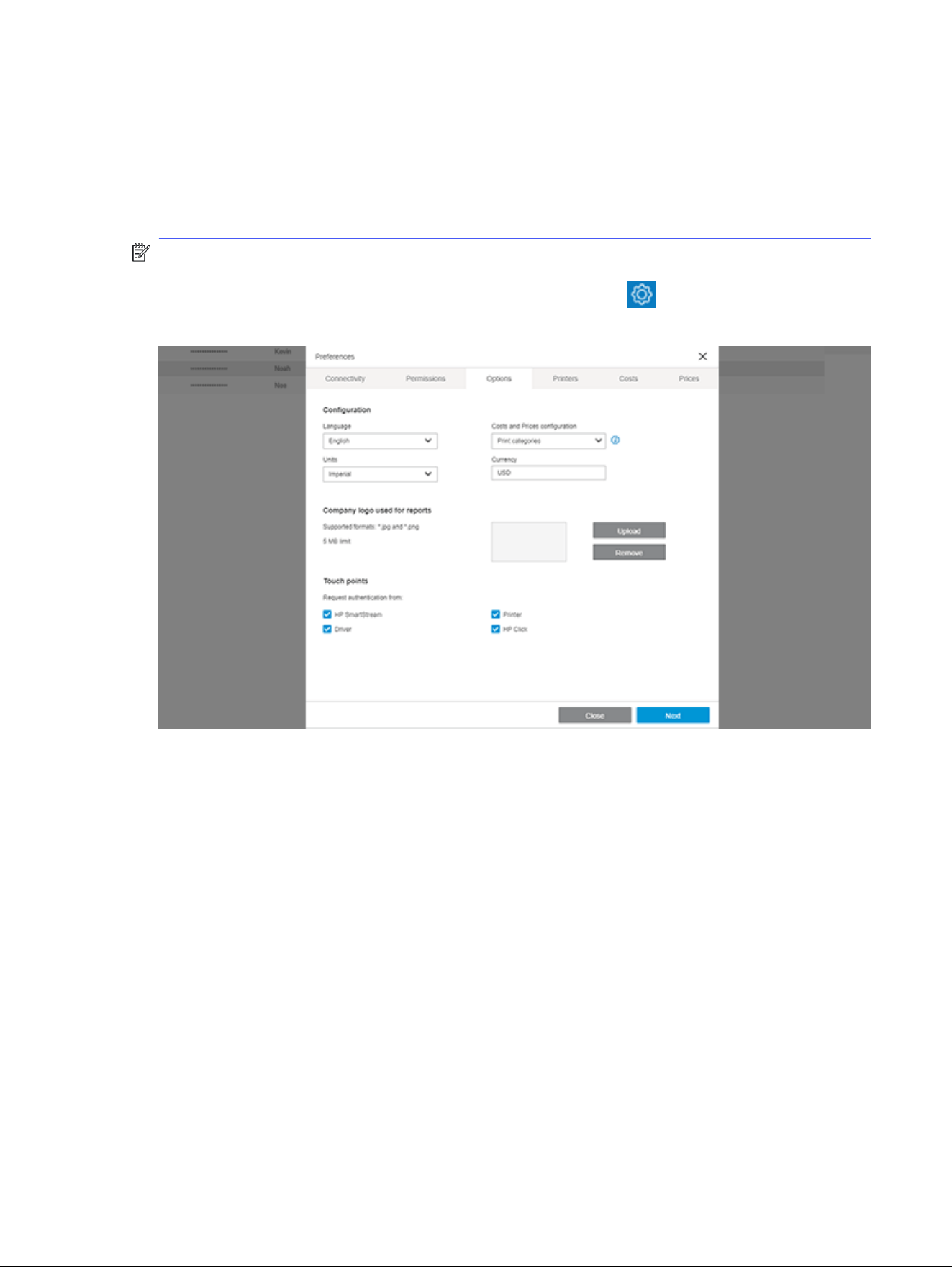
Once the values have been confirmed, the report is automatically populated with the values stored in
the database for each job included in the time frame selected.
Custom logo
This topic provides a full set of reference information for this subject.
NOTE: Administrators only
To configure or change a logo to be included in the reports, click the icon to open the Preferences
panel and by clicking the Options tab a screen, as shown below, will be displayed:
To upload a logo image file click the
Upload button and a window will open so you can browse for the
image to be used. The uploaded image must adhere to the characteristics mentioned in this screen.
If a logo has already been uploaded, click the Remove button to remove it.
Once a logo is uploaded, it is immediately available to an administrator or bookkeeper for use in a report
to be exported.
By default the option to Include company logo is checked.
Custom logo
201
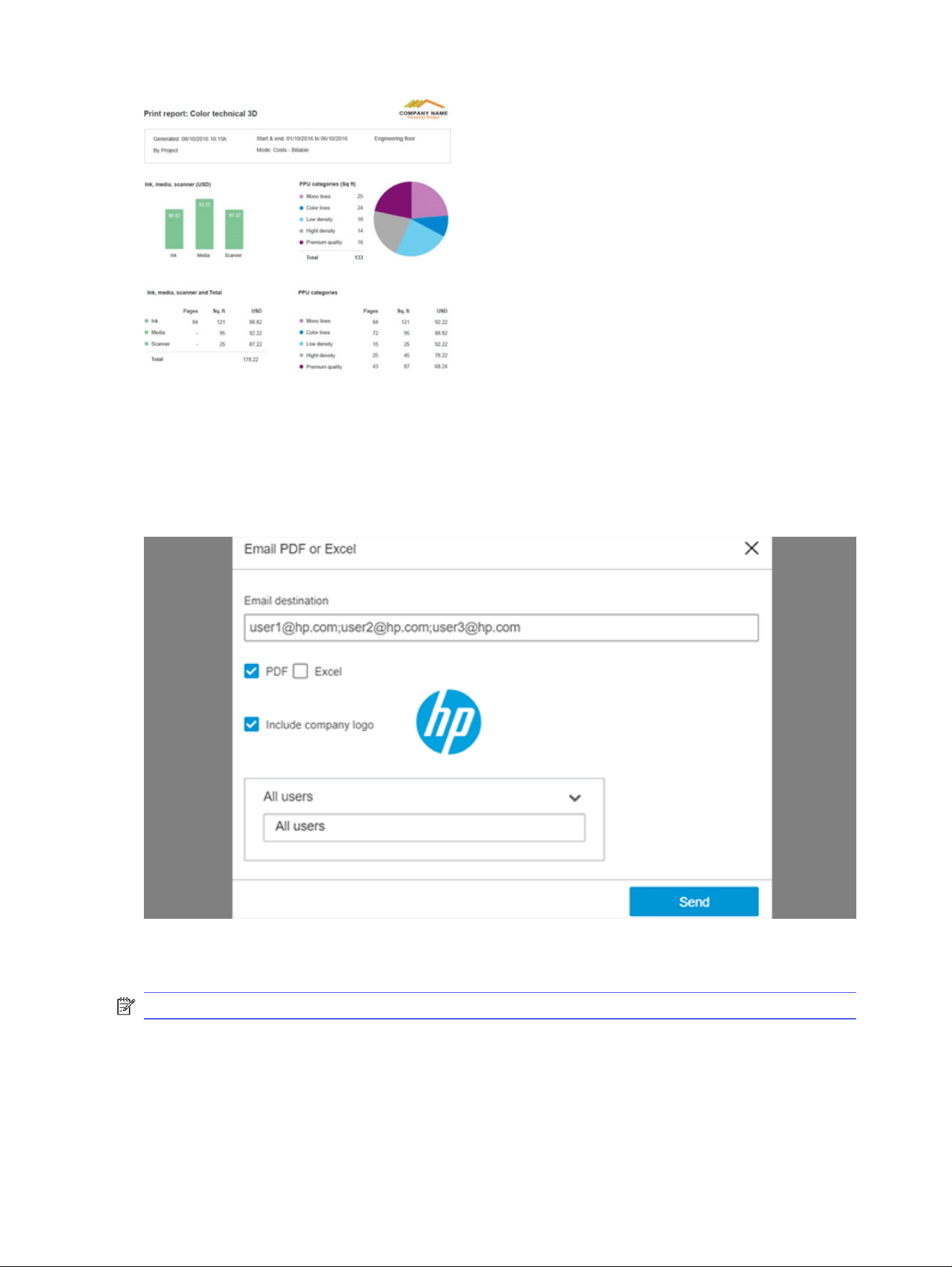
Scheduling and emailing reports
Administrator and bookkeeper users can email reports to a specific user, project, or department. They
can also choose the format of the report, PDF and/or xslx.
To email a report, click Email .pdf/.xls. The following window opens:
In the Email destination field, enter the email address(es) where you want to send the report. Next
choose whether you want to send the report in PDF or Excel format, and click the Send button.
NOTE: Reports saved in Excel format do not contain any images.
To schedule and email a Summary report, click Schedule Summary. A window like the one shown below
is displayed:
202
Chapter 5 HP SmartTracker
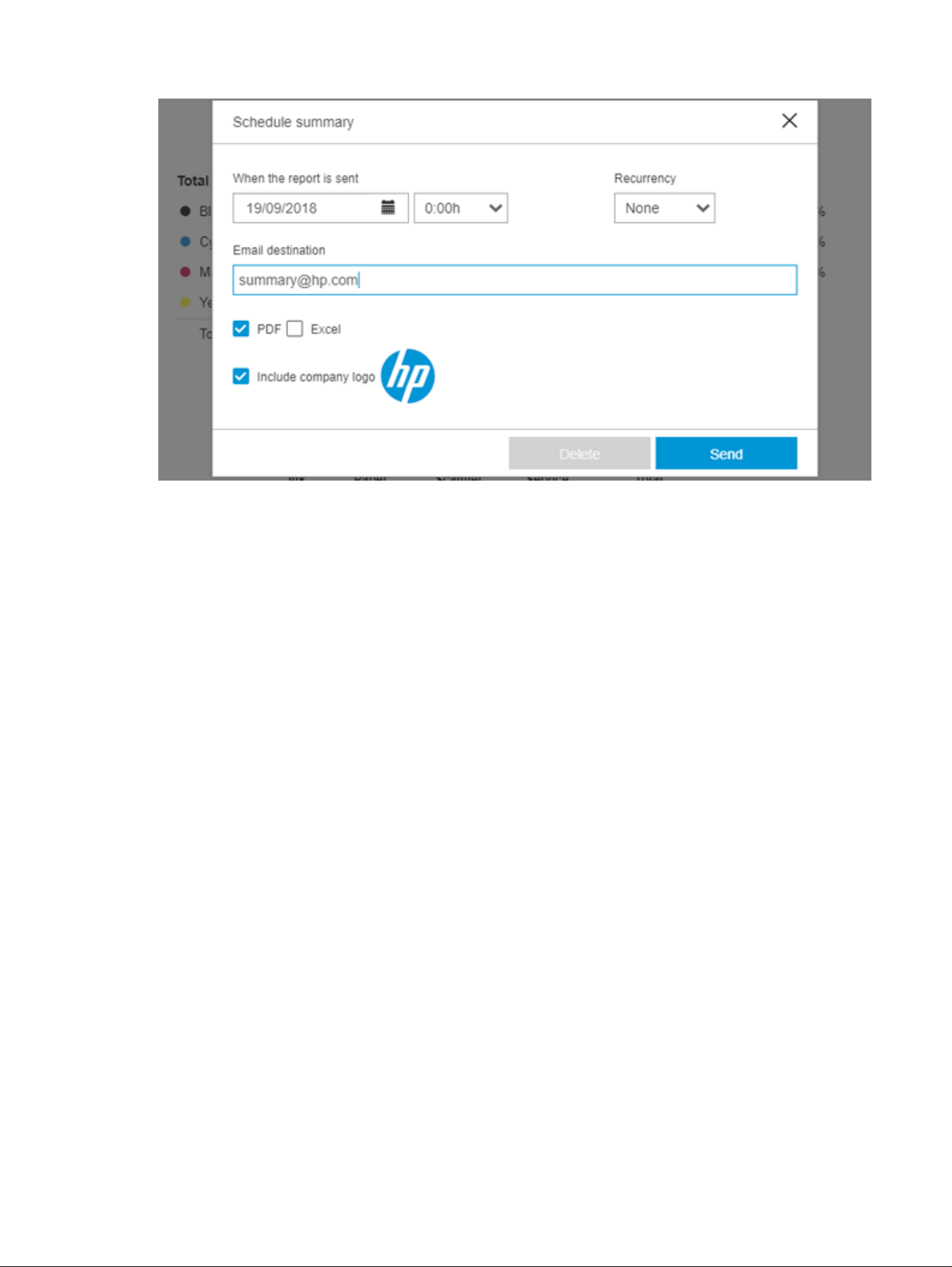
In the Start sending reports since field, select the date on which you want to send the first report.
Choose the time from the drop-down menu.
You can also choose how often the email should be sent by selecting a value from the using Recurrency
drop-down list.
In the Email destination field, enter the email address where the report is to be sent. To send to more
than one destination, separate each address by a semicolon (;) character.
Next, by checking the PDF and Excel checkboxes, choose the format(s) to be used for the exported
report.
Finally, click the Send button.
Schedule and email user, project, or department reports
To schedule and email a specific report, click the Users, Projects, or Departments tab and then click
Schedule Reports. The following window opens:
Schedule and email user, project, or department reports
203
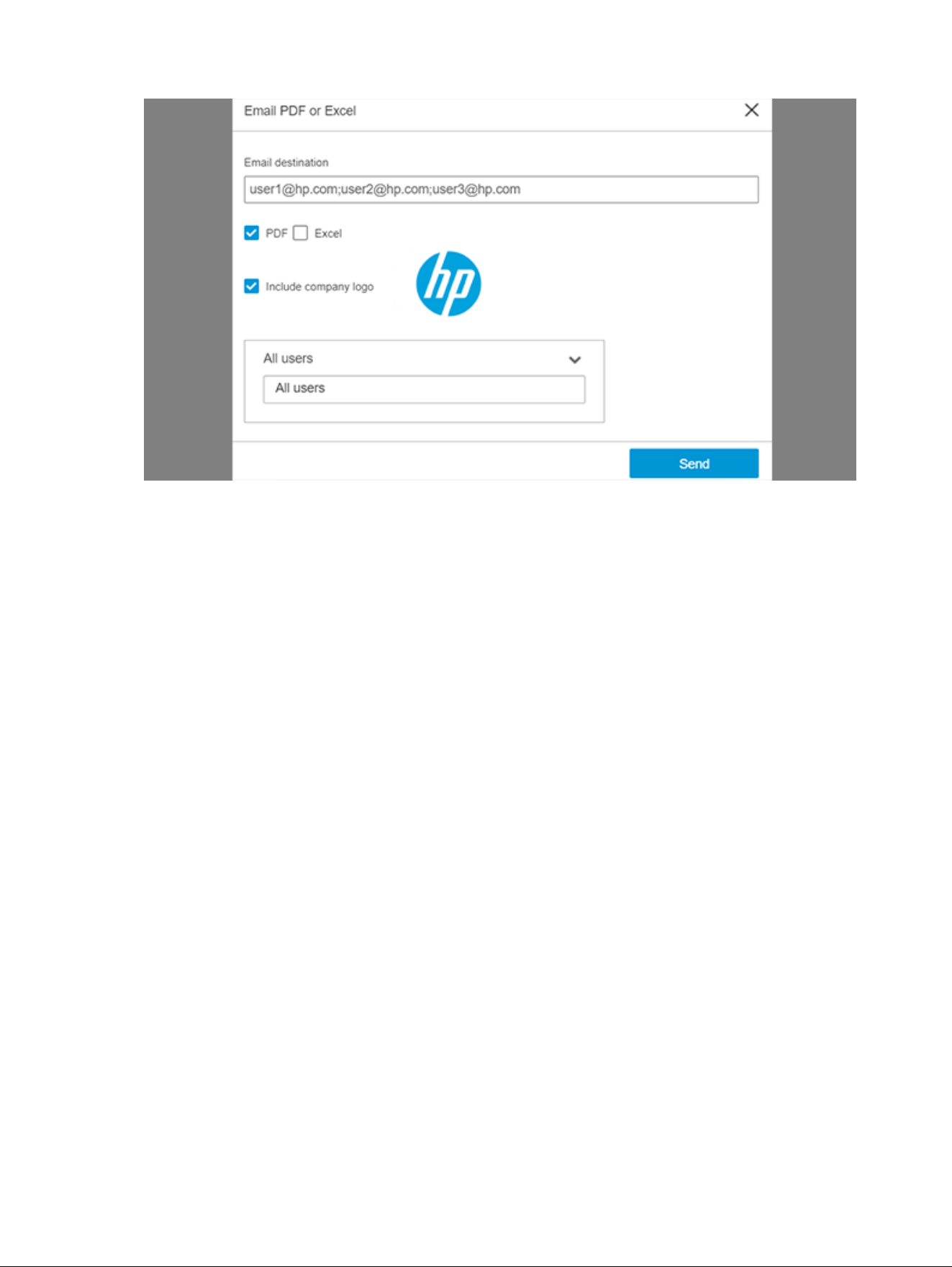
In the Start sending reports field, select the date on which you want to send the first report. Choose the
time from the drop-down menu.
You can also choose how often the email should be sent by selecting a value from the Recurrency
drop-down list.
In the Email destination field, enter the email address to which the report is to be sent. To send to more
than one destination, separate each address by a semicolon (;) character.
Next, by checking the PDF and Excel checkboxes, choose the format(s) to be used for the exported
report.
The All or individual projects field can be used to select one particular project from the list of available
projects (the information displayed in the list will depend on user selection).
204
Chapter 5 HP SmartTracker
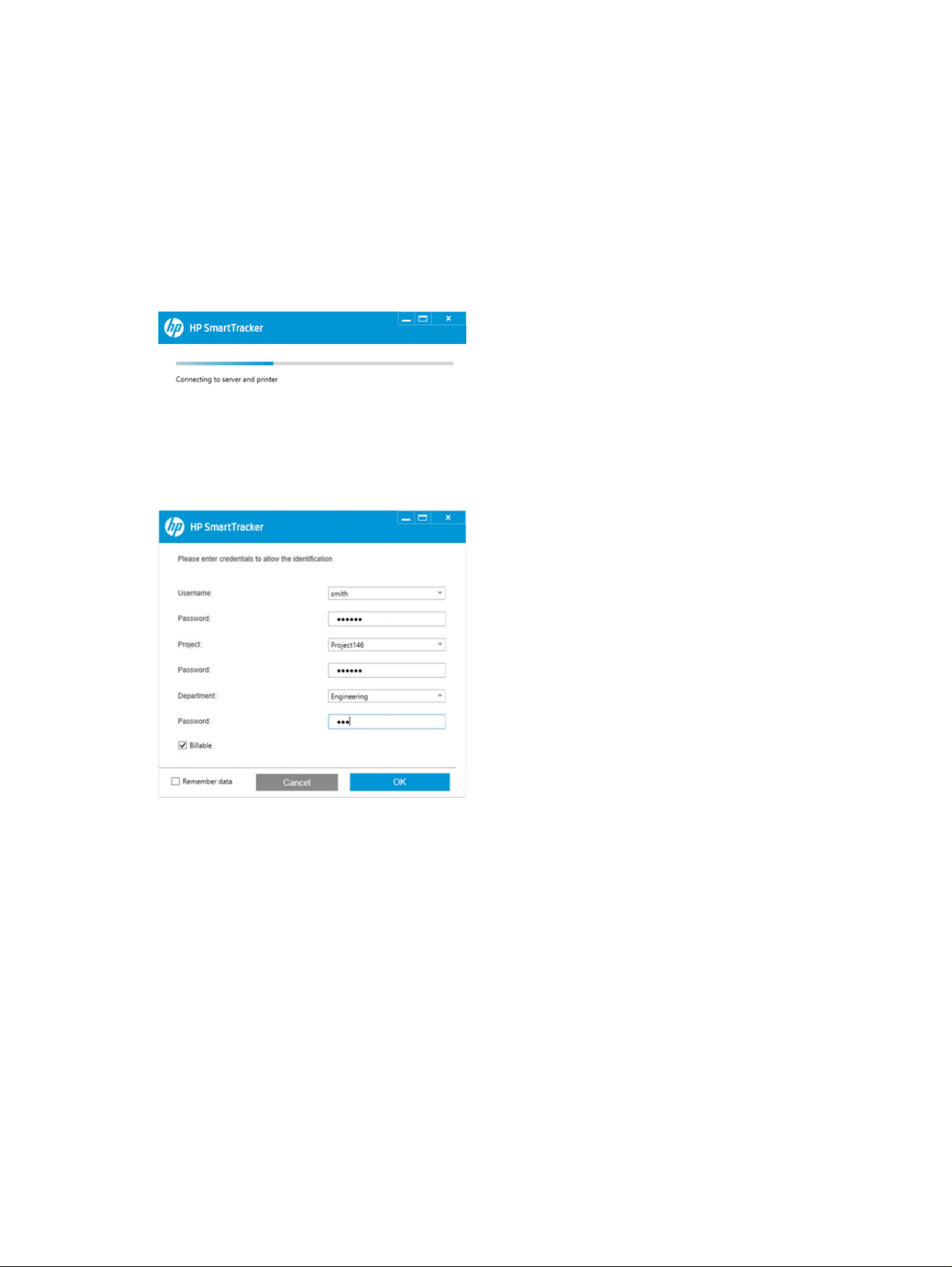
Printing workflow authentication
Printing from the user’s PC
The printing workflow to an HP SmartTracker-enabled printer is similar to the regular printing workflow
from any of the submittal tools: HP SmartStream, HP Click, or HP driver.
You can send a job to be printed in the usual way (when printing through the driver, by selecting the File
> Print option from any application) and, while the HP SmartTracker configuration is obtained from the
server, the following popup will be shown:
If the printer has been configured to ask for authentication through HP SmartTracker, a popup will
appear asking for the credentials that have been configured for the printer group of the printer. For
example, if the printer group has been configured to require a username with password, project, and
department, the popup will look similar to the following:
Once you have entered all the information that has been requested (username, project, department,
comments, and passwords), the OK button must be clicked in order to continue the authentication
process and send the job to the printer. You can also select the Cancel button to cancel the printing
workflow at any time.
In many cases the information you enter in the authentication window will be the same, in order to
avoid that you have to re-enter the same authentication data each time in order to print you can check
the Remember data checkbox and, as long as the configured credentials for the printer group are not
changed, the next time the authentication popup is shown it will be populated with the data entered last
time.
When you click the OK button, the printer proceeds to check whether the provided credentials are valid
or not, the Connecting to server and printer popup will be shown, and if the authentication is successful,
the job will be sent to the printer without any more on-screen messages.
Printing workflow authentication
205
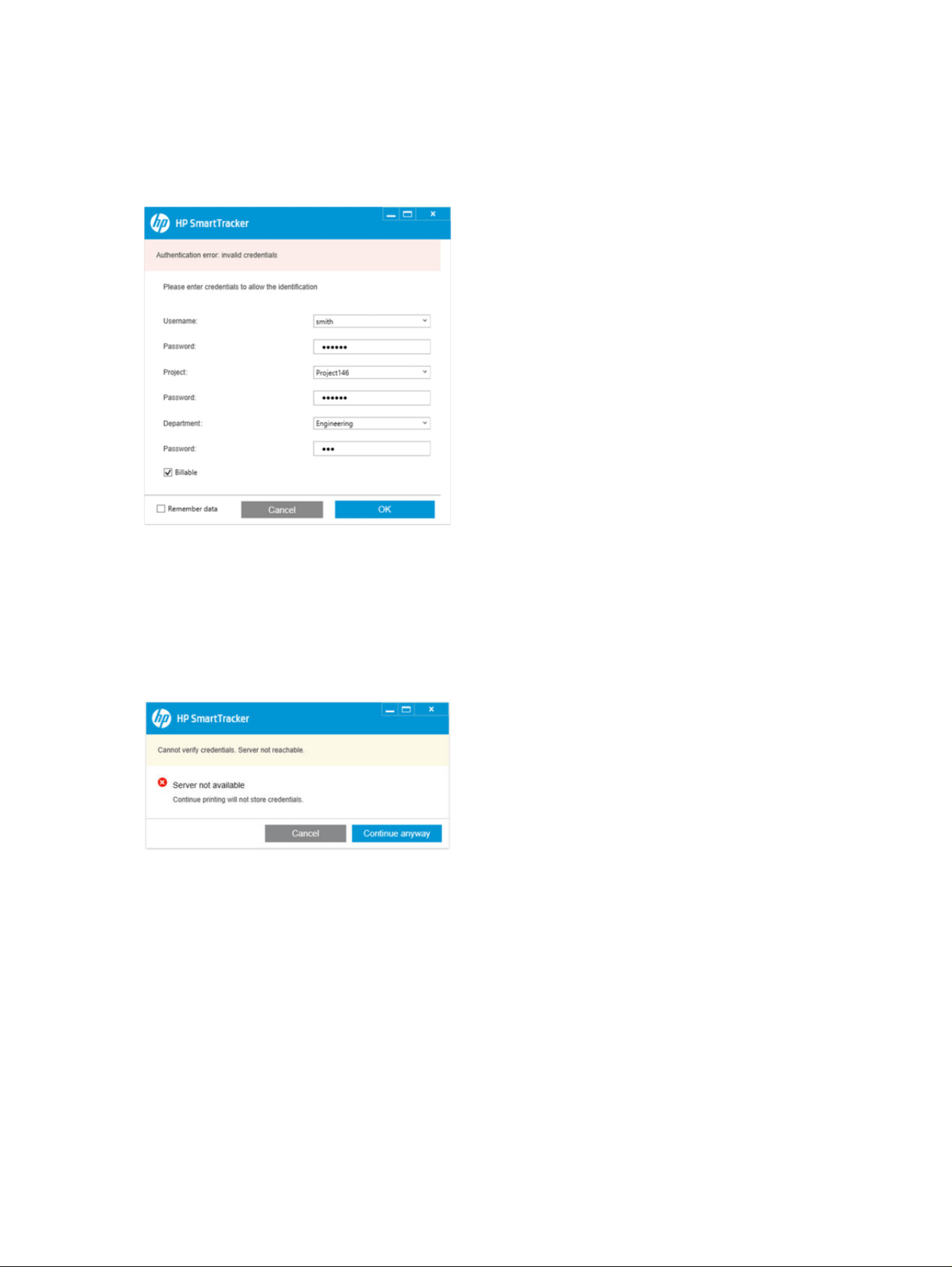
Authentication error cases
If you have completed all the information asked by the authentication popup, but the credentials
provided do not match any of the previously stored credentials on the HP SmartTracker Server, an
“Authentication error: invalid credentials” message will appear.
In such cases, you will be able to re-enter the credentials and click OK to repeat the authentication
process, or click Cancel to cancel the job.
If the communication between the user’s PC and either the printer or the HP SmartTracker server is lost,
a Server not available message will appear and the user will be prompted to cancel the job or continue
printing without the use of credentials. However, this will happen only if the administrator has enabled
the Graceful failover mode for that particular printer. Otherwise the printer cannot be used again until
the HP SmartTracker server is back online.
If you click Continue anyway, the job will be directly printed and will be assigned to user/project/
department "Unknown” in the reports section.
Printing, scanning, or copying from the printer’s control panel
In order to be able to print, scan, or copy from the printer’s control panel, you must be authenticated by
providing any credentials configured on the HP SmartTracker server for the printer.
The authentication process starts whenever you start any of the restricted actions (print from USB,
print a job from the job queue, scan, or copy). In these cases, an authentication popup is shown on the
printer’s control panel, asking for the credentials stored on the server:
206
Chapter 5 HP SmartTracker
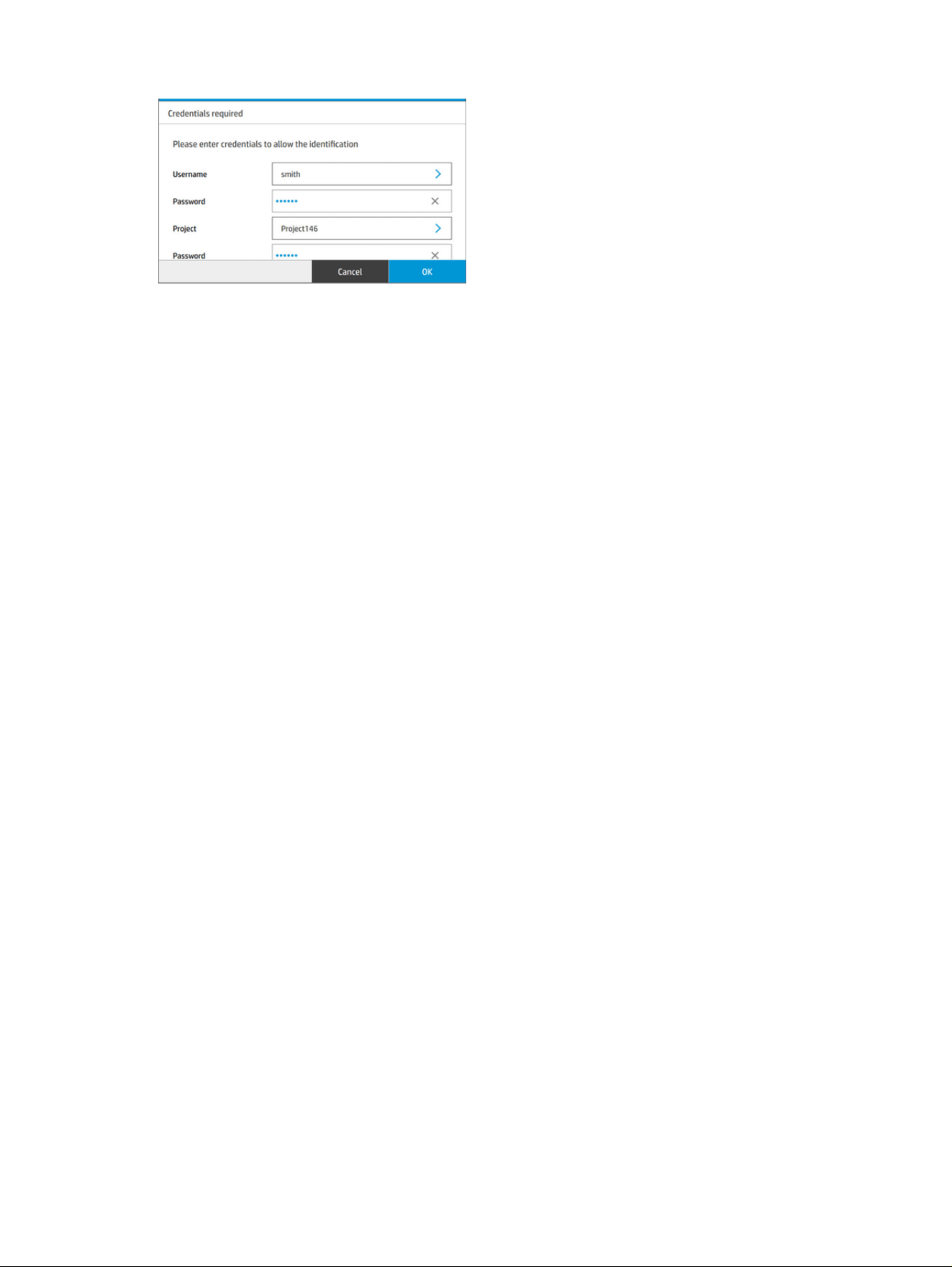
Once you provide all the required information and click OK, the credentials are validated with the server
and, if they are correct, the user is logged in and can continue with the workflow that has been initiated.
You will remain authenticated on the printer provided you continue performing actions from the control
panel, no new authentication will be required when starting any of the restricted actions (print from
control panel, scan, or copy).
After a period of control-panel inactivity, you will be automatically logged out and you will have to repeat
the authentication in order to start any of the restricted actions.
You can also choose to log out from the printer by clicking the user log-out icon on the control panel;
any new user will have to go through the authentication process in order to start any of the restricted
actions.
Printing, scanning, or copying from the printer’s control panel
207
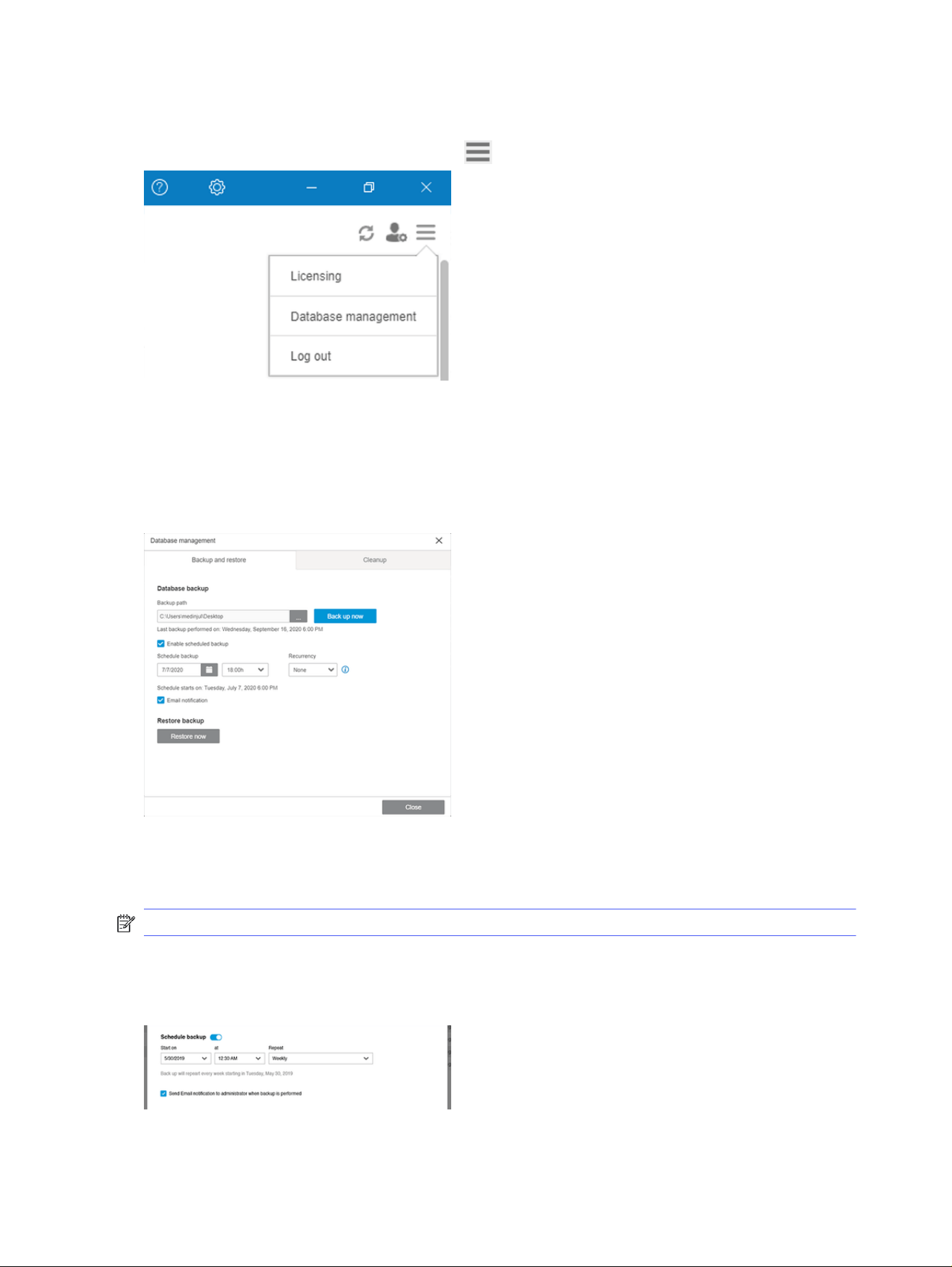
Database management
Database management is available inside the menu.
If the SmartTracker client is installed in a different PC than the server, the Database management option
is unavailable (the option is only for administrator roles).
Backup and restore database
Select the Backup and Restore Database tab, and the screen below appears:
Select a file name to backup or restore, and click the button to start the backup or restore operation. A
window appears to tell you that the process will take several minutes. The server automatically restarts,
and during the process, the SmartTracker server is unreachable.
NOTE: You cannot save a backup file directly to C:\, another location must be chosen.
Below, there is an option to activate or deactivate the Backup Scheduler functionality. Automatic
backups can be set periodically (weekly, monthly) starting at a certain date and time. Activate or
deactivate the toggle to enable or disable the configured schedule:
208
Chapter 5 HP SmartTracker
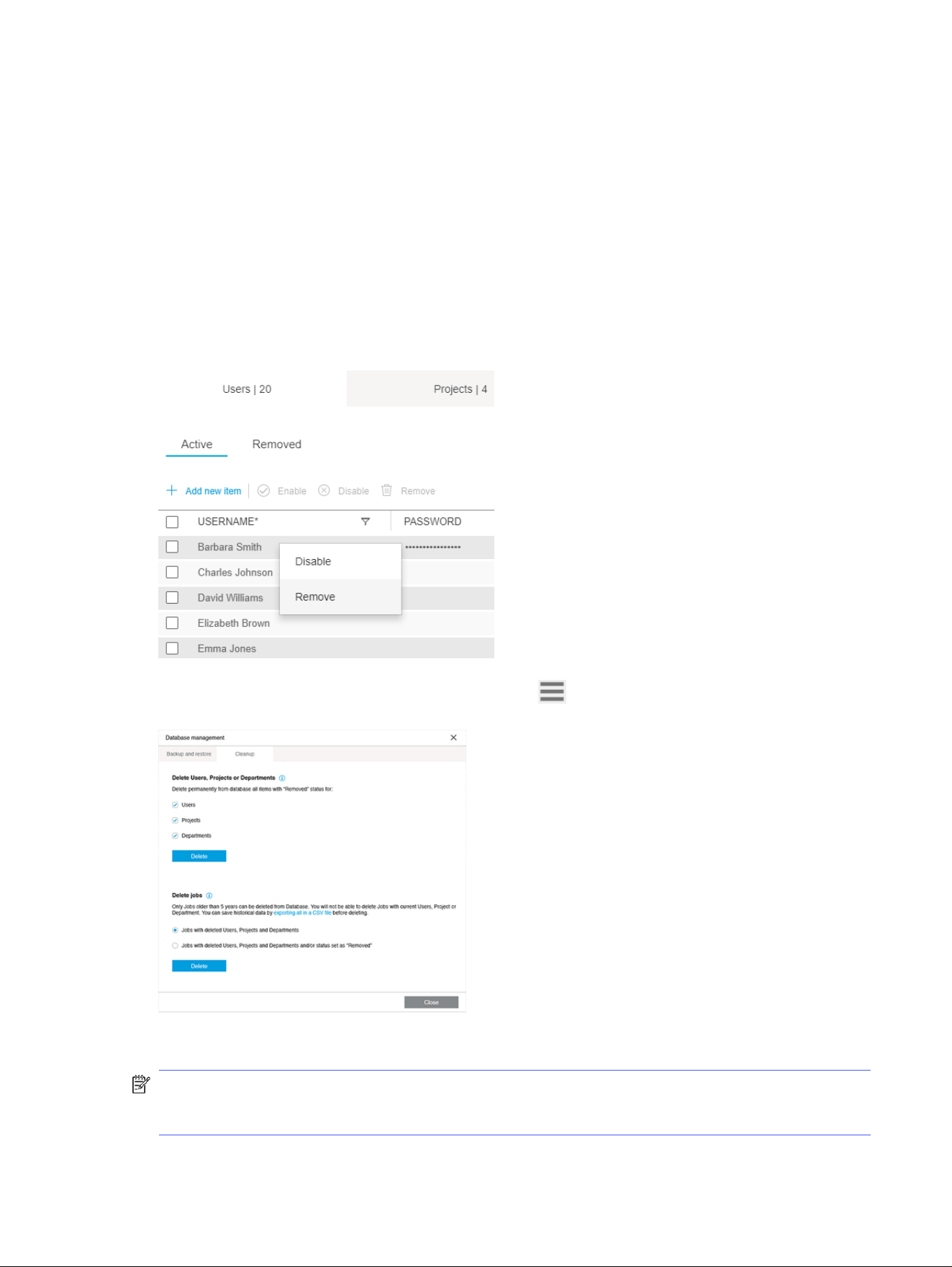
Restore
To restore the database from a previous backup, select the Database management option and, under
Restore backup, click the Restore now button. This opens the File Explorer, where you can select the
required backup to restore (backups are stored with a .bk file extension).
Clean up database
As database content increases, there is no automatic process to delete the content. The Cleanup
tab gives administrators the ability to remove some data permanently, including users, projects,
departments, and jobs.
In the home screen there is an option to remove users, projects, and departments no longer required by
setting the Remove status to the desired items:
To delete an item already selected to Remove, click the icon, then in Database Management click
the
Cleanup tab, select the desired items to delete permanently, and click Delete.
To delete jobs older than a 5 years permanently, select the desired option in Delete jobs and click Delete.
NOTE: Only jobs older than 5 years can be deleted. You cannot delete jobs with enabled or disabled
users, projects, or departments, only the items deleted temporarily or permanently will be removed. You
can save historical data by exporting a CSV file before deletion.
Restore
209
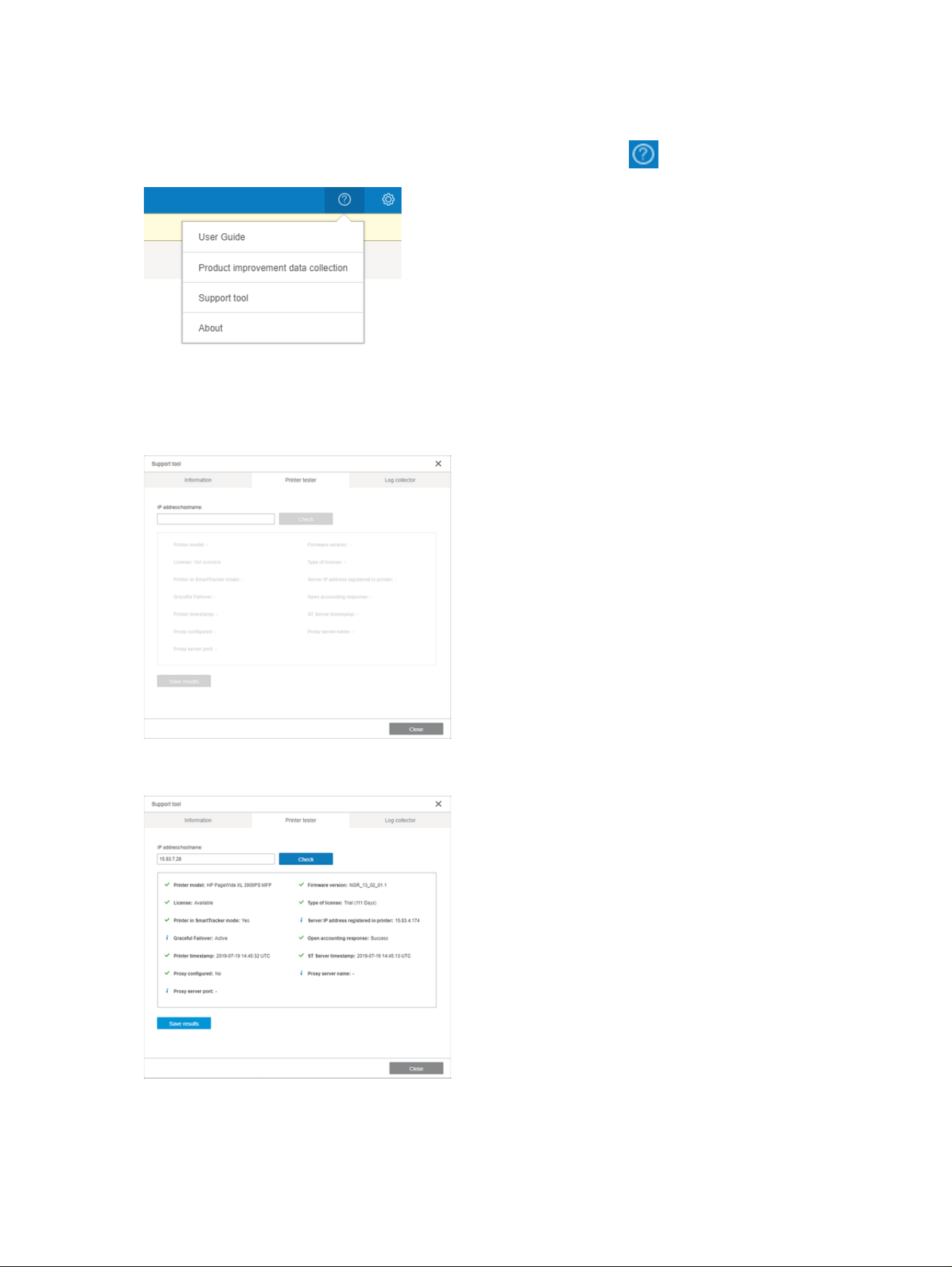
Support tool
For troubleshooting, an integrated support tool has been added to the menu.
It gathers information about the computer running it, and the server and client versions.
It also includes the following options to help test the printer and SmartTracker software recover from a
problem. Fill in the printer IP address or hostname.
Click the Check button, and a set of checks run automatically.
You can save the client and server logs.
210
Chapter 5 HP SmartTracker
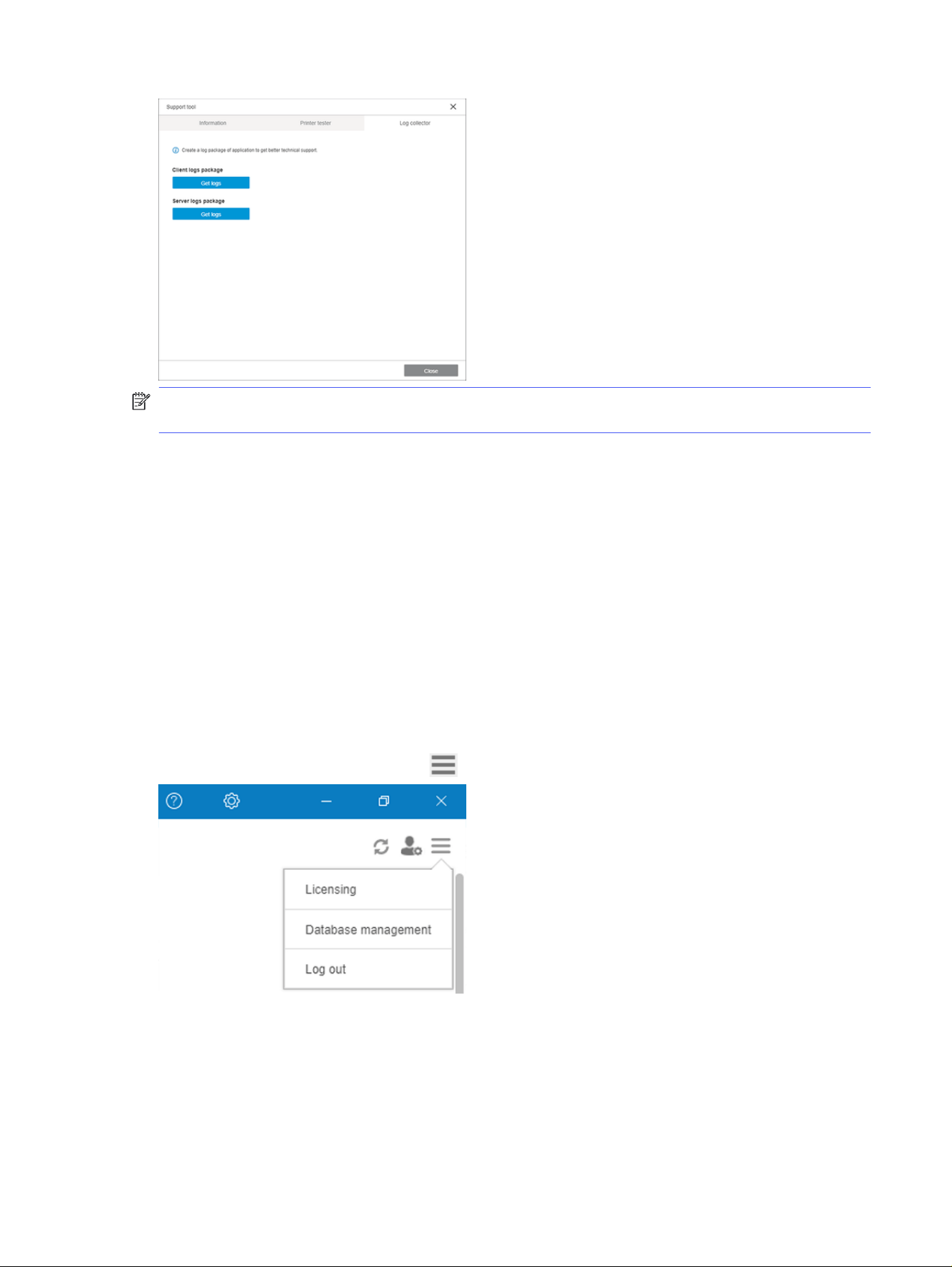
NOTE: Server-logs package generation is unavailable when the HP SmartTracker Client is installed on
a PC other than the Server.
Manual update
Whenever a new version of the application is available, the SmartTracker client notifies you. You can
download the client and the server from hp.com.
If you prefer not to update at that time, just discard the message and check for updates whenever you
like from the About menu in the client application.
If the outgoing email has been properly configured, an email is sent to the administrator.
Make sure to update the server, plus any client that is installed, with exactly the same version number.
Other versions may not be compatible.
Logging out
To log out of HP SmartTracker, click the icon and choose Log out from the menu.
You are successfully logged out of the application. To log in again, you will need to enter your username
and password.
Manual update
211

Index
A
about the home screen 183
accounting 135
accounting preferences 81
add files 87
advanced network interface 170
application error 141
authentication error cases 206
automatic settings 90
B
backup/restore database 208
billable, marking a job as 186
borderless printing 104
C
cancel jobs 123
categories, pixel coverage 151
cleanup database 209
clipping 115
clusters 91
collate 94
color management 124
columns
hide 69
resequence 69
show 69
configuration via Active Directory
(AD) 168
configuring printers 172
configuring users of printers and
printer groups 184
connectivity 166
copies 94
copy job/pages 104
copy settings 104
costs 181
costs, setting 180
create a group of printers 175
create a job 87
Crystal Preview 117
csv, import/export 189
currency, setting 180
custom 198
custom jobs and pages 200
custom logo 201
D
database management 208
delete a group of printers 176
delete a job 104
delete pages 105
departments 188
discipline 94
distributed workflow 71
document organizer module 144
double-sided printing 100
driver
installation 2
E
edit a group of printers 175
edit a job 92
editing a printer 174
email service 166
error detection 88
errors 89
excluded pages 120
exit while printing 123
export csv 189, 191
extract pages 105
F
file formats, supported 53
filter pages 105
filter, remove 188
filtered pages 120
filtering 187
G
general preferences 80
generating reports 191
getting started 46
HP SmartStream 68
gloss enhancer 96
H
history 125
hot folders 84, 129
HP Click
job preparation 59
nesting 62
page options 60
preferences 56
preview 61
print settings 59
printing 63
support tool 65
troubleshooting 64
HP Click application 45
HP SmartStream
getting started 68
shortcut keys 160
HP Support 25
I
image 115
import csv 189
ink-density profile 154
installation 50
interrupted printing 122
introduction 46
J
job
edit 92
job options 94
job overview 91
job preparation 87
HP Click 59
job separators 120
L
labels 93
212
Index

language 80
language, setting 180
languages, supported 53
launching HP SmartTracker the
first time 164
licensing 54
logging out 211
logo, setting 180
M
main window 69
manual update 211
metadata 150
mirror 116
move job/pages 104
MSI package
distribute 15
N
N-up printing 101
nesting 101
HP Click 62
non-HP printers 155
O
options 180
P
page 115
page options 104
HP Click 60
pane widths 69
PDF
password protection 88
permissions 177
pixel analysis module 151
preferences
accounting 81
general 80
HP Click 56
printer-specific 81
preflight desk 73
preset synchronization tool 19
presets 84
preview 114
HP Click 61
moving stamps 97
preview tools 116
preview undocking 116
prices 182
prices, setting 180
print operator 71
print settings
HP Click 59
printer
add 73
change address 74
delete 74
non-HP 155
printer-specific preferences 81
printers 172
printers pane 75
printers, supported 50
printing 120
HP Click 63
printing from the user’s PC 205
printing queue 120, 121
printing workflow
authentication 205
printing, scanning, or copying from
the printer’s control panel 206
projects 188
Q
QR codes 98
queue 121
R
raw data 200
rename pages 144
reports 195
requirements 50
resolution center 89
restore 209
roll 115
S
scanning 129
schedule and email user, project,
or department reports 203
scheduling and emailing
reports 202
send to print 120
separators, job 120
server address configuration 167
sheets 99
shortcut keys
HP SmartStream 160
soft proofing 117
software setup 71
sort pages 106
stamps 96
in preview 97
submission driver 139
summary 192
support tool 210
HP Click 65
T
thresholds, pixel coverage 151
thumbnails
disable 81
toolbar 93
touch points 180
touch points, selecting 180
track added files 144
trial license 54
troubleshooting
HP Click 64
U
units of measurement 80
units, setting 180
updates, automatic 53
user interface 69
V
vertical trimmer 104
W
warnings 89
workflow management
module 154
Index
213
