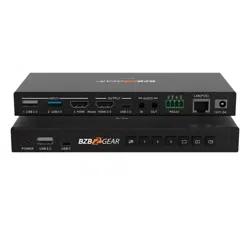
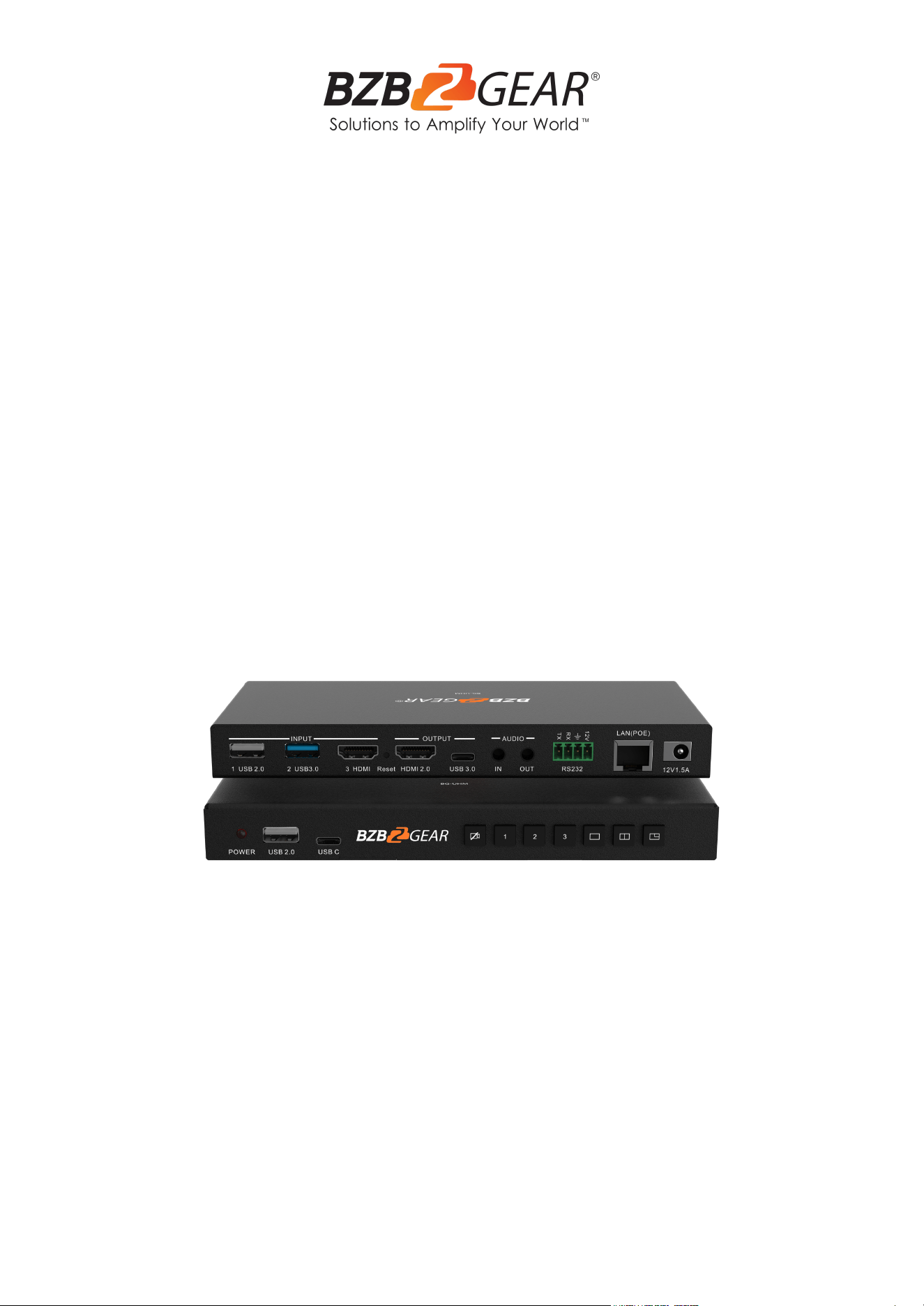
BG-UHM
USB/HDMI Video Selector and Mixer
User Manual

BZBGEAR BG-UHM PRODUCT MANUAL
Address: 830 National Drive #140, Sacramento, CA 95834, USA · Tel: +1(888)499-9906 · Email: support@bzbgear.com 2

BZBGEAR BG-UHM PRODUCT MANUAL
Table of Contents
Statement 4
Safety Precaution 4
Introduction 5
Features 5
Packing List 5
Specifications 6
Operation Controls and Functions 7
Video function switching instructions 8
Home Page 10
Web GUI 11
Display settings 12
System Settings 19
Mechanical Diagram 23
Connection Diagram 24
Troubleshooting 25
Tech Support 26
Limited Product Warranty Terms 26
Mission Statement 26
Copyright 26
Address: 830 National Drive #140, Sacramento, CA 95834, USA · Tel: +1(888)499-9906 · Email: support@bzbgear.com 3
BZBGEAR BG-UHM PRODUCT MANUAL
Statement
Please read these instructions carefully before connecting, operating, or configuring this
product. Please save this manual for future reference.
Safety Precaution
● To prevent damaging this product, avoid heavy pressure, strong vibration, or immersion
during transportation, storage, and installation.
● The housing of this product is made of organic materials. Do not expose to any liquid,
gas, or solids which may corrode the shell.
● Do not expose the product to rain or moisture.
● To prevent the risk of electric shock, do not open the case. Installation and maintenance
should only be carried out by qualified technicians.
● Do not use the product beyond the specified temperature, humidity, or power supply
specifications.
● This product does not contain parts that can be maintained or repaired by users.
Damage caused by dismantling the product without authorization from BZBGEAR is not
covered under the warranty policy.
● Installation and use of this product must strictly comply with local electrical safety
standards.
Address: 830 National Drive #140, Sacramento, CA 95834, USA · Tel: +1(888)499-9906 · Email: support@bzbgear.com 4

BZBGEAR BG-UHM PRODUCT MANUAL
Introduction
The BG-UHM USB/HDMI Video Selector and Mixer is a solution designed to streamline
video production workflows by enabling seamless switching and mixing of multiple video
sources. Supporting up to three input sources, including USB 3.0, USB 2.0, and HDMI 1.4,
the BG-UHM allows users to effortlessly integrate devices such as webcams, laptops, and
document cameras. The device offers customizable video mixing options with
professional-grade layouts such as Picture-in-Picture (PiP), side-by-side, and overlay
configurations, all of which can be easily managed through an intuitive web interface.
Equipped with various output options, including HDMI 2.0 and USB-C (UVC/UAC), the
BG-UHM ensures compatibility with a wide range of displays and streaming platforms.
Advanced audio management capabilities allow users to mix audio from HDMI, USB, and
analog sources, with the option to mute individual streams for precise control during live
broadcasts. Control options include LAN, RS-232, and a web-based GUI, providing flexible
management to suit various operational environments. Additionally, PoE (802.3af) support
simplifies installation by reducing cable clutter and allowing the device to be powered
through a network connection.
Features
● Supports connection of up to 3 camera sources: 1x USB 3.0, 1x USB 2.0, and 1x
HDMI 1.4.
● HDMI input can be connected to any HDMI source, such as a laptop or document
camera.
● Seamless switching between all 3 input sources.
● Mix and combine video feeds from the 3 input sources.
● Define mixed layouts via the web interface, including options like picture-in-picture,
side-by-side, and big-and-small.
● 1x HDMI 2.0 output for a local monitor and 1x USB-C (UVC/UAC) output for a PC.
● Allows muting of video/audio during video conferencing or live broadcasting.
● Audio I/O and mixing can be managed through the web interface.
● Controllable via LAN and RS-232.
● Supports PoE, eliminating the need for an additional power supply.
● Compact and slim design with a height of only 18mm.
Packing List
● 1x BG-UHM Switcher
● 1x 4P Phoenix terminal male head
● 2x Mounting ear, 4x Screw
● 1x Power adapter
● 1x Manual
Address: 830 National Drive #140, Sacramento, CA 95834, USA · Tel: +1(888)499-9906 · Email: support@bzbgear.com 5
BZBGEAR BG-UHM PRODUCT MANUAL
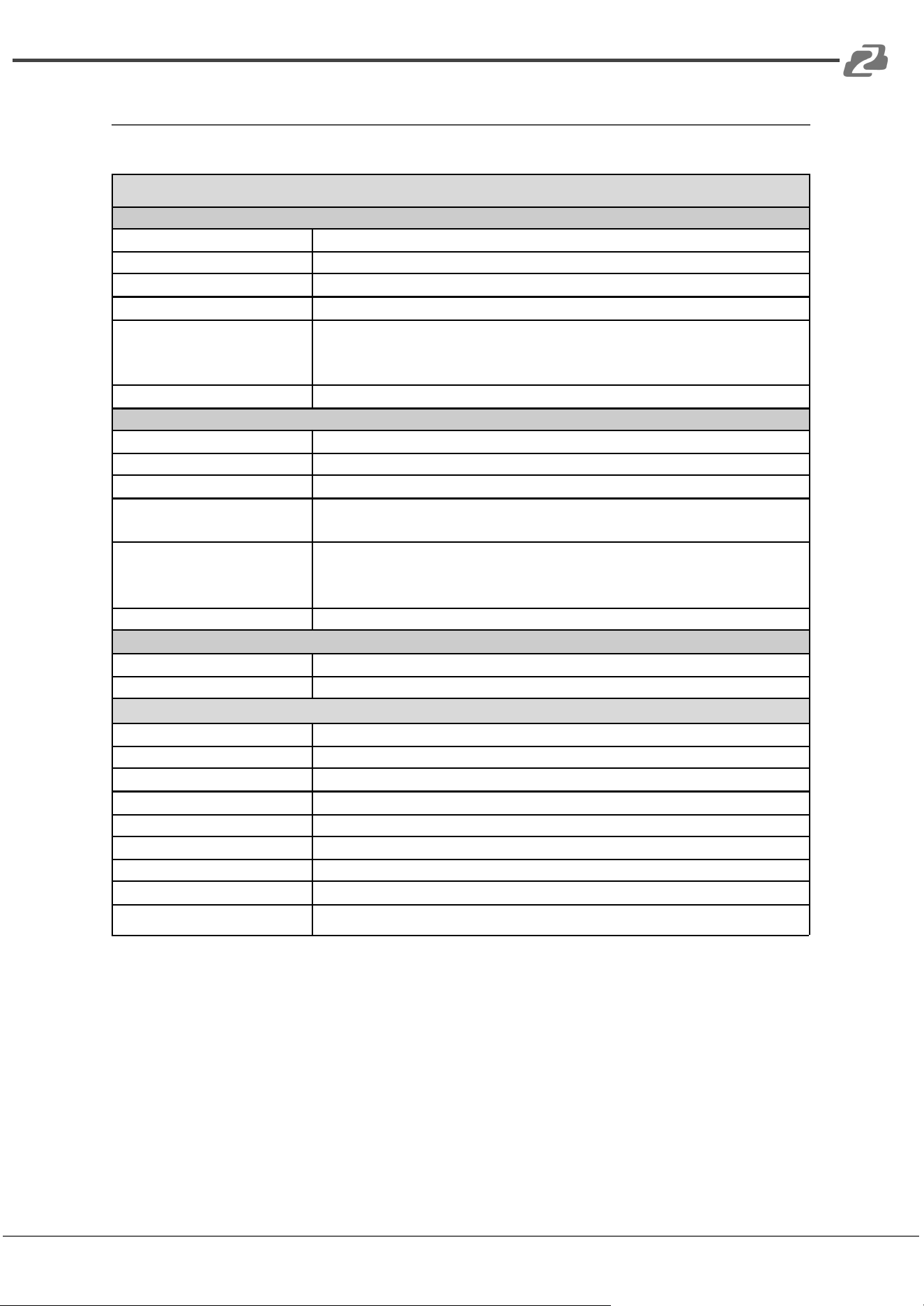
Specifications
Technical Specifications
OUTPUT
HDMI output
1x HDMI 19-pin female connector
Format Compliance
HDMI1.4 / HDMI2.0
HDCP
HDCP1.4 / HDCP2.2
USB Interface
Type C x1, UVC, and UAC
Video Output
Resolution
HDMI: 3840x2160@60Hz, 3840x2160@30Hz,
1920x1080@60Hz, 1280x720@60Hz
Type C: 1920x1080@30Hz, 1280x720@30Hz, etc.
Analog Audio Output
HDMI, USB, Jack(analog input)
INPUT
HDMI Input
1x HDMI 19-pin female connector
Format Compliance
HDMI1.4
HDCP
HDCP1.4
USB interface
Rear: USB 3.0, Type A x1; USB2.0, Type A x1
Front: USB 2.0, Type A x1, Type C x1
Video Intput Resolution
HDMI: 1920x1080@60Hz, 1280x720@60Hz
USB 3.0: 1920x1080@30Hz, 1280x720@30Hz etc.
USB 2.0: 1920x1080@30Hz, 1280x720@30Hz etc.
Audio Input
HDMI, USB, Jack(analog input)
CONTROL
Control connectors
3.5mm Phoenix terminal / RS232 interface
LAN port
RJ45 x1: 1000Mbps, POE option (802.3af)
Hardware Specifications
Control method
Web GUI, Telnet, RS232, Key
Dimension (W x D x H)
180mm x 95mm x 18mm
Weight
1KG
Operating Temperature
0° C to +45° C
storage Temperature
0° C to +60° C
Relative humidity
20%~ 85% RH(no condensation)
DC Power
12V
Power Consumption
15W(MAX)
Power adapter
AC100~240v 50/60Hz 12V/1.5A
Address: 830 National Drive #140, Sacramento, CA 95834, USA · Tel: +1(888)499-9906 · Email: support@bzbgear.com 6
BZBGEAR BG-UHM PRODUCT MANUAL
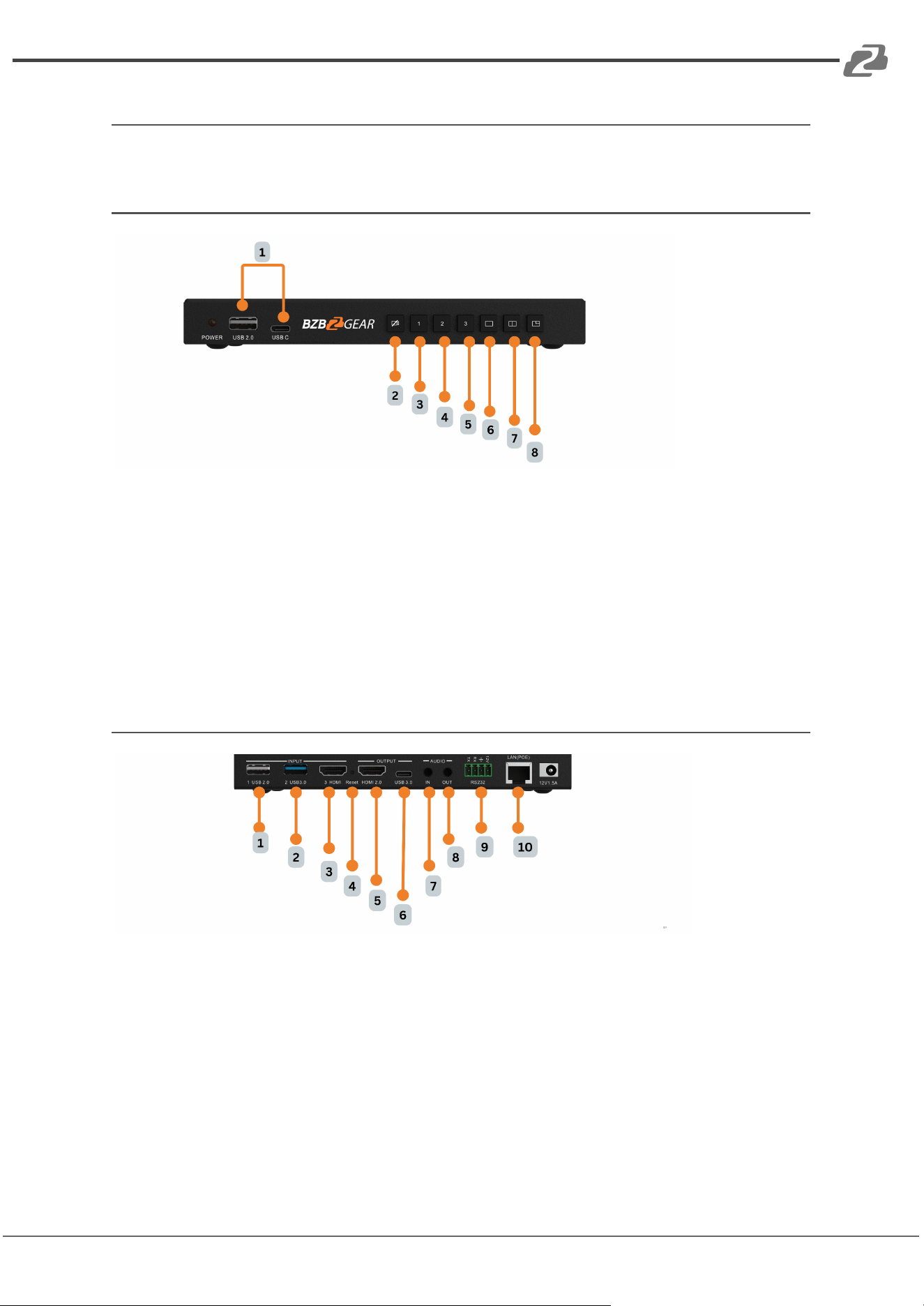
Operation Controls and Functions
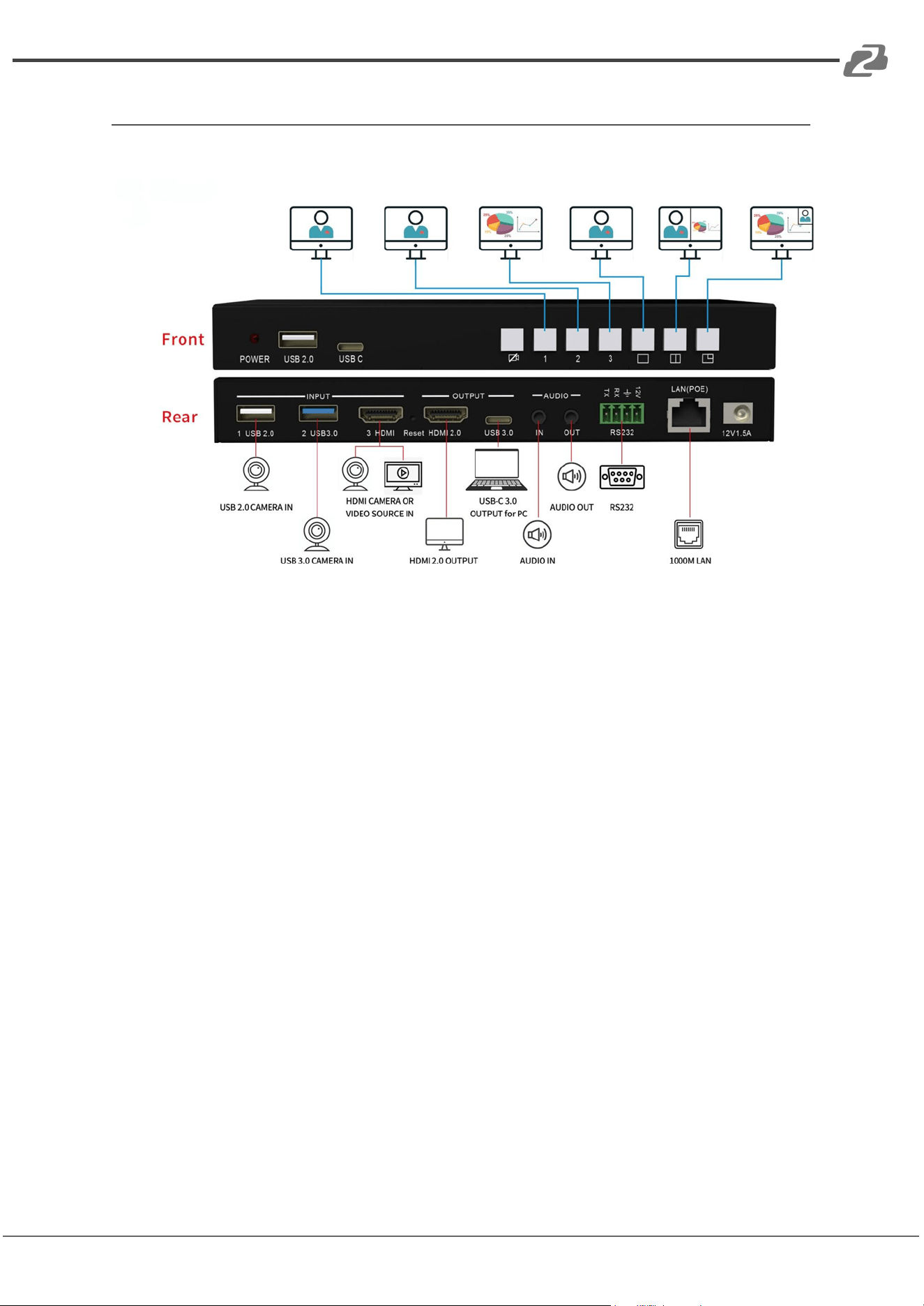
Front Panel
1. USB 2.0 & USB C PORT: KVM Input
2. Video Mute Button: Mute UVC output
3. Video 1 Button: Switch the source from USB 2.0
4. Video 2 Button: Switch the source from USB 3.0
5. Video 3 Button: Switch the source from HDMI
6. Single Video Button: Single view layout
7. PBP Mode Button: Side-by-side layout
8. PIP Mode Button: Big & small layout
Back Panel
1. USB 2.0 INPUT: 1x USB 2.0 camera
2. USB 3.0 INPUT: 1x USB 3.0 camera
3. HDMI INPUT: 1x HDMI camera or video source
4. Reset button: Reset
5. HDMI 2.0 OUTPUT: 1x HDMI 2.0 output for screen
6. USB 3.0 OUTPUT: 1x USB-C output for PC
7. IN AUDIO: 1x line in
8. OUT AUDIO: 1x line out
9. RS232: 1x RS232 for control
10. LAN(POE): 1x 1000M LAN for control
Address: 830 National Drive #140, Sacramento, CA 95834, USA · Tel: +1(888)499-9906 · Email: support@bzbgear.com 7
BZBGEAR BG-UHM PRODUCT MANUAL
Video function switching instructions
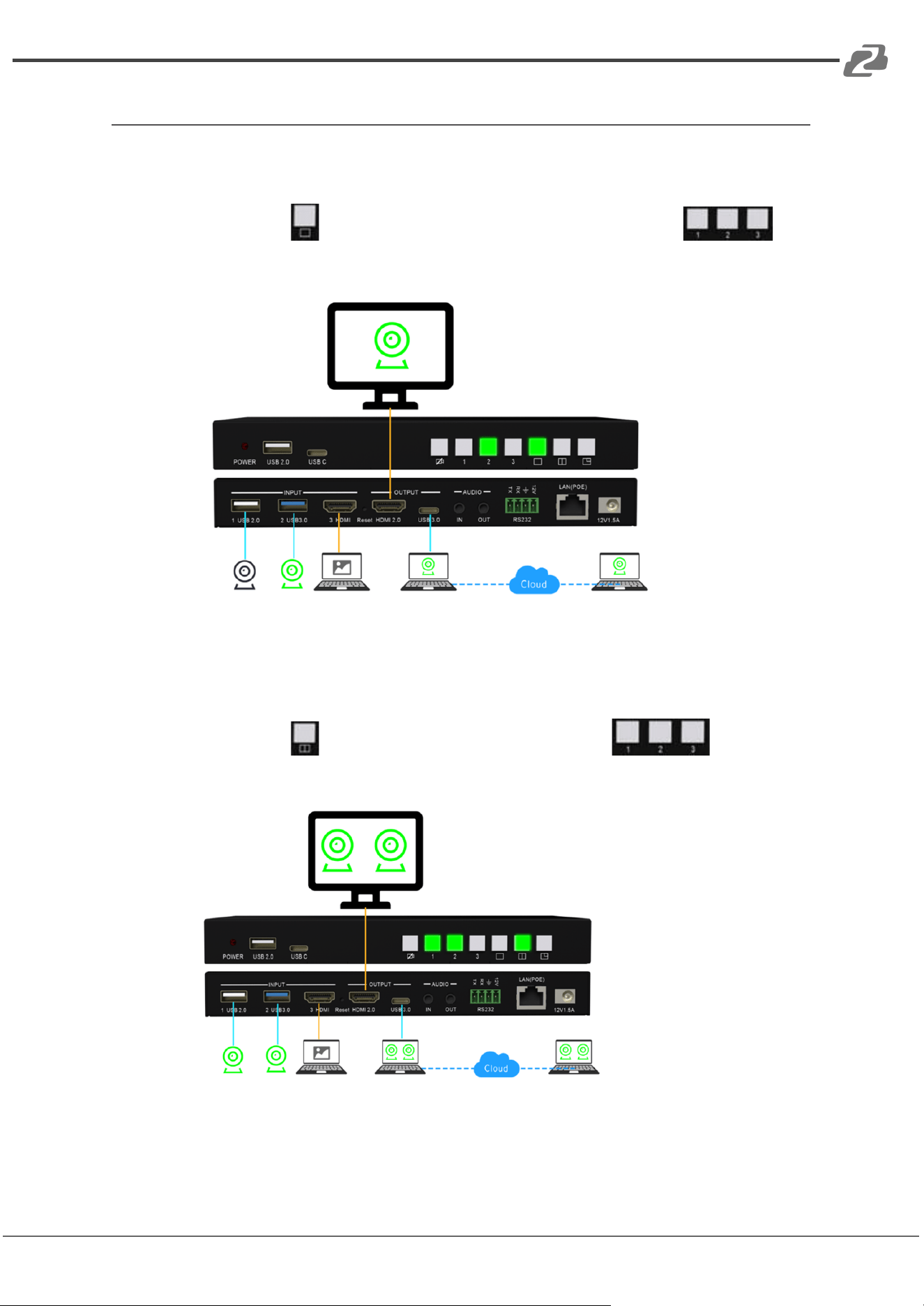
Single Screen Display
By pressing the button to enter Single Screen mode, press the button to
select the video source you want to output as shown in the following example:
PBP Mode
By pressing the button to enter PBP mode, press the button to select
two video sources you want to output as shown in the following example:
Address: 830 National Drive #140, Sacramento, CA 95834, USA · Tel: +1(888)499-9906 · Email: support@bzbgear.com 8
BZBGEAR BG-UHM PRODUCT MANUAL
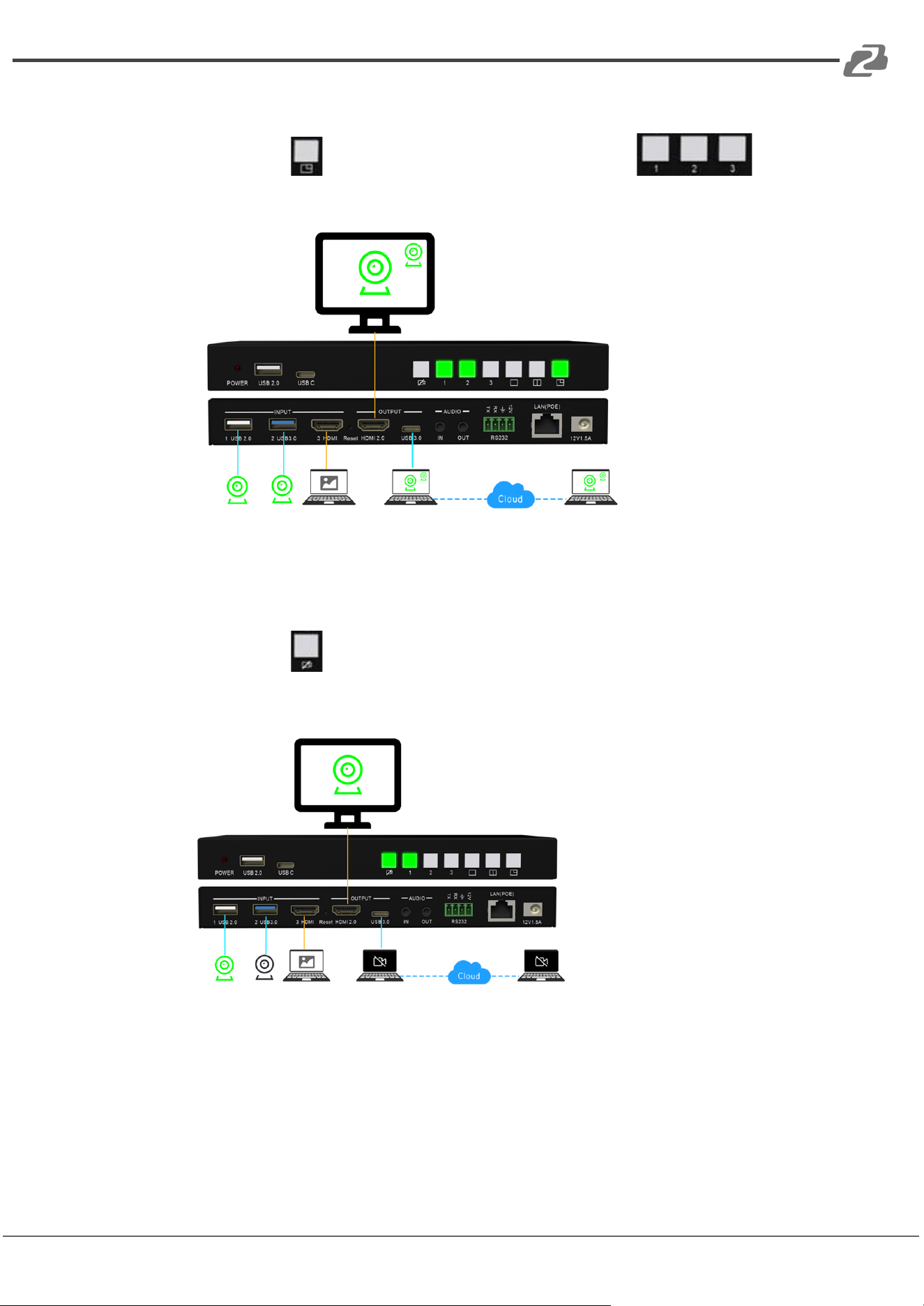
PIP Mode
By pressing the button to enter the PIP mode, press the button to
select two video sources you want to output as shown in the following example:
Mute UVC output
By pressing the button to enter the Mute UVC output as shown in the following
example:
Note:
This function can be used to debug the local camera device before the meeting so that the
remote participants will not be able to see the process of debugging the local camera.
Address: 830 National Drive #140, Sacramento, CA 95834, USA · Tel: +1(888)499-9906 · Email: support@bzbgear.com 9
BZBGEAR BG-UHM PRODUCT MANUAL
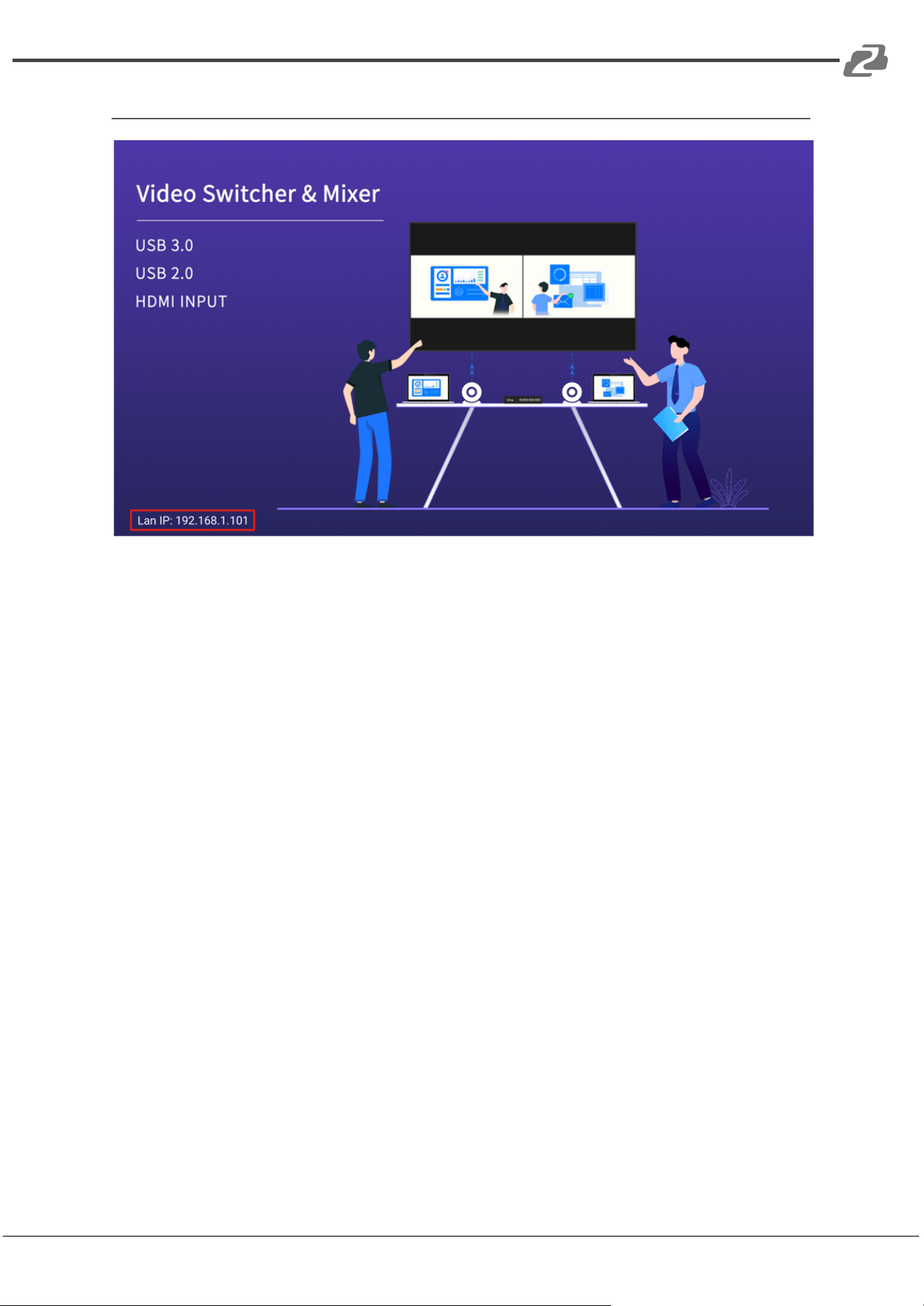
Home Page
Note: This page can be accessed via the HDMI output once the device is powered on.
● The current IP address will be displayed on the bottom left corner of the screen
● The background image can be changed in the Web GUI
Address: 830 National Drive #140, Sacramento, CA 95834, USA · Tel: +1(888)499-9906 · Email: support@bzbgear.com 10
BZBGEAR BG-UHM PRODUCT MANUAL
Web GUI
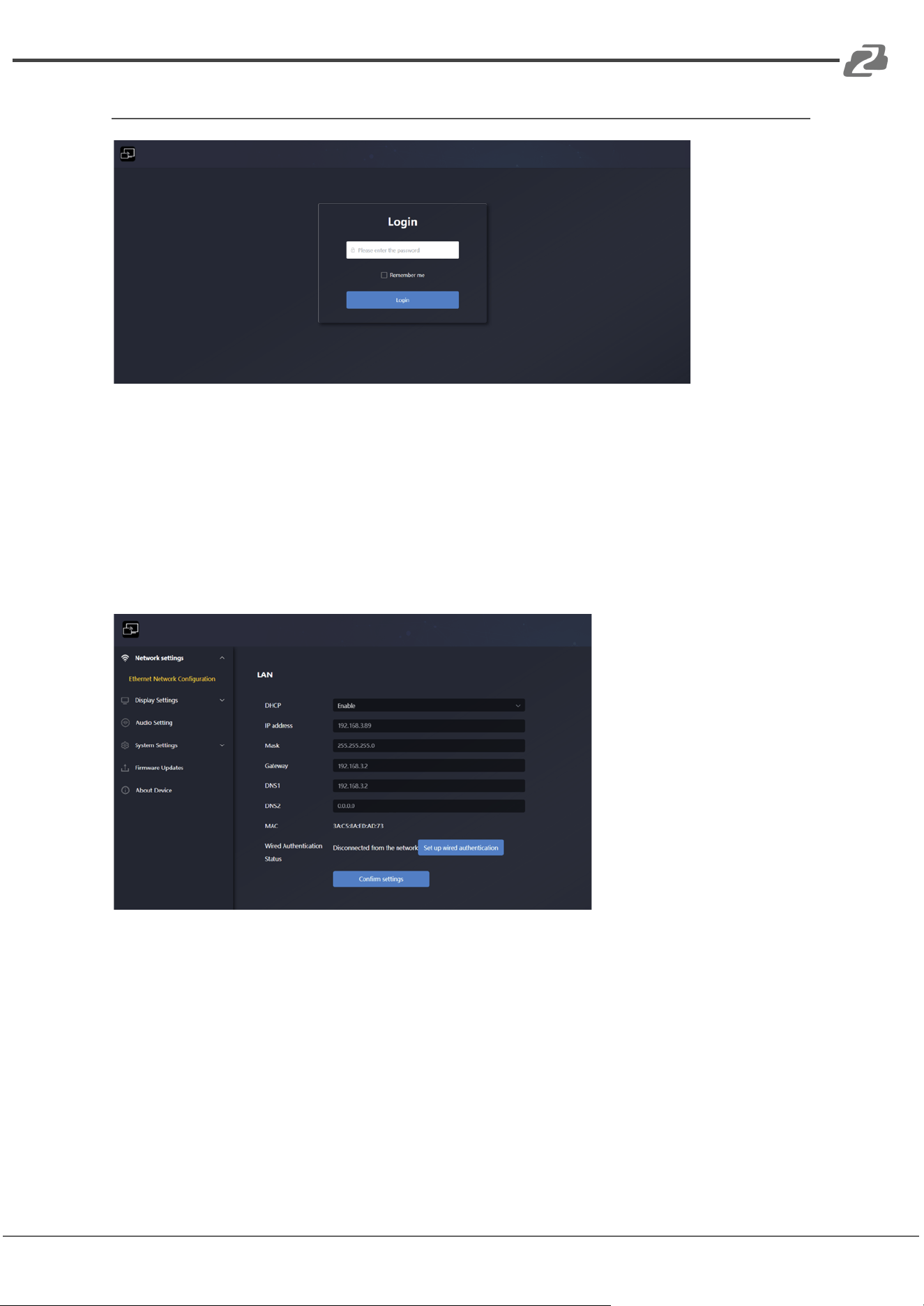
Note: To access the Web GUI of the BG-UHM, you will need to type the IP address of the
unit in the address bar of a web browser and hit Enter or Search.
Default Password: admin
Network Settings
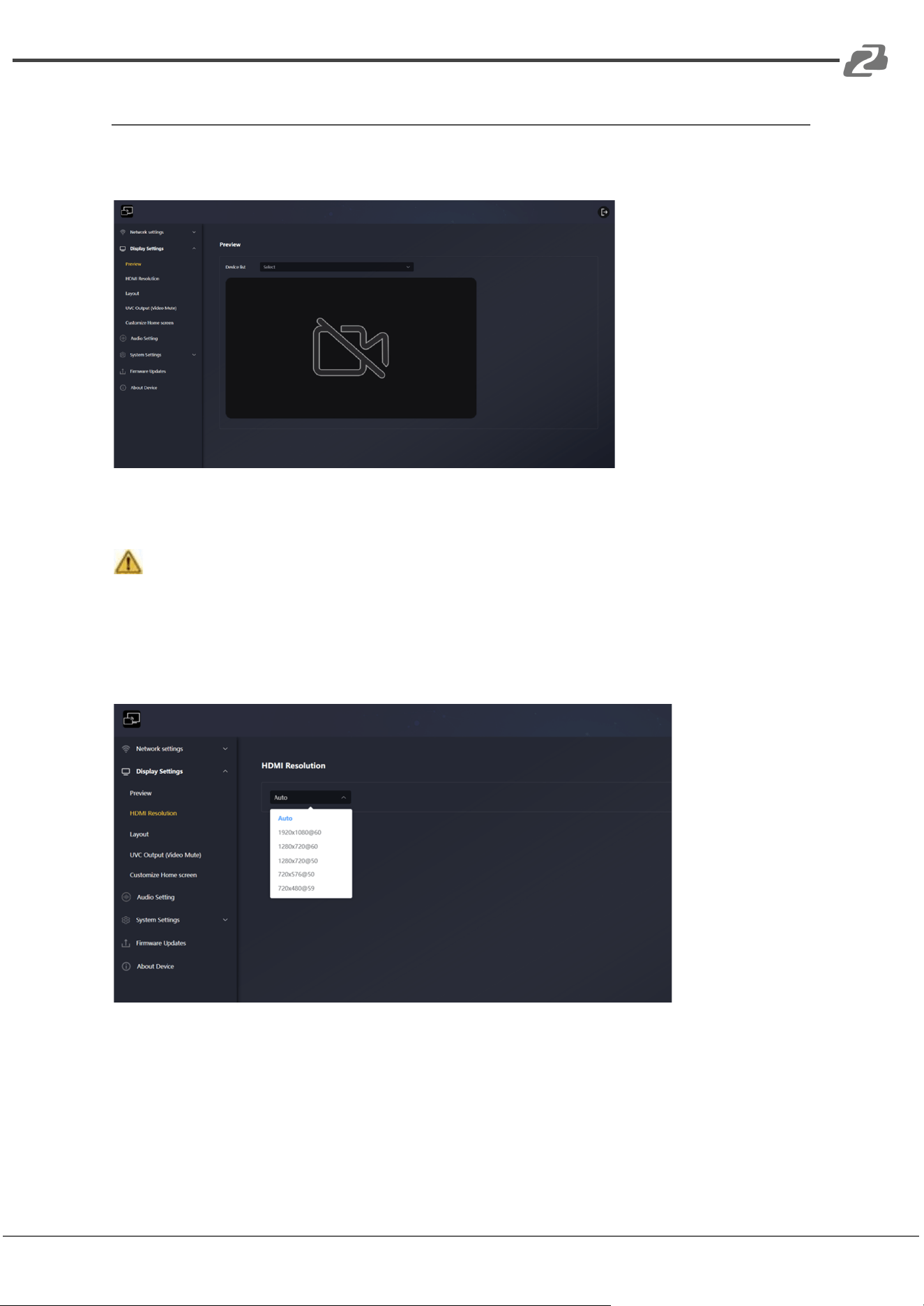
Ethernet Network Configuration
● Here you can set to automatically obtain the LAN IP or manually. The DHCP function
is turned on by default. The Wired Authentication Status has the following four
states:
1. EAP-TLS
2. EAP-TTLS
3. PEAP
4. No Authentication
Address: 830 National Drive #140, Sacramento, CA 95834, USA · Tel: +1(888)499-9906 · Email: support@bzbgear.com 11
BZBGEAR BG-UHM PRODUCT MANUAL
Display settings
Preview
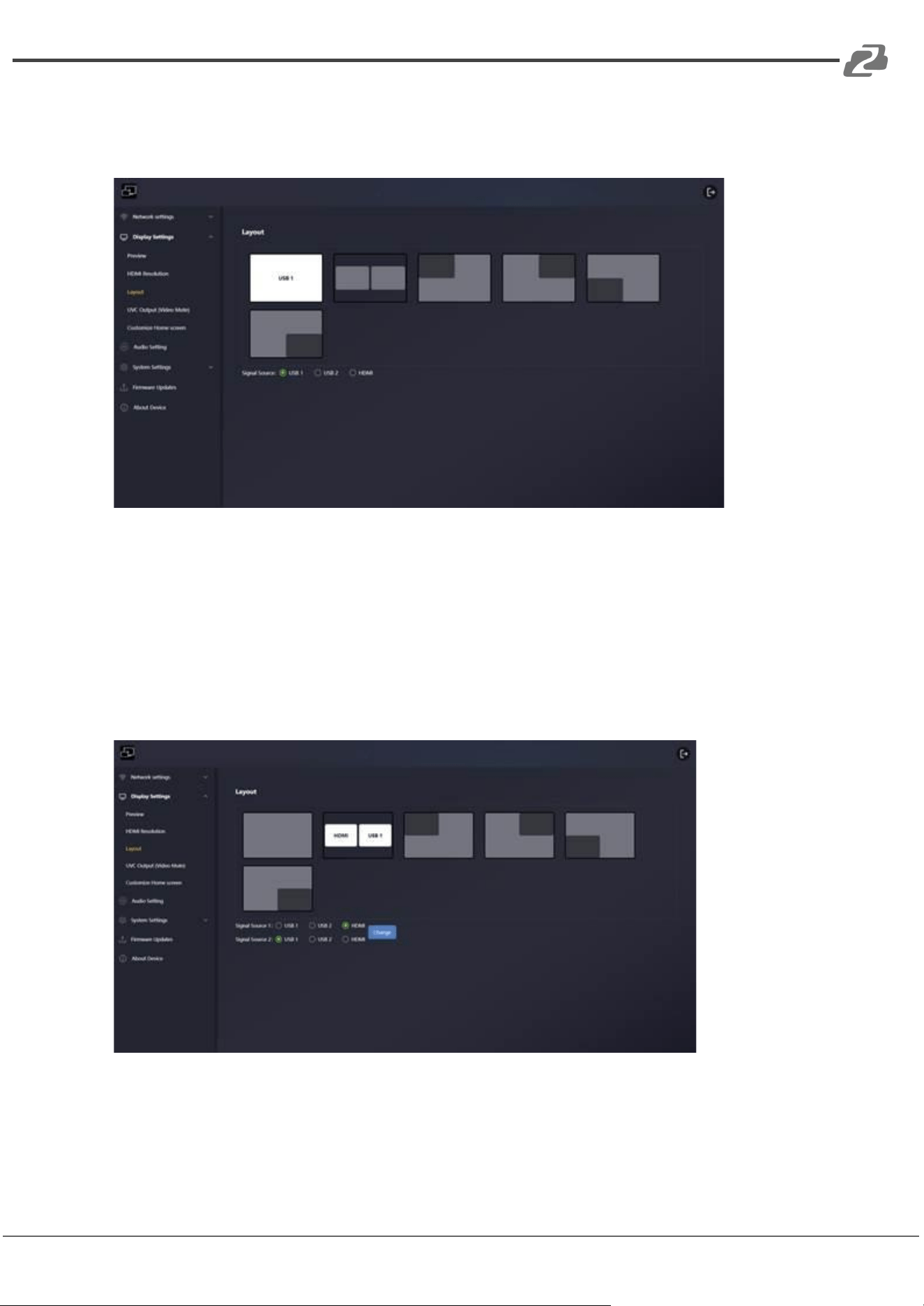
● Here you can search for signals connected to the three Input interfaces and preview
them, including camera signals and computer HDMI signals.
Attention:
If the camera is occupied by video conferencing software or the computer system camera,
the video output test and preview will not be possible here
HDMI Resolution
● The default mode is set to Auto. The resolution shown in the drop-down list
corresponds to the resolution supported by the connected monitor.
Note: If the display only supports 1080p, the option for 4K output resolution will not be
available in the list.
Address: 830 National Drive #140, Sacramento, CA 95834, USA · Tel: +1(888)499-9906 · Email: support@bzbgear.com 12
BZBGEAR BG-UHM PRODUCT MANUAL
Layout
Single Screen
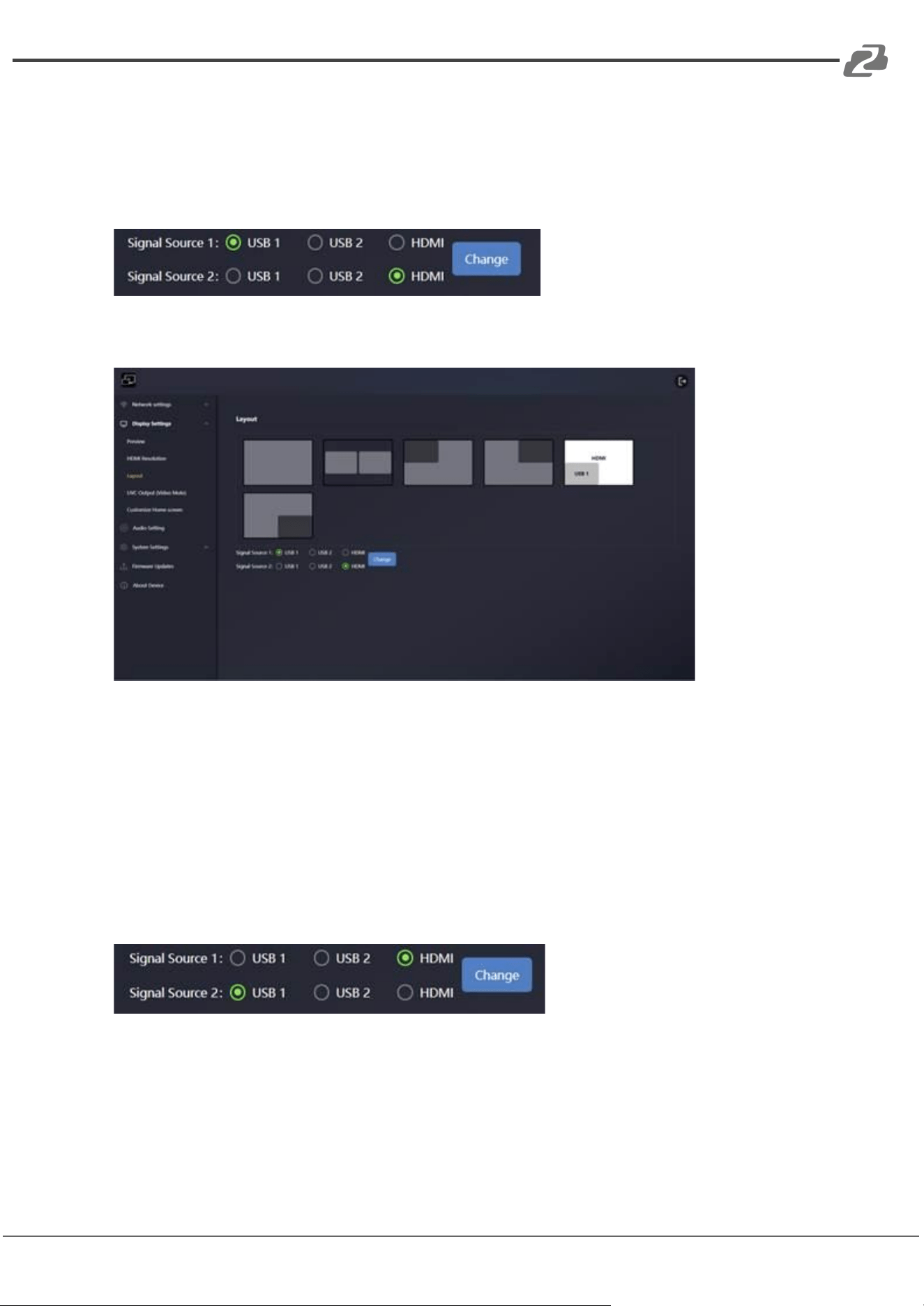
In Single Screen mode, you can select the desired signal input source for single-screen
output by clicking on the signal source with the mouse. When the green button next to the
corresponding interface lights up, the selected signal input is successfully output and
displayed on the screen.
PBP Mode
In PBP mode, you can select two signal sources simultaneously, which will be displayed
side by side on the same screen in equal proportions—one on the left and one on the right.
Simply click on Signal Source 1 and Signal Source 2 with the mouse. When the green
Address: 830 National Drive #140, Sacramento, CA 95834, USA · Tel: +1(888)499-9906 · Email: support@bzbgear.com 13
BZBGEAR BG-UHM PRODUCT MANUAL
button next to the corresponding interface lights up, the selected signal inputs will be
output and displayed on the screen.
After clicking the "Change" button, Signal Source 1 and Signal Source 2 will be swapped,
as shown in the photo below.
PIP Mode
In PIP mode, you can select two signal sources simultaneously and display them on the
same screen, with one source appearing in a large window and the other in a smaller
window. Simply click on Signal Source 1 and Signal Source 2 with your mouse. When the
green button next to the corresponding interface lights up, the selected signal inputs will be
output to the screen. Layouts 3-6 represent different PIP modes, with the smaller window
positioned in various locations.
After clicking the "Change" button, Signal Source 1 and Signal Source 2 will be swapped,
as shown in the photo below.
Address: 830 National Drive #140, Sacramento, CA 95834, USA · Tel: +1(888)499-9906 · Email: support@bzbgear.com 14
BZBGEAR BG-UHM PRODUCT MANUAL
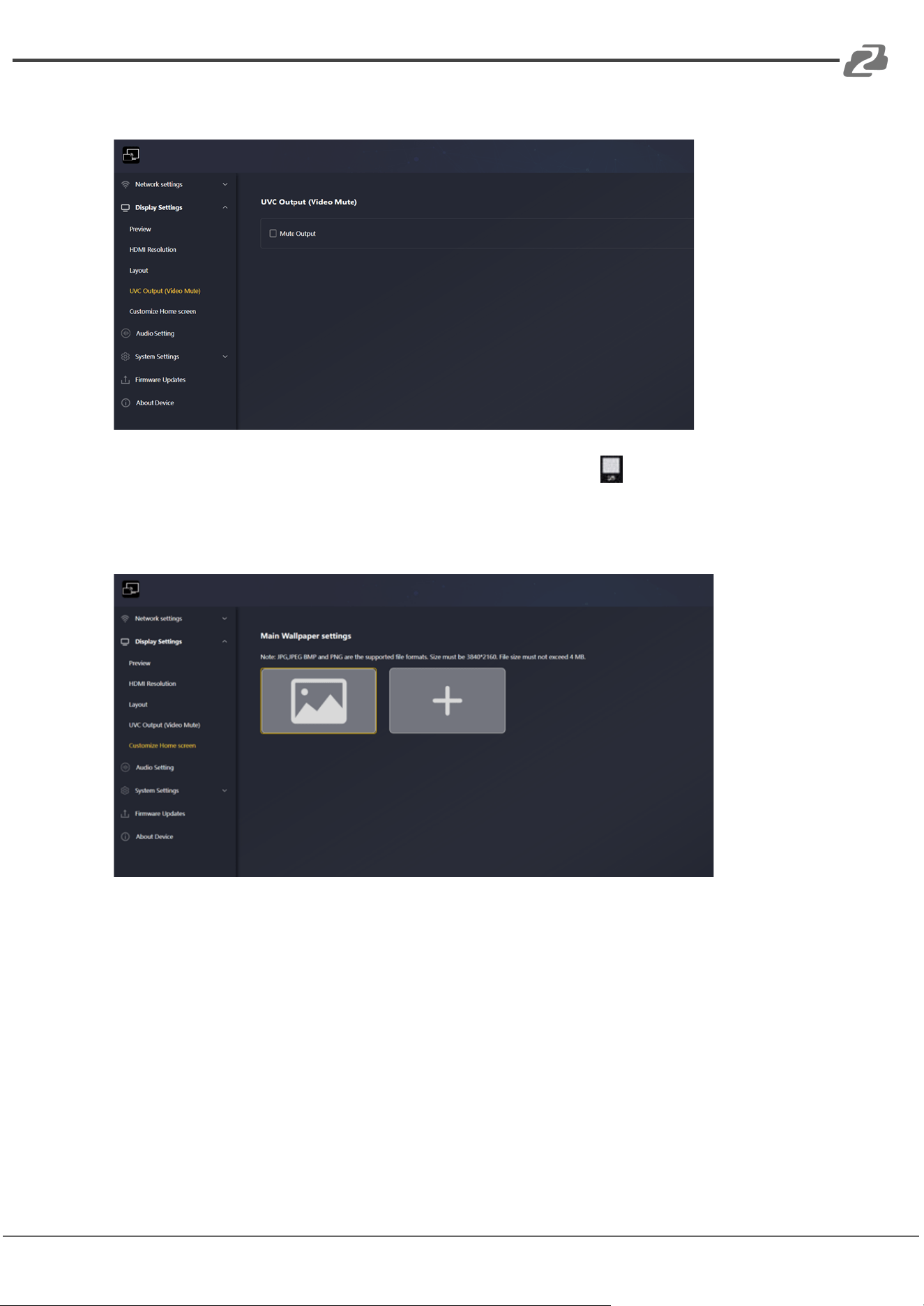
UVC Output (Video Mute)
This feature is the same as the "Mute UVC Output" button in the front panel. It is
turned off by default.
Customize Home Screen
When the device starts, the boot screen is displayed. Users can customize the background
image of the main page by selecting an image in JPG, BMP, PNG, or GIF format with a
resolution of 1920 × 1080. If desired, users can easily revert to the original main interface at
any time.
Address: 830 National Drive #140, Sacramento, CA 95834, USA · Tel: +1(888)499-9906 · Email: support@bzbgear.com 15
BZBGEAR BG-UHM PRODUCT MANUAL
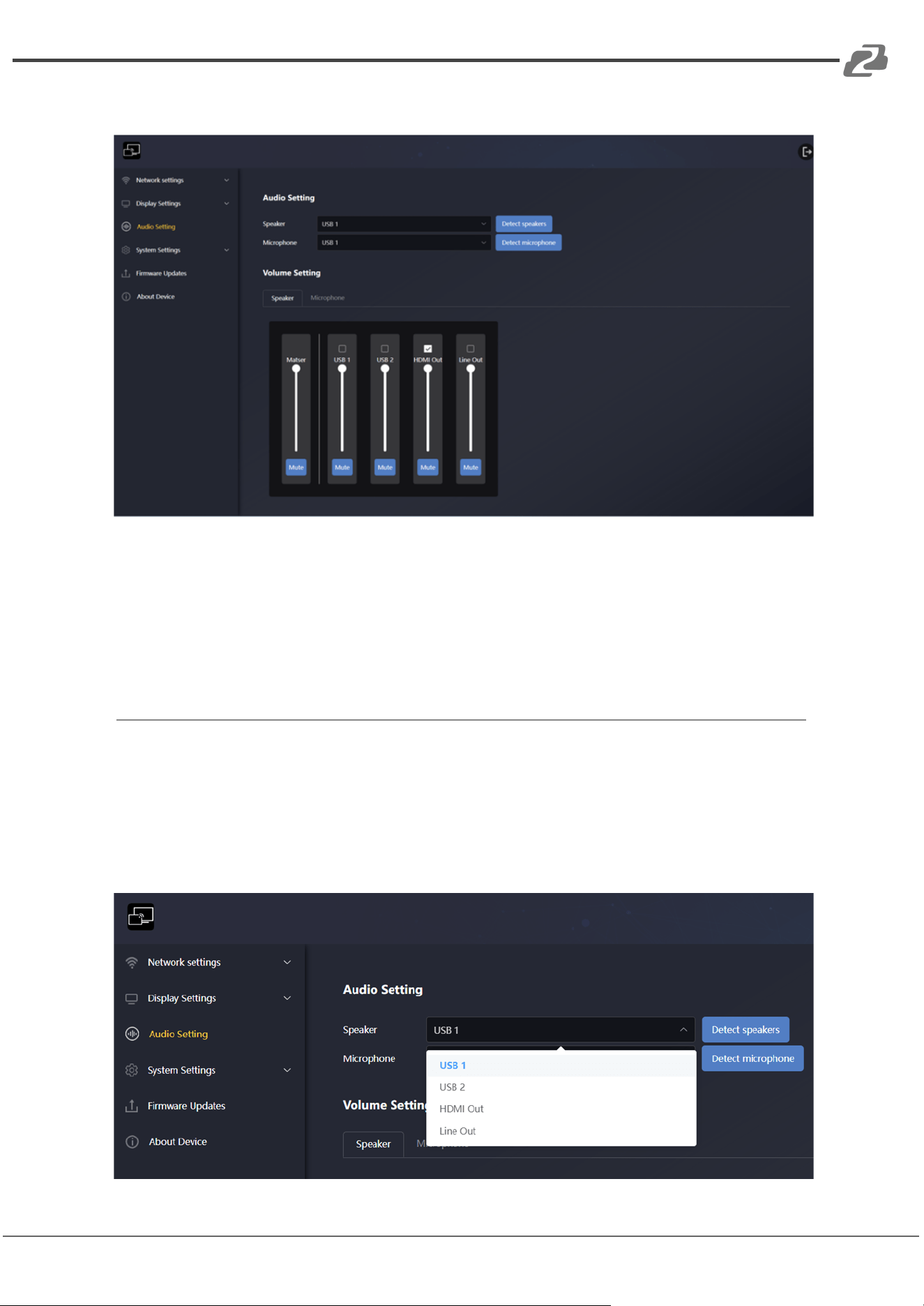
Audio Settings
Testing Speaker and Microphone Functionality
This section allows you to test whether the speakers and microphones connected to the
device are functioning correctly. You can select the desired speaker output and adjust its
volume, as well as choose the preferred microphone input and modify its volume
accordingly.
Speaker Settings
In the Speaker drop-down menu, you can test the following four options. After selecting an
option, click the "Detect Speakers" button to verify if the selected output is available and
capable of producing sound.
Address: 830 National Drive #140, Sacramento, CA 95834, USA · Tel: +1(888)499-9906 · Email: support@bzbgear.com 16
BZBGEAR BG-UHM PRODUCT MANUAL
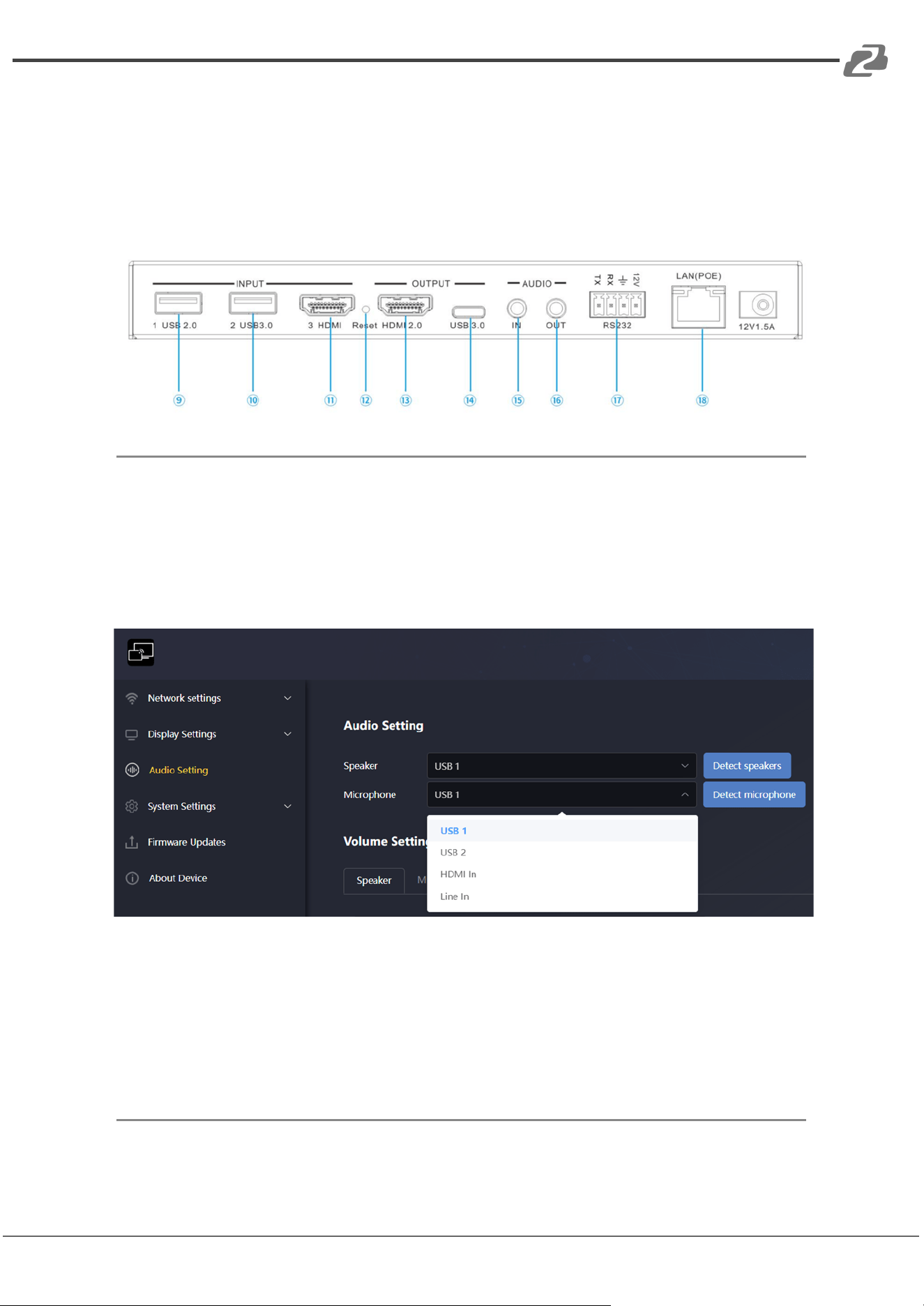
Speaker Options (Refer to the Device Interface Diagram):
● USB 1 – Corresponds to audio output port ⑨
● USB 2 – Corresponds to audio output port ⑩
● HDMI Out – Corresponds to audio output port ⑬
● Line Out – Corresponds to audio output port ⑯
Microphone Settings
In the Microphone drop-down menu, you can test the following four options. After
selecting an option, click the "Detect Microphone" button to verify if the selected input is
available and capable of capturing sound.
Microphone Options (Refer to the Device Interface Diagram):
● USB 1 – Corresponds to audio input port ⑨
● USB 2 – Corresponds to audio input port ⑩
● HDMI In – Corresponds to audio input port ⑪
● Line In – Corresponds to audio input port ⑮
Address: 830 National Drive #140, Sacramento, CA 95834, USA · Tel: +1(888)499-9906 · Email: support@bzbgear.com 17
BZBGEAR BG-UHM PRODUCT MANUAL
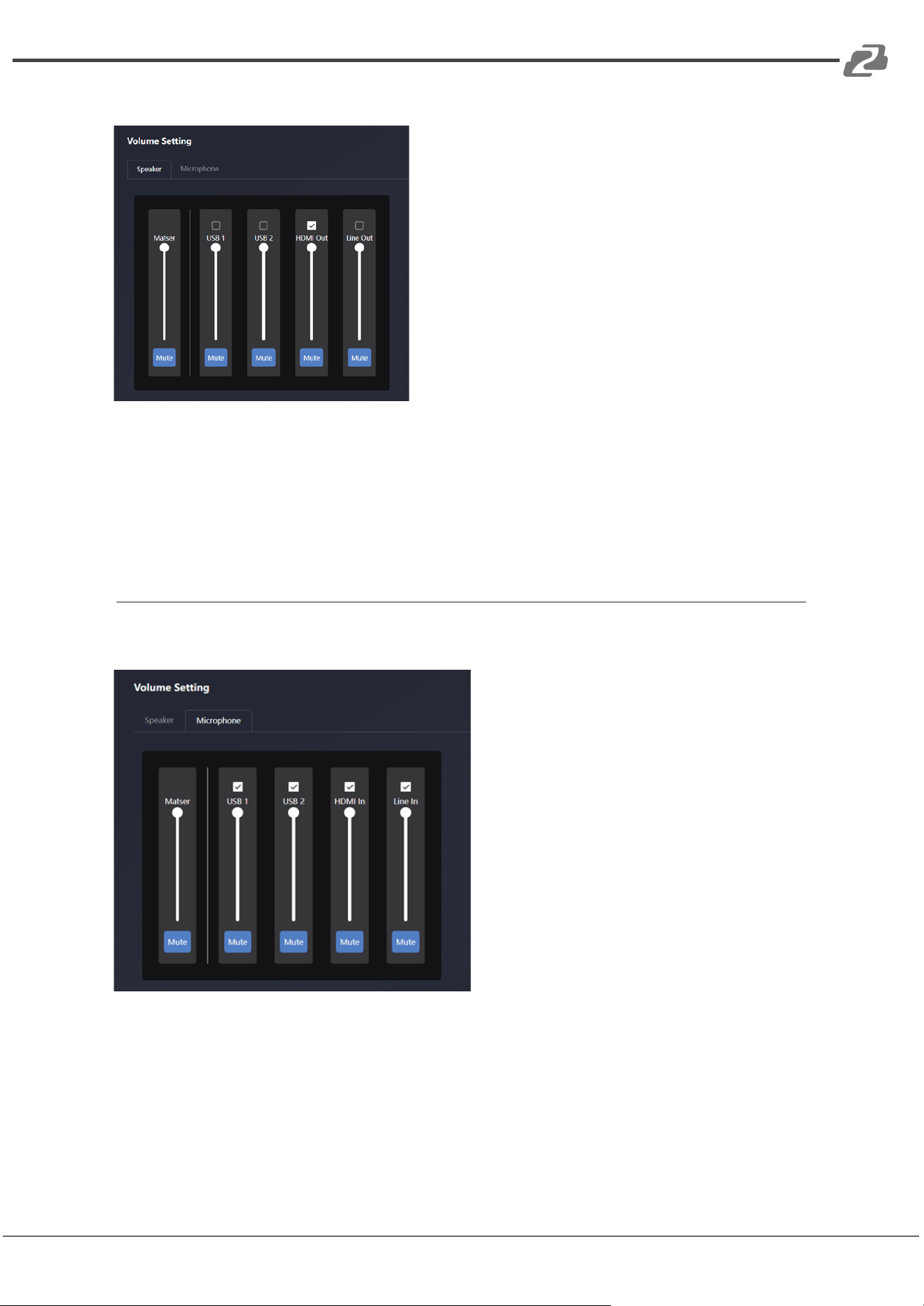
Volume Control > Speaker
By default, HDMI Out is selected as the speaker output. You can adjust the volume of the
selected speaker output using the volume bar below.
● The Master volume bar adjusts the overall output volume for the selected speaker.
● Clicking the "Mute" button will mute the selected output, and a red background
frame will indicate that the mute function is active.
Volume Control > Microphone
All available microphone options are enabled by default. You can adjust the volume of the
selected microphone input using the volume bar below.
● The Master volume bar controls the input volume of the selected microphone.
● Clicking the "Mute" button will mute the microphone, and a red background frame
will indicate that the mute function is active.
Address: 830 National Drive #140, Sacramento, CA 95834, USA · Tel: +1(888)499-9906 · Email: support@bzbgear.com 18
BZBGEAR BG-UHM PRODUCT MANUAL
Device Interface Diagram
Refer to the diagram below for port identification and corresponding audio input/output
connections.
System Settings
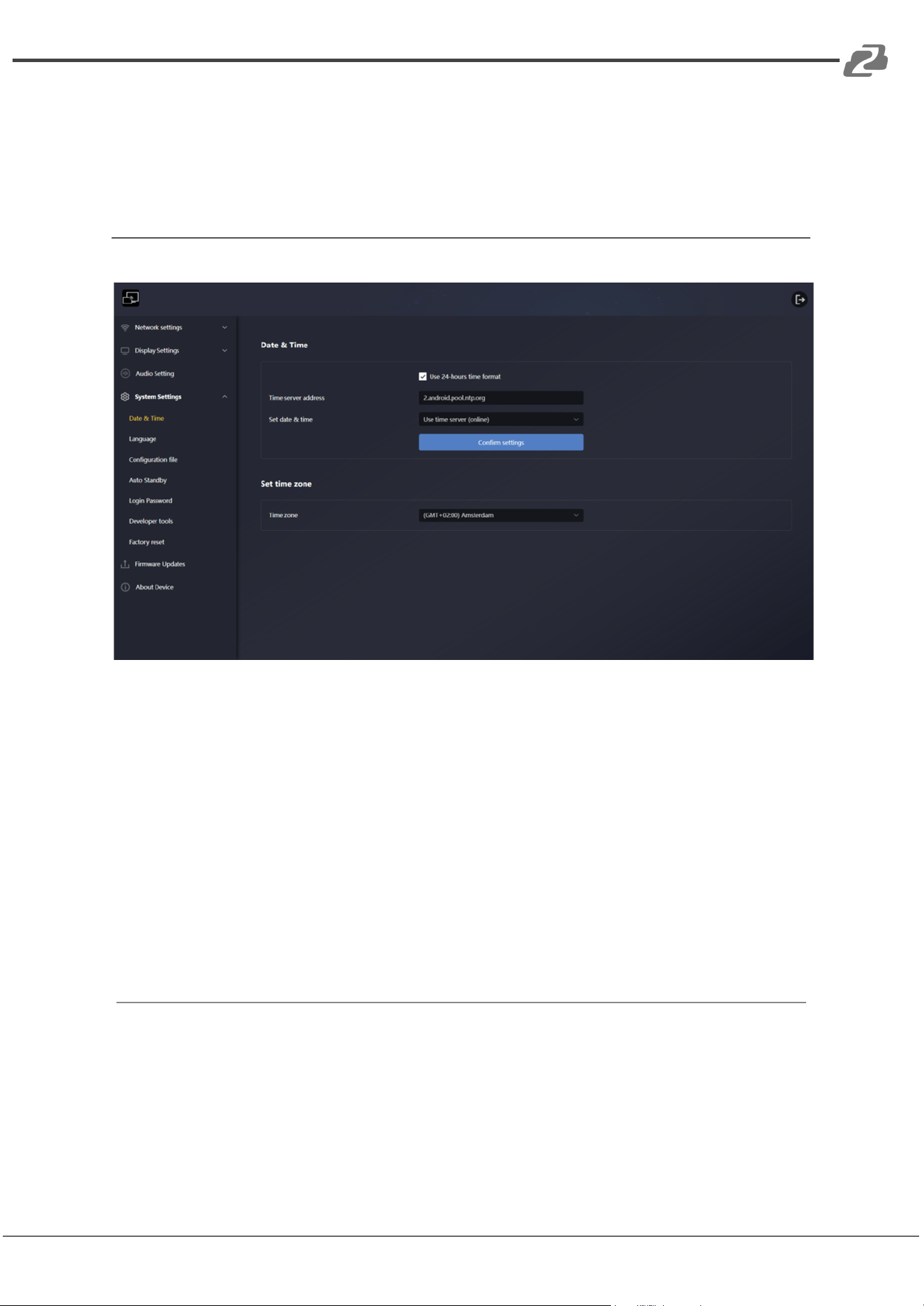
Date and Time
Time Settings Configuration
● 24-Hour Time Format
The 24-hour time format is enabled by default.
● Time Server Address
By default, the time server is synchronized with Google's server at
2.android.pool.ntp.org, which is part of the Android platform.
Note:
If you have your own time server, you can configure it here to synchronize the time
with your server's address.
Set Date & Time
There are two available modes:
● Use Time Server (Online)
○ This function is enabled by default.
Address: 830 National Drive #140, Sacramento, CA 95834, USA · Tel: +1(888)499-9906 · Email: support@bzbgear.com 19
BZBGEAR BG-UHM PRODUCT MANUAL
● OFF
○ In this mode, you can manually set the desired date and time.
Note:
If you switch from OFF to Use Time Server (Online), you will need to re-login to the web
client for the changes to take effect.
Set Time Zone
You can manually select the desired time zone. After synchronizing with Internet time, the
time will be displayed in the local time of the selected zone.
The default time zone is set to (GMT+02:00) Amsterdam.
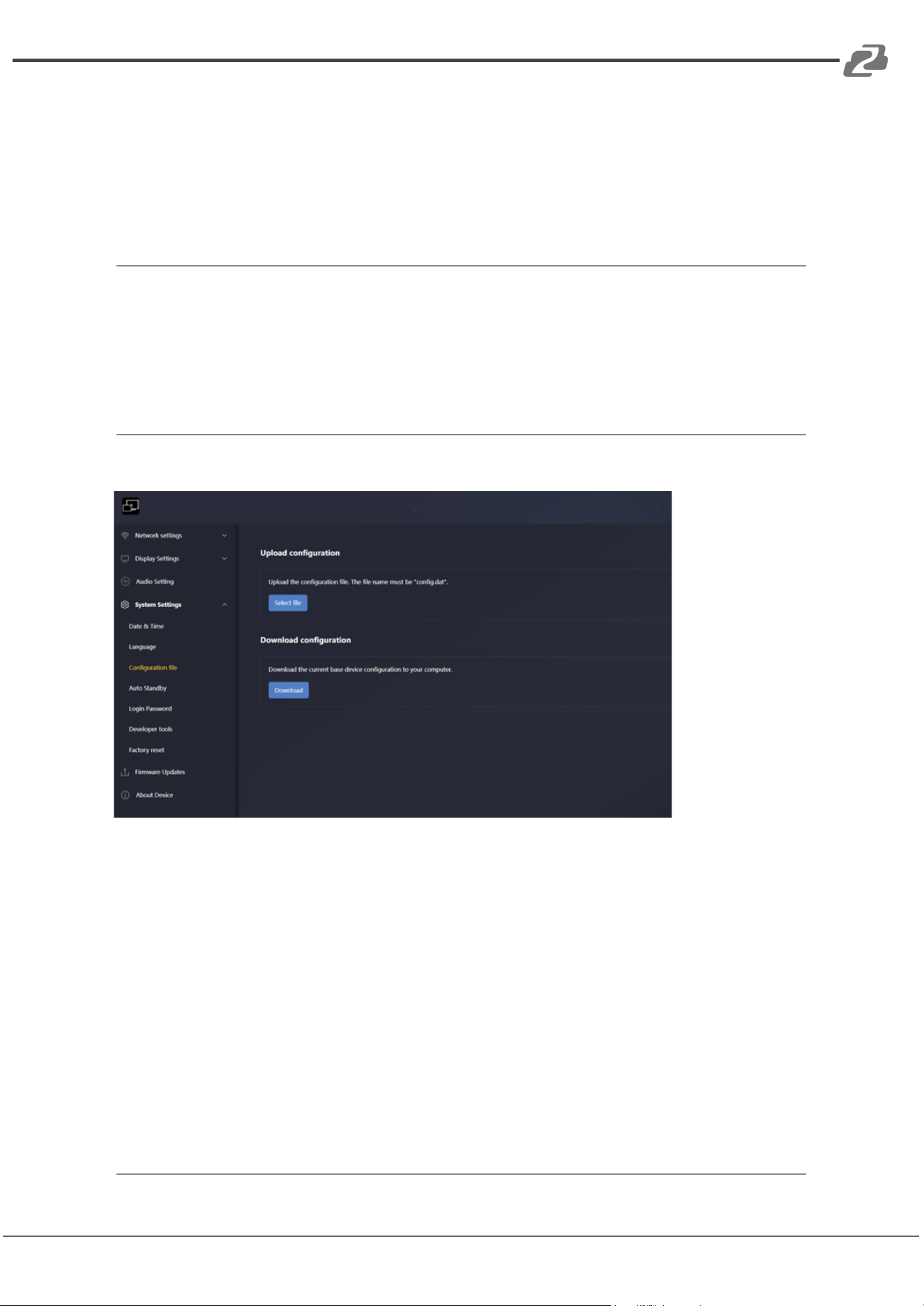
Configuration File
Upload Configuration
You can upload a previously saved configuration file (Config.dat) to restore your settings.
Click the "Select File" button to choose the desired Config.dat file, as shown in the
following figure:
After Upload is Completed
● Once the file is uploaded successfully, the system will automatically log out and
require you to log back in to apply the changes.
Note:
Re-login is necessary for the configuration to take effect after uploading.
Address: 830 National Drive #140, Sacramento, CA 95834, USA · Tel: +1(888)499-9906 · Email: support@bzbgear.com 20
BZBGEAR BG-UHM PRODUCT MANUAL
Download Configuration
You can download the current configuration file (Config.dat) to save your web settings.
Click the "Download" button, as shown in the figure below.
After the Download is Complete
● The downloaded file will be saved as Config.dat.
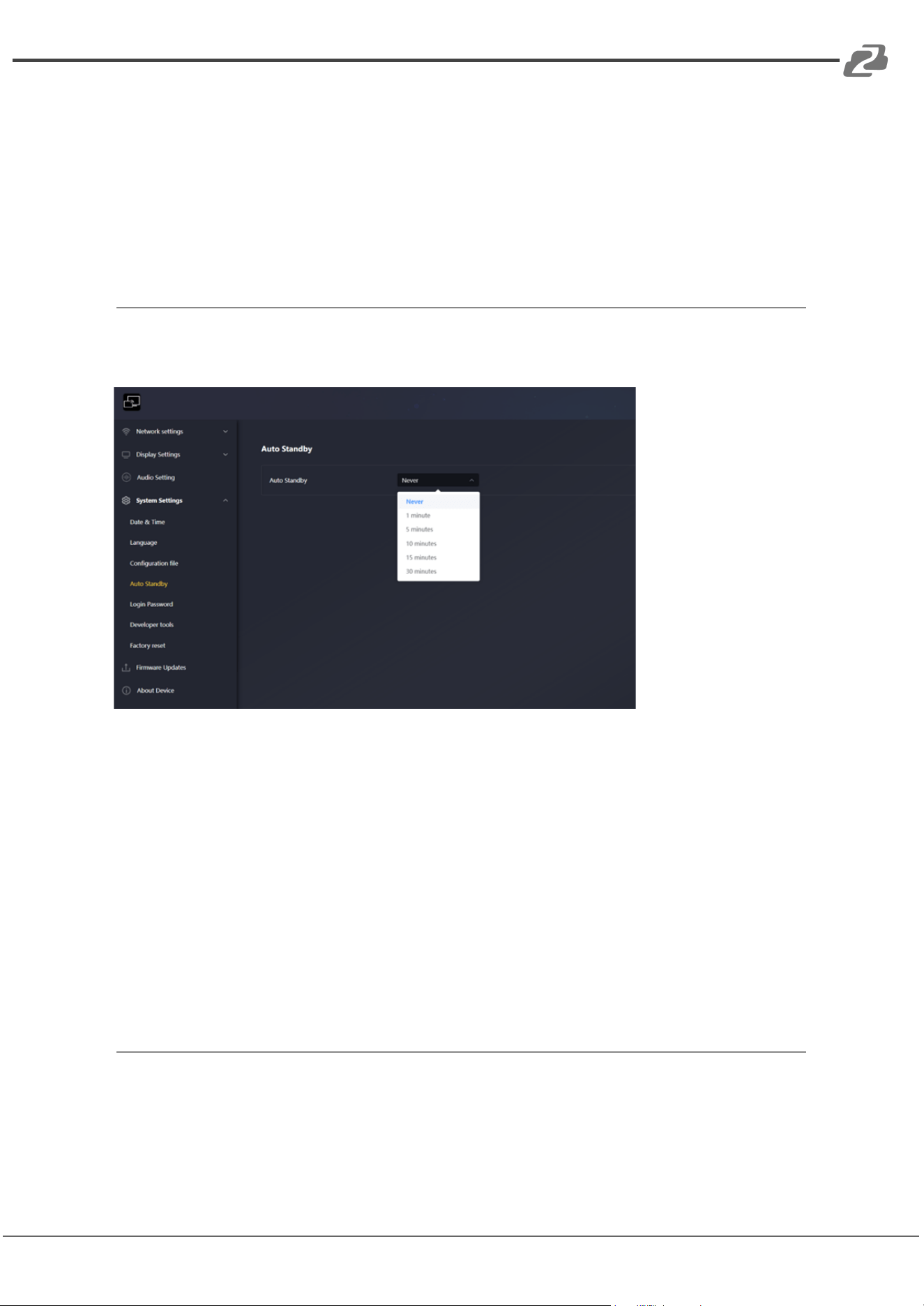
Auto Standby
You can set the standby time interval using the following options:
● Never: The screen display remains on continuously.
● 1 minute: Enters standby mode after 1 minute of inactivity.
● 5 minutes: Enters standby mode after 5 minutes of inactivity.
● 10 minutes: Enters standby mode after 10 minutes of inactivity.
● 15 minutes: Enters standby mode after 15 minutes of inactivity.
● 30 minutes: Enters standby mode after 30 minutes of inactivity.
Note:
The default standby time is set to Never. The device will automatically wake up when the
video conferencing software activates the camera.
Address: 830 National Drive #140, Sacramento, CA 95834, USA · Tel: +1(888)499-9906 · Email: support@bzbgear.com 21
BZBGEAR BG-UHM PRODUCT MANUAL
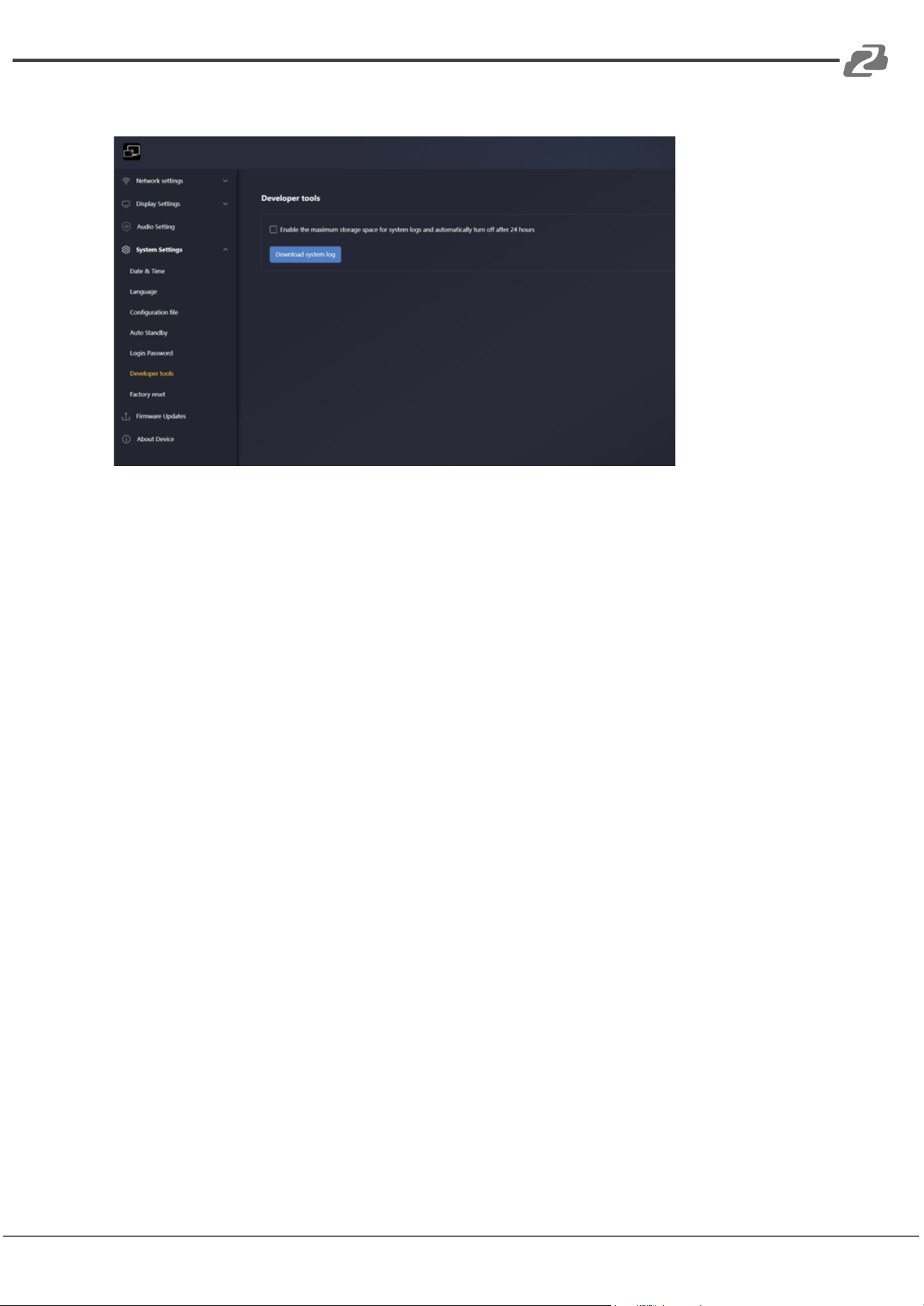
Developer Tools
You can capture system abnormalities during device operation by generating a log file for
further analysis.
To download the log file, click the “Download system log” button, as shown in the figure
below:
The downloaded log file is displayed in the following figure:
Note:
When “Enable the maximum storage space for system logs and automatically turn off after
24 hours” is selected, the system will capture more detailed log content over a 24-hour
period.
Address: 830 National Drive #140, Sacramento, CA 95834, USA · Tel: +1(888)499-9906 · Email: support@bzbgear.com 22
BZBGEAR BG-UHM PRODUCT MANUAL
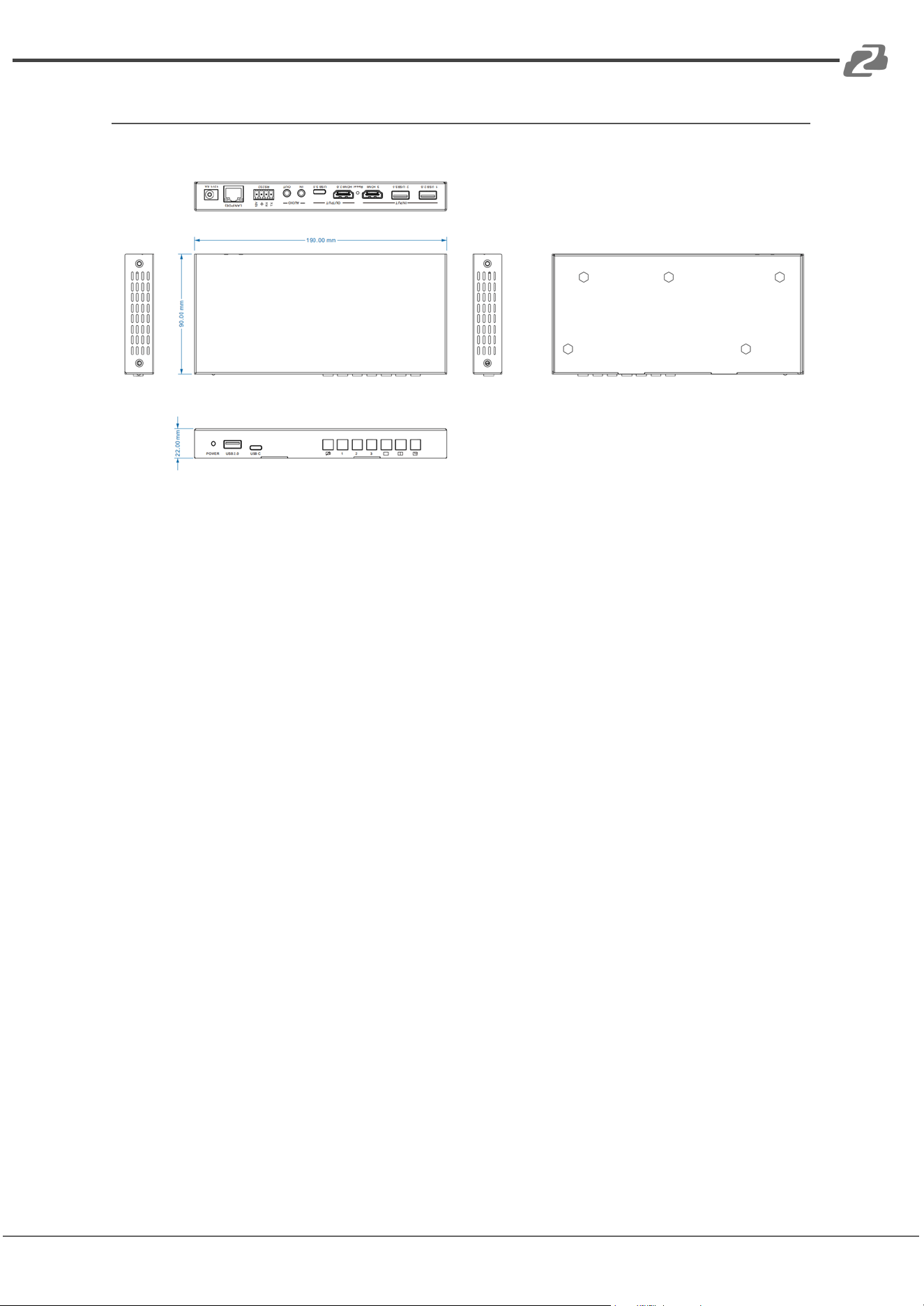
Mechanical Diagram
Address: 830 National Drive #140, Sacramento, CA 95834, USA · Tel: +1(888)499-9906 · Email: support@bzbgear.com 23
BZBGEAR BG-UHM PRODUCT MANUAL
Connection Diagram
Address: 830 National Drive #140, Sacramento, CA 95834, USA · Tel: +1(888)499-9906 · Email: support@bzbgear.com 24
BZBGEAR BG-UHM PRODUCT MANUAL
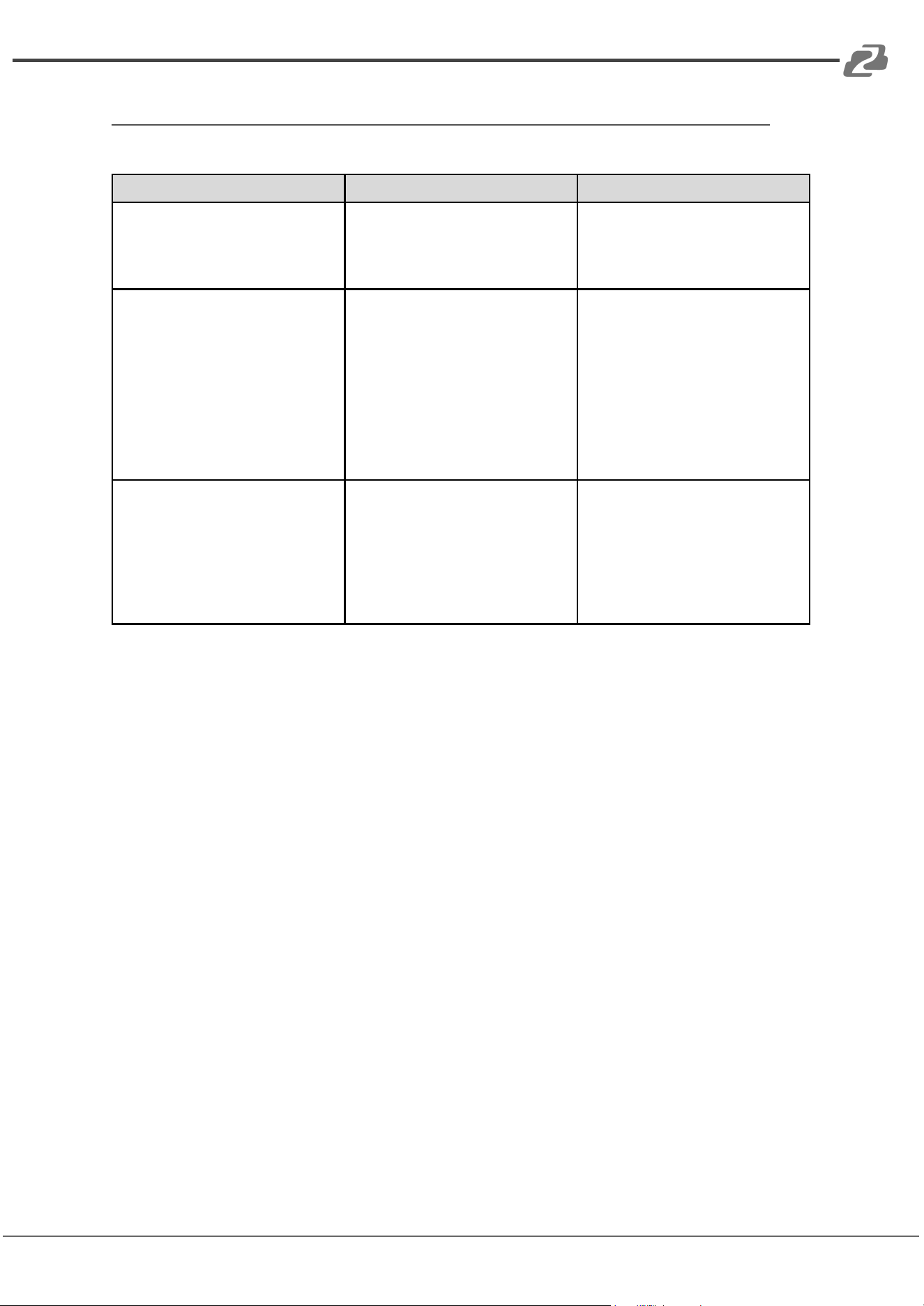
Troubleshooting
Problems
Causes
Solutions
No Power / All LED off
Power supply not connected,
connected fully, or wrong power
supply.
Check if the power supply is
connected correctly and the
output voltage value is within
recommended specifications.
No sound or sound issues
The HDMI connection is faulty,
the audio format is not
supported by the displays, or
the source player is set to
another port for audio output
Check if the HDMI cables are
connected correctly.
Check if the audio format is
supported by the display and
that a user has not changed the
supported audio format on the
player`s audio output. Ensure
output settings from the HDMI
source device as set correctly.
No picture or picture flickers
The HDMI cable may be faulty
or the category cable quality is
faulty.
Check if the HDMI
and category cable connections
are correct and undamaged.
Change to another good
working HDMI cable or category
cable (CAT6 or better cable is
recommended).
Address: 830 National Drive #140, Sacramento, CA 95834, USA · Tel: +1(888)499-9906 · Email: support@bzbgear.com 25

BZBGEAR BG-UHM PRODUCT MANUAL
Tech Support
Have technical questions? We may have answered them already!
Please visit BZBGEAR’s support page (bzbgear.com/support) for helpful information and
tips regarding our products. Here you will find our Knowledge Base
(bzbgear.com/knowledge-base) with detailed tutorials, quick start guides, and step-by-step
troubleshooting instructions. Or explore our YouTube channel, BZB TV
(youtube.com/c/BZBTVchannel), for help setting up, configuring, and other helpful how-to
videos about our gear.
Need more in-depth support? Connect with one of our technical specialists directly:
Phone
1.888.499.9906
Email
support@bzbgear.com
Live Chat
bzbgear.com
Limited Product Warranty Terms
Pro Line: 5-year warranty from the date of purchase for AV/Broadcasting products bought
on or after August 1, 2024.
Essential Line: 3-year warranty from the date of purchase for AV/Broadcasting products
bought on or after August 1, 2024.
Cables: Lifetime Limited Product Warranty.
For complete warranty information, please visit bzbgear.com/warranty.
For questions, please call 1.888.499.9906 or email support@bzbgear.com.
Mission Statement
BZBGEAR is a breakthrough manufacturer of high-quality, innovative audiovisual equipment
ranging from AVoIP, professional broadcasting, conferencing, home theater, to live
streaming solutions. We pride ourselves on unparalleled customer support and services.
Our team offers system design consultation, and highly reviewed technical support for all
the products in our catalog. BZBGEAR delivers quality products designed with users in
mind.
Copyright
All the contents in this manual and its copyright are owned by BZBGEAR. No one is allowed
to imitate, copy, or translate this manual without BZBGEAR’s permission. This manual
contains no guarantee, standpoint expression or other implies in any form. Product
specification and information in this manual is for reference only and subject to change
without notice.
All rights reserved. No reproducing is allowed without acknowledgement.
Address: 830 National Drive #140, Sacramento, CA 95834, USA · Tel: +1(888)499-9906 · Email: support@bzbgear.com 26
