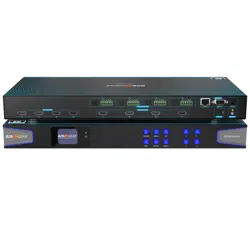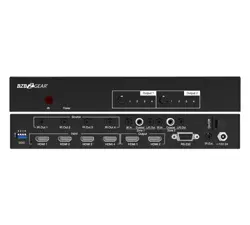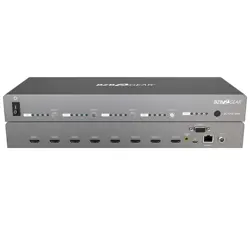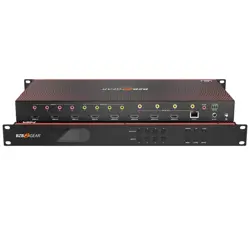
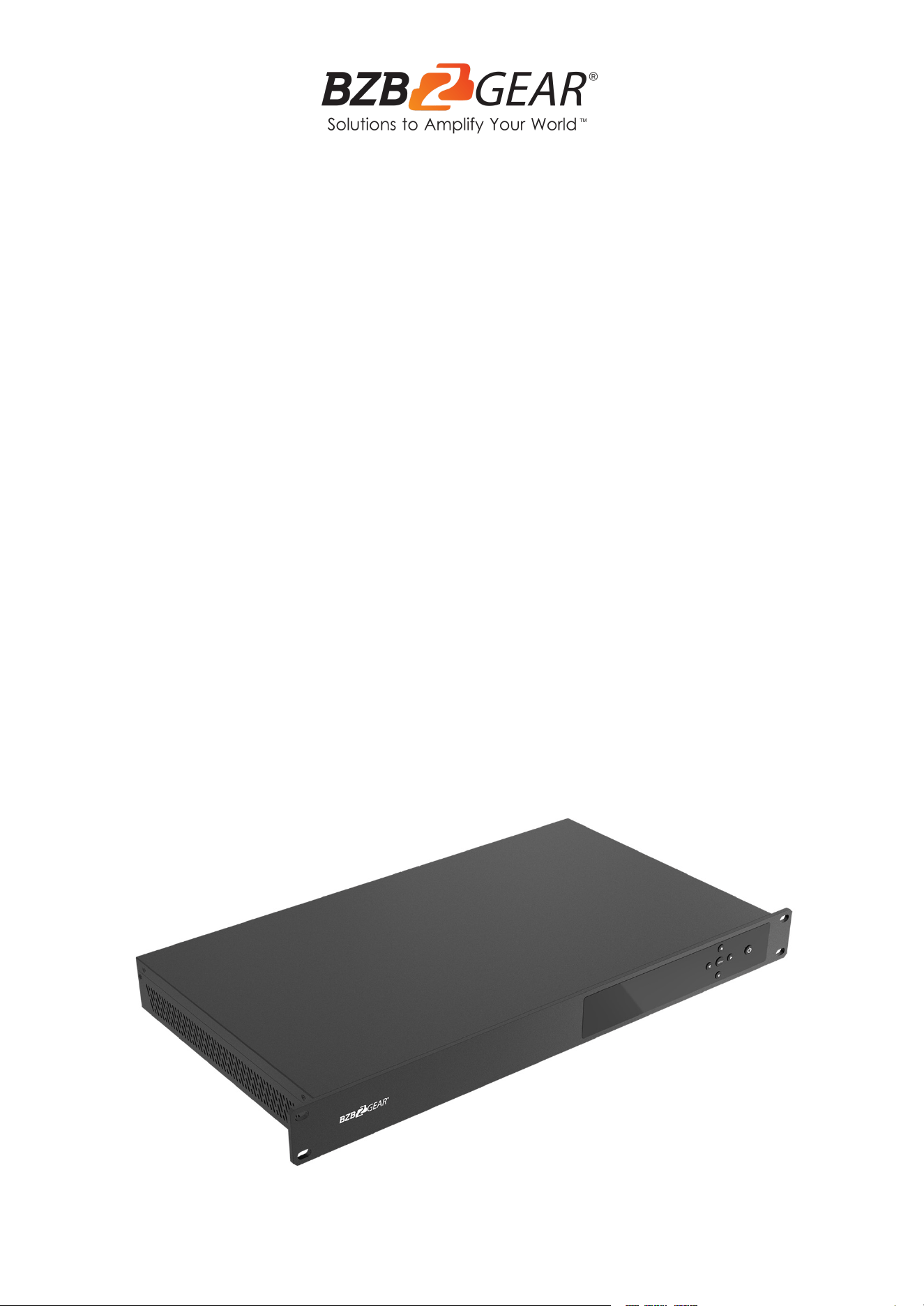
BG-UM-88ANS
8X8 4K 18Gbps UHD Matrix with IP/RS-232 Control
and Audio De-Embedding
User Manual

BZBGEAR BG-UM-88ANS PRODUCT MANUAL
Address: 830 National Drive #140, Sacramento, CA 95834, USA · Tel: +1(888)499-9906 · Email: support@bzbgear.com 2

BZBGEAR BG-UM-88ANS PRODUCT MANUAL
TABLE OF CONTENTS
Statement 4
Safety Precaution 4
Introduction 5
Features 5
Packing List 5
Specifications 6
Operation Controls and Functions 7
IR Remote 9
How to Access the Web Interface 10
Application Example 15
RS232 Commands 16
Tech Support 19
Limited Product Warranty Terms 19
Mission Statement 20
Copyright 20
Address: 830 National Drive #140, Sacramento, CA 95834, USA · Tel: +1(888)499-9906 · Email: support@bzbgear.com 3
BZBGEAR BG-UM-88ANS PRODUCT MANUAL
Statement
Please read these instructions carefully before connecting, operating, or configuring this
product. Please save this manual for future reference.
Safety Precaution
● To prevent damaging this product, avoid heavy pressure, strong vibration, or immersion
during transportation, storage, and installation.
● The housing of this product is made of organic materials. Do not expose to any liquid,
gas, or solids which may corrode the shell.
● Do not expose the product to rain or moisture.
● Unplug this device during lightning storms
● Clean only with a soft dry microfiber cloth.
● To prevent the risk of electric shock, do not open the case. Installation and maintenance
should only be carried out by qualified technicians.
● Do not use the product beyond the specified temperature, humidity, or power supply
specifications.
● This product does not contain parts that can be maintained or repaired by users.
Damage caused by dismantling the product without authorization from BZBGEAR is not
covered under the warranty policy.
● Installation and use of this product must strictly comply with local electrical safety
standards.
● Only use accessories specified by the manufacture
● Product specifications may be subject to technical upgrades without further notice
Address: 830 National Drive #140, Sacramento, CA 95834, USA · Tel: +1(888)499-9906 · Email: support@bzbgear.com 4

BZBGEAR BG-UM-88ANS PRODUCT MANUAL
Introduction
The BG-UM-88ANS is an 8x8 4K HDMI matrix switch. It supports resolutions up to
4K@60Hz 4:4:4 and it is also HDCP 1.4 & 2.2 compliant. Featuring 8 HDMI 2.0b inputs and 8
HDMI 2.0b outputs, this device offers 18Gbps uncompressed bandwidth on all HDMI ports.
This matrix can quickly route any of the eight inputs to any of the eight outputs utilizing
either the front panel menu, IR remote control, RS-232, or web inter face. The control
software, connected via RS-232 or the web interface, allows full control with the ability to
adjust advanced features including mapping, network settings, and EDID management for
easy integration.
Audio de-embed from any of the 8 coax audio outputs, which all provide multi-channel
digital audio (up to 7.1-channel). The supported various audio formats include LPCM, Dolby
TrueHD, and DTS-HD® Master Audio.
Features
● HDMI 2.0b, HDCP 2.2, and HDCP 1.4 compliant
● Up to 4K2K@60Hz (YUV 4:4:4) on all HDMI ports
● Supports High Definition audio pass-through of up to 7.1 channels (LPCM, Dolby
TrueHD, and DTS-HD Master Audio)
● Audio de-embedding via coax ports
● HDR, CEC, and smart EDID management
● Control is via Button Panel, IR, RS-232, LAN, and Web UI
● 1U rack mounted design with metal enclosure
Packing List
● 1x 8x8 HDMI Matrix
● 1x 12V/3A Locking Power Adaptor
● 1x IR Remote
● 1x Wideband IR Receiver cable
● 1x User Manual
● 1х Quick Start Guide
Address: 830 National Drive #140, Sacramento, CA 95834, USA · Tel: +1(888)499-9906 · Email: support@bzbgear.com 5
BZBGEAR BG-UM-88ANS PRODUCT MANUAL
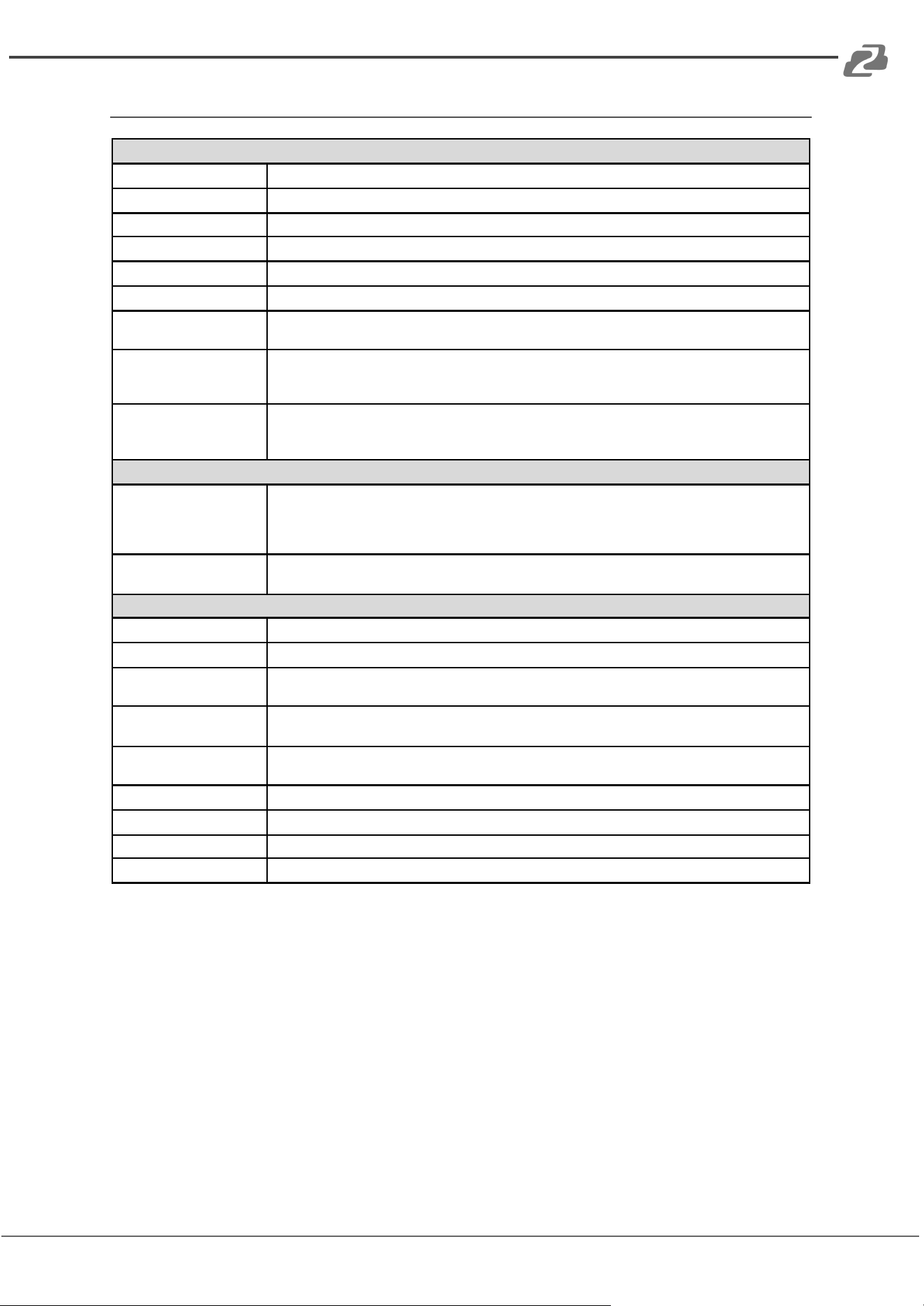
Specifications
Technical
HDMI Compliance
HDMI 2.0b
HDCP Compliance
HDCP 2.2 and HDCP 1.4
Video Bandwidth
18Gbps
Video Resolutions
Up to 4K2K@50/60Hz (YUV 4:4:4), 4K2K@30Hz, 1080p@120Hz, and 1080p 3D@60Hz
Color Depth
8-bit, 10-bit, 12-bit
Color Space
RGB, YCbCr 4:4:4, YCbCr 4:2:2
HDMI Audio Formats
LPCM 2/5.1/7.1, Dolby Digital, DTS 5.1, Dolby Digital+, Dolby TrueHD, DTS-HD Master Audio,
Dolby Atmos, DTS:X
Audio Formats
PCM2.0,
32K/44.1K/48K/88.2K/96K/192K,
16/20/24bit
ESD Protection
Human-body Model:
±8kV (Air-gap discharge),
±4kV (Contact discharge)
Connections
Inputs
8x HDMI Type A [19-pin female]
1x LAN [RJ45, Control]
1x RS-232 [9-pin D-sub, Control]
1x IR EXT [3.5mm Stereo Mini-jack]
Outputs
8x HDMI Type A [19-pin female]
8x Coaxial Audio [RCA]
Mechanical
Housing
Metal Enclosure
Color
Black
Dimensions
19.0" (W) x l.O” (D) x 1.8" (H)
[483mm (W) x 253mm (D) x 44.5mm (H)]
Weight
7.39lbs
[3.35kg]
Power Supply
Input: AC100~240V 50/60Hz,
Output: DC12V/3A (US/EU standards, CE/FCC/UL certified)
Power Consumption
26.5W (max)
Operating Temperature
32°F ~ 104°F / 0°C ~ 40°C
Storage Temperature
-4°F ~ 140°F / -20°C ~ 60°C
Relative Humidity
20~90% RH (non-condensing)
Address: 830 National Drive #140, Sacramento, CA 95834, USA · Tel: +1(888)499-9906 · Email: support@bzbgear.com 6
BZBGEAR BG-UM-88ANS PRODUCT MANUAL
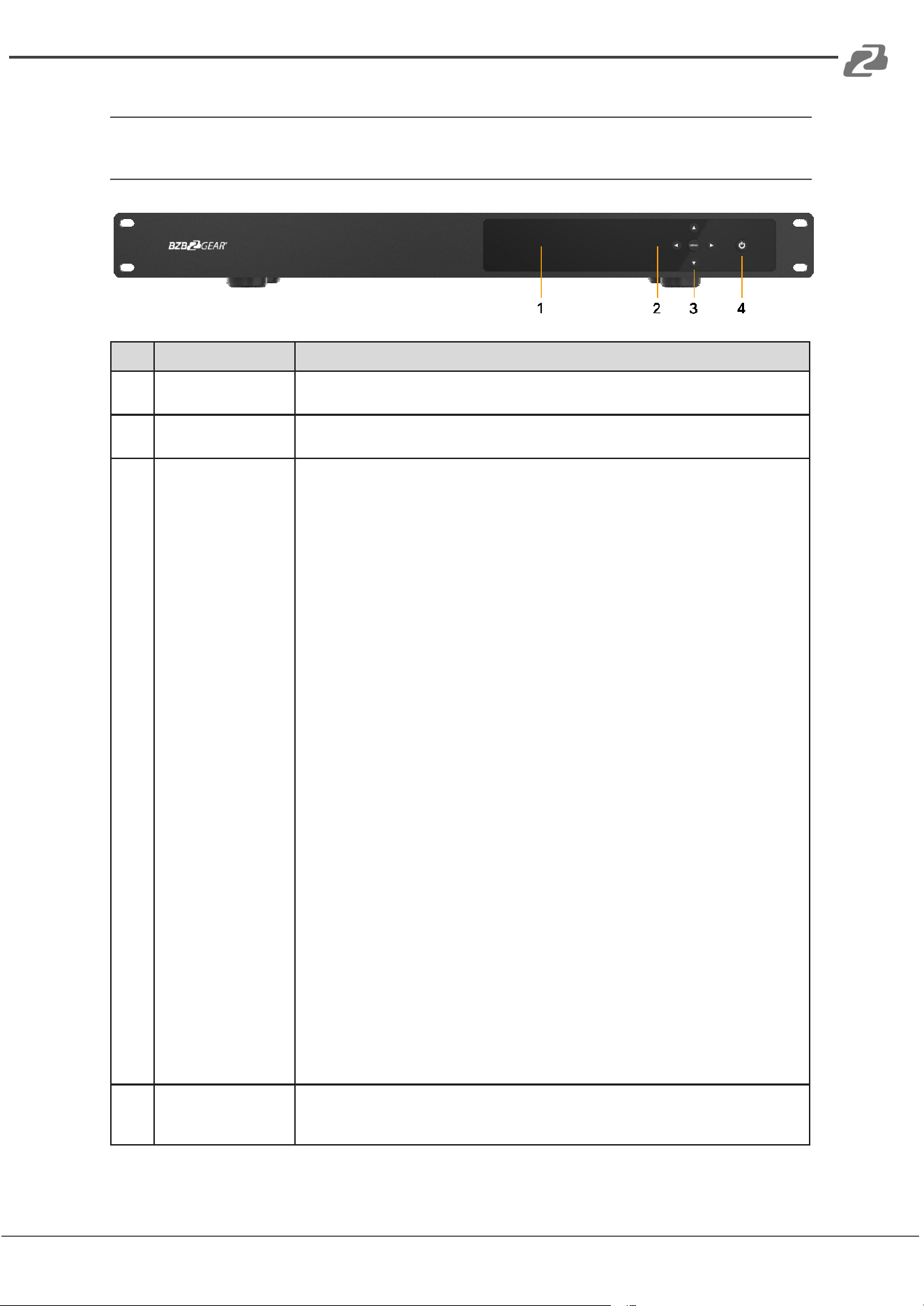
Operation Controls and Functions
Front Panel
No
Name
Function Description
1
OLED display
Display system input/output port status, EDID management, and
matrix IP address.
2
IR Window
IR receiver window, it receives IR remote control signals to control
this device.
3
Left / Right /
Up / Down
Menu Buttons
After system power up, the OLED screen default displays the
input and output status of the last power off.
A) On the initial display, first press the 'Left' or 'Right’ button to
select the output port, then press the ‘up’ or ‘down’ button to
select the input port, then press the ‘Menu’ button to confirm this
operation.
B) On the initial display, you can press the ‘Up’ or ‘Down’ button
to check each input EDID setting, press the ‘Menu’ button to go
back to the initial display.
C) On the initial display, you can press ‘Menu’ to operate the
following functions, press ‘Up’ or ‘Down’ buttons to select a
function:
1. Select EDID: Press the ‘Right’ button, then press the ‘Up’ or
‘Down’ button to select EDID as shown in the below table.
Once you complete EDID selection, press the ‘Right’ button
and then press the 'Up’ or ‘Down’ buttons to select which
input port to copy EDID to, press the ‘Right’ button again to
confirm this operation.
2. PTP Set: Press the 'Right’ button to set PTP mode (point to
point, means IN1-OUT A, IN2-OUT B, IN3-OUT C...).
3. Save Preset: Press the ‘Right’ button to save the current
configuration to preset, press the ‘Up’ or 'Down’ buttons to
select a storage location, and then press the ‘Right’ button to
confirm this operation.
4. Recall Preset: Press the ‘Right’ button to recall a previous
preset, press the 'Up’ or 'Down’ buttons to select a preset you
want, press the ‘Right’ button to confirm.
5. View IP: Press the 'Right’ button to check IP address and
DHCP status.
6. Select Baud: Press the ‘Right’ button, then press the ‘Up' or
'Down' button to select baud, press the 'Right’ button to
confirm this operation.
7. Factory Reset: Press the 'Right' button to set factory reset
status, then press the 'Right’ button to confirm this operation
or the 'Left’ button to quit this operation.
4
Power button
and Power LED
Long press this button to power on/off the device. The LED will
illuminate in green when the device is power on and show in red
when this device is standby
Address: 830 National Drive #140, Sacramento, CA 95834, USA · Tel: +1(888)499-9906 · Email: support@bzbgear.com 7
BZBGEAR BG-UM-88ANS PRODUCT MANUAL
The EDID table:
EDID Mode
EDID Description
1
720P 2.0 CH
2
1080P 2.0 CH
3
1080P 5.1 CH
4
1080P 7.1CH
5
1080I 2.0 CH
6
1080I 5.1 CH
7
1080I 7.1CH
8
3D 2.0 CH
9
3D 5.1 CH
10
3D 7.1 CH
11
4K*2K@30 2.0 CH
12
4K*2K@30 5.1 CH
13
4K*2K@30 7.1 CH
14
4K60_420 2.0CH
EDID Mode
EDID Description
15
4K60_420 5.1CH
16
4K60_420 7.1CH
17
4K*2K@60 2.0 CH
18
4K*2K@60 5.1 CH
19
4K*2K@60 7.1 CH
20
Copy HDMI Out A
21
Copy HDMI Out B
22
Copy HDMI Out C
23
Copy HDMI Out D
24
Copy HDMI Out E
25
Copy HDMI Out F
26
Copy HDMI Out G
27
Copy HDMI Out H
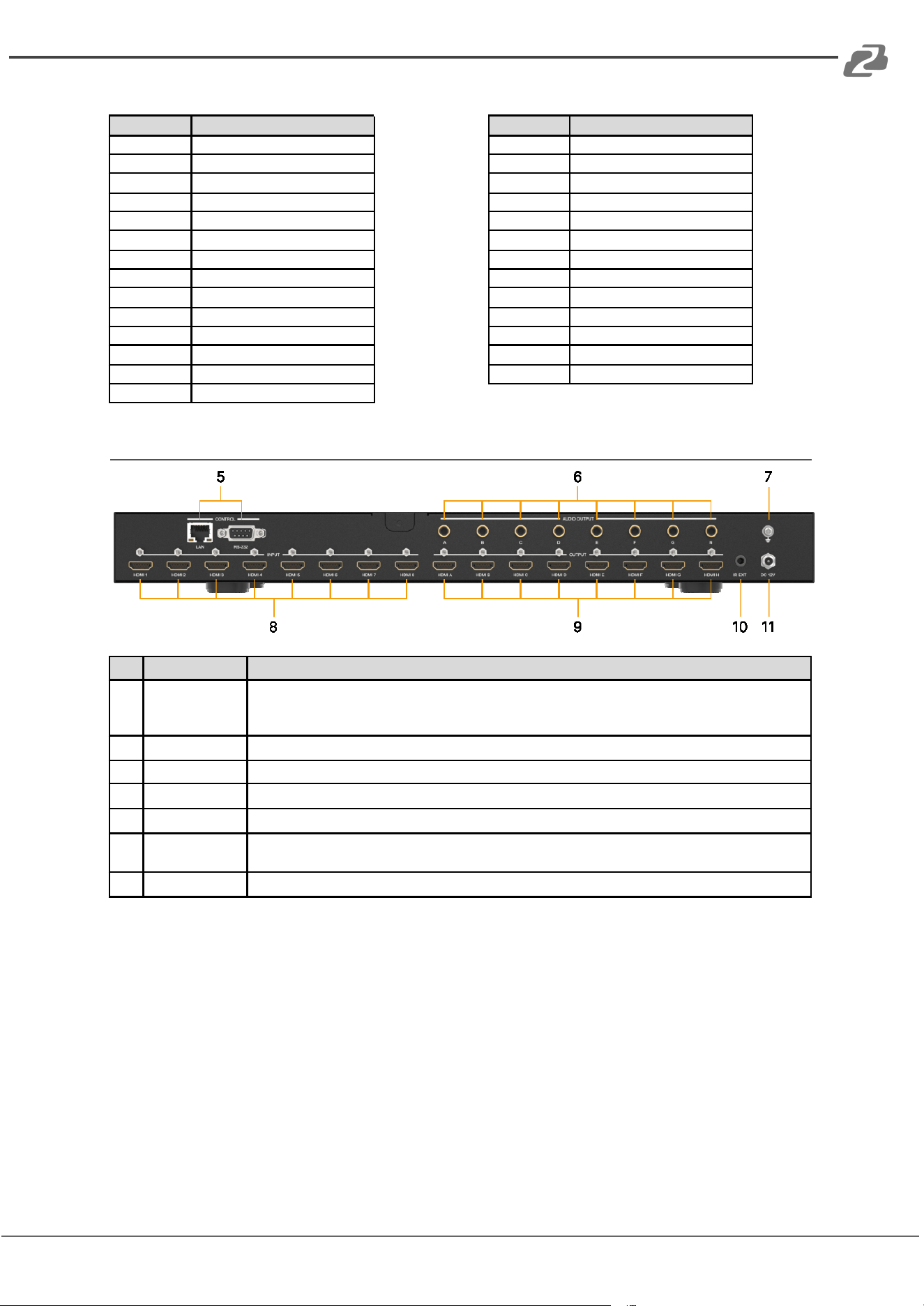
Rear Panel
No.
Name
Function Description
5
CONTROL
LAN: connects to an active Ethernet link by an RJ-45 cable.
RS-232: Connect to a PC or control system by DSub 9-pin cable to control the matrix with RS-232
commands.
6
AUDIO OUTPUT
Connect to audio amplifiers or speakers.
7
GND
Connect the GND port to the ground.
8
HDMI INPUT
Connect to the HDMI input source devices such as a DVD player or Set-top Box.
9
HDMI OUTPUT
Connect to the HDMI output source devices such as a TV player or monitor.
10
IR EXT
If the front IR sensor of unit is obstructed or the unit is installed in a closed area out of infrared line of
sight, the IR receiver cable can be inserted to this IR EXT port to extend IR signal.
11
DC
12V Plug the 12V/3A adapter to AC wall outlet for power supply.
Address: 830 National Drive #140, Sacramento, CA 95834, USA · Tel: +1(888)499-9906 · Email: support@bzbgear.com 8
BZBGEAR BG-UM-88ANS PRODUCT MANUAL
IR Remote
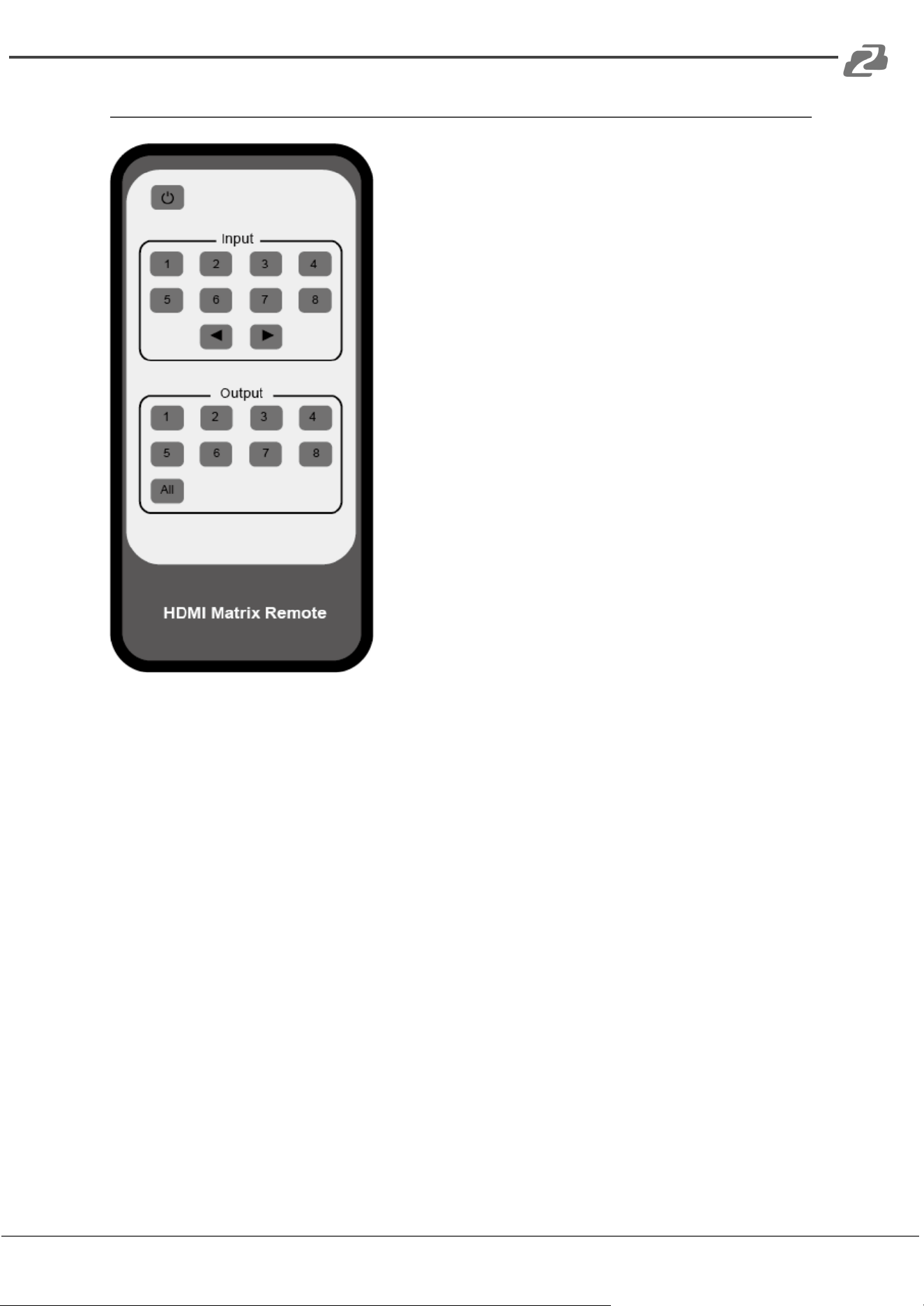
1. Power on or Standby: Power on the Matrix or
set it to standby mode.
2. Input 1/2/3/4/5/6/7/8: Select input source
button. ◀ ▶ : Select the last or next input source
button.
3. Output 1/2/3/4/5/6/7/8 button: Select output
source button.
All: Select all output sources simultaneously. For
example, when you press the “All” button and then
press input “1” button, at this time the input “1”
source will output to all display devices.
Operation instruction: You need to press the output
button first and then press the input button to select
the corresponding input source.
For example:
Press Output-X
(X means output button from 1 to 8 , including “All”
button)
Then press Input-Y
(Y means input button from 1 to 8 )
Address: 830 National Drive #140, Sacramento, CA 95834, USA · Tel: +1(888)499-9906 · Email: support@bzbgear.com 9
BZBGEAR BG-UM-88ANS PRODUCT MANUAL
How to Access the Web Interface
The Matrix can be controlled via a Web based user interface. You must know the current IP
address of the matrix to access it. You can view/find the IP address of the matrix via the
front panel buttons. The default static IP address is 192.168.1.100.
1. On the initial/main display press the “Menu” button to enter settings page.
2. Press the “Up” or “Down” buttons to select “View IP.”
3. Press the "Right" button to check the current IP address and DHCP status.
4. Take note of the current IP address.
5. Follow the steps below to configure your PC to the correct network.
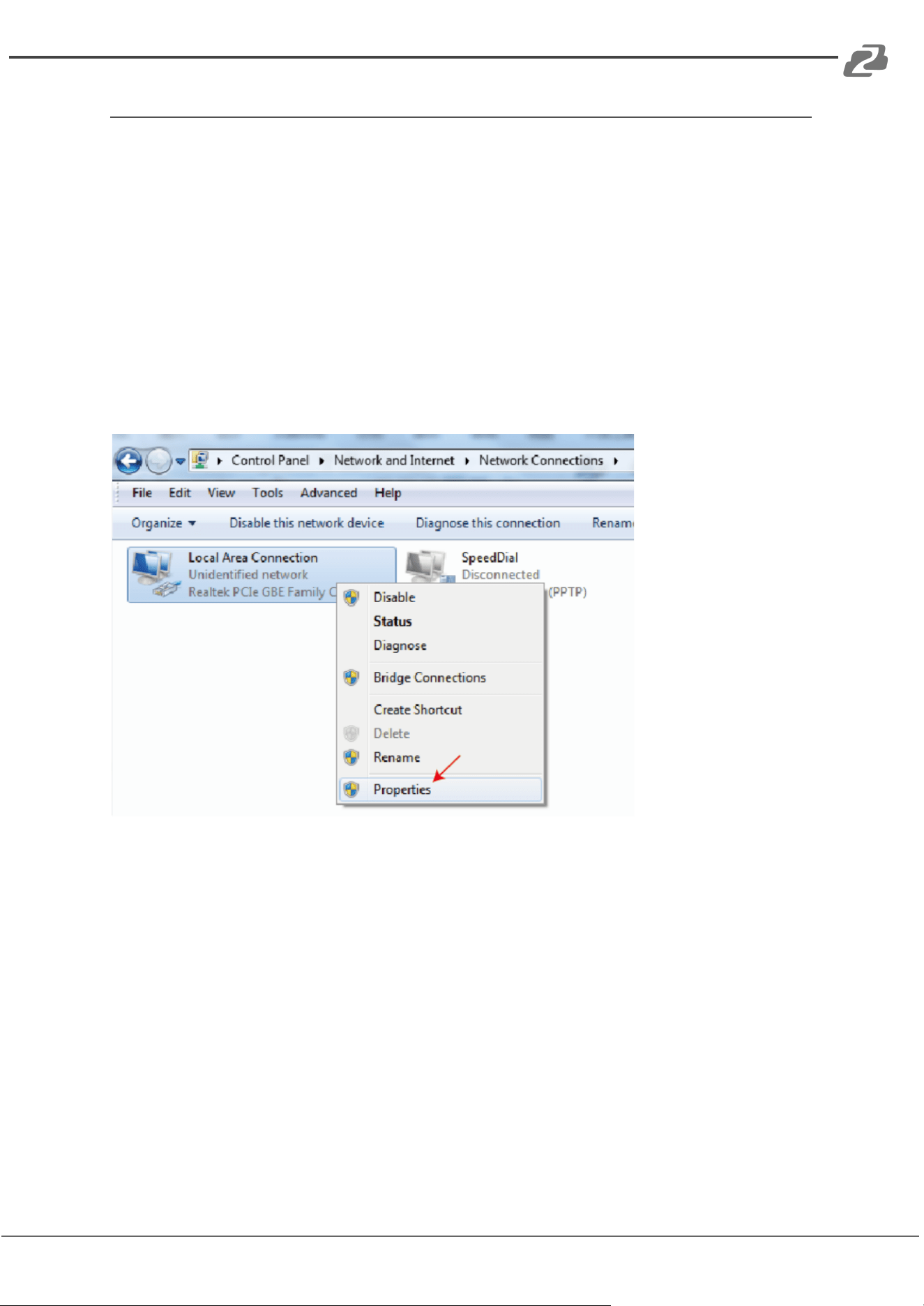
Step 1: Connect the matrix LAN port directly to your PC using an ethernet cable.
Step 2: On the PC, go to Control Panel> Network and Internet>Network Connections> Right
click on Local Area Connections and select “Properties”.
Address: 830 National Drive #140, Sacramento, CA 95834, USA · Tel: +1(888)499-9906 · Email: support@bzbgear.com 10
BZBGEAR BG-UM-88ANS PRODUCT MANUAL
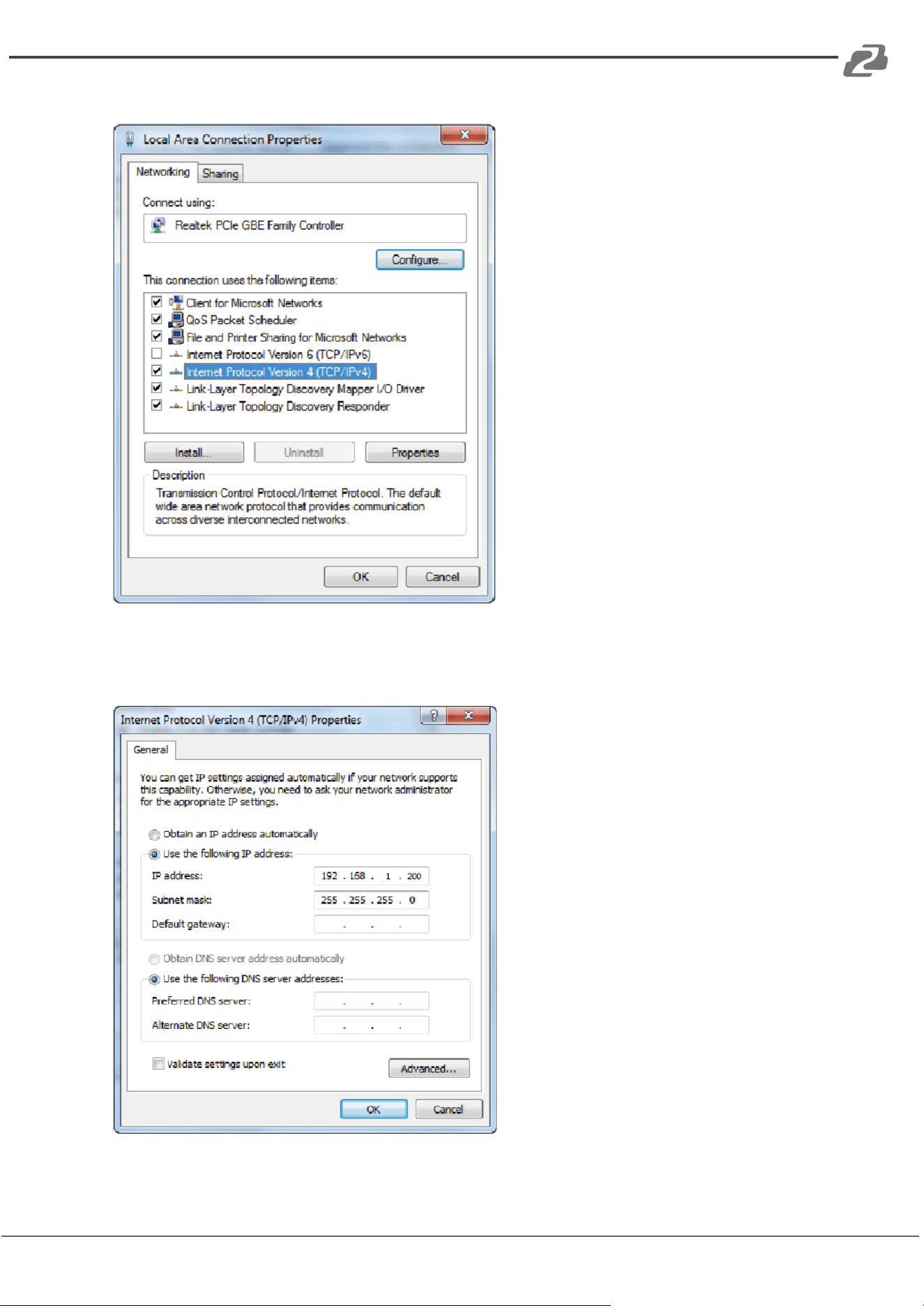
Double click “Internet Protocol Version 4 (TCP/IPv4)”
Select “Use the following IP address” input a non-conflicting IP address that matches the
scheme of your matrix (default 192.168.1.#). In the example below 192.168.1.200 is used as
the IP address, 255.255.255.0 as the Subnet mask, and then click on “OK.”
Address: 830 National Drive #140, Sacramento, CA 95834, USA · Tel: +1(888)499-9906 · Email: support@bzbgear.com 11
BZBGEAR BG-UM-88ANS PRODUCT MANUAL
Note: The IP address of the computer and matrix should be in the same network segment. If
the matrix's IP address is 192.168.10.100, the computer's IP should be 192.168.10.X where
X is 1~255 except 100.
Step 3. Input the IP address from the front panel into a web browser on the connected PC
to load the web interface.
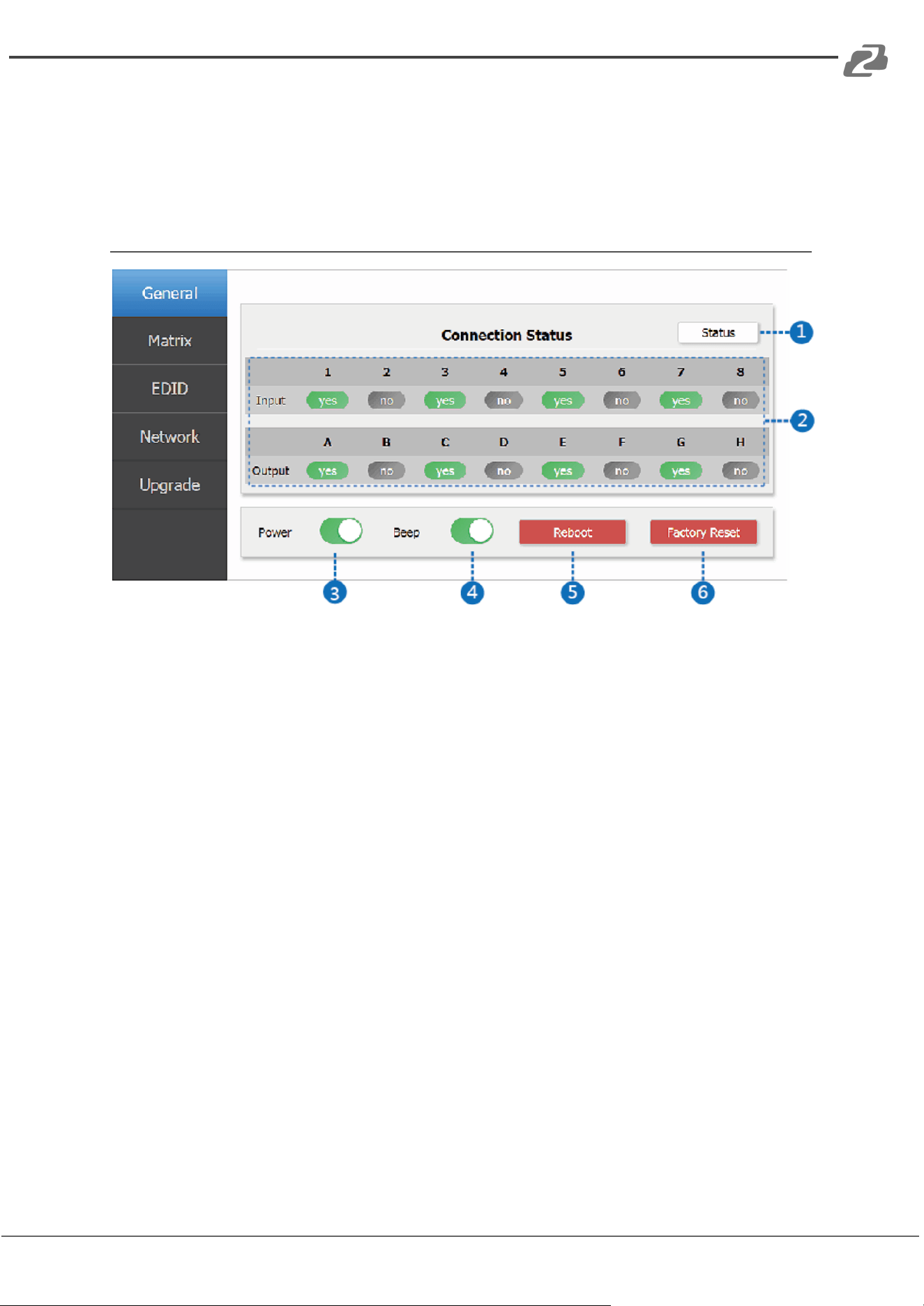
The Web Interface:
1. Status Button: Click the “Status” button to check current Matrix connection status.
2. Connection Status: Displays the current Matrix input and output port status. If a
port has a cable connected input or output will display “yes” and “no” if there is no
connection.
3. Power Switch: Toggle the switch to place the matrix into standby mode.
4. Beep Switch: Enable/Disable the front panel button press beep confirmation.
5. Reboot Button: Click the button to power cycle/reboot the matrix.
6. Factory Reset Button: Click the button to restore the matrix settings and
configuration to factory default settings.
Address: 830 National Drive #140, Sacramento, CA 95834, USA · Tel: +1(888)499-9906 · Email: support@bzbgear.com 12
BZBGEAR BG-UM-88ANS PRODUCT MANUAL
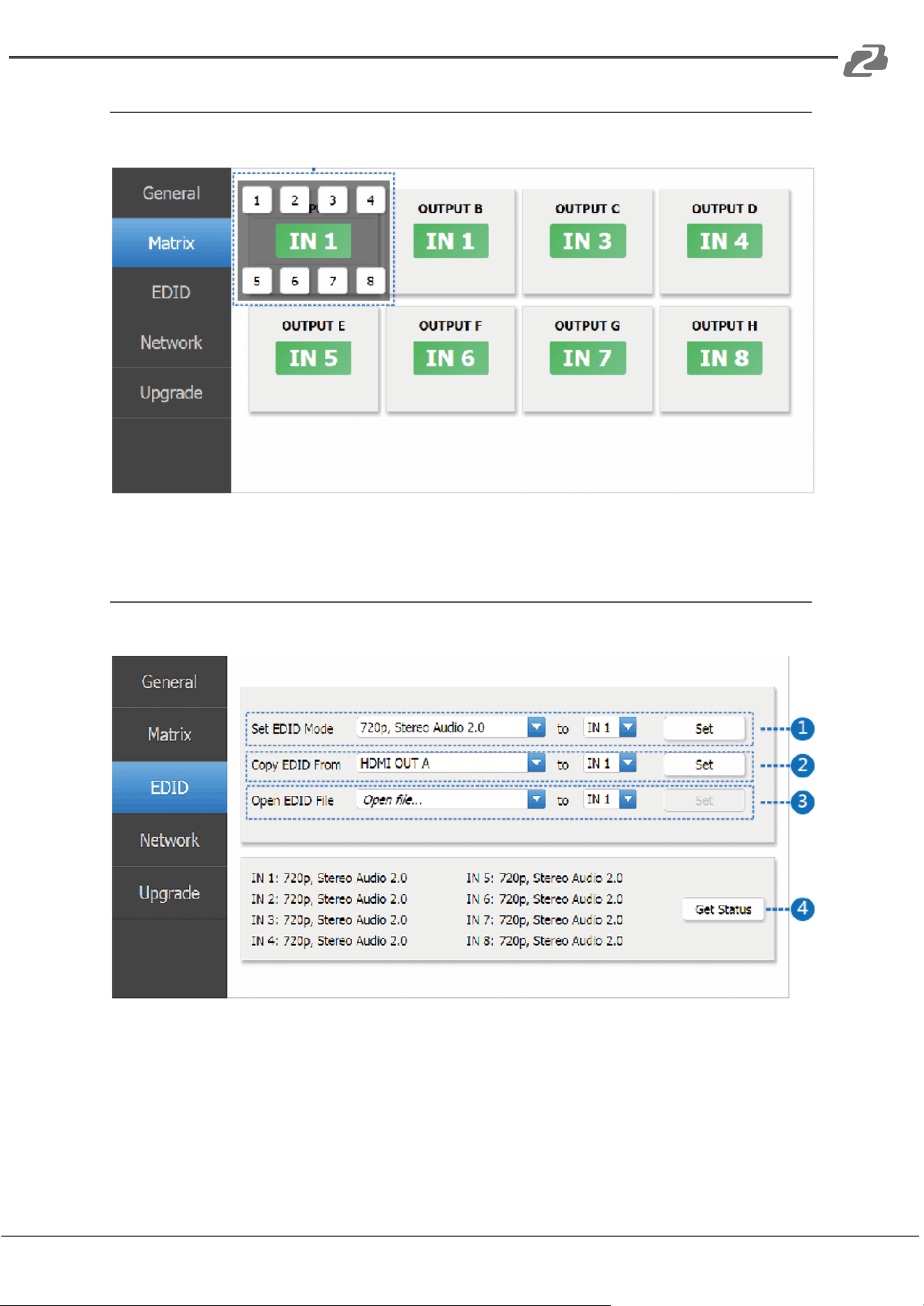
Matrix
The matrix page is used to control HDMI switching of the matix.
1. Click the green area of the output whose source you would like to change.
2. Select the desired source (1-8) and the connected display will change images.
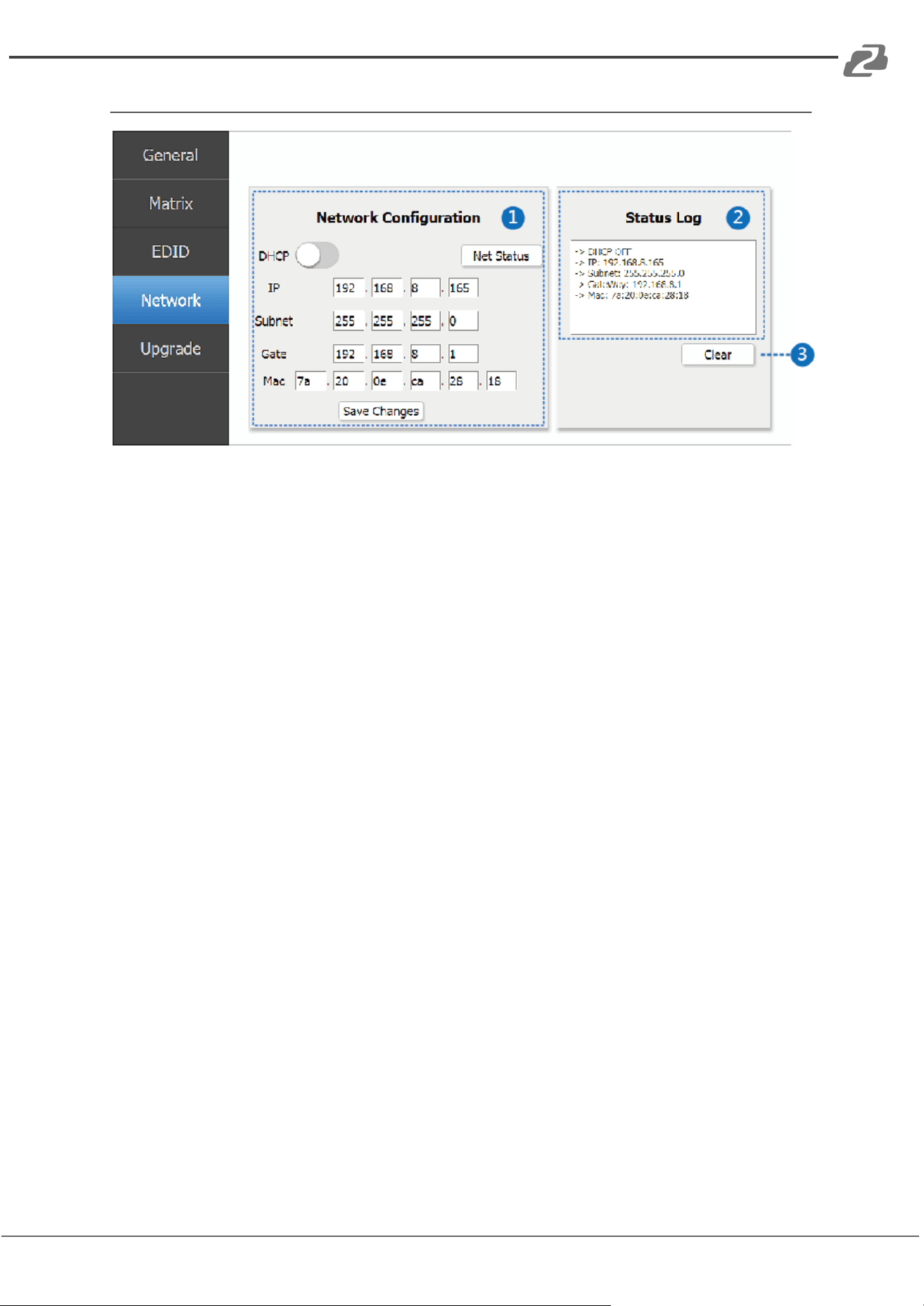
EDID
The EDID page is used to hard set resolution and audio for the given input.
1. Set EDID Mode: Select EDID and the input source then click the “Set” button.
2. Copy EDID From: Copy the EDID information from an output display to the input
source and then click the “Set” button.
3. Open EDID File: Upload an EDID file to the selected input source.
4. Get Status: Displays the input source EDID mode status.
Address: 830 National Drive #140, Sacramento, CA 95834, USA · Tel: +1(888)499-9906 · Email: support@bzbgear.com 13
BZBGEAR BG-UM-88ANS PRODUCT MANUAL
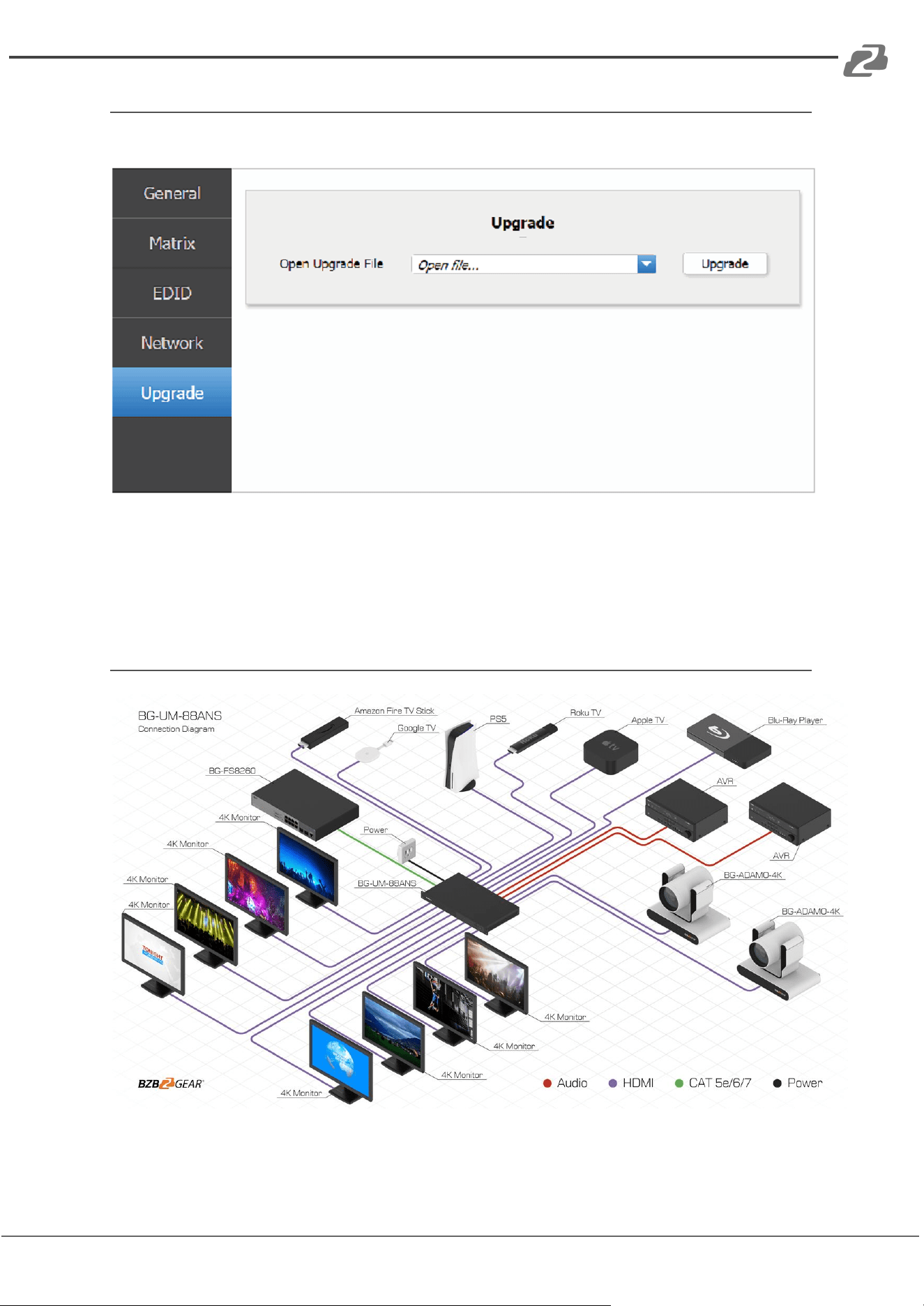
Network
1. Network Configuration:
● DHCP Toggle Enabled:
The matrix will automatically change the following settings: IP address, Subnet, and
Gateway. Click the “Save Changes” button to save the DHCP configuration and
reboot the matrix.
● DHCP Toggle Disabled:
If the DHCP switch is disabled then the user can set IP, Subnet, Gateway
information. Click the “Save Changes” button to save the IP configuration and reboot
the matrix.
● Net Status button:
Clicking this button will refresh the current network configuration information to
display in the Status Log.
2. Status Log: Display the Network Configuration information.
3. Clear button: Clear the Status Log information.
Address: 830 National Drive #140, Sacramento, CA 95834, USA · Tel: +1(888)499-9906 · Email: support@bzbgear.com 14
BZBGEAR BG-UM-88ANS PRODUCT MANUAL
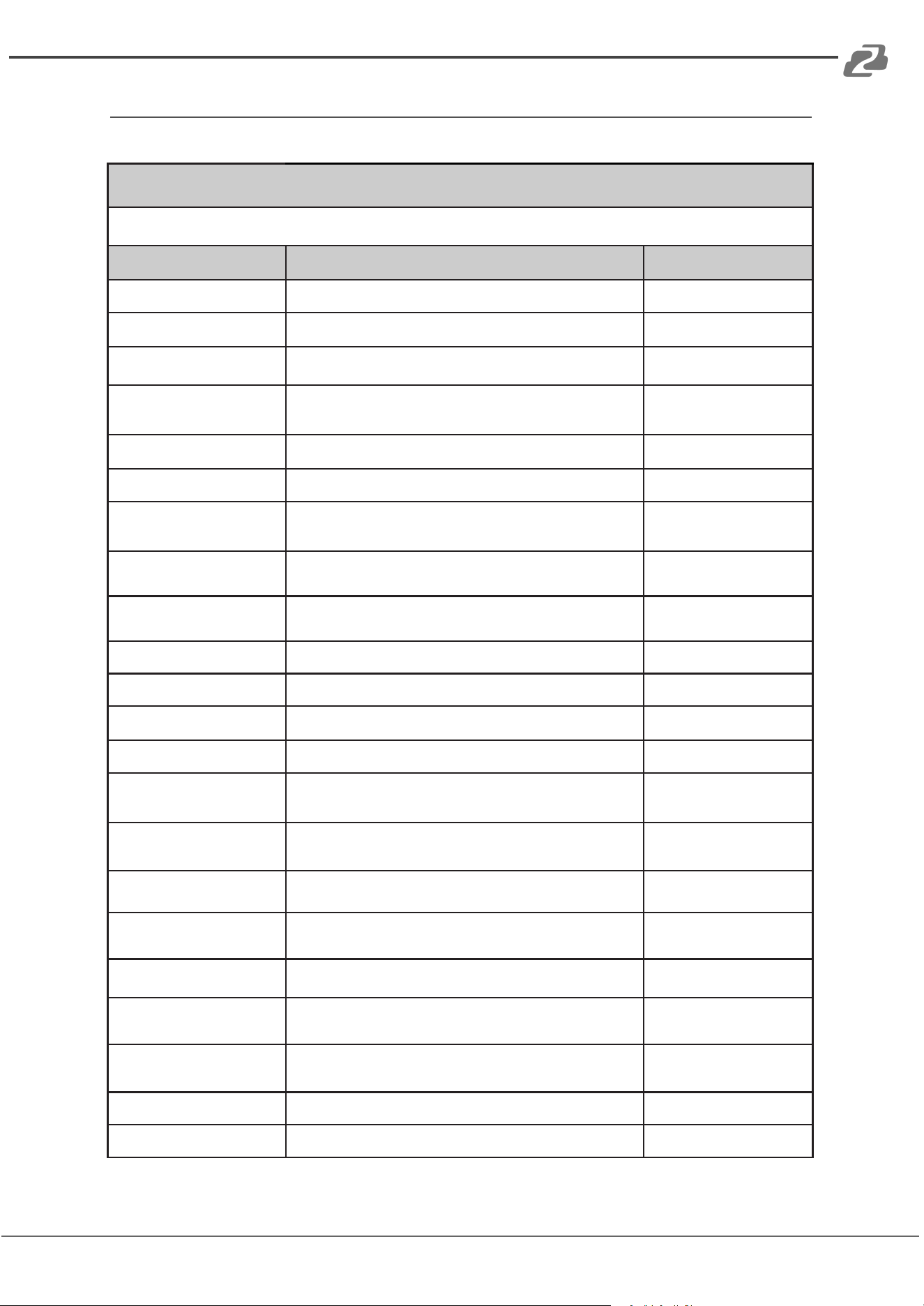
Upgrade
Use the Upgrade page to upload firmware upgrade files to the matrix.
Application Example
Address: 830 National Drive #140, Sacramento, CA 95834, USA · Tel: +1(888)499-9906 · Email: support@bzbgear.com 15
BZBGEAR BG-UM-88ANS PRODUCT MANUAL
RS232 Commands
RS232 ASCII Commands
Serial port protocol: Baud rate(default): 19200, Data bits: 8 Stop bits: 1 Check bit: 0
RS-232 Command
Function description
Feedback
s x av y!
Switch x channel input to y channel output
AV x -> y
s x all!
Switch x channel input to all channel output
x to all
r all out!
Get the corresponding switch state between all output
port and the input port
AV 1 -> 1, AV 2 -> 2...
r out 1!
Get the corresponding switch state between the x
output port and the input port
AV x -> x
s ptp!
one to one between input and output channels
ptp
r link in x!
Get the connection status of the x input port
HDMI INx: connect
r link out x!
Get the connection status of the x output port
HDMI OUTx:
disconnect
r link in all!
Get the connection status of all input port
HDMI INx:
connect/disconnect
r link out all!
Get the connection status of all input port
HDMI OUTx:
connect/disconnect
s x off!
Turn off the x output channel
out x off
s x on!
Turn on the x output channel
out x on
s all off!
Turn off all the output channel
all out off
s all on!
Turn on all the output channel
all out on
s edid x c y!
Copy the display EDID on the x output por t to the y input
port
copy EDID from
output x to input y
s edid x d y!
Copy the built-in EDID number y to the x input port
use default edid y to
input x
s edid all c y!
Copy the display EDID on the x output por t to all inputs
copy edid from output
y to all inputs
s edid all d y!
Copy the built-in EDID number y to all input ports
use default edid y to all
input
s edid default!
Restore the default EDID (1080P 2) to each input
port
edid default
r edid x!
Get the Edid state of the x input port
IN1: 1080p,Stereo Audio
2.0
r edid all!
Query the EDID status of all ports
IN1: 1080p,Stereo Audio
2.0
s x hdcp 2.2!
Force opening hdcp of the x output por t
out x hdcp 2.2
s x hdcp 1.4!
Force opening hdcp of the x output por t
out x hdcp 1.4
Address: 830 National Drive #140, Sacramento, CA 95834, USA · Tel: +1(888)499-9906 · Email: support@bzbgear.com 16
BZBGEAR BG-UM-88ANS PRODUCT MANUAL
RS-232 Command
Function description
Feedback
s x hdcp off!
Force shutdown hdcp of the x output port
out x hdcp off
s x hdcp auto!
Automatic management hdcp of x output port
out x hdcp auto
s all hdcp off!
Force shutdown hdcp of the all output port
all out hdcp off
s all hdcp auto!
Automatic management hdcp of all output port
all out hdcp auto
r hdcp in x!
Get the Hdcp state of the x input port
a hdcp in
r hdcp out x!
Get the Hdcp state of the x output port
a hdcp out
r hdcp all in!
Query all input port HDCP status
a hdcp in all
r hdcp all out!
Query all output port HDCP status
a hdcp out all
s beep on!
Open buzzer function
beep on
s beep off!
Cancel buzzer function
beep off
r beep!
Get the switch state of the buzzer
a beep on
s lock on!
Panel lock
lock on
s lock off!
Panel unlock
lock off
r lock!
Get the status of the panel key lock
a lock on
s power on!
Machine boot
power on
s power off!
Machine shutdown
power off
r power!
Query power state
a power on
s rboot!
Machine reboot
rboot
s factory reset!
Restore factory settings
factory reset
r type!
Query matrix model
a HDM-B88
r version!
Query software version
a aa.bb-aa.bb-aa.bb
r status!
Query the status of the entire machine
a
aa.bb-aa.bb-aa.bb.cc.dd
s dhcp off!
Set up network module using static IP
ip mode static
s dhcp on!
Set up network modules using dynamic IP
ip mode DHCP
r dhcp!
Get the Dhcp status of the network module
a ip mode DHCP
s ip addr a.b.c.d!
Set the IP address of the network board
a.b.c.d
s mac addr a-b
-c-d-e-f!
Set the MAC address of the network board
a-b-c-d-e-f
s subnet a.b.c.d!
Setting subnet mask of network module
a.b.c.d
s gateway a.b.c.d!
Set up network module gateway
a.b.c.d
s port 8000!
Set control port at 8000
8000
Address: 830 National Drive #140, Sacramento, CA 95834, USA · Tel: +1(888)499-9906 · Email: support@bzbgear.com 17
BZBGEAR BG-UM-88ANS PRODUCT MANUAL
RS-232 Command
Function description
Feedback
s network enable!
When configuring network modules, execute all the
commands you need to configure first and then execute
this command to reboot network modules
r ip addr!
Get the IP address of the network board
a a.b.c.d <CR>
r mac addr!
Get the MAC address of the network board
a a-b-c-d-e-f <CR>
r subnet!
Get the subnet mask of the network board
a a.b.c.d <CR>
r gateway!
Get the gateway of the network board
a a.b.c.d <CR>
r port!
Get network port number
a 8000 <CR>
s net name ****!
Set the name of the network module
*******
r net name!
Get the name of the network module
a ******* <CR>
Address: 830 National Drive #140, Sacramento, CA 95834, USA · Tel: +1(888)499-9906 · Email: support@bzbgear.com 18

BZBGEAR BG-UM-88ANS PRODUCT MANUAL
Tech Support
Have technical questions? We may have answered them already!
Please visit BZBGEAR’s support page (bzbgear.com/support) for helpful information and
tips regarding our products. Here you will find our Knowledge Base
(bzbgear.com/knowledge-base) with detailed tutorials, quick start guides, and step-by-step
troubleshooting instructions. Or explore our YouTube channel, BZB TV
(youtube.com/c/BZBTVchannel), for help setting up, configuring, and other helpful how-to
videos about our gear.
Need more in-depth support? Connect with one of our technical specialists directly:
Phone
1.888.499.9906
Email
support@bzbgear.com
Live Chat
bzbgear.com
Limited Product Warranty Terms
Pro Line: 5-year warranty from the date of purchase for AV/Broadcasting products bought
on or after August 1, 2024.
Essential Line: 3-year warranty from the date of purchase for AV/Broadcasting products
bought on or after August 1, 2024.
Cables: Lifetime Limited Product Warranty.
For complete warranty information, please visit bzbgear.com/warranty.
For questions, please call 1.888.499.9906 or email support@bzbgear.com.
Address: 830 National Drive #140, Sacramento, CA 95834, USA · Tel: +1(888)499-9906 · Email: support@bzbgear.com 19
BZBGEAR BG-UM-88ANS PRODUCT MANUAL
Mission Statement
BZBGEAR is a breakthrough manufacturer of high-quality, innovative audiovisual equipment
ranging from AVoIP, professional broadcasting, conferencing, home theater, to live streaming
solutions. We pride ourselves on unparalleled customer support and services. Our team
offers system design consultation, and highly reviewed technical support for all the products
in our catalog. BZBGEAR delivers quality products designed with users in mind.
Copyright
All the contents in this manual and its copyright are owned by BZBGEAR. No one is allowed
to imitate, copy, or translate this manual without BZBGEAR’s permission. This manual
contains no guarantee, standpoint expression or other implies in any form. Product
specification and information in this manual is for reference only and subject to change
without notice.
All rights reserved. No reproducing is allowed without acknowledgement.
Address: 830 National Drive #140, Sacramento, CA 95834, USA · Tel: +1(888)499-9906 · Email: support@bzbgear.com 20