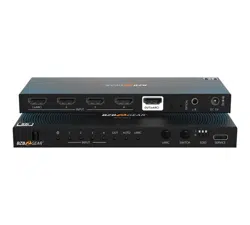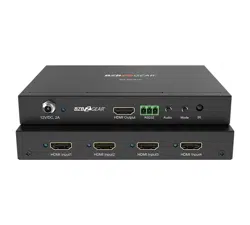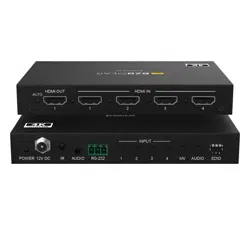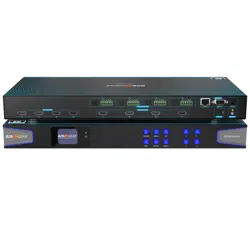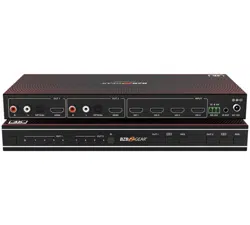
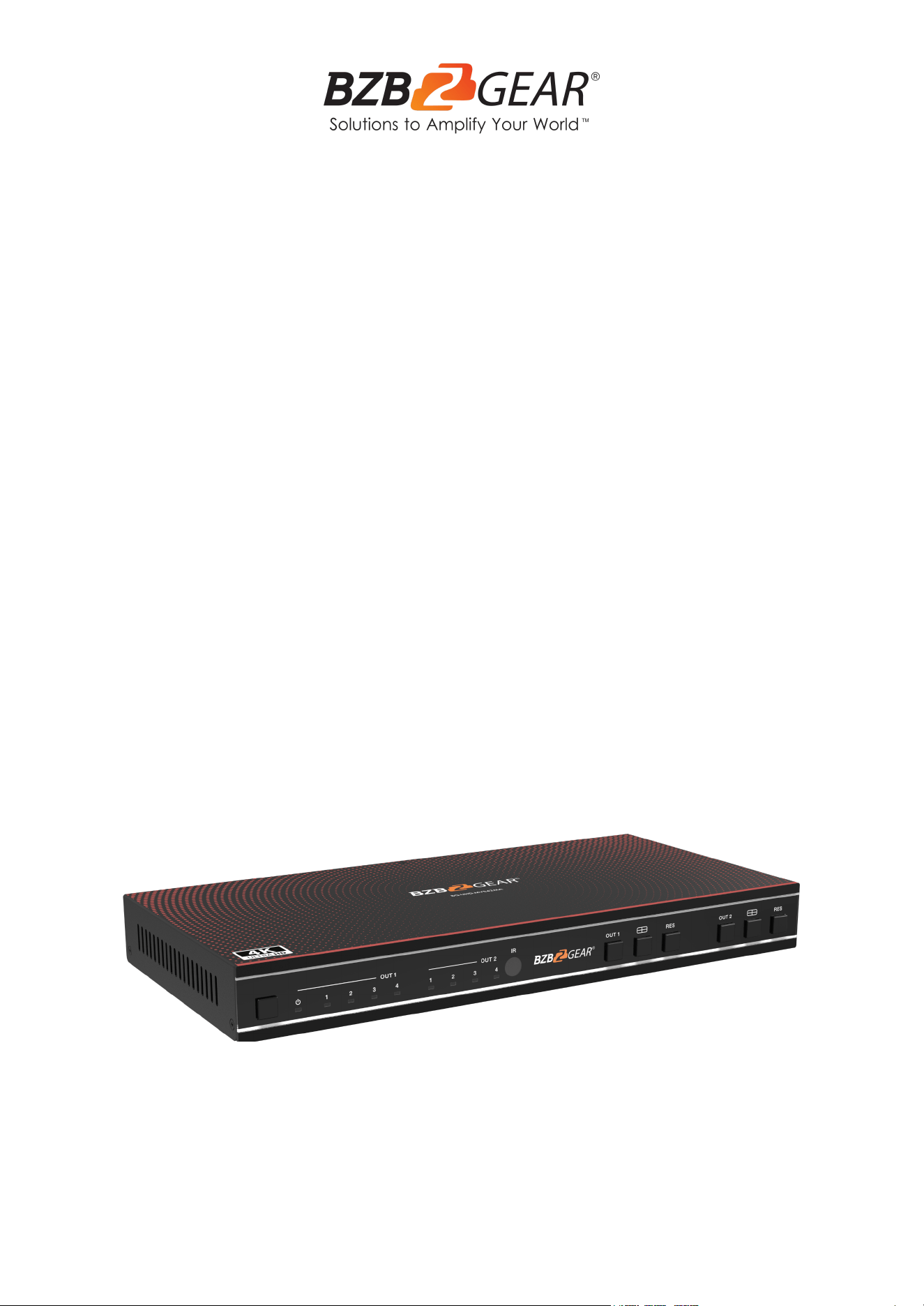
BG-UHD-MVS42MA
4K60 4x2 Multiviewer Seamless UHD Video Matrix Switcher
User Manual
BZBGEAR BG-UHD-MVS42MA PRODUCT MANUAL
Address: 830 National Drive #140, Sacramento, CA 95834, USA · Tel: +1(888)499-9906 · Email: support@bzbgear.com 2

BZBGEAR BG-UHD-MVS42MA PRODUCT MANUAL
TABLE OF CONTENTS
Statement 4
Safety Precaution 4
Introduction 5
Features 5
Packing List 5
Specifications 6
Operation Controls and Functions 7
IR Remote 9
EDID Settings 10
Video & Audio 10
Multiview 11
OSD Menu Navigation 11
RS-232 Command 13
Multiviewer Control Software - General Settings 20
Multiviewer Control Software - Output Settings 21
Multiviewer Control Software - System Settings 23
Application Diagram 24
Tech Support 25
Limited Product Warranty Terms 25
Mission Statement 26
Copyright 26
Address: 830 National Drive #140, Sacramento, CA 95834, USA · Tel: +1(888)499-9906 · Email: support@bzbgear.com 3
BZBGEAR BG-UHD-MVS42MA PRODUCT MANUAL
Statement
Please read these instructions carefully before connecting, operating, or configuring this
product. Please save this manual for future reference.
Safety Precaution
● To prevent damaging this product, avoid heavy pressure, strong vibration, or immersion
during transportation, storage, and installation.
● The housing of this product is made of organic materials. Do not expose to any liquid,
gas, or solids which may corrode the shell.
● Do not expose the product to rain or moisture.
● To prevent the risk of electric shock, do not open the case. Installation and maintenance
should only be carried out by qualified technicians.
● Do not use the product beyond the specified temperature, humidity, or power supply
specifications.
● This product does not contain parts that can be maintained or repaired by users.
Damage caused by dismantling the product without authorization from BZBGEAR is not
covered under the warranty policy.
● Installation and use of this product must strictly comply with local electrical safety
standards.
Address: 830 National Drive #140, Sacramento, CA 95834, USA · Tel: +1(888)499-9906 · Email: support@bzbgear.com 4

BZBGEAR BG-UHD-MVS42MA PRODUCT MANUAL
Introduction
The BG-UHD-MVS42MA is a 4x2 multiviewer and seamless UHD video matrix switcher that
was developed for the purpose of supporting higher output resolution such as 4K@60 to
display multiple sources on two screens. It can accept 4 HDMI inputs and combine the
video signals onto two HDMI UHD or HD displays independently.
Users can manage each input and create combinations of the four inputs on two displays
as well as adjust the position of the inputs. The BG-UHD-MVS42MA supports 8 display
modes and users can freely switch 4-channel HD input signals. This product supports a full
range of input video resolutions up to 4K@60 as well as audio de-embedding via RCA or
S/PDIF optical for external audio distribution systems.
This Matrix Switcher can be controlled via front panel buttons, IR remote, or RS-232
commands.
Features
● HDMI 2.0b, HDCP 2.2 and HDCP 1.x compliant
● 18Gbps uncompressed Bandwidth
● Input and output resolution up to 4K2K@60 4:4:4
● HDMI audio formats support LPCM, DD+, DTS, Dolby TrueHD, DTS HD-master
pass-through
● Seamless switching between input channels
● Combined multiple images or independent layouts to display on two UHD TVs
● Up to 8 display modes: Single, PIP, PBP(1), PBP(2), Triple(1), Triple(2), Quad(1),
Quad(2)
● Audio de-embedding via analog and optical fiber audio ports
● Control via front panel buttons, IR remote, RS-232 commands
● Output scaling
● Independent audio selection
● Advanced EDID management
● Compact design for easy and flexible installation
Packing List
● 1x 4K60 4x2 UHD Video Matrix Switcher
● 1x IR Remote
● 1x 3 pin-3.81mm Phoenix Connector (male)
● 1x 38KHz IR Receiver Cable (1.5m)
● 2x Mounting Ears
● 4x Machine Screws (KM3*4)
● 1x 12V/2.5A Power Adapter
● 1x User Manual
Address: 830 National Drive #140, Sacramento, CA 95834, USA · Tel: +1(888)499-9906 · Email: support@bzbgear.com 5
BZBGEAR BG-UHD-MVS42MA PRODUCT MANUAL
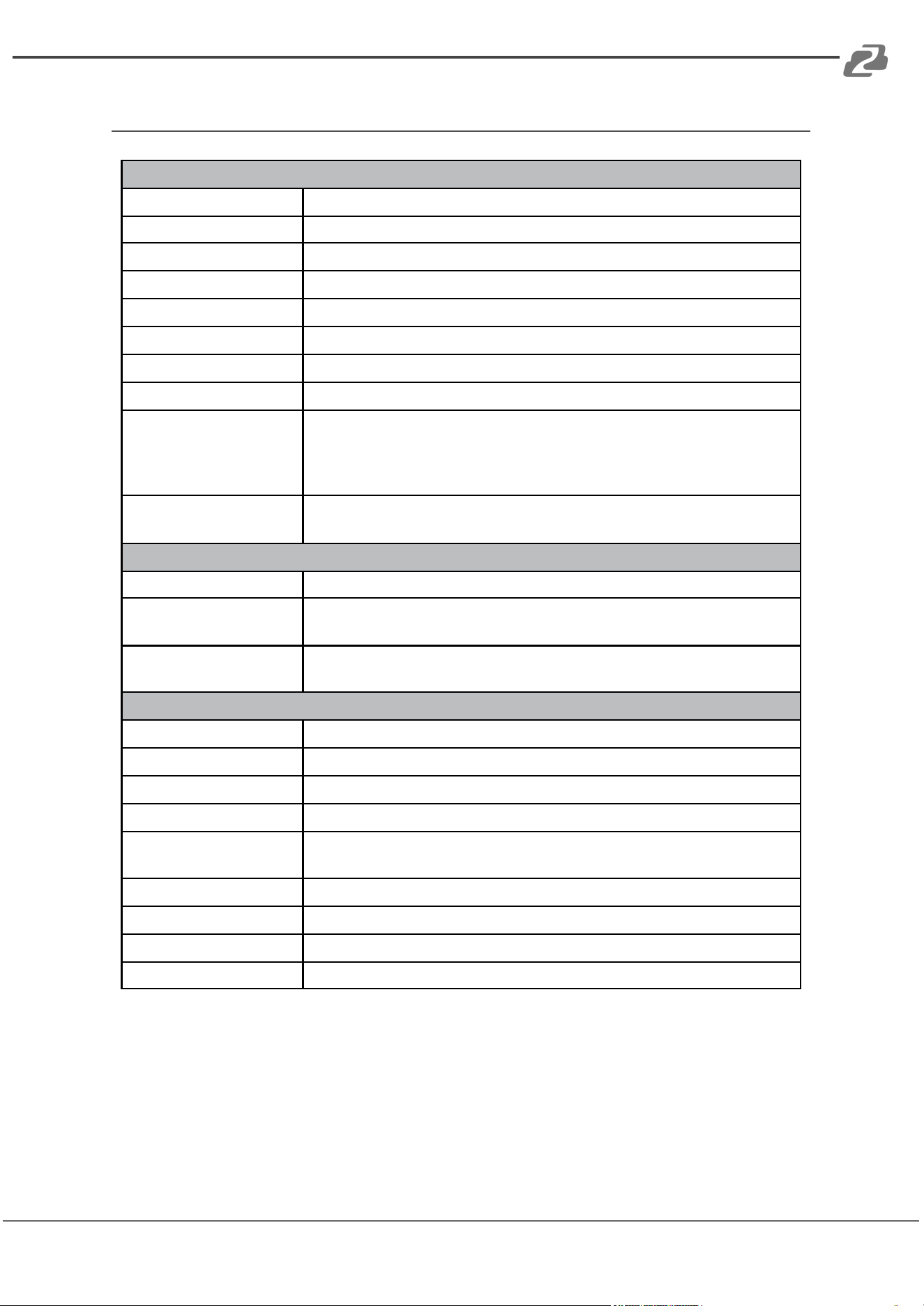
Specifications
Technical
HDMI Compliance
HDMI 2.0b
HDCP Compliance
HDCP 2.2 / 1.x
Video Bandwidth
18Gbps
Video Resolution
Up to 4K2K@60 4:4:4
IR Level
5Vp-p
IR Frequency
38KHz
Color Space
RGB, YCbCr 4:4:4, YCbCr 4:2:2, YCbCr 4:2:0
Color Depth
8/10/12-bit
Audio Formats
HDMI audio: PCM2.0/5.1/7.1CH, Dolby Digital/Plus/EX, Dolby True
HD, DTS, DTS-EX, DTS-96/24, DTS High Res, DTS-HD Master Audio
Analog audio [3.5mm L/R]: PCM2.0
Optical fiber audio: PCM2.0/5.1/7.1CH, Dolby Digital/plus, DTS 5.1
ESD Protection
Human body model — ±8kV (Air-gap discharge) & ±4kV (Contact
discharge)
Connection
Input ports
4 x HDMI IN [Type A, 19-pin female]
Output ports
2 x HDMI OUT [Type A, 19-pin female] 2 x L/R OUTPUT [RCA]
2 x OPTICAL OUTPUT [S/PDIF]
Control ports
1 x RS-232 [3 pin-3.81mm phoenix connector] 1 x IR EXT
[3.5mm Stereo Mini-jack]
Mechanical
Housing
Metal Enclosure
Color
Black
Dimensions
11”(W) x 5.1"(D) x 1.2”(H) [270mm(W) x 130mm(D) x 30mm(H)]
Weight
2 lbs [906g]
Power Supply
Input: AC 100 - 240V 50/60Hz
Output: DC 12V/2.5A (US/EU standard, CE/FCC/UL certified)
Power Consumption
15.72W (Max)
Operating Temperature
32 - 104°F / 0 - 40°C
Storage Temperature
-4 - 140°F / -20 - 60°C
Relative Humidity
20 - 90% RH (no-condensing)
Address: 830 National Drive #140, Sacramento, CA 95834, USA · Tel: +1(888)499-9906 · Email: support@bzbgear.com 6
BZBGEAR BG-UHD-MVS42MA PRODUCT MANUAL
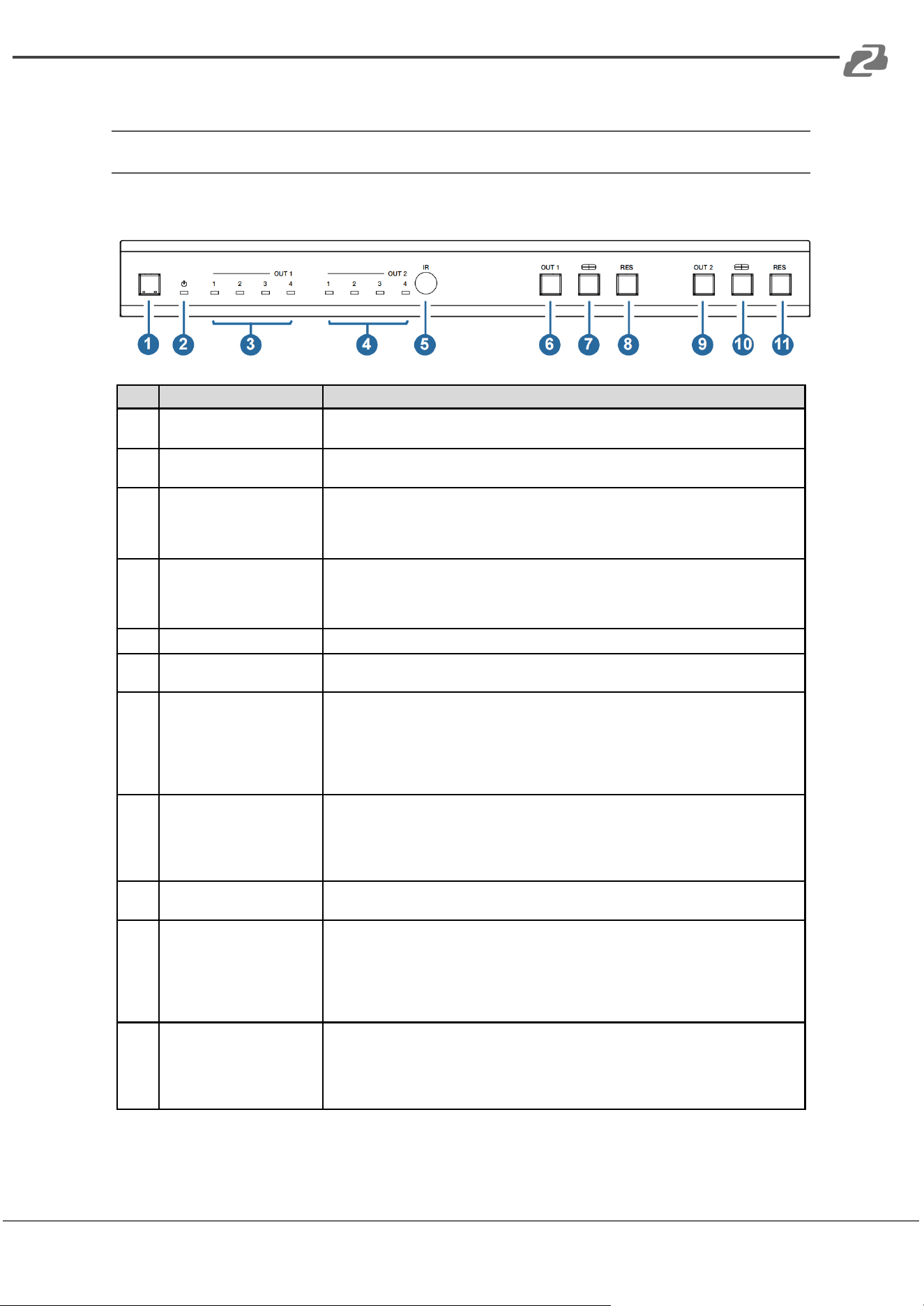
Operation Controls and Functions
Front Panel
No.
Name
Function Description
1
Power button
▪Short press this button to power on the device.
▪Long press this button for 1 second to enter the standby mode.
2
Power LED
The Power LED will illuminate green when the product is powered on and red
when the product is in standby.
3
OUT 1 LEDs
Signal source indicator for HDMI OUT 1 port.
In single screen display mode when the HDMI OUT 1 port outputs a signal from one
of the HD 1/2/3/4 inputs the corresponding green LED will illuminate.
In multiview mode all OUT 1 LEDs will illuminate green.
4
OUT 2 LEDs
Signal source indicator for HDMI OUT 2 port.
In single screen display mode when the HDMI OUT 2 port outputs a signal from one
of the HD 1/2/3/4 inputs the corresponding green LED will illuminate.
In multiview mode all OUT 2 LEDs will illuminate green.
5
IR Window
IR signal receiving window.
6
OUT 1 button
Input source switching button for the HDMI OUT 1 port which is only available on
single screen display modes.
7
OUT 1 Multiview button
Multiview display mode switching button for the HDMI OUT 1 port.
▪ Short press this button to cycle select:
Single-PIP-PBP(1)-PBP(2)-Triple(1)-Triple(2)-Quad(1)-Quad(2)-single.
▪ Long press this button for 3 seconds to switch the aspect ratio
(16:9/Full) for PBP (1) / PBP (2) / Triple (1) / Triple (2) / Quad (1)
/ Quad (2).
8
OUT 1 RES button
Output resolution switching button for the HDMI OUT 1 port.
▪ Short press the RES button to cycle switch the output resolution of the HDMI
OUT 1 port (Please refer to the output resolution list of “Video & Audio”).
▪ Long press the RES button for 3 seconds to switch the output resolution to
720P60.
9
OUT 2 button
Input source switching button for the HDMI OUT 2 port which is only available on
single screen display modes.
10
OUT 2 Multiview button
Multiview display mode switching button for the HDMI OUT 2 port.
▪ Short press this button to cycle select:
Single-PIP-PBP(1)-PBP(2)-Triple(1)-Triple(2)-Quad(1)-Quad(2)-single.
▪ Long press this button for 3 seconds to switch the aspect ratio
(16:9/Full) for PBP (1) / PBP (2) / Triple (1) / Triple (2) / Quad (1)
/ Quad (2).
11
OUT 2 RES button
Output resolution switching button for the HDMI OUT 2 port.
▪ Short press the RES button to cycle switch the output resolution of the HDMI
OUT 2 port (Please refer to the output resolution list of “8. Video & Audio”).
▪ Long press the RES button for 3 seconds to switch the output resolution to
720P60.
Address: 830 National Drive #140, Sacramento, CA 95834, USA · Tel: +1(888)499-9906 · Email: support@bzbgear.com 7
BZBGEAR BG-UHD-MVS42MA PRODUCT MANUAL
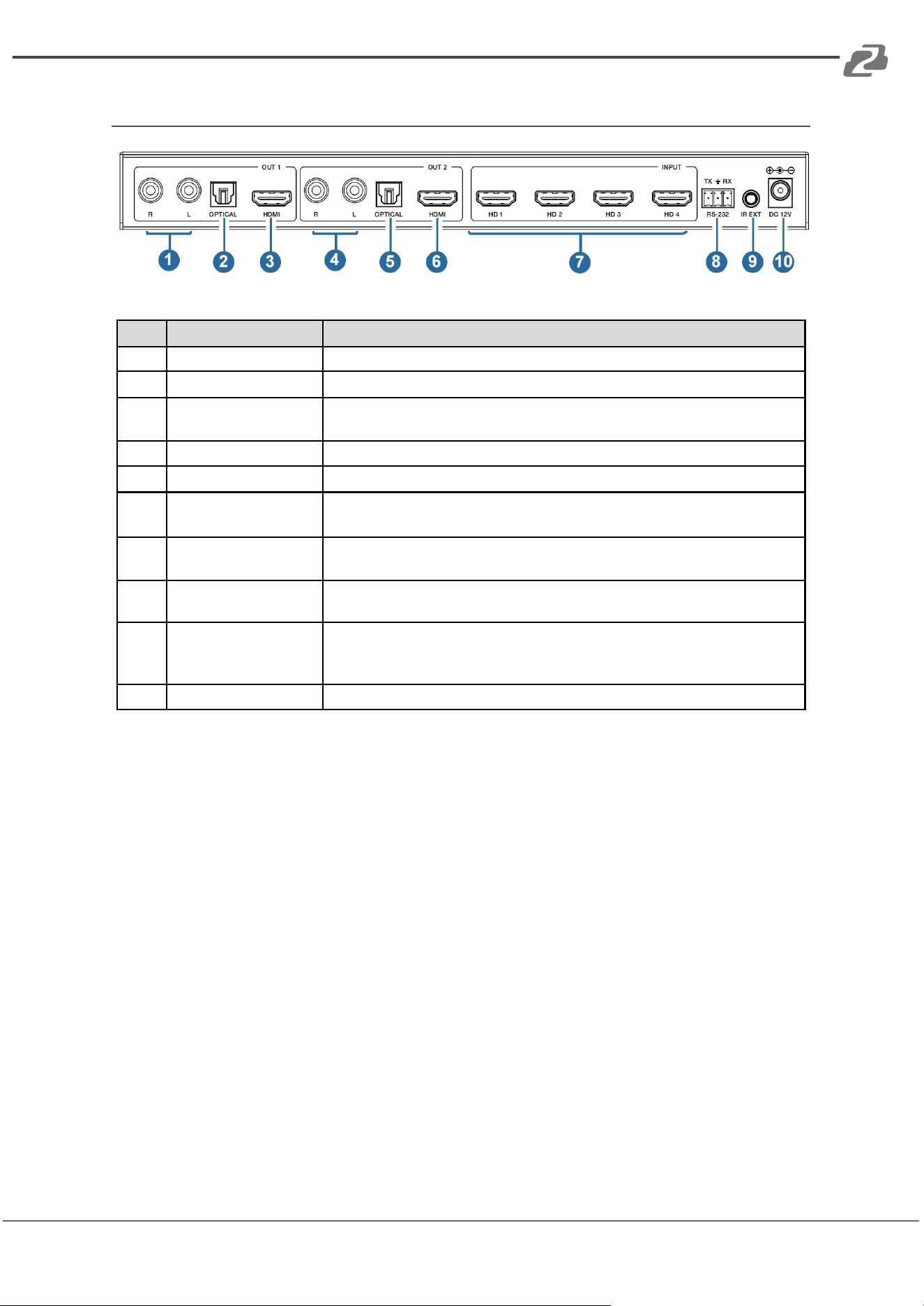
Rear Panel
No.
Name
Function Description
1
L/R OUT 1
PCM 2.0 Analog audio output port.
2
OPTICAL OUT 1
Optical fiber digital audio output port.
3
HDMI OUT 1
Connect to an HDMI display device such as a TV or Monitor with HDMI
cables.
4
L/R OUT 2
PCM 2.0 Analog audio output port.
5
OPTICAL OUT 2
Optical fiber digital audio output port.
6
HDMI OUT 2
Connect to an HDMI display device such as a TV or Monitor with HDMI
cables.
7
HD 1-4
INPUT ports
Connect to an HDMI source device such as Game Console or Set-top box
with HDMI cables.
8
RS-232 port
3-pin phoenix connector, connected to a PC or control system for serial port
upgrade or RS-232 command control.
9
IR EXT port
If the IR signal receiving window of the unit is blocked or the unit is installed
in a closed area out of infrared line of sight, the IR receiver cable can be
inserted to the “IR EXT” port to receive the IR remote signal.
10
DC 12V
DC 12V/2.5A power input port.
Address: 830 National Drive #140, Sacramento, CA 95834, USA · Tel: +1(888)499-9906 · Email: support@bzbgear.com 8
BZBGEAR BG-UHD-MVS42MA PRODUCT MANUAL
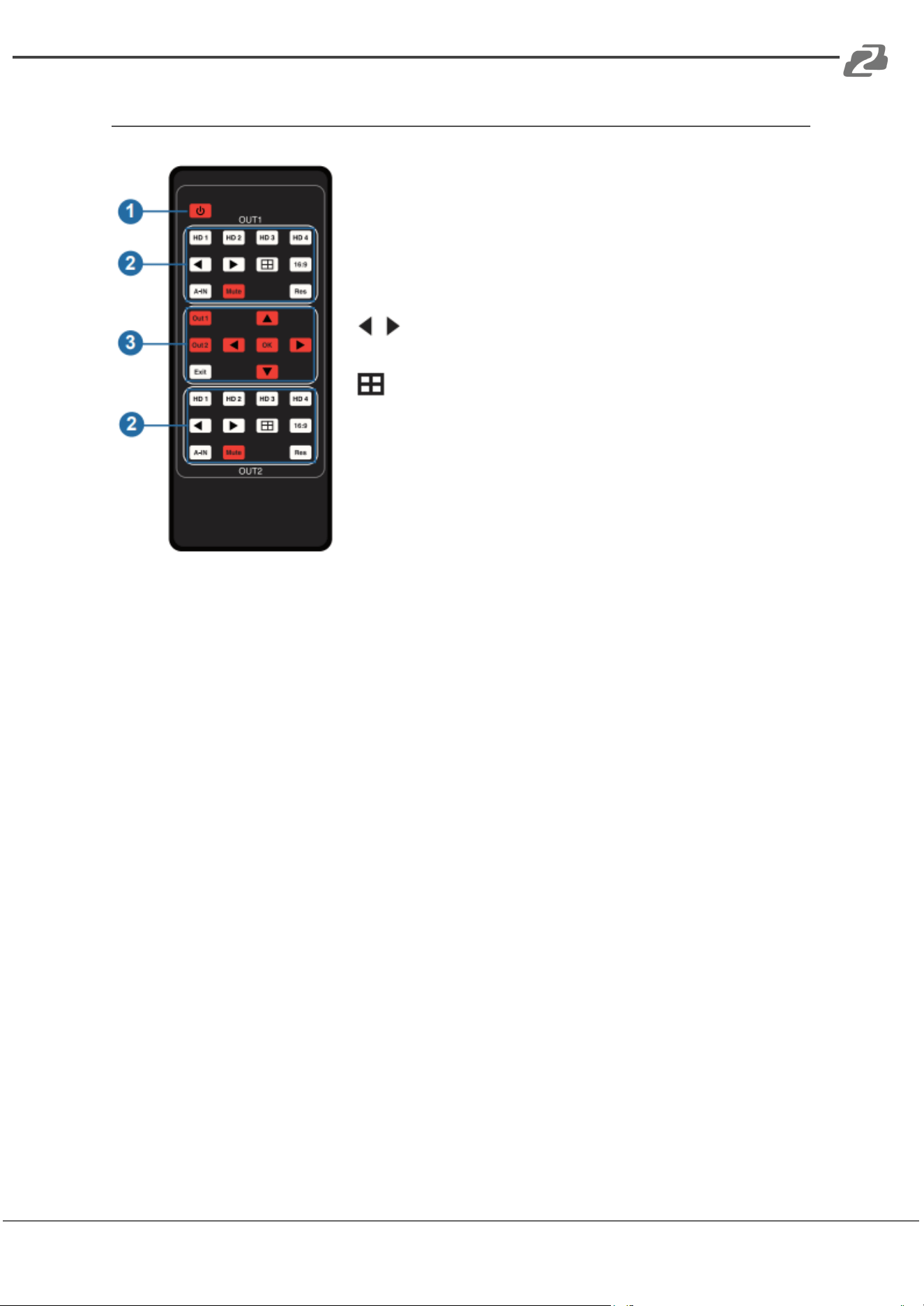
IR Remote
1. Power button: Press this button to power on the
switcher or set it to standby mode.
2. OUT 1/OUT 2 buttons:
HD 1/2/3/4: Press these buttons to select an input source
on single screen display mode, and the corresponding input
LED on the front panel will illuminate green.
: Press these buttons to cycle select the last or next
input source on single screen display mode.
: Multiview display mode switching button.
▪ Short press this button to circularly select: SINGLE - PIP -
PBP(1) - PBP (2) - Triple (1) - Triple (2) - Quad (1) - Quad (2).
16:9 : Press this button to switch the aspect ratio (16:9/Full)
for PBP (1) / PBP (2) / Triple (1) / Triple (2) / Quad (1) / Quad
(2) display mode.
A-IN: Press this button to pop up the audio channel
selection OSD, then press the UP / DOWN button to select
the audio output channel. (The output audio follows the video source by default.)
Mute: Press this button to mute / unmute the audio.
RES: Output resolution switching button.
● Short press the RES button to cycle switch the output resolution of the HDMI OUT 1
or 2 ports (Please refer to the output resolution list of “Video & Audio”).
● Long press the RES button for 3 seconds to switch the output resolution to 720P60.
3. Out 1: Press this button to enter the OSD menu of the HDMI OUT 1 port and set the
corresponding function by pressing UP/DOWN/LEFT/RIGHT OK button.
Out 2: Press this button to enter the OSD menu of the HDMI OUT 2 port and set the
corresponding function by pressing UP/DOWN/LEFT/RIGHT OK button.
Exit: Press this button to exit the OSD settings layer by layer.
Address: 830 National Drive #140, Sacramento, CA 95834, USA · Tel: +1(888)499-9906 · Email: support@bzbgear.com 9
BZBGEAR BG-UHD-MVS42MA PRODUCT MANUAL
EDID Settings
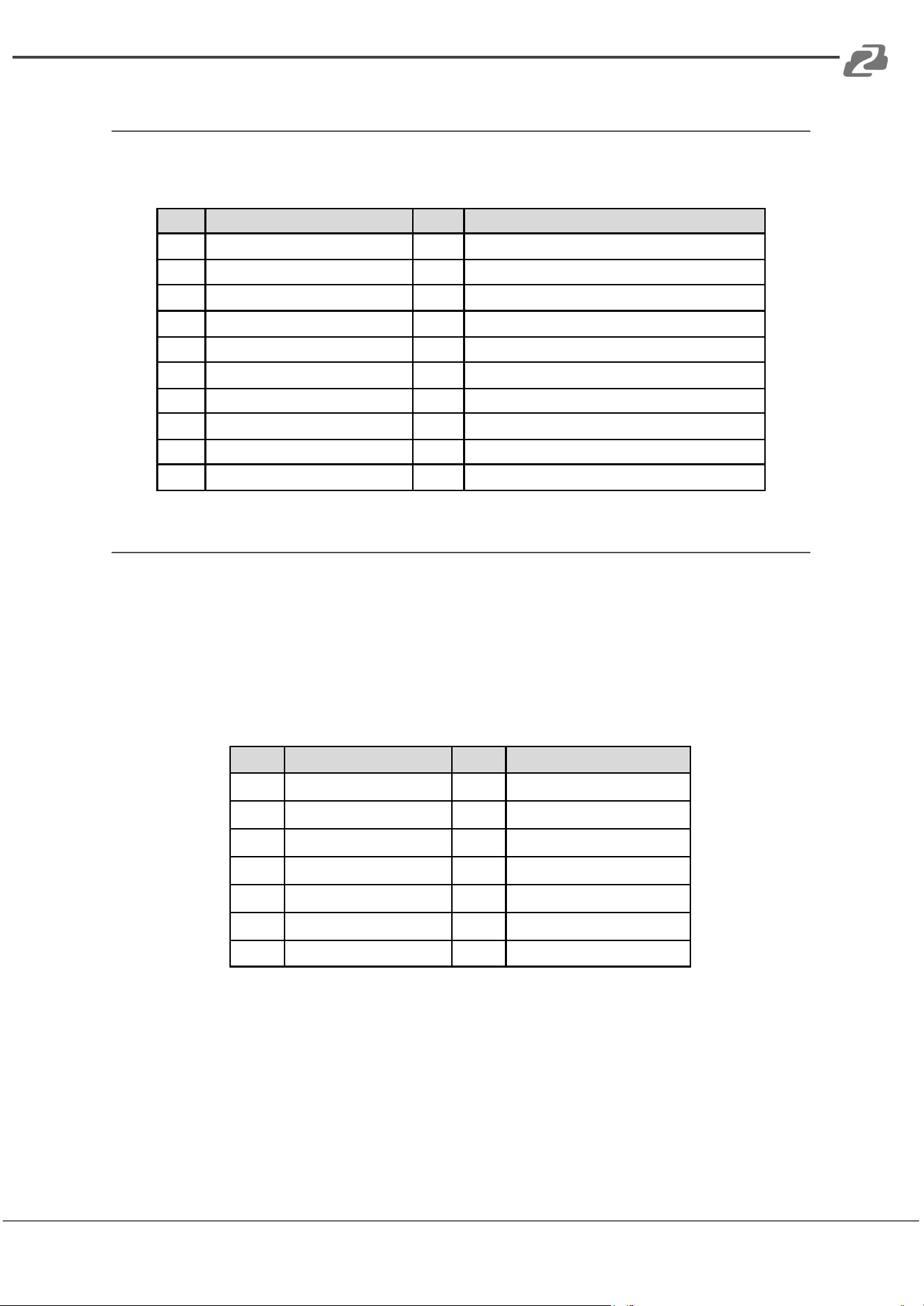
Users can select following EDID modes via RS-232 commands or OSD menu navigation.
No.
EDID Mode
No.
EDID Mode
1
4K2K60_444, Stereo Audio 2.0
11
1680x1050,Stereo Audio 2.0
2
4K2K60_444, Dolby/DTS 5.1
12
1600x1200,Stereo Audio 2.0
3
4K2K60_444, HD Audio 7.1
13
1440x900,Stereo Audio 2.0
4
4K2K30_444, Stereo Audio 2.0
14
1360x768, Stereo Audio 2.0
5
4K2K30_444, Dolby/DTS 5.1
15
1280x1024,Stereo Audio 2.0
6
4K2K30_444, HD Audio 7.1
16
1024x768, Stereo Audio 2.0
7
1080P, Stereo Audio 2.0
17
720p,Stereo Audio 2.0
8
1080P, Dolby/DTS 5.1
18
AUTO
9
1080P, HD Audio 7.1
19
USER1
10
1920x1200,Stereo Audio 2.0
Video & Audio
The BG-UHD-MVS42MA supports multiple video input resolutions up to 3840x2160@60
and supports multiple audio formats (PCM2.0/5.1/7.1CH, Dolby Digital/Plus/ EX, Dolby True
HD, DTS, DTS-EX, DTS-96/24, DTS High Res, DTS-HD Master Audio) pass-through
functionality via HDMI cables.
The unit supports following video output resolutions:
No.
Output Resolution
No.
Output Resolution
1
4096x2160p 60Hz
8
1920x1080p 60Hz
2
4096x2160p 50Hz
9
1920x1080p 50Hz
3
3840x2160p 60Hz
10
1360x768p 60Hz
4
3840x2160p 50Hz
11
1280x800p 60Hz
5
3840x2160p 30Hz
12
1280x720p 60Hz
6
3840x2160p 25Hz
13
1280x720p 50Hz
7
1920x1200p 60Hz RB
14
1024x768 60Hz
Address: 830 National Drive #140, Sacramento, CA 95834, USA · Tel: +1(888)499-9906 · Email: support@bzbgear.com 10
BZBGEAR BG-UHD-MVS42MA PRODUCT MANUAL
Multiview
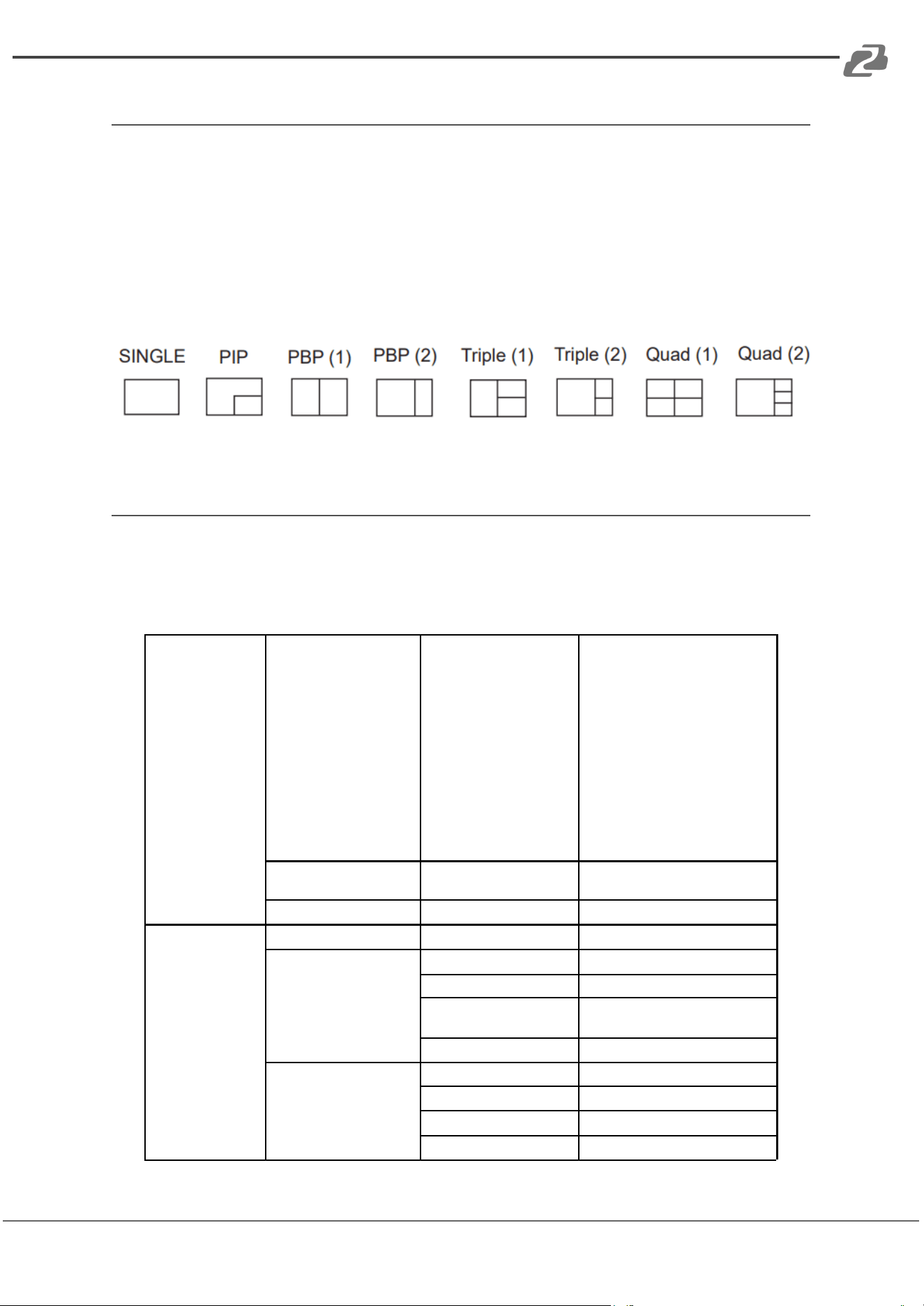
The switcher supports 8 multiview display modes: SINGLE, PIP, PBP (1), PBP (2),
Triple (1), Triple (2), Quad (1), Quad (2)
Users can select different operations for different Multiview modes as follows:
SINGLE: Inputs selectionPIP: Inputs selection, Sub window size and position selection
PBP (1), PBP (2), Triple (1), Triple (2), Quad (1), Quad (2): Inputs selection, Display mode
selection, Display aspect selection
Multiview window distributions are as follows:
User can select Multiview modes via RS-232 commands or OSD menu navigation.
OSD Menu Navigation
1. A total of seven buttons on the IR Remote are used for OSD menu navigation, including
MENU, EXIT, UP, DOWN, LEFT, RIGHT, OK.
Menu contents are as follows:
Output
Resolution
3840x2160p60
4096x2160p 60Hz/
4096x2160p 50Hz/
3840x2160p 60Hz/
3840x2160p 50Hz/
3840x2160p 30Hz/
3840x2160p 25Hz/
1920x1200p60Hz RB/
1920x1080p 60Hz/
1920x1080p 50Hz/
1360x768p 60Hz/
1280x800p 60Hz/
1280x720p 60Hz/
1280x720p 50Hz/
1024x768 60Hz
VKA
BLACKSCREEN
BLACKSCREEN,
BLUESCREEN
ITC
OFF
ON,OFF
Multiview
Single
Input select
HDMI1,HDMI2,HDMI3,HDMI4
PIP
Win1 Select
HDMI1,HDMI2,HDMI3,HDMI4
Win2 Select
HDMI1,HDMI2,HDMI3,HDMI4
PIP Position
Right Bottom,Right Top, Left
Bottom,Left Top
PIP Size
Small,Middle,Large
PBP
Win1 Select
HDMI1,HDMI2,HDMI3,HDMI4
Win2 Select
HDMI1,HDMI2,HDMI3,HDMI4
MODE
1, 2
Aspect
Full, 16:9
Address: 830 National Drive #140, Sacramento, CA 95834, USA · Tel: +1(888)499-9906 · Email: support@bzbgear.com 11
BZBGEAR BG-UHD-MVS42MA PRODUCT MANUAL
Multiview
3xWIN
Win1 Select
HDMI1,HDMI2,HDMI3,HDMI4
Win2 Select
HDMI1,HDMI2,HDMI3,HDMI4
Win3 Select
HDMI1,HDMI2,HDMI3,HDMI4
MODE
1, 2
Aspect
Full, 16:9
4xWIN
Win1 Select
HDMI1,HDMI2,HDMI3,HDMI4
Win2 Select
HDMI1,HDMI2,HDMI3,HDMI4
Win3 Select
HDMI1,HDMI2,HDMI3,HDMI4
Win4 Select
HDMI1,HDMI2,HDMI3,HDMI4
MODE
1, 2
Aspect
Full,16:9
AUDIO
Audio Select
WIN1
WIN1,HDMI1,HDMI2,HDMI3, HDMI4
AUDIO-MUTE
OFF
ON, OFF
System
Language/语言
中文
English, 中文
EDID
4K60-2.0
4K60-2.0,4K60-5.1CH,
4K60-7.1CH,4K30-2.0CH,
4K30-5.1CH,4K30-7.1CH,
1080P-2.0CH,1080P-5.1CH,
1080P-7.1CH,1920x1200-
2.0CH,1680x1050-2.0CH,
1600x1200-2.0CH,1440x900
-2.0CH, 1360x768-2.0CH,
1280x1024-2.0CH, 1024x
768-2.0CH,720P-2.0CH, AUTO
Baud rate
115200
115200,57600,38400,
19200,9600
Reset
Reset
Reset
FW Version
Read only
2. A total of two buttons on the IR Remote are used for audio setting on OSD menu
navigation, including A-IN, Mute.
Menu contents are as follows:
A-IN
Audio Input
WIN1
WIN1,HDMI1,HDMI2,HDMI3, HDMI4
Mute
Audio Mute
OFF
ON, OFF
Address: 830 National Drive #140, Sacramento, CA 95834, USA · Tel: +1(888)499-9906 · Email: support@bzbgear.com 12
BZBGEAR BG-UHD-MVS42MA PRODUCT MANUAL
RS-232 Command
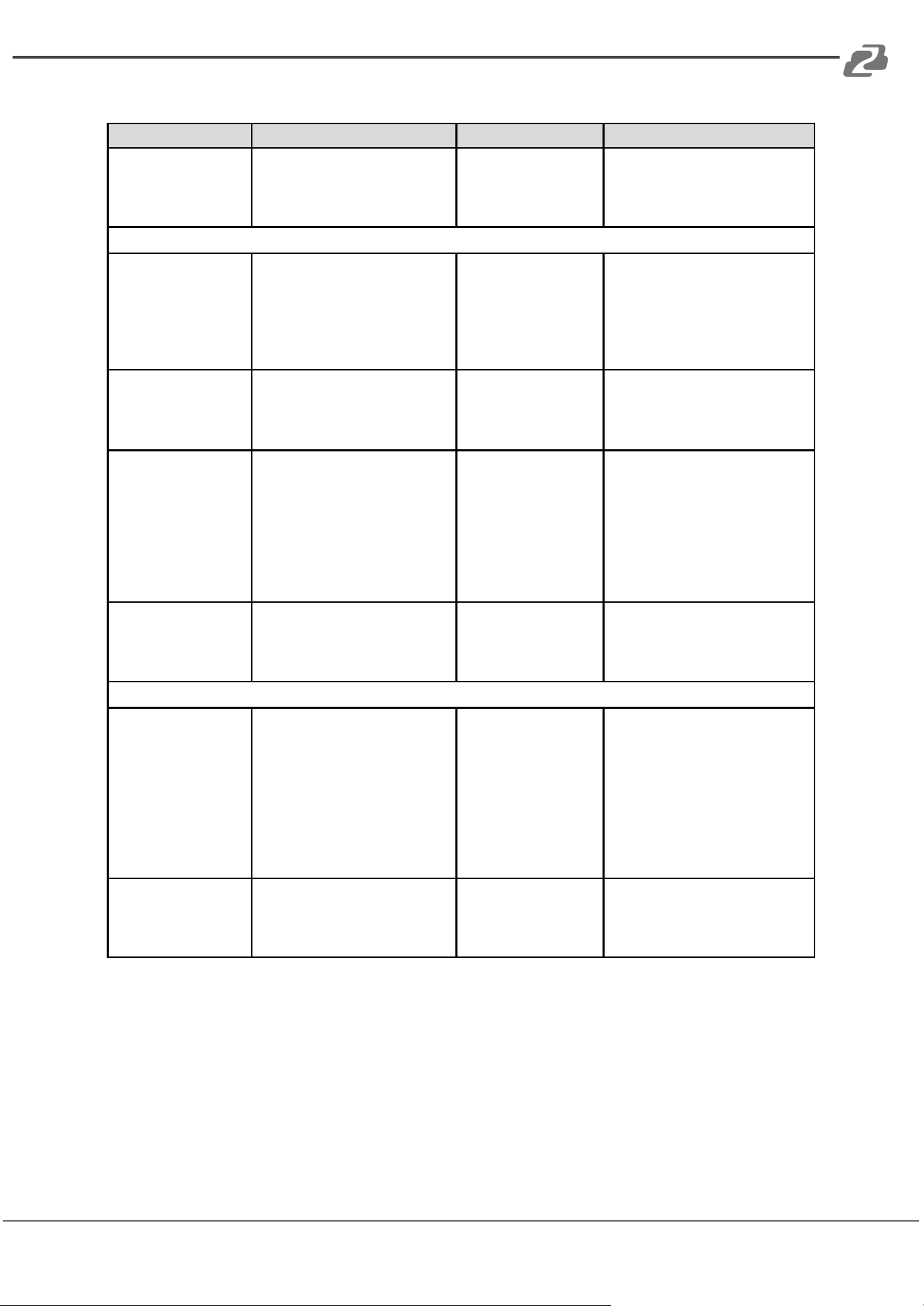
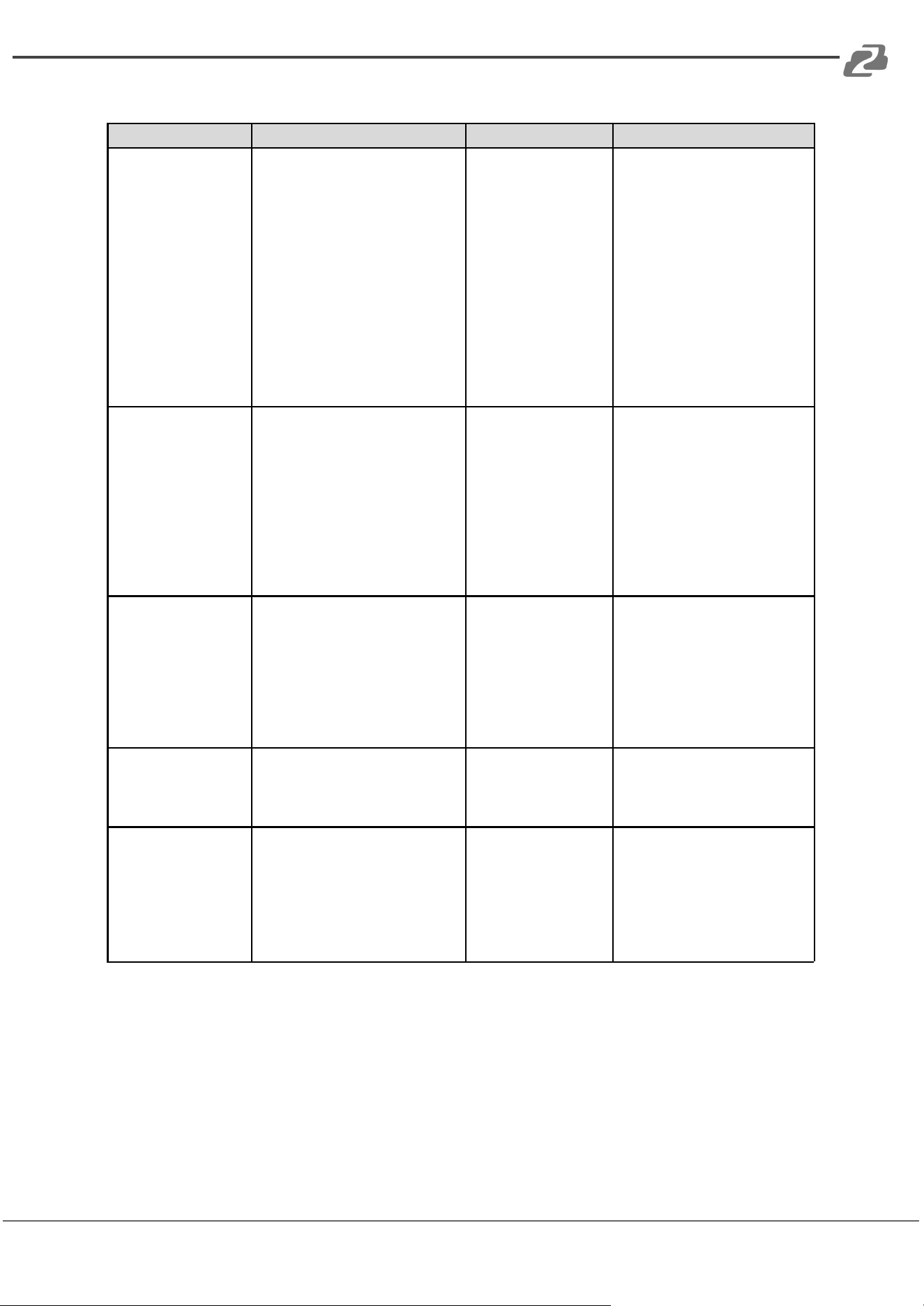
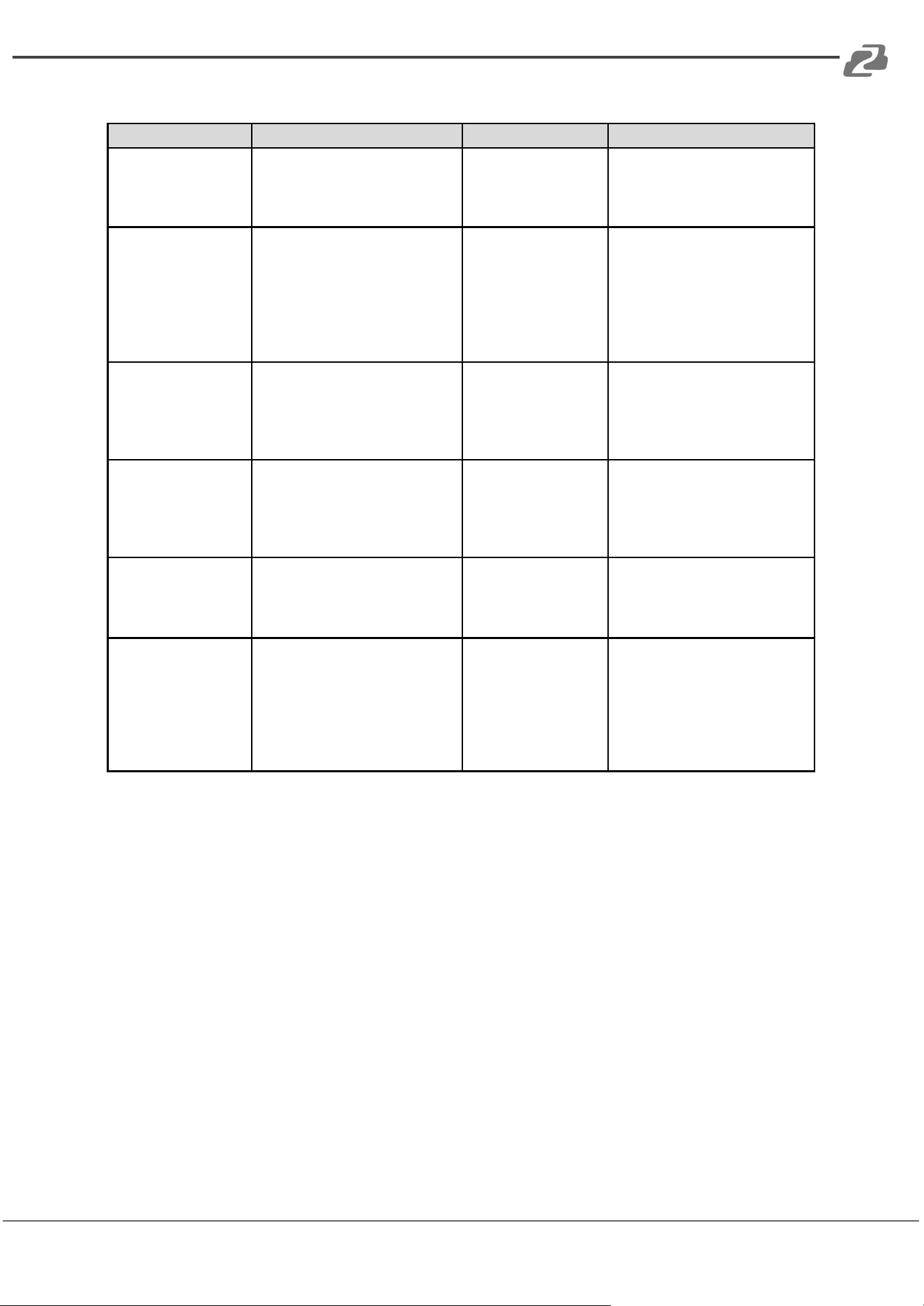
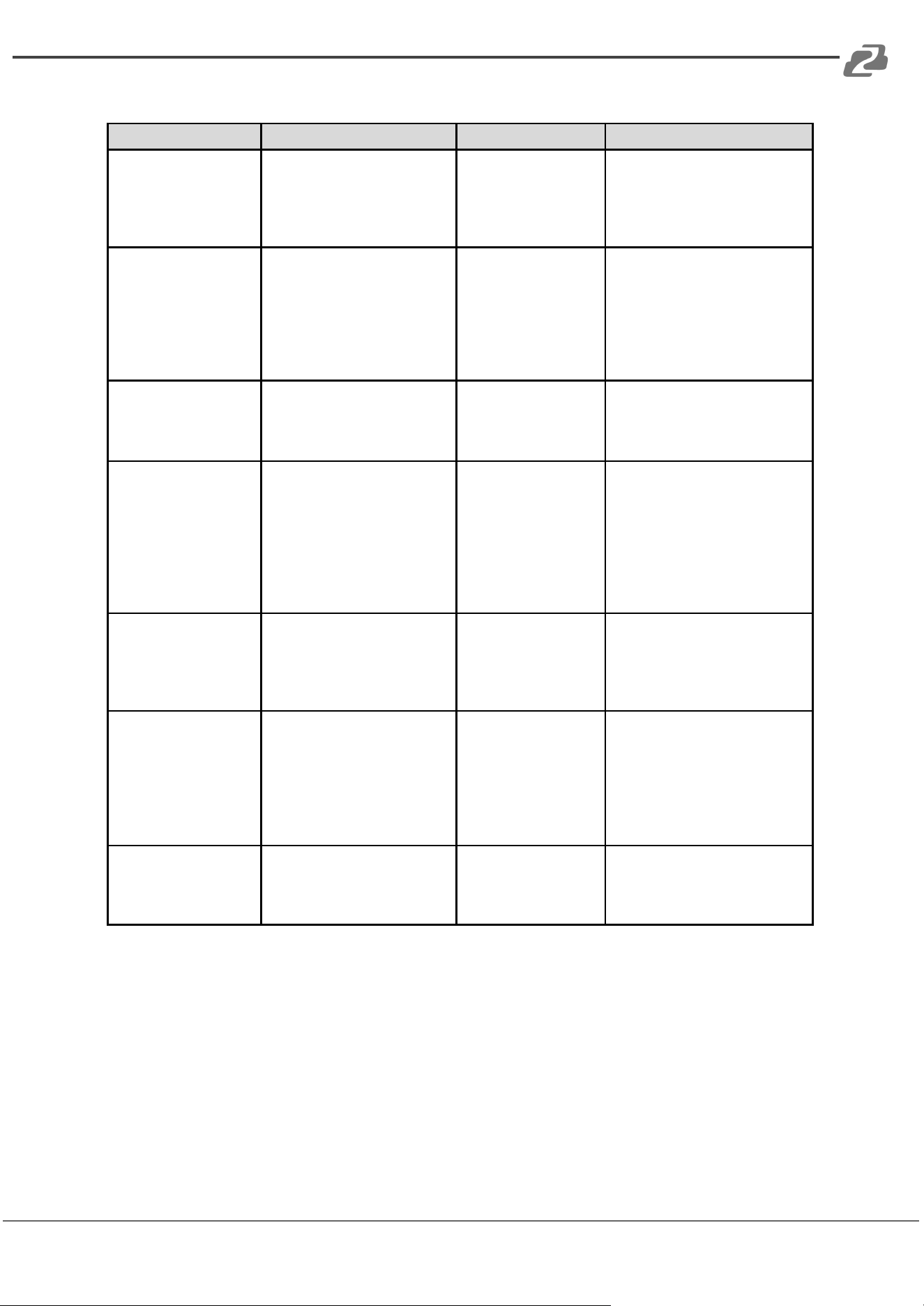
The BG-UHD-MVS42MA supports RS-232control commands. Connect the RS-232 port of
the product to a PC with a 3-pin phoenix connector cable. Then open a Serial Command
tool on PC to send ASCII commands to control the product.
The ASCII command list about the product is shown as below.
ASCII Commands
Serial port protocol: baud rate: 115200 (default) Data bits: 8 Stop bits: 1 Check bit: 0
x - Parameter 1; y - Parameter 2; ! - Delimiter
Command Code
Function Description
Example
Feedback
System Setting
help!
List all commands
help!
r type!
Get device model
r type!
4x2 HDMI Multiviewer
r fw version!
Get Firmware version
r fw version!
MCU FW version x.xx.xx SCALER
FW version x.xx.xx
power z!
Power on/off the device,z=0~1 (z=0
power off, z=1 power on)
power 1!
power on
System Initializing... Initialization
Finished! MCU FW version
x.xx.xx
SCALER FW version x.xx.xx
r power!
Get current power state
r power!
power on/power off
reboot!
Reboot the device
reboot!
Reboot…
System Initializing... Initialization
Finished! MCU FW version
x.xx.xx
SCALER FW version x.xx.xx
reset!
Reset to factory defaults
reset!
Reset to factory defaults
System Initializing... Initialization
Finished! MCU FW version
x.xx.xx
SCALER FW version x.xx.xx
Address: 830 National Drive #140, Sacramento, CA 95834, USA · Tel: +1(888)499-9906 · Email: support@bzbgear.com 13
BZBGEAR BG-UHD-MVS42MA PRODUCT MANUAL
Command Code
Function Description
Example
Feedback
Output Setting
s output y res x!
Set Output y Resolution
(y=1~2, x=1~14)
y=1. output 1
y=2. output 2
1. 4096x2160p60,
2. 4096x2160p50,
3. 3840x2160p60,
4. 3840x2160p50,
5. 3840x2160p30,
6. 3840x2160p25,
7. 1920x1200p60RB,
8. 1920x1080p60,
9. 1920x1080p50,
10.1360x768p60,
11.1280x800p60,
12.1280x720p60,
13.1280x720p50,
14. 1024x768p60,
s output 1 res 3!
output 1 resolution: 3840x2160p60
r output y res!
Get output y resolution(y=1~2)
1. output 1
2. output 2
r output res!
output 1 resolution: 3840x2160p60
s output hdcp x!
set output hdcp(y=1~2, x=1~3) y=1.
output 1
y=2. output 2
x=1. HDCP 1.4
x=2. HDCP 2.2 x=3.
HDCP OFF
s output 1 hdcp 2!
output 1 HDCP: HDCP 1.4
r output y hdcp!
Get output y hdcp status.(y=1~2)
1. output 1
2. output 2
r output 1 hdcp!
output 1 HDCP: HDCP 1.4
s output y vka x!
Set output video keep active
pattern.(y=1~2, x=1~2)
y=1. output 1
y=2. output 2 x=1. black
screen x=2. blue screen
s output 1 vka 1!
output 1 VKA pattern: black screen
r output y vka!
Get output y video keep active
pattern.(y=1~2)
1. output 1
2. output 2
r output 1 vka!
output 1 VKA pattern: black screen
s output y itc x!
Set output video mode (y=1~2,
x=1~2)
y=1. output 1
y=2. output 2 x=1: video
mode x=2: pc mode
s output 1 itc 1!
output 1 ITC: video mode
r output y itc!
Get output video mode(y=1~2)
1. output 1
2. output 2
r output 1 itc!
output 1 ITC: video mode
Address: 830 National Drive #140, Sacramento, CA 95834, USA · Tel: +1(888)499-9906 · Email: support@bzbgear.com 14
BZBGEAR BG-UHD-MVS42MA PRODUCT MANUAL
Command Code
Function Description
Example
Feedback
EDID Setting
s input EDID x!
Set HDMI input EDID mode
(x=1~19)
1. 4K2K60_444,Stereo Audio 2.0
2. 4K2K60_444,Dolby/DTS 5.1
3. 4K2K60_444,HD Audio 7.1
4. 4K2K30_444,Stereo Audio 2.0
5. 4K2K30_444,Dolby/DTS 5.1
6. 4K2K30_444,HD Audio 7.1
7. 1080P,Stereo Audio 2.0
8. 1080P,Dolby/DTS 5.1
9. 1080P,HD Audio 7.1
10.1920x1200,Stereo Audio 2.0
11.1680x1050,Stereo Audio 2.0
12.1600x1200,Stereo Audio 2.0
13.1440x900,Stereo Audio 2.0
14.1360x768, Stereo Audio 2.0
15.1280x1024,Stereo Audio 2.0
16.1024x768, Stereo Audio 2.0
17.720p,Stereo Audio 2.0
18.AUTO
19. USER1
s input EDID 1!
input EDID:4K2K60_444,
Stereo Audio 2.0
r input EDID!
Get input EDID mode
r input EDID!
input EDID:4K2K60_444,
Stereo Audio 2.0
s edid user1
00 FF FF …!
Set user1 EDID data
s edid user1 00
FF FF FF FF …!
user1 EDID data: 00 FF FF ….
r edid user1!
Get user1 EDID data
r edid user1!
user1 EDID data:
00 FF FF FF FF FF FF 00 ………
Audio Setting
s output y audio x!
Set output y udio source (y=1~2,
x=0~4)
y=1. output 1
y=2. output 2
x=0. follow window 1
selected source
x=1. HDMI 1 input audio
x=2. HDMI 2 input audio
x=3. HDMI 3 input audio
x=4. HDMI 4 input audio
s output 1 audio 0!
output 1 audio follow window 1
video source
r output y audio!
Get output y audio source(y=1~2)
1. output 1
2. output 2
r output 1 audio!
output 1 audio follow window 1
video source
s output y audio mute x!
Set output audio mute on/off
(x=0~1, y=1~2)
y=1. output 1
y=2. output 2 x=0.
mute off x=1. mute
on
s output 1 audio mute 0!
output 1 audio mute off
Address: 830 National Drive #140, Sacramento, CA 95834, USA · Tel: +1(888)499-9906 · Email: support@bzbgear.com 15
BZBGEAR BG-UHD-MVS42MA PRODUCT MANUAL
Command Code
Function Description
Example
Feedback
r output y audio mute!
Get output y audio mute on/off
(y=1~2)
1. output 1
2. output 2
r output 1 audio mute!
output 1 audio mute off
Single Screen Mode Setting
s output y auto switch x!
Enable/disable auto switch
feature(y=1~2,x=0~1)
y=1. output 1
y=2. output 2
0. Disable auto switch
1. Enable auto switch
s auto switch 0!
auto switch off
r output y auto switch!
Get output y auto switch feature
(y=1~2)
1. output 1
2. output 2
r auto switch!
auto switch off
s output y in source x!
Route input source to output y
(y=1~2, x=1~4)
y=1. output 1
y=2. output 2
x=1. HDMI 1
x=2. HDMI 2
x=3. HDMI 3
x=4. HDMI 4
s in source 1!
HDMI 1
r output y in source!
Get output y selected input
source(y=1~2)
1. output 1
2. output 2
r in source!
HDMI 1
Multi-viewer Mode Setting
s output y multiview x!
Set output y multi-viewer display
mode(y=1~2, x=1~5)
y=1. output 1
y=2. output 2
x=1. single screen x=2.
PIP
x=3. PBP
x=4. triple screen x=5.
quad screen
s output 1 multiview 1!
output 1 multiview: single screen
r output y multiview!
Get output y multi-viewer
display mode(y=1~2)
1. output 1
2. output 2
r output 1 multiview!
output 1 multiview: single screen
Address: 830 National Drive #140, Sacramento, CA 95834, USA · Tel: +1(888)499-9906 · Email: support@bzbgear.com 16
BZBGEAR BG-UHD-MVS42MA PRODUCT MANUAL
Command Code
Function Description
Example
Feedback
s output z window x in y!
Select output z one input for one
display window for the current
Multiview mode.
(z=1~2)
1. output 1
2. output 2 (x=1~4)
1. window 1
2. window 2
3. window 3
4. window 4 (y=1~4)
1. HDMI 1
2. HDMI 2
3. HDMI 3
4. HDMI 4
s output 1 window 1 in 1!
output 1: window 1 select HDMI 1
r output y window x in!
Get output y windows selected
input source
(y=1~2)
1. output 1
2. output 2 (x=0~4)
0. ALL
1. window 1
2. window 2
3. window 3
4. window 4
r output 1 window 1 in!
output 1 window 1 select HDMI 1
s output y PIP position
x!
Set output y PIP window position
(y=1~2)
1. output 1
2. output 2 (x=1~4)
1. Left Top
2. Left Bottom
3. Right Top
4. Right Bottom
s output 1 PIP position 3!
output 1 PIP on right top
r output y PIP position!
Get output y PIP window position
(y=1~2)
1. output 1
2. output 2
r output 1 PIP position!
output 1 PIP on right top
s output y PIP size x!
Get output y PIP window size
(y=1~2)
1. output 1
2. output 2 (x=1~3)
1. small
2. middle
3. large
s output 1 PIP size 3!
output 1 PIP size large
Address: 830 National Drive #140, Sacramento, CA 95834, USA · Tel: +1(888)499-9906 · Email: support@bzbgear.com 17
BZBGEAR BG-UHD-MVS42MA PRODUCT MANUAL
Command Code
Function Description
Example
Feedback
r output y PIP size!
Get output y PIP window size
(y=1~2)
1. output 1
2. output 2
r output 1 PIP size!
output 1 PIP size large
s output y PBP mode x!
Set output y PBP windows
display mode
(y=1~2)
1. output 1
2. output 2 (x=1~2)
1. PBP mode 1
2. PBP mode 2
s output 1 PBP mode 1!
output 1 PBP mode 1
r output y PBP mode!
Get output y PBP windows
display mode
(y=1~2)
1. output 1
2. output 2
r output 1 PBP mode!
output 1 PBP mode 1
s output y PBP aspect
x!
Set output y PBP windows
display aspect ratio (y=1~2)
1. output 1
2. output 2 (x=1~2)
1. Full screen 2. 16:9
s output 1 PBP aspect
1!
output 1 PBP aspect full screen
r output y PBP aspect!
Get output y PBP windows
display aspect ratio (y=1~2)
1. output 1
2. output 2
r output 1 PBP aspect!
output 1 PBP aspect full screen
s output y triple mode x!
Set output y triple windows
display mode
(y=1~2)
1. output 1
2. output 2 (x=1~2)
1. triple mode 1
2. triple mode 2
s output 1 triple mode 1!
output 1 triple mode 1
Address: 830 National Drive #140, Sacramento, CA 95834, USA · Tel: +1(888)499-9906 · Email: support@bzbgear.com 18
BZBGEAR BG-UHD-MVS42MA PRODUCT MANUAL
Command Code
Function Description
Example
Feedback
r output y triple mode!
Get output y triple windows
display mode
(y=1~2)
1. output 1
2. output 2
r output 1 triple mode!
output 1 triple mode 1
s output y triple aspect x!
Set output y triple windows
display aspect ratio (y=1~2)
1. output 1
2. output 2
(x=1~2)
1. Full screen 2.
16:9
s output 1 triple aspect 1!
output 1 triple aspect full screen
r output y triple aspect!
Get output y triple windows
display aspect ratio (y=1~2)
1. output 1
2. output 2
r output 1 triple aspect!
output 1 triple aspect full screen
s output y quad mode x!
Set output y quad windows
display mode
(y=1~2)
1. output 1
2. output 2
(x=1~2)
1. quad mode 1
2. quad mode 2
s output 1 quad mode 1!
output1 quad mode 1
r output y quad mode!
Get output y quad windows
display mode
(y=1~2)
1. output 1
2. output 2
r output 1 quad mode!
output1 quad mode 1
s output y quad aspect x!
Set output y quad windows
display aspect ratio (y=1~2)
1. output 1
2. output 2
(x=1~2)
1. Full screen 2.
16:9
s output 1 quad aspect
1!
output 1 quad aspect full screen
r output y quad aspect!
Get output y quad windows
display aspect ratio (y=1~2)
1. output 1
2. output 2
r output 1 quad aspect!
output 1 quad aspect full screen
Address: 830 National Drive #140, Sacramento, CA 95834, USA · Tel: +1(888)499-9906 · Email: support@bzbgear.com 19
BZBGEAR BG-UHD-MVS42MA PRODUCT MANUAL
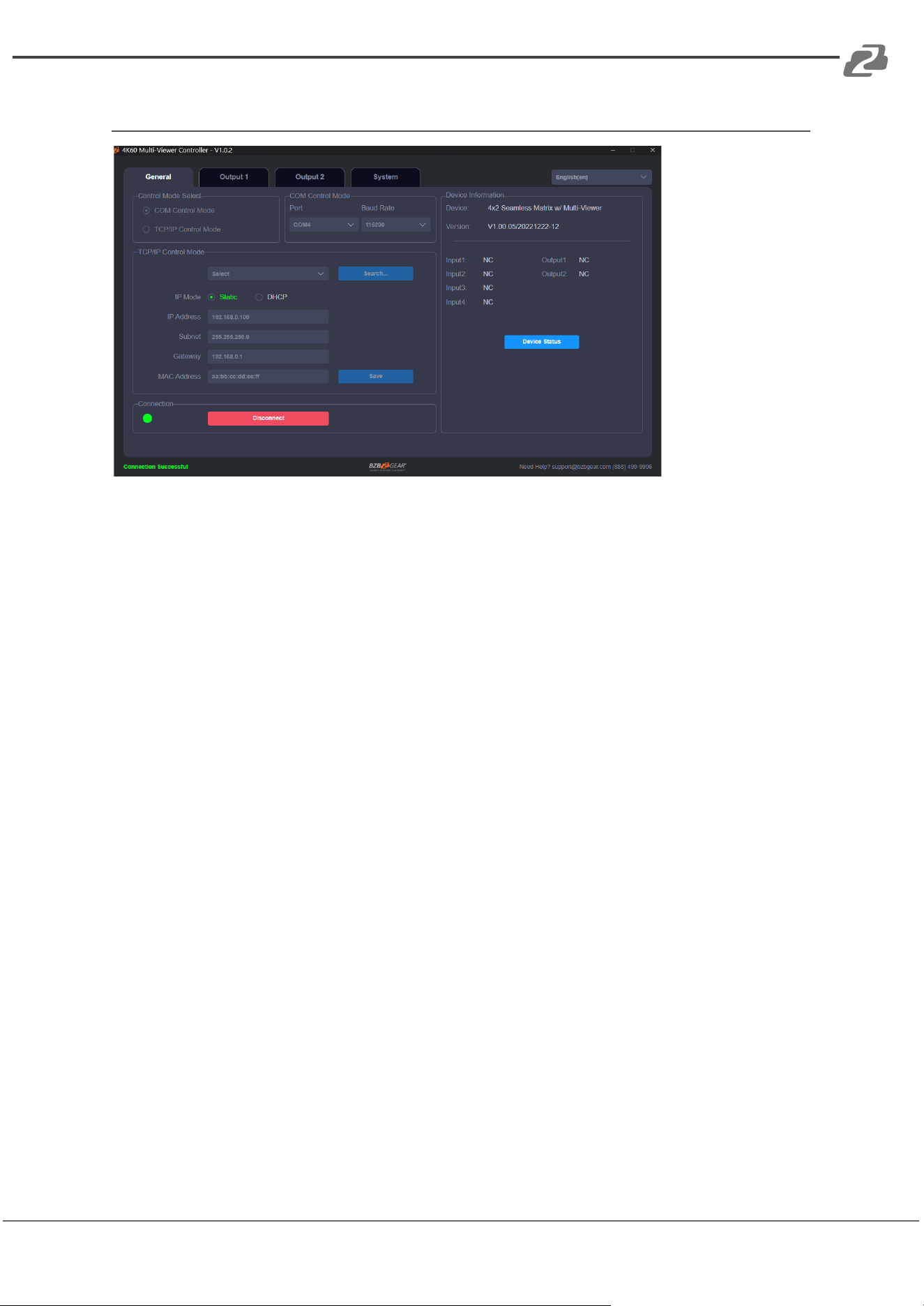
Multiviewer Control Software - General Settings
General Interface Functions
The following operations can be performed from the General interface:
1. Control Mode Selection
Choose the desired control method. Currently, only COM Control Mode is
available, as TCP/IP Control Mode is temporarily disabled.
2. COM Control Settings
Configure the communication settings by selecting the appropriate Port Number
and Baud Rate for the connected device.
3. Device Information
View details such as the device name, firmware version, and input/output
connection status. Click Device Status to refresh and update this information.
4. Connection
Use this option to manually establish or modify the connection status.
5. Connection Status
Displays the current connection status of the device.
To manually refresh the data on the interface, click the Refresh icon located in the
upper-right corner.
Address: 830 National Drive #140, Sacramento, CA 95834, USA · Tel: +1(888)499-9906 · Email: support@bzbgear.com 20
BZBGEAR BG-UHD-MVS42MA PRODUCT MANUAL
Multiviewer Control Software - Output Settings
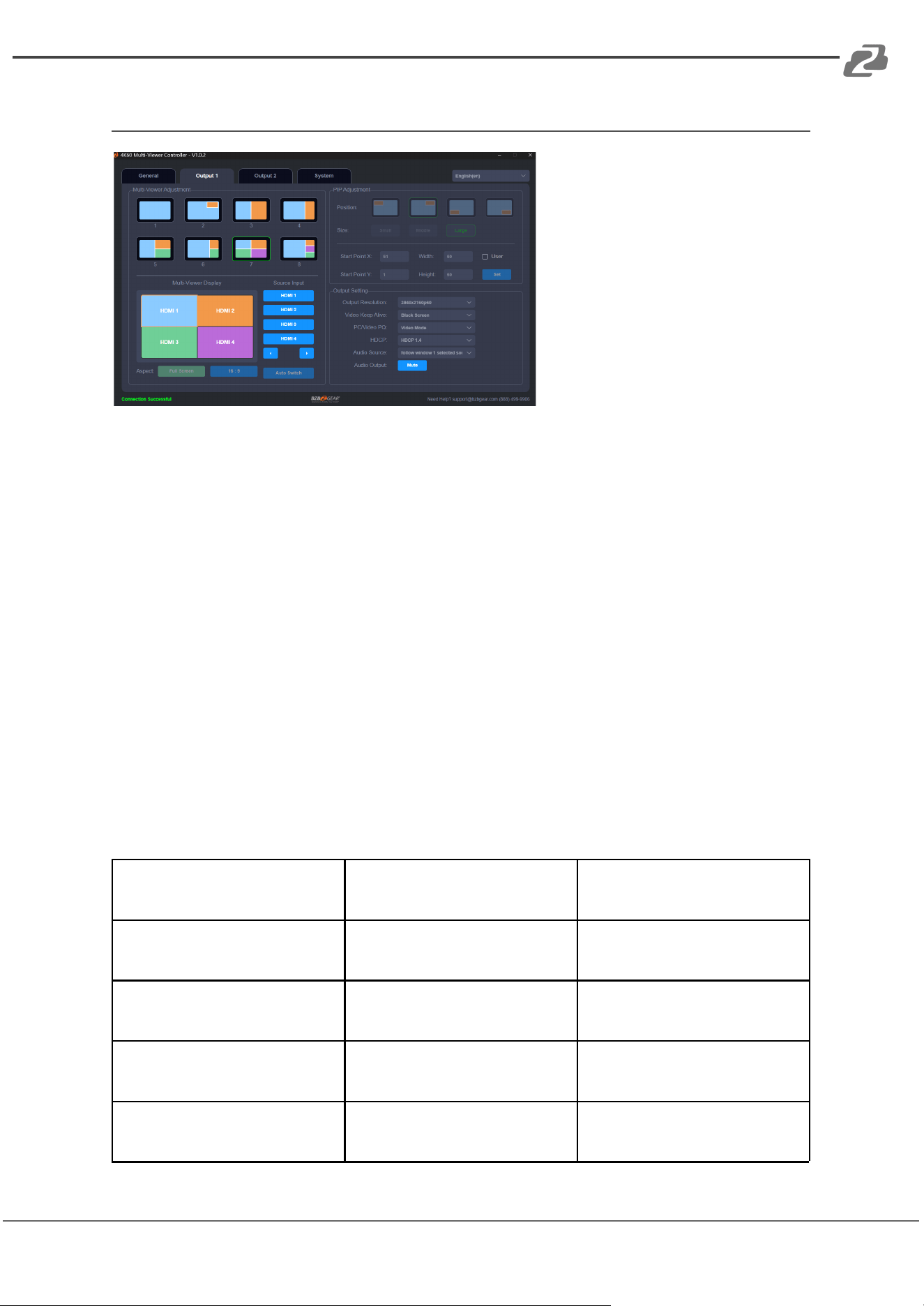
Multi-View Display Modes
Easily select your preferred screen layout by clicking the corresponding display mode. The
following eight options are available:
● Single
● PIP (Picture-in-Picture)
● PBP (1) – Picture-by-Picture
● PBP (2)
● Triple (1)
● Triple (2)
● Quad (1)
● Quad (2)
PIP Customization
When using PIP mode, you can fine-tune the display by adjusting the position and size of
the PIP window. The system also supports user-defined PIP configurations, as detailed in
the table below.
Size
Relative Position
(Starting Position)
Height and Width of the
Inner Frame
Small
Start Point X: 71
Start Point Y: 71
Width: 30
Height: 30
Middle
Start Point X: 61
Start Point Y: 61
Width: 40
Height: 40
Large
Start Point X: 51
Start Point Y: 51
Width: 50
Height: 50
User
Start Point X: 1-100
Start Point Y: 1-100
Width: 1-100
Height: 1-100
Address: 830 National Drive #140, Sacramento, CA 95834, USA · Tel: +1(888)499-9906 · Email: support@bzbgear.com 21

BZBGEAR BG-UHD-MVS42MA PRODUCT MANUAL
3. Multi-Viewer Display:
Displays both input and output windows. Use this view to select the desired window before
assigning a signal source.
4. Source Input:
Select the input signal source. First, choose a window in the Multi-Viewer Display, then
select the signal by clicking HDMI 1/2/3/4 under Source Input, or use the ← / → buttons
to cycle through the available sources.
5. Aspect Ratio:
Choose between Full Screen and 16:9 display formats. Available viewing modes include:
PBP(1), PBP(2), Triple(1), Triple(2), and Quad(2).
6. Auto Switch:
Enable or disable automatic input source switching. This function is only available in
SINGLE display mode.
7. Output Settings:
Configure the output resolution, video keep-alive settings, PC/Video picture quality (PQ),
HDCP settings, audio source, and audio output.
Address: 830 National Drive #140, Sacramento, CA 95834, USA · Tel: +1(888)499-9906 · Email: support@bzbgear.com 22
BZBGEAR BG-UHD-MVS42MA PRODUCT MANUAL
Multiviewer Control Software - System Settings
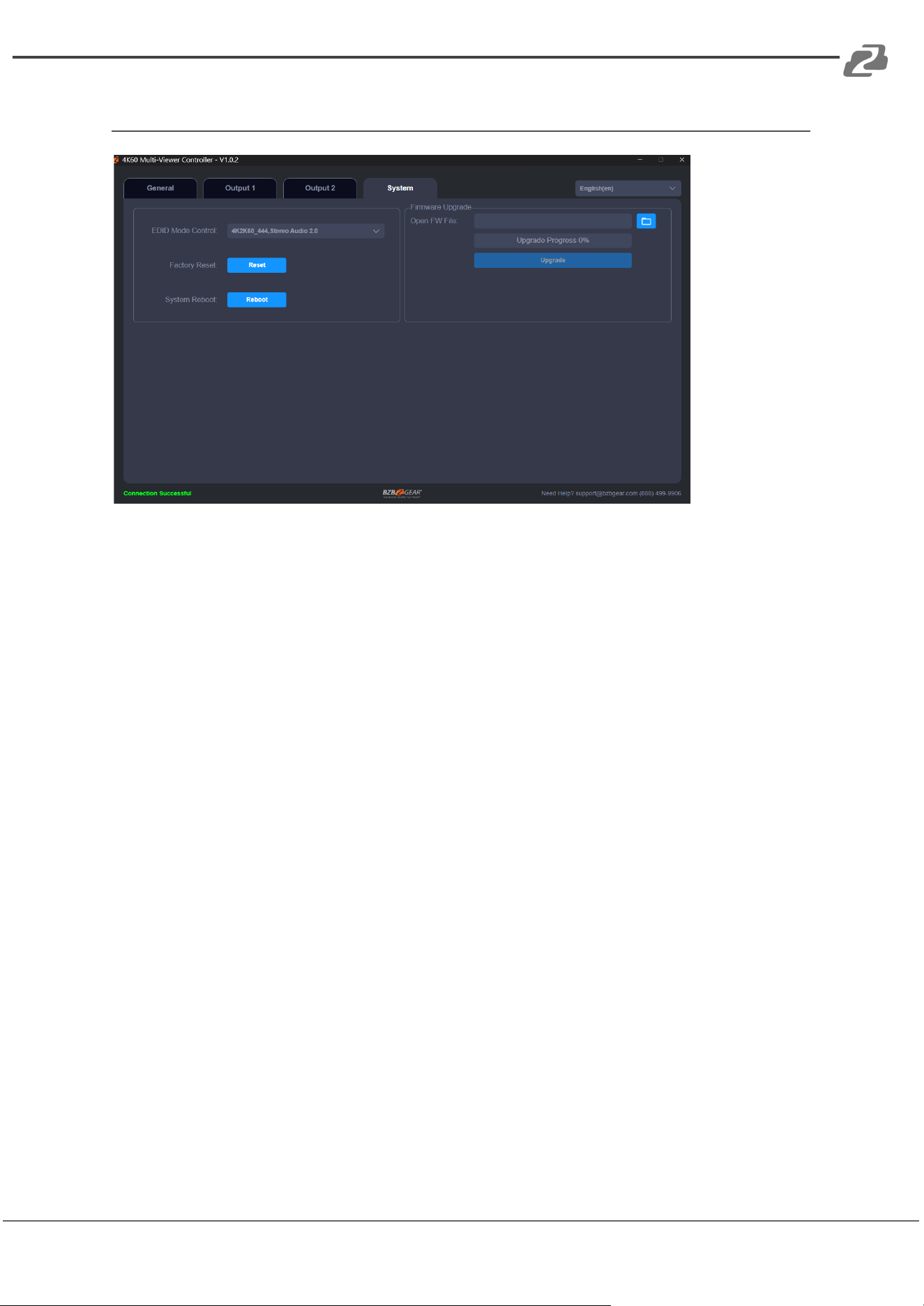
System Page Operations
On the System page, you can perform the following operations:
1. EDID Mode Control
Use the drop-down menu on the right to select the desired EDID mode.
2. Firmware Upgrade
Click the folder icon on the right to import the firmware upgrade file. Then click
Upgrade to begin the process. A progress bar will appear to indicate the upgrade
status. Once the progress reaches 100%, the upgrade is complete and the device
will restart automatically.
3. Factory Reset
Click Reset to restore the device to its factory default settings.
4. System Reboot
Click Reboot to restart the device.
Address: 830 National Drive #140, Sacramento, CA 95834, USA · Tel: +1(888)499-9906 · Email: support@bzbgear.com 23
BZBGEAR BG-UHD-MVS42MA PRODUCT MANUAL
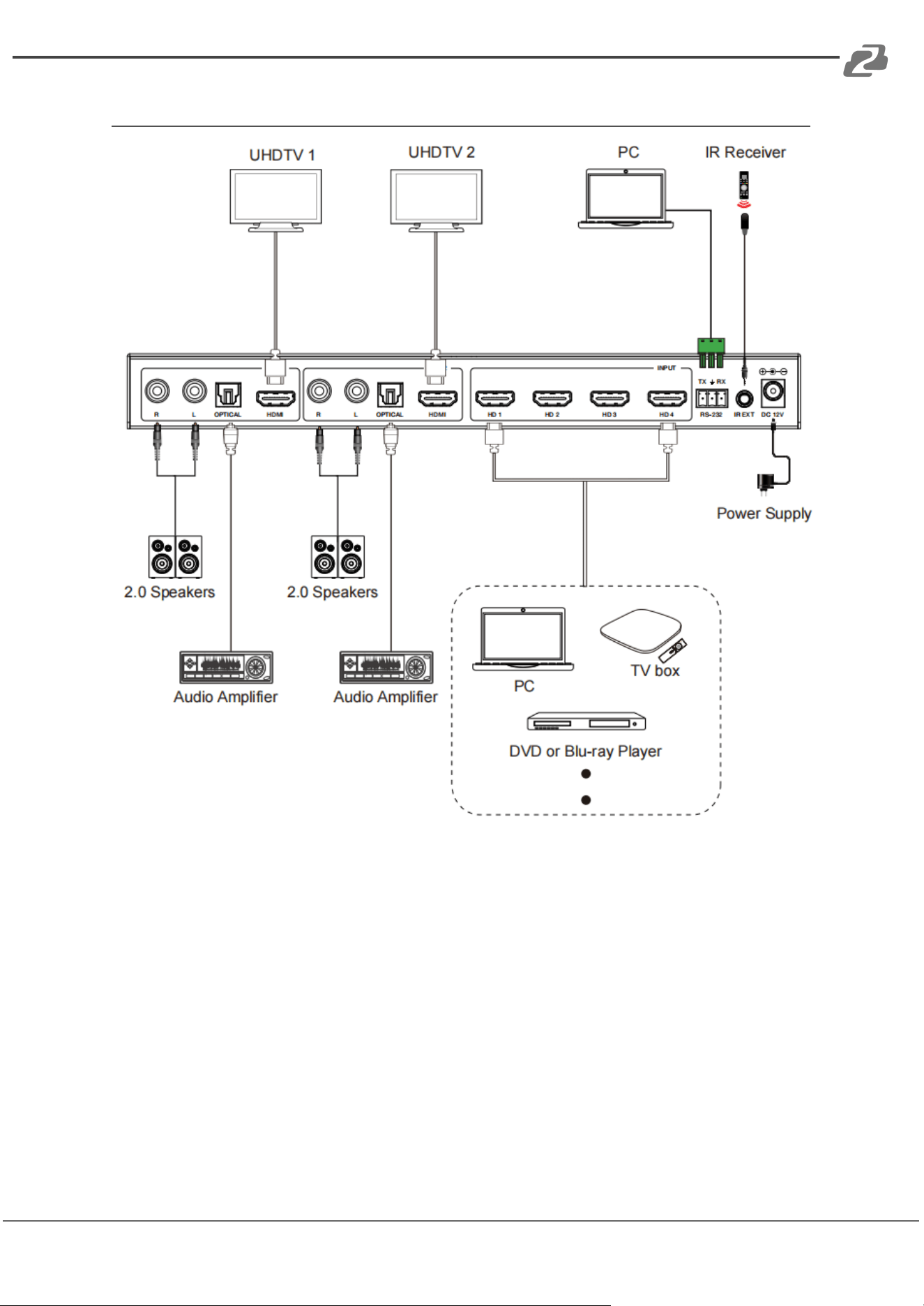
Application Diagram
Address: 830 National Drive #140, Sacramento, CA 95834, USA · Tel: +1(888)499-9906 · Email: support@bzbgear.com 24

BZBGEAR BG-UHD-MVS42MA PRODUCT MANUAL
Tech Support
Have technical questions? We may have answered them already!
Please visit BZBGEAR’s support page (bzbgear.com/support) for helpful information and
tips regarding our products. Here you will find our Knowledge Base
(bzbgear.com/knowledge-base) with detailed tutorials, quick start guides, and step-by-step
troubleshooting instructions. Or explore our YouTube channel, BZB TV
(youtube.com/c/BZBTVchannel), for help setting up, configuring, and other helpful how-to
videos about our gear.
Need more in-depth support? Connect with one of our technical specialists directly:
Phone
1.888.499.9906
Email
support@bzbgear.com
Live Chat
bzbgear.com
Limited Product Warranty Terms
Pro Line: 5-year warranty from the date of purchase for AV/Broadcasting products bought
on or after August 1, 2024.
Essential Line: 3-year warranty from the date of purchase for AV/Broadcasting products
bought on or after August 1, 2024.
Cables: Lifetime Limited Product Warranty.
For complete warranty information, please visit bzbgear.com/warranty.
For questions, please call 1.888.499.9906 or email support@bzbgear.com.
Address: 830 National Drive #140, Sacramento, CA 95834, USA · Tel: +1(888)499-9906 · Email: support@bzbgear.com 25
BZBGEAR BG-UHD-MVS42MA PRODUCT MANUAL
Mission Statement
BZBGEAR is a breakthrough manufacturer of high-quality, innovative audiovisual equipment
ranging from AVoIP, professional broadcasting, conferencing, home theater, to live
streaming solutions. We pride ourselves on unparalleled customer support and services.
Our team offers system design consultation, and highly reviewed technical support for all
the products in our catalog. BZBGEAR delivers quality products designed with users in
mind.
Copyright
All the contents in this manual and its copyright are owned by BZBGEAR. No one is allowed
to imitate, copy, or translate this manual without BZBGEAR’s permission. This manual
contains no guarantee, standpoint expression or other implies in any form. Product
specification and information in this manual is for reference only and subject to change
without notice.
All rights reserved. No reproducing is allowed without acknowledgement.
Address: 830 National Drive #140, Sacramento, CA 95834, USA · Tel: +1(888)499-9906 · Email: support@bzbgear.com 26