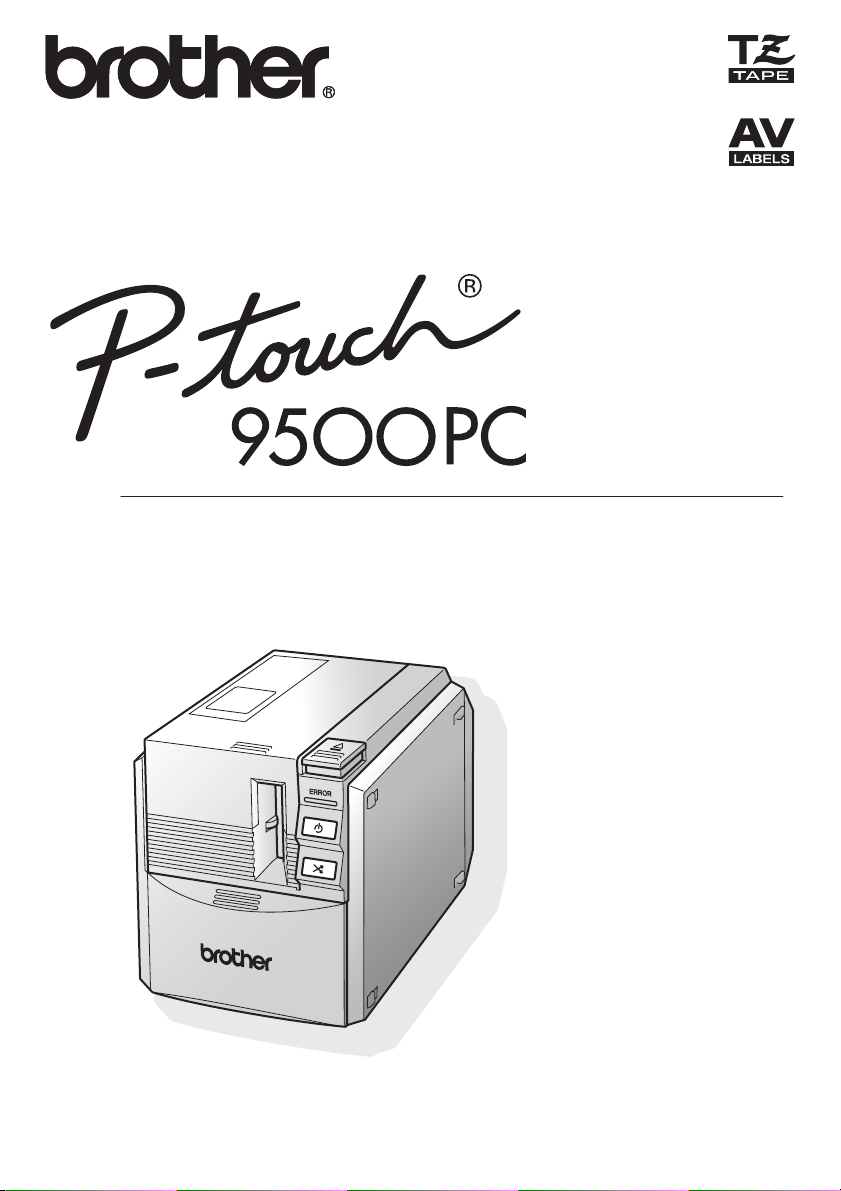
User’s Guide
Guía del usuario

1
Introduction
Thank you for purchasing the PT-9500PC.
The PT-9500PC (hereafter, referred to as “this machine”) is a label printer that enables you to easily
print custom labels after it is connected to a computer.
This manual contains various precautions and basic procedures for using this P-touch. Be sure to read
this manual before using the P-touch.
Afterward, keep this manual in a safe place for future reference.
■ Federal Communications Commission (FCC) Declaration of Conformity (For USA Only)
Responsible Party: Brother International Corporation
100 Somerset Corporate Boulevard
Bridgewater, NJ 08807-0911 USA
TEL: (908) 704-1700
Product Name: Brother Label Printer P-touch
Model Number: PT-9500PC
This device complies with Part 15 of the FCC Rules. Operation is subject to the following two
conditions: (1) this device may not cause harmful interference, and (2) this device must accept
any interference received, including interference that may cause undesired operation.
This equipment has been tested and found to comply with the limits for a Class B digital device,
pursuant to Part 15 of the FCC Rules. These limits are designed to provide reasonable protection
against harmful interference in a residential installation. This equipment generates, uses, and can
radiate radio frequency energy and, if not installed and used in accordance with the instructions,
may cause harmful interference to radio communications. However, there is no guarantee that
interference will not occur in a particular installation. If this equipment does cause harmful
interference to radio or television reception, which can be determined by turning the equipment
off and on, the user is encouraged to try to correct the interference by one or more of the
following measures:
•Reorient or relocate the receiving antenna.
•Increase the separation between the equipment and receiver.
•Connect the equipment to an outlet on a circuit different from that to which the receiver is
connected.
•Consult the dealer or an experienced radio/TV technician for help.
Important
•The enclosed interface cable should be used in order to ensure compliance with the limits for a
Class B digital device.
•Changes or modifications not expressly approved by Brother Industries, Ltd. could void the
user’s authority to operate the equipment.

2
Brother
®
90 Days/One Year Limited Warranty and Replacement Service
(For USA Only)
Who is covered:
• This limited warranty (“warranty”) is given only
to the original end-use/retail purchaser (referred
to in this warranty as “Original Purchaser”) of
the accompanying product, consumables and
accessories (collectively referred to in this
warranty as “this Product”).
• If you purchased a product from someone other
than an authorized Brother reseller in the United
States or if the product was used (including but
not limited to floor models or refurbished
product), prior to your purchase you are not the
Original Purchaser and the product that you
purchased is not covered by this warranty.
What is covered:
• This Product includes a Machine and
Consumable and Accessory Items. Consumable
and Accessory Items include but are not limited
to label cassettes, cutters, stamps, power
adapters, cases and batteries.
•
Except as otherwise provided herein, Brother
warrants that the Machine and the accompanying
Consumable and Accessory Items will be free
from defects in materials and workmanship,
when used under normal conditions.
•
This warranty applies only to products purchased
and used in the United States. For products
purchased in, but used outside, the United States,
this warranty covers only warranty service within
the United States (and does not include shipping
outside the United States).
What is the length of the Warranty Period(s):
• Machines have a two-stage warranty: 90 days
from the original purchase date and an
additional warranty up to one year from the
original purchase date.
•
Consumable and Accessories Items accompanying
the Machine have a one-stage warranty: 90 Days
from the original purchase date.
What is NOT covered:
This warranty does not cover:
(1) Physical damage to this Product;
(2) Damage caused by improper installation,
improper or abnormal use, misuse, neglect or
accident (including but not limited to
transporting this Product without the proper
preparation and/or packaging);
(3)
Damage caused by another device or software
used with this Product (including but not limited to
damage resulting from use of non Brother
®
-brand
parts and Consumable and Accessory Items);
(4) Consumable and Accessory Items that expired
in accordance with a rated life; and,
(5) Problems arising from other than defects in
materials or workmanship.
This limited warranty is VOID if this Product has
been altered or modified in any way (including but
not limited to attempted warranty repair without
authorization from Brother and/or alteration/
removal of the serial number).
What to do if you think your Product is eligible for
warranty service:
Report your issue to either our Customer Service
Hotline at 1-877-478-6824
or a Brother Authorized
Service Center within the applicable warranty
period. Supply Brother or the Brother Authorized
Service Center with a copy of your dated bill of sale
showing that this Product was purchased within the
U.S. For the name of local Brother Authorized
Service Center(s), call 1-800-521-2846.
What Brother will ask you to do:
After contacting Brother or a Brother Authorized
Service Center, you may be required to deliver (by
hand if you prefer) or send the Product properly
packaged, freight prepaid, to the Authorized
Service Center together with a photocopy of your
bill of sale.
You are responsible for the cost of shipping,
packing product, and insurance (if you desire). You
are also responsible for loss or damage to this
Product in shipping.
What Brother will do:
First 90 Days:
If the problem reported concerning
your Machine and/or accompanying Consumable
and Accessory Item(s) is covered by this warranty
and if you first reported the problem to Brother or an
Authorized Service Center within 90 days from the
date of original purchase, Brother or its Authorized
Service Center will repair or replace the Machine
and/ or accompanying Consumable and Accessory
Item(s) at no charge to you for parts or labor. The
decision as to whether to repair or replace the
Machine and/or accompanying Consumable and
Accessory Item(s) is made by Brother in its sole
discretion. Brother reserves the right to supply a
refurbished or remanufactured replacement
Machine and/or accompanying Consumable and
Accessory Item(s) and use refurbished parts
provided such replacement products conform to the
manufacturer’s specifications for new product/
parts. The repaired or replacement Machine and/or
accompanying Consumable and Accessory Item(s)
will be returned to you freight prepaid or made
available for you to pick up at a conveniently
located Authorized Service Center.

3
Brother
®
90 Days/One Year Limited Warranty and Replacement Service
(For USA Only)
91
st
day to 1 year:
If the problem reported concerning your Machine is
covered by this warranty and if you first reported the
problem after 90 days, but before 1 year from the date
of original purchase, Brother will furnish, free of
charge (excluding labor charges), replacement part(s)
for those part(s) of the Machine determined by Brother
or its Authorized Service Center to be defective.
You
will be responsible for all labor charges associated
with repairs made after the first 90 days from original
purchase.
After 90 days from the original purchase
date, accompanying Consumable and Accessory
Items are no longer covered by this warranty. If the
Machine and/or accompanying Consumable and
Accessory Item(s) are not covered by this warranty
(either stage), you will be charged for shipping the
Machine and/or accompanying Consumable and
Accessory Item(s) back to you
.
The foregoing are your sole (i.e., only) and
exclusive remedies under this warranty.
What happens when Brother elects to replace your
Machine:
If you have delivered the Machine to an Authorized
Service Center, the Authorized Service Center will
provide you with a replacement Machine after
receiving one from Brother. If you are dealing directly
with Brother, Brother will send to you a replacement
Machine with the understanding that you will, after
receipt of the replacement Machine, supply the
required proof of purchase information, together with
the Machine that Brother agreed to replace. You are
then expected to pack the Machine that Brother agreed
to replace in the package from the replacement
Machine and return it to Brother using the air bill
supplied by Brother in accordance with the
instructions provided by Brother. Since you will be in
possession of two machines, Brother will require that
you provide a valid major credit card number. Brother
will issue a hold against the credit card account
number that you provide until Brother receives your
original Product and determines that your original
Product is entitled to warranty coverage. Your credit
card will be charged up to the cost of a new Product
only if: (i) you do not return your original Product to
Brother within five (5) business days; (ii) the problems
of your original Product are not covered by the limited
warranty; (iii) the proper packaging instructions are
not followed and has caused damage to the product;
or (iv) the warranty period on your original Product has
expired or has not been sufficiently validated with a
copy of the proof of purchase (bill of sale). The
replacement Machine you receive (even if refurbished
or remanufactured) will be covered by the balance of
the limited warranty period remaining on the original
Product, plus an additional thirty (30) days. You will
keep the replacement Machine that is sent to you and
your original Machine shall become the property of
Brother.
Retain your original accessory items and a
copy of the return air bill, signed by the courier.
Limitations:
Brother is not responsible for damage to or loss of
any equipment, media, programs or data related to
the use of this Product. Except for that repair or
replacement as described above, Brother shall not
be liable for any direct, indirect, incidental or
consequential damages or specific relief. Because
some states do not allow the exclusion or limitation
of consequential or incidental damages, the above
limitation may not apply to you.
THIS WARRANTY IS GIVEN IN LIEU OF ALL
OTHER WARRANTIES, WRITTEN OR ORAL,
WHETHER EXPRESSED BY AFFIRMATION,
PROMISE, DESCRIPTION, DRAWING, MODEL
OR SAMPLE. ANY AND ALL WARRANTIES
OTHER THAN THIS ONE, WHETHER EXPRESS OR
IMPLIED, INCLUDING IMPLIED WARRANTIES OF
MERCHANTABILITY AND FITNESS FOR A
PARTICULAR PURPOSE, ARE HEREBY
DISCLAIMED.
• This Limited Warranty is the only warranty that
Brother is giving for this Product. It is the final
expression and the exclusive and only statement
of Brother’s obligations to you. It replaces all
other agreements and understandings that you
may have with Brother or its representatives.
• This warranty gives you certain rights and you
may also have other rights that may vary from
state to state.
• This Limited Warranty (and Brother’s obligation
to you) may not be changed in any way unless
you and Brother sign the same piece of paper in
which we (1) refer to this Product and your bill
of sale date, (2) describe the change to this
warranty and (3) agree to make that change.
Important:
We recommend that you keep all original packing
materials, in the event that you ship this product.

4
Important Information
Should you have questions, or need information about your Brother Product, we have a variety of support
options for you to choose from:
USA-Customer Service:
Customer Service
1-877-BROTHER (877-276-8437)
Customer Service
1-901-379-1210 (fax)
World Wide Web
www.brother.com
Supplies / Accessories
www.brothermall.com
or 1-877-552-MALL (6255)
BROTHER INTERNATIONAL CORPORATION
100 SOMERSET CORPORATE BLVD.
BRIDGEWATER, NEW JERSEY 08807-0911
Please record your model and serial number and your date and location of Purchase below for your records.
Keep this information with your proof of purchase (bill of sale) in case your Product requires service.
Model #
Serial #
Date of purchase:
Store where purchased:
Location of store:
Important: We recommend that you keep all original packing materials, in the event you ship this product.
Save Time - Register On-Line!
Don’t stand in line at the post office or worry about lost mail. Visit us on-line at
www.registermybrother.com
Your product will immediately be registered in our database and you can be on your way!
Also, while you're there, look for contests and other exciting information!

5
GENERAL PRECAUTIONS
■ P-touch 9500PC
● The PT-9500PC is a precision machine. Do not drop the PT-9500PC or subject it to strong shocks.
● Do not grab and lift the PT-9500PC by the tape compartment cover. The cover could come off and the
PT-9500PC could drop and be damaged.
● The PT-9500PC may malfunction if left near a television, radio, etc. Do not install the PT-9500PC near
any machines that will cause electromagnetic interference.
● Keep the PT-9500PC out of direct sunlight.
● Do not use the PT-9500PC in extremely dusty areas, in areas with high temperatures or high humidity,
or in areas where the PT-9500PC may freeze. The PT-9500PC may malfunction or stop operating.
● Do not clean the PT-9500PC with thinner, benzene, alcohol, or other organic solvents. The PT-9500PC
finish may come off and the PT-9500PC case may be damaged. If dirty, clean the PT-9500PC with a soft,
dry cloth.
● Do not leave any rubber or vinyl on top of the PT-9500PC for an extended period. The PT-9500PC may
be stained.
● Do not place any heavy objects or objects containing water on top of the PT-9500PC. If water or any
foreign object enters the PT-9500PC, contact the retail outlet where the PT-9500PC was purchased or
your local authorized service center. If you continue to use the PT-9500PC with water or a foreign
object in the PT-9500PC, the PT-9500PC may be damaged or personal injury could result.
● Do not touch the cutter. Personal injury could result. Take special care when the tape compartment
cover is open when changing the tape.
● Do not insert any objects into or block the label outlet, AC adapter jack, USB port, or serial port.
● Do not touch any metal parts near the print head. The print head is very hot during use and immediately
after use. Do not touch directly with your hands.
● Use only the interface cables (USB interface cable, serial interface cable) included with the PT-9500PC.
● Use only genuine Brother accessories and supplies. Do not use any unauthorized accessories or
supplies.
■ AC adapter
● Use only the AC adapter included with the PT-9500PC.
● If the PT-9500PC will not be used for an extended period, remove the power supply cord from the
electrical outlet.
■ Tape (tape cassette)
● Use only Brother TZ tapes or Brother/Avery AV labels with this machine. Do not use tapes that do not
have the or mark.
● Do not pull on the tape, otherwise the tape cassette may be damaged.
● If the label is attached to a wet, dirty, or oily surface, it may peel off easily. Before affixing the label,
clean the surface where it will be affixed.
● Depending on the environmental conditions and the material, condition, roughness, and shape of the
affixing surface, part of the tape may not be affixed properly or the label may peel off.
● In order to test the adhesive strength of the label or before using the label where safety is a particular
concern, test the label by affixing a small piece of it to an inconspicuous area of the intended surface.
● If the label is used outdoors, ultraviolet rays, wind, and rain may cause the color of the label to fade and
the ends of the label to peel off.
● Markings made with oil-based or water-based ink may be visible through a label affixed over them. To
hide the markings, use two labels layered on top of each other or use a dark-colored label.
● Do not use empty tape cassettes.
● Do not expose the tape cassettes to direct sunlight, high temperatures, high humidity, or dust. Store in a
cool, dark place. Use the tape cassettes soon after opening the tape cassette package.
● Note that Brother Co., Ltd. does not assume responsibility for any damage, etc. arising from failure to
follow the precautions listed.
● Avery
®
is a registered trademark of AVERY DENNISON CORPORATION.

6
■ CD-ROM
● Do not scratch the CD-ROM.
● Do not subject the CD-ROM to extremely high or extremely low temperatures.
● Do not put heavy objects on the CD-ROM or apply force to the CD-ROM.
■ Regarding software use
● The software contained on the CD-ROM is meant for use with the PT-9500PC only. It may be installed
on multiple personal computers for use at an office, etc.
Trademarks
• The Brother logo is a registered trademark of Brother Industries, Ltd.
• Brother is a registered trademark of Brother Industries, Ltd.
© 2009 Brother Industries, Ltd. All rights reserved.
• The names of other software or products used in this document are trademarks or registered trademarks of
the respective companies that developed them.
• Each company whose software title is mentioned in this guide has a Software License Agreement specific to
its proprietary programs.
• All other brand and product names mentioned in this User's Guide and the Software Installation Guide are
registered trademarks of their respective companies.

7
Table of Contents
Introduction ......................................................................................................................1
Table of Contents ..............................................................................................................7
Unpacking the PT-9500PC ................................................................................................8
PT-9500PC terms .............................................................................................................10
Front view ......................................................................................................................................10
Rear view .......................................................................................................................................10
Lamp display ..................................................................................................................................11
Connecting the PT-9500PC .............................................................................................12
Connecting to the power source .....................................................................................................12
Installing the tape cassette ..............................................................................................13
Authorized tape ..............................................................................................................................13
Installing the tape cassette ..............................................................................................................13
Installing the collection tray ............................................................................................15
Getting ready to use your PT-9500PC .............................................................................16
Serial Interface Settings ...................................................................................................17
Setting the personal computer baud rate .........................................................................................17
Changing the baud rate on the PT-9500PC .....................................................................................19
Changing the P-touch settings .........................................................................................20
Changing the USB ID mode ............................................................................................................20
Using multiple computers ...............................................................................................................21
Maintenance ....................................................................................................................22
Label is not printed clearly .............................................................................................................22
Cleaning the cutter .........................................................................................................................24
Troubleshooting ..............................................................................................................26
Q & A ............................................................................................................................................26
Product specifications .....................................................................................................28
PT-9500PC .....................................................................................................................................28
Index ...............................................................................................................................29
Contact Information (For USA Only) ..............................................................................30
8
Unpacking the PT-9500PC
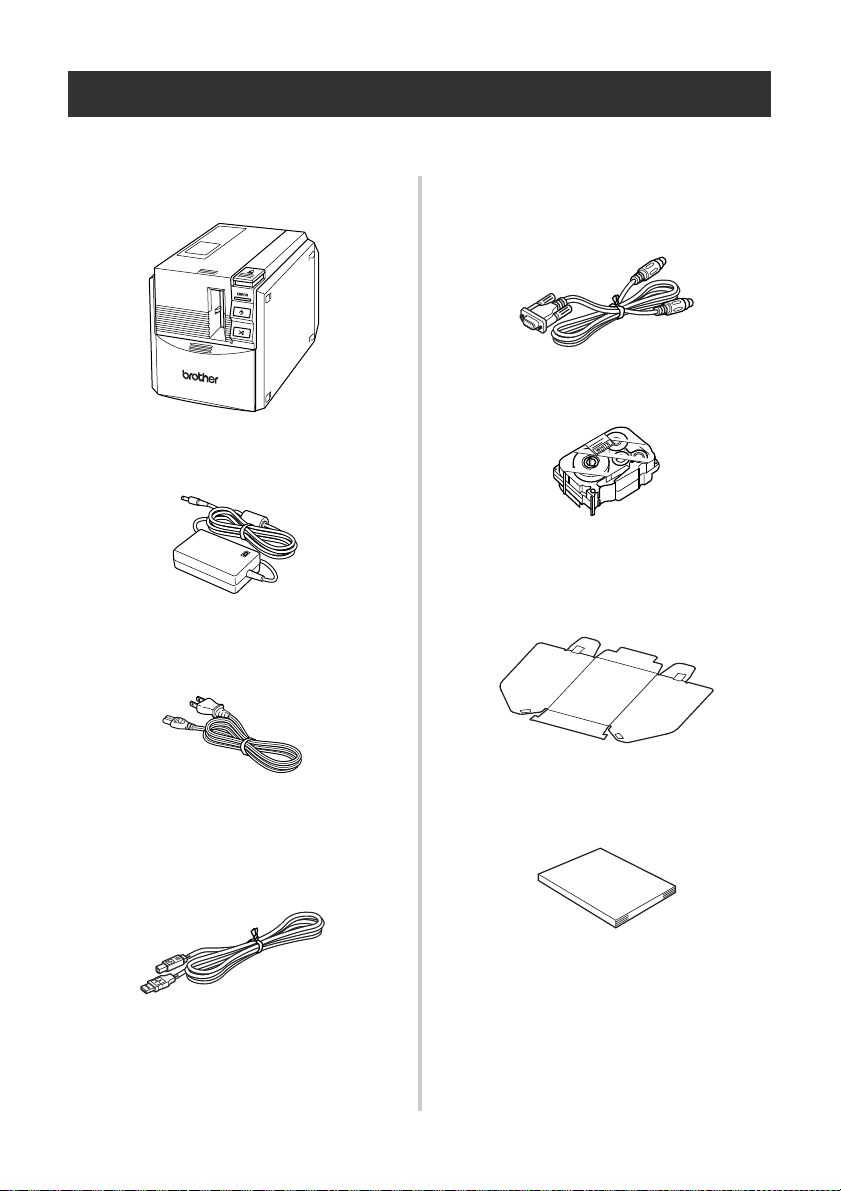
Open the box and confirm that the following items are included. If any item is missing or damaged,
please contact the retail outlet where the PT-9500PC was purchased.
■ PT-9500PC
Label printer
■ AC adapter
Connect to the power supply cord.
■ Power supply cord
Connect to an electrical outlet (AC 120 V).
■ USB interface cable
Use this cable to connect the PT-9500PC to
the USB port of a personal computer.
■ Serial interface cable
Use this cable to connect the PT-9500PC to
the serial port of a personal computer.
■ Tape cassette.
■ Collection tray
This tray collects the printed labels ejected
from the PT-9500PC.
■ User's Guide
Keep for future reference.

9
■ CD-ROM
The CD-ROM contains software and drivers
to be installed on a personal computer.
■ Tape catalog
This catalog contains a list of tape cassettes
designed exclusively for the P-touch series
printers.
■ Software Installation Guide
10
PT-9500PC terms
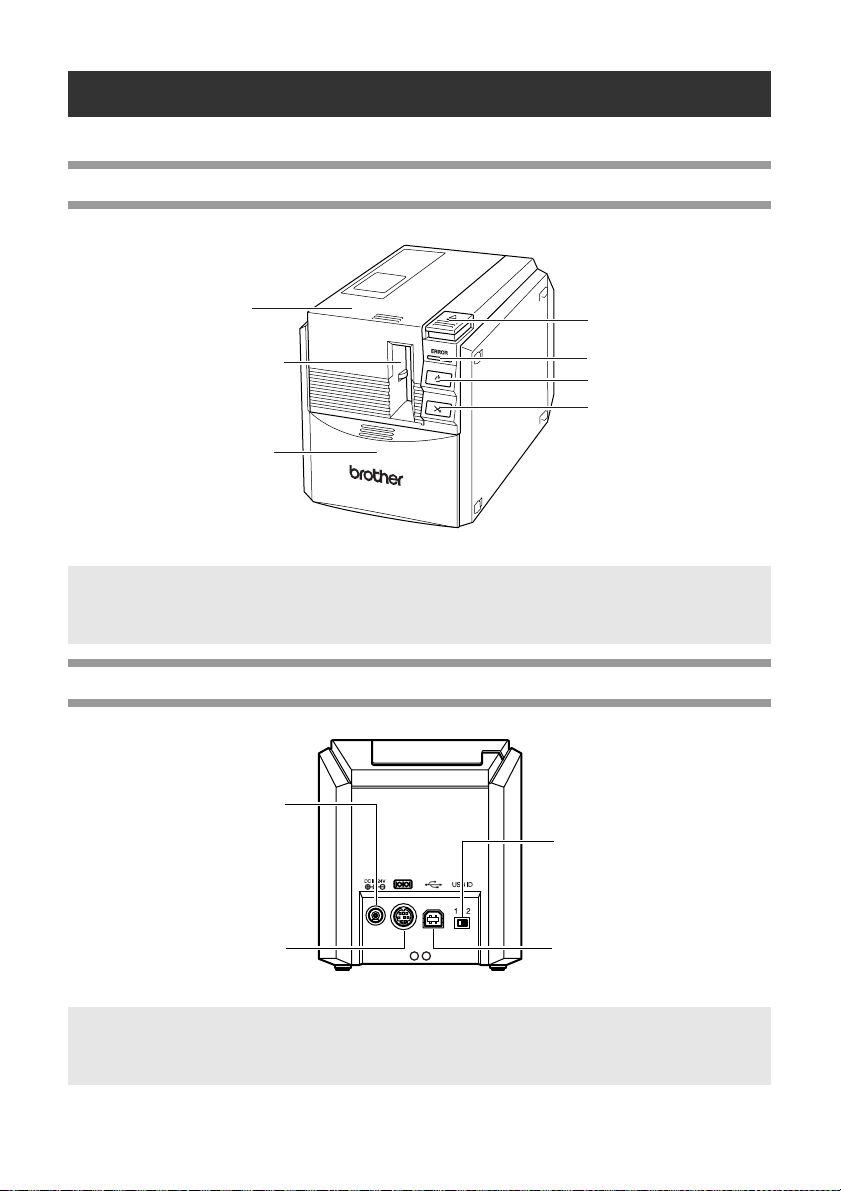
This section identifies the main PT-9500PC terms.
Front view
Rear view
Note
● If the tape compartment cover is left open, dust will collect on the print head. Always close the
cover.
Note
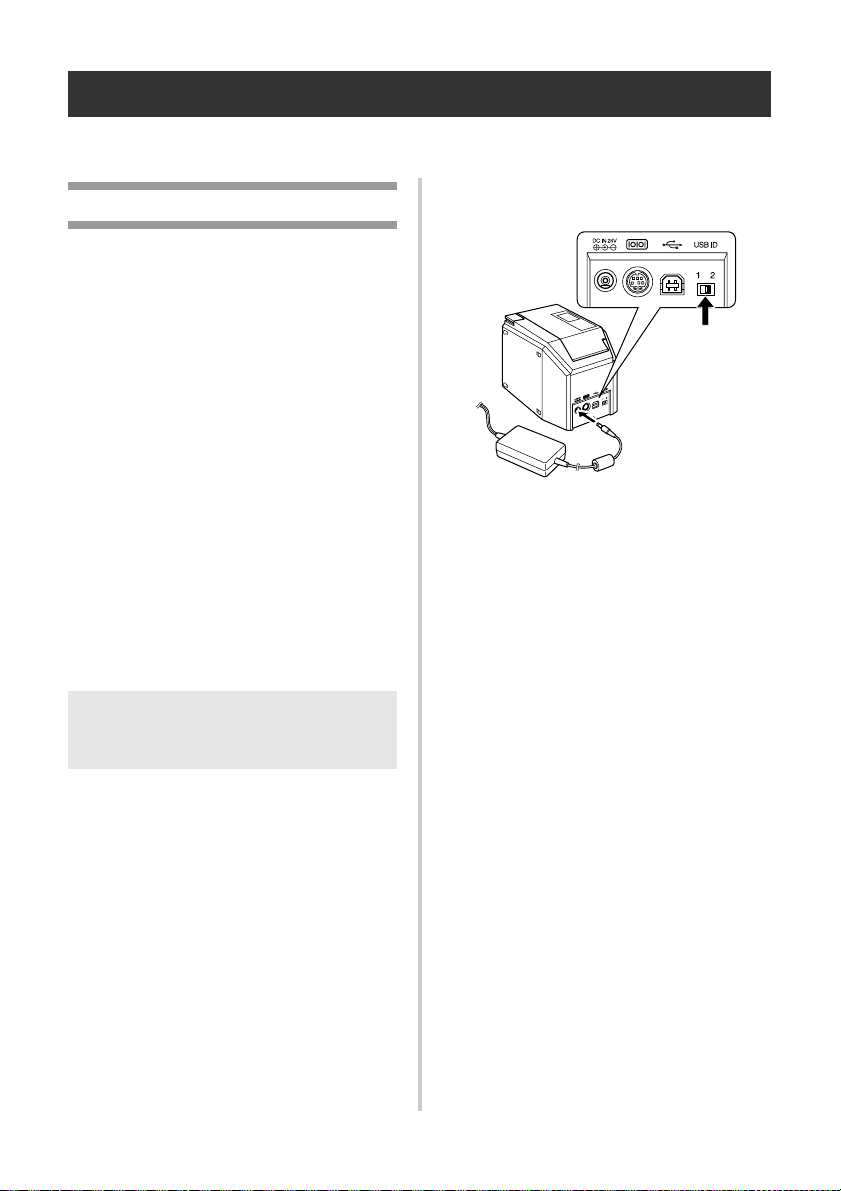
● The USB ID switch is usually set to “2.” For details, refer to “Changing the USB ID mode” (→
P.20).
Tape compartment cover
Label outlet
Collection tray support
Cover release button
ERROR lamp
Power button (including lamp)
Feed/cut button
USB ID switch
USB port
AC adapter jack
Serial port
11
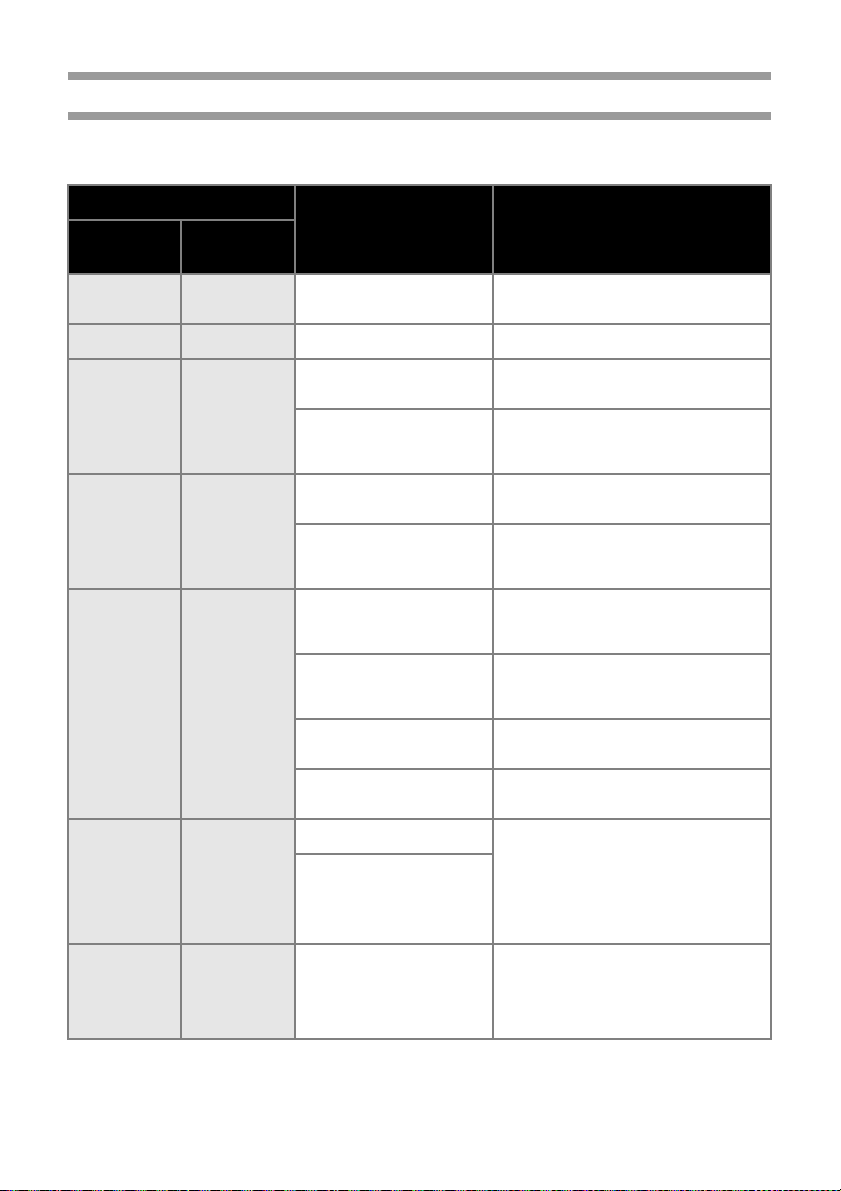
Lamp display
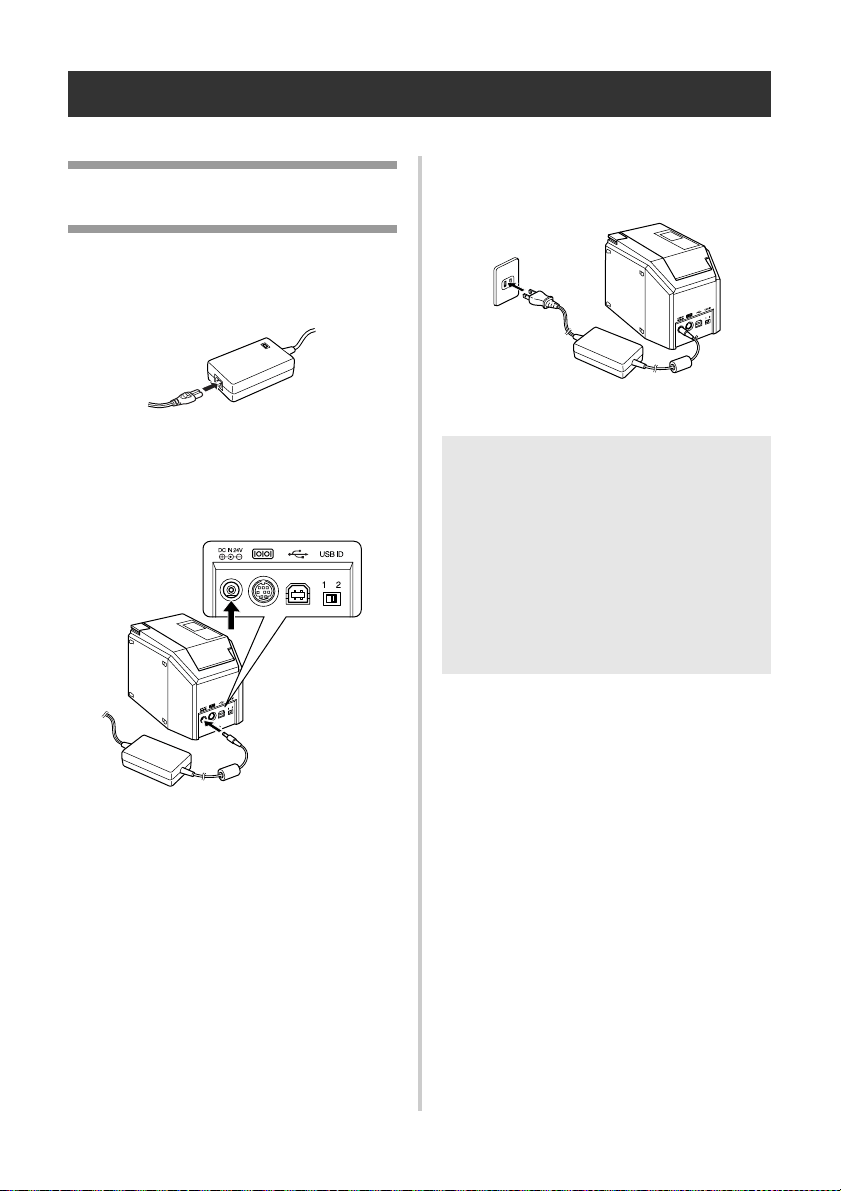
The condition of the PT-9500PC can be determined by the power button lamp (green) and the ERROR
lamp (red).
Lamp condition
Condition Remedy
Power button
(green)
ERROR lamp
(red)
Lit Not lit
PT-9500PC standby
condition
—
Flashing Not lit Receiving data —
Flashing Lit
Receiving data
No tape cassette
Install the tape cassette and close the
tape compartment cover.
Receiving data
Tape compartment cover is
open.
Close the cover.
Lit Lit
During PT-9500PC standby
No tape cassette
Install the tape cassette and close the
tape compartment cover.
During PT-9500PC standby
Tape compartment cover is
open.
Close the cover.
Lit Flashing
During printing
No tape cassette
Incorrect tape cassette
Install the correct tape cassette and close
the tape compartment cover.
During printing
Tape compartment cover is
open.
Close the cover.
Empty tape cassette
Install a tape cassette containing tape
and close the tape compartment cover.
Transmission error
The PT-9500PC will return to standby
after 5 seconds.
Lit Flashing fast
Cutter error Confirm that the tape is not jammed in
the PT-9500PC. If necessary, turn the
PT-9500PC off and on.
If the ERROR lamp continues to flash,
contact the retail outlet where the
PT-9500PC was purchased or your local
authorized service center.
Roller holder error
Lit
Flashing very
fast
EEPROM error
Circuit board error
Turn the PT-9500PC off and on.
If the ERROR lamp continues to flash,
contact the retail outlet where the
PT-9500PC was purchased or your local
authorized service center.
12
Connecting the PT-9500PC
Connect the PT-9500PC to the power source and a personal computer.
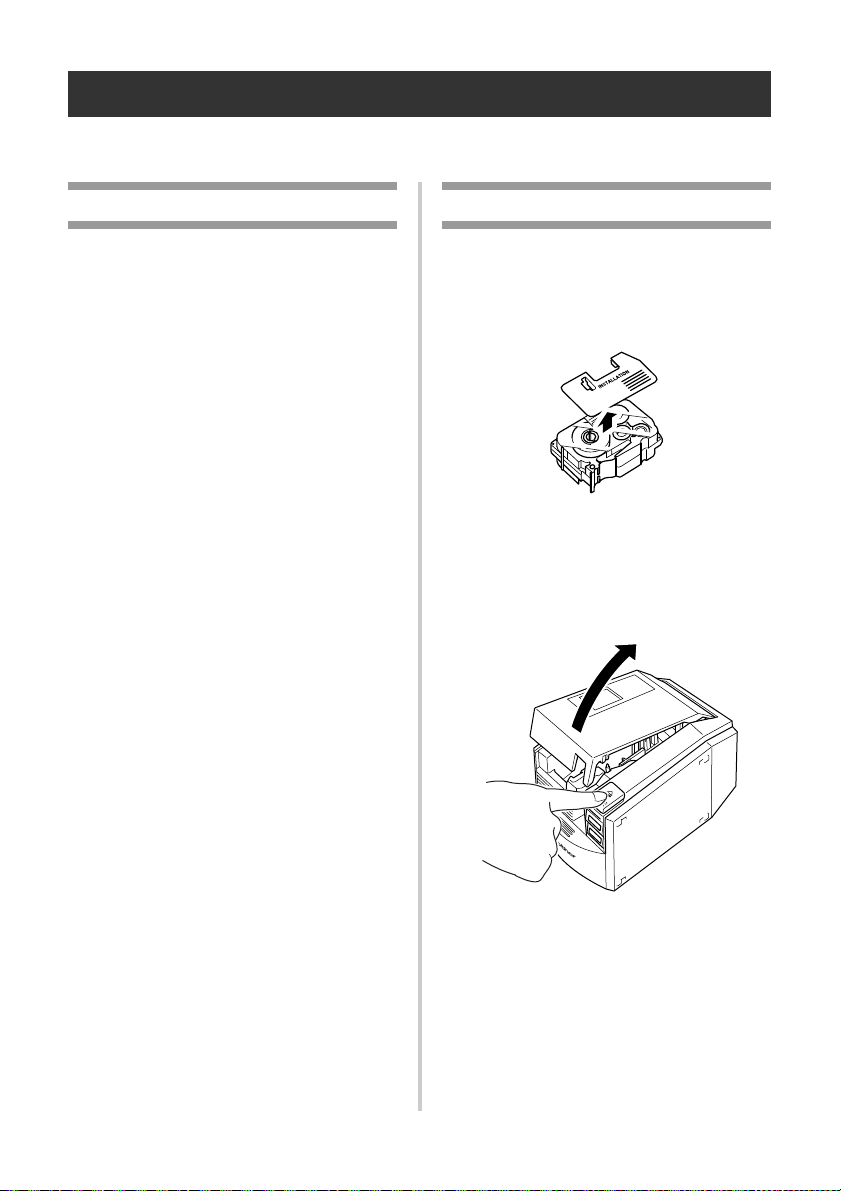
Connecting to the power
source
1
Connect the included power supply cord
to the AC adapter.
2
Insert the AC adapter connector into the
AC adapter jack on the back of the
PT-9500PC.
3
Plug the power supply cord into an
electrical outlet (AC 120 V).
Note
● After using the PT-9500PC, remove the
power supply cord from the electrical
outlet and the AC adapter from the
PT-9500PC and store for future use.
● When removing the AC adapter, do not
pull the AC adapter cord. The wire in the
AC adapter cord may break.
● Do not use any AC adapter other than the
one included with the PT-9500PC. The
PT-9500PC may malfunction.
13
Installing the tape cassette
This section lists the types of tape that may be used with the PT-9500PC and explains the procedures to
install the tape cassettes.
Authorized tape
The types of tape that may be used with the
PT-9500PC are listed below.
■ TZ Tapes
Standard Laminated Tape
Extra Strength Adhesive Tape - Laminated
Flexible ID tape - Laminated
Tamper Evident Tape - Laminated
Fabric Iron-On Tape - Non-Laminated
■ AV Labels
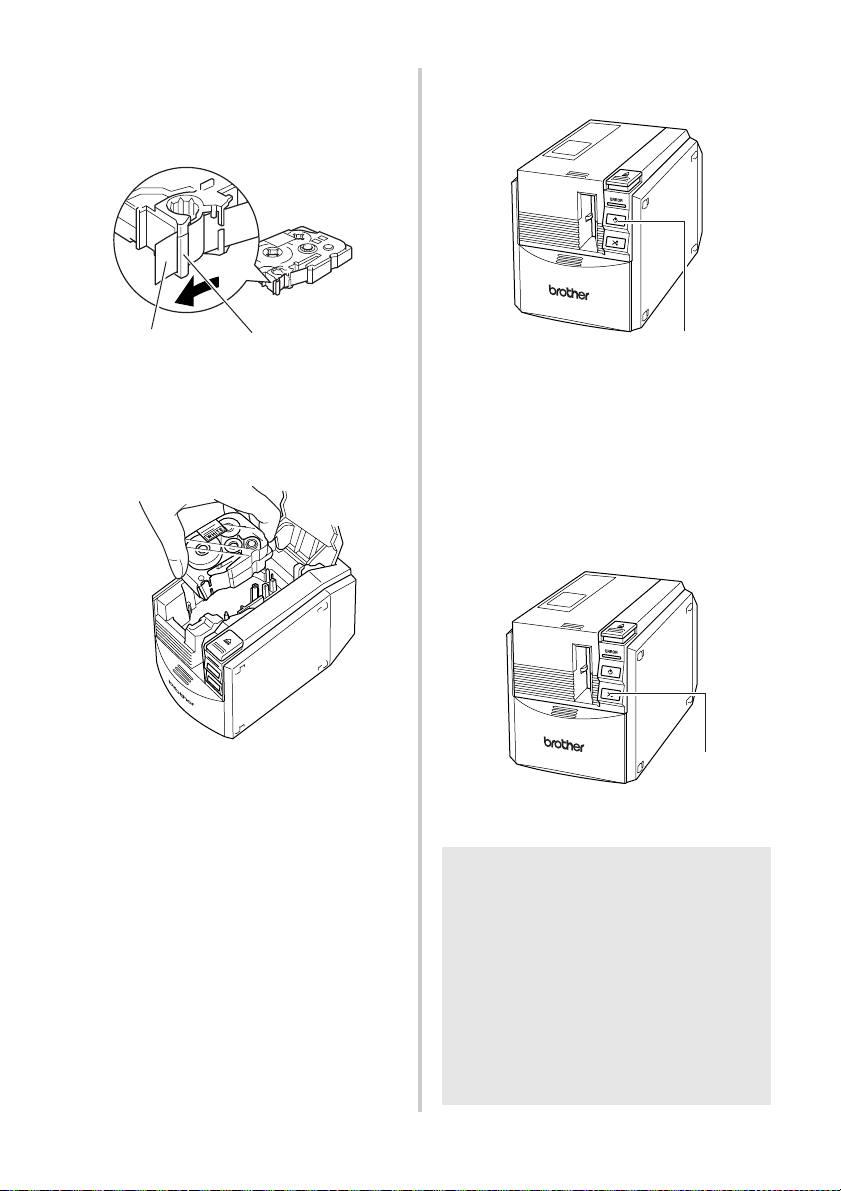
Installing the tape cassette
This section explains the procedures to install
the tape cassette.
1
Remove the stopper on the tape cassette.
• Note that some tape cassettes may not
have stoppers.
2
Press the cover release button and open
the tape compartment cover.
14
3
Check the tape cassette.
Make sure that the end of the tape is not
bent and that it is routed correctly through
the tape guides.
4
Install the tape cassette.
Be sure to install the tape cassette in the
correct direction.
5
Close the tape compartment cover.
6
Press the power button on the
PT-9500PC.
→ The power button will light (green).
• If the tape compartment cover is not
completely closed or if the tape cassette
is not installed correctly, the ERROR
lamp will light. In this case, repeat the
procedure from step
2.
7
Press the feed/cut button.
→ Remove the tape slack.
Tape guides
End of the tape
Note
● If no additional operation is performed
within 10 minutes after printing a label,
the roller holder will automatically
release and a sound may be produced.
Due to this function, the tape cannot be
removed if the AC adapter is removed
from the PT-9500PC with the PT-9500PC
turned on because the roller holder will
not be released. Always turn off the
PT-9500PC before removing the AC
adapter from the PT-9500PC.
Power button
Feed/cut button
15
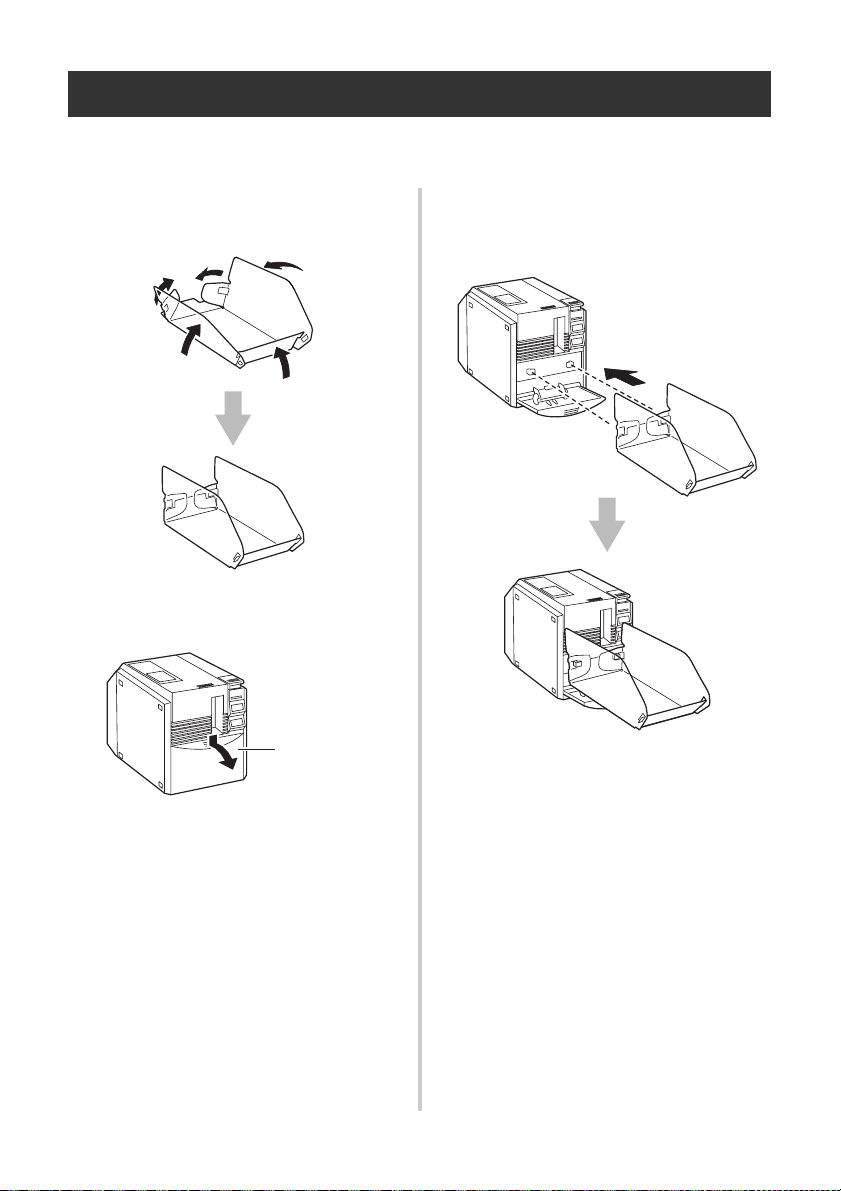
Installing the collection tray
Install the collection tray. The collection tray is used to collect labels ejected from the PT-9500PC. Use
the collection tray when printing a lot of labels.
1
Assemble the collection tray.
Refer to the illustrations below to
assemble the collection tray.
2
Open the collection tray support.
3
Install the collection tray to the
PT-9500PC.
Refer to the illustrations below to install
the collection tray.
Collection tray
support

16
Getting ready to use your PT-9500PC
Before creating labels with the PT-9500PC, the following preparations are necessary.
Note
● The connection procedures are different depending on the operating system running on the
computer. They will also vary depending on whether a serial connection or USB connection is
used. For details on connecting your PT-9500PC to your specific computer, refer to the
"Software Installation Guide".
Installing the software
You will need to install the printer driver to use your
PT-9500PC with your personal computer. You will also
need to install P-touch Editor label design software. For
details on installing this software, refer to the “Software
Installation Guide”.
Creating labels
After setting up your PT-9500PC you can start creating
labels. For details on how to design and create labels, refer
to the “Software Installation Guide”. For detailed feature
explanations, you may also reference the P-touch Editor
Help menu found in the software.
17
Serial Interface Settings
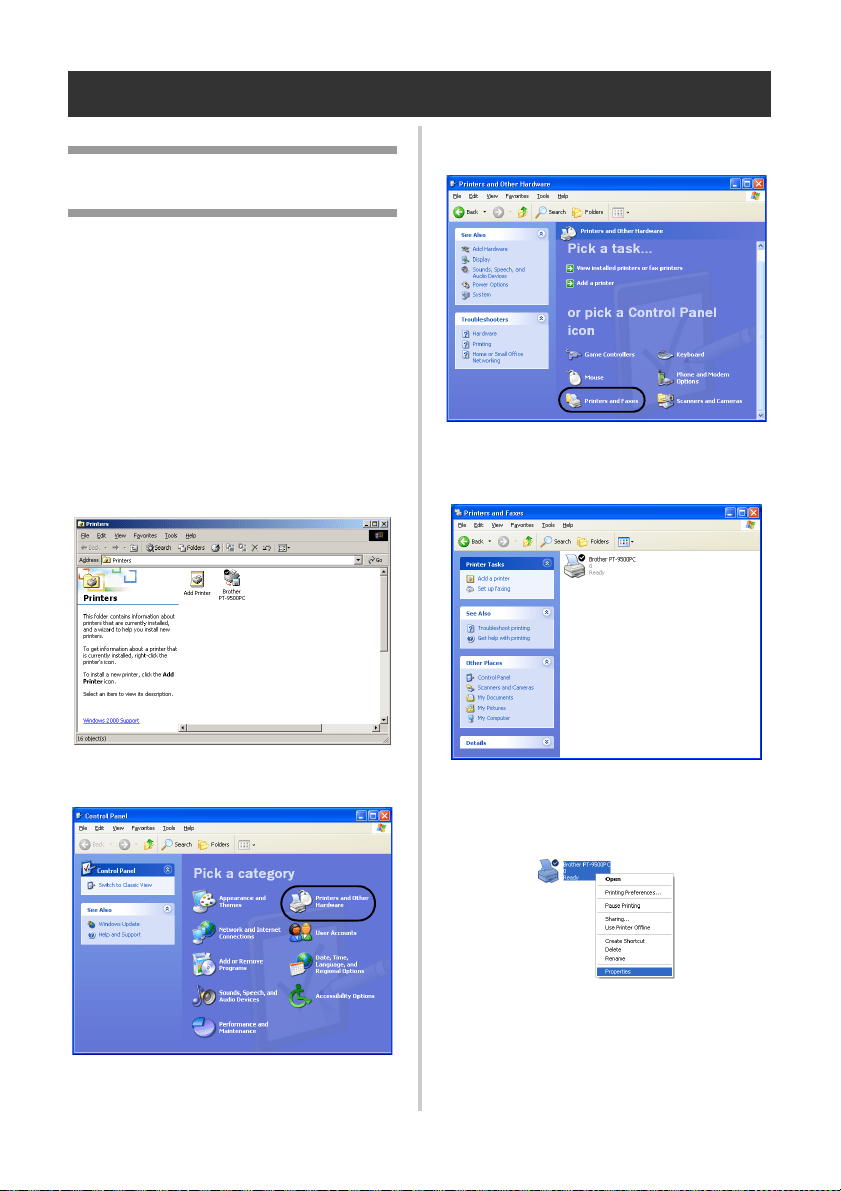
Setting the personal
computer baud rate
Use the following steps to change or confirm
the port and the baud rate for the personal
computer and the PT-9500PC. The following
procedure is shown based on Windows
®
XP.
1
On the taskbar, click the “Start” button,
and then click “Control Panel”.
→Control Panel appears.
For Windows
®
2000 Pro
On the taskbar, click the “Start” button,
point to “Settings”, click “Control Panel”,
and then double-click the “Printer” icon.
Proceed to step
4.
2
Select “Printers and Other Hardware”.
→The “Printers and Other Hardware”
window appears.
3
Click “Printers and Faxes”.
→ The “Printers and Faxes” window
appears.
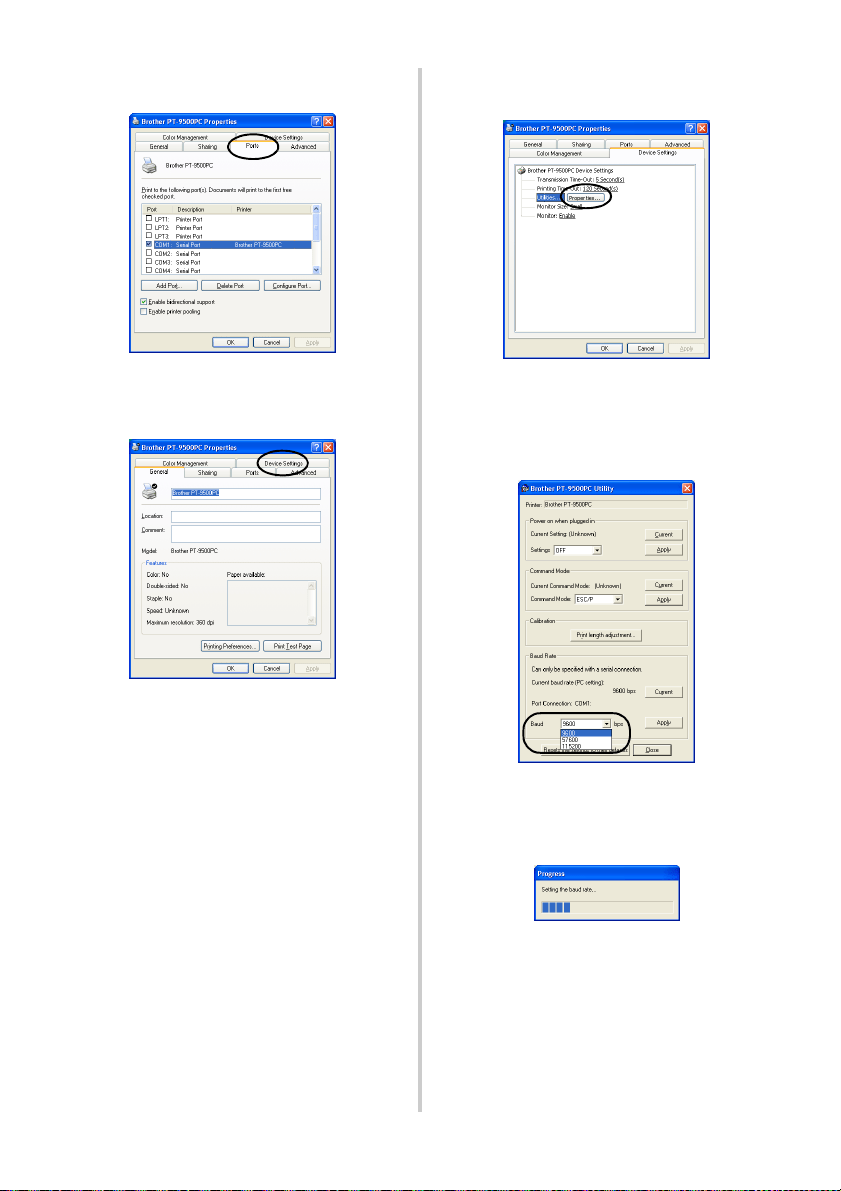
4
Right-click the Brother PT-9500PC icon,
and then select “Properties”.
→ The “Brother PT-9500PC Properties”
sheet appears.
18
5
Click the “Ports” tab and then select the
port you use from the list.
Click “Apply” to save the settings.
6
Click the “Device Settings” tab.
→The Device Setting window appears.
7
Click [Utilities], and then click
[Properties] that appears next to Utilities.
→ The Brother PT-9500PC Utility
dialog box appears.
8
Select the desired baud rate.
9
Click [Apply].
→ The baud rate will be changed.
19
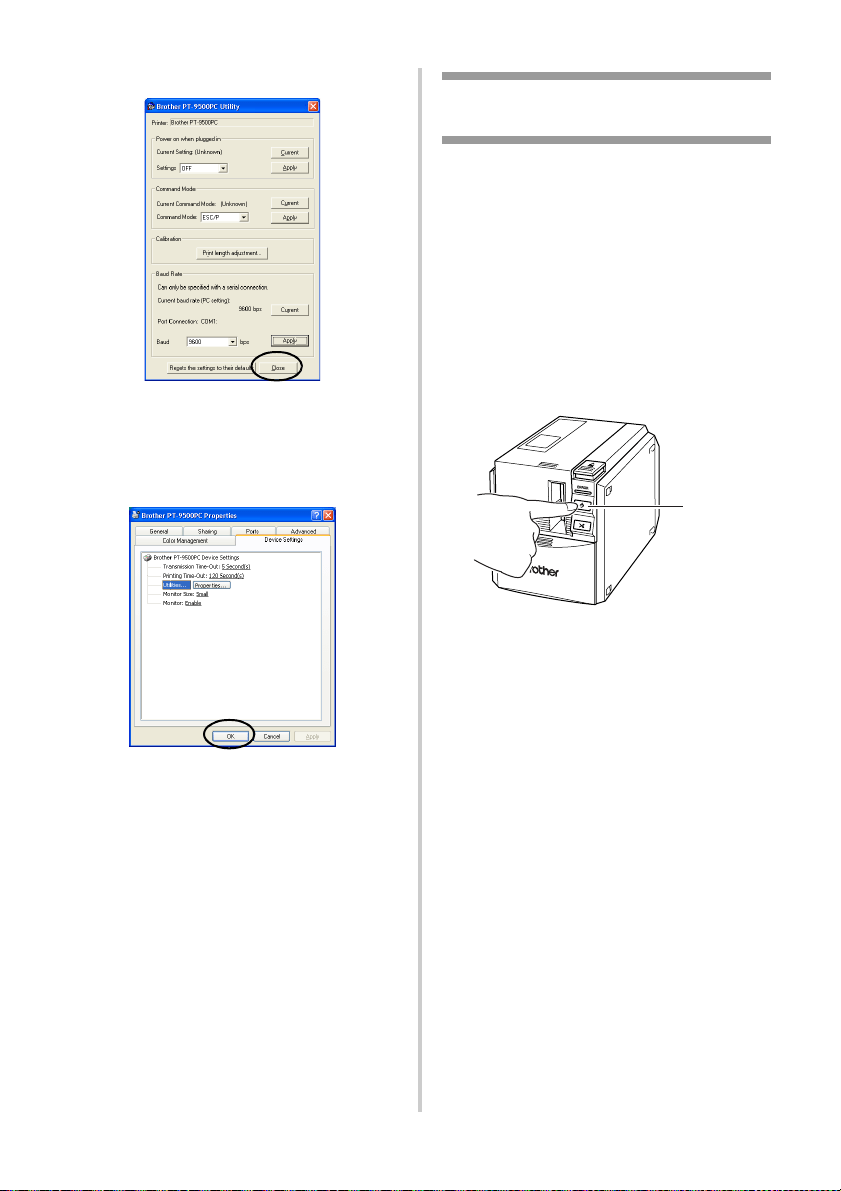
0
Click [Close].
→The Brother PT-9500PC Properties
sheet appears again.
a
Click [OK].
→Setup is complete and the “Brother
PT-9500PC Properties” sheet will
close.
Changing the baud rate on
the PT-9500PC
The serial interface baud rate is set to 115,200
bps at the factory.
When using a personal computer that does not
support a serial port baud rate of 115,200 bps,
change the PT-9500PC baud rate to 9,600 bps.
1
Turn off the PT-9500PC.
2
With the PT-9500PC power off, press the
power button on the PT-9500PC for 5
seconds or more.
→ The ERROR lamp (red) and power
button lamp (green) will flash
alternately.
3
After the lamps flash alternately, release
the power button.
→ The baud rate is now set to 9,600
bps.
Power button

20
Changing the P-touch settings
This section contains the procedures to change the PT-9500PC settings and an explanation for doing so
in a LAN environment.
Changing the USB ID mode
When multiple PT-9500PCs are used, the USB
ID mode can be changed to recognize and use
each PT-9500PC individually or to recognize
all of the PT-9500PCs as a single printer.
Recognizing the PT-9500PCs individually
If the ID mode (see back of machine) is set
to “1,” install a separate printer driver for
each PT-9500PC.
Each PT-9500PC will then be recognized
as a different printer by the personal
computer.
Recognizing the PT-9500PCs as a single
printer.
If the ID mode is set to “2,” install the
printer driver one time only and then
multiple PT-9500PCs can be used as the
same printer. Even if you connect a
different PT-9500PC to the personal
computer, the PT-9500PC can be used
without any additional setup.
1
Turn off the PT-9500PC and the personal
computer.
2
Remove the USB interface cable from
both the PT-9500PC and the personal
computer.
3
Change the USB ID switch on the back of
the PT-9500PC.
4
Connect the USB interface cable to the
PT-9500PC and the personal computer.
5
Turn on the PT-9500PC, and then turn on
the personal computer.
Note
● The USB ID switch is usually set to “2.”
21
Using multiple computers
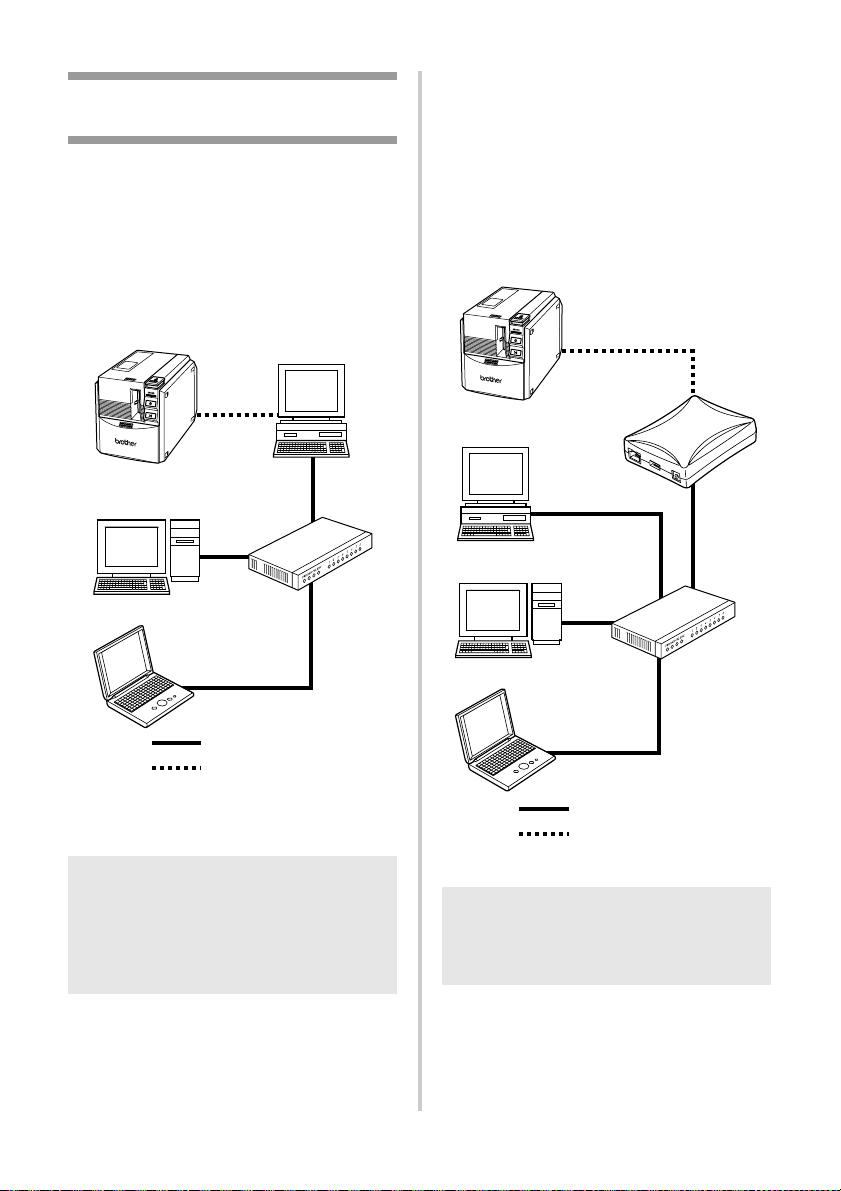
Although the recommended method of printing
from multiple computers to the PT-9500PC is
with the optional PS-9000 Ethernet Print Server,
an alternative method is described below.
The PT-9500PC can be used by multiple
personal computers as a shared printer.
Connect the PT-9500PC to one personal
computer and set it up for common use. The
PT-9500PC can then be used as a network
printer by personal computers in the same
network.
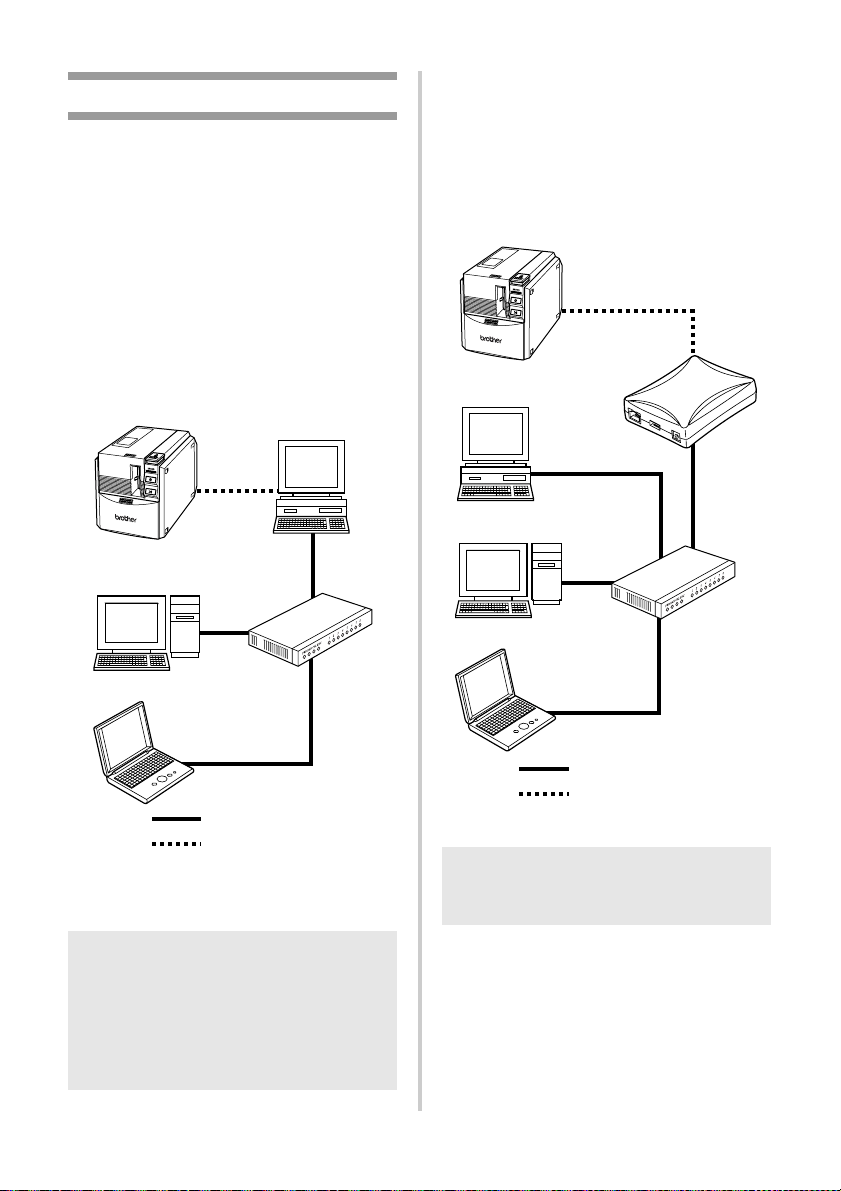
This function can only be used in a Windows
environment.
■ Using as a network printer
The PS-9000 print server (sold separately) is
designed exclusively for the P-touch series
printers.
When using the PS-9000 print server, the
PT-9500PC can be used as a network printer.
This function can only be used in a
Windows
®
environment.
Note
● The common-use settings for the printer
vary according to the operating system
running on the personal computer and
the LAN environment.
For details, refer to the instruction manual
for the personal computer.
Ethernet
HUB
Ethernet cable
USB cable or serial cable
Note
● For PS-9000 setup, refer to the instruction
manual for the PS-9000 print server.
PS-9000
Ethernet
HUB
Ethernet cable
USB cable
22
Maintenance
The internal parts of the PT-9500PC will gradually become dirty with use. This section contains the
procedures for maintaining the PT-9500PC.
Label is not printed clearly
If the printed label contains a blank horizontal
line or the characters are not clear, the print
head and head roller may be dirty.
■ Self-cleaning
Use the PT-9500PC self-cleaning function to
remove any dirt from the print head.
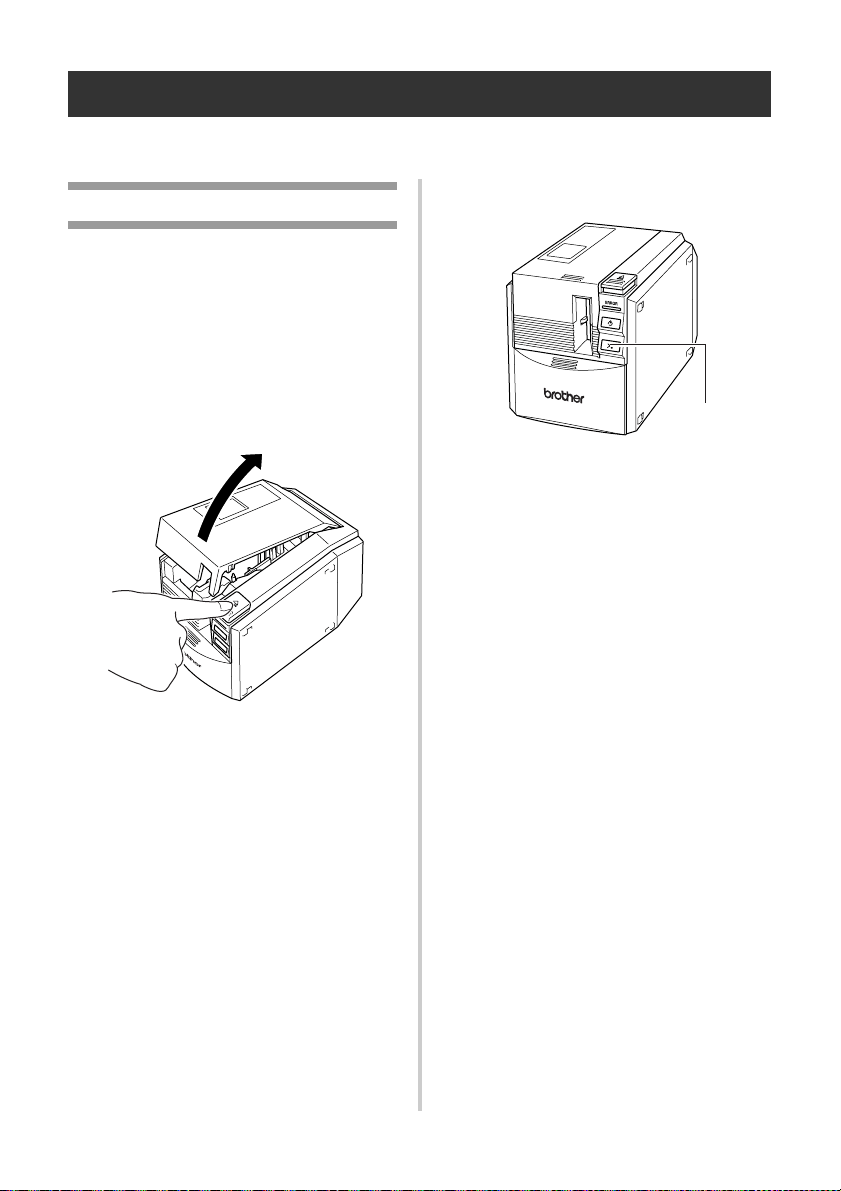
1
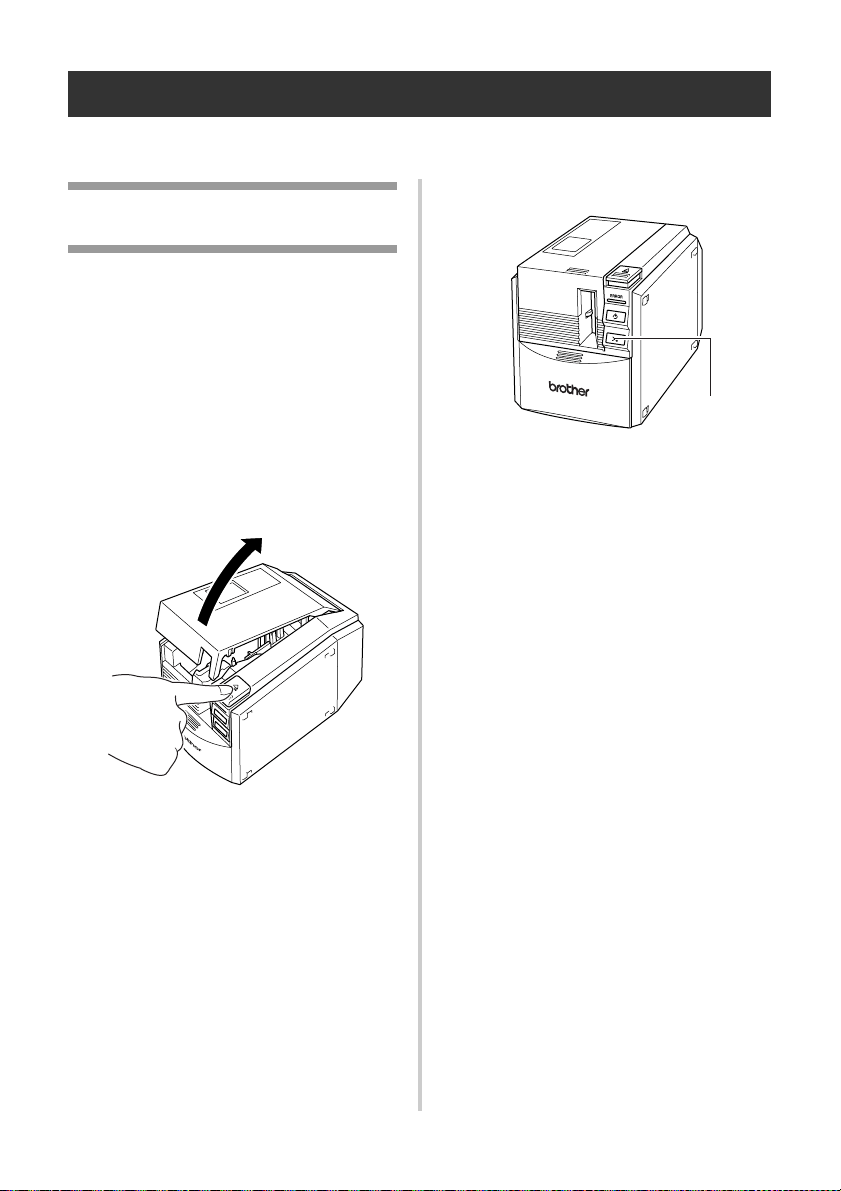
Press the cover release button and open
the tape compartment cover.
2
Remove the tape cassette.
3
Close the tape compartment cover.
4
Press the feed/cut button.
→ Self-cleaning will start.
5
After the rollers stop, press the cover
release button and open the tape
compartment cover.
6
Install the removed tape cassette, and
then close the tape compartment cover.
Feed & Cut button
23
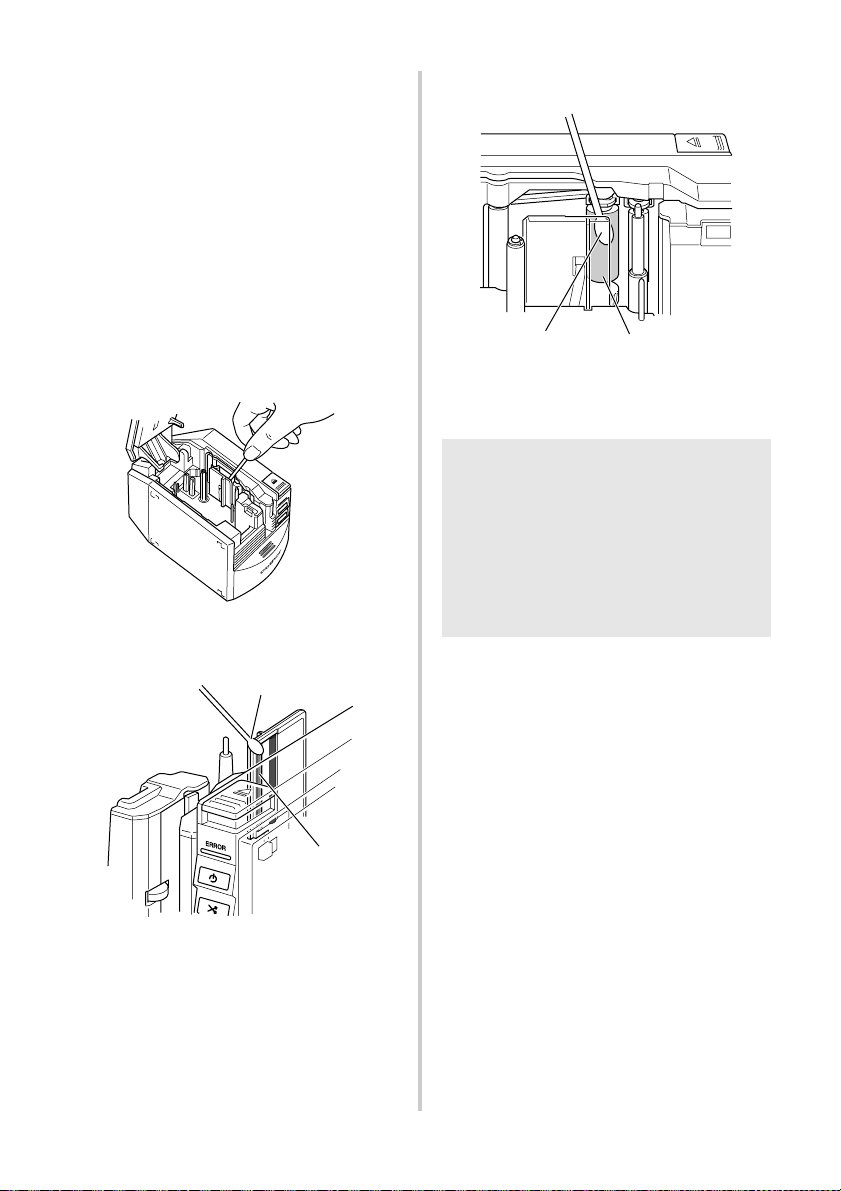
■ Cleaning the print head and head roller
If the print head is not cleaned by the self-
cleaning function, use the following
procedures to clean the PT-9500PC.
1
Turn off the PT-9500PC.
2
Press the cover release button and open
the tape compartment cover.
3
Remove the tape cassette.
4
Use a cotton swab to clean the print head
and head roller.
Print head
Head roller
5
Install the removed tape cassette, and
then close the tape compartment cover.
Cotton swab
Print head
Note
● The PT-9500PC contains a cutter to cut
printed labels. Take special care not to
touch the cutter when cleaning the
PT-9500PC.
● The print head is very hot during use and
immediately after use. Do not clean the
PT-9500PC immediately after printing
labels.
Head roller
Cotton swab
24
■ Cleaning tape
Use the TZ-CL6 cleaning tape with a tape
width of 1 1/2" (36 mm) (sold separately) to
clean the PT-9500PC easily.
1
Press the cover release button and open
the tape compartment cover.
2
Remove the tape cassette and install the
cleaning tape.
3
Close the tape compartment cover.
4
Press the feed/cut button.
→Cleaning will start.
5
When the rollers stop, press the cover
release button.
6
Remove the cleaning tape, reinstall the
tape cassette, and then close the tape
compartment cover.
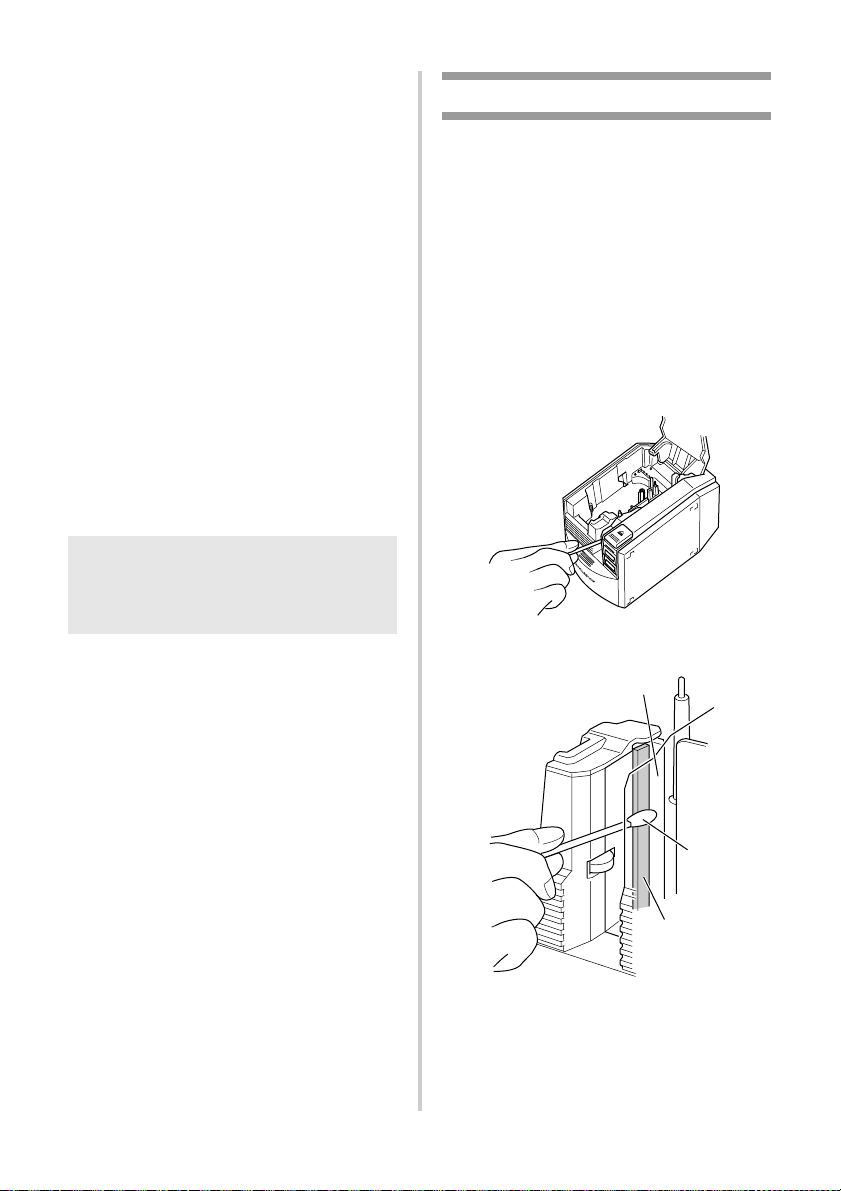
Cleaning the cutter
If the printed labels are not ejected from the
PT-9500PC correctly, clean the cutter.
1
Turn off the PT-9500PC.
2
Press the cover release button and open
the tape compartment cover.
3
Remove the tape cassette.
4
Use a cotton swab to clean the cutter.
Note
● For further details on using the cleaning
tape, refer to the instruction manual
included with the cleaning tape.
Cutter blade
Cotton swab
Metal section

25
5
Reinstall the tape cassette, and then close
the tape compartment cover.
Note
● Take special care not to touch the cutter
when cleaning the PT-9500PC.
● The print head is very hot during use and
immediately after use. Do not clean the
PT-9500PC immediately after printing
labels.

26
Troubleshooting
For PT-9500PC troubleshooting, refer to the following list of possible problems.
Q & A
Problem Cause Solution
The PT-9500PC does not
print.
A printing error is
received.
The interface cable is loose.
Check that the interface cable is
connected correctly, the tape cassette is
installed correctly, and the tape
compartment cover is closed.
The tape cassette is not installed
correctly.
The tape compartment cover is
open.
The USB interface cable is
connected during a serial
connection.
While printing, striped tape
appears.
The tape cassette is empty.
Install a new tape cassette, and then
either press the feed/cut button or turn
the PT-9500PC off and on.
The power button does not
light up or flash.
The power supply cord is loose.
Check that the power supply cord is
connected correctly. If the power button
still does not light up or flash, contact
the retail outlet where the PT-9500PC
was purchased or your local authorized
service center.
The printed label contains a
blank horizontal line.
The print head or head roller is
dirty.
Refer to “Label is not printed clearly” (→
P.22) and clean the print head and head
roller.
A data transmission error
appears on the personal
computer.
The wrong port is selected.
For Windows, select the correct port
from the “Print to the following port” list
in the printer Properties dialog box.
• For a USB connection, select
“USB00n”.
• For a serial connection, select COM1:
if the PT-9500PC is connected to
COM1 or COM2: if the PT-9500PC is
connected to COM2.
The baud rates for the personal
computer and the PT-9500PC
are not the same.
Refer to “Setting the personal computer
baud rate” (→ P.17) and change the
baud rate.

27
The baud rate cannot be set
using the Change Baud Rate
Wizard or the Brother
PT-9500PC utilities.
Error 99: the personal computer
cannot detect the PT-9500PC.
• Make sure that the PT-9500PC is
turned on.
• Make sure that the interface cable is
connected correctly.
• Make sure that the COM port where
the PT-9500PC is connected is the
same COM port selected in the
Change Baud Rate Wizard. (Many
personal computers have more than
one COM port and COM2 may have
been selected in error in the Change
Baud Rate Wizard.)
• Make sure that the USB interface
cable is not connected to the PT-
9500PC during a serial connection.
Error 1 or Error 5: the serial port
of the personal computer cannot
be used.
When another serial connection device
is using the same COM port, labels
cannot be printed. Change the COM
port for the serial connection device or
connect the PT-9500PC to a COM port
that is not being used.
After the labels are cut,
they are not ejected from
the PT-9500PC
correctly.
The cutter blade is dirty.
Refer to “Cleaning the cutter” (→ P.24)
and clean the cutter.
Problem Cause Solution
28
Product specifications
PT-9500PC
* Auto “crack and peel” cutter is available only when using laminated tape.
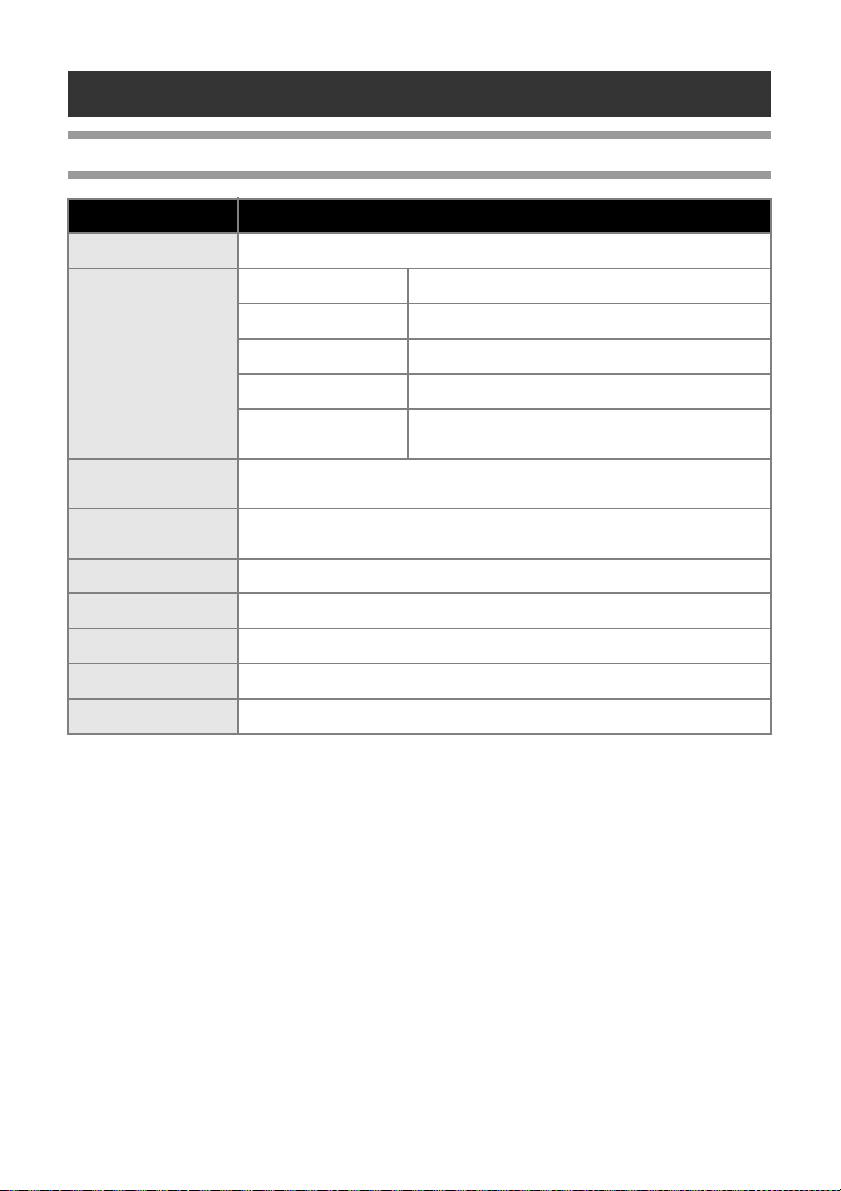
Item Specification
Display LED lamps (green/red)
Printing
Printing method Heat transfer laminated printing/thermal printing
Print head 360 dpi/384 dot
Print resolution For TZ tape cassettes: 360 dpi
Printing speed For TZ tape cassettes: Up to 3/4"/sec (20 mm/sec)
Maximum printing
width
27.1 mm
Buttons
Power button
Feed/cut button
Interface
Serial (RS-232C)
USB (USB 1.1 compliant)
Power source AC 120 V 60 Hz (AC adapter)
Power consumption Approx. 30 W (during printing)
Measurements 4 1/2" (W) × 7 1/2" (D) × 5" (H) (116 (W) × 189.6 (D) × 127 (H) mm)
Weight Approx. 2.6 lb (1.3 kg)
Cutter Auto full cutter/auto “crack and peel” cutter

29
Index
A
AC adapter............................................... 8, 12
AC adapter jack ........................................... 10
AV Labels..................................................... 13
B
Baud rate ..................................................... 17
C
CD-ROM ....................................................... 9
Cleaning tape............................................... 24
Collection tray ......................................... 8, 15
Collection tray support................................. 10
Connecting the PT-9500PC .......................... 12
Connecting to the power source................... 12
Contact Information ..................................... 30
Cover release button .............................. 10, 13
Cutter........................................................... 24
E
ERROR lamp ................................................ 10
F
Feed/cut button...................................... 10, 14
Front view.................................................... 10
G
General precautions....................................... 5
H
Head roller................................................... 23
I
Installing the collection tray ......................... 15
Installing the tape cassette............................ 13
L
Label outlet .................................................. 10
Lamp............................................................ 11
M
Maintenance ................................................ 22
N
Network printer............................................ 21
P
Power button ............................................... 10
Power supply cord ................................... 8, 12
Print head .................................................... 23
Print Server .................................................. 21
PS-9000 ....................................................... 21
PT-9500PC .................................................... 8
P-touch settings............................................ 20
Q
Q & A .......................................................... 26
R
Rear view..................................................... 10
S
Self-cleaning ................................................ 22
Serial interface cable...................................... 8
Serial port .................................................... 10
Software Installation Guide ............................ 9
Specifications............................................... 28
T
Tape cassette ........................................... 8, 13
Tape catalog .................................................. 9
Tape compartment cover ............................. 10
Trademarks .................................................... 6
Troubleshooting........................................... 26
TZ Tapes...................................................... 13
U
Uninstalling the software ............................. 19
USB ID mode............................................... 20
USB ID switch ....................................... 10, 20
USB interface cable ....................................... 8
USB port...................................................... 10
User’s Guide.................................................. 8

30
Service Center Locations
Operational Assistance
Assistance on the Internet
For product information and downloading the latest drivers: http://www.brother-usa.com
For purchasing accessories and certain Brother products: http://www.brothermall.com
Accessories and Supplies
If you need a local service center, please call 1-877-BROTHER (1-877-276-8437)
to locate the authorized service center closest to you.
Note: Be sure to call the Service Center before your visit.
Service centers do not provide operational assistance. See “Operational Assistance”.
For technical and operational assistance you may call Brother Customer Service at:
Voice 1-877-BROTHER (1-877-276-8437). or Fax 1-901-379-1210
To order Brother accessories or supplies by Visa, MasterCard, Discover or American Express,
you may call toll tree 1-877-552-MALL (6255), or complete the order form and
fax both sides of the form to 1-800-947-1445.
For purchasing accessories on the Internet: http://www.brothermall.com
To order by mail or pay by check, please complete the accessory order form and mail it along
with payment to:
Brother International Corporation
Attn: Consumer Accessory Division
P.O. Box 341332
Bartlett, TN 38133-1332
Contact Information (For USA Only)

Guía del usuario

2
Introducción
Gracias por adquirir la unidad PT-9500PC.
La PT-9500PC (de aquí en adelante, “esta unidad”) es una impresora de etiquetas que permite
imprimir fácilmente etiquetas personalizadas cuando se conecta a una computadora.
Este manual contiene diversos procedimientos básicos y precauciones para utilizar la P-touch. Léalo
antes de utilizar la unidad.
Guarde este manual en un lugar seguro para futuras consultas.
■ Declaración de conformidad de la Federal Communications Commission (Comisión federal de
comunicaciones, FCC) (sólo para Estados Unidos)
Parte responsable : Brother International Corporation
100 Somerset Corporate Boulevard
Bridgewater, NJ 08807-0911 USA
TEL: (908) 704-1700
Nombre del producto : Impresora de etiquetas P-touch de Brother
Número de modelo : PT-9500PC
Este dispositivo cumple con la Parte 15 de las Normas de la FCC. El funcionamiento está sujeto
a las dos condiciones siguientes: (1) este dispositivo no puede causar interferencias
perjudiciales, y (2) este dispositivo debe aceptar cualquier interferencia que reciba, que incluye
interferencias que puedan causar un funcionamiento no deseado.
Este equipo se ha comprobado y cumple los límites establecidos para un dispositivo digital de
clase B, conforme a la Parte 15 de la normativa de la FCC. Estos límites se han diseñado para
proporcionar una protección razonable contra las interferencias indeseables en una instalación
doméstica. Este equipo genera, utiliza y puede emitir energía de radiofrecuencia y, si no se
instala y se usa según las instrucciones, puede causar interferencias perjudiciales a las
comunicaciones de radio. No obstante, no se garantiza que no se producirán interferencias en
una instalación específica. Si este equipo causara interferencias perjudiciales en la recepción de
radio o de televisión, lo cual se puede comprobar apagando y encendiendo el dispositivo, el
usuario puede corregir la interferencia llevando a cabo una o más de las medidas siguientes:
• Cambie la orientación o la ubicación de la antena de recepción.
• Aumente la separación entre el equipo y el receptor.
• Conecte el equipo a una toma de corriente en un circuito distinto al que está conectado el
receptor.
• Consulte a su distribuidor o a un técnico experto en radio/TV para obtener ayuda.
Importante
• El cable de conexión incluido se debe utilizar para garantizar el cumplimiento con los límites
establecidos para los dispositivos digitales de Clase B.
• Si se realizan cambios o modificaciones no aprobadas expresamente por Brother Industries,
Ltd. se podría anular la autoridad del usuario para utilizar el equipo.

3
PRECAUCIONES GENERALES
■ P-touch 9500PC
● La PT-9500PC es un equipo de precisión. No la deje caer ni la someta a golpes fuertes.
● No tome ni levante la PT-9500PC de la cubierta del compartimiento de la cinta. La cubierta podría salirse y
la PT-9500PC podría caerse y dañarse.
● La PT-9500PC puede fallar si se deja cerca de un televisor, una radio, etc. No instale la PT-9500PC cerca de
ningún aparato que pueda provocar interferencias electromagnéticas.
● Mantenga la PT-9500PC alejada de la luz del sol directa.
● No utilice la PT-9500PC en zonas con acumulación de polvo, altas temperaturas o con un alto grado de
humedad, ni en zonas donde pueda congelarse. La PT-9500PC podría fallar o dejar de funcionar.
● No limpie la PT-9500PC con diluyente, benceno, alcohol, ni otros disolventes orgánicos. Podría
desprenderse el acabado de la PT-9500PC y la caja de la PT-9500PC podría dañarse. En caso de que esté
sucia, limpie la PT-9500PC con un paño suave y seco.
● No deje ningún objeto de goma o vinilo sobre la PT-9500PC durante mucho tiempo. La PT-9500PC podría
mancharse.
● No ponga objetos pesados ni objetos que contengan agua sobre la PT-9500PC. Si cayera agua dentro de la
PT-9500PC o cualquier otro objeto extraño, contacte con la tienda minorista donde compró la PT-9500PC o
con su centro de servicio local autorizado. Si ha caído agua o cualquier objeto extraño dentro de la
PT-9500PC y continúa utilizándola, el equipo podría dañarse u ocasionar lesiones personales.
● No toque el cortador. Podría ocasionar lesiones personales. Tenga especial cuidado cuando abra la cubierta
del compartimiento de la cinta para cambiarla.
● No introduzca ningún objeto ni bloquee la salida de etiquetas, el tomacorriente para el adaptador de CA, el
puerto USB o el puerto en serie.
● No toque ninguna pieza de metal que esté situada cerca del cabezal de impresión. El cabezal de impresión
se calienta mucho durante el uso e inmediatamente después. No lo toque directamente con las manos.
● Utilice sólo los cables de interfaz incluidos con la PT-9500PC (cable de interfaz USB, cable de interfaz en serie).
● Utilice sólo accesorios y repuestos originales de Brother. No utilice ningún accesorio o repuesto no autorizado.
■ Adaptador de CA
● Utilice sólo el adaptador de CA incluido con la PT-9500PC.
● Cuando no esté previsto utilizar la PT-9500PC por un largo periodo de tiempo, desenchufe el cable de
alimentación.
■ Cinta (casete de cinta)
● Con esta máquina utilice exclusivamente cintas Brother TZ o etiquetas Brother/Avery AV. No utilice
cintas que no tengan la marca o .
● No tire de la cinta, el casete de cinta podría dañarse.
● Si la etiqueta está adherida a una superficie húmeda, sucia o aceitosa es posible que se despegue. Antes de
fijar la etiqueta, limpie la superficie donde va a ser fijada.
● Dependiendo de las condiciones ambientales, así como del material, el estado, la aspereza y la forma de la
superficie donde será fijada, es posible que parte de la cinta no se fije adecuadamente o que la etiqueta se
despegue.
● Para comprobar la fuerza de adhesión de la etiqueta o antes de utilizarla en situaciones en que la seguridad
preocupe especialmente, pruebe la etiqueta fijando un pequeño fragmento en un área discreta de la
superficie en cuestión.
● Si se utiliza la etiqueta en el exterior, los rayos ultravioletas, el viento y la lluvia pueden desteñir el color de la
etiqueta y los bordes pueden despegarse.
● Las marcas hechas con tintas al óleo o al agua pueden verse a través una etiqueta pegada sobre ellas. Para
ocultar las marcas, utilice dos etiquetas superpuestas o utilice una etiqueta de color oscuro.
● No utilice casetes de cinta vacíos.
● No exponga los casetes de cinta directamente a la luz del sol, a condiciones de altas temperaturas y
humedad, o a concentraciones de polvo. Guárdelos en un lugar fresco y oscuro. Utilice los casetes de cinta
recien abiertos.

4
● Tenga en cuenta que Brother Co., Ltd. no se responsabiliza por ningún daño, etc., que pueda resultar
del incumplimiento de las precauciones descritas.
● Avery
®
es una marca comercial registrada de AVERY DENNISON CORPORATION.
■ CD-ROM
● No raye el CD-ROM.
● No someta el CD-ROM a temperaturas extremadamente altas o bajas.
● No ponga objetos pesados sobre el CD-ROM ni lo someta a presiones.
■ Con respecto al uso del software
● El software contenido en el CD-ROM está destinado exclusivamente para su uso con la PT-9500PC.
Puede ser instalado en varias computadoras personales para su empleo en oficinas, etc.
Marcas comerciales
• El logotipo de Brother es una marca registrada de Brother Industries, Ltd.
• Brother es una marca registrada de Brother Industries, Ltd.
© 2009 Brother Industries, Ltd. Reservados todos los derechos.
• Los nombres de otros programas o productos utilizados en este documento son marcas comerciales o
marcas comerciales registradas de sus respectivos titulares.
• Todas las empresas cuyo título de software se mencione en esta guía tienen un contrato de licencia de
software específico para sus programas.
• El resto de marcas y nombres de productos mencionados en esta Guía del usuario y en la Guía de
instalación del software son marcas registradas de sus respectivos propietarios.

5
Índice
Introducción ......................................................................................................................2
Índice ................................................................................................................................5
Desembalaje de la PT-9500PC ...........................................................................................6
Términos relacionados con la PT-9500PC .........................................................................8
Vista frontal ......................................................................................................................................8
Vista posterior ..................................................................................................................................8
Visualización de las lámparas ...........................................................................................................9
Conexión de la PT-9500PC ..............................................................................................10
Conexión a la fuente de alimentación ............................................................................................10
Instalación del casete de cinta .........................................................................................11
Cinta autorizada .............................................................................................................................11
Instalación del casete de cinta ........................................................................................................11
Instalación de la bandeja de recogida .............................................................................13
Preparativos para utilizar la unidad PT-9500PC ..............................................................14
Ajuste de la interfaz en serie ...........................................................................................15
Configuración de la velocidad en baudios de la computadora personal .........................................15
Cambio de la velocidad en baudios de la PT-9500PC ....................................................................17
Cambio de los ajustes del P-touch ...................................................................................18
Cambio del modo ID USB ..............................................................................................................18
Utilización de varios ordenadores ..................................................................................................19
Mantenimiento ................................................................................................................20
La etiqueta no se imprime claramente ............................................................................................20
Limpieza del cortador .....................................................................................................................22
Solución de problemas ....................................................................................................24
P y R ..............................................................................................................................................24
Especificaciones del producto .........................................................................................26
PT-9500PC .....................................................................................................................................26
Índice alfabético ..............................................................................................................27
Información de contacto (sólo para EE.UU.) ...................................................................28
6
Desembalaje de la PT-9500PC
Abra la caja y confirme que contiene los siguientes artículos. Si alguno de estos artículos falta o está
dañado, por favor, contacte la tienda o establecimiento donde compró la PT-9500PC.
■ PT-9500PC
Impresora de etiquetas
■ Adaptador de CA
Se conecta al cable de alimentación.
■ Cable de alimentación
Se conecta a un enchufe (CA 120V).
■ Cable de interfaz USB
Este cable se utiliza para conectar la
PT-9500PC al puerto USB de una
computadora personal.
■ Cable de interfaz en serie
Este cable se utiliza para conectar la
PT-9500PC al puerto en serie de una
computadora personal.
■ Casete de cinta
■ Bandeja de recogida
La bandeja recoge las etiquetas impresas que
expulsa la PT-9500PC.
■ Guía del usuario
Guárdelo para futuras consultas.

7
■ CD-ROM
El CD-ROM contiene, entre otras cosas, el
software que debe instalarse en una
computadora personal.
■ Catálogo de cintas
Este catálogo contiene una lista de casetes de
cinta diseñados exclusivamente para la serie
de impresoras P-touch.
■ Guía de instalación del software

8
Términos relacionados con la PT-9500PC
Esta sección identifica los principales términos relacionados con la PT-9500PC.
Vista frontal
Vista posterior
Nota
● Si la cubierta del compartimiento de la cinta queda abierta, podría acumularse polvo en el
cabezal de impresión. Cierre siempre la cubierta.
Nota
● El interruptor de ID USB generalmente se configura en la posición “2”. Para obtener más
información, consulte “Cambio del modo ID USB” (→ P.18).
Cubierta del
compartimiento
de la cinta
Salida de etiquetas
Soporte para la bandeja
de recogida
Botón de apertura de la
cubierta
Lámpara de ERROR
Botón de encendido (con lámpara)
Botón FEED/CUT
Interruptor de ID USB
Tomacorriente para el
adaptador de CA
Puerto en serie
Puerto USB

9
Visualización de las lámparas
Puede determinarse cuál es el estado de la PT-9500PC por la lámpara del botón de encendido (verde)
y la lámpara de ERROR (roja).
Estado de la lámpara
Estado Solución
Botón de
encendido
(verde)
Lámpara de
ERROR (roja)
Encendida No encendida
Estado en espera de la
PT-9500PC
—
Parpadeando No encendida Recibiendo datos —
Parpadeando Encendida
Recibiendo datos
No hay casete de cinta
Instale el casete de cinta y cierre la
cubierta del compartimiento de la cinta.
Recibiendo datos
La cubierta del
compartimiento de la cinta
está abierta.
Cierre la cubierta.
Encendida Encendida
Mientras la PT-9500PC está
en espera
No hay casete de cinta
Instale el casete de cinta y cierre la
cubierta del compartimiento de la cinta.
Mientras la PT-9500PC está
en espera
La cubierta del
compartimiento de la cinta
está abierta.
Cierre la cubierta.
Encendida Parpadeando
Durante la impresión
No hay casete de cinta
Casete de cinta incorrecto
Instale el casete de cinta correcto y
cierre la cubierta del compartimiento de
la cinta.
Durante la impresión
La cubierta del
compartimiento de la cinta
está abierta.
Cierre la cubierta.
Casete de cinta vacío
Instale un casete de cinta que tenga
cinta y cierre la cubierta del
compartimiento de la cinta.
Error de transmisión
La PT-9500PC volverá a estar en espera
después de 5 segundos.
Encendida
Parpadeando a
intervalos
rápidos
Error en el cortador Compruebe que la cinta no está
atascada en la PT-9500PC. Si es
necesario, apague la PT-9500PC y
vuelva a encenderla.
Si la lámpara de ERROR continúa
parpadeando, contacte el
establecimiento comercial donde
compró la PT-9500PC o su centro de
servicio local autorizado.
Error en el soporte del
rodillo
Encendida
Parpadeando a
intervalos muy
rápidos
Error en la EEPROM
Error en el tablero de
circuitos
Apague la PT-9500PC y vuelva a
encenderla.
Si la lámpara de ERROR continúa
parpadeando, contacte con el
establecimiento minorista donde
compró la PT-9500PC o con su centro
de servicio local autorizado.
10
Conexión de la PT-9500PC
Conecte la PT-9500PC a la fuente de alimentación y a la computadora personal.
Conexión a la fuente de
alimentación
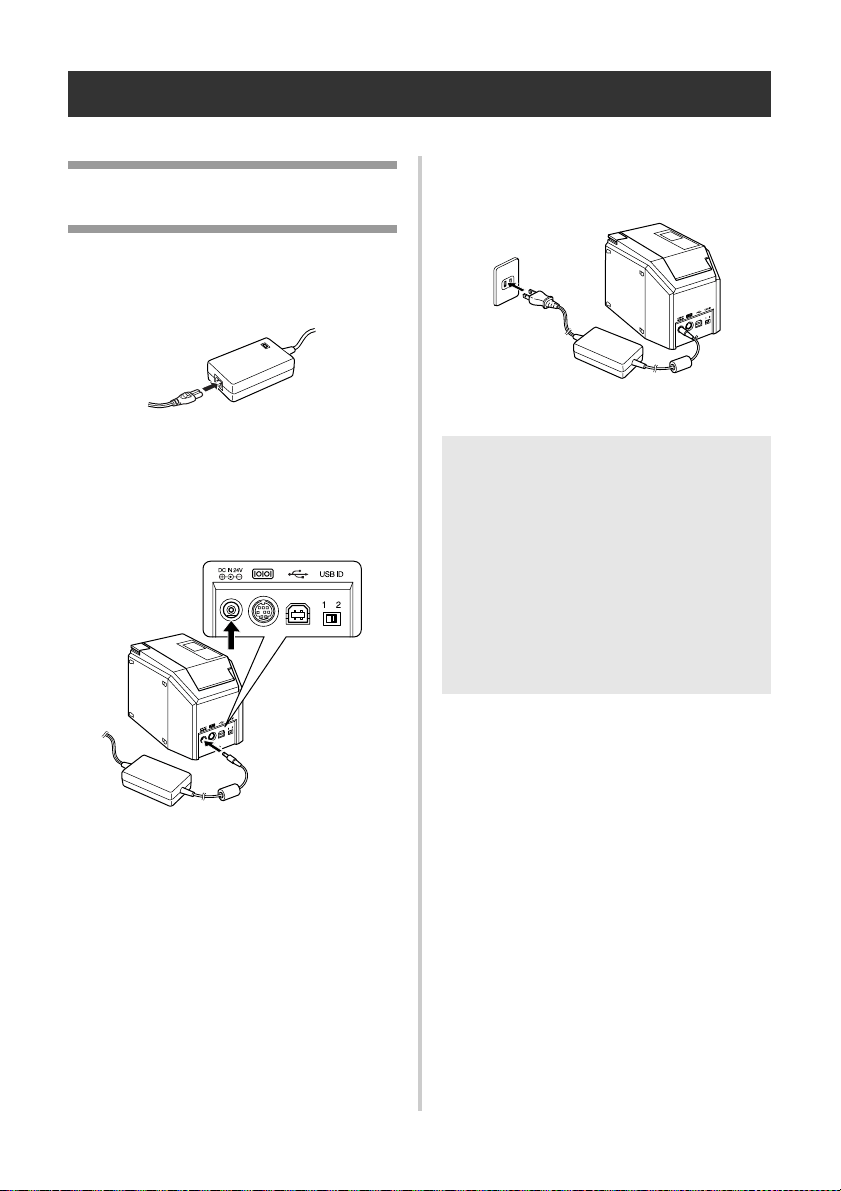
1
Conecte el cable de alimentación al
adaptador de CA.
2
Introduzca el conector del adaptador de
CA en el tomacorriente para el adaptador
de CA situado en la parte trasera de la
PT-9500PC.
3
Conecte el cable de alimentación al
enchufe (CA 120V).
Nota
● Cuando haya terminado de utilizar la
PT-9500PC, desenchufe el cable de
alimentación de la fuente de
alimentación y el adaptador de CA de la
PT-9500PC y guárdelos para futuros usos.
● Al retirar el adaptador de CA, no tire del
cable. Los hilos del cable del adaptador
de CA podrían romperse.
● No utilice ningún otro adaptador de CA
que no sea el que viene incluido en la
PT-9500PC. La PT-9500PC podría fallar.
11
Instalación del casete de cinta
En esta sección se describen los tipos de casetes de cinta que se pueden utilizar con la PT-9500PC y se
explica el procedimiento para instalarlos.
Cinta autorizada
A continuación se enumeran los tipos de cinta
que se pueden utilizar con la PT-9500PC.
■ Casetes TZ
Cinta laminada estándar
Cinta adhesiva extrafuerte: laminada
Cinta de ID flexible: laminada
Cinta indicadora de alteraciones: laminada
Cinta de tela para transferencia con
plancha: no laminada
■ Etiquetas AV
Instalación del casete de
cinta
En esta sección se explica el procedimiento
para instalar el casete de cinta.
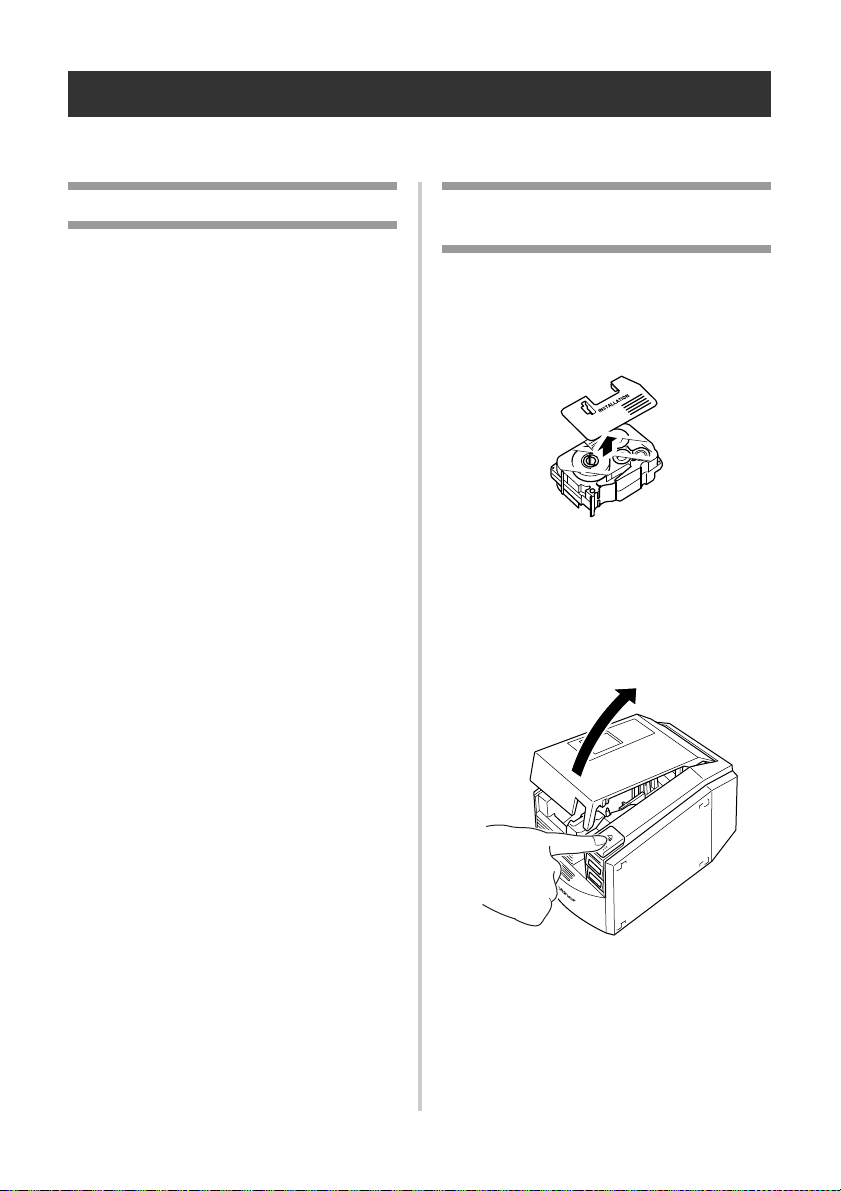
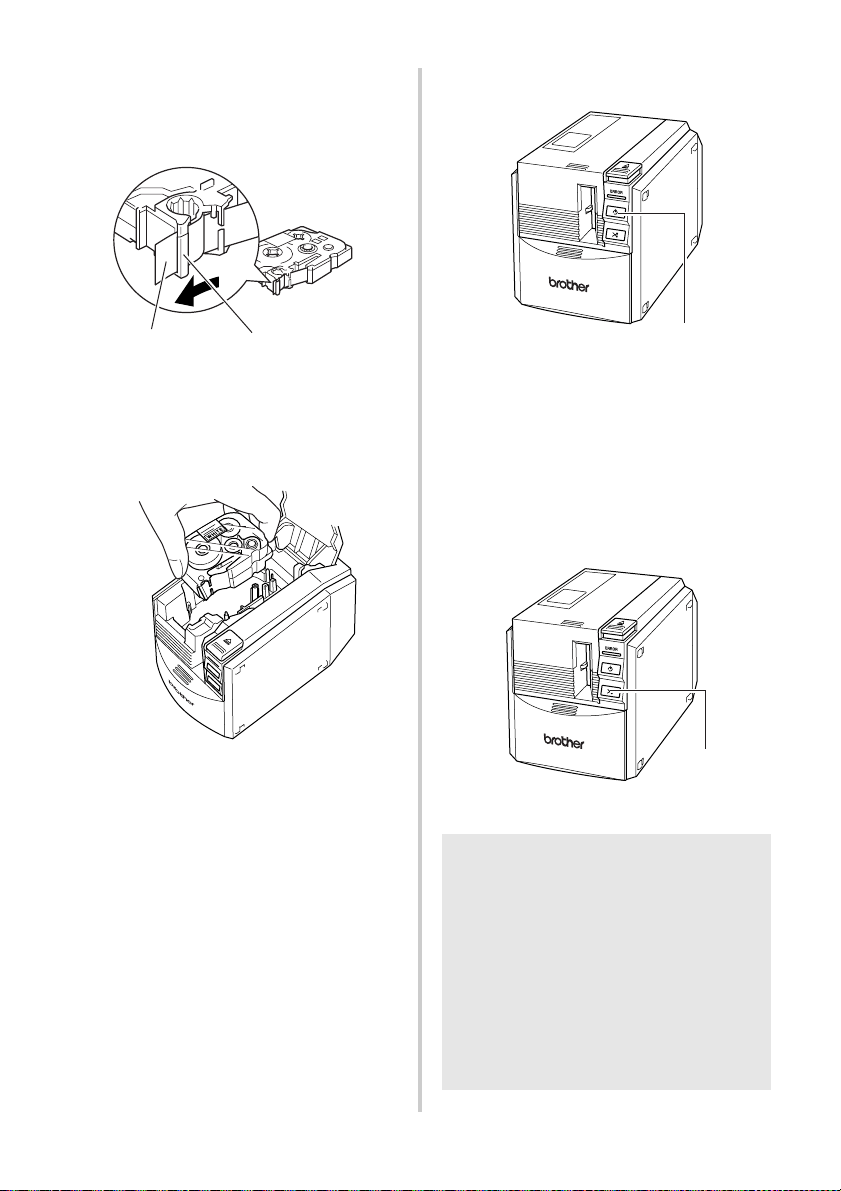
1
Quite el tapón del casete de cinta.
• Tenga en cuenta que algunos casetes
de cinta pueden no tener tapón.
2
Presione el botón de apertura de la
cubierta y abra la cubierta del
compartimiento de la cinta.
12
3
Verifique el casete de cinta.
Compruebe que el extremo de la cinta no
esté doblado y que esté correctamente
colocado a través de las guías de la cinta.
4
Instale el casete de cinta.
Asegúrese de instalar el casete de cinta en
la dirección correcta.
5
Cierre la cubierta del compartimiento de
la cinta.
6
Presione el botón de encendido de la
PT-9500PC.
→ Se iluminará el botón de encendido
(verde).
• Si la cubierta del compartimiento de la
cinta no está completamente cerrada o
si el casete de cinta no está instalado
correctamente se encenderá la lámpara
de ERROR. En este caso, repita el
procedimiento desde el paso
2.
7
Presione el botón FEED/CUT.
→ Quite la parte sobrante de la cinta.
Guías de la cinta
Extremo de la cinta
Nota
● Si no se realiza ninguna otra operación
durante los 10 minutos posteriores a la
impresión de una etiqueta, el soporte del
rodillo se soltará automáticamente y es
posible que produzca un sonido. Debido
a esta función, la cinta no se puede retirar
si el adaptador de CA se saca de la
PT-9500PC mientras ésta está encendida,
porque el soporte del rodillo no se
soltará. Apague siempre la PT-9500PC
antes de quitar el adaptador de CA de la
PT-9500PC.
Botón de encendido
Botón FEED/CUT
13
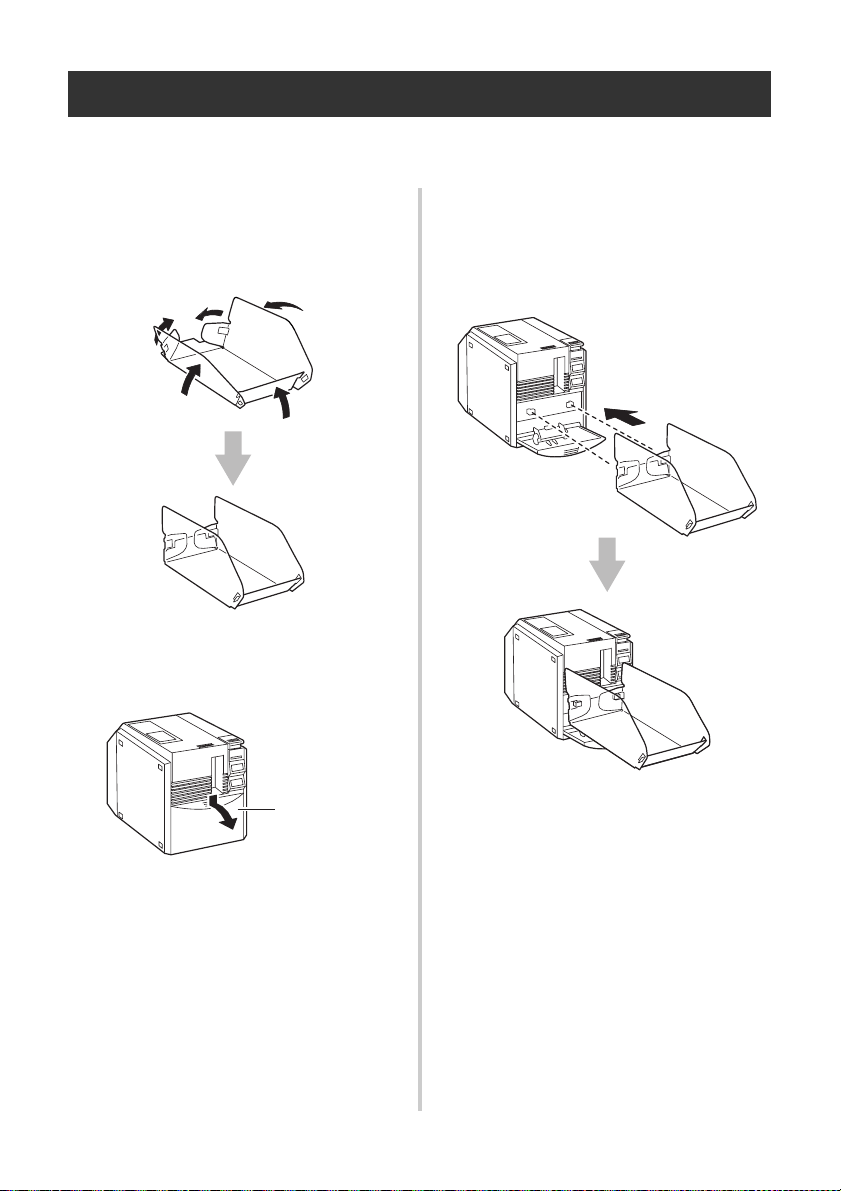
Instalación de la bandeja de recogida
Instale la bandeja de recogida. La bandeja de recogida se utiliza para recolectar las etiquetas que
expulsa la PT-9500PC. Utilice la bandeja de recogida cuando se disponga a imprimir muchas
etiquetas.
1
Monte la bandeja de recogida.
Consulte las ilustraciones que se incluyen
más abajo para montar la bandeja de
recogida.
2
Abra el soporte de la bandeja de
recogida.
3
Instale la bandeja de recogida en la
PT-9500PC.
Consulte las ilustraciones que se incluyen
más abajo para instalar la bandeja de
recogida.
Soporte de la
bandeja de
recogida

14
Preparativos para utilizar la unidad PT-9500PC
Antes de crear etiquetas con la PT-9500PC, son necesarios los siguientes preparativos.
Nota
● Los procedimientos de conexión varían dependiendo del sistema operativo instalado en la
computadora y también varían de acuerdo al tipo de conexión ya sea conexión en serie o USB.
Para mayor información sobre la conexión de la PT-9500PC a su computadora, consulte "Guía
de instalación del software".
Instalación del software
Tendrá que instalar el controlador de impresora para
utilizar la PT-9500PC con la computadora personal.
También deberá instalar el software de diseño de etiquetas
P-touch Editor. Para mayor información sobre la
instalación de este software, consulte "Guía de instalación
del software".
Creación de etiquetas
Cuando haya terminado de preparar la PT-9500PC, podrá
comenzar a crear etiquetas. Para obtener más información
sobre cómo diseñar y crear etiquetas, consulte "Guía de
instalación del software". Para obtener explicaciones
detalladas sobre las funciones, también puede consultar el
menú Ayuda del software P-touch Editor.
15
Ajuste de la interfaz en serie
Configuración de la
velocidad en baudios de la
computadora personal
Siga los pasos que se indican a continuación
para cambiar o confirmar el puerto y la
velocidad en baudios de la computadora
personal y de la PT-9500PC.
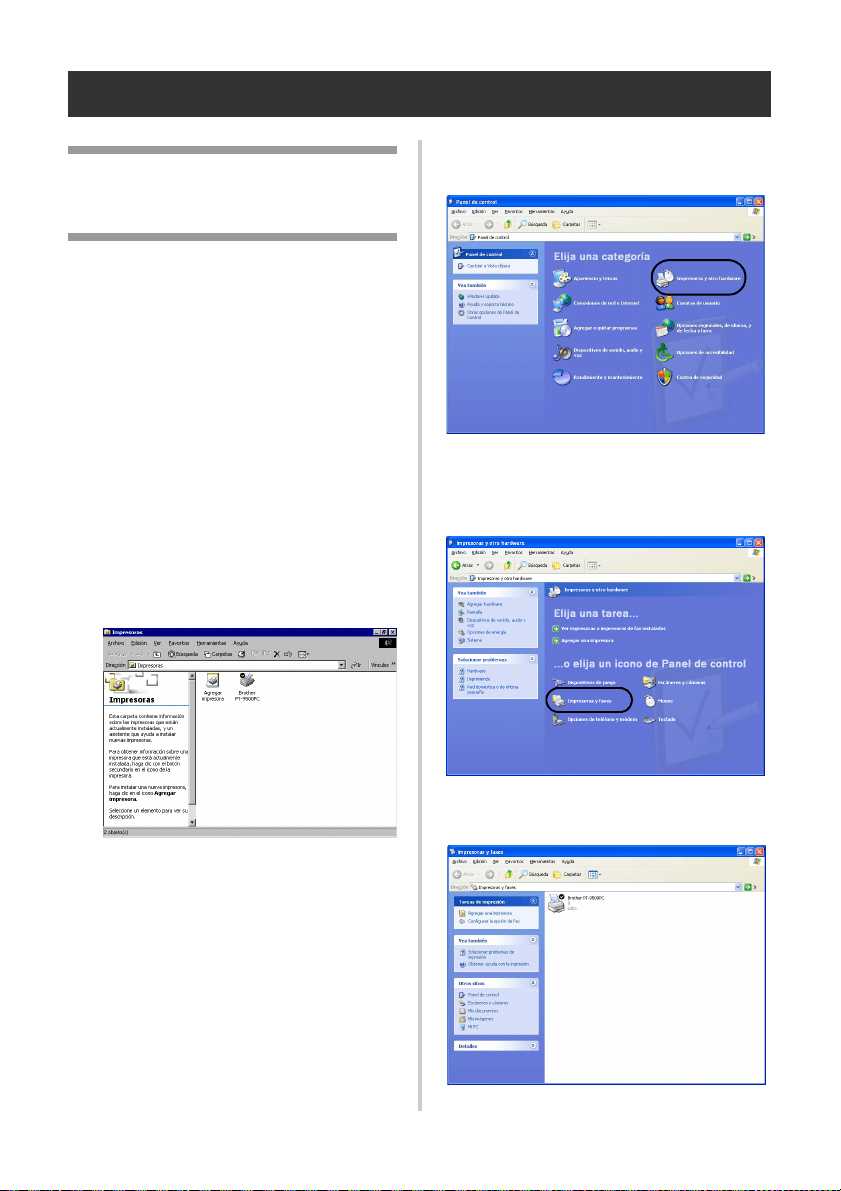
1
En la barra de tareas, haga clic sobre el
botón “Start” y luego haga clic sobre
“Panel de control”.
→Aparece el cuadro de diálogo “Panel
de control”.
Para Windows
®
2000 Pro
En la barra de tareas, haga clic sobre el
botón “Inicio”, seleccione
“Configuración”, haga clic sobre “Panel de
control” y luego haga doble clic sobre el
icono “Impresoras”. Continúe con el paso
4.
2
Haga clic sobre “Impresoras y otro
hardware”.
→ Aparecerá la ventana “Impresoras y
otro hardware”.
3
Haga clic sobre “Impresoras y faxes”.
→ Aparecerá la ventana “Impresoras y
faxes”.

16
4
Haga clic con el botón derecho del
mouse en el icono Brother PT-9500PC y,
a continuación, haga clic sobre
“Propiedades”.
→Aparecerá la ventana “Propiedades
de Brother PT-9500PC”.
5
Haga clic sobre la ficha “Puertos” y, a
continuación, seleccione en la lista el
puerto utilizado.
Haga clic sobre “Aplicar” para guardar la
configuración.
6
Haga clic sobre la ficha “Configuración
de dispositivo”.
7
Haga clic sobre [Utilidad] y luego haga
clic sobre [Propiedades], junto a Utilities.
→ Aparecerá el cuadro de diálogo
“Brother PT-9500 Utilidad”.
8
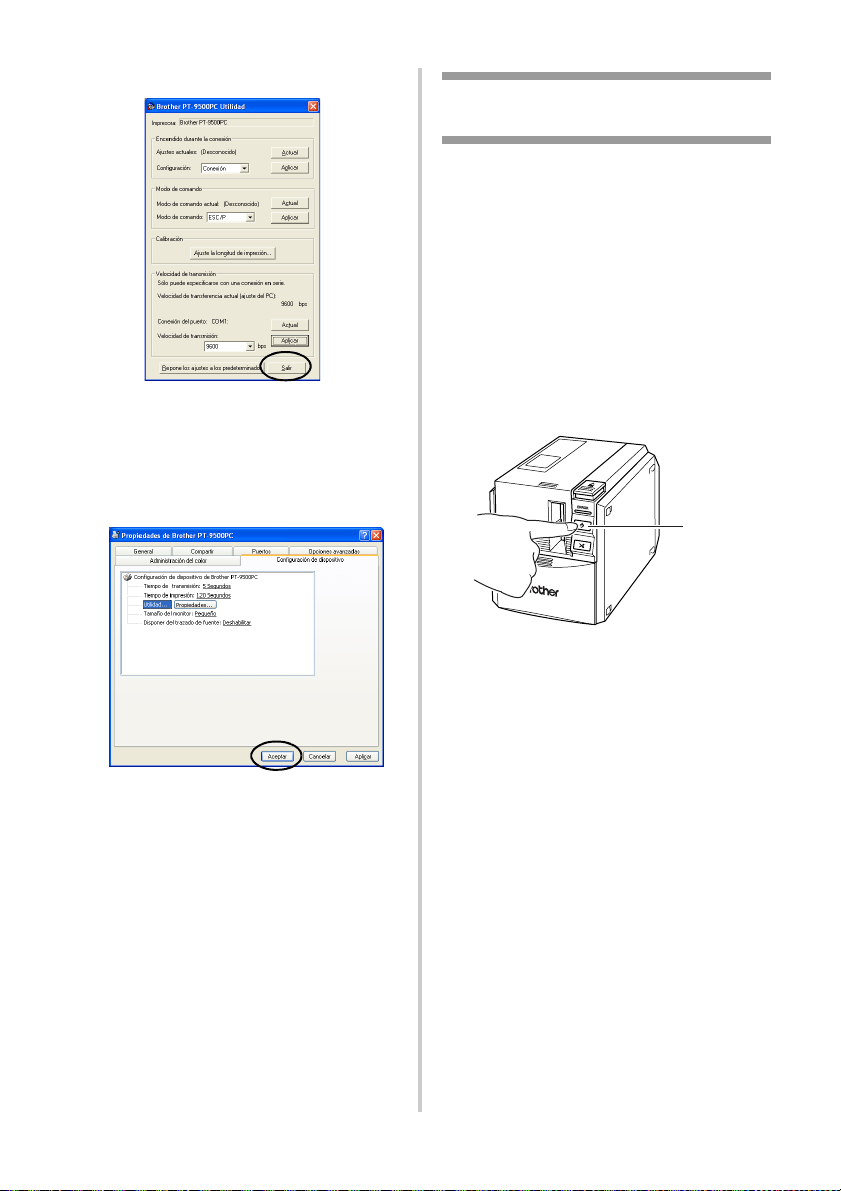
Seleccione la velocidad en baudios
deseada.
9
Haga clic sobre [Aplicar].
→ Se cambiará la velocidad en
baudios.
17
0
Haga clic sobre [Salir].
→Aparecerá nuevamente la ventana
“Propiedades de Brother
PT-9500PC”.
a
Haga clic sobre [Aceptar].
→La instalación se ha completado y la
ventana “Propiedades de Brother
PT-9500PC” se cerrará.
Cambio de la velocidad en
baudios de la PT-9500PC
La velocidad en baudios de la interfaz en serie
se establece en 115.200 bps en la fábrica.
Si utiliza un PC que no es compatible con una
velocidad en baudios de 115.200 bps para el
puerto en serie, cambie la velocidad en baudios
de la PT-9500PC a 9.600 bps.
1
Apague la PT-9500PC.
2
Con la PT-9500PC apagada, presione el
botón de encendido de la PT-9500PC
durante 5 segundos o más.
→ El indicador de ERROR (rojo) y el del
botón de encendido (verde)
parpadearán alternativamente.
3
Después de que los indicadores
parpadeen alternativamente, suelte el
botón de encendido.
→ La velocidad en baudios está
establecida en 9.600 bps.
Botón de
encendido
18
Cambio de los ajustes del P-touch
Esta sección describe los procedimientos para cambiar los ajustes de la PT-9500PC e incluye una
explicación para los casos en los que se utiliza un entorno LAN.
Cambio del modo ID USB
Cuando se utilizan varias unidades PT-9500PC,
el modo ID USB se puede cambiar para
reconocer y utilizar cada PT-9500PC
individualmente o para reconocer todas las
PT-9500PC como una sola impresora.
Reconocimiento de cada PT-9500PC por
separado
Si el modo ID está establecido en “1”,
instale un controlador de impresora
independiente para cada PT-9500PC.
El PC reconocerá cada PT-9500PC como
una impresora diferente.
Reconocimiento de todas las PT-9500PC
como una sola impresora.
Si el modo ID está establecido en “2”,
instale el controlador de la impresora una
sola vez y las distintas PT-9500PC se
podrán utilizar como la misma impresora.
Incluso si conecta al PC una PT-9500PC
diferente, ésta se podrá utilizar sin ninguna
configuración adicional.
1
Apague la PT-9500PC y el PC.
2
Desconecte el cable de interfaz USB de
la PT-9500PC y del PC.
3
Cambie el interruptor ID USB situado en
la parte posterior de la PT-9500PC.
4
Conecte el cable de interfaz USB a la
PT-9500PC y al PC.
5
Encienda la PT-9500PC y, a
continuación, encienda el PC.
Nota
● El interruptor ID USB generalmente se
configura en la posición “2”
19
Utilización de varios
ordenadores
Varios ordenadores personales pueden utilizar
la PT-9500PC como una impresora común.
Conecte la PT-9500PC a un PC y configúrela
para su uso común. Al hacerlo, varios
ordenadores personales de la misma red podrán
utilizar la PT-9500PC como impresora de red.
Esta función sólo se puede utilizar en un
entorno Windows.
■ Utilización como impresora de red
El servidor de impresora PS-9000 (que se
vende por separado), es diseñado
exclusivamente para las series de impresoras
P-touch.
Al utilizar el servidor de impresora PS-9000,
se puede utilizar la PT-9500PC como
impresora de red.
Esta función sólo se puede utilizar en un
entorno de Windows
®
.
Nota
● Los ajustes para uso común de la
impresora varían en función del sistema
operativo del PC y del entorno LAN.
Para obtener más información, consulte
el manual mde instrucciones del PC.
Ether
HUB
Cable ethernet
Cable de interfaz USB o
cable de interfaz en serie
Nota
● Para la instalación de PS-9000, consulte
el manual de instrucciones para el
servidor de impresoras PS-9000.
PS-9000
Ether HUB
Cable ethernet
Cable de interfaz USB
20
Mantenimiento
Las partes internas de la PT-9500PC se ensuciarán gradualmente con el uso. En esta sección se
describen los procedimientos para el mantenimiento de la PT-9500PC.
La etiqueta no se imprime
claramente
Si la etiqueta impresa contiene una línea
horizontal negra o los caracteres no están
claros, el cabezal de impresión y el rodillo del
cabezal pueden estar sucios.
■ Autolimpieza
Utilice la función de autolimpieza de la
PT-9500PC para eliminar la suciedad del
cabezal de impresión.
1
Presione el botón de apertura de la
cubierta y abra la cubierta del
compartimiento de la cinta.
2
Quite el casete de cinta.
3
Cierre la cubierta del compartimiento de
la cinta.
4
Presione el botón FEED/CUT.
→ La autolimpieza comenzará.
5
Presione el botón de apertura de la
cubierta y abra la cubierta del
compartimiento de la cinta.
Después de que se paren los rodillos,
presione el botón de apertura de la
cubierta y abra la cubierta del
compartimiento de la cinta.
6
Instale el casete de cinta que quitó y
cierre la cubierta del compartimiento de
la cinta.
Botón FEED/CUT
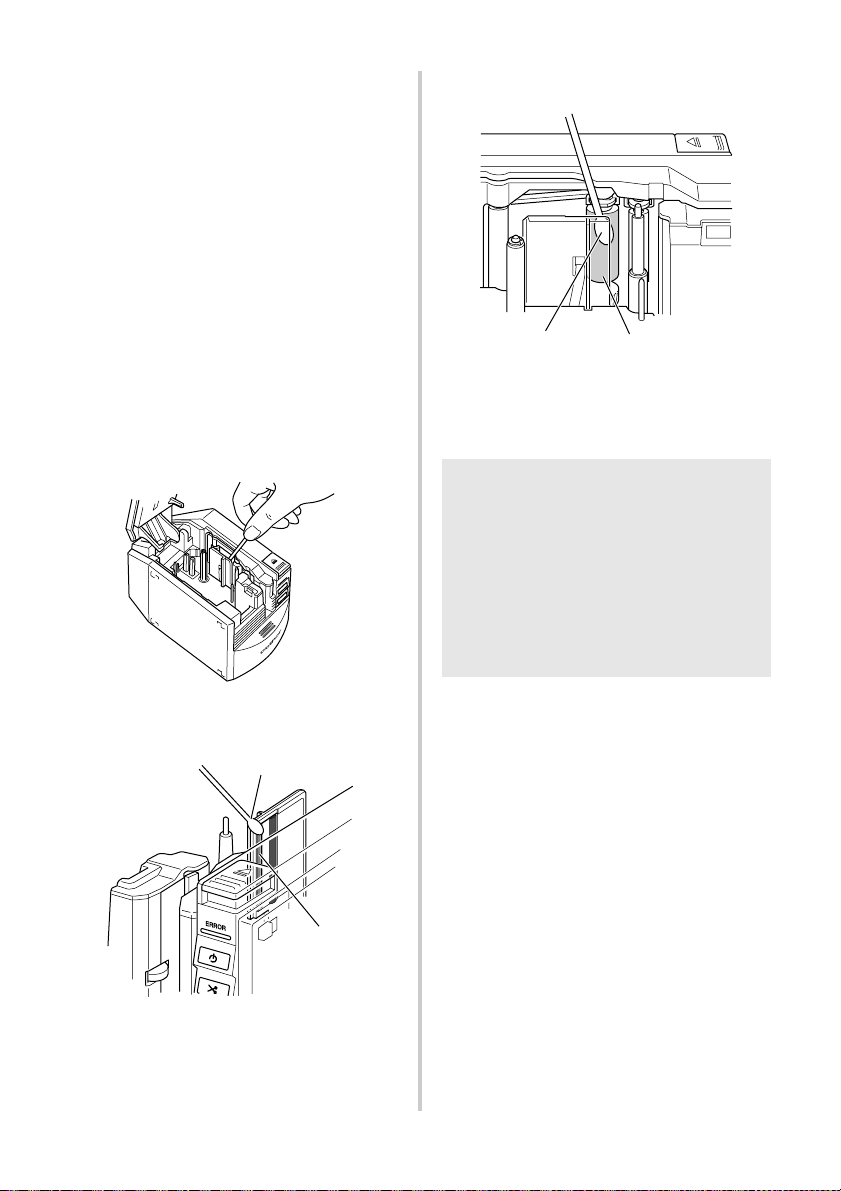
21
■ Limpieza del cabezal de impresión y del
rodillo del cabezal
Si el cabezal de impresión no se limpió con
la función de autolimpieza, lleve a cabo los
siguientes procedimientos para limpiar la
PT-9500PC.
1
Apague la PT-9500PC.
2
Presione el botón de apertura de la
cubierta y abra la cubierta del
compartimiento de la cinta.
3
Quite el casete de cinta.
4
Utilice un palillo de algodón para limpiar
el cabezal de impresión y el rodillo del
cabezal.
Cabezal de impresión
Rodillo del cabezal
5
Instale el casete de cinta que quitó y
cierre la cubierta del compartimiento de
la cinta.
Palillo de algodón
Cabezal de
impresión
Nota
● La PT-9500PC contiene un cortador para
cortar las etiquetas impresas. Tenga
especial cuidado de no tocar el cortador
cuando limpie la PT-9500PC.
● El cabezal de impresión se calienta
mucho durante el uso y puede seguir
caliente inmediatamente después. No
limpie la PT-9500PC inmediatamente
después de imprimir etiquetas.
Rodillo del cabezal
Palillo de algodón
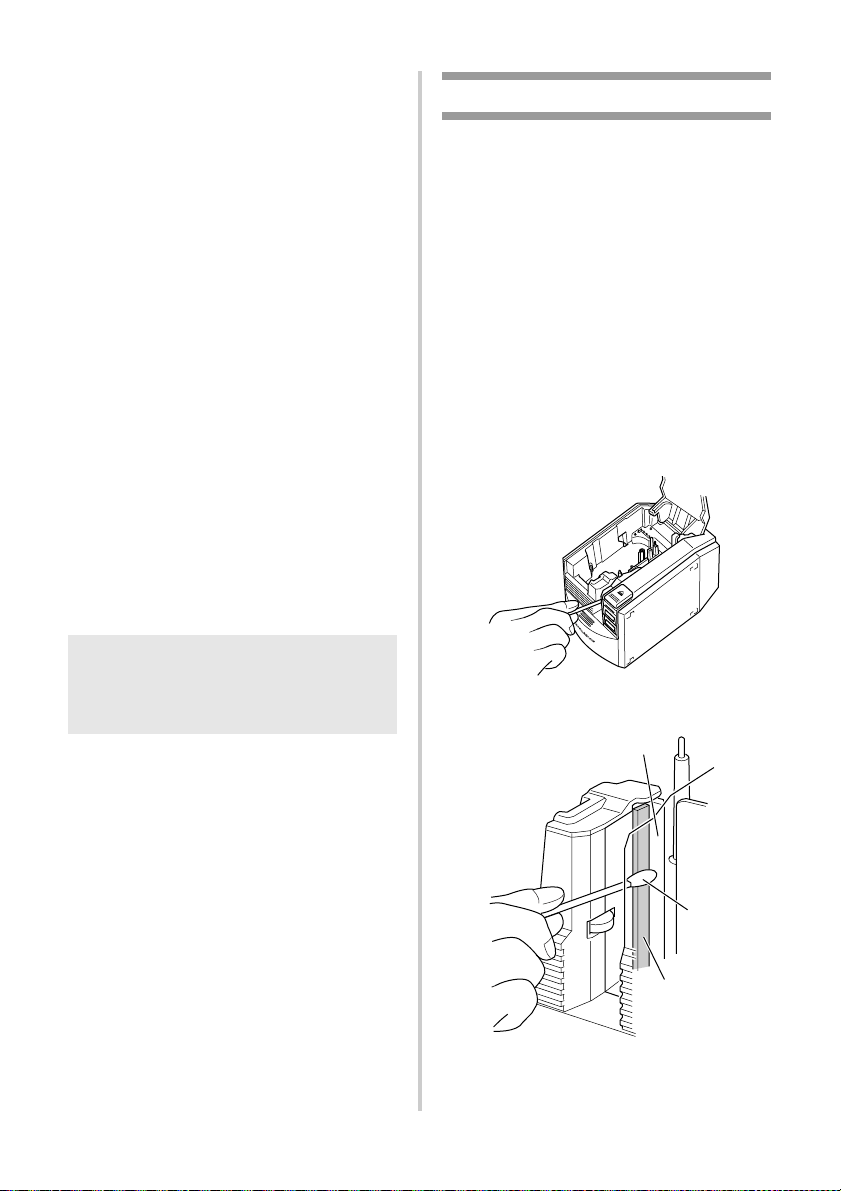
22
■ Otros métodos de limpieza
Utilice la cinta limpiadora TZ-CL6 con una
cinta de 1 1/2" (36 mm) de ancho (se vende
por separado) para limpiar fácilmente la
PT-9500PC.
1
Presione el botón de apertura de la
cubierta y abra la cubierta del
compartimiento de la cinta.
2
Quite el casete de cinta y coloque la
cinta limpiadora.
3
Cierre la cubierta del compartimiento de
la cinta.
4
Presione el botón FEED/CUT un par de
veces.
→La limpieza comenzará.
5
Una vez parados los rodillos, presione el
botón de apertura de la cubierta.
6
Quite la cinta limpiadora, ponga en su
lugar el casete de cinta que quitó y cierre
la cubierta del compartimiento de la
cinta.
Limpieza del cortador
Si las etiquetas impresas no se expulsan
correctamente de la PT-9500PC, limpie el
cortador.
1
Apague la PT-9500PC.
2
Presione el botón de apertura de la
cubierta y abra la cubierta del
compartimiento de la cinta.
3
Quite el casete de cinta.
4
Utilice un palillo de algodón para limpiar
el cortador.
Nota
● Para obtener más detalles sobre el uso de
la cinta limpiadora, consulte el manual
de instrucciones incluido con ésta.
Cuchilla del cortador
Palillo de
algodón
Sección de metal

23
5
Instale el casete de cinta que quitó y
cierre la cubierta del compartimiento de
la cinta.
Nota
● Tenga cuidado de no tocar el cortador
cuando limpie la PT-9500PC.
● El cabezal de impresión se calienta
mucho durante el uso y puede seguir
caliente inmediatamente después. No
limpie la PT-9500PC inmediatamente
después de imprimir etiquetas.

24
Solución de problemas
Para solucionar los problemas de la PT-9500PC, consulte la siguiente lista de posibles problemas.
P y R
Problema Causa Solución
La PT-9500PC no
imprime.
Se indica un error de
impresión.
El cable de interfaz está flojo.
Compruebe que el cable de interfaz está
conectado correctamente, que el casete de
cinta está instalado correctamente y que la
cubierta del compartimiento de la cinta está
cerrada.
El casete de cinta no está
introducido correctamente.
La cubierta del
compartimiento de la cinta
está abierta.
El cable de interfaz USB está
conectado durante una
conexión en serie.
Aparece cinta a rayas
durante la impresión.
Se ha terminado la cinta del
casete.
Instale un casete de cinta nuevo y, a
continuación, presione el botón FEED/CUT o
apague y encienda la PT-9500PC.
El botón de encendido
no se enciende ni parpa-
dea.
El cable de alimentación está
flojo.
Compruebe que el cable de alimentación está
conectado correctamente. Si el botón de
alimentación sigue sin encenderse ni
parpadear, contacte con el establecimiento en
el que adquirió la PT-9500PC o con un
representante de mantenimiento autorizado.
Aparece una línea hori-
zontal en blanco a lo
largo de la etiqueta
impresa.
El cabezal de impresión o el
rodillo está sucio.
Consulte “La etiqueta no se imprime
claramente” (→ P.20) y limpie el cabezal de
impresión y el rodillo principal.
Aparece un error de
transmisión de datos en
el PC.
El puerto seleccionado es
incorrecto.
Para Windows, seleccione el puerto correcto
desde la lista “Imprimir en el siguiente puerto”
del cuadro de diálogo “Propiedades” de la
impresora.
• Para una conexión USB, seleccione
USB00n.
• Para una conexión en serie, seleccione
COM1: si el PC está conectado a COM1 o
COM2: si el PC está conectado a COM2.
Las velocidades en baudios
para el PC y la PT-9500PC
no son iguales.
Consulte “Configuración de la velocidad en
baudios de la computadora personal” (→ P.15)
y cambie la velocidad en baudios.

25
No se puede establecer
la velocidad en baudios
utilizando el asistente
“Change Baud Rate
Wizard” o las utilidades
de Brother PT-9500PC.
Error 99: el PC no puede
detectar la PT-9500PC.
• Asegúrese de que la PT-9500PC está
encendida.
• Asegúrese de que el cable de interfaz está
correctamente conectado.
• Asegúrese de que el puerto COM donde se
conecta la PT-9500PC coincide con el
puerto COM seleccionado en el asistente
“Change Baud Rate Wizard”. (Muchos
ordenadores personales tienen más de un
puerto COM y se puede haber seleccionado
COM2 por error en el asistente “Change
Baud Rate Wizard”)
• Asegúrese de que el cable de interfaz USB
no está conectado a la PT-9500PC durante
una conexión en serie.
Error 1 o error 5: no se puede
utilizar el puerto en serie del
PC.
Cuando otro dispositivo de conexión en serie
está utilizando el mismo puerto COM, las
etiquetas no se pueden imprimir. Cambie el
puerto COM para el dispositivo de conexión
en serie o conecte la PT-9500PC a un puerto
COM que no esté en uso.
Después de cortar las eti-
quetas, la PT-9500PC no
las expulsa correcta-
mente.
La cuchilla del cortador está
sucia.
Consulte “Limpieza del cortador” (→ P.22) y
limpie el cortador.
Problema Causa Solución
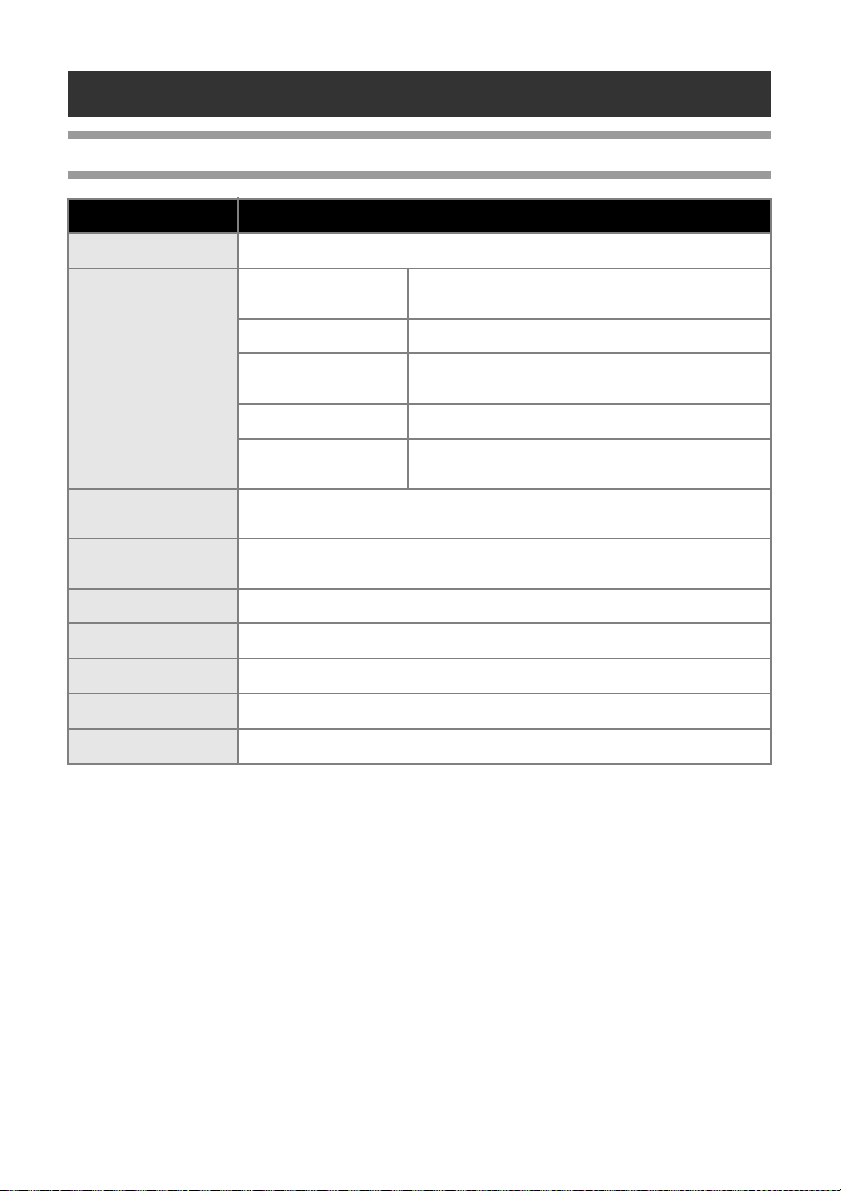
26
Especificaciones del producto
PT-9500PC
*El cortador automático medio funciona solamente cuando se utiliza cinta laminada.
Elemento Especificación
Pantalla Indicadores DEL (verde/rojo)
Impresión
Método de impresión
Impresión laminada con transferencia de calor/
impresión térmica
Cabezal de impresión 360 ppp/384 puntos
Resolución de
impresión
Para casetes de cinta TZ: 360 ppp
Velocidad de impresión Para casetes de cinta TZ: Hasta 20 mm/seg
Ancho de impresión
máximo
27,1 mm
Botones
Botón de encendido
Botón FEED/CUT
Interfaz
Serie (RS-232C)
USB (compatible con USB 1.1)
Fuente de energía CA 120V 60 Hz (adaptador de CA)
Consumo de energía Aprox. 30 W (durante la impresión)
Medidas 4 1/2" (an.) × 7 1/2" (prof.) × 5" (al.) (116 (an.)×189,6 (prof.)×127 (al.) mm)
Peso Aprox. 2,6 lb (1,3 kg)
Cortador Cortador automático completo/cortador automático medio

27
Índice alfabético
A
Adaptador de CA ..................................... 6, 10
Ajustes del P-touch ...................................... 18
Autolimpieza ............................................... 20
B
Bandeja de recogida ................................ 6, 13
Botón de apertura de la cubierta .............. 8, 11
Botón de encendido....................................... 8
Botón FEED/CUT...................................... 8, 12
C
Cabezal de impresión .................................. 21
Cable de alimentación ............................. 6, 10
Cable de interfaz en serie............................... 6
Cable de interfaz USB .................................... 6
Casete de cinta......................................... 6, 11
Casetes TZ ................................................... 11
Catálogo de cintas.......................................... 7
CD-ROM ....................................................... 7
Cinta limpiadora .......................................... 22
Conexión a la fuente de alimentación .......... 10
Conexión de la PT-9500PC .......................... 10
Contact Information ..................................... 28
Cortador....................................................... 22
Cubierta del compartimiento de la cinta ........ 8
D
Desinstalación del software.......................... 17
E
Especificaciones........................................... 26
Etiquetas Avery ............................................ 11
I
Impresora de red .......................................... 19
Información de contacto .............................. 28
Instalación de la bandeja de recogida .......... 13
Instalación del casete de cinta...................... 11
Interruptor de ID USB .............................. 8, 18
L
Lámpara de ERROR........................................ 8
Lámparas ....................................................... 9
M
Mantenimiento ............................................ 20
Modo ID USB .............................................. 18
P
P y R............................................................ 24
Precauciones generales.................................. 3
PT-9500PC .................................................... 6
Puerto en serie ............................................... 8
Puerto USB .................................................... 8
R
Referencia Rápida...................................... 6, 7
Rodillo del cabezal ...................................... 21
S
Salida de etiquetas ......................................... 8
Servidor de impresora PS-9000 .................... 19
Solución de problemas ................................ 24
Soporte para la bandeja de recogida .............. 8
T
Tomacorriente para el adaptador de CA......... 8
V
Vista frontal ................................................... 8
Vista posterior................................................ 8

28
Centros de servicio
Asistencia operativa
Asistencia por Internet
Para obtener información sobre productos y descargar los controladores más recientes: http://www.brother-usa.com
Para adquirir accesorios y determinados productos Brother: http://www.brothermall.com
Accesorios y suministros
Para pedir accesorios y suministros Brother pagando con Visa, MasterCard, Discover o American Express,
puede llamar al número gratuito 1-877-552-MALL (6255) o rellenar el formulario de pedido y enviar
ambas caras del formulario por fax al número 1-800-947-1445.
Para adquirir accesorios en Internet: http://www.brothermall.com
Para hacer su pedido por correo o pagar con talón, rellene el formulario de pedido de accesorios y envíelo
con el abono a nombre de:
Brother International Corporation
Attn: Consumer Accessory Division
P.O. Box 341332
Bartlett, TN 38133-1332
Si necesita un centro de servicio local, llame al teléfono 1-877-BROTHER (877-276-8437)
para averiguar cuál es el centro de servicio autorizado que le queda más cerca.
Nota: Llame al centro de servicio antes de desplazarse.
Los centros de servicio no prestan asistencia operativa. Consulte “Asistencia operativa”.
Si necesita asistencia técnica y operativa, puede llamar al Servicio de atención al cliente de Brother en:
Voz 1-877-BROTHER (1-877-276-8437). o Fax 1-901-379-1210
Información de contacto (sólo para EE.UU.)


Printed in China
LW3437001
