
ELECTRONIC LABELING SYSTEMELECTR O N I C L ABEL I N G S Y S T E MELECTRONIC LABELING SYSTEM
In order to use your P-touch labeler safely, read the included
Quick Setup Guide first.
Read this guide before using your P-touch labeler.
Keep this guide in a handy place for future reference.
Please visit us at http://solutions.brother.com/ where you can
get product support and answers to frequently asked
questions (FAQs).
INTRODUCTION
EDITING A LABEL
LABEL PRINTING
USING THE FILE MEMORY
USING P-TOUCH SOFTWARE
RESETTING & MAINTENANCE
TROUBLESHOOTING
APPENDIX
PT-H500LI
Version 0
US ENG
1
2
3
4
5
6
7
8
1
EDITING A LABEL................................................................................... 3
Entering and Editing Text.............................................................................................. 3
Entering Text from the Keyboard ............................................................................ 3
Using Text Reminder .............................................................................................. 3
Deleting Text Reminder Memory ............................................................................ 3
Adding a New Line ................................................................................................. 4
Adding a New Block................................................................................................ 4
Moving the Cursor................................................................................................... 4
Inserting Text .......................................................................................................... 4
Deleting Text........................................................................................................... 4
Entering Symbols .......................................................................................................... 5
Entering Symbols Using the Symbol Function........................................................ 5
Entering Icons ............................................................................................................... 7
Entering Icons Using the Icon Function .................................................................. 7
Entering Accented Characters ...................................................................................... 8
Setting Character Attributes .......................................................................................... 9
Setting Character Attributes by Label ..................................................................... 9
Setting Character Attributes by Each Line............................................................ 10
Setting Auto Fit Style ............................................................................................ 13
Setting Frame.............................................................................................................. 13
Setting the Label Length ............................................................................................. 17
Setting the Label Length ....................................................................................... 17
Using Templates ......................................................................................................... 18
Using Templates - Example creating an Asset Tag.............................................. 18
Using Block Layouts.................................................................................................... 22
Using Block Layouts ............................................................................................. 22
Creating a Bar Code Label.......................................................................................... 25
Setting Bar Code Parameters and Entering Bar Code Data................................. 26
Editing and Deleting a Bar Code........................................................................... 28
LABEL PRINTING.................................................................................. 29
Label Preview.............................................................................................................. 29
Printing a Label ........................................................................................................... 29
Printing Multiple Copies ........................................................................................ 30
Auto-numbering Labels......................................................................................... 30
Mirror Printing ....................................................................................................... 32
Tape Cutting Options .................................................................................................. 32
Adjusting the Label Length.......................................................................................... 34
Attaching Labels.......................................................................................................... 35
Printing from the Label Collection ............................................................................... 35
Printing a label from the Label Collection Stored in the P-touch labeler............... 35
Contents
INTRODUCTION
2
USING THE FILE MEMORY ................................................................. 38
Storing a Label into Memory ........................................................................................38
Opening a Stored Label File ........................................................................................38
Printing a Stored Label File..........................................................................................39
Deleting a Stored Label File.........................................................................................39
USING P-TOUCH SOFTWARE ............................................................ 40
Using P-touch Editor ....................................................................................................40
Using P-touch Editor (For Windows
®
) ...................................................................40
Using P-touch Editor (For Macintosh)....................................................................44
Updating P-touch Editor.........................................................................................46
Downloading a New Label Collection Category (Windows
®
only) ...............................48
Downloading a New Label Collection Category to your P-touch labeler ...............49
RESETTING & MAINTENANCE ........................................................... 52
Resetting the P-touch Labeler......................................................................................52
Resetting the Data to Factory Settings Using the P-touch Labeler Keyboard .......52
Resetting the Data Using the Menu Key................................................................52
Maintenance.................................................................................................................53
Cleaning the Unit ...................................................................................................53
Cleaning the Print Head.........................................................................................53
Cleaning the Tape Cutter.......................................................................................53
TROUBLESHOOTING .......................................................................... 54
What to do when... .......................................................................................................54
Error Messages............................................................................................................56
APPENDIX ............................................................................................ 59
Specifications ...............................................................................................................59
INTRODUCTION
3
Entering and Editing Text
1
2
3
4
5
6
7
8
EDITING A LABEL
EDITING A LABEL
Entering Text from the Keyboard
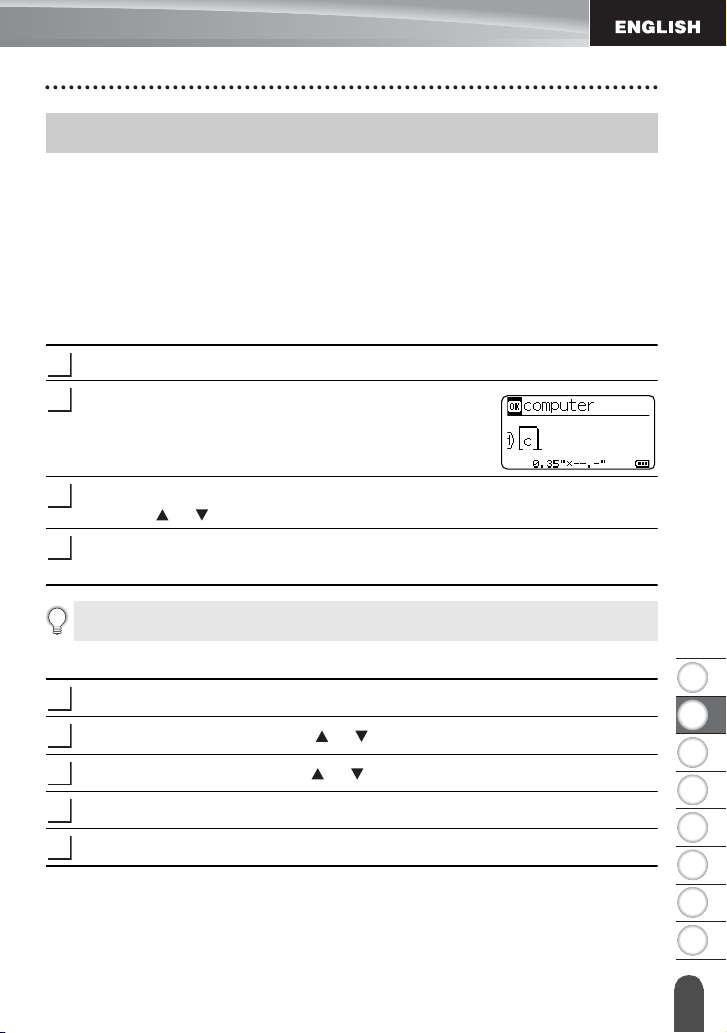
The keyboard of your P-touch labeler can be used in the same way as a standard computer
keyboard.
Refer to the "Quick Setup Guide" for the name and location of each key.
Using Text Reminder
When a character is entered, the P-touch labeler remembers character sequences
beginning with the character entered from a history of all printed character sequences to
date, and displays a list of options from which to select.
Enter "c".
The P-touch labeler displays the last word printed beginning
with the letter "c" such as "computer".
Press the
OK
key to display other word options that match the entered character.
Press the or key to select the desired word.
Press the
OK
or
Enter
key.
The selected character word will then appear on the text line.
Deleting Text Reminder Memory
Press the
Menu
key.
Select "Text Reminder" using the or key and press the
OK
or
Enter
key.
Select "Clear Memory" using the or key and press the
OK
or
Enter
key.
"Clear All Text Reminder Memory?" is then displayed.
Press the
OK
or
Enter
key. All text options in memory will be deleted.
Entering and Editing Text
1
2
3
4
Text Reminder settings can be changed by pressing the Menu key.
1
2
3
4
5
EDITING A LABEL
4
Entering and Editing Text
Adding a New Line
• To end the current line of text and start a new line, press the
Enter
key. A carriage return
mark appears at the end of the line, and the cursor moves to the start of the new line.
Adding a New Block
• To create a new block of text/lines to the right of your current text, press the
Shift
key and
then press the
Enter
key. The cursor moves to the start of the new block.
Moving the Cursor
• Press the , , or key to move the cursor by one space or line.
• To move the cursor to the beginning or end of the current line, press the
Shift
key and
then press the or key.
• To move the cursor to the very beginning or end of the text, press the
Shift
key and then
press the or key.
Inserting Text
• To insert additional text into an existing line of text, move the cursor to the character to
the right of the position where you want to start inserting text, and then enter the additional
text. The new text is inserted to the left of the cursor.
Deleting Text
Deleting one character at a time
• To delete a character from an existing line of text, move the cursor to the character to the
right of the position you want to start deleting text, and then press the
Backspace
key.
The character to the left of the cursor is deleted each time the
Backspace
key is pressed.
• There is a maximum number of lines of text that can be entered for each tape width.
A maximum of 7 lines for 0.94" (24mm) tape, 5 lines for 0.70" (18mm) tape, 3 lines
for 0.47" (12mm) tape, 2 lines for 0.35" (9mm) tape, and 0.23" (6 mm) tape, and 1
line for 0.13" (3.5mm) tape.
• If you press the Enter key when seven lines already exist, an error message is
displayed.
• To change the character attribute of each line, refer to "Setting Character Attributes
by Each Line" on page 10.
A maximum of 5 blocks can be entered in one label.
If you hold down the Backspace key, the characters left of the cursor are deleted
continuously.
1
2
3
4
5
6
7
8
5
EDITING A LABEL
Entering Symbols
Deleting all text at once
Use the
Clear
key to delete all text at once.
Press the
Clear
key.
The Clear options are displayed.
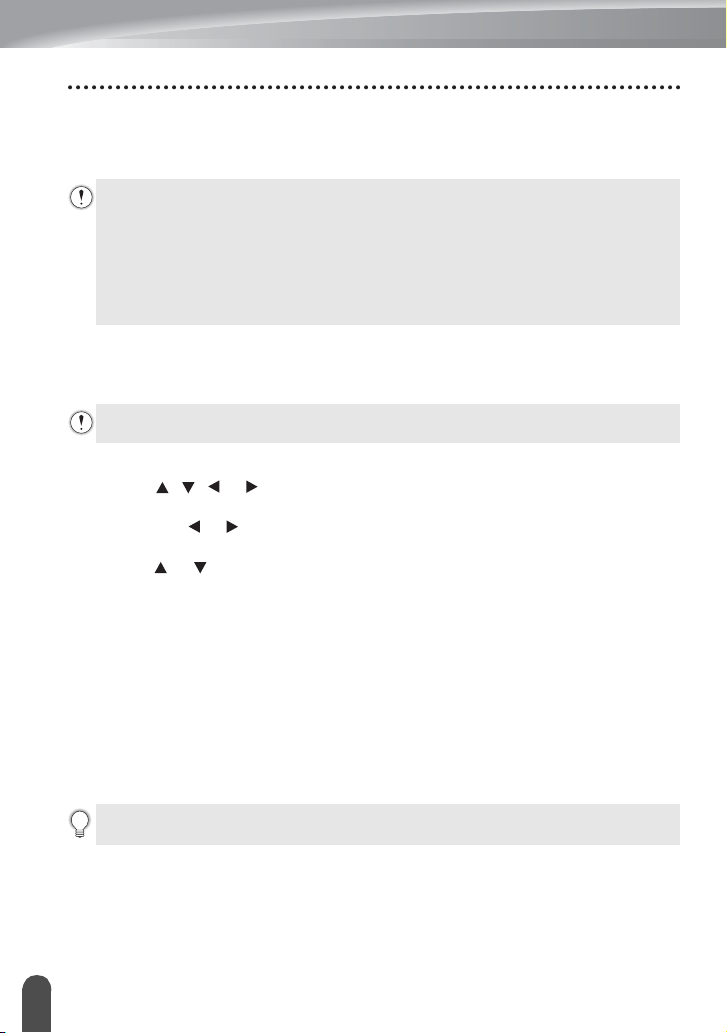
Using the or key, select "Text Only" to delete all text while retaining the current
format settings, or select "Text&Format" to delete all text and format settings.
Press the
OK
or
Enter
key.
All text is deleted. All format settings are also deleted if
"Text&Format"
was selected.
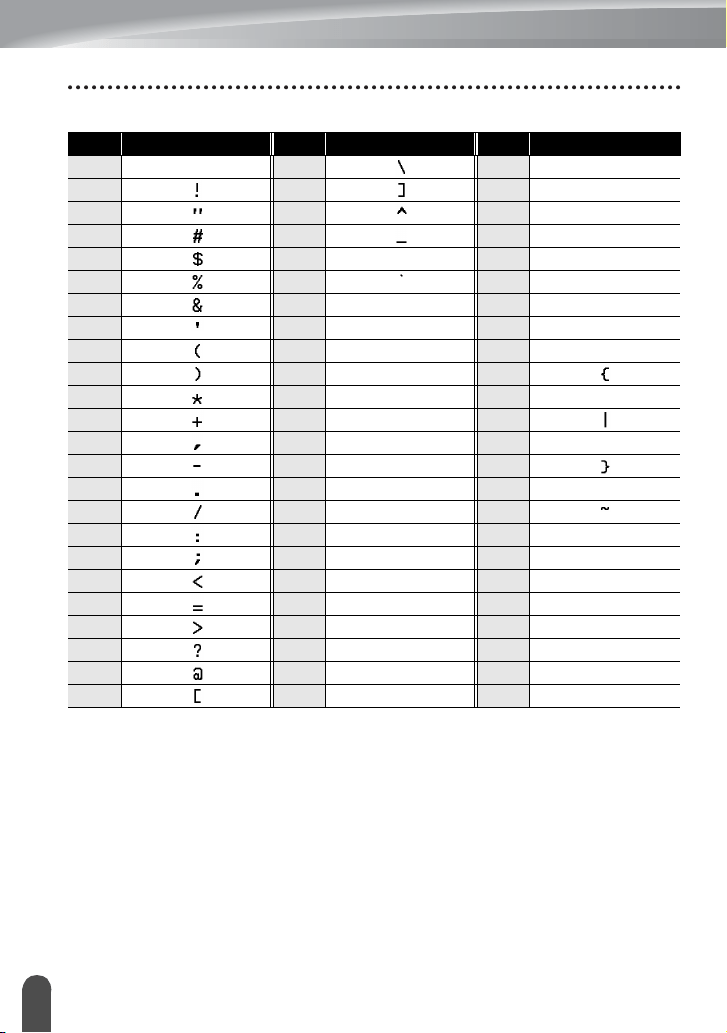
In addition to the symbols available on the keyboard, there are various symbols (including
international and extended ASCII characters) available with the symbol function.
To enter a symbol, use the Symbol function (see below).
Alternatively, press the
Shift
key and then press a key on the keyboard to enter the symbol
printed on the selected key's upper-right corner.
Entering Symbols Using the Symbol Function
Press the
Symbol
key.
A list of symbol categories and symbols in that category is displayed.
Select a symbol category (Punctuation, Mathematics, etc.) using the or key and
then press the
OK
or
Enter
key.
Select a symbol using the , , or key and then press the
OK
or
Enter
key.
The selected symbol is inserted into the line of text.
1
2
Press the Esc key to return to the text entry screen, without erasing (or clearing)
text or format.
3
Entering Symbols
1
The last symbol entered is selected in the displayed list.
2
3
When selecting a symbol:
• Press the Shift key and Symbol key to return to the previous page.
• Press the Symbol key to go to the next page.
EDITING A LABEL
6
Entering Symbols
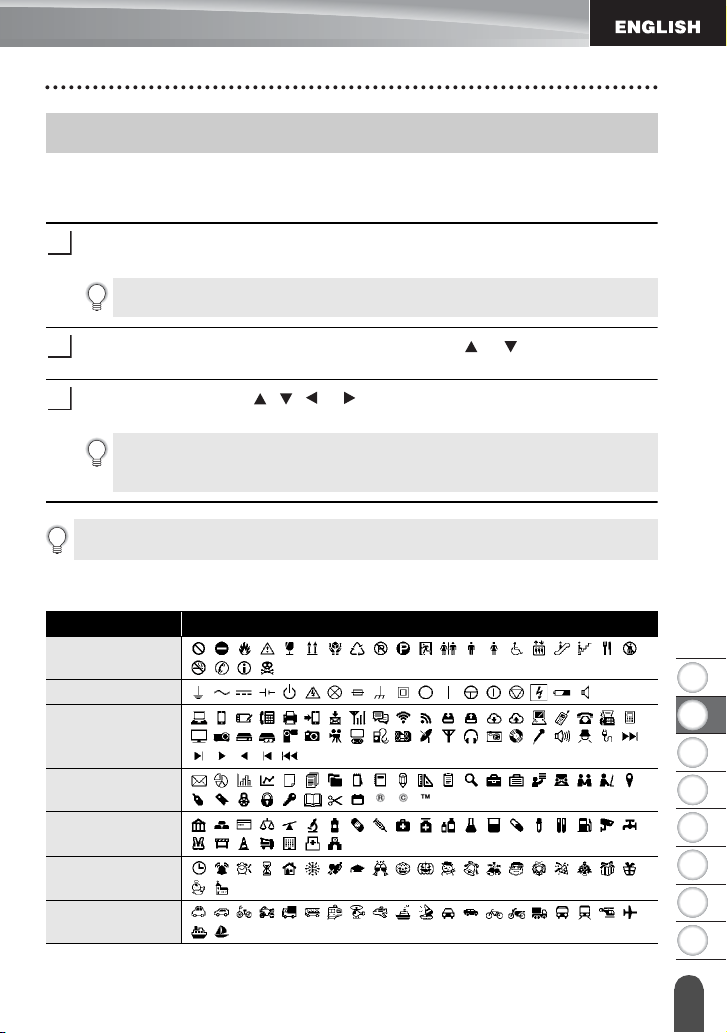
Symbol List
Press the Esc key to return to the previous step.
Category Symbols
Punctuation
Bracket/Arrow
Mathematics
Currency/Unit
(Number)
[Number]
1
2
3
4
5
6
7
8
7
EDITING A LABEL
Entering Icons
To enter an icon, use the Icon function (see below).
Entering Icons Using the Icon Function
Press the
Icon
key.
A list of icon categories and icons in that category is displayed.
Select an icon category (Sign, Business, etc.) using the or key and then press
the
OK
or
Enter
key.
Select an icon using the , , or key and then press the
OK
or
Enter
key.
The selected
icon
is inserted into the line of text.
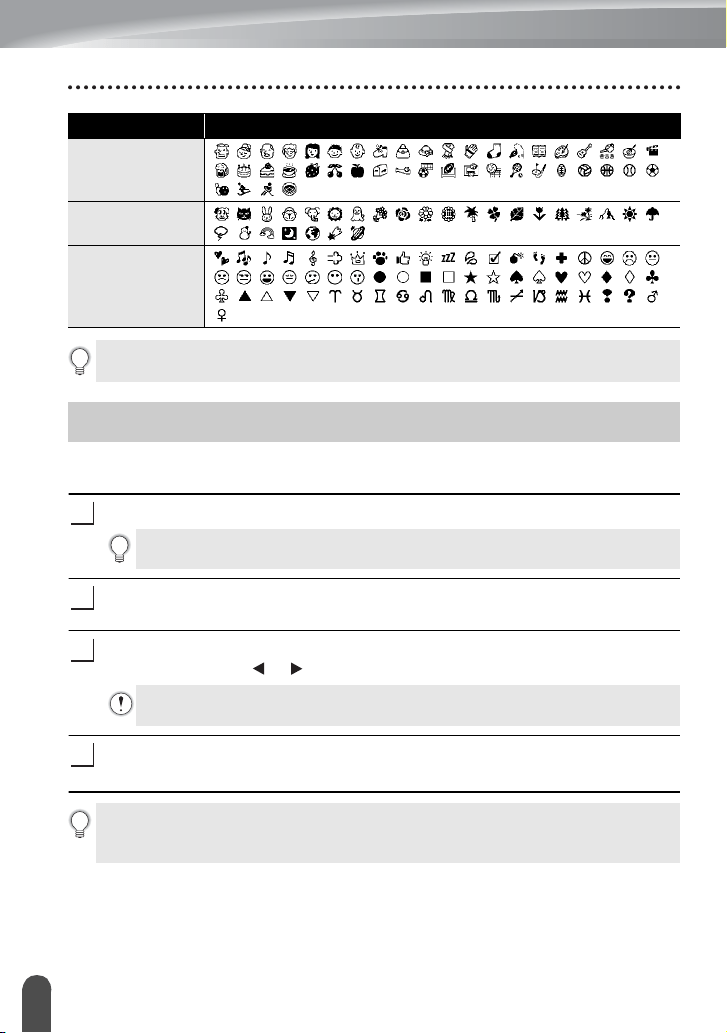
Icon List
Entering Icons
1
The last icon entered is selected in the displayed list.
2
3
When selecting icon:
• Press the Shift key and Icon key to return to the previous page.
• Press the Icon key to go to the next page.
Press the Esc key to return to the previous step.
Category Icons
Sign
Electrical
Datacom/AV
Business
Professional
Event
Vehicle
EDITING A LABEL
8
Entering Accented Characters
The P-touch labeler can display and print a set of accented characters such as other
language specific characters.
Enter the character you wish to change to an accented character.
Press the
Accent
key.
The character you entered will change to an accented character.
Press the
Accent
key repeatedly until the desired accented character is selected, or
select it by using the or key.
Press the
OK
or
Enter
key.
The selected accented character is inserted into the line of text.
Personal
Nature/Earth
Pictograph
Category Icons
The symbols shown in the table may look slightly different on the LCD and when
printed.
Entering Accented Characters
1
Caps mode can be used with the Accent function.
2
3
The order of accented characters displayed will differ depending on the selected
LCD language.
4
•Press the Esc key to return to the previous step.
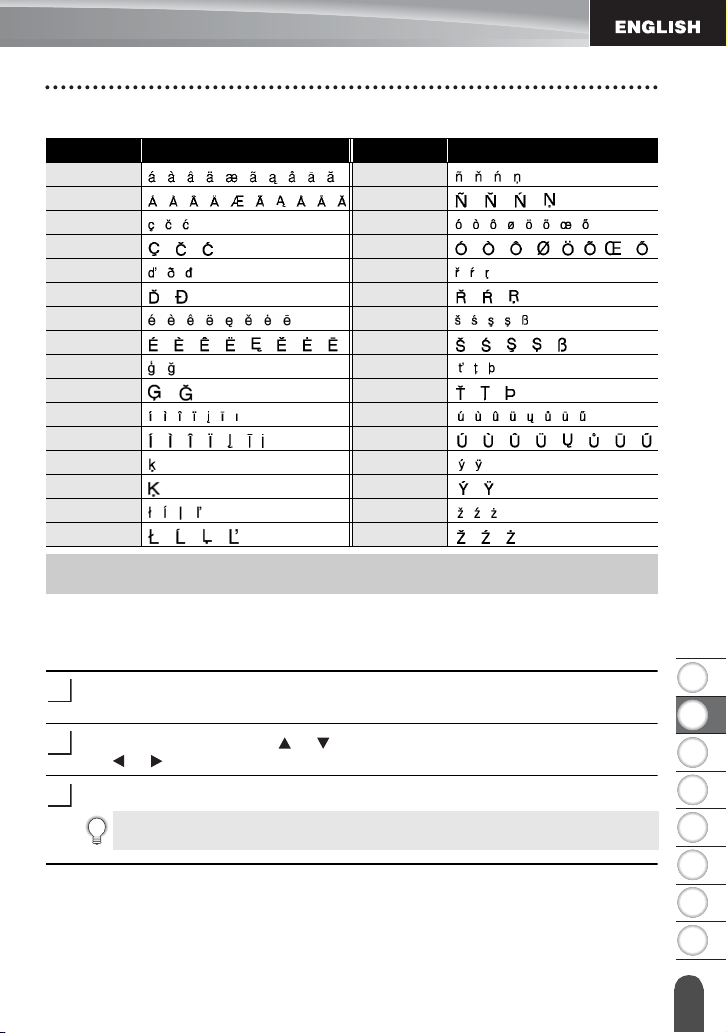
• Refer to the Accented Character List table for a complete list of all available accented
characters.
1
2
3
4
5
6
7
8
9
EDITING A LABEL
Setting Character Attributes
Accented Character List
Setting Character Attributes by Label
Using the
Font
key, you can select a font and apply size, width, style, line, and alignment
attributes.
Press the
Font
key.
The current settings are displayed.
Select an attribute using the or key, and then set a value for that attribute using
the or key.
Press the
OK
or
Enter
key to apply the settings.
Character Accented Characters Character Accented Characters
a n
A N
c o
C O
d r
D R
e s
E S
g t
G T
i u
I U
k y
K Y
l z
L Z
Setting Character Attributes
1
2
3
New settings are NOT applied if you do not press the OK
or Enter key.

EDITING A LABEL
10
Setting Character Attributes
Setting Character Attributes by Each Line
When a label consists of two or more lines of text, you can set different values of
character attributes (font, size, width, style, line and alignment) for each line.
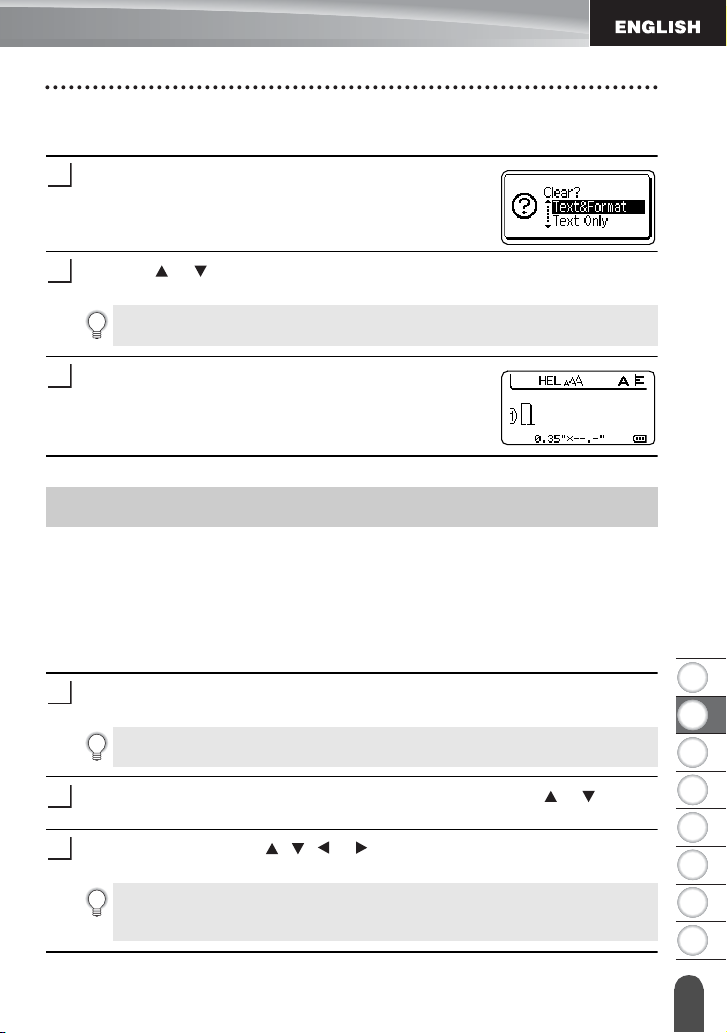
Move the cursor to the line you wish to change the
character attribute by using the , , or key. Next,
press the
Shift
key and then press the
Font
key to
display the attributes. ( on the screen indicates that
you are now applying the attribute for that specific line
only.)
•Press the Esc key to return to the previous step.
•Press the Space key to set the selected attribute to the default value.
• Refer to the Setting Options table for all the available settings.
• Small characters may be difficult to read when certain styles are applied (e.g.
Shadow + Italic).
When different attribute values are set for each line, the
value will be displayed as ***** when you press the Font
key. When you change the setting on this screen by using
the or key, the same change will be applied to all
lines of the label.
1
2
3
4
5
6
7
8
11
EDITING A LABEL
Setting Character Attributes
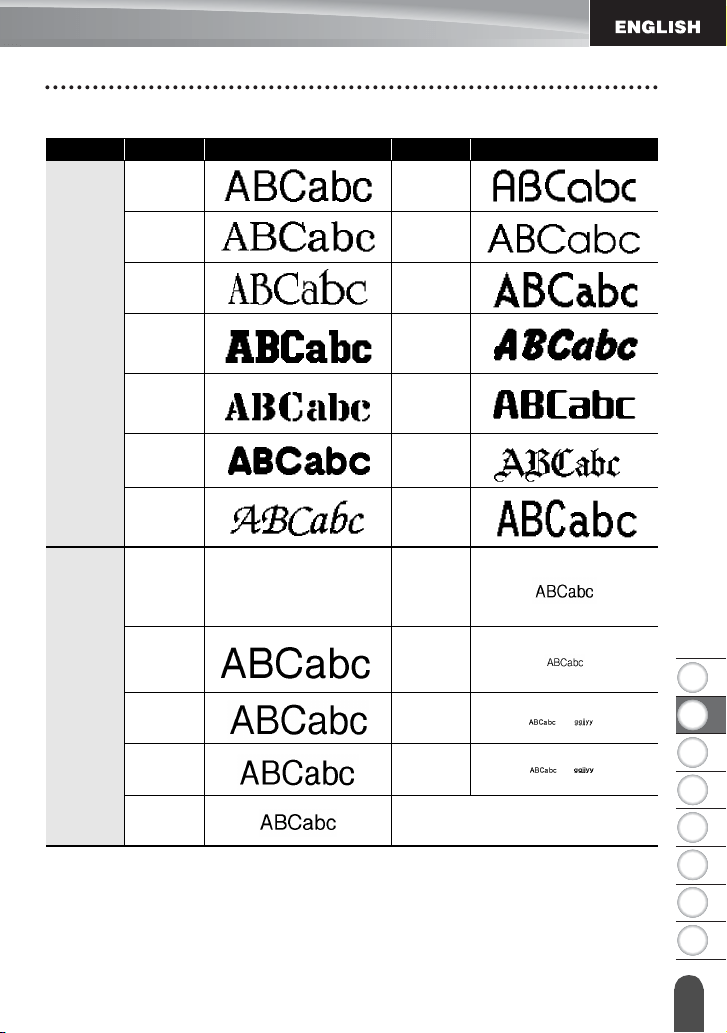
Setting Options
Attribute Value Result Value Result
Font
HEL
(Helsinki)
BEL
(Belgium)
BRU
(Brussels)
ATL
(Atlanta)
US
(US)
ADM
(Adams)
LA
(Los
Angeles)
BRN
(Brunei)
SGO
(San
Diego)
SOF
(Sofia)
FLO
(Florida)
GER
(Germany)
CAL
(Calgary)
LGO
(Letter
Gothic)
Size
Auto
When Auto is selected, the
text is automatically adjusted
to print in the largest size
available for each tape width.
18pt
48pt 12pt
42pt 9pt
36pt 6pt
24pt
EDITING A LABEL
12
Setting Character Attributes
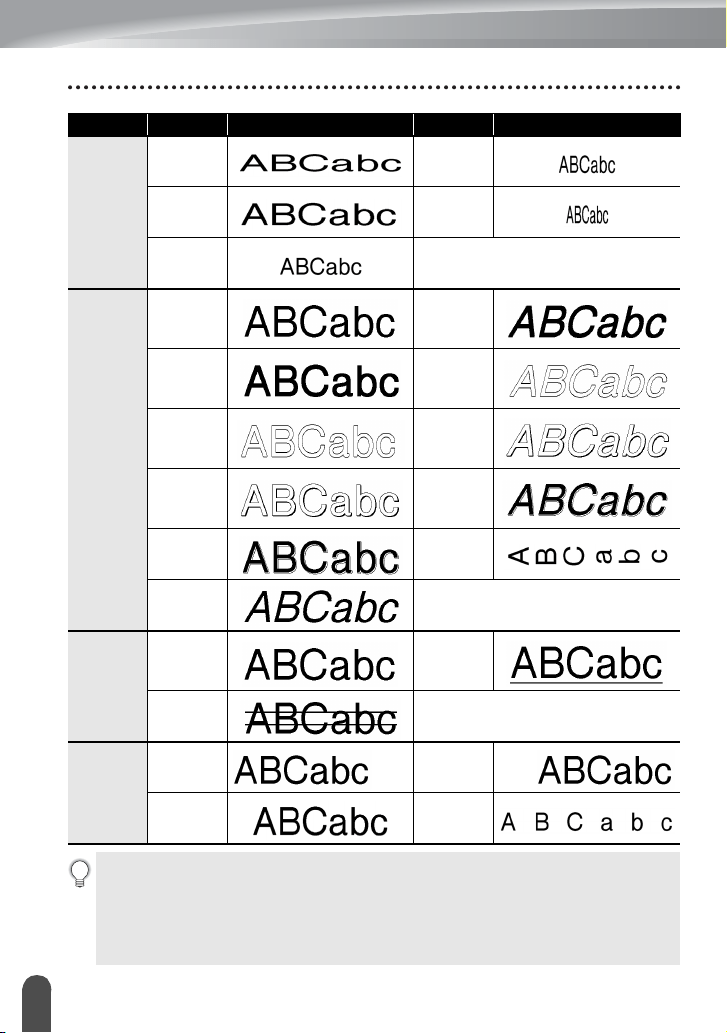
Width
x 2 x 2/3
x 3/2 x 1/2
x 1
Style
Normal
I+BLD
(Italic
Bold)
BLD
(Bold)
I+OUT
(Italic
Outline)
OUT
(Outline)
I+SHD
(Italic
Shadow)
SHD
(Shadow)
I+SLD
(Italic
Solid)
SLD
(Solid)
VRT
(Vertical)
ITA
(Italic)
Line
Off
UND
(Underline)
STR
(Strikeout)
Align
(Alignment)
Left
Right
Center
Just
(Justify)
• The actual printed font size depends on the tape width, number of characters and
number of input lines. Once characters reach a minimum size, the selected font will
default to a custom font which is based on the Helsinki style. This allows labels to
print using the smallest text possible on narrow or multi-line labels.
• The 6 point font only prints in Helsinki, no other font type.
• Default settings are highlighted in bold.
Attribute Value Result Value Result
1
2
3
4
5
6
7
8
13
EDITING A LABEL
Setting Frame
Setting Auto Fit Style
When "Size" of the
Font
key is set to "Auto" and "Length" of the
Label
key is set to a specific
length, you can select the way to reduce the text size to fit within the label length.
Press the
Menu
key, select "Auto Fit Style" using the or key, and then press the
OK
or
Enter
key.
Select the style using the or key.
Press the
OK
or
Enter
key to apply the setting.
Press the
Frame
key. The current settings are displayed.
Select the frame using the or key.
Press the
OK
or
Enter
key to apply the settings.
1
2
When "Text Size" is selected, the total text size is modified to fit within the label.
When "Text Width" is selected, the text width will be reduced to the size of "x
1/2" setting. (If further size reduction is required to fit the text into the selected
label length, the total text size will be modified after reducing the text width to
"x 1/2" setting.)
3
• Press the Esc key to return to the previous step.
• Press the Space key to set the style to the default setting ("Text Size").
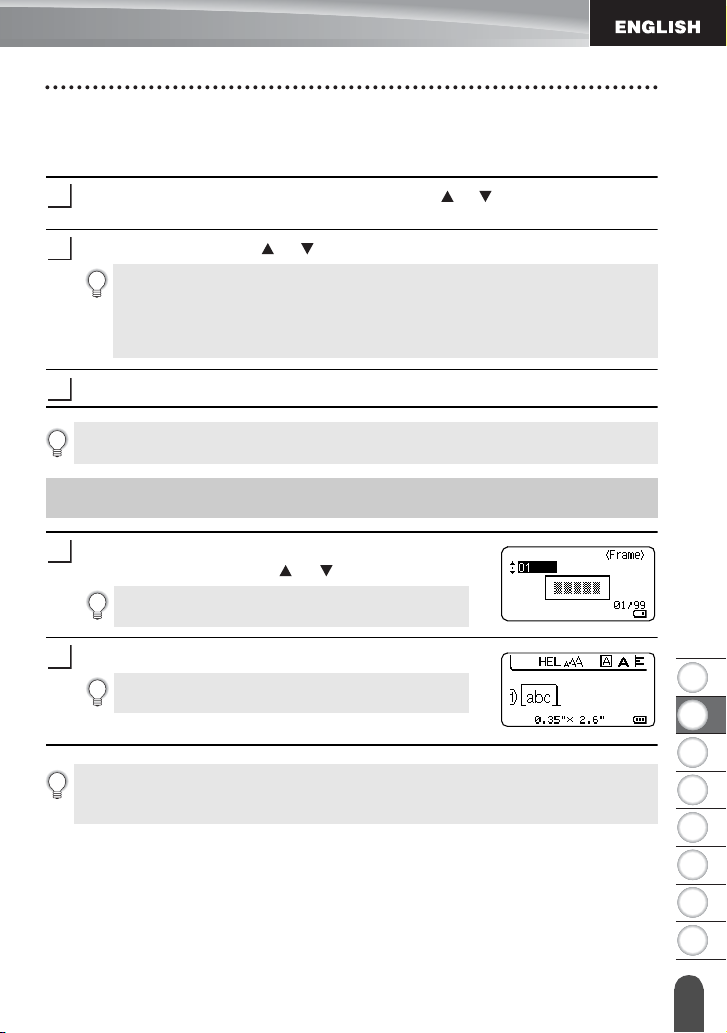
Setting Frame
You can also select the frame directly by typing the
frame number using the number keys.
1
New settings are NOT applied if you do not press
the OK or Enter key.
2
• Press the Esc key to return to the previous step.
• Press the Space key to set the selected attribute to the default value.
• Refer to the Frames table for a list of available frames.
EDITING A LABEL
14
Setting Frame
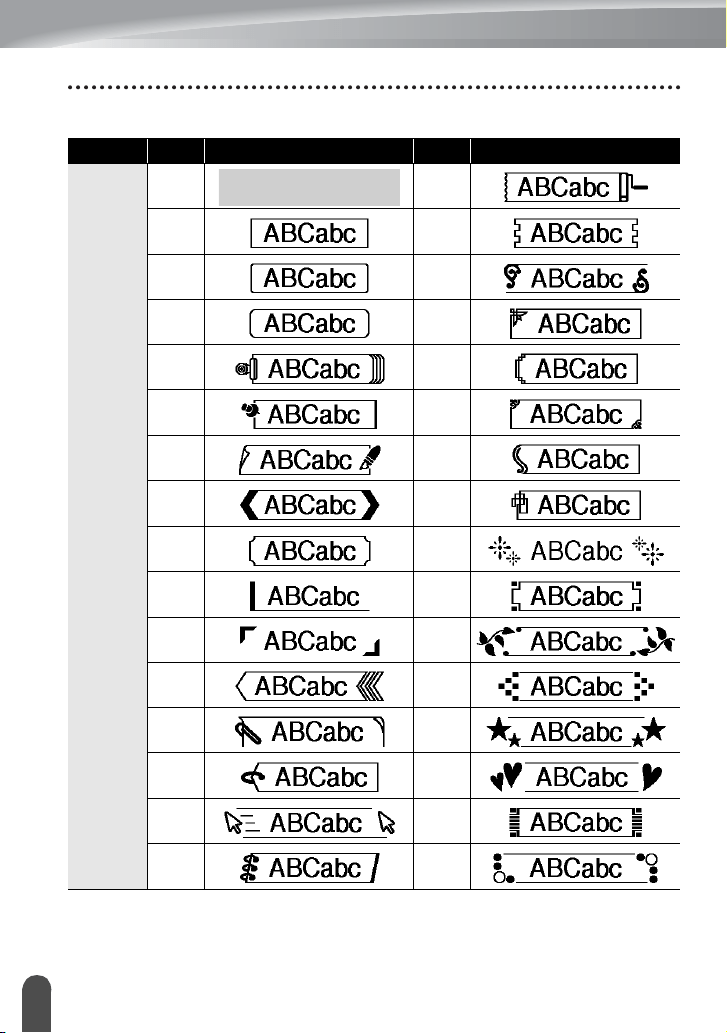
Frames
Attribute Value Result Value Result
Frame
Off
16
01 17
02 18
03 19
04 20
05 21
06 22
07 23
08 24
09 25
10 26
11 27
12 28
13 29
14 30
15 31
1
2
3
4
5
6
7
8
15
EDITING A LABEL
Setting Frame
Frame
32 50
33 51
34 52
35 53
36 54
37 55
38 56
39
57
40
58
41
59
42
60
43
61
44
62
45
63
46
64
47
65
48
66
49
67
Attribute Value Result Value Result

EDITING A LABEL
16
Setting Frame
Frame
68
84
69 85
70
86
71
87
72
88
73
89
74
90
75
91
76
92
77
93
78
94
79
95
80
96
81
97
82
98
83
99
Attribute Value Result Value Result
1
2
3
4
5
6
7
8
17
EDITING A LABEL
Setting the Label Length
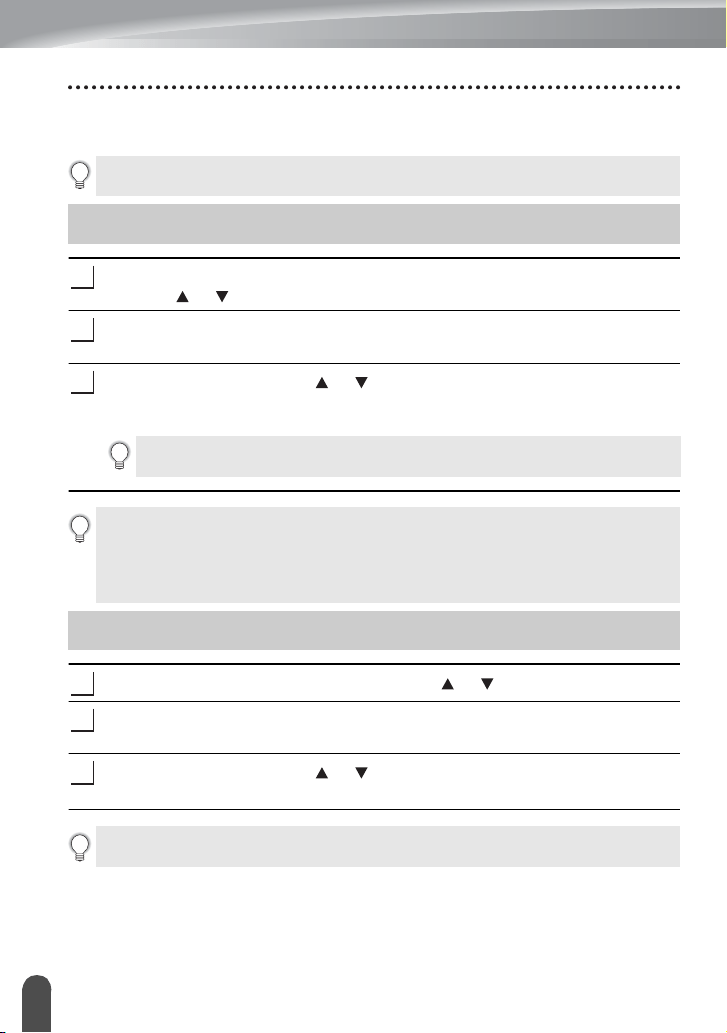
Setting the Label Length
You can set the length of the label within the range 1.2" (30 mm) - 12.0" (300 mm).
Press the
Label
key.
Select "Length" using the or key, and then set the value by using the or
key.
Press the
OK
or
Enter
key.
Setting the Label Length
1
2
3
• Press the Esc key to return to the previous step.
• Press the Space key to set the value to default setting.
• When Auto is selected, the length of the label is automatically adjusted based
on the amount of text entered.
EDITING A LABEL
18
Using Templates
You can quickly and easily create labels for a variety of purposes, such as file tabs,
equipment labels, name badges, etc. Simply select a layout from the templates, enter the
text and apply formatting as desired.
Using Templates - Example creating an Asset Tag
Press the
Template
key.
The last template used is displayed.
Select a template using the or key.
Press the
OK
or
Enter
key.
Select an attribute using the or key, and then set a
value for that attribute using the or key.
Press the
OK
or
Enter
key.
Select an attribute using the or key, and then set a
value for that attribute using the or key.
Press the
OK
or
Enter
key.
The template text entry screen is displayed.
Using Templates
Symbols, icons and accented characters can also be used in Templates.
1
2
3
4
The Bar Code Setup screen is displayed only when
a layout containing a bar code is selected.
The "C.Digit" (Check Digit) attribute is only
available for the CODE39, I-2/5 and CODABAR
protocols.
5
6
Caps mode can be used when entering text.
7
1
2
3
4
5
6
7
8
19
EDITING A LABEL
Using Templates
Enter the text and then press the
OK
or
Enter
key.
Repeat this for each text field.
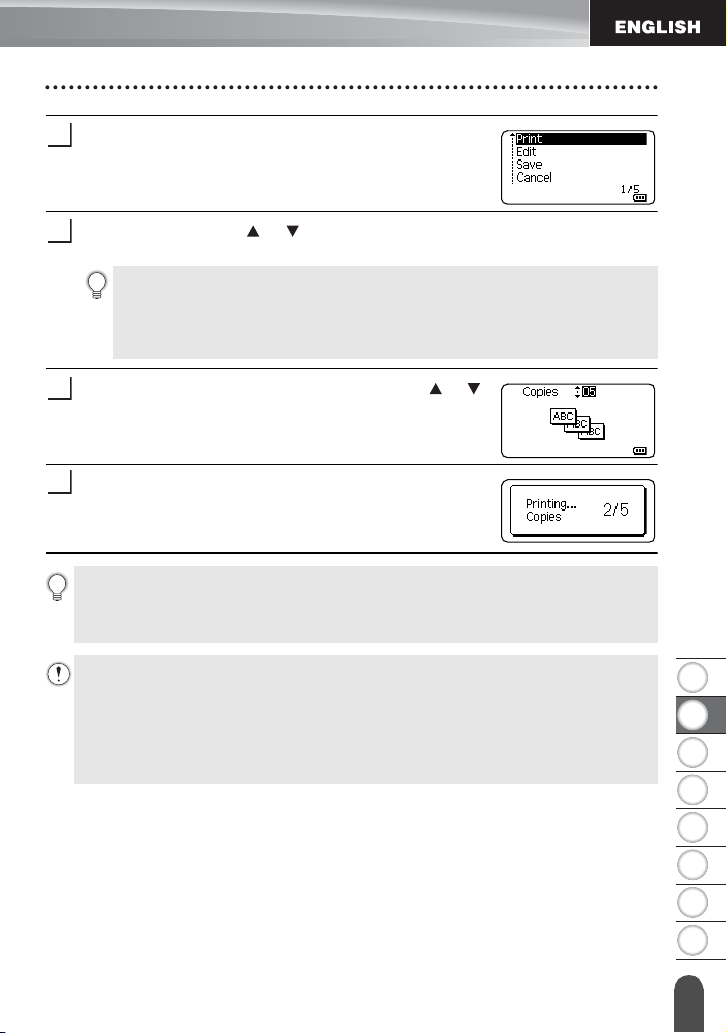
After all text fields are entered, the print menu is
displayed when the
OK
or
Enter
key
is pressed.
Select "Print" using the or key and then press the
OK
or
Enter
key to display
the Copies screen.
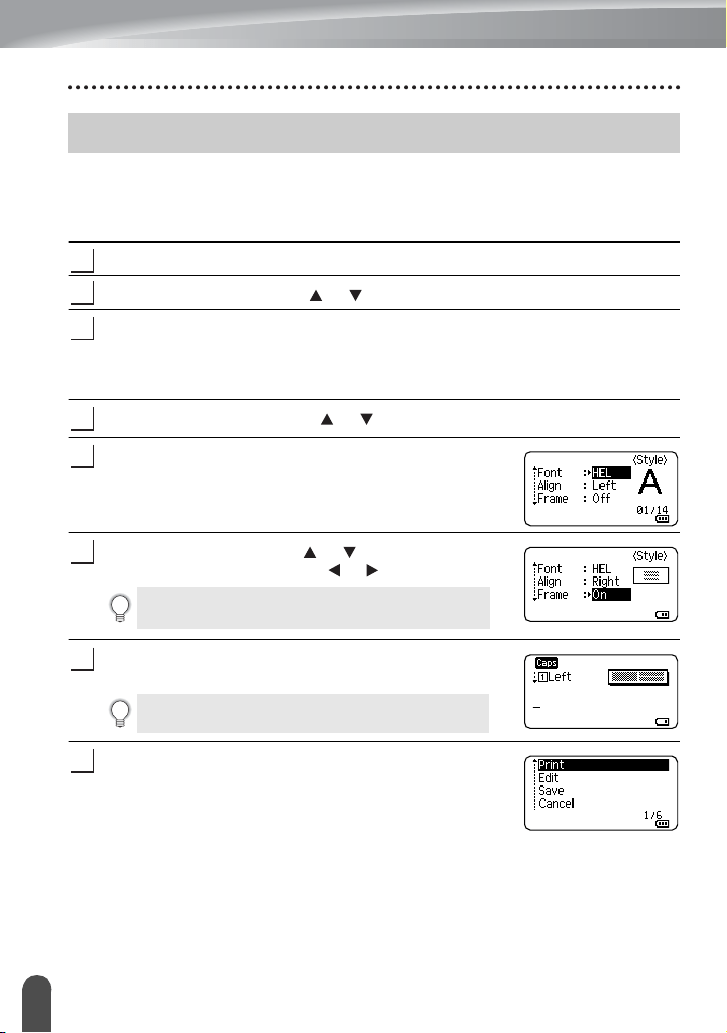
Select the number of copies to be printed using the or
key, or type the number using the number keys.
Press the
OK
or
Enter
key to print the labels.
"Printing... Copies" is displayed while the labels
are being printed.
8
9
• Select "Edit" to change the text data or style settings.
• Select "Save" to store the label to the file memory.
For the file memory, refer to "USING THE FILE MEMORY" on page 38.
• Select "Cancel" to exit the Template function.
• Select "Print Options" to set the print settings.
10
11
• Press the Esc key to return to the previous step.
• On the Style and Bar Code Setup screens, press the Space key to change the selected
attribute to the default value.
• Refer to the Templates table for a list of available templates.
• If the width of the current tape cassette does not match the set width for the selected
layout, an error message is displayed when you try to print the label. Press the Esc
key or any other key to clear the error message, and insert a tape cassette of the
correct width.
• If the number of characters entered exceeds the limit, "Text Too Long!" is displayed
when the OK
or Enter key is pressed. Press the Esc key or any other key to clear the
error message, and edit the text using fewer characters.
EDITING A LABEL
20
Using Templates
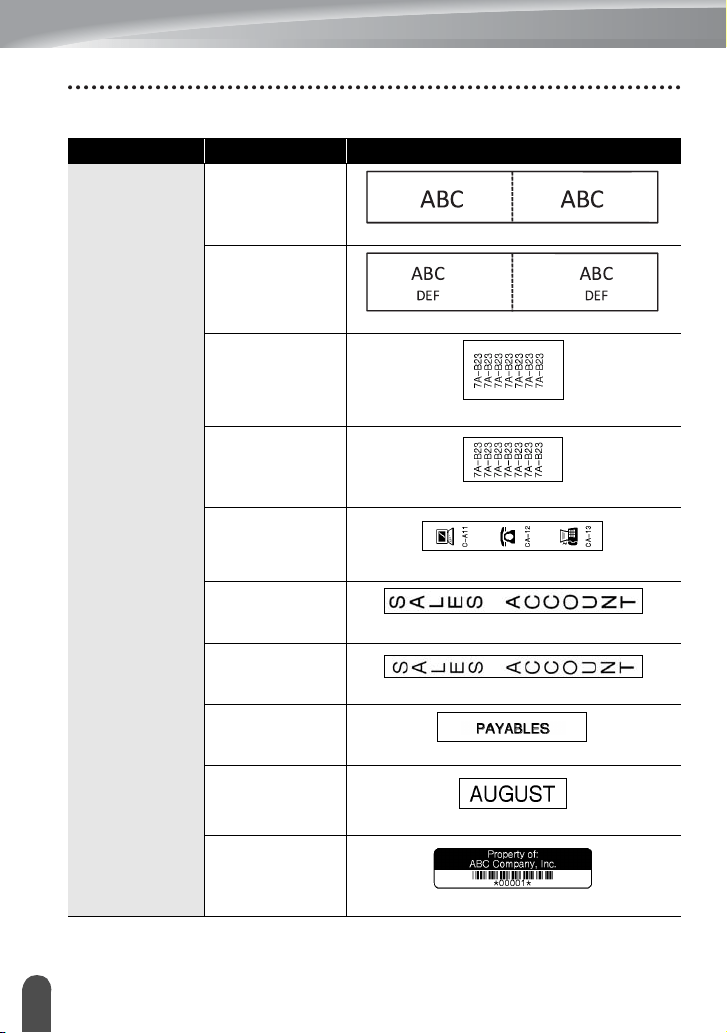
Templates
Attribute Value Details
Template Name
Flag 1
(0.47" x 3.5" [12mm x 90mm])
Flag 2
(0.47" x 3.5" [12mm x 90mm])
Cable Wrap 1
(Rotate & repeat)
(0.94" x 1.5" [24 mm x 39 mm])
Cable Wrap 2
(Rotate & repeat)
(0.70" x 1.5" [18mm x 39mm])
Faceplate(VRT)
(0.47" x 2.7" [12mm x 70mm])
Binder Spine 1
(0.94" x 8.6" [24 mm x 219 mm])
Binder Spine 2
(0.70" x 8.6" [18mm x 219mm])
File Folder Tab
(0.47" x 3.2" [12 mm x 82 mm])
Divider Tab
(Hanging Folder)
(0.47" x 1.6" [12 mm x 42 mm])
Asset Tag
(0.70" x 2.7" [18 mm x 70 mm])
1
2
3
4
5
6
7
8
21
EDITING A LABEL
Using Templates
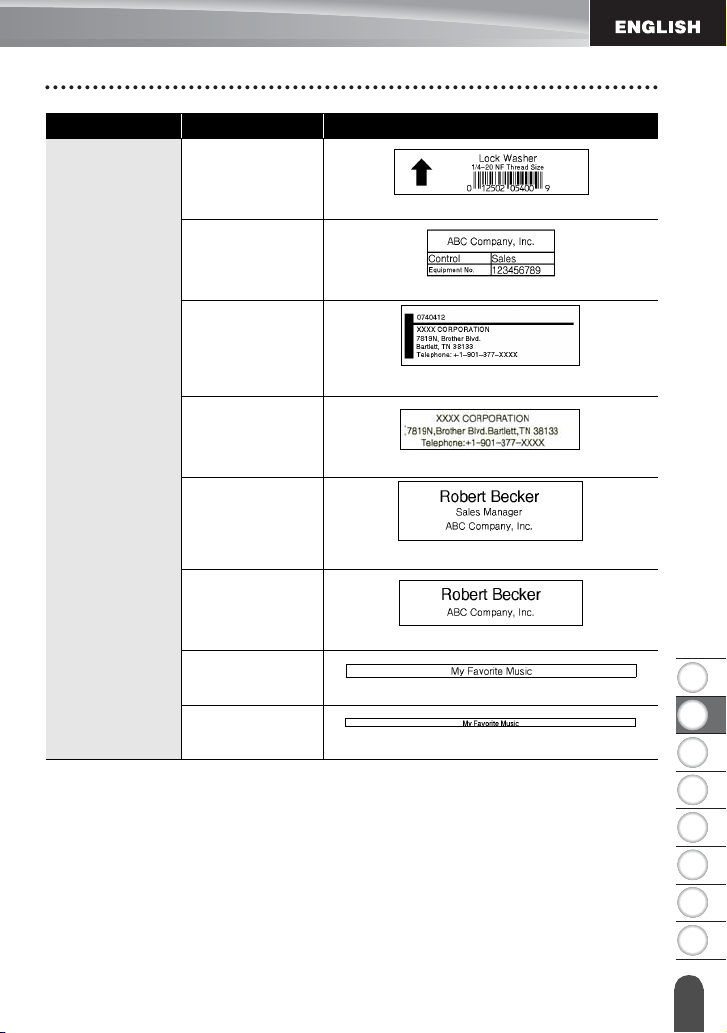
Template Name
Bin Box
(0.70" x 3.0" [18 mm x 76 mm])
Equipment Label
(0.70" x 2.2" [18 mm x 58 mm])
Address Label 1
(0.94" x 2.7" [24 mm x 70 mm])
Address Label 2
(0.70" x 2.7" [18 mm x 70 mm])
Name Badge 1
(0.94" x 2.8" [24 mm x 72 mm])
Name Badge 2
(0.70" x 2.8" [18 mm x 72 mm])
CD Case Spine 1
(0.23" x 4.4" [6 mm x 113 mm])
CD Case Spine 2
(0.13" x 4.4" [3.5 mm x 113 mm])
Attribute Value Details
EDITING A LABEL
22
Using Block Layouts
You can quickly and easily create labels using the preset block layouts. Simply select a
layout from the block layouts, enter the text and apply formatting as desired.
Using Block Layouts
Press the
Block Layout
key.
Select a tape width using the or key.
Press the
OK
or
Enter
key.
When the tape width has not changed, the last block layout selected is displayed.
When the tape width has changed, the default layout for the new tape width is
displayed.
Select a block layout using the or key.
Press the
OK
or
Enter
key.
Select an attribute using the or key, and then set a
value for that attribute using the or key.
Press the
OK
or
Enter
key.
The block layout text entry screen is displayed.
Enter text and then press the
OK
or
Enter
key.
Repeat for each text field.
After all text fields are completed, press the
OK
or
Enter
key to display the print menu.
Using Block Layouts
1
2
3
4
5
Press the Space key to set the selected attribute to
the default value.
6
Caps mode can be used when entering text.
7
8
1
2
3
4
5
6
7
8
23
EDITING A LABEL
Using Block Layouts
Select "Print" using the or key and then press the
OK
or
Enter
key to display
the Copies screen.
Select the number of copies to be printed using the or
key, or type the number using the number keys.
Press the
OK
or
Enter
key to print the labels.
"Printing... Copies" is displayed while the labels are being
printed.
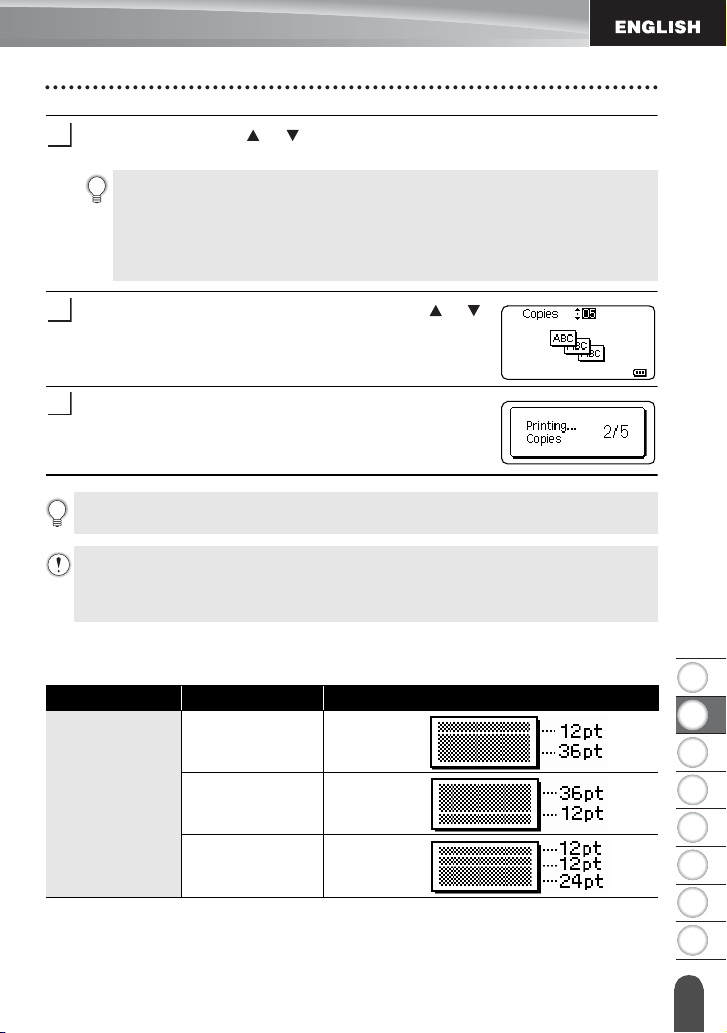
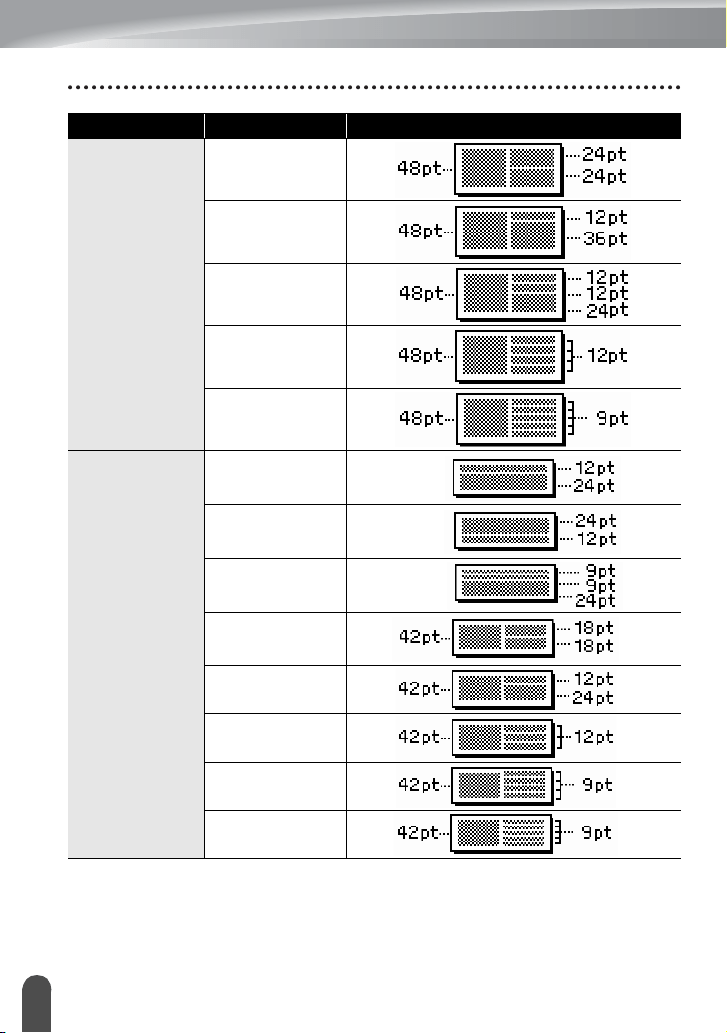
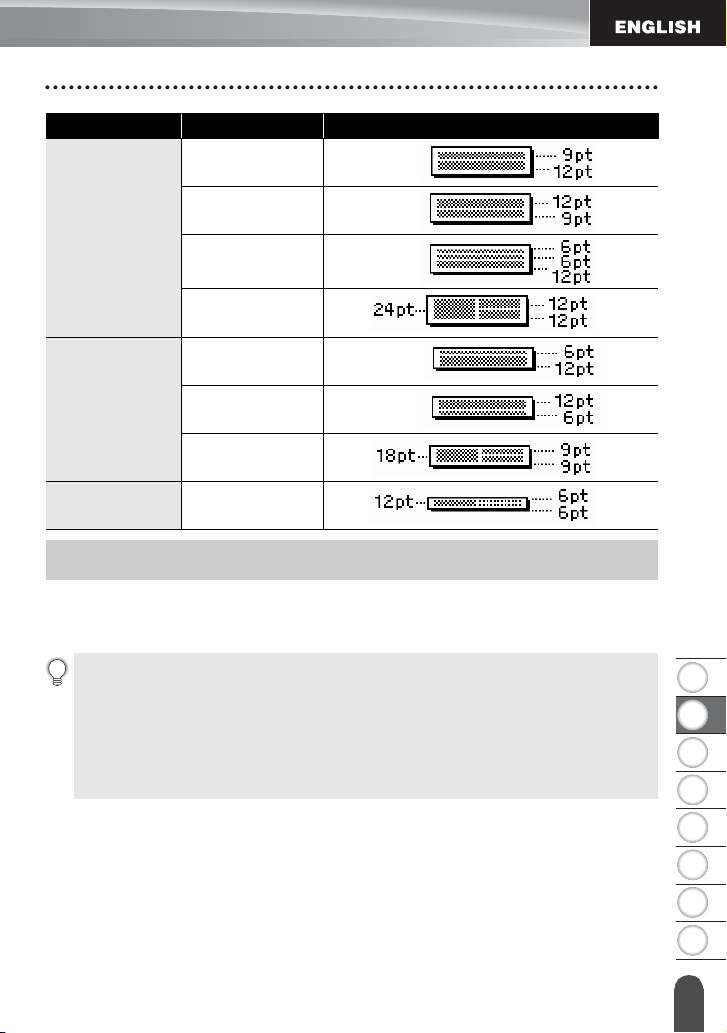
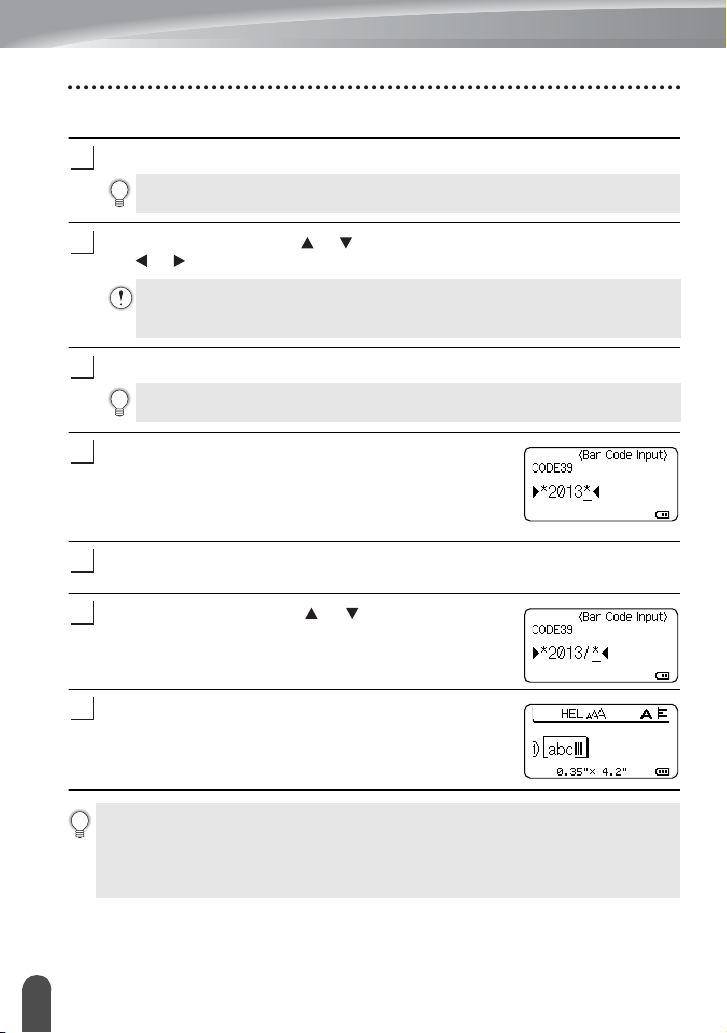
Block Layouts
9
• Select "Edit" to change the text data or style settings.
• Select "Save" to store the label to the file memory.
For the file memory, refer to "USING THE FILE MEMORY" on page 38.
• Select "Cancel" to exit the Block Layouts function.
• Select "Change Layout" to use a different layout.
• Select "Print Options" to set the print settings.
10
11
• Press the Esc key to return to the previous step.
• Refer to the Block Layouts table for a list of available block layouts.
• If the width of the current tape cassette does not match the set width for the selected
layout, an error message is displayed when you try to print the label. Press the Esc
key or any other key to clear the error message, and insert a tape cassette of the
correct width.
Attribute Value Details
0.94"/24mm
2LineA
2LineB
3Line
EDITING A LABEL
24
Using Block Layouts
0.94"/24mm
1+2LineA
1+2LineB
1+3Line
1+4Line
1+5Line
0.70"/18mm
2LineA
2LineB
3Line
1+2LineA
1+2LineB
1+3Line
1+4Line
1+5Line
Attribute Value Details
1
2
3
4
5
6
7
8
25
EDITING A LABEL
Creating a Bar Code Label
Using the Bar Code function you can create labels with one dimensional bar codes for use
with cash registers, stock control systems or other bar code reader systems, or even asset
control tags used in an asset management system.
0.47"/12mm
2LineA
2LineB
3Line
1+2Line
0.35"/9mm
2LineA
2LineB
1+2Line
0.23"/6mm
1+2Line
Attribute Value Details
Creating a Bar Code Label
• The P-touch labeler is not designed exclusively for creating bar code labels. Always
check that bar code labels can be read by the bar code reader.
• For best results, print bar code labels in black ink on white tape. Some bar code
readers may not be able to read bar code labels created using colored tape or ink.
• Use the "Large" setting for "Width" whenever possible. Some bar code readers may
not be able to read bar code labels created using the "Small" setting.
• Continuously printing a large number of labels with bar codes can overheat the print
head, which may affect printing quality.
EDITING A LABEL
26
Creating a Bar Code Label
Setting Bar Code Parameters and Entering Bar Code Data
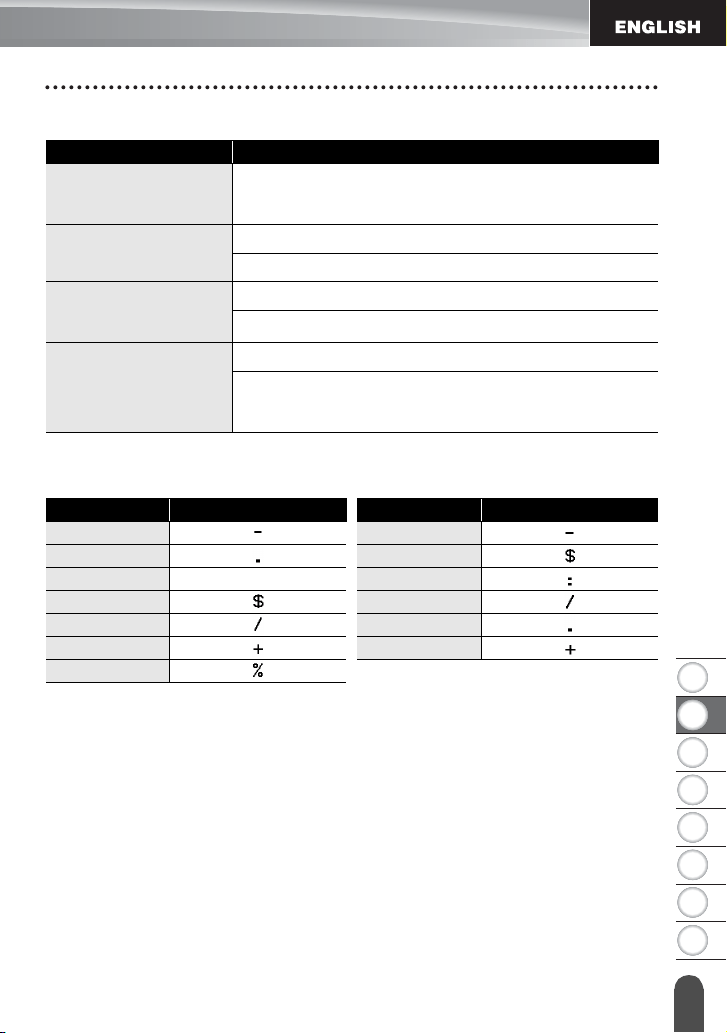
Press the
Bar Code
key.
Select an attribute using the or key, and then set a value for that attribute using
the or key.
Press the
OK
or
Enter
key to apply the settings.
Type in the bar code data.
Special characters can be entered in the bar code when
using the CODE39, CODE128, CODABAR or GS1-128
protocols. When not using special characters, go to step
7.
Press the
Symbol
key.
A list of characters available for the current protocol is displayed.
Select a character using
the or
key, then press
the
OK
or
Enter
key to insert the character in the bar code data.
Press the
OK
or
Enter
key to insert the bar code in the label.
The bar code is displayed on the text entry screen.
1
Up to five bar codes can be entered on a label.
2
Characters may not appear below the bar code even when "On" is selected for
"Under#", depending on the tape width being used, the number of lines entered,
or the current character style settings.
3
New settings are NOT applied if you do not press the OK or Enter key.
4
5
6
7
• The "C.Digit" (Check Digit) attribute is only available for the CODE39, I-2/5 and
CODABAR protocols.
•Press the Esc key to return to the previous step.
•Press the Space key to set the selected attribute to the default value.
• Refer to the Bar Code Settings table for a list of all available settings.
1
2
3
4
5
6
7
8
27
EDITING A LABEL
Creating a Bar Code Label
Bar Code Settings
Special Character List
CODE39 CODABAR
Attribute Value
Protocol
CODE39
, CODE128, EAN-8, EAN-13,
GS1-128 (UCC/EAN-128), UPC-A, UPC-E, I-2/5 (ITF),
CODABAR
Width
Small
Large
Under#
(characters printed below
bar code)
On
Off
C.Digit
(check digit)
Off
On
(only available for the CODE39, I-2/5 and CODABAR
protocols)
Code Special Character Code Special Character
1 1
2 2
3 (SPACE) 3
4 4
5 5
6 6
7
EDITING A LABEL
28
Creating a Bar Code Label
CODE128, GS1-128 (UCC / EAN-128)
Editing and Deleting a Bar Code
• To edit bar code parameters and bar code data, position the cursor beneath the bar code
mark on the data entry screen and then open the Bar Code Setup screen. Refer to
"Setting Bar Code Parameters and Entering Bar Code Data" on page 26.
• To delete a bar code from a label, position the cursor to the right of the bar code mark on
the data entry screen and press the
Backspace
key.
Code Special Character Code Special Character Code Special Character
1 (SPACE) 25 49 DC3
2 26 50 DC4
3 27 51 NAK
4 28 52 SYN
5 29 NUL 53 ETB
6 30 54 CAN
7 31 SOH 55 EM
8 32 STX 56 SUB
9 33 ETX 57 ESC
10 34 EOT 58
11 35 ENQ 59 FS
12 36 ACK 60
13 37 BEL 61 GS
14 38 BS 62
15 39 HT 63 RS
16 40 LF 64
17 41 VT 65 US
18 42 FF 66 DEL
19 43 CR 67 FNC3
20 44 SO 68 FNC2
21 45 SI 69 FNC4
22 46 DLE 70 FNC1
23 47 DC1
24 48 DC2
1
2
3
4
5
6
7
8
29
Label Preview
LABEL PRINTING
LABEL PRINTING
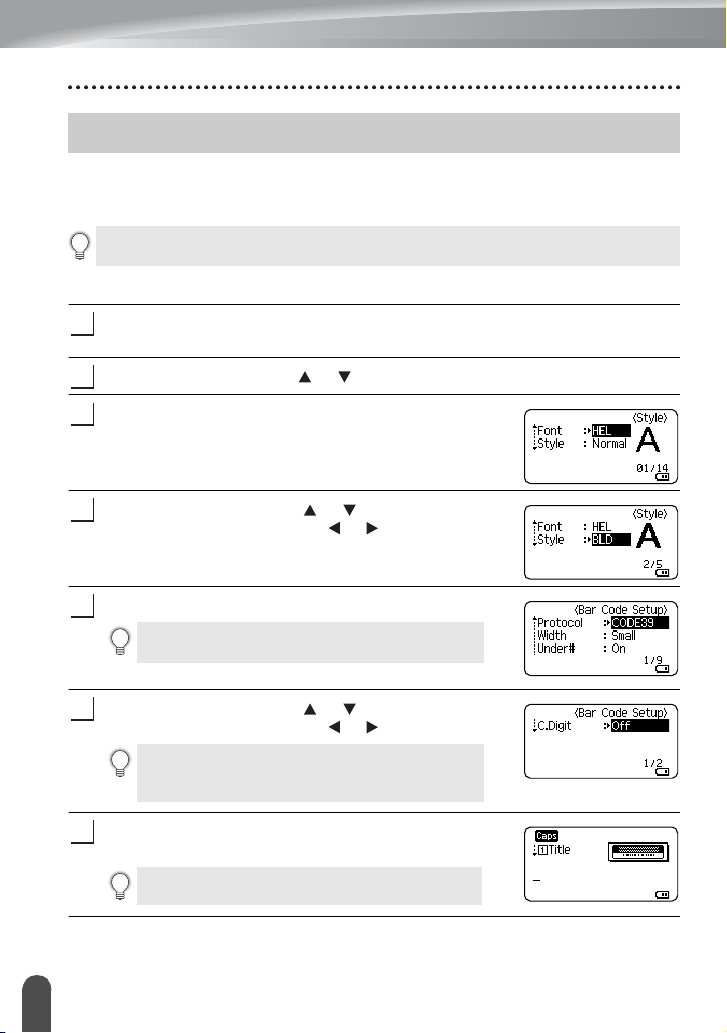
Using the Preview function you can check the layout of the label and the type of the installed
tape before printing.
Press the
Preview
key.
An image of the label is displayed on the screen.
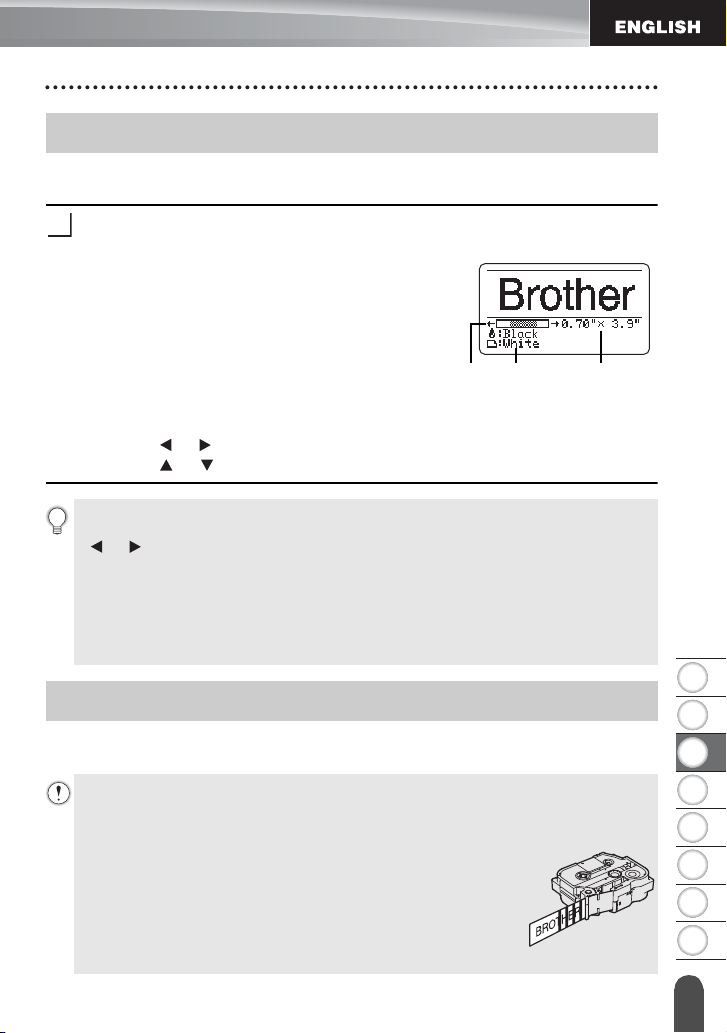
1. The bar indicates the position of the currently
displayed portion of the label.
2. The tape width of the installed tape cassette
and the label length are indicated as follows.
Tape width x Label length
3. The information for the installed tape cassette is
detected and indicated. The first line indicates
the character color and the second line
indicates the tape color.
Press the or key to scroll the preview to the left or right.
Press the or key to change the magnification of the preview.
Labels can be printed once text entry and formatting is complete. Printing options include
single and multiple copies, sequential numbering and mirror-printing.
Label Preview
1
321
• Press the Esc, OK or Enter key to return to the text entry screen.
• To scroll the preview to the left or right end, press the Shift key and then press the
or key.
• To print the label directly from the preview screen, press the Print key or open the
print options screen and select a print option. Refer to "Printing a Label" below for
details.
• The print preview is a generated image of the label, and may differ from the actual
label when printed.
• The character color and tape color cannot be detected for some tape cassettes.
Printing a Label
• Do not pull the label coming out of the tape exit slot. Doing so will cause the ink
ribbon to be discharged with the tape, making the tape no longer usable.
• Do not block the tape exit slot during printing or when feeding tape. Doing so will
cause the tape to jam.
• Be sure to check that there is enough tape remaining when
printing several labels continuously. If tape is running low, set
fewer copies, print labels one at a time, or replace the tape
cassette.
• Striped tape indicates the end of the tape cassette. If this appears
during printing, press the Power key to turn the P-touch labeler
off. Attempting to print with an empty tape cassette may damage the P-touch labeler.
LABEL PRINTING
30
Printing a Label
Printing Multiple Copies
Using this function you can print up to 99 copies of the same label.
Make sure that the appropriate tape cassette is inserted and ready for printing.
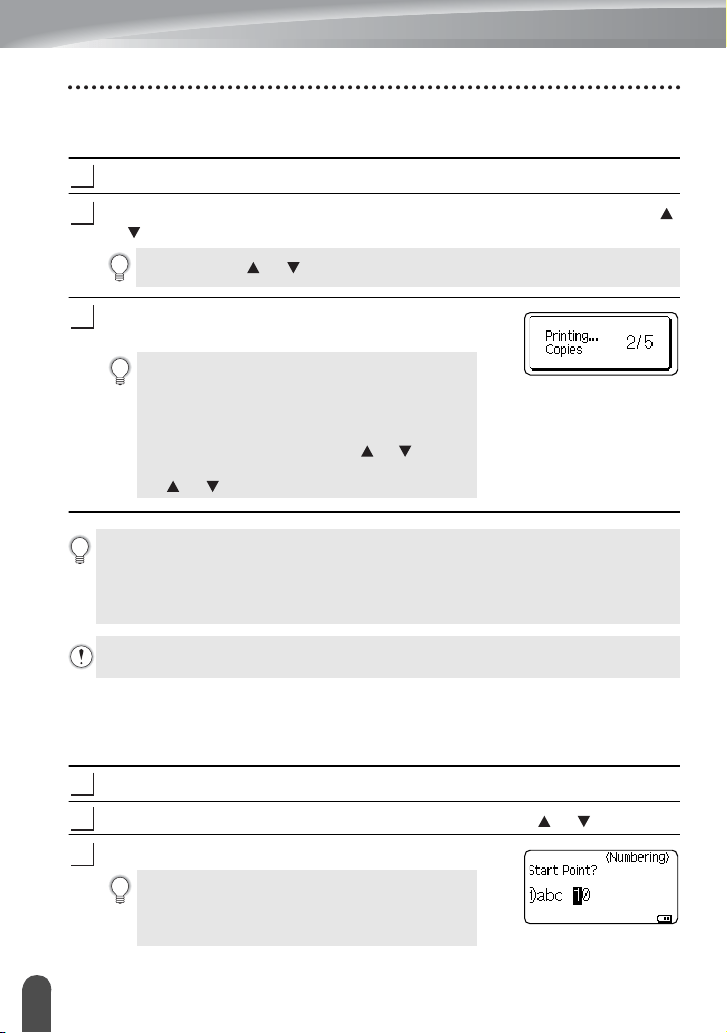
Press the
Print
key, and then select the number of copies to be printed using the
or key, or type the number using the number keys.
Press the
OK
or
Enter
key. "Printing... Copies" is displayed
while the labels are being printed.
Auto-numbering Labels
Using the numbering function you can create a set of sequentially numbered labels from a
single label format. (Up to 99 labels can be numbered.)
Make sure that the appropriate tape cassette is inserted and ready for printing.
Press the
Print Options
key and select "Numbering" using the or key.
Press the
OK
or
Enter
key.
1
2
Hold down the or key to quickly adjust the number of copies.
If you select an automatic cutting option when
printing multiple copies of a label, a message will
be displayed to confirm whether you want the
labels to be cut after each label is printed.
To disable the message display, press the
Menu
key, select "Cut Pause" using the or key, and
then press the
OK
or
Enter
key. Select "Off" using
the or key and press the
OK
or
Enter
key.
3
•Press the Esc key to return to the previous step.
• The figures shown on the screen during printing indicate the "count / number of
copies set".
• Pressing the
Space
key when setting the number of copies resets the value to 01, the
default.
Remove the labels soon after they are cut so that they do not remain in the tape exit
slot.
1
2
To apply auto-numbering to a bar code, select the
bar code here. After selecting the bar code you
will be prompted to enter the number of labels to
be printed (step 6).
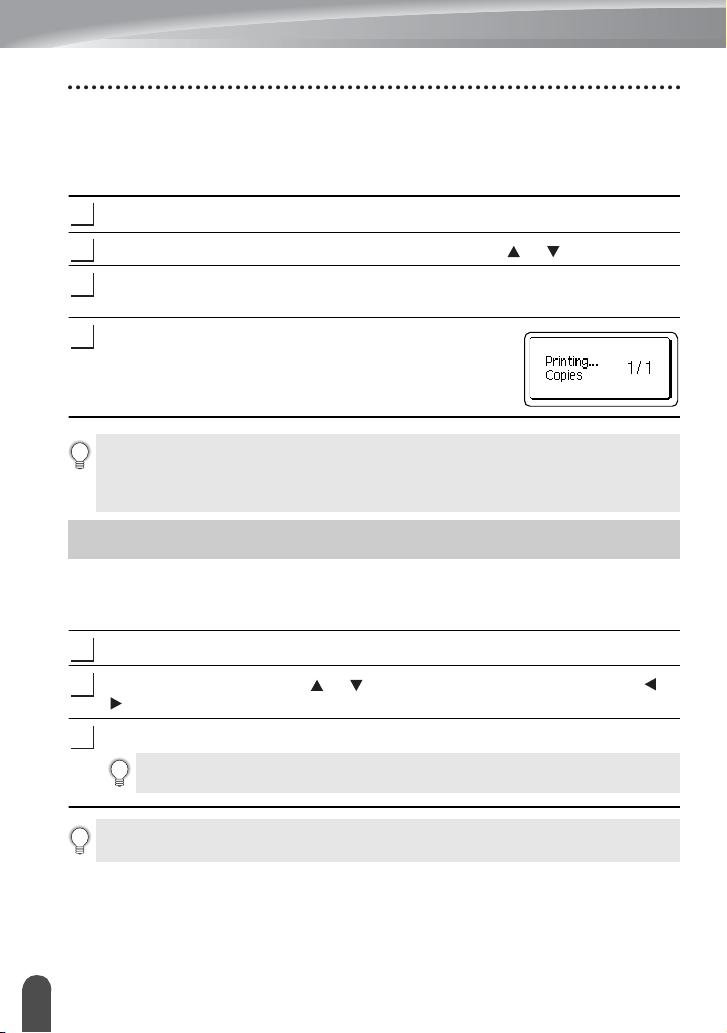
3
1
2
3
4
5
6
7
8
31
LABEL PRINTING
Printing a Label
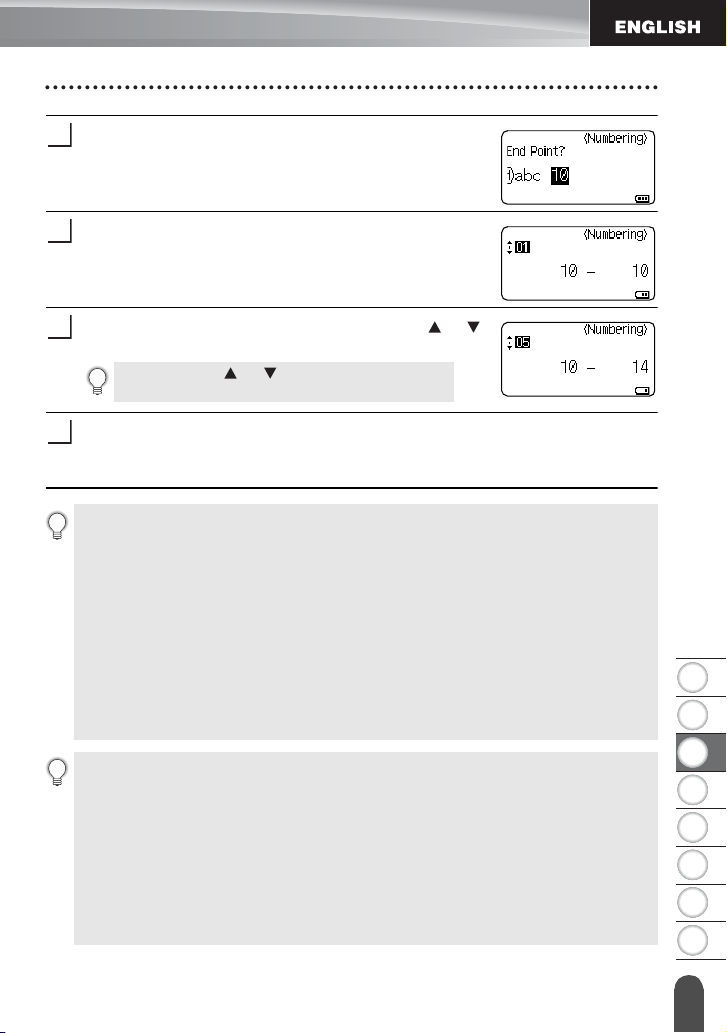
Move the cursor to the first character to be incremented in
the numbering sequence and press the
OK
or
Enter
key.
Move the cursor to the last character to be incremented in
the numbering sequence and press the
OK
or
Enter
key.
The number of labels to be printed is displayed.
Select the number of labels to be printed using the or
key, or type the number using the number key.
Press the
OK
or
Enter
key.
The labels are printed.
As each label is printed the number of copies printed is shown.
4
5
Hold down the or key to quickly adjust the
number of copies.
6
7
• Press the Esc key to return to the previous step.
• The figures shown on the screen during printing indicate the "count / number of
copies".
• Pressing the Space key when selecting the number of copies resets the value to 01,
the default.
• Auto-numbering can also be applied to bar codes. When a bar code contains an auto-
numbering sequence, no other fields in the label can contain an auto-numbering
sequence.
• The auto-number portion of the label is incremented after each label is printed.
• Only one auto-numbering sequence can be used in a label.
• Any symbols or other non-alphanumeric characters in the auto-numbering sequence
are ignored.
• An auto-numbering sequence can only contain a maximum of five characters.
• Letters and numbers increase as shown below:
0
1...9
0
...
A
B...Z
A
...
a
b...z
a
...
A0
A1...A9
B0
...
Spaces (shown as underscores "_" in the example below) can be used to adjust the spacing
between characters or to control the number of digits that are printed.
_9
10...99
00
...
_Z
AA...ZZ
AA
...
1_9
2_0...9_9
0_0
...
LABEL PRINTING
32
Tape Cutting Options
Mirror Printing
Using the mirror printing function you can create labels with the text printed in reverse so
that they can be read from the opposite side when attached to glass or other transparent
material.
Make sure that the appropriate tape cassette is inserted and ready for printing.
Press the
Print Options
key, and select "Mirror" using the or key.
Press the
OK
or
Enter
key.
The message "Print OK?" is displayed
Press the
OK
or
Enter
key. "Printing... Copies" is displayed
while the labels are being printed.
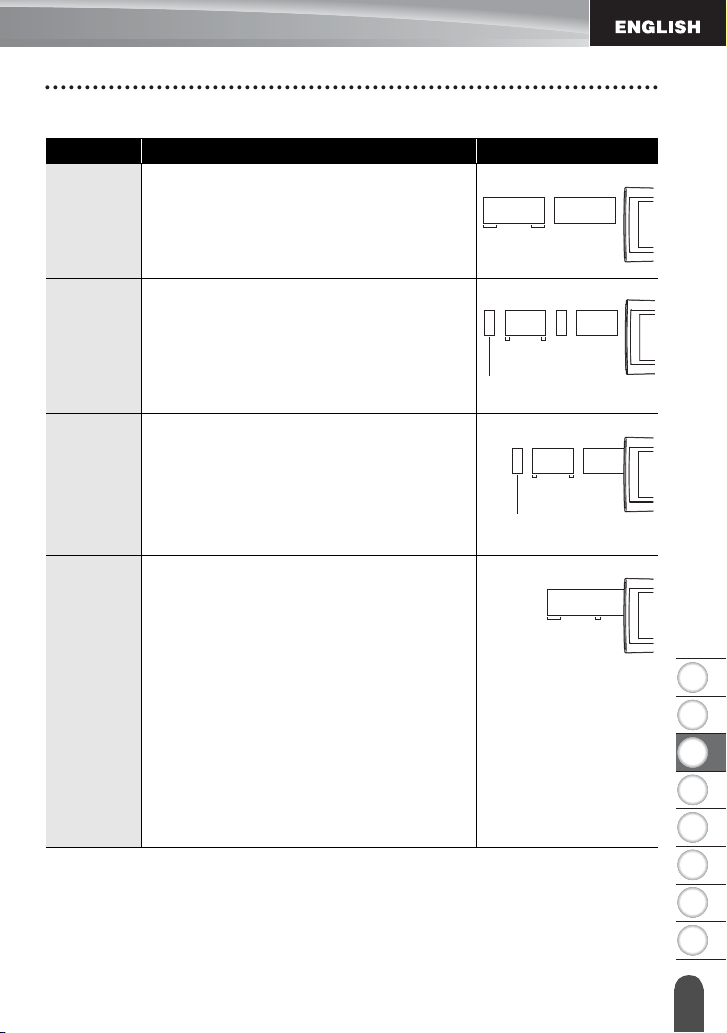
The tape cutting options allow you to specify how the tape is fed and cut when printing
labels. In particular, the "Chain" and "No Cut" options greatly reduce the amount of wasted
tape by using smaller margins and eliminating blank sections cut between labels.
Press the
Label
key.
Select "Cut Option" using the or key, and then set the value by using the or
key.
Press the
OK
or
Enter
key to apply the settings.
1
2
3
4
•Press the Esc key to return to the previous step.
• Text should be printed on clear tape when using the mirror printing function.
• The copy and auto-numbering functions cannot be used together with the mirror
printing function.
Tape Cutting Options
1
2
3
New settings are NOT applied if you do not press the OK or Enter key.
•Press the Esc key to return to the previous step.
• Refer to the Tape Cutting Options table for a list of all available settings.
1
2
3
4
5
6
7
8
33
LABEL PRINTING
Tape Cutting Options
Tape Cutting Options
Setting Description Example
Large
Margin
Automatically cuts the tape after each label is
printed, leaving a margin of 0.96" (24.5 mm)
on each end.
Small
Margin
Automatically cuts a piece of blank tape
before printing the first label and then cuts the
tape after each label is printed, leaving a
0.08" (2 mm) margin at both ends of each
label.
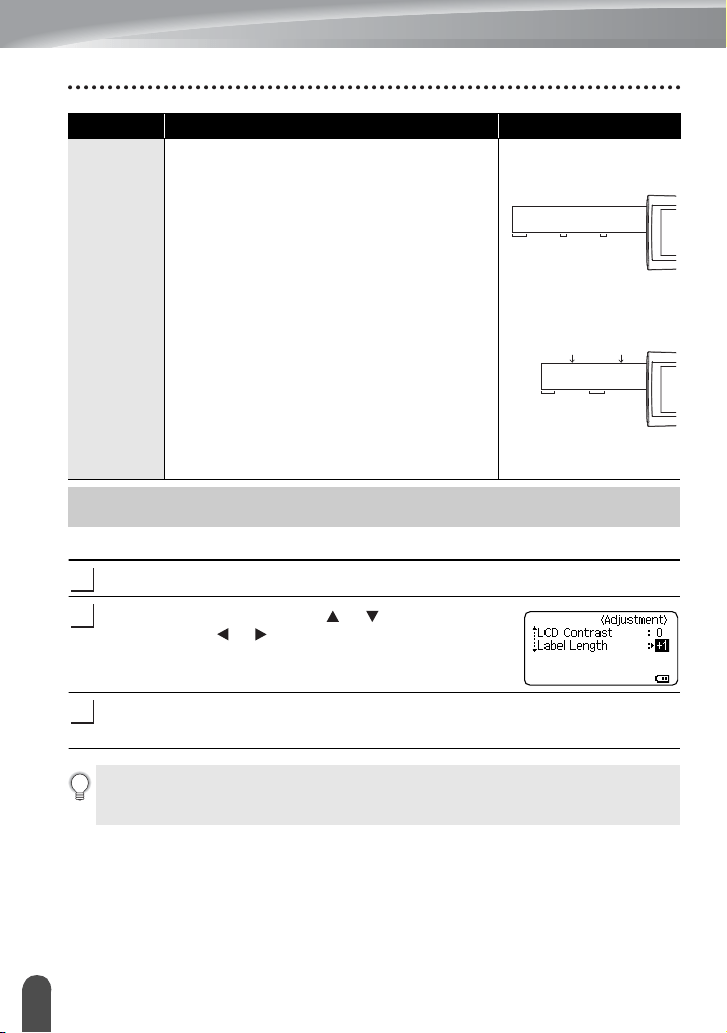
Chain
• Automatically cuts a piece of blank tape
before printing the first label and then cuts the
tape after each label is printed, leaving a 0.08"
(2 mm) margin at
both ends
of each label.
• Once the last label is printed, the tape is not
fed and cut. Press the
Feed & Cut
key to feed
and cut the tape.
No Cut
• Select this setting when printing multiple
copies of a label and you do not want the
labels cut after each label is printed, or when
using Fabric Iron-On Tapes or other special
tapes that cannot be cut by the tape cutter of
the P-touch labeler.
• Once the label is printed, the tape is not fed
and cut.
• Press the
Feed & Cut
key to feed and cut
the tape.
• When using the special tapes that cannot
be cut by the tape cutter of the P-touch
labeler, remove the tape cassette from the
P-touch labeler and use scissors to cut the
tape.
ABC ABC
0.96”
(24.5mm)
0.96”
(24.5mm)
ABC ABC
0.08”
(2mm)
0.96”
(24.5mm)
0.08”
(2mm)
ABC ABC
0.08”
(2mm)
0.96”
(24.5mm)
0.08”
(2mm)
ABC AB
0.96”
(24.5mm)
0.16”
(4mm)
LABEL PRINTING
34
Adjusting the Label Length
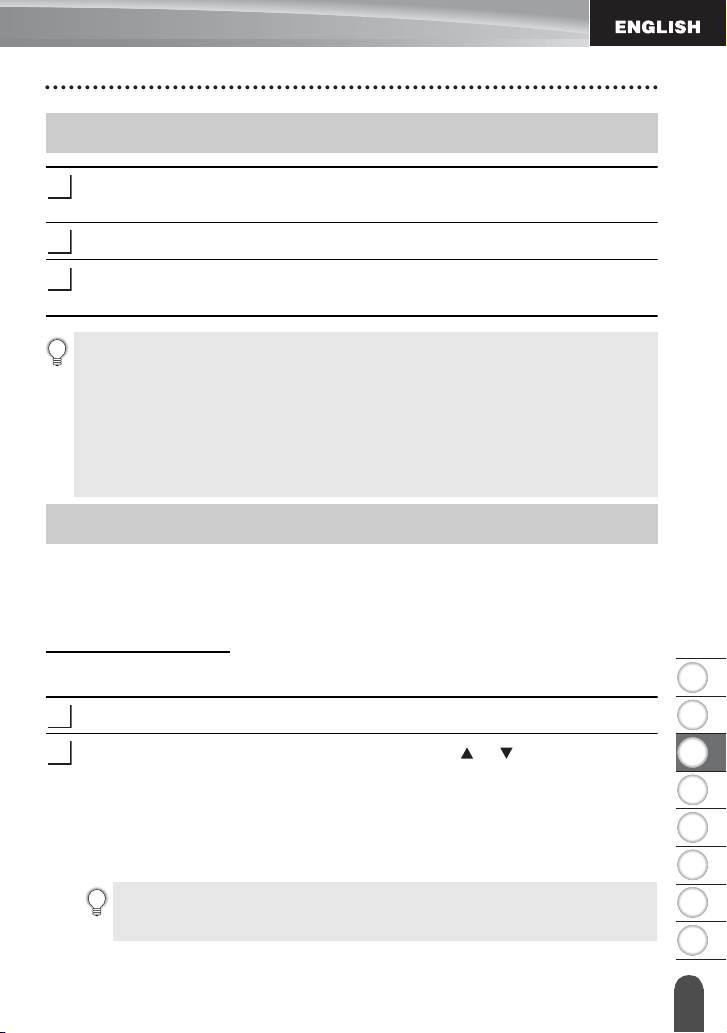
You can adjust the length of the printed label in a range of -3 to +3.
Press the
Adjustment
key.
Select "Label Length" using the or key and set the
value using the or key.
Press the
OK
or
Enter
key to apply the setting.
Special
tape
• Select this setting when using special tape.
• When using Fabric Iron-On Tapes, select "No
Cut" for Cut Options before printing. After
printing, remove the tape cassette from the
P-touch labeler and use scissors to cut the
tape.
• When multiple copies
are printed one time:
• When a label is printed
two times:
1. 1st print
2. 2nd print
Setting Description Example
ABC
ABC ABC
0.96”
(24.5mm)
0.16”
(4mm)
0.16”
(4mm)
ABC ABC
0.96”
(24.5mm)
1.04”
(26.5mm)
12
Adjusting the Label Length
1
2
3
•Press the Esc key to return to the previous step.
•Press the Space key to set the value to the default setting.
• One level is equal to approximately 1% of the total label length.
1
2
3
4
5
6
7
8
35
LABEL PRINTING
Attaching Labels
If necessary, trim the printed label to the desired shape and length using scissors,
etc.
Peel the backing from the label.
Position the label and then press firmly from top to bottom with your finger to attach
the label.
Printing a label from the Label Collection Stored in the P-touch labeler
The list of the next page shows the many labels that are stored in your Label Collection.
Printing these pre-designed labels saves you time.
To download the new label designs, please visit the Brother Solutions Center at:
http://solutions.brother.com
For details, refer to "Downloading a New Label Collection Category (Windows
®
only)" on
page 48.
Press the
Label Collection
key.
Select the language of the label to be printed using the or key, and then press
the
OK
or
Enter
key.
The language can be selected from "Croatian", "Czech", "Danish", "Dutch",
"English (United Kingdom)", "English (United States)", "Finnish", "French",
"French (Canada)", "German", "Hungarian", "Italian", "Norwegian", "Polish",
"Portuguese", "Portuguese (Brazil)", "Romanian", "Slovak", "Slovenian",
"Spanish (Spain)", "Spanish (United States)", "Swedish", "Turkish" or "Others".
Attaching Labels
1
2
3
• Most TZe tapes offer a convenient crack and peel backing. To remove the backing,
simply fold the label lengthwise with the text facing inward, to expose the inside
edges of the backing. Then, peel off the backing one piece at a time.
• Labels may be difficult to attach to surfaces that are wet, dirty, or uneven. The labels
may peel off easily from these surfaces.
• Be sure to read the instructions provided with Fabric Iron-On Tapes, Extra Strength
Adhesive Tapes or other special tapes and observe all precautions noted in the
instructions.
• We advise using scissors to cut Heat Shrink Tube.
Printing from the Label Collection
1
2
If you download a label collection for a language that is not preset in the P-touch
labeler, "Others" will be displayed at the end of the available languages. To use
these labels, select "Others".
LABEL PRINTING
36
Printing from the Label Collection
Select the category using the or key, and then press the
OK
or
Enter
key.
The first label image is displayed.
Select a label using the or key, and then press the
OK
or
Enter
key.
Select "Print" using the or key, and then press the
OK
or
Enter
key.
Select the number of copies to be printed using the or key, or type the number
using the number keys.
Press the
OK
or
Enter
key to print the labels. "Printing... Copies" is displayed while
the labels are being printed.
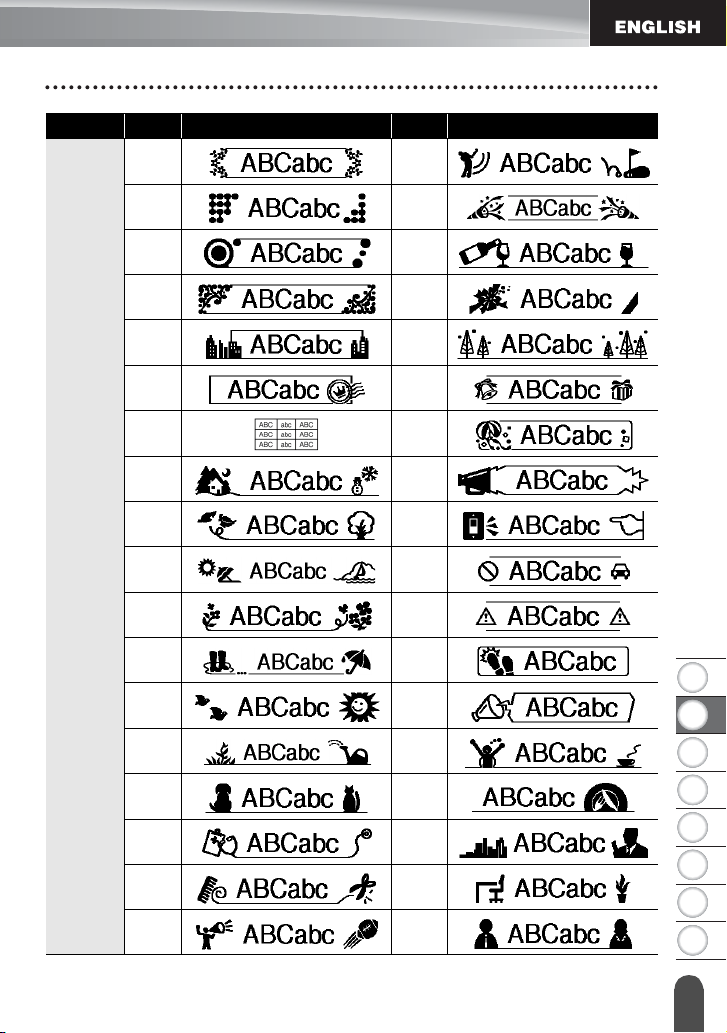
Label Collection List
3
Refer to the Label Collection List to view all of the available labels.
4
To add the label to your "Favorites", select "Add to Favorites" using the or
key, and then press the OK or Enter key to register the selected label image
in the Favorites category. Registering your most frequently used label images
allows you to quickly and easily display them when needed again.
5
Only 0.47" (12mm), 0.70" (18mm) or 0.94" (24mm) tape can be used for Label
Collection.
6
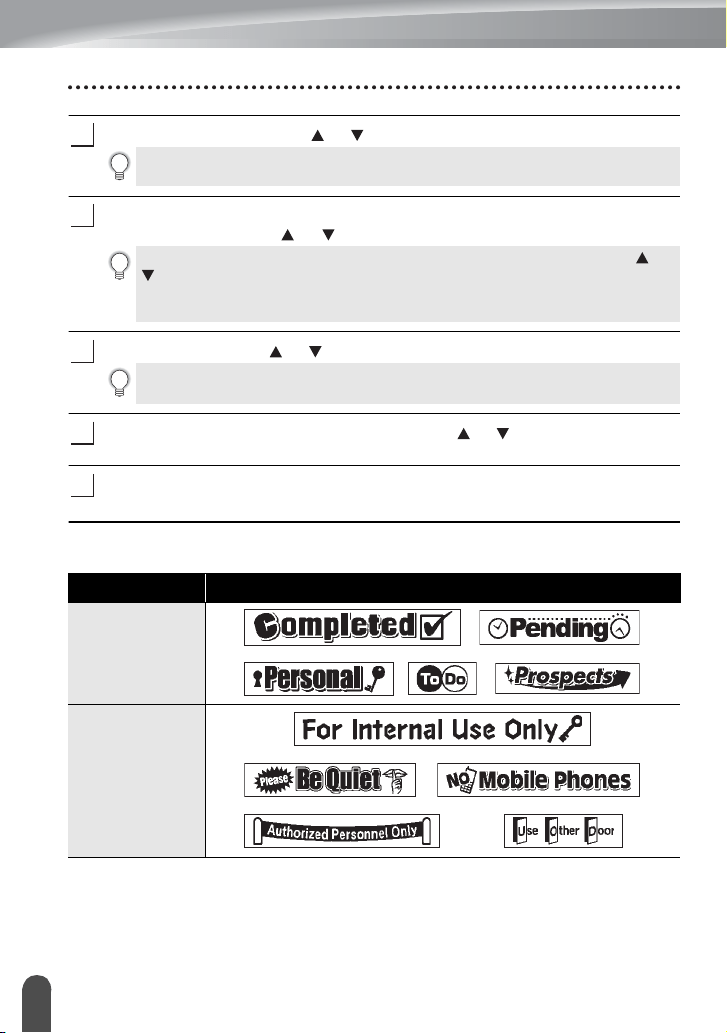
7
Category Label
Files
Office signage
* Labels are for illustrative purposes only.
1
2
3
4
5
6
7
8
37
LABEL PRINTING
Printing from the Label Collection
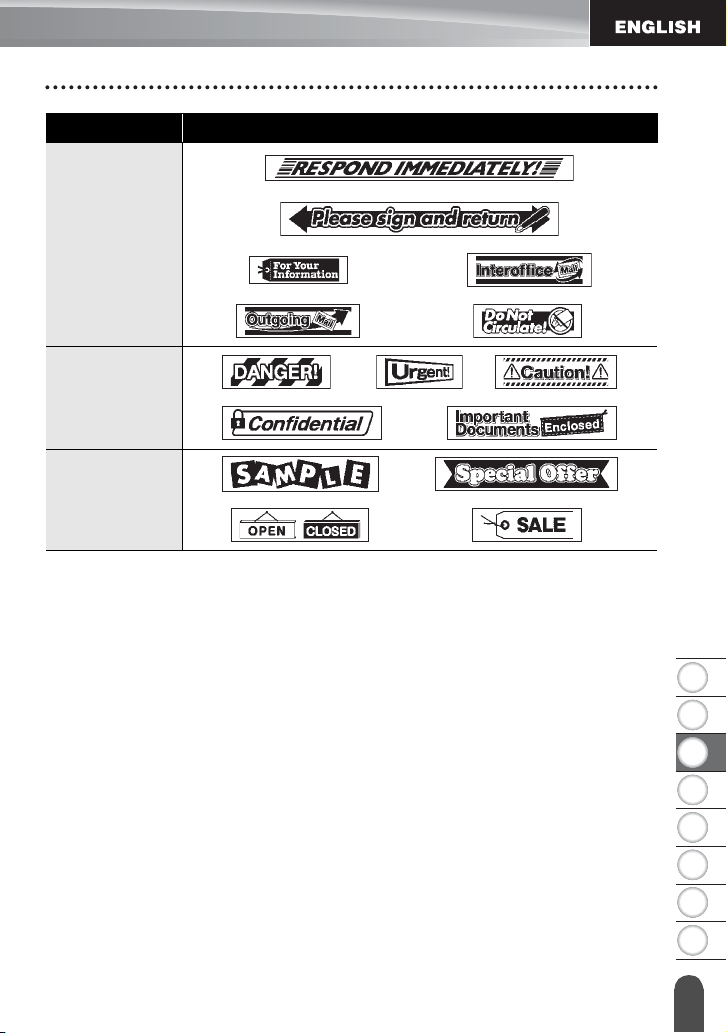
Communication
Attention
Retail
Category Label
* Labels are for illustrative purposes only.
38
Storing a Label into Memory
USING THE FILE MEMORY
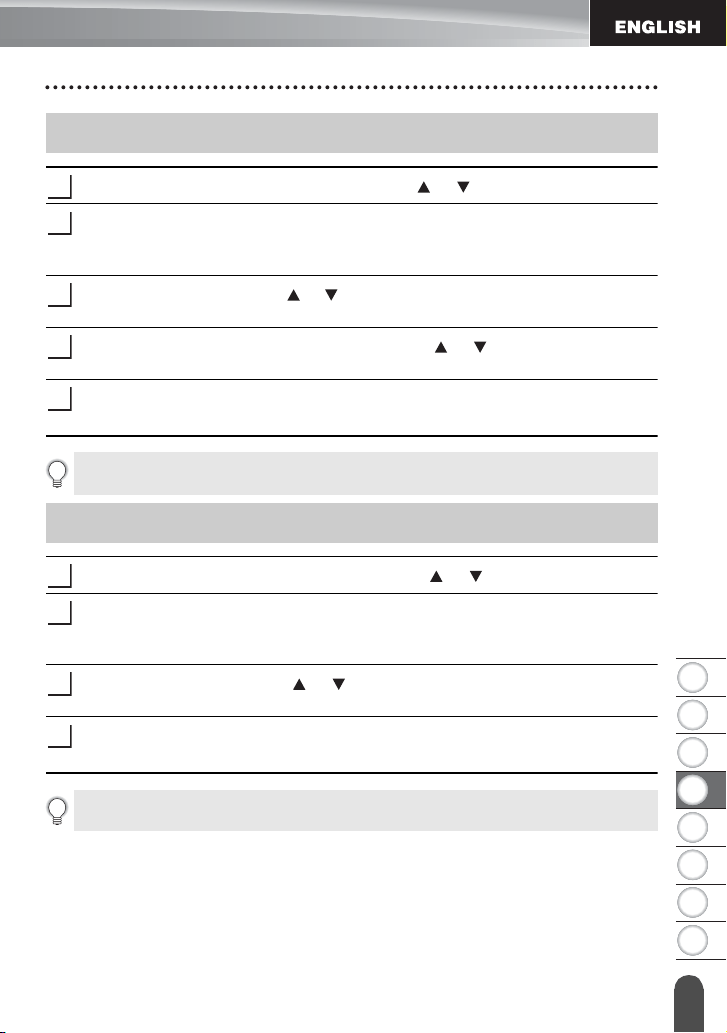
You can store up to 50 of your most frequently used labels in the file memory. Each label is
stored as a file, allowing you to quickly and easily recall your label when needed again.
After entering the text and formatting the label, press the
File
key and select "Save"
using the or key.
Press the
OK
or
Enter
key. A file number is displayed.
If a label is already stored to the file number, the label text will also be displayed.
Select a file number using the or key, and then press the
OK
or
Enter
key to
save the label to the selected file number.
The file is saved and the screen returns to the text entry screen.
Press the
File
key and select
"Open" using the or key
.
Press the
OK
or
Enter
key. The file number of a stored label is displayed.
The label text is also displayed to identify the label.
Select a file number using the or key, and then press the
OK
or
Enter
key to
open the selected file. The file is opened and displayed on the text entry screen.
When the file memory is full, each time you save a file you will need to overwrite one
of your stored files.
Storing a Label into Memory
1
2
3
If a file is already stored to the selected number, the data will be overwritten by
the file you try to save.
•Press the Esc key to return to the previous step.
• Up to 280 characters can be saved in one file. However, the number of characters that
can be saved may differ, for example when entering symbols.
• To store a label created by using the Templates or the Block Layouts, refer to "Using
Templates" on page 18 or "Using Block Layouts" on page 22.
Opening a Stored Label File
1
2
3
Press the Esc key to return to the previous step.
1
2
3
4
5
6
7
8
39
USING THE FILE MEMORY
Printing a Stored Label File
Press the
File
key and select
"Print"
using the or key
.
Press the
OK
or
Enter
key.
The file number of the stored label is displayed.
The label text is also displayed to identify the label.
Select a file number using the or key, and then press the
Print
,
OK
or
Enter
key
to display the Copies screen.
Select the number of copies to be printed using the or key, or type the number
using the number keys.
Press the
OK
or
Enter
key to print the labels.
"Printing... Copies" is displayed while the labels are being printed.
Press the
File
key and select
"Delete" using the or key
.
Press the
OK
or
Enter
key.
The file number of the stored label is displayed.
The label text is also displayed to identify the label.
Select a file number using the or key, and then press the
OK
or
Enter
key.
The message “Delete?” is displayed.
Press the
OK
or
Enter
key to delete the file.
The file is deleted and the screen returns to the text entry screen.
Printing a Stored Label File
1
2
3
4
5
• Press the Esc key to return to the previous step.
• The message "No Text!" is displayed when you try to print a file with no text.
Deleting a Stored Label File
1
2
3
4
Press the Esc key to cancel deleting the file and return to the previous screen.
40
Using P-touch Editor
USING P-TOUCH SOFTWARE
You will need to install P-touch Editor and the printer driver to use your P-touch labeler with
your computer. For details on how to install the P-touch software, please refer to the Quick
Setup Guide.
Refer to the procedures below for your computer’s operating system. In the screen shots,
“XX-XXXX” is displayed to represent the P-touch labeler model number.
To download the latest driver and software, please visit the Brother Solutions Center at:
http://solutions.brother.com
Using P-touch Editor (For Windows
®
)
Starting P-touch Editor
For Windows Vista
®
/ Windows
®
7
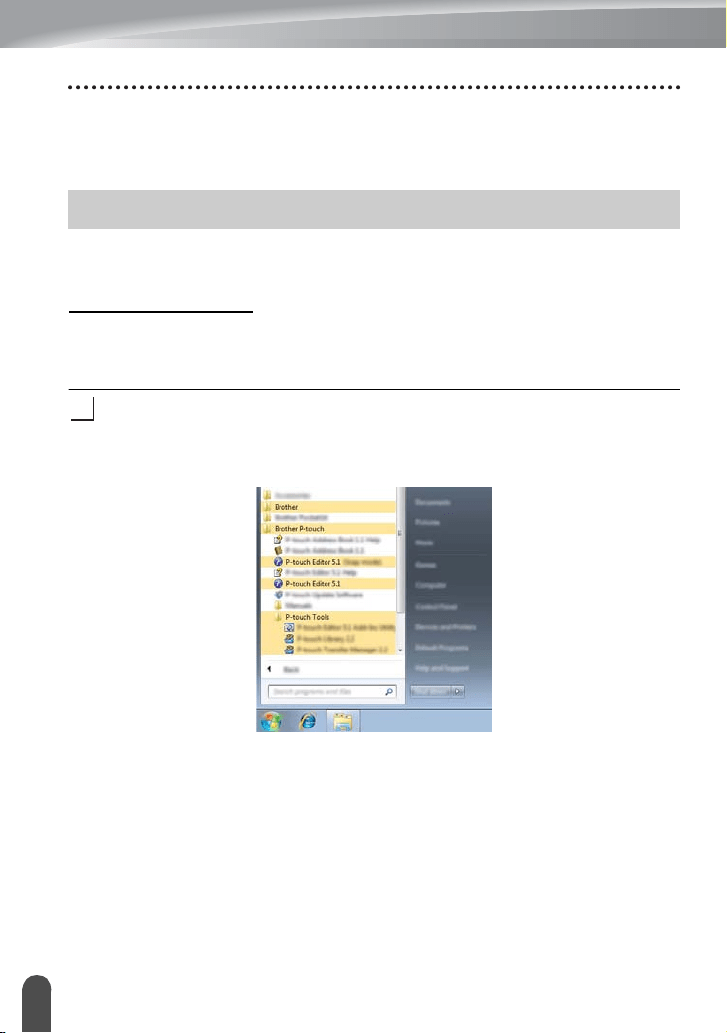
From the Start button, click [All Programs]-[Brother P-touch]-[P-touch Editor 5.1].
When P-touch Editor starts, select whether you want to create a new layout or
open an existing layout.
Using P-touch Editor
1
41
USING P-TOUCH SOFTWARE
Using P-touch Editor
1
2
3
4
5
6
7
8
For Windows
®
8
Click [P-touch Editor 5.1] on the [Start]/[Apps] screen, or double-click [P-touch
Editor 5.1] on the desktop.
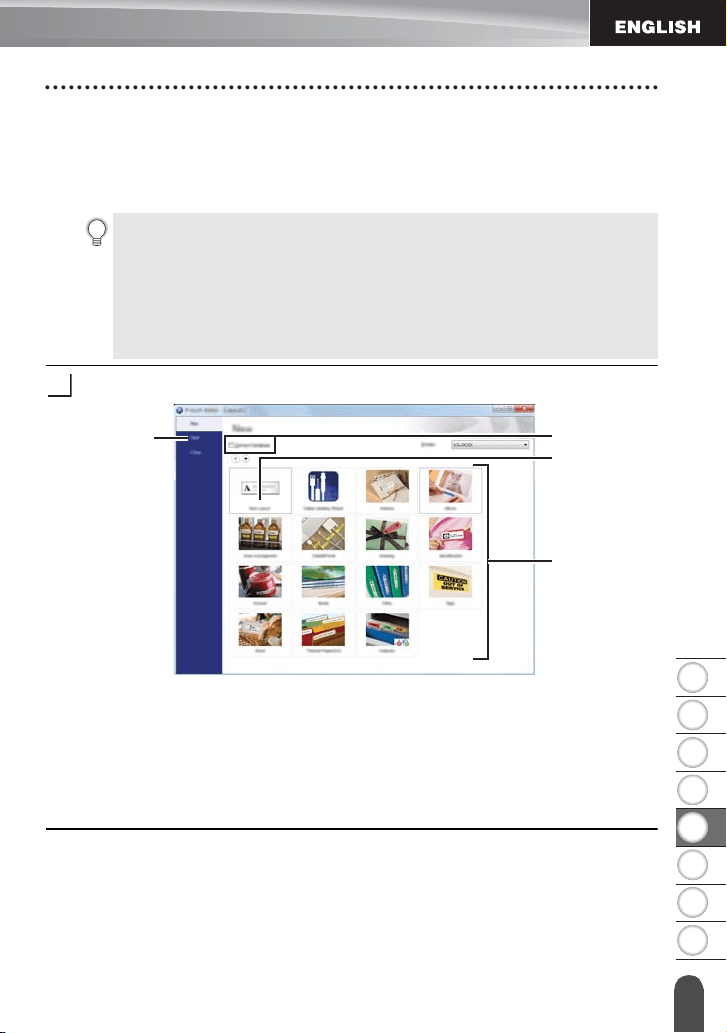
When P-touch Editor starts, select whether you want to create a new layout or
open an existing layout.
Select an option in the screen.
1. To create a new layout, click the [New Layout] button.
2. To create a new layout using a pre-set layout, select the desired category
button.
3. To connect a pre-set layout to a database, select the check box next to
[Connect Database].
4. To open an existing layout, click [Open].
• You can also start P-touch Editor using shortcuts, if you selected to create
shortcuts during installation.
• Shortcut icon on the desktop: double-click to start P-touch Editor
• Shortcut icon in the Quick Launch bar: click to start P-touch Editor
• To change how P-touch Editor functions when it starts, click [Tools]-[Options]
in the P-touch Editor menu bar to display the [Options] dialog box. Select
[General] and the desired setting in the [Operations] list box under the [Startup
Settings]. The default setting is [Display New View].
2
2
1
4
3
USING P-TOUCH SOFTWARE
42
Using P-touch Editor
Operation modes
P-touch Editor has three different operation modes: [Express] mode, [Professional] mode,
and [Snap] mode. You can easily switch between modes by using the mode selection
buttons.
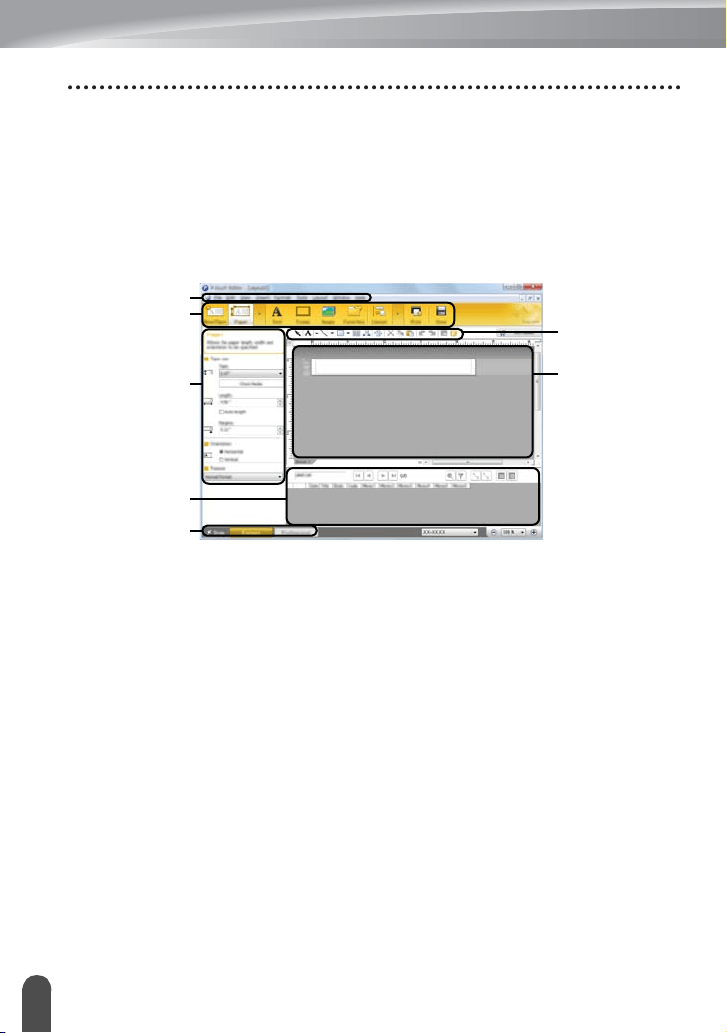
[Express] mode
This mode allows you to quickly and easily create layouts that include text and images.
The [Express] mode screen is explained below.
1. Menu bar
2. Command bar
3. Draw/Edit toolbar
4. Property bar
5. Layout window
6. Database window
7. Mode selection buttons
7
2
1
3
4
5
6
43
USING P-TOUCH SOFTWARE
Using P-touch Editor
1
2
3
4
5
6
7
8
[Professional] mode
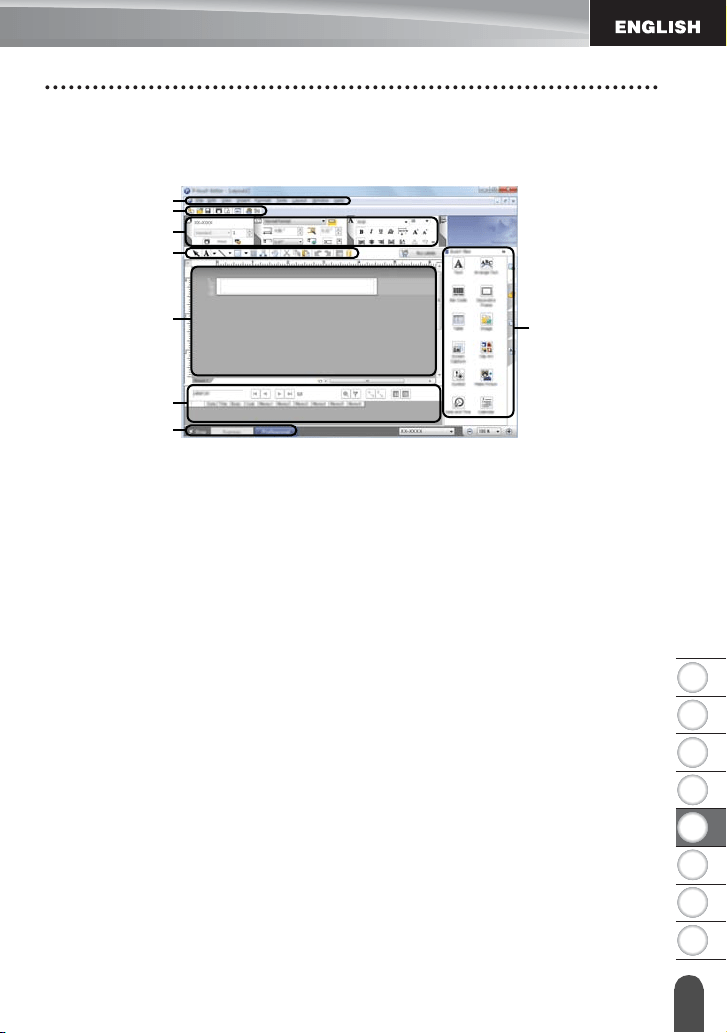
This mode allows you to create layouts using a wide-range of advanced tools and options.
The [Professional] mode screen is explained below.
1. Menu bar
2. Standard toolbar
3. Property palette
4. Draw/Edit toolbar
5. Layout window
6. Database window
7. Mode selection buttons
8. Side bar
7
2
1
3
4
8
6
5
USING P-TOUCH SOFTWARE
44
Using P-touch Editor
[Snap] mode
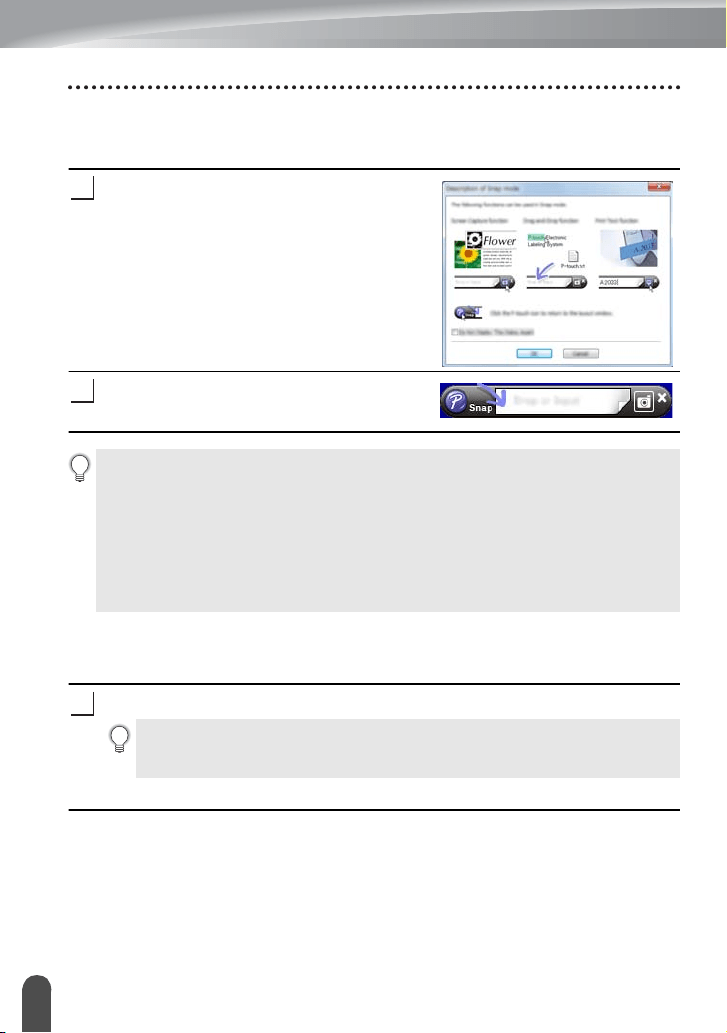
This mode allows you to capture all or a portion of your computer screen content,
print it as an image, and save it for future use.
Click the [Snap] mode selection button.
The [Description of Snap mode] dialog box is
displayed.
Click [OK].
The [Snap] mode palette is displayed.
Using P-touch Editor (For Macintosh)
Starting P-touch Editor
Double-click [P-touch Editor] icon on the desktop.
P-touch Editor starts.
Operation modes
Standard Mode
This mode provides easy label creation with texts and images.
The layout window consists of the following sections:
1
2
• If you select the [Do Not Display This Dialog Again] check box in the [Description
of Snap mode] dialog box, you switch to [Snap] mode next time without displaying
the dialog box.
• For Windows Vista
®
/ Windows
®
7
You can also start P-touch Editor in [Snap] mode by clicking the Start menu -[All
Programs]-[Brother P-touch]-[P-touch Editor 5.1 (Snap mode)].
• For Windows
®
8
You can also start P-touch Editor in [Snap] mode by clicking [P-touch Editor 5.1
(Snap mode)] on the [Start]/[Apps] screen.
1
The following method can also be used to start the P-touch Editor.
Double-click [Macintosh HD] - [Applications] - [P-touch Editor] and then
[P-touch Editor] application icon.
45
USING P-TOUCH SOFTWARE
Using P-touch Editor
1
2
3
4
5
6
7
8
1. Command bar
2. Draw/Edit toolbar
3. Inspector
4. Layout window
5. Database window
Snap Mode
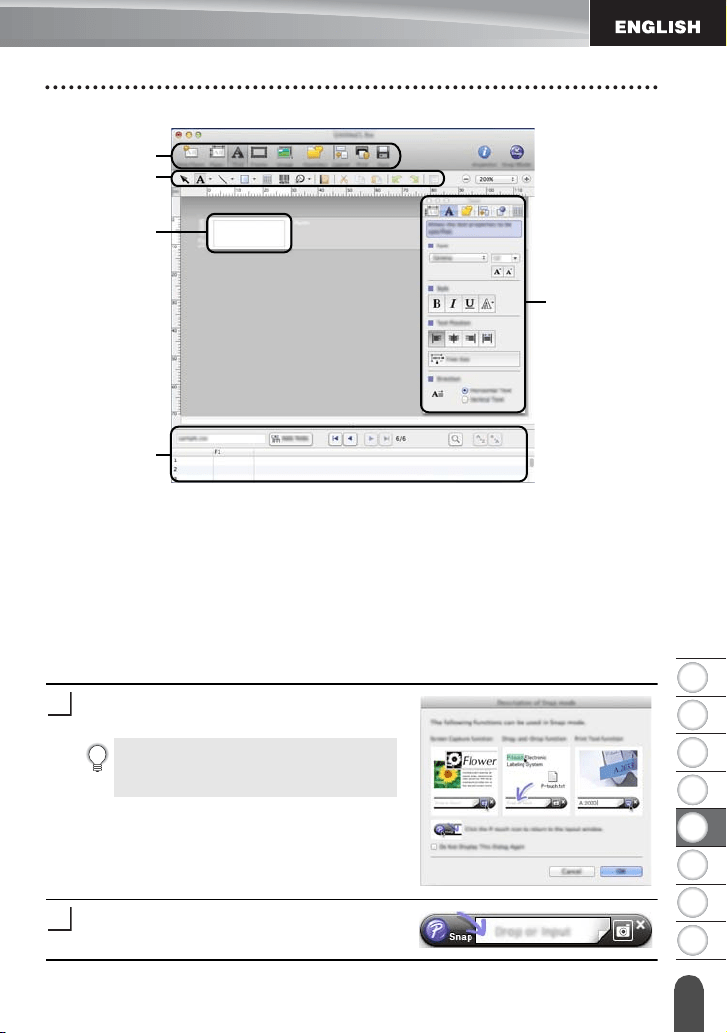
With this mode, you can capture the screen, print it as an image, and save it for future use.
To start the Snap mode, follow the steps below.
When you click [Snap Mode], the [Description
of Snap mode] dialog box appears. Click [OK].
Snap mode appears.
If you put a checkmark in [Do Not
Display This Dialog Again], you can go
to Snap mode directly from the next time.
1
2
5
4
3
1
2
USING P-TOUCH SOFTWARE
46
Using P-touch Editor
Updating P-touch Editor
The software can be upgraded to the latest available version using the P-touch Update
Software.
In the following steps, you will see XX-XXXX. Read "XX-XXXX" as your P-touch labeler
name.
Updating P-touch Editor Software (For Windows
®
)
For Windows Vista
®
/ Windows
®
7
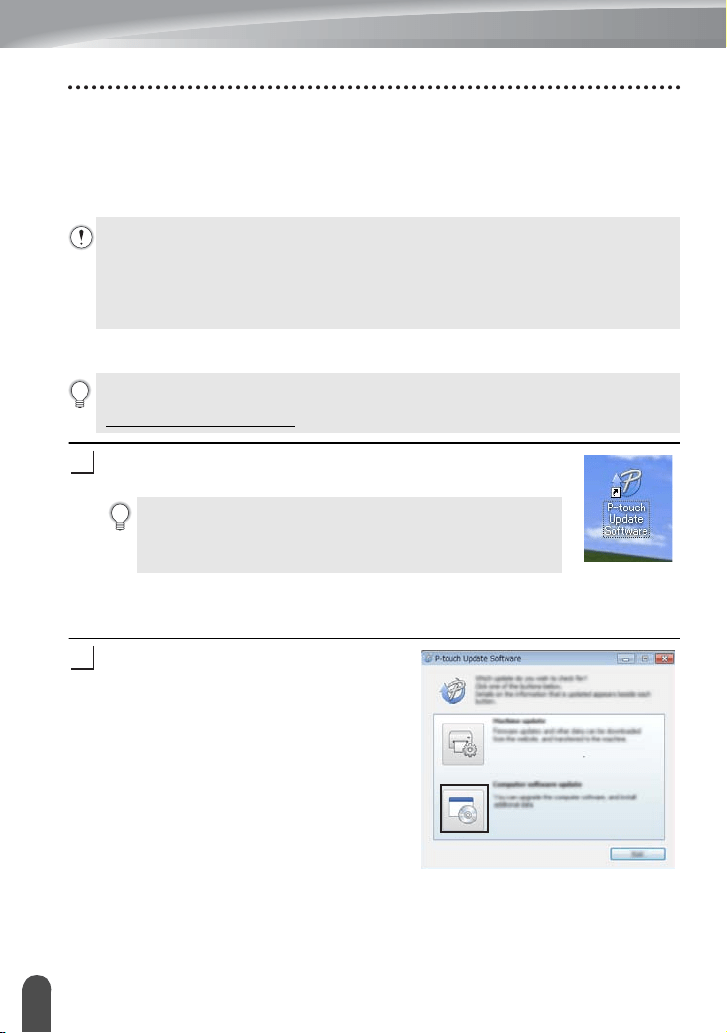
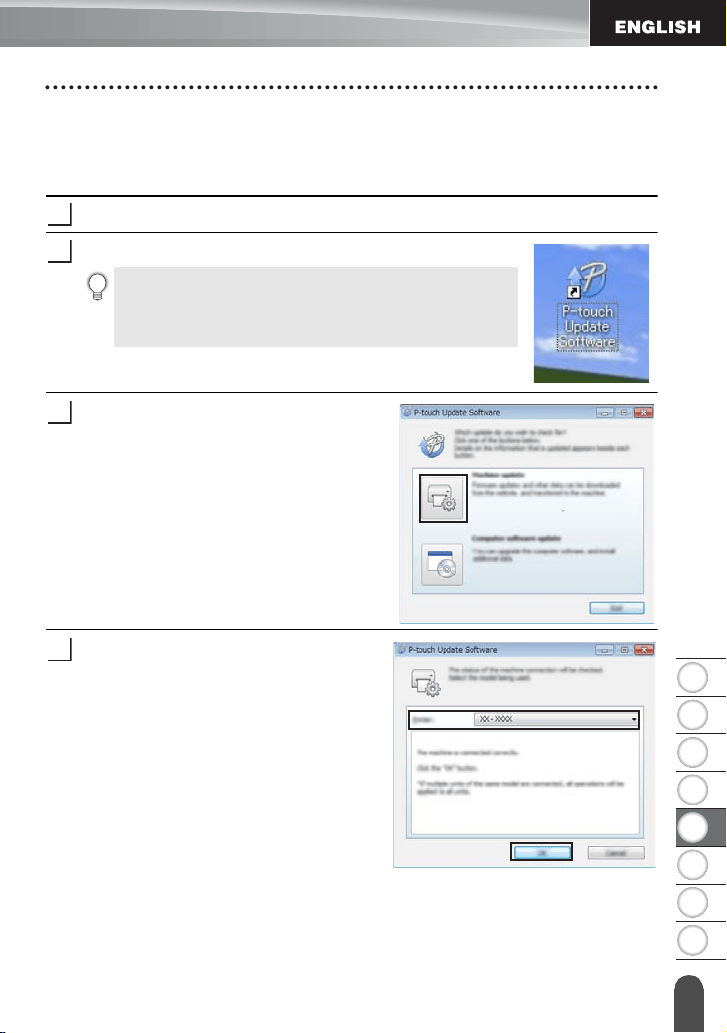
Double-click the [P-touch Update Software] icon.
For Windows
®
8
Click [P-touch Update Software] on the [Start]/[Apps] screen or double-click [P-touch
Update Software] on the desktop.
Click the [Computer software update] icon.
• You must be connected to the internet in order to launch the P-touch Update
Software.
• You may find that the software and the contents in this manual are different.
• Upon installation of the P-touch Update Software, an icon will be installed on your
desktop for your convenience.
• Do not turn off the power when transferring data or updating software.
To use the P-touch Update Software, it is necessary to install it from the CD-ROM
provided. You can also download the software from the Brother Solutions Center
(http://solutions.brother.com
).
The following method can also be used to start the P-touch
Update Software.
Click the Start button, and then select [All Programs] -
[Brother P-touch] - [P-touch Update Software].
1
2
47
USING P-TOUCH SOFTWARE
Using P-touch Editor
1
2
3
4
5
6
7
8
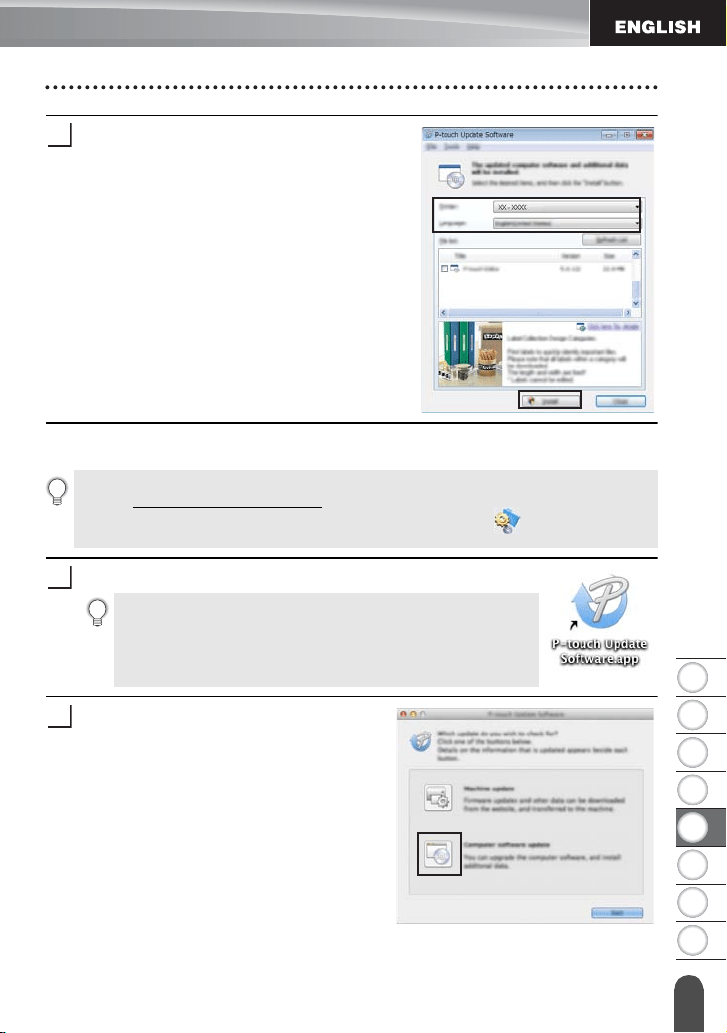
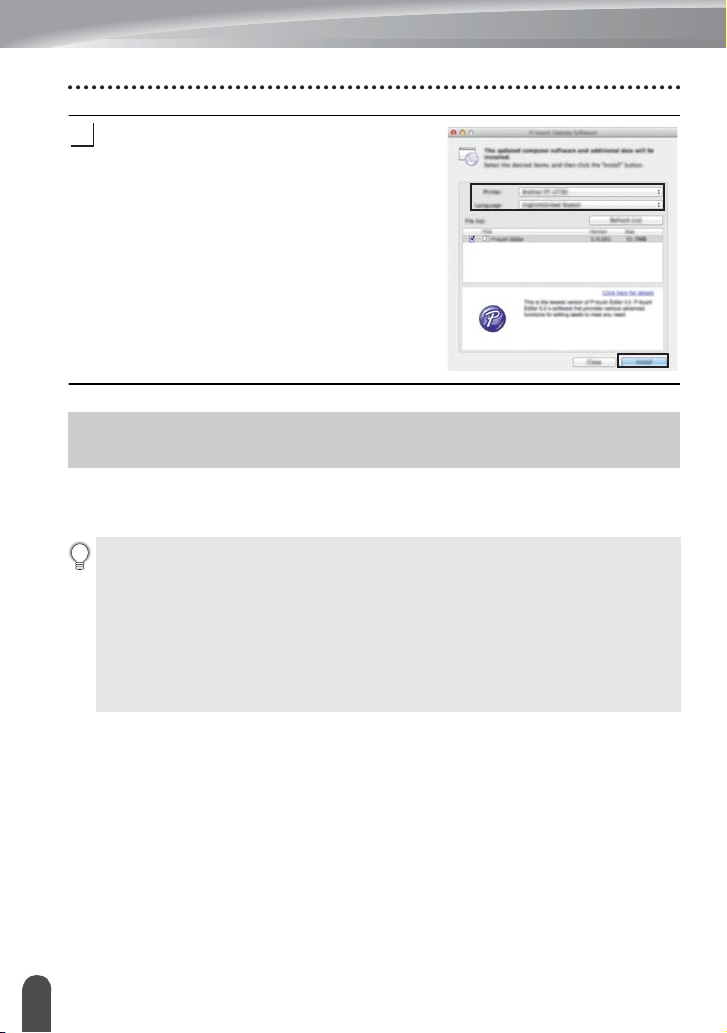
Select the [Printer] and [Language], select the
check box next to P-touch Editor and then click
[Install].
A message is displayed to indicate the
installation has finished.
Updating P-touch Editor Software (For Macintosh)
Double-click the [P-touch Update Software] icon.
Click the [Computer software update] icon.
3
To use the P-touch Update Software, you can download it from the Brother Solutions
Center (http://solutions.brother.com
).
Macintosh users can access this URL directly by clicking the icon found on your
CD-ROM.
The following method can also be used to start the P-touch
Update Software.
Double-click [Macintosh HD] - [Applications] - [P-touch
Update Software] and then the [P-touch Update Software]
application icon.
1
2
USING P-TOUCH SOFTWARE
48
Downloading a New Label Collection Category (Windows
®
only)
Select the [Printer] and [Language], select the
check box next to P-touch Editor and then click
[Install].
A message is displayed to indicate the
installation has finished.
Using the P-touch Update Software, additional label collection categories can be
downloaded to your P-touch labeler.
Furthermore, the software can be upgraded to the latest version using this tool.
3
Downloading a New Label Collection Category
(Windows
®
only)
• To use the P-touch Update Software, it is necessary to install it from the CD-ROM
provided.
• Refer to the "Quick Setup Guide" for details on how to install the software.
• You must be connected to the internet to launch the P-touch Update software.
• Label Collection Designs cannot be edited.
• You may find that the software and the contents in this manual are different.
• Upon installation of the P-touch Update Software, an icon will be installed on your
desktop for your convenience. To check for New Label Collection Designs, double-
click the icon to launch the software.
49
USING P-TOUCH SOFTWARE
Downloading a New Label Collection Category (Windows
®
only)
1
2
3
4
5
6
7
8
Downloading a New Label Collection Category to your P-touch labeler
The following is an example for Windows
®
7.
In the following steps, you will see XX-XXXX. Read "XX-XXXX" as your P-touch labeler
name.
Turn the P-touch labeler on and connect the USB cable.
Double-click the [P-touch Update Software] icon.
Click the [Machine update] icon.
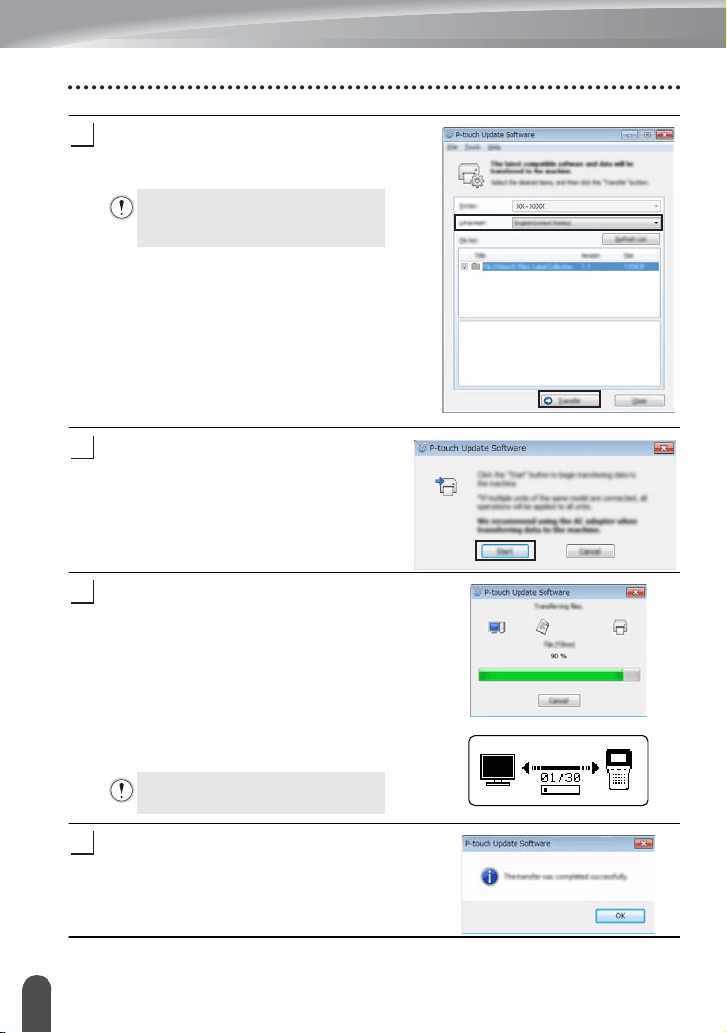
Select the [Printer], ensure that [The
machine is connected correctly.] is
displayed, and then click [OK].
The following method can also be used to start the P-touch
Update Software.
Click the Start button, and then select [All Programs] -
[Brother P-touch] - [
P-touch Update Software
].
1
2
3
4
USING P-TOUCH SOFTWARE
50
Downloading a New Label Collection Category (Windows
®
only)
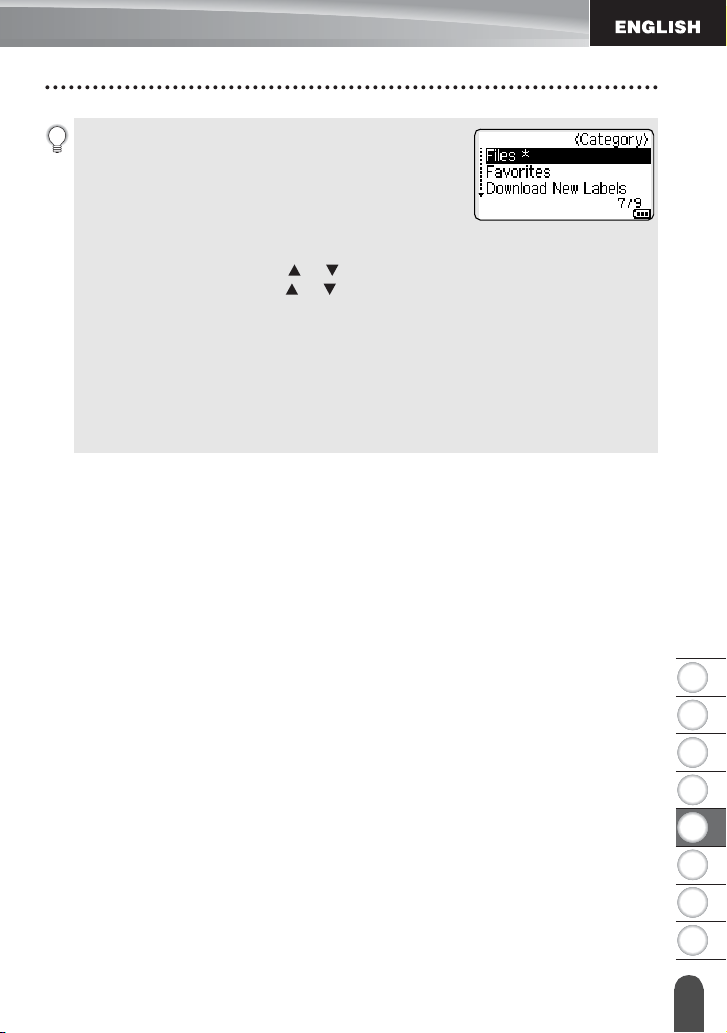
Select the [Language], select the check box
next to the label collection to be downloaded,
and then click [Transfer].
Check the content to be updated, and
then click [Start] to begin the update.
The screen on the right is displayed on your
computer while the software is being
updated.
The screen on the right appears on the
P-touch labeler's LCD display.
Click [OK] to complete the update.
The display returns to the input screen when
the update is complete.
Do not turn off the P-touch labeler
or disconnect the cable while the
data is being transferred.
5
6
7
Do not turn off the P-touch labeler
during the update process.
5
8
51
USING P-TOUCH SOFTWARE
Downloading a New Label Collection Category (Windows
®
only)
1
2
3
4
5
6
7
8
• Newly downloaded label collection categories are added to
the respective "Category".
• An asterisk "*" is displayed at the end of the newly added
category.
• Downloaded label collections can be deleted using the
following procedure
.
.
1. Press the
Label Collection
key.
2. Select the language using the or key and press the
OK
or
Enter
key.
3. Select the category using the or key and press the
OK
or
Enter
key.
4. Press the
Clear
key.
• If the downloaded label collection was registered in "Favorites", it will also be deleted from
here.
• It is not possible to delete individual labels from each "Category".
• When "Download New Labels" is selected, the prompt "Connect PC, and Run P-touch Update
Software" is displayed.
• If you download a label collection for a language that is not preset in the P-touch labeler, the
language for these labels will be registered as "Others".
52
Resetting the P-touch Labeler
RESETTING & MAINTENANCE
You can reset the internal memory of your P-touch labeler when you want to clear all saved
label files, or in the event the P-touch labeler is not operating correctly.
Resetting the Data to Factory Settings Using the P-touch Labeler
Keyboard
To reset all the labels and customized settings
Turn off the P-touch labeler. Press and hold down the
Shift
and
Backspace
keys.
While holding down the
Shift
and
Backspace
keys, press the
Power
key once and
then release the
Shift
and
Backspace
keys.
To reset the customized settings
(Label collections stored in Favorites are not reset.)
Turn off the P-touch labeler. Press and hold down the
Shift
and
R
keys. While
holding down the
Shift
and
R
keys, press the
Power
key once and then release the
Shift
and
R
keys.
Resetting the Data Using the Menu Key
Press the
Menu
key, select "Reset" using the or key, and then press the
OK
or
Enter
key. Select the resetting method using the or key and press the
OK
or
Enter
key.
Resetting the P-touch Labeler
All text, format settings, option settings and stored label files are cleared when you
reset the P-touch labeler. Language and unit settings will also be cleared.
Release the Power key before releasing the other keys.
Release the Power key before releasing the other keys.
Value Details
Reset All Settings
Downloaded labels are NOT cleared.
Other data is cleared and all settings are reset to the
factory settings.
Erase All Content
Downloaded labels are cleared.
The contents in the file memory are also cleared.
Other data is NOT cleared and settings are NOT reset.
Factory Default
All labels and customized settings are reset to the factory
settings.

53
RESETTING & MAINTENANCE
Maintenance
1
2
3
4
5
6
7
8
Your P-touch labeler should be cleaned on a regular basis to maintain its performance and
life span.
Cleaning the Unit
Wipe any dust and marks from the main unit using a soft, dry cloth.
Use a slightly dampened cloth on difficult to remove marks.
Cleaning the Print Head
Streaks or poor quality characters on printed labels generally
indicates that the print head is dirty. Clean the print head using
a cotton swab or the optional print head cleaning cassette
(TZe-CL4).
1. Print head
Cleaning the Tape Cutter
Tape adhesive can build up on the cutter blade after repeated
use, taking the edge off the blade which may result in the tape
jamming in the cutter.
Maintenance
Always remove the batteries and disconnect the AC adapter before cleaning the
P-touch labeler.
Do not use paint thinner, benzene, alcohol or any other organic solvent. These may
deform the case or damage the appearance of your P-touch labeler.
• Do not touch the print head directly with your bare
hands.
• Refer to the instructions provided with the print head
cleaning cassette for directions on how to use it.
• About once every year, wipe the cutter blade using a
cotton swab moistened with Isopropyl alcohol
(rubbing alcohol).
• Do not touch the cutter blade directly with your bare
hands.
1
54
What to do when...
TROUBLESHOOTING
What to do when...
Problem Solution
The screen ‘locks’, or
the P-touch labeler
does not respond
normally.
• Refer to "Resetting the P-touch Labeler" on page 52 and
reset the internal memory to the initial settings. If resetting
the P-touch labeler does not solve the problem,
disconnect the AC adapter and remove the batteries for
more than 10 minutes.
The display remains
blank after turning on
the power.
• Check that the batteries are correctly installed and that the
AC adapter designed exclusively for your P-touch labeler
(provided) is correctly connected.
• Check that the rechargeable Li-ion battery is fully
charged.
The LCD messages
are displayed in a
foreign language.
• Refer to the Quick Setup Guide to select your desired
language.
The label is not
printed after pressing
the Print key.
• Check that text has been entered and that the tape cassette
is installed correctly with sufficient tape remaining.
• If the tape is bent, cut off the bent section and thread the tape
through the tape exit slot.
• If the tape is jammed, remove the tape cassette and then pull
out the jammed tape and cut it. Check that the end of the tape
passes through the tape guide before reinstalling the tape
cassette.
The label is not
printed correctly.
• Remove the tape cassette and reinstall it, pressing it firmly
until it clicks into place.
• If the print head is dirty, clean it with a cotton swab or optional
print head cleaning cassette (TZe-CL4).
The ink ribbon is
separated from the
ink roller.
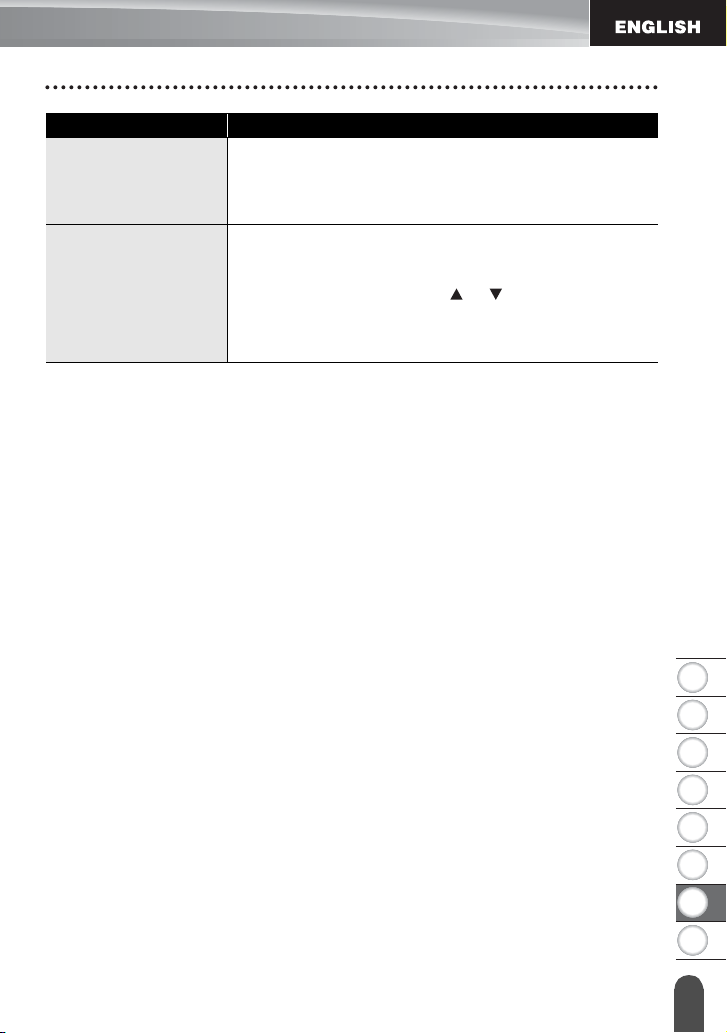
• If the ink ribbon is broken, replace the
tape cassette. If not, leave the tape
uncut and remove the tape cassette,
then wind the loose ink ribbon onto
the spool as shown in the figure.
1. Spool
The P-touch labeler
stops while printing a
label.
• Replace the tape cassette if striped tape is visible, as this
indicates that you have reached the end of the tape.
• Replace all batteries or connect the AC adapter directly to the
P-touch
labeler
.
The label is not cut
automatically.
• Check that the Cut Option setting is not set to "Chain" or
"No Cut", as the tape will not be fed after printing the label.
• Alternatively, press
Feed & Cut
key to feed and cut the
tape.
1
1
2
3
4
5
6
7
8
55
TROUBLESHOOTING
What to do when...
The tape jam which
cannot be cleared
easily occurred.
• Please contact our customer service.
Refer to the Quick Setup Guide for the contact
information.
When printing
multiple copies of a
label, a message is
displayed to confirm
whether you want the
labels to be cut after
each label is printed.
• Because the cut labels must not remain in the tape exit
slot, the message is displayed.
To disable the message display, press the
Menu
key,
select "Cut Pause" using the or key, and then press
the
OK
or
Enter
key.
Problem Solution
TROUBLESHOOTING
56
Error Messages
When an error message appears on the display, follow the directions provided below.
Error Messages
Message Cause/Remedy
Wrong Type Of
Adapter Connected!
An incompatible AC adapter is connected.
Use an appropriate AC adapter (AD-E001).
Low Battery!
The installed batteries are getting weak.
Replace Battery!
The installed batteries are about to run out.
Recharge Li-ion
Battery!
The battery is low. Please charge the lithium-ion battery.
Li-ion is damaged Use
other power source!
The Li-ion battery is damaged. Please use an AC adapter (AD-E001)
or an other battery (alkaline batteries (LR6), Ni-MH rechargeable
batteries (HR6)).
Unit Cooling Wait XX
min. before restart!
High temperature error.
Cutter Error!
The tape cutter is closed when you try to print or feed tape. Turn the
P-touch labeler off and then on again before continuing. When tape
is twisted in the cutter, carefully remove the tape.
Insert Tape Cassette!
There is no tape cassette installed when you try to print or preview a
label, or feed tape. Install a tape cassette before continuing.
Text Full!
The maximum number of characters have already been entered. Edit
the text and use fewer characters.
No Text!
There is no text, symbols or bar code data entered when you try to
print or preview a label. Enter data before continuing.
Line Limit! Max 7
Lines
The maximum number of lines have already been entered. Limit the
number of lines to seven.
Incorrect Value!
The value entered for setting the tape length, multiple copies or the
numbering function is invalid. Enter a valid value for the setting.
Tape Cassette
Changed!
The tape cassette selected for printing is different from the tape
cassette installed in the P-touch labeler.
Tape Width Limit!
Max 5 Lines
There are more than five lines of text when you press the
Print
or
Preview
key while using 0.70"(18 mm) tape. Limit the number of
lines to five, or replace with a larger width tape cassette.
Tape Width Limit!
Max 3 Lines
There are more than three lines of text when you press the
Print
or
Preview
key while using 0.47"(12 mm) tape. Limit the number of
lines to three, or replace with a larger width tape cassette.
Tape Width Limit!
Max 2 Lines
There are more than two lines of text when you press the
Print
or
Preview
key while using 0.35" or 0.23" (9 mm or 6 mm) tape. Limit
the number of lines to two, or replace with a larger width tape
cassette.
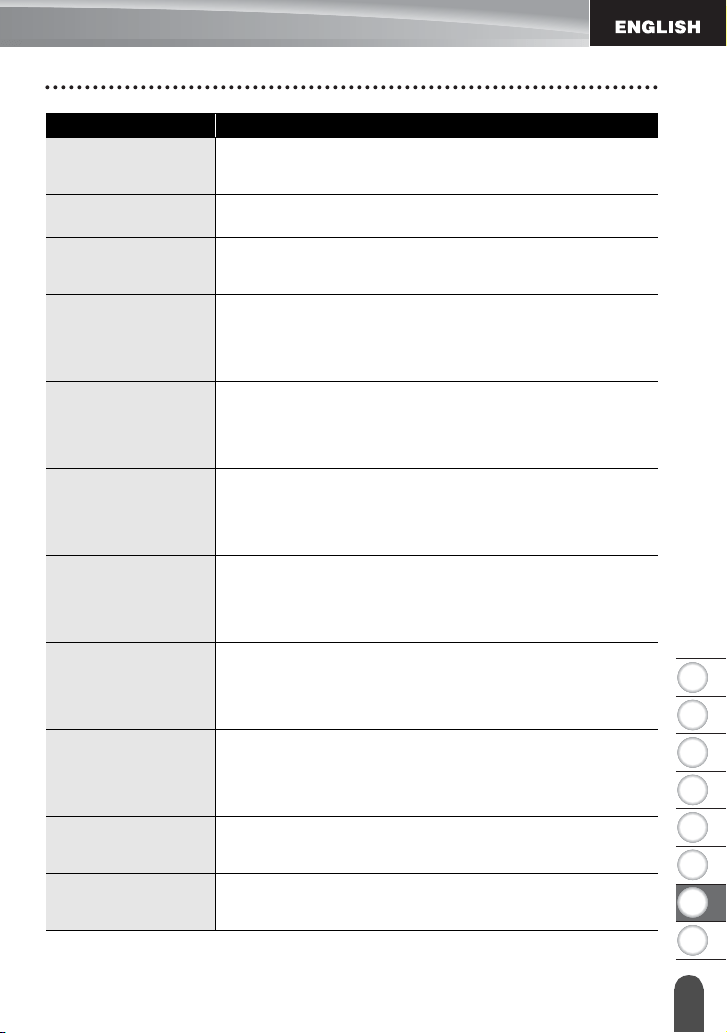
1
2
3
4
5
6
7
8
57
TROUBLESHOOTING
Error Messages
Tape Width Limit!
Max 1 Line
There is more than one line of text when you press the
Print
or
Preview
key while using 0.13" (3.5 mm) tape. Limit the number of
lines to one, or replace with a larger width tape cassette.
Block Limit! Max 5
Blocks
There are already five blocks of text. Limit the number of blocks to
five.
Length Limit!
The length of the label to be printed using the text entered is longer
than 39.37" (1 m). Edit the text so that the length of the label is less
than 39.37" (1 m).
Insert 0.94" Tape
Cassette!
Insert 24mm Tape
Cassette!
A 0.94" (24 mm) tape cassette is not installed when Template or
Block Layouts for 0.94" (24 mm) tape is selected. Install a 0.94"
(24 mm) tape cassette.
Insert 0.70" Tape
Cassette!
Insert 18mm Tape
Cassette!
A 0.70" (18 mm) tape cassette is not installed when Template or
Block Layouts for 0.70" (18 mm) tape is selected. Install a 0.70"
(18 mm) tape cassette.
Insert 0.47" Tape
Cassette!
Insert 12mm Tape
Cassette!
A 0.47" (12 mm) tape cassette is not installed when Template or
Block Layouts for 0.47" (12 mm) tape is selected. Install a 0.47"
(12 mm) tape cassette.
Insert 0.35" Tape
Cassette!
Insert 9mm Tape
Cassette!
A 0.35" (9 mm) tape cassette is not installed when Template or Block
Layouts for 0.35" (9 mm) tape is selected. Install a 0.35" (9 mm) tape
cassette.
Insert 0.23" Tape
Cassette!
Insert 6mm Tape
Cassette!
A 0.23" (6 mm) tape cassette is not installed when Template or Block
Layouts for 0.23" (6 mm) tape is selected. Install a 0.23" (6 mm) tape
cassette.
Insert 0.13" Tape
Cassette!
Insert 3.5mm Tape
Cassette!
A 0.13" (3.5 mm) tape cassette is not installed when Template or
Block Layouts for 0.13" (3.5 mm) tape is selected. Install a 0.13"
(3.5 mm) tape cassette.
Too Much Text For
This Layout!
The maximum number of characters for the selected layout have
already been entered. Edit the text to use fewer characters or use a
different layout.
Text Too Long!
The length of the label to be printed using the text entered is longer
than the length setting. Edit the text to fit within the set length or
change the length setting.
Message Cause/Remedy
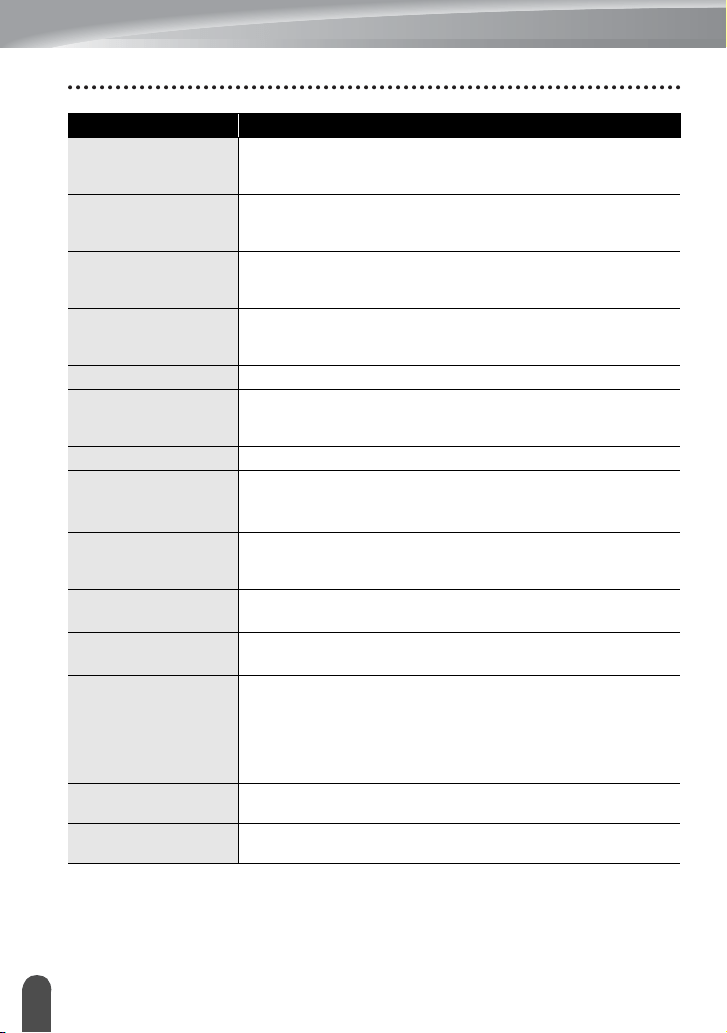
TROUBLESHOOTING
58
Error Messages
Memory Full!
There is not enough internal memory available when you try to save
a label file. Delete any unnecessary files to make more memory
available for the new label file.
Check # of Digits
Entered!
The number of digits entered in the bar code data does not match the
number of digits set in the bar code parameters. Enter the correct
number of digits.
Input A,B,C or D At
Start&End!
The bar code data entered does not have the required start/stop
code (A, B, C, or D required at the beginning and end of the bar code
data for the CODABAR protocol). Enter the bar code data correctly.
Maximum Of 5 Bar
Codes Per Label!
There are already 5 bar codes entered in the text data when you try
to enter a new bar code. You can only use up to five bar codes in
each label.
Text Too Large!
The text size is too large. Select a different size option.
Select Other Cut
Option!
The tape length set using the tape length setting is shorter than the
total length of the left and right margins applied for the "Large
Margin" cut option. Select a different cut option.
Close Cover!
The rear cover is open. Close the cover when printing.
Installed tape is not
compatible with this
machine!
Tape that is incompatible with the P-touch labeler has been installed.
Use a compatible tape.
Category Full!
The memory available for categories is full. To make more memory
available, delete any unnecessary registered label files by
highlighting the label file and pressing the
OK
key.
Already Exists in
Favorites!
The label which already exists is added in favorites category of label
collection.
Favorite Folder
Empty!
Favorites folder of label collection is empty.
Insert Corresponding
Tape Cassette!
Either no tape cassette is installed, or a 0.47" (9 mm) width or
narrower tape cassette is installed when printing from the label
collection.
If a Heat Shrink Tube is installed, you are trying to print a label that
cannot be printed on Heat Shrink Tube.
Install an appropriate tape.
System Error 01!
Please contact our customer service.
Refer to the Quick Setup Guide for the contact information.
System Error 02!
Please contact our customer service.
Refer to the Quick Setup Guide for the contact information.
Message Cause/Remedy
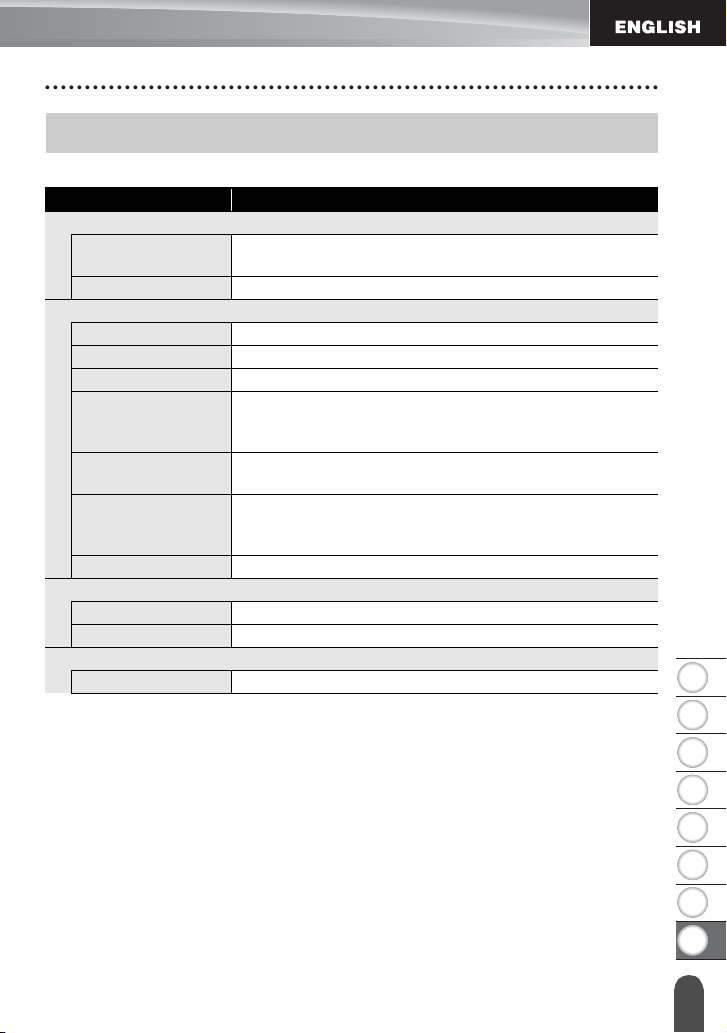
1
2
3
4
5
6
7
8
59
Specifications
APPENDIX
APPENDIX
Main Unit
Specifications
Item Specification
Display
Character display 16 characters x 2 lines and guidance area
(128 dot x 64 dot)
Screen contrast 5 levels (+2, +1, 0, -1, -2)
Printing
Print method Thermal Transfer
Print head 128 dot / 180 dpi
Print height 0.71" (18.0 mm) max. (when using 0.94" (24 mm) tape)
*
1
Print speed AC Adapter: Maximum
1.18" (30 mm)
/sec.
Batteries: Maximum
0.78" (20 mm)
/sec.
Actual print speed varies depending on the conditions.
Tape cassette
Standard TZe tape cassette (0.13", 0.23", 0.35", 0.47", 0.70",
0.94" [3.5 mm, 6 mm, 9 mm, 12 mm, 18 mm, 24 mm] widths)
No. of lines
0.94" (24 mm) tape : 1 - 7 lines; 0.70" (18 mm) tape : 1 - 5 lines;
0.47" (12 mm) tape : 1 - 3 lines; 0.35" (9 mm) tape : 1 - 2 lines;
0.23" (6 mm) tape : 1 - 2 lines; 0.13" (3.5 mm) tape : 1 line
Cut Options Large Margin, Small Margin, Chain, No Cut, Special tape
Memory
Memory buffer size Maximum 2800 characters
File storage Maximum 50 files
Other Features
Templates Label Collection, Template, Block Layout
*1 Actual character size may be smaller than maximum print height.
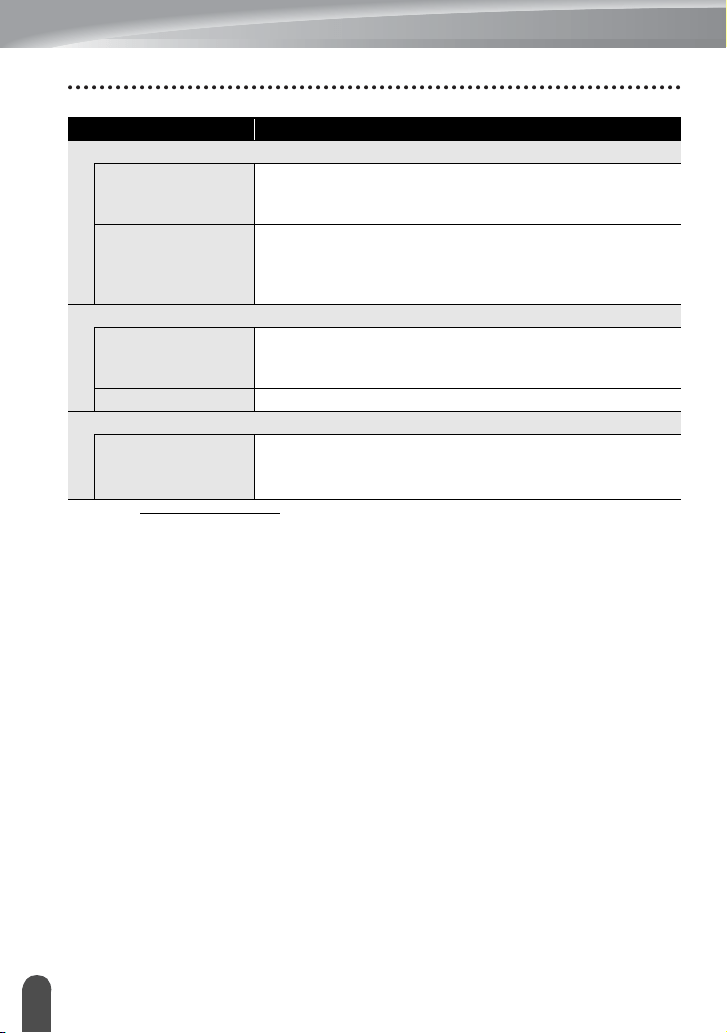
APPENDIX
60
Specifications
Item Specification
Power Supply
Power supply
Six
"
AA
"
alkaline batteries (LR6), Six
"
AA
"
Ni-MH
rechargeable batteries (HR6)
*
2
Li-ion Battery (BA-E001), AC
adapter (AD-E001).
Auto Power-off Six "AA" alkaline batteries (LR6)/Six "AA" Ni-MH
rechargeable batteries (HR6): 20 min.
Li-ion Battery (BA-E001): 30 min.
AC adapter (AD-E001): 60 min.
Size
Dimensions Approx. 4.8"(W) x 9.6"(D) x 3.6"(H)
[121.8 mm(W) x 245 mm(D) x 90.6 mm(H)]
Weight Approx. 1.83lb (830g) (without tape cassette and batteries)
Other
Operating
temperature /
humidity
50
°
F - 95
°
F (10
°
C - 35
°
C) / 20% - 80% humidity (without
condensation)
Maximum wet bulb temperature: 80.6
°
F (27
°
C)
*2 Visit us at http://solutions.brother.com/ for the latest information about recommended batteries.