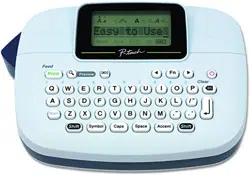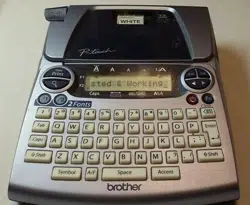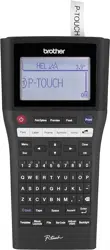
ELECTRONIC LABELING SYSTEM
ELECTRONIC L ABELING S Y S T E M
ELECTRONIC LABELING SYSTEM

INTRODUCTION
Thank you for purchasing the P-touch labeler PT-2730.
Your new P-touch labeler is an easy to operate, feature packed labeling system that
makes creating professional, high quality labels a breeze. In addition to easy label cre-
ation via pre-formatted label layouts, the P-touch labeler editing software features
advanced label formatting, block formats, bar codes and auto-numbering functions.
This manual contains various precautions and basic procedures for using this labeler.
Read this manual carefully before using and keep in a handy place for future reference.
Federal Communications Commission (FCC) Declaration of Conformity (For USA Only)
Responsible Party : Brother International Corporation
100 Somerset Corporate Boulevard
Bridgewater, NJ 08807-0911 USA
TEL : (908) 704-1700
declares that the products
Product Name : Brother P-touch
Electronic
Labeling
System
Model Number : PT-2730
comply with Part 15 of the FCC Rules. Operation is subject to the following two conditions:
(1) this device may not cause harmful interference, and (2) this device must accept any
interference received, including interference that may cause undesired operation.
This equipment has been tested and found to comply with the limits for a Class B digital
device, pursuant to Part 15 of the FCC Rules. These limits are designed to provide
reasonable protection against harmful interference in a residential installation. This
equipment generates, uses, and can radiate radio frequency energy and, if not installed
and used in accordance with the instructions, may cause harmful interference to radio
communications. However, there is no guarantee that interference will not occur in a
particular installation. If this equipment does cause harmful interference to radio or
television reception, which can be determined by turning the equipment off and on, the user
is encouraged to try to correct the interference by one or more of the following measures:
• Reorient or relocate the receiving antenna
• Increase the separation between the equipment and receiver.
• Connect the equipment into an outlet on a circuit different from that to which the receiver
is connected.
• Consult the dealer or an experienced radio/TV technician for help.
Important
• The enclosed interface cable should be used in order to ensure compliance with the limits
for a Class B digital device.
• Changes or modifications not expressly approved by Brother Industries, Ltd. could void
the user's authority to operate the equipment.

International ENERGY STAR
®
Compliance Statement
The purpose of the International ENERGY STAR
®
Program is to promote the development
and popularization of energy-efficient office equipment.As an ENERGY STAR
®
Partner,
Brother Industries, Ltd. has determined that this product meets the ENERGY STAR
®
guidelines for energy efficiency.
Compilation and Publication Notice
Under the supervision of Brother Industries, Ltd., this manual has been compiled and
published, covering the latest product’s descriptions and specifications.
The contents of this manual and the specifications of this product are subject to change
without notice.
If new versions of the PT-2730 software become available, this manual may not reflect the
updated features. Therefore, you may find that the software and the contents in this manual
are different.
Trademarks and Copyrights
The Brother logo is a registered trademark of Brother Industries, Ltd.
Brother is a registered trademark of Brother Industries, Ltd.
© 2010 Brother Industries, Ltd. All rights reserved.
Microsoft, Windows Vista, and Windows are registered trademarks of Microsoft Corporation
in the United States and other countries.
Apple, Macintosh and Mac OS are trademarks of Apple Inc., registered in the United States
and other countries.
The names of other software or products used in this document are trademarks or registered
trademarks of the respective companies that developed them.
Each company whose software title is mentioned in this manual has a Software License
Agreement specific to its proprietary programs.
Any trade names and product names of companies appearing on Brother products, related
documents and any other materials are all trademarks or registered trademarks of those
respective companies.

Brother
®
Two-Year Limited Warranty and Replacement Service
(USA Only)
Who is covered:
• This limited warranty ("warranty") is given only to the original end-user/retail purchaser (referred
to in this warranty as "Original Purchaser") of the accompanying product, consumables and
accessories (collectively referred to in this warranty as "this Product").
• If you purchased a product from someone other than an authorized Brother reseller in
the United States or if the product was used (including but not limited to floor models
or refurbished product), prior to your purchase you are not the Original Purchaser and
the product that you purchased is not covered by this warranty.
What is covered:
• The machine includes a Machine and may include Consumable and Accessory Items.
Consumable and Accessory Items include but are not limited to label cassettes,
cutters, stamps, power adapters, cases and batteries.
• Except as otherwise provided herein, Brother warrants that the Machine and the
accompanying Consumable and Accessory Items will be free from defects in materials
and workmanship, when used under normal conditions.
• This warranty applies only to products purchased and used in the United States. For
products purchased in, but used outside, the United States, this warranty covers only
warranty service within the United States (and does not include shipping outside the
United States).
What is the length of the Warranty Periods:
• Machines: two years from the original purchase date.
• Accompanying Consumable and Accessory Items: 90 days from the original purchase
date or the rated life of consumable, whichever comes first.
What is NOT covered:
This warranty does not cover:
(1) Physical damage to the machine;
(2) Damage caused by improper installation, improper or abnormal use, misuse, neglect or
accident (including but not limited to transporting the machine without the proper
preparation and/or packaging);
(3) Damage caused by another device or software used with the machine (including but not
limited to damage resulting from use of non Brother
®
-brand parts and Consumable and
Accessory Items);
(4) Consumable and Accessory Items that expired in accordance with a rated life; and,
(5) Problems arising from other than defects in materials or workmanship.
This limited warranty is VOID if the machine has been altered or modified in any way
(including but not limited to attempted warranty repair without authorization from
Brother and/or alteration/removal of the serial number).
What to do if you think your Product is eligible for warranty service:
Report your issue to our P-touch Customer Service Hotline at
1-877-BROTHER (1-877-
276-8437)
or to a Brother Authorized Service Center
within the applicable warranty
period
. Supply Brother or the Brother Authorized Service Center with a copy of your dated
bill of sale showing that the machine was purchased within the U.S.
For the name of local
Brother Authorized Service Center(s), call 1-877-BROTHER (1-877-276-8437).
What Brother will ask you to do:
After contacting Brother or a Brother Authorized Service Center, you may be required
to deliver (by hand if you prefer) or send the Product properly packaged, freight pre-
paid, to the Authorized Service Center together with a photocopy of your bill of sale.
You are responsible for the cost of shipping, packing product, and insurance (if
you desire). You are also responsible for loss or damage to the machine in ship-
ping.

What Brother will do:
If the problem reported concerning your Machine and/or accompanying Consumable
and
Accessory Items is covered by this warranty and if you first reported the problem to
Brother or an Authorized Service Center within the applicable warranty period, Brother
or its Authorized Service Center will repair or replace the Machine and/or accompany-
ing Consumable and Accessory Items at no charge to you for parts or labor. The deci-
sion as to whether to repair or replace the Machine and/or accompanying Consumable
and Accessory Items is made by Brother in its sole discretion.
Brother reserves the right to supply a refurbished or remanufactured replacement
Machine and/or accompanying Consumable and Accessory Items and use refurbished
parts provided such replacement products conform to the manufacturer's specifications
for new product/parts.
The repaired or replacement Machine and/or accompanying Consumable and Acces-
sory Items will be returned to you freight prepaid or made available for you to pick up at
a conveniently located Authorized Service Center.
If the Machine and/or accompanying Consumable and Accessory Items are not cov-
ered by this warranty (either stage), you will be charged for shipping the Machine and/
or accompanying Consumable and Accessory Items back to you and charged for any
service and/or replacement parts/products at Brother's then current published rates.
The foregoing are your sole (i.e., only) and exclusive remedies under this war-
ranty.
What happens when Brother elects to replace your Machine:
When a replacement Machine is authorized by Brother, and you have delivered the
Machine to an Authorized Service Center, the Authorized Service Center will provide
you with a replacement Machine after receiving one from Brother. If you are dealing
directly with Brother, Brother will send to you a replacement Machine with the under-
standing that you will, after receipt of the replacement Machine, supply the required
proof of purchase information, together with the Machine that Brother agreed to
replace. You are then expected to pack the Machine that Brother agreed to replace in
the package from the replacement Machine and return it to Brother using the pre-paid
freight bill supplied by Brother in accordance with the instructions provided by Brother.
Since you will be in possession of two machines, Brother will require that you provide a
valid major credit card number. Brother will issue a hold against the credit card account
number that you provide until Brother receives your original Product and determines
that your original Product is entitled to warranty coverage. Your credit card will be
charged up to the cost of a new Product only if: (i) you do not return your original Prod-
uct to Brother within five (5) business days; (ii) the problems with your original Product
are not covered by the limited warranty; (iii) the proper packaging instructions are not
followed and has caused damage to the product; or (iv) the warranty period on your
original Product has expired or has not been sufficiently validated with a copy of the
proof of purchase (bill of sale). The replacement Machine you receive (even if refur-
bished or remanufactured) will be covered by the balance of the limited warranty period
remaining on the original Product, plus an additional thirty (30) days. You will keep the
replacement Machine that is sent to you and your original Machine shall become the
property of Brother. Retain your original Accessory Items and a copy of the return
freight bill, signed by the courier.

Limitations:
Brother is not responsible for damage to or loss of any equipment, media, programs or
data related to the use of the machine. Except for that repair or replacement as
described above, Brother shall not be liable for any direct, indirect, incidental or conse-
quential damages or specific relief. Because some states do not allow the exclusion or
limitation of consequential or incidental damages, the above limitation may not apply to
you.
THIS WARRANTY IS GIVEN IN LIEU OF ALL OTHER WARRANTIES, WRITTEN OR
ORAL, WHETHER EXPRESSED BY AFFIRMATION, PROMISE, DESCRIPTION,
DRAWING, MODEL OR SAMPLE. ANY AND ALL WARRANTIES OTHER THAN THIS
ONE, WHETHER EXPRESS OR IMPLIED, INCLUDING IMPLIED WARRANTIES OF
MERCHANTABILITY AND FITNESS FOR A PARTICULAR PURPOSE, ARE HEREBY
DISCLAIMED.
• This Limited Warranty is the only warranty that Brother is giving for the machine. It is
the final expression and the exclusive and only statement of Brother's obligations to
you. It replaces all other agreements and understandings that you may have with
Brother or its representatives.
• This warranty gives you certain rights and you may also have other rights that may
vary from state to state.
• This Limited Warranty (and Brother's obligation to you) may not be changed in any way
unless you and Brother sign the same piece of paper in which we (1) refer to the
machine and your bill of sale date, (2) describe the change to this warranty and (3)
agree to make that change.
Important:
We recommend that you keep all original packing materials, in the event that you ship
the machine.

Important Information
Should you have questions, or need information about your Brother Product, we have a variety of
support options for you to choose from:
USA-Customer Service:
Customer Service
1-877-BROTHER (877-276-8437)
Customer Service
1-901-379-1210 (fax)
World Wide Web
www.brother-usa.com
Supplies / Accessories
www.brothermall.com
or 1-877-552-MALL (6255)
BROTHER INTERNATIONAL CORPORATION
100 SOMERSET CORPORATE BLVD.
BRIDGEWATER, NEW JERSEY 08807-0911
Please record your model and serial number and your date and location of Purchase below for your
records. Keep this information with your proof of purchase (bill of sale) in case your Product
requires service.
Model # __________________________________________________
Serial # ___________________________________________________
Date of purchase:___________________________________________
Store where purchased: ______________________________________
Location of store: ___________________________________________
Important: We recommend that you keep all original packing materials, in the event you ship this
product.
Save Time - Register On-Line!
Don’t stand in line at the post office or worry about lost mail. Visit us on-line at
www.registermybrother.com
Your product will immediately be registered in our database and you can be on your way!
Also, while you're there, look for contests and other exciting information!
INTRODUCTION
1
How to use the P-touch labeler ......................................................................................4
Safety Precautions .........................................................................................................6
General Precautions ......................................................................................................9
Symbols Used in this Guide .........................................................................................10
GETTING STARTED............................................................................. 11
Unpacking Your P-touch labeler ..................................................................................11
General Description .....................................................................................................12
LCD Display & Keyboard .............................................................................................13
LCD Display...........................................................................................................13
Key Names and Functions.....................................................................................14
Power Supply ...............................................................................................................16
Battery ...................................................................................................................16
AC Adapter ............................................................................................................17
Inserting a Tape Cassette ............................................................................................18
Turning Power On/Off ..................................................................................................19
Feeding Tape ...............................................................................................................20
Feed & Cut.............................................................................................................20
Feed Only ..............................................................................................................20
LCD Display .................................................................................................................21
LCD Contrast .........................................................................................................21
Display Mode .........................................................................................................21
Back Light ..............................................................................................................22
Setting Language and Unit...........................................................................................22
Language...............................................................................................................22
Unit ........................................................................................................................22
EDITING A LABEL ................................................................................ 23
Entering and Editing Text.............................................................................................23
Entering Text from the Keyboard...........................................................................23
Using Text Reminder .............................................................................................23
Adding a New Line.................................................................................................24
Adding a New Block...............................................................................................24
Moving the Cursor .................................................................................................24
Inserting Text .........................................................................................................24
Inserting a Tab.......................................................................................................24
Deleting Text..........................................................................................................25
Entering Symbols .........................................................................................................26
Entering Symbols Using the Symbol Function.......................................................26
Using Symbol Update Function .............................................................................27
Contents
1
2
3
4
5
6
7
8
9
2
z INTRODUCTION
Entering Accented Characters .................................................................................... 29
Setting Character Attributes ........................................................................................ 30
Setting Character Attributes by Label ................................................................... 30
Setting Character Attributes by Each Line ............................................................ 30
Setting Auto Fit Style ............................................................................................ 34
Setting Label Attributes ............................................................................................... 35
Using Auto-Format Layouts......................................................................................... 38
Using Templates - Example creating an Asset Tag.............................................. 38
Using Block Layouts ............................................................................................. 42
Using Time & Date Function ....................................................................................... 45
Clock Setting......................................................................................................... 45
Time & Date Format Setting ................................................................................. 46
Time Stamp Setting .............................................................................................. 47
[Timing] .......................................................................................................... 47
[Time Stamp Format] ..................................................................................... 48
[Forward] ....................................................................................................... 48
Creating a Bar Code Label ................................................................................... 49
Setting Bar Code Parameters ............................................................................... 50
Entering Bar Code Data........................................................................................ 51
Editing and Deleting a Bar Code........................................................................... 52
LABEL PRINTING.................................................................................. 53
Label Preview.............................................................................................................. 53
Printing a Label ........................................................................................................... 53
Printing a Single Copy .......................................................................................... 54
Printing Multiple Copies ........................................................................................ 54
Auto-numbering Labels......................................................................................... 55
Mirror Printing ....................................................................................................... 56
Tape Cutting Options .................................................................................................. 57
Adjusting the Label Length.......................................................................................... 58
Attaching Labels.......................................................................................................... 59
Printing from the Label Collection .............................................................................. 59
Printing a label from the Label Collection Stored in the Machine ......................... 59
Downloading a new Label Collection Category
(Windows® only ) ....................................................................................................... 63
Downloading a Label Collection Category to your Labeler ................................... 63
Downloading a New Label Collecstion Category to P-touch Editor /
Updating P-touch Editor Software......................................................................... 66
INTRODUCTION
3
USING THE FILE MEMORY ................................................................. 68
Storing a Label into Memory ........................................................................................68
Opening a Stored Label File ........................................................................................68
Printing a Stored Label File..........................................................................................69
Deleting a Stored Label File.........................................................................................69
MAINTAINING YOUR P-TOUCH LABELER ......................................... 70
Resetting the P-touch Labeler......................................................................................70
Resetting data to factory settings (Downloaded data is not reset.) .......................70
Resetting data to factory settings (Downloaded data is reset.) .............................70
Maintenance.................................................................................................................70
Cleaning the Unit ...................................................................................................70
Cleaning the Print Head.........................................................................................70
Cleaning the Tape Cutter.......................................................................................71
TROUBLESHOOTING .......................................................................... 72
What to do when... .......................................................................................................72
Error Messages............................................................................................................74
APPENDIX ............................................................................................ 78
Specifications ...............................................................................................................78
INDEX.................................................................................................... 79
1
2
3
4
5
6
7
8
9
4
z
INTRODUCTION
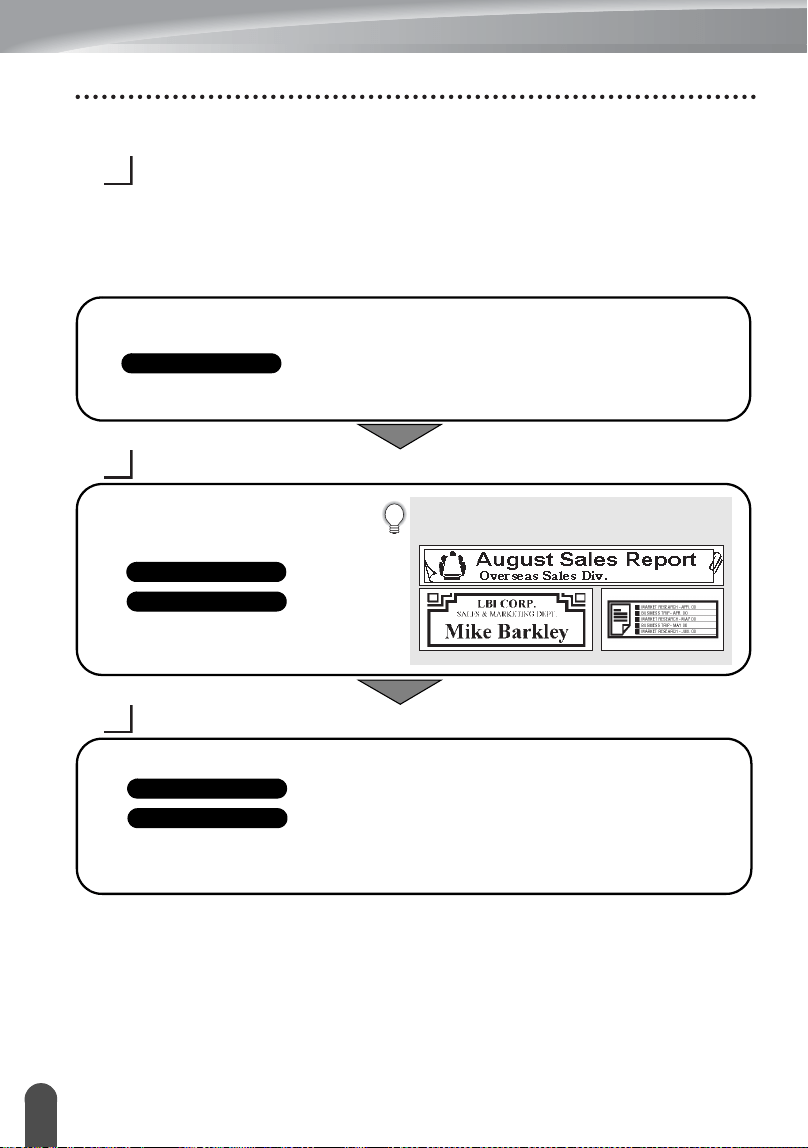
How to use the P-touch labeler
Create a label with the P-touch labeler
GETTING STARTED
CREATING A LABEL
LABEL PRINTING
How to use the P-touch labeler
1
• Prepare the P-touch labeler.
P. 11
2
In addition to entering text, the P-touch labeler
has a large range of formatting options.
Create labels like these :
• Entering and Editing text.
• Entering Symbols.
• Entering Accented Characters.
•
Using Auto-Format Layouts.
P. 23
P. 26
P. 29
P. 38
3
Before printing, you can check the layout of
your label using the preview function.
Create labels like these :
• Printing a label.
• Tape Cutting Options.
• Printing from the Label collection.
P. 53
P. 57
P. 59
INTRODUCTION
5
How to use the P-touch labeler
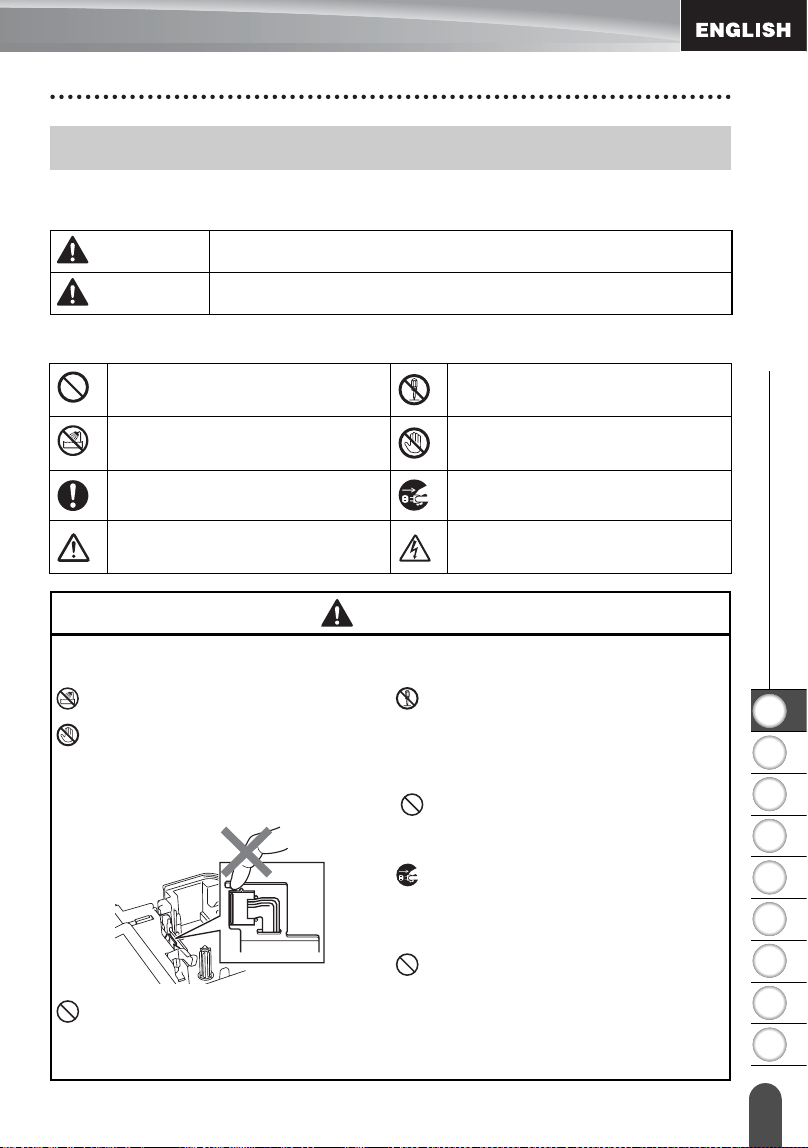
Create a label by connecting your labeler to a PC
GETTING STARTED
This labeler can be used as a stand alone desktop labeler or it can be
connected to a PC/Mac and used with the included P-touch Editor software to
create more elaborate labels.
To use your labeler connected to a computer, attach your labeler to a computer
via the included USB cable and install the P-touch Editor software and drivers.
CREATING A LABEL
LABEL PRINTING
Printing from the Label Collection
Using the Label Collection function, labels can be created easily by selecting and
then printing designs already built into the machine.
1
• Prepare the P-touch labeler.
• Prepare the PC.
Software Installation Guide
2
• Launch the P-touch Editor Software.
• Enter the label text using P-touch
Editor.
Software Help
Software Installation Guide
Create labels like these:
3
• Print the label
Software Help
Software Installation Guide
1
2
3
4
5
6
7
8
9
6
z
INTRODUCTION
Safety Precautions
To prevent injury and damage, important notes are explained using various symbols.
The symbols and their meanings are as follows:
The symbols used in this manual are as follows:
Safety Precautions
WARNING
Indicates a potentially hazardous situation which, if not avoided,
could result in death or serious injuries.
CAUTION
Indicates a potentially hazardous situation which, if not avoided,
may result in minor or moderate injuries.
Action NOT allowed
DO NOT disassemble the
product.
DO NOT splash the product with or
immerse the product in water.
DO NOT touch a given portion
of the product.
Mandatory action Unplugging
Safety alert
Alerts to the possibility of
electrical shock
WARNING
P-touch Labeler
Follow these guidelines to avoid fire, electric shock, the risk of injury and/or damage.
DO NOT allow the printer to get wet in
any way.
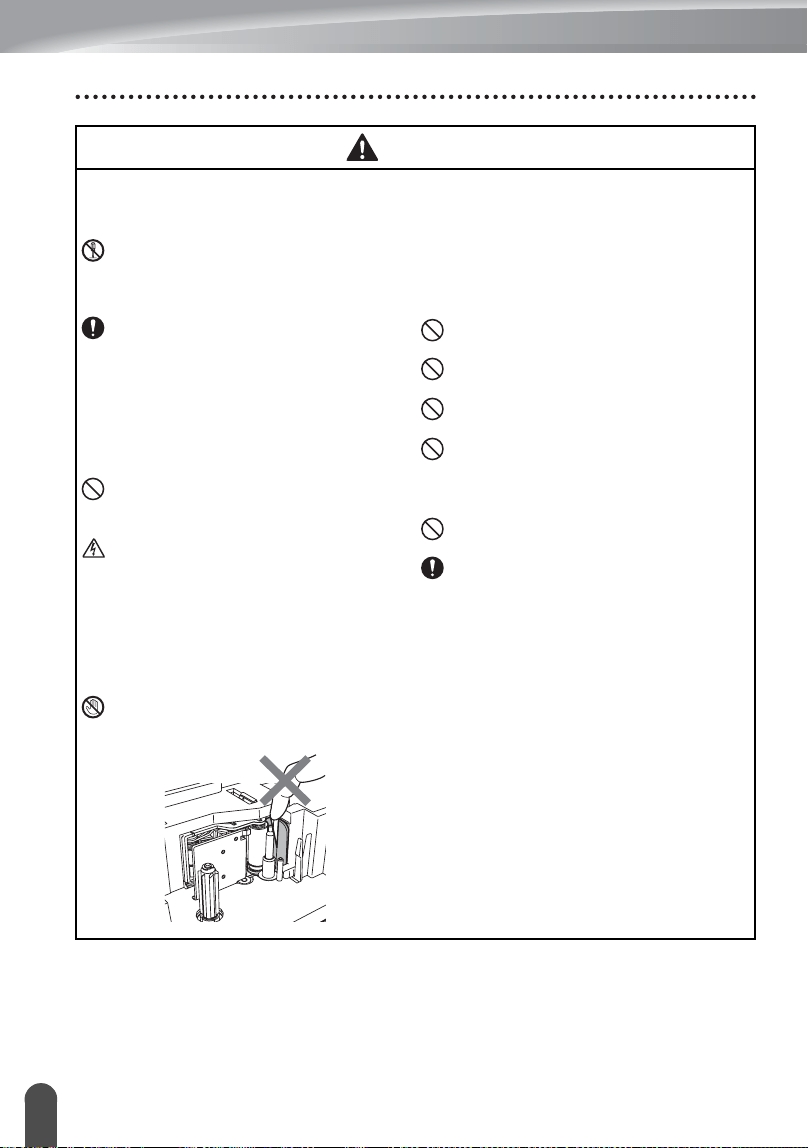
DO NOT
touch any metal parts near the
print head. The print head becomes very
hot during use and remains very hot
immediately after use. Do not touch it
directly with your hands.
DO NOT disassemble the P-touch
labeler.
For inspection, adjustment, and repair of
the printer, contact the retail outlet where
the P-touch labeler was purchased or
your local authorized service center.
Plastic bags are used in the packaging
of your printer. To avoid danger of
suffocation, keep these bags away
from babies and children.
Disconnect the AC adapter and remove
batteries immediately and stop using
when you notice abnormal odor, heat,
discoloration deformation or anything
unusual while using or storing it.
To prevent damage, do not drop or hit
the P-touch labeler.
DO NOT use the P-touch labeler with a foreign object in it. If water, metallic substance
or any foreign object enters the P-touch labeler, disconnect the AC adapter and remove
batteries, and contact the retail outlet where the P-touch labeler was purchased or your
local authorized service center.
INTRODUCTION
7
Safety Precautions
Battery
Follow these guidelines to avoid liquid leakage, heat, rupture of the battery and cause
personal injury.
DO NOT
throw into fire, heat up, short-circuit, recharge, or disassemble the battery
AC adapter
Follow these guidelines to avoid fire, damage, electric shock, failure or the risk of injury.
Always use the specified voltage
(120V) and the suggested AC adapter.
Failure to observe this may result in an
accident or damage. Brother shall not
assume any responsibility for any
accident or damage resulting from not
using the specified AC
adapter,adapter cord and USB cable.
Don't connect the enclosed AC
adapter, adapter cord, power plug and
USB cable to other products.
Unplug the AC adapter cord
immediately and stop using the P-
touch labeler during an electrical
storm. There may be a remote risk of
electric shock from lightning.
DO NOT
touch the AC adapter or
power plug with wet hands.
DO NOT
use the AC adapter in places
of high humidity such as bathrooms.
DO NOT
use a damaged adapter cord
or power plug.
DO NOT
place heavy objects on,
damage or modify the adapter cord or
plug. Do not forcibly bend or pull the
adapter cord.
DO NOT
drop, hit or otherwise
damage the AC adapter.
Make sure that the plug is fully
inserted in the power outlet. Do not
use an outlet that is loose.
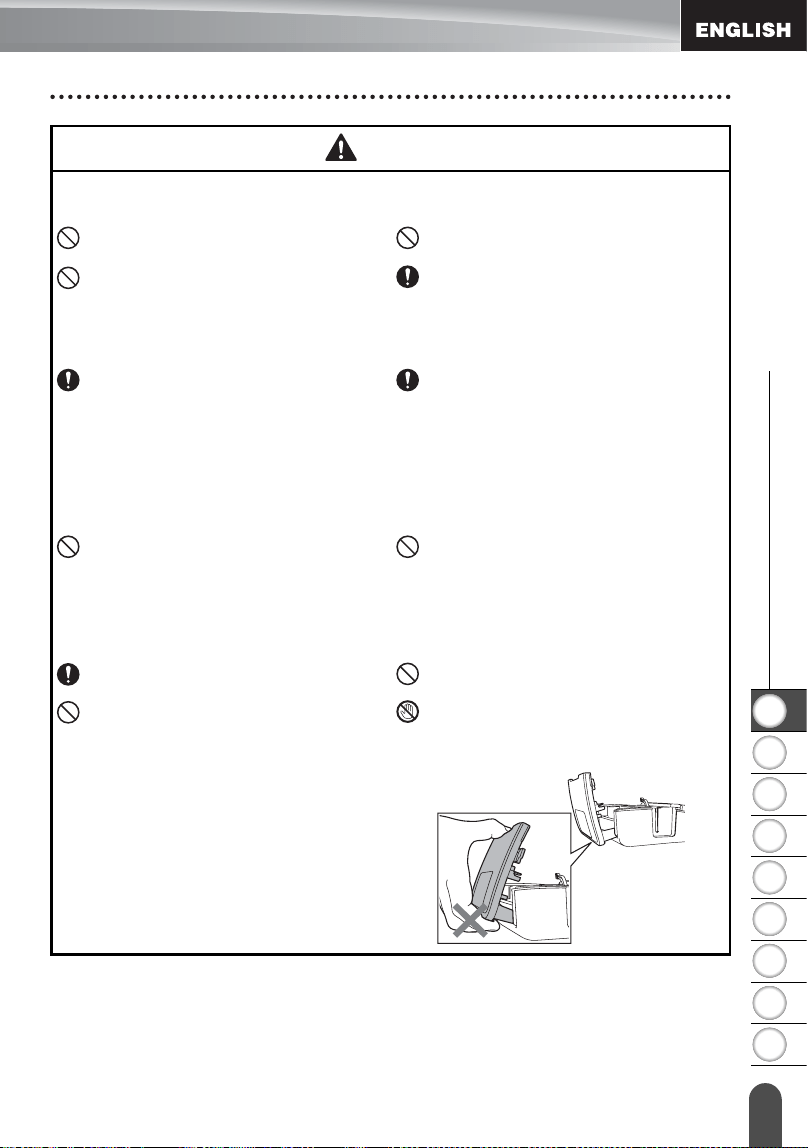
Tape Cutter
DO NOT
touch the blade of the cutter
unit.
WARNING
1
2
3
4
5
6
7
8
9
8
z
INTRODUCTION
Safety Precautions
CAUTION
Battery
Follow these guidelines to avoid liquid leakage, heat or rupture of the battery .
DO NOT
use old and new batteries
together.
DO NOT
mix alkaline batteries with
other type batteries.
DO NOT
set the positive and negative
end in the wrong position.
Remove the batteries if you do not
intend to use the P-touch labeler for an
extended period of time.
AC adapter
If you do not intend using the P-touch
labeler for an extended period of time,
please disconnect the AC adapter
from the power outlet.
Always hold the AC adapter when
disconnecting from the power outlet.
Tape Cutter
Follow these guidelines to avoid minor personal injury and damage to the labeler
printer.
DO NOT
open the tape compartment
cover when operating the cutter unit.
DO NOT
apply excessive pressure to
the cutter unit.
P-touch Labeler
Follow these guidelines to avoid minor personal injury and damage to the P-touch
labeler.
Place the P-touch labeler on a flat,
stable surface such as a desk.
DO NOT
leave the P-touch labeler
within reach of children with the tape
compartment cover open.
DO NOT
place any heavy objects on
top of the P-touch
labeler.
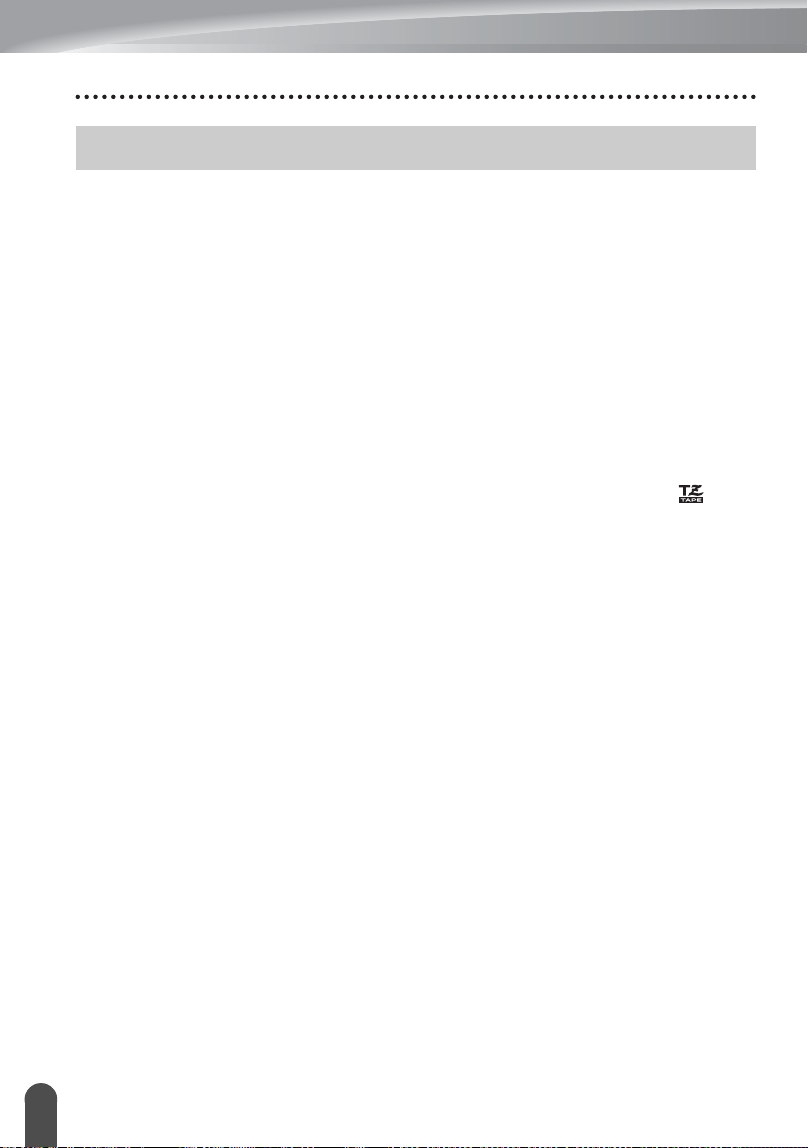
To prevent injuries, be careful not to
put your fingers in the areas shown in
the illustrations.
INTRODUCTION
9
General Precautions
• DO NOT install this machine near any device that will cause electromagnetic
interference.This machine may malfunction if left near a television, radio, etc.
• DO NOT use the P-touch labeler in any way or for any purpose not described in this guide.
Doing so may result in accidents or damage the machine.
• DO NOT put any foreign objects into the tape exit slot, AC adapter connector or USB port, etc.
• DO NOT touch the print head with your fingers.Use the optional print head cleaning
cassette (TZ-CL4), the self-cleaning function of the printer or a soft wipe (e.g. a cotton
swab) when cleaning the print head (refer to “Cleaning the Unit” on page 70.).
• DO NOT clean the machine with alcohol or other organic solvents. Only use a soft, dry cloth.
• DO NOT place the P-touch labeler in direct sunlight, near heaters or other hot appliances,
in any location exposed to extremely high or low temperatures, high humidity, or dusty
locations. Standard operating temperature range: 50
°
F to 95
°
F.
• DO NOT leave any rubber or vinyl on the printer for an extended period of time, otherwise
the printer may be stained.
• Depending on the environmental conditions and the applied settings, some characters or
symbols may be difficult to read.
• Use only Brother TZ tapes with this machine. Do not use tapes that do not have the mark.
• DO NOT pull or apply pressure to the tape in the cassette. Otherwise the tape cassette or
printer may be damaged.
• DO NOT try to print labels using an empty tape cassette or without a tape cassette set in
the P-touch labeler. Doing so will damage the print head.
• DO NOT attempt to cut the tape while printing or feeding since this will damage the tape.
• It is recommended that you use the USB cable supplied with the P-touch labeler. Should
another USB cable need to be used, ensure it is of high quality construction.
• Be careful not to scratch the CD-ROM. Do not place the CD-ROM in any location exposed
to high or low temperatures. Do not place heavy objects on the CD-ROM or bend it.
• The software on the CD-ROM is intended for use with the P-touch labeler and may be
installed on more than one PC.
• We strongly recommend that you read this User’s Guide carefully before using your
P-touch labeler, and then keep it nearby for future reference.
• Depending on the location, material, and environmental conditions, the label may unpeel
or become irremovable, the color of the label may change or be transferred to other
objects. Before applying the label, check the environmental condition and the material.
• DO NOT expose the tape cassettes to direct sunlight, high temperatures, high humidity,
or dust. Store tape cassettes in a cool, dark place. Use the tape cassettes soon after
opening the tape cassette package.
• Markings made with oil-based or water-based ink may be visible through a label affixed
over them. To hide the markings, use two labels layered on top of each other or use a dark-
colored label.
• Any data stored in memory will be lost due to failure or repair of the P-touch
labeler
,
or if the battery expires.
• When power is disconnected for more than two minutes, all text and format settings
will be cleared. Any text files stored in the memory and clock settings will also be
cleared.
• Note that Brother Industries, Ltd does not assume responsibility for any damage, etc.
arising from failure to follow the precautions listed.
General Precautions
1
2
3
4
5
6
7
8
9
10
z
INTRODUCTION
Symbols Used in this Guide
The following symbols are used throughout this guide to indicate additional information.
Symbols Used in this Guide
:
This symbol indicates information or directions that may result in damage or
injury if ignored, or operations that will result in errors.
:
This symbol indicates information or directions that may help you understand
and use the P-touch
labeler
more efficiently.
11
Unpacking Your P-touch labeler
GETTING STARTED
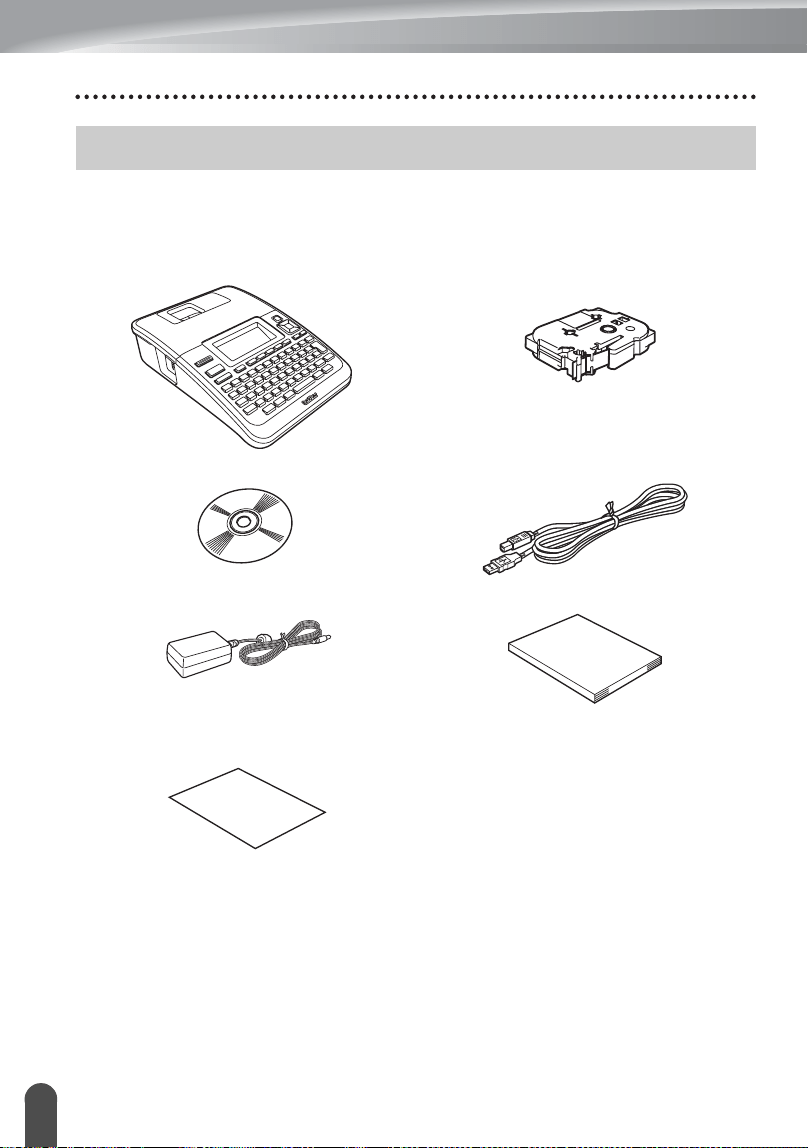
Check that the package contains the following before using your P-touch labeler.
Unpacking Your P-touch labeler
P-touch labeler PT-2730 Starter Tape Cassette
CD-ROM USB cable
AC adapter
The plug may differ by countries.
User’s Guide
Software Installation Guide
1
2
3
4
5
6
7
8
9
12
z GETTING STARTED
General Description
General Description
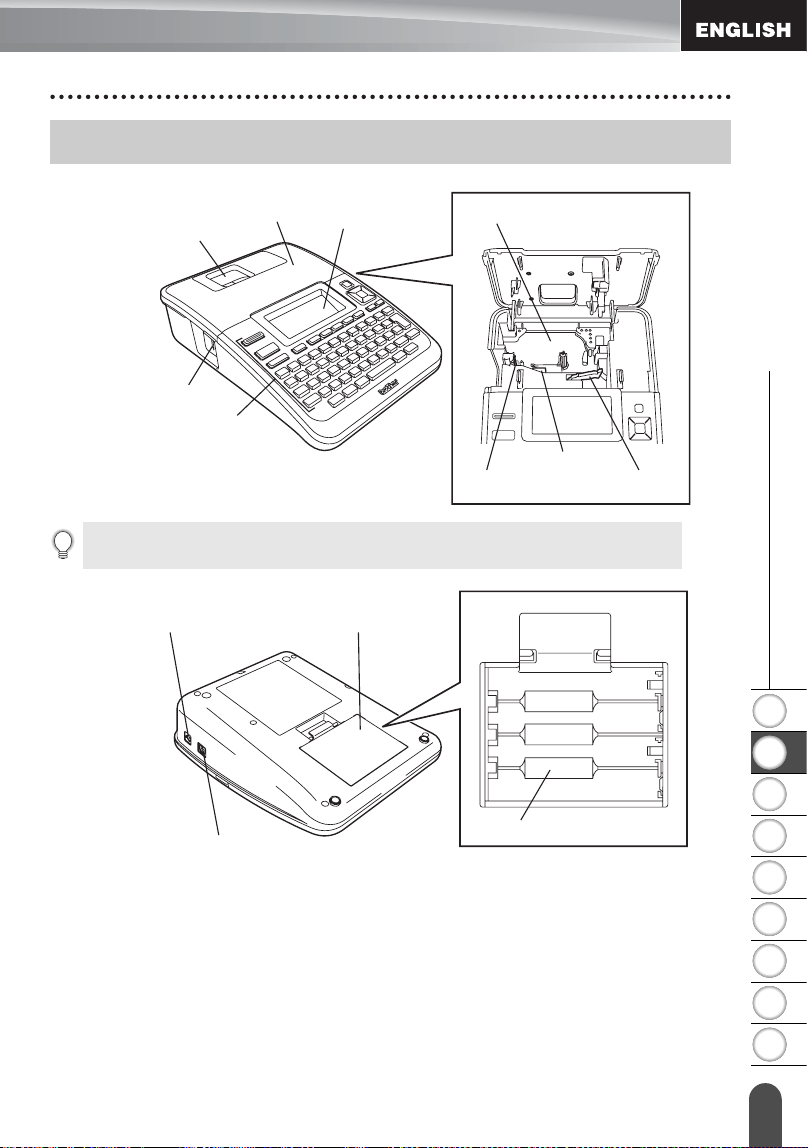
When shipped from the factory, the LCD display is covered with a protective sheet to
prevent damage. Remove this sheet before using the P-touch.
Tape compartment cover
Keyboard
Tape viewer
LCD display
Tape cassette compartment
Tape cutter
Print head
Release lever
Tape exit slot
AC adaptor connector
USB port
Battery compartment
cover
Battery case
13
LCD Display & Keyboard
GETTING STARTED
LCD Display
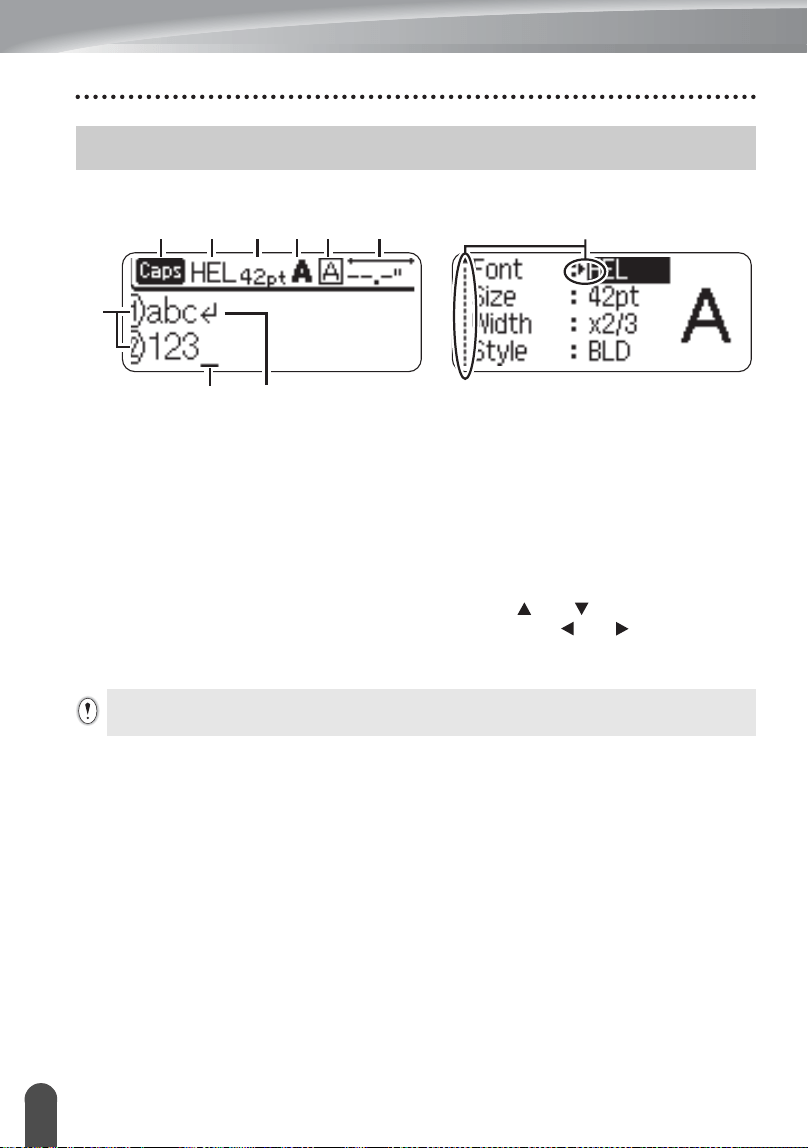
1. Line number
Indicates line number within the label
layout.
2. Cursor
Characters are entered to the left of the
cursor. Indicates the current data input
position.
3. Return mark
Indicates the end of a line of text.
4. Caps mode
Indicates that the Caps mode is on.
5.~8. Style guidance
Indicates the current font (5), character
size (6), character style (7) and frame
(8) settings.
9. Tape length
Indicates the tape length for the text
entered.
10.Cursor selection
Use the and keys to select menu
items and the and keys to change
the settings.
LCD Display & Keyboard
1
2
456789 10
3
Refer to “LCD Display” on page 21 for changing the contrast and display mode, and for turning
the back light on / off.
1
2
3
4
5
6
7
8
9
14
z GETTING STARTED
LCD Display & Keyboard
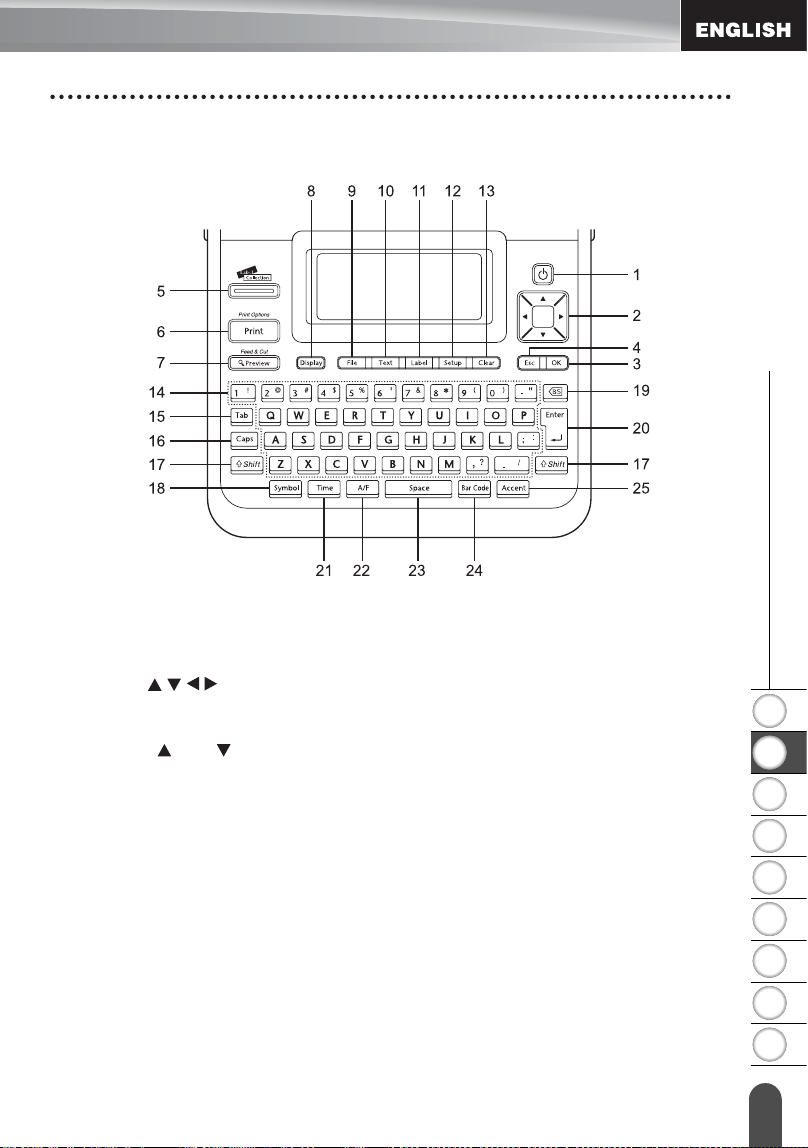
Key Names and Functions
The default language is "English".
1.
Power
Turns the P-touch labeler on and off.
2.
Cursor ( )
• Moves the cursor in the direction of
the arrow.
• Use the and keys to change
clock settings.
3.
OK
Selects the displayed option.
4.
Escape
Cancels the current command and
returns the display to the data entry
screen or the previous step.
5.
Label Collection
Enables label collections to be
selected and printed.
6.
Print
• Prints the current label design onto
the tape.
• Opens the Print Options menu when
used in combination with the
Shift
key.
7.
Preview
• Displays a preview of the label.
• Feeds 0.92" (23 mm) of blank tape
and then automatically cuts the tape
when used in combination with the
Shift
key.
8.
Display
Use this to change the display patterns
of text entry screen and clock display.
9.
File
Enables frequently used labels in the
file memory to be printed, opened,
saved, or deleted.

15
LCD Display & Keyboard
GETTING STARTED
10.
Text
• Enables character attributes for the
label to be set.
• Character attributes can be set for
each line of the label when the Text
menu is opened in combination with
the
Shift
key.
11.
Label
Enables label attributes for the label to
be set.
12.
Setup
Enables operating preferences (Bar
Code, Time & Date,LCD Contrast, etc.)
for the P-touch labeler to be set.
13.
Clear
Clears all text entered, or all text and
current label settings.
14.
Letter
• Use these keys to type letters or
numbers.
• Uppercase letters and symbols can
be entered using these keys in
combination with the
Caps
or
Shift
key.
15.
Tab
Inserts a tab to the position of the
cursor in the text entry screen.
16.
Caps
Turns Caps mode on and off.
17.
Shift
Use this key in combination with the
letter and number keys to type
uppercase letters or the symbols
indicated on the number keys.
18.
Symbol
Use this to select and enter a symbol
from a list of available symbols.
19.
Backspace
Deletes the character to the left of the
cursor.
20.
Enter
• Enters a new line when entering text.
• Enters a new block when used in
combination with the
Shift
key.
21.
Time
• Enters the selected date / time to the
position of the cursor in the text entry
screen.
• Clock display appears when used in
combination with the
Shift
key.
22.
Auto-Format
Enables labels to be created using pre-
defined templates or block formats.
23.
Space
• Enters a blank space.
• Returns a setting to the default value.
24.
Bar Code
• Opens Bar Code Input screen.
• Opens Bar Code Setup screen when
used with the
Shift
key.
25.
Accent
Use this to select and enter an
accented character.
1
2
3
4
5
6
7
8
9
16
z GETTING STARTED
Power Supply
Battery
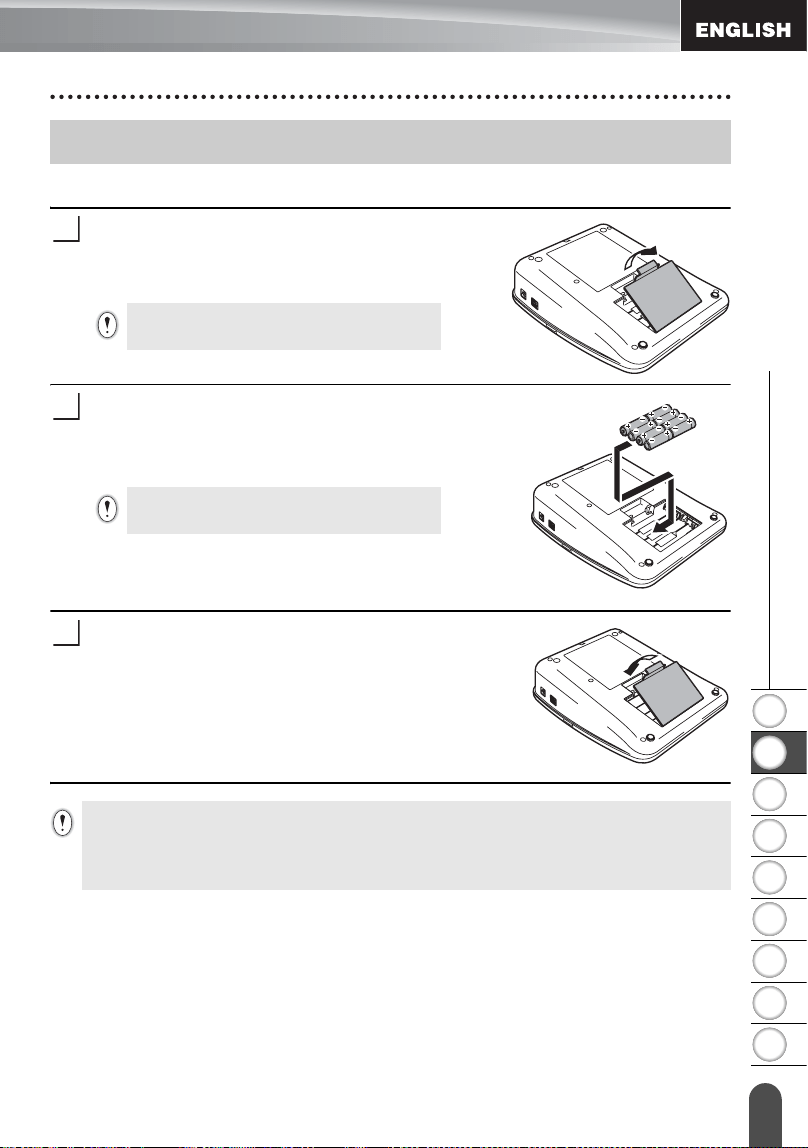
After making sure that the power is off, remove the
battery compartment cover on the back of the
machine. If the batteries are already in the
machine, remove them.
Insert eight new AA-size alkaline batteries (LR6),
making sure that the positive (+) and negative (-)
ends of the batteries match the positive (+) and
negative (-) marks inside the battery compartment.
Attach the battery compartment cover by inserting
the three hooks at the bottom into the slots on the
machine, then pushing down firmly until it snaps
into place.
Power Supply
Make sure that the power is turned off when
replacing batteries.
1
Always replace all eight batteries at the same
time using brand new ones.
2
3
• Remove the batteries if you do not intend to use the P-touch labeler for an extended period of
time.
• When power is disconnected for more than two minutes, all text and format settings will be
cleared. Any text files stored in the memory and clock settings will also be cleared.
17
Power Supply
GETTING STARTED
AC Adapter
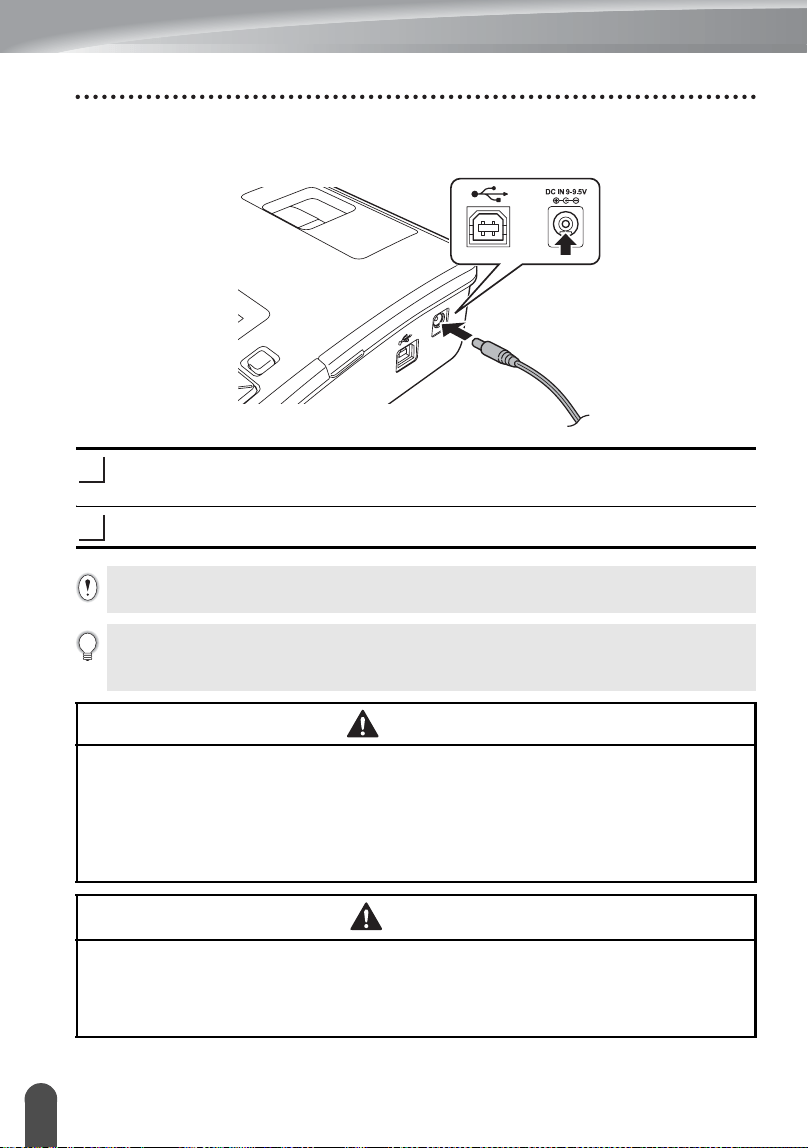
Connect the AC adapter directly to the P-touch labeler.
Insert the plug on the AC adapter cord into the connector marked DC IN 9-9.5V
on the P-touch labeler.
Insert the AC adapter plug into a standard electrical outlet.
1
2
• Turn the P-touch labeler off before disconnecting the AC adapter.
• Do not pull or bend the AC adapter cord.
To safeguard and backup the labeler's memory and clock setting, when the AC adapter is
unplugged it is recommended to have AA-size alkaline batteries (LR6) installed into the
machine.
WARNING
• Use only the adapter, which is designed exclusively for your P-touch. Failure to observe
this may result in an accident or damage. Brother shall not assume any responsibility for
any accident or damage resulting from not using the specified AC adapter.
• Do not connect the AC adapter to a non-standard electrical outlet. Failure to observe this
may result in an accident or damage. Brother shall not assume any responsibility for any
accident or damage resulting from not using a standard electrical outlet.
CAUTION
• Disconnect the AC adapter from the P-touch and electrical outlet when you do not intend
to use the P-touch for an extended period.
• When power is disconnected for more than two minutes, all text and format settings will
be cleared. Any text files stored in the memory will also be cleared.
1
2
3
4
5
6
7
8
9
18
z GETTING STARTED
Inserting a Tape Cassette
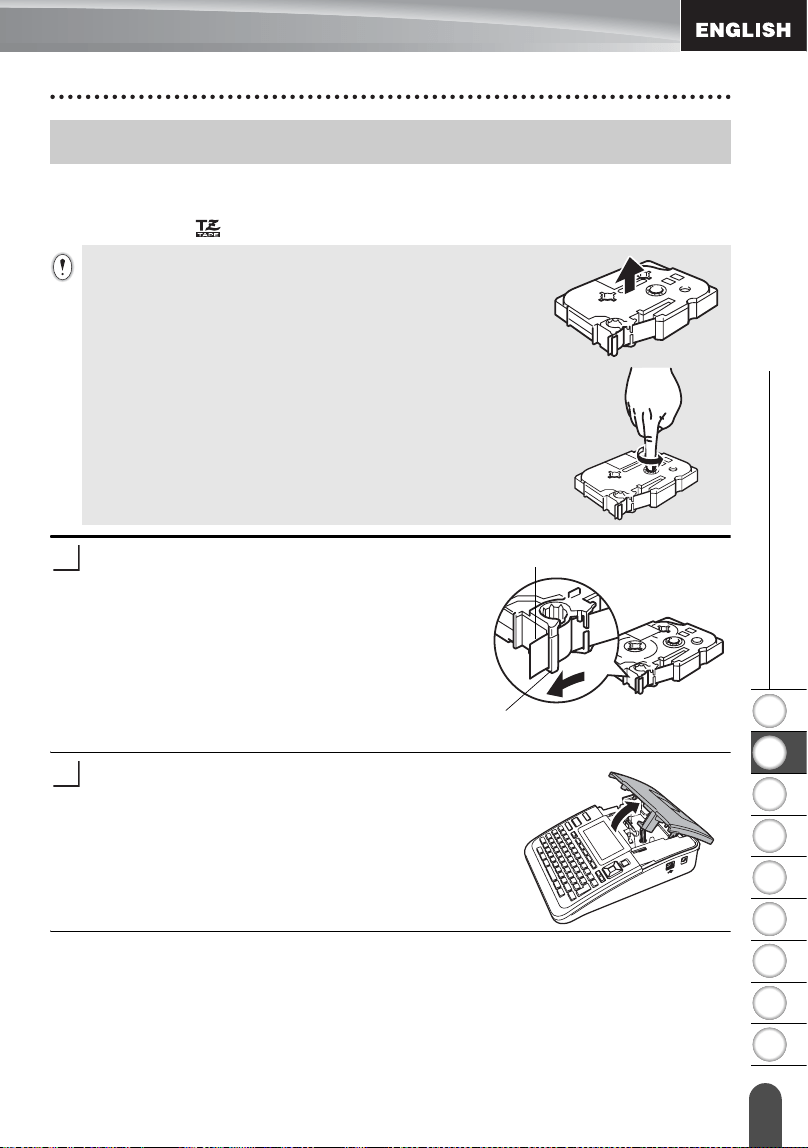
Tape cassettes of
0.13", 0.23", 0.35", 0.47", 0.70" or 0.94" (3.5mm, 6mm, 9mm, 12mm,
18mm, or 24mm)
width can be used in your P-touch labeler. Use only Brother tape
cassettes with the mark.
Check that the end of the tape is not bent and
that it passes through the tape guide. If the
tape is not passed through, pass it through
the tape guide referring to the illustration.
After making sure that the power is off, lift open the
tape compartment cover. If there is already a tape
cassette in the machine, remove it by pulling it
straight up.
Inserting a Tape Cassette
• If the new tape cassette has a cardboard stopper, be sure to
remove the stopper before inserting the cassette.
• If the ink ribbon is loose, use your finger to wind the toothed
wheel in the direction of the arrow as shown on the tape cassette.
End of tape
Tape guide
1
2
19
Turning Power On/Off
GETTING STARTED
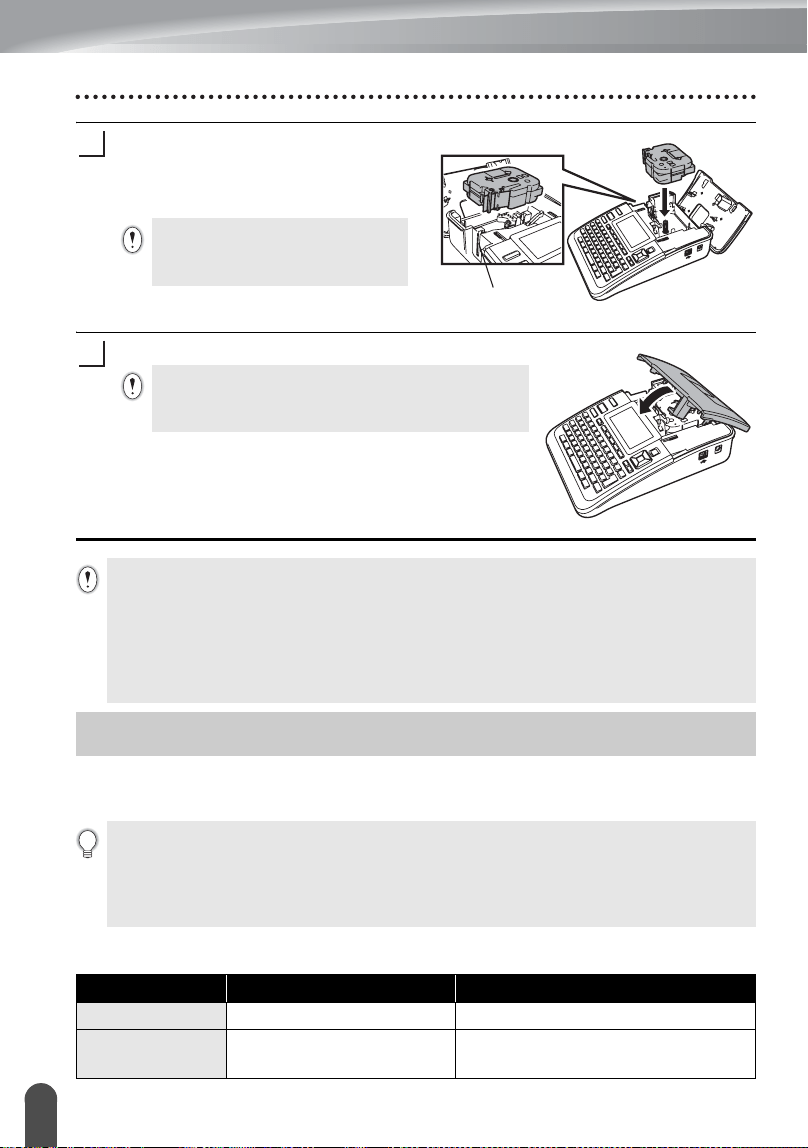
Insert the tape cassette into the tape
compartment, with the end of the tape
facing the machine's tape exit slot, and
press firmly until you hear a click.
Close the tape compartment cover.
Press the
Power
key to turn the P-touch
labeler
on.
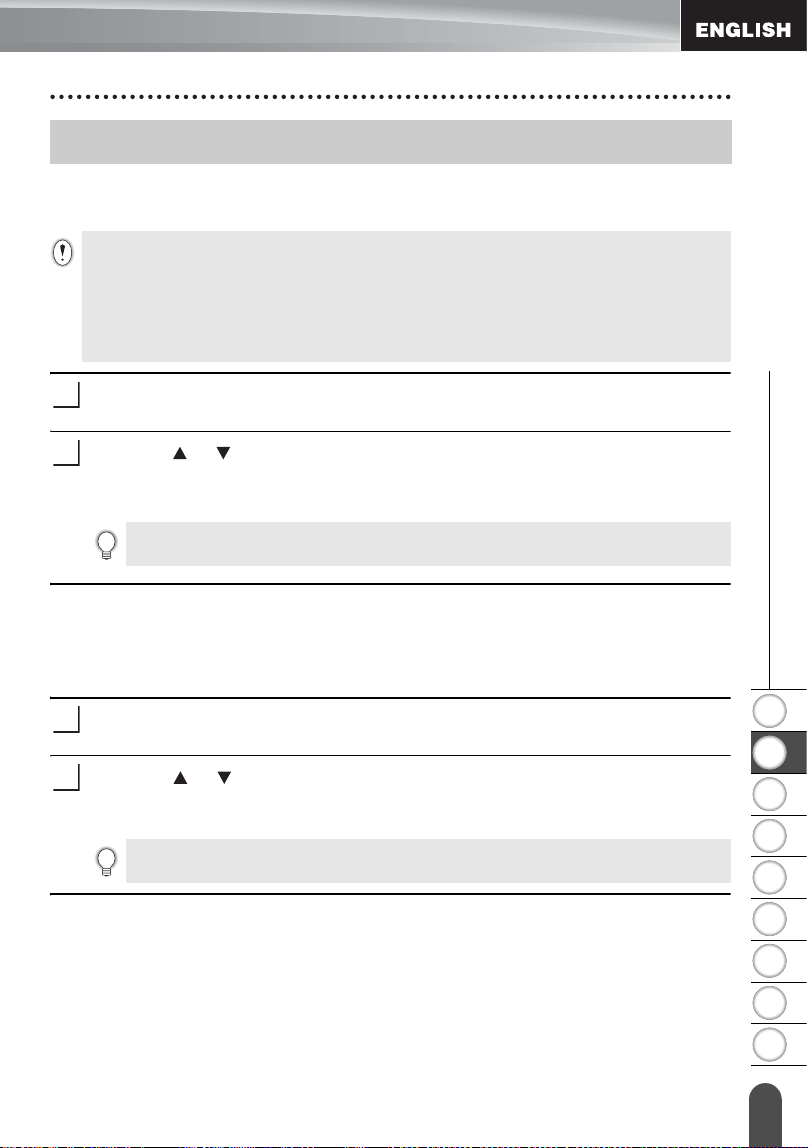
Press the
Power
key again to turn the P-touch
labeler
off.
zAuto Power-Off Timez
When inserting the tape cassette,
make sure that the tape and ink
ribbon do not catch on the print head.
Tape exit slot
3
Make sure that the release lever is up when closing the
tape compartment cover. The tape compartment cover
cannot be closed if the release lever is pressed down.
4
• Be sure to feed tape to remove any slack in the tape and ink ribbon after inserting the tape
cassette, by holding down the
Shift
key and pressing the
Preview
key.
• Do not pull the label coming out of the tape exit slot. Doing so will cause the ink ribbon
to be discharged with the tape.
• Store tape cassettes in a cool dark location, away from direct sunlight and high temperature,
high humidity, or dusty locations. Use the tape cassette as quickly as possible after opening
the sealed package.
Turning Power On/Off
• Your P-touch labeler has a power saving function that automatically turns itself off if no key
is pressed within a certain time under certain operating conditions. Refer to the Auto Power-
Off Time table below for details.
• If the batteries are installed or the P-touch labeler is connected to an electrical outlet by the
AC adapter, the previous session’s information is displayed when the power is turned on.
P-touch labeler only Connected to PC
With AC adapter
8 hours 8 hours
With battery
5 minutes
No operation for 1 hour after
connection to USB.
1
2
3
4
5
6
7
8
9
20
z GETTING STARTED
Feeding Tape
Feed & Cut
The Feed & Cut function feeds 0.92" (23mm) of blank tape then cuts the tape.
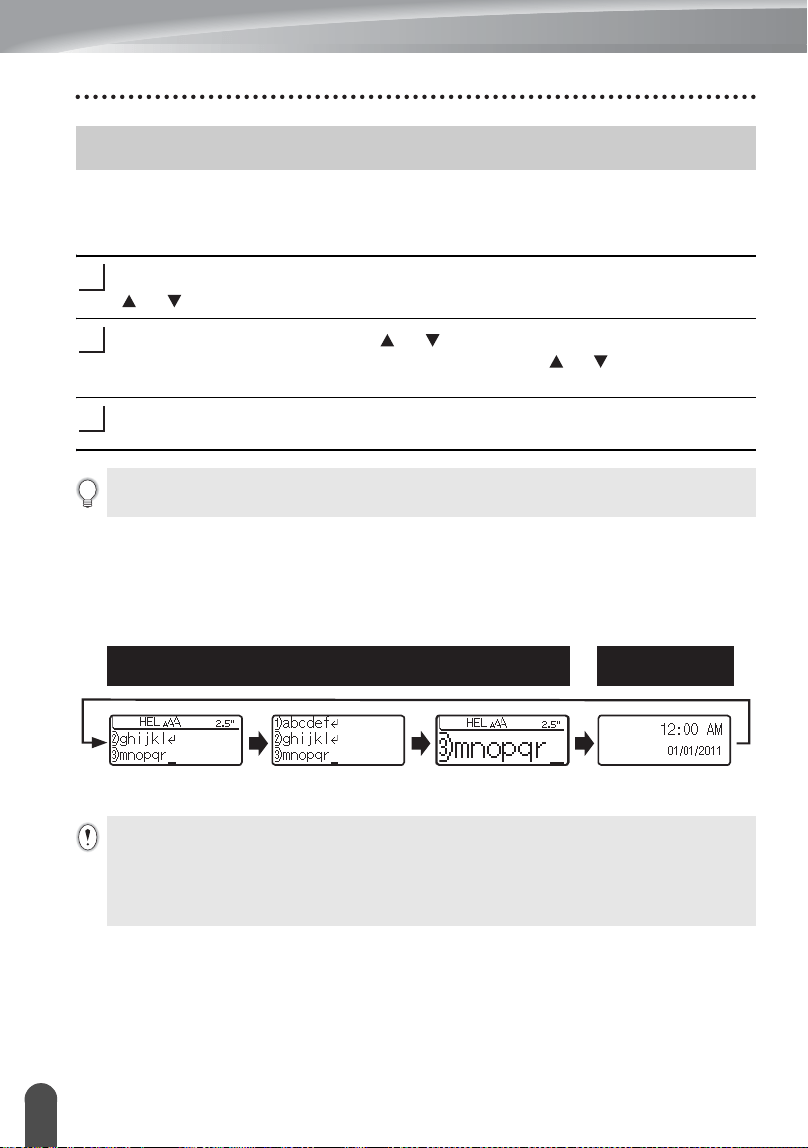
Hold down the
Shift
key and press the
Preview
key.
"Feed & Cut?" will appear on the LCD display.
Using the or key to select the "Feed & Cut" option and then press either
OK
or
Enter
.
The message "Feeding Tape... Please Wait" appears while the tape is fed, and
then the tape is cut.
Feed Only
This function will advance the tape approximately 0.92" (23 mm) resulting in a blank
label sticking out of the tape cassette. This action is recommended when using Fabric
and Extra Strength Adhesive tapes, which should be cut using scissors.
Hold down the
Shift
key and press the
Preview
key.
"Feed & Cut?" will appear on the LCD display.
Using the or key to select the "Feed Only" option and then press either
OK
or
Enter
key.
The message "Feeding Tape... Please Wait" appears while the tape is fed.
Feeding Tape
• Be sure to feed tape to remove any slack in the tape and ink ribbon after inserting the tape
cassette.
• Do not pull the label coming out of the tape exit slot. Doing so will cause the ink ribbon
to be discharged with the tape.
• Do not block the tape exit slot during printing or when feeding tape. Doing so will cause the
tape to jam.
1
2
To exit or cancel this function press
Escape
.
1
2
To exit or cancel this function press
Escape
.
21
LCD Display
GETTING STARTED
LCD Contrast
You can change the contrast setting of the LCD display to one of five levels (+2, +1, 0,
-1, -2) to make the screen easier to read. The default setting is “0”.
Press the
Setup
key to display the Setup menu, select “LCD Contrast” using the
or key, and then press the
OK
or
Enter
key.
Select a contrast level using the or key.
The screen contrast changes each time you press the or key, allowing you
to set the most suitable contrast.
Press the
OK
or
Enter
key.
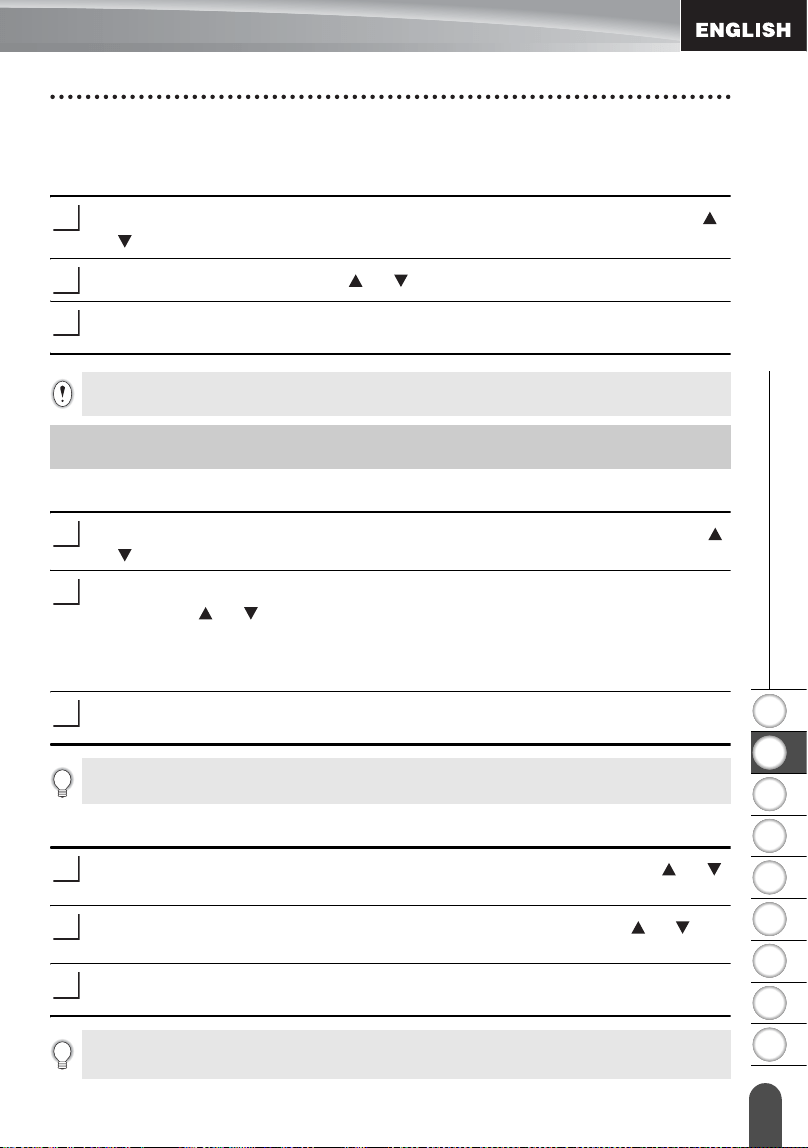
Display Mode
You can change the display mode to your preferable style by pressing the
Display
key
repeatedly. You can select from three text entry screens (guidance + 2 text lines, 3 text
lines, guidance + 1 line) and clock display.
LCD Display
1
2
3
•Press the
Escape
key to return to the previous step.
• Pressing the
Space
key on the contrast setting screen sets the contrast to the default value “0”.
Text entry screen Clock display
guidance + 2 lines 3 lines guidance + 1 line
• You can also change the clock display to the text entry screen (guidance + 2 text lines) by
pressing any other key on the keyboard besides the
Power
key.
• For adjusting the clock to current date and time, refer to “Clock Setting” on page 45.
• For selecting a desired format for displaying the date and time, refer to “Time & Date Format
Setting” on page 46.
1
2
3
4
5
6
7
8
9
22
z GETTING STARTED
Setting Language and Unit
Back Light
You can change the back light setting either to ON or OFF.
The display is easier to see with the back light ON. The default setting is "ON".
Press the
Setup
key to display the Setup menu, select "Backlight" using the
or key, and then press the
OK
or
Enter
key.
Select "ON" or "OFF" using the or key.
Press the
OK
or
Enter
key.
Language
Press the
Setup
key to display the Setup menu, select "Language" using the
or key, and then press the
OK
or
Enter
key.
Select a language for menu commands and messages shown on the LCD display
by using the or key.
The language can be selected from "Český", "Dansk", "Deutsch", "English",
"Español", "Français", "Hrvatski", "Italiano", "Magyar", "Nederlands", "Norsk", "Polski",
"Português", "Română", "Slovenski", "Slovenský", "Suomi", "Svenska" or "Türkçe".
Press the
OK
or
Enter
key.
Unit
Press the
Setup
key to display the Setup menu, select "Unit" using the or
key, and then press the
OK
or
Enter
key.
Select a unit for dimensions shown on the LCD display by using the or key.
Either "inch" or "mm" can be selected.
Press the
OK
or
Enter
key.
1
2
3
Power can be saved when the back light is turned off.
Setting Language and Unit
1
2
3
Press the
Escape
key to return to the previous step.
1
2
3
The default setting is "inch".
Press the
Escape
key to return to the previous step.
23
Entering and Editing Text
EDITING A LABEL
Entering Text from the Keyboard
• The keyboard of your P-touch labeler can be used in the same way as a standard
computer keyboard.
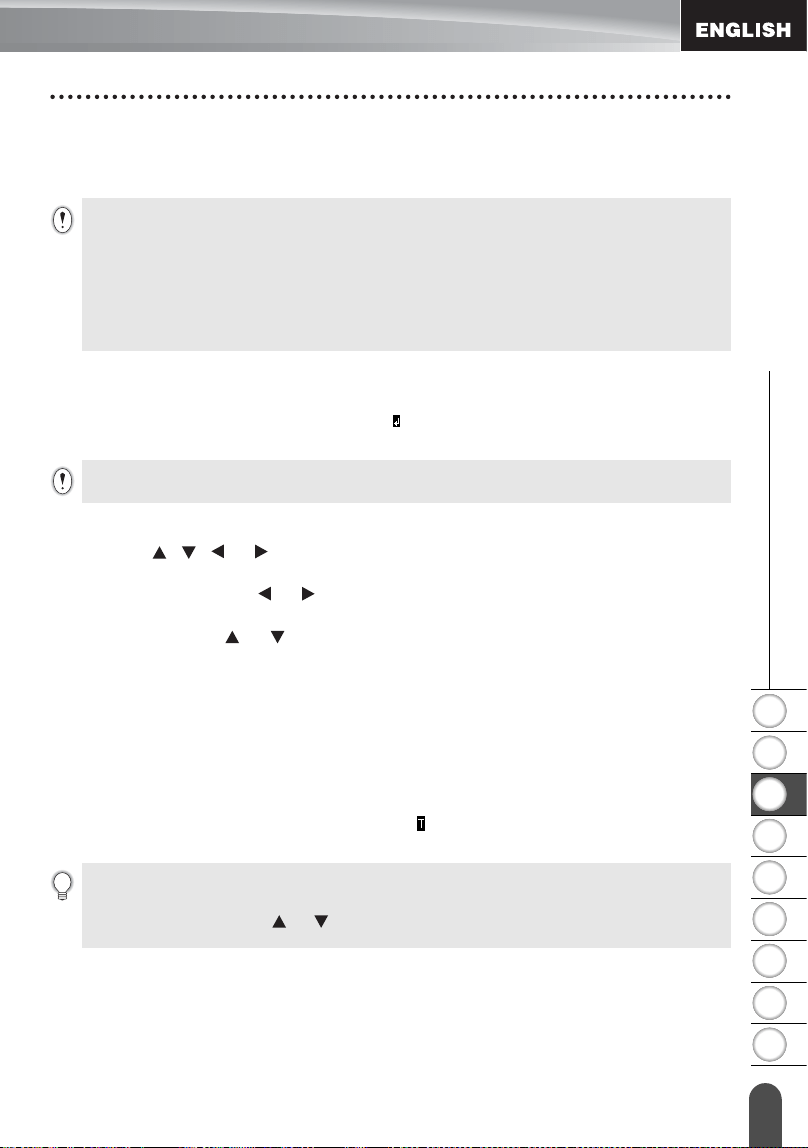
Using Text Reminder
When a character is entered, the machine remembers character sequences beginning
with the character entered from a history of all printed character sequences to date, and
displays a list of options from which to select.
Enter "c".
The machine displays the last word printed begining
with the letter “c” such as “computer".
Press the
OK
key to display other word options that match the entered character.
Press the or key to select the desired word.
Press the
OK
or
Enter
key.
The selected character word will then appear on the text line.
Deleting Text Reminder Memory
Press the
Setup
key.
Press the or key to select "Text Reminder", and then press the
OK
or
Enter
key.
Press the or key to select "Clear Memory", and then press the
OK
or
Enter
key.
"Clear All Text Reminder Memory ?" is then displayed.
Press the
OK
or
Enter
key.
All text options in memory will be deleted.
Entering and Editing Text
1
2
3
3
4
• Text Reminder settings can be changed by pressing the
Setup
key.
1
2
3
4
5
1
2
3
4
5
6
7
8
9
24
z EDITING A LABEL
Entering and Editing Text
Adding a New Line
• To end the current line of text and start a new line, press the
Enter
key. A return mark
appears at the end of the line and the cursor moves to the start of the new line.
Adding a New Block
• To create a new block of text/lines to the right of your current text, press the
Enter
key while holding down the
Shift
key. A mark will appear at the end of the block
and the cursor moves to the start of the new block.
Moving the Cursor
• Press the , , or key to move the cursor one space or line.
• To move the cursor to the beginning or end of the current line, hold down the
Shift
key and then press the or key.
• To move the cursor to the very beginning or end of the text, hold down the
Shift
key
and then press the or key.
Inserting Text
• To insert additional text into an existing line of text, move the cursor to the character
to the right of the position where you want to start inserting text and then enter the
additional text. The new text is inserted to the left of the cursor.
Inserting a Tab
• To insert a tab space between the existing line of text, move the cursor where you
wish to add a tab and press the
Tab
key. A mark appears to indicate the position
which the tab space will be entered.
• There is a maximum number of lines of text that can be entered for each tape width. A
maximum of 7 lines can be entered for 0.94" (24mm) tape,5 lines for 0.70" (18mm) tape, 3
lines for 0.47" (12mm) tape, 2 lines for 0.35" (9mm) and 0.23" (6 mm) tape, and 1 line for
0.13" (3.5mm) tape.
• If you press the
Enter
key when seven lines already exist, an error message is displayed.
• To change the character attribute of each line, refer to “Setting Character Attributes by Each
Line” on page 30.
A maximum of 5 blocks can be entered in one label.
• To change the length setting of the tab, refer to “Setting Label Attributes” on page 35.
• The tab space can also be entered by pressing the
Setup
key to open the Setup menu and
selecting "Tab" by using or key, and then pressing the
OK
or
Enter
key.
EDITING A LABEL
25
Entering and Editing Text
Deleting Text
Deleting one character at a time
• To delete a character from an existing line of text, move the cursor to the character
to the right of the position you want to start deleting text and then press the
Backspace
key. The character to the left of the cursor is deleted each time the
Backspace
key is pressed.
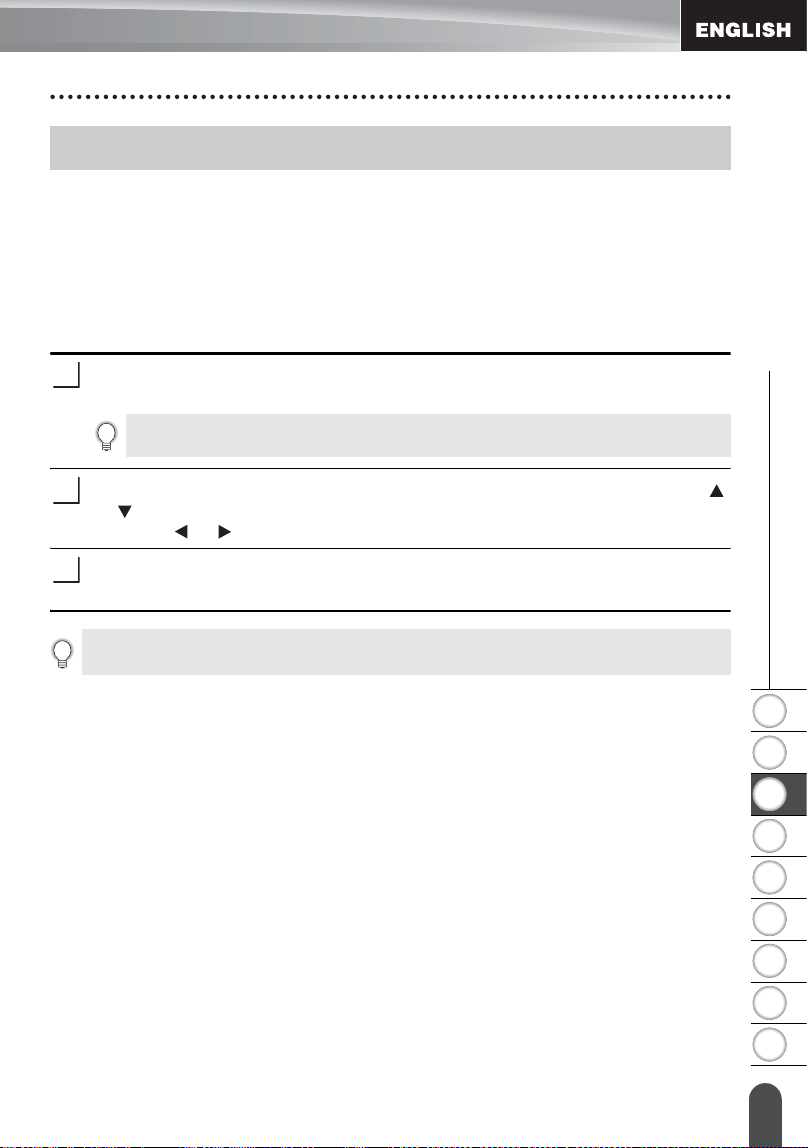
Deleting all text at once
Use the
Clear
key to delete all text at once.
Press the
Clear
key.
The Clear options are displayed.
Using the or key, select “Text Only” to delete all
text while retaining the current format settings, or
select “Text & Format” to delete all text and format
settings.
Press the
OK
or
Enter
key.
All text is deleted. All format settings are also deleted
if Text & Format was selected.
If you hold down the
Backspace
key, the characters left of the cursor are deleted continuously.
1
Press the
Escape
key to return to the text entry screen,
without erasing (or clearing) text or format.
2
3
1
2
3
4
5
6
7
8
9
26
z EDITING A LABEL
Entering Symbols
In addition to the symbols available on the keyboard, there are various symbols
(including international and extended ASCII characters) available with the symbol
function.
To enter a symbol, use the Symbol function (see below).
Alternatively, hold down the
Shift
key and then press a key on the keyboard to enter
the symbol printed on the selected key's upper-right corner.
Entering Symbols Using the Symbol Function
Press the
Symbol
key.
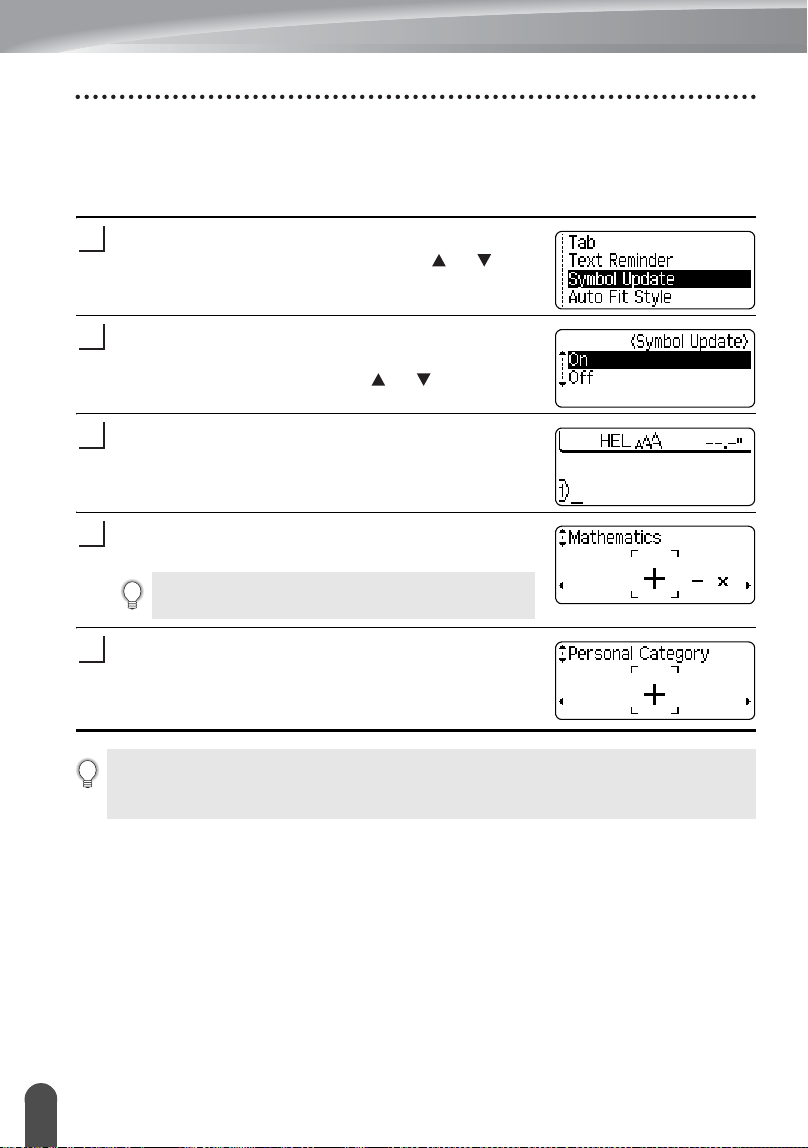
A list of symbol categories and symbols in that category is displayed.
Select a symbol category (Punctuation, Business, Mathematics, etc.) using the
or key or by pressing the
Symbol
key repeatedly, and then select a symbol
using the or key.
Press the
OK
or
Enter
key.
The selected symbol is inserted into the line of text.
Entering Symbols
1
The last symbol entered is selected in the displayed list.
2
3
•Press the
Escape
key to return to the previous step.
EDITING A LABEL
27
Entering Symbols
Using Symbol Update Function
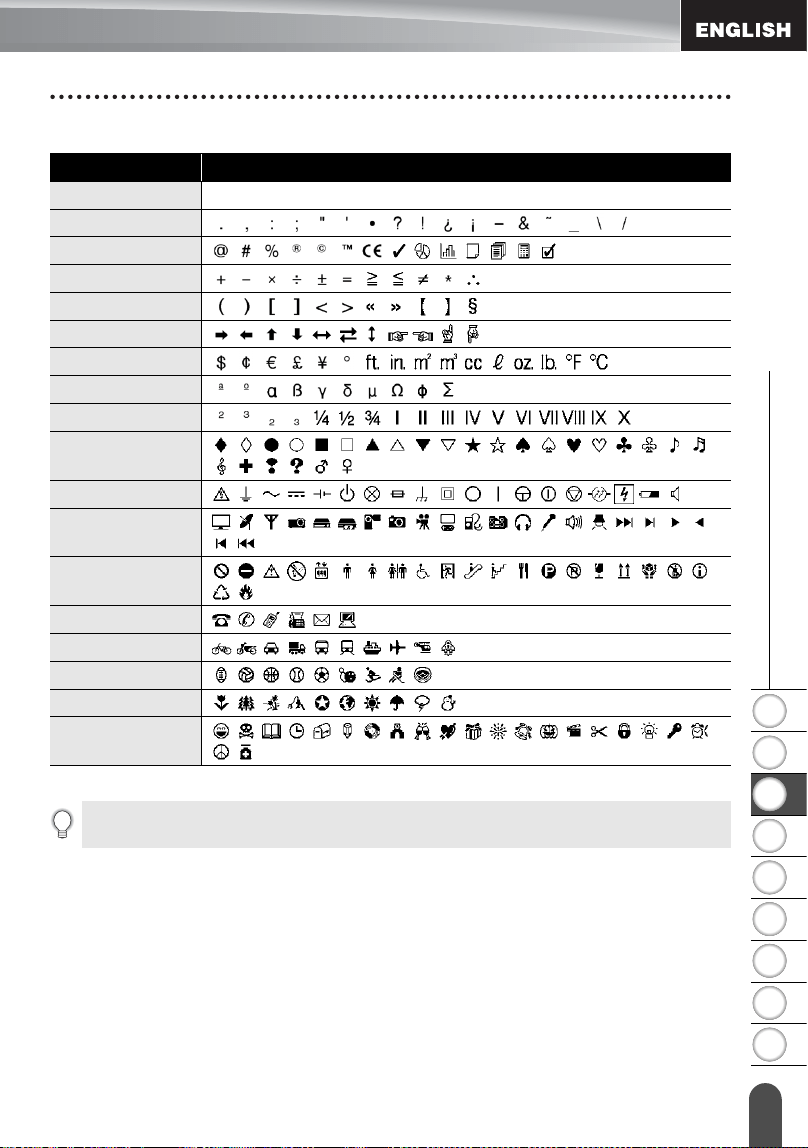
You can create your personal category of symbols by using the Symbol Update
Function. The "Personal category" will appear first when selecting the symbols to help
you locate the desired symbols quickly.
Press the
Setup
key to display the Setup menu, and
then select "Symbol Update" using the or key.
Press the
OK
or
Enter
key to display the Symbol
Update screen, and then select "On" to create your
personal category by using the or key.
Press the
OK
or
Enter
key to apply the setting.
The screen returns to the text entry screen.
Enter the symbol you wish to add to your personal
Category.
Press the
Symbol
key.
The "Personal category" appears, including the
symbol entered in step 4.
1
2
3
Refer to “Entering Symbols Using the Symbol
Function” on page 26 for detail.
4
5
• Up to 20 symbols can be added to the "Personal category". The oldest symbol will be deleted
from the category when the symbols added to the "Personal category" exceed 20 symbols.
• To stop using the Symbol Update Function, select "Off" in the Symbol Update screen.
1
2
3
4
5
6
7
8
9
28
z EDITING A LABEL
Entering Symbols
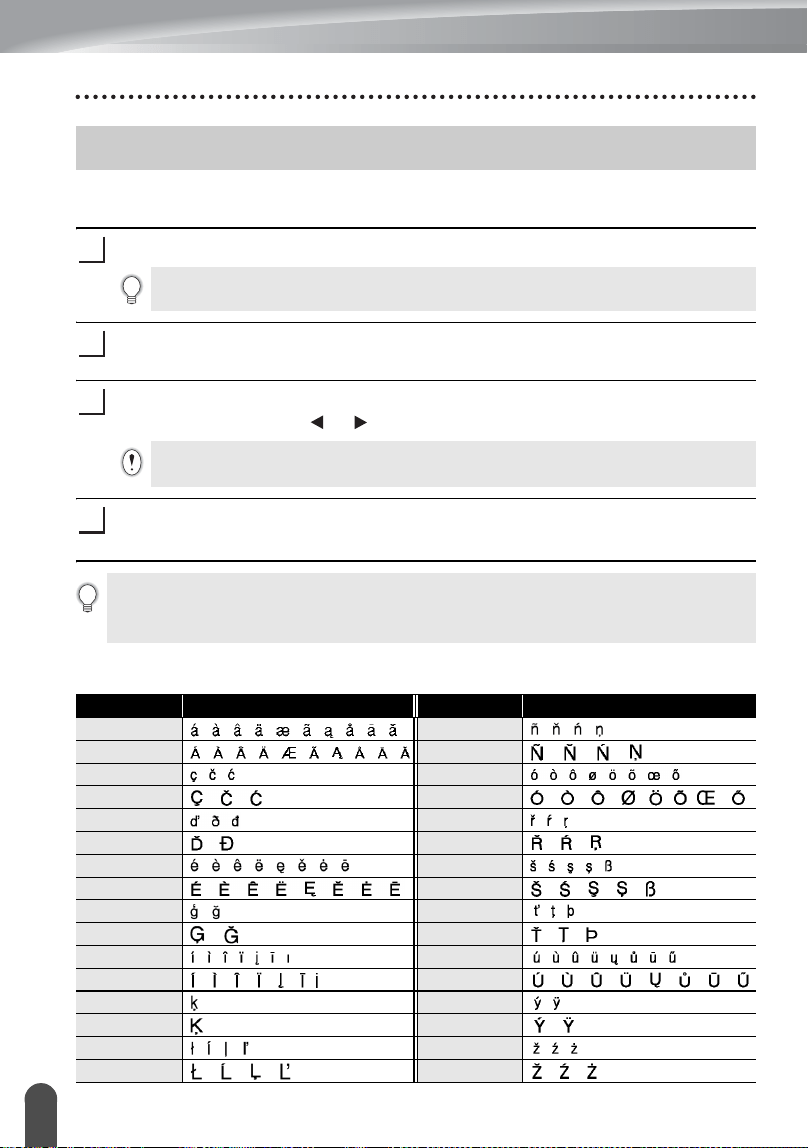
zSymbol Listz
Category Symbols
Personal Category
Refer to “Using Symbol Update Function” on page 27 for details.
Punctuation
Business
Mathematics
Brackets
Arrows
Unit
International
Number
Pictograph
Electrical
Audio_Visual
Signs
Communication
Vehicle
Sports
Nature
Others
The use of the CE mark is strictly governed by one or more European Council directives. Ensure
that any labels you produce which use this mark conform with the relevant directives.
EDITING A LABEL
29
Entering Accented Characters
The P-touch labeler can display and print a set of accented characters such as other
language specific characters.
Enter the character you wish to change to an accented character.
Press the
Accent
key.
The character you entered will change to an accented character.
Press the
Accent
key repeatedly until the desired accented character is selected,
or select it by using the or key.
Press the
OK
or
Enter
key.
The selected accented character is inserted into the line of text.
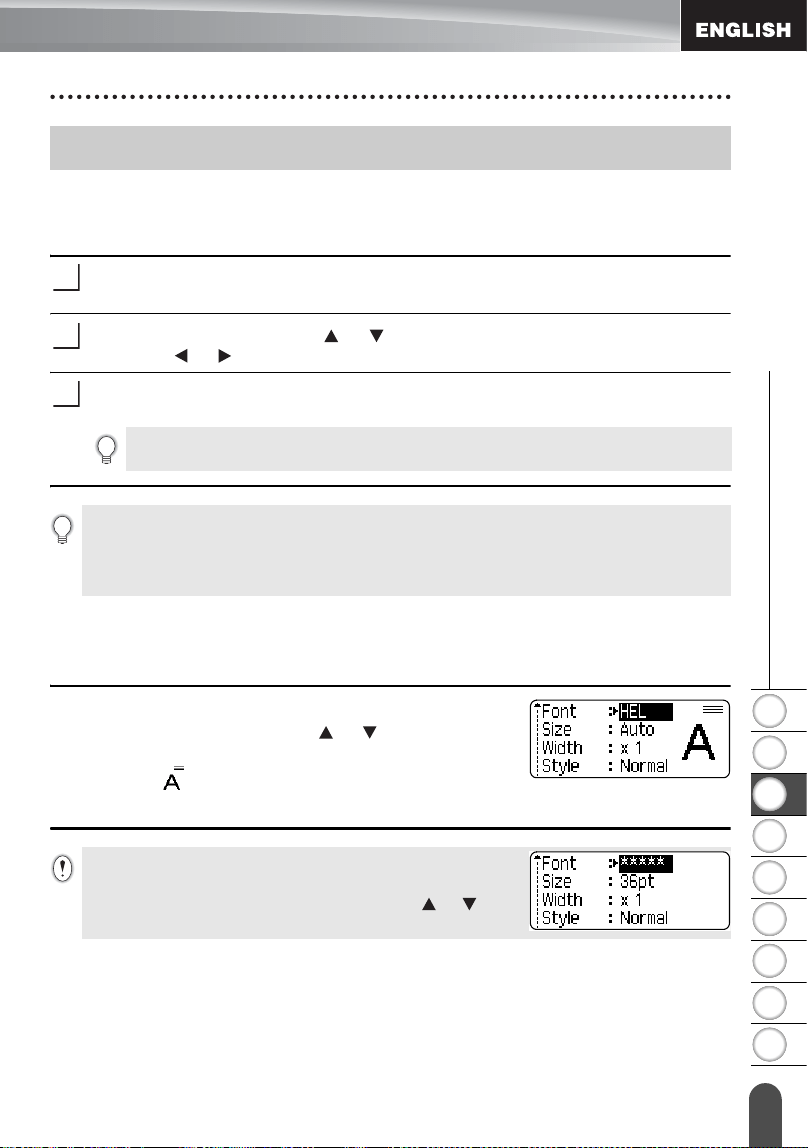
zAccented Character Listz
Entering Accented Characters
1
Caps mode can be used with the Accent function.
2
3
The order of accented characters displayed will differ depending on the selected LCD
language.
4
•Press the
Escape
key to return to the previous step.
• Refer to the Accented Character List table for a complete list of all accented characters
available.
Character Accented Characters Character Accented Characters
a n
A N
c o
C O
d r
D R
e s
E S
g t
G T
i u
I U
k y
K Y
l z
L Z
1
2
3
4
5
6
7
8
9
30
z EDITING A LABEL
Setting Character Attributes
Setting Character Attributes by Label
Using the
Text
key, you can select a font and apply size, width, style, line, and
alignment attributes.
Press the
Text
key.
The current settings are displayed.
Select an attribute using the or key, and then set a value for that attribute
using the or key.
Press the
OK
or
Enter
key to apply the settings.
Setting Character Attributes by Each Line
When a label consists two or more lines of text, you can set different value of
character attributes (font, size, width, style, line and alignment) for each line.
Move the cursor to the line you wish to change the
character attribute by using the or key. Next, press
the
Text
key while holding down
Shift
key to display the
attributes. ( on the screen indicates that you are now
applying the attribute for that specific line only.)
Setting Character Attributes
1
2
3
New settings are NOT applied if you do not press the
OK
or
Enter
key.
•Press the
Escape
key to return to the previous step.
•Press the
Space
key to set the selected attribute to the default value.
• Refer to the Setting Options table for a list of all available settings.
• Small characters may be difficult to read when certain styles are applied (e.g. Shadow + Italic).
When different value of attribute is set for each line, the value
will be displayed as **** when you press the
Text
key. When
you change the setting on this screen by using the or key,
the same change will be applied to all lines of the label.
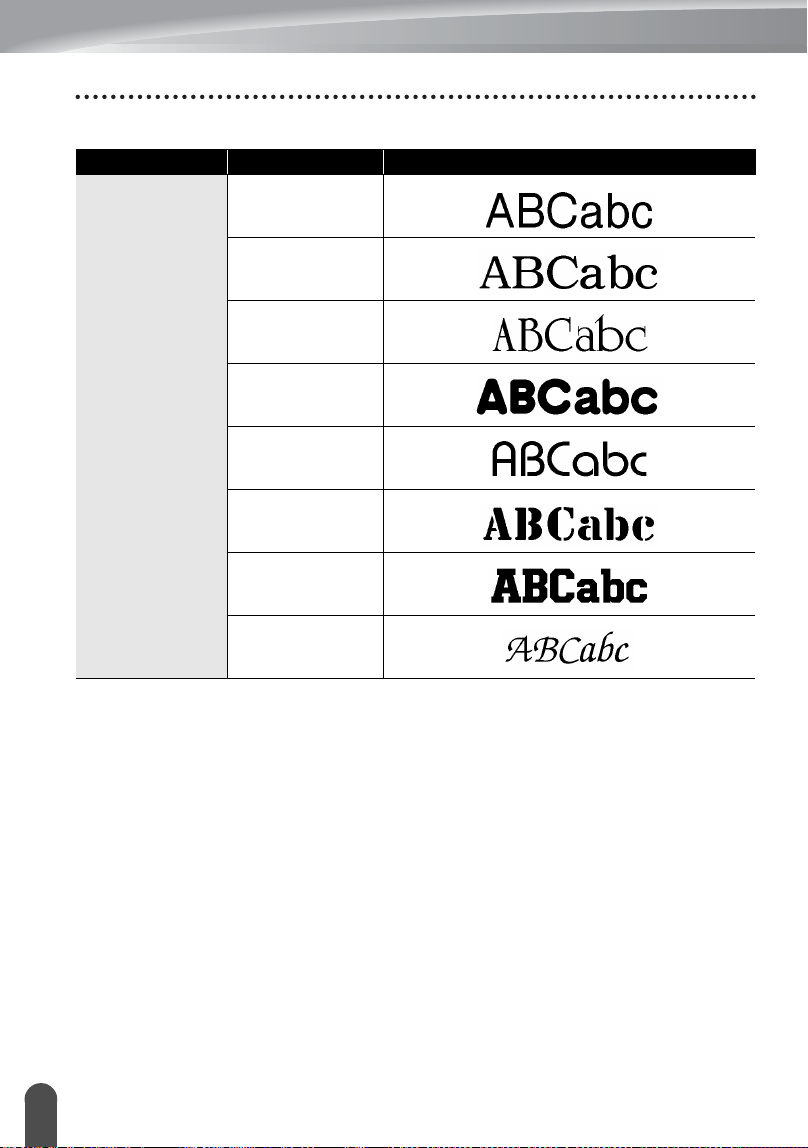
EDITING A LABEL
31
Setting Character Attributes
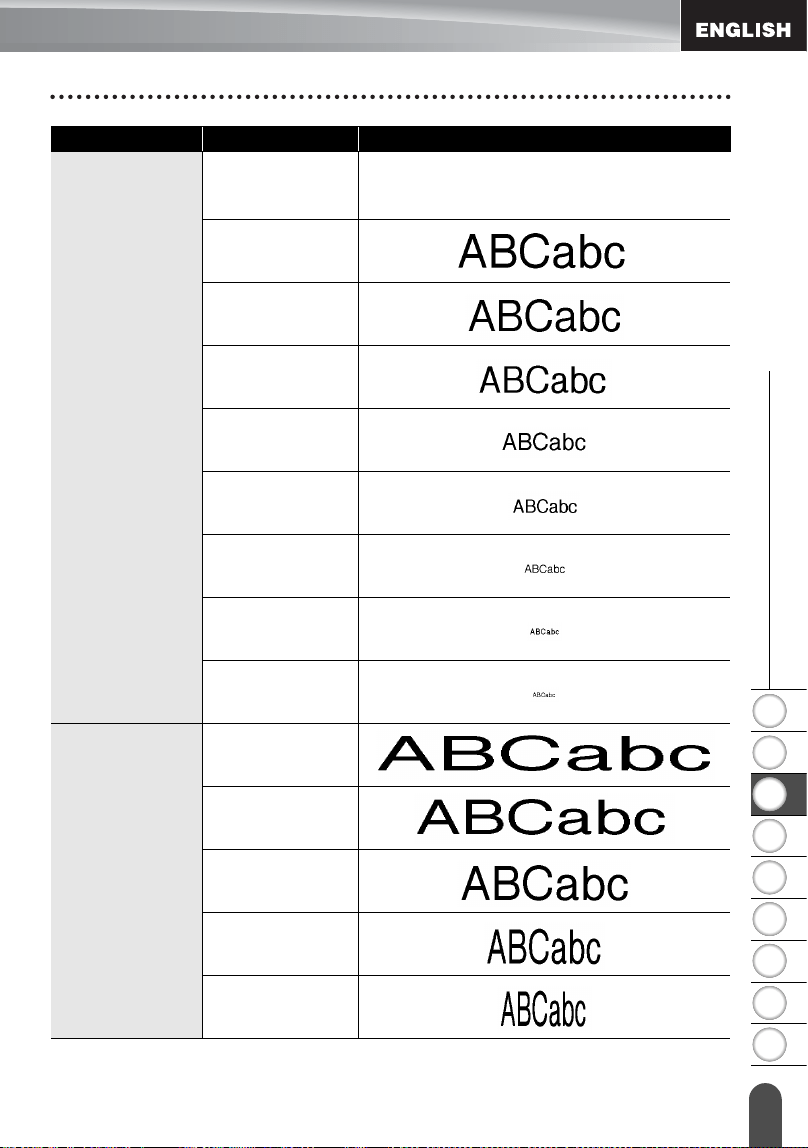
zSetting Optionsz
Attribute Value Result
Font
HEL
(Helsinki)
BRU
(Brussels)
US
(USA)
FLO
(Florida)
BEL
(Belgium)
SGO
(San Diego)
LA
(Los Angeles)
CAL
(Calgary)
1
2
3
4
5
6
7
8
9
32
z EDITING A LABEL
Setting Character Attributes
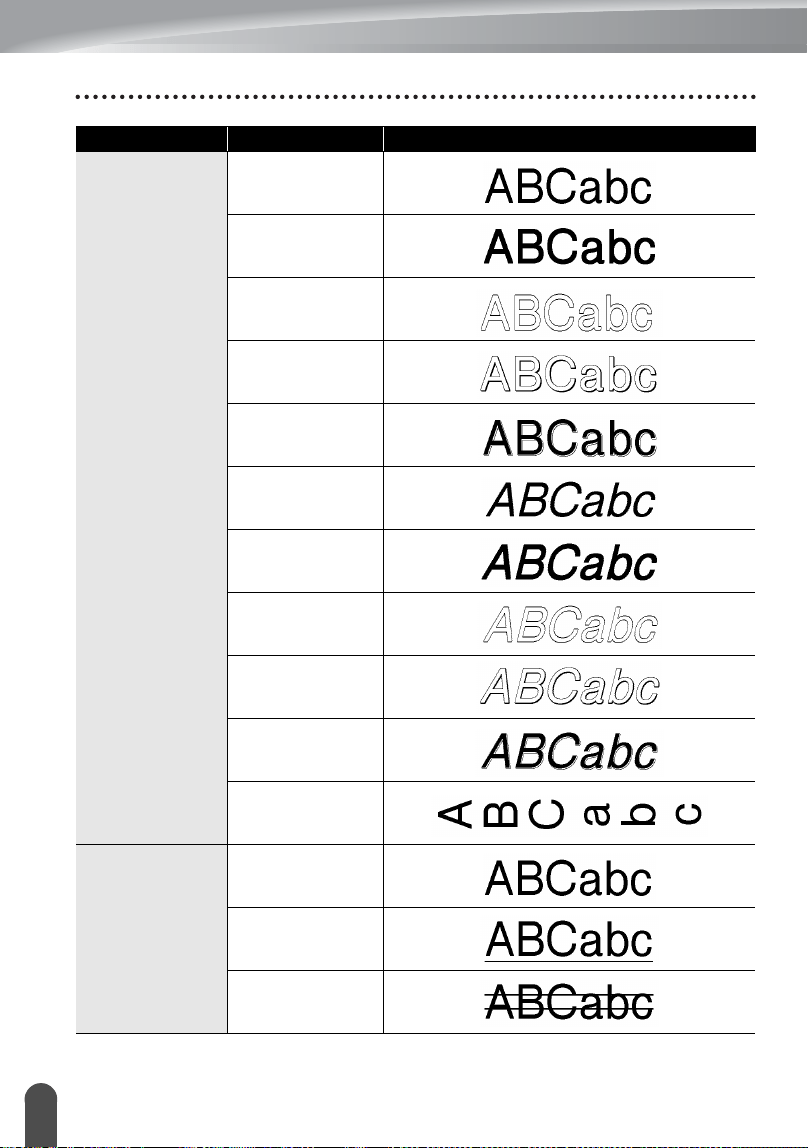
Size
Auto
When Auto is selected, the text is
automatically adjusted to print in the largest
size available for each tape width.
48pt
42pt
36pt
24pt
18pt
12pt
9pt
6pt
Width
x2
x3/2
x1
x2/3
x1/2
Attribute Value Result
EDITING A LABEL
33
Setting Character Attributes
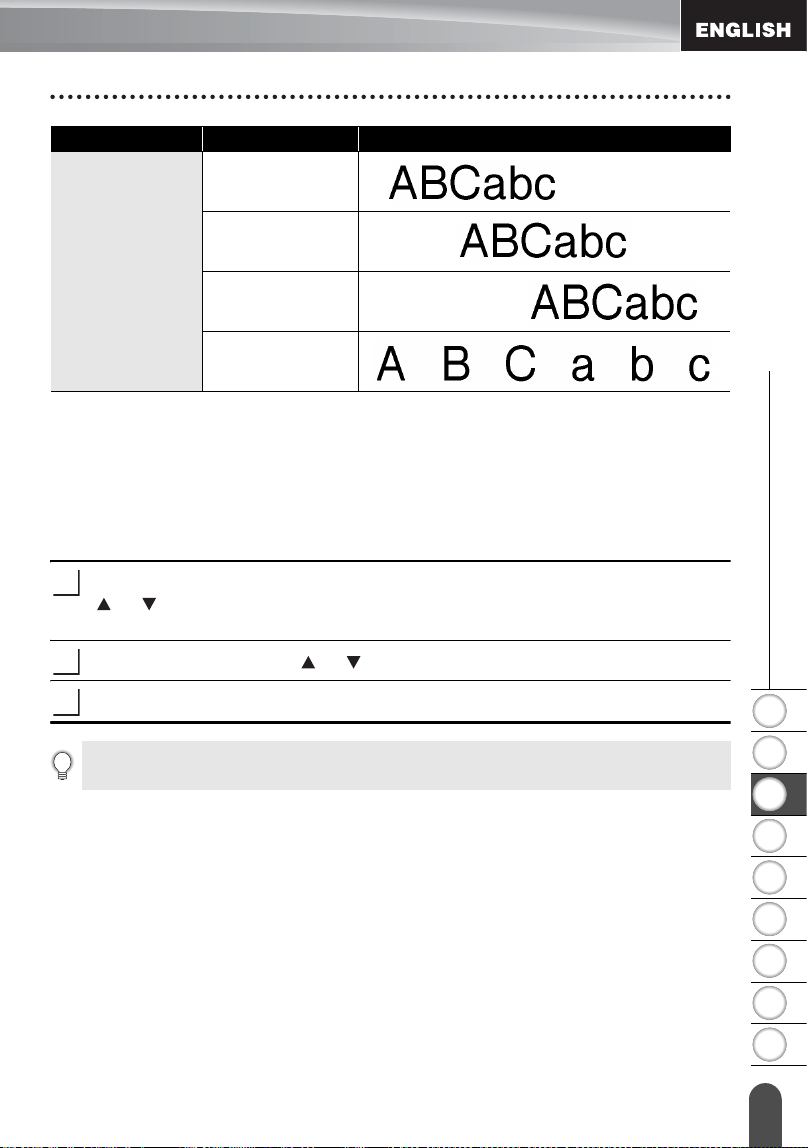
Style
Normal
BLD
(Bold)
OUT
(Outline)
SHD
(Shadow)
SLD
(Solid)
ITL
(Italic)
I+BLD
(Italic Bold)
I+OUT
(Italic Outline)
I+SHD
(Italic Shadow)
I+SLD
(Italic Solid)
VRT
(Vertical)
Line
Off
UND
(Underline)
STR
(Strikeout)
Attribute Value Result
1
2
3
4
5
6
7
8
9
34
z EDITING A LABEL
Setting Character Attributes
Setting Auto Fit Style
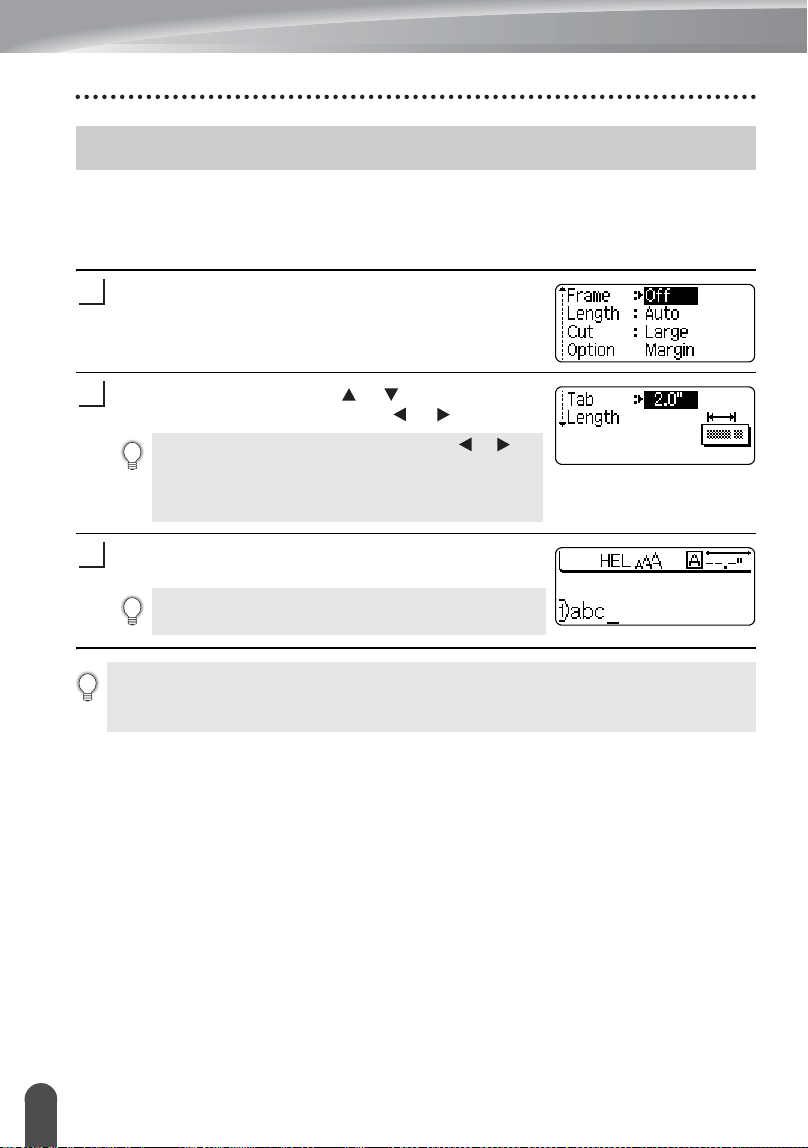
When "Size" is set to "Auto" and "Length" is set to a specific length, you can select
the way of reducing the text size to fit within the label length.
When "Text Size" is selected, the total text size is modified to fit within the label.
When "Text Width" is selected, the text width will be reduced to the size of x1/2
setting. (If further size reduction is required to fit the text into the selected label
length, the total text size will be modified after reducing the text width to x1/2 setting.)
Press the
Setup
key to display the Setup menu, Select "Auto Fit Style" using the
or key, and then press the
OK
or
Enter
key.
The Auto Fit Style screen is displayed.
Select the style using the or key.
Press the
OK
or
Enter
key to apply the setting.
Align
(Alignment)
Left
Center
Right
Just
(Justify)
Attribute Value Result
1
2
3
•Press the
Escape
key to return to the previous step.
•Press the
Space
key to set the style to the default setting ("Text Size").
EDITING A LABEL
35
Setting Label Attributes
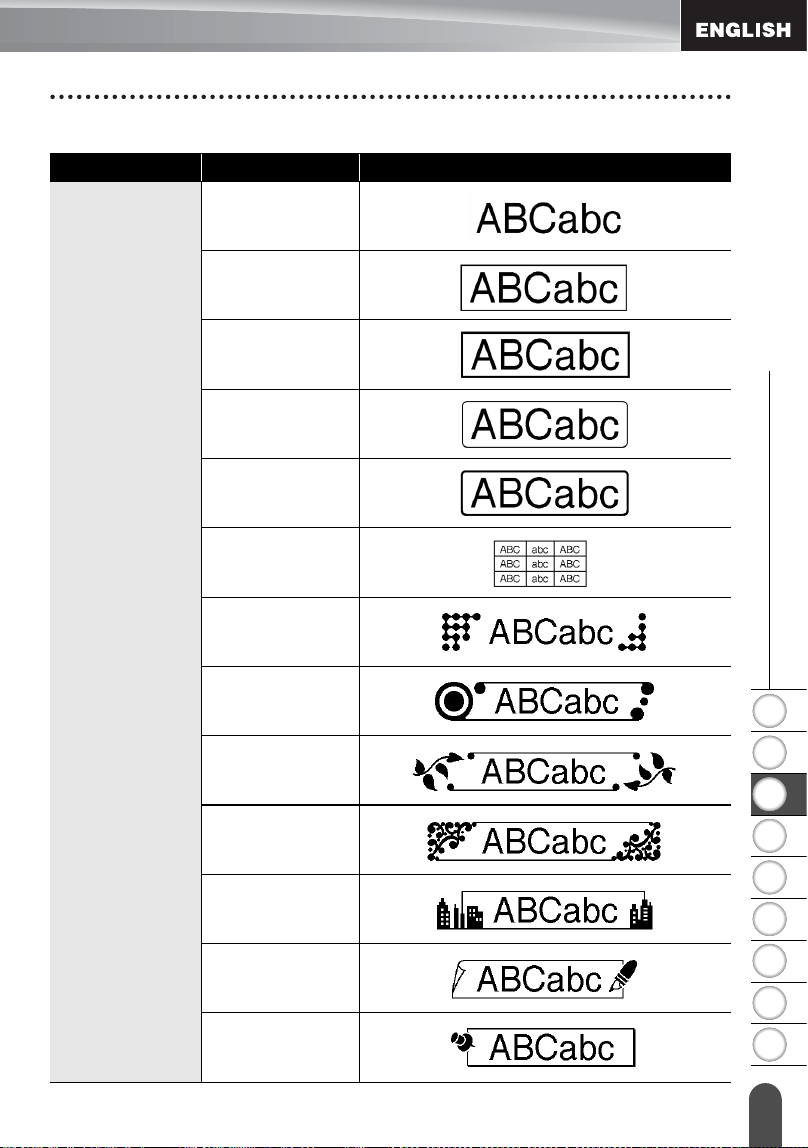
Using the
Label
key, you can create a label with a frame around the text and specify
the label length and tab length. (Cut Options which may be needed when printing a
label can also be set by using the
Label
key. Refer to “Tape Cutting Options” on
page 57.)
Press the
Label
key.
The current settings are displayed.
Select an attribute using the or key, and then set
a value for that attribute using the or key.
Press the
OK
or
Enter
key to apply the settings.
Setting Label Attributes
1
• When setting the tab length, hold down the or key
to change the value faster.
• When setting the label length, refer to “Adjusting the
Label Length” on page 58
2
New settings are NOT applied if you do not press the
OK
or
Enter
key.
3
•Press the
Escape
key to return to the previous step.
•Press the
Space
key to set the selected attribute to the default value.
• Refer to the Setting Options table for a list of all available settings.
1
2
3
4
5
6
7
8
9
36
z EDITING A LABEL
Setting Label Attributes
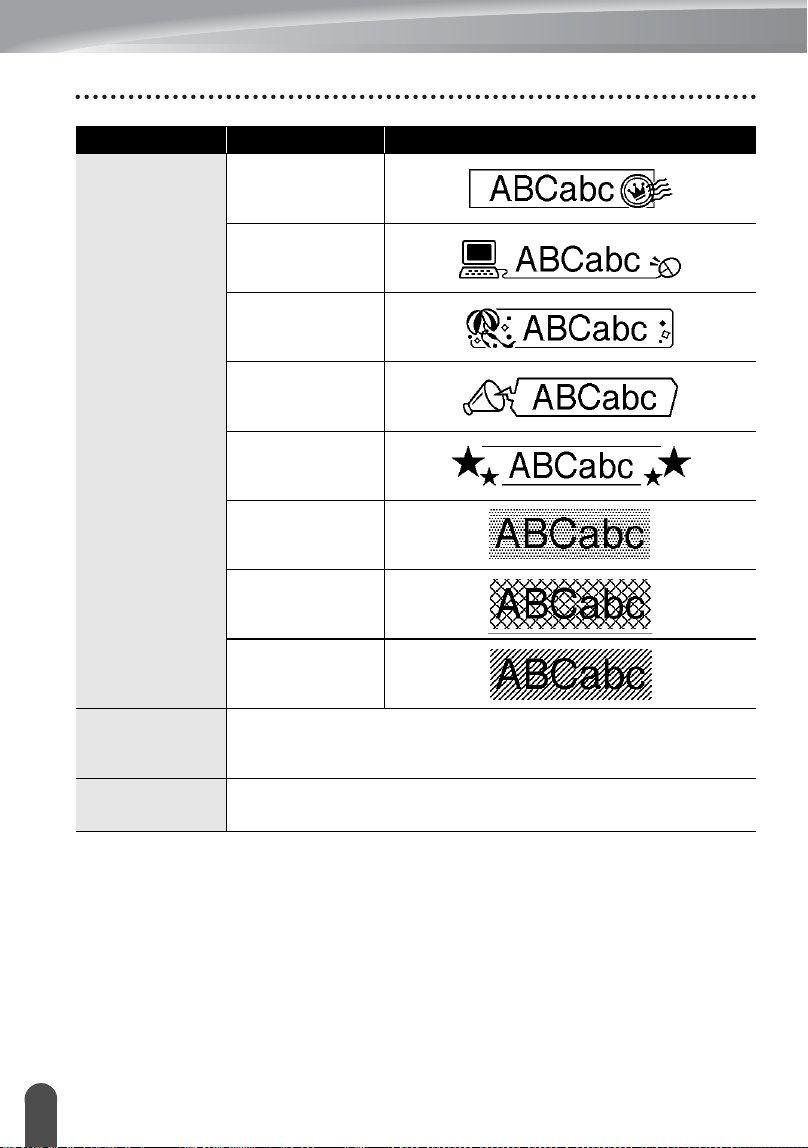
zFramesz
Attribute Value Result
Frame
Off
1
2
3
4
5
6
7
8
9
10
11
12
EDITING A LABEL
37
Setting Label Attributes
Frame
13
14
15
16
17
18
19
20
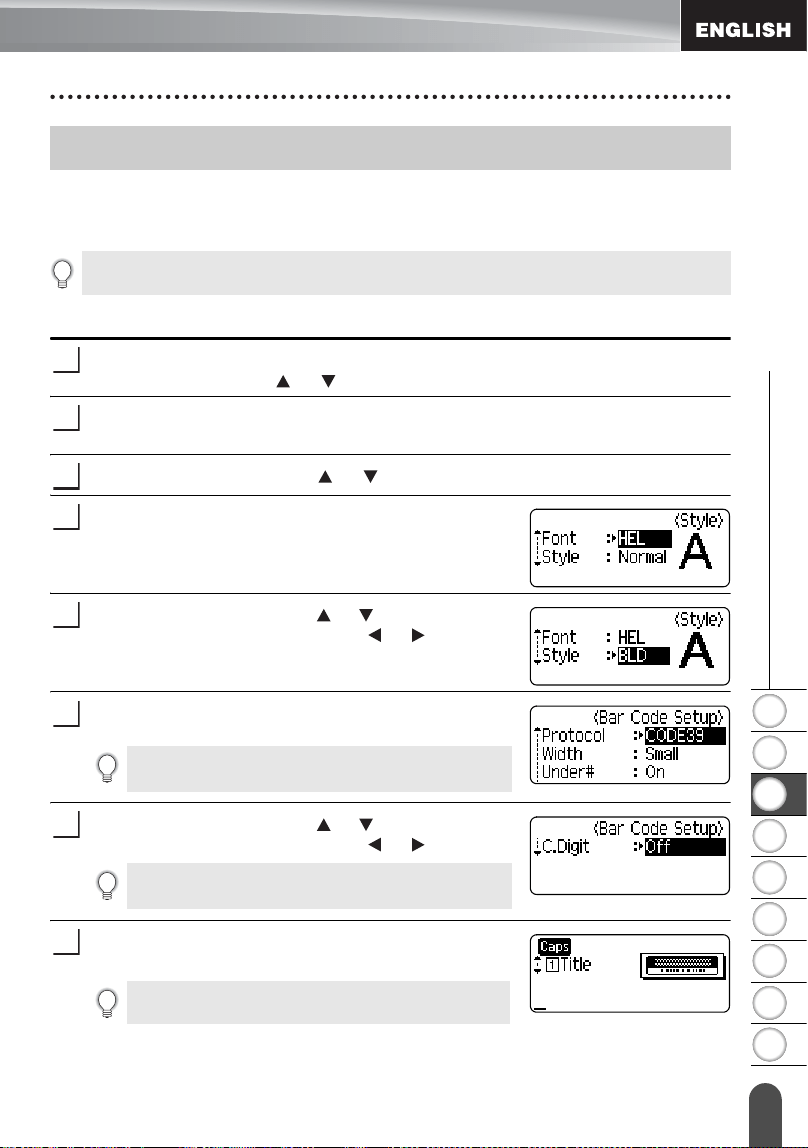
Length
The length of the label can be set within the range 1.2" (30mm) -
12.0" (300mm). When
Auto
is selected, the length of the label is
automatically adjusted based on the amount of text entered.
Tab Length
The length of the tab can be set within the range 0.0" (0mm) -
4.0"(100mm). The default setting is
2.0" (50mm)
.
Attribute Value Result
1
2
3
4
5
6
7
8
9
38
z EDITING A LABEL
Using Auto-Format Layouts
Using the Auto-Format function you can quickly and easily create labels for a variety of
purposes, such as file tabs, equipment labels, name badges, etc. Simply select a layout
from the templates or block layouts, enter the text and apply formatting as desired.
Using Templates - Example creating an Asset Tag
Press the
Auto-Format
key to display the Auto-Format screen, and then select
"Templates" using the or key.
Press the
OK
or
Enter
key
.
The last template used is displayed.
Select a template using the or key.
Press the
OK
or
Enter
key
.
The Style screen is displayed.
Select an attribute using the or key, and then set
a value for that attribute using the or key.
Press the
OK
or
Enter
key
.
The Bar Code Setup screen is displayed.
Select an attribute using the or key, and then set
a value for that attribute using the or key.
Press the
OK
or
Enter
key
.
The template text entry screen is displayed.
Using Auto-Format Layouts
Symbols and accented characters can also be used in auto-format layouts.
1
2
3
4
5
The Bar Code Setup screen is displayed only when a
layout containing a bar code is selected.
6
The "C-Digit" (Check Digit) attribute is only available
for the CODE39, I-2/5 and CODABAR protocols.
7
• Caps mode can be used when entering text.
8
EDITING A LABEL
39
Using Auto-Format Layouts
Enter the text and then press the
OK
or
Enter
key
.
Repeat this for each text field.
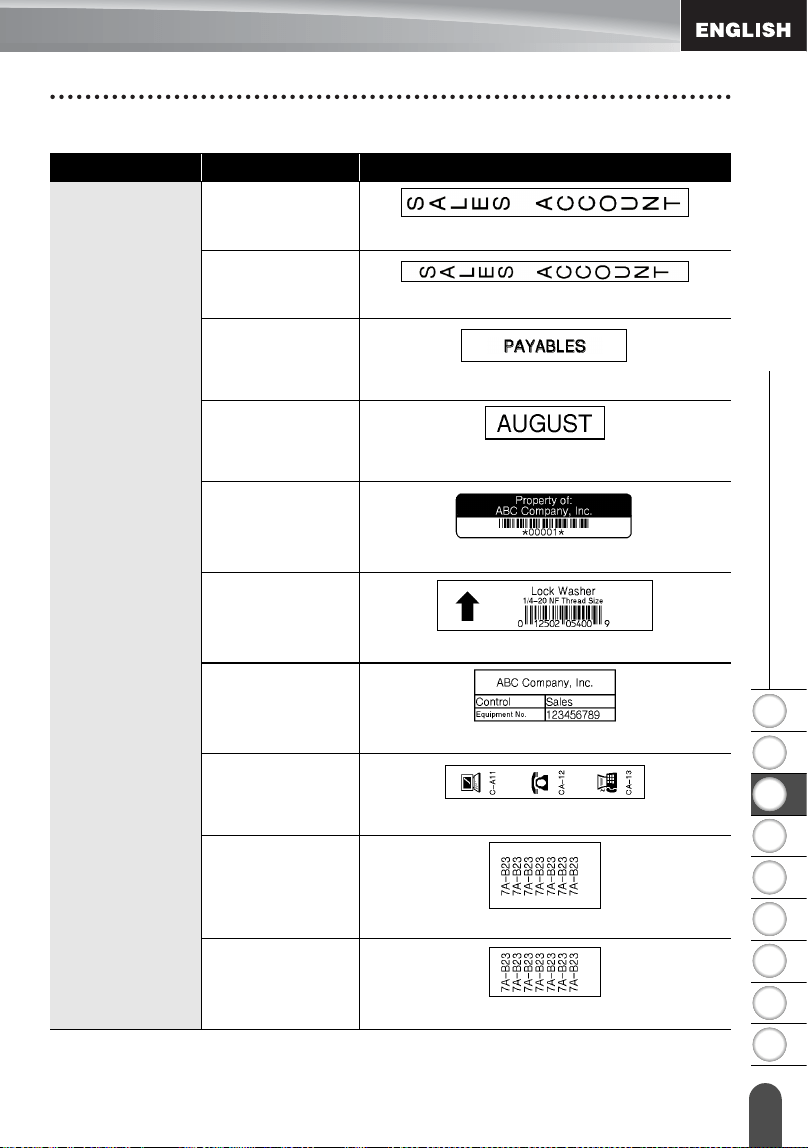
After all text fields are entered, the print menu is
displayed when the
OK
or
Enter
key
is pressed.
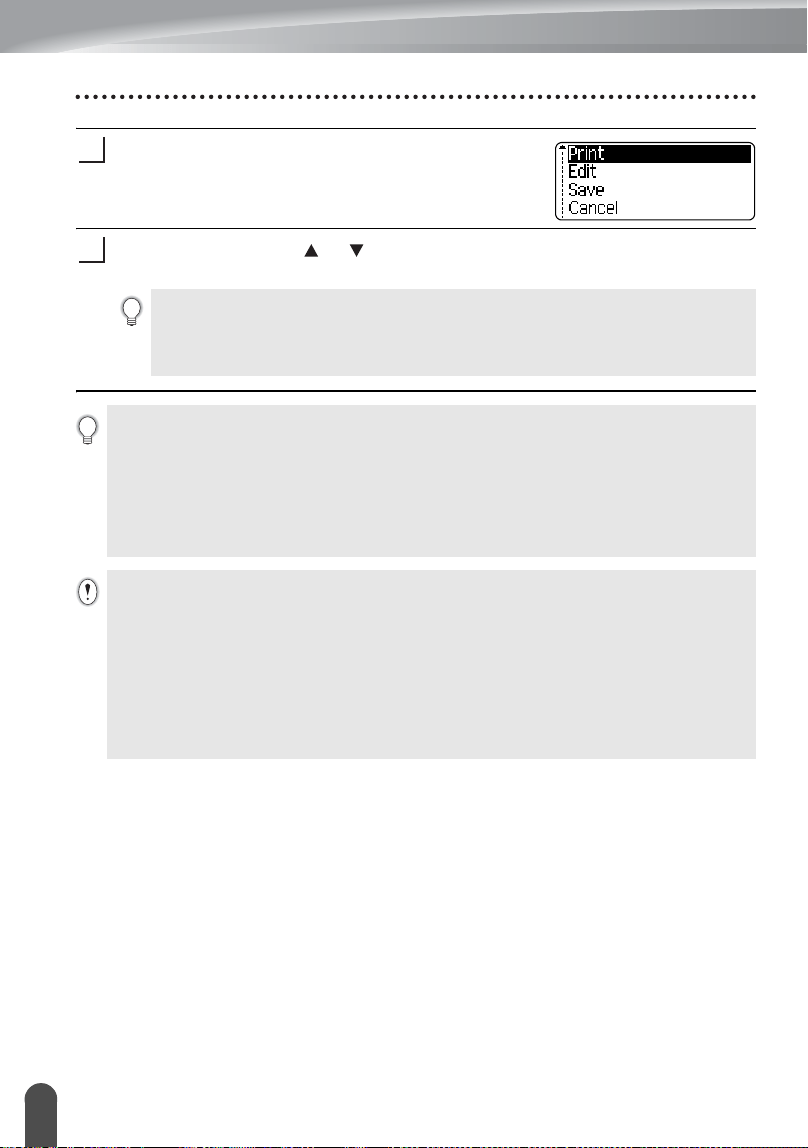
Select "Print" using
the or
key and then press
the
OK
or
Enter
key
to print
the label.
9
10
• Select "Edit" to change the text data or style settings.
• Select "Save" to store the label in a file memory.
• Select "Cancel" to exit the Auto-Format function.
• Select “Print Options” to set the print settings.
•Press the
Escape
key to return to the previous step.
• On the Style and Bar Code Setup screens, press the
Space
key to change the selected attribute
to the default value.
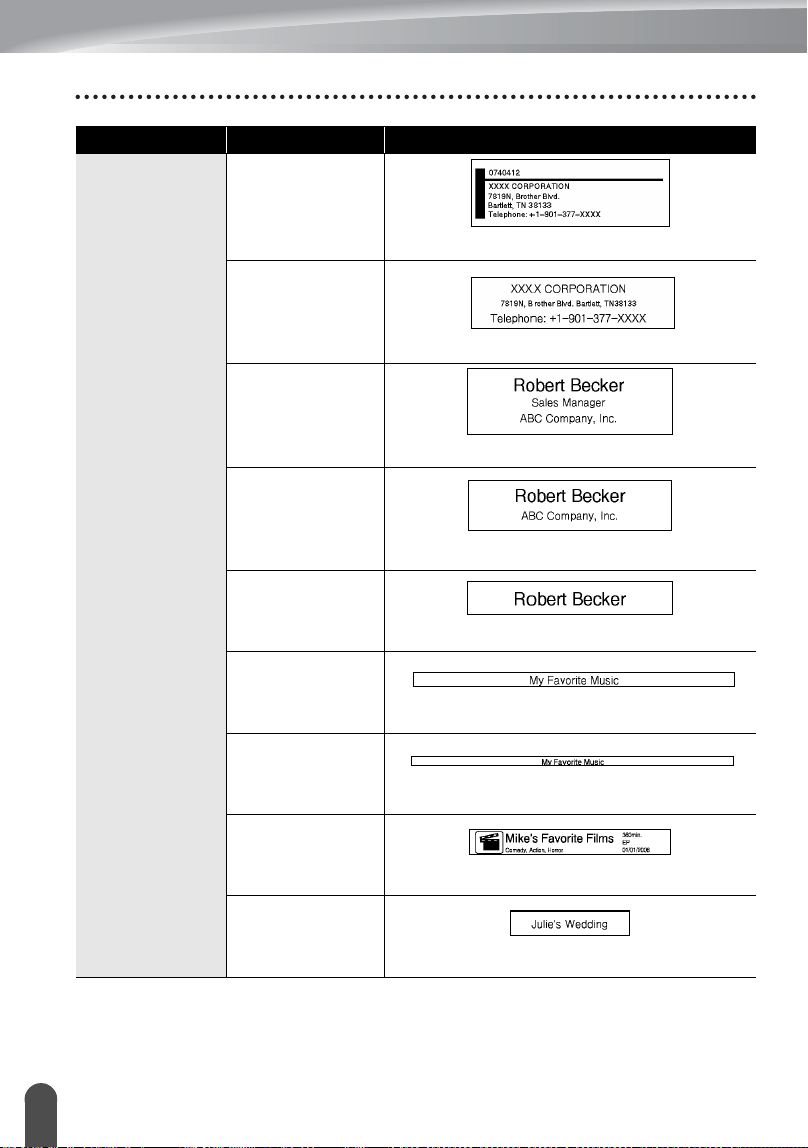
• Refer to the Templates table for a list of available templates.
• To print multiple copies, sequentially numbered copies, or a mirror image of the label, with
the print menu displayed hold down the
Shift
key and press the
Print
key to display the Print
Options menu.
• If the width of the current tape cassette does not match the set width for the selected layout,
an error message is displayed when you try to print the label. Press the
Escape
key or any other
key to clear the error message, and insert a tape cassette of the correct width.
• If the number of characters entered exceeds the limit, “Text Too Long!” is displayed when the
OK
or
Enter
key is pressed. Press the
Escape
key or any other key to clear the error message,
and edit the text using fewer characters.
• When using the Auto-Format function the label is cut with a margin on the left and right ends
regardless of the current Tape Cutting Option setting (refer to page 57).
• Cutting is disabled when “Cut Option” is set to Special Tape.
1
2
3
4
5
6
7
8
9
40
z EDITING A LABEL
Using Auto-Format Layouts
zTemplatesz
Attribute Value Details
Template Name
Binder Spine 1
(0.94" x 8.6" [24 mm x 219 mm])
Binder Spine 2
(0.70" x 8.6" [18mm x 219mm])
File Folder Tab
(0.47" x 3.2" [12 mm x 82 mm])
Divider Tab
(Hanging Folder)
(0.47" x 1.6" [12 mm x 42 mm])
Asset Tag
(0.70" x 2.7" [18 mm x 70 mm])
Bin Box
(0.70" x 3.0" [18 mm x 76 mm])
Equipment Label
(0.94" x 2.2" [24 mm x 58 mm])
Faceplate (VRT)
(0.47" x 2.7" [12 mm x 70 mm])
Cable Wrap 1
(0.94" x 1.5" [24 mm x 39 mm])
Cable Wrap 2
(0.70" x 1.5" [18 mm x 39 mm])
EDITING A LABEL
41
Using Auto-Format Layouts
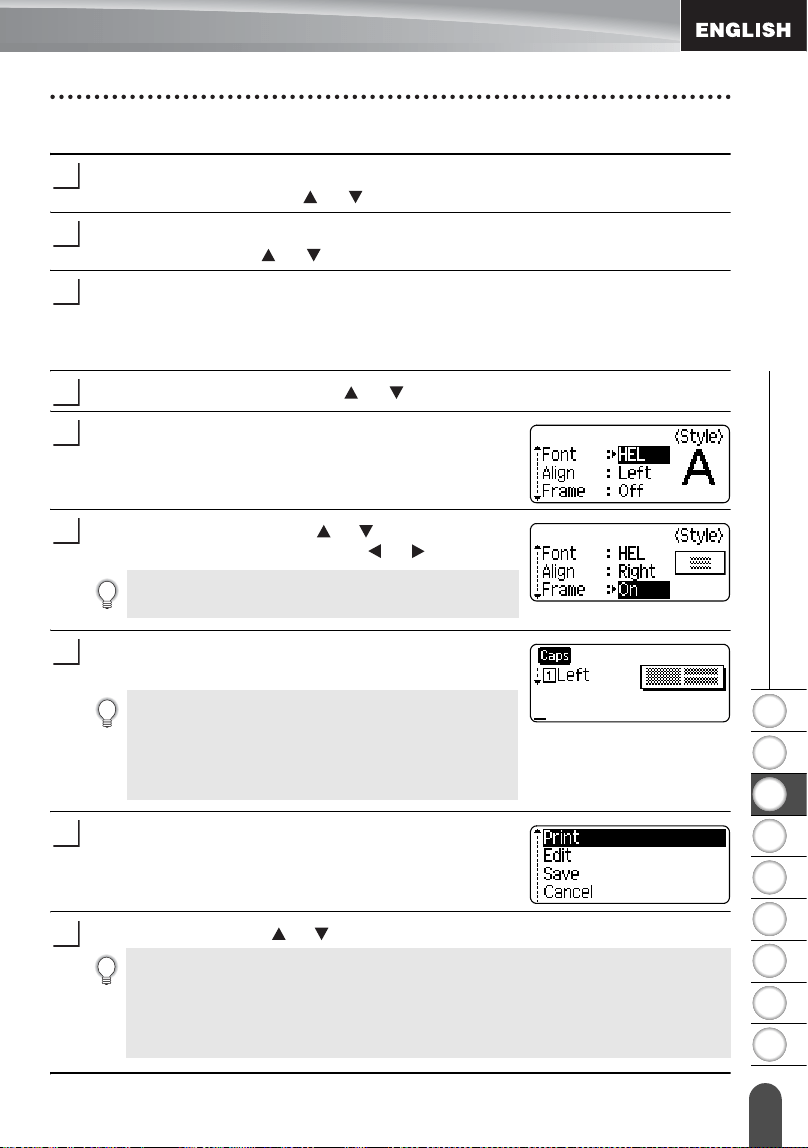
Template Name
Address Label 1
(0.94" x 2.7" [24 mm x 70 mm])
Address Label 2
(0.7" x 2.7" [18 mm x 70 mm])
Name Badge 1
(0.94" x 2.8" [24 mm x 72 mm])
Name Badge 2
(0.70" x 2.8" [18 mm x 72 mm])
Name Badge 3
(0.47" x 2.8" [12 mm x 72 mm])
CD Case Spine 1
(0.23" x 4.4" [6 mm x 113 mm])
CD Case Spine 2
(0.13" x 4.4" [3.5 mm x 113 mm])
VHS Spine
(0.70" x 5.5" [18 mm x 140 mm])
MiniDV Spine
(0.35" x 1.6" [9 mm x 42 mm])
Attribute Value Details
1
2
3
4
5
6
7
8
9
42
z EDITING A LABEL
Using Auto-Format Layouts
Using Block Layouts
Press the
Auto-Format
key to display the Auto-Format screen, and then select
“Block Layouts” using the or key.
Press the
OK
or
Enter
key to display the Tape Width screen, and then select a
tape width using the or key.
Press the
OK
or
Enter
key.
When the tape width has not changed, the last block layout selected is displayed.
When the tape width has changed, the default layout for the new tape width is
displayed.
Select a block layout using the or key.
Press the
OK
or
Enter
key.
The Style screen is displayed.
Select an attribute using the or key, and then set
a value for that attribute using the or key.
Press the
OK
or
Enter
key.
The block layout text entry screen is displayed.
Enter text and then press the
OK
or
Enter
key.
Repeat for each text field.
After all text fields are completed, press the
OK
or
Enter
key to display the print menu.
Select "Print" using the or key and then press the
OK
or
Enter
to print the label.
1
2
3
4
5
Press the
Space
key to set the selected attribute to the
default value.
6
• Caps mode can be used when entering text.
• The “Text Reminder” function (predictive text) is also
enabled when entering text with the Auto-Format
function. Refer to “Entering and Editing Text” on
page 23 for details on predictive text.
7
8
9
• Select "Edit" to change the text data or style settings.
• Select "Save" to store the label in a file memory.
• Select "Cancel" to exit the Auto-Format function.
• Select "Change Layout" to use a different layout.
• Select “Print Options” to set the print settings.
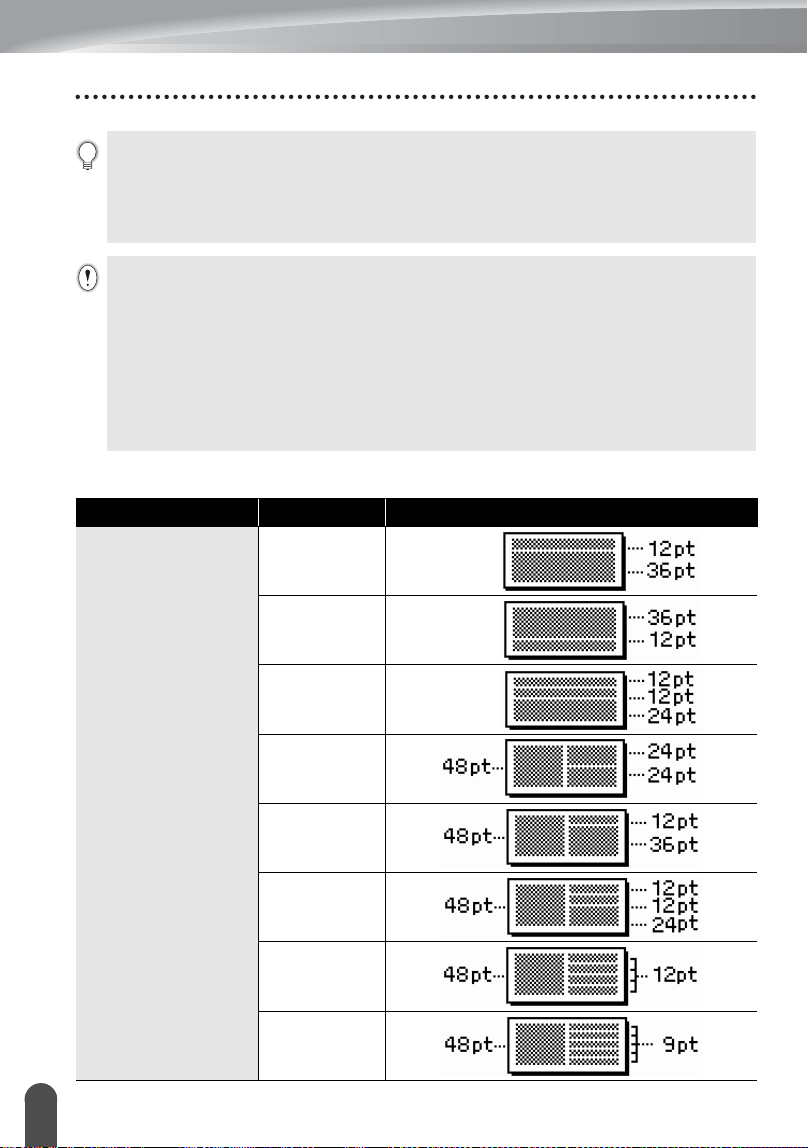
EDITING A LABEL
43
Using Auto-Format Layouts
zBlock Layoutsz
•Press the
Escape
key to return to the previous step.
• Refer to the Block Layouts table for a list of available block layouts.
• To print multiple copies, sequentially numbered copies, or a mirror image of the label, with
the print menu displayed hold down the
Shift
key and press the
Print
key to display the Print
Options menu.
• If the width of the current tape cassette does not match the set width for the selected layout,
an error message is displayed when you try to print the label. Press the
Escape
key or any other
key to clear the error message, and insert a tape cassette of the correct width.
• If the number of characters entered exceeds the limit, “Text Too Long!” is displayed when the
OK
or
Enter
key is pressed. Press the
Escape
key or any other key to clear the error message,
and edit the text using fewer characters.
• When using the Auto-Format function the label is cut with a margin on the left and right ends
regardless of the current Tape Cutting Option setting (refer to page 57).
• Cutting is disabled when “Cut Option” is set to Special Tape.
Attribute Value Details
Block layout
(0.94" [24mm] tape)
2LineA
2LineB
3 Line
1+2Line A
1+2Line B
1+3Line
1+4Line
1+5Line
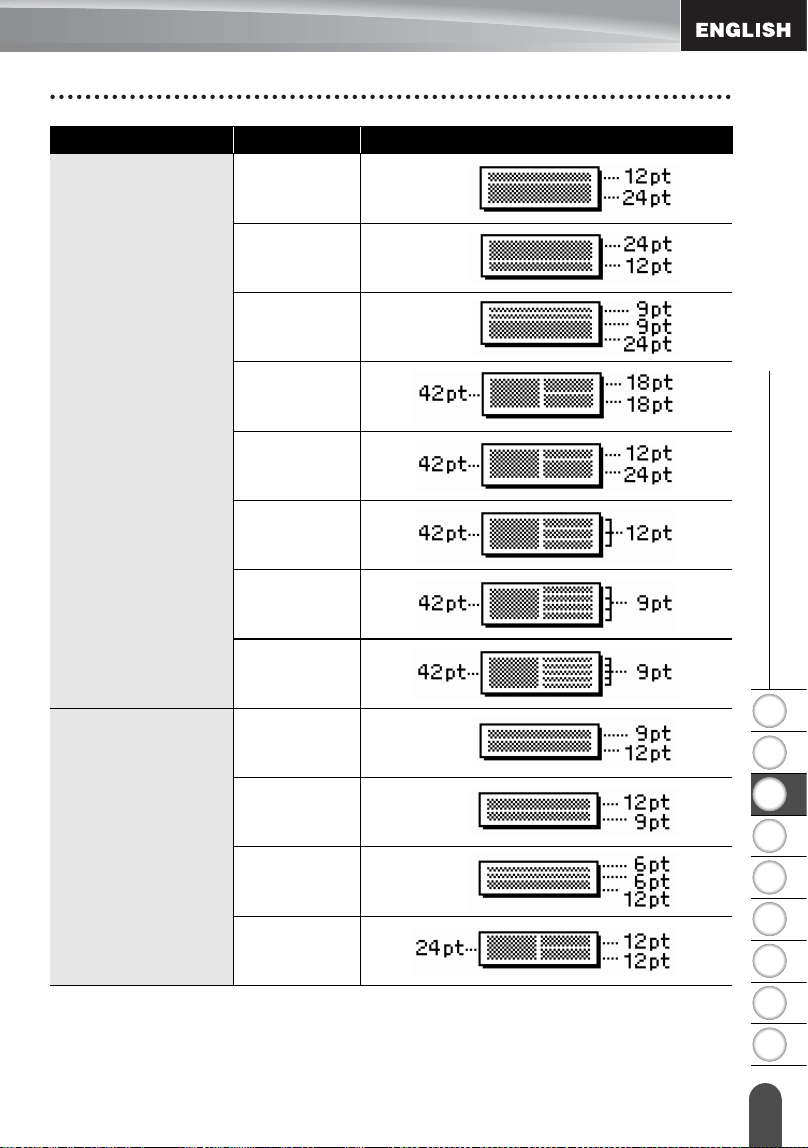
1
2
3
4
5
6
7
8
9
44
z EDITING A LABEL
Using Auto-Format Layouts
Block layout
(0.70" [18 mm] tape)
2LineA
2LineB
3Line
1+2LineA
1+2LineB
1+3Line
1+4Line
1+5Line
Block layout
(0.47" [12 mm] tape)
2LineA
2LineB
3Line
1+2Line
Attribute Value Details
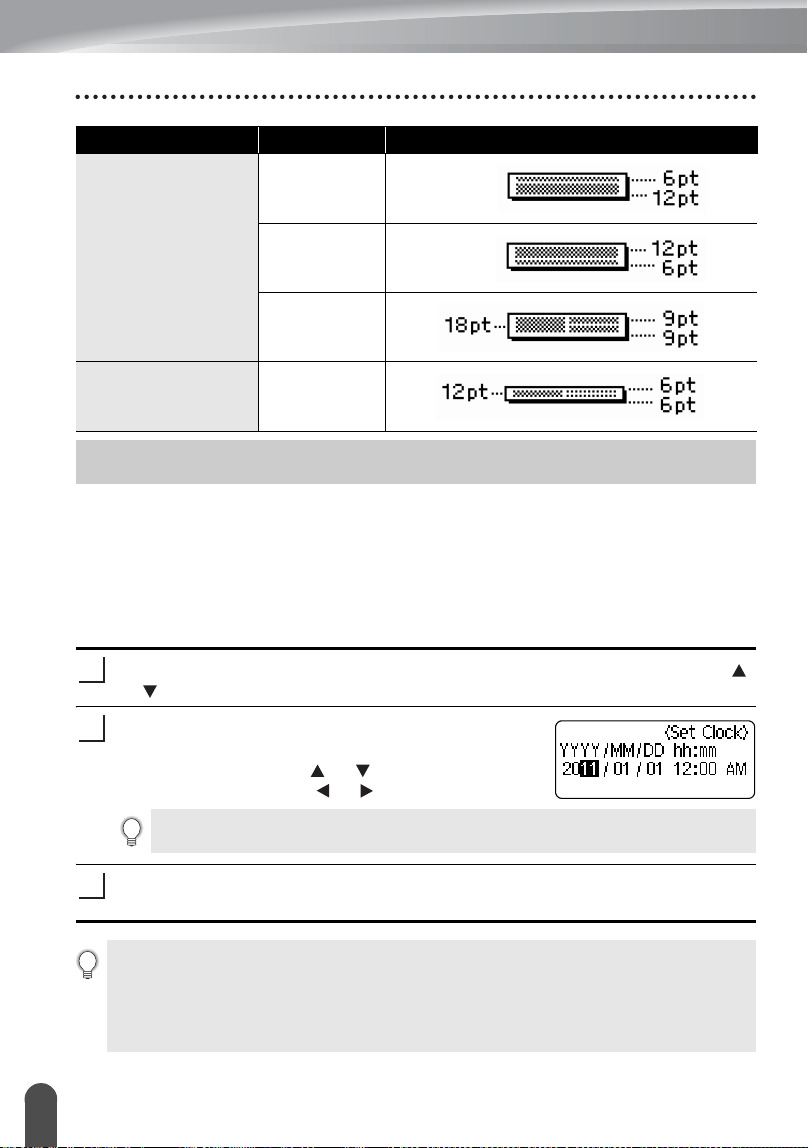
EDITING A LABEL
45
Using Time & Date Function
You can add time and date to your label by positioning the cursor on the text screen to
the position you wish to add time/date and then pressing the
Time
key.
Clock Setting
The time and date set in the clock setting can be used for the display on the screen,
and also for using the Time & Date function which you can add time/date to your label
in desired format.
Press the
Setup
key to display the Setup menu, select "Set Clock" using the
or keys, and then press the
OK
or
Enter
key.
The Set Clock screen is displayed.
Set the year, month, date, hour and minute to the
current figure using the or key. To move to the
next parameter, use the or key.
Press the
OK
or
Enter
key to apply the settings.
Block layout
(0.35" [9 mm] tape)
2LineA
2LineB
1+2Line
Block layout
(0.23" [6 mm] tape)
1+2Line
Using Time & Date Function
Attribute Value Details
1
2
You can also use the Num keys to type in the figure.
3
•Press the
Escape
key to return to the previous step.
•Press the
Space
key to set the format to default setting.
• The clock will activate from when the clock setting is applied.
• For the backup of clock setting, when the AC adapter is unplugged, please use AA-size
alkaline batteries.
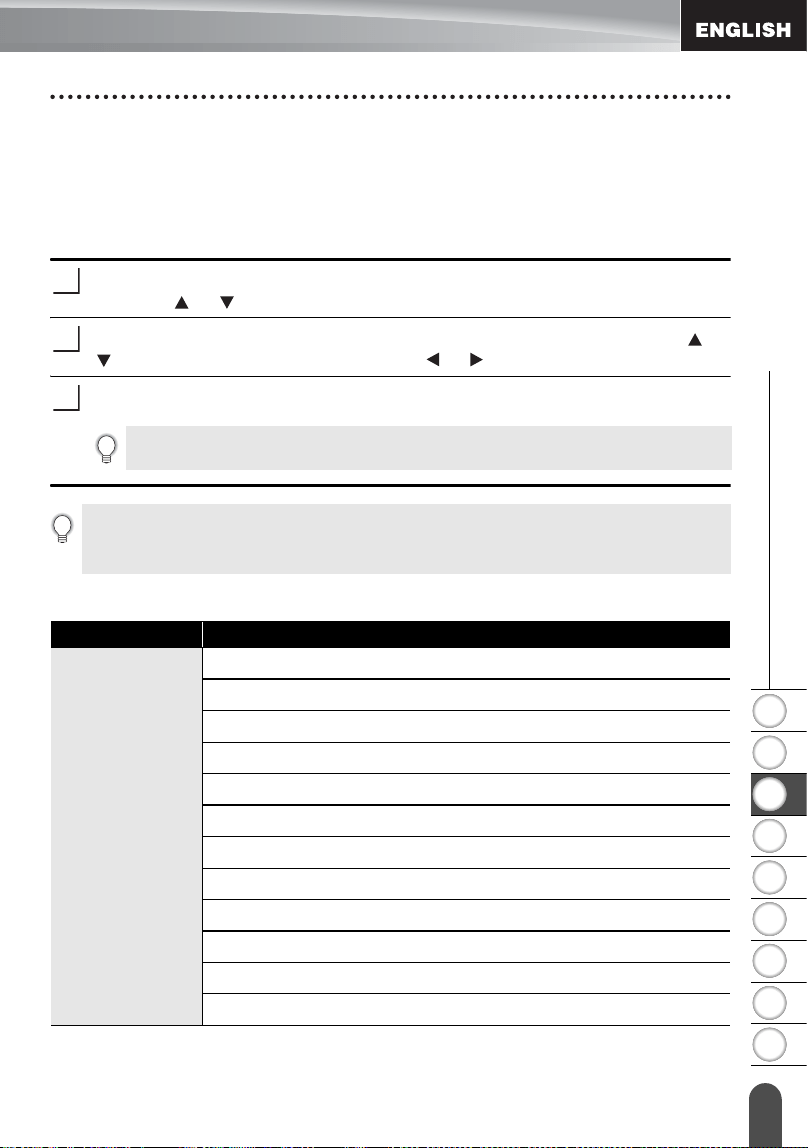
1
2
3
4
5
6
7
8
9
46
z EDITING A LABEL
Using Time & Date Function
Time & Date Format Setting
You can select from various formats of date and time to add to your label.
Also, the indication of time can be selected between analog and digital style.
The format applied in this setting will also be applied for the clock display which appears
on the screen when you press the
Display
key. (Refer to “Display Mode” on page 21
for detail.)
Press the
Setup
key to display the Setup menu, select "Time & Date Format"
using the or key, and then press the
OK
or
Enter
key.
The Time & Date Format screen is displayed. Select date or time using the or
key, and then set the format using the or key.
Press the
OK
or
Enter
key to apply the settings.
zTime & Date Format Optionsz
1
2
3
New settings are not applied if you do not press the
OK
or
Enter
key.
•Press the
Escape
key to return to the previous step.
•Press the
Space
key to set the format to default setting.
• Refer to the Format Options for a list of all available formats.
Attribute Value
D
(Date)
12/31/2099
12.31.2099
12-31-2099
December 31, 2099
Dec. 31, 2099
2099/12/31
2099-12-31
31/12/2099
31.12.2099
31-12-2099
31. December 2099
31. Dec. 2099
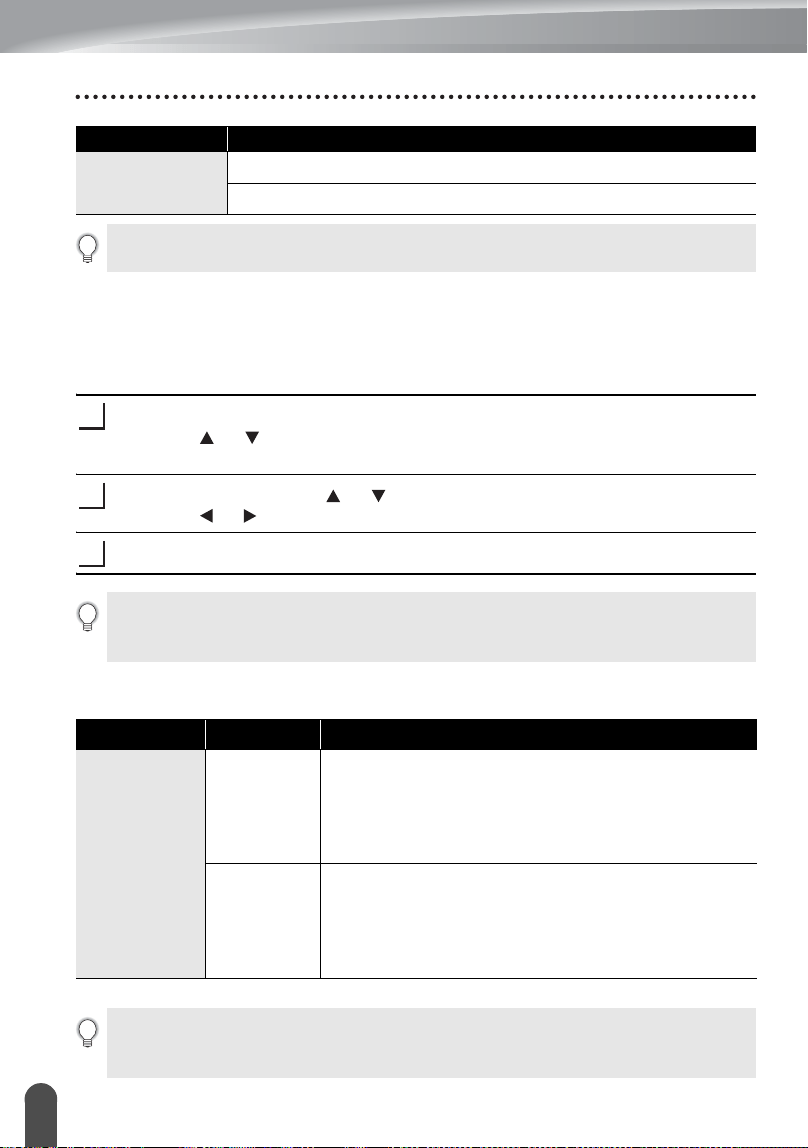
EDITING A LABEL
47
Using Time & Date Function
Time Stamp Setting
[Timing]
You can select whether to print the date/time of when you press the
Time
key or the
date/time of when you press the
Print
key to add to your label.
Press the
Setup
key to display the Setup menu, select "Time Stamp Setting"
using the or key, and then press the
OK
or
Enter
key.
Select "Timing" using the or key, and then select the value for the setting
using the or key.
Press the
OK
or
Enter
key to apply the settings.
zTime Stamp : Timing Optionsz
T
(Time)
11:59 PM
23:59
Attribute Value
The date and time used for the value is a sample setting. When a format is selected, the date and
time set in the clock setting will appear in the selected format style.
1
2
3
•Press the
Escape
key to return to the previous step.
•Press the
Space
key to set the format to default setting.
• Refer to the Time Stamp: Timing Options for available settings.
Attribute Value Description
Timing
Auto
Press the
Time
key; a clock icon will be inserted where
the cursor is positioned on the text input screen.
When you press the
Print
key, the latest date/time will
be printed on the label where the clock icon is
positioned on the label layout.
Fixed
Press the
Time
key; the current date/time will be
inserted where the cursor is positioned on the text
input screen.
When you press the
Print
key, the date/time will be
printed as shown on the input screen.
When "Auto" is selected for the Timing setting and a clock icon is added to the text by pressing
the
Time
key, you can confirm what settings applied for the icon by positioning the cursor under
the clock icon, and then pressing the
Time
key.
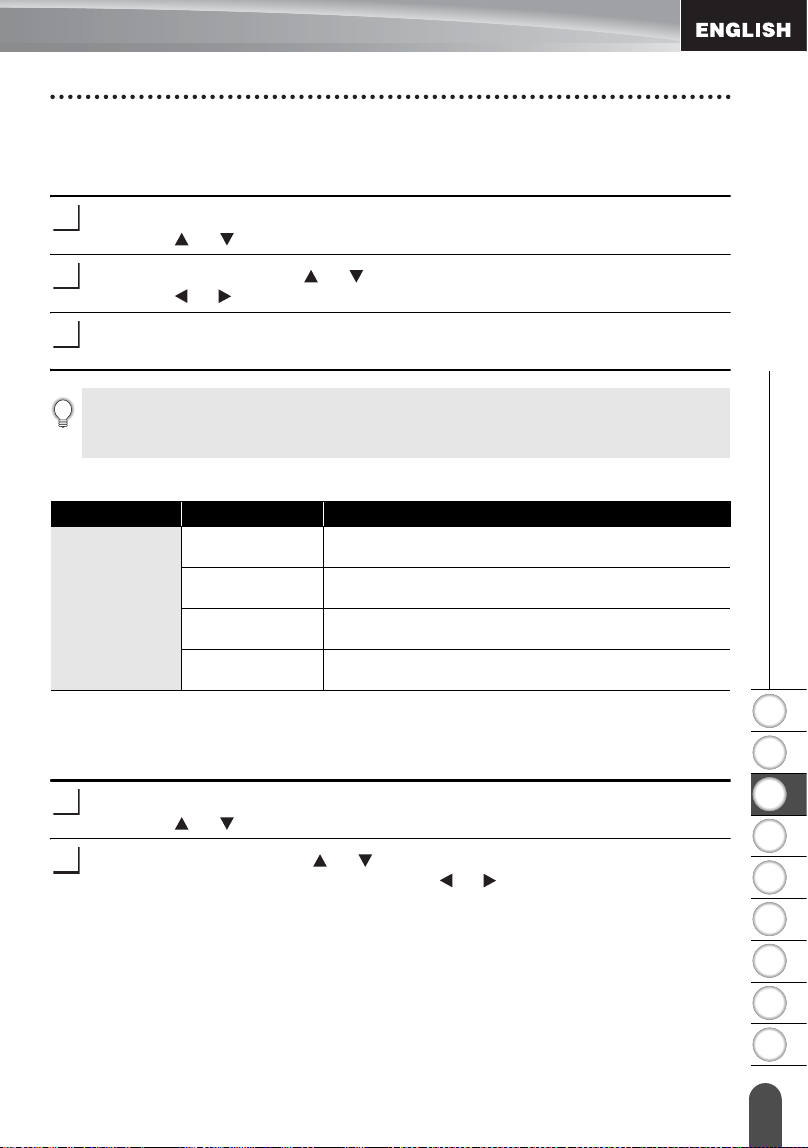
1
2
3
4
5
6
7
8
9
48
z EDITING A LABEL
Using Time & Date Function
[Time Stamp Format]
You can select which information to use when adding date and time to your label.
Four options (Date, Time, Date and Time or Time and Date) are available.
Press the
Setup
key to display the Setup menu, select "Time Stamp Setting"
using the or key, and then press the
OK
or
Enter
key.
Select "Format" using the or key, and then select the value for the setting
using the or key.
Press the
OK
or
Enter
key to apply the settings.
zTime Stamp : Format Optionsz
[Forward]
You can select whether to use a forwarded (future) date and time or the current date
and time when using the Time & Date Function.
Press the
Setup
key to display the Setup menu, select "Time Stamp Setting"
using the or key, and then press the
OK
or
Enter
key.
Select "Forward" using the or key, and then to specify the amount of date
and time to increase, select "On" using the or key.
1
2
3
•Press the
Escape
key to return to the previous step.
•Press the
Space
key to set the value to default setting.
• Refer to the Time Stamp: Format Options for available settings.
Attribute Value Description
Format
Date
Date only will be printed on the label.
Date & Time The date and time will be printed on the label.
Time Time only will be printed on the label.
Time & Date The time and date will be printed on the label.
1
2
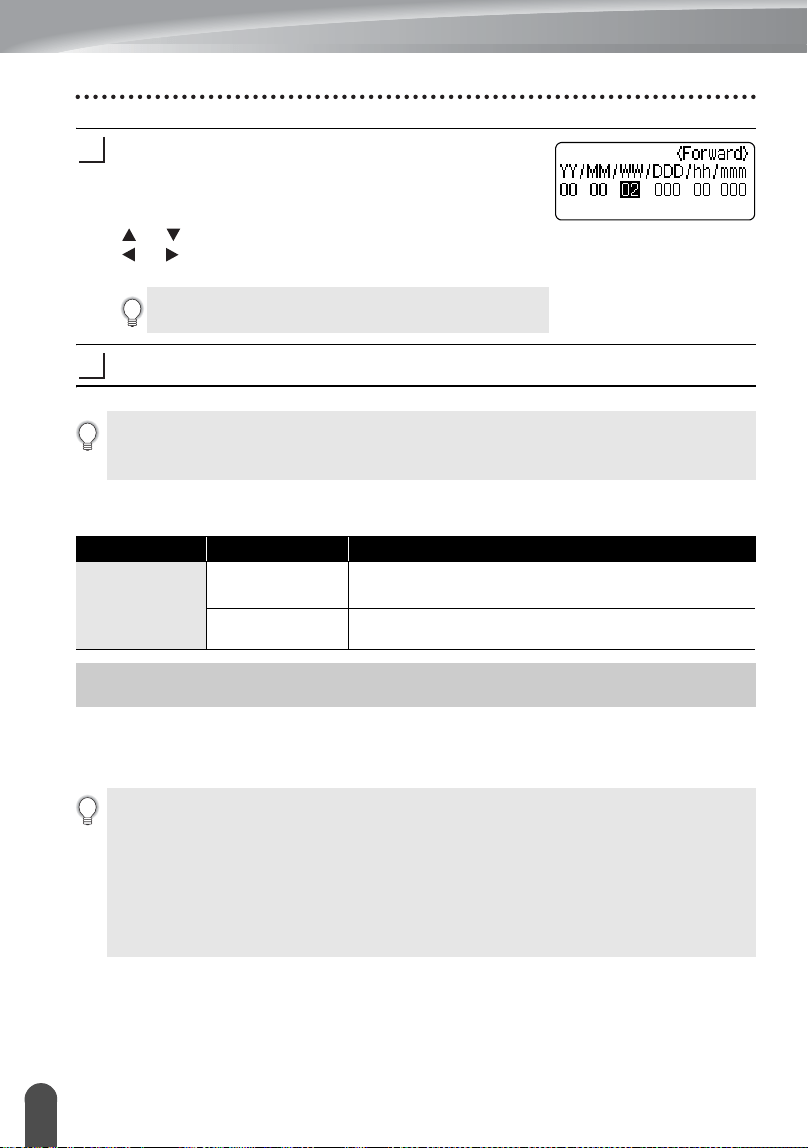
EDITING A LABEL
49
Creating a Bar Code Label
Press the
OK
or
Enter
key. The Forward screen is
displayed. Set the amount of year, month, week, day,
hour, and minute to increase from the currently set
clock when using the Time & Date function using the
or key. To move to the next parameter, use the
or key.
Press the
OK
or
Enter
key to apply the settings.
zTime Stamp : Forward Optionsz
Using the Bar Code function you can create labels with one dimensional bar codes for
use with cash registers, stock control systems or other bar code reader systems, or
even asset control tags used in an asset management system.
You can also use the Num keys to type in the figure.
3
4
•Press the
Escape
key to return to the previous step.
•Press the
Space
key to set the format to default setting.
• Refer to the Time Stamp: Forward Options for a list of all available formats.
Attribute Value Description
Forward
On
The time/date will be increased according to the
value selected in the Forward setting.
Off
Current time/date will be printed.
Creating a Bar Code Label
• The P-touch labeler is not designed exclusively for creating bar code labels. Always
check that bar code labels can be read by the bar code reader.
• For best results, print bar code labels in black ink on white tape. Some bar code readers
may not be able to read bar code labels created using colored tape or ink.
• Use the “Large” setting for “Width” whenever possible. Some bar code readers may not
be able to read bar code labels created using the “Small” setting.
• Continuously printing a large number of labels with bar codes can overheat the print
head, which may affect printing quality.
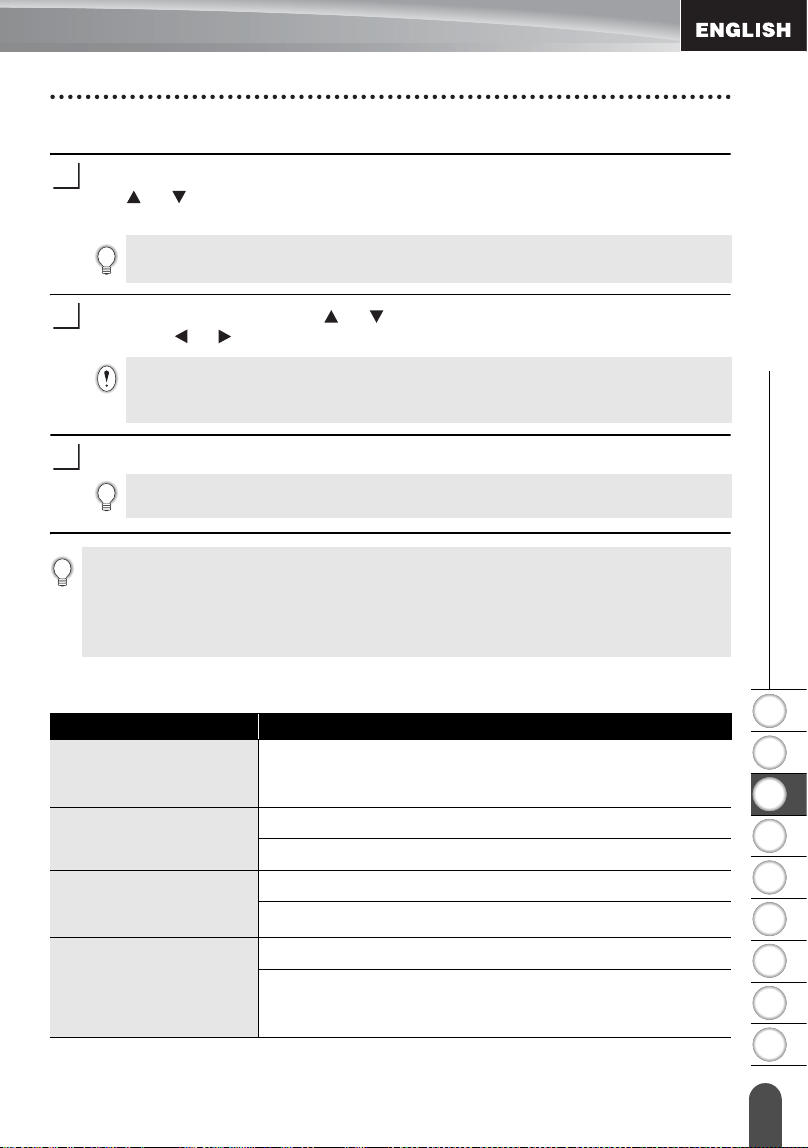
1
2
3
4
5
6
7
8
9
50
z EDITING A LABEL
Creating a Bar Code Label
Setting Bar Code Parameters
Press the
Setup
key to display the Setup menu, select “Bar Code Setup” using
the or key, and then press the
OK
or
Enter
key
.
The Bar Code Setup screen is displayed.
Select an attribute using the or key, and then set a value for that attribute
using the or key.
Press the
OK
or
Enter
key to apply the settings.
zBar Code Settingsz
1
Pressing
Bar Code
key while holding down the
Shift
key will also allow you to go
to "Bar Code Setup".
2
Characters may not appear below the bar code even when "On" is selected for "Under #",
depending on the tape width being used, the number of lines entered, or the current
character style settings.
3
• New settings are NOT applied if you do not press the
OK
or
Enter
key.
• The "C-Digit" (Check Digit) attribute is only available for the CODE39, I-2/5 and CODABAR
protocols
•Press the
Escape
key to return to the previous step.
•Press the
Space
key to set the selected attribute to the default value.
• Refer to the Bar Code Settings table for a list of all available settings.
Attribute Value
Protocol
CODE39
, CODE128, EAN-8, EAN-13,
GS1-128 (UCC / EAN-128), UPC-A, UPC-E, I-2/5 (ITF),
CODABAR
Width
Small
Large
Under#
(characters printed
below bar code)
On
Off
C.Digit
(check digit)
Off
On
(only available for the CODE39, I-2/5
and CODABAR protocols)
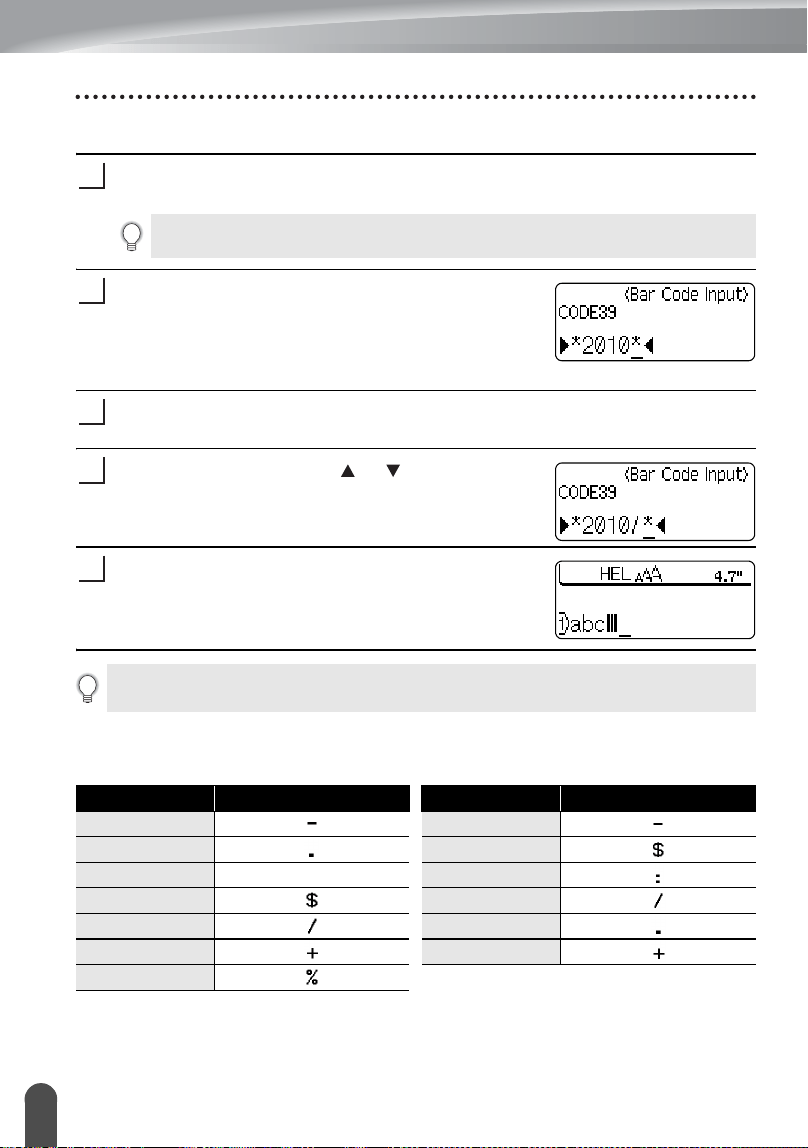
EDITING A LABEL
51
Creating a Bar Code Label
Entering Bar Code Data
Press the
Bar Code
key.
The Bar Code Input screen is displayed.
Type in the bar code data.
Special characters can be entered in the bar code
when using the CODE39, CODABAR, CODE128 or
GS1-128 (UCC / EAN-128) protocols. When not using
special characters, go to step 5.
Press the
Symbol
key.
A list of characters available for the current protocol is displayed.
Select a character using
the or
key, then press
the
OK
or
Enter
key to insert the character in the bar
code data.
Press the
OK
or
Enter
key
to insert the bar code in the
label.
The bar code is displayed on the text entry screen.
zSpecial Character Listz
CODE39 CODABAR
1
Up to five bar codes can be entered on a label.
2
3
4
5
•Press the
Escape
key to return to the previous step.
• Refer to the Special Characters List table for a list of all available settings.
Code Special Character Code Special Character
0 0
1 1
2 (SPACE) 2
3 3
4 4
5 5
6
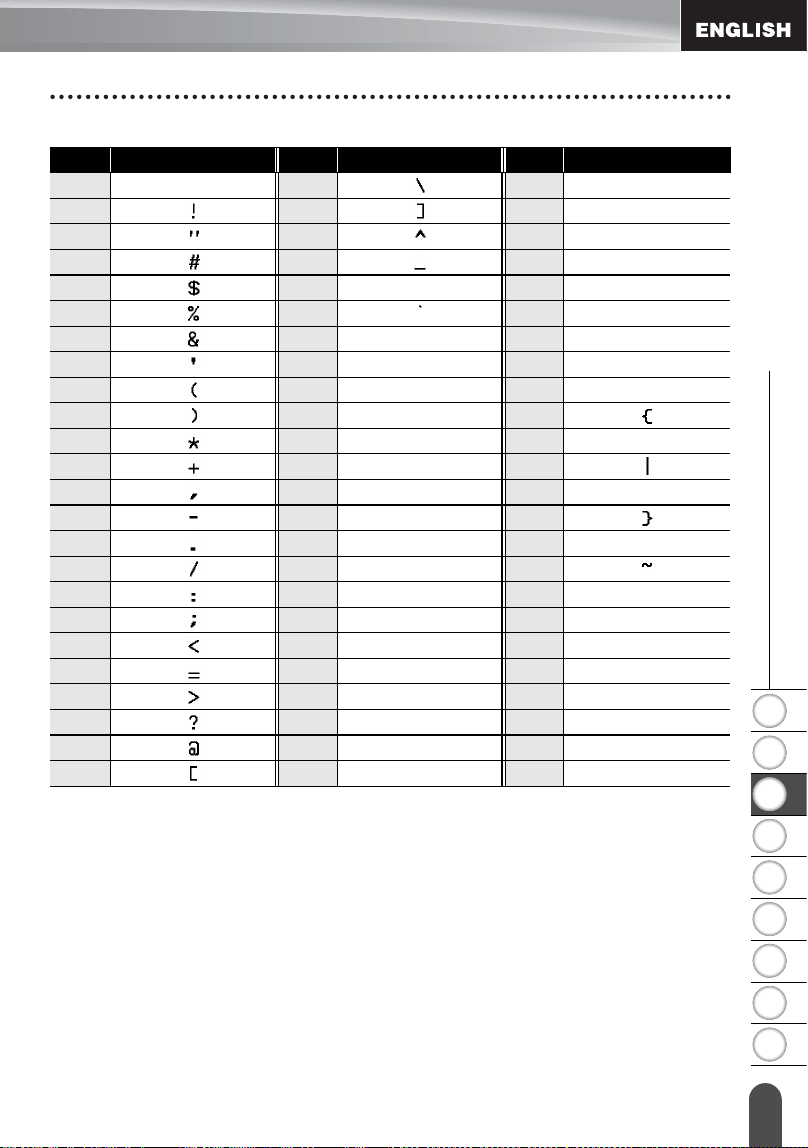
1
2
3
4
5
6
7
8
9
52
z EDITING A LABEL
Creating a Bar Code Label
CODE128, GS1-128 (UCC / EAN-128)
Editing and Deleting a Bar Code
• To edit the bar code data position the cursor beneath the bar code mark on the data
entry screen and then open the Bar Code Input screen. Refer to “Entering Bar Code
Data” on page 51.
• To edit the “Width” and “Under#” settings on a bar code already placed on the screen,
position the cursor beneath the bar code mark on the data entry screen and then open
the Bar Code Setup screen. Refer to “Setting Bar Code Parameters” on page 50.
• To delete a bar code from a label, position the cursor to the right of the bar code mark
on the data entry screen and press the
Backspace
key.
Code Special Character Code Special Character Code Special Character
0 (SPACE) 24 48 DC3
1 25 49 DC4
2 26 50 NAK
3 27 51 SYN
4 28 NUL 52 ETB
5 29 53 CAN
6 30 SOH 54 EM
7 31 STX 55 SUB
8 32 ETX 56 ESC
9 33 EOT 57
10 34 ENQ 58 FS
11 35 ACK 59
12 36 BEL 60 GS
13 37 BS 61
14 38 HT 62 RS
15 39 LF 63
16 40 VT 64 US
17 41 FF 65 DEL
18 42 CR 66 FNC3
19 43 SO 67 FNC2
20 44 SI 68 FNC4
21 45 DLE 69 FNC1
22 46 DC1
23 47 DC2
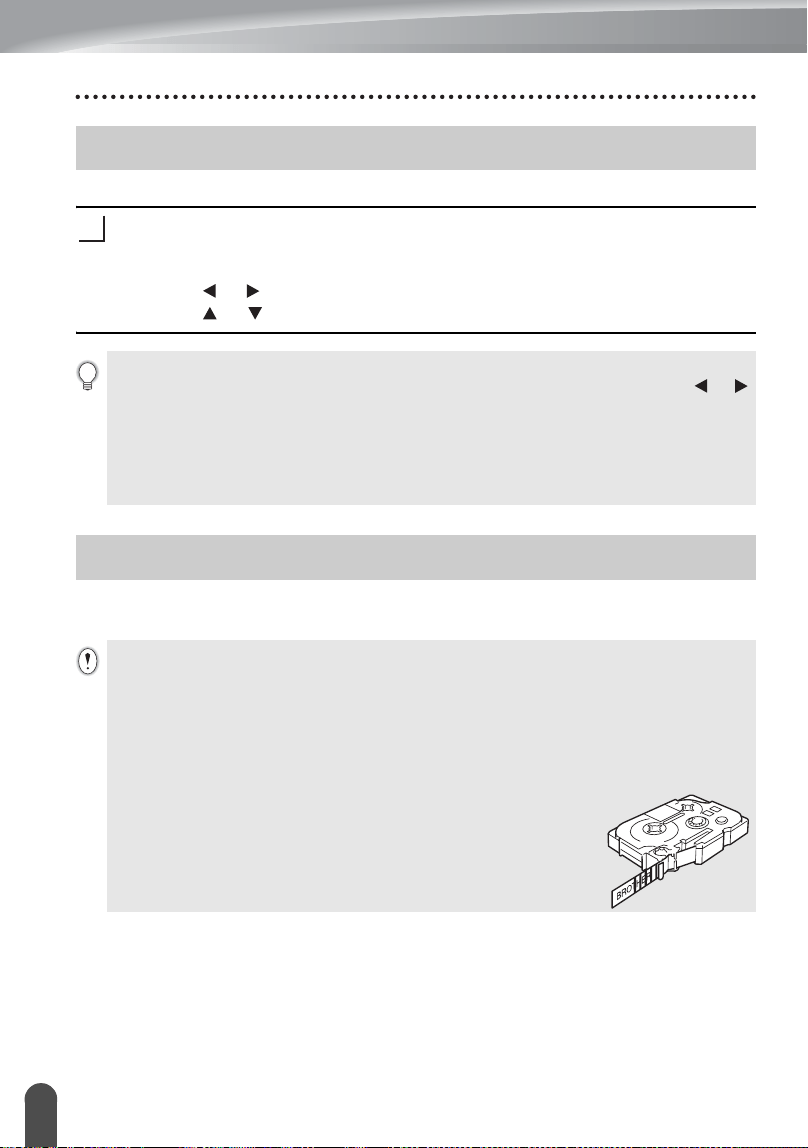
53
Label Preview
LABEL PRINTING
Using the Preview function you can check the layout of the label before printing.
Press the
Preview
key.
An image of the label is displayed on the screen.
The length of the label is shown in the lower-right corner of the screen.
Press the or key to scroll the preview to the left or right.
Press the or key to change the magnification of the preview.
Labels can be printed once text entry and formatting is complete. Printing options
include single and multiple copies, sequential numbering and mirror-printing.
Label Preview
1
•Press the
Escape
,
OK
or
Enter
key to return to the text entry screen.
• To scroll the preview to the left or right end, hold down the
Shift
key and press the or
key.
• To print the label directly from the preview screen, press the
Print
key or open the print
options screen and select a print option. Refer to "Printing a Label" below for details.
• The print preview is a generated image of the label, and may differ from the actual label when
printed.
Printing a Label
• Do not pull the label coming out of the tape exit slot. Doing so will cause the ink ribbon
to be discharged with the tape.
• Do not block the tape exit slot during printing or when feeding tape. Doing so will cause the
tape to jam.
• Be sure to check that there is enough tape remaining when printing several labels
continuously. If tape is running low, set fewer copies, print labels one at a time, or replace the
tape cassette.
• Striped tape indicates the end of the tape cassette. If this appears during
printing, press the
Power
key to turn the P-touch labeler off.
Attempting to print with an empty tape cassette may damage the
machine.
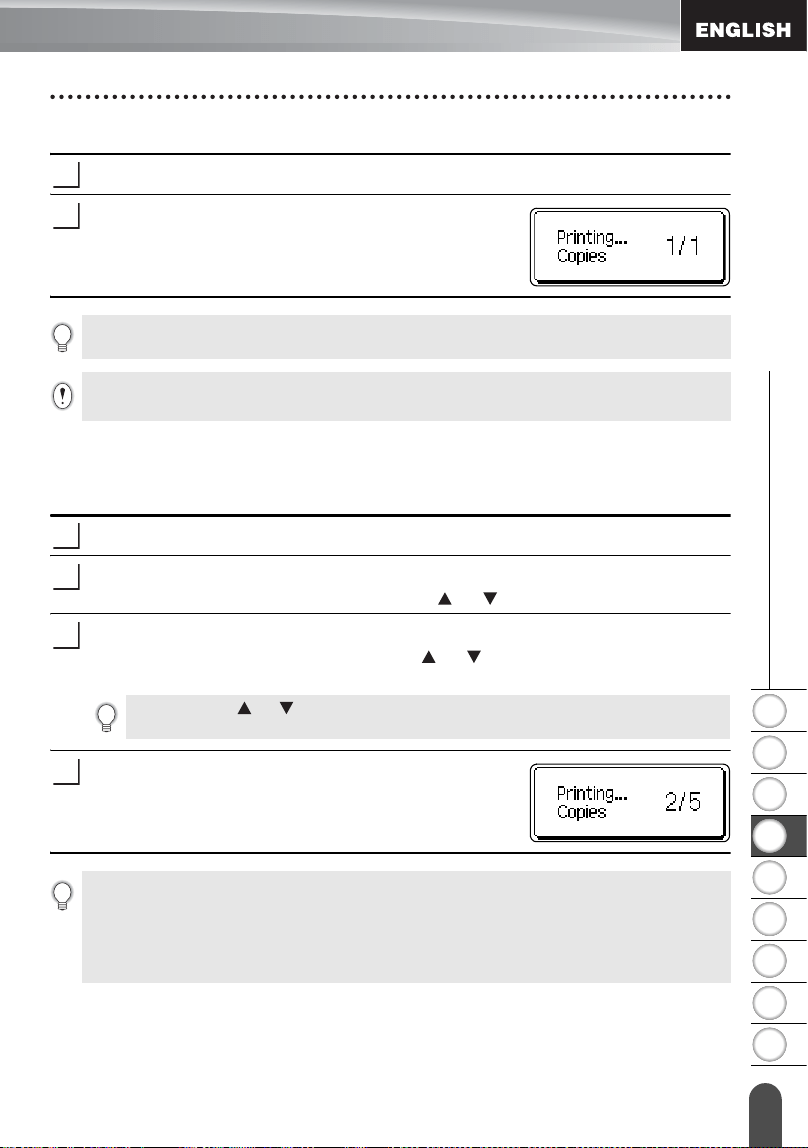
1
2
3
4
5
6
7
8
9
54
z LABEL PRINTING
Printing a Label
Printing a Single Copy
Make sure that the appropriate tape cassette is inserted and ready for printing.
Press the
Print
key. "Printing...Copies" is displayed
while the labels are being printed.
Printing Multiple Copies
Using this function you can print up to 99 copies of the same label.
Make sure that the appropriate tape cassette is inserted and ready for printing.
Hold down the
Shift
key and press the
Print
key to display the print options
screen, and then select “Copies” using the or key.
Press the
OK
or
Enter
key to display the Copies screen, and then select the
number of copies to be printed using the or key, or type the number using
the number keys.
Press the
OK
or
Enter
key. "Printing...Copies" is
displayed while the labels are being printed.
1
2
To stop printing, press the
Power
key to turn off the P-touch labeler.
There are several other messages that may appear when you press the
Print
key. Refer to “Error
Messages” on page 74 for further information about error messages.
1
2
3
Hold down the or key to change the number of copies faster.
4
•Press the
Escape
key to return to the previous step.
• Unless set otherwise, the tape is automatically cut after each copy is printed. Refer to “Tape
Cutting Options” on page 57 to change this setting.
• The figures shown on the screen during printing indicate the “count / number of copies set”.
• Pressing the
Space
key when setting the number of copies resets the value to 1, the default.
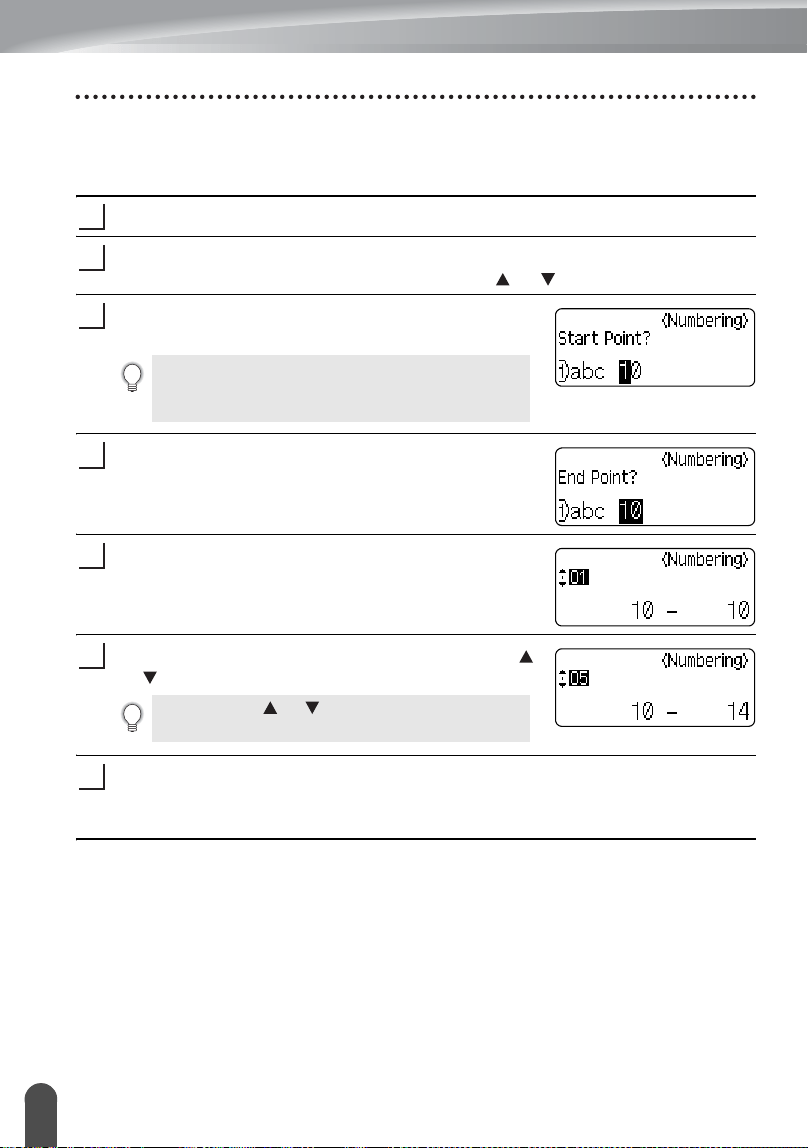
LABEL PRINTING
55
Printing a Label
Auto-numbering Labels
Using the numbering function you can create a set of sequentially numbered labels
from a single label format.
Make sure that the appropriate tape cassette is inserted and ready for printing.
Hold down the
Shift
key and press the
Print
key to display the print options
screen, and then select "Numbering" using the or key.
Press the
OK
or
Enter
key.
The numbering start point screen is displayed.
Move the cursor to the first character to be
incremented in the numbering sequence and press
the
OK
or
Enter
key.
The numbering end point screen is displayed.
Move the cursor to the last character to be
incremented in the numbering sequence and press
the
OK
or
Enter
key.
The number of labels to be printed is displayed.
Select the number of labels to be printed using the
or key, or type the number using the number key.
Press the
OK
or
Enter
key.
The labels are printed.
As each label is printed the number of copies printed is shown.
1
2
To apply auto-numbering to a bar code, select the bar code
here. After selecting the bar code you will be prompted to
enter the number of labels to be printed (step 6).
3
4
5
Hold down the or key to change the number of
labels faster.
6
7
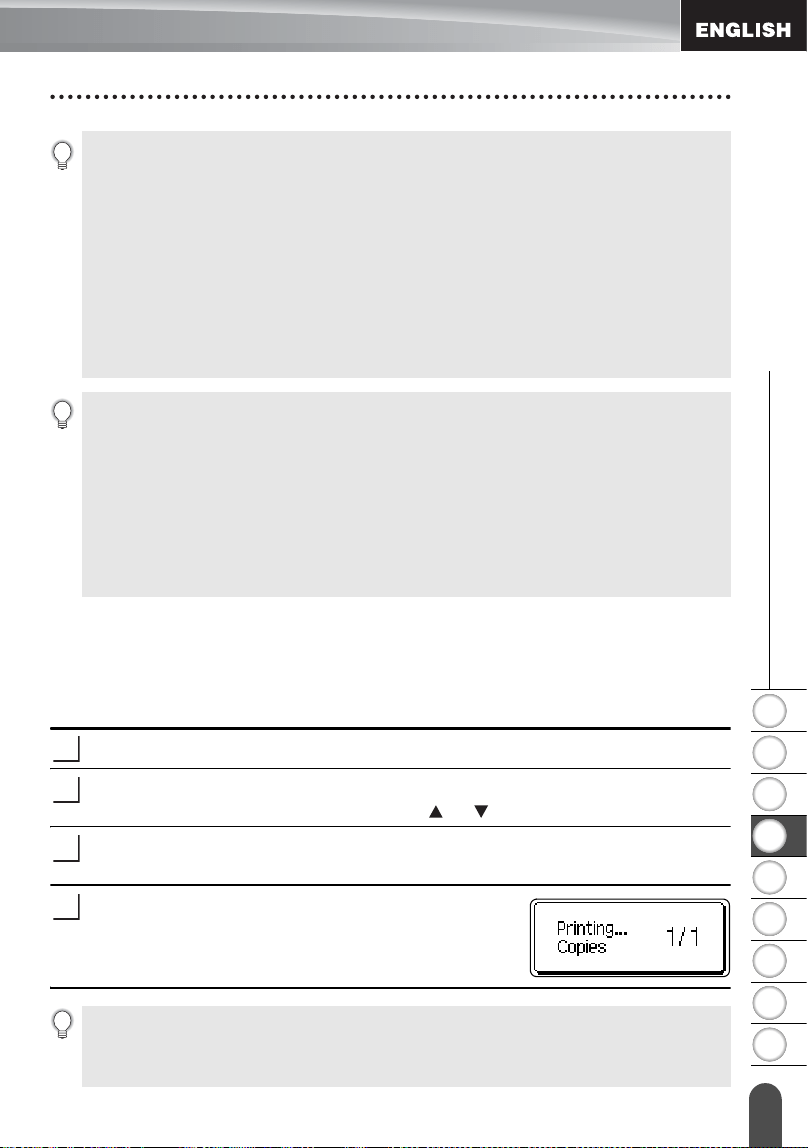
1
2
3
4
5
6
7
8
9
56
z LABEL PRINTING
Printing a Label
Mirror Printing
Using the mirror printing function you can create labels with the text printed in reverse
so that they can be read from the opposite side when attached to glass or other
transparent material.
Make sure that the appropriate tape cassette is inserted and ready for printing.
Hold down the
Shift
key and press the
Print
key to display the print options
screen, and then select “Mirror” using the or key.
Press the
OK
or
Enter
key.
The message “Mirror Print?” is displayed
Press the
OK
or
Enter
key. "Printing...Copies" is
displayed while the labels are being printed.
•Press the
Escape
key to return to the previous step.
• The tape is automatically cut after each copy is printed. Refer to “Tape Cutting Options” on
page 57 to change this setting.
• The figures shown on the screen during printing indicate the “count / number of copies”.
• Pressing the
Space
key when selecting the number of copies resets the value to 1, the default.
• Auto-numbering can also be applied to bar codes. When a bar code contains an auto-
numbering sequence, no other fields in the label can contain an auto-numbering sequence.
• The auto-number portion of the label is incremented after each label is printed.
• Only one auto-numbering sequence can be used in a label.
• Any symbols or other non-alphanumeric characters in the auto-numbering sequence are
ignored.
• An auto-numbering sequence can only contain a maximum of five characters.
• Letters and numbers increase as shown below:
0
Î
1 ...9
Î
0
Î
...
A
Î
B ...Z
Î
A
Î
...
a
Î
b ...z
Î
a
Î
...
A0
Î
A1 ...A9
Î
B0
Î
...
Spaces (shown as underscores “_” in the example below) can be used to adjust the spacing
between characters or to control the number of digits that are printed.
_9
Î
10 ...99
Î
00
Î
...
_Z
Î
AA ...ZZ
Î
AA
Î
...
1_9
Î
2_0 ...9_9
Î
0_0
Î
...
1
2
3
4
•Press the
Escape
key to return to the previous step.
• Text should be printed on clear tape when using the mirror printing function.
• The copy and auto-numbering functions cannot be used together with the mirror printing
function.
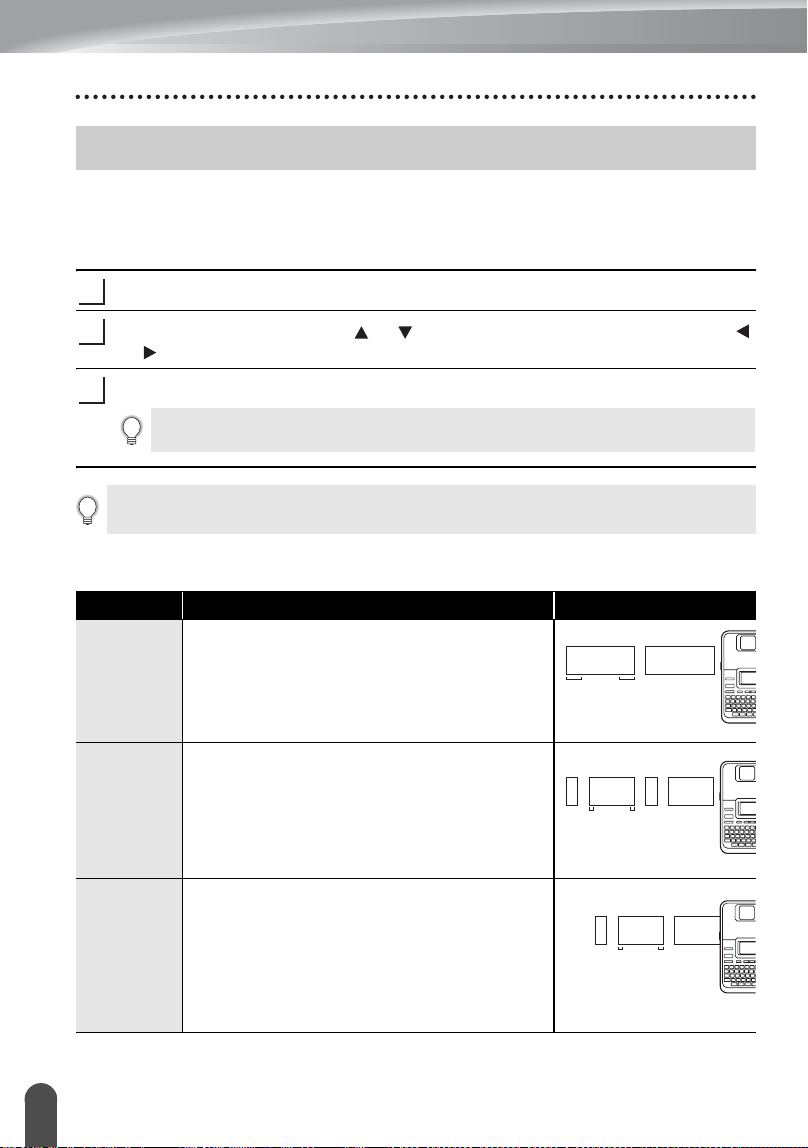
LABEL PRINTING
57
Tape Cutting Options
The tape cutting options allow you to specify how the tape is fed and cut when printing
labels. In particular, the “Chain” and “No Cut” options greatly reduce the amount of
wasted tape by using smaller margins and eliminating blank sections cut between
labels.
Press the
Label
key to display the Label menu.
Select "Cut Option" using the or key, and then set the value by using the
or key.
Press the
OK
or
Enter
key to apply the settings.
zTape Cuttingz
Tape Cutting Options
1
2
3
New settings are NOT applied if you do not press the
OK
or
Enter
key.
•Press the
Escape
key to return to the previous step.
• Refer to the Tape Cutting table for a list of all available settings.
Setting Description Example
Large
Margin
Automatically cuts the tape after each label is
printed, leaving a margin of 0.94" (24 mm) on
each end.
Small
Margin
Automatically cuts a piece of blank tape
before printing the first label and then cuts the
tape after each label is printed, leaving a 0.16"
(4 mm) margin at each end of each label.
Chain
• Automatically cuts a piece of blank tape
before printing the first label and then cuts
the tape after each label is printed, leaving
a 0.16" (4 mm) margin at each end of each
label.
• Once the last label is printed, the tape is not
fed and cut.
ABC ABC
0.94"
(24 mm)
0.94"
(24 mm)
ABC ABC
0.16"
(4 mm)
0.16"
(4 mm)
0.92" (23 mm)
ABC ABC
0.16"
(4 mm)
0.16"
(4 mm)
0.92" (23 mm)
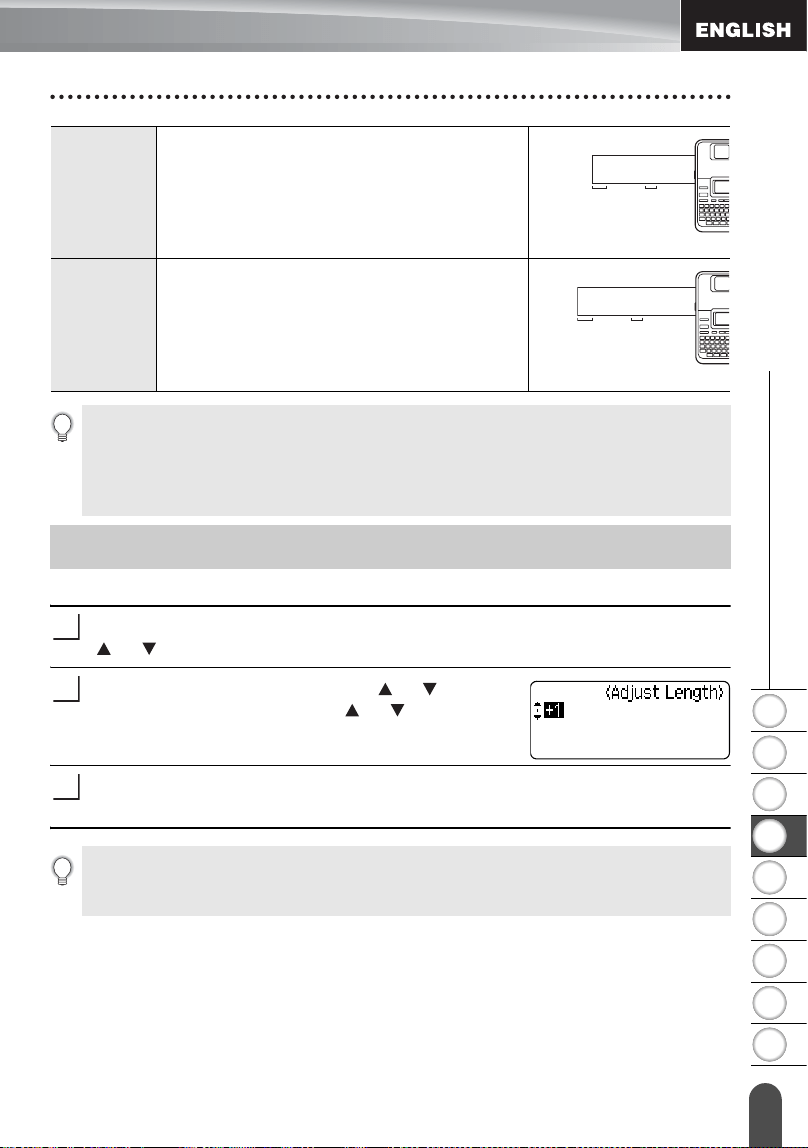
1
2
3
4
5
6
7
8
9
58
z LABEL PRINTING
Adjusting the Label Length
You can adjust the length of the printed label in levels of -5 to +5.
Press the
Setup
key to display the setup menu, select "Adjust Length" using the
or key, and then press the
OK
or
Enter
key.
Select "Adjust Length" by using the or key, and
then set the value by using the or key.
Press the
OK
or
Enter
key to apply the setting.
No Cut
• Prints a strip of labels with no cuts in
between.
• Pressing the
Preview
while holding down
Shift
key will feed and cut the last label
printed.
Special
Tape
• Select this setting when using special tape.
• When using Fabric Iron-On Tapes or Extra
Strength Adhesive Tapes, set "On" for
Manual Cutting before printing. After
printing, remove the tape cassette from the
machine and use scissors to cut the tape.
ABC ABC
0.94"
(24 mm)
0.31"
(8 mm)
ABC ABC
0.94"
(24 mm)
• When using Fabric Iron-On Tapes or Extra Strength Adhesive Tapes, refer to the above
"Special Tape".
• The tape is not cut after the last label is printed when “Chain” or “No Cut” is set. Hold down
the
Shift
key and press the
Preview
key to feed and cut tape automatically, or cut the tape
manually if you are using Fabric Iron-on Tapes or Extra Strength Adhesive Tapes.
Adjusting the Label Length
1
2
3
•Press the
Escape
key to return to the previous step.
•Press the
Space
key to set the value to default setting.
• Approximately 1% of the total label length will be adjusted by 1 level.
LABEL PRINTING
59
Attaching Labels
If necessary, trim the printed label to the desired shape and length using scissors, etc.
Peel the backing from the label.
Position the label and then press firmly from top to bottom with your finger to
attach the label.
Printing a label from the Label Collection Stored in the Machine
Pages 60 to 63 show the many labels that are stored in your Label Collection. Printing
these pre-designed labels saves you time.
Press the
Label Collection
key.
Select the language of the label to be printed using the or key, and then
press the
OK
or
Enter
key.
The language can be selected from "English(United States)", "French(Canada)",
"Portuguese", "Spanish(United States)", or "Turkish".
Select the category using the or key, and then press the
OK
or
Enter
key.
The first label image is displayed.
Select a label using the or key, and then press the
OK
or
Enter
key.
Attaching Labels
1
2
3
• The backing of some types of tapes may be pre-cut to make it easier to peel the backing.To
remove the backing, simply fold the label lengthwise with the text facing inward, to expose
the inside edges of the backing. Next, peel off the backing one piece at a time.
• Labels may be difficult to attach to surfaces that are wet, dirty, or uneven. The labels may peel
off easily from these surfaces.
• Be sure to read the instructions provided with Fabric Iron-On Tapes, Extra Strength Adhesive
Tapes or other special tapes and observe all precautions noted in the instructions.
Printing from the Label Collection
1
2
3
Refer to the Label Collection Lists to view all of the available labels.
4
To add the label to your "Favorites", select "Add to Favorites" using the or key,
and then press the
OK
or
Enter
key to register the selected label image in the Favorites
category. Registering your most frequently used label images allows you to quickly and
easily display them when needed again.
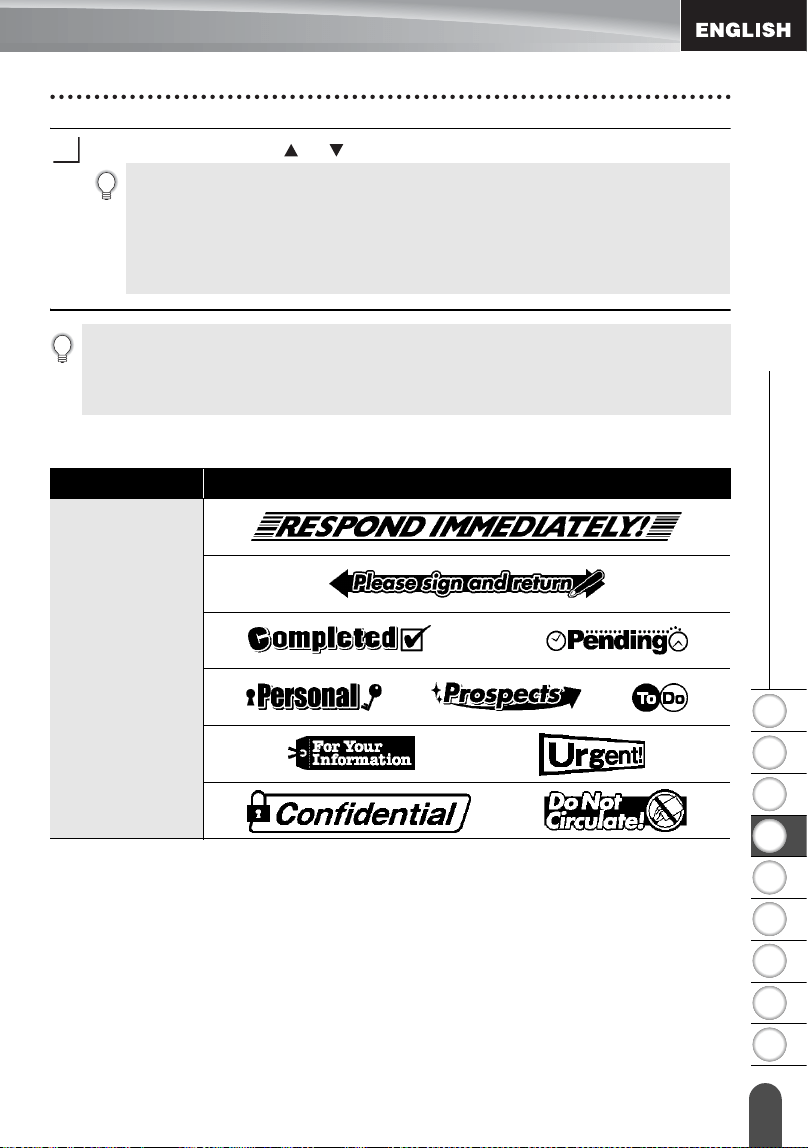
1
2
3
4
5
6
7
8
9
60
z LABEL PRINTING
Printing from the Label Collection
Select "Print" using the or key, and then press the
OK
or
Enter
key.
zLabel Collection Listz
5
Label Collection categories are pre-set for specific tape widths. Tape widths are
referenced after the name of the Label Collection category in parentheses. For example,
to create a Shipping Label, 0.70" (18 mm) tape must be loaded in the machine. If the
width of the current tape cassette does not match the set width for the selected layout, an
error message is displayed when you try to print the label. Press the
Escape
key or any
other key to clear the error message, and insert a tape cassette of the correct width.
• Using the P-touch Update Software, additional label categories can be downloaded and new
label designs added to the machine or P-touch Editor.
• Refer to "Downloading a Label Collection / Updating the Software" on page 63 for details on
how to download additional categories of labels.
Category Label
Files
(0.47" [12 mm]
tape only)
* Labels are for illustrative purposes only.
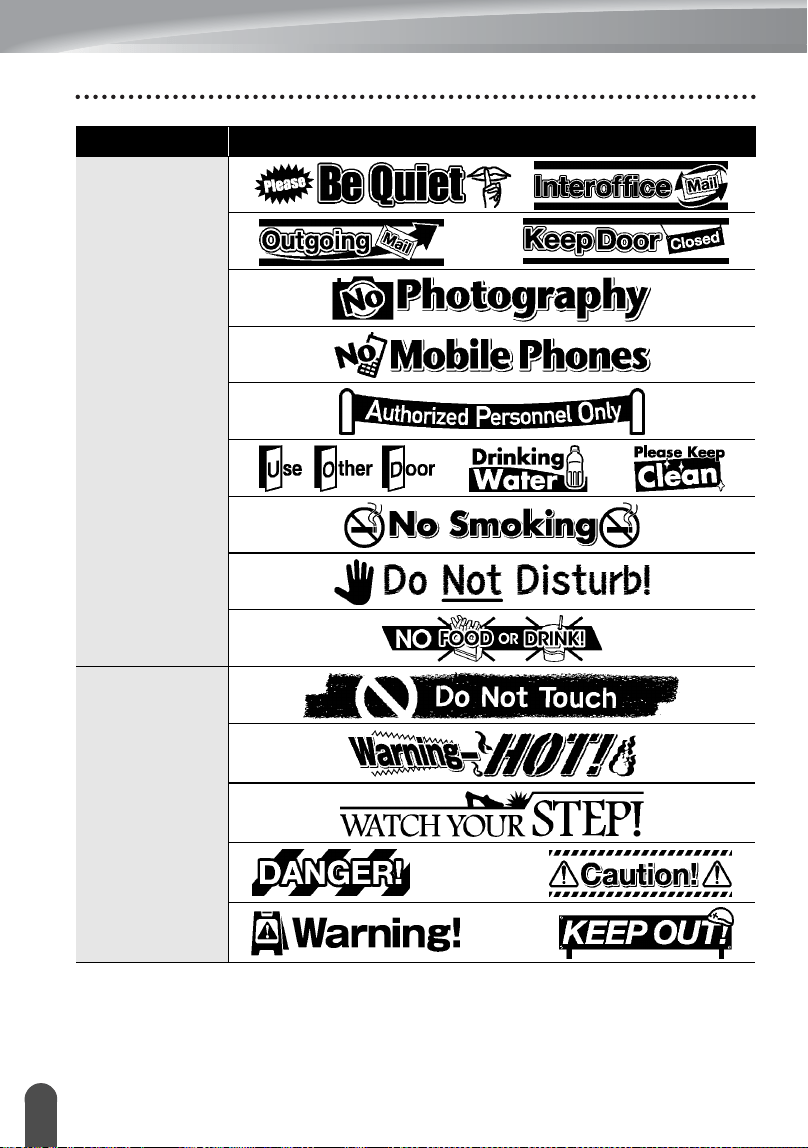
LABEL PRINTING
61
Printing from the Label Collection
Office Signage
(0.94" [24 mm]
tape only)
Caution
(0.94" [24 mm]
tape only)
Category Label
* Labels are for illustrative purposes only.
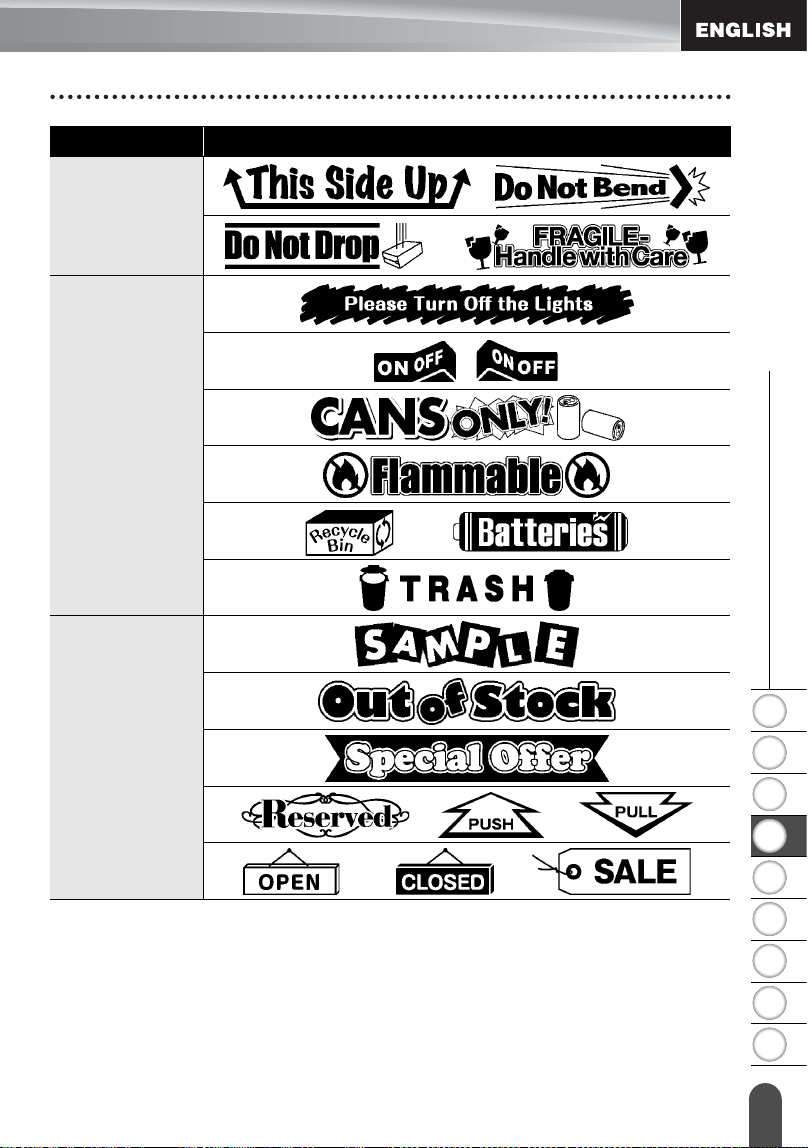
1
2
3
4
5
6
7
8
9
62
z LABEL PRINTING
Printing from the Label Collection
Shipping
(0.70" [18 mm]
tape only)
ECO
(0.70" [18 mm]
tape only)
Retail
(0.94" [24 mm]
tape only)
Category Label
* Labels are for illustrative purposes only.
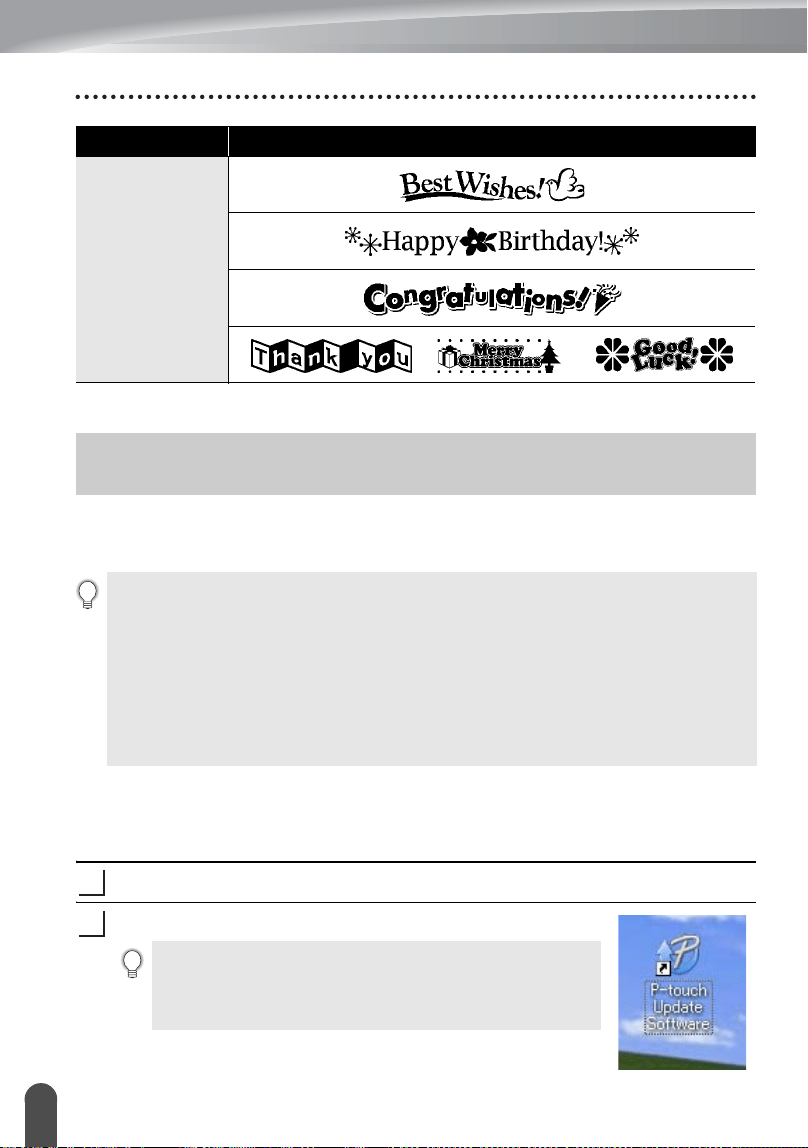
LABEL PRINTING
63
Downloading a new Label Collection Category (Windows® only )
Using the P-touch Update Software, additional label collection categories can be
downloaded to your labeler or downloaded to your PC and printed using P-touch Editor.
Furthermore, the software can be upgraded to the latest version using this tool.
Downloading a Label Collection Category to your Labeler
The following is the example for Windows Vista
®
.
In the following steps, you will see XX-XXXX. Read "XX" as your labeler name.
Turn the machine on and connect the USB cable.
Double-click the [P-touch Update Software] icon.
Personal
(0.47" [12 mm]
tape only)
Category Label
* Labels are for illustrative purposes only.
Downloading a new Label Collection Category
(Windows
®
only )
• To use the P-touch Update Software, it is necessary to install it from the CD-ROM
provided.
• Refer to the "Software Installation Guide" for details on how to install the software.
• You must be connected to the internet in order to launch the P-touch Update software
• Label Collection Designs cannot be edited.
• You may find that the software and the contents in this manual are different.
• Upon installation of the P-touch Update Software, an icon will be installed on your
desktop (or other location of your choosing) for your convenience. To check for New
Label Collection Designs, simply click the icon to launch the software.
The following method can also be used to start the P-touch
Update Software.
Click [Start], and then select [All Programs] - [Brother P-
touch] - [P-touch Update Software].
1
2
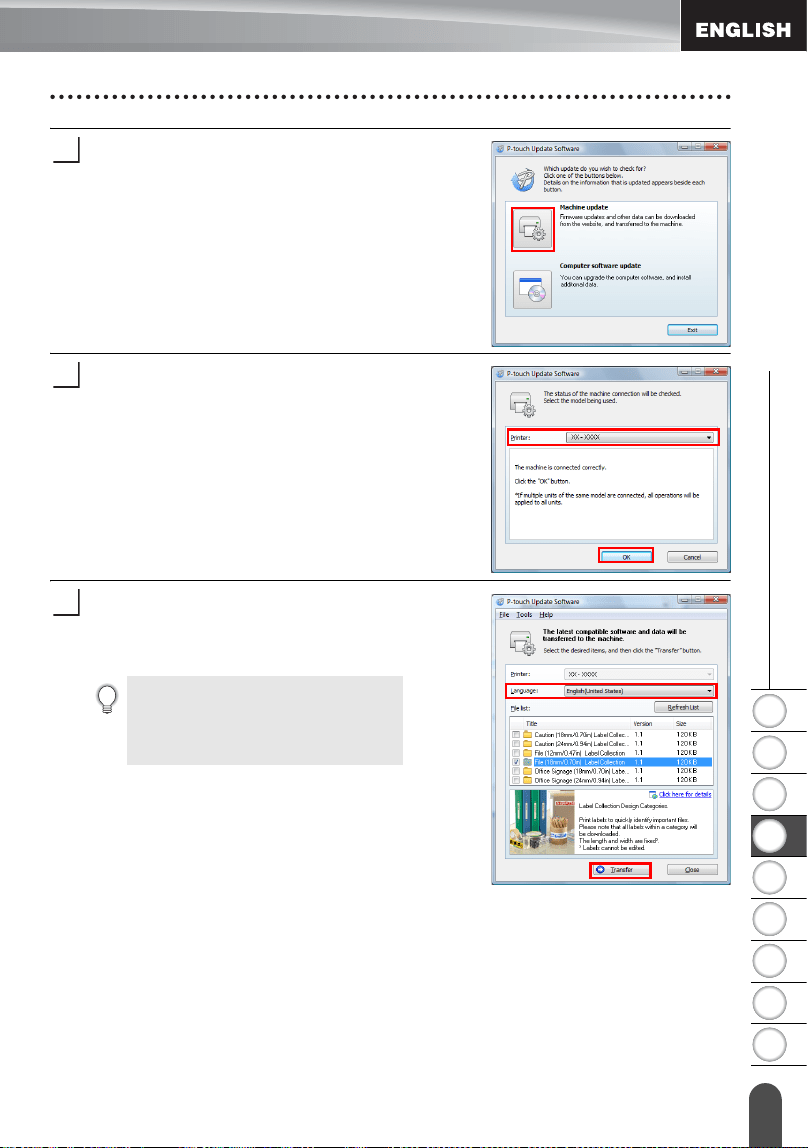
1
2
3
4
5
6
7
8
9
64
z LABEL PRINTING
Downloading a new Label Collection Category (Windows® only )
Click the [Machine update] icon.
Select the [Printer], ensure that [The
machine is connected correctly.] is
displayed, and then click [OK].
Select the [Language], select the check box
next to the label collection to be downloaded
and/or software to be updated, and then click
[Transfer].
3
4
Click "Click here for details" in the
upper right to view a web page with a
specific examples of label collection
designs.
5
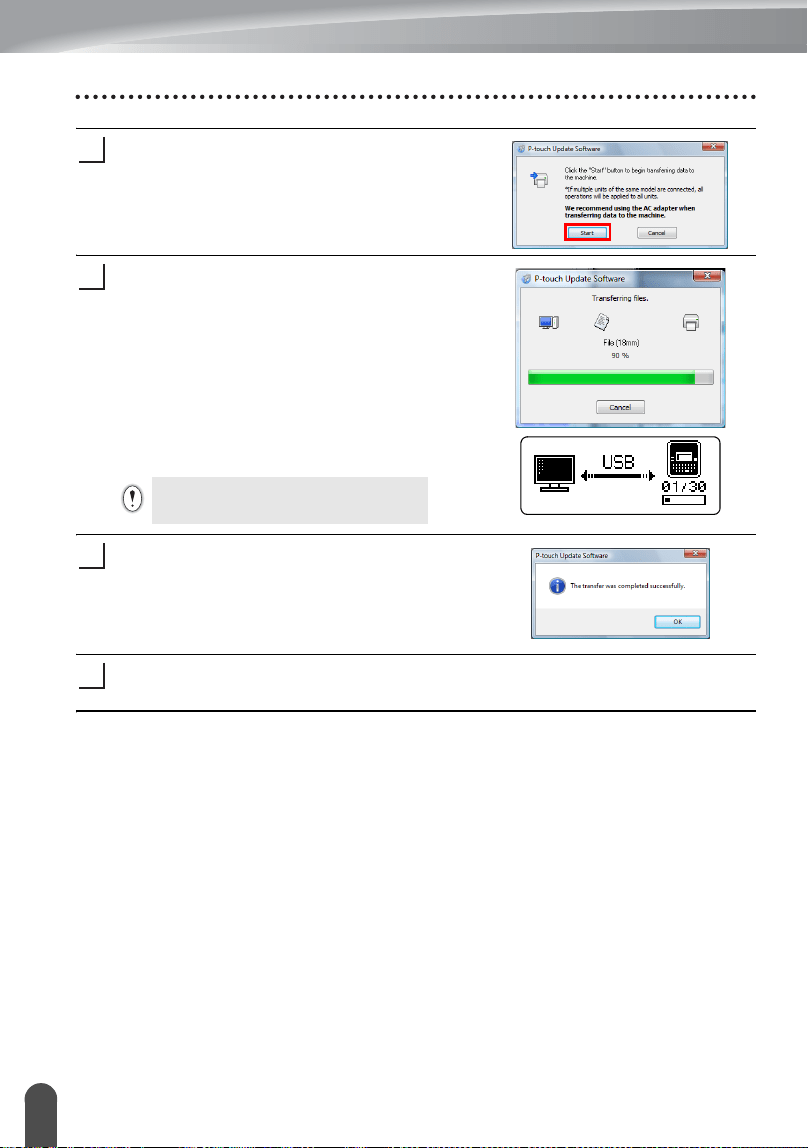
LABEL PRINTING
65
Downloading a new Label Collection Category (Windows® only )
Check the content to be updated, and then
click [Start] to begin the update.
The screen on the right is displayed on your
computer while the software is being
updated screen.
The screen on the right appears on the
machine's LCD display.
Click [OK] to complete the update.
The display returns to the input screen when the update is complete.
6
7
Do not turn off the machine during the
update process.
5
8
6
9
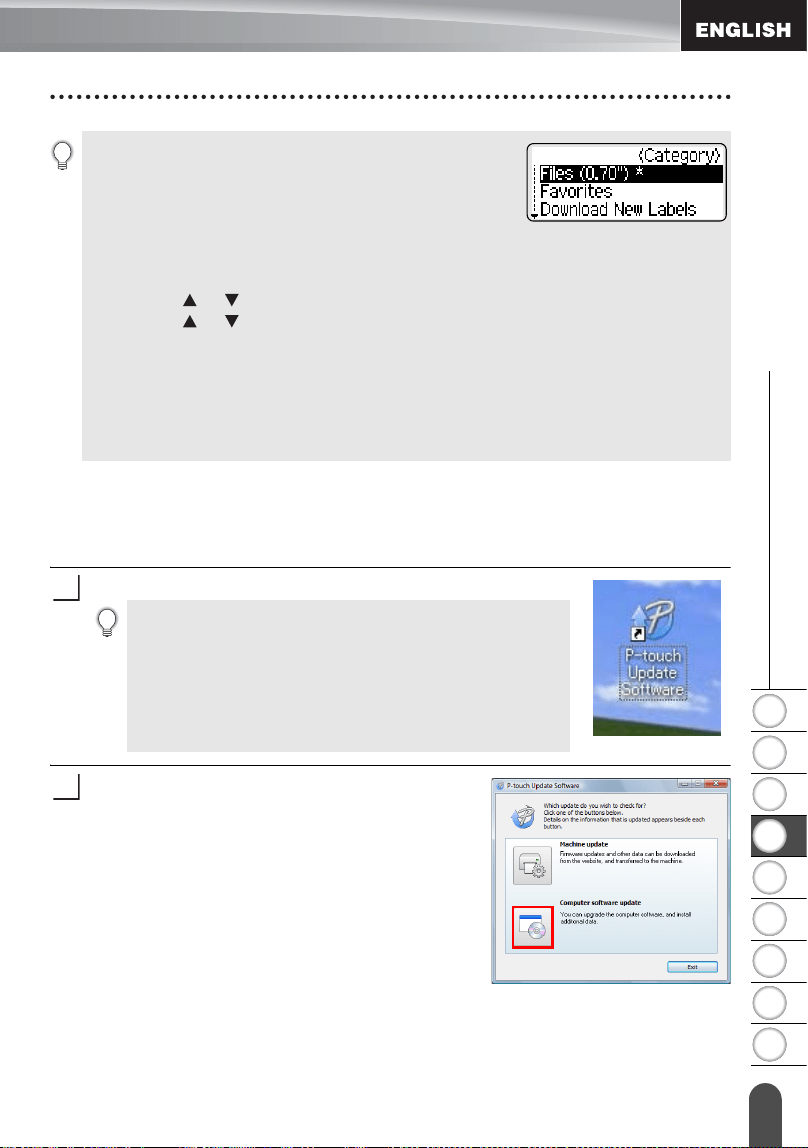
1
2
3
4
5
6
7
8
9
66
z LABEL PRINTING
Downloading a new Label Collection Category (Windows® only )
Downloading a New Label Collecstion Category to P-touch Editor /
Updating P-touch Editor Software
The following is the example for Windows Vista
®
.
In the following steps, you will see XX-XXXX. Read "XX" as your labeler name.
Double-click [P-touch Update Software].
Click the [Computer software update] icon.
• Newly downloaded label collection categories are added to
the respective "Category".
• An asterisk "*" is displayed at the end of the newly added
category.
• Downloaded label collections can be deleted using the
following procedure
.
.
1. Press the
Label Collection
key.
2. Press the or key, and then select the language.
3. Press the or key, and then select the category.
4. Press the
Clear
key.
• If the downloaded label collection was registered in "Favorites", it will also be deleted from
here.
• It is not possible to delete individual labels from each "Category".
• When "Download New Labels" is selected, the prompt "Connect PC, and Run P-touch
Update" is displayed.
• The following method can also be used to start the P-touch
Update Software.
• Click [Start], and then select [All Programs] - [Brother P-
touch] - [P-touch Update Software].
• If a message is displayed notifying the user that the Editing
Software (P-touch Editor) is the latest version when started,
click [Yes] and then proceed to step 3.
1
2
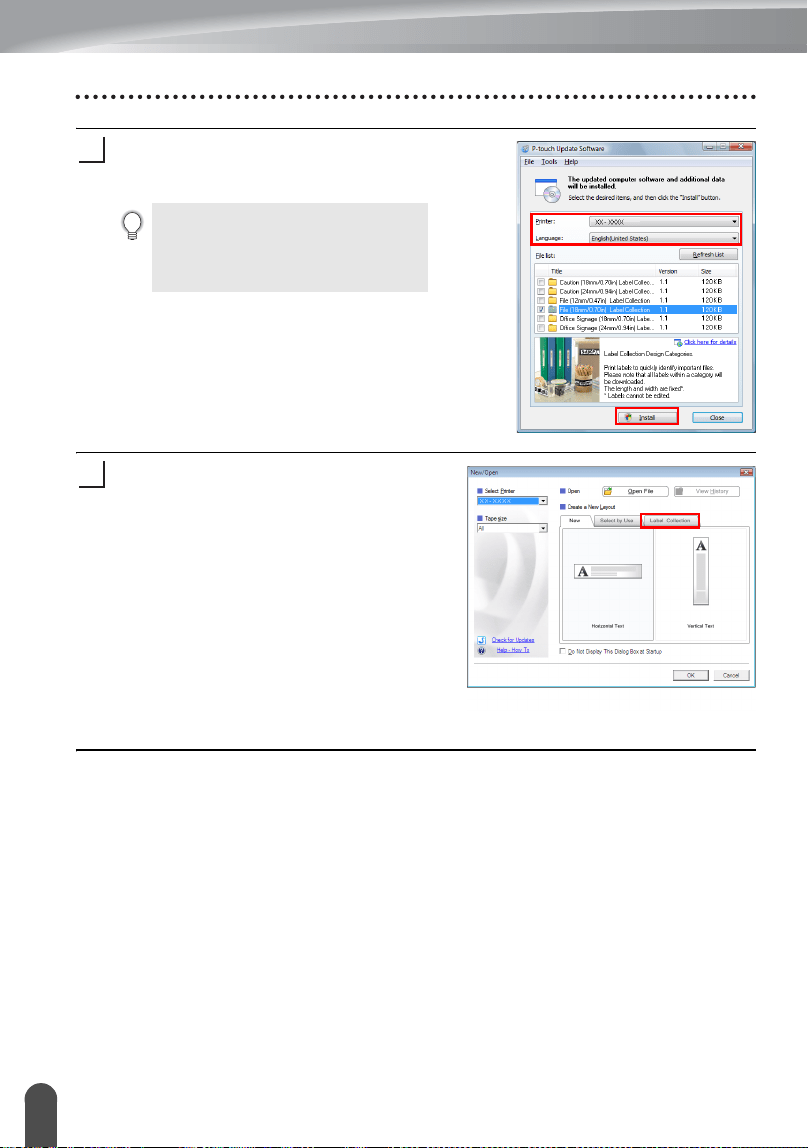
LABEL PRINTING
67
Downloading a new Label Collection Category (Windows® only )
Select the [Printer] and [Language], select
the check box next to the label collection to
be installed and then click [Install].
The installed label collection will be saved
to the P-touch Editor [Label Collection]
tab.
Click "Click here for details" in the
upper right to view a web page with a
specific examples of label collection
designs.
3
4
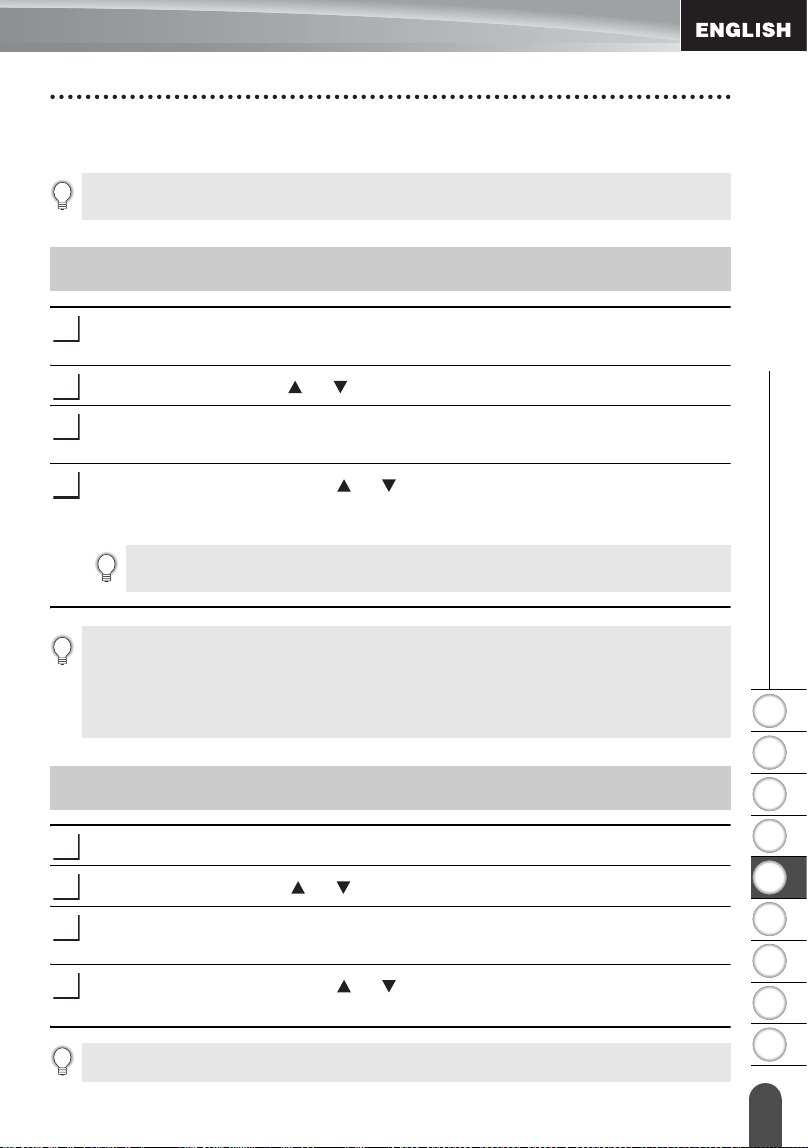
68
Storing a Label into Memory
1
2
3
4
5
6
7
8
9
z USING THE FILE MEMORY
USING THE FILE MEMORY
You can store up to 99 of your most frequently used labels in the file memory. Each label is
stored as a file, allowing you to quickly and easily recall your label when needed again.
After entering the text and formatting the label, press the
File
key to display the
File screen.
Select "Save" using the or key.
Press the
OK
or
Enter
key. A file number is displayed.
A label text is also displayed if a label is already stored in that file number.
Select a file number using the or key, and then press the
OK
or
Enter
key
to save the label under the selected file number.
The file is saved and the screen returns to the text entry screen.
Press the
File
key to display the File screen.
Select "Open" using the or key.
Press the
OK
or
Enter
key. The file number of a stored label is displayed.
The label text is also displayed to identify the label.
Select a file number using the or key, and then press the
OK
or
Enter
key
to open the selected file. The file is opened and displayed on the text entry screen.
• When the file memory is full, each time you save a file you will need to overwrite one of your
stored files.
Storing a Label into Memory
1
2
3
4
When there is already a stored file in the selected number, the data will be overwritten by
the file you try to save.
•Press the
Escape
key to return to the previous step.
• A maximum of 280 characters can be saved in each file. However, this number may depend
upon the characters or symbols used. Up to 99 files can be saved.
• To store a label created by using the Auto-Format Layouts, refer to “Using Auto-Format
Layouts” on page 38.
Opening a Stored Label File
1
2
3
4
Press the
Escape
key to return to the previous step.
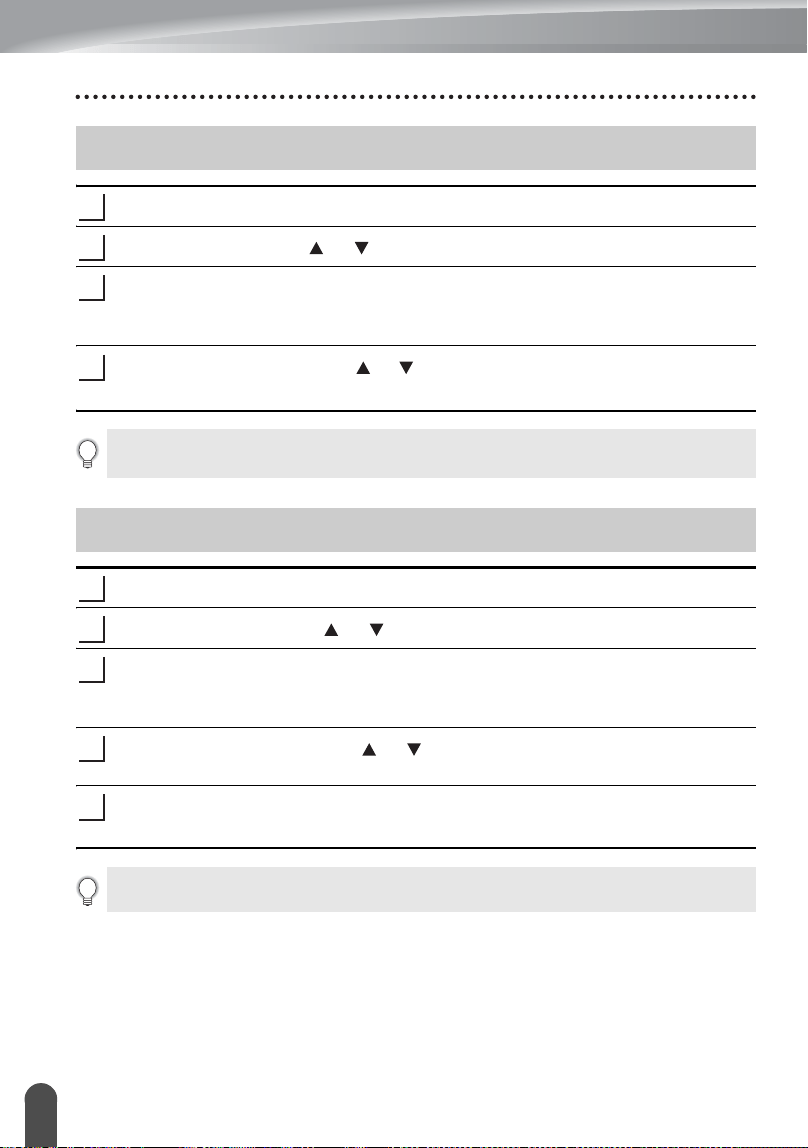
USING THE FILE MEMORY
69
Printing a Stored Label File
Press the
File
key to display the File screen.
Select "Print" using the or key.
Press the
OK
or
Enter
key.
The file number of a stored label is displayed.
The label text is also displayed to identify the label.
Select a file number using the or key, and then press the
Print
,
OK
or
Enter
key to print the selected label. The label is printed from the machine.
Press the
File
key to display the File screen.
Select "Delete" using the or key.
Press the
OK
or
Enter
key.
The file number of a stored label is displayed.
The label text is also displayed to identify the label.
Select a file number using the or key, and then press the
OK
or
Enter
key.
The message “Delete?” is displayed.
Press the
OK
or
Enter
key to delete the file.
The file is deleted and the screen returns to the text entry screen.
Printing a Stored Label File
1
2
3
4
•Press the
Escape
key to return to the previous step.
• The message "No Text!" is displayed when you try to print a file with no text.
Deleting a Stored Label File
1
2
3
4
5
Press the
Escape
key to cancel deleting the file and return to the previous screen.
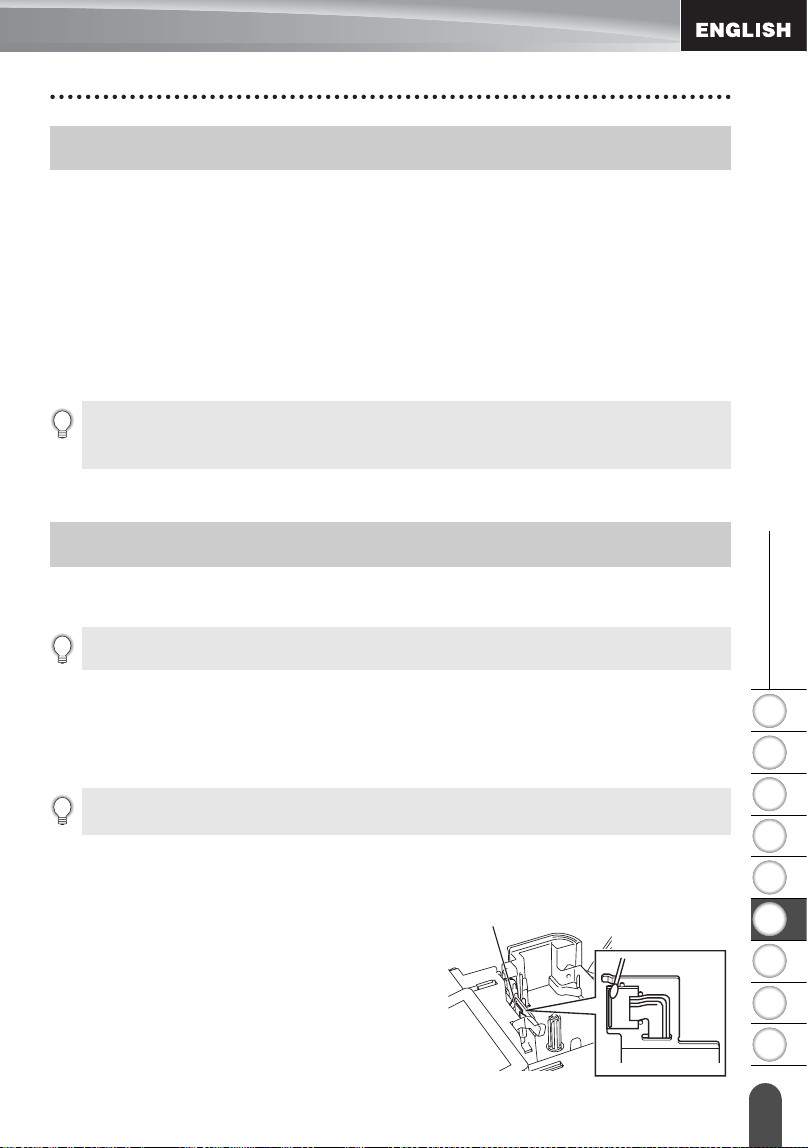
70
Resetting the P-touch Labeler
1
2
3
4
5
6
7
8
9
z MAINTAINING YOUR P-TOUCH LABELER
MAINTAINING YOUR P-TOUCH LABELER
You can reset the internal memory of your P-touch labeler when you want to clear all
saved label files, or in the event the P-touch labeler is not operating correctly.
Resetting data to factory settings (Downloaded data is not reset.)
Turn off the machine. Press and hold down the
Shift
and
R
keys. While holding down the
Shift
and
R
keys, press the
Power
key once and then release the
Shift
and
R
keys.
Resetting data to factory settings (Downloaded data is reset.)
Turn off the machine. Press and hold down the
Shift
and
Backspace
keys. While holding
down the
Shift
and
Backspace
keys, press the
Power
key once and then release the
Shift
and
Backspace
keys.
Your P-touch labeler should be cleaned on a regular basis to maintain its performance
and life span.
Cleaning the Unit
Wipe any dust and marks from the main unit using a soft, dry cloth.
Use a slightly dampened cloth on difficult to remove marks.
Cleaning the Print Head
Streaks or poor quality characters on printed
labels generally indicates that the print head is
dirty. Clean the print head using a cotton swab or
the optional print head cleaning cassette (TZ-
CL4).
Resetting the P-touch Labeler
• Release the
Power
key before releasing the other key.
• All text, format settings, option settings and stored label files are cleared when you reset the
P-touch labeler. Language and unit settings will also be cleared
Maintenance
Always remove the batteries and disconnect the AC adapter before cleaning the P-touch labeler.
Do not use paint thinner, benzene, alcohol or any other organic solvent. These may deform the
case or damage the appearance of your P-touch labeler.
Print head
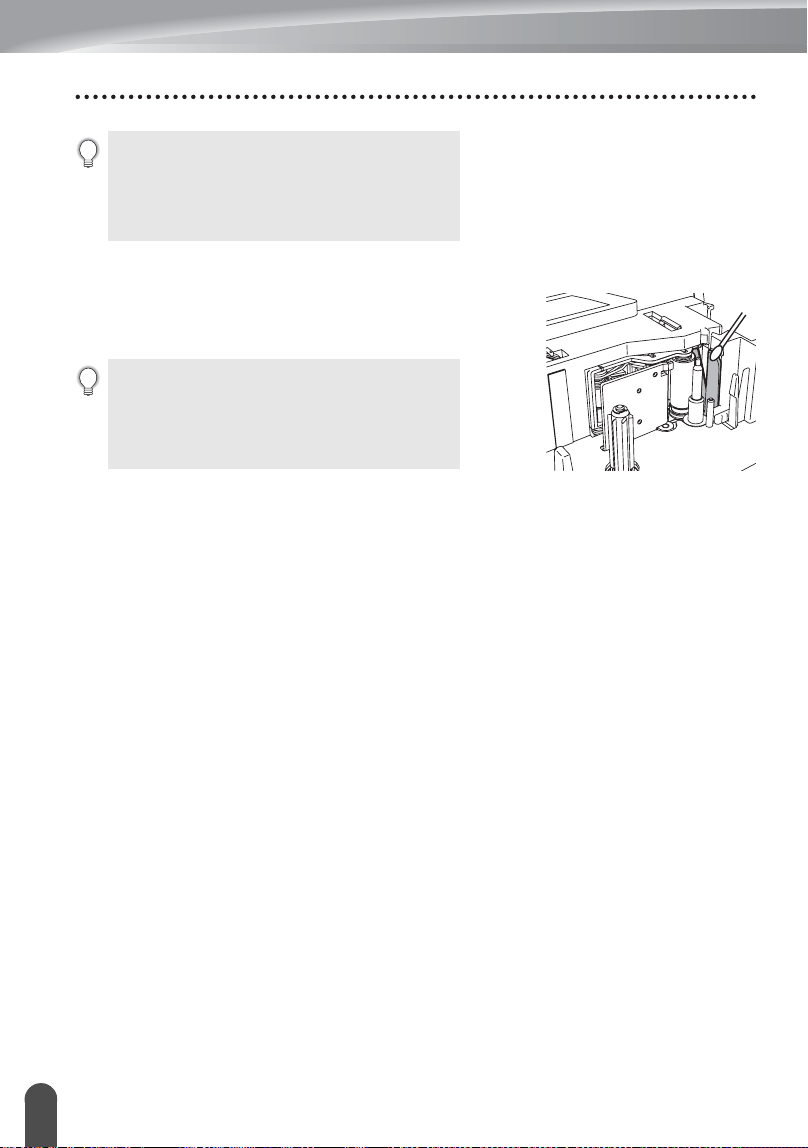
MAINTAINING YOUR P-TOUCH LABELER
71
Maintenance
Cleaning the Tape Cutter
Tape adhesive can build up on the cutter blade after
repeated use, taking the edge off the blade which may
result in the tape jamming in the cutter.
• Do not touch the print head directly with your
bare hands.
• Refer to the instructions provided with the print
head cleaning cassette for directions on how to
use it.
• About once every year, wipe the cutter blade
using a cotton swab moistened with Isopropyl
alcohol (rubbing alcohol).
• Do not touch the cutter blade directly with your
bare hands.
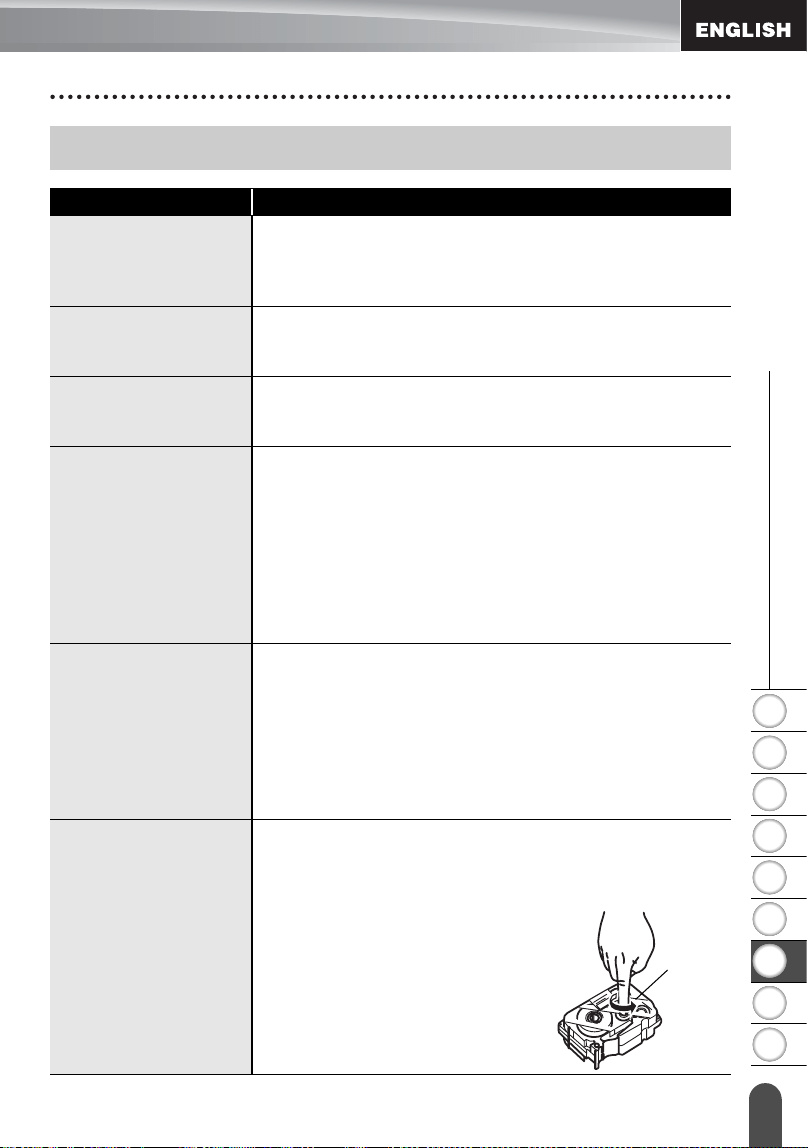
1
2
3
4
5
6
7
8
9
72
What to do when...
z TROUBLESHOOTING
TROUBLESHOOTING
What to do when...
Problem Solution
The screen ‘locks’, or
the P-touch labeler
does not respond
normally.
Refer to “Resetting the P-touch Labeler” on page 70 and reset
the internal memory to the initial settings. If resetting the P-
touch labeler does not solve the problem, disconnect the AC
adapter and remove the batteries for more than 10 minutes.
The display remains
blank after turning on
the power.
Check that the batteries are correctly installed and that the
AC adapter designed exclusively for your P-touch labeler
(provided) is correctly connected.
The LCD messages
are displayed in a
foreign language.
Refer to “Setting Language and Unit” on page 22 to select
your desired language.
The label is not
printed after pressing
the Print key.
• Check that text has been entered and that the tape
cassette is installed correctly with sufficient tape
remaining.
• If the tape is bent, cut off the bent section and thread the
tape through the tape exit slot.
• If the tape is jammed, remove the tape cassette and then
pull out the jammed tape and cut it. Check that the end of
the tape passes through the tape guide before reinstalling
the tape cassette.
The label is not
printed correctly.
• Remove the tape cassette and reinstall it, pressing it firmly
until it clicks into place.
• If the print head is dirty, clean it with a cotton swab or
optional print head cleaning cassette (TZ-CL4).
• Check that the Cut Option setting is not set to Chain or No
Cut, as the tape will not be fed after printing the label.
Alternatively, hold down the
Shift
key and press the
Preview
key to feed and cut the tape.
The ink ribbon is
separated from the
ink roller.
If the ink ribbon is broken, replace the tape cassette. If not,
leave the tape uncut and remove the tape cassette, then
wind the loose ink ribbon onto the spool as shown in the
figure.
Spool
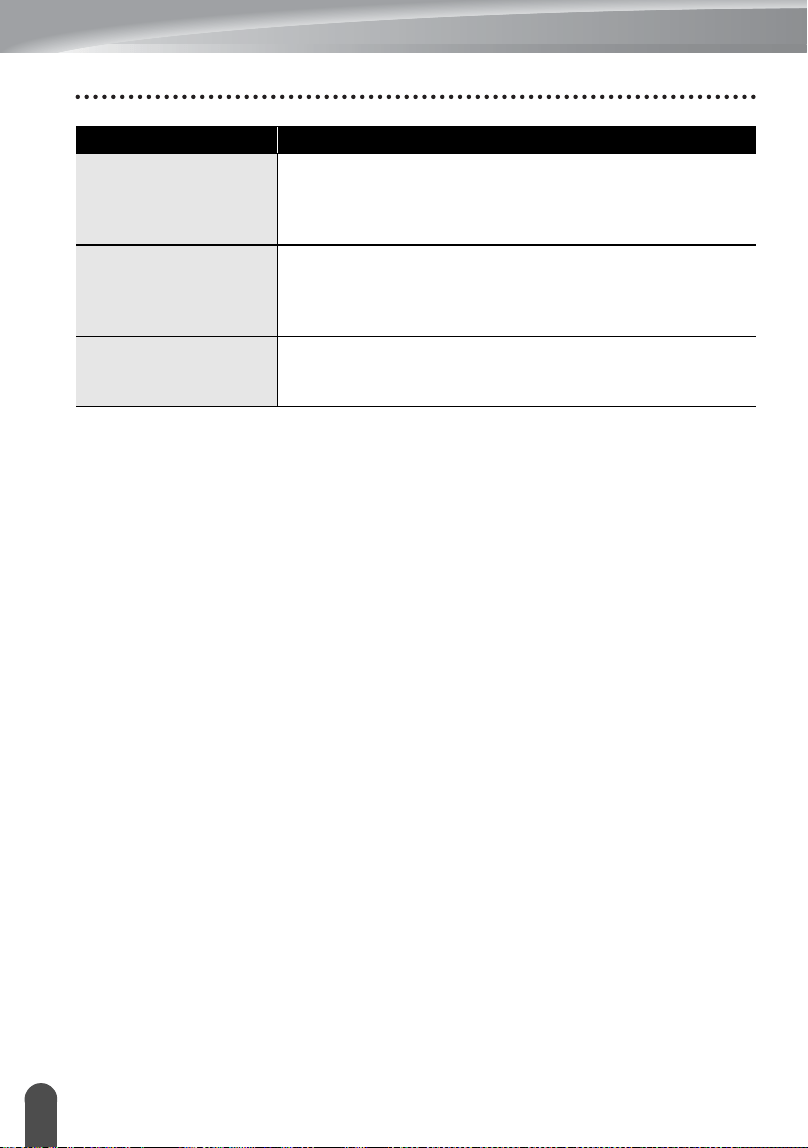
TROUBLESHOOTING
73
What to do when...
The P-touch labeler
stops while printing a
label.
• Replace the tape cassette if striped tape is visible, as this
indicates that you have reached the end of the tape.
• Replace all batteries or connect the AC adapter directly to
the P-touch labeler.
The label is not cut
automatically.
• Check that the Cut Option setting is not set to Chain or No
Cut, as the tape will not be fed after printing the label.
Alternatively, hold down the
Shift
key and press the
Preview
key to feed and cut the tape.
Label files saved
previously are now
empty.
All files stored in the internal memory are deleted if the
batteries are weak or the AC adapter was disconnected.
Problem Solution
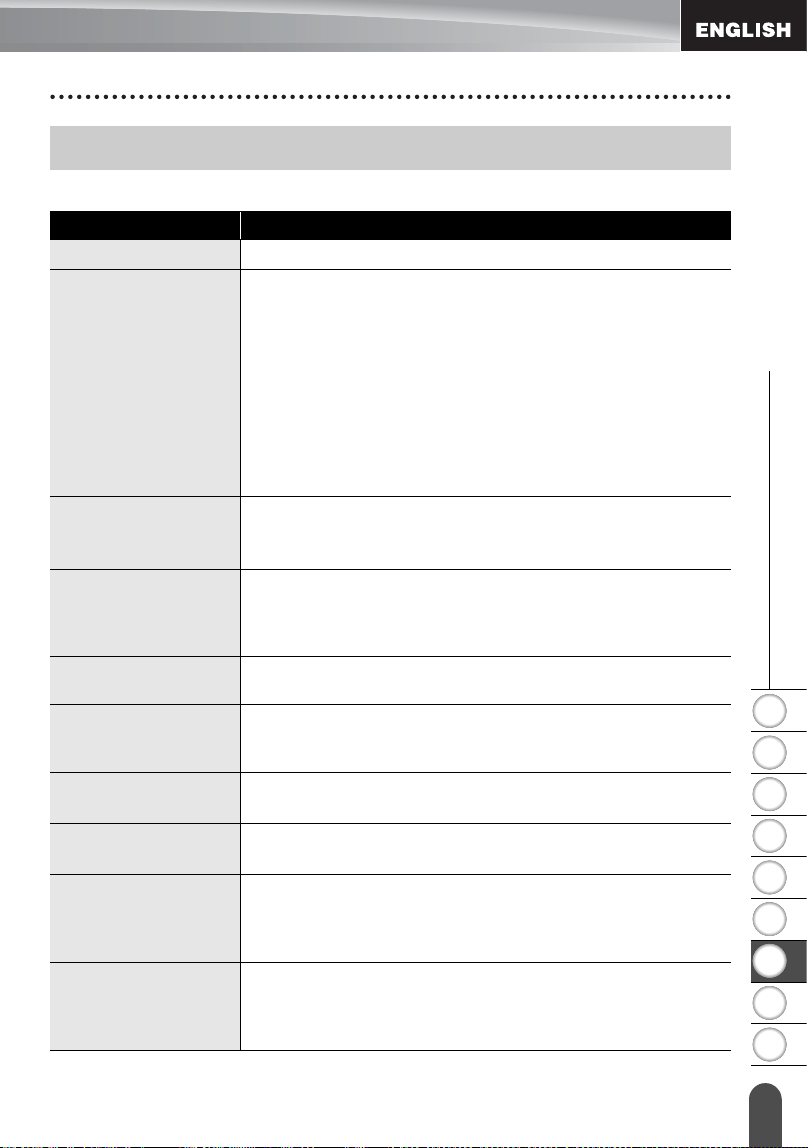
1
2
3
4
5
6
7
8
9
74
z TROUBLESHOOTING
Error Messages
When an error message appears on the display, follow the directions provided below.
Error Messages
Message Cause/Remedy
Battery Weak! *
The installed batteries are getting weak.
Check
Battery!
The following are likely causes.
• The batteries are installed with the negative and positive
ends the wrong way round.
• Other types of batteries are being used with alkaline
batteries.
• Old and new batteries are being used together.
• The batteries are about to run out.
If the power does not turn off automatically, press any key to
clear the error message before turning the unit off.
Check that the correct batteries are being used, and are
installed the right way round.
Wrong Type
Of Adapter
Connected!
An incompatible AC adapter is connected. After the power is
turned off automatically, use the AC adapter designed
exclusively for your P-touch labeler.
Cutter Error! *
The tape cutter is closed when you try to print or feed tape.
Turn the P-touch labeler off and then on again before
continuing.
When tape is tangled in the cutter, remove the tape.
No Text! *
There is no text, symbols or bar code data entered when you
try to print or preview a label. Enter data before continuing.
Insert Tape
Cassette! *
There is no tape cassette installed when you try to print or
preview a label, or feed tape. Install a tape cassette before
continuing.
Tape Cassette
Changed! *
The tape cassette was changed while printing, etc. Make
sure the correct tape cassette is inserted before printing.
Line Limit!
Max 7 Lines *
There are already seven lines of text when you press the
Enter
key. Limit the number of lines to seven.
Tape Width
Limit!
Max 5 Lines *
There are more than five lines of text when you press the
Print
or
Preview
key while using 0.70" (18mm) tape. Limit
the number of lines to five, or replace with a larger width tape
cassette.
Tape Width
Limit!
Max 3 Lines *
There are more than three lines of text when you press the
Print
or
Preview
key while using 0.47" (12 mm) tape. Limit
the number of lines to three, or replace with a larger width
tape cassette.
*Press any key to clear the error message.
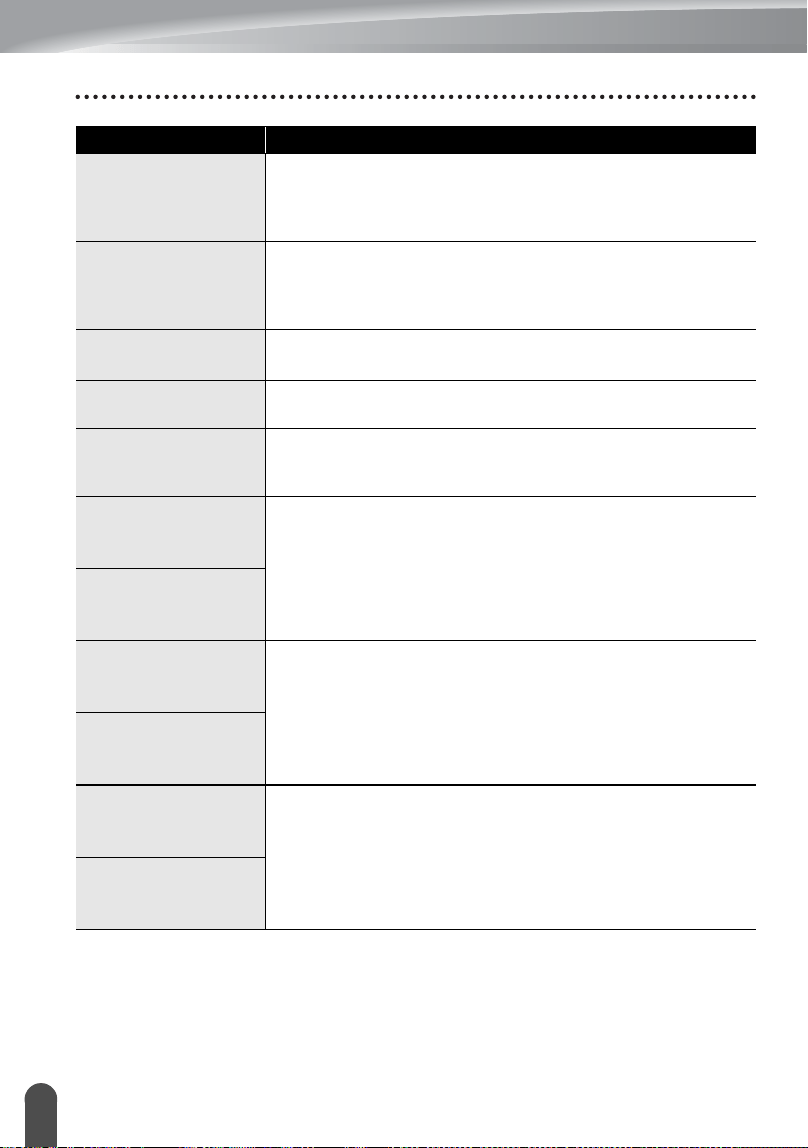
TROUBLESHOOTING
75
Error Messages
Tape Width
Limit!
Max 2 Lines *
There are more than two lines of text when you press the
Print
or
Preview
key while using 0.35" or 0.23" (9 mm or 6
mm) tape. Limit the number of lines to two, or replace with a
larger width tape cassette.
Tape Width
Limit!
Max 1 Line *
There is more than one line of text when you press the
Print
or
Preview
key while using 0.13" (3.5mm) tape. Limit the
number of lines to one, or replace with a larger width tape
cassette.
Block Limit!
Max 5 Blocks *
There are already five blocks of text. Limit the number of
blocks to five.
Text Full! *
The maximum number of characters have already been
entered. Edit the text and use fewer characters.
Length Limit! *
The length of the label to be printed using the text entered is
longer than 39.37" (1 m). Edit the text so that the length of the
label is less than 39.37" (1 m).
Insert
0.94" Tape
Cassette! *
An 0.94"(24mm) tape cassette is not installed when an Auto-
Format for 0.94"(24mm) tape is selected. Install an
0.94"(24mm) tape cassette.
Insert
24mm Tape
Cassette! *
Insert
0.70" Tape
Cassette! *
An 0.70" (18 mm) tape cassette is not installed when an
Auto-Format for 0.70" (18 mm) tape is selected. Install an
0.70" (18 mm) tape cassette.
Insert
18mm Tape
Cassette! *
Insert
0.47" Tape
Cassette! *
An 0.47" (12 mm) tape cassette is not installed when an
Auto-Format for 0.47" (12 mm) tape is selected. Install a
0.47" (12 mm) tape cassette.
Insert
12mm Tape
Cassette! *
Message Cause/Remedy
*Press any key to clear the error message.
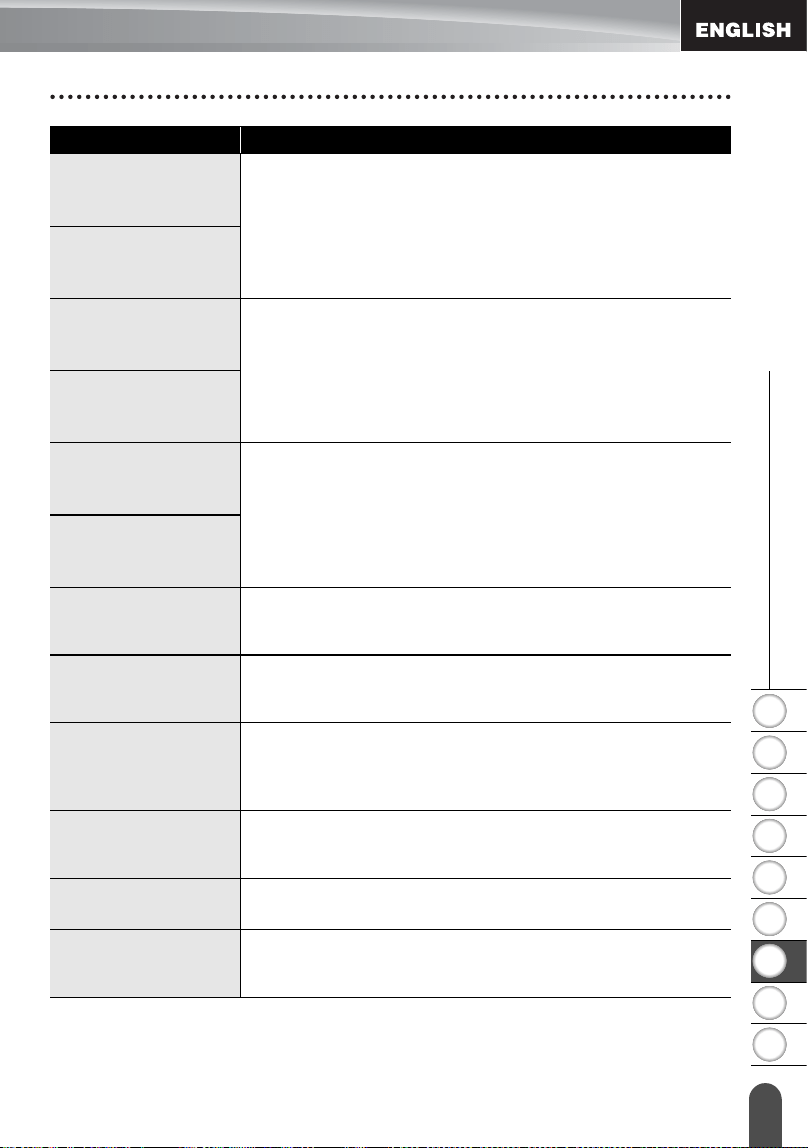
1
2
3
4
5
6
7
8
9
76
z TROUBLESHOOTING
Error Messages
Insert
0.35" Tape
Cassette! *
An 0.35" (9 mm) tape cassette is not installed when an Auto-
Format for 0.35" (9 mm) tape is selected. Install a 0.35" (9
mm) tape cassette.
Insert
9mm Tape
Cassette! *
Insert
0.23" Tape
Cassette! *
An 0.23" (6 mm) tape cassette is not installed when an Auto-
Format for 0.23" (6 mm) tape is selected. Install a 0.23" (6
mm) tape cassette.
Insert
6mm Tape
Cassette! *
Insert
0.13" Tape
Cassette! *
An 0.13" (3.5mm) tape cassette is not installed when an
Auto-Format for 0.13" (3.5mm) tape is selected. Install an
0.13" (3.5mm) tape cassette.
Insert
3.5mm Tape
Cassette! *
Too Much Text
For This Layout! *
The maximum number of characters for the selected layout
have already been entered. Edit the text to use fewer
characters or use a different layout.
Incorrect
Value! *
The value entered for setting the tape length, tab length,
multiple copies or numbering function is invalid. Enter a valid
value for the setting.
Select Other
Cut Option! *
The tape length set using the tape length setting is shorter
than the total length of the left and right margins applied for
the "Large Margin" cutting option. Select a different cutting
option. option.
Text
Too Long! *
The length of the label to be printed using the text entered is
longer than the length setting. Edit the text to fit within the set
length or change the length setting.
Text
Too High! *
The text size is too large. Select a different size option.
Memory Full! *
There is not enough internal memory available when you try
to save a label file. Delete any unnecessary files to make
more memory available for the new label file.
Message Cause/Remedy
*Press any key to clear the error message.
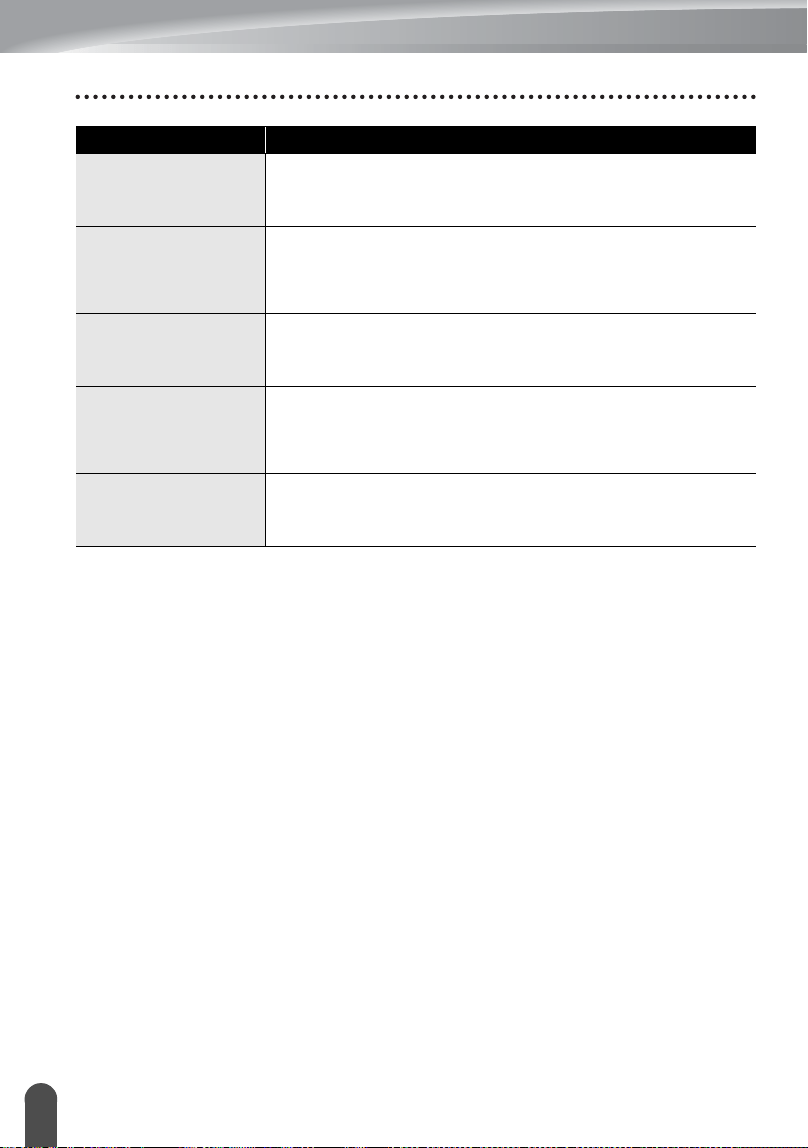
TROUBLESHOOTING
77
Error Messages
Check # of
Digits
Entered! *
The number of digits entered in the bar code data does not
match the number of digits set in the bar code parameters.
Enter the correct number of digits.
Input A,B,C or D
At Start&End! *
The bar code data entered does not have the required start/
stop code (A, B, C, or D required at the beginning and end of
the bar code data for the CODABAR protocol). Enter the bar
code data correctly.
Maximum Of
5 Bar Codes
Per Label! *
There are already 5 bar codes entered in the text data when
you try to enter a new bar code. You can only use up to five
bar codes in each label.
Category Full! *
The memory available for categories is full.
To make more memory available, delete any unnecessary
registered categories by highlighting the category and
pressing the
Clear
key.
Installed tape is
not compatible with
this machine! *
Tape that is incompatible with the machine has been
installed. Use compatible tape.
Message Cause/Remedy
*Press any key to clear the error message.
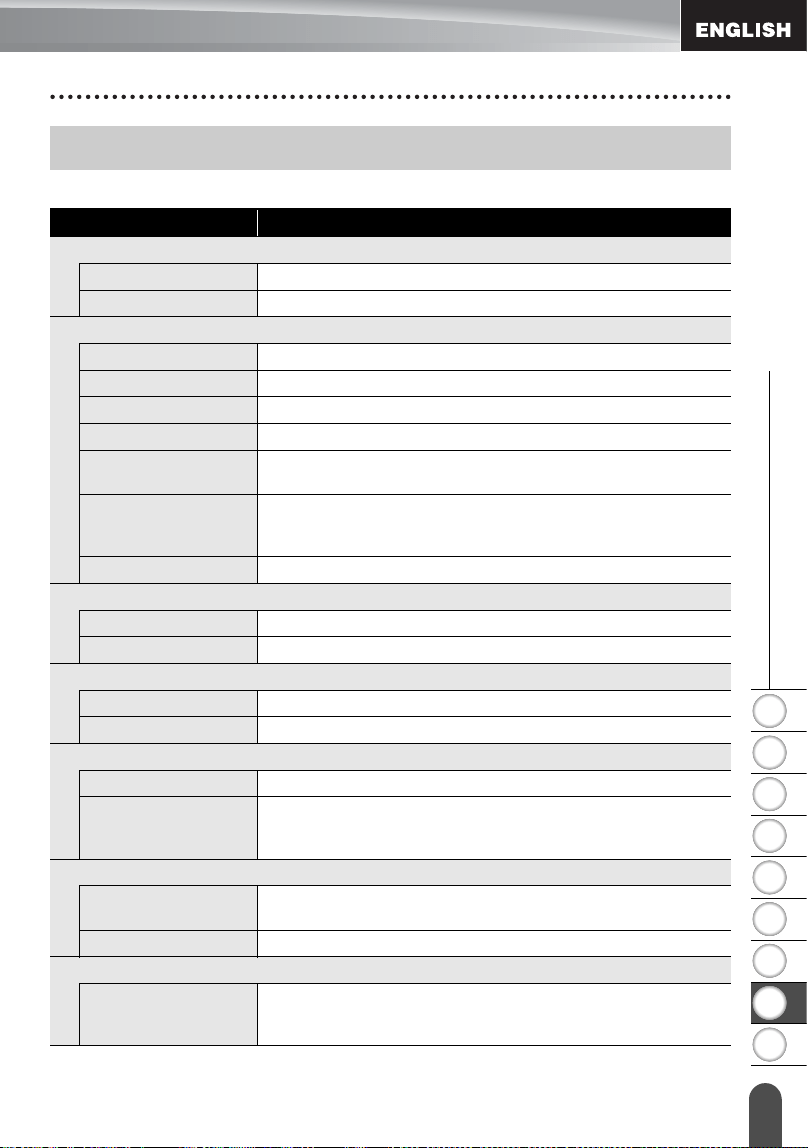
1
2
3
4
5
6
7
8
9
78
Specifications
z APPENDIX
APPENDIX
Main Unit
Specifications
Item Specification
Display
Character display 16 characters x 3 lines (128 dot x 48 dot) ,Backlit
Screen contrast 5 levels (+2, +1, 0, -1, -2)
Printing
Print method Thermal Transfer
Print head 128 dot / 180 dpi
Print height 0.71" (18mm) max. (when using 0.94" (24mm) tape)
Print speed Approx. 0.39" (10 mm)/ sec.
Tape cassette TZ tape cassette (0.13", 0.23", 0.35", 0.47", 0.70", 0.94" [3.5,
6, 9, 12, 18, 24 mm] widths)
No. of lines
0.94" (24mm) tape : 1-7 lines; 0.70" (18 mm) tape : 1 - 5 lines;
0.47" (12 mm) tape : 1 - 3 lines; 0.35" (9 mm) tape : 1 - 2 lines;
0.23" (6 mm) tape : 1 - 2 lines; 0.13" (3.5mm) tape : 1 line
Cut and feed Large Margin, Small Margin, Chain, No Cut, Special Tape
Memory
Memory buffer size Maximum 2800 characters
File storage Maximum 99 files
Other Features
Input method Text Reminder
Templates Label Collections, Auto-Format, Block Layouts
Power Supply
Power supply AC adapter (AD-24ES), Eight AA-size alkaline batteries (LR6).
Auto Power-off Battery: 5 min.*, AC adapter: 8 hours
*When using P-touch labeler only. When connected to a PC, 1
hour.
Size
Dimensions Approx.7.0"(W) x 9.4"(D) 2.8"(H)
[177.0mm (W) x 237.5mm (D) x 70.4mm (H)]
Weight Approx.1.94lb (880g) (without tape cassette and batteries)
Other
Operating
temperature /
humidity
50 ~ 95
°
F / 20 ~ 80% humidity (without condensation)
Maximum wet bulb temperature: 80.6
°
F

79
INDEX
A
AC adapter ........................................17
Accented Character List ....................29
Auto power-off time ...........................19
B
Battery ...............................................16
Block Layouts ....................................43
C
Caps mode ........................................13
contrast .............................................21
cursor keys ........................................24
D
deleting
text and formatting ....................25
text only .....................................25
E
entering
text ............................................23
F
fonts ..................................................31
formatting
character attributes ...................30
label attributes ...........................35
Frames ..............................................36
K
Keyboard ...........................................14
L
Label Collection .................................59
length ................................................35
line .....................................................30
Line number ......................................13
N
new line .............................................24
P
Power Supply ....................................16
R
Return mark ......................................13
S
size ....................................................30
Special Character List .......................51
Specifications ....................................78
style ...................................................30
Symbol List ........................................28
symbols .............................................26
T
tape cassettes ...................................18
tape length ........................................13
Templates .........................................40
text
entering and editing ..................23
lines ...........................................24
Text Reminder ...................................23
Time Stamp
Format Options .........................48
Forward Options .......................49
Timing Options ....................46, 47
W
width ..................................................30
80
Contact Information (For USA Only)
Service Center Locations
If you need a local service center, please call 1-877-BROTHER (1-877-276-8437) to locate the
authorized service center closest to you.
Note: Be sure to call the Service Center before your visit.
Service centers do not provide operational assistance. See "Operational Assistance".
Operational Assistance
For technical and operational assistance you may call Brother Customer Service at:
Voice 1-877-BROTHER (1-877-276-8437), or Fax 1-901-379-1210
Assistance on the Internet
For product information: www.brother-usa.com
For downloading the latest drivers: http://solutions.brother.com
For purchasing accessories and certain Brother products: http://www.brothermall.com
Accessories and Supplies
To order Brother accessories or supplies by Visa, MasterCard, Discover or American Express,
you may call toll tree 1-877-552-MALL (6255), or complete the order form and
fax both sides of the form to 1-800-947-1445.
For purchasing accessories on the Internet: http://www.brothermall.com
To order by mail or pay by check, please complete the accessory order form and mail it along
with payment to:
Brother International Corporation
Attn: Consumer Accessory Division
P.O. Box 341332
Bartlett, TN 38133-1332
Printed in China
LW6057001
A