

Initial Stitch™
by Pacesetter
Instruction Manual

ii Iniitial Stich by Pacesetter
Instruction Manual
Copyright
© Copyright 2017 Pulse Microsystems Ltd. All rights reserved.
This instruction manual and software are copyrighted by the
developer of the software, Pulse Microsystems Ltd. All rights
reserved. US Patent Nos. 5 270 939; 5 343 401; 5 430 658; 5
506 784; 5 510 994; 5 541 847; 5 668 730; 5 771 173; 5 809
921; 6 196 146; 6 216 618; 6 390 005; 6 968 255. European
Patent Nos. 0545773. Other patents pending.
Information in this document is subject to change without
notice.
The software described in this document is furnished under a
license agreement and/or nondisclosure agreement. The
software may be used or copied only in accordance with the
terms of those agreements. No part of this publication and the
software may be copied, photocopied, reproduced, translated,
or reduced to any electronic medium or machine-readable form
without the manufacturer’s written permission.
Commercial or industrial use of trademark and copyrighted
works (For example, books, paintings, drawings, photos,
fanciful characters, and so forth) owned by other companies or
persons, for creation of embroidery patterns without permission
is illegal and may result in either criminal or civil liability.
Microsoft®, Windows® 7, Windows® 8 and Windows ® 10 are
registered trademarks of Microsoft Corporation. All other
product names are copyrighted and registered trademarks or
trademarks of their respective holders. All computer and
software names identified by TM or tm are trademarks of their
respective manufacturers.

Table of Contents
Getting to know the Workspace..........................................5
Parts of the Workspace ................................................................... 6
Title Bar .................................................................................... 6
The Pacesetter Button.............................................................. 6
Toolbar Buttons................................................................................ 7
Pacesetter Menu Tools............................................................. 8
Quick Access Toolbar............................................................... 9
Tools on the Tabs ..................................................................... 9
The View Tab.......................................................................... 12
Simulator ................................................................................ 13
Viewing Designs in Sequence View ....................................... 14
Status Line.............................................................................. 16
Color Palette........................................................................... 16
Using Scrollbars ..................................................................... 16
Correcting Mistakes................................................................ 17
Setting up the Workspace Environment ........................................ 18
Measurement Units and Display Language............................ 18
Machine Format Properties .................................................... 18
Grid Settings........................................................................... 19
Basting Stitch settings ............................................................ 21
Adjusting the View of the Workspace ............................................ 22
Magnifying and Reducing the View ........................................ 22
Hiding the Properties Panel Automatically ............................. 23
Viewing Different Parts of the Workspace (Panning).............. 24
Taking Measurements ............................................................ 24
Displaying the Hoop ...................................................................... 25
Viewing and Hiding the Hoop ................................................. 25
Selecting a Hoop .................................................................... 26
Getting Help................................................................................... 27
Opening the Help ................................................................... 27
Using the Contents................................................................. 27
Using the Index ..................................................................... 27
Using Search.......................................................................... 28
Saving Favorite Help Topics ................................................... 28
Printing Help topics ................................................................ 29

2 Initial Stitch by Pacesetter
Instruction Manual
Creating Text and Adjusting Text Properties...................31
Creating Lettering .......................................................................... 32
Normal Text Tool..................................................................... 32
Circle Text Tool ....................................................................... 33
Creating Monograms .............................................................. 34
Text Frames - an Overview............................................................ 35
Adjusting Size of a Text Segment........................................... 35
Adjusting the Width of Text ..................................................... 36
Adjusting the Corners of Text Segments ................................ 36
Using the Envelope Handles .................................................. 37
Rotating Text........................................................................... 37
Adjusting the Slant of Text ...................................................... 38
Adjusting the Text Height in a Circle Frame ........................... 39
Adjusting Text Width in the Circle Frame................................ 39
Changing the Diameter of the Circle Frame........................... 40
Working with Individual Letters ...................................................... 41
Adjusting the Space between Letters (Kerning) ..................... 41
Moving Individual Letters........................................................ 41
Resizing Individual Letters...................................................... 42
Rotating Individual Letters...................................................... 42
Working with Color......................................................................... 43
Changing the Color of a Text Segment................................... 43
Creating Multi-color Text Segments ....................................... 43
Adjusting Text Properties ............................................................... 46
Changing the Lettering ........................................................... 46
Changing the Font.................................................................. 47
Displaying Font Properties ..................................................... 48
Changing the Height of Lettering............................................ 49
Changing Font Spacing .......................................................... 49
Width Percentage ................................................................... 50
Changing the Slant Setting..................................................... 50
Applying an Envelope............................................................. 51
Properties Specific to Particular Text Frames......................... 52
Changing Properties with the Context Menu (Right-click) ...... 53
Adjusting Fill Settings .................................................................... 55
Choosing a Fill Pattern ........................................................... 55
Fill Density Setting.................................................................. 56
Underlay Properties ....................................................................... 57
Selecting the Underlay Type .................................................. 57
Specifying the Underlay Density............................................. 58
Specifying the Underlay Stitch Length.................................... 58
Changing the Inset Distance .................................................. 59
Displaying Special Characters................................................ 59

3
Design Editing ....................................................................63
Creating New Designs................................................................... 64
Opening and Closing Designs ....................................................... 65
Choosing the Default Recipe.................................................. 66
Saving Designs.............................................................................. 67
Viewing PEN files .......................................................................... 68
Selecting and Moving Parts of a Design........................................ 69
The Select Tool....................................................................... 69
Copying, Cutting, and Pasting Design Components .............. 71
Aligning Objects Vertically and Horizontally ........................... 72
Moving Design Objects Manually ........................................... 72
Deleting Design Components................................................. 72
Resizing Design Objects ........................................................ 73
Rotating Objects ..................................................................... 74
Using with the Color Palette .......................................................... 75
Selecting a Thread Chart ....................................................... 75
Changing a Thread Color ....................................................... 76
Adding Frames to a Design ........................................................... 76
Merging Design Files..................................................................... 79
Adding Basting Stitches................................................................. 80
Printing Designs ............................................................................ 81
Previewing a Design before Printing ...................................... 81
Printing Design Worksheets ................................................... 81
Changing the Print Settings.................................................... 82
Index ....................................................................................85

4 Initial Stitch by Pacesetter
Instruction Manual

Before you start using the software, we recommend that you
understand the design workspace and learn a few of the basic
components outlined in this section.
Topics covered in this chapter:
• Parts of the workspace
• Toolbar buttons
• Setting up the design workspace environment
• Showing a hoop in the workspace, and choosing the size of hoop to
be displayed
• Using the on-line help
CHAPTER 1:
Getting to know the
Workspace
6InitialStichbyPacesetter
InstructionManual
Parts of the Workspace
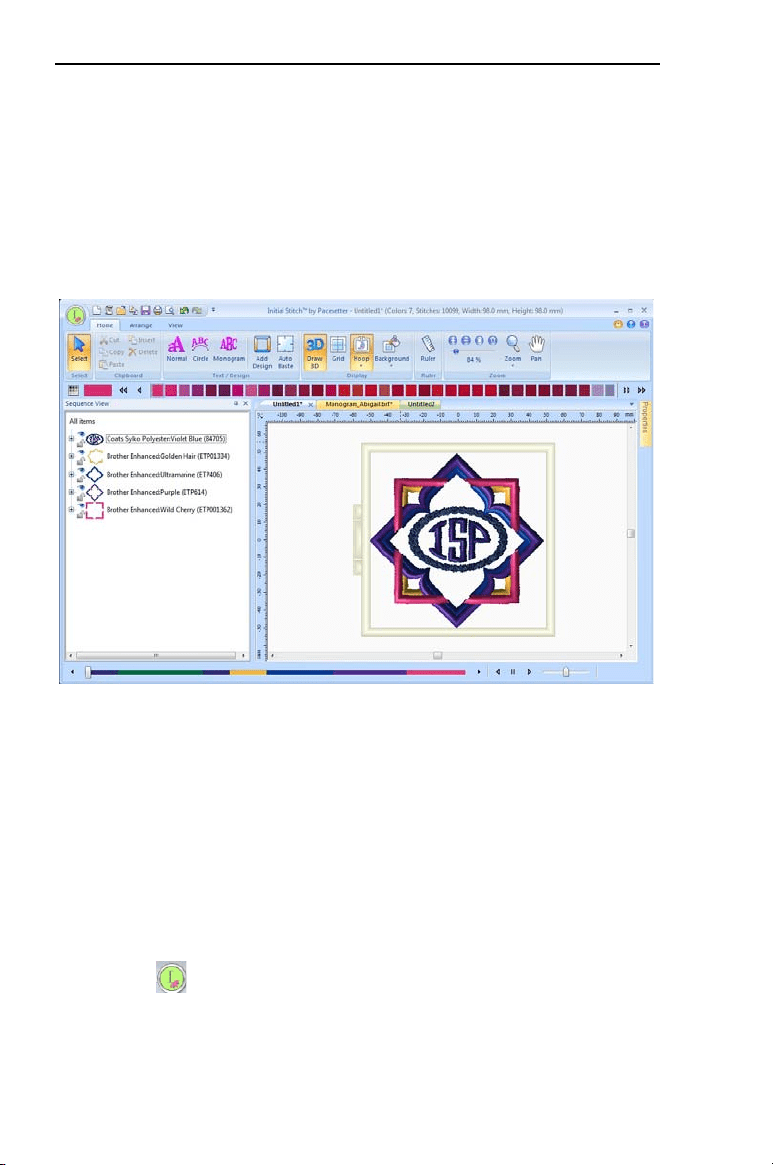
The Initial Stitch by Pacesetter workspace contains a number of
different areas which have distinct functions. The sections that follow
give an overview of what each of these areas does, and the kinds of
information about the design that they contain.
Title Bar
The Title Bar appears at the top of the Initial Stitch by Pacesetter
window. The Title bar displays information about the design that is
open in the workspace: its name, the number of stitches and colors in
the design, and the overall width and height.
The Pacesetter Button
At the top left-hand corner of the program window, you will find the
Pacesetter button. This button to gives you quick access to a
menu of useful tools, such as New, Save, Print, and several others.
For a complete list of the tools available on this menu, and a summary
of their functions, see “Pacesetter Menu Tools” table in the next
section.
GettingtoknowtheWorkspace 7
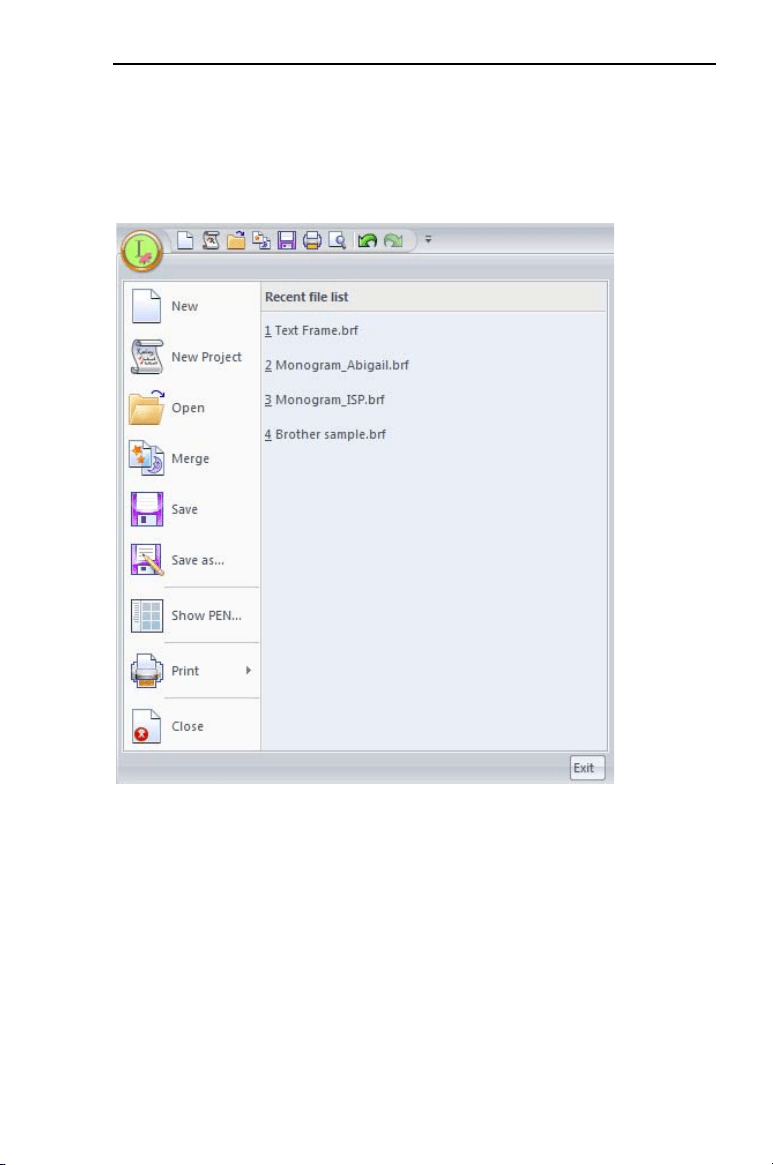
When you open the Pacesetter menu, you will also see a list of recent
files that you have been using. Just double-click on the file name to
open it.
Tools available on the Pacesetter menu.
Toolbar Buttons
You can access the tools available in Initial Stitch by Pacesetter
through the Pacesetter button and the various toolbars. The tables
below show the buttons, grouped by location (i.e. whether they are
on the Quick Access Bar, or on one of the tabs on the ribbon). A
brief description of what the button does is also included. Note that
within each tab, some buttons are grouped together by function.
8InitialStichbyPacesetter
InstructionManual
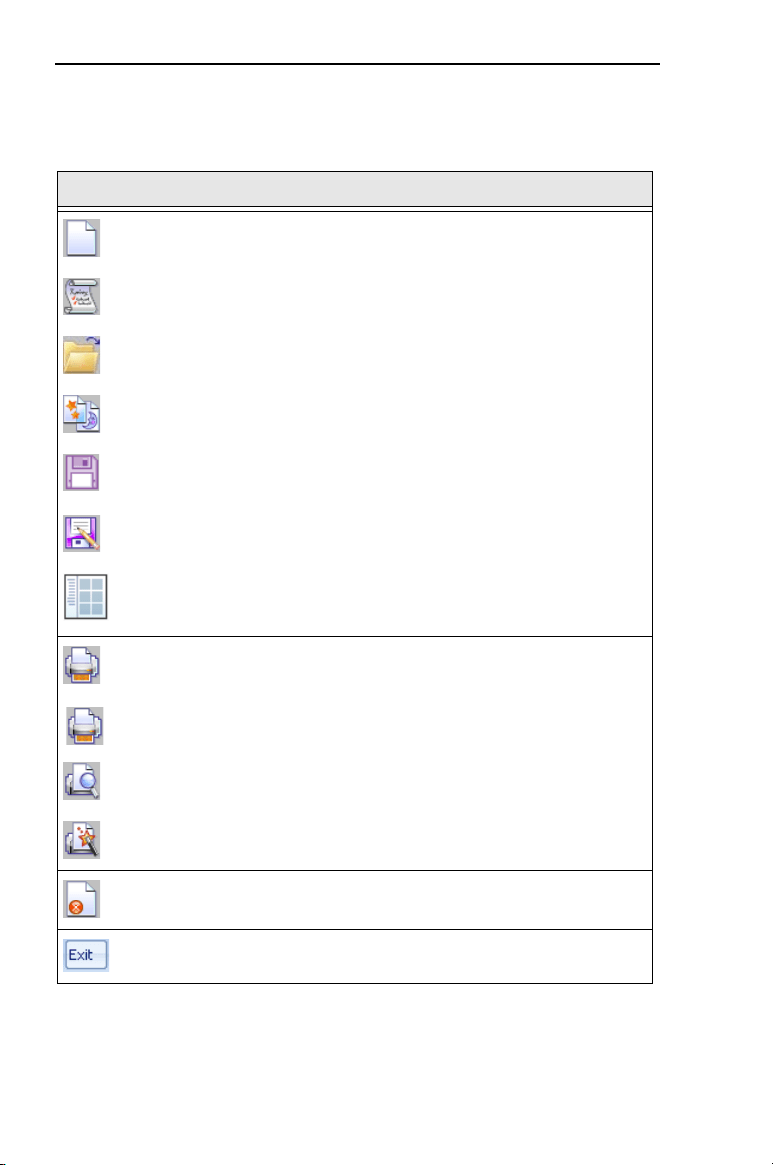
Pacesetter Menu Tools
Tool What it means
New: Creates a new untitled design.
New Project: Opens a new page and allows you to choose a new
recipe and machine format.
Open: Opens an existing design file.
Merge: Opens the Merge Design dialog, which you can use to
import existing stitch or outline files into the current design
Save: Saves the current design.
Save As: Opens the Save As dialog, allowing you to choose the
destination and file type to save it as.
Show Pen: Opens a dialog which searches for PEN files on your
computer, and displays their tumbnail images and properties (#of
stitches, # of colors, dimensions).
Print: Opens the printer dialog on your computer, allowing you to
choose your printer and adjust the printer’s properties.
Direct Print: Prints a copy of the design worksheet, bypassing the
printer dialog.
Print Preview: Opens the print preview window, which in turn will
let you print the current design.
Print Setup: Opens the print preview window, which in turn will let
you print the current design.
Close: Closes the file that you are currently working on.
Exit: Closes all open files and shuts down Initial Stitch ; you will be
prompted to save any open files.
GettingtoknowtheWorkspace 9
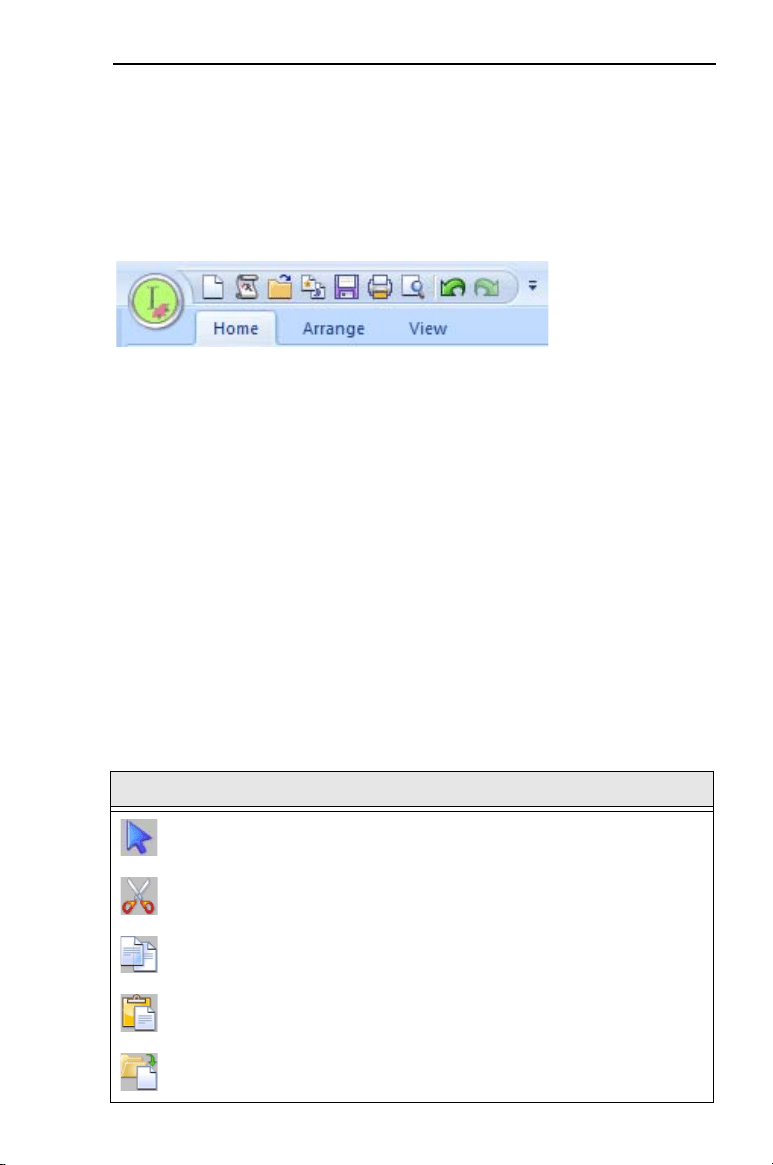
Quick Access Toolbar
The Quick Access Toolbar is located right along the top of your
workspace, to the left of the Title Bar. This toolbar contains tool
buttons that you will commonly use.
The following default tools are included on the Quick Access Toolbar:
New, New Project, Open, Merge, Save, Direct Print, Print Preview,
Undo, and Redo. Note, however, that you can customize the Quick
Access toolbar by clicking the small down-arrow to the right of the tool
bar; this displays a menu of function. Select “Customize Quick Access
Toolbar” to add or remove buttons from this Toolbar.
Tools on the Tabs
The Tabs are located along the top of the workspace window. Initial
Stitch has three tabs – the Home tab, the Arrange tab, and the View
tab. Clicking on the tabs displays all the buttons for the functions that
are under that tab.
Tools on the Home Tab
Tool What it means
Select: Selects objects in the design window.
Cut : Cuts the selection and copies it to the clipboard.
Copy: Copies the selection to the clipboard.
Paste: Pastes the clipboard contents into the design, at the end
of the design sequence.
Insert: Pastes a copy of the clipboard selection into the sewing
sequence immediately following the selected segment.
10 InitialStichbyPacesetter
InstructionManual
Delete: Removes the selected segment.
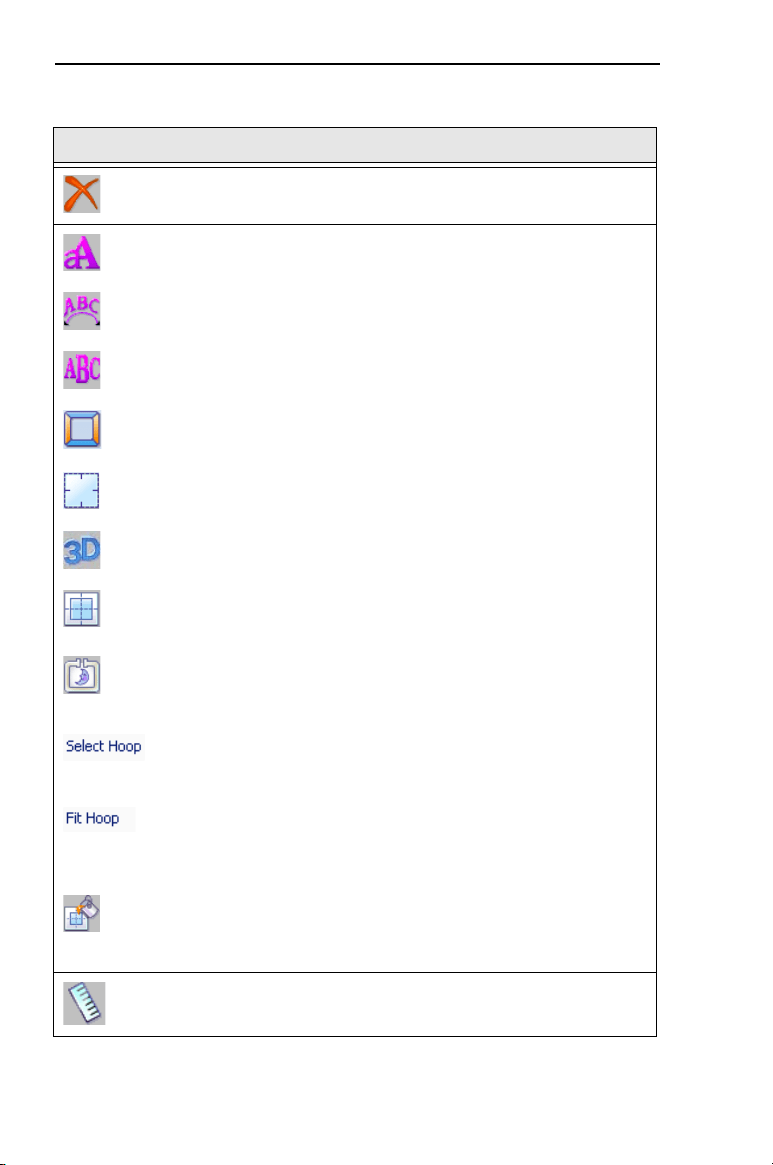
Text: Creates lettering placed along a straight baseline.
Circle Frame: Creates lettering based on a circular baseline.
Monogram Creates three-letter monogram text.
Add Design: Adds decorative Monogram Frames to the
design.
Auto Baste: Automatically adds an outline of basting stitches
around the current design.
3D: Realistically renders your design onscreen.
Grid: Displays a background grid, which helps with alignment.
This grid can be used for the alignment of items on the display.
Hoop: Displays the hoop as it fits relative to the embroidery.
Clicking this button a second time will turn the view of the hoop
off.
Select Hoop:Select by clicking under the Hoop tool to open the
drop-down menu; opens Hoops dialog, which allows you to
choose the hoop size.
Fit to Hoop: Select by clicking under the Hoop tool to open the
drop-down menu; scales the design up to the maximum size of
the selected hoop on the design window.
Background: Two options are available from this button,
Select Color or Select Fabric. Depending on which one you
choose, a dialog box will open in which you select either the
color, or the fabric pattern, that appears in the background of
the active design window.
Ruler: Measures the distance between any two points in a
design.
Tool What it means
GettingtoknowtheWorkspace 11
Tools on the Arrange Tab
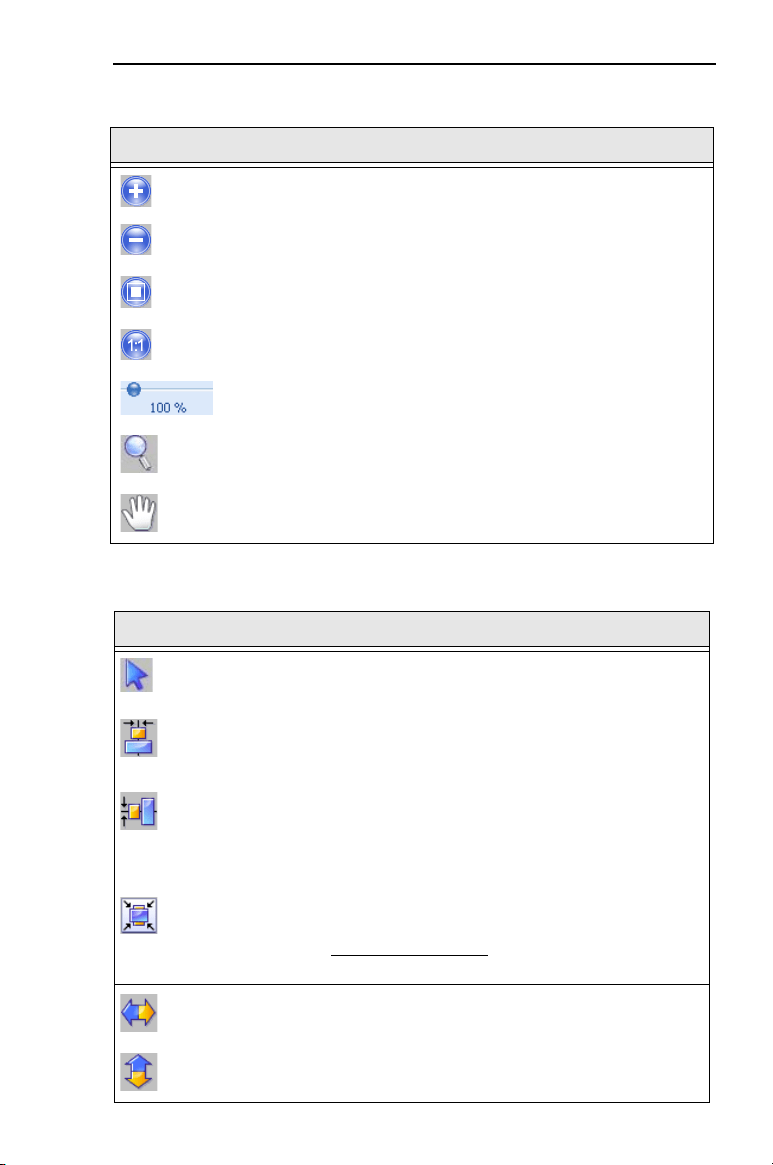
Zoom in: Magnifies the view of the design by a fixed amount.
Zoom out: Shrinks the view of the design by a fixed amount.
Fit to Window: Displays the entire design and loaded images
in the window.
Back to 1:1: Returns design to original size.
Slider: Drag the slider to choose a specific level of
magnification; displays percentage of original size.
Zoom: Magnifies the design to fit a rectangle drawn by the user
with the mouse pointer.
Pan: Allows you to move the design around in the workspace
window by clicking and dragging.
Tool What it means
Select: Selects objects in the design window.
Horizontal Center: Takes all selected objects and centers them in
the selection box. The objects are moved so that they are centered
left-to-right with each other, but they are not moved up or down.
Vertical Center: Takes all selected objects and centers them in the
selection box. The objects are moved so that they are centered top-
to-bottom with each other, but they are not moved left or right.
Center: Centers one or more selected objects proportionally within
the current hoop.
If more than one object is selected, the entire group is moved
together to the center of the hoop; the objects selected remain in
the same position relative to each othe
r as they had before being
centered.
Flip Horizontal: Flips one or more selected objects horizontally.
Flip Vertical: Flips one or more selected objects vertically.
Tool What it means
12 InitialStichbyPacesetter
InstructionManual
The View Tab
The controls on the View tab allow you to change what appears on
your workspace; which panels are displayed,and so on. The areas
found on this tab are Windows and Program Preferences.
Windows
In the windows area, check the box to show the corresponding window
or panel, and uncheck it to hide that window or panel.
• Sequence. Shows/hides the sequence view.
• Palette. Shows/hides the thread palette.
• Properties. Shows/hides the properties panel.
• Simulator. Shows/hides the sewing simulator.
• Status. Shows/hides the status bar.
Program Preferences
Click on the Program Preferences button to open a dialog in
which you can set the default machine settings, change the units of
measure, and choose settings for the workspace grid.
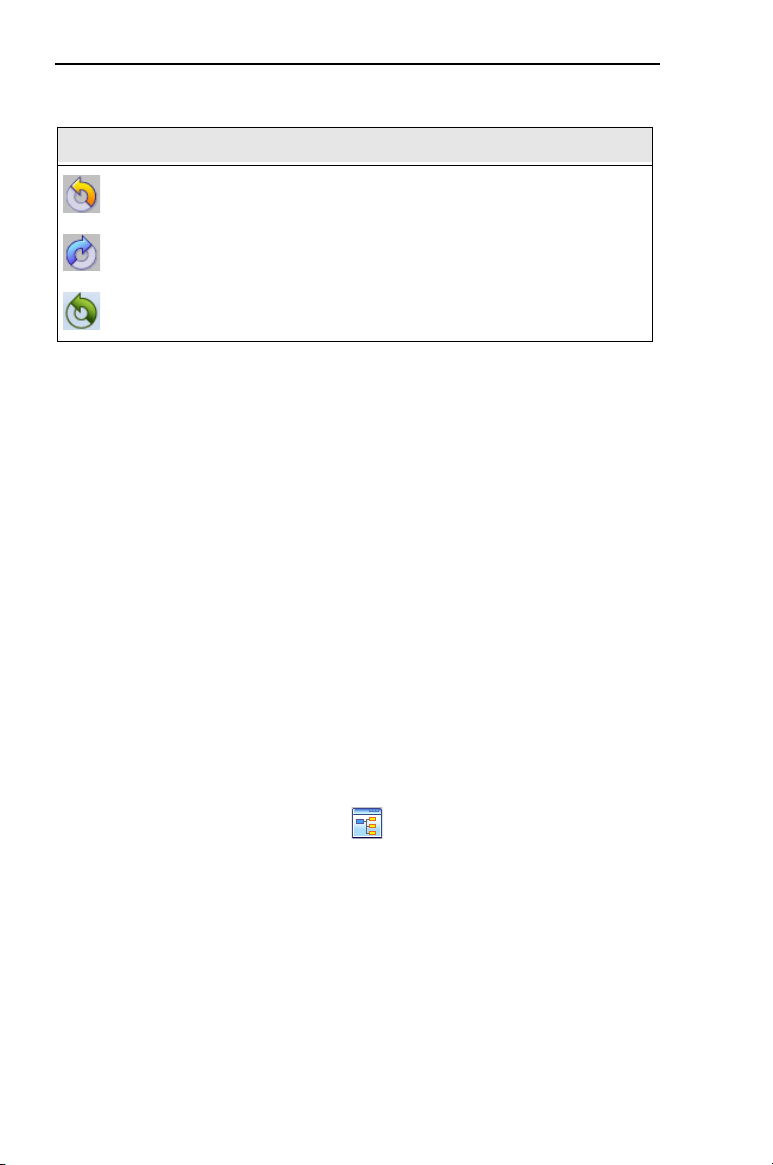
Rotate Left: Rotates one or more selected objects to the left by 90
degree increments.
Rotate Right: Rotates one or more selected objects to the right by
90 degree increments.
Rotate: Opens the Rotation dialog, which allows you to enter the
exact number of degrees of rotation to apply to the selection.
Tool What it means

GettingtoknowtheWorkspace 13
Simulator
The Simulator makes it easy to see on-screen how your design will
sew out. You can use the Simulator to eliminate potential sewing
problems.
When the Simulator is selected on the View tab, it will appear at the
bottom of the design workspace. The Simulator controls which parts of
the design are drawn in the design window.
Scrollbar Slider
The length of the scrollbar slider represents all of the stitches in the
opened design. You can move the scrollbar slider by dragging it to see
a design as it will look sewn to a particular point. The color display
within the scrollbar indicates the thread color that will be sewn when
the scrollbar slider is positioned over it. Clicking on the arrows at the
ends of the scrollbar will advance or retrace the design position by one
stitch.
Sewing Simulator
The sewing simulator allows you to watch your design draw on a
stitch-by-stitch basis, simulating the sewing action of your machine.
The Simulator controls include pause, stop, sew forward and sew
backwards. You can push various control buttons and slide the speed
control to vary the rate of sewing.
You can also open and close the Simulator by pressing Ctrl + R.
14 InitialStichbyPacesetter
InstructionManual
Using the Simulator
The following table explains how to use the Simulator in more detail:
Viewing Designs in Sequence View
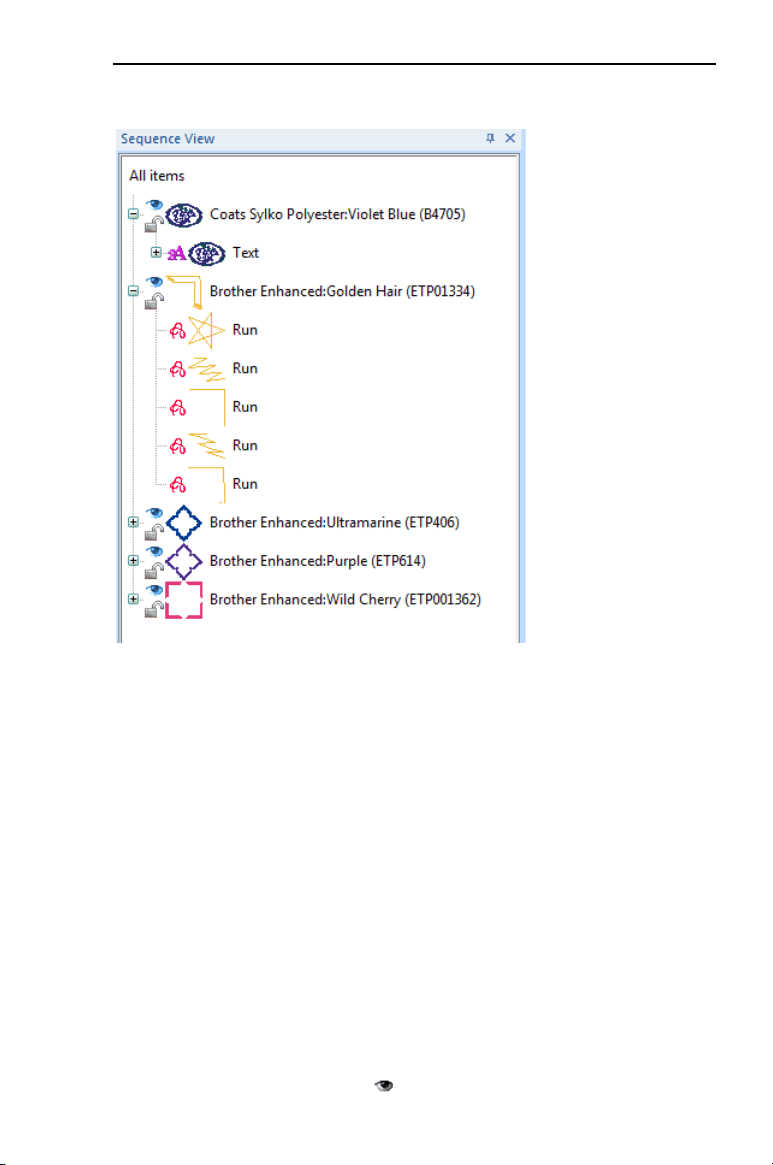
Sequence View allows you to view information that takes the form of
branches. For instance, each color in your design will have different
lines of stitching in that color. You can also select outlines and stitches
in the Sequence View by clicking on them.
Tools What is does
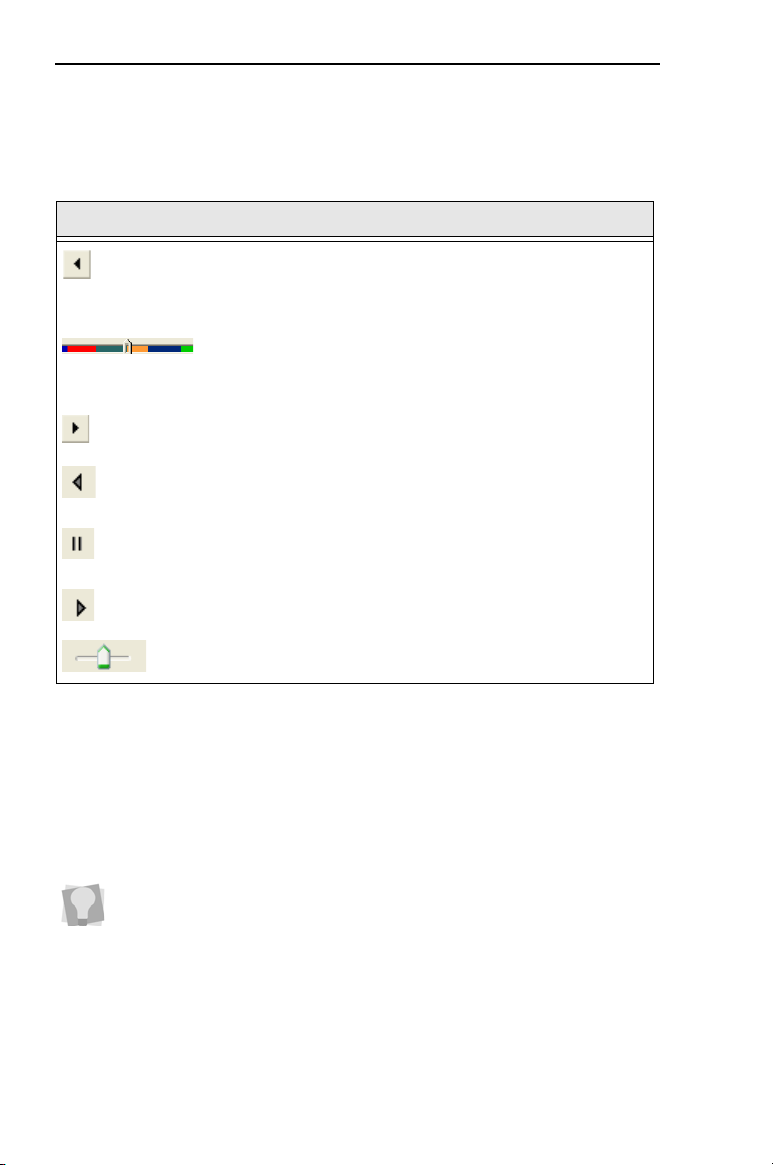
Previous Stitch: Move backward in the design by one
stitch.
Scrollbar slider: Drag the scrollbar slider to advance
the design to a specific position. When the scrollbar
slider is positioned over a color, you will see the specified
thread color being sewn in the design. The entire length
of the scrollbar slider represents the entire design.
Next Stitch: Move forward in the design by one stitch.
Simulate Sewing (backward): Move backward through
the design.
Pause/Stop: Pause or stop the design while drawing.
When you play or resume sewing your design, stitching
will continue from the location of the last stitch.
Simulate Sewing: Move forward through the design.
Speed: Slide the speed control to vary the rate of
sewing.
To show or hide the Sequence View, go to View tab and check the
“Sequence” check box.
GettingtoknowtheWorkspace 15
The Sequence View allows you to expand and contract branches
(colors) allowing you to see or hide the individual outline segments
inside them. Open and close the branches of the tree control by
clicking on the + or – signs in beside each color name.
Tips for Using the Sequence View
• Once you expand a color group, you will see that the Sequence
View identifies each segment within it by type - i.e., whether it is
Text, Run, Column, or Fill.
• You can use the sequence view to select individual embroidery
segments, or all the segments of a given color. Do this by simply
clicking on a color group or segment to highlight it; you will see that
the segments selected in Sequence View will also be selected in
the Workspace.
• You can show and hide individual segments in the workspace by
clicking on the small “eye” icons to the left of each color group.
16 InitialStichbyPacesetter
InstructionManual
Status Line
The Status Line appears at the bottom of the Initial Stitch window. To
show or hide the Status Line, go to the Windows area of the View Tab
and check or uncheck Status.
As you move the mouse over different sections of the workspace, this
indicator will tell you what that area or button does. You will also find
specific design information in other areas of the status bar; it shows
the total number of segments in the design, the number of segments
currently selected, the machine format, the recipe used by the current
design, the number of stitches in the selected design components and
the hoop being used.
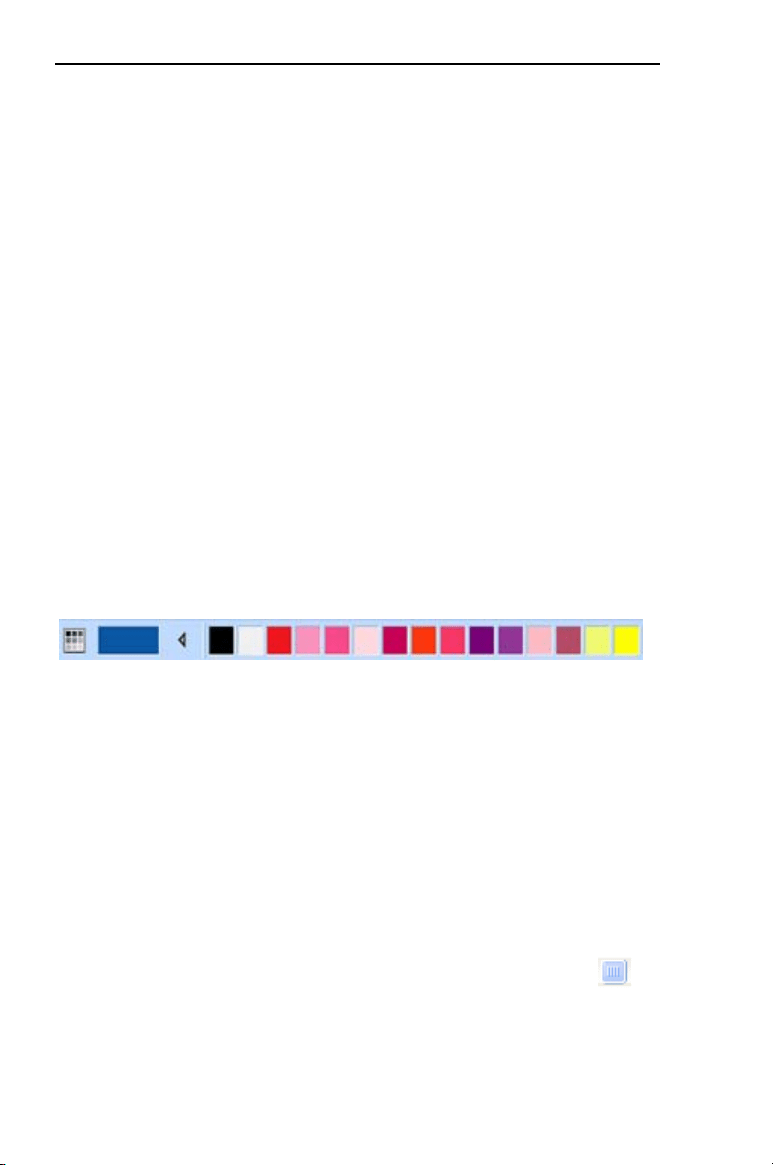
Color Palette
The thread colors for the design are shown in the Color Palette located
along the top edge of the workspace. To show the Color Palette (if it is
not already displayed), go to the Windows area of the View tab and
check the “Palette” checkbox.
An example of a color palette
For more information on the color palette, see “Changing Thread
Colors” in the “Design Editing” section of this manual.
Using Scrollbars
Scrollbars are tools in the workspace that enable you to move easily
around within the displayed design. There are two scrollbars, one for
moving the view vertically, and one for moving it horizontally.
How to use the scrollbars:
• To pan left/right, or up/down, click and drag the track button .
• Click on the small arrows at each end of the scrollbar to move the
design view incrementally.
• Click in the track of the scrollbar, to move the workspace view by
one whole screen
GettingtoknowtheWorkspace 17
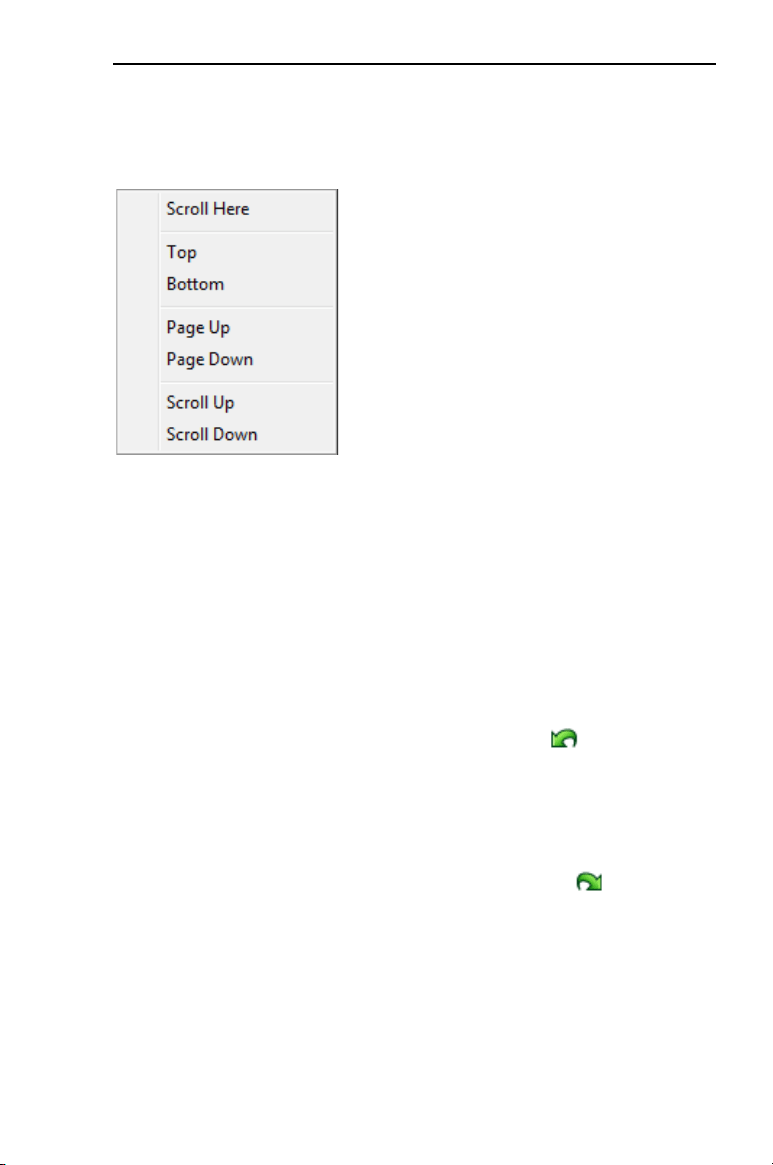
You can also right-click the scrollbar to display a pop-up menu of scroll
actions. The pop-up menu gives you the following options:
Correcting Mistakes
Undo and Redo are two significant features that allow you to correct
mistakes. If you make a mistake and change your mind about an
action you just made, Undo reverses the action. Redo puts back the
change. If Undo or Redo are grayed out, you cannot Undo or Redo.
To use Undo:
• Do one of the following:
On the Quick Access toolbar click the Undo tool.
Press Ctrl+Z on your keyboard.
To use Redo:
• Do one of the following:
From the Quick Access toolbar, click the Redo tool.
Press Ctrl+Y on your keyboard.

18 InitialStichbyPacesetter
InstructionManual
Setting up the Workspace
Environment
Measurement Units and Display
Language
Initial Stitch allows you to set up your design workspace environment
for all opened design files. You can set the units of measurement you
want to use for your designs - metric (mm) or English (inches).
You can also choose the language of the program’s tools and dialogs
on this page.
To set up your workspace environment:
1 On the View tab, select the Preferences button.
You see the Preferences dialog box.
2 Click the Environment tab.
3 From the Units list, select the units of measurement you want used
for your designs: Metric or English.
4 In the Language field, click the down-arrow on the right to select
the language for the program display.
5 The “Show warning for large satins” box will be checked by default.
When this setting is enabled, a warning message will appear
whenever a satin segment wider than the maximum recommended
stitch length (10 mm) is generated - for example, by re-sizing satin
lettering. You can choose not to have this message appear by un-
checking this setting.
6 Click OK to save the changes.
Machine Format Properties
Machine formats have their own profile settings that determine how
embroidery information will be interpreted when you save design files.
When you create a new design file, you can select the machine format
for the specific design. The selected machine format can change how
the design file is read: when you set machine format properties in the
GettingtoknowtheWorkspace 19
Preferences dialog, all new designs will use these machine format
properties as the default settings.
To change machine format properties:
1 On the View tab, select the Preferences button.
You see the Program Preferences dialog box.
2 Click the Formats tab.
3 From the Machine format list, select the machine format that you
want applied to new design files.
4 Click OK.
Grid Settings
The Grid Settings help you align and measure artwork and design
elements. You can set the grid to measure in millimeters or inches
according to your preference. You can display/hide the grid by
checking/unchecking the box in the Display area of the Home tab.
By default, every horizontal and vertical line will be highlighted in the
major grid. If you want to have additional guide lines, you can add
more major grid lines as well as a minor grid. To make grid lines more
visible on particular backgrounds, you can change the color of the
major and minor grids; separate colors may be chosen for the major
and minor grids.
To define grid settings:
1 To open the grid settings dialog, do one of the following:
Right-click on the rulers at the left or top of the window and
click Grid Settings.
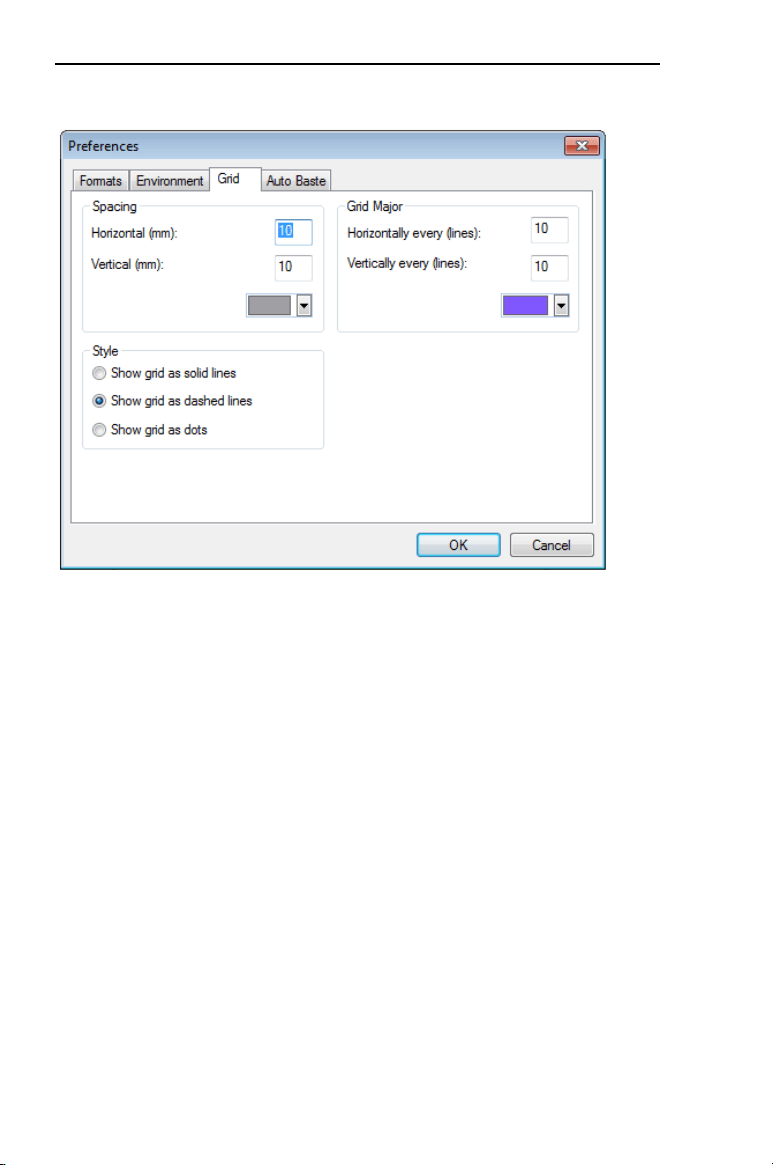
On the View tab, click Preferences and select the Grid tab.
You see the Grid settings dialog.
If you open a design with the New Project command, you can select the
recipe for the new design in the New Project dialog. This will override
whichever recipe is set as the default in the Preferences dialog.
Changing machine format properties after a design file has been
opened will not change the machine format of the embroidery designs
in that design.
20 InitialStichbyPacesetter
InstructionManual
2 In the Grid Minor area, complete the following:
In the Horizontal spacing box, enter the measurements for
horizontal spacing in millimeters or inches.
In the Vertical spacing box, enter the measurements for vertical
spacing in millimeters or inches.
From the Color list, select a predefined color to use for the
minor grid. If you want to choose from a larger selection of
colors, click Custom from the color box.
3 In the Grid Major area, complete the following:
In the Horizontally Every (lines) box, enter how often you want
horizontal lines to be highlighted in the major grid. For
example, if you enter 3 in this box, every third horizontal line
will be highlighted in the major grid.
In the Vertically Every (lines) box, enter how often you want
vertical lines to be highlighted in the major grid. For example, if
you enter 5 in this box, every fifth vertical line will be
highlighted in the major grid.
GettingtoknowtheWorkspace 21
From the Color list, select a predefined color to use for the
major grid. If you want to choose from a larger selection of
colors, click Custom from the color box.
4 In the Style area, select one of the following grid styles:
Show grid as solid lines.
Show grid as dashed lines.
Show grid as dots.
5 Click OK.
Basting Stitch settings
There is a setting in the Program Preferences dialog that allows you to
adjust auto basting settings. On the Preferences tab, select Program
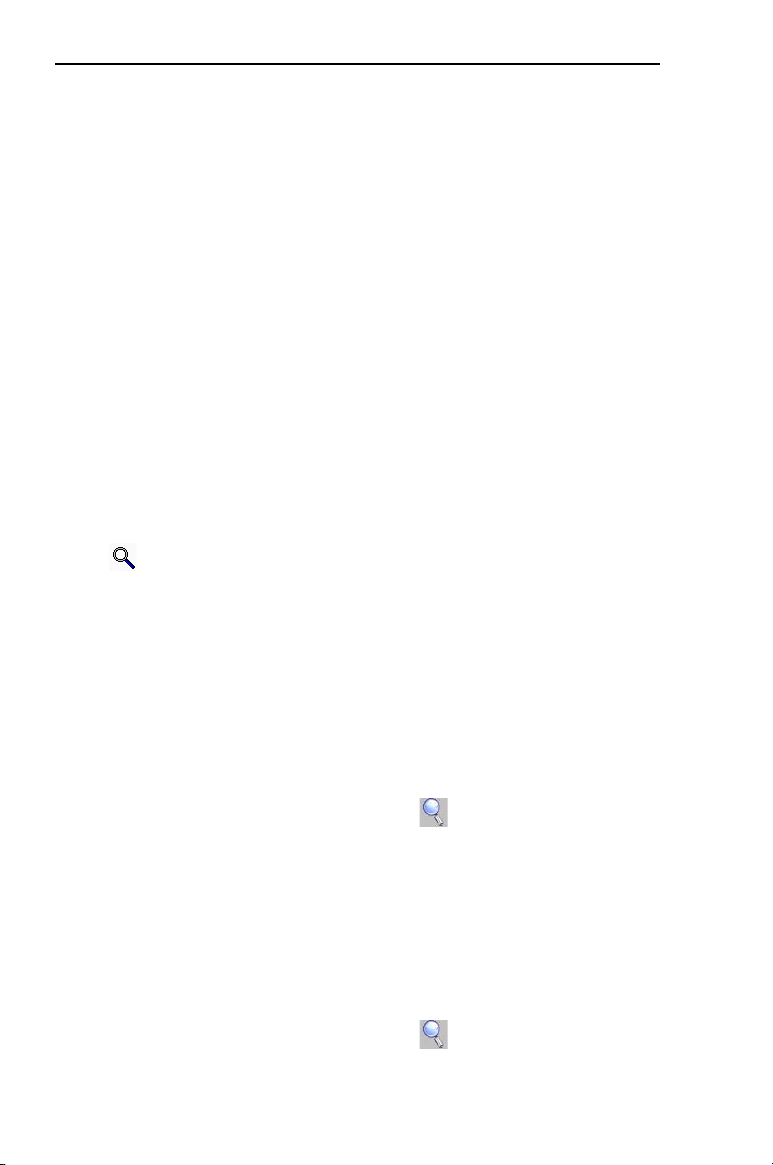
Preferences , and click the Auto Baste tab.
On the Auto Baste tab, you will find the following useful settings:
• An optional ’crosshair’ can be added in the baste to allow easier
centering of designs on the fabric (this setting will be on by
default).
22 InitialStichbyPacesetter
InstructionManual
• The stitch length can be adjusted to make a tighter or looser
basting stitch.
• The basting stitches segment may be offset from the actual design.
You can adjust the “Baste past outer edge of design” slider to set
this value, from 0-10 mm.
Adjusting the View of the
Workspace
Magnifying and Reducing the View
Use Zoom to magnify or reduce parts of your design. With Zoom you
can either left-click to enlarge your design or right-click to make your
design smaller.
When you select Zoom, the cursor changes to a small magnifying
glass . To use the Zoom tool, do one of the following:
• To zoom in on the spot where the mouse is currently pointing, left-
click.
• To zoom out again, right-click.
• To zoom in on a particular area, left-click and drag; the display will
expand to show only the area that you have dragged over.
To use the Zoom Tool:
1 On the Ribbon, select the Home tab.
2 In the Zoom toolbar, click on the Zoom tool.
The pointer becomes a magnifying glass.
3 Do either of the following:
Left-click to make your design larger.
Right-click that area to make your design smaller.
To zoom-in on a specific area:
1 On the Ribbon, select the Home tab.
2 In the Zoom toolbar, click on the Zoom tool.
The pointer becomes a magnifying glass.

GettingtoknowtheWorkspace 23
3 Click and hold your mouse button and drag it to form a flexible box
around the area you want to see in detail.
4 Do one of the following steps:
To increase the zoom, continue clicking and dragging the
flexible box.
From the Zoom toolbar, click on the down arrow under the
Zoom icon, and use the Zoom tool settings to zoom back out.
Additional options on the Zoom Toolbar:
When you click on the down arrow underneath the Zoom Tool, you will
see an option menu. You can choose from any of the following options
on this menu:
• Zoom In to make your design larger.
• Zoom Out to make your design smaller.
• To Fit to make the whole design the size of the design window.
• To Selection to zoom to the size of the currently selected
embroidery segment, or set of embroidery segments if more than
one is selected.
• 1:1 to see the design at the actual size.
Hiding the Properties Panel
Automatically
To increase the amount of space for your design window, you can set
the Properties panel to the Auto hide mode. When Auto hide is on, the
panel will only be visible while the mouse is over it; as soon as you
remove the mouse, the panel will collapse to a narrow sidebar.
To turn on Auto hide for these panels, click on the small push-pin icon
at the top-right of the panel. When the panel is in Auto hide mode,
the small push-pin will be on its side, like this: . Now, whenever you
move the mouse to another part of the screen, the panel will be
hidden.
To turn Auto hide off, click on the icon again.
24 InitialStichbyPacesetter
InstructionManual
Viewing Different Parts of the
Workspace (Panning)
Sometimes you may want to work at a high level of magnification, and
some part of the garment or embroidery you’re working on will not
show up in the workspace.You can move to parts of your design that
go beyond the window’s borders. In these situations, you can use
keyboard arrows or the pan tool to change your view of the project.
Panning using the keyboard:
• Use the key to move up.
• Use the key to move down.
• Use the key to move left.
• Use the key to move right.
Using the Pan Tool
Use the Pan tool to move the view of the design around in the
workspace by clicking and dragging. While you are using the Pan tool,
you will still be able to see the design in the window. Note that the pan
tool does not actually move parts of the design around, just your view
of them..
Taking Measurements
The Ruler tool lets you measure the distance between any two
points in your design workspace. When you measure from one point to
another, the distance is displayed in the status line located at the
bottom of the window. The status line shows the horizontal and vertical
distances the Ruler tool travels from the x and y axes, the angle
measured, and the total distances.
You can right-click to switch back to whichever tool you were
using before you selected the Pan tool.

GettingtoknowtheWorkspace 25
To measure Designs:
1 On the Ribbon, select the Home tab.
2 Click on the Ruler tool.
Your pointer changes to a ruler when in the Design Workspace.
3 Click and drag your mouse until you are finished measuring the
item.
4 Let go of your mouse when you are finished measuring.
5 Look in the status line at the bottom of the workspace to see the
measurement.
6 Right-click to set the end point of your measurement.
The measurement is now displayed in the status bar.
Displaying the Hoop
Viewing the hoop or frame on the screen lets you ensure that your
design fits properly when you run it on the machine. The hoop serves
as a guide to help size and position your design in the design window.
Initial Stitch comes with two pre-loaded hoop sizes.
Viewing and Hiding the Hoop
Use the Hoop tool to show and hide the hoop in the display
window. Just click on the Hoop tool to show the hoop (if it is not
currently shown) and click it again to hide the hoop.
The ruler measurements are calculated in the units you set
under the Units tab of the Preferences dialog.
Using the Hoop tool may effect the magnification level of your design.
For example, if you are zoomed in on the design, clicking the Hoop tool
will cause the view to zoom out enough to fit the entire hoop into the
workspace.
26 InitialStichbyPacesetter
InstructionManual
Selecting a Hoop
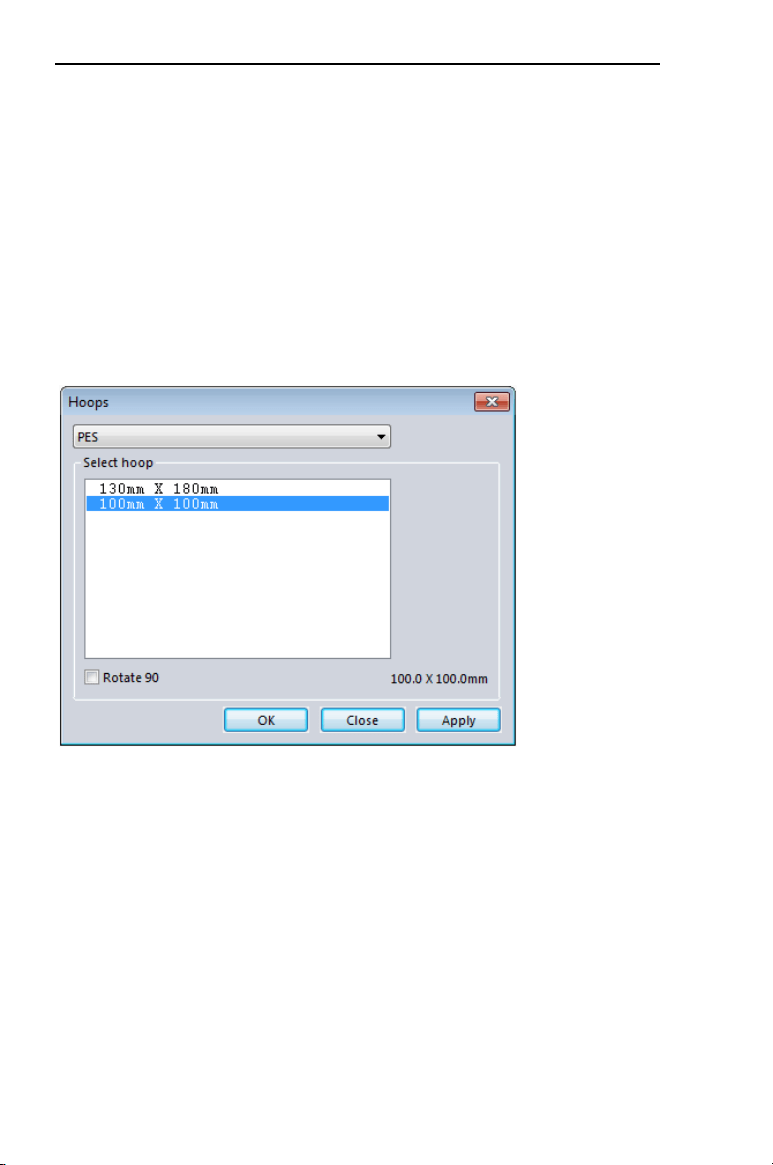
You can select one of the hoops using the Hoops dialog. There are two
hoops available with the software – the PES 130mm × 180mm and the
PES 100mm × 100mm.
To select the hoop size:
1 On the Home Tab click the down arrow under the Hoop tool.
2 From the menu that appears, click on Select Hoop.
You see the Hoops dialog.
3 Select the machine format from the Format drop-down list.
4 From the list of Hoops, choose a hoop size appropriate for your
design.
5 If needed, check the “Rotate 90” box to make the hoop fit your
design better.
6 Click OK.
GettingtoknowtheWorkspace 27
Getting Help
The Initial Stitch Help is a quick way to find answers to your questions
and see step-by-step instructions. Because a large number of topics
exists, the Help allows you to search for topics in various ways. You
can search using the table of contents, the index or a database of
keywords. You can also save the topics you visit most often.
Opening the Help
To open the Help:
1 Double-click the Initial Stitch icon on your desktop.
You see the blank design workspace.
2 Click the Help tool.
You see the Help.
Using the Contents
The Help has a table of contents, with a list of book icons. Each book
contains a series of related topics.
To use the Contents:
1 Click the Help tool.
You see the Help.
2 Double-click the book you want to open.
3 Click the topic you want to see.
You see the topic in the right pane.
Using the Index
The Help index is similar to the index in a book.
To use the Index:
1 Click the Help tool.
You see the Help.
28 InitialStichbyPacesetter
InstructionManual
2 In the box, enter the word or words you want to search for.
In the list, you see the topics that most closely match your query.
3 Click the term you want to learn more about.
If there is more than one topic for the keyword, you see a menu.
4 Click the topic you want to see.
You see the topic in the right window pane.
Using Search
The Search tab lets you search using keywords or phrases in a
database of all the words found in the Initial Stitch Help.
To use Search:
1 Click the Help tool.
You see the Help.
2 Select the Search tab.
3 In the ”Keyword” box, enter the word or phrase that you are
searching for.
4 Click the List Topics button.
In the list below, you see the topics that contain the words you
searched for.
5 Click the topic you want to view, and then click Display.
You see the topic in the right window pane.
Saving Favorite Help Topics
The Favorites tab lets you save the topics that you visit most often and
want to access quickly.
To save your favorite topics:
1 Click the Help tool.
You see the Help.
2 Double-click the book you want to open.
3 Click the topic you want to save as your favorite.
You see the topic in the right window pane.
4 Click the Favorites tab.
You see the selected topic in the Current topic area.

GettingtoknowtheWorkspace 29
5 To add the selected topic to your favorites list, click Add.
You see the selected topic appear in the Topics area.
6 To display your favorite topic, do one of the following:
In the Topics area, select the favorite topic you want to display
and click Display.
In the Topics area, double-click the favorite topic you want to
display.
You see the topic in the right window pane.
7 To remove one of your favorite topics, do the following:
In the Topics area, select the favorite topic you want to remove
and click Remove.
Printing Help topics
You can print any of the topics in the Help.
To print topics:
1 Click the Help tool.
2 Click the topic you want to print.
The topic will appear in the Help window.
3 Click Print.
You see the Print Topics dialog box.
4 Select one of the following print options:
Print the selected topic
Print the selected heading and all subtopics
5 Click OK.
You see the Print dialog box.
6 Change any of the print settings, if necessary, and click OK.
The topic will be sent to your printer.

30 InitialStichbyPacesetter
InstructionManual

You can add beautiful lettering to your designs using various Initial
Stitch by Pacesetter tools. Generate unique personalized text in an
array of shapes and sizes using the Text tools.
Topics covered in this chapter:
• Creating lettering with the Normal, Circle, and Monogram text tools
• How to modify blocks of text, and individual letters within text
segments
• Editing text objects using Properties panel settings
• How to know what characters are available in each font
• Changing thread colors using the color palette
CHAPTER 2:
Creating Text and
Adjusting Text Properties

32 InitialStichbyPacesetter
InstructionManual
Creating Lettering
There are three different tools which are used to input your lettering
into a design: the Normal Text tool, the Circle Text tool, and the
Monogram tool.
The following sections describe how to use each of these tools.
Normal Text Tool
Normal Text items are created using the Normal Text tool. Normal
text items start out with normal proportions for the font, and can be
adjusted.
To create normal text:
1 On the Ribbon, select the Home tab.
2 On the Text bar, click on the Normal Text tool.
3 Click once in the design window.
An empty text frame appears in the workspace, and the mouse
pointer changes to an arrow with the letter A next to it .
4 Type the desired text string. To create a multi-line text segment,
press ENTER, which will drop the cursor down one line, and
continue to enter your text.
5 Right-click to complete the text segment.
Your text appears in the design. You can now make any other
changes to the text segment in the Text Properties box.
6 To choose a new font (i.e., other than the currently selected one)
for the text string at this point, do the following:
In the Text area of Properties panel, click the Font field to
select it.
Click on the down-arrow to the right of the font field.
You see a list of fonts.
Select the desired font from the list.
If another text item was already selected, your first click only de-
selected that item. You will have to click again to place a new text item.

CreatingTextandAdjustingTextProperties 33
A preview of the newly selected font is now displayed at the top
of the properties panel.
Click Apply in the Properties panel.
For information on changing other text settings, see “Normal Text
Properties”.
Circle Text Tool
Text on a circular path is created using the Circle Text tool. When
the text is first created, it is given a default font height and circle
diameter, which can be adjusted using the text tools.
To create Circle Text:
1 On the Ribbon, select the Home tab.
2 On the Text bar, click the Circle Text tool.
3 Click once in the design window.
An empty Circle Frame appears in the workspace.
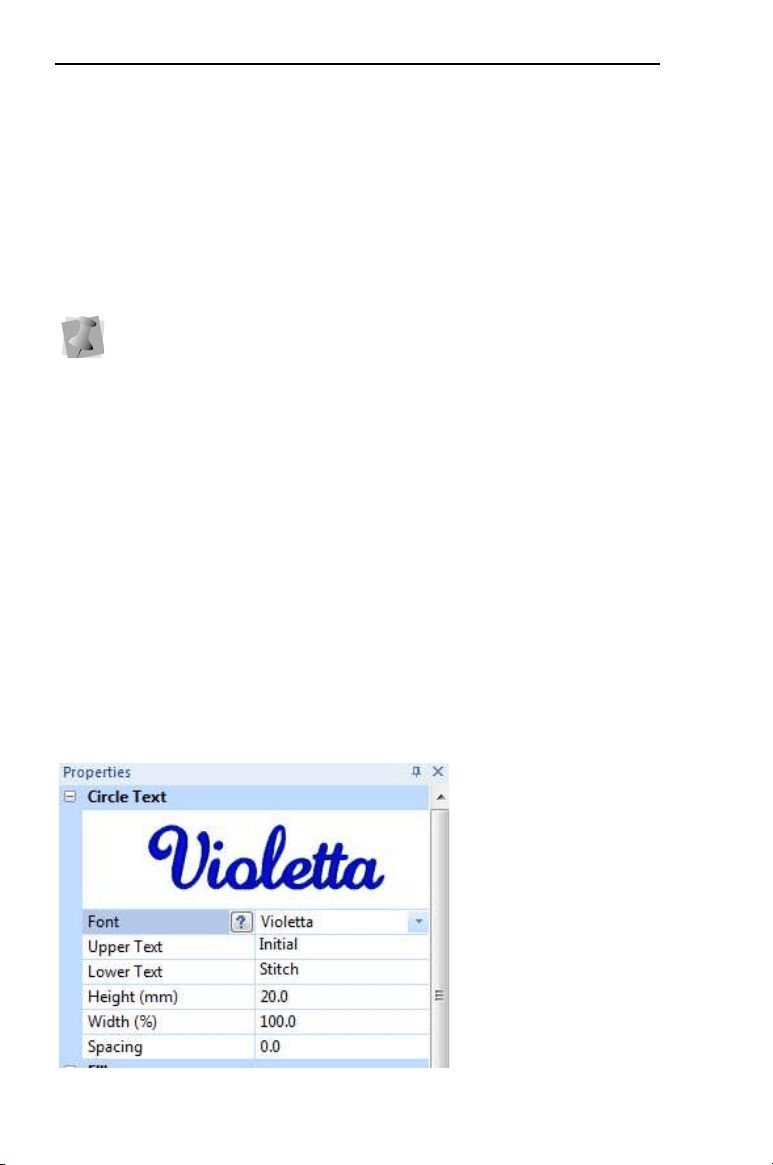
4 Type the desired text into the “Upper Text” and “Lower Text” fields
in the Properties panel.
5 Right-click to complete the text segment.
Your text appears in the design. You can now make any other
changes to the text segment in the Text Properties box.
6 To choose a new font (i.e., other than the currently selected one)
for the text string at this point, do the following:
In the Text area of Properties panel, click in the Font field to
select it.
Click the down-arrow to the right of the font field.
If another text item was already selected, your first click only de-
selected that item. You will have to click again to place a new text item.
Text typed in the Upper Text field will by centered at the top of the circle,
and will run clockwise, while text typed in the Lower Text field will be
centered at the bottom, and run counter-clockwise.
For more information, see “Changing Text Direction” in the “Text
Properties” section of the manual.

34 InitialStichbyPacesetter
InstructionManual
You see a list of fonts.
Select the desired font from the list.
A preview of the newly selected font is now displayed at the top
of the properties panel.
Click Apply in the Properties panel.
Creating Monograms
Monogram Text items are created with the Monogram Text tool.
When you create a Monogram text item, it is three letters long by
default (but this can be changed on the properties panel). Decorations
can be added to Monogram items for those fonts that support them.
To create standard Monogram text:
1 On the Ribbon, select the Home tab.
2 On the Text bar, click on the Monogram frame tool.
3 Click once in the design window.
A monogram text frame appears in the workspace, and the mouse
pointer changes to an arrow with the letter A next to it .
4 Type the three letters of your monogram into the frame.
5 In the Monogram area of the Properties Panel, select the font you
wish to use in the in the Font field.
6 Click the Apply button at the bottom of the properties panel.
You can also make any other changes to the settings the Properties
box.
If another text item was already selected, your first click only de-
selected that item. You will have to click again to place a new text item.

CreatingTextandAdjustingTextProperties 35
Text Frames - an Overview
In Initial Stitch by Pacesetter, you can modify your lettering in a num-
ber of different ways once you have created it. You can change the
overall size of the text, the height, the slant, the spacing between let-
ters (kerning), and so on.
There are two main methods of changing the size and shape of a text
segment: directly, by clicking and dragging on the outline handles in
the workspace, or indirectly, by changing the parameters in the Text
section of the Properties Panel. The following sections will show you
how to use handles for direct text manipulation; for more information
about how to use the properties panel, see, “Adjusting Text
Properties”.
Adjusting Size of a Text Segment
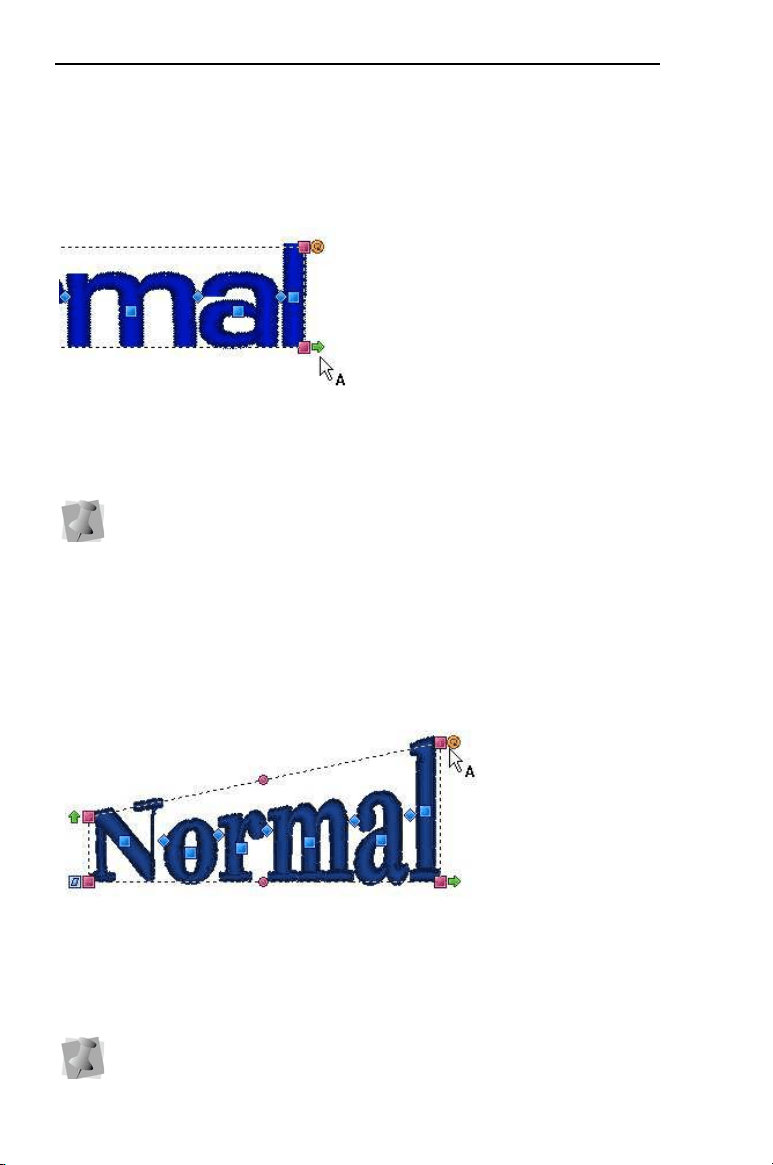
To change the size of a text segment manually, you can use the
Proportional Sizing handle. This is the green arrow located on the top-
left corner of the text frame.
Click and drag on the Proportional Sizing Handle to change the overall
size of the text; up to increase the size, down to decrease the size.
Note that the size of the text changes proportionally; that is, if you
increase the size of the segment, the letters will increase in height by
the same degree that they increase in width.
Note that not all of the ways of adjusting the text will apply to all types of
text frames; for example, the Envelope function and the Envelope
handles, only apply to the Normal Text and Monogram frames only.
Where applicable, the section will list the frame types to which these
handle can apply; if not stated, you can assume that the handle is
present for all frame types.
36 InitialStichbyPacesetter
InstructionManual
Adjusting the Width of Text
If you want to change the width of the text of segment, without
changing the height, use the frame’s Width Handle.
The Width Handle is the green arrow at the bottom-right of the text
frame. Click and drag the to right to increase the width, and to the left
to decrease the width
Adjusting the Corners of Text Segments
Use the Corner Handles to change the shape of a text segment. The
Corner Handles are at each corner of the text frame, and are pink in
color.
When you click and drag these handles up or down, they change to
position of the selected corner of the text frame; when you release the
mouse button, the embroidery is regenerated to match the change in
shape. This gives you the ability to create text that slopes up or down.
If you want to adjust the height of a design, it can be done in the
Height box in the Text tab. Enter the new size and click Apply.
These handles are applicable only to Normal Text frames and
Monogram Text frames.
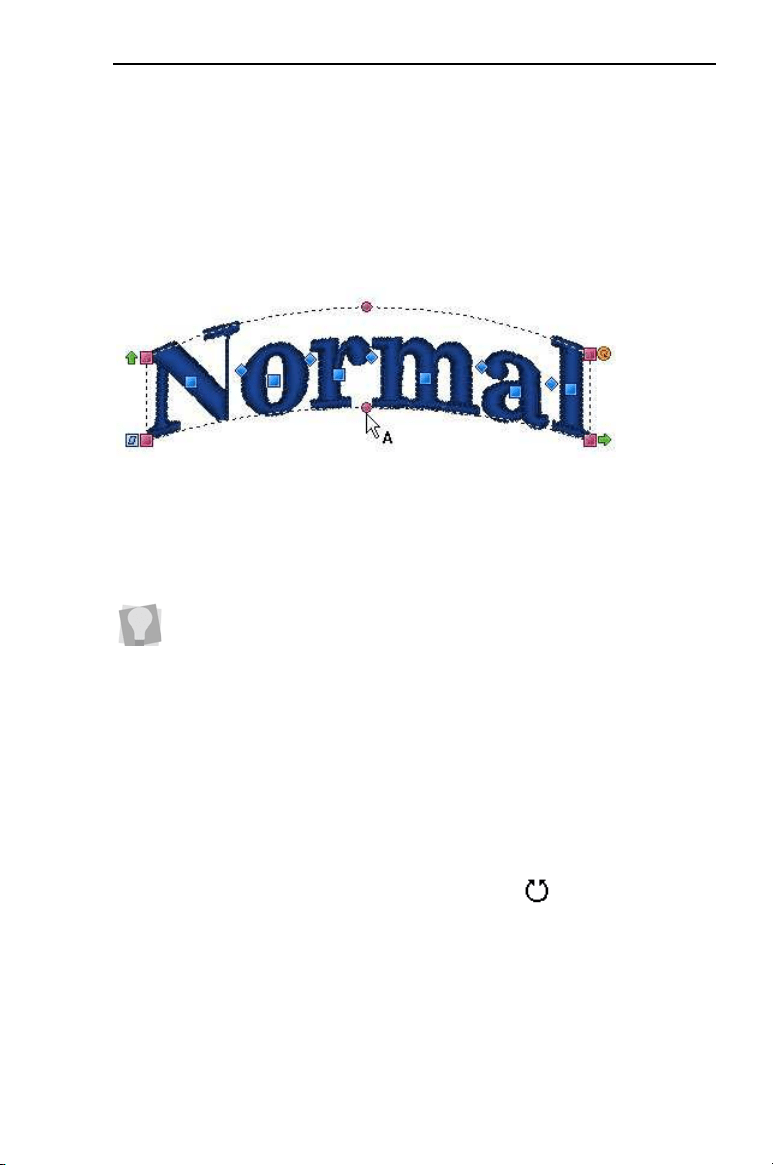
CreatingTextandAdjustingTextProperties 37
Using the Envelope Handles
These handles apply only to Normal Text and Monogram text items.
These two types of text are surrounded by a flexible bounding box,
called an envelope. You can adjust this shape by moving the Envelope
Handles.
The Envelope Handles are the pink circles, located at the mid-point of
the top and bottom borders of the text frame. Click and drag these
handles to make the top and/or bottom of the frame concave (“bowed
in”) or convex (“bowed out”)
Rotating Text
Use the Rotation handle to change the angle of a text segment. This is
the orange circle at the top-left corner of the text frame.
To rotate a segment, first position the mouse over this handle so that
the cursor will changes to a circle-arrow handle . Then, drag the
handle to rotate the segment to the desired angle. Drag up to rotate
counter-clockwise, and down to rotate clockwise. Notice that, as you
You can also apply an envelope shape to a text segment through the
Properties Panel. You can use the Envelope property in the Text area to
apply a predefined envelope to a Normal Text or Monogram text item.
For more information see “Applying an Envelope” in the “Lettering
Properties” section.
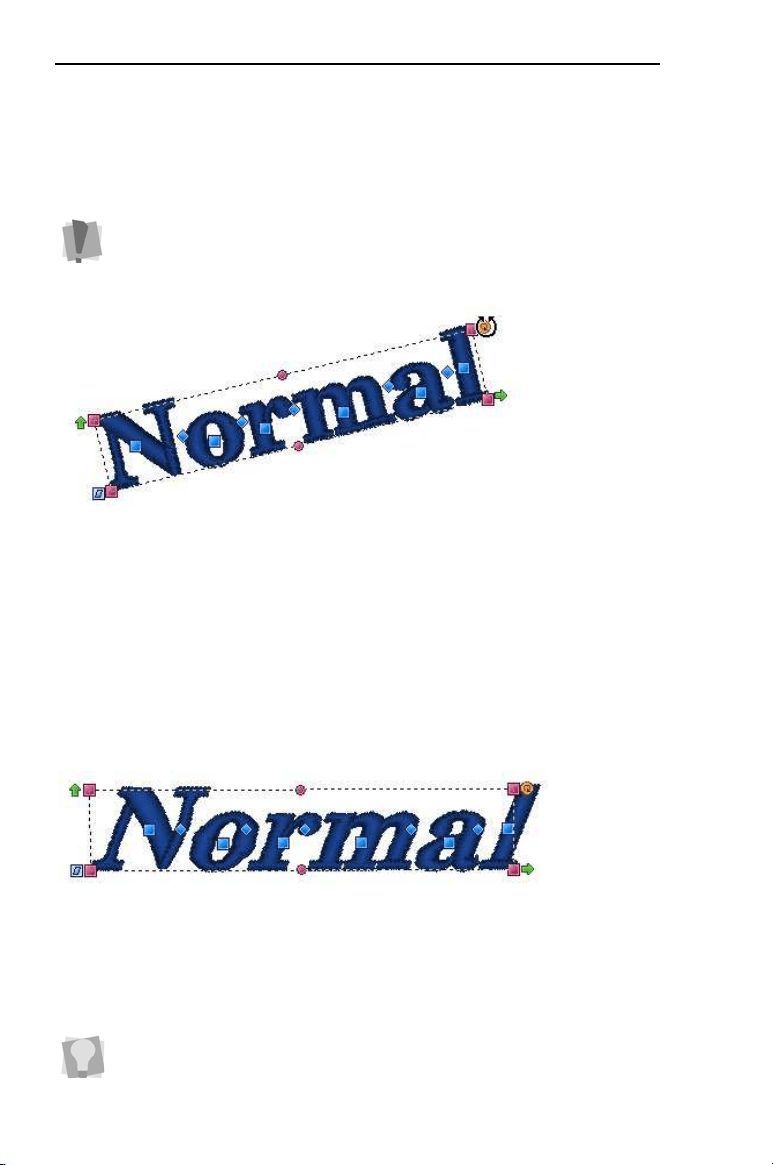
38 InitialStichbyPacesetter
InstructionManual
rotate, the tool displays an outline preview of the lettering, showing
how far you are rotating it. Release the mouse button to “drop” the
segment, and generate the stitches at the new angle.
Dragging this handle rotates the design to any angle. You will see an
outline of the design rotate onscreen as you are dragging, and the text
will be regenerated when you release the mouse.
Adjusting the Slant of Text
The angle of the letters in a text object can be adjusted with the Slant
Handle. The Slant Handle is the square blue handle located to the
lower-left of the selection box.
To adjust the slant of text, select the text object you want to adjust,
click the Slant Handle and drag. To add a forward (positive) slant to
the letters, drag to the right and to add a backward (negative) slant,
drag to the left.
For Circle Frames, note that the rotation handle is appears on the inner
circle of the frame, centered under the top text string.
See “Rotating Circle Text”.
You can undo any of you edits using the Reset Frame command. Right-
click the text, and choose Reset Frame from the option menu; the frame
will reset itself.
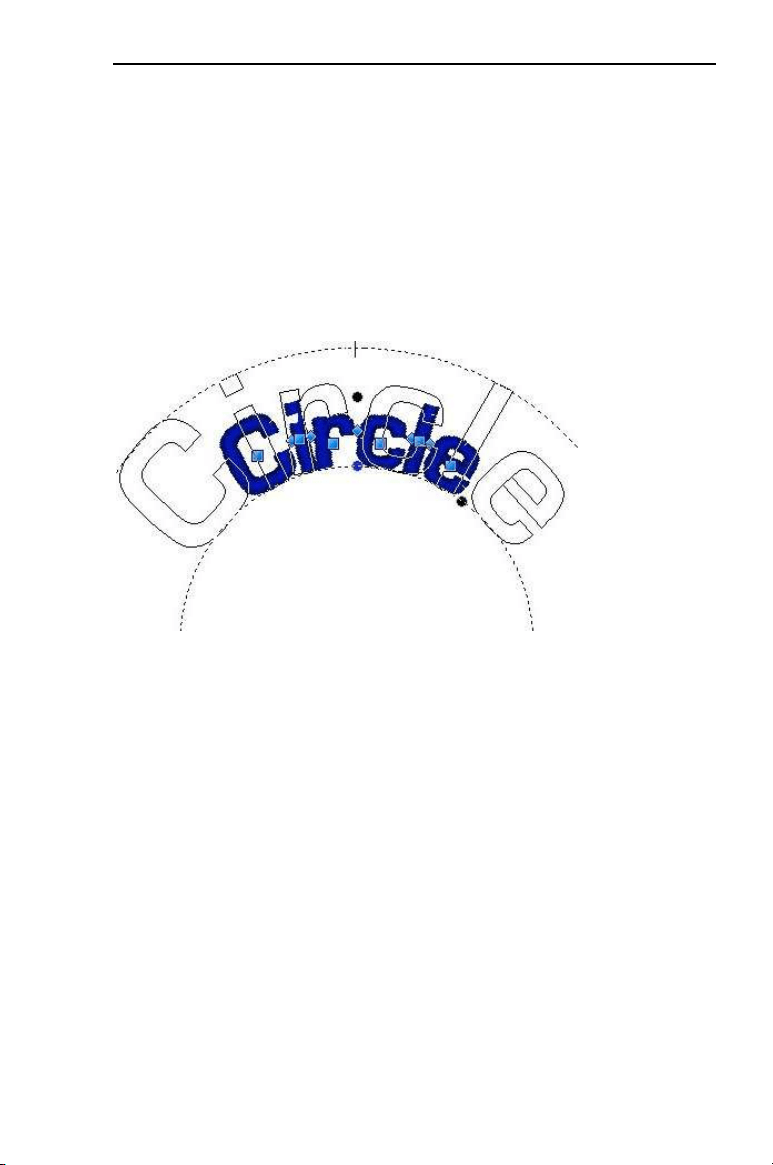
CreatingTextandAdjustingTextProperties 39
Adjusting the Text Height in a Circle
Frame
The size of text items can be adjusted using the Proportional Sizing
Handle. This handle is at the top of the lettering and appears as a blue
circle.
Select the Circle Text tool and place your mouse pointer over this
handle; you will see that it changes to a small cross.
As you drag this handle, you will see the design scale proportionally,
which means that as you make the text taller, it also gets wider.
Adjusting Text Width in the Circle Frame
You can adjust the overall spacing between letters in Circle Text with
the Width Handle. This handle appears as a blue circle at the lower-
right side of your text.
To adjust the width, select the Circle Text tool, and click on the text to
select it. When you place your pointer in the Width Handle, you will
see that it changes to a small cross. By dragging this handle, you will
be able to adjust the width of the text segment.
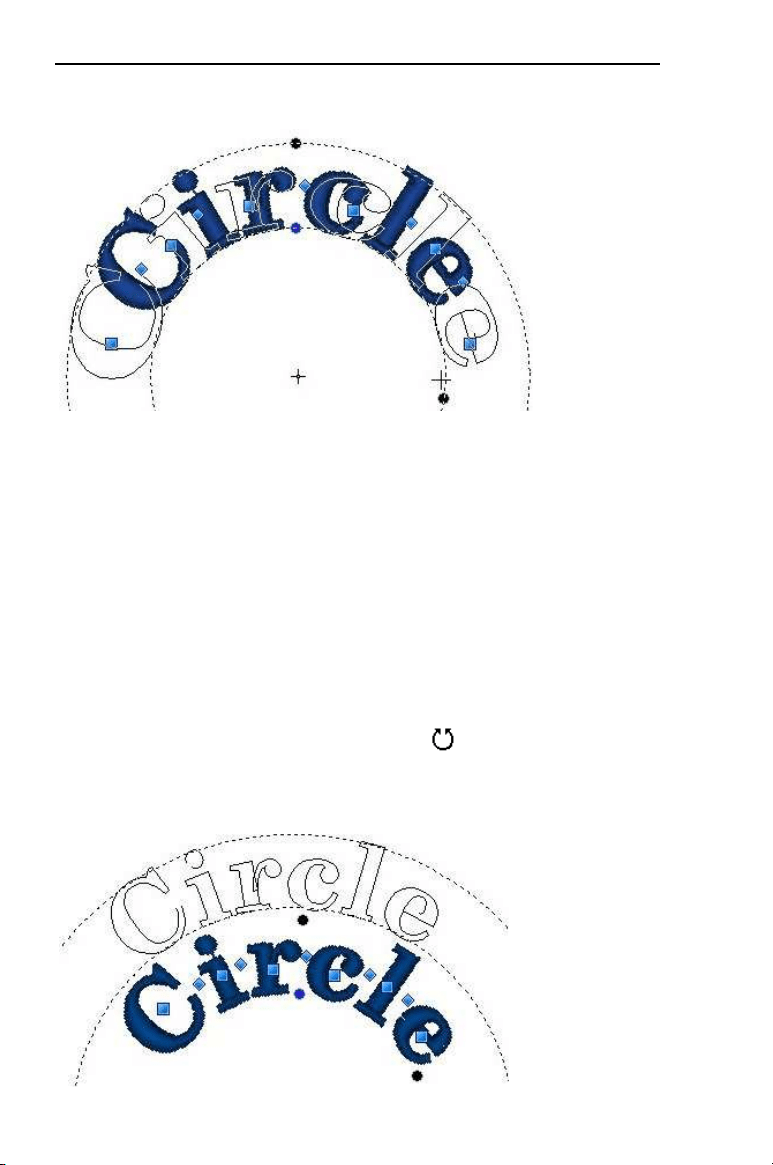
40 InitialStichbyPacesetter
InstructionManual
Note that the spacing between the lettering changes proportionally as
you increase and decrease the size of the segment. To adjust the
spacing between letters individually, see “Working with individual
letters”, following.
Changing the Diameter of the Circle
Frame
You can change the overall diameter of the baseline of your Circle Text
using the Rotation Handle. This is the orange circle on the inner edge
of the Circle Text frame. Place your mouse over this handle and the
pointer will change to a circle-arrow handle . Then, drag in or out
along a radius to increase or decrease the diameter of your Circle Text
segment.
CreatingTextandAdjustingTextProperties 41
Working with Individual Letters
The text tools allow you to make changes to individual letters within
the text segments in your designs. You are able to select a letter, and
move it, rotate it, and resize it by using the handles that surround the
letter when it is selected. You can also change the spacing of letters
within the word with the special kerning handles.
Adjusting the Space between Letters
(Kerning)
The space between individual letters can be adjusted using the
Kerning Handles.
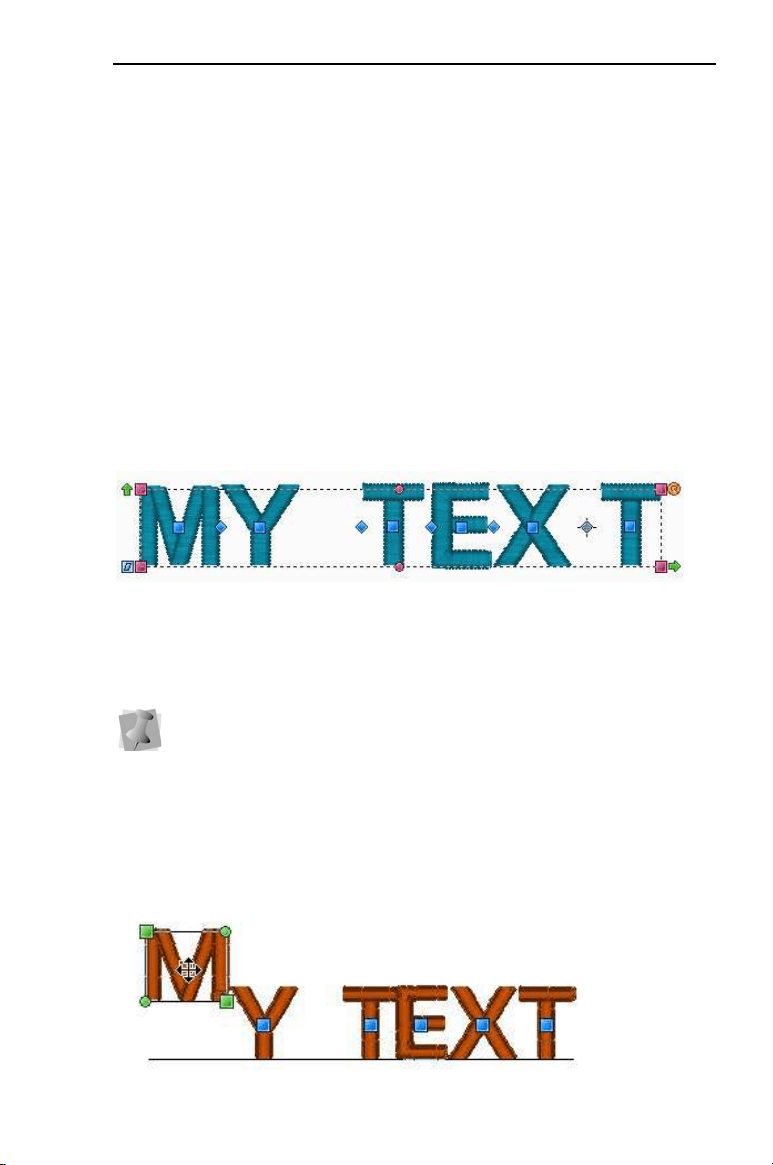
Kerning Handles are blue diamonds, located between the letters of
your text segment. You can drag these horizontally to adjust the
spacing of the text.
Moving Individual Letters
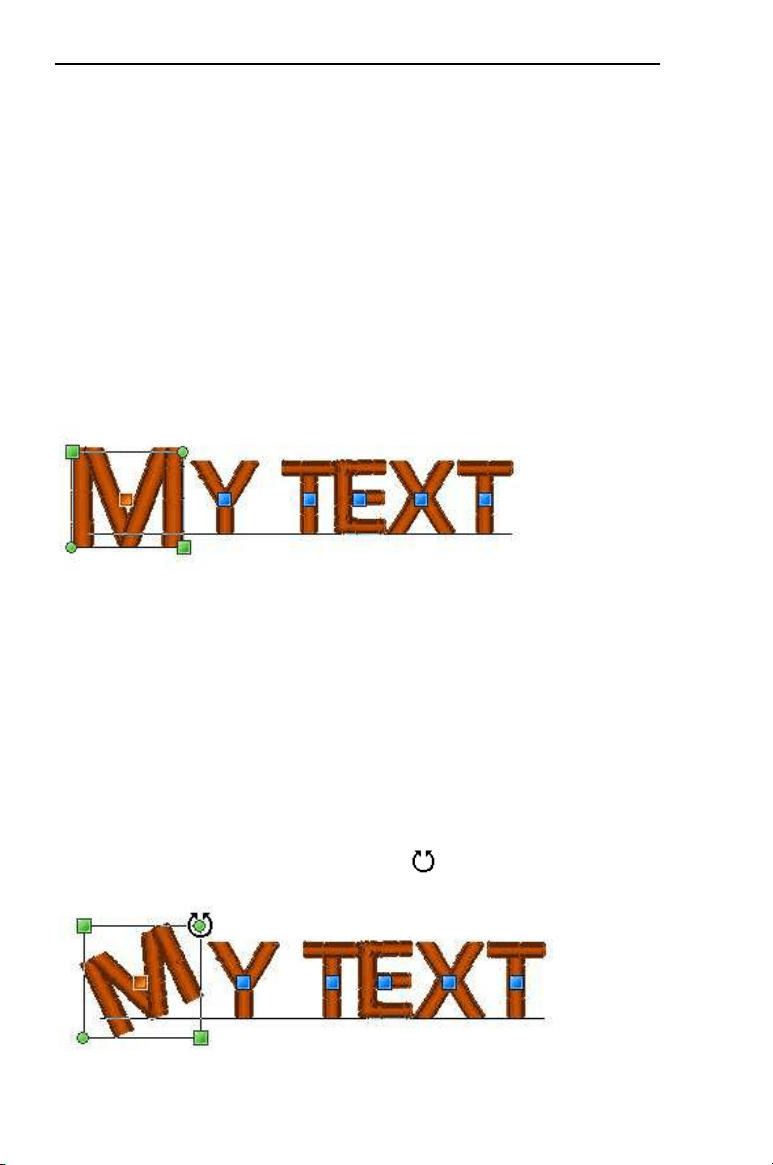
Individual letters can be moved using the Letter Handles. These
appear as blue squares, centered on each letter in the segment.
When you move a kerning handle in a word, you adjust the space
between only the two letters on either side of the handle you are
moving; the spacing between the other letters remains the same.
42 InitialStichbyPacesetter
InstructionManual
To select a letter, click on its Letter Handle; once the individual letter is
selected, you can adjust its position by dragging with the mouse.
Selecting a letter also activates the Letter Frame around that letter.
This frame displays handles that allow you to resize or rotate it; see
following sections.
Resizing Individual Letters
When an individual letter has been selected, you can resize it by
clicking and dragging the Letter Size handles. The Letter Size handles
are green squares that are located in the corners of the letter frame.
When you hover over these handles, a double-ended arrow appears;
by dragging up or down on this handle, you increase or decrease the
size.
Rotating Individual Letters
When you select an individual letter with its Letter Handle, you can
rotate it by clicking and dragging the Letter Rotation Handles. The
Letter rotation handles are the green circles at the corners of the
Letter Frame. When you hover over these handles, the mouse pointer
will become a circle with arrows, like this.

CreatingTextandAdjustingTextProperties 43
Drag up to rotate counter-clockwise, and down to rotate clockwise. As
you rotate, the tool displays an outline preview of the letter, showing
how far you are rotating it.
Working with Color
With Initial Stitch by Pacesetter, you are able to choose a text item’s
color from a large variety of thread colors. You apply the color by
selecting from the colors available in your currently loaded thread
palette.
Changing the Color of a Text Segment
The following procedure applies to situations where you want to simply
change the thread color of an existing text segment to a new color.
To change a the thread color of a Text item:
1 Select the text item in the workspace, using either the Select tool or
one of the text tools.
2 In the Color Palette, click the color box with the thread color you
want to use.
Creating Multi-color Text Segments
When you are creating design compositions involving lettering, you
may find that you want to have two or more colors in a single line of
text. In Initial Stitch by Pacesetter, this can be easily done using the
Properties panel.
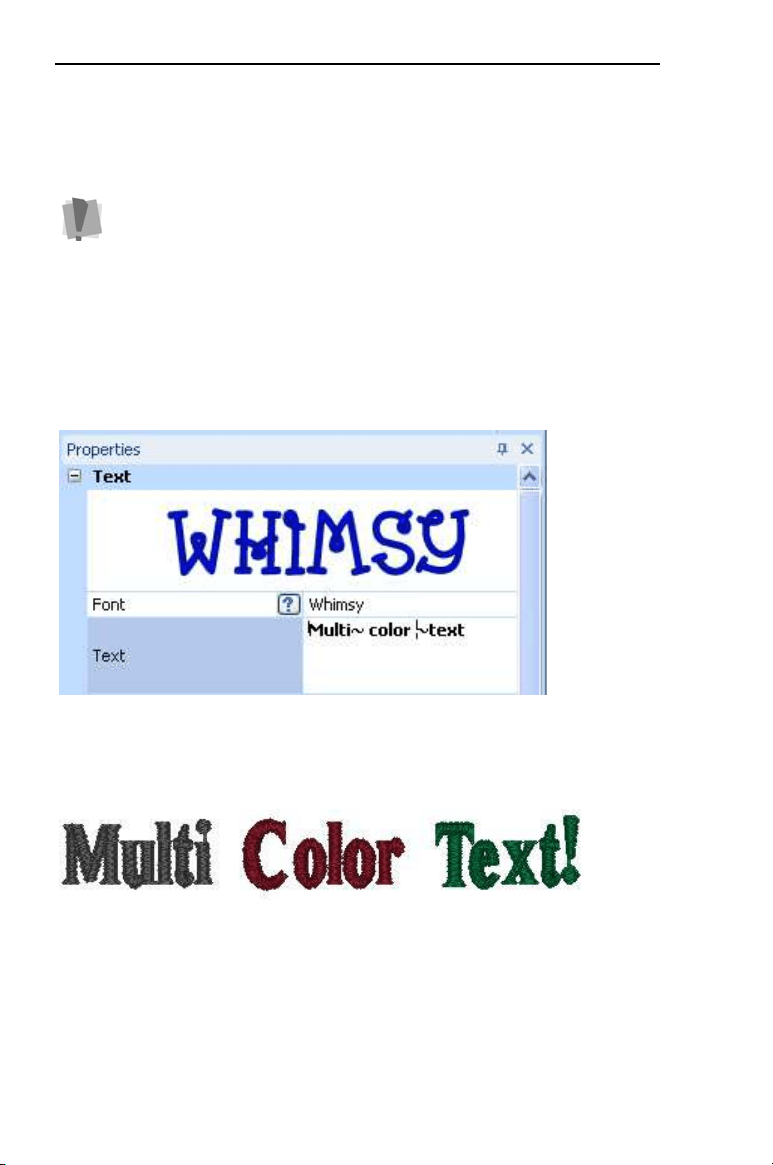
You accomplish this by inserting a special character, the tilde (~) into
your text. Inserting these characters divides your text segment into
sub-segments; each of the sub-segments that are created this way
When the cursor is placed over the text function handles, the
cursor changes for the different functions.
If you hover over a color square on the Palette, the thread type
and number will show beside the mouse pointer.
44 InitialStichbyPacesetter
InstructionManual
gets its own color identifier label (Color1, Color2, etc.) and can then be
assigned its own thread color from the Color Palette.
To insert thread color changes within a text segment:
1 Select the text segment.
2 In the Text field of the Text Properties panel, type a tilde (~)
between letters in each position that you want a color change to
occur.
3 Click Apply.
You see the colors change for all text sub segments after the first
one, which retains the original color.
The text segment, as it appears initially, after being divided into sub segments. The
first subsegment retains the original color, and the subsequent ones are assigned
arbitrary “placeholder” colors (until you chose your own).
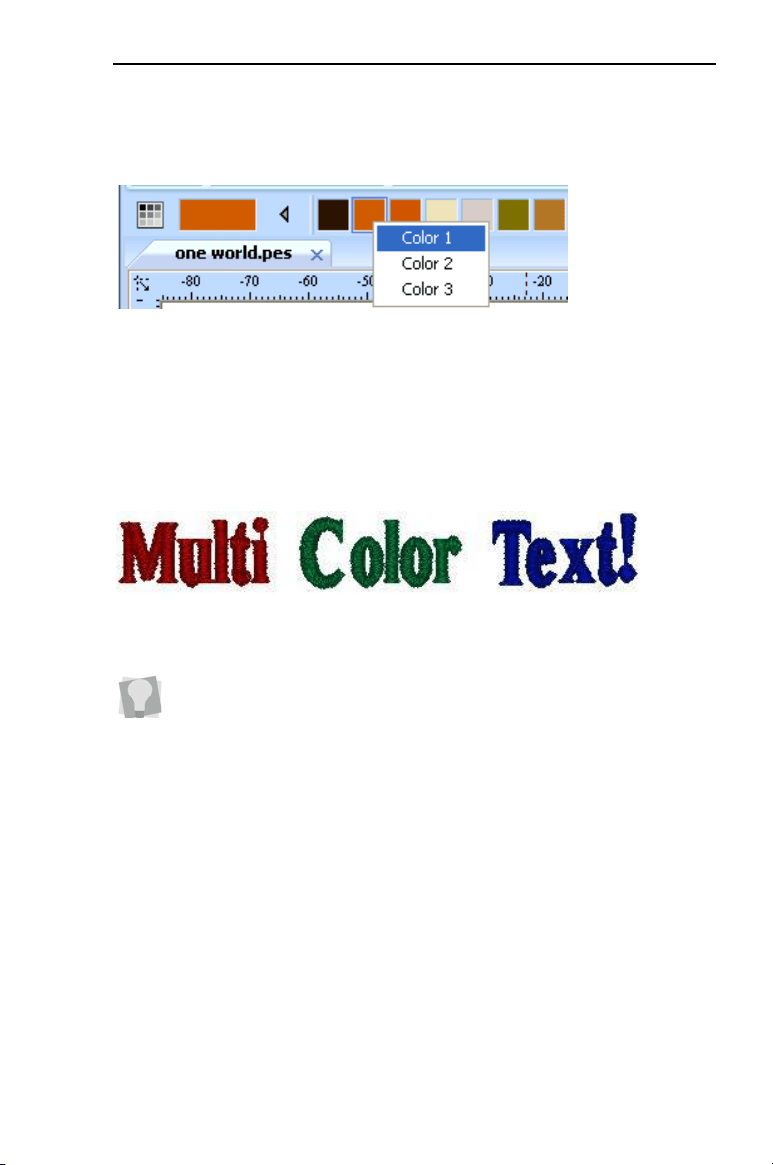
4 To apply your choice of colors to the sub-segments, move the
mouse pointer to the desired color in the Color Palette and left-
click.
Note that this method does NOT apply to Monogram text frames.
CreatingTextandAdjustingTextProperties 45
A context menu appears, listing the text sub-segment color
identifiers in the order they appear in your text.
Selecting the colors for the individual sub-segments; in this example, applying a red
thread color to the first segment, the word ‘Multi”.
5 From the context menu, click on the subsegment identifier to apply
the chosen thread color to it.
The subsegment changes to the chosen color.
6 Repeat step 5) for each subsegment in your list.
The text segment with new thread colors applied.
The example outlined above demonstrates two color changes being
applied between words, but you can apply changes in exactly the
same way between individual letters in a word. Note that the tildes do
not add any space between characters or words in your text.
46 InitialStichbyPacesetter
InstructionManual
Adjusting Text Properties
The Properties Panel appears on the right of the workspace.The
Properties Panel allows you to modify various properties of the
currently selected text segment. You can use this area of the panel to
change text itself, choose a font, and select the height, alignment, and
spacing of the letters.
The properties that you will see displayed will be slightly different
depending on which type of text (Normal, Circle or Monogram) is
currently selected.
Changing the Lettering
As well as being able to type directly on the screen (see appropriate
sections under “Creating Text”), you can also input your text by typing
in into the Text field on the Properties Panel. Note, however, that there
is some variation on what you can type, depending on which kind of
Frame is selected. For example, multi-line text segments can only be
entered when a Normal Text frame is selected, and Upper and Lower
text fields are only visible when a Circle Text frame is selected.
The property fields you see in the text area may be different,
depending on which kind of text frame is selected; for example, when
a Circle frame is selected, this area will show two places where you
can input text, labelled ‘Upper’ and ‘Lower’.

CreatingTextandAdjustingTextProperties 47
To edit text in the Properties panel:
1 Select the text object you want to edit.
2 In the Text area of the Properties panel, click in the Text field to
select it.
3 Type the desired text into the Text field.
4 Click Apply to save your changes.
Changing the Font
You can change the font type of text objects using the drop-down list of
fonts in the Properties Panel. At the top of the area, you see a preview
image showing a sample of the selected font.
Note that, depending on the embroidery font you choose, there are
different minimum and maximum height recommendations.
For more information, see “Displaying Font Properties”, following.
To change a font:
1 Select the text segment you want to alter.
2 From the Font list, select the font you want to use.
3 Click Apply to save your changes.
You see your text’s font is altered accordingly.
If the Properties panel is not already visible, you can display it
quickly by pressing Alt + Enter on your keyboard.
You can preview the fonts available by clicking the arrow to the right of
the font name. This will display a drop-down list of the available fonts;
scroll through the list by dragging the track button. You can click on
each font name to display a preview of the font in the Text area.

48 InitialStichbyPacesetter
InstructionManual
Displaying Font Properties
In Properties Panel, there is a tool which displays all the characters
(keystrokes) that can be entered for available embroidery fonts. For
example, some fonts only allow you to enter uppercase characters,
while other fonts allow you to enter both uppercase and lowercase
characters.
The available characters box also tells you the minimum and maximum
recommended heights for sewing out the font.
To display an embroidery font’s available keystrokes:
1 Display the Properties Panel, if it is not already visible.
2 In the Text area, select the font you want to use in the Font field.
3 Do one of the following:
Hover the mouse pointer over the font preview list.
Click on the available characters button to the immediate
left of the font field.
You see a window that displays all the available keystrokes that you
can enter for the selected font.

CreatingTextandAdjustingTextProperties 49
Changing the Height of Lettering
With Initial Stitch by Pacesetter, it is easy to change the height of any
lettering. Height refers to the tallest character in the desired lettering.
So, when a text segment contains both uppercase and lowercase
letters, it is the size of largest uppercase letters (usually) that is set by
this property.
To change the height of lettering:
1 Select the text object you want to alter.
2 In the Text area of the Properties panel, select the Height field.
The property label (Height) is highlighted in blue.
3 Type in the height you want your letters to be.
4 Click Apply to save your changes.
You see your text’s height altered accordingly.
Changing Font Spacing
The font spacing property controls the horizontal spacing between
letters in a text segment. The normal (default) value for the font
spacing is zero. You can set the font spacing to a negative or a
positive value. If you set the value to less than zero, then the spacing
between letters decreases; if you set the value to greater than zero,
then the spacing increases.
Notice that the spacing property applies to the whole segment. If you
want to change the spacing selectively, to individual gaps between
letters, you can use the Kerning Handles. See “Adjusting the Space
between letters.”
To change font spacing:
1 Select the text object you want to alter.
2 In the Text area of the Properties panel, click in the Spacing field to
select it.
3 Enter the font spacing value you want to use.
4 Click Apply to save your changes.
You see your text’s letter spacing altered accordingly.

50 InitialStichbyPacesetter
InstructionManual
Width Percentage
The Width Percentage changes the overall width of a text segment.
You can adjust the Width percentage to alter the appearance of the
text object, or to allow it to fit the hoop better.
To change width percentage:
1 Select the text object you want to alter.
2 In the Text area of the Properties panel, select the Width field.
3 Enter the width percentage value you want to use.
4 Click Apply to save your changes.
You see your text’s width percentage altered accordingly.
Changing the Slant Setting
Initial Stitch by Pacesetter allows you to use the Slant setting to create
a slanted effect in text objects. Slant changes the degree value of the
slant on your lettering. A negative value slants your lettering to the left;
a positive value slants it to the right.
Negative slant to the left and positive slant to the right.
To change slant settings:
1 Select the text object you want to alter.
2 In the Text area of the Properties panel, select the Slant field.
When you change the width of a segment using the Width Handle, the
Width Percentage of the selected segment will be adjusted
automatically to reflect the change.
CreatingTextandAdjustingTextProperties 51
3 Enter the slant value you want to use. To slant your lettering to the
left, enter a negative value. To slant your lettering to the right,
enter a positive value.
4 Click Apply to save your changes.
You see your text altered accordingly.
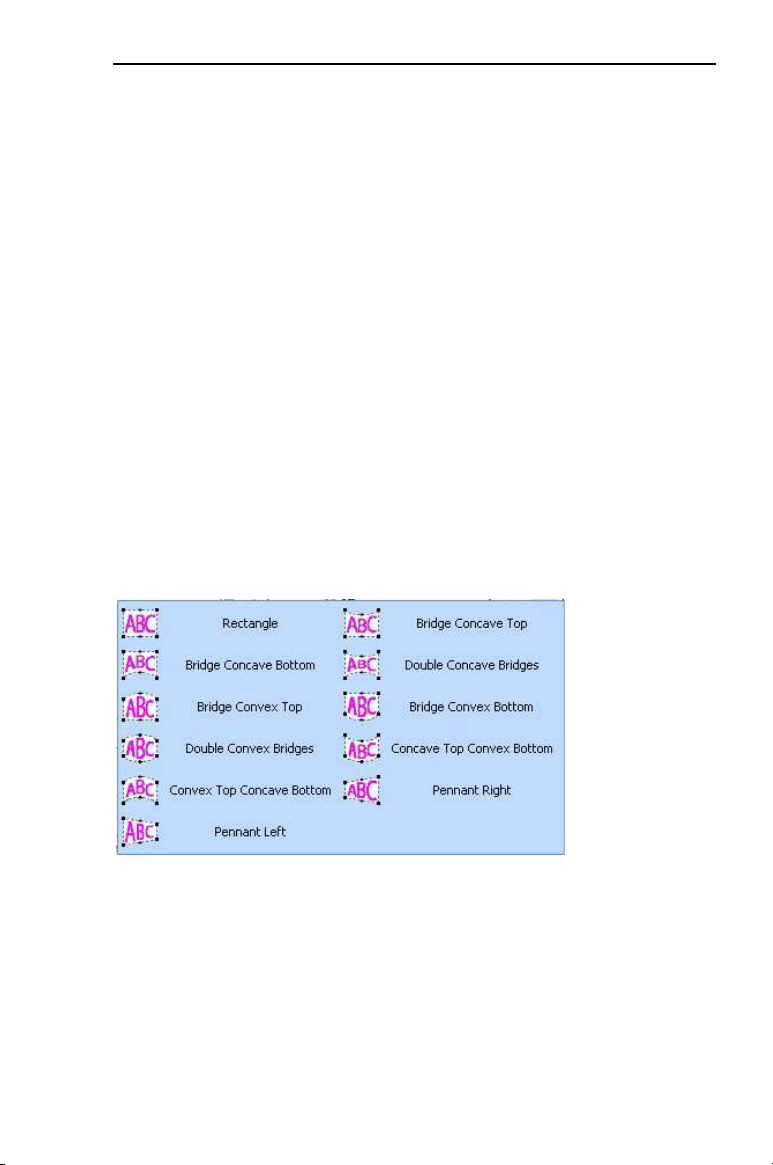
Applying an Envelope
One way to vary the shape of your text segment is to use the Envelope
setting. This allows you to apply a predefined envelope to change the
shape of a Normal Text or Monogram text item.
To apply one of the pre-determined envelope shapes:
1 Select the item with the Text tool, and press ALT + Enter to show
the Properties Panel, if it is not already visible.
2 In the Text area of the Properties panel, click on the Select button
next to “Envelope.”
The Envelope window (below) will open.
3 Select one of the envelope shapes from the list.
The selected envelope shape will be applied to your lettering.
52 InitialStichbyPacesetter
InstructionManual
Properties Specific to Particular Text
Frames
Decor for Monograms
Most of the properties of a Monogram are the same as the ones that
appear for Normal text; the exception is the Line Spacing property,
which does not apply.
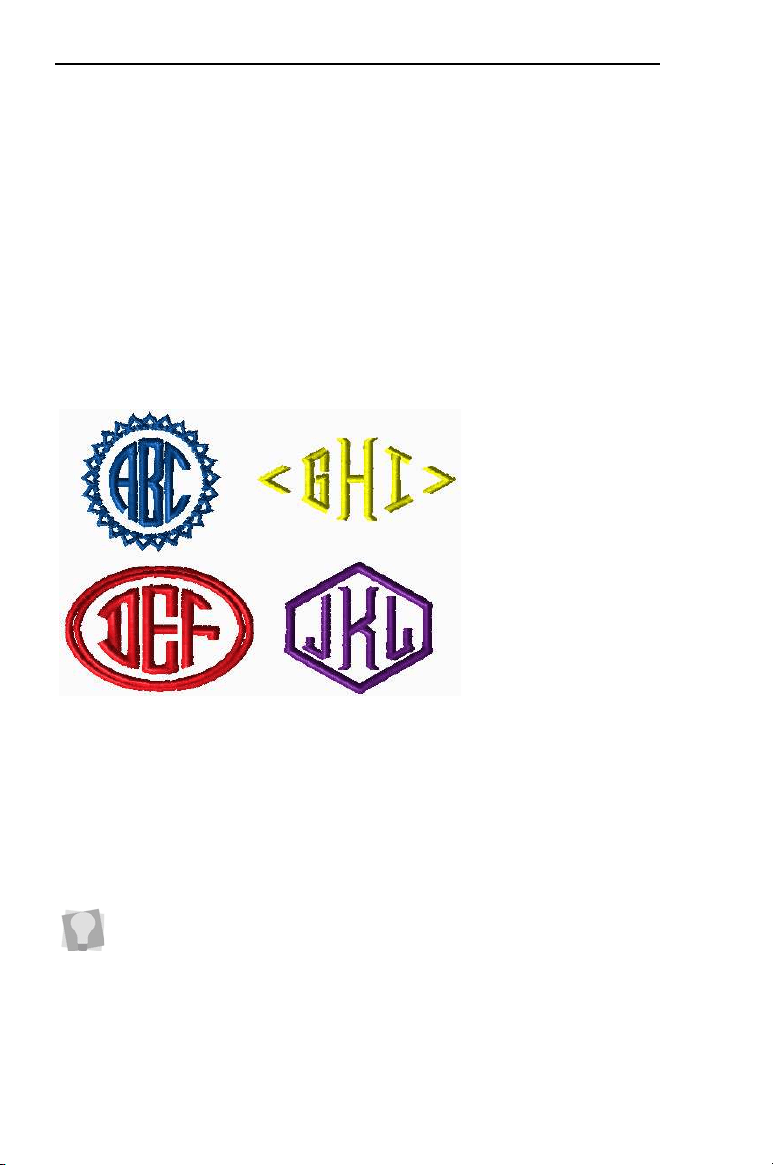
There is an additional feature unique to the Monogram properties
section, called Decor. Decor consists of pre-designed embroidery that
frames the monogram text.
Examples of monograms with decors added
To choose the decor type for your monogram, you first create a mono-
gram segment, and choose a Decor Monogram style in the font area
(see “Creating Monograms” in the “Creating Lettering” section of this
manual). Click the down-arrow to the right of the decor field, select a
decor from the list, and then click Apply.
Line Spacing
The Line Spacing parameter only applies to the Normal text mode.
This property controls the spacing between lines in multi-line text
If you want to use one of the Decor monogram fonts without the
decor, there is the option to do so; just select decor option “00”, which
is at the top of the list, and essentially means that no decor is added.
CreatingTextandAdjustingTextProperties 53
segments. This quantity is expressed as percentage of the Letter
Height value.
Align
The Align setting is found only in Normal text mode and can be applied
to lettering segments with more than one line. This property is
equivalent to the alignment of paragraphs in word-processors; you can
align your text on the left, right, or center.
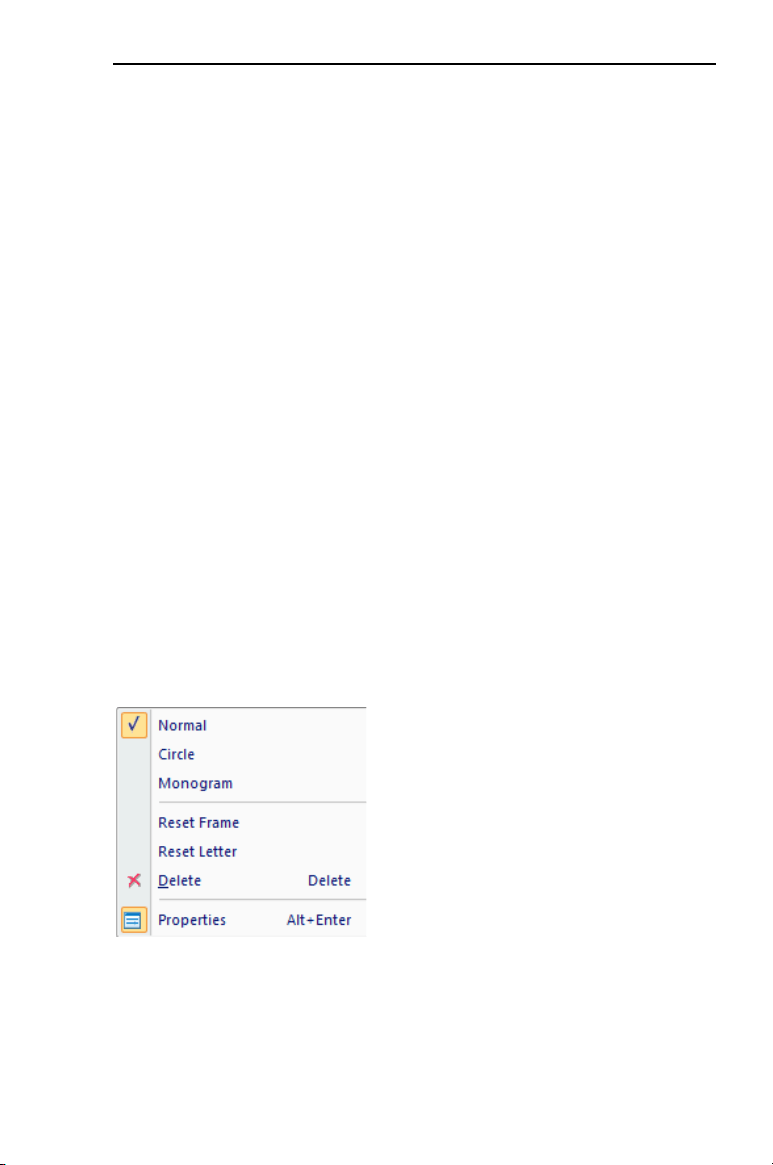
Changing Properties with the Context
Menu (Right-click)
You can right-click on any text object, regardless of its type, and an
edit menu will appear. This menu allows you to change several
important text properties, such as changing or resetting frames.
Changing Text Modes
The Text Mode can be changed for an existing text object in Initial
Stitch by Pacesetter. You can change an existing text item to Normal
Frame, Circle Frame, or Monogram Frame. Right-click the text object
and select a text mode from the menu.
This feature is useful when the text is already in position, but you want
to change the frame that is applied to it. For instance, you may create
a normal text object, but then realize you want it to be an Circle text
object instead.
54 InitialStichbyPacesetter
InstructionManual
Resetting the Frame
The Reset Frame command is useful when you have altered your text
object a bit too much and want to start over; depending on which has
been adjusted, you will be able to “Reset Frame” (for whole text
frames) or “Reset Letter” (for individual letters).
Resetting Individual Letters
If you are have selected a single letter in a text segment, the context
menu will have an additional option, the Reset Letter command. Use
this command in cases where you have manipulated a letter and want
to reset it so that it looks as it would if it was never individually
adjusted.
Changing Text Direction
The text direction setting is applicable only to text segments in the
Circle frame.
Initially, when you create a Circle text segment, the letters will start at
the top, and read clockwise around the circle (this is ‘Text Direction
Normal’). However, if you want the text to start at the bottom and read
counter-clockwise instead, you can change to this condition by right-
clicking the segment and choosing Text Direction Reverse from the
menu that appears.
This command is available when you activate individual letter
size handles and right-click the individual letter with your cursor.
To get text that goes in both directions, within a single Circle text
segment, type text directly into the Circle text properties page: ‘Normal’
direction into the Upper text box, and ‘Reverse’ text into the Lower text
box.
If you have text in both the upper and lower text fields, changing the
text direction will swap the positions of the two text strings, so you will
not have to re-enter them manually.
CreatingTextandAdjustingTextProperties 55
Adjusting Fill Settings
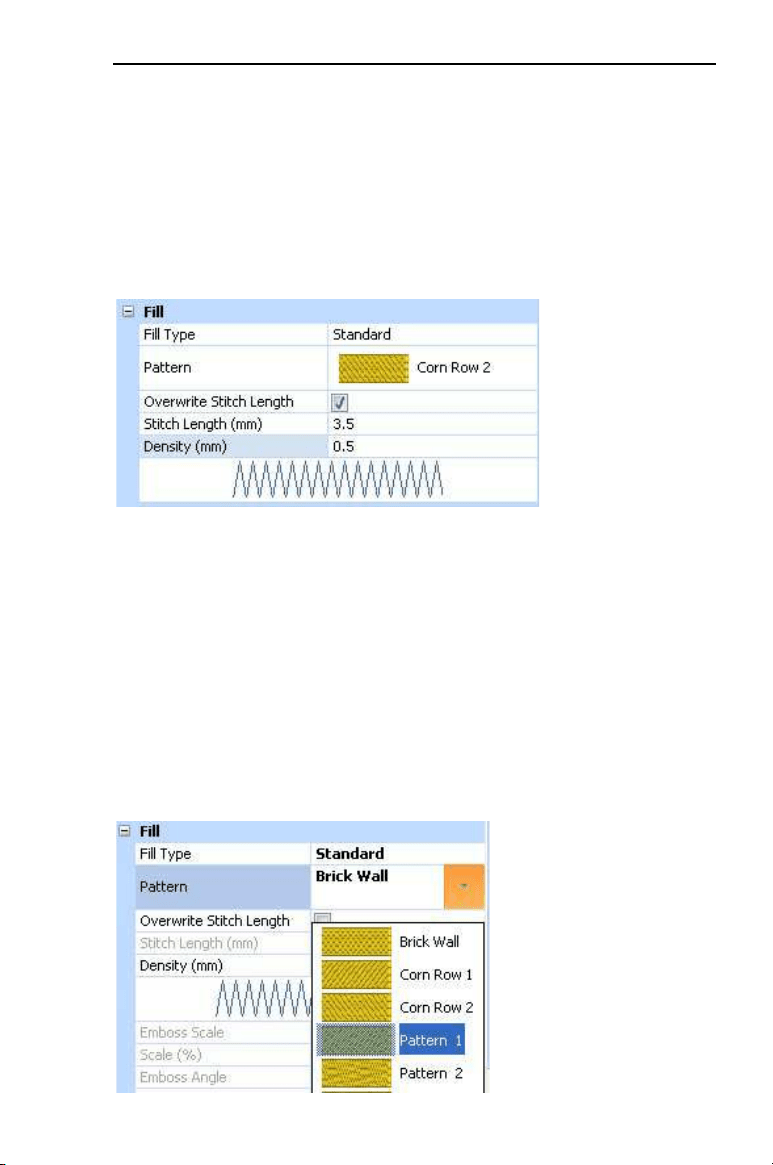
Within the properties panel, the Fill area allows you to customize the
parameters used by Initial Stitch by Pacesetter when it generates the
fill stitching for the segment. You have the option to add a pattern type
and change the text object’s density settings.
The Fill settings area of the properties panel
Choosing a Fill Pattern
When you install Initial Stitch by Pacesetter, a wide variety of Standard
patterns are installed along with the software.
To choose the fill pattern:
1 Select a Text object.
2 Click on the down arrow on the right of the Pattern field to display a
drop-down list of patterns.
You see a list of patterns.

56 InitialStichbyPacesetter
InstructionManual
3 From the Pattern list, select a pattern.
4 Click Apply.
The fill of your text segment is altered accordingly.
Fill Density Setting
Fill density is the distance between individual lines of embroidery.
Density is measured in millimeters.
Use the density setting to adjust your fill to suit the fabric you are
sewing on. For example, fabrics with a very loose weave are less able
to hold a large density of stitches; in cases such as this, you can lower
the density of the fill.
If you are unsure what setting to use, try the standard setting of 0.4.
This setting works well almost universally, as long as you have not
exceeded the font’s size recommendations.
In the Fill area, the image beneath the Density setting will change as
you adjust the setting. These are not precise images; rather, they are
intended to provide you with visual cues to what you are doing as you
change the settings.
If the letters in the text segment are large (i.e., above the maximum
recommended height for the font) it is better to use a choose a fill,
rather than satin, for the lettering. Fill stitches are the type you would
normally find filling an area in an embroidery design. With Fill stitches,
each line across is made up of two or more individual stitches.
Note that the density setting is given in millimeters. Therefore, larger
values correspond to a lower density, while lower values correspond
to a higher density.
For more details on stitch density units, see “Density” in the Glossary.
A general rule is to go for full-fabric coverage, but add extra stabilizer if
you want to support a high-density fill on a low-density fabric.
CreatingTextandAdjustingTextProperties 57
Underlay Properties
Underlay stitches are laid down before the visible, or “top” stitches, to
help stabilize stretchy fabrics. They can also help to tack down wales
or naps (on fabrics such as corduroy).
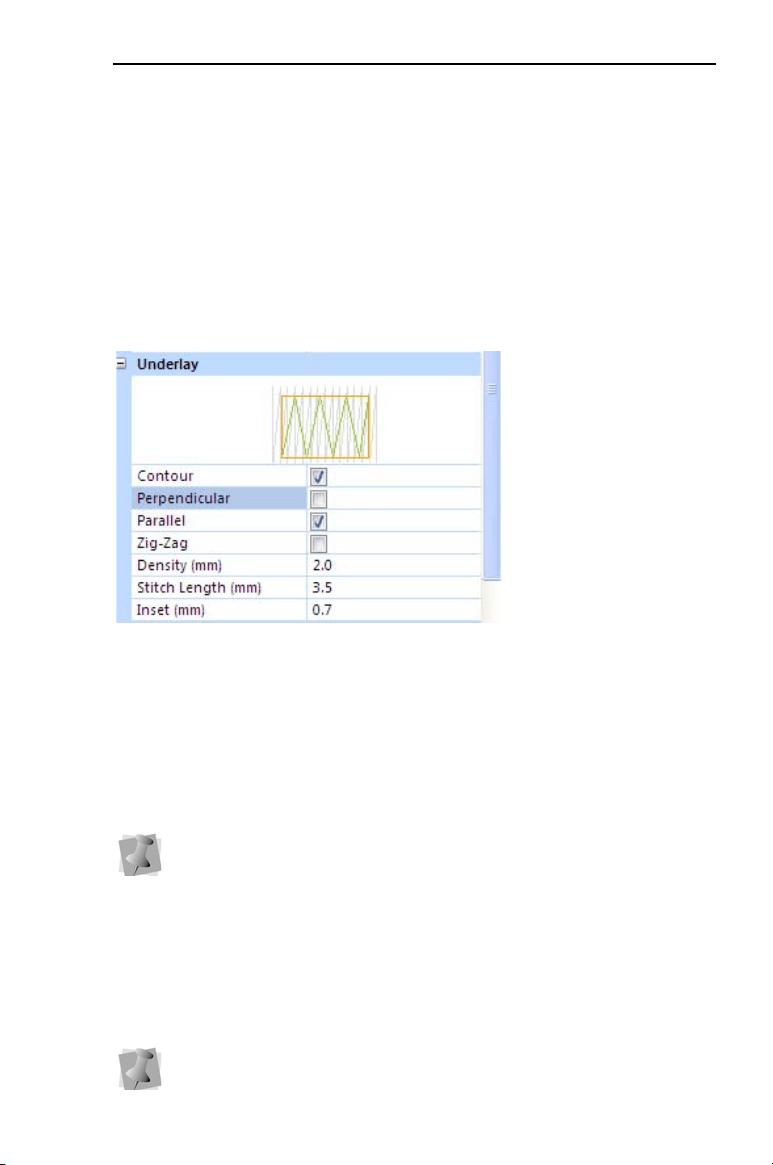
There are a variety of possible underlay types available; the following
image gives a schematic view of how the different types of underlay
are sewn.
The Underlay Area in the Properties panel.
Selecting the Underlay Type
You can select underlay types for various types of stitches. Choose
from Contour, Parallel, or Zig-Zag. You can combine underlay types to
get maximum coverage.
To select an underlay type:
1 Select the segment.
2 In the Properties Panel, scroll down to the Underlay area.
3 Select one or more of the following underlay types you want to use:
Contour, Parallel, or Zig-Zag.
Note that not all underlay types will be available for every font.
When you select underlay types, you will be able to see what
your underlay type will look like in the Preview area.

58 InitialStichbyPacesetter
InstructionManual
4 Adjust any of the other settings. Refer to the related procedures for
more information.
5 Click Apply.
Specifying the Underlay Density
You can specify the density for underlay stitches.
To set the underlay density:
1 Select the segment.
2 In the Properties Panel, scroll down to the Underlay area.
3 Select one or more of the following underlay types you want to use:
Contour, Parallel, or Zig-Zag.
4 In the Density box, enter a density value.
5 Adjust any of the other settings. Refer to the related procedures for
more information.
6 Click Apply.
Specifying the Underlay Stitch Length
You can specify the stitch length for your underlay stitches. You can
increase or decrease the length according to your underlay needs.
To specify the underlay stitch length:
1 Select the segment.
2 In the Properties Panel, scroll down to the Underlay area.
3 Select one or more of the following underlay types you want to use:
Contour, Parallel, or Zig-Zag.
4 In the Stitch Length box, enter the stitch length that you want for
your underlay stitches.
5 Adjust any of the other settings. Refer to the related procedures for
more information.
6 Click Apply.
When you select underlay types, you will be able to see what
your underlay type will look like in the Preview area.
CreatingTextandAdjustingTextProperties 59
Changing the Inset Distance
You can change the inset distance. Initial Stitch by Pacesetter
calculates the inset distance (the distance the underlay stitches are
placed from the edge of the top stitching.) Inset distance changes the
amount of underlay coverage. The smaller the inset distance, the more
coverage you have.
To change the inset distance:
1 Select the segment.
2 In the Properties Panel, scroll down to the Underlay area.
3 Select one or more of the following underlay types you want to use:
Contour, Parallel, or Zig-Zag.
4 In the Inset box, enter the amount of distance you want.
Enter a zero value if you want to place the underlay directly on the
edge of the segment.
5 Click Apply.
Displaying Special Characters
When you create lettering, you can enter characters available on your
keyboard. You can also enter characters using ASCII numbers, a
feature that is available for you to use if needed. An ASCII number is a
code number, four digits long, which represents a character that does
not have a key to represent it. For instance, ™ or ® are symbols that
exist in some fonts but are not type-able on a standard US/English
keyboard.
Please note that not all fonts contain all of the special characters. To
see which characters are available in any given font, check the font
preview information for that font.
When you select underlay types, you will be able to see what your
underlay type will look like in the Preview area.
You can see the list of available characters for a font by pressing on
the button in the Font field of the Text Properties panel, or by
hovering your mouse over the font preview.
60 InitialStichbyPacesetter
InstructionManual
Special Characters List
The following lists the special characters that may be available in
Initial Stitch by Pacesetter.
Character Key Code Character Key Code
€ Alt + 0128 × Alt + 0215
‘ Alt + 0145 Ø Alt + 0216
’ Alt + 0146 Ù Alt + 0217
“ Alt + 0147 Ú Alt + 0218
” Alt + 0148 Û Alt + 0219
• Alt + 0149 Ü Alt + 0220
— Alt + 0151 Ý Alt + 0221
™ Alt + 0153 Þ Alt + 0222
¡ Alt + 0161 ß Alt + 0223
¢ Alt + 0162 à Alt + 0224
£ Alt + 0163 á Alt + 0225
¤ Alt + 0164 â Alt + 0226
¥ Alt + 0165 ã Alt + 0027
¦ Alt + 0166 ä Alt + 0028
§ Alt + 0167 å Alt + 0029
¨ Alt + 0168 æ Alt + 0230
© Alt + 0169 ç Alt + 0231
- Alt + 0173 è Alt + 0232
® Alt + 0174 é Alt + 0233
¯ Alt + 0175 ê Alt + 0234
¿ Alt + 0191 ë Alt + 0235
À Alt + 0192 ì Alt + 0236
Á Alt + 0193 í Alt + 0237
 Alt + 0194 î Alt + 0238
à Alt + 0195 ï Alt + 0239
Ä Alt + 0196 ð Alt + 0240
Å Alt + 0197 ñ Alt + 0241
Æ Alt + 0198 ò Alt + 0242
CreatingTextandAdjustingTextProperties 61
To type special characters:
1 In the text frame, position the cursor where you want to insert the
special character.
2 Press and hold down the ALT key on your keyboard.
3 Type the corresponding key code for the special character from the
number pad located on the right side of the keyboard.
To view a list of special characters and their corresponding key
codes, see "Special Characters List".
4 Release the ALT key.
You see the special character.
Ç Alt + 0199 ó Alt + 0243
È Alt + 0200 ô Alt + 0244
É Alt + 0201 õ Alt + 0245
Ê Alt + 0202 ö Alt + 0246
Ë Alt + 0203 ÷ Alt + 0247
Ì Alt + 0204 ø Alt + 0248
Í Alt + 0205 ù Alt + 0249
Î Alt + 0206 ú Alt + 0250
Ï Alt + 0207 û Alt + 0251
Ð Alt + 0208 ü Alt + 0252
Ñ Alt + 0209 ý Alt + 0253
Ò Alt + 0210 þ Alt + 0254
Ó Alt + 0211 ÿ Alt + 0255
Ô Alt + 0212 Ü Alt + 0220
Õ Alt + 0213 Ý Alt + 0221
Ö Alt + 0214
Character Key Code Character Key Code

62 InitialStichbyPacesetter
InstructionManual

Once you have learned to create your own designs, you will want to
create and save them as files to output to your machine. Initial Stitch
by Pacesetter allows you to save to a number of machine formats.
You can also use the Merge feature to add a stitch file to your lettering.
For designs with multiple components (that is, more than one text
segment, or a text segment plus a merged design file), you can select
the text components and edit them individually.
Topics covered in this chapter:
• Saving designs, and the different stitch file types that are available.
• Selecting, copying, and pasting components of the design.
• Moving and aligning items in your workspace.
• Adding Monogram Frames to a design.
• Combining lettering with other designs using the Merge tool.
CHAPTER 3:
Design Editing
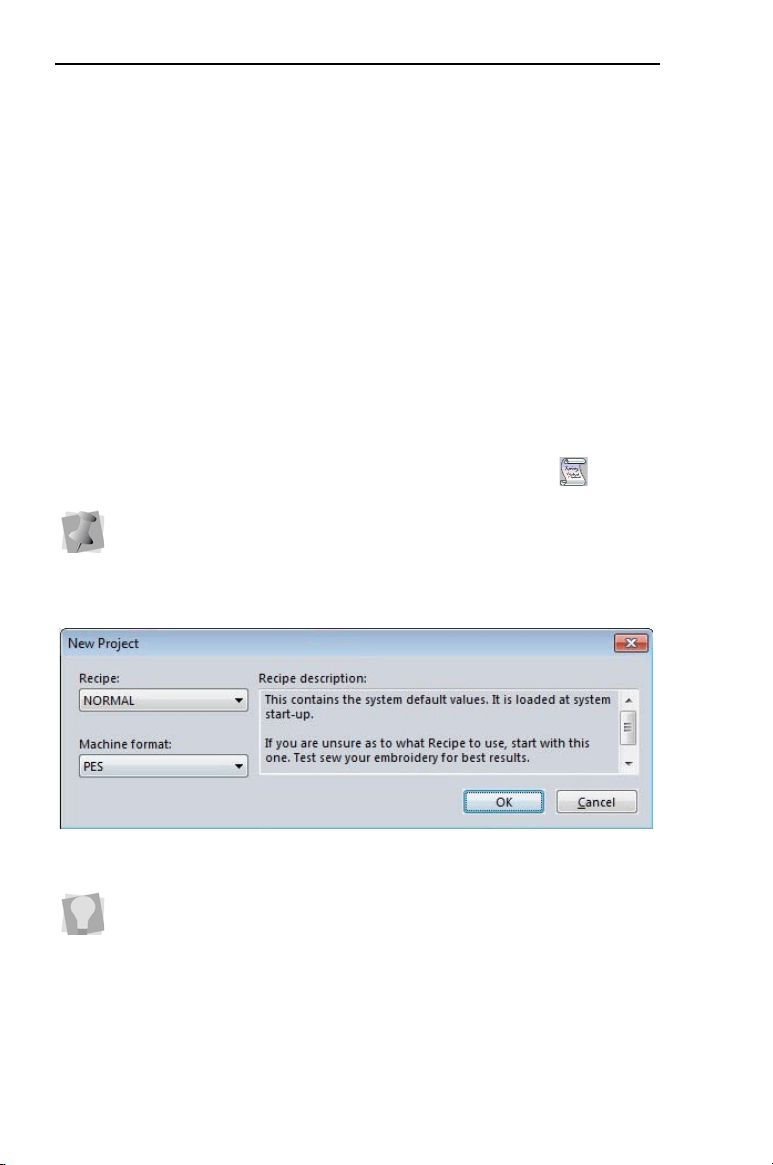
64 InitialStichbyPacesetter
InstructionManual
Creating New Designs
When you open Initial Stitch by Pacesetter, you can immediately begin
creating a new, untitled design in the design window. The design
window automatically opens using the default recipe and machine
format settings specified in the Preferences dialog. For more
information on default settings, see “Setting up your Workspace
Environment”.
If you want to open a design and apply a different recipe to it (that is,
not the default recipe), you will want to open using the New Project
tool.
To create a new design using the New Project dialog:
1 From the Quick Access Toolbar, select the New Project tool.
You see the New Project dialog.
2 In the Recipe list, select the recipe you want to use for your design.
3 In the Machine format list, select the machine format that you want
applied to the design when created.
4 Click OK.
You see a new design window.
If you select the New tool, you will bypass the recipe selection dialog. A
new design window will open using the default recipe and machine
format settings.
The Recipe description box in the dialog gives you a brief description of
each recipe as you scroll through the list in the Recipe drop-down list.
DesignEditing 65
Opening and Closing Designs
Initial Stitch by Pacesetter allows you to open designs in a wide variety
of file formats. When you open a design file in the design window, your
single design file retains the stitches for that design.
To open an existing design:
1 Do one of the following:
Click the Open tool on the Quick Access toolbar
Click the Pacesetter button and select Open from the
menu.
You see the Open Design dialog box.
2 In the Look in list, browse to the location of the file you want to
open.
3 In the Files of type list, select the format for the design you want to
open.
4 In the File name box, enter the file name, or select the file you want
to open by clicking the file.
5 Select Preview to view a thumbnail (a small representation) of the
design.
6 Click Open.
To close a design:
• Click the Pacesetter button , and select Close from the
menu.
To view the contents of a zip (compressed) file, select the zip file and
click Open. Select the design you want to open from the unzipped file
list and click OK.
To open a file you have recently worked on, click the Pacesetter button
and locate it in the “Recently used designs” list.
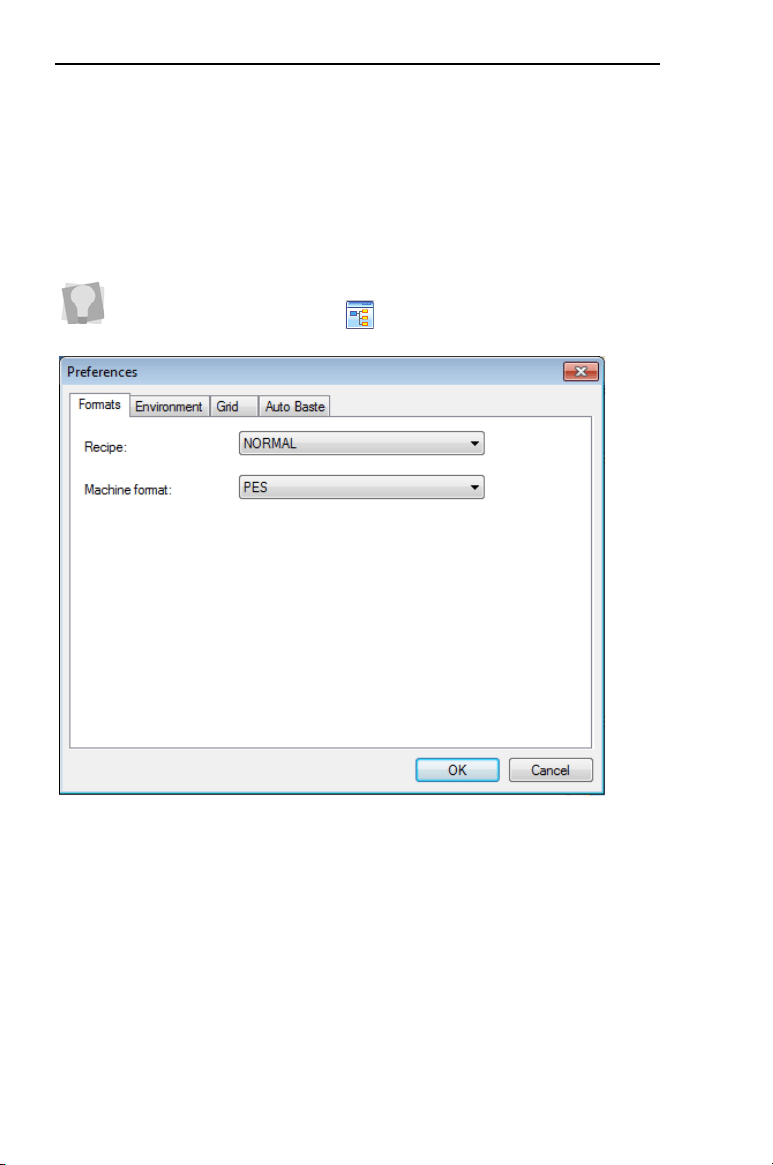
66 InitialStichbyPacesetter
InstructionManual
Choosing the Default Recipe
You choose one of the pre-installed recipes through the New design
dialog each time you open a new design. The NORMAL recipe is the
default for new designs; however, you can set the default to a different
recipe through the Preferences dialog box.
The recipe you choose then becomes the default for all subsequent
design files that you open. The recipes containing fabric settings are
applied to all the lettering you create in that design.
To open the Preferences dialog box, go to the View tab on the ribbon
and click on the Preferences button.
DesignEditing 67
Saving Designs
The Save As command lets you save an alternative version of the
design with a different name, location, or file format. Save As is used
when you want to keep your original design and create another design
with slight modifications. The Save command saves the changes you
make to the current design.
Note: Using the Outline (*.BRF) File Type
Outline files are embroidery files that contain both outlines and
stitches, allowing for the highest level of design editing.In Initial Stitch,
the outline files have the *BRF file extension. It is recommended that
you first save all working files as *.EFP to preserve the outlines, and
then save as the machine file format of your choice.
To save a design:
1 Click the Pacesetter button , and choose Save As from the
menu.
You see the Save As dialog box.
2 In the Save in list, browse to the location you want to save your file.
3 In the File Name box, enter the file name for the design you want to
save.
4 In the Save As type list, select the file type you want the design to
be saved as.
5 Click Save.
To save changes to the current design:
• Do one of the following
Click the Pacesetter button , and choose Save from the
menu.
On the Quick Access Toolbar, click the Save button.
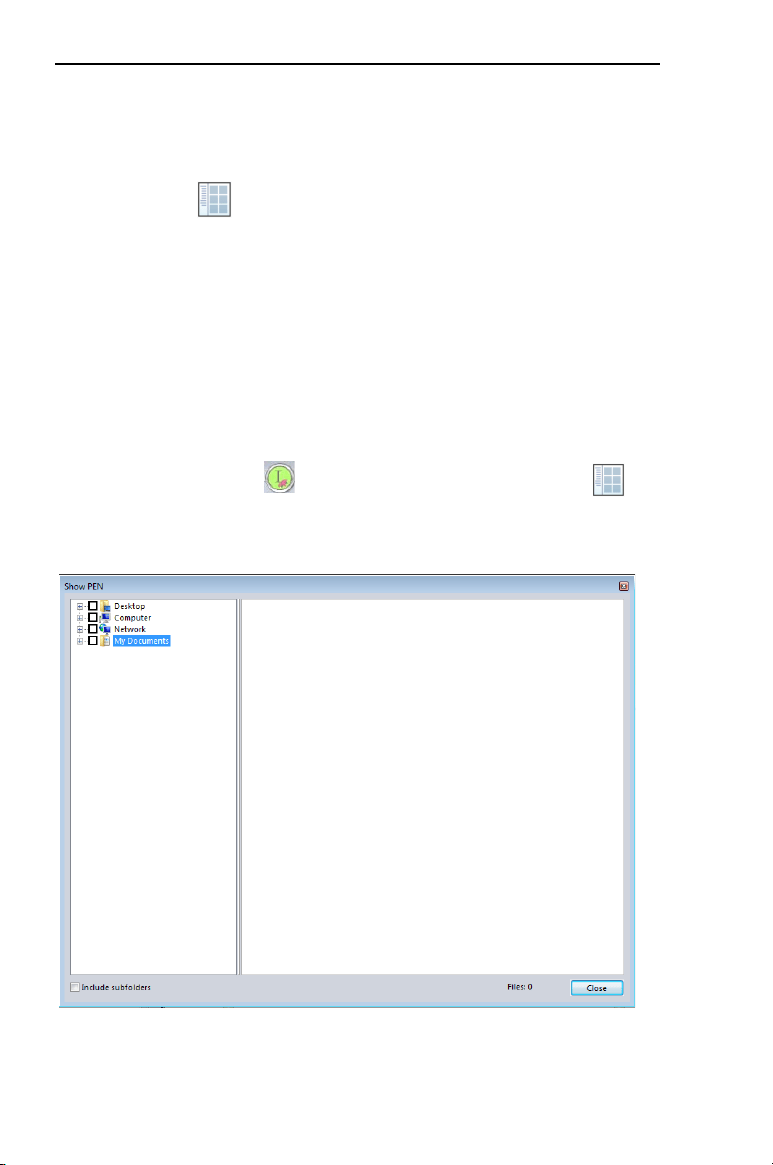
68 InitialStichbyPacesetter
InstructionManual
Viewing PEN files
The Show PEN tool is a convenient way to search for and view
any PEN files you have saved on your computer. PEN files are
encrypted files that are not editable.
This tool allows you to search multiple directories simultaneously, or
search only a sub-set of the folders on your computer. The Show PEN
dialog displays a preview image of the design, plus the design’s name,
its dimensions (width × height), its stitch count (St), and the number of
thread colors (C).
To view files using the Show PEN tool:
1 Click the Pacesetter button, and select the Show PEN
tool.
You see an empty Show PEN dialog.

DesignEditing 69
2 In the list of directories (folders) in the left-hand panel, check the
box corresponding to the folder where you want to look for designs;
to look in multiple locations, just check more boxes.
3 By default, the search will only include those folders that are
checked, leaving out any folders that are within those selected.
However, you can include all folders nested within the selected
folders by checking the Include sub folders box at the bottom-left
of the dialog.
The preview pane now shows a thumbnail image of each PEN
design saved in the selected directory (or directories). In addition to
a thumbnail image of the design, the dialog displays the file name,
the design dimensions, the stitch count (St) and the number of
thread colors (C).
Selecting and Moving Parts of a
Design
The Select Tool
The Select tool allows you to select and modify individual design
components.
Design components that have been selected using the Select tool can
be moved, duplicated, or deleted. They can also be resized and
rotated in either direction.
To narrow the scope of the search, click the small plus + sign next to a
folder to expand it. This will display the sub-folders it contains; you can
then check only those sub-folders that contain the design files you want
to browse.
If “Include sub folders” is checked, this may add a significant amount of
time to the search, depending on how many files are in the folder or
folders you have selected.
To duplicate a component, select it, then press CTRL on the keyboard
and click while dragging. When you have reached the desired location
on your Workspace, release the mouse button to place the component.
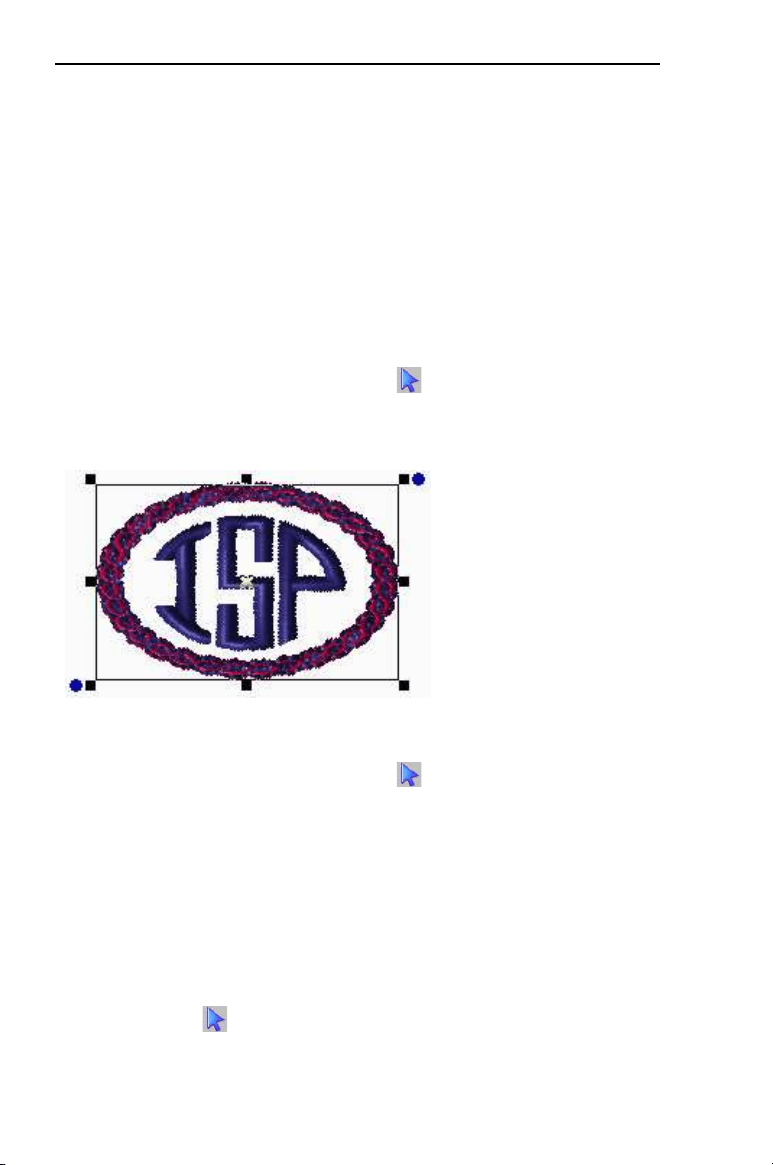
70 InitialStichbyPacesetter
InstructionManual
The Select tool is also used to select a number of components in order
to align them as you wish; for more information, see “Aligning Objects
Horizontally and vertically”.
The Select tool can be used for both text segments and design
segments; however, to do more detailed editing of text segments, such
as resizing, stretching, or rotating, you will want to select them with the
appropriate text tool.
To select one segment in the design:
1 From the Home tab, click the Select tool.
2 Click the design component you want to select.
The active segment is enclosed in a selection box.
To select multiple components in the design:
1 From the Home tab, click the Select tool.
2 Click a design component. Press CTRL on your keyboard while you
click each design component not already selected.
The active design components will be enclosed in a selection box
with handles.
To select all components of the design:
• Do either of the following:
• Press Ctrl + A on the keyboard.
Using the Select tool, click in the workspace, and draw a box large
enough to enclose all components of the design.
DesignEditing 71
Copying, Cutting, and Pasting Design
Components
You can use a variety of methods to copy design components in your
designs.
To copy to the clipboard:
1 Select one or more design components you want to copy.
2 To copy design components to the clipboard, do one of the
following:
On the Home tab, click on the Copy button.
In the design workspace, right-click on the selection and
choose Copy from the menu.
Press Ctrl + C.
The design components are copied to the clipboard.
3 To paste design components from the clipboard, do one of the
following:
On the Home tab, click on the Paste button.
In the design workspace, right-click anywhere and choose
Paste from the menu.
Press Ctrl + V.
To cut to the clipboard:
1 Select one or more design components you want to cut.
2 To cut design components to the clipboard, do one of the following:
On the Home tab, click on the Cut button.
In the design workspace, right-click on the selection and
choose Cut from the menu.
Press Ctrl+X.
The design components are removed from their location.
3 To paste design components from the clipboard, do one of the
following:
On the Home tab, click on the Paste button.
In the design workspace, right-click anywhere and choose
Paste from the menu.
Press Ctrl + V.

72 InitialStichbyPacesetter
InstructionManual
Aligning Objects Vertically and
Horizontally
You can align lettering or design components horizontally or vertically
using the Align tools on the Arrange tab.
To align design components:
1 Select the design components you want to align.
See “Selecting and Moving Parts of a Design.”
2 On the Arrange tab, select the appropriate button from the
following:
Moving Design Objects Manually
You can move the component parts of your design relative to each
other by dragging them to another location.
To move a design component manually:
1 From the Home tab, click the Select tool.
2 Click and drag the design component to its new location.
As you drag, the status line displays the horizontal (dx) and vertical
(dy) distance.
Deleting Design Components
Deleting a design component removes it from the design. The only
way to retrieve a design component you delete is to use the Undo
tool from the Quick Access tool bar immediately after you delete it.
Vertical Center: Takes all selected objects and centers them in the
selection box. The objects are moved so that they are centered
top-to-bottom with each other, but they are not moved left or right.
Horizontal Center: Takes all selected objects and centers them in
the selection box. The objects are moved so that they are centered
left-to-right with each other, but they are not moved up or down.
Center: Centers the selected objects in the current hoop.
If more than one object is selected, the entire group is moved
together to the center of the hoop; the objects selected remain in
the same position relative to each othe
r as they had before being
centered.

DesignEditing 73
To delete a design component:
1 From the Home tab, click the Select tool.
2 Select the design component.
3 There are three ways to delete a design component:
Right-click and select Delete from the shortcut menu.
Press Delete on your keyboard.
Choose the Delete command from the Home Tab on the ribbon.
Resizing Design Objects
Resizing an object (Text or other embroidery) enlarges or reduces it
horizontally or vertically. You can manually resize objects in the
workspace, or use the Transform settings (found on the Properties
panel) for finer control.
You can also resize the selected design object using the Transform
settings in the Properties panel. If this method is used to resize the
selection, you have the option of resizing by absolute size, or a
percentage of the object’s original size.
To resize objects manually using design handles:
1 Select one or more objects.
The active object is enclosed in a selection box with handles.
2 Do one or more of the following to resize object(s):
To resize by width, click and drag the design handles located
on the left and right side of the selection box.
To resize by height, click and drag the design handles located
on the top and bottom sides of the selection box.
To resize proportionally, click and drag the design handles
located at the top or bottom corners of the selection box.
To resize objects using the Transform settings on the
Properties Panel:
1 Select the object with the Select tool.
The select object is enclosed in a selection box with handles.
2 In the Transform area of the Properties Panel, enter the desired
width and height in the corresponding fields.
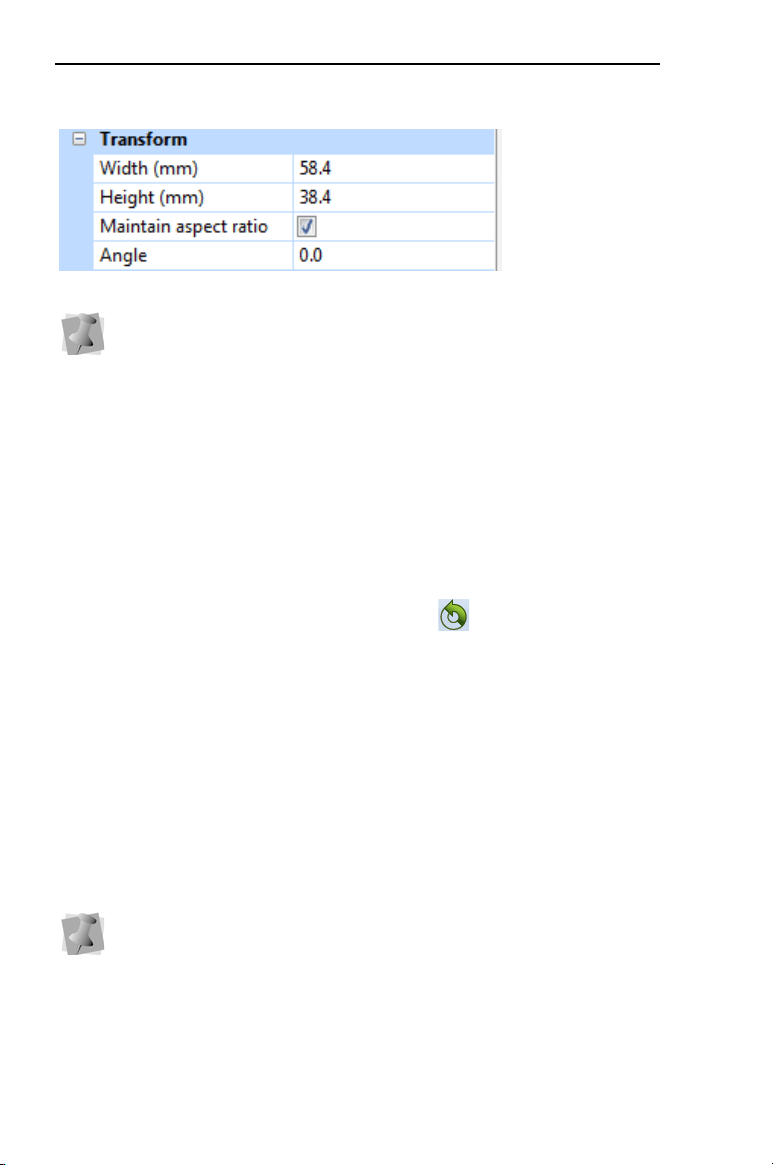
74 InitialStichbyPacesetter
InstructionManual
3 Click Apply.
The size of the object will be adjusted accordingly.
Rotating Objects
The rotate tools on the Arrange tab may be used to rotate text items,
frames, or merged stitch designs through 90º increments. To rotate
text through a smaller angle, you can rotate the selection using the
frame handles, or by using the Rotate Angle
tool; the Rotate
Angle tool allows you to type in an exact angle of rotation.
To rotate segments manually:
1 Select one or more segments you want to rotate.
The active segment(s) is enclosed in a selection box with handles.
2 Move your mouse over the blue rotation handle beside the top-
right or bottom-left design handle.
You see the cursor change to a circular arrow.
3 Click and drag the rotation bead to adjust the box to the angle you
want.
To rotate an object using the Arrange tools:
1 Select one or more design components you want to rotate.
The active design component(s) is enclosed in a selection box.
To maintain the proportions of an object while resizing it, select
Maintain aspect ratio if not already selected; when Maintain aspect
ratio is selected, you only have to enter one dimension, and the other
will be generated automatically.
The number of degrees of rotation is displayed on the status line in
the bottom left corner of the workspace window.
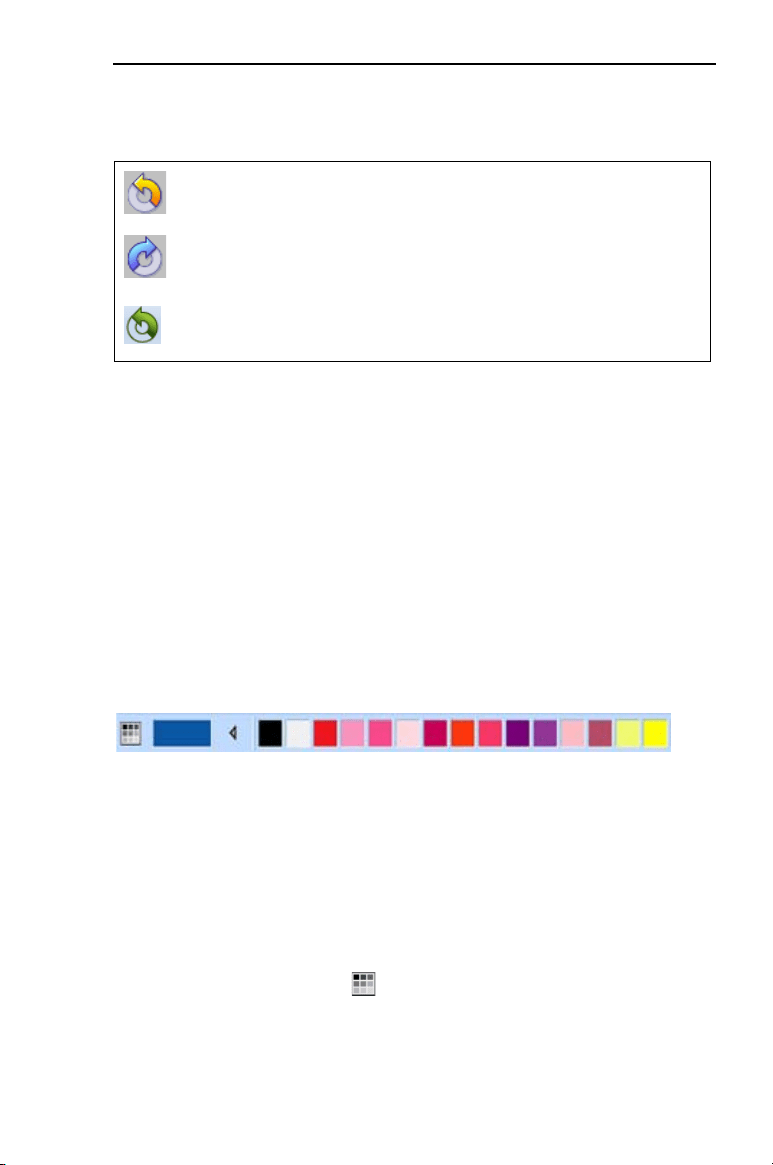
DesignEditing 75
2 From the Arrange tab on the ribbon, select one of the following:
To rotate an object using the Properties Panel:
1 Select the object with the Select tool.
The select object is enclosed in a selection box with handles.
2 In the Transform area of the Properties Panel, enter the desired
angle in the Angle field.
3 Click Apply.
The selected object will be rotated accordingly.
Using with the Color Palette
In Initial Stitch by Pacesetter, you can change the color of any text of
embroidery segment in your design.
The color palette shows you the thread colors that are available in the
thread chart that is currently selected. It is located along the top edge
of the design workspace.
Selecting a Thread Chart
Initial Stitch by Pacesetter comes with a large number of thread charts
already loaded. You con choose from among these charts by clicking
on the Thread Chart button , which is on the left end of the Color
palette. Clicking this button will display the whole list of thread charts
as a drop-down list. Click on the one that you want and its thread
colors will be loaded into the color palette.
Rotate Left: Rotates one or more selected objects to the left by 90º
increments.
Rotate Right: Rotates one or more selected objects to the right by
90º increments.
Rotate Angle: When clicked, this will open the Rotation dialog. In
the dialog, enter the exact number of degrees of rotation you want
to apply to the selection, then click OK.
76 InitialStichbyPacesetter
InstructionManual
Changing a Thread Color
Initial Stitch by Pacesetter allows you to adjust the colors of the
lettering you create, by using the Color Palette; you do this by
choosing thread objects in the Color palette.
To change the thread color of a Text item:
1 Select the text item in the workspace, using either the Select tool or
one of the text tools.
2 In the Color Palette, click the color box with the thread color you
want to use.
Adding Frames to a Design
The Add Design tool allows you to embellish designs with extra
decorative embroidery. Use it to add Monogram frames to the design,
which can then be re-sized and arranged as needed.
To use the Add Designs tool:
1 In the Home tab of the Ribbon, click on the Add Design tool.
A dialog opens in front of the workspace, displaying thumbnails of
the Monogram Frames.
Note that the selection of new colors only applies to new segments that
you create within Pacesetter; you cannot change the color of a segment
if it has been imported into your design, for example using the Merge
Design feature.
If you hover over a color square on the Palette, the thread type
and number will show beside the mouse pointer.
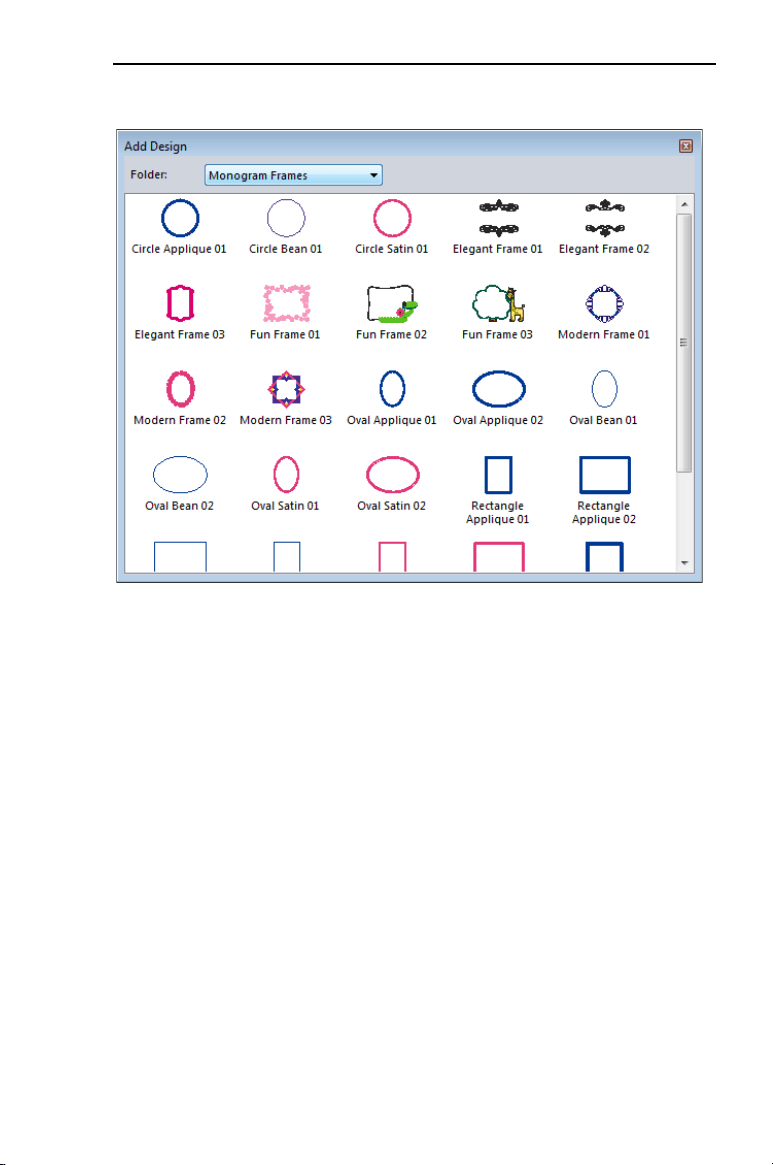
DesignEditing 77
2 In the window, click on the design you want to import.
The Add Design window closes; your cursor changes to a small
cross, indicating that the Add Design tool is active.
3 Move the mouse pointer to the place in the design where you would
like the frame to begin.
4 Click and drag the mouse; as you drag, note that the selected
frame appears in outline.
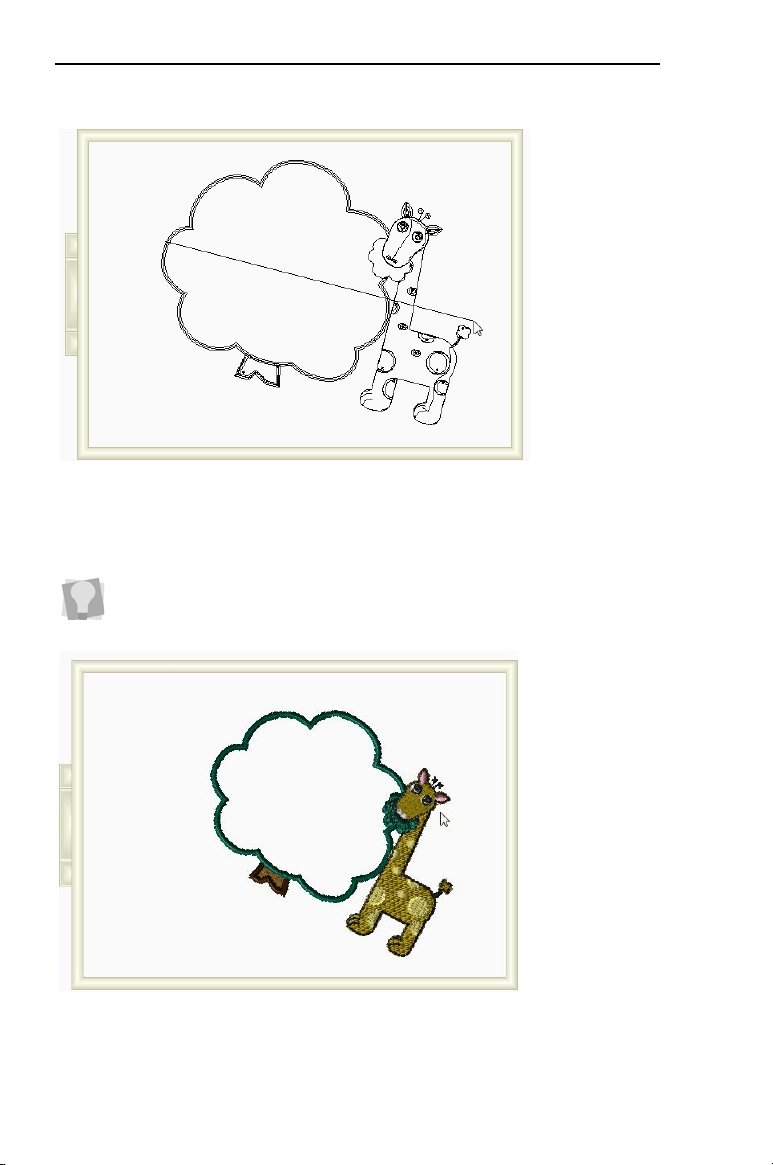
78 InitialStichbyPacesetter
InstructionManual
This outline indicates the size and orientation of the frame, before
the stitches are actually generated.
5 To finish placing the frame, release the mouse button.
The frame is added to the design.
6 To adjust the size and orientation of the Monogram Frame after it is
placed, select it and use the handles to resize or rotate it.
You can also insert a design quickly by just following steps 1-3 above,
and then clicking in the workspace. This will add the selected design at
the default size.
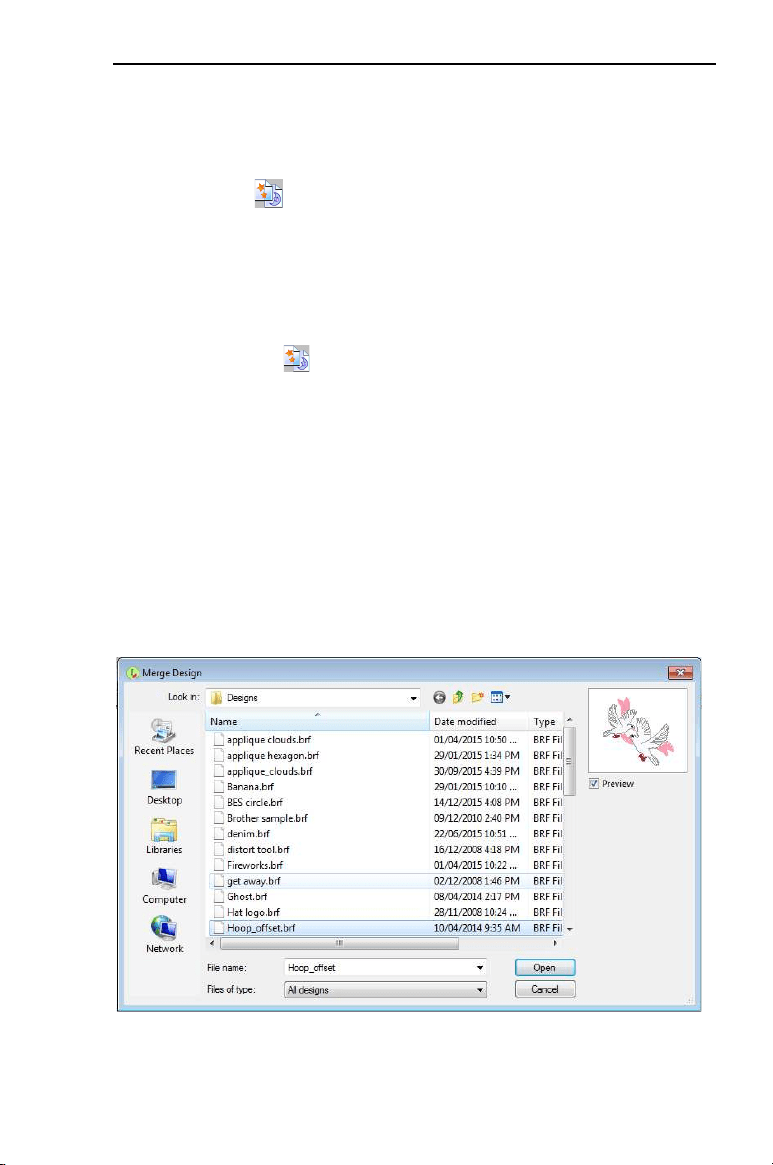
DesignEditing 79
Merging Design Files
Click on Merge to import an existing design file and add it your
design. You can merge design files from a variety of stitch (machine)
formats.
To merge a design:
1 Open an existing design, or create a new design.
2 Click the Merge tool.
You see the Merge Design File dialog.
3 In the Look in list, browse to the location of the file you want to
merge.
4 (Optional) In the Files of type list, select a design file type for the
design you want to merge.
5 Select the design file that you want to merge onto the current open
design workspace.
6 To see a preview of the selected design, check Preview.
A preview image of the selected design appears in the small window
on the right-hand side of the dialog.
7 Click Open.
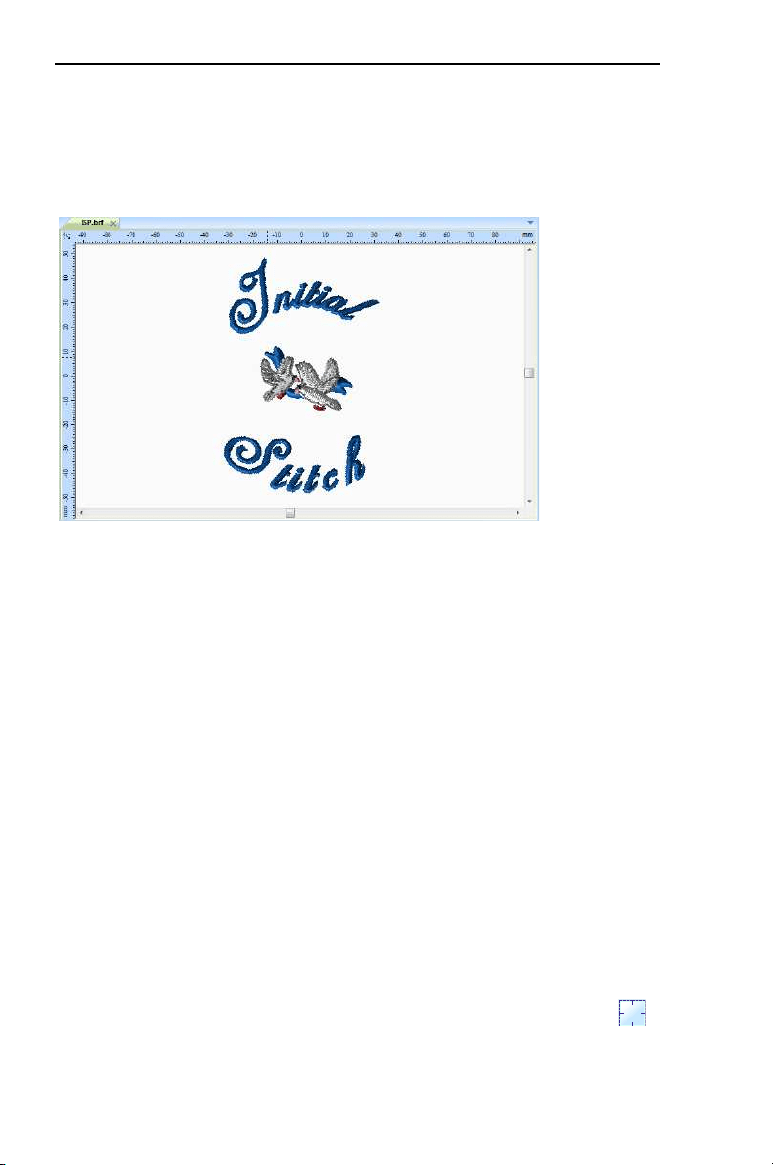
80 InitialStichbyPacesetter
InstructionManual
The merged design file appears in the design workspace. You can
now select and move the stitch file to place it in the desired position
relative to your lettering.
Adding Basting Stitches
You can create a series of stitches that will baste a rectangular outline
around the edge of a design. The stitches start at the top left corner of
the design; these initial stitches are just jumps and do not sew. Then, a
basting run stitch is sewn around the outer edge in a rectangle.
The basting stitches also help you to see that your hooping is lined up
correct and straight, a feature that really helps where text is concerned
as every error stands out clearly.
You can change the stitch length and distance from the edge of the
design that the basting stitches will be placed; for information on the
adjusting these settings, see “Setting up the Workspace Environment—
Basting stitch settings.”
To add basting stitches to a design:
1 Open an existing design.
2 On the Home tab, in the Text/Design area, click the Auto Baste
tool.
The basting stitches appear around the design.
DesignEditing 81
Printing Designs
You can make print-outs of your designs in Initial Stitch by Pacesetter.
These print-outs not only give you a preview of what the design will
look like, but they have a lot of other information as well - the number
of stitches in the design and its overall size. Also, by selecting the
“Print Color Analysis” option in the Print settings dialog, you can also
have printed the color, name, and length of each thread used.
Previewing a Design before Printing
You can preview a worksheet on the screen before sending it to the
printer.
To preview a design:
1 From the Quick Access Toolbar, click on the Print Preview
button.
2 To zoom in and out of the previewed worksheet, do the following:
To zoom in on the worksheet, click Zoom In and scroll to view
specific parts of the design.
To zoom out on the worksheet, click Zoom Out and scroll to
view specific parts of the design.
3 To close print preview and return to the design window, click Close.
Printing Design Worksheets
You can print a design, without previewing it, by selecting the Print
Setup toolbar icon. This button opens your computer’s Print dia-
log, where you can choose printer options such as how many copies
you want to print.
You can also print worksheets of your design immediately, without
previewing the design or changing printer options. To do this, choose
the Direct Print button.
To print a worksheet for your design:
1 Do one of the following:
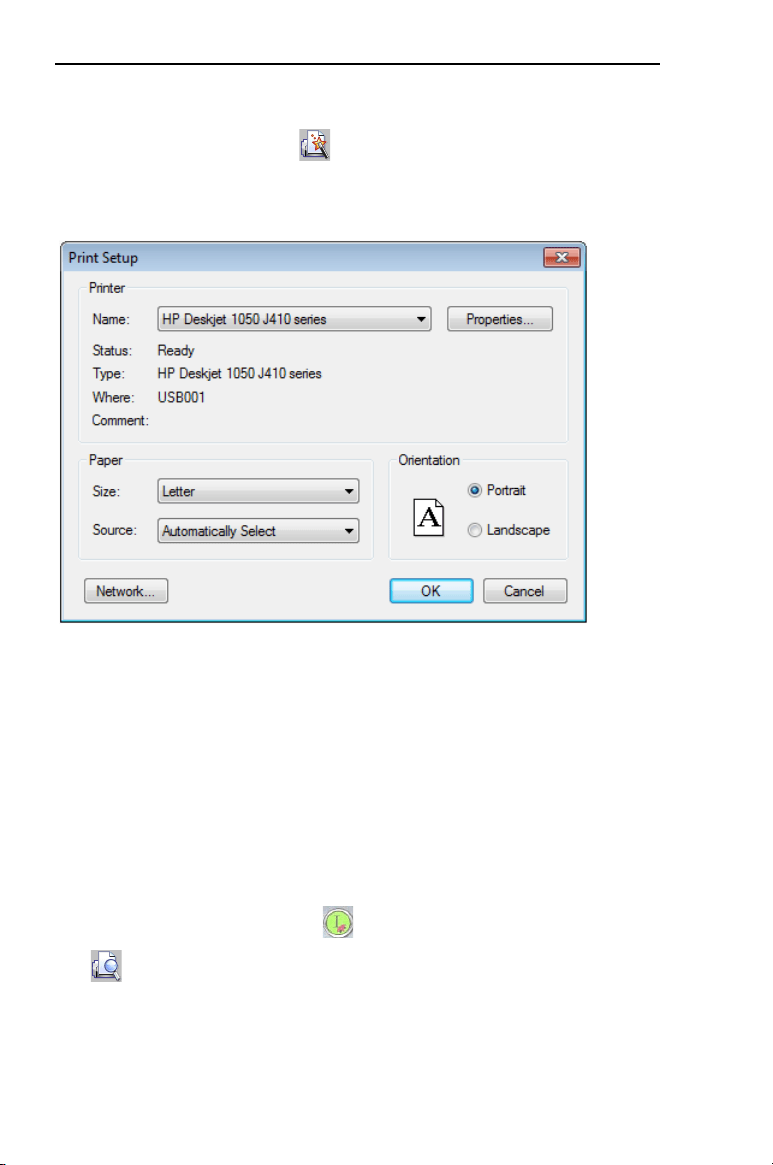
82 InitialStichbyPacesetter
InstructionManual
Click the Print Setup button.
Press Ctrl+P on the keyboard.
You see the Print dialog.
2 Make any required changes to the print settings.
3 Click OK to send the file to the printer.
Changing the Print Settings
You can customize print settings for your embroidery designs. Initial
Stitch by Pacesetter allows you to adjust the image and worksheet
information displayed in design printouts.
To change a design’s print settings:
1 Click the Pacesetter button , and select Print—Print Preview
from the menu.
You see the print preview window, displaying your design.
2 On the preview’s toolbar, click Settings.
You see the Print Settings dialog.
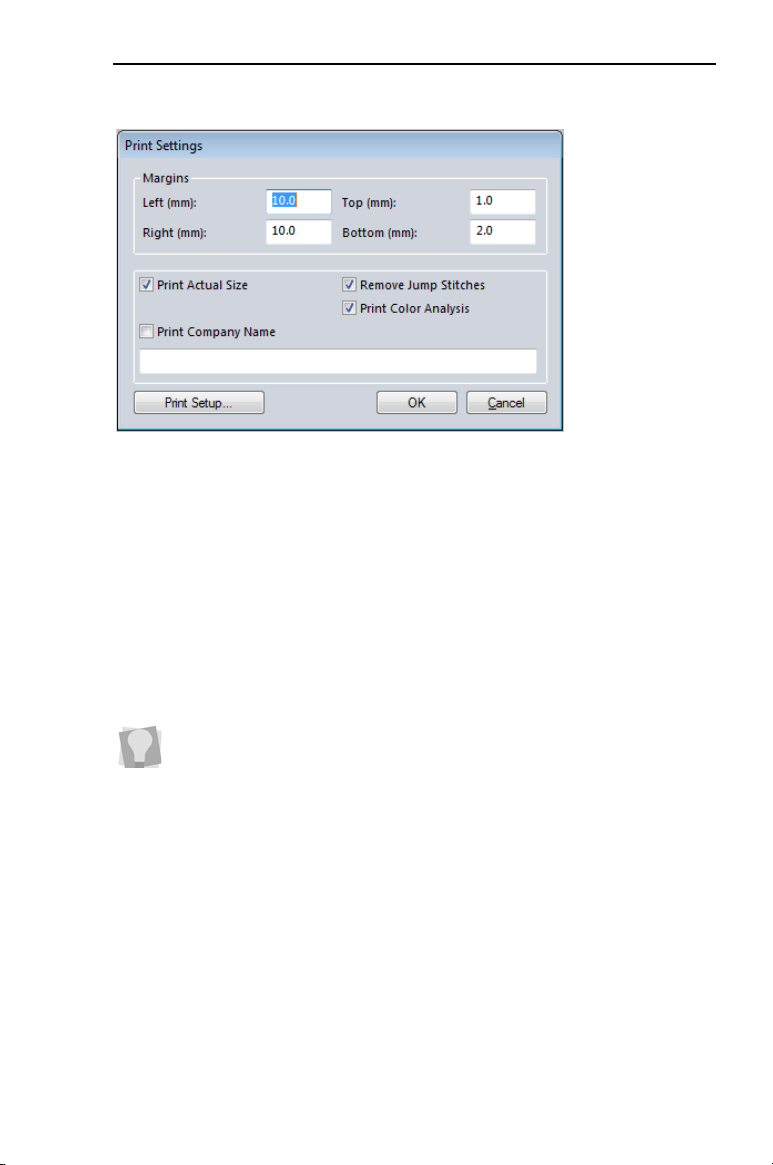
DesignEditing 83
3 In the Margins area, enter the margin sizes you want for your
design worksheet.
4 Modify the output by checking any of the following options:
Print Actual Size to have your design print in its actual size.
Print Color Analysis to print an expanded thread sequence view
that includes a view of the colors used, the color sequence, and
the thread consumption for each color.
Print In One Page to print the design on a single worksheet
page.
Print Company Name to have the name of your company name
printed on your design worksheet. Enter your company name in
the box below.
5 Click OK.
6 Click Close.
If Print Color Analysis is selected along with Print In One Page, the
print-out will display a basic thread sequence view. This includes a
simplified view of the colors used, the color sequence and the thread
consumption.

84 InitialStichbyPacesetter
InstructionManual

Index
Numerics
3D tool 10
A
Add Designs tool 10
Align tools 72
Aligning segments 72
Alignment 53
Angle, text 38
Arc Frame 53
ASCII numbers 59
Auto Baste 21
Auto Baste tool 80
B
Background Color tool 10
Basting stitches 80
C
Carved Fill patterns 55
Center tool (Align) 11, 72
Changing font type 47
Changing inset distance 59
Changing Text modes 53
Changing the slant setting 50
Changing thread colors (text)
43
Color Palette 16, 44, 76
Copying segments 71
Creating Monogram Text 34
Creating new designs 64
Creating Normal Text 32
D
Deleting segments 72
Density 58
Density settings 56
Design components, duplicating
69
Design size 22
Design Window 6, 64
Design workspace 6, 18, 24
Display Hoop command 25
Dragging segments 72
Draw Bar 13, 14
Drawing speed settings 14
Duplicating a design component
69
E
Editing Text (Properties box) 46
F
File Tools 9
Fill density 56
Fill stitches 57
Underlay types 57
Flip Horizontal tool 11
Flip Vertical tool 11
Font spacing 49
Font type 47
Frames, text mode 53
G
Grid tool 10
Grids 19
H
Help 27–29
Index 27
Printing topics 29
Saving favorite topics 28–
29
Hoop Selection 26
Hoop tool 10, 25
Hoops, displaying 25
Horizontal Center tool (Align)
11, 72

86 Initial Stitch by Pacesetter
Instruction Manual
I
Include all folders (Browser) 69
Inset distance 59
K
Keystrokes 48
L
Line Spacing 52
M
Machine Formats 18
Magnifying views 22
Measuring designs 24
Merge Design tool 8
Merge Stitch File 79
Merging designs 79
Modify Tools 11
Monogram properties 52
Monogram Text 34
Monogram Text tool 10
Moving Individual Letters 41
N
New Design tool 8
New designs 64
New tool 8
Normal Frame 53
Normal Text 32
O
Open Design tool 8
Options 18
P
Pan tool 24
Panning 24
Pasting design components 71
Patterns 55
choosing 55
PEN files 68
Previewing designs 81
Print Preview 8, 81, 82
Print settings 82
Printing 81
Printing Help topics 29
Properties box 46
Properties, text 43
R
Redo tool 17
Reducing views 22
Removing hoops 25
Reset Frame command 54
Reset Letter command 54
Resize command 73
Resizing Individual Letters 42
Resizing segments 73
Rotate Left tool 12, 75
Rotate Right tool 12, 75
Rotating Individual Letters 42
Rotating segments 74
Ruler tool 25
S
Save 67
Save As 67
Save tool 8
Saving Favorite Help Topics 28–
29
Saving Projects 67
Scrollbar slider 13, 14
Scrollbars 16
Select Hoop 10
Select tool 9, 11, 69, 70
Selecting underlay types 57
Sequence View 14
Setting units of measurment 18
Show PEN tool 68

87
Show warning for large satins 18
Slant setting 50
Slant, text 38
Slow Draw Bar
Scrollbar slider 13, 14
Speed Control 14
Special Characters 43
Special characters 59
Speed Control, drawing 14
Status Line 16
T
Text Modes 53
Text Properties 43
Text properties 43, 53
Text tool 10
Thread Colors 76
Thread colors 16
Title Bar 6
Tools
File 9
Modify 11
Tools, Draw Bar 13, 14
U
Underlay stitch length 58
Underlay types 57
Undo tool 17
Units 18
V
Vertical Center tool (Align) 11,
72
Viewing designs 24
Views tools 22
Zoom 22, 23
W
Width compensation 50
Worksheet Setting 81
Print Setting 81
Workspace 6
Workspace environment 18
Z
Zoom tool 22
