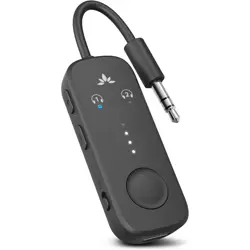
Model No.: BTTC-218
Relay
User Manual


Contents
EN
User Manual
2
DE
Kurzanleitung 18
FR
Guide de Démarrage Rapide 34
ES
Guía de Inicio Rápido
50
IT
Guida Di Avvio Rapido
取扱説明書
66
82
RELAY
User Manual
1
JP

RELAY
User Manual
2
Table of Contents
Box Contents
Product Introduction
Product Overview
Button Functions
LED Indicators
Charging the Transmitter
Connecting to an Audio Source
Connecting to Your Headphones
Adding a Second Pair of Headphones
Reconnecting Your Headphones
Specications
FAQ
Contact Us
3
4
4
5
6
7
8
9
11
13
14
15
17
EN
RELAY
User Manual
3
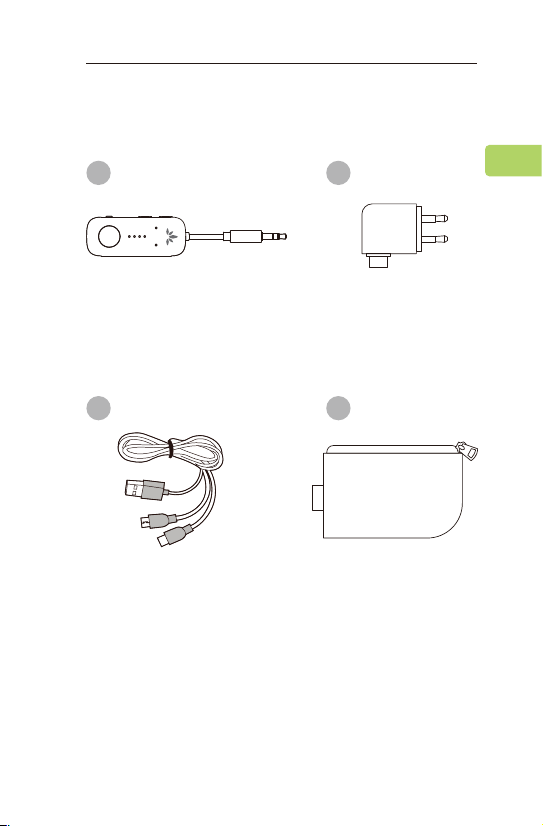
Box Contents
Relay Transmitter
USB C Charging
Cable (1.5ft / 0.5m )
Traveling Pouch
Dual 3.5mm Male to
3.5mm Female Adapter
A B
C D
EN
RELAY
User Manual
4
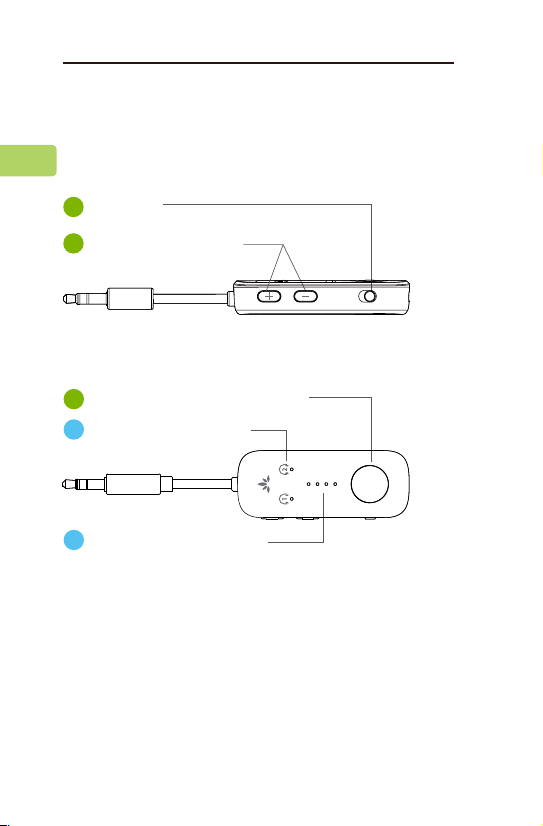
Battery status indicator
Multifunctional button(MFB)
Product Introduction
Product Overview
B
Connection indicator
A
3
ON / OFF
1
Volume adjustment
2
ON OFF
EN
RELAY
User Manual
5
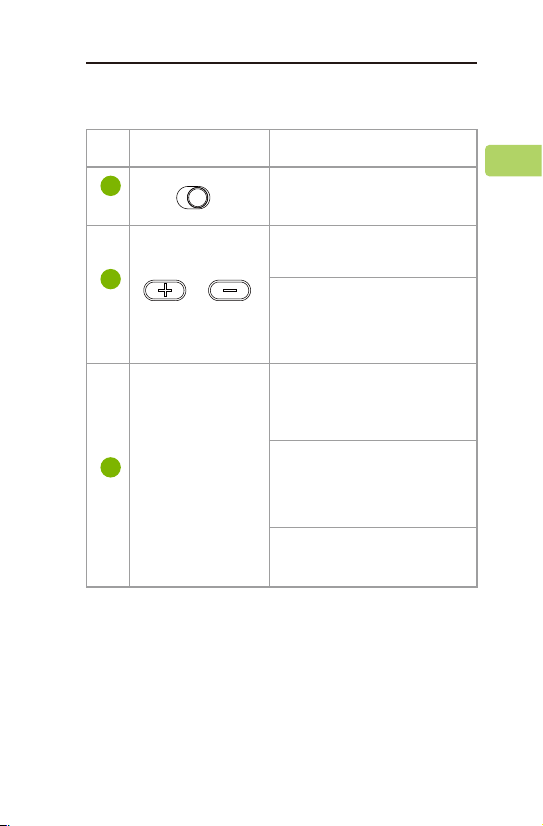
Button Functions
1
2
3
Switch to turn the
Relay on / o
Press once or hold to
adjust volume
Press & hold both for
6 seconds to clear
pairing history
Press & hold for 2
seconds to enter
pairing mode
Press once to manually
initiate reconnection to
last-paired device
Double click to show
battery level
Multifunctional
Button (MFB)
No. Button Functions
ON OFF
EN

RELAY
User Manual
6
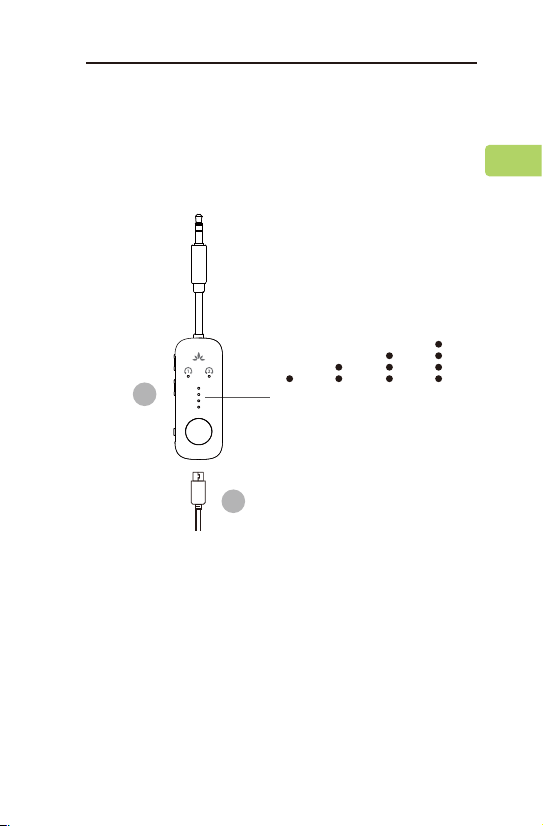
LED Indicators
Alternate red & blue
ashes
Solid blue
Blue ashes every
second
Blue ashes every
5 seconds
Solid blue & red
simultaneously
for 3 seconds
Any of the 4 LED
indicators ashing
All the 4 LED
indicators o
Solid white for 1
second (after power on)
No. Indicator Status
Pairing
Connected
Reconnecting to
last-used device
Standby
Clearing
pairing
history
Charging
Fully charged
Battery status
B
A
EN
Charging the Transmitter
A
C
RELAY
User Manual
7
Double click the MFB to check the battery
level. It’s best to initiate charging when the
Relay is at 25% battery level or below.
25%
Plug the provided USB C charging cable into
the charging port, then connect the other end
to a 5V/500mA-2A rated USB adapter (your
phone charger or similar should work) or PC
USB port.
A ashing white light on the transmitter
indicates that charging is in progress; the four
lights will turn solid white then o to indicate a
full charge.
50% 75% 100%
EN
A A
B
RELAY
User Manual
8
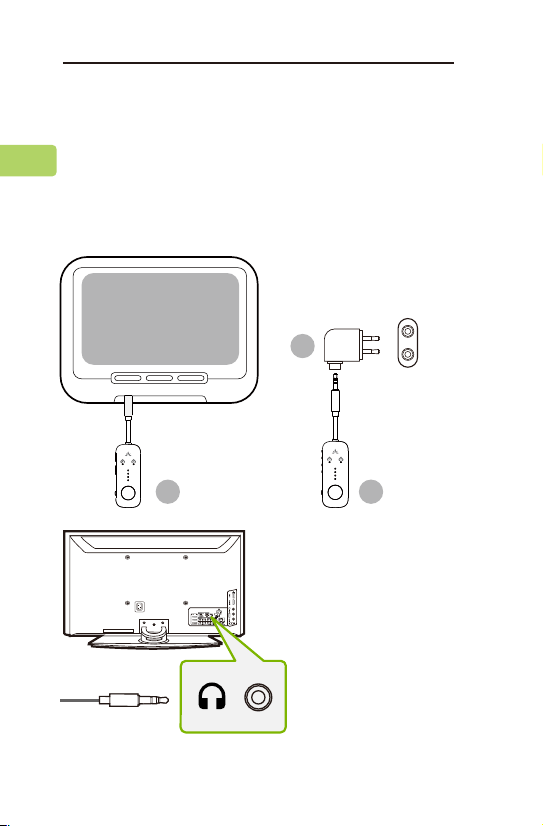
Connecting to an Audio Source
Plug the Relay into an in-ight entertainment
system (use the adapter if necessary) or any
other audio source with an AUX 3.5mm audio
connector.
TV
EN
A
RELAY
User Manual
9
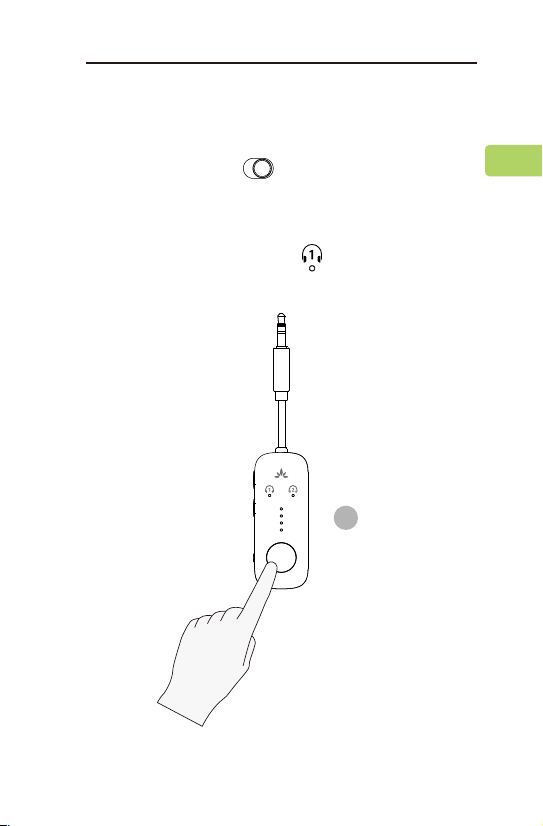
Connecting to Your Headphones
STEP 1
Slide the Relay’s switch to the “ON”
position. For rst time use, the Relay will enter
PAIRING mode automatically. For subsequent use,
put your Relay into PAIRING mode by pressing &
holding the MFB until the LED ashes blue
and red alternately.
ON OFF
EN
RELAY
User Manual
10
STEP 2
Put your Bluetooth headphones into PAIRING
mode.
STEP 3
Keep the Relay & your device close together and
wait for 5-10s until they connect. Once connected,
the indicator will turn solid blue.
NOTE: Most cases where your device & the
transmitter fail to connect happen because the
device is not properly placed into PAIRING
mode. Double check that your device is
successfully in PAIRING mode (typically
indicated by an LED indicator's alternate red &
blue ashes). For more details, please refer to
your device's online user manual.
EN

RELAY
User Manual
11
Adding a Second Pair of
Headphones
You can connect and simultaneously listen
through two pairs of headphones if desired.
STEP 1
Once your rst device is successfully connected,
put your Relay into PAIRING mode once again by
pressing & holding the MFB until the LED
ashes blue and red alternately.
STEP 2
Put your second pair of Bluetooth headphones
into PAIRING mode. Please refer to your
headphones’ user manual for more details if
necessary.
STEP 3
Keep the Relay & your second device close
together and wait for 5-10s until they connect.
Once connected, both indicators will turn
solid blue.
EN
RELAY
User Manual
12
NOTE: The dual headphones support function
works with most headphones but not all.
Certain true wireless earbuds in particular do
not work well with Bluetooth transmitters'
dual headphones mode. If you're not getting
audio while dual linked, try turning the
aected headphones o and then on again.
In some cases, dual pairing with Airpods may
trigger their audio MUTE function. If this
happens, put them back in their charging
case (with the lid open) for 2 seconds, then
take them out again to return them to
normal. This may help to solve the problem.
EN

RELAY
User Manual
13
Reconnecting Your Headphones
You typically do NOT need to re-pair your
Bluetooth headphones with the Relay every
time. Once successfully paired, they should
automatically reconnect when both devices are
turned on (this may take a few seconds).
If your device does not automatically reconnect
after 5-10 seconds, you can manually initiate
reconnection by pressing the Relay’s MFB once
and waiting for 5-10 seconds. If this still doesn't
work, try initiating reconnection on your audio
device as well (typically done by pressing the
main Bluetooth PLAY button on your
headphones once). If they still don’t connect,
you may need to re-pair your device.
NOTE: If you paired your headphones with a
dierent Bluetooth device, turn Bluetooth OFF
on said device(s). Airpods in particular will
always prioritize Apple devices for automatic
pairing, so you'll need to turn your iPhone's
Bluetooth OFF when pairing your Airpods
with the Relay.
EN

RELAY
User Manual
14
Specications
v5.3Bluetooth version
Supported prof
Audio codecs
Input voltage
/ current
Operating range
Product dimensions
Net weight
A2DP; AVRCP
aptX adaptive; aptX
LowLatency, aptX, SBC
DC5.0V / 500Ma-2A
Up to 33ft / 10m
15g
125mmx24mmx12mm
iles
EN

RELAY
User Manual
15
FAQ
Below are some of the most common
questions people have during setup.
My Relay’s at max volume; why is the sound
still so quiet?
Try adjusting the volume on both the Relay,
your headphones, and / or the audio source.
You should be able to reach sucient volume
levels by adjusting all three.
Can I use this while it's charging?
Yes, you can use it while it’s charging.
Does this work on a regular TV?
As long as your TV has an AUX or RCA audio
output jack, the Relay will work with it. Please
note that you’ll need an AUX 3.5mm to RCA
adapter (not included) in order to transmit
audio via your TV’s RCA ports.
Why am I getting audio delay?
Both the sender (i.e. the Relay) and the
receiver (i.e. your Bluetooth headphones)
must support either aptX Low Latency or aptX
Adaptive in order to eliminate audio latency.
You can check your device's specs to ensure it
supports either of these audio codecs. Please
note that most true wireless earbuds do not
EN

RELAY
User Manual
16
currently support aptX Low Latency or aptX
Adaptive audio codecs.
Why aren’t my headphones connecting?
Why aren't I getting sound from my
headphones?
......
For answers to questions like these and for a
full FAQ list, you can visit
avantree.com/support/relay, or you can
contact us directly for additional assistance.
EN
RELAY
User Manual
17
Contact Us
Support Tickets avantree.com/submit-a-ticket
Support Email [email protected]
FAQ avantree.com/support/relay
USA / CA +1800 232 2078 (9am-6pm PST, Mon-Fri )
UK +44 20 8068 2023 (9am-6pm, GMT, Mon-Sat)
DE +49 32221097297 (11am-9pm, CET, Mon-Sat )
FR + 33 176340312 (11am-9pm, CET, Mon-Sat )
IT +39 06 9480 3330 (9am-6pm, CET, Mon-Sat )
ES + 34 931786261 (9am-6pm, CET, Mon-Sat )
AU + 61 2 8310 9897 (11am-7pm, AEST, Mon-Fri)
Product Registration avantree.com/product-registration
EN
Model No:BTTC-218
Dispose of the packaging and this product in
accordance with the latest provisions.
Z-PKQG-BTTC-218-V2
Manufacturer: Avantronics Limited
Address: Luohu District, Shenzhen 518000 China
US Importer:
Avantree Corporation
San Jose, California 95119 USA
UK Importer:
Avantree Limited
Watford, WD180 0HQ UK
Servicer in Europe:
GizmexGmbH,
Sternstr.67,40479Dusseldorf,Germany
Tel:01–4083348648 [email protected]
EC REP
