
© 2022 TP-Link REV1.0.0 1910013209
User Guide
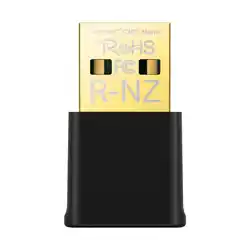
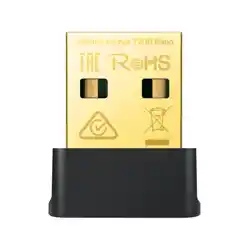
AC600 Nano Wi-Fi Bluetooth 4.2 USB Adapter
Archer T2UB Nano

Contents
About This Guide 1
Chapter 1 Get to Know About Your Adapter 2
1. 1. Product Overview . . . . . . . . . . . . . . . . . . . . . . . . . . . . . . . . . . . . . . . . . . . . . . . . . . . . . 3
1. 2. LED Status . . . . . . . . . . . . . . . . . . . . . . . . . . . . . . . . . . . . . . . . . . . . . . . . . . . . . . . . . . . . 3
Chapter 2 Connect to a Computer 4
Chapter 3 Use the Adapter 6
3. 1. Install Wi-Fi & Bluetooth Drivers. . . . . . . . . . . . . . . . . . . . . . . . . . . . . . . . . . . . . . . . 7
3. 2. Pair with Bluetooth Deivces. . . . . . . . . . . . . . . . . . . . . . . . . . . . . . . . . . . . . . . . . . . . 8
3. 3. Join a Wireless Network . . . . . . . . . . . . . . . . . . . . . . . . . . . . . . . . . . . . . . . . . . . . . . . 8
3. 4. Uninstall Drivers . . . . . . . . . . . . . . . . . . . . . . . . . . . . . . . . . . . . . . . . . . . . . . . . . . . . . . . 8
Appendix: Troubleshooting 9
1
About This Guide
This guide is a complement to Quick Installation Guide. The Quick Installation
Guide instructs you on quick installation, and this guide provides the product
overview and detailed instructions for each steps.
When using this guide, please notice that features of the adapter may vary
slightly depending on the model and software version you have. All screenshots,
images, parameters and descriptions documented in this guide are used for
demonstration only.
Conventions
In this guide, the following conventions are used:
Convention
Description
Teal Italic
Hyperlinks are in teal italic. You can click to redirect to a website or a
specific section.
Teal
Contents to be emphasized and texts on the web page are in teal, including
the menus, items, buttons, etc.
Note:
Ignoring this type of note might result in a malfunction or damage to the
device.
Tips:
Indicates important information that helps you make better use of your
device.
Maximum wireless signal rates are the physical rates derived from IEEE Standard 802.11 specifications.
Actual wireless data throughput and wireless coverage, and quantity of connected devices are not
guaranteed and will vary as a result of network conditions, AP limitations, and environmental factors,
including building materials, obstacles, volume and density of traffic, and AP location.
Use of MU-MIMO, 256-QAM and WPA3 requires clients to also support the corresponding features.
To ensure compatibility, you may need to update the adapter’s drivers after an OS update. You can check
the full list of supported operating systems in the download center at tp-link.com/download-center.
More Info
• The latest software and utility can be found at
https://www.tp-link.com/download-center.
• The Quick Installation Guide (QIG) can be found where you find this guide or
inside the package of the product.
• Specifications can be found on the product page at https://www.tp-link.com.
• A Community is provided for you to discuss our products at
https://community.tp-link.com.
• Our Technical Support contact information can be found at the Contact
Technical Support page at https://www.tp-link.com/support.


3
Chapter 1
Get to Know about Your Adapter
1 1 Product Overview
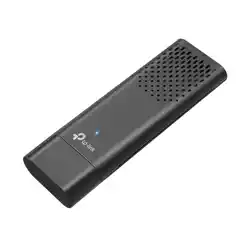
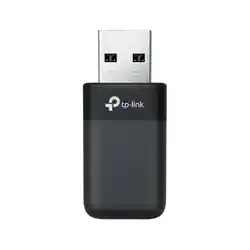
TP-Link Wireless USB Adapter connects your computer to a Wi-Fi network for
smooth HD video, voice streaming and online gaming.
• Small, unobtrusive design allows you to plug it in and forget it is even there
• Blazing fast wireless data transmission rates of up to 433 Mbps at 5 GHz and
200 Mbps at 2.4 GHz
• Utilizes 802.11ac standard and is backward compatible with 802.11a/b/g/n
• Supports 256QAM technology, 33% faster on 2.4GHz
• Supports ad-hoc and infrastructure mode
• Supports WEP, WPA/WPA2/WPA3, WPA-PSK/ WPA2-PSK, WPA3-SAE
• Supports Windows
1 2 LED Status
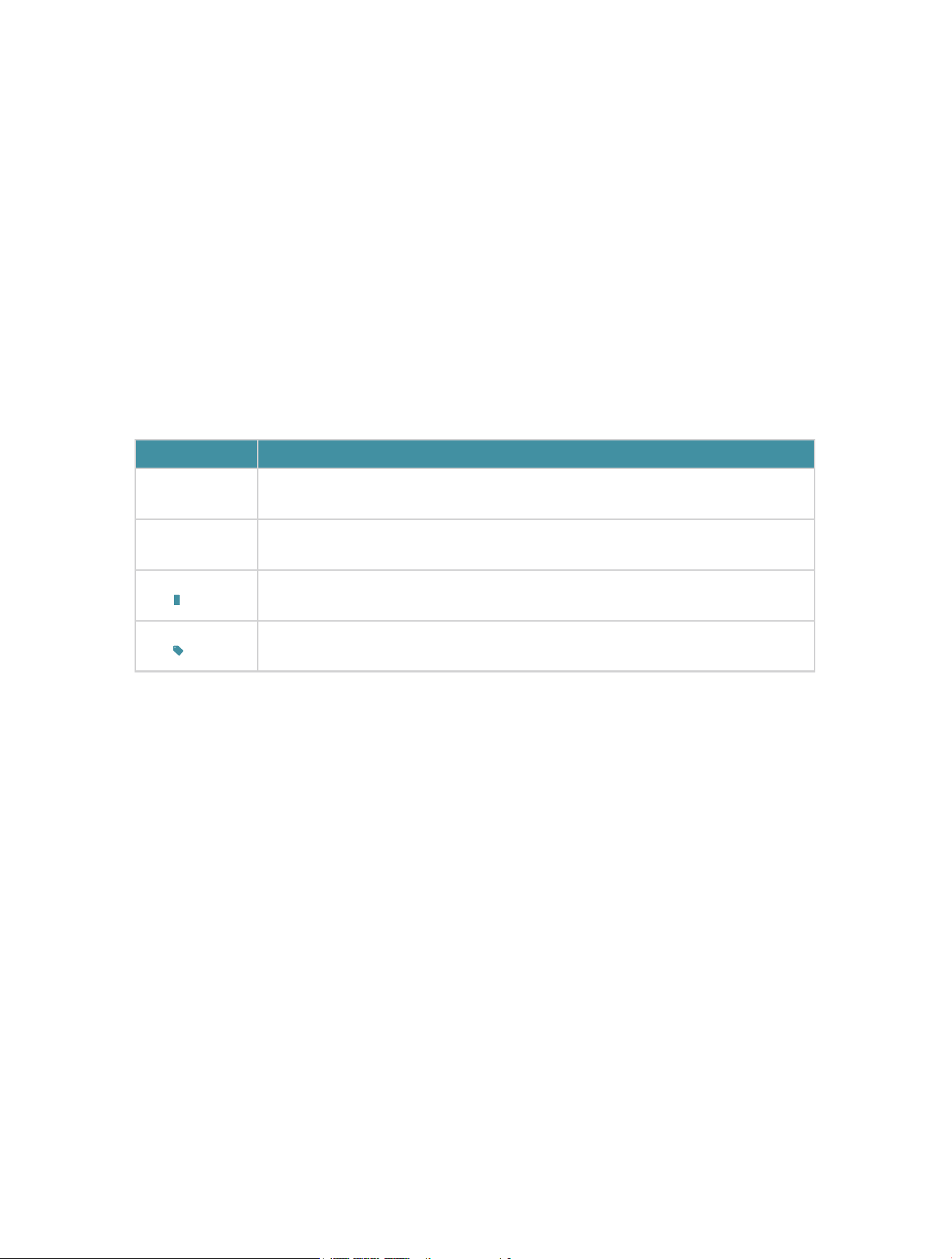
You can check the adapter’s working status by following the LED Explanation
table.
Status
Indication
Off
The driver is not installed.
The adapter is not detected.
On The driver has been installed successfully.
Tips:
If the LED is off, try these troubleshooting tips:
1. Check if the adapter is recognized and enabled or not. Refer to Appendix: Troubleshooting for detailed
instructions.
2. Remove and reinsert the adapter.
3. Reinstall the software, if necessary.

Chapter 2
Connect to a Computer
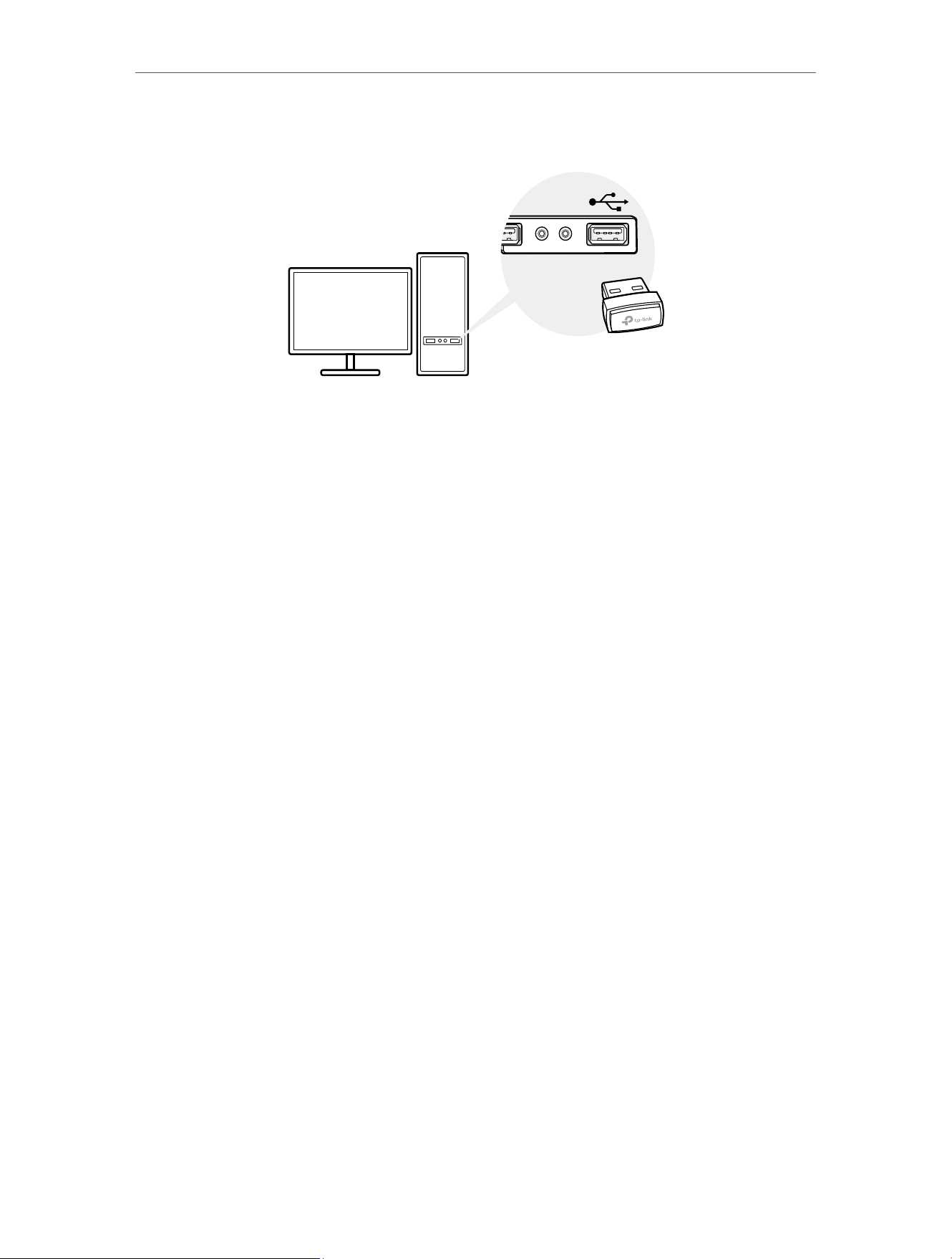
This chapter introduces how to connect the adapter to your computer.
5
Chapter 2
Connect to a Computer
Before you start using your adapter, insert the adapter into a USB port on your
computer directly.
* The image is for demonstration only.

Chapter 3
Use the Adapter
This chapter introduces how to install your adapter’s Wi-Fi and Bluetooth drivers,
use your adapter to join a wireless network and pair with Bluetooth devices, and
uninstall your adapter in a Windows system. The adapter is equipped with a
Setup Wizard, which can guide you through the installation process.
This chapter includes the following sections:
• Install Wi-Fi & Bluetooth Driverss
• Pair with Bluetooth Deivces
• Join a Wireless Network
• Uninstall Drivers

7
Chapter 3
Use the Adapter
3 1 Install Wi-Fi & Bluetooth Drivers
Before You Start:
If you plan on using Bluetooth and already have connected Bluetooth devices,
proceed with step 1. Otherwise, skip to step 2.
1 Disable Bluetooth. Right-click My Computer, select Manage, go to Device
Manager. Expand the Bluetooth node to find your existing Bluetooth device.
Right-click the existing Bluetooth device and select Disable.
Note: Make sure you have disabled all existing Bluetooth devices (both built-in and third party).
2 Insert the resource CD into your CD drive and run the Autorun.exe from the
pop-up Autoplay window.
Note:
1. You can also download the driver or check the new release at https://www tp-link com/download-
center.
2. In some operating systems, the CD screen will pop up automatically. Otherwise, run the CD manually.
3 Click the Wi-Fi icon or the Bluetooth icon and follow the instructions to
complete the installation.
Note:
• If an unknown publisher message pops up, select Yes to continue.
• If Windows User Account Control requires admin credentials, type user name and password of your
Windows administrator account.
4 Once finished, restart your computer.
Note:
• Your Wi-Fi Bluetooth USB adapter will be listed in the Device Manager when the driver is installed
correctly.
• If the driver installation fails, disable the antivirus software and firewall, then try again.
• In Windows 7, if a Windows Security message pops up, refer to https://www.tp-link.com/faq-2760.
html.
8
Chapter 3
Use the Adapter
3 2 Pair with Bluetooth Deivces
1. Click (Bluetooth icon) on the taskbar.
Note:
• Make sure you have turned on the Bluetooth in Windows settings.
• If there are other Bluetooth devices on the computer, disable them in Device Manager, then insert
the adapter and try again.
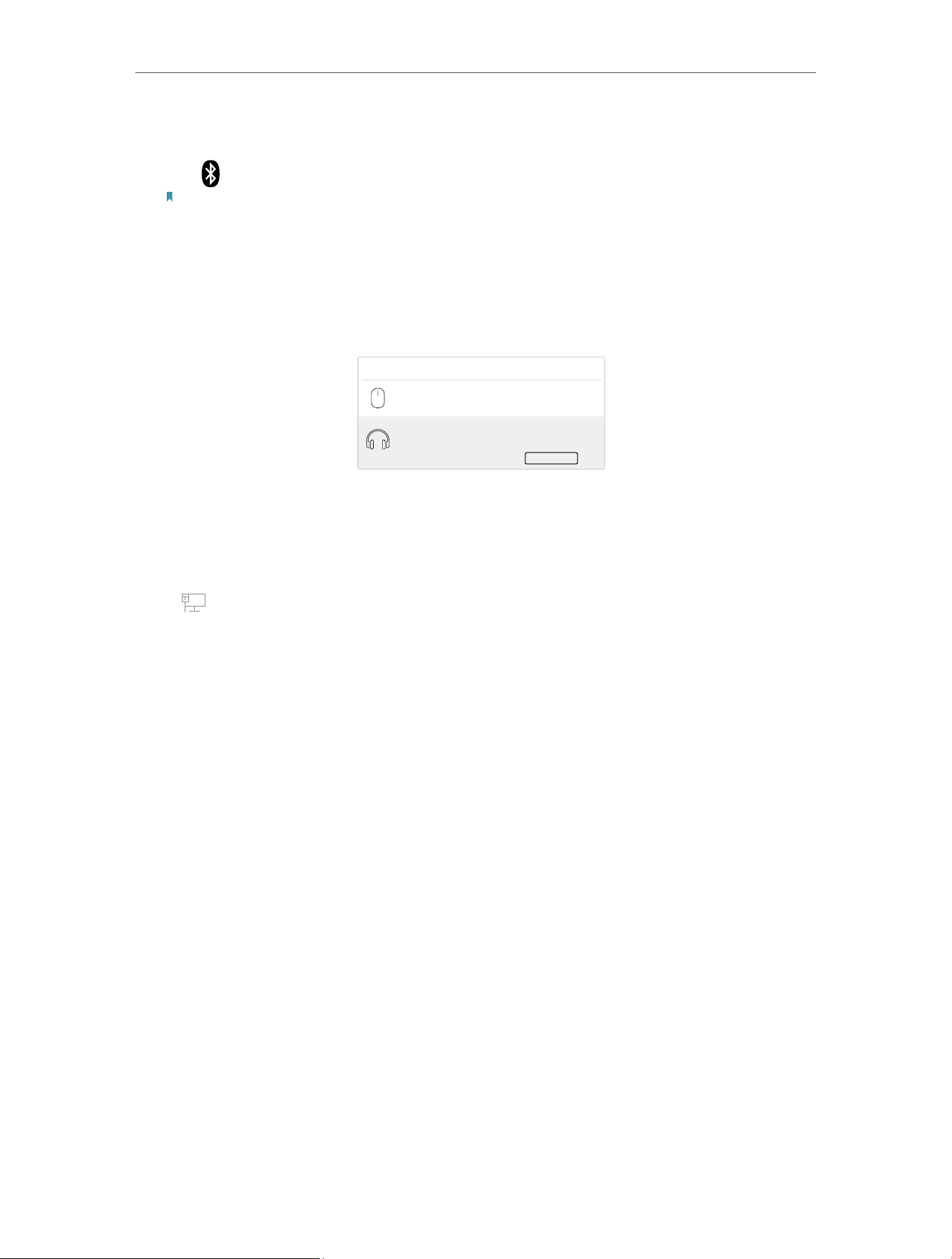
2. Select Add a Bluetooth Device or Add a Device to scan for available devices.
3. Select your Bluetooth device from the list and follow the onscreen instructions
to complete pairing.
3 3 Join a Wireless Network
You can join a wireless network via Windows built-in wireless utility. Follow the
instructions below to use your computer system’s built-in wireless utility:
Click (Network icon) on the taskbar. Select the Wi-Fi network you want to join,
and click Connect. Enter the network password when prompted.
3 4 Uninstall Drivers
The software uninstallation steps vary a bit from different systems. Please follow
the appropriate instructions for your Windows operating system: Windows
8/8.1/10/11, Windows 7.
• Windows 8/8 1/10/11
Go to Start menu to find the TP-Link application. Click
Uninstall TP-Link
Archer
T2UB Nano Driver, then follow the on-screen instructions to complete the
uninstallation.
• Windows 7
Go to Start > All Programs > TP-Link > Uninstall
TP-Link
Archer T2UB Nano
Driver. Follow the on-screen instructions to complete the uninstallation.
Add a device
Mouse
Pair
Headset

9
Appendix: Troubleshooting
T1 What should I do if the adapter is not detected?
• Make sure the adapter is securely connected to the computer.
• Make sure you meet the minimum system requirements for the adapter and that the
latest Windows and system updates are installed on your computer.
• Make sure you use the latest driver for your specific adapter. The latest drivers
can be found at the product’s Support page at https://www.tp-link.com/download-
center.
• Try a different USB port on the computer.
• Try restarting the computer or try using the adapter on a different computer.
T2 How to check if I have installed the driver for my adapter successfully
or not?
1 On your computer, please right click Computer icon and go to Manage;
2 Open the Device Manager and go to Network adapters, and then find the
corresponding TP-Link adapter, right click it and then go to Properties;

10
3 If you can see “This device is working properly.” in the red box, you have already
installed the driver successfully.
T3 What should I do if can’t connect to the Wi-Fi after installing the
driver?
• Refer to T2 to check if you have installed the driver for your adapter successfully .
• Make sure the adapter is securely connected to the computer.
• Disable the antivirus software and firewall, then try again.
• Try a different USB port on the computer.
• Restart your computer and try again.

11
• Re-install the driver and try again.
T4 How to find the hardware version of the adapter?
• The hardware version is printed on the product label on the package or the adapter.
There is a character string “Ver:X.Y” (for example, Ver:2.0) in the Serial Number field,
and the number X is the hardware version of the adapter.
• Visit http://www.tp-link.com/faq-46.html and follow the second method to find the
hardware version of the adapter.
T5 What should I do if the Bluetooth icon doesn’t appear?
• Make sure you have turned on the Bluetooth in Windows settings.
• If there are other Bluetooth devices on the computer, disable them in Device
Manager, then insert the adapter and try again.
T6 Why the adapter is not working with my Bluetooth device?
• Make sure your device has BLUETOOTH function.
• Make sure you have installed the latest Bluetooth driver on the computer. You can
check the published driver versions from https://www.tp-link.com/download-center.
• For devices with non-standard Bluetooth protocols, such as Logitech Mouse, there
may be some compatibility problems.
For more detailed instructions:
• Can’t find the hardware version of the adapter: https://www.tp-link.com/faq-46.html
• Can’t find or join the wireless networks: https://www.tp-link.com/faq-2253.html
• Can’t install the driver: https://www.tp-link.com/faq-2252.html

12

FCC compliance information statement
Product Name:AC600 Nano Wi-Fi Bluetooth 4.2 USB Adapter
Model Number: Archer T2UB Nano
Responsible party:
TP-Link USA Corporation
Address: 10 Mauchly, Irvine, CA 92618
Website: https://www.tp-link.com/us/
Tel: +1 626 333 0234
Fax: +1 909 527 6804
E-mail: sales.usa@tp-link.com
This equipment has been tested and found to comply with the limits for a Class
B digital device, pursuant to part 15 of the FCC Rules. These limits are designed
to provide reasonable protection against harmful interference in a residential
installation. This equipment generates, uses and can radiate radio frequency
energy and, if not installed and used in accordance with the instructions, may cause
harmful interference to radio communications. However, there is no guarantee that
interference will not occur in a particular installation. If this equipment does cause
harmful interference to radio or television reception, which can be determined by
turning the equipment off and on, the user is encouraged to try to correct the
interference by one or more of the following measures:
• Reorient or relocate the receiving antenna.
• Increase the separation between the equipment and receiver.
• Connect the equipment into an outlet on a circuit different from that to which the
receiver is connected.
• Consult the dealer or an experienced radio/ TV technician for help.
This device complies with part 15 of the FCC Rules. Operation is subject to the
following two conditions:
1 ) This device may not cause harmful interference.
2 ) This device must accept any interference received, including interference that
may cause undesired operation.
Any changes or modifications not expressly approved by the party responsible for
compliance could void the user’s authority to operate the equipment.

Note: The manufacturer is not responsible for any radio or TV interference caused
by unauthorized modifications to this equipment. Such modifications could void
the user’s authority to operate the equipment.
FCC RF Radiation Exposure Statement:
This equipment complies with FCC radiation exposure limits set forth for an
uncontrolled environment. End users must follow the specific operating instructions
for satisfying RF exposure compliance. This transmitter must not be co-located or
operating in conjunction with any other antenna or transmitter. This equipment
has been SAR-evaluated for use in hand. SAR measurements are based on a 5mm
spacing from the body and that compliance is achieved at that distance.
We, TP-Link USA Corporation, has determined that the equipment shown as above
has been shown to comply with the applicable technical standards, FCC part 15.
There is no unauthorized change is made in the equipment and the equipment is
properly maintained and operated.
Issue Date: 2022.05.31

CE Mark Warning
This is a class B product. In a domestic environment, this product may cause radio
interference, in which case the user may be required to take adequate measures.
OPERATING FREQUENCY (the maximum transmitted power)
2400MHz-2483.5MHz: 20dBm
5150MHz-5250MHz: 23dBm
5250MHz-5350MHz: 23dBm
5470MHz-5725MHz: 23dBm
EU declaration of conformity
TP-Link hereby declares that the device is in compliance with the essential
requirements and other relevant provisions of directives 2014/53/EU, 2011/65/
EU and (EU)2015/863. The original EU declaration of conformity may be found at
https://www.tp-link.com/en/ce.
Attention: This device may only be used indoors in all EU member states, EFTA
countries and Northern Ireland.
AT BE BG CH CY CZ DE DK
EE EL ES FI FR HR HU IE
IS IT LI LT LU LV MT NL
NO PL PT RO SE SI SK UK(NI)
UK Declaration of Conformity
TP-Link hereby declares that the device is in compliance with the essential
requirements and other relevant provisions of the Radio Equipment Regulations
2017.
The original UK Declaration of Conformity may be found at
https://www.tp-link.com/support/ukca
Attention: This device may only be used indoors in Great Britain.

UK
RF Exposure Information
This device meets the EU requirements (2014/53/EU Article 3.1a) on the limitation
of exposure of the general public to electromagnetic fields by way of health
protection.
This device has been tested and meets the ICNIRP exposure guidelines and the
European Standard EN 62209-2. SAR is measured with this device at a separation
of 0.5 cm to the body, while transmitting at the highest certified output power level
in all frequency bands of this device. Carry this device at least 0.5 cm away from
your body to ensure exposure levels remain at or below the as-tested levels.
Restricted to indoor use.
Canadian Compliance Statement
This device complies with Industry Canada license-exempt RSSs. Operation is
subject to the following two conditions:
1 ) This device may not cause interference.
2 ) This device must accept any interference, including interference that may
cause undesired operation of the device.
Le présent appareil est conforme aux CNR d’Industrie Canada applicables
aux appareils radio exempts de lic ence. L’exploitation est autorisée aux deux
conditions suivantes :
1 ) l’appareil ne doit pas produire de brouillage;
2 ) l’utilisateur de l’appareil doit accepter tout brouillage radioélectrique subi,
meme si le brouillage est susceptible d’en compromettre le fonctionnement.
Caution:
1 ) The device for operation in the band 5150–5250 MHz is only for indoor use
to reduce the potential for harmful interference to co-channel mobile satellite
systems;
DFS (Dynamic Frequency Selection) products that operate in the bands 5250-
5350 MHz, 5470-5600MHz, and 5650-5725MHz.
Avertissement:
1 ) Le dispositif fonctionnant dans la bande 5150-5250 MHz est réservé
uniquement pour une utilisation à l’intérieur afin de réduire les risques de

brouillage préjudiciable aux systèmes de satellites mobiles utilisant les mêmes
canaux;
Les produits utilisant la technique d’atténuation DFS (sélection dynamique des
fréquences) sur les bandes 5250- 5350 MHz, 5470-5600MHz et 5650-5725MHz.
Radiation Exposure Statement:
This EUT is compliance with SAR for general population/uncontrolled exposure
limits in RSS-102 and had been tested in accordance with the measurement
methods and procedures specified in IEEE 1528 and IEC 62209. This equipment
should be installed and operated with minimum distance 1.0 cm between the
radiator and your body. This device and its antenna(s) must not be co-located or
operating in conjunction with any other antenna or transmitter.
Industry Canada Statement
CAN ICES-3 (B)/NMB-3(B)
Korea Warning Statements
당해 무선설비는 운용중 전파혼신 가능성이 있음.
NCC Notice
注意!
取得審驗證明之低功率射頻器材,非經核准,公司、商號或使用者均不得擅自變
更頻率、加大功率或變更原設計之特性及功能。
低功率射頻器材之使用不得影響飛航安全及干擾合法通信;經發現有干擾現象
時,應立即停用,並改善至無干擾時方得繼續使用。
前述合法通信,指依電信管理法規定作業之無線電通信。
低功率射頻器材須忍受合法通信或工業、科學及醫療用電波輻射性電機設備之干
擾。
應避免影響附近雷達系統之操作。
BSMI Notice
安全諮詢及注意事項
• 請使用原裝電源供應器或只能按照本產品注明的電源類型使用本產品。
• 清潔本產品之前請先拔掉電源線。請勿使用液體、噴霧清潔劑或濕布進行清
潔。
• 注意防潮,請勿將水或其他液體潑灑到本產品上。
• 插槽與開口供通風使用,以確保本產品的操作可靠並防止過熱,請勿堵塞或覆
蓋開口。
• 請勿將本產品置放於靠近熱源的地方。除非有正常的通風,否則不可放在密閉
位置中。
• 不要私自拆開機殼或自行維修,如產品有故障請與原廠或代理商聯繫。
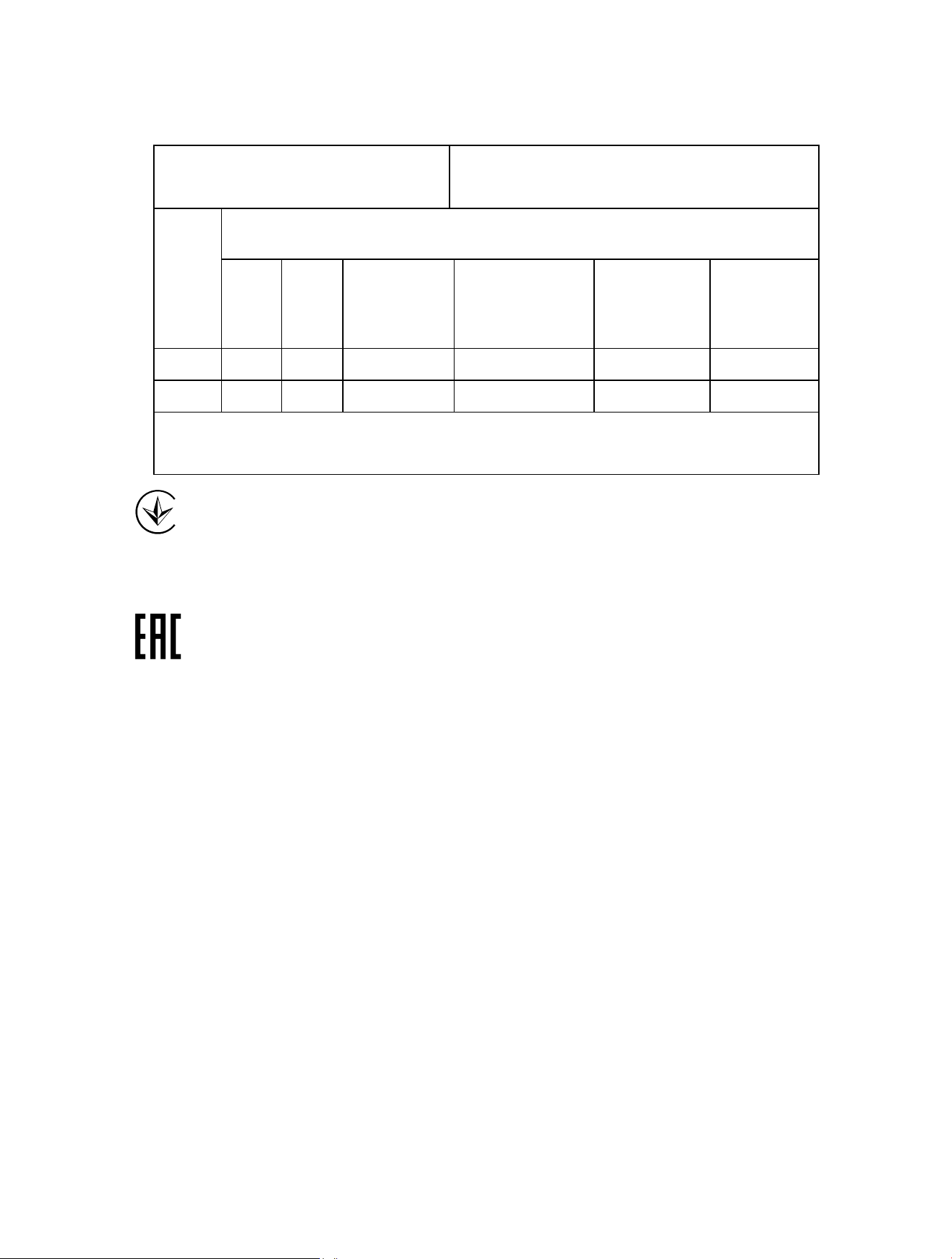
限用物質含有情況標示聲明書
設備名稱:AC600 Nano Wi-Fi Bluetooth 4.2
USB Adapter
Equipment name
型號(型式):T2UB Nano
Type designation (Type)
單元 Unit
限用物質及其化學符號
Restricted substances and its chemical symbols
鉛
Lead
(Pb)
汞
Mercury
(Hg)
鎘
Cadmium
(Cd)
六價鉻
Hexavalent chromium
(Cr
+6
)
多溴聯苯
Polybrominated
biphenyls
(PBB)
多溴二苯醚
Polybrominated
diphenyl ethers
(PBDE)
PCB ○ ○ ○ ○ ○ ○
外殼 ○ ○ ○ ○ ○ ○
備考 1. " 超出 0.1 wt %" 及 " 超出 0.01 wt %" 系指限用物質之百分比含量超出百分比含量基準值。
備考 2. " ○ " 系指該項限用物質之百分比含量未超出百分比含量基準值。
備考 3. " − " 系指該項限用物質為排除項目。
Продукт сертифіковано згідно с правилами системи УкрСЕПРО на
відповідність вимогам нормативних документів та вимогам, що передбачені
чинними законодавчими актами України.
Safety Information
• Keep the device away from water, fire, humidity or hot environments.
• Do not attempt to disassemble, repair, or modify the device. If you need service,
please contact us
• Do not use the device where wireless devices are not allowed.
• This USB Adapter can only be powered by computers that comply with PS2 (IEC/
EN 62368-1) or Limited Power Source (LPS) (IEC/EN 60950-1).
• This product uses radios and other components that emit electromagnetic fields.
Electromagnetic fields and magnets may interfere with pacemakers and other
implanted medical devices. Always keep the product and its power adapter more
than 15 cm (6 inches) away from any pacemakers or other implanted medical
devices. If you suspect your product is interfering with your pacemaker or any
other implanted medical device, turn off your product and consult your physician
for information specific to your medical device.
Operating Temperature: 0℃~40℃ (32℉ ~104℉)
Please read and follow the above safety information when operating the device.
We cannot guarantee that no accidents or damage will occur due to improper use
of the device. Please use this product with care and operate at your own risk.
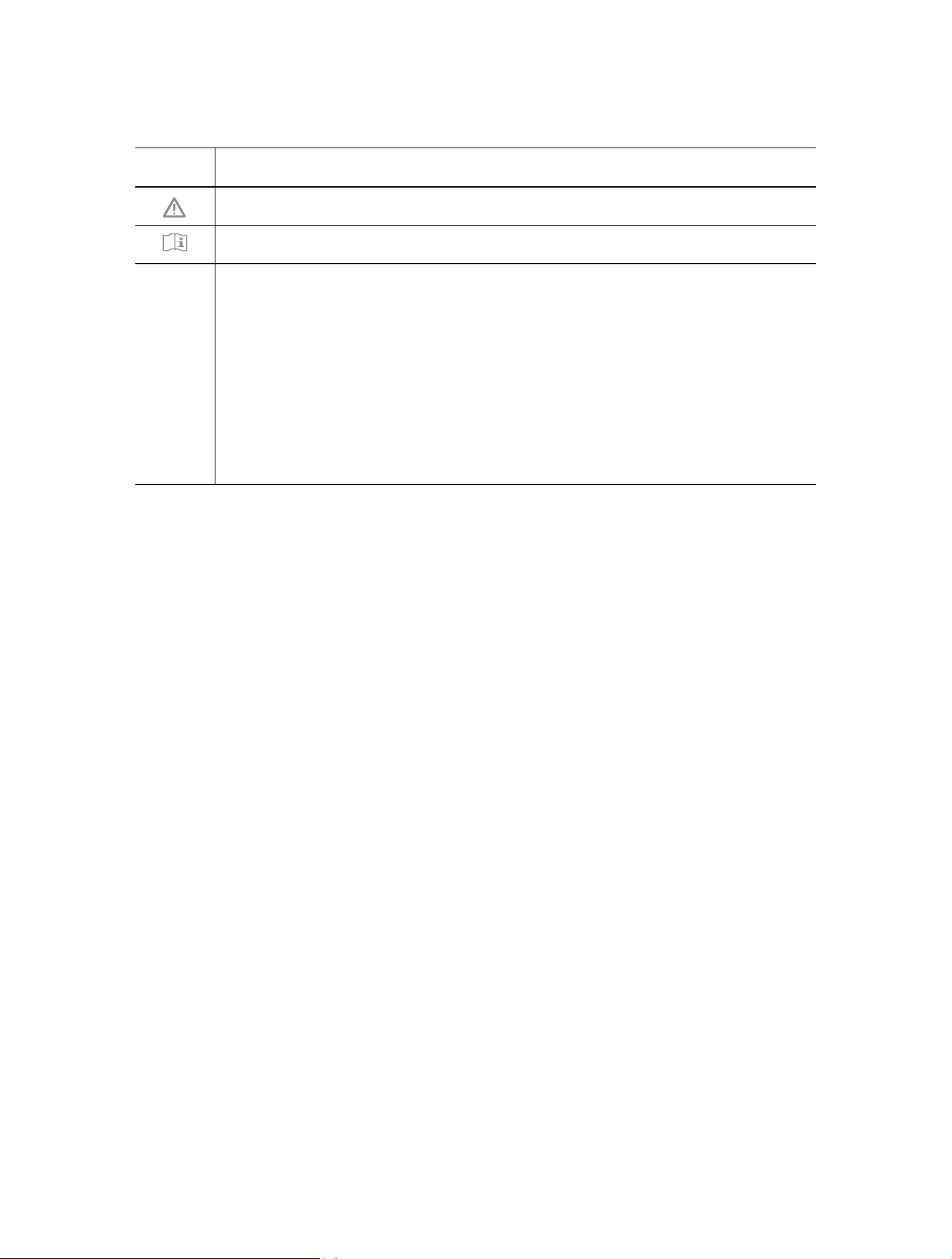
Explanation of the symbols on the product label
Symbol
Explanation
Caution
Operator’s manual
RECYCLING
This product bears the selective sorting symbol for Waste electrical
and electronic equipment (WEEE). This means that this product must
be handled pursuant to European directive 2012/19/EU in order to be
recycled or dismantled to minimize its impact on the environment.
User has the choice to give his product to a competent recycling
organization or to the retailer when he buys a new electrical or electronic
equipment.