4
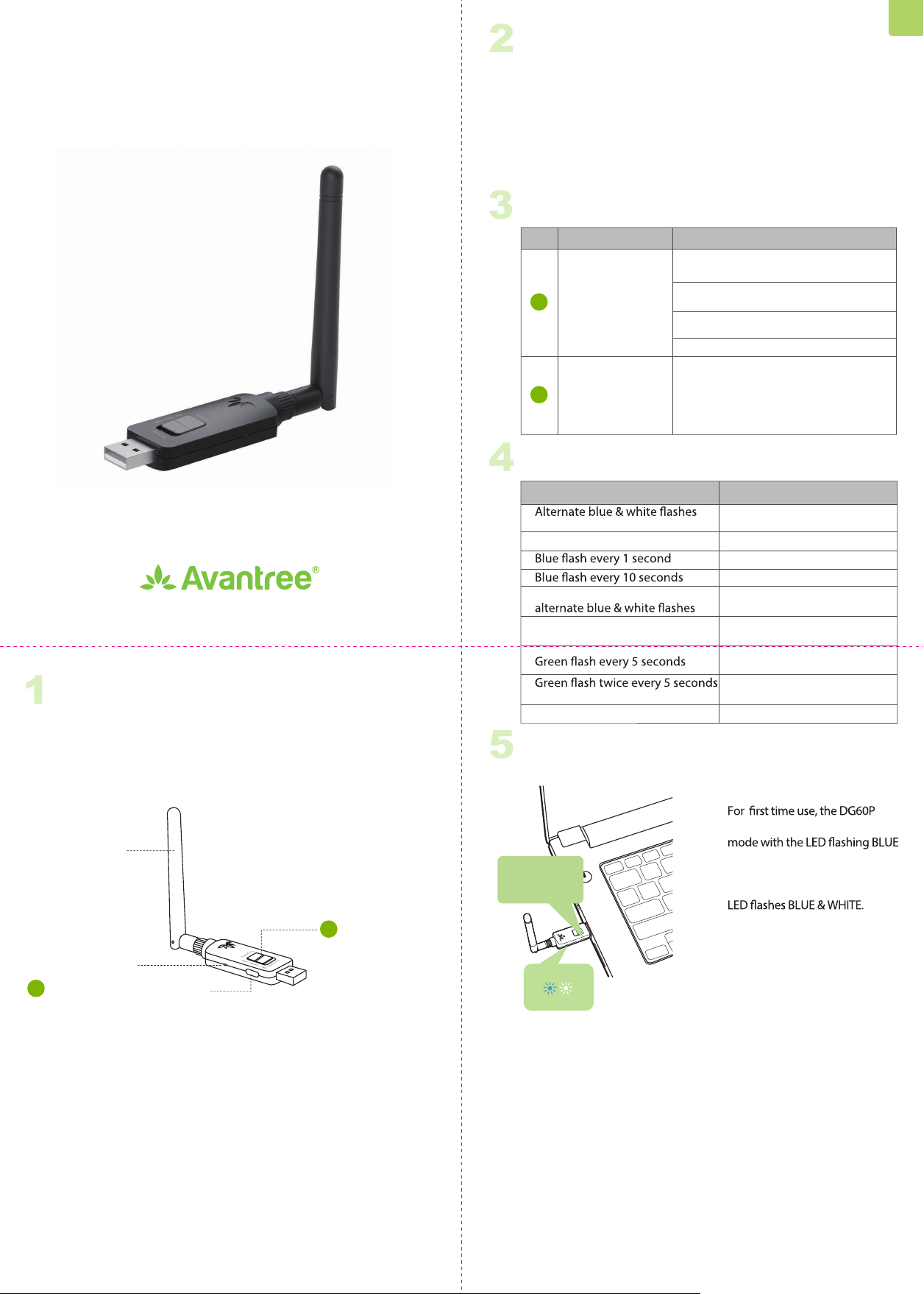
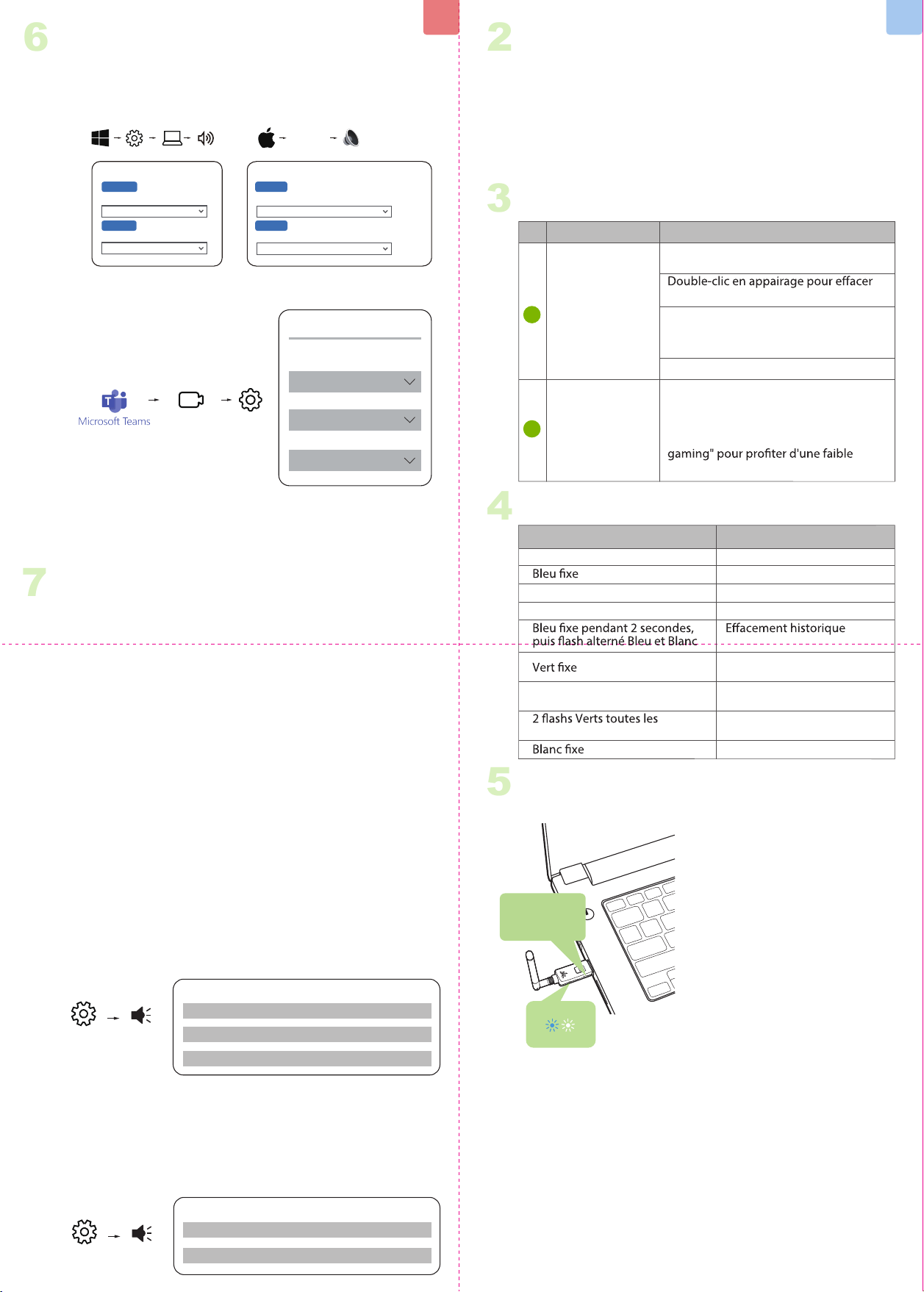
LED Indicators
Indicator Status
Pairing
Connected
Reconnecting
Disconnected
Clearing pairing history
Streaming audio with aptX
Adaptive codec
Streaming audio with aptX HD,
aptX Low latency codec
Streaming audio with aptX,
SBC codec
Talk mode
Solid blue
Solid blue for 2 seconds, then
Solid green
Solid white
Important Notice
2
1. NO BLUETOOTH icon will appear on the Taskbar when the DG60P is
plugged into your PC. It should be recognized as a USB sound card /
USB speaker.
2. This device does NOT work with mice, keyboards, or game
controllers. It is for audio transmission only.
3. For minimum audio delay, please ensure that your Bluetooth
headphone / speaker supports either aptX Low latency or aptX
Adaptive. Otherwise, you will get 150~250ms delay.
3
Button Functions
No. Functions
Press & hold for 2 seconds to enter
pairing mode
Double-click while pairing to clear
pairing history
Double-click while connected to
switch between music and talk mode
If your headphones / speaker supports
aptX HD, aptX Adaptive or aptX Low
Latency, please slide switch to "For
music" to enable high quality audio,
or "For gaming" to enable low latency.
Click once to reconnect
Buttons
Multifunctional
button (MFB)
Music / Gaming
switch
1
2
5
Pairing & Connecting
Plug the DG60P into a USB port.
automatically enters pairing
& WHITE. If not, manually enter
the DG60P into pairing mode:
Press & Hold the MFB until the
Put your Headphone / Speaker
into "Bluetooth Pairing Mode".
Please refer to your device's user
manual for more information.
Once connected, the LED on the
DG60P will turn SOLID BLUE.
1 )
2 )
3 )
6
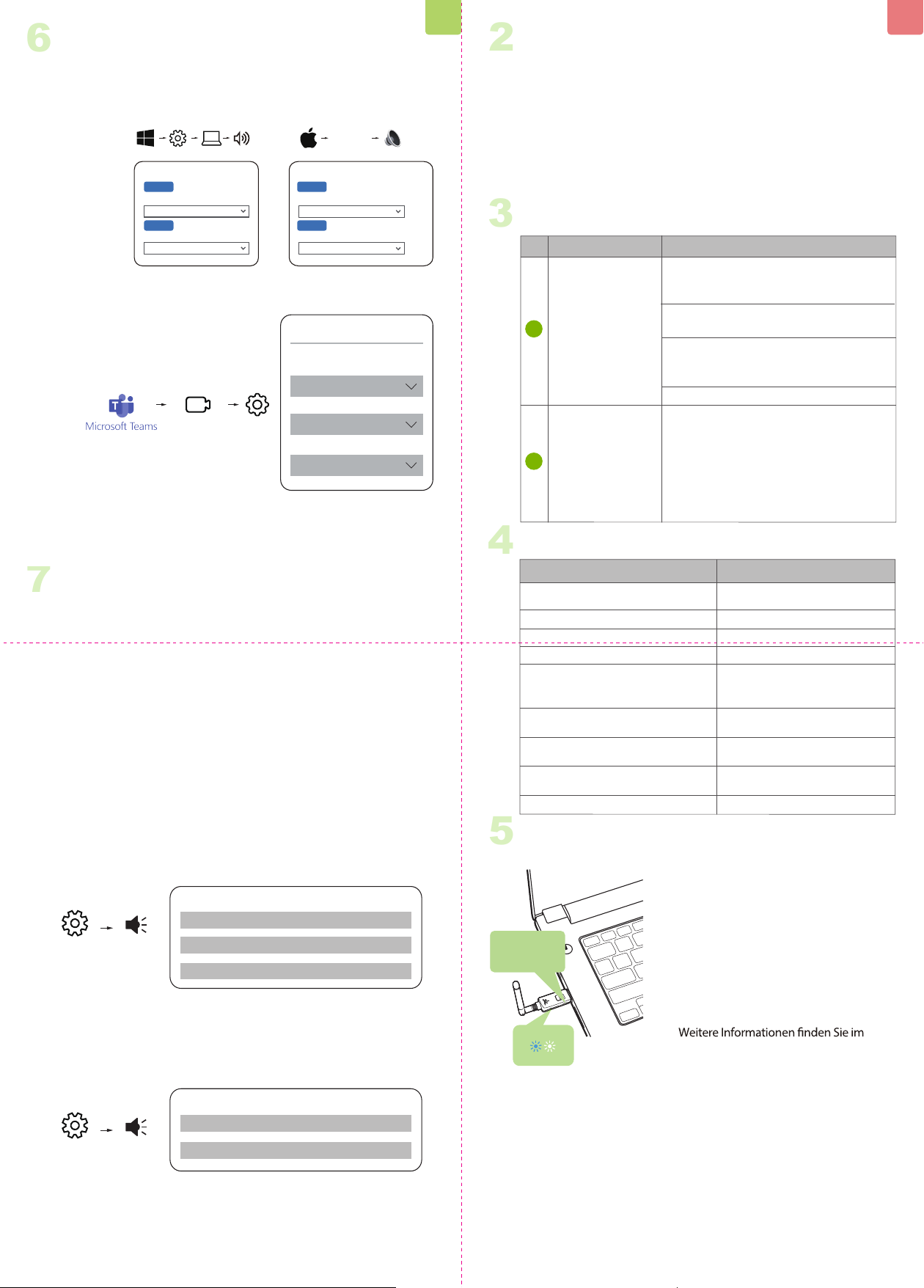
Use with PC
NOTE:
A solid white LED indicates talk mode. A Blue or Green LED
indicates music mode. The DG60P will auto-switch between
talk & music modes. You can also manually swap modes by
double-clicking the dongle's MFB button.
STEP 1
Follow “
and PC.
5 Pairing & Connecting” to connect your headphones
STEP 2
Choose "Avantree DG60P" as the default audio input / output device.
STEP 3
For VoIP Call – please repeat the Step 2 in your meeting software
(i.e. Teams. Zoom, Skype, etc.)
Sound
Output
Choose your output device
Input
Choose your input device
Avantree DG60P
Avantree DG60P
Settings System Sound
Sound
Avantree DG60P
Output
Select a device for sound output:
Avantree DG60P
Input
Select a device for sound input:
System
Preferences...
Sound
Use with PS5
7
NOTE:
1) The pairing / connection happens through the DG60P, not your
PS5, so it won’t show in “Bluetooth accessories”.
2) Ensure Bluetooth is disabled on devices like your phone or smart
watch to prevent accidental connection;
3) Ensure the headphones are Bluetooth as some headphones like
"Sony PULSE 3D" or "Turtle Beach Stealth 600 Gen 2" use 2.4G
technology and cannot connect to phones or the DG60P.
1) If you’re concerned about the audio quality drop in talk mode,
you can use your PS5 controller’s mic instead and set the dongle
to music mode, Double-click the dongle’s MFB to enter music
mode for the best audio quality. A Blue LED indicates music mode.
Or, if you don’t need to chat and only need game audio, likewise
set the dongle to music mode.
2) If you want to chat with your teammate using your headphones’
mic, the DG60P should enter talk mode by default. A solid white
LED indicates talk mode. You may nd that the headphones’
volume and audio quality drops in talk mode. This is due to a
technological limitation with Bluetooth.
STEP 1
Plug the DG60P into the PS5’s USB port and follow “5 Pairing &
Connecting” instructions to connect your Bluetooth headphones.
STEP 2
Set the Audio Mode
Settings Sound
Sound
Microphone Input Device Controller Headset
Audio Output Output Device
USB headset
(Avantree DG60P)
Audio Output
Switch Output Device
Automatically
Turn o
Settings Sound
Sound
Microphone Output Device USB Headset(Avantree DG60P)
Audio Output Output Device USB Headset(Avantree DG60P)
EN EN
Model No.: BTDG-60-P
DG60P
Quick Start Guide I Schnellanleitung I Guide de démarrage rapide
Guida Rapida all’uso I Guía de inicio rápido
Produktübersicht | Vue d’ensemble | Panoramica Prodotto
Descripción general del producto
1
Product Overview
Antenna
LED status indicator
Multifunctional button (MFB)
Music / Gaming
switch
2
1
Hold for 2s
Settings
Start Meeting
Avantree DG60P
Speaker
Avantree DG60P
Microphone
Audio Settings
Audio Devices
Avantree DG60P
Device Settings
Model No: BTDG-60-P
Dispose of the packaging and this product in accordance with the latest provisions.
Z-PKQG-DG60P-V2
Manufacturer:
Avantronics Limited
Luohu District, Shenzhen 518000 China
US Importer:
Avantree Corporation
San Jose, California 95119 USA
UK Importer:
Avantree Limited
Watford, WD180 0HQ UK
Servicer in Europe:
EC REP
Contact Us
Kontaktieren Sie uns | Contactez-nous | Contattaci | Contáctenos
Support Tickets
Product Registration
Support Email
Support Numbers
FAQ
avantree.com/submit-a-ticket
See QR code on the product tag.
support@avantree.com
avantree.com/support/dg60p
CA +1 800 232 2078 (9am-6pm, PST, Mon-Fri)
US +1 800 232 2078 (9am-6pm, PST, Mon-Fri)
UK +44 208 068 2023
(9am-6pm, GMT, Mon-Sat)
DE
+49 322 2109 7297
(11am-9pm, CET, Mon-Sat)
FR +33 17 634 0312 (11am-9pm, CET, Mon-Sat)
IT +39 069 4803 330 (9am-6pm, CET, Mon-Sat)
ES +34 93 1786 261 (9am-6pm, CET, Mon-Sat)
AU +61 2 8310 9897
(11am-7pm, AEST, Mon-Fri)
1)
2)
3)
Koppeln und Verbinden
5
Halten Sie
die Taste 2s
Schließen Sie die DG60P über einen
USB-Anschluss an. Bei der ersten Verwend-
ung wechselt die DG60P automatisch in den
Pairing-Modus und die LED blinkt
abwechselnd in den Farben BLAU und WEISS.
Sollte dies nicht der Fall sein, muss die DG60P
manuell in den Pairing-Modus versetzt
werden: Halten Sie die MFB-Taste gedrückt,
bis die LED in BLAU und WEISS zu blinken
beginnt.
Versetzen Sie Ihren Kopfhörer/Lautsprecher
in den "Bluetooth-Kopplungsmodus".
Benutzerhandbuch Ihres Geräts.
Sobald die Verbindung hergestellt ist, leuchtet
die LED auf der DG60P durchgehend BLAU.
2
Wichtiger Hinweis
3
4
Tastenfunktionen
Taste
Multifunktionstaste
(MFB)
Music / Gaming
switch
Nr. Funktionen
1
2
Halten Sie die Taste 2 Sekunden lang
gedrückt, um den Kopplungsmodus zu
aktivieren.
Durch Doppelklicken beim Koppeln
können Sie den Kopplungsverlauf löschen.
Doppelklicken Sie, wenn verbunden,
um zwischen Musik- und Sprachmodus
zu wechseln.
Wenn Ihre Kopfhörer oder Lautsprecher
aptX HD, aptX Adaptive oder aptX Low
Latency unterstützen, empfehlen wir
Ihnen, den Schalter auf "Für Musik" zu
stellen, um eine hohe Audioqualität zu
aktivieren, oder auf "Für Spiele", um
eine niedrige Latenz zu ermöglichen.
1. Das Symbol NO BLUETOOTH erscheint in der Taskleiste, wenn das
DG60P an Ihren PC angeschlossen ist. Es sollte als USB-Soundkarte/
USB-Lautsprecher erkannt werden.
2. Dieses Gerät funktioniert NICHT mit Mäusen, Tastaturen oder Game
Controllern. Es ist nur für die Audioübertragung gedacht.
3. Um die Audioverzögerung zu reduzieren, stellen Sie bitte sicher, dass
Ihr Bluetooth-Kopfhörer/Lautsprecher entweder aptX Low Latency
oder aptX Adaptive unterstützt. Andernfalls entsteht eine 150~250ms
Verzögerung.
LED-Anzeigen
Anzeige Status
Koppeln
Verbunden
Wiederverbunden
Getrennt
Löschen des
Kopplungsverlaufs
Audio-Streaming mit aptX
Adaptive Codec
Audio-Streaming mit aptX HD,
aptX Low Latency Codec
Audiostreaming mit aptX,
SBC Codec
Sprechmodus
Abwechselnd blaues und
weißes Blinken
Konstant blau
Blaues Blinken jede 1 Sekunde
Blaues Blinken alle 10 Sekunden
Durchgehend blau für
2 Sekunden, dann abwechselnd
blaues und weißes Blinken
Konstant Grün
Grünes Blinken alle 5 Sekunden
Grünes Blinken zweimal alle
5 Sekunden
Konstant Weiß
DE
Einmal klicken, um erneut zu verbinden
HINWEIS:
Eine durchgehend weiße LED zeigt den Sprachmodus an. Eine
blaue oder grün LED zeigt den Musikmodus an. Die DG60P
wechselt automatisch zwischen Sprach- und Musikmodus. Sie
können den Modus auch manuell wechseln, indem Sie den
MFB-Knopf des Dongles doppelklicken.
SCHRITT 1
Folgen Sie den Anweisungen unter "5 Koppeln und
Verbinden", um Ihren Kopfhörer mit dem PC zu verbinden.
SCHRITT 2
Wählen Sie "Avantree DG60P" als Standard-Audio-Eingangs-
/Ausgangsgerät.
6
Verwendung mit dem PC
Ton
Ausgabe
Wählen Sie Ihr Ausgabegerät
Eingabe
Wählen Sie Ihr Eingabegerät
Avantree DG60P
Avantree DG60P
Einstellung System Ton
Ton
Avantree DG60P
Ausgabe
Wählen Sie ein Gerät für die Tonausgabe:
Avantree DG60P
Eingabe
Wählen Sie ein Gerät für die Toneingabe:
System-
Einstellungen
Ton
SCHRITT 3
Für VoIP-Anrufe wiederholen Sie bitte Schritt 2 in Ihrer
Meeting-Software (z.B. Teams, Zoom, Skype, etc.)
Verwendung mit PS5
7
1) Die Kopplung/Verbindung erfolgt über die DG60P, nicht
über die "Bluetooth-Zubehörteile" Ihrer PS5.
2) Stellen Sie sicher, dass Bluetooth auf Geräten wie Ihrem
Telefon oder Ihrer Smartwatch deaktiviert ist, um eine
versehentliche Vebindung zu vermeiden.
3) Stellen Sie sicher, dass die Kopfhörer Bluetooth-fähig sind,
da einige Kopfhörer wie "Sony PULSE 3D" oder "Turtle Beach
Stealth 600 Gen 2" die 2,4-GHz-Technologie verwenden und
keine Verbindung zu Telefonen oder der DG60P herstellen
können.
SCHRITT 1
Schließen Sie die DG60P an den USB-Anschluss der PS5 an
und befolgen Sie die Anweisungen unter "5 Koppeln &
Verbinden", um Ihre Bluetooth-Kopfhörer zu verbinden.
SCHRITT 2 Einstellen des Audiomodus
HINWEIS:
DE
Einstellung
Meetings
starten
Avantree DG60P
Lautsprecher
Avantree DG60P
Mikrofon
Audio-Einstellungen
Audiogeräte
Avantree DG60P
Geräteeinstellungen
Einstellungen Ton
Ton
Audioausgabe
Ausschalten
Automatisches Umschalten
des Ausgabegeräts
Audioausgabe
USB- Kopfhörer -
Headset (Avantree DG60P)
Ausgabegerät
Mikrofon Controller-Headset
Eingabegerät
Einstellungen Ton
Ton
Mikrofon Eingabegerät
USB- Kopfhörer -
Headset (Avantree DG60P)
Audioausgabe Ausgabegerät
USB- Kopfhörer -
Headset (Avantree DG60P)
1) Wenn Sie sich Sorgen über die Audioqualität im Gesprächs-
modus machen, können Sie das Mikrofon Ihres PS5-Controllers
verwenden und den Dongle in den Musikmodus versetzen.
Doppelklicken Sie auf die Mehrzwecktaste (MFB) des Dongles,
um in den Musikmodus mit der besten Audioqualität zu
wechseln. Eine blaue LED zeigt den Musikmodus an. Falls Sie
nicht im Chat sind und lediglich den Spielsound benötigen,
können Sie den Dongle ebenso in den Musikmodus versetzen.
2) Möchten Sie mit Ihrem Teamkollegen über das Mikrofon Ihres
Headsets sprechen, wechselt der DG60P standardmäßig in den
Gesprächsmodus. Ein kontinuierlich leuchtendes weißes LED
zeigt den Gesprächsmodus an. Beachten Sie, dass die Lautstärke
und die Audioqualität des Headsets im Gesprächsmodus
möglicherweise verringert sind. Dies ist auf eine technologische
Beschränkung von Bluetooth zurückzuführen.
Boutons
Bouton
Multifonction (MFB)
Bouton Musique
/ Gaming
Nb. Fonctions
1
2
Maintenir 2 secondes pour passer en
mode appairage
Double-clic lorsque connecté pour
basculer entre les modes musique /
conversation
1 Clic pour se reconnecter
Si votre casque / enceinte supportent
l'aptX HD, l'aptX Adaptive ou l'aptX Low
Latency, basculez sur "For music" pour
activer la haute qualité audio, ou "For
latence.
l'historique
4
Indicateurs LED
Indicateur Statut
Appairage en cours
Connecté
Reconnecté
Déconnecté
appairage
Transmission audio en
aptX Adaptive
Transmission audio en aptX
HD, aptX Low latency
Transmission audio en
aptX, SBC
Mode conversation
Flash Bleu & Blanc alterné
1 Flash Bleu toutes les secondes
1 Flash Bleu toutes les 10 sec.
Flash Vert toutes les 5 secondes
5 secondes
FR
Note importante
2
1. AUCUNE icône BLUETOOTH n'apparaîtra sur la barre des tâches
lorsque le DG60P est branché sur votre PC. Il doit être reconnu
comme une carte son USB / une enceinte USB.
2. Cet appareil ne fonctionne PAS avec des souris, des claviers ou des
contrôleurs de jeu. C'est pour la transmission audio seulement.
3. Pour un délai audio minimum, veuillez vous assurer que votre
casque / haut-parleur Bluetooth prend en charge l’aptX Low latency
ou l’aptX Adaptive. Sinon, vous obtiendrez un délai de 150 ~ 250 ms.
3
Fonction des boutons
5
Appairage & Connexions
Branchez le DG60P. Lors de la 1ière
utilisation, il passe en appairage et
le voyant LED clignote BLEU et
BLANC. Sinon, passez-le manuelle-
ment en appairage : maintenez le
bouton MFB jusqu'à voir la LED
clignoter en BLEU et BLANC.
Mettez votre casque/haut-parleur
en "appairage Bluetooth". Veuillez
vous référer au manuel d'utilisa-
tion de votre appareil pour plus
d'informations.
Une fois connecté, le voyant du
DG60P deviendra BLEU FIXE.
1 )
2 )
3 )
Maintenir 2s
NOTE:
bleue ou vert le mode musique. Le DG60P basculera entre les
deux automatiquement. Vous pouvez aussi changer manuelle-
ment de mode en double-cliquant sur le bouton MFB de la clé.
ETAPE 1
Suivre “5 Appairage & Connexion” pour connecter votre
casque et votre PC.
ETAPE 2
Choisir "Avantree DG60P" comme entrée/sortie audio par défaut.
6
Usage sur PC
Son
Sortie
Choisir votre sortie audio
Entrée
Choisir votre entrée audio
Avantree DG60P
Avantree DG60P
Réglages Système Son
Son
Avantree DG60P
Sortie
Choisir votre sortie audio
Avantree DG60P
Entrée
Choisir votre sortie audio
Préférences
système
Son
ETAPE 3
Pour les appels VoIP - veuillez répéter l'étape 2 dans votre
logiciel de réunion (ex. Teams. Zoom, Skype, etc.)
FR
Utilisation sur PS5
7
1) L'appairage / connexion se fait via le DG60P, pas les
"accessoires Bluetooth" de votre PS5.
ou votre montre intelligente pour éviter toute connexion
accidentelle;
certains tels que les "Sony PULSE 3D" ou "Turtle Beach Stealth
600 Gen 2" utilisent la technologie 2.4G et ne peuvent pas se
connecter aux téléphones ou au DG60P.
ETAPE 1
Branchez le DG60P sur le port USB de la PS5 et suivez les
instructions “5 Appairage & Connexion” pour connecter vos
écouteurs Bluetooth.
Réglages
Démarrer
Conférence
Avantree DG60P
Enceinte
Avantree DG60P
Micro
Réglages audio
Unités audio
Avantree DG60P
Réglage Périphériques
ETAPE 2 Réglez le mode Audio
Réglages Audio
Audio
Sortie Audio
Eteindre
Changer de périphérique
de sortie automatiquement
Sortie Audio
Casque USB
(Avantree DG60P)
Périphérique de sortie
Micro Casque
Périphérique d’entrée
Réglages Audio
Audio
Micro Périphérique d’entrée Casque USB(Avantree DG60P)
Sortie Audio Périphérique de sortie
Casque USB(Avantree DG60P)
1) Si vous êtes aecté par la baisse de la qualité audio en mode
conversation, vous pouvez utiliser le micro de votre manette
PS5 à la place et régler la clé DG60P en mode musique.
Double-cliquez sur le bouton MFB du dongle pour passer en
mode musique et pour une meilleure qualité audio (la LED
bleue indique le mode musique). Et si vous n'avez pas besoin de
discuter et que vous souhaitez avoir l'audio du jeu, réglez
également le dongle en mode musique.
2) Si vous souhaitez discuter avec votre coéquipier à l'aide du
micro de votre casque, le DG60P doit passer en mode
conversation (une LED blanche xe indique le mode conversa-
tion). Vous constaterez peut-être que le volume et la qualité
audio du casque chutent mais cela est dû à une limitation
technologique du Bluetooth.
4
Indicatori LED
Indicatore Stato
Pairing
Connesso
Riconnesso
Disconnesso
Storico connessioni eliminato
Trasmissione Audio con codec
aptX Adaptive
Trasmissione Audio con codec
aptX HD, aptX Low latency
Trasmissione Audio con
codec aptX, SBC
Modalità chiamata
Lampeggi blu e bianchi alternati
Lampeggio blu ogni 1 secondo
Lampeggio blu ogni 10 secondi
lampeggi blu e bianchi alternati
Lampeggio verde ogni 5 secondi
Lampeggio verde due volte
ogni 5 secondi
Tasto
Tasto Multifunzione
(MFB)
Selettore Musica
/ Gaming
No. Funzione
1
2
Tenere premuto per 2 secondi per
accedere alla modalità di associazione
Fai doppio clic quando sei connesso per
passare dalla modalità musica a quella
conversazione
Fare clic una volta per riconnettersi
i codec aptX HD, aptX Adaptive o aptX
Low Latency, fai scorrere il selettore su
"Per la musica" per abilitare l'audio di alta
qualità o "Per i giochi" per abilitare la
bassa latenza.
Fare doppio clic durante l'associazione
per cancellare la cronologia di associazione
3
Funzione dei Tasti
IT
Avviso Importante
2
1. NESSUNA icona BLUETOOTH apparirà sulla barra delle applicazioni
quando il DG60P è collegato al PC. Il sistema operativo lo riconosce
come scheda audio USB / altoparlante USB.
2. Questo dispositivo NON è compatibile con mouse, tastiere o controller
di gioco. È utilizzabile solo per la trasmissione audio.
Bluetooth supportino aptX a bassa latenza o aptX Adaptive. In caso
contrario, si otterrà un ritardo di 150~250 ms.
5
Connessione & Pairing
Collegare il DG60P a una porta USB.
Al primo utilizzo, il DG60P entra
automaticamente in modalità di
associazione con il LED lampeggi-
ante in BLU e BIANCO. In caso
contrario, inserire manualmente il
DG60P in modalità di accoppia-
mento: tenere premuto il tasto MFB
BLU e BIANCO.
"Modalità di associazione
Bluetooth". Consultare il manuale
utente del dispositivo per ulteriori
informazioni.
Una volta connesso, il LED sul DG60P
diventerà BLU FISSO.
1 )
2 )
3 )
Tieni premuto
per 2 secondi
IT
NOTA:
o verde indica la modalità musica. Il DG60P passerà
automaticamente dalla modalità conversazione a quella
musica. Puoi anche cambiare manualmente le modalità
facendo doppio clic sul pulsante MFB del dongle.
PASSO 1
Seguire i passaggi di “5 Connessione & Pairing” per collegare
PASSO 2
Scegli "Avantree DG60P" come dispositivo di ingresso/uscita
6
Uso con PC
Suono
Uscita
Dispositivo di output
Ingresso
Dispositivo di input
Avantree DG60P
Avantree DG60P
Impostazioni Sistema Suono
Suono
Avantree DG60P
Uscita
Seleziona dispositivo uscita audio:
Avantree DG60P
Ingresso
Seleziona dispositivo ingresso audio:
Preferenze
di Sistema
Suono
PASSO 3
Per le chiamate VoIP: ripetere il passaggio 2 nel software per
riunioni (ad es. Teams, Zoom, Skype, ecc.)
Utilizzo con PS5
7
NOTA:
1) L'associazione / connessione avviene tramite il DG60P, non
gli "accessori Bluetooth" della tua PS5.
2) Assicurati che il Bluetooth sia disabilitato su dispositivi come
il telefono o lo smartwatch per evitare connessioni accidentali;
600 Gen 2" utilizzano la tecnologia 2.4G e non possono
connettersi ai telefoni o al DG60P.
PASSO 1
Collega il DG60P alla porta USB della PS5 e segui le istruzioni
“5 Connessione & Pairing”
Impostazioni
Inizia
Riunione
Avantree DG60P
Altoparlante
Avantree DG60P
Microfono
Impostazioni Audio
Dispositivi audio
Avantree DG60P
Impostazioni
Dispositivi
PASSO 2 Regolare la modalità Audio
Impostazioni Suono
Suono
Uscita Audio
Spegni
Cambia Dispositivo di
Uscita Audio Automaticamente
Uscita Audio
Cue USB
(Avantree DG60P)
Dispositivo Uscita
Microfono Cue Controller
Dispositivo Ingresso
Impostazioni Suono
Suono
Microfono Dispositivo Ingresso Cue USB ( Avantree DG60P)
Uscita Audio Dispositivo Uscita Cue USB ( Avantree DG60P)
1) Se ti accorgi di un calo della qualità audio in modalità chat,
puoi comunque utilizzare il microfono del controller PS5 e
impostare il dongle in modalità Musica, fai doppio clic sull'MFB
della chiavetta per selezionare la modalità musica ed avere una
qualità audio migliore. Il LED blu indica l’attivazione della
modalità musica. Anche se non hai bisogno di chattare e hai
solo bisogno di sentire l'audio del gioco, puoi impostare allo
stesso modo il trasmettitore in modalità musica.
2) Se vuoi chattare con il tuo compagno di squadra utilizzando il
microfono delle cue, il DG60P dovrebbe entrare in modalità
conversazione per impostazione predenita. Un LED bianco
sso indica la modalità conversazione. Purtroppo il volume delle
cue e la qualità audio del microfono diminuiscono in modalità
conversazione. Ciò è dovuto a una limitazione tecnologica del
Bluetooth.
3
Función de las Teclas
Tecla
Tecla Multifunción
(MFB)
Selector de Música
/Juegos
No. Función
1
2
Mantenga presionado durante 2
segundos para ingresar al modo de
emparejamiento
Haga doble clic cuando esté conectado
para cambiar entre música y modo
de conversación
Haga clic una vez para volver a conectar
Si sus auriculares/altavoz son
compatibles con los códecs aptX HD,
aptX Adaptive o aptX Low Latency,
deslice el interruptor a "Para música"
para habilitar audio de alta calidad o
"Para juegos" para habilitar baja latencia.
Haga doble clic durante el
emparejamiento para borrar el historial
de emparejamiento
4
Indicadores LED
Indicador Estado
Emparejamiento
Conectado
Reconectado
Desconectado
Historial de conexiones
eliminado
Transmisión de audio con
códec aptX Adaptive
Transmisión de audio con
códec aptX HD, aptX
Low latency
Transmisión de audio con
códec aptX, SBC
Modo de llamada
Destellos azules y blancos alternos
Parpadeo azul cada segundo
Parpadeo azul cada 10 segundos
luego alterna los destellos azul
y blanco
Parpadeo verde cada 5 segundos
Verde intermitente dos veces
cada 5 segundos
ES
Nota Importante
2
1. NO aparecerá ningún icono de BLUETOOTH en la bandeja del
sistema cuando el DG60P esté conectado a la PC. El sistema
operativo lo reconoce como una tarjeta de sonido USB/altavoz USB.
2. Este dispositivo NO es compatible con ratones, teclados o controla
dores de juegos. Sólo se puede utilizar para la transmisión de audio.
3. Para disminuir el retraso del audio, asegúrese de que sus
auriculares/altavoces Bluetooth admitan aptX Low Latency o aptX
Adaptive. De lo contrario, obtendrá un retraso de 150 ~ 250 ms.
5
Conexión y Emparejamiento
Conecte el DG60P a un puerto USB. Al
usarlo por primera vez, el DG60P
ingresa automáticamente al modo de
emparejamiento con el LED
parpadeando en AZUL y BLANCO. De
lo contrario, ingrese manualmente el
DG60P en el modo de emparejamien-
to: mantenga presionado el botón MFB
hasta que el LED parpadee en AZUL y
BLANCO.
Ponga su auricular/altavoz en "modo
de emparejamiento Bluetooth".
Consulte el manual de usuario del
dispositivo para obtener más
información.
una vez conectado, el LED del DG60P
se volverá AZUL FIJO.
1 )
2 )
3 )
Mantenga durante
2 segundos
ES
NOTA:
o verde indica el modo de música. El DG60P cambiará
automáticamente del modo de conversación al modo de
música. También puede cambiar de modo manualmente
haciendo doble clic en el botón MFB del dongle.
PASO 1
Sigue los pasos de “5 Conexión y Emparejamiento” para
conectar auriculares y PC.
PASO 2
Elija "Avantree DG60P" como dispositivo de entrada/salida de
audio predeterminado.
6
Uso con PC
Sonido
Salida
Dispositivo de salida
Entrada
Dispositivo de entrada
Avantree DG60P
Avantree DG60P
Ajustes Sistema Sonido-
Sonido
Avantree DG60P
Salida
Seleccione dispositivo de salida de audio:
Avantree DG60P
Entrada
Seleccione dispositivo de entrada de audio:
Preferencias
del Sistema
Sonido-
PASO 3
Para llamadas VoIP: repita el paso 2 en su software de reuniones
(por ejemplo, Teams, Zoom, Skype, etc.)
PASO 1
Usar con PS5
7
NOTA:
1) El emparejamiento/conexión se realiza a través del DG60P,
no de los "accesorios Bluetooth" de su PS5.
2) Asegúrese de que Bluetooth esté deshabilitado en
dispositivos como su teléfono o reloj inteligente para evitar
conexiones accidentales;
3) Asegúrese de que su auricular tenga Bluetooth, ya que
algunos auriculares como "Sony PULSE 3D" o "Turtle Beach
Stealth 600 Gen 2" usan tecnología 2.4G y no pueden conectarse
a teléfonos ni al DG60P.
Conecta el DG60P al puerto USB de la PS5 y sigue las
instrucciones de “5 Conexión y Emparejamiento” para
conectar tus auriculares Bluetooth.
Ajustes
Iniciar Reunión
Avantree DG60P
Altavoz
Avantree DG60P
Micrófono
Conguración de Audio
Dispositivos de audio
Avantree DG60P
Dispositivos de
Conguración
PASO 2 Ajustar el modo de Sonido
Ajustes Sonido
Sonido
Salida de Audio
Apagar
Cambiar dispositivo de salida de
Audio Automáticamente
Salida de Audio
Auriculares USB
(Avantree DG60P)
Dispositivos de Salida
Micrófono
Auriculares de
Controlador
Dispositivos de Entrada
Ajustes Sonido
Sonido
Micrófono Dispositivos de Entrada
Auriculares USB
(Avantree DG60P)
Salida de Audio Dispositivos de salida
Auriculares USB
(Avantree DG60P)
1) Si nota una caída en la calidad del audio en el modo de chat,
aún puede usar el micrófono del controlador PS5 y congurar el
dongle en el modo Música, haga doble clic en el MFB del dongle
para seleccionar el modo de música y tener una mejor calidad
de audio. El LED azul indica la activación del modo música.
Incluso si no necesita chatear y solo necesita escuchar el audio
del juego, puede congurar el transmisor en modo música de la
misma manera.
2) Si desea conversar con su compañero de equipo usando el
micrófono del auricular, el DG60P debe entrar en modo de
conversación de manera predeterminada. Un LED blanco sólido
indica el modo de conversación. Desafortunadamente, el
volumen de los auriculares y la calidad del audio del micrófono
disminuyen en el modo de conversación. Esto se debe a una
limitación tecnológica de Bluetooth.
4
LED Indicators
Indicator Status
Pairing
Connected
Reconnecting
Disconnected
Clearing pairing history
Streaming audio with aptX
Adaptive codec
Streaming audio with aptX HD,
aptX Low latency codec
Streaming audio with aptX,
SBC codec
Talk mode
Solid blue
Solid blue for 2 seconds, then
Solid green
Solid white
Important Notice
2
1. NO BLUETOOTH icon will appear on the Taskbar when the DG60P is
plugged into your PC. It should be recognized as a USB sound card /
USB speaker.
2. This device does NOT work with mice, keyboards, or game
controllers. It is for audio transmission only.
3. For minimum audio delay, please ensure that your Bluetooth
headphone / speaker supports either aptX Low latency or aptX
Adaptive. Otherwise, you will get 150~250ms delay.
3
Button Functions
No. Functions
Press & hold for 2 seconds to enter
pairing mode
Double-click while pairing to clear
pairing history
Double-click while connected to
switch between music and talk mode
If your headphones / speaker supports
aptX HD, aptX Adaptive or aptX Low
Latency, please slide switch to "For
music" to enable high quality audio,
or "For gaming" to enable low latency.
Click once to reconnect
Buttons
Multifunctional
button (MFB)
Music / Gaming
switch
1
2
5
Pairing & Connecting
Plug the DG60P into a USB port.
automatically enters pairing
& WHITE. If not, manually enter
the DG60P into pairing mode:
Press & Hold the MFB until the
Put your Headphone / Speaker
into "Bluetooth Pairing Mode".
Please refer to your device's user
manual for more information.
Once connected, the LED on the
DG60P will turn SOLID BLUE.
1 )
2 )
3 )
6
Use with PC
NOTE:
A solid white LED indicates talk mode. A Blue or Green LED
indicates music mode. The DG60P will auto-switch between
talk & music modes. You can also manually swap modes by
double-clicking the dongle's MFB button.
STEP 1
Follow “
and PC.
5 Pairing & Connecting” to connect your headphones
STEP 2
Choose "Avantree DG60P" as the default audio input / output device.
STEP 3
For VoIP Call – please repeat the Step 2 in your meeting software
(i.e. Teams. Zoom, Skype, etc.)
Sound
Output
Choose your output device
Input
Choose your input device
Avantree DG60P
Avantree DG60P
Settings System Sound
Sound
Avantree DG60P
Output
Select a device for sound output:
Avantree DG60P
Input
Select a device for sound input:
System
Preferences...
Sound
Use with PS5
7
NOTE:
1) The pairing / connection happens through the DG60P, not your
PS5, so it won’t show in “Bluetooth accessories”.
2) Ensure Bluetooth is disabled on devices like your phone or smart
watch to prevent accidental connection;
3) Ensure the headphones are Bluetooth as some headphones like
"Sony PULSE 3D" or "Turtle Beach Stealth 600 Gen 2" use 2.4G
technology and cannot connect to phones or the DG60P.
1) If you’re concerned about the audio quality drop in talk mode,
you can use your PS5 controller’s mic instead and set the dongle
to music mode, Double-click the dongle’s MFB to enter music
mode for the best audio quality. A Blue LED indicates music mode.
Or, if you don’t need to chat and only need game audio, likewise
set the dongle to music mode.
2) If you want to chat with your teammate using your headphones’
mic, the DG60P should enter talk mode by default. A solid white
LED indicates talk mode. You may nd that the headphones’
volume and audio quality drops in talk mode. This is due to a
technological limitation with Bluetooth.
STEP 1
Plug the DG60P into the PS5’s USB port and follow “5 Pairing &
Connecting” instructions to connect your Bluetooth headphones.
STEP 2
Set the Audio Mode
Settings Sound
Sound
Microphone Input Device Controller Headset
Audio Output Output Device
USB headset
(Avantree DG60P)
Audio Output
Switch Output Device
Automatically
Turn o
Settings Sound
Sound
Microphone Output Device USB Headset(Avantree DG60P)
Audio Output Output Device USB Headset(Avantree DG60P)
EN EN
Model No.: BTDG-60-P
DG60P
Quick Start Guide I Schnellanleitung I Guide de démarrage rapide
Guida Rapida all’uso I Guía de inicio rápido
Produktübersicht | Vue d’ensemble | Panoramica Prodotto
Descripción general del producto
1
Product Overview
Antenna
LED status indicator
Multifunctional button (MFB)
Music / Gaming
switch
2
1
Hold for 2s
Settings
Start Meeting
Avantree DG60P
Speaker
Avantree DG60P
Microphone
Audio Settings
Audio Devices
Avantree DG60P
Device Settings
Model No: BTDG-60-P
Dispose of the packaging and this product in accordance with the latest provisions.
Z-PKQG-DG60P-V2
Manufacturer:
Avantronics Limited
Luohu District, Shenzhen 518000 China
US Importer:
Avantree Corporation
San Jose, California 95119 USA
UK Importer:
Avantree Limited
Watford, WD180 0HQ UK
Servicer in Europe:
EC REP
Contact Us
Kontaktieren Sie uns | Contactez-nous | Contattaci | Contáctenos
Support Tickets
Product Registration
Support Email
Support Numbers
FAQ
avantree.com/submit-a-ticket
See QR code on the product tag.
support@avantree.com
avantree.com/support/dg60p
CA +1 800 232 2078 (9am-6pm, PST, Mon-Fri)
US +1 800 232 2078 (9am-6pm, PST, Mon-Fri)
UK +44 208 068 2023
(9am-6pm, GMT, Mon-Sat)
DE
+49 322 2109 7297
(11am-9pm, CET, Mon-Sat)
FR +33 17 634 0312 (11am-9pm, CET, Mon-Sat)
IT +39 069 4803 330 (9am-6pm, CET, Mon-Sat)
ES +34 93 1786 261 (9am-6pm, CET, Mon-Sat)
AU +61 2 8310 9897
(11am-7pm, AEST, Mon-Fri)
1)
2)
3)
Koppeln und Verbinden
5
Halten Sie
die Taste 2s
Schließen Sie die DG60P über einen
USB-Anschluss an. Bei der ersten Verwend-
ung wechselt die DG60P automatisch in den
Pairing-Modus und die LED blinkt
abwechselnd in den Farben BLAU und WEISS.
Sollte dies nicht der Fall sein, muss die DG60P
manuell in den Pairing-Modus versetzt
werden: Halten Sie die MFB-Taste gedrückt,
bis die LED in BLAU und WEISS zu blinken
beginnt.
Versetzen Sie Ihren Kopfhörer/Lautsprecher
in den "Bluetooth-Kopplungsmodus".
Benutzerhandbuch Ihres Geräts.
Sobald die Verbindung hergestellt ist, leuchtet
die LED auf der DG60P durchgehend BLAU.
2
Wichtiger Hinweis
3
4
Tastenfunktionen
Taste
Multifunktionstaste
(MFB)
Music / Gaming
switch
Nr. Funktionen
1
2
Halten Sie die Taste 2 Sekunden lang
gedrückt, um den Kopplungsmodus zu
aktivieren.
Durch Doppelklicken beim Koppeln
können Sie den Kopplungsverlauf löschen.
Doppelklicken Sie, wenn verbunden,
um zwischen Musik- und Sprachmodus
zu wechseln.
Wenn Ihre Kopfhörer oder Lautsprecher
aptX HD, aptX Adaptive oder aptX Low
Latency unterstützen, empfehlen wir
Ihnen, den Schalter auf "Für Musik" zu
stellen, um eine hohe Audioqualität zu
aktivieren, oder auf "Für Spiele", um
eine niedrige Latenz zu ermöglichen.
1. Das Symbol NO BLUETOOTH erscheint in der Taskleiste, wenn das
DG60P an Ihren PC angeschlossen ist. Es sollte als USB-Soundkarte/
USB-Lautsprecher erkannt werden.
2. Dieses Gerät funktioniert NICHT mit Mäusen, Tastaturen oder Game
Controllern. Es ist nur für die Audioübertragung gedacht.
3. Um die Audioverzögerung zu reduzieren, stellen Sie bitte sicher, dass
Ihr Bluetooth-Kopfhörer/Lautsprecher entweder aptX Low Latency
oder aptX Adaptive unterstützt. Andernfalls entsteht eine 150~250ms
Verzögerung.
LED-Anzeigen
Anzeige Status
Koppeln
Verbunden
Wiederverbunden
Getrennt
Löschen des
Kopplungsverlaufs
Audio-Streaming mit aptX
Adaptive Codec
Audio-Streaming mit aptX HD,
aptX Low Latency Codec
Audiostreaming mit aptX,
SBC Codec
Sprechmodus
Abwechselnd blaues und
weißes Blinken
Konstant blau
Blaues Blinken jede 1 Sekunde
Blaues Blinken alle 10 Sekunden
Durchgehend blau für
2 Sekunden, dann abwechselnd
blaues und weißes Blinken
Konstant Grün
Grünes Blinken alle 5 Sekunden
Grünes Blinken zweimal alle
5 Sekunden
Konstant Weiß
DE
Einmal klicken, um erneut zu verbinden
HINWEIS:
Eine durchgehend weiße LED zeigt den Sprachmodus an. Eine
blaue oder grün LED zeigt den Musikmodus an. Die DG60P
wechselt automatisch zwischen Sprach- und Musikmodus. Sie
können den Modus auch manuell wechseln, indem Sie den
MFB-Knopf des Dongles doppelklicken.
SCHRITT 1
Folgen Sie den Anweisungen unter "5 Koppeln und
Verbinden", um Ihren Kopfhörer mit dem PC zu verbinden.
SCHRITT 2
Wählen Sie "Avantree DG60P" als Standard-Audio-Eingangs-
/Ausgangsgerät.
6
Verwendung mit dem PC
Ton
Ausgabe
Wählen Sie Ihr Ausgabegerät
Eingabe
Wählen Sie Ihr Eingabegerät
Avantree DG60P
Avantree DG60P
Einstellung System Ton
Ton
Avantree DG60P
Ausgabe
Wählen Sie ein Gerät für die Tonausgabe:
Avantree DG60P
Eingabe
Wählen Sie ein Gerät für die Toneingabe:
System-
Einstellungen
Ton
SCHRITT 3
Für VoIP-Anrufe wiederholen Sie bitte Schritt 2 in Ihrer
Meeting-Software (z.B. Teams, Zoom, Skype, etc.)
Verwendung mit PS5
7
1) Die Kopplung/Verbindung erfolgt über die DG60P, nicht
über die "Bluetooth-Zubehörteile" Ihrer PS5.
2) Stellen Sie sicher, dass Bluetooth auf Geräten wie Ihrem
Telefon oder Ihrer Smartwatch deaktiviert ist, um eine
versehentliche Vebindung zu vermeiden.
3) Stellen Sie sicher, dass die Kopfhörer Bluetooth-fähig sind,
da einige Kopfhörer wie "Sony PULSE 3D" oder "Turtle Beach
Stealth 600 Gen 2" die 2,4-GHz-Technologie verwenden und
keine Verbindung zu Telefonen oder der DG60P herstellen
können.
SCHRITT 1
Schließen Sie die DG60P an den USB-Anschluss der PS5 an
und befolgen Sie die Anweisungen unter "5 Koppeln &
Verbinden", um Ihre Bluetooth-Kopfhörer zu verbinden.
SCHRITT 2 Einstellen des Audiomodus
HINWEIS:
DE
Einstellung
Meetings
starten
Avantree DG60P
Lautsprecher
Avantree DG60P
Mikrofon
Audio-Einstellungen
Audiogeräte
Avantree DG60P
Geräteeinstellungen
Einstellungen Ton
Ton
Audioausgabe
Ausschalten
Automatisches Umschalten
des Ausgabegeräts
Audioausgabe
USB- Kopfhörer -
Headset (Avantree DG60P)
Ausgabegerät
Mikrofon Controller-Headset
Eingabegerät
Einstellungen Ton
Ton
Mikrofon Eingabegerät
USB- Kopfhörer -
Headset (Avantree DG60P)
Audioausgabe Ausgabegerät
USB- Kopfhörer -
Headset (Avantree DG60P)
1) Wenn Sie sich Sorgen über die Audioqualität im Gesprächs-
modus machen, können Sie das Mikrofon Ihres PS5-Controllers
verwenden und den Dongle in den Musikmodus versetzen.
Doppelklicken Sie auf die Mehrzwecktaste (MFB) des Dongles,
um in den Musikmodus mit der besten Audioqualität zu
wechseln. Eine blaue LED zeigt den Musikmodus an. Falls Sie
nicht im Chat sind und lediglich den Spielsound benötigen,
können Sie den Dongle ebenso in den Musikmodus versetzen.
2) Möchten Sie mit Ihrem Teamkollegen über das Mikrofon Ihres
Headsets sprechen, wechselt der DG60P standardmäßig in den
Gesprächsmodus. Ein kontinuierlich leuchtendes weißes LED
zeigt den Gesprächsmodus an. Beachten Sie, dass die Lautstärke
und die Audioqualität des Headsets im Gesprächsmodus
möglicherweise verringert sind. Dies ist auf eine technologische
Beschränkung von Bluetooth zurückzuführen.
Boutons
Bouton
Multifonction (MFB)
Bouton Musique
/ Gaming
Nb. Fonctions
1
2
Maintenir 2 secondes pour passer en
mode appairage
Double-clic lorsque connecté pour
basculer entre les modes musique /
conversation
1 Clic pour se reconnecter
Si votre casque / enceinte supportent
l'aptX HD, l'aptX Adaptive ou l'aptX Low
Latency, basculez sur "For music" pour
activer la haute qualité audio, ou "For
latence.
l'historique
4
Indicateurs LED
Indicateur Statut
Appairage en cours
Connecté
Reconnecté
Déconnecté
appairage
Transmission audio en
aptX Adaptive
Transmission audio en aptX
HD, aptX Low latency
Transmission audio en
aptX, SBC
Mode conversation
Flash Bleu & Blanc alterné
1 Flash Bleu toutes les secondes
1 Flash Bleu toutes les 10 sec.
Flash Vert toutes les 5 secondes
5 secondes
FR
Note importante
2
1. AUCUNE icône BLUETOOTH n'apparaîtra sur la barre des tâches
lorsque le DG60P est branché sur votre PC. Il doit être reconnu
comme une carte son USB / une enceinte USB.
2. Cet appareil ne fonctionne PAS avec des souris, des claviers ou des
contrôleurs de jeu. C'est pour la transmission audio seulement.
3. Pour un délai audio minimum, veuillez vous assurer que votre
casque / haut-parleur Bluetooth prend en charge l’aptX Low latency
ou l’aptX Adaptive. Sinon, vous obtiendrez un délai de 150 ~ 250 ms.
3
Fonction des boutons
5
Appairage & Connexions
Branchez le DG60P. Lors de la 1ière
utilisation, il passe en appairage et
le voyant LED clignote BLEU et
BLANC. Sinon, passez-le manuelle-
ment en appairage : maintenez le
bouton MFB jusqu'à voir la LED
clignoter en BLEU et BLANC.
Mettez votre casque/haut-parleur
en "appairage Bluetooth". Veuillez
vous référer au manuel d'utilisa-
tion de votre appareil pour plus
d'informations.
Une fois connecté, le voyant du
DG60P deviendra BLEU FIXE.
1 )
2 )
3 )
Maintenir 2s
NOTE:
bleue ou vert le mode musique. Le DG60P basculera entre les
deux automatiquement. Vous pouvez aussi changer manuelle-
ment de mode en double-cliquant sur le bouton MFB de la clé.
ETAPE 1
Suivre “5 Appairage & Connexion” pour connecter votre
casque et votre PC.
ETAPE 2
Choisir "Avantree DG60P" comme entrée/sortie audio par défaut.
6
Usage sur PC
Son
Sortie
Choisir votre sortie audio
Entrée
Choisir votre entrée audio
Avantree DG60P
Avantree DG60P
Réglages Système Son
Son
Avantree DG60P
Sortie
Choisir votre sortie audio
Avantree DG60P
Entrée
Choisir votre sortie audio
Préférences
système
Son
ETAPE 3
Pour les appels VoIP - veuillez répéter l'étape 2 dans votre
logiciel de réunion (ex. Teams. Zoom, Skype, etc.)
FR
Utilisation sur PS5
7
1) L'appairage / connexion se fait via le DG60P, pas les
"accessoires Bluetooth" de votre PS5.
ou votre montre intelligente pour éviter toute connexion
accidentelle;
certains tels que les "Sony PULSE 3D" ou "Turtle Beach Stealth
600 Gen 2" utilisent la technologie 2.4G et ne peuvent pas se
connecter aux téléphones ou au DG60P.
ETAPE 1
Branchez le DG60P sur le port USB de la PS5 et suivez les
instructions “5 Appairage & Connexion” pour connecter vos
écouteurs Bluetooth.
Réglages
Démarrer
Conférence
Avantree DG60P
Enceinte
Avantree DG60P
Micro
Réglages audio
Unités audio
Avantree DG60P
Réglage Périphériques
ETAPE 2 Réglez le mode Audio
Réglages Audio
Audio
Sortie Audio
Eteindre
Changer de périphérique
de sortie automatiquement
Sortie Audio
Casque USB
(Avantree DG60P)
Périphérique de sortie
Micro Casque
Périphérique d’entrée
Réglages Audio
Audio
Micro Périphérique d’entrée Casque USB(Avantree DG60P)
Sortie Audio Périphérique de sortie
Casque USB(Avantree DG60P)
1) Si vous êtes aecté par la baisse de la qualité audio en mode
conversation, vous pouvez utiliser le micro de votre manette
PS5 à la place et régler la clé DG60P en mode musique.
Double-cliquez sur le bouton MFB du dongle pour passer en
mode musique et pour une meilleure qualité audio (la LED
bleue indique le mode musique). Et si vous n'avez pas besoin de
discuter et que vous souhaitez avoir l'audio du jeu, réglez
également le dongle en mode musique.
2) Si vous souhaitez discuter avec votre coéquipier à l'aide du
micro de votre casque, le DG60P doit passer en mode
conversation (une LED blanche xe indique le mode conversa-
tion). Vous constaterez peut-être que le volume et la qualité
audio du casque chutent mais cela est dû à une limitation
technologique du Bluetooth.
4
Indicatori LED
Indicatore Stato
Pairing
Connesso
Riconnesso
Disconnesso
Storico connessioni eliminato
Trasmissione Audio con codec
aptX Adaptive
Trasmissione Audio con codec
aptX HD, aptX Low latency
Trasmissione Audio con
codec aptX, SBC
Modalità chiamata
Lampeggi blu e bianchi alternati
Lampeggio blu ogni 1 secondo
Lampeggio blu ogni 10 secondi
lampeggi blu e bianchi alternati
Lampeggio verde ogni 5 secondi
Lampeggio verde due volte
ogni 5 secondi
Tasto
Tasto Multifunzione
(MFB)
Selettore Musica
/ Gaming
No. Funzione
1
2
Tenere premuto per 2 secondi per
accedere alla modalità di associazione
Fai doppio clic quando sei connesso per
passare dalla modalità musica a quella
conversazione
Fare clic una volta per riconnettersi
i codec aptX HD, aptX Adaptive o aptX
Low Latency, fai scorrere il selettore su
"Per la musica" per abilitare l'audio di alta
qualità o "Per i giochi" per abilitare la
bassa latenza.
Fare doppio clic durante l'associazione
per cancellare la cronologia di associazione
3
Funzione dei Tasti
IT
Avviso Importante
2
1. NESSUNA icona BLUETOOTH apparirà sulla barra delle applicazioni
quando il DG60P è collegato al PC. Il sistema operativo lo riconosce
come scheda audio USB / altoparlante USB.
2. Questo dispositivo NON è compatibile con mouse, tastiere o controller
di gioco. È utilizzabile solo per la trasmissione audio.
Bluetooth supportino aptX a bassa latenza o aptX Adaptive. In caso
contrario, si otterrà un ritardo di 150~250 ms.
5
Connessione & Pairing
Collegare il DG60P a una porta USB.
Al primo utilizzo, il DG60P entra
automaticamente in modalità di
associazione con il LED lampeggi-
ante in BLU e BIANCO. In caso
contrario, inserire manualmente il
DG60P in modalità di accoppia-
mento: tenere premuto il tasto MFB
BLU e BIANCO.
"Modalità di associazione
Bluetooth". Consultare il manuale
utente del dispositivo per ulteriori
informazioni.
Una volta connesso, il LED sul DG60P
diventerà BLU FISSO.
1 )
2 )
3 )
Tieni premuto
per 2 secondi
IT
NOTA:
o verde indica la modalità musica. Il DG60P passerà
automaticamente dalla modalità conversazione a quella
musica. Puoi anche cambiare manualmente le modalità
facendo doppio clic sul pulsante MFB del dongle.
PASSO 1
Seguire i passaggi di “5 Connessione & Pairing” per collegare
PASSO 2
Scegli "Avantree DG60P" come dispositivo di ingresso/uscita
6
Uso con PC
Suono
Uscita
Dispositivo di output
Ingresso
Dispositivo di input
Avantree DG60P
Avantree DG60P
Impostazioni Sistema Suono
Suono
Avantree DG60P
Uscita
Seleziona dispositivo uscita audio:
Avantree DG60P
Ingresso
Seleziona dispositivo ingresso audio:
Preferenze
di Sistema
Suono
PASSO 3
Per le chiamate VoIP: ripetere il passaggio 2 nel software per
riunioni (ad es. Teams, Zoom, Skype, ecc.)
Utilizzo con PS5
7
NOTA:
1) L'associazione / connessione avviene tramite il DG60P, non
gli "accessori Bluetooth" della tua PS5.
2) Assicurati che il Bluetooth sia disabilitato su dispositivi come
il telefono o lo smartwatch per evitare connessioni accidentali;
600 Gen 2" utilizzano la tecnologia 2.4G e non possono
connettersi ai telefoni o al DG60P.
PASSO 1
Collega il DG60P alla porta USB della PS5 e segui le istruzioni
“5 Connessione & Pairing”
Impostazioni
Inizia
Riunione
Avantree DG60P
Altoparlante
Avantree DG60P
Microfono
Impostazioni Audio
Dispositivi audio
Avantree DG60P
Impostazioni
Dispositivi
PASSO 2 Regolare la modalità Audio
Impostazioni Suono
Suono
Uscita Audio
Spegni
Cambia Dispositivo di
Uscita Audio Automaticamente
Uscita Audio
Cue USB
(Avantree DG60P)
Dispositivo Uscita
Microfono Cue Controller
Dispositivo Ingresso
Impostazioni Suono
Suono
Microfono Dispositivo Ingresso Cue USB ( Avantree DG60P)
Uscita Audio Dispositivo Uscita Cue USB ( Avantree DG60P)
1) Se ti accorgi di un calo della qualità audio in modalità chat,
puoi comunque utilizzare il microfono del controller PS5 e
impostare il dongle in modalità Musica, fai doppio clic sull'MFB
della chiavetta per selezionare la modalità musica ed avere una
qualità audio migliore. Il LED blu indica l’attivazione della
modalità musica. Anche se non hai bisogno di chattare e hai
solo bisogno di sentire l'audio del gioco, puoi impostare allo
stesso modo il trasmettitore in modalità musica.
2) Se vuoi chattare con il tuo compagno di squadra utilizzando il
microfono delle cue, il DG60P dovrebbe entrare in modalità
conversazione per impostazione predenita. Un LED bianco
sso indica la modalità conversazione. Purtroppo il volume delle
cue e la qualità audio del microfono diminuiscono in modalità
conversazione. Ciò è dovuto a una limitazione tecnologica del
Bluetooth.
3
Función de las Teclas
Tecla
Tecla Multifunción
(MFB)
Selector de Música
/Juegos
No. Función
1
2
Mantenga presionado durante 2
segundos para ingresar al modo de
emparejamiento
Haga doble clic cuando esté conectado
para cambiar entre música y modo
de conversación
Haga clic una vez para volver a conectar
Si sus auriculares/altavoz son
compatibles con los códecs aptX HD,
aptX Adaptive o aptX Low Latency,
deslice el interruptor a "Para música"
para habilitar audio de alta calidad o
"Para juegos" para habilitar baja latencia.
Haga doble clic durante el
emparejamiento para borrar el historial
de emparejamiento
4
Indicadores LED
Indicador Estado
Emparejamiento
Conectado
Reconectado
Desconectado
Historial de conexiones
eliminado
Transmisión de audio con
códec aptX Adaptive
Transmisión de audio con
códec aptX HD, aptX
Low latency
Transmisión de audio con
códec aptX, SBC
Modo de llamada
Destellos azules y blancos alternos
Parpadeo azul cada segundo
Parpadeo azul cada 10 segundos
luego alterna los destellos azul
y blanco
Parpadeo verde cada 5 segundos
Verde intermitente dos veces
cada 5 segundos
ES
Nota Importante
2
1. NO aparecerá ningún icono de BLUETOOTH en la bandeja del
sistema cuando el DG60P esté conectado a la PC. El sistema
operativo lo reconoce como una tarjeta de sonido USB/altavoz USB.
2. Este dispositivo NO es compatible con ratones, teclados o controla
dores de juegos. Sólo se puede utilizar para la transmisión de audio.
3. Para disminuir el retraso del audio, asegúrese de que sus
auriculares/altavoces Bluetooth admitan aptX Low Latency o aptX
Adaptive. De lo contrario, obtendrá un retraso de 150 ~ 250 ms.
5
Conexión y Emparejamiento
Conecte el DG60P a un puerto USB. Al
usarlo por primera vez, el DG60P
ingresa automáticamente al modo de
emparejamiento con el LED
parpadeando en AZUL y BLANCO. De
lo contrario, ingrese manualmente el
DG60P en el modo de emparejamien-
to: mantenga presionado el botón MFB
hasta que el LED parpadee en AZUL y
BLANCO.
Ponga su auricular/altavoz en "modo
de emparejamiento Bluetooth".
Consulte el manual de usuario del
dispositivo para obtener más
información.
una vez conectado, el LED del DG60P
se volverá AZUL FIJO.
1 )
2 )
3 )
Mantenga durante
2 segundos
ES
NOTA:
o verde indica el modo de música. El DG60P cambiará
automáticamente del modo de conversación al modo de
música. También puede cambiar de modo manualmente
haciendo doble clic en el botón MFB del dongle.
PASO 1
Sigue los pasos de “5 Conexión y Emparejamiento” para
conectar auriculares y PC.
PASO 2
Elija "Avantree DG60P" como dispositivo de entrada/salida de
audio predeterminado.
6
Uso con PC
Sonido
Salida
Dispositivo de salida
Entrada
Dispositivo de entrada
Avantree DG60P
Avantree DG60P
Ajustes Sistema Sonido-
Sonido
Avantree DG60P
Salida
Seleccione dispositivo de salida de audio:
Avantree DG60P
Entrada
Seleccione dispositivo de entrada de audio:
Preferencias
del Sistema
Sonido-
PASO 3
Para llamadas VoIP: repita el paso 2 en su software de reuniones
(por ejemplo, Teams, Zoom, Skype, etc.)
PASO 1
Usar con PS5
7
NOTA:
1) El emparejamiento/conexión se realiza a través del DG60P,
no de los "accesorios Bluetooth" de su PS5.
2) Asegúrese de que Bluetooth esté deshabilitado en
dispositivos como su teléfono o reloj inteligente para evitar
conexiones accidentales;
3) Asegúrese de que su auricular tenga Bluetooth, ya que
algunos auriculares como "Sony PULSE 3D" o "Turtle Beach
Stealth 600 Gen 2" usan tecnología 2.4G y no pueden conectarse
a teléfonos ni al DG60P.
Conecta el DG60P al puerto USB de la PS5 y sigue las
instrucciones de “5 Conexión y Emparejamiento” para
conectar tus auriculares Bluetooth.
Ajustes
Iniciar Reunión
Avantree DG60P
Altavoz
Avantree DG60P
Micrófono
Conguración de Audio
Dispositivos de audio
Avantree DG60P
Dispositivos de
Conguración
PASO 2 Ajustar el modo de Sonido
Ajustes Sonido
Sonido
Salida de Audio
Apagar
Cambiar dispositivo de salida de
Audio Automáticamente
Salida de Audio
Auriculares USB
(Avantree DG60P)
Dispositivos de Salida
Micrófono
Auriculares de
Controlador
Dispositivos de Entrada
Ajustes Sonido
Sonido
Micrófono Dispositivos de Entrada
Auriculares USB
(Avantree DG60P)
Salida de Audio Dispositivos de salida
Auriculares USB
(Avantree DG60P)
1) Si nota una caída en la calidad del audio en el modo de chat,
aún puede usar el micrófono del controlador PS5 y congurar el
dongle en el modo Música, haga doble clic en el MFB del dongle
para seleccionar el modo de música y tener una mejor calidad
de audio. El LED azul indica la activación del modo música.
Incluso si no necesita chatear y solo necesita escuchar el audio
del juego, puede congurar el transmisor en modo música de la
misma manera.
2) Si desea conversar con su compañero de equipo usando el
micrófono del auricular, el DG60P debe entrar en modo de
conversación de manera predeterminada. Un LED blanco sólido
indica el modo de conversación. Desafortunadamente, el
volumen de los auriculares y la calidad del audio del micrófono
disminuyen en el modo de conversación. Esto se debe a una
limitación tecnológica de Bluetooth.
4
LED Indicators
Indicator Status
Pairing
Connected
Reconnecting
Disconnected
Clearing pairing history
Streaming audio with aptX
Adaptive codec
Streaming audio with aptX HD,
aptX Low latency codec
Streaming audio with aptX,
SBC codec
Talk mode
Solid blue
Solid blue for 2 seconds, then
Solid green
Solid white
Important Notice
2
1. NO BLUETOOTH icon will appear on the Taskbar when the DG60P is
plugged into your PC. It should be recognized as a USB sound card /
USB speaker.
2. This device does NOT work with mice, keyboards, or game
controllers. It is for audio transmission only.
3. For minimum audio delay, please ensure that your Bluetooth
headphone / speaker supports either aptX Low latency or aptX
Adaptive. Otherwise, you will get 150~250ms delay.
3
Button Functions
No. Functions
Press & hold for 2 seconds to enter
pairing mode
Double-click while pairing to clear
pairing history
Double-click while connected to
switch between music and talk mode
If your headphones / speaker supports
aptX HD, aptX Adaptive or aptX Low
Latency, please slide switch to "For
music" to enable high quality audio,
or "For gaming" to enable low latency.
Click once to reconnect
Buttons
Multifunctional
button (MFB)
Music / Gaming
switch
1
2
5
Pairing & Connecting
Plug the DG60P into a USB port.
automatically enters pairing
& WHITE. If not, manually enter
the DG60P into pairing mode:
Press & Hold the MFB until the
Put your Headphone / Speaker
into "Bluetooth Pairing Mode".
Please refer to your device's user
manual for more information.
Once connected, the LED on the
DG60P will turn SOLID BLUE.
1 )
2 )
3 )
6
Use with PC
NOTE:
A solid white LED indicates talk mode. A Blue or Green LED
indicates music mode. The DG60P will auto-switch between
talk & music modes. You can also manually swap modes by
double-clicking the dongle's MFB button.
STEP 1
Follow “
and PC.
5 Pairing & Connecting” to connect your headphones
STEP 2
Choose "Avantree DG60P" as the default audio input / output device.
STEP 3
For VoIP Call – please repeat the Step 2 in your meeting software
(i.e. Teams. Zoom, Skype, etc.)
Sound
Output
Choose your output device
Input
Choose your input device
Avantree DG60P
Avantree DG60P
Settings System Sound
Sound
Avantree DG60P
Output
Select a device for sound output:
Avantree DG60P
Input
Select a device for sound input:
System
Preferences...
Sound
Use with PS5
7
NOTE:
1) The pairing / connection happens through the DG60P, not your
PS5, so it won’t show in “Bluetooth accessories”.
2) Ensure Bluetooth is disabled on devices like your phone or smart
watch to prevent accidental connection;
3) Ensure the headphones are Bluetooth as some headphones like
"Sony PULSE 3D" or "Turtle Beach Stealth 600 Gen 2" use 2.4G
technology and cannot connect to phones or the DG60P.
1) If you’re concerned about the audio quality drop in talk mode,
you can use your PS5 controller’s mic instead and set the dongle
to music mode, Double-click the dongle’s MFB to enter music
mode for the best audio quality. A Blue LED indicates music mode.
Or, if you don’t need to chat and only need game audio, likewise
set the dongle to music mode.
2) If you want to chat with your teammate using your headphones’
mic, the DG60P should enter talk mode by default. A solid white
LED indicates talk mode. You may nd that the headphones’
volume and audio quality drops in talk mode. This is due to a
technological limitation with Bluetooth.
STEP 1
Plug the DG60P into the PS5’s USB port and follow “5 Pairing &
Connecting” instructions to connect your Bluetooth headphones.
STEP 2
Set the Audio Mode
Settings Sound
Sound
Microphone Input Device Controller Headset
Audio Output Output Device
USB headset
(Avantree DG60P)
Audio Output
Switch Output Device
Automatically
Turn o
Settings Sound
Sound
Microphone Output Device USB Headset(Avantree DG60P)
Audio Output Output Device USB Headset(Avantree DG60P)
EN EN
Model No.: BTDG-60-P
DG60P
Quick Start Guide I Schnellanleitung I Guide de démarrage rapide
Guida Rapida all’uso I Guía de inicio rápido
Produktübersicht | Vue d’ensemble | Panoramica Prodotto
Descripción general del producto
1
Product Overview
Antenna
LED status indicator
Multifunctional button (MFB)
Music / Gaming
switch
2
1
Hold for 2s
Settings
Start Meeting
Avantree DG60P
Speaker
Avantree DG60P
Microphone
Audio Settings
Audio Devices
Avantree DG60P
Device Settings
Model No: BTDG-60-P
Dispose of the packaging and this product in accordance with the latest provisions.
Z-PKQG-DG60P-V2
Manufacturer:
Avantronics Limited
Luohu District, Shenzhen 518000 China
US Importer:
Avantree Corporation
San Jose, California 95119 USA
UK Importer:
Avantree Limited
Watford, WD180 0HQ UK
Servicer in Europe:
EC REP
Contact Us
Kontaktieren Sie uns | Contactez-nous | Contattaci | Contáctenos
Support Tickets
Product Registration
Support Email
Support Numbers
FAQ
avantree.com/submit-a-ticket
See QR code on the product tag.
support@avantree.com
avantree.com/support/dg60p
CA +1 800 232 2078 (9am-6pm, PST, Mon-Fri)
US +1 800 232 2078 (9am-6pm, PST, Mon-Fri)
UK +44 208 068 2023
(9am-6pm, GMT, Mon-Sat)
DE
+49 322 2109 7297
(11am-9pm, CET, Mon-Sat)
FR +33 17 634 0312 (11am-9pm, CET, Mon-Sat)
IT +39 069 4803 330 (9am-6pm, CET, Mon-Sat)
ES +34 93 1786 261 (9am-6pm, CET, Mon-Sat)
AU +61 2 8310 9897
(11am-7pm, AEST, Mon-Fri)
1)
2)
3)
Koppeln und Verbinden
5
Halten Sie
die Taste 2s
Schließen Sie die DG60P über einen
USB-Anschluss an. Bei der ersten Verwend-
ung wechselt die DG60P automatisch in den
Pairing-Modus und die LED blinkt
abwechselnd in den Farben BLAU und WEISS.
Sollte dies nicht der Fall sein, muss die DG60P
manuell in den Pairing-Modus versetzt
werden: Halten Sie die MFB-Taste gedrückt,
bis die LED in BLAU und WEISS zu blinken
beginnt.
Versetzen Sie Ihren Kopfhörer/Lautsprecher
in den "Bluetooth-Kopplungsmodus".
Benutzerhandbuch Ihres Geräts.
Sobald die Verbindung hergestellt ist, leuchtet
die LED auf der DG60P durchgehend BLAU.
2
Wichtiger Hinweis
3
4
Tastenfunktionen
Taste
Multifunktionstaste
(MFB)
Music / Gaming
switch
Nr. Funktionen
1
2
Halten Sie die Taste 2 Sekunden lang
gedrückt, um den Kopplungsmodus zu
aktivieren.
Durch Doppelklicken beim Koppeln
können Sie den Kopplungsverlauf löschen.
Doppelklicken Sie, wenn verbunden,
um zwischen Musik- und Sprachmodus
zu wechseln.
Wenn Ihre Kopfhörer oder Lautsprecher
aptX HD, aptX Adaptive oder aptX Low
Latency unterstützen, empfehlen wir
Ihnen, den Schalter auf "Für Musik" zu
stellen, um eine hohe Audioqualität zu
aktivieren, oder auf "Für Spiele", um
eine niedrige Latenz zu ermöglichen.
1. Das Symbol NO BLUETOOTH erscheint in der Taskleiste, wenn das
DG60P an Ihren PC angeschlossen ist. Es sollte als USB-Soundkarte/
USB-Lautsprecher erkannt werden.
2. Dieses Gerät funktioniert NICHT mit Mäusen, Tastaturen oder Game
Controllern. Es ist nur für die Audioübertragung gedacht.
3. Um die Audioverzögerung zu reduzieren, stellen Sie bitte sicher, dass
Ihr Bluetooth-Kopfhörer/Lautsprecher entweder aptX Low Latency
oder aptX Adaptive unterstützt. Andernfalls entsteht eine 150~250ms
Verzögerung.
LED-Anzeigen
Anzeige Status
Koppeln
Verbunden
Wiederverbunden
Getrennt
Löschen des
Kopplungsverlaufs
Audio-Streaming mit aptX
Adaptive Codec
Audio-Streaming mit aptX HD,
aptX Low Latency Codec
Audiostreaming mit aptX,
SBC Codec
Sprechmodus
Abwechselnd blaues und
weißes Blinken
Konstant blau
Blaues Blinken jede 1 Sekunde
Blaues Blinken alle 10 Sekunden
Durchgehend blau für
2 Sekunden, dann abwechselnd
blaues und weißes Blinken
Konstant Grün
Grünes Blinken alle 5 Sekunden
Grünes Blinken zweimal alle
5 Sekunden
Konstant Weiß
DE
Einmal klicken, um erneut zu verbinden
HINWEIS:
Eine durchgehend weiße LED zeigt den Sprachmodus an. Eine
blaue oder grün LED zeigt den Musikmodus an. Die DG60P
wechselt automatisch zwischen Sprach- und Musikmodus. Sie
können den Modus auch manuell wechseln, indem Sie den
MFB-Knopf des Dongles doppelklicken.
SCHRITT 1
Folgen Sie den Anweisungen unter "5 Koppeln und
Verbinden", um Ihren Kopfhörer mit dem PC zu verbinden.
SCHRITT 2
Wählen Sie "Avantree DG60P" als Standard-Audio-Eingangs-
/Ausgangsgerät.
6
Verwendung mit dem PC
Ton
Ausgabe
Wählen Sie Ihr Ausgabegerät
Eingabe
Wählen Sie Ihr Eingabegerät
Avantree DG60P
Avantree DG60P
Einstellung System Ton
Ton
Avantree DG60P
Ausgabe
Wählen Sie ein Gerät für die Tonausgabe:
Avantree DG60P
Eingabe
Wählen Sie ein Gerät für die Toneingabe:
System-
Einstellungen
Ton
SCHRITT 3
Für VoIP-Anrufe wiederholen Sie bitte Schritt 2 in Ihrer
Meeting-Software (z.B. Teams, Zoom, Skype, etc.)
Verwendung mit PS5
7
1) Die Kopplung/Verbindung erfolgt über die DG60P, nicht
über die "Bluetooth-Zubehörteile" Ihrer PS5.
2) Stellen Sie sicher, dass Bluetooth auf Geräten wie Ihrem
Telefon oder Ihrer Smartwatch deaktiviert ist, um eine
versehentliche Vebindung zu vermeiden.
3) Stellen Sie sicher, dass die Kopfhörer Bluetooth-fähig sind,
da einige Kopfhörer wie "Sony PULSE 3D" oder "Turtle Beach
Stealth 600 Gen 2" die 2,4-GHz-Technologie verwenden und
keine Verbindung zu Telefonen oder der DG60P herstellen
können.
SCHRITT 1
Schließen Sie die DG60P an den USB-Anschluss der PS5 an
und befolgen Sie die Anweisungen unter "5 Koppeln &
Verbinden", um Ihre Bluetooth-Kopfhörer zu verbinden.
SCHRITT 2 Einstellen des Audiomodus
HINWEIS:
DE
Einstellung
Meetings
starten
Avantree DG60P
Lautsprecher
Avantree DG60P
Mikrofon
Audio-Einstellungen
Audiogeräte
Avantree DG60P
Geräteeinstellungen
Einstellungen Ton
Ton
Audioausgabe
Ausschalten
Automatisches Umschalten
des Ausgabegeräts
Audioausgabe
USB- Kopfhörer -
Headset (Avantree DG60P)
Ausgabegerät
Mikrofon Controller-Headset
Eingabegerät
Einstellungen Ton
Ton
Mikrofon Eingabegerät
USB- Kopfhörer -
Headset (Avantree DG60P)
Audioausgabe Ausgabegerät
USB- Kopfhörer -
Headset (Avantree DG60P)
1) Wenn Sie sich Sorgen über die Audioqualität im Gesprächs-
modus machen, können Sie das Mikrofon Ihres PS5-Controllers
verwenden und den Dongle in den Musikmodus versetzen.
Doppelklicken Sie auf die Mehrzwecktaste (MFB) des Dongles,
um in den Musikmodus mit der besten Audioqualität zu
wechseln. Eine blaue LED zeigt den Musikmodus an. Falls Sie
nicht im Chat sind und lediglich den Spielsound benötigen,
können Sie den Dongle ebenso in den Musikmodus versetzen.
2) Möchten Sie mit Ihrem Teamkollegen über das Mikrofon Ihres
Headsets sprechen, wechselt der DG60P standardmäßig in den
Gesprächsmodus. Ein kontinuierlich leuchtendes weißes LED
zeigt den Gesprächsmodus an. Beachten Sie, dass die Lautstärke
und die Audioqualität des Headsets im Gesprächsmodus
möglicherweise verringert sind. Dies ist auf eine technologische
Beschränkung von Bluetooth zurückzuführen.
Boutons
Bouton
Multifonction (MFB)
Bouton Musique
/ Gaming
Nb. Fonctions
1
2
Maintenir 2 secondes pour passer en
mode appairage
Double-clic lorsque connecté pour
basculer entre les modes musique /
conversation
1 Clic pour se reconnecter
Si votre casque / enceinte supportent
l'aptX HD, l'aptX Adaptive ou l'aptX Low
Latency, basculez sur "For music" pour
activer la haute qualité audio, ou "For
latence.
l'historique
4
Indicateurs LED
Indicateur Statut
Appairage en cours
Connecté
Reconnecté
Déconnecté
appairage
Transmission audio en
aptX Adaptive
Transmission audio en aptX
HD, aptX Low latency
Transmission audio en
aptX, SBC
Mode conversation
Flash Bleu & Blanc alterné
1 Flash Bleu toutes les secondes
1 Flash Bleu toutes les 10 sec.
Flash Vert toutes les 5 secondes
5 secondes
FR
Note importante
2
1. AUCUNE icône BLUETOOTH n'apparaîtra sur la barre des tâches
lorsque le DG60P est branché sur votre PC. Il doit être reconnu
comme une carte son USB / une enceinte USB.
2. Cet appareil ne fonctionne PAS avec des souris, des claviers ou des
contrôleurs de jeu. C'est pour la transmission audio seulement.
3. Pour un délai audio minimum, veuillez vous assurer que votre
casque / haut-parleur Bluetooth prend en charge l’aptX Low latency
ou l’aptX Adaptive. Sinon, vous obtiendrez un délai de 150 ~ 250 ms.
3
Fonction des boutons
5
Appairage & Connexions
Branchez le DG60P. Lors de la 1ière
utilisation, il passe en appairage et
le voyant LED clignote BLEU et
BLANC. Sinon, passez-le manuelle-
ment en appairage : maintenez le
bouton MFB jusqu'à voir la LED
clignoter en BLEU et BLANC.
Mettez votre casque/haut-parleur
en "appairage Bluetooth". Veuillez
vous référer au manuel d'utilisa-
tion de votre appareil pour plus
d'informations.
Une fois connecté, le voyant du
DG60P deviendra BLEU FIXE.
1 )
2 )
3 )
Maintenir 2s
NOTE:
bleue ou vert le mode musique. Le DG60P basculera entre les
deux automatiquement. Vous pouvez aussi changer manuelle-
ment de mode en double-cliquant sur le bouton MFB de la clé.
ETAPE 1
Suivre “5 Appairage & Connexion” pour connecter votre
casque et votre PC.
ETAPE 2
Choisir "Avantree DG60P" comme entrée/sortie audio par défaut.
6
Usage sur PC
Son
Sortie
Choisir votre sortie audio
Entrée
Choisir votre entrée audio
Avantree DG60P
Avantree DG60P
Réglages Système Son
Son
Avantree DG60P
Sortie
Choisir votre sortie audio
Avantree DG60P
Entrée
Choisir votre sortie audio
Préférences
système
Son
ETAPE 3
Pour les appels VoIP - veuillez répéter l'étape 2 dans votre
logiciel de réunion (ex. Teams. Zoom, Skype, etc.)
FR
Utilisation sur PS5
7
1) L'appairage / connexion se fait via le DG60P, pas les
"accessoires Bluetooth" de votre PS5.
ou votre montre intelligente pour éviter toute connexion
accidentelle;
certains tels que les "Sony PULSE 3D" ou "Turtle Beach Stealth
600 Gen 2" utilisent la technologie 2.4G et ne peuvent pas se
connecter aux téléphones ou au DG60P.
ETAPE 1
Branchez le DG60P sur le port USB de la PS5 et suivez les
instructions “5 Appairage & Connexion” pour connecter vos
écouteurs Bluetooth.
Réglages
Démarrer
Conférence
Avantree DG60P
Enceinte
Avantree DG60P
Micro
Réglages audio
Unités audio
Avantree DG60P
Réglage Périphériques
ETAPE 2 Réglez le mode Audio
Réglages Audio
Audio
Sortie Audio
Eteindre
Changer de périphérique
de sortie automatiquement
Sortie Audio
Casque USB
(Avantree DG60P)
Périphérique de sortie
Micro Casque
Périphérique d’entrée
Réglages Audio
Audio
Micro Périphérique d’entrée Casque USB(Avantree DG60P)
Sortie Audio Périphérique de sortie
Casque USB(Avantree DG60P)
1) Si vous êtes aecté par la baisse de la qualité audio en mode
conversation, vous pouvez utiliser le micro de votre manette
PS5 à la place et régler la clé DG60P en mode musique.
Double-cliquez sur le bouton MFB du dongle pour passer en
mode musique et pour une meilleure qualité audio (la LED
bleue indique le mode musique). Et si vous n'avez pas besoin de
discuter et que vous souhaitez avoir l'audio du jeu, réglez
également le dongle en mode musique.
2) Si vous souhaitez discuter avec votre coéquipier à l'aide du
micro de votre casque, le DG60P doit passer en mode
conversation (une LED blanche xe indique le mode conversa-
tion). Vous constaterez peut-être que le volume et la qualité
audio du casque chutent mais cela est dû à une limitation
technologique du Bluetooth.
4
Indicatori LED
Indicatore Stato
Pairing
Connesso
Riconnesso
Disconnesso
Storico connessioni eliminato
Trasmissione Audio con codec
aptX Adaptive
Trasmissione Audio con codec
aptX HD, aptX Low latency
Trasmissione Audio con
codec aptX, SBC
Modalità chiamata
Lampeggi blu e bianchi alternati
Lampeggio blu ogni 1 secondo
Lampeggio blu ogni 10 secondi
lampeggi blu e bianchi alternati
Lampeggio verde ogni 5 secondi
Lampeggio verde due volte
ogni 5 secondi
Tasto
Tasto Multifunzione
(MFB)
Selettore Musica
/ Gaming
No. Funzione
1
2
Tenere premuto per 2 secondi per
accedere alla modalità di associazione
Fai doppio clic quando sei connesso per
passare dalla modalità musica a quella
conversazione
Fare clic una volta per riconnettersi
i codec aptX HD, aptX Adaptive o aptX
Low Latency, fai scorrere il selettore su
"Per la musica" per abilitare l'audio di alta
qualità o "Per i giochi" per abilitare la
bassa latenza.
Fare doppio clic durante l'associazione
per cancellare la cronologia di associazione
3
Funzione dei Tasti
IT
Avviso Importante
2
1. NESSUNA icona BLUETOOTH apparirà sulla barra delle applicazioni
quando il DG60P è collegato al PC. Il sistema operativo lo riconosce
come scheda audio USB / altoparlante USB.
2. Questo dispositivo NON è compatibile con mouse, tastiere o controller
di gioco. È utilizzabile solo per la trasmissione audio.
Bluetooth supportino aptX a bassa latenza o aptX Adaptive. In caso
contrario, si otterrà un ritardo di 150~250 ms.
5
Connessione & Pairing
Collegare il DG60P a una porta USB.
Al primo utilizzo, il DG60P entra
automaticamente in modalità di
associazione con il LED lampeggi-
ante in BLU e BIANCO. In caso
contrario, inserire manualmente il
DG60P in modalità di accoppia-
mento: tenere premuto il tasto MFB
BLU e BIANCO.
"Modalità di associazione
Bluetooth". Consultare il manuale
utente del dispositivo per ulteriori
informazioni.
Una volta connesso, il LED sul DG60P
diventerà BLU FISSO.
1 )
2 )
3 )
Tieni premuto
per 2 secondi
IT
NOTA:
o verde indica la modalità musica. Il DG60P passerà
automaticamente dalla modalità conversazione a quella
musica. Puoi anche cambiare manualmente le modalità
facendo doppio clic sul pulsante MFB del dongle.
PASSO 1
Seguire i passaggi di “5 Connessione & Pairing” per collegare
PASSO 2
Scegli "Avantree DG60P" come dispositivo di ingresso/uscita
6
Uso con PC
Suono
Uscita
Dispositivo di output
Ingresso
Dispositivo di input
Avantree DG60P
Avantree DG60P
Impostazioni Sistema Suono
Suono
Avantree DG60P
Uscita
Seleziona dispositivo uscita audio:
Avantree DG60P
Ingresso
Seleziona dispositivo ingresso audio:
Preferenze
di Sistema
Suono
PASSO 3
Per le chiamate VoIP: ripetere il passaggio 2 nel software per
riunioni (ad es. Teams, Zoom, Skype, ecc.)
Utilizzo con PS5
7
NOTA:
1) L'associazione / connessione avviene tramite il DG60P, non
gli "accessori Bluetooth" della tua PS5.
2) Assicurati che il Bluetooth sia disabilitato su dispositivi come
il telefono o lo smartwatch per evitare connessioni accidentali;
600 Gen 2" utilizzano la tecnologia 2.4G e non possono
connettersi ai telefoni o al DG60P.
PASSO 1
Collega il DG60P alla porta USB della PS5 e segui le istruzioni
“5 Connessione & Pairing”
Impostazioni
Inizia
Riunione
Avantree DG60P
Altoparlante
Avantree DG60P
Microfono
Impostazioni Audio
Dispositivi audio
Avantree DG60P
Impostazioni
Dispositivi
PASSO 2 Regolare la modalità Audio
Impostazioni Suono
Suono
Uscita Audio
Spegni
Cambia Dispositivo di
Uscita Audio Automaticamente
Uscita Audio
Cue USB
(Avantree DG60P)
Dispositivo Uscita
Microfono Cue Controller
Dispositivo Ingresso
Impostazioni Suono
Suono
Microfono Dispositivo Ingresso Cue USB ( Avantree DG60P)
Uscita Audio Dispositivo Uscita Cue USB ( Avantree DG60P)
1) Se ti accorgi di un calo della qualità audio in modalità chat,
puoi comunque utilizzare il microfono del controller PS5 e
impostare il dongle in modalità Musica, fai doppio clic sull'MFB
della chiavetta per selezionare la modalità musica ed avere una
qualità audio migliore. Il LED blu indica l’attivazione della
modalità musica. Anche se non hai bisogno di chattare e hai
solo bisogno di sentire l'audio del gioco, puoi impostare allo
stesso modo il trasmettitore in modalità musica.
2) Se vuoi chattare con il tuo compagno di squadra utilizzando il
microfono delle cue, il DG60P dovrebbe entrare in modalità
conversazione per impostazione predenita. Un LED bianco
sso indica la modalità conversazione. Purtroppo il volume delle
cue e la qualità audio del microfono diminuiscono in modalità
conversazione. Ciò è dovuto a una limitazione tecnologica del
Bluetooth.
3
Función de las Teclas
Tecla
Tecla Multifunción
(MFB)
Selector de Música
/Juegos
No. Función
1
2
Mantenga presionado durante 2
segundos para ingresar al modo de
emparejamiento
Haga doble clic cuando esté conectado
para cambiar entre música y modo
de conversación
Haga clic una vez para volver a conectar
Si sus auriculares/altavoz son
compatibles con los códecs aptX HD,
aptX Adaptive o aptX Low Latency,
deslice el interruptor a "Para música"
para habilitar audio de alta calidad o
"Para juegos" para habilitar baja latencia.
Haga doble clic durante el
emparejamiento para borrar el historial
de emparejamiento
4
Indicadores LED
Indicador Estado
Emparejamiento
Conectado
Reconectado
Desconectado
Historial de conexiones
eliminado
Transmisión de audio con
códec aptX Adaptive
Transmisión de audio con
códec aptX HD, aptX
Low latency
Transmisión de audio con
códec aptX, SBC
Modo de llamada
Destellos azules y blancos alternos
Parpadeo azul cada segundo
Parpadeo azul cada 10 segundos
luego alterna los destellos azul
y blanco
Parpadeo verde cada 5 segundos
Verde intermitente dos veces
cada 5 segundos
ES
Nota Importante
2
1. NO aparecerá ningún icono de BLUETOOTH en la bandeja del
sistema cuando el DG60P esté conectado a la PC. El sistema
operativo lo reconoce como una tarjeta de sonido USB/altavoz USB.
2. Este dispositivo NO es compatible con ratones, teclados o controla
dores de juegos. Sólo se puede utilizar para la transmisión de audio.
3. Para disminuir el retraso del audio, asegúrese de que sus
auriculares/altavoces Bluetooth admitan aptX Low Latency o aptX
Adaptive. De lo contrario, obtendrá un retraso de 150 ~ 250 ms.
5
Conexión y Emparejamiento
Conecte el DG60P a un puerto USB. Al
usarlo por primera vez, el DG60P
ingresa automáticamente al modo de
emparejamiento con el LED
parpadeando en AZUL y BLANCO. De
lo contrario, ingrese manualmente el
DG60P en el modo de emparejamien-
to: mantenga presionado el botón MFB
hasta que el LED parpadee en AZUL y
BLANCO.
Ponga su auricular/altavoz en "modo
de emparejamiento Bluetooth".
Consulte el manual de usuario del
dispositivo para obtener más
información.
una vez conectado, el LED del DG60P
se volverá AZUL FIJO.
1 )
2 )
3 )
Mantenga durante
2 segundos
ES
NOTA:
o verde indica el modo de música. El DG60P cambiará
automáticamente del modo de conversación al modo de
música. También puede cambiar de modo manualmente
haciendo doble clic en el botón MFB del dongle.
PASO 1
Sigue los pasos de “5 Conexión y Emparejamiento” para
conectar auriculares y PC.
PASO 2
Elija "Avantree DG60P" como dispositivo de entrada/salida de
audio predeterminado.
6
Uso con PC
Sonido
Salida
Dispositivo de salida
Entrada
Dispositivo de entrada
Avantree DG60P
Avantree DG60P
Ajustes Sistema Sonido-
Sonido
Avantree DG60P
Salida
Seleccione dispositivo de salida de audio:
Avantree DG60P
Entrada
Seleccione dispositivo de entrada de audio:
Preferencias
del Sistema
Sonido-
PASO 3
Para llamadas VoIP: repita el paso 2 en su software de reuniones
(por ejemplo, Teams, Zoom, Skype, etc.)
PASO 1
Usar con PS5
7
NOTA:
1) El emparejamiento/conexión se realiza a través del DG60P,
no de los "accesorios Bluetooth" de su PS5.
2) Asegúrese de que Bluetooth esté deshabilitado en
dispositivos como su teléfono o reloj inteligente para evitar
conexiones accidentales;
3) Asegúrese de que su auricular tenga Bluetooth, ya que
algunos auriculares como "Sony PULSE 3D" o "Turtle Beach
Stealth 600 Gen 2" usan tecnología 2.4G y no pueden conectarse
a teléfonos ni al DG60P.
Conecta el DG60P al puerto USB de la PS5 y sigue las
instrucciones de “5 Conexión y Emparejamiento” para
conectar tus auriculares Bluetooth.
Ajustes
Iniciar Reunión
Avantree DG60P
Altavoz
Avantree DG60P
Micrófono
Conguración de Audio
Dispositivos de audio
Avantree DG60P
Dispositivos de
Conguración
PASO 2 Ajustar el modo de Sonido
Ajustes Sonido
Sonido
Salida de Audio
Apagar
Cambiar dispositivo de salida de
Audio Automáticamente
Salida de Audio
Auriculares USB
(Avantree DG60P)
Dispositivos de Salida
Micrófono
Auriculares de
Controlador
Dispositivos de Entrada
Ajustes Sonido
Sonido
Micrófono Dispositivos de Entrada
Auriculares USB
(Avantree DG60P)
Salida de Audio Dispositivos de salida
Auriculares USB
(Avantree DG60P)
1) Si nota una caída en la calidad del audio en el modo de chat,
aún puede usar el micrófono del controlador PS5 y congurar el
dongle en el modo Música, haga doble clic en el MFB del dongle
para seleccionar el modo de música y tener una mejor calidad
de audio. El LED azul indica la activación del modo música.
Incluso si no necesita chatear y solo necesita escuchar el audio
del juego, puede congurar el transmisor en modo música de la
misma manera.
2) Si desea conversar con su compañero de equipo usando el
micrófono del auricular, el DG60P debe entrar en modo de
conversación de manera predeterminada. Un LED blanco sólido
indica el modo de conversación. Desafortunadamente, el
volumen de los auriculares y la calidad del audio del micrófono
disminuyen en el modo de conversación. Esto se debe a una
limitación tecnológica de Bluetooth.
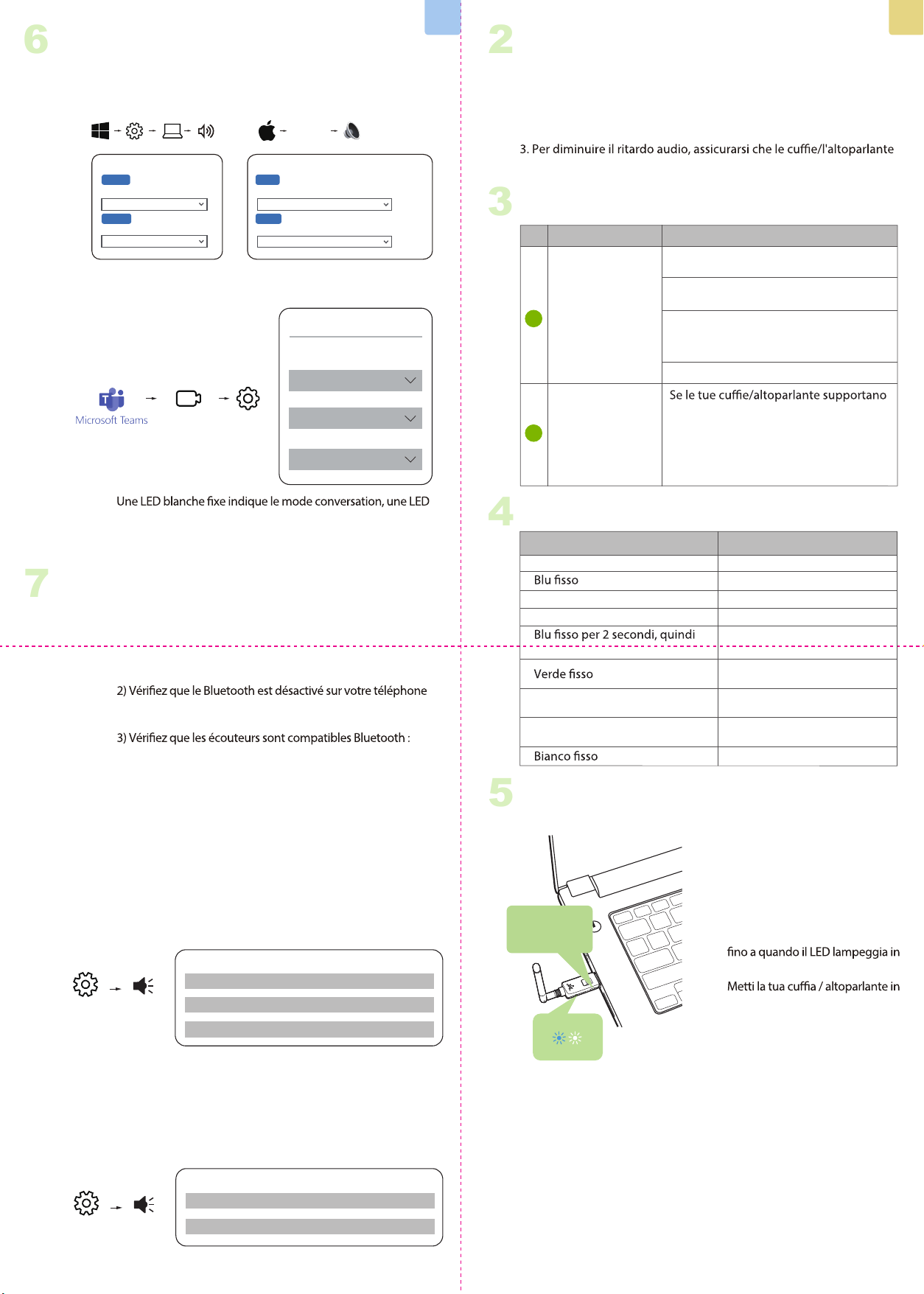
4
LED Indicators
Indicator Status
Pairing
Connected
Reconnecting
Disconnected
Clearing pairing history
Streaming audio with aptX
Adaptive codec
Streaming audio with aptX HD,
aptX Low latency codec
Streaming audio with aptX,
SBC codec
Talk mode
Solid blue
Solid blue for 2 seconds, then
Solid green
Solid white
Important Notice
2
1. NO BLUETOOTH icon will appear on the Taskbar when the DG60P is
plugged into your PC. It should be recognized as a USB sound card /
USB speaker.
2. This device does NOT work with mice, keyboards, or game
controllers. It is for audio transmission only.
3. For minimum audio delay, please ensure that your Bluetooth
headphone / speaker supports either aptX Low latency or aptX
Adaptive. Otherwise, you will get 150~250ms delay.
3
Button Functions
No. Functions
Press & hold for 2 seconds to enter
pairing mode
Double-click while pairing to clear
pairing history
Double-click while connected to
switch between music and talk mode
If your headphones / speaker supports
aptX HD, aptX Adaptive or aptX Low
Latency, please slide switch to "For
music" to enable high quality audio,
or "For gaming" to enable low latency.
Click once to reconnect
Buttons
Multifunctional
button (MFB)
Music / Gaming
switch
1
2
5
Pairing & Connecting
Plug the DG60P into a USB port.
automatically enters pairing
& WHITE. If not, manually enter
the DG60P into pairing mode:
Press & Hold the MFB until the
Put your Headphone / Speaker
into "Bluetooth Pairing Mode".
Please refer to your device's user
manual for more information.
Once connected, the LED on the
DG60P will turn SOLID BLUE.
1 )
2 )
3 )
6
Use with PC
NOTE:
A solid white LED indicates talk mode. A Blue or Green LED
indicates music mode. The DG60P will auto-switch between
talk & music modes. You can also manually swap modes by
double-clicking the dongle's MFB button.
STEP 1
Follow “
and PC.
5 Pairing & Connecting” to connect your headphones
STEP 2
Choose "Avantree DG60P" as the default audio input / output device.
STEP 3
For VoIP Call – please repeat the Step 2 in your meeting software
(i.e. Teams. Zoom, Skype, etc.)
Sound
Output
Choose your output device
Input
Choose your input device
Avantree DG60P
Avantree DG60P
Settings System Sound
Sound
Avantree DG60P
Output
Select a device for sound output:
Avantree DG60P
Input
Select a device for sound input:
System
Preferences...
Sound
Use with PS5
7
NOTE:
1) The pairing / connection happens through the DG60P, not your
PS5, so it won’t show in “Bluetooth accessories”.
2) Ensure Bluetooth is disabled on devices like your phone or smart
watch to prevent accidental connection;
3) Ensure the headphones are Bluetooth as some headphones like
"Sony PULSE 3D" or "Turtle Beach Stealth 600 Gen 2" use 2.4G
technology and cannot connect to phones or the DG60P.
1) If you’re concerned about the audio quality drop in talk mode,
you can use your PS5 controller’s mic instead and set the dongle
to music mode, Double-click the dongle’s MFB to enter music
mode for the best audio quality. A Blue LED indicates music mode.
Or, if you don’t need to chat and only need game audio, likewise
set the dongle to music mode.
2) If you want to chat with your teammate using your headphones’
mic, the DG60P should enter talk mode by default. A solid white
LED indicates talk mode. You may nd that the headphones’
volume and audio quality drops in talk mode. This is due to a
technological limitation with Bluetooth.
STEP 1
Plug the DG60P into the PS5’s USB port and follow “5 Pairing &
Connecting” instructions to connect your Bluetooth headphones.
STEP 2
Set the Audio Mode
Settings Sound
Sound
Microphone Input Device Controller Headset
Audio Output Output Device
USB headset
(Avantree DG60P)
Audio Output
Switch Output Device
Automatically
Turn o
Settings Sound
Sound
Microphone Output Device USB Headset(Avantree DG60P)
Audio Output Output Device USB Headset(Avantree DG60P)
EN EN
Model No.: BTDG-60-P
DG60P
Quick Start Guide I Schnellanleitung I Guide de démarrage rapide
Guida Rapida all’uso I Guía de inicio rápido
Produktübersicht | Vue d’ensemble | Panoramica Prodotto
Descripción general del producto
1
Product Overview
Antenna
LED status indicator
Multifunctional button (MFB)
Music / Gaming
switch
2
1
Hold for 2s
Settings
Start Meeting
Avantree DG60P
Speaker
Avantree DG60P
Microphone
Audio Settings
Audio Devices
Avantree DG60P
Device Settings
Model No: BTDG-60-P
Dispose of the packaging and this product in accordance with the latest provisions.
Z-PKQG-DG60P-V2
Manufacturer:
Avantronics Limited
Luohu District, Shenzhen 518000 China
US Importer:
Avantree Corporation
San Jose, California 95119 USA
UK Importer:
Avantree Limited
Watford, WD180 0HQ UK
Servicer in Europe:
EC REP
Contact Us
Kontaktieren Sie uns | Contactez-nous | Contattaci | Contáctenos
Support Tickets
Product Registration
Support Email
Support Numbers
FAQ
avantree.com/submit-a-ticket
See QR code on the product tag.
support@avantree.com
avantree.com/support/dg60p
CA +1 800 232 2078 (9am-6pm, PST, Mon-Fri)
US +1 800 232 2078 (9am-6pm, PST, Mon-Fri)
UK +44 208 068 2023
(9am-6pm, GMT, Mon-Sat)
DE
+49 322 2109 7297
(11am-9pm, CET, Mon-Sat)
FR +33 17 634 0312 (11am-9pm, CET, Mon-Sat)
IT +39 069 4803 330 (9am-6pm, CET, Mon-Sat)
ES +34 93 1786 261 (9am-6pm, CET, Mon-Sat)
AU +61 2 8310 9897
(11am-7pm, AEST, Mon-Fri)
1)
2)
3)
Koppeln und Verbinden
5
Halten Sie
die Taste 2s
Schließen Sie die DG60P über einen
USB-Anschluss an. Bei der ersten Verwend-
ung wechselt die DG60P automatisch in den
Pairing-Modus und die LED blinkt
abwechselnd in den Farben BLAU und WEISS.
Sollte dies nicht der Fall sein, muss die DG60P
manuell in den Pairing-Modus versetzt
werden: Halten Sie die MFB-Taste gedrückt,
bis die LED in BLAU und WEISS zu blinken
beginnt.
Versetzen Sie Ihren Kopfhörer/Lautsprecher
in den "Bluetooth-Kopplungsmodus".
Benutzerhandbuch Ihres Geräts.
Sobald die Verbindung hergestellt ist, leuchtet
die LED auf der DG60P durchgehend BLAU.
2
Wichtiger Hinweis
3
4
Tastenfunktionen
Taste
Multifunktionstaste
(MFB)
Music / Gaming
switch
Nr. Funktionen
1
2
Halten Sie die Taste 2 Sekunden lang
gedrückt, um den Kopplungsmodus zu
aktivieren.
Durch Doppelklicken beim Koppeln
können Sie den Kopplungsverlauf löschen.
Doppelklicken Sie, wenn verbunden,
um zwischen Musik- und Sprachmodus
zu wechseln.
Wenn Ihre Kopfhörer oder Lautsprecher
aptX HD, aptX Adaptive oder aptX Low
Latency unterstützen, empfehlen wir
Ihnen, den Schalter auf "Für Musik" zu
stellen, um eine hohe Audioqualität zu
aktivieren, oder auf "Für Spiele", um
eine niedrige Latenz zu ermöglichen.
1. Das Symbol NO BLUETOOTH erscheint in der Taskleiste, wenn das
DG60P an Ihren PC angeschlossen ist. Es sollte als USB-Soundkarte/
USB-Lautsprecher erkannt werden.
2. Dieses Gerät funktioniert NICHT mit Mäusen, Tastaturen oder Game
Controllern. Es ist nur für die Audioübertragung gedacht.
3. Um die Audioverzögerung zu reduzieren, stellen Sie bitte sicher, dass
Ihr Bluetooth-Kopfhörer/Lautsprecher entweder aptX Low Latency
oder aptX Adaptive unterstützt. Andernfalls entsteht eine 150~250ms
Verzögerung.
LED-Anzeigen
Anzeige Status
Koppeln
Verbunden
Wiederverbunden
Getrennt
Löschen des
Kopplungsverlaufs
Audio-Streaming mit aptX
Adaptive Codec
Audio-Streaming mit aptX HD,
aptX Low Latency Codec
Audiostreaming mit aptX,
SBC Codec
Sprechmodus
Abwechselnd blaues und
weißes Blinken
Konstant blau
Blaues Blinken jede 1 Sekunde
Blaues Blinken alle 10 Sekunden
Durchgehend blau für
2 Sekunden, dann abwechselnd
blaues und weißes Blinken
Konstant Grün
Grünes Blinken alle 5 Sekunden
Grünes Blinken zweimal alle
5 Sekunden
Konstant Weiß
DE
Einmal klicken, um erneut zu verbinden
HINWEIS:
Eine durchgehend weiße LED zeigt den Sprachmodus an. Eine
blaue oder grün LED zeigt den Musikmodus an. Die DG60P
wechselt automatisch zwischen Sprach- und Musikmodus. Sie
können den Modus auch manuell wechseln, indem Sie den
MFB-Knopf des Dongles doppelklicken.
SCHRITT 1
Folgen Sie den Anweisungen unter "5 Koppeln und
Verbinden", um Ihren Kopfhörer mit dem PC zu verbinden.
SCHRITT 2
Wählen Sie "Avantree DG60P" als Standard-Audio-Eingangs-
/Ausgangsgerät.
6
Verwendung mit dem PC
Ton
Ausgabe
Wählen Sie Ihr Ausgabegerät
Eingabe
Wählen Sie Ihr Eingabegerät
Avantree DG60P
Avantree DG60P
Einstellung System Ton
Ton
Avantree DG60P
Ausgabe
Wählen Sie ein Gerät für die Tonausgabe:
Avantree DG60P
Eingabe
Wählen Sie ein Gerät für die Toneingabe:
System-
Einstellungen
Ton
SCHRITT 3
Für VoIP-Anrufe wiederholen Sie bitte Schritt 2 in Ihrer
Meeting-Software (z.B. Teams, Zoom, Skype, etc.)
Verwendung mit PS5
7
1) Die Kopplung/Verbindung erfolgt über die DG60P, nicht
über die "Bluetooth-Zubehörteile" Ihrer PS5.
2) Stellen Sie sicher, dass Bluetooth auf Geräten wie Ihrem
Telefon oder Ihrer Smartwatch deaktiviert ist, um eine
versehentliche Vebindung zu vermeiden.
3) Stellen Sie sicher, dass die Kopfhörer Bluetooth-fähig sind,
da einige Kopfhörer wie "Sony PULSE 3D" oder "Turtle Beach
Stealth 600 Gen 2" die 2,4-GHz-Technologie verwenden und
keine Verbindung zu Telefonen oder der DG60P herstellen
können.
SCHRITT 1
Schließen Sie die DG60P an den USB-Anschluss der PS5 an
und befolgen Sie die Anweisungen unter "5 Koppeln &
Verbinden", um Ihre Bluetooth-Kopfhörer zu verbinden.
SCHRITT 2 Einstellen des Audiomodus
HINWEIS:
DE
Einstellung
Meetings
starten
Avantree DG60P
Lautsprecher
Avantree DG60P
Mikrofon
Audio-Einstellungen
Audiogeräte
Avantree DG60P
Geräteeinstellungen
Einstellungen Ton
Ton
Audioausgabe
Ausschalten
Automatisches Umschalten
des Ausgabegeräts
Audioausgabe
USB- Kopfhörer -
Headset (Avantree DG60P)
Ausgabegerät
Mikrofon Controller-Headset
Eingabegerät
Einstellungen Ton
Ton
Mikrofon Eingabegerät
USB- Kopfhörer -
Headset (Avantree DG60P)
Audioausgabe Ausgabegerät
USB- Kopfhörer -
Headset (Avantree DG60P)
1) Wenn Sie sich Sorgen über die Audioqualität im Gesprächs-
modus machen, können Sie das Mikrofon Ihres PS5-Controllers
verwenden und den Dongle in den Musikmodus versetzen.
Doppelklicken Sie auf die Mehrzwecktaste (MFB) des Dongles,
um in den Musikmodus mit der besten Audioqualität zu
wechseln. Eine blaue LED zeigt den Musikmodus an. Falls Sie
nicht im Chat sind und lediglich den Spielsound benötigen,
können Sie den Dongle ebenso in den Musikmodus versetzen.
2) Möchten Sie mit Ihrem Teamkollegen über das Mikrofon Ihres
Headsets sprechen, wechselt der DG60P standardmäßig in den
Gesprächsmodus. Ein kontinuierlich leuchtendes weißes LED
zeigt den Gesprächsmodus an. Beachten Sie, dass die Lautstärke
und die Audioqualität des Headsets im Gesprächsmodus
möglicherweise verringert sind. Dies ist auf eine technologische
Beschränkung von Bluetooth zurückzuführen.
Boutons
Bouton
Multifonction (MFB)
Bouton Musique
/ Gaming
Nb. Fonctions
1
2
Maintenir 2 secondes pour passer en
mode appairage
Double-clic lorsque connecté pour
basculer entre les modes musique /
conversation
1 Clic pour se reconnecter
Si votre casque / enceinte supportent
l'aptX HD, l'aptX Adaptive ou l'aptX Low
Latency, basculez sur "For music" pour
activer la haute qualité audio, ou "For
latence.
l'historique
4
Indicateurs LED
Indicateur Statut
Appairage en cours
Connecté
Reconnecté
Déconnecté
appairage
Transmission audio en
aptX Adaptive
Transmission audio en aptX
HD, aptX Low latency
Transmission audio en
aptX, SBC
Mode conversation
Flash Bleu & Blanc alterné
1 Flash Bleu toutes les secondes
1 Flash Bleu toutes les 10 sec.
Flash Vert toutes les 5 secondes
5 secondes
FR
Note importante
2
1. AUCUNE icône BLUETOOTH n'apparaîtra sur la barre des tâches
lorsque le DG60P est branché sur votre PC. Il doit être reconnu
comme une carte son USB / une enceinte USB.
2. Cet appareil ne fonctionne PAS avec des souris, des claviers ou des
contrôleurs de jeu. C'est pour la transmission audio seulement.
3. Pour un délai audio minimum, veuillez vous assurer que votre
casque / haut-parleur Bluetooth prend en charge l’aptX Low latency
ou l’aptX Adaptive. Sinon, vous obtiendrez un délai de 150 ~ 250 ms.
3
Fonction des boutons
5
Appairage & Connexions
Branchez le DG60P. Lors de la 1ière
utilisation, il passe en appairage et
le voyant LED clignote BLEU et
BLANC. Sinon, passez-le manuelle-
ment en appairage : maintenez le
bouton MFB jusqu'à voir la LED
clignoter en BLEU et BLANC.
Mettez votre casque/haut-parleur
en "appairage Bluetooth". Veuillez
vous référer au manuel d'utilisa-
tion de votre appareil pour plus
d'informations.
Une fois connecté, le voyant du
DG60P deviendra BLEU FIXE.
1 )
2 )
3 )
Maintenir 2s
NOTE:
bleue ou vert le mode musique. Le DG60P basculera entre les
deux automatiquement. Vous pouvez aussi changer manuelle-
ment de mode en double-cliquant sur le bouton MFB de la clé.
ETAPE 1
Suivre “5 Appairage & Connexion” pour connecter votre
casque et votre PC.
ETAPE 2
Choisir "Avantree DG60P" comme entrée/sortie audio par défaut.
6
Usage sur PC
Son
Sortie
Choisir votre sortie audio
Entrée
Choisir votre entrée audio
Avantree DG60P
Avantree DG60P
Réglages Système Son
Son
Avantree DG60P
Sortie
Choisir votre sortie audio
Avantree DG60P
Entrée
Choisir votre sortie audio
Préférences
système
Son
ETAPE 3
Pour les appels VoIP - veuillez répéter l'étape 2 dans votre
logiciel de réunion (ex. Teams. Zoom, Skype, etc.)
FR
Utilisation sur PS5
7
1) L'appairage / connexion se fait via le DG60P, pas les
"accessoires Bluetooth" de votre PS5.
ou votre montre intelligente pour éviter toute connexion
accidentelle;
certains tels que les "Sony PULSE 3D" ou "Turtle Beach Stealth
600 Gen 2" utilisent la technologie 2.4G et ne peuvent pas se
connecter aux téléphones ou au DG60P.
ETAPE 1
Branchez le DG60P sur le port USB de la PS5 et suivez les
instructions “5 Appairage & Connexion” pour connecter vos
écouteurs Bluetooth.
Réglages
Démarrer
Conférence
Avantree DG60P
Enceinte
Avantree DG60P
Micro
Réglages audio
Unités audio
Avantree DG60P
Réglage Périphériques
ETAPE 2 Réglez le mode Audio
Réglages Audio
Audio
Sortie Audio
Eteindre
Changer de périphérique
de sortie automatiquement
Sortie Audio
Casque USB
(Avantree DG60P)
Périphérique de sortie
Micro Casque
Périphérique d’entrée
Réglages Audio
Audio
Micro Périphérique d’entrée Casque USB(Avantree DG60P)
Sortie Audio Périphérique de sortie
Casque USB(Avantree DG60P)
1) Si vous êtes aecté par la baisse de la qualité audio en mode
conversation, vous pouvez utiliser le micro de votre manette
PS5 à la place et régler la clé DG60P en mode musique.
Double-cliquez sur le bouton MFB du dongle pour passer en
mode musique et pour une meilleure qualité audio (la LED
bleue indique le mode musique). Et si vous n'avez pas besoin de
discuter et que vous souhaitez avoir l'audio du jeu, réglez
également le dongle en mode musique.
2) Si vous souhaitez discuter avec votre coéquipier à l'aide du
micro de votre casque, le DG60P doit passer en mode
conversation (une LED blanche xe indique le mode conversa-
tion). Vous constaterez peut-être que le volume et la qualité
audio du casque chutent mais cela est dû à une limitation
technologique du Bluetooth.
4
Indicatori LED
Indicatore Stato
Pairing
Connesso
Riconnesso
Disconnesso
Storico connessioni eliminato
Trasmissione Audio con codec
aptX Adaptive
Trasmissione Audio con codec
aptX HD, aptX Low latency
Trasmissione Audio con
codec aptX, SBC
Modalità chiamata
Lampeggi blu e bianchi alternati
Lampeggio blu ogni 1 secondo
Lampeggio blu ogni 10 secondi
lampeggi blu e bianchi alternati
Lampeggio verde ogni 5 secondi
Lampeggio verde due volte
ogni 5 secondi
Tasto
Tasto Multifunzione
(MFB)
Selettore Musica
/ Gaming
No. Funzione
1
2
Tenere premuto per 2 secondi per
accedere alla modalità di associazione
Fai doppio clic quando sei connesso per
passare dalla modalità musica a quella
conversazione
Fare clic una volta per riconnettersi
i codec aptX HD, aptX Adaptive o aptX
Low Latency, fai scorrere il selettore su
"Per la musica" per abilitare l'audio di alta
qualità o "Per i giochi" per abilitare la
bassa latenza.
Fare doppio clic durante l'associazione
per cancellare la cronologia di associazione
3
Funzione dei Tasti
IT
Avviso Importante
2
1. NESSUNA icona BLUETOOTH apparirà sulla barra delle applicazioni
quando il DG60P è collegato al PC. Il sistema operativo lo riconosce
come scheda audio USB / altoparlante USB.
2. Questo dispositivo NON è compatibile con mouse, tastiere o controller
di gioco. È utilizzabile solo per la trasmissione audio.
Bluetooth supportino aptX a bassa latenza o aptX Adaptive. In caso
contrario, si otterrà un ritardo di 150~250 ms.
5
Connessione & Pairing
Collegare il DG60P a una porta USB.
Al primo utilizzo, il DG60P entra
automaticamente in modalità di
associazione con il LED lampeggi-
ante in BLU e BIANCO. In caso
contrario, inserire manualmente il
DG60P in modalità di accoppia-
mento: tenere premuto il tasto MFB
BLU e BIANCO.
"Modalità di associazione
Bluetooth". Consultare il manuale
utente del dispositivo per ulteriori
informazioni.
Una volta connesso, il LED sul DG60P
diventerà BLU FISSO.
1 )
2 )
3 )
Tieni premuto
per 2 secondi
IT
NOTA:
o verde indica la modalità musica. Il DG60P passerà
automaticamente dalla modalità conversazione a quella
musica. Puoi anche cambiare manualmente le modalità
facendo doppio clic sul pulsante MFB del dongle.
PASSO 1
Seguire i passaggi di “5 Connessione & Pairing” per collegare
PASSO 2
Scegli "Avantree DG60P" come dispositivo di ingresso/uscita
6
Uso con PC
Suono
Uscita
Dispositivo di output
Ingresso
Dispositivo di input
Avantree DG60P
Avantree DG60P
Impostazioni Sistema Suono
Suono
Avantree DG60P
Uscita
Seleziona dispositivo uscita audio:
Avantree DG60P
Ingresso
Seleziona dispositivo ingresso audio:
Preferenze
di Sistema
Suono
PASSO 3
Per le chiamate VoIP: ripetere il passaggio 2 nel software per
riunioni (ad es. Teams, Zoom, Skype, ecc.)
Utilizzo con PS5
7
NOTA:
1) L'associazione / connessione avviene tramite il DG60P, non
gli "accessori Bluetooth" della tua PS5.
2) Assicurati che il Bluetooth sia disabilitato su dispositivi come
il telefono o lo smartwatch per evitare connessioni accidentali;
600 Gen 2" utilizzano la tecnologia 2.4G e non possono
connettersi ai telefoni o al DG60P.
PASSO 1
Collega il DG60P alla porta USB della PS5 e segui le istruzioni
“5 Connessione & Pairing”
Impostazioni
Inizia
Riunione
Avantree DG60P
Altoparlante
Avantree DG60P
Microfono
Impostazioni Audio
Dispositivi audio
Avantree DG60P
Impostazioni
Dispositivi
PASSO 2 Regolare la modalità Audio
Impostazioni Suono
Suono
Uscita Audio
Spegni
Cambia Dispositivo di
Uscita Audio Automaticamente
Uscita Audio
Cue USB
(Avantree DG60P)
Dispositivo Uscita
Microfono Cue Controller
Dispositivo Ingresso
Impostazioni Suono
Suono
Microfono Dispositivo Ingresso Cue USB ( Avantree DG60P)
Uscita Audio Dispositivo Uscita Cue USB ( Avantree DG60P)
1) Se ti accorgi di un calo della qualità audio in modalità chat,
puoi comunque utilizzare il microfono del controller PS5 e
impostare il dongle in modalità Musica, fai doppio clic sull'MFB
della chiavetta per selezionare la modalità musica ed avere una
qualità audio migliore. Il LED blu indica l’attivazione della
modalità musica. Anche se non hai bisogno di chattare e hai
solo bisogno di sentire l'audio del gioco, puoi impostare allo
stesso modo il trasmettitore in modalità musica.
2) Se vuoi chattare con il tuo compagno di squadra utilizzando il
microfono delle cue, il DG60P dovrebbe entrare in modalità
conversazione per impostazione predenita. Un LED bianco
sso indica la modalità conversazione. Purtroppo il volume delle
cue e la qualità audio del microfono diminuiscono in modalità
conversazione. Ciò è dovuto a una limitazione tecnologica del
Bluetooth.
3
Función de las Teclas
Tecla
Tecla Multifunción
(MFB)
Selector de Música
/Juegos
No. Función
1
2
Mantenga presionado durante 2
segundos para ingresar al modo de
emparejamiento
Haga doble clic cuando esté conectado
para cambiar entre música y modo
de conversación
Haga clic una vez para volver a conectar
Si sus auriculares/altavoz son
compatibles con los códecs aptX HD,
aptX Adaptive o aptX Low Latency,
deslice el interruptor a "Para música"
para habilitar audio de alta calidad o
"Para juegos" para habilitar baja latencia.
Haga doble clic durante el
emparejamiento para borrar el historial
de emparejamiento
4
Indicadores LED
Indicador Estado
Emparejamiento
Conectado
Reconectado
Desconectado
Historial de conexiones
eliminado
Transmisión de audio con
códec aptX Adaptive
Transmisión de audio con
códec aptX HD, aptX
Low latency
Transmisión de audio con
códec aptX, SBC
Modo de llamada
Destellos azules y blancos alternos
Parpadeo azul cada segundo
Parpadeo azul cada 10 segundos
luego alterna los destellos azul
y blanco
Parpadeo verde cada 5 segundos
Verde intermitente dos veces
cada 5 segundos
ES
Nota Importante
2
1. NO aparecerá ningún icono de BLUETOOTH en la bandeja del
sistema cuando el DG60P esté conectado a la PC. El sistema
operativo lo reconoce como una tarjeta de sonido USB/altavoz USB.
2. Este dispositivo NO es compatible con ratones, teclados o controla
dores de juegos. Sólo se puede utilizar para la transmisión de audio.
3. Para disminuir el retraso del audio, asegúrese de que sus
auriculares/altavoces Bluetooth admitan aptX Low Latency o aptX
Adaptive. De lo contrario, obtendrá un retraso de 150 ~ 250 ms.
5
Conexión y Emparejamiento
Conecte el DG60P a un puerto USB. Al
usarlo por primera vez, el DG60P
ingresa automáticamente al modo de
emparejamiento con el LED
parpadeando en AZUL y BLANCO. De
lo contrario, ingrese manualmente el
DG60P en el modo de emparejamien-
to: mantenga presionado el botón MFB
hasta que el LED parpadee en AZUL y
BLANCO.
Ponga su auricular/altavoz en "modo
de emparejamiento Bluetooth".
Consulte el manual de usuario del
dispositivo para obtener más
información.
una vez conectado, el LED del DG60P
se volverá AZUL FIJO.
1 )
2 )
3 )
Mantenga durante
2 segundos
ES
NOTA:
o verde indica el modo de música. El DG60P cambiará
automáticamente del modo de conversación al modo de
música. También puede cambiar de modo manualmente
haciendo doble clic en el botón MFB del dongle.
PASO 1
Sigue los pasos de “5 Conexión y Emparejamiento” para
conectar auriculares y PC.
PASO 2
Elija "Avantree DG60P" como dispositivo de entrada/salida de
audio predeterminado.
6
Uso con PC
Sonido
Salida
Dispositivo de salida
Entrada
Dispositivo de entrada
Avantree DG60P
Avantree DG60P
Ajustes Sistema Sonido-
Sonido
Avantree DG60P
Salida
Seleccione dispositivo de salida de audio:
Avantree DG60P
Entrada
Seleccione dispositivo de entrada de audio:
Preferencias
del Sistema
Sonido-
PASO 3
Para llamadas VoIP: repita el paso 2 en su software de reuniones
(por ejemplo, Teams, Zoom, Skype, etc.)
PASO 1
Usar con PS5
7
NOTA:
1) El emparejamiento/conexión se realiza a través del DG60P,
no de los "accesorios Bluetooth" de su PS5.
2) Asegúrese de que Bluetooth esté deshabilitado en
dispositivos como su teléfono o reloj inteligente para evitar
conexiones accidentales;
3) Asegúrese de que su auricular tenga Bluetooth, ya que
algunos auriculares como "Sony PULSE 3D" o "Turtle Beach
Stealth 600 Gen 2" usan tecnología 2.4G y no pueden conectarse
a teléfonos ni al DG60P.
Conecta el DG60P al puerto USB de la PS5 y sigue las
instrucciones de “5 Conexión y Emparejamiento” para
conectar tus auriculares Bluetooth.
Ajustes
Iniciar Reunión
Avantree DG60P
Altavoz
Avantree DG60P
Micrófono
Conguración de Audio
Dispositivos de audio
Avantree DG60P
Dispositivos de
Conguración
PASO 2 Ajustar el modo de Sonido
Ajustes Sonido
Sonido
Salida de Audio
Apagar
Cambiar dispositivo de salida de
Audio Automáticamente
Salida de Audio
Auriculares USB
(Avantree DG60P)
Dispositivos de Salida
Micrófono
Auriculares de
Controlador
Dispositivos de Entrada
Ajustes Sonido
Sonido
Micrófono Dispositivos de Entrada
Auriculares USB
(Avantree DG60P)
Salida de Audio Dispositivos de salida
Auriculares USB
(Avantree DG60P)
1) Si nota una caída en la calidad del audio en el modo de chat,
aún puede usar el micrófono del controlador PS5 y congurar el
dongle en el modo Música, haga doble clic en el MFB del dongle
para seleccionar el modo de música y tener una mejor calidad
de audio. El LED azul indica la activación del modo música.
Incluso si no necesita chatear y solo necesita escuchar el audio
del juego, puede congurar el transmisor en modo música de la
misma manera.
2) Si desea conversar con su compañero de equipo usando el
micrófono del auricular, el DG60P debe entrar en modo de
conversación de manera predeterminada. Un LED blanco sólido
indica el modo de conversación. Desafortunadamente, el
volumen de los auriculares y la calidad del audio del micrófono
disminuyen en el modo de conversación. Esto se debe a una
limitación tecnológica de Bluetooth.
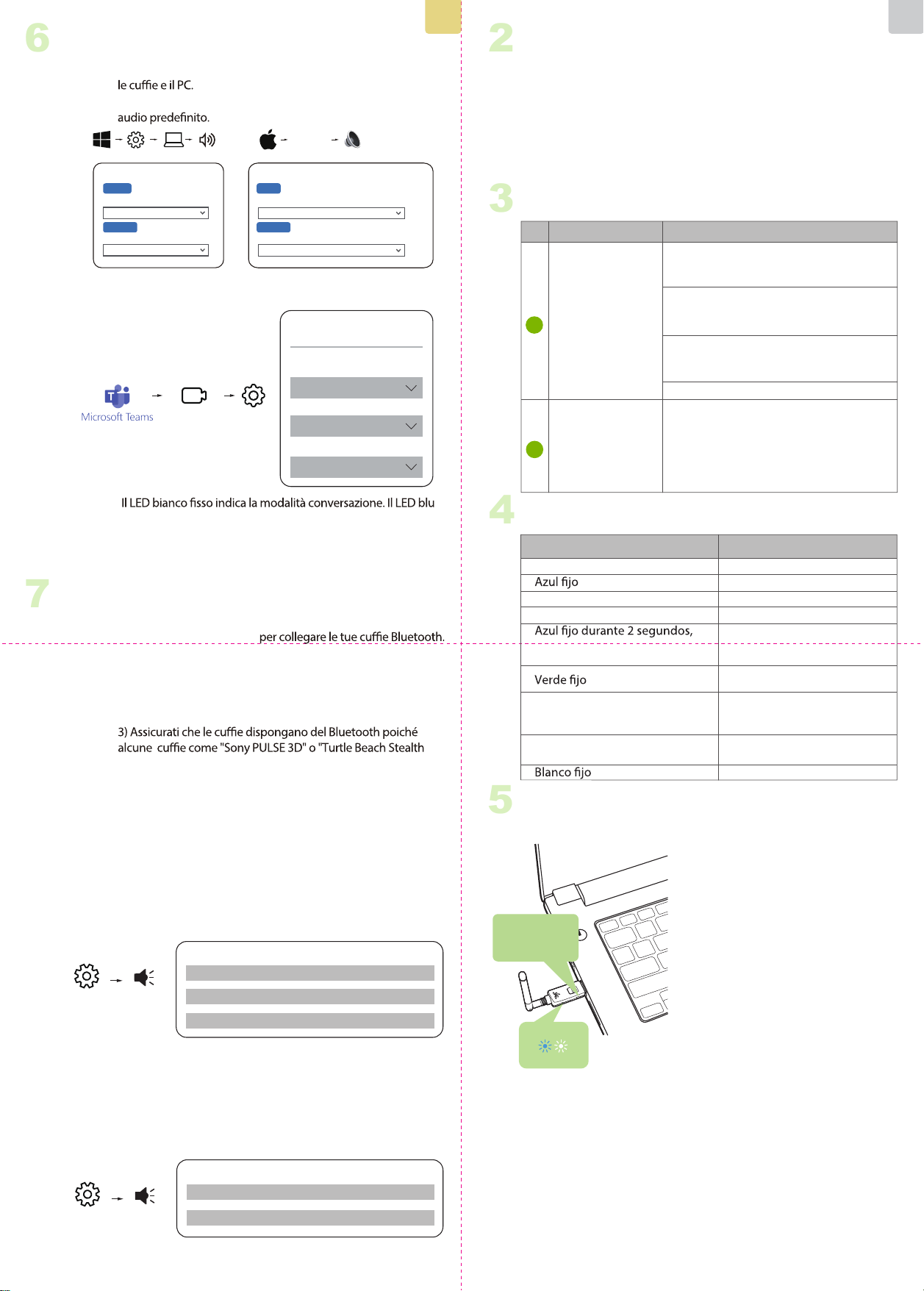
4
LED Indicators
Indicator Status
Pairing
Connected
Reconnecting
Disconnected
Clearing pairing history
Streaming audio with aptX
Adaptive codec
Streaming audio with aptX HD,
aptX Low latency codec
Streaming audio with aptX,
SBC codec
Talk mode
Solid blue
Solid blue for 2 seconds, then
Solid green
Solid white
Important Notice
2
1. NO BLUETOOTH icon will appear on the Taskbar when the DG60P is
plugged into your PC. It should be recognized as a USB sound card /
USB speaker.
2. This device does NOT work with mice, keyboards, or game
controllers. It is for audio transmission only.
3. For minimum audio delay, please ensure that your Bluetooth
headphone / speaker supports either aptX Low latency or aptX
Adaptive. Otherwise, you will get 150~250ms delay.
3
Button Functions
No. Functions
Press & hold for 2 seconds to enter
pairing mode
Double-click while pairing to clear
pairing history
Double-click while connected to
switch between music and talk mode
If your headphones / speaker supports
aptX HD, aptX Adaptive or aptX Low
Latency, please slide switch to "For
music" to enable high quality audio,
or "For gaming" to enable low latency.
Click once to reconnect
Buttons
Multifunctional
button (MFB)
Music / Gaming
switch
1
2
5
Pairing & Connecting
Plug the DG60P into a USB port.
automatically enters pairing
& WHITE. If not, manually enter
the DG60P into pairing mode:
Press & Hold the MFB until the
Put your Headphone / Speaker
into "Bluetooth Pairing Mode".
Please refer to your device's user
manual for more information.
Once connected, the LED on the
DG60P will turn SOLID BLUE.
1 )
2 )
3 )
6
Use with PC
NOTE:
A solid white LED indicates talk mode. A Blue or Green LED
indicates music mode. The DG60P will auto-switch between
talk & music modes. You can also manually swap modes by
double-clicking the dongle's MFB button.
STEP 1
Follow “
and PC.
5 Pairing & Connecting” to connect your headphones
STEP 2
Choose "Avantree DG60P" as the default audio input / output device.
STEP 3
For VoIP Call – please repeat the Step 2 in your meeting software
(i.e. Teams. Zoom, Skype, etc.)
Sound
Output
Choose your output device
Input
Choose your input device
Avantree DG60P
Avantree DG60P
Settings System Sound
Sound
Avantree DG60P
Output
Select a device for sound output:
Avantree DG60P
Input
Select a device for sound input:
System
Preferences...
Sound
Use with PS5
7
NOTE:
1) The pairing / connection happens through the DG60P, not your
PS5, so it won’t show in “Bluetooth accessories”.
2) Ensure Bluetooth is disabled on devices like your phone or smart
watch to prevent accidental connection;
3) Ensure the headphones are Bluetooth as some headphones like
"Sony PULSE 3D" or "Turtle Beach Stealth 600 Gen 2" use 2.4G
technology and cannot connect to phones or the DG60P.
1) If you’re concerned about the audio quality drop in talk mode,
you can use your PS5 controller’s mic instead and set the dongle
to music mode, Double-click the dongle’s MFB to enter music
mode for the best audio quality. A Blue LED indicates music mode.
Or, if you don’t need to chat and only need game audio, likewise
set the dongle to music mode.
2) If you want to chat with your teammate using your headphones’
mic, the DG60P should enter talk mode by default. A solid white
LED indicates talk mode. You may nd that the headphones’
volume and audio quality drops in talk mode. This is due to a
technological limitation with Bluetooth.
STEP 1
Plug the DG60P into the PS5’s USB port and follow “5 Pairing &
Connecting” instructions to connect your Bluetooth headphones.
STEP 2
Set the Audio Mode
Settings Sound
Sound
Microphone Input Device Controller Headset
Audio Output Output Device
USB headset
(Avantree DG60P)
Audio Output
Switch Output Device
Automatically
Turn o
Settings Sound
Sound
Microphone Output Device USB Headset(Avantree DG60P)
Audio Output Output Device USB Headset(Avantree DG60P)
EN EN
Model No.: BTDG-60-P
DG60P
Quick Start Guide I Schnellanleitung I Guide de démarrage rapide
Guida Rapida all’uso I Guía de inicio rápido
Produktübersicht | Vue d’ensemble | Panoramica Prodotto
Descripción general del producto
1
Product Overview
Antenna
LED status indicator
Multifunctional button (MFB)
Music / Gaming
switch
2
1
Hold for 2s
Settings
Start Meeting
Avantree DG60P
Speaker
Avantree DG60P
Microphone
Audio Settings
Audio Devices
Avantree DG60P
Device Settings
Model No: BTDG-60-P
Dispose of the packaging and this product in accordance with the latest provisions.
Z-PKQG-DG60P-V2
Manufacturer:
Avantronics Limited
Luohu District, Shenzhen 518000 China
US Importer:
Avantree Corporation
San Jose, California 95119 USA
UK Importer:
Avantree Limited
Watford, WD180 0HQ UK
Servicer in Europe:
EC REP
Contact Us
Kontaktieren Sie uns | Contactez-nous | Contattaci | Contáctenos
Support Tickets
Product Registration
Support Email
Support Numbers
FAQ
avantree.com/submit-a-ticket
See QR code on the product tag.
support@avantree.com
avantree.com/support/dg60p
CA +1 800 232 2078 (9am-6pm, PST, Mon-Fri)
US +1 800 232 2078 (9am-6pm, PST, Mon-Fri)
UK +44 208 068 2023
(9am-6pm, GMT, Mon-Sat)
DE
+49 322 2109 7297
(11am-9pm, CET, Mon-Sat)
FR +33 17 634 0312 (11am-9pm, CET, Mon-Sat)
IT +39 069 4803 330 (9am-6pm, CET, Mon-Sat)
ES +34 93 1786 261 (9am-6pm, CET, Mon-Sat)
AU +61 2 8310 9897
(11am-7pm, AEST, Mon-Fri)
1)
2)
3)
Koppeln und Verbinden
5
Halten Sie
die Taste 2s
Schließen Sie die DG60P über einen
USB-Anschluss an. Bei der ersten Verwend-
ung wechselt die DG60P automatisch in den
Pairing-Modus und die LED blinkt
abwechselnd in den Farben BLAU und WEISS.
Sollte dies nicht der Fall sein, muss die DG60P
manuell in den Pairing-Modus versetzt
werden: Halten Sie die MFB-Taste gedrückt,
bis die LED in BLAU und WEISS zu blinken
beginnt.
Versetzen Sie Ihren Kopfhörer/Lautsprecher
in den "Bluetooth-Kopplungsmodus".
Benutzerhandbuch Ihres Geräts.
Sobald die Verbindung hergestellt ist, leuchtet
die LED auf der DG60P durchgehend BLAU.
2
Wichtiger Hinweis
3
4
Tastenfunktionen
Taste
Multifunktionstaste
(MFB)
Music / Gaming
switch
Nr. Funktionen
1
2
Halten Sie die Taste 2 Sekunden lang
gedrückt, um den Kopplungsmodus zu
aktivieren.
Durch Doppelklicken beim Koppeln
können Sie den Kopplungsverlauf löschen.
Doppelklicken Sie, wenn verbunden,
um zwischen Musik- und Sprachmodus
zu wechseln.
Wenn Ihre Kopfhörer oder Lautsprecher
aptX HD, aptX Adaptive oder aptX Low
Latency unterstützen, empfehlen wir
Ihnen, den Schalter auf "Für Musik" zu
stellen, um eine hohe Audioqualität zu
aktivieren, oder auf "Für Spiele", um
eine niedrige Latenz zu ermöglichen.
1. Das Symbol NO BLUETOOTH erscheint in der Taskleiste, wenn das
DG60P an Ihren PC angeschlossen ist. Es sollte als USB-Soundkarte/
USB-Lautsprecher erkannt werden.
2. Dieses Gerät funktioniert NICHT mit Mäusen, Tastaturen oder Game
Controllern. Es ist nur für die Audioübertragung gedacht.
3. Um die Audioverzögerung zu reduzieren, stellen Sie bitte sicher, dass
Ihr Bluetooth-Kopfhörer/Lautsprecher entweder aptX Low Latency
oder aptX Adaptive unterstützt. Andernfalls entsteht eine 150~250ms
Verzögerung.
LED-Anzeigen
Anzeige Status
Koppeln
Verbunden
Wiederverbunden
Getrennt
Löschen des
Kopplungsverlaufs
Audio-Streaming mit aptX
Adaptive Codec
Audio-Streaming mit aptX HD,
aptX Low Latency Codec
Audiostreaming mit aptX,
SBC Codec
Sprechmodus
Abwechselnd blaues und
weißes Blinken
Konstant blau
Blaues Blinken jede 1 Sekunde
Blaues Blinken alle 10 Sekunden
Durchgehend blau für
2 Sekunden, dann abwechselnd
blaues und weißes Blinken
Konstant Grün
Grünes Blinken alle 5 Sekunden
Grünes Blinken zweimal alle
5 Sekunden
Konstant Weiß
DE
Einmal klicken, um erneut zu verbinden
HINWEIS:
Eine durchgehend weiße LED zeigt den Sprachmodus an. Eine
blaue oder grün LED zeigt den Musikmodus an. Die DG60P
wechselt automatisch zwischen Sprach- und Musikmodus. Sie
können den Modus auch manuell wechseln, indem Sie den
MFB-Knopf des Dongles doppelklicken.
SCHRITT 1
Folgen Sie den Anweisungen unter "5 Koppeln und
Verbinden", um Ihren Kopfhörer mit dem PC zu verbinden.
SCHRITT 2
Wählen Sie "Avantree DG60P" als Standard-Audio-Eingangs-
/Ausgangsgerät.
6
Verwendung mit dem PC
Ton
Ausgabe
Wählen Sie Ihr Ausgabegerät
Eingabe
Wählen Sie Ihr Eingabegerät
Avantree DG60P
Avantree DG60P
Einstellung System Ton
Ton
Avantree DG60P
Ausgabe
Wählen Sie ein Gerät für die Tonausgabe:
Avantree DG60P
Eingabe
Wählen Sie ein Gerät für die Toneingabe:
System-
Einstellungen
Ton
SCHRITT 3
Für VoIP-Anrufe wiederholen Sie bitte Schritt 2 in Ihrer
Meeting-Software (z.B. Teams, Zoom, Skype, etc.)
Verwendung mit PS5
7
1) Die Kopplung/Verbindung erfolgt über die DG60P, nicht
über die "Bluetooth-Zubehörteile" Ihrer PS5.
2) Stellen Sie sicher, dass Bluetooth auf Geräten wie Ihrem
Telefon oder Ihrer Smartwatch deaktiviert ist, um eine
versehentliche Vebindung zu vermeiden.
3) Stellen Sie sicher, dass die Kopfhörer Bluetooth-fähig sind,
da einige Kopfhörer wie "Sony PULSE 3D" oder "Turtle Beach
Stealth 600 Gen 2" die 2,4-GHz-Technologie verwenden und
keine Verbindung zu Telefonen oder der DG60P herstellen
können.
SCHRITT 1
Schließen Sie die DG60P an den USB-Anschluss der PS5 an
und befolgen Sie die Anweisungen unter "5 Koppeln &
Verbinden", um Ihre Bluetooth-Kopfhörer zu verbinden.
SCHRITT 2 Einstellen des Audiomodus
HINWEIS:
DE
Einstellung
Meetings
starten
Avantree DG60P
Lautsprecher
Avantree DG60P
Mikrofon
Audio-Einstellungen
Audiogeräte
Avantree DG60P
Geräteeinstellungen
Einstellungen Ton
Ton
Audioausgabe
Ausschalten
Automatisches Umschalten
des Ausgabegeräts
Audioausgabe
USB- Kopfhörer -
Headset (Avantree DG60P)
Ausgabegerät
Mikrofon Controller-Headset
Eingabegerät
Einstellungen Ton
Ton
Mikrofon Eingabegerät
USB- Kopfhörer -
Headset (Avantree DG60P)
Audioausgabe Ausgabegerät
USB- Kopfhörer -
Headset (Avantree DG60P)
1) Wenn Sie sich Sorgen über die Audioqualität im Gesprächs-
modus machen, können Sie das Mikrofon Ihres PS5-Controllers
verwenden und den Dongle in den Musikmodus versetzen.
Doppelklicken Sie auf die Mehrzwecktaste (MFB) des Dongles,
um in den Musikmodus mit der besten Audioqualität zu
wechseln. Eine blaue LED zeigt den Musikmodus an. Falls Sie
nicht im Chat sind und lediglich den Spielsound benötigen,
können Sie den Dongle ebenso in den Musikmodus versetzen.
2) Möchten Sie mit Ihrem Teamkollegen über das Mikrofon Ihres
Headsets sprechen, wechselt der DG60P standardmäßig in den
Gesprächsmodus. Ein kontinuierlich leuchtendes weißes LED
zeigt den Gesprächsmodus an. Beachten Sie, dass die Lautstärke
und die Audioqualität des Headsets im Gesprächsmodus
möglicherweise verringert sind. Dies ist auf eine technologische
Beschränkung von Bluetooth zurückzuführen.
Boutons
Bouton
Multifonction (MFB)
Bouton Musique
/ Gaming
Nb. Fonctions
1
2
Maintenir 2 secondes pour passer en
mode appairage
Double-clic lorsque connecté pour
basculer entre les modes musique /
conversation
1 Clic pour se reconnecter
Si votre casque / enceinte supportent
l'aptX HD, l'aptX Adaptive ou l'aptX Low
Latency, basculez sur "For music" pour
activer la haute qualité audio, ou "For
latence.
l'historique
4
Indicateurs LED
Indicateur Statut
Appairage en cours
Connecté
Reconnecté
Déconnecté
appairage
Transmission audio en
aptX Adaptive
Transmission audio en aptX
HD, aptX Low latency
Transmission audio en
aptX, SBC
Mode conversation
Flash Bleu & Blanc alterné
1 Flash Bleu toutes les secondes
1 Flash Bleu toutes les 10 sec.
Flash Vert toutes les 5 secondes
5 secondes
FR
Note importante
2
1. AUCUNE icône BLUETOOTH n'apparaîtra sur la barre des tâches
lorsque le DG60P est branché sur votre PC. Il doit être reconnu
comme une carte son USB / une enceinte USB.
2. Cet appareil ne fonctionne PAS avec des souris, des claviers ou des
contrôleurs de jeu. C'est pour la transmission audio seulement.
3. Pour un délai audio minimum, veuillez vous assurer que votre
casque / haut-parleur Bluetooth prend en charge l’aptX Low latency
ou l’aptX Adaptive. Sinon, vous obtiendrez un délai de 150 ~ 250 ms.
3
Fonction des boutons
5
Appairage & Connexions
Branchez le DG60P. Lors de la 1ière
utilisation, il passe en appairage et
le voyant LED clignote BLEU et
BLANC. Sinon, passez-le manuelle-
ment en appairage : maintenez le
bouton MFB jusqu'à voir la LED
clignoter en BLEU et BLANC.
Mettez votre casque/haut-parleur
en "appairage Bluetooth". Veuillez
vous référer au manuel d'utilisa-
tion de votre appareil pour plus
d'informations.
Une fois connecté, le voyant du
DG60P deviendra BLEU FIXE.
1 )
2 )
3 )
Maintenir 2s
NOTE:
bleue ou vert le mode musique. Le DG60P basculera entre les
deux automatiquement. Vous pouvez aussi changer manuelle-
ment de mode en double-cliquant sur le bouton MFB de la clé.
ETAPE 1
Suivre “5 Appairage & Connexion” pour connecter votre
casque et votre PC.
ETAPE 2
Choisir "Avantree DG60P" comme entrée/sortie audio par défaut.
6
Usage sur PC
Son
Sortie
Choisir votre sortie audio
Entrée
Choisir votre entrée audio
Avantree DG60P
Avantree DG60P
Réglages Système Son
Son
Avantree DG60P
Sortie
Choisir votre sortie audio
Avantree DG60P
Entrée
Choisir votre sortie audio
Préférences
système
Son
ETAPE 3
Pour les appels VoIP - veuillez répéter l'étape 2 dans votre
logiciel de réunion (ex. Teams. Zoom, Skype, etc.)
FR
Utilisation sur PS5
7
1) L'appairage / connexion se fait via le DG60P, pas les
"accessoires Bluetooth" de votre PS5.
ou votre montre intelligente pour éviter toute connexion
accidentelle;
certains tels que les "Sony PULSE 3D" ou "Turtle Beach Stealth
600 Gen 2" utilisent la technologie 2.4G et ne peuvent pas se
connecter aux téléphones ou au DG60P.
ETAPE 1
Branchez le DG60P sur le port USB de la PS5 et suivez les
instructions “5 Appairage & Connexion” pour connecter vos
écouteurs Bluetooth.
Réglages
Démarrer
Conférence
Avantree DG60P
Enceinte
Avantree DG60P
Micro
Réglages audio
Unités audio
Avantree DG60P
Réglage Périphériques
ETAPE 2 Réglez le mode Audio
Réglages Audio
Audio
Sortie Audio
Eteindre
Changer de périphérique
de sortie automatiquement
Sortie Audio
Casque USB
(Avantree DG60P)
Périphérique de sortie
Micro Casque
Périphérique d’entrée
Réglages Audio
Audio
Micro Périphérique d’entrée Casque USB(Avantree DG60P)
Sortie Audio Périphérique de sortie
Casque USB(Avantree DG60P)
1) Si vous êtes aecté par la baisse de la qualité audio en mode
conversation, vous pouvez utiliser le micro de votre manette
PS5 à la place et régler la clé DG60P en mode musique.
Double-cliquez sur le bouton MFB du dongle pour passer en
mode musique et pour une meilleure qualité audio (la LED
bleue indique le mode musique). Et si vous n'avez pas besoin de
discuter et que vous souhaitez avoir l'audio du jeu, réglez
également le dongle en mode musique.
2) Si vous souhaitez discuter avec votre coéquipier à l'aide du
micro de votre casque, le DG60P doit passer en mode
conversation (une LED blanche xe indique le mode conversa-
tion). Vous constaterez peut-être que le volume et la qualité
audio du casque chutent mais cela est dû à une limitation
technologique du Bluetooth.
4
Indicatori LED
Indicatore Stato
Pairing
Connesso
Riconnesso
Disconnesso
Storico connessioni eliminato
Trasmissione Audio con codec
aptX Adaptive
Trasmissione Audio con codec
aptX HD, aptX Low latency
Trasmissione Audio con
codec aptX, SBC
Modalità chiamata
Lampeggi blu e bianchi alternati
Lampeggio blu ogni 1 secondo
Lampeggio blu ogni 10 secondi
lampeggi blu e bianchi alternati
Lampeggio verde ogni 5 secondi
Lampeggio verde due volte
ogni 5 secondi
Tasto
Tasto Multifunzione
(MFB)
Selettore Musica
/ Gaming
No. Funzione
1
2
Tenere premuto per 2 secondi per
accedere alla modalità di associazione
Fai doppio clic quando sei connesso per
passare dalla modalità musica a quella
conversazione
Fare clic una volta per riconnettersi
i codec aptX HD, aptX Adaptive o aptX
Low Latency, fai scorrere il selettore su
"Per la musica" per abilitare l'audio di alta
qualità o "Per i giochi" per abilitare la
bassa latenza.
Fare doppio clic durante l'associazione
per cancellare la cronologia di associazione
3
Funzione dei Tasti
IT
Avviso Importante
2
1. NESSUNA icona BLUETOOTH apparirà sulla barra delle applicazioni
quando il DG60P è collegato al PC. Il sistema operativo lo riconosce
come scheda audio USB / altoparlante USB.
2. Questo dispositivo NON è compatibile con mouse, tastiere o controller
di gioco. È utilizzabile solo per la trasmissione audio.
Bluetooth supportino aptX a bassa latenza o aptX Adaptive. In caso
contrario, si otterrà un ritardo di 150~250 ms.
5
Connessione & Pairing
Collegare il DG60P a una porta USB.
Al primo utilizzo, il DG60P entra
automaticamente in modalità di
associazione con il LED lampeggi-
ante in BLU e BIANCO. In caso
contrario, inserire manualmente il
DG60P in modalità di accoppia-
mento: tenere premuto il tasto MFB
BLU e BIANCO.
"Modalità di associazione
Bluetooth". Consultare il manuale
utente del dispositivo per ulteriori
informazioni.
Una volta connesso, il LED sul DG60P
diventerà BLU FISSO.
1 )
2 )
3 )
Tieni premuto
per 2 secondi
IT
NOTA:
o verde indica la modalità musica. Il DG60P passerà
automaticamente dalla modalità conversazione a quella
musica. Puoi anche cambiare manualmente le modalità
facendo doppio clic sul pulsante MFB del dongle.
PASSO 1
Seguire i passaggi di “5 Connessione & Pairing” per collegare
PASSO 2
Scegli "Avantree DG60P" come dispositivo di ingresso/uscita
6
Uso con PC
Suono
Uscita
Dispositivo di output
Ingresso
Dispositivo di input
Avantree DG60P
Avantree DG60P
Impostazioni Sistema Suono
Suono
Avantree DG60P
Uscita
Seleziona dispositivo uscita audio:
Avantree DG60P
Ingresso
Seleziona dispositivo ingresso audio:
Preferenze
di Sistema
Suono
PASSO 3
Per le chiamate VoIP: ripetere il passaggio 2 nel software per
riunioni (ad es. Teams, Zoom, Skype, ecc.)
Utilizzo con PS5
7
NOTA:
1) L'associazione / connessione avviene tramite il DG60P, non
gli "accessori Bluetooth" della tua PS5.
2) Assicurati che il Bluetooth sia disabilitato su dispositivi come
il telefono o lo smartwatch per evitare connessioni accidentali;
600 Gen 2" utilizzano la tecnologia 2.4G e non possono
connettersi ai telefoni o al DG60P.
PASSO 1
Collega il DG60P alla porta USB della PS5 e segui le istruzioni
“5 Connessione & Pairing”
Impostazioni
Inizia
Riunione
Avantree DG60P
Altoparlante
Avantree DG60P
Microfono
Impostazioni Audio
Dispositivi audio
Avantree DG60P
Impostazioni
Dispositivi
PASSO 2 Regolare la modalità Audio
Impostazioni Suono
Suono
Uscita Audio
Spegni
Cambia Dispositivo di
Uscita Audio Automaticamente
Uscita Audio
Cue USB
(Avantree DG60P)
Dispositivo Uscita
Microfono Cue Controller
Dispositivo Ingresso
Impostazioni Suono
Suono
Microfono Dispositivo Ingresso Cue USB ( Avantree DG60P)
Uscita Audio Dispositivo Uscita Cue USB ( Avantree DG60P)
1) Se ti accorgi di un calo della qualità audio in modalità chat,
puoi comunque utilizzare il microfono del controller PS5 e
impostare il dongle in modalità Musica, fai doppio clic sull'MFB
della chiavetta per selezionare la modalità musica ed avere una
qualità audio migliore. Il LED blu indica l’attivazione della
modalità musica. Anche se non hai bisogno di chattare e hai
solo bisogno di sentire l'audio del gioco, puoi impostare allo
stesso modo il trasmettitore in modalità musica.
2) Se vuoi chattare con il tuo compagno di squadra utilizzando il
microfono delle cue, il DG60P dovrebbe entrare in modalità
conversazione per impostazione predenita. Un LED bianco
sso indica la modalità conversazione. Purtroppo il volume delle
cue e la qualità audio del microfono diminuiscono in modalità
conversazione. Ciò è dovuto a una limitazione tecnologica del
Bluetooth.
3
Función de las Teclas
Tecla
Tecla Multifunción
(MFB)
Selector de Música
/Juegos
No. Función
1
2
Mantenga presionado durante 2
segundos para ingresar al modo de
emparejamiento
Haga doble clic cuando esté conectado
para cambiar entre música y modo
de conversación
Haga clic una vez para volver a conectar
Si sus auriculares/altavoz son
compatibles con los códecs aptX HD,
aptX Adaptive o aptX Low Latency,
deslice el interruptor a "Para música"
para habilitar audio de alta calidad o
"Para juegos" para habilitar baja latencia.
Haga doble clic durante el
emparejamiento para borrar el historial
de emparejamiento
4
Indicadores LED
Indicador Estado
Emparejamiento
Conectado
Reconectado
Desconectado
Historial de conexiones
eliminado
Transmisión de audio con
códec aptX Adaptive
Transmisión de audio con
códec aptX HD, aptX
Low latency
Transmisión de audio con
códec aptX, SBC
Modo de llamada
Destellos azules y blancos alternos
Parpadeo azul cada segundo
Parpadeo azul cada 10 segundos
luego alterna los destellos azul
y blanco
Parpadeo verde cada 5 segundos
Verde intermitente dos veces
cada 5 segundos
ES
Nota Importante
2
1. NO aparecerá ningún icono de BLUETOOTH en la bandeja del
sistema cuando el DG60P esté conectado a la PC. El sistema
operativo lo reconoce como una tarjeta de sonido USB/altavoz USB.
2. Este dispositivo NO es compatible con ratones, teclados o controla
dores de juegos. Sólo se puede utilizar para la transmisión de audio.
3. Para disminuir el retraso del audio, asegúrese de que sus
auriculares/altavoces Bluetooth admitan aptX Low Latency o aptX
Adaptive. De lo contrario, obtendrá un retraso de 150 ~ 250 ms.
5
Conexión y Emparejamiento
Conecte el DG60P a un puerto USB. Al
usarlo por primera vez, el DG60P
ingresa automáticamente al modo de
emparejamiento con el LED
parpadeando en AZUL y BLANCO. De
lo contrario, ingrese manualmente el
DG60P en el modo de emparejamien-
to: mantenga presionado el botón MFB
hasta que el LED parpadee en AZUL y
BLANCO.
Ponga su auricular/altavoz en "modo
de emparejamiento Bluetooth".
Consulte el manual de usuario del
dispositivo para obtener más
información.
una vez conectado, el LED del DG60P
se volverá AZUL FIJO.
1 )
2 )
3 )
Mantenga durante
2 segundos
ES
NOTA:
o verde indica el modo de música. El DG60P cambiará
automáticamente del modo de conversación al modo de
música. También puede cambiar de modo manualmente
haciendo doble clic en el botón MFB del dongle.
PASO 1
Sigue los pasos de “5 Conexión y Emparejamiento” para
conectar auriculares y PC.
PASO 2
Elija "Avantree DG60P" como dispositivo de entrada/salida de
audio predeterminado.
6
Uso con PC
Sonido
Salida
Dispositivo de salida
Entrada
Dispositivo de entrada
Avantree DG60P
Avantree DG60P
Ajustes Sistema Sonido-
Sonido
Avantree DG60P
Salida
Seleccione dispositivo de salida de audio:
Avantree DG60P
Entrada
Seleccione dispositivo de entrada de audio:
Preferencias
del Sistema
Sonido-
PASO 3
Para llamadas VoIP: repita el paso 2 en su software de reuniones
(por ejemplo, Teams, Zoom, Skype, etc.)
PASO 1
Usar con PS5
7
NOTA:
1) El emparejamiento/conexión se realiza a través del DG60P,
no de los "accesorios Bluetooth" de su PS5.
2) Asegúrese de que Bluetooth esté deshabilitado en
dispositivos como su teléfono o reloj inteligente para evitar
conexiones accidentales;
3) Asegúrese de que su auricular tenga Bluetooth, ya que
algunos auriculares como "Sony PULSE 3D" o "Turtle Beach
Stealth 600 Gen 2" usan tecnología 2.4G y no pueden conectarse
a teléfonos ni al DG60P.
Conecta el DG60P al puerto USB de la PS5 y sigue las
instrucciones de “5 Conexión y Emparejamiento” para
conectar tus auriculares Bluetooth.
Ajustes
Iniciar Reunión
Avantree DG60P
Altavoz
Avantree DG60P
Micrófono
Conguración de Audio
Dispositivos de audio
Avantree DG60P
Dispositivos de
Conguración
PASO 2 Ajustar el modo de Sonido
Ajustes Sonido
Sonido
Salida de Audio
Apagar
Cambiar dispositivo de salida de
Audio Automáticamente
Salida de Audio
Auriculares USB
(Avantree DG60P)
Dispositivos de Salida
Micrófono
Auriculares de
Controlador
Dispositivos de Entrada
Ajustes Sonido
Sonido
Micrófono Dispositivos de Entrada
Auriculares USB
(Avantree DG60P)
Salida de Audio Dispositivos de salida
Auriculares USB
(Avantree DG60P)
1) Si nota una caída en la calidad del audio en el modo de chat,
aún puede usar el micrófono del controlador PS5 y congurar el
dongle en el modo Música, haga doble clic en el MFB del dongle
para seleccionar el modo de música y tener una mejor calidad
de audio. El LED azul indica la activación del modo música.
Incluso si no necesita chatear y solo necesita escuchar el audio
del juego, puede congurar el transmisor en modo música de la
misma manera.
2) Si desea conversar con su compañero de equipo usando el
micrófono del auricular, el DG60P debe entrar en modo de
conversación de manera predeterminada. Un LED blanco sólido
indica el modo de conversación. Desafortunadamente, el
volumen de los auriculares y la calidad del audio del micrófono
disminuyen en el modo de conversación. Esto se debe a una
limitación tecnológica de Bluetooth.
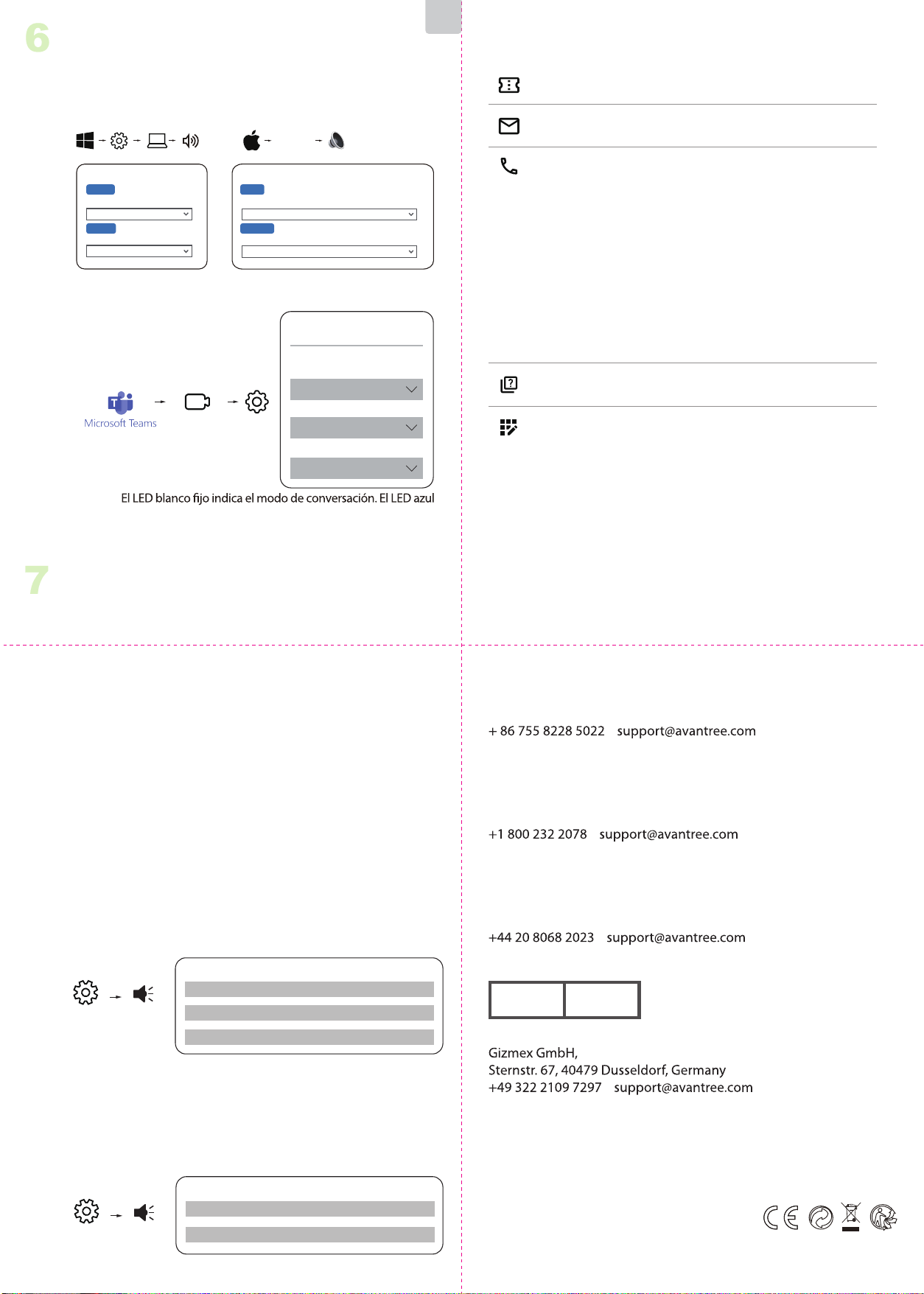
4
LED Indicators
Indicator Status
Pairing
Connected
Reconnecting
Disconnected
Clearing pairing history
Streaming audio with aptX
Adaptive codec
Streaming audio with aptX HD,
aptX Low latency codec
Streaming audio with aptX,
SBC codec
Talk mode
Solid blue
Solid blue for 2 seconds, then
Solid green
Solid white
Important Notice
2
1. NO BLUETOOTH icon will appear on the Taskbar when the DG60P is
plugged into your PC. It should be recognized as a USB sound card /
USB speaker.
2. This device does NOT work with mice, keyboards, or game
controllers. It is for audio transmission only.
3. For minimum audio delay, please ensure that your Bluetooth
headphone / speaker supports either aptX Low latency or aptX
Adaptive. Otherwise, you will get 150~250ms delay.
3
Button Functions
No. Functions
Press & hold for 2 seconds to enter
pairing mode
Double-click while pairing to clear
pairing history
Double-click while connected to
switch between music and talk mode
If your headphones / speaker supports
aptX HD, aptX Adaptive or aptX Low
Latency, please slide switch to "For
music" to enable high quality audio,
or "For gaming" to enable low latency.
Click once to reconnect
Buttons
Multifunctional
button (MFB)
Music / Gaming
switch
1
2
5
Pairing & Connecting
Plug the DG60P into a USB port.
automatically enters pairing
& WHITE. If not, manually enter
the DG60P into pairing mode:
Press & Hold the MFB until the
Put your Headphone / Speaker
into "Bluetooth Pairing Mode".
Please refer to your device's user
manual for more information.
Once connected, the LED on the
DG60P will turn SOLID BLUE.
1 )
2 )
3 )
6
Use with PC
NOTE:
A solid white LED indicates talk mode. A Blue or Green LED
indicates music mode. The DG60P will auto-switch between
talk & music modes. You can also manually swap modes by
double-clicking the dongle's MFB button.
STEP 1
Follow “
and PC.
5 Pairing & Connecting” to connect your headphones
STEP 2
Choose "Avantree DG60P" as the default audio input / output device.
STEP 3
For VoIP Call – please repeat the Step 2 in your meeting software
(i.e. Teams. Zoom, Skype, etc.)
Sound
Output
Choose your output device
Input
Choose your input device
Avantree DG60P
Avantree DG60P
Settings System Sound
Sound
Avantree DG60P
Output
Select a device for sound output:
Avantree DG60P
Input
Select a device for sound input:
System
Preferences...
Sound
Use with PS5
7
NOTE:
1) The pairing / connection happens through the DG60P, not your
PS5, so it won’t show in “Bluetooth accessories”.
2) Ensure Bluetooth is disabled on devices like your phone or smart
watch to prevent accidental connection;
3) Ensure the headphones are Bluetooth as some headphones like
"Sony PULSE 3D" or "Turtle Beach Stealth 600 Gen 2" use 2.4G
technology and cannot connect to phones or the DG60P.
1) If you’re concerned about the audio quality drop in talk mode,
you can use your PS5 controller’s mic instead and set the dongle
to music mode, Double-click the dongle’s MFB to enter music
mode for the best audio quality. A Blue LED indicates music mode.
Or, if you don’t need to chat and only need game audio, likewise
set the dongle to music mode.
2) If you want to chat with your teammate using your headphones’
mic, the DG60P should enter talk mode by default. A solid white
LED indicates talk mode. You may nd that the headphones’
volume and audio quality drops in talk mode. This is due to a
technological limitation with Bluetooth.
STEP 1
Plug the DG60P into the PS5’s USB port and follow “5 Pairing &
Connecting” instructions to connect your Bluetooth headphones.
STEP 2
Set the Audio Mode
Settings Sound
Sound
Microphone Input Device Controller Headset
Audio Output Output Device
USB headset
(Avantree DG60P)
Audio Output
Switch Output Device
Automatically
Turn o
Settings Sound
Sound
Microphone Output Device USB Headset(Avantree DG60P)
Audio Output Output Device USB Headset(Avantree DG60P)
EN EN
Model No.: BTDG-60-P
DG60P
Quick Start Guide I Schnellanleitung I Guide de démarrage rapide
Guida Rapida all’uso I Guía de inicio rápido
Produktübersicht | Vue d’ensemble | Panoramica Prodotto
Descripción general del producto
1
Product Overview
Antenna
LED status indicator
Multifunctional button (MFB)
Music / Gaming
switch
2
1
Hold for 2s
Settings
Start Meeting
Avantree DG60P
Speaker
Avantree DG60P
Microphone
Audio Settings
Audio Devices
Avantree DG60P
Device Settings
Model No: BTDG-60-P
Dispose of the packaging and this product in accordance with the latest provisions.
Z-PKQG-DG60P-V2
Manufacturer:
Avantronics Limited
Luohu District, Shenzhen 518000 China
US Importer:
Avantree Corporation
San Jose, California 95119 USA
UK Importer:
Avantree Limited
Watford, WD180 0HQ UK
Servicer in Europe:
EC REP
Contact Us
Kontaktieren Sie uns | Contactez-nous | Contattaci | Contáctenos
Support Tickets
Product Registration
Support Email
Support Numbers
FAQ
avantree.com/submit-a-ticket
See QR code on the product tag.
avantree.com/support/dg60p
CA +1 800 232 2078 (9am-6pm, PST, Mon-Fri)
US +1 800 232 2078 (9am-6pm, PST, Mon-Fri)
UK +44 208 068 2023
(9am-6pm, GMT, Mon-Sat)
DE
+49 322 2109 7297
(11am-9pm, CET, Mon-Sat)
FR +33 17 634 0312 (11am-9pm, CET, Mon-Sat)
IT +39 069 4803 330 (9am-6pm, CET, Mon-Sat)
ES +34 93 1786 261 (9am-6pm, CET, Mon-Sat)
AU +61 2 8310 9897
(11am-7pm, AEST, Mon-Fri)
1)
2)
3)
Koppeln und Verbinden
5
Halten Sie
die Taste 2s
Schließen Sie die DG60P über einen
USB-Anschluss an. Bei der ersten Verwend-
ung wechselt die DG60P automatisch in den
Pairing-Modus und die LED blinkt
abwechselnd in den Farben BLAU und WEISS.
Sollte dies nicht der Fall sein, muss die DG60P
manuell in den Pairing-Modus versetzt
werden: Halten Sie die MFB-Taste gedrückt,
bis die LED in BLAU und WEISS zu blinken
beginnt.
Versetzen Sie Ihren Kopfhörer/Lautsprecher
in den "Bluetooth-Kopplungsmodus".
Benutzerhandbuch Ihres Geräts.
Sobald die Verbindung hergestellt ist, leuchtet
die LED auf der DG60P durchgehend BLAU.
2
Wichtiger Hinweis
3
4
Tastenfunktionen
Taste
Multifunktionstaste
(MFB)
Music / Gaming
switch
Nr. Funktionen
1
2
Halten Sie die Taste 2 Sekunden lang
gedrückt, um den Kopplungsmodus zu
aktivieren.
Durch Doppelklicken beim Koppeln
können Sie den Kopplungsverlauf löschen.
Doppelklicken Sie, wenn verbunden,
um zwischen Musik- und Sprachmodus
zu wechseln.
Wenn Ihre Kopfhörer oder Lautsprecher
aptX HD, aptX Adaptive oder aptX Low
Latency unterstützen, empfehlen wir
Ihnen, den Schalter auf "Für Musik" zu
stellen, um eine hohe Audioqualität zu
aktivieren, oder auf "Für Spiele", um
eine niedrige Latenz zu ermöglichen.
1. Das Symbol NO BLUETOOTH erscheint in der Taskleiste, wenn das
DG60P an Ihren PC angeschlossen ist. Es sollte als USB-Soundkarte/
USB-Lautsprecher erkannt werden.
2. Dieses Gerät funktioniert NICHT mit Mäusen, Tastaturen oder Game
Controllern. Es ist nur für die Audioübertragung gedacht.
3. Um die Audioverzögerung zu reduzieren, stellen Sie bitte sicher, dass
Ihr Bluetooth-Kopfhörer/Lautsprecher entweder aptX Low Latency
oder aptX Adaptive unterstützt. Andernfalls entsteht eine 150~250ms
Verzögerung.
LED-Anzeigen
Anzeige Status
Koppeln
Verbunden
Wiederverbunden
Getrennt
Löschen des
Kopplungsverlaufs
Audio-Streaming mit aptX
Adaptive Codec
Audio-Streaming mit aptX HD,
aptX Low Latency Codec
Audiostreaming mit aptX,
SBC Codec
Sprechmodus
Abwechselnd blaues und
weißes Blinken
Konstant blau
Blaues Blinken jede 1 Sekunde
Blaues Blinken alle 10 Sekunden
Durchgehend blau für
2 Sekunden, dann abwechselnd
blaues und weißes Blinken
Konstant Grün
Grünes Blinken alle 5 Sekunden
Grünes Blinken zweimal alle
5 Sekunden
Konstant Weiß
DE
Einmal klicken, um erneut zu verbinden
HINWEIS:
Eine durchgehend weiße LED zeigt den Sprachmodus an. Eine
blaue oder grün LED zeigt den Musikmodus an. Die DG60P
wechselt automatisch zwischen Sprach- und Musikmodus. Sie
können den Modus auch manuell wechseln, indem Sie den
MFB-Knopf des Dongles doppelklicken.
SCHRITT 1
Folgen Sie den Anweisungen unter "5 Koppeln und
Verbinden", um Ihren Kopfhörer mit dem PC zu verbinden.
SCHRITT 2
Wählen Sie "Avantree DG60P" als Standard-Audio-Eingangs-
/Ausgangsgerät.
6
Verwendung mit dem PC
Ton
Ausgabe
Wählen Sie Ihr Ausgabegerät
Eingabe
Wählen Sie Ihr Eingabegerät
Avantree DG60P
Avantree DG60P
Einstellung System Ton
Ton
Avantree DG60P
Ausgabe
Wählen Sie ein Gerät für die Tonausgabe:
Avantree DG60P
Eingabe
Wählen Sie ein Gerät für die Toneingabe:
System-
Einstellungen
Ton
SCHRITT 3
Für VoIP-Anrufe wiederholen Sie bitte Schritt 2 in Ihrer
Meeting-Software (z.B. Teams, Zoom, Skype, etc.)
Verwendung mit PS5
7
1) Die Kopplung/Verbindung erfolgt über die DG60P, nicht
über die "Bluetooth-Zubehörteile" Ihrer PS5.
2) Stellen Sie sicher, dass Bluetooth auf Geräten wie Ihrem
Telefon oder Ihrer Smartwatch deaktiviert ist, um eine
versehentliche Vebindung zu vermeiden.
3) Stellen Sie sicher, dass die Kopfhörer Bluetooth-fähig sind,
da einige Kopfhörer wie "Sony PULSE 3D" oder "Turtle Beach
Stealth 600 Gen 2" die 2,4-GHz-Technologie verwenden und
keine Verbindung zu Telefonen oder der DG60P herstellen
können.
SCHRITT 1
Schließen Sie die DG60P an den USB-Anschluss der PS5 an
und befolgen Sie die Anweisungen unter "5 Koppeln &
Verbinden", um Ihre Bluetooth-Kopfhörer zu verbinden.
SCHRITT 2 Einstellen des Audiomodus
HINWEIS:
DE
Einstellung
Meetings
starten
Avantree DG60P
Lautsprecher
Avantree DG60P
Mikrofon
Audio-Einstellungen
Audiogeräte
Avantree DG60P
Geräteeinstellungen
Einstellungen Ton
Ton
Audioausgabe
Ausschalten
Automatisches Umschalten
des Ausgabegeräts
Audioausgabe
USB- Kopfhörer -
Headset (Avantree DG60P)
Ausgabegerät
Mikrofon Controller-Headset
Eingabegerät
Einstellungen Ton
Ton
Mikrofon Eingabegerät
USB- Kopfhörer -
Headset (Avantree DG60P)
Audioausgabe Ausgabegerät
USB- Kopfhörer -
Headset (Avantree DG60P)
1) Wenn Sie sich Sorgen über die Audioqualität im Gesprächs-
modus machen, können Sie das Mikrofon Ihres PS5-Controllers
verwenden und den Dongle in den Musikmodus versetzen.
Doppelklicken Sie auf die Mehrzwecktaste (MFB) des Dongles,
um in den Musikmodus mit der besten Audioqualität zu
wechseln. Eine blaue LED zeigt den Musikmodus an. Falls Sie
nicht im Chat sind und lediglich den Spielsound benötigen,
können Sie den Dongle ebenso in den Musikmodus versetzen.
2) Möchten Sie mit Ihrem Teamkollegen über das Mikrofon Ihres
Headsets sprechen, wechselt der DG60P standardmäßig in den
Gesprächsmodus. Ein kontinuierlich leuchtendes weißes LED
zeigt den Gesprächsmodus an. Beachten Sie, dass die Lautstärke
und die Audioqualität des Headsets im Gesprächsmodus
möglicherweise verringert sind. Dies ist auf eine technologische
Beschränkung von Bluetooth zurückzuführen.
Boutons
Bouton
Multifonction (MFB)
Bouton Musique
/ Gaming
Nb. Fonctions
1
2
Maintenir 2 secondes pour passer en
mode appairage
Double-clic lorsque connecté pour
basculer entre les modes musique /
conversation
1 Clic pour se reconnecter
Si votre casque / enceinte supportent
l'aptX HD, l'aptX Adaptive ou l'aptX Low
Latency, basculez sur "For music" pour
activer la haute qualité audio, ou "For
latence.
l'historique
4
Indicateurs LED
Indicateur Statut
Appairage en cours
Connecté
Reconnecté
Déconnecté
appairage
Transmission audio en
aptX Adaptive
Transmission audio en aptX
HD, aptX Low latency
Transmission audio en
aptX, SBC
Mode conversation
Flash Bleu & Blanc alterné
1 Flash Bleu toutes les secondes
1 Flash Bleu toutes les 10 sec.
Flash Vert toutes les 5 secondes
5 secondes
FR
Note importante
2
1. AUCUNE icône BLUETOOTH n'apparaîtra sur la barre des tâches
lorsque le DG60P est branché sur votre PC. Il doit être reconnu
comme une carte son USB / une enceinte USB.
2. Cet appareil ne fonctionne PAS avec des souris, des claviers ou des
contrôleurs de jeu. C'est pour la transmission audio seulement.
3. Pour un délai audio minimum, veuillez vous assurer que votre
casque / haut-parleur Bluetooth prend en charge l’aptX Low latency
ou l’aptX Adaptive. Sinon, vous obtiendrez un délai de 150 ~ 250 ms.
3
Fonction des boutons
5
Appairage & Connexions
Branchez le DG60P. Lors de la 1ière
utilisation, il passe en appairage et
le voyant LED clignote BLEU et
BLANC. Sinon, passez-le manuelle-
ment en appairage : maintenez le
bouton MFB jusqu'à voir la LED
clignoter en BLEU et BLANC.
Mettez votre casque/haut-parleur
en "appairage Bluetooth". Veuillez
vous référer au manuel d'utilisa-
tion de votre appareil pour plus
d'informations.
Une fois connecté, le voyant du
DG60P deviendra BLEU FIXE.
1 )
2 )
3 )
Maintenir 2s
NOTE:
bleue ou vert le mode musique. Le DG60P basculera entre les
deux automatiquement. Vous pouvez aussi changer manuelle-
ment de mode en double-cliquant sur le bouton MFB de la clé.
ETAPE 1
Suivre “5 Appairage & Connexion” pour connecter votre
casque et votre PC.
ETAPE 2
Choisir "Avantree DG60P" comme entrée/sortie audio par défaut.
6
Usage sur PC
Son
Sortie
Choisir votre sortie audio
Entrée
Choisir votre entrée audio
Avantree DG60P
Avantree DG60P
Réglages Système Son
Son
Avantree DG60P
Sortie
Choisir votre sortie audio
Avantree DG60P
Entrée
Choisir votre sortie audio
Préférences
système
Son
ETAPE 3
Pour les appels VoIP - veuillez répéter l'étape 2 dans votre
logiciel de réunion (ex. Teams. Zoom, Skype, etc.)
FR
Utilisation sur PS5
7
1) L'appairage / connexion se fait via le DG60P, pas les
"accessoires Bluetooth" de votre PS5.
ou votre montre intelligente pour éviter toute connexion
accidentelle;
certains tels que les "Sony PULSE 3D" ou "Turtle Beach Stealth
600 Gen 2" utilisent la technologie 2.4G et ne peuvent pas se
connecter aux téléphones ou au DG60P.
ETAPE 1
Branchez le DG60P sur le port USB de la PS5 et suivez les
instructions “5 Appairage & Connexion” pour connecter vos
écouteurs Bluetooth.
Réglages
Démarrer
Conférence
Avantree DG60P
Enceinte
Avantree DG60P
Micro
Réglages audio
Unités audio
Avantree DG60P
Réglage Périphériques
ETAPE 2 Réglez le mode Audio
Réglages Audio
Audio
Sortie Audio
Eteindre
Changer de périphérique
de sortie automatiquement
Sortie Audio
Casque USB
(Avantree DG60P)
Périphérique de sortie
Micro Casque
Périphérique d’entrée
Réglages Audio
Audio
Micro Périphérique d’entrée Casque USB(Avantree DG60P)
Sortie Audio Périphérique de sortie
Casque USB(Avantree DG60P)
1) Si vous êtes aecté par la baisse de la qualité audio en mode
conversation, vous pouvez utiliser le micro de votre manette
PS5 à la place et régler la clé DG60P en mode musique.
Double-cliquez sur le bouton MFB du dongle pour passer en
mode musique et pour une meilleure qualité audio (la LED
bleue indique le mode musique). Et si vous n'avez pas besoin de
discuter et que vous souhaitez avoir l'audio du jeu, réglez
également le dongle en mode musique.
2) Si vous souhaitez discuter avec votre coéquipier à l'aide du
micro de votre casque, le DG60P doit passer en mode
conversation (une LED blanche xe indique le mode conversa-
tion). Vous constaterez peut-être que le volume et la qualité
audio du casque chutent mais cela est dû à une limitation
technologique du Bluetooth.
4
Indicatori LED
Indicatore Stato
Pairing
Connesso
Riconnesso
Disconnesso
Storico connessioni eliminato
Trasmissione Audio con codec
aptX Adaptive
Trasmissione Audio con codec
aptX HD, aptX Low latency
Trasmissione Audio con
codec aptX, SBC
Modalità chiamata
Lampeggi blu e bianchi alternati
Lampeggio blu ogni 1 secondo
Lampeggio blu ogni 10 secondi
lampeggi blu e bianchi alternati
Lampeggio verde ogni 5 secondi
Lampeggio verde due volte
ogni 5 secondi
Tasto
Tasto Multifunzione
(MFB)
Selettore Musica
/ Gaming
No. Funzione
1
2
Tenere premuto per 2 secondi per
accedere alla modalità di associazione
Fai doppio clic quando sei connesso per
passare dalla modalità musica a quella
conversazione
Fare clic una volta per riconnettersi
i codec aptX HD, aptX Adaptive o aptX
Low Latency, fai scorrere il selettore su
"Per la musica" per abilitare l'audio di alta
qualità o "Per i giochi" per abilitare la
bassa latenza.
Fare doppio clic durante l'associazione
per cancellare la cronologia di associazione
3
Funzione dei Tasti
IT
Avviso Importante
2
1. NESSUNA icona BLUETOOTH apparirà sulla barra delle applicazioni
quando il DG60P è collegato al PC. Il sistema operativo lo riconosce
come scheda audio USB / altoparlante USB.
2. Questo dispositivo NON è compatibile con mouse, tastiere o controller
di gioco. È utilizzabile solo per la trasmissione audio.
Bluetooth supportino aptX a bassa latenza o aptX Adaptive. In caso
contrario, si otterrà un ritardo di 150~250 ms.
5
Connessione & Pairing
Collegare il DG60P a una porta USB.
Al primo utilizzo, il DG60P entra
automaticamente in modalità di
associazione con il LED lampeggi-
ante in BLU e BIANCO. In caso
contrario, inserire manualmente il
DG60P in modalità di accoppia-
mento: tenere premuto il tasto MFB
BLU e BIANCO.
"Modalità di associazione
Bluetooth". Consultare il manuale
utente del dispositivo per ulteriori
informazioni.
Una volta connesso, il LED sul DG60P
diventerà BLU FISSO.
1 )
2 )
3 )
Tieni premuto
per 2 secondi
IT
NOTA:
o verde indica la modalità musica. Il DG60P passerà
automaticamente dalla modalità conversazione a quella
musica. Puoi anche cambiare manualmente le modalità
facendo doppio clic sul pulsante MFB del dongle.
PASSO 1
Seguire i passaggi di “5 Connessione & Pairing” per collegare
PASSO 2
Scegli "Avantree DG60P" come dispositivo di ingresso/uscita
6
Uso con PC
Suono
Uscita
Dispositivo di output
Ingresso
Dispositivo di input
Avantree DG60P
Avantree DG60P
Impostazioni Sistema Suono
Suono
Avantree DG60P
Uscita
Seleziona dispositivo uscita audio:
Avantree DG60P
Ingresso
Seleziona dispositivo ingresso audio:
Preferenze
di Sistema
Suono
PASSO 3
Per le chiamate VoIP: ripetere il passaggio 2 nel software per
riunioni (ad es. Teams, Zoom, Skype, ecc.)
Utilizzo con PS5
7
NOTA:
1) L'associazione / connessione avviene tramite il DG60P, non
gli "accessori Bluetooth" della tua PS5.
2) Assicurati che il Bluetooth sia disabilitato su dispositivi come
il telefono o lo smartwatch per evitare connessioni accidentali;
600 Gen 2" utilizzano la tecnologia 2.4G e non possono
connettersi ai telefoni o al DG60P.
PASSO 1
Collega il DG60P alla porta USB della PS5 e segui le istruzioni
“5 Connessione & Pairing”
Impostazioni
Inizia
Riunione
Avantree DG60P
Altoparlante
Avantree DG60P
Microfono
Impostazioni Audio
Dispositivi audio
Avantree DG60P
Impostazioni
Dispositivi
PASSO 2 Regolare la modalità Audio
Impostazioni Suono
Suono
Uscita Audio
Spegni
Cambia Dispositivo di
Uscita Audio Automaticamente
Uscita Audio
Cue USB
(Avantree DG60P)
Dispositivo Uscita
Microfono Cue Controller
Dispositivo Ingresso
Impostazioni Suono
Suono
Microfono Dispositivo Ingresso Cue USB ( Avantree DG60P)
Uscita Audio Dispositivo Uscita Cue USB ( Avantree DG60P)
1) Se ti accorgi di un calo della qualità audio in modalità chat,
puoi comunque utilizzare il microfono del controller PS5 e
impostare il dongle in modalità Musica, fai doppio clic sull'MFB
della chiavetta per selezionare la modalità musica ed avere una
qualità audio migliore. Il LED blu indica l’attivazione della
modalità musica. Anche se non hai bisogno di chattare e hai
solo bisogno di sentire l'audio del gioco, puoi impostare allo
stesso modo il trasmettitore in modalità musica.
2) Se vuoi chattare con il tuo compagno di squadra utilizzando il
microfono delle cue, il DG60P dovrebbe entrare in modalità
conversazione per impostazione predenita. Un LED bianco
sso indica la modalità conversazione. Purtroppo il volume delle
cue e la qualità audio del microfono diminuiscono in modalità
conversazione. Ciò è dovuto a una limitazione tecnologica del
Bluetooth.
3
Función de las Teclas
Tecla
Tecla Multifunción
(MFB)
Selector de Música
/Juegos
No. Función
1
2
Mantenga presionado durante 2
segundos para ingresar al modo de
emparejamiento
Haga doble clic cuando esté conectado
para cambiar entre música y modo
de conversación
Haga clic una vez para volver a conectar
Si sus auriculares/altavoz son
compatibles con los códecs aptX HD,
aptX Adaptive o aptX Low Latency,
deslice el interruptor a "Para música"
para habilitar audio de alta calidad o
"Para juegos" para habilitar baja latencia.
Haga doble clic durante el
emparejamiento para borrar el historial
de emparejamiento
4
Indicadores LED
Indicador Estado
Emparejamiento
Conectado
Reconectado
Desconectado
Historial de conexiones
eliminado
Transmisión de audio con
códec aptX Adaptive
Transmisión de audio con
códec aptX HD, aptX
Low latency
Transmisión de audio con
códec aptX, SBC
Modo de llamada
Destellos azules y blancos alternos
Parpadeo azul cada segundo
Parpadeo azul cada 10 segundos
luego alterna los destellos azul
y blanco
Parpadeo verde cada 5 segundos
Verde intermitente dos veces
cada 5 segundos
ES
Nota Importante
2
1. NO aparecerá ningún icono de BLUETOOTH en la bandeja del
sistema cuando el DG60P esté conectado a la PC. El sistema
operativo lo reconoce como una tarjeta de sonido USB/altavoz USB.
2. Este dispositivo NO es compatible con ratones, teclados o controla
dores de juegos. Sólo se puede utilizar para la transmisión de audio.
3. Para disminuir el retraso del audio, asegúrese de que sus
auriculares/altavoces Bluetooth admitan aptX Low Latency o aptX
Adaptive. De lo contrario, obtendrá un retraso de 150 ~ 250 ms.
5
Conexión y Emparejamiento
Conecte el DG60P a un puerto USB. Al
usarlo por primera vez, el DG60P
ingresa automáticamente al modo de
emparejamiento con el LED
parpadeando en AZUL y BLANCO. De
lo contrario, ingrese manualmente el
DG60P en el modo de emparejamien-
to: mantenga presionado el botón MFB
hasta que el LED parpadee en AZUL y
BLANCO.
Ponga su auricular/altavoz en "modo
de emparejamiento Bluetooth".
Consulte el manual de usuario del
dispositivo para obtener más
información.
una vez conectado, el LED del DG60P
se volverá AZUL FIJO.
1 )
2 )
3 )
Mantenga durante
2 segundos
ES
NOTA:
o verde indica el modo de música. El DG60P cambiará
automáticamente del modo de conversación al modo de
música. También puede cambiar de modo manualmente
haciendo doble clic en el botón MFB del dongle.
PASO 1
Sigue los pasos de “5 Conexión y Emparejamiento” para
conectar auriculares y PC.
PASO 2
Elija "Avantree DG60P" como dispositivo de entrada/salida de
audio predeterminado.
6
Uso con PC
Sonido
Salida
Dispositivo de salida
Entrada
Dispositivo de entrada
Avantree DG60P
Avantree DG60P
Ajustes Sistema Sonido-
Sonido
Avantree DG60P
Salida
Seleccione dispositivo de salida de audio:
Avantree DG60P
Entrada
Seleccione dispositivo de entrada de audio:
Preferencias
del Sistema
Sonido-
PASO 3
Para llamadas VoIP: repita el paso 2 en su software de reuniones
(por ejemplo, Teams, Zoom, Skype, etc.)
PASO 1
Usar con PS5
7
NOTA:
1) El emparejamiento/conexión se realiza a través del DG60P,
no de los "accesorios Bluetooth" de su PS5.
2) Asegúrese de que Bluetooth esté deshabilitado en
dispositivos como su teléfono o reloj inteligente para evitar
conexiones accidentales;
3) Asegúrese de que su auricular tenga Bluetooth, ya que
algunos auriculares como "Sony PULSE 3D" o "Turtle Beach
Stealth 600 Gen 2" usan tecnología 2.4G y no pueden conectarse
a teléfonos ni al DG60P.
Conecta el DG60P al puerto USB de la PS5 y sigue las
instrucciones de “5 Conexión y Emparejamiento” para
conectar tus auriculares Bluetooth.
Ajustes
Iniciar Reunión
Avantree DG60P
Altavoz
Avantree DG60P
Micrófono
Conguración de Audio
Dispositivos de audio
Avantree DG60P
Dispositivos de
Conguración
PASO 2 Ajustar el modo de Sonido
Ajustes Sonido
Sonido
Salida de Audio
Apagar
Cambiar dispositivo de salida de
Audio Automáticamente
Salida de Audio
Auriculares USB
(Avantree DG60P)
Dispositivos de Salida
Micrófono
Auriculares de
Controlador
Dispositivos de Entrada
Ajustes Sonido
Sonido
Micrófono Dispositivos de Entrada
Auriculares USB
(Avantree DG60P)
Salida de Audio Dispositivos de salida
Auriculares USB
(Avantree DG60P)
1) Si nota una caída en la calidad del audio en el modo de chat,
aún puede usar el micrófono del controlador PS5 y congurar el
dongle en el modo Música, haga doble clic en el MFB del dongle
para seleccionar el modo de música y tener una mejor calidad
de audio. El LED azul indica la activación del modo música.
Incluso si no necesita chatear y solo necesita escuchar el audio
del juego, puede congurar el transmisor en modo música de la
misma manera.
2) Si desea conversar con su compañero de equipo usando el
micrófono del auricular, el DG60P debe entrar en modo de
conversación de manera predeterminada. Un LED blanco sólido
indica el modo de conversación. Desafortunadamente, el
volumen de los auriculares y la calidad del audio del micrófono
disminuyen en el modo de conversación. Esto se debe a una
limitación tecnológica de Bluetooth.