
REV4.0.0 1910013809
User Guide
AX3000 Wi-Fi 6 Bluetooth PCIe Adapter
Archer TX55E

Contents
About This Guide 01
Chapter 1 Get to Know About Your Adapter 02
Chapter 2 Connect to a Computer 04
Chapter 3 Use Your Adapter 08
3. 1. Install Drivers. . . . . . . . . . . . . . . . . . . . . . . . . . . . . . . . . . . . . . . . . . . . . . . . . . . . . . . . .09
3. 2. Join a Wireless Network. . . . . . . . . . . . . . . . . . . . . . . . . . . . . . . . . . . . . . . . . . . . . .09
3. 3. Pair with Bluetooth Devices. . . . . . . . . . . . . . . . . . . . . . . . . . . . . . . . . . . . . . . . . . .10
3. 4. Uninstall Drivers . . . . . . . . . . . . . . . . . . . . . . . . . . . . . . . . . . . . . . . . . . . . . . . . . . . . . .10
Appendix: Troubleshooting 11
01
About This Guide
This guide is a complement to Quick Installation Guide. The Quick Installation
Guide instructs you on quick installation, and this guide provides the product
overview and more detailed instructions for each steps.
When using this guide, please notice that features available of the adapter may
vary by model and software version. It may also vary by region or ISP. All images,
steps, and descriptions in this guide are only examples and may not reflect your
actual experience.
Conventions
In this guide, the following conventions are used:
Convention
Description
Underlined
Underlined words or phrases are hyperlinks. You can click to redirect to a
website or a specific section.
Teal
Contents to be emphasized and texts on the web page are in teal, including
the menus, items, buttons, etc.
Note:
Ignoring this type of note might result in a malfunction or damage to the
device.
Tips:
Indicates important information that helps you make better use of your
device.
*Maximum wireless signal rates are the physical rates derived from IEEE Standard 802.11 specifications.
Actual wireless data throughput and wireless coverage are not guaranteed and will vary as a result of 1)
environmental factors, including building materials, physical objects, and obstacles, 2) network conditions,
including local interference, volume and density of traffic, product location, network complexity, and
network overhead, and 3) AP limitations, including rated performance, location, connection quality, and AP
condition.
*Use of MU-MIMO requires AP to also support MU-MIMO.
*Use of 1024-QAM requires AP to also support 1024-QAM.
More Info
• The latest driver can be found at Download Center at
https://www.tp-link.com/support.
• The Quick Installation Guide (QIG) can be found where you find this guide or
inside the package of the product.
• Specifications can be found on the product page at https://www.tp-link.com.
• A TP-Link Community is provided for you to discuss our products at
https://community.tp-link.com.

Chapter 1
Get to Know About Your
Adapter
This chapter introduces the detail of the adapter.
03
Chapter 1
Get to Know about Your Adapter
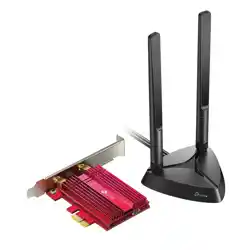
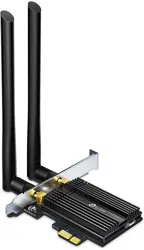
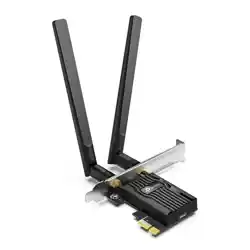
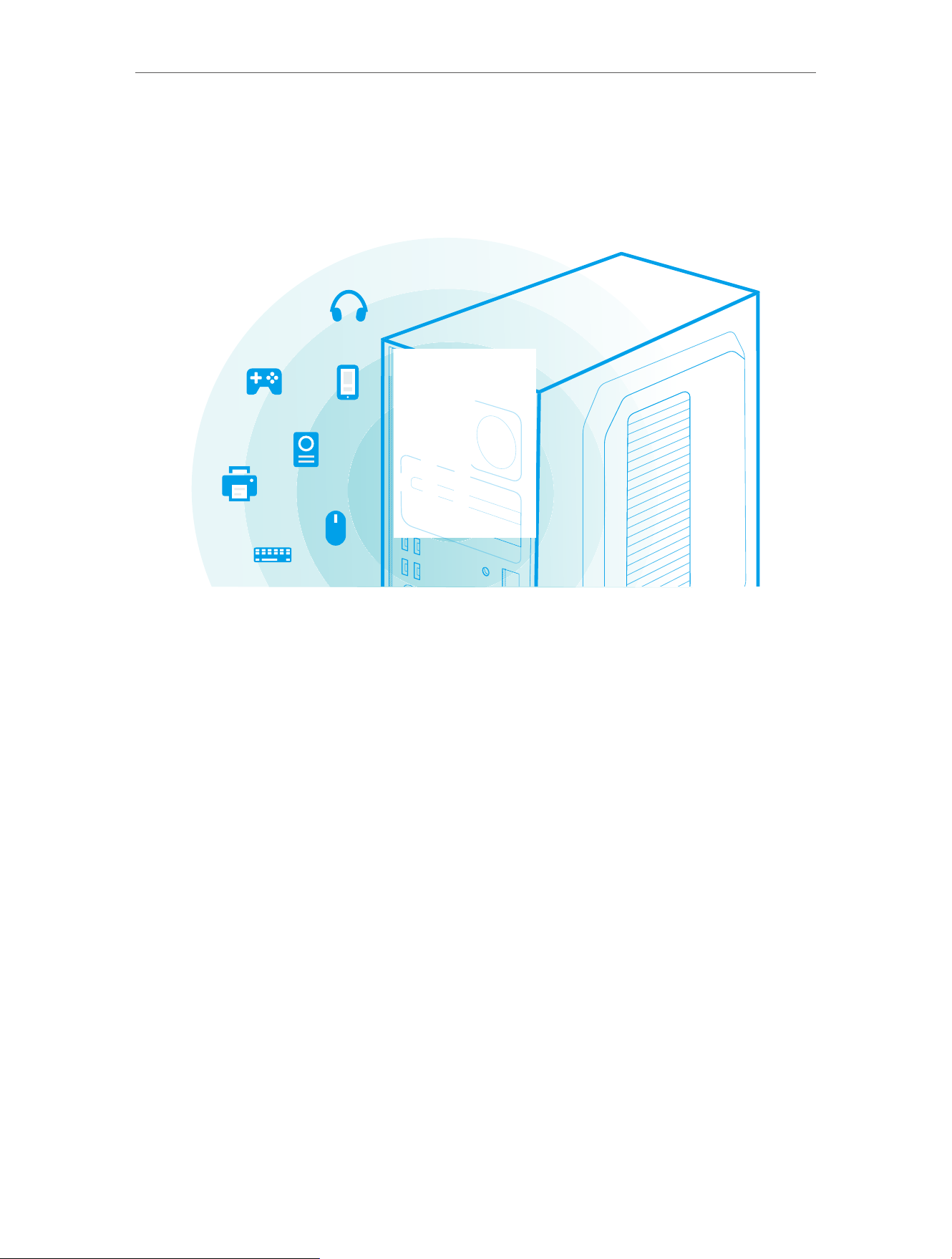
Archer TX55E equips your PC with more advanced Bluetooth 5.3 Technology
that runs faster connection speeds and farther range compared with older
versions, ensuring a strong and stable wireless connection between your PC
and Bluetooth devices.
With equipped 1024-QAM and MU-MIMO technology, Archer TX55E delivers
faster and clearer Wi-Fi to take your PC’s Wi-Fi reception to the next level and
fully achieve the potential of your Wi-Fi 6 router.
• Supports IEEE 802.11ax/ac/n/a 5 GHz, IEEE 802.11ax/n/g/b 2.4 GHz
• Supports Bluetooth 5.3/5.2/5.0/4.2/4.0
• Supports client and hotspot modes
• Maximum speed of up to 2402Mbps on 5GHz network and 574Mbps on 2.4GHz
network
• Supports WEP, WPA/WPA2/WPA3, WPA-PSK/WPA2-PSK,802.1X
• Windows 10/11 (64-bit)
• Environment:
Operating Temperature: 0℃~40℃ (32℉~104℉)
Storage Temperature: -40℃~70℃ (-40℉~158℉)
Operating Humidity: 10%~90% non-condensing
Storage Humidity: 5%~90% non-condensing

Chapter 2
Connect to a Computer
This chapter introduces how to connect the adapter to your computer.
Please note that images are for demonstration only.
05
Chapter 2
Connect to a Computer
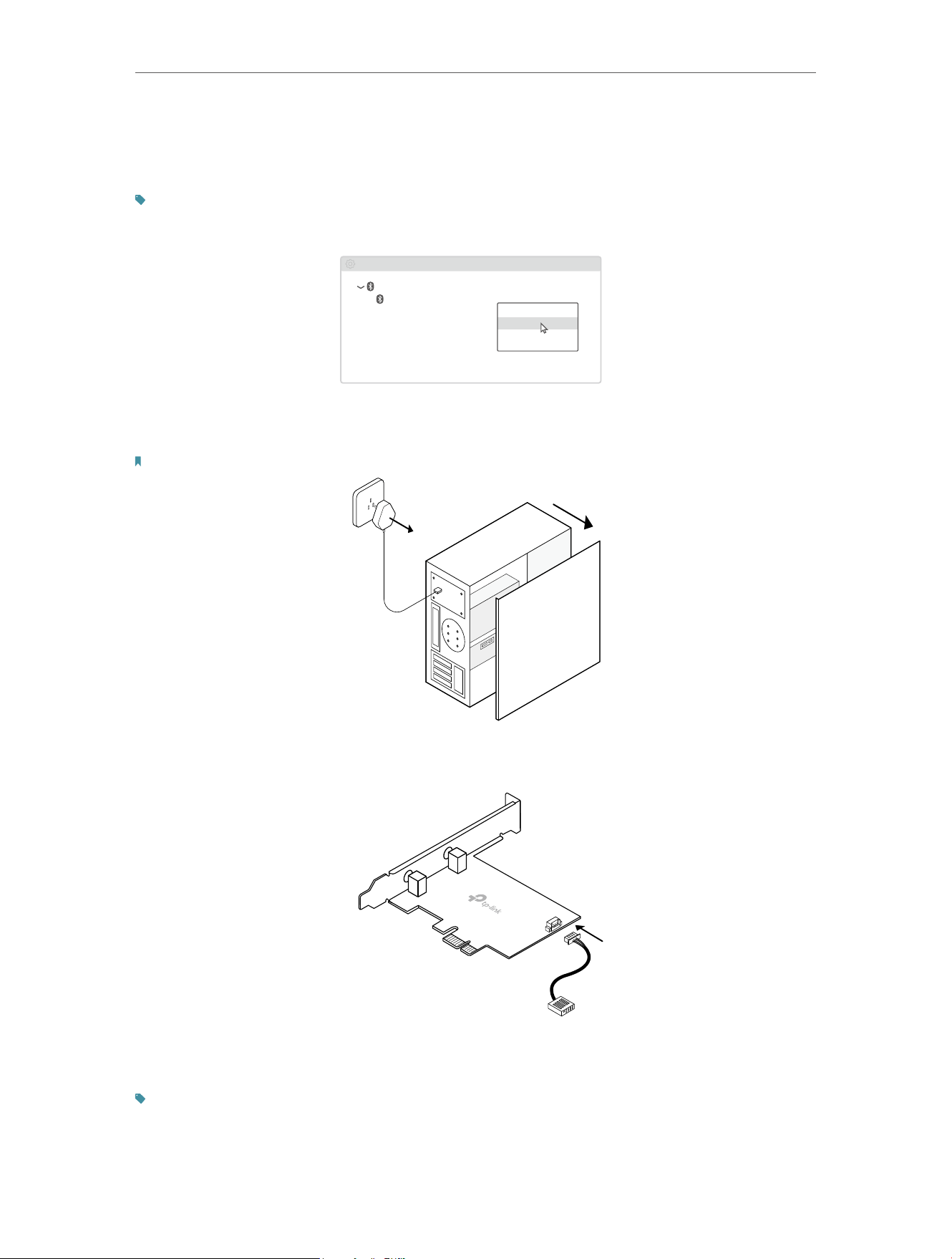
1 If you plan on using Bluetooth and already have connected Bluetooth
devices, make sure you have disabled all existing Bluetooth devices (both
built-in and third party).
Tip:
Right-click My Computer, select Manage, go to Device Manager, expand the Bluetooth node to find your
existing Bluetooth device, then right-click the existing Bluetooth device and select Disable.
Bluetooth
Device Manager
Disable
Existing Bluetooth Adapter
2 Turn off your computer, unplug the power cable then remove the case panel.
Note: Before you start, please make sure you have unplugged all existing Intel® wireless adapters.
3 Connect the provided Bluetooth USB cable to the adapter.
Bluetooth USB cable
Adapter
4 Locate an available PCIE slot (X1, X4, X8, or X16) and carefully insert the
adapter.
Tip:
If the bracket is not suitable for your computer, detach it from the adapter’s board and replace it with the
low-profile bracket.
06
Chapter 2
Connect to a Computer
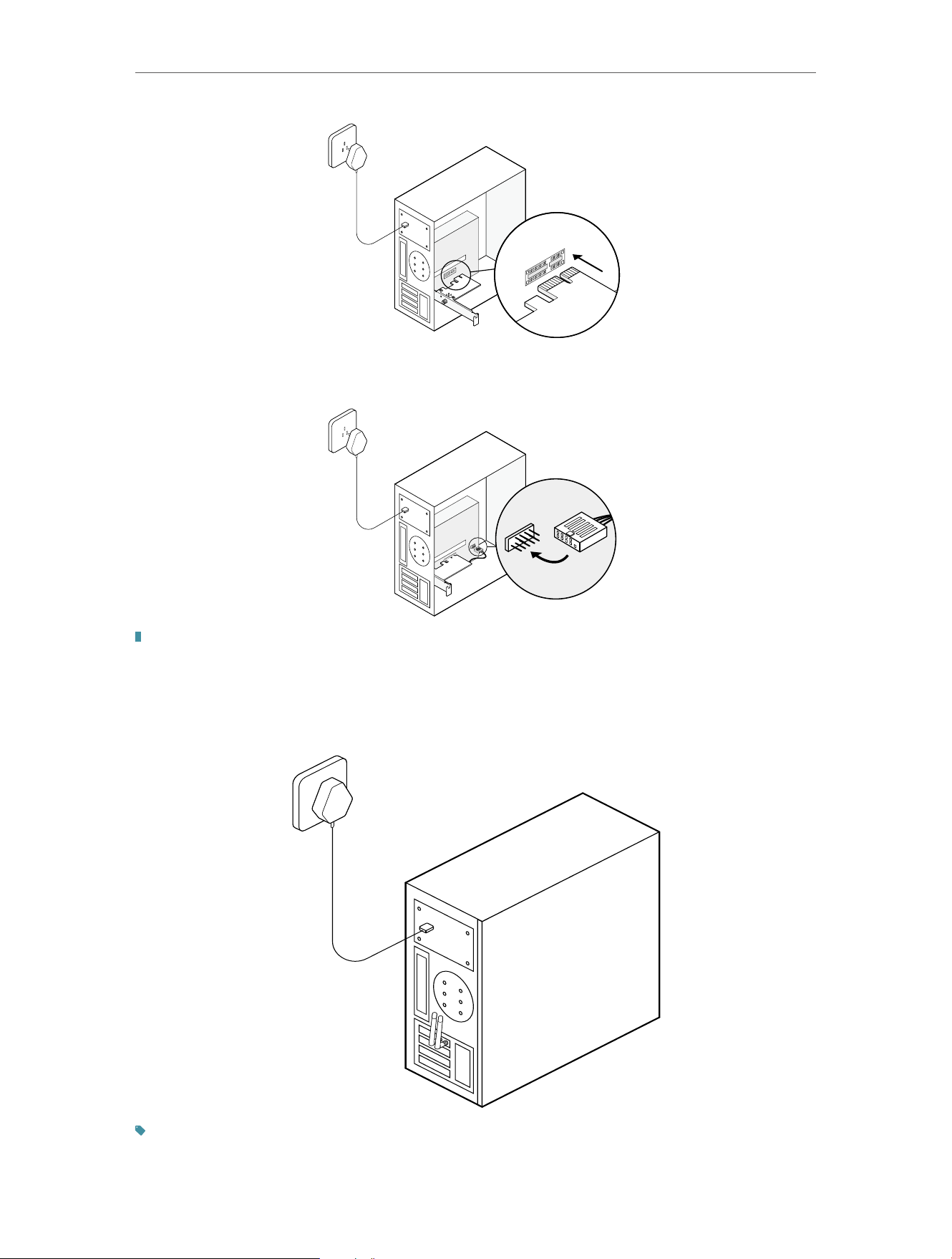
5 Locate an available F_USB connector and carefully plug the Bluetooth USB
cable into it.
USB
USB
Note:
If the Bluetooth USB cable is not correctly connected to the motherboard, Bluetooth function won’t work
even after driver installation.
6 Connect the antenna(s) to the adapter.
Tip:
To maximize performance, avoid physical obstructions in the path between your antennas and router.

07
Chapter 2
Connect to a Computer
7 Replace the case panel, plug in the power cable and turn on your computer.
After connecting your adapter to the computer, follow the instructions in the
next chapter to install Wi-Fi and Bluetooth drivers.

Chapter 3
Use Your Adapter
This chapter introduces how to install or uninstall your adapter’s Wi-Fi and
Bluetooth drivers, connect to a wireless network, and pair with a Bluetooth
device on Windows 10/11 (64 bit) system.
This chapter includes the following sections:
• Install Drivers
• Join a Wireless Network
• Pair with Bluetooth Devices
• Uninstall Drivers
09
Chapter 3
Use Your Adapter
3 1 Install Drivers
1 Insert the CD and run the Autorun exe.
Note: You can also check the new release and download the driver at
https://www.tp-link.com/support/download/
2 Install the Wi-Fi and Bluetooth drivers.
Note: DO NOT install the Bluetooth and Wi-Fi drivers simultaneously. If one driver is being installed,
please wait until it is finished, then try installing the other again.
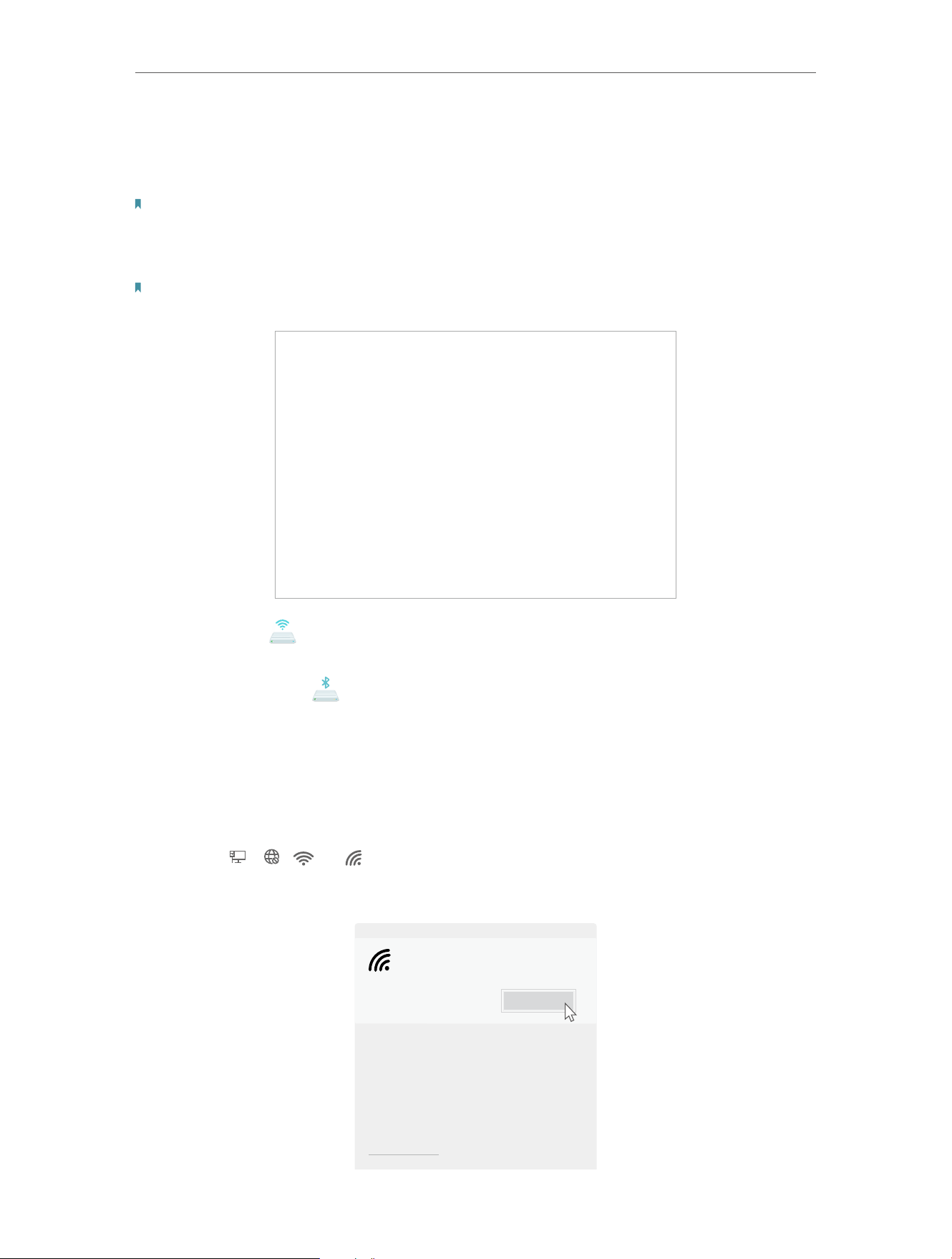
• Wi-Fi: Click and follow the on-screen instructions to complete the Wi-Fi
installation.
• Bluetooth: Click and follow the on-screen instructions to complete the
Bluetooth installation.
3 2 Join a Wireless Network
1 Click the Network icon on the taskbar (the icon might look like one of
these: , , , or ).
2 Select your Wi-Fi network, click Connect, and enter the password when
prompted.
Connect
Secured
TP-Link_XXX X
Network settings

10
Chapter 3
Use Your Adapter
3 3 Pair with Bluetooth Devices
1 Right click the (Bluetooth) icon on the taskbar.
Note: If it’s not displayed, refer to Troubleshooting-T4.
2 Select Add a Bluetooth Device to scan for available devices.
3 Select your Bluetooth device from the list and follow the on-screen
instructions to complete pairing.
Note: Make sure your device’s Bluetooth is enabled and discoverable.
3 4 Uninstall Drivers
• Uninstall Wi-Fi driver
Go to Start > Apps, find the Wi-Fi driver TP-Link Wi-Fi 6 PCIe Adapter Driver. Click
on it and select Uninstall, then follow the on-screen instructions to complete
the uninstallation.
• Uninstall Bluetooth driver
Go to Start > Apps, find the
Bluetooth
driver TP-Link Bluetooth Adapter. Click
on it and select Uninstall, then follow the on-screen instructions to complete
the uninstallation.

11
Appendix: Troubleshooting
T1 What should I do if the adapter is not detected?
• Make sure the adapter is securely located in the appropriate PCI-E slot.
• Try restarting the computer or try the adapter on a different computer.
• Make sure you meet the system requirements for the adapter.
• Make sure you use the latest driver for your specific adapter. The latest drivers can be
found at the product’s Support page at https://www.tp-link.com
T2 How to check if I have installed the drivers successfully or not?
Please follow these steps to check if you installed the driver for your TP-Link adapter
successfully:
• Step 1. Right-click My Computer or This PC on your computer and select Manage. Or
click the Windows Button and type ‘Device Manager’ in the search bar (usually on the
bottom-left corner of the Desktop), and click Device Manager.
• Step 2. Locate Network Adapters or Bluetooth and find the relevant TP-Link adapters.
• Step 3. Right-click the adapter and select Properties. If you see ‘This device is
working properly’ in the Device Status box, then you have already installed the driver
successfully.
T3 What should I do if can’t connect to the Wi-Fi after installing the
driver?
• Refer to T2 to check if you have installed the driver for your adapter successfully .
• Restart your computer and try again.
• Disable the antivirus software and firewall, then try again.
• Try a different PCI-E slot on the computer.
• Reinstall the driver and try again.
T4 What should I do if the Bluetooth icon doesn’t appear?
• Make sure you have turned on the Bluetooth in your Windows settings. To enable
Bluetooth, go to Start > Settings > Devices > Bluetooth & other devices and turn on
Bluetooth.
• Make sure there are no other Bluetooth devices on the computer. If there are, disable
all existing Bluetooth devices in Device Manager, then reinstall the adapter and try
again.
12
Tip: To go to Device Manager: Right-click My Computer or This PC, select Manage, go to Device Manager
and disable all existing Bluetooth devices.
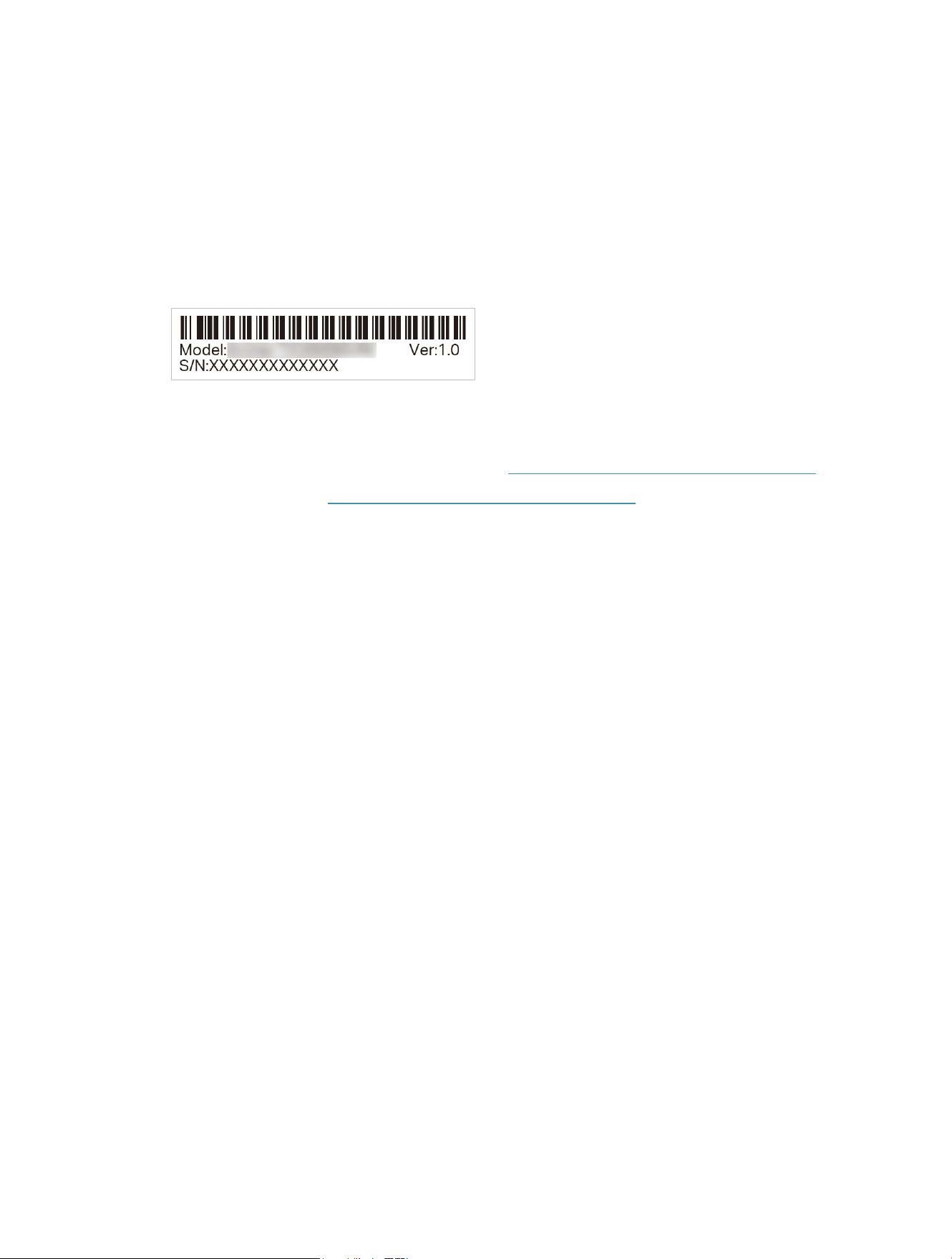
T5 How to find the hardware version of the adapter?
• The hardware version printed on the product label on the package or the adapter.
There is a character string “Ver:X.Y” (for example, Ver:1.0) in the Serial Number field,
and the number X is the hardware version of the adapter.
For more detailed instructions:
• Can’t find or connect to the wireless networks: https://www.tp-link.com/faq-2253.html
• Can’t install the driver: https://www.tp-link.com/faq-2252.html
13
FCC STATEMENT
Product Name: AX3000 Wi-Fi 6 Bluetooth PCIe Adapter
Model Number: Archer TX55E
Component Name Model FCC ID
Module MT7922A22M RAS-MT7922A22M
Responsible party:
TP-Link Systems Inc.
Address: 10 Mauchly, Irvine, CA 92618
Website: http://www.tp-link.com/us/
Tel: +1 626 333 0234
Fax: +1 909 527 6803
E-mail: [email protected]om
This equipment has been tested and found to comply with the limits for a Class
B digital device, pursuant to part 15 of the FCC Rules. These limits are designed
to provide reasonable protection against harmful interference in a residential
installation. This equipment generates, uses and can radiate radio frequency
energy and, if not installed and used in accordance with the instructions, may
cause harmful interference to radio communications. However, there is no
guarantee that interference will not occur in a particular installation. If this
equipment does cause harmful interference to radio or television reception,
which can be determined by turning the equipment off and on, the user is
encouraged to try to correct the interference by one or more of the following
measures:
• Reorient or relocate the receiving antenna.
• Increase the separation between the equipment and receiver.
• Connect the equipment into an outlet on a circuit different from that to which
the receiver is connected.
• Consult the dealer or an experienced radio/ TV technician for help.
This device complies with part 15 of the FCC Rules. Operation is subject to the
following two conditions:
1 ) This device may not cause harmful interference.

14
2 ) This device must accept any interference received, including interference
that may cause undesired operation.
Any changes or modifications not expressly approved by the party responsible
for compliance could void the user’s authority to operate the equipment.
Note: The manufacturer is not responsible for any radio or TV interference
caused by unauthorized modifications to this equipment. Such modifications
could void the user’s authority to operate the equipment.
FCC RF Radiation Exposure Statement:
This equipment complies with FCC RF radiation exposure limits set forth for an
uncontrolled environment. This device and its antenna must not be co-located
or operating in conjunction with any other antenna or transmitter.
“To comply with FCC RF exposure compliance requirements, this grant is
applicable to only Mobile Configurations. The antennas used for this transmitter
must be installed to provide a separation distance of at least 20 cm from all
persons and must not be co-located or operating in conjunction with any other
antenna or transmitter.”
We, TP-Link Systems Inc. , has determined that the equipment shown as above
has been shown to comply with the applicable technical standards, FCC part 15.
There is no unauthorized change is made in the equipment and the equipment is
properly maintained and operated.
Issue Date: 24/11/11

15
FCC compliance information statement
Product Name: Module
Model Number: MT7922A22M
Responsible party: TP-Link Systems Inc.
Address: 10 Mauchly, Irvine, CA 92618
Website: http://www.tp-link.com/us/
Tel: +1 626 333 0234
Fax: +1 909 527 6803
E-mail: [email protected]om
This equipment has been tested and found to comply with the limits for a Class
B digital device, pursuant to part 15 of the FCC Rules. These limits are designed
to provide reasonable protection against harmful interference in a residential
installation. This equipment generates, uses and can radiate radio frequency
energy and, if not installed and used in accordance with the instructions, may
cause harmful interference to radio communications. However, there is no
guarantee that interference will not occur in a particular installation. If this
equipment does cause harmful interference to radio or television reception,
which can be determined by turning the equipment off and on, the user is
encouraged to try to correct the interference by one or more of the following
measures:
• Reorient or relocate the receiving antenna.
• Increase the separation between the equipment and receiver.
• Connect the equipment into an outlet on a circuit different from that to which
the receiver is connected.
• Consult the dealer or an experienced radio/ TV technician for help.
This device complies with part 15 of the FCC Rules. Operation is subject to the
following two conditions:
3 ) This device may not cause harmful interference.
4 ) This device must accept any interference received, including interference
that may cause undesired operation.
Any changes or modifications not expressly approved by the party responsible
for compliance could void the user’s authority to operate the equipment.
Note: The manufacturer is not responsible for any radio or TV interference
caused by unauthorized modifications to this equipment. Such modifications
could void the user’s authority to operate the equipment.

16
FCC RF Radiation Exposure Statement:
This equipment complies with FCC RF radiation exposure limits set forth for an
uncontrolled environment. This device and its antenna must not be co-located
or operating in conjunction with any other antenna or transmitter.
“To comply with FCC RF exposure compliance requirements, this grant is
applicable to only Mobile Configurations. The antennas used for this transmitter
must be installed to provide a separation distance of at least 20 cm from all
persons and must not be co-located or operating in conjunction with any other
antenna or transmitter.”
We, TP-Link Systems Inc. , has determined that the equipment shown as above
has been shown to comply with the applicable technical standards, FCC part 15.
There is no unauthorized change is made in the equipment and the equipment is
properly maintained and operated.
Issue Date: 24/11/11

17
CE Mark Warning
This is a class B product. In a domestic environment, this product may cause
radio interference, in which case the user may be required to take adequate
measures.
OPERATING FREQUENCY(the maximum transmitted power)
2400MHz—2483.5MHz(20dBm)
5150MHz—5250MHz(23dBm)
5250MHz—5350MHz(23dBm)
5470MHz—5725MHz(23dBm)
5725MHz-5850MHz(14dBm)
EU declaration of conformity
TP-Link hereby declares that the device is in compliance with the essential
requirements and other relevant provisions of directives 2014/53/EU, 2011/65/
EU and (EU)2015/863.
The original EU declaration of conformity may be found at
https://www.tp-link.com/en/ce
RF Exposure Information
This device meets the EU requirements (2014/53/EU Article 3.1a) on the
limitation of exposure of the general public to electromagnetic fields by way of
health protection.
The device complies with RF specifications when the device used at 20 cm from
your body.
Frequency band: 5150 - 5250 MHz:
Indoor use: Inside buildings only. Installations and use inside road vehicles
and train carriages are not permitted. Limited outdoor use: If used outdoors,
equipment shall not be attached to a fixed installation or to the external body
of road vehicles, a fixed infrastructure or a fixed outdoor antenna. Use by
unmanned aircraft systems (UAS) is limited to within the 5170 - 5250 MHz
band.
Frequency band: 5250 - 5350 MHz:
Indoor use: Inside buildings only. Installations and use in road vehicles, trains
and aircraft are not permitted. Outdoor use is not permitted.
18
Frequency band: 5470 - 5725 MHz:
Installations and use in road vehicles, trains and aircraft and use for unmanned
aircraft systems (UAS) are not permitted.
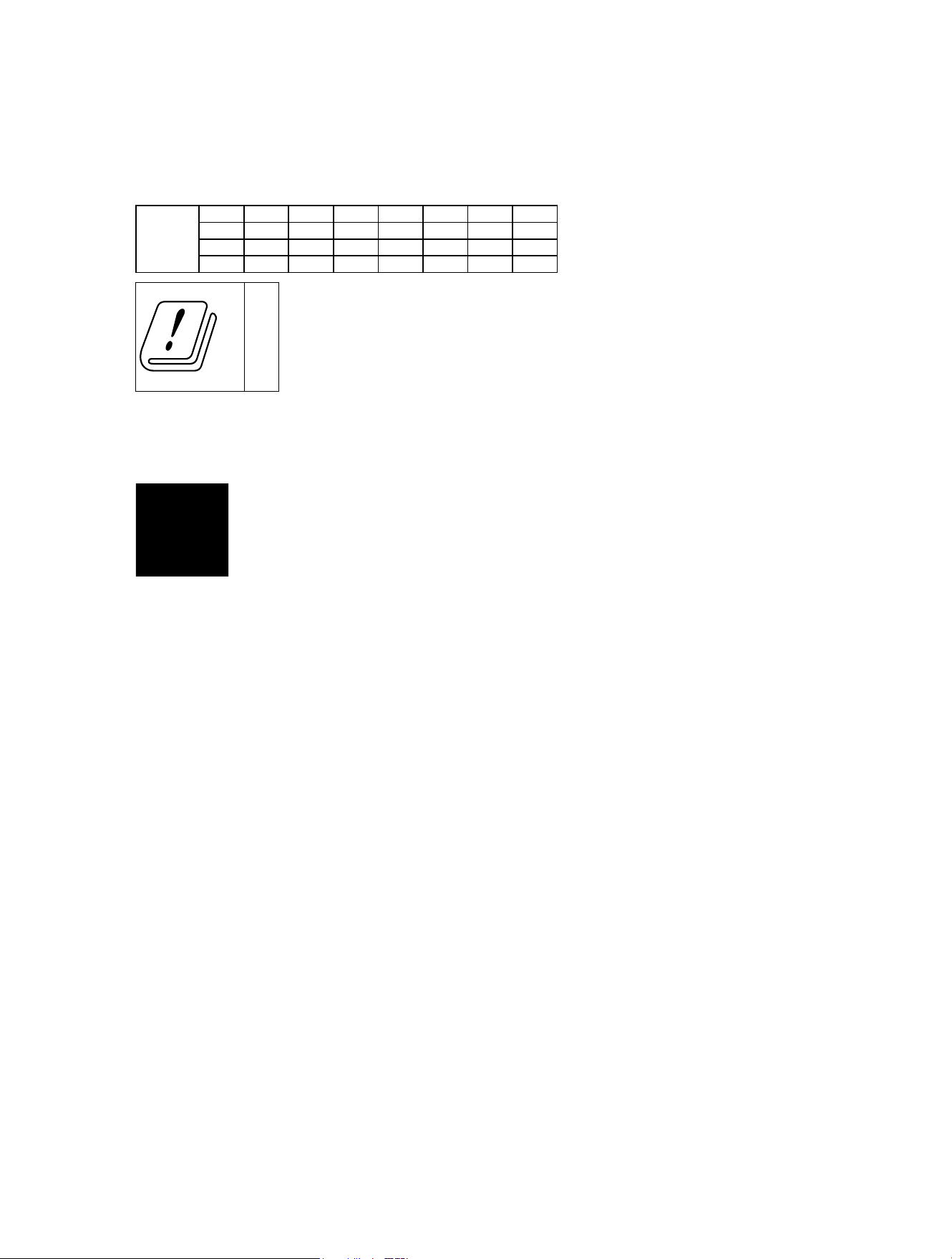
AT BE BG CH CY CZ DE DK
EE EL ES FI FR HR HU IE
IS IT LI LT LU LV MT NL
NO PL PT RO SE SI SK UK(NI)
UK
Attention: This device may only be used indoors in Great Britain.
UK Declaration of Conformity
TP-Link hereby declares that the device is in compliance with the essential
requirements and other relevant provisions of the Radio Equipment
Regulations 2017.
The original UK declaration of conformity may be found at https://www.tp-link.
com/support/ukca/
Canadian Compliance Statement
This device contains licence-exempt transmitter(s)/receiver(s) that comply with
Innovation, Science and Economic Development Canada’s licence-exempt
RSS(s). Operation is subject to the following two conditions:
(1) This device may not cause interference.
(2) This device must accept any interference, including interference that may
cause undesired operation of the device.
L’émetteur/récepteur exempt de licence contenu dans le présent appareil est
conforme aux CNR d’Innovation, Sciences et Développement économique
Canada applicables aux appareils radio exempts de licence. L’exploitation est
autorisée aux deux conditions suivantes :
1) L’appareil ne doit pas produire de brouillage;
2) L’appareil doit accepter tout brouillage radioélectrique subi, même si le
brouillage est susceptible d’en compromettre le fonctionnement.
19
This radio transmitter (IC: 7542A-MT7922A22M/ Model: Archer TX55E) has been
approved by Industry Canada to operate with the antenna types listed below
with the maximum permissible gain indicated. Antenna types not included in this
list below, having a gain greater than the maximum gain indicated for that type,
are strictly prohibited for use with this device.
Le présent émetteur radio (IC: 7542A-MT7922A22M/ Model: Archer TX55E) a
été approuvé par Industrie Canada pour fonctionner avec les types d’antenne
énumérés ci-dessous et ayant un gain admissible maximal. Les types d’antenne
non inclus dans cette liste ci-dessous et dont le gain est supérieur au gain
maximal indiqué, sont strictement interdits pour l’exploitation de l’émetteur.
Antenna Two High-Gain Dual Band Antennas
Caution:
1 ) The device for operation in the band 5150–5250 MHz is only for indoor
use to reduce the potential for harmful interference to co-channel mobile
satellite systems;
2 ) For devices with detachable antenna(s), the maximum antenna gain permitted
for devices in the bands 5250-5350 MHz and 5470-5725 MHz shall be such
that the equipment still complies with the e.i.r.p. limit;
3 ) For devices with detachable antenna(s), the maximum antenna gain permitted
for devices in the band 5725-5850 MHz shall be such that the equipment still
complies with the e.i.r.p. limits specified for point-to-point and non-point-to-
point operation as appropriate; and
DFS (Dynamic Frequency Selection) products that operate in the bands 5250-
5350 MHz, 5470-5600MHz, and 5650-5725MHz.
Avertissement:
1 ) Le dispositif fonctionnant dans la bande 5150-5250 MHz est réservé
uniquement pour une utilisation à l’intérieur afin de réduire les risques de
brouillage préjudiciable aux systèmes de satellites mobiles utilisant les
mêmes canaux;
2 ) Le gain maximal d’antenne permis pour les dispositifs avec antenne(s)
amovible(s) utilisant les bandes 5250-5350 MHz et 5470-5725 MHz doit se
conformer à la limitation P.I.R.E.;
3 ) Le gain maximal d’antenne permis pour les dispositifs avec antenne(s)
amovible(s) utilisant la bande 5725-5850 MHz doit se conformer à la limitation
20
P.I.R.E spécifiée pour l’exploitation point à point et non point à point, selon
le cas.
Les produits utilisant la technique d’atténuation DFS (sélection dynamique des
fréquences) sur les bandes 5250- 5350 MHz, 5470-5600MHz et 5650-5725MHz.
Radiation Exposure Statement:
This equipment complies with IC radiation exposure limits set forth for an
uncontrolled environment. This equipment should be installed and operated
with minimum distance 20cm between the radiator & your body.
Déclaration d’exposition aux radiations:
Cet équipement est conforme aux limites d’exposition aux rayonnements IC
établies pour un environnement non contrôlé. Cet équipement doit être installé
et utilisé avec un minimum de 20 cm de distance entre la source de rayonnement
et votre corps.
Industry Canada Statement
CAN ICES-3 (B)/NMB-3(B)
Korea Warning Statements
당해 무선설비는 운용중 전파혼신 가능성이 있음.
Продукт сертифіковано згідно с правилами системи УкрСЕПРО
на відповідність вимогам нормативних документів та вимогам, що
передбачені чинними законодавчими актами України.
Operating Temperature: 0°C~40°C (32°F ~104°F)
Safety Information
• Keep the device away from water, fire, humidity or hot environments.
21
• Do not attempt to disassemble, repair, or modify the device. If you need service,
please contact us.
• Do not use the device where wireless devices are not allowed.
• This equipment can be powered only by equipments that comply with Power
Source Class 2 (PS2) or Limited Power Source (LPS) defined in the standard of
IEC 62368-1.
Please read and follow the above safety information when operating the device.
We cannot guarantee that no accidents or damage will occur due to improper use
of the device. Please use this product with care and operate at your own risk.
This product uses radios and other components that emit electromagnetic fields.
Electromagnetic fields and magnets may interfere with pacemakers and other
implanted medical devices. Always keep the product and its power adapter more
than 15 cm (6 inches) away from any pacemakers or other implanted medical
devices. If you suspect your product is interfering with your pacemaker or any
other implanted medical device, turn off your product and consult your physician
for information specific to your medical device.
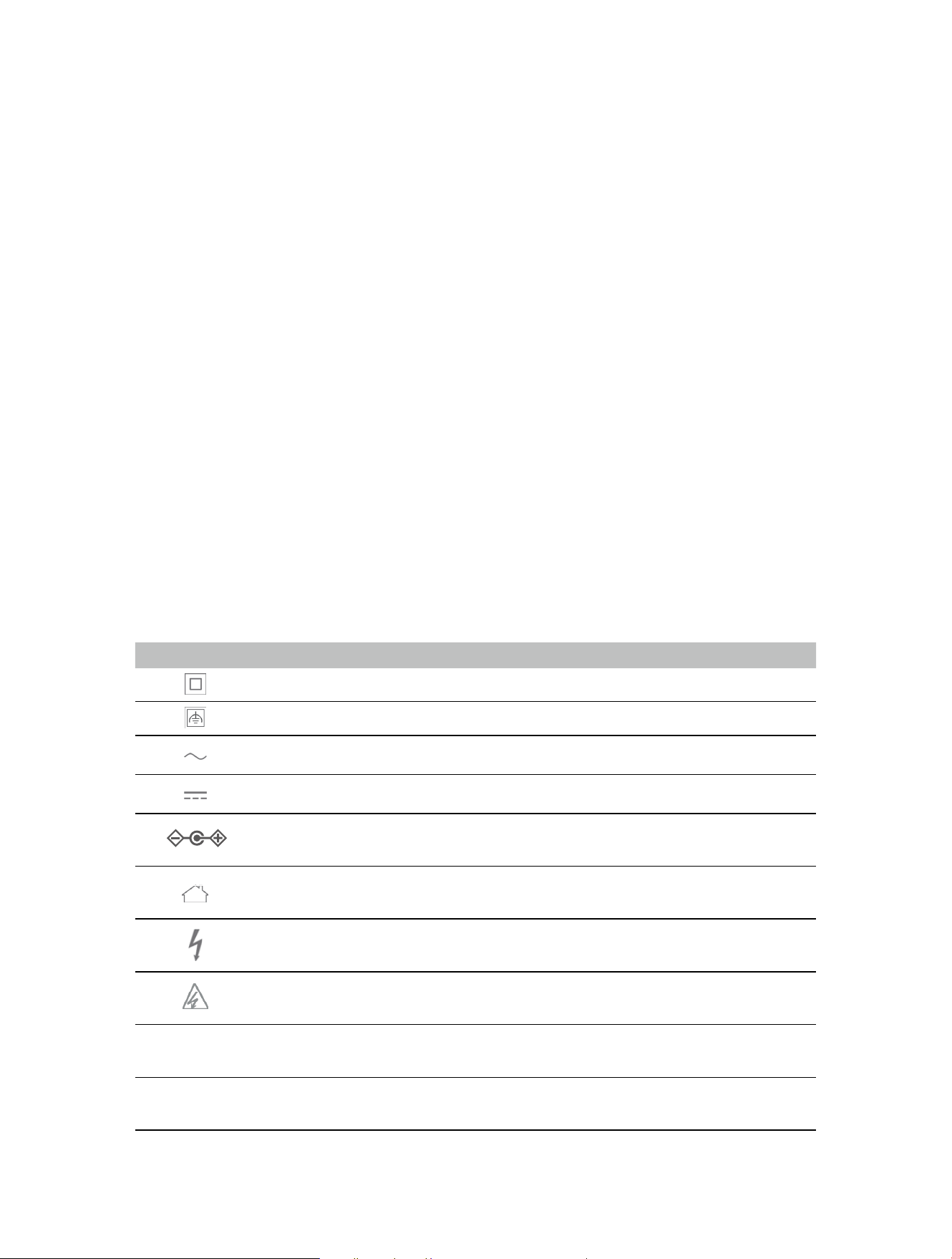
Explanation of the symbols on the product label
Symbols may vary from products.
Symbol Explanation
Class II equipment
Class II equipment with functional earthing
Alternating current
Direct current
Polarity of d.c. power connector
For indoor use only
Dangerous voltage
Caution, risk of electric shock
Energy efficiency Marking
Protective earth
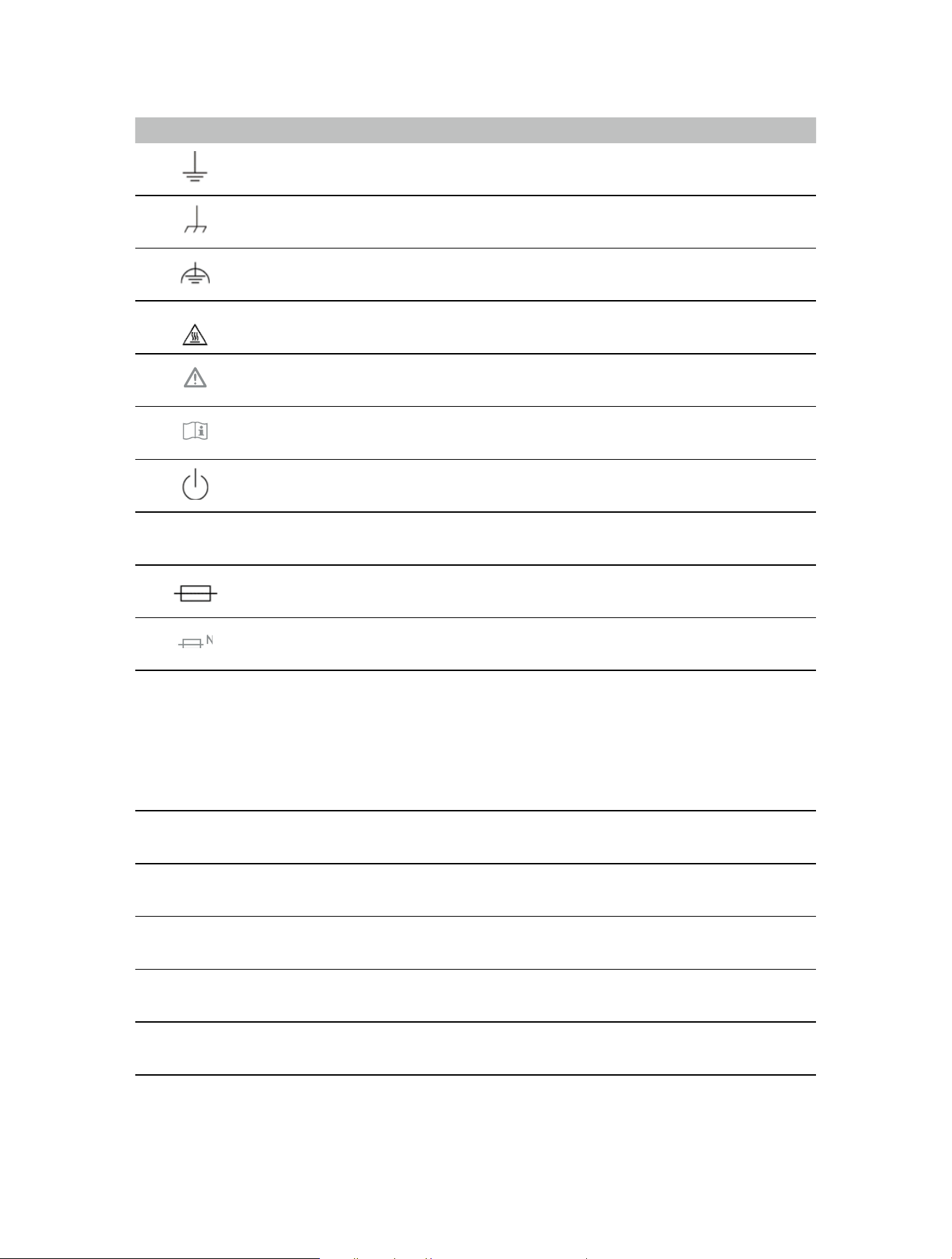
22
Symbol Explanation
Earth
Frame or chassis
Functional earthing
Caution, hot surface
Caution
Operator’s manual
Stand-by
“ON”/”OFF” (push-push)
Fuse
Fuse is used in neutral N
RECYCLING
This product bears the selective sorting symbol for Waste electrical and electronic
equipment (WEEE). This means that this product must be handled pursuant to European
directive 2012/19/EU in order to be recycled or dismantled to minimize its impact on
the environment.
User has the choice to give his product to a competent recycling organization or to the
retailer when he buys a new electrical or electronic equipment.
Caution, avoid listening at high volume levels for long periods
Disconnection, all power plugs
m
Switch of mini-gap construction
µ
Switch of micro-gap construction (for US version)
Switch of micro-gap / micro-disconnection construction (for other versions except US)
ε
Switch without contact gap (Semiconductor switching device)