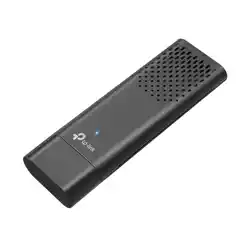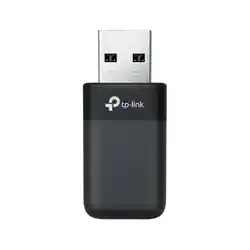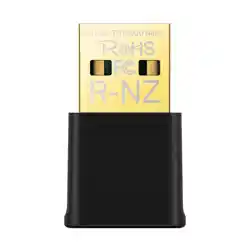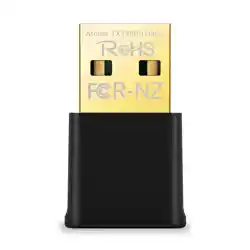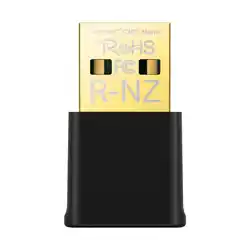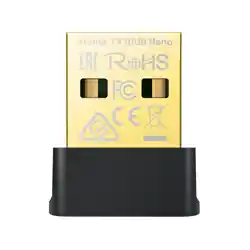
TP-Link Wi-Fi Bluetooth
USB Adapter
Images are for demonstration only.
7106511051 REV1.0.0
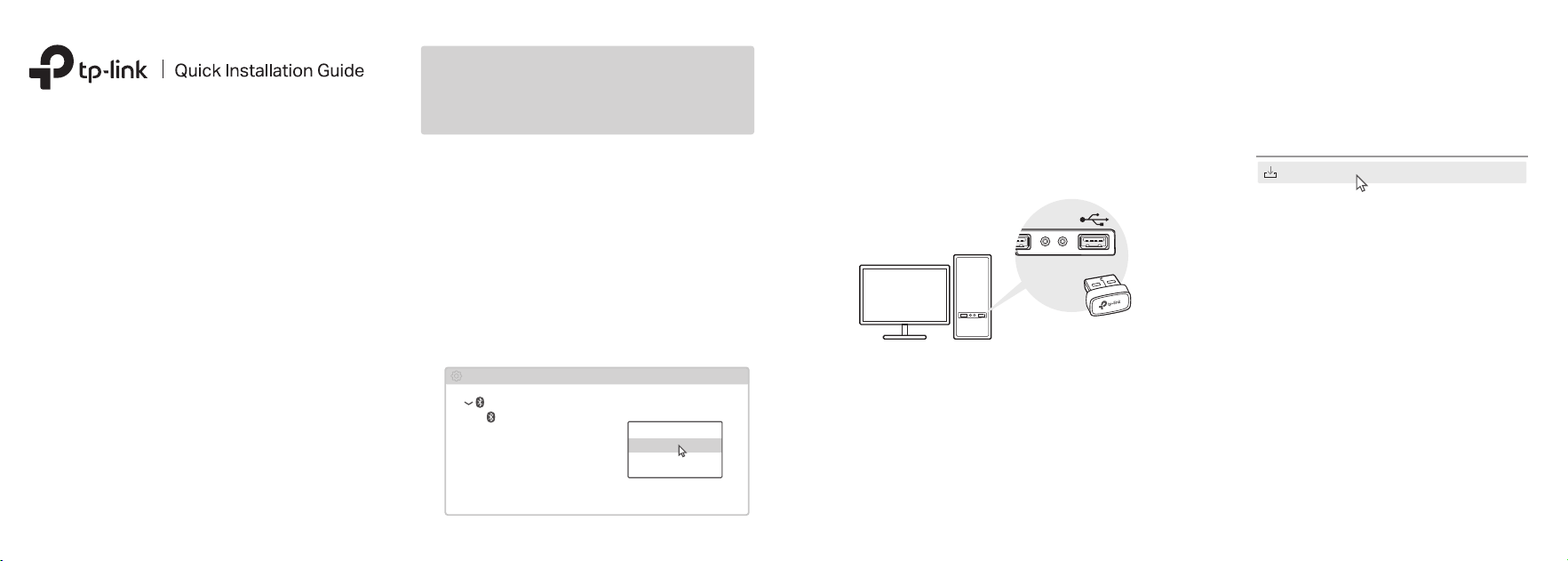
1 Disable Bluetooth
Insert the adapter into a USB port on your
computer directly.
a. Right-click My Computer, select Manage,
go to Device Manager.
b. Expand the Bluetooth node to nd your
existing Bluetooth device.
c. Right-click the existing Bluetooth device
and select Disable.
Note:
Make sure you have disabled all existing Bluetooth
devices (both built-in and third party).
2 Connect to a Computer
3 Install the Drivers
Bluetooth
Device Manager
Disable
Existing Bluetooth Adapter
Before You Start:
If you plan on using Bluetooth and already
have connected Bluetooth devices, proceed
with Step 1. Otherwise, skip to Step 2.
a. Go to My Computer or This PC.
c. Follow the on-screen instructions to
complete the Wi-Fi and Bluetooth drivers
installation. Once nished, restart your
computer.
Note:
• Your Wi-Fi Bluetooth USB adapter will be listed in the
Device Manager when the driver is installed correctly.
• If the driver installation fails, disable the antivirus
software and firewall, then try again.
Note:
• If you cannot nd the setup program, please download
the driver at www.tp-link.com/support.
• If an unknown publisher message pops up, select Ye s
to continue.
• If Windows User Account Control requires admin
credentials, type user name and password of your
Windows administrator account.
SetupInstall.exe
b. Double-click the TP-Link CD-ROM
then run SetupInstall.exe to install the
drivers.
Frequently Asked Questions(FAQ)
Q1. What should I do if I cannot nd or connect to my
wireless network?
A1. Refer to https://www.tp-link.com/faq-2253.html.
Q2. What should I do if the Bluetooth icon doesn’t
appear?
A1. Make sure you have turned on the Bluetooth in
Windows settings.
A2. If there are other Bluetooth devices on the
computer, disable them in Device Manager, then
insert the adapter and try again.
Q3. Why the adapter is not working with my
Bluetooth device?
A1. Make sure your device has Bluetooth function.
A2. Make sure you have installed the latest Bluetooth
driver on the computer. You can check the
published driver versions from
https://www.tp-link.com/download-center.
A3. For devices with non-standard Bluetooth
protocols, such as Logitech Mouse, there may be
some compatibility problems.
©2024 TP-Link
For technical support, the user guide
and other information, please visit
https://www.tp-link.com/support, or
simply scan the QR code.
Support
· Do not attempt to disassemble, repair, or modify the device. If you
need service, please contact us.
· Do not use the device where wireless devices are not allowed.
· Keep the device away from water, re, humidity or hot
environments.
· This product can be powered only by power supplies that comply
with Power Source Class 2 (PS2) or Limited Power Source(LPS)
of IEC 62368-1.
c. Select your Bluetooth device from the list
and follow the on-screen instructions to
complete pairing.
Note:
Make sure your device’s Bluetooth is enabled and
discoverable.
b. Select Add a Bluetooth Device or Add a
Device to scan for available devices.
a. Right-click the (Bluetooth) icon on the
taskbar.
Note:
If the Bluetooth icon is not displayed, refer to FAQ > Q2.
3 Pair with Bluetooth Devices
Add a device
Mouse
Pair
Headset
b. Select your Wi-Fi network, click Connect,
and enter the password when prompted.
4 Join a Wireless Network
Note:
If you cannot nd or connect to the wireless network,
refer to FAQ > Q1.
Network 6
Connected
Network settings
Connect automatically
Connect
√
TP-Link_XXXX
TP-Link hereby declares that the device is in compliance with the
essential requirements and other relevant provisions of directives
2014/53/EU, 2011 /65/EU and (EU) 2015/863.
The original EU Declaration of Conformity may be found at
https://www.tp-link.com/en/support/ce
TP-Link hereby declares that the device is in compliance with the
essential requirements and other relevant provisions of the Radio
Equipment Regulations 2017.
The original UK Declaration of Conformity may be found at
https://www.tp-link.com/support/ukca
a. Click the network icon on the taskbar (the
icon might look like one of these: , , ,
or ).