Avantree Boombyte
USER MANUAL
Model No.: BTSP-870
Contact Us
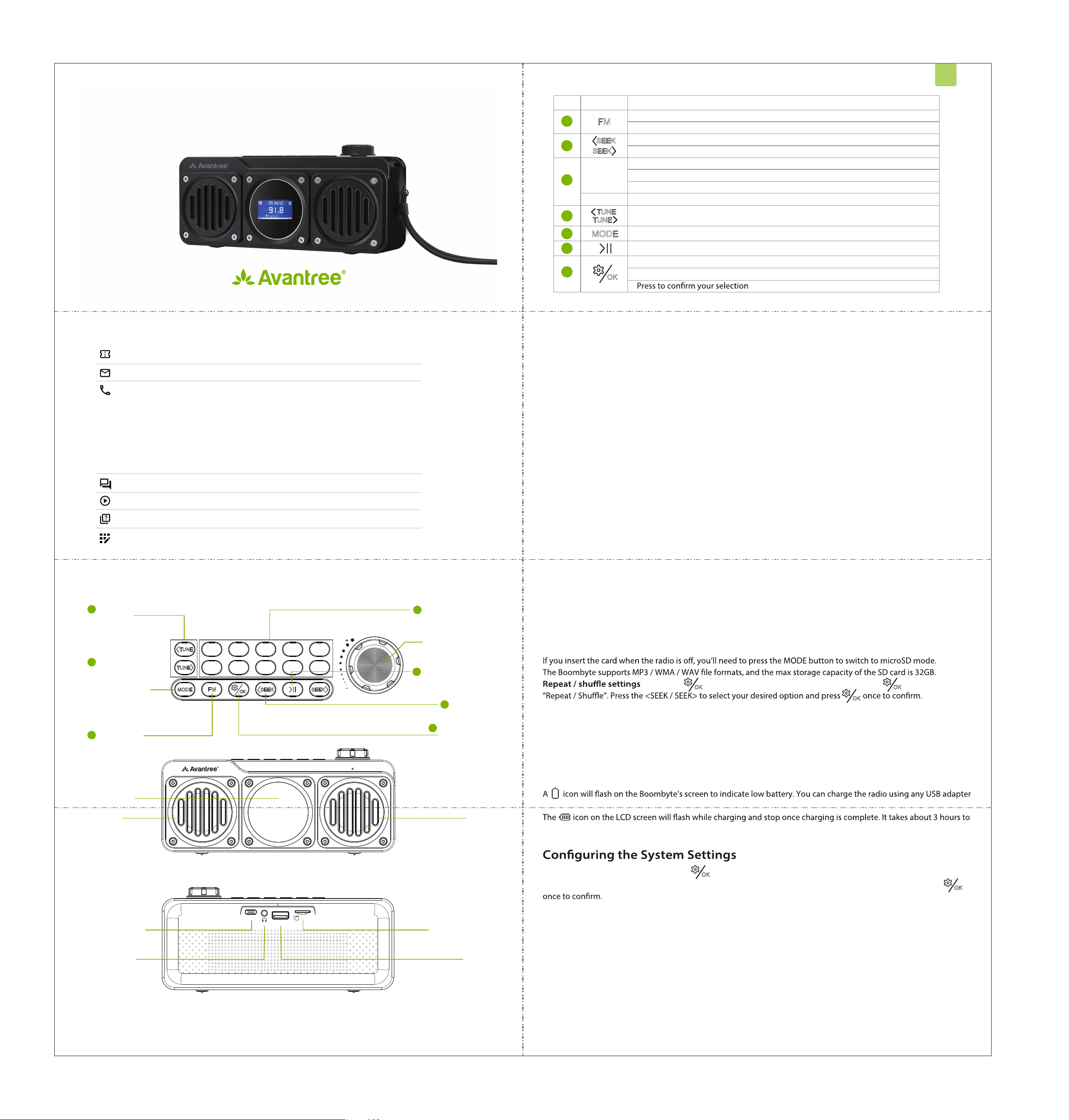
Button Functions
Use as an FM Radio
Support Tickets avantree.com/submit-a-ticket
Support Email support@avantree.com
FAQ avantree.com/support/boombyte
USA / CA +1800 232 2078 (9am-6pm PST, Mon-Fri )
UK +44 20 8068 2023 (9am-6pm, GMT, Mon-Sat)
DE +49 32221097297 (11am-9pm, CET, Mon-Sat )
FR + 33 176340312 (11am-9pm, CET, Mon-Sat )
IT +39 06 9480 3330 (9am-6pm, CET, Mon-Sat )
ES + 34 931786261 (9am-6pm, CET, Mon-Sat )
AU + 61 2 8310 9897 (11am-7pm, AEST, Mon-Fri)
Product Registration avantree.com/product-registration
Video Guide avantree.com/boombyte/video
Live Chat avantree.com (18/h weekday)
Product Overview
DC IN
USB
SD Card
VOL
VOL
OFF
ON
TUNE
1 2 3 54
6 7 8 09
SEEK SEEK
TUNE
MODE FM
OK
TUNE
TUNE
OK
SEEK
SEEK
1
2
FM button
Speaker Speaker
LCD screen
Charging port
Disk port
MicroSD card slot
Headphones
output port
5
Bluetooth
speaker /
microSD card /
U disk player
switch button
4
Manual tuning
buttons
Seek button
7
Menu / system
settings button
6
Play / pause button
ON / OFF / Volume
knob
3
FM channel input /
save / play button
EN
1
2
3
4
5
6
7
Press to enter FM mode
Press and hold to start auto searching for all available FM channels
Step1: Turn on the Boombyte
Rotate the volume control clockwise to ON; the LCD screen will light up.
For 1st time use, it will start auto-scanning for channels. If not, press and hold the FM button to start auto-scanning.
Please wait until the auto-scanning complete.
Step 2: Tune into channels
Press the <SEEK / SEEK> buttons to choose your desired channel.
Or you can directly input the channel frequency using the number pad, e.g., for FM102.5, press the number sequence
1-0-2-5.
Or press and hold the <SEEK / SEEK> button, it will scan up / down for the next clear channel.
Step 3: Save and play your favorite channels
Save channels to the number pad for quick access - Find local FM channels as described above, then save any
channel for quick access by pressing and holding the number pad until the screen displays “Channel Saved”. You can
save up to 9 channels.
Play the saved channels - Click the corresponding number pad button once.
Use as a Bluetooth Speaker
Pair and connect - Turn the speaker on, press the MODE button once to enter Bluetooth speaker mode, and then
activate Bluetooth on your device (i.e., phone, tablet, laptop etc.) and search for “Avantree Boombyte” to pair and
connect.
To reconnect - Each time you turn it on and enter Bluetooth mode, the speaker should automatically reconnect to the
last connected device. If not, select “Avantree Boombyte” on your device.
Use as a U Disk Player
Follow the instructions for the MicroSD card player above, swapping "microSD card" with "U Disk". Make sure to press
the "MODE" button to switch to U disk mode.
Charging
FAQ
Below are some of the most common questions people have during setup.
Why is my FM reception so bad?
Why is my microSD card not working?
For answers to questions like these and for a full FAQ list, you can visit avantree.com/support/boombyte, or you can
contact us directly for additional assistance.
Use as a MicroSD Card Player
Press and hold to lock / unlock the buttons
Press once to adjust channel up / down by 0.1 MHz(FM mode)
Press to switch between Bluetooth speaker / micro SD card / U disk player modes
Press once to mute / unmute (FM mode) or play / pause (other modes)
Press to enter menu settings
Press and hold to enter system settings
Press for previous / next channel / track
Press and hold to search up / down for the next clear FM channel
Directly input the FM channel, e.g., for 102.5, press the number sequence 1-0-2-5
Press and hold to save FM channel to desired number button
Press to play saved FM channel
FM
MODE
1 - 9
0
No. Button Functions
When you insert a microSD card (not included) while the radio is on, it will automatically switch to microSD mode.
- Press the button to enter the settings menu and press the again to enter
OK OK
OK
Turn on the device and press & hold the button to enter the system settings.
Press the <SEEK / SEEK> to select the desired option (Backlight, language, contrast, factory reset…) and press
OK
OK
with a 5V/0.5-1A output (i.e., your phone charger or similar) via the included USB C charging cable.
fully charge the radio.