
February 2024
QSG1_A_EN
Quick Start Guide
58.03.001.0353
Apply to: RLK8-500V4,RLK8-800V4,
RLK8-1200V4
1 2
What's in the Box ··················································· 2
Introduce the NVR ·················································3
Camera Introduction ···············································4
Connection Diagram ···············································6
Set up the NVR System ·············································8
Mount Tips for the Camera ·········································9
Troubleshooting ···················································· 12
Specication ·······················································13
Notication of Compliance ·········································14
EN
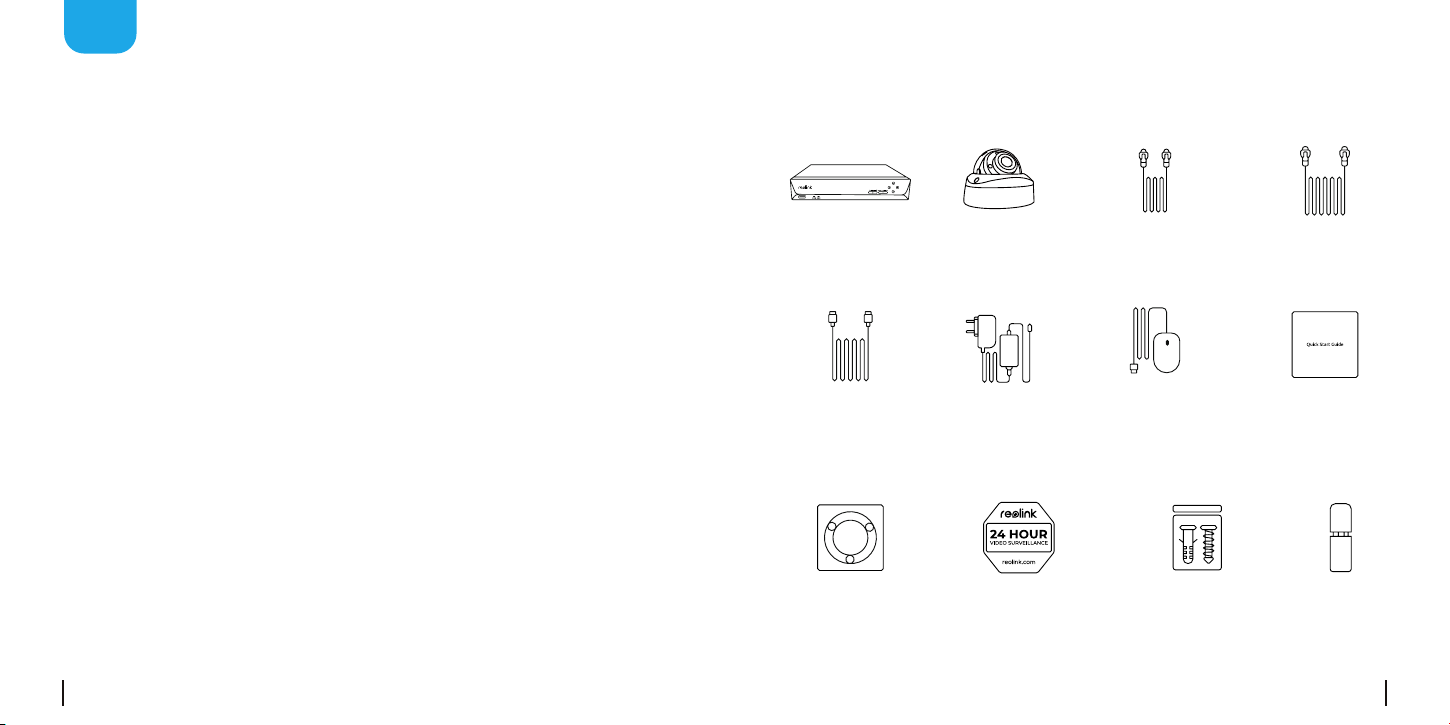
Contents What's in the Box
Camera
NVR
Power Adapter
NVR
HDMI Cable
Pack of
Screws
Waterproof
Lid
USB Mouse
1m Network
Cable
Quick Start
Guide
18m Network
Cable
Mounting
Hole Template
Surveillance
Sticker
English
English
3 4
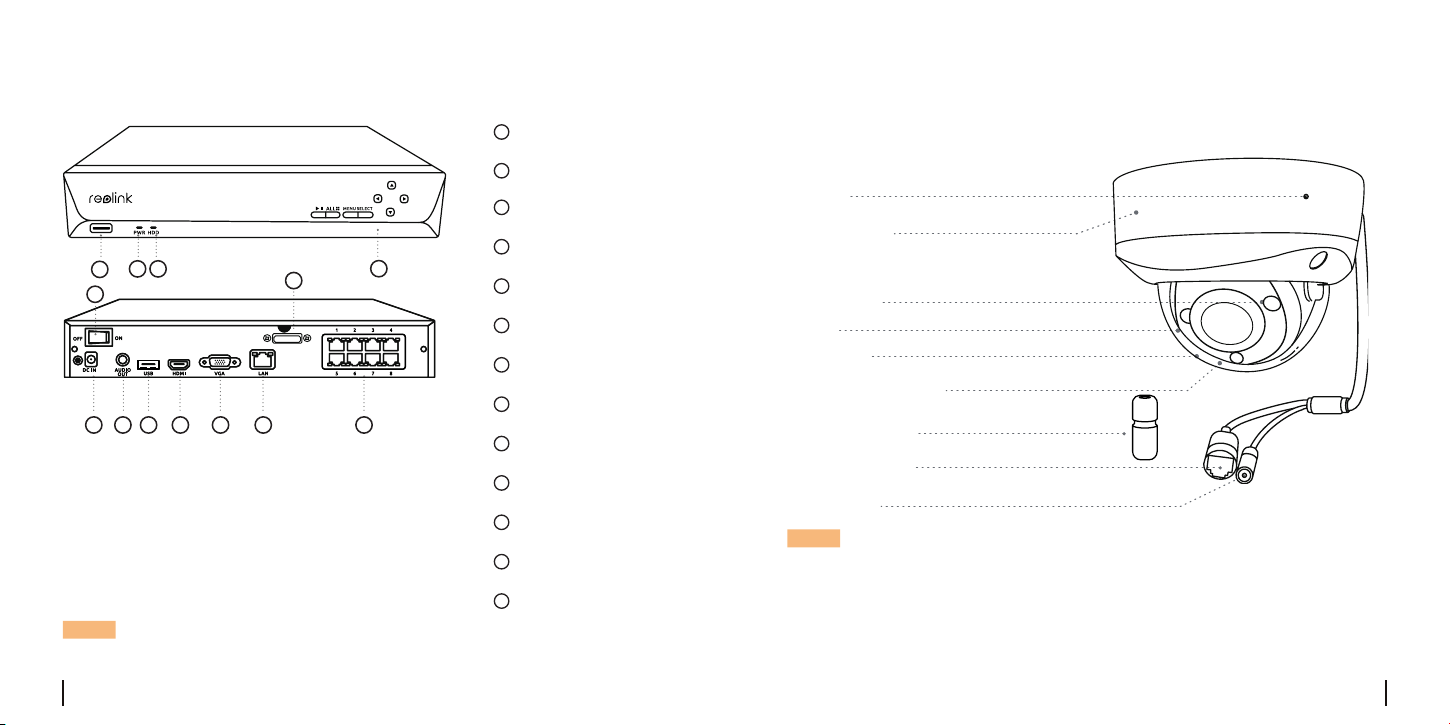
Introduce the NVR
Dierent states of the status LEDs :
1
USB Port
eSATA
Mount
1
2
Power LED
Built-in Mic
3
HDD LED
spotlight
4
Control Panel
Lens
5
Power Switch
IR LEDs
6
Power Input
Daylight Sensor
7
Audio Out
Waterproof Lid
8
USB Port
Network Cable
9
HDMI Port
Power Port
10
VGA Port
11
LAN Port
12
PoE Interface
Power LED: Solid green to indicate the NVR is
powered on.
HDD LED: Flashing red to indicate the hard
drive is operating properly.
NOTE: Quantity of devices and accessories vary by dierent models that
you purchase.
NOTE:
• Dierent types of cameras are introduced in this section. Please check
out the camera included in the package and check out the details from
the correpsonding introduction above.
• The actual appearance and components may vary with dierent model
of product.
13
7 8 9 10 11 12 13
6
2
3
4
5
Camera Introduction
PoE Camera
eSATA
English
English
EnglishEnglish5 6
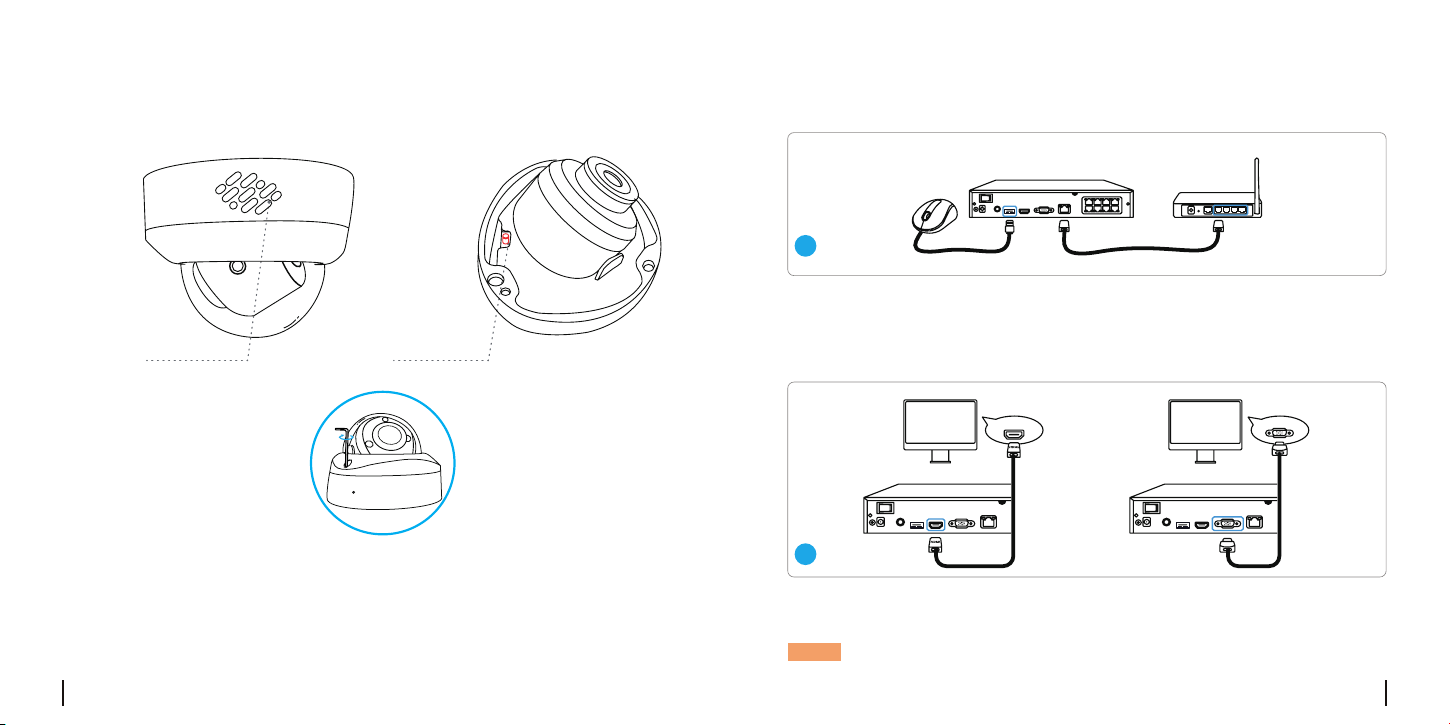
Connection Diagram
1
2
Connect the NVR (LAN port) to your router with an Ethernet cable. Next,
connect the mouse to the USB port of the NVR.
Connect the NVR to the monitor with a VGA or HDMI cable.
NOTE: There is no VGA cable and monitor included in the package.
VGAHDMI
Speaker Reset Button
Reset Button
* Press and hold the reset button for 5s with a pin to restore factory
settings.
7 8
NOTE: Some Reolink WiFi cameras also work with Reolink PoE NVR. For
NOTE: The password should be at least 6 characters. It is recommended
that you note down the password and keep it in a secure place.
more information, visit the official website and search Make Reo-link WiFi
Cameras Work with Reolink PoE-NVRs.
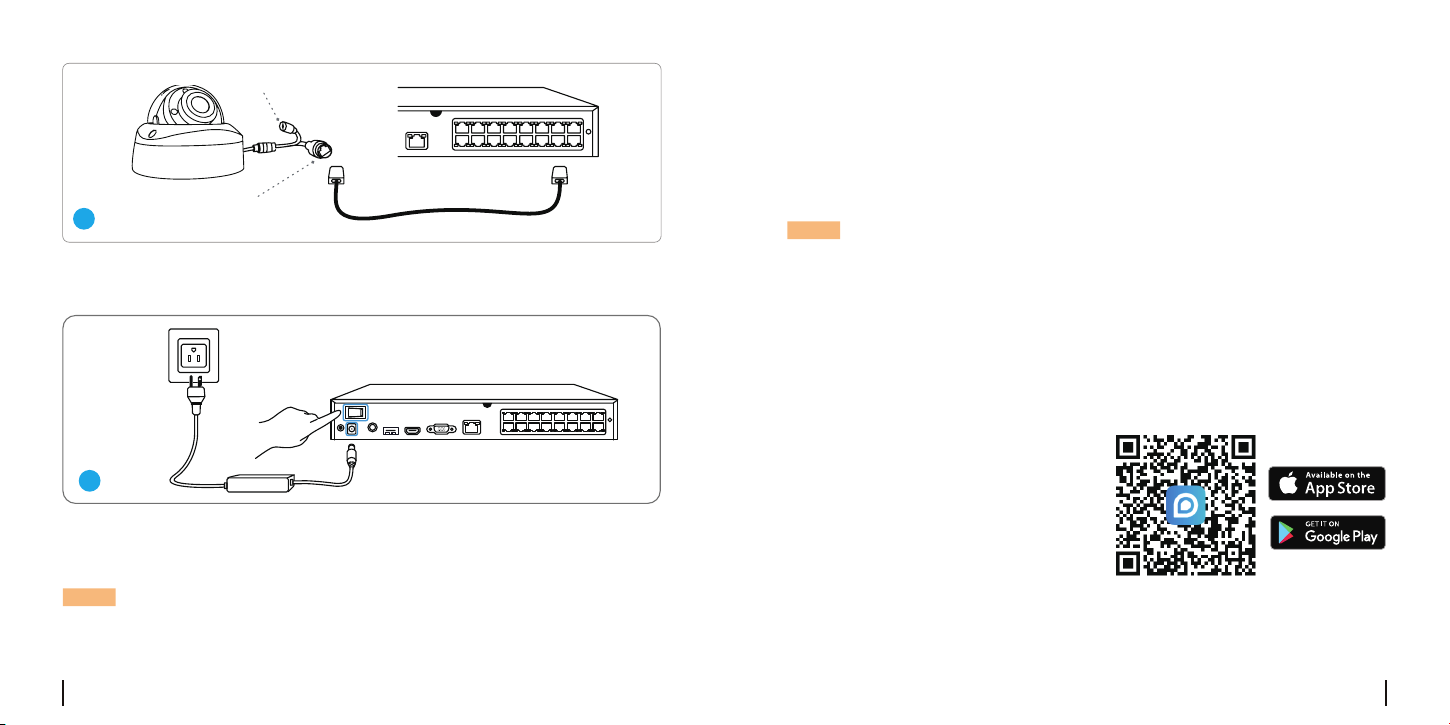
Connect the NVR to a power outlet and turn on power switch.
A setup wizard will guide you through the NVR system conguration
process. Please set a password for your NVR (for the initial access) and
follow the wizard to congure the system.
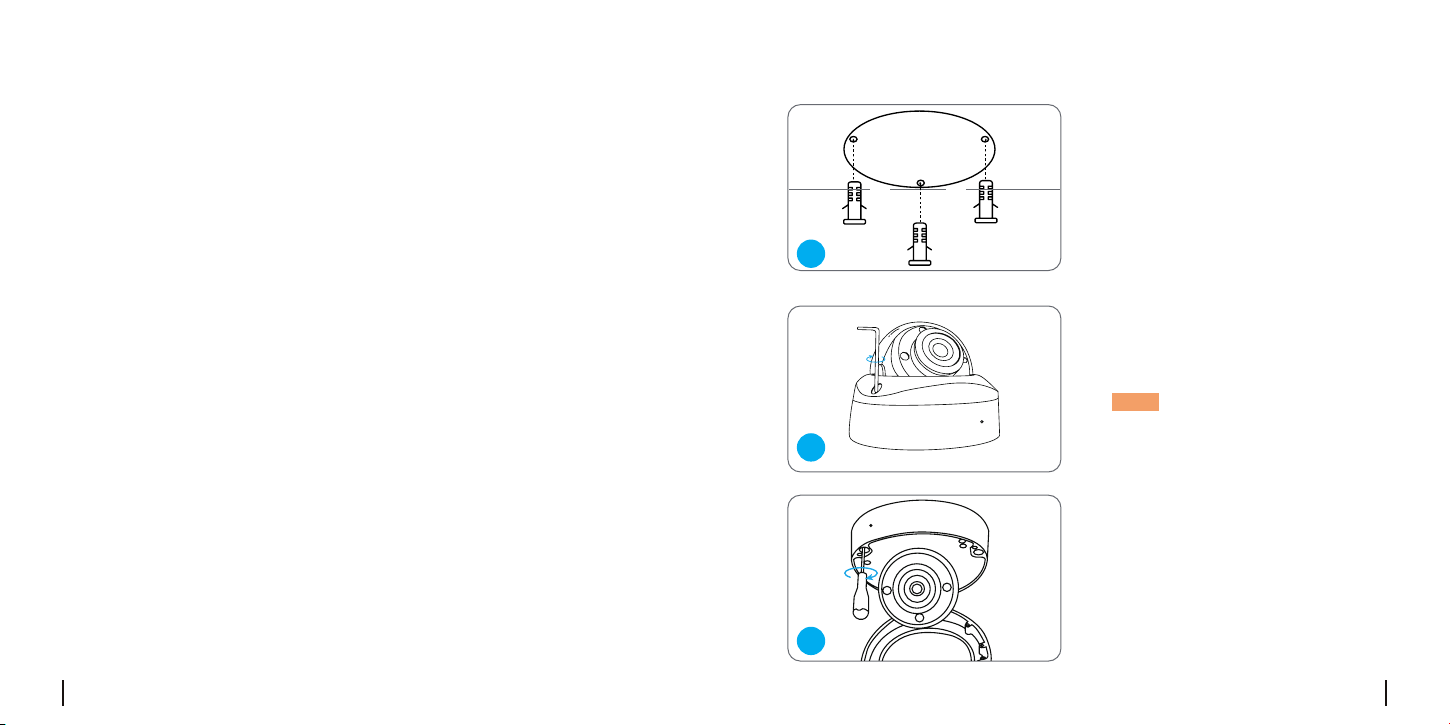
Download and launch the Reolink App or Client software and follow the
instructions to access the NVR.
Scan to download the Reolink App.
Connect cameras to PoE ports on the NVR via Ethernet cable.
Network (LAN)
DC Power
VGAHDMI
4
3
Access the System via Smartphone or PC
• On Smartphone
• On PC
Download path: Go to reolink official website Support > App & Client.
Set up the NVR System
English English
9 10
Mount the Camera
• Do not face the camera towards any light sources.
• Do not remove the protective lm from the dome cover until the instal-
lation is complete.
• Do not point the camera towards a glass window. Or, it may result in
poor image quality because of the window glare by infrared LEDs,ambi-
ent lights or status lights.
• Do not place the camera in a shaded area and point it towards a well-
lit area. Or, it may result in poor image quality. To ensure the best image
quality, the lighting condition for both the camera and the capture object
shall be the same.
• To ensure better image quality, it’s recommended to clean the dome
cover with a soft cloth from time to time.
• Make sure the power ports are not directly exposed to water or mois-
ture and not blocked by dirt or other elements.
• With IP waterproof ratings, the camera can work properly under condi-
tions like rain and snow. However, it doesn’t mean the camera can work
underwater.
• Do not install the camera at places where rain and snow can hit the lens
directly.
Installation Tips
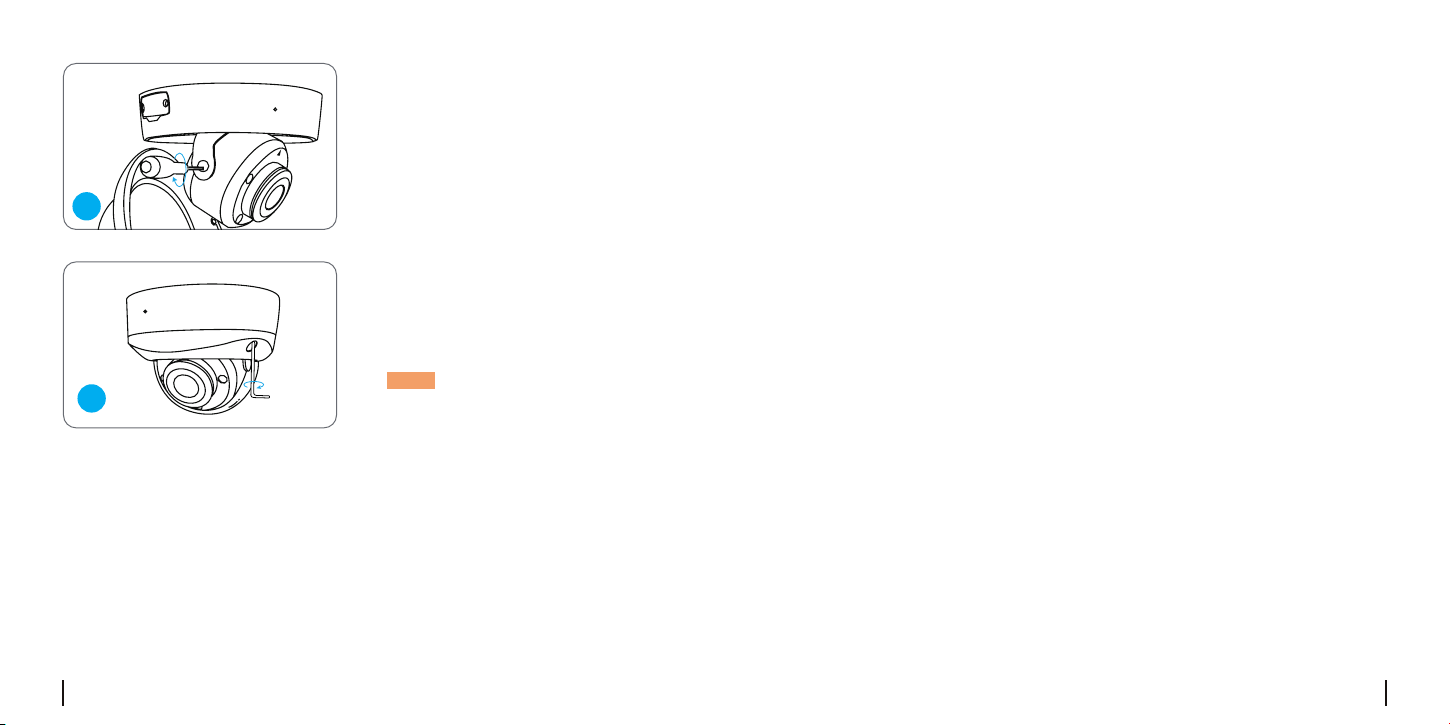
Install the Camera
Put the mounting template on
the ceiling and drill holes at the
indicated locations, then insert
the drywall anchors.
Screw the dome cover o the
camera base with the hex key.
NOTE: Keep the protective lm on the
dome cover until the installation is
complete.
Screw the camera base to the
ceiling.
3
1
2
English English
11 12
Troubleshooting
If there’s no video output on the monitor from Reolink NVR, please try
the following solutions:
• TV/monitor resolution should be at least 720p or above.
• Make sure your NVR is powered on.
No Video Output on the Monitor/TV
If you failed to access the PoE NVR locally via mobile phone or PC, please
try the following solutions:
• Connect the NVR (LAN port) to your router with a network cable.
• Swap another Ethernet cable or plug theNVR to other ports on the router.
• Double check the HDMI/VGA connection, or swap another cable or-
monitor to test.
• Go to Menu -> System -> Maintenance and restore all settings.
If it still doesn’t work, please contact Reolink
If it still doesn’t work, please contact Reolink Support
Failed to Access the PoE NVR Locally
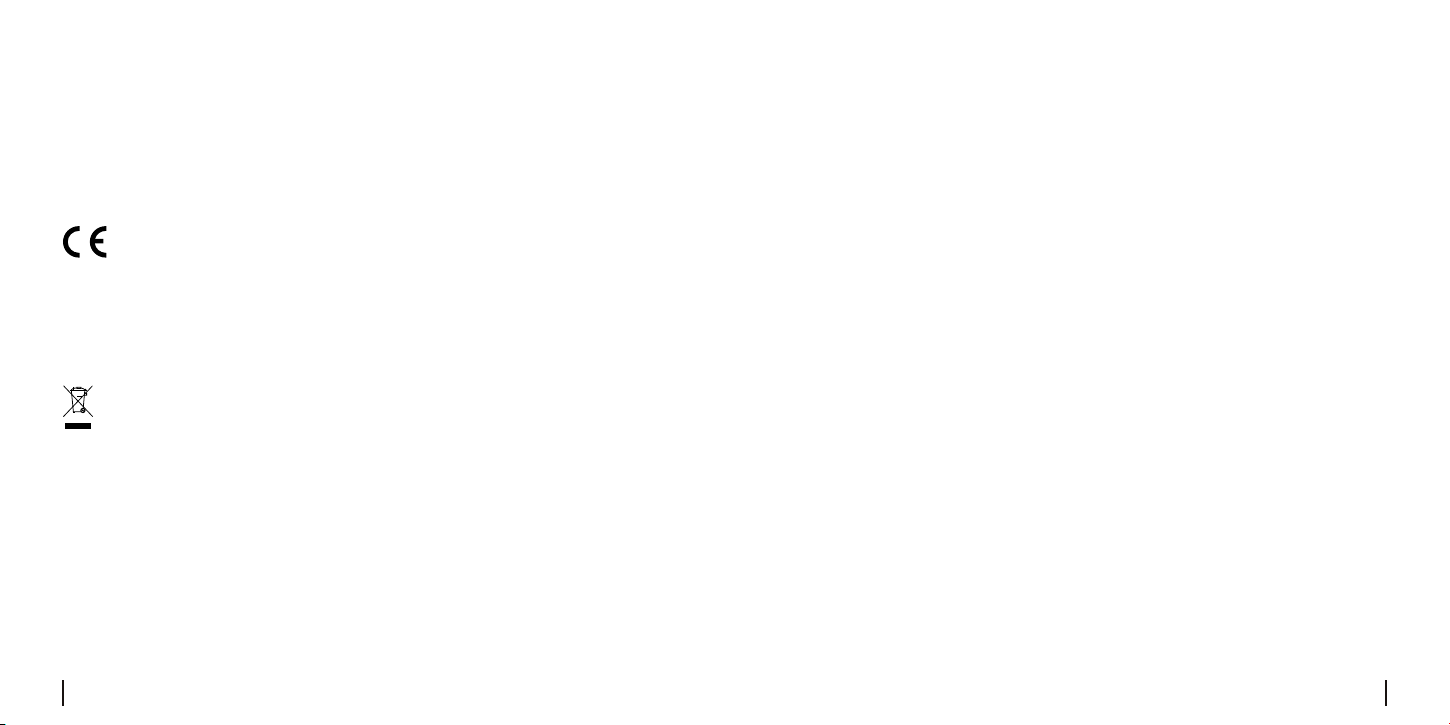
Adjust the camera’s viewing
angle as needed.
Attach the dome cover to the
camera base by tightening the
screws.
4
NOTE: Remove the protective lm
from the dome cover after the
installation.
5
English
English

13 14
Camera
Operating Temperature: -10°C to 55°C (14°F to 131°F)
Size:570g
Weight:
Ф
117x86 mm
Notication of Compliance
This device complies with Part 15 of the FCC Rules. Operation is subject
to the following two conditions: (1) this device may not cause harmful
interference, and (2) this device must accept any interference received,
including interference that may cause undesired operation.
NOTE: This equipment has been tested and found to comply with the lim-
its for a Class B digital device, pursuant to Part 15 of the FCC Rules. These
limits are designed to provide reasonable protection against harmful
interference in a residential installation. This equipment generates, uses
and can radiate radio frequency energy and, if not installed and used in
accordance with the instructions, may cause harmful interference to ra-
dio communications. However, there is no guarantee that interference will
not occur in a particular installation. If this equipment does cause harmful
interference to radio or television reception, which can be determined by
turning the equipment o and on, the user is encouraged to try to correct
the interference by one or more of the following measures:
• Reorient or relocate the receiving antenna.
• Increase the separation between the equipment and receiver.
• Connect the equipment into an outlet on a circuit dierent from that to
which the receiver is connected.
• Consult the dealer or an experienced radio/TV technician for help.
• To maintain compliance with FCC’s RF Exposure guidelines, This equip-
ment should be installed and operated with minimum distance between
20cm the radiator your body: Use only the supplied antenna.
FCC Compliance Statement
Specication
Operating Temperature: -10°C to 45°C
Size:255 x 41 x 230mm
Weight: 1.4kg
NVR
If you failed to access the PoE NVR remotely via mobile phone or PC,
please try the following resolutions:
If it still doesn’t work, please contact Reolink
• Make sure you can locally access this NVR system.
• Go to NVR Menu -> Network -> Network > Advanced and make sure
that UID Enable is selected.
• Please connect your phone or PC under the same network (LAN) of
your NVR and see if you can visit any website to verify whether there is
Internet access available.
• Please reboot your NVR and router and try again.
Failed to Access the PoE NVR Remotely
English English
15 16
Correct Disposal of This Product
This marking indicates that this product should not be disposed with oth-
er household wastes. throughout the EU. To prevent possible harm to the
environment or human health from uncontrolled waste disposal, recycle
it responsibly to promote the sustainable reuse of material resources. To
return your used device, please use the return and collection systems or
contact the retailer where the product was purchased. They can take this
product for environmentally safe recycling.
Limited Warranty
This product comes with a 2-year limited warranty that is valid only if
purchased from Reolink Ocial Store or a Reolink authorized reseller.
By using the Product Software that is embedded on the Reolink product,
you agree to the terms of this End User License Agreement(“EULA”)
Terms and
Privacy
End User L
Use of the product is subject toyour agreement to the Terms of Service
and Privacy Policy at reolink official website. Keep out of reach of
children.
icense Agreement
between you and Reolink.
Simplied EU Declaration of Conformity
Reolink declares that this device is in compliance with the essential re-
quirements and other relevant provisions of EMC Directive 2014/30/EU
and LVD 2014/35/EU.
This Class B digital apparatus complies with Canadian ICES-003.
Cet appareil numérique de la classe B est conforme à la norme NMB-003
du Canada.
ISED Compliance Statements
English
English
