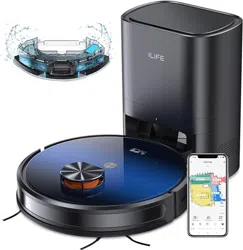
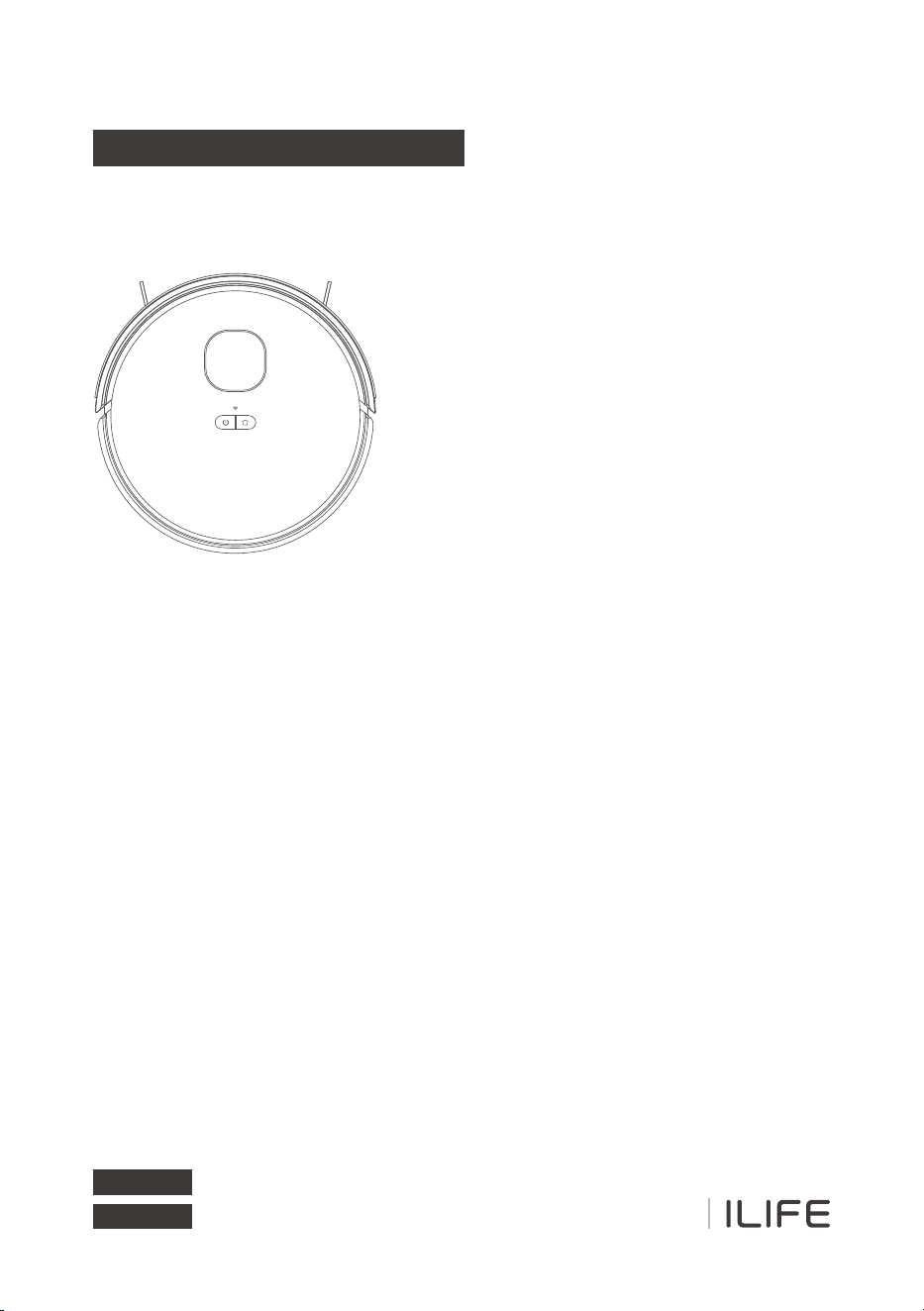
ILIFE-T10s
User Manual
Auto-Empty Robot Vacuum Cleaner
Español
For more details, please
visit www.iliferobot.com
English


Dear Customer,
Thank you for purchasing ILIFE T10s robotic vacuum cleaner!
You've joined the millions of people who clean with robots - the smarter way
to get it done.
Please take a few moments to read this manual and get acquainted with your
robot, to get the best performance from your robot. If you have any problems
with your robot please do not hesitate to contact our customer service or visit
our website at www.iliferobot.com for more information.
Stay connected with us on Facebook and Twitter to enjoy these exclusive
benefits:
- Get support tailored to your specific robot, including answers to questions,
maintenance tips, video demos, live chat and more.
- Get product updates and other valuable information among the first to find
out about new robots, exclusive discounts and special promotions.
Connect with us right now at
Facebook: facebook.com/iliferobotics
Twitter: twitter.com/ILIFEROBOTICS
Enjoy a thorough cleaning every day!
Best regards,
ILIFE Innovation
For more details, please visit www.iliferobot.com 1
English
ILIFE Customer Service
1-800-631-9676 (Toll free for North America)
Mon-Fri: 8:00 am - 7:00 pm CST
service_us_[email protected]

Table of Contents
Safety Instruction ...............................................................................................................4
Product Composition ......................................................................................................6
List of accessories ............................................................................................................................6
Main machine ....................................................................................................................................7
Indicator status .................................................................................................................................7
Sensor and structure .......................................................................................................................8
Auto-empty station .........................................................................................................................9
Dust bin assembly ...........................................................................................................................9
Installation ..............................................................................................................................10
Precautions .....................................................................................................................................10
Mopping function ..........................................................................................................................14
APP Connection .................................................................................................................15
Preparation before connection .................................................................................................15
Hotspot network ............................................................................................................................16
How To Use ............................................................................................................................18
Use Instructions .............................................................................................................................18
Intelligent cleaning (default mode) ..........................................................................................20
Cleaning as required ....................................................................................................................21
Cleaning of selected area ..........................................................................................................22
Cleaning of defined area .............................................................................................................23
Restricted area setting ................................................................................................................24
Scheduled cleaning ......................................................................................................................25
DND mode .......................................................................................................................................25
Other APP functions .....................................................................................................................25
For more details, please visit www.iliferobot.com2
English

Routine Maintenance ...................................................................................................26
Roller brush .....................................................................................................................................26
Side brush ........................................................................................................................................27
Dust bin and filter ..........................................................................................................................28
Wash the dust bin .........................................................................................................................29
Clean the infrared obstacle avoidance sensor ....................................................................30
Clean the cliff sensor ....................................................................................................................30
Clean the charging contact ........................................................................................................30
Clean the signal emission region on the Auto-empty station ........................................31
Battery ..............................................................................................................................................31
Firmware upgrade ........................................................................................................................31
How to change the dust bag .....................................................................................................32
Clean the Auto-empty station dust channel ........................................................................33
Clean the Auto-empty station infrared sensor/Charging contact shrapnel ..............33
Product Specification ...................................................................................................34
Main unit ...........................................................................................................................................34
Auto-empty station ......................................................................................................................34
Common Problems .........................................................................................................35
Troubleshooting .................................................................................................................37
English
For more details, please visit www.iliferobot.com 3

English
For more details, please visit www.iliferobot.com4
Safety Instructions
Use Restrictions
●
●
●
●
●
●
●
●
●
●
This product can only be used for floor cleaning at home. Please do not use it in
outdoor (such as an open balcony), non-ground (such as a sofa), commercial or
industrial environment.
Do not use the machine in the suspended environments without protective
fences (such as duplex foor, open balcony, and top of furniture).
Please hang up the ground wires at home before use to avoid dragging the
wires when the main unit is running.
Please put away the fragile articles and sundries (such as vases, plastic bags,
etc.) on the ground; otherwise, the machine may be blocked or a slight collision
may causc damagc to valuables at home.
Do not allow people (including children) with physical, mental or perceptual
disabilities to use or operate this product.
Do not allow children to use the machine as a toy. When the machine
is working, please keep children and pets away from the machine.
Keep the cleaning brush out of reach of children.
Do not place any objects (including children and pets) on the stationary or
moving machine.
When the machine is working, keep the hair, fngers and other parts of human
body or pet away from the dust suction inlet of the machine.
Do not use the machine to clean long-haired carpets. Some dark carpets might
not be cleaned normally).
●
●
●
Do not use the machine to clean long-haired carpets. Some dark carpets might
not be cleaned normally).
Do not use the machine to vacuum hard or sharp objects, such as decoration
waste, glass, nails, etc.
Do not use the protective cover of the laser ranging sensor or bumper as a
handle to carry the machine.

Safety Instructions
English
For more details, please visit www.iliferobot.com 5
●
●
●
●
●
Please clean or maintain the machine and charging base when the machine is
shut down or powered off.
Do not use a damp cloth or any liquid to wipe any part of the machine.
Please follow the instructions in the manual when using the machine. Any loss
and injury caused by improper use of the product shall be borne by the user.
Do not use the mopping function on the carpet or the top of furniture.
Remove the water tank when charging the machine.
Battery and Charging
●
●
●
●
●
●
●
●
Do not use any third-party batteries, charging bases or chargers.
Do not disassemble, repair or modify the battery or charging base without
permission.
Do not place the charging base near heat sources such as heating radiators.
Do not use a damp cloth or wet hands to wipe or clean the charging base
shrapne
Dispose of used batteries properly and send them to professional recycling
agencies.
If the power line is damaged or broken, stop using it immediately and buy a
new one through official channels.
When transporting the product, ensure that the machine is shut down,
and it is recommended to use the original packaging box for packaging.
If you do not use the machine for a long time, fully charge it, power if off
and put it in a cool and dry place. The machine shall be charged at least
once every three months to avoid damage to th e battery due to
over- discharge.
English
For more details, please visit www.iliferobot.com6
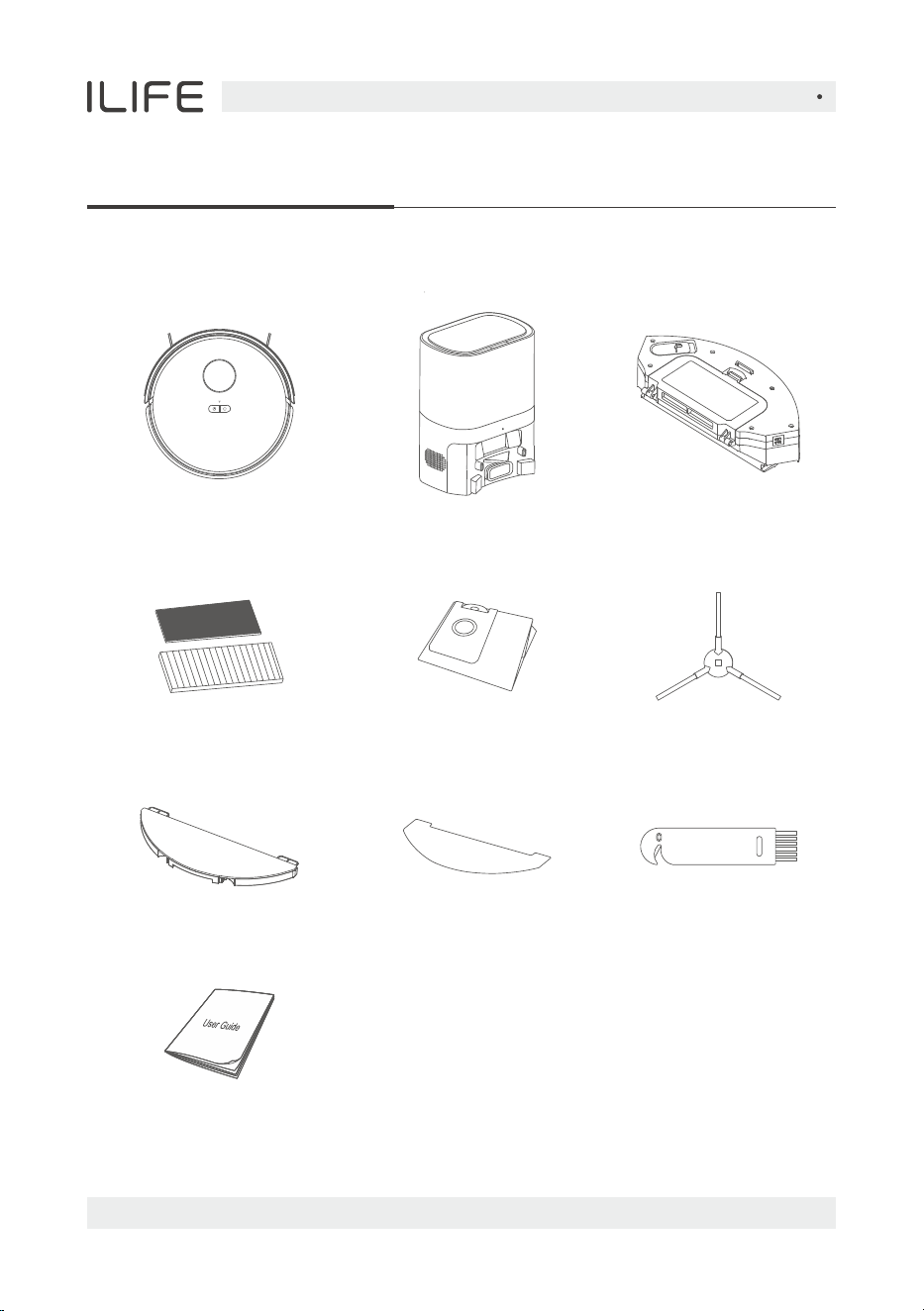
List of accessories
Product Composition
User Manual
Cleaning tool
Auto-empty station 2 in1 Dustbin&
water tank
High-efficiency filter+
sponge
Dust bag Side brush
Robot
Mopping support Mop cloth
English
For more details, please visit www.iliferobot.com 7
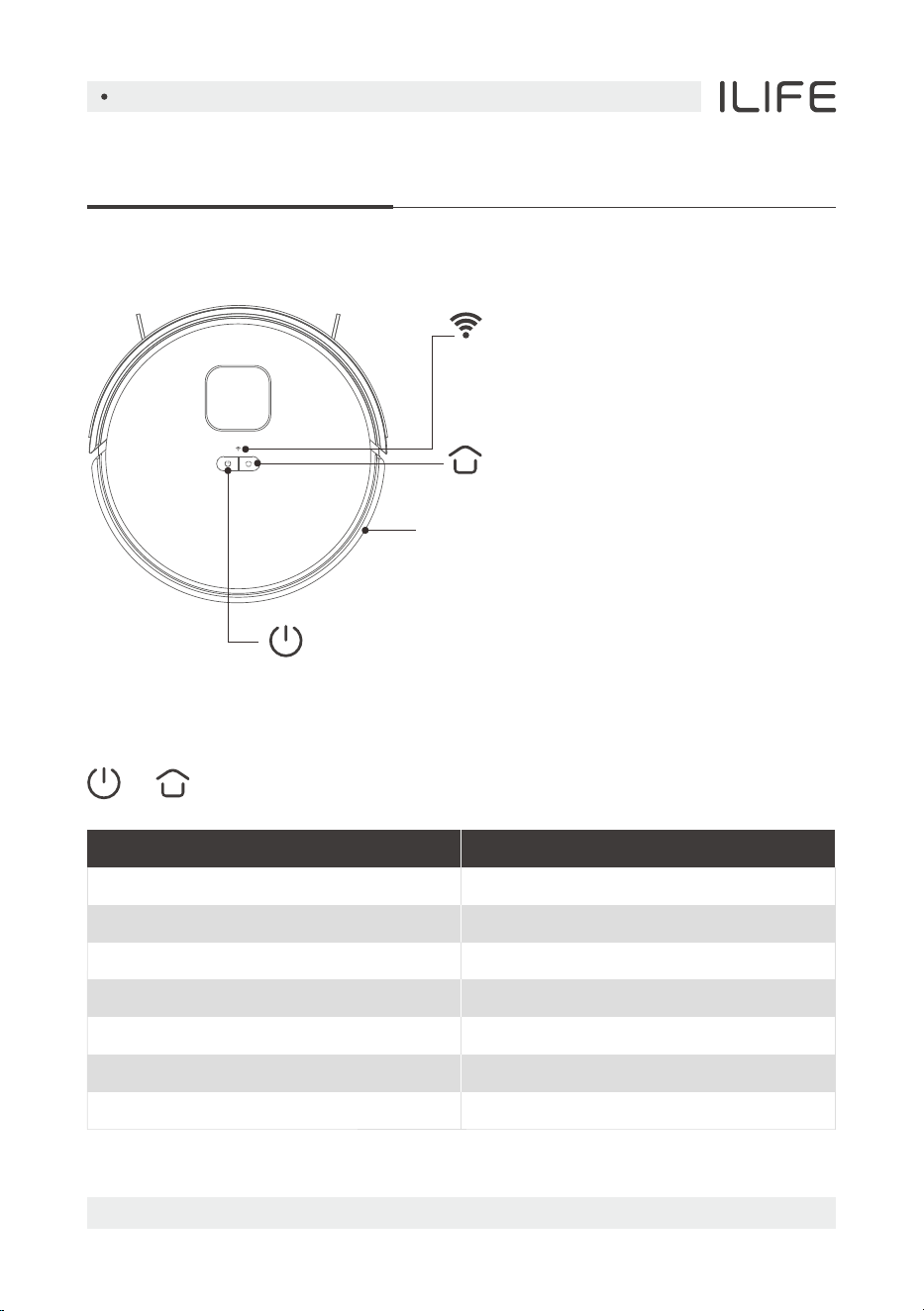
Main machine
Product Composition
● Off: Wi-Fi not networked
● Flash:Being networked
● Normally on: Wi-Fi networked
WIFI status light
Press it to recharge/pause
Recharge/Pause
Use a needle to press this button to
reset the device
System reset button
Reset
● Press the button to start cleaning/pause
● Press and hold the button for 3 seconds to power on/off
Power/Clean/Pause
Status
Cleaning
Recharging
Charging
Low power
Fullycharged
Alarming
Standby
light
Blue light on
Blue light on
Blue light flickering
Red light flickering
Blue light on
Red light flickering
Off
+ Indicator status
English
For more details, please visit www.iliferobot.com8
Product Composition
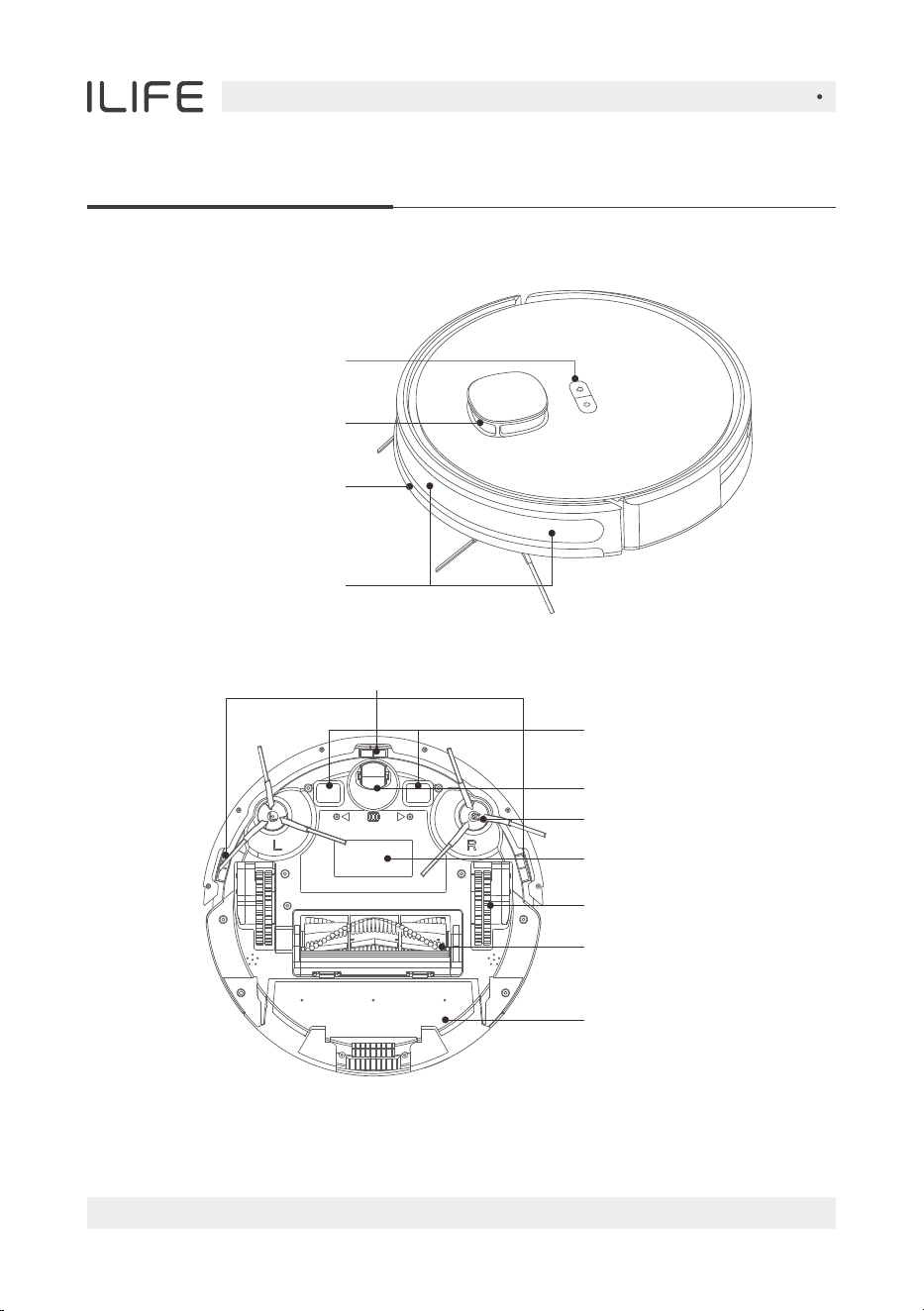
Sensor and structure
Button
Bumper
Infrared receiver sensor
Cliff sensor
Charging contact
Universal wheel
Side brush
Battery cover
Drive wheel
Roller brush
Dust bin
Laser radar

English
For more details, please visit www.iliferobot.com 9
Product Composition
Auto-empty station
Dust bin assembly
Indicator
Charging shrapnel
Infrared sensor
Dust collecting
High-efficiency filter
Sponge filter
Primary filter
Water tank plasticplug
Dustbin button
High-efficiency filter cover
Dust ports
Cover
Dust bag
Lift position
English
For more details, please visit www.iliferobot.com10
Installation
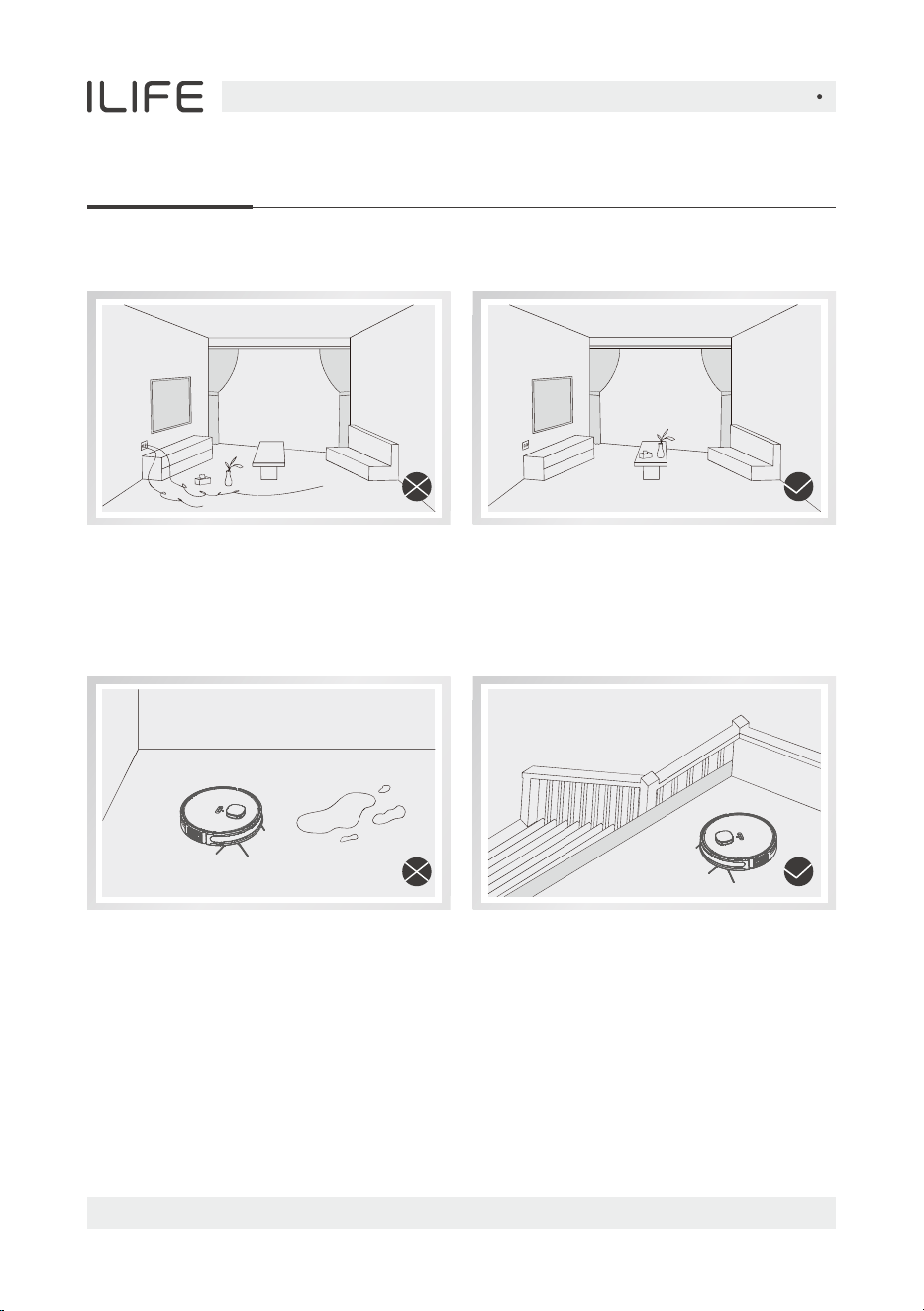
Precautions
Before starting the vacuum cleaner, clean up wires and sundries scattered on the
ground, and remove easy-to-fall, fragile, valuable and potentially dangerous items.
Avoid being entangled, stuck, dragged or knocked down by the main unit;
otherwise, personal injury or property damage may be caused.
Do not use the robot to clean liquid When used in a suspended
circumstance, it shall be protected by
rails to avoid accidental falling or
pushing other articles from falling;
otherwise, personal or property
damage may be caused.
English
For more details, please visit www.iliferobot.com 11
Installation
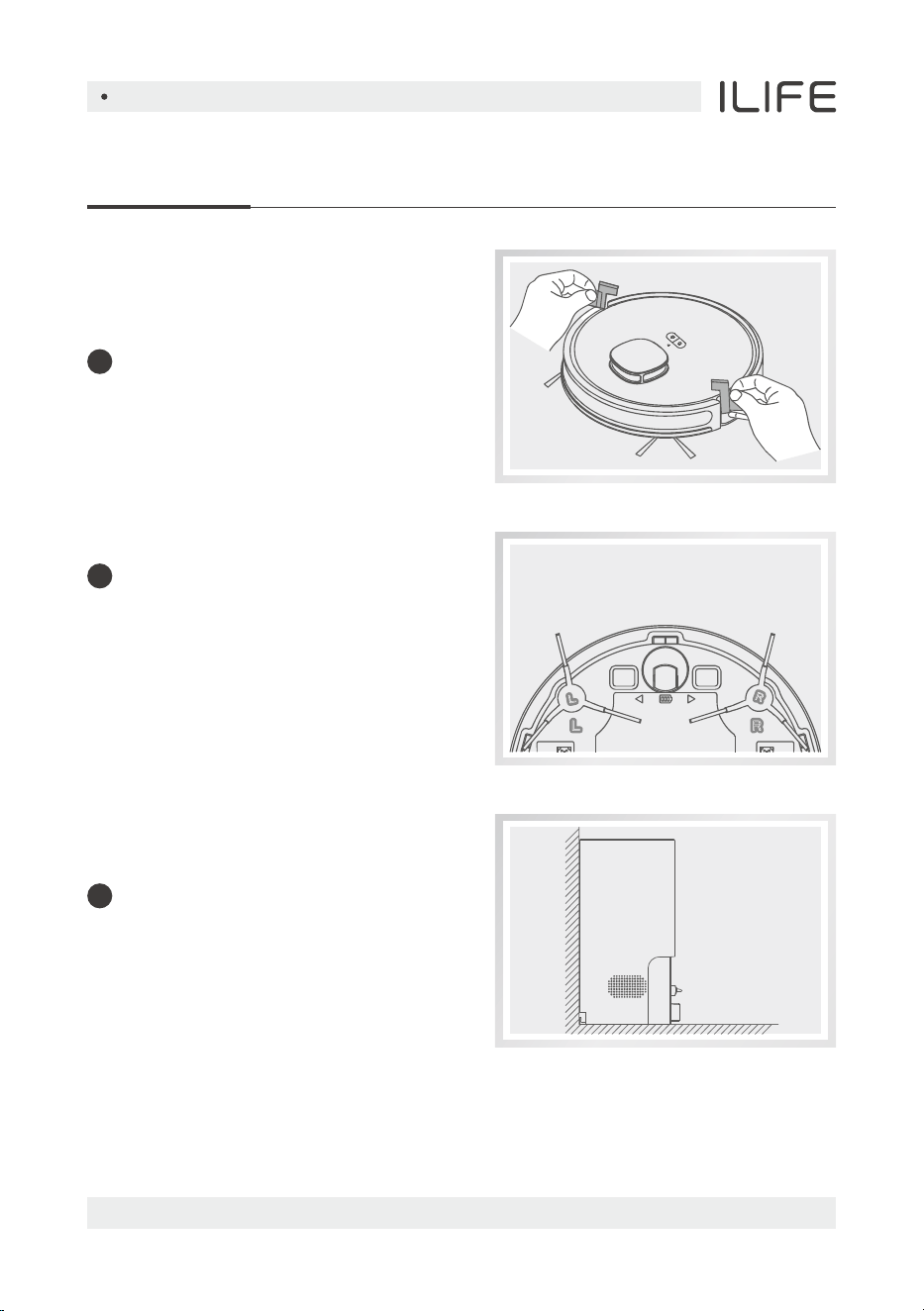
Install side brushes
Take out and place the
Auto-empty station on a flat floor
against the wall and tidyup the
redundant wires
Put the left side brush (L) and right side
brush (R) against the letters L and R on
the bottom shell respectively, press
down, you will hear a “click” sound,
and it means that the side brushes
are installed in place.
Remove the protection material
from both sides of the robot
1
2
3
English
For more details, please visit www.iliferobot.com12
Installation
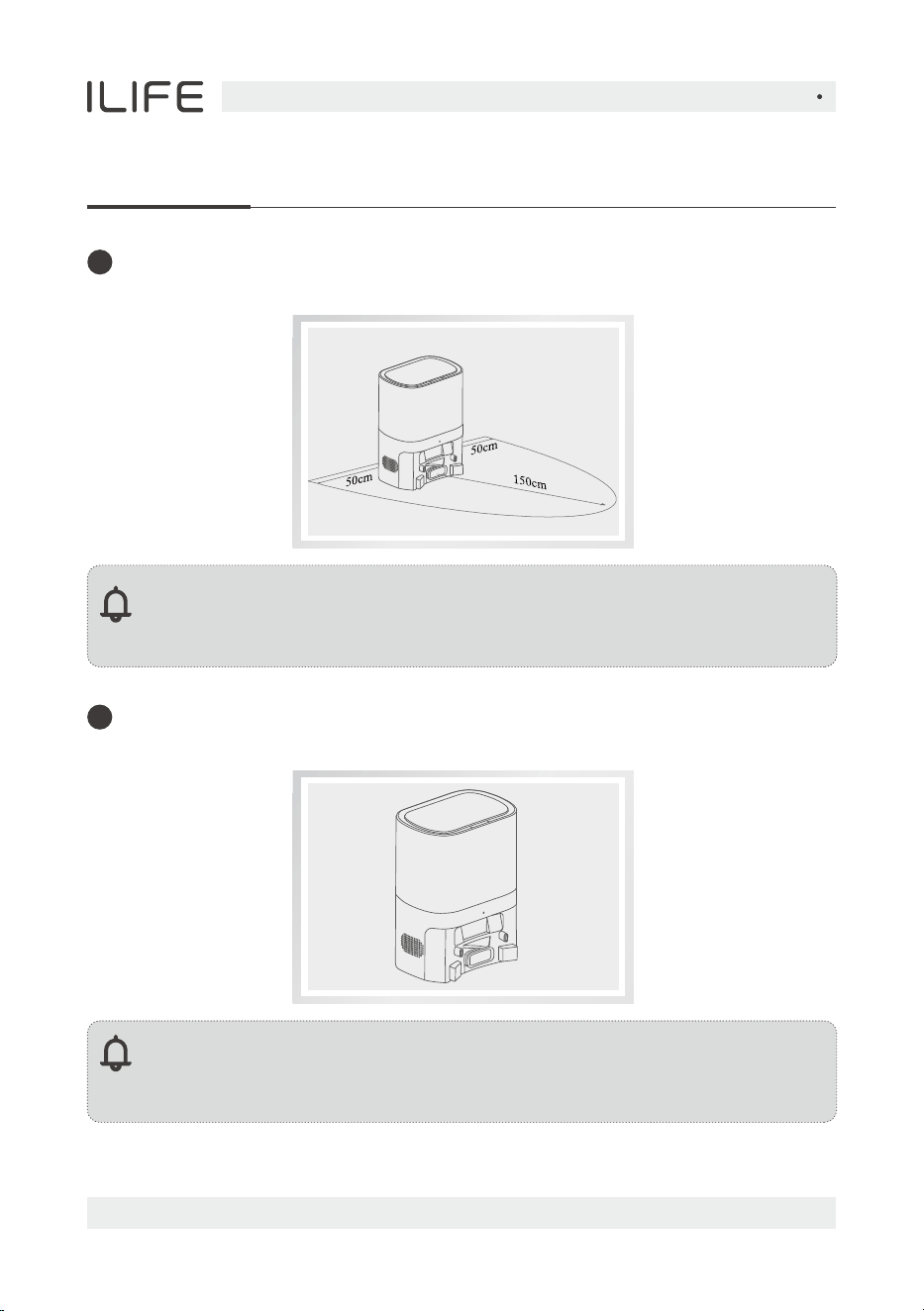
Note:
Ensure space more than 0.5m from the left and righ to the charging base
and 1.5min front of the charging base.
Note:
The sunlight may interfere the recharging signal, which may cause the
robot vacuum cleaner to fail to return to the charging base.
Do not move the charging base at will; avoid direct sunlight on the
charging base
Clean up the sun dries around the station and connect the power
supply that meets the requirement of electricity consumption
4
5
English
For more details, please visit www.iliferobot.com 13
Installation
Note:
If the battery is at low level, the robot cannot be powered on.
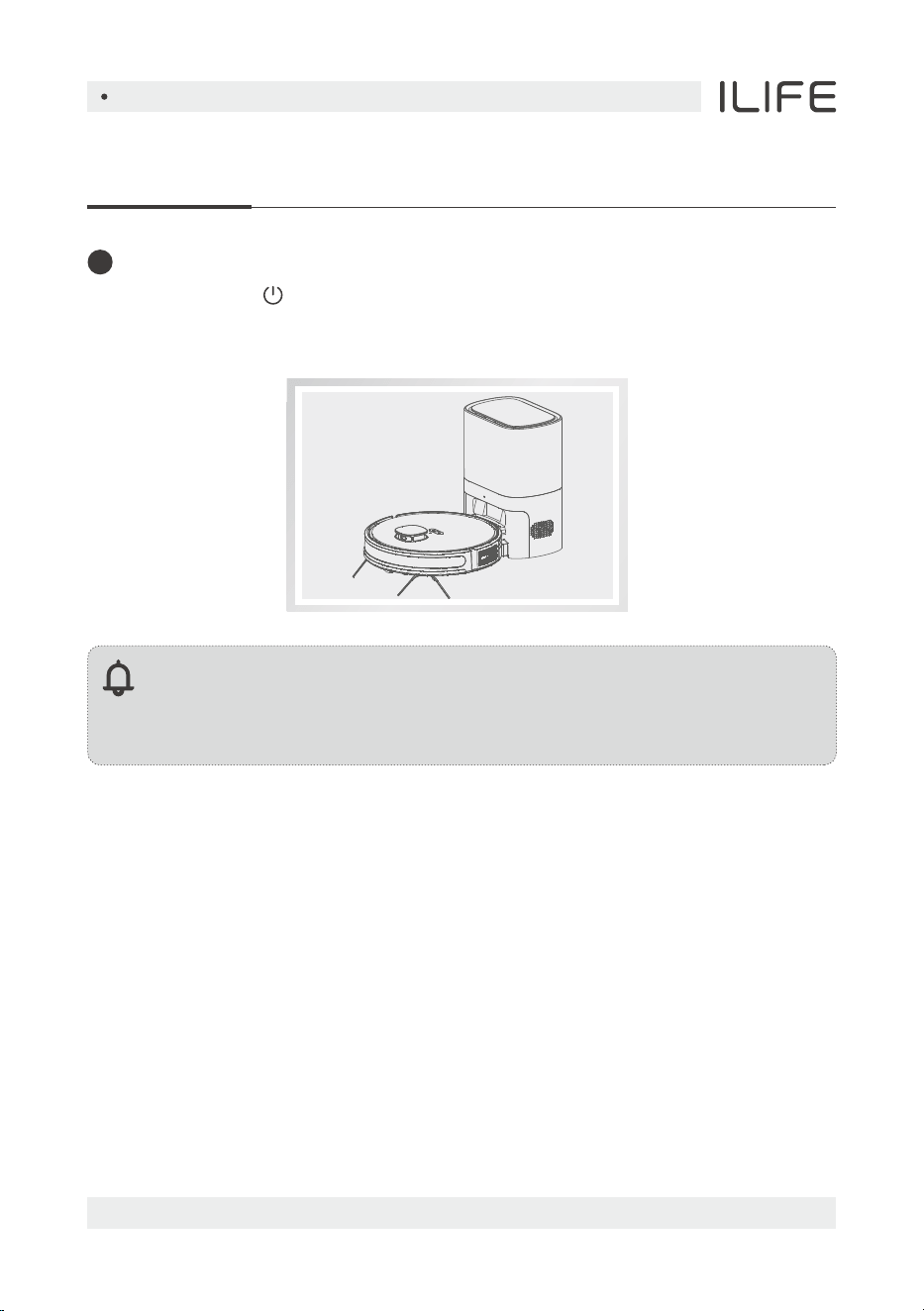
Please put the robot vacuum cleaner on the charging base and the device
will be powered on automatically.
Power on and charge
Press and hold the button to power on. When the indicator light is normally on,
put the main unit against the charging base for charging; when you hear the voice
of “Start charging”, it means that the robot is being charged successfully.
6
English
For more details, please visit www.iliferobot.com14
Installation
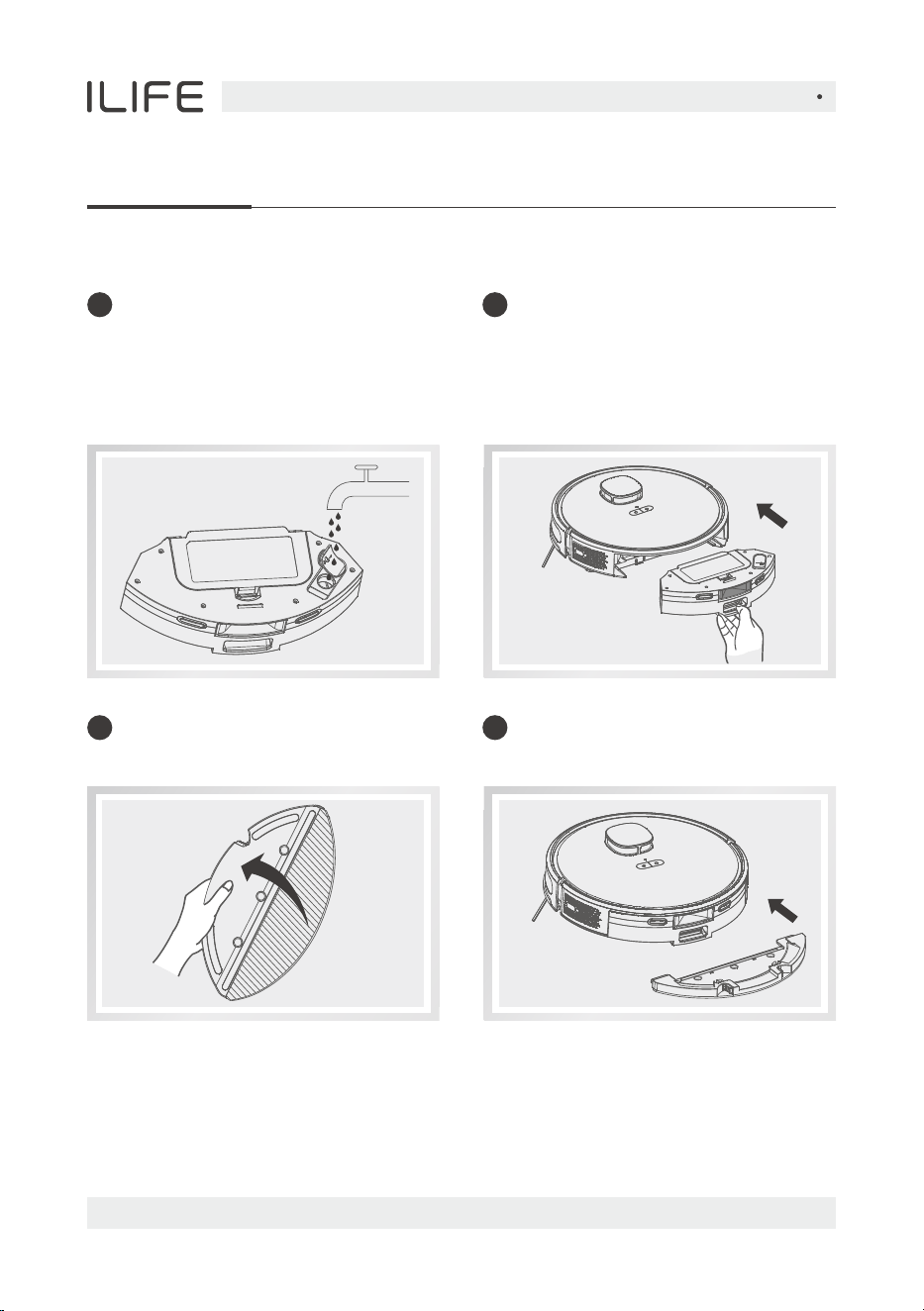
Open the water injection cover,
add appropriate amount of
water and then cover tightly,
please do not add any de
tergent.
Mopping function
Put the water tank back into
the robot
Install the mop on the
mop support
Install the mop support
1 2
3 4
English
For more details, please visit www.iliferobot.com 15
APP Connection
Preparation before connection
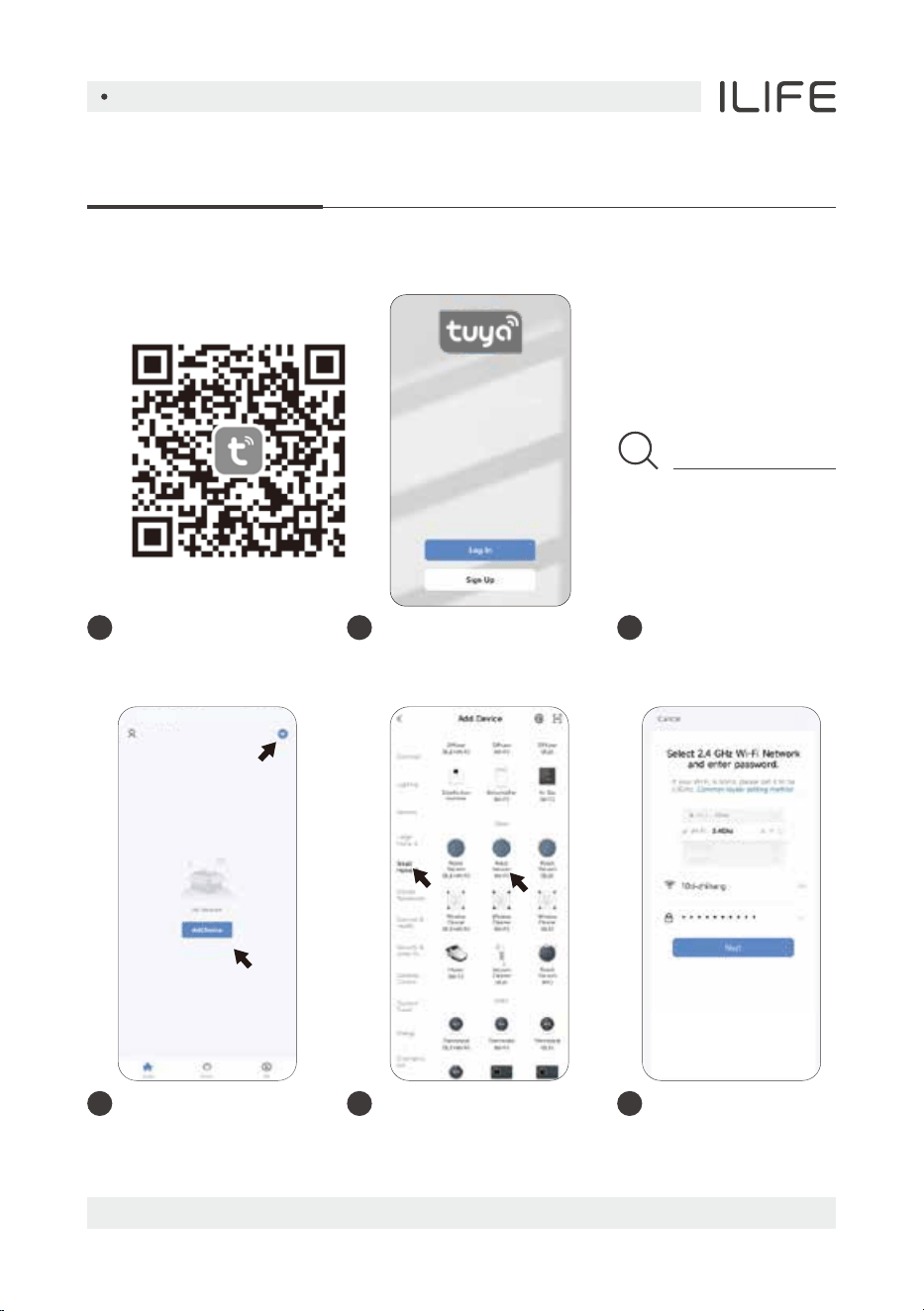
Scan the QR code to
install the app.
Click “Add a device”
or “+” in the top right
corner.
Select small household
appliance - robot
vacuum cleaner (Wi-Fi).
Select 2.4GHz
Wi-Fi network and
enter the password.
1
Search “tuya smart” in
the mobile app store
and download the APP.
2
4 5 6
Register and log
into the APP.
3
tuya smart

English
For more details, please visit www.iliferobot.com16
APP Connection
Hotspot network
Read the instructions for
hotspot connection carefully
and select to connect.
3
Select hotspot networking mode
and confirm that the WiFi indicator
light on the robot vacuum cleaner
flashes slowly.
2
1
First start the robot vacuum cleaner,
press and hold the and keys on the
main unit at the same time for 3 seconds,
and when you hear the voice prompt of
“AP mode” and the WiFi indicator light
flashes slowly, it means that the machine
has entered the networking mode.
English
For more details, please visit www.iliferobot.com 17
APP Connection
Hotspot networking (compatible mode)
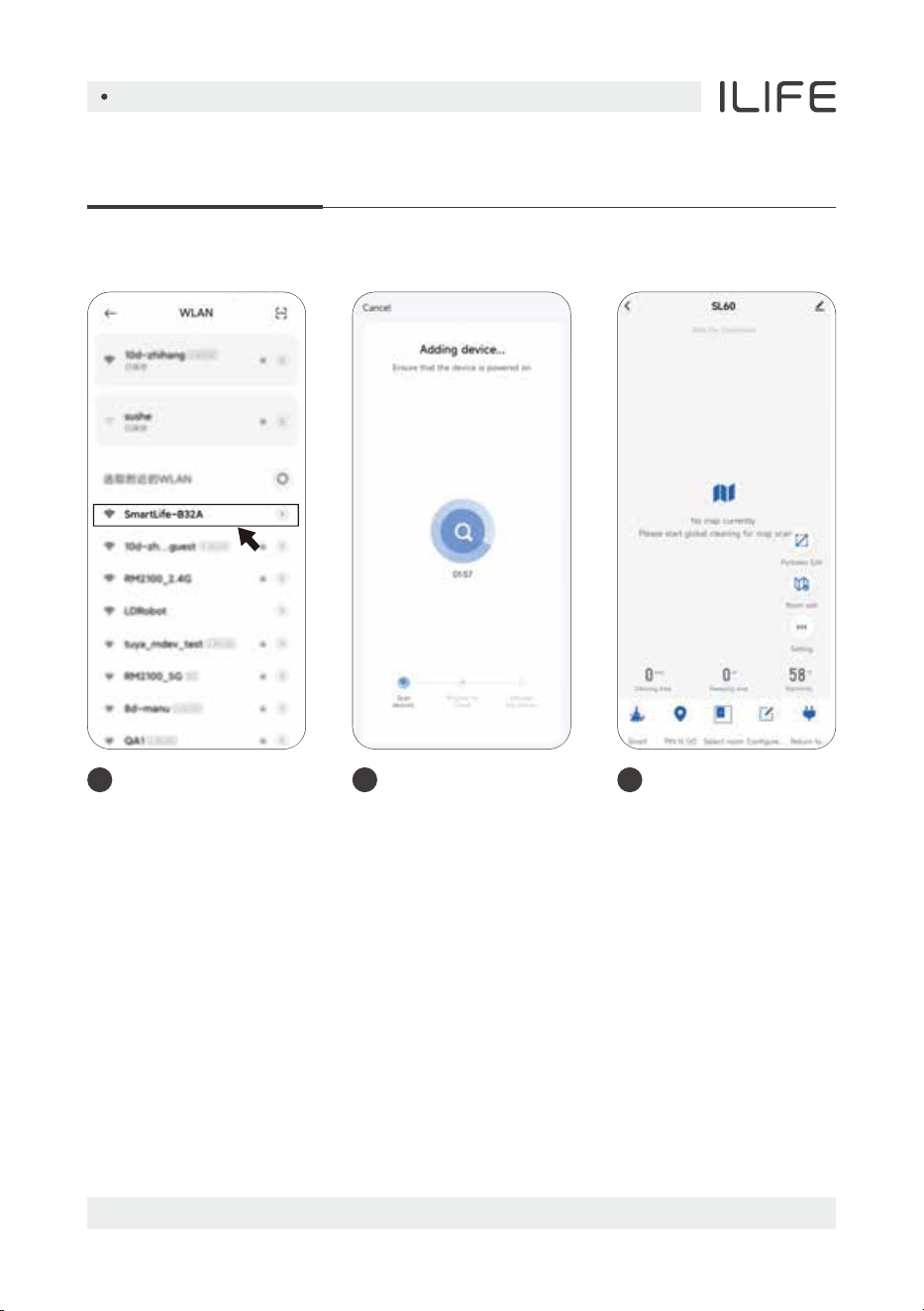
Select the robot
vacuum cleaner hotspot
with the beginning of
SmartLife, and after
connecting successfully,
return to the APP.
4 5
Wait for the APP to
connect to the robot
vacuum cleaner.
6
After connecting
successfully,
enter the operation
interface.

English
For more details, please visit www.iliferobot.com18
How To Use
Use Instructions
Power On / Power Off
Press and hold the key for 3 seconds, and if the indicator light is, lit on,
it means the machine is started up successfully.
1
Cleaning / Pause
After startup, press the key on the main unit or use the remote controller or
mobile APP to start cleaning.
2
Note:
The robot vacuum cleaner cannot be shut down during charging.
Note:
When the robot vacuum cleaner is in standby state, press and hold the key
for 3 seconds, and if the indicator light goes out, it means the machine is
shut down.
If the battery capacity is less than 15%, the robot cannot work;
therefore, charge the machine before cleaning.
When the battery capacity is less than 15% in the cleaning process,
the device will automatically return to the charging base for charging.
Please tidy up the wires (including the power line of charging base)
on the ground before cleaning; otherwise, the wires may be dragged
when the machine is cleaning which may cause power failure to
electric appliances and damage items or wires.
The robot vacuum cleaner cannot be used to clean liquid.
English
For more details, please visit www.iliferobot.com 19
How To Use
Charge
Automatic mode: After finishing cleaning, the robot vacuum cleaner will
automatically return to the charging base for charging.
3
Note:
If the robot vacuum cleaner fails to find the charging base, it will
automatically return to the starting point; please manually put back the
main unit on the charging base for charging.
Suction selection
Use the mobile APP to select energy-saving, standard and powerful modes
(the default is standard mode)
4
Manual mode: In pause state, press the key to start recharging or use the
remote controller or mobile APP to start recharging.
English
For more details, please visit www.iliferobot.com20
How To Use
Intelligent cleaning (default mode)
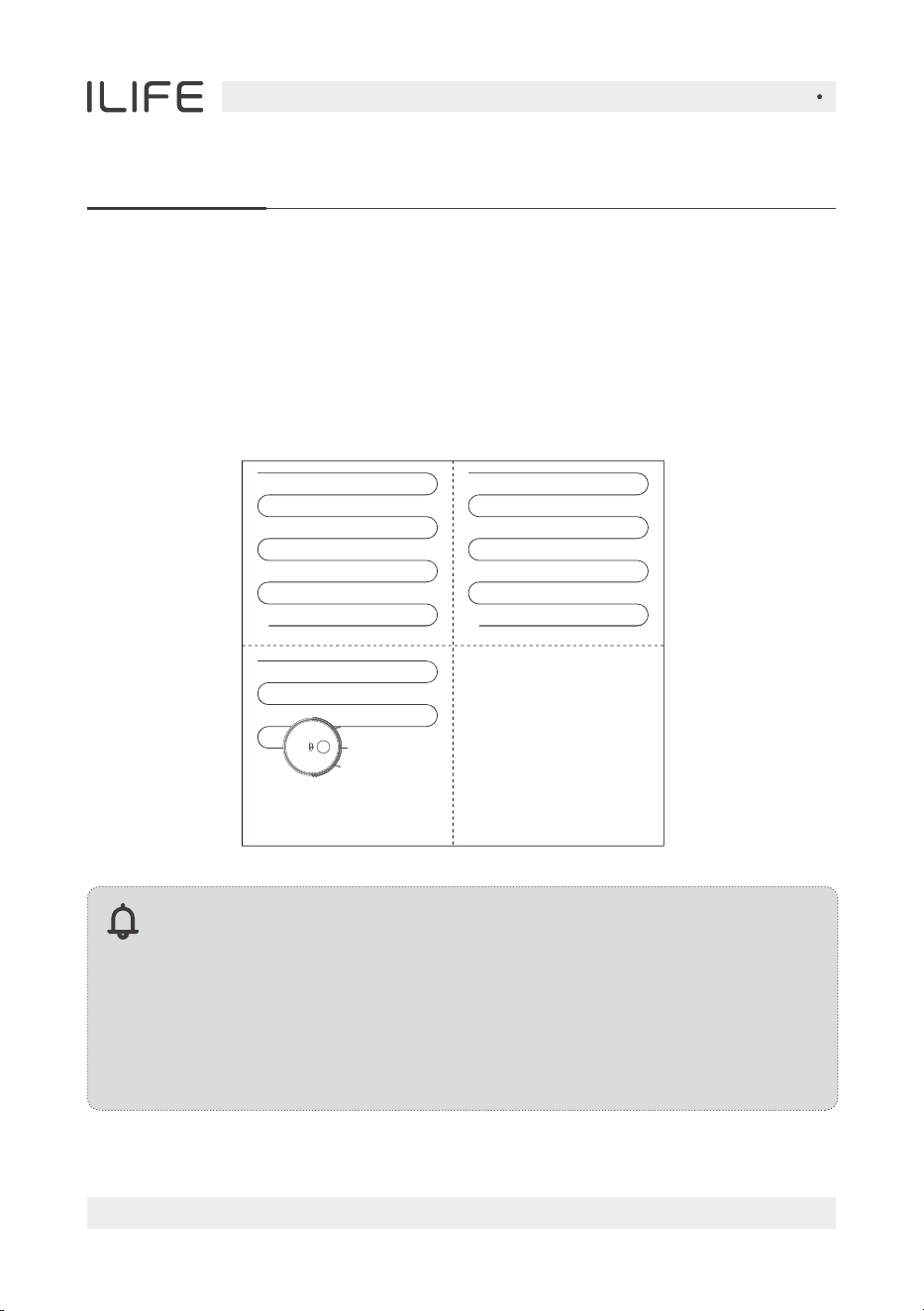
The robot vacuum cleaner scans the working environment, generates a map and
intelligently divides the areas. It will complete cleaning of each area one by one by
filling along the Z shape behind the wall. After finishing cleaning, the robot vacuum
cleaner will return to the charging base for charging. (In order to better build the
map, the robot needs to start from the charging base at the first cleaning)
Note:
Do not move the main unit randomly and frequently during operation.
After moving, please put the main unit near the original place.
When starting the machine again, the device will try to reposition its
coordinates; after positioning successfully, it will continue to work
according to the planned path; if positioning fails, the device will give
up the previous task, and build a new map for cleaning, but it might fail
to recharge.
Cleaned area Cleaned area
Area being cleaned
Area to be cleaned
English
For more details, please visit www.iliferobot.com 21
How To Use
Cleaning as required
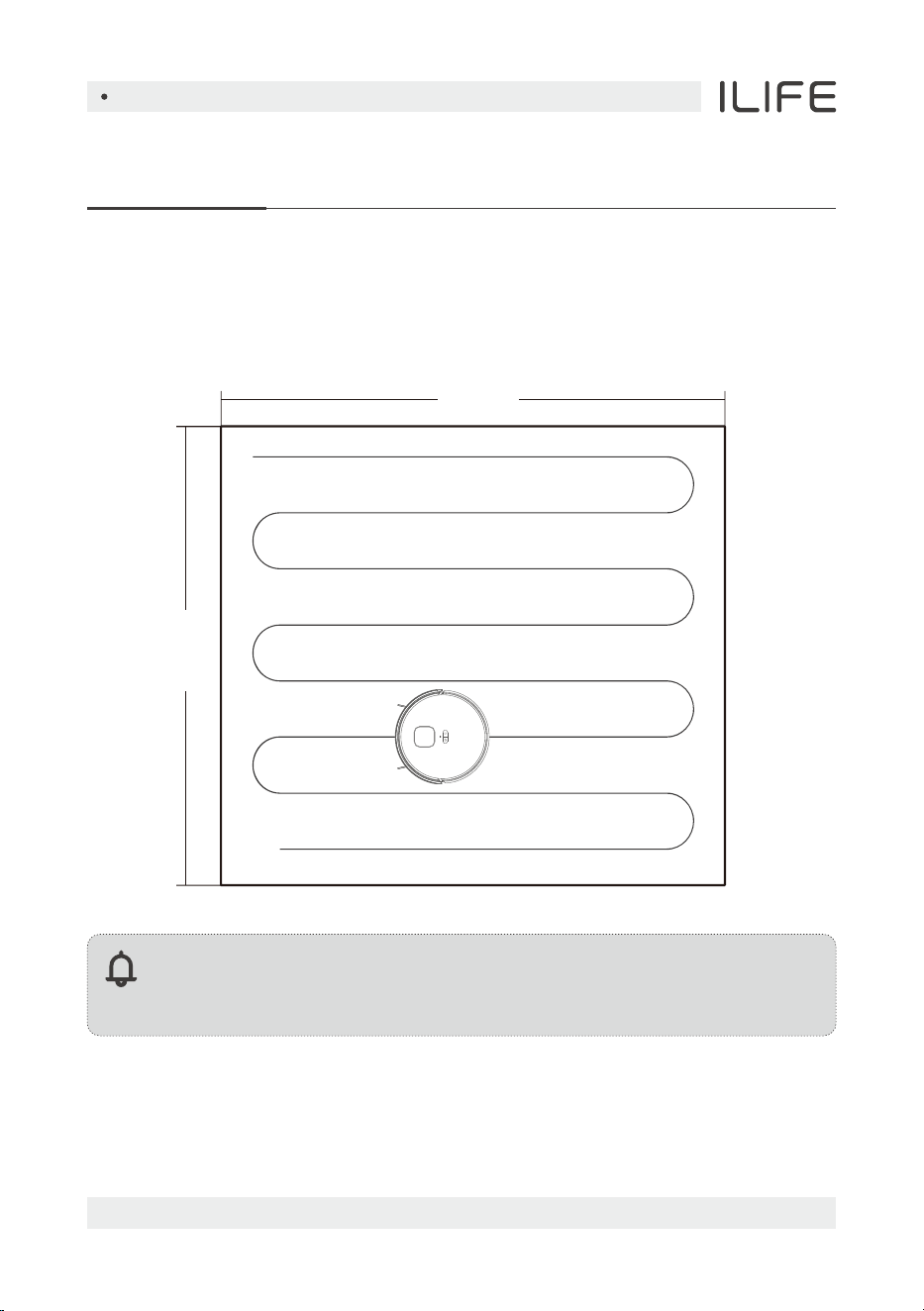
Use the mobile APP to select the function of cleaning as required; select a point
on the map and the robot vacuum cleaner will move to the designated position
and clean a 1.6m×1.6m square area with itself as the center.
Note:
Before using this function, complete building of the map for the first
cleaning in the mobile APP.
1.6m
1.6m
English
For more details, please visit www.iliferobot.com22
How To Use
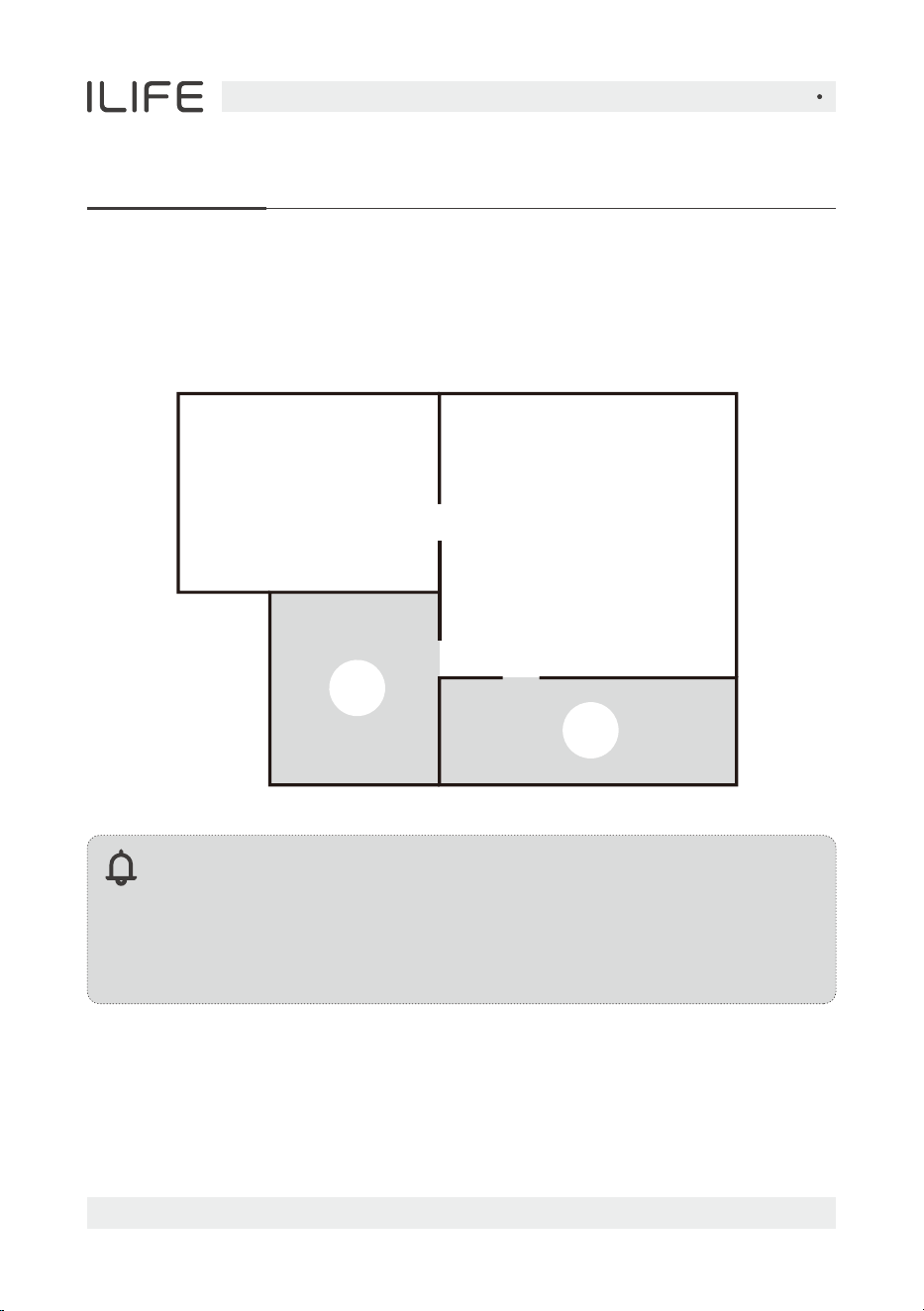
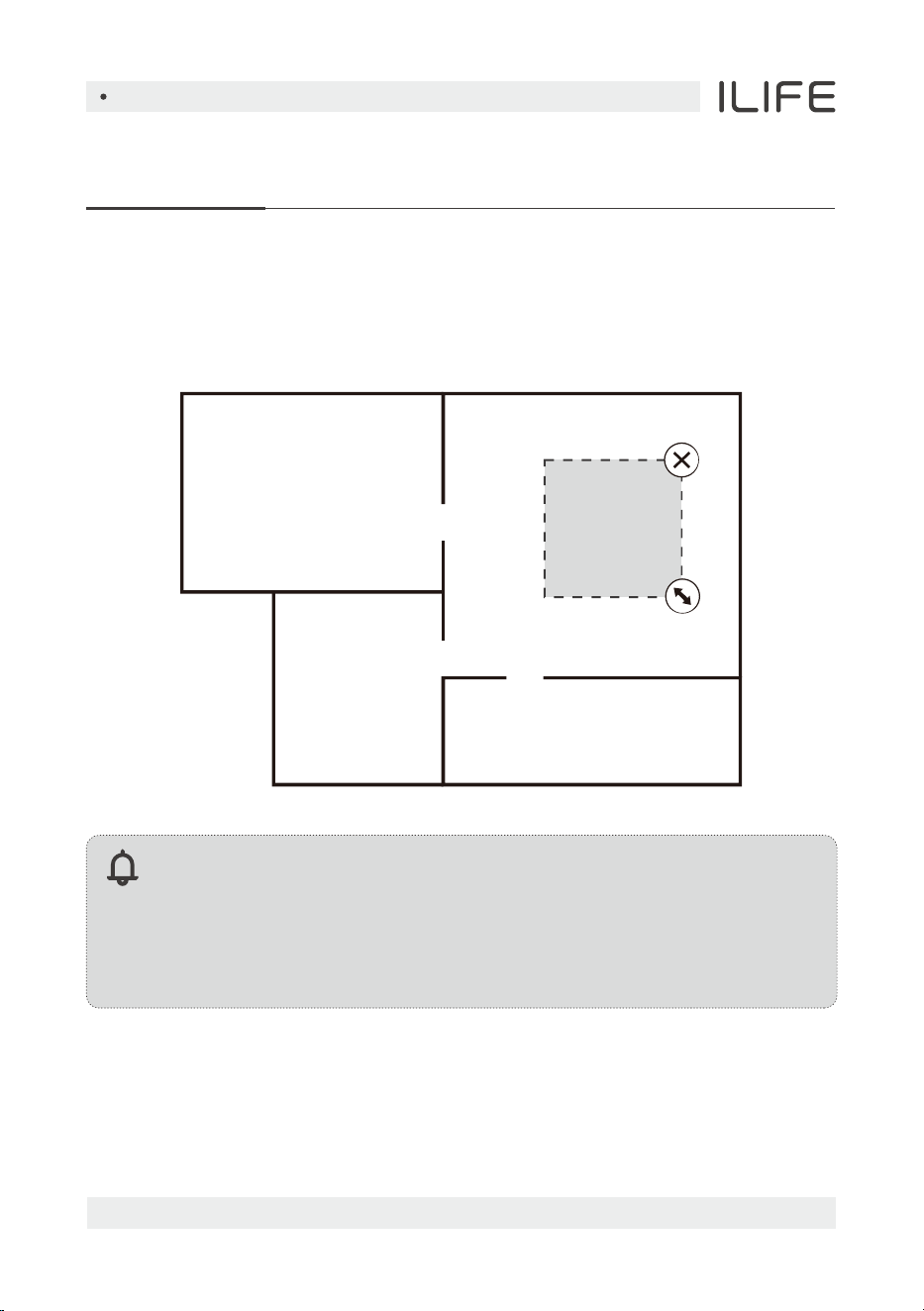
Cleaning of selected area
Use the mobile APP to select the function of cleaning of selected area, select the
area to be cleaned on the map and the robot vacuum cleaner will clean in the
selected area.
Note:
1. Before using this function, complete building of the map for the first
cleaning in the mobile APP.
2. The main unit might enter the unplanned area, so please clear the
obstacles on the ground around the planned area, and this area cannot
play a role of safety isolation.
2
1
English
For more details, please visit www.iliferobot.com 23
How To Use
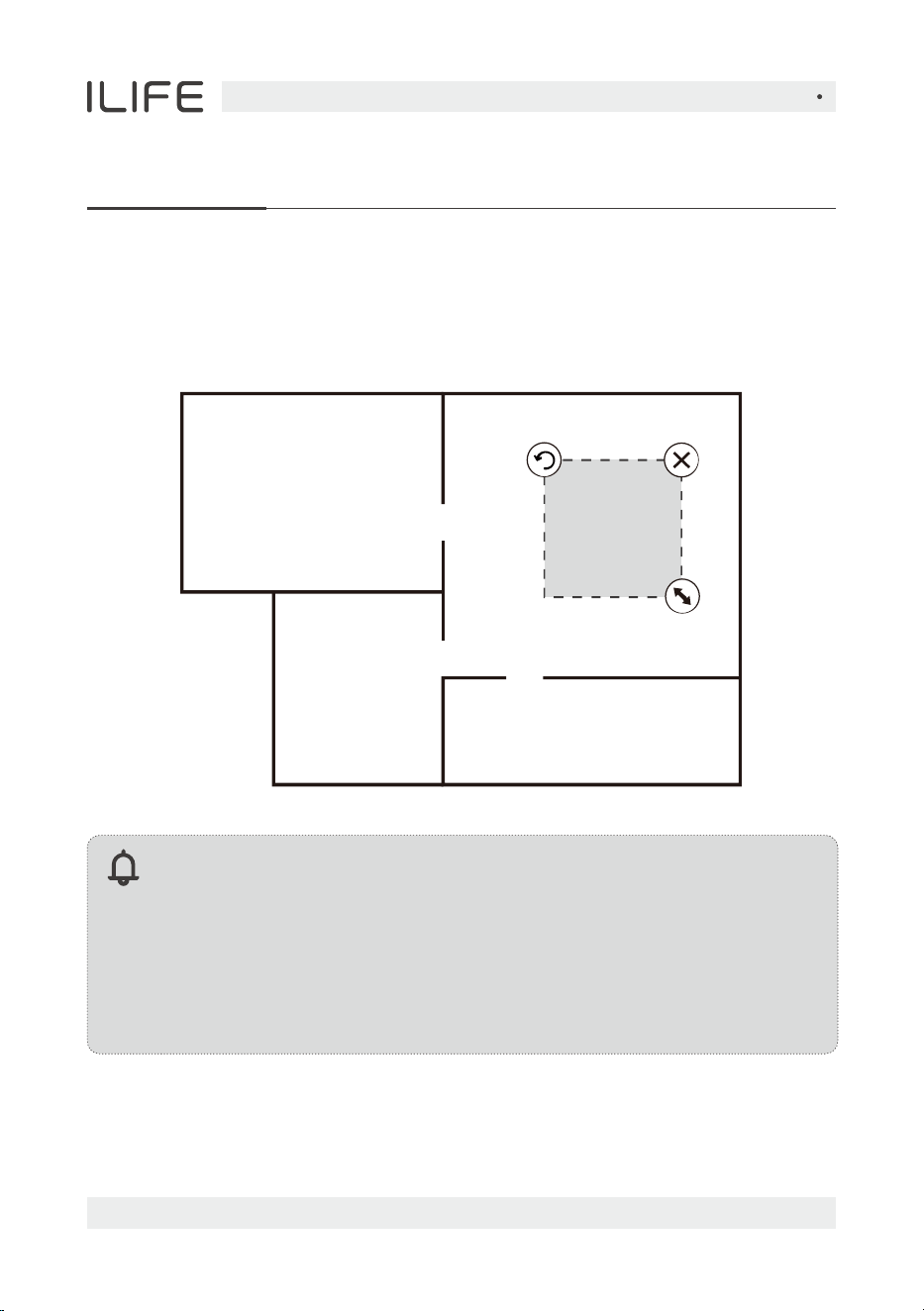
Cleaning of defined area
Use the mobile APP to select the function of cleaning or defined area, select the
area to be cleaned on the map and the robot vacuum cleaner will clean in the
defined area.
Note:
1. Before using this function, complete building of the map for the first
cleaning in the mobile APP.
2. The main unit might enter the unplanned area, so please clear the
obstacles on the ground around the planned area, and this area cannot
play a role of safety isolation.
English
For more details, please visit www.iliferobot.com24
Restricted area setting
Use the mobile APP to select the restricted area editing function, select and
set the restricted area of cleaning on the map, and the machine will not enter
the set area to clean.
Note:
1. Before using this function, complete building of the map for the first
cleaning in the mobile APP.
2. This function is only used to define the cleaning areas and cannot be
used to block dangerous areas.
3. When moving the robot vacuum cleaner or there are obvious changes
in your home environment, the map might become ineffective and the
restricted area might be lost.
How To Use

English
For more details, please visit www.iliferobot.com 25
How To Use
Scheduled cleaning
After the setting of scheduled cleaning takes effect, themachine will automatically
start to clean at the designated time, and automatically return to the charging
base after finishing cleaning.
DND mode
Other APP functions
The default starting time period is 22:00-06:00, which can be modified or
closed in your mobile APP.
During the DND time period, the robot vacuum cleaner will close the functions of
automatic continuous cleaning, actively playing the voice, and timing.
Remote control
Look for robot
Map management
Working mode selection
Partition area editing
Area attribute customizing
Real-time map updating
Language selection
Cleaning record viewing
Consumables management
Self-defining of cleaning sequence of areas
English
For more details, please visit www.iliferobot.com26
Routine Maintenance
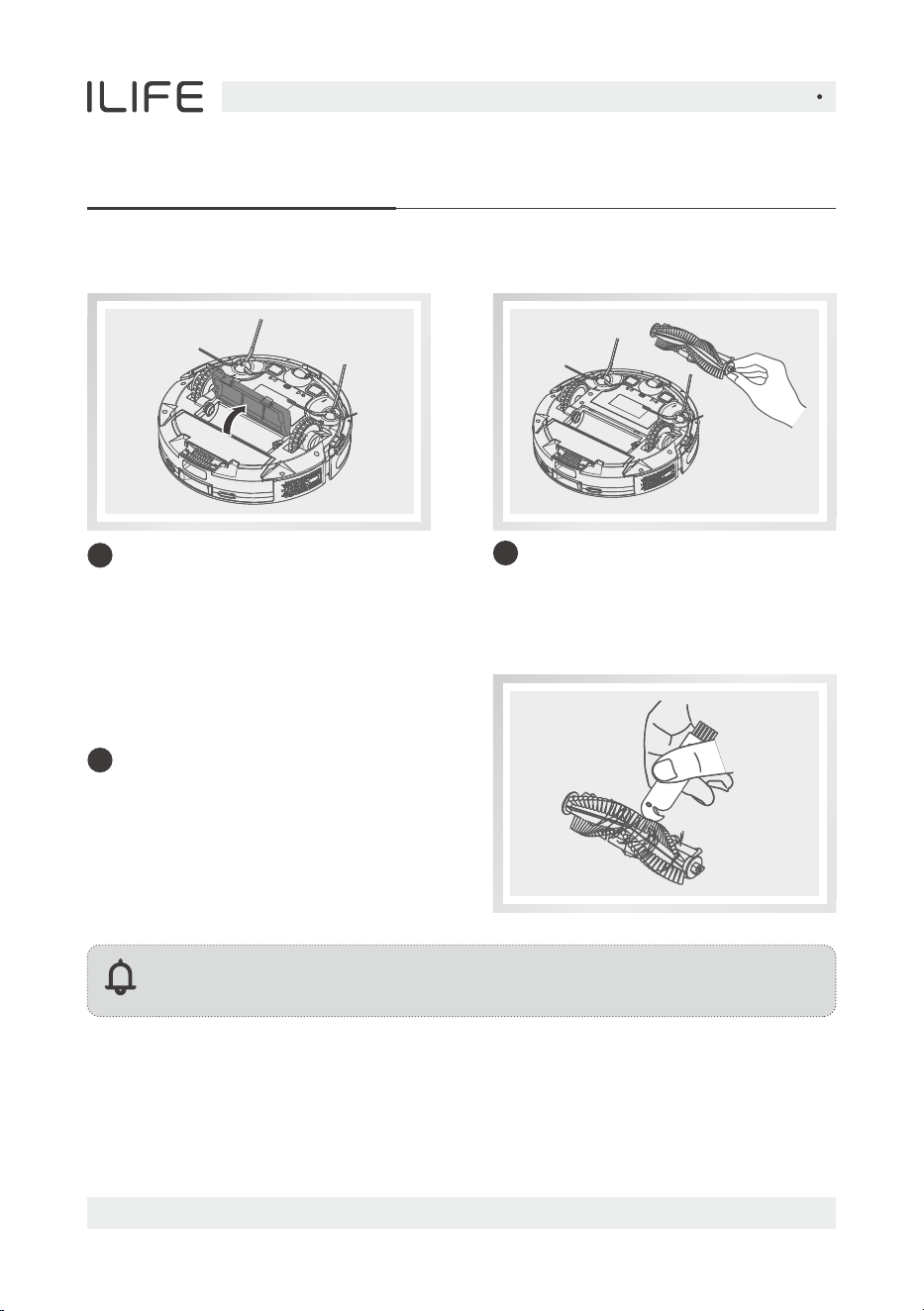
Roller brush
Turn over the machine, press the
buckle on the roller brush cover
and take out the cover plate of
roller brush.
1
Take out the roller brush.
2
Use the clean brush to remove the
dust in the cavity of main brush
and roller brush and clear the
entanglements on the roller brush.
3
Note:
Recommended cleaning frequency: once a week.
English
For more details, please visit www.iliferobot.com 27
Routine Maintenance
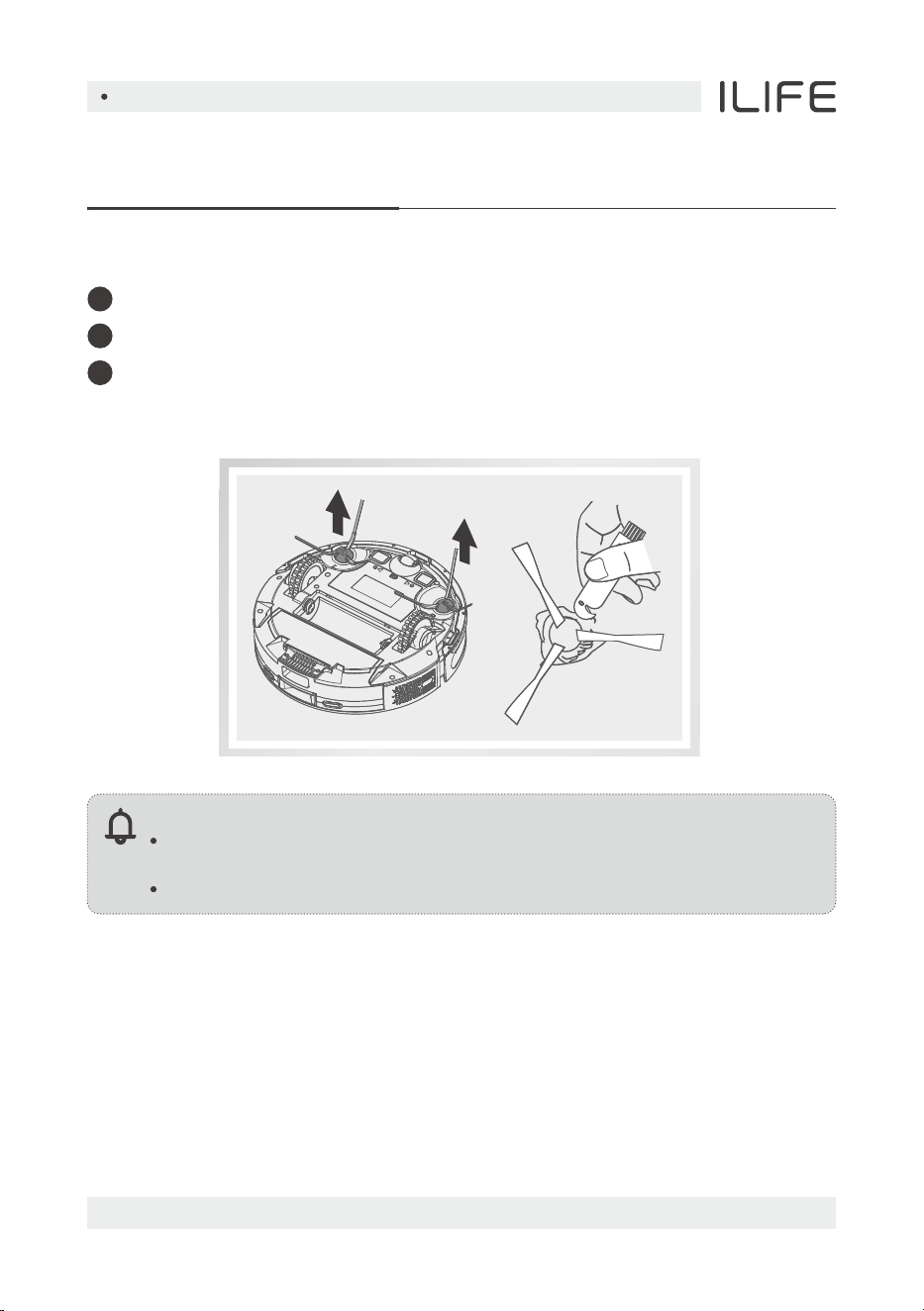
Side brush
2
1
3
Align the side left brush (L) and right side brush (R) with the letters L and R on
the bottom shell respectively, and press them down to install back the
side brush.
Turn over the machine upward and pull out the side brush vertically.
Clear the entangled hairs and dirt and install back the side brush.
Note:
It is recommended to replace the side brush every three months to
ensure cleaning effect.
Recommended cleaning frequency: once a week.
English
For more details, please visit www.iliferobot.com28
Routine Maintenance
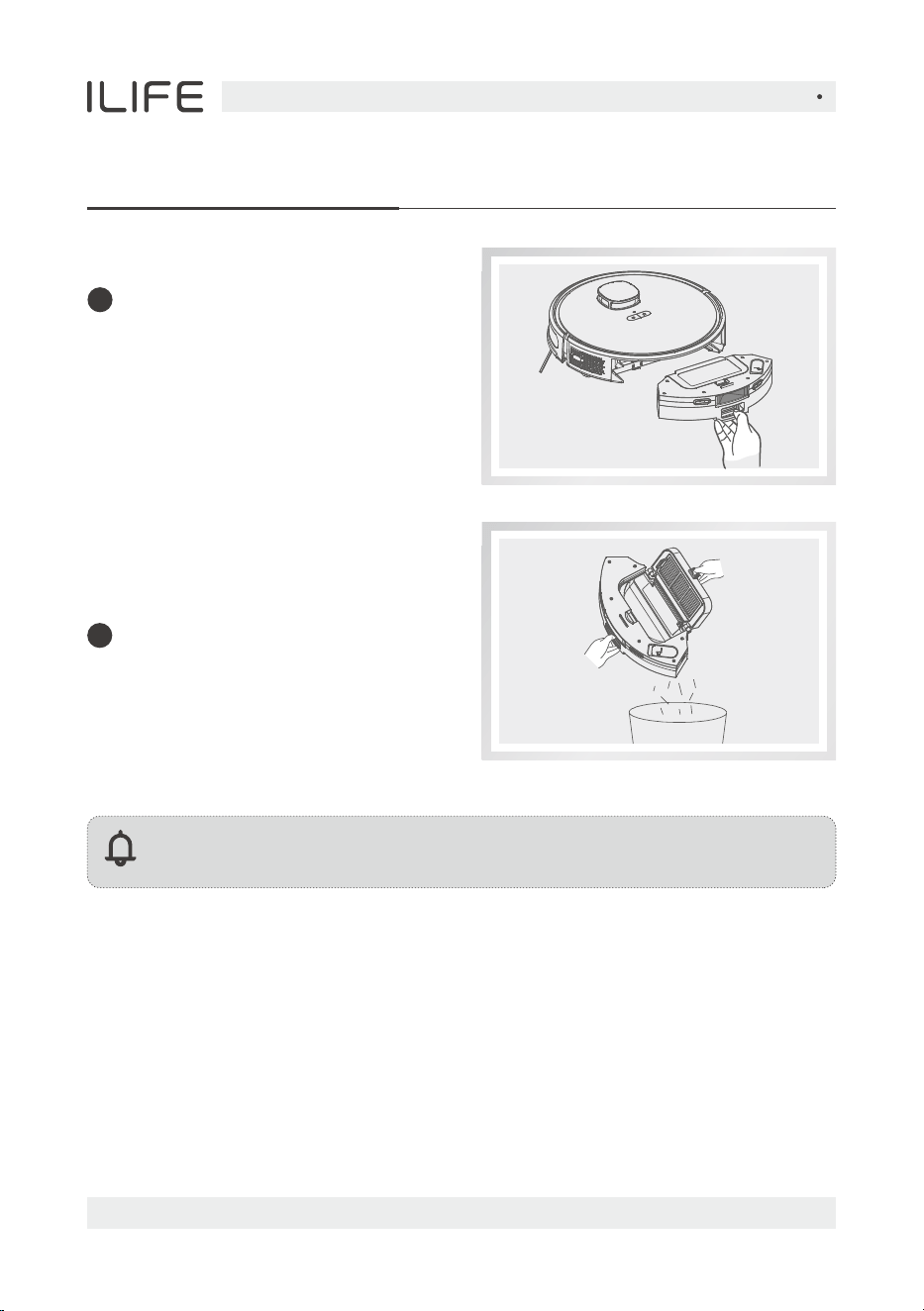
Press the dust bin switch and open
the dust bin to dump the rubbish.
2
Press the dust bin button and
draw out the dust bin.
Dust bin and filter
1
Note:
Recommended cleaning frequency: after cleaning.
English
For more details, please visit www.iliferobot.com 29
Routine Maintenance
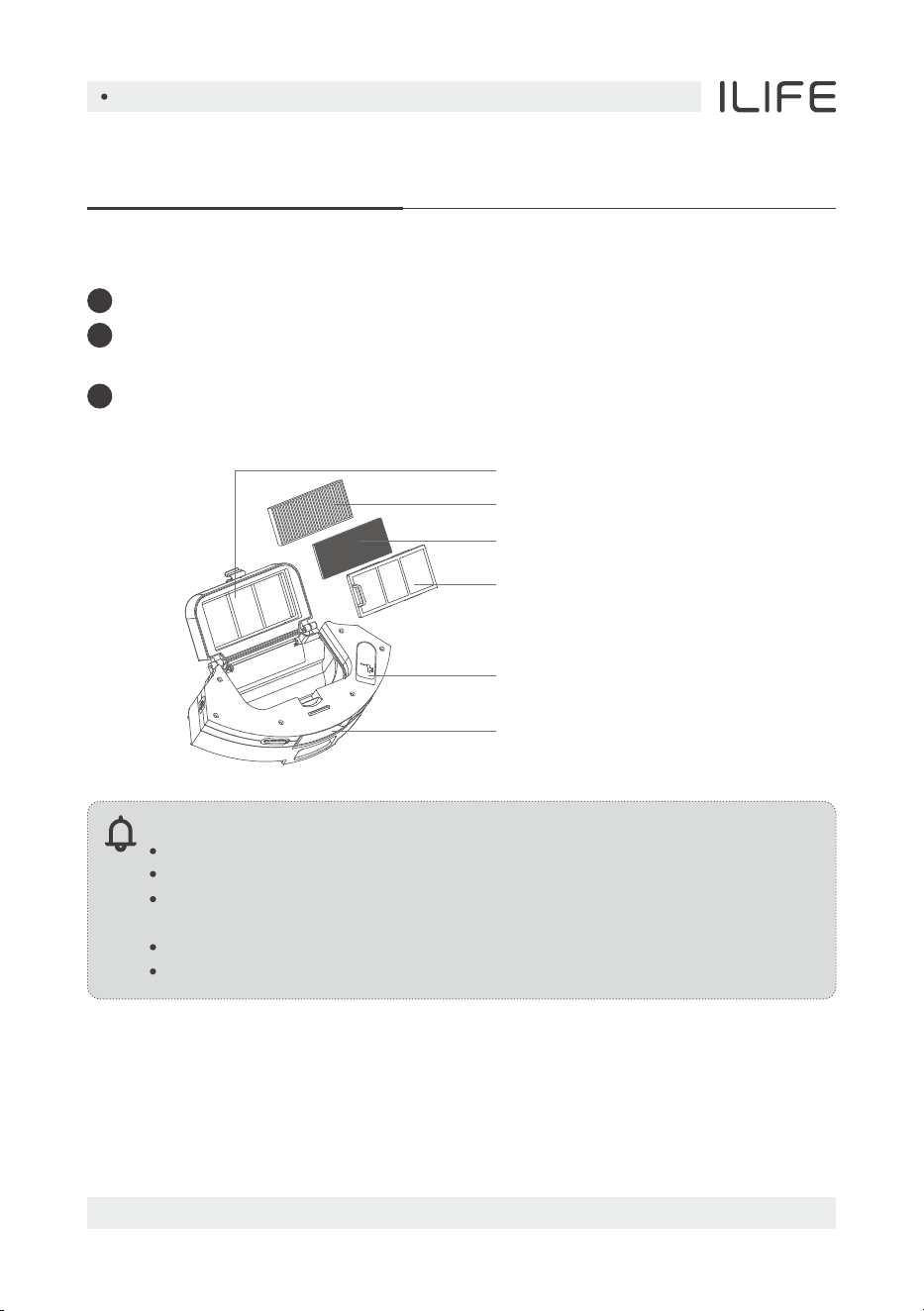
After use for a long time, take down the sponge and high-efficiency filter.
Flush the primary filter, dust bin and sponge under the water tap
(the high-efficiency filter cannot be washed with water).
After washing, shake off the water drops, dry the filter and dust bin in the air,
and they can be used only after they are completely dry.
Wash the dust bin
Note:
Wash with clean water and do not add any detergent.
Do not use brush but use fingers to clean the filter.
The filter shall be dried in the air for at least 24 hours so that it can
be dried thoroughly.
lt is recommended to replace the filter every three months.
Recommended cleaning frequency: once a week.
High-efficiency filter
Sponge filter
Primary filter
Water tank plastic plug
Dustbin button
High-efficiency filter cover
2
1
3
English
For more details, please visit www.iliferobot.com30
Routine Maintenance
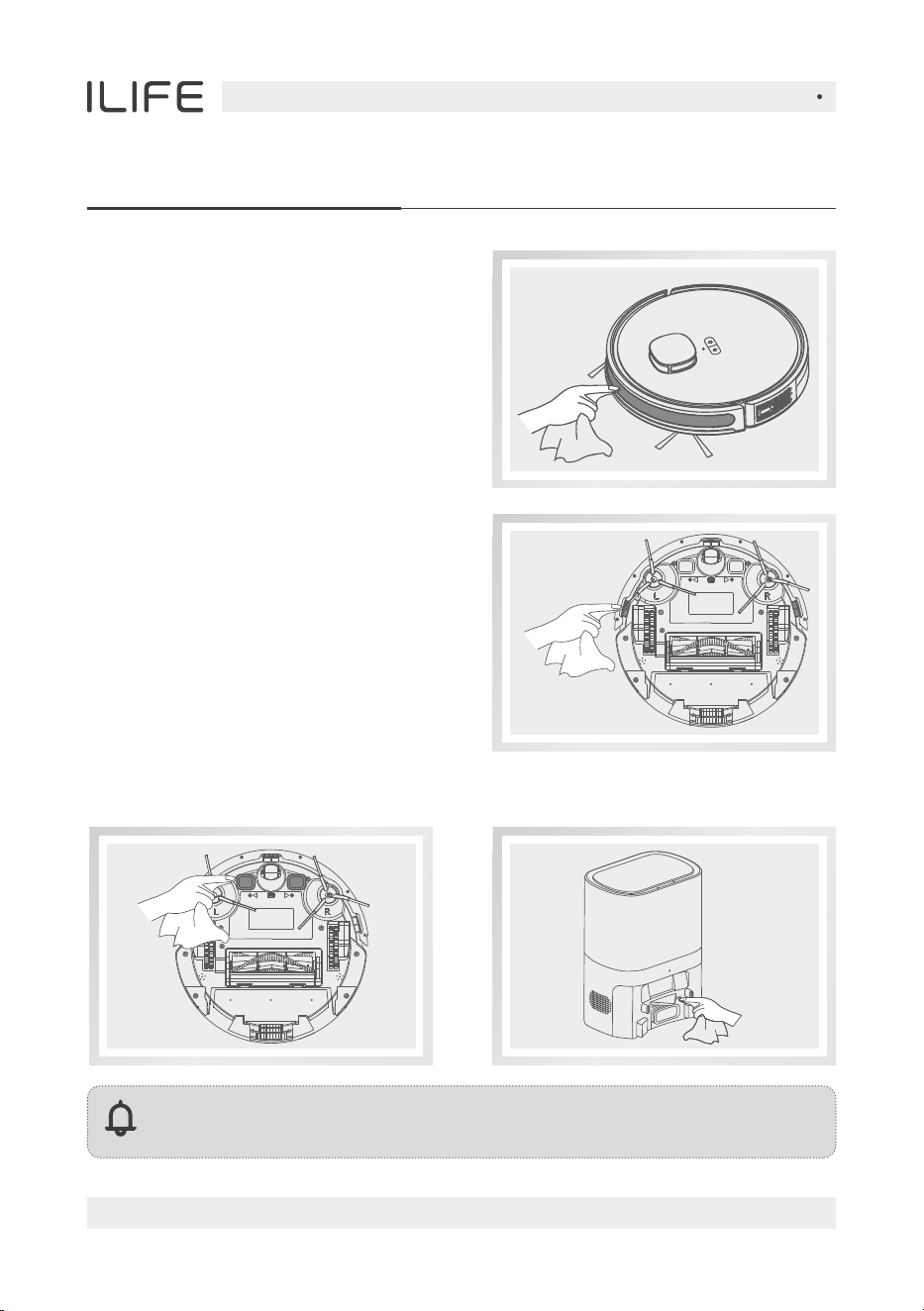
Note:
Recommended cleaning frequency: once a month.
Clean the infrared obstacle
avoidance sensor
Clean the cliff sensor
Clean the charging contact
English
For more details, please visit www.iliferobot.com 31
Routine Maintenance
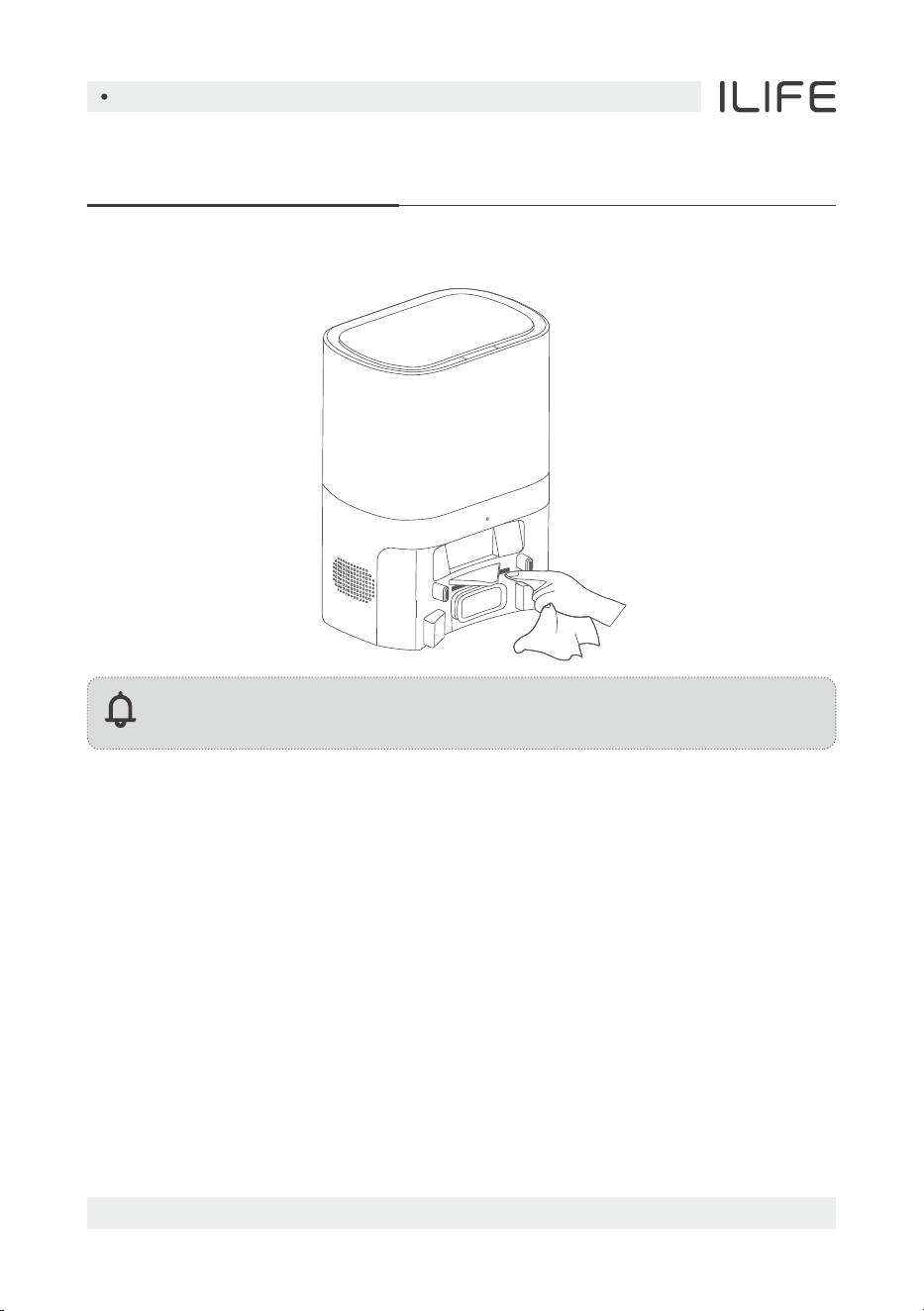
Note:
Recommended cleaning frequency: once a month.
Rechargeable high-performance lithium ion battery pack is built in themain unit.
To maintain the battery performance, please maintain the main unit in charging
state during daily use.
If the machine is not used for a long time, it shall be shut down for storage,
and charged every three months to avoid damage to the battery due to
over-discharge.
Enter the firmware upgrade function through the mobile APP.
After new firmware is detected, upgrade according to the prompt guidance.
The battery capacity shall not be less than 50% during firmware upgrade.
It is recommended to place the device on the charging base during upgrade
Clean the signal emission region on the Auto-empty station
Battery
Firmware upgrade
English
For more details, please visit www.iliferobot.com32
Routine Maintenance
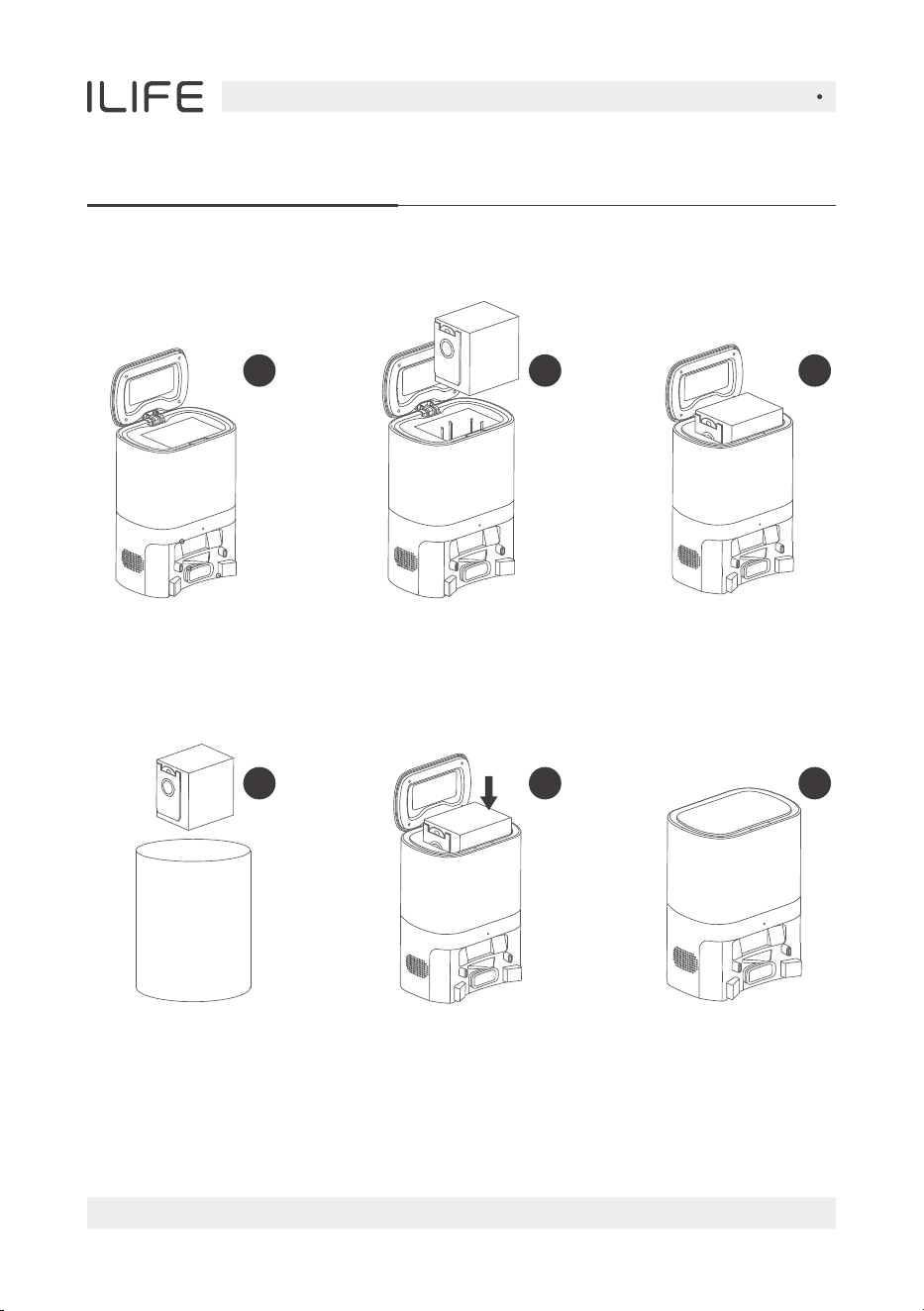
How to change the dust bag
2. Pull up dust
bag handle.
1. Unplug the power
and open the
Auto-empty
station cover.
5. Install the new dust
bag into the station
and ensure that the
dust bag handle is not
pulled out.
4. Throw the used
dust bag in to the
trash can.
3. Remove the dust
bag from the station.
6. After covering the
Auto-empty station,
switch on the
power supply.
21 3
54 6
English
For more details, please visit www.iliferobot.com 33
Routine Maintenance
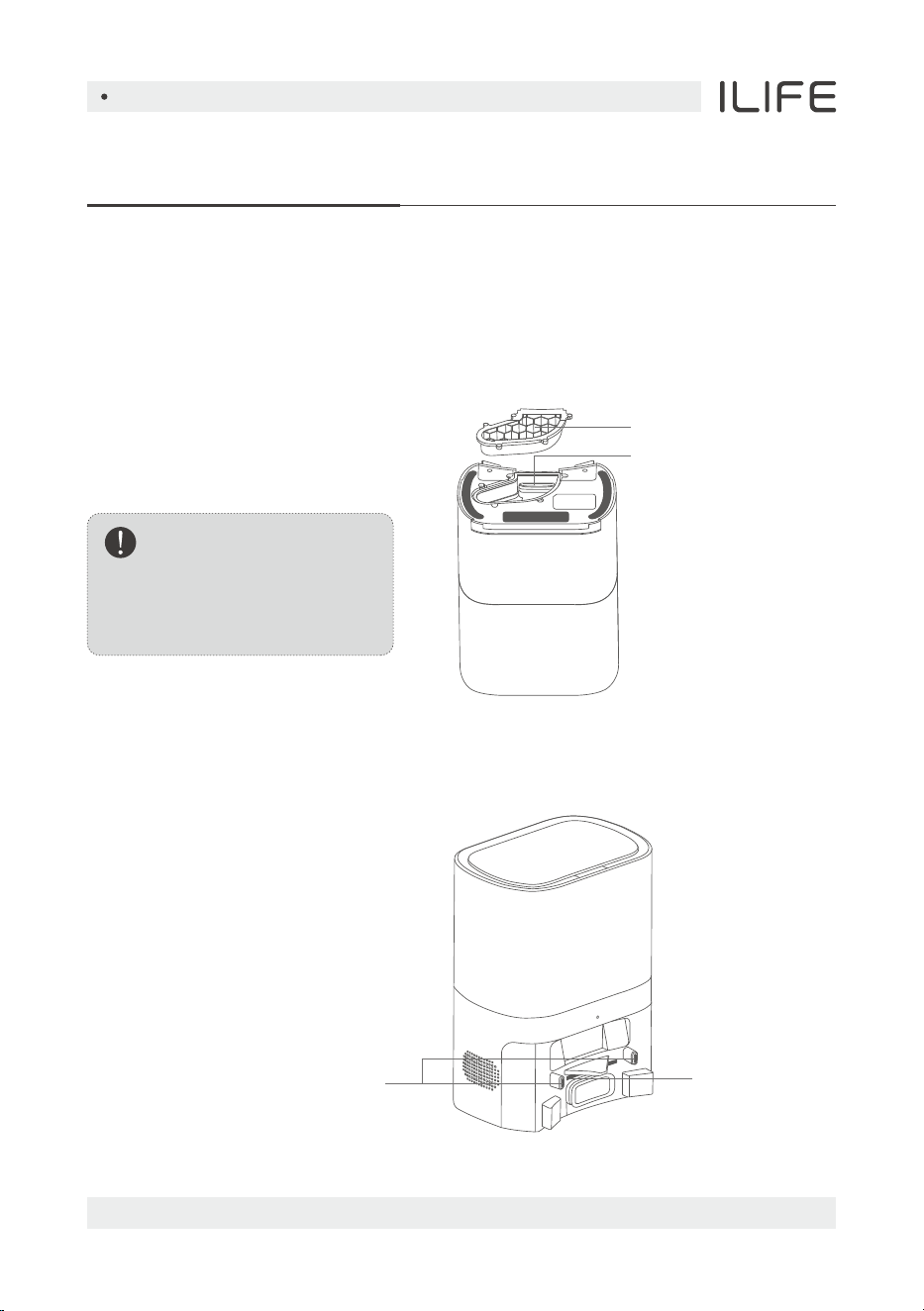
Clean the Auto-empty station dust channel
If the station indicator blinks red after replacing the dust bag, please unplug it.
Reverse the station, through the dust channel perspective window, check whether
the dust channel of the station is blocked. If the dust channel is blocked, remove
the dust channel perspective window with a screwdriver according to the
following figure.
Cover of dust channel
Dust channel
Gently wipe the two areas regularly
with a clean, soft, dry cloth.
It is recommended to clean them
once a month.
Clean the Auto-empty station infrared sensor/
Charging contact shrapnel
Violent disassembly is
strictly prohibited.
Please reinstall it
after cleaning.
Caution
Infrared sensor
Charging contact shrapnel
English
For more details, please visit www.iliferobot.com34
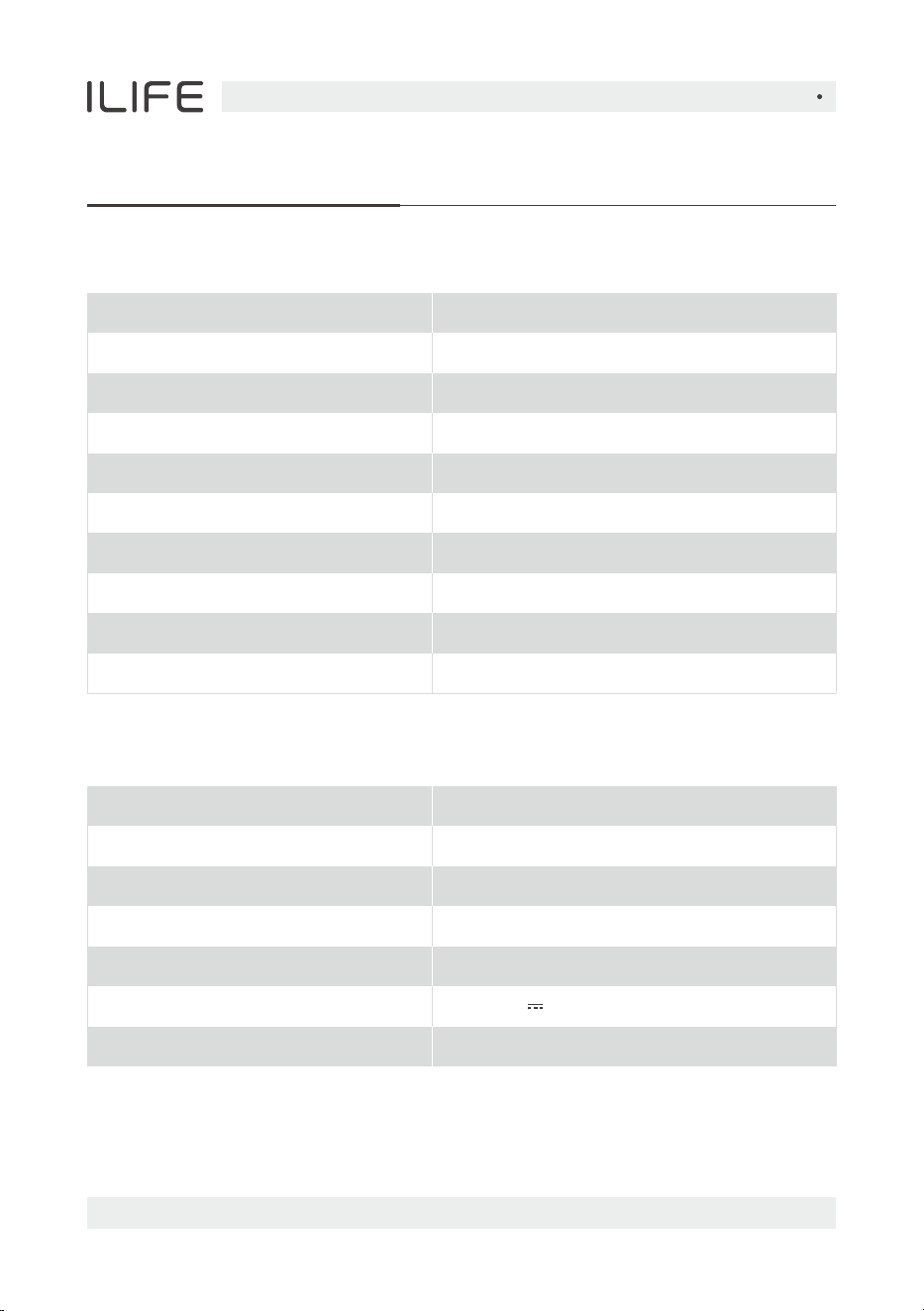
Product Specification
Main unit
Auto-empty station
Product name
Product model
Overall dimension
Net weight
Rated Input
Rated Output
Rated power
Auto-empty station
T10s
320X240X165mm
2.7kg
100-240V~50/60HZ
19V 1A
680W
Product name
Product model
Overall dimension
Net weight
Battery
Rated voltage
Rated power
Charging time
Capacity of dustbin
Capacity of water tank
Robot vacuum cleaner
T10s
320X320X93mm
2.8kg
3200mAh
14.4V
42W
300min
240ml
250ml
English
For more details, please visit www.iliferobot.com 35
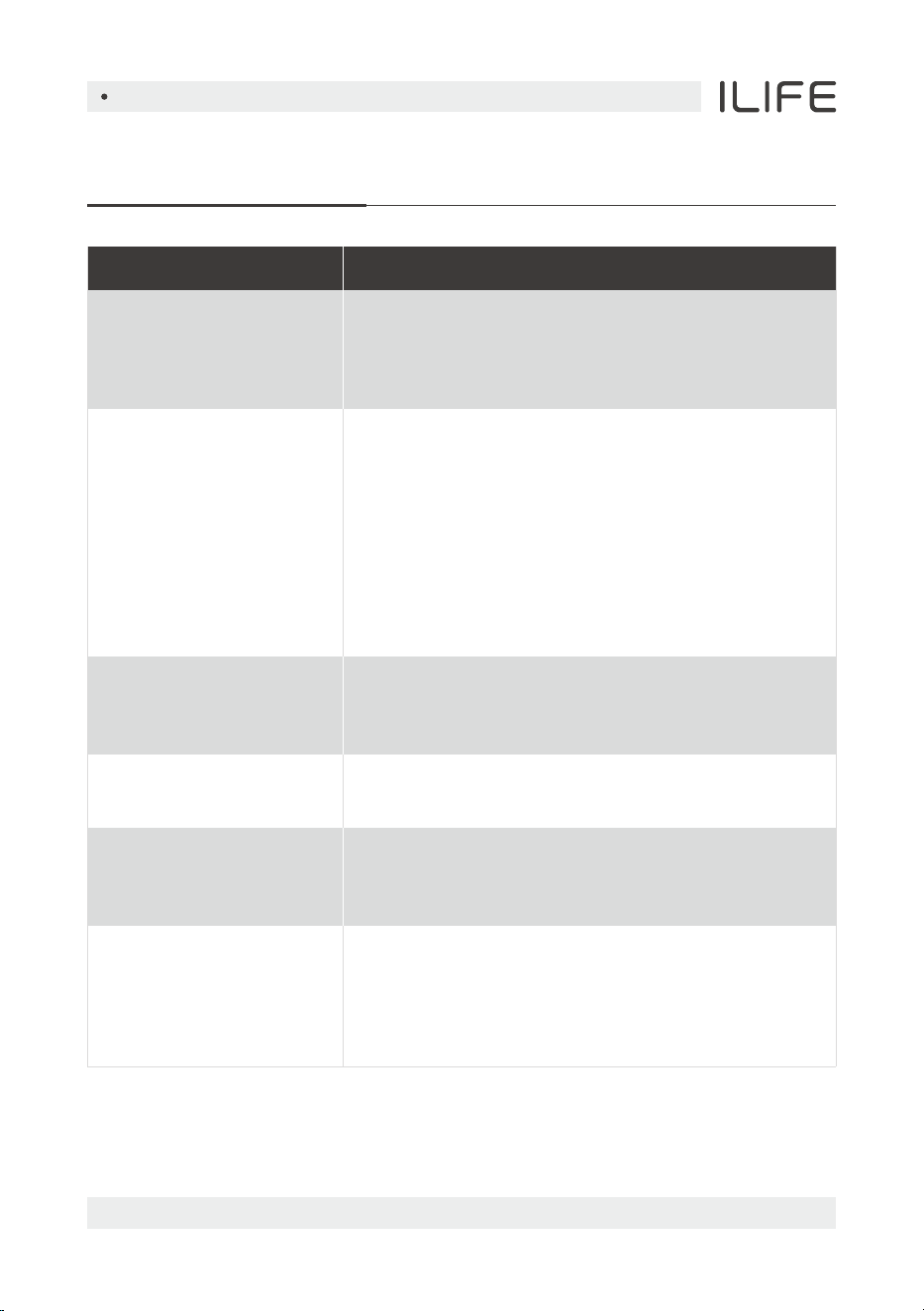
Common Problems
Failed to power on
the machine.
●
●
Move the machine away from the
docking station, and check whether the
indicator of the docking station is on.
Make sure that both ends of the power
adapter are properly connected.
The docking station is not in proper contact
with the machine. Please clean the docking
station shrapnel and the charging contact on
the machine, or push the side brush to one side.
The battery power is insufficient. Please place
the machine on the docking station, and align
with the charging clcctrode. The machine will
be automatically powered on.
Failed to charge the
machine.
Failed to return to the
docking station.
Failed to return to the
docking station.
Failed to return to the
docking station.
The machine is too far away from the
docking station. Try to place the machine near
the docking station.
Power off the machine and then on again.
The roller brush, side brushes, or wheels may be
entangled with foreign objects. Please clean them
after stopping the machine.
The cleaning
performance is
degraded, or ash
is dropped.
●
●
●
The dust box is blocked. Clean the dust box.
The filter is full. Clean or replace the filter.
The roller brush is entangled with foreign objects.
Clean the roller brush.
Problem Solution

English
For more details, please visit www.iliferobot.com36
Problem Solution
Common Problems
●
●
●
●
The Wi-Fi signal is not good. Ensure that the
machine is located in a place with good
Wi-Fi signals.
The Wi-Fi connection is abnormal. Reset the
Wi-Fi settings, download the app of the
latest version, and try to connect to the Wi-Fi
network again.
The password is incorrect.
This machine supports only the 2.4 GHz band.
The Wi-Fi network
cannot be connected.
Scheduled cleaning
cannot be carried out.
Is any power consumed
if the machine always
stays at the
docking station?
Is it necessary to charge
the battery for 16 hours
when the machine is used
for the first three times?
The power is insufficient. Scheduled cleaning
will be started only when the remaining power
is 15% or above.
The power consumption is extremely low when
the machine always stays at the docking station.
This helps to keep the battery in the
best performance.
The lithium battery does not have a
memory effect. It can be used instantly after
it is fully charged. There is no need to wait.

English
For more details, please visit www.iliferobot.com 37
Troubleshooting
Error Prompt
Error 1 : Insert the dustbin
Error 3: Please lay the
machine flat on the
ground and then start it
Error 4: Please check
whether the front bumper
is stuck
Error 5: Low battery;
please charge
Error 6: The machine
is trapped
Error 7: Please check
whether the wheel is stuck
Error 8: Please check
whether the rolling brush
is stuck
Error 9: Please check
whether the side brush
is stuck
Error 2: Put the machine on
the floor before starting
Cleaning is triggered when the dust bin is
taken out; please reinstall the dust bin.
You may pick up the machine; or the machine is
suspended; please move the machine to a flat
ground and start it again.
The machine tilts; please move the machine to a
flat ground and then start it.
The edge or collision sensor is stuck; please push
the bumper left and right to confirm that it is not
stuck.
Put the main unit on the charging base for
charging.
Please move the machine to an open ground
and then start it.
The main wheel is stuck or entangled;
please check the main wheel and remove the
foreign matters.
The rolling brush is entangled or stuck;
please check the rolling brush and remove the
foreign matters.
The side brush is entangled or stuck;
please check the side brush and remove the
foreign matters.
Solution