Carefully read all the instructions before using this appliance. Keep it well for future reference
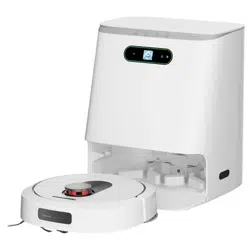
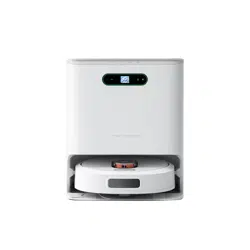
ROIDMI Self-Cleaning and Emptying Robot Vacuum Manual
Scan the QR code for manuals
in multiple languages

Contents
Safety precautions
Product Introduction
Product use
APP installation and use
Product disassembly and cleaning
Roller brush assembly, disassembly and cleaning
Side brush removal and cleaning
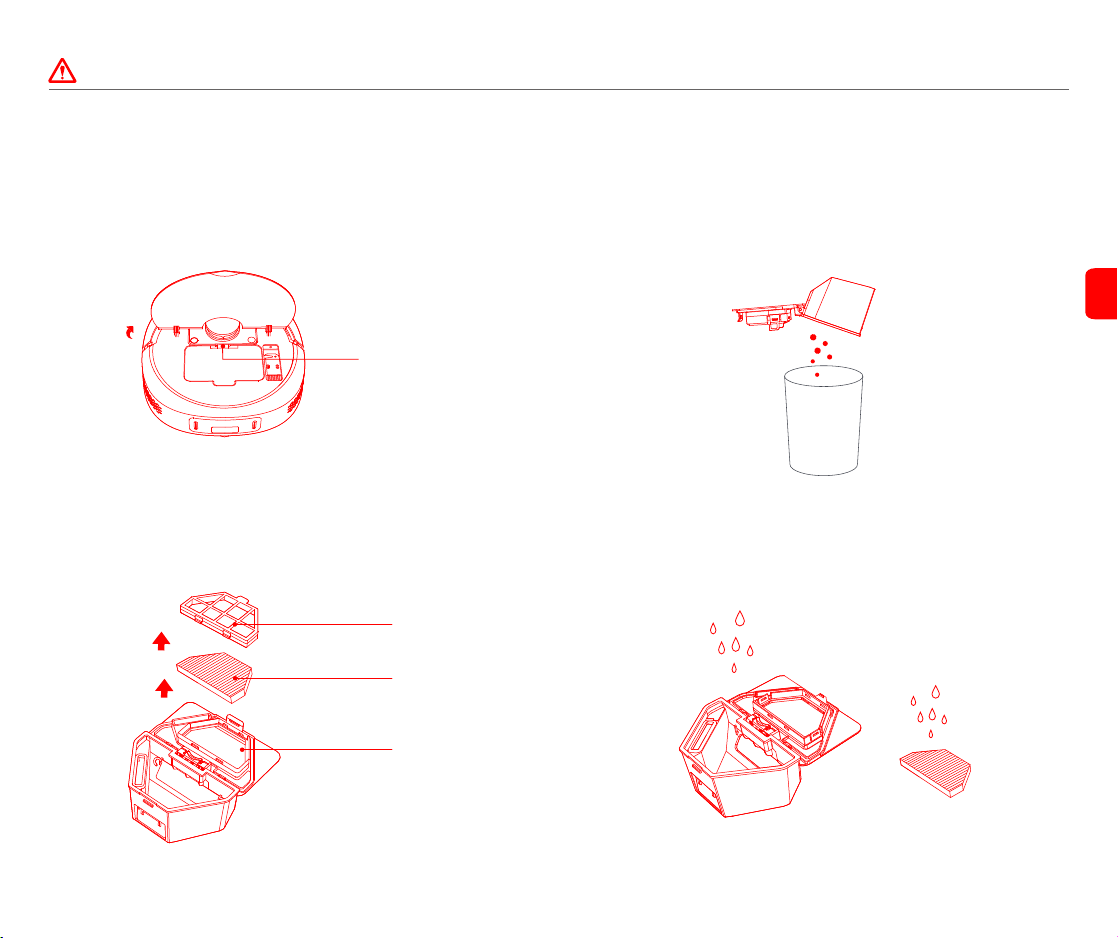
Removal and cleaning of dust box and filter element
Mop disassembly and cleaning
Robot cleaner part cleaning
Base station cleaning
Robot cleaner
5
5
7
8
9
9
10
10
11
12
12
13
14
16
2
3
4
4
Dust box
Warning (Robot cleaner)
Warning (Base station)
Base station
Mi Home APP Installation
Quick product installation and use
Product Operation and Programming
Base station display functions introduction
Base station status indicators
Troubleshooting
Common problems
7
ROIDMI APP Installation
Cleaning the base station parts
14
17
Basic specifications
Disposal
18
Warranty and limitations of liability
18
Warranty card
19
Maintenance records
19
EN
1
Safety Precautions
Carefully read the instruction manual before use
Warning: Carefully read the following safety precautions before use in order to avoid causing harm to yourself and others or property damage. The
safety precautions are divided into 2:"Warning" and "Caution" are important instructions for safe use of the appliance be sure to follow them.
Warning (Robot cleaner)
2
1. Do not use this appliance on wet surfaces such as near water sources, bathrooms etc;
2. Do not use the appliance to clean up liquids, cigarettes, matches or wet garbage;
3. Do not use the appliance to clean flammable liquids such as kerosene, gasoline; objects with sparks, toner cartridges, toners and other
combustible dust or use the appliance near the any of the above items or flammable and explosive gases to avoid fire;
4. Do not disassemble, repair, or modify by yourself, so as to avoid causing fire, injury, or poor operation, except for the replacement of
consumables according to this manual;
5. If the roller brush is abnormal during use, please switch off the appliance and immediately check whether the roller brush is entangled with
hair, fibers or other windings and clean it up;
6. The battery is sealed and poses no safety hazard under normal circumstances. Under extreme conditions, if liquid leaks out of the battery it
may cause irritation or burns. ①If touch accidentally occurs to skin, clean the skin immediately with lots of soap and water. ②If touch with
eyes occurs, immediately rinse with water for at least 15 minutes and seek medical help;
7. The appliance is not to be used by persons (including children) with reduced physical, sensory or mental capabilities, or lack of experience and
knowledge, unless they have been given supervision or instruction. Children being supervised can not play with the appliance.
8. Please keep the appliance away from electromagnetic equipment in the hospital;
9. Children should not be allowed to use this appliance as a toy;
10. This appliance can only be used with the cleaning base station provided by the manufacturer;
11. Before disposing of the machine, remove the battery from the machine. Power off the machine before removing the battery. The correct tools
are required to take out the battery. To open the bottom cover of the appliance and remove the screws firstly. then proceed to unplug the
battery connection terminal and take out the battery. The used battery pack should be safely recycled and not carelessly disposed of;
12. When the appliance is stored for a long time and is not in use, it is recommended to charge it once a month.
13. This appliance can be used by children aged from 8 years and above and persons with reduced physical, sensory or mental capabilities or
lack of experience and knowledge if they have been given supervision or instruction concerning use of the appliance in a safe way and
understand the hazards involved
WARNING Precautions that may cause death or serious injury as a result of incorrect operation
Caution Cautions that may cause minor injuries or damage to the product due to incorrect operation
Hereby, [ROIDMI INFORMATION TECHNOLOGY CO., LTD.] declares that the radio equipment type [2.4GHz WLAN Module] is in compliance with
Directive 2014/53/EU. The full text of the EU declaration of conformity is available at the following internet address:http://doc.roidmi.com/web/
#/27?page_id=0
EN
3
Warning (Base station)
Notice (Robot cleaner/Base station)
1. Do not use both the robot cleaner or the base station in outdoor, non-floor, commercial or industrial environments;
2. Do not use in an open environment where there is no protective roof covering;
3. Do not block the exhaust port, so as to prevent appliance body deformation, failure or fire due to overheating;
4. Do not drag the machine, so as not to scratch the base;
5. Do not swing the appliance or allow children to play with it to avoid causing injury or damage to the machine;
6. Do not drop, collide the appliance with other objects, or apply any form of pressure to the machine, so as to avoid malfunctions that could
cause electric shock or fire;
7. Install the roller brush and filter element before use, to avoid affecting the cleaning performance of the machine;
8. Please check if the charging cable of the clean base station is well connected before charging;
9. Before using the robot cleaner, clear the area to be cleaned. Arrange the furniture and other household items neatly and remove power cords
and small items from the ground to prevent the obstruction of the appliance during cleaning;
10. When the appliance is in operation, keep the carpet flat to avoid blocking the appliance during operation;
11. Do not stand in front of the robot cleaner while it is cleaning, lest the host cannot identify the area to be cleaned;
12. Do not use and store the appliance under extreme adverse conditions, such as extreme temperatures, etc. It is recommended to use it at an
indoor ambient temperature, please store it in a cool and dry place;
13. When using the cleaning solution, avoid contact with eyes. If contact with eyes accidentally occurs, rinse thoroughly with water. Do not
swallow or mix with other cleaning agents, chemicals, and medicine.
14. The plug must be removed from the socket-outlet before cleaning or maintaining the appliance
1. Do not plug in or handle the power cord, plug or appliance with wet hands;
2. Do not use damaged power cords or loose sockets;
3. When charging the base station, please use AC power with rated voltage. Do not use generators or DC power supplies to avoid fire and electric
shock;
4. Use a dry cloth to regularly clean dust off the plug to avoid fire due to poor insulation;
5. Be sure to correctly and firmly insert the plug into the socket to avoid electric shock, short circuit or fire;
6. In the event of abnormal failure, please immediately cut off the power supply and stop using it to prevent smoke, electric shock or fire;
7. In event, the base station body deforms, abnormally heats-up, smells burnt or makes abnormal noises while in use, please immediately cut off
the power, unplug it and place the product in an open area, free of combustible materials. To ensure safety, any replacement or maintenance
should only be carried out by the manufacturer or ROIDMI designated maintenance personnel;
8. Be sure to unplug the appliance from the power source before cleaning and maintenance to avoid electric shock or injury;
9. Do not spray water on or immerse the appliance or power cord in water;
10. Do not use other power cords to charge the appliance;
11. When removing the unplugging the base station, be sure to hold the insulated part of the plug and do not pull the power cord to avoid risk of
electric shock;
12. If the body of the base station is damaged, please do not use to clean the base station to avoid the risk of electric shock;
13. This base station is for use only with the robot cleaner designated by the manufacturer;
14. Before charging, ensure that the required power voltage of the base station is consistent with power supply voltage.
15. Do not charge non-rechargeable batteries.
16. Only use the specified power cord to connect to the outlet.
EN
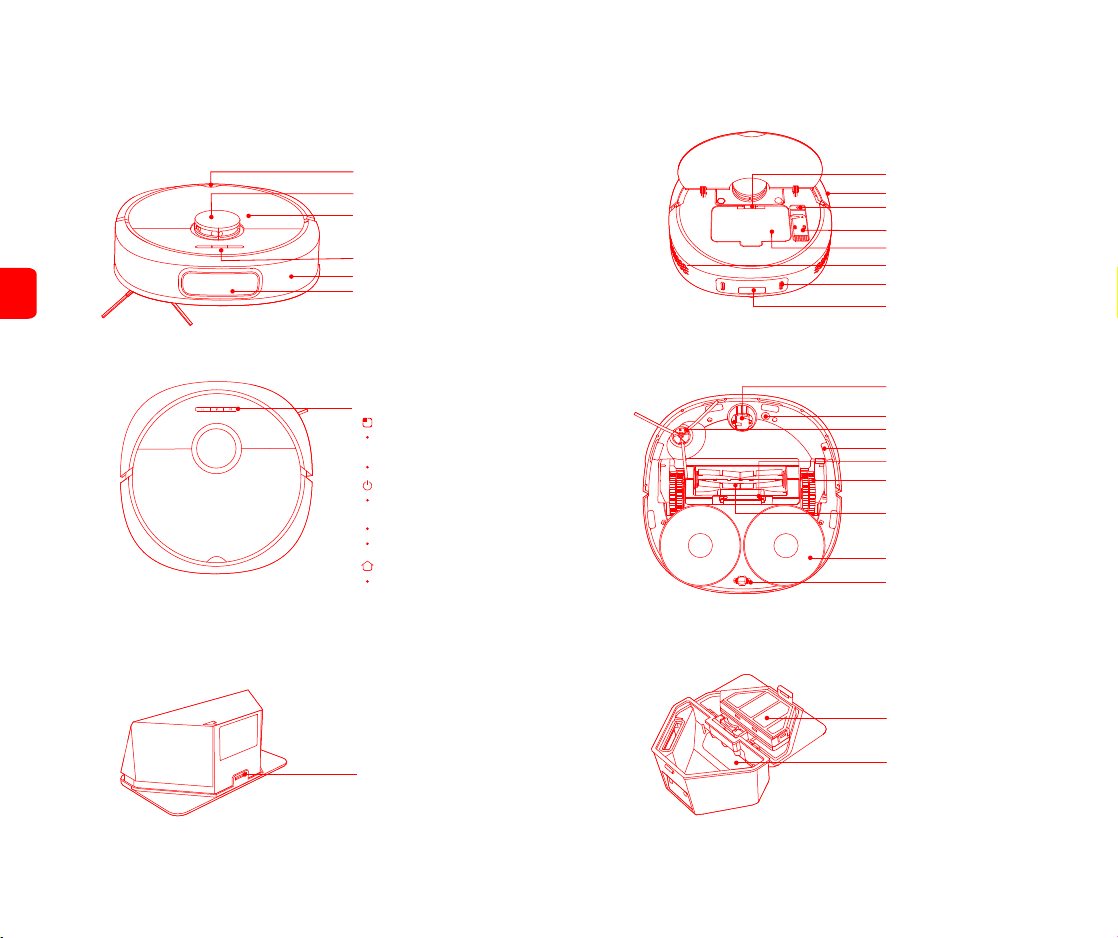
Product Introduction
Robot Cleaner
LDS sensor
Top cover clasp
Dust collection port
Function buttons
Dust box removal button
Dust box
Reset button
Cleaning brush
Panel
Charging contacts (×2)
Air outlet
Short press for overall cleaning, automatic
recharge after cleaning
Long press to switch on/off
Switch button
Short press to pause during operation
Recharge button
Short press to recharge
Dust box
Filter
Infrared window/infrared receiving sensor
Function buttons
Bumper
Wall sensors
4
Dust inlet
Universal wheel
Carpet detection sensor
Directional wheel
Side brush
Anti-fall sensors (×6)
Driving wheels (×2)
Roller brush
Roller box release button
Mops (×2)
Area cleaning button
Short press to clean locally, and automatically
recharge after cleaning
Short press to pause during operation
Dust box release flap
EN
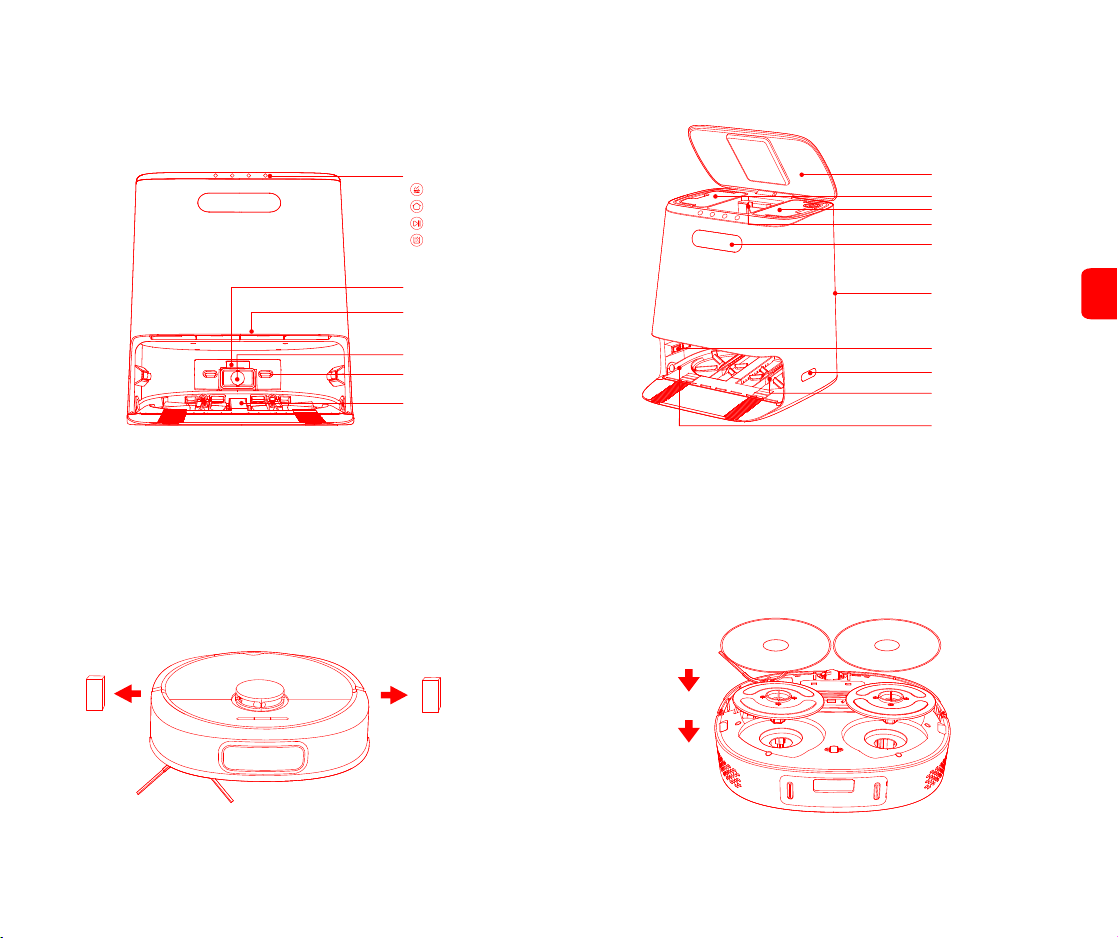
Base station
Quick product installation and use
5
Product use
Step 1: Remove the protective material from the limit strips on both sides of the bumper;
Display screen
Top cover
Infrared lens (×2)
Cleaning disk
Water level contact
Guide wheels (×4)
Dust bag
Clean water tank
Dirty water tank
Step 2: Paste the mop on the mop support sticking area and install the mop support
component into the bottom groove;
Infrared lens
Charging ports (×2)
Dust collection port
Waste outlet
Long cleaning brush
Function buttons
Cleaning the mop
Recall/issue (robot cleaner)
Start/Pause (base station)
Automatic dust collection
Power connector
EN
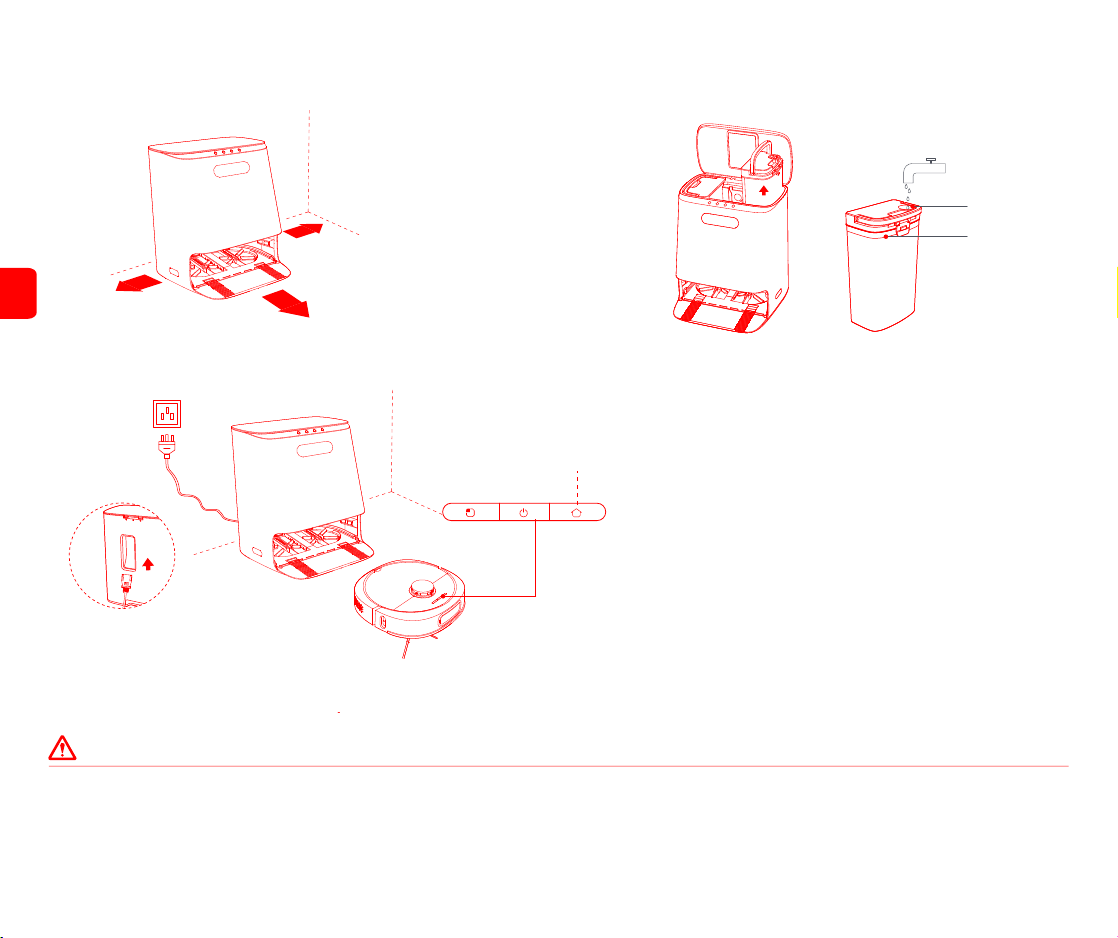
Step 3: Find a suitable location to place the base station and ensure that it is placed
horizontally;
Step 5: Connect the base station to the power supply as shown in the figure below, press the recharge button to actively search for the robot cleaner for charging.
Notice
1. Avoid using this appliance around infants or pet rooms and keep it away from infants and pets to avoid danger;
2. In order to facilitate the appliance to smoothly return to the base station after cleaning, it is recommended that the cleaning start-point be from the base station. Do not manually move the
clean base station during the cleaning process;
3. The base station has the functions of collecting dust, charging, cleaning and air-drying the mop. A new dust bag has already been installed before leaving the factory;
4. The base station should be placed horizontally on a non-carpet floor that is more than 1.5m away from the carpet;
5. When the map is first started, the appliance starts from the base station to improve the efficiency of map creation.
6
>0.5m
>0.5m
>1.5m
MAX line
Water inlet
Recharge button
Step 4: Take out the clean water tank, remove the lid and fill it with clean water (the water
volume should be below the MAX line). Then put back the clean water tank into the base
station and cover the base station;
EN
*Power cord model: ( China: PC323L+LS-60; United Kingdom: AW301+AW104; Korea: AW103+AW104; United States: DHT13+DHT35; Japan: DHT01+DH104; European Union: AW103+AW104;
Australia: LP-23A+AW104 )
7
* This product only supports 2.4GWiFi
App installation and use
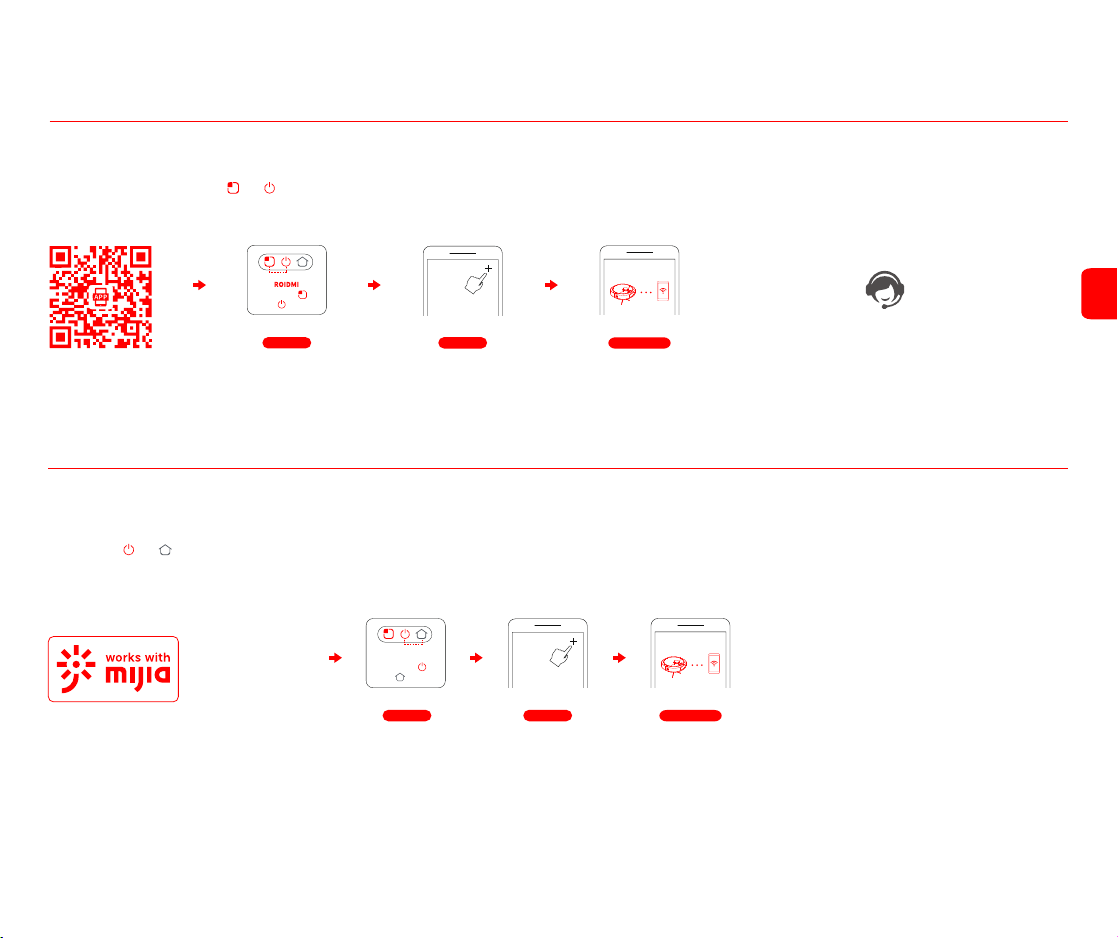
This appliance is compatible with the ROIDMI Platform, and can be controlled by the "ROIDMI" App. It supports both Android and iOS systems.
1. Scan the QR code below or search for "ROIDMI" on the app store to download and install;
3. If you have any questions, please consult customer service or check the official website.
ROIDMI APP Installation
2. Sign in to the app. Long press
and buttons on the robot cleaner at the same time for longer than 3 seconds to reset it. Click “+” at the upper right on the app’s homepage to add
device. Select the robot cleaner from the device list and connect it to WiFi according to the prompts.
Add device
Configure network
Add device
Configure network
Reset WiFi
Long press
and
to reset
Mi Home APP
This product works with mijia (Mi Home). It can be controlled via Mi Home app and interconnected with other smart devices.
1. Scan the QR code below, or search for “Mi Home” in the app store to download and install the app;
2. Turn on Mi Home app, register an account or sign in to the app;
3. Long press
and buttons on the robot cleaner at the same time for longer than 3 seconds to reset it. Click “+” at the upper right on the app’s homepage to add device;
4. In the device category list find the “Robot Cleaner” category, then click your ROIDMI robot cleaner model to enter Network Configuration interface;
5. Perform follow-up operations according to the app’s prompts on network configuration.
Reminder: Actual operations may vary due to upgrade and update of Mi Home app. Please follow the instructions in the app.
Please note that “works with mijia” only certifies the product is compatible with Mi Home app.
Xiaomi and Mijia are not liable for any problems related to the product itself and its manufacturer’s production, executive standards, quality control, etc.
* Some overseas regions do not support connection to Mi Home APP
MIHome
Long press
and
to reset
Reset WiFi
EN
Product Operation and Programming
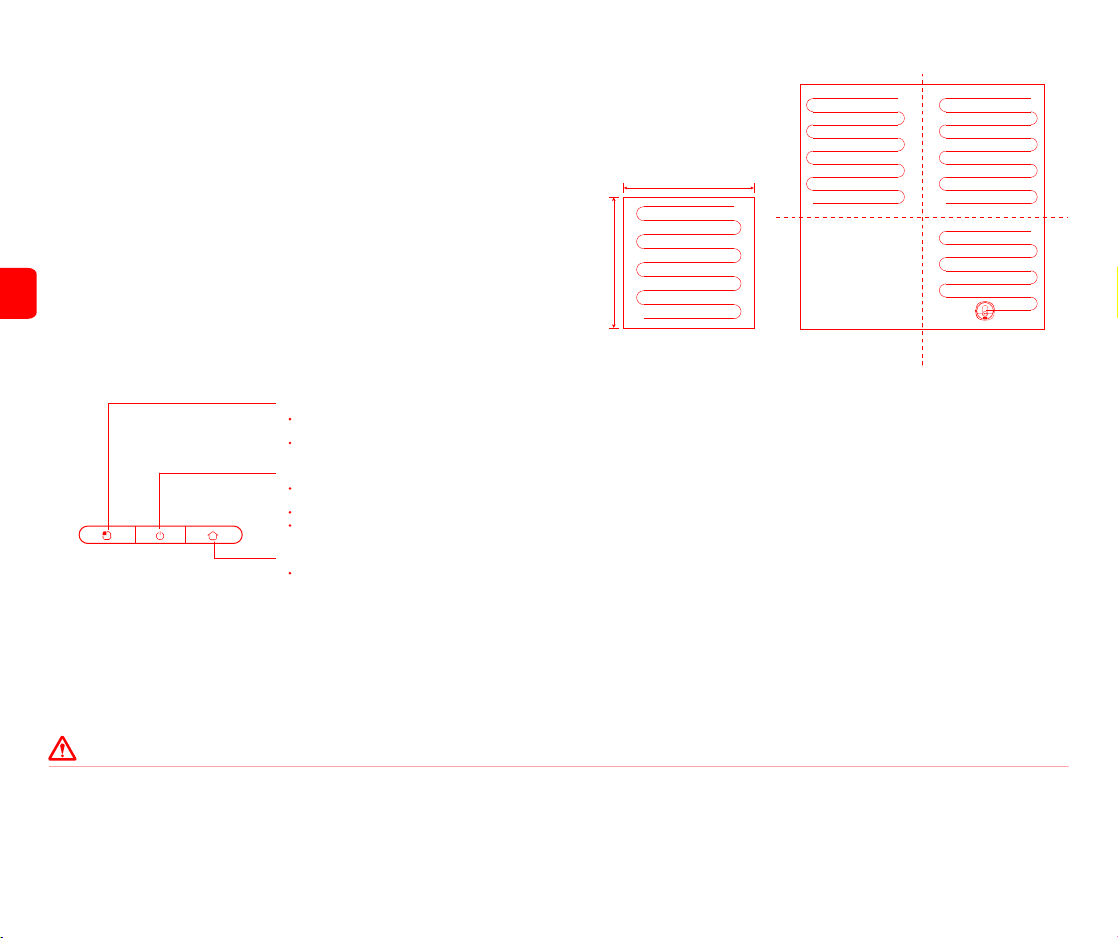
1. Powering on/off the appliance
After the first cleaning, the robot cleaner will scan and partition the room into a smart map, and clean
it according to the method of first along the walls and then in the bow shape. After the cleaning is
completed the robot cleaner will automatically return to base station.
4. Cleaning a localized area
When the main unit is in Standby mode or paused, press the Spot button to start cleaning a
localized area. The cleaning area is a 1.6 m x 1.6 m square centered on the main unit. After
cleaning, the main unit automatically docks.
Cleaning a localized area
1.6m
1.6m
5. Operation failure
When there is an abnormality in the operation of the robot cleaner, the switch button
indicator light flashes white quickly and voice broadcasts, please refer to this manual on
how to troubleshoot the robot cleaner to solve abnormal problems.
6. Dormant
If there is no operation after more than 10 minutes, the robot cleaner will automatically
enter the dormant state, press any key to restart.
7. Automatic dust collection
After the cleaning is completed, the robot cleaner will automatically return to the base
station for charging and dust collection.
8. Reset button
When the button does not respond or doesn’t power on, reset the system by pressing the
reset button (see page 4 for details), the robot cleaner will automatically reset and start.
after resetting the schedule, cleaning order and cleaning mode settings of the appliance
will be cleared, and WiFi will be reset.
8
Area 1 Area 2
Area 3Area 4
Note
1. It is recommended to place the robot cleaner in the base station charging position to start cleaning;
2. When the power is insufficient during the cleaning process, the robot cleaner will automatically return to the base station to recharge and return to the last break point to resume cleaning
after sufficient power is replenished;
3. Before using the product, clear the area to be cleaned. Arrange the furniture and other household items neatly and remove power cords and small items from the ground to prevent the
obstructions of the appliance during cleaning;
4. Do not stand in front of the appliance when it is cleaning, lest it cannot identify the area to be cleaned.
Recharge button
Area cleaning button
Short press to clean the area and automatically
recharge after cleaning
Short press to recharge
Short press for overall cleaning and automatic
recharge after cleaning
Long press to power on/off
Switch button
Short press to pause cleaning
Short press to pause cleaning
2. Charging
Power on: long press the switch button, the switch button indicator lights up and the appliance
enters standby state.
Shut down: long press the switch button, the indicator light slowly goes out and shutsdown.
After cleaning, the robot cleaner will automatically return to clean the base station and recharge.
If the robot cleaner does not start cleaning from the base station the recharge function may fail
and you may need to manually place it on the base station.
When the robot cleaner is charging, the switch button is always on and the power-on/off indicator
blinks when it is fully charged.
3. Overall cleaning
EN
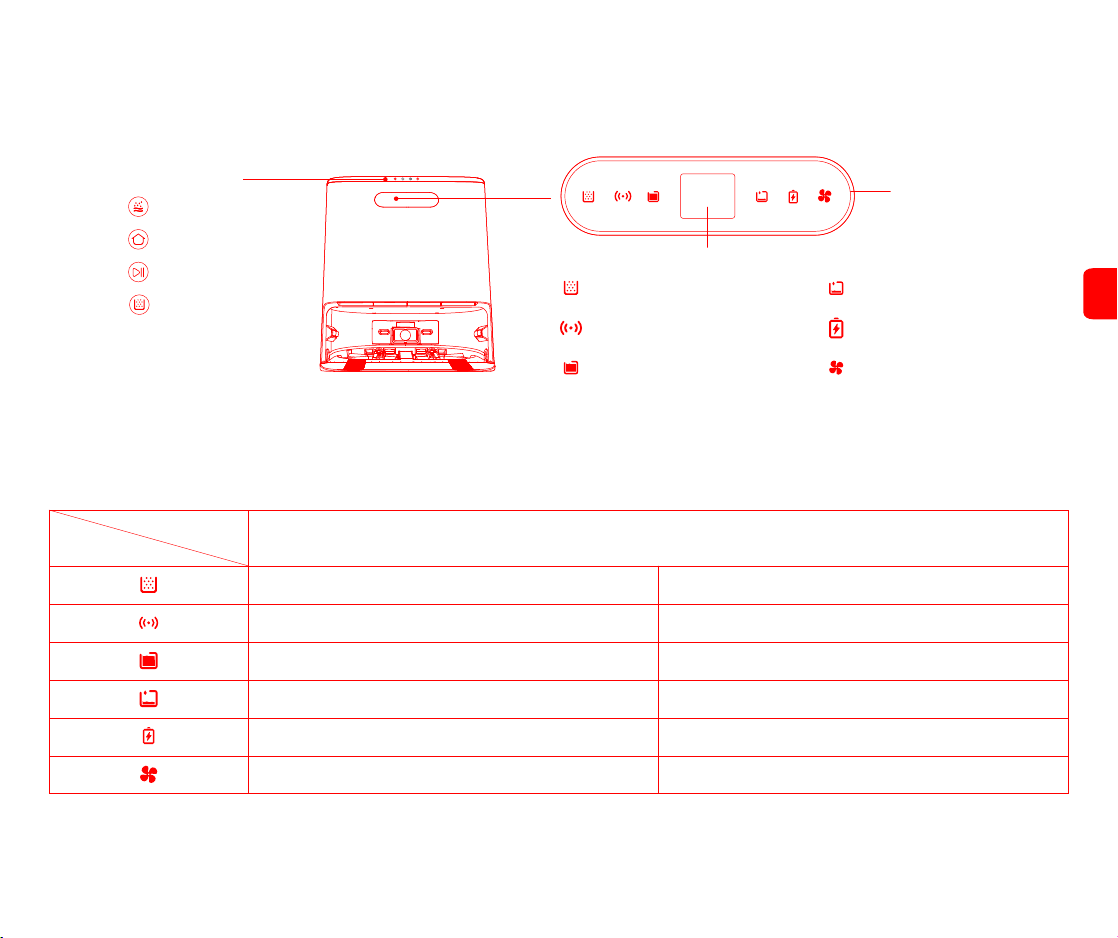
Base station display functions introduction
Prompt: For other faults, please check the color screen for specific faults.
9
Base station status indicator
Automatic dust collection Clean water tank empty
Light strip
After the base station is connected to the power, the light strip is always on; when the dust is collected or in mop cleaning state, the light strip shows a gradient marquee light movement.
Robot cleaner battery statusNetwork connection status light
Color display screen
Dust collection normal indicator light is always on
Running status display
The connection is normal, the indicator light is always on
Dust full indicator flashes
The connection is abnormal, indicator light flashes
The waste water tank is full, indicator light is always on
There is water in the clean water tank, indicator light goes out The clean water tank empty, indicator light flashes
Normal battery , the battery indicator light is off Low battery , indicator light flashes
The air-drying function works normally, indicator light is always on The air-drying function is not activated, indicator light is off
Function buttons
Mop cleaning
Recall/issue (robot cleaner)
Start/Pause (base station)
Automatic dust collection
*Tip: Start by touching the button with your finger
Indicator light
State
The waste water tank is not full, indicator light goes out
EN
Smart air-dryingWaste water tank full
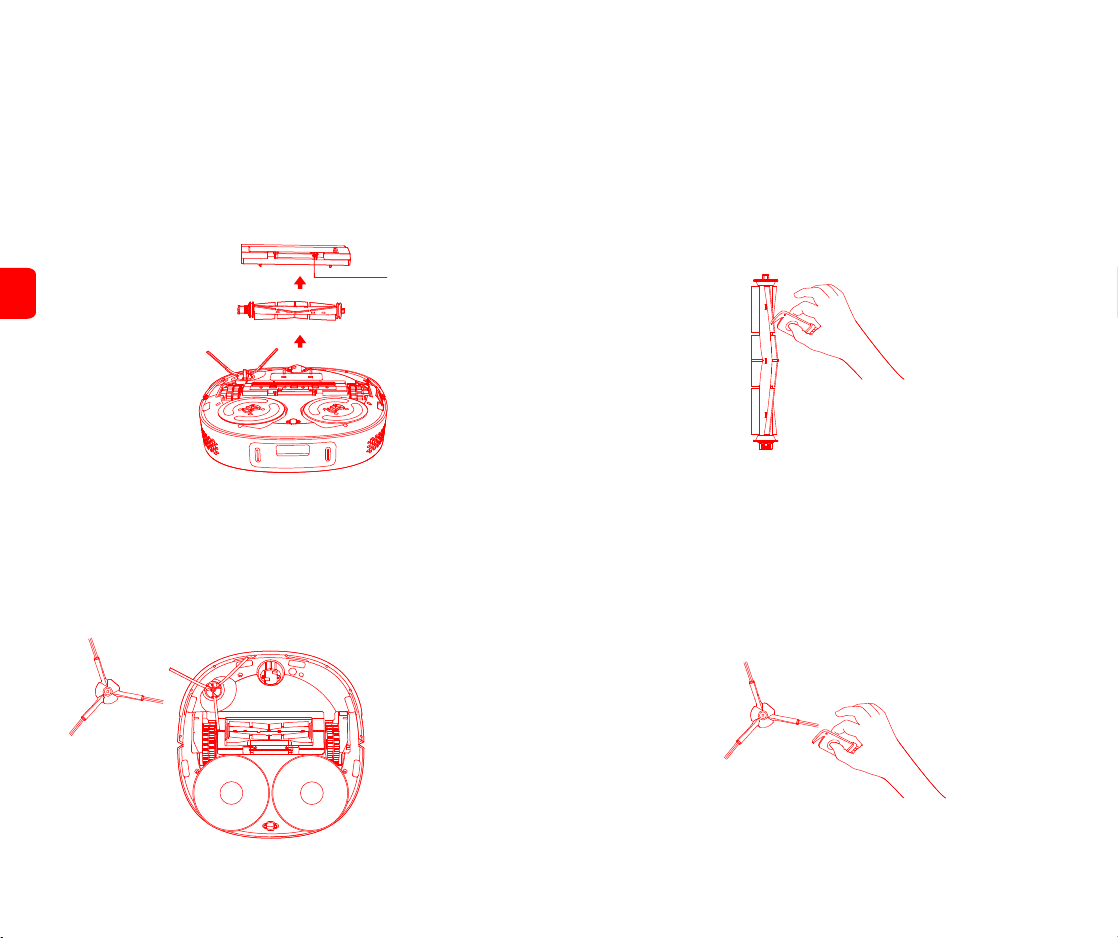
Product disassembly and cleaning
The following cleaning steps should be carried out when the appliance is switched off
Roller brush assembly, disassembly and cleaning
Step 1: Remove the roller brush
Turn the appliance over, press the roller brush cover release buttons simultaneously.
Remove the roller brush cover, take out the roller brush and clean;
Step 2: Roller brush cleaning
Use a cleaning brush to clean and cut out the hair and fibers entangled on the roller brush.
It is recommended to change the roller brush every 3-6 months.
Side brush removal and cleaning
Step 1: Remove the side brush
Turn the appliance over, use a screwdriver to unscrew the screws and take out the side
brush;
Step 2: Side brush cleaning
Use a cleaning brush to pick up and cut the hair and fiber attached to the side brush to
separate it from the side brush. It is recommended to replace the side brush every 3-6
months.Replace the side brush once done cleaning to ensure the cleaning effect.
10
Swipe release button
EN
Note
1. Please replace the side brush according to the original factory configuration, so as not to affect the cleaning effect;
2. Please use a screwdriver carefully when replacing the side brush, to avoid injuring yourself;
3. The cleaning brush has a sharp blade which is used to cut the windings that are difficult to clean. Keep it out of reach of children.
Removal and cleaning of dust box and filter element
Step 1: Remove the dust box
Open the top cover upwards, simultaneously press the dust box removal button, and
take out the dust box;
Step 3: Remove the filter element
The user can decide whether to clean the filter element according to his own use. Take
out the filter element, Clean it with a cleaning tool and then reinstall it by the original
order or replace it with a brand new filter element;
Step 4: Clean the dust box
Rinse the dust box/filter element with clean water. Replace it after it’s completely dry to prevent
dust from clumping and causing unpleasant odors when used again.
11
Step 2: Dump the dust box trash
Open the dust box, align the dust box on top of the trash can, and dump the dust. Clean the
hard-to-reach corners with a cleaning brush;
Filter element
Filter
Filter holder
Dust box removal button
EN
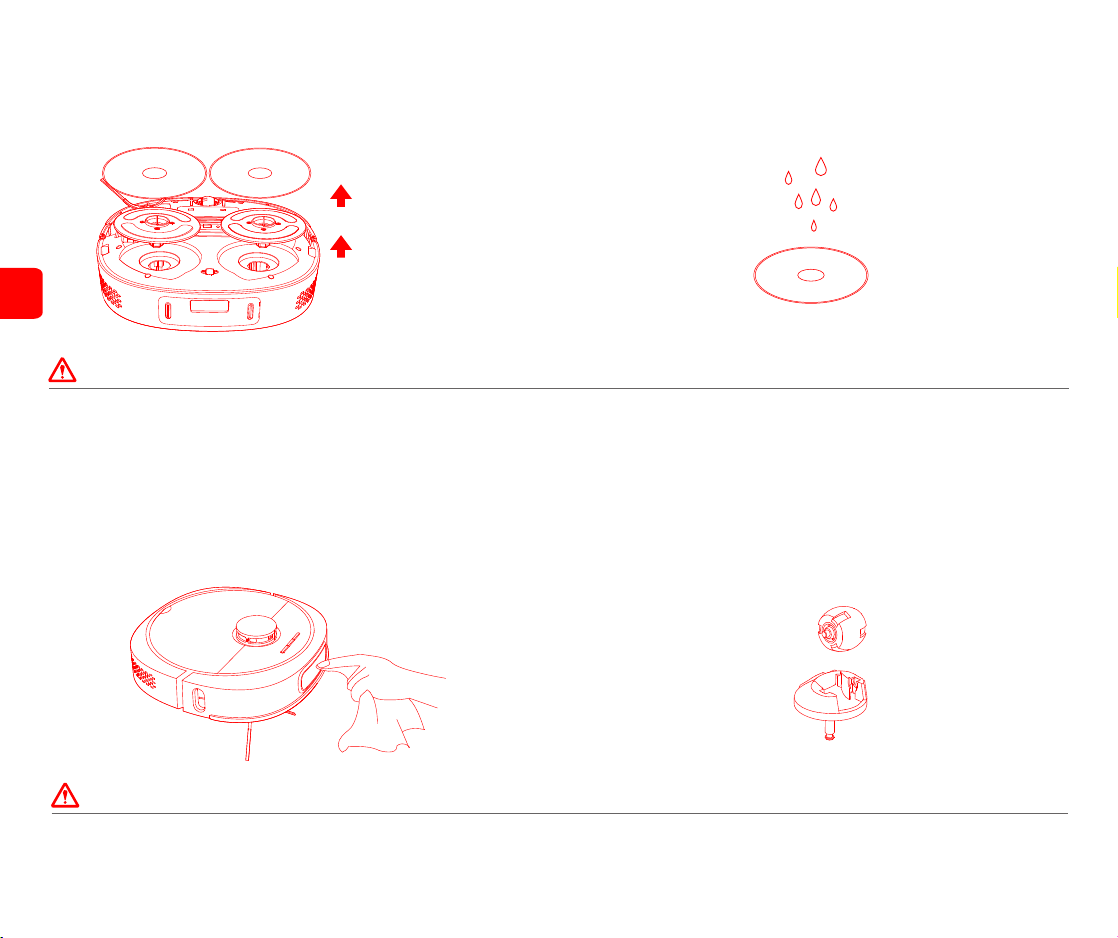
Mop disassembly and cleaning
Step 1: Remove the mop
Remove the mopping module from the disk and remove the mop from the mopping bracket;
Step 2: Clean the mops
Rinse the mop with clean water and use it after it dries completely to prevent the dust from
clumping and causing unpleasant odors when used again.
Note
1. Only replace with the original mop designated by the manufacturer, to avoid affecting the cleaning effect of the appliance due to product incompatibility;
2. Be sure to remove the mop for cleaning to prevent dirty water from overflowing;
3. It is recommended to replace the original mop every 3-6 months to ensure a better cleaning effect.
12
Step 1: Cleaning the sensors
Wipe and clean the charging contacts, anti-fall sensors, LDS sensors, and infrared
transmitters on the back of the robot cleaner with a soft clean cloth;
Robot cleaner part cleaning
Step 2: Cleaning the universal wheel
Turn over the appliance and pull out the universal wheel to clean the hair and dirt on the
wheel body and axle. The universal wheel can be washed with water, and then reinstall
after complete drying.
Note
1. When cleaning the anti-fall sensors, infrared sensor and charging contacts, please use a dry cloth to prevent damage caused by water;
2. Be careful when using a screwdriver to replace parts to avoid causing damage to the parts.
EN
13
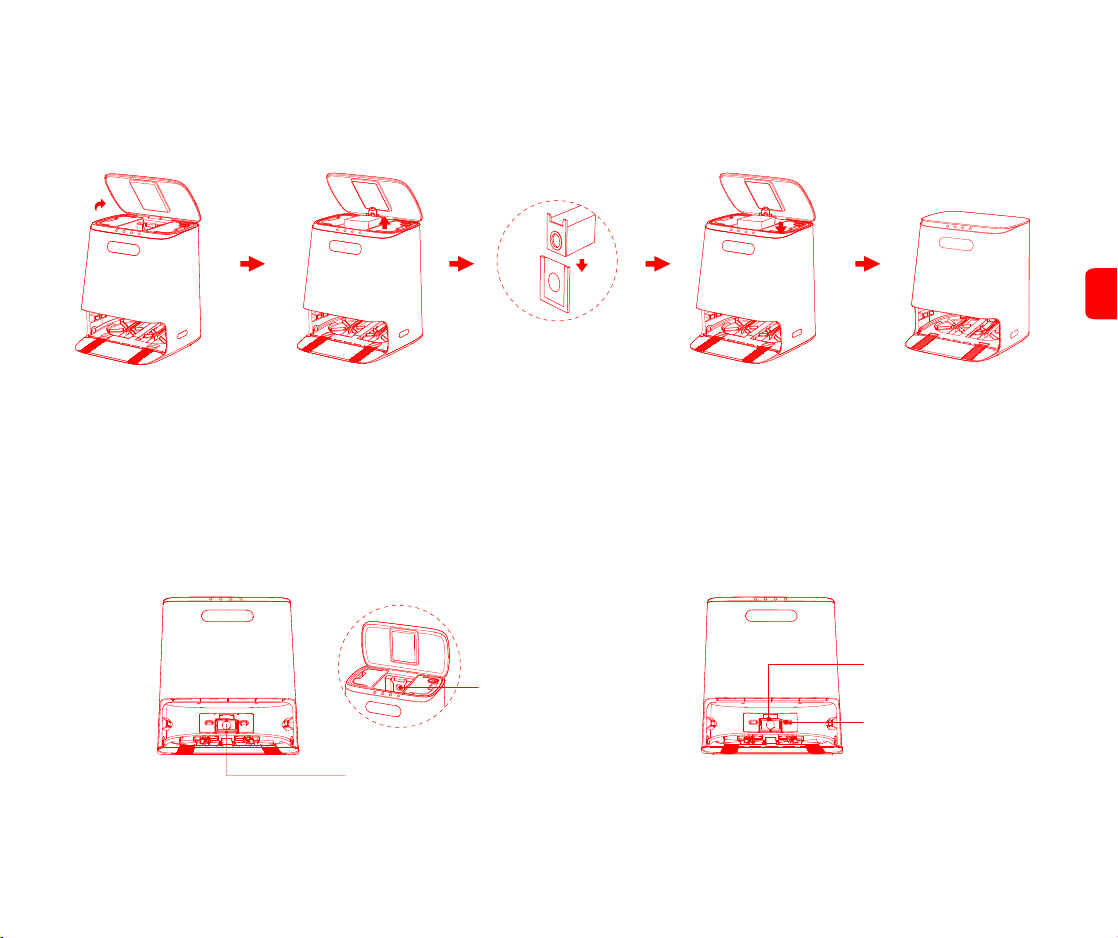
Take out the dust bag
Step 1: Replacing the dust bag
When the dust bag is full, the dust-full indicator flashes. Replace the dust bag according to the display on the base station. It is recommended to replace it every 6-8 weeks;
Base station cleaning
Insert the dust bag
plate into the slot
Close the top cover of
the base station
Open the top cover of
the base station
Replace with a new dust bag
Step 3: Clean the infrared lens and charging ports
Wipe and clean the infrared lens and charging ports with a soft clean soft cloth to
ensure that it is clean and free of debris.
Dust channel transparent module
Dust inlet
Infrared lens
Charging ports (×2)
Step 2: Cleaning the dust channel
In the power-off state, check whether there is any abnormal blockage on the transparent
module of the dust channel and the dust inlet. If there is blockage, please clean up the
wedged objects in time;
EN
14
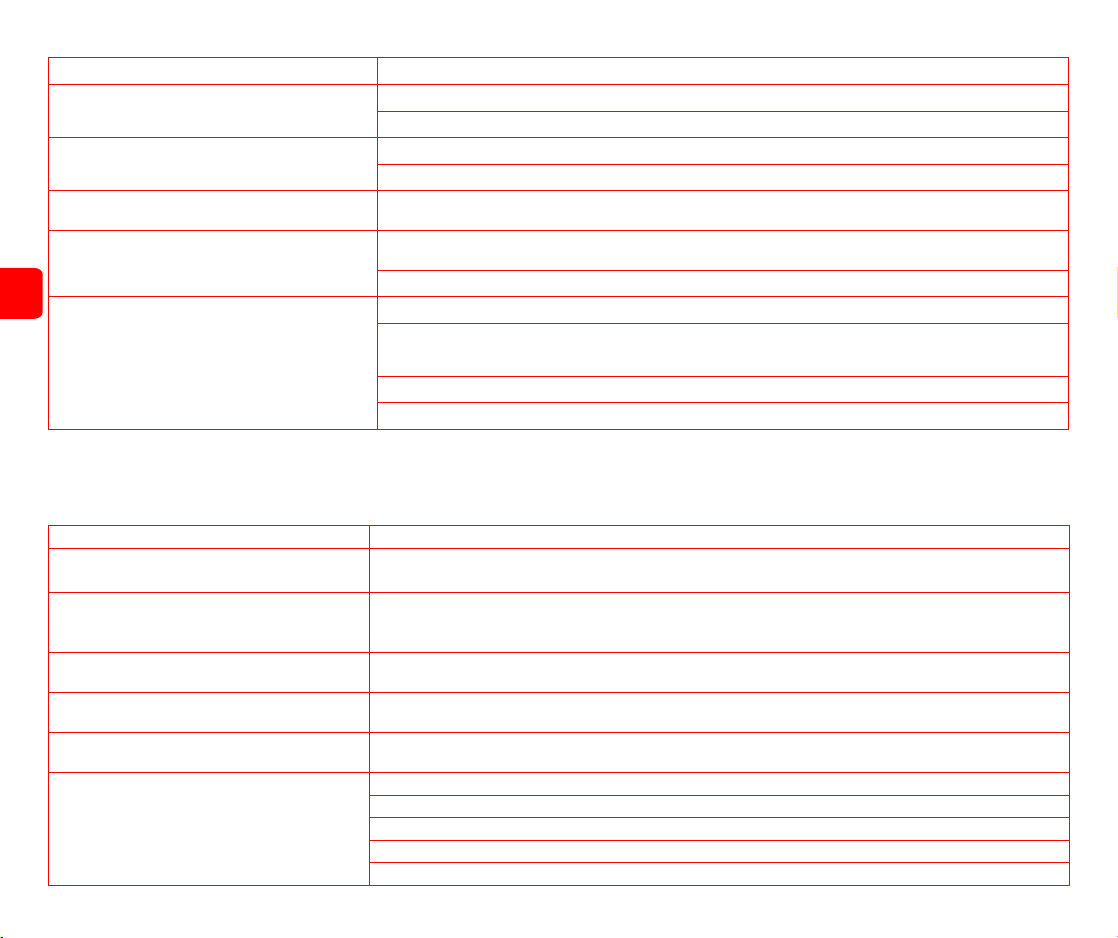
Troubleshooting
SolutionTroubleshooting (Robot cleaner)
Error 1: Please check whether the radar is blocked and
move to a new position to start or please check if the
radar is stuck
Error 2: Please check whether the obstacle avoidance
sensor is stuck
Please check whether the obstacle avoidance sensor is jammed by debris, remove the debris, and tap the obstacle
avoidance sensor several times to check whether it is flexible
If the above does not work, please move the appliance to a new location to start
Please don't use it in places with strong light
Please check whether the radar is blocked or jammed by wedged objects, if this is the case please remove the foreign objects
When an abnormality occurs during the operation, the switch key indicator light flashes quickly and a voice prompt is given. The following methods can be used to try to solve the fault by
yourself. If the fault cannot be rectified, please contact the after-sales service.
Please check if the appliance is trapped due to too little running space and move it to a new location to start
Error 3: Please wipe the anti-fall sensor and start away
from the dangerous area
Please check if the appliance is suspended and move it to a new location to start
Please check whether the anti-fall sensor is too dirty or blocked by dust or other debris. You need to wipe the anti-fall sensor regularly
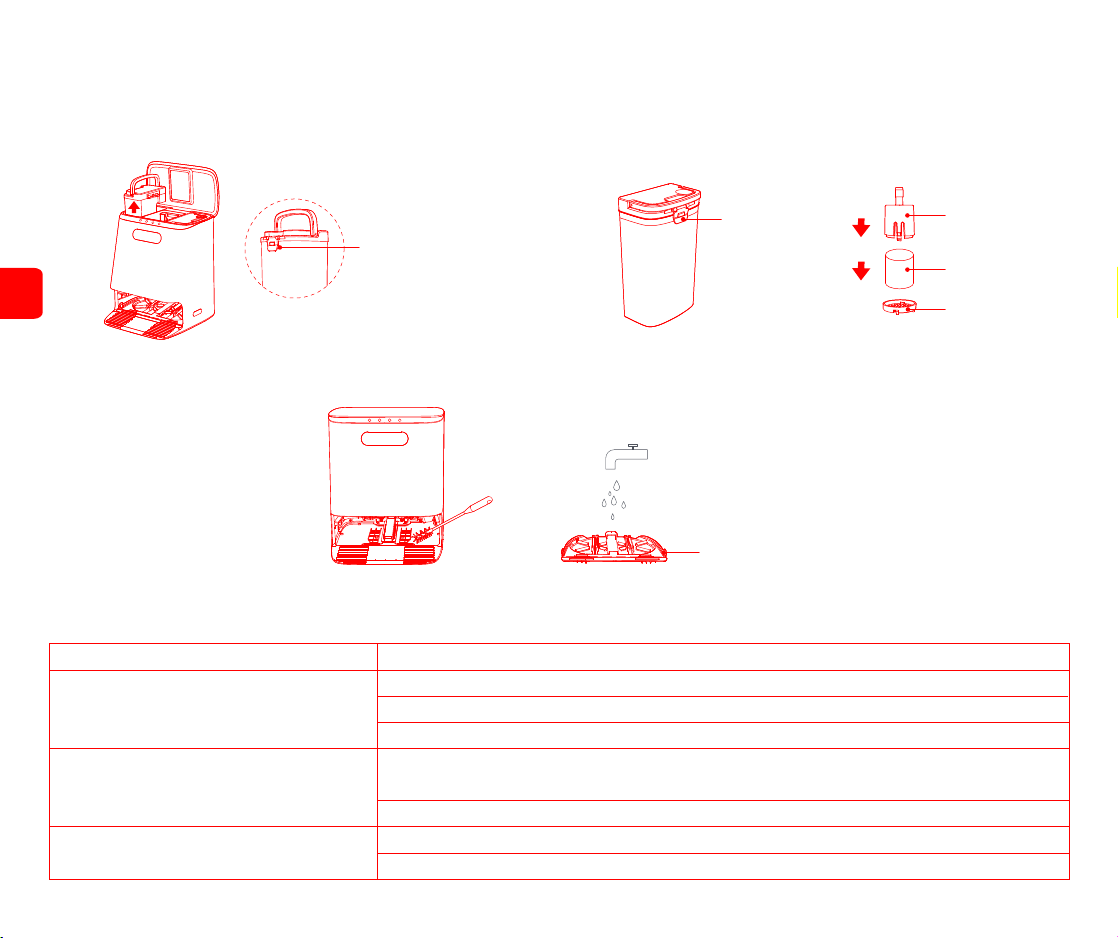
Cleaning the base station parts
Step 1: Clean the waste water tank
Open the top cover of the base station, take out the waste water tank, open the waste water
tank flap to pour out the dirty water and use a long cleaning brush to clean the dirt in the water
tank. After cleaning and drying, put it back into the base station;
Step 2: Replace the filter sponge of the water purification tank
Open the top cover of the base station and take out the clean water tank. Then open the
clean water tank flap and take out the filter sponge holder along the water pipe. Open the
lower cover of the filter sponge holder, take out the filter sponge, replace with a new filter
sponge and reinstall it;
Clean water tank
release flap
Filter sponge holder
Filter sponge
Filter sponge
lower cover
Step 3: Clean the cleaning plate/base
Press the cleaning mop button of the base station to discharge water 4 times, each time for 10 seconds, and then press the cleaning mop button once again to automatically suck back the
sewage, use a long cleaning brush to clean the tray/base and put it back in the sun.
Pallet clasp position
Recovery tank release buckle
EN

15
Error 4: Please check if the roller brush is stuck
Error 5: Please check if the side brush is stuck
Error 6: Please check if the main wheel is stuck
Error 7: Please put back the dust box
Please check whether there are any entangled objects such as wool and wires/cords on the indoor floors and clean them up
Please check whether the roller brush is entangled with wool, wires and other windings. Remove the roller brush and clean it
The roller brush may tangle and needs to be cleaned regularly
The side brush may tangle and needs to be cleaned regularly
Please check whether there is any debris stuck on the wheels and remove them
Please check whether the mop components are entangled or blocked and remove the wedged objects/entanglements
Please check if the clean water tank is in place or installed in place
Please check if the waste water tank is in place or installed in place
Please put back the dust box, make sure the filter and dust box are installed in place
Please check whether the side brush is entangled with wool, wires or other debris. If so remove the roller brush and clean it
Please check whether there are any entangled objects such as wool or wires on the indoor floor and clean it up
Troubleshooting (Base station)
Solution
If the error is still reported after the installation is in place, please try to replace the filter
Error 14: Please clean the filter
Please clear the obstacles near the base station to ensure that there are no obstacles within 1.5 meters in front of the
base station
Error 1: Recharge failed, please clear obstacles near
the base station
Please take out the filter inside the appliance to clean it
Error 3: Please check if the mop component is stuck
Error 4: Please reinstall the clean water tank
Error 6: Please put back the waste water tank
Error 5: No water in the clean water tank
Error 7: The waste water tank is full
Error 8: The waste water tank is abnormal
Please check whether the waste water suction port is blocked, please clean the waste water suction port regularly
Please clean the waste water tank and reinstall it
Please check the clean water tank, please fill up to the maximum MAX line of the clean water tank
Error 8: Low battery, please charge
Error 9: Recharge failed, please check whether the
connection between the appliance and the base station
is normal
Error 10: The battery temperature is abnormal, please
try again later
Error 11: Please check the right wall sensor
Error 12: Please place the machine on a level ground to start
Error 13: The fan of the robot cleaner is abnormal
Error 2: Please stay away from the restricted area
before starting
Low battery, please recharge before use
The machine is detected to be tilted during startup, please place the machine on a level ground to restart
The wall sensor is blocked by dust, please wipe the wall sensor on the right
The vacuum fan is not working, please try to reset the system
Please use a dry cloth to wipe the charging contacts of the appliance and the charging ports of the base station
The battery temperature is too high or the temperature is too low, please wait for the battery temperature to be normal
before use
Please move the machine away from the software virtual wall or restricted area and restart it
Please check if the waste water tank cover is closed
Please check if the waste water tank is installed in place
EN
16
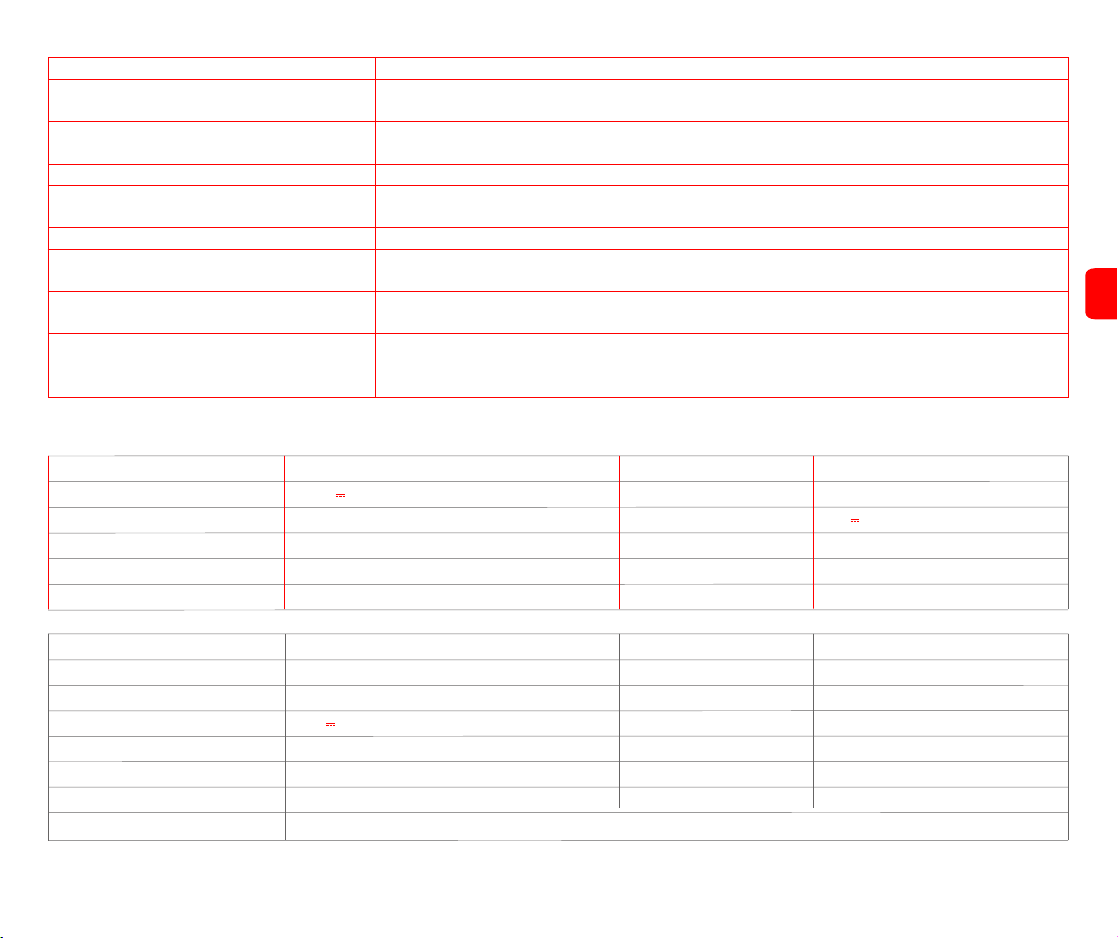
Common problems
Slow charging
Can't charge
Can not boot
Can't recharge
The base station is not powered on, please make sure that both ends of the base station's power cord are plugged in. If the
connection is not good, please clean the base station charging ports and the robot cleaner charging contacts; please make
sure the base station display screen is on
If the battery is low, please charge it on the base station before using it; if the battery temperature is too low or too high, please
use it at 0-40℃
When used in a high or low temperature environment, in order to extend the battery life, the robot cleaner will automatically
reduce the charging speed; the charging contact area may be dirty, please clean the area with a dry cloth
There are too many obstacles near the base station, please place the base station in an open area; the robot cleaner is too far
away from the base station, please try to place the robot cleaner near the base station
Questions Solution
Error 10: The dust bag is not in place, please check if
its installed.
Please check if the dust bag is installed
Error 12: The dust bag is full
Tip: Resetting the system can eliminate some abnormalities.
If the dust bag is installed, please check if the dust bag is inserted all the way
If the dust bag is not full, please check whether the dust channel of the base station is blocked. If the dust channel of the base
station is blocked, please try to clean the dust channel manually
Can't connect to WiFi
Abnormal noise during cleaning
The Wi-Fi connection is abnormal, reset the Wi-Fi and download the latest app to try to connect again
The main brush, side brush or main wheel may be entangled with foreign matter, please clean it after powering it off; the
swivel wheel is dusty or entangled during cleaning, it is recommended to use a screwdriver to pry out and rinse it
The Wi-Fi function is not activated, please reset the Wi-Fi and try again
The Wi-Fi signal is not good, please make sure the robot cleaner is in a good Wi-Fi signal coverage area
Wi-Fi suddenly fails to connect, and you suspect that the home router has a setting error, please contact after-sales service
The APP does not support the current model of the device, please check the specific supported model according to the app prompt
Error 9: Please load the cleaning tray
Error 11: The base station wind pressure is abnormal
Please check if the top cover of the base station is closed
Error 13: Abnormal dust collection
Error 14: Standby
Please check whether there is any wedged objects in the dust collection port of the dust bag of the base station, please clean
up the foreign matter in the dust collection port
Please check if the dust box is blocked, please clean the dust box
Please check whether the cleaning tray is in place or installed in place, and reinstall the cleaning tray
Please check if the dust bag is full and replace it in time
When returning to the base station while mopping the floor, the clean water tank is not in place or enters standby without water
When returning to the base station, the washing tank is full and enters standby
When returning to the base station in the mopping state, the cleaning disk is not in place and enters standby
When the waste water tank is not in place or the water is full when it returns to the base station in the mopping state, it is not
replaced and enters standby
EN
Decreased cleaning ability
The dust box is full, please clean the dust box; the filter is blocked, please clean the filter; the roller brush is entangled with
wedged objects, please clean the roller brush
Whether it consumes electricity directly at the base station
When the machine is always in the base station, the battery consumption is low, which helps to keep the battery at its best
performance
There is no water in the cleaning plate but the pump
is still working
Need to clean and wipe the water level contacts
When the robot is performing network configuration,
the base station network configuration status light is
blinking (>3 minutes)
a. Restart the robot and configure the network app; b. Check whether the SN of the robot cleaner and the base station are the
same. If they are inconsistent, you need to manually modify the base station SN to be consistent with the robot cleaner’s SN
through the APP; c.None of the above can solve the problem, please contact the after-sales service for repair.
Timed cleaning does not take effect Timed cleaning will start when the remaining power charge is more than 15%
17
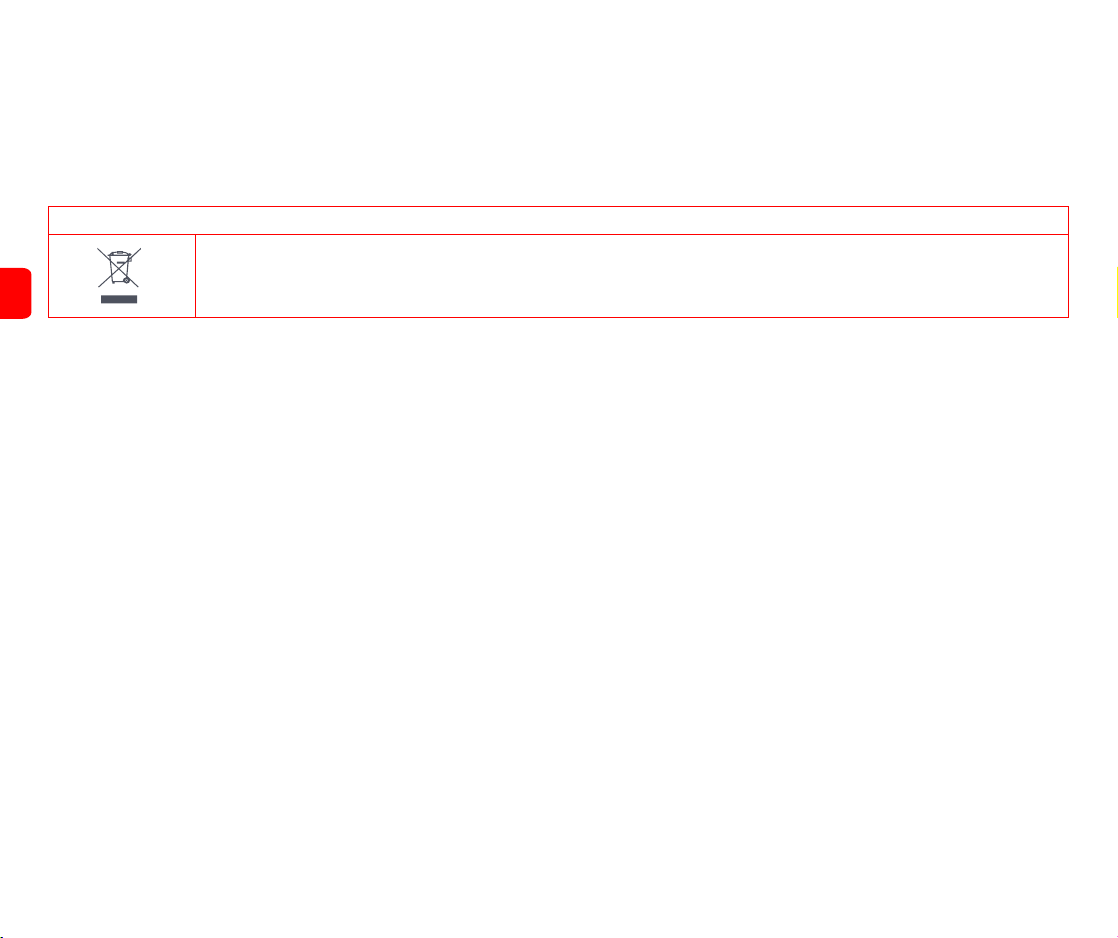
Dust Collection Time About 12 seconds
Clean Water Tank Capacity About 4L Waste Water Tank Capacity About 4L
Product Weight About 9.8kg
Rated Input
24V 1.2A
Rated Output
Dust Bag Capacity About 3L
Noise <86dB(A)
Cleaning Power 40W
Product Size 400 × 382 × 465mm
Product Name Base Station JCZ06RMProduct Model
Basic Specifications
Product Name
Operating Voltage
Battery Capacity 5200mAh
Product Weight
Charging Time
Dust Box Volume
About 250 minutes
About 4.2kg
About 300ml
14.8V
SDJ06RM
Charging limit Voltage
Interval Between Backwashing Mop
24V 1.2A
Product Model
Noise
Rated Power
Product Size
<77dB(A)
6min. 9min. 12min 3 gears are available (APP → more Multi → base station settings → backwash frequency, adjustable frequency)
48W
330 × 330× 106mm
Can not return return to the base station after partial
cleaning or moving location
Insufficient battery during cleaning, recharge but not
continued
Please make sure that the host is not in the Do Not Disturb mode, it will not continue scanning in this mode; manual recharging
or putting the robot cleaner back to the base station will not continue scanning
Missing sweep of robot cleaner
The wall sensor or the anti-fall sensor is dirty, it is recommended to wipe it with a soft dry cloth
The robot will regenerate the map after area cleaning or long-distance movement. If the base station is far away, it may not
be able to automatically recharge. Please manually put the robot back to the base station to charge
Do you need to charge for sixteen hours for the first three uses Lithium battery has no memory effect when used, no need to wait when it is fully charged
ROIDMI Self-Cleaning and Emptying Robot Vacuum
EN
Battery Type lithium battery
220-240 V~, 50-60 Hz
Charging PowerDust Collection Power 850W 30W
Base Station Network Standby Power Consumption:1.68W; (Robot Vacuum+Base Station) Network Standby Power Consumption:0.90W; Enter network standby time:5min
Freqency Range:2400-2483.5MHz;Maximum Transmiting Power:20dBm(EIRP)
Class I Laser Product:DC5V,240mA,WA 800nm, IEC
18
Equipment requirements: support
Support devices with Android5.0 or iOS10 and above (iPhone 5 and above)
This device contains WiFi module to support 802.11 b/g/n transmission protocol
AC white power cord/L=1.35m European regulation 3*0.75mm2 H03VVF input plug 3PIN European regulation elbow / output plug 3Pin font TUV/VDE certification
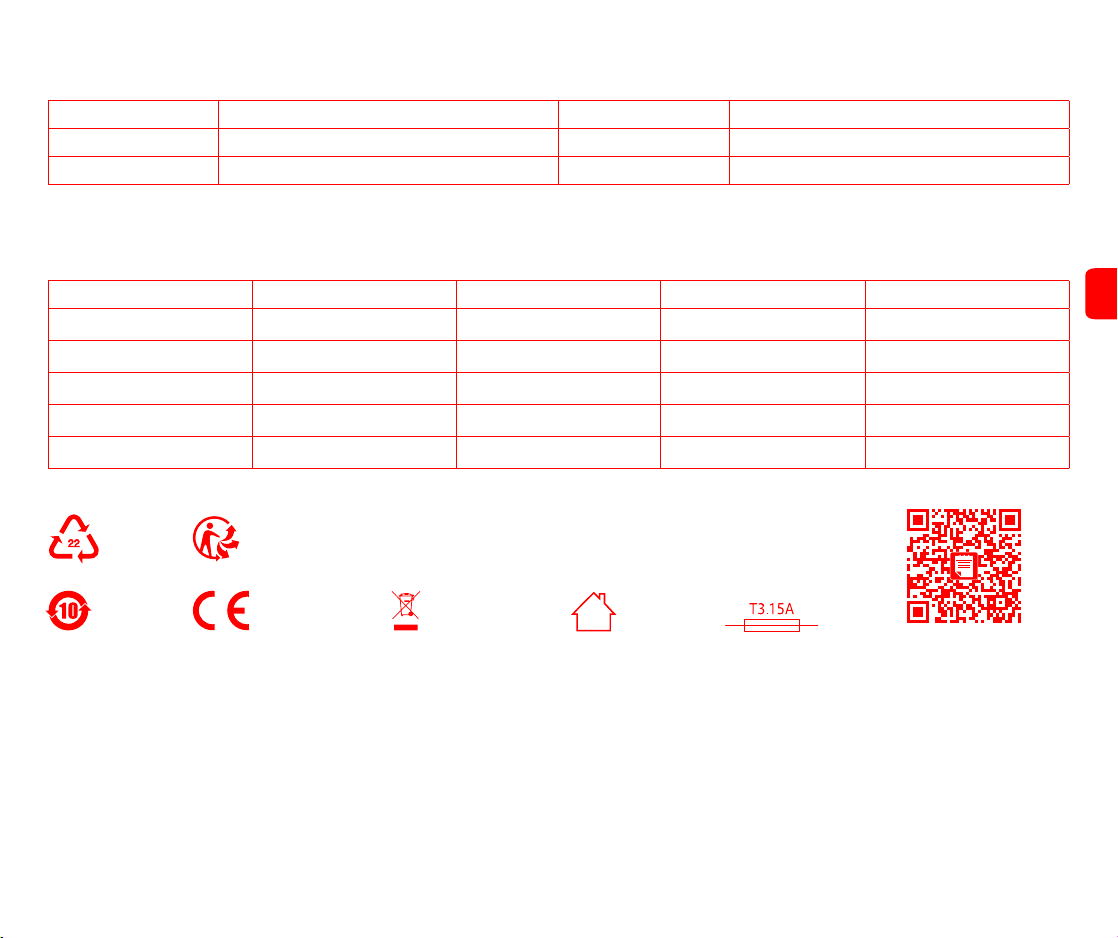
Disposal
Correct disposal of this product
This marking indicates that this product should not be disposed with other household wastes throughout the EU. To prevent possible harm to the environment or human health
from uncontrolled waste disposal, recycle it responsibly to promote the sustainable reuse of material resources. To return your used device, please use the return and collection
systems or contact the retailer where the product was purchased. They can take this product for environmental safe recycling.
Warranty and limitations of liability
This product is guaranteed for a period of 12 months (defined by local law) from the date of purchase against any failure resulting from manufacturing or material defects.
This warranty does not cover damage caused by improper installation, improper use, or normal wear and tear of the product.
More specifically, the warranty does not cover:
• Dust bag, disposable mop, side brush, filter, mop, main brush and main brush cover are not covered by the warranty as they are consumable items;
• Damage or problems caused by improper use, accident, alteration or electrical connection of improper intensity or voltage;
• Modified products, those whose warranty seal or serial number have been damaged, altered, removed or oxidized;
• Failure of the battery due to overcharging or failure to observe the safety instructions explained in the instruction manual;
• Cosmetic damage, including scratches, dents, or any other element;
• Damage caused by any intervention carried out by an unauthorised person;
• Defects caused by normal wear and tear or due to normal ageing of the product;
• Software updates due to a change in network settings;
• Product failures due to the use of third party software to modify, change or adapt the existing software;
• Product failures caused by use without accessories approved by the manufacturer.
• Oxidised products.
Terms and conditions of implementation:
To obtain a warranty service, you are requested to return your product to the customer service desk of your retail outlet with your proof of purchase (receipt, invoice, …), the product and its supplied accessories,
with its original packaging.
It is important to have the date of purchase, the model and the serial or IMEI number on hand as information (this information usually appears on the product, the packaging or your proof of purchase).
Failing this, you must return the product with the accessories necessary for its proper operation (power supply, adaptor, etc.).
In the event that your claim is covered by the warranty, the after-sales service may, within the limits of local law, either:
• Repair or replace defective parts;
• Exchange the returned product with a product that has at least the same functionality and that is equivalent in terms of performance;
• Refund the product at the purchase price of the product mentioned on the proof of purchase.
If one of these solutions is used, this do es not give rise to the extension or renewal of the warranty period.
EN
19
EN
Warranty card
Customer name Product name and model
Mailing address Main unit serial number
Contact information Purchase date
This warranty card contains customers’ personal information, keep it safe
Maintenance records
Servicing center Fault description Replacement parts Servicing engineer Servicing date
Manufacturer:
Addre
Executive standards:
Scan the QR code for manuals
in multiple languages
ROIDMI INFORMATION TECHNOLOGY CO., LTD.
ss:4F,C8 BUILDING,NO.1699 HUISHAN ROAD,LIFE SCIENCE AND TECHNOLOGY PARK,HUISHAN DISTRICT, WUXI,JIANGSU,PRC
for indoor
use only
protection
fuse: T 3.15A
Correct disposal
of this product
(EC) 1275/2008: 2008-12-17Amended by (EC) 278/2009:2009-04-06, (EC) 642/2009:2009-07-22, (EU) 617/2013:2013-06-26; (EU) 801/2013:2013-08-22, EN 50564:2011
EN 60335-1:2012/A15:2021, EN 60335-2-2:2010/A1:2013, EN 60335-2-29:2004/A11:2018, EN 62233:2008
EN 55014-1:2017/A11:2020, EN IEC 55014-1:2021, EN 55014-2:2015, EN IEC 55014-2:2021, EN 61000-3-2:2014, EN IEC 61000-3-2:2019/A1:2021, EN 61000-3-3:2013, EN 61000-3-3:2013/A1:2019
EN 301 489-1 V2.2.3:2019, EN 301 489-17 V3.2.4:2020
EN 300 328 V2.2.2:2019, EN IEC 62311:2020, EN 50665:2017
2011/65/EU
Service email: service@roidmi.com
Website: www.roidmi.com/en
Only applicable to the robot vacuum and mop cleaner model SDJ06RM
Made in China
No.02.2022
PAP
Our products and packaging are recyclable, do not throw them away!
Find where to drop them off on the website www.quefairedemesdechets.fr