THANK YOU
We appreciate the trust and condence you have placed in Deant through the purchase of this wireless doorbell kit.
We strive to continually create quality products designed to enhance your home. Visit us online to see our full line of
products available for your home improvement needs. Thank you for choosing Deant!
USE AND CARE GUIDE
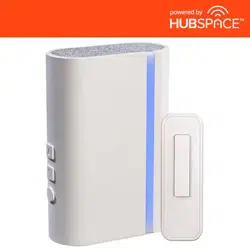
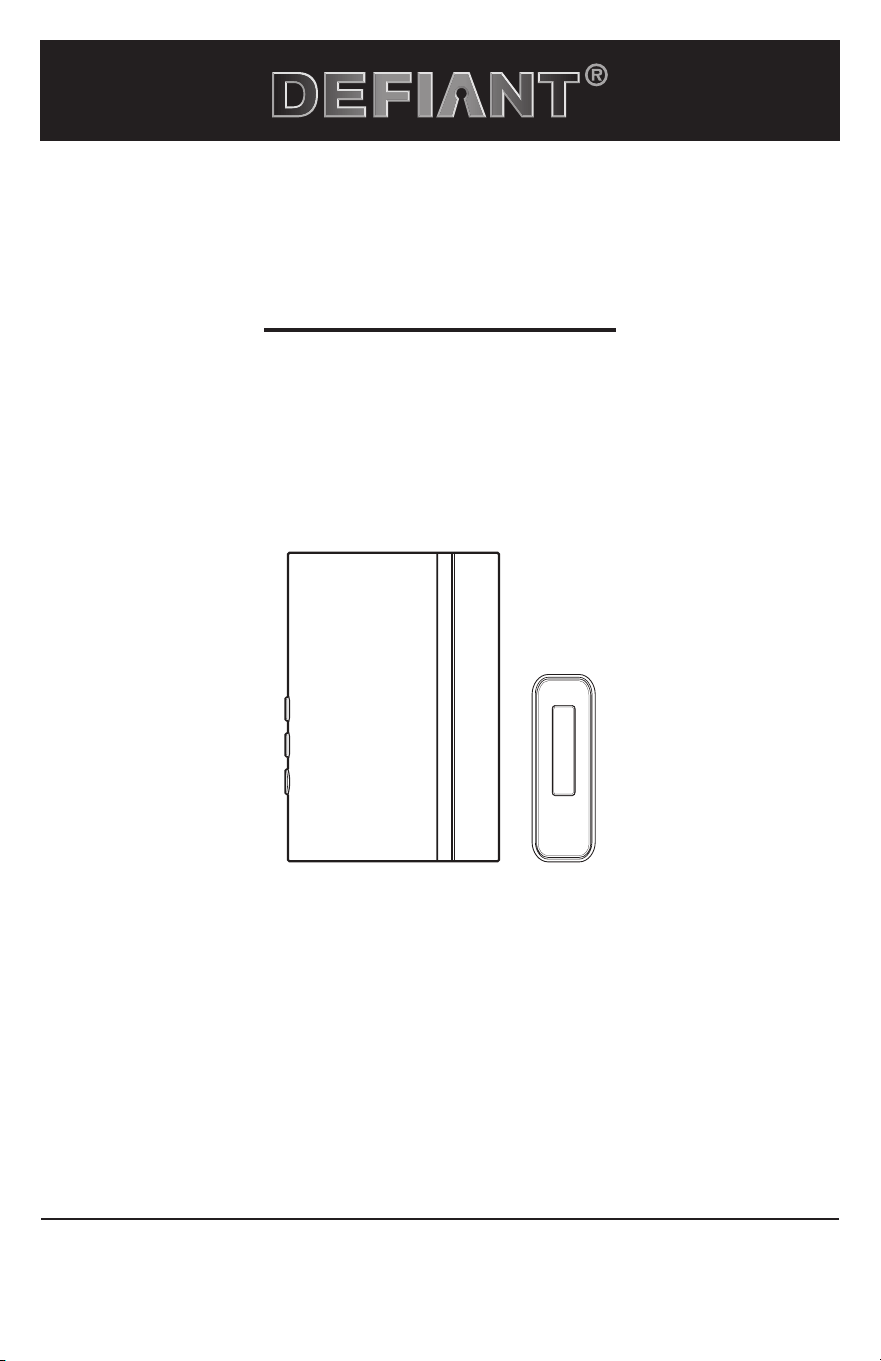
WIRELESS WI-FI CONNECTED DOORBELL KIT
Questions, problems, missing parts?
Before returning to the store, call Deant Customer Service
8 a.m. - 5 p.m., CST, Monday - Friday
1-877-592-5233
HOMEDEPOT.COM/HUBSPACE
Illustrations may vary from actual unit.
Item #1007155882
Model #DF-3015-00
2
Table of Contents
Table of Contents ......................................2
Safety Information ....................................2
Warranty ...................................................2
Pre-Installation .........................................3
Installation ................................................4
Operation...................................................5
Care and Cleaning ....................................9
Troubleshooting ........................................9
Safety Information
PRECAUTIONS
Ƒ Please read and understand this entire manual
before attempting to assemble, install, or operate
this doorbell.
Ƒ All electrical work must be in accordance with
national and local electrical codes. If in doubt,
consult a qualied electrician.
WARNING: To prevent possible SERIOUS INJURY or
DEATH never allow small children near batteries. If battery
is swallowed, immediately notify a doctor.
WARNING: DO NOT DISPOSE OF BATTERIES IN FIRE.
BATTERIES MAY EXPLODE OR LEAK.
WARNING: Risk of re. Do not plug the doorbell into a
power inverter.
NOTE: The push button and doorbell come synced from
the factory. The range of the wireless doorbell can vary
with location, temperature, and battery condition.
Warranty
3-YEAR LIMITED WARRANTY
WHAT IS COVERED
This product is guaranteed to be free of factory defective parts and workmanship for a period of 3 years from date
of purchase. Purchase receipt is required for all warranty claims.
WHAT IS NOT COVERED
This warranty does not include expendable items (such as light bulbs, batteries, etc.), repair service, adjustment
and calibration due to misuse, abuse or negligence. Unauthorized service or modication of the product or of any
furnished component will void this warranty in its entirety. This warranty does not include reimbursement for
inconvenience, installation, setup time, loss of use, unauthorized service, or return shipping charges. This warranty
is not extended to other equipment and components that a customer uses in conjunction with this product. The
manufacturer reserves the right to discontinue products and to change specications at any time without incurring
any obligation to incorporate new features in products previously sold.
No service parts available for this product.
Contact the Customer Service Team at 1-877-592-5233 or visit www.homedepot.com/hubspace.
Model: DF-3015-00
3 HOMEDEPOT.COM/HUBSPACE
Please contact 1-877-592-5233 for further assistance.
Pre-Installation
PLANNING INSTALLATION
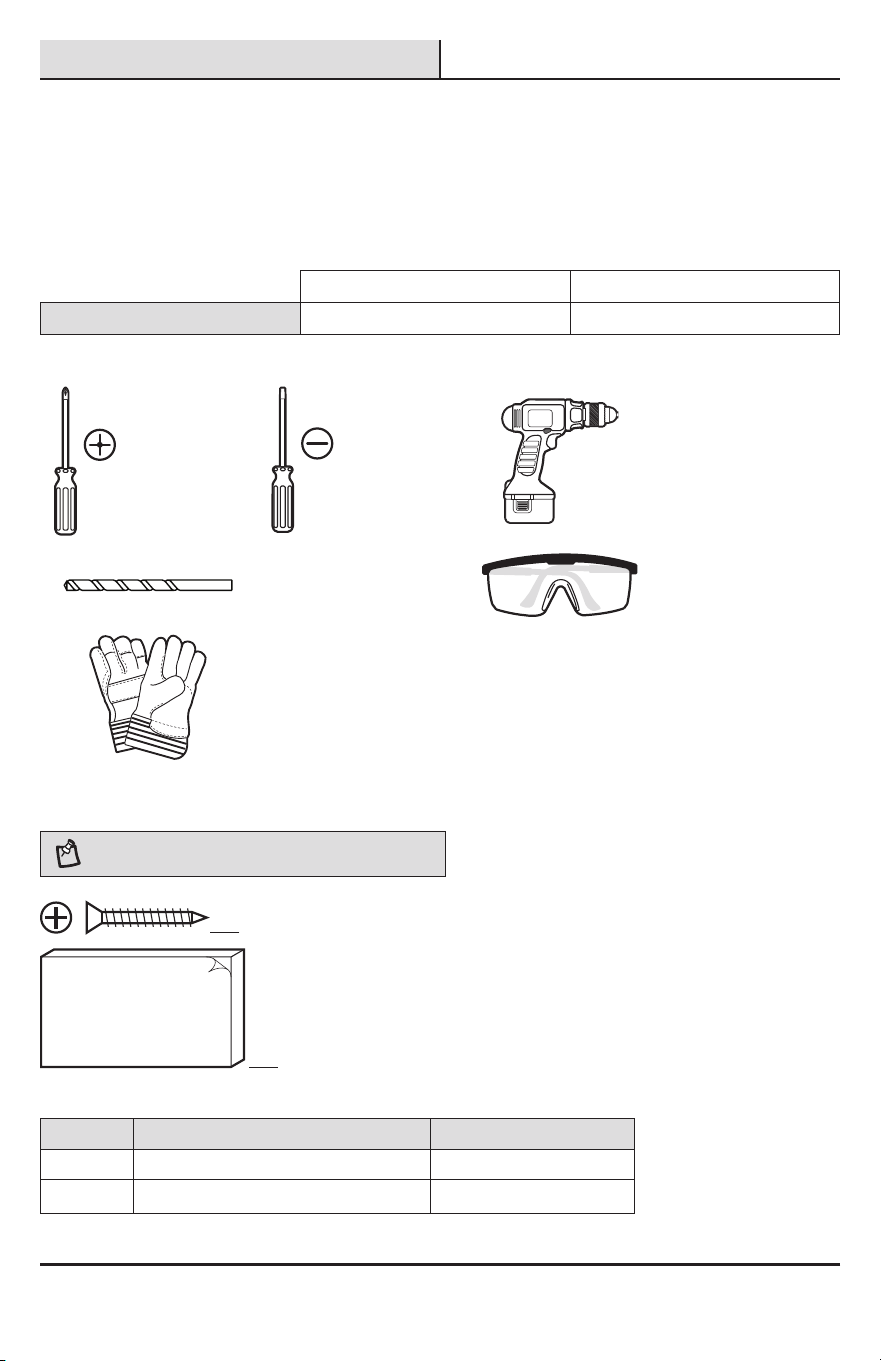
Before installing the wireless doorbell kit, ensure that all parts are present. Compare parts with the Hardware
Included and Package Contents sections. If any part is missing or damaged, do not attempt to assemble, install, or
operate this wireless doorbell kit.
Estimated installation time: 30 minutes
SPECIFICATIONS
Doorbell Push button
Power requirements 120 VAC, 60 Hz Type A23 12V battery (included)
TOOLS REQUIRED
Phillips
screwdriver
Small athead
screwdriver
Drill
1/16 in. (1.5 mm) Drill bit Safety goggles
Work gloves
HARDWARE INCLUDED
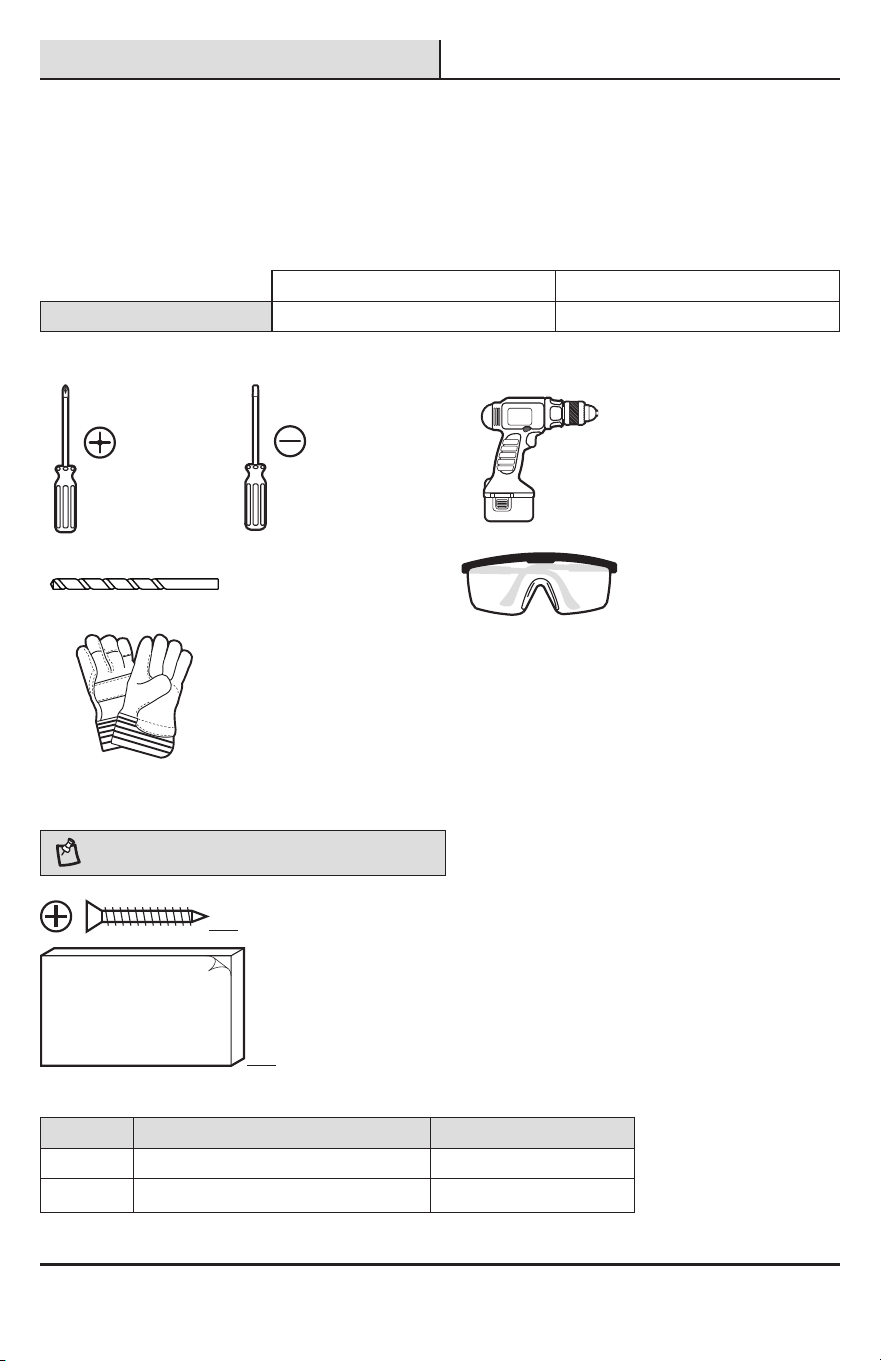
NOTE: Hardware shown to actual size.
AA
BB
Part Description Quantity
AA Screw 2
BB Double-sided tape 1
Tape
4
Pre-Installation (continued)
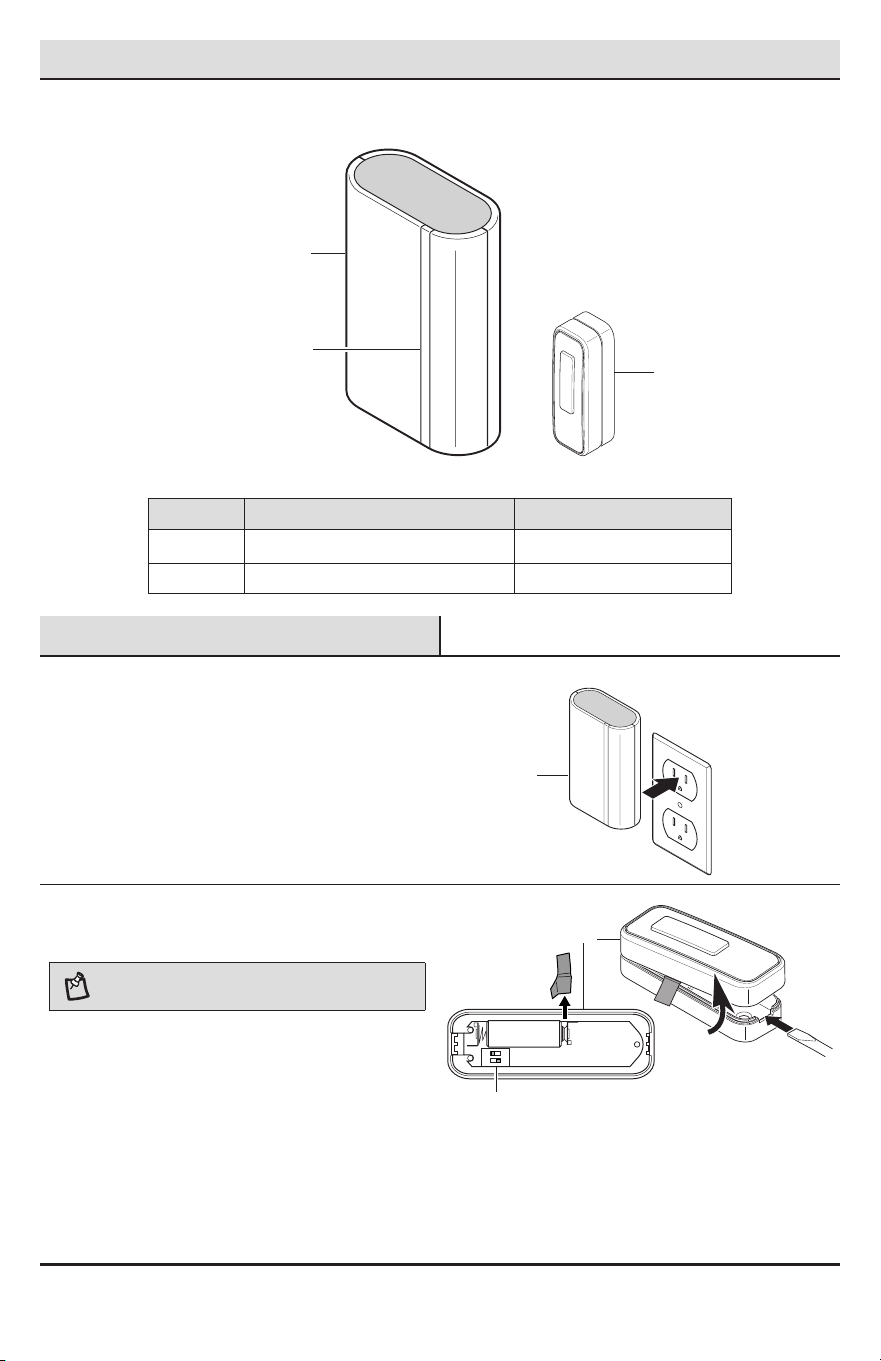
PACKAGE CONTENTS
Part Description Quantity
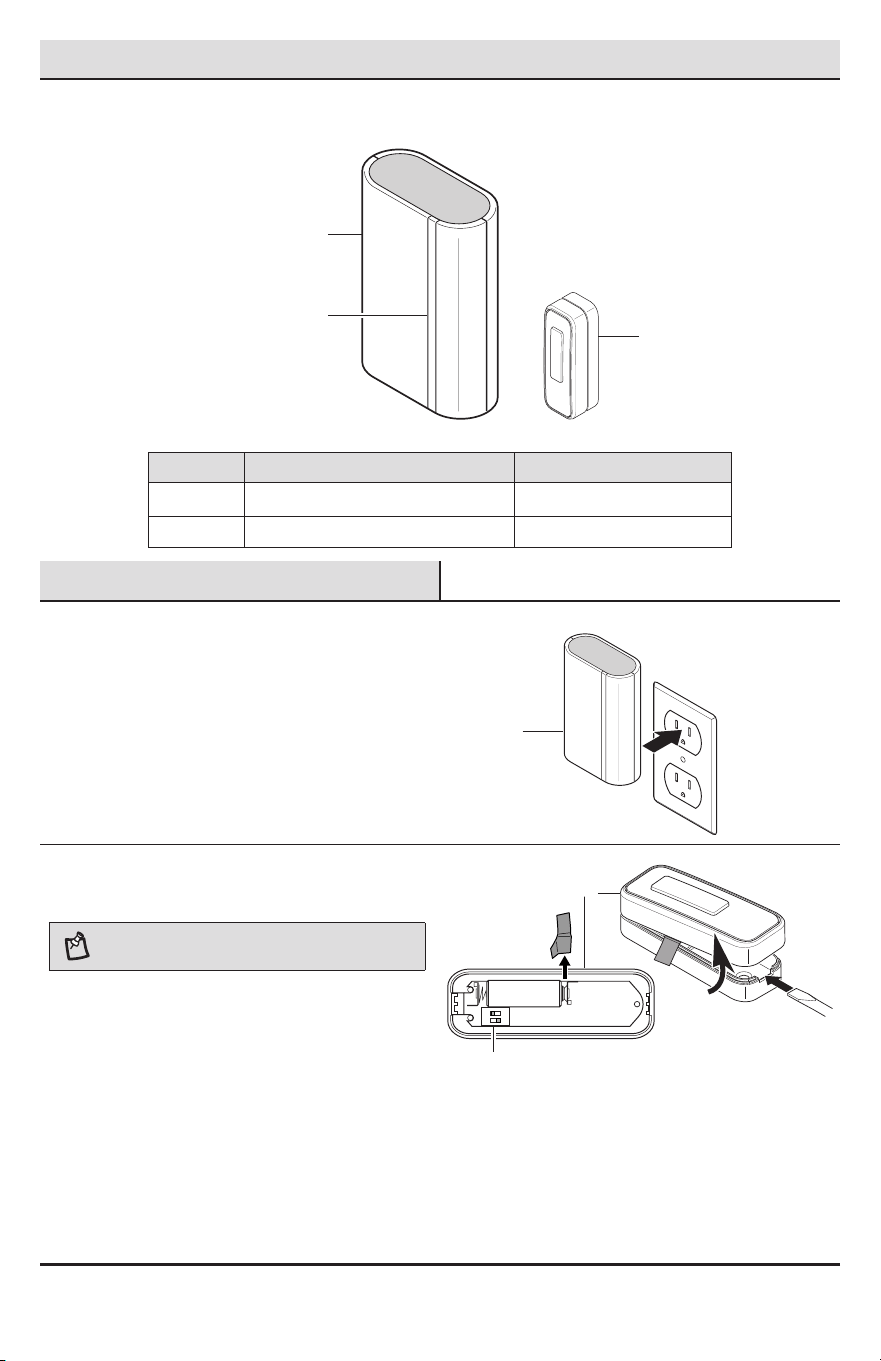
A Doorbell with LED indicator bar (1*) 1
B Push button 1
Installation
1
Installing the doorbell
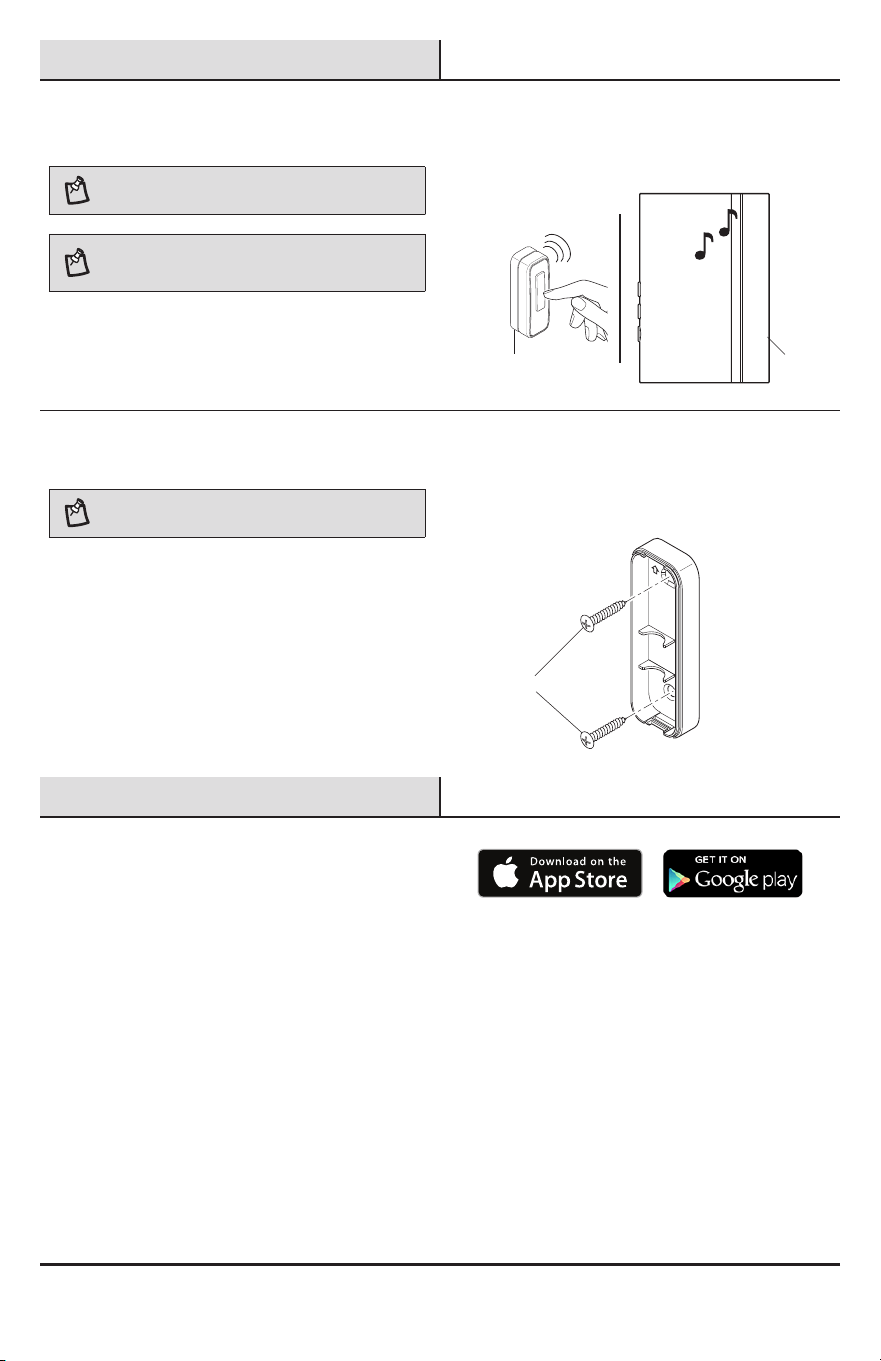
Ƒ Plug in the doorbell (A) at the desired location.
2
Removing the battery tab
NOTE: Do NOT change the dip switches (2). They are set
at the factory.
Ƒ Remove the back of the push button (B) by
pushing in the tab on the bottom with a small
screwdriver (not included).
Ƒ Remove the orange battery tab from the push
button (B).
ON
1 2
A
1*
B
A
2
B
5 HOMEDEPOT.COM/HUBSPACE
Please contact 1-877-592-5233 for further assistance.
Installation (continued)
3
Testing the push button and
doorbell
NOTE: Do not permanently mount the push button until
the push button and doorbell are working properly.
NOTE: The push button and doorbell come synced from
the factory. The range of the wireless doorbell can vary
with location, temperature, and battery condition.
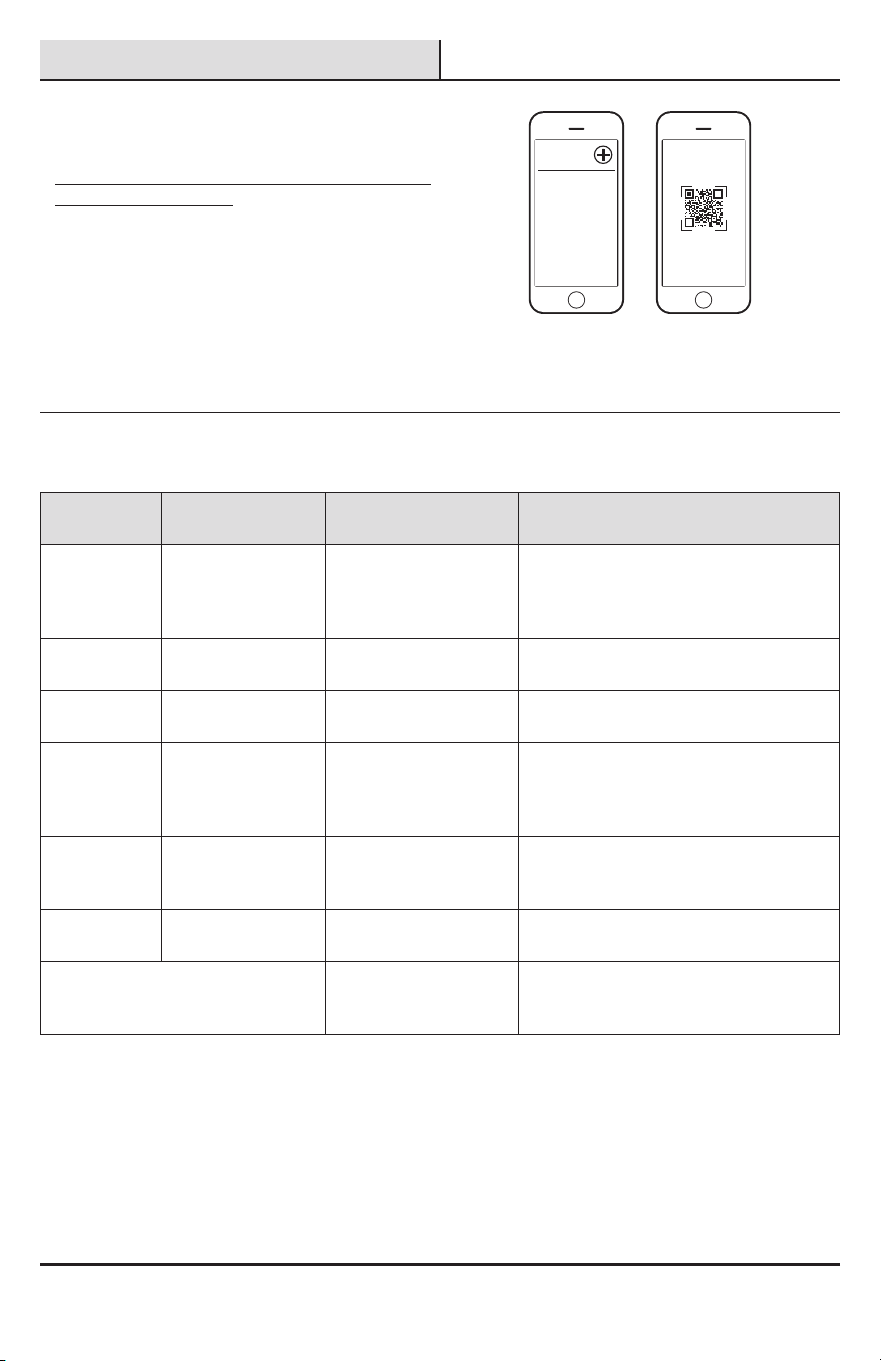
Ƒ Temporarily position the push button (B) where
it will be mounted.
Ƒ Press the push button (B) to verify the
doorbell(A) and push button (B) work properly.
Ƒ If the doorbell (A) does not sound, move the
doorbell (A) closer to the push button (B) and
test again.
4
Mounting the push button
NOTE: Remove material in screw holes (if needed) before
mounting with screws.
Use either screws (AA) or double-sided tape (BB) to
mount the push button (B).
Ƒ To mount with screws (AA), remove the back
of the push button (B) by pushing in the tab on
the bottom with a small screwdriver. Place the
push button back on the door jamb and mark
the two screw holes. Drill two 1/16 in. pilot
holes. Attach with screws (AA) and snap on the
front of the push button (B).
Ƒ When attaching the push button (B) with
double-sided tape (BB), remove the paper from
both sides of the double-sided tape (BB) and
apply to a clean surface.
Operation
1
Downloading the Hubspace™
app
Download the Hubspace™ app from the App Store or
the Google Play Store.
B
A
AA
6
Operation (continued)
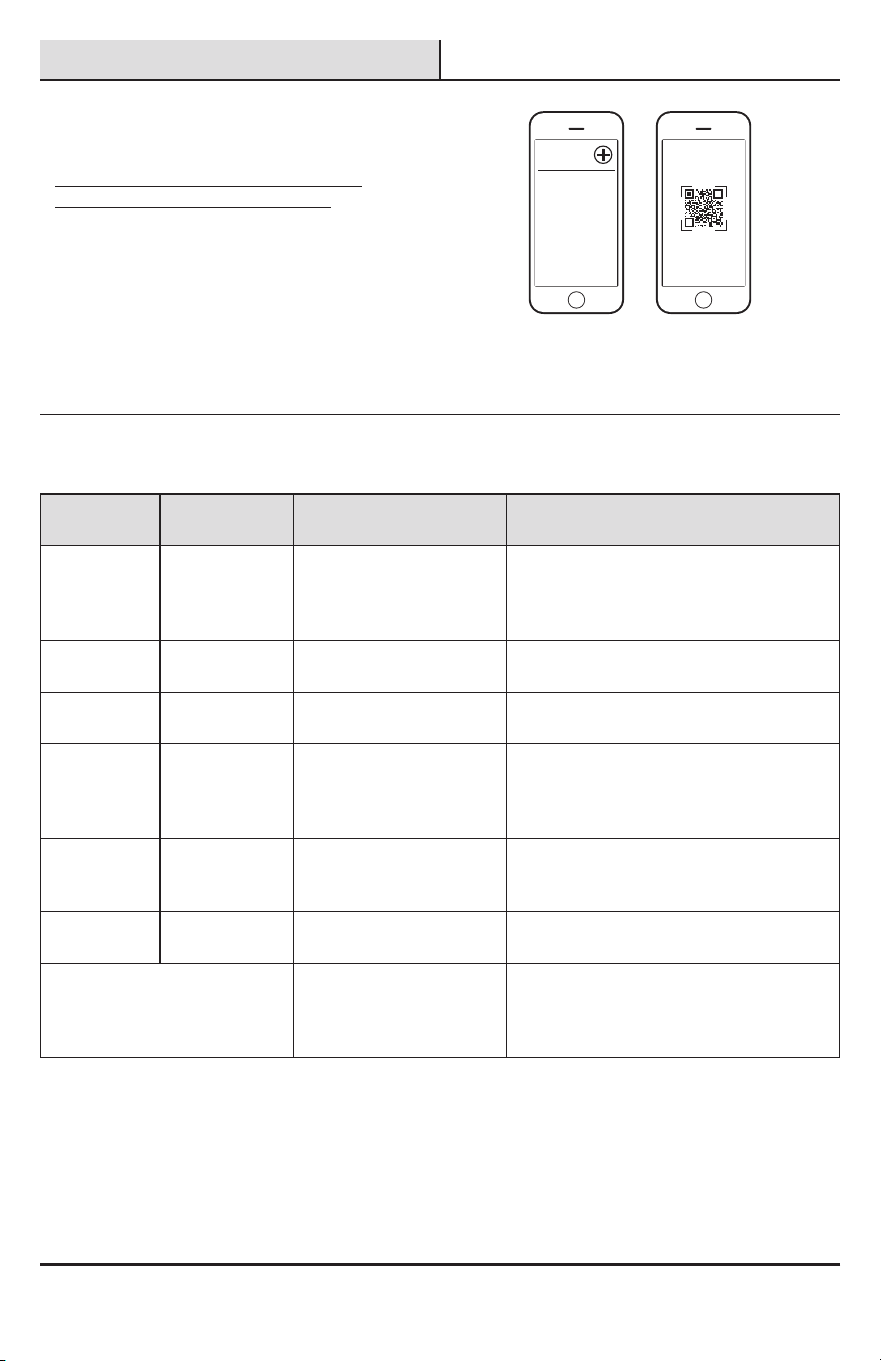
2
Connecting the doorbell to the
Hubspace™ app
You must have a 2.4GHz network to connect
the doorbell to Wi-Fi.
Ƒ Have the network password available.
Ƒ Create a Hubspace™ account and sign in or
login if you already have an account.
Ƒ Tap the “+” icon in the upper right corner on
the app screen.
Ƒ Scan the QR code from the packaging
provided.
Ƒ Follow the on-screen instructions.
My Home
3
Understanding the LED
indicator lights
BLUE LED RED LED DEVICE STATE WHEN ARE THESE LIGHTS
DISPLAYED
BLUE – Off RED – Solid
(NO ashing)
Booting up or Wi-Fi error. Until connected to Wi-Fi or until connected
to the cloud. This state may not be visible
because unit will immediately transition to
“Not Connected”.
BLUE – Off RED – Slow ashing Not connected Until connecting to the cloud is completed
or times out.
BLUE – Off RED – Rapid ashing “Setup Mode” –
Connecting to the cloud.
Until connecting to the cloud is completed
or times out.
BLUE – Rapid
ashing
RED – Off Connecting to the cloud–
Previously connected to
the cloud but currently
NOT connected to Wi-Fi.
Until connected to the cloud through Wi-Fi.
BLUE – Solid
(NO ashing)
RED – Off Connected to the cloud
and currently connected
to Wi-Fi.
While connected to the cloud and connected
to Wi-Fi.
BLUE – Off RED – Off Not connected Doorbell is not connected to the Wi-Fi or
cloud after 20 minutes.
PURPLE – Solid (NO ashing)
Push button activation The LEDs will light for 10 seconds after a
push button is pressed. This will happen
whether the doorbell is muted or not.
7 HOMEDEPOT.COM/HUBSPACE
Please contact 1-877-592-5233 for further assistance.
Operation (continued)
4
Adjusting the doorbell volume
NOTE: The doorbell volume can also be adjusted on the
home screen using the slider below the doorbell icon.
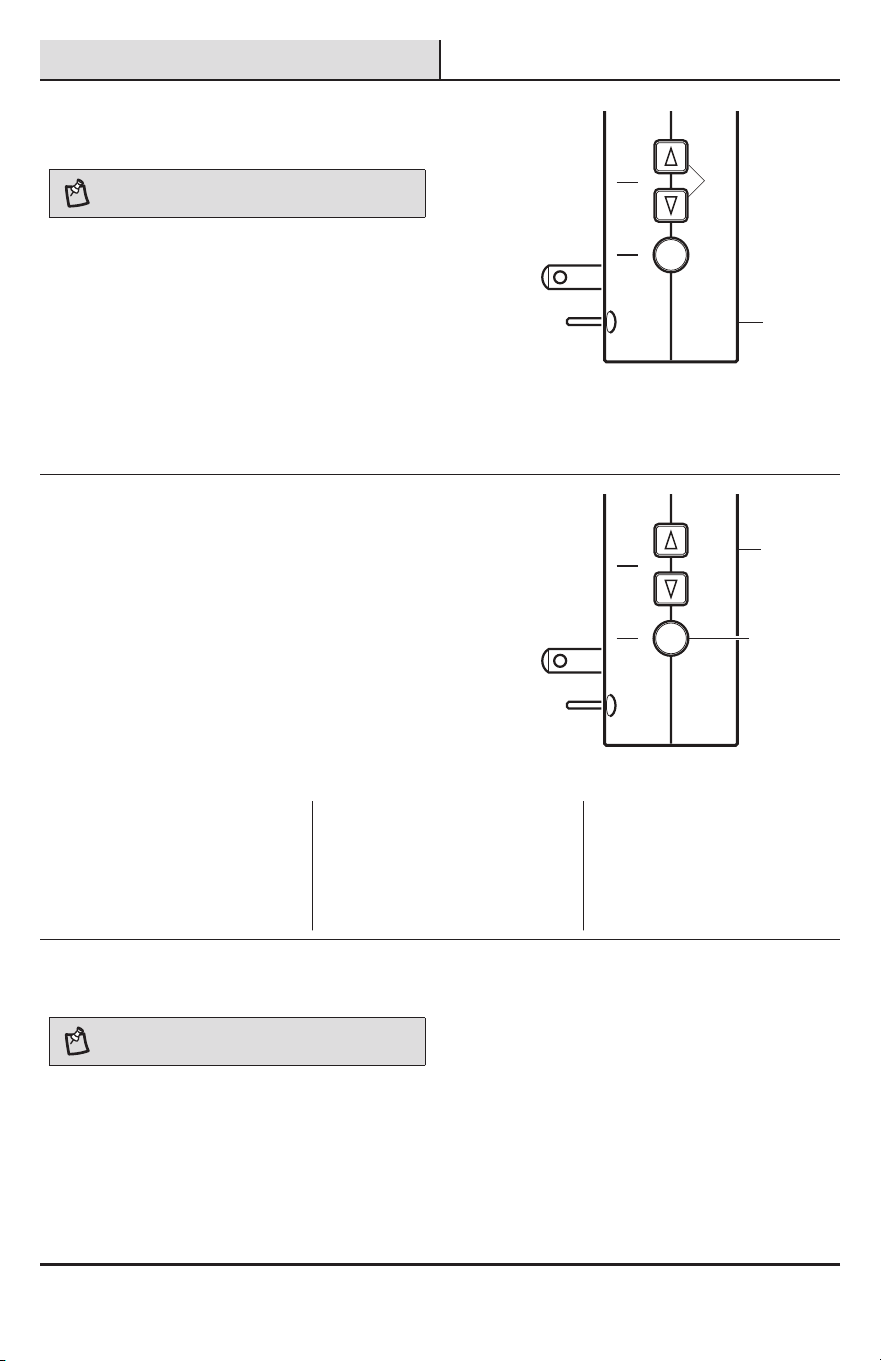
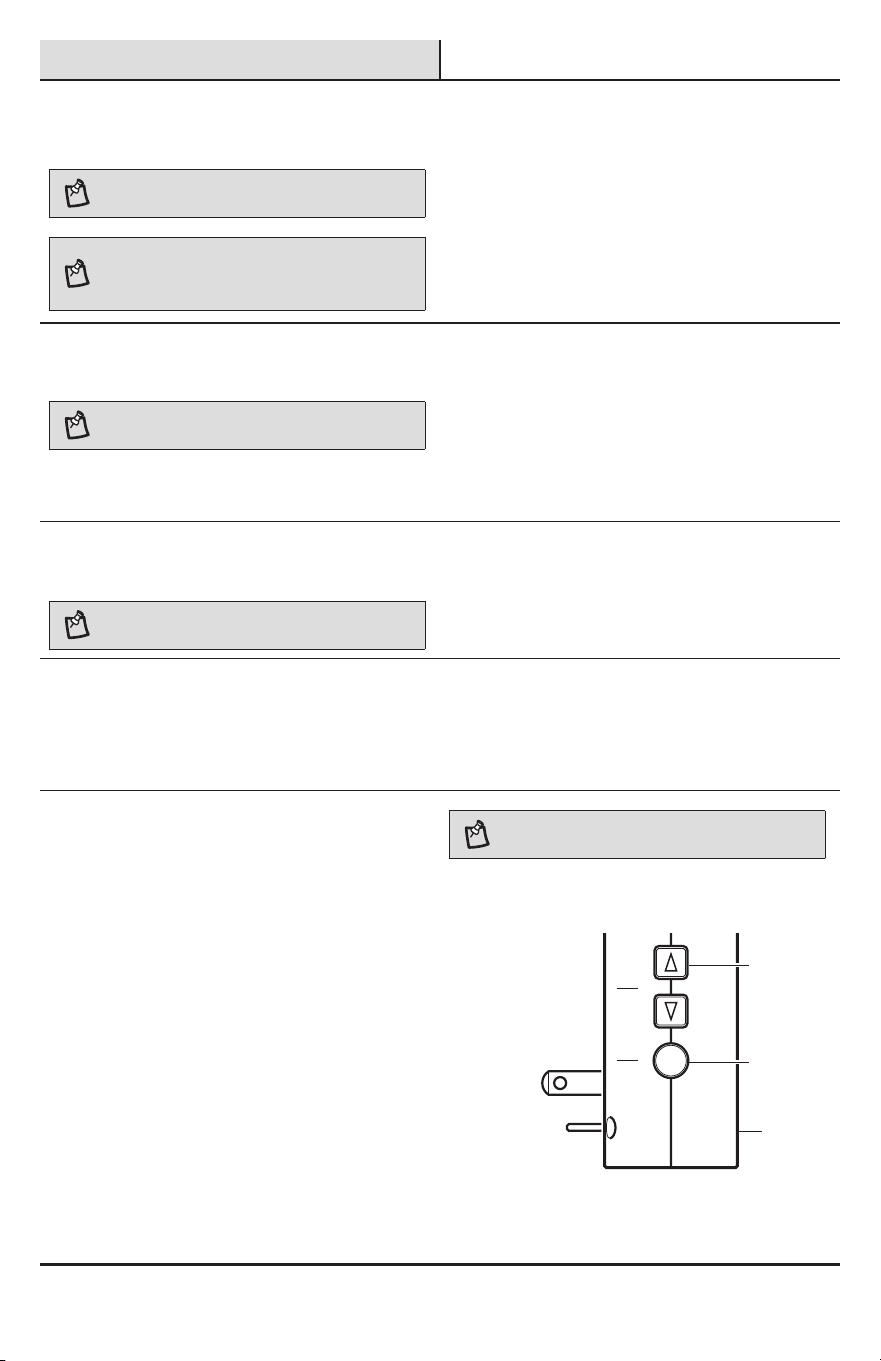
The doorbell (A) has an adjustable volume control from
25% to 100%. The volume can be adjusted using the
arrow buttons (3) on the side of the doorbell (A) or
using the app.
Ƒ Using the doorbell arrow buttons (3) – Press
and release the arrow buttons (3) to adjust the
volume one step at a time.
Ƒ Using the app – Select the doorbell in the app.
Use the volume control to adjust to the desired
volume.
Function Vo lume
5
Selecting a tune
There are 17 available tunes that can be assigned to
any push button synced with the doorbell (A). The app
is able to select tunes for all push buttons.
Ƒ Using the Function Button (4) – To change the
“front” door push button tune only, press and
release the function button (4) to play the next
tune. The last tune played will be the new tune.
Ƒ Using the app – Select the doorbell and the
desired push button in the app. Choose the
desired tune from the list.
Function Vo lume
1 Westminster 7 We Wish You A Merry Christmas 13 Lincolns Park
2 Short Westminster 8 Auld Lang Syne 14 Piano Westminster
3 Whittington 9 Beethovens's Fifth 15 Rockin Westminster
4 Relax Triplet 10 Ding Dong 16 Star
5 Shorty 11 Ding 17 Sundance
6 Birthday Celebration 12 Jazzy Sax
6
Naming the push button
NOTE: This doorbell is designed to work with up to 16
wireless push buttons (sold separately).
Each push button (B) can be assigned a unique name
that will display when a notication is sent from the
push button (B).
Ƒ Using the app – Select the doorbell and the
desired push button in the app. Type in a name
for the push button.
A
A
4
3
8
Operation (continued)
7
Muting the doorbell
NOTE: The doorbell muting can also be adjusted on the
home screen using the speaker icon on the doorbell icon.
NOTE: If the doorbell is muted and access to the app to
unmute it is not possible, the doorbell can be unmuted by
pressing either of the volume buttons on the side of the
doorbell.
The doorbell can be muted manually or for a scheduled
period of time within the app. The speaker icon will
change depending on the selected mute function.
Ƒ Mute - The doorbell will be muted until it is
cancelled.
Ƒ Mute for 2 hours - The doorbell will be muted
for 2 hours.
Ƒ Mute until sunrise - The doorbell will be muted
until the next morning.
8
Scheduling a mute event
NOTE: Manually muting or unmuting the doorbell will
override any scheduled muting event.
The doorbell (A) can be scheduled to mute at specic
times throughout the day or week.
Ƒ Using the app – Select the doorbell in the app.
Ƒ Follow the on-screen instructions to set the
start and end times for muting.
9
Adding a push button
NOTE: This doorbell is designed to work with up to 16
wireless push buttons (sold separately).
Ƒ Using the app – Select the doorbell in the app.
Ƒ Select the “Add Button” button.
Ƒ Follow the on-screen instructions.
10
Removing a push button
Ƒ Using the app – Select the doorbell and the
desired push button in the app.
Ƒ Select the trash can icon at the top of the
screen and follow the on-screen instructions
to remove the selected push button.
11
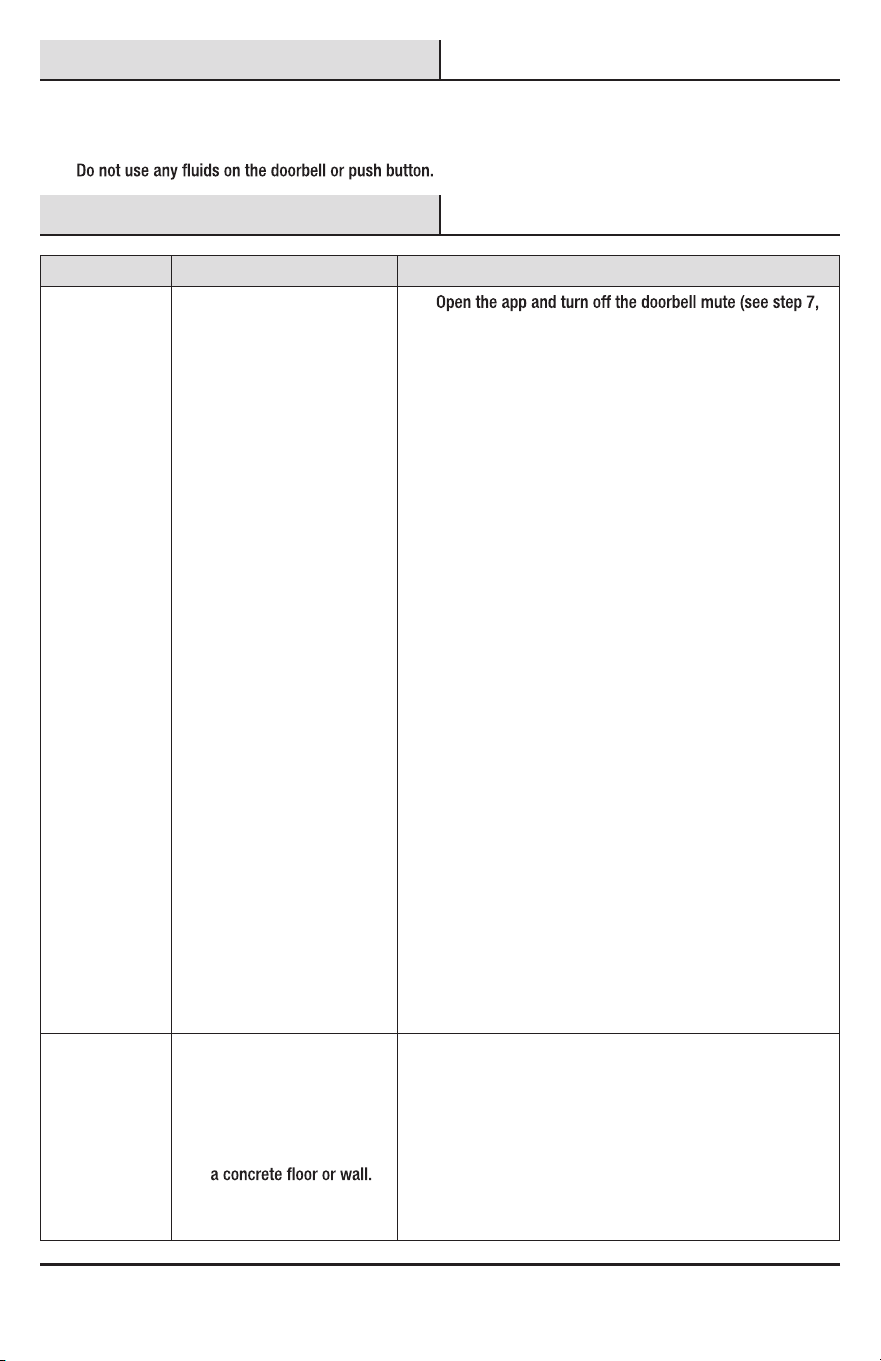
Using the function button on
the doorbell
Ƒ Learn a new push button – press and hold the
function button (4) for 3 seconds (the doorbell
will sound “beep-beep”).
Ƒ See the Troubleshooting section to sync
the push button (B) and doorbell (A).
Ƒ Remove all known push buttons – press and
hold the function button (4) for 10 seconds (the
doorbell will sound “beep-beep-beep”).
Ƒ Enter Hubspace setup mode – press and hold
the function button (4) and volume UP button
(5) for 5 seconds (the doorbell will sound
“beep-beep-beep”).
NOTE: The Hubspace setup mode is only needed if the QR
code is not available for scanning.
Ƒ Follow the instructions in the Hubspace
app.
Function Vo lume
A
4
5
9 HOMEDEPOT.COM/HUBSPACE
Please contact 1-877-592-5233 for further assistance.
Care and Cleaning
□ Use a dry cloth to clean the doorbell and push button.
□ Do not use cleaners or polishes.
□
Troubleshooting
Problem Possible Cause Solution
Doorbell does
not sound.
□ The doorbell is muted. □
page 8).
□ Push button battery is not
installed correctly.
□ Make sure batteries are installed according to the dia-
gram inside the push button.
□ Push button battery is
dead.
□ Check the charge of the push button battery and replace
if necessary.
□ Doorbell is not receiving
power.
□ Make sure the plug-in doorbell has power.
□ Push button and doorbell
are not synced.
□ Sync the primary push button(the rst one paired with
doorbell) and doorbell:
□ Sync the secondary push button(the one except the rst
push button paired with doorbell) and doorbell:
□ Press and hold the “Function” button on the doorbell
until the doorbell sounds a “Beep-Beep”(about 3
seconds)
□ Press and hold the “Function” button on the doorbell
until the doorbell sounds a “Beep-Beep”(about 3
seconds)
□ Press the push button within 10 seconds. The door-
bell will sound a “Ding Dong” tone to indicate the
push button is synced.
□ Press the push button within 10 seconds. The door-
bell will sound a “Beep-Beep” tone to indicate the
push button is synced.
□ Press the push button to ensure operation.
□ Press the push button to ensure operation.
□ The dip switches in the
push button are set
wrong.
□ Ensure push button dip switch #1 is in the “ON” position
and dip switch #2 is in the “OFF.” Follow the steps above
to re-sync the push button and doorbell.
Push button
battery seems
okay, but the
doorbell does
not work after
installation.
□ Doorbell is set to mute. □ Open the app and check if the doorbell is set to mute.
□ Doorbell or push button is
mounted on metal or near
metal studs.
□ Metal reduces transmission range. Use 1/4 in. to 1/2 in.
(6 to 13 mm) wood shims to move the doorbell or push
button away from the metal surface.
□ Doorbell is mounted near
□ Concrete may reduce range. Move the doorbell away
from the concrete surface.
□ Doorbell and push button
are installed too far apart.
□ Locate the doorbell closer to the push button.
10
Problem Possible Cause Solution
Doorbell sounds
when not
intended (false
triggers).
□ Doorbell is receiving
interference from another
wireless device.
□ Reset the doorbell and push button:
□ Remove the push button battery. Wait 30 seconds.
□ Press and hold the push button for 10 to 15 seconds
within 60 seconds after installing the battery into the
push button.
□ Press and hold the “Function” button on the doorbell
until the doorbell sounds a “Beep-Beep-Beep-Beep.”
□ To re-sync the push button and doorbell, press and
hold the “Function” button on the doorbell until the
doorbell sounds a “Beep-Beep.”
□ Press the push button within 10 seconds. The door-
bell will sound a “Ding Dong” tone to indicate the
push button is synced.
□ Press the push button to ensure operation.
not working.
□ The doorbell is not
connected to the Wi-Fi
network.
□ Move the doorbell closer to the router.
□ The Wi-Fi router has
lost connection to the
network.
□ Ensure the Wi-Fi network is working.
□ The mobile device is not
connected to a data con-
nection.
□ Ensure the mobile device has a data connection (Wi-Fi or
cellular).
□
off on the mobile device.
□
The LEDs on
the doorbell are
glowing.
The LEDs on the doorbell
indicate different issues.
See the chart on page 6, step 3 to understand the different
LED indicators.
Troubleshooting (continued)

11 HOMEDEPOT.COM/HUBSPACE
Please contact 1-877-592-5233 for further assistance.
This device complies with Part 15 of the FCC Rules. Operation is subject to the following two conditions: (2) this device may not cause harmful
interference, and (3) this device must accept any interference received, including interference that may cause undesired operation.
Warning: Changes or modications to this unit not expressly approved by the party responsible for compliance could void the user’s authority to operate
the equipment.
Note: This equipment has been tested and found to comply with the limits for aClass B digital device, pursuant to part 15 of the FCC Rules. These
limits are designed to provide reasonable protection againstharmful interferencein a residential installation. This equipment generates, uses and can
radiateradio frequency energyand, if not installed and used in accordance with the instructions, may causeharmful interferenceto radio communications.
However, there is no guarantee that interference will not occur in a particular installation. If this equipment does causeharmful interferenceto radio or
television reception, which can be determined by turning the equipment off and on, the user is encouraged to try to correct the interference by one or
more of the following measures:
- Reorient or relocate the receiving antenna.
- Increase the separation between the equipment and receiver.
- Connect the equipment into an outlet on a circuit different from that to which the receiver is connected.
- Consult the dealer or an experienced radio/TV technician for help.
This device contains licence-exempt transmitter(s)/receiver(s) that comply with Innovation, Science and Economic Development Canada’s licence-exempt
RSS(s). Operation is subject to the following two conditions:
1. This device may not cause interference.
2. This device must accept any interference, including interference that may cause undesired operation of the device.
FCC Responsible Party Name: HeathCo LLC
Address: 2445 Nashville Road, Bowling Green, KY 42101 U.S.A.
Telephone Number: 800-858-8501

Questions, problems, missing parts?
Before returning to the store, call Deant Customer Service
8 a.m. - 5 p.m., CST, Monday - Friday
1-877-592-5233
HOMEDEPOT.COM/HUBSPACE
Retain this manual for future use.
211265-01A
GRACIAS
Agradecemos la conanza que ha depositado en Deant al comprar este juego de timbre inalámbrico. Procuramos
crear continuamente productos de calidad diseñados para mejorar su hogar. Visítenos en internet para ver nuestra
línea completa de productos disponibles que necesita para el mejoramiento de su hogar.
¡Gracias por escoger Deant!
GUÍA PARA EL USO Y CUIDADO
KIT DE TIMBRE INALÁMBRICO
CON CONEXIÓN A RED WI-FI
¿Tiene preguntas, problemas o piezas faltantes?
Antes de la devolución al almacén llame al Servicio al Cliente de Deant de
8 a.m.-5 p.m., Hora del Central, de lunes a viernes.
1-877-592-5233
HOMEDEPOT.COM/HUBSPACE
Las ilustraciones pueden ser diferentes de la unidad comprada.
Articulo # 1007155882
Modelo #DF-3015-00
14
Contenido
Contenido ................................................14
Información de seguridad ......................14
Garantía...................................................14
Antes de la instalación ...........................15
Instalación ..............................................16
Operación ................................................17
Cuidado y limpieza .................................21
Análisis de averías .................................21
Información de seguridad
PRECAUCIONES
Ƒ Por favor lea y entienda todo este manual antes de
tratar de ensamblar, instalar u operar este timbre.
Ƒ Todo trabajo eléctrico debe estar en conformidad
con los códigos eléctricos nacionales y locales.
En caso de duda, consulte con un electricista
calicado.
ADVERTENCIA: Para evitar posibles LESIONES GRAVES
o LA MUERTE nunca deje que los niños pequeños estén
cerca de las pilas. Si alguien ingiere una pila, notique
inmediatamente al médico.
ADVERTENCIA: NO TIRE LAS PILAS AL FUEGO. LAS
PILAS PUEDEN EXPLOTAR O GOTEAR.
ADVERTENCIA: Riesgo de incendio. No enchufe el
timbre en un inversor de corriente.
NOTA: El pulsador y el timbre vienen sincronizados de
fábrica. El alcance del timbre inalámbrico puede variar con
el lugar, la temperatura y la condición de la pila.
Garantía
3 AÑOS DE GARANTÍA LIMITADA
LO QUE SE CUBRE
Se garantiza que este producto no tiene partes defectuosas de fábrica o de mano de obra por un período de 3 años
desde la fecha de compra. Se necesita el recibo de compra para todos los reclamos de garantía.
LO QUE NO SE CUBRE
Esta garantía no incluye los artículos reemplazables (como bombillas, pilas etc.), servicio de reparación, ajuste y
calibración debido al mal uso, abuso o negligencia. Los servicios no autorizados o las modicaciones hechas al
producto o a cualquier componente invalidarán esta garantía en su totalidad. Esta garantía no incluye reembolso
por inconveniencia, instalación, tiempo de instalación, perdida de uso, servicio no autorizado, o gastos de envío.
Esta garantía no se extiende a otros equipos o componentes que el consumidor usa junto con este producto. El
fabricante se reserva el derecho de descontinuar productos y cambiar las especicaciones en cualquier momento
sin incurrir en ninguna obligación de incorporar nuevas características en productos vendidos anteriormente.
No hay piezas de servicio disponibles para este producto.
Póngase en contacto con el personal de servicio al cliente al 1-877-592-5233 o visite el sitio
www.homedepot.com/hubspace.
Modelo: DF-3015-00
15 HOMEDEPOT.COM/HUBSPACE
Por favor, póngase en contacto al 1-877-592-5233 para obtener más ayuda.
Antes de la instalación
PLANIFICACIÓN DE LA INSTALACIÓN
Antes de instalar el juego de timbre inalámbrico, asegúrese de que tiene todas las piezas. Compare las piezas con
las indicadas en las secciones Ferretería incluida y Contenidos del paquete. Si alguna pieza falta o está dañada, no
intente ensamblar, instalar, o utilizar este juego de timbre inalámbrico.
Tiempo estimado para la instalación: 30 minutos
ESPECIFICACIONES
Timbre Pulsador
Requisitos de la energía eléctrica 120 VCA, 60 Hz Pila de 12V tipo A23 (incluida)
HERRAMIENTAS REQUERIDAS
Destornillador
phillips
Pequeño
destornillador
de cabeza
plana
Taladro
Broca de 1/16 pulgadas
(1,5mm)
Gafas de suguridad
Guantes de trabajo
FERRETERÍA INCLUIDA
NOTA: La ferretería se muestra en su tamaño real
AA
BB
Pieza Descripción Cantidad
AA Tornillo 2
BB Cinta doble faz 1
Cinta
16
Antes de la instalación (continuación)
CONTENIDO DEL PAQUETE
Pieza Descripción Cantidad
A Timbre con barra indicadora LED (1*) 1
B Pulsador 1
Instalación
1
Instalación del timbre
Ƒ Enchufe el timbre (A) en la ubicación deseada.
2
Retiro de la lengüeta de la pila
NOTA: NO cambie los interruptores DIP (2). Vienen
congurados de fábrica.
Ƒ Con un destornillador pequeño (no se incluye),
presione la pestaña en la parte inferior
del botón pulsador (B) para retirar la parte
posterior.
Ƒ Retire la pestaña naranja de la batería del
botón pulsador (B).
ON
1 2
A
B
A
B
1*
2

17 HOMEDEPOT.COM/HUBSPACE
Por favor, póngase en contacto al 1-877-592-5233 para obtener más ayuda.
Instalación (continuación)
3
Prueba del pulsador y del
timbre
NOTA: No instale de forma permanente el pulsador hasta
que el pulsador y el timbre funcionen correctamente.
NOTA: El pulsador y el timbre vienen sincronizados de
fábrica. El alcance del timbre inalámbrico puede variar con
el lugar, la temperatura y la condición de la pila.
Ƒ Coloque temporalmente el pulsador (B) donde
será montado.
Ƒ Presione el pulsador (B) para vericar que el
timbre (A) y el pulsador (B) funcionen bien.
Ƒ Si el timbre (A) no suena, acerque más el
timbre al pulsador (B) y pruebe de nuevo.
4
Montaje del pulsador
NOTA: Quite la suciedad de los oricios para tornillos (si
es necesario) antes de poner los tornillos.
Use tornillos (AA) o cinta doble faz (BB) para montar el
botón pulsador (B).
Ƒ Para montar con tornillos (AA), presione
la pestaña de la parte inferior del botón
pulsador(B) con un destornillador pequeño
y retire la parte posterior. Coloque la parte
posterior del botón pulsador en la jamba de
la puerta y marque los dos oricios para los
tornillos. Taladre dos oricios guía de 1/16".
Fije con tornillos (AA) y coloque a presión la
parte delantera del botón pulsador (B).
Ƒ Al colocar el botón pulsador (B) con cinta doble
faz (BB), retire el papel de ambos lados de la cinta
doble faz (BB) y aplique en una supercie limpia.
Operación
1
Descarga de la aplicación
Hubspace™
Descargue la aplicación Hubspace ™ desde App Store
o desde Play Store de Google.
B
A
AA
18
Operación (continuación)
2
Conexión del timbre a la
aplicación Hubspace™
Debe tener una red de 2.4 GHz para
conectar el timbre a la red Wi-Fi.
Ƒ Tenga a mano la contraseña de la red.
Ƒ Cree una cuenta en Hubspace™ e inicie
sesión si ya tiene una cuenta.
Ƒ Toque el icono “+” de la esquina superior
derecha de la pantalla de la aplicación.
Ƒ Escanee el código QR del paquete provisto.
Ƒ Siga las instrucciones que aparecen en la
pantalla.
My Home
3
Qué muestran las luces
indicadoras LED
LED AZUL LED ROJO ESTADO DEL
DISPOSITIVO
CUÁNDO APARECEN
ESTAS LUCES
AZUL -
Apagado
ROJO - Fija
(SIN parpadeo)
Arrancando o error de la
red Wi-Fi.
Hasta que se conecte a la red Wi-Fi o hasta
que se conecte a la nube. Es posible que este
estado no sea visible porque la unidad pasará
inmediatamente a “no conectado”.
AZUL -
Apagado
ROJO - Parpadeo
lento
No conectado Hasta que se complete la conexión a la nube
o se agote el tiempo de espera.
AZUL -
Apagado
ROJO - Parpadeo
rápido
“Modo conguración”:
conectando a la nube.
Hasta que se complete la conexión a la nube
o se agote el tiempo de espera.
AZUL -
Parpadeo
rápido
ROJO - Apagado Conectando a la nube:
conectado anteriormente a
la nube, pero actualmente
NO conectado a la red Wi-Fi.
Hasta que se conecte a la nube a través de la
red Wi-Fi.
AZUL - Fija
(SIN parpadeo)
ROJO - Apagado Conectado a la nube y
actualmente conectado a la
red Wi-Fi.
Mientras esté conectado a la nube y a la red
Wi-Fi.
AZUL -
Apagado
ROJO - Apagado No conectado El timbre no se conecta a la red Wi-Fi ni a la
nube después de pasar 20 minutos.
PÚRPURA - Fija (SIN parpadeo)
Activación de pulsador Los LED se encenderán durante 10 segundos
después de presionar un pulsador. Esto
sucederá sea que el timbre esté silenciado
o no.
19 HOMEDEPOT.COM/HUBSPACE
Por favor, póngase en contacto al 1-877-592-5233 para obtener más ayuda.
Operación (continuación)
4
Regulación del volumen del
timbre de la puerta
NOTA: El volumen del timbre también se puede regularse
en la pantalla de inicio usando el control deslizante que
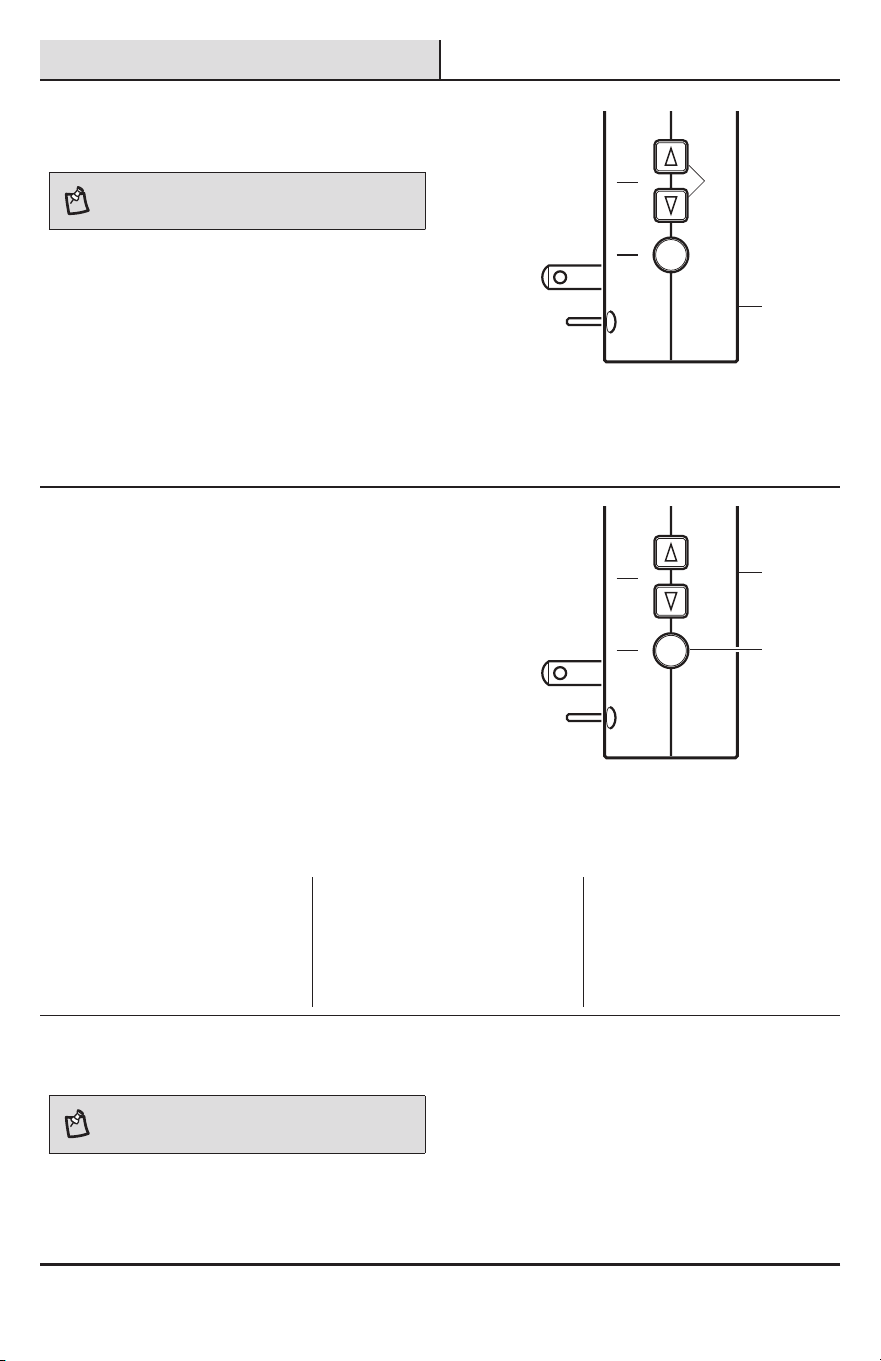
está debajo del icono del timbre.
El timbre (A) tiene un control de volumen regulable
desde el 25% al 100%. El volumen se puede regular
con los botones de echa (3) del costado del timbre (A)
o con la aplicación.
Ƒ Con los botones de echa del timbre (3) –
Presione y suelte los botones de echa (3)
para regular el volumen paso a paso.
Ƒ Con la aplicación – Seleccione el timbre en la
aplicación. Utilice el control de volumen para
regular al volumen deseado.
Function Vo lume
5
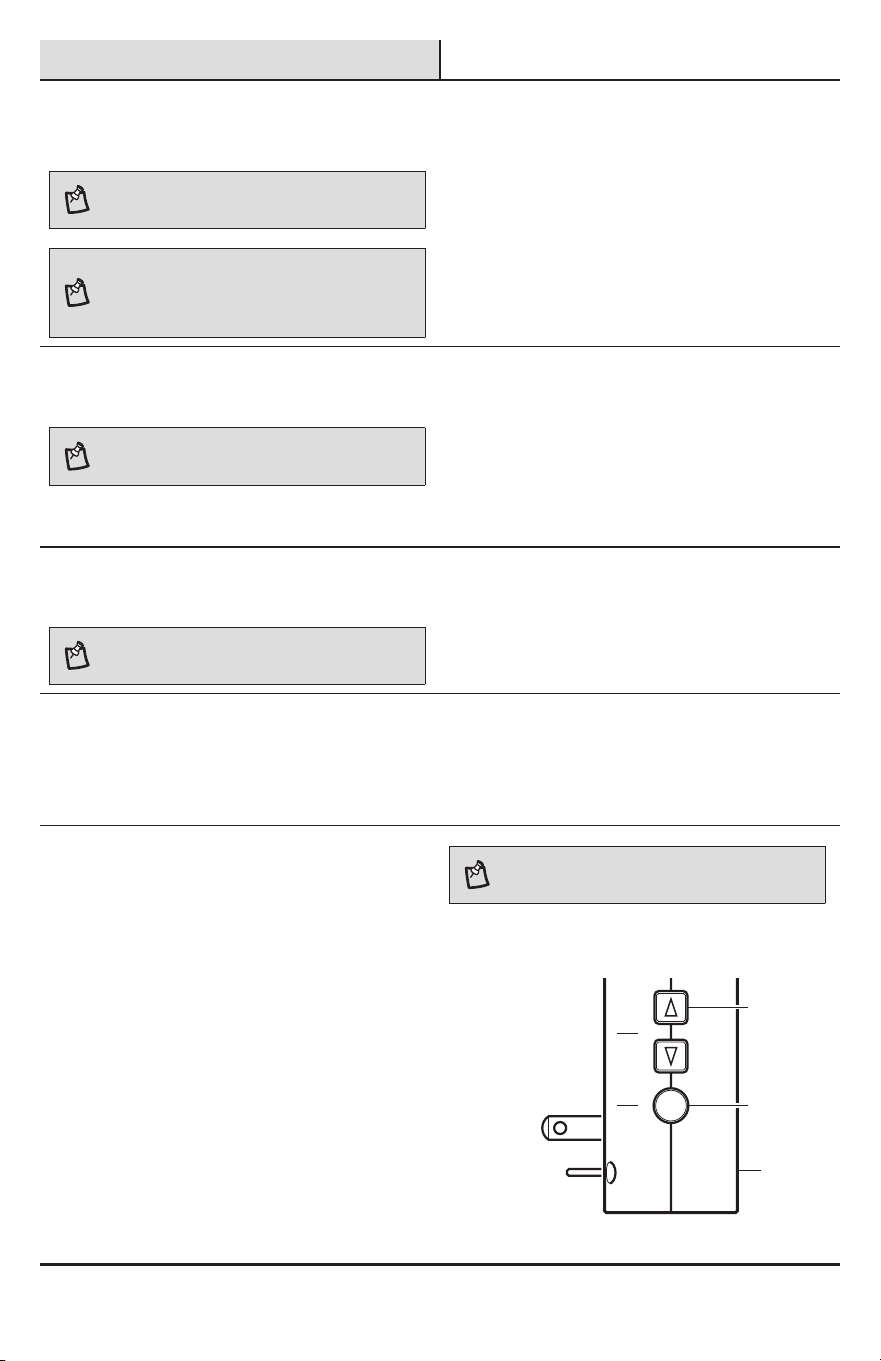
Selección de un tono
Hay 17 melodías disponibles que se pueden asignar a
cualquier pulsador (B) sincronizado con el timbre (A).
La aplicación puede seleccionar melodías para todos
los pulsadores (B).
Ƒ Con el botón de función (4) – Para cambiar
la melodía solamente del pulsador de la
puerta “frontal”, presione y suelte el botón
de función(4) para reproducir la siguiente
melodía. La última melodía reproducida será la
nueva melodía.
Ƒ Con la aplicación – Seleccione en la aplicación
el timbre y el pulsador deseado. Elija de la lista
la melodía deseada.
Function Vo lume
1 Westminster 7 We Wish You A Merry Christmas 13 Lincolns Park
2 Short Westminster 8 Auld Lang Syne 14 Piano Westminster
3 Whittington 9 Beethovens's Fifth 15 Rockin Westminster
4 Relax Triplet 10 Ding Dong 16 Star
5 Shorty 11 Ding 17 Sundance
6 Birthday Celebration 12 Jazzy Sax
6
Dar nombre al pulsador
NOTA: Este timbre está diseñado para funcionar
con hasta 16 pulsadores inalámbricos (vendidos por
separado).
A cada pulsador (B) se le puede asignar un nombre
exclusivo que se mostrará cuando se envíe una
noticación desde el pulsador (B).
Ƒ Con la aplicación – Seleccione en la aplicación
el timbre y el pulsador deseado. Escriba un
nombre para el pulsador.
A
A
4
3
20
Operación (continuación)
7
Silenciamiento del timbre
NOTA: El silenciamiento del timbre también se puede
regular en la pantalla de inicio con el icono del altavoz en
el icono del timbre.
NOTE: Si el timbre está silenciado y no es posible
acceder a la aplicación para desactivar el silencio, el
silencio del timbre puede ser desactivado presionando
cualquiera de los botones de volumen del costado del
timbre.
Al timbre se lo puede silenciar manualmente o
durante un período de tiempo programado dentro de
la aplicación. El icono del altavoz cambiará según la
función de silencio elegida.
Ƒ Silencio - el timbre se silenciará hasta que se
cancele.
Ƒ Silencio durante 2 horas - el timbre se
silenciará durante 2 horas.
Ƒ Silencio hasta el amanecer - el timbre se
silenciará hasta la mañana siguiente.
8
Programación de un evento de
silencio
NOTA: Al activar o desactivar manualmente el silencio
del timbre se anulará cualquier evento de silencio
programado.
El timbre (A) se puede programar para que se silencie
a determinadas horas del día o de la semana.
Ƒ Con la aplicación – seleccione el timbre en la
aplicación.
Ƒ Siga las instrucciones que aparecen en
la pantalla para jar las horas de inicio y
nalización del silenciamiento.
9
Cómo añadir un pulsador
NOTA: Este timbre está diseñado para funcionar
con hasta 16 pulsadores inalámbricos (vendidos por
separado).
Ƒ Con la aplicación – seleccione el timbre en la
aplicación.
Ƒ Seleccione el botón “Añadir botón”.
Ƒ Siga las instrucciones que aparecen en la
pantalla.
10
Cómo quitar un pulsador
Ƒ Con la aplicación – seleccione el timbre y el
pulsador deseado en la aplicación.
Ƒ Seleccione el icono de la papelera de reciclaje
en la parte superior de la pantalla y siga las
instrucciones que aparecen en la pantalla para
eliminar el pulsador elegido.
11
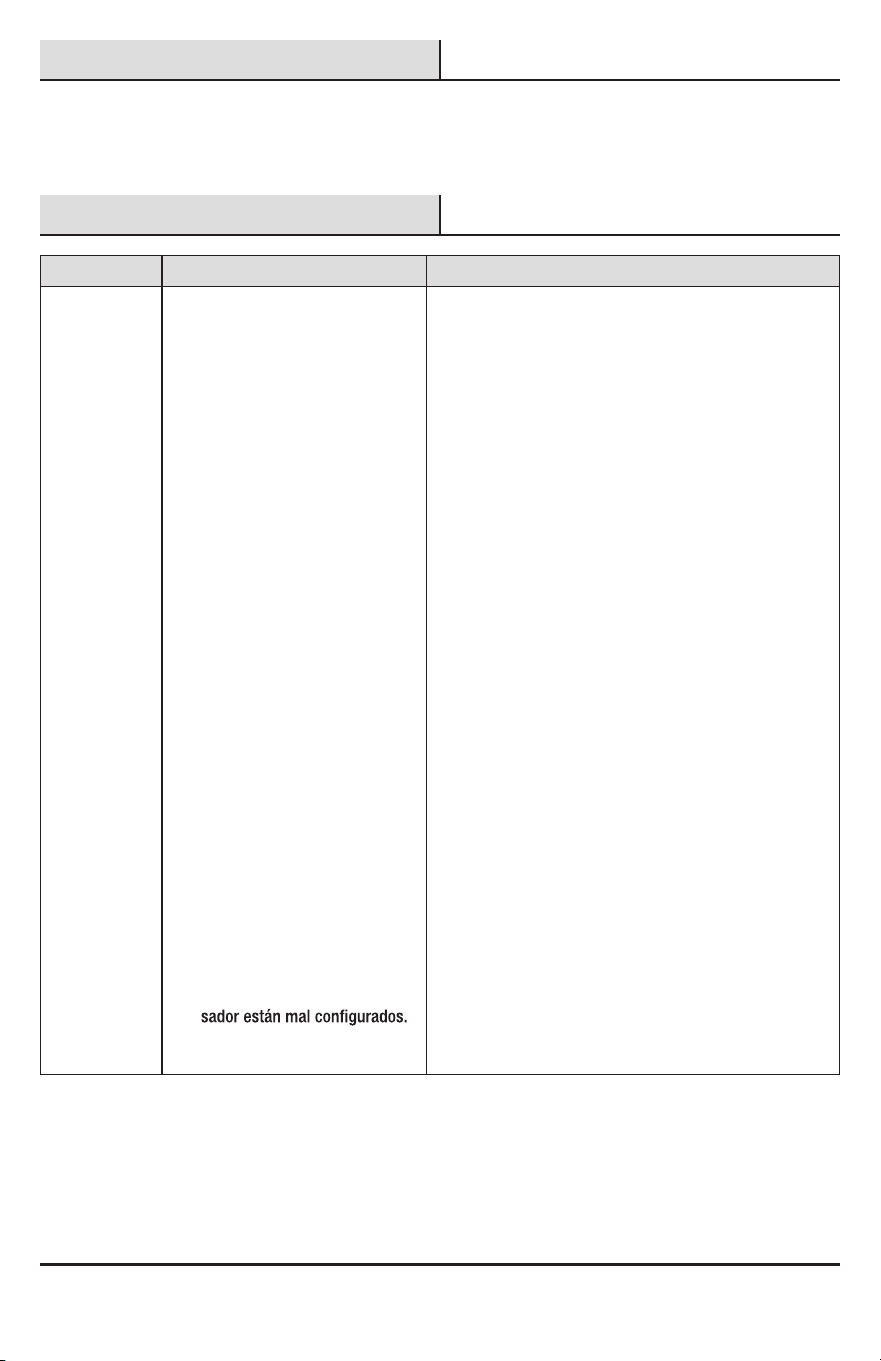
Uso del botón de función del
timbre
Ƒ Aprenda un nuevo pulsador – presione y
mantenga presionado el botón de función (4)
durante 3 segundos (el timbre sonará “bip-
bip”).
Ƒ Consulte la sección Análisis de averías
para sincronizar el pulsador (B) y el
timbre(A).
Ƒ Retire todos los botones pulsadores conocidos
– presione y mantenga presionado el botón
de función (4) durante 10 segundos (el timbre
sonará “bip-bip-bip”).
Ƒ Ingrese al modo de conguración de Hubspace
– presione y mantenga presionado el botón
de función (4) y el botón de subir volumen (5)
durante 5 segundos (el timbre sonará “bip-
bip-bip”).
NOTA: El modo de conguración de Hubspace solo
es necesario si el código QR no está disponible para
escanearlo.
Ƒ Siga las instrucciones de la aplicación
Hubspace.
Function Vo lume
A
4
5
21 HOMEDEPOT.COM/HUBSPACE
Por favor, póngase en contacto al 1-877-592-5233 para obtener más ayuda.
Cuidado y limpieza
□ Use un paño seco para limpiar el timbre y el pulsador.
□ No use limpiadores ni pulidores.
□ No use ningún líquido en el timbre ni en el pulsador.
Análisis de averías
Problema Causa Probable Solución
El timbre no
suena.
□ El timbre está puesta en
silencio.
□ Abra la aplicación y desactive el silencio del timbre
(consulte el paso 7, página 20).
□ La batería de botón pulsador no
está instalado correctamente.
□ Asegúrese de que la batería se instale de acuerdo
con el diagrama del interior del pulsador.
□ La batería del botón pulsador
está muerta.
□ Compruebe la carga de la batería del pulsador y
reemplácela si es necesario.
□ El timbre no está recibiendo
alimentación.
□ Asegúrese de que el timbre enchufable tenga
alimentación.
□ El pulsador y el timbre no están
sincronizados.
□ Sincronice el pulsador primario (el primero empare-
jado con timbre) y el timbre:
□ Presione y mantenga presionado el botón
“Función” del timbre hasta que el timbre suene
“bip-bip” (aproximadamente 3 segundos).
□ Presione el botón pulsador durante 10 segundos.
El timbre sonará con un tono de “Ding-Dong”
para indicar que el pulsador está sincronizado.
□ Presione el botón pulsador para asegurar el
funcionamiento.
□ Sincronice el pulsador secundario (el que excepto el
primer pulsador emparejado con la timbre)
y el timbre:
□ Presione y mantenga presionado el botón
“Función” del timbre hasta que el timbre suene
“bip-bip” (aproximadamente 3 segundos).
□ Presione el botón pulsador durante 10 segundos.
El timbre sonará con un tono de “bip-bip”
para indicar que el pulsador está sincronizado.
Presione el botón pulsador para asegurar el
funcionamiento.
□
□ Asegúrese de que el interruptor DIP n°1 del pulsador
esté en la posición “ON” y el interruptor DIP n°2 esté
en la posición “OFF”. Siga los pasos anteriores para
volver a sincronizar el pulsador y el timbre.
□ Los interruptores DIP en el pul-

23 HOMEDEPOT.COM/HUBSPACE
Por favor, póngase en contacto al 1-877-592-5233 para obtener más ayuda.
Este aparato cumple con la Parte 15 de las Reglas de la FCC. La operación está sujeta a las dos siguientes condiciones: (2) este aparato no puede
causar interferencias perjudiciales y (3) este aparato debe aceptar cualquier interferencia recibida, incluyendo una interferencia que pueda causar un
funcionamiento indeseado.
Advertencia: los cambios o modicaciones en esta unidad que no estén expresamente aprobados por la parte responsable del cumplimiento pueden
anular la autoridad del usuario para operar el equipo.
Nota: Este equipo ha sido probado y se lo encontró que cumple con los límites para un dispositivo digital de Clase B, de acuerdo con la parte 15 de
las Normas de la FCC. Estos límites están diseñados para proporcionar una protección razonable contra interferencias dañinas en una instalación
residencial. Este equipo genera, usa y puede irradiar energía de radiofrecuencia y, si no se lo instala y usa de acuerdo con las instrucciones, puede causar
interferencia dañina a las comunicaciones de radio. Sin embargo, no hay garantía de que la interferencia no ocurra en una instalación en particular. Si este
equipo causa interferencia dañina a la recepción de radio o televisión, lo que se puede determinar apagando y encendiendo el equipo, se recomienda que
el usuario intente corregir la interferencia mediante una o más de las siguientes medidas:
- Reoriente o reubique la antena receptora.
- Aumente la separación entre el equipo y el receptor.
- Conecte el equipo a un tomacorriente en un circuito diferente al que está conectado el receptor.
- Para recibir ayuda consulte con el distribuidor o con un técnico experto en radio / TV.
Este dispositivo contiene transmisores / receptores exentos de licencia que cumplen con los RSS exentos de licencia de Canadá de Innovación, Ciencia y
Desarrollo Económico. Su funcionamiento está sujeto a las dos siguientes condiciones:
1. Este dispositivo no puede causar interferencia.
2. Este dispositivo debe aceptar cualquier interferencia, incluyendo la interferencia que pueda causar un funcionamiento indeseado del dispositivo.
Nombre de la parte responsable de la CFC: HeathCo LLC
Dirección: 2445 Nashville Road, Bowling Green, KY 42101 U.S.A.
Número de teléfono: 800-858-8501

¿Tiene preguntas, problemas o piezas faltantes?
Antes de la devolución al almacén llame al Servicio al Cliente de Deant de
8 a.m.-5 p.m., Hora del Central, de lunes a viernes.
1-877-592-5233
HOMEDEPOT.COM/HUBSPACE
Guarde este manual para uso futuro.
211265-01A
22
La batería
del pulsador
parece estar
bien, pero
el timbre
no funciona
después de su
instalación.
□ El timbre está puesto en
silencio.
□ Abra la aplicación y compruebe si el timbre está
puesto en silencio.
□ El timbre o el pulsador está
montado sobre metal o cerca
de espárragos metálicos.
□ El metal reduce el alcance de transmisión. Utilice
cuñas de madera de 1/4 pulg. a 1/2 pulg. (de 6 a 13
mm) para mover el timbre o el pulsadort lejos de la
□ El timbre está montado cerca
de un piso o de una pared de
hormigón.
□ El concreto puede reducir el alcance. Mueva el tim-
□ El timbre y el pulsador están
instalados muy separados
entre sí.
□ Coloque el timbre más cerca del pulsador.
Análisis de averías (continuación)
Problema Causa Probable Solución
El timbre
suena cuando
no se lo
requiere
(activaciones
falsas).
□ El timbre está recibiendo
interferencia de otro dispositivo
inalámbrico.
□ Reposicione el timbre y el pulsador:
□ Retire la pila del pulsador. Espere 30 segundos.
□ Mantenga presionado el botón pulsador entre 10
y 15 segundos por un periodo de 60 segundos
luego de instalar la batería en el botón pulsador.
□ Presione y mantenga presionado el botón
“Función” del timbre hasta que el timbre suene
“bip-bip-bip-bip”.
□ Para volver a sincronizar el pulsador y el timbre,
presione y mantenga presionado el botón “Fun-
ción” en el timbre hasta que el timbre suene
“bip-bip”.
□ Presione el botón pulsador durante 10 segundos.
El timbre sonará con un tono de “Ding-Dong” para
indicar que el pulsador está sincronizado.
□ Presione el botón pulsador para asegurar el
funcionamiento.
Las
no funcionan.
□ El timbre no está conectado a
la red Wi-Fi.
□ Acerque el timbre al enrutador.
□ El enrutador Wi-Fi no está
conectado a la red.
□ Asegúrese de que la red Wi-Fi esté funcionando.
□ El dispositivo móvil no está
conectado a una conexión de
datos.
□ Asegúrese de que el dispositivo móvil tenga una
conexión de datos (red Wi-Fi o celular).
□
-
tivadas en el dispositivo móvil.
□ -
vo móvil estén activadas.
Los LED del
timbre están
encendidos.
Los LED del timbre indican
diferentes problemas.
Consulte la tabla en la página 18, paso 3 para
comprender los diferentes indicadores LED.
