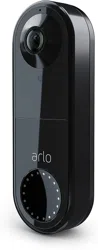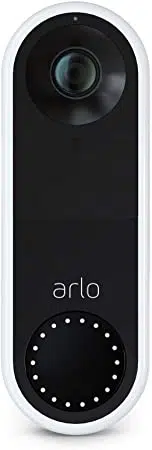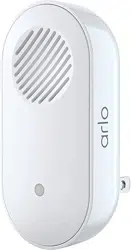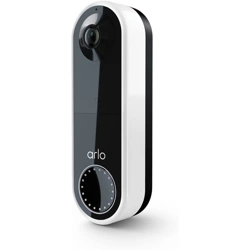
Video Doorbell
2nd Generation
User Manual
•
Video Doorbell 2K
•
Video Doorbell HD

2
Contents
1.
Get to Know Your Video Doorbell
5
Get the Arlo Secure App
........................................................................
5
Do more with Arlo
..............................................................................
7
2.
Get
Started
8
Charge your Video Doorbell indoors if using wirelessly
......................................
8
Download the Arlo Secure App for installation and setup
....................................
9
Video Doorbell LED Behavior
................................................................
10
Choose a good spot to mount your doorbell
................................................
11
Mount
your
doorbell
wire-free
..............................................................
11
Test motion detection
........................................................................
12
Chime options for your Video Doorbell
......................................................
13
3.
Wi-Fi Setup and Connections
14
Tips for optimal Wi-Fi performance
..........................................................
14
Change your doorbell’s Wi-Fi connection
....................................................
14
4.
Optional: Connect a wired chime
16
Change from wire-free to wired installation
.................................................
16
Hardwire your Video Doorbell 2nd Generation
.............................................
17
5.
Use Your Doorbell
20
Answer your doorbell from your smartphone
...............................................
20
Accept a call from your doorbell
.............................................................
21
Respond to a visitor with a Quick Reply
.....................................................
21
Play a message from a visitor
................................................................
22
Use silent mode for the doorbell
.............................................................
22
Control
the
doorbell
button
LED
............................................................
23
Change the call settings
.....................................................................
23
6.
View and Record Videos
25
Record clips from live video
.................................................................
26
Take a snapshot from live video
.............................................................
26
2-
Way
Audio
.................................................................................
26

2
Customize your camera feed image
.........................................................
27
Motion detection activity zones
.............................................................
27
View recordings and snapshots
..............................................................
29
Download
recordings
.......................................................................
30
7.
Change Your Settings
32
Two-step verification
.....................................................................................................
32
Use face or fingerprint authentication
.............................................................................
34
Customize your profile
...................................................................................................
35
Change your Arlo password
..................................................................
35
Reset a forgotten password
..................................................................
36
Grant access to friends
.......................................................................
36
Change the time zone
........................................................................
38
Doorbell
settings
............................................................................
39
Adjust
the
flicker
setting
.................................................................................................
40
Adjust recording length
......................................................................
42
Remove a device from your account
........................................................
43
Restart the doorbell from the Arlo Secure App
..............................................
43
8.
Routines, Modes, Automations, and Alerts
44
Arm or disarm all your Arlo devices
.........................................................
44
Select a mode
................................................................................
45
Mute
Notifications
.......................................................................................................
45
Rules
for
modes
...............................................................................
46
Change
motion
sensitivity
...................................................................
46
Manage
alerts
...............................................................................
46
Select duration of time to turn off notifications.
..............................................................
47
Schedule when your video doorbell is armed
..............................................
47
9.
Troubleshooting
48
Arlo doesn’t discover your doorbell during setup
..........................................
48
Use Bypass mode for the Power Kit
.........................................................
49
The chime doesn’t ring when I press the wired doorbell
....................................
49
LED doesn’t light when your doorbell is wired
..............................................
50
Power interruption notification for wired doorbell
..........................................................
51
Optimize your wireless doorbell battery life
................................................
51


5
1.
Get to Know Your Video Doorbell
There
are
two
Arlo
Video
Doorbells
(2nd
Generation):
•
Video
Doorbell
2K
(AVD4001)
•
Video
Doorbell
HD
(AVD3001)
Get the Arlo Secure App
Download the Arlo Secure App. The Arlo Secure App lets you create an Arlo account in the
cloud and set up and manage all your Arlo devices. You can either search for it in your phone’s
app store or scan the QR code below to download or update your Arlo Secure App.
Note:
If you already use the Arlo Secure App, make sure that you’re using the latest version.
To find out if an update is available, go to the app store and search for Arlo Secure.
Arlo Video Doorbell 2nd Generation
Get to Know Your Video Doorbell
6
User
Manual
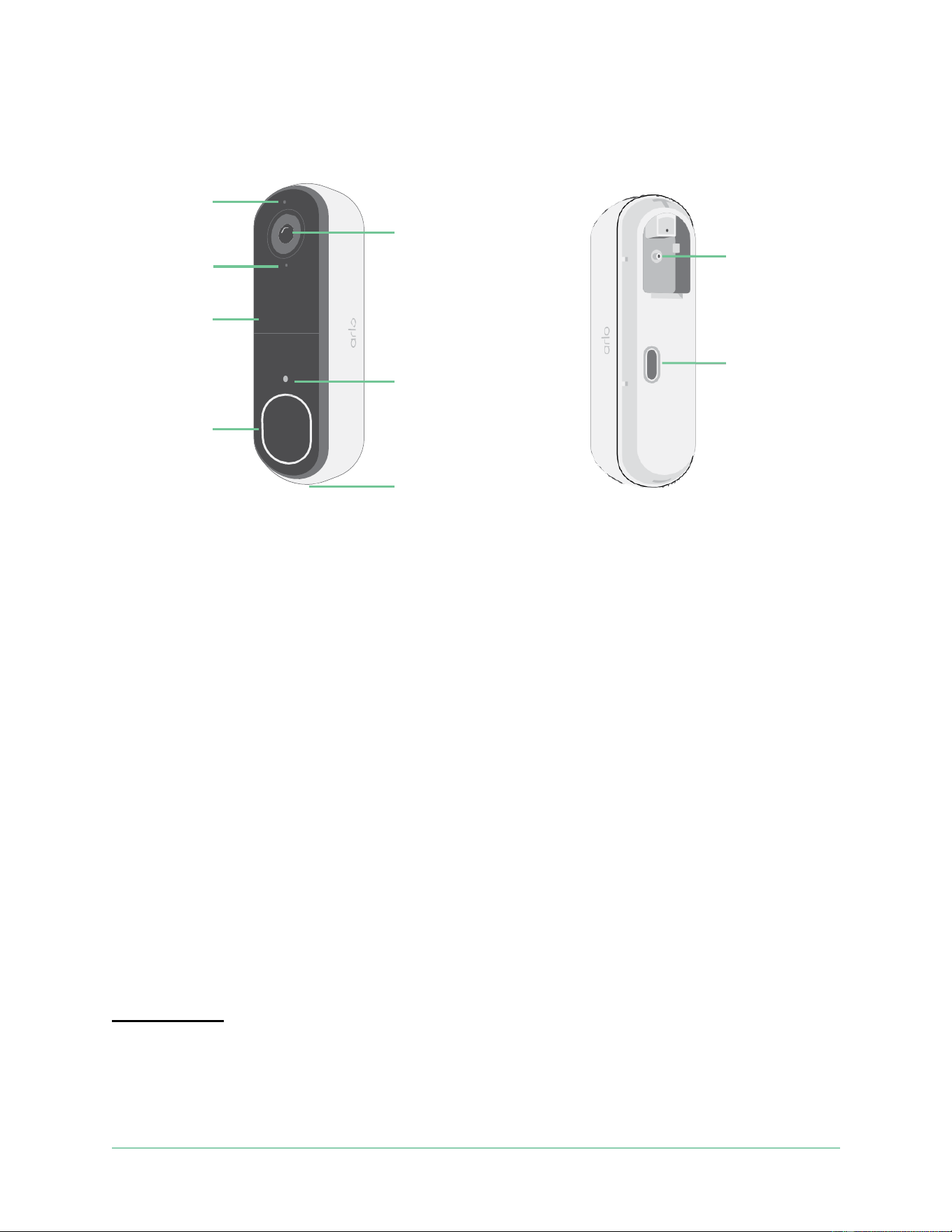
Meet your Video Doorbell
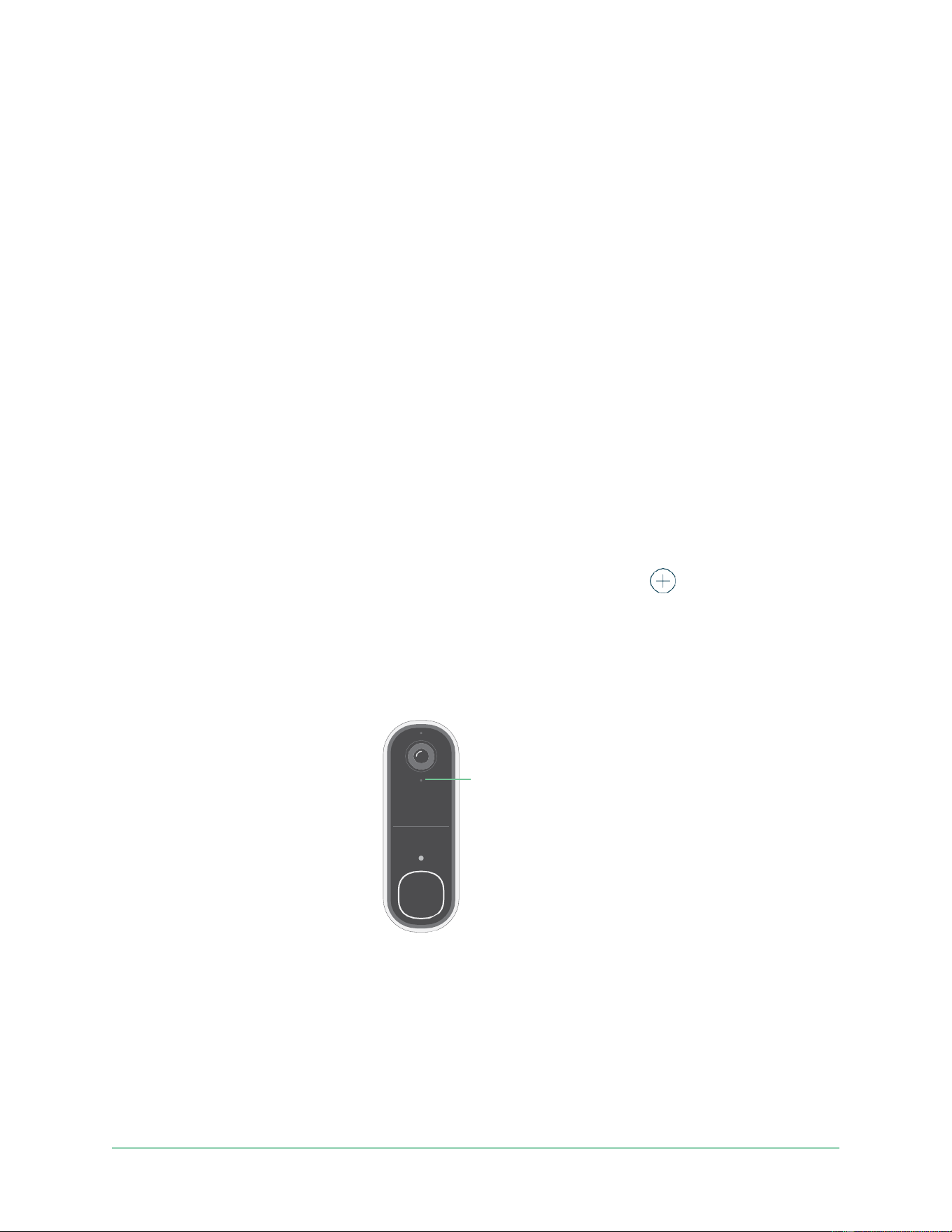
Microphone
Indicator
LED
Lens
with
180-degree
field of view
Pairing
button
Weather
resistant
casing
Ambient
light
sensor
Charging
port
Doorbell
button
Speaker
Features
•
See more at your front door
. See a person from head to toe or a package on the ground
with a 180 degree diagonal viewing angle optimized for the front door.
•
Security in the palm of your hand
. Receive notifications when motion is detected and
watch
live
streaming
video
from
your
smartphone
or
tablet.
•
More ways to answer
. See and speak to visitors with clear 2-Way Audio, or respond with
pre-recorded quick reply messages when you’re busy. Receive a video call when your
doorbell is pressed and never miss a visitor.
1
•
Night Vision
. See who’s at your door at night, even without a light on.
•
Notifications that matte
r. Get alerts when your Video Doorbell spots people, vehicles,
animals or a package with Arlo Secure.
1
•
Built-in smart siren
. Trigger your siren automatically, or manually from the Arlo Secure
App.
•
Visitor messaging
. Guests can leave you a voice message if you’re unable to answer the
door, and you can listen remotely at your convenience.
•
Direct to Wi-Fi
. Connects directly to Wi-Fi for simple setup.
1
This Arlo Secure feature may require a paid subscription after the trial period, and some Arlo Secure services
may be unavailable in certain regions. For current information on features that need a paid subscription, visit
www.arlo.com/en_gb/support
.

Arlo Video Doorbell 2nd Generation
Get to Know Your Video Doorbell
7
User
Manual
Do more with Arlo
You can add these
options:
•
Add more Arlo cameras and devices
. Cover more areas in and around your home by
adding cameras, security lights, and more.
•
Upgrade your Arlo subscription
. For more information, visit What are the available Arlo
subscription plans and how much cloud recording is available?.
8
2.
Get
Started
Charge your Video Doorbell indoors if using
wirelessly
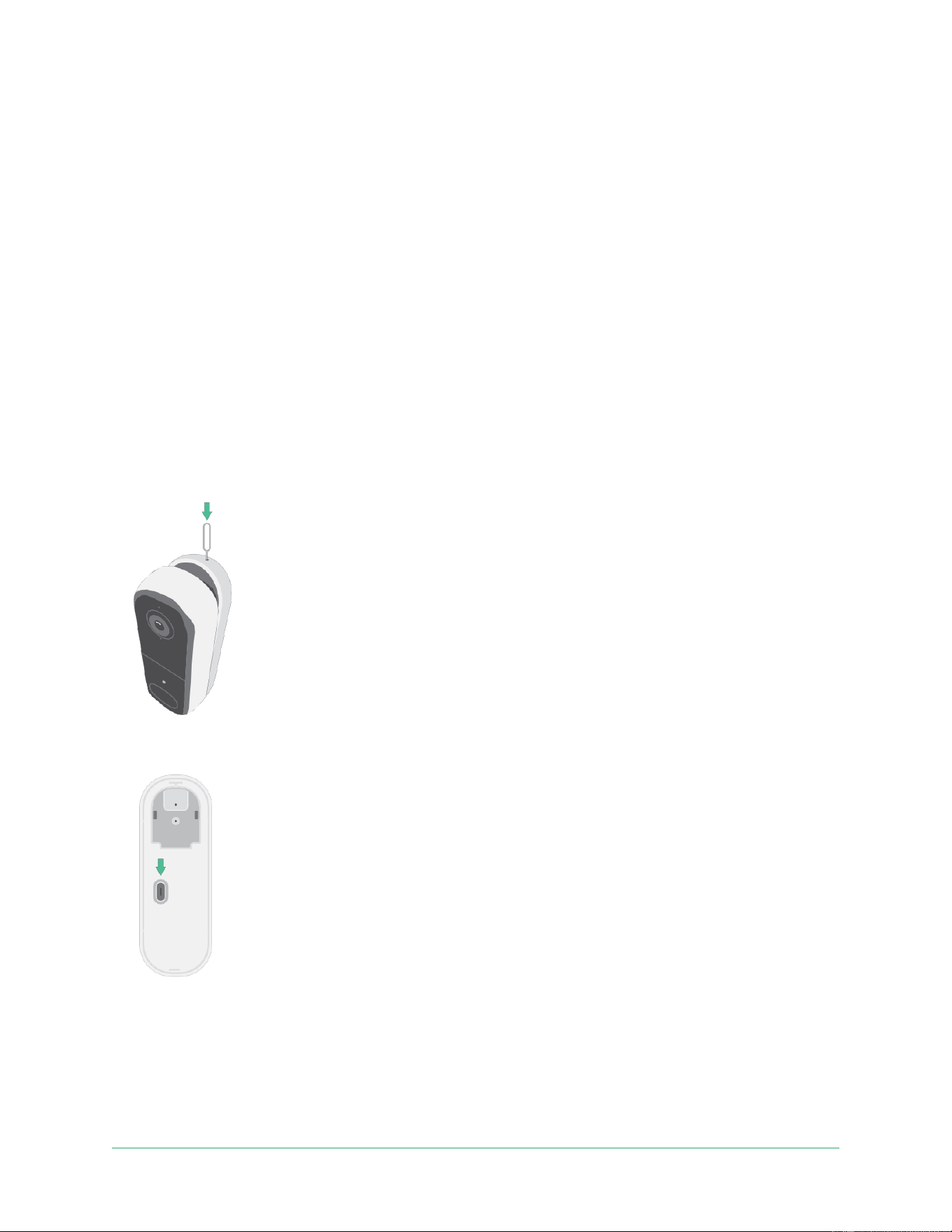
A USB-C charging cable comes in the box with your Video Doorbell and is for indoor use only.
The Video Doorbell includes a partially charged integrated battery that can’t be removed.
1.
Use
the
provided
release
pin
to
open
the
back
cover
of
your
Video
Doorbell.
2.
Connect
the
USB-C
charging
cable
to
your
Video
Doorbell.
3.
Connect the other end of the charging cable to a USB charging source such as a USB
charging port or an AC power adapter.
The Video Doorbell LED lights solid blue when the Video Doorbell is fully charged.
Arlo Video Doorbell 2nd Generation
Get
Started
9
User
Manual
Download the Arlo Secure App for installation
and setup
The free Arlo Secure App helps you complete setup and guides you through the installation
process.
Open the Arlo Secure App and connect to your Wi-Fi network. If you don’t have the app, you
can download it and create your Arlo account.
Once you set up your Arlo account, you can access it from the Arlo Secure App on a
smartphone or tablet, or from a computer using a web browser. If you’re using a computer,
enter https://my.arlo.com/#/login in the address bar of the browser.
Onboarding your Video Doorbell with the Arlo Secure App
1.
Open
the
Arlo
Secure
App.
2.
Make sure your phone is connected to 2.4 Ghz Wi-Fi network and ensure your phone’s
Bluetooth is on.
3.
Select
Devices
from the bottom bar of your app, tap the
Plus icon
at the top of the
app, select
Doorbells & Chimes
.
4.
Select
Video
Doorbell
2nd
Generation
.
5.
Press
the
pairing
button
on
your
Video
Doorbell
for
3
seconds.
When
your
Video
Doorbell
is
ready
to
connect,
the
LED
will
flash
blue.
Indicator LED
6.
Select a 2.4GHz Wi-Fi network. Enter the Wi-Fi password and wait for it to be verified.
7.
Enter
a
name
for
your
Video
Doorbell
and
select
Continue
.
8.
Your Video Doorbell will check for firmware updates.
9.
The Arlo Secure App will then guide you through Video Doorbell placement and mounting.
Your Video Doorbell is now onboarded!
Arlo Video Doorbell 2nd Generation
Get
Started
10
User
Manual
Video Doorbell LED Behavior
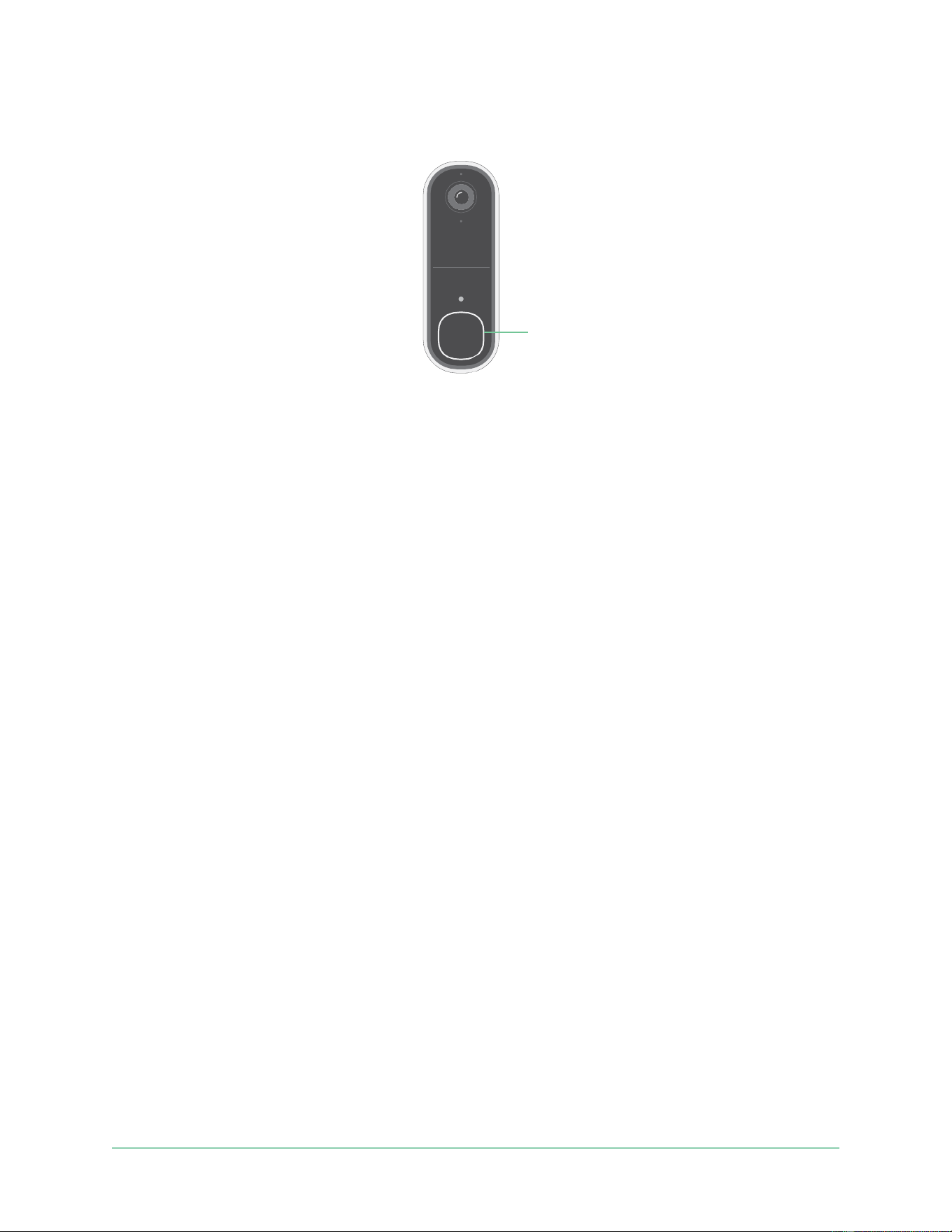
Button
LED
The Indicator LED is on the outside of your doorbell and indicates how the doorbell is
operating. This section describes how the Indicator LED works if you didn’t change the default
LED settings. For information about changing the Indicator LED behavior, see Control the
doorbell button LED on page 23.
The
LED
behaviors
on
your
doorbell
vary,
depending
on
how
you
have
set
it
up.
Indicator LED behavior during setup
The LED on the Video Doorbell lights up when the Video Doorbell is powered on. The LED
changes color and blinks depending on the Video Doorbell’s charge level and to indicate
the status of activities such as pairing the Video Doorbell and updating the Video Doorbell
firmware.
•
Slow blinking blue
. The Video Doorbell is in the process of pairing to a Wi-Fi network.
•
Fast blinking blue
. The Video Doorbell paired with a Wi-Fi network and connected.
•
Blinking amber
. The Video Doorbell is out of range, a connection error occurred during
pairing, or the Video Doorbell battery charge is low (15% or less).
•
Alternating blue and amber
. A firmware update is in process.
Button LED behavior after setup
•
Slow breathing pattern white
. The doorbell detected motion.
•
Solid white
. The doorbell is connected to a call.
•
Fading white
. The call from the doorbell ended.
Arlo Video Doorbell 2nd Generation
Get
Started
11
User
Manual
Choose a good spot to mount your doorbell
The best location for your doorbell varies by household and outdoor environment.
Place your doorbell with the fullest view of the area leading up to the front entry. This
provides the best opportunity to capture motion detection events and video clips that include
a person approaching the door. You can use the included angled mounting plate to optimize
the angle of your doorbell.
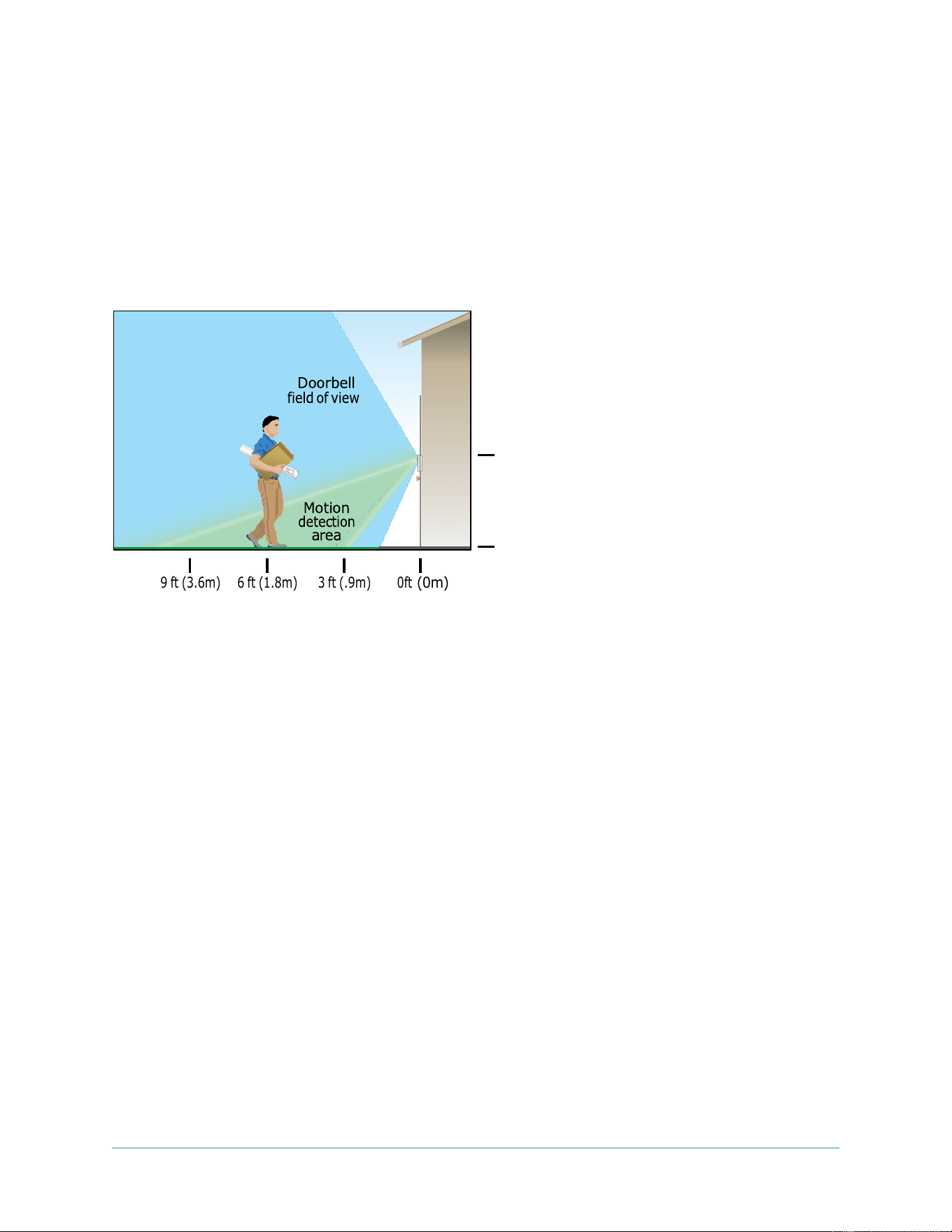
Doorbell
height
4ft (1.2 m)
When
mounting
your
doorbell:
•
Place the doorbell about 4 feet (1.2 m) above the ground.
•
Make
sure
that
nearby
walls
and
other
objects
do
not
obstruct
the
view
of
your
doorbell.
•
The lower half of the Video Doorbell’s field of view is the motion-sensitive part of the
image. The doorbell begins recording when it detects motion in this area.
Mount
your
doorbell
wire-free
Note:
If you want to hardwire your doorbell, which is optional, see Hardwire your Video
Doorbell 2nd Generation on page 17.
1.
Place the mounting plate on the wall where you want to mount your doorbell, and mark
the locations for the two screw holes.
2.
Decide
whether
to
use
the
angled
mounting
plate
to
adjust
the
area
your
doorbell
faces.
3.
Use a 6 mm (15/64 inch) drill bit to drill two holes.
9 ft (3.6m)
6 ft (1.8m)
3 ft (.9m)
0ft
(0m)
Arlo Video Doorbell 2nd Generation
Get
Started
12
User
Manual
4.
Align the mounting plate with the two holes in the wall.
5.
While holding the mounting plate over the two holes (and the angled mounting plate, if
you’re using it), use a screwdriver to put a screw into each of the holes.
If you’re mounting the doorbell on drywall, we recommend that you use
the provided wall anchors.
6.
Place the doorbell on the mounting plate in a down-and-in motion.
There will be a clicking sound when the doorbell is secured.
Test motion detection
1.
Open
the
Arlo
Secure
App.
2.
Tap
Devices
and then tap the
Menu
icon
in the
upper right corner.
3.
Tap the
Device Settings
icon
next to your doorbell.
4.
Tap
Default Mode Settings
>
Motion Detection Test
.
5.
Move
in
front
of
the
Video
Doorbell.
During
this
test,
the
LED
blinks
amber
when
motion
is
detected.
6.
Move
the
slider
to
adjust
the
motion
sensitivity
level
as
needed.
This motion sensitivity setting is used during the motion detection test. It is not
automatically applied to the Video Doorbell rules used by modes to arm your Video
Doorbell. When you are satisfied with a particular motion sensitivity level in the test, note
the setting so that you can add it to your rules.
7.
Edit the rule for your Video Doorbell to enter the motion sensitivity level that you want to
use.

Arlo Video Doorbell 2nd Generation
Get
Started
13
User
Manual
Chime options for your Video Doorbell
The Video Doorbell offers several chime options. To hear a ring when someone presses your
doorbell, you can connect the doorbell to an Arlo Chime 2, your home’s traditional chime, a
smart home voice assistant system, and your mobile device (for SIP video call).
Wire-free
chime
solutions
You can take advantage of a variety of wire-free options to hear a ring and receive notifications
when someone presses your Arlo Video Doorbell.
•
Doorbell video phone call.
Your doorbell is connected to the mobile device you used to set up the doorbell in the Arlo
Secure app. Your phone rings when someone presses your doorbell, and you can answer
the phone to speak with the person who rang the doorbell. If you have an iOS device, you
can assign a contact name and ringtone to the doorbell. For more information, see Answer
your doorbell from your smartphone on page 20.

14
3.
Wi-Fi Setup and Connections
When you install and set up your doorbell, the Arlo Secure App guides you through the
process of connecting the doorbell to your router’s 2.4 GHz Wi-Fi network.
Tips for optimal Wi-Fi performance
The
distance
between
Wi-Fi
devices
can
affect
the
Wi-Fi
signal:
•
Maximum recommended distance
. We recommend that you place your Video Doorbell
within
300 feet (90 meters) of your Wi-Fi router. The maximum line-of-sight range of 300
feet is reduced by each wall, ceiling, or other major obstruction between the doorbell and
the router.
•
Minimum recommended distance
. To reduce Wi-Fi interference, allow at least 6½ feet (2
meters) between your Arlo Video Doorbell and any Arlo cameras that you install.
These
materials
can
reduce
Wi-Fi
signal
strength
if
they
are
located
between
Wi-Fi
devices:
•
Unusually thick walls and ceilings
•
Brick
•
Concrete
•
Stone
•
Ceramic
•
Glass,
especially
mirrors
•
Metal
•
Large quantities of water, such as the water in a fish tank or water heater
Change your doorbell’s Wi-Fi connection
You can change your doorbell’s Wi-Fi to a different 2.4GHz Wi-Fi network.
1.
Open the Arlo Secure App and log into the same Arlo account that your doorbell is
connected to. Ensure your phone’s Bluetooth is turned on.
2.
Tap
Devices
and then tap the
Menu
icon
in the
upper right corner.
3.
Tap the
Device Settings
icon
next to your doorbell.

Wi-Fi Setup and Connections
15
User
Manual
Arlo Video Doorbell 2nd Generation
4.
Tap on
Connected to
.
5.
Select
Change
Network
.
6.
Follow the on screen directions on how to change your doorbell’s Wi-Fi connection.

16
4.
Optional: Connect a wired chime
Wiring is not required for installation. If you want to hardwire your Video Doorbell, you can.
Hardwiring your doorbell lets you connect it to your home’s existing chime and allows the
doorbell to trickle charge when it’s not in use.
Change from wire-free to wired installation
If you already set up the doorbell wire-free, and now want to hardwire it, you must first
remove the doorbell from your Arlo account, then re-add it in the Arlo Secure app and follow
the instructions for a wired doorbell.
1.
Open
the
Arlo
Secure
app.
2.
Tap
Devices
and then tap the
Menu
icon
in the
upper right corner.
3.
Tap the
Device Settings
icon
next to your doorbell.
4.
Tap on your Doorbell.
5.
Scroll to the bottom, and tap
Remove Device
.
6.
Tap
the
Devices
tab.
7.
At the upper right corner of the
Devices
tab, tap the
Plus icon
.
8.
Select
Video
Doorbell
2nd
Generation
.
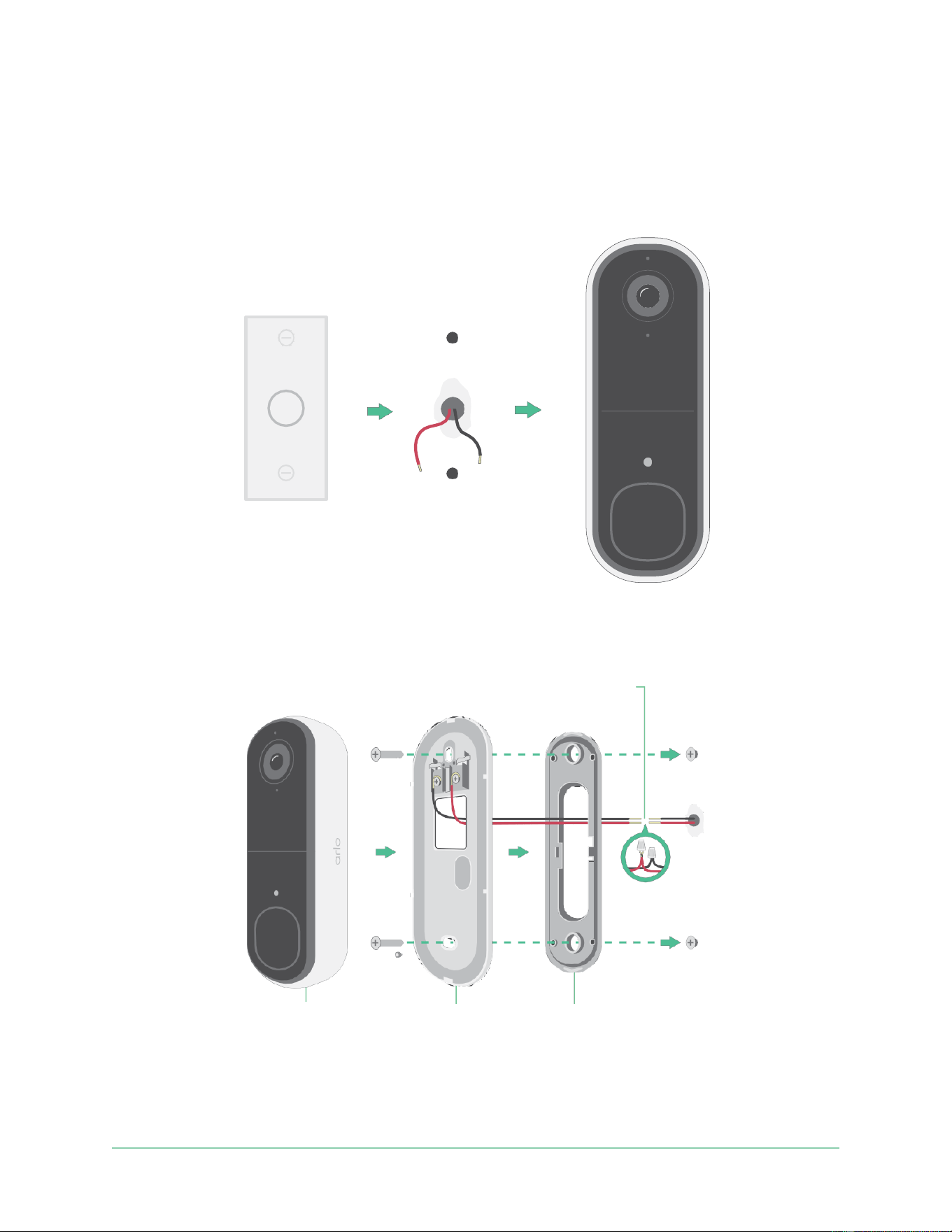
Arlo Video Doorbell 2nd Generation
Optional: Connect a wired chime
17
User
Manual
Hardwire your Video Doorbell 2nd Generation
This process is optional. The Video Doorbell 2nd Generation is battery operated, but you can
hardwire it if you like. Hardwiring your doorbell lets you connect it to your home’s existing
chime and allows the doorbell to trickle charge when it’s not in use.
The equipment is intended to be supplied by approved external power source or ITE product
(UL listed/ IEC 62368-1/ IEC 60950-1), whose output is complied with ES1/SELV/PS2/LPS,
output rating 8-24Vac, minimum 0.65A, 50/60Hz, ambient temperature 45°C minimum.
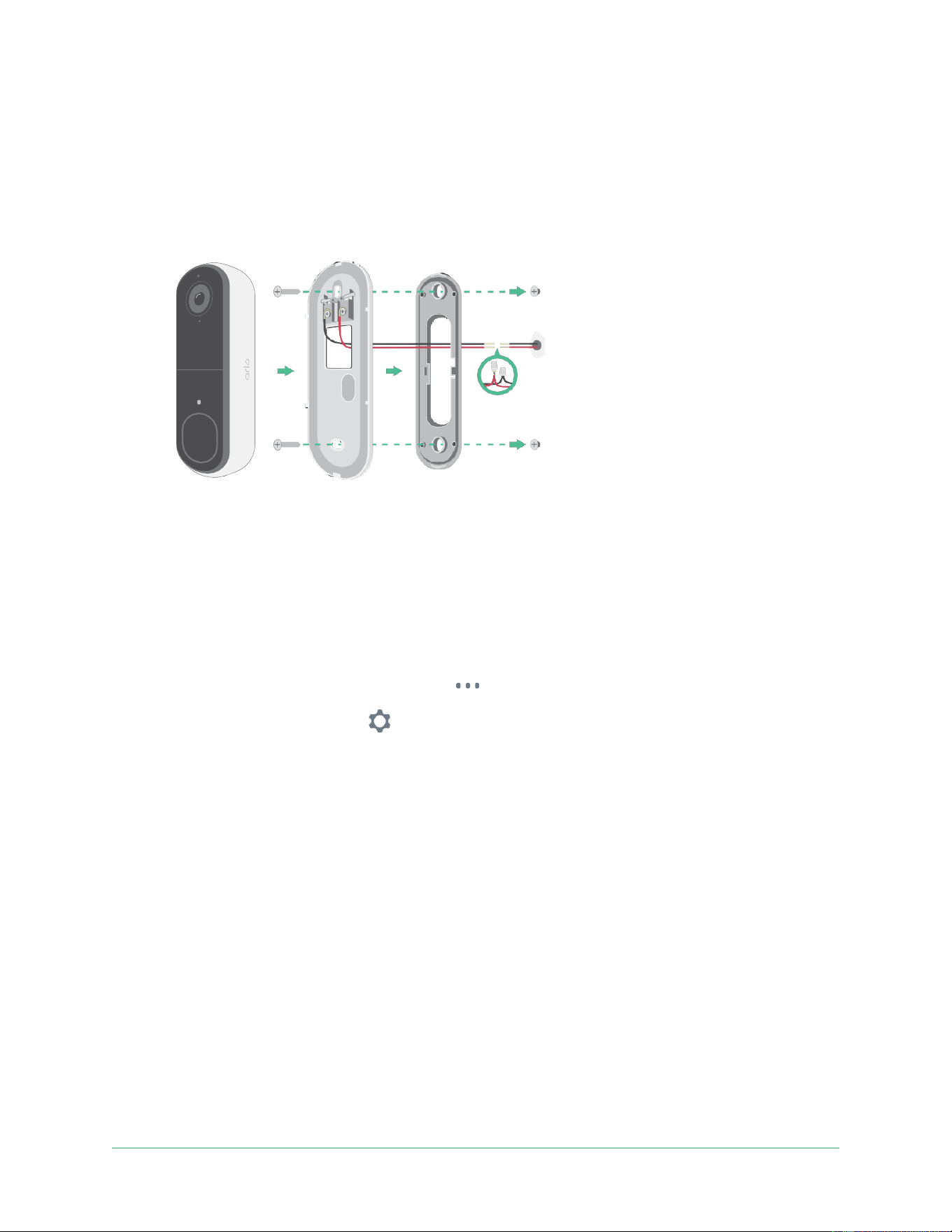
Video
Doorbell
Mounting
Plate
Angled
Mounting Wedge
Wire Extensions (Optional)
and Wire Nuts (Optional)
Arlo Video Doorbell 2nd Generation
Optional: Connect a wired chime
18
User
Manual
Tools
•
A Phillips screwdriver is required to install the doorbell (not provided).
•
You might
also benefit
from having
a drill,
a
level, and
a ladder
(to
reach the
chime).
Installation
overview
You must use the Arlo Secure app for installation and setup. The Arlo Secure app guides you
through hardwired installation in this order:
1.
Turn off your power at the breaker.
Warning: Failure to turn off your power might result in serious injury.
2.
Follow the instructions in the Arlo Secure App to connect the wires and install your
doorbell.
3.
Turn on power at the breaker.
4.
Check the
LED
on your
doorbell. See
Indicator LED behavior during setup on page 10.
5.
Connect
your
doorbell
to
your
Wi-Fi.
6.
Determine whether to use the flat mounting plate on its own, or combine it with the
angled mounting plate to adjust the field of view for your doorbell.
Installing with an angled mounting plate depends on the position of the doorbell and the
walkway to your home. The angled mounting plate lets you install your doorbell so that it
is angled toward the left or angled toward the right.
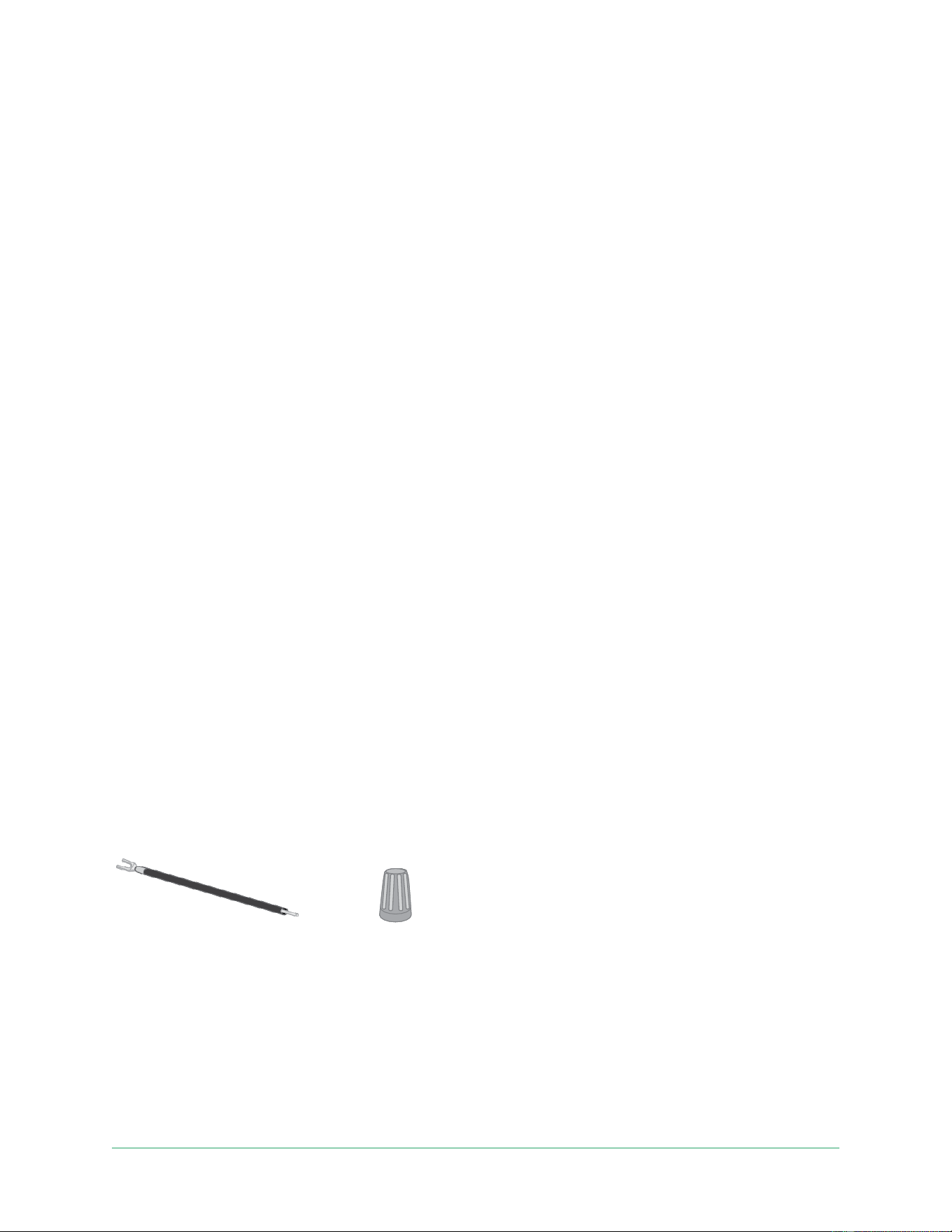
Use the optional wire extensions
Two
identical
wire
extensions
and
fasteners
come
in
the
package
with
your
doorbell.
Wire
extension
Fastener
If the existing wires for your doorbell are too short to connect your Arlo doorbell, you can use
the wire extensions and fasteners to lengthen the wires.
To
connect
wire
extensions
to
your
Arlo
doorbell:
1.
Remove
the
rubber
ends
from
the
wire
extensions.

Arlo Video Doorbell 2nd Generation
Optional: Connect a wired chime
19
User
Manual
2.
Attach
a
wire
extension
to
one
of
your
existing
doorbell
wires.
To do this, connect the wire end of the wire extension (not the prong end) to your existing
doorbell wire and twist the wires together securely.
3.
Attach
the
second
wire
extension
to
the
other
doorbell
wire.
4.
Place the fasteners on top of the connected wire ends, and twist the fasteners.
The fasteners funnel and secure the wires together.
5.
Attach
the
extended
wires
to
the
mounting
plate.
6.
Tuck the wire extensions and the fasteners into the wiring cavity in the wall, behind your
doorbell.
You can use the optional mounting plate to get a better vantage point for the doorbell if it
isn’t facing straight out at the desired entryway.
7.
Place your doorbell onto the mounting plate.
Ensure that the mounting screws are completely screwed in and flush with the mounting
plate so that your Arlo Video Doorbell clips securely into the mounting plate.
You are ready to use the Arlo Secure App to continue the setup process to hardwire your
doorbell.

20
5.
Use Your Doorbell
Answer your doorbell from your smartphone
When a visitor presses your Video Doorbell 2nd Generation, your mobile device receives
a video call through an Internet connection. You must install the Arlo Secure App on your
smartphone
and
you
must
be
logged
in
to
the
Arlo
Secure
App.
The
caller
displays
as
the
name you gave to your Video Doorbell 2nd Generation. You can accept or decline the call the
same way you do for other calls that you receive on your smartphone.
When
your
smartphone
rings,
you
can
do
the
following:
•
Accept
the
call
and
speak
to
your
visitor.
•
Answer the call with a Quick Reply. Select a recorded message for the doorbell to play for
the visitor if you have Arlo Secure.
1
•
Decline the call. If a visitor presses your doorbell and you decline the call or don’t answer
your smartphone after 20 seconds, your doorbell prompts the visitor to leave a message. If
the visitor leaves a message, it is saved as a Doorbell recording in your Arlo feeds.
If you want to receive the call on a different phone, you can log out of the Arlo Secure App on
the first smartphone and log into the Arlo Secure App on another smartphone or tablet.
To receive the call on multiple phones, you can create a grant access account (add doorbell
to the grant access account) and log in to the Arlo Secure App using the grant account on the
other smartphone. (See
Grant access to friends
on page 36
.)
1
This Arlo Secure feature may require a paid subscription after the trial period, and some Arlo Secure services
may be unavailable in certain regions. For current information on features that need a paid subscription, visit
www.arlo.com/en_gb/serviceplans

Arlo Video Doorbell 2nd Generation
Use Your Doorbell
21
User
Manual
Accept a call from your doorbell
To accept a call on your smartphone from your Video Doorbell 2nd Generation:
1.
When
you
receive
a
call
from
the
doorbell,
tap
Accept
.
2.
If you are prompted to allow Arlo to access the camera, tap
OK
.
The incoming call page displays.
3.
To talk
to
the visitor,
speak
into
your
phone as
you
normally
do.
You can also tap a button to toggle between hands-free and earpiece mode, play a quick
reply message for the visitor, or mute your sound.
4.
To
toggle
between
hands-free
and
earpiece
mode,
tap
the
speaker
button.
5.
To play a quick reply message, tap the message icon and select a message from the list.
6.
To
mute
yourself
so
that
the
visitor
doesn’t
hear
sound,
tap
the
microphone
button.
7.
When
you’re
finished,
tap
End
.
Respond to a visitor with a Quick Reply
1.
When
you
receive
a
call
from
the
Video
Doorbell
2nd
Generation,
tap
Accept
.
2.
If you’re prompted to allow Arlo to access the camera, tap
OK
.
The incoming call page displays.
3.
To play a quick reply message, tap the message icon and select a message from the list.
The messages are:
•
We will be right there.
•
Leave the package outside.
•
Sorry, I’m not interested.
•
Can I help you?
•
I’m busy right now.

Arlo Video Doorbell 2nd Generation
Use Your Doorbell
22
User
Manual
Change the language for Quick Reply messages
1.
Open
the
Arlo
Secure
App.
2.
Tap
Devices
and then tap the
Menu
icon
in the
upper right corner.
3.
Tap the
Device Settings
icon
of your doorbell.
4.
Scroll down and tap
Language
.
5.
Select a language.
Play a message from a visitor
If a visitor leaves a message after pressing your doorbell, the message is saved in your Arlo
feeds.
1.
Open
the
Arlo
Secure
App.
2.
Tap
Feed > Tap Calendar
.
3.
Tap the doorbell recording.
Use silent mode for the doorbell
Silent mode allows you to temporarily disable incoming calls and/or chime rings on your
doorbell.
To
turn
Silent
mode
features
on
and
off:
1.
Open
the
Arlo
Secure
App.
2.
Tap
Devices
and then tap the
Menu
icon
in the
upper right corner.
3.
Tap the
Device Settings
icon
of your doorbell.
4.
Tap
Silent Mode
.
5.
Move the Silent Mode slider to enable or disable silent mode.
When Silent Mode is enabled, all the doorbell-press notifications are disabled by default. If
you want your chime to ring or receive a phone call when someone presses your doorbell,
you can move the individual sliders to enable each feature. When the toggle is green, the
feature is enabled.
6.
Depending on your settings and whether you use an optional chime, select which of the
following you want to be silent:
•
Incoming Call
. Your mobile device receives a call when someone presses your Arlo

Arlo Video Doorbell 2nd Generation
Use Your Doorbell
23
User
Manual
doorbell.
•
Traditional Chime
. The chime that you wired your Arlo doorbell to rings when
someone presses your Arlo doorbell.
Control
the
doorbell
button
LED
The Button LED on your Video Doorbell indicates how the doorbell is operating. By default,
the doorbell lights white in a slow breathing pattern when motion is detected and lights solid
white when a video call is accepted and active. You can toggle these LED patterns on and off.
1.
Open
the
Arlo
Secure
App.
2.
Tap
Devices
and then tap the
Menu
icon
in the
upper right corner.
3.
Tap the
Device Settings
icon
of your doorbell.
4.
Tap
Button LED
.
5.
Tap on or off
Motion Detection
to enable or disable this setting.
When Breathe LED is enabled, the LED lights up in a slow breathing pattern when motion
is detected.
When this setting is disabled, the LED remains off when motion is detected.
6.
Toggle on or off
Call Accepted
to enable or disable this setting.
When this setting is enabled, the LED lights solid white when a video call is accepted and
active. When this setting is disabled, the LED remains off when a call is accepted.
Change the call settings
1.
Open
the
Arlo
Secure
App.
2.
Tap
Devices
and then tap the
Menu
icon
in the
upper right corner.
3.
Tap the
Device Settings
icon
of your doorbell.
4.
Tap
Call Settings
.
5.
To turn the speaker on your mobile phone on and off, toggle on or off
Phone
Speaker
.
6.
To mute the audio on your phone, toggle on or off
Phone
Microphone
.
7.
To allow a visitor to leave a video message if you don’t accept a doorbell call after 20
seconds, or if you decline the call, toggle on
Allow Voicemail
.

Arlo Video Doorbell 2nd Generation
Use Your Doorbell
24
User
Manual
Turn the doorbell siren on and off
Your doorbell includes a siren that you can turn on to discourage tampering by an unwanted
visitor. With an Arlo Secure plan, you can activate the siren from the push notification sent on
motion detection.
1.
Open
the
Arlo
Secure
App.
2.
Tap
Siren
on the upper right.
3.
Tap
Activate
Siren
.
If
you
have
multiple
Arlo
devices
with
sirens,
you’re
prompted
to
select
a
device.
4.
Swipe the
Siren
icon to the right.
The
siren
remains
active
for
five
minutes
or
until
you
turn
it
off.
5.
To turn off the siren, tap the slider at the top of the Devices page.
25
6.
View and Record Videos
When
you
open
the
Arlo
Secure
App,
you
are
presented
with
your
Dashboard.
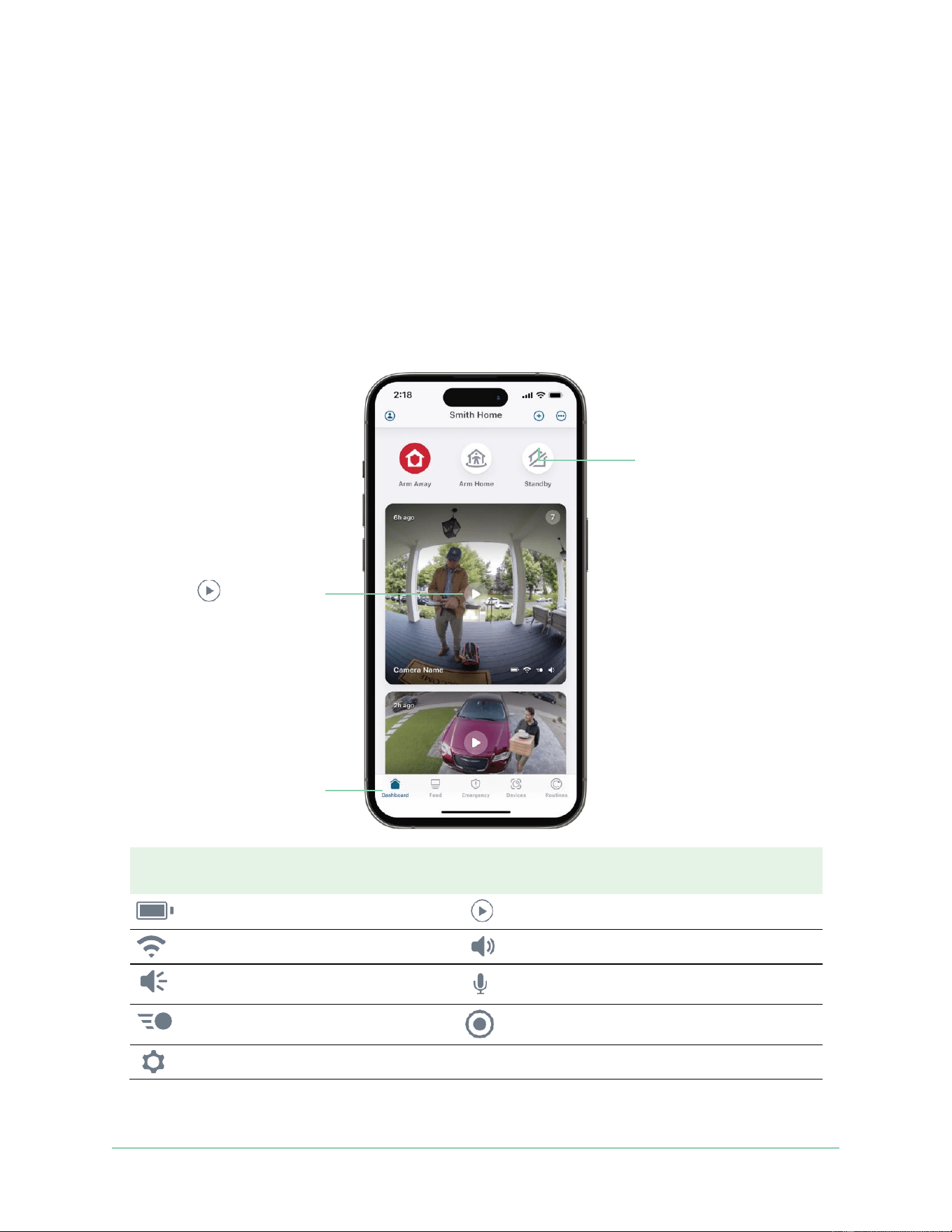
Arm away, Arm Home, and
Standby modes to
protect
your home
Tap Play
to stream the
camera feed
Tap a button to go to your
Dashboard, Feed, Emergency,
Devices, or Routines
Camera
icon
Located below each camera
feed
Camera
feed
icon
Tap the camera feed to display
these icons
Battery
charge
Play/Stop
Wi-Fi signal from your Wi-Fi router
Mute
the
audio
Audio detection is on
Two-way
talk
Motion detection is on
Record video manually
View or change the camera settings

Arlo Video Doorbell 2nd Generation
View and Record Videos
26
User
Manual
Pan and zoom your video feed
1.
Open
the
Arlo
Secure
App.
2.
Tap
Devices
and then select your video doorbell by tapping on the edge of the video
doorbell image.
3.
Tap
Play
on the video doorbell feed.
On a mobile device, use the pinch gesture to zoom, and touch-and-drag to move around
the zoomed-in frame.
On a computer, double-click to zoom. Left-click and hold and drag to move around the
zoomed-in frame.
After zooming in, the image stops and buffers for about five seconds to improve the quality
of video. When the buffering stops, your zoomed-in video renders in high quality.
Record clips from live video
1.
Open
the
Arlo
Secure
App.
2.
Tap
Devices
and then select your video doorbell.
3.
Tap the outer edge of the video doorbell feed image.
4.
Tap
Record
to begin recording.
This icon turns red to indicate that you are recording the live feed.
5.
To stop recording, tap
Record
again.
Take a snapshot from live video
1.
Open
the
Arlo
Secure
App.
2.
Tap
Devices
.
3.
Select
video
doorbell.
4.
Tap
Snapshot
.
The
snapshot
is
saved
in
your
feed.
2-
Way
Audio
The
video
doorbell
includes
a
microphone
that
supports
2-Way
Audio.
1.
Open
the
Arlo
Secure
App.

Arlo Video Doorbell 2nd Generation
View and Record Videos
27
User
Manual
2.
Tap
Devices
and then select your video doorbell by tapping the outer edge of the doorbell
feed image.
3.
Tap the
Microphone
icon .
4.
The first time you use 2-Way Audio, allow Arlo to use your phone’s microphone.
5.
Tap the microphone button.
2-Way Audio is activated.
A
Tap to mute
microphone button displays below the video doorbell feed. This button
toggles mute on and off.
6.
To turn off 2-Way Audio, tap the
x
on the upper-left corner of the page.
Customize your camera feed image
If you use more than just your doorbell and use additional cameras, you can change the
order in which the camera feeds display on the Devices page. You can also zoom or rotate the
camera feed image 180 degrees.
Change the camera order
1.
Open
the
Arlo
Secure
App.
2.
Tap
Devices
.
3.
Tap the
Menu
icon
.
4.
Tap
and
drag
the
camera/device
to
reorder
it.
5.
Tap
Done
.
Motion detection activity zones
You can designate zones within the video doorbell view where you want the video doorbell to
detect and record motion.
An Arlo Secure subscription is required.
Add an activity zone
1.
Open
the
Arlo
Secure
App.
2.
Tap
Devices
and then tap the
Menu
icon
in the
upper right corner.
3.
Tap the
Device Settings
icon
next to your doorbell.
4.
Tap
Activity
Zones.

Arlo Video Doorbell 2nd Generation
View and Record Videos
28
User
Manual
5.
Tap the
Plus icon
.
An
activity
zone
box
displays
in
the
video
doorbell
feed
image.
6.
Move the zone to the desired position in the video doorbell feed image.
7.
To reposition the zone, tap and hold the zone and move it.
8.
To customize the zone name, tap the
Edit
icon
, enter a name, and click
Rename
.
If you’re using a web browser, click
>
next to the zone name.
9.
Tap
Save
.
Change an activity zone
1.
Open
the
Arlo
Secure
App.
2.
Tap
Devices
and then tap the
Menu
icon
in the
upper right corner.
3.
Tap the
Device Settings
icon
next to your doorbell.
4.
Tap
Activity
Zones.
5.
Tap a zone to select it.
6.
Move the zone to the desired position in the video doorbell feed image.
7.
To reposition the zone, tap and hold the zone and move it.
8.
To customize the zone name, tap the
Edit
icon
, enter a name, and click
Rename
.
If you’re using a web browser, click
>
next to the zone name.
9.
Tap
Save
.
Delete
an
activity
zone
1.
Open
the
Arlo
Secure
App.
2.
Tap
Devices
and then tap the
Menu
icon
in the
upper right corner.
3.
Tap the
Device Settings
icon
next to your doorbell.
4.
Tap
Activity
Zones
.
5.
Tap a zone to select it.
6.
Delete the device.
On an iOS device, slide the named motion detection zone to the left and tap
Delete
.
On an Android device, slide the named motion detection zone to the left.

Arlo Video Doorbell 2nd Generation
View and Record Videos
29
User
Manual
View recordings and snapshots
Your video doorbell stores recordings and snapshots in your feed. You can use the filter and
the calender to find and view specific recordings.
Access cloud recordings
Your video doorbell records when it is in an armed mode and detects motion or sound. Your
Arlo recordings are sent to your Arlo account in the cloud and stored in your feed. Recordings
are encrypted with your user name and password.
You can access your recordings from the Arlo Secure App on your mobile device or by using
a web browser to visit
https://my.arlo.com/#/login
. You can download recordings from the
cloud and save them.
Use the Feed
You
can
use
the
feed
to
find
and
view
recordings
based
on
the
date.
1.
Open
the
Arlo
Secure
App.
2.
Tap
Feed > Tap Calendar
.
3.
Select a date.
Use the filter
You
can
use
the
filter
to
find
and
view
recordings
based
on
criteria
that
you
select.
1.
Open
the
Arlo
Secure
App.
2.
Tap
Feed
.
3.
Tap the
Menu
icon
in the upper right corner of the page.
4.
Tap
Filter Type
.
5.
Select
or
Deselect
each
Filter
Type
or
Deselect/Select
All.
6.
Tap
Done
.

Arlo Video Doorbell 2nd Generation
View and Record Videos
30
User
Manual
Turn off the filter
1.
Open
the
Arlo
Secure
App.
2.
Tap
Feed
.
3.
Tap the
Menu
icon
in the upper right corner of the page.
4.
Tap
Reset
.
5.
Tap
Done
.
Download
recordings
1.
Open
the
Arlo
Secure
App.
2.
Tap
Feed
.
3.
Tap a recording.
4.
Tap the
Menu
icon
in the upper right corner of the page.
5.
Tap
Download
.
6.
Tap
OK
to confirm.
Make a recording a favorite
1.
Open
the
Arlo
Secure
App.
2.
Tap
Feed
.
3.
Tap the
Menu
icon
in the upper right corner of the page.
4.
Tap
Favorite
.
Share
recordings
1.
Open
the
Arlo
Secure
App.
2.
Tap
Feed
.
3.
Tap the
Menu
icon
in the upper right corner of the page.
4.
Tap
Share
.
5.
Share the file.

Arlo Video Doorbell 2nd Generation
View and Record Videos
31
User
Manual
Delete
recordings
1.
Open
the
Arlo
Secure
App.
2.
Tap
Feed
.
3.
Tap a recording.
4.
Tap the
Menu
icon
in the upper right corner of the page.
5.
Tap
Delete
.
6.
Tap
OK
to confirm.

32
7.
Change Your Settings
Once you set up your Arlo account, you can access it by using the Arlo Secure App on a
smartphone or tablet, or from a computer using a web browser. If you’re using a computer,
enter https://my.arlo.com/#/login in the address bar of the browser.
Two-step verification
Two-step verification helps protect your account by adding another layer of security when you
log in to your Arlo account. Arlo will verify your identity anytime you sign in with a new device.
You can have up to five different two-step verification methods, in addition to the email
address associated with your Arlo account.
You must enable two-step verification enabled to access your Arlo account. This is to protect
your data and add an extra layer of security to your Arlo account. Before you set up two-step
verification, make sure that you can log in to the email address associated with your Arlo
account. Your account email is always used as a backup option to log in to your account.
Note:
If you’re a Friend on someone’s Arlo account, and the account owner sets up two-step
verification, you don’t have to use two-step verification to log in. Likewise, if you set up two-
step verification as a Friend on an Arlo account, the account owner isn’t affected.
How two-step verification works
To sign in with two-step verification, you must first enter your email address and password.
Then, you must verify your identity with a security code (delivered by SMS text message or
email) or confirmation from an already trusted device. Requiring two pieces of information
helps to prevent any unwanted log in, even if someone has your Arlo account password.
•
Trusted device
. You can trust a device on your Arlo account so that you never have to
verify your log in with a push notification or text message. The device shows up under the
list of trusted devices in
Profile > Profile Settings > Two-Step Verification
.
•
Push notification
. When someone attempts to log in to your Arlo account on a new device,
Arlo sends a push notification to a previously trusted (and currently logged in) iOS or
Android device. Tap the push notification on the trusted device to approve or deny the log
in.

Arlo Video Doorbell 2nd Generation
Change Your Settings
33
User
Manual
•
SMS
text
message
. When someone attempts to log in to your Arlo account, Arlo sends a
text message to the phone number that you verified for two-step verification. Enter the
security code from the text message to complete the log in.
•
Email
. If you can’t access a trusted device with push notifications, or if you can’t receive
SMS text messages, you can request a security code to be sent to the email associated
with your Arlo account.
Set up two-step verification from a computer
To
enable
two-step
verification
from
your
desktop:
1.
Log in to my.arlo.com.
2.
Click
Settings > Profile > Two-Step Verification
.
3.
Click the switch next to
Enable
.
4.
Click
Add SMS Verification
as your verification method.
Note:
Note: Your Arlo account email is an automatic back-up option.
5.
Follow the instructions to complete your two-step verification setup.
Two-step verification is enabled for your account.
Note:
Push notification verification cannot be enabled on my.arlo.com. You must use the Arlo
Secure App to enable push notification verification.
Set up two-step verification from the Arlo Secure App
1.
Open
the
Arlo
Secure
App.
2.
Tap
Profile
and click on your name.
3.
Tap
Two-Step Verification
.
4.
Tap the
Plus icon
in the upper right hand corner.
5.
Select the type of verification method you’d like to add.
6.
Verify
the
credentials
with
the
one-time
pairing
code.

Arlo Video Doorbell 2nd Generation
Change Your Settings
34
User
Manual
Use face or fingerprint authentication
You can use Touch ID® or Face ID® with a compatible Apple device. With a compatible Android
device,
you
can
use
fingerprint
authentication.
Your device must meet the following minimum requirements:
•
Apple
devices:
iOS version 10.3 or higher
A Touch ID compatible device (iPhone 5s, iPad Air 2, or newer)
A Face ID compatible device (iPhone X, iPad Pro 2018, or newer)
•
Android
devices:
Android OS version 6.0 or higher
A compatible Android device with fingerprint authentication
Turn fingerprint authentication on and off for the Arlo Secure
App
1.
Enable fingerprint authentication on your iPhone or Android device.
2.
Open
the
Arlo
Secure
App.
3.
Tap
Profile
and click on your name.
s
.
4.
Slide the toggle for fingerprint or Touch ID to the right (on) or left (off).
Turn face authentication on and off for the Arlo Secure App
1.
Enable
Face
ID
authentication
on
your
iPhone.
2.
Open
the
Arlo
Secure
App.
3.
Tap
Profile
and click on your name.
4.
Slide the toggle Face ID to the right (on) or left (off).

Arlo Video Doorbell 2nd Generation
Change Your Settings
35
User
Manual
Customize your profile
You
can
enter
your
name,
add
a
profile
photo
and
home
address,
and
opt-in
or
opt-out
of
Arlo
news and support updates.
Add a profile picture
1.
Open
the
Arlo
Secure
App.
2.
Tap
Profile
and click on your name.
3.
Tap the profile picture at the top of the page.
4.
Select
Take
Photo
or
Choose
from
Feed
.
Note:
If you already have a profile picture, you can also select
Remove Current Photo
.
5.
Upload your preferred profile picture.
Edit profile settings
You
can
enter
your
name,
add
a
profile
photo
and
home
address,
and
opt-in
or
opt-out
of
Arlo
news and support updates.
1.
Open
the
Arlo
Secure
App.
2.
Tap
Profile
and click on your name.
3.
Edit your profile settings.
4.
Tap
Save
at the upper right corner of the page.
Change your Arlo password
You
can
change
your
password
in
the
Arlo
Secure
App
or
by
logging
in
to
my.arlo.com.
1.
Open
the
Arlo
Secure
App.
2.
Tap
Profile
and click on your name.
3.
Tap
Settings
>
Change Password
.
4.
Enter
your
old
password.
5.
Enter a new password and then confirm it.
6.
Tap
Save
.
Your
new
password
is
saved.

Arlo Video Doorbell 2nd Generation
Change Your Settings
36
User
Manual
Reset a forgotten password
If you forgot your Arlo password, you can reset it with a verified email address.
1.
Open
the
Arlo
Secure
App.
2.
Tap
Forgot Password?
.
3.
Enter
your
email
address.
4.
Tap
Send Email
.
An
email
is
sent
from
to
your
verified
email
address.
5.
Tap the link provided in that email.
6.
Enter a new password.
7.
Tap
Submit
.
Your
password
is
reset.
Grant access to friends
You
can
add
friends
to
your
Arlo
account.
Friends
can
view
live
streams
from
your
cameras/
video doorbell; record video clips; view, share, mark as favorite, and delete clips from
your feed; and take snapshots. Friends are granted limited access to some of the settings
and features of your Arlo account. You can select which devices friends can see and what
administrative rights are available to them.
Friends
without
access
rights
can:
•
Play and view feed content.
•
View live footage.
•
Zoom
and
drag
video
footage.
•
Control
brightness.
•
Enter
full-screen
view.
Friends
who
are
granted
access
rights
can
also:
•
Play and pause video footage.
•
Record video footage.
•
Mute
the
speaker.
•
Access
and
change
modes.
•
View motion detection statuses.

Arlo Video Doorbell 2nd Generation
Change Your Settings
37
User
Manual
•
Manually
record.
•
Take
snapshots.
•
Mark
as
a
favorite,
share,
download,
and
delete
video
footage.
•
Use a camera’s microphone.
Add a friend
1.
Open
the
Arlo
Secure
App.
2.
Tap your
Profile
.
3.
Tap
People
and then tap the
Plus icon
.
4.
Enter
your
friend’s
first
name,
last
name,
and
email
address.
5.
Tap
the
Arlo
devices
that
you
want
your
friend
to
access.
6.
To grant access rights to your friend, tap
Allow Access Rights
and/or
Audio and Video
Doorbell Calls
.
Selecting
Allow Access Rights
allows this friend to change your account and camera
settings.
Selecting
Audio and Video Doorbell Calls
allows them to access your Audio and Video
Doorbell Calls.
7.
Tap
Send Invite
.
An email message is sent inviting your friend to create an Arlo account. This friend’s name
is displayed with the status Pending. When the friend accepts your invitation, the status
changes to Accepted.
Edit a friend’s access privileges
1.
Open
the
Arlo
Secure
App.
2.
Tap
Profile
and then tap
People
.
3.
Select the friend.
4.
Tap a device to select or deselect them.
5.
Tap
Allow
Access
Rights
and/or
Audio
and
Video
Doorbell
Calls
.
Selecting
Allow Access Rights
allows this friend to change your account and camera
settings.
Selecting
Audio and Video Doorbell Calls
allows them to access your Audio and Video
Doorbell Calls.

Arlo Video Doorbell 2nd Generation
Change Your Settings
38
User
Manual
Delete a friend
1.
Open
the
Arlo
Secure
App.
2.
Tap
Profile
.
3.
Tap
People
.
4.
Select the friend
5.
Tap
Remove
.
6.
Tap
Yes
.
Change the time zone
1.
Open
the
Arlo
Secure
App.
2.
Tap
Profile
.
3.
Select
Home
>
Time
Zone
.
4.
Tap a time zone.
If you’re using a computer, click
Save
.

Arlo Video Doorbell 2nd Generation
Change Your Settings
39
User
Manual
Doorbell
settings
You
can
view
or
change
the
settings
for
the
doorbell
using
either
of
these
methods:
•
Tap
Devices
and select the doorbell by tapping on the outer edge of the video doorbell
feed image. Tap the
Device Settings
icon
on the top right corner of the screen.
•
Tap the
Menu
icon
or the
Device Settings
icon
below the camera feed.
Change the
doorbell name
1.
Open
the
Arlo
Secure
App.
2.
Tap
Devices
and then tap the
Menu
icon
in the
upper right corner.
3.
Tap the
Device Settings
icon
next to your doorbell.
4.
Tap your doorbell.
5.
Tap Edit next to
Video Doorbell
. Enter a new name that reminds you of the video
doorbell’s location, such as Garage or Front Door.
Device names are limited to 32 characters.
6.
Tap
Save
.
Change the type of traditional chime the doorbell triggers
You can set your Video Doorbell to trigger a mechanical, digital, or no chime when someone
presses the doorbell button.
Note:
If you already added your doorbell in the Arlo Secure App and you selected battery
(not wired), then you’ll need to remove your doorbell from the Arlo Secure App and re-add it
selecting wired in order to change the chime setting.
To
change
the
type
of
chime
that
your
doorbell
triggers
when
the
doorbell
is
setup
as
wired:
1.
Open
the
Arlo
Secure
App.
2.
Tap
Devices
and then tap the
Menu
icon
in the
upper right corner.
3.
Tap the
Device Settings
icon
next to your doorbell.
4.
Tap
Chime Settings
5.
Tap
Traditional
Chime
.
6.
Select
Mechanical,
Digital,
or
None.

Arlo Video Doorbell 2nd Generation
Change Your Settings
40
User
Manual
•
Mechanical
.
Mechanical
chimes
make
a
traditional
ding-dong
sound
when
rung.
•
Digital
.
Digital
or
electronic
chimes
have
a
speaker
and
can
play
a
melody
or
ding-dong
when
rung.
•
None
. Use this setting if you’re bypassing the doorbell chime or are installing to a
transformer, without any chime connected.
Change the brightness of the video
This
change
takes
effect
on
the
next
video
stream
or
motion
recording.
1.
Open
the
Arlo
Secure
App.
2.
Tap
Devices
and then tap the
Menu
icon
in the
upper right corner.
3.
Tap the
Device Settings
icon
next to your doorbell.
4.
Tap
Video
Settings
.
5.
Under
Video Brightness
, Use the slider to adjust the video brightness
Change the video quality
This
change
takes
effect
on
the
next
video
stream
or
motion
recording.
1.
Open
the
Arlo
Secure
App.
2.
Tap
Devices
and then tap the
Menu
icon
in the
upper right corner.
3.
Tap the
Device Settings
icon
next to your doorbell.
4.
Tap
Video
Settings
.
5.
Tap
Video Resolution
then Tap to select:
2K:
1944x1944
,
1536x1536
, or
1080x1080
FHD:
1536x1536
,
1080x1080
,
720x720
Adjust
the
flicker
setting
The combination of certain artificial light sources and the Video Doorbell’s camera shutter
speed might cause flickering or dark lines in recorded video. The default setting is Auto (60
Hz), but you can change this setting to 50 Hz.
1.
Open
the
Arlo
Secure
App.
2.
Tap
Devices
and then tap the
Menu
icon
in the
upper right corner.
3.
Tap the
Device Settings
icon
next to your doorbell.
Arlo Video Doorbell 2nd Generation
Change Your Settings
41
User
Manual
4.
Tap
Video Settings
>
Flicker Adjustment
.
5.
Tap a setting.
Turn night vision on and off
When night vision is enabled, the video doorbell automatically turns on the infrared (IR) LED
to record in low-light conditions. We recommend that you turn off night vision if the video
doorbell is facing reflective surfaces, such as windows. This change takes effect on the next
video stream or motion recording.
1.
Open
the
Arlo
Secure
App.
2.
Tap
Devices
and then tap the
Menu
icon
in the
upper right corner.
3.
Tap the
Device Settings
icon
next to your doorbell.
4.
Select
Night Vision
.
Tap
Night Vision
.
If you’re using an Android device, tap the slider.
Turn Auto HDR on and off
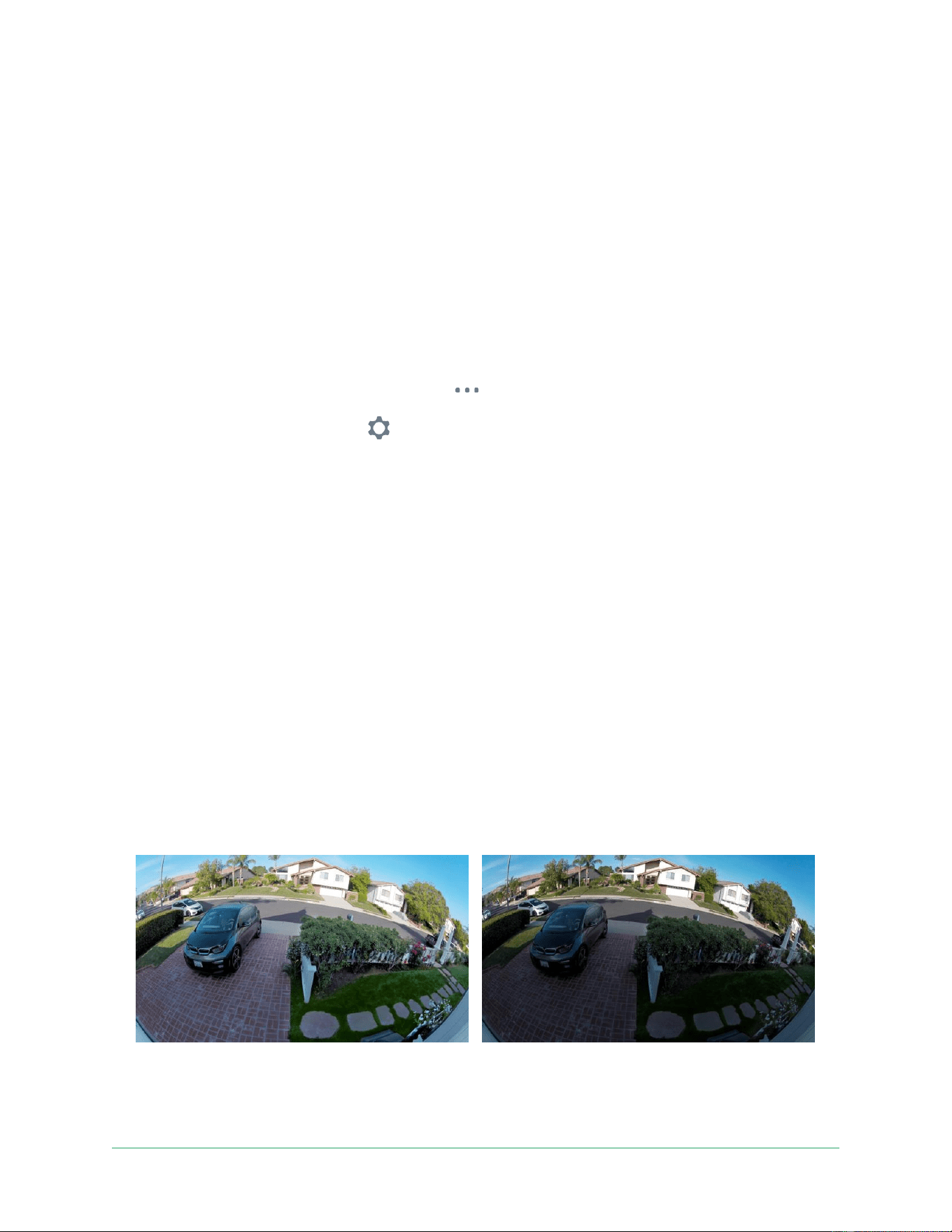
High Dynamic Range (HDR) is a software method of adjusting high-contrast video or photo
images that include areas of bright highlight and deep shadow. Without HDR, some images
with bright areas can appear washed out, while dark areas can appear black, without detail.
HDR makes it possible to see detail in both the highlights and shadows.
Your doorbell comes with an Auto HDR feature that is enabled by default. When your video
doorbell’s camera detects an image that would benefit from HDR, it automatically applies
HDR unless you use the Arlo Secure App to disable Auto HDR.
With Auto HDR
Without Auto HDR

Arlo Video Doorbell 2nd Generation
Change Your Settings
42
User
Manual
To turn Auto HDR on or off:
1.
Open
the
Arlo
Secure
App.
2.
Tap
Devices
and then tap the
Menu
icon
in the
upper right corner.
3.
Tap the
Device Settings
icon
next to your doorbell.
4.
Tap
Video Settings > Auto HDR
.
If you’re using an Android device, tap the slider.
Change the audio settings
You can adjust the settings to turn the microphone on and off and adjust the speaker.
These
settings take effect whether or not the microphone and speaker are enabled for live-streaming
and motion recording.
Note:
Controls for the speaker and microphone settings of your mobile phone during a
doorbell video call are set up within Call Settings. See Change the call settings on page 23.
1.
Open
the
Arlo
Secure
App.
2.
Tap
Devices
and then tap the
Menu
icon
in the
upper right corner.
3.
Tap the
Device Settings
icon
next to your doorbell.
4.
Tap
Audio Settings
.
5.
Adjust the settings:
•
Microphone
toggle
turns
the
microphone
off
and
on.
•
Speaker
toggle and volume. To turn the speaker on and off, tap
Speaker
. To change
the speaker volume, move the
Speaker Volume
slider.
Adjust recording length
1.
Open
the
Arlo
Secure
App.
2.
Tap
Devices
and then tap the
Menu
icon
in the
upper right corner.
3.
Tap the
Device Settings
icon
next to your doorbell.
4.
Select
Default
Mode
Settings
.
5.
Under
Recording Length
, select
Record until activity stops
(up to 5 min) or
Record for a
fixed length
.
If you select
Record for a fixed length
, set the length of recordings (10 seconds to 2 mins).

Arlo Video Doorbell 2nd Generation
Change Your Settings
43
User
Manual
View device information
You
can
view
the
firmware
version,
hardware
version,
and
the
serial
number.
1.
Open
the
Arlo
Secure
App.
2.
Tap
Devices
and then tap the
Menu
icon
in the
upper right corner.
3.
Tap the
Device Settings
icon
next to your doorbell.
4.
Tap on your doorbell.
Remove a device from your account
1.
Open
the
Arlo
Secure
App.
2.
Tap
Devices
and then tap the
Menu
icon
in the
upper right corner.
3.
Tap the
Device Settings
icon
next to your doorbell.
4.
Tap on your doorbell.
5.
Select
Remove
Device
.
Restart the doorbell from the Arlo Secure App
1.
Open
the
Arlo
Secure
App.
2.
Tap
Devices
and then tap the
Menu
icon
in the
upper right corner.
3.
Tap the
Device Settings
icon
next to your doorbell.
4.
Tap on your doorbell.
5.
Scroll down to the bottom of the page and tap
Restart
.

44
8.
Routines, Modes, Automations, and
Alerts
You can arm or disarm your Arlo video doorbell and devices.
When your video doorbell is
armed, it detects motion and sound. Modes and automations let you tell your Arlo system
what to do automatically
in different situations. For example, you can set your Arlo system to
record a video when it detects motion and send you an email alert.
Arm or disarm all your Arlo devices
1.
Open
the
Arlo
Secure
App.
2.
Tap
Routines
and then tap
Modes
.
3.
Tap
Arm Away
,
Standby,
or
Arm Home
.
Modes
Arlo modes give you control over how your devices respond to motion or sound. For example,
you might want to turn on a different mode when you’re on vacation. Modes let you tell your
Arlo devices to respond differently at different times.
You
can
create
your
own
modes,
but
the
Arlo
Secure
App
comes
with
these
modes:
Arm away
. Protect your home inside and out when you’re away.
Arm Home
. Stay protected when at home by keeping certain devices armed.
Standby
. Disarm your devices and keep specific ones armed.
You can customize which devices are active during specific modes. For example, when you’re
sleeping, you might want
to arm your outdoor camera and disarm your indoor camera.

Arlo Video Doorbell 2nd Generation
Routines, Modes, Automations, and Alerts
45
User
Manual
Select a mode
You can
select
a
mode
or
set
modes
to
activate
according
to
a
schedule.
1.
Open
the
Arlo
Secure
App.
2.
Tap
Routines
.
3.
Tap
Modes
.
4.
Select your video doorbell.
A list of modes displays.
5.
Tap a mode to activate it.
The mode that you selected turns on immediately. The mode stays active until you change
it.
Mute
Notifications
Mute Notifications temporarily silences push notifications to your mobile device, while videos
continue to be recorded. This is great for a party when you don’t need to be notified of friends
in your backyard.
You can mute notifications from the Arlo Secure App. If you use Arlo Secure, you can also
activate Mute Notifications directly from push notifications.
To mute notifications:
1.
Open
the
Arlo
Secure
App.
2.
Tap your Profile
> Notifications
.
3.
Select
the
length
of
time
to
mute
notifications.
A message displays confirming that you are muting notifications. The Mute Notification
status shows the amount of remaining time until notifications resume.
To unmute notifications
1.
Open
the
Arlo
Secure
App.
2.
Tap
your
Profile
>
Notifications
>
Unmute
.
The
Mute
Notifications
status
changes
to
Off.

Arlo Video Doorbell 2nd Generation
Routines, Modes, Automations, and Alerts
46
User
Manual
Rules
for
modes
Each mode
uses
one
or more
rules
to
control
your Arlo
system.
You
can
set these
options.
•
Trigger device
. The trigger device is the camera that detects motion or sound. You can
adjust the motion and sound sensitivity to minimize false alarms.
•
Action device
. The action device responds to motion or sound detection on the trigger
device. For example, you might want your backyard camera or your driveway camera to
trigger your door camera to start recording video. You decide what action each camera
takes when motion or sound is detected.
•
Notifications
. When a trigger is detected, the Arlo can send you push notifications, email
alerts, or both. You can also send email alerts to friends, family members, pet sitters, or
anyone who might need to respond when a camera is triggered.
Change
motion
sensitivity
You
can
edit
a
rule
to
change
the
motion
sensitivity
level
for
your
video
doorbell.
1.
Open
the
Arlo
Secure
App.
2.
Tap
Devices
and then tap the
Menu
icon
in the
upper right corner.
3.
Tap the
Device Settings
icon
next to your doorbell.
4.
Select
Default
Mode
Settings
.
5.
Under
Motion Detection
, move the slider to adjust the sensitivity level for motion
detection for this video doorbell.
6.
If you used a browser to specify the settings, click
Save
.
Manage
alerts
Arlo can push notifications to your smartphone, send you email alerts, or do both. To receive
Arlo notifications on your phone, you must install the Arlo Secure App on your phone.
Note:
If you log out of the Arlo Secure App on your smartphone or mobile device, you will
stop receiving push notifications.
1.
Open
the
Arlo
Secure
App.
2.
Tap your
Profile
on the top left corner.
3.
Select
Notifications
.

Arlo Video Doorbell 2nd Generation
Routines, Modes, Automations, and Alerts
47
User
Manual
4.
Select
the
duration
of
time
to
turn
off
notification.
Note:
The Disarmed mode does not send alerts.
Select duration of time to turn off notifications.
Schedule when your video doorbell is armed
You can set a schedule to specify the days and times during the week when your video
doorbell is set to respond to motion triggers. Schedules recur weekly.
For example, the
schedule for Tuesday repeats every Tuesday as long as the schedule is turned on.
To schedule when your video doorbell responds to motion triggers:
1.
Open
the
Arlo
Secure
App.
2.
Tap
Routines
.
3.
Tap the
Plus icon
on the top right hand corner and then tap
Add Schedule
.
4.
Specify
your
time.
5.
Select
your
device
and
tap
Save.
6.
Tap
Add
Action
then
Change
Mode
.
7.
Select
Arm
Away
,
Arm
Home
,
or
Standby
.
8.
Tap
Save
.
Edit a schedule
1.
Open
the
Arlo
Secure
App.
2.
Tap
Routines
.
3.
Select
Automations
.
Tap on the schedule you want to modify.

48
9.
Troubleshooting
Arlo doesn’t discover your doorbell during setup
If you’re trying to set up and connect your Arlo doorbell directly to your Wi-Fi router and Arlo
doesn’t discover your doorbell, here are some things to check to identify and correct the
problem.
When
you’re
using
the
Arlo
Secure
App
to
add
your
doorbell,
check
the
following:
•
Make sure that you select the correct doorbell model after you tap the
Plus icon
in
Devices tab in the Arlo Secure App. The Arlo Secure App only tries to discover the Arlo
device that you select.
To find your doorbell’s model number, check the box that your doorbell came in.
•
You’re
entering
the
correct
Wi-Fi
network
SSID
(network
name)
and
password.
The
network
SSID
and
password
are
case-sensitive
and
must
be
exactly
correct.
•
Your mobile device and Arlo doorbell are within the Wi-Fi signal range of your Wi-Fi router.
During setup, we recommend placing your doorbell within 10-15 feet (3-4.5 meters) of
your Wi-Fi router. After the doorbell is set up and connected, you can move the doorbell
any place within range of your Wi-Fi router. For more information, see Tips for optimal Wi-
Fi performance on page 14.
•
Check the doorbell LED. When you press the pairing button during setup, the LED blinks
blue for two minutes while the doorbell is being discovered and then blinks blue fast
when it connects to your Wi-Fi network. If the video doorbell doesn’t connect to your Wi-Fi
network within two minutes, it times out and the LED stops blinking. If the doorbell times
out, press the pairing button again. Make sure that the LED blinks blue during the entire
connection process. See Video Doorbell LED Behavior on page 10.

Arlo Video Doorbell 2nd Generation
Troubleshooting
49
User
Manual
Use Bypass mode for the Power Kit
If your wired Arlo Video Doorbell 2nd Generation isn’t working as expected, even though the
voltage level of your doorbell transformer is 16-24 VAC, you might need to activate Bypass
mode on your Power Kit.
When Bypass mode is turned on, your wired Arlo Video Doorbell isn’t electrically connected
to your doorbell chime. This prevents your doorbell chime from ringing when you use
your
doorbell.
We
recommend
that
you
turn
on
Bypass
mode
if:
•
Your
doorbell
chime
rings
or
buzzes
at
unexpected
times,
while
your
wired
Arlo
Video
Doorbell is operating.
•
The LED on your wired Arlo Video Doorbell is amber during initial setup.
To activate Bypass mode on your Arlo Power Kit:
1.
Turn off your power at the breaker.
2.
Remove
the
cover
from
your
doorbell
chime.
3.
Locate the Arlo Power Kit that is attached to your Doorbell Chime.
4.
Move
the
switch
on
your
Arlo
Power
Kit
to
Bypass
Mode.
5.
Turn your
power
back on
at
the breaker.
6.
Turn
off
the
traditional
chime
setting
in
the
Arlo
Secure
App.
Your Arlo Power Kit now bypasses your doorbell chime. Your doorbell chime will not ring
when someone presses your Video Doorbell.
If your wired Arlo Video Doorbell still doesn’t function correctly after activating Bypass
mode, you might need to consult an electrician to confirm the voltage and available
power.
The chime doesn’t ring when I press the wired
doorbell
If your existing chime doesn’t ring when someone presses your wired Arlo Video Doorbell,
your doorbell or Power Kit might not be wired correctly, or the temperature of your wired Arlo
Video Doorbell might be too high.
If
your
wired
Arlo
Video
Doorbell
doesn’t
ring:
•
Make
sure
that
the
Power
Kit
is
correctly
wired
to
your
existing
chime.
For
more

Arlo Video Doorbell 2nd Generation
Troubleshooting
50
User
Manual
information,
see
Install
the
Power
Kit
in
your
chime
box
on
page
83
•
Make sure that Bypass mode is disabled on the Power Kit. For more information, see
Use Bypass mode for the Power Kit on page 73.
•
Make sure that your wired Arlo Video Doorbell is powered on and wired correctly. For
more information, see Video Doorbell LED doesn’t light on page 74.
•
Check the chime setting in the Arlo Secure App. For your chime to ring, the chime
setting in the Arlo Secure App must
be set to Mechanical or Digital, depending on the
type of doorbell chime you have. See Change the type of traditional chime the doorbell
triggers on page 39.
•
Check if Silent mode is turned on in the Arlo Secure App. See Use silent mode for the
doorbell on page 22.
•
Check if the Arlo Secure App is warning that your doorbell temperature is too high. If
your
wired
Arlo Video
Doorbell
is
heated
to 149°F–185°F (65°C–85°C), the Arlo Secure
App disables your chime, but continues to operate.
•
If your doorbell is heated to above 185°F (85°C) the doorbell stops functioning until it
cools down. If your doorbell still doesn’t ring, visit www.arlo.com/en_gb/support to
speak with an expert.
LED doesn’t light when your doorbell is wired
During
installation,
if
the
LED
is
off
for
more
than
a
minute,
your
doorbell
isn’t
receiving
power.
For
information
about
the
LED
behaviors,
see
Video
Doorbell
LED
on
page
15.
To
troubleshoot
your
wired
Arlo
Video
Doorbell
when
the
LED
is
off,
make
sure
that:
•
Power is available to your home.
•
The
power
breaker
for
your
home
is
on.
•
The Power Kit is correctly wired to your doorbell chime.
•
Your wired Arlo Video Doorbell is wired correctly. The voltage of your doorbell
transformer is between 16-24V AC.
If you have checked all these troubleshooting options, and the doorbell LED is still off, consult
an electrician to confirm whether your home is compatible with your device.

Arlo Video Doorbell 2nd Generation
Troubleshooting
51
User
Manual
Power interruption notification for wired
doorbell
The push notification Power interruption at [TIME] means your doorbell is not currently
receiving any voltage or its wires have been disconnected, but your home’s Wi-Fi and Internet
connection are still working.
If you have an Arlo Smart subscription, you can tap the notification to activate an alarm, call
a friend, or call e911. When the power returns to your doorbell, wait about 10 minutes for the
doorbell to come back online. I
If
your
wired
Arlo
Video
Doorbell
remains
in
this
state
longer
than
20
minutes
after
power
is
restored,
try
restarting
your
doorbell
from
within
the
Arlo
Secure
App.
Optimize your wireless doorbell battery life
Your Video Doorbell battery life is affected by frequent video recordings and its local environ-
ment.
Follow these tips and guidelines to improve your doorbell’s battery life. •
•
Charge the doorbell to 100% before the first use. See Charge your Video Doorbell
indoors if using wirelessly on page 8.
•
Place the doorbell in an area with good Wi-Fi coverage. In the Arlo Secure App, you
can check the Wi-Fi Signal Strength icon for your doorbell. See Tips for optimal Wi-Fi
performance on page 14.
•
Don’t focus your doorbell on an area with high traffic. To avoid unwanted notifications,
keep your doorbell’s field of view (FOV) away from areas where you don’t want to
detect motion, such as a busy street. You can use the included angled mounting wedge
to adjust the orientation of your doorbell. For more information, see Choose a good
spot to mount your doorbell on page 11.
Note:
Activity zones help filter out notifications and recordings for motion events that
occur outside of your zone(s). They do not reduce your video doorbell’s battery power
consumption, since your video doorbell still continuously monitors for motion events
within your activity zone(s). See Motion detection activity zones on page 27.
•
Hardwire your doorbell. You can hardwire your doorbell, which continuously trickle
charges the battery when the doorbell isn’t in use. See 4. Optional: Connect a wired
chime on page 16.
The following factors reduce your doorbell battery life:
•
Frequent motion and audio recordings.
When your doorbell is armed, every time it

Arlo Video Doorbell 2nd Generation
Troubleshooting
52
User
Manual
detects motion or audio, it uses battery power to record the event. If you want fewer
motion alerts and recordings, reduce the doorbell’s motion sensitivity. For more
information, see Change motion sensitivity on page 46. You can also set a schedule
for your doorbell so that it only records video at certain times of the day. For more
information, see Schedule when your video doorbell is armed on page 47.
•
Long livestreams and motion or audio recordings.
If possible, try to avoid frequent
and lengthy livestreams of your doorbell. Additionally, you can reduce the length of
each motion and audio recording. For more information, see Adjust recording length on
page 42.
•
Connection to a Wi-Fi extender or mesh Wi-Fi network.
Some Wi-Fi extenders or
mesh satellites might cause more power consumption on your doorbell. If you are
using a Wi-Fi router with an extender, try to connect your doorbell to the router’s Wi-Fi
network. For help reconfiguring your network connection, see the instructions for your
Wi-Fi router or your Wi-Fi extender. If you are using a mesh Wi-Fi network with a Wi-Fi
router and one or more satellites, try moving your Wi-Fi router closer to your doorbell,
so that the doorbell connects to the router instead of a satellite. For help reconfiguring
your network, see the instructions for your Wi-Fi router.
Can’t see video streams in a browser
Your
router
might
be
blocking
the
ports
to
which
Arlo
sends
data.
To
make
sure
that
Arlo
can
stay connected, you must keep ports 443 and 80 open on your router.
To troubleshoot problems with the video stream, check for the conditions in these sections:
Wi-Fi signal interference on page 52, Out of range on page 52.
Wi-Fi
signal
interference
Environments with multiple Wi-Fi networks, Wi-Fi devices, or frequencies can cause signal
interference. If possible, minimize the number of networks, Wi-Fi devices, and transmitted
frequencies in the area where you place your doorbell. For help with adjusting Wi-Fi settings
such as the channel for your router, check the instructions that came with your router or
contact your internet service provider (ISP) if they installed your router.
Out of range
Make sure that your video doorbell is close enough to receive a strong Wi-Fi signal. The range
of your router’s Wi-Fi signal can vary depending on the router model and conditions in your
local environment.

Arlo Video Doorbell 2nd Generation
Troubleshooting
53
User
Manual
Make sure that your doorbell displays three or four bars of signal strength in the area where
you intend to install it. The camera can work when signal strength is at one or two bars, but
might go out of range intermittently due to fluctuations in the environment.
Not receiving push notifications
You must be logged in to the Arlo Secure App to receive Arlo alerts on your smartphone or
mobile device.
Arlo registers your device for push notification when you log in. If you used the
logout option instead of simply exiting the app, you must log back in to the app. You receive
Arlo alerts even if your device is sleeping.
Check the Arlo Secure App notification settings on an iOS device
Make sure that you allow the Arlo Secure App to receive push notifications. The Arlo Secure
App push notifications can be disabled on iOS and Android devices.
1.
Tap the
Settings
icon for your iOS device.
2.
Tap
Notifications > Arlo
.
3.
Make sure that
Allow Notification
is selected.
Check the Arlo Secure App notification settings on an Android
device
Make sure that you allow the Arlo Secure App to receive push notifications. The Arlo Secure
App push notifications can be disabled on iOS and Android devices.
1.
Tap the
Settings
icon for your Android device.
2.
Tap
Application Manager > Arlo
.
3.
Make sure that the
Show Notifications
setting is selected.
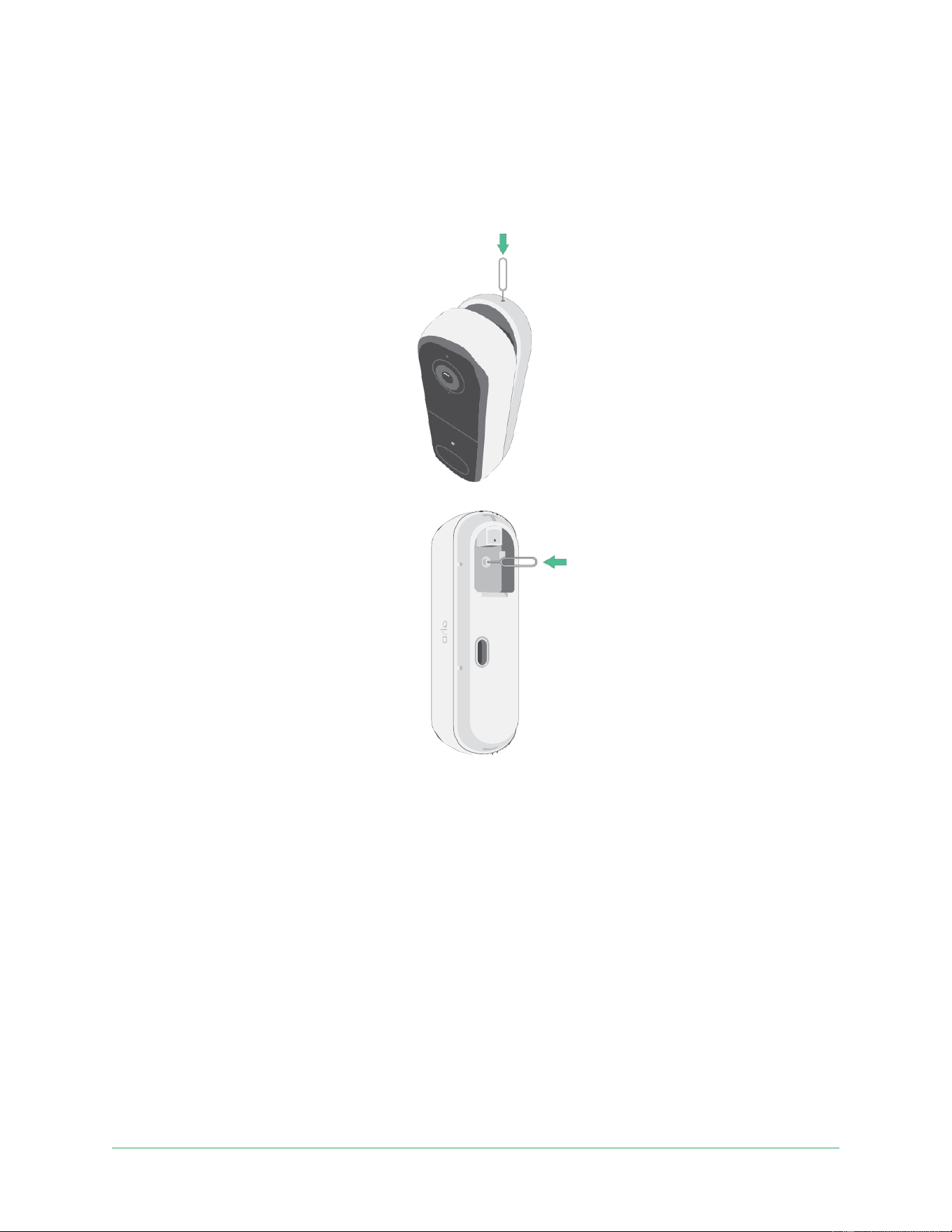
Arlo Video Doorbell 2nd Generation
Troubleshooting
54
User
Manual
Use the pairing button to reset the doorbell
The pairing button is in the back of your doorbell.
Use
the
provided
release
pin
to
open
the
back
cover
of
your
Video
Doorbell.
You
can
use
the
pairing
button
for
either
of
these
types
of
resets:
•
Reset your doorbell to its factory settings. See Reset the doorbell to its factory settings on
page 55.
•
Power cycle and reset your doorbell to its factory settings. See Power cycle and reset the
doorbell to its factory settings on page 55.
Note:
The pairing button is also used to wake the doorbell when it is shut down and to pair
the doorbell with a Wi-Fi network. We recommend that you follow the instructions in the Arlo
Secure App to wake and pair your doorbell.
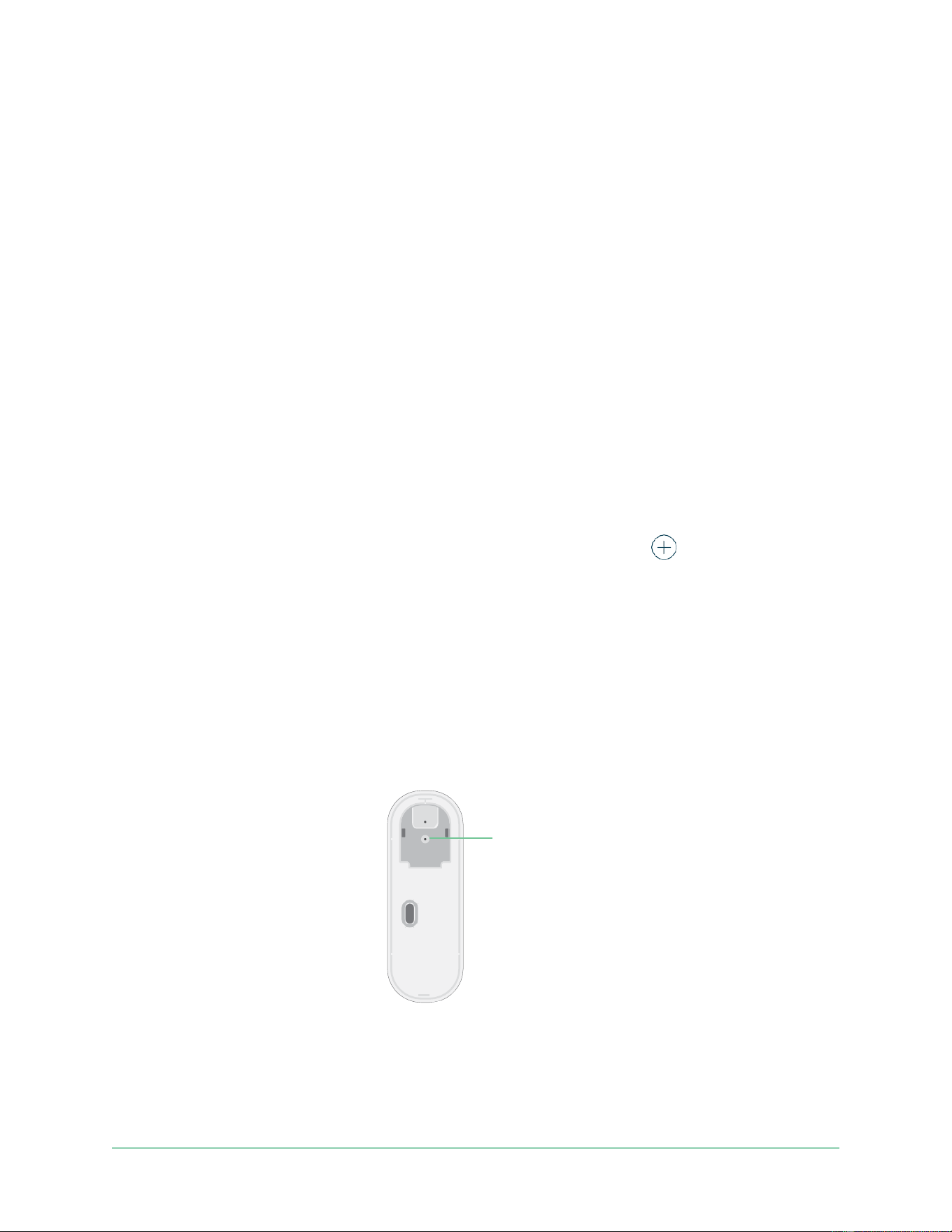
Arlo Video Doorbell 2nd Generation
Troubleshooting
55
User
Manual
Reset the doorbell to its factory settings
This process returns the video doorbell to its default settings and removes it from your Arlo
account. This means that you must follow the Arlo Secure App setup process to use your
doorbell after a factory reset.
1.
Press and hold the pairing button for about 15 seconds, until the doorbell Indicator LED
begins blinking amber, then let go.
2.
Ensure
that
the
doorbell
Indicator
LED
blinks
amber
three
times.
Make sure to let go of the pairing button when the doorbell Indicator LED begins blinking
amber. If you hold the pairing button too long, you must restart the factory reset process
until the doorbell Indicator LED blinks amber three times after you let go of the pairing
button.
After a factory reset, the doorbell still appears in the Arlo Secure App, but it is disabled.
3.
To remove the doorbell from the Arlo Secure App, tap
Devices
, select your doorbell, tap
Settings
, scroll down, and tap
Remove Device
.
4.
To add the doorbell back to
your Arlo account, tap the
Plus icon
in the upper right
corner on the Devices page and follow the prompts to connect your doorbell to your Wi-Fi
network and set it up.
Power cycle and reset the doorbell to its factory settings
This process performs a hardware reset, which factory resets, power cycles, and shuts down
the doorbell. To continue using your doorbell, you must wake the doorbell and re-add it to
your Arlo account.
1.
Press
and
hold
the
pairing
button
for
about
20–30
seconds.
Pairing
button
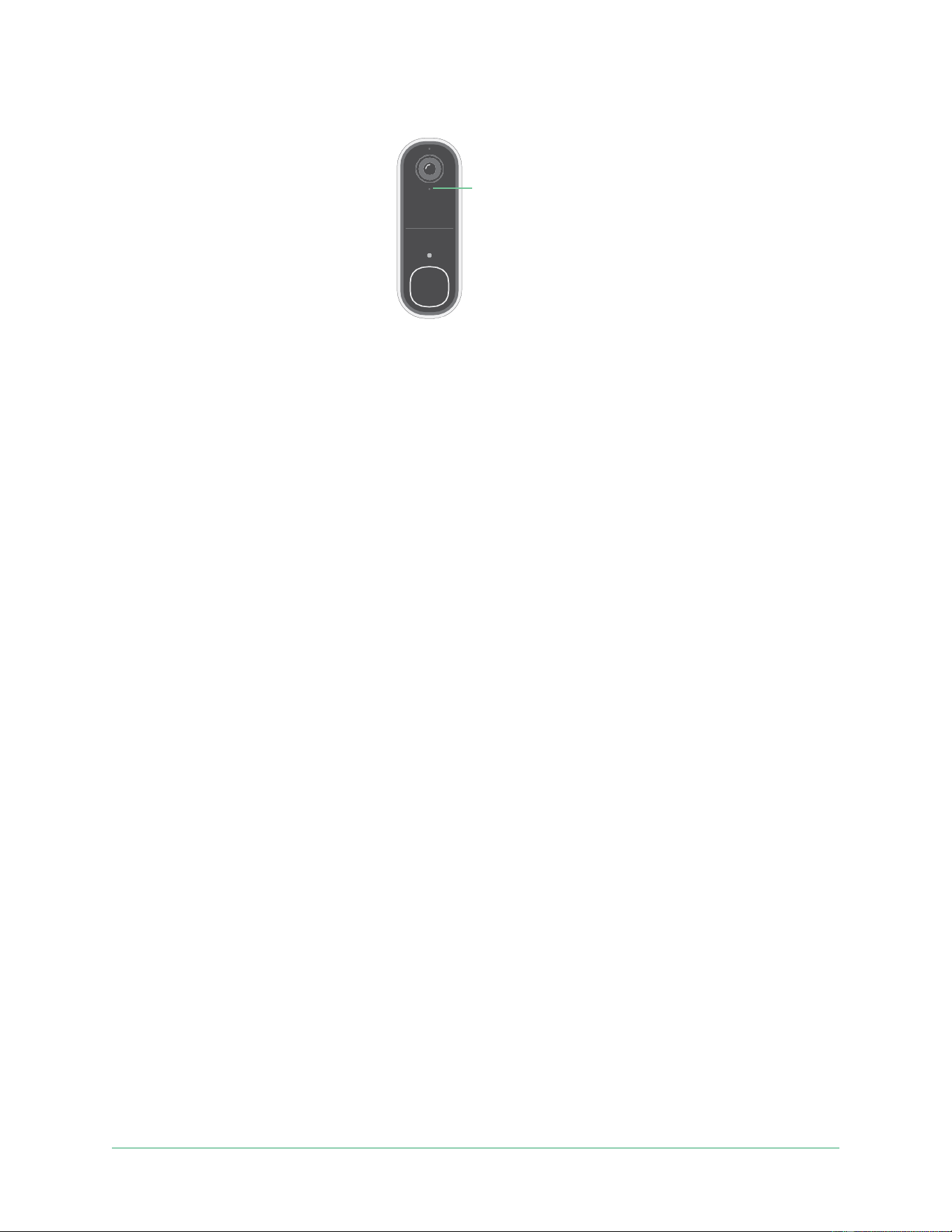
Arlo Video Doorbell 2nd Generation
Troubleshooting
56
User
Manual
2.
The
doorbell
Indicator
LED
lights
solid
blue
for
2
seconds,
then
blinks
amber
3
times.
Indicator LED
3.
Continue holding the pairing button through all the LED behaviors, until you have held it
for 20–30 seconds.
The
doorbell
returns
to
its
factory
settings
and
shuts
down.

Arlo Video Doorbell 2nd Generation
Support
For product updates and web support, visit https://www.arlo.com/en_gb/support.
Arlo Technologies, Inc.
2200 Faraday Ave. Suite 150
Carlsbad, CA 92008 USA
Document publication date: December 2023
PN 202-50045-01
Trademarks
© Arlo Technologies, Inc. Arlo, Arlo logo, and Every Angle Covered are trademarks of Arlo
Technologies, Inc. App Store is a service mark of Apple Inc. Google Play and the Google Play
logo are trademarks of Google LLC. Amazon and all related logos are trademarks of Amazon.
com, Inc. or its affiliates. Any other trademarks are for reference purposes.
Compliance
The
regulatory
marking
is
located
at
the
bottom
of
the
unit.
For
regulatory
compliance
information
including
the
EU
Declaration
of
Conformity
and
where
to find e-label information for Compliance Taiwan NCC, US FCC & Industry Canada, visit www.
arlo.com/about/regulatory/.
See the regulatory compliance document before connecting the power supply.
NCC
Warning
取得審驗證明之低功率射頻器材,非經核准,公司、商號或使用者均不得擅自變更頻率、加
大功率或變更原設計之特性及功能。低功率射頻器材之使用不得影響飛航安全及干擾合法
通信;經發現有干擾現象時,應立即停用,並改善至無干擾時方得繼續使用。前述合法通
信,指依電信管理法規定作業之無線電通信。低功率射頻器材須忍受合法通信或工業、科學
及醫療用電波輻射性電機設備之干擾。
為避免本器材影像畫面遭偷窺或擷取,本器材使用者應先修改預設密碼,並定期更新密
碼。
こ
の装置は
、
ク
ラス
B
機器です
。
こ
の装置は
、
住宅環境で使用する
こと
を目的
とし
ていますが
、こ
の装置がラジオやテレビジ
ョ
ン受信機に近接
し
て使用される
と
、
受信
障害を引き起
こ
す
こと
があ
り
ます
。
取扱説明書に従って正しい取り扱いをして下さい。
VCCI
ー
B

Arlo Video Doorbell 2nd Generation
To find the regulatory e-label for your Arlo product:
1.
Launch the Arlo app or log in to my.arlo.com.
2.
From the Devices screen, open the
Device Settings
page for your Arlo product.
A.
On iOS and web browser, tap the
Settings
icon next to your Arlo device.
B.
On Android, tap the menu icon next to your Arlo device, then tap
Device Settings
.
3.
Tap or click
Device Info
>
Regulatory
.
Note
: If the Arlo app does not show a Regulatory sub-menu for your Arlo product, then the
product does not have a regulatory e-label, and you can find all regulatory information on the
physical label located either at the base, inside the battery compartment, or near the power
input port of the Arlo product.
FCC ID: 2APLE18300424
IC: 23815-18300424
CAN
ICES-003(B)/NMB-003(B)