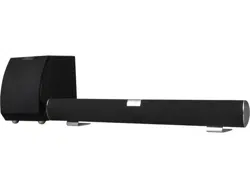
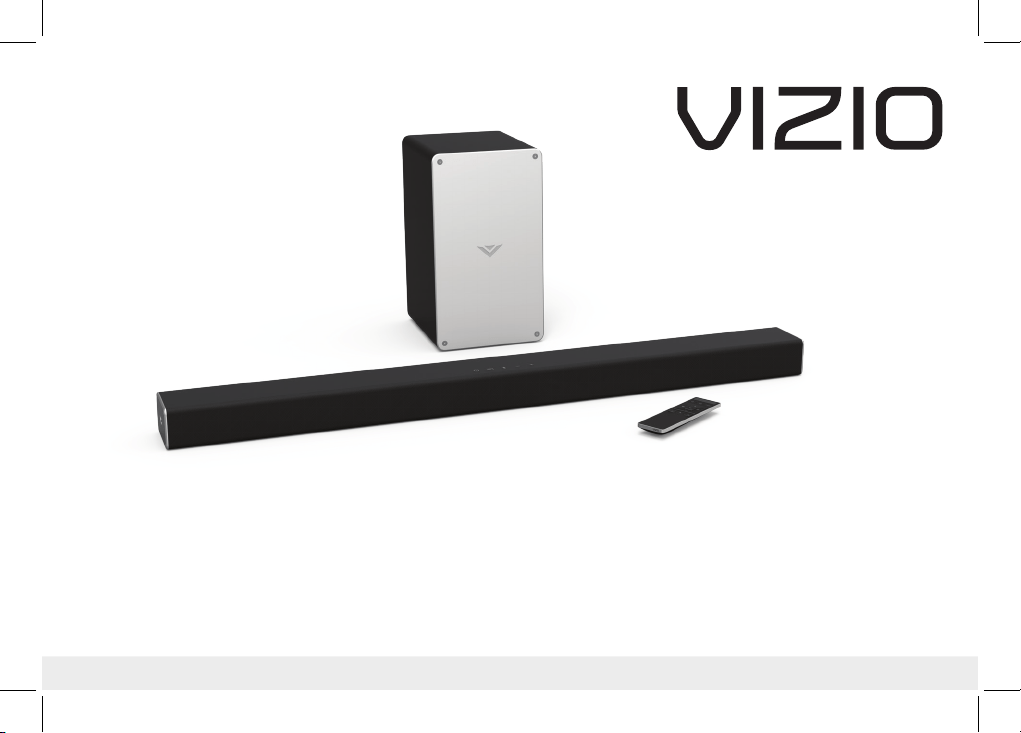
QUICK START GUIDE
Model: SB3621n-F8M
VIZIO Sound Bar
Please read this guide before using the product.

English - ii
Your Unit is designed and manufactured to operate within dened design limits, and misuse may result in electric shock or re. To prevent your Unit
from being damaged, the following rules should be observed for its installation, use, and maintenance. Please read the following safety instructions
before operating your Unit. Keep these instructions in a safe place for future reference.
• Read these instructions.
• Keep these instructions.
• Heed all warnings.
• Follow all instructions.
• Do not use this apparatus near water.
• Clean only with a dry cloth.
• Do not block any ventilation openings. Install in accordance with the manufacturer’s instructions.
• Do not install near any heat sources such as radiators, heat registers, stoves, or other apparatus (including ampliers) that produce heat.
• Do not defeat the safety purpose of the polarized or grounding-type plug. A polarized plug has two blades with one wider than the other. A
grounding type plug has two blades and a third grounding prong. The wide blade or the third prong are provided for your safety. If the provided
plug does not t into your outlet, consult an electrician for replacement of the obsolete outlet.
• Protect the power cord from being walked on or pinched, particularly at plugs, convenience receptacles, and the point where they exit from the
apparatus.
• Only use attachments/accessories specied by the manufacturer.
• Use only with the cart, stand, tripod, bracket, or table specied by the manufacturer, or sold with the apparatus. When a cart is used,
use caution when moving the cart/apparatus combination to avoid injury from tip-over.
• Unplug this apparatus during lightning storms or when unused for long periods of time.
• Refer all servicing to qualied service personnel. Servicing is required when the apparatus has been damaged in any way, such as when the power
supply cord or plug is damaged, liquid has been spilled or objects have fallen into the apparatus, the apparatus has been exposed to rain or
moisture, does not operate normally, or has been dropped.
• To reduce the risk of electric shock or component damage, switch o the power before connecting other components to your Unit.
• Unplug the power cord before cleaning your Unit. A damp cloth is sucient for cleaning. Do not use a liquid or a spray cleaner on your Unit. Do not
use abrasive cleaners.
• Always use the accessories recommended by the manufacturer to insure compatibility.
• When moving your Unit from an area of low temperature to an area of high temperature, condensation may form in the housing. Wait before
turning on your Unit to avoid causing re, electric shock, or component damage.
• Slots and openings in the back and bottom of the cabinet are provided for ventilation. To ensure reliable operation of your Unit and to protect it
from overheating, be sure these openings are not blocked or covered. Do not place your Unit in a bookcase or cabinet unless proper ventilation is
provided.
• Never push any object into the slots and openings on your Unit enclosure. Do not place any objects on the top of your Unit. Doing so could short
circuit parts causing a re or electric shock. Never spill liquids on your Unit.
• Never use the subwoofer in the upright, vertical position without installing the legs
• Do not block the subwoofer ports. Allow for 1-2 inches of space around all sides for ventilation.
• WARNING: Exposure to loud sounds can damage your hearing causing hearing loss and tinnitus (ringing or buzzing in the ears). With continued
IMPORTANT SAFETY INSTRUCTIONS
English - iii
exposure to loud noises, ears may become accustomed to the sound level, which may result in permanent damage to hearing without any noticeable
discomfort.
• When connected to a power outlet, power is always owing into your Unit. To totally disconnect power, unplug the power cord.
• Do not overload power strips and extension cords. Overloading can result in re or
electric shock.
• The wall socket should be located near your Unit and be easily accessible
• Keep your Unit away from moisture. Do not expose your Unit to rain or moisture. If water penetrates into your Unit, unplug the power cord and
contact your dealer. Continuous use in this case may result in re or electric shock.
• Do not use your Unit if any abnormality occurs. If any smoke or odor becomes apparent, unplug the power cord and contact your dealer
immediately. Do not try to repair your
unit yourself.
• Avoid using dropped or damaged appliances. If your Unit is dropped and the housing is damaged, the internal components may function abnormally.
Unplug the power cord immediately and contact your dealer for repair. Continued use of your Unit may cause re or electric shock.
• Do not install your Unit in an area with heavy dust or high humidity. Operating your Unit in environments with heavy dust or high humidity may
cause re or electric shock.
• Ensure that the power cord and any other cables are unplugged before moving your Unit.
• When unplugging your Unit, hold the power plug, not the cord. Pulling on the power cord may damage the wires inside the cord and cause re or
electric shock. When your Unit will not be used for an extended period of time, unplug the power cord.
• To reduce risk of electric shock, do not touch the connector with wet hands.
• Insert the remote control batteries in accordance with instructions. Incorrect polarity may cause the battery to leak which can damage the remote
control or injure the operator.
• See the important note and rating located on the back of the unit.
• WARNING - This equipment is not waterproof. To prevent a re or shock hazard, do not place any container lled with liquid near the equipment
(such as a vase or ower pot) or expose it to dripping, splashing, rain, or moisture.
• CAUTION - Danger of explosion or re if batteries are mistreated. Replace only with the same or specied type.
• Do not leave the batteries exposed to direct sunlight for a long period of time with doors and windows closed. Do not disassemble the batteries or
dispose of it in re.
• Where the MAINS plug or appliance coupler is used as the disconnect device, the disconnect device shall remain readily operable.
WARNING: To reduce the risk of re or electric shock, do not expose this apparatus to rain or moisture.
CAUTION
RISK OF ELECTRIC
SHOCK DO NOT OPEN
The lighting ash with arrowhead symbol
within an equilateral triangle is intended
to alert the user to the presence of not
isolated dangerous voltage within the
product that may be sucient magnitude
to constitute a risk of shock to persons.
The exclamation point within an equilateral
triangle is intended to alert the user to
the presence of important operating and
servicing instructions in the literature
accompanying the appliance.
Warning: This equipment is a Class II or
double insulated electrical appliance. It has
been designed in such a way that it does
not require a safety connection to electrical
earth.

English - iv
TABLE OF CONTENTS
Package contents ............................................................................................................................................5
Controls & Connections ..................................................................................................................................6
First-Time Setup...............................................................................................................................................10
Using the Remote ............................................................................................................................................13
LED Indicators .................................................................................................................................................. 15
Programming the Sound Bar .........................................................................................................................19
Using Button Combinations ...........................................................................................................................20
Bluetooth Audio Pairing ..................................................................................................................................21
Using Bluetooth mode ....................................................................................................................................22
Advanced Setup ............................................................................................................................................... 23
Connecting a Subwoofer ...............................................................................................................................24
Wall-Mounting the Sound Bar ........................................................................................................................ 25
Help & Troubleshooting ..................................................................................................................................29
Limited Warranty ............................................................................................................................................. 30
Legal & Compliance .........................................................................................................................................34
English - 5
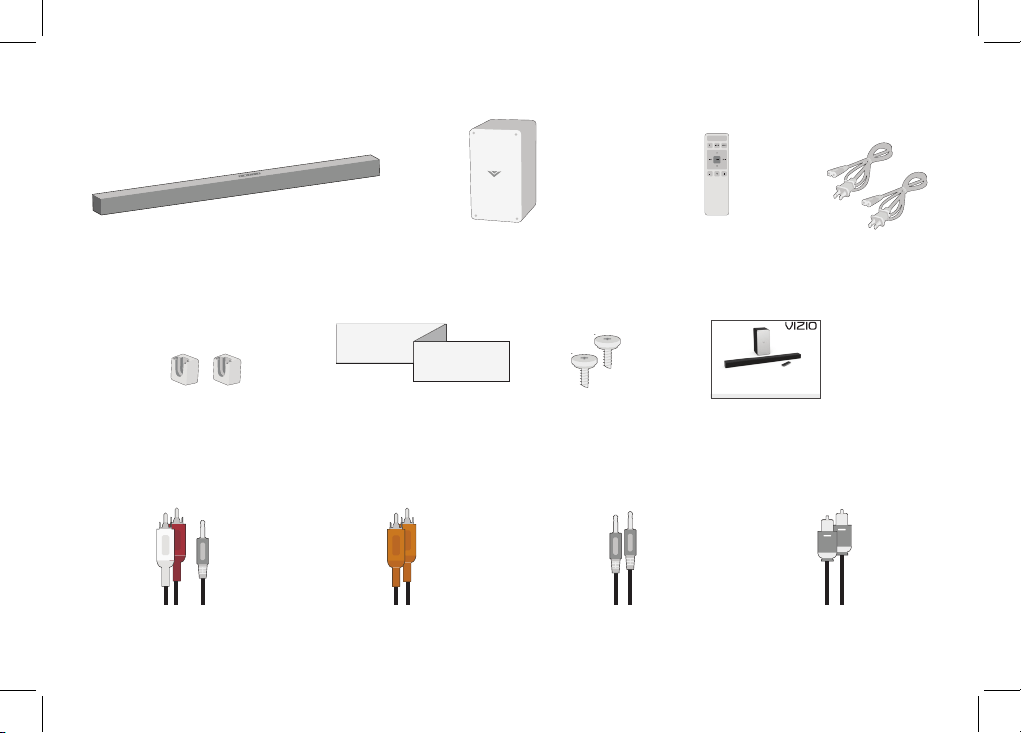
PACKAGE CONTENTS
Wall Mount
Template
2 x Wall
Mount Screws
Digital Optical
Cable
2 x Power
Cables
3.5mm to 3.5mm
Audio Cable
Coaxial Audio
Cable
Quick Start
Guide
QUICK START GUIDE
Model: SB3621n-E8M
VIZIO Sound Bar
Please read this guide before using the product.
VIZIO
Sound Bar
Remote Control
with 2x AAA Batteries
Wireless Subwoofer
Stereo RCA to
3.5mm Audio
Cable
2 x Wall
Mount
Brackets
(Sound Bar)
Front
Top
Back
Side
Angle
HOME THEATER DISPLAY | QUICK START GUIDE
Installation Guide | Models:
HOME THEATER DISPLAY | QUICK START GUIDE
Installation Guide | Models:
English - 6
CONTROLS & CONNECTIONS
Front
Top
Back
Side
Angle
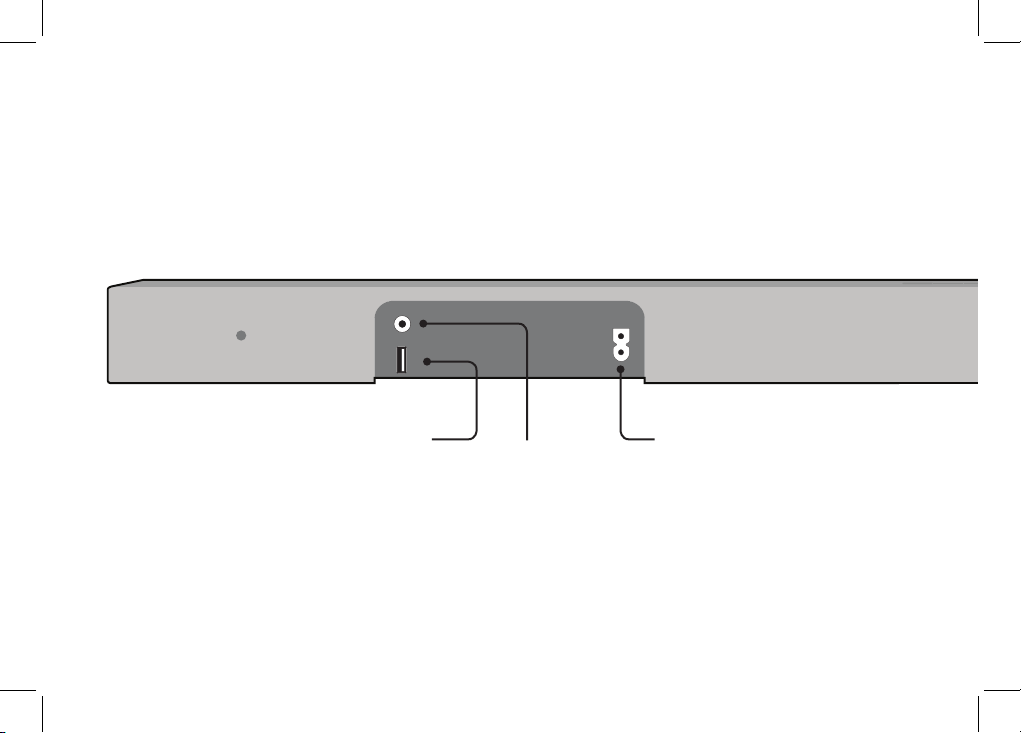
* Supports .WAV and .MP3 le format playback only.
Back of Sound Bar
Power Port
AUX
Analog Audio In
(Stereo 3.5mm)
USB*
USB In
English - 7
Front
Top
Back
Side
Angle
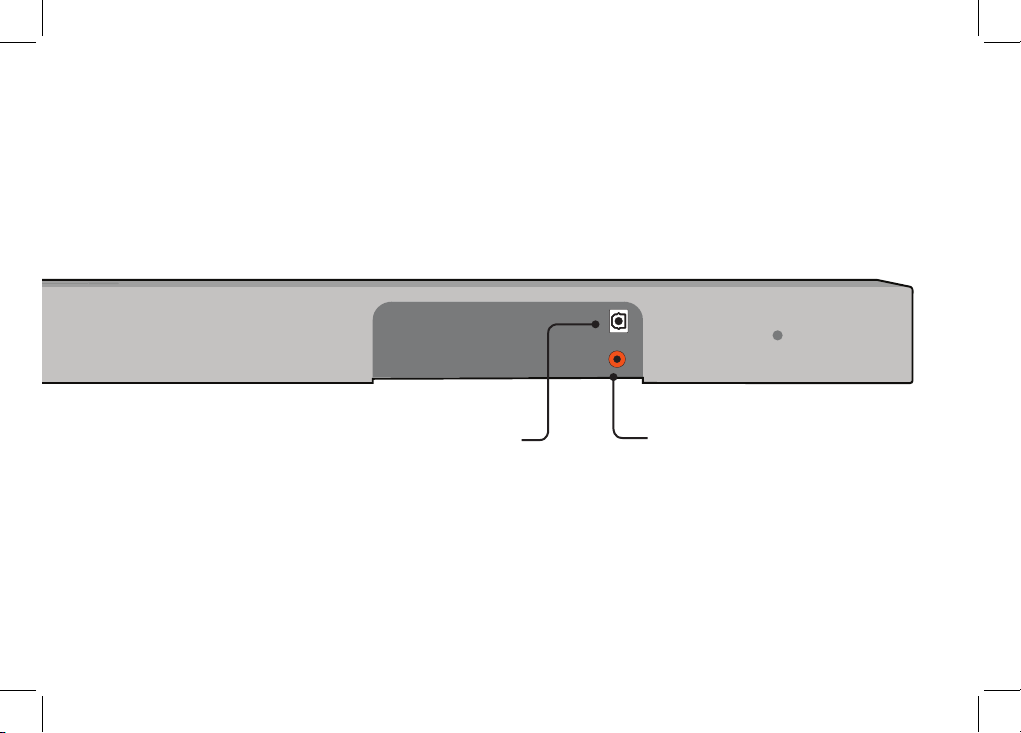
OPTICAL
Digital Optical Audio In
DIGITAL
Coaxial In
English - 8
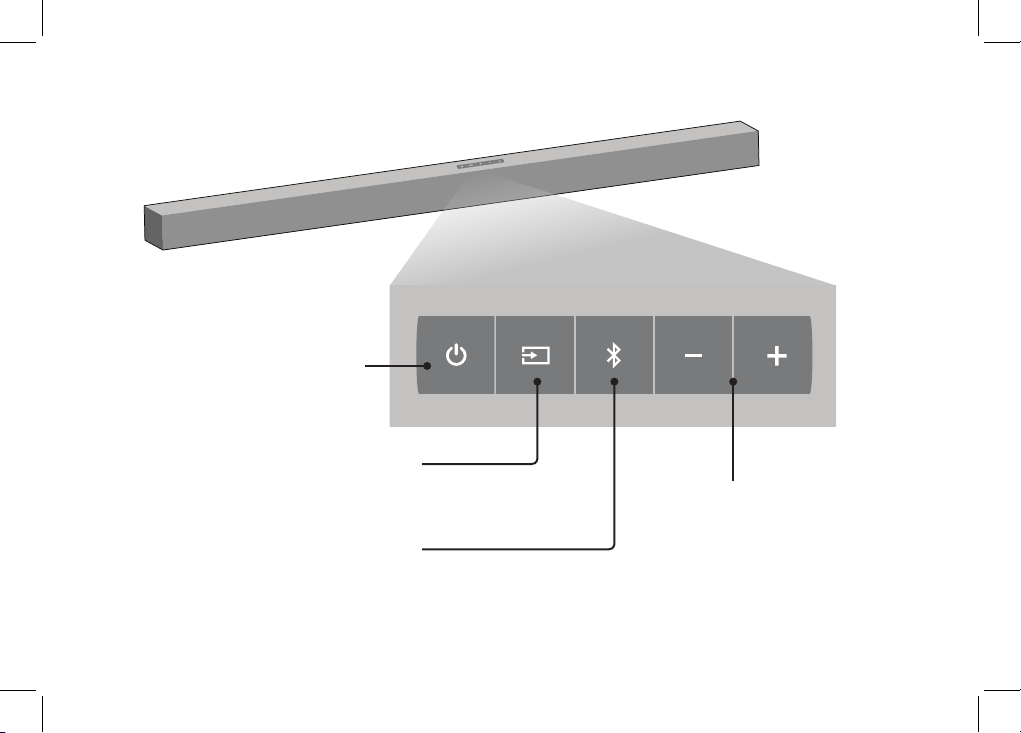
Input Press to change
the audio source.
Volume Increase or decrease
the loudness of the audio.
Power Press to turn
soundbar on or o.
Bluetooth Input Hold to pair.
(See ‘Bluetooth Audio Pairing’
for more information.)
Top of Sound Barr
Front
Top
Back
Side
Angle
Front
Top
Back
Side
Angle
English - 9
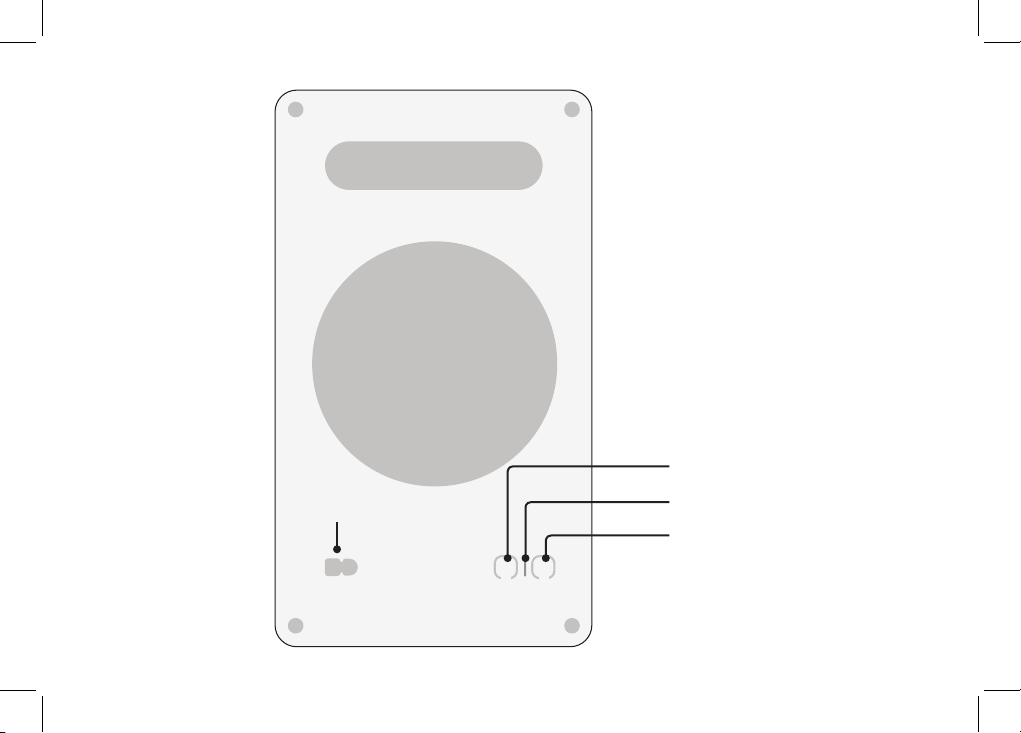
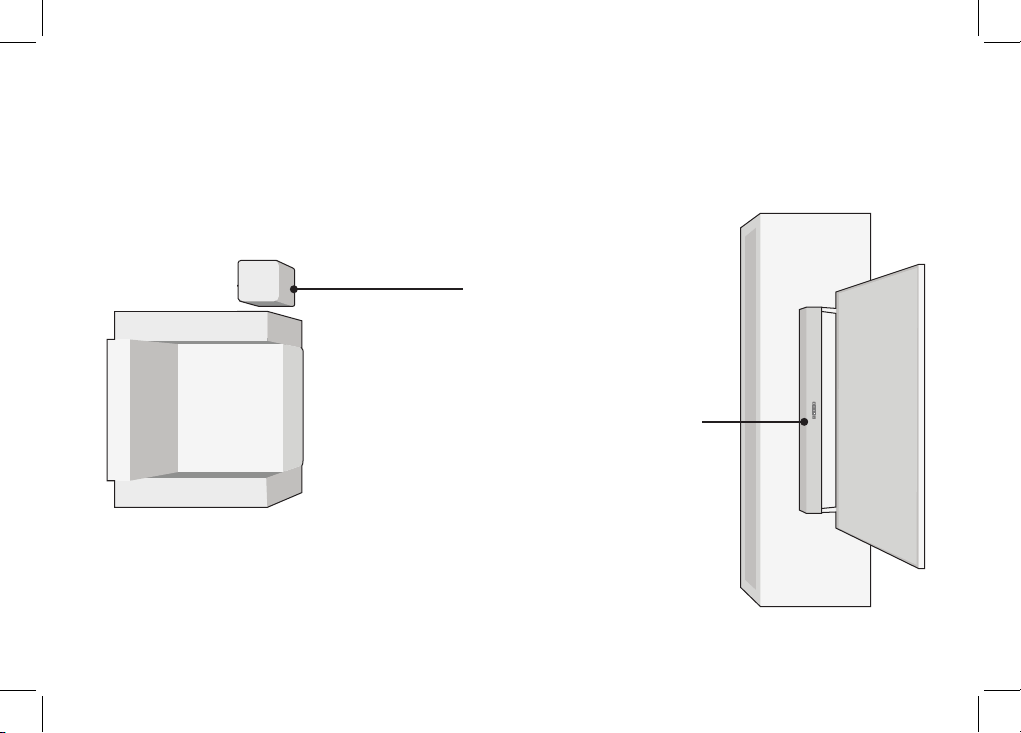
Power Button
Power Port
LED Indicator
Pairing Button
Back of Subwoofer
English - 10
FIRST-TIME SETUP
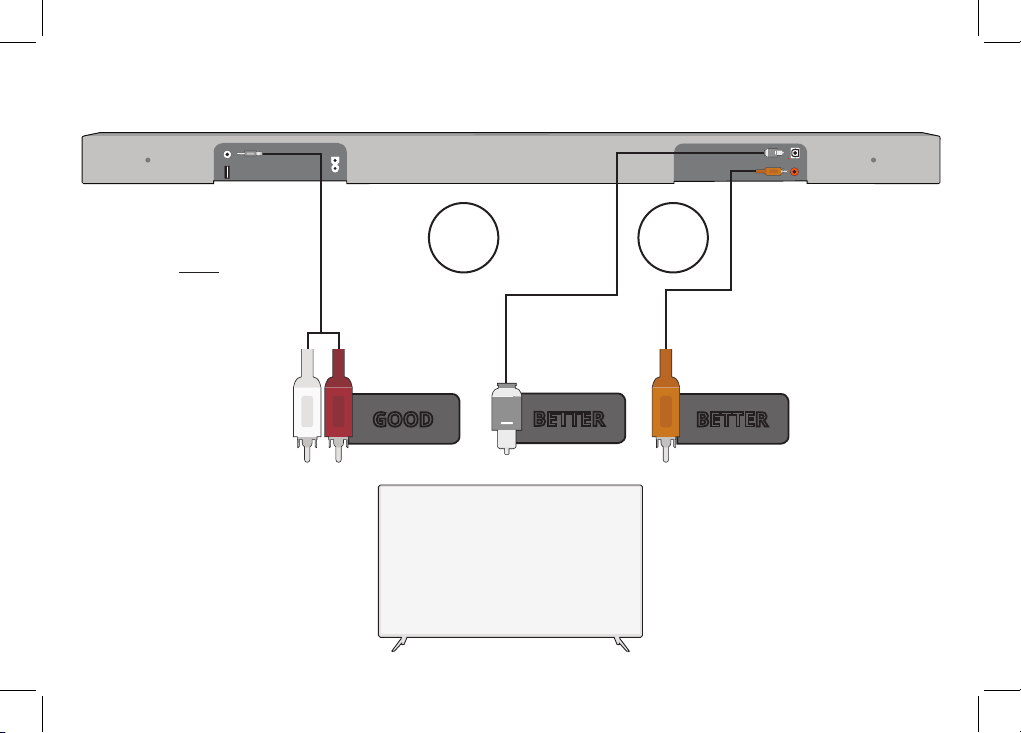
* Not all TVs have the audio outputs shown
above. To connect the Sound Bar directly
to your other devices (Blu-Ray player,
game system, etc.) see your device’s user
manual.
† When using either of the Digital Inputs,
if there is no audio: (A) try setting the TV
output to PCM or (B) Connect directly to
your Blu-ray/other source, some TVs do
not pass through digital audio.
HOME THEATER DISPLAY | QUICK START GUIDE
Installation Guide | Models:
AND CONNECT
IT TO YOUR TV
1
CHOOSE ONE CABLE*
Front
Top
Back
Side
Angle
Back of Sound Bar
DIGITAL COAXIAL
CABLE
†
BETTER
3.5MM TO
RCA CABLE
GOOD
BETTER
DIGITAL OPTICAL
CABLE
†
OR OR
English - 11
2
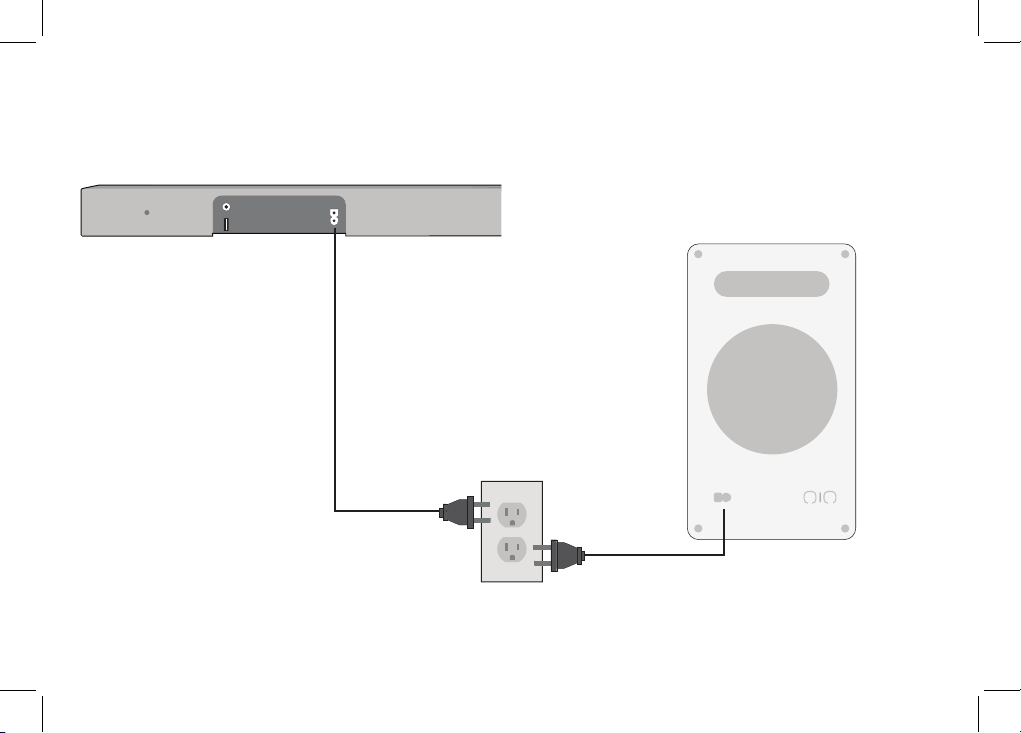
Connect the power cable to the Sound Bar
AC IN as shown. Plug the power cable into
an electrical outlet.
HOME THEATER DISPLAY | QUICK START GUIDE
Installation Guide | Models:
Front
Top
Back
Side
Angle
Back of Sound Bar
Connect the power cable to the Subwoofer
AC IN as shown. Plug the power cable into
an electrical outlet/.
The subwoofer should automatically power
on when plugged in.
3
Back of Subwoofer
English - 12
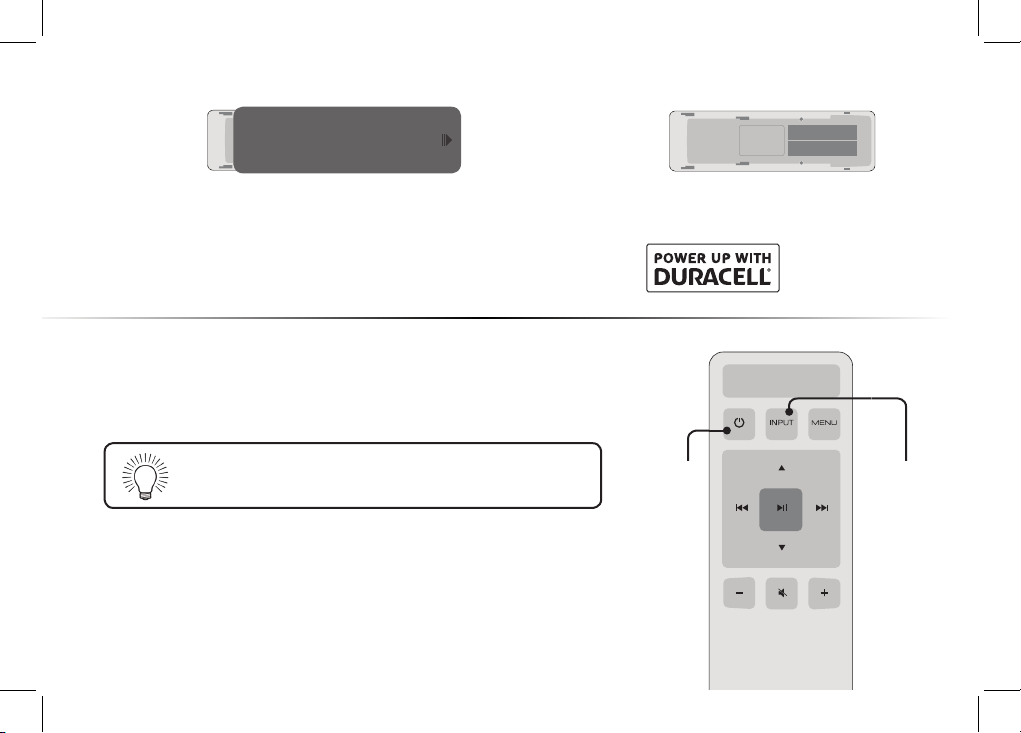
Turn on your TV and Sound Bar. The Sound Bar will automatically
begin searching for an active input.*
The LED indicators on the front of the Sound Bar will begin cycling in
pairs through inputs until an audio source is detected.**
You can press the INPUT button to switch between audio sources.
For example, if you connected your TV to AUX , set the Sound Bar
to AUX .
Previous
Press to return to previous track.
(Changes audio settings in Menu)
4
Remove the battery cover by gently
sliding it away from the remote.
5
Insert the included batteries and gently
slide the battery cover back into place.
6
Top Top
Tip: Pressing the INPUT button will stop the auto
detect function.
*Occurs only during rst-time set up.
**Auto detect function only occurs once when the Sound Bar is rst powered on. To enable this feature again, you
must do a Factory Reset (see the Using Button Combinations section for more information) or press and hold the INPUT
button for 3 seconds.
When needed, VIZIO recommends replacing the batteries that came
with this remote with two, new Duracell ‘AAA’ alkaline batteries.
InputPower
English - 13
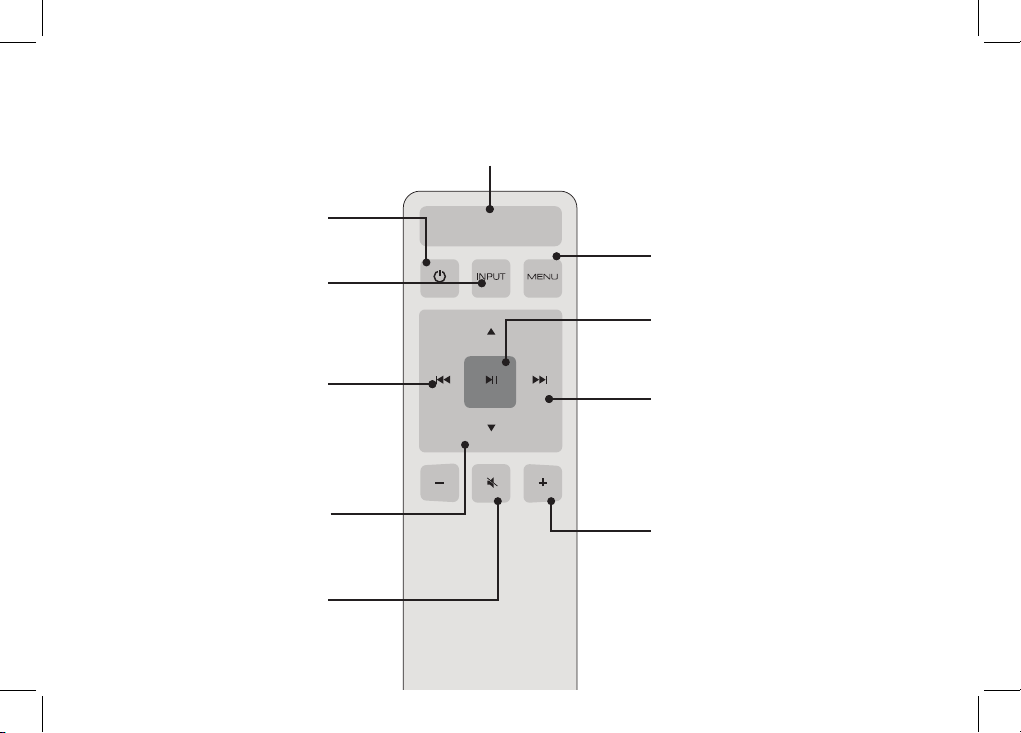
USING THE REMOTE
Volume +/-
Press to increase and de-
crease volume.
Previous
Press to return to previous track.
(Changes audio settings in Menu)
Menu
Press to access the menu
settings.
Mute
Press to mute/unmute.
Power
Press to turn on or o.
Enter/Play/Pause
Press to select an option.
Press to play or pause.
Next
Press to skip to the next track.
(Changes audio settings in
Menu)
Display
Displays Sound Bar Settings
Input
*Press to change the input
source
Up/Down
Press to cycle through settings
and options
*Press INPUT then
Previous
to select previous input.
Press INPUT then
Next
to select Bluetooth input.
English - 14
Sound Bar is
centered below
the TV.
For the best surround sound experience, position the Sound Bar as shown.
The Sound Bar should be close to ear level. The Subwoofer should be placed in a
corner of the room.
Wireless
Subwoofer
English - 15
Front
Top
Back
Side
Angle
LED Indicators are located here.
Press the Menu button and use the Up/Down Arrow buttons on the remote
to access the dierent functions and acoustic settings of the Sound Bar. Each
function and setting will be displayed on the remote control’s LCD display.
The LED Indicators will behave dierently with each function.
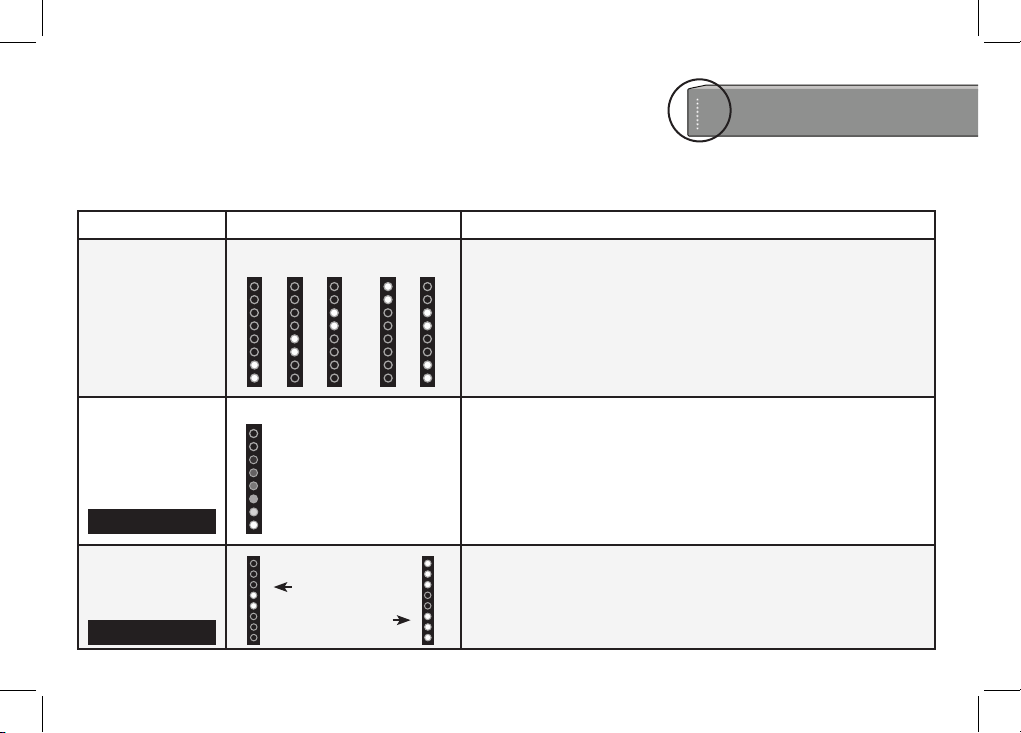
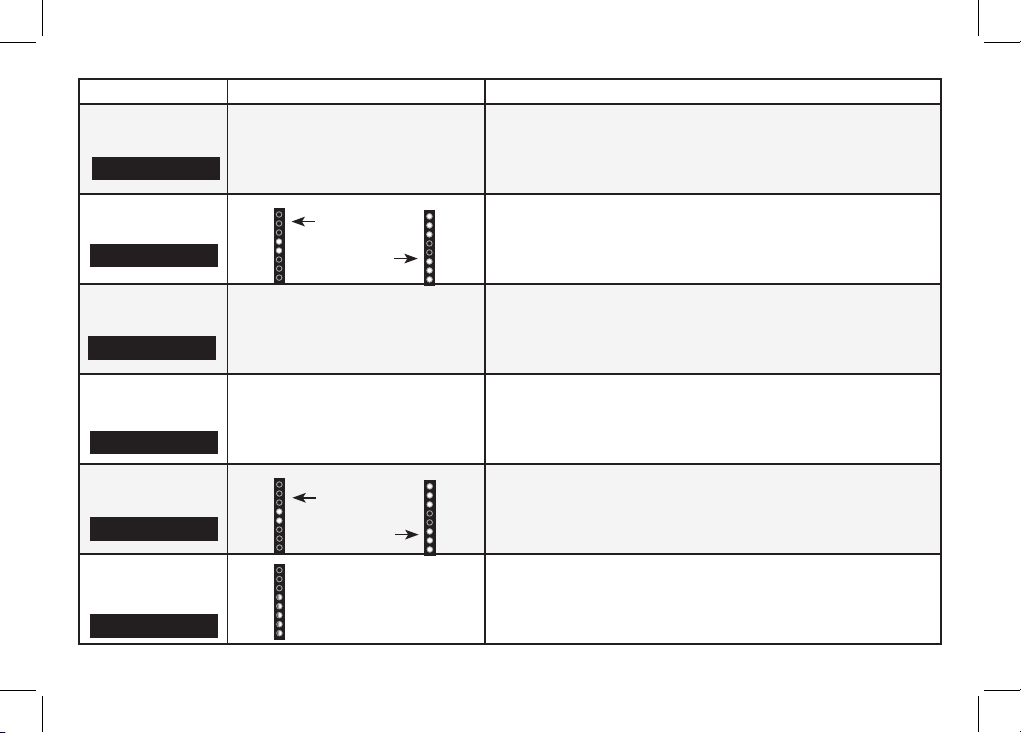
Function LED Behavior Description
Input
Press the Input button on the remote to cycle through the available inputs:
•Analog Audio In - AUX Stereo 3.5mm
•Coaxial In - Digital
•Digital Optical Audio In - Optical
•Bluetooth
•USB In - USB
Bluetooth
Pairing
Press the Enter button on the remote. The Sound Bar will be discoverable
for 15 minutes. You can now search for the Sound Bar (VIZIO SB3621n) using
your Bluetooth Device. The Sound Bar will power down if no device is found.
Note: Set your Bluetooth device into pairing mode prior to the Sound
Bar.
DTS TruVolume
On/O
Press the Next/Previous button to enable/disable TruVolume. When enabled
(On), TruVolume provides a consistent and comfortable volume level for a
more enjoyable listening experience..
(When searching for device)
Flash from the bottom to the
top and back continuously.
TruVolume On
TruVolume O
LED INDICATORS
Analog Audio In - AUX
Coaxial In - Digital
Digital Optical Audio In
Optical
Bluetooth
USB In - USB
TruVol
BT Pair
English - 16
Function LED Behavior Description
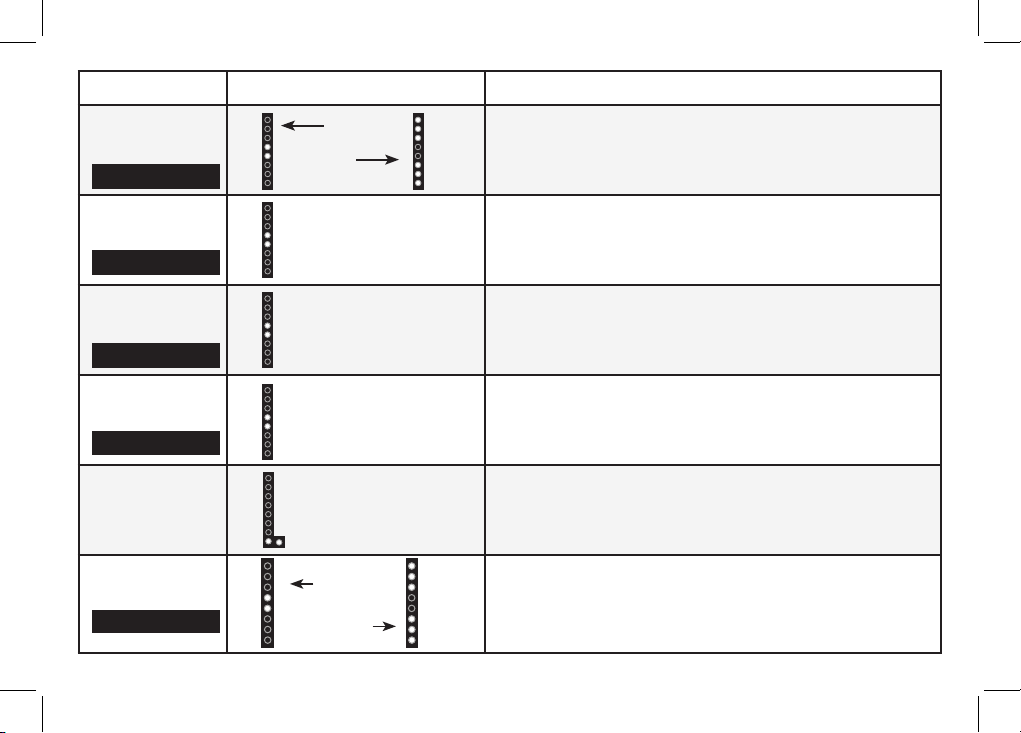
Equalizer Mode
Press the Next/Previous button to toggle between three preset equalizer
settings, Movie, or Music. Note: Movie mode is on by default
Treble Level
Press the Next/Previous button to increase/decrease the treble level.
The LED indicators will move to the top with increasing levels and to the
bottom with decreasing levels.
Bass Levels
Press the Next/Previous button to increase/decrease the bass level.
The LED indicators will move to the top with increasing levels and to the
bottom with decreasing levels.
Subwoofer Levels
Press the Next/Previous button to increase/decrease the level of the
subwoofer. The LED indicators will move to the top with increasing levels
and to the bottom with decreasing levels.
Note: Decreasing the level to the minimum turns o the subwoofer.
When a Dolby Digital
signal is detected.
Dolby Digital is only available on either the Coaxial In or Digital Optical
Audio In inputs. When a Dolby Digital signal is detected, the Dolby Digital
indicator LED will light up for 3 seconds before fading away.
TV Remote
Press the Next/Previous button to enable/disable VIZIO TV Remotes.
When enabled (On), you can use a VIZIO TV remote control to turn on the
Sound Bar (using the TV Volume Up button) and control volume.
Two center LEDs indicate
Treble level 0.
Two center LEDs indicate
Bass level 0.
Dolby Digital
Indicator LED
Movie
Music
Two center LEDs indicate
sub level 0.
EQ
Treble
Bass
Subwoofer
VZtv Rmt
TV Remote
On
TV Remote
O
English - 17
Function LED Behavior Description
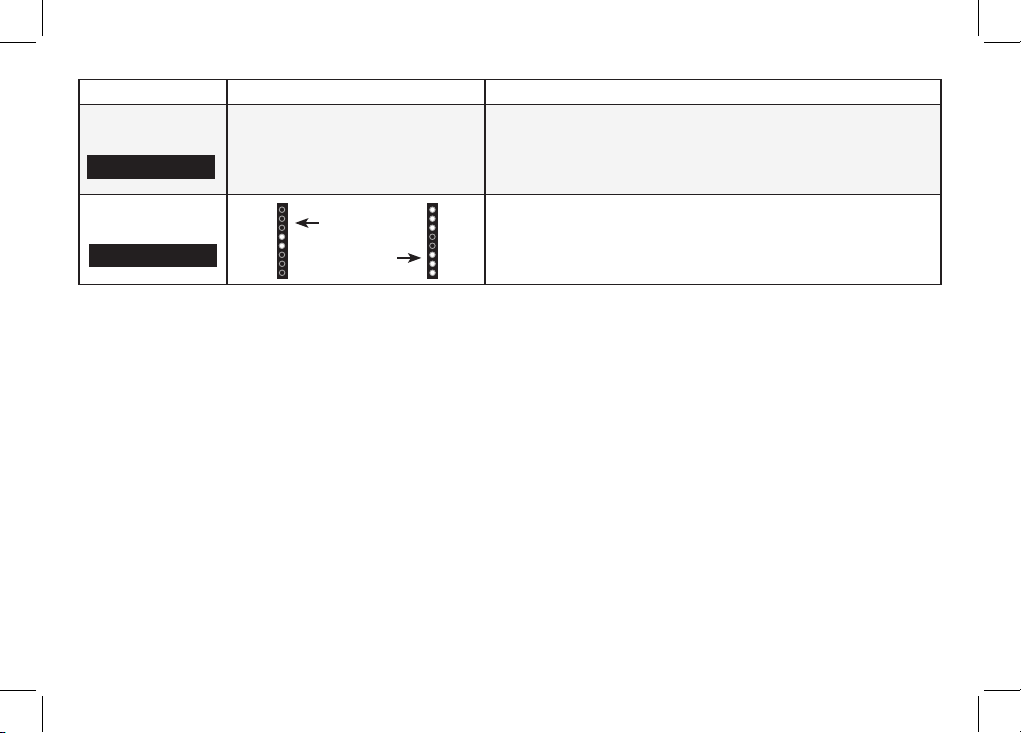
Program Remote
−−
Press the Next/Previous and Play buttons to toggle and select and pro-
gram your TV remote to control the Volume Down, Volume Up, and Mute
functions on your Sound Bar. See the
Programming the Soundbar
section
for more information.
Eco Power On/O
Press the Next/Previous button to enable/disable Eco Power Mode. When
enabled (On), the Sound Bar will go into standby after a period of inactivity.
The Sound Bar will automatically turn o when no audio signal is detected.
O disables this feature.
Speaker Test
—
Press the Play/Pause button to activate the speaker test function. A voice
will begin calling out each speaker beginning with
left
. (Left, Right, and
Subwoofer-white noise). If any of these are missing, check the connection
and run the speaker test function again.
Reset
−−
Press the Next/Previous and Play buttons to select and reset your Sound
Bar to the factory default settings. All paired Bluetooth devices will be un-
paired. All programmed IR remote codes will also be removed. See the
Reset
to Factory Default Settings
section for more information.
Night Mode On/O
Press the Next/Previous button to enable/disable Night Mode. When en-
abled (On), the Sound Bar will lower bass frequency levels to provide a more
quiet environment (ideal for apartment living and homes with sleeping
children).
Mute
Press the Mute button to mute/unmute the Sound Bar. When muted, the
LED indicators will slowly pulse.
Eco Power
On
Eco Power
O
Night Mode
On
Prg Remote
EcoPwr
Spkr Test
Reset No
Night
Night Mode
O
Mute
English - 18
Function LED Behavior Description
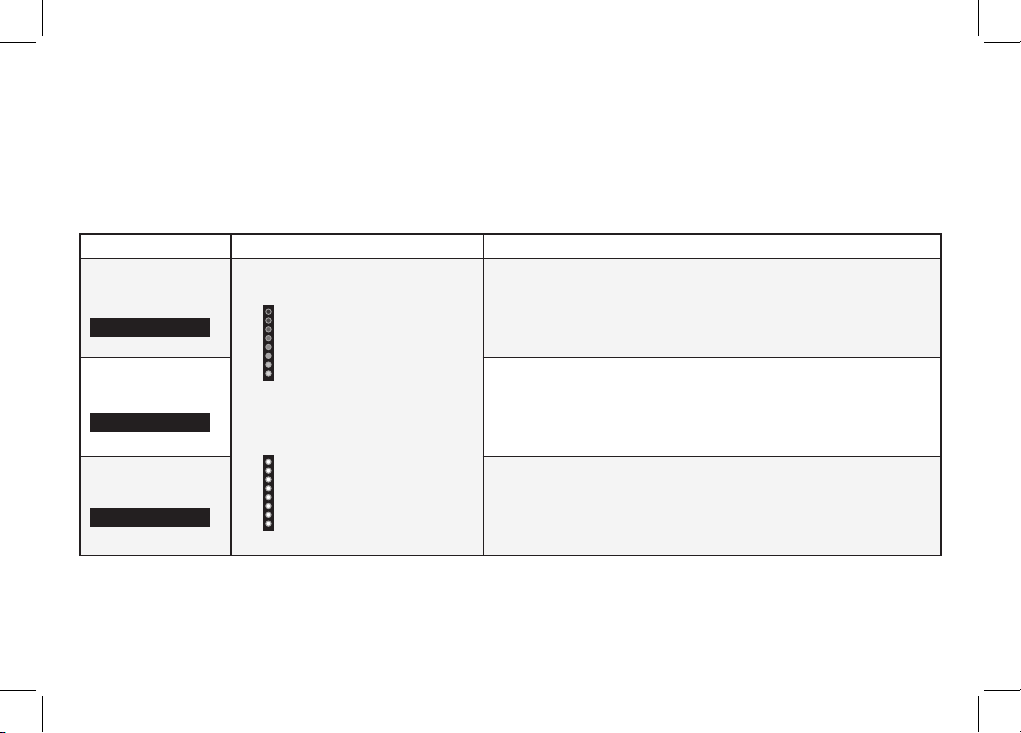
Power LED
−−
Turns the Power Indicator LED light o and on while in use. Press the Next/
Previous buttons to toggle between On and O.
Virtual:X
VRT:X
Virtual sound technology that simulates the eect of having overhead
sound. Press the Next/Previous buttons to toggle between On and O.
PwrLED
Virtual: X On
Virtual: X O
English - 19
PROGRAMMING THE SOUND BAR
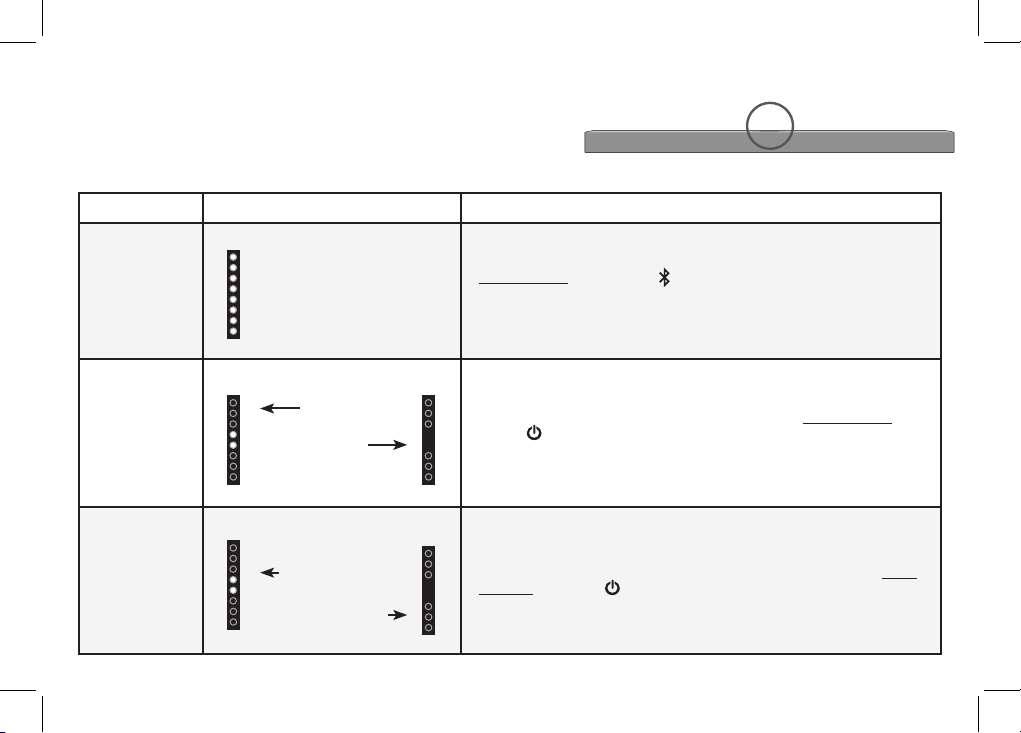
You can program the Sound Bar to accept TV/Display remote IR commands. Press the Menu button on the remote,
then use the Up/Down buttons to navigate to Prg Remote. Use the Next/Previous buttons to toggle through
Learn Vol -, Learn Vol +, and Learn Mute.
Function LED Behavior Description
Learn Volume Down
Press the Play button to put the Sound Bar into learning mode. While
the Sound Bar is in learning mode, press the Volume Down button
on the TV remote control while pointing the remote at the Sound Bar.
All of the LED Indicators on the Sound Bar will ash two times indicat-
ing that it has successfully recognized the TV remote.
Learn Volume Up
Press the Play button to put the Sound Bar into learning mode. While
the Sound Bar is in learning mode, press the Volume Up button on
the TV remote control while pointing the remote at the Sound Bar. All
of the LED Indicators on the Sound Bar will ash two times indicating
that it has successfully recognized the TV remote.
Learn Mute
Press the Play button to put the Sound Bar into learning mode. While
the Sound Bar is in learning mode, press the Mute button on the TV
remote control while pointing the remote at the Sound Bar. All of the
LED Indicators on the Sound Bar will ash two times indicating that it
has successfully recognized the TV remote.
Learn Vol+
Learn Mute
Learn Vol-
(Waiting to learn)
Flash from bottom
to top and back
continuously.
All of the LEDs
will blink twice to
conrm.
English - 20
USING BUTTON COMBINATIONS
There are 3 functions that are triggered by 3 dierent button combinations on the Sound Bar.
Function LED Behavior Description
Factory
Reset
Reset the Sound Bar to the factory default settings. To perform a Factory Reset,
Press and Hold the Bluetooth( ) and Volume Down (—) buttons for
5 seconds.
Note: This will erase all settings and preferences that you have set.
VIZIO TV
Remote
Control
Enable/disable the use of a VIZIO TV remote control to power on and adjust the
volume of the Sound Bar. To enable/disable this function, Press and Hold the
Power ( ) and Volume Up ( + ) buttons for 5 seconds.
Note: This function is enabled by default.
Energy Star
When the Energy Star setting is enabled, the Sound Bar will automatically
power down after a period of inactivity. When disabled, the Sound Bar will
remain powered on until you turn it o. To enable/disable this function, Press
and Hold the Power ( ) and Volume Down (—) buttons for 5 seconds.
Note: Energy Star setting is enabled by default.
All 8 LEDs will
ash 3 times
Energy Star
Enabled
Energy Star
Disabled
VIZIO TV
Remote Enabled
VIZIO TV
Remote Disable
Buttons are located here.
Front
Top
Back
Side
Angle
English - 21
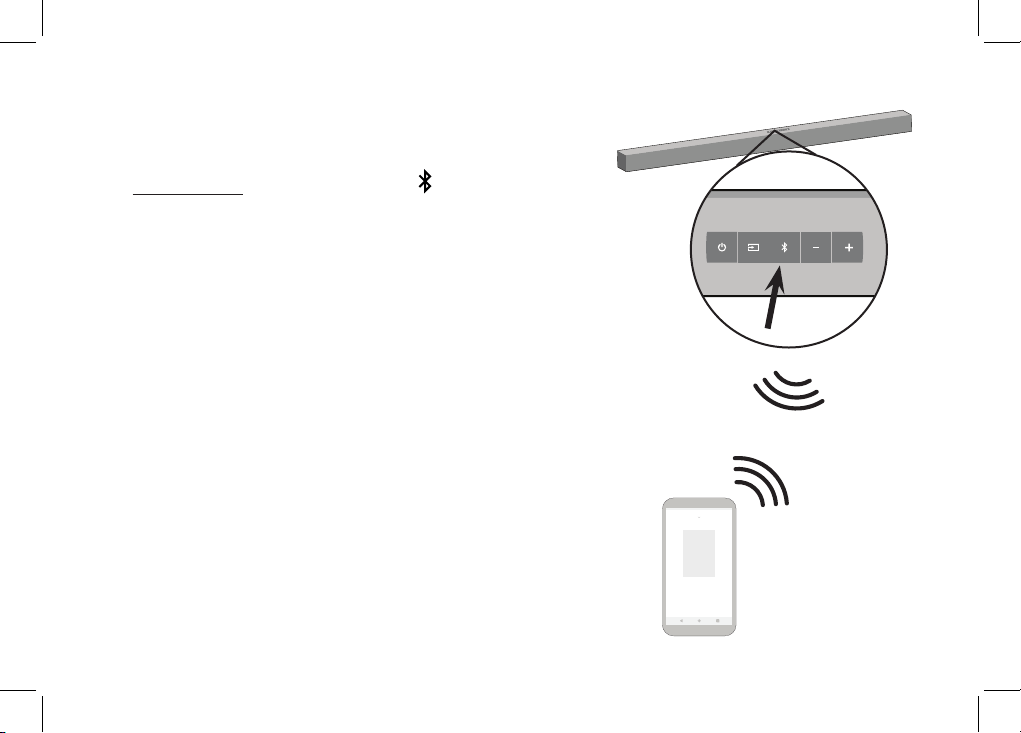
To pair the Sound Bar with a Bluetooth device:
1. Press and hold the Bluetooth button on the Sound Bar for
ve (5) seconds or select the BT Pair option from the remote
menu. When the Sound Bar is in Bluetooth Pairing Mode, the
LED Indicators on the Display Panel on the front of the Sound
Bar will light sequentially from bottom to top and back again.
Once the device is paired, the LED Indicators will stop ashing.
2. You can now search for the Sound Bar (VIZIO SB3621n) using
your Bluetooth device. For more information, refer to the user
documentation that came with the device.
3. Play audio from your Bluetooth device. Volume can be
controlled on your source device and the Sound Bar.
Bluetooth
Device
BLUETOOTH AUDIO PAIRING
Top of Sound Bar
Front
Top
Back
Side
Angle
Front
Top
Back
Side
Angle
The Last Yard
X
English - 22
Your Sound Bar supports music streaming from smartphones, tablets, and computers with Bluetooth
capability. Device compatibility will vary, see your device’s documentation for more information. Once you
have paired your source device to the Sound Bar, as long as you stay within range of the Sound Bar, your
device should remain paired. If the input is changed, the Bluetooth device will disconnect. If the source is
changed back to Bluetooth, any paired Bluetooth device will reconnect automatically.
Maximizing Signal
A Bluetooth signal has a range of up to 30 feet. Keep in mind that Bluetooth is a compressed audio format,
so streamed music may lose some integrity when compared to a wired connection.
Try the following if your sound quality is less than optimal:
• If you hear any break-up or disconnect while streaming music from your device, move the source
device closer to the Sound Bar.
• Be sure that there are no solid obstructions in the line-of-sight between the Sound Bar and the
source device.
• Other wireless devices can aect Bluetooth range, including wireless security cameras, wireless
video baby monitors, cordless phones, and microwave ovens. Turning o or moving these devices
may improve Bluetooth range.
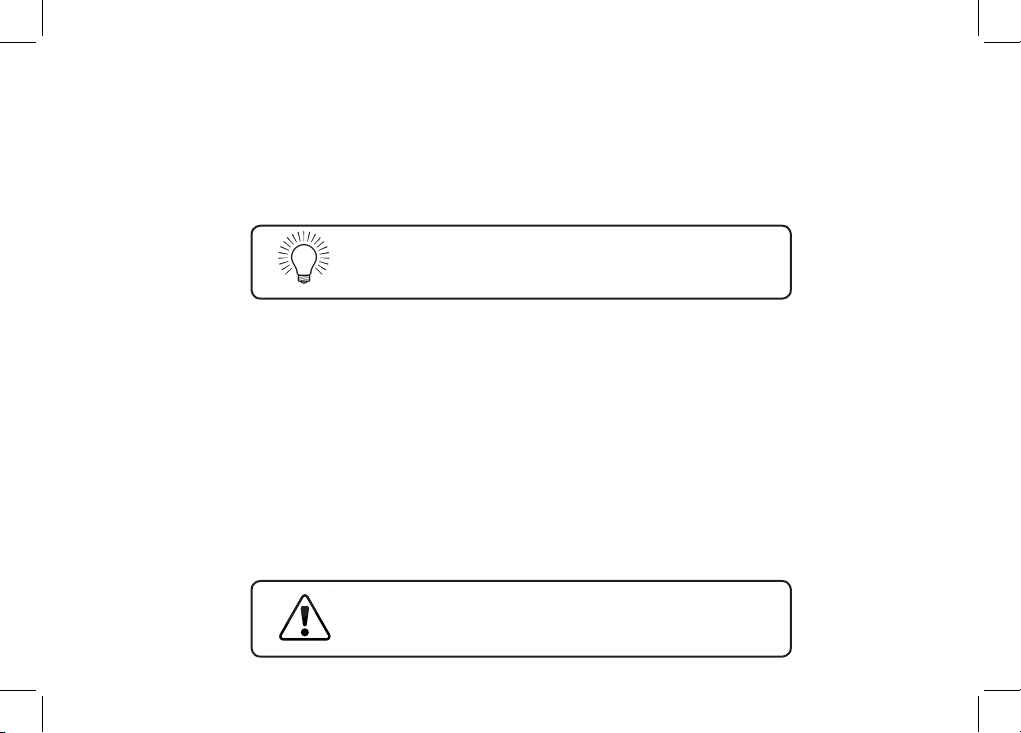
Your Sound Bar is not equipped with a microphone,
so it cannot operate as a hands-free device for a
smartphone.
Reduce the volume levels on your device and on the
Sound Bar before pressing Play. High volume levels
can damage your hearing.
USING BLUETOOTH MODE
English - 23
HOME THEATER DISPLAY | QUICK START GUIDE
Installation Guide | Models:
ADVANCED SETUP
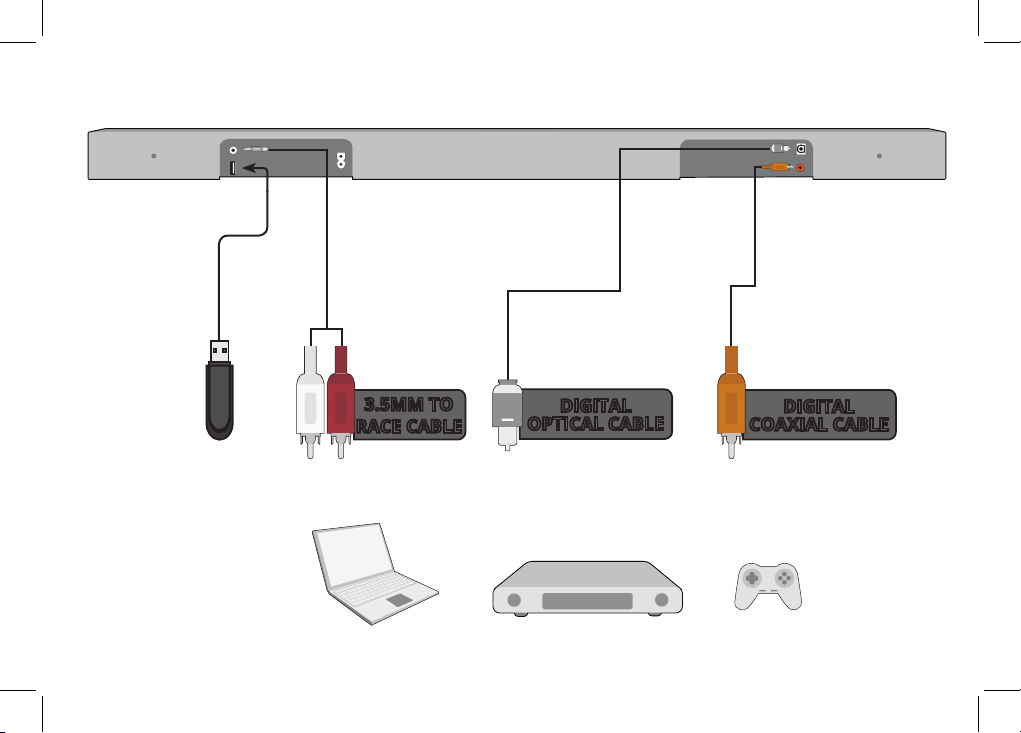
* Supports .WAV and .MP3
le format playback only.
Game Console
HOME THEATER DISPLAY | QUICK START GUIDE
Installation Guide | Models:
Network Media Player
HOME THEATER DISPLAY | QUICK START GUIDE
Installation Guide | Models:
Tablet/MP3 Player/Laptop
USB Thumb Drive*
Front
Top
Back
Side
Angle
Back of Sound Bar
DIGITAL
COAXIAL CABLE
3.5MM TO
RACE CABLE
DIGITAL
OPTICAL CABLE
English - 24
Front
Top
Back
Side
Angle
Front
Top
Back
Side
Angle
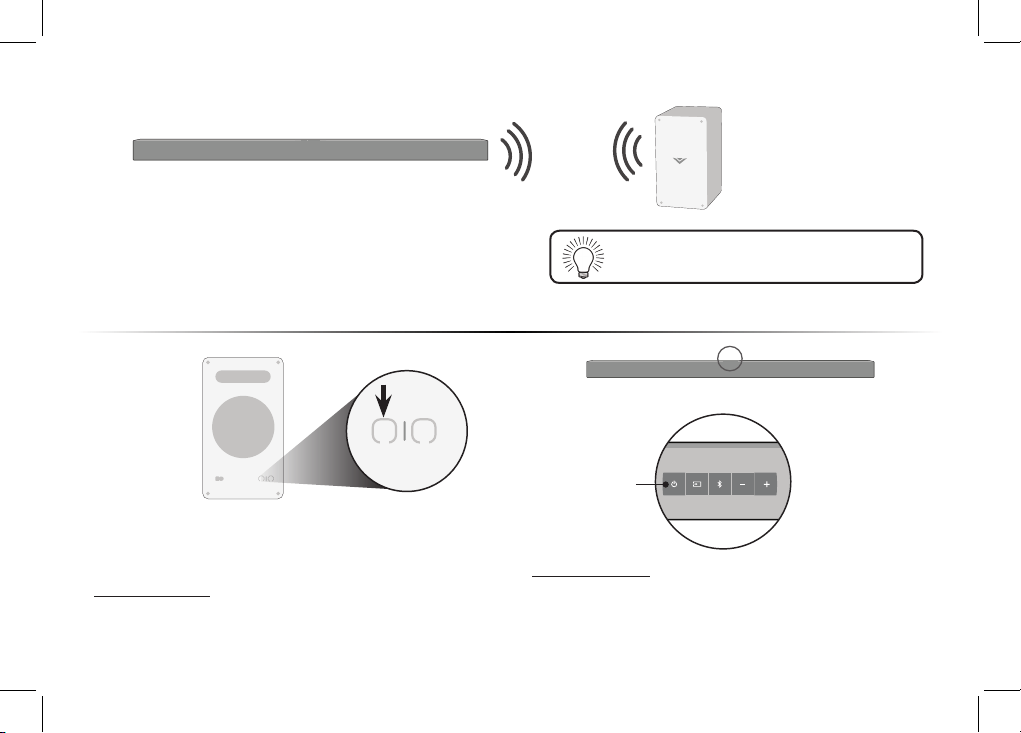
The Subwoofer has already been paired with the Sound
Bar by VIZIO. However, the Subwoofer may need to be
re-linked to the Sound Bar if there is no sound coming
from the Subwoofer.
1
First conrm that the power LED is illuminated.
Press and hold the Pairing button on the back of
the Subwoofer for 5 seconds. The LED on the back
of the Subwoofer will begin to blink.
2
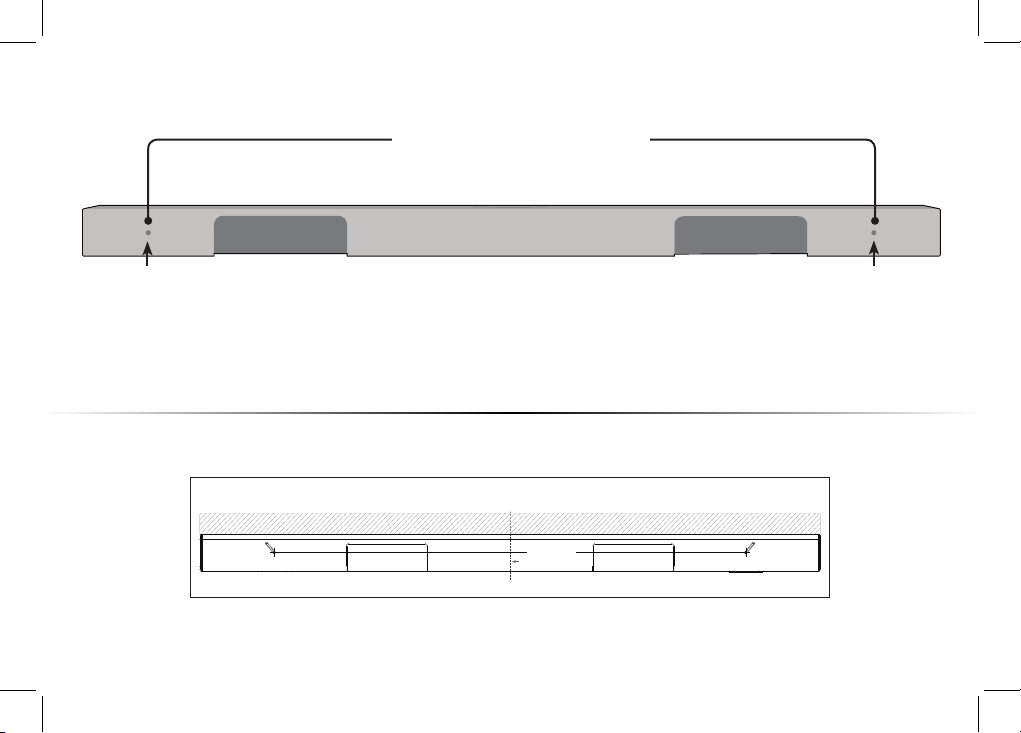
Press and hold the Power button on the top of the
Sound Bar for 5 Seconds. The LED indicators on the
front will ash 3 times. The Subwoofer is now linked
with the Sound Bar.
What does pairing mean?
Pairing means to wirelessly connect.
Buttons are located on
top of the Sound Bar
Back of Subwoofer
Power Button
CONNECTING A SUBWOOFER
Front
Top
Back
Side
Angle
English - 25
Front
Top
Back
Side
Angle
WALL-MOUNTING THE SOUND BAR
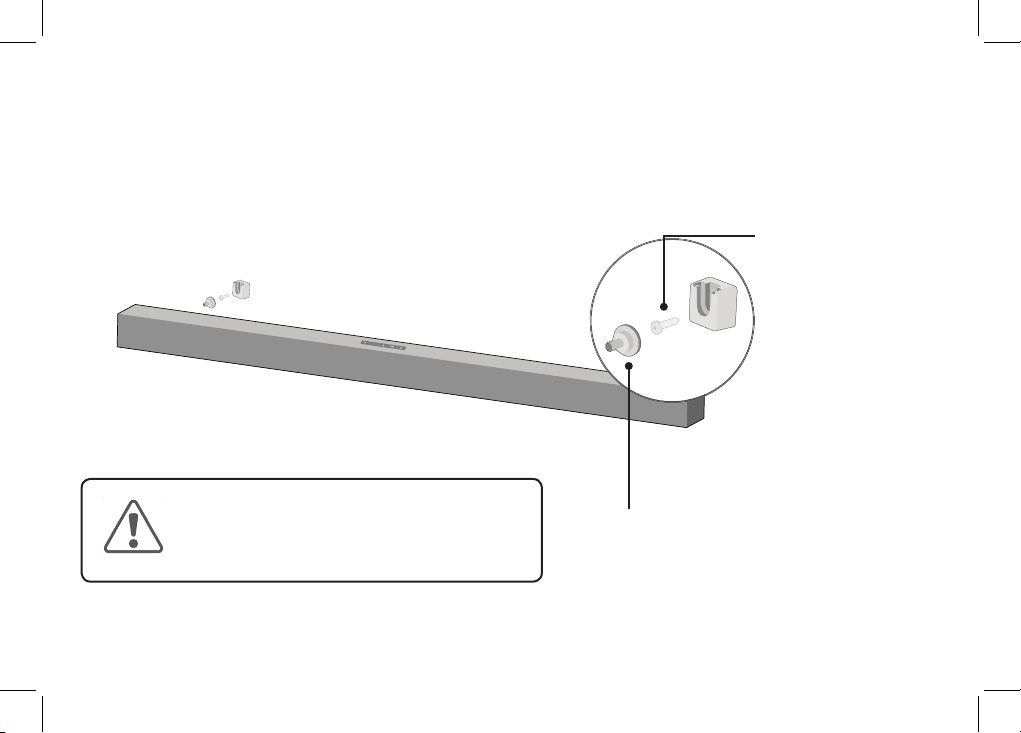
Insert the two included wall-mount screws into the wall-mount screw holes,
and then tighten them with a Phillips screwdriver.
1
2
Place the included wall mounting template against the wall under your TV. Mark the two
bracket holes using a pencil.
Back of Sound Bar
Wall-Mount Screw Holes
LEAVE THIS SPACE BETWEEN THE SOUND BAR AND YOUR TV / LAISSEZ CET ESPACE ENTRE LA BARRE DE SON ET VOTRE TÉLÉVISEUR / DEJE ESTE ESPACIO ENTRE LA BARRA DE SONIDO Y EL TELEVISOR
Center Line / Ligne Centrale / Línea Central
27.36"/ 69,50 cm
WALL MOUNTING TEMPLATE / MODÈLE DE SUPPORT MURAL / PLANTILLA PARA MONTAJE EN LA PARED
MARK HERE
APPOSEZ UNE MARQUE ICI
MARQUE AQUÍ
MARK HERE
APPOSEZ UNE MARQUE ICI
MARQUE AQUÍ
English - 26
Front
Top
Back
Side
Angle
Be sure your braket screws are attached to wood studs, drywall anchors (for drywall), or concrete anchors
(for brick/concrete walls).
Screws for attaching the brackets to the wall are not included. Choose the screw type and length
appropriate to your home’s construction. If in doubt, consult a professional installer.
Wall Mount Screw
Screw Size: M4 x 8
Included with Sound Bar
*Bracket Screw
NOT INCLUDED
WITH Sound Bar
3
If you are unfamiliar with power tools or the
layout of electrical wiring in the walls of your
home, consult a professional installer.
* Do not use any of the included screws for the in-wall mount installation. These are not intended for mounting.
Take a moment to register your product
VIZIO.COM/PRODUCT-REGISTRATION
Why register?
Customized Support
Get assistance quickly with your information on hand.
News and Oers
Take advantage of the latest news and special oers from VIZIO.
Safety and Satisfaction
Stay up-to-date with important product updates and notications.
English - 27
Phone: (877) 698-4946 (toll-free)
You can also contact our
popular support team at:
Live chat
support available
Find help with:
•
New product setup
• Connecting your devices
• Technical problems
• Product updates and more
Award-Winning Customer Care At Your Convenience.
NEED HELP?
Go to: support.vizio.com
Se habla Español • Nous parlons Français
English - 28
There is no power.
• Press the POWER button on the remote control or on the top of your Sound Bar.
• Ensure the power cord is securely connected.
• Plug a dierent device into the electrical outlet to verify that the outlet is working correctly.
There is no sound.
• Increase the volume. Press Volume Up on the remote control or on the top of your Sound Bar.
• Press MUTE on the remote to ensure the Sound Bar is not muted.
• Press INPUT on the remote or on the top of your Sound Bar to select a dierent input source.
• When using either of the Digital Inputs, if there is no audio: (A) Try setting the TV output to PCM
or (B) Connect directly to your Blu-ray/other source, some TVs do not pass through digital audio.
• On digital inputs, the input LEDs will ash rapidly if an unsupported format is present. Set the
source to output PCM.
• Your TV may be set to variable audio output. Conrm that the audio output setting is set to FIXED
or STANDARD, not VARIABLE. Consult your TV’s user manual for more detailed information.
• If using Bluetooth, ensure that the volume on your source device is turned up and that the device
is not muted.
I hear buzzing or
humming.
• Ensure all cables and wires are securely connected.
• Connect a dierent source device (TV, Blu-ray player, etc) to see if the buzzing persists. If it does
not, the problem may be with the original device.
• Connect your device to a dierent input on the Sound Bar.
The remote
isn’t working.
• Replace the remote batteries with new ones.
• Point the remote directly at the center of the Sound Bar when pressing a button.
• If using a Bluetooth connection, some of the buttons on the remote may not be supported by the
streaming application. (e.g., Pandora doesn’t support the Back button.)
HELP & TROUBLESHOOTING
English - 29

English - 30
UNITED STATES AND CANADA
BY USING YOUR VIZIO PRODUCT YOU AGREE TO BE BOUND BY ALL THE TERMS OF THIS WARRANTY. BEFORE USING YOUR VIZIO PRODUCT, PLEASE READ THIS
WARRANTY CAREFULLY. IF YOU DO NOT AGREE TO THE TERMS OF THIS WARRANTY, DO NOT USE THE VIZIO PRODUCT AND, WITHIN THIRTY (30) DAYS OF THE
DATE OF PURCHASE, RETURN IT FOR A REFUND TO THE AUTHORIZED RETAILER WHERE YOU PURCHASED IT.
This warranty contains a binding arbitration agreement and a class action waiver for United States residents. If you live in the United States, the binding arbitration
agreement and class action waiver aect your rights under this warranty. Please read the text under the section titled “Binding Arbitration Agreement; Class
Action Waiver (U.S. Residents Only)” carefully.
How Long This Warranty Lasts
For non-commercial use, VIZIO warrants the product on the terms set forth below for one (1) year from the date of original purchase. For commercial use, VIZIO
warrants this product on the terms set forth below for ninety (90) days from the date of original purchase.
What This Warranty Covers
VIZIO warrants the product against defects in materials and workmanship when the product is used normally in accordance with VIZIO’s user guides and manuals.
Except where restricted by law, this warranty applies only to the original purchaser of a new product. The purchase must have been made from an authorized
retailer in the United States (including Puerto Rico) or Canada. The product must also be located in the country where it was purchased at the time of warranty
service.
How to Get Service
Before obtaining warranty service, you may visit www.vizio.com for additional help and troubleshooting. To obtain warranty service, contact VIZIO Technical
Support via email at [email protected] or via phone at 877 MY VIZIO (877-698-4946).
Your Obligations Before Service
You must obtain pre-authorization before sending your product to a VIZIO service center. You may be required to supply a purchase receipt (or copy) to show
that the product is within the warranty period.
When you return a product to a VIZIO service center, you must ship the product in its original packaging or in packaging that aords an equal degree of protection.
VIZIO Technical Support will provide instructions for packing and shipping the product to the VIZIO service center.
ALL USER DATA AND DOWNLOADED APPLICATIONS STORED ON A PRODUCT WILL BE DELETED IN THE COURSE OF SOME IN-HOME AND ALL SHIP-IN WARRANTY
SERVICE. If this occurs, your product will be restored to its original state. You will be responsible for restoring all applicable user data and downloaded applications.
Recovery and reinstallation of user data and downloaded applications is not covered under this warranty. In order to protect your personal information, VIZIO
recommends that you always clear all personal information from the product before it is serviced, regardless of the servicer.
VIZIO’s Responsibilities
If VIZIO determines that a product is covered by this warranty, VIZIO will (at its option) repair or replace it, or refund the purchase price to you. There will be no
charge for parts or labor during the warranty period. Replacement parts may be new or recertied at VIZIO’s option and sole discretion. Replacement parts and
LIMITED WARRANTY

English - 31
VIZIO’s labor are warranted for the remaining portion of the original warranty or for ninety (90) days from warranty service, whichever is longer.
Types of Service
Products must be sent to a VIZIO service center to obtain warranty service. VIZIO is not responsible for transportation costs to the service center, but VIZIO will
cover return shipping to the customer.
What This Warranty Does Not Cover
This warranty does not cover: (a) cosmetic damage; (b) normal wear and tear; (c) improper operation; (d) improper voltage supply or power surges; (e) signal issues;
(f) damage from shipping; (g) acts of God; (h) customer misuse, modications or adjustments; (i) installation, set-up, or repairs attempted by anyone other than by
a VIZIO authorized service center; (j) products with unreadable or removed serial numbers; (k) products requiring routine maintenance; or (l) products sold “AS IS”,
“CLEARANCE”, “FACTORY RECERTIFIED”, or by a non-authorized reseller.
What to Do If You Are Not Satised With Service
If you feel VIZIO has not met its obligations under this warranty, you may attempt to resolve the issue informally with VIZIO. If you are unable to resolve the issue
informally and wish to le a formal claim against VIZIO, and if you are a resident of the United States, you must submit your claim to binding arbitration according
to the procedures described below, unless an exception applies. Submitting a claim to binding arbitration means that you do not have the right to have your claim
heard by a judge or jury. Instead your claim will be heard by a neutral arbitrator.
Binding Arbitration Agreement; Class Action Waiver (U.S. Residents Only)
UNLESS YOU HAVE BROUGHT AN ELIGIBLE CLAIM IN SMALL CLAIMS COURT OR HAVE OPTED OUT AS DESCRIBED BELOW, ANY CONTROVERSY OR CLAIM RELATING
IN ANY WAY TO YOUR VIZIO PRODUCT, INCLUDING ANY CONTROVERSY OR CLAIM ARISING OUT OF OR RELATING TO THIS WARRANTY, A BREACH OF THIS
WARRANTY, OR THE VIZIO PRODUCT’S SALE, CONDITION OR PERFORMANCE, WILL BE SETTLED BY BINDING ARBITRATION ADMINISTERED BY THE AMERICAN
ARBITRATION ASSOCIATION AND CONDUCTED BY A SINGLE ARBITRATOR APPOINTED BY THE AMERICAN ARBITRATION ASSOCIATION, IN ACCORDANCE WITH
ITS COMMERCIAL ARBITRATION RULES AND ITS SUPPLEMENTARY PROCEDURES FOR CONSUMER-RELATED DISPUTES. You may learn more about the American
Arbitration Association and its rules for arbitration by visiting www.adr.org or by calling 800-778-7879. Since this warranty concerns a transaction in interstate or
international commerce, the Federal Arbitration Act will apply.
The ling fees to begin and carry out arbitration will be shared between you and VIZIO, but in no event will your fees ever exceed the amount allowable by the
American Arbitration Association, at which point VIZIO will cover all additional administrative fees and expenses. VIZIO waives its right to recover attorneys’ fees in
connection with any arbitration under this warranty. If you are the prevailing party in an arbitration to which the Supplementary Procedures for Consumer-Related
Disputes applies, then you are entitled to recover attorneys’ fees as the arbitrator may determine.
The dispute will be governed by the laws of the state or territory in which you resided at the time of your purchase (if in the United States). The place of arbitration
will be Irvine, California, or your county of residence (if in the United States). The arbitrator will have no authority to award punitive or other damages not measured
by the prevailing party’s actual damages, except as may be required by statute. The arbitrator will not award consequential damages, and any award will be limited
to monetary damages and will include no equitable relief, injunction, or direction to any party other than the direction to pay a monetary amount. Judgment on the
award rendered by the arbitrator will be binding and nal, except for any right of appeal provided by the Federal Arbitration Act, and may be entered in any court
having jurisdiction. Except as may be required by law, neither you nor VIZIO nor an arbitrator may disclose the existence, content, or results of any arbitration under
this warranty without the prior written consent of you and VIZIO.
ANY DISPUTE, WHETHER IN ARBITRATION, IN COURT, OR OTHERWISE, WILL BE CONDUCTED SOLELY ON AN INDIVIDUAL BASIS. VIZIO AND YOU AGREE THAT NO
PARTY WILL HAVE THE RIGHT OR AUTHORITY FOR ANY DISPUTE TO BE ARBITRATED AS A CLASS ACTION, A PRIVATE ATTORNEY GENERAL ACTION, OR IN ANY OTHER
PROCEEDING IN WHICH EITHER PARTY ACTS OR PROPOSES TO ACT IN A REPRESENTATIVE CAPACITY.

English - 32
NO ARBITRATION OR PROCEEDING WILL BE JOINED, CONSOLIDATED, OR COMBINED WITH ANOTHER ARBITRATION OR PROCEEDING WITHOUT THE PRIOR
WRITTEN CONSENT OF ALL PARTIES TO ANY SUCH ARBITRATION OR PROCEEDING.
Exceptions to Binding Arbitration Agreement and Class Action Waiver
IF YOU DO NOT WISH TO BE BOUND BY THE BINDING ARBITRATION AGREEMENT AND CLASS ACTION WAIVER, THEN: (1) you must notify VIZIO in writing within sixty
(60) days of the date that you purchased the product; (2) your written notication must be mailed to VIZIO at 39 Tesla, Irvine, CA 92618, Attn: Legal Department; and
(3) your written notication must include (a) your name, (b) your address, (c) the date you purchased the product, and (d) a clear statement that you wish to opt out
of the binding arbitration agreement and class action waiver.
In addition, you may pursue a claim in small claims court in your county of residence (if in the United States) or in Orange County, California. In such case the
provisions of the section titled “Binding Arbitration Agreement; Class Action Waiver (U.S. Residents)” will not apply.
Exclusions and Limitations
TO THE GREATEST EXTENT PERMITTED BY APPLICABLE LAW, THERE ARE NO EXPRESS WARRANTIES OTHER THAN THOSE DESCRIBED ABOVE. ANY IMPLIED
WARRANTIES, INCLUDING ANY IMPLIED WARRANTY OF MERCHANTABILITY AND FITNESS FOR A PARTICULAR PURPOSE, WILL BE LIMITED IN DURATION TO THE
WARRANTY PERIOD SET FORTH ABOVE. SOME STATES AND PROVINCES DO NOT ALLOW LIMITATIONS ON HOW LONG AN IMPLIED WARRANTY LASTS, SO THE
ABOVE LIMITATION MAY NOT APPLY TO YOU.
VIZIO WILL NOT BE RESPONSIBLE FOR LOSS OF USE, LOSS OF INFORMATION OR DATA, COMMERCIAL LOSS, LOST REVENUE OR LOST PROFITS, OR OTHER INDIRECT,
SPECIAL, INCIDENTAL OR CONSEQUENTIAL DAMAGES, EVEN IF VIZIO HAS BEEN ADVISED OF THE POSSIBILITY OF SUCH DAMAGES, AND EVEN IF THE REMEDY FAILS
OF ITS ESSENTIAL PURPOSE. SOME STATES AND PROVINCES DO NOT ALLOW THE EXCLUSION OR LIMITATION OF INCIDENTAL OR CONSEQUENTIAL DAMAGES, SO
THE ABOVE LIMITATION OR EXCLUSION MAY NOT APPLY TO YOU.
IN LIEU OF ANY OTHER REMEDY FOR ANY AND ALL LOSSES AND DAMAGES RESULTING FROM ANY CAUSE WHATSOEVER (INCLUDING VIZIO’S NEGLIGENCE,
ALLEGED DAMAGE, OR DEFECTIVE GOODS, NO MATTER WHETHER SUCH DEFECTS ARE DISCOVERABLE OR LATENT), VIZIO MAY, AT ITS SOLE AND EXCLUSIVE
OPTION AND IN ITS DISCRETION, REPAIR OR REPLACE YOUR PRODUCT, OR REFUND ITS PURCHASE PRICE. AS NOTED, SOME STATES AND PROVINCES DO NOT
ALLOW THE EXCLUSION OR LIMITATION OF INCIDENTAL OR CONSEQUENTIAL DAMAGES, SO THE ABOVE LIMITATION OR EXCLUSION MAY NOT APPLY TO YOU.
How the Law Applies
This warranty gives you specic legal rights, and you may also have other rights, which vary from state to state and province to province. This warranty applies to
the greatest extent permitted by applicable law.
General
No employee or agent of VIZIO may modify this warranty. If any term of this warranty, other than the class action waiver, is found to be unenforceable, that term will
be severed from this warranty and all other terms will remain in eect. If the class action waiver is found to be unenforceable, then the entire section titled “Binding
Arbitration Agreement; Class Action Waiver (U.S. Residents Only)” will not apply. This warranty applies to the maximum extent not prohibited by law.
Changes to Warranty
This warranty may change without notice, but any change will not aect your original warranty. Check www.vizio.com for the most current version.

English - 33
Specications
Sound Bar: One 2" Full Range Driver for Each Channel (1 for left, 1 for right)
subwoofer: One 5.25" Subwoofer Driver
Inputs: One 3.5mm Stereo Audio
One RCA Coaxial
One Optical (Toslink)
One USB (Supports .WAV & .MP3 format only)
Bluetooth
Sound Pressure Level
(System):
100 dB
Frequency Response
(System):
50 Hz - 20 KHz
Voltage: 120 VAC, 60 Hz
Compliances: cTUVus / FCC Class B /
ICES-003 /CEC / Energy star

English - 34
FCC Class B Radio Interference Statement
NOTE: This equipment has been tested and found to comply with the limits for a Class B digital device, pursuant to Part 15 of the FCC Rules. These limits are
designed to provide reasonable protection against harmful interference in a residential installation. This equipment generates, uses and can radiate radio
frequency energy, and if not installed and used in accordance with the instructions, may cause harmful interference to radio communications. However,
there is no guarantee that interference will not occur in a particular installation. If this equipment does cause harmful interference to radio or television
reception, which can be determined by turning the equipment o and on, the user is encouraged to try to correct the interference by one or more of the
following measures:
1. Reorient or relocate the receiving antenna.
2. Increase the separation between the equipment and receiver.
3. Connect the equipment into an outlet on a circuit dierent from that to which the receiver is connected.
4. Consult the dealer or an experienced radio/TV technician for help.
This device complies with Part 15 of the FCC Rules. Operation is subject to the following two conditions: (1) this device may not cause harmful interference,
and (2) this device must accept any interference received, including interference that may cause undesired operation.
(1) the device for operation in the band 5150-5250 MHz is only for indoor use to reduce the potential for harmful interference to co-channel
mobile satellite systems;
(2) the maximum antenna gain permitted for devices in the bands 5250-5350 MHz and 5470-5725 MHz shall comply with the e.i.r.p. limit;
and
(3) the maximum antenna gain permitted for devices in the band 5725-5825 MHz shall comply with the e.i.r.p. limits specied for point-to-
point and non point-to-point operation as appropriate.
(4) Users should also be advised that high-power radars are allocated as primary users (i.e. priority users) of the bands 5250-5350 MHz and
5650-5850 MHz and that these radars could cause interference and/or damage to LE-LAN devices.
(i) les dispositifs fonctionnant dans la bande 5 150-5 250 MHz sont réservés uniquement pour uneutilisation à l’intérieur an de réduire les
risques de brouillage préjudiciable aux systèmes de satellites mobiles utilisant les mêmes canaux;
(ii) le gain maximal d’antenne permis pour les dispositifs utilisant les bandes 5 250-5 350 MHz et5 470-5 725 MHz doit se conformer à la
limite de p.i.r.e.;
(iii) le gain maximal d’antenne permis (pour les dispositifs utilisant la bande 5 725-5 825 MHz)
doit se conformer à la limite de p.i.r.e. spéciée pour l’exploitation point à point et non point à point, selon le cas.
(iiii) De plus, les utilisateurs devraient aussi être avisés que les utilisateurs de radars de haute puissancesont désignés utilisateurs princi-
paux (c.-à-d., qu’ils ont la priorité) pour les bandes 5 250-5 350 MHz et 5 650-5 850 MHz et que ces radars pourraient causer du brouillage
et/ou des dommages aux dispositifs LAN-EL.
Notice:
1. The changes or modications not expressly approved by the party responsible for compliance could void the user’s authority to operate the equip-
ment.
2. Shielded interface cables and AC power cord, if any, must be used in order to comply with the emission limits.
LEGAL & COMPLIANCE

English - 35
3. The manufacturer is not responsible for any radio or TV interference caused by unauthorized modication to this equipment. It is the responsibilities of the
user to correct such interference.
RF Exposure Information
This device meets the government’s requirements for exposure to radio waves. This device is designed and manufactured not to exceed the emission limits
for exposure to radio frequency (RF) energy set by the Federal Communications Commission of the U.S. Government. This device complies with FCC radiation
exposure limits set forth for an uncontrolled environment.
IC Statement
1. This device complies with Industry Canada licence-exempt RSS standard(s). Operation is subject to
the following two conditions:
(1) this device may not cause interference, and
(2) this device must accept any interference, including interference that may cause undesired
operation of the device.
2. Changes or modications not expressly approved by the party responsible for compliance could void the user’s authority to operate the equipment.
IC Radiation Exposure Statement
This equipment complies with IC RSS-102 radiation exposure limits set forth for an uncontrolled environment. This equipment should be installed and oper-
ated with minimum distance 20cm between the radiator & your body.
Battery Disposal and Recycling
You must dispose of this product properly, according to local laws and regulations. Because this product contains electronic components and/or a battery,
it must be disposed of separately from household waste. Contact local authorities to learn about disposal and recycling options. For more information, visit
www.vizio.com/environment.
Software Licenses
All software is provided subject to software license agreements and you agree that you will be bound by such license agreements in addition to other
applicable terms of use. By using the VIZIO products, you agree to the VIZIO Terms of Service and Privacy Policy. The VIZIO Terms of Use and Privacy
Policy may be updated from time to time and are available to view at http://www.vizio.com/ terms and http://www.vizio.com/privacy, respectively.
Export Regulations
Customer acknowledges that the VIZIO products, which include technology and software, are subject to customs and export control laws in the United States (“US”).
The products may also be subject to the customs and export control laws and regulations of the country in which the products are manufactured and/or received.
Information in this Quick Start Guide is subject to change without notice. To review the most updated version of this Quick Start Guide and the associated User Manual, go to
http://www.vizio.com.
© 2018 VIZIO, Inc. All Right Reserved.
Image(s) used under license from Shutterstock.com
English - 36
This product qualies for ENERGY STAR in the “factory default” setting and this is the setting in which power savings will be achieved. Changing
the factory default settings or enabling other features will increase power consumption that could exceed the limits necessary to qualify for
ENERGY STAR rating.We want to help you save energy.
This Quick Start Guide may not be copied in whole or in part without the written permission of VIZIO, Inc. VIZIO, Inc. has made reasonable eorts to ensure the accuracy
of the information provided herein. All product specications, functionality, features, congurations, performance, design and other product information described
herein are subject to change without notice. VIZIO, Inc. is not responsible for typographical, technical, or descriptive errors.
VIZIO, the VIZIO logo, the V logo, and other terms and phrases are trademarks or registered trademarks of VIZIO, Inc.
Sound pressure level measured using pink noise at 1 meter, c-weighted.
Manufactured under license from Dolby Laboratories. Dolby, Dolby Audio, and the double-D symbol are registered trademarks of Dolby Laboratories.
The Bluetooth
®
word mark and logos are registered trademarks owned by Bluetooth SIG, Inc. Used under license.
For DTS patents, see http://patents.dts.com. Manufactured under license from DTS, Inc. DTS, the Symbol, DTS and the Symbol together, and TruVolume
are registered trademarks and/or trademarks of DTS, Inc. in the United States and/or other countries. © DTS, Inc. All Rights Reserved.
For DTS patents, see http://patents.dts.com. Manufactured under license from DTS, Inc. DTS, the Symbol, DTS and the Symbol together, Virtual:X, and the
DTS Virtual:X logo are registered trademarks and/or trademarks of DTS, Inc. in the United States and/or other countries. © DTS, Inc. All Rights Reserved.

© 2018 VIZIO INC. ALL RIGHTS RESERVED.
180319AD