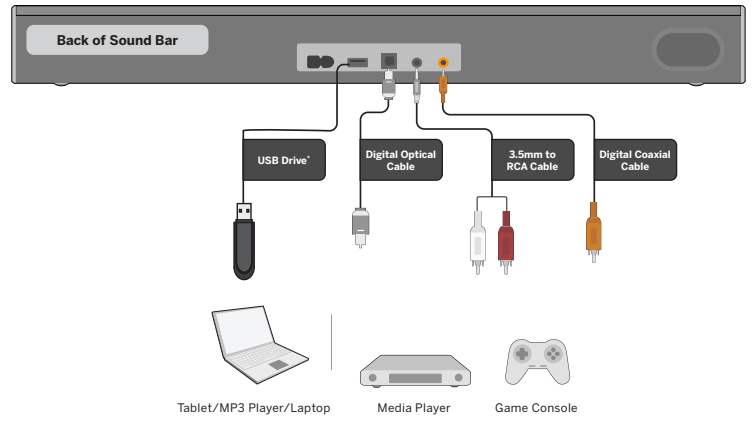
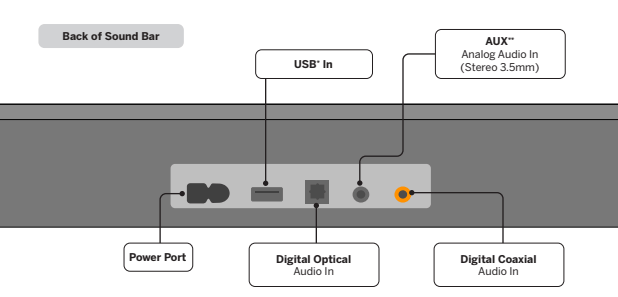
**You can also use this port to connect a Voice Assistant device. See Connecting to a Voice Assistant on page 17 for more information.
First-time Setup
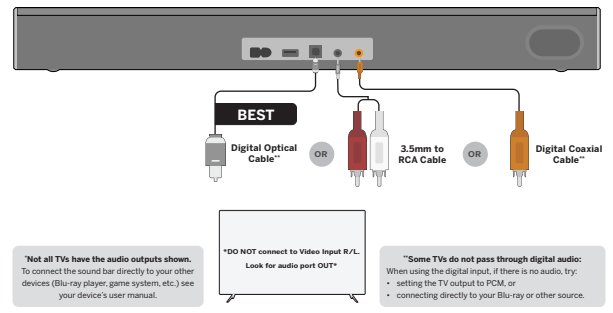
1. Choose the best possible connection cable type and connect it to your TV.* (Not all cables are included.)
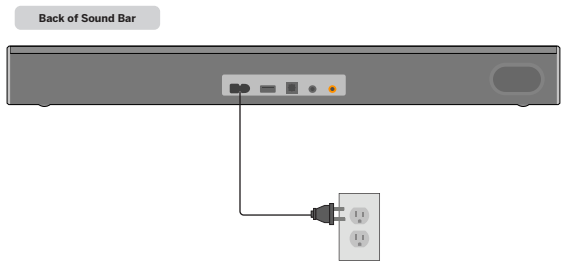
2. Connect the power cable to the sound bar AC IN as shown.
Plug the power cable into an electrical outlet
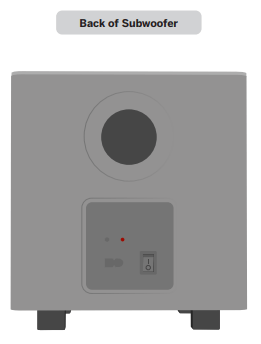
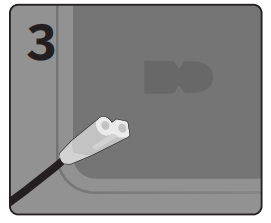
3. Connect the power cable to the subwoofer.
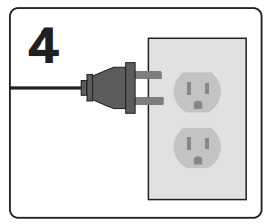
4. Plug the power cable into a power outlet.
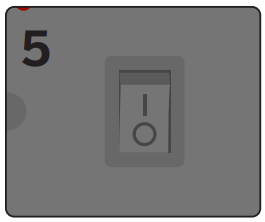
5. Flip the power switch into the ON position.
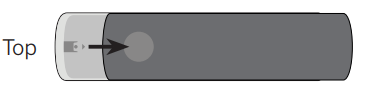
6. Remove the battery cover by gently sliding it away from the remote.
7. Insert the included batteries and gently slide the battery cover back into place.
When needed, VIZIO recommends replacing the batteries that came with this remote with two, new Duracell ‘AAA’ alkaline batteries.
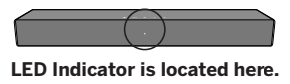
8. After turning on both your TV and sound bar, it will automatically begin searching for an active input.* The LED indicator on the front of the sound bar will begin cycling in different colors through inputs until an audio source is detected.**
Tip: Pressing the INPUT button will stop the auto detect function.
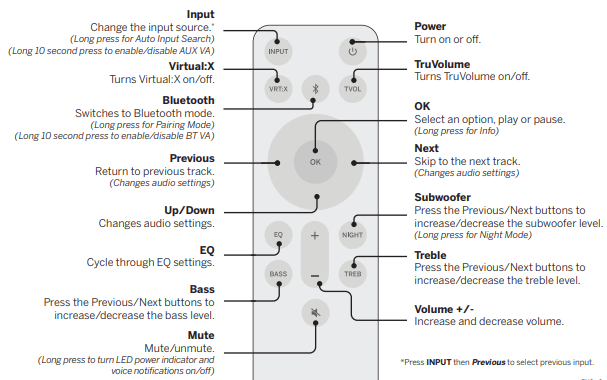
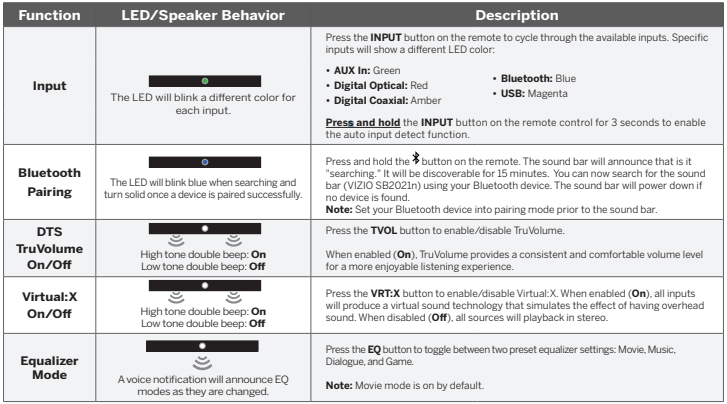
Press the INPUT button to switch between audio sources. For example, if you connected your TV to Optical, set the sound bar to Optical.
*Occurs only during first-time set up.
**Auto detect function only occurs once when the sound bar is first powered on. To enable this feature again, you must do a Factory Reset (see the Using Button Combinations on page 13 for more information) or press and hold the INPUT button for 4 seconds.
Using the Remote
Proper Placement
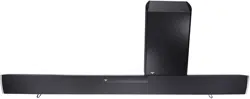
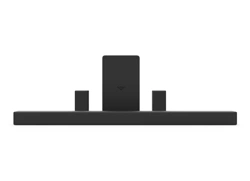
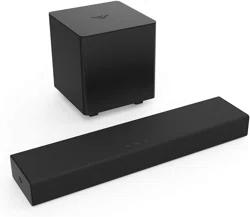
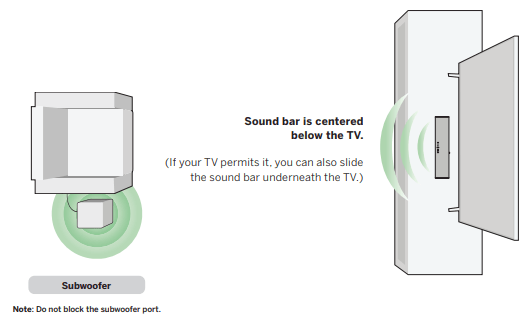
For the best sound experience, position the sound bar and subwoofer as shown.
The sound bar should be close to ear level.
Mode & Level Settings
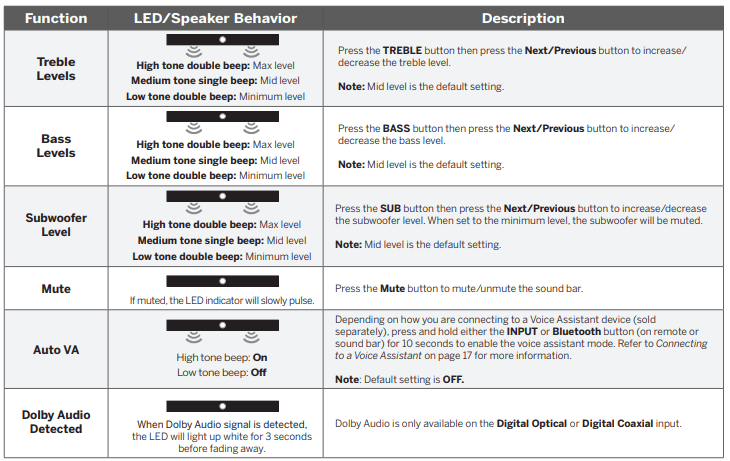
The LED indicator will behave differently with each function.
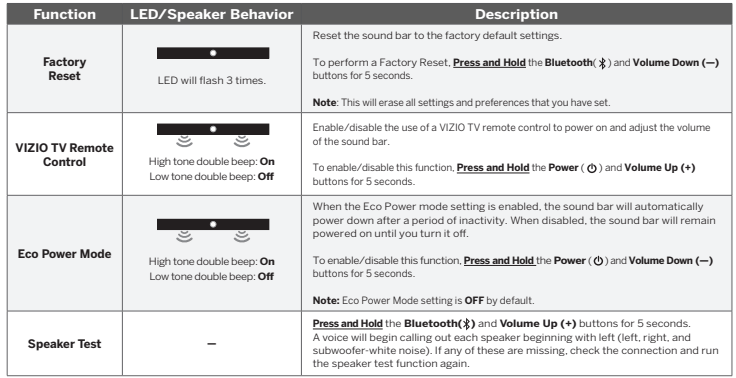
Using Button Combinations
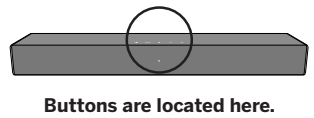
There are other functions that are triggered by different button combinations on the sound bar.
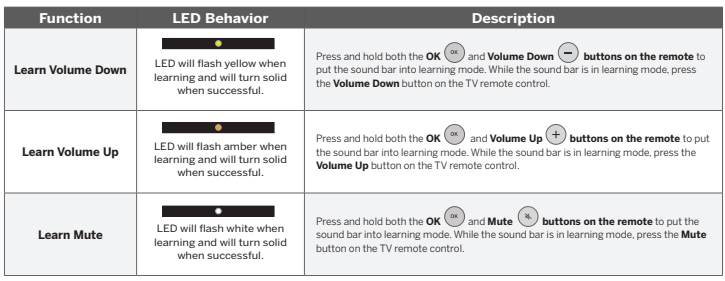
Programming the Sound Bar
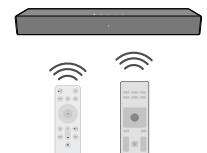
You can program your sound bar to accept TV remote IR commands. You can then use your TV remote for simple commands.
Point both the sound bar and TV remotes towards the front of the sound bar when programming.
Turn off your TV speakers when programming your sound bar.
Bluetooth Pairing
To pair the sound bar with a Bluetooth device:
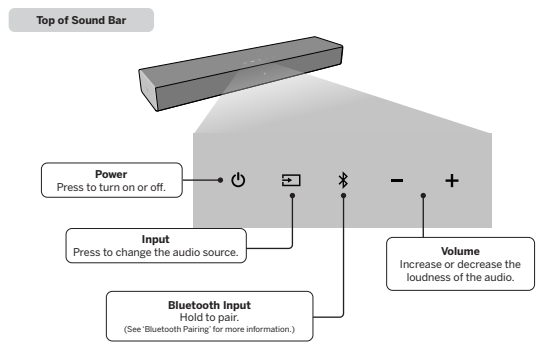
1. Press and hold the Bluetooth button on the sound bar or remote control for three (3) seconds.
2. Search for the sound bar (VIZIO SB2021n) using your Bluetooth device. For more information, refer to the user documentation that came with the device.
3. Now you can play audio from your Bluetooth device. Volume can be controlled on both your source device and the sound bar.
The LED indicator on the sound bar will turn blue and start blinking in pair mode. Once the device is paired, the LED indicator will stop flashing.
Using Bluetooth Mode
Your sound bar supports music streaming from devices with Bluetooth capability. (Device compatibility will vary, see your device’s documentation for more information.)
Once you have paired your source device to the sound bar your device should remain paired (within range).
If the source is changed back to Bluetooth, any paired Bluetooth device will reconnect automatically.
If the input is changed, the Bluetooth device will disconnect (will stay connected if Auto VA BT is on).
Maximizing Signal
A Bluetooth signal has a range of up to 30 feet. Keep in mind that Bluetooth is a compressed audio format, so streamed music may lose some integrity when compared to a wired connection. Try the following if your sound quality is less than optimal:
• If you hear any break-up or disconnect while streaming music from your device, move the source device closer to the sound bar.
• Be sure that there are no solid obstructions in the line-of-sight between the sound bar and the source device.
• Other wireless devices can affect Bluetooth range, including wireless security cameras, wireless video baby monitors, cordless phones, and microwave ovens. Turning off or moving these devices may improve Bluetooth range.
Your sound bar is not equipped with a microphone, so it cannot operate as a hands-free device for a smartphone.
Reduce the volume levels on your device and on the sound bar before pressing Play. High volume levels can damage your hearing.
Connecting to a Voice Assistant
Your sound bar can connect to a Voice Assistant (VA) device through an AUX VA or Bluetooth connection. Once connected, your sound bar will now act as the VA speaker.
Features and Benefits:
• Voice Assistant Dedicated Input: VA can be active on the sound bar even if the sound bar is set to a different input with audio playing.
• Auto Muting: If playing audio from the sound bar, the VA will play over the original source audio for 10 seconds. If continued after the 10 seconds, the VA audio will mute the original source audio. Once the VA audio is stopped the original source audio will resume.
Make sure your sound bar is turned ON and Eco Power setting is turned OFF. Refer to Eco Power Mode on page 13 to disable.
Setup Tips:
If the VA audio is too low, adjust the volume from the VA device.
If the start of the response from the VA is cut off, enable “Start of Request” from your VA app settings.
To disable the VA function, press and hold the INPUT button on the remote for 10 seconds to turn on or off. Refer to Auto VA on page 14 for more information.
Using the AUX Port to Connect
(If there is no AUX port on the VA device, use a Bluetooth connection instead.)
1. Use a 3.5mm audio cable to connect the AUX port on the sound bar to an AUX port on your voice assistant device.
2. Press and hold the INPUT button on the remote for 10 seconds to enable AUX VA.
Using Bluetooth to Connect
1. Press and hold the Bluetooth button on the sound bar or remote for three (3) seconds. Search for the sound bar (VIZIO SB2021n) using your VA device app. For more information, refer to the user documentation that came with the device.
2. After successful pairing, press and hold the Bluetooth button on the remote for 10 seconds to enable Bluetooth VA.
Advanced Setup
Connecting a Subwoofer
What does pairing mean?
Pairing means to wirelessly connect.
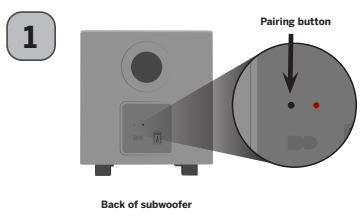
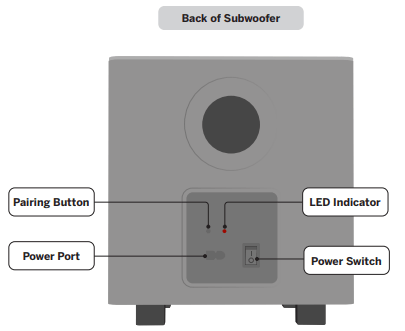
The subwoofer has already been paired with the sound bar by VIZIO. However, the subwoofer may need to be re-linked to the sound bar if there is no sound coming from the subwoofer.
First confirm that the power switch is in the ON position. Press and hold the pairing button on the back of the subwoofer for 5 seconds. The LED on the back of the subwoofer will begin to blink.
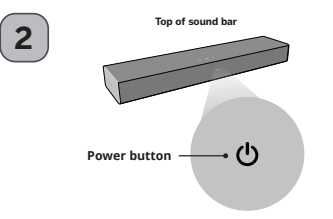
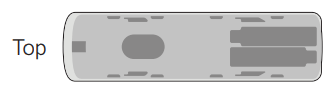
Press and hold the Power button on the top of the sound bar for 5 seconds. The LED indicators on the front will flash 3 times. The subwoofer is now linked with the sound bar.
Help & Troubleshooting
There is no power.
• Press the POWER button on the remote control or on the top of your sound bar.
• Ensure the power cord is securely connected.
• Plug a different device into the electrical outlet to verify that the outlet is working correctly.
There is no sound.
• Increase the volume. Press VOLUME UP on the remote control or on the top of your sound bar.
• Press MUTE on the remote to ensure the sound bar is not muted.
• Press INPUT on the remote or on the top of your sound bar to select a different input source.
• When using the Digital Optical input, if there is no audio: (A) try setting the TV output to PCM or (B) connect directly to your Blu-ray/other source, some TVs do not pass through digital audio.
• On digital inputs, the input LEDs will flash rapidly if an unsupported format is present. Set the source to output PCM.
• Your TV may be set to variable audio output. Confirm that the audio output setting is set to FIXED or STANDARD, not VARIABLE. Consult your TV’s user manual for more detailed information.
• If using Bluetooth, ensure that the volume on your source device is turned up and that the device is not muted.
I hear buzzing or humming.
• Ensure all cables and wires are securely connected.
• Connect a different source device (TV, Blu-ray player, etc) to see if the buzzing persists. If it does not, the problem may be with the original device.
• Connect your device to a different input on the sound bar.
The remote isn’t working
• Replace the remote batteries with new ones.
• Point the remote directly at the center of the sound bar when pressing a button.
• If using a Bluetooth connection, some of the buttons on the remote may not be supported by the streaming application.

 Tip: Pressing the INPUT button will stop the auto detect function.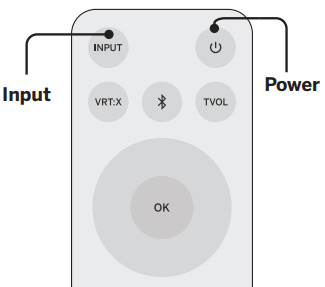
 Turn off your TV speakers when programming your sound bar.
 on the sound bar or remote control for three (3) seconds.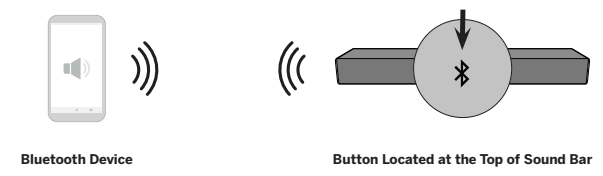
 Reduce the volume levels on your device and on the sound bar before pressing Play. High volume levels can damage your hearing.
 button on the remote for 10 seconds to enable AUX VA.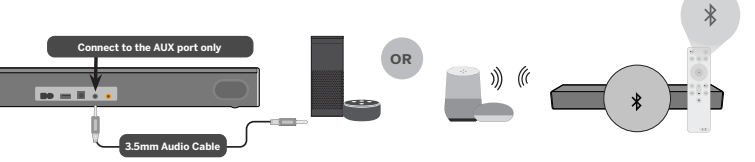
 button on the remote for 10 seconds to enable Bluetooth VA.