VHT215 - QUICK START GUIDE
HOME THEATER SOUND BAR
WITH WIRELESS SUBWOOFER
IMPORTANT SAFETY INSTRUCTIONS
Your Unit is designed and manufactured to operate within defined design limits, and
misuse may result in electric shock or fire. To prevent your Unit from being damaged, the
following rules should be observed for its installation, use, and maintenance. Please read
the following safety instructions before operating your Unit. Keep these instructions in a
safe place for future reference.
• Read these instructions.
• Keep these instructions.
• Heed all warnings.
• Follow all instructions.
• Do not use this apparatus near water.
• Clean only with a dry cloth.
• Do not block any ventilation openings. Install in accordance with the manufacturer’s
instructions.
• Do not install near any heat sources such as radiators, heat registers, stoves, or other
apparatus (including ampliers) that produce heat.
• Do not defeat the safety purpose of the polarized or grounding-type plug. A polarized plug
has two blades with one wider than the other. A grounding type plug has two blades and a third
grounding prong. The wide blade or the third prong are provided for your safety. If the provided
plug does not t into your outlet, consult an electrician for replacement of the obsolete outlet.
• Protect the power cord from being walked on or pinched, particularly at plugs, convenience
receptacles, and the point where they exit from the apparatus.
• Only use attachments/accessories specied by the manufacturer.
• Use only with the cart, stand, tripod, bracket, or table specied by the
manufacturer, or sold with the apparatus. When a cart is used, use caution
when moving the cart/apparatus combination to avoid injury from tip-over.
• Unplug this apparatus during lightning storms or when unused for long periods of time.
• Refer all servicing to qualied service personnel. Servicing is required when the apparatus
has been damaged in any way, such as when the power supply cord or plug is damaged, liquid
has been spilled or objects have fallen into the apparatus, the apparatus has been exposed to
rain or moisture, does not operate normally, or has been dropped.
• To reduce the risk of electric shock or component damage, switch off the power before
connecting other components to your Unit.
• Unplug the power cord before cleaning your Unit. A damp cloth is sufcient for cleaning. Do
not use a liquid or a spray cleaner on your Unit. Do not use abrasive cleaners.
• Always use the accessories recommended by the manufacturer to insure compatibility.
• When moving your Unit from an area of low temperature to an area of high temperature,
condensation may form in the housing. Wait before turning on your Unit to avoid causing re,
electric shock, or component damage.
• Slots and openings in the back and bottom of the cabinet are provided for ventilation. To
ensure reliable operation of your Unit and to protect it from overheating, be sure these openings
are not blocked or covered. Do not place your Unit in a bookcase or cabinet unless proper
ventilation is provided.
• Never push any object into the slots and openings on your Unit enclosure. Do not place any
objects on the top of your Unit. Doing so could short circuit parts causing a re or electric shock.
Never spill liquids on your Unit.
• The power cord must be replaced when using different voltage than the voltage specied. For
more information, contact your dealer.
• When connected to a power outlet, power is always owing into your Unit. To totally
disconnect power, unplug the power cord.
• The lightning ash with arrowhead symbol within an equilateral triangle is
intended to alert the user to the presence of un-isolated, dangerous voltage
within your Unit that may be of sufcient magnitude to constitute a risk of
electric shock to persons.
• The exclamation point within an equilateral triangle is intended to alert the
user to the presence of important operating and servicing instructions in the
literature accompanying your Unit.
• Do not overload power strips and extension cords. Overloading can result in re or electric
shock.
• The wall socket should be located near your Unit and be easily accessible
• Keep your Unit away from moisture. Do not expose your Unit to rain or moisture. If water
penetrates into your Unit, unplug the power cord and contact your dealer. Continuous use in
this case may result in re or electric shock.
• Do not use your Unit if any abnormality occurs. If any smoke or odor becomes apparent,
unplug the power cord and contact your dealer immediately. Do not try to repair your Unit
yourself.
• Avoid using dropped or damaged appliances. If your Unit is dropped and the housing is
damaged, the internal components may function abnormally. Unplug the power cord
immediately and contact your dealer for repair. Continued use of your Unit may cause re or
electric shock.
• Do not install your Unit in an area with heavy dust or high humidity. Operating your Unit in
environments with heavy dust or high humidity may cause re or electric shock.
• Ensure that the power cord and any other cables are unplugged before moving your Unit.
• When unplugging your Unit, hold the power plug, not the cord. Pulling on the power cord may
damage the wires inside the cord and cause re or electric shock. When your Unit will not be
used for an extended period of time, unplug the power cord.
• To reduce risk of electric shock, do not touch the connector with wet hands.
• Insert the remote control battery in accordance with instructions. Incorrect polarity may
cause the battery to leak which can damage the remote control or injure the operator.
• See the important note and rating located on the bottom of the unit.
• WARNING - This equipment is not waterproof. To prevent a re or shock hazard, do not place
any container lled with liquid near the equipment (such as a vase or ower pot) or expose it
to dripping, splashing, rain, or moisture.
• CAUTION - Danger of explosion or re if battery is mistreated. Replace only with the same
or specied type.
• Do not leave the battery exposed to direct sunlight for a long period of time with doors and
windows closed. Do not disassemble the battery or dispose of it in re.
• Disconnect the mains plug to shut off when you experience trouble or the device is not in use.
The mains plug shall remain readily operable.
PACKAGE CONTENTS
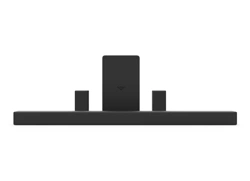
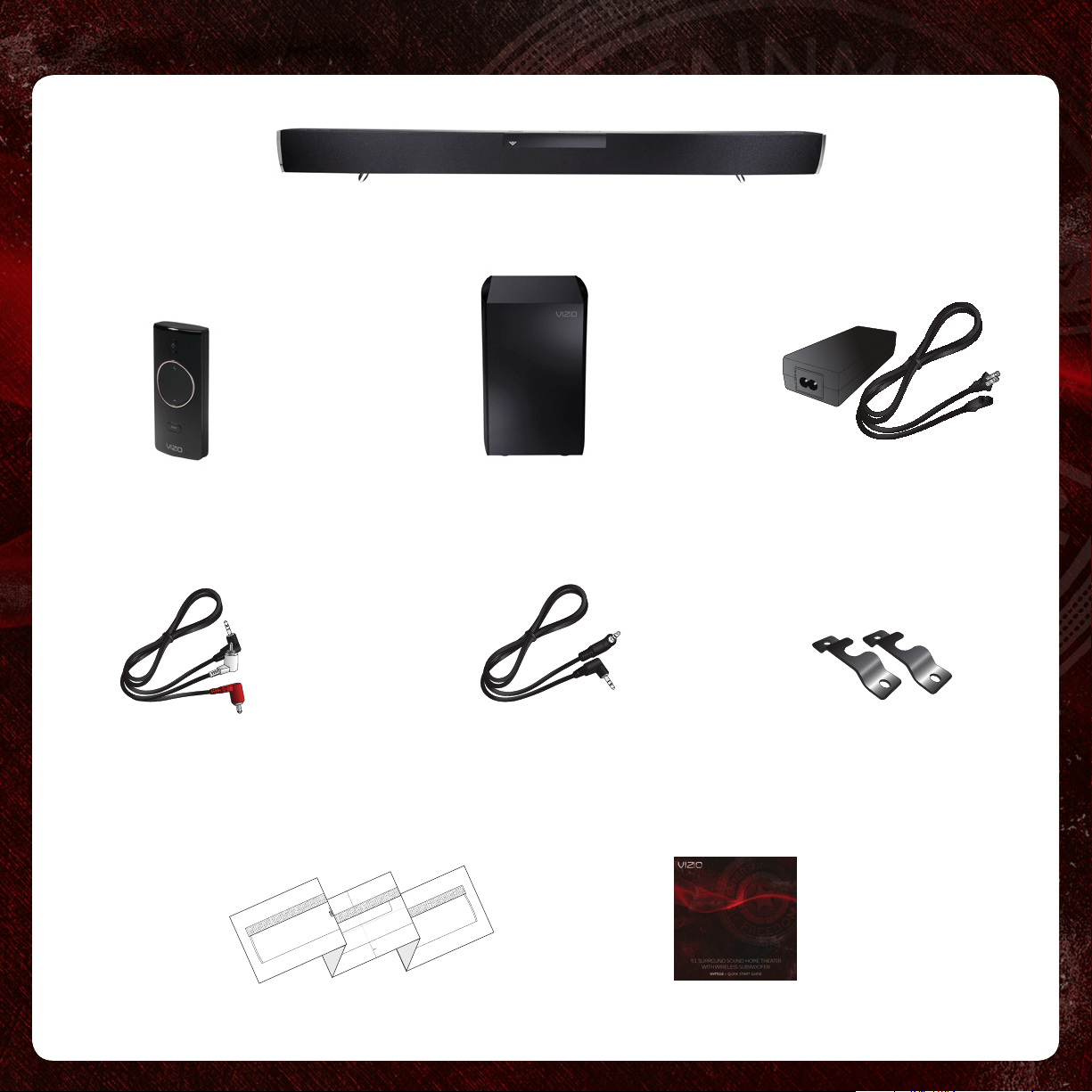
Home Theater Sound Bar
Wireless Subwoofer
Quick Start Guide
Power Adapter
for Sound Bar
1
Wall Mount
Brackets (2)
3.5mm to RCA
Stereo Audio Cable
Remote Control
with Battery
Wall Mount Template
3.5mm
Stereo Audio Cable
CENTER LINE
LEAVE THIS SPACE BETWEEN THE SOUND BAR AND YOUR TV
MARK HERE
WALL MOUNTING TEMPLATE
MARK HERE
19.75”
CENTER LINE
LEAVE THIS SPACE BETWEEN THE SOUND BAR AND YOUR TV
MARK HERE
WALL MOUNTING TEMPLATE
MARK HERE
19.75”
CENTER LINE
LEAVE THIS SPACE BETWEEN THE SOUND BAR AND YOUR TV
MARK HERE
WALL MOUNTING TEMPLATE
MARK HERE
19.75”
CONTROLS & CONNECTIONS
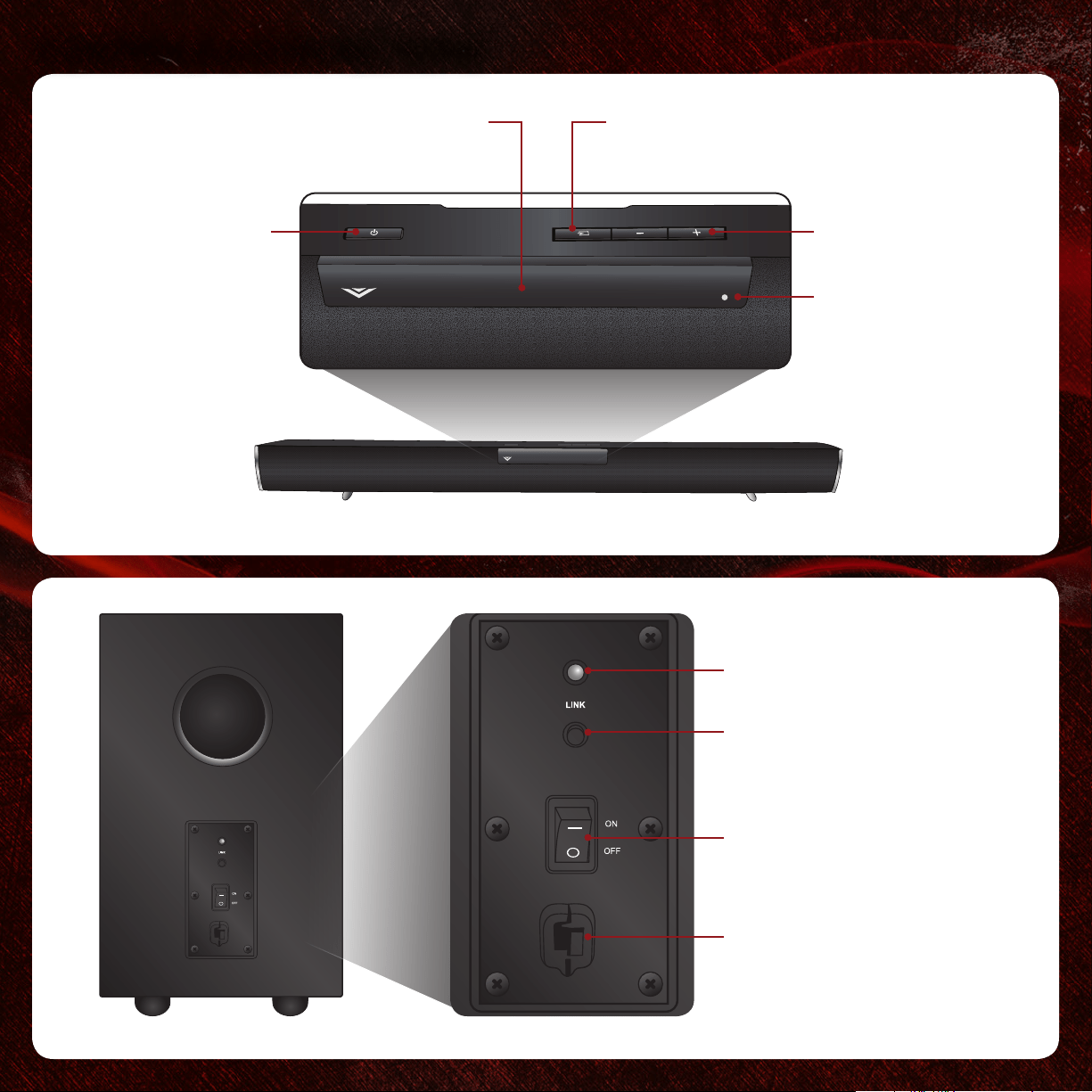
Power
Press to turn
on or off.
Volume Up/Down
Press to increase
or decrease overall
volume.
Input
Press to change
input source.
2
Info Display
Displays volume, input,
and other information.
Link Button
Used to re-link the Subwoofer
with the Sound Bar.
Power Switch
Press to turn on or off.
Power Cord
Link LED Light
Power Light
When Sound Bar is on,
this light is on.
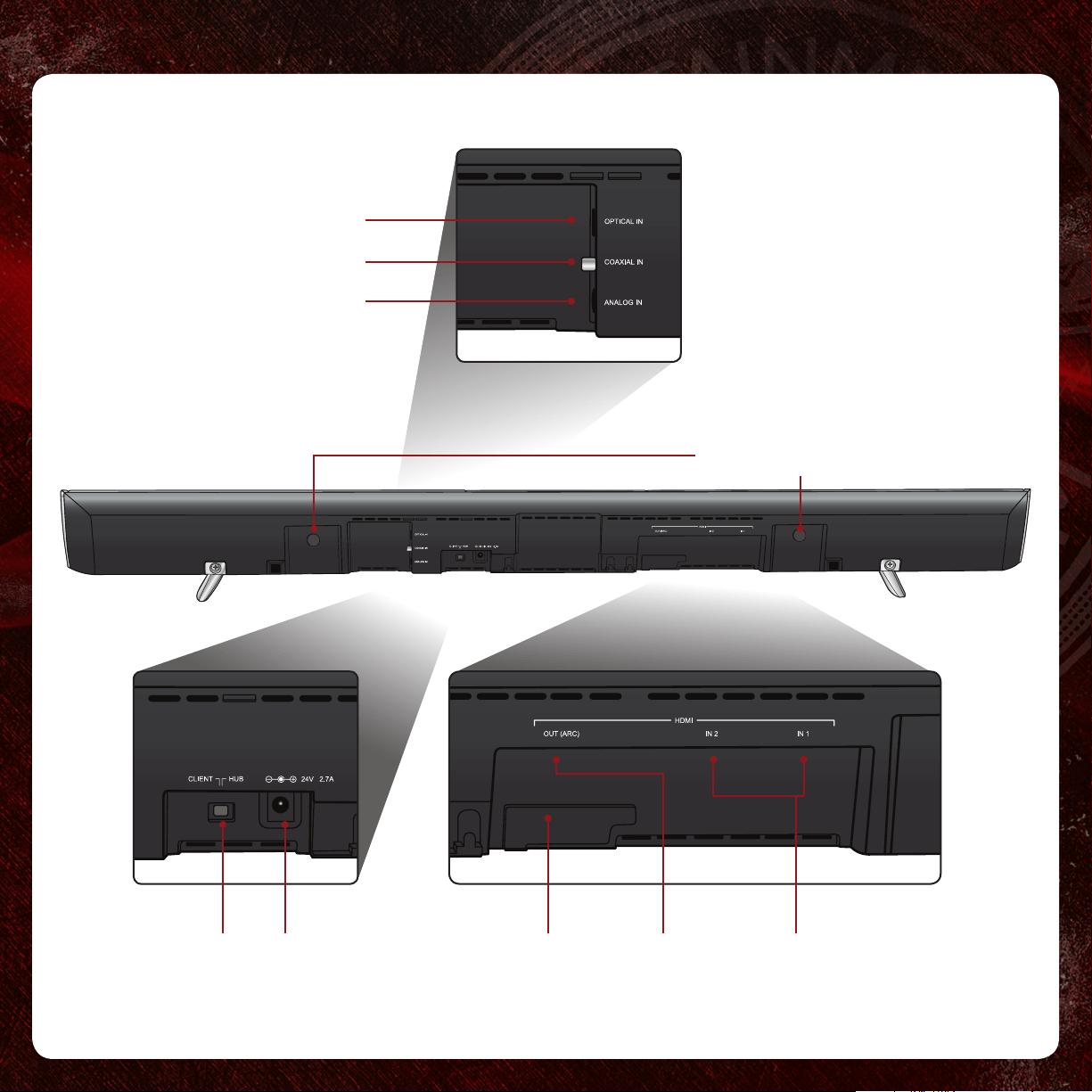
Digital Optical In
Hub/Client Switch
(Should be set to HUB)
Power Port Service Port
(For use by authorized
service technician only.)
3
Wall Mount Posts
HDMI In (1, 2)HDMI Out
(ARC)
Digital Coaxial In
Analog 3.5mm In
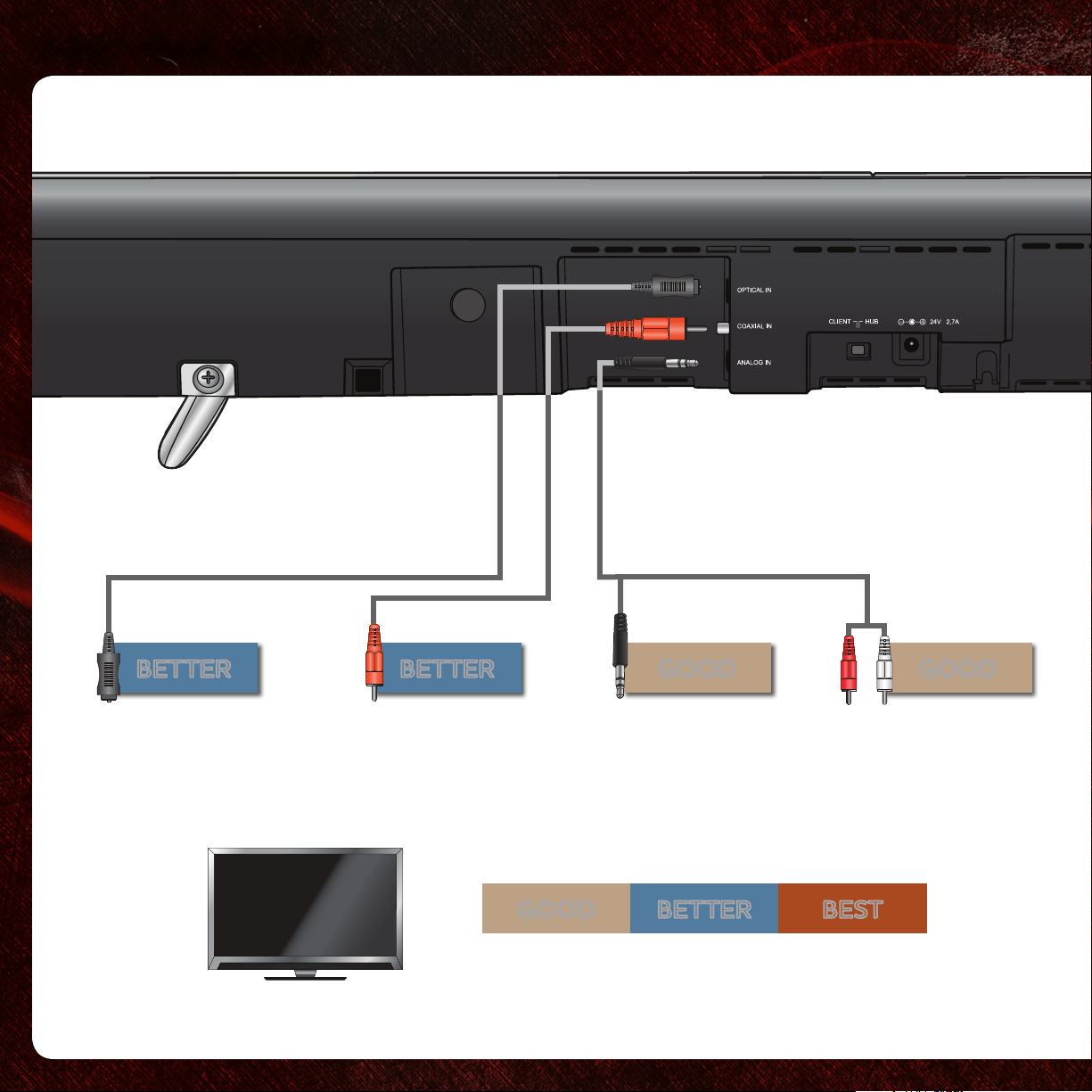
FIRST-TIME SETUP
1
4
DIGITAL COAXIAL
CABLE*
BETTER
DIGITAL OPTICAL
CABLE*
BETTER
3.5MM
CABLE
GOOD GOOD
3.5MM TO RCA
CABLE
AND CONNECT IT TO YOUR TV
BETTER
BEST
GOOD
CHOOSE ONE CABLE:
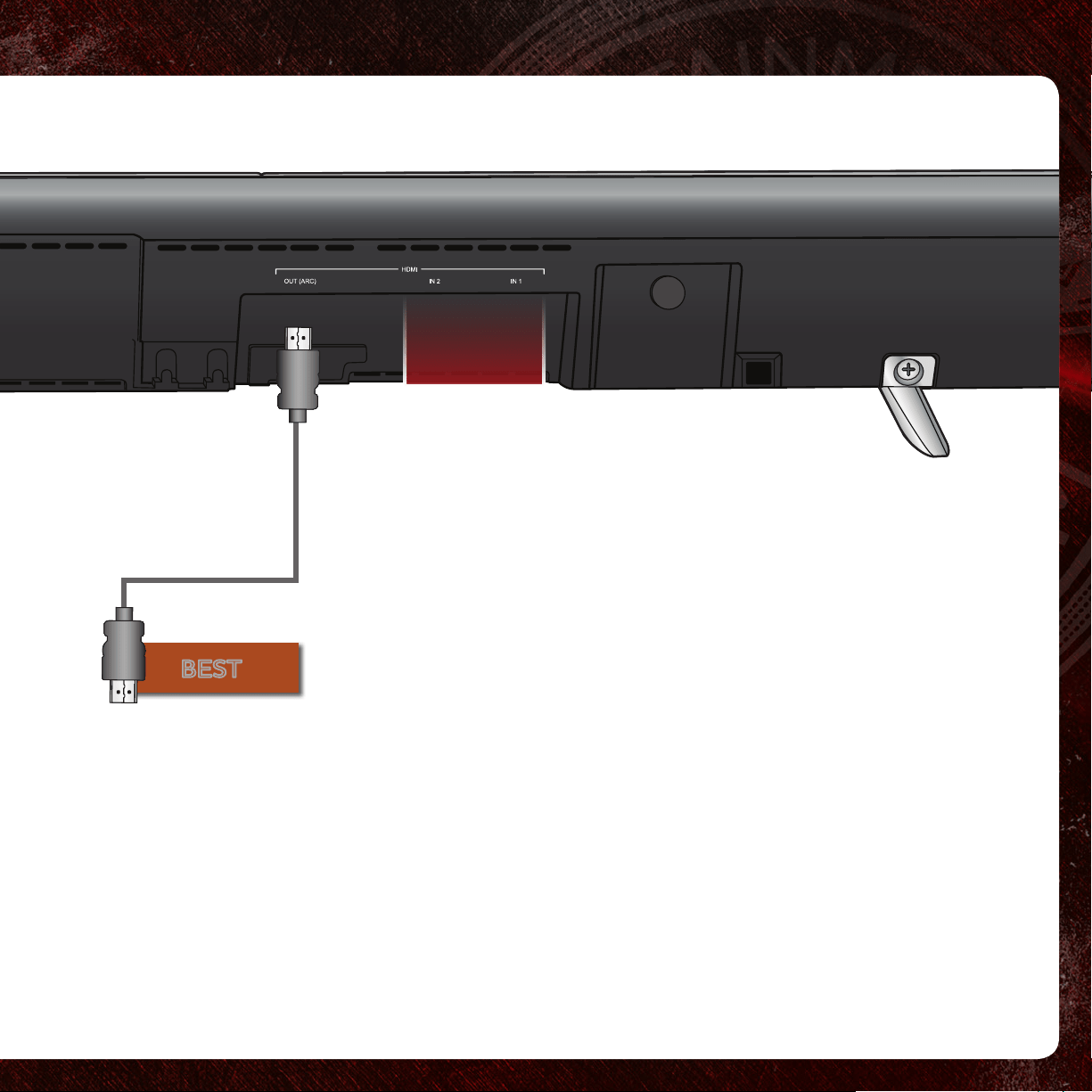
5
Connect the Sound Bar to your TV using
one of the connection types to the left.
Choose the best possible connection type.
Be sure the TV port is an audio output, not
an audio input.
HDMI CABLE*
BEST
To use an HDMI connection, your TV’s
HDMI port must support ARC (Audio
Return Channel). See your TV’s user
manual for details.
*Not Included
Do not use HDMI IN 1 or HDMI IN 2 for First-Time Setup.
See
Advanced Setup
on page 16 if you would like to connect
HDMI devices (such as Blu-ray
™
players, cable boxes, and
game consoles) to your Sound Bar.
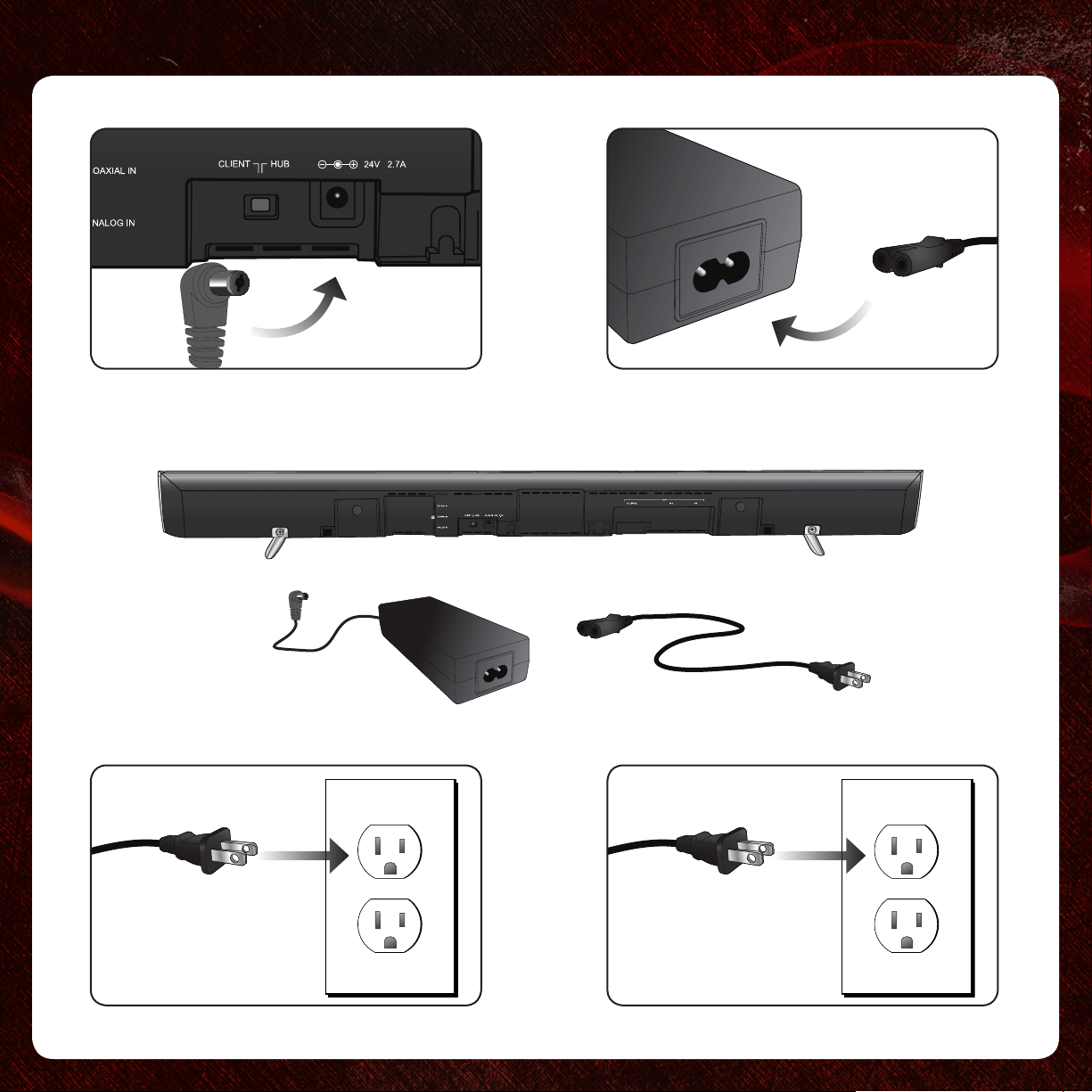
4
6
2 3
5
Plug in
Sound Bar
Plug in
Subwoofer
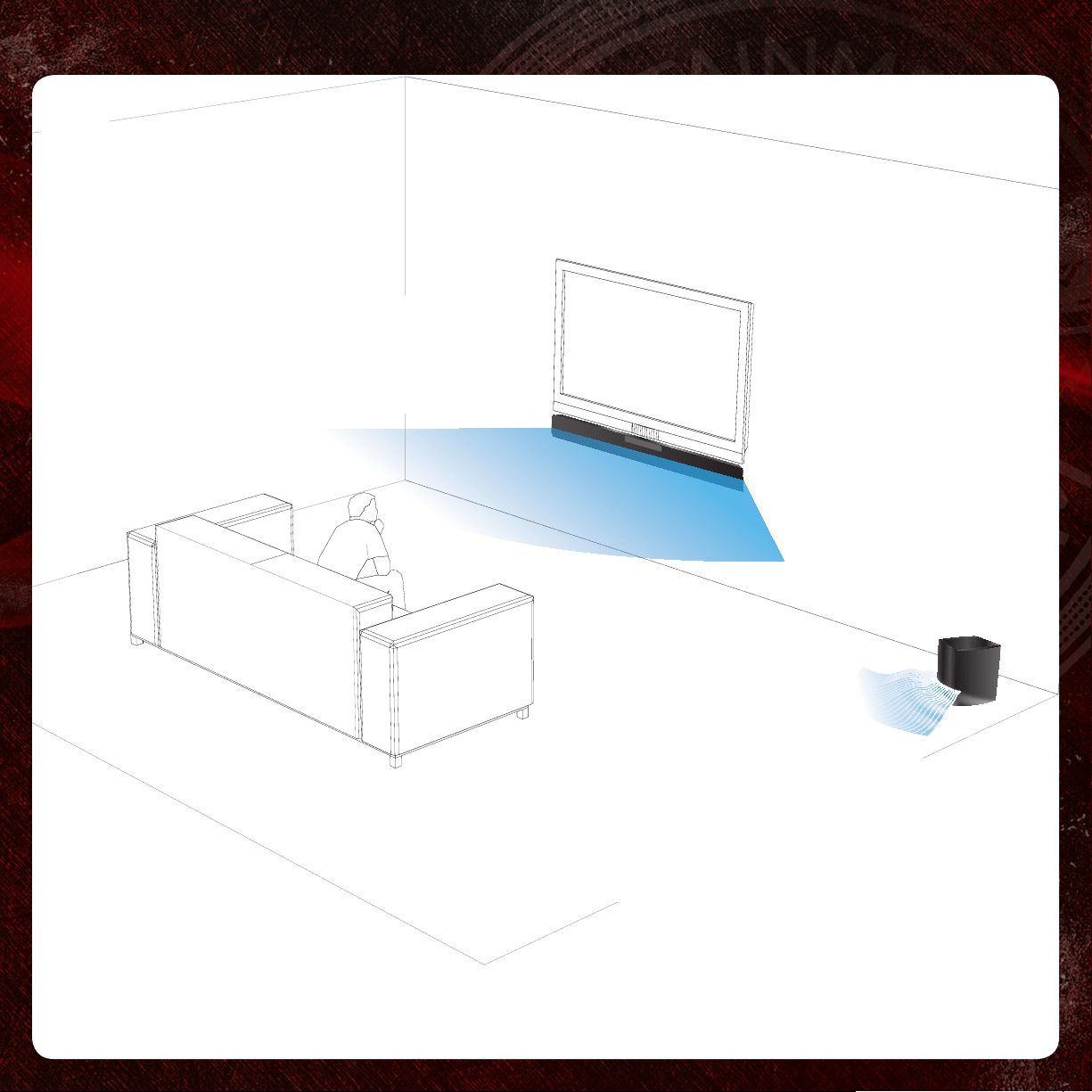
6
For the best surround sound experience, position the speakers as shown.
Wireless Subwoofer is in the
front corner of the room, up to
60 feet away from the Sound
Bar. Bass is projected outward.
Sound Bar is centered
below the TV, close to
ear level.
7
7
8
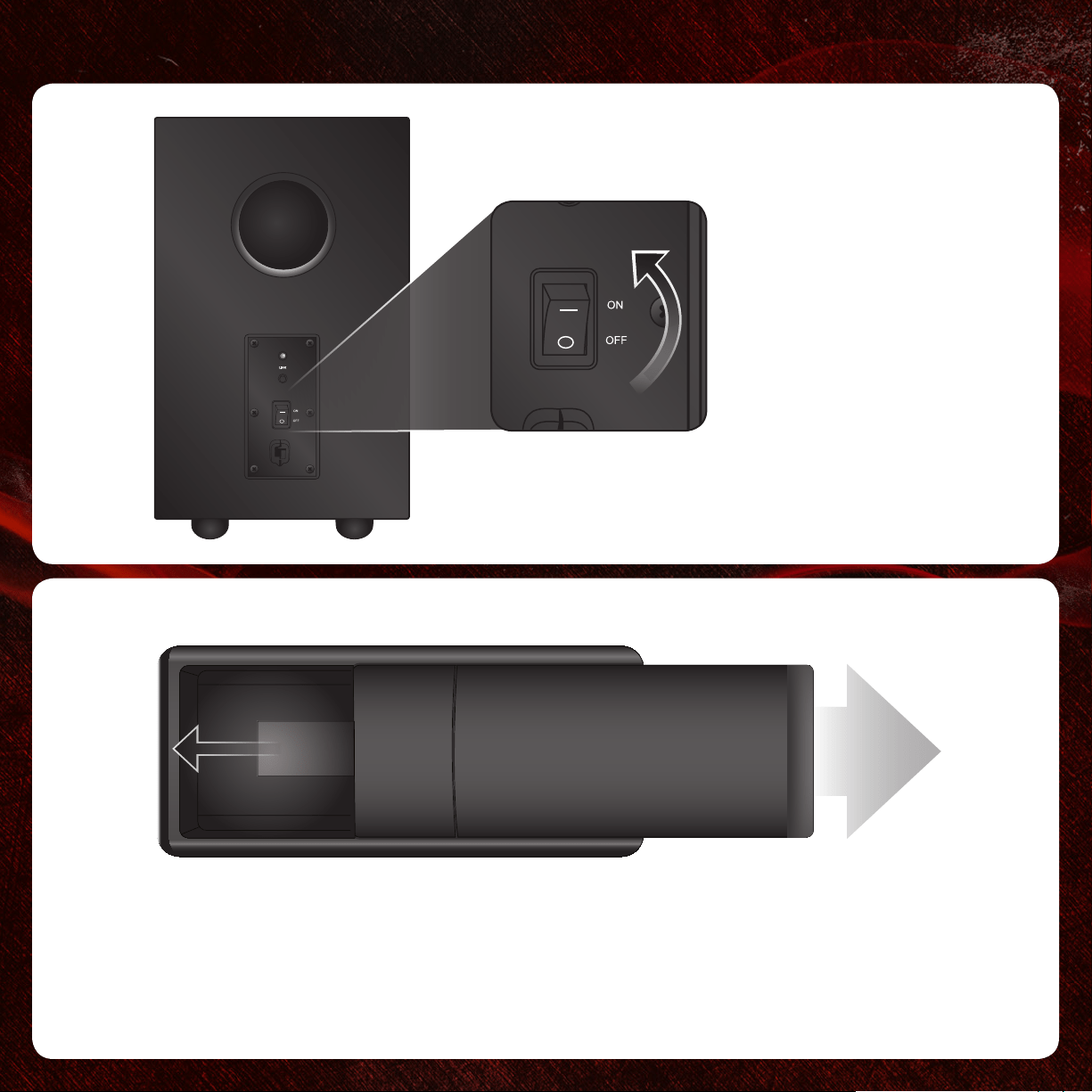
Slide out the remote, then gently pull the plastic
tab from the back of the remote control.
(The plastic tab can be thrown away.)
8
Flip the ON/OFF
Switch to ON.
9
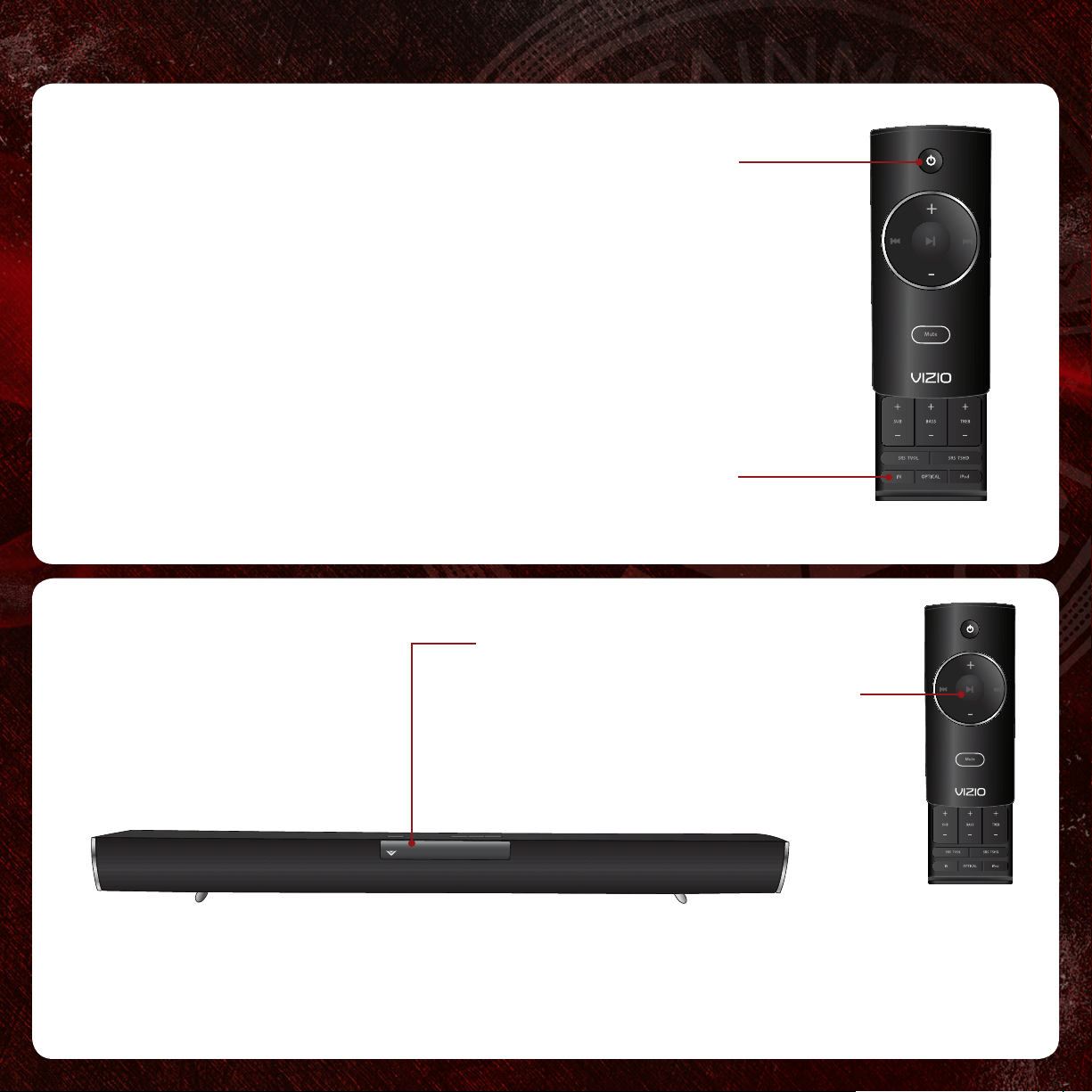
Turn your TV on, then press the
Power button on the remote to
turn the Sound Bar on.
Press the Input (IN) button on
the remote until your connection
type is displayed. (Analog
or HDMI, for example). Push
repeatedly to cycle through input
sources (HDMI 1, HDMI 2, HDMI
ARC for example).
10
9
Setup is complete.
If there is no sound coming from the Sound Bar or Subwoofer, or if you
experience other issues, turn to page 18 for help and troubleshooting tips.
Input
Power
When you rst turn on the Sound Bar, the you
may see scrolling text on the display - this is
the demo mode. Press the Play/Pause button
on the remote to exit demo mode.
USING THE REMOTE
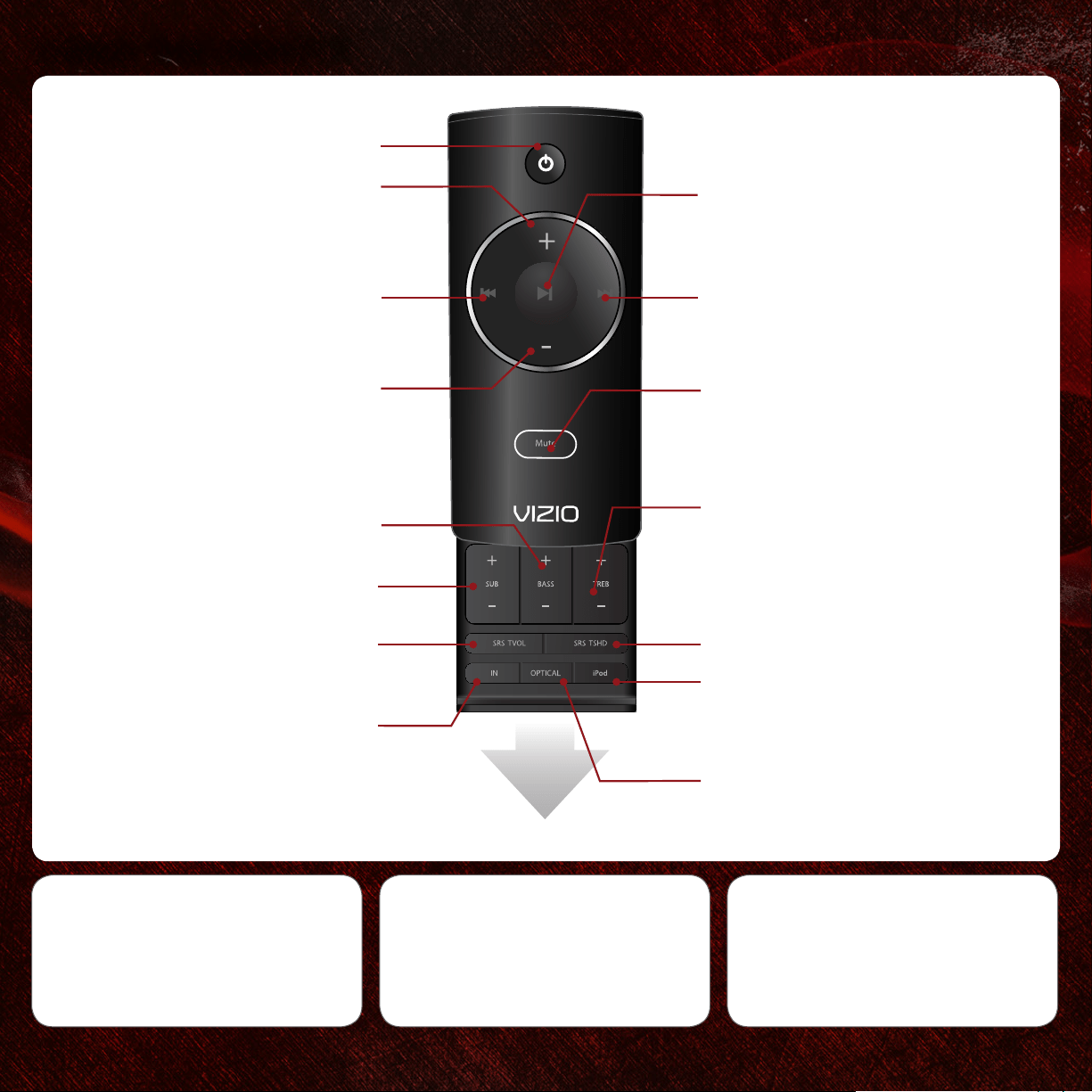
Power
Press to turn on or off.
Volume Up
Press to increase overall
system volume.
Volume Down
Press to decrease overall
system volume.
Previous
Press to go to last track.*
Treble
Press to increase or decrease
the treble output (glass
breaking, high voices, etc).
Bass
Press to increase or decrease the
bass output (explosions, deep
voices, etc).
Sub
Press to increase or decrease
the volume of the Subwoofer.
SRS TruVolume
Press to activate or deactivate
SRS TruVolume.
SRS TruSurround HD
Press to activate SRS
TruSurround HD. Press again to
activate SRS WOW HD.
Mute
Press to turn the sound on or
off.
Next
Press to advance to next
track.*
Play/Pause
Press to play or pause track.*
Also used to exit Demo Mode.
IN (Input)
Press to output audio from the
selected device port. Press
repeatedly to cycle through available
inputs (HDMI 1, HDMI 2, etc.)
Slide Out Remote
*These buttons only control an iPod
®
or iPhone
®
connected to VIZIO High Denition Home Theater Headphones with Wireless iPod Dock.
10
SRS TruVolume
When on, SRS TruVolume intelligently
normalizes volume uctuations due
to television commercials or channel
changes.
SRS TruSurround
When on, SRS TruSurround delivers
enveloping, immersive surround sound,
making every seat in the room the “sweet
spot”.
SRS WOW
When on, SRS WOW HD improves the
audio performance by expanding the size
of the audio image and creating a deep,
rich bass response.
Optical
Press repeatedly to cycle between
the Optical and Coaxial inputs.
iPod
Press to play input from a VIZIO
Wireless HD Audio product.
EXTENDED FUNCTIONS USING BUTTON COMBINATIONS
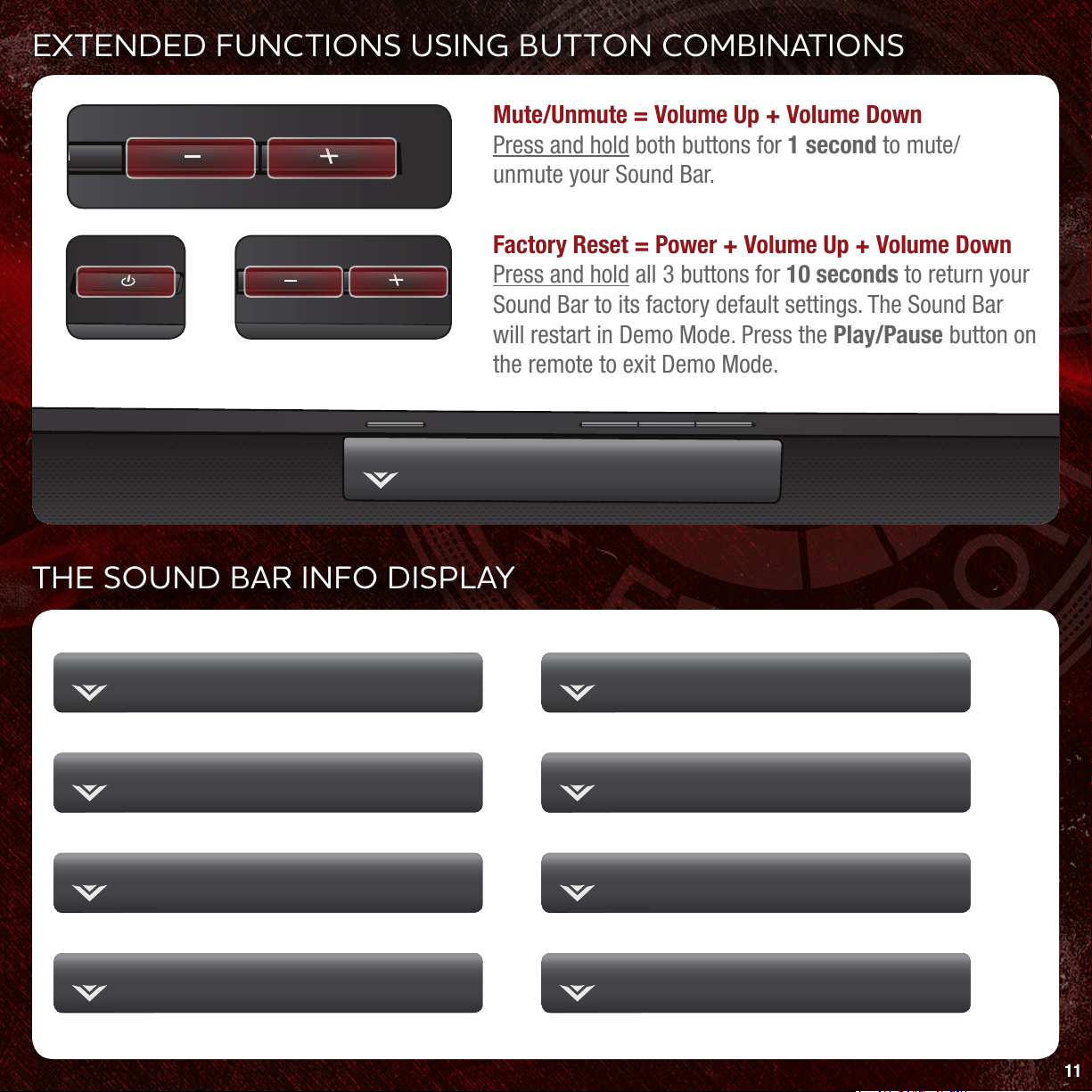
Mute/Unmute = Volume Up + Volume Down
Press and hold both buttons for 1 second to mute/
unmute your Sound Bar.
Factory Reset = Power + Volume Up + Volume Down
Press and hold all 3 buttons for 10 seconds to return your
Sound Bar to its factory default settings. The Sound Bar
will restart in Demo Mode. Press the Play/Pause button on
the remote to exit Demo Mode.
11
THE SOUND BAR INFO DISPLAY
Volume - Increase or decrease volume
Volume 15
Bass Level - Press BASS on remote
Bass 9
Treble Level - Press TREB on remote
Treble 9
Current Input - Change input source
HDMI ARC
SRS TruVolume - Press SRS TVOL on remote
TruVol On
SRS TruSurround - Press SRS TSHD on remote
SRS TSHD
Subwoofer Volume - Press SUB on remote
Sub 10
Dolby Digital - Displays when Dolby source is playing
Dolby
To conserve energy, after displaying a message for several seconds, the Info Display automatically shuts off.
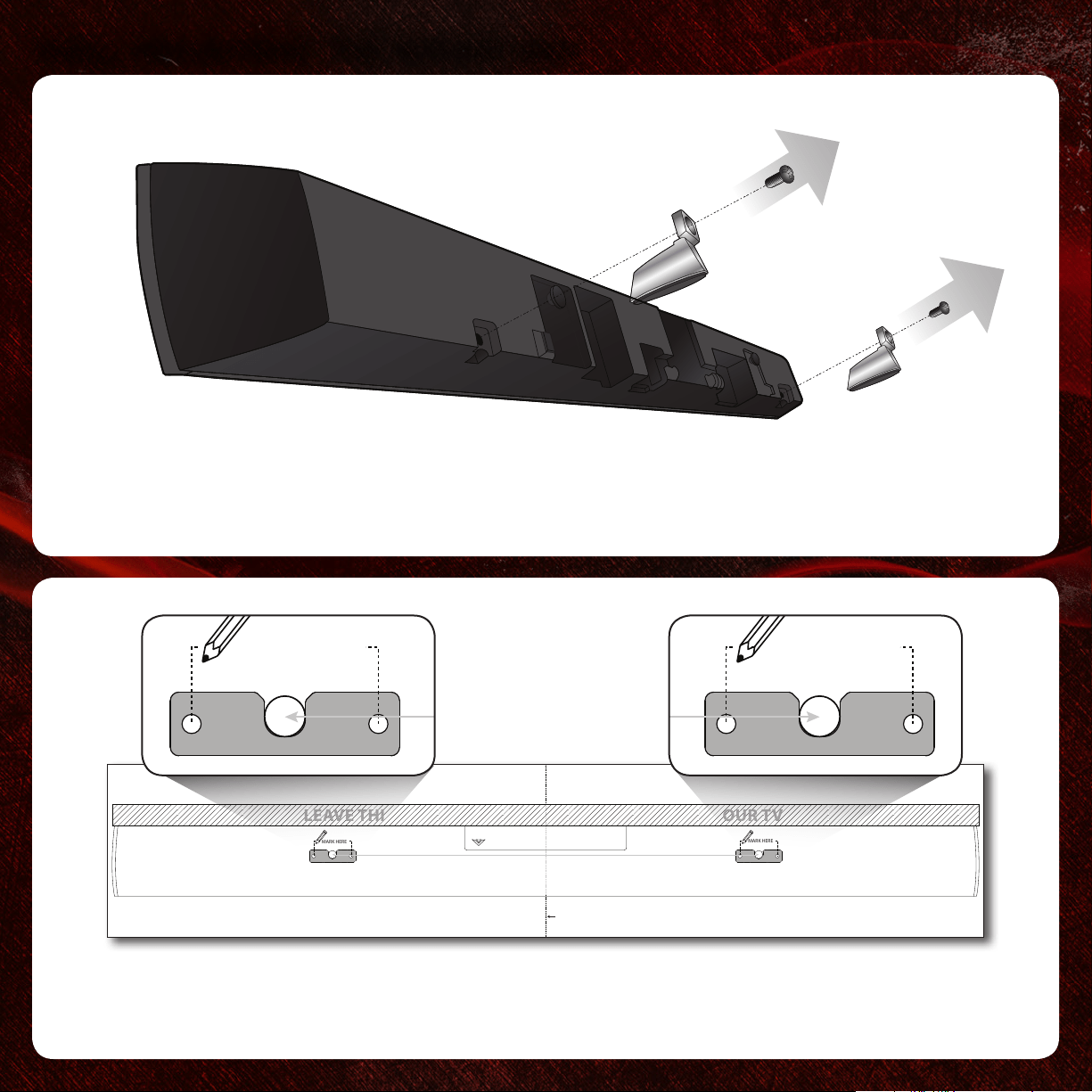
WALL MOUNTING THE SOUND BAR
12
1
2
Use a phillips-head screwdriver to remove the screws from the Sound Bar stands.
Reinsert the screws for safekeeping. Save the stands for future use.
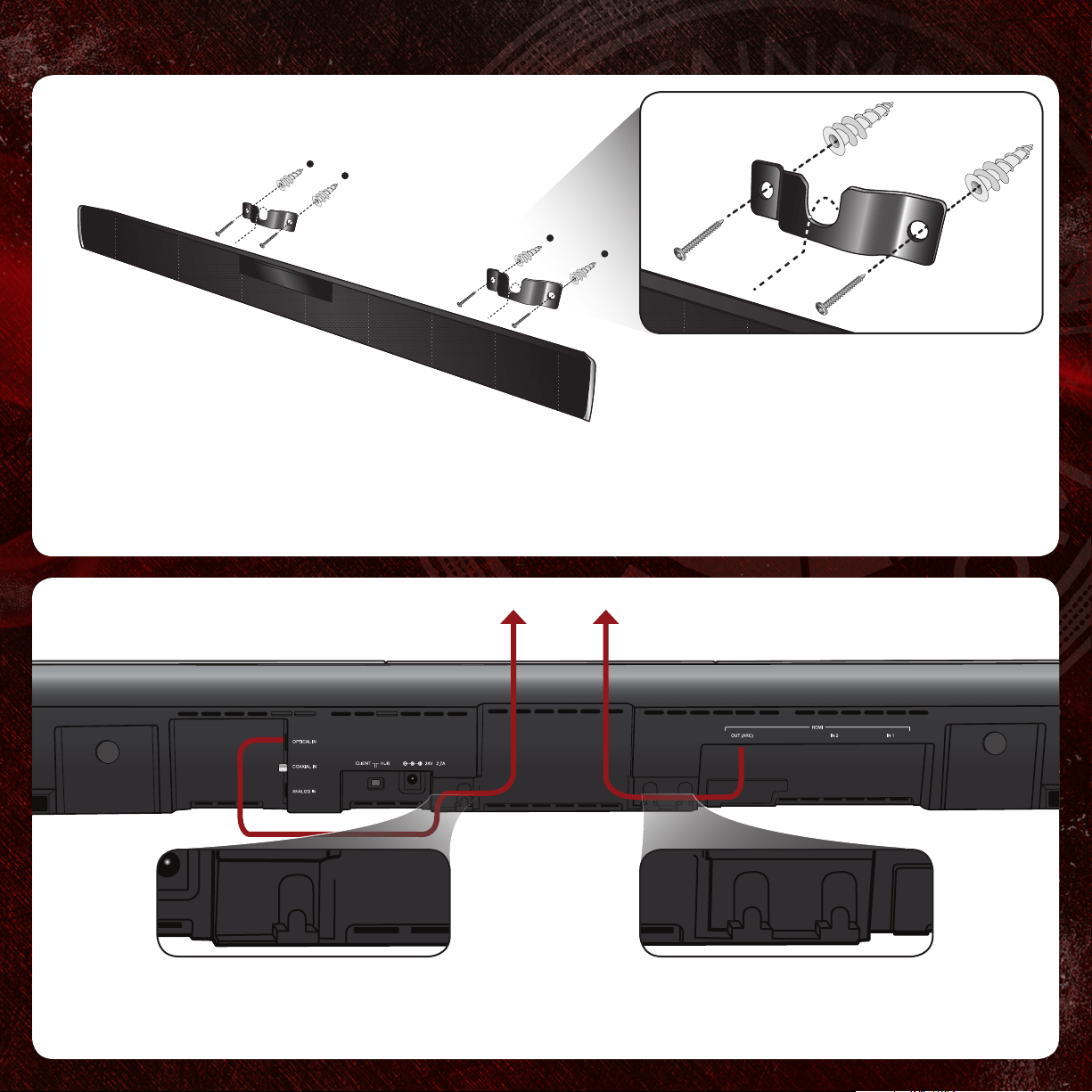
Place the included wall mounting template against the wall under your TV.
Mark the locations of the 4 bracket holes using a pencil.
CENTER LINE
LEAVE THIS SPACE BETWEEN THE SOUND BAR AND YOUR TV
MARK HERE
WALL MOUNTING TEMPLATE
MARK HERE
19.75”
CENTER LINE
LEAVE THIS SPACE BETWEEN THE SOUND BAR AND YOUR TV
MARK HERE
WALL MOUNTING TEMPLATE
MARK HERE
19.75”
CENTER LINE
LEAVE THIS SPACE BETWEEN THE SOUND BAR AND YOUR TV
MARK HERE
WALL MOUNTING TEMPLATE
MARK HERE
19.75”
13
3
4
Use the cable management hooks to route your audio cables to your TV.
Attach the brackets to the wall as shown. Gently hang the Sound Bar on the
brackets using the wall mount posts on the back of the Bar.
The screws and anchors depicted are not included. The
appropriate screws and anchors will depend on the
material of your wall. Be sure that the screws and/or
anchors you use are securely fastened and can support
the weight of the Sound Bar.
Recommended screw diameter: 4mm
Recommended screw length: 8mm or greater
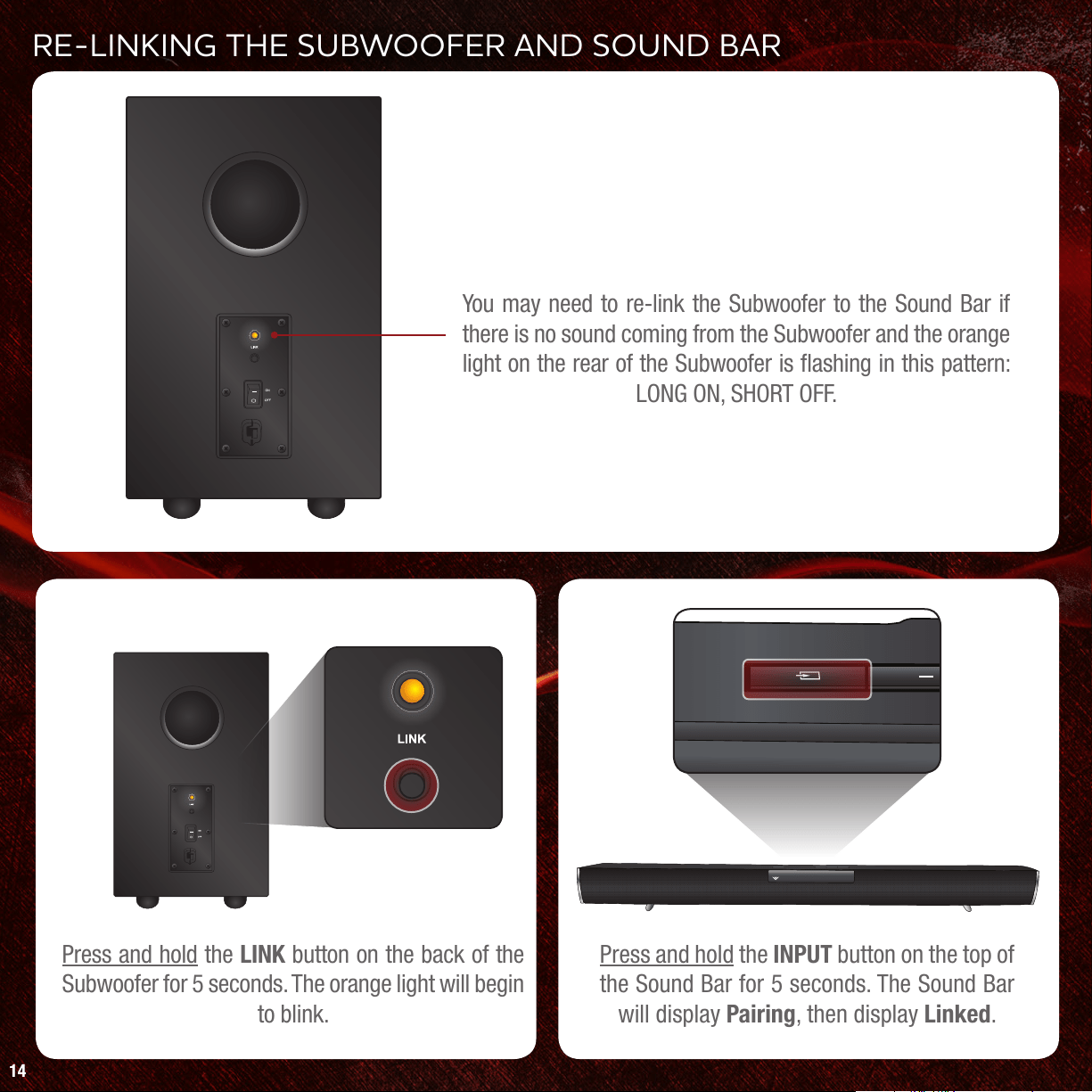
RE-LINKING THE SUBWOOFER AND SOUND BAR
You may need to re-link the Subwoofer to the Sound Bar if
there is no sound coming from the Subwoofer and the orange
light on the rear of the Subwoofer is ashing in this pattern:
LONG ON, SHORT OFF.
14
Press and hold the INPUT button on the top of
the Sound Bar for 5 seconds. The Sound Bar
will display Pairing, then display Linked.
Press and hold the LINK button on the back of the
Subwoofer for 5 seconds. The orange light will begin
to blink.
1
2 3
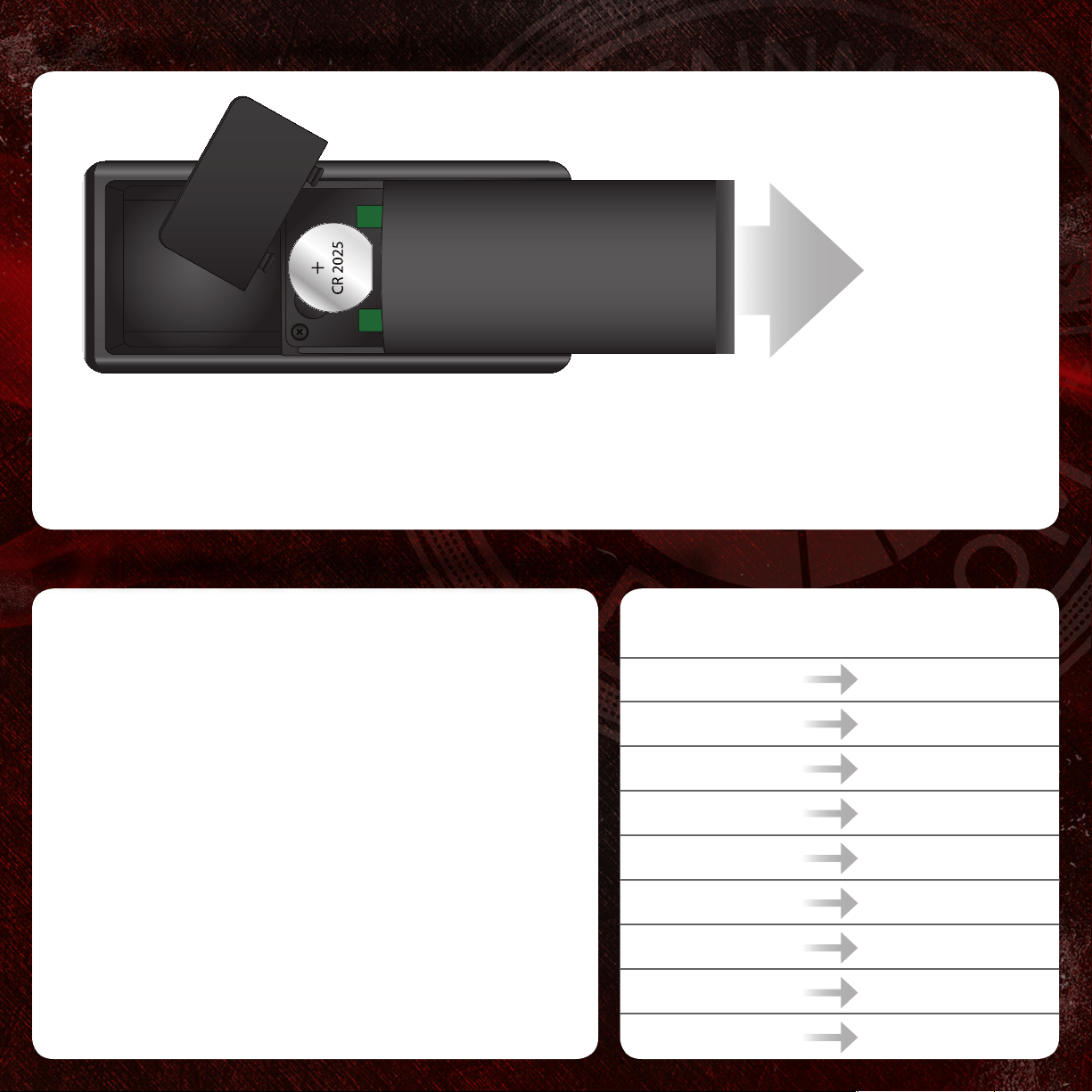
REPLACING THE REMOTE BATTERY
If your remote stops responding, you may need to replace the battery.
To replace the battery, remove the cover from the back of the remote as shown, then replace the old
battery with a new CR 2025. Be sure that the + sign on the battery is facing up as shown.
Slide Out
Remote
15
PROGRAMMING YOUR UNIVERSAL REMOTE
Many universal remote controls can be programmed to
control your Sound Bar.
• If your remote uses a 5-digit programming code,
use code 31517.
• If your remote uses a 4-digit programming code,
use code 1517.
The table at right shows how most universal remotes
will control the Sound Bar.
As each universal remote works differently, you should
refer to your remote’s user manual for instructions on
programming.
UNIVERSAL
REMOTE BUTTON
VIZIO SOUND BAR
FUNCTION
Power Power
Input Input
Volume Up Volume Up
Volume Down Volume Down
Mute Mute
Channel Up Sub Volume Up
Channel Down Sub Volume Down
Menu SRS TruSurround
Info SRS TruVolume
ADVANCED SETUP
16
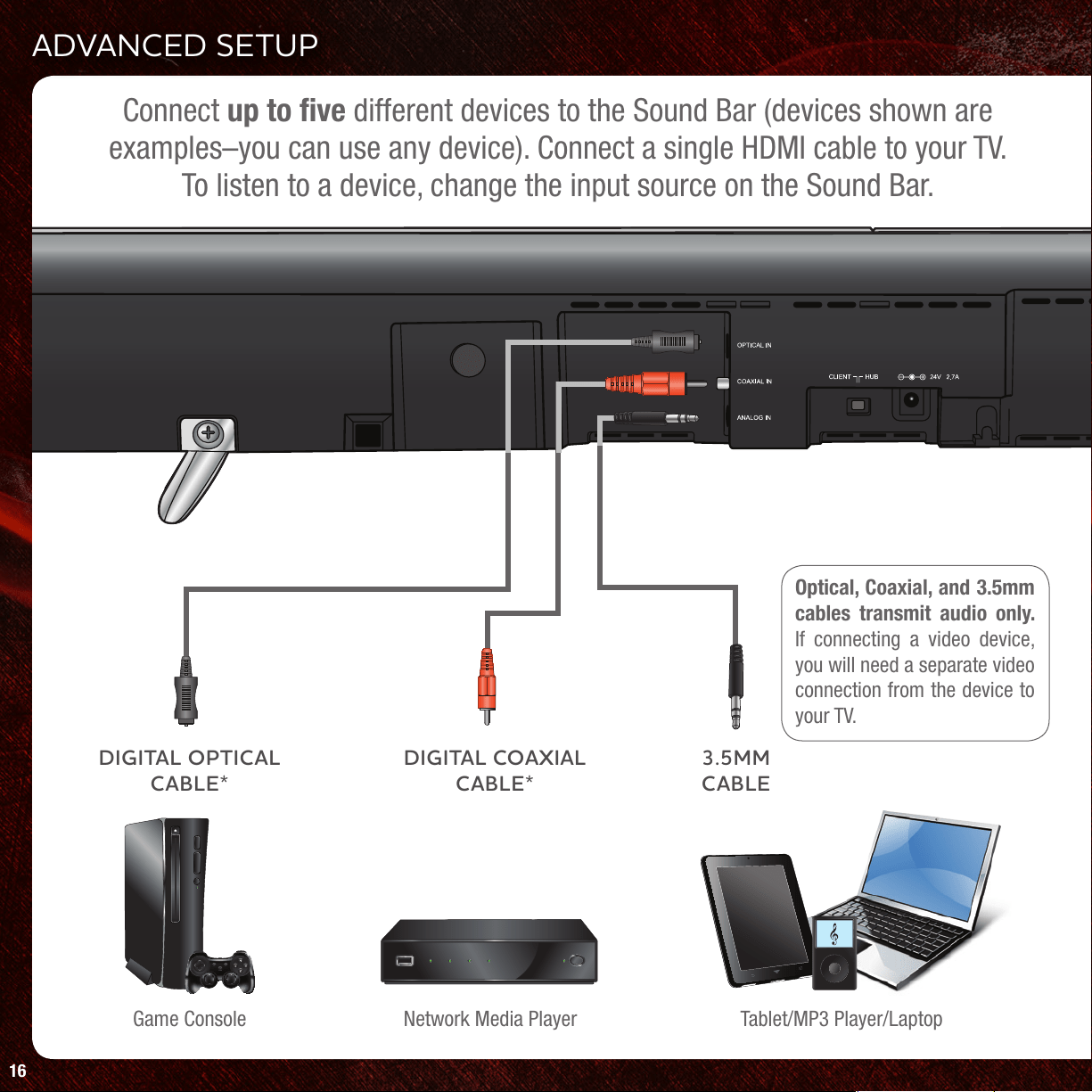
Game Console Tablet/MP3 Player/LaptopNetwork Media Player
Connect up to five different devices to the Sound Bar (devices shown are
examples–you can use any device). Connect a single HDMI cable to your TV.
To listen to a device, change the input source on the Sound Bar.
DIGITAL OPTICAL
CABLE*
3.5MM
CABLE
DIGITAL COAXIAL
CABLE*
Optical, Coaxial, and 3.5mm
cables transmit audio only.
If connecting a video device,
you will need a separate video
connection from the device to
your TV.
17
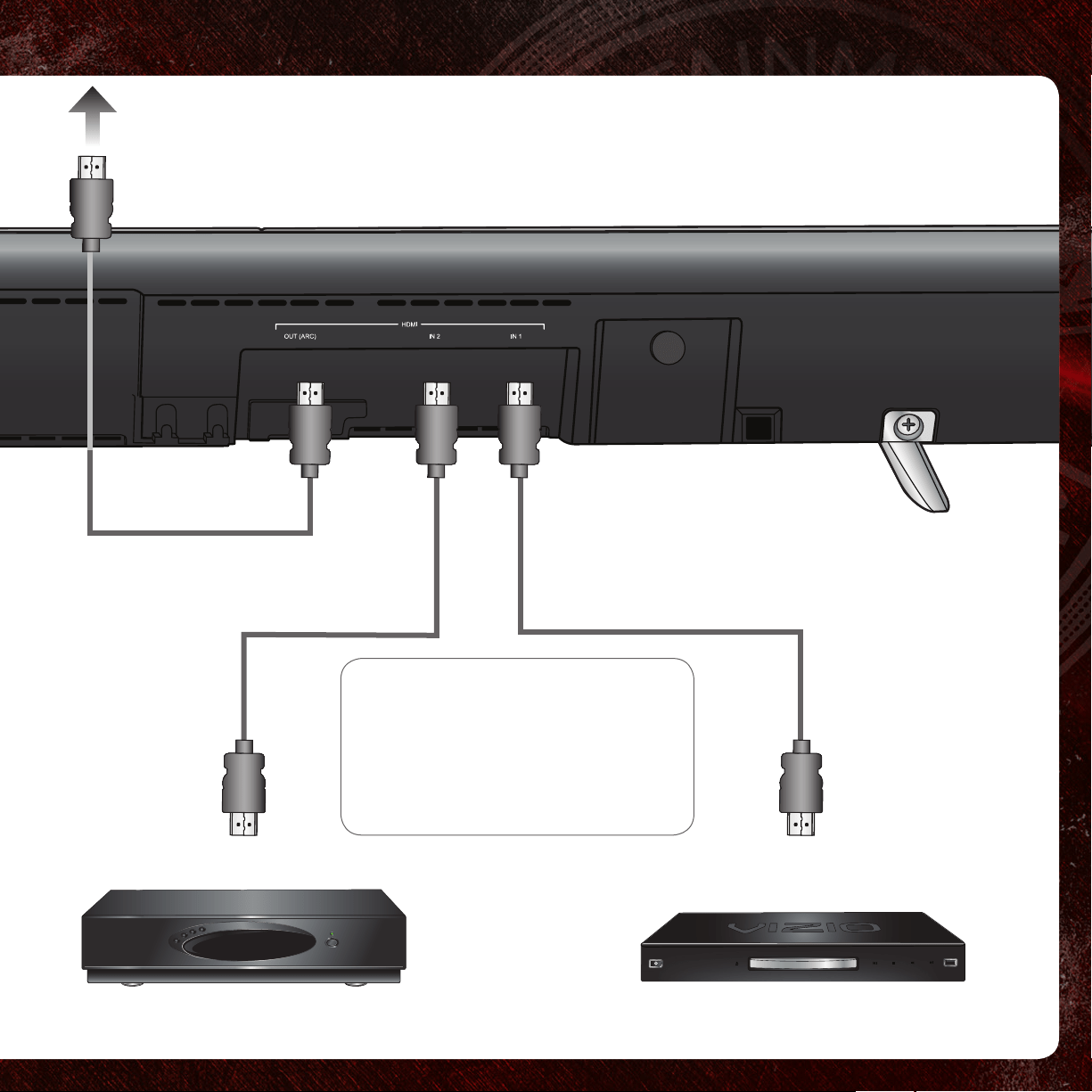
Blu-ray PlayerCable/Satellite Box
21
CONNECT HDMI OUT TO YOUR TV
HDMI CABLE*
*Not Included
HDMI cables transmit both audio and
video. To view video from these devices,
turn the Sound Bar on, then set the Sound
Bar input to HDMI 1 or HDMI 2. Set your
TV input to the HDMI port to which the
Sound Bar is connected.
HDMI CABLE*
Phone:
Fax:
Email:
Web:
(877) 698-4946
(949) 585-9563
www.vizio.com/support
Hours of operation:
Monday - Friday: 5 am to 9 pm (PST)
Saturday - Sunday: 8 am to 4pm (PST)
TECHNICAL SUPPORT
There is no power.
• Press the POWER button on the remote control or on the top of your Sound Bar.
• Ensure the power cords are securely connected.
• Turn the Subwoofer power switch to ON.
• Plug a different device into the electrical outlet to verify that the outlet is working correctly.
• To conserve power, the Sound Bar shuts off automatically after 30 minutes if not in use.
There is no sound from the
Sound Bar.
• Increase the volume. Press Volume Up on the remote control or on the top of your Sound Bar.
• Press MUTE on the remote to ensure the Sound Bar is not muted.
• Select a different input source (HDMI, Analog, Digital, or Wireless).
• Be sure the audio cable coming from the TV is connected to an audio output, not an audio input.
• If listening to an HDMI source, be sure the source is set to PCM or Dolby Digital.
I hear buzzing or humming.
• Ensure all cables and wires are securely connected.
• Connect a different source device (TV, Blu-ray player, etc) to see if the buzzing persists. If it does not, the problem may
be with the original device.
• Connect your device to a different input on the Sound Bar.
There is no sound coming
from the Subwoofer.
• If the lights on the Subwoofer are blinking in this pattern: LONG OFF, SHORT ON, you need to pair the Subwoofer
with the Sound Bar. See Re-Linking the Subwoofer and Sound Bar on page 14.
• Move the Subwoofer closer to the Sound Bar.
• Turn the Subwoofer power switch to ON.
• To conserve power, the Subwoofer will automatically enter a low power state when not in use. It may take up to 10 seconds for the
Subwoofer to link after the Sound Bar is turned on.
How do I listen to SRS
WOW or Dolby Digital?
• To activate SRS WOW, press the SRS TSHD button on the remote twice.
• To listen to Dolby Digital, your device must be playing content in Dolby Digital format. Dolby Digital is only
available over Digital Coaxial, Digital Optical, or HDMI connections.
I would like to adjust the
sound on the Subwoofer
and Sound Bar.
• Adjust the bass and treble levels using the remote.
• Try enabling/disabling SRS TruSurround and SRS WOW.
• Adjust the volume level on the subwoofer using the remote.
Do you have questions? Let us help - all VIZIO products include FREE lifetime technical support.
The VIZIO support team is highly trained and is based in the United States.
We can help with:
• Product Setup
• Technical Problems
For the best support experience, please have your VIZIO model number, serial number, and date
of purchase available before your call.
• Warranty Questions
• And More
There is no picture when
playing content connected
by an HDMI cable.
• Make sure the Sound Bar is ON.
• Set the Sound Bar input to HDMI 1 or HDMI 2.
• Set your TV input to the HDMI port to which the Sound Bar is connected.
18
I see scrolling text on the
Sound Bar display window.
• The Sound Bar may be in Demo Mode. Press the Play/Pause button on the remote to exit Demo Mode.
19
VIZIO RECOMMENDS
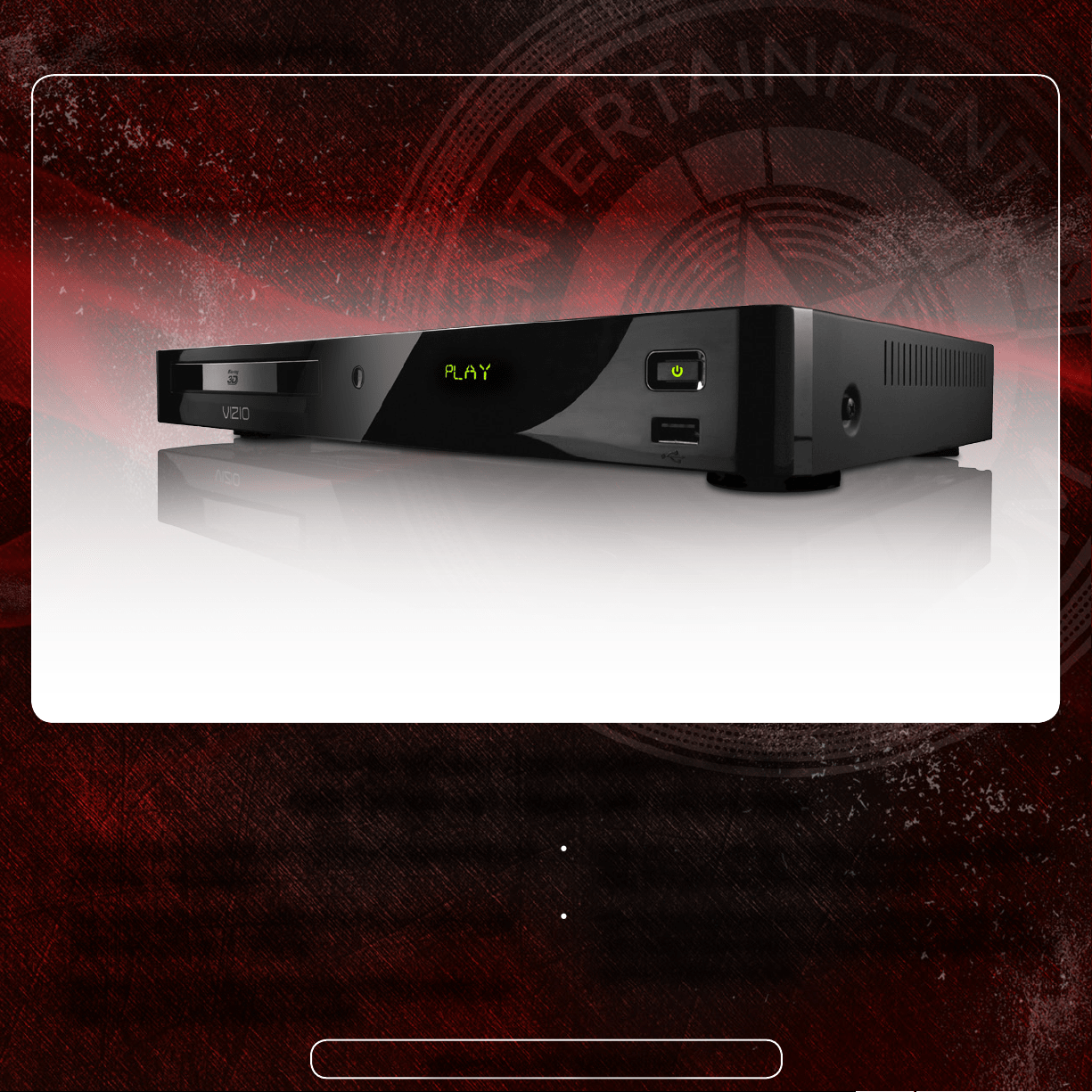
Get the ultimate movie experience with the
VIZIO 3D Blu-ray
™
Player with Internet Apps
• Enjoy up to 7.1 channels of digital audio output via HDMI with
Dolby TrueHD™ and DTS audio technologies
• Easily access entertainment from top Internet services like
Hulu, Amazon Video OnDemand, Blockbuster, Netix, VUDU HD
movies, Pandora and more.
• Plays Blu-ray 3D and Blu-ray™ Discs for full high denition 3D
and 1080p video playback
• View personal photo les (JPG) or listen to your digital music
(MP3) using the built-in USB port
• Upscales your existing DVD library to 1080p quality and
plays audio CDs for added versatility
AVAILABLE AT VIZIO.COM
ON PARTS AND LABOR
Covers units purchased as new in United States and Puerto Rico Only
VIZIO provides a warranty to the original purchaser of a new Product against defects
in materials and workmanship for a period of one year of non-commercial usage
and ninety (90) days of commercial use. If a Product covered by this warranty is
determined to be defective within the warranty period, VIZIO will either repair or
replace the Product at its sole option and discretion.
To obtain warranty service, contact VIZIO Technical Support via email: TechSupport@
VIZIO.com or via phone at 877 MY VIZIO (877.698.4946) from 6:00AM to 9:00PM
Monday through Friday and 8:00AM to 4:00PM Saturday and Sunday, Pacic
Time, or visit www.VIZIO.com. PRE-AUTHORIZATION MUST BE OBTAINED BEFORE
SENDING ANY PRODUCT TO A VIZIO SERVICE CENTER. Proof of purchase in the form
of a purchase receipt or copy thereof is required to show that a Product is within the
warranty period.
Parts and Labor
There will be no charge for parts or labor during the warranty period. Replacement
parts and Products may be new or recertied at VIZIO’s option and sole discretion.
Replacement parts and Products are warranted for the remaining portion of the
original warranty or for ninety (90) days from warranty service or replacement,
whichever is greater.
Type of Service
Defective Products must be sent to a VIZIO service center to obtain warranty service.
VIZIO is not responsible for transportation costs to the service center, but VIZIO will
cover return shipping to the customer. PRE-AUTHORIZATION IS REQUIRED BEFORE
SENDING ANY PRODUCT TO A VIZIO SERVICE CENTER FOR WARRANTY SERVICE.
Product returns to VIZIO’s service centers must utilize either the original carton box
and shipping material or packaging that affords an equal degree of protection. VIZIO
ONE-YEAR LIMITED WARRANTY
Technical Support will provide instructions for packing and shipping the covered
Product to the VIZIO service center.
Limitations and Exclusions
VIZIO’s one-year limited warranty only covers defects in materials and workmanship.
This warranty does not cover, for example: cosmetic damage, normal wear and
tear, improper operation, improper voltage supply or power surges, signal issues,
damages from shipping, acts of God, any type of customer misuse, modications or
adjustments, as well as installation and set-up issues or any repairs attempted by
anyone other than by a VIZIO authorized service center. Products with unreadable
or removed serial numbers, or requiring routine maintenance are not covered.
This one year limited warranty does not cover Products sold “AS IS”, “FACTORY
RECERTIFIED”, or by a non-authorized reseller.
THERE ARE NO EXPRESS WARRANTIES OTHER THAN THOSE LISTED OR DESCRIBED
ABOVE. ANY IMPLIED WARRANTIES, INCLUDING ANY IMPLIED WARRANTY OF MER-
CHANTABILITY AND FITNESS FOR A PARTICULAR PURPOSE, SHALL BE LIMITED IN
DURATION TO THE PERIOD OF TIME SET FORTH ABOVE. VIZIO’S TOTAL LIABILITY FOR
ANY AND ALL LOSSES AND DAMAGES RESULTING FROM ANY CAUSE WHATSOEVER
INCLUDING VIZIO’S NEGLIGENCE, ALLEGED DAMAGE, OR DEFECTIVE GOODS,
WHETHER SUCH DEFECTS ARE DISCOVERABLE OR LATENT, SHALL IN NO EVENT
EXCEED THE PURCHASE PRICE OF THE PRODUCT. VIZIO SHALL NOT BE RESPONSIBLE
FOR LOSS OF USE, LOSS OF INFORMATION OR DATA, COMMERCIAL LOSS, LOST
REVENUE OR LOST PROFITS, OR OTHER INCIDENTAL OR CONSEQUENTIAL DAMAGES.
SOME STATES DO NOT ALLOW LIMITATIONS ON HOW LONG AN IMPLIED WARRANTY
LASTS OR THE EXCLUSION OF INCIDENTAL OR CONSEQUENTIAL DAMAGES, SO THE
ABOVE LIMITATIONS OR EXCLUSIONS MAY NOT APPLY TO YOU. THIS WARRANTY GIVES
YOU SPECIFIC LEGAL RIGHTS, AND YOU MAY ALSO HAVE OTHER RIGHTS, WHICH VARY
FROM STATE TO STATE. THIS WARRANTY IS SUBJECT TO CHANGE WITHOUT NOTICE.
CHECK www.VIZIO.com FOR THE MOST CURRENT VERSION.
SPECIFICATIONS
Sound Bar: Two 2.75” Mid-Range Drivers and One 3/4”
Tweeter on each side
Subwoofer: One 6.5” Long Throw (High Excursion) Driver
Frequency Response
(Sound Bar):
150 Hz - 20 kHz
Frequency Response
(Subwoofer):
40 Hz - 150 Hz
Subwoofer Wireless Range: > 60’ with Clear Line of Sight
Sound Pressure Level (SPL): 90 dB
Voltage (Sound Bar):
Voltage (Subwoofer):
100-240 V, 50-60 Hz
120V, 60 Hz
Dimensions (Sound Bar): 40.1” x 4.1” x 2.1” (with Stand)
40.1” x 3.3” x 1.9” (without Stand)
Dimensions (Subwoofer): 8.5” x 12.8” x 11.0”
Net Weight (Sound Bar): 4.9 lbs
Net Weight (Subwoofer): 11.0 lbs
Gross Weight: 25.1 lbs
Compliances: FCC, NOM, cULus
20
Incorporated under license from SRS Labs, Inc. SRS TruSurround HD
and SRS TruVolume are trademarks of SRS Labs, Inc.
Manufactured under license from Dolby Laboratories. Dolby and the
Double-D symbol are trademarks of Dolby Laboratories.
HDMI, the HDMI logo and High-Denition Multimedia Interface are
trademarks or registered trademarks of HDMI Licensing LLC.
iPhone
®
and iPod
®
are trademarks of Apple Inc., registered in the
U.S. and other countries.
This product qualies for ENERGY STAR in the “factory default”
setting and this is the setting in which power savings will be
achieved. Changing the factory default settings or enabling other
features will increase power consumption that could exceed the
limits necessary to qualify for ENERGY STAR rating.
FCC Class B Radio Interference Statement
NOTE: This equipment has been tested and found to comply with the limits for a Class
B digital device, pursuant to Part 15 of the FCC Rules. These limits are designed to
provide reasonable protection against harmful interference in a residential installation.
This equipment generates, uses and can radiate radio frequency energy, and if not
installed and used in accordance with the instructions, may cause harmful interference
to radio communications. However, there is no guarantee that interference will not
occur in a particular installation. If this equipment does cause harmful interference to
radio or television reception, which can be determined by turning the equipment off
and on, the user is encouraged to try to correct the interference by one or more of the
following measures:
1. Reorient or relocate the receiving antenna.
2. Increase the separation between the equipment and receiver.
3. Connect the equipment into an outlet on a circuit different from that to which the
receiver is connected.
4. Consult the dealer or an experienced radio/TV technician for help.
This device complies with Part 15 of the FCC Rules. Operation is subject to the
following two conditions: (1) this device may not cause harmful interference, and (2)
this device must accept any interference received, including interference that may
cause undesired operation.
Notice:
1. The changes or modications not expressly approved by the party responsible for
compliance could void the user’s authority to operate the equipment.
2. Shielded interface cables and AC power cord, if any, must be used in order to
comply with the emission limits.
3. The manufacturer is not responsible for any radio or TV interference caused by
LEGAL & COMPLIANCE
unauthorized modication to this equipment. It is the responsibilities of the user to
correct such interference.
RF Exposure Information
This device meets the government’s requirements for exposure to radio waves. This
device is designed and manufactured not to exceed the emission limits for exposure
to radio frequency (RF) energy set by the Federal Communications Commission of the
U.S. Government. This device complies with FCC radiation exposure limits set forth for
an uncontrolled environment.
IC Statement
Operation is subject to the following two conditions:
1. This device may not cause interference, and
2. This device must accept any interference, including interference that may cause
undesired operation of the device.
This Class B digital apparatus complies with Canadian ICES-003.
Cet appareil numérique de la classe B est conforme à la norme NMB-003 du Canada.
IC Radiation Exposure Statement
This equipment complies with IC RSS-102 radiation exposure limits set forth for an
uncontrolled environment. This equipment should be installed and operated with
minimum distance 20cm between the radiator & your body.
Disposal and Recycling
You must dispose of this product properly, according to local laws and regulations.
Because this product contains electronic components and a battery, it must be
disposed of separately from household waste. Contact local authorities to learn
about disposal and recycling options.
INFORMATION ON HEARING DAMAGE
Understanding Noise Induced Hearing Loss
Exposure to loud sounds can damage your hearing, causing hearing loss and tinnitus
(ringing or buzzing in the ears). While a variety of things can lead to hearing loss,
including aging and side effects of certain medications, the most common cause of
non-age-related hearing damage is loud noise. Extremely loud sounds, such as gun
shots or recrackers at close range, can cause immediate hearing damage. Hearing
damage can also occur over time due to repeated exposure to loud sounds such as
industrial noise or loud music. With continued exposure to loud noises, ears may
become accustomed to the sound level, which may result in permanent damage to
hearing without any noticeable discomfort.
Temporary and Permanent Hearing Loss
Noise induced hearing loss and tinnitus may be temporary or permanent. Ears
typically recover from temporary hearing damage in a short time. However, ears may
not recover completely, and some damage may be permanent. Repeated exposure
to loud sound can cause more and more damage, and eventually lead to serious
hearing problems. Scientists generally agree that, over time, exposure to harmful
levels of noise can lead to permanent noise induced hearing loss by damaging and/
or destroying the inner ear’s sensory hair cells.
Loud Sounds + Time = Hearing Loss
The more time you spend exposed to loud sounds, the more likely you are to damage
your hearing. All of the loud sounds that you are exposed to during a day add up -
continued exposure to loud sounds can prevent your ears from recovering and also
cause additional damage.
Symptoms of Hearing Loss
While not all noise induced hearing loss is noticeable, symptoms may include
a sensation of pressure or fullness in your ears, ringing in your ears, or mufed
speech. If you experience these symptoms or believe you may have experienced
noise induced hearing loss, you should have your hearing checked by an ear doctor
or audiologist.
CARE & MAINTENANCE
Do not use volatile solvents (such as toluene, rosin, or alcohol) to clean this product.
Such chemicals may damage it. Do not spray cleaners directly on the product. To
clean this product, gently wipe it with a clean, dry, soft cloth.
21

© 2011. ALL RIGHTS RESERVED. THE V, VIZIO, VIZIO INTERNET APPS, THEATER 3D, FULL ARRAY TRULED, EDGE LIT RAZOR LED, 240HZ SPS, 480HZ SPS,
ENTERTAINMENT FREEDOM AND ENTERTAINMENT FREEDOM FOR ALL NAMES, LOGOS AND PHRASE ARE REGISTERED OR UNREGISTERED TRADEMARKS OF
VIZIO, INC. OTHER LOGOS AND TRADEMARKS ARE THE PROPERTY OF THEIR RESPECTIVE OWNERS. SUBJECT TO CHANGE WITHOUT NOTICE.
110825ST-B