Roku TV
™
User Guide
Version 9.4
For Canada
English
Illustrations in this guide are provided
for reference only and may differ from
actual product appearance.

Copyright
© 2020 Roku, Inc. All rights reserved. ROKU, the ROKU Logo, and “NOW THIS IS TV” are trademarks and/or
registered trademarks of Roku, Inc. Material in this User Manual is the property of Roku, Inc., and is protected under US
and International copyright and/or other intellectual property laws. Reproduction or transmission of the materials, in
whole or in part, in any manner, electronic, print, or otherwise, without the prior written consent of Roku, Inc., is a
violation of Roku, Inc.’s, rights under the aforementioned laws.
No part of this publication may be stored, reproduced, transmitted or distributed, in whole or in part, in any manner,
electronic or otherwise, whether or not for a charge or other or no consideration, without the prior written permission
of Roku, Inc.
Requests for permission to store, reproduce, transmit or distribute materials shall be made to both of the following
address:
Roku, Inc.
1155 Coleman Avenue,
San Jose, CA 95110
Product name: Roku TV™
Document name: Roku TV™ User Guide
Document revision: 9.4 – Canada, English
Publication date: 31-October-2020

iii
Contents
Welcome ...................................................................................................................................................1
The new standard in Smart TVs .................................................................................................................................. 1
Get the most out of your new TV ............................................................................................................................... 1
Connections and setup .................................................................................................................... 6
Connecting an antenna, cable, or satellite box .................................................................................................. 6
Connecting external equipment with a composite AV video cable ........................................................ 7
Connecting external equipment with an HDMI
®
cable ................................................................................... 7
Connecting headphones or analog soundbar .................................................................................................... 8
Connecting headphones to the Roku Enhanced Voice Remote .............................................................. 8
Connecting an AV receiver or digital soundbar ................................................................................................ 9
Preparing for Internet connectivity ......................................................................................................................... 9
AC power ............................................................................................................................................................................. 10
Roku remote batteries ................................................................................................................................................... 10
Roku TV remote ................................................................................................................................................................ 10
Panel buttons ..................................................................................................................................................................... 14
Single button ................................................................................................................................................................. 15
Three buttons ................................................................................................................................................................ 15
Game-pad style joystick .......................................................................................................................................... 16
Four buttons .................................................................................................................................................................. 16
Five buttons (with mute) ........................................................................................................................................ 16
Five buttons (without mute) ................................................................................................................................. 17
Seven buttons ............................................................................................................................................................... 17
Guided Setup ....................................................................................................................................... 18
Starting Guided Setup ................................................................................................................................................... 18
Guided Setup ...................................................................................................................................................................... 19
Network connection .................................................................................................................................................. 21
Activation ....................................................................................................................................................................... 25
Connect your devices .............................................................................................................................................. 27
The Home screen ............................................................................................................................. 30
Personalize your Home screen ............................................................................................................................. 31
Benefits of connecting ................................................................................................................... 33
Connecting brings out your TV’s full potential! ............................................................................................... 33
Take advantage of awesome features ................................................................................................................. 34
What is streaming? ......................................................................................................................................................... 34

iv
What if I didn’t connect my TV? .............................................................................................................................. 36
Setting up live TV ............................................................................................................................. 37
How do I set up the TV tuner? ................................................................................................................................. 38
Using your TV ..................................................................................................................................... 42
Status indicator ................................................................................................................................................................ 42
Standby mode energy savings................................................................................................................................. 43
Watching live TV channels ......................................................................................................................................... 43
Changing channels..................................................................................................................................................... 43
Favorite Channels ...................................................................................................................................................... 44
Viewing program information ............................................................................................................................. 46
Adjusting settings while watching a program ............................................................................................. 47
Pausing live TV ................................................................................................................................................................. 47
Requirements ............................................................................................................................................................... 47
Enabling Live TV Pause .......................................................................................................................................... 48
Using Live TV Pause ................................................................................................................................................ 48
Notes about Live TV Pause .................................................................................................................................. 50
Switching TV inputs ...................................................................................................................................................... 50
Auto-detecting devices .......................................................................................................................................... 50
Adjusting audio/video settings .......................................................................................................................... 50
Setting preferred audio language for streaming channels .................................................................... 51
Using Roku Voice commands .................................................................................................................................... 51
Using Roku Voice remotes (select models only) ....................................................................................... 52
Playing content from USB storage devices ....................................................................................................... 54
Auto player launch..................................................................................................................................................... 54
Playing content from local network media servers ....................................................................................... 55
Setting up a payment method ................................................................................................................................. 55
Using your TV in a hotel or dorm room ............................................................................................................... 56
About using your TV on a restricted public network .............................................................................. 56
Getting your Roku TV on line on a restricted public network ............................................................ 57
Using Apple AirPlay and the Apple Home app ................................................................ 60
Apple AirPlay .................................................................................................................................................................... 60
Other AirPlay things to try ................................................................................................................................... 60
Apple Home app ............................................................................................................................................................ 60
Some Apple Home things to try .......................................................................................................................... 61
Adjusting TV settings ..................................................................................................................... 62
Settings menu ................................................................................................................................................................... 62
Options menu .................................................................................................................................................................... 63
Options menu settings ................................................................................................................................................ 64
Video description through Secondary Audio Program (SAP) ................................................................66
Picture settings................................................................................................................................................................. 67
Picture settings menu options ............................................................................................................................. 68
Auto Low Latency Mode (ALLM): .................................................................................................................... 70

v
Variable refresh rate (VRR) .................................................................................................................................. 70
Sound settings ................................................................................................................................................................. 70
Volume mode (select models only) ................................................................................................................... 71
Sound settings – Dolby
®
Audio Processing (select models only) ..................................................... 72
Sound settings – DTS
®
TruSurround / DTS
®
Studio Sound (select models only) .................... 73
Sound settings – Sonic Emotion
™
Premium (select models only) ..................................................... 74
Sonic Emotion™ settings......................................................................................................................................... 75
Expert Picture Settings (4K models only).......................................................................................................... 76
Changing privacy settings .......................................................................................................................................... 76
Advertising..................................................................................................................................................................... 76
Microphone .................................................................................................................................................................... 77
My Feed ................................................................................................................................................. 79
Searching for something to watch.......................................................................................... 80
How do I search? ............................................................................................................................................................ 80
Keyboard search using the remote .................................................................................................................... 81
Voice Search from a Roku Voice remote ........................................................................................................ 81
Searching from the Roku mobile app .............................................................................................................. 82
Searching with Google Assistant ....................................................................................................................... 82
Searching with Amazon Alexa ............................................................................................................................ 82
Searching for free content ..................................................................................................................................... 83
I searched for a program. Now what? .................................................................................................................. 83
Follow on Roku................................................................................................................................................................ 84
Recent Searches ............................................................................................................................................................. 84
Using the Roku Channel Store ................................................................................................... 85
Automatic Account Link ............................................................................................................................................. 86
Customizing your TV ...................................................................................................................... 87
Add TV inputs ................................................................................................................................................................... 87
Add streaming channels .............................................................................................................................................. 88
Rename inputs .................................................................................................................................................................. 88
Remove unwanted tiles................................................................................................................................................ 89
Rearrange tiles ................................................................................................................................................................. 90
Change the look and feel with themes ................................................................................................................. 91
Edit live TV channel lineup ......................................................................................................................................... 92
Change menu volume ................................................................................................................................................... 93
Configure power settings ........................................................................................................................................... 93
Power on settings ...................................................................................................................................................... 93
Auto power savings ................................................................................................................................................. 94
Standby LED On/Off ............................................................................................................................................... 94
Fast TV start ................................................................................................................................................................ 94
Change caption settings .............................................................................................................................................. 95
Customize the Home screen ..................................................................................................................................... 97

vi
Parental controls .............................................................................................................................. 98
Creating a parental control PIN ............................................................................................................................... 98
Blocking Broadcast TV programs .......................................................................................................................... 98
Enabling parental control of TV programs ...................................................................................................99
Blocking based on US TV ratings.......................................................................................................................99
Blocking based on US movie ratings ............................................................................................................ 100
Blocking based on Other ratings ....................................................................................................................... 101
Blocking based on Canadian English ratings ............................................................................................. 102
Blocking based on Canadian French ratings.............................................................................................. 102
Blocking unrated programs ................................................................................................................................ 103
What happens when a TV program is blocked? ........................................................................................... 104
Changing the parental control PIN ...................................................................................................................... 106
Resetting parental controls...................................................................................................................................... 106
More settings .................................................................................................................................... 107
Guest Mode ...................................................................................................................................................................... 107
Network settings ........................................................................................................................................................... 109
Postal code ........................................................................................................................................................................ 110
Time settings .................................................................................................................................................................... 110
Scan again for live TV channels ................................................................................................................................ 111
HDMI
®
mode (4K models only) ................................................................................................................................. 111
Control by mobile apps................................................................................................................................................ 112
Home theater configuration ......................................................................................................................................113
Turning off the TV speakers for home theater use ...................................................................................113
Setting up a digital audio connection ..............................................................................................................113
Choosing an audio format .................................................................................................................................... 114
Turning off the TV screen while listening to music .................................................................................. 115
Controlling other devices through CEC .......................................................................................................... 115
Restart the TV ................................................................................................................................................................... 117
Reset the TV ...................................................................................................................................................................... 117
Reset audio/video settings ................................................................................................................................... 117
Factory reset everything ....................................................................................................................................... 118
What if I can’t access the Factory Reset option? ..................................................................................... 118
Network connection reset .................................................................................................................................... 119
Roku account PIN ......................................................................................................................................................... 120
Update the TV .................................................................................................................................................................. 121
Checking for updates on a connected TV ..................................................................................................... 121
Getting updates on a non-connected TV .....................................................................................................122
Other devices .................................................................................................................................... 124
Mirror your phone or tablet ..................................................................................................................................... 124
Roku mobile app............................................................................................................................................................ 125
Private Listening on the Roku mobile app .................................................................................................. 125
Universal remotes ......................................................................................................................................................... 126


1
Welcome
Congratulations on the purchase of your new Roku TV! Discover the joy of endless
entertainment. After it’s set up, you’ll be able to access a world of streaming content
channels that may include paid subscription channels and thousands of free channels.
Important:
Your TV receives automatic updates from time to time, enabling new
content and features. This edition of the User Guide describes Roku TV version 9.4. To
determine the current version of your Roku TV, go to Settings > System > About
after you complete Guided Setup.
The new standard in Smart TVs
Welcome to TV like you’ve most likely never seen before—a home screen that you can
personalize with your favorite devices and streaming channels. Choose from hundreds
of thousands of streaming movies and TV episodes, plus music, sports, kids, family,
international and much more. You should never run out of things to watch.
Note:
A paid subscription or other payments may be required for some channel
content. Channel availability is subject to change and varies by country.
Get the most out of your new TV
Follow these steps to get the most out of your new TV.
• Connect to the Internet
• It’s easy, and it will unlock a world of entertainment. All you need is a
network connection. There are hundreds of free streaming channels, paid
subscription services, and convenient ways to rent or buy a favorite movie
or program.

2
• Pick your favorite streaming channels
• Find the entertainment you love. From the latest blockbuster movies to
your favorite TV programs, with tons of live sports, a broad selection of
music streaming channels, popular programming in a dozen international
languages, 24x7 live news and so much more, your new Roku TV has your
sweet spot. A paid subscription or other payments may be required for
some channels.
• Personalize your Home screen
• Put your favorite streaming channels, and TV inputs front-and-center on the
Home screen. No more flipping through inputs or wading through
complicated menus. You can even customize the names of each input and
move tiles around so your most-often used devices and streaming channels
are only a click away.
• Search for your favorite movie, TV program, actor, or director
• Once you’re connected to the Internet, you can easily search across top
streaming channels. Search by movie or TV program title, actor or
director—all from one place. Search by typing words or phrases using the
on-screen keyboard or on your mobile device, or speak words or phrases in
a conversational tone using Voice Search. Some channels and content
require payment.
• Pause live TV
• Pause, resume, fast forward, and rewind TV programs by connecting your
own USB drive to the TV and pause live TV for up to 90 minutes.
Note:
Live TV Pause is available on digital TV programs received on the
ANT input, and only when the TV is linked to a valid Roku account.
• Control your TV with voice commands
• Use your Roku Voice Remote (select models), Enhanced Voice Remote
(select models), or the free Roku mobile app to control your Roku TV. Use
conversational voice commands to search for programs by title, actor,
director, or genre. Also, use voice commands to launch streaming channels,
switch inputs, or change live TV channels.
1
1
Voice features support English language in Canada.

3
While you’re at it, explore these additional voice features:
• Set sleep timers. For example, say “Turn the TV off in 30 minutes”, or
“Go to sleep at 11 p.m.”
• Go directly to playing a program whenever your search command can
be uniquely identified and the requested content is available at no
additional cost to you.
1
• Search for movies based on popular quotes. For example, say “What
movie is this from – ‘Here’s looking at you, kid’.”
•
Only on 4K TVs
, say “Show me 4K movies” to see a list of 4K movies
available across participating streaming channels.
• Use voice commands to turn the display off (for enjoying streaming
music), turn closed captions on or off, and to replay the last few seconds
of a movie or TV program.
• Control the Roku Media Player to play your personal music and show
movies and photos. Say commands like, “Play classic rock on Roku
Media Player,” “Skip ahead 20 seconds,” or “Play the next song.”
• Ask Siri on your Apple device to control your 4K Roku TV with just your
voice. Say things like “Hey Siri, play jazz on the living room TV” to play
music from your iPhone, iPad, Apple Watch, HomePod, or Mac on your
Roku TV. 4K Roku TVs also support Apple HomeKit, providing an easy way
to control HomeKit-enabled accessories using the Apple Home app and Siri.
After installing your 4K Roku TV, set it up with just a few simple steps
within the Apple Home app. You can even create your own custom
automations and scenes that include HomeKit-enabled accessories such as
your 4K Roku TV, to control your home setting.
1
Direct-to-playback commands work with selected streaming channels. Direct playback occurs only
when there is a high confidence of match, the content is free or you are already subscribed, and the
channel is already added to your Home screen.

4
• Use Google Home, Google Pixel phone, or the Google Home mobile app to
control your Roku TV. You can search for movies and TV programs, launch
most channels, control playback, adjust the volume, switch inputs, turn the
TV on and off, and more. Control multiple Roku devices by including the
location of the device in your commands. For example, say “Hey Google,
turn off Roku in the bedroom.”
• Use Amazon Echo Dot, Echo Plus, Echo Show, or the Amazon Alexa mobile
app to control your Roku TV. You can search for movies and TV programs,
launch most channels, control playback, adjust the volume, switch inputs,
turn the TV on and off, and more. Control multiple Roku devices by
including the location of the device in your commands. For example, say
“Hey Alexa, pause Roku in the living room.”
• Use Apple AirPlay 2 with your iOS and MacOS devices
• Effortlessly share videos, photos, music, and more from Apple devices on
4K Roku TVs. Control AirPlay sessions with pause, rewind, and more using
your iPhone, iPad, or Mac. Play music from your Apple devices on Roku TVs
and other AirPlay 2 enabled speakers in your home at the same time in
perfect sync. Plus, mirror the screen from your iPhone, iPad, or Mac to the
big screen.
• Send your personal media to the big screen
• Send personal photos, videos, and music from your compatible smartphone
or tablet to the TV screen in just a few taps. Plus, with certain channels, you
can send movies, programs, sport highlights, and more directly to your TV.
• Watch for content with My Feed
• Use My Feed to get updates on movies, TV programs, and actors that you
are following, and then watch for alerts each time one of your followed
items becomes available or changes price.

5
• Take charge with a smartphone or tablet
• Control your TV from your compatible smartphone or tablet with the free
mobile app for iOS
®
and Android™ mobile devices
1
. Browse channels, view
My Feed, listen to audio from live TV and streaming channels. Search more
easily using your mobile device’s keyboard and Voice Search.
2
• Mirror your compatible smartphone or tablet on your TV. Share videos,
photos, web pages, and more from compatible devices.
• Connect your Roku TV to networks found in hotels and college dorms
• Temporarily link your smartphone or tablet to your TV to agree to any
terms, enter codes, or provide required information before you can get
Internet access in locations that require these additional steps (also known
as
restricted public networks
.
Note:
Using your Roku TV on a restricted public network requires wireless
availability and use of your network-connected smartphone, tablet, or
computer to authenticate access to your account. You must use your Roku
TV remote, and not the Roku mobile app, to initiate the connection process.
Streaming content might be limited due to your geographic location or due
of restrictions imposed by the network host.
Go to support.roku.com for device compatibility information.
Let’s get started.
1 IOS® is a trademark or registered trademark of Cisco in the U.S. and other countries and is used under
license. Android™ is a trademark of Google Inc.
2
Voice features support English language in Canada.

6
Connections and setup
Refer to your TV’s Quick Start Guide or other provided documentation to for model-
specific information about attaching the base or a wall mount and making
connections to AC power and to your other audio/video devices. The following
information applies to all Roku TV models.
Connecting an antenna, cable, or satellite box
If you are using an antenna, CATV cable without a set-top box, or a cable or satellite
box that has only an antenna output, connect a 75-ohm coaxial cable (not provided)
from the device to the ANT/CABLE input on the TV.
Tip:
If you are using an antenna with a 300-ohm twin-lead cable, you need to use a
300-to-75-ohm adapter (not provided) to adapt the twin-lead cable to a connection
that is compatible with the TV’s antenna input.
Tip:
If you receive your TV stations through a set top box from a cable or satellite TV
provider, connect it to the TV using the best connection method available. From most
to least desirable:
• HDMI
®
input – Digital HD and SD video
• AV input – analog SD video
• Antenna input – analog SD video using NTSC

7
Connecting external equipment with a composite
AV video cable
If the best connection available on your device is AV or composite video output,
connect it to the TV using a composite AV cable (not provided). Composite AV
cables typically have three RCA-type plugs on each end, color coded as follows:
• Yellow – Video
• Red – Audio, right channel
• White or black – Audio, left channel
Connect each plug to the corresponding connector on the device and on the TV.
Note:
Select models have an AV Input that looks like a headphone jack. Use the
breakout cable (included) to adapt this input to the three RCA-type plugs on your
composite cable.
Connecting external equipment with an HDMI
®
cable
If possible, connect your devices using HDMI
®
cables (not provided). They help to
provide the best video quality and also carry audio signals, so that only one cable is
needed. For better picture quality, we recommend that you use cables designated as
High Speed HDMI
®
Cables.
Tip:
You might need to configure the device to send its signal through its HDMI
®
connector.
The connector labeled HDMI (ARC) has the additional ability to use the audio return
channel to send digital audio to a receiver or soundbar, as explained in
Connecting an
AV receiver or digital soundbar.
Only on select models:
The connector labeled HDMI (eARC) provides the same
functionality as the HDMI ARC connector, plus the ability to pass through full-
resolution sound formats such as Dolby Atmos and DTS:X from and to devices that
support these formats, without additional processing by the TV. Additional details are
provided in Choosing an audio format
.

8
Connecting headphones or analog soundbar
You can connect headphones or an analog soundbar (not provided) to the TV’s
headphone jack.
Tip:
Inserting a plug in the headphone jack disables the sound from the TV’s built-in
speakers.
Warning:
Loud noise can damage your hearing. When using headphones, use the
lowest volume setting on your headphones that still lets you hear the sound.
Select models also have an audio line out connection that is not affected by TV
volume or mute settings and does not disable the TV speakers. Use this connection
when you want to use your amplifier or soundbar to control the TV volume. To turn
off the TV’s built-in speakers, from the Home screen menu, navigate to Settings >
Audio > TV speakers and change the setting.
Connecting headphones to the Roku Enhanced
Voice Remote
Select Roku TVs come with the Roku Enhanced Voice Remote. On these models, you
can connect headphones to the jack on the left side of the remote.
Tip:
Inserting a plug in the remote’s headphone jack disables the sound from the TV’s
built-in speakers or attached receiver or soundbar. The volume and mute controls on
the right side of the remote adjust the volume level of the connected headphones.
Warning:
Loud noise can damage your hearing. When using headphones, use the
lowest volume setting on your headphones that still lets you hear the sound. You
might notice that connecting headphones to your remote shortens the remote’s
battery life somewhat.

9
Connecting an AV receiver or digital soundbar
You can enjoy Dolby Audio™ multichannel sound from your TV if you connect a digital
amplifier or soundbar (not provided) in either of two ways:
Digital optical audio out (S/PDIF) – Connect a TOSLINK optical cable (not provided)
from the TV to the Optical input on your receiver or soundbar.
HDMI® ARC – Connect an HDMI
®
cable (not provided) from the HDMI (ARC)
connector to the HDMI
®
input on your receiver or soundbar. This connection uses the
Audio Return Channel (ARC) feature of HDMI
®
to output sound from the TV to a
compatible device. To use this feature, you must configure the TV to enable HDMI
®
ARC, as explained in Enable HDMI
®
ARC.
HDMI® eARC –
Select models only:
Connect an HDMI
®
cable (not provided) from the
HDMI (eARC) connector to the HDMI (ARC) or HDMI (eARC) input on your receiver
or soundbar. If your receiver or soundbar supports HDMI enhanced ARC (eARC), the
TV can pass through full-resolution sound from programs containing enhanced audio.
If your receiver or soundbar does not support eARC, use the TV’s eARC port to make
the connection. The eARC port is backward compatible with the ARC standard.
Preparing for Internet connectivity
If you want to watch streaming content and take advantage of most of the cool
features of your Roku TV, connect it to the Internet through a wireless modem/router
or a wireless access point (not provided). The TV has a built-in wireless LAN adapter.
Note:
The TV supports only its internal wireless network adapter—it does not support
the use of a USB network adapter.
Select models also have both wired and wireless network connectivity. To use the
wired network connection, connect an RJ-45 Ethernet cable (not provided) from the
jack on the back of your TV to your network router or switch. The wired connection
automatically supports both 10 Base-T and 100 Base-T Ethernet.

10
AC power
Plug your TV into a power outlet. You can tell that the TV has power because the
status indicator lights up when the TV is off.
The topic Status indicator
explains how the status indicator shows what is happening
with the TV.
Roku remote batteries
Open the back of your Roku remote and insert the included batteries, observing the
proper orientation as indicated in the battery compartment. Reattach the back cover.
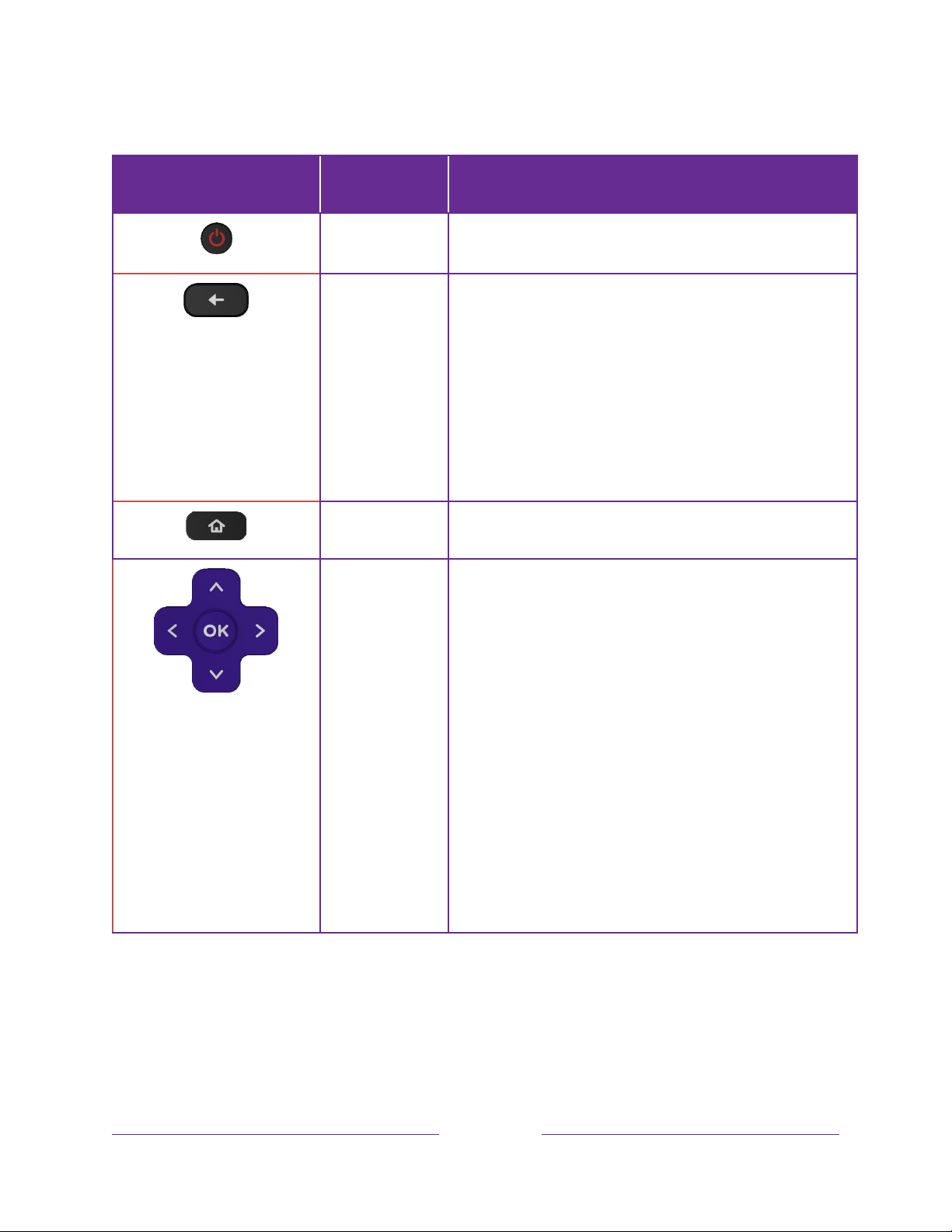
Roku TV remote
Use the following information to identify the buttons on your Roku remote.
Note:
Remote buttons and features vary somewhat by model. Your remote might not
have all buttons or features listed.
•
If your remote has a VOICE just below the purple pad, you have a Roku
Voice Remote.
•
If your remote has a headphone jack on its left edge, you have a Roku
Enhanced Voice Remote.
11
Roku voice remotes have additional capabilities as noted in the following table.
BUTTON FUNCTION DESCRIPTION
POWER
Turns TV on and off.
BACK
• Menu: Goes back to previous menu/screen.
• Home screen tile: Moves highlight back to the Home
screen option.
• Watching live TV or a TV input: Returns to Home
screen.
• Playing streaming content: Stops playing stream
and returns to the previous menu or screen.
• Browsing streaming content: Goes to the previous
level in the content tree.
HOME
Immediately returns to the Home screen.
DIRECTIONAL PAD
• Moves the highlight in the corresponding direction.
• OK chooses the highlighted option.
While watching TV:
• UP/DOWN changes channel.
• LEFT displays the channel list.
• LEFT/RIGHT While displaying the channel list,
switches between ALL CHANNELS and FAVORITE
CHANNELS, and pressing OK selects the
highlighted channel.
If Live TV Pause is enabled:
when the program is
paused, moves backward/forward approximately 10
seconds in the program buffer.
While watching live TV: displays the program
information banner.
12
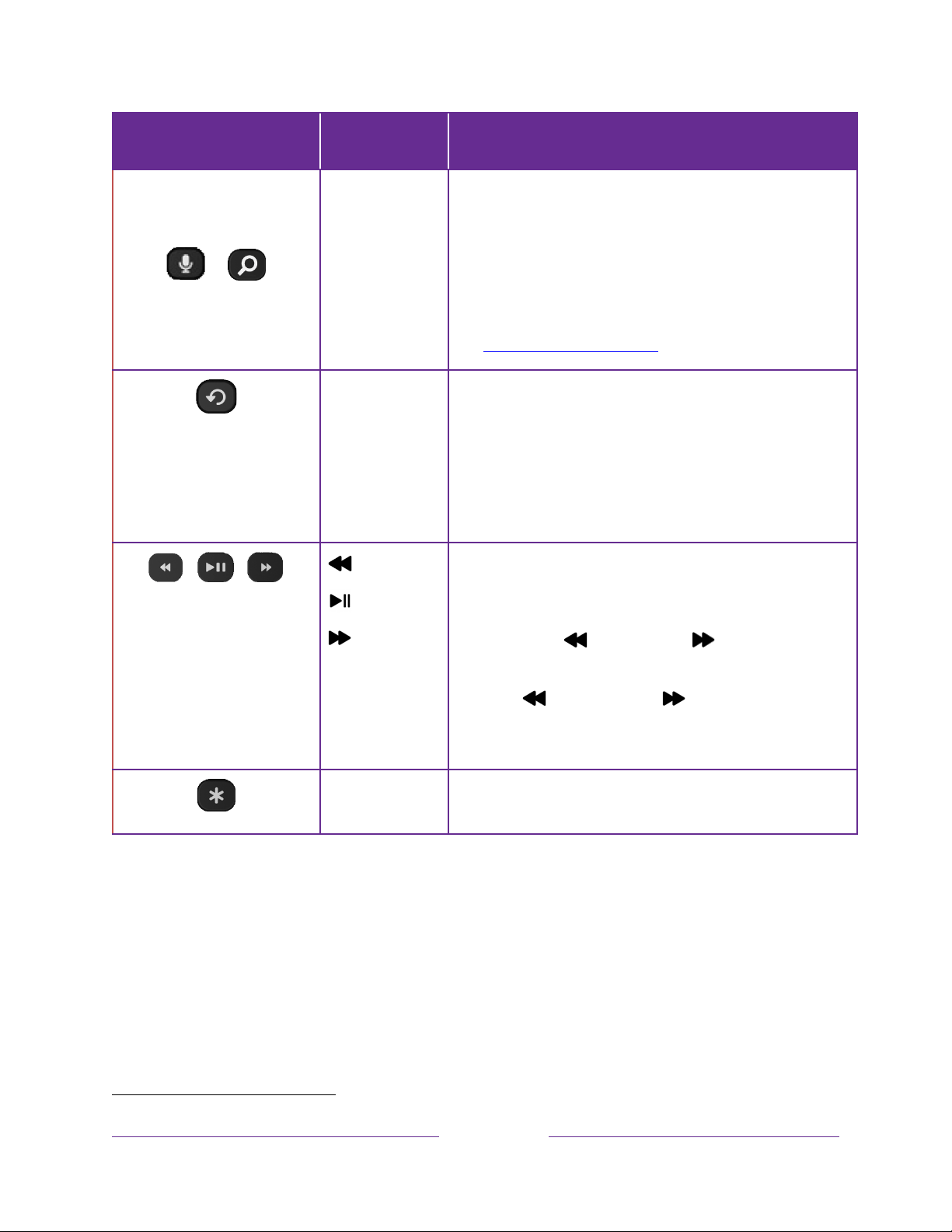
BUTTON FUNCTION DESCRIPTION
or
VOICE or SEARCH
Only on select models with Roku voice remotes
, hold
and say the name of a movie, TV program, actor,
director, or genre, including the special genres “free”
and “4K.” Or, say a command to start streaming, change
a channel, and more
1
.
For more information, go to:
go.roku.com/voicesearch
INSTANT REPLAY
Select models
. Streaming programs that support this
feature and TVs with Live TV Pause enabled, jumps back
a few seconds with each press and resumes playing.
If Live TV Pause is disabled, jumps to previous channel.
When using an on-screen keyboard: Backspaces in the
text you are entering.
REWIND
PLAY/PAUSE
FAST FWD
Scan backward, pause, play, and scan forward in
streaming content and live TV channels (if Live TV
Pause is enabled).
Press REWIND or FAST FWD one, two, or three
times to control the speed of the operation.
REWIND and FAST FWD also jump backward
and forward one screen at a time when viewing long
lists, such as when you are browsing in the channel list.
STAR
Displays additional options when available. On-screen
hints let you know when this button is active.
1
Voice features support English language in Canada.
13
BUTTON FUNCTION DESCRIPTION
GAME MODE
Only on HDMI and AV inputs on select models
. Displays
a banner showing whether Game mode is on or off, or
“Not available at this time.” Subsequent presses toggle
Game mode. When On, the TV performs less image
processing and has less input lag, producing a better
experience with action games.
Select models.
Auto Low Latency Mode (ALLM)
detects certain game consoles connected to an HDMI
input and automatically switches to the best settings for
action games. When ALLM is active, the manual Game
mode
setting is unavailable.
Select models
: Variable refresh rate (VRR) allows a
compatible game console or computer to control the
refresh rate of the TV. The result is smoother image
animation with a lower instance of stutter or tearing.
SLEEP
Select models
. Displays a banner showing the remaining
sleep time, if any, or “Sleep timer is off.” Subsequent
presses cycle among the preset sleep time intervals.
Once set, the sleep timer remains in effect unless you
cancel it.
or
FACTORY
ASSIGNED
CHANNEL
SHORTCUT
Dedicated buttons show the logo of a preset streaming
content provider. Dedicated content providers vary by
model and region. Pressing a button:
• Displays the streaming channel’s main page if you
have already added the channel to your Home
screen.
• Displays the streaming channel’s sign-up page if
you have not already added the channel.
14
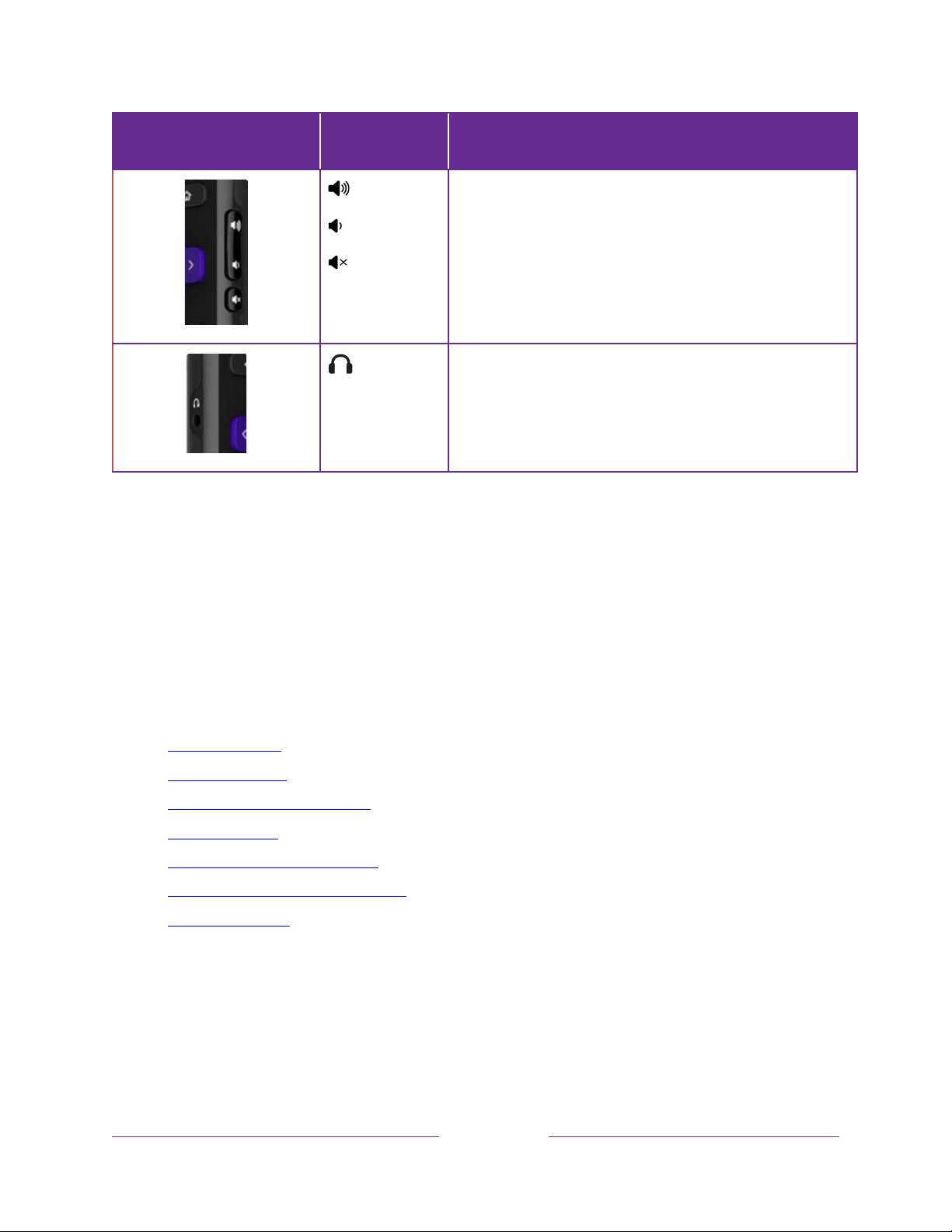
BUTTON FUNCTION DESCRIPTION
UP
DOWN
MUTE
Located on the right edge of the remote.
Increases/decreases volume and mutes the TV sound.
Note:
If the TV is muted, pressing VOLUME UP unmutes.
Pressing VOLUME DOWN does not unmute the sound.
HEADPHONE
Select models with Roku Enhanced Voice Remote
.
Connect headphones to the jack on the left edge of the
remote to listen privately. Plugging in headphones
mutes the TV speakers.
Panel buttons
Your TV has buttons on its side, bottom, or back panel that perform simple control
functions. The TV panel buttons are not a substitute for the remote, as they do not
give you access to all TV functions.
Depending on model, your TV model has one of several different panel button
designs. Choose the one that applies to your TV from the following list:
• Single button
• Three buttons
• Game-pad style joystick
• Four buttons
• Five buttons (with mute)
• Five buttons (without mute)
• Seven buttons

15
Single button
If your TV has this style of panel button, you can perform the following functions:
• Turn TV on: short press.
• Display the Input List: short press when TV is on.
• Select the next input in the Input List: short press while the TV is showing the
Input List.
• Dismiss the Input List without changing inputs: no press.
• Turn TV off: long press.
Short press = less than two seconds
Long press = more than two seconds
No press: = no press within two seconds
Three buttons
If your TV has this style of panel buttons, you can perform the following functions:
• Turn TV on: middle button, short or long press.
• Volume up: right button when Input List is not active.
• Volume down: left button when Input List is not active.
• Display Input List: middle button, short press when TV is on.
• Highlight next input in the Input List: right button when Input List is active.
• Highlight previous input in the Input List: left button when Input List is active.
• Select highlighted item in the Input List: middle button, short press, or no
press.
• Turn TV off: middle button, long press.
Short press = less than two seconds
Long press = more than two seconds
No press: = no press within four seconds

16
Game-pad style joystick
If your TV has this style of panel button, you can perform the following
functions:
• Press in: Toggle between power ON and Standby.
• Press up or down: Increase/decrease the volume.
• Press left or right: Switch inputs. Each press moves the highlight up or down
one item. Pausing for a few moments selects the highlighted item.
Four buttons
If your TV has this style of panel buttons, you can perform the following functions:
• Power: Turns the power on and off.
• Input: Selects among TV inputs. Each press moves down one item. Pausing for
a few moments selects the highlighted item.
• Volume +: Increases the volume.
• Volume –: Decreases the volume.
Five buttons (with mute)
If your TV has this style of panel buttons, you can perform the following functions.
Note that the order of the buttons might vary from model to model. Examine the
panel button labels to determine your TV model’s layout.
• Power: Turns the power on and off.
• Input: Selects among TV inputs. Each press moves down one item. Pausing for
a few moments selects the highlighted item.
• Volume +: Increases the volume.
• Volume –: Decreases the volume.
• Mute: Mutes and unmutes the sound.
17
Five buttons (without mute)
If your TV has this style of panel buttons, you can perform the following functions.
Note that the order of the buttons might vary from model to model. Examine the
panel button labels to determine your TV model’s layout.
• Power: Turns the power on and off.
• Input +: Selects the next TV input. Each press moves down one item. Pausing
for a few moments selects the highlighted item.
• Input -: Selects the previous TV input. Each press moves up one item. Pausing
for a few moments selects the highlighted item.
• Volume +: Increases the volume.
• Volume –: Decreases the volume.
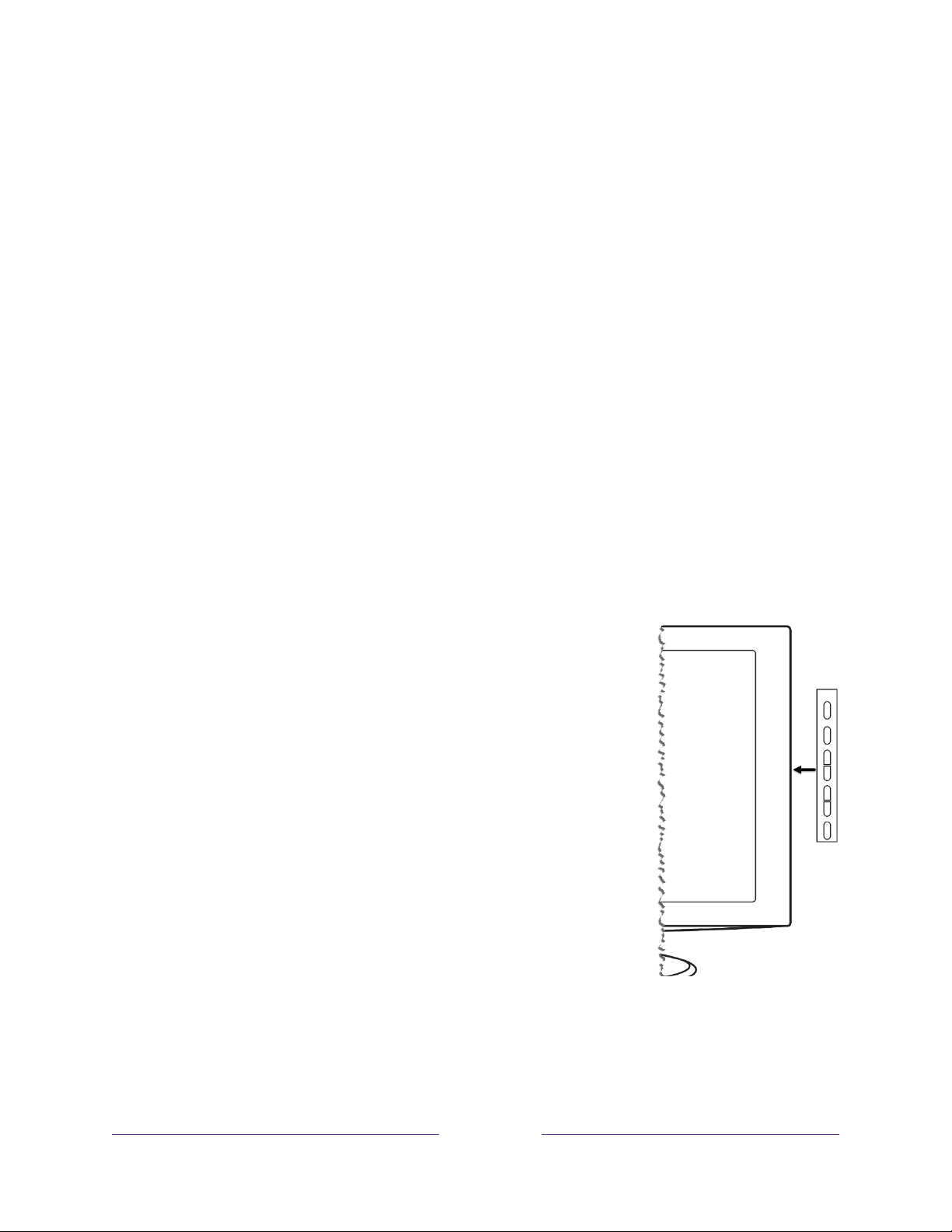
Seven buttons
If your TV has this style of panel buttons, you can perform the following functions.
Note that the order of the buttons might vary from model to model. Examine the
panel button labels to determine your TV model’s layout.
• Input: Selects among TV inputs. Each press moves
down one item. Pressing Channel + or Channel – moves
the highlight up or down. Pausing for a few moments
selects the highlighted item.
• Channel +: Moves the highlighted item up in the current
menu.
• Channel –: Moves the highlighted item down in the
current menu.
• Volume +: Increases the volume.
• Volume –: Decreases the volume.
• Mute: Mutes and unmutes the sound.
• Power: Turns the power on and off.

18
Guided Setup
With the preliminaries out of the way, it’s time to turn on your TV. As the TV starts for
the first time, it leads you through Guided Setup, which configures the TV before you
start to use it.
During Guided Setup, you’ll:
• Answer a few questions
• Provide network connection information
• Get a software update
• Link your TV to your Roku account.
• Connect devices such as a DVD player, game console, or cable box.
Starting Guided Setup
To start Guided Setup, press POWER on the remote to turn on your TV.
Note:
Guided Setup normally runs only once, the first time you turn on your TV. If you
need to run Guided Setup again, you must perform a factory reset as explained in
Factory reset everything
.
When you first turn on your TV, it will take a few seconds to get itself ready. You’ll
notice the following things happening:
1. The status indicator blinks every time the TV is busy doing something; in this
case it’s powering up and getting ready for you.
2. The splash screen appears and the status indicator blinks slowly for a few more
seconds. The power-on screen shows a brand logo while the TV starts up.
19
3. After a few seconds, Guided Setup starts.
Guided Setup
At this point, you should be seeing the Language screen.
1.
Only on models that have a Roku Voice remote
: A few moments after the Let’s
get started screen appears, Guided Setup starts the pairing process for the
Roku Voice remote. (You’ll know if you have this type of remote because it has
a VOICE or SEARCH button just below the purple directional pad.) If the
20
Roku Voice remote does not pair automatically, follow the instructions on the
screen to complete the pairing process.
2. Press DOWN on the purple directional pad to highlight your preferred
language, and then press OK.
3.
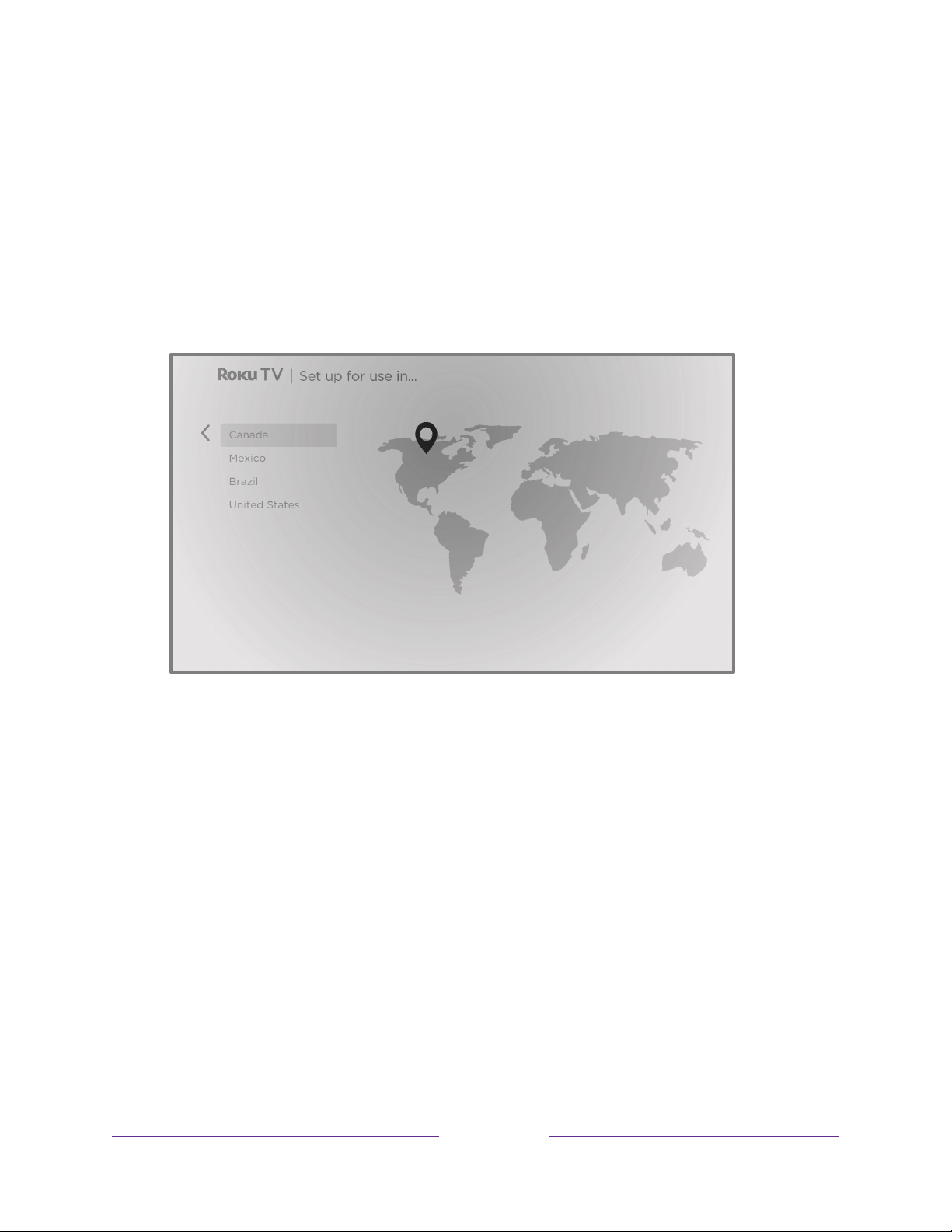
Some models have a country selection screen
: If you don’t see this screen, skip
ahead to the next step. If you see this screen, select your country, and then
press OK.
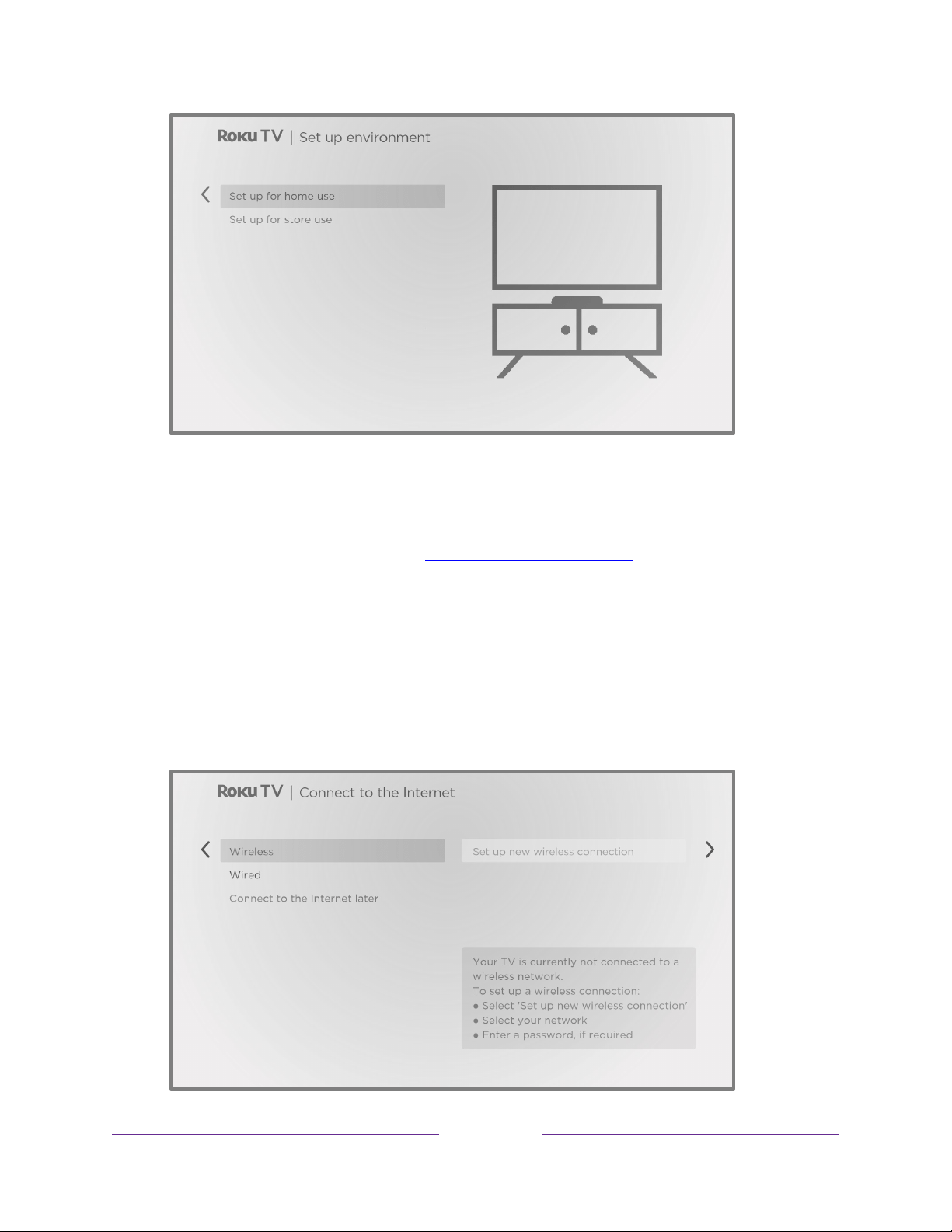
4. Press OK to select Set up for home use. This is the right choice for enjoying
your TV at home. It provides energy saving options as well as access to all
features of the TV.
21
Note:
Set up for store use configures the TV for retail display and is not
recommended for any other use. In store mode, some features of the TV are
missing or limited. To switch from one mode to the other, you have to perform
a factory reset as explained in Factory reset everything
, and then repeat
Guided Setup.
Network connection
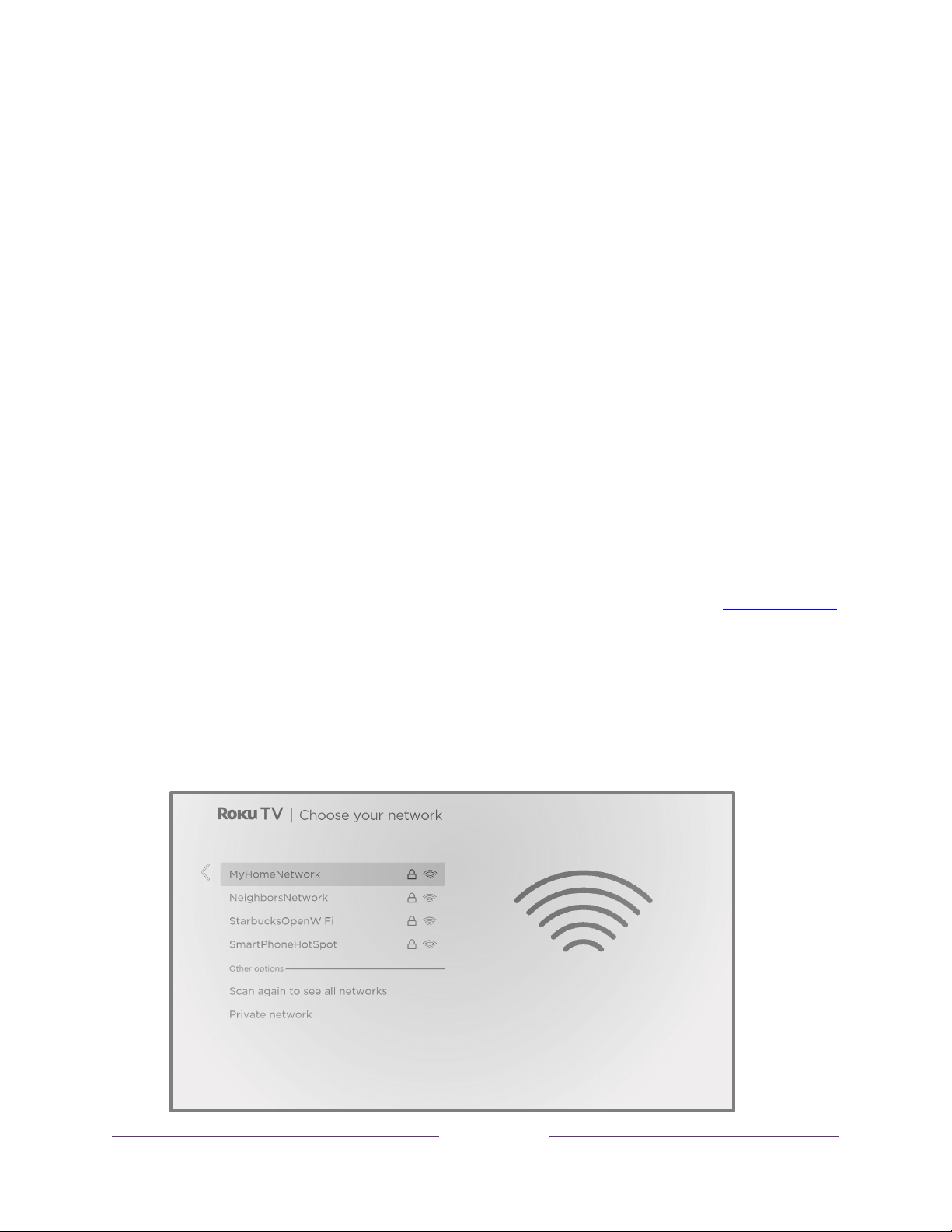
After you select Set up for home use, the TV prompts you to make a network
connection. If your TV has both wired and wireless connections, you’ll see the
following screen. If your TV has only wireless connectivity, skip the following step.
22
5.
Only on models that display the Connect to the Internet screen:
Make a
selection:
• Wireless connection – Highlight Set up new wireless connection and press
OK. The TV prompts you through wireless setup. Skip ahead to the next
step for help with the process.
• Wired connection – Highlight Connect to wired network and press OK. The
TV immediately attempts to connect to your wired network, your local
network, and then the Internet. Go to Step 9 to continue with Guided Setup.
• Connect to the Internet later – If you don’t want to connect to the Internet
right now, you can select this option, and then press OK. You can then use
the TV to watch live TV channels, and connect your devices to play games,
watch DVDs, or watch channels from a cable box or another streaming
device. When you’re ready to connect, it’s easy. We’ll show you how in
Benefits of connecting
.
Note:
If you decide not to connect, Guided Setup skips ahead to setting up
the devices that you’ve connected to your TV. Jump ahead to
Connect your
devices to complete Guided Setup.
6.
On models that have wireless only, and models with both wired and wireless
when you’ve selected Wireless:
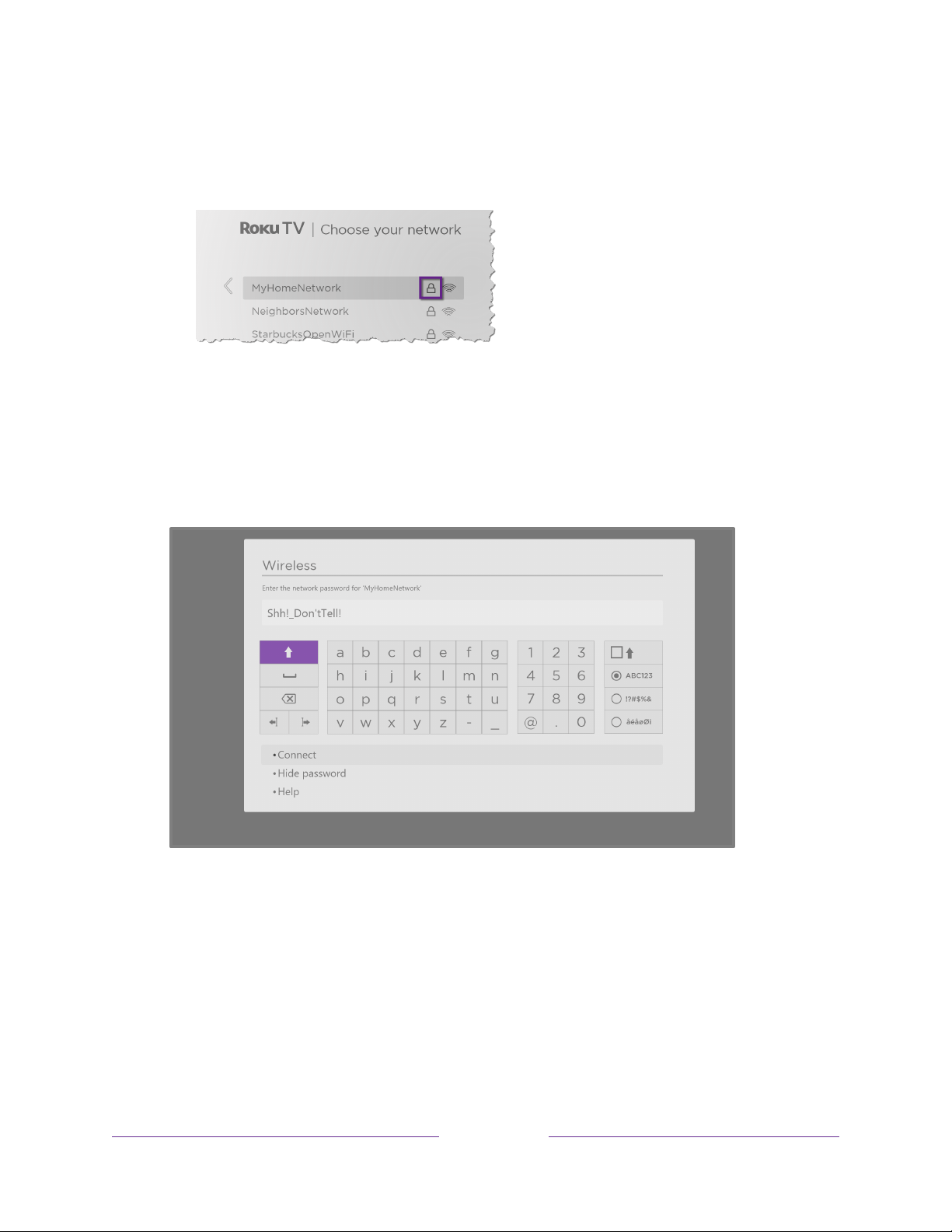
The TV scans for the wireless networks within
range and displays them in order, with the strongest signals first. In addition to
your own wireless signal, the TV might pick up signals from your neighbors.

23
Press UP or DOWN to highlight the name of your wireless network, and then
press OK to select it.
Note:
Some networks, such as those often found in dorm rooms, hotels, and
other public places, require you to read and agree to terms, enter a code, or
provide identifying information before letting you connect to the Internet. If
your Roku TV detects that you are connecting to such a network, it prompts
you through the connection process using your smartphone or tablet to
provide the needed information. For more information, see
Using your TV in a
hotel or dorm room.
Other options
• Scan again / Scan again to see all networks – The name of this option
depends on the number of wireless networks within range.
• Scan again appears if the list already shows all available wireless
networks within range. If you don’t see your wireless network name in
the list, you might need to adjust the location of your wireless router or
the TV, turn on your router, or make other changes. When everything is
ready, select Scan again to see if your network name now appears in the
list.
• Scan again to see all networks appears if there are more wireless
networks than the strongest ones it initially listed. If you don’t see your
wireless network name in the list, this option displays the complete list. If
you still don’t see your network name, you might have your router
configured to provide wireless service as a “private network.”
Note:
Highlighting either of these options displays an informational panel
with the unique media access control (MAC) address of your Roku TV.
You will need the MAC address if your wireless router is configured to
use MAC address filtering.
• Private network – If your wireless network name is hidden, it won’t appear
in the list. Select Private network and then press OK to display an on-screen
keyboard. Use the keyboard to enter your network name. Unless you
changed the factory-set network name, you can find the name (also called
SSID) on a label on the router.
24
Tip:
Wireless networks that are password-protected display a “padlock”
icon adjacent to the name. This icon enables you to know that you are
going to be prompted to enter a password after you select that network.
7.
Only if you select a password protected wireless network
: An on-screen
keyboard appears. Enter your wireless network password by using the
directional keypad to navigate the keyboard, and pressing OK to select a
highlighted letter, number, or symbol. When you finish, press DOWN to select
Connect, and then press OK.
After you select Connect, the TV displays progress messages as it connects to
your wireless network, your local network, and the Internet.
25
8.
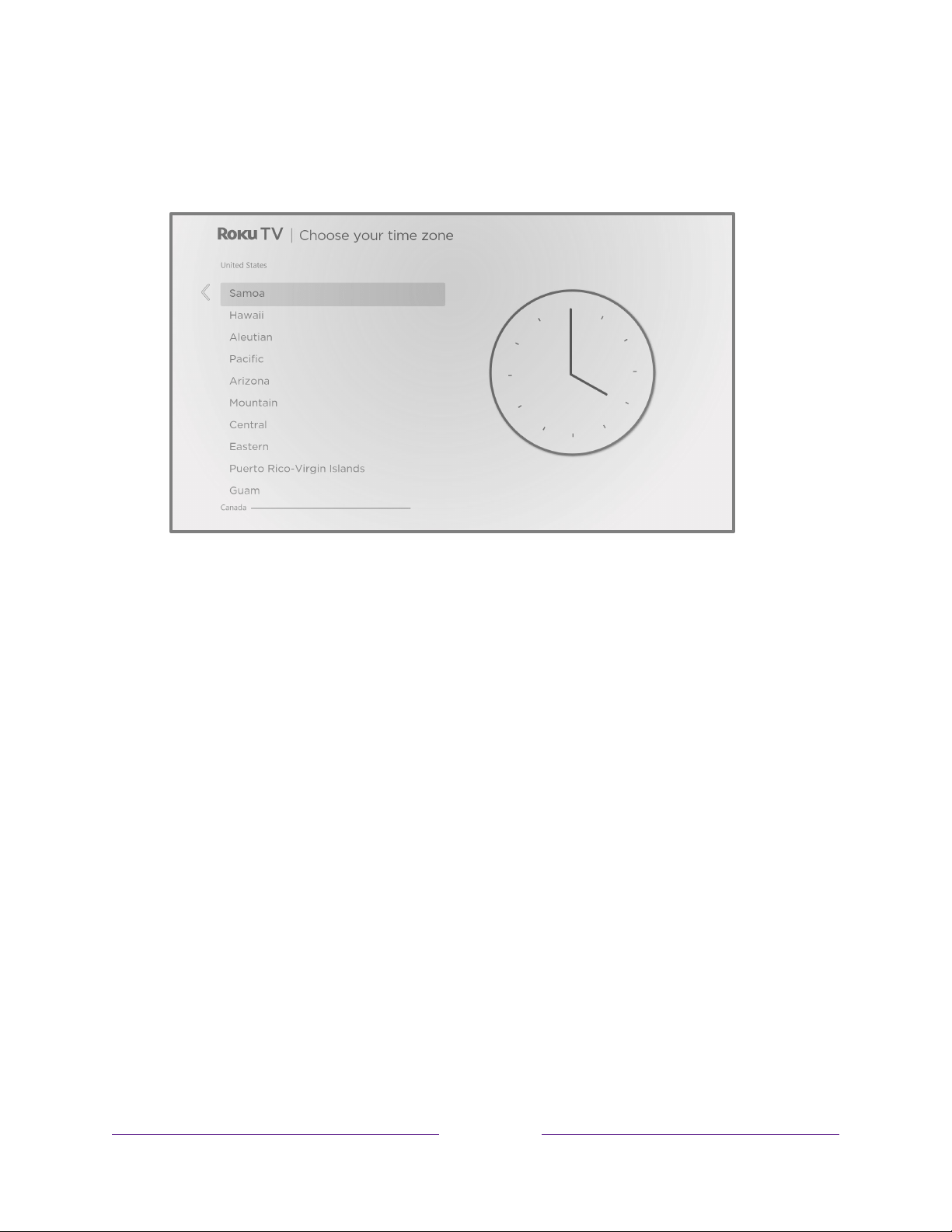
Only if your TV cannot get the correct time zone and current time from your
network service provider
: The Choose your time zone screen appears. Press
UP or DOWN to highlight your time zone, and then press OK.
Tips:
Your TV needs to know the local time zone so that it can correctly display
information about the program you are currently watching.
Your TV automatically checks for updates periodically. These updates provide
new features and improve your overall experience with the TV. After an
update, you might notice that some Options have moved, and that there are
new options or features. This User Guide describes version 9.4. To determine
your current Roku TV software version, go to Settings > System > About after
you complete Guided Setup. You can download an updated User Guide that
matches your Roku TV software version from the Roku TV web site.
Activation
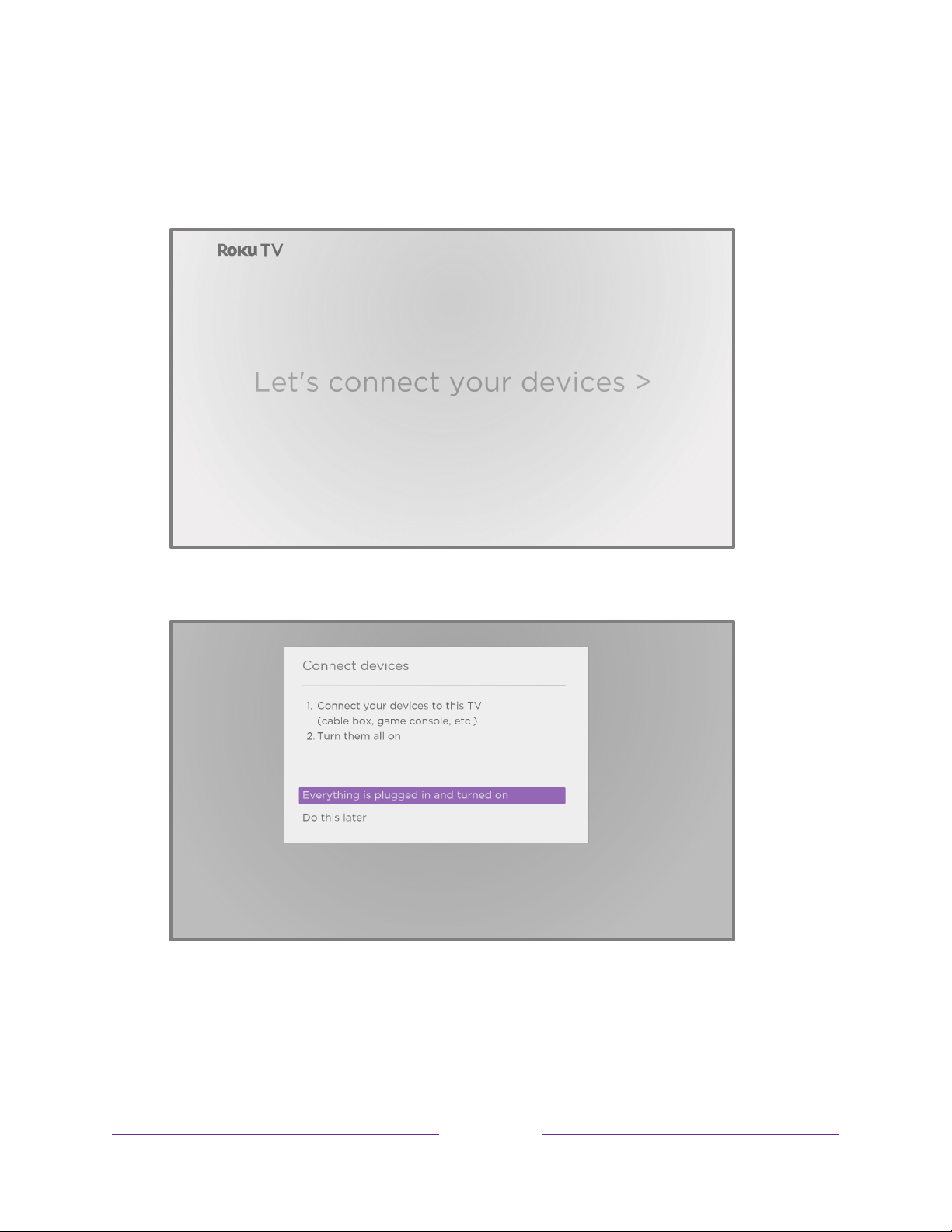
After the TV restarts, it prompts you through activation.
9. Use a computer, tablet, or smartphone with an Internet connection to link to a
new or existing Roku account.
Note: Roku does not charge for activation support – beware of scams.
Note: Roku does not charge for activation support – beware of scams.

26
Why do I need a Roku account?
You need a Roku account for several reasons:
• It links you, your Roku TV, and your other Roku streaming devices to the Roku
Channel Store and billing service.
• Streaming content providers know that it’s OK to send content you request to
your Roku TV.
• Roku can automatically send updates to your device.
You need a Roku account to activate your device and access entertainment across
thousands of streaming channels. Linking to a Roku account also activates several
advanced features on your TV, such as Guest Mode, the Roku mobile app, and Live TV
Pause, to name just a few. Roku accounts are free, and while a valid credit card number
is not required to create your account, providing your credit card information makes
renting, purchasing, and subscribing to entertainment from the Roku Channel Store
fast and convenient.
After you activate your TV, it gets an acknowledgement, and then adds your
newly-selected and pre-existing streaming channels to your Roku TV. This
process is automatic and takes a few moments—a little longer if you have
added a lot of streaming channels.
Tip:
Streaming channels from all of the Roku streaming devices associated with
your account are synchronized periodically. All of your Roku streaming devices
therefore display the same set of channels (subject to compatibility with the
device).
27
Connect your devices
Next, Guided Setup helps you set up the external devices that you want to use
with it, such as a cable box, Blu-ray™ player, or game console.
10. Press OK to proceed.
11. Connect all the devices you plan to use with your TV, turn them all on, and then
select Everything is plugged in and turned on. The TV now takes you step by
step through each of its inputs and asks what kind of device you have
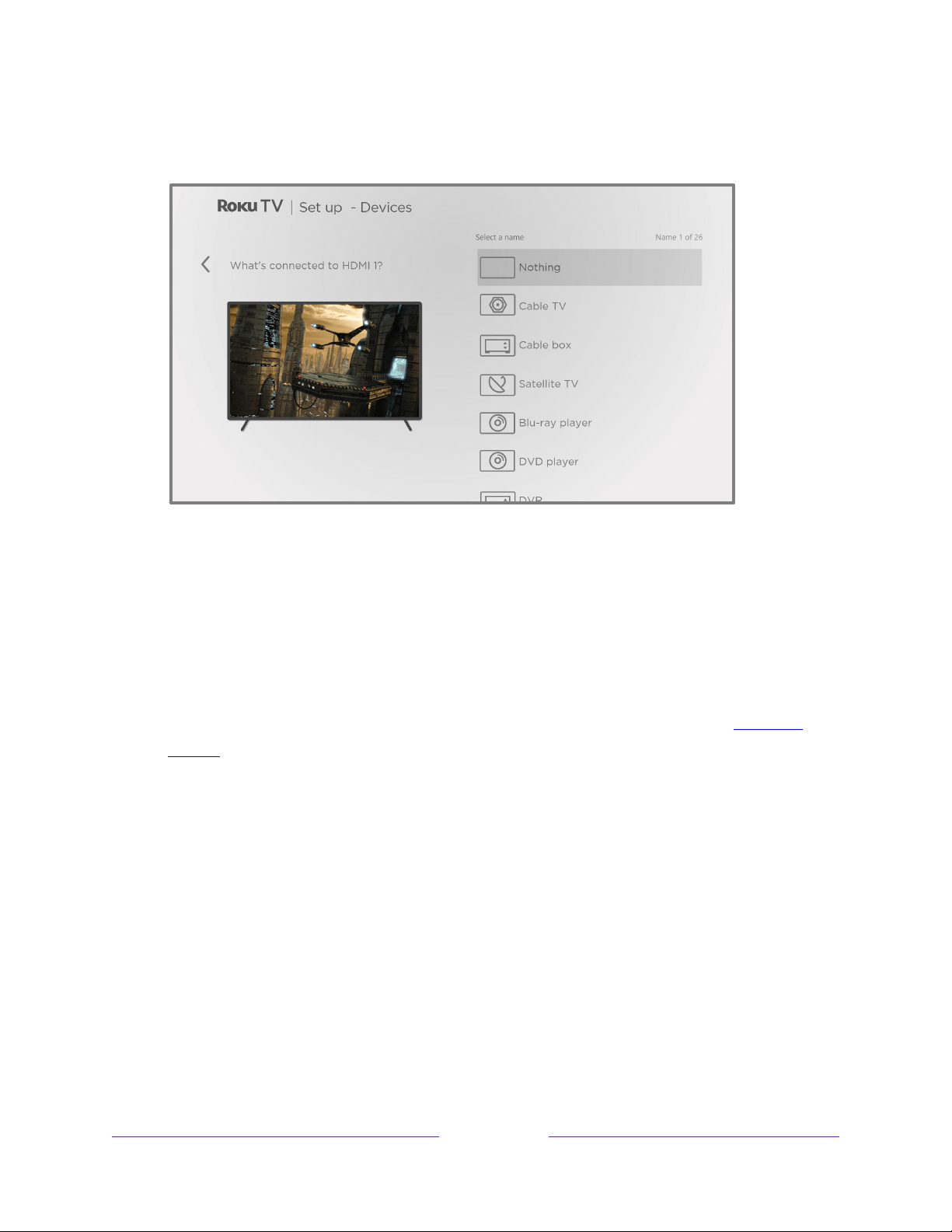
28
connected. For each input that has a connected and active device, you can see
its picture and hear its sound.
12. Press UP or DOWN to highlight the label you want to associate with the input,
and then press OK. If you are not using the input, select Nothing, and the input
won’t appear on the Home screen.
13. While setting up your devices, rather than using the predefined names and
icons, you can set a custom name and icon. To do so, scroll up or down to
highlight Set custom name & icon, and then press OK. Follow the instructions
on the screen to enter a name and select an icon for the input. See
Rename
inputs for more information.
Note:
If you specify a custom name for an input, voice commands will not
reliably switch to that input. Voice commands typically can only switch among
inputs that use built-in names, such as “AV,” and “Cable Box,” and “DVR.”
14. Repeat the previous step for each input.
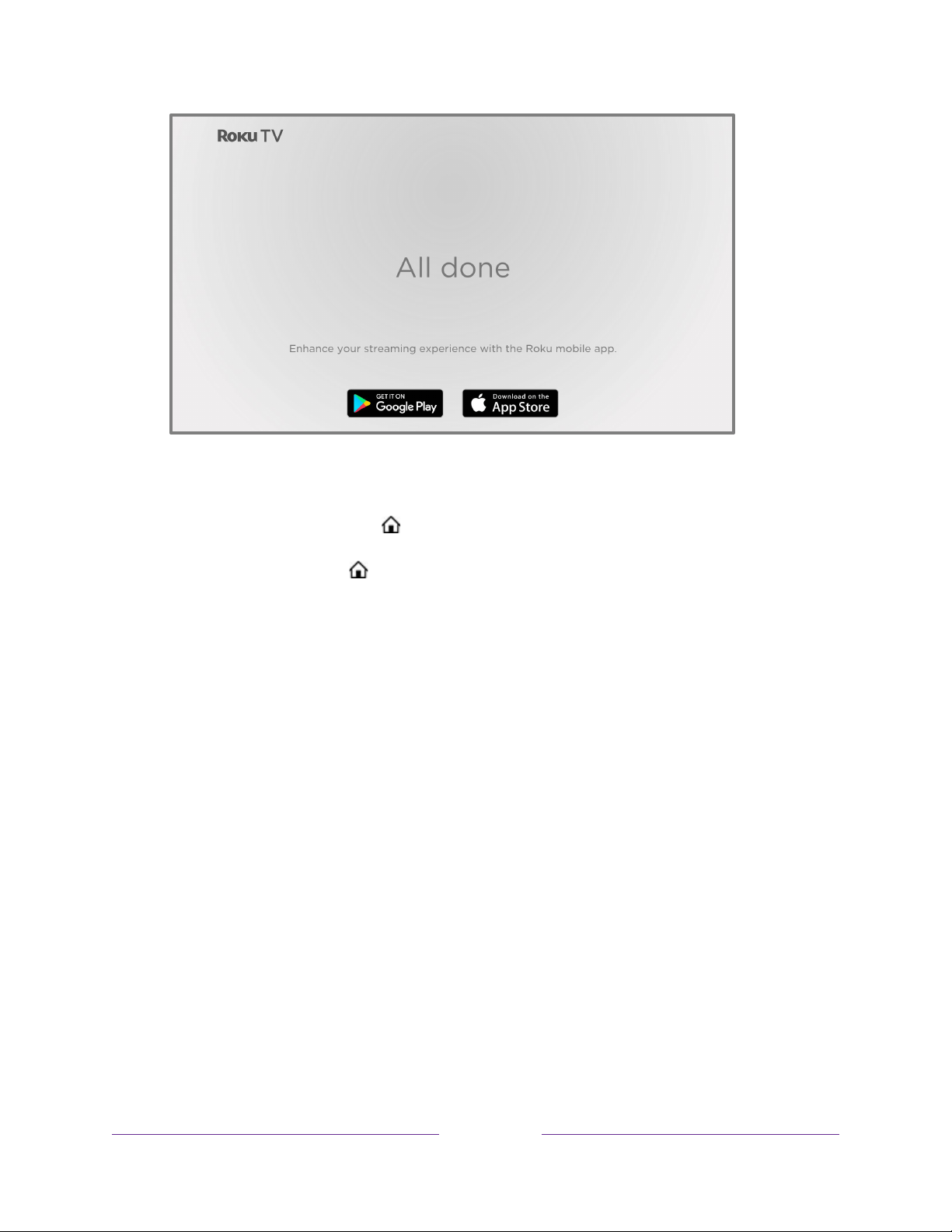
You’re done with Guided Setup.
29
Note:
Some Roku TVs, depending on where you live and other factors, show you an
introductory video filled with some great hints and tips. If you’re not interested in
viewing this video, press HOME on the remote to go to the Roku TV Home screen.
Whenever you press HOME , the Home screen greets you.
From here, you can explore everything your TV has to offer. Use the purple
directional pad to move around, and then press OK to select a highlighted item.
We’ve designed the TV to encourage you to explore, and you can probably figure out
most of the capabilities and settings on your own. If you have any questions or
difficulties, you can find answers and solutions in this guide.
30
The Home screen
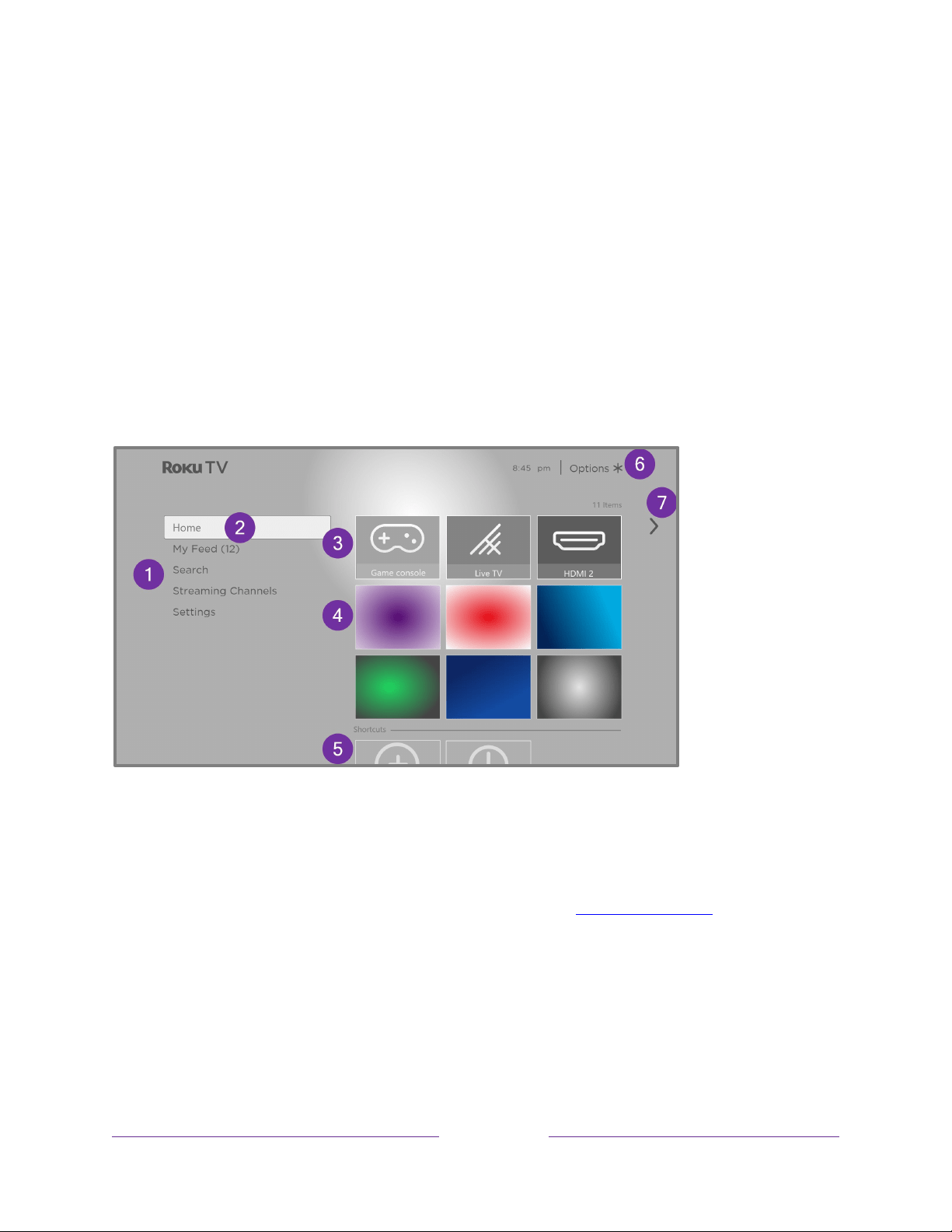
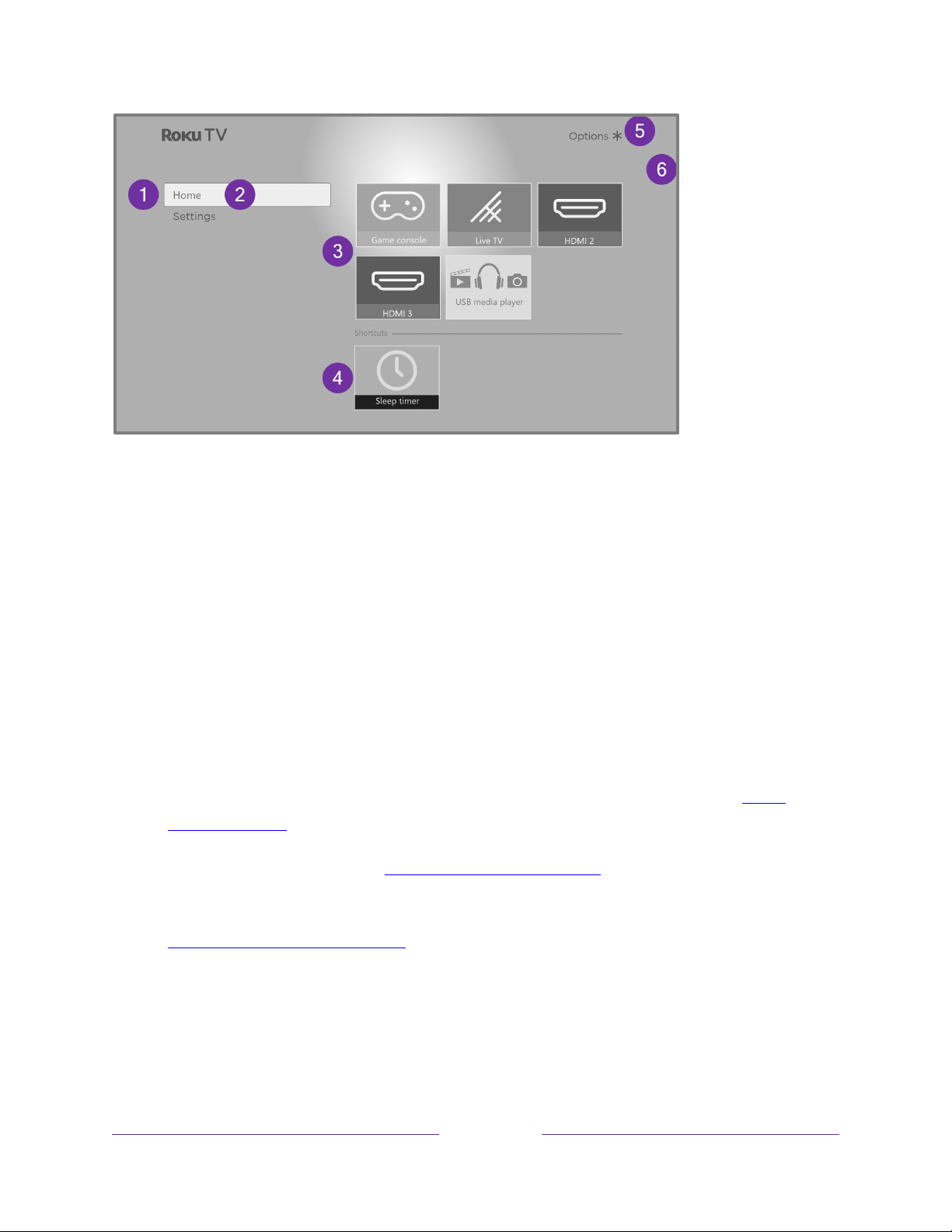
The following illustrations show typical Home screens, which vary depending on
location, connected mode, selected theme, number of TV inputs enabled, and
streaming channels and apps added.
Note:
A paid subscription or other payments may be required for some channel
content. Channel availability is subject to change and varies by country. Not all
content is available in countries or regions where Roku
®
products are sold.
Typical connected Home screen
1. Home screen menu—shows options available to you when you are on the Home screen.
2. Highlighted option—press OK to select.
3. TV input tiles—select an input to watch the connected device.
4. Streaming channel and app tiles—select a tile to go to the indicated streaming channel or
application. You can add any number of channels from the Roku Channel Store
.
5. Direct access tiles – shortcuts to often used features.
6. Options hint—press STAR
to see options when this symbol is present.
7. Next screen hint—press RIGHT to see the next screen.
31
Typical non-connected Home screen
1. Home screen menu—shows options available to you when you are on the Home screen.
2. Highlighted option—press OK to select.
3. TV input tiles—select an input to watch the connected device.
4. Direct access tiles – shortcuts to often used features.
5. Options hint—press STAR for options when this symbol is present.
6. Next screen hint—press RIGHT to see the next screen.
Personalize your Home screen
There are many things you can do to personalize your Home screen and make it just
right for you and your family:
•
Only in connected mode
: Add streaming channels by using the Streaming
Channels menu option or the Add Channels shortcut to browse the
Roku
Channel Store.
•
Only in connected mode
: Change the screen theme by going to Settings >
Themes to find and pick one to suit your mood.
• Customize the Home screen. Hide or show the shortcut tiles that appear at the
bottom of your Home screen grid.
• Remove a tile by highlighting it and pressing STAR . Then highlight Remove
input or Remove channel and press OK.

32
• Move a tile by highlighting it and pressing STAR . Then highlight Move input
or Move channel and press OK. Use the purple directional pad to move the tile,
and then press OK to lock it in its new location. Move the shortcut tiles within
the shortcut area only. Shortcuts are designed to always appear at the very
bottom of the grid, so you can access them quickly by pressing UP once when
you’re at the top of the grid.
• Rename a TV input tile by highlighting it and pressing STAR . Then highlight
Rename input and press OK. Highlight a new name in the list, and then press
OK to assign that name to the tile.
Rather than using the predefined names and icons, you can set a custom name
and icon. To do so, scroll up or down to highlight Set custom name & icon, and
then press OK. Follow the instructions on the screen to enter a name and select
an icon for the input.
Note:
If you specify a custom name for an input, voice commands will not
reliably switch to that input. Voice commands typically can only switch among
inputs that use built-in names, such as “AV,” and “Cable Box,” and “DVR.”

33
Benefits of connecting
Connecting brings out your TV’s full potential!
Make any night a movie night
Thousands of movies to choose from, across all major streaming movie channels
1
.
You’ll never run out of something new to watch.
Check out The Roku Channel
Use The Roku Channel as your new home page for a huge assortment of free on-
demand and streaming movies, programs, live news, and kid’s TV. Use the Live TV
Channel Guide to see what’s on live streaming channels right now.
Get in the groove
Stream endless hours of music from free and subscription-based channels. With
almost instant access to thousands of music artists, your favorite beats are just as
close as your remote.
Explore your passions
In addition to the most popular streaming channels, your Roku TV also offers
hundreds of other streaming channels to fuel your passions—including fitness,
cooking, religion, outdoors, international programming and much more.
Enjoy FREE trials of popular channels
Your Roku TV comes loaded with special offers, including free trials (if eligible) from
popular streaming channels. REMEMBER THAT YOU MUST CANCEL BEFORE THE
FREE TRIAL ENDS TO AVOID SUBSCRIPTION FEES.
1
A paid subscription or other payments may be required for some channels. Channel availability is subject to change
and varies by country. Not all content is available in countries or regions where Roku® products are sold.

34
Take advantage of awesome features
Powerful, voice-enabled search lets you use voice commands to find movies and TV
programs by title, actor, director, or genre across multiple streaming channels
1
.
Additionally, your search commands can include popular movie quotes, and words
like “free” and “4K.”
Voice commands with multiple device support let you use the Apple Siri
2
, Google
Assistant, or Amazon Alexa to change stations, TV inputs, launch streaming channels,
and more. Include a location in your command such as “in the bedroom” to specify
which Roku device you want to control.
Automatic account linking keeps track of supported streaming subscriptions on other
Roku devices, so that you won’t have to re-enter your user name and password when
adding the same channel on your newly-activated Roku TV.
3
Live TV Pause lets you connect a USB drive (not provided) and pause live TV for up
to 90 minutes. After pausing, you can play, fast-forward, rewind, and pause again to
any point within the rolling 90-minute window.
Mobile Private Listening on the Roku mobile app lets you listen to streaming
programs and “over-the-air” TV programs from the Live TV input on headphones (not
provided) plugged into your IOS
®
or Android™ mobile device.
What is streaming?
Streaming is viewing or listening to video or audio content that is sent over the
Internet, or located on a network-connected media server or on a USB device
plugged into the TV’s USB port.
With streaming, you can buy or rent most programs on demand, when it’s convenient
for you, and you can also watch live streaming channels and events. Also, you can
play, pause, rewind, and fast forward most on-demand streaming programs.
1
Voice features support English language in Canada.
2
Roku 4K TVs only.
3
Not all streaming channels currently support automatic account linking.

35
Tip:
Some content cannot be paused or skipped. For example, if you are viewing live
programming or a program that is supported by ads, you might not be allowed to
skip the ads.
Your Roku TV lets you choose from thousands of streaming channels that offer a
huge selection of entertainment:
• Thousands of movies and TV episodes, both live and on-demand
• Unlimited music, live and on-demand
• Tons of live and on-demand sports
• Commercial-free programming for kids and family
• International programming in 22 languages
• 24x7 news and in-depth news commentary
Many streaming channels are free. Some streaming channels let you purchase or rent
the latest movie releases or popular TV series. Some channels charge a monthly
subscription fee and others are available at no additional cost if you subscribe to a
companion service through your cable or satellite provider.
If you have an existing subscription to a streaming provider, you can just sign in with
your existing user name and password.
To play streaming content, add one or more streaming channels to your Home screen.
Use the Add Channels shortcut on the Home screen or the Streaming Channels
option on the Home screen menu to go to the Channel Store, and then select the
streaming channel you want to add. The channel remains on your Home screen unless
you remove it, and you can watch it at any time.
For more information on using the Roku Channel Store feature, see
Using the Roku
Channel Store.
Note:
A paid subscription or other payments may be required for some channels.
Channel availability is subject to change and varies by country. Not all content is
available in countries or regions where Roku
®
products are sold.

36
What if I didn’t connect my TV?
What if you went through Guided Setup and chose Connect to the Internet later? No
worries. Your Roku TV makes it easy to connect whenever you want. As you move
around the Home screen, you’ll see several places where you can start the connection
process. For example:
• Now and then you’ll see a message appear on the panel to the right of the Home
screen offering a Connect Now option. You can highlight and select the Connect
Now option to get started.
• Use the Connect and activate now option. From the Home screen menu, select
Settings, then Network, and then Connect and activate now.
• If you want to start over from the beginning, do a Factory reset, and then go
through Guided Setup again. This time, select your home network when prompted.

37
Setting up live TV
In addition to the other entertainment possibilities of your Roku TV, you might want
to watch broadcast channels from an antenna or cable TV service connected to the
ANT input. On your Roku TV, you can watch broadcast TV in much the same way you
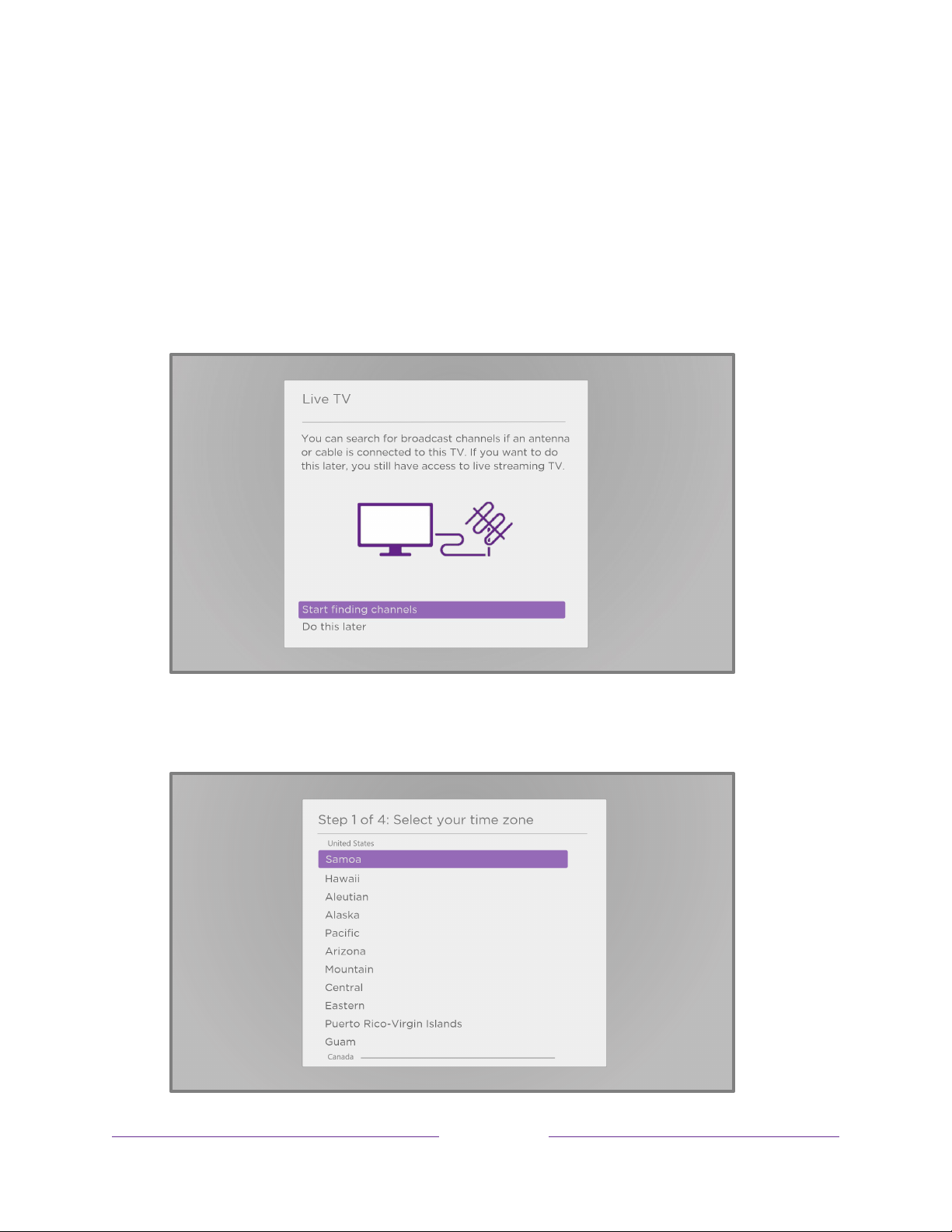
watch other entertainment choices: select the Live TV tile from the Home screen.
The first time you select the Live TV tile, you have to set up the TV tuner. Setting up
the TV tuner scans for active channels and adds them to your Live TV channel list.
Why do I have to set up the TV tuner?
Not everyone needs to use the TV tuner. For example, you might have a set top box provided
by a cable or satellite company that receives all of your channels. Most of these set top boxes
use an HDMI
®
connection.
More and more people are watching only streaming TV and do not have a TV antenna or
cable/satellite service. If you don’t need the TV tuner, you can bypass setting it up and instead
remove it from the Home screen as explained in Remove unwanted tiles
.
When you set up Live TV, the TV scans the signals on its antenna input for channels with a
good signal, and adds those to the channel list, skipping dead channels and channels with a
very weak signal.
The TV lets you add two analog channels, even if they have no signal, for the purpose of using
an older set top box, VCR, or game console that can only output a signal on analog channel 3
or 4. Typically, you’ll only need one of these channels, but both are provided to make setup
simpler. You can hide the one you don’t want as explained in Edit Live TV channel lineup
.
38
How do I set up the TV tuner?
1. Make sure your antenna (not provided) or TV cable is connected to the TV’s
ANT/CABLE input.
2. On the Home screen, select the Live TV tile. If it is not on your Home screen, go
to Settings > TV Inputs to add it.
3. Read the simple on-screen instructions, and then select Start finding channels.
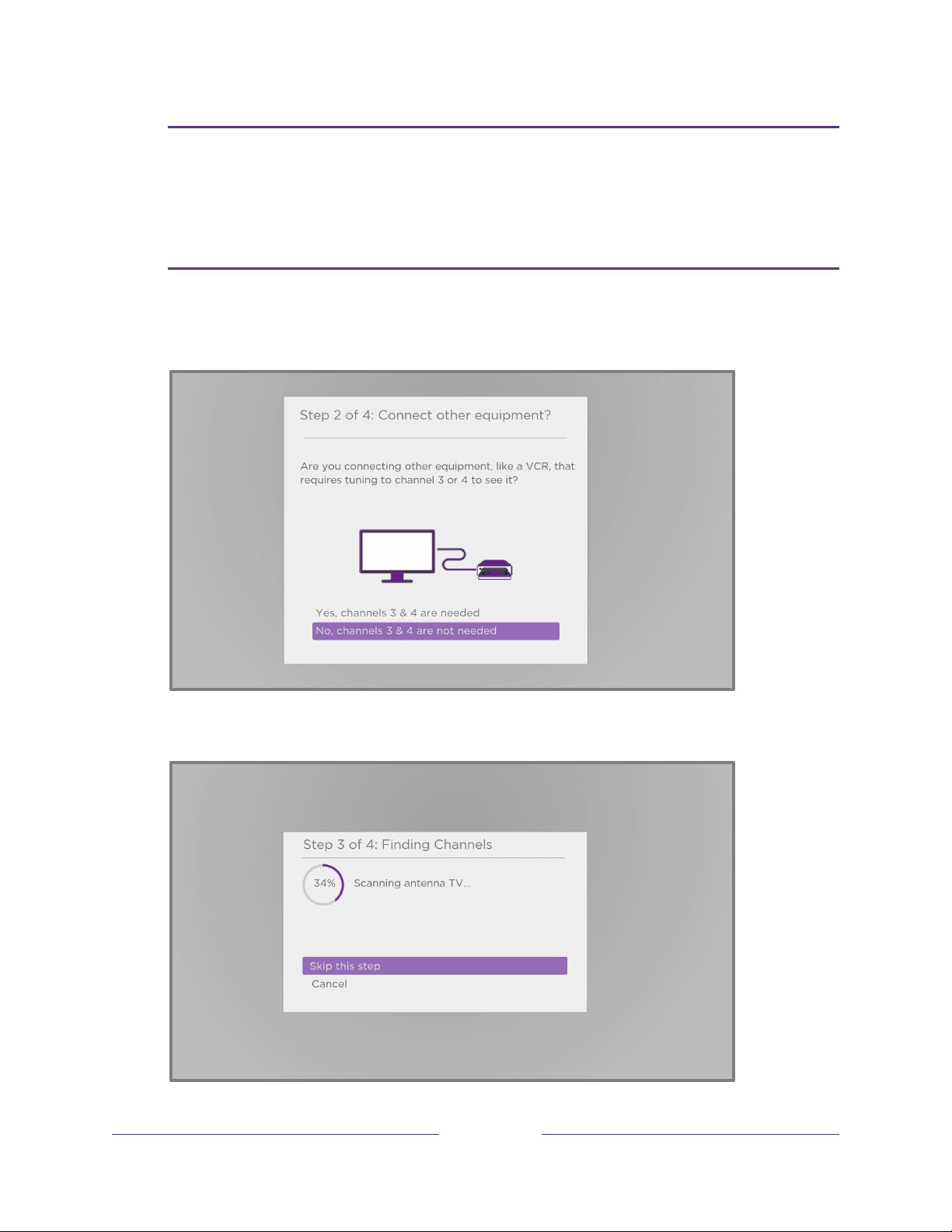
4. If prompted, select your time zone. You’ll only need to do this if the TV can’t
figure out your time zone from your Internet connection.
39
Why does the TV need my time zone?
The TV needs to know your time zone so that it can correctly display time information
about the program you are currently watching. In most cases, it can get the time zone
automatically and skips this step.
5. When prompted, select whether to add analog channels 3 and 4. These
channels enable you to connect older set top boxes, VCRs, or game consoles.
6. Wait while your TV scans for Live TV stations…

40
… and then cable TV channels.
Scanning for channels can take several minutes.
Tip:
If you use a set-top box to receive cable TV channels (and don’t have your
cable connected directly to the TV’s ANT input), you can save time by skipping
the cable TV portion of the channel scan.
7. When the channel scans finish, the TV shows the number of channels it added.

41
8.
Only in connected mode
, you have the option of setting up Live TV Pause.
Pausing Live TV
explains how to set up and use this feature. If you don’t want
to set up Live TV Pause, or if this option is not available to you, select Done to
start watching Live TV.
Tip:
Repeat the channel scan from time to time to make sure you are receiving all
of the latest channels. Broadcasters add and remove channels, move channels to
different parts of the spectrum, and change the power levels of their channels
periodically. Your antenna reception and picture quality depend on the position of
your antenna and on your location relative to the antennas of broadcasters in your
area. To repeat the channel scan, use the purple directional pad to highlight the
Live TV tile, press STAR , select Scan for channels, and then press OK.
You’ll also have to repeat the channel scan if you remove and re-add the Live TV
tile from the Home screen or perform a factory reset.
Now, you’re ready to watch Live TV! While you’re watching, try the following tips:
• Press UP or DOWN to change channels.
• Press LEFT to display the channel list, and then press UP or DOWN to select a
channel to watch. Or press REWIND or FAST FWD to jump through the
channel list a page at a time.
• Press OK to display information about the current program.
• Press STAR to see options for picture and sound settings.
•
Only on models that have a Roku Voice remote
, hold down VOICE or
SEARCH , and then say the name of a movie, TV program, or actor, director,
or the genre you want to find
1
. The TV displays the result and the streaming
channels that offer the requested content.
Note:
If you do not have a Roku Voice remote, you can use the Roku mobile app
to search. For more information, see Roku mobile app
.
1
Voice features support English language in Canada.

42
Using your TV
This section provides information on using the day-to-day features of your TV.
Status indicator
Your TV has a single status indicator. It goes on and off and blinks in different ways
depending on the status of the TV, as shown in the following table:
TV CONDITION STATUS INDICATOR MEANING
On (screen is active) Off Screen is communicating that TV is on.
Screensaver (screen is active) Off Screen is communicating that TV is on.
Off (no power) Off TV is not connected to power.
Off (standby) On TV is connected to power and is ready
to use.
Starting up from off state Slow pulsing blink until
startup completes
TV is doing something.
On (receiving update from
USB)
Slow pulsing blink until
update completes
TV is doing something.
Remote command received Dims on/off once TV has received your command.
Network connection lost Two short blinks, pause,
repeat
TV was connected and paired with a
Roku account and now has no network
connection.
Powering down to standby
mode
Slow pulsing blink until the TV
reaches standby.
TV is doing something.

43
Standby mode energy savings
When you turn off your TV, it remains in a higher power mode for a few minutes, after
which it goes into a very low power standby mode. If you turn on the TV again before
it has entered the very low power mode, it turns on immediately. After the TV goes
into the lower power standby mode, it takes a few seconds longer to start up.
Only in connected mode
, you can optionally enable Fast TV start. When this option is
enabled, your TV starts up almost immediately regardless of how long it has been
turned off, but uses somewhat more power in standby mode. Fast TV start also gives
you access to some additional features, such as turning on the TV with voice
commands and turning off the screen when listening to music. For more information,
see Fast TV start
.
Watching live TV channels
Select the Live TV tile in the Home screen. Your TV remembers the last channel you
watched and starts with that channel playing.
Changing channels
To change channels, you can do any of the following:
• Press UP to change to the next higher channel.
• Press DOWN to change to the next lower channel.
• Press LEFT to display the channel list, and then press the arrow keys to select
the channel or program you want to watch. Press REWIND and
FAST FWD to move through the list one page at a time. When you’ve
highlighted the channel or program you want to watch, press OK. (If you
decide you don’t want to change channels, press BACK .)
•
Only if Live TV Pause is not enabled
, press REPLAY to jump to the previous
channel. Press again to return to the channel you were watching before you
pressed REPLAY .
Note:
If REPLAY
is not available on your remote, you can use this feature in the
Roku mobile app. For more information, see Roku mobile app
.

44
Favorite Channels
You can quickly change from surfing among all channels or only your favorite
channels. First, you have to mark one or more channels as your favorites.
Mark your favorite channels
You can make any channel a favorite whenever you’re watching live TV channels.
1. Press LEFT to display the channel list. Notice that the words All channels
appear at the top of the channel list.
2. Scroll up or down to highlight a channel that you want to make a favorite.
3. Press STAR . At this point, you’ll see two options:
• Add to favorites
• Back
4. With Add to favorites highlighted, press OK. A FAVORITE symbol appears
adjacent to the channel to indicate that it is now a favorite.
5. Repeat these steps to add more favorite channels.
Surf only your favorite channels
After you’ve marked one or more channels as favorites, you can switch to your
favorite channels whenever you’re watching live TV channels.
1. Press LEFT to display the channel list.
2. Press LEFT or RIGHT once to switch to Favorites. Notice that the word
Favorites appears at the top of the channel list.
3. Highlight a channel and press OK to select one of the channels in the Favorites
channel list, or wait a few moments until the channel list disappears.
4. Press UP or DOWN to change to the previous or next favorite channel. Each
channel you select in this way is a favorite channel. Your channel surfing is
limited to favorite channels only.
Your favorite channel list remains in effect even if you turn off or unplug your TV, until
you switch back to all channels.

45
Note that when you press OK to view the program information banner while watching
a program, a FAVORITE
symbol appears below the channel number.
Surf all channels again
You can switch back to all channels whenever you’re watching live TV channels.
1. Press LEFT to display the channel list.
2. Press LEFT or RIGHT once to switch to All channels. Notice that the words All
channels appear at the top of the channel list.
3. Highlight a channel and press OK to select one of the channels in the All
channels list, or wait a few moments until the channel list disappears.
4. Press UP or DOWN to change to the previous or next channel among all your
available channels. You can surf among all channels in your channel list.
Remove a channel from your favorites
You can remove a channel from your favorites whenever you’re watching the Live TV
input.
1. Press LEFT to display either channel list—All channels or Favorites.
2. Scroll up or down to highlight a favorite channel that you want to remove from
your favorites.
3. Press STAR on your remote. At this point, you’ll see two options:
• Remove from favorites
• Back
4. With Remove from favorites highlighted, press OK. The FAVORITE symbol
adjacent to the channel disappears.
5. Repeat these steps to remove other channels from Favorites.
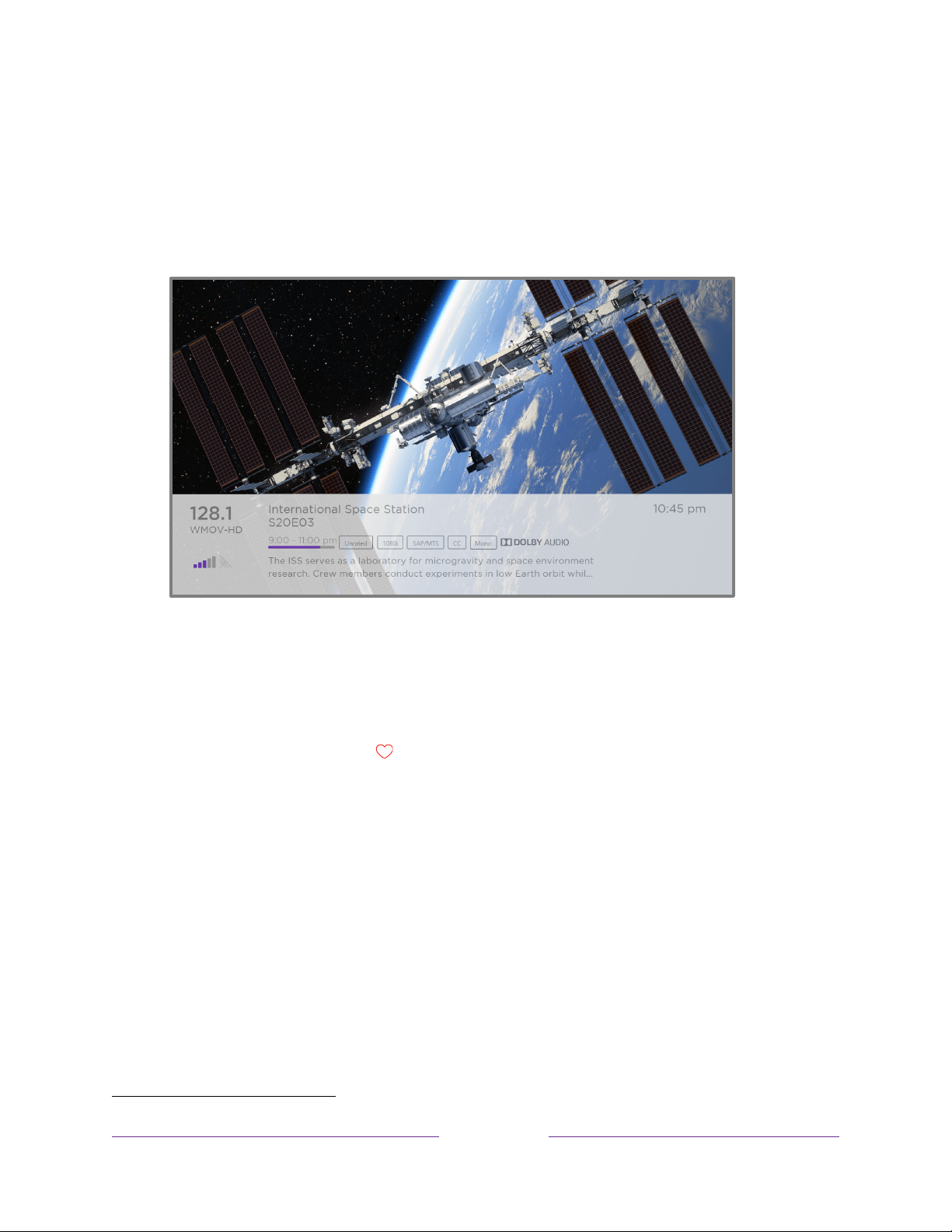
46
Viewing program information
Whenever you are viewing a program and no other guides or menus are open,
press OK to view program information in a banner at the bottom of the screen.
This program information appears both in connected and non-connected modes.
The following illustration shows the information that is available:
Program information banner
Program information might include any or all of the following, depending on availability
within the broadcast information:
• Channel number
• Channel call sign
• Favorite channel icon
• Signal strength
• Program title and episode name/number
• Start time, end time, and graph of program length showing current position
• Content rating
• Video resolution (480i, 480p, 720p, 1080i, 1080p, 4K)
• Frame rate (24Hz, 30Hz, 60Hz for television sources, 60Hz, 70Hz, 72Hz, 75Hz for
computer sources)
• Audio format (Mono, Stereo, Dolby Audio™ logo)
• Audio features (SAP/MTS)
•
Only on select 4K models:
HDR or Dolby Vision™
1
logo (HDMI® and streaming sources)
• Closed captioning (CC)
• Current time
• Program description.
1
The Dolby Vision™ logo appears only on Dolby Vision™-certified models when displaying Dolby Vision™ content.

47
Tip:
If you’ve set up Live TV Pause and you’re watching live TV, you’ll also see a
progress bar showing the current playback position within the rolling 90-minute
pause time. For more information, see Pausing Live TV
.
Adjusting settings while watching a program
Press STAR to display the Options menu. Press UP or DOWN to highlight an
option, and then press LEFT or RIGHT to change the setting. The topic
Adjusting TV
settings explains each of the settings in detail.
Pausing live TV
Live TV Pause gives your Roku TV the ability to pause, play, fast forward, and rewind
live TV received on the ANT input. You can pause live TV for up to 90 minutes.
Requirements
To use this feature, you need to:
1. Connect your TV to the Internet. If you didn’t connect during Guided Setup, see
What if I didn’t connect my TV?
.
2. Provide your own dedicated USB flash drive (thumb drive} with the following
minimum specifications.
• 16 GB
• 15 Mbps read/write speed
• USB 2.0 compliant
A USB flash drive (thumb drive) meeting the minimum requirements is highly
recommended over an externally-powered hard disk drive. Note that you can
use any larger size drive—there is no limit to the maximum size—but using a
larger drive does not extend the 90-minute pause time.
Important:
After warning you and giving you a chance to cancel Live TV Pause
setup, all existing content on your USB drive is erased when you enable this
feature.
3. Connect your USB drive to the TV’s USB port.

48
Important:
Some TV models have more than one USB port. You can connect
your Live TV Pause USB drive to any port, but make sure that nothing is
connected to other USB ports while enabling Live TV Pause. Reconnect other
USB devices after you have finished enabling Live TV Pause.
4. Enable Live TV Pause, as explained in the following topic.
Enabling Live TV Pause
You can start setting up Live TV Pause in any of the following ways:
• After completing a channel scan, select Set up Live TV Pause from the
available options.
• Press PLAY/PAUSE on the Roku remote while watching a live TV channel.
• Highlight the Live TV tile on the Home screen, press STAR on the remote,
and then select Enable Live TV Pause.
After starting setup of Live TV Pause in any of these ways, the TV prompts you
through the steps needed to enable this feature. Setup takes only a few moments.
Note:
Use of a USB hub is not supported.
Using Live TV Pause
If you have used the Roku remote to watch streaming channels, using Live TV Pause
should be very familiar to you.
• While watching a digital live TV channel, press PLAY/PAUSE to pause or
play the content. After the TV program has been paused for 90 minutes, the
TV resumes playing from the point in the program where it was paused.
• After watching a channel for a while, press REWIND to jump back up to the
point where you first started watching the channel, up to 90 minutes.
• After pausing or rewinding, press FAST FWD to jump ahead up to the point
where you are once again watching the live TV program.
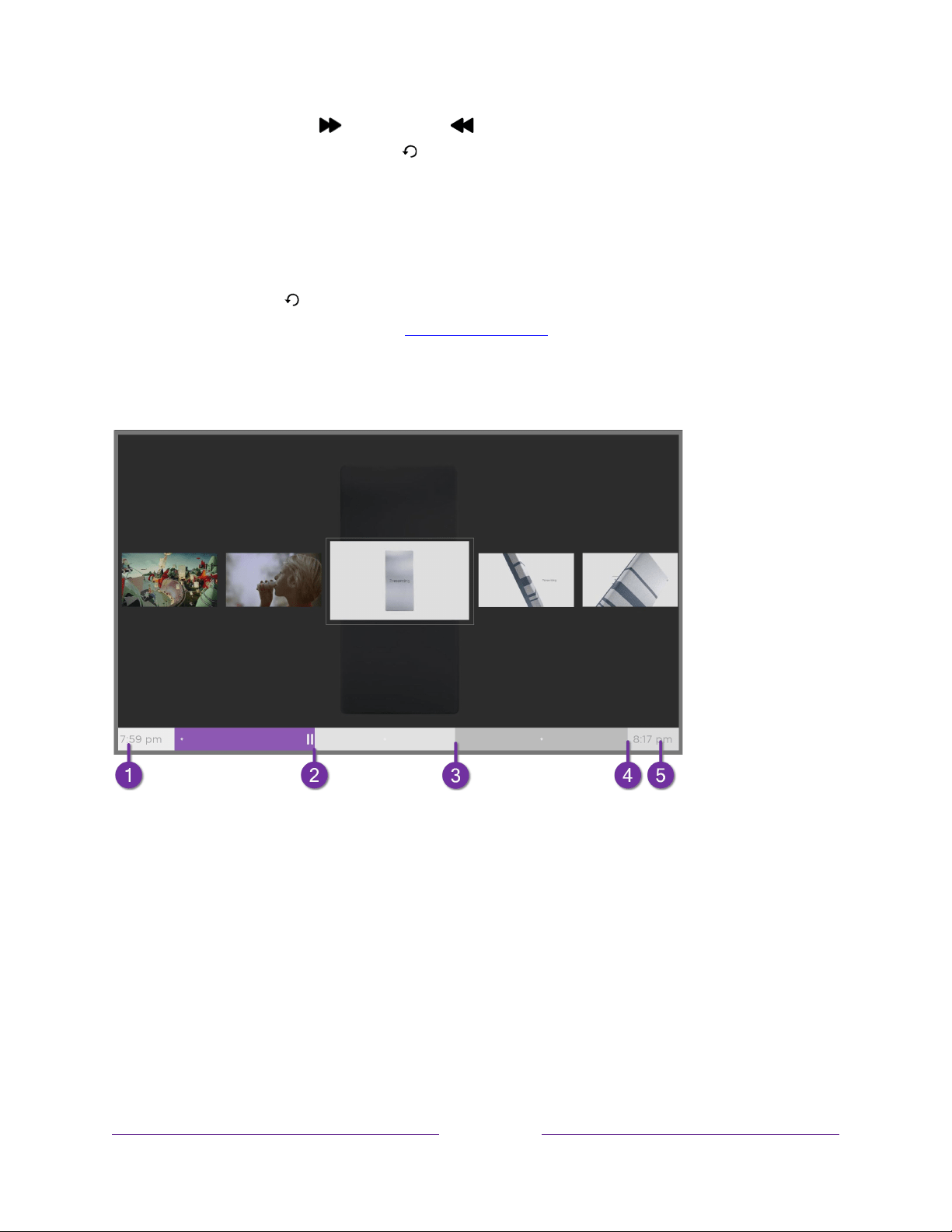
49
• Press FAST FWD or REWIND repeatedly to cycle through 1x, 2x, and 3x
skip speeds. Press REPLAY to play back the last several seconds of the
program.
• When the program is paused, press LEFT or RIGHT to move backward or
forward through the program approximately 10 seconds per press. Small
frames appear across the screen to identify your location in the program.
Note:
If REPLAY
is not available on your remote, you can use the Roku mobile
app. For more information, see Roku mobile app
.
Whenever you use any of the Live TV Pause features, the TV momentarily displays a
progress bar:
1. Time at current playback position.
2. Current playback position
3. Extent of pause time, representing the amount of time this channel has been buffered, up to 90
minutes.
4. 90-minute mark, representing the maximum extent of pause time.
5. Current time.
The progress bar also shows tick marks at each half hour point, to help you locate the
boundaries where one program ends and a new one begins.

50
Notes about Live TV Pause
• You can use Live TV Pause only with digital broadcast and cable channels
received through the TV’s ANT input (ATSC and Clear QAM channels).
• Changing channels erases and restarts the Live TV Pause buffer.
• Returning to the Home screen, selecting another input, or turning off the TV
erases and resets the Live TV Pause buffer.
• Disconnecting the USB drive erases the Live TV Pause buffer.
Switching TV inputs
Switch TV inputs to access the device connected to that input, for example, a
Blu-ray™ player. Switching inputs is as easy as highlighting the input’s tile in the Home
screen, and pressing OK. The video signal on the input, if any, plays on the screen.
Tip:
To learn how to add, remove, rename, and rearrange the tiles on your Home
screen, see Customizing your TV
.
Auto-detecting devices
Your TV automatically detects when you connect a new device to an HDMI® input
and turn on its power. The input is automatically added to the Home screen if it isn’t
already present.
Adjusting audio/video settings
While watching video content on any input, press STAR to display the Options
menu. Press UP or DOWN to highlight an option, and then press LEFT or RIGHT to
change the setting. To learn about each of the audio and video settings, see
Adjusting
TV settings.

51
Setting preferred audio language for streaming channels
You can select the preferred language for the audio played by streaming channels. If
the selected language is available in the streaming content, the TV plays that
language.
To set the preferred audio language:
1. From the Home screen menu, navigate to Settings > Audio > Audio preferred
language.
2. Press RIGHT to highlight one of the languages.
3. Press UP or DOWN to highlight the language you want to use.
4. Press OK.
Note:
Many streaming channels have an option to select the language while you are
watching a program. The Audio preferred language setting sets the default for that
option.
Using Roku Voice commands
Roku Voice commands make it fast and easy to control your TV and find
entertainment with simple voice commands like “show me comedies.” Control your
TV with commands like “switch to game console,” or “watch channel 7.1.” Use your
Roku Voice remote, the Roku mobile app, or a compatible smart speaker to speak
commands. When using a smart speaker, add “on my Roku” or, for example, “on my
bedroom
Roku” to the end of the command.
By using the Roku Voice command, you can use the command at any time, without a
need to call up the menu.

52
Using Roku Voice remotes (select models only)
Only on TVs with the Roku Voice remotes:
The following topics explain how to get
the most out of your TV when it includes a Roku Voice remote or Roku Enhanced
Voice remote.
Re-pairing your Roku Voice remote
The Roku Voice remotes operate with wireless radio-frequency signals and must be
paired with your TV. You initially paired the remote when you set up your TV during
Guided Setup. But if your remote loses its pairing with the TV for some reason, you
can easily re-pair it using either of the following methods:
1. Remove the battery cover from the back of the remote.
2. Press and hold down the pairing button for 3 seconds or longer, until the
adjacent LED lights up.
3. Do one of the following:
• Turn on the TV using the power button on the TV side or back panel.
Pairing occurs as the TV starts up.
• Use the Roku mobile app or a different remote to navigate to Settings >
Remotes & devices > Pair new device > Remote.
Tip:
If the remote fails to pair with the TV, try installing new batteries. Also, it’s helpful
to hold the remote within two to three feet of the TV to ensure successful pairing.
Checking the Roku Voice remote battery level
You can check the condition of the batteries in your Roku Voice remote at any time
by navigating to Settings > Remotes & devices, and then pressing OK to select your
remote below My paired devices. With your remote selected, navigate right to
About > Remote to view its Battery level. The resulting screen displays not only the
battery level, but also other information that can be useful when you need technical
support with your remote.
Tip:
When you first turn on the TV, a battery level indicator appears in the upper right
corner of the screen for a few seconds.
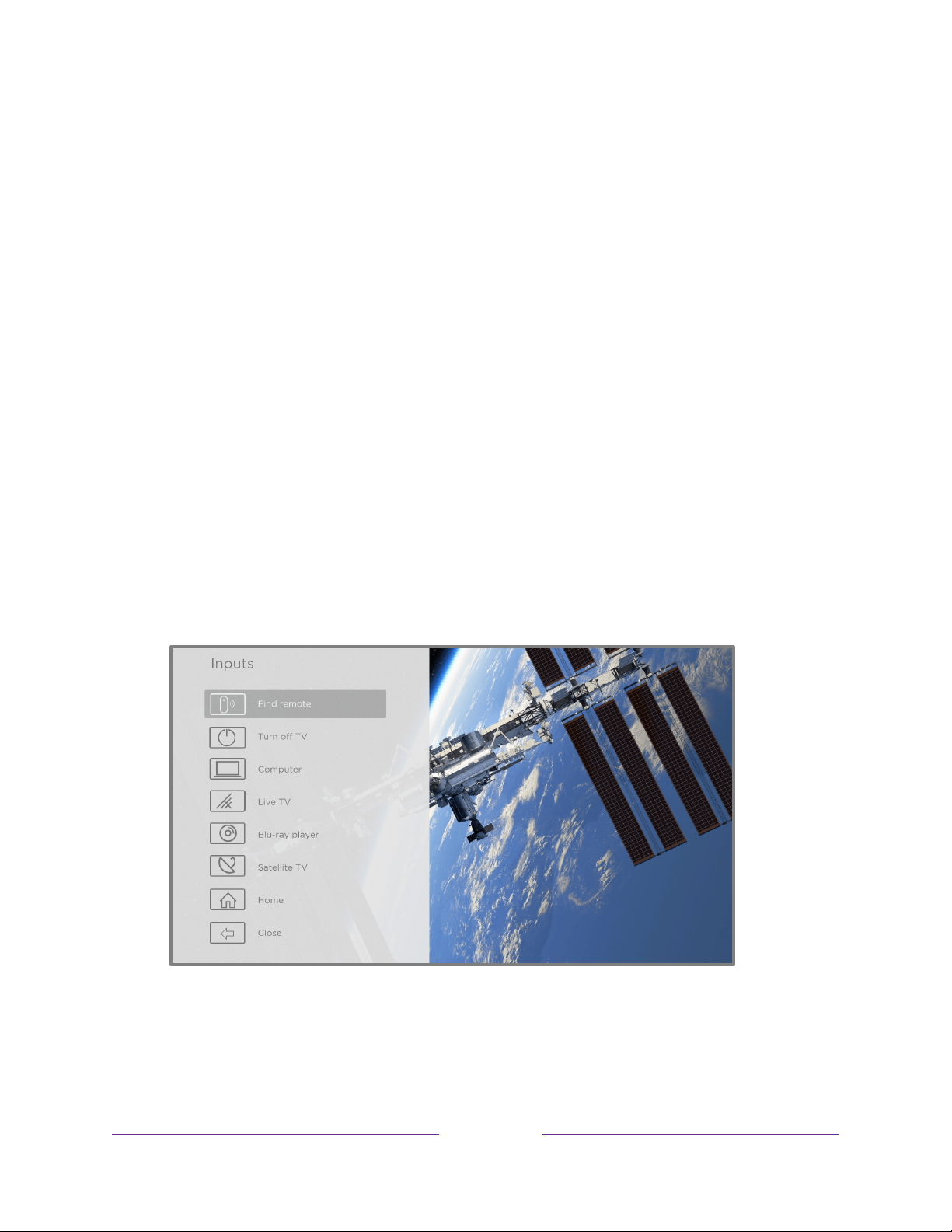
53
Finding your Roku Enhanced Voice remote
Only on TVs with the Roku Enhanced Voice remote
, when your remote has found its
way down into the sofa cushions or your dog has hidden it in the corner, you can use
the Find Remote feature to find out where it’s hiding. This feature has a limited range,
and is designed to find your Enhanced Voice remote somewhere in the same room as
the TV.
Select Find Remote on the Settings > Remotes & devices > Remote settings menu to
see brief instructions on how to activate the Find Remote feature. Note, however, that
selecting this option doesn’t actually activate the feature. Here are the complete
instructions:
Activate Find Remote
• If your TV has a joystick-style control, press to the Left or Right to open the
Inputs menu, and then press Right to scroll down to Find Remote.
• If your TV has a column of labeled panel buttons, press the INPUT button to
open the Inputs menu, and then press the INPUT button again until you
highlight Find Remote.
A moment or two after highlighting Find Remote, the Roku Enhanced Voice remote
starts playing your selected Find Remote sound to let you know where it is hiding.
The sound automatically stops after a minute, or after you find the remote and press
any button.

54
Changing and previewing the Enhanced Voice remote finder sound
Only on TVs with the Roku Enhanced Voice remote
, you can customize the sound
your remote makes when you use the Find Remote feature. To customize the sound,
navigate to Settings > Remotes & devices > Remote settings > Change remote
finder sound. Select the sound you want to use from the available settings.
To preview the sound you have chosen, select Preview remote finder sound, and
then hold down OK on the remote to play the sound. When you release the OK
button, the sound will stop.
Playing content from USB storage devices
Only in connected mode
, your Home screen has the Roku Media Player tile.
Otherwise, the Home screen has the USB Media Player tile. With either player, you
can play personal music, video, and photo files from a personal USB flash drive or
hard disk connected to the TV’s USB port.
To use this feature, make sure your media files are compatible with the Roku/USB
Media Player. To see the latest list of supported formats, view Help in the Media
Player
1
. The Roku/USB Media Player displays supported file types only, and hides file
types it knows it cannot play.
Note:
If you do not see the Roku Media Player on your Home screen, it might have
been uninstalled. You can reinstall it from the Roku Channel Store by using the
Streaming Channels menu option or the Add Channels shortcut. The USB Media
Player in non-connected mode cannot be uninstalled.
For more information about playing back your personal videos, music, and photos, go
to the following link on the Roku web site:
go.roku.com/rokumediaplayer
Auto player launch
Only in connected mode
, you can set your TV to automatically open the Roku Media
Player when you connect a USB drive with a recognizable file system (such as
1
There are many variants of each supported media format. Some variants may not play at all or may have issues or
inconsistencies during playback.

55
FAT16/32, NTFS, HFS+ or EXT2/3). To configure this setting, from the Home screen
menu, navigate to Settings > System > USB media. At this point, the following
options are available:
• Auto-launch – Select Prompt, On, or Off, as desired.
• Prompt – (default) Display a prompt each time a recognized USB drive is
connected. The prompt provides options to launch the Roku Media Player
as well as to change future auto-play behavior.
• On – Always launch the Roku Media Player whenever you connect a
recognized USB drive.
• Off – Never launch the Roku Media Player automatically.
• Launch channel – Select the app you want to use to play back media files.
Playing content from local network media servers
Only in connected mode
, your TV can play personal video, music, and photo files from
a media server on your local network. Media servers include personal computers
running media server software such as Plex or Windows Media Player, network file
storage systems that have built-in media server software, and other devices that
implement the specifications of the Digital Living Network Alliance. Some servers do
not fully implement the DLNA specification but are UPNP (Universal Plug and Play)
compatible. The Roku Media Player can connect to them as well.
Some media servers can convert files into Roku compatible formats. Digital Rights
Management (DRM) protected content is not supported.
Setting up a payment method
For Movie Store, TV Store, and other channels that allow you to pay through your
linked Roku account, you can enter a payment method directly on your TV. Entering a
payment method on your TV means that you don’t need to go to a computer or
mobile device to set up a payment method.
To add a payment method:

56
1. From the Home screen menu, navigate to Settings > Payment method > Add
payment method.
2. Use the on-screen number pad to enter your credit/debit card number,
expiration date, CVV number, and postal code.
Note:
If you have already set up a payment method on my.roku.com, that
payment method is identified here in such a way as not to expose any personal
data. In that case, you can use this screen to change your payment method.
3. Select Save Card, and then press OK.
To manage your saved payment method and to see other payment methods, log into
your account at go.roku.com/pay
.
Using your TV in a hotel or dorm room
Hotels, school dorms, conference facilities, and similar locations with public wireless
Internet access often require you to interact with a web page to authenticate your
access. These types or networks are called
restricted public networks
. When you
select a network of this type, the TV automatically detects that additional information
is needed and prompts you through using another wireless device to supply the
requested information.
About using your TV on a restricted public network
Here are some points to keep in mind when using your TV on a restricted public
network:
• Using your Roku TV on a hotel or dorm room network requires wireless
availability and a network-connected smartphone, tablet, or computer to
authenticate access to your wireless access point.
• You will need your Roku TV remote.
• Some content might be limited or unavailable if you try to connect outside
your home country due to geo-filtering.
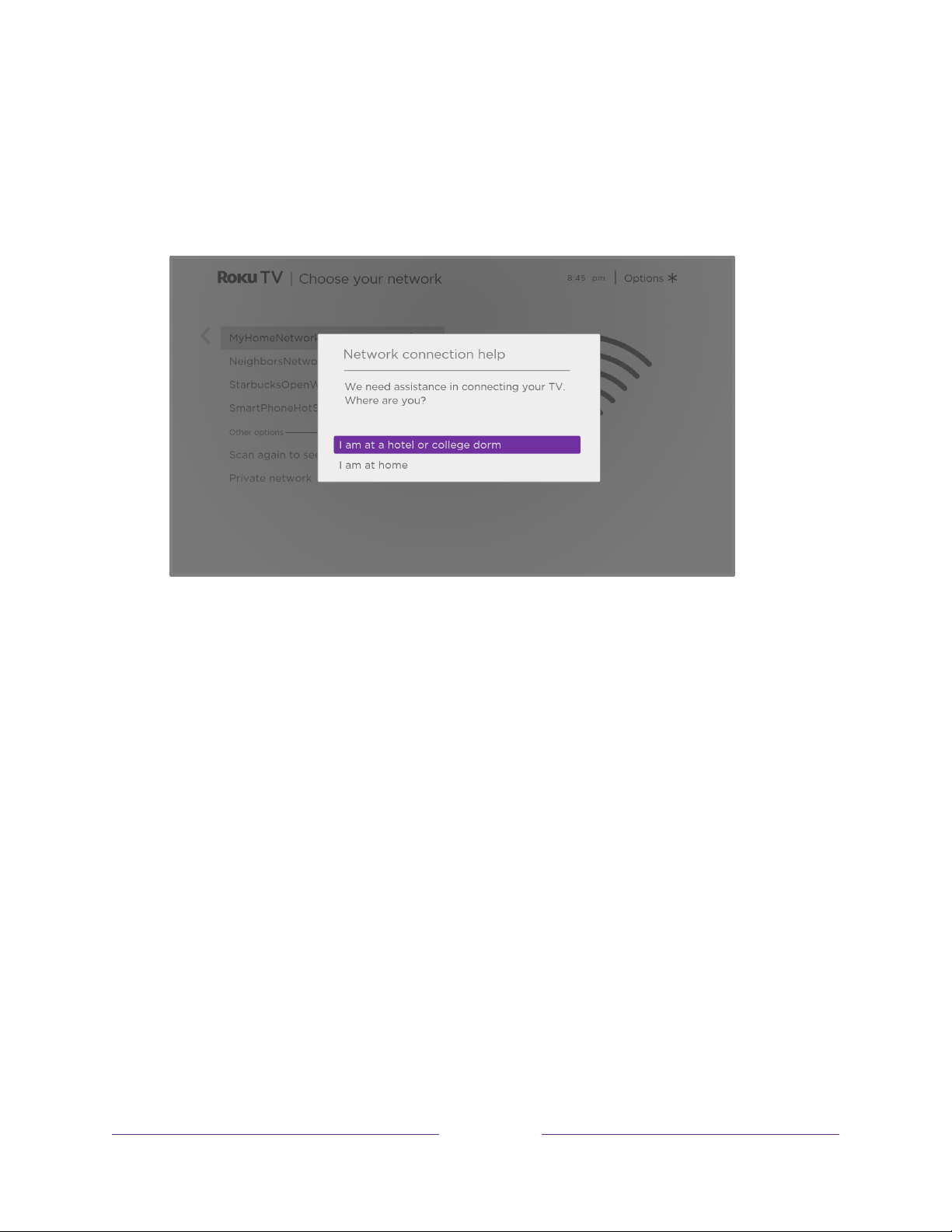
57
Getting your Roku TV on line on a restricted public network
1. Either during Guided Setup or after using the Settings > Network menu to set
up a new connection, the TV automatically detects that you are connecting to
a restricted network and displays the following prompt:
Tip:
Your TV can connect to a restricted network only if Enable ‘Device
connect’ is selected in Settings > System > Advanced system settings. (Device
connect is enabled by default, but if you have disabled it, the TV cannot
complete the connection.)
Note:
Device connect is not present if the TV is in non-connected mode.
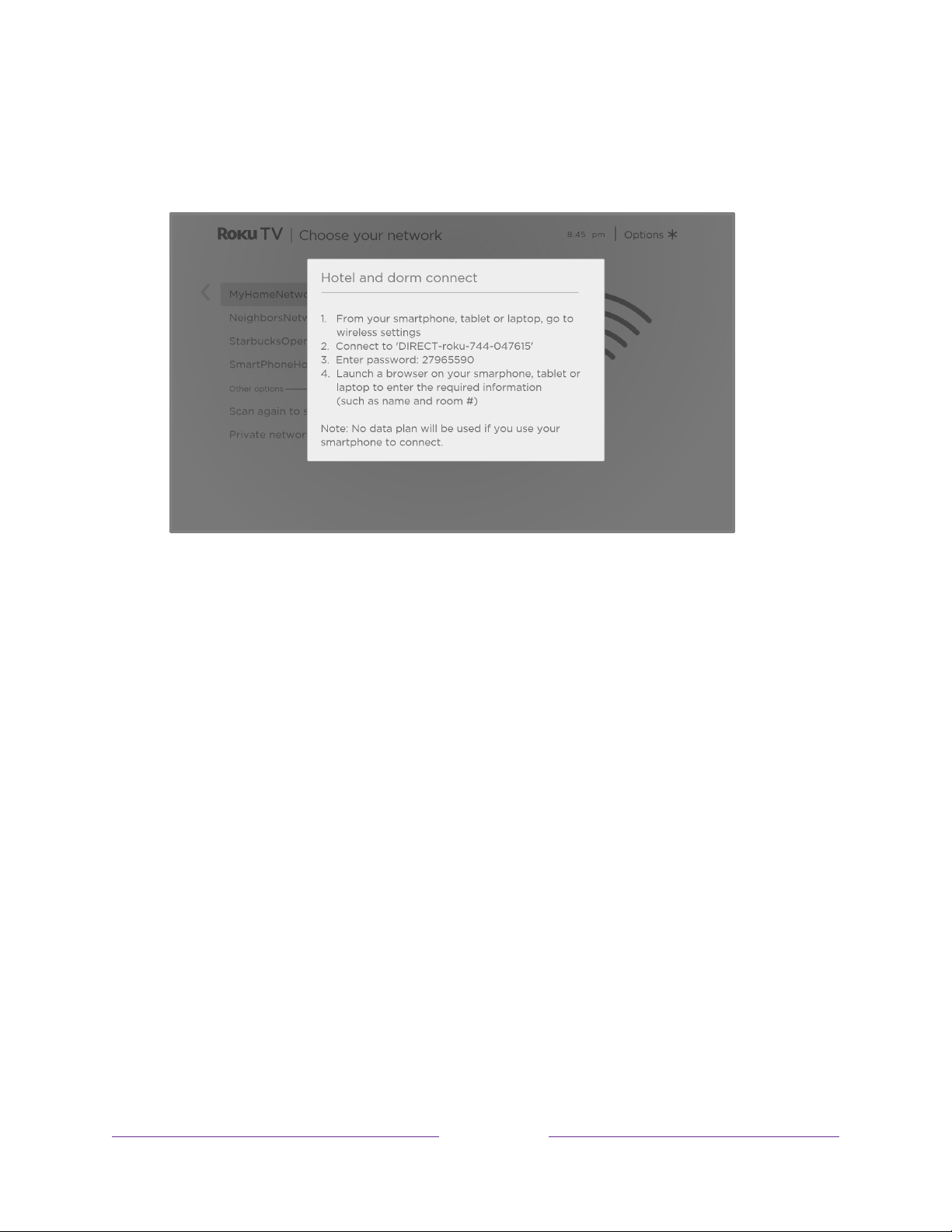
58
2. After selecting the correct network, highlight I am at a hotel or college dorm,
and then press OK. The TV prompts you to use your smartphone, tablet, or
laptop to complete the connection.
3. Use a smartphone, tablet, or wireless-enabled computer to detect wireless
networks. In most cases, you can simply open the device’s Wi-Fi Settings or
Network Settings screen to start scanning.
Note:
The phone, tablet, or computer must be on the same wireless network to
which you are connecting the TV.
4. Connect to the network named on your TV screen. The actual network name
varies.
Note:
The previous step connects your smartphone, tablet, or computer
directly to the TV. No connection charges apply and the connection does not
impact your device’s data plan.
5. The wireless connection process prompts you for a password. Enter the
password as shown on the TV screen. The actual password varies.
6. Start the web browser on your smartphone, tablet, or computer. When you
attempt to open any web page, the restricted connection will prompt you for
whatever information it needs. In most cases, you must agree to terms and
conditions, provide identifying information, or enter a password, PIN, or room

59
number to proceed. The information requested depends on the organization
that controls the wireless connection.
7. After you enter the requested information, the TV automatically proceeds to
complete its connection and resumes normal operation.
8. If the TV prompts you to link to your Roku account, use your smartphone,
tablet, or computer to activate your Roku TV.

60
Using Apple AirPlay and
the Apple Home app
Only on supported 4K Roku TV models
.
Apple AirPlay
AirPlay lets you share videos, photos, music, and more from your iPhone, iPad, or Mac.
To use AirPlay, your 4K Roku TV must be on the same wireless network as your Apple
device
1
. To configure your preferred AirPlay security settings, navigate to Settings >
Apple AirPlay and HomeKit from your Roku TV home screen. Depending on the
AirPlay settings you select, you may be required to enter a password on your Apple
device to initiate an AirPlay session on your Roku TV.
Other AirPlay things to try
• Screen mirroring from an iOS device.
• Screen mirroring from a Mac.
• Using your 4K Roku TV as an extended Mac display.
• Playing synchronized music on multiple AirPlay 2 devices, including 4K Roku
TVs.
Apple Home app
Apple HomeKit controls compatible smart home lights, locks, thermostats, and other
devices, including 4K Roku TVs. The Apple Home app lets you add your 4K Roku TV
to your Apple HomeKit ecosystem. You can also interact with HomeKit-enabled
devices by using Siri from your iPhone, iPad, Apple Watch, HomePod or Mac.
1
iPhone, iPad, or iPod touch with iOS 12.3 or later. Mac with macOS Mojave 10.14.5 or later.

61
To enable your 4K Roku TV to work with the Apple Home app
1. From your TV’s Home screen, navigate to Settings > Apple AirPlay and
HomeKit.
2. Under HomeKit, select Set Up. Your TV will display a unique QR code.
3. From your Apple device, open the Apple Home app and select Add Accessory.
4. Use the Apple Home app to scan the QR code displayed on your TV and follow
the instructions.
Some Apple Home things to try
On your Apple device, say:
• “Hey Siri, play jazz in the living room.”
• “Hey Siri, mute the TV in the office.”
• “Hey Siri, turn off the TVs in my home.”
• Add your Roku TV to an Apple Home scene.
Find more ideas at https://www.apple.com/ios/home/
.

62
Adjusting TV settings
You can adjust most picture and sound settings while you are watching a program by
pressing STAR to open the Options menu. There are some additional picture and
sound settings in the Settings menu.
In most cases, the changes you make apply only to the input you are using. Live TV,
each HDMI
®
input, and the AV input have their own settings that the TV remembers
when you return to that input. The TV also separately remembers the settings you
specify while viewing streaming content.
Settings menu
Use the Settings menu to adjust overall TV settings. Press HOME to go to the
Home screen, and then navigate to Settings > TV picture settings.
You can adjust the following overall TV picture settings from the Settings screen:
• TV brightness – Provide a better viewing experience in darker or brighter
rooms. Increases or decreases the TV’s general brightness across all TV inputs.
Note:
This setting is identical to the TV brightness setting you can access in
the Options menu while watching a program.
• HDR notification –
On select models only
: Controls whether the TV displays a
notification in the upper right corner of the screen for a few seconds when
HDR or Dolby Vision content begins to play.
• On – The TV displays a notification when HDR or Dolby Vision content
begins to play.
• Off – The TV does not display a notification when HDR or Dolby Vision
content begins to play.
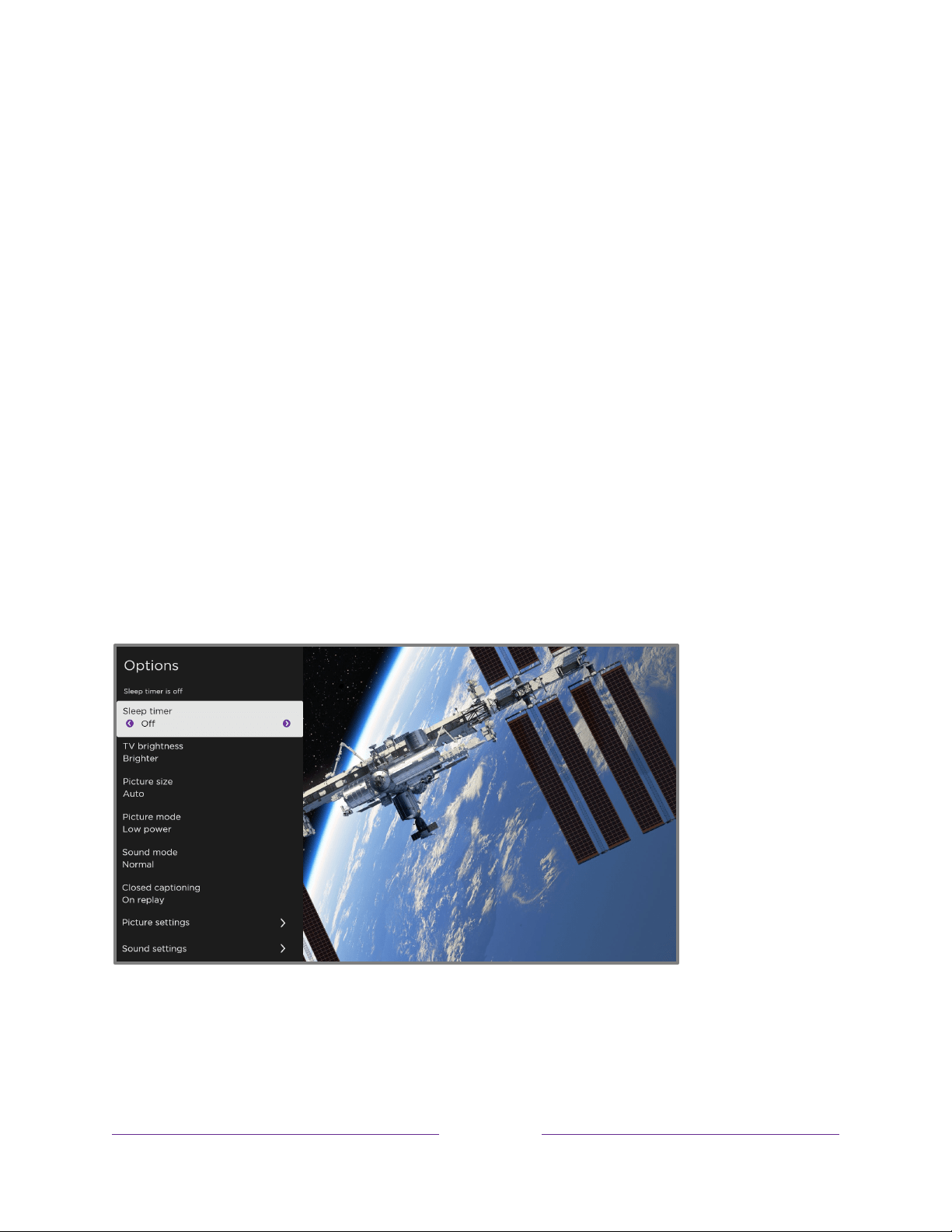
63
Note:
This setting does not affect the HDR or Dolby Vision notification that
always appears in the program information banner. Press OK while watching a
program to open the program information banner.
• Settings per input – Lists each TV input. Select an input, and then press
STAR to display the Options menu where you can adjust the input’s settings
while watching a live picture and listening to the sound from that input.
Tip:
You don’t have to go to the Settings menu first—you can display an input’s
Options menu and adjust its settings whenever you are watching the input by
pressing STAR
.
Options menu
The Options menu for each TV input provides many settings for controlling the
appearance of the picture and the quality of the audio. To view the Options menu,
press STAR whenever you are watching a TV input or streaming a video (except
when you are viewing the program information banner). The Options menu is a panel
that appears over the left side of the screen:
Typical Options menu
To adjust the settings on the Options menu, press UP or DOWN to highlight a setting,
and then press LEFT or RIGHT to change the setting. You’ll see the changes you make
right away in picture appearance or audio quality.

64
Tip:
When you highlight a setting, the header text explains the effect of its current
value. When you begin to adjust a setting, the other options are hidden so you can
see more of the screen. Even though the other settings are hidden, you can move
the highlight up or down to adjust the other settings. As soon as you press UP or
DOWN, the other settings become visible again.
Note:
Some streaming channels assign STAR
to a different function (or no
function at all), meaning it will not open the Options menu. In these cases, use a
different channel, such as The Roku Channel, to configure options. The selected
settings remain active for all streaming channels.
Options menu settings
• Sleep timer – Sets a timer that turns off the TV after the specific amount of
time.
This setting remains in effect even if you stop watching the current input.
• TV brightness – Affects the overall brightness of the picture.
This setting
applies across the entire TV; that is, to all TV inputs and is identical to the TV
brightness setting under Settings > TV picture settings.
• Picture size – Adjusts the aspect ratio of the picture, enabling you to view a
picture in its original format, or zoom or stretch it to fill the screen. The Auto
setting has been found to produce the best picture in most cases.
• Picture mode – Provides picture presets for various viewing preferences.
This
setting applies to the currently-selected input only.
• Sound mode – Adjusts the sound quality output from the TV speakers.
This
setting applies across the entire TV; that is, to all TV inputs.
It does not affect
the sound quality for headphones, HDMI (ARC), HDMI (eARC), or S/PDIF
(TOSLINK) connectors.

65
• Closed captioning – Controls when you see captions.
This setting is only
offered for live TV, the AV input, streaming content and videos played in the
media player. Any set value remains in effect across only these inputs.
• Live TV – Set captions to off, always on, on only when the TV sound is
muted, or on only during instant replay (when Live TV Pause has been
enabled).
• AV input – Set captions to off, always on, or on only when the TV sound is
muted.
• Streaming video channel or media player – For streaming content that
provides closed captions, set captions to off, always on, on only when the
TV sound is muted, or on only during instant replay (for streaming content
that supports instant replay).
Note that some streaming channels have
other methods for turning captions on and off. In these cases, the Closed
captioning option does not appear on the Options menu.
Note:
If REPLAY is not available on your remote, you can use this feature
in the Roku mobile app. For more information, see Roku mobile app
.
• Captioning track –Selects which caption track to display when closed
captioning is on.
This setting remains in effect on all inputs that provide
captions.
• SAP – Selects whether to play a secondary audio program or multichannel
television sound, and which choice to play.
This setting applies only to live TV
on digital channels.
• Picture settings – Shows the Picture settings menu
.
• Sound settings –
Only on select models
: Shows the Sound settings menu.
Tip:
To dismiss the Options menu, just wait a few seconds without pressing any
buttons. Or press STAR again to dismiss the menu immediately.

66
Video description through Secondary Audio
Program (SAP)
Video description of the action in a program helps individuals who are blind or visually
impaired enjoy programs. You enable video description by selecting one of the
Secondary Audio Program (SAP) options.
To hear video description narrations in programs that have them, turn on SAP. If there
are multiple SAP options for a channel, such as Spanish and French, try each one to
determine which setting carries the video description track.
Accessibility:
Broadcasters provide video descriptions only on a small number of
programs. If you are unable to hear video descriptions after following these
instructions, the program you are viewing does not provide them.
For more details about video description, go to:
https://crtc.gc.ca/eng/info_sht/b322.htm
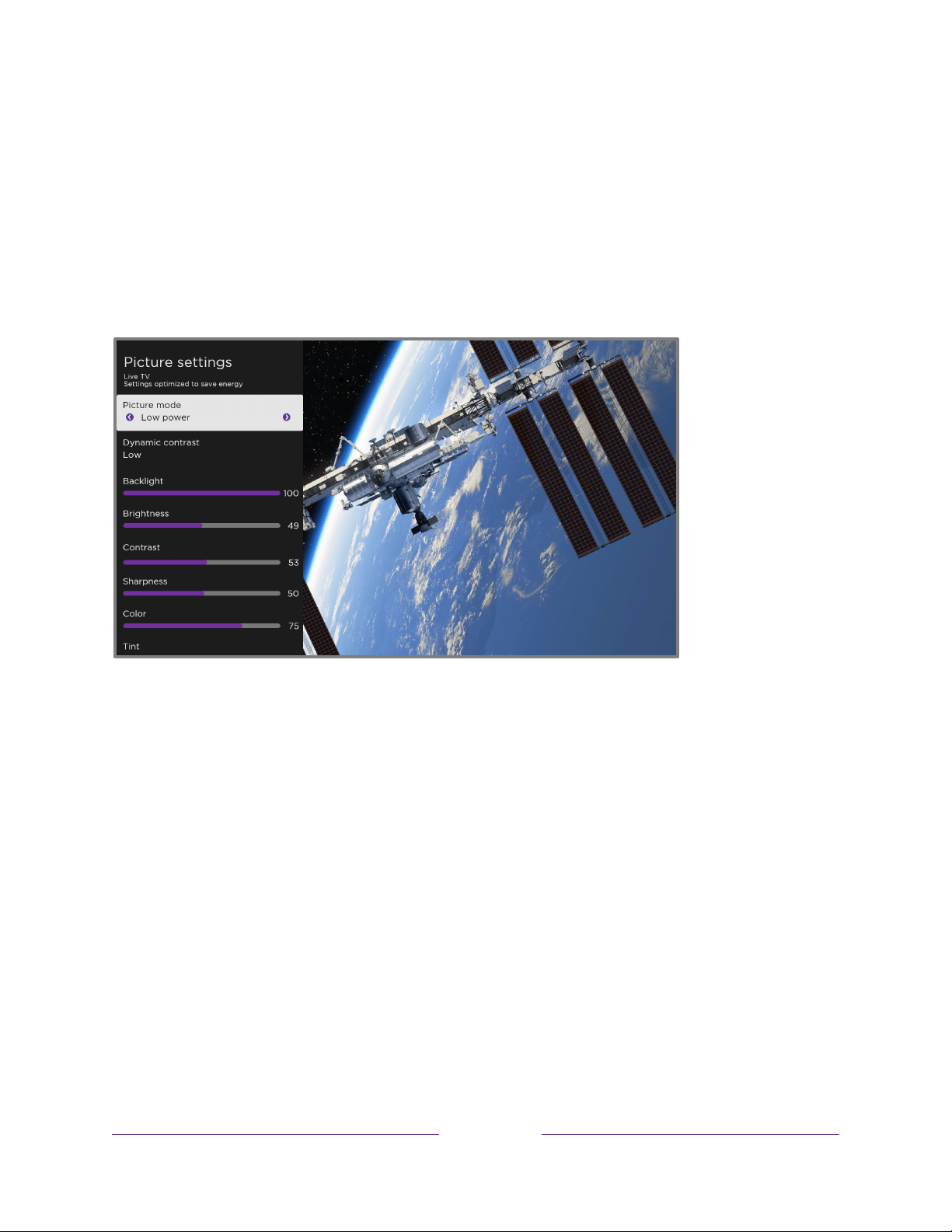
67
Picture settings
The Picture settings menu for each TV input provides settings for fine tuning the
appearance of the picture. All of the settings in this menu apply only to the currently-
selected input.
To use the Picture settings menu, first press STAR to display the Options menu.
Then select Picture settings.
Typical Picture settings menu
Note:
Some streaming channels assign STAR
to a different function, meaning it will
not open the Options menu. In these cases, use a different channel, such as The Roku
Channel, to configure Picture settings. The selected settings remain active for all
streaming channels.

68
Picture settings menu options
Note:
Picture settings vary by brand and model. Not all settings are available on all
TVs. Names of certain settings also vary by brand and might differ from the names
listed here.
• Picture mode – Provides picture presets for various viewing preferences. This
setting duplicates the one on the Options menu. When you change the Picture
mode, other picture settings adjust accordingly. For example, setting the
Picture mode to Vivid sets Brightness, Contrast, Sharpness, and other values
to produce a very vibrant picture. Setting Picture mode to Movie changes the
settings to produce a picture suitable for enjoying movies in a darkened room.
If you make changes to the individual picture settings—for example, Contrast,
or Sharpness—these settings are saved for the current input
and
the current
picture mode. In this way, you can set HDMI 1 input’s Movie picture mode to
use different settings than the HDMI 2 input’s Movie picture mode and the Live
TV input’s Movie picture mode. Use Reset picture settings, described below, to
return the input’s selected picture mode to its original values.
• Local dimming –
Only on select models
: Sets the amount of dimming applied
to multiple areas of the screen’s backlight intensity. This setting can make dark
areas darker without affecting the brightness of light areas.
• Dynamic contrast –
Only on select models
: Automatically adjusts the backlight
level to achieve the optimum contrast and prevent excessive differences
between light and dark areas of the screen.
• Micro contrast –
Only on select models
: Improves image contrast.
• Backlight - Adjusts the overall light intensity of the screen.
• Brightness – Adjusts the dark level of the picture.
• Contrast – Adjusts the white level of the picture.
• Sharpness – Adjusts the sharpness of edges in the picture.
• Color – Adjusts the saturation of colors in the picture. A setting of 0 removes
all color and displays a black and white picture.

69
• Tint – Adjusts the color balance from green to red to obtain accurate colors in
the picture.
• Color temperature – Adjusts the overall color tones in the picture from Normal
to slightly more bluish (Cool) to slightly more reddish (Warm).
• Frame rate conversion –
Only on select models.
Each TV brand uses a different
name for this option.
Adjusts the amount of motion processing applied to the
video signal. A higher setting results in more smoothing, but can cause
undesirable picture artifacts in certain types of content
.
Each Picture mode has
a different default setting.
• Film mode –
Only on select models.
Each TV brand uses a different name for
this option.
When enabled, this feature reduces “judder” that is often present
when 24 frame-per-second movies are upscaled to 60Hz TV standards. Film
mode is On by default in Movie and HDR Dark picture modes, and Off by
default in other picture modes.
• Blur reduction –
Only on select 120Hz models. Each TV brand uses a different
name for this option.
Reduces blur, especially for fast-moving images such as
sports.
• Black frame insertion –
Only on select models that also have the local dimming
feature.
Each TV brand uses a different name for this option.
Reduces motion
blur caused by the refresh rate of the screen. Enabling this feature inserts black
frames between picture frames in a way that improves the clarity of fast
moving objects. It provides an improved viewing experience for video games
and sporting events, but reduces the brightness of the picture. You can select
settings of Low, Medium, High, or Off to achieve the desired picture quality.
• Game mode –
Only on HDMI
®
and AV inputs:
Controls whether Game mode is
enabled. When On, the TV performs less image processing and has less input
lag. When Off, the TV performs more image processing and has more input lag,
which is less desirable for action games.
• Reset picture settings – Returns all picture settings for the input’s currently-
selected Picture mode to their original values.

70
Auto Low Latency Mode (ALLM):
Only on select models:
Auto Low Latency Mode (ALLM) detects when certain
game consoles are connected to an HDMI input, and then automatically configures
the best settings for action games when that input is selected. When ALLM is
active, the manual Game mode setting is not available.
Variable refresh rate (VRR)
Only on select models:
Variable refresh rate (VRR) allows a compatible game
console or computer connected via HDMI to control the refresh rate of the TV.
This feature helps to ensure that the TV does not begin to display a video frame
until the video source has completely rendered it. The result is smoother image
animation with a lower instance of stutter or tearing. Use of this feature requires
that:
• Variable refresh rate is turned On in the HDMI settings for the input. This
setting is Off by default.
• The HDMI mode is set to Auto or HDMI 2.0 in the HDMI settings for the input.
• Game mode is enabled.
• The connected device supports VRR.
Tip:
To dismiss the Picture settings menu, just wait a few seconds without
pressing any buttons. Or press STAR
again to dismiss the menu immediately.
Sound settings
Your TV model might have any of the following premium sound settings available in
the Options menu:
• No Sound settings
• Volume mode
• Dolby
®
Audio Processing
• DTS
®
TruSurround
• DTS
®
Studio Sound
• Sonic Emotion™ Premium
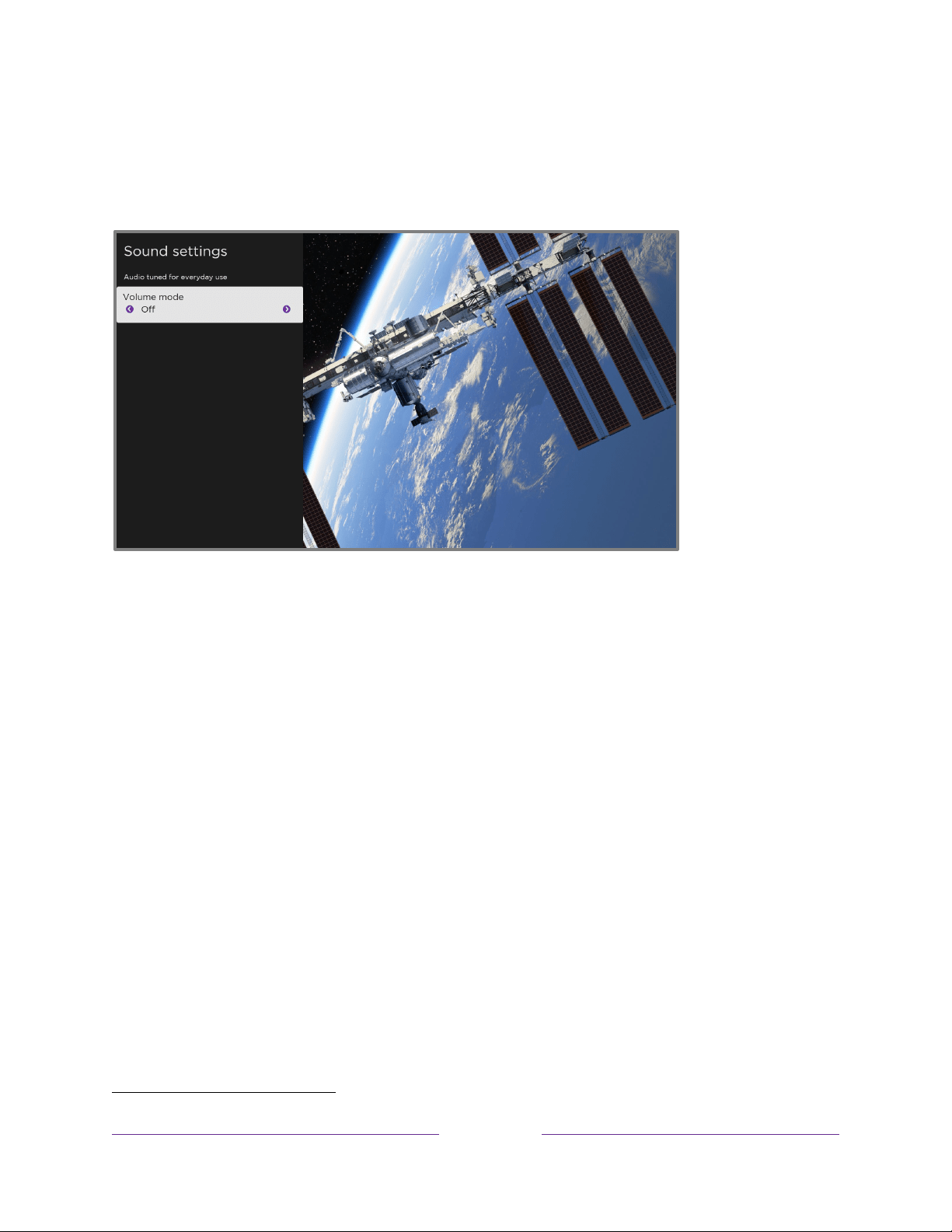
71
Volume mode (select models only)
To access Volume mode, first press STAR to display the Options menu, then select
Sound settings
1
.
Sound settings menu for models with Volume mode
Tip:
Some streaming channels assign STAR
to a different function, meaning it will
not open the Options menu. In these cases, use a different channel, such as The Roku
Channel, to set the Volume mode. The selected mode remains active for all streaming
channels.
Sound settings menu - Volume mode
• Off – Volume mode are inactive and content volume is unmodified.
• Leveling – Provides a consistent volume level across different types of content,
so that you need not change the volume every time you switch channels or
when a commercial comes on.
• Night – Soft sounds, such as whispers, are increased while loud sounds, such as
explosions, are decreased, making it easier to hear your TV at night without
disturbing others.
• Dolby AC-4 Dialog Enhancement –
Only on select models:
Select On for AC-4
to enhance the dialog in content that supports the AC-4 audio format.
1
On some models the Volume mode option is in the Options menu rather than in Sound settings.
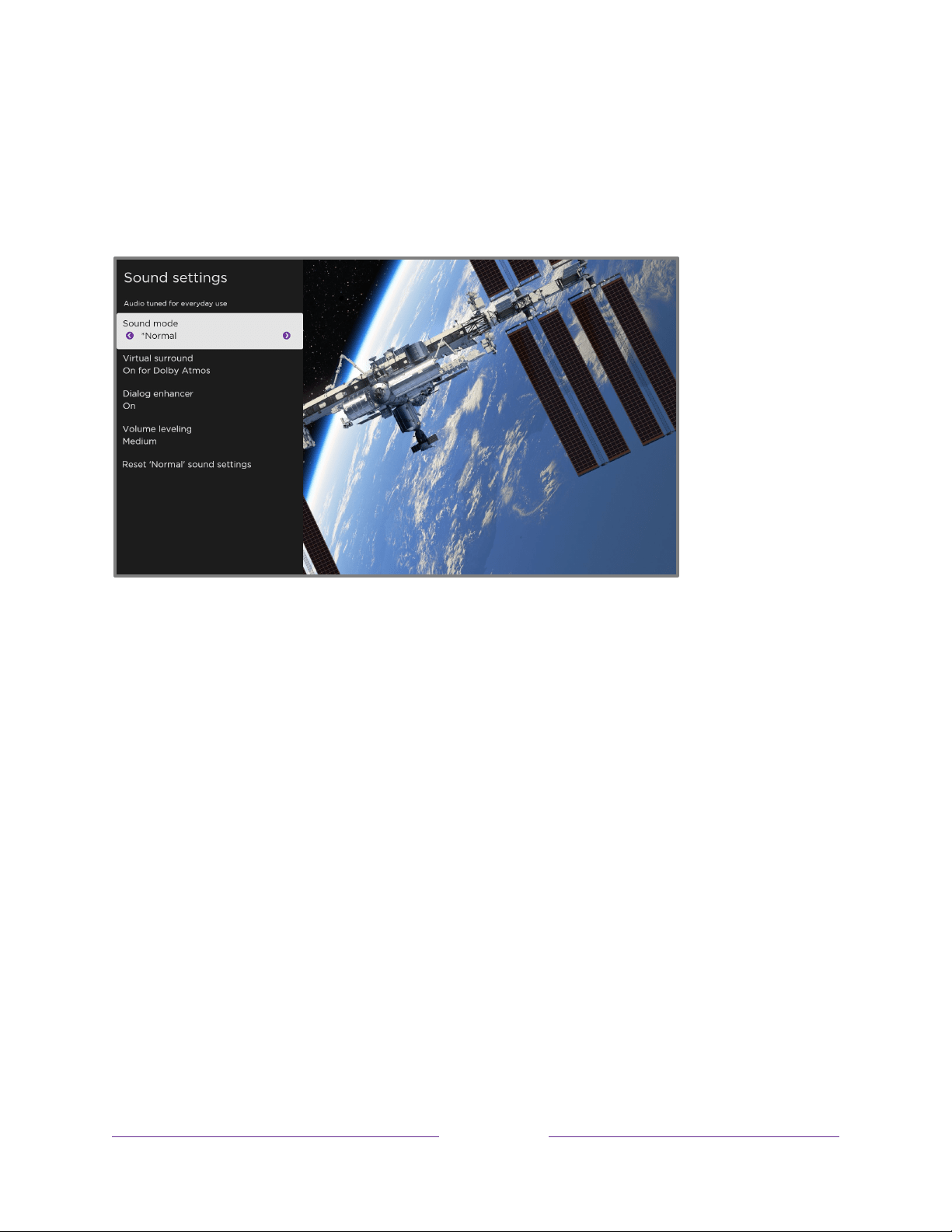
72
Sound settings – Dolby
®
Audio Processing (select models only)
Each TV input has separate settings for fine tuning sound quality. All of the settings in
this menu apply only to the currently-selected input. To access the DAP settings, first
press STAR to display the Options menu, then select Sound settings.
Sound settings menu for models with Dolby® Audio Processing
Tip:
Some streaming channels assign STAR
to a different function, meaning it will
not open the Options menu. In these cases, use a different channel, such as The Roku
Channel, to configure Dolby
®
Audio Processing. The selected settings remain active
for all streaming channels.
Sound settings menu– Dolby
®
Audio Processing
• Sound mode – Select from among various preset sound modes to improve
speech, make music sound its best, boost bass or treble, or simulate a theater.
Use Reset audio settings, described below, to return the input’s current
settings to their original values.
• Virtual surround (
Only on select models
) – Options vary by TV model.
Simulates surround sound that otherwise would require installation of a
surround sound audio system. Sometimes, the effect interferes with dialog
clarity. Use the Dialog enhancer option to compensate.
• Dialog enhancer – Improves the clarity of speech when on.
• Dolby AC-4 Dialog Enhancement –
Only on select models:
Select On for AC-4
to enhance the dialog in content that supports the AC-4 audio format.
• Reset sound settings – Returns Virtual surround and Dialog enhancer settings
to their default settings for the selected Sound mode.
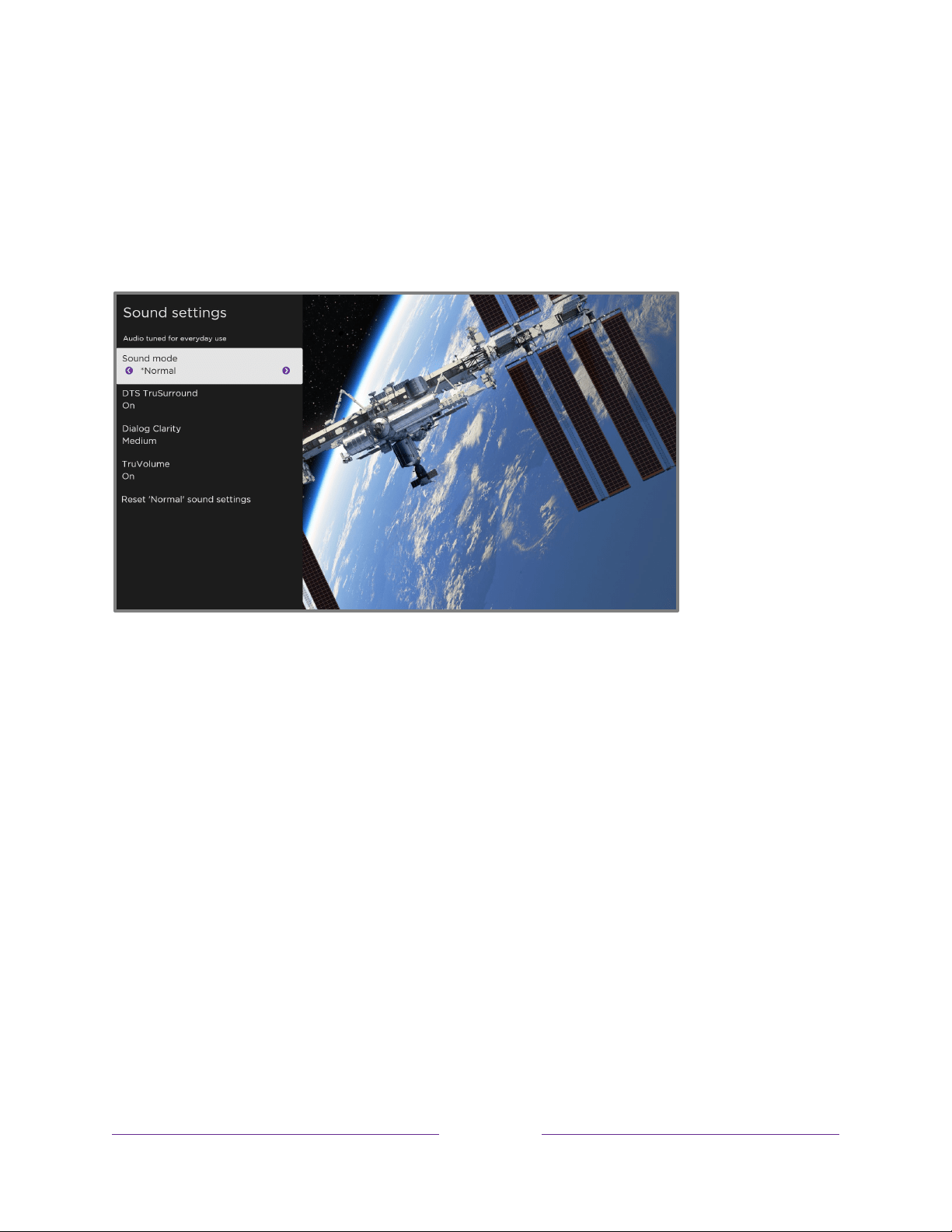
73
Sound settings – DTS
®
TruSurround / DTS
®
Studio Sound (select
models only)
Each TV input has separate settings for fine tuning sound quality. All of the settings in
this menu apply only to the currently-selected input. To access the DTS
®
settings, first
press STAR to display the Options menu, then select Sound settings.
Sound settings menu for models with DTS® TruSurround/Studio Sound
Tip:
Some streaming channels assign STAR
to a different function, meaning it will
not open the Options menu. In these cases, use a different channel, such as The Roku
Channel, to configure DTS
®
Studio Sound. The selected settings remain active for all
streaming channels.
Sound settings menu– DTS
®
TruSurround / DTS
®
Studio Sound
• Sound mode – Select from among various preset sound modes to improve
speech, make music sound its best, boost bass or treble, or simulate a theater.
Use Reset audio settings, described below, to return the input’s current
settings to their original values.
• DTS TruSurround –Simulates surround sound that otherwise would require
installation of a surround sound audio system. Sometimes, the effect interferes
with dialog clarity. Use the Dialog clarity option to compensate.
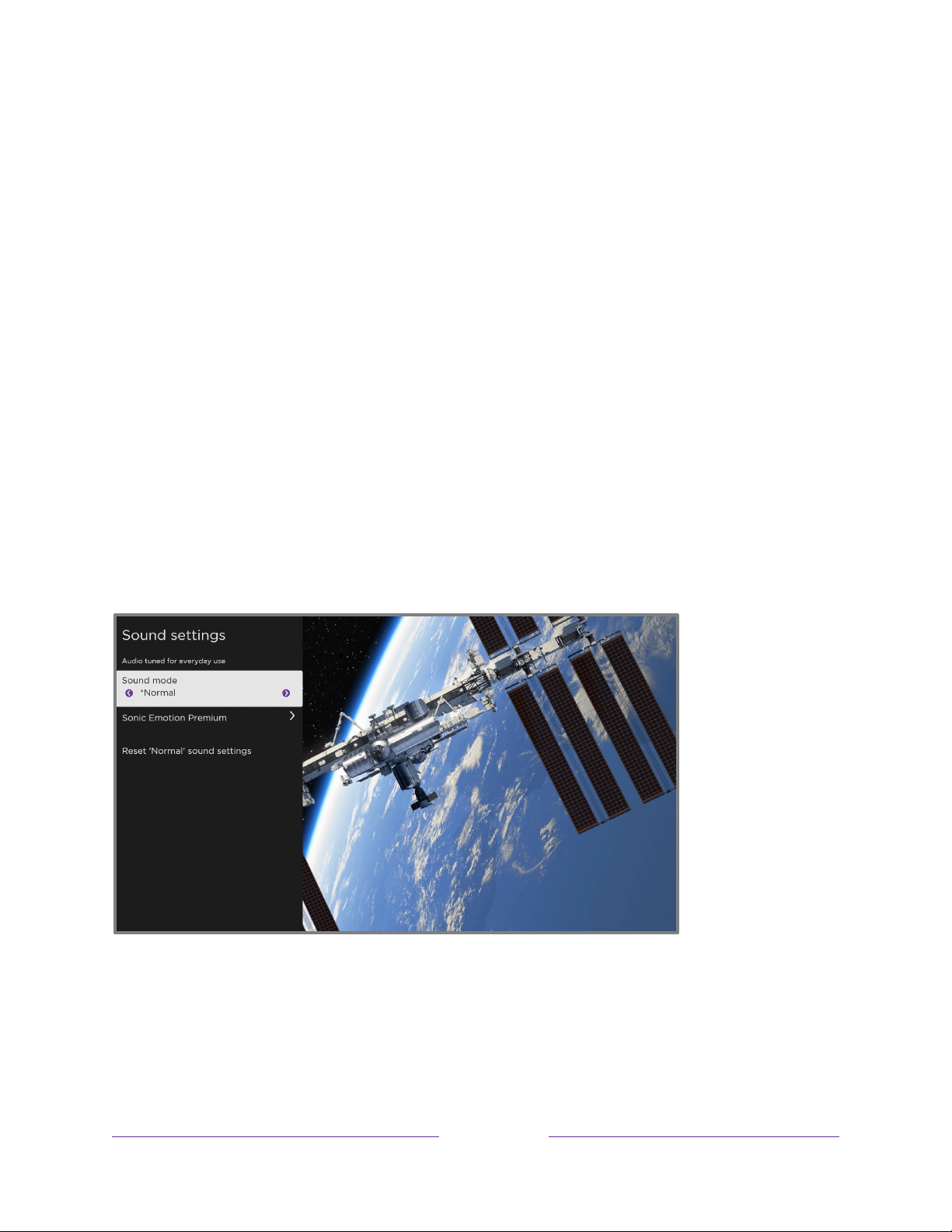
74
• Dialog Clarity – Available only when DTS TruSurround is On. Choose among
Low, Medium, and High settings to improve the clarity of dialog when you are
using the TruSurround feature.
• TruVolume – Minimizes annoying volume fluctuations in programs.
• Dolby AC-4 Dialog Enhancement –
Only on select models:
Select On for AC-4
to enhance the dialog in content that supports the AC-4 audio format.
• Reset sound settings – Returns DTS TruSurround, Dialog Clarity, and
TruVolume settings, to their default settings for the selected Sound mode.
Sound settings – Sonic Emotion
™
Premium (select models only)
Sonic Emotion™ Premium is an audio technology that enables your TV to produce a
more immersive sound experience. Each TV input has separate settings for fine tuning
sound quality. All of the settings in this menu apply only to the currently-selected
input. To access the Sonic Emotion™ settings, first press STAR to display the
Options menu, then select Sound settings.
Sound settings menu for models with Sonic Emotion™ Premium
Tip:
Some streaming channels assign STAR
to a different function, meaning it will
not open the Options menu. In these cases, use a different channel, such as The Roku
Channel, to configure Sonic Emotion™. The selected settings remain active for all
streaming channels.
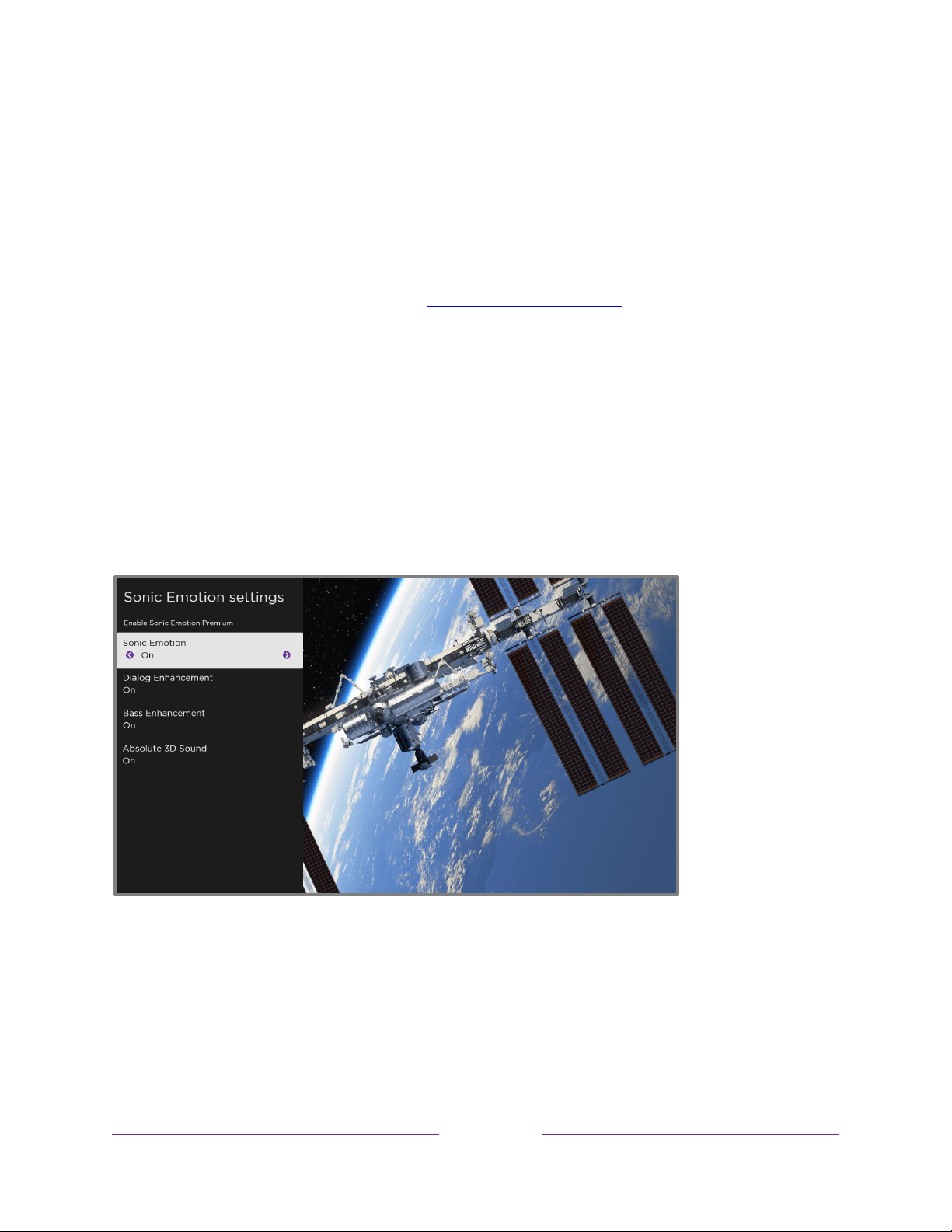
75
Sound settings menu– Sonic Emotion
™
Premium
• Sound mode – Select from among various preset sound modes to improve
speech, make music sound its best, boost bass or treble, or simulate a theater.
Use Reset audio settings, described below, to return the input’s current
settings to their original values.
• Sonic Emotion Premium – Displays a menu with individual Sonic Emotion™
audio settings, as described in Sonic Emotion settings
.
• Dolby AC-4 Dialog Enhancement –
Only on select models:
Select On for AC-4
to enhance the dialog in content that supports the AC-4 audio format.
• Reset sound settings – Returns Sonic emotion settings to their default settings
for the selected Sound mode.
Sonic Emotion™ settings
When you select Sonic Emotion Premium from the Sound settings menu, these
additional settings become available:
Sonic Emotion settings menu for models with Sonic Emotion™ Premium
• Dialog Enhancement – Enhances your ability to hear and understand dialog in
the program.
• Bass Enhancement – Enhances the low frequency sound component in the
program.
• Absolute 3D Sound – Simulates sound from multiple speakers that would
otherwise require installation of a surround sound audio system.

76
Expert Picture Settings (4K models only)
4K (UHD) TV models have additional picture settings for demanding home theater
enthusiasts. Expert Picture Settings include gamma, noise reduction, 11-point white
balance adjustment, and extended color space management.
You can access Expert Picture Settings only by using the Roku mobile app on an iOS
®
or Android™ mobile device.
Changing privacy settings
Note:
Privacy settings are not present on TVs operating in non-connected mode.
Advertising
Only in connected mode,
by default your TV uses an advertising identifier to track
your TV usage. You can change the privacy settings on your TV in two ways:
resetting the advertising identifier and limiting ad tracking.
Reset the advertising identifier
Resetting the advertising identifier clears the prior usage history that your TV stores,
and then begins tracking again. From that point forward, your new usage patterns
affect the advertisements you see on your TV.
1. From the Home screen menu, navigate to Settings > Privacy > Advertising.
2. Highlight Reset advertising identifier. Press STAR to view more information
about this option. When you finish reading the information, press OK to close
the More Information window.
3. Press OK to reset the advertising identifier, and then press OK again to dismiss
the verification message.

77
Limit ad tracking
You can limit Roku’s tracking of your usage behavior by limiting ad tracking. When
you do, your TV will display ads that are not personalized based on your TV’s
advertising identifier.
1. From the Home screen menu, navigate to Settings > Privacy > Advertising.
2. Highlight Limit ad tracking. Press STAR to view more information about this
option. When you finish reading the information, press OK to close the More
Information window.
3. Press OK to select the Limit ad tracking check box.
Note:
If you perform a factory reset and then reconnect your TV, ad tracking is
restored until you repeat these steps.
Microphone
Your Roku TV does not have a built-in microphone. However streaming channel
providers can use the microphone on the Roku Voice remotes (only on select models)
or on your mobile device when the Roku mobile app is running. You can control
whether streaming channels have permission to use the microphone.
Note:
These settings affect only streaming channel access to the microphone. They
do not affect your Roku TV’s Voice Search feature.
Channel microphone access
You can control which streaming channels have permission to use the microphone,
giving you control over how the microphone is used by each streaming channel. The
default setting is Prompt, so channels will not be able to turn on the microphone
without your permission.

78
To change microphone access settings:
1. From the Home screen menu, navigate to Settings > Privacy > Microphone.
2. Select Channel microphone access.
3. Select one of the following settings:
• Prompt – Display a notification the first time a streaming channel requests
the use of the microphone. When such a notification appears, you can
select either Allow microphone access or Deny microphone access on a
per-channel basis. If you choose to allow microphone access, you’ll be
prompted to confirm your choice by entering a numeric code that appears
on the screen.
• Always allow – Do not prompt, but always allow any streaming channel to
use the microphone.
• Never allow – Do not prompt, but never allow any streaming channel to use
the microphone.
Channel permissions
After granting or denying microphone access on a per-channel basis, you can reset
channel permissions to enable them to follow the system-wide setting you specify
under Channel microphone access
.
To reset channel permissions:
1. From the Home screen menu, navigate to Settings > Privacy > Microphone.
2. Select Channel permissions.
3. Highlight Reset channel permissions, or highlight a specific listed channel, and
then press OK to deny microphone access to all or to a specific channel.

79
My Feed
Only in connected mode,
you can watch movies coming soon, and to get updates on
movies, TV programs, and actors that you are following.
You can follow any movie, TV program, or actor across top streaming channels. To
follow a program, use the Search feature to find the movie, TV program, or name that
you want to follow, and then select Follow this movie/TV show/person on Roku. For
more information, see Searching for something to watch
.
Note:
The TV takes a bit of time to update your newly-followed programs. Until it
finds at least one channel offering the movie, the content banner in My Feed shows
Check back later for updates.
My Feed alerts you any time a movie or TV program you are following becomes
available on another channel and whenever its price changes. A number in
parentheses next to My Feed in the Home screen menu means that My Feed has
updated information that you haven’t viewed yet. For example, if three of your
followed programs have updates, you’ll see My Feed (3).
Note:
When a movie or TV program you are following becomes available, the
streaming channel offering the movie might require that you subscribe or pay a fee to
view it.

80
Searching for something
to watch
Searching for movies and programs across streaming channels is one of the unique
features of your Roku TV. Within a single search operation, you can search by:
• Movie name
• TV program name
• Actor or director name
• Streaming channel name
• Interactive game name
• Popular quotes, such as “May the Force be with you.”
• Genre, including the special genres, “free” and “4K.”
Note:
Roku Search is only available if your TV is operating in connected mode and
linked to a Roku account. Roku Search doesn’t search across all streaming channels,
but searches across lots of popular streaming channels. The actual channels it
searches vary by locale.
How do I search?
You can search in several different ways:
• By using an on-screen keyboard that you navigate using the purple directional
pad on your remote
• By typing on the Roku mobile app on your phone or tablet
• By speaking search phrases in English or Spanish using a Roku Voice remote,
the Roku mobile app, Alexa, or Google Home Assistant.
For more details about Voice Search, go to go.roku.com/voicesearch
.

81
Keyboard search using the remote
1. Select Search on the Home screen menu.
2. Use the purple directional pad to navigate the on-screen keyboard, entering a
few characters of the search term.
Each additional character you enter narrows down the search, making the
search results more relevant. You’ll often see the results you are seeking after
entering only a few letters.
3. When you see the program you are searching for, press RIGHT to highlight it.
Continue pressing RIGHT to see more details about how to watch the program.
Voice Search from a Roku Voice remote
Only with models that have a Roku Voice Remote or Roku Enhanced Voice Remote
:
1. Press and hold either VOICE or SEARCH , depending on your remote.
Hint:
Tap the button to see on-screen tips about searching. Repeat to see a
different set of tips.
2. While holding down the button, say the name of a movie, TV program, actor,
director, or genre (including the special genres, “free” and “4K”). Or say, for
example, “What movie is this from ‘May the Force be with you’,” to search for a
movie based on a popular quote.
Note:
In Canada, voice searches are currently limited to English.
The TV lists the results of your search across many streaming channels.
3. Press RIGHT to move the highlight into the list of search results.
4. Press UP or DOWN to scroll through the list of search results to highlight the
item you want to view.

82
Searching from the Roku mobile app
Use the free Roku mobile app on your compatible smartphone or tablet to make
searching even faster. Use your mobile device’s keypad to type more quickly and
easily than with the on-screen keyboard on your TV. Or, search by touching the Voice
Search icon and saying the name of the movie, TV program, actor, director, genre,
streaming channel, or game.
When you use the Roku mobile app to search, search results are shown on your
mobile device instead of on the TV screen. When you make a selection from the
search results, the TV starts playing the selected program.
For more information, see Roku mobile app
.
Searching with Google Assistant
Use your Google Home, Google Pixel phone, or the Google Home mobile app to
search for programs:
1. Link your Roku account to your Google account using the Google Home
mobile app on your iOS or Android device.
2. Start your command with
“Hey Google”
or
“OK Google,”
and follow the
command with
“on Roku.”
Some examples:
•
“Hey Google, show me documentaries on Roku.”
•
“OK Google, show me comedies on Roku.”
Note:
You also can issue commands to control your Roku TV. And, if you have
enabled Fast TV Start on your TV, you can turn on your TV by saying,
“OK
Google, turn on Roku.”
Searching with Amazon Alexa
Use your Amazon Echo Dot, Echo Plus, Echo Show, or the Amazon Alexa mobile app
to search for programs:
1. Link your Roku account to your Amazon account using the Amazon Alexa app
on your iOS or Android device.

83
2. Start your command with
“Alexa,”
and follow the command with
“on Roku.”
Some examples:
•
“Alexa, turn up the volume on Roku.”
•
“Alexa, show me documentaries on Roku.”
Note:
You also can issue commands to control your Roku TV. And, if you have
enabled Fast TV Start on your TV, you can turn on your TV by saying,
“Alexa,
turn on Roku.”
Searching for free content
You’ll discover an almost endless list of content through your Roku TV, and much of it
is free. You can easily find free content by including the word “free” in your search.
For example:
• Roku Voice Remote or Roku mobile app—Say, “Show me free comedies” or
“Show me free romance,” or simply, “Show me free programs.”
• Google Home, Google Pixel phone, or the Google Home mobile app—Say “OK
Google, show me free programs on Roku,” or “Hey Google, show me free
documentaries on Roku.”
• Amazon Alexa—Say “Alexa, show me free miniseries on Roku” or “Alexa, show
me free dramas on Roku.”
I searched for a program. Now what?
Now that you’ve highlighted the program, movie, actor, game, or streaming channel
you were looking for, press RIGHT.
If your search result was an actor, director, or other item that does not represent a
single item of content, you’ll see another list to narrow down your search. Use the
purple directional pad to find the program you want to watch.
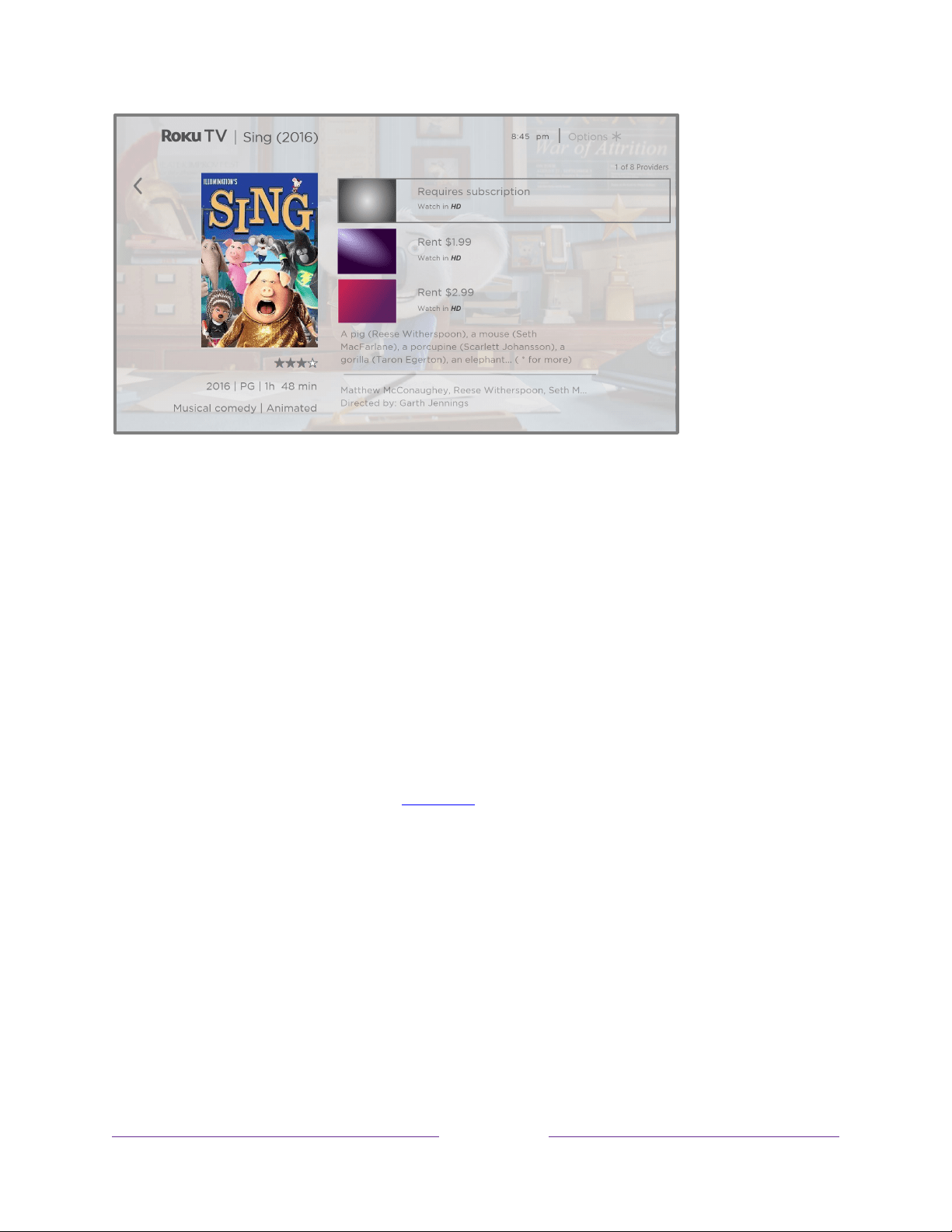
84
If your search result was a game or a streaming channel, you will see detailed
information, images, and available actions, such as a list of results and the cost, if any,
of using the item or channel.
Note:
Some channels may require a paid subscription.
Follow on Roku
Rather than watch the program you found in Search, you can add it to My Feed and
wait until it’s available on a particular streaming channel or available at a better price.
From the search results screen, select Follow on Roku. Then go to My Feed
periodically to check for updates to each of your followed movies, TV programs, or
people. For more information, see My Feed
.
Recent Searches
The next time you use Search from the Home screen menu, the Search screen
displays a list of recent search selections in place of the search instructions.
Using the recent search selections list makes it easy to quickly get to a previously
found item, for example, to find another movie with the same actor, or another TV
program in the same series.

85
Using the Roku Channel
Store
Only in connected mode
, either the Streaming Channels menu option or the Add
Channels shortcut takes you to the Roku Channel Store, where you can add new
subscription based and free streaming channels to your TV.
Tip:
Search for streaming channels by using the Search option, as explained in
Searching for something to watch
. Use Roku Voice Search if you prefer. When you
use Voice Search, if your TV recognizes a channel name, it launches the channel if you
already have installed it. Otherwise, it offers to install it for you. At that point, you can
choose to install or cancel.
To make it easier to find what you want, the streaming channels in the Roku Channel
Store are categorized by topic. Press UP or DOWN to highlight the category you
want, and then press RIGHT to move the highlight into the grid of streaming channel
tiles.
When you find a streaming channel you want to add or learn more about, highlight it
and press OK to display more details.
• If the streaming channel you are adding is free, you can select Go to channel to
start watching it immediately.
• If there is a one-time or recurring fee associated with using the streaming
channel, you must agree to the terms and conditions, accept the fee, and—if
you created one when you activated your Roku TV, enter your Roku PIN code
to authorize the charges.
• If you already have a subscription to the channel—for example, you already
subscribe to Netflix or you receive HBO through your cable TV provider—you
must complete a different, simple authorization step to add the streaming
channel.

86
You need only complete the authorization or activation step one time, when you
initially add the streaming channel. After that, you just select the streaming channel
tile from the Home screen to start watching. (Channel and content availability are
subject to change. Charges may apply to your selection.)
Tip:
New streaming channels are added continuously to the Roku Channel Store, so
be sure to check back frequently for new options.
Note:
If you don’t remember your PIN, or if you want to change whether you need to
use a PIN to make purchases on your Roku account, see Roku account PIN
.
Automatic Account Link
Some subscription channels take advantage of Automatic Account Link. If you have
multiple Roku devices, channels that support this feature require you to supply your
user name and password on only one device

87
Customizing your TV
There are several things you can do to personalize your TV.
Add TV inputs
As you use your TV, you might find that you need to add a TV input tile that you did
not add during Guided Setup. To add a TV input:
1. From the Home screen menu, navigate to Settings > TV inputs. Notice that the
list of inputs is divided into two sections: Inputs being used and Inputs not
used.
2. Press UP or DOWN to highlight an input in the Inputs not used section of the
list.
3. Press RIGHT to move the highlight to Set up input.
4. Press OK to add the input.
5. Press HOME to return to the Home screen. Notice that the input has been
added to the top of the Home screen. If you want to move the input tile to a
different position in the grid, see Rearrange tiles
.
Tip:
If you purchase and connect a Roku Smart Soundbar, your Roku TV automatically
controls all required sound settings, power, volume, and mute through your TV’s
remote control, and hides the HDMI port to which you connected it. If you want to
access the soundbar directly rather than through your Roku TV, you can add its HDMI
input to your Home screen.

88
Add streaming channels
You can add streaming channels by searching in the Roku Channel Store from any of
the following locations:
• Streaming channels option
• Search (including Roku Voice Search)
• Add Channels shortcut
New streaming channels are added to the bottom of the Home screen. If you want to
move the channel tile to a different position in the grid, see Rearrange tiles
.
Hint:
If you have multiple Roku devices, they all show the same set of streaming
channels after their next daily update, unless the channel is not compatible with the
device. So don’t be surprised when you add a channel to your Roku TV and then see
it the next day on your Roku Streaming Stick or Roku Premiere.
Rename inputs
Rather than trying to remember that your Blu-ray™ player is connected to HDMI 1 and
your game console is connected to HDMI 3, you can rename the TV inputs to match
the connected device.
Note:
Renaming an input also changes the icon associated with it.
To rename an input, you can either:
• Highlight the input tile in the Home screen, and then press STAR to display a
list of options. From the list of options, select Rename input. Then select a new
name and icon.
or
• From the Home screen menu, navigate to Settings > TV inputs. On the TV
inputs screen, select the input you want to rename, select Rename, and then
select a new name and icon from the provided list.

89
Rather than using the predefined names and icons, you can set a custom name and
icon. To do so, scroll up or down to highlight Set custom name & icon, and then press
OK. Follow the instructions on the screen to enter a name and select an icon for the
input.
Press HOME to return to the Home screen. The new name and icon are now in
effect.
Remove unwanted tiles
It’s easy to remove unused TV inputs and unwanted channel or app tiles. For example,
if you never use the HDMI 3 input, or if you don’t like the weather app you added from
the Roku Channel Store, you can remove them from your Home screen.
Note:
You also can remove the Live TV tile if you never use the TV tuner. But be
aware that removing the Live TV tile also deletes the channel list. You’ll have to set up
the TV tuner again next time you want to view live TV. Instructions for setting up the
TV tuner can be found in Setting up live TV
.
• To remove any tile, highlight the tile in the Home screen, and then press
STAR to display a list of options. From the list of options, select Remove
input. In the screen that follows, confirm you want to remove the input.
• Alternatively, to remove a TV input tile, navigate to Settings > TV inputs. On
the TV inputs screen, select the input you want to remove, and then select
Remove > Confirm. Then press HOME to return to the Home screen.
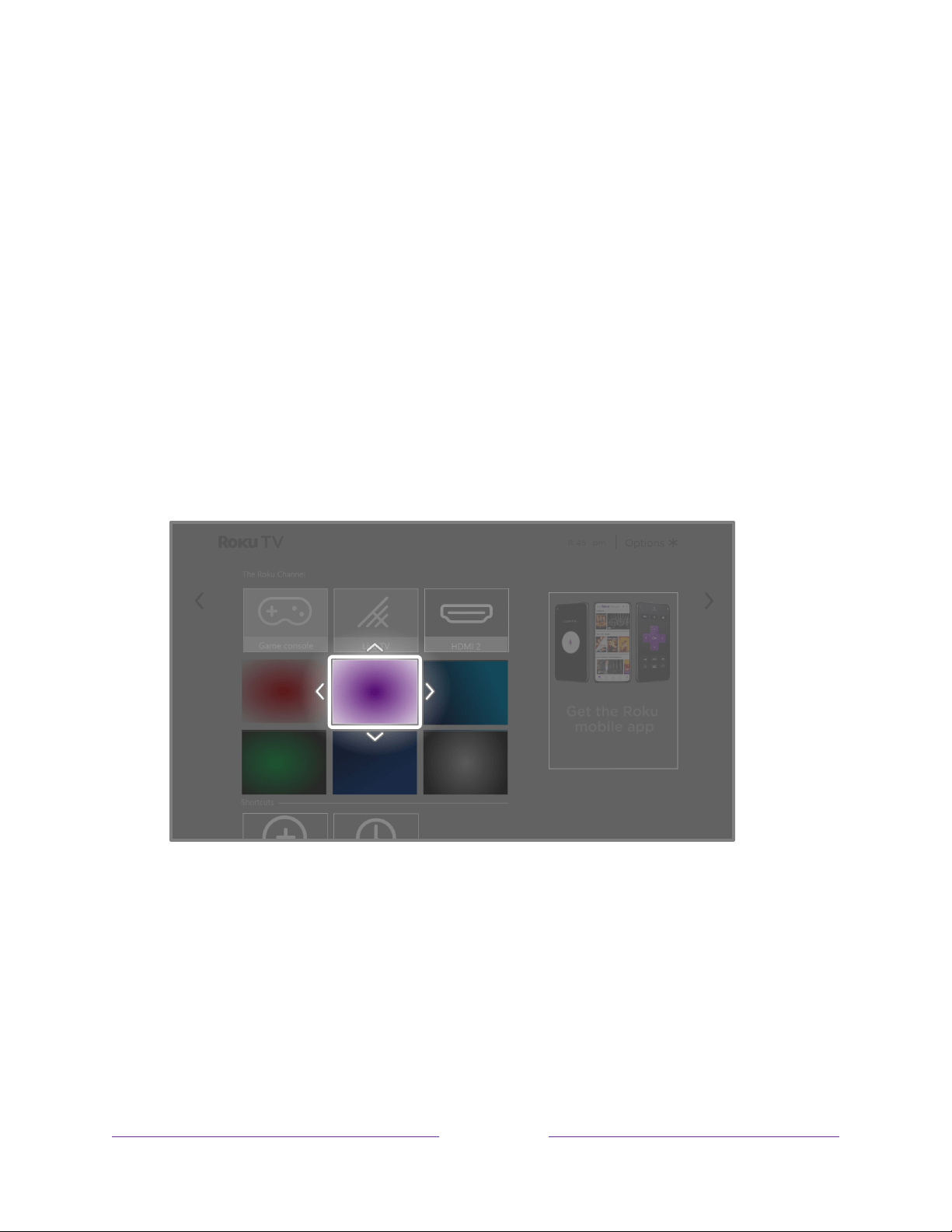
90
Rearrange tiles
When you add a TV input tile, it’s added at the top of your Home screen. When you
add a new streaming channel, it’s added at the bottom of your Home screen.
You can easily rearrange the order of the tiles on the Home screen to suit your
viewing preferences. For example, you might want Live TV to be the first tile in your
Home screen. But if you mostly watch one streaming channel, you might want its tile
to be the first one on your Home screen.
1. In the Home screen, highlight one of the tiles you want to move.
2. Press STAR to display a list of options for the type of tile you selected.
3. Select Move input or Move channel. The list of options disappears and the
highlighted tile shows arrows indicating how it can be moved.
Note:
A paid subscription or other payments may be required for some
channels. Channel availability is subject to change and varies by country. Not all
content is available in countries or regions where Roku
®
products are sold.
4. Use the purple directional pad to move the highlighted tile to its new position.
As you move the tile, it pushes other tiles out of its way.
5. Press OK to lock the tile into its new position.
6. Repeat these steps to move other tiles until you have arranged your Home
screen to your liking.

91
Change the look and feel with themes
Only in connected mode
, another way to customize your TV is to change its theme.
The theme establishes the look and feel of the TV through colors, designs, fonts,
wallpaper (background) and screensaver.
To change the theme, from the Home screen menu navigate to Settings > Theme. In
the Themes screen, choose from the following options:
• Wallpapers – Select a wallpaper of your choice.
• Screensavers – Select a screensaver of your choice.
• Seasonal themes – Turn seasonal themes on or off. When this feature is on,
Roku overrides your selected theme with a theme of their own choosing for
various holidays and significant events. After the holiday or event passes, the
TV reverts to your selected theme.
• Screensaver wait time – Select the idle time after which you want your
selected screensaver to appear.
• Restore default theme – Every Roku TV has a theme based on the TV brand
and model. Use this option to restore that default theme.
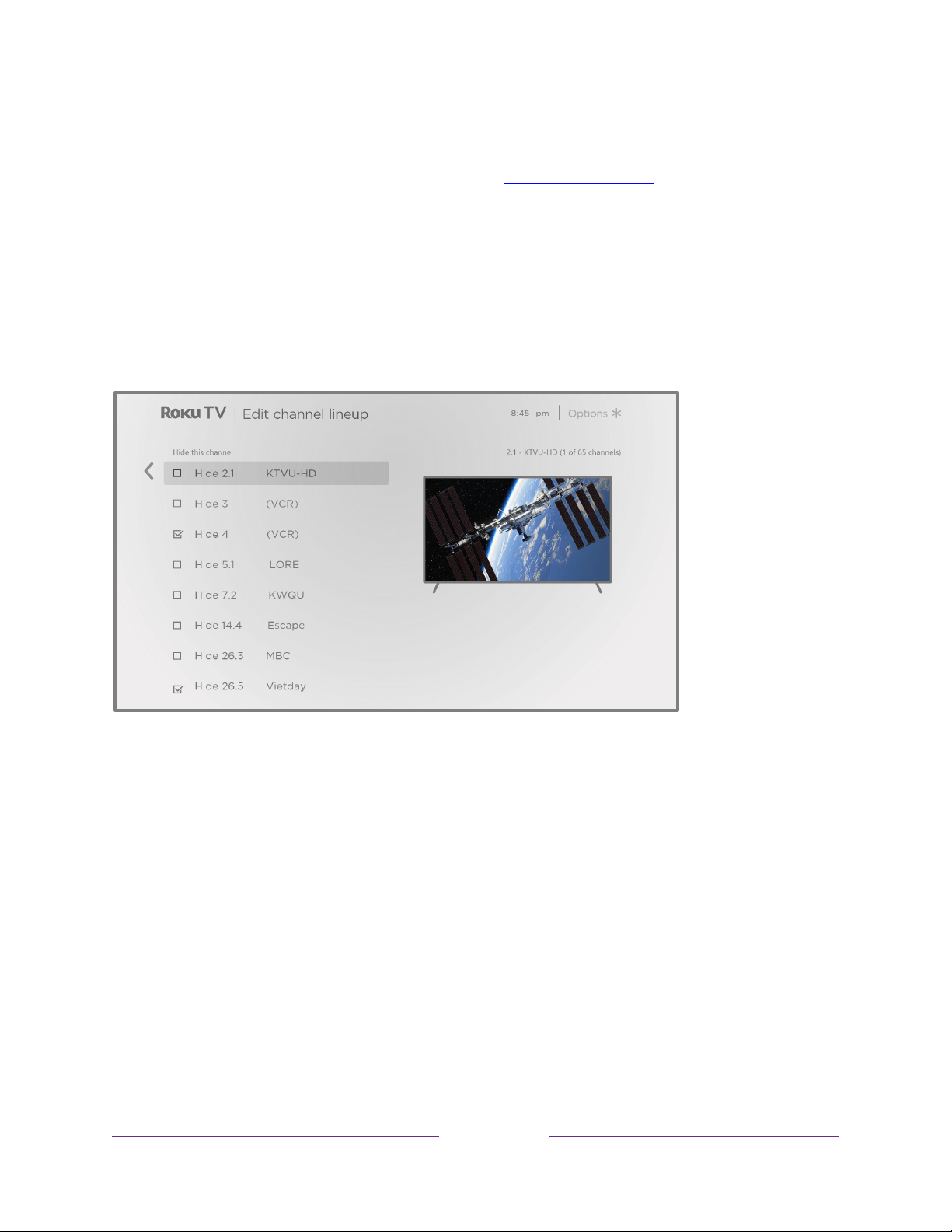
92
Edit live TV channel lineup
When you set up the TV tuner as described in Setting up live TV, the TV adds all the
channels with good signals that it can detect in your area. It’s likely that you now have
more channels than you want in your channel list.
To edit the channel lineup, from the Home screen menu, navigate to Settings > TV
inputs > Live TV > Edit channel lineup. You’ll see a screen listing all of your channels.
Adjacent to the list of channels is a miniature TV screen playing the highlighted
channel’s picture and sound.
For each channel you want to hide, highlight it, and then press OK to select its check
box.
Tip:
If you need to view the highlighted channel to decide whether to hide it, wait a
couple of seconds for the TV to start playing the channel’s picture and sound. If
you’ve enabled parental controls and the program on the current channel is blocked,
you won’t see a picture or hear sound while editing the channel lineup.
Note:
Repeating the Live TV channel scan unhides all hidden channels.
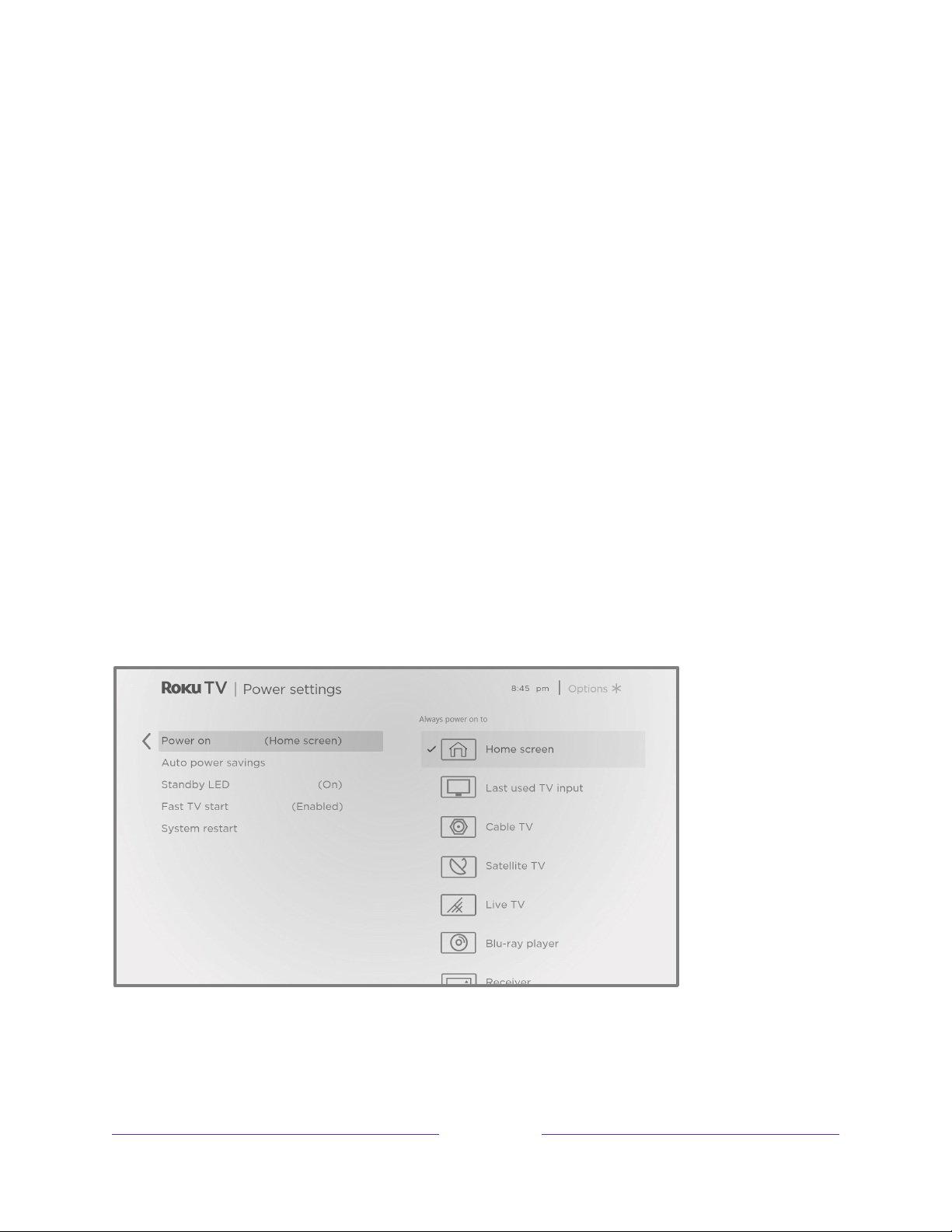
93
Change menu volume
Menu sounds are the noises the TV makes to let you know it received your command.
You can change the volume of these menu sounds or turn them off.
To adjust the menu volume, in the Home screen menu, navigate to Settings > Audio >
Menu volume. Navigate to the right and then change the setting to High, Medium,
Low, or Off.
Configure power settings
Power settings let you configure features related to how your TV’s power settings
work.
Power on settings
Power on settings tell the TV what to do when you turn on the power. To configure
the power on settings, from the Home screen menu, navigate to Settings > System >
Power > Power on. Highlight the preferred power on location in the list, and then
press OK.

94
Auto power savings
To help you save energy, your TV can automatically turn itself off after a period of
inactivity or a period during which no signal has been detected. It is factory-
configured to do both of these things, but you can change these settings if needed.
To configure automatic power off, from the Home screen menu navigate to Settings >
System > Power > Auto power savings. In the Power settings screen, highlight the
following options and press OK to turn them on or off:
• Reduce power after 15 minutes – If no video or audio activity and no user
interaction occur for 15 minutes, the TV automatically turns off the screen and
sound.
• Turn off after 4 hours – If no video or audio activity and no user interaction
occur for 4 hours, the TV goes into standby mode.
Standby LED On/Off
Normally, the status indicator is lit whenever the TV is in standby mode. If you prefer
the status indicator to not be lit in standby mode, you can turn it off. To do so, from
the Home screen menu, navigate to Settings > System > Power > Standby LED, and
then select Off.
After making this change, the status indicator still performs all other indication
functions.
Fast TV start
Only in connected mode
, you can enable Fast TV start. As you might expect, Fast TV
start lets you start watching your TV almost instantly after turning it on. But it also
enables other convenient features, such as the ability to listen to certain music
channels with the TV screen off and the convenience of being able to turn on and
control your TV using voice commands.
Be aware that enabling Fast TV start makes your TV use somewhat more power
when it is powered off to standby mode.

95
Change caption settings
Captions settings are located under Settings > Captions.
Captions mode
• Off – No captions appear.
• On – Captions appear whenever they are available from the program source.
• On replay– Captions appear only when you use the replay feature, and only
when you are watching a streaming program that supports instant replay,
watching a video through the Roku or USB media player, or watching a TV
channel after enabling Live TV Pause.
• When mute – Captions appear only when the TV is muted.
Tips
•
You can change the captions mode while watching a program. Press STAR
to display the Options menu, and then select Closed captioning.
•
Some streaming channels require you to enable captions through a setting
within their channel even though you have turned on captions everywhere else.
Note:
Once enabled, the captions mode applies to all inputs that support captions and
remains enabled until you turn it off.
Captions preferred language
Select the language in which you want closed captioning to appear, when that
language is available. If your preferred language is not available, then captioning
reverts to the default language for the program, which usually is English.
Highlight the language you prefer, and then press OK to select it.

96
Other caption settings
• Text style – Choose from a list of fonts. As you move the highlight to each font,
you can see a sample of the result in an adjacent panel.
• Text edge effect – Choose from a list of edge effect styles, such as raised,
depressed, and various shadows. As you move the highlight to each effect, you
can see a sample of the result in an adjacent panel.
• Text size – Choose from a list of sizes. As you move the highlight to each size,
you can see a sample of the result in an adjacent panel.
• Text color - Choose from a list of colors for the text. As you move the highlight
to each color, you can see a sample of the result in an adjacent panel.
• Text opacity - Choose from a list of opacity settings for the text. This setting
determines how much the area behind the text shows through the text. A value
of 100% blocks all of the content behind the text. As you move the highlight to
each setting, you can see a sample of the result in an adjacent panel.
• Background color - Choose from a list of colors for the background area
behind the text. As you move the highlight to each color, you can see a sample
of the result in an adjacent panel. Note that you won’t see any change unless
you set the Background opacity to a value other than Off.
• Background opacity - Choose from a list of opacity settings for the
background of the caption. This setting determines how much the area behind
the caption background shows through the background. A value of 100%
blocks all of the content behind the background. As you move the highlight to
each setting, you can see a sample of the result in an adjacent panel.
• Window color - Choose from a list of colors for the window rectangle
surrounding the entire caption. As you move the highlight to each color, you
can see a sample of the result in an adjacent panel. Note that you won’t see any
change unless you set the Window opacity to a value other than Default or
Off.
• Window opacity - Choose from a list of opacity settings for the window
rectangle surrounding the entire caption. This setting determines how much
the area behind the caption window shows through the window. A value of
100% blocks all of the content behind the window. As you move the highlight
to each setting, you can see a sample of the result in an adjacent panel.

97
Customize the Home screen
If you prefer to not see shortcuts on the Home screen, you can hide them.
To hide shortcuts:
1. From the Home Screen menu, navigate to Settings > Home screen, and then
press RIGHT.
2. Select Shortcuts.
3. Highlight Hide, and then press OK.
Once hidden, you can restore shortcuts by following the same steps, replacing Hide
with Show.

98
Parental controls
Parental controls enable you to control whether the members of your household can
view certain kinds of broadcast TV programs. When a program or feature is blocked,
you can unblock it by entering a parental control PIN that only you know.
Note:
Parental controls block content from the TV tuner and from streaming options,
if any, on the Home screen menu. Parental controls do not block content on other TV
inputs or content from streaming channels you add to your TV.
Creating a parental control PIN
The first time you access the Parental controls screen, you must create a new
parental control PIN. Thereafter, whenever you want to change parental control
settings, unblock programming that has been blocked, change the PIN, or disable
parental controls, you must enter your parental control PIN.
Tip:
Your parental control PIN has no connection to your Roku account PIN. You can
make them the same if you want—this is entirely your choice.
To create a new parental control PIN, from the Home screen menu navigate to
Settings > Parental controls. The screen displays a numeric keypad. Use the purple
directional pad to enter a four-digit code, and then press OK. Then repeat the process
to enter the same PIN again, just to make sure you correctly entered the PIN you want
to use.
Important:
If you forget your parental control PIN, the only way to recover is to
perform a factory reset operation, as explained in Factory reset everything
.
Blocking Broadcast TV programs
For broadcast TV, parental controls use information embedded in the broadcast
signal to determine whether to allow a program to be displayed. Parents can
configure parental controls to block broadcast TV programs that meet or exceed a

99
specific rating, so they cannot be viewed or heard unless the correct parental control
PIN is entered.
Note:
Rating standards differ by country.
Enabling parental control of TV programs
The first step in blocking TV programs is to enable parental control of TV programs.
This setting is provided separately to make it easier for you to turn parental control of
TV programs on and off without disturbing their settings. For example, your kids are
going to summer camp for two weeks, and while they are gone, you don’t want to
have to deal with unblocking programs that you want to watch by entering your
parental control PIN. All you need to do is clear Enable parental controls, and all TV
programs are unblocked. When the kids return, select Enable parental controls again,
and all of your parental control settings are restored in a single operation.
To enable parental control of TV programs:
1. In the Home screen menu, navigate to Settings > Parental controls, and then
enter your parental control PIN.
2. In the Parental controls screen, navigate to TV tuner > Parental control of TV
shows.
3. Make sure the check box next to Enable parental controls is checked. If not,
highlight it and press OK.
Blocking based on US TV ratings
Most broadcast US TV programs—other than movies—contain rating data that
enables parental controls to block programs that parents don’t want others to view.
The ratings are divided into two groups that function independently:
• Youth group – TV-Y, TV-Y7
• Main group – TV-G, TV-PG, TV-14, TV-MA
Within each of these groups, the ratings interact such that if you block a particular
level of content, the TV also blocks all content with a higher rating. Conversely, if you
unblock a particular level of content, the TV also unblocks all content with a lower

100
rating. For example, if you block TV-PG programs, the TV also blocks TV-14 and TV-
MA programs. If you subsequently unblock TV-14 programs, TV-PG programs are also
unblocked, but TV-MA programs remain blocked.
Similarly, within the main group, content types can be individually blocked. For
example, you can block just coarse language in programs with a TV-PG rating. If you
do, then the TV also blocks programs with coarse language in the higher ratings (TV-
14 and TV-MA). Subsequently unblocking coarse language in TV-14 ratings does not
unblock coarse language in TV-MA programs, but it does unblock coarse language in
TV-PG programs.
To block TV programs based on US television ratings:
1. From the Home screen menu, navigate to Settings > Parental controls, and
then enter your parental control PIN.
2. In the Parental controls screen, navigate to TV tuner > TV ratings. Choose
among the following settings:
• Entire ratings – Highlight the rating you want to block, and then navigate to
the right and select the first option that blocks the entire rating level (and
all higher rating levels).
• Individual content types – Highlight the rating that contains the content
type you want to block, and then select the content types you want to
block from among those listed. Remember that blocking a content type in
one rating blocks the equivalent content type in all higher rating levels.
Blocking based on US movie ratings
Most movies in the US are rated by the Motion Picture Association of America, or
MPAA, so the ratings are known as MPAA ratings. TV broadcast signals carry movie
rating data that enables parental controls to block programs that parents don’t want
others to see. The ratings are:
• G – General audiences
• PG – Parental guidance suggested
• PG-13 – Parents strongly cautioned for children age 13 or younger
• R – Restricted
• NC-17 – Not for age 17 or younger

101
Unlike US TV ratings, there are no individual content types within the ratings. But like
TV ratings, blocking movies with a particular rating also blocks movies with a higher
rating, and unblocking movies with a particular rating also unblocks movies with a
lower rating.
Tip:
Blocking movies with an NC-17 rating also blocks programs with the now-
obsolete X rating, which can still occur in the program data of older movies.
To block movies based on MPAA ratings:
1. From the Home screen menu, navigate to Settings > Parental controls, and
then enter your parental control PIN.
2. In the Parental controls screen, navigate to TV Tuner > Movie ratings.
3. Select the rating level you want to block. You need only select one rating level,
and all higher levels are automatically blocked.
Blocking based on Other ratings
Your TV can block programs having ratings that had not been defined when the TV
was manufactured. It does this by detecting a new Rating Region Table in a program
and then downloading the new table and displaying its rating in the Parental controls.
When the TV downloads a new Rating Region Table, it adds a new option to the list
of rating types: Other ratings. If you see this option in the Parental controls screen,
you have tuned to a station that has implemented a new rating table. Once the new
rating table has been downloaded to the TV, it remains in the TV until it is factory
reset, and you can configure blocking based on the new ratings.
New Region Rating Tables can have independent rating levels, or rating levels that
interact in the same ways as the built-in US TV and MPAA Movie ratings.
Tip:
If your TV downloads a new Region Rating Table, you’ll have to experiment with
its settings to understand how to use it.

102
Blocking based on Canadian English ratings
Canadian-English language and third-language programs that are broadcast in
Canada are rated by the Action Group on Violence on Television, or AGVOT. TV
broadcast signals carry rating data that enables parental controls to block programs
that parents don’t want others to view based on content containing violence,
language, sex, or nudity. The ratings are:
• C – Children under 8 years
• C8 – Children 8 years and older
• G – Generally suitable for all age groups
• PG – Parental guidance suggested for viewers under 14 years
• 14+ – Generally not suitable for viewers under 14 years
• 18+ – Generally not suitable for viewers under 18 years
Blocking content with a particular rating also blocks content with a higher rating, and
unblocking content with a particular rating also unblocks movies with a lower rating.
To block programs based on AGVOT ratings:
1. From the Home screen menu, navigate to Settings > Parental controls, and
then enter your parental control PIN.
2. In the Parental controls screen, navigate to TV tuner > Canadian English
ratings.
3. Select the rating level you want to block. You need only select one rating level,
and all higher levels are automatically blocked.
Blocking based on Canadian French ratings
Canadian-French language programs that are broadcast in Canada are rated by
Québec’s Ministry of Culture and Communications. TV broadcast signals carry rating
data that enables parental controls to block programs that parents don’t want others
to view based on content containing violence, language, sex, or nudity. The ratings
are:
• G – Generally suitable for all age groups
• 8+ – Viewers 8 years and older
• 13+ – Viewers 13 years and older
• 16+ – Viewers 16 years and older
• 18+ – Adults only

103
Blocking content with a particular rating also blocks content with a higher rating, and
unblocking content with a particular rating also unblocks movies with a lower rating.
To block programs based on Canadian-French ratings:
1. From the Home screen menu, navigate to Settings > Parental controls, and
then enter your parental control PIN.
2. In the Parental controls screen, navigate to TV tuner > Canadian French
ratings.
3. Select the rating level you want to block. You need only select one rating level,
and all higher levels are automatically blocked.
Blocking unrated programs
Some broadcast TV programs and movies do not have an assigned rating, and are
considered to be “Unrated”. Whether or not such programs contain content that is
objectionable to you cannot be determined. However, you can choose to block such
programs.
To block all unrated broadcasts:
1. From the Home screen menu, navigate to Settings > Parental controls, and
then enter your parental control PIN.
2. In the Parental controls screen, navigate to TV tuner > Block all unrated
programs.
3. Highlight Unrated programs and press OK. When blocking is enabled, the
adjacent padlock icon changes from unlocked to locked.
Tip:
Blocking programs that have not been assigned a rating does not block programs
that specifically have been assigned a US TV rating of “None” (for example a
broadcast of a local town council meeting). Programs that do not have an assigned
rating display Rating NA (for “not applicable,” meaning a rating is not needed).
In the absence of other ratings for a program, the parental controls do not consider
the MPAA US movie rating N/A (MPAA rating not applicable to this content) and NR
(applicable content not rated by the MPAA) to be ratings. In these cases, the TV
handles the program as though it is unrated, blocking the program if Unrated
programs blocking is enabled.
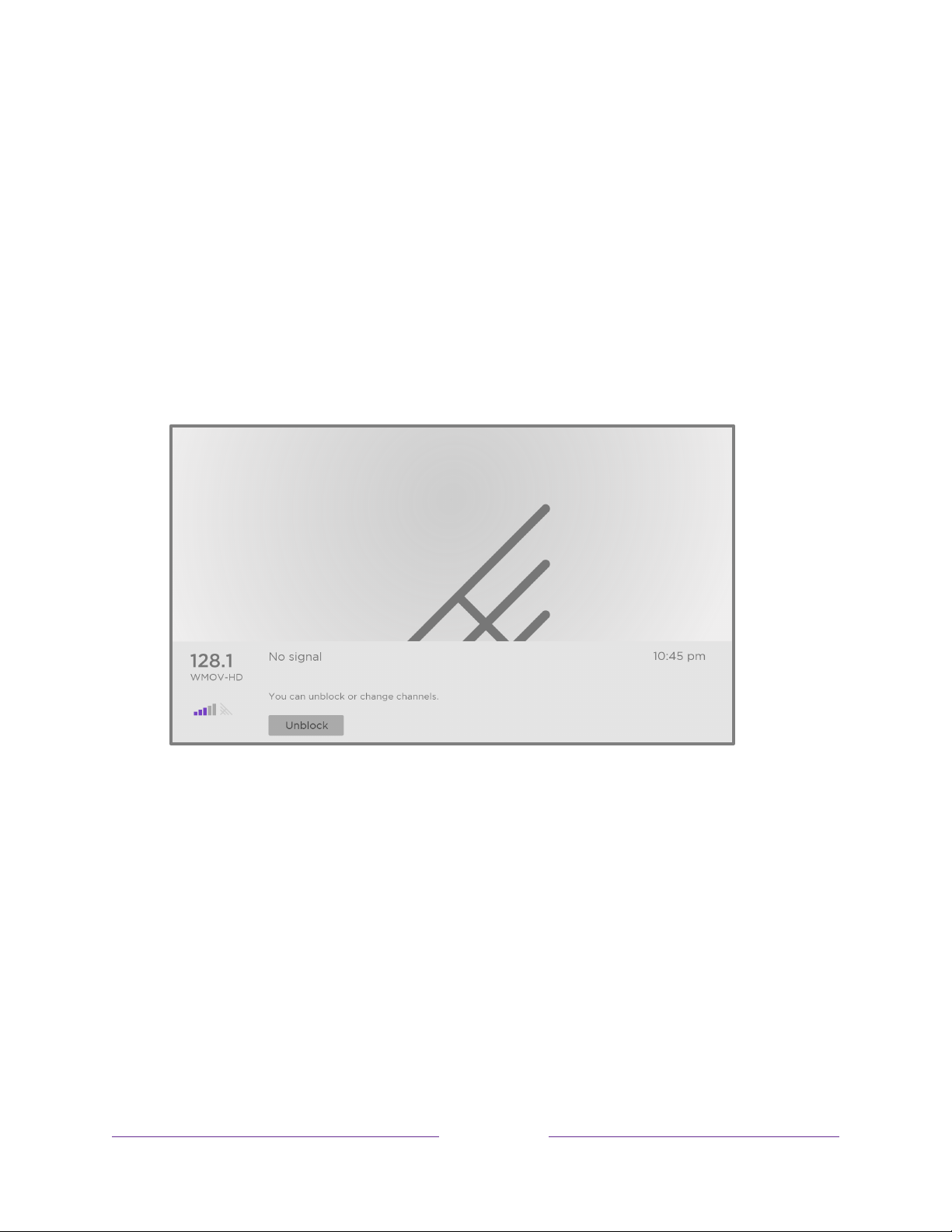
104
What happens when a TV program is blocked?
After you’ve set up parental controls, TV programs and movies are blocked:
• When you change channels and the new channel is playing a program whose
rating exceeds your settings.
• When a new program comes on the channel you are watching and its rating
exceeds your settings.
When a program is blocked by parental control settings, the TV displays a blocked
message:
Whenever this blocked message appears, both the video and audio of the program
are blocked, as well as program data that would normally appear in the area at the
bottom of the screen.
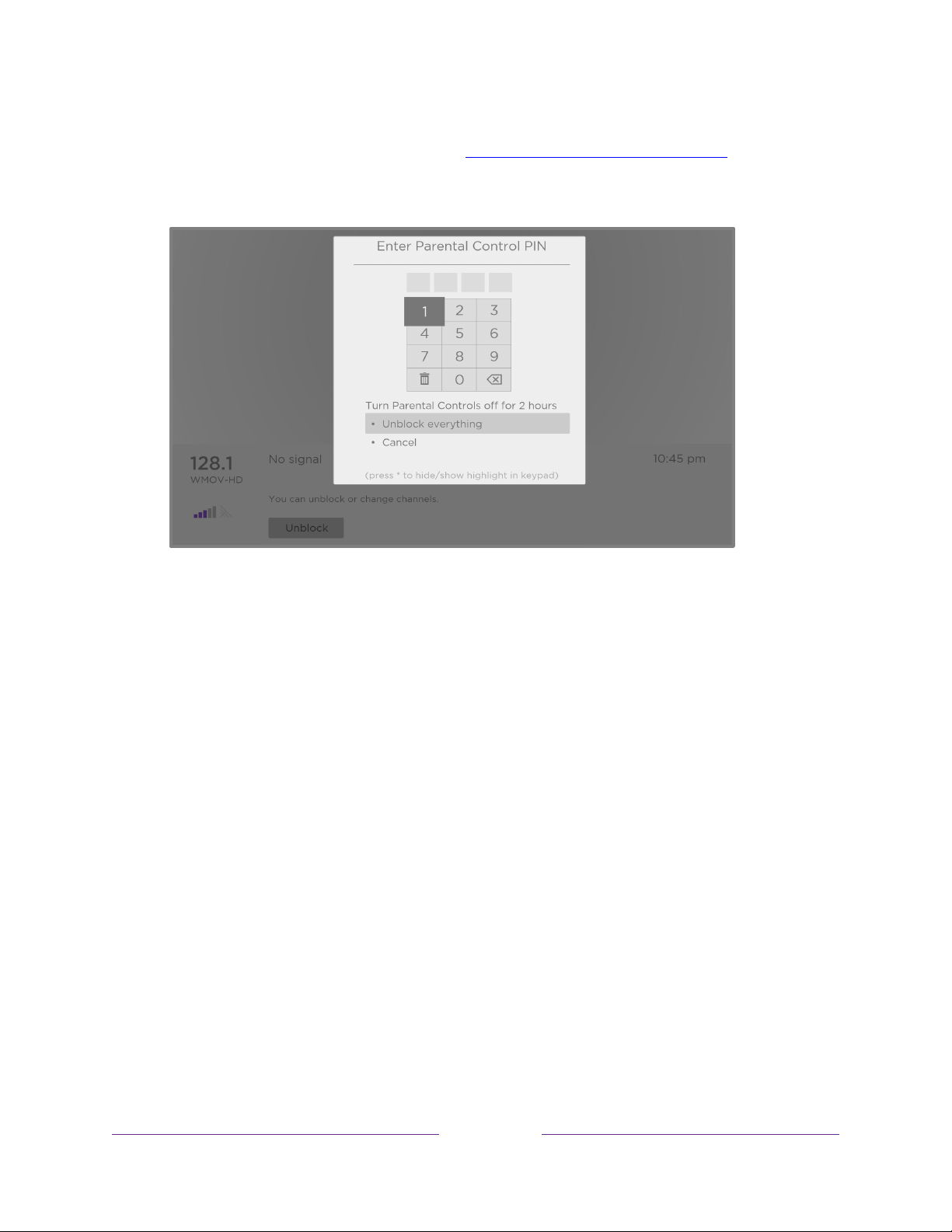
105
To watch the blocked program, you need to know the PIN code defined when you
enabled parental controls, as explained in Creating a parental control PIN
.
1. Press OK to select Unblock. The Parental Control PIN pad appears.
2. Use the purple directional pad to enter your parental control PIN code, and
then press OK to select Unblock everything.
Tip:
To shield your parental control PIN from others in the room, press STAR
to
hide the highlighted number. When you hide the highlight, you will have to count key
presses to keep track of which number is selected.
After unblocking programs that have been blocked, all blocking is disabled for two
hours or until you turn off the TV.

106
Changing the parental control PIN
To change your parental control PIN:
1. From the Home screen menu, navigate to Settings > Parental controls, and
then enter your parental control PIN.
2. In the Parental controls screen, highlight Change PIN.
3. Move the highlight into the adjacent keypad, and then use the purple
directional pad to enter a four-digit code, and then press OK. Then repeat the
process to enter the same PIN again, just to make sure you correctly entered
the PIN you want to use.
Resetting parental controls
So now your kids have grown up and gone away to college, and you no longer want
to deal with blocked programs.
To erase all parental control settings:
1. From the Home screen menu, navigate to Settings > Parental controls, and
then enter your parental control PIN.
2. In the Parental controls screen, highlight Reset parental controls.
3. Follow the instructions on the screen to confirm that you want to erase all
parental control settings.
Tip:
Resetting parental controls also erases your parental control PIN.

107
More settings
This section describes the features and settings of the TV that were not covered in
the other parts of this guide.
Guest Mode
Only in connected mode
, when you enable Guest Mode, your guests can sign in to
subscription channels using their own account credentials instead of using yours.
Your guests’ credentials are then automatically removed on the date they specify.
By enabling Guest Mode, your guests won’t have access to your personal streaming
channel accounts and won’t be able use your Roku account to make purchases.
Instead, your guests can safely access their own subscription channels. And they
won’t have to remember to sign out before they leave.
To enable Guest Mode:
1. From the Home screen menu, navigate to Settings > System > Guest Mode.
2. Select Enter Guest Mode.
3. Use the purple directional pad to enter your Roku account PIN in the on-screen
keypad.
4. Select OK to confirm and put the TV into Guest Mode.
Note:
You also can enable and disable Guest Mode remotely logging in to
my.roku.com
on your computer or smart phone, logging, in to your account, scrolling
down to My linked devices, and then selecting Enable Guest Mode or Disable Guest
Mode, respectively.
After you put your TV into Guest Mode, it is ready to welcome your guests, allowing
them to select a sign-out date. On the home screen, they will find an assortment of
default subscription channels They can enjoy free content from The Roku Channel
and many others, or sign-in and watch movies and TV programs from their own

108
subscriptions and saved content libraries. Your guests can use the Roku Channel
Store to find and add channels they watch at home with confidence that they
automatically will be removed on their sign-out date.
To disable Guest Mode:
1. Press HOME to return to the Home screen menu.
2. Navigate to Settings > System > Guest Mode.
3. Select Exit Guest Mode.
4. Use the purple directional pad to enter your Roku account PIN in the on-screen
keypad.
5. Select OK and confirm that you want to disable Guest Mode.
After you disable Guest Mode, all of your original settings are restored and your
channels are reinstalled. You might need to sign in to your subscription channels
again to access your content.
Note:
Any game data that was stored on your Roku device is not restored.

109
Network settings
If needed, you can change your network settings at any time. For example, if you
change the name of your wireless network (its SSID) or its password, you will need to
change your TV’s settings so that it can continue to connect. Also, if you decided not
to connect to the Internet in Guided Setup
, you can use network settings to connect
at a later time.
To change network settings, from the Home screen menu, navigate to Settings >
Network, and then press RIGHT. At this point, you can choose from among the
following options:
• About – Lists important information about your current network connection,
such as status, connection type, IP addresses, and MAC address. This
information is often useful when contacting customer support with connection
issues.
• Check connection – Select your existing network connection type, and then
press OK to start checking the network connection. The TV uses your current
network information to reconfirm the wireless or wired network connection to
the local network and the Internet connection.
• Set up connection – Select a network connection type, and then select the
option to set up a new connection. Follow the on-screen instructions to
complete the network connection. For help with each of the steps, see
Network
connection.
• Bandwidth saver – Enable or disable this feature as appropriate. If On, your TV
prompts you to stop streaming if you haven’t used the remote control within
the past four hours. If you do not respond, streaming stops to save your data
allocation and increase the network bandwidth available to other devices in
your home. Change to Off to disable the automatic bandwidth saving feature.
Note:
Some networks, such as those found in dorm rooms, hotels, and other public
places, may require you to read and agree to terms, enter a code, or provide
identifying information before letting you connect to the Internet. For more
information, see Using your TV in a hotel or dorm room
.

110
Postal code
Your TV needs to know your postal code so that it can display the correct channels
and program guide information. It attempts to determine your location by using
information from your Internet connection; however, the information available from
this source is not always accurate. To ensure you have the most accurate program
guide information, use the Postal code option to enter your correct code.
To set your correct postal code, from the Home screen menu, navigate to Settings >
System > Postal code, and then pressing RIGHT. Use the on-purple directional pad to
enter your postal code in the on-screen keypad, and then select OK.
Time settings
You can change time settings to suit your preferences. You can find the following
settings by navigating from the Home screen menu to Settings > System > Time:
• Sleep timer – Set a time delay after which the TV will automatically shut off.
This setting reflects the setting you can make in the Options menu from any TV
input, as explained in Options menu settings
.
Note:
The sleep timer setting is not input specific, and also can be set by using
the Sleep timer shortcut in the Home screen grid.
• Time zone – Correct time zone information is needed to correctly display
program data. Choose whether to set the time zone automatically or manually,
and if set manually, select your current time zone. Usually, a TV connected to
the Internet can discover its own time zone automatically, but sometimes a TV
that is not connected to the Internet cannot and so must be set manually.
Initially, this setting is made when you set up the TV tuner, as explained in
Setting up live TV
.
• Clock format – Choose whether to display time in a 12-hour or 24-hour format,
or to turn off time display.
This setting is available only on TVs that are
connected to the Internet. Non-connected TVs do not display the time.

111
Scan again for live TV channels
There will be times when you need to create a new channel list. For example, you:
• Change cable providers
• Reorient your TV antenna
• Move to a different city with different channels
Whenever you need to update your TV channel list, you can repeat the channel scan.
Tip:
Even if you don’t change anything related to your TV channel reception, you
should repeat the channel scan from time to time to make sure you are receiving all of
the latest channels. Broadcasters add and remove channels, move channels to
different parts of the spectrum, and change the power levels of their channels
periodically.
Note:
Repeating the tuner channel scan unhides all hidden channels.
To repeat the channel scan, highlight the Live TV tile on the Home screen, and then
press STAR . Next, select Scan for channels and press OK. After that, the screens
and options that appear during this process are identical to those described in
How
do I set up the TV tuner?
HDMI
®
mode (4K models only)
On 4K (UHD) TVs, you can independently configure each HDMI
®
input to match the
capabilities of the connected device. From the Home screen menu, navigate to
Settings > TV inputs, and then select an enabled HDMI
®
input. Next, select HDMI
mode and then select one of the following settings:
• Auto – Let the TV determine the best setting. Use this option unless your
HDMI
®
device does not correctly communicate its HDMI
®
version information.
• HDMI 1.4 – Configure the input for compatibility with HDMI
®
version 1.4, which
supports a maximum refresh rate of 30 Hz at full UHD resolution. Most HDMI
®
devices will work correctly with the TV in this mode.
• HDMI 2.0 – Configure the input for compatibility with HDMI
®
version 2.0, which
supports a maximum refresh rate of 60 Hz at full UHD resolution. You must use

112
this mode to view HDR content from the device connected to this HDMI
®
input.
However, note that many older HDMI
®
devices do not work correctly when the
TV’s HDMI
®
input is set to this mode.
Control by mobile apps
You can choose the level of control you want to allow your TV to accept from
external devices, such as smart phones, tablets, and virtual assistants. Device connect
settings enable other devices, including the Roku mobile app, to control your TV over
the local area network in your home.
To adjust the level of external control access:
1. From the Home screen menu, navigate to Settings > System > Advanced
system settings > Control by mobile apps.
2. Select Network access.
3. Select one of the following settings:
• Default – Devices can connect only through a private network address, and
accept commands only from other private network addresses on your
home network. This setting is suitable for most cases, including use of the
Roku mobile app on your smartphone.
• Permissive – Devices can connect under all conditions, but accept
commands only from private network addresses or the same subnetwork
within your home network. This setting might be required when attempting
to operate the TV from a third-party application, for example, one of the
Internet of Things (IoT) applications such as ifttt.com.
• Disabled – Device connection is completely disabled. The TV does not
accept external commands from any source, including the Roku mobile app.

113
Home theater configuration
Your TV has several features that make it an ideal TV for a home theater. But you
might not notice them because they remain in the background until you decide to use
them.
Turning off the TV speakers for home theater use
You can turn off the TV’s built-in speakers if desired by changing the setting under
Settings > Audio > Speakers and change the setting. However, if you use an HDMI
ARC or eARC connection with CEC enabled, the TV automatically mutes its internal
speakers when it sends sound to an external device. It also mutes all sound when you
use the headphone jack on the TV, private listening through the Roku Enhanced
Remote Control or the Roku mobile app.
Setting up a digital audio connection
To take advantage of your TV’s advanced audio capabilities, connect it to an external
amplifier, receiver, or soundbar by using either of these two digital audio connections:
• HDMI ARC or HDMI eARC – The HDMI
®
Audio Return Channel (ARC) or
on select TVs only
, the HDMI
®
Enhanced ARC (eARC) connector
enables the TV to output digital audio on one of its HDMI
®
connectors.
The connected amplifier then can function simultaneously as an input source to
the TV, if needed, without the need to use additional cables.
To use the ARC or eARC capability, you must connect an HDMI
®
cable from
your amplifier’s HDMI
®
ARC or eARC connector to the HDMI ARC or eARC
connector on the TV. You also must do the following:
• Be sure your HDMI
®
cable is HDMI
®
certified.
• Enable HDMI ARC under Settings > System > Control other devices (CEC),
as explained in Enable HDMI
®
ARC.

114
• S/PDIF optical – The S/PDIF optical connector outputs a digital
audio signal. To use the optical output, connect a TOSLINK optical
cable from the amplifier to the Optical or S/PDIF connector on the
TV.
Important:
To make sure the S/PDIF outputs audio reliably, you must turn off
the TV’s speakers. To do so, from the Home screen menu, navigate to Settings
> Audio > Speakers and change the setting to Off.
Note:
Dolby Audio™ support for Dolby Digital Plus™ format is not available
through the S/ PDIF optical output. This format is only available through the
HDMI
®
ARC connection.
Tip:
Even when you use S/PDIF for audio, the TV can correctly detect more
audio formats if you connect HDMI
®
cable between the TV’s ARC or eARC port
and the receiver’s ARC or eARC port.
Choosing an audio format
After making the required HDMI
®
ARC, eARC, or S/PDIF optical connection, go to
Settings > Audio > S/PDIF and ARC option and select the audio format to use.
Choosing Auto detect is the easy solution, and generally provides good results.
However, if you have a high-end sound system and want to make sure you are getting
the best sound quality available in the programs you are watching, you can choose
another setting.
• Auto detect – Automatically detects the incoming audio format and
transcodes it to a compatible available format for the audio output (ARC,
eARC, or S/PDIF).
• Auto passthrough – Passes through the input audio to the connected receiver
without transcoding, sometimes resulting in better audio quality especially for
high-end audio formats such as those that take advantage of the higher
bandwidth of eARC, including Dolby MAT and Dolby Digital Plus 7.1, among
others.
• PCM-Stereo – Always outputs pulse-code modulated stereo, regardless of
input audio format.
• Dolby Digital – Converts all input formats to Dolby Digital.

115
• Dolby Digital Plus – Converts all input formats to Dolby Digital Plus.
• Dolby Digital – DTS – Converts all inputs except DTS to Dolby Digital. If DTS is
detected and the receiver supports DTS, passes through the DTS audio without
modification.
• Dolby Digital Plus – DTS – Converts all input formats except DTS to Dolby
Digital Plus. If DTS is detected and the receiver supports DTS, passes through
the DTS audio without modification.
Note:
DTS audio formats are meant to be used with ARC, eARC, or S/PDIF
connections to a DTS-capable home theater receiver. If you use one of the DTS
options with the TV speakers, you might not hear any audio.
Turning off the TV screen while listening to music
Certain music channels enable you to turn off the TV screen while streaming music to
your TV speakers, soundbar, or home theater receiver.
To turn off the TV screen on supported channels:
1. Press STAR to display the Options menu.
2. Press DOWN to highlight Turn off display.
3. Press OK.
Note:
This feature is available only on select streaming audio channels, and only when
the TV is operating in connected mode with Fast TV Start enabled. To enable Fast TV
Start, from the Home screen menu, navigate to Settings > System > Power.
Controlling other devices through CEC
Consumer Electronics Control (CEC) enables your TV and other CEC-compatible
home entertainment devices to control one another in various ways. First, the CEC-
compatible devices must “discover” one another and report their capabilities. After
this, one device can control another according to the features you enable. For
example, playing a disc on a Blu-ray™ player could switch the TV to the Blu-ray™
player’s input. Or, powering off the TV could also power off the Blu-ray™ player and
the home theater receiver.

116
Discover connected CEC devices
To discover CEC devices:
1. Make sure that your CEC-compatible devices are connected to the TV with a
suitable certified HDMI
®
Cable that supports HDMI
®
ARC and CEC control.
2. Turn on each device and make sure all devices are CEC enabled.
Tip:
Some manufacturers have their own branded names for CEC functionality,
so you might need to read the product documentation to correctly identify the
CEC features of the device.
3. On the TV’s Home screen menu, navigate to Settings > System > Control other
devices (CEC) and then select Search for CEC devices. Press OK to repeat the
discovery process, if necessary.
When finished, the TV displays a list of CEC devices that are connected to each
HDMI
®
input, as well as any devices that had previously been connected. The TV
remembers the names of multiple CEC devices even when they are no longer
connected. If the list is longer than the allowed space, press STAR to see a
complete list in a scrollable window.
Enable HDMI
®
ARC or eARC
HDMI
®
ARC, or on selected TVs, eARC, is the audio return channel that is available on
one of the TV’s HDMI
®
ports. The audio return channel enables you to send Dolby
Audio™ or DTS audio content back to a home theater receiver that is also sending an
audio and video signal into the TV. Using HDMI
®
ARC or eARC reduces the number of
cables needed and controls the volume and mute state of the receiver while watching
TV.
HDMI
®
ARC or eARC is disabled by default. To enable it, in the Home screen menu,
navigate to Settings > System > Control other devices (CEC), and then highlight
HDMI ARC. Press OK to enable or disable the feature.
Enable 1-touch play
1-touch play enables a device to control which TV input is active. For example,
pressing Play on your Blu-ray™ player switches the TV to the Blu-ray™ input.

117
1-touch play is disabled by default. To enable 1-touch play, in the Home screen menu,
navigate to Settings > System > Control other devices (CEC) and highlight 1-touch
play. Press OK to enable or disable the feature.
Enable system standby
The system standby feature causes other devices to power off when you power off
your TV. Depending on the CEC System Standby implementation, it also might enable
connected devices to power off your TV when you power off the device.
System standby is disabled by default. To enable system standby, in the Home screen
menu, navigate to Settings > System > Control other devices (CEC) and highlight
System standby. Press OK to enable or disable the feature.
Restart the TV
You can restart the TV when necessary. Restarting has the same effect as unplugging
the TV power and then plugging it in again.
To restart the TV, navigate to Settings > System > Power, and then select System
restart. Highlight Restart, and then press OK to confirm restart.
While the TV restarts, the screen goes dark for a few seconds, and then displays the
startup screen for a few more seconds. When the restart operation completes, the TV
displays the activity you selected in Power on settings
.
Reset the TV
You can choose to reset only the TV picture and audio settings to their original
values, or perform a full factory reset to return the TV to the state it was in when you
first unpacked and turned it on.
Reset audio/video settings
To reset only the TV picture and audio settings to their original values, navigate to
Settings > System > Advanced system settings > Factory reset, and then highlight
Reset TV audio/video settings. Read the information on the screen to make sure you
understand what the reset operation does.
To proceed with the reset operation, press PLAY/PAUSE three times in a row.

118
Factory reset everything
A full factory reset returns the TV’s settings to their original state and removes all
personally identifiable information from the TV. When finished, you must repeat
Guided Setup, reconnecting to the Internet, re-linking your Roku account, and
reloading any streaming channels. You also must repeat live TV setup and input
configuration.
Factory reset is the recommended choice if you want to transfer the TV to another
owner, and it is the only choice if you want to switch from Store mode to Home mode
(if you inadvertently selected Store mode during Guided Setup).
To perform a factory reset, navigate to Settings > System > Advanced system
settings > Factory reset, and then highlight Factory reset everything. Read the
information on the screen to make sure you understand what this reset operation
does.
To proceed with the full factory reset, use the on-screen number pad to enter the
code displayed on the screen, and then select OK to proceed.
When the factory reset operation completes, the TV restarts and displays the first
Guided Setup screen.
What if I can’t access the Factory Reset option?
It is possible for your TV to get into a state where you cannot access the various
menus, including the menu option that lets you perform a factory reset operation. If
that happens, you can force the TV to reset by following these steps.
Models with a RESET button
1. Using a straightened paper clip or ball-point pen, press and hold the recessed
RESET button on the TV connector panel.
2. Continue to hold the RESET button for approximately 12 seconds.
When the reset cycle completes, the status indicator comes on dim.
3. Release the RESET button. The TV is now powered off.
4. Turn on the TV and proceed through Guided Setup. See Guided Setup
.

119
Models without a RESET button
1. On the TV panel (not the remote) press and hold down the MUTE and POWER
buttons.
2. Unplug the TV power, and then plug it in while continuing to hold down the
MUTE and POWER buttons.
3. When you see the startup screen appear on the TV, release the buttons.
4. Turn on the TV and proceed through Guided Setup. See Guided Setup
.
Network connection reset
If you want to remove your network connection information without disturbing other
settings, navigate from the Home screen menu to Settings > System > Advanced
systems settings > Network connection reset, and then select Reset connection.
When you select this option, the TV removes your wireless network information,
including the name of the connection (its SSID) and your wireless password, if any,
and then it restarts. After restarting, your TV retains all of its other settings including
its association with your Roku account.
After resetting your network connection, navigate from the Home screen menu to
Settings > Network > Set up new connection to set up your network connection and
enjoy all of the benefits of your connected TV.

120
Roku account PIN
When you created your Roku account, you were given the opportunity to create a
PIN code and to specify when it must be used. Roku lets you optionally require that
users enter your PIN as an additional verification method when making purchases
through the TV or adding items from the Roku Channel Store. In addition, you must
have a Roku account PIN before you can enable or disable Guest Mode.
If you created a Roku account PIN and want to change it, or you don’t remember your
PIN, or if you didn’t create a Roku account PIN and want to add one, you can easily
make these changes.
1. On a computer, tablet, or smartphone, use your web browser to go to
https://my.roku.com
and sign in.
After signing in, the My account page appears.
2. Under PIN preference, click Update to open the Choose your PIN preferences
page.
3. Skip this step if you just want to change your PIN. Otherwise, choose the
option you prefer from among those listed:
• Require a PIN to make purchases or to add any item from the Channel
Store.
• Require a PIN to make purchases.
• Do not require a PIN to make purchases.
4. If you choose either of the first two options, enter your PIN twice in the
appropriate boxes.
5. Click Save Changes to save your changes and return to the My Account page.
Note that your current setting is described under PIN preference.

121
Update the TV
If your TV is operating in connected mode, it will automatically get updates from time
to time. You don’t need to do anything. But if you are aware that an update is
available and you don’t want to wait until the TV updates itself, you can manually
check for updates.
If your TV is operating in non-connected mode, you can still get updates by using a
USB flash drive.
You can download an updated User Guide that matches your Roku TV software
version from the Roku web site at:
www.roku.com/support
To determine your current Roku TV software version, go to Settings > System >
About, and then press OK or navigate to the right.
Checking for updates on a connected TV
If you’re one of those people who has to have the latest, most up-to-date features the
moment they are available, you can check for updates as often as you want.
To check for updates, navigate to Settings > System > System update, and then
select Check now. The TV responds either with a message saying that your TV is up
to date, or with a message saying that an update is available.
Follow the instructions on the screen to install the system update.
Note:
Sometimes system updates install new system software, and other times they
install new features for streaming channels. Therefore, you won’t always see a change
in the behavior of your TV after a system update.
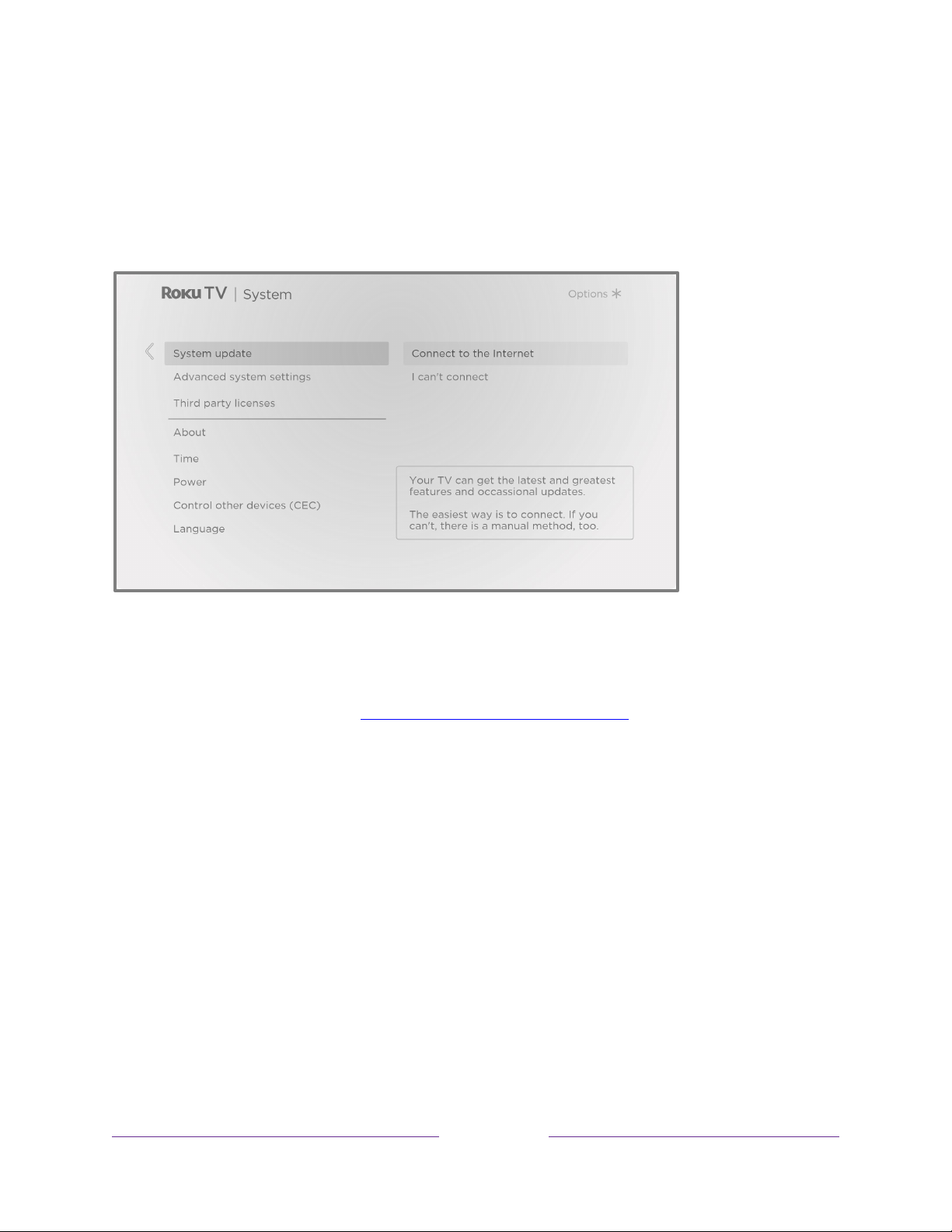
122
Getting updates on a non-connected TV
If your TV is not connected to the Internet, you can still get system updates by using
a USB flash drive and a computer with an Internet connection.
To get a system update, navigate to Settings > System > System update:
The System update screen on a non-connected TV gives you the opportunity to
connect your TV to the Internet to automatically receive updates. We recommend
this option if it is possible in your situation. To proceed, select Connect to the Internet
and follow the instructions in What if I didn’t connect my TV?
.
Otherwise, if you can’t connect to the Internet, select I can’t connect, and then follow
the instructions on the screen. Here’s a summary:
1. On an Internet-connected computer, go to the web site displayed on the
System update screen.
2. On the USB Update web page, select the correct brand and model, and then
click Next.
3. Click Download Software, and then save the file to the root folder of a
standard USB flash drive.

123
USB flash drive
Any normal USB flash drive will work, provided it has a FAT-16 or FAT-32 file system
format. (This is the default for most flash drives.)
The size of the download is small—usually less than 100 MB—and so will fit on most any
size flash drive you might have.
4. When the download finishes, take the USB flash drive to the TV and plug it into
the USB port. When you do, the TV validates the files on the flash drive and
displays a 12-digit code.
5. Write down the code and the web address, and take this information back to
your Internet-connected computer.
6. On the 12-digit code page, enter the code your TV displayed, and then click
Next.
7. On the 6-digit code page, write down the 6-digit code that appears, and then
take it back to your TV.
12- and 6-digit codes
The USB update process uses a pair of codes to validate that you are authorized to
install an update, and to ensure you are not attempting to install an old, unsupported
version of the system software.
8. Using the TV remote, select Next to move to the next screen, and then use the
on-screen keyboard to enter the 6-digit code. When finished, select OK. The
system update begins. Do not remove the USB flash drive until the TV restarts.
When the update finishes, the TV restarts. You can check the new version number by
navigating to Settings > System > About.

124
Other devices
Mirror your phone or tablet
Only in connected mode
, your TV has a feature called screen mirroring that lets you
mirror your compatible smartphone or tablet on your TV. Share videos, photos, web
pages, and more from compatible devices.
By default, your TV’s screen mirroring mode is set to Prompt. In this mode, when your
TV receives a screen mirroring request, it prompts you with the following options,
unless you have previously selected Always allow or Never allow for the device:
• Always accept – Always accept mirrored content from the mobile device
without additional prompting in the future for this device.
• Accept – Accept mirrored content from the mobile device this time only.
Prompt again next time this device attempts to mirror content.
• Ignore – Do not accept mirrored content from the mobile device at this time.
Prompt again next time this device attempts to mirror content.
• Always ignore – Never accept mirrored content from this mobile device.
Note:
You can manage and change the list of devices that are set to Always allow
or Never allow by navigating from the Home screen menu to Settings > System >
Screen mirroring > Screen mirroring devices.
• If you prefer to always allow all screen mirroring attempts without prompting,
go to Settings > System > Screen mirroring, and then change the Screen
mirroring mode to Always allow.
• If you prefer to never allow screen mirroring from any device, change the
Screen mirroring mode to Never allow.

125
For information on which devices may work with screen mirroring and instructions on
how to use it, go to the following link on the Roku web site:
go.roku.com/screenmirroring
Roku mobile app
Roku makes the Roku mobile app free for compatible iOS
®
and Android™ mobile
devices.
The Roku mobile app is an alternative control center for your Roku TV, plus a way to
stream Roku content while you are on the go. The Roku mobile app helps you find
and add new Roku Channels, more easily search and find something to watch and
even use your voice to search without typing.
Find more information and get the Roku mobile app by using the following link to the
Roku web site:
go.roku.com/mobileapp
Private Listening on the Roku mobile app
Only on compatible Apple and Android devices
, the Roku mobile app enables you to
use headphones connected to your device to listen to streaming programs and live
digital TV channels. Make sure you have the latest version of the Roku mobile app
before using this feature.
For more information, go to the following link on the Roku web site:
go.roku.com/privatelistening

126
Universal remotes
In many cases, you can program your cable or satellite universal remote to also
control your TV. You will need to have instructions for programming the remote
handy. Check with your cable or satellite provider for instructions.
For details on how to set up the TV to work with universal remotes, go to the
following link on the Roku web site:
go.roku.com/universalremote


128
Legal statement
Please note—Use of the Roku TV is governed by the Roku TV End User License Agreement (see below). In addition, an
end user online profile and billing account with Roku, Inc. (“Roku”) on Roku’s website (“Roku Account”) is required to
stream content via the Internet using your Roku TV. A Roku Account gives you access to movies, television shows,
and other audio-visual entertainment in the “Roku Channel Store,” a storefront of applications provided by Roku via
your device’s on-screen menu. After your Roku Account is created, you can link your Roku TV to your account. By
using the Roku TV, you agree to these statements. For the avoidance of doubt, the content disclaimer set forth herein
shall refer to all content and channels accessible and available on the Roku TV, including those available via the Roku
®
streaming platform, as well as broadcast cable.
Due to the various capabilities of the Roku TV, as well as limitations in the available content available therein, certain
features, applications, and services may not be available on all Roku TV s, or in all territories. Some features on the
Roku TV may also require additional peripheral devices or membership fees that are sold separately. Please visit the
Roku, Inc. website for more information on the Roku TV and content availability. The services and availability of
content on the Roku TV are subject to change from time to time without prior notice.
All content and services accessible through the Roku TV belong to Roku, Inc. or third parties and are protected by
copyright, patent, trademark and/or other intellectual property laws. Such content and services are provided solely for
your personal noncommercial use. You may not use any content or services in a manner that has not been authorized
by the content owner or service provider. Without limiting the foregoing, you may not modify, copy, republish, upload,
post, transmit, translate, sell, create derivative works, exploit, or distribute in any manner or medium any content or
services displayed through the Roku TV.
Third party services may be changed, suspended, removed, terminated or interrupted, or access may be disabled at
any time, without notice, and Roku makes no representation or warranty that any content or service will remain
available for any period of time. Content and services are transmitted by third parties by means of networks and
transmission facilities over which Roku has no control. Without limiting the generality of this statement, Roku
expressly disclaims any responsibility or liability for any change, interruption, disabling, removal of or suspension of
any content or service made available through the Roku TV. Roku, the content providers, or the service providers may
impose limits on the use of or access to certain services or content, in any case and without notice or liability. Any
questions or requests for service relating to the content or services made available on the Roku TV should be
submitted to the respective cable content or service provider or as described in the Roku TV User Guide.
In the event of a conflict between the Roku TV End User Agreement and the terms set forth in this Legal Statement,
the Roku TV End User Agreement shall prevail and control in all circumstances.
END USER LICENSE AGREEMENT (FOR ROKU TV)
IMPORTANT: READ THIS END USER LICENSE AGREEMENT CAREFULLY BEFORE YOU USE A ROKU
TV. ALSO REVIEW THE IMPORTANT PRODUCT INFORMATION THAT MAY HAVE BEEN PROVIDED
WITH YOUR ROKU TV.
Overview
This End User License Agreement (“EULA”) between you and Roku, Inc. (“Roku”) governs the use of: (a) your
television which uses the Roku platform to play digital content over the Internet (“Television”), and (b) any firmware
and software that have been pre-installed on the Television and the firmware and software updates Roku provides to
you for the Television (collectively, the “Software”). By linking the Television to your account on Roku’s website
(“Roku Account”) or using the Television, you are agreeing to this EULA. If you are a resident of the European
Economic Area, by agreeing to this EULA, you expressly agree to waive your right to withdraw.
If you do not agree to this EULA, you do not have the right to use the Television or the Software. If you are within the
allowable time period for returns under the applicable return policy, you may return the Television to your seller for a
refund, subject to the terms of such return policy. You should perform a factory reset before you return it to erase
data that may be stored on the Television. For instructions on how to reset your Television, please visit
www.roku.com/support
.
In this EULA, “Channel” means an application in the Roku Channel Store; “Content” means movies, television shows,
music and other audio and visual materials and entertainment; “Content Provider” means any provider of Content; and
“Roku Channel Store” means the storefront of applications provided by Roku via the Television’s on-screen menu.
Changes to This EULA
Roku may amend this EULA at any time in its discretion. Such amendments shall be effective immediately upon
posting of the amended EULA on Roku’s website or via the Television or your Roku Account, whichever occurs first. If
you have a Roku Account that is linked to your Television, then in its option, Roku may also notify you of the amended
EULA by sending a notice to the last email address you have provided to Roku. You agree to provide accurate and
complete information if and when you set up your Roku Account, and you agree to promptly update your account
information (including contact information) to keep it accurate and complete. You can do this at any time by signing
in to your Roku Account. Following such posting or notice by any of the methods described above, continued use of
your Television or Roku Account means you accept and agree to the amended EULA. If you do not agree to the

129
amended EULA, Roku may not be able to provide updates, upgrades or enhancements to your Television, and you
may not be able to continue using your Television or Roku Account.
Permitted Use and Restrictions
The Television and the Software are for personal, non-commercial use only. Copying or redistribution of any Content
delivered via the Television is strictly prohibited and we may prevent or restrict you from copying or re-distributing
any elements of the Software or Content using digital rights management or other technologies. The Television and
the Software are for use only in those countries where the manufacturer of your Television has authorized its sale. If
you are using the Television and the Software outside of these countries, the rights granted under this EULA do not
apply. Some of the Content Providers use technologies to verify your geographic location, and you may not be able to
use the Television or the Software to access any Content outside of the country or location authorized by Roku or the
Content Provider. Except as expressly provided under this EULA, you do not acquire any intellectual property or other
proprietary rights in or to the Television, the Software or the Content, including any rights in patents, inventions,
improvements, designs, trademarks, database rights or copyrights, nor do you acquire any rights in any confidential
information or trade-secrets. All rights not expressly granted to you in this EULA are reserved by Roku or its
applicable licensors. You may not remove, obscure, alter or conceal any trademark, logo, copyright or other
proprietary notice in or on any Television, Software or Content.
The Software is proprietary to Roku or its third party licensors and may be used only with the Television. Subject to
this EULA and, where appropriate, the applicable third party licenses, you have a non-exclusive, non-transferable
license to run the Software and any updated versions provided to you by Roku, only in and as incorporated in the
Television. This is a license and not a sale. You may not (a) copy, assign, sublicense, lease, sell or rent the Software,
(b) distribute or otherwise transfer the Software except as incorporated in the Television, provided that, you do not
retain any copies of the Software and the recipient reads and agrees to this EULA (including all amendments);
(c) modify, adapt, translate, or create derivative works of the Software (except only to the extent any of the foregoing
restriction is prohibited by applicable law or as may be permitted by the license terms governing any Separately
Licensed Code included with the Software); (d) decompile, disassemble, reverse engineer or otherwise derive source
code from the Software, except to the extent such actions cannot be prohibited under applicable law because they
are essential to achieve inter-operability of the Software with another software program, and provided that the
information obtained by you during such activities is (i) used only to achieve such inter-operability; (ii) not disclosed
without Roku’s prior written consent; and (iii) not used to create any software that is substantially similar to the
Software; (e) defeat, bypass, circumvent or interfere with any security mechanism or access control measures, or
(f) have any of the foregoing done for you by a third party. This license does not include the right to receive Software
upgrades or updates. Your right to use the Television and the Software will immediately terminate upon your breach
of this EULA.
Software Updates
IN ITS SOLE DISCRETION, ROKU MAY PROVIDE UPDATES TO YOUR PLAYER VIA THE INTERNET, INCLUDING BUG
FIXES AND UPDATES, CHANGES IN THE USER INTERFACE OR HOW YOU ACCESS CONTENT, AND OTHER
CHANGES THAT MAY ADD, ALTER OR REMOVE FUNCTIONALITIES AND FEATURES. YOU ACKNOWLEDGE THAT
THESE UPDATES: (A) MAY HAPPEN AUTOMATICALLY IN THE BACKGROUND AT ANY TIME (AND THAT THEY
CANNOT BE DISABLED BY YOU); AND (B) WILL REQUIRE AN INTERNET CONNECTION AND YOU MAY INCUR
ADDITIONAL DATA CHARGES FROM THE PROVIDER OF THE INTERNET CONNECTION. YOU UNDERSTAND THAT
THESE UPDATES ARE NECESSARY TO MAINTAIN COMPATIBILITY WITH OTHER UPDATES TO ROKU’S PRODUCTS
OR SERVICES AND MAY BE REQUIRED FOR SECURITY REASONS. BY USING THE PLAYER, YOU HEREBY AGREE
TO RECEIVE SUCH UPDATES.
Separately Licensed Code
Certain software components of the Software are provided under separate third party license terms (“Separately
Licensed Code”) and your right to use such components is governed by such license terms. Please visit
go.roku.com/seperatelylicensedcode
for more information.
Voice Services
You can use your voice to control your Television (e.g., search for content, switch inputs, launch channels, and launch
Live TV Channel Guide) via (i) the Roku mobile app, if you have downloaded the Roku mobile app to your phone or
mobile device; or (ii) a compatible voice remote if your Television supports voice services in your country of
residence. When you choose to use your voice to control your Television, you agree that Roku and third parties who
fulfill your requests and/or provide services for us have your consent to record, process and store your voice inputs
(e.g., a recording and the interpretation of what was said), and use such voice inputs with other information about
your Television (e.g., device identifier) to provide services to you, to improve the accuracy and quality of the service,
and as described in Roku’s Privacy Policy. To learn more about voice services, visit the FAQ pages of Roku’s website
at www.roku.com/support.
NO WARRANTY FROM ROKU; LIMITATION OF LIABILITY
YOUR WARRANTY WITH RESPECT TO THE TELEVISION IS PROVIDED BY THE TELEVISION’S MANUFACTURER,
and not by Roku. ROKU OFFERS NO WARRANTY TO YOU UNDER THIS EULA. WITHOUT LIMITING THE
GENERALITY OF THE FOREGOING DISCLAIMER, TO THE MAXIMUM EXTENT PERMITTED BY APPLICABLE LAW:

130
(A) THE SEPARATELY LICENSED CODE AND THE SOFTWARE ARE PROVIDED “AS IS”, WITH ALL FAULTS
AND WITHOUT WARRANTY OF ANY KIND. ROKU DISCLAIMS ALL OTHER WARRANTIES AND
CONDITIONS, INCLUDING THE IMPLIED WARRANTY OF MERCHANTABILITY, SATISFACTORY QUALITY,
FITNESS FOR A PARTICULAR PURPOSE AND NON-INFRINGEMENT. ROKU DOES NOT GUARANTEE,
REPRESENT, OR WARRANT THAT THE TELEVISION, THE SEPARATELY LICENSED CODE AND THE
SOFTWARE WILL BE: (I) SECURE, VIRUS-FREE OR ERROR-FREE, OR (II) FREE FROM ATTACK OR
SECURITY INTRUSION.
(B) IN NO EVENT SHALL ROKU, ITS DIRECTORS, OFFICERS OR EMPLOYEES BE LIABLE TO YOU FOR
PERSONAL INJURY OR PROPERTY DAMAGE, OR ANY SPECIAL, INCIDENTAL, EXEMPLARY, PUNITIVE,
INDIRECT OR CONSEQUENTIAL DAMAGES OF ANY KIND ARISING OUT OF ANY TELEVISION, THE
SEPARATELY LICENSED CODE, THE SOFTWARE, OR YOUR USE THEREOF; AND
(C) YOU AGREE THAT (I) THE TOTAL CUMULATIVE LIABILITY OF ROKU, ITS DIRECTORS, OFFICERS AND
EMPLOYEES UNDER THIS EULA, INCLUDING LIABILITY RELATING TO ALL TELEVISIONS LINKED TO YOUR
ROKU ACCOUNT, AND THE SEPARATELY LICENSED CODE AND THE SOFTWARE IN SUCH TELEVISIONS,
AND YOUR USE THEREOF, SHALL NOT EXCEED THE AMOUNT SET FORTH IN THE ROKU ACCOUNT
TERMS AND CONDITIONS YOU AGREED TO FOR YOUR ROKU ACCOUNT, AND (II) ROKU, ITS DIRECTORS,
OFFICERS AND EMPLOYEES SHALL NOT BE LIABLE TO YOU UNDER THIS EULA FOR ANY DIRECT
DAMAGES ARISING OUT OF, OR IN CONNECTION WITH THE TELEVISION. THE FOREGOING LIMITATIONS
SHALL APPLY EVEN IF THE REMEDY PROVIDED HEREIN FAILS ITS ESSENTIAL PURPOSE AND EVEN IF
ROKU, ITS DIRECTORS, OFFICERS OR EMPLOYEES HAVE BEEN ADVISED OF THE POSSIBILITY OF SUCH
LIABILITY.
Some jurisdictions do not allow exclusions OF CERTAIN warranties OR LIMITATIONS OF LIABILITY FOR CERTAIN
TYPES OF DAMAGES, so SOME OF the ABOVE LIMITATIONS IN THIS SECTION MAY NOT apply to You. NOTHING IN
THESE TERMS OF USE SHALL AFFECT ANY NON-WAIVABLE STATUTORY RIGHTS THAT APPLY TO YOU, AND You
may also have other rights that vary from jurisdiction to jurisdiction.
Export Controls
You agree not to download any Content or Software, nor otherwise export or re-export any Television or the Software
into (or to a national or resident of) Cuba, Iraq, Libya, North Korea, Iran, Syria or any other country as to which the
United States or your country has embargoed goods, or to anyone on the U.S. Treasury Department's List of Specially
Designated Nationals or the U.S. Commerce Department's Table of Denial Orders or on similar restricted lists
published by your government from time to time. By using any Television or the Software, you are representing and
warranting that you are not located in, under the control of, or a national or resident of any such country or on any
such list.
Choice of Law; Dispute Resolution
A. If you are a consumer and a resident in any country in the European Economic Area where the sale of the
Television is expressly authorized by its manufacturer, this EULA does not apply to you.
B. In all other cases, including if you are a resident of the United States (and its possessions and territories) or
Canada, you agree that this EULA shall be governed by the laws of the State of California without regard to
any conflict of laws principles that may provide the application of the law of another jurisdiction; and:
1. You and Roku agree to be bound by the procedures set forth below to resolve any and all claims
between you and Roku arising out of or relating to any aspect of this EULA, whether based in contract,
tort, statute, fraud, misrepresentation or any other legal theory, including but not limited to, claims
between you and Roku related to the Television and the Software. Each such claim is referred to
individually as “Claim” and collectively as “Claims”.
2. YOU AND ROKU AGREE THAT, EXCEPT FOR THE CLAIMS IDENTIFIED IN PARAGRAPH 4 OF THIS
SECTION BELOW, ANY AND ALL CLAIMS BETWEEN YOU AND ROKU SHALL BE FINALLY SETTLED
BY BINDING ARBITRATION. The arbitration shall take place in Santa Clara County, California and shall
be administered by the American Arbitration Association (“AAA”) pursuant to the AAA’s then-current
rules, including (if applicable) the AAA’s Supplementary Procedures for Consumer-Related Disputes.
Please be aware there is no judge or jury in arbitration. Arbitration procedures are simpler and more
limited than the rules applicable in court, and review of the arbitrator’s decision by a court is limited.
YOU AND ROKU FURTHER AGREE THAT EACH OF YOU MAY BRING CLAIMS AGAINST THE OTHER
ONLY ON AN INDIVIDUAL BASIS AND NOT AS A PLAINTIFF OR CLASS MEMBER IN ANY
PURPORTED CLASS OR REPRESENTATIVE ACTION OR PROCEEDING. The arbitrator may not
consolidate or join more than one person’s claim and may not preside over any consolidated,
representative or class proceeding. Also, the arbitrator may award relief (including monetary,
injunctive or declaratory relief) only on an individual basis and may not award any form of
consolidated, representative or class-wide relief. Notwithstanding any provision in these terms to the
contrary, if the class-action waiver in this provision is deemed invalid or unenforceable, or if an
arbitration is allowed to proceed on a class basis, then neither you nor Roku are entitled to arbitrate the
Claims. This arbitration provision is subject to the Federal Arbitration Act. The arbitrator’s award shall be
binding on you and Roku, and may be entered in any court of competent jurisdiction.
3. Information on AAA and how arbitration is initiated can be found at www.adr.org
or by calling 800-778-
7879. For Claims between You and Roku of $75,000 or less, you will be responsible for the initial
arbitration filing fee, up to the amount of the initial filing fee if you were to initiate a lawsuit against Roku
based on such Claims in court. If the arbitrator finds such Claims to be non-frivolous, Roku will pay any

131
difference in such filing fees plus the arbitrator fees. For Claims between You and Roku in excess of
$75,000, if you are able to demonstrate that the costs of arbitration will be prohibitive as compared to
the costs of litigation, Roku will pay as much of your actual filing fees and the arbitrator fees for the
arbitration as the arbitrator deems necessary to prevent the arbitration from being cost-prohibitive as
compared to the cost of litigation.
4. This agreement to arbitrate does not apply to any Claim (a) in which a party is attempting to protect its
intellectual property rights (such as its patent, copyright, trademark, trade secret, or moral rights, but
not including its privacy or publicity rights), or (b) that may be brought in small-claims court.
5. If the agreement to arbitrate in this provision is found to be invalid, unenforceable or inapplicable to a
given Claim between You and Roku, then any and all proceedings to resolve such Claim must be
brought exclusively in a federal court of competent jurisdiction in the Northern District of California or in
a state court in Santa Clara County, California. You hereby irrevocably consent to the exclusive
jurisdiction and venue of such courts.
6. 30-Day Right to Opt Out: You have the right to opt out of this agreement to arbitrate by sending a
written notice of your decision to opt out to the following address: Legal Department, Roku, Inc. 1155
Coleman Avenue, San Jose, CA 95110, USA; provided that, such notice must be postmarked on or before
the 30th day after the first to occur of the following events if you do not already have a Roku Account:
(a) the date of purchase of Your Television, or (b) the date you create your Roku Account. If you have
an existing Roku Account, all devices you choose to link to your Roku Account, and all services provided
by Roku which are accessed using these devices, will be subject to this agreement to arbitrate. Your
notice should include your full name, your current postal address, telephone number and email address,
the product name and serial number for Your Television, and a copy of the original proof of purchase for
your Television. If you timely send a notice in compliance with this paragraph 6, the agreement to
arbitrate will not apply to either you or Roku. If you do not timely send this notice, then you agree to be
bound by this agreement to arbitrate.
7. Notwithstanding any provision in this EULA to the contrary, you agree that, if Roku seeks to delete or
materially modify the agreement to arbitrate described herein, any such deletion or modification will not
apply to any individual Claim of which you have notified Roku prior to such modification.
Miscellaneous
Roku may transfer its rights and obligations under this EULA to another organization. You may only transfer your
rights or your obligations under this EULA to another person if Roku agrees in writing. This EULA is between you and
Roku. No other person shall have any rights to enforce these terms. Each of the paragraphs of this EULA operates
separately. If any court or relevant authority decides that any of them are unlawful, the remaining paragraphs will
remain in full force and effect. If Roku fails to insist that you perform any of your obligations under this EULA, or if
Roku does not enforce its rights against you, or if Roku delays in doing so, that will not mean that Roku has waived its
rights against you, or that you do not have to comply with those obligations. If Roku does waive a default by you,
Roku will only do so in writing, but that will not mean that Roku will automatically waive any later default by you.
Contact Information
If you wish to contact Roku, please send your correspondence by mail to Roku, Inc. 1155 Coleman Avenue, San Jose,
CA 95110, USA, or by email to custom[email protected]
.
Last Updated: 20 Aug-2018
CONTRAT DE LICENCE D’UTILISATEUR FINAL (POUR ROKU TV)
IMPORTANT : LIRE ATTENTIVEMENT CE CONTRAT DE LICENCE D’UTILISATEUR FINAL AVANT
D’UTILISER UN TÉLÉVISEUR ROKU TV. PASSER ÉGALEMENT EN REVUE LES RENSEIGNEMENTS
IMPORTANTS RELATIFS AU PRODUIT QUI PEUVENT AVOIR ÉTÉ FOURNIS AVEC VOTRE TÉLÉVISEUR
ROKU TV.
Aperçu
Le présent contrat de licence d’utilisateur final (« CLUF ») conclu entre vous et Roku, Inc. (« Roku ») régit l’utilisation
de : (a) votre téléviseur qui se sert de la plateforme Roku pour lire du contenu numérique sur Internet (« Téléviseur »)
et (b) tous les microprogrammes et logiciels qui ont été préinstallés sur le Téléviseur, ainsi que les mises à jour des
microprogrammes et logiciels que Roku met à votre disposition pour le Téléviseur (collectivement le « Logiciel »). Lier
le Téléviseur à votre compte sur le site Web de Roku (« Compte Roku ») ou utiliser le Téléviseur signifie que vous
acceptez ce CLUF. Si vous résidez sur le territoire économique européen et acceptez ce CLUF, vous acceptez
expressément de renoncer à votre droit de rétractation.
Si vous n’acceptez pas le présent CLUF, vous ne pouvez pas utiliser le Téléviseur ni le Logiciel. Si le délai autorisé pour
les retours n’est toujours pas échu en vertu de la politique de retour applicable, vous pouvez retourner le Téléviseur à
votre vendeur pour obtenir un remboursement, sous réserve des modalités d’une telle politique de retour. Vous devez
effectuer une réinitialisation d’usine avant de retourner l’appareil afin d’effacer les données pouvant être stockées sur

132
le Téléviseur. Pour obtenir des renseignements sur la façon de réinitialiser votre Téléviseur, veuillez visiter la page
www.roku.com/support
.
Dans le présent CLUF, « Canal » désigne une application de la boutique de canaux Roku; « Contenu » désigne des
films, des séries télévisées, de la musique et tout autre contenu et divertissement audiovisuel; « Fournisseur de
contenu » désigne tout fournisseur de Contenu et « Boutique de canaux Roku » désigne la vitrine d’applications
fournies par Roku par l’intermédiaire du menu à l’écran du Téléviseur.
Modifications au présent CLUF
Roku peut modifier ce CLUF à tout moment à sa discrétion. Ces modifications entreront en vigueur immédiatement
après la publication du CLUF modifié sur le site Web de Roku, le Téléviseur ou votre compte Roku, selon la première
éventualité. Si vous disposez d’un compte Roku associé à votre Téléviseur, Roku peut également, à sa discrétion, vous
informer du CLUF modifié en envoyant un avis à la dernière adresse électronique que vous avez indiqué à Roku. Vous
acceptez de fournir des renseignements exacts et complets lorsque vous configurez votre compte Roku et vous vous
engagez à mettre rapidement à jour les renseignements de votre compte, y compris vos coordonnées, afin qu’ils
soient exacts et complets. Vous pouvez le faire à tout moment en vous connectant à votre compte Roku. À la suite
d’une telle annonce ou d’un tel avis par l’une des méthodes décrites ci-dessus, continuer à utiliser votre Téléviseur ou
votre compte Roku signifie que vous acceptez le CLUF modifié. Si vous n’acceptez pas le CLUF modifié, Roku ne sera
peut-être pas en mesure de fournir des mises à jour, des mises à niveau ou des améliorations pour votre Téléviseur, et
vous pourriez ne plus être en mesure de continuer à utiliser votre Téléviseur ou votre compte Roku.
Utilisation autorisée et restrictions
Le Téléviseur et le Logiciel sont destinés à un usage personnel et non commercial uniquement. Toute reproduction ou
toute redistribution du contenu offert par le Téléviseur est strictement interdite et nous pourrions vous empêcher de
copier ou de redistribuer tout élément du Logiciel ou du contenu à l’aide d’un système de gestion des droits
numériques ou d’autres technologies. Le Téléviseur et le Logiciel sont uniquement destinés à une utilisation dans les
pays dans lesquels le fabricant de votre Téléviseur a autorisé leur vente. Si vous utilisez le Téléviseur et le Logiciel en
dehors de ces pays, les droits accordés en vertu du présent CLUF ne s’appliquent pas. Certains des Fournisseurs de
contenu utilisent des technologies qui permettent de vérifier votre situation géographique et vous pourriez ne pas
être en mesure d’utiliser le Téléviseur ou le Logiciel pour accéder au Contenu en dehors du pays ou de l’emplacement
autorisé par Roku ou le Fournisseur de contenu. Sauf dans la mesure expressément indiquée dans le présent CLUF,
vous n’acquérez aucune propriété intellectuelle ou aucun autre droit de propriété de quelque nature sur le Téléviseur,
le Logiciel ou le Contenu, y compris les droits de brevets, les inventions, les améliorations, les conceptions, les
marques, les droits de base de données ou les droits d’auteur, et vous n’acquérez aucun droit sur tout renseignement
confidentiel ou secret commercial. Tous les droits qui vous ne sont pas expressément concédés dans le présent CLUF
sont réservés par Roku ou ses concédants de licence applicables. Vous ne pouvez pas supprimer, obscurcir, modifier
ou dissimuler toute marque, tout logo, tout droit d’auteur ou toute autre mention de droit de propriété dans ou sur
n’importe tout Téléviseur, Logiciel ou Contenu.
Le Logiciel est la propriété de Roku ou d’une tierce partie licenciée et peut être utilisé uniquement avec le Téléviseur.
Sous réserve du présent CLUF et, le cas échéant, des licences applicables de tiers, vous détenez une licence non
exclusive et non transférable d’utilisation du Logiciel et de toute version mise à jour qui vous est fournie par Roku,
seulement dans le Téléviseur et sous la forme qu’il incorpore. Ceci constitue une licence et non une vente. Vous ne
pouvez pas (a) copier, céder, louer ou vendre le Logiciel ou accorder une sous-licence pour ce dernier; (b) distribuer
ou autrement transférer le Logiciel, sauf comme incorporé dans le Téléviseur, pourvu que vous ne conserviez aucune
copie du Logiciel et que le destinataire lit et s’engage à respecter cet accord de licence (y compris tous les
amendements); (c) modifier, adapter, traduire ou créer des œuvres dérivées du Logiciel (sauf dans la mesure où toute
restriction qui précède est interdite par la loi applicable ou jugée
acceptable par les termes de la licence régissant tout code utilisé avec autorisation fourni avec le Logiciel); (d)
décompiler, désassembler, désosser ou autrement extraire le code source du Logiciel, sauf dans la mesure où ces
gestes ne peuvent être interdits en vertu de la loi applicable parce qu’ils sont essentiels à l’interopérabilité du Logiciel
avec un autre logiciel, et pourvu que les renseignements obtenus par vous au cours de ces activités sont (i) utilisés
uniquement pour réaliser cette interopérabilité; (ii) non divulgués sans le consentement écrit de Roku obtenu
préalablement; et (iii) ne sont pas utilisés pour créer un logiciel qui est substantiellement similaire au Logiciel; (e)
usurper, contourner ou gêner tout mécanisme de sécurité ou toute mesure de contrôle d’accès, ou (f) faire effectuer
ce qui précède pour vous par un tiers. Cette licence n’inclut pas le droit de recevoir des mises à jour ou des mises à
niveau logicielles. Votre droit d’utiliser le Téléviseur et le Logiciel sera immédiatement annulé sur violation du présent
CLUF.
Mises à jour logicielles
À SA SEULE DISCRETION, ROKU PEUT FOURNIR DES MISES À JOUR SUR VOTRE TÉLÉVISEUR PAR INTERNET, Y
COMPRIS DES CORRECTIFS, DES MISES À JOUR, DES MODIFICATIONS DE L’INTERFACE OU DE LA MANIÈRE
D’ACCÉDER AU CONTENU, ET D’AUTRES CHANGEMENTS QUI PEUVENT AJOUTER, ALTÉRER OU SUPPRIMER DES
FONCTIONNALITES ET DES CARACTERISTIQUES. VOUS RECONNAISSEZ QUE CES MISES A JOUR (A) PEUVENT SE
PRODUIRE AUTOMATIQUEMENT EN ARRIERE-PLAN A TOUT MOMENT (ET QU’ELLES NE PEUVENT PAS ETRE
DESACTIVEES PAR VOUS) ; ET (B) NECESSITENT UNE CONNEXION INTERNET ET QUE VOUS POURRIEZ DEVOIR
PAYER DES FRAIS DE DONNEES SUPPLEMENTAIRES A VOTRE FOURNISSEUR DE CONNEXION INTERNET. VOUS
COMPRENEZ QUE CES MISES A JOUR SONT NECESSAIRES POUR MAINTENIR LA COMPATIBILITE AVEC LES
AUTRES MISES A JOUR DE PRODUITS OU DE SERVICES DE ROKU ET QU’ELLES PEUVENT ETRE NECESSAIRES
POUR DES RAISONS DE SECURITE. EN UTILISANT LE TÉLÉVISEUR, VOUS ACCEPTEZ DE RECEVOIR CES MISES A
JOUR.

133
Code sous licence distincte
Certains composants du Logiciel sont fournis sous les termes distincts de licence de tiers (« Code sous licence
distincte ») et votre droit d’utiliser ces composants est régi par les modalités de cette licence. Veuillez visiter le
https://www.roku.com/separatelylicensedcode
pour obtenir de plus amples renseignements.
Services vocaux
Vous pouvez utiliser votre voix pour contrôler votre téléviseur (par exemple, rechercher du contenu, changer d'entrée,
lancer des canaux et lancer Live TV Channel Guide) via (i) l'application mobile Roku, si vous avez téléchargé
l'application mobile Roku sur votre téléphone ou appareil mobile ; ou (ii) une télécommande vocale compatible si
votre téléviseur prend en charge les services vocaux dans votre pays de résidence. Lorsque vous choisissez d'utiliser
votre voix pour contrôler votre Télévision, vous acceptez que Roku et les tiers qui répondent à vos demandes et / ou
fournissent des services pour nous aient votre consentement pour enregistrer, traiter et stocker vos entrées vocales
(par exemple, un enregistrement et l'interprétation de ce qui a été dit), et utiliser ces entrées vocales avec d'autres
informations sur votre téléviseur (par exemple, identifiant de l'appareil) pour vous fournir des services, améliorer la
précision et la qualité du service, et comme décrit dans la politique de confidentialité de Roku. Pour en savoir plus sur
les services vocaux, consultez les pages FAQ du site Web de Roku à l'adresse www.roku.com/support
.
AUCUNE GARANTIE DE LA PART DE ROKU; LIMITATION DE RESPONSABILITÉ
VOTRE garantie relative au téléviseur est fournie par le FABRICANT DU Téléviseur et non pas par Roku. ROKU NE
VOUS OFFRE AUCUNE GARANTIE EN VERTU DU PRÉSENT CLUF. SANS RESTREINDRE LA PORTÉE GÉNÉRALE DU
PRÉSENT AVIS DE NON-RESPONSABILITÉ, DANS LES LIMITES PERMISES PAR LES LOIS APPLICABLES :
(A) LE CODE SOUS LICENCE DISTINCTE ET LE LOGICIEL SONT FOURNIS « TELS QUELS », ERREURS
COMPRISES, SANS GARANTIE D’AUCUNE SORTE. ROKU RENONCE À TOUTES LES AUTRES GARANTIES
ET CONDITIONS, Y COMPRIS LA GARANTIE IMPLICITE DE QUALITÉ MARCHANDE, DE QUALITÉ
SATISFAISANTE, D’ADÉQUATION À UN USAGE PARTICULIER ET D’ABSENCE DE CONTREFAÇON. ROKU
NE PEUT GARANTIR, DÉCLARER NI CERTIFIER QUE LE TÉLÉVISEUR, LE CODE SOUS LICENCE DISTINCTE
ET LE LOGICIEL SERONT : (I) SÉCURISÉS, SANS VIRUS OU SANS ERREUR, OU (II) DÉNUÉS DE TOUTE
ATTAQUE OU INTRUSION DE SÉCURITÉ.
(B) EN AUCUN CAS ROKU, SES ADMINISTRATEURS, SES DIRIGEANTS OU SES EMPLOYÉS NE SERONT
RESPONSABLES ENVERS VOUS POUR TOUTE LÉSION CORPORELLE OU TOUT DOMMAGE MATÉRIEL, OU
TOUT DOMMAGE PARTICULIER, ACCESSOIRE, EXEMPLAIRE, PUNITIF, INDIRECT OU IMMATÉRIEL DE
QUELQUE NATURE DÉCOULANT DE TOUT TÉLÉVISEUR, CODE SOUS LICENCE DISTINCTE, LOGICIEL OU
DE VOTRE UTILISATION DE CEUX-CI; ET
(C) VOUS ACCEPTEZ QUE (I) LA RESPONSABILITÉ CUMULATIVE DE ROKU, DE SES ADMINISTRATEURS, SES
DIRIGEANTS OU SES EMPLOYÉS, EN VERTU DU PRÉSENT CLUF, NOTAMMENT SA RESPONSABILITÉ
CONCERNANT TOUS LES TÉLÉVISEURS ASSOCIÉS À VOTRE COMPTE ROKU, AINSI QUE LE CODE SOUS
LICENCE DISTINCTE ET LE LOGICIEL INSTALLÉ SUR DE TELS TÉLÉVISEURS, et votre utilisation de ceux-ci,
NE DÉPASSERA PAS LE MONTANT SPÉCIFIÉ DANS LES CONDITIONS GÉNÉRALES DU COMPTE ROKU
QUE VOUS AVEZ ACCEPTÉES POUR VOTRE COMPTE ROKU, ET QUE (II) ROKU, SES ADMINISTRATEURS,
SES DIRIGEANTS ET SES EMPLOYÉS NE SERONT PAS RESPONSABLES ENVERS VOUS, EN VERTU DU
PRÉSENT CLUF, POUR LES DOMMAGES DIRECTS DÉCOULANT DU TÉLÉVISEUR OU EN LIEN AVEC CELUI-
CI. LES LIMITATIONS CI-DESSUS S’APPLIQUENT MÊME SI LE RECOURS PRÉVU AUX PRÉSENTES ÉCHOUE
DANS SON OBJECTIF PRINCIPAL ET MÊME SI ROKU, SES ADMINISTRATEURS, DIRIGEANTS OU SES
EMPLOYÉS ONT ÉTÉ AVISÉS DE LA POSSIBILITÉ D’UNE TELLE RESPONSABILITÉ.
CERTAINS TERRITOIRES N’AUTORISENT PAS L’EXCLUSION DE CERTAINES GARANTIES OU LA LIMITATION DE
RESPONSABILITÉ POUR CERTAINS TYPES DE DOMMAGES, CERTAINES LIMITATIONS MENTIONNÉES DANS CETTE
SECTION PEUVENT NE PAS VOUS CONCERNER. RIEN DANS LES PRÉSENTES CONDITIONS D’UTILISATION NE
DOIT AFFECTER TOUT DROIT ACCORDÉ PAR LA LOI QUI S’APPLIQUE À VOUS ET VOUS POURRIEZ AUSSI
DISPOSER D’AUTRES DROITS QUI VARIENT D’UN TERRITOIRE À L’AUTRE.
Contrôles à l’exportation
Vous acceptez de ne pas télécharger tout Contenu ou Logiciel, ni autrement exporter ou réexporter tout Téléviseur ou
Logiciel dans (ou à un ressortissant ou un résident de) Cuba, Irak, Libye, Corée du Nord, Iran, Syrie ou tout autre pays
contre lequel les États-Unis ou votre pays tient un embargo, ou à toute personne figurant sur la List of Specially
Designated Nationals du Treasury Department des États-Unis ou du Table of Denial Orders du Commerce Department
des États-Unis ou toute autre liste restreinte similaire publiée par votre gouvernement de temps à autre. En utilisant un
Téléviseur ou le Logiciel, vous représentez un pays autre que ceux figurant sur une telle liste et vous garantissez que
vous n’êtes pas situé dans un tel pays, sous le contrôle d’un tel pays, ou que vous n’êtes pas un ressortissant ou un
résident d’un tel pays.
Choix de compétence; règlement des litiges
A. Si vous êtes un consommateur ou un résident d’un pays appartenant au territoire économique européen
dans lequel la vente du Téléviseur est expressément autorisée par son fabricant, le présent CLUF ne
s’applique pas à votre cas.

134
B. Dans tous les autres cas, notamment si vous êtes un résident des États-Unis (et de ses possessions et
territoires) ou du Canada, vous acceptez que cet accord de licence soit régi par les lois de l’état de la
Californie, sans tenir compte de tout conflit de principes de droit qui peut s’appliquer à la loi d’un autre
territoire; et :
1. Vous et Roku acceptez d’être liés par les modalités énoncées ci-dessous pour résoudre toute
réclamation entre vous et Roku résultant de tout aspect du présent CLUF ou relative à celle-ci, qu’elle se
fonde sur un contrat, un délit civil, une loi, une fraude, une fausse déclaration ou toute autre théorie
juridique, y compris, mais sans s’y limiter, à des réclamations entre vous et Roku liées au Téléviseur et au
Logiciel. Chaque réclamation est dénommée individuellement en tant que « Réclamation » et
collectivement en tant que « Réclamations ».
2. Vous et Roku consentez à ce que toute RÉCLAMATION ENTRE VOUS ET ROKU soit tranchée de façon
définitive par arbitrage, à l’exception des réclamations qui figurent au paragraphe 4 ci-après de la
présente section. L’arbitrage doit avoir lieu dans le comté de Santa Clara, en Californie, et doit être
administré par l’American Arbitration Association (l’« AAA ») suivant les règles en vigueur de l’AAA,
incluant (le cas échéant) les Procédures Additionnelles de l’AAA concernant les différends de
consommateurs. Soyez informé qu’il n’y a aucun juge ni jury en arbitrage. Les procédures d’arbitrage
sont simplifiées et plus limitées que les règles applicables devant les tribunaux et la révision des
décisions de l’arbitre par un tribunal est limitée. VOUS ET ROKU CONSENTEZ EN OUTRE À CE QUE
VOUS ET ROKU PUISSIEZ PRÉSENTER UNE RÉCLAMATION À L’ENCONTRE DE L’AUTRE PARTIE
UNIQUEMENT SUR UNE BASE INDIVIDUELLE ET NON À TITRE DE REQUÉRANT OU DE MEMBRE D’UN
GROUPE DANS TOUTE ACTION OU TOUT RECOURS COLLECTIF. L’arbitre ne peut consolider ou
joindre plus d’une réclamation par personne et ne peut présider aucun recours consolidé ou collectif.
L’arbitre peut accorder toute forme de réparation (incluant une réparation monétaire, injonction ou
mesure déclaratoire) sur une base individuelle seulement et ne peut accorder aucune forme de
réparation consolidée ou collective. Nonobstant toute disposition contraire, si la renonciation au
recours collectif prévue au présent paragraphe est jugée invalide ou non exécutoire ou si un arbitrage
est autorisé à procéder sur une base collective, ni vous ni Roku ne serez dès lors autorisés à soumettre
les Réclamations à l’arbitrage. La présente clause d’arbitrage est assujettie au Federal Arbitration Act. La
décision de l’arbitre liera vous et Roku et peut être homologuée par tout tribunal compétent.
3. Vous trouverez les renseignements concernant l’AAA et la façon dont l’arbitrage est initié à l’adresse
www.adr.org
ou en téléphonant au 800-778-7879. Pour toute Réclamation entre Vous et Roku de 75
000 USD et moins, vous serez responsable des frais initiaux de demande d’arbitrage, jusqu’à
concurrence du montant des frais initiaux de la demande que vous auriez été appelé à payer pour une
poursuite judiciaire initiée pour ces mêmes Réclamations à l’encontre de Roku devant les tribunaux. Si
l’arbitre juge les Réclamations non frivoles, Roku paiera la différence entre de tels frais plus les frais de
l’arbitrage. Pour toute Réclamation entre vous et Roku qui excède 75 000 USD, si vous êtes en mesure
de démontrer que les frais de l’arbitrage sont prohibitifs par rapport aux frais de justice, Roku paiera le
montant de vos frais de demande réels et les frais de l’arbitrage, jugés nécessaires par l’arbitre afin
d’éviter que les frais d’arbitrage ne deviennent prohibitifs par rapport aux frais de justice.
4. Cette convention d’arbitrage ne concerne pas toute revendication (a) dans laquelle une partie tente de
protéger ses droits de propriété intellectuelle (tels que son brevet, copyright, marque déposée, secret
commercial, ou des droits moraux, mais ne comprenant pas sa vie privée ou les droits de publicité ), ou
(b) qui peut être intentée devant le tribunal des petites créances.
5. Si cette entente d’arbitrage est jugée invalide, non exécutoire ou inapplicable pour une Réclamation
donnée entre Vous et Roku, toute procédure visant à résoudre telle Réclamation devra dès lors être
présentée exclusivement devant un tribunal fédéral ayant juridiction dans le District Nord de Californie
ou un tribunal d’État du comté de Santa Clara en Californie. Vous consentez irrévocablement à la
juridiction exclusive de ces tribunaux.
6. Droit de retrait de 30 jours : vous avez le droit de vous retirer de cette entente d’arbitrage en envoyant
un avis écrit de votre décision de vous retirer à l’adresse suivante : Legal Department, Roku, Inc. 1155
Coleman Avenue, San Jose, CA 95110, États-Unis; à condition que le cachet d’un tel avis soit daté du 30e
jour, ou moins, suivant le premier événement se produisant parmi les choix ci-après, si vous ne possédez
pas encore de Compte Roku Account : (a) la date d’achat de Votre Téléviseur ou (b) la date de création
de votre Compte Roku. Si vous possédez un compte Roku, tous les appareils que vous choisissez de lier
à votre compte Roku et tous les services fournis par Roku qui sont accessibles à l’aide de ces appareils
seront soumis à cette convention d’arbitrage. Votre avis doit indiquer votre prénom et nom complets,
votre adresse postale, votre numéro de téléphone et votre adresse courriel actuels, le nom du produit et
le numéro de série afférent à votre Téléviseur, ainsi qu’une copie de la preuve originale de l’achat de
votre Téléviseur. Si vous envoyez en temps opportun un avis en conformité avec le présent paragraphe
6, la convention d’arbitrage ne pourra pas s’appliquer à vous-même ou à Roku. Si vous ne transmettez
pas cet avis dans les délais impartis, alors vous consentez à être lié par cette entente d’arbitrage.
7. Nonobstant toute disposition contraire de ce CLUF, vous reconnaissez que si Roku veut supprimer ou
modifier substantiellement l’entente d’arbitrage ci-devant, ladite suppression ou modification ne
s’appliquera pas à une Réclamation individuelle pour laquelle vous avez avisé Roku préalablement à
ladite suppression ou modification.
Divers
En vertu de ce CLUF, Roku peut transférer ses droits et ses obligations à une autre organisation. Vous pouvez
uniquement transférer vos droits ou vos obligations en vertu de ce CLUF à une autre personne si Roku y consent par

135
écrit. Ce CLUF est entre vous et Roku. Aucune autre personne n’aura le droit de faire respecter ces conditions. Chacun
des paragraphes du présent CLUF a effet séparément. Si un tribunal ou une autre autorité compétente décide que l’un
d’entre eux est illicite, les paragraphes restants resteront en vigueur. Si Roku ne parvient pas à s’assurer que vous
respectez vos obligations aux termes du présent CLUF ou si Roku n’applique pas ses droits contre vous, ou si Roku
tarde à le faire, cela ne signifiera pas que Roku a renoncé à ses droits contre vous, ou que vous n’avez pas à vous
conformer à ces obligations. Si Roku renonce à intenter un recours en cas de manquement de votre part, Roku ne le
fera que par écrit, mais cela ne signifiera pas que Roku renoncera automatiquement à tout manquement ultérieur de
vous.
Coordonnées
Si vous désirez communiquer avec Roku, veuillez nous envoyer votre courrier à l’adresse suivante Roku, Inc. 1155
Coleman Avenue, San Jose, CA 95110, États-Unis ou par courriel à l’adresse [email protected]
.
Dernière mise à jour : 20 août 2018
Dolby Audio™
Manufactured under license from Dolby Laboratories. Dolby, Dolby Audio, and the
double-D symbol are trademarks of Dolby Laboratories. Copyright 1992-2015 Dolby
Laboratories. All rights reserved.
Dolby Vision™
Dolby, Dolby Vision, and the double-D symbol are trademarks of Dolby Laboratories.
Manufactured under license from Dolby Laboratories. Confidential unpublished works.
Copyright © 2013-2015 Dolby Laboratories. All rights reserved.
HDMI
®
The terms HDMI
®
and HDMI
®
High-Definition Multimedia Interface, and the HDMI
®
Logo
are trademarks or registered trademarks of HDMI
®
Licensing LLC in the United States
and other countries.
Roku
ROKU, ROKU TV and the ROKU logo are the trademarks or registered trademarks of
Roku, Inc. All other trademarks and logos herein are the property of their respective
owners.
