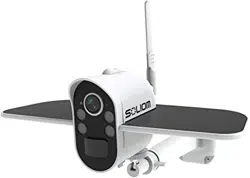
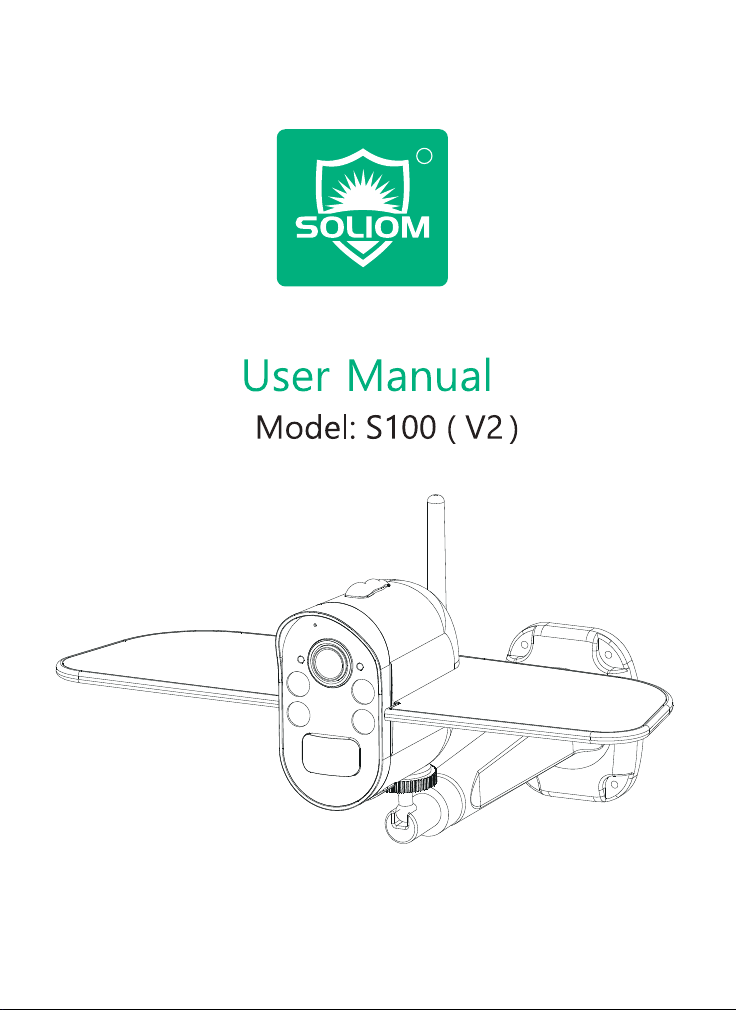
Outdoor Wireless Solar Camera
R
Please text us for any product issues
Thanks for purchasing from Soliom.
Having issues with your Soliom cameras?
Please through either ways below.
Soliom care team staffs would offer you a best
solution to solve any problems within .
Register via below link to get
.
contact us
24 hours
2 Years Extended
Warranty
https://soliom.net/pages/product-registration
Contact Us:
If this manual is not clear enough to
read,please download a PDF file via
below link:
https://soliom.net/pages/download
Warranty Service
Join Soliom Customer group for instant help:
https://www.facebook.com/groups/soliomvip/
.15-16
.17-24
Part 5: How to Save and Delete Videos...............................25
Part 6: More Settings........................................................26- 27
8-14
1-7

1
. Soliom camera can only be set up with 2.4g Wi-Fi network. (It's ok
to use Cell phone 4G data to live viewing it after the camera was
set up with 2.4g Wi-Fi network firstly.)
2. You may possibly need a Wi-Fi extender if your Wi-Fi signal is
weak around the yard where you want to install it.
3. At least 1-3 hours direct sunlight to the camera every day is
needed, the more sunshine the better to avoid manually charge
it frequently. (North side of the house is not a recommended
installation place)
4. Please format the micro sd card to FAT32 format and install the
card when camera powered off.(Micro sd card is not provided
in the package)
5. Please charge your Soliom camera before you set it up, it
usually takes up to 10 hours to fully charge it. Do not use any
power adaptor exceed 5V/2A,or it may damage the camera.
(There's no indicator to show charging status from the camera)
6. Make sure the distance between your phone, router and the
camera is no more than 1.5 feet when you're ready to pair the
camera. Ensure that the Wi-fi signal strength on your phone is
good.
7. The PIR range is 33 feet around, the recommend camera install
height is 8 feet around. To avoid too much false alarms, we
suggest you do not install the camera with nearby bushes, shrubs,
grasses and tree leaves coming into the PIR range.
8. To ensure an accurate motion detection function, it is suggested
to adjust the camera angle physically to focus the motion area
within the PIR suggested 23-33ft range.
9. If you install the camera on stucco, brick or concrete surface, please
mark 3 holes matching the bracket and then use a drill driver to
drill into the wall and insert the expansion screws to hold the
camera tightly
Very Important Tips
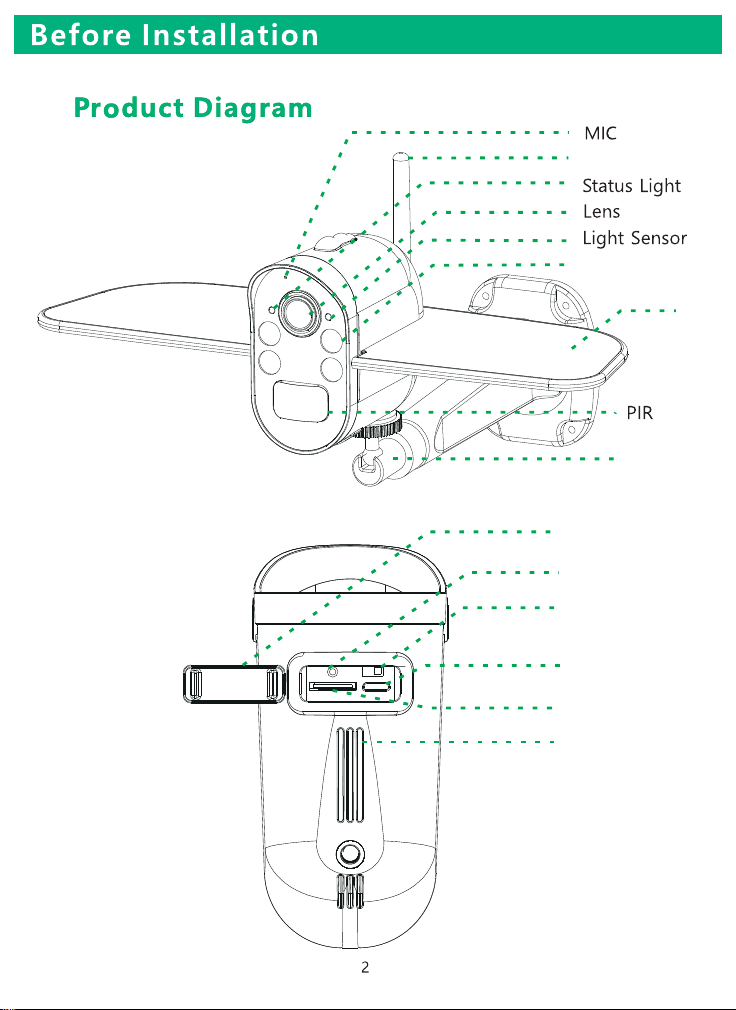
Antenna
Power switch
White LED
Silicone flap
Speaker
SD Slot
Bottom
Solar Panel
Reset
USB
Bracket
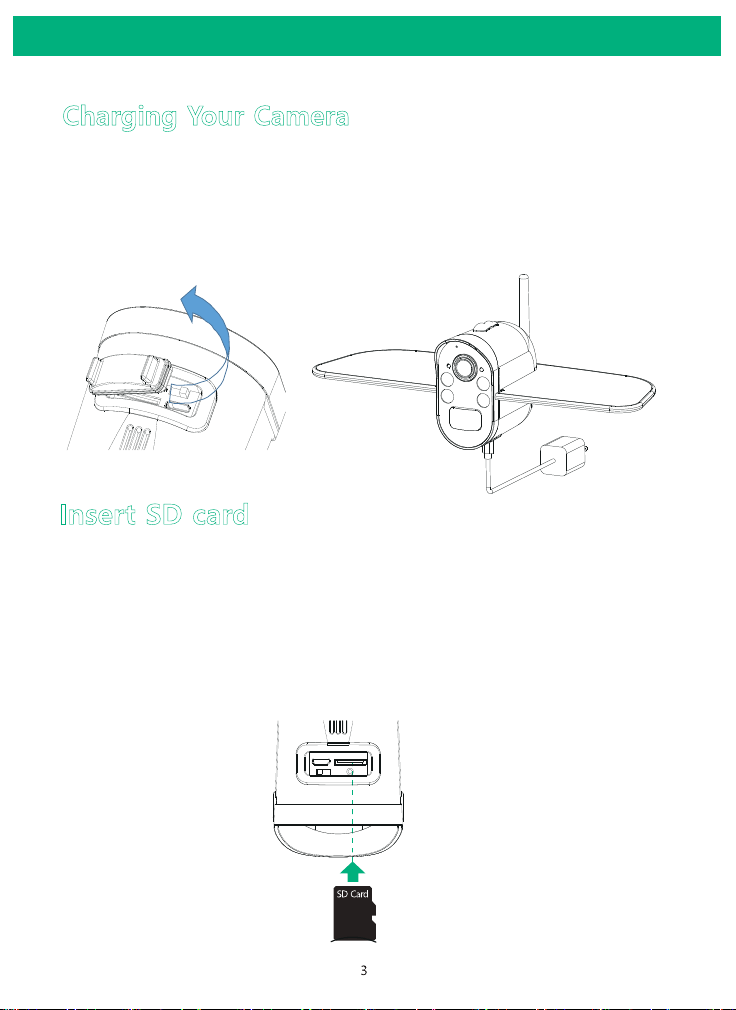
SD card. Pls make sure to insert the SD card when you power off
the cam, this cam doesn’t support hot-plugging and play.
Please charge the camera about 10 hours by plugging it
into a power source using the provided USB cable. After
connecting the camera with App, the App will indicate the
battery status.
Charging Your Camera
Before Installation
Insert SD card
Please format the SD card to FAT32 format (Application to
Windows system ONLY), then install the micro-SD card when
the camera is off. The camera only supports class 10 SD cards
with at least an 8GB capacity and a maximum capacity of 64GB
(There's no indicator to show charging status
from the camera)
uncover silicone flap
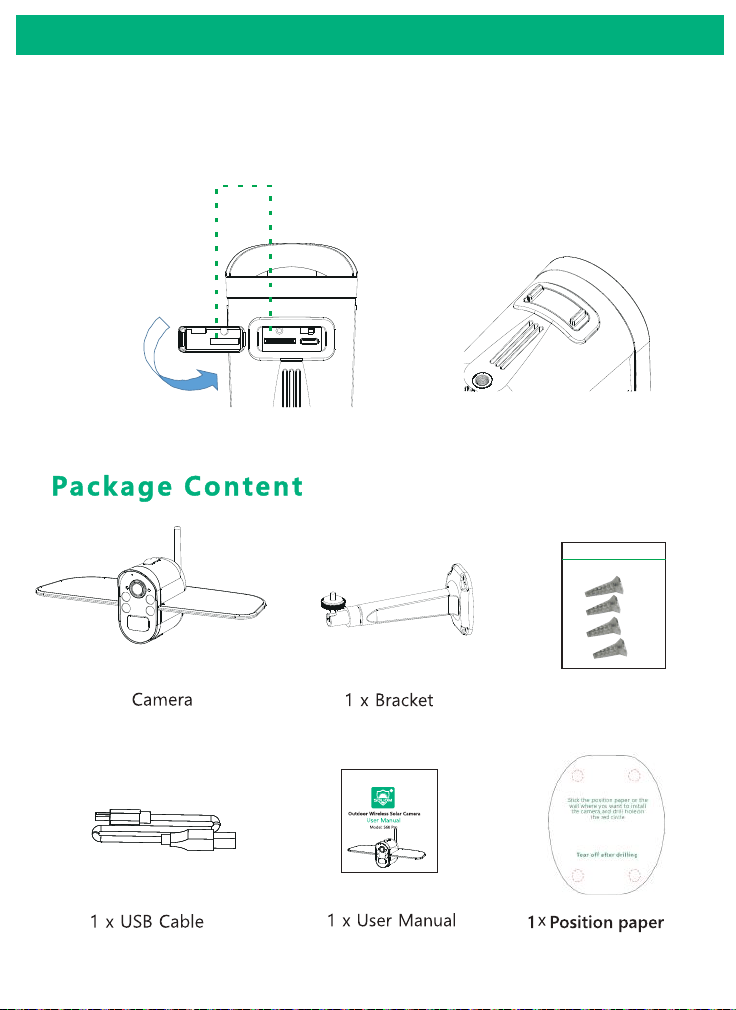
Note: After installed your micro SD card, pls match and tighten
the silicone flap exactly to avoid leakage of rain water.
Before Installation
4*Expansion Screws
4
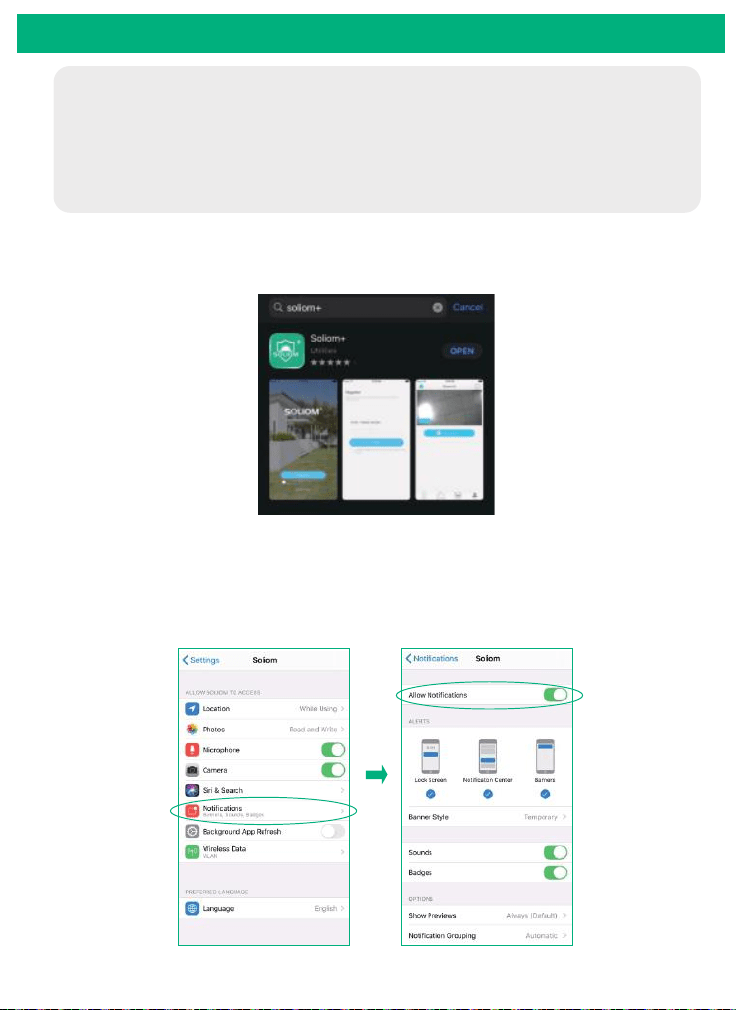
5
In-App Setup
Please locate the in your Google Play store or
to download the soliom+ App.
SOLIOM+ App store
Make sure the distance between your phone, router
and the camera is no more than 1.5 feet when you're
ready to pair the camera. Ensure that the Wi-fi signal
strength on your phone is good.
Allow"SOLIOM+" use mobile cellular data and wireless LAN,
otherwise it may be failed to add S100 camera.
Allow "SOLIOM+" to get system push message and location
permissions
Download the App :
1
.
1.1
1.2
6
In-App Setup
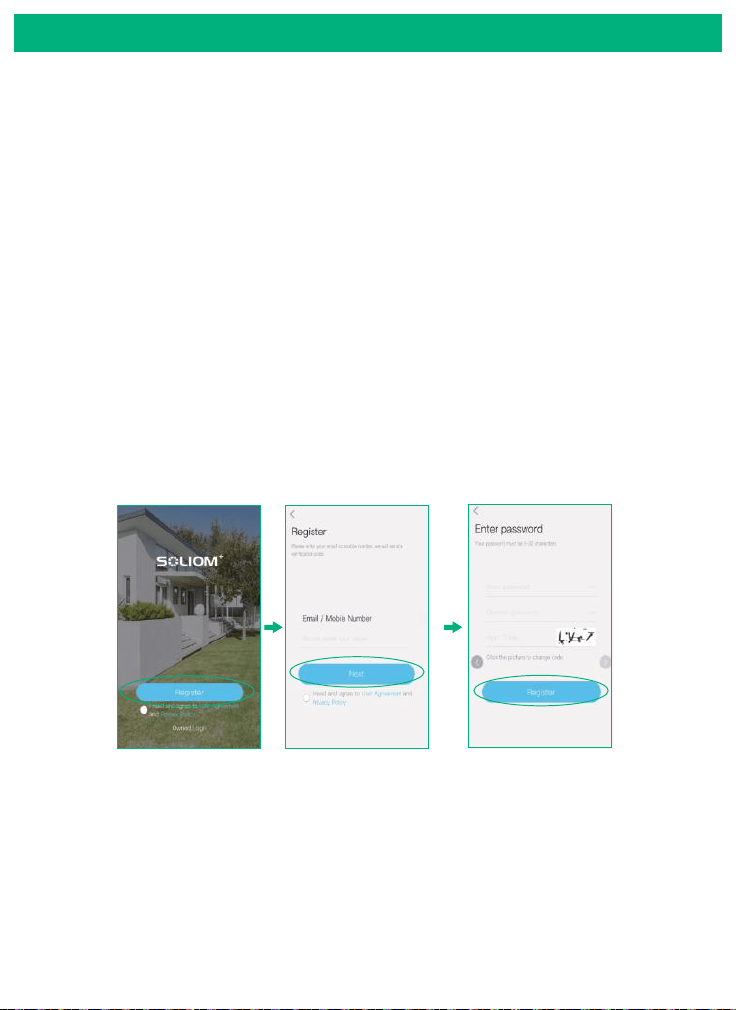
Open the App and register your account with your email
address.
(3)Please click "Allow" or "Agree" on all access when you
download soliom+ and during the process of setting up
your account so that the can have full access to soliom+
your camera and phone. otherwise, your camera may
have less function or incomplete setups.
2. Register an account
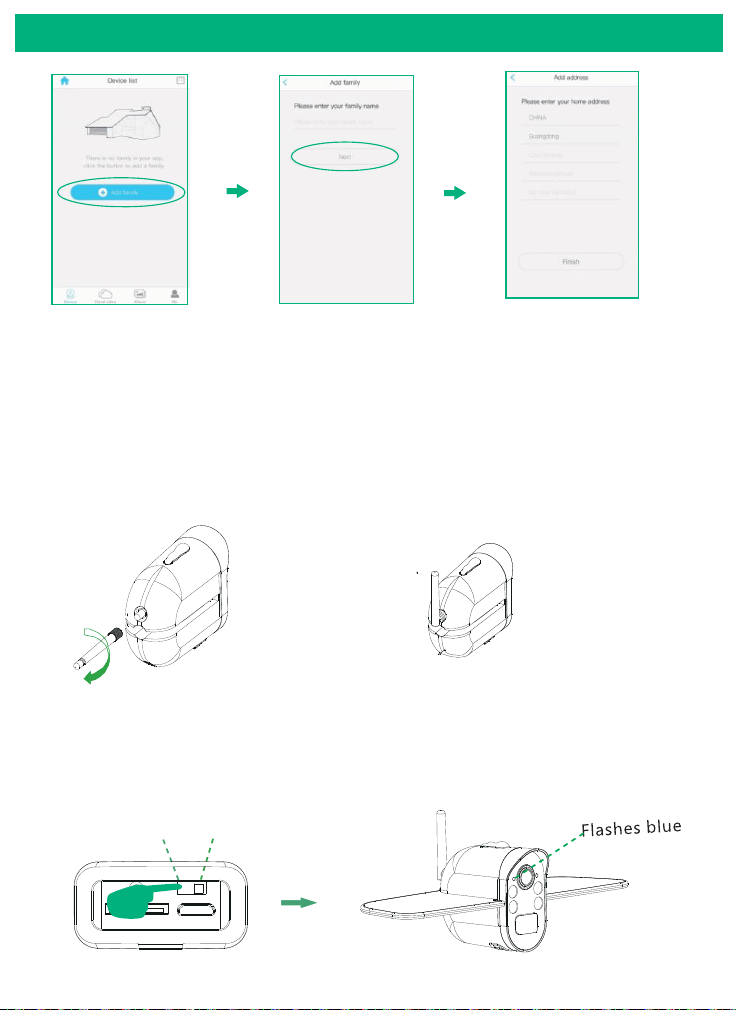
Click”Add family” and then input your desired family
name, click “next step” and then input required information,
and then click “finished” to save it.
3. Set up the installed location
please pay attention to choose your right "Country/Region"
so that you can connect the camera smoothly later and get
proper notifications from your correct region server
Note: The required fields are country and state.
(1) Open the app and register your account with your Email address
and it is recommended to verify your account from email so that
you can retrieve password of your Soliom account in case.
(2) Set a password for your account and make note to remember it.
(Password is 8-32 digit or alphabet combination)
Note:
att.net , msn.com or hotmail.com domains are strict for unsubscrible
email block,you may need to change other email so that you can
receive verification email smoothly.
Not work with 802.11 ac or ax 5G or higher frequency band.
In-App Setup
Slide switch to the right to turn on the camera.
LED flash green once and then flashes blue. Then you will hear
the following voice “The camera is now ready to begin pairing”.
6. Turn on the camera
4. Connect your phone to 2.4Ghz wifi first.
Only work with 802.11 b/g/n frequency band 2.4G Wi-Fi .
(It's ok to use Cell phone 4G data to live viewing it after the
camera was Paired up with 2.4g Wi-Fi network firstly.)
On
Off
5.Install the antenna and point the antenna to the sky, antenna
is not waterproof downward.
(Note: the camera can not be paired up without antenna)
7
8
In-App Setup
Note: Please ensure that your phone connect to the 2.4Ghz wifi
before you pair the camera,
make sure your router
password in mind before you start the pairing process.
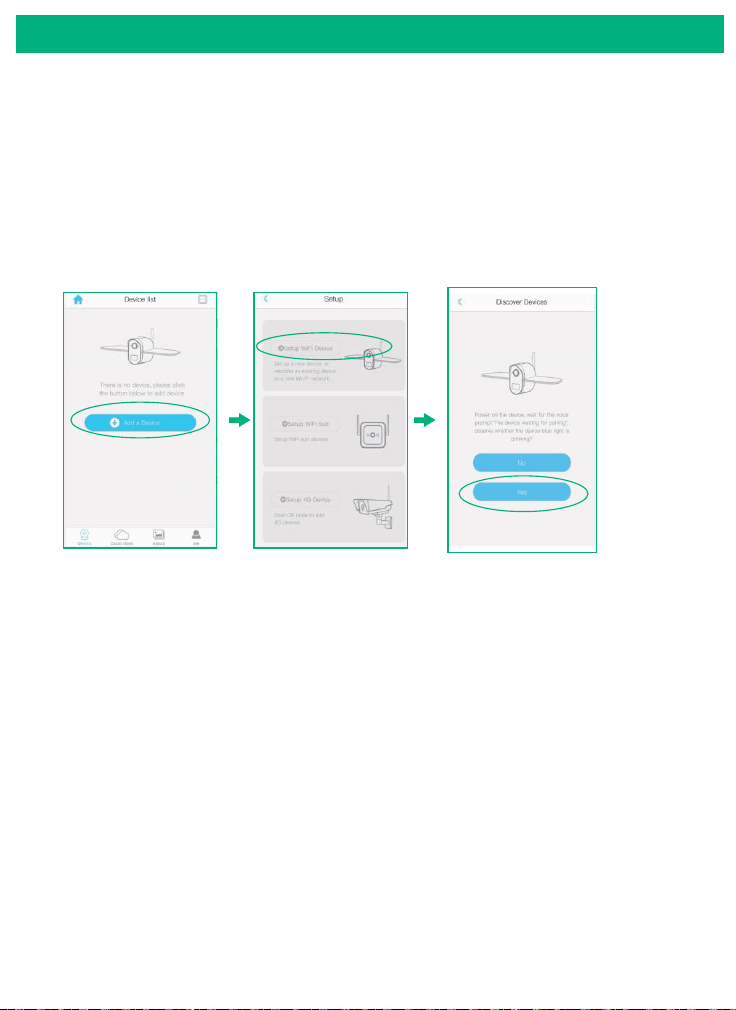
Click "Add a device" and then choose "Setup device",
click "Yes", when you hear the following voice “ The
camera is now ready to begin pairing”.
1)
2) When your phone or tablet connected well with your 2.4G wi-fi
and you allow the access of using the location for the app, your
wi-fi name will be shown here automatically. Otherwise please
check your wi-fi list from your devices and you have to turn on
the location services for the Soliom+.
7. Pairing the camera with the App
Note:
If the camera LED doesn’t blink blue, which means the camera is not
in ready to pair condition. Please power on the camera and hold on
the reset button for 4-5 seconds and then release it when you hear
"system reset"to reset your camera to default.
In-App Setup
9
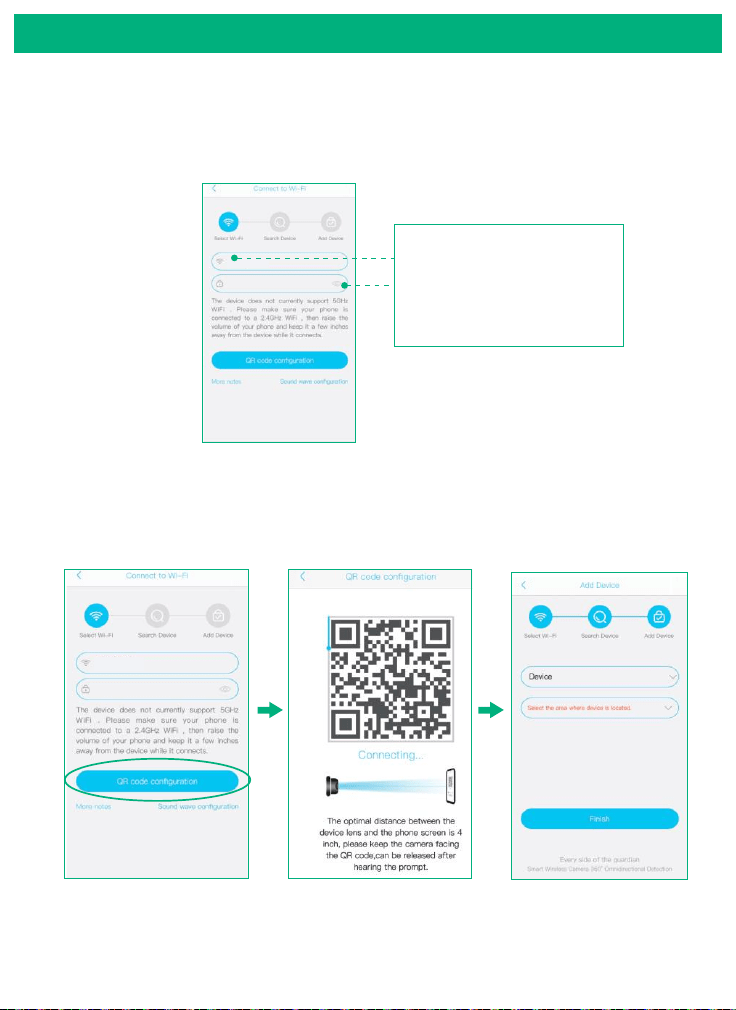
3) Input the CORRECT WiFi password of your router, if you input
a wrong password you will not be able to connect it successfully.
Click the eye icon to double confirm the password you entered
correct
Your Wi-Fi name will be
shown here automatically
Click the icon to double
confirm the password you
entered correct
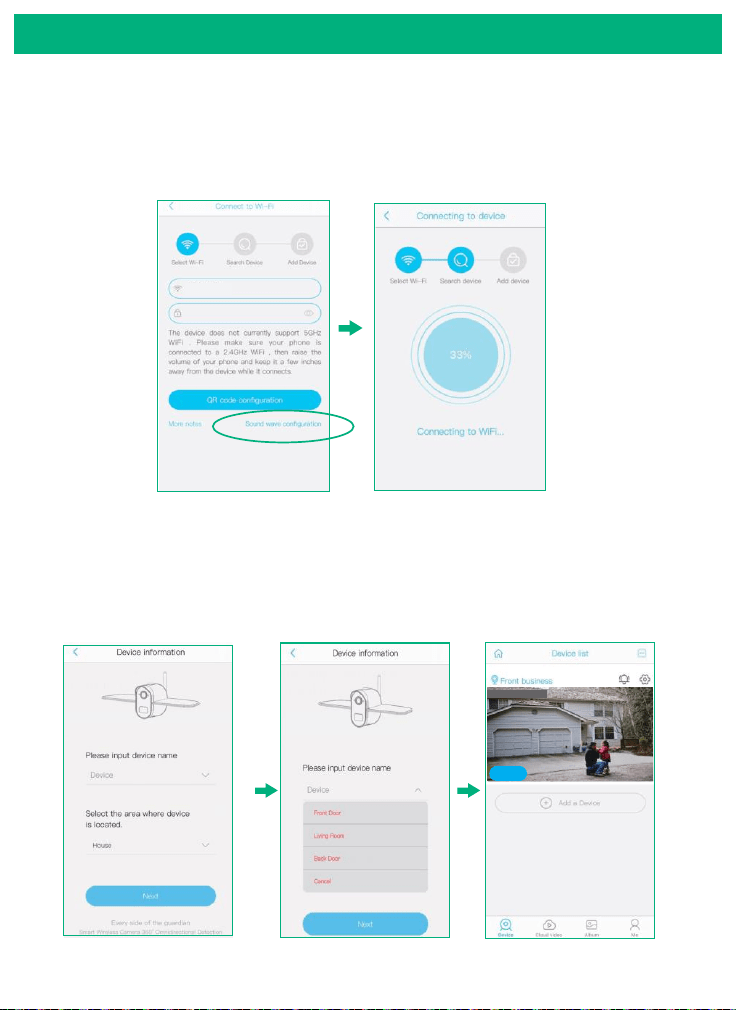
Method 1:
QR code configuration
1.1 Click the “QR code configuration”, hold the QR code in front
of the S100 camera, and then you will hear the following voice
“Pairing Information Received”.
In-App Setup
10
Method 2:
Sound wave configuration
2.1
Enter into the “search device” page, make sure to turn up
you phone’s volume to the Maximum, you will hear the
following : “Pairing Information Received”. voice
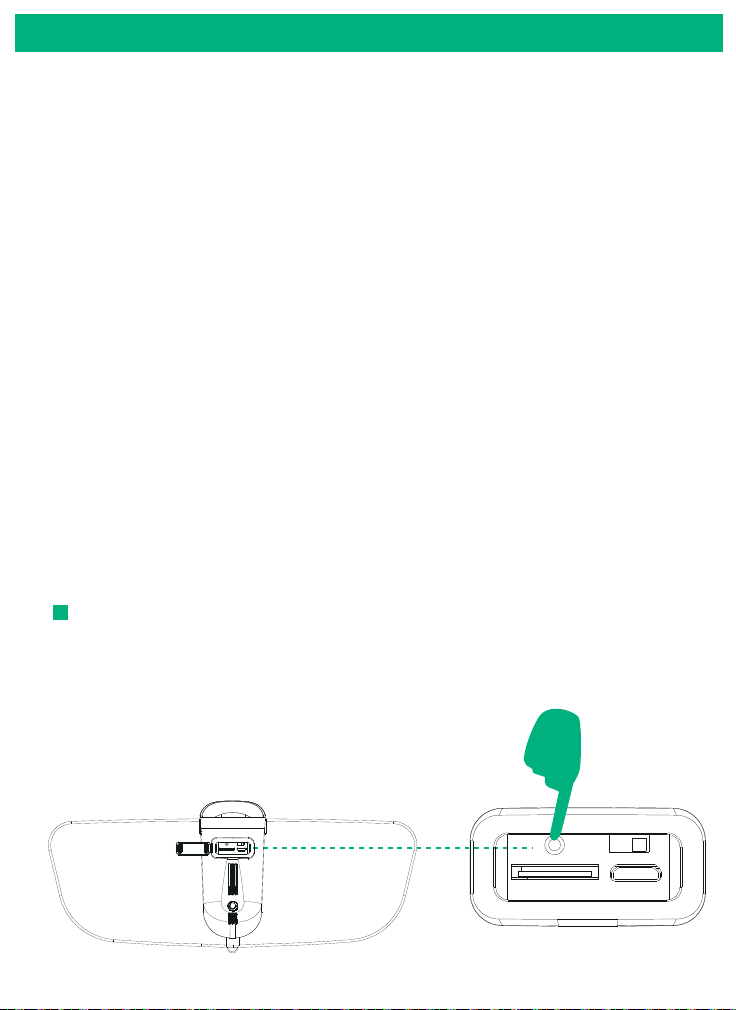
3)
You have connected the device to the App successfully.
Choose a name of the devices from the drop-down choice,
or you can modify one that you want, and then select the
area where device is located.(you have to choose one or
you cannot connect the camera to the app)
2019-12-27 15:00:36
Online
In-App Setup
4)
Congratulations! You have connected your camera to the
App successfully, now you can live view the camera on your
phone anytime and anywhere.
If you're unable to pair the camera,Please check below
suggestions:
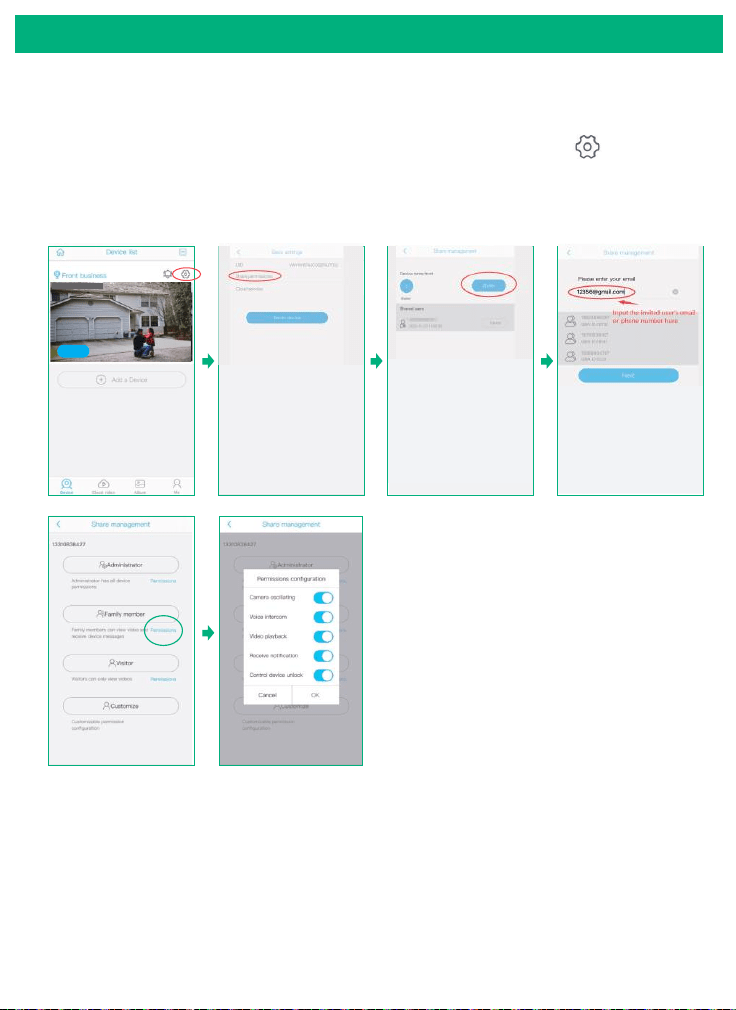
Press and hold on the reset button for 4-5 seconds to reset the
device. You could release the button when you hear “System reset”.
How to reset camera:
Note: the camera cannot be reset when It is powered off.
长按复位键5秒
11
1.Make sure your phone is connected with your 2.4G Wi-Fi. When your 2.4g
Wi-Fi connected correctly to your phone,your Wi-Fi name will be recognized
by the camera and pop-up on the Wi-Fi input page automatically.
2.Let your phone to forget your 5G Wi-Fi connection from your Phone Wi-Fi
list to avoid proity pick up.
3.Try to avoid your phone screen too light or too dark so that camera can
read the QR code clearly without reflecting light.
4.Put your phone, camera and router within 1.5ft to get a strong Wi-Fi signal
strength.
5.If you use sound wave method,make sure your phone volume is turned up
and your router ID + password no more than 32 digits.
6.Enable your router DHCP option and set your router to dynamic IP
addressing to avoid conflict with your other wireless devices for one static
IP address.
7.Reboot your router to reallocate your IP address and refresh your network.
8.Power on the camera and hold on the reset button for 4-5 seconds and then
release it when you hear “system reset” to reset your camera to default.
In-App Setup
12
2019-12-27 15:00:36
Online
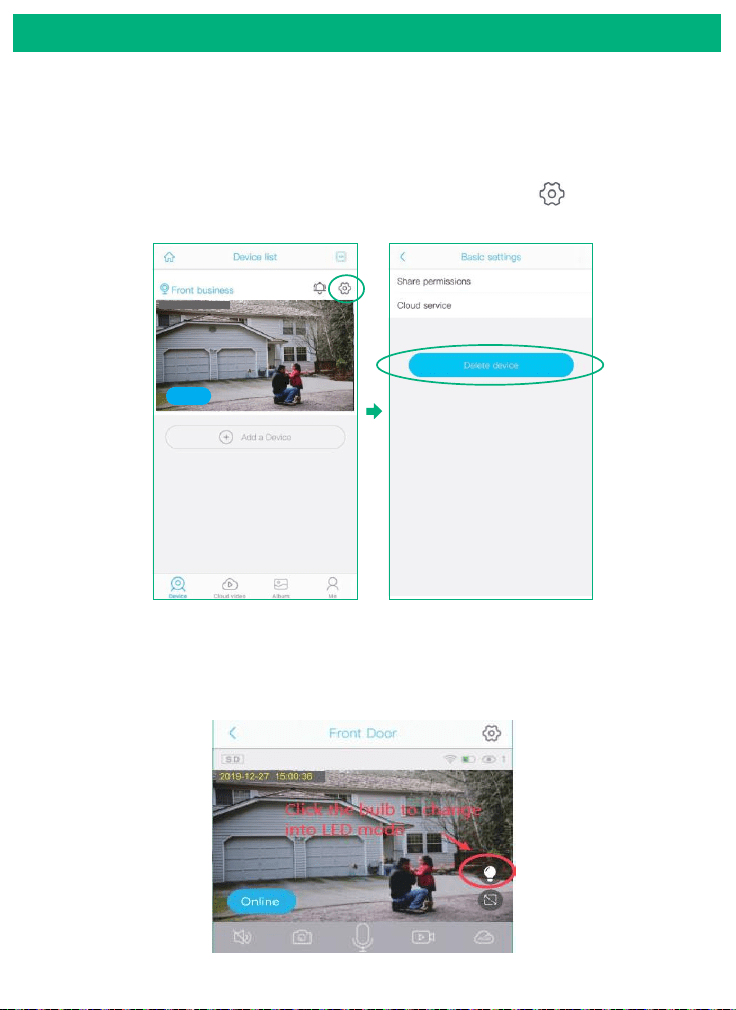
8.How to Share Your Camera with More Users
When you can use your camera properly.You can start to share
your camera to your friends or family members. click“ ”and
choose "share permissions". input the account that you want to
share with. choose a permissions from Administrator, family
member, Visitor, Customize
You can Customize the permissions and turn on or off every permission
as you wish by clicking the blue icon"permissions"
Note:
Please let the invited user to register a Soliom+ account using their
email first and then start to share according to the instructions
above.
In-App Setup
13
Please do not forget to unbind your camera from your App when
you plan to return the camera, to avoid any personal information
disclosure risk.
And unbind your camera as following steps, click" " and then
choose "delete”
9.How to unbind your camera
2019-12-27 15:00:36
Online
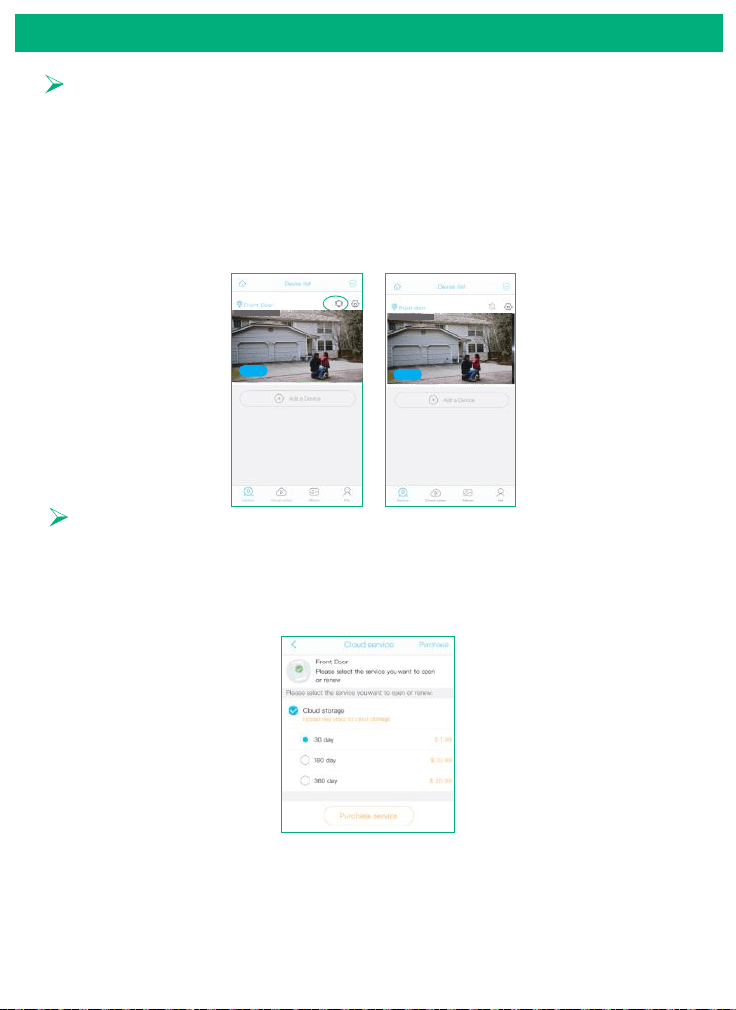
10.Night Vision Mode
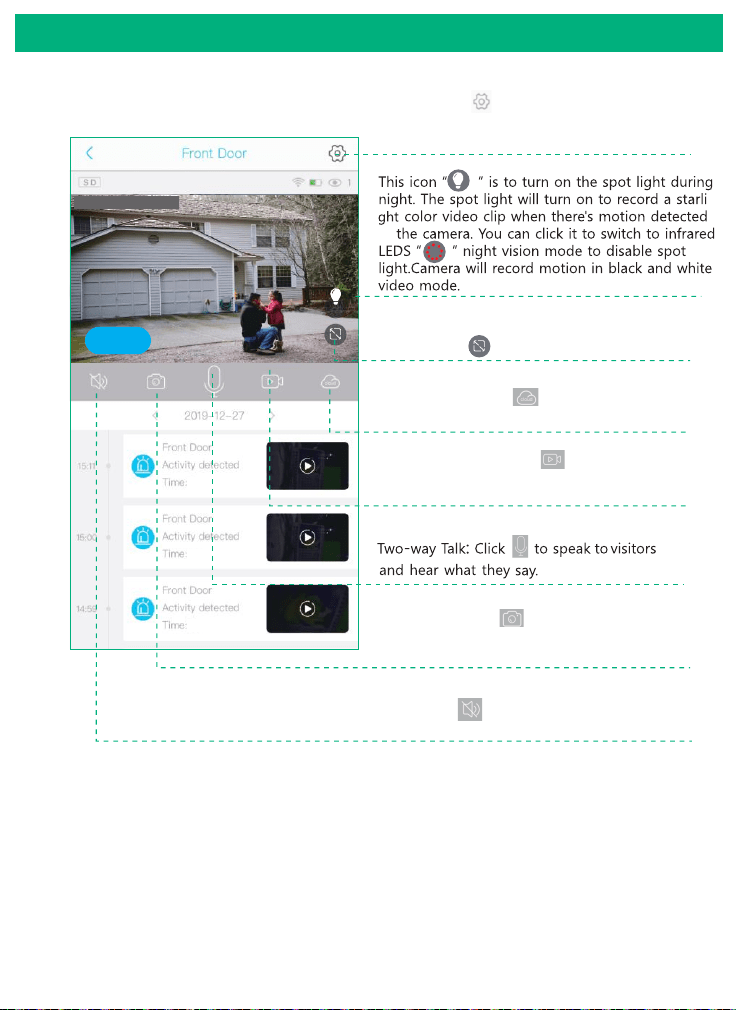
The camera is defaulted as spotlight mode, you can tap on the
spotlight bulb to change it to LED night vision mode, the spotlight
will not be triggered to turn on when there's any motion.
In-App Setup
14
Cloud storage
Push Mode
This icon indicate that the push mode is on, click it to turn off
push mode and then you cannot receive any notifications.
If you want to turn on or off the sound of notification, please
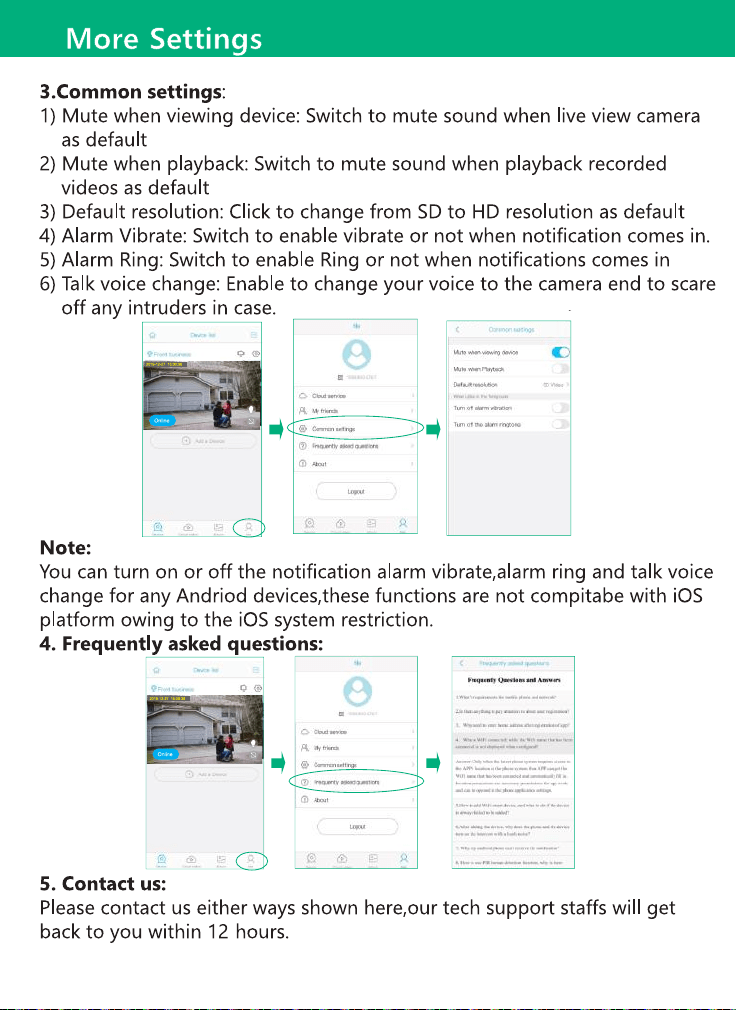
refer to page 26.
2019-12-27 15:00:36
Online
2019-12-27 15:00:36
Online
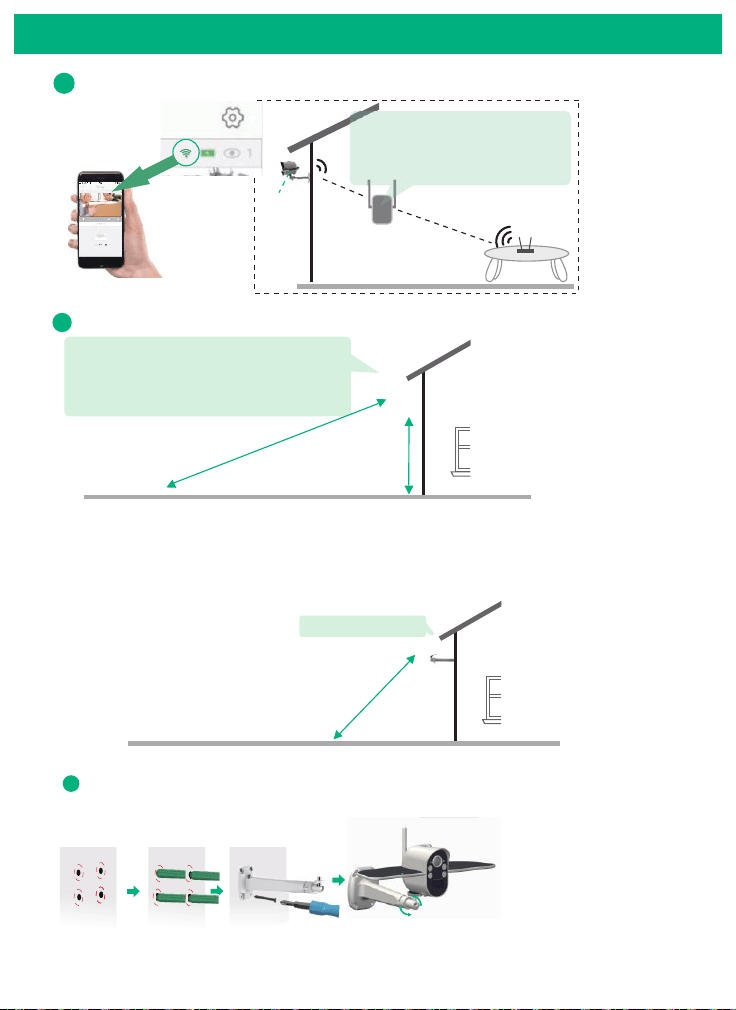
The motion detection video clips will be saved in the cloud. Cloud video
length is 10 seconds defaulted and free for 30 days. And you have to
pay for the service per month or other cloud service. You can choose a
service from the soliom+ provided to purchase.
How to change cloud video length:
Go to live view mode and find “Device setting” gear icon- go to
“Active time” - change the time as you want.
P.S.: When you set the active time, the spotlight will turn up with the
same time length when motion was triggered at night.
Note:
When you turn off the notification here,the motion triggered events
will keep recording to cloud or micro sd card as you set.
15
1
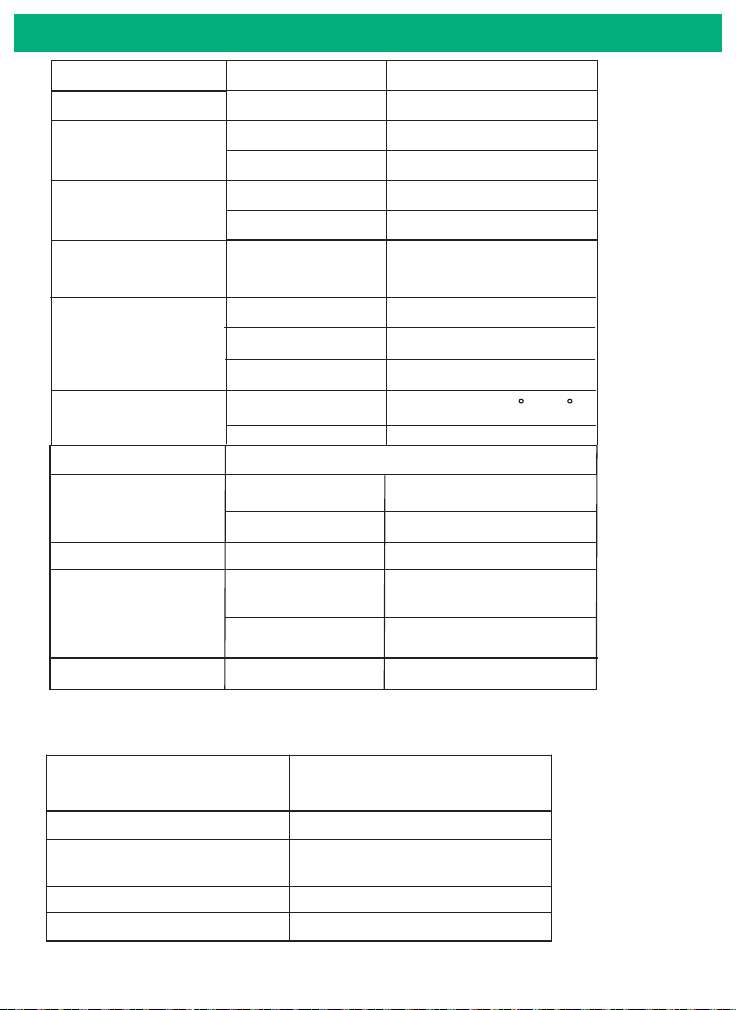
Check your camera signal strength
Camera
Check in App
WiFi extender
Router
Physical Installation
If not satisfied with video smoothness,
and signal strength in App is not strong,
we would suggest adding wifi extender
between the Router and the camera.
2
Recommended height to install the camera
We suggest installing the camera about 8ft.
You may adjust the camera angle physically
according to the live view in your mobile.
to focus your motion area to get the more
accurate motion triggered events.
33 feet
8 feet
If your camera get numerous motion alerts unexpected
1) Please adjust your camera installation angle a bit down to
focus the motion area.
2) Please change your PIR sensitivity to Low to reduce the PIR
sensitivity.
3) Do not install the camera with nearby bushes,shrubs,
grasses and tree leaves coming into the PIR range.
PIR Se ns itivity ( H igh )
23 feet
PIR S ensitiv it y ( Lo w)
Adjust camera angle
3
Adjustable
Stick the position paper on the wall where you want to install the camera,drill the 4 holes as per the
4 red dots on the paper,tear off the paper and then fix the bracket using the expension screws.
band 2.4G Wi-Fi
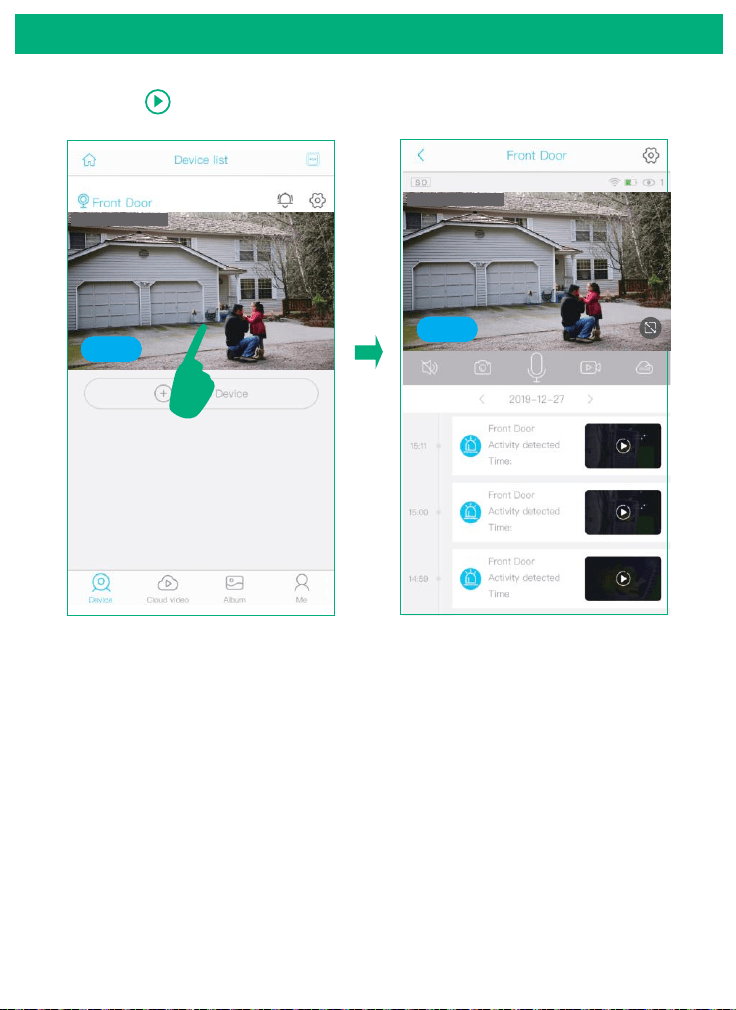
Resolution
Lens angle
Video format
SD card
support
Output
Intput
Image Quality
Lens
Specifications
Video
Specifications
Audio
1080P
FOV 155°
H.264+
8GB-Max 64GB
Built-in speaker
Built-in microphone
WiFi
Battery capacity
Standby time
Communications
Battery
802.11 b/g/n frequency
8700mAh
Max 12 months
Power
consumption
2W(run)/
0.012W (standby)
Applicable
Environment
Temperatur
e
Humidity
-20℃~+60℃(-4
F-140 F)
20%~85%
(Non-condensing)
Technical Specifications
Android 2.3 above/ iOS 7.0 above
System
Suppport
PIR
PIR angle
PIR range
145°
23ft-33ft
Night Vision
Range
Up to 26ft
Working time for
fully charged
Max 32 hours
Max 13 hours
Continuously daytime
recording time
Continuously night vision
recording time
IP grade
IP66
Waterproof
LED flashes green once and goes
off and LED flashes blue
Connect network successfully LED stays blue
PIR was triggered
off and LED stays blue
LED flashes green once and goes
LED Status
Camera working
Standby mode LED goes off
LED stays blue
16
Camera is ready for pair up
10s
10s
17
Detailed App Instructions
1.click ,you could live viewing videos.
Online
2019-12-27 15:00:36
2019-12-27 15:00:36
Online
2019-12-27 15:00:36
Online
10s
10s
10s
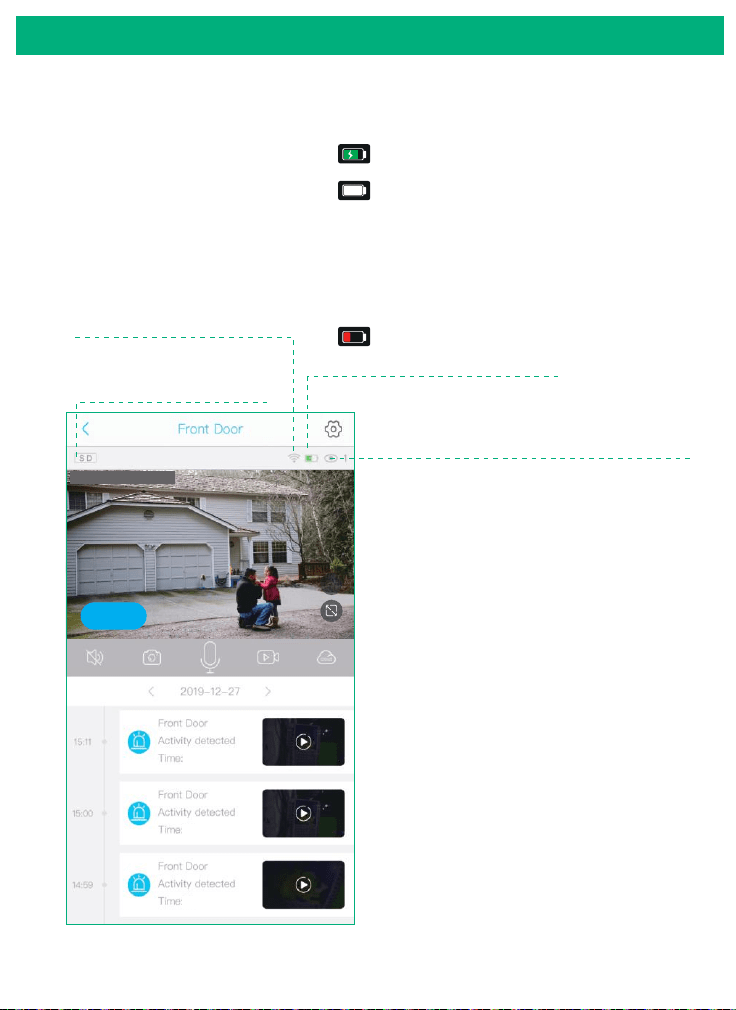
18
Detailed App Instructions
Wifi signal strength
Tips: Please make sure your camera
has a full bar of wifi strength to
ensure a smooth live view speed.
(A wifi extender is recommended
to install beside the camera if needed)
Battery charging sign
When camera exposed to sunlight, the battery will
keep charging in green.
During night or fully charged, the battery will
stay white.
Tips : If your battery sign will not show correct
status as above,please remove the solar panel
and then reinstall it to the camera body. Or
contact Soliom support team for a replacement
at [email protected] All friendly customer
service staffs are ready to assist you.
Click here to chose the resolution
to HD(1080P) OR SD(720P)
Number of users
Tips: If you have invited a second users to visit
your camera. please pay attention to below
points:
1.You can share different permission for every
one as you wish
2. You can Customize the permission as you
wish
Low power indicator, please recharge the camera
manually using the provided USB cable
2019-12-27 15:00:36
Online
10s
10s
10s
3. The shared users can not change administrator’s
password, the shared users are limited to the
defined permission configuration.
Detailed App Instructions
19
Screenshot: Click to screen capture
and pictures will be saved to your phone's
album.
Manual Recording: Click to manually
record and the videos will be saved to
your phone's Album
Voice: Click to mute the sounds from
the camera.
Cloud storage: Click to switch playback videos
saved in cloud storage or micro sd card.
Setting: Click to enter into device
settings. ( Check page 20-24 for more
details)
Click the icon to switch to full screen play
2019-12-27 15:00:36
Online
10s
10s
10s
-
by
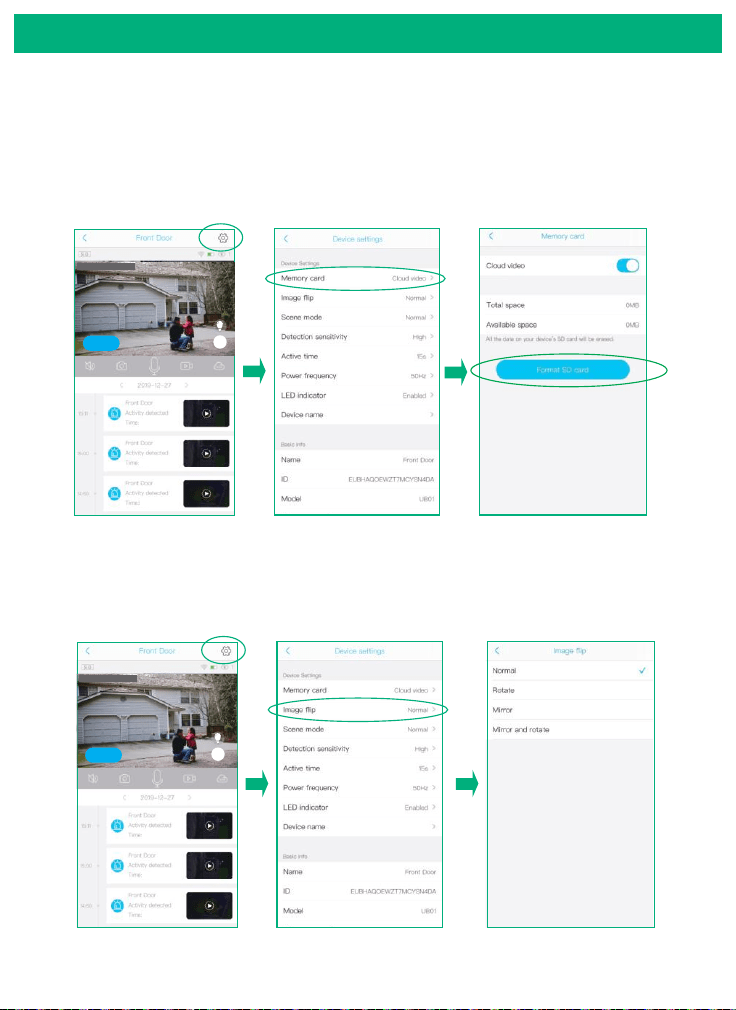
Note: We suggest you to format the S D card to FAT32 in your app for the first use.
20
Detailed App Instructions
SD Card Setting
1) Please turn on the cloud storage so that you can sync the
camera time with your phone.
Image flip
You can choose Normal Rotate, Mirror or Mirror and rotate
depends on your hardware installation way. The default is
Normal.
2019-12-27 15:00:36
Online
2019-12-27 15:00:36
Online
10s
10s
10s
10s
10s
10s
21
Detailed App Instructions
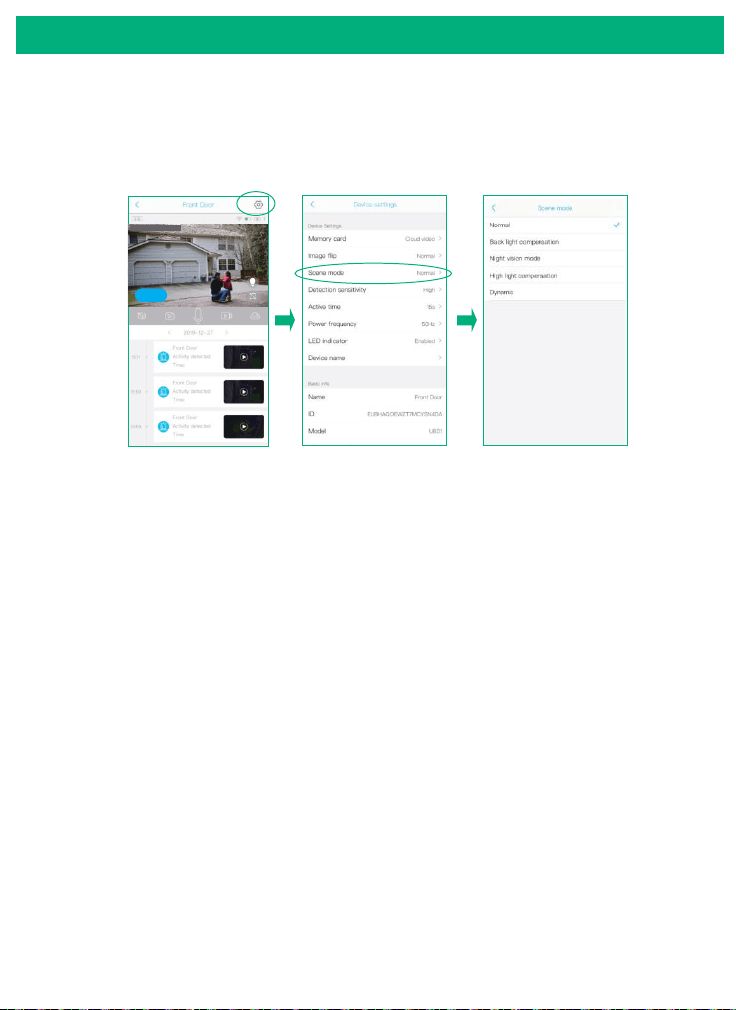
Scene mode
You can choose to set it as Normal, back light compensation,
night IR, High light compensation or Dynamic according to
your actual light environment of installation place.
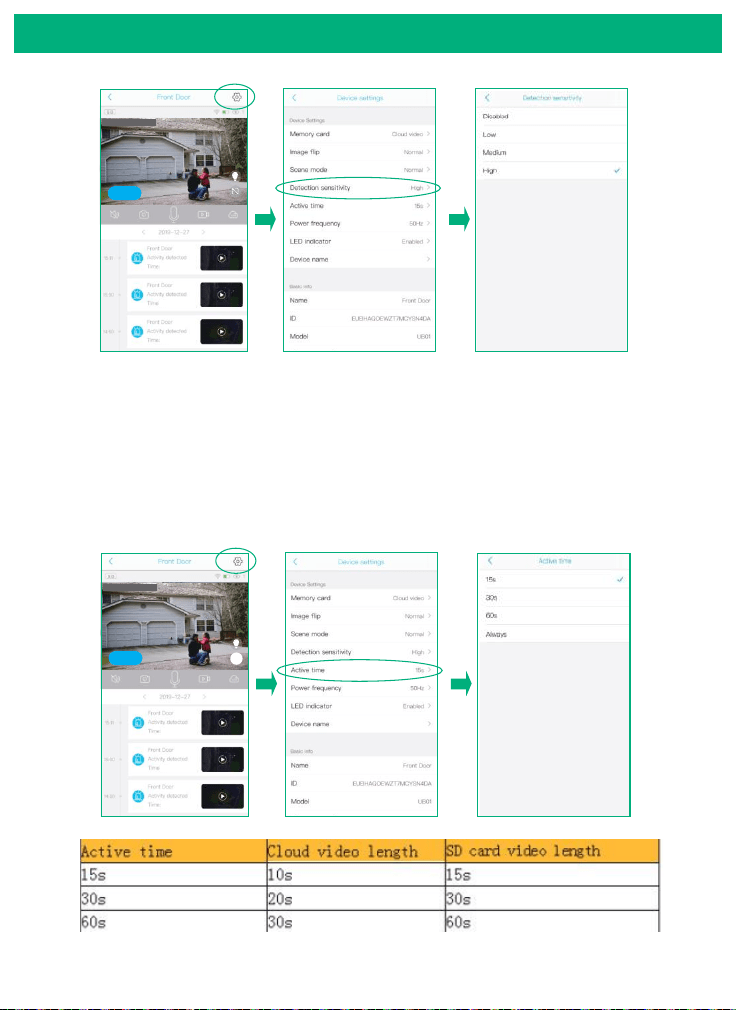
PIR Detection Sensitivity
You can set the PIR sensitivity as Disabled, Low, Medium
or High.
1) When you set the PIR as Disabled, you will not record
and receive any motion triggered events.
2) It is recommended to set the PIR Detection to High so
that you could capture as more as a motion triggered
from the beginning part of the event.
3) Try to capture more the beginning of the triggered
event,please adjust your camera angle a bit closer to your
aimed spot (Check page 15 diagram).
2019-12-27 15:00:36
Online
10s
10s
10s
Normal: Natural light at day time
Backlight compensation: Increase the level of exposure and brighten
the whole scene.
High light compensation: Reduce exposure and deal with overexposed
images with lights.
Dynamic: Brighten the light on dark areas and balance the over light
areas in images. It is recommended to set it as Normal for outdoor
cameras,other scene mode are adjustable for indoor cameras.
10s
10s
Detailed App Instructions
22
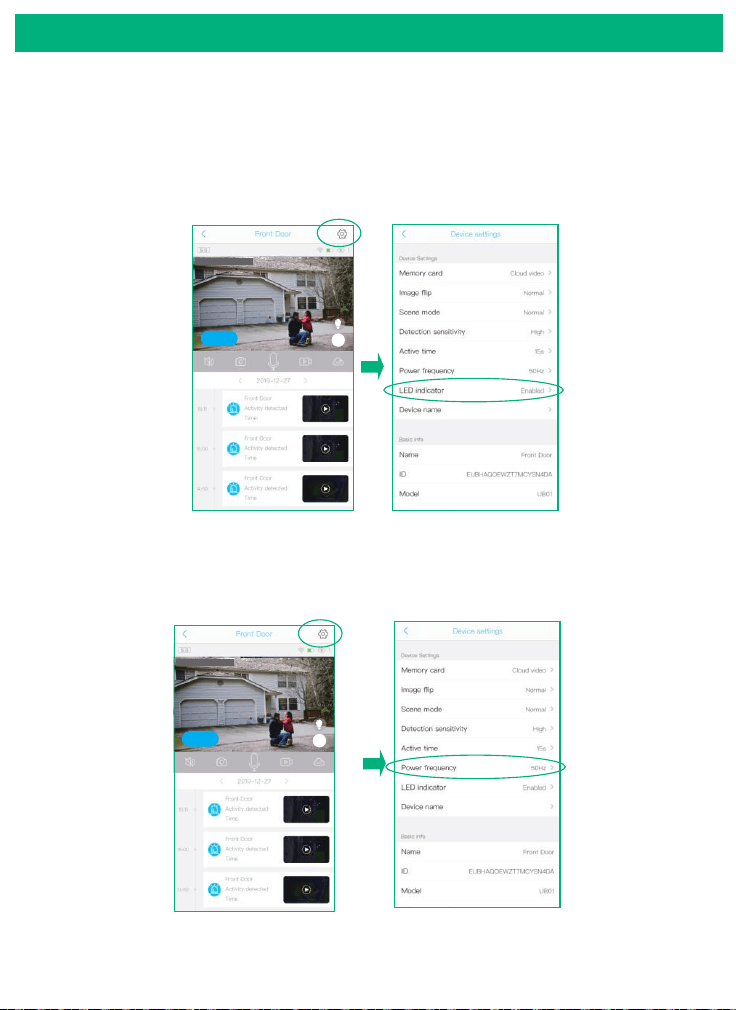
Active time
2) Always: If you choose this option,you will not allow the
camera enter into standby mode,the camera will keep
recording all the time until battery drains out. ( 60 seconds
per file)
2019-12-27 15:00:36
Online
2019-12-27 15:00:36
Online
10s
10s
10s
10s
10s
10s
1) This is the time you could set for the motion detection video
length recorded to micro sd card and cloud storage.
2019-12-27 15:00:36
Online
10s
10s
10s
23
Detailed App Instructions
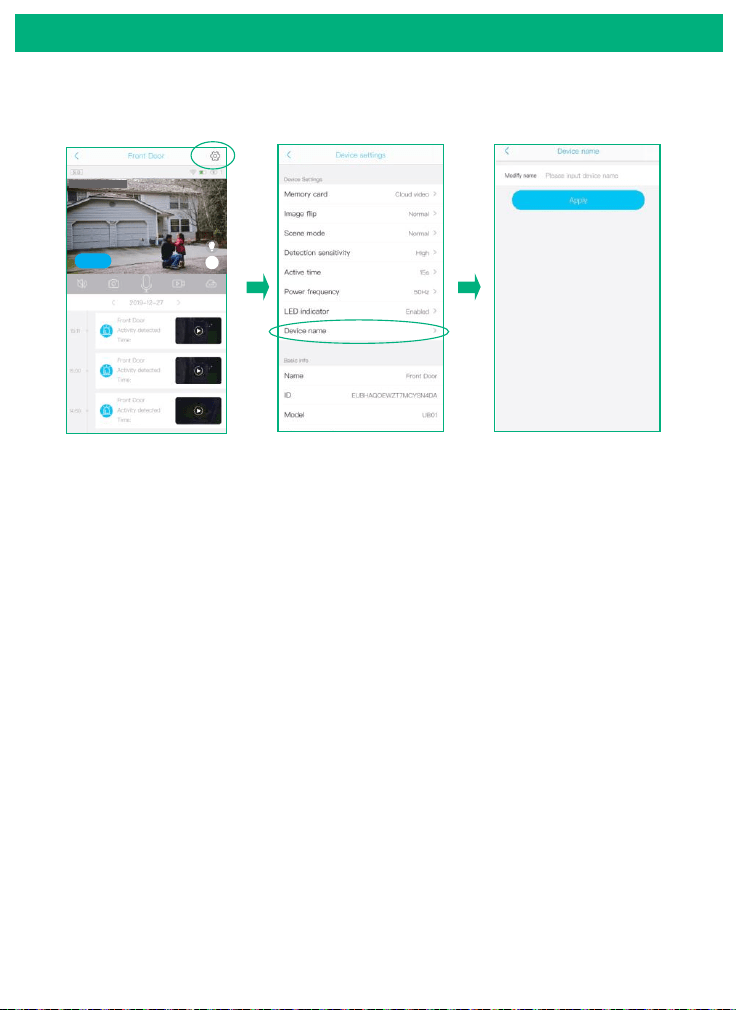
Power frequency
Please choose 60 or 50HZ according to your local frequency.
It's defaulted to 60HZ for united states users.
LED indicator
When you choose Enable, the Blue LED will light up to indicate
when you operate the camera as it should be. When you choose
Disabled, the Blue LED will not light up to indicate the operations
or trigger motions. It is recommended to set it as the default
2019-12-27 15:00:36
Online
10s
10s
10s
24
Detailed App Instructions
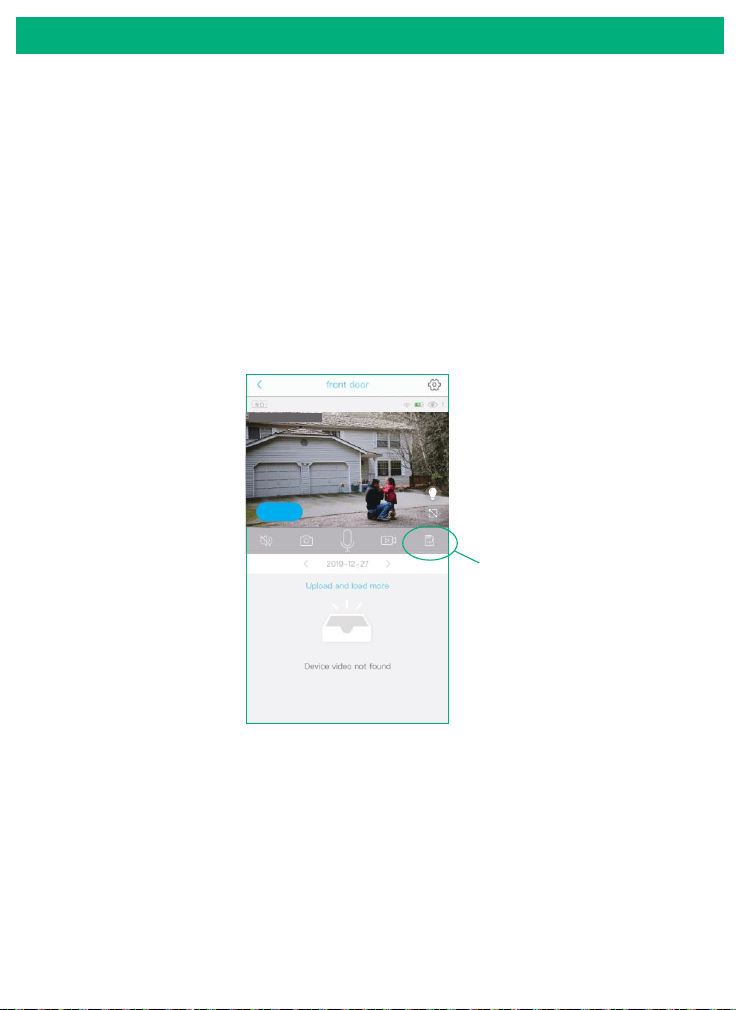
Device Name
You can set a desired name for your camera.
2019-12-27 15:00:36
Online
10s
10s
10s
How to save and delete videos
25
1. Videos can be saved in Cloud Storage:
(1). The videos of PIR activity
You could save the videos of PIR activities in cloud storage,
which can be used 30 days for free and then you have to pay
for the services. and the videos in the Cloud can be playback
in the app.
2. Videos can be saved in the SD card:
(1). The videos of PIR activity
(2). The videos of live viewing
You could playback these videos in the app.
3. Videos can be saved in the mobile phone album:
(1). The videos of REC mode
(2). The screenshot
You need to delete the videos of REC mode and the
screenshot from your phone's album.
2019-12-27 15:00:36
Online
switch between cloud and
micro sd card
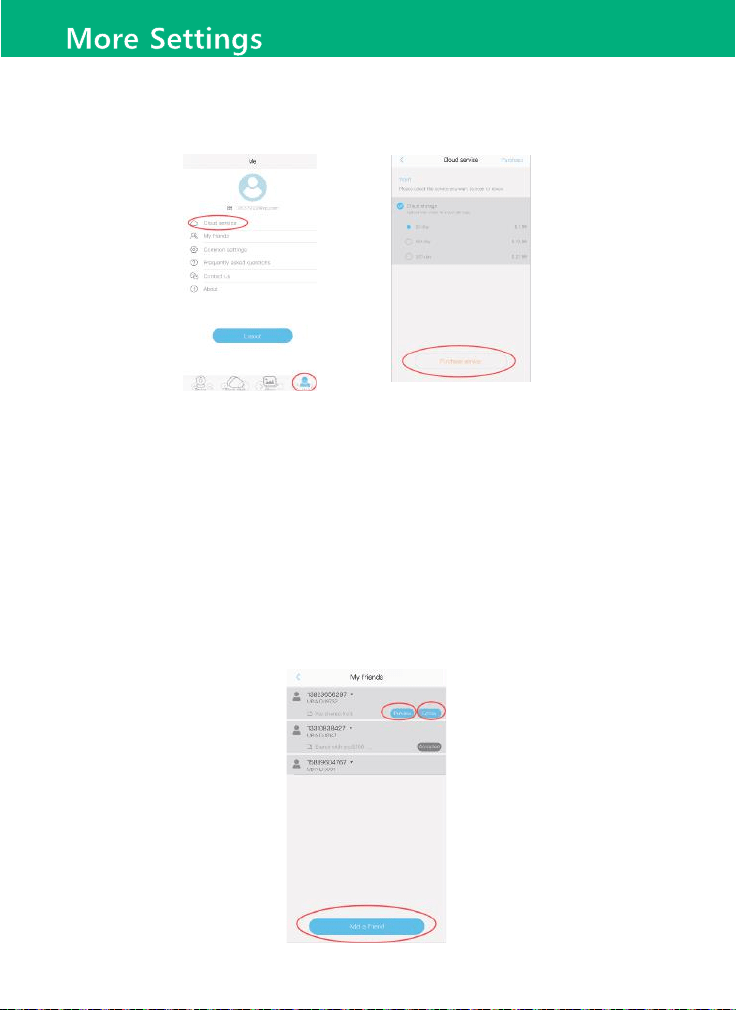
1. Cloud service:
Click Cloud service and then choose the package to buy your cloud storage.
Note:
1)Each camera will be binded with one cloud storage service.(But not in
account base)
2)If you would like to make a return for Soliom cameras,please send email
to: [email protected] to refund your cloud fee.
2.My friends:
Click it to Add a friend you want to share with your camera or check you
shared account or shared with you camera list and make any permission
modifications here.
26
27