13-16
5-12
17-25
Warm tips before you go:
1
. Soliom S60 can only be set up with 2.4g Wi-Fi network. (It's ok to
use Cell phone 4G data to live viewing it after the camera was set
up with 2.4g Wi-Fi network firstly.)
2. You may possibly need a Wi-Fi extender if your Wi-Fi signal is
weak around the yard where you want to install it.
3. At least 1-3 hours direct sunlight to the camera every day is
needed, the more sunshine the better to avoid manually charge
it frequently. (North side of the house is not a recommended
installation place)
4. Please format the micro sd card to FAT32 format and install the
card when camera powered off.(Micro sd card is not provided
in the package)
5. Please charge your Soliom camera before you set it up, it
usually takes up to 6-8 hours to fully charge it.Do not use any
power adaptor exceed 5V/2A,or it may damage the camera.
(There's no indicator to show charging status from the camera)
6. Make sure the distance between your phone,router and the
camera is no more than 1.5 feet when you're ready to pair the
camera. Ensure that the Wi-fi signal strength on your phone is
good.
7. The PIR range is 15 feet around,the recommend camera install
height is 8 feet around.To avoid too much false alarms, we
suggest you do not install the camera with nearby bushes,shrubs,
grasses and tree leaves coming into the PIR range.
8. If you install the camera on stucco,brick or concrete surface,please
mark 3 holes matching the bracket and then use a drill driver to
drill into the wall and insert the expansion screws to hold the
camera tightly
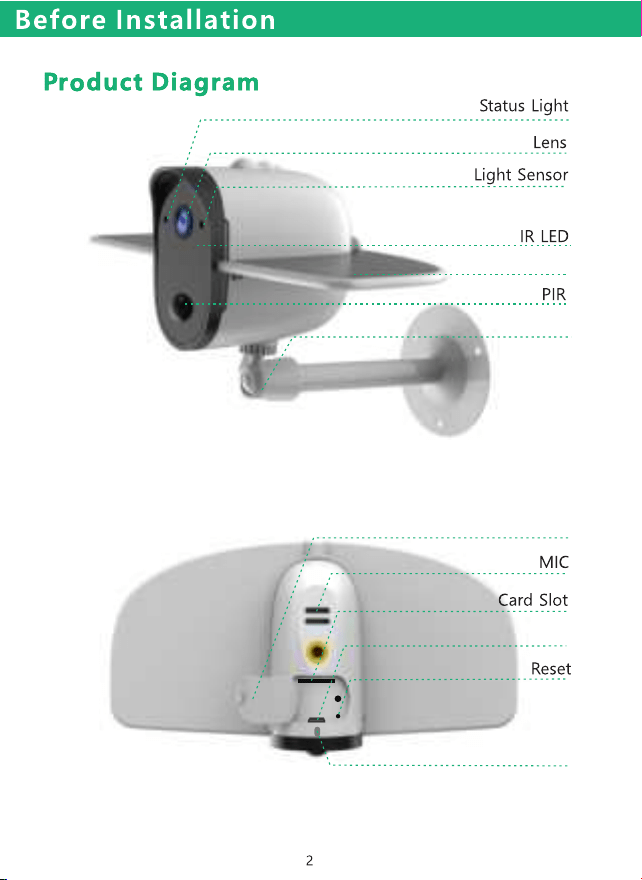
Bracket
Solar Panel
USB
Silica gel cover
Power Button
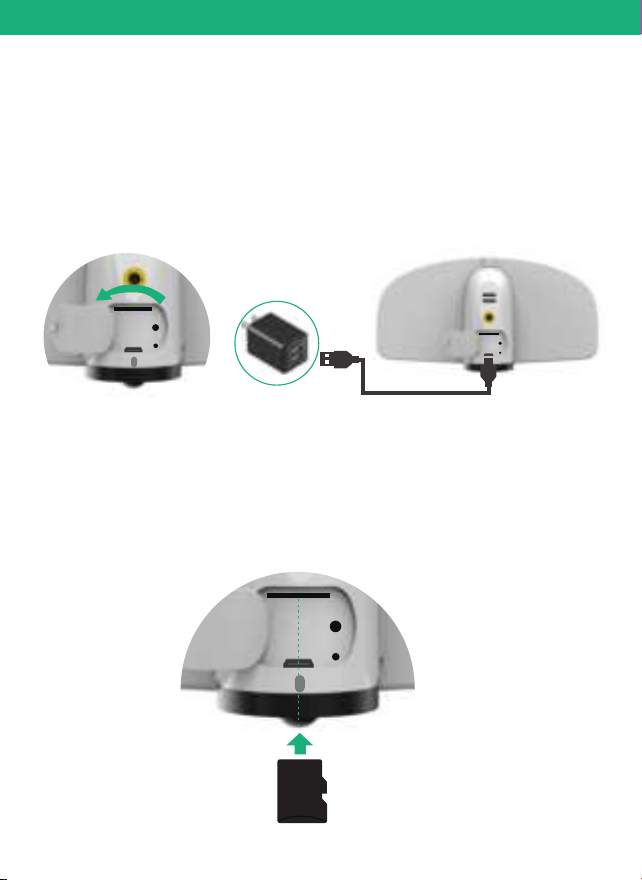
3
Please charge the camera about 6-8 hours by plugging it
into a power source using the provided USB cable. After
connecting the camera with App, the App will indicate the
battery status.
Charging
Before Installation
Insert SD card
Please install the microSD card, then format the SD card to
FAT32 format (Application to Windows system ONLY). The
camera only supports class 10 SD cards with at least a 8GB
capacity and a maximum capacity of 64GB.
SD Card
(There's no indicator to show charging status
from the camera)
4
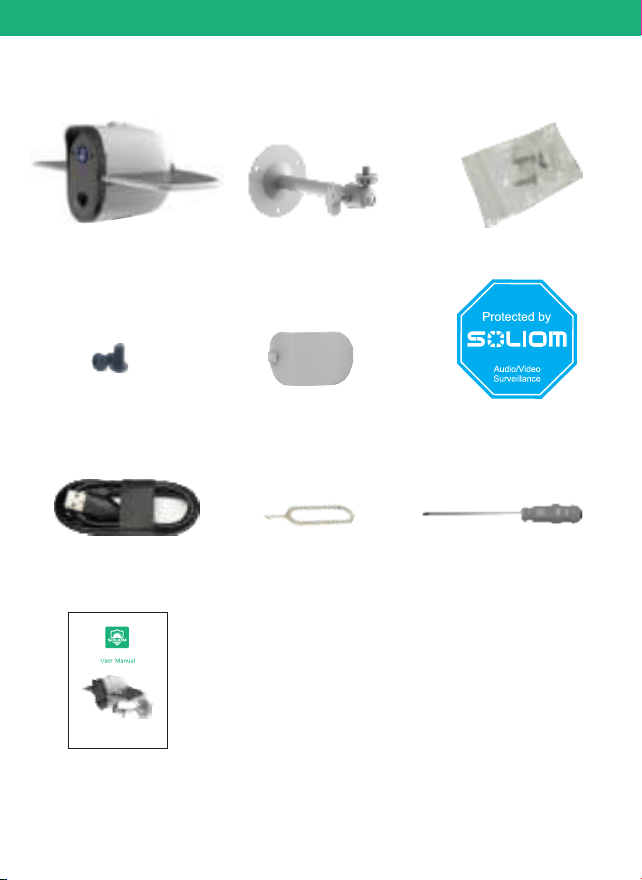
Camera
3 x Expansion Screws
1 x Reset Pin
1 x USB Cable
1 x Luminescent
Warning Sticker
1 x User Manual
Package Content
Before Installation
1 x Bracket
1 x Extra Silica
Gel Cover
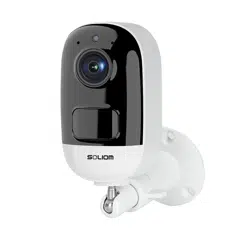
Outdoor Wireless Solar Camera
Model: S60
2 x Extra Machine
Screws
1 x Screwdriver
5
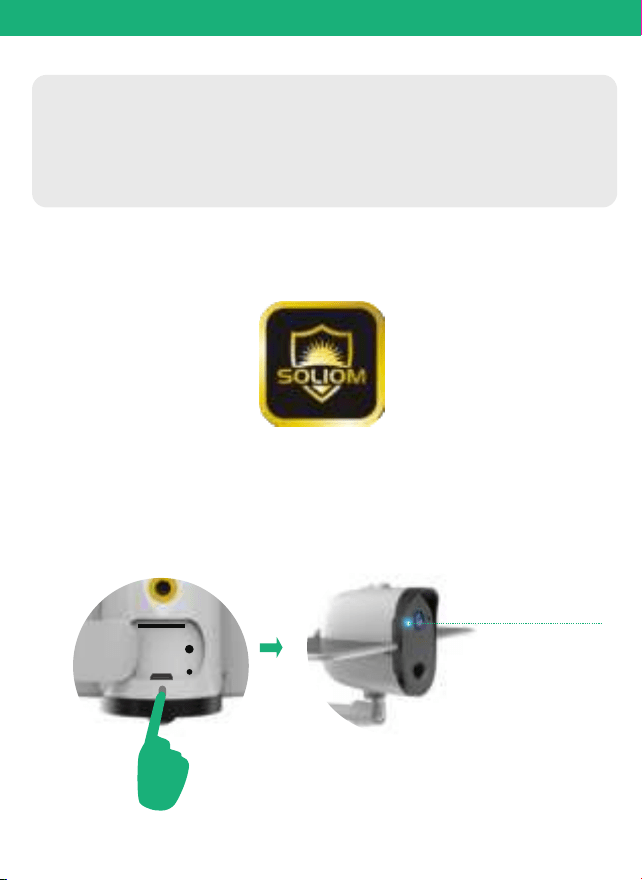
1. Download the App (works only with iOS & Android devices)
Please locate the“SOLIOM” in your Google Play store or
to download the soliom App.
App store
Press the power button to turn on the camera, after 3
seconds, LED flashes blue. Then you will hear the following
voice “The camera is now ready to begin pairing”.
In-App Setup
Make sure the distance between your phone,router
and the camera is no more than 1.5 feet when you're
ready to pair the camera.Ensure that the Wi-fi signal
strength on your phone is good.
2. Turn on the camera
Flashes blue
6
3. Pairing the camera with the App
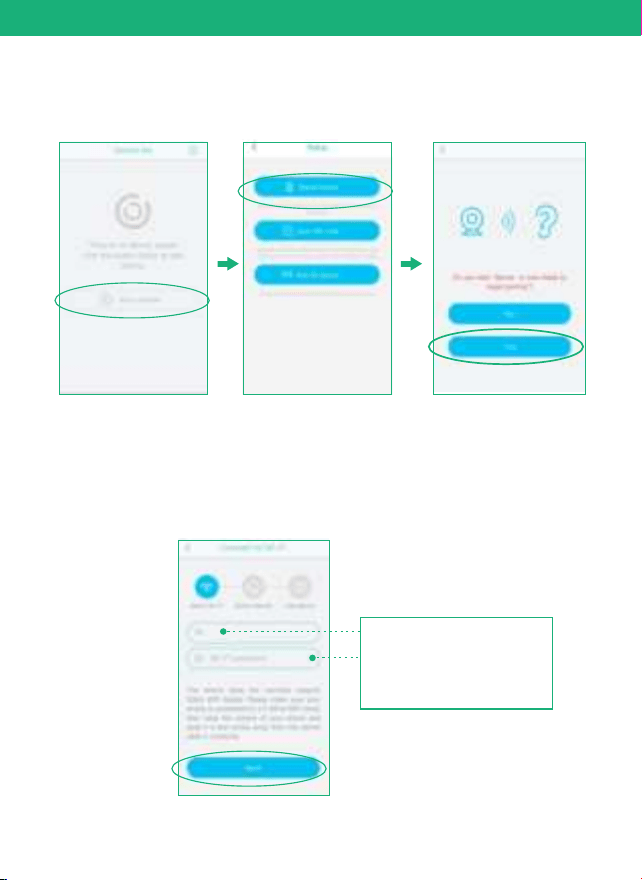
1) Click "Add a device" and then choose "Setup device",
click "Yes".
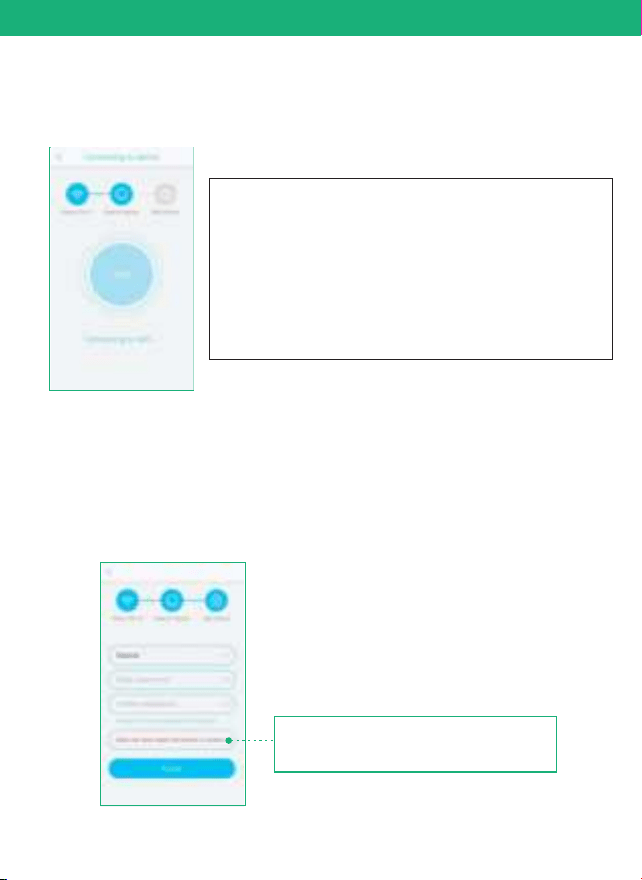
2)Input the CORRECT WiFi password of your router, if you input
a wrong password you will not be able to connect it successfully.
Click the eye icon to double confirm the password you entered
is correct
Your own wifi name
Click the icon to double
confirm the password you
entered is correct
In-App Setup
7
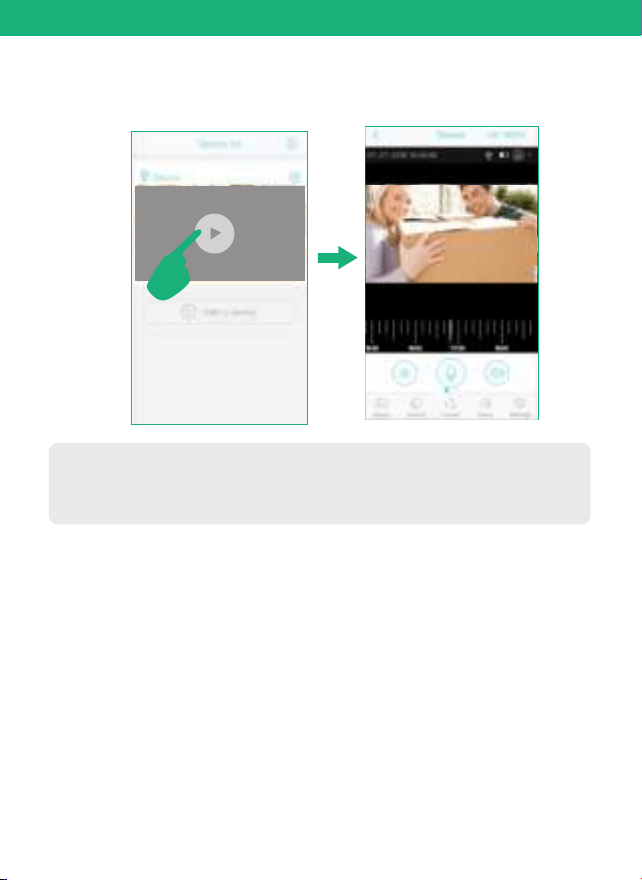
3)
Enter into the “search device” page, make sure to turn up
you phone’s volume to the Maximum, you will hear the
following : “Pairing Information Received”.
voice
4)
You have connected the device to the App successfully.
Now you can setup a password to log in, which could
protect your privacy.
The camera password should be
more than 8 characters in length including numbers
and letters.
In-App Setup
What should you do if you can not add the
camera to the APP successfully?
1. Please make sure the WiFi network working well.
2. Reset the camera by the pin included.
3. Turn up your phone’s volume to the Maximum.
4. Re-do the In-App setup as per user manual page 5 to 7.
5. Please double confirm that the wifi password is
correctly input.
Please choose " Non chinese
mainland users”
8
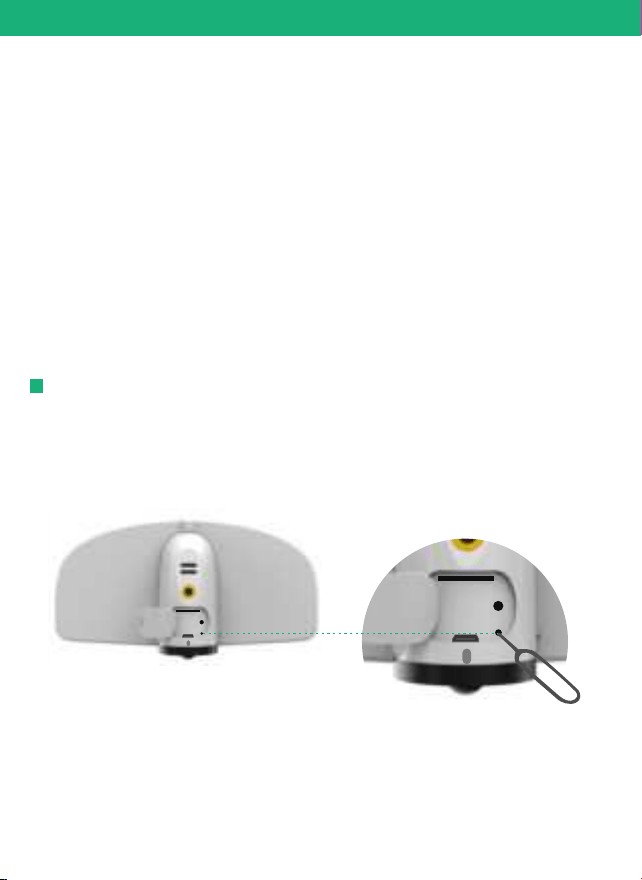
5)
Congratulations! Now you can live view the camera on
your phone anytime and anywhere.
In-App Setup
Please turn on Cloud storage to sync time of Soliom app with
your phone or tablet device.
Important:
In-App Setup
If you're unable to pair the camera,Please check below
suggestions:
1. Please reset the camera using the pin to reset the camera to
default after you fully charged the camera.
2. Please turn up your phone volume to the maximum,since the
camera pair through sound wave.
3. Please put the camera,phone as near as to your router (within
1.5 feet) to get a strong wifi signal strength.
4. Please click on the eye icon when you input your router wifi
password to make sure your wifi password is CORRECT.
9
Press and hold on the reset button with included reset pin for 4-5
seconds to reset the device.You need to release the button when
you hear the voice"Di", then you will hear "system reset". If you press
longer, the device will be turned off.
How to reset camera:
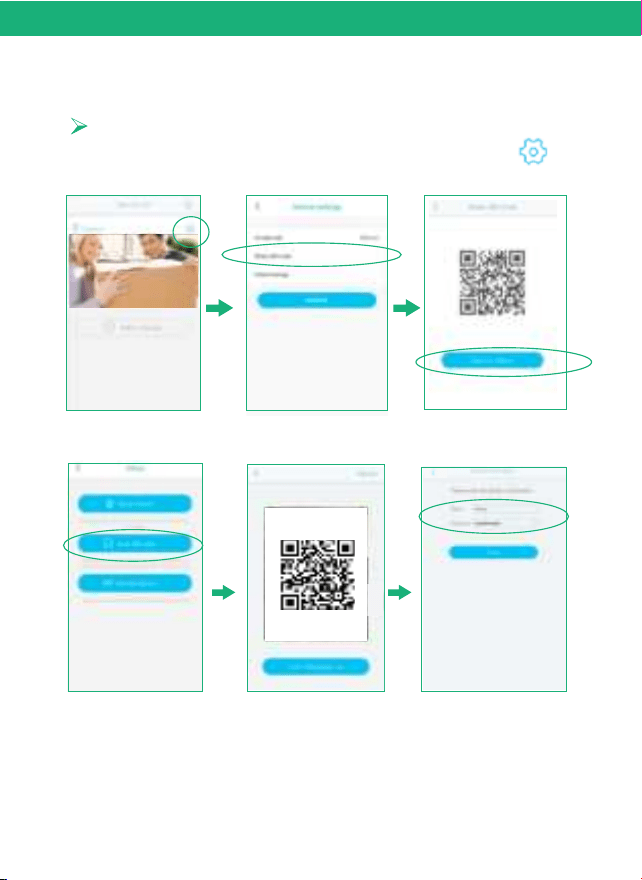
4. How to Share Your Camera And Password
with More Users
In-App Setup
Share QR code
10
Note:
1. Your camera password can be seen by the invited users,but
they can not modify it.
2. The invited users can change all the camera settings,so the
camera will work as per the last change made on the settings
among all users.
3. If your camera does not work as you set before,please check
the settings from the invited users’ device.
Other users need to download the App first, and then scan
the below QR code.
After you finish the connection with the App, click the
and choose “Share QR code” .
In-App Setup
11
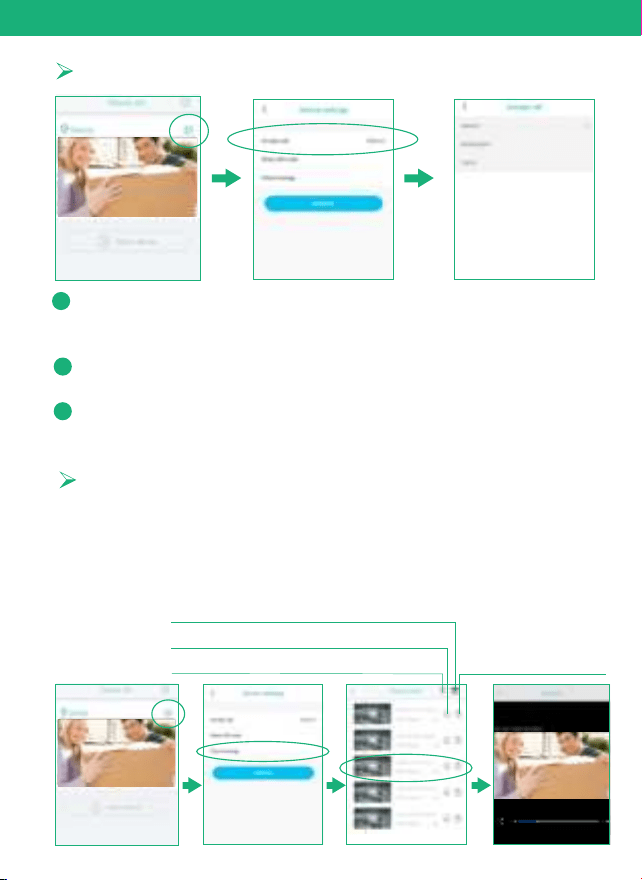
Push Mode
Silence: You could choose to mute all incoming
notification or call in, all motion triggered videos will
be saved properly to cloud storage or Micro sd card.
Notification: Camera will receive notification and
banner on your phone with a “Ding” sound.
Call in: Camera will receive call in sound and banners
the same time with a “ Dingdong” sound.
2
3
1
Cloud storage
You can play back all cloud vides here. Cloud video length
is 8 seconds defaulted and 20 video clips per day free of
charge. The oldest footages will be overwritten by the
newest one day by day.
Delete all Cloud videos
Check Calendar for video history
Download video to your phone
Delete current video
Camera
HD VIDEO
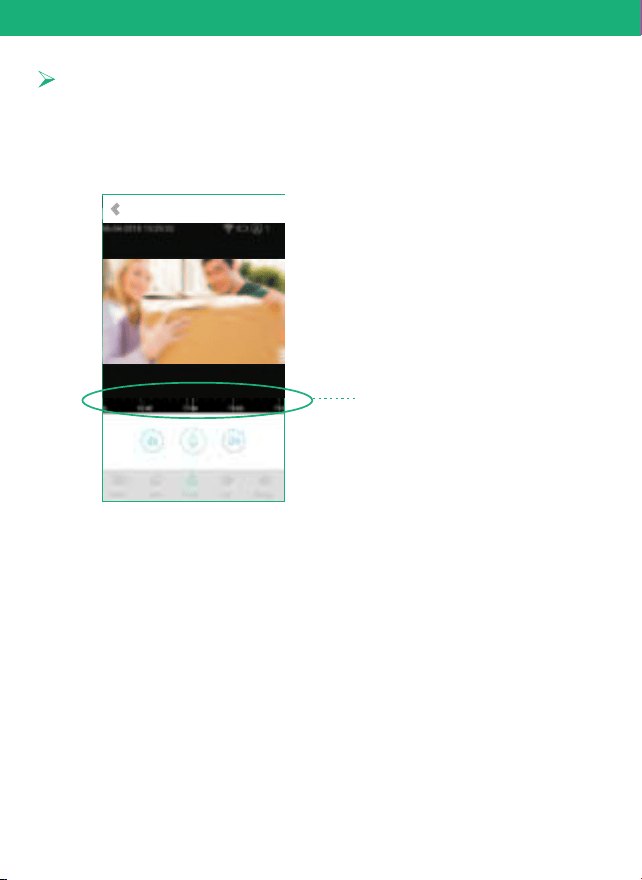
Zoom out to playback
In-App Setup
Please find the orange color for the video event and use two
fingers to zoom out the timeline and then put the line to the
head of the orange color and wait for the playback
Micro sd card Video playback
12
13
1
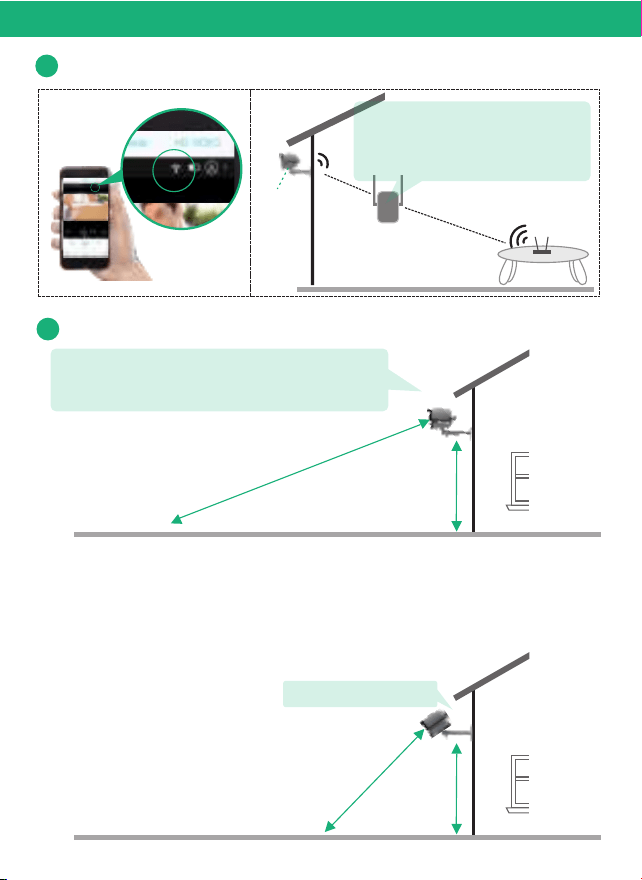
Check your camera signal strength
Camera
Check in App
WiFi extender
Router
Physical Installation
If not satisfied with video smoothness,
and signal strength in App is not strong,
we would suggest adding wifi extender
between the Router and the camera.
2
Recommended height to install the camera
We suggest installing the camera about 8ft.
You may adjust the height/camera angle
according to the live view in your mobile.
15 feet
8 feet
If your camera get numerous motion alerts unexpected
1) Please adjust your camera installation angle a bit down to
focus way short.
2) Please change your PIR sensitivity to Low to reduce the PIR
range.
P
IR Sensitivity ( High)
8 feet
8 feet
PIR Sensitivity ( Low)
Adjust camera angle
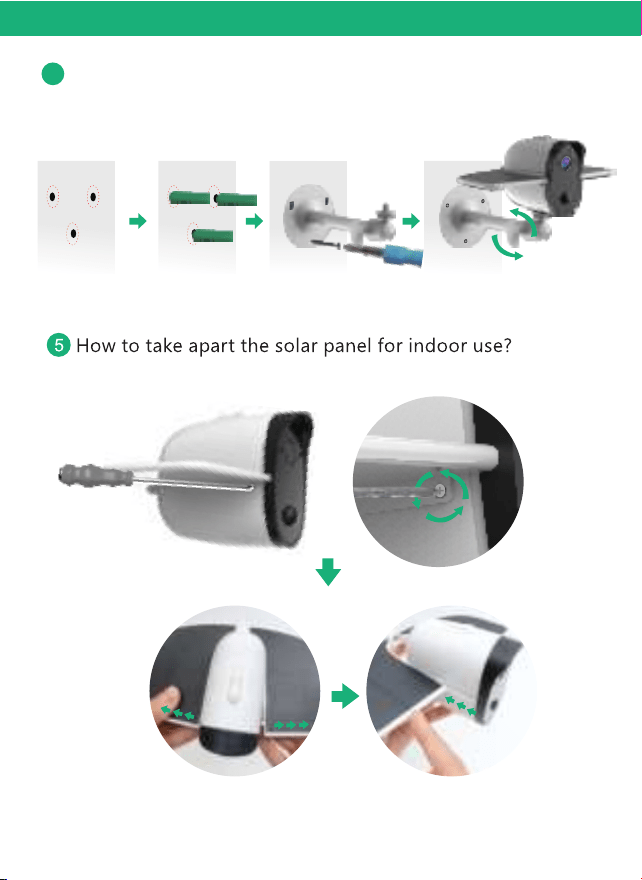
Adjust the bracket on the wall and then mark 3 holes for
mounting. Fix the bracket to the wall by expansion screws.
14
Physical Installation
4
Adjustable
(Option for indoor use)
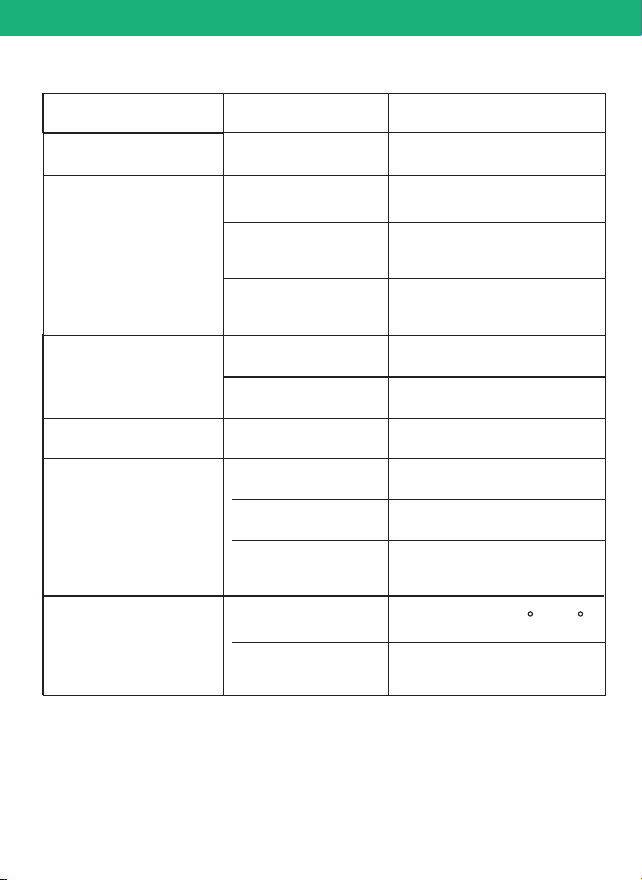
Resolution
Lens angle
Video format
Frames per
second
SD card
support
Output
Intput
Image Quality
Lens
Specifications
Video
Specifications
Audio
1080P
FOV 160°
15fps
H.264
8GB-Max 64GB
Built-in speaker
Built-in microphone
Technical Specifications
15
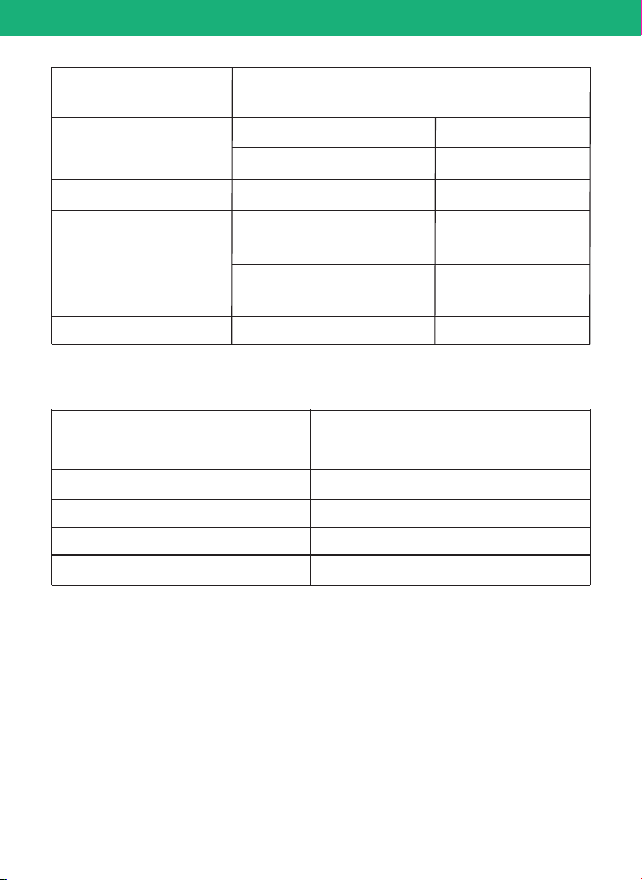
WiFi
Battery capacity
Standby time
Communications
Battery
2.4GHz
4000mAh
Max 6 months
Power
consumption
1.2W(run)/
0.012W (standby)
Applicable
Environment
Temperature
Humidity
-20℃~+60℃(-4 F-140 F)
20%~85%
(Non-condensing)
Physical Installation
16
Android 2.3 above/ iOS 7.0 above
System
Suppport
PIR
PIR angle
PIR range
110°
13ft-15ft
Night Vision
Range
Up to 32ft
Physical Installation
LED flashes green once and goes
Turn on the camera
off and LED flashes blue
Connect network successfully LED stays blue
PIR was triggered LED stays blue
Camera working
Standby mode LED goes off
LED Status
Working time for
fully charged
Max 12 hours
Max 8 hours
Continuously daytime
recording time
Continuously night vision
recording time
IP grade
IP66
Waterproof
LED stays blue
Camera
HD VIDEO
17
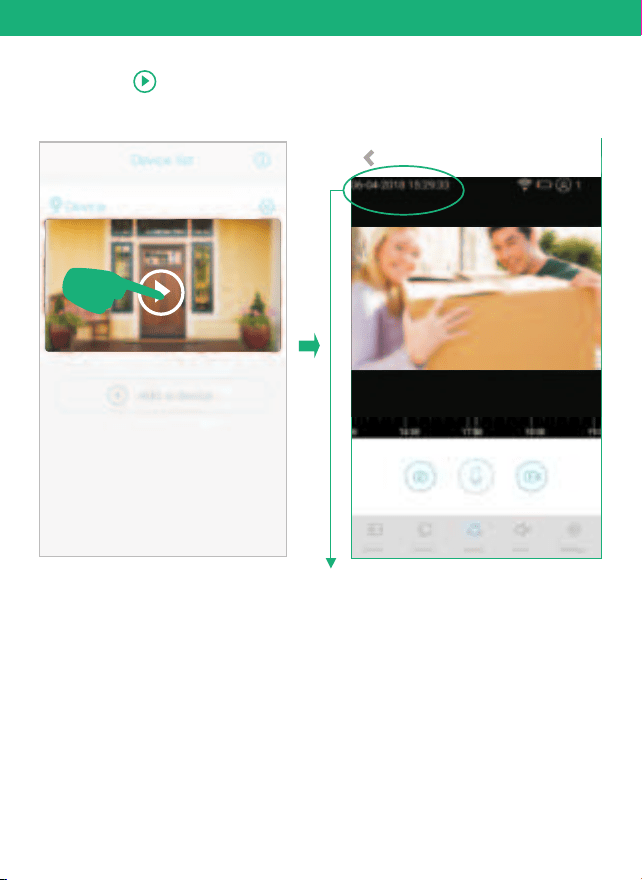
Click the , the camera will enter into to the standby mode
and now you can live view your camera.
Detailed App Instructions
Important:
Please turn on the cloud storage and sync
your camera time with your Phone's time.
Camera
18
Detailed App Instructions
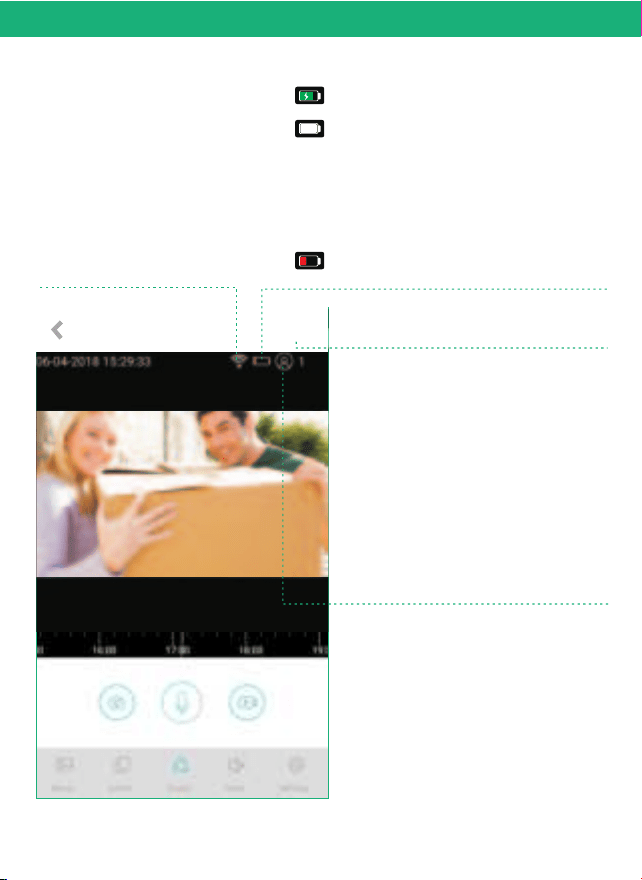
Wifi signal strength
Tips: Please make sure your camera
has a full bar of wifi strength to
ensure a smooth live view speed.
(A wifi extender is recommended
to install beside the camera if needed)
Battery charging sign
When camera exposed to sunlight,the battery will
keep charging in green.
During night or fully charged,the battery will
stay white.
Tips : If your battery sign will not show correct
status as above,please remove the solar panel
and then re install it to the camera body.Or
contact Soliom support team for a replacement
at care@soliom.net All friendly customer
service staffs are ready to assist you.
Click here to chose the resolution to HD
(1080P) OR SD(720P)
Number of users
Tips: If you have invited a second users to visit
your camera.Please pay attention to below
points:
1.Your camera password can be seen by the
invited users,but it can not be modified.
2.The invited users can change all the camera
settings,so the camera will work as per the
last change made on the settings among all
users.
3.If your camera does not work as you set
before,please check the settings from the
invited users' device.
HD VIDEO
Low power indicator,please recharge the camera
manually using the provided USB cable
Detailed App Instructions
Camera
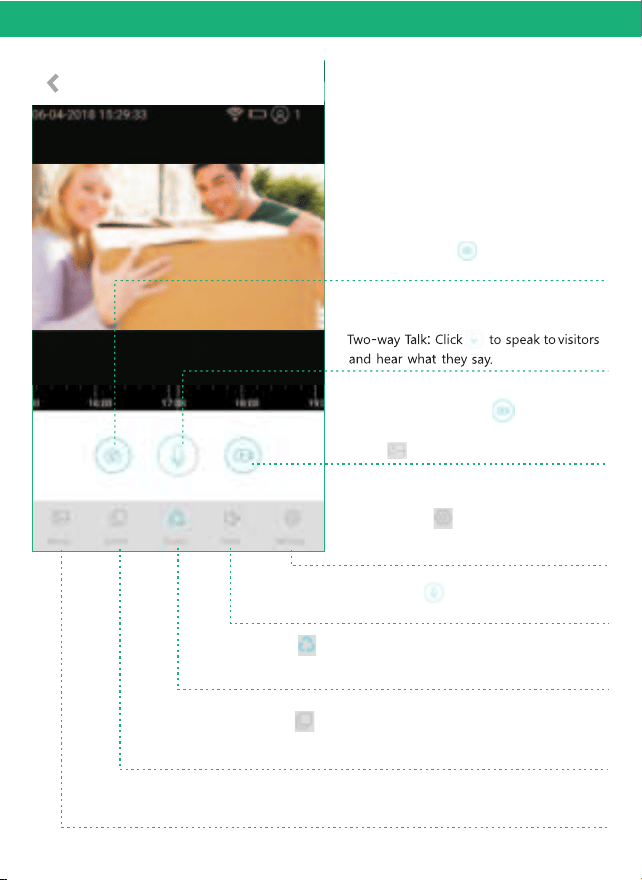
Screenshot: Click to screen capture
and pictures will be saved to the album.
Voice: Click to mute the sounds from
the camera.
Manual Recording: Click to manually
record and the videos will be saved to
Album
Album: View your screen shot pictures or manual record videos
here.
Switch: Click to switch screen to full or back to normal screen
Tips: If you turned on the Cloud storage,here is Cloud video button
instead.
Cruise: Click to live view the camera automatically by clicking
on Switch button or double click on screen to enlarge it to a full
screen mode .
Setting: Click to inter into device
settings. ( Check page 19 for more
details)
19
SD Card Setting
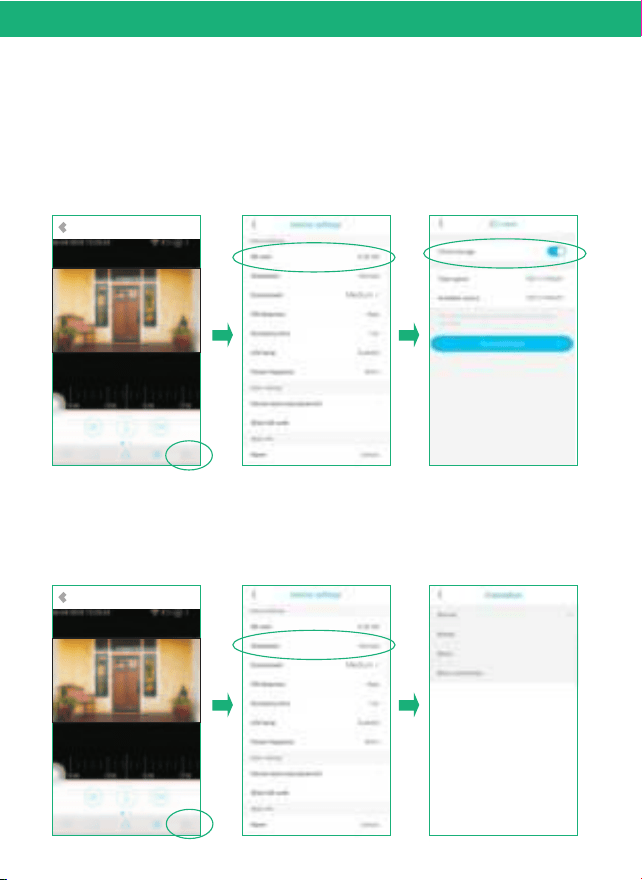
1) Please turn on the cloud storage so that you can sync the
camera time with your phone.
2) Please format the micro sd card after you installed it.The camera
doesn't support plug and play.So please make sure to power off
the camera and then install your card.
Camera
HD VIDEO
20
Detailed App Instructions
AlbumSwitchCruiseVoiceSettings
Orientation
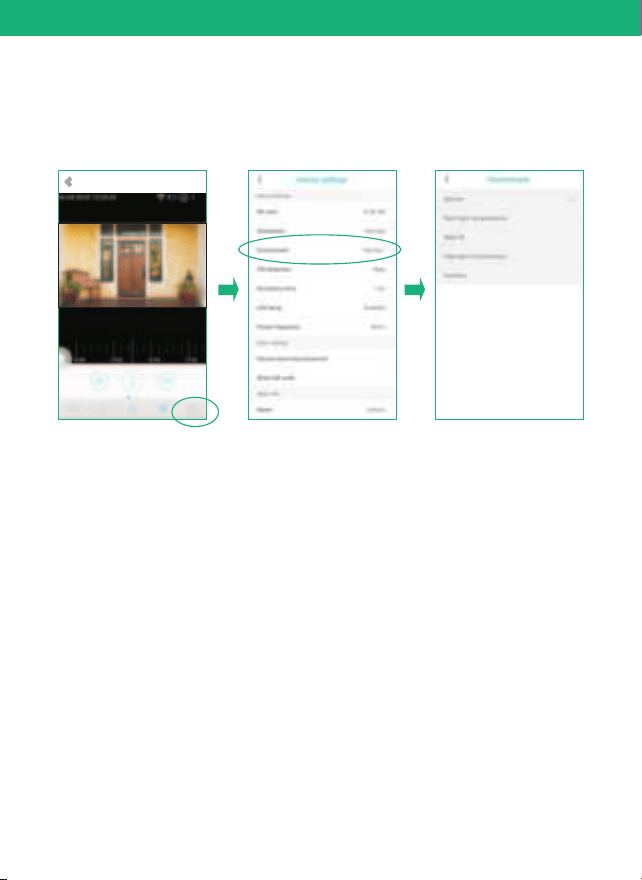
You can choose Normal Rotate,Mirror or Mirror and rotate
depends on your hardware installation way. The default is
Normal.
Camera
HD VIDEO
AlbumSwitchCruiseVoiceSettings
21
Detailed App Instructions
Environment
You can choose to set it as Normal, back light compensation,
night IR, High light compensation or Dynamic according to
your actual light environment of installation place.
Camera
HD VIDEO
AlbumSwitchCruiseVoiceSettings
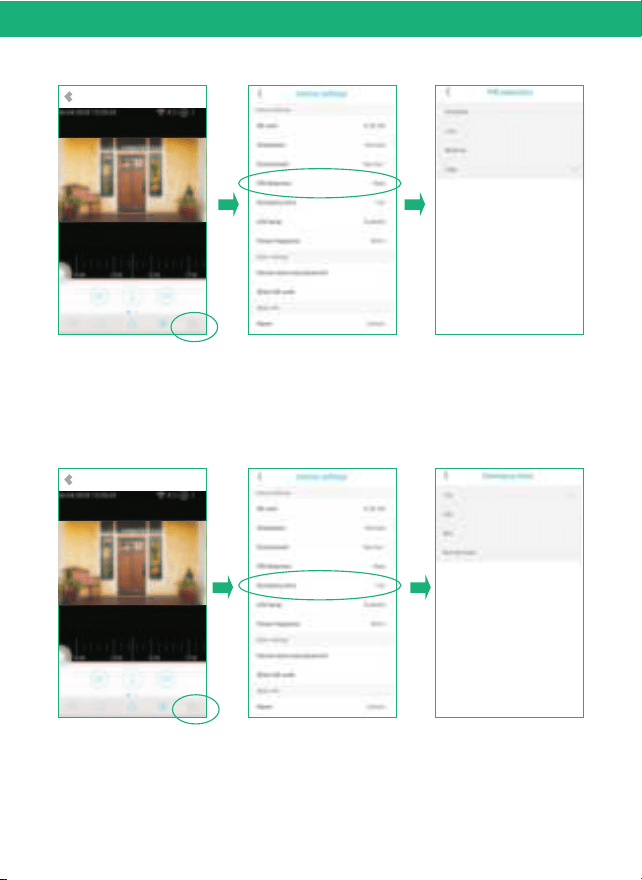
PIR Detection
You can set the PIR sensitivity as Disabled,Low,Medium
and High.
Tips:
1) When you set the PIR as Disabled,you will not record
and receive any motion triggered events.
2) It is recommended to set the PIR Detection to High so
that you could capture as more as a motion triggered
from the beginning part of the event.
3) Try to capture more the beginning of the triggered
event,please adjust your camera angle a bit closer to your
aimed spot(Check page 13 diagram).
Detailed App Instructions
Camera
HD VIDEO
AlbumSwitchCruiseVoiceSettings
Dormancy Time
Tips:
This is the time you could set for the video length recorded to
micro sd card.
Camera
HD VIDEO
AlbumSwitchCruiseVoiceSettings
22
23
Detailed App Instructions
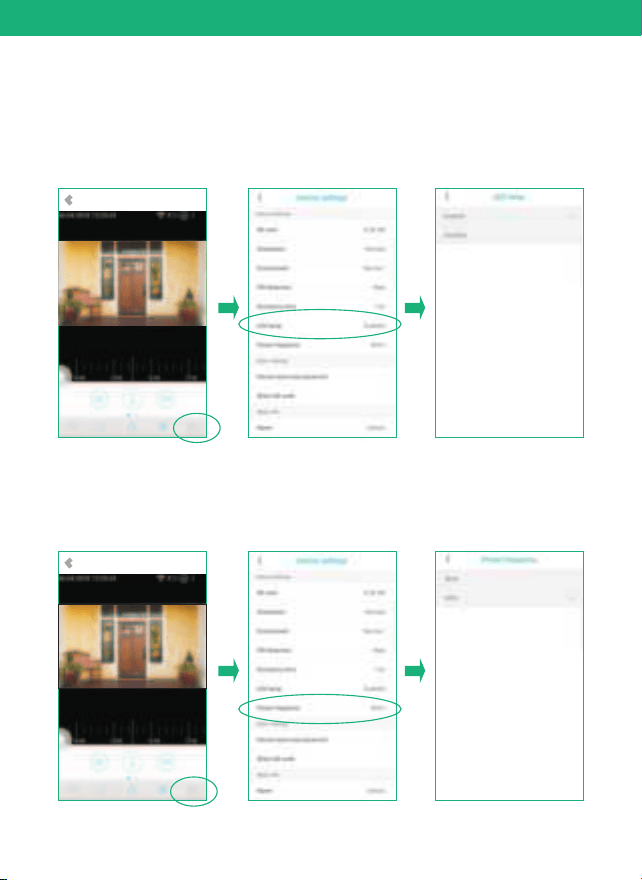
Power frequency
Please choose 60 or 50HZ according to your local frequency,
It's defaulted to 60HZ for united states users.
LED mode
When you choose Enable,the Blue LED will light up to indicate
when you operate the camera as it should be.When you choose
Disabled,the Blue LED will not light up to indicate the operations
or trigger motions.It is recommended to set it as the default
Camera
HD VIDEO
AlbumSwitchCruiseVoiceSettings
Camera
HD VIDEO
AlbumSwitchCruiseVoiceSettings
24
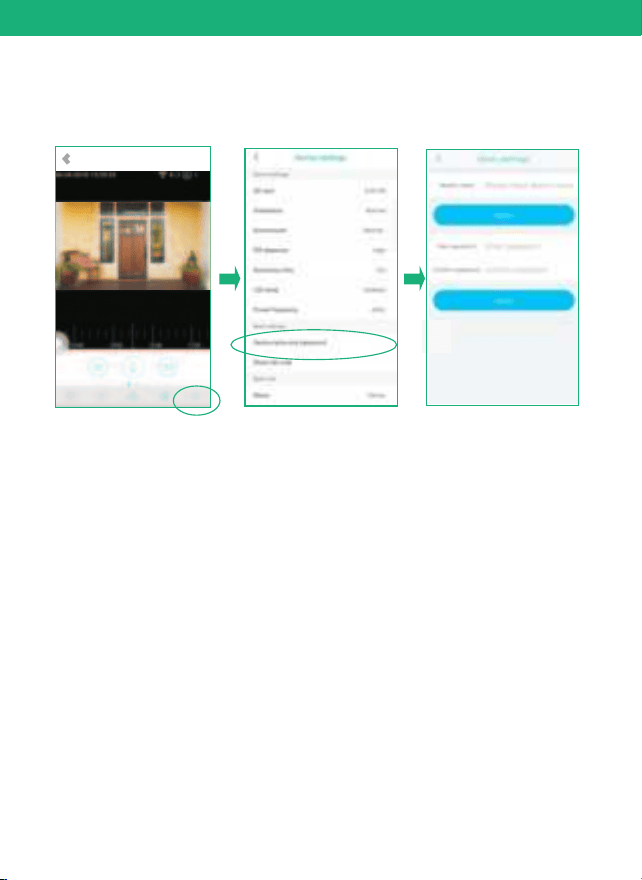
Device Name and Password:
You can set a desired name for your camera and reset the
password to protect it.
Detailed App Instructions
Camera
HD VIDEO
AlbumSwitchCruiseVoiceSettings

25
Q2: When In-App setup is done, why I could not see the
live streams on my mobile?
A: First, check in App to confirm the wifi signal is strong
enough. If not,we would suggest adding wifi extender in
between.
FAQs
Q1: Why do I fail to connect the camera to the App by
sound wave?
A: 1. Please reset the camera by the pin included.
2. Please make sure the camera is powered on and
there will be voice prompts that indicates it.
3. Make sure the distance between your mobile phone
and the device is no more than 30cm. And your mobile,
camera and router are in the same room.
4. Adjust your phone volume to maximum.
5. Double check your WiFi password and make sure it is
correct.
Q3: Why I cannot receive any alarm after I finished connecting
the camera with the App ?
A:1. Click the in App to confirm you have chose ''Notification''
under the ''Push mode''.
2. Check your mobile settings to allow the notification.
Detailed App Instructions