
Thanks for your shopping and trust.
We have been optimizing our products and improve our lifetime
customer service to offer you a better shopping experience.
If you have any problems, please feel free to send us an E-mail.
We will solve your problems within 24 hours. In addition, your
advice or suggestions will be much appreciated and welcomed.
Product Service
Email: [email protected]
Distributor: [email protected]
More About Us
Web: www.zumimall.com
Facebook: www.facebook.com/zumimalloffice
Amazon Store: www.amazon.com/zumimall
Warranty Service

Brand Story
Founded in 2008, Zumimall focuses on the design and
research of intelligent security technology. Zumimall insists on
taking consumer needs as its core and strives to create smart
home products that lead a global home fashion trend for
consumers. Zumimall and technology changes life. With
high-quality products and first-class service, Zumimall won the
love and trust of millions of customers as soon as it went public.
Over the years, Zumimall has served 45 continents of America,
covering 80% of the population. Zumimall is the provider of a
smart lifestyle and a guardian of the wonderful moments of
your life.

1. What’s in the Box ---------------------------------- P1
2. Product Diagram --------------------------------- P2
3. Download and Install App -------------------------- P3
4. Account Registration ------------------------------ P4
5. Add Camera to App ------------------------------ P4
5.1 Preparations for Connection ---------------------- P4
5.2 Connect Camera to App ------------------------ P5
6. Camera Installation ------------------------------- P7
7. Important Notes-----------------------------------P7
8. Monitoring Area -----------------------------------P8
9. Device Menu ------------------------------------- P9
10. PIR Body Detection -------------------------------- P10
10.1 Body Detection Alarm Setting --------------------- P10
10.2 Alarm Notifications -----------------------------P10
10.3 Record/Playback/Delete ------------------------ P11
11. Two-Way Audio -----------------------------------P11
12. Power Saving Settings ------------------------------P12
12.1 Alarm Interval & Shooting Interval ------------------ P12
12.2 Maximum Shooting Time & Recording Time --------- P12
12.3 Alarm Plan ------------------------------------P13
INDEX PAGE

INDEX PAGE
13. Solar Panel -------------------------------------- P14
14. Battery Management ----------------------------- P16
15. Multi Device Management ------------------------- P16
15.1 Multi Camera Management ---------------------- P16
15.2 Multi-User Sharing ----------------------------- P17
16. Reset Camera----------------------------------- P19
17. ZUMIMALL FAQ ----------------------------------- P20
1
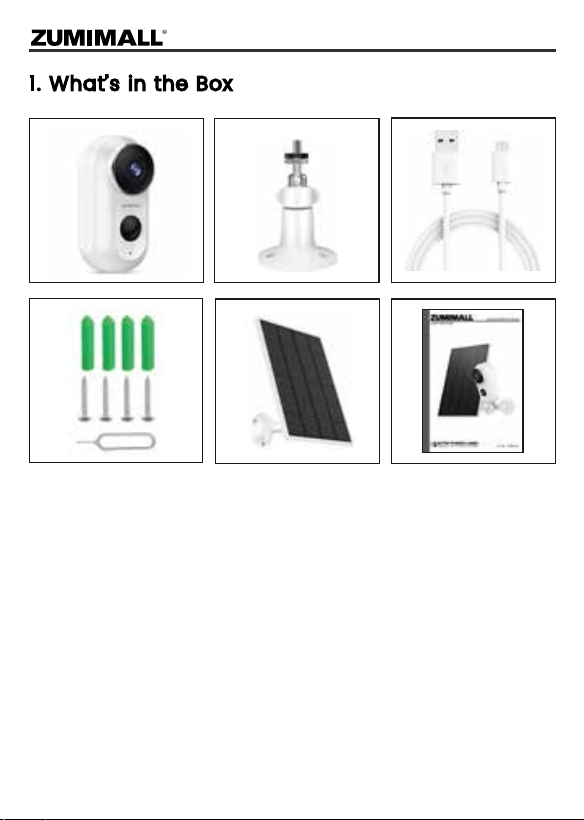
1. What’s in the Box
NOTE: Micro SD card and power adapter are not included.
ZUMIMALL Battery Camera
Outdoor Metal Mount
Quick User Guide
Solar Panel
Screws Set
USB Cable

2
2. Product Diagram
Camera Lens
PIR Sensor
LED Indicator
IR Lamp
Microphone
Speaker
SD Card Slot
USB Port
Reset Hole
Power Button
1
2
3
4
7
8
10
11
5
6
1
2
3
6
9
11
4
5
Power Button
Reset Button
Blink Slowly in Red
Blink Fast in Red
Solid in Red
Solid in Blue
Blink Slowly in Blue
Keep pressing for 5-10 seconds to power on/power off
Keep pressing for 5-10 seconds to reset
Awaiting Wi-Fi connection, ready for adding devices
Wi-Fi connecting
Network problem
Wi-Fi connected, camera running normally
Firmware update
7
8
10
9
Charging Status
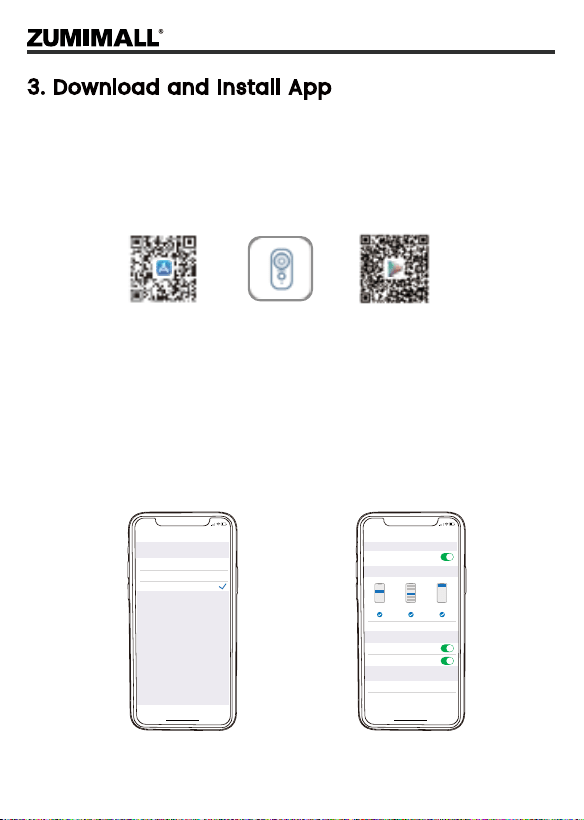
Download ZUMIMALL App from Google Play™ or App Store™.
Or scan the QR codes as below, with your smart phone.
NOTE: Google Play™ is a trademark of Google Inc.
App Store™ is a service mark of Apple Inc.
NOTE: Please turn on both of the following permissions.
① Allow ZUMIMALL App to access mobile cellular data and
wireless LAN,otherwise it will fail to connect the camera.
② Allow ZUMIMALL App to receive pushed messages, otherwise,
the phone willnot receive alarms when motion is detected.
3. Download and Install App
ZUMIMALL
AndroidiOS
>
>
<
Notifications
ZUMIMALL
ALERTS
Allow Notifications
9:41
Lock Screen
Banner Style
Sounds
Badges
OPTIONS
When Unlocked(Default)
Show Previews
Temporary
>
>
Automatic
Notification Grouping
>
NotificationCenter Banners
5:51
<
ZUMIMALL
Wireless Data
ALLOW”WIRELESS DATA”TO USE DATA
Off
WLAN
WLAN & Cellular Data
5:51
3

4. Account Registration
New user needs to sign up ZUMIMALL App with email address.
Click 'Sign up' to create a New Account and follow the steps to
complete registration.
5. Add Camera to App
5.1 Preparations for connection
① Insert a Micro SD Card into the camera to save video clips or
you can start the 7-day free cloud service. Without Micro SD Card o
r cloud service, no videowill be saved.
② The camera only works with 2.4GHz Wi-Fi, not support 5GHz.
③ When connecting to the network, please take the camera close to
the router.
(Recommended within 10-15ft).
Step 1
Step 3
Step 2
5:51
Log in
Forgot password?Remember password
Welcome
United States
Account
Passward
No account yet? Sign up now
5:51
<
Account
Nickname
Password
Password: 8-16 digits, including two types of
numbers,upper or lower case letters and
characters at least
Sign Up
Done
5:51
<
Registration means agreement with the user
agreement and privacy agreement.
Sign Up
United States
Email
Next
4

5.2 Connect Camera to App
Tap 'Add Device'
Reset the Camera Input Wi-Fi Password Prepare the Scanning
Select 'Battery Camera' Turn on the Camera
Home
Homepage Messages Search
5:48
All Devices
Me
Living room Bedroom
Add Device
Quick Guide
5:48
Battery
Camera
Smart
Doorbell
Battery Camera
Power Plug
Camera
Baby
Camera
Floodlight
Camera
Doorbell
Kits
Select Device
5:49
Add Battery Camera
Press the [battery camera] button to
wake the device if it is asleep.
Hold the device power button to start
the device.
<
Please stay near to your router for the
best signal.
Next
Hold the RESET button on your device for
4-5 seconds(please refer to the user
manual for more on this).
Wait for a flashing RED indicator light.
Tap Next
5:49
Add Battery Camera
Please reset the device.
<
Next
5:50
Wi-Fi Setup
SELECT A 2.4GHZ WIFI NETWORK AND
ENTER Your Password
The Device Does Not Work with 5G Wifi NetWorks
Common Router Setup Methods
Junan
cam2019@
<
Next
Please remove all film from the lens.Tap
Next to show a QR code, and let your
device scan the code. Keep your phone
5-8 inches from the lens.
5:50
Operation Instructions
<
15-25cm
5-8 in
Next
5
6
5:50
Scan QR Code
<
Scan the QR code below with the device
at a distance of 5-8 inches. A tone will be
heard when successfully scanned.
Next
Help
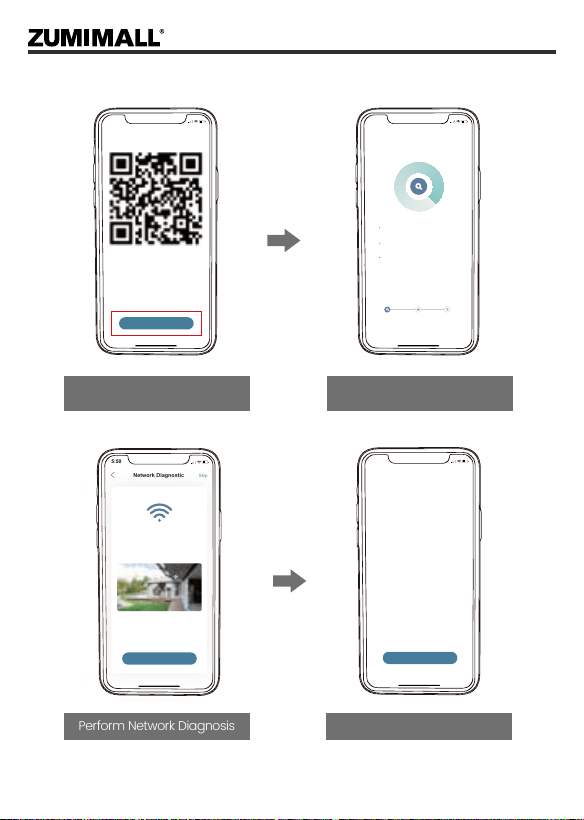
Scan QR Code when Indicator
Flashing Slowly in Red
Finished Installation
When Reaches 100%
5:50
Connect Network
<
Make sure the device in an
energized state
02:06
Make sure the device is connected to
the router
Make sure the device and the phone are
on the same network
Search device
Register to the cloud Device
initialization
Perform Network Diagnosis View Installation Tips
5:50
Network Diagnostic
Skip
<
WIFI signal strength
High
Current Place is good, you can install
the camera.
02-15-2022 11:08:17 AM
6KB/s
Next
5:50
How to install camera
Install tips:
<
1.Please use outdoor mounting bracket if you
want to install camera outside.
2.It is recommended to install the camera at a
height of 2-3 meters.
3.Avoid direct sunlight to the camera lens.
4.Avoid placing the camera lens against the
wall and glass at close range.
Done
7
7. Important Notes
To reduce false alarms, please note that:
Do not install the camera in a position facing strong lights/
mirror/window/swimming pool.
Do not place the camera too close to any angle with busy
traffic.
Recommended distance between the camera and motion
objects is within 32ft.
Keep camera away from the outlets, including air conditioner
vents, humidifier outlets, the heat transfer vents of the
projectors, etc.
Keep the camera at least 1 meter away from
any wireless devices to avoid interference, such as microwave
stoves, Wi-Fi routers and etc.
6. Camera Installation
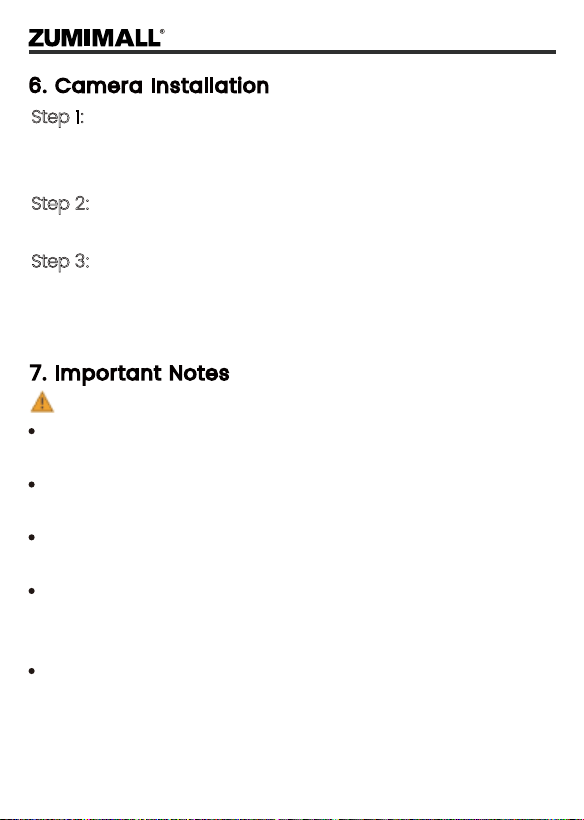
Step 1:
Fix the bracket to where you want to install the camera with
the supplied screw.
Step 2:
Fasten the camera on the metal mount, and fix them.
Step 3:
Adjust the viewing angle of the camera.
8
8. Monitoring Area
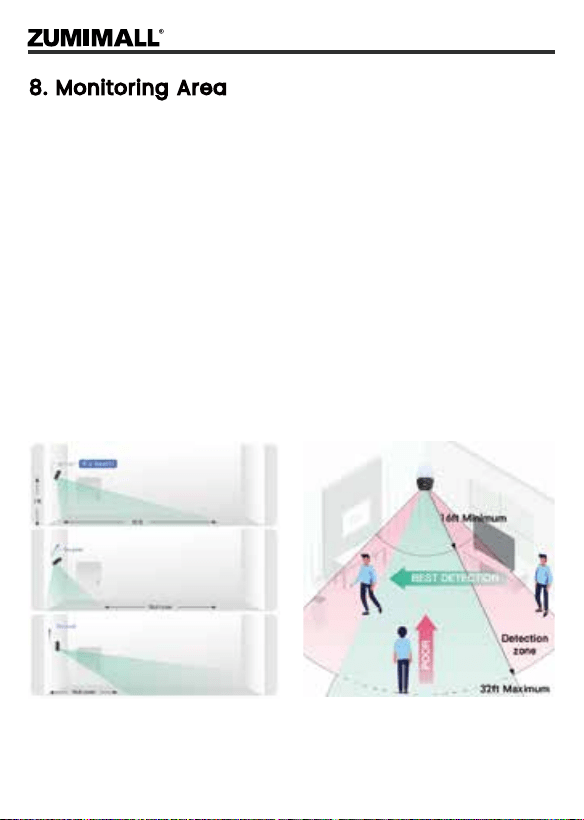
It is not suggested to install the camera vertically towards the
moving objects, otherwise, it may not detect the motion
events or cause delay.
It is suggested to make the angle between PIR Sensor and
detected objects more than10 degrees.
The Camera motion sensor is much more sensitive to
side-to-side movement across its field of view than to
movement directly toward or away from the camera.

9
9. Device Menu
5:51
060238708
Bit Rate:10.74KB/s WiFi:97%
2020-10-08 15:30:10
HD
Live
Screenshot
Motion Detection
Intercom Record
History Cloud
<
5:51
060238708
2020-9-14 15:30:10
Live
Screenshot
Alert
Record
History Cloud
<
Calendar
14:00 15:00 16:00
1
2
3
4
5
6
7
8
9
10
11
12
13
14
15
16
17
18
19
20
21
22
23
24
25
26
27
28
Add Camera
Device List
Real Time
Live View Button
Camera Name
Settings
Device Homepage
Messages
Explore
Personal Homepage
Quit Live Viewing
Setting Manual
Battery Status
HD/SD Switch
Volume On/Off
Full Screen
View Live
Screenshot Button
Body Detection On/Off
Notification History
Cloud Storage
Record to Phone
Two-Way Talk
Album
Siren
Zoom
Time Bar
Date of History Record
Album
Siren
Album
5:51
+
Home
Homepage Messages Search
All Devices
Me
Living room Bedroom
02-16-2022 01:56:08 PM
064958492
3
5
8
7
1
2
4
6
9
10
11
15
17
18
19
12
13
14
16
20
21
22
23
24
25
26
27
28

10
10. PIR Body Detection
10.1 Body Detection Alarm Setting
10.2 Alarm Notification
PIR 'Motion Detection' defaults to be 'High' level. But it is adjustable.
Please refer to the pictures below.
This camera does not support 7*24 hours all day recording, it is
an event recording camera. It is only triggered when motion is
detected. Here are system’s reactions:
10.2.1 Alarm notifications with sounds from App.
10.2.2 Pics/videos automatically stored in Micro SD Card or Cloud.
NOTE: The higher the sensitivity is, the longer distance the PIR
can detect. Accordingly, the battery will drain faster.
Tap on '...'
Set it up
Select 'Alarm Management'
5:51
060238708
Bit Rate:10.74KB/s WiFi:97%
2020-10-08 15:30:10
HD
Live
Screenshot
Motion Detection
Record
History Cloud
<
Intercom
Siren Album
5:51
060238708
<
Network Indicator
Time Setting
Image Setting
Sound Setting
Alarm Management
Cloud Storage Service
Contact us
Checking for a New Version
Restart Device
Battery Management
Recording Management
Delete the Device
5:51
Alarm Management
<
After turning it on, you can monitor the human
behavior who stands in front of the device and send
alarms. It is possible to choose different detection
sensitivities.
Detection sensitivity is supported to select from 1
to 10. Higher the value, easier to tigger the motion
detection and alaem.
Select The Working Mode of The Current Camera
Deteciton Sensitivity
1 2 3 4 5 6 7 8 9 10
Set the time period of the alarm, the device only
triggers an alarm event during this time period.
Audio warning and strobe light is only valid at night
Custom Mode
Alarm Working Mode
Alert Plan
Alarm Area
Audio warning and strobe light
Sensitivity
LOW: 1-3
MID: 4-7
HIGH: 8-10
Detecting Distance (For moving and living objects)
13-16ft(4-5meters)
16-23ft(5-8meters)
23-42ft(8-13meters)

11
11. Two - Way Audio
Go to the live view page
Step 1: Activate the audio option.
Step 2: Press and hold the intercom button
to speak.
Step 3: Release the button to listen.
10.3 Record/Playback/Delete
10.3.1 On 'MESSAGES' page, click 'Alarm Messages', you can view
all the records listed.
10.3.2 Click the following buttons to playback or delete.
10.3.3 All screenshots or manually recorded videos on live/
history/cloud page will be saved in Pictures & Videos. Files here
can be saved in your phone album or shared with others directly.
Click to Delete
History
5:51
060238708
Motion Detection
2020-10-12 15:30:10
Motion Detection
2020-10-12
10:32:12
2020-10-12 15:30:10
<
2020-10-12 10:32:12
Noise Detection
92db
2020-10-12
10:32:09
2020-10-12 10:32:09
Noise Detection
75db
2020-10-12
08:53:53
2020-10-12 08:53:53
Noise Detection
73db
2020-10-12
2020-10-12 08:53:53
Click to Preview
the Snapshot
Click to Playback
Alarm Video
5:51
Devices
+
060238708
2020-10-08 14:50:10
HD
Homepage Messages Search Me
Message-->
Alarm Message
5:51
060238708
Bit Rate:10.74KB/s WiFi:97%
2020-10-08 15:30:10
HD
Live
Screenshot
Motion Detection
Intercom Record
History Cloud
<
Hold to Talk
Siren
Album
12
12. Power Saving Settings
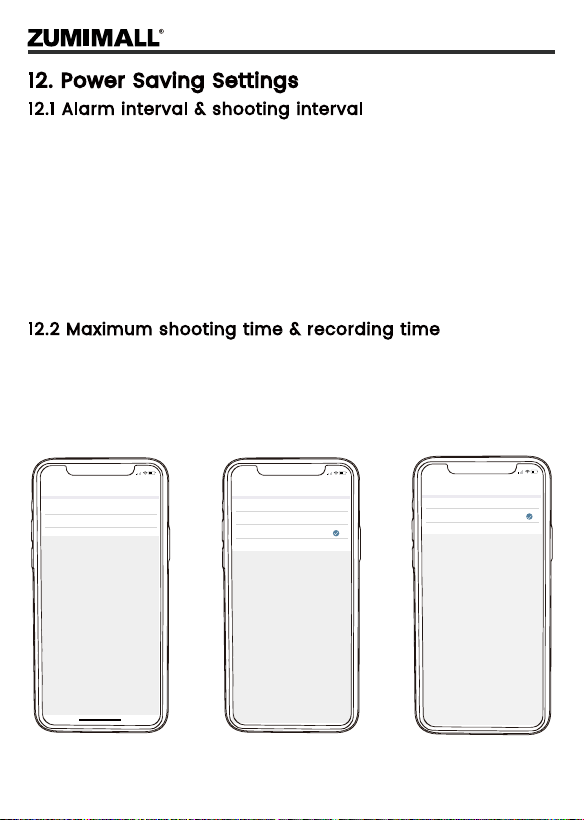
This is a function that avoids repeated alarms for the same
event. You can choose an alarm interval of different lengths, if
the interval is 5 minutes, then the camera is triggered at 08:00,
you will receive an alarm message, and you will not receive a
new alarm push in the next 5 minutes, even if motion detection
continues to occur.
NOTE: This function is off by default, you can set it as needed.
You can choose a different recording length if you set the
recording length to 20 seconds, then after the camera is
triggered, you can view the 20 seconds of alarm video in the
history of cloud playback.
12.2 Maximum shooting time & recording time
12.1 Alarm interval & shooting interval
<
Power saving settings
Shooting interval 5 minutes >
Maximum shooting time 20 minutes >
5:51
<
Shooting interval
Off
2 minuters
5:51
5 minuters
10 minuters
<
Maximum shooting time
10 seconds
5:51
20 seconds
30 seconds
The shorter the maximum shooting time setting, the lower
the power consumption.

13
You can set the weekly/daily alarm schedule as you need. If you
set the camera's working hours from 8:00 p.m. to 8:00 a.m.,
please set 20:00-8:00 a.m. The camera will only be triggered
and record alarm video during this time period.
NOTE: Alarm schedule can be set for up to 4 time periods.
5:50
Motion Detection
Medium
After enabling detection, the camera can detect motion
and sound around the canera and can select different
detection sensitivity accouding to different requirements.
Motion Detection
High
Low
<
Day Detection
The Alert will be triggerd only when
human motion is detected.
Night Detection
Alert Plan
Set the time period of the alarm, the device only triggers
an alarm event during this time period.
>
Off
2 minuters
5 minuters
10 minuters
Alarm Interval
Thu
<
Set the Time Period
5:51
Set the time period of the alarm, the device only trigger an
alarm event during this time period.
Start Time 00:00
>
End Time 00:00
>
Select Day
Mon
Tue
Wed
Fri
Sat
Sun
<
Time Period Setting
20:00~08:00
5:51
Select the alarm period to be turned on
Mon
Tue
Add Time Period
12.3 Alarm Plan

14
Please find a place which has sunlight for most of a day and
adjust the angle to make sure maximum exposure.
The solar panel needs few hours of direct sunlight to convert
solar energy into electricity. The conversion efficiency is affected
by weather conditions, seasonal changes, geographic locations,
etc.
The Southern
Hemisphere
The Ideal Angle=
The Local Latitude ± 5°
The Northern
Hemisphere
13. Solar Panel
Step 1:

15
Mount the bracket with the mounting
template andtjust the screws provided
in the package.
Step 2:
Step 3:
Step 4:
Step 5:
Slot the solar panel into the bracket
and make sure it's secure.
Loosen the adjusting control on the
bracket, adjust the solar panel's angle
to make it receive direct sunlight, and
then retighten the adjusting.
Connect the solar panel to the camera with the micro USB cable.
NOTE:
1. Make sure that there is NO blocking on the solar panel. The
energy harvesting effciency drops drastically even when a small
portion of the solar panel is blocked.
2. Please don't install the solar panel completely horizontally.
Otherwise, your solar panel might accumulate dust and other
debris easily. It's advised to install the solar panel angularly to
make it receive direct sunlight.
3. Wipe the solar panel regularly to remove the dust or debris.
360°

16
2. When power is less than 20%, the App will send you reminding
messages for charging in time.
14. Battery Management
15.Multi Device Management
1. The camera has a built-in high-capacity battery, which can
be used for 2-3 months, assuming the camera wakes up 15
times per day and plays video for 10 minutes each day.
3. Charge the camera with DC 5V 2A charger, until it is fully
charged after 5-8 hours.
NOTE: The battery durability depends on how frequently the
camera is woken up. The more it wakes up, the faster the battery
drains. It is recommended to lower down the 'Motion Detection'
sensitivity or turn it off occasionally.
5:51
Devices
+
060238708
2020-10-08 14:50:10
2020-10-08 15:20:10
060552692
Homepage Messages Search Me
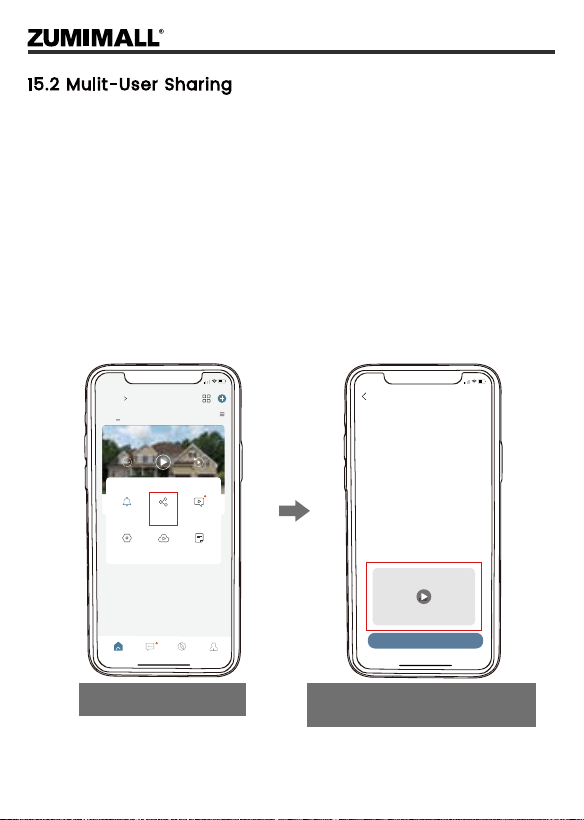
Click '+' to add more devices.
5:48
060238708
<
15.1 Multi Camera Management
17
NOTE: One App account can’t log in on multiple devices at the
same time. One camera can’t be connected to multiple devices
either. But camera can be shared from A to B.
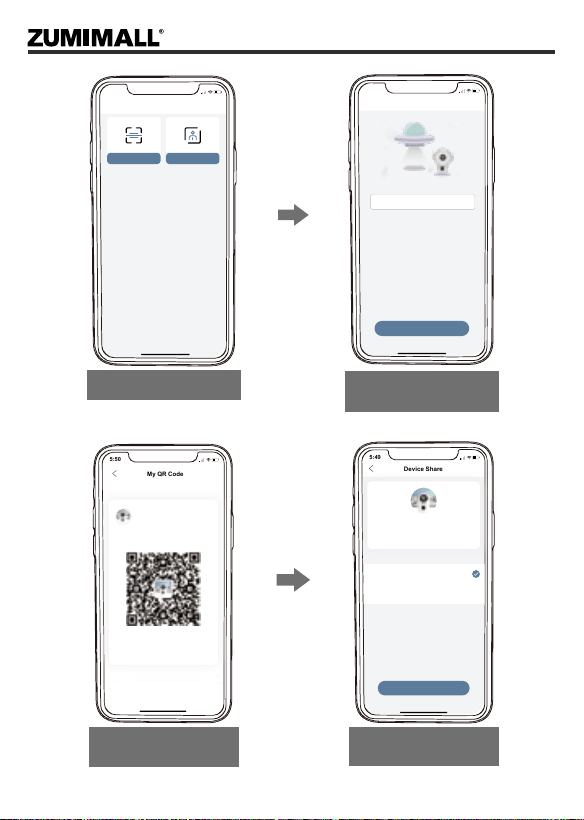
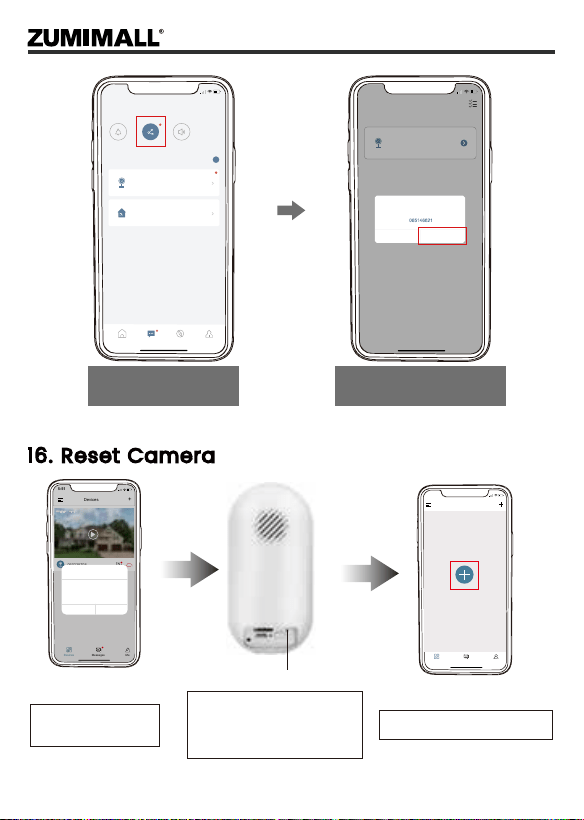
Step 1: B download ZUMIMALL App to his/her phone and create a
new account in the App.
Step 2: Click 'Add' in App on A’s phone.
Step 3: A scan B’s QR Code or input B’s account ID.
Step 4: B accept share and refresh the device page.
15.2 Mulit-User Sharing
5:48
The device has not been shared with anyone.
Select Device
How do you
share your camera with others?
Add
5:51
+
Home
Homepage Messages Search
All Devices
Me
Living room Bedroom
02-16-2022 01:56:08 PM
064958492
064958492
Notification Device
Share
Cloud
storage ex...
Settings
Alarm
Messages
Help &
Feedback
Click Device Share
Watch the instructional video
and click Add
18
5:49
Device Share
<
No contact
Recent Contacts
Scan QR Code Enter account
5:49
Enter account
<
Search
Please enter the other party’s account
Two ways to share
Scan other people's
QR code
5:50
My QR Code
<
Name
Scan the QR Code to share the camera
with me.
5:49
Device Share
<
Share
Name
Viewable only
Allow sharing camera “065146821”
Device usage permissions
Browsable devices, uncontrollable devices
Allow control
Can browse equipment information and contro; equipment
Enter other people's
account
Select device sharing
permission
19
16. Reset Camera
5:51
Devices
+
Devices Messages Me
060238708
2020-10-08 14:50:10
Tips
Are you sure you would like to
delete this device?
Cancel OK
5:48
Devices
Devices Messages
Tap + to add a new device.
Me
Reset Hole
Keep pressing to
remove device
Press the reset button
for 3-5s until hear the
'Boogu' sound
Reconnect as before...
5:51
Sharing History
Homepage Messages Search Me
?
Messages
Device Share
Family Sharing
5:49
Device Share
<
17 2month 10:51:05
Device sharing request
YCZ Requests to share his
device: 065146821 to you
Tips
Reject
Accept
YCZ Requests to share his
device:
065146821
to you
The shared person
clicks Device Share
Click to accept,
the sharing is successful
20
17. ZUMIMALL FAQ
① Check WiFi name and password (password cannot contain
special symbols).
② Make sure WiFi is 2.4GHz, 5GHz is not supported.
③ Please make sure the camera and mobile phone are in the
same WiFi environment when connecting, and add the camera
near the router.
1. Unable to connect network
① Remove camera from ZUMIMALL APP.
② Long press the reset button to restore factory settings.
③ Reconnect.
2. Connect to a new network
① Long press the reset button until you hear the sound of "Boogu".
② Wait for the camera status indicator to flash red slowly.
3. Reset the camera
① Charge at least 8~10 hours with a 5V/2A adapter.
② Ensure that the charging cable and power adapter can be
used normally.
③ The red light of the charging indicator is always on,
indicating that it is charging, and the indicator turns blue when
it is fully charged.
4. Can't charge
① Reduce the sensitivity of motion detection alarm.
② Check whether there is any object within the detection range
of the camera to interfere with triggering the PIR sensor.
③ Turn on "Alarm only when people appear", and use the
humanoid algorithm to filter false positives.
5. Frequently received alarm information
21
① Ensure that the network is in good condition, and the WiFi
signal value cannot be lower than 70%.
② Ensure that motion detection is turned on and increase the
sensitivity of the camera.
③ Make sure the motion occurs within the detection range of
the PIR.
6. Some people pass by without calling the police
① Make sure the camera is triggered.
② Ensure that the Micro SD card is inserted correctly and
recognized successfully, or subscribe to cloud services.
7. No alarm video recording
① Check the status of the Micro SD card in "Settings" to ensure
that the Micro SD card has been successfully recognized.
② Reinsert the Micro SD card.
③ Format the Micro SD card in the APP.
④ Use a new Micro SD card.
① Open the phone settings, click the notification, find the
"ZUMIMALL" APP, and open the permission notification.
② Open the "ZUMIMALL" APP, in the "Settings" interface, enable the
alarm push.
③ In the "My" interface, enter the settings and turn on the push
sound.
④ Ensure that the motion detection function of the device is
successfully turned on.
⑤ Restart the phone, try to clear the cache on the Android phone.
⑥ Check whether the network is good.
8. No alarm push
9. Unable to play local history playback
22
① Check whether the device is in sufficient state, and observe
whether the camera status indicator lights up normally.
② Check whether the WiFi network is good, restart the router.
③ If the camera is installed far away from the router and
cannot obtain a good WiFi signal, it is recommended to move
the router to a closer place or install a WiFi signal extender to
increase the WiFi strength.
④ Delete the camera from the ZUMIMALL account, reset the
device and add it again.
⑤ Check if the device version and ZUMIMALL APP are the latest
version.
① Reduce the sensitivity of camera motion detection and
reduce the number of camera triggers.
② Reduce the number of two-way intercoms and watch the
live broadcast.
③ Set the alarm interval and alarm time plan.
④ Check whether there are objects that interfere and trigger
the PIR sensor within the field of view of the device.
⑤ In cold weather, the battery capacity will be reduced, which
will affect the battery life of the device.
① Make sure the cloud service function is enabled.
② Open cloud storage button in cloud service interface.
10. Unable to play cloud playback
① Re-download the latest version of ZUMIMALL APP.
② The version of the mobile phone system is too low or too high.
③ Clear the phone cache.
13. ZUMIMALL APP crashes
11. Device offline
12. Short battery life
23
① The accounts you and your friends have registered must be
in the same country.
② For example, UK users cannot share with US users.
① Ensure that ZUMIMALL APP has access to mobile cellular data
and wireless LAN.
② Enter an unregistered account and make sure the format of
the registered account is correct.
14. Unable to register an account
15. Unable to share device
① Open the speaker button on the APP.
② Adjust the intercom volume in the settings.
③ Turn on the phone media volume.
④ Release the intercom button and listen to the other party.
16. No sound is heard when the device is talking
① If the distance between the camera and the mobile phone
is too close (1~2 meters), there will be whistling, which is a
normal phenomenon.
② It is recommended to keep a certain distance between the
camera and the mobile phone during the intercom.
17. Noise during two-way intercom
① Check the lens for dust and wipe it clean.
② Try switching between different resolutions.
③ Re-add camera after reset.
18. Live video is blurry
① When the light source is directly on the lens, there will be
white spots on the screen.
② It is recommended not to point the lens at a strong light
source.
19. The live broadcast at night has white spots
24
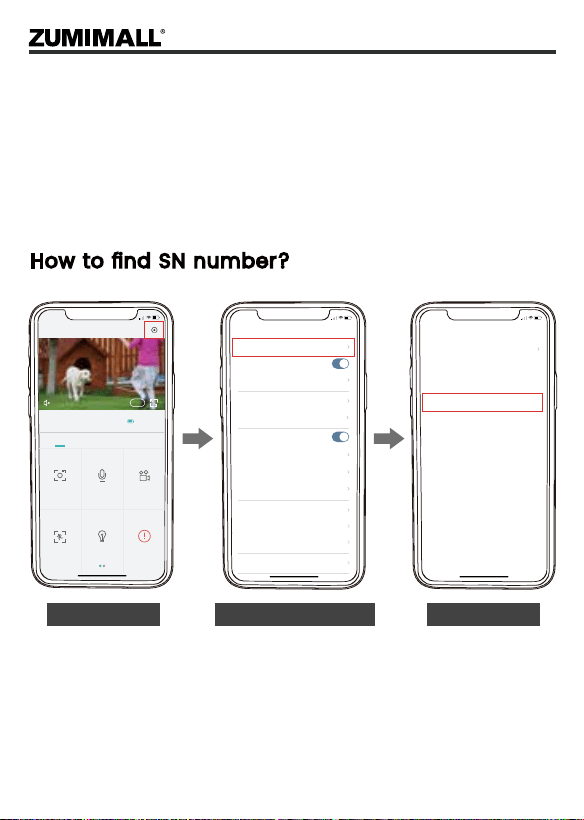
If you have other questions, please send us the SN number of
your camera and describe the problem you have encountered,
we will solve it as soon as possible.
Email: [email protected]
How to find SN number?
5:51
060238708
<
Device Information
Receive Alert Notifications
Installation Guide
Device Share
Location Management
Image Setting
Alarm Management
Network Indicator
Time Setting
Sound Settings
Cloud Storage Service
Battery Management
Recording Management
5:51
Device Information
<
Device Name
065146821
Junan
88%
Network Name
Signal Strength
ppsl5e97d43777d04a54
Virtual ID
192.168.0.112
IP
c0:e7:bf:ae:cb:b4
Mac Address
Asia/Shanghai
Timezone
b8
The Device Platform
2.2.0.20210817
Device Version
Click Settings View Virtual IDClick Device Information
5:51
060238708(X1pro)
Bit Rate:5KB/s
Live
Screenshot
Motion Detection
Intercom Record
History Cloud
WiFi:82%
<
02-16-2022 01:53:01 PM
FHD
Light Siren