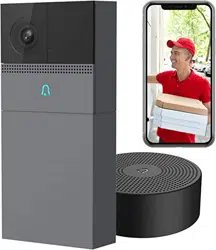

QUICK GUIDE
powered by
B1
Compatible with Amazon Alexa
EN Smart Wi-Fi Video Doorbell
FR Sonnette vidéo Wi-Fi intelligente
DE Intelligente Wi-Fi Video Türklingel
IT Campanello video Wi-Fi intelligente
ES Timbre de video con Wi-Fi inteligente
1
2
Thank you for purchasing Laxihub smart home product.
Get started using your new devices by downloading
Laxihub, one convenient app that manages everything
straight from your phone or tablet. Easily connect to
your home WiFi and control multiple devices from the
touch of your fingertips.
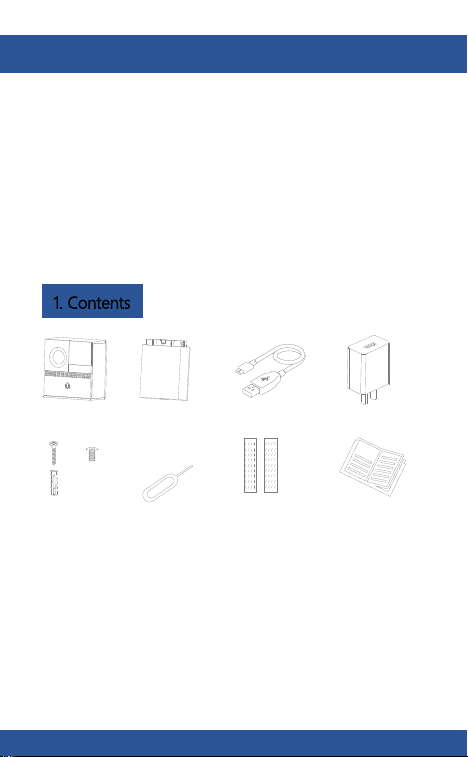
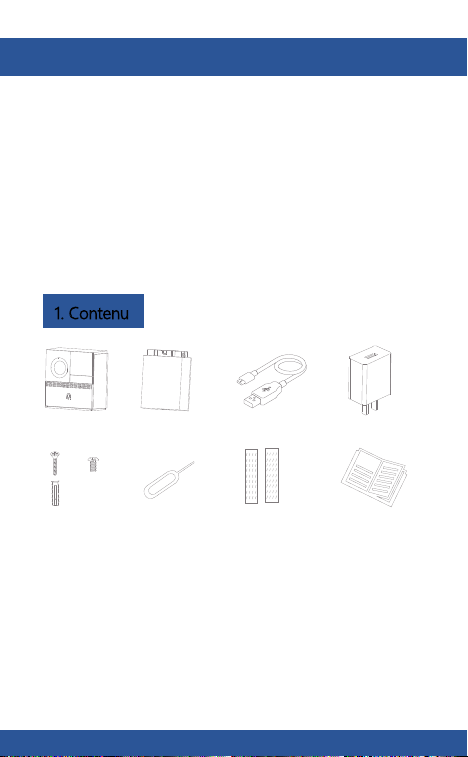
1. Contents
B1
Battery box
USB cable
x
x
x
8
8
2
Screws package
Quick Guide
Pin
AC adaptor
Double sided tape
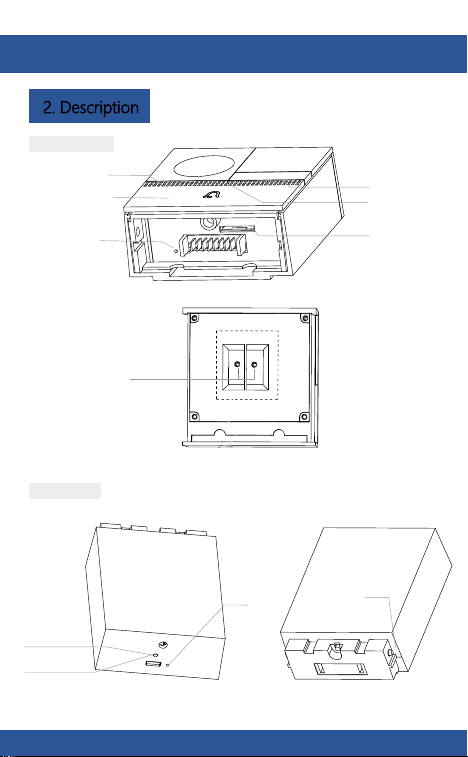
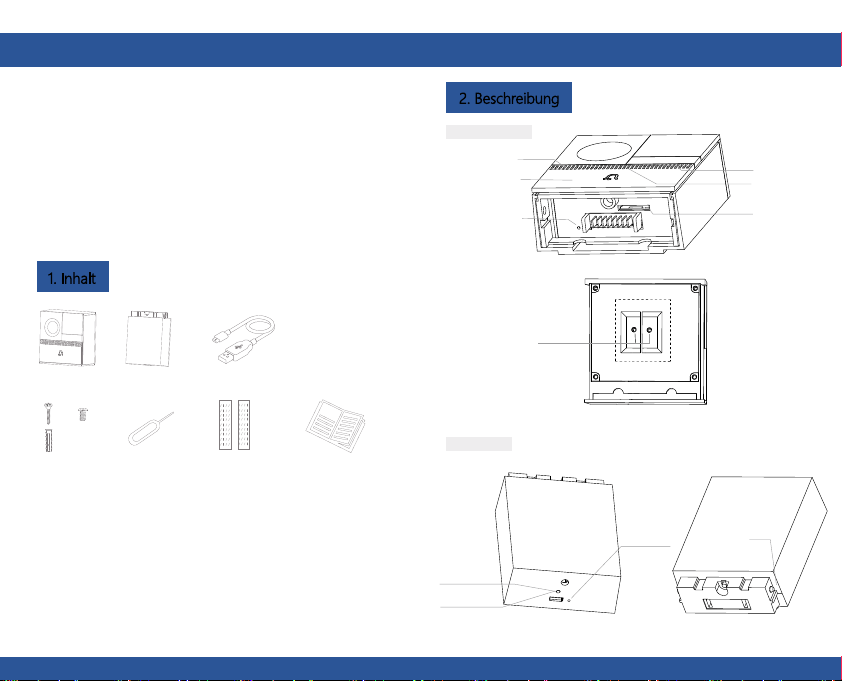
Doorbell button
Microphone
Status light
Speaker
SD card slot
Reset 1
2. Description
External
power port
Back of doorbell
Charging
indicator
Mini USB
Reset 2
Bayonet
lock
B1 main body
Battery box
1
2
EN EN
1
2
Thank you for purchasing Laxihub smart home product.
Get started using your new devices by downloading
Laxihub, one convenient app that manages everything
straight from your phone or tablet. Easily connect to
your home WiFi and control multiple devices from the
touch of your fingertips.
1. Contents
B1
Battery box
USB cable
x
x
x
8
8
2
Screws package
Quick Guide
Pin
AC adaptor
Double sided tape
Doorbell button
Microphone
Status light
Speaker
SD card slot
Reset 1
2. Description
External
power port
Back of doorbell
Charging
indicator
Mini USB
Reset 2
Bayonet
lock
B1 main body
Battery box
1
2
EN EN
3
4
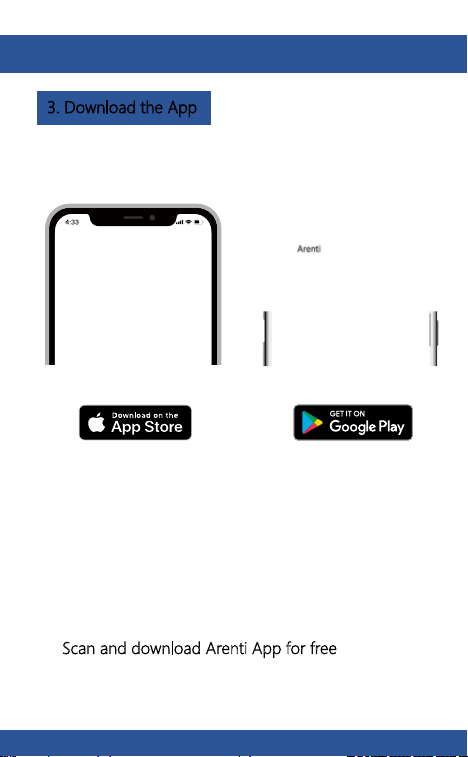
3. Download the App 4. Register an account
Open the Arenti App. If you are a new user, tap create new
account and follow the prompts to complete registration.
Note: Please agree with the
Privacy Agreement.
In order to receive notification in time, please click “Allow”.
Scan and download Arenti App for free
Download the Arenti from App Store or Google Play.
EN EN
3
4
3. Download the App 4. Register an account
Open the Arenti App. If you are a new user, tap create new
account and follow the prompts to complete registration.
Note: Please agree with the
Privacy Agreement.
In order to receive notification in time, please click “Allow”.
Scan and download Arenti App for free
Download the Arenti from App Store or Google Play.
EN EN
5
6
5. Pair your device
Pair your device
Power on your doorbell, you will hear a welcome sound.
If the status light is red
and blinking (once per second).
The doorbell is successfully powered on and ready for
pairing.
Click to add a new device, and select “Doorbell”.
EN EN
5
6
5. Pair your device
Pair your device
Power on your doorbell, you will hear a welcome sound.
If the status light is red
and blinking (once per second).
The doorbell is successfully powered on and ready for
pairing.
Click to add a new device, and select “Doorbell”.
EN EN
7
8
Pair your device
Pair your device
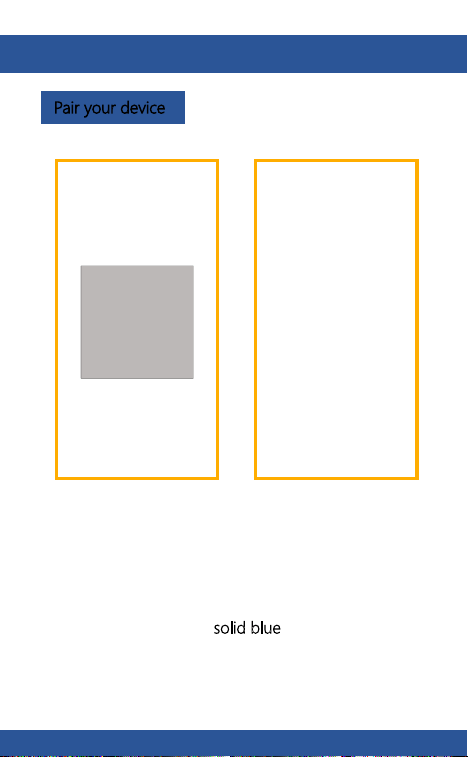
Press “Next” after hearing a sound from your doorbell.
The Arenti App will start to connect to the doorbell
automatically as indicated by the status light blinking
rapidly and then staying solid blue
.
Enter the Wi-Fi password and tap Next to proceed.
If needed, you can tap Change WiFi to switch to
another suitable WiFi network for your doorbell.
Scan
QR
Code
on screen
Press “Next” to scan QR code using your doorbell.
Keep 5~8inches away from your mobile screen.
EN EN
7
8
Pair your device
Pair your device
Press “Next” after hearing a sound from your doorbell.
The Arenti App will start to connect to the doorbell
automatically as indicated by the status light blinking
rapidly and then staying solid blue
.
Enter the Wi-Fi password and tap Next to proceed.
If needed, you can tap Change WiFi to switch to
another suitable WiFi network for your doorbell.
Scan
QR
Code
on screen
Press “Next” to scan QR code using your doorbell.
Keep 5~8inches away from your mobile screen.
EN EN
Pair your device
Pair your device
9
10
Once the pairing process is complete, a page showing
“Device Found!” will appear.
You may choose to edit the device name or assign the
device to a dedicated room before tapping Done to
finish the pairing process.
Once your camera is paired, your camera can be viewed
at anytime from your smartphone as long as there is
Internet access.
If no device is found and the pairing process failed, please
check below instructions:
1) WiFi network is 2.4GHz
.
2) WiFi password entered is correct and the same WiFi
network is used for the mobile device.
3) Arenti device is in pairing mode.
4) Check your WiFi for network activity.
EN EN
Pair your device
Pair your device
9
10
Once the pairing process is complete, a page showing
“Device Found!” will appear.
You may choose to edit the device name or assign the
device to a dedicated room before tapping Done to
finish the pairing process.
Once your camera is paired, your camera can be viewed
at anytime from your smartphone as long as there is
Internet access.
If no device is found and the pairing process failed, please
check below instructions:
1) WiFi network is 2.4GHz
.
2) WiFi password entered is correct and the same WiFi
network is used for the mobile device.
3) Arenti device is in pairing mode.
4) Check your WiFi for network activity.
EN EN
11
12
6. Live viewing 7. History
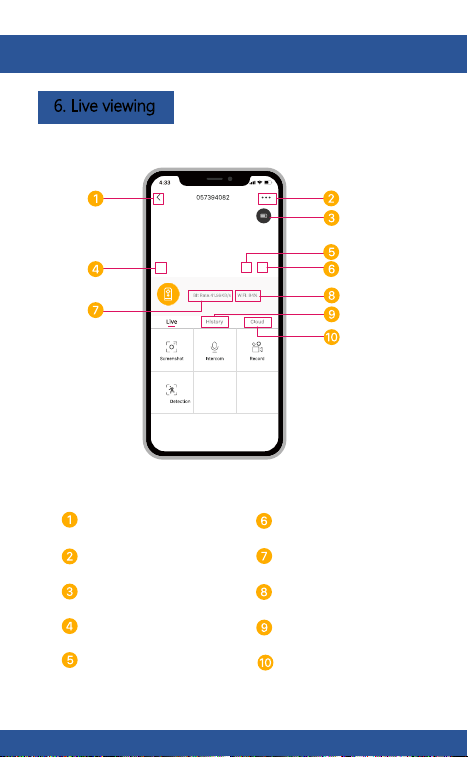
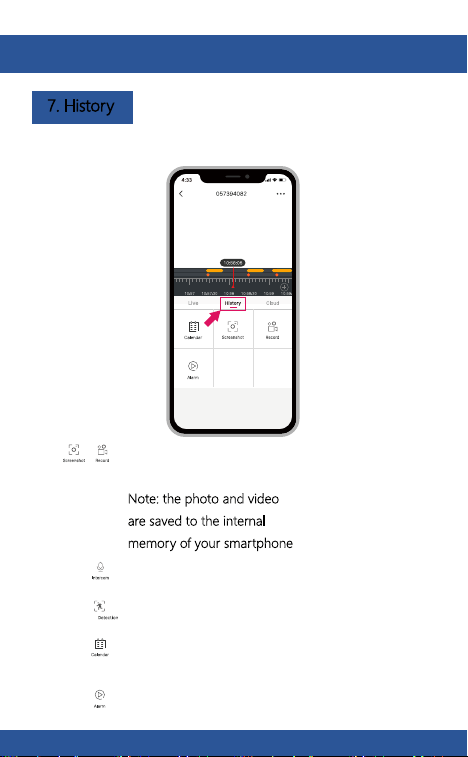
Tap to enable talking
Tap to enable motion detection
Select a data to review your playback
from SD card
Tap to search video clips by date
Tap to capture a photo/video
during live view or playback
Note: the photo and video
are saved to the internal
memory of your smartphone
Return
Setting menu
Volume on/off
Notification history
Battery status
HD/SD switch Cloud storage service
Full screen display
WiFi signal strength
Stream bit rate
EN EN
11
12
6. Live viewing 7. History
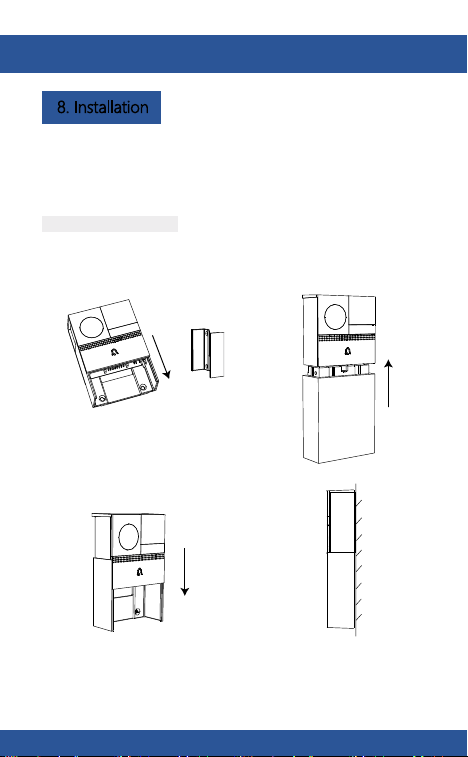
Tap to enable talking
Tap to enable motion detection
Select a data to review your playback
from SD card
Tap to search video clips by date
Tap to capture a photo/video
during live view or playback
Note: the photo and video
are saved to the internal
memory of your smartphone
Return
Setting menu
Volume on/off
Notification history
Battery status
HD/SD switch Cloud storage service
Full screen display
WiFi signal strength
Stream bit rate
EN EN
13
14
8. Installation
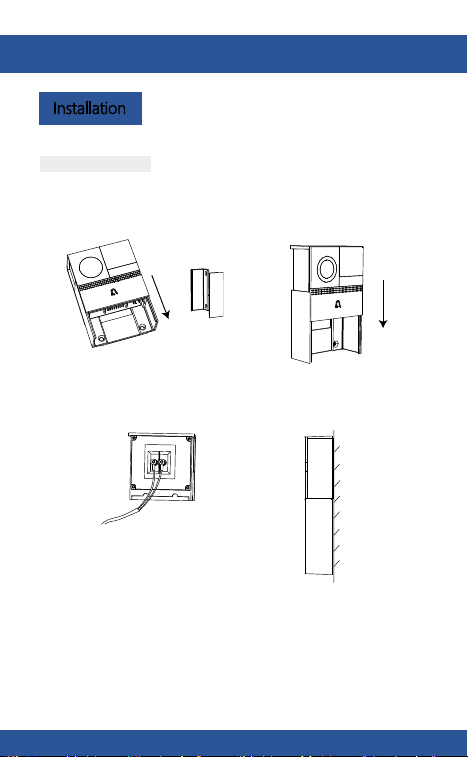
Before choosing your preferred location, check the WiFi
strength/coverage to ensure the doorbell is fully functional.
Step 1 Remove the bracket from
B1.
Bracket
Step 1 Remove the bracket from
B1.
Bracket
Battery powered mode
Step 2 Fix the bracket on the wall
with screws and insert the
doorbell into the bracket.
Step 3 Insert the battery box into
the doorbell.
Side
view
AC powered mode
Step 2 Connect AC power with
your wires.
12~24V AC
Step 3 Fix the bracket on the wall
with screws and insert the
doorbell into the bracket.
Side
view
Installation
EN EN
13
14
8. Installation
Before choosing your preferred location, check the WiFi
strength/coverage to ensure the doorbell is fully functional.
Step 1 Remove the bracket from
B1.
Bracket
Step 1 Remove the bracket from
B1.
Bracket
Battery powered mode
Step 2 Fix the bracket on the wall
with screws and insert the
doorbell into the bracket.
Step 3 Insert the battery box into
the doorbell.
Side
view
AC powered mode
Step 2 Connect AC power with
your wires.
12~24V AC
Step 3 Fix the bracket on the wall
with screws and insert the
doorbell into the bracket.
Side
view
Installation
EN EN
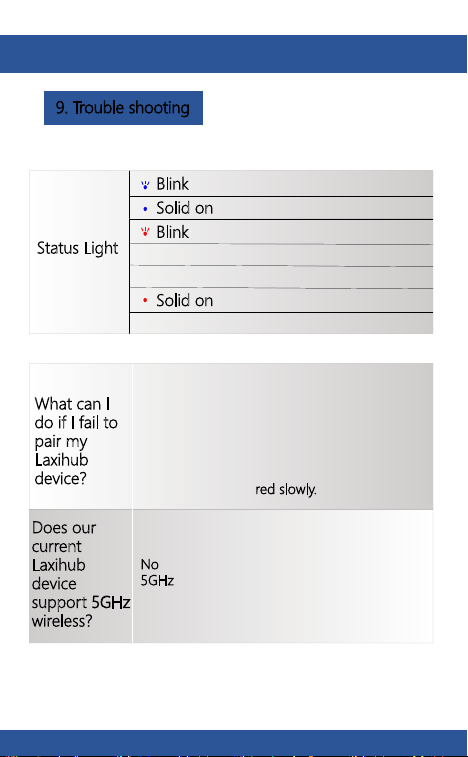
Status Light
Solid on: Camera running correctly
Blink
: Currently connecting
Solid on
: The camera or network is
abnormal
Blink
: Awaiting WiFi connection and
Currently connecting (faster
blinking)
What can I
do if I fail to
pair my
Laxihub
device?
1. Check your mobile device is connected to
a 2.4GHz WiFi network.
Does our
current
Laxihub
device
support 5GHz
wireless?
No - Laxihub device currently does not support
5GHz
wireless connection.
15
16
3. Check Laxihub device is in pairing mode,the
status light blinks red slowly.
(1 time/s)
2. Check WiFi password entered is correct and
the same WiFi network is used both for mobile
and pairing.
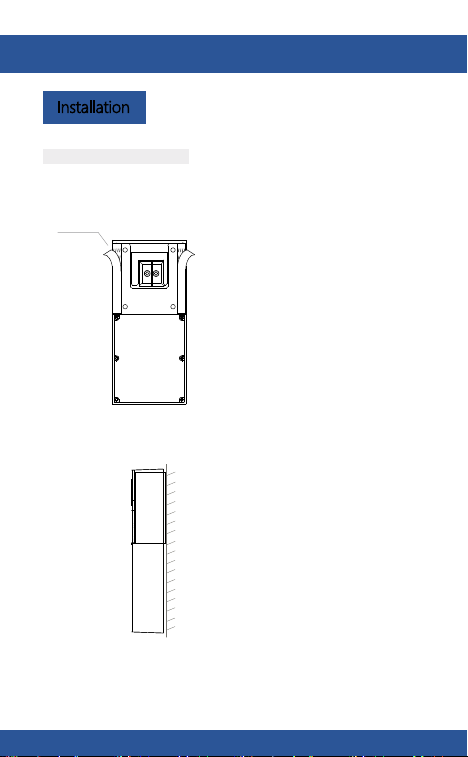
Double sided tape mode
Installation
9. Trouble shooting
tape
Step 1 Attach the double sided tape to both sides of the
bracket
Step 2 Stick the doorbell to a clean flat tightly.
EN EN
Status Light
Solid on: Camera running correctly
Blink
: Currently connecting
Solid on
: The camera or network is
abnormal
Blink
: Awaiting WiFi connection and
Currently connecting (faster
blinking)
What can I
do if I fail to
pair my
Laxihub
device?
1. Check your mobile device is connected to
a 2.4GHz WiFi network.
Does our
current
Laxihub
device
support 5GHz
wireless?
No - Laxihub device currently does not support
5GHz
wireless connection.
15
16
3. Check Laxihub device is in pairing mode,the
status light blinks red slowly.
(1 time/s)
2. Check WiFi password entered is correct and
the same WiFi network is used both for mobile
and pairing.
Double sided tape mode
Installation
9. Trouble shooting
tape
Step 1 Attach the double sided tape to both sides of the
bracket
Step 2 Stick the doorbell to a clean flat tightly.
EN EN
17
Trouble shooting
How to
change the
camera
network to
another
router?
First reset the device or remove it on the
Arenti
App, then configure the device again
by the App.
Why doesn’t
the device
identify the
SD card?
It’s recommended to plug SD card after
power cut. Confirm whether the SD card is
normally available and the format is FAT32.
And the SD card can’t be identified when
the Internet environment is not good.
Please visit our official website for further assistance.
www.laxihub.com
EN

17
Trouble shooting
How to
change the
camera
network to
another
router?
First reset the device or remove it on the
Arenti
App, then configure the device again
by the App.
Why doesn’t
the device
identify the
SD card?
It’s recommended to plug SD card after
power cut. Confirm whether the SD card is
normally available and the format is FAT32.
And the SD card can’t be identified when
the Internet environment is not good.
Please visit our official website for further assistance.
www.laxihub.com
EN
1
2
18
19
Merci d'avoir acheté un produit pour maison intelligente
Laxihub. Commencez à utiliser vos nouveaux appareils en
téléchargeant Laxihub, une application pratique qui gère
tout directement depuis votre téléphone ou votre tablette.
Connectez-vous facilement à votre Wi-Fi domestique et
contrôlez plusieurs appareils depuis toucher du bout des
doigts.
1. Contenu
B1
Boîtier de batterie
cable USB
x
x
x
8
8
2
Paquet de vis
Guide rapideÉpingle
adaptateur secteur
Ruban adhésif double face
Bouton de
sonnette
Microfono
Voyant d'état
Orateur
Emplacement
pour carte SD
Réinitialiser 1
2. Description
Port
d'alimentation externe
Arrière de la sonnette
Indicateur
de charge
Mini USB
Réinitialiser 2
Serrure à
baïonnette
B1 corps principal
Boîtier de batterie
FR FR
1
2
18
19
Merci d'avoir acheté un produit pour maison intelligente
Laxihub. Commencez à utiliser vos nouveaux appareils en
téléchargeant Laxihub, une application pratique qui gère
tout directement depuis votre téléphone ou votre tablette.
Connectez-vous facilement à votre Wi-Fi domestique et
contrôlez plusieurs appareils depuis toucher du bout des
doigts.
1. Contenu
B1
Boîtier de batterie
cable USB
x
x
x
8
8
2
Paquet de vis
Guide rapideÉpingle
adaptateur secteur
Ruban adhésif double face
Bouton de
sonnette
Microfono
Voyant d'état
Orateur
Emplacement
pour carte SD
Réinitialiser 1
2. Description
Port
d'alimentation externe
Arrière de la sonnette
Indicateur
de charge
Mini USB
Réinitialiser 2
Serrure à
baïonnette
B1 corps principal
Boîtier de batterie
FR FR
20
21
3. Téléchargez l'application 4. Enregistrez un compte
Ouvrez l'application Arenti. Si vous êtes un nouvel
utilisateur, appuyez sur créer un nouveau compte et s
uivez les invites pour terminer l'enregistrement.
Remarque: veuillez accepter l'accord de confidentialité.
Pour recevoir une notification à temps, veuillez cliquer sur
«Autoriser».
Scannez et téléchargez gratuitement l'application Arenti
Téléchargez Arenti depuis l'App Store ou Google Play.
FR FR
20
21
3. Téléchargez l'application 4. Enregistrez un compte
Ouvrez l'application Arenti. Si vous êtes un nouvel
utilisateur, appuyez sur créer un nouveau compte et s
uivez les invites pour terminer l'enregistrement.
Remarque: veuillez accepter l'accord de confidentialité.
Pour recevoir une notification à temps, veuillez cliquer sur
«Autoriser».
Scannez et téléchargez gratuitement l'application Arenti
Téléchargez Arenti depuis l'App Store ou Google Play.
FR FR

22
23
5. Jumelez votre appareil Associez votre appareil
Allumez votre sonnette, vous entendrez un son de
bienvenue. Si le voyant d'état est rouge et clignote (une
fois par seconde). La sonnette est allumée avec succès et
prête pour appariement.
Cliquez pour ajouter un nouvel appareil et sélectionnez
«Sonnette».
FR FR
22
23
5. Jumelez votre appareil Associez votre appareil
Allumez votre sonnette, vous entendrez un son de
bienvenue. Si le voyant d'état est rouge et clignote (une
fois par seconde). La sonnette est allumée avec succès et
prête pour appariement.
Cliquez pour ajouter un nouvel appareil et sélectionnez
«Sonnette».
FR FR

24
25
Associez votre appareil
Associez votre appareil
Appuyez sur "Suivant" après avoir entendu un son de
votre sonnette.
L'application Arenti commencera à se connecter à la
sonnette automatiquement comme indiqué par le
voyant d'état clignotant rapidement puis en restant
bleu fixe.
Saisissez le mot de passe Wi-Fi et appuyez sur Suivant
pour continuer. Si nécessaire, vous pouvez appuyer sur
Changer WiFi pour basculer sur un autre réseau WiFi
adapté à votre sonnette.
Scan
QR
Code
on screen
Appuyez sur "Suivant" pour scanner le code QR à l'aide
de votre sonnette. Gardez 5 ~ 8 pouces loin de votre
écran mobile.
FR FR
24
25
Associez votre appareil
Associez votre appareil
Appuyez sur "Suivant" après avoir entendu un son de
votre sonnette.
L'application Arenti commencera à se connecter à la
sonnette automatiquement comme indiqué par le
voyant d'état clignotant rapidement puis en restant
bleu fixe.
Saisissez le mot de passe Wi-Fi et appuyez sur Suivant
pour continuer. Si nécessaire, vous pouvez appuyer sur
Changer WiFi pour basculer sur un autre réseau WiFi
adapté à votre sonnette.
Scan
QR
Code
on screen
Appuyez sur "Suivant" pour scanner le code QR à l'aide
de votre sonnette. Gardez 5 ~ 8 pouces loin de votre
écran mobile.
FR FR
26
27
Associez votre appareil
Associez votre appareil
Une fois le processus de couplage terminé, une page
affichant «Device Found!» apparaîtra.
Vous pouvez choisir de modifier le nom de l'appareil ou
d'affecter l'appareil à une pièce dédiée avant de taper
sur Terminé pour terminer le processus d'appairage.
Une fois votre caméra couplée, votre caméra peut être
visualisée à tout moment depuis votre smartphone tant
qu'il y a Accès Internet.
Si aucun appareil n'est trouvé et que le processus de
jumelage a échoué, veuillez consultez les instructions
ci-dessous:
1) Le réseau WiFi est de 2,4 GHz.
2) Le mot de passe WiFi entré est correct et le même
WiFi réseau est utilisé pour l'appareil mobile.
3) L'appareil Arenti est en mode d'appairage.
4) Vérifiez votre WiFi pour l'activité du réseau.
FR FR

26
27
Associez votre appareil
Associez votre appareil
Une fois le processus de couplage terminé, une page
affichant «Device Found!» apparaîtra.
Vous pouvez choisir de modifier le nom de l'appareil ou
d'affecter l'appareil à une pièce dédiée avant de taper
sur Terminé pour terminer le processus d'appairage.
Une fois votre caméra couplée, votre caméra peut être
visualisée à tout moment depuis votre smartphone tant
qu'il y a Accès Internet.
Si aucun appareil n'est trouvé et que le processus de
jumelage a échoué, veuillez consultez les instructions
ci-dessous:
1) Le réseau WiFi est de 2,4 GHz.
2) Le mot de passe WiFi entré est correct et le même
WiFi réseau est utilisé pour l'appareil mobile.
3) L'appareil Arenti est en mode d'appairage.
4) Vérifiez votre WiFi pour l'activité du réseau.
FR FR
28
29
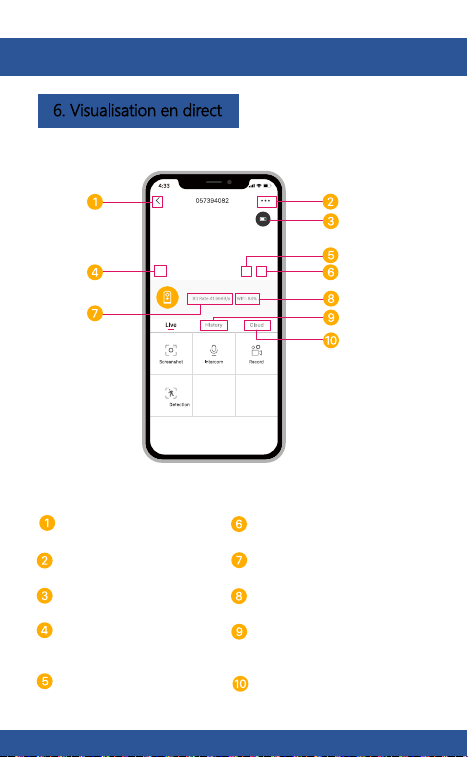
6. Visualisation en direct
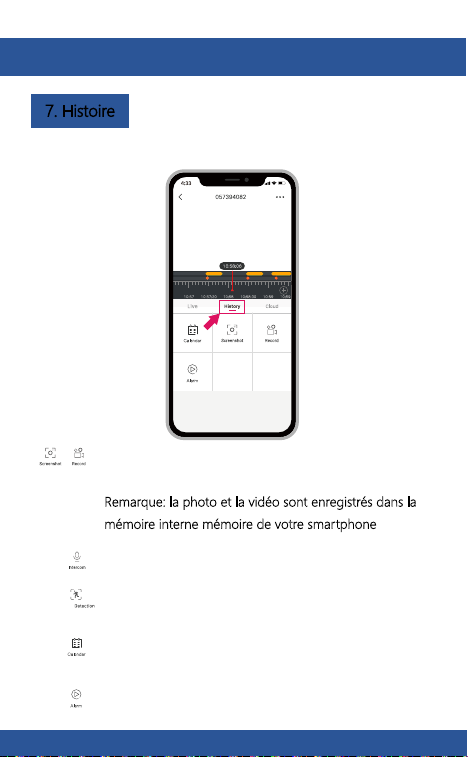
7. Histoire
Appuyez pour capturer une photo / vidéo
pendant la visualisation en direct ou la lecture
Remarque: la photo et la vidéo sont enregistrés dans la
mémoire interne mémoire de votre smartphone
Retrun
Affichage plein écran
Menu de réglage
Activation/désactivation d
u volume
Historique des notifications
État de la batterie
Commutateur HD/SD Service de stockage cloud
Puissance du signal WiFi
Débit binaire
Appuyez pour activer la conversation
Sélectionnez une donnée pour revoir votre
lecture depuis la carte SD
Appuyez pour rechercher des clips vidéo par
date
Appuyez pour activer la détection de
mouvement
FR FR
28
29
6. Visualisation en direct
7. Histoire
Appuyez pour capturer une photo / vidéo
pendant la visualisation en direct ou la lecture
Remarque: la photo et la vidéo sont enregistrés dans la
mémoire interne mémoire de votre smartphone
Retrun
Affichage plein écran
Menu de réglage
Activation/désactivation d
u volume
Historique des notifications
État de la batterie
Commutateur HD/SD Service de stockage cloud
Puissance du signal WiFi
Débit binaire
Appuyez pour activer la conversation
Sélectionnez une donnée pour revoir votre
lecture depuis la carte SD
Appuyez pour rechercher des clips vidéo par
date
Appuyez pour activer la détection de
mouvement
FR FR
30
31
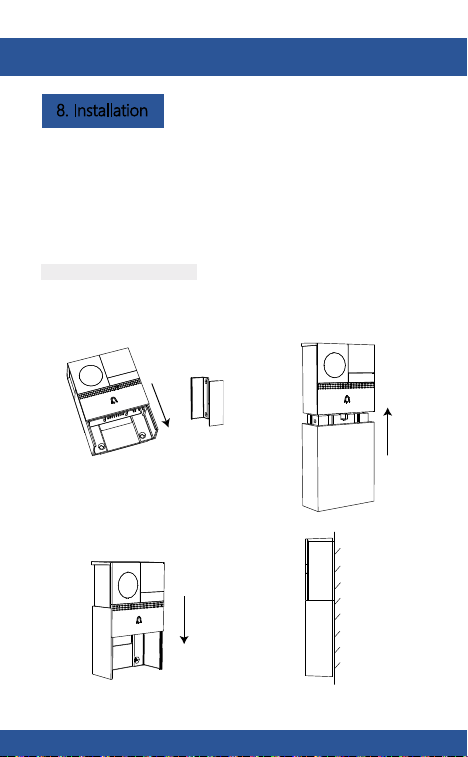
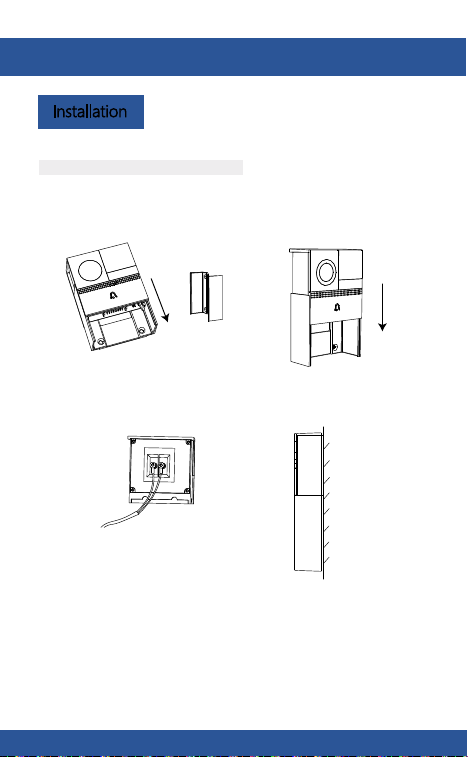
8. Installation
Avant de choisir votre emplacement préféré, vérifiez la
puissance / couverture WiFi pour vous assurer que la
sonnette est entièrement fonctionnelle.
Step 1 Retirez le support de.
Supporto
Step 1 Retirez le support de.
Supporto
Mode alimenté par batterie
Step 2 Fixez le support au mur avec
des vis et insérez la sonnette
dans le support.
Step 3 Insérez le boîtier de la batterie
dans la sonnette.
Vue de côté
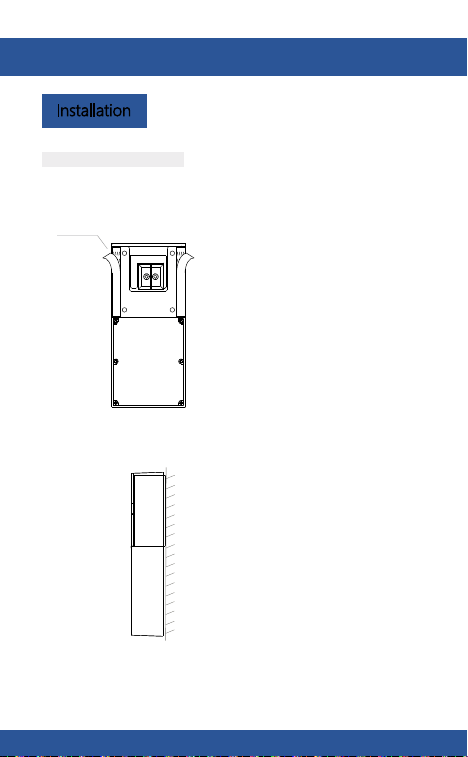
Mode alimenté en courant alternatif
Step 2 Connectez l'alimentation CA à
vos fils.
12~24V AC
Step 3 Fixez le support au mur avec des
vis et insérez la sonnette dans le
support.
Installation
Vue de côté
FR FR
30
31
8. Installation
Avant de choisir votre emplacement préféré, vérifiez la
puissance / couverture WiFi pour vous assurer que la
sonnette est entièrement fonctionnelle.
Step 1 Retirez le support de.
Supporto
Step 1 Retirez le support de.
Supporto
Mode alimenté par batterie
Step 2 Fixez le support au mur avec
des vis et insérez la sonnette
dans le support.
Step 3 Insérez le boîtier de la batterie
dans la sonnette.
Vue de côté
Mode alimenté en courant alternatif
Step 2 Connectez l'alimentation CA à
vos fils.
12~24V AC
Step 3 Fixez le support au mur avec des
vis et insérez la sonnette dans le
support.
Installation
Vue de côté
FR FR
32
33
Que puis-je
faire si je
n'arrive pas à
coupler mon
appareil
Laxihub?
Notre appareil
Laxihub actuel
prend-il en
charge le sans
fil 5 GHz?
Non - Le périphérique Laxihub ne prend
actuellement pas en charge Connexion sans fil
5 GHz.
1. Vérifiez que votre appareil mobile est connecté à
un réseau WiFi 2,4 GHz.
3. Vérifiez que l'appareil Laxihub est en mode
d'appairage, le voyant d'état clignote lentement en
rouge. (1 fois)
2. VVérifiez que le mot de passe WiFi entré est
correct et que le même réseau WiFi est utilisé à la
fois pour le mobile.
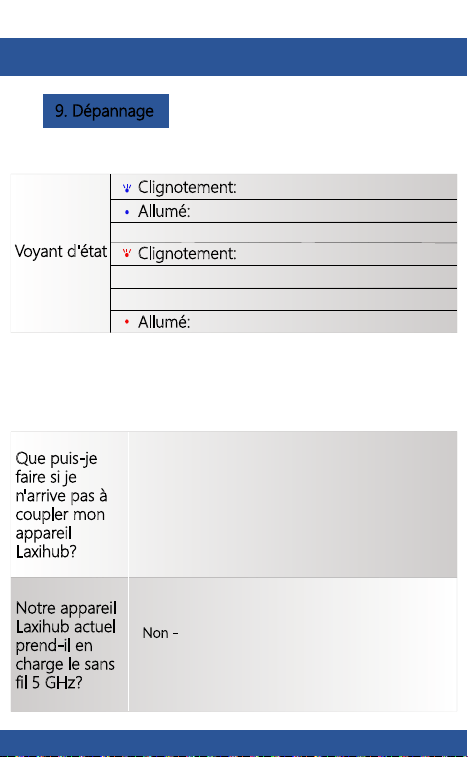
Mode ruban double face
Installation
9. Dépannage
ruban
Step 1 Fixez le ruban adhésif double face des deux côtés du support.
Step 2 Collez bien la sonnette sur un plat propre.
Voyant d'état
Allumé: l'appareil photo fonctionne
correctement
Clignotement:
connexion en cours
Allumé: la caméra ou le réseau est anormal
Clignotement: en attente de connexion WiFi
et en cours de connexion (plus rapide
clignotant)
FR FR
32
33
Que puis-je
faire si je
n'arrive pas à
coupler mon
appareil
Laxihub?
Notre appareil
Laxihub actuel
prend-il en
charge le sans
fil 5 GHz?
Non - Le périphérique Laxihub ne prend
actuellement pas en charge Connexion sans fil
5 GHz.
1. Vérifiez que votre appareil mobile est connecté à
un réseau WiFi 2,4 GHz.
3. Vérifiez que l'appareil Laxihub est en mode
d'appairage, le voyant d'état clignote lentement en
rouge. (1 fois)
2. VVérifiez que le mot de passe WiFi entré est
correct et que le même réseau WiFi est utilisé à la
fois pour le mobile.
Mode ruban double face
Installation
9. Dépannage
ruban
Step 1 Fixez le ruban adhésif double face des deux côtés du support.
Step 2 Collez bien la sonnette sur un plat propre.
Voyant d'état
Allumé: l'appareil photo fonctionne
correctement
Clignotement:
connexion en cours
Allumé: la caméra ou le réseau est anormal
Clignotement: en attente de connexion WiFi
et en cours de connexion (plus rapide
clignotant)
FR FR
34
Dépannage
Comment
changer le
réseau de
caméras sur
un autre
routeur?
Réinitialisez d'abord l'appareil ou supprimez-le
sur l'application Arenti, puis configurez à
nouveau l'appareil par l'application.
Pourquoi l'
appareil
n'identifie-t-il
pas la carte
SD?
Il est recommandé de brancher la carte SD
après une coupure de courant. Vérifiez si la
carte SD est normalement disponible et si le
format est FAT32. Et la carte SD ne peut pas
être identifiée lorsque l'environnement Internet
n'est pas bon.
Veuillez visiter notre site officiel pour plus d'assistance.
www.laxihub.com
FR

34
Dépannage
Comment
changer le
réseau de
caméras sur
un autre
routeur?
Réinitialisez d'abord l'appareil ou supprimez-le
sur l'application Arenti, puis configurez à
nouveau l'appareil par l'application.
Pourquoi l'
appareil
n'identifie-t-il
pas la carte
SD?
Il est recommandé de brancher la carte SD
après une coupure de courant. Vérifiez si la
carte SD est normalement disponible et si le
format est FAT32. Et la carte SD ne peut pas
être identifiée lorsque l'environnement Internet
n'est pas bon.
Veuillez visiter notre site officiel pour plus d'assistance.
www.laxihub.com
FR
1
2
35
36
Vielen Dank, dass Sie sich für das Smart Home-Produkt
von Laxihub entschieden haben. Beginnen Sie mit dem
Verwenden Ihrer neuen Geräte, indem Sie sie
herunterladenLaxihub, eine praktische App, die alles
verwaltet direkt von Ihrem Telefon oder Tablet. Einfach
verbinden mit Ihr Heim-WLAN und steuern Sie mehrere
Geräte von der Berührung Ihrer Fingerspitzen.
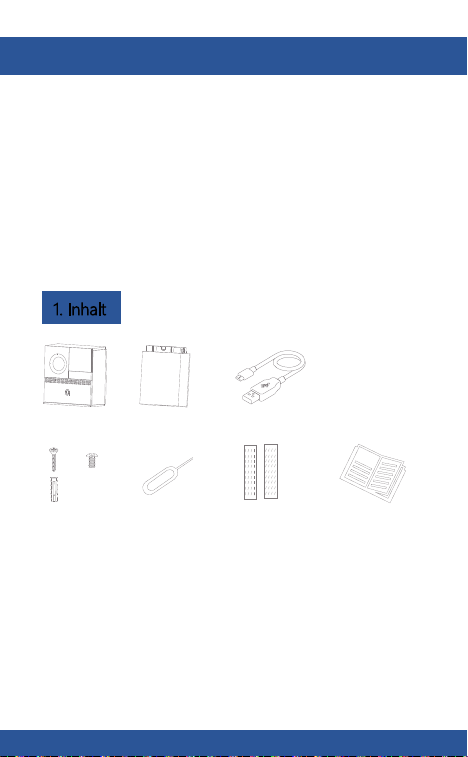
1. Inhalt
B1
Batteriefach
USB-Kabel
x
x
x
8
8
2
Schraubenpaket
Kurzanleitung
Stift
Doppelseitiges Klebeband
Türklingelk
nopf
Mikrofon
Statusleuchte
Lautsprecher
SD-Kartenste
ckplatz
1 zurückset
zen
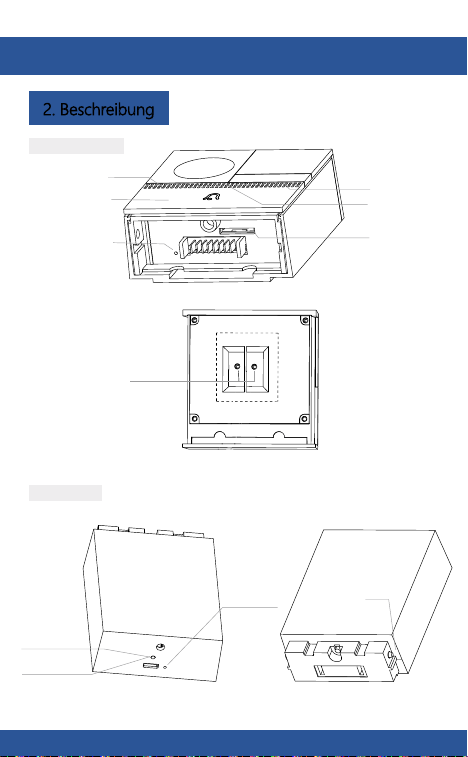
2. Beschreibung
Externer
Stromanschluss
Rückseite der Türklingel
Ladean
zeige
Mini USB
Zurückset
zen 2
Bajonettv
erschluss
B1 Hauptkörper
Batteriefach
DE DE
1
2
35
36
Vielen Dank, dass Sie sich für das Smart Home-Produkt
von Laxihub entschieden haben. Beginnen Sie mit dem
Verwenden Ihrer neuen Geräte, indem Sie sie
herunterladenLaxihub, eine praktische App, die alles
verwaltet direkt von Ihrem Telefon oder Tablet. Einfach
verbinden mit Ihr Heim-WLAN und steuern Sie mehrere
Geräte von der Berührung Ihrer Fingerspitzen.
1. Inhalt
B1
Batteriefach
USB-Kabel
x
x
x
8
8
2
Schraubenpaket
Kurzanleitung
Stift
Doppelseitiges Klebeband
Türklingelk
nopf
Mikrofon
Statusleuchte
Lautsprecher
SD-Kartenste
ckplatz
1 zurückset
zen
2. Beschreibung
Externer
Stromanschluss
Rückseite der Türklingel
Ladean
zeige
Mini USB
Zurückset
zen 2
Bajonettv
erschluss
B1 Hauptkörper
Batteriefach
DE DE
37
38
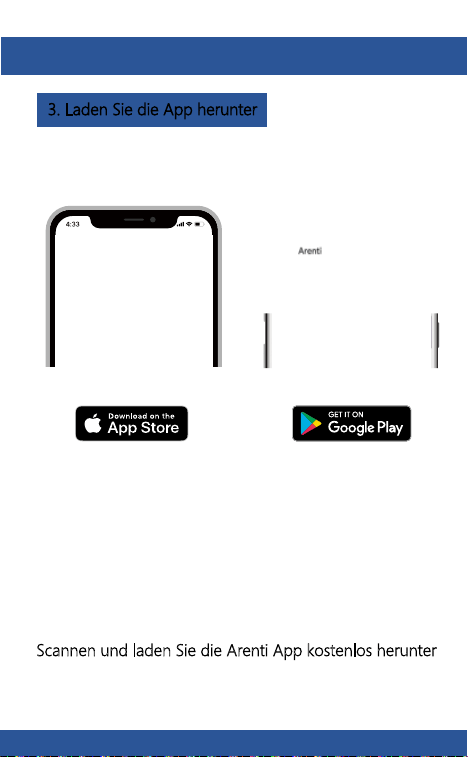
3. Laden Sie die App herunter
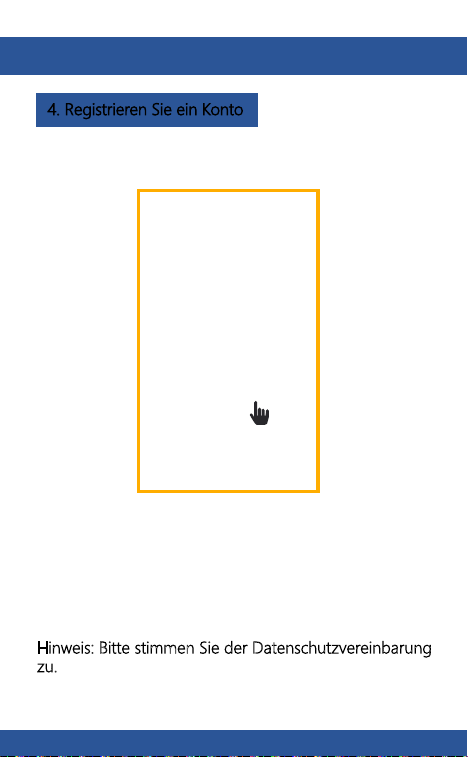
4. Registrieren Sie ein Konto
Öffnen Sie die Arenti App. Wenn Sie ein neuer Benutzer
sind, tippen Sie auf Neu erstellen Konto und befolgen Sie
die Anweisungen, um die Registrierung abzuschließen.
Hinweis: Bitte stimmen Sie der Datenschutzvereinbarung
zu.
Um rechtzeitig benachrichtigt zu werden, klicken Sie bitte
auf "Zulassen".
Scannen und laden Sie die Arenti App kostenlos herunter
Laden Sie den Arenti aus dem App Store oder von
Google Play herunter.
DE DE
37
38
3. Laden Sie die App herunter
4. Registrieren Sie ein Konto
Öffnen Sie die Arenti App. Wenn Sie ein neuer Benutzer
sind, tippen Sie auf Neu erstellen Konto und befolgen Sie
die Anweisungen, um die Registrierung abzuschließen.
Hinweis: Bitte stimmen Sie der Datenschutzvereinbarung
zu.
Um rechtzeitig benachrichtigt zu werden, klicken Sie bitte
auf "Zulassen".
Scannen und laden Sie die Arenti App kostenlos herunter
Laden Sie den Arenti aus dem App Store oder von
Google Play herunter.
DE DE
39
40
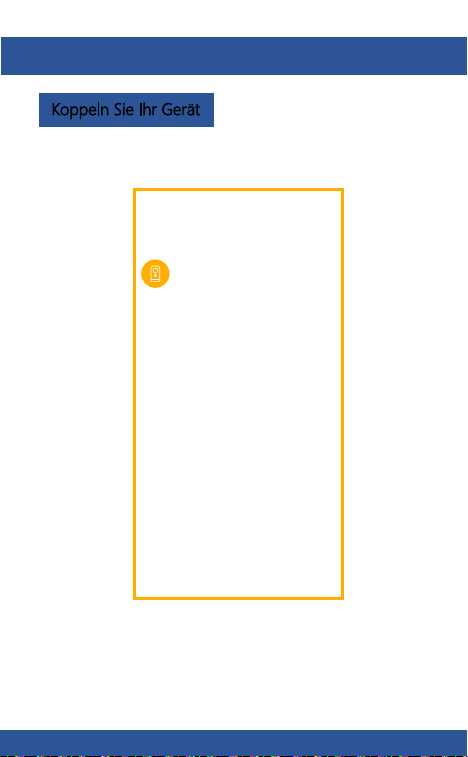
5. Koppeln Sie Ihr Gerät Koppeln Sie Ihr Gerät
Wenn Sie Ihre Türklingel einschalten, hören Sie ein
willkommenes Geräusch. Wenn die Statusanzeige rot ist
und blinkt (einmal pro Sekunde). Die Türklingel ist
erfolgreich eingeschaltet und bereit für Paarung.
Klicken Sie, um ein neues Gerät hinzuzufügen, und
wählen Sie "Türklingel".
DE DE
39
40
5. Koppeln Sie Ihr Gerät Koppeln Sie Ihr Gerät
Wenn Sie Ihre Türklingel einschalten, hören Sie ein
willkommenes Geräusch. Wenn die Statusanzeige rot ist
und blinkt (einmal pro Sekunde). Die Türklingel ist
erfolgreich eingeschaltet und bereit für Paarung.
Klicken Sie, um ein neues Gerät hinzuzufügen, und
wählen Sie "Türklingel".
DE DE
41
42
Koppeln Sie Ihr Gerät Koppeln Sie Ihr Gerät
Drücken Sie auf "Weiter", nachdem Sie ein Geräusch von
Ihrer Türklingel gehört haben.
Die Arenti App stellt eine Verbindung zur Türklingel her
automatisch, wie durch Blinken der Statusanzeige
angezeigt schnell und dann durchgehend blau.
Geben Sie das WLAN-Passwort ein und tippen Sie auf
Weiter, um fortzufahren. Bei Bedarf können Sie auf
WLAN ändern tippen, um zu zu wechseln ein weiteres
geeignetes WiFi-Netzwerk für Ihre Türklingel.
Scan
QR
Code
on screen
Drücken Sie auf "Weiter", um den QR-Code mit Ihrer
Türklingel zu scannen. Halten Sie 5 bis 8 Zoll von Ihrem
mobilen Bildschirm entfernt.
DE DE
41
42
Koppeln Sie Ihr Gerät Koppeln Sie Ihr Gerät
Drücken Sie auf "Weiter", nachdem Sie ein Geräusch von
Ihrer Türklingel gehört haben.
Die Arenti App stellt eine Verbindung zur Türklingel her
automatisch, wie durch Blinken der Statusanzeige
angezeigt schnell und dann durchgehend blau.
Geben Sie das WLAN-Passwort ein und tippen Sie auf
Weiter, um fortzufahren. Bei Bedarf können Sie auf
WLAN ändern tippen, um zu zu wechseln ein weiteres
geeignetes WiFi-Netzwerk für Ihre Türklingel.
Scan
QR
Code
on screen
Drücken Sie auf "Weiter", um den QR-Code mit Ihrer
Türklingel zu scannen. Halten Sie 5 bis 8 Zoll von Ihrem
mobilen Bildschirm entfernt.
DE DE
43
44
Koppeln Sie Ihr Gerät
Koppeln Sie Ihr Gerät
Sobald der Pairing-Vorgang abgeschlossen ist, wird eine
Seite mit der Meldung "Gerät gefunden!" Angezeigt. wird
auftauchen.
Sie können den Gerätenamen bearbeiten oder das Gerät
einem bestimmten Raum zuweisen, bevor Sie auf Fertig
tippen, um den Pairing-Vorgang abzuschließen.
Sobald Ihre Kamera gekoppelt ist, kann Ihre Kamera
angezeigt werden jederzeit von Ihrem Smartphone aus,
solange es gibt Internet Zugang.
Wenn kein Gerät gefunden wird und der Pairing-Vorgang
fehlgeschlagen ist, bitte Überprüfen Sie die folgenden
Anweisungen:
1) WiFi-Netzwerk ist 2,4 GHz.
2) Das eingegebene WLAN-Passwort ist korrekt und das
gleiche WLAN Netzwerk wird für das mobile Gerät
verwendet.
3) Das Arenti-Gerät befindet sich im Pairing-Modus.
4) Überprüfen Sie Ihr WLAN auf Netzwerkaktivität.
DE DE

43
44
Koppeln Sie Ihr Gerät
Koppeln Sie Ihr Gerät
Sobald der Pairing-Vorgang abgeschlossen ist, wird eine
Seite mit der Meldung "Gerät gefunden!" Angezeigt. wird
auftauchen.
Sie können den Gerätenamen bearbeiten oder das Gerät
einem bestimmten Raum zuweisen, bevor Sie auf Fertig
tippen, um den Pairing-Vorgang abzuschließen.
Sobald Ihre Kamera gekoppelt ist, kann Ihre Kamera
angezeigt werden jederzeit von Ihrem Smartphone aus,
solange es gibt Internet Zugang.
Wenn kein Gerät gefunden wird und der Pairing-Vorgang
fehlgeschlagen ist, bitte Überprüfen Sie die folgenden
Anweisungen:
1) WiFi-Netzwerk ist 2,4 GHz.
2) Das eingegebene WLAN-Passwort ist korrekt und das
gleiche WLAN Netzwerk wird für das mobile Gerät
verwendet.
3) Das Arenti-Gerät befindet sich im Pairing-Modus.
4) Überprüfen Sie Ihr WLAN auf Netzwerkaktivität.
DE DE
45
46
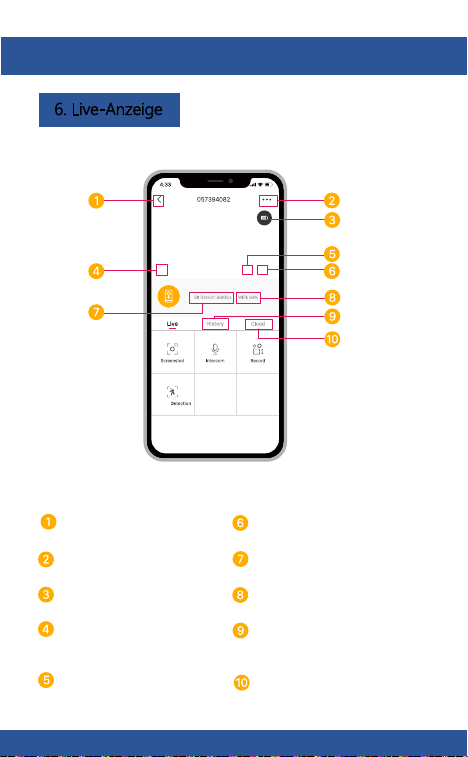
6. Live-Anzeige
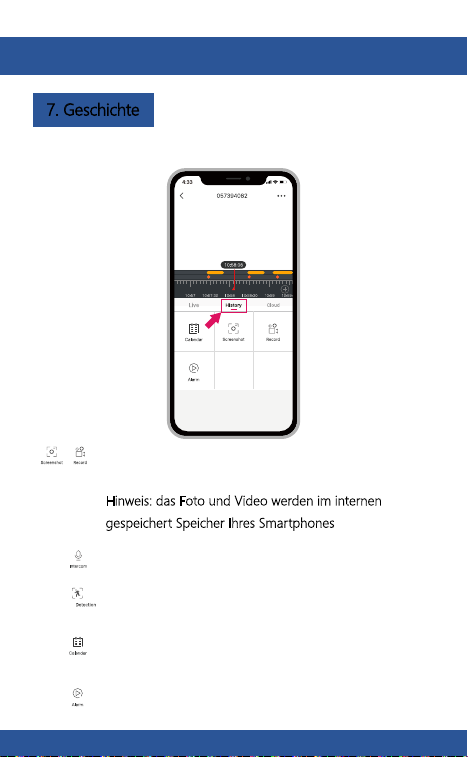
7. Geschichte
Tippen Sie hier, um ein Foto / Video während
der Live-Ansicht oder Wiedergabe aufzunehmen
Hinweis: das Foto und Video werden im internen
gespeichert Speicher Ihres Smartphones
Wiederholen
Vollbildanzeige
Menü einstellen
Lautstärke ein/aus
Benachrichtigungsverlauf
Batteriestatus
HD/SD-Schalter Cloud-Speicherdienst
WiFi-Signalstärke
Stream-Bitrate
Tippen Sie auf, um das Sprechen zu aktivieren
Wählen Sie Daten aus, um Ihre Wiedergabe zu
überprüfen von der SD-Karte
Tippen Sie hier, um nach Videoclips nach Datum
zu suchen
Tippen Sie auf, um die Bewegungserkennung
zu aktivieren
DE DE
45
46
6. Live-Anzeige
7. Geschichte
Tippen Sie hier, um ein Foto / Video während
der Live-Ansicht oder Wiedergabe aufzunehmen
Hinweis: das Foto und Video werden im internen
gespeichert Speicher Ihres Smartphones
Wiederholen
Vollbildanzeige
Menü einstellen
Lautstärke ein/aus
Benachrichtigungsverlauf
Batteriestatus
HD/SD-Schalter Cloud-Speicherdienst
WiFi-Signalstärke
Stream-Bitrate
Tippen Sie auf, um das Sprechen zu aktivieren
Wählen Sie Daten aus, um Ihre Wiedergabe zu
überprüfen von der SD-Karte
Tippen Sie hier, um nach Videoclips nach Datum
zu suchen
Tippen Sie auf, um die Bewegungserkennung
zu aktivieren
DE DE
47
48
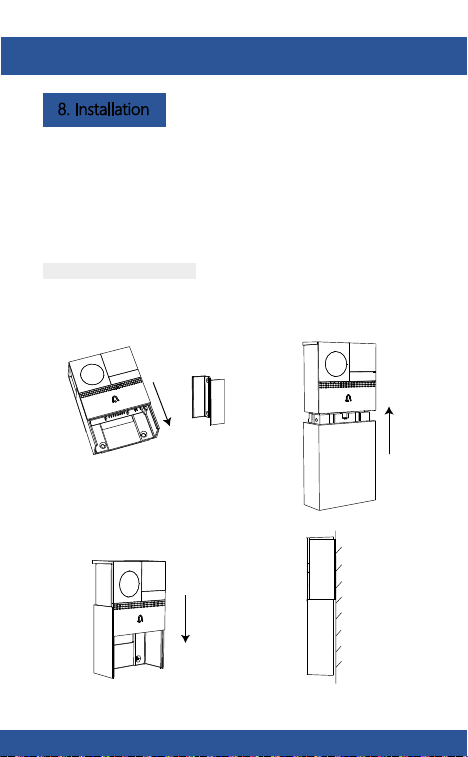
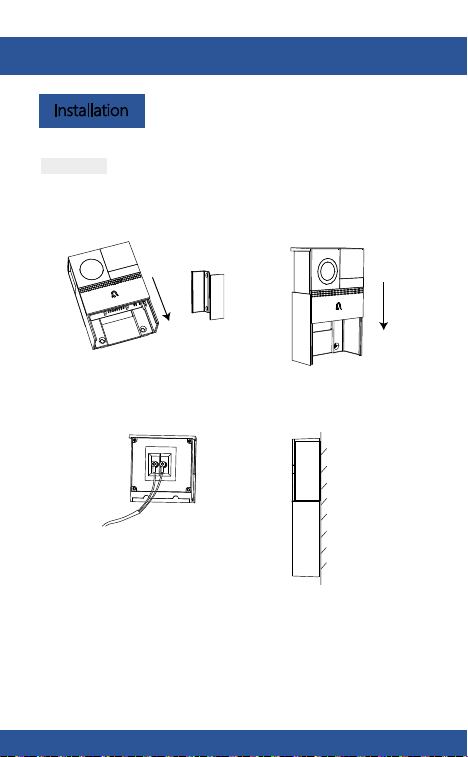
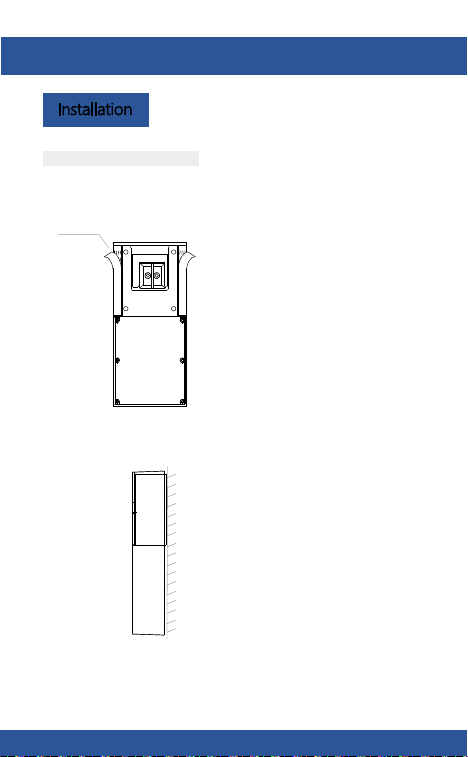
8. Installation
Überprüfen Sie vor der Auswahl Ihres bevorzugten
Standorts die WLAN-Stärke / Abdeckung, um
sicherzustellen, dass die Türklingel voll funktionsfähig ist.
Schritt 1 Entfernen Sie die Halterung
von
Halterung
Schritt 1 Entfernen Sie die
Halterung von.
Halterung
Batteriebetriebener Modus
Schritt 2 Befestigen Sie die Halterung mit
Schrauben an der Wand und
setzen Sie die Türklingel in die
Halterung ein.
Schritt 3 Setzen Sie den Batteriekasten
in die Türklingel ein.
Seitenansicht
AC-Modus
Schritt 2 Schließen Sie die
Wechselstromversorgung an Ihre
Kabel an.
12~24V AC
Schritt 3 Befestigen Sie die Halterung mit
Schrauben an der Wand und
setzen Sie die Türklingel in die
Halterung ein.
Installation
Seitenansicht
DE DE
47
48
8. Installation
Überprüfen Sie vor der Auswahl Ihres bevorzugten
Standorts die WLAN-Stärke / Abdeckung, um
sicherzustellen, dass die Türklingel voll funktionsfähig ist.
Schritt 1 Entfernen Sie die Halterung
von
Halterung
Schritt 1 Entfernen Sie die
Halterung von.
Halterung
Batteriebetriebener Modus
Schritt 2 Befestigen Sie die Halterung mit
Schrauben an der Wand und
setzen Sie die Türklingel in die
Halterung ein.
Schritt 3 Setzen Sie den Batteriekasten
in die Türklingel ein.
Seitenansicht
AC-Modus
Schritt 2 Schließen Sie die
Wechselstromversorgung an Ihre
Kabel an.
12~24V AC
Schritt 3 Befestigen Sie die Halterung mit
Schrauben an der Wand und
setzen Sie die Türklingel in die
Halterung ein.
Installation
Seitenansicht
DE DE
49
50
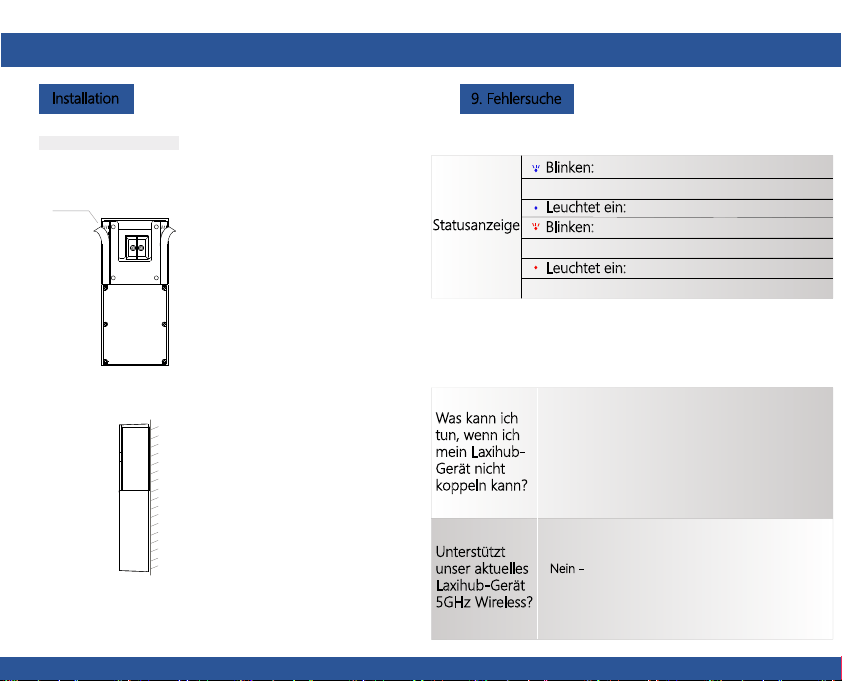
Was kann ich
tun, wenn ich
mein Laxihub-
Gerät nicht
koppeln kann?
Unterstützt
unser aktuelles
Laxihub-Gerät
5GHz Wireless?
Nein - Laxihub-Geräte werden derzeit nicht
unterstützt 5 GHz drahtlose Verbindung.
1. Überprüfen Sie, ob Ihr Mobilgerät mit einem 2,4-
GHz-WLAN-Netzwerk verbunden ist.
3. Überprüfen Sie, ob sich das Laxihub-Gerät im
Pairing-Modus befindet. Die Statusanzeige blinkt
langsam rot. (1 mal)
2. Überprüfen Sie, ob das eingegebene WLAN-
Passwort korrekt ist und dasselbe WLAN-Netzwerk
für Mobilgeräte verwendet wird und Paarung.
Doppelseitiger Bandmodus
Installation
9. Fehlersuche
band
Schritt 1 Bringen Sie das doppelseitige Klebeband an beiden Seiten der
Halterung an
Schritt 2 Kleben Sie die Türklingel fest in eine saubere Wohnung
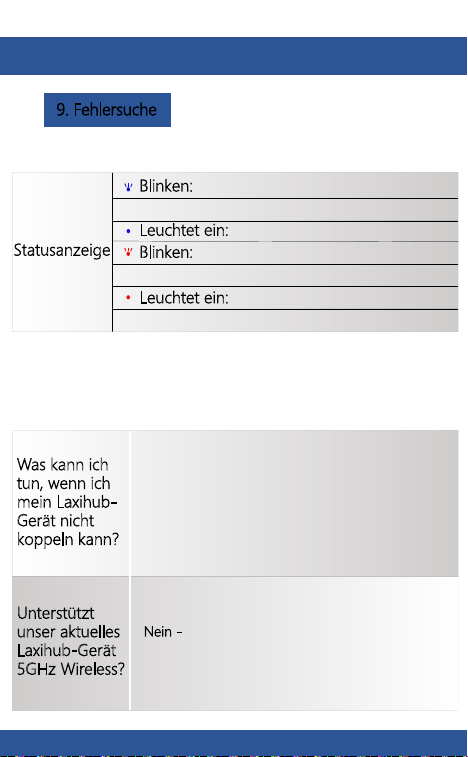
Statusanzeige
Leuchtet ein: Kamera läuft korrekt
Blinken:
Derzeit wird eine Verbindung
hergestellt
Leuchtet ein: Die Kamera oder das Netzwerk
ist abnormal
Blinken: Warten auf WiFi-Verbindung und
aktuelle Verbindung (schneller blinkend)
DE DE
49
50
Was kann ich
tun, wenn ich
mein Laxihub-
Gerät nicht
koppeln kann?
Unterstützt
unser aktuelles
Laxihub-Gerät
5GHz Wireless?
Nein - Laxihub-Geräte werden derzeit nicht
unterstützt 5 GHz drahtlose Verbindung.
1. Überprüfen Sie, ob Ihr Mobilgerät mit einem 2,4-
GHz-WLAN-Netzwerk verbunden ist.
3. Überprüfen Sie, ob sich das Laxihub-Gerät im
Pairing-Modus befindet. Die Statusanzeige blinkt
langsam rot. (1 mal)
2. Überprüfen Sie, ob das eingegebene WLAN-
Passwort korrekt ist und dasselbe WLAN-Netzwerk
für Mobilgeräte verwendet wird und Paarung.
Doppelseitiger Bandmodus
Installation
9. Fehlersuche
band
Schritt 1 Bringen Sie das doppelseitige Klebeband an beiden Seiten der
Halterung an
Schritt 2 Kleben Sie die Türklingel fest in eine saubere Wohnung
Statusanzeige
Leuchtet ein: Kamera läuft korrekt
Blinken:
Derzeit wird eine Verbindung
hergestellt
Leuchtet ein: Die Kamera oder das Netzwerk
ist abnormal
Blinken: Warten auf WiFi-Verbindung und
aktuelle Verbindung (schneller blinkend)
DE DE
51
Fehlerbehebung
Wie ändere
ich das
Kameranetz
werk auf
einen anderen
Router?
Setzen Sie das Gerät zuerst zurück oder
entfernen Sie es in der Arenti-App.
Konfigurieren Sie das Gerät dann erneut über
die App.
Warum
identifiziert
das Gerät die
SD-Karte
nicht?
Es wird empfohlen, die SD-Karte nach dem
Stromausfall einzustecken. Überprüfen Sie, ob
die SD-Karte normalerweise verfügbar ist und
das Format FAT32 lautet. Und die SD-Karte
kann nicht identifiziert werden, wenn die
Internetumgebung nicht gut ist.
Bitte besuchen Sie unsere offizielle Website für weitere
Unterstützung.
www.laxihub.com
DE

51
Fehlerbehebung
Wie ändere
ich das
Kameranetz
werk auf
einen anderen
Router?
Setzen Sie das Gerät zuerst zurück oder
entfernen Sie es in der Arenti-App.
Konfigurieren Sie das Gerät dann erneut über
die App.
Warum
identifiziert
das Gerät die
SD-Karte
nicht?
Es wird empfohlen, die SD-Karte nach dem
Stromausfall einzustecken. Überprüfen Sie, ob
die SD-Karte normalerweise verfügbar ist und
das Format FAT32 lautet. Und die SD-Karte
kann nicht identifiziert werden, wenn die
Internetumgebung nicht gut ist.
Bitte besuchen Sie unsere offizielle Website für weitere
Unterstützung.
www.laxihub.com
DE
1
2
52
53
Grazie per aver acquistato il prodotto per la casa
intelligente Laxihub. Inizia a utilizzare i tuoi nuovi
dispositivi scaricando Laxihub, una comoda app che
gestisce tutto direttamente dal tuo telefono o tablet.
Connettiti facilmente a il tuo WiFi di casa e controlla
più dispositivi dal tocco delle dita.
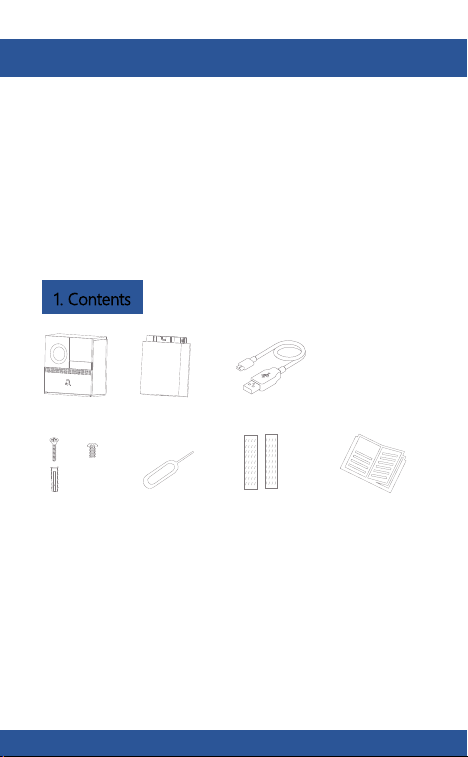
1. Contents
B1
Scatola batteria
cavo USB
x
x
x
8
8
2
Pacchetto di viti
Guida veloce
perno
Nastro biadesivo
Pulsante del
campanello
Microfono
Spia di stato
altoparlante
Slot per
scheda SD
Ripristina 1
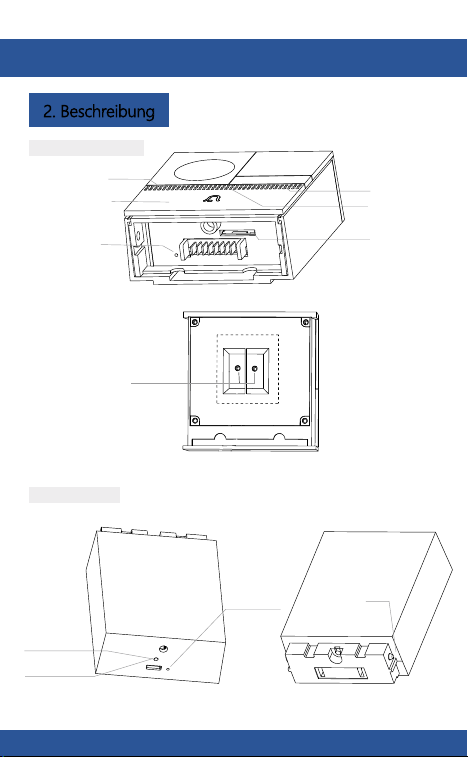
2. Beschreibung
Porta di
alimentazione esterna
Parte posteriore del campanello
Indicatore
di carica
Mini USB
Ripristina 2
Chiusura a
baionetta
B1 corpo principale
Scatola batteria
IT IT
1
2
52
53
Grazie per aver acquistato il prodotto per la casa
intelligente Laxihub. Inizia a utilizzare i tuoi nuovi
dispositivi scaricando Laxihub, una comoda app che
gestisce tutto direttamente dal tuo telefono o tablet.
Connettiti facilmente a il tuo WiFi di casa e controlla
più dispositivi dal tocco delle dita.
1. Contents
B1
Scatola batteria
cavo USB
x
x
x
8
8
2
Pacchetto di viti
Guida veloce
perno
Nastro biadesivo
Pulsante del
campanello
Microfono
Spia di stato
altoparlante
Slot per
scheda SD
Ripristina 1
2. Beschreibung
Porta di
alimentazione esterna
Parte posteriore del campanello
Indicatore
di carica
Mini USB
Ripristina 2
Chiusura a
baionetta
B1 corpo principale
Scatola batteria
IT IT
54
55
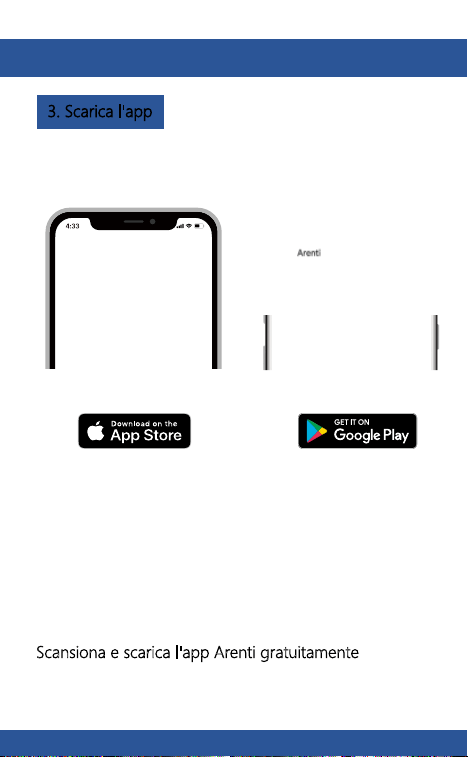
3. Scarica l'app
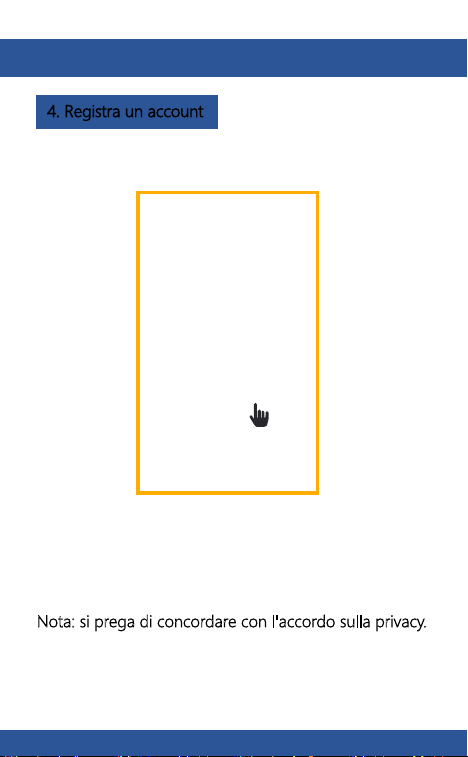
4. Registra un account
Apri l'app Arenti. Se sei un nuovo utente, tocca crea nuovo
conto e seguire le istruzioni per completare la registrazione.
Nota: si prega di concordare con l'accordo sulla privacy.
Per ricevere la notifica in tempo, fare clic su "Consenti".
Scansiona e scarica l'app Arenti gratuitamente
Scarica l'Arenti dall'App Store o Google Play.
IT IT
54
55
3. Scarica l'app
4. Registra un account
Apri l'app Arenti. Se sei un nuovo utente, tocca crea nuovo
conto e seguire le istruzioni per completare la registrazione.
Nota: si prega di concordare con l'accordo sulla privacy.
Per ricevere la notifica in tempo, fare clic su "Consenti".
Scansiona e scarica l'app Arenti gratuitamente
Scarica l'Arenti dall'App Store o Google Play.
IT IT
56
57
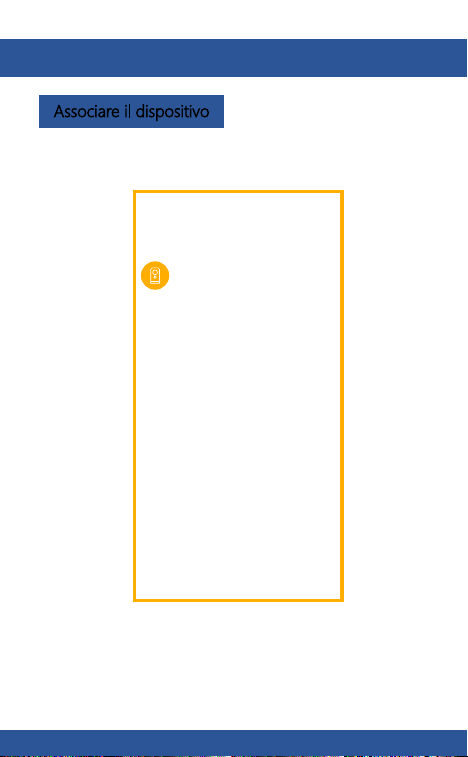
5. Associare il dispositivo Associare il dispositivo
Accendi il tuo campanello, sentirai un suono di benvenuto.
Se la spia di stato è rossa e lampeggiante (una volta al
secondo).Il campanello è acceso con successo e pronto
peraccoppiamento.
Fai clic per aggiungere un nuovo dispositivo e seleziona
" "
IT IT
56
57
5. Associare il dispositivo Associare il dispositivo
Accendi il tuo campanello, sentirai un suono di benvenuto.
Se la spia di stato è rossa e lampeggiante (una volta al
secondo).Il campanello è acceso con successo e pronto
peraccoppiamento.
Fai clic per aggiungere un nuovo dispositivo e seleziona
" "
IT IT
58
59
Associare il dispositivo Associare il dispositivo
Premi "Next" dopo aver sentito il suono del tuo
campanello.
L'App Arenti inizierà a connettersi al campanello
automaticamente come indicato dalla spia di stato
lampeggiante rapidamente e quindi rimanere blu fisso.
Immettere la password Wi-Fi e toccare Avanti per
procedere. Se necessario, puoi toccare Cambia WiFi
per passare a un'altra rete WiFi adatta per il tuo
campanello.
Scan
QR
Code
on screen
Premi "Avanti" per scansionare il codice QR usando il tuo
campanello. Tieni 5 ~ 8 pollici di distanza dallo schermo
del tuo cellulare.
IT IT
58
59
Associare il dispositivo Associare il dispositivo
Premi "Next" dopo aver sentito il suono del tuo
campanello.
L'App Arenti inizierà a connettersi al campanello
automaticamente come indicato dalla spia di stato
lampeggiante rapidamente e quindi rimanere blu fisso.
Immettere la password Wi-Fi e toccare Avanti per
procedere. Se necessario, puoi toccare Cambia WiFi
per passare a un'altra rete WiFi adatta per il tuo
campanello.
Scan
QR
Code
on screen
Premi "Avanti" per scansionare il codice QR usando il tuo
campanello. Tieni 5 ~ 8 pollici di distanza dallo schermo
del tuo cellulare.
IT IT
60
61
Associare il dispositivo
Associare il dispositivo
Una volta completato il processo di associazione, viene
visualizzata una pagina "Dispositivo trovato!" apparirà.
È possibile scegliere di modificare il nome del dispositivo
o assegnare il dispositivo in una stanza dedicata prima di
toccare Fine completare il processo di associazione.
Una volta che la fotocamera è accoppiata, è possibile
visualizzare la fotocamera in qualsiasi momento dal tuo
smartphone, purché ci sia accesso a Internet.
Se non viene trovato alcun dispositivo e il processo di
associazione non è riuscito, per favore controlla sotto le
istruzioni:
1) La rete WiFi è a 2,4 GHz.
2) La password WiFi inserita è corretta e lo stesso WiFi
la rete viene utilizzata per il dispositivo mobile.
3) Il dispositivo Arenti è in modalità di associazione.
4) Controlla il tuo WiFi per l'attività di rete.
IT IT

60
61
Associare il dispositivo
Associare il dispositivo
Una volta completato il processo di associazione, viene
visualizzata una pagina "Dispositivo trovato!" apparirà.
È possibile scegliere di modificare il nome del dispositivo
o assegnare il dispositivo in una stanza dedicata prima di
toccare Fine completare il processo di associazione.
Una volta che la fotocamera è accoppiata, è possibile
visualizzare la fotocamera in qualsiasi momento dal tuo
smartphone, purché ci sia accesso a Internet.
Se non viene trovato alcun dispositivo e il processo di
associazione non è riuscito, per favore controlla sotto le
istruzioni:
1) La rete WiFi è a 2,4 GHz.
2) La password WiFi inserita è corretta e lo stesso WiFi
la rete viene utilizzata per il dispositivo mobile.
3) Il dispositivo Arenti è in modalità di associazione.
4) Controlla il tuo WiFi per l'attività di rete.
IT IT
62
63
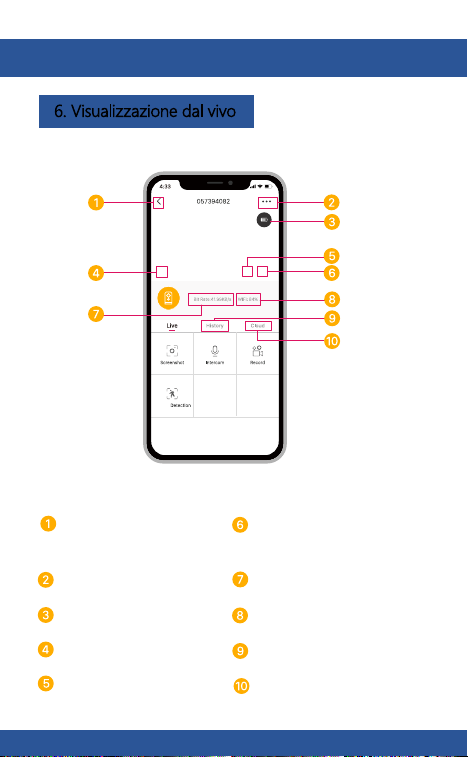
6. Visualizzazione dal vivo
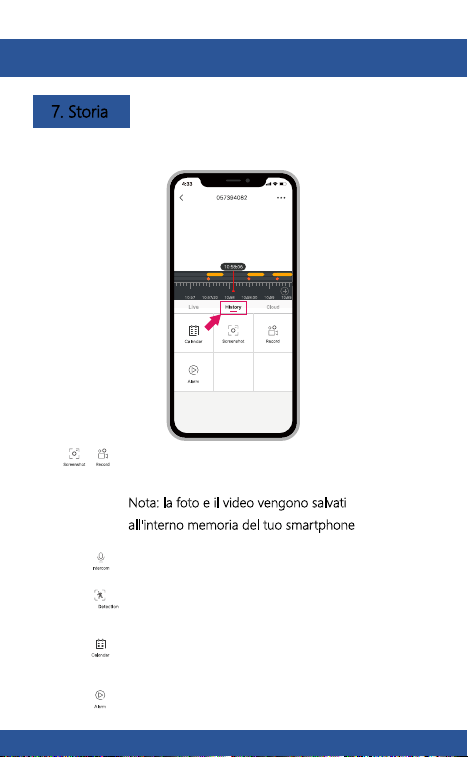
7. Storia
Tocca per catturare una foto / video
durante live view o riproduzione
Nota: la foto e il video vengono salvati
all'interno memoria del tuo smartphone
Return
Visualizzazione a schermo
intero
Menu di impostazione
Volume acceso/spento
Cronologia delle notifiche
Stato della batteria
Switch HD/SD Servizio di cloud storage
Potenza del segnale WiFi
Stream bit rate
Tocca per abilitare la conversazione
Seleziona un dato per rivedere la tua
riproduzione dalla scheda SD
Tocca per cercare video clip per data
Tocca per abilitare il rilevamento del
movimento
IT IT
62
63
6. Visualizzazione dal vivo
7. Storia
Tocca per catturare una foto / video
durante live view o riproduzione
Nota: la foto e il video vengono salvati
all'interno memoria del tuo smartphone
Return
Visualizzazione a schermo
intero
Menu di impostazione
Volume acceso/spento
Cronologia delle notifiche
Stato della batteria
Switch HD/SD Servizio di cloud storage
Potenza del segnale WiFi
Stream bit rate
Tocca per abilitare la conversazione
Seleziona un dato per rivedere la tua
riproduzione dalla scheda SD
Tocca per cercare video clip per data
Tocca per abilitare il rilevamento del
movimento
IT IT
64
65
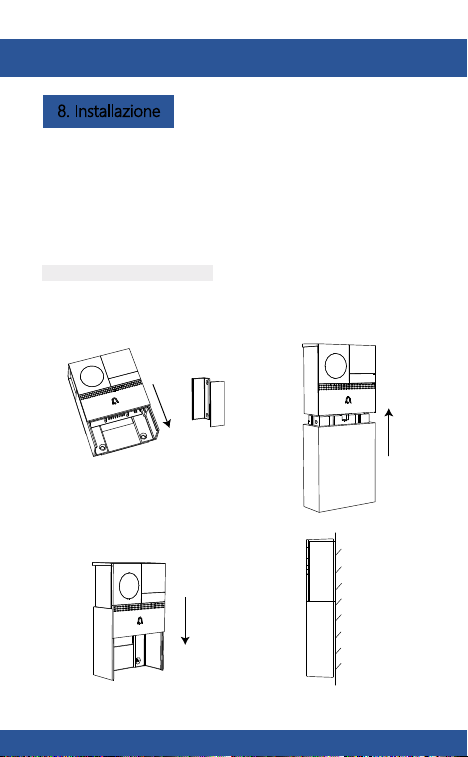
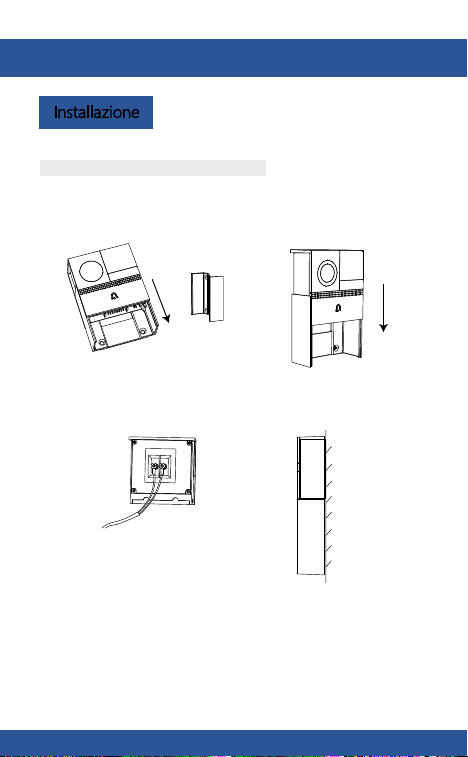
8. Installazione
Prima di scegliere la posizione preferita, controllare la
potenza / copertura WiFi per assicurarsi che il campanello
sia perfettamente funzionante.
Step 1 Rimuovere la staffa da.
Supporto
Step 1 Rimuovere la staffa da.
Supporto
Modalità alimentata a batteria
Step 2 Fissare la staffa sulla parete con
le viti e inserire il campanello
nella staffa.
Step 3 Inserire il vano batteria nel
campanello.
Vista laterale
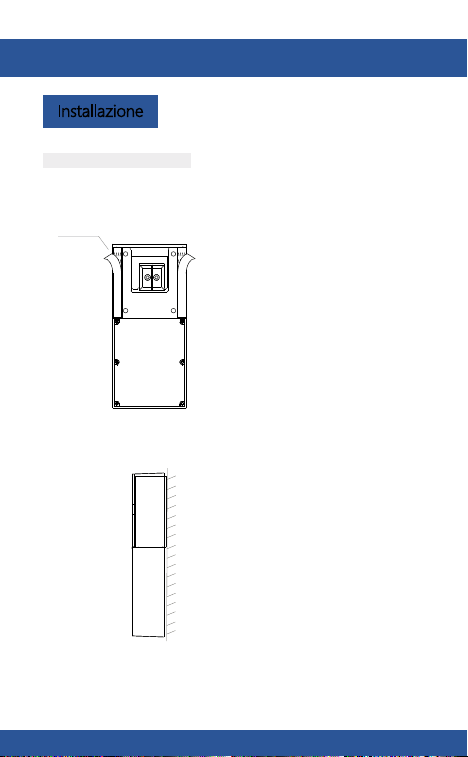
Modalità alimentata a corrente alternata
Step 2 Collegare l'alimentazione CA
con i cavi.
12~24V AC
Step 3 Fissare la staffa sulla parete con
le viti e inserire il campanello
nella staffa.
Installazione
Vista laterale
IT IT
64
65
8. Installazione
Prima di scegliere la posizione preferita, controllare la
potenza / copertura WiFi per assicurarsi che il campanello
sia perfettamente funzionante.
Step 1 Rimuovere la staffa da.
Supporto
Step 1 Rimuovere la staffa da.
Supporto
Modalità alimentata a batteria
Step 2 Fissare la staffa sulla parete con
le viti e inserire il campanello
nella staffa.
Step 3 Inserire il vano batteria nel
campanello.
Vista laterale
Modalità alimentata a corrente alternata
Step 2 Collegare l'alimentazione CA
con i cavi.
12~24V AC
Step 3 Fissare la staffa sulla parete con
le viti e inserire il campanello
nella staffa.
Installazione
Vista laterale
IT IT
66
67
Cosa posso
fare se non
riesco ad
accoppiare il
mio dispositivo
Laxihub?
Il nostro attuale
dispositivo
Laxihub
supporta
wireless a 5
GHz?
No - Momento il dispositivo Laxihub non supporta
Connessione wireless a 5 GHz.
1. Verifica che il tuo dispositivo mobile sia collegato
a una rete WiFi a 2,4 GHz.
3. Verificare che il dispositivo Laxihub sia in modalità
di associazione, la spia di stato lampeggia
lentamente in rosso. (1 volta/e)
2. Verifica che la password WiFi inserita sia corretta
e che la stessa rete WiFi sia utilizzata sia per i
dispositivi mobili e accoppiamento.
Modalità nastro biadesivo
Installazione
9. Risoluzione dei problemi
nastro
Step 1 Collegare il nastro biadesivo su entrambi i lati della staffa.
Step 2 Attaccare saldamente il campanello su un piano pulito.
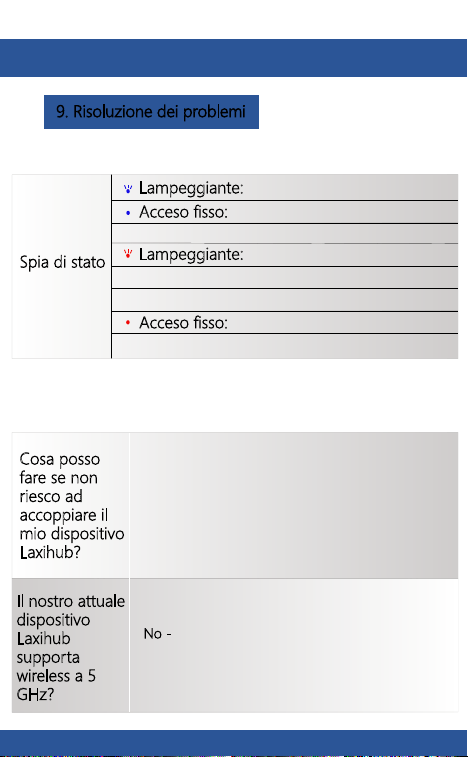
Spia di stato
Acceso fisso: la fotocamera funziona
correttamente
Lampeggiante:
attualmente connesso
Acceso fisso: la videocamera o la rete sono
anomale
Lampeggiante: in attesa di connessione
WiFi e connessione attualmente in corso (più
veloce lampeggiante)
IT IT
66
67
Cosa posso
fare se non
riesco ad
accoppiare il
mio dispositivo
Laxihub?
Il nostro attuale
dispositivo
Laxihub
supporta
wireless a 5
GHz?
No - Momento il dispositivo Laxihub non supporta
Connessione wireless a 5 GHz.
1. Verifica che il tuo dispositivo mobile sia collegato
a una rete WiFi a 2,4 GHz.
3. Verificare che il dispositivo Laxihub sia in modalità
di associazione, la spia di stato lampeggia
lentamente in rosso. (1 volta/e)
2. Verifica che la password WiFi inserita sia corretta
e che la stessa rete WiFi sia utilizzata sia per i
dispositivi mobili e accoppiamento.
Modalità nastro biadesivo
Installazione
9. Risoluzione dei problemi
nastro
Step 1 Collegare il nastro biadesivo su entrambi i lati della staffa.
Step 2 Attaccare saldamente il campanello su un piano pulito.
Spia di stato
Acceso fisso: la fotocamera funziona
correttamente
Lampeggiante:
attualmente connesso
Acceso fisso: la videocamera o la rete sono
anomale
Lampeggiante: in attesa di connessione
WiFi e connessione attualmente in corso (più
veloce lampeggiante)
IT IT
68
Risoluzione dei problemi
Come
cambiare la
rete di
telecamere su
un altro
router?
Prima ripristina il dispositivo o rimuovilo
dall'app Arenti, quindi configura nuovamente
il dispositivo dall'app.
Perché il
dispositivo
non identifica
la scheda SD?
Si consiglia di collegare la scheda SD dopo
l'interruzione dell'alimentazione. Verificare se la
scheda SD è normalmente disponibile e il
formato è FAT32. E la scheda SD non può
essere identificata quando l'ambiente Internet
non è buono.
Er ulteriori informazioni, visitare il sito Web ufficiale.
www.laxihub.com
IT

68
Risoluzione dei problemi
Come
cambiare la
rete di
telecamere su
un altro
router?
Prima ripristina il dispositivo o rimuovilo
dall'app Arenti, quindi configura nuovamente
il dispositivo dall'app.
Perché il
dispositivo
non identifica
la scheda SD?
Si consiglia di collegare la scheda SD dopo
l'interruzione dell'alimentazione. Verificare se la
scheda SD è normalmente disponibile e il
formato è FAT32. E la scheda SD non può
essere identificata quando l'ambiente Internet
non è buono.
Er ulteriori informazioni, visitare il sito Web ufficiale.
www.laxihub.com
IT
1
2
69
70
ES ES
Gracias por comprar el producto para el hogar
inteligente Laxihub. Comience a usar sus nuevos
dispositivos descargando Laxihub, una aplicación
conveniente que gestiona todo directamente desde
su teléfono o tableta. Conéctese fácilmente a WiFi de
su hogar y controle múltiples dispositivos desde
toque de sus dedos.
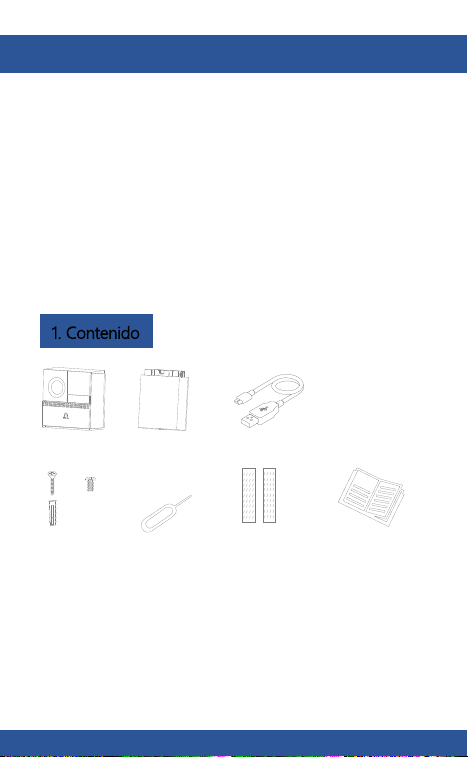
1. Contenido
B1
Caja de bateria
Cable USB
x
x
x
8
8
2
Paquete de tornillos
Guía rápida
Alfiler
Cinta de dos lados
Botón de timbre
Micrófono
Luz de estado
Altavoz
Ranura para
tarjetas SD
Rinicialización
1
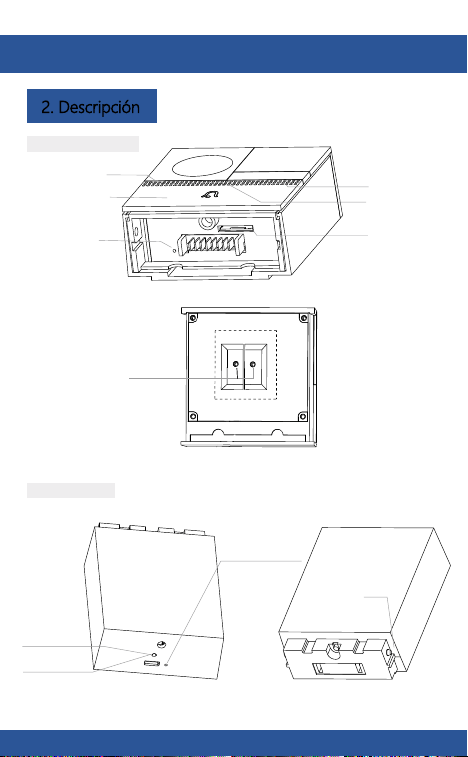
2. Descripción
Puerto de
alimentación externa
Detrás del timbre
Indicador
de carga
Mini USB
Rinicialización 2
Cerradura de
bayoneta
Cuerpo principal B1
Caja de bateria
1
2
69
70
ES ES
Gracias por comprar el producto para el hogar
inteligente Laxihub. Comience a usar sus nuevos
dispositivos descargando Laxihub, una aplicación
conveniente que gestiona todo directamente desde
su teléfono o tableta. Conéctese fácilmente a WiFi de
su hogar y controle múltiples dispositivos desde
toque de sus dedos.
1. Contenido
B1
Caja de bateria
Cable USB
x
x
x
8
8
2
Paquete de tornillos
Guía rápida
Alfiler
Cinta de dos lados
Botón de timbre
Micrófono
Luz de estado
Altavoz
Ranura para
tarjetas SD
Rinicialización
1
2. Descripción
Puerto de
alimentación externa
Detrás del timbre
Indicador
de carga
Mini USB
Rinicialización 2
Cerradura de
bayoneta
Cuerpo principal B1
Caja de bateria
71
72
ES ES
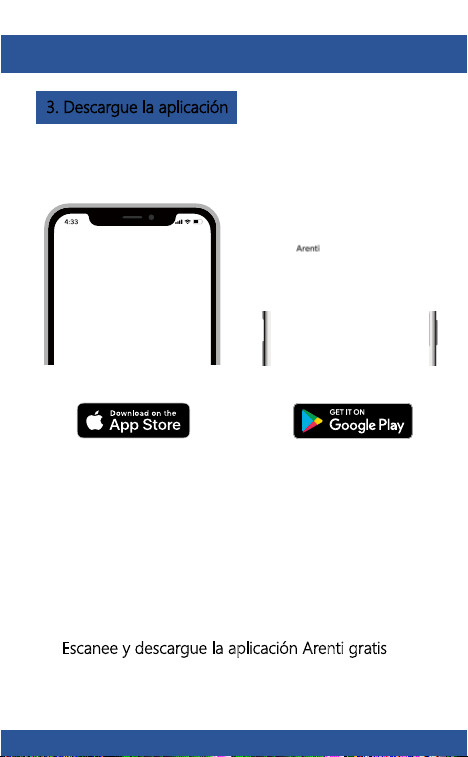
3. Descargue la aplicación
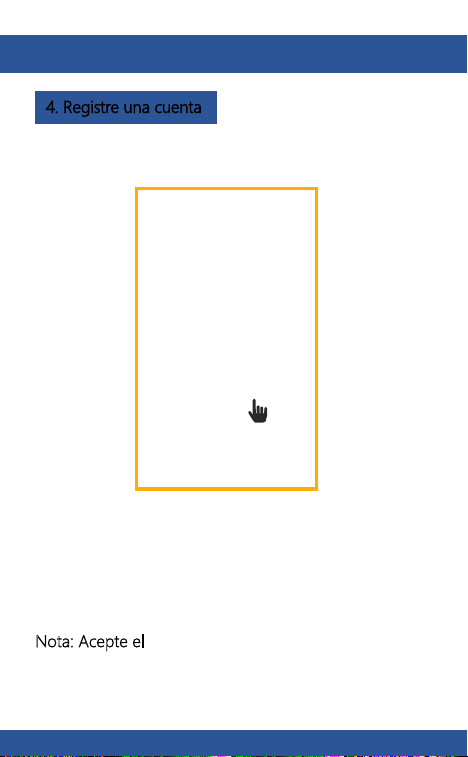
4. Registre una cuenta
Abra la aplicación Arenti. Si es un usuario nuevo, toque
"crear nuevo cuenta" y siga las instrucciones para completar
el registro.
Nota: Acepte el
Acuerdo de privacidad.
Para recibir notificaciones a tiempo, haga clic en "Permitir”.
Escanee y descargue la aplicación Arenti gratis
Descargue Arenti desde App Store o Google Play.
71
72
ES ES
3. Descargue la aplicación
4. Registre una cuenta
Abra la aplicación Arenti. Si es un usuario nuevo, toque
"crear nuevo cuenta" y siga las instrucciones para completar
el registro.
Nota: Acepte el
Acuerdo de privacidad.
Para recibir notificaciones a tiempo, haga clic en "Permitir”.
Escanee y descargue la aplicación Arenti gratis
Descargue Arenti desde App Store o Google Play.
73
74
ES ES
5. Empareje su dispositivo Empareje su dispositivo
Encienda el timbre, y escuchará un sonido de bienvenida.
Si la luz de estado está roja y parpadea (una vez por
segundo). El timbre se enciende con éxito y está listo para
emparejamiento.
Haga clic para agregar un nuevo dispositivo y
seleccione "Timbre".
73
74
ES ES
5. Empareje su dispositivo Empareje su dispositivo
Encienda el timbre, y escuchará un sonido de bienvenida.
Si la luz de estado está roja y parpadea (una vez por
segundo). El timbre se enciende con éxito y está listo para
emparejamiento.
Haga clic para agregar un nuevo dispositivo y
seleccione "Timbre".
75
76
ES ES
Presione “Siguiente” después de escuchar un sonido
de su timbre.
La aplicación Arenti comenzará a conectarse al timbre
automáticamente como lo indica la luz de estado que
parpadea rápidamente y luego permaneciendo azul sólido
.
Ingrese la contraseña de Wi-Fi y toque “Siguiente“ para
continuar.
Si es necesario, puede tocar “Cambiar WiFi“ para cambiar a
otra red WiFi adecuada para su timbre.
Scan
QR
Code
on screen
Presione “Siguiente” para escanear el código QR usando
su timbre.
Empareje su dispositivo Empareje su dispositivo
Mantenga 5 ~ 8 pulgadas de distancia de su pantalla móvil.
75
76
ES ES
Presione “Siguiente” después de escuchar un sonido
de su timbre.
La aplicación Arenti comenzará a conectarse al timbre
automáticamente como lo indica la luz de estado que
parpadea rápidamente y luego permaneciendo azul sólido
.
Ingrese la contraseña de Wi-Fi y toque “Siguiente“ para
continuar.
Si es necesario, puede tocar “Cambiar WiFi“ para cambiar a
otra red WiFi adecuada para su timbre.
Scan
QR
Code
on screen
Presione “Siguiente” para escanear el código QR usando
su timbre.
Empareje su dispositivo Empareje su dispositivo
Mantenga 5 ~ 8 pulgadas de distancia de su pantalla móvil.
77
78
ES ES
Una vez que se complete el proceso de emparejamiento,
aparecerá una página que muestra
“Dispositivo encontrado!”.
Puede elegir para editar el nombre del dispositivo o
asignar el dispositivo a una sala dedicada antes de tocar
“Listo“ para finalizar el proceso de emparejamiento.
Una vez que su cámara esté emparejada, se puede ver su
cámara en cualquier momento desde su teléfono inteligente
siempre que haya acceso a Internet.
Si no se encuentra ningún dispositivo y el proceso de
emparejamiento falla, por favor verifique las instrucciones
a continuación:
1) La red WiFi es de 2.4GHz
.
2) La contraseña de WiFi ingresada es correcta y la misma
red WiFi se utiliza para el dispositivo móvil.
3) El dispositivo Arenti está en modo de emparejamiento.
4) Verifique su WiFi para la actividad de la red.
Empareje su dispositivo Empareje su dispositivo
77
78
ES ES
Una vez que se complete el proceso de emparejamiento,
aparecerá una página que muestra
“Dispositivo encontrado!”.
Puede elegir para editar el nombre del dispositivo o
asignar el dispositivo a una sala dedicada antes de tocar
“Listo“ para finalizar el proceso de emparejamiento.
Una vez que su cámara esté emparejada, se puede ver su
cámara en cualquier momento desde su teléfono inteligente
siempre que haya acceso a Internet.
Si no se encuentra ningún dispositivo y el proceso de
emparejamiento falla, por favor verifique las instrucciones
a continuación:
1) La red WiFi es de 2.4GHz
.
2) La contraseña de WiFi ingresada es correcta y la misma
red WiFi se utiliza para el dispositivo móvil.
3) El dispositivo Arenti está en modo de emparejamiento.
4) Verifique su WiFi para la actividad de la red.
Empareje su dispositivo Empareje su dispositivo
79
80
ES ES
6. Visualización en vivo 7. Historia
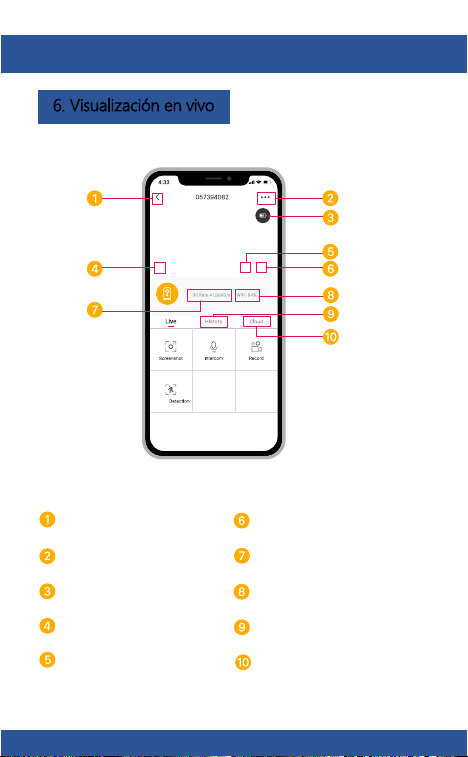
Toque para habilitar la conversación
Toque para habilitar la detección de
movimiento
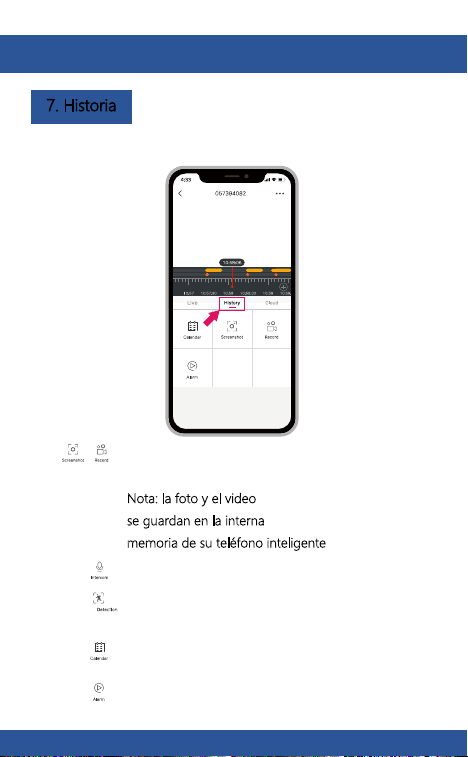
Seleccione un dato para revisar su
reproducción de la tarjeta SD
Toque para buscar videoclips por fecha
Toque para capturar una foto / video durante
la visualización o reproducción en vivo
Nota: la foto y el video
se guardan en la interna
memoria de su teléfono inteligente
Atrás
Menú de configuración
Volumen encendido
/ apagado
Historial de notificaciones
Estado de la batería
Interruptor HD / SD Servicio de almacenamiento
en la nube
Pantalla completa
Intensidad de la señal WiFi
Velocidad de bits de
transmisión
79
80
ES ES
6. Visualización en vivo 7. Historia
Toque para habilitar la conversación
Toque para habilitar la detección de
movimiento
Seleccione un dato para revisar su
reproducción de la tarjeta SD
Toque para buscar videoclips por fecha
Toque para capturar una foto / video durante
la visualización o reproducción en vivo
Nota: la foto y el video
se guardan en la interna
memoria de su teléfono inteligente
Atrás
Menú de configuración
Volumen encendido
/ apagado
Historial de notificaciones
Estado de la batería
Interruptor HD / SD Servicio de almacenamiento
en la nube
Pantalla completa
Intensidad de la señal WiFi
Velocidad de bits de
transmisión
81
82
ES ES
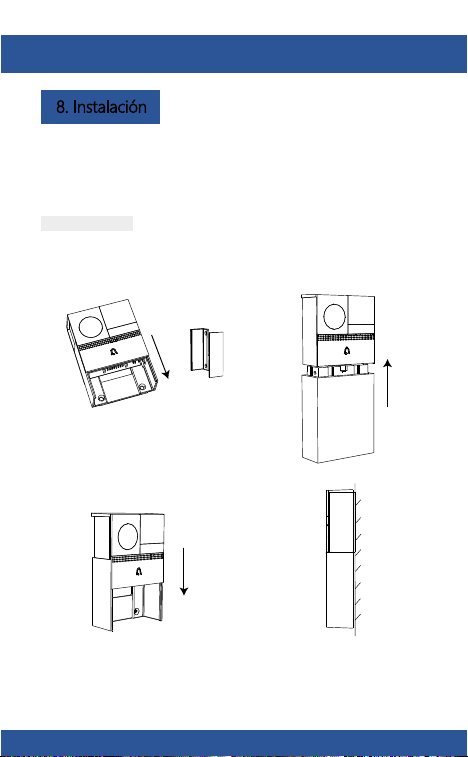
8. Instalación
Antes de elegir su ubicación preferida, verifique la fuerza
/ cobertura de WiFi para asegurarse de que el timbre sea
completamente funcional.
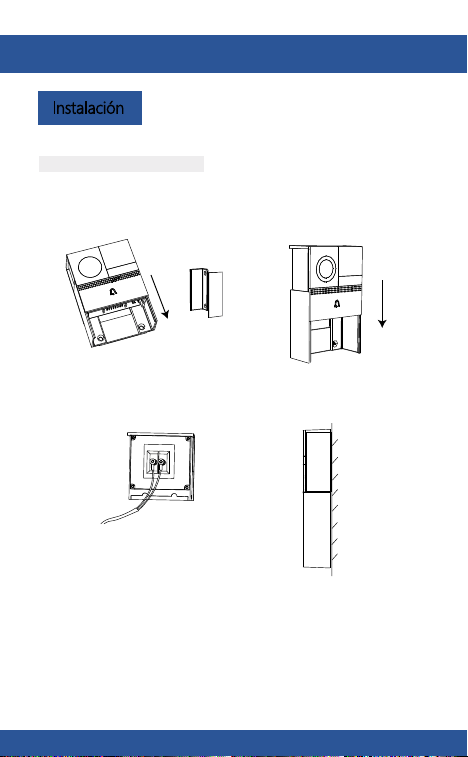
Paso 1 Retire el soporte de B1.
soporte
Paso 1 Retire el soporte de B1.
Bracket
Modo con pilas
Paso 2 Fije el soporte en la pared con
tornillos e inserte el timbre en el soporte.
Paso 3 Inserte la caja de la batería en
el timbre de la puerta.
Vista
lateral
Modo de alimentación de CA
Paso 2 Conecte la alimentación de
CA con sus cables.
12~24V AC
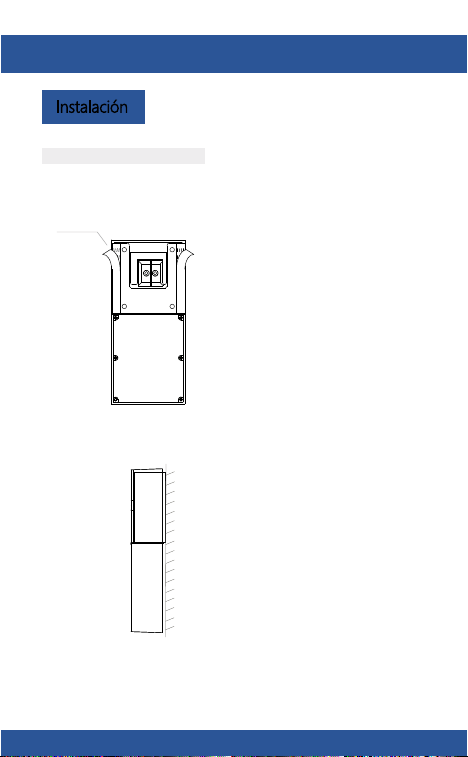
Paso 3 Fije el soporte en la pared con
tornillos e inserte el timbre en el soporte.
Vista
lateral
Instalación
81
82
ES ES
8. Instalación
Antes de elegir su ubicación preferida, verifique la fuerza
/ cobertura de WiFi para asegurarse de que el timbre sea
completamente funcional.
Paso 1 Retire el soporte de B1.
soporte
Paso 1 Retire el soporte de B1.
Bracket
Modo con pilas
Paso 2 Fije el soporte en la pared con
tornillos e inserte el timbre en el soporte.
Paso 3 Inserte la caja de la batería en
el timbre de la puerta.
Vista
lateral
Modo de alimentación de CA
Paso 2 Conecte la alimentación de
CA con sus cables.
12~24V AC
Paso 3 Fije el soporte en la pared con
tornillos e inserte el timbre en el soporte.
Vista
lateral
Instalación
83
84
ES ES
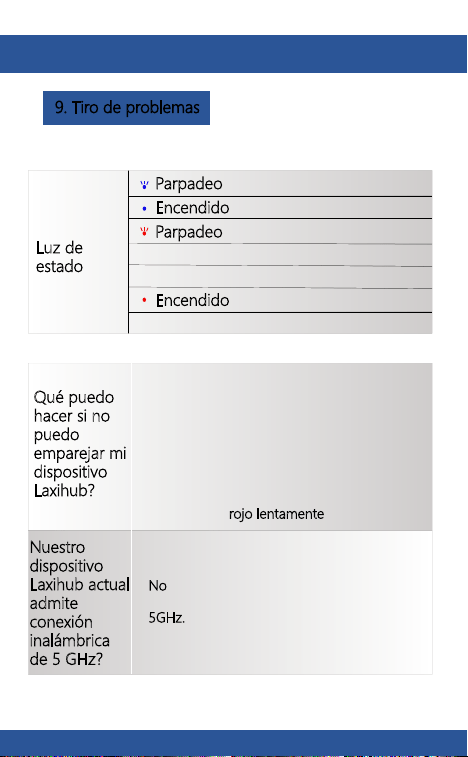
Luz de
estado
Encendido: la cámara funciona correctamente
Parpadeo: actualmente conectando
Encendido
: la cámara o la red está
anormal
Parpadeo
: en espera de conexión WiFi
y conexión actual (más rápido
parpadeo)
Qué puedo
hacer si no
puedo
emparejar mi
dispositivo
Laxihub?
Nuestro
dispositivo
Laxihub actual
admite
conexión
inalámbrica
de 5 GHz?
No - El dispositivo Laxihub actualmente no está
compatible con conexión inalámbrica de
5GHz.
1. Verifique que su dispositivo móvil esté
conectado a una red WiFi de 2.4GHz.
3. Verifique que el dispositivo Laxihub esté en
modo de emparejamiento, la luz de estado
parpadea en rojo lentamente
(1 vez).
2. Verifique que la contraseña de WiFi
ingresada sea correcta y la misma red WiFi se
usa tanto para dispositivos móviles y
emparejamiento.
Modo de cinta de doble cara
Instalación
9. Tiro de problemas
cinta
Paso 1 Coloque la cinta de doble cara en ambos lados del soporte.
Paso 2 Pegue el timbre a un piso limpio y apretado.
83
84
ES ES
Luz de
estado
Encendido: la cámara funciona correctamente
Parpadeo: actualmente conectando
Encendido
: la cámara o la red está
anormal
Parpadeo
: en espera de conexión WiFi
y conexión actual (más rápido
parpadeo)
Qué puedo
hacer si no
puedo
emparejar mi
dispositivo
Laxihub?
Nuestro
dispositivo
Laxihub actual
admite
conexión
inalámbrica
de 5 GHz?
No - El dispositivo Laxihub actualmente no está
compatible con conexión inalámbrica de
5GHz.
1. Verifique que su dispositivo móvil esté
conectado a una red WiFi de 2.4GHz.
3. Verifique que el dispositivo Laxihub esté en
modo de emparejamiento, la luz de estado
parpadea en rojo lentamente
(1 vez).
2. Verifique que la contraseña de WiFi
ingresada sea correcta y la misma red WiFi se
usa tanto para dispositivos móviles y
emparejamiento.
Modo de cinta de doble cara
Instalación
9. Tiro de problemas
cinta
Paso 1 Coloque la cinta de doble cara en ambos lados del soporte.
Paso 2 Pegue el timbre a un piso limpio y apretado.
85
86
ES
85
86
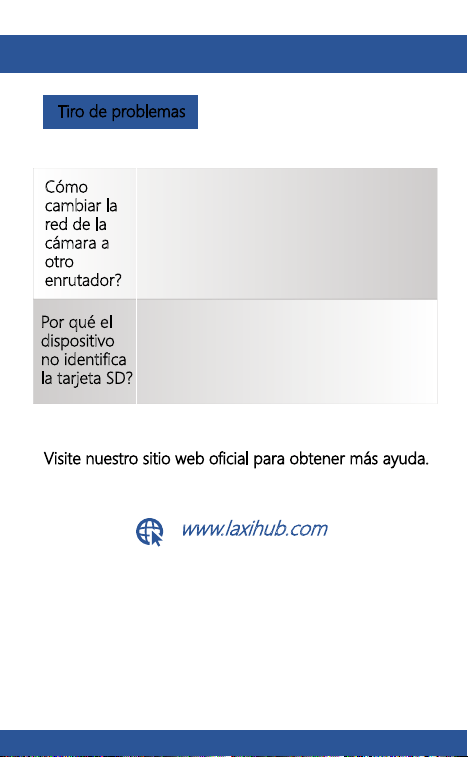
Tiro de problemas
Cómo
cambiar la
red de la
cámara a
otro
enrutador?
Primero reinicie el dispositivo o elimínelo en la
aplicación Laxihub App, luego configure el
dispositivo nuevamente por la aplicación.
Por qué el
dispositivo
no identifica
la tarjeta SD?
Se recomienda enchufar la tarjeta SD después
del corte de energía. Confirme si la tarjeta SD
está normalmente disponible y el formato es
FAT32. Y la tarjeta SD no se puede identificar
cuando el entorno de Internet no es bueno.
FCC NOTE
Visite nuestro sitio web oficial para obtener más ayuda.
www.laxihub.com
This device complies with Part 15 of the FCC Rules. Operation is
subject to the following two conditions:
1- this device may not cause harmful interference,
2- this device must accept any interference received, including
interference that may cause undesired operation.
The manufacturer is not responsible for any radio or tv interference
caused by unauthorized modifications or change to this equipment.
Such modifications or change could void the user’s authority to
operate the equipment.
This equipment has been tested and found to comply with the limits
for a Class B digital device, pursuant to part 15 of the FCC Rules.
These limits are designed to provide reasonable protection against
harmful interference in a residential installation.
This equipment generates, uses and can radiate radio frequency
energy and, if not installed and used in accordance with the
instructions, may cause harmful interference to radio communications.
However, there is no guarantee that interference will not occur in a
particular installation. If this equipment does cause harmful
interference to radio or television reception, which can be determined
by turning the equipment off and on, the user is encouraged to try to
correct the interference by one or more of the following measures:
- Reorient or relocate the receiving antenna.
- Increase the separation between the equipment and receiver.
- Connect the equipment into an outl et on a circuit different from
that to which the receiver is connected.

85
86
ES
85
86
Tiro de problemas
Cómo
cambiar la
red de la
cámara a
otro
enrutador?
Primero reinicie el dispositivo o elimínelo en la
aplicación Laxihub App, luego configure el
dispositivo nuevamente por la aplicación.
Por qué el
dispositivo
no identifica
la tarjeta SD?
Se recomienda enchufar la tarjeta SD después
del corte de energía. Confirme si la tarjeta SD
está normalmente disponible y el formato es
FAT32. Y la tarjeta SD no se puede identificar
cuando el entorno de Internet no es bueno.
FCC NOTE
Visite nuestro sitio web oficial para obtener más ayuda.
www.laxihub.com
This device complies with Part 15 of the FCC Rules. Operation is
subject to the following two conditions:
1- this device may not cause harmful interference,
2- this device must accept any interference received, including
interference that may cause undesired operation.
The manufacturer is not responsible for any radio or tv interference
caused by unauthorized modifications or change to this equipment.
Such modifications or change could void the user’s authority to
operate the equipment.
This equipment has been tested and found to comply with the limits
for a Class B digital device, pursuant to part 15 of the FCC Rules.
These limits are designed to provide reasonable protection against
harmful interference in a residential installation.
This equipment generates, uses and can radiate radio frequency
energy and, if not installed and used in accordance with the
instructions, may cause harmful interference to radio communications.
However, there is no guarantee that interference will not occur in a
particular installation. If this equipment does cause harmful
interference to radio or television reception, which can be determined
by turning the equipment off and on, the user is encouraged to try to
correct the interference by one or more of the following measures:
- Reorient or relocate the receiving antenna.
- Increase the separation between the equipment and receiver.
- Connect the equipment into an outl et on a circuit different from
that to which the receiver is connected.

- Consult the dealer or an experienced radio/TV technician for help.
RF warning statement:
To maintain compliance with FCC’s RF exposure guidelines, this
equipment should be installed and operated with a minimum distance
of 20 cm between the radiator and your body.
87
© 2020 Laxihub. All rights reserved. All trade names are registered
trademarks of respective companies Apple, the Apple logo, iPhone
are trademarks of Apple Inc. registered in the U.S. and other
countries. Google, the Google logo, Android are trademarks of
Google Inc. App Store is a service mark of Apple Inc. Google Play
is a service mark of Google Inc.
Laxihub Europe
Zandsteen 50, 2132 MR Hoofddorp, The Netherlands
www.laxihub.com
