User Manual
20260203
Smart Button ZB2

Contents
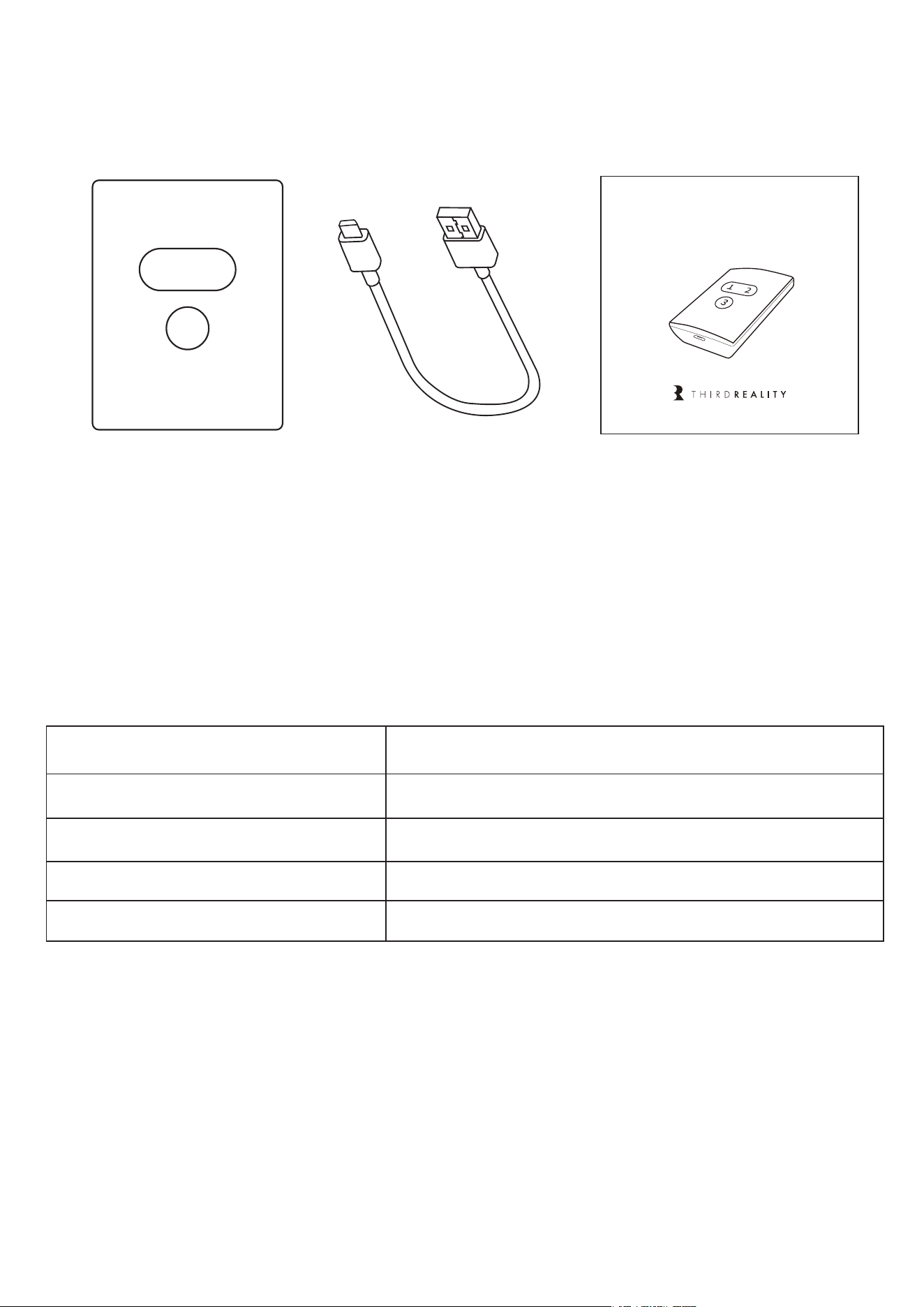
Package Contents
Specifications
Factory Reset
Setting up your Smart Button ZB2
Pairing with Home Assistant
Troubleshooting
FCC Regulatory Conformance
RF Exposure
Limited Warranty
01
01
02
02
03
08
09
09
09
01
Package Contents
Specifications
Model Number
Wireless Connectivity
Frequency
Temperature Range
Input
3RSB01085Z
Zigbee 3.0
2.4 GHz
0℃~45℃
5V 500mA
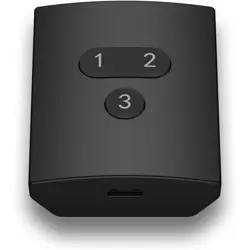
Smart Button ZB2 ×1 Micro-USB Charging
Cable ×1
Quick Start Guide ×1
1 2
3
Smart Button ZB2
Quick Start Guide

02
Follow instructions to set up your compatible Zigbee hub.
Use the Micro-USB charging cable included in the package to con-
nect the button to a power adapter (not included) to active the
Smart Button ZB2.
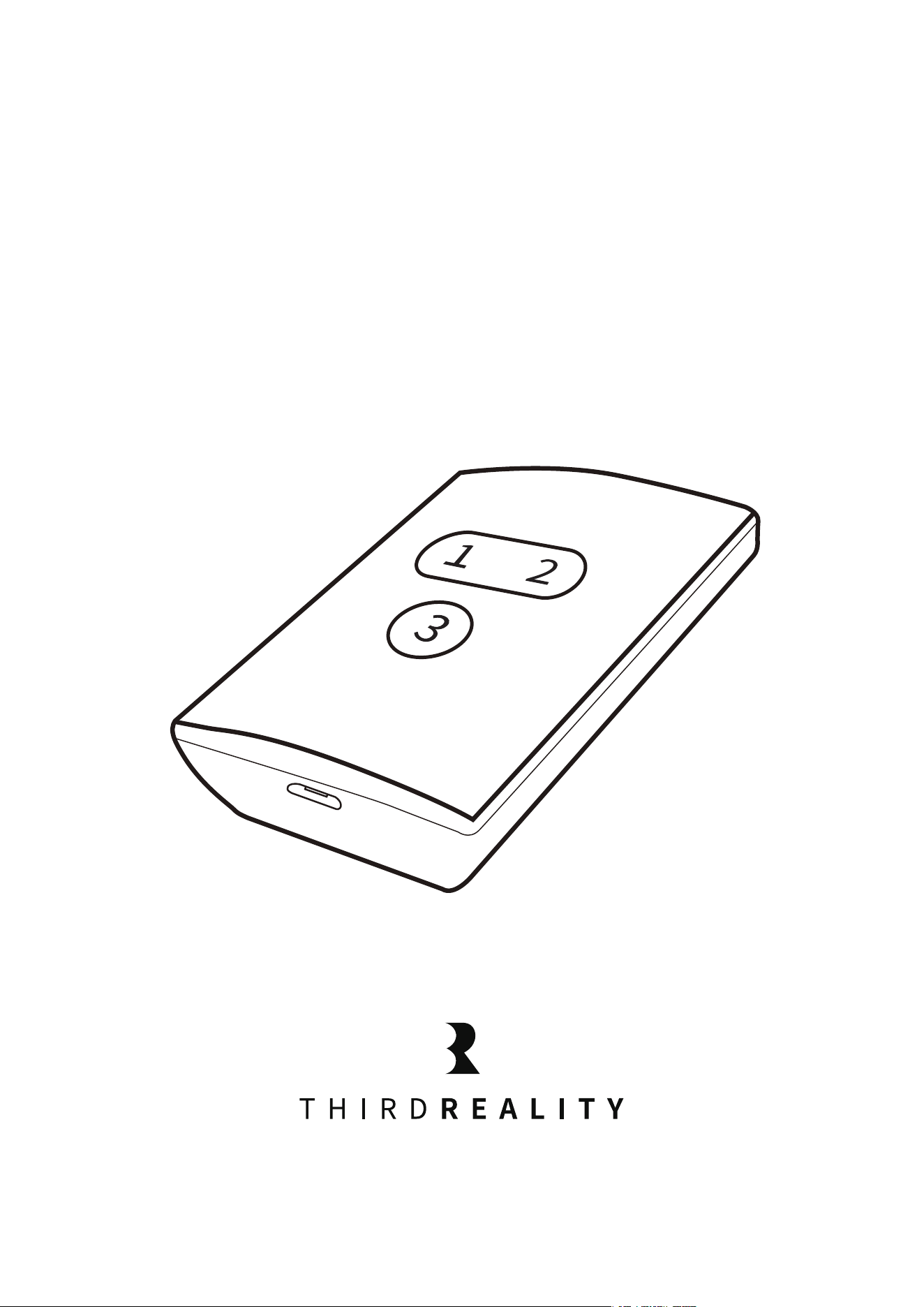
Press and hold buttons 1 and 2 for 10 seconds, the Smart Button
ZB2 will be activated once it beeps three times. The device will au-
tomatically enter pairing mode.
Note: It will exit pairing mode automatically if not successfully
paired within 3 minutes, to put it into pairing mode again, press
and hold buttons 1 and 2 for 10 seconds until the device beeps
three times, indicating that it is in pairing mode.
After the pairing is completed, the device will beep once. you can
create routines in the corresponding smart home App or platform
to control other connected devices. THIRDREALITY Smart Button
ZB2 features three buttons ( button 1 & button 2 & button 3), each
supporting three control settings: Pressed, Double Pressed and
Held.
1.
2.
3.
4.
Press and hold buttons 1 and 2 for 10 seconds until the device beeps
three times, indicating that it is in pairing mode.
Note: When charging, please connect the button to a power
adapter (not included) using the Micro-USB charging cable pro-
vided in the package. The Smart Button ZB2 will be fully charged
until it beep twice.
Factory Reset
Setting up your Smart Button ZB2

Device: Zigbee dongle
Press and hold buttons 1 and 2 for 10 seconds, the Smart Button
ZB2 will be activated once it beeps three times. The device will au-
tomatically enter pairing mode.
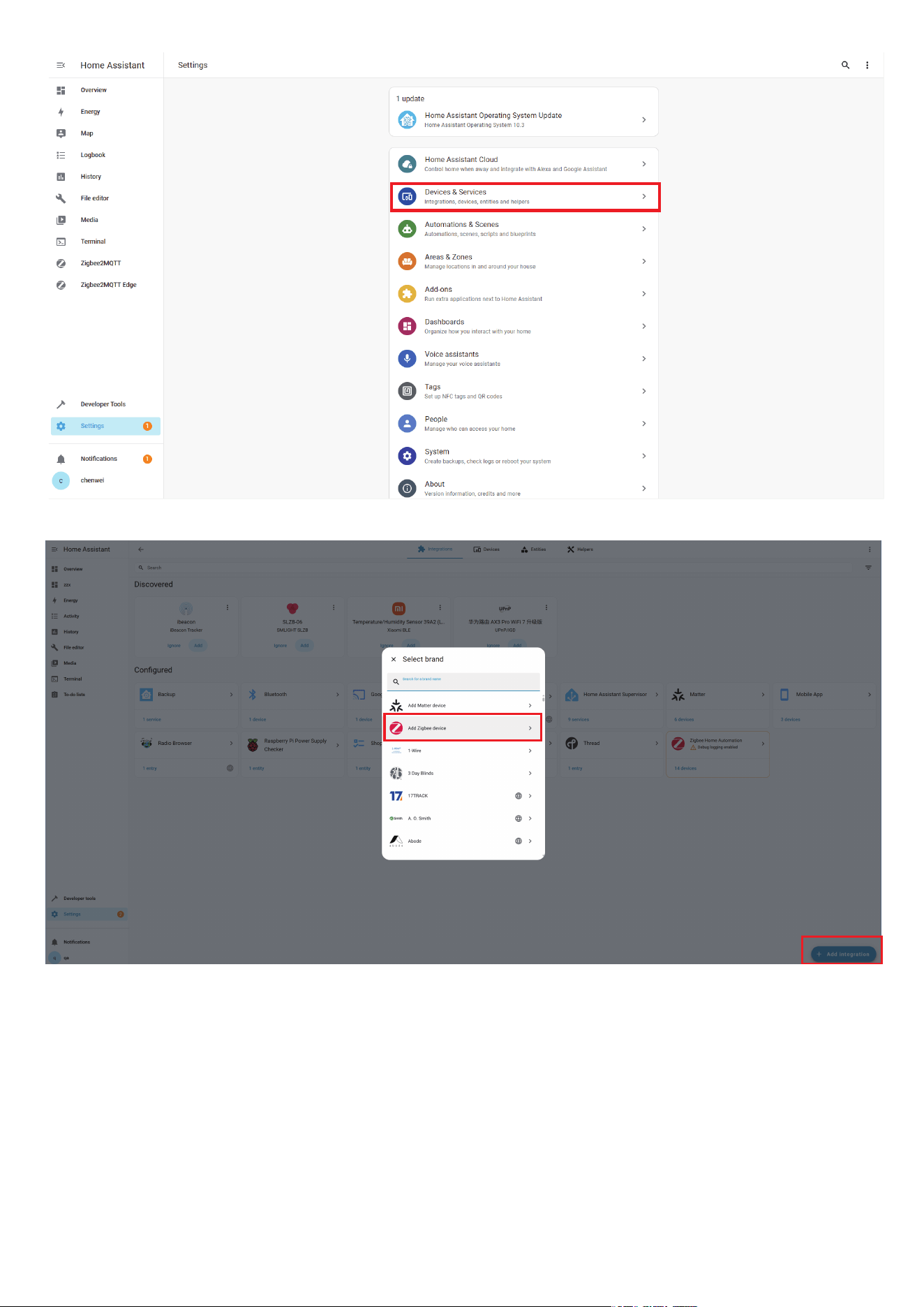
In Zigbee Home Automation, go to "Configuration" page, click "in-
tegration". Then click the “Devices" on the Zigbee item, the click
"Add Devices".
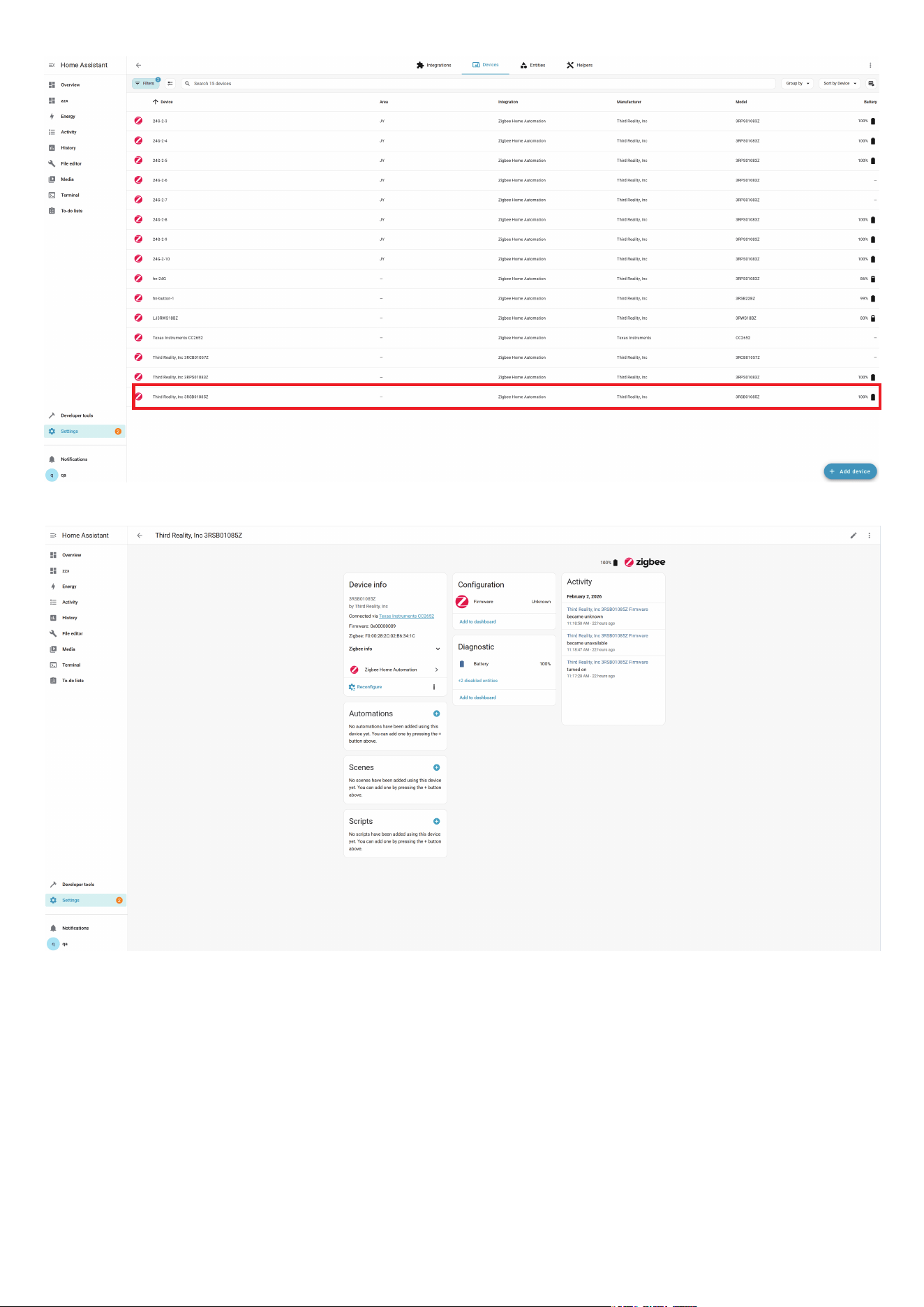
After the pairing is successful, it will be shown as "Third Reality, Inc
3RSB01085Z" on the page.
Back to "Devices & Services" page, click the device list under the
"Hub Smart Home Controller" button, then you can find the Smart
Button ZB2 added before. Click to enter in the control interface to
operate the Smart Button ZB2.
You can add "Automated Actions" and check device status on the
"Device" page.
1.
2.
3.
4.
5.
Pairing with Home Assistant
Zigbee Home Automation
03
04
05
Press and hold buttons 1 and 2 for 10 seconds, the Smart Button
ZB2 will be activated once it beeps three times. The device will au-
tomatically enter pairing mode.
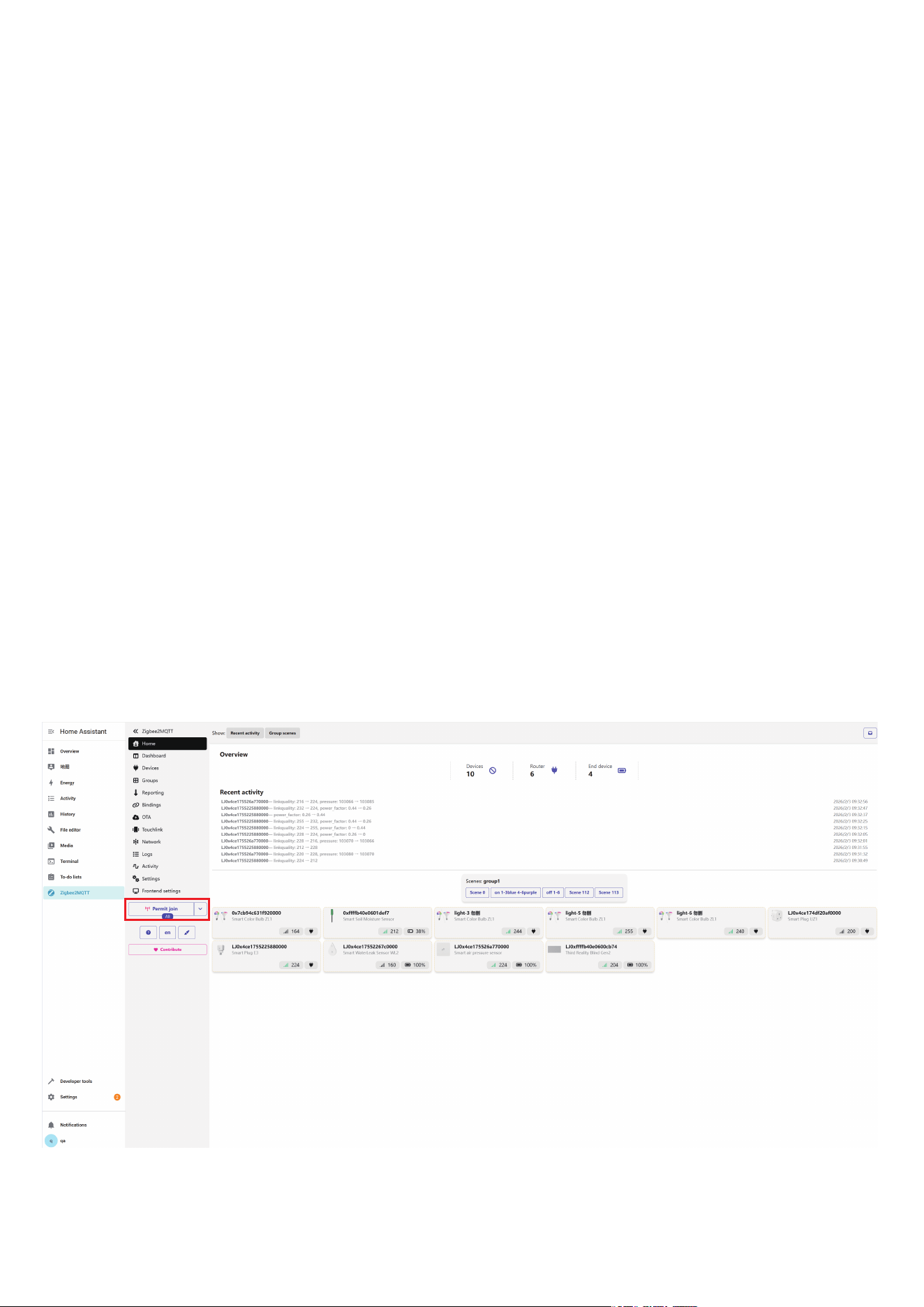
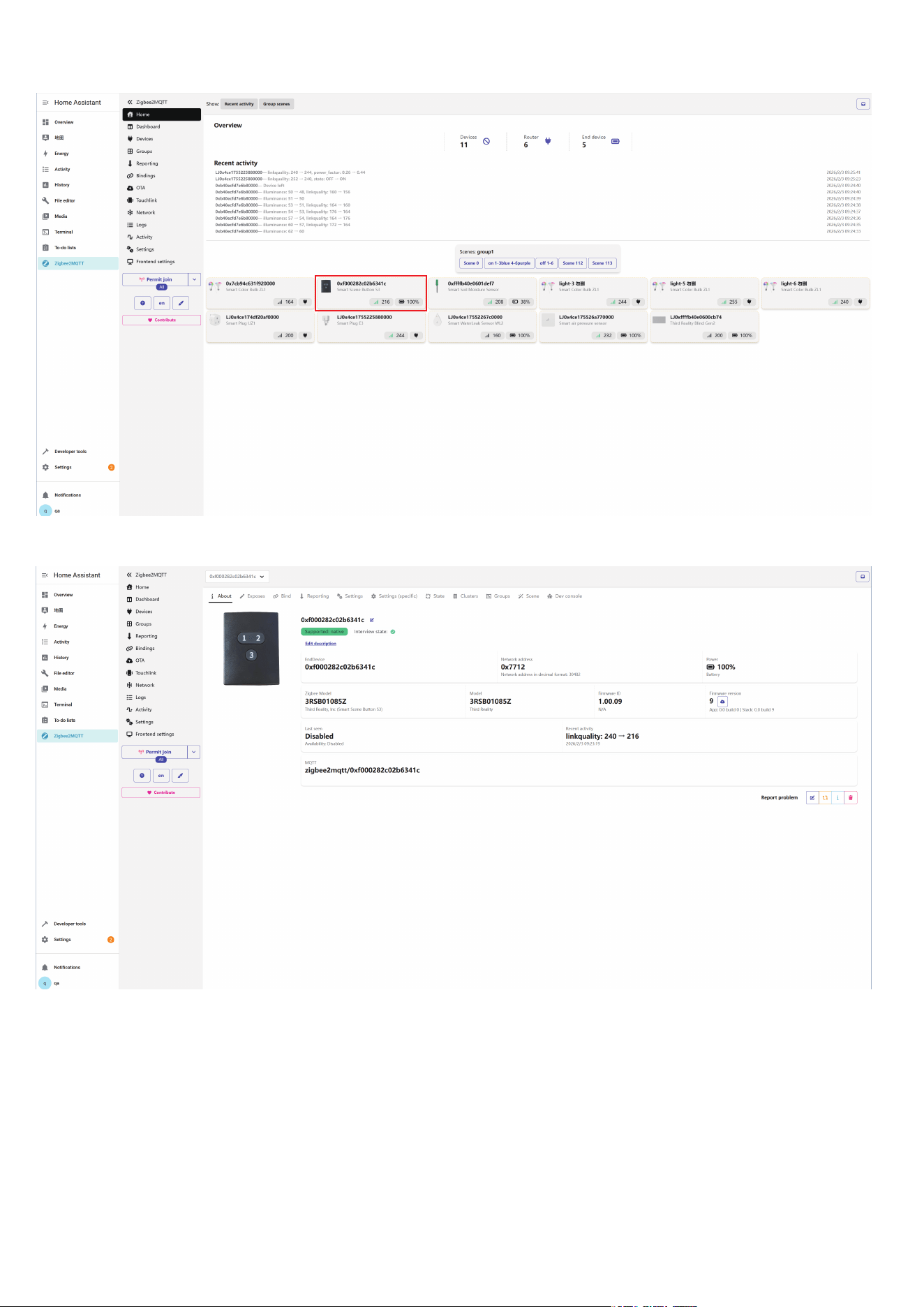
Permit join to start Zigbee pairing in Zigbee2MQTT.
After the pairing is successful, it will be shown as "Smart Button
ZB2" on the page.
Back to "Devices" page, then you can find the Smart Button ZB2
added before. Click to enter in the control interface to operate the
Smart Button ZB2.
You can add "Scene" and check device status on the "Device" page.
1.
2.
3.
4.
5.
Zigbee2MQTT
06
07

How to check if the device is fully charged?
The Smart Button ZB2 will be fully charged until it beep twice.
Device won't power on?
Recharge the battery, ensure it is installed correctly, and note that
low temperatures may reduce performance.
Cannot charge / No charging response?
Use the original charger, check the charging port, and wait a few
minutes in case of over-discharge protection.
1.
3.
4.
Troubleshooting
08

FCC Regulatory Conformance
This device complies with part 15 of the FCC rules. Operation is subject
to the following two conditions: (1) this device may not cause harmful
interference, and (2) this device must accept any interference received,
including interference that may cause undesired operation.
Changes or modifications not expressly approved by the party responsi-
ble for compliance could void the user's authority to operate the equip-
ment.
NOTE: This equipment has been tested and found to comply with the
limits for a Class B digital device, pursuant to part 15 of the FCC Rules.
These limits are designed to provide reasonable protection against
harmful interference in a residential installation.
This equipment generates uses and can radiate radio frequency energy
and, if not installed and used in accordance with the instructions, may
cause harmful interference to radio communications. However, there is
no guarantee that interference will not occur in a particular installation.
If this equipment does cause harmful interference to radio or television
reception, which can be determined by turning the equipment off and
on, the user is encouraged to try to correct the interference by one or
more of the following measures:
09

RF Exposure
Limited Warranty
‐Reorient or relocate the receiving antenna.
‐Increase the separation between the equipment and receiver.
‐Connect the equipment into an outlet on a circuit different from that
to which the receiver is connected.
‐Consult the dealer or an experienced radio/TV technician for help im-
portant announcement.
NOTE: The manufacturer is not responsible for any radio or TV interfer-
ence caused by unauthorized modifications to this equipment. Such
modifications could void the user’s authority to operate the equipment.
This equipment complies with FCC radiation exposure limits set forth for
an uncontrolled environment.
This equipment should be installed and operated with minimum dis-
tance 20cm between the radiator and your body.
This transmitter must not be co-located or operating in conjunction with
any other antenna or transmitter.
For limited warranty, please visit
https://thirdreality.com/faq-help-center/
For customer support, please contact us at info@3reality.com or visit
www.thirdreality.com
For questions on other platforms, visit the corresponding platform's
application/support platform.
10