Version: 1.0
JD-468BT
Enter your questions here
How can we help you today?
Please contact W[email protected] to extend the
warranty to 3 years with your order No.
support.jadens.com
Please kindly contact us if you have
any trouble or question when installing and using
1-800-752-7660
Scan the below QR code to talk with us
Customer Support
Scan or upload this QR code
using the WhatsApp camera
to add us
Customer Support
Extended Warranty

1. Appearance 1
1
2
3
3
5
11
16
24
24
28
28
28
32
32
33
33
2. Packing list
3. Printer connection
4. The suitable label size
5. How to feed label
6. Installation for Windows
7. Installation for Mac
8. Printer preference setting
10. Important Tips: Print label of multiple size using “Take a snap shot”
11. Frequently asked questions
9. Smartphone APP Setup
16. Safety tips
12. Pro tips
14. LED indicator
13. Driver removement
17. Maintenance
15. Specifications
See FAQ at support.jadens.com
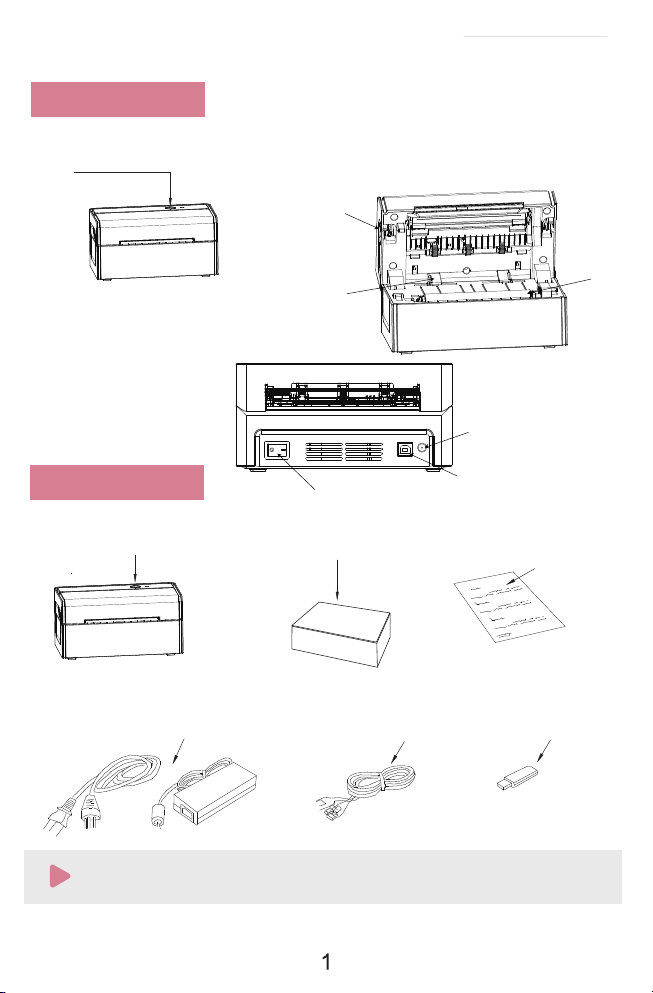
If any accessories missing, please contact us to get support.
Printer 1 Fan-fold Label User Manual
1.Appearance
2.Packing list
Feed/Reset Button
Release Latch
Paper Guide
Rolle
USB Cable Port
Power Supply Port
Power Switch(O=off,I=on)
Power Adapter & Cable
USB Cord
USB Drive
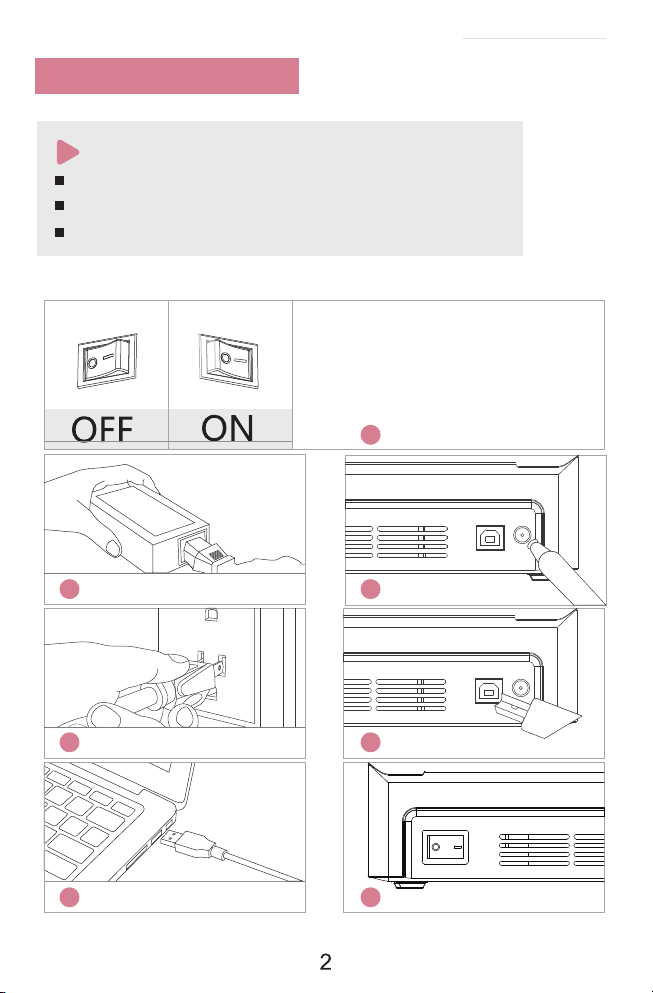
3.Printer Connection
Ensure the printer is OFF.
Use original power adapter only in case harm or injure.
Unplug if no use in a long time.
Ensure the printer is off
Connect the power
Connect the USB cable to the printer
Turn the power on
Attach the power cord to the adapter
Plug the power cord into the socket
Connect the printer and computer
Note:
1
2
3
4
5
6
7
See FAQ at support.jadens.com
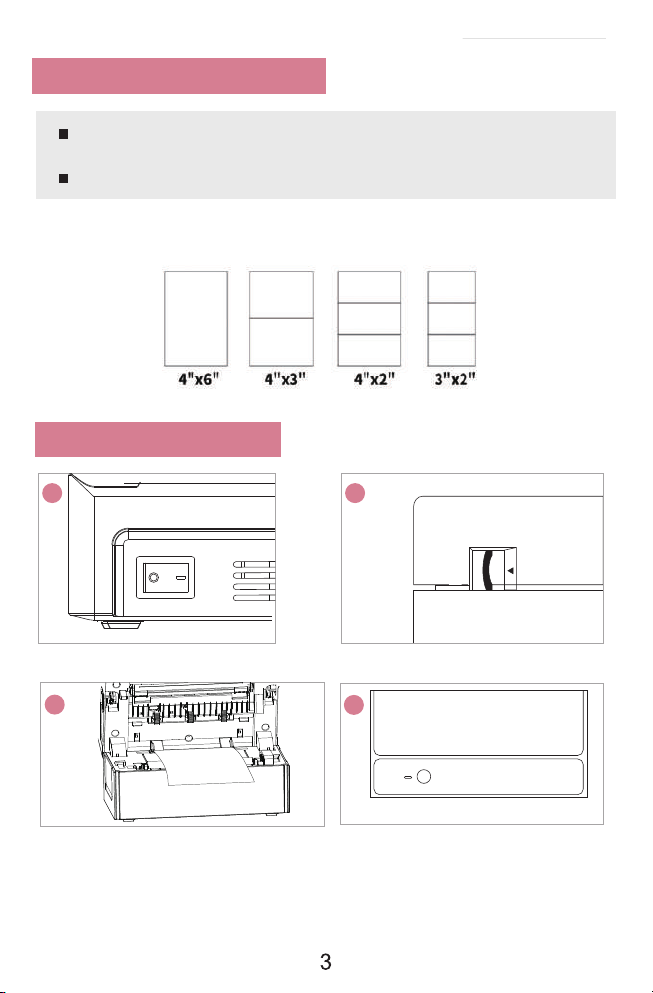
Jadens printer works with any Thermal Direct Label, and compatible
with a width range from 1.57
'' to 4.1'' and length over 1.18''
Ideal for 4''*6''
4.The suitable label size
Label standard size
5.How to feed label
Pull the release latch to open the cover
Load the label and adjust the paper guide to
fit the width of paper.
The label you peel off should be facing up
(toward the ceiling)
Carefully close the cover
1 2
3
4
See FAQ at support.jadens.com
Ensure the printer is off
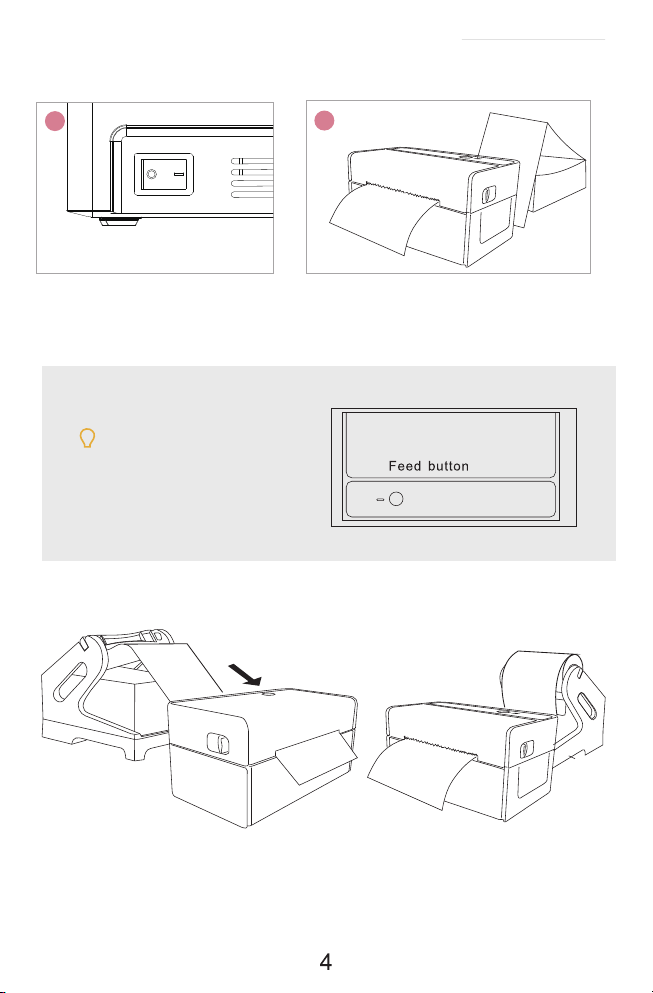
See FAQ at support.jadens.com
Turn the power on
Tips:
Anytime you change your label, run the
automatic label identification. Press
and hold the feed button until you hear
one beep.
Jadens will start automatic label identification,
the label will go back and forth for several times
and then be positioned at the tear-off point. Jadens
is ready to print.
Fan-fold Type Label Loading
The holder is sold separately in Jadens store
Fan-fold Type Label Loading
5
6
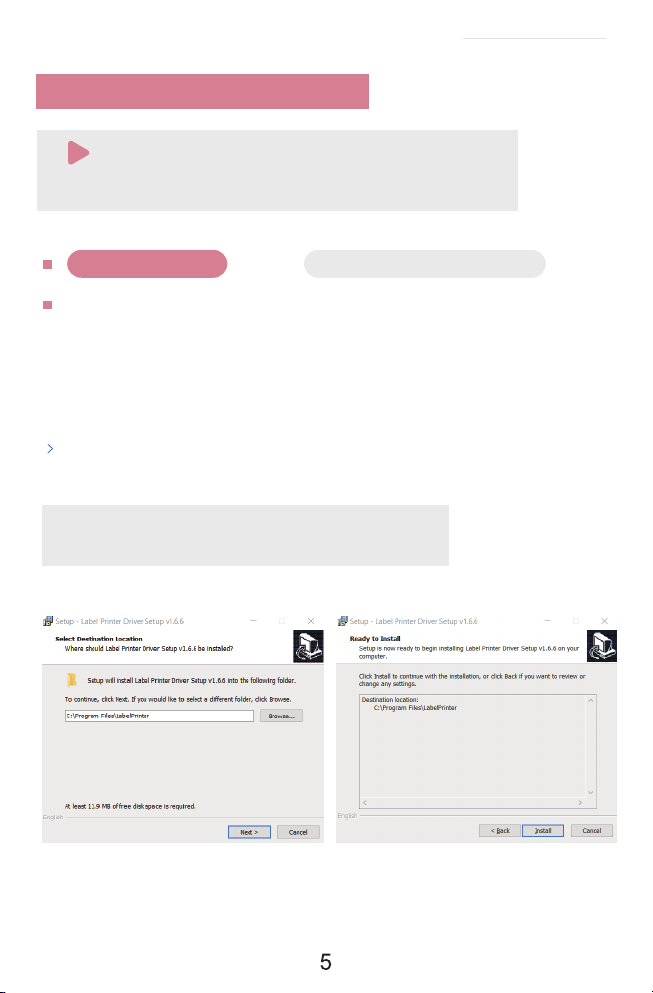
See FAQ at support.jadens.com
Win 7 or later
Chrome book, Linux, Win ARM
Installation guide video in U-disk for better reference.
a. Connect power and computer(Please skip this step if you have finished it before.)
Copy the driver in the U-disk(Label Printer Driver Setup.exe) to your
PC desk, open and install it as below:
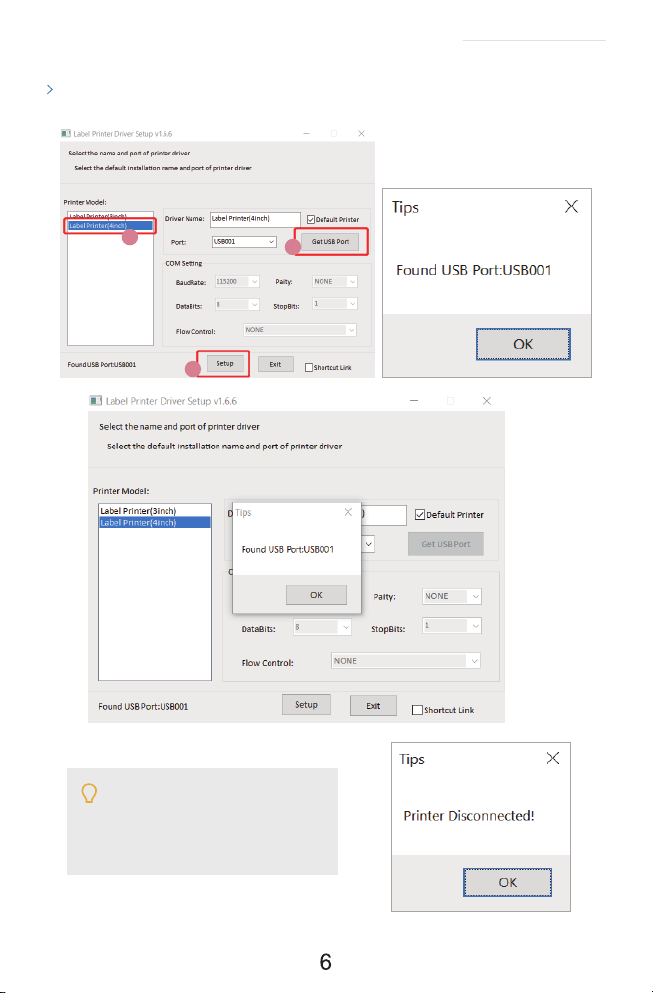
b. Install the driver and printer for Windows
6.Installation for Windows
Recommend to close security software before installation in case of
preventing installation, and you can open it again after installation.
Note:
(You can also download ' Driver for Windows (JD-468BT)' from
https://www.jadens.com/support/download/label-printer-drivers/
Driver version may be updated, see latest info at support.jadens.com.
√
×
See FAQ at support.jadens.com
If you get the tips ' Printer Disconnected'
that means your computer and printer
are not connected. Please connect them
via USB port or turn on power, then install
again.
1
2
3
Click ' Get USB Port' to get the USB port which your computer connect to the printer, and then
click ' Setup'' . The printer will be successfully set up.
See FAQ at support.jadens.com
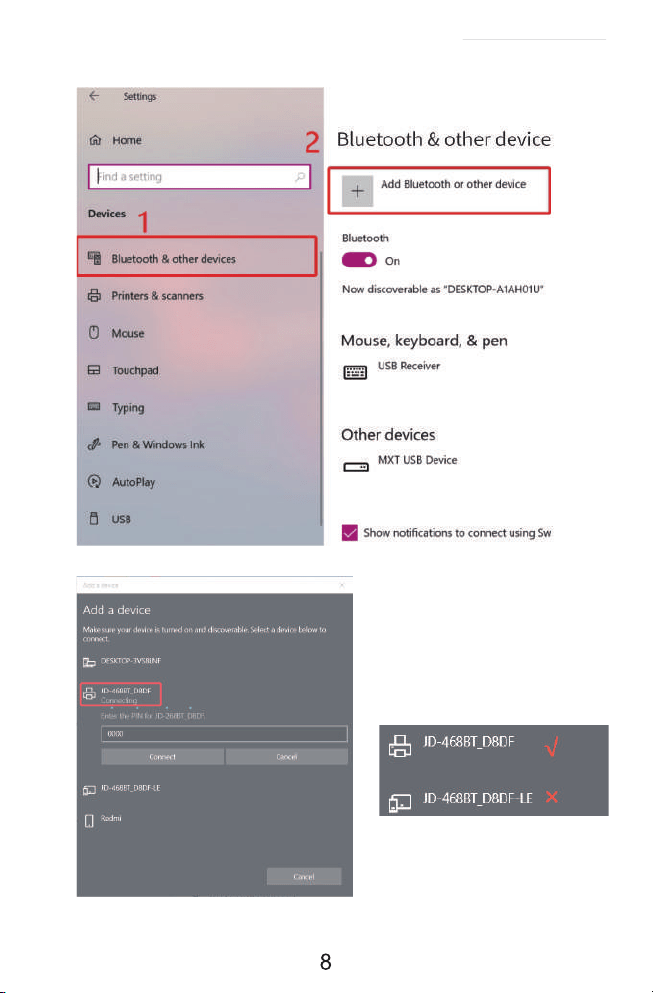
a.(Keep the printer and computer connected with USB cable). Click' Setting' >' Devices' >
'Bluetooth & other devices' >' Add Bluetooth or other device' .
:
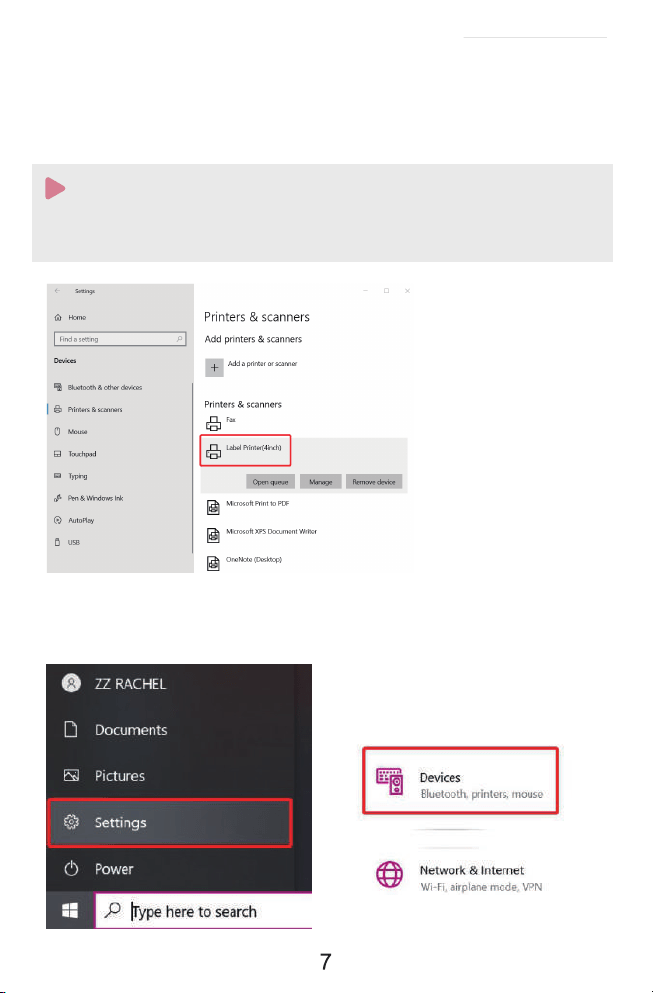
c.After setting up the printer, check your computer if the printer has installed or not.
Go to the ' Setting'> click' Device' >click' Printer & scanners' , and then you will find the printer '
Label Printer(4inch)' . Click ' Manage' to print a test page and print labels successfully, that means
you have set up the printer successfully.
If you can' t print successfully, please restart your computer and printer, then install driver again.
Repeat installation will create duplicate copies of the printer in your operating system
such as '' Printer(4inch)(1,2�) ' . Only keep and use the latest one you install.
Note:
See FAQ at support.jadens.com
See FAQ at support.jadens.com
:
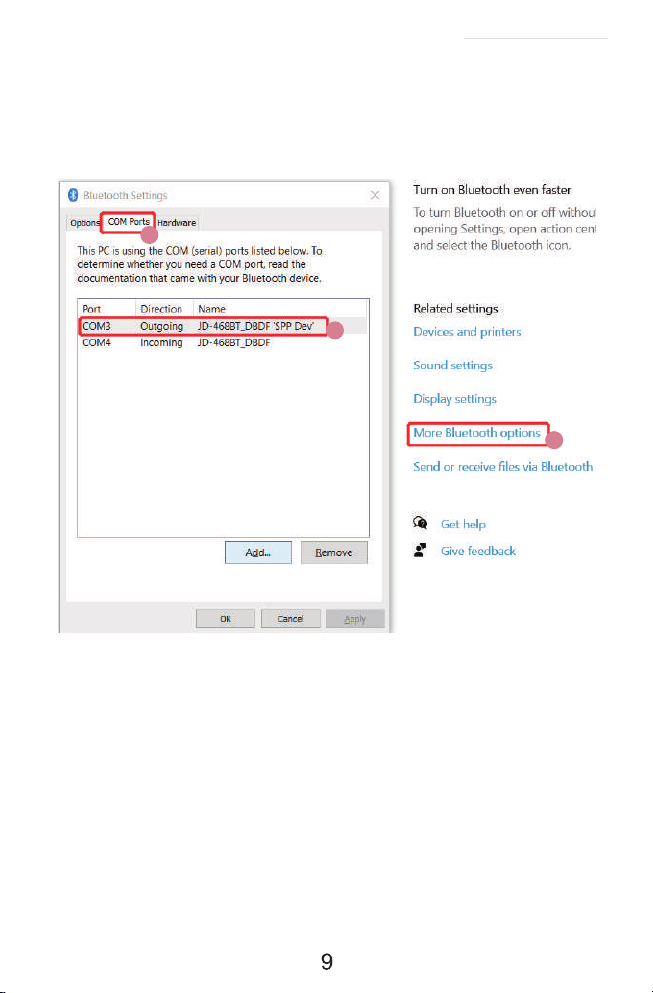
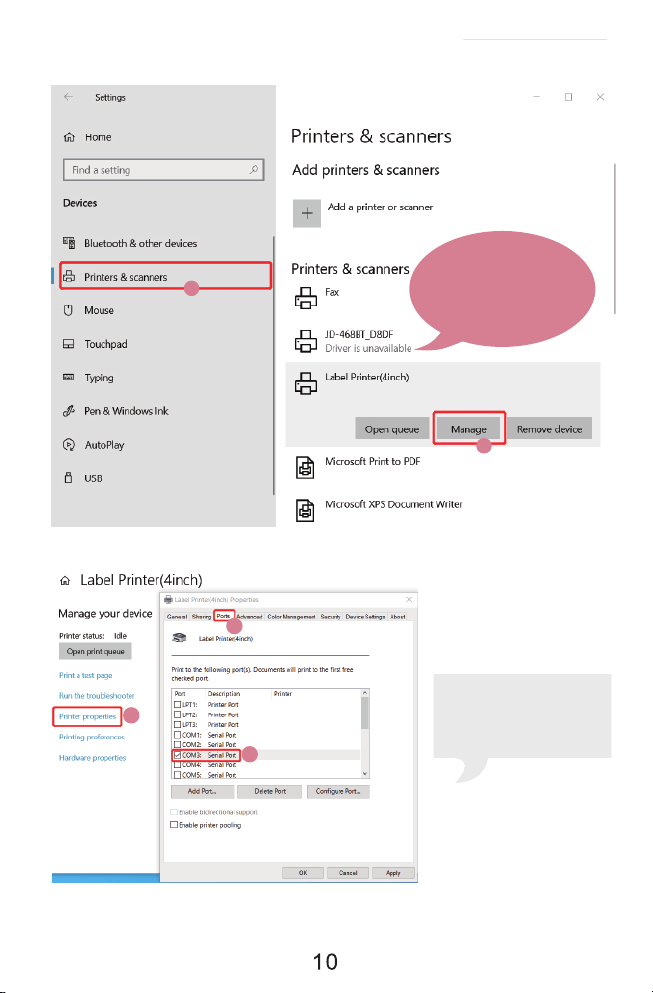
a.Click ' Bluetooth & other device' > ' More Bluetooth options' > 'COM Ports' > Check
OUTGOING port of the Bluetooth ' JD-468BT_ XXXX'' (XXXX are suffixes, which will vary depending
on the different printer) and mark down the COM number (For example, here is COM3).
1
3
2
Click'Printer & Scanners'> Find'Label Printer(4inch)'>'Manage'>'Printer properties'>'Ports'
> Check in the Ports match to your Bluetooth Port(For example, here is COM3)>Click'OK'.
b.Change printer's port to the COM that matches to the Bluetooth.
See FAQ at support.jadens.com
If you can't find which COM
port match with Bluetooth
port, please restart your
computer and printer, then
install driver again.
1
2
1
2
3
Note:
Please ignore the message
'Driver is unavailable' , as
it is normal and won't affect
the printing.
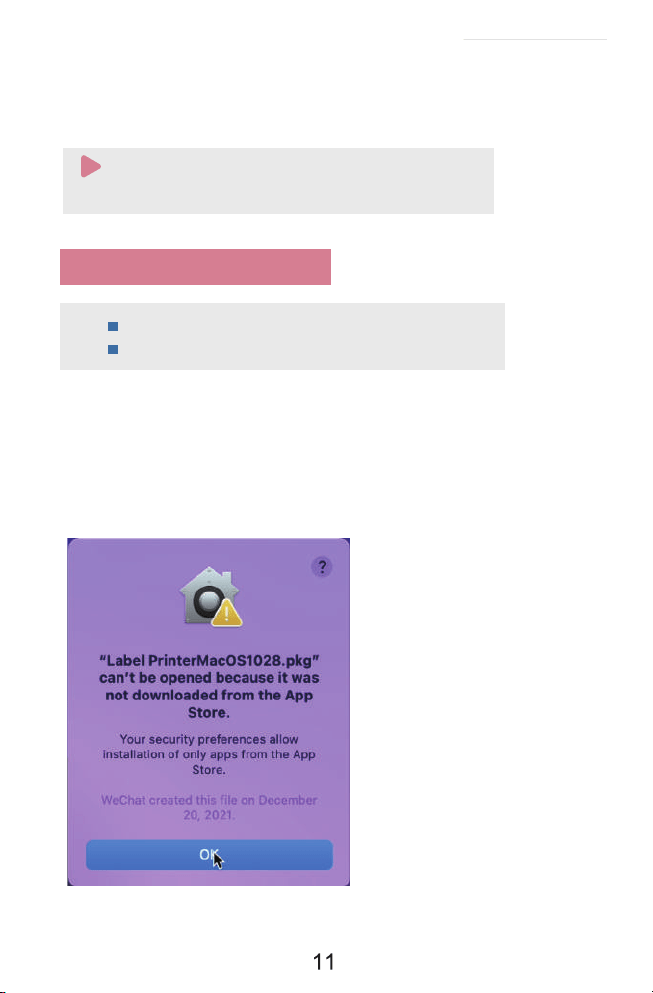
b.Copy driver 'Label Printer-MacOS.pkg'to desk and install it.(You can also download
'Driver for Mac (JD-468BT)' from
http://www.jadens.com/support/download/label-printer-drivers/
Driver version may be updated, see latest info at support.jadens.com.
7. Installation for Mac
a.Connect power and computer
JADENS is only compatible with MAC OS V 10.9 or later.
Installation guide video in U-disk for better reference.
See FAQ at support.jadens.com
Note:
If you can't print seccessfully, please restart your computer and
printer, install again.
c.Now you can unplug the USB cable from computer, and then Open PDF file (recommend to use
Adobe)>Choose printer named 'Label Printer(4inch)'>You may set up printer preference like
darkness, speed, size, then click 'Print' (via Bluetooth).
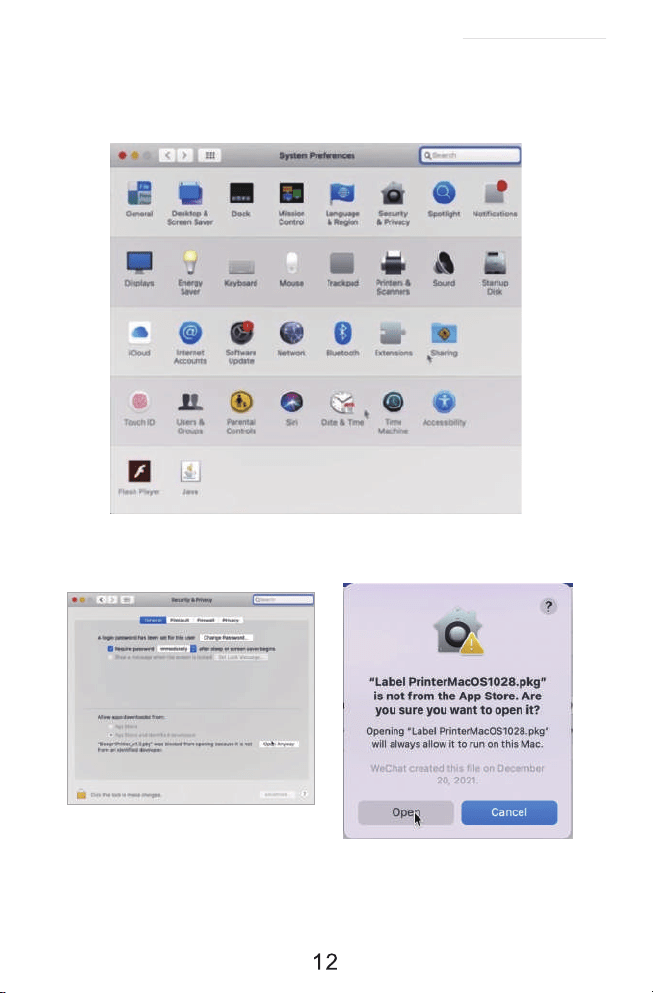
c. Open 'System Preferences', and click on 'Security & Privacy'.(If you don't see the warning ,
you can skip this step)
d. Click on 'Open AnyWay' button. (lf you don't see the warning, you can skip this step)
See FAQ at support.jadens.com
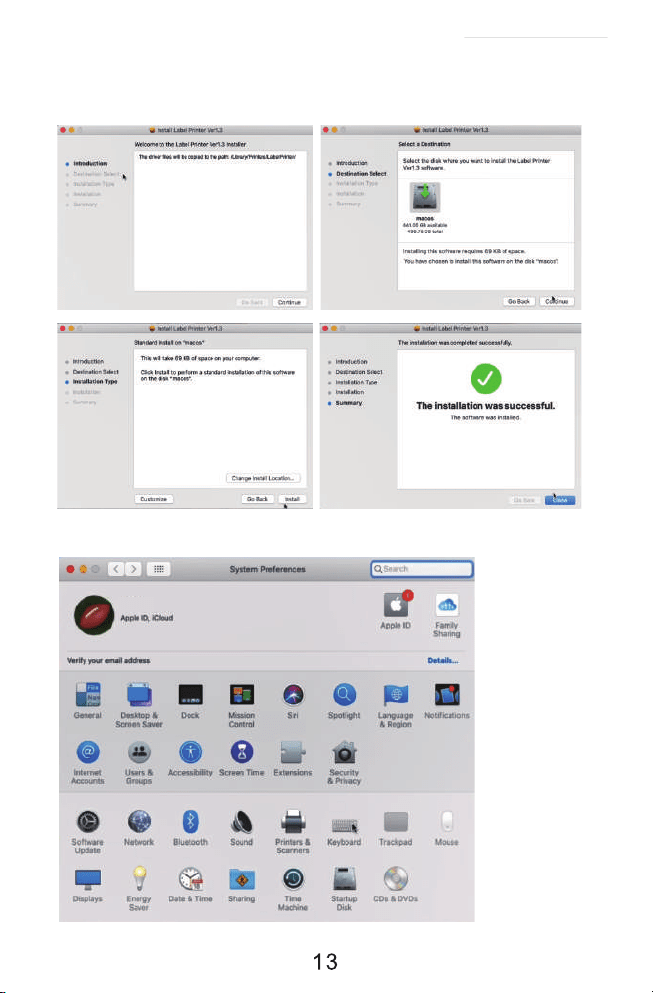
e. Click on 'open' and continue to install the printer. Follow the installation steps until you see
' The installation was successful' window.
f. Open 'System Preferences'>>click'Printer and Scanners'.
See FAQ at support.jadens.com
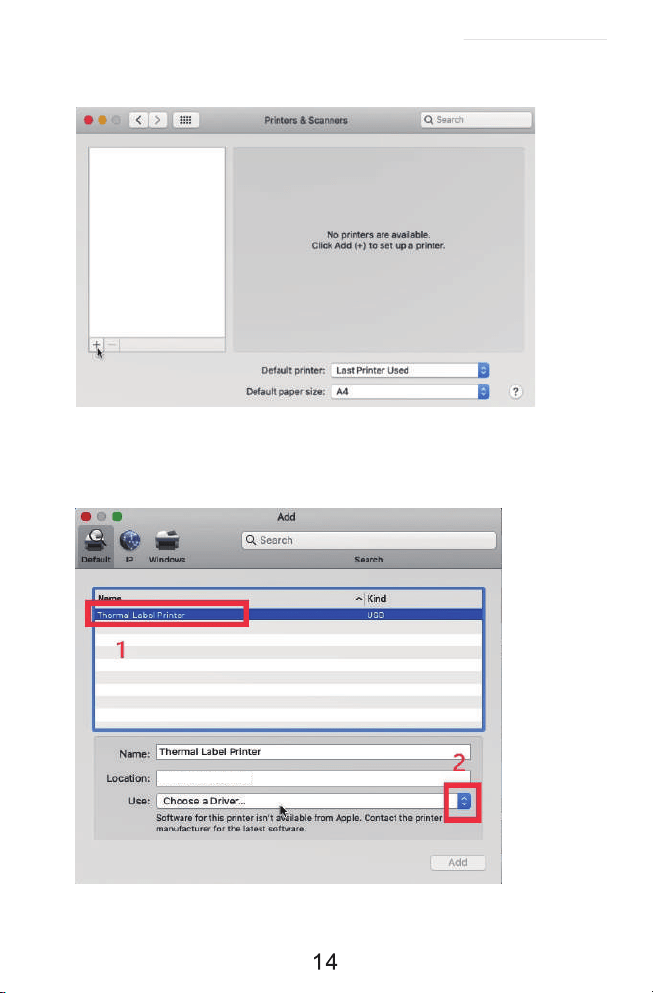
g. Click'+' to add a new printer.
h. Click 'Thermal Label Printer', and choose 'successfully'in the
drop down menu.
See FAQ at support.jadens.com
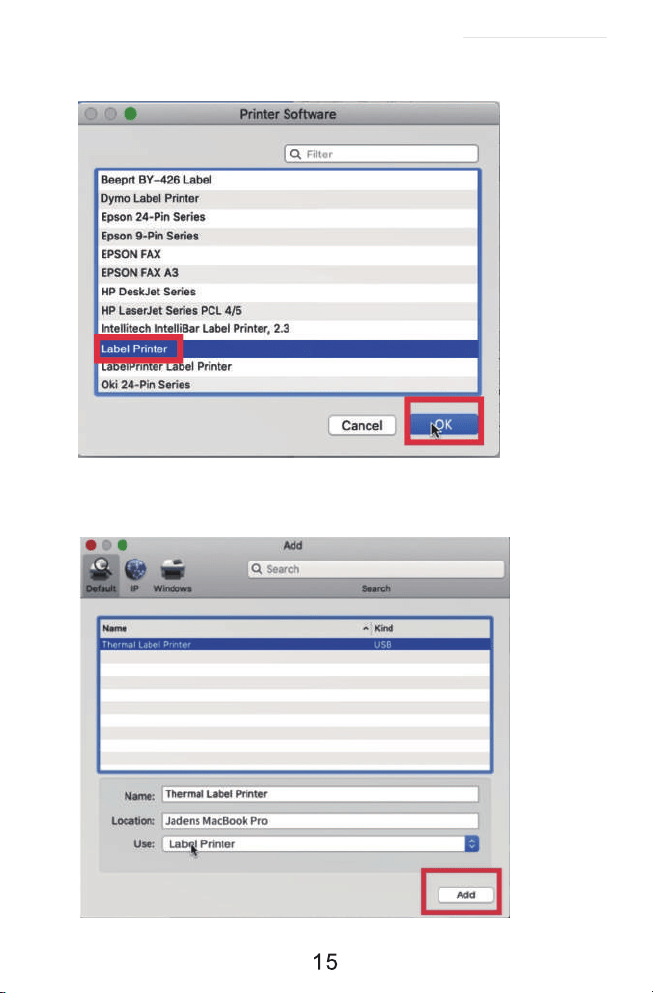
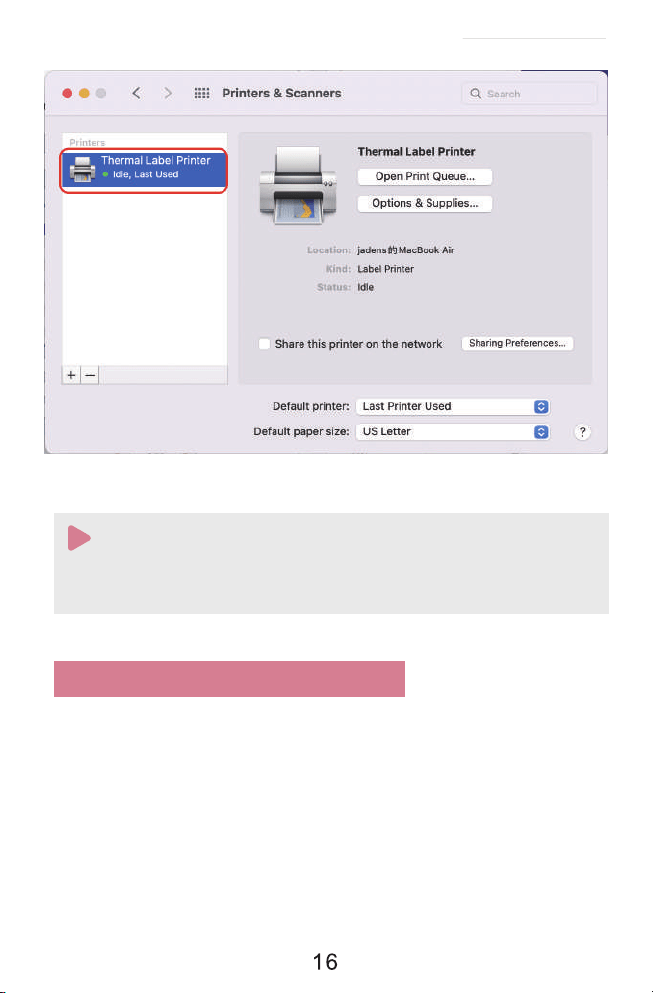
i. Choose'Label Printer',click'OK'.
j. Click 'Add', now the printer has been installed in your Mac book
successfully.
See FAQ at support.jadens.com
1. Now you can print directly, if you want to adjust the printing density, printing speed or
other parameter, please refer to 'part 8 Printer preference setting'.
2. If you can't print seccessfully, please restart your computer and install driver again.
Note:
8. Printer preference setting
8.1. Printer preference setting for windows
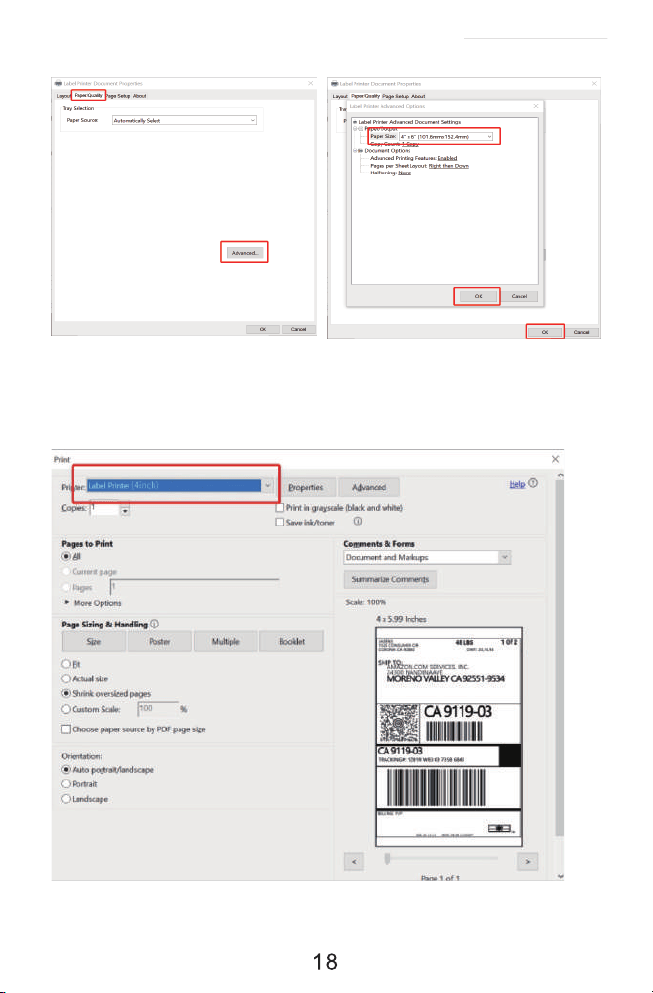
(1)Setting the paper quality
Go to the 'Setting'>> click 'Device'>>click 'Printer & scanners'>>find the printer 'Label Printer'
>>Click 'Manage'>> click 'Printer Preference'. In this part, you can set the print page size and print
speed and density of the label.
a. Go to 'Page Setup'. According to the label size, choose the corresponding page size. Generally,
most shipping labels are 4"*6" size.
See FAQ at support.jadens.com
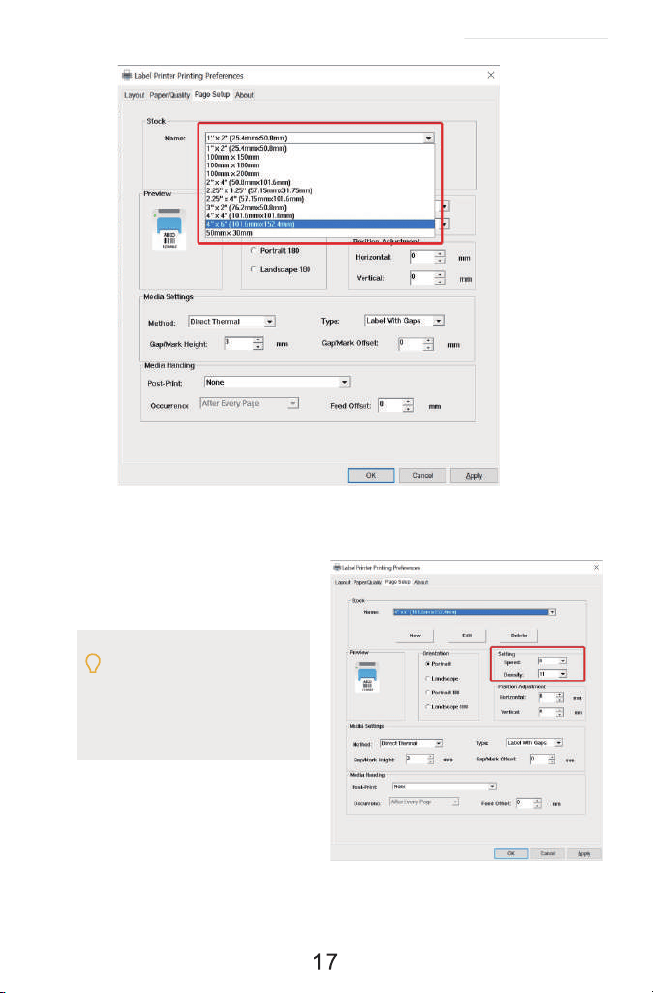
b. In the 'Page Quality', you can change
the printing speed and printing
darkness.
Especially for density. If the labels
print out light or not clear, you can
change the density. For Windows
system please set the density at
8-12. For Mac system please set the
density at 2-5.
See FAQ at support.jadens.com
(2)Print a sample file.
a. Open a PDF file in the size of 4*6 inch as Adobe, click 'print', ensure you choose the right
printer(Label Printer(4inch)).
(lf you want to print word file, please transfer it to PDF file to get the best quality.)
See FAQ at support.jadens.com
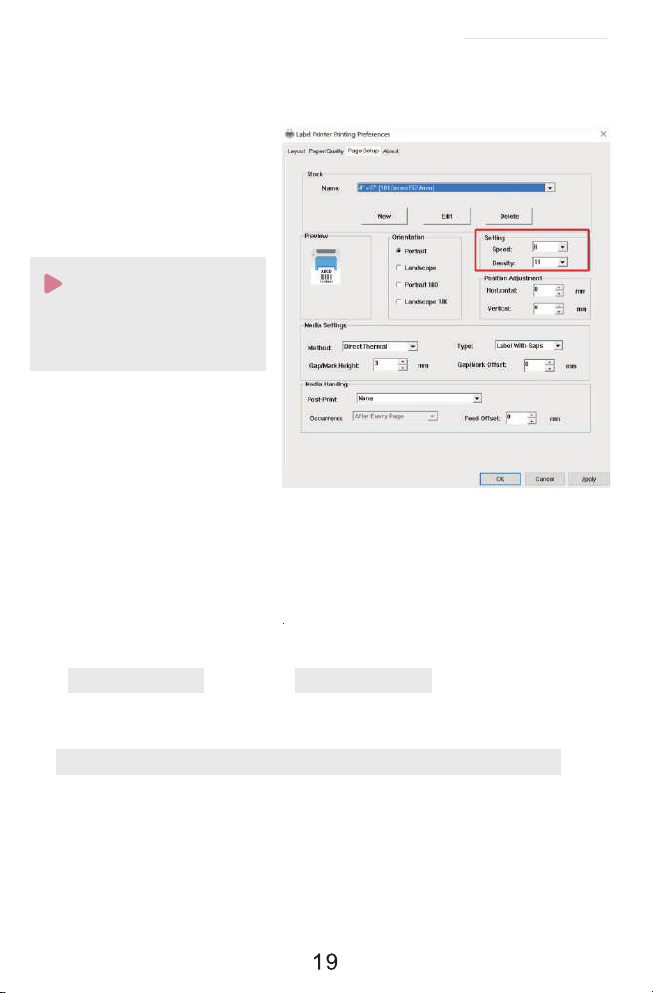
b. You can go to 'properties', in this dashboard, you can set the page size,
printing speed and printing density too.
c. Preview and check the setting you want, such as print size, print density. Then click 'print'.
If you don't have PDF Editor, please search' Bartender ' at support.jadens.com to get the
corresponding solution, or directly contact us .
Customer support is available for all your questions through email or hotline.
[email protected] phone:1-800-752-7660
8.2. Printer preference setting for MAC
In this step, we will show you how to set the print preference helping you print out well
a. Open a sample PDF file in size of 4*6inch, click print.
Before printing. please make sure
the size of thermal labels you load,
and the size settings on devices are
same.
Note:
See FAQ at support.jadens.com
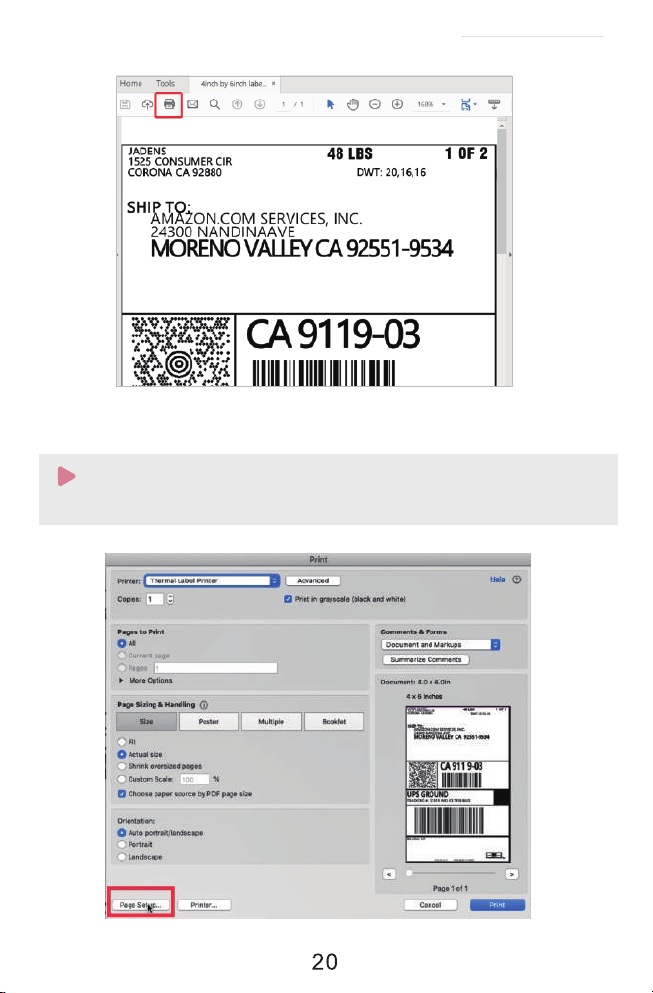
b. Click 'page setup', you can select the page size you want to print.
Note:
Before printing, please make sure the size of thermal labels you load, and the size settings on
devices are same.
See FAQ at support.jadens.com
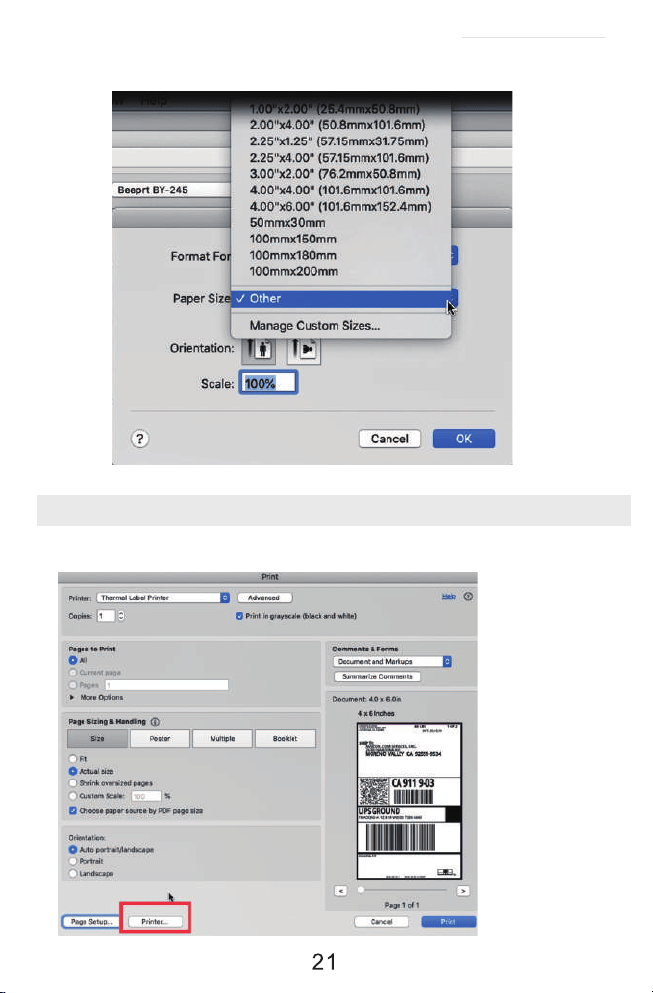
c. Click 'printer preference'> > Choose' printer feature'>> set up the-'Darknsss' and 'Print speed'.
If there is no suitable size, please click 'manage custom sizes', input the width and height, then click 'ok'.
See FAQ at support.jadens.com
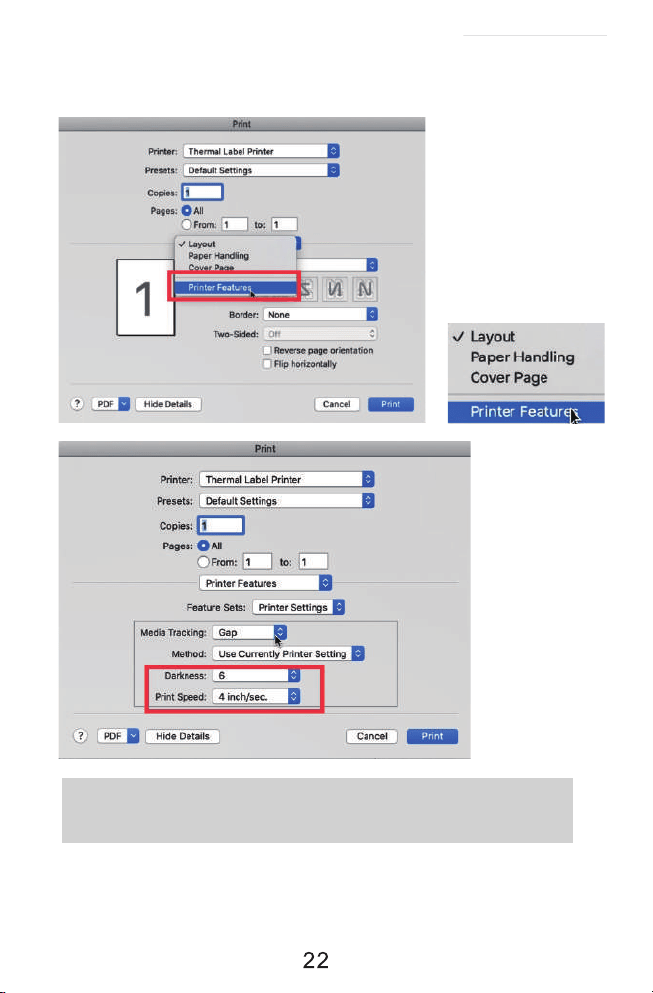
Tips: The darkness,larger number means higher darkness. If labels print out light,
you can adjust it to large value, 2 - 4 is recommended.
See FAQ at support.jadens.com
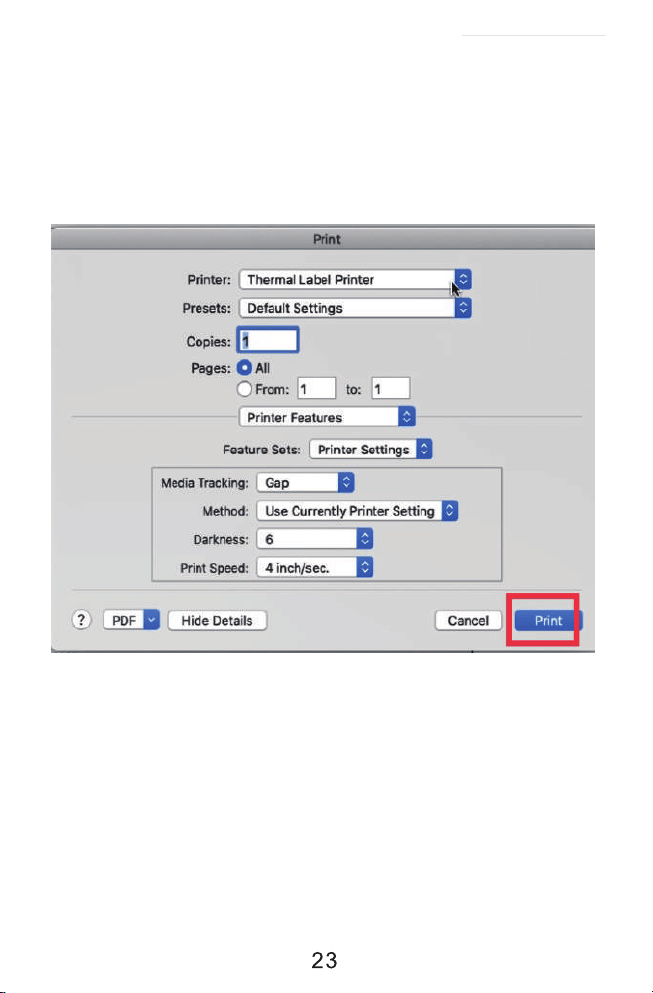
d.After set up, click'Print'
See FAQ at support.jadens.com
10.Important Tips:Print Iabel of multiple size
using ‘Take a snap shot’
The function of 'Take a snap shot' can solve most print problem. It enables you to print the area you
want . Now let us show you how to use it.
1.How to print your labels with nonstandard size.
If the printed PDF/file is unusual size such as A4 which can't be found the same size label to buy. In
this situations, you have to use the function of 'take a snapshot' to print. Here are the steps to operate.
(1)For windows:
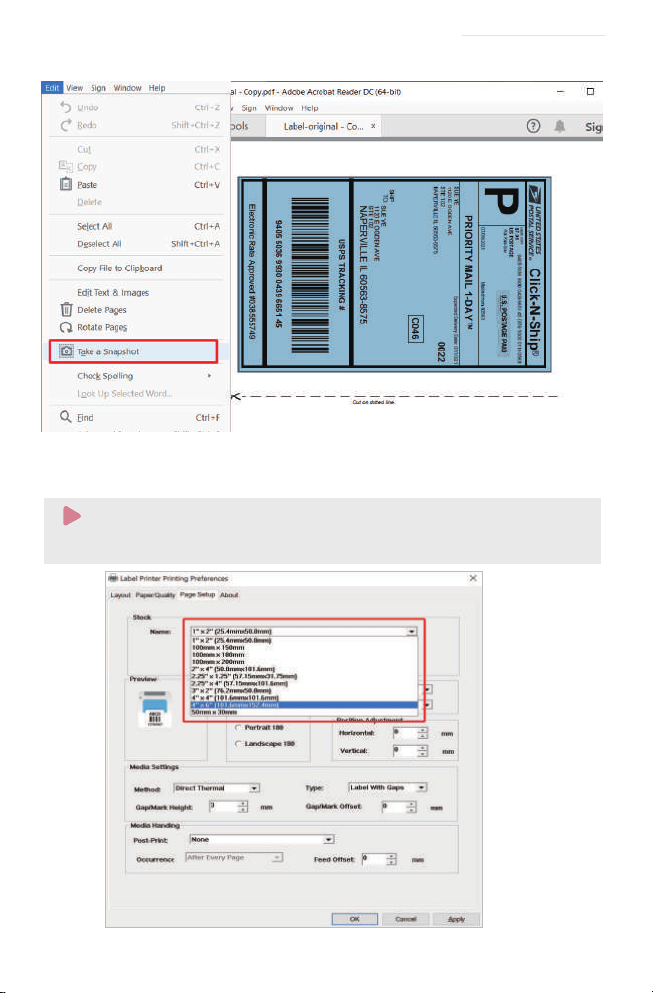
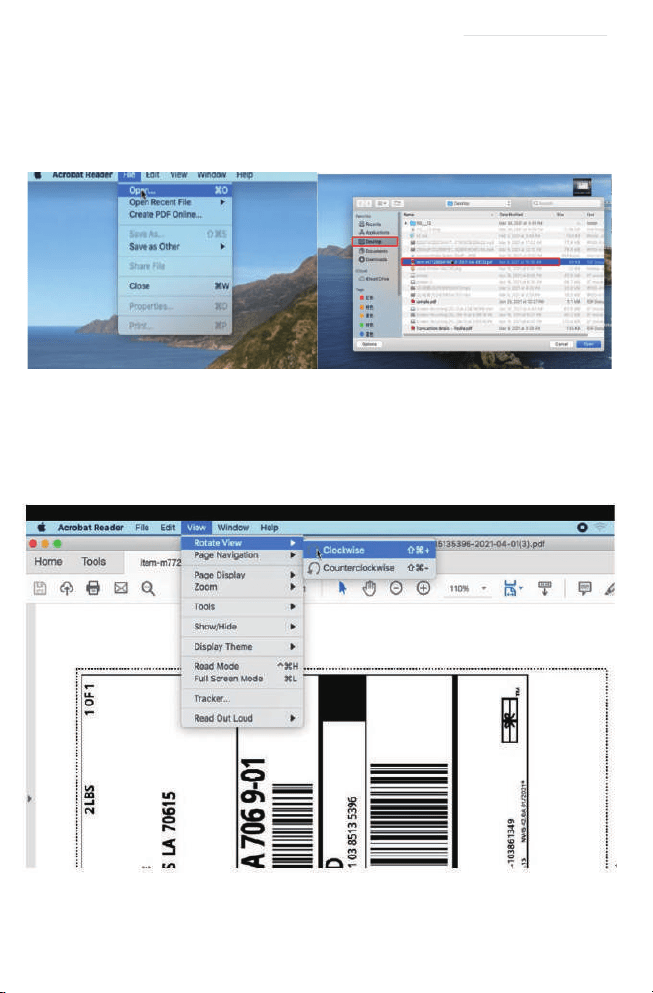
a. Open the PDF in Adobe Reader
b. From the top panel, select 'Edit'>'Take a Snapshot. choose the area you want to print.
See FAQ at support.jadens.com
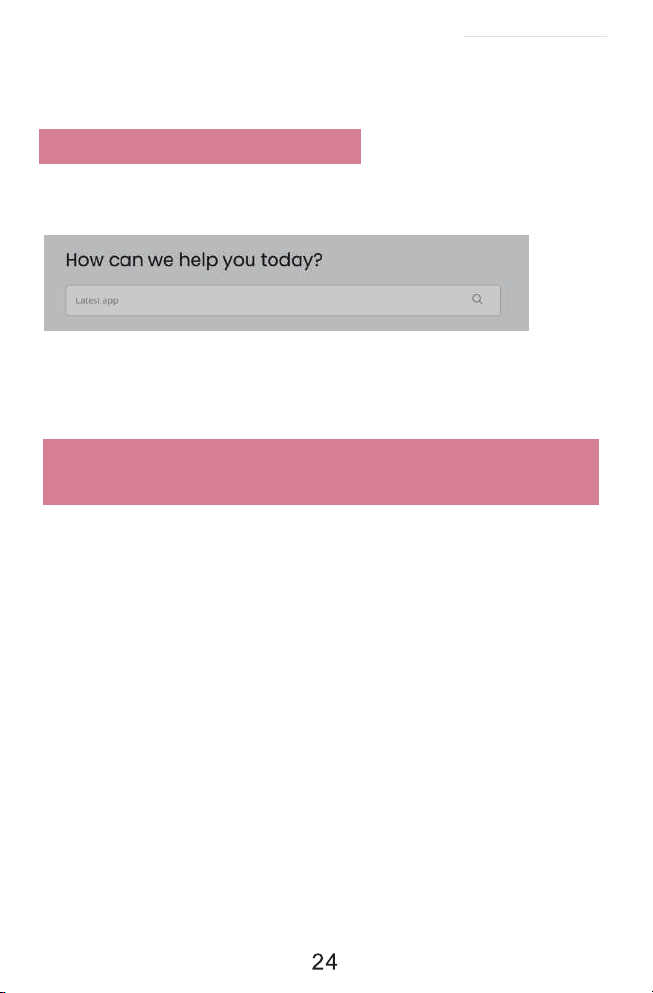
Go to support.jadens.com, find and download smartphone App and user manual for Android and
IOS by search latest app.
9.Smartphone APP Setup
25
Note:
Please make sure the page size match to the loaded label size. Otherwise, it is possible that
it prints out over label or misaligned.
c. Click 'Print' , set up the page size same as the labels you load. Then print.
See FAQ at support.jadens.com
26
(2)For MAC
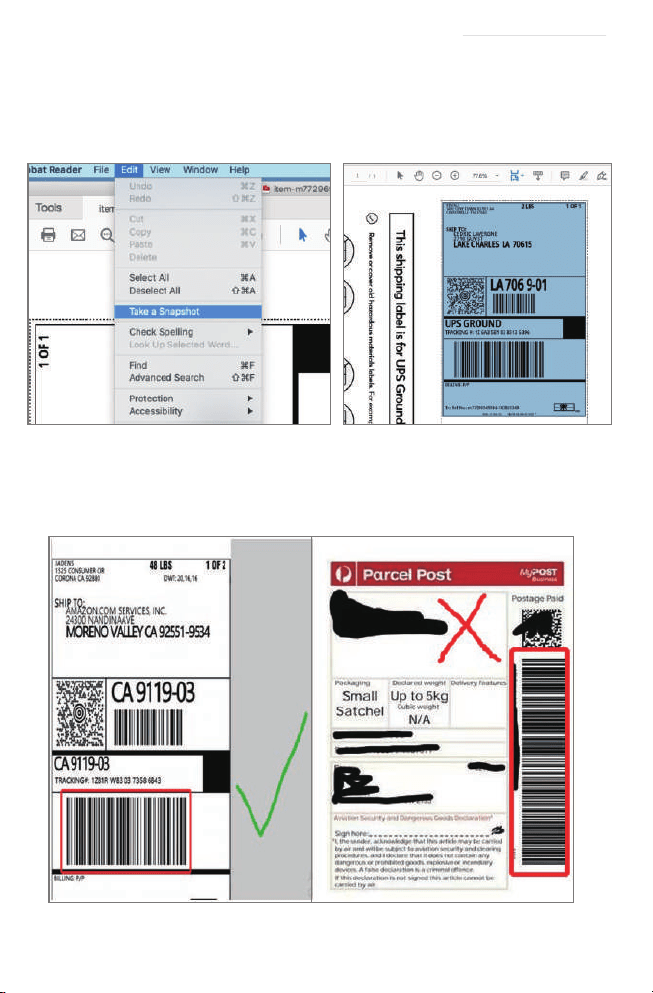
a. Find the 'File' in the top left corner of you desktop > Click 'Open'> Click Desktop > Choose PDF file
(or you can open the file with Adobe)
b. From the top panel, select View > Rotate View> Clockwise so that the labels are side by side.
(If the labels has laid vertically. please skip this step)
See FAQ at support.jadens.com
27
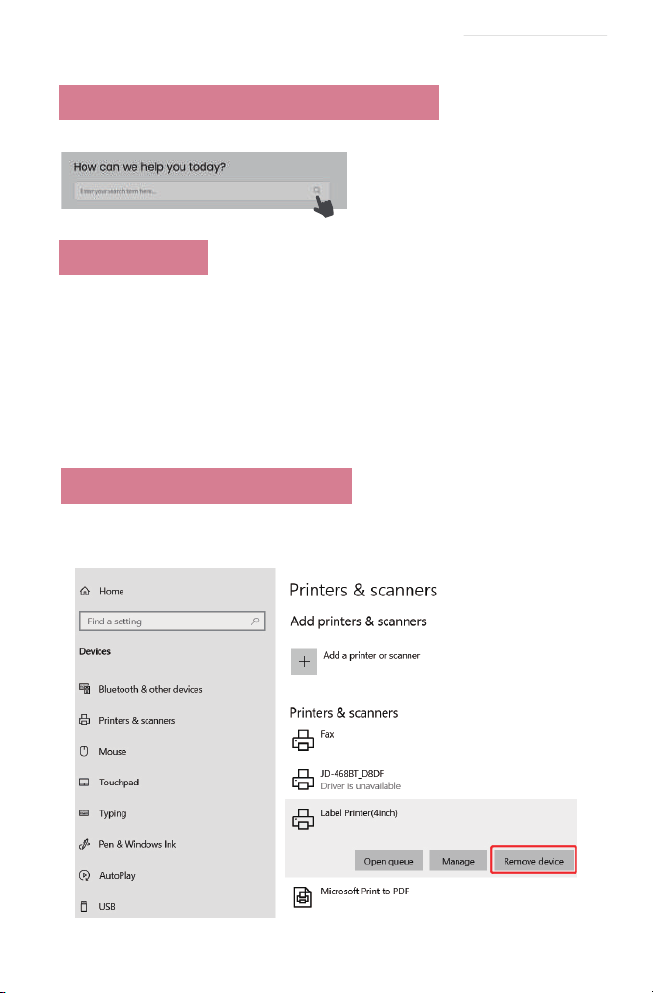
C. Next, from the top panel, select Edit>Take a Snapshot. Then click and drag over one of the labels
that you need, so that you can print a specific range of label.
2. If you want to print the label that include barcode, please make sure print out the barcode vertically
in case the high temperature lead to the barcode print out blocks and can't be scanned.
See FAQ at support.jadens.com
28
- Avoid using poor quality labels as they can damage the printer.
- Regularly clean the printer head as described in 15. MAINTENANCE.
- If paper is jammed, turn off the printer, and allow the printer head to cool down. Open the cover
and ensure that the rubber is clean. lf dirty, use alcohol pad to clean. Allow the area to dry off
before turning the printer on.
Go to support.jadens.com to see FAQ
11. Frequently asked questions
- Anytime you change label size, run the automatic label identification by pressing and holding
the feed button until you hear one short beep.
- Press the feed button on the printer to skip a blank label.
-To run a self-test, press and hold the feed button until you hear two short beeps.
12. Pro tips
13. Driver removement
For windows:
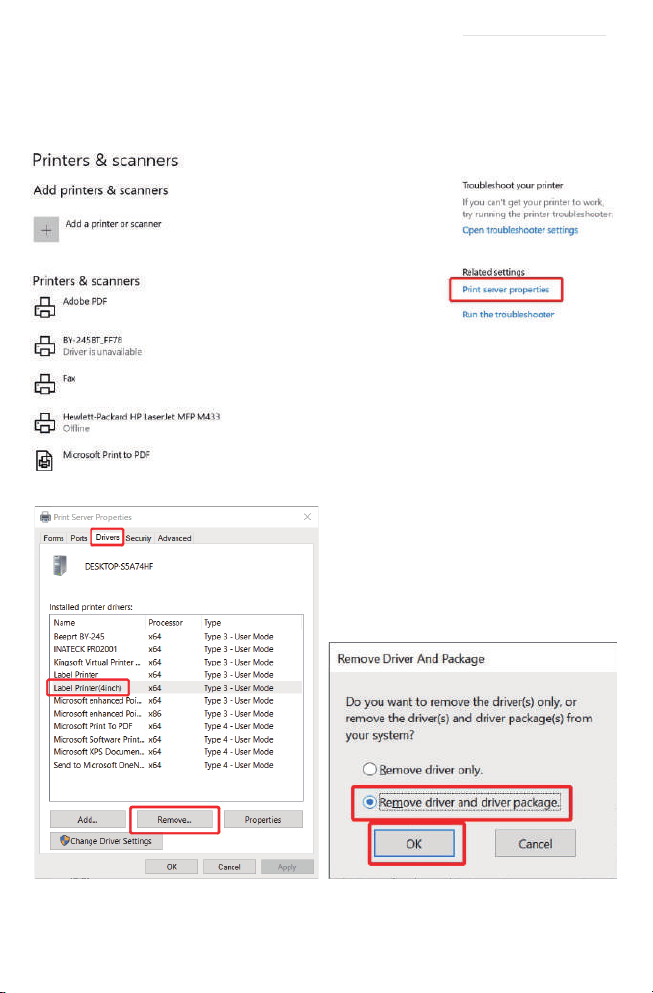
Before removing. please ensure the USB port has been removed on your computer. 1.'Settings'>>
'Device '>>'Printer & Scanners' >>'Label Printer'>>'Remove device'
See FAQ at support.jadens.com
29
2. Click'Print server properties'>>Findthe driver'Label printer(4inch)''>>'Remove
driver and driver package'>>Click'Delete''
See FAQ at support.jadens.com
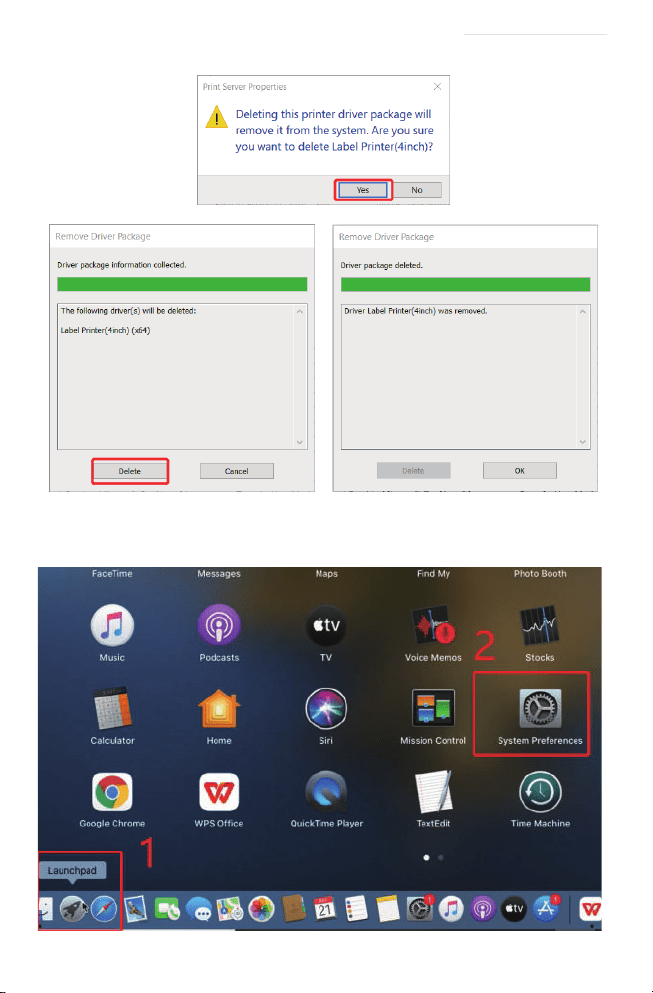
For Mac:
Before removing, please ensure the USB port has been removed on your computer.
1.'Lanuchpad'>>'System Preferences'>>'Printer& Scanners'
30
See FAQ at support.jadens.com
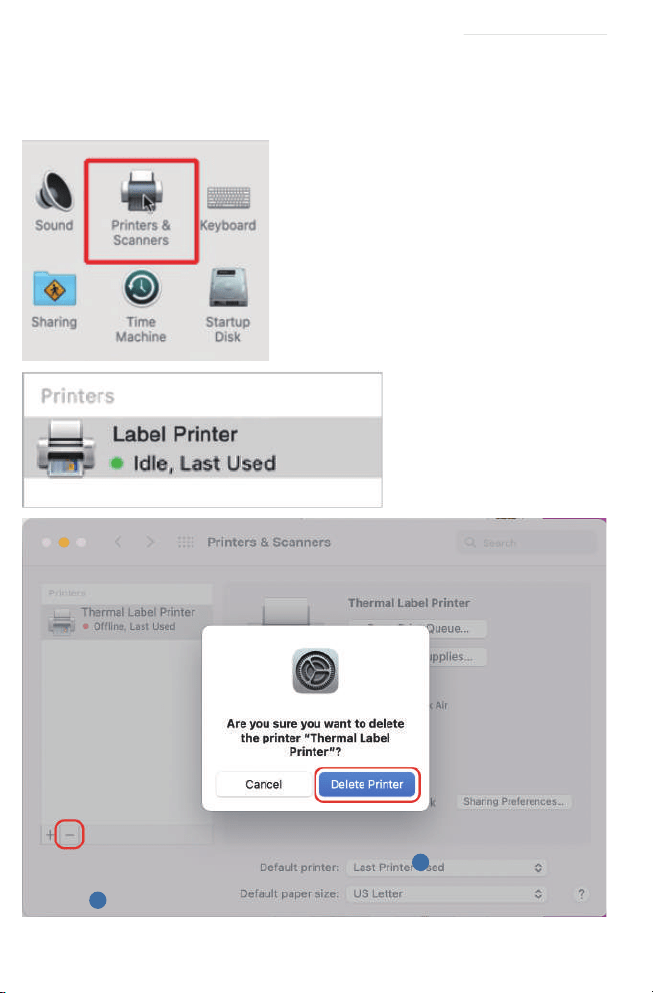
1
2
2.Find'Thermal Label Printer'>>Click'_'>>
Click'Delete Printer'
31
See FAQ at support.jadens.com

Green
Normal operation
Flashing Green
Flashing Red
(every 2 seconds)
Flashing Red
(2 times per second)
Printer Head is
overheated
1. Paper shortage
2.Wrong size paper
Printer cover is not
fully closed
Check that the printer
cover is completely closed.
Printer will automatically
resume once the printer
head has cooled down.
Be sure that the labels are
loaded correctly. You may
need to run automatic label
identification (point 5 at page 3-4),
Light color Description Troubleshoot
14. LED indicator
15. Specifications
32
See FAQ at support.jadens.com
Printing Method Thermal
Resolution 203DPI
Max Printing Speed 150mm/s
Label Width 1.57''-4.1'' (48-108mm)
Label Thickness 0.08-0.2mm
Connection USB + Bluetooth
Input Voltage 100-240V
Power Adapter 24V / 2A
Supported Paper Direct Thermal Labels / Paper
Supported Operating Systems Windows
MacOS
iOS
Andriod
Printing Life About 700,000 Labels
Label Minimum Length 1.18''(30mm)

The printer head is a sensitive part of the printer and can be found on the upper part of the printer
when open.
Caution: While the printer is running, the printer head can be very hot.
1. Ensure that the power switch is OFF, remove the power cord,and open the cover .
wait several moments to ensure that the printerhead cools down.
2. Completely clean the printer head using an alcohol swab. Any 70%
lsopropyl Alcohol pad would work. Please do not use water.
3. Wait 2-3 minutes until the alcohol has completely dried, then close the cover.
4.Connect the power cord and print a test page to check if it is clean.
17. Maintenance
CLEANING THE PRINT HEAD
16. Safety tips
- The printer head can become very hot after printing labels.Do not touch the printer head until
it has cooled.
- Do not bend the power cord excessively or place objects on the cord.
This could result in fire.
- Keep the printer out of reach of children.
- Use only approved accessories and do not try to disassemble or repair the unit by yourself.
- Keep the printer away from water and other objects that may destroy or damage the device.
- Printer should remain unplugged when not in use for long periods of time.
33
See FAQ at support.jadens.com
34
See FAQ at support.jadens.com
1-800-752-7660
support.jadens.com
Scan the below QR code to talk with us
Can we help?
For further assistance please contact
Customer Support
Scan or upload this QR code
using the WhatsApp camera
to add us
