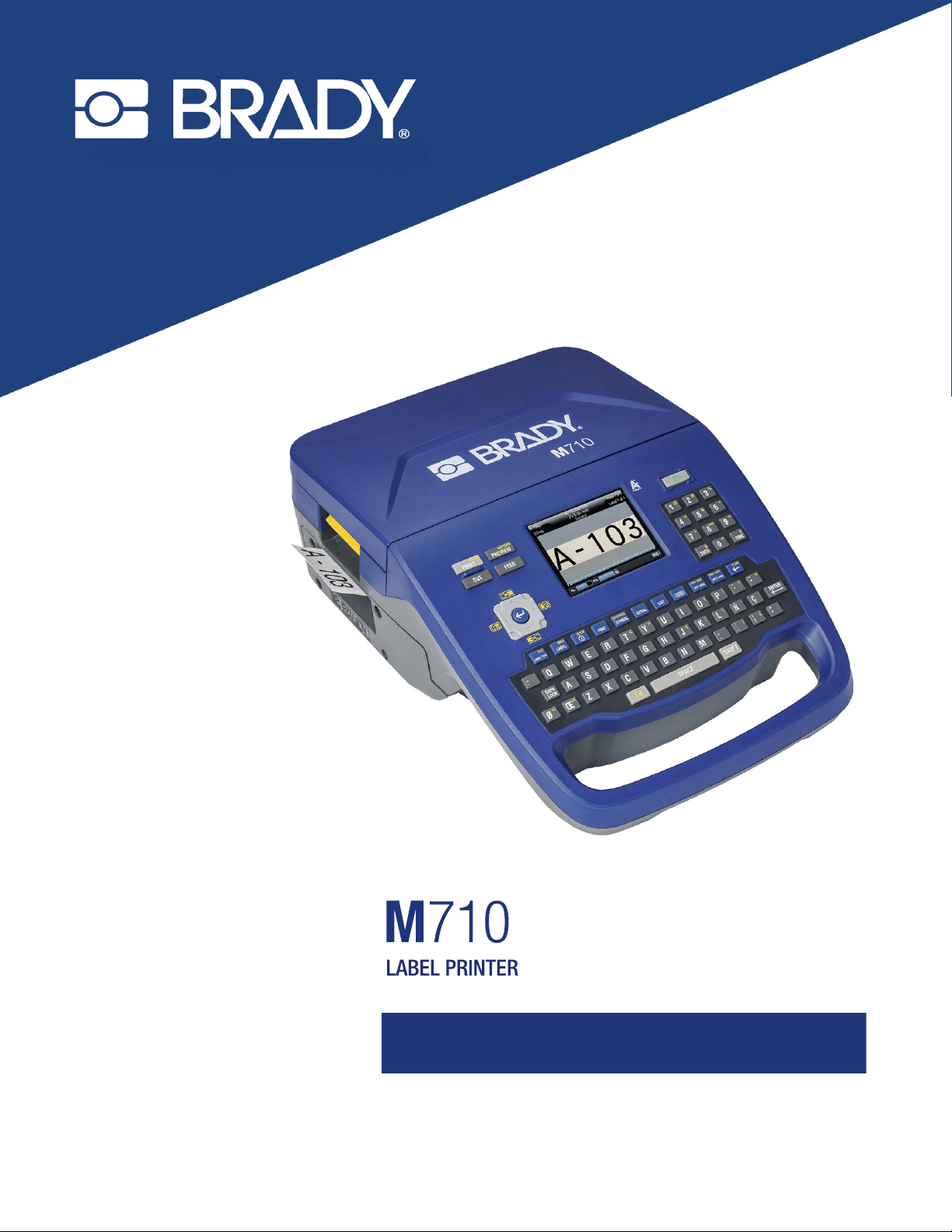
User Manual

M710 User Manual ii
Copyright and Trademarks
Disclaimer
This manual is proprietary to Brady Worldwide, Inc. (hereafter “Brady”), and may be revised from time
to time without notice. Brady disclaims any understanding to provide you with such revisions, if any.
This manual is copyrighted with all rights reserved. No portion of this manual may be copied or
reproduced by any means without the prior written consent of Brady.
While every precaution has been taken in the preparation of this document, Brady assumes no liability
to any party for any loss or damage caused by errors or omissions or by statements resulting from
negligence, accident, or any other cause. Brady further assumes no liability arising out of the
application or use of any product or system described, herein; nor any liability for incidental or
consequential damages arising from the use of this document. Brady disclaims all warranties of
merchantability of fitness for a particular purpose.
Brady reserves the right to make changes without further notice to any product or system described
herein to improve reliability, function, or design.
Trademarks
M710 is a trademark of Brady Worldwide, Inc.
Microsoft, Windows, Excel, Access and SQL Server are registered trademarks of Microsoft
Corporation.
All brand or product names referenced in this manual are trademarks (™) or registered trademarks (
®
)
of their respective companies or organizations.
© 2023 Brady Worldwide, Inc. All Rights Reserved.
Y5107809
Revision A-3
Brady Worldwide, Inc.
6555 West Good Hope Road
Milwaukee, WI 53223
bradyid.com

M710 User Manual iii
Brady Warranty
Our products are sold with the understanding that the buyer will test them in actual use and determine
for themself the adaptability to their intended uses. Brady warrants to the buyer that its products are
free from defects in material and workmanship, but limits its obligation under this warranty to
replacement of the product shown to Brady’s satisfaction to have been defective at the time Brady sold
it. This warranty does not extend to any persons obtaining the product from the buyer.
THIS WARRANTY IS IN LIEU OF ANY OTHER WARRANTY, EXPRESS OR IMPLIED, INCLUDING,
BUT NOT LIMITED TO, ANY IMPLIED WARRANTY OF MERCHANTABILITY OR FITNESS FOR A
PARTICULAR PURPOSE, AND OF ANY OTHER OBLIGATIONS OR LIABILITY ON BRADY’S PART.
UNDER NO CIRCUMSTANCES WILL BRADY BE LIABLE FOR ANY LOSS, DAMAGE, EXPENSE
OR CONSEQUENTIAL DAMAGES OF ANY KIND ARISING IN CONNECTION WITH THE USE, OR
INABILITY TO USE, BRADY’S PRODUCTS.
Safety and Environment
Please read and understand this manual before using the M710 printer for the first time. This manual
describes all of the main functions of the M710 printer.
Precautions
Before using the
M710 printer
, please note the following precautions:
• Read all instructions carefully before operating the printer and prior to performing any procedure.
• Do not place the unit on an unstable surface or stand.
• Do not place anything on top of the unit.
• Keep the top clear of obstructions.
• Always use the printer in a well ventilated area. Do not block the slots and opening on the unit, which
are provided for ventilation.
• Only use the power source indicated on the rating label.
• Use only the power cord that comes with the unit.
• Do not place anything on the power cord.
• This equipment is not intended for use by children.

M710 User Manual iv
Technical Support and Registration
Contact Information
For repair or technical assistance, locate your regional Brady Technical Support office by going to:
•
United States:
bradyid.com/techsupport
• Canada:
bradycanada.ca/contact-us
•
Mexico:
bradyid.com.mx/es-mx/contacto
• Latin America:
bradylatinamerica.com/es-mx/soporte-técnico
•
Europe
:
bradyeurope.com/services
•
Australia:
bradyid.com.au/technical-support
•
Asia Pacific
:
brady.co.uk/landing-pages/global-landing-page
Registration Information
To register your printer go to:
• bradycorp.com/register
Return
If for any reason you need to return the product, please contact Brady Technical Support for return
information.
Document Conventions
When using this document, it is important that you understand the conventions used throughout the
manual.
• All user actions are indicated by
Bold
text.
• References to menus, windows, buttons and screens are indicated by
Italicized
text.
•The word
press
is used when referring to hardware keys; the word
tap
is used when referring to
controls on the touchscreen.

M710 User Manual v
Contents
1 • Introduction
System Specifications............................................................................................... 1
Physical and Environmental Characteristics .........................................................2
Proximity Range for Bluetooth ..............................................................................2
2 • Setup
Unpacking the Printer ............................................................................................... 3
What’s in the Box ..................................................................................................3
Save the Packaging ..............................................................................................3
Registration ...........................................................................................................4
Printer Components .................................................................................................. 4
Power.......................................................................................................................... 4
AC Power Adapter ................................................................................................5
Battery ..................................................................................................................5
Installing the Battery .......................................................................................7
Charging the Battery ......................................................................................7
Power On ..............................................................................................................7
Automatic Shut Down ...........................................................................................8
Printer Settings.......................................................................................................... 8
Language ..............................................................................................................8
Units of Measure ...................................................................................................8
Date and Time ......................................................................................................8
Pause/Cut .............................................................................................................9
Printer Configuration .............................................................................................9
Print History ........................................................................................................10
Label Type ..........................................................................................................11
Font .....................................................................................................................11
Software for Creating Labels.................................................................................. 12
Mobile (Wireless Model Only) .............................................................................12
Desktop ...............................................................................................................13
Installing the Windows Driver (Optional) .............................................................. 13
Connecting the Printer ............................................................................................ 13
Bluetooth .............................................................................................................13
USB .....................................................................................................................15
Wi-Fi ....................................................................................................................15
Search to Connect .......................................................................................15
Manually Enter Settings ...............................................................................16
Loading Supplies..................................................................................................... 16
Loading Labels ....................................................................................................16
Loading Ribbon ...................................................................................................19
Loading Bulk Labels ............................................................................................20
Loading Fanfold (Raised Panel) Labels ..............................................................21
Using the Label Roll Adapter.................................................................................. 22

M710 User Manual vi
Accessories.............................................................................................................. 24
Battery Specifications .........................................................................................24
3 • General Operation
Using the Touchscreen ........................................................................................... 25
Menus .................................................................................................................27
Settings Screens .................................................................................................28
Cancel Functions ................................................................................................29
Using the Keyboard................................................................................................. 29
Keys With Multiple Characters ............................................................................29
Navigation and Selection Keys ...........................................................................30
Editing Keys ........................................................................................................31
Print-Related Keys ..............................................................................................33
Creating a Simple Text Label.................................................................................. 34
Starting a New Label File ........................................................................................ 34
Printing ..................................................................................................................... 35
Print .....................................................................................................................35
Preview ...............................................................................................................35
Multiple Print .......................................................................................................36
History .................................................................................................................37
4 • Editing Labels on the Printer
Editing Text .............................................................................................................. 39
Positioning the Cursor .........................................................................................39
Inserting Text ......................................................................................................39
Deleting Text .......................................................................................................39
Formatting Text........................................................................................................ 40
Typeface .............................................................................................................40
Font Size .............................................................................................................40
Font Attributes .....................................................................................................41
New Text ......................................................................................................41
Existing Text .................................................................................................42
Superscript and Subscript ...................................................................................42
Labels and Areas..................................................................................................... 43
Add Label or Area ...............................................................................................43
Label Length .......................................................................................................43
Go to Label or Area .............................................................................................44
Shortcut Keys ...............................................................................................44
Shortcuts on the Touchscreen .....................................................................44
Delete Label or Area ...........................................................................................45
Duplicate Label or Area ......................................................................................45
Formatting Labels and Areas ................................................................................. 45
Justification .........................................................................................................45
Rotation ...............................................................................................................46
Frame ..................................................................................................................47
Reverse ...............................................................................................................48
Vertical Text ........................................................................................................48
Multiple Vertical Lines of Text ......................................................................49

M710 User Manual vii
Errors with Vertical Text ...............................................................................49
Symbols.................................................................................................................... 49
Graphics ................................................................................................................... 50
Import Graphics ..................................................................................................50
Add a Graphic .....................................................................................................50
Date and Time .......................................................................................................... 51
International Characters ......................................................................................... 51
Letters with Diacritical Marks................................................................................. 51
Character on Keyboard .......................................................................................52
Key Combinations ...............................................................................................52
Barcode .................................................................................................................... 52
Barcode Settings .................................................................................................53
Add a Barcode ....................................................................................................53
Edit Barcode Data ...............................................................................................54
Serialization (Sequential Data) ............................................................................... 54
How Serialization Work .......................................................................................55
Examples of Serialization ....................................................................................55
Simple Example ...........................................................................................55
Simple Alphanumeric Example ....................................................................55
Advanced, Independent Example ................................................................55
Advanced, Dependent Example ...................................................................56
Add Serialization .................................................................................................56
Edit a Sequence ..................................................................................................57
List (Importing Data)................................................................................................ 57
Setting up the Data Source .................................................................................58
Working with Rows of Data ..........................................................................59
Merging Files ......................................................................................................60
Advanced Merge ..........................................................................................60
Edit Data Source .................................................................................................61
5 • Label Types
General ..................................................................................................................... 62
Wire Marker .............................................................................................................. 63
Flags ......................................................................................................................... 64
Terminal Block, Patch Panel, 66-Block.................................................................. 65
Face Plate ................................................................................................................. 67
110-Block, Bix Block ............................................................................................... 68
Vial ............................................................................................................................ 70
DesiStrip (Designation Strip).................................................................................. 71
Breaker Box.............................................................................................................. 72
Safety Templates (North America) ......................................................................... 73
General Templates (Europe)................................................................................... 73
Standard PipeMarker............................................................................................... 74
Arrow Tape ............................................................................................................... 75

M710 User Manual viii
Rollform PipeMarker................................................................................................ 76
6 • File Management
Saving Labels Created on the Printer.................................................................... 79
File Naming Standards .......................................................................................79
Folders ................................................................................................................79
Saving a File .......................................................................................................79
Storing Files Created with Brady Workstation Software ..................................... 81
Opening a File.......................................................................................................... 82
Deleting a File .......................................................................................................... 83
Using Files from a USB Drive................................................................................. 83
Importing a File ...................................................................................................83
Exporting a File ...................................................................................................84
7 • Maintenance
Installing Firmware Upgrades ................................................................................ 85
Upgrading via Brady Workstation Software ........................................................85
Upgrading via USB Drive ....................................................................................85
Upgrading via Computer Connection ..................................................................86
Updating the Printer Label Library......................................................................... 86
Cleaning the Printer................................................................................................. 87
Cleaning Internal Components ...........................................................................87
Cleaning the Sensors ..........................................................................................88
8 • Troubleshooting
Error Messages ....................................................................................................... 90
Other Issues............................................................................................................. 93
Hardware ...........................................................................................................93
Power On and Off (Printer not Working) .............................................................93
Print Quality ........................................................................................................94
Labels .................................................................................................................95
Label Types & Label Supply................................................................................... 96
A • Symbols
B • Using IME for Asian Text
C • Regulatory Compliance
Agency Compliance and Approvals .................................................................... 110
United States ....................................................................................................110
FCC Notice .................................................................................................110
Canada .............................................................................................................110
Mexico ...............................................................................................................110
Europe ............................................................................................................111
RoHS Directive 2011/65/EU, 2015/863/EU ................................................111
Batteries Directive 2006/66/EC ..................................................................111
Turkey ...............................................................................................................111
China .................................................................................................................112

M710 User Manual ix
Taiwan ..............................................................................................................112
Wireless Regulatory Information ......................................................................... 112
United States ....................................................................................................113
Canada .............................................................................................................113
Brazil .................................................................................................................114
Mexico ...............................................................................................................114
European Union ................................................................................................114
International ......................................................................................................114
Japan ................................................................................................................114
Nigeria ...............................................................................................................114
South Africa ......................................................................................................115
D • Licensing
QR Code Generator Library .................................................................................. 116
RapidJSON............................................................................................................. 116

M710 User Manual 1
1 Introduction
The M710 label printer includes the following features:
• Simple creation of a variety of label types right on the printer. Alternatively create label using Brady
Workstation desktop software or the Brady Express Labels mobile app.
• Supports a wide variety of label supplies: pre-sized, continuous, sleeves, durasleeves, tags, external
bulk labels, and more.
• Withstands a 4 ft (1.2 m) drop.
• Long battery life.
• Ability to use the printer while the battery is charging.
• 3.5" color display.
• Easy to use interface.
• Automatic label cutter.
• Wireless model includes Wi-Fi and Bluetooth connectivity.
• Easy loading label and ribbon supplies.
• Smart-cell technology that works intelligently with Brady authentic label and ribbon supplies.
• Replaceable lithium ion battery.
System Specifications
The M710 printer has the following specifications:
• Print speed: up to 3 in/sec (76 mm/sec).
• USB-C 2.0 for connecting to a computer.
• USB-A host connector for USB drive.
• Li-ion battery life: 4500 labels per battery charge given 1" x 2" (2.5 x 5 cm) labels with 25% coverage.
• Label widths from 0.25" (6.35 mm) through 2.0" (50.8 mm).
• Thermal transfer print mechanism, 300 dpi.
• Print width: 1.92" (48.8 mm) maximum.
• Print length for continuous labels: 40” (1016 mm) maximum.
• Liner width: 2.25" (22.2 mm) maximum.
• Removable lithium battery, 2700 mAh.
• Minimum label height for pre-sized labels: 0.250" (6.35 mm).
• Minimum label height for continuous labels: 0.375" (9.5 mm).
M710 User Manual 2
Introduction
System Specifications
Physical and Environmental Characteristics
The M710 printer has the following physical and environmental characteristics:
Note: The table below refers to the M710 printer only. Consumable performance may vary.
Proximity Range for Bluetooth
The M710 printer should be within 50 ft (15.2 m) of the device to pick up the Bluetooth signal.
Physical U.S. Units Metric Units
Dimensions 13.6” L x 9.5” W x 4.6” H 345 x 240 x 117 mm
Weight (with Li-ion battery pack) 5.8 lbs 2.6 kg
Environmental Operation Storage
Temperature (Printer)
Exposing the printer to direct
sunlight is not recommended.
40° to 120° F (4° to 49° C)
The AC adapter is rated at a
maximum temperature of
104° F (40° C).
14° to 140° F (-10° to 60° C)
Relative Humidity (Printer) 10% to 90% (non-
condensing)
10% to 90% (non-
condensing)
Temperature (AC adapter) 32° to 104° F (0° to 40° C) -40° to 158° F (-40° to 70° C)
Relative Humidity (AC adapter) 5% to 95% (non-
condensing)
0% to 95% (non-condensing)
CAUTION! Avoid using the printer near water, in direct sunlight, or near a
heating device.
M710 User Manual 3
2Setup
Unpacking the Printer
Carefully unpack and inspect the exterior and interior of the printer.
What’s in the Box
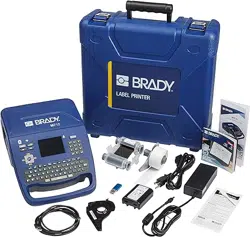
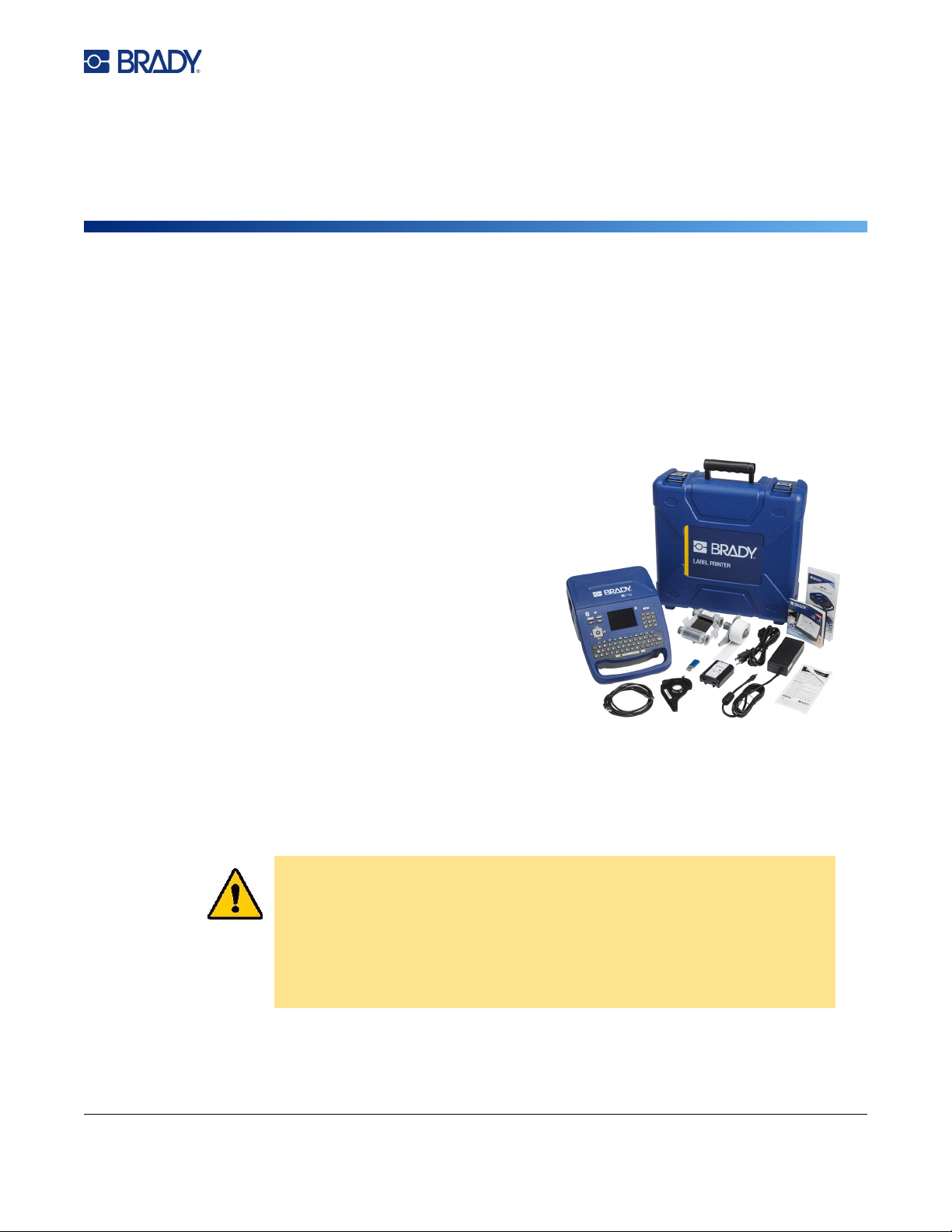
Before setting up the printer, verify that you have received the following items in the packaging:
• M710 printer
• Battery pack
• AC adapter
• USB connection cable
• M610 label roll adapter
• Cleaning card and swab
• Quick Start Guide
• USB drive containing User Manual, Quick Start
Guide, and Windows driver
• M7C-1000-595-WT labels
• M7-R6000 black ribbon
• Hardsided carrying case (depending on bundle
purchased)
Save the Packaging
Save the packaging surrounding your M710 printer in case you have to ship the printer and
accessories back to the supplier.
CAUTION! Never ship the M710 printer without first removing the rechargeable
battery pack from the printer.
If shipping both the printer and battery pack, remove the battery
pack from the printer and place the items in the original shipping
material before transporting. Consult with your transportation
carrier for state, federal, municipal, and international shipping
regulations regarding the lithium battery pack.
M710 User Manual 4
Setup
Printer Components
Registration
Register your printer on-line at www.bradycorp.com/register and receive free product support and
updates!
Printer Components
Power
Power is supplied to the printer through a lithium ion battery pack or through an AC power adapter
(included).
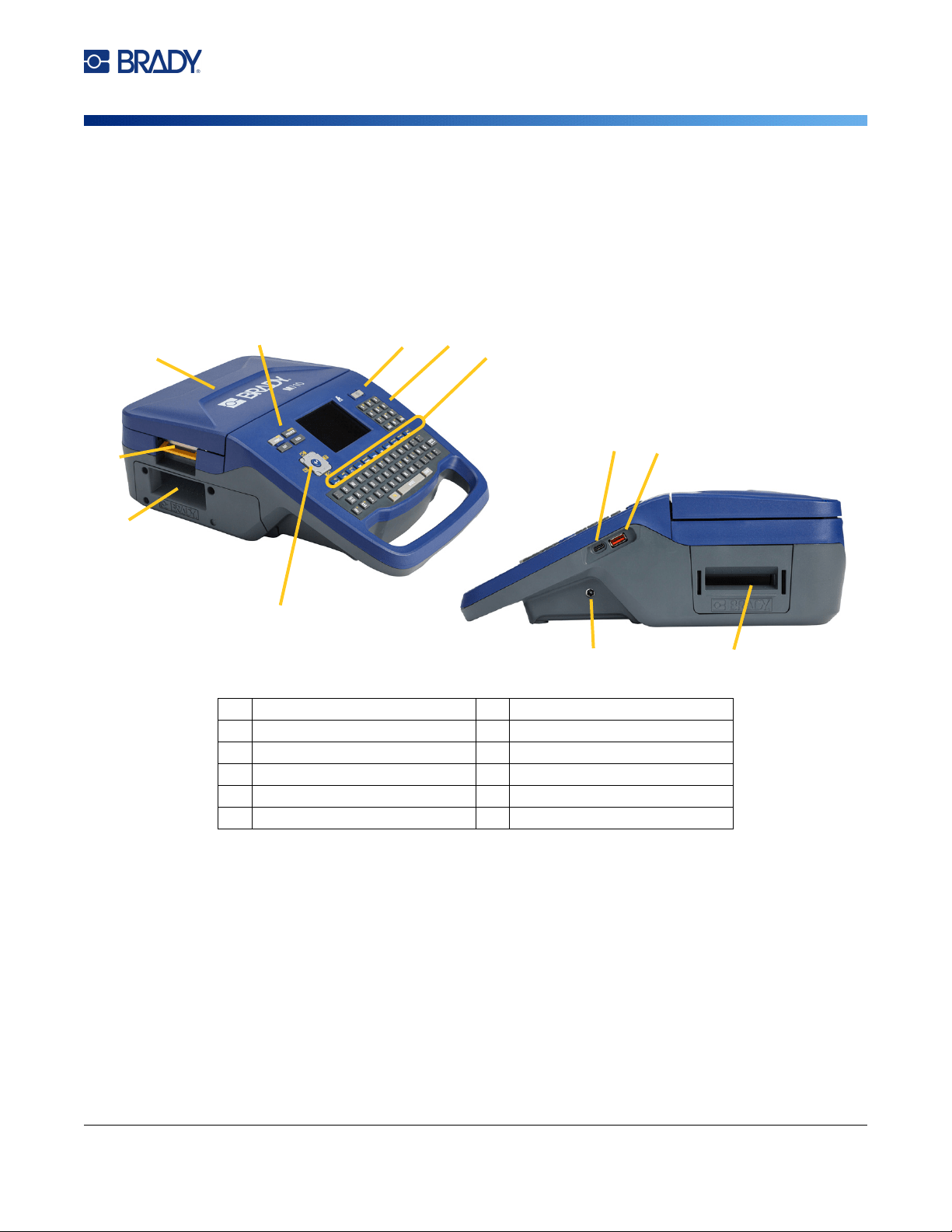
1 Navigation keys 7 Number pad
2 Label exit 8 Function keys
3 Cover latch 9 USB C port (to computer)
4 Cover 10 USB port (for USB drive)
5 Print-related buttons 11 Power port
6 Power button 12 Bulk label path
4
3
2
1
56
7
8
11 12
9
10
M710 User Manual 5
Setup
Power
AC Power Adapter
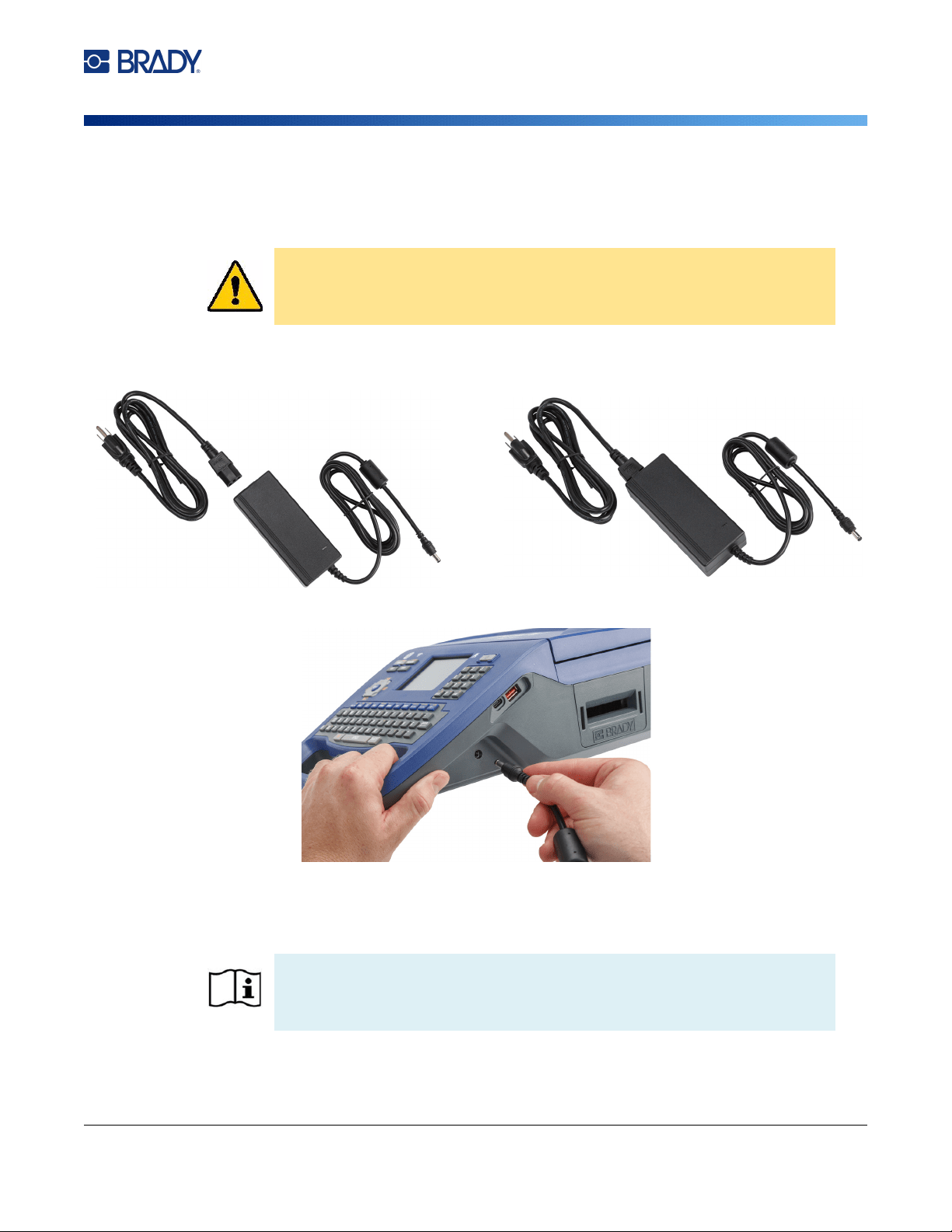
The printer can be powered through an AC power adapter (included). When the adapter is plugged in,
it is also charging the battery.
To plug in the printer:
1. Plug the power cable into the adapter.
2. Insert the round end of the adapter cable into the power port on the right side of the printer.
3. Plug the other end of the cord into an electrical outlet.
Battery
CAUTION! Use only the 18 V DC, 5A, Brady AC adapter for supplying power to
the printer.
WARNING! Risk of explosion if battery is replaced by incorrect type. Dispose
of used batteries according to instructions.
M710 User Manual 6
Setup
Power
WARNING!
• Do not operate the printer in temperatures above 120° F (49° C) or below
40° F (4° C).
• Do not store the printer in temperatures above 122° F (50° C) or below 14° F
(-10° C).
• Do not disassemble or mistreat the battery pack.
• Do not attempt to open, damage, or replace components in the battery pack.
• The battery pack should only be used and charged in a Brady compatible
printer.
• Do not allow metal or other conductive materials to touch the battery terminals
WARNING! The battery pack is not intended to be transportable. When not in
use, the battery pack should be stored in the M710 hard case,
M710 soft case, or equivalent casing to prevent possible damage
to the battery pack.
Keep the battery pack away from sparks, flames, or other heat
sources.
Keep the battery pack away from water.
Never lay objects on top of the battery pack.
Store your battery pack only in a cool, dry place.
Keep the battery pack out of the reach of children.
At the end of battery life, replace your old battery only with the
Brady M710 battery pack.
The battery pack must be recycled or disposed of properly
according to federal, state, and municipal regulations.
M710 User Manual 7
Setup
Power
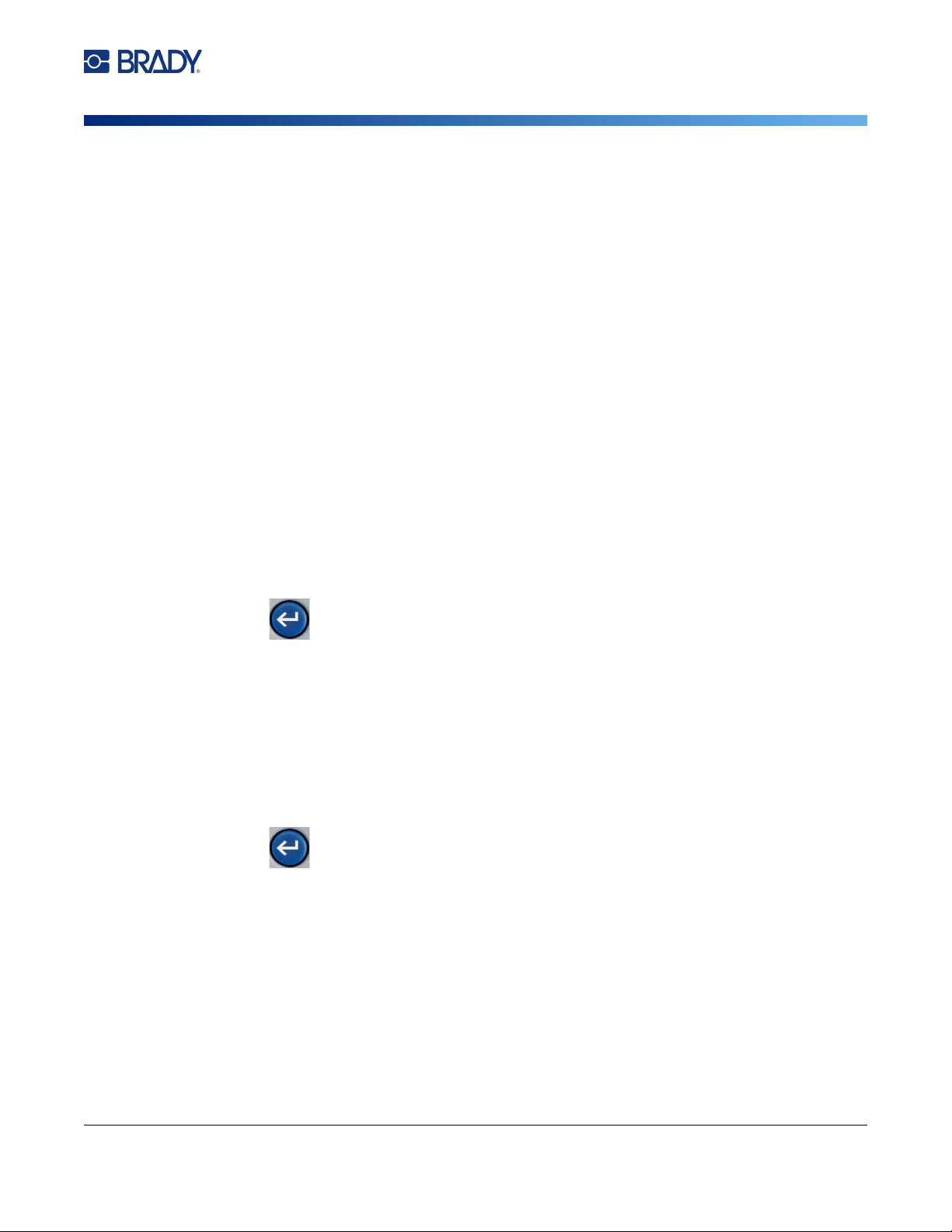
Installing the Battery
To install the battery:
Charging the Battery
To charge the battery:
1. With the battery installed in the printer, plug the printer in to an electrical outlet.
2. The first time that you charge the battery, allow it to charge for 3.5 hours.
Power On
To turn the printer on or off:
1. Press the power button on the front of the printer.
2. The first time you turn on the printer, choose a language in which to display screen items. See
“Printer Settings” on page 8.
Note: Whenever the printer is powered on, the system performs an initialization process. Part of
this process is recognizing the ribbon and label part installed. If the ribbon or label is not
installed, an error message displays. You can dismiss this error during initial setup or if you
wish to continue without the label and ribbon.
The detected ribbon and label information is used when designing labels. While you can
design labels without installing ribbon or label supply, if you choose not to install any, the
label design may not match the ribbon and label supply used to print.
1. Stand the printer up so you
can access the bottom.
Push to the right on the
battery cover release latch,
swing the cover open, and
lift it out.
2. With the battery label facing
outward, insert battery pegs into
the peg slots at the left of the
compartment, then push the
right end of the battery into
place.
3. Re-insert the tabs on the
battery cover into the right
side of the compartment
and snap the cover into
place.
M710 User Manual 8
Setup
Printer Settings
Automatic Shut Down
To conserve energy, the printer automatically turns off after a period of inactivity. To set the inactive
time, or to turn off this feature when the printer is plugged in, see “Printer Configuration” on page 9.
Printer Settings
Use the keyboard and touchscreen to configure standard settings, such as the language. For an
introduction to the touchscreen and keyboard, see “Using the Touchscreen” on page 25 and “Using
the Keyboard” on page 29.
Language
When turning the printer on for the first time, choose the language in which you want all printer menus,
functions, and data displayed.
To set the language for text on the touchscreen:
1. Press FN + SETUP.
2. Use the navigation keys to move through the menu until Language is highlighted.
3. Use the up and down navigation keys to select the desired language.
4. Press to accept the choice.
Units of Measure
Set the unit of measure to inches or millimeters.
To set the unit of measure:
1. Press FN + SETUP.
2. Use the navigation keys to move through the menu until Units is highlighted.
3. Use the up and down navigation keys to select the desired unit.
4. Press to accept the choice.
Date and Time
Set the printer’s clock to the current date and time. Also set the format to use when adding the current
date or time to a label.
To set the date and time:
1. Press FN + SETUP.
2. Use the navigation keys to move through the menu until Time/Date is highlighted.
M710 User Manual 9
Setup
Printer Settings
3. Press to accept the choice and display the time and date settings.
4. For information on how to use the screen, see “Settings Screens” on page 28. Most of the
settings on this screen are self-explanatory, but the following information may be useful.
•
Display 24 Hour:
If this is selected, hours are numbered 1-24. Clear this field to number the
hours 1-12 and use AM and PM.
•
PM:
Not available if
Display 24 Hour
is selected. Clear this check box for AM; set it for PM.
5. Tap OK.
6. Press to dismiss the menu. Alternatively, use the navigation keys to navigate to the
next setting that you want to configure.
Pause/Cut
The Pause/Cut function allows you to remove a label from the printer before another label starts
printing.
To set pausing and cutting:
1. Press FN + SETUP.
2. Use the navigation keys to move through the menu until Pause/Cut is highlighted.
3. Use the up and down navigation keys to select the desired function.
•
End of Label:
The printer cuts after each label and then prints the next label.
•
End of Job:
The printer prints all labels in a file and then cuts. The next job (file) prints.
•
Never:
Always prints the next label or file in the queue without pausing. This is useful for
terminal block, patch panel, and 66-block labels.
4. Press to accept the choice.
Printer Configuration
Use the Config menu to set the brightness, automatic shutdown, backfeed, and to clean the printer.
To configure the printer:
1. Press FN + SETUP.
2. Use the navigation keys to move through the menu until Config is highlighted.
3. Press to accept the choice and display the printer configuration settings.
4. For information on how to use the screen, see “Settings Screens” on page 28.
•
Printer Name:
(Optional.) Tap in the
Printer Name
box and use the keyboard to type a name
for the printer. When using the Brady Express Labels app, this name is shown when selecting a
printer.

M710 User Manual 10
Setup
Printer Settings
Important! If you change the printer name after using the printer with the Brady Express
Labels mobile app (see “Software for Creating Labels” on page 12), additional steps are
needed to update the printer name in the software.
• Reboot the printer. (Turn the printer off and then on again.)
• In the Brady Express Labels app, go to settings and add the printer again.
•
Shut Off Delay:
Set the amount of time, in minutes, that the printer should remain idle before
shutting down automatically.
•
No Shut Off (AC):
Select this check box to turn off the automatic shutdown, which is not
needed when the printer is plugged in.
•
Brightness:
Change the brightness of the touchscreen.
•
Clean Printer:
For more information see
“Cleaning the Printer” on page 87
.
•
No Backfeed:
Applies only to continuous label supplies. After a label has been printed and cut
on a continuous label supply, about 1.5" (38.1 mm) of label material remains ahead of the
printhead, in a position where it would not be printed on. In order not to waste this label material,
the printer normally backfeeds (retracts) the label supply before printing. If the label supply has
been in the printer for awhile, the roller can leave an indentation on the label supply. When
retracted into the printer for printing, the print quality can be bad on the indentation. To resolve
this issue, select the
No Backfeed
check box. Printing starts at the current position leaving
about 1.5" (38.1 mm) of blank label at the leading edge.
Tip: If printing many labels you may want to avoid the excess blank area at the beginning
of each label. Clear the No Backfeed check box. If the first label is unsatisfactory,
reprint just the first label. To print a range of labels (from 1 to 1), see “Multiple Print”
on page 36.
•
About:
Displays version numbers for firmware, Bluetooth, Wi-Fi, and the Printer Label Library.
See
“Installing Firmware Upgrades” on page 85
and
“Updating the Printer Label Library” on
page 86
.
5. Tap OK.
6. Press to dismiss the menu. Alternatively, use the navigation keys to navigate to the
next setting that you want to configure.
Print History
Choose whether you want the printer to retain a history of recently used files.
To configure print history:
1. Press FN + SETUP.
2. Use the navigation keys to move through the menu until Print History is highlighted.
3. Use the up and down navigation keys to select the desired function.
•
On:
The printer retains a history of the last ten label files used.
•
Off:
Print history is no longer retained, but any existing history remains.
•
Clear:
Delete the history. This does not affect the on or off setting.
4. Press to accept the choice.

M710 User Manual 11
Setup
Printer Settings
Label Type
Set defaults for new labels and for pipe marker label types.
To set pipe marker defaults:
1. Press FN + SETUP.
2. Use the navigation keys to move through the menu until Label Type is highlighted.
3. Press to accept the choice and display the application settings.
4. Configure the following settings. For information on how to use the screen, see “Settings
Screens” on page 28.
•
On New Label Creation:
When you start a new label, you usually have to specify some
settings. Some label types show a setting screen with several selections, others just have a
menu to select one option. These settings are detailed in
Chapter 5: Label Types
.
Your choice for On New Label Creation determines the default values for these label type
settings.
•
Clear previous field values:
Uses the factory default settings regardless of your previous
choices.
•
Default to previous field values:
Uses your previous settings as the default.
•
Color Standards:
Select the standard used in your country. When creating a pipe marker from
the EU Safety menu, this setting determines the colors needed. Once you select the pipe
contents, the pipe marker settings screen will show you the label and ribbon colors that you will
need to print the pipe marker.
• Default PipeMarker Symbol Category: When adding graphics to a pipe marker you have
to choose a category of symbols to select from. Setting this is a convenient way to have the
symbols most often used when creating pipe markers readily available. You can still select
a different category while creating a pipe marker. This option is only available when Clear
previous field values is set under On New Label Creation (see above).
•
Adjust PipeMarker Length to Characters:
The length of pipemarker labels is set to conform
to standards. This check box controls whether the length of the label will shorten if there is not
much text on the label.
Select the check box if you want the label to shorten when there is little text. This saves
label material. Clear the check box if you want the full size pipemarker regardless of the
amount of text.
In both cases the software gives you the option of increasing the label length to
accommodate text that is too long to fit on the standard label length.
Font
Choose the font to use when creating labels on the printer. Only one font type can be selected per
label file. These settings do not affect any currently open label file. They take effect for the next new
label file created.
To set the font:
1. Press FN + SETUP.
M710 User Manual 12
Setup
Software for Creating Labels
2. Use the navigation keys to move through the menu until Font Settings is highlighted.
3. Press to accept the choice and display the font settings.
4. For information on how to use the screen, see “Settings Screens” on page 28.
•
Typeface:
Select the style of lettering.
The font types (Brady Fixed Width and Brady Alpine
give you the option of displaying a zero with or without a slash (0 or Ø) through it. In
addition, Chinese, Japanese, and Korean fonts are available. Additional fonts cannot be
downloaded to the printer.
•
Auto:
Automatically sizes the text to fit in the label as you type. The current font size is shown
in the upper left of the touchscreen while editing a label.
•
Font Size:
(Unavailable if
Auto
is selected.) Change the size of the text. This sets the default
font size. When editing a label, you can change the font size on a per line basis.
•
Attributes:
Select one or more of bold, italic, and underline. This sets the default attribute.
When editing a label, you can change the attribute for any character.
•
Units:
Choose whether to show the font size in points (a standard unit used in most word
processors) or millimeters.
5. Tap OK.
6. Press to dismiss the menu. Alternatively, use the navigation keys to navigate to the
next setting that you want to configure. If the label already contains text or other elements, the
font change does not take effect until all data in the editor is removed. See “To clear all the
data on a label or labels:” on page 40.
Note: You can use the FONT button to change the size and attributes for a line of text while editing
a label, but the values specified here in the SETUP menu will continue to be used as the
default on new labels and areas. (For information about areas see “Labels and Areas” on
page 43.)
Software for Creating Labels
In addition to creating labels on the printer, you can use labeling software. Install labeling software on
your computer or mobile device, set up the connection to the printer, then use the software to design
labels and send them to the printer. (Refer to your local Brady website for other Brady software. Be
aware that older Brady labeling software may not automatically detect the printer and that the
information in this manual is based on the software listed below.)
• Use the Brady Express Labels app on a mobile device. (Wireless printer model only.)
• Use Brady Workstation software on a desktop or laptop computer.
Mobile (Wireless Model Only)
Download the Brady Express Labels app from the Apple® App Store or the Google Play™ store.
M710 User Manual 13
Setup
Installing the Windows Driver (Optional)
Desktop
Brady Workstation software provides a variety of apps to simplify label creation for specific purposes. It
also provides easy-to-use apps for custom label design.
To get Brady Workstation software:
1. Make sure your computer is connected to the Internet.
2. Go to www.workstation.bradyid.com.
3. Follow the instructions on the screen to choose the right software for your purpose and
download it.
Installing the Windows Driver (Optional)
If you are using the Brady Express Labels app or Brady Workstation software, you do not need to
install the windows driver. Skip to “Connecting the Printer” on page 13.
If you are using older Brady software or third-party software, you must install the Windows driver. See
the Driver Installation Guide PDF file on the USB flash drive that came with the printer.
Connecting the Printer
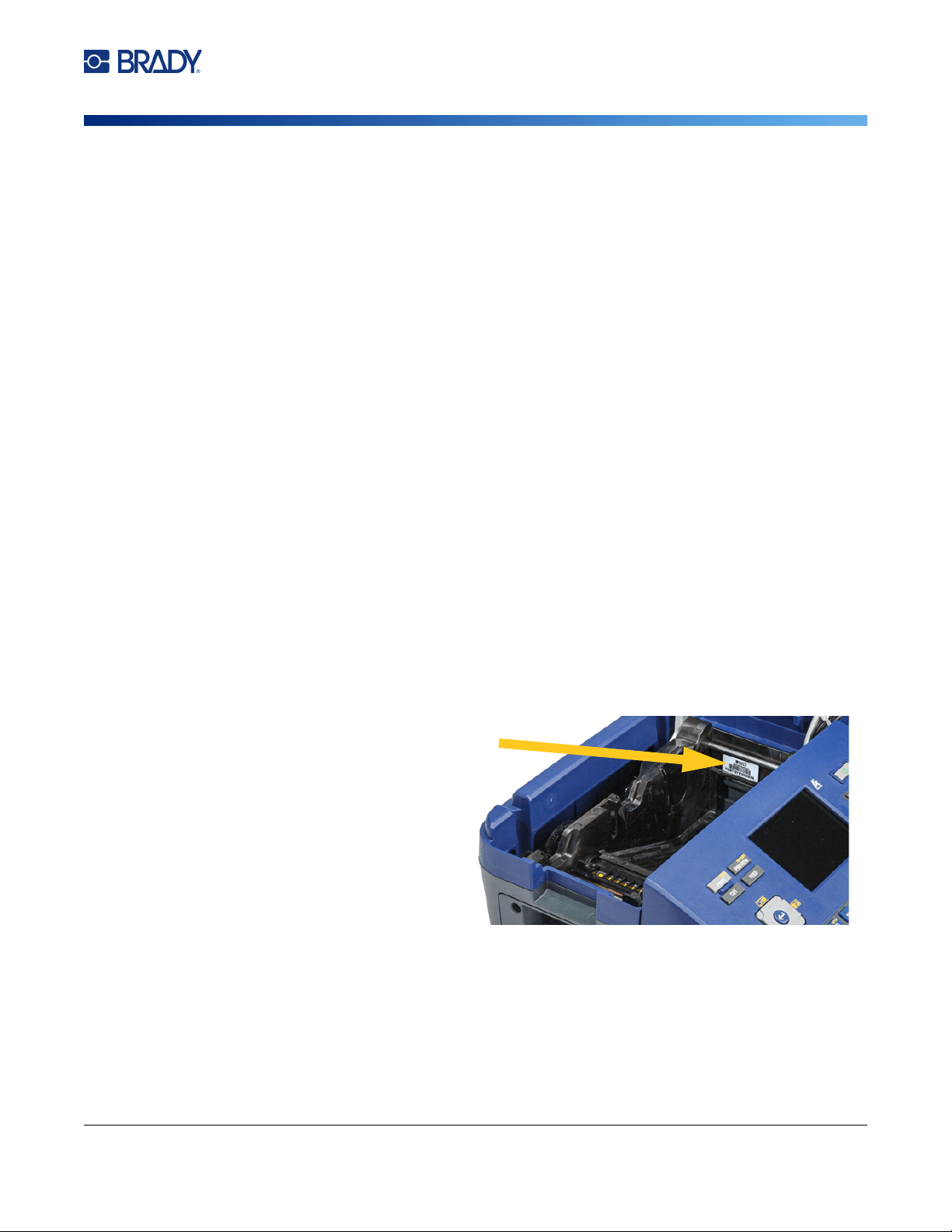
Connect to the labeling software using a USB cable or, if you have the wireless printer model, with
Bluetooth® wireless technology or a Wi-Fi® wireless network.
Bluetooth
This capability is only available on the wireless printer model.
Supported
Connections
Computer
Mobile Device
M710 User Manual 14
Setup
Connecting the Printer
Once you connect the printer to the Brady Express Labels app on your mobile device, the app
remembers the printer for future use. Many people can connect an M710 printer to the Brady Express
Labels app, but only five people can use the printer connection at a time.
•
If fewer than five people are currently using the printer
, the Brady Express Labels app shows
the printer as available to anyone who has previously connected, and can find the printer for
someone connecting for the first time.
•
If five people are currently using the printer,
the Brady Express Labels app will not
automatically connect for the next person who attempts to use the printer. If the user tries to connect
manually, the app informs them that the printer is no longer available. For someone trying to connect
for the first time, the app will not find the printer until fewer than five people are using the printer.
When multiple people are using the printer, labels print in the order in which they are received. You
may experience a delay in printing if other jobs are ahead of yours.
To connect the printer to a mobile device via Bluetooth:
First, on the printer:
1. Make sure the printer is turned on.
2. The printer comes with Bluetooth turned on. Look for the Bluetooth symbol in the lower right of
the display to verify that it is on.
If you do not see the Bluetooth symbol, turn Bluetooth on.
a. Press FN + SETUP. (The SETUP key is in the row of function keys. See “Printer
Components” on page 4.)
b. On the touchscreen, tap Bluetooth.
c. Tap On.
d. Tap OK.
Second, on the mobile device:
Follow the instructions in the
Brady Express Labels mobile
app, which automatically detects
the printer. When found, the
printer is represented by its
serial number (unless you have
changed the printer name). The
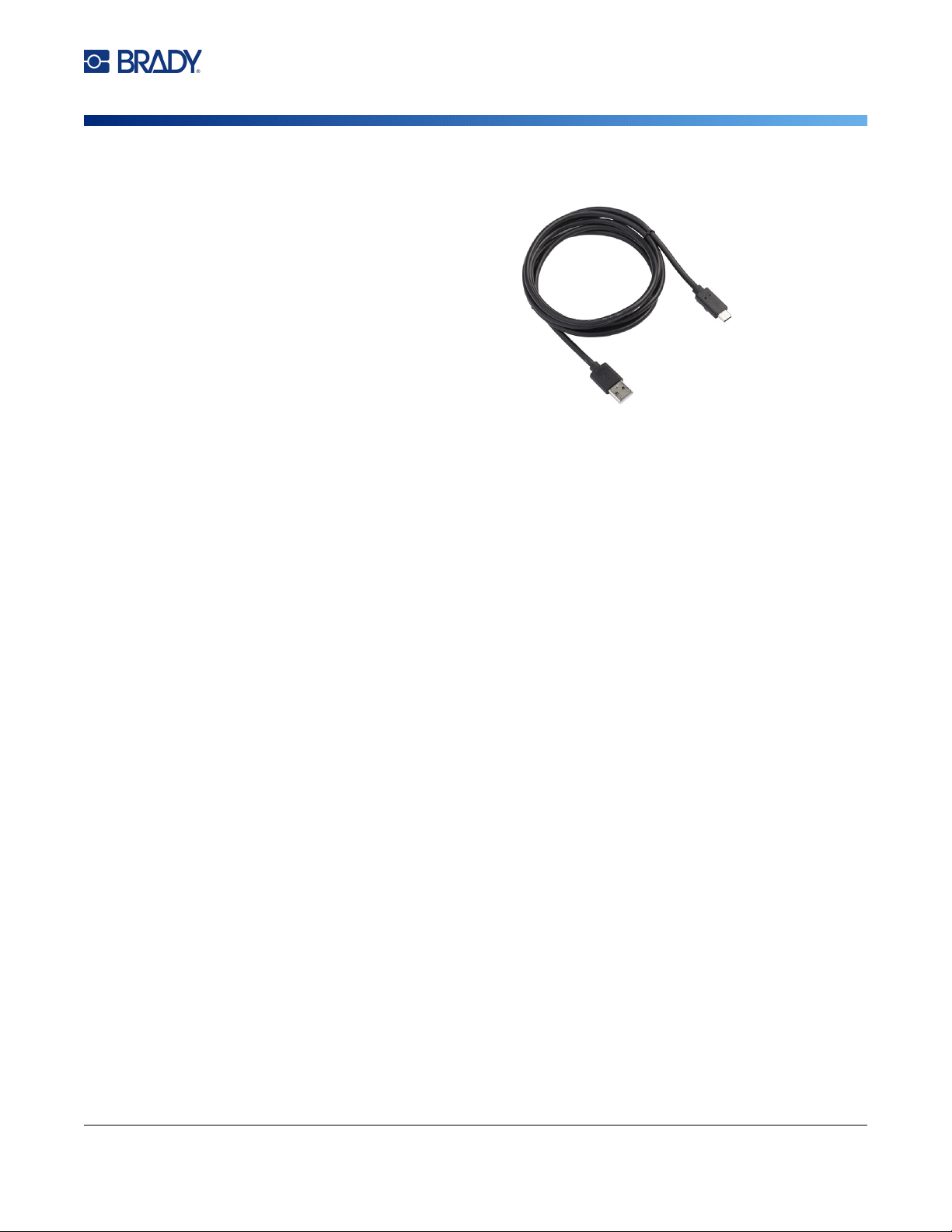
serial number is located inside
the printer behind the label roll.
Select the printer on the mobile
device.
Note: If you change the name of the printer after it has been connected with the Brady Express
Labels mobile app, you must connect it again.
In the Brady Express Labels app, go to settings
and add the printer again.
M710 User Manual 15
Setup
Connecting the Printer
USB
To connect to a computer via USB 2.0, plug the
provided USB cable into the printer and the
computer. Brady Workstation software
automatically detects the printer when connected
via USB cable.
Note: If you are not using Brady Workstation
software, you need to install the printer
driver. See the Driver Installation
Guide PDF file on the USB drive that
came with the printer.
Wi-Fi
This capability is only available on the wireless printer model.
Connect to a Wi-Fi network either by searching for and selecting a network, or by manually entering
the network settings. Once connected, the printer can communicate with devices on that network.
Search to Connect
This is the easiest and most common method for connecting.
To connect to a Wi-Fi wireless network:
1. Make sure the printer is turned on.
2. Press FN + Setup. (The Setup key is in the row of function keys. See “Printer Components” on
page 4.)
3. On the touchscreen, tap Wi-Fi.
4. Tap On to turn on Wi-Fi. The printer searches for Wi-Fi networks and displays a list of
networks found. Touch and drag to scroll the list. (If you need to identify the network by static
IP address or DHCP, see “Manually Enter Settings” on page 16.)
5. Tap the network that you want to use and then tap Join.
• If the network is a personal network, enter the password on the
Join Network
screen and then
tap
Next
. The printer returns to the
Wi-Fi
screen which shows the current network.
• If the network is an enterprise network, choose the type of authentication and then tap
Next
.
The printer then asks either for the username and password or for information on the
certificate, depending on the authentication method. You may need information from your
IT department to complete the settings.
Enter the information and tap Next. The printer returns to the Wi-Fi screen which shows
the current network.
• If the network you need is not in the list, it may not be discoverable. Tap
Other
. The system
displays settings appropriate to your selection. You may need information from your IT
department to complete the settings.
6. Tap OK.
To computer
To printer

M710 User Manual 16
Setup
Loading Supplies
Manually Enter Settings
Use this method if you need to identify the network by static IP or DHCP. Contact your network
administrator for assistance.
To connect to a Wi-Fi wireless network:
1. Make sure the printer is turned on.
2. Press FN + Setup. (The Setup key is in the row of function keys. See “Printer Components” on
page 4.)
3. On the touchscreen, tap Wi-Fi.
4. Tap Advanced.
5. Under IP Settings tap one of the following.
•
DHCP:
DHCP addressing is dynamic and the system uses a DNS server to obtain the printer
IP address for you.
•
Static:
Select static addressing to manually enter the printer’s IP address.
Fill in the remaining
available settings with help from your network administrator.
6. Tap Prev.
7. Tap Join.
Loading Supplies
Brady labels and ribbons come equipped with smart-cell technology that enables the
printer to recognize the type of label and ribbon and automatically set many label
formatting details. Only use labels and ribbons that have the Brady Authentic logo.
Loading Labels
For optimum performance, use authentic Brady M710 labels. Labels designed for the M610 printer can
also be used, but require an adapter. See “Using the Label Roll Adapter” on page 22 for details.
Labels can be loaded with the power on or off.
Note: You can design a label on the printer without installing the label roll. However, if no label
supply is installed, the printer uses the characteristics of the last installed label supply to set
up the label. This means the dimensions or layout (like a two-sided sleeve rather than a flat
label) could be wrong for the label supply that you plan to print on.
M710 User Manual 17
Setup
Loading Supplies
To load labels:
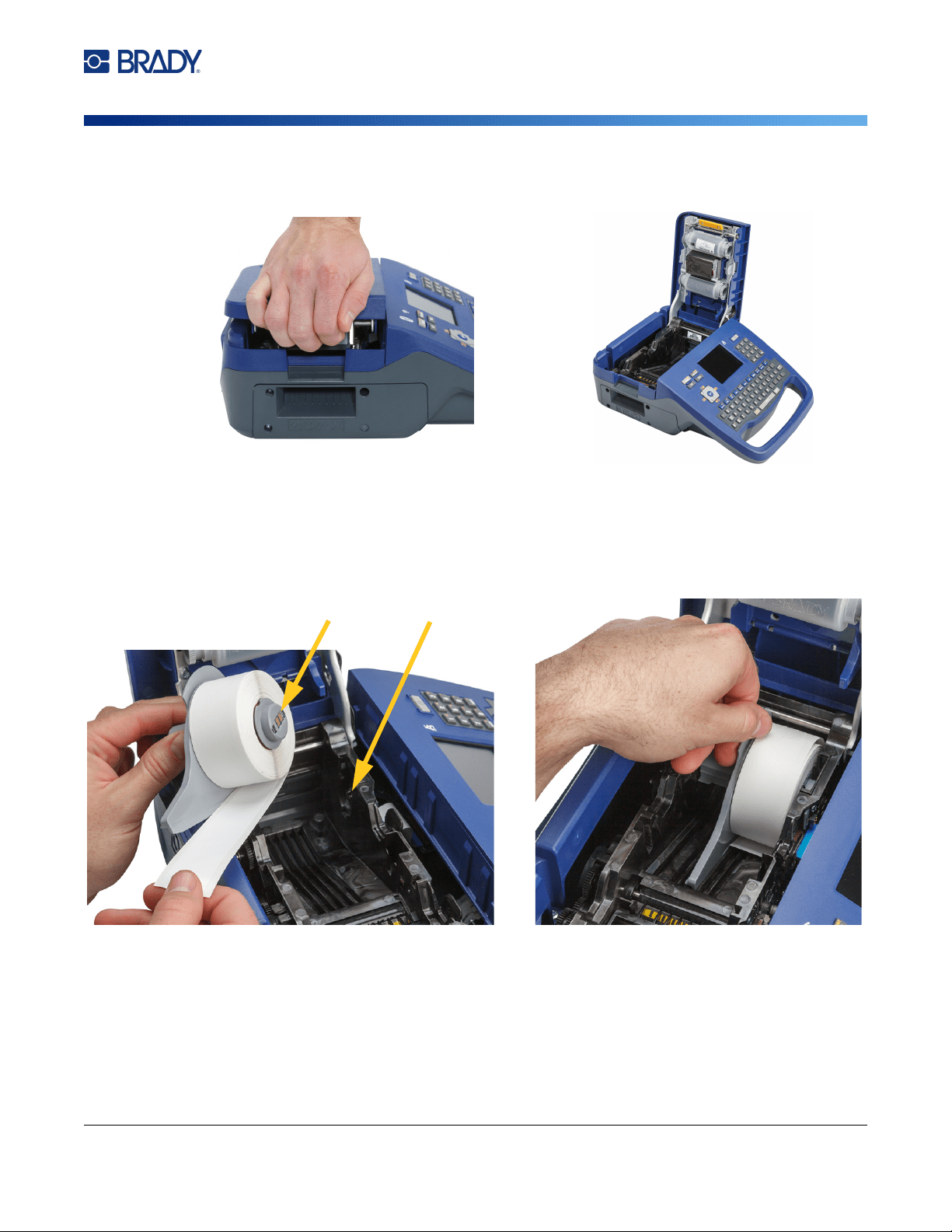
1. Pull up on the cover latch and open the cover.
2. Remove the existing labels, if installed. Grasp the label roll and gently pull up out of the label
well.
Store unused labels in a cool, dry place.
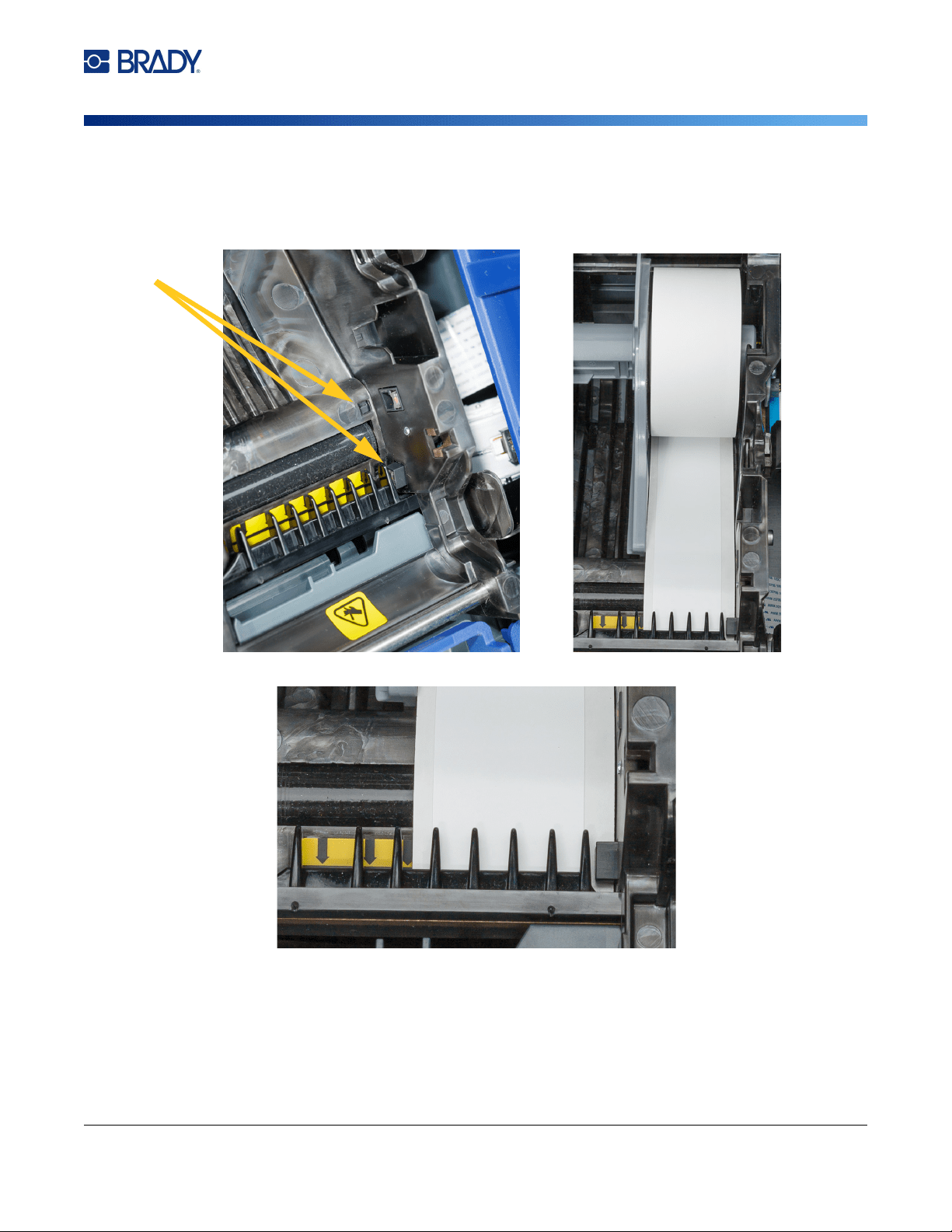
3. Orient the new roll with labels coming off the bottom of the core toward the left-hand side of
the printer. Insert the roll into the label well. Make sure the smart cell on the label roll aligns
with the contacts in the label well.
smart cell
contacts
M710 User Manual 18
Setup
Loading Supplies
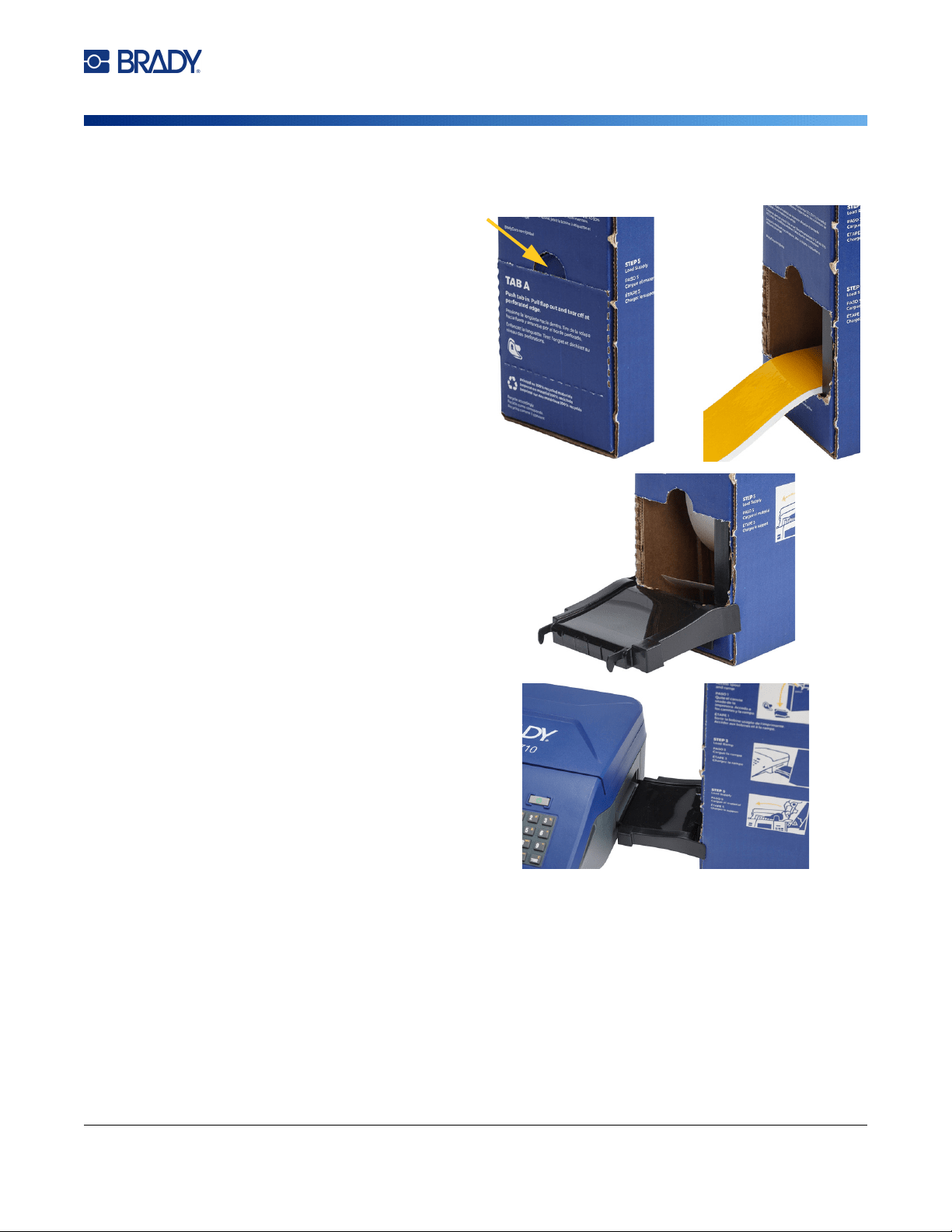
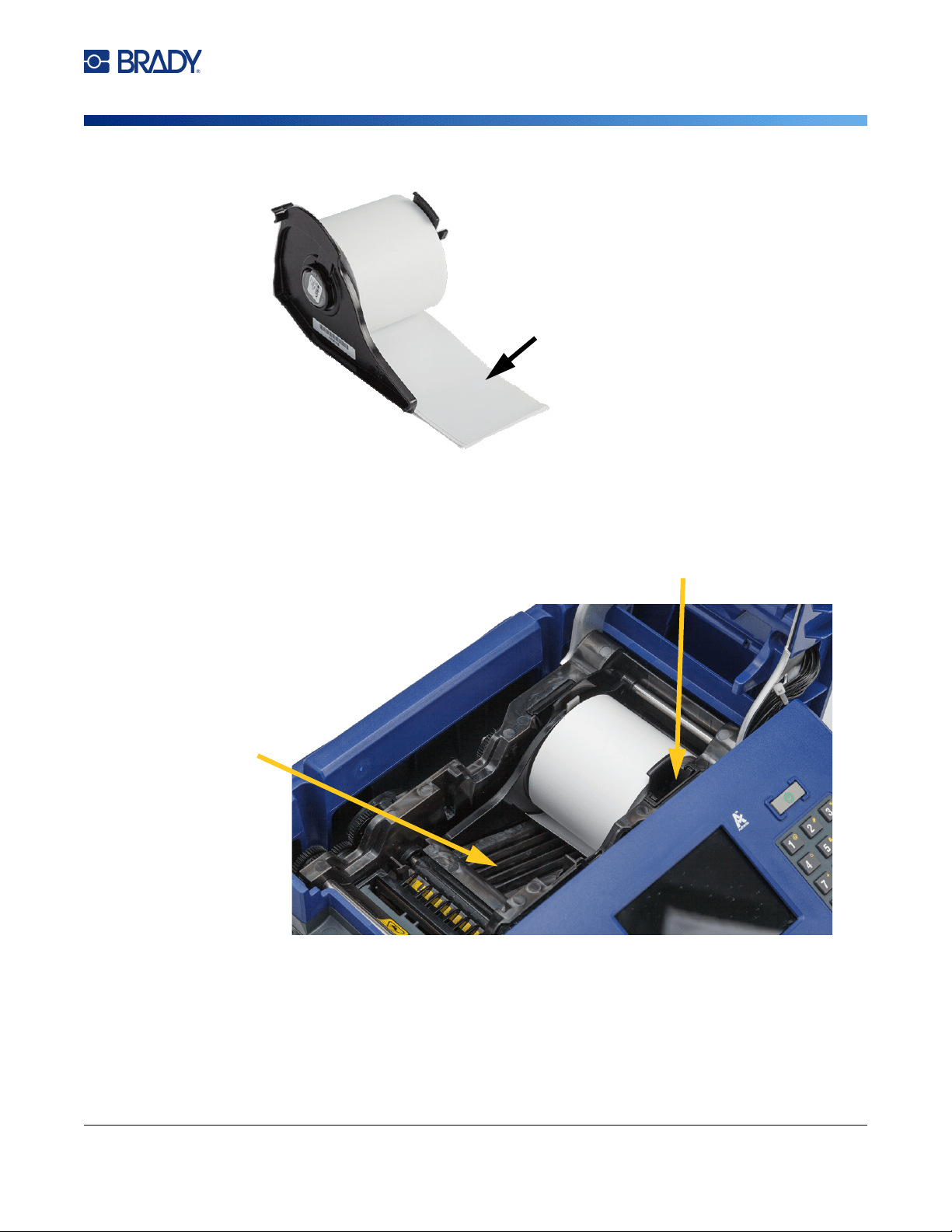
4. Insert the loose label end up to the black line under the ribs, making sure that the label
material covers the sensors and that the edge of the label supply roughly aligns with the side
of the label well.
Figure 2-1. Make sure the sensors are covered.
Figure 2-2. Position of leading edge of label supply.
5. Close the cover until it latches.
sensors

M710 User Manual 19
Setup
Loading Supplies
Loading Ribbon
Use only authentic Brady M710 ribbon cartridges. Ribbon can be loaded with the power on or off.
To load ribbon:
1. Pull up on the cover latch and open the cover.
2. Remove the existing ribbon cartridge, if installed. Grasp the finger tabs on either side of the
cartridge and pull the cartridge out of the ribbon compartment.
If the ribbon is spent, recycle the ribbon cartridge according to local regulations. The ribbon
gauge at the bottom of the touchscreen indicates how much ribbon remains. See “Using the
Touchscreen” on page 25.
Store any unused ribbon in a cool, dry place. Unused ribbon will last up to six months before
deterioration sets in
3. With the cartridge label facing up, grasp the finger tabs on
either side of the cartridge and place it so that the ribbon is
over the printhead. Push slightly to snap into place. Then,
close the cover until it latches.
Note: If reusing a ribbon cartridge, turn the top spool of the ribbon
counterclockwise (down) to clear the printhead area of used
ribbon.
The color of the ribbon displays in the color of the text entered on the
editing screen. The amount of ribbon remaining in the cartridge
registers in the gauge in the lower right of the status bar.
The printer displays a message if no ribbon is installed. You do not
have to install a ribbon to create a label. However, if no ribbon is
installed the system defaults to the last known ribbon color used.
CAUTION! Hot part: Be careful when changing the ribbon cartridge because
the printhead may be hot.
M710 User Manual 20
Setup
Loading Supplies
Loading Bulk Labels
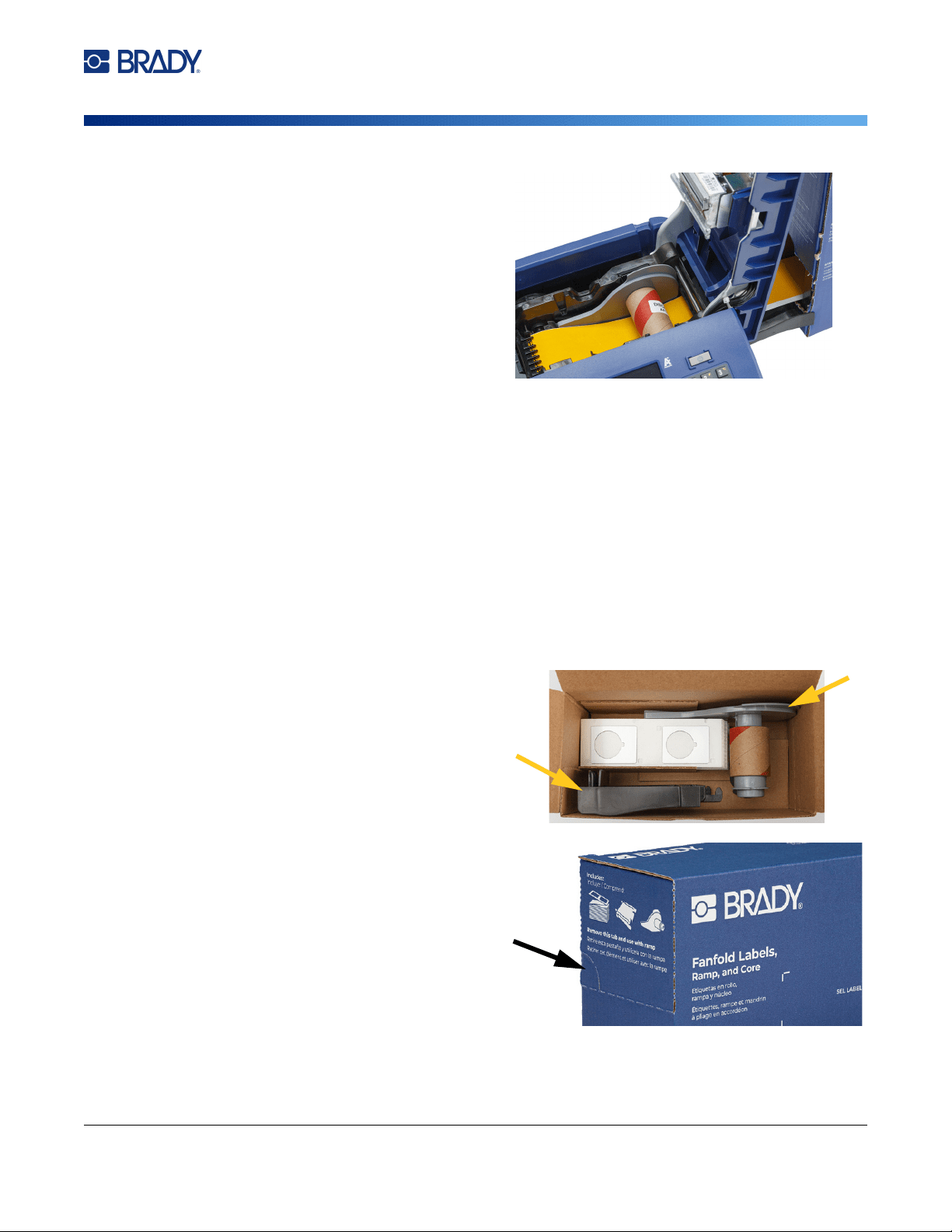
1. Remove the M710 label core and
the label feed ramp from the box.
2. On the bulk label supply box, push
in tab A, then pull the perforated flap
down and tear off.
3. Attach the label feed ramp to the
bottom of the perforation, with the
ramp arms on the outside of the box.
4. Attach the ramp hooks to the outside
of the bulk label feed path on the
printer.
5. Open the printer and insert the label core making sure the smart cell on the label roll aligns
with the reader in the label well.
M710 User Manual 21
Setup
Loading Supplies
7. Continue to feed the leading edge of the label roll under the core. Insert the loose label end up
to the black line under the ribs, making sure that the label material covers the sensors and that
the edge of the label supply roughly aligns with the side of the label well. See Figure 2-1 and
Figure 2-2 on page 18.
8. Turn the printer on and press FEED to feed the label supply through the printer.
9. Close the cover.
IMPORTANT! Be sure to store the core with any remaining unused labels when you are done
printing. The printer uses the smart cell on the core to track how many labels are
remaining. Always use the core that came with the labels otherwise the printer may
present an out of labels error message.
Loading Fanfold (Raised Panel) Labels
3. Open the printer and insert the label core making sure the smart cell on the label roll aligns
with the reader in the label well.
6. Pull the loose end of the bulk label
supply out of the box punch-out and
thread over the tray and into the bulk
label feed path on the printer.
1. Remove the label core and the ramp
from the box, then close the box.
2. On the side of the box, press in the tab
and remove the perforated flap.
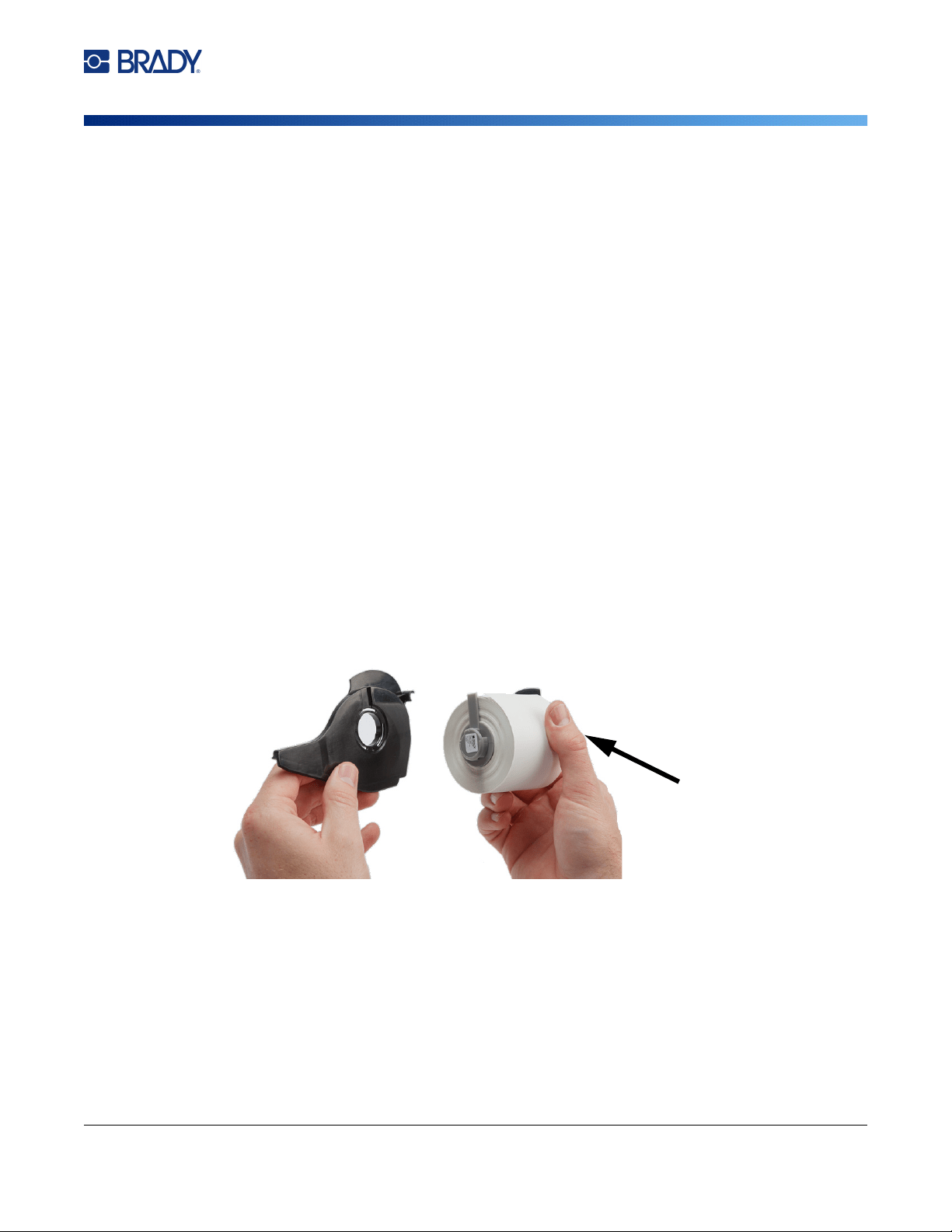
M710 User Manual 22
Setup
Using the Label Roll Adapter
4. Keeping the label supply in the box, place the box behind the printer. Attach the label feed
ramp to the edge of the bulk box.
5. Attach the ramp hooks to the outside of the bulk label feed path on the printer.
6. Feed the leading edge of the labels over the ramp, into the printer, and under the label core.
Insert the leading edge of the labels up to the black line under the ribs, making sure that the
label material covers the sensors and that the edge of the label supply roughly aligns with the
side of the label well. See Figure 2-1 and Figure 2-2 on page 18.
7. Turn the printer on and press FEED to feed the label supply through the printer.
8. Close the cover.
IMPORTANT! Be sure to store the core with any remaining unused labels when you are done
printing. The printer uses the smart cell on the core to track how many labels are
remaining. Always use the core that came with the labels otherwise the printer may
present an out of labels error message.
Using the Label Roll Adapter
In order to use M610 labels in the M710 printer, you must attach the M610 Label Roll Adapter (M71-
ADAPT-BK). The adapter is included with the M710 printer and can also be purchased separately.
To use the M610 label roll adapter:
1. With the pointed end of the guide facing in the direction that the labels come off the bottom of
the core, position the hole of the adapter over the end of the core, opposite the smart cell.
smart cell
M710 User Manual 23
Setup
Using the Label Roll Adapter
2. Gently push the adapter securely onto the core.
3. Place the M610 label roll, with adapter attached, into the printer the same way you load M710
label material. (See “Loading Labels” on page 16.)
Make sure that the label roll adapter is positioned in the correct slot in order to push the smart
cell up against the contacts.
Labels feed from the
bottom of the core.
slots
contacts (not visible in picture)
M710 User Manual 24
Setup
Accessories
Accessories
The following accessories are available for the M710 printer and can be purchased separately from
your distributor.
• Hard-sided carrying case (M710-HC
• Soft-sided carrying case (BMP-SC-3)
• Cleaning kit (M71-CLEAN)
• M610 label roll adapter (M71-ADAPT-BK)
• AC Adapter (M710-AC) North and South America only
• Replacement Li-ion battery (M-LION-BATTERY)
• NiMH battery (M-NIMH-BATTERY)
Battery Specifications
Li-ion NiMH
Capacity 2700 mAh 1200 mAh
Weight 0.42 lbs (192 g) 0.55 lbs (230 g)
Life Prints up to 4500 labels
on a single charge.
Prints up to 1500 labels
on a single charge.
M710 User Manual 25
3 General Operation
Using the Touchscreen
Use the printer’s touchscreen to create labels, configure settings, and check status, among other
functions. Touch the screen with your finger to make a selection.
The screen shows a representation of the loaded label supply and ribbon (or the last known supplies)
in the correct color. The screen displays one label at a time. For labels with multiple areas, only one
area displays at a time.
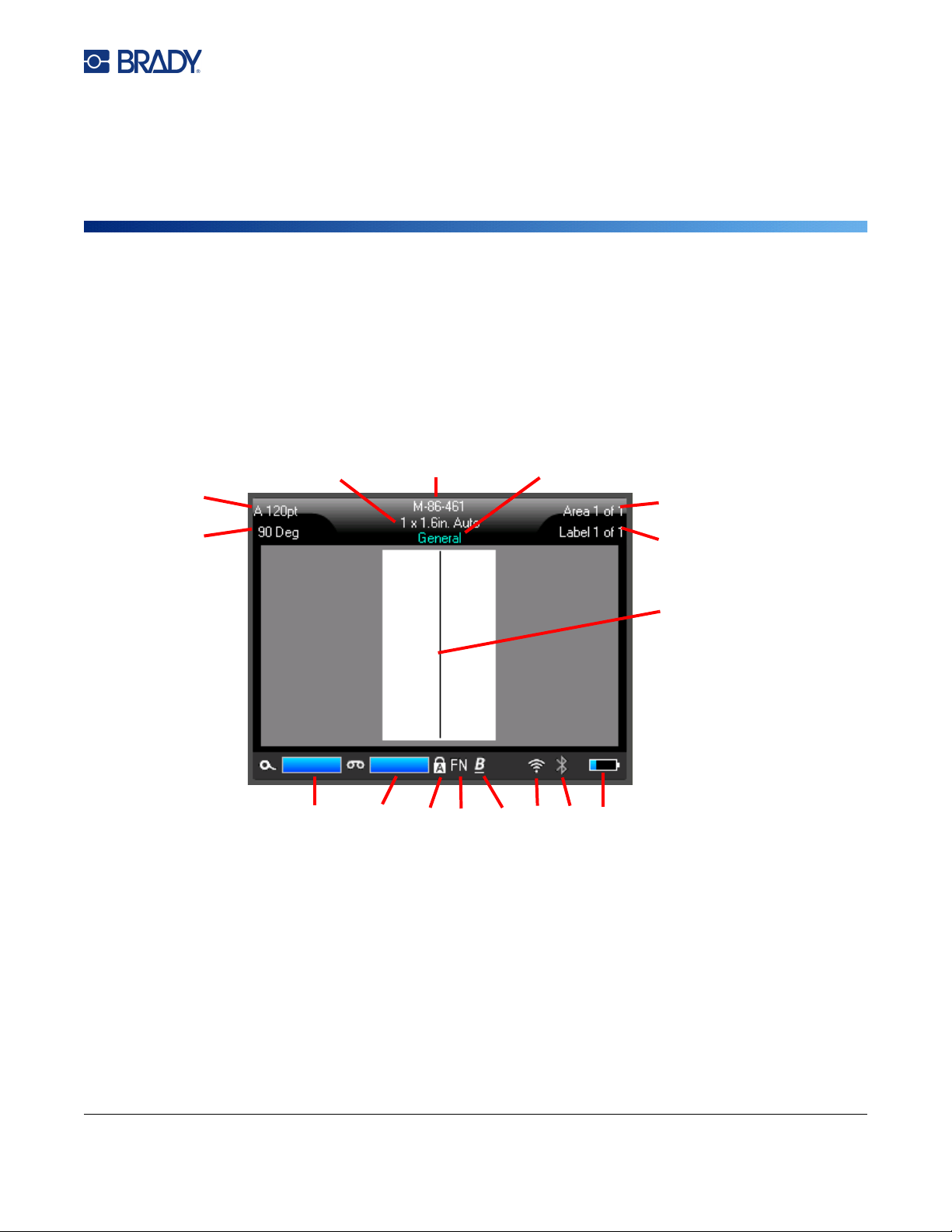
1. Label size. The word Auto after the label size indicates that a continuous label supply (as
opposed to pre-sized) is set to automatically size to the label contents.
2. Label supply. The part number of the installed label supply. If labels are not installed this
displays the label supply used last.
3. Label type. The printer provides tools for editing labels for specific purposes, such as wire
markers, terminal blocks, and vials. See Chapter 5: Label Types.
4. Area number. The total number of areas on the label and the area currently being edited. See
“Labels and Areas” on page 43.
5. Label number. The total number of labels in the file and the label currently being edited. For
information on navigating between labels see “Navigation and Selection Keys” on page 30.
6. Cursor. Marks the insertion point for data entry.
1
3
4
5
7
8
1011
15
16
2
6
121314
9
M710 User Manual 26
General Operation
Using the Touchscreen
7. Battery charge remaining. The gauge turns red when only 10% of the battery charge
remains.
8. Bluetooth indicator.
•
No icon:
Bluetooth is not turned on. See
“Bluetooth” on page 13
.
•
Grey icon:
No one is using the Bluetooth connection.
•
Blue icon:
At least one person is using the Bluetooth connection.
9. Wi-Fi indicator
Indicates that Wi-Fi is connected.
Indicates that Wi-Fi is on, but disconnected.
No icon indicates that Wi-Fi is off.
10. Character Attributes. If bold, italic, or underline are set, a symbol here indicates which are
set. Blank means no character attributes are set. B means bold, I means italic, and U
means
underline. These can be combined if multiple attributes are set. The slanted, underlined B in
the image above indicates that all three attributes are applied.
11. Function. The letters FN here indicate that the FN key has been pressed. This is used in
combination with keys that have orange text on them. Pressing FN and then another key
performs the function written in orange.
12. Caps lock. This symbol is visible when the caps lock is on.
13. Ribbon remaining. The gauge turns red when only 10% of the ribbon remains.
14. Label supply remaining. The gauge turns red when only 10% of the label supply remains.
15. Rotation. Degrees that the label is rotated. See “Rotation” on page 46.
16. Font size. The letter "A" indicates that it is set to Auto. See “Font Size” on page 40.
M710 User Manual 27
General Operation
Using the Touchscreen
Menus
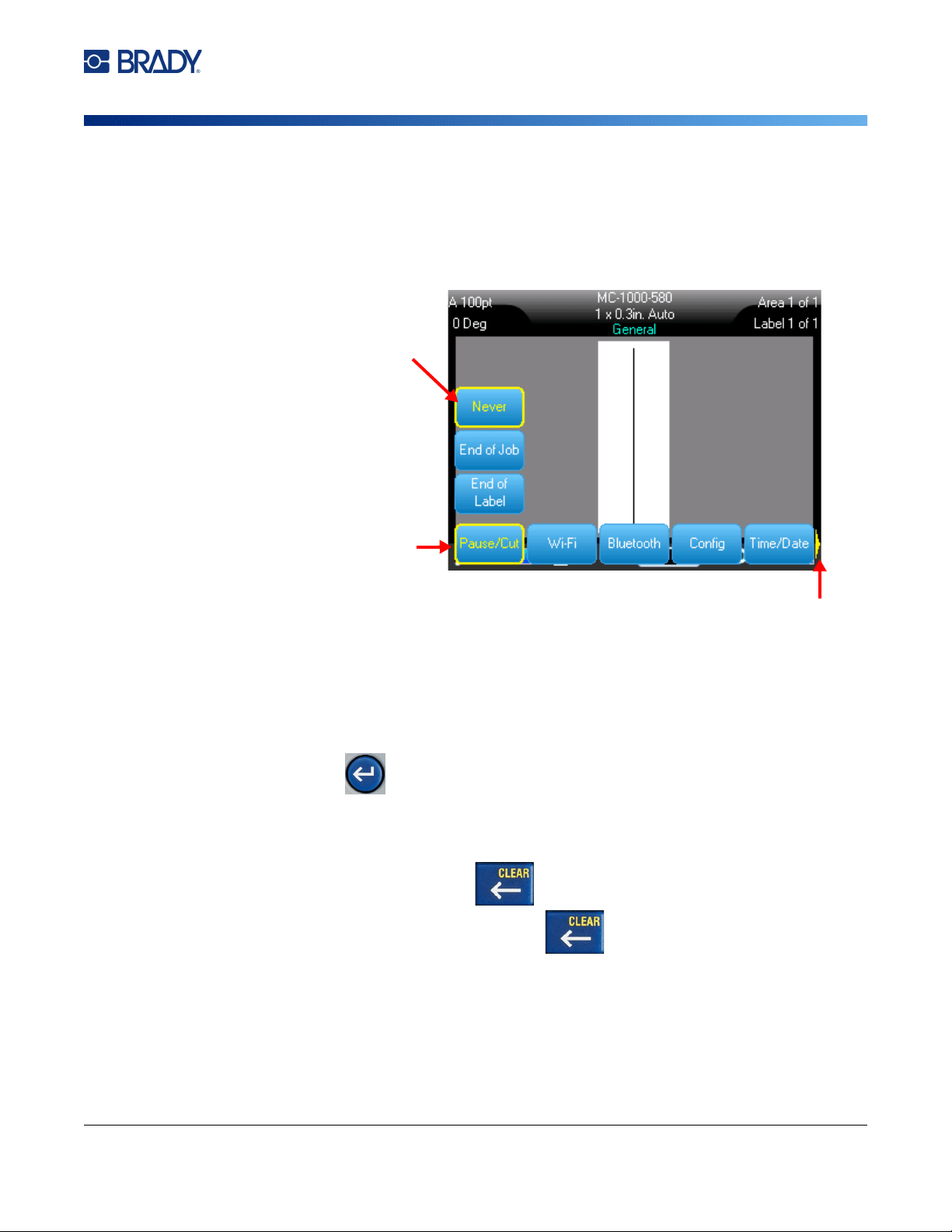
Menus provide access to controls such as printer settings, label setting, font, and so on. Use function
keys on the keyboard to open menus. See “Using the Keyboard” on page 29.
Menus open across the bottom of the screen. Sub-menus open vertically, above the main menu
selection. A yellow border marks selected menu items. The image below shows the Setup menu.
To select items on a menu, do one of the following.
•
Keyboard:
Use the navigation keys to move through the menu. When the desired option is
highlighted, press . For more information see
“Using the Keyboard” on page 29
.
•
Touchscreen:
Use your finger to tap your selection.
To close a menu without making changes:
•
Keyboard:
Press the backspace key. You may have to press backspace more than once
to exit out of all menus. Alternatively, press
FN
+ to exit out of all menus.
•
Touchscreen:
Touch anywhere outside of the menu.
1. The main menu displays across
the bottom.
3. Selected item in the submenu.
4. The yellow arrow indicates that more
menu items are available. To scroll the
menu, drag your finger on the touchscreen or
use the navigation keys.
2. Submenus display vertically above
the main menu item.
M710 User Manual 28
General Operation
Using the Touchscreen
Settings Screens
Some menu items open a screen with controls to set.
To make selections using the touchscreen:
To save the changes, tap OK.
To cancel the changes, press on the keyboard.
To make selections using the keyboard:
• Use the navigation keys to move between settings and highlight the desired setting.
• Press to choose a highlighted selection.
• To enter data type on the keyboard or use the number pad, and then press .
• To open a list, highlight it, press , use the navigation keys to make your selection, and then
press again.
• To save the changes, use the navigation keys to highlight the
OK
button on the screen and then
press .
For more details on using the keyboard to make selections, see “Using the Keyboard” on page 29.
To enter data in text
fields, tap the field and
then type the data.
Tap options to select or
clear them.
Tap list boxes to
expand the list and
then tap the desired
setting. If the list is
long, drag your finger
up or down the list to
scroll.
M710 User Manual 29
General Operation
Using the Keyboard
Cancel Functions
To exit a menu or a setting screen without making changes, press the backspace key . When
pressing backspace in the middle of a function, you are walked out of the function a screen at a time.
You may have to press backspace several times to completely exit the function.
Using the Keyboard
The printer comes with a keyboard appropriate to the region where it was purchased. For information
on entering text in Asian languages, see Appendix B: “Using IME for Asian Text” on page 108.
Keys With Multiple Characters
White: Most keys on the printer have text or images in white. Press the key to perform the function or
type the character.
Orange: Some keys also have orange text in the upper right. For the orange function or character,
press the FN key and then press the key with orange.
Multiple: A few keys have three or four characters and you press either SHIFT or FN and then press
the key to get two of the characters.
See also “Letters with Diacritical Marks” on page 51.
The following tables provide a reference for all the keys that perform a function other than typing a
character.
To type the character in
the upper left, press
SHIFT and then press the
key.
To type the character in
the bottom left, just press
the key.
To type the orange
character in the lower right,
press FN and then press
the key. (Only available on
printers sold outside of
North America.)
To type the orange
character in the upper right,
press SHIFT and FN, and
then press the key.

M710 User Manual 30
General Operation
Using the Keyboard
Navigation and Selection Keys
Key Description
Navigation keys The navigation keys are the arrow keys on the outer edge of
this button:
• In a line of text, move the cursor left or right a character at
a time, or up and down a line at a time.
• In menus, move the selection left or right in a primary menu;
up or down through a secondary, or sub-menu.
• On a settings screen, move up, down, left, or right through
the fields. In a field with a drop-down list, after pressing OK,
move the cursor up or down through the list.
• In Print Preview, scroll left or right through a label, or up and
down through multiple labels.
OK Located in the center of the navigation keys.
Accept menu items and attributes.
FN Located to the left of the spacebar.
• Used in combination with another key. Orange text or
symbols indicate the function of the key when combined
with FN. Press the FN key and then press the key that has
the alternate function.
• Used to access special characters on the alphabetical keys.
NEXT AREA On a multi-area label, moves from the current area to the
next area. For an explanation of areas see “Labels and
Areas” on page 43.
FN + PREV AREA On a multi-area label, moves from the current area to the
previous area. For a quicker method see “Shortcuts on the
Touchscreen” on page 44.
NEXT LABEL In a multi-label file, moves from the current label to the next
label. For a quicker method see “Shortcuts on the
Touchscreen” on page 44.
FN + PREV LABEL In a multi-label file, moves from the current label to the
previous label.
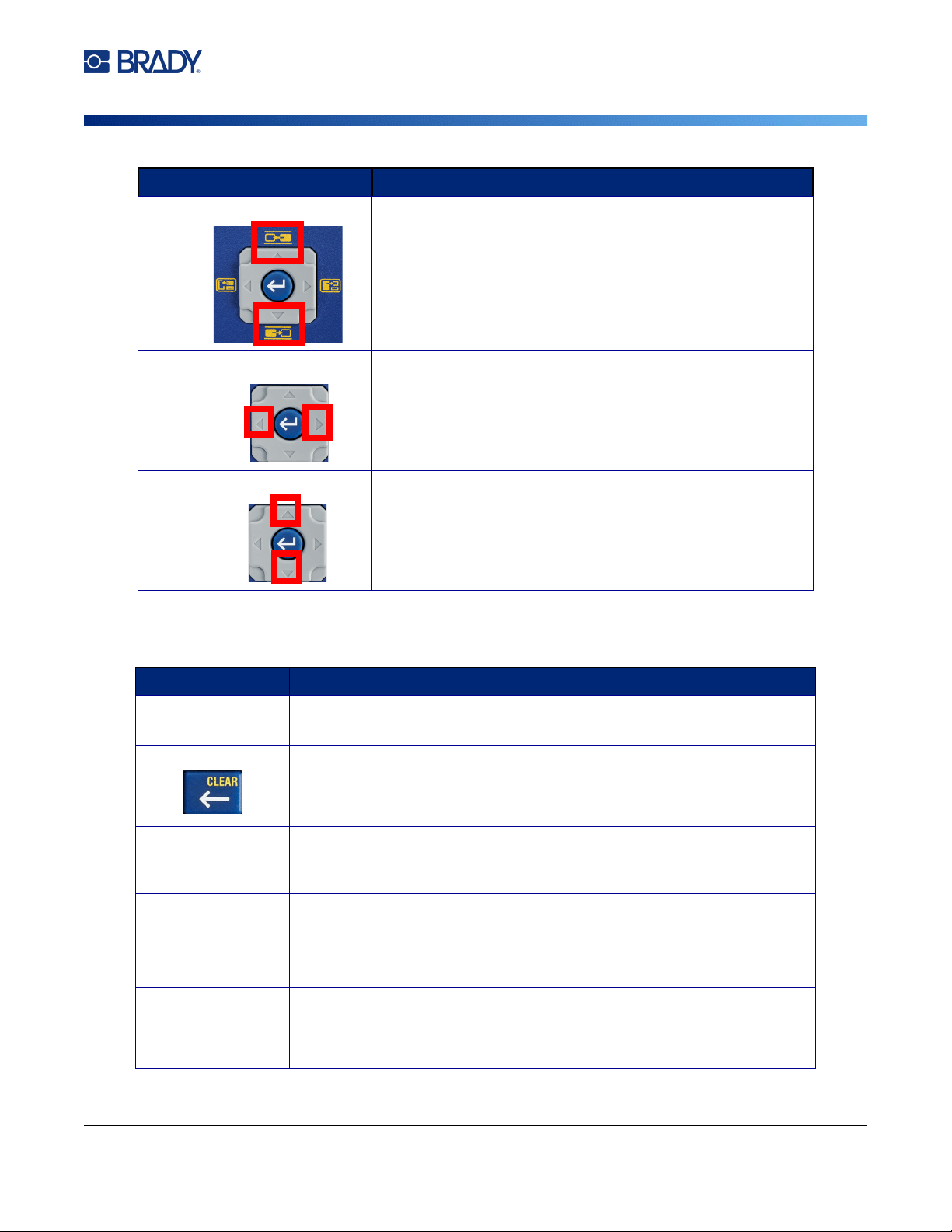
Move to an area On a multi-area label, moves to the next or previous area.
FN +
M710 User Manual 31
General Operation
Using the Keyboard
Editing Keys
Move to a label In a multi-label file, moves to the next or previous label.
Highlight text Highlights (selects) text on the editing screen, left or right a
character at a time, enabling you to add font attributes (bold,
italics, underline) to text already entered.
Font size increment On the editing screen, increases or decreases the font size,
one point size at a time.
Key Description
ENTER
• Adds a new blank line of text to a label.
• Also accepts menu items and attributes. (Works the same as OK key.)
Backspace
• In the editor, removes characters one at a time, moving to the left from
the cursor.
• Exit a menu. (You may have to press backspace multiple times to back
all the way out, otherwise press FN + CLEAR to exit completely.)
CAPS LOCK Acts as a toggle to lock text into upper- or lowercase as data is entered.
Note: Because text defaults to uppercase, use the Caps Lock to switch to
lowercase.
FN + CLEAR
• Clears data from the label or deletes all labels.
• Cancels menu options and functions.
SHIFT Located to the right of the spacebar.
Used together with another key to type the top left character on the key.
SHIFT + FN
• Used together with another key to type the top right orange character on
the key. See “Keys With Multiple Characters” on page 29.
• For accented letters, press FN+Special Character, then type the letter.
See “Letters with Diacritical Marks” on page 51.
Key Description
FN +
SHIFT +
SHIFT +
M710 User Manual 32
General Operation
Using the Keyboard
FN +SUPER Located above the 8 on the number pad.
• Places the next typed character in superscript format, displaying slightly
above the line of text.
• Will place multiple characters in superscript if the characters are
highlighted first. (See “Highlight text” on page 31 for information on
highlighting characters.)
FN +SUB Located above the 0 on the number pad.
• Places the next typed character in subscript format, displaying slightly
below the line of text.
• Will place multiple characters in subscript if the characters are
highlighted first. (See “Highlight text” on page 31 for information on
highlighting characters.)
DATE Inserts the current date, as set on the printer.
TIME Inserts the current time, as set on the printer.
LABEL Opens a menu to add, remove, and format labels in a file. See “Labels
and Areas” on page 43
SHIFT + LABEL Adds another label. “Add Label or Area” on page 43.
FN + AREA
(FN + SHIFT +
LABEL)
Adds a new area to a label. This can only be performed on continuous
labels. See “Add Label or Area” on page 43.
LABEL TYPE Opens a menu to select the type of label that you want to create. This sets
up the label with the proper layout for the application (for example, wire
marking, safety signs, or breaker boxes). See Chapter 5: “Label Types”
on page 62.
FN + FILE Opens the file menu to save, open, delete, import, or export a file. See
Chapter 6: “File Management” on page 79.
International Accesses characters specific to some international alphabets with
diacritical and accent marks incorporated into the characters. See
“International Characters” on page 51.
FN + SETUP Opens the menu to configure printer settings. See “Printer Settings” on
page 8.
FONT Provides font sizes and attributes such as bold and italic. See “Typeface”
on page 40.
Key Description
M710 User Manual 33
General Operation
Using the Keyboard
Print-Related Keys
This is the group of four keys to the left of the touchscreen, above the navigation keys.
SYMBOL Accesses the various symbols (graphics) provided with the printer. See
“Labels and Areas” on page 43.
FN + GRAPHICS Accesses user-supplied graphics loaded onto the printer. See “Graphics”
on page 50.
SERIAL Adds sequential data to your labels, that is, data that increments (or
decrements) from one label to the next. See “Serialization (Sequential
Data)” on page 54.
LIST Enables you to produce multiple labels with variable information from a
single, formatted label (main document) and a structured data source.
See “List (Importing Data)” on page 57.
Barcode Inserts a barcode on the label. See “Barcode” on page 52.
(Only on printers purchased in Asia.) Opens the IME editor for entering
Chinese Simplified, Chinese Traditional, Japanese, or Korean characters.
See Appendix B “Using IME for Asian Text” on page 108.
Key Description
PRINT Prints all labels in a label file.
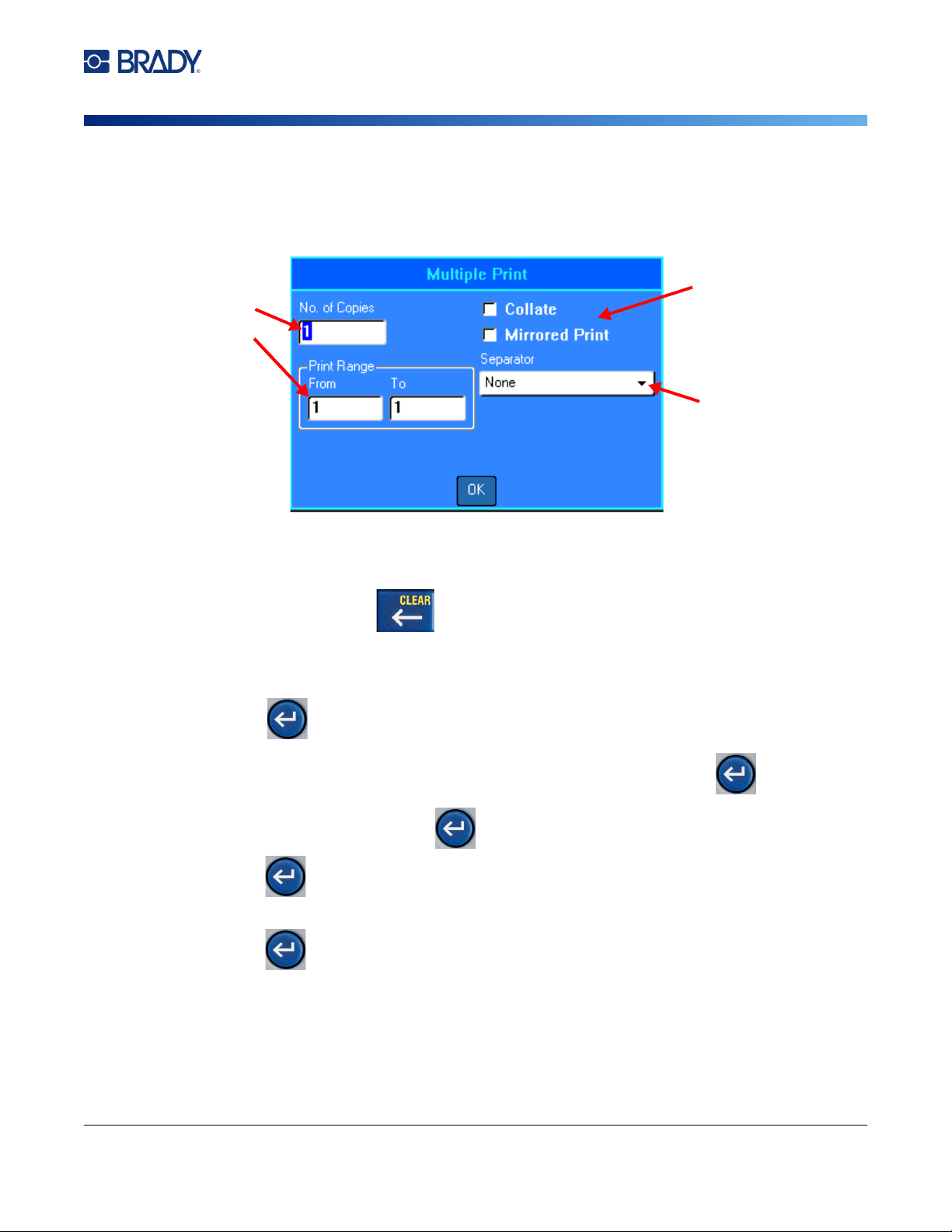
FN + MULTI Brings up options to set various print parameters (such as, number of
copies, print range, and mirror print) before printing. See “Multiple Print”
on page 36.
PREVIEW Previews all labels in a file as they will look when printed. See “Preview”
on page 35.
FN + HISTORY Displays a list of recently used files. See “History” on page 37.
CUT Cuts the label supply.
FEED Feeds the labels through the printer to the next notch on the liner. Feeds a
full label for pre-sized label supplies; feeds 0.5-inch (12.7 mm) for
continuous label supplies.
Key Description
M710 User Manual 34
General Operation
Creating a Simple Text Label
Creating a Simple Text Label
This section describes the creating a text label with minimal formatting, using basic editing techniques,
and printing the label. For more detailed information, see Chapter 4: Editing Labels on the Printer
beginning on page 38.
Note: The printer also provides easy set up for many specific types of labels, such as pipe markers
or terminal block labels. See Chapter 5: Label Types beginning on page 62.
To create a text-only label:
1. Be sure the ribbon and label supply are loaded and the power is on.
2. Make sure the General label type is selected. Look at the touchscreen just above the image of
a label. If it does not say General, do the following.
a. Press the Label Type key.
b. Use the left and right arrows on the navigation keys to highlight General.
c. Press
.
The touchscreen displays an image of a label. The blinking vertical line is the cursor and is the
starting point for every label you create using the printer.
3. Type the desired text.
The cursor moves across the screen as you enter data. The standard font, as defined in the
printer setup, is in effect. See “Font” on page 11.
4. Press ENTER on the keyboard to start another line of text.
5. If you wish to insert, delete, or format text, see “Editing Text” on page 39 and “Formatting Text”
on page 40.
Starting a New Label File
After editing a label file, the labels remain on the screen. You must clear the existing file before starting
a new one.
(If you want to add another label in the current label file, see “Add Label or Area” on page 43.)
To start a new label file:
1. If desired, save the current label. See “Saving Labels Created on the Printer” on page 79.
2. Press FN + CLEAR.
3. Select Clear All.
4. Tap Yes when asked if you want to delete all labels from the workspace. If you have saved the
labels, the saved file still exists.
5. Enter data for your next label file or use the LABEL TYPE button to select a different type of
label.

M710 User Manual 35
General Operation
Printing
Printing
There are several scenarios for printing from the M710 printer.
• Create a label on the printer, and print from the editor. See
“Print” on page 35
.
• Create a label in Brady Workstation and print it. See the help in the Brady Workstation app.
• Save a file to print later. You can save label files created on the printer and you can send files from
Brady Workstation. Files from Brady Workstation are stored as print jobs which contain all the
information needed to print. Print jobs cannot be edited on the printer; they can only be printed. See
“Saving Labels Created on the Printer” on page 79
and
“Storing Files Created with Brady
Workstation Software” on page 81
.
The following sections cover the print-related keys on the printer.
Print
For information how to print from software on a computer or mobile device, refer to your software
documentation.
For information on setup and connection see “Software for Creating Labels” on page 12 and
“Connecting the Printer” on page 13.
To print a label that is open on the printer:
1. Press PRINT on the keyboard to print the
label. Print status is displayed on the screen
while printing.
2. When the label is done printing, press CUT on
the keyboard if the label did not automatically
cut.
Printing occurs in the background, meaning you can
continue to edit or create new labels while the file is printing.
If a print job is interrupted, for instance when labels or ribbon runs out, or you intentionally open the
cover, the system automatically stops the print job and displays a message. Follow the instructions on
the display to resume printing.
Preview
Use the preview to view your label file prior to printing.
Preview the label:
• Press PREVIEW or double tap the data on the editor screen.
Scroll the labels:
• Use the navigation keys to scroll through multiple labels.
Print directly from the preview:
• Press the
PRINT
key.
Label exit
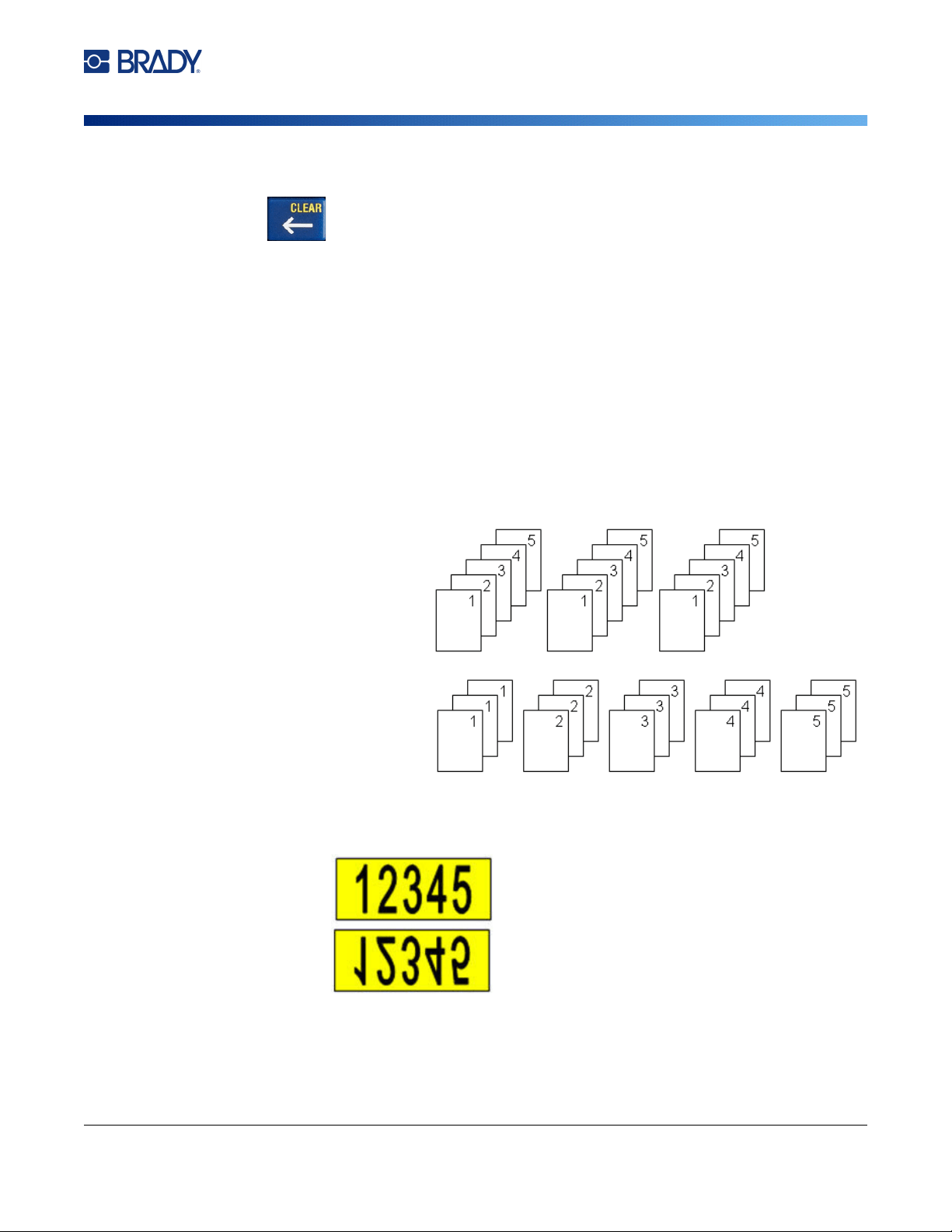
M710 User Manual 36
General Operation
Printing
Exit the preview and return to the editing screen:
• Press or double tap the screen.
Multiple Print
Multiple print lets you print multiple copies or print a range of labels rather than all the labels in the file.
To use the multiple print options:
1. Press FN + MULTI. The Multiple Print screen displays.
2. Make your selections. For help using the screen, see “Settings Screens” on page 28.
•
No. of Copies:
Enter the number of copies desired.
•
Print Range:
Select the From field and enter the number of the first label to be printed.
Select the To field and enter the number of the last label to be printed.
•
Collate:
Collation determines the order in which multiple copies of each label will print. For
example, suppose you have set the number of copies to three, and you have five labels in the
file.
•
Mirrored Print:
Mirrored print takes all data on a label and flips it to provide a mirror image.
Mirroring displays on the printed label only. Mirrored print applies to the entire label; you
cannot mirror data in an individual area.
With Collate selected,
you get three sets of all
five labels.
With Collate cleared,
you get three copies of
label 1, then three
copies of label 2, and
so on.
On screen
As printed
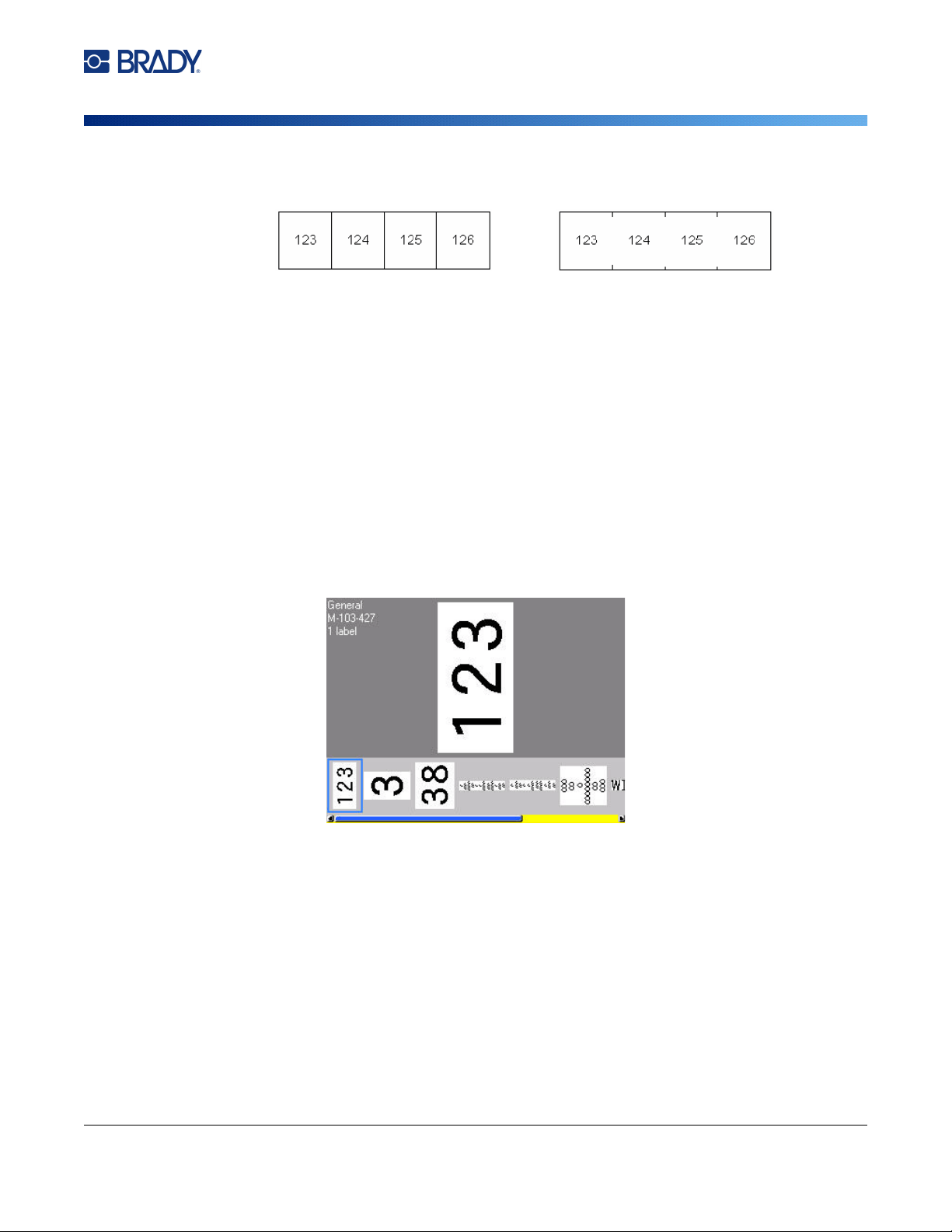
M710 User Manual 37
General Operation
Printing
•
Separator:
To separate different labels on continuous label supply, add a separator by
selecting it from the drop down list. Tap the Separator list an then tap None, Line, or Tic.
3. Tap OK. The labels begin printing.
History
History is a convenient feature that enables easy access to recently used files. When Print History is
turned on it keeps track of the last 10 label files created and printed from the editor. Labels imported
from an external source will not appear in the history. For information on setting up this option, see
“Print History” on page 10.
Note: History is only available for labels created on the printer, not for labels printed from Brady
Workstation software or the Brady Express Labels mobile app.
To use the history:
1. Press FN + HISTORY.
A list of previously printed files displays at the bottom of the print screen. You can reprint any
of these files.
2. Tap the file you want to print.
3. Press PRINT.
If the file you want to reprint is incompatible with the currently installed label supply, a message
displays indicating such.
4. To correct, install the label supply indicated in the error message.
5. Clear the message, then press PRINT.
Line Separator Tic Separator
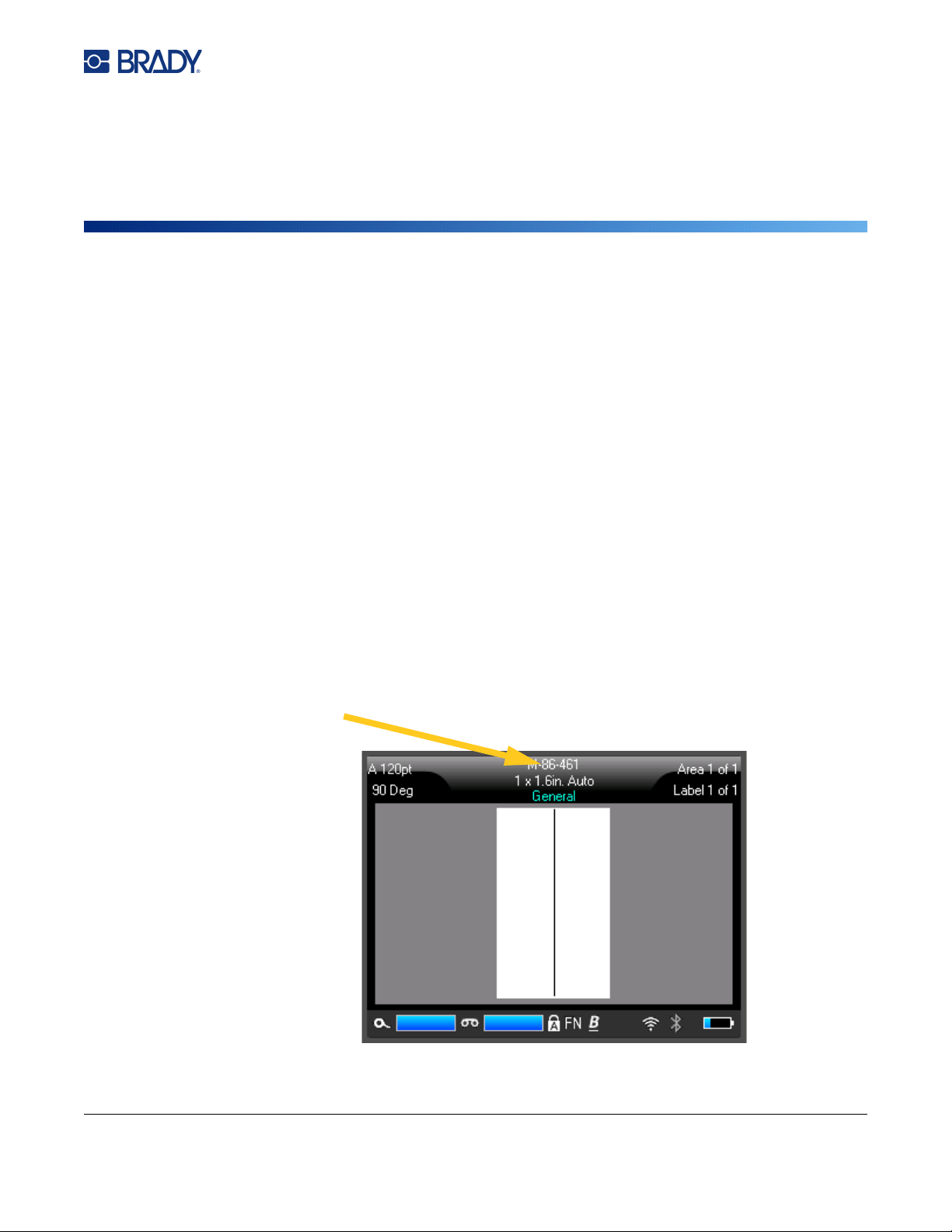
M710 User Manual 38
4 Editing Labels on the Printer
This chapter discusses the General label type and provides information on the following editing and
formatting tasks.
• Changing text that you’ve already entered. See
“Editing Text” on page 39
.
• Formatting text. See
“Formatting Text” on page 40
.
• Including multiple labels and multiple areas on a label.
“Labels and Areas” on page 43
.
• Adding symbols. See
“Symbols” on page 49
.
• Adding graphics. See
“Graphics” on page 50
.
• Adding the date and time. See
“Date and Time” on page 51
.
• Adding international characters. See
“International Characters” on page 51
.
• Typing letters with diacritical marks. See
“Letters with Diacritical Marks” on page 51
.
• Adding barcodes. See
“Barcode” on page 52
.
• Adding sequential data. See
“Serialization (Sequential Data)” on page 54
.
• Adding lists.
“List (Importing Data)” on page 57
.
Note: For information about creating labels for specific applications, such as pipemarkers or safety
labels, see Chapter 5: “Label Types” on page 62.
Tip: A shortcut for entering symbols, graphics, sequences, international characters, and the date and
time, is to tap the top center of the touchscreen, where the label supply is shown.
Tap here to open
an insert menu.

M710 User Manual 39
Editing Labels on the Printer
Editing Text
Editing Text
If you have entered some text in error or want to change the content or format of your label, edit the
information before printing.
Positioning the Cursor
The cursor is a vertical line that marks the position on the label where text or other data will be entered.
See “Using the Touchscreen” on page 25.
To position the cursor when editing text, either tap the touchscreen where you want to place the
cursor, or use the navigation keys. See “Navigation and Selection Keys” on page 30.
Inserting Text
To insert additional text within a line of text:
1. Position the cursor at the point where text should be inserted.
2. Enter the text. Existing data positioned to the right of the cursor moves progressively to the
right to make room for the inserted text.
• If a fixed font size is selected, when the end of the line is reached, no more data can be inserted.
To add more data, either press
ENTER
to start another line or decrease the size of the font. (To
set default font type and size see,
“Font” on page 11
. To change the font attributes or size for
a line of text, see
“Font Size” on page 40
or
“Font Attributes” on page 41
.)
• If the font size is set to
Auto
,
as more data is added to a line of text, the font size automatically
decreases a point at a time until the smallest font size is reached. When the maximum
character limit is reached an error message displays. To remove the error message, press
ENTER
or
tap the error message screen.
• Press ENTER to start another line of text.
Deleting Text
To remove characters one at a time:
1. Position the cursor to the right of the rightmost character that you want to delete. See
“Positioning the Cursor” on page 39.
2. Press repeatedly until all the characters that you want to delete are removed.
M710 User Manual 40
Editing Labels on the Printer
Formatting Text
To clear all the data on a label or labels:
1. Press FN + . You are presented with the following options (the first one is enabled
only if you have multiple areas).
2. Tap the desired option.
3. If you selected Clear All, a message displays asking for confirmation. Tap Yes in the message.
If you do not want to delete the labels, press to cancel the Clear All function. You are
returned to the screen with all labels intact.
Formatting Text
Character and line formats called attributes change the appearance of the fonts, such as size, weight
(bold), angle (italics), underline, and expanding or condensing the text. Many of these can be set as
defaults from the SETUP menu, but you can change them on individual labels or lines.
Typeface
The typeface (font style) is determined in the setup menu and cannot be changed on individual labels
or lines. See “Font” on page 11.
Font Size
Font size applies to an entire line of data at a time and is measured in point size or millimeters, as
determined in the Setup function.
If the size is changed before the data is entered, all the data in the current and subsequent lines takes
on the new font size until font size is changed again. Changing the font size on pre-entered data
changes the size on the entire line, regardless of where the cursor is in the line. However, the font size
will not change on subsequent lines of pre-entered data. You must change the font size on each
individual line of pre-entered data.
Clear Option Definition
Clear Area Data Clears data only from an area, but does not remove the area
formats or the area itself.
Clear Label Data Clears data from the label, but retains all areas added to the
label. The label formats remain. If the file contains multiple
labels, data is only cleared from the current label; data on other
labels is retained.
Clear All Removes all labels in memory. You are returned to one single
label in General Mode, with all default settings reapplied.
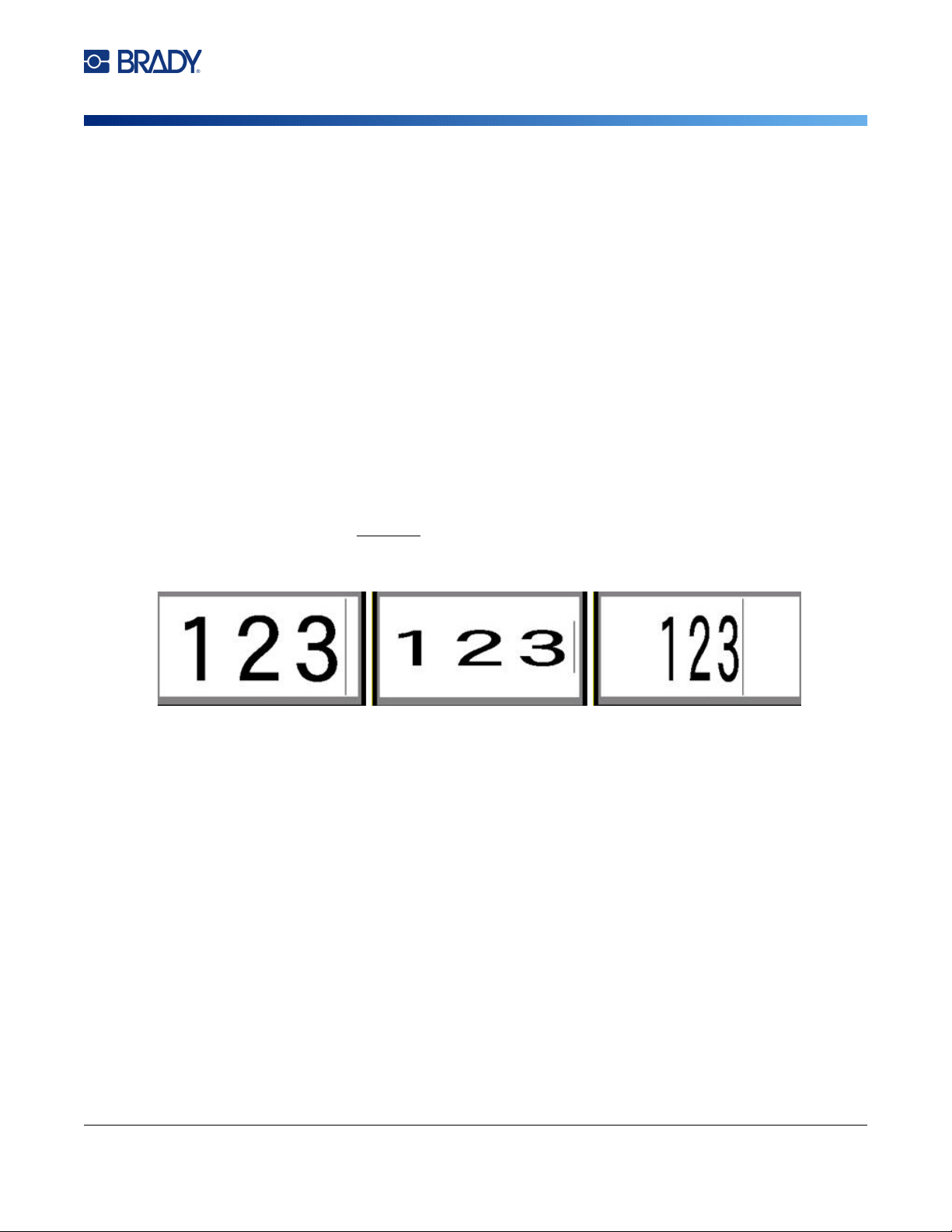
M710 User Manual 41
Editing Labels on the Printer
Formatting Text
To change the size of the chosen font:
1. Position the cursor on the line of text that you want to resize. See “Positioning the Cursor” on
page 39.
2. Press FONT.
A pop-up menu displays the available font sizes for the label supply installed.
3. Navigate through the Size menu to select the desired font size.
•
Custom:
To manually enter a size, select
Custom
. The minimum/maximum range is shown
below the type-in field. If you exceed these values an error will display. Press
ENTER
after
selecting or inputting the size.
•
Auto:
To have text automatically size as you type, select
Auto
. Autosize starts with the largest
font size that fits on the label. When a line of text reaches the edge of a label it scales downward
until you press
ENTER
or the minimum font size is reached. When working with autosize and
multiple lines of text, all lines on a label maintain the same size. Autosize is the default setting
for all labels and is displayed as an ‘A’ in the upper left corner of the touchscreen.
Font Attributes
Font attributes (bold, italic, underline, expanded, or condensed) can be applied to an entire line of text
or to individual characters within a line of text. The attributes can be turned on before entering the text
or after the text has already been entered.
New Text
To turn an attribute on before entering the text:
1. Position the cursor where the attribute should take affect.
2. Press FONT.
3. Tap the desired attribute, then tap On (for bold, italics, and underline). For expanded select a
percentage lower than 100; for condensed select a percentage higher than 100.
4. Enter the text to be affected by the attribute.
5. If you want to continue typing without the attribute, press FONT again and turn the attribute off.
For expanded or condensed text, change the percentage to 100% to return to normal.
When applying the attribute to text as it is being typed, the attribute stays on until it is turned off or until
you move to a new area or label.
Standard
Expanded
Condensed
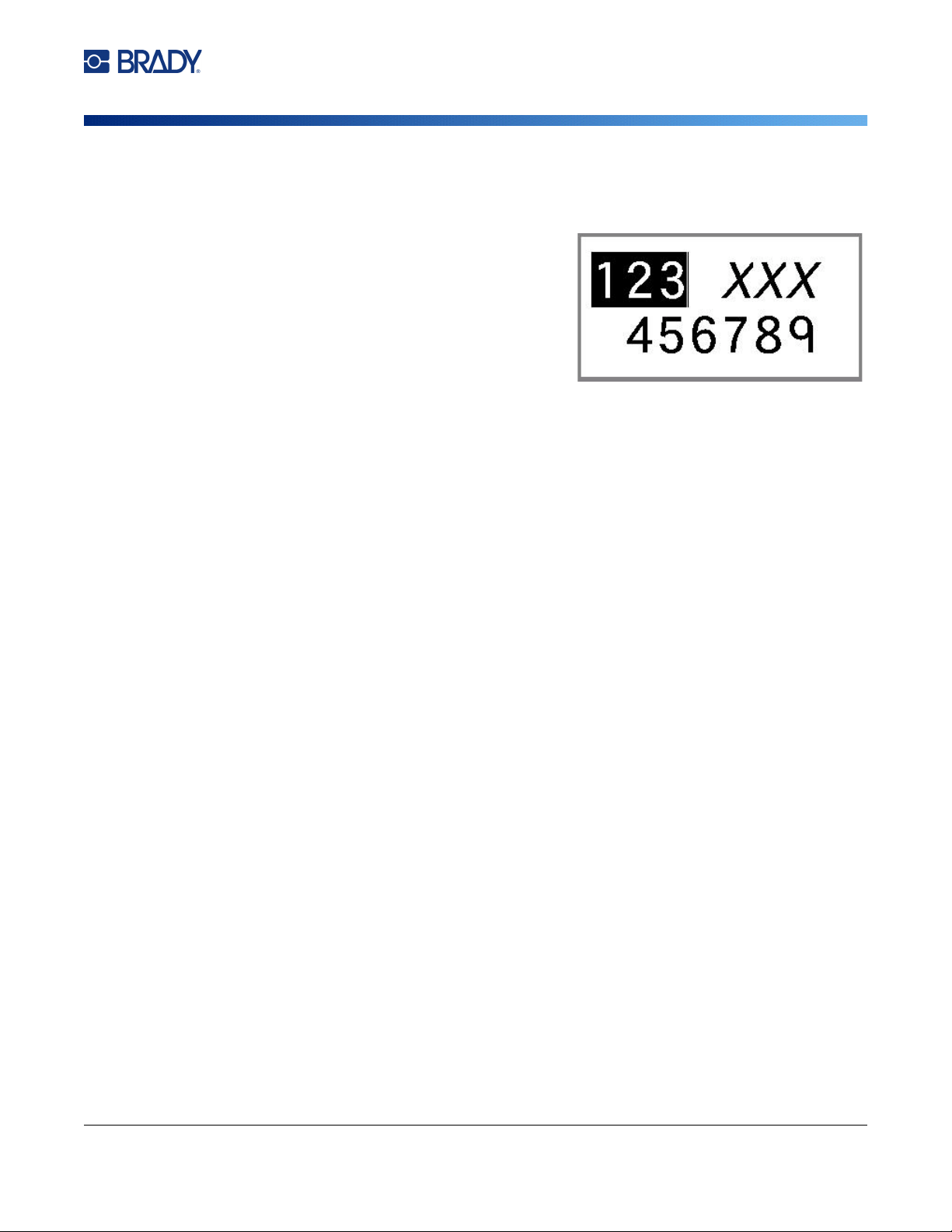
M710 User Manual 42
Editing Labels on the Printer
Formatting Text
Existing Text
To apply an attribute to previously entered text:
1. Select the text to which you want to apply the
attribute.
•
Using the keyboard:
Hold
SHIFT
while
moving the cursor with the navigation keys
across the characters to which the attribute will
be applied.
•
Using the touchscreen:
At the beginning of
the character string that will display the
attribute, touch and briefly hold on the screen
until the cursor disappears.
Highlight the data by dragging your finger across the screen to the end of the character
string that will display the attribute.
Note: Highlighting works on a line-by-line basis. You cannot highlight more than one line at a time.
2. Press FONT.
3. Select the attribute, then select On (bold, italics, and underline) or the percentage of expanded
or condensed text.
All highlighted text displays the attribute.
To remove the highlighting from the characters, press any navigation key or touch anywhere
on the screen.
To remove an attribute that was previously applied to some text:
Repeat the steps for applying the attribute but select Off instead.
Superscript and Subscript
Superscript places a character slightly above the line of type and subscript places a character slightly
below the line of type. The super- or subscript character also displays slightly smaller than the normal
line of type. Super- and subscript functions are on the numeric keypad. Pressing either key applies that
format to the next character typed. It immediately turns off after the character is entered and you are
returned to the normal line of type.
To apply superscript or subscript to a single character:
1. Position the cursor in the line of text where the superscript or subscript character will display.
2. Press FN + SUPER (on the 8 key) for superscript or FN + SUB (on the 0 key) for subscript.
3. Type the character to be displayed in superscript or subscript.
Only the character typed directly after pressing the superscript or subscript key is displayed in super-
or subscript.
To apply superscript or subscript to multiple characters:
1. Type the characters that you want to put into super- or subscript.
2. Position the cursor at the beginning of the character string that you want to display in super- or
subscript.

M710 User Manual 43
Editing Labels on the Printer
Labels and Areas
3. Hold SHIFT while moving the cursor with the navigation keys across the characters that will
display in super- or subscript. This highlights the characters.
Labels and Areas
Multiple labels can be created in one label file, with each new label being inserted immediately after
the current label.
Areas are used to apply different formatting (such as justification, rotation, and frames) to different
parts of a single label. Areas can only be added when using a continuous label supply set to auto
length mode (see “Label Length” on page 43). However, area formatting can be applied to pre-sized
labels that have pre-defined areas.
Note: You cannot set a fixed length of an area on a label that has multiple areas. The size of the
area is based on the amount of data entered and the font size of that data.
Add Label or Area
To add a label to a label file:
1. Press LABEL.
2. Choose Add.
The new label is inserted immediately after the current label and its number is reflected in the upper
right corner of the touchscreen. Each label added will be of the same label type.
If the existing label had multiple areas, the added label has the same number of areas and the font
size from the first line of data in each area is retained.
To add an area to a single label:
1. Press FN and AREA (FN + SHIFT + LABEL).
2. Choose Add.
A new area is inserted immediately after the current area and its number is reflected in the upper right
corner of the touchscreen. The font size used on the first line of the previous area carries over to the
new area.
Only the current area displays on the editing screen. Use the print preview to view the entire label. To
navigate between areas see “Move to an area” on page 30.
Label Length
Auto length is the default for continuous label supplies. With the length set to Auto, the label will be as
long as it needs to be to accommodate the entered data, up to a maximum of 40 inches. You can,
however, set a fixed length for a label. A different length can be set for each label in a file.
Note: To change the unit of measure for the length see “Units of Measure” on page 8 for more
information.

M710 User Manual 44
Editing Labels on the Printer
Labels and Areas
To change the length of the label:
1. Press the LABEL key.
2. Select Length, then Fixed. Length is not available if you are using a pre-sized label supply.
3. Enter the desired length of the label into the field.
4. Press .
Note: The minimum and maximum values for the label supply installed are shown to the left and
right of the type-in field.
Go to Label or Area
To move to another label:
1. Press the LABEL key.
2. Select Go to, then enter the number of the label desired.
3. Press .
To move to another area on a label with multiple areas:
Note: Areas can only be used on continuous label supply.
1. Press FN and AREA keys.
2. Select Go to, then enter the number of the area desired.
3. Press .
Shortcut Keys
• Press
NEXT LABEL
to go to the next label in the file.
• Press
FN
and
PREV LABEL to go to the previous label in the file
.
• Press
NEXT AREA to move to the next area within a label with multiple areas configured
.
• Press
FN
and
PREV AREA to move to the previous area within a label with multiple areas
configured
.
• Use the
FN
key plus navigation keys. See
“Move to an area” on page 30
and
“Move to a label” on
page 31
.
Shortcuts on the Touchscreen
Scroll through labels or areas by tapping the upper right corner to access the scroll arrows on the
screen.
• Use the up and down arrows to access the next or previous label in the sequence.
• Use the right and left arrows to access the next area in the sequence.
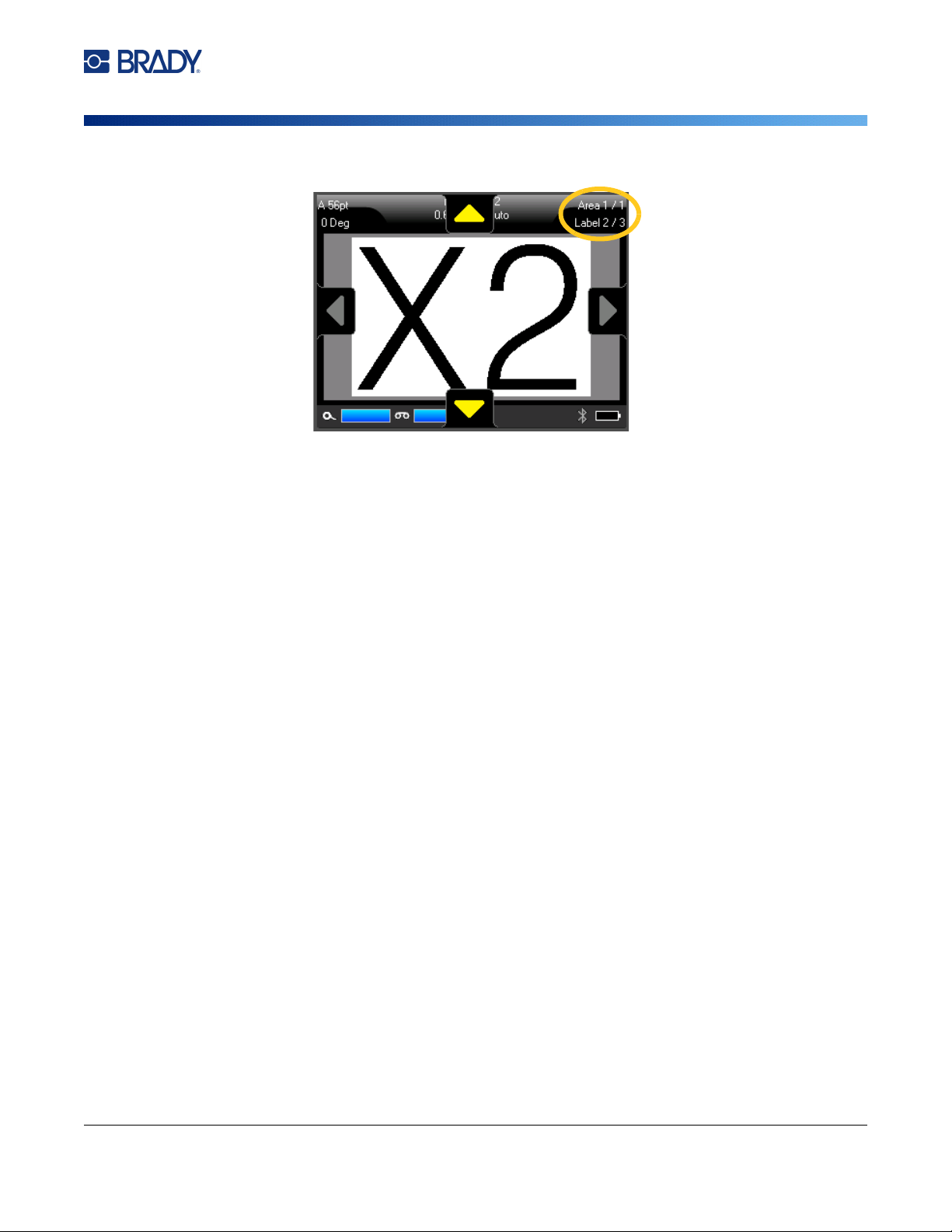
M710 User Manual 45
Editing Labels on the Printer
Formatting Labels and Areas
If there are not multiple areas on a label or multiple labels in a file, the arrows are grayed out.
Delete Label or Area
If multiple areas exist on one label, when that label is deleted all the areas associated with that one
label are also deleted. Deleting an area removes it from the current label. It does not delete that area
on all labels.
To delete a label or area:
1. Navigate to the label or area you want to delete. See “Go to Label or Area” on page 44.
2. Press LABEL if deleting a label or press FN and AREA if deleting an area.
3. Choose Delete.
4. A confirmation message displays. Select Yes.
Duplicate Label or Area
Duplicating a label retains all formatting and content of the label being duplicated. If multiple areas
exist on the label, they will also exist on the duplicated label.
To duplicate a label:
1. Navigate to the label to duplicate. See “Go to Label or Area” on page 44.
2. Press LABEL.
3. Tap Dup.
Formatting Labels and Areas
Justification
Justification refers to the alignment of data between boundaries (margins) on a label or in an area.
There are two types of justification: horizontal and vertical. Horizontal justification (H. Justify) aligns
data between the left and right boundaries of a label or area, while Vertical justification (V. Justify)
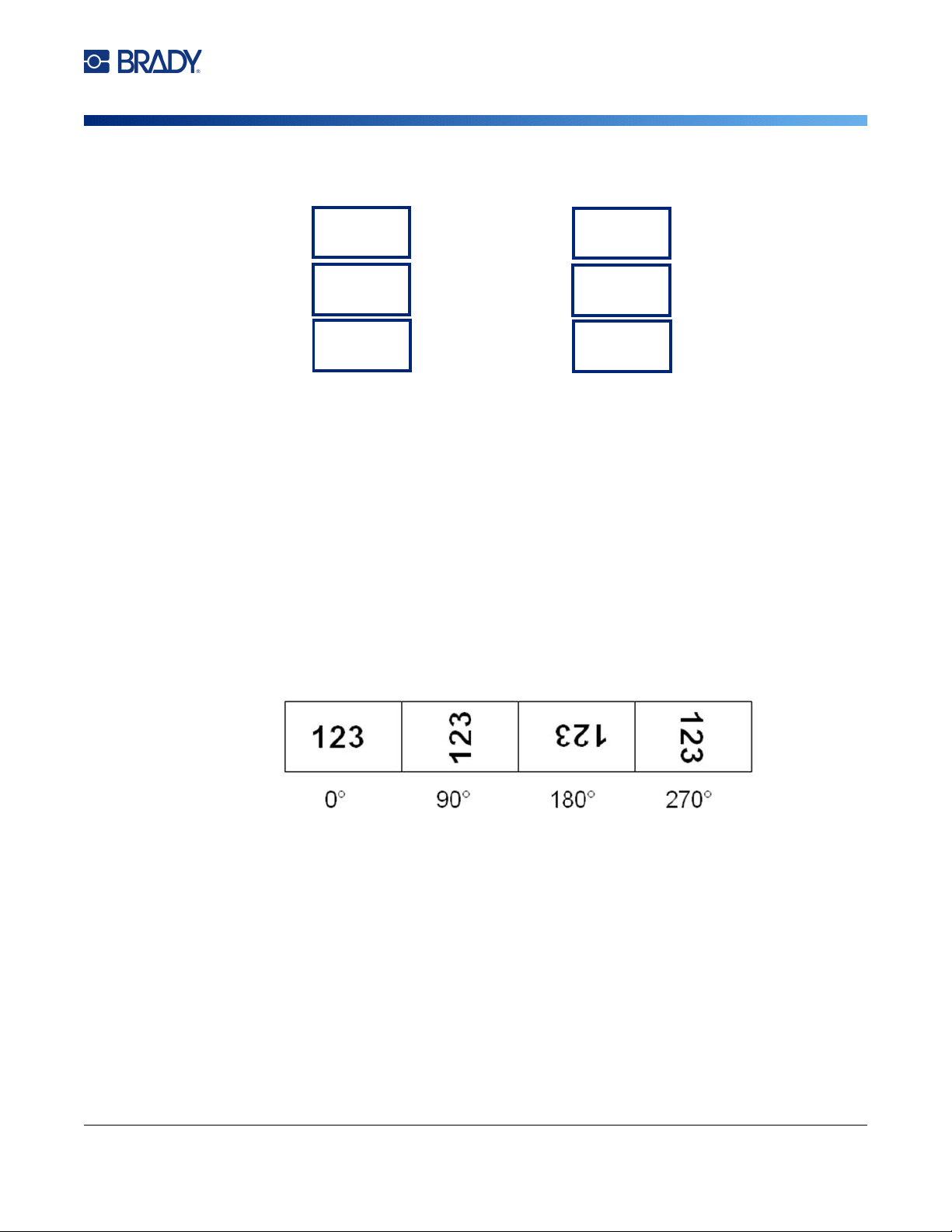
M710 User Manual 46
Editing Labels on the Printer
Formatting Labels and Areas
aligns data between the top and bottom boundaries of a label or area. Justification is applied to an
area or a label. It cannot be applied line-by-line.
To apply justification:
1. Navigate to the label or area where justification is to be applied. See “Go to Label or Area” on
page 44.
2. Open the label or area menu: press LABEL, or FN + AREA.
3. Choose H. Justify or V. Justify.
4. Choose the horizontal or vertical justification desired.
Every line of data on the label or in an area is justified according to the option selected. When adding a
new label, the justification maintains the current justification settings until it is changed. Different
justification can be applied to individual labels in a multi-label file or different areas on one label.
Rotation
Rotation flips the data on a label or in an area, counter-clockwise, at 90° increments. Rotation affects
all data on a label or in an area.
If rotation is applied individually to areas, you cannot apply rotation to the entire label.
Data cannot be rotated on a line-by-line basis. When adding a new area or label, the rotation is the
same as the previous area or label.
To rotate data:
1. Navigate to the label or area where rotation will take affect. See “Go to Label or Area” on
page 44.
2. Open the label or area menu: press LABEL, or FN + AREA.
3. Choose Rotate and select the degree of rotation.
If the font size is set to Auto, rotated data is automatically sized to accommodate the new label
orientation. However, if using a fixed font size, the rotated data may not fit on the label. If this occurs,
Horizontal Justification Vertical Justification
Left
Center
Right
Top
Middle
Bottom
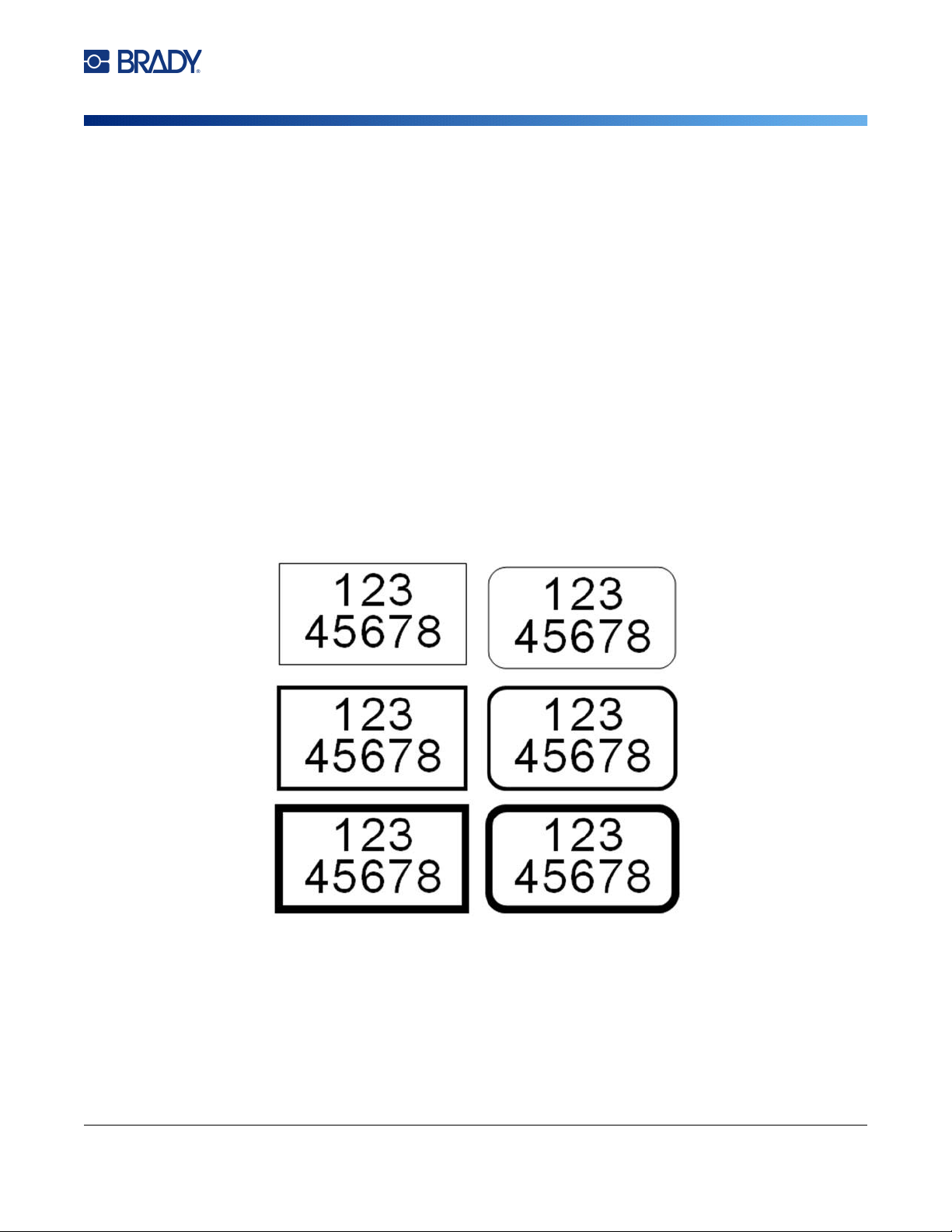
M710 User Manual 47
Editing Labels on the Printer
Formatting Labels and Areas
an error message displays indicating rotated text will not fit. The Rotate function is canceled and data
is not rotated.
Rotation is not reflected on the editing screen, although the degree of rotation is displayed in the upper
left corner of the screen. To view the actual rotation use “Preview” on page 35.
Note: The printer automatically sets the rotation based on the label supply. If you reinstall the label
supply, the rotation setting will revert to the default for the label supply.
Frame
A frame (border) can be added to an area or a label, but not to a line of text. You can have a different
frame, or no frame, on individual labels in a multi-label file. You can also place a frame on a label that
contains area frames.
Note: Frames can only be placed on continuous labels, not pre-sized labels.
To add a frame:
1. Navigate to the label or area where you want to place a frame. See “Go to Label or Area” on
page 44.
2. Open the label or area menu: press LABEL, or FN + AREA.
3. Choose Frame and select the frame type.
Frames do not display on the editing screen. Use print preview to view the label or area frames. See
“Preview” on page 35.
Note: Frames do not display edge to edge, but may appear slightly offset from the very edge of the
label.
To remove the Frame:
1. Navigate to the label or area that contains the frame.
Rectangle
Narrow
Rounded
Narrow
Rectangle
Medium
Rectangle
Wide
Rounded
Medium
Rounded
Wide
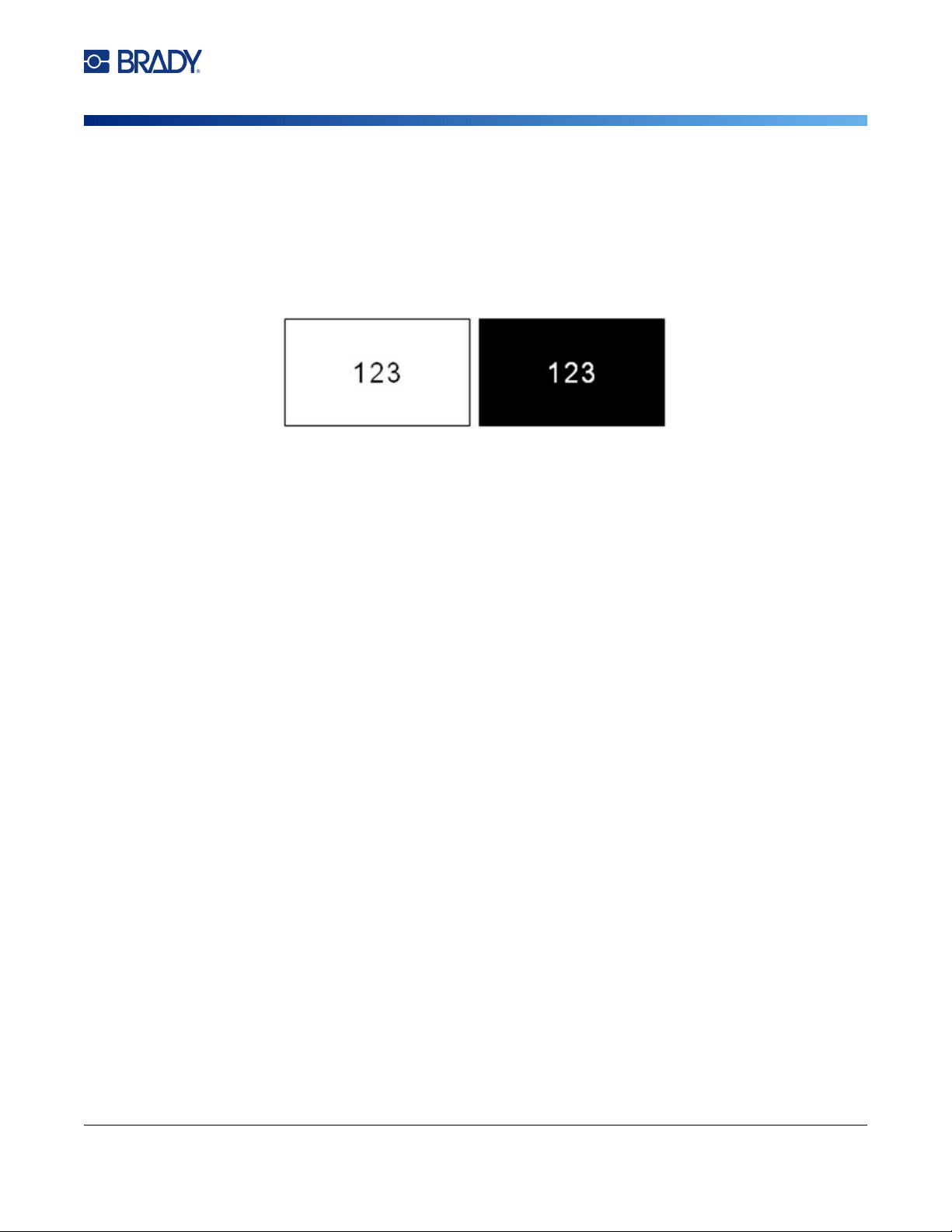
M710 User Manual 48
Editing Labels on the Printer
Formatting Labels and Areas
2. Open the label or area menu: press LABEL, or FN + AREA.
3. Choose Frame, and then None.
Reverse
The Reverse function switches the foreground and background colors of data on a label, based on the
color of ribbon and label supply installed. For instance, black lettering on a yellow background, if
reversed, would print yellow lettering on a black background.
You can apply reverse formatting to areas or labels. When adding another area or label, the reverse
function status carries over.
Note: This feature is only available when continuous supply is installed in the printer. Reverse
cannot be applied to a barcode or to an individual line of text.
To apply or remove Reverse formatting to a label or area:
1. Open the label or area menu: press LABEL, or FN + AREA.
2. Navigate to Reverse, and then choose either On or Off.
Vertical Text
In vertical text, each character drops down a line below the preceding character.
Example: The word “WIRE” as vertical text displays as such:
W
I
R
E
Vertical text can only be applied to an area or a label. It cannot be applied line-by-line.
To format text vertically:
1. Navigate to the label or area where you want to display text vertically. See “Go to Label or
Area” on page 44.
2. Open the label or area menu: press LABEL, or FN + AREA.
3. Navigate to Vertical, and then choose On. The text displays vertically.
To remove the vertical text option, placing text in normal, horizontal format:
1. Navigate to the label or area displaying data as vertical text.
2. Open the label or area menu: press LABEL, or FN + AREA.
3. Navigate to Vertical, and then choose Off. The text realigns according to predefined formats.
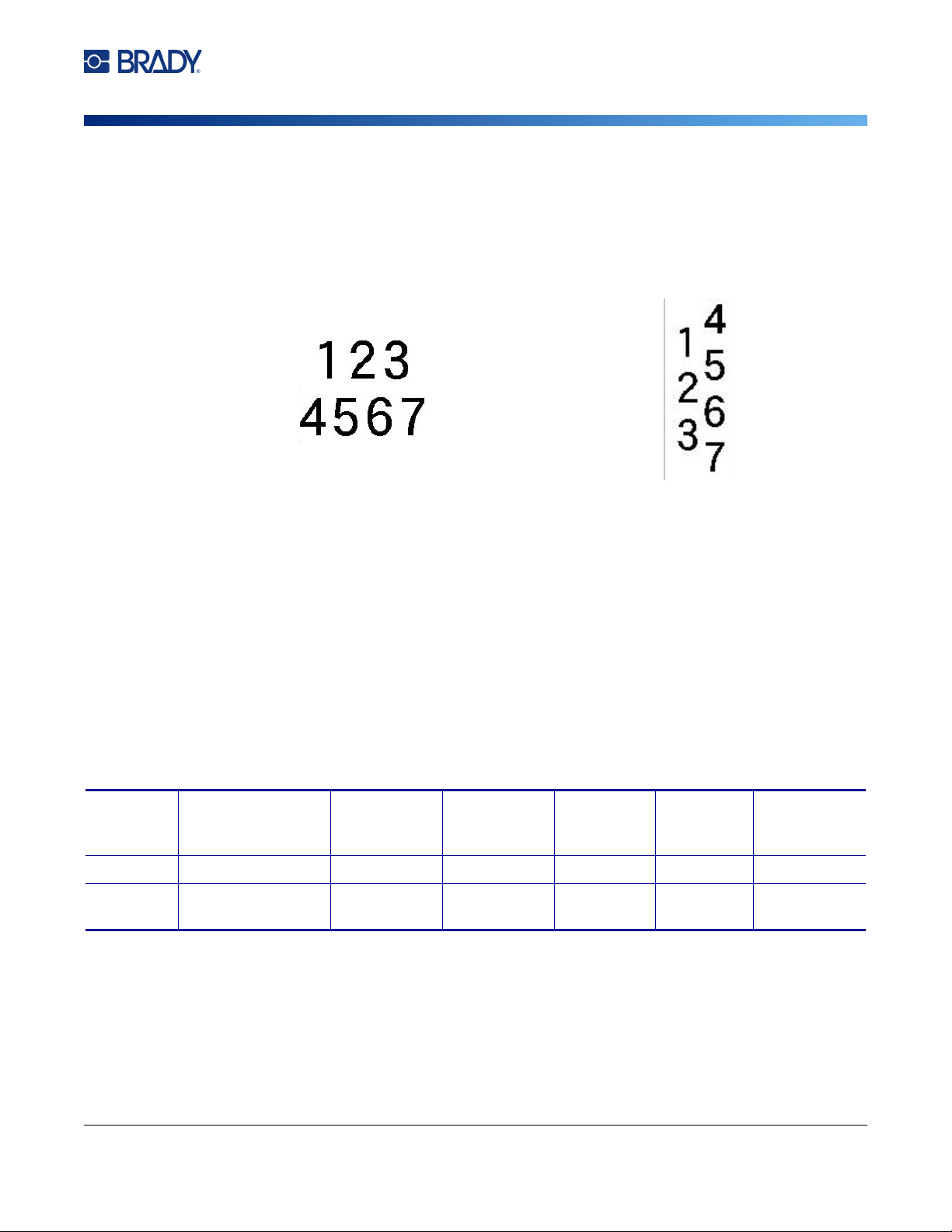
M710 User Manual 49
Editing Labels on the Printer
Symbols
Multiple Vertical Lines of Text
If more than one line of text is present, subsequent lines of text display vertically to the right of the first
line of text.
Note: The horizontal and vertical justification set before applying vertical formatting is carried over
to the vertical lines of text.
Errors with Vertical Text
If a barcode is in the line of text to be placed vertically, or if the height of the label cannot
accommodate the vertical placement of text, an error message displays. Press ENTER to clear the
error message. The editor then displays the text in its original format, without applying the vertical text
option.
Symbols
The M710 printer contains hundreds of symbols that can be used for a variety of applications. The
symbol categories available are:
To add a symbol to the label:
1. Position the cursor at the point where you want the symbol to display.
2. Press SYMBOL.
3. Select the symbol category.
A symbols grid displays. Some of the grids are lengthy and may require scrolling to view all of
the symbols.
Multiple lines, before applying Vertical text
(autosized)
Multiple lines, after applying Vertical text
(autosized)
Arrows Data
Communications
(Datacomm)
Electrical Exit Fire First Aid CLP/GHS
Greek Home Electrical HSID International Laboratory Mandatory Miscellaneous
Packaging Personal Protective
Equipment (PPE)
Prohibition Public
Information
Safety Warning WHMIS
M710 User Manual 50
Editing Labels on the Printer
Graphics
4. Select the desired symbol.
5. Press or ENTER.
The symbol displays with the same font size that is currently in use.
To remove a symbol from the label:
1. Position the cursor to the right of the symbol.
2. Press .
Graphics
Graphics are symbols, logos, or other artwork supplied from an outside source, such as a computer.
These graphics must be bitmap files (*.bmp) and can only be black and white. The printer will
automatically resize the graphic, but it is important to keep the graphic size approximate to the printed
output (about 2-inch x 2-inch). The imported graphic file size cannot exceed 40KB.
Import Graphics
Graphics are added to the printer through the Import function. This function displays in the File menu if
a USB drive is attached.
To import graphics to the printer:
1. Download a graphic from the computer to a USB drive.
2. Plug the USB drive containing the graphic into the printer.
3. Press FN + FILE.
4. Tap Import.
5. Select Graphics, then choose the graphic and press .
Graphic files (.bmp) are stored on the printer in a specific folder used by the Graphics function. This
folder is unavailable to the user and therefore, when importing a graphic, the destination screen does
not display. Unlike symbols, imported graphics are not categorized. However, the most recently used
graphic displays first in the window.
For a more comprehensive discussion of importing files, refer to “Using Files from a USB Drive” on
page 83.
Add a Graphic
To add a personal graphic to your label:
1. Position the cursor at the point where you want the graphic to display.
2. Press FN and GRAPHICS to view the graphics saved to the printer.
M710 User Manual 51
Editing Labels on the Printer
Date and Time
Tip: You can also tap the top or bottom of the touchscreen, then tap Graphics.
The graphics grid displays the most recently used graphic first.
3. Select the desired graphic and press or simply double tap the graphic.
Note: The graphic displays at the same size as the font.
Date and Time
The printer inserts the current date or time using the current system clock value at the time of printing
and the date and time format defined in the Setup function. (For more information, see “Date and
Time” on page 8.)
To insert the current date or time on each label:
1. Position the cursor at the point on the label where you want the date or time to be inserted.
2. Press DATE or TIME.
The date or time displays the format on the editing screen (for example, mm/dd/yy or HH:MM). To view
the actual date or time, use print preview (see “Preview” on page 35).
International Characters
The M710 printer contains hundreds of internationally recognized characters, complete with diacritical
marks.
To add an international character to your label:
1. Position the cursor at the point where you want the international character to be placed.
2. Press the international button to open the list of characters.
3. Scroll through the list until the desired character is found.
4. Drag the scroll bar on the screen to scroll through the character list. Tap the character and
press or simply double tap the character. The character displays with the same font
size that is currently in use.
Letters with Diacritical Marks
In some cases letters complete with diacritical marks are available on the keyboard, while in other
cases you have to type the diacritical mark and then the letter that it is applied to. Which letters with
M710 User Manual 52
Editing Labels on the Printer
Barcode
diacritical marks are available on the keyboard depends on the region in which the printer was
purchased.
Character on Keyboard
If you are in a region where letters complete with diacritical marks are on the keyboard, simply type the
letter if it is in white, or press FN and then the letter if it is in orange.
Key Combinations
To add a diacritical mark to a letter, press the key with the mark and then type the letter.
For example, to type Ü, you would press FN + , and then U.
Tip: Diacritical marks that can be combined with a letter are usually found on keys that only have
diacritical marks. Marks applied above the letter are usually higher on the key and marks applied
below the letter are usually lower on the key.
For more information on key combinations for keys that have multiple characters or symbols on them,
see “Keys With Multiple Characters” on page 29.
Barcode
Barcodes are generated following industry standard symbology. A typical barcode is composed of
vertical lines (bars) and spaces of varying thickness, depending on the text entered. It can also include
“human readable text.” Human readable text is the data entered that makes up the barcode. Because
you cannot read bars and spaces, you can have the actual text that makes up the barcode display.
Barcode elements support vertical resizing (height) only. The width of the barcode is based on data
and symbology and cannot be changed. However, some barcode widths (depending on symbology
used) can be altered by changing the ratio and density of the bar code.
Barcode data can be displayed in the same line as other data (text or symbols). It is not necessary to
have a separate area for the barcode. Barcode data on the same line as text will not overwrite the text
already on the line but will be placed next to it. Any text in the same line as the barcode will align on the
baseline with the barcode.
To type the white letter
on the key, press the key.
Press SHIFT and then
the key to change the
case (n instead of N).
To type the orange letter on
the key, press FN and then
the key.
Press FN + SHIFT and then
the key to change the case
(ñ instead of Ñ).
M710 User Manual 53
Editing Labels on the Printer
Barcode
Barcode Settings
Before entering a barcode, determine the barcode symbology and attributes to use.
Note: Additional barcode types are supported in Brady Workstation software and the Brady
Express Labels app.
To access the barcode settings:
1. Press LABEL.
2. Navigate to and select Barcode. (For navigation help see “Menus” on page 27.)
3. Input the desired settings. For information on how to use the screen, see “Settings Screens”
on page 28.
• Symbology: This is the topmost field in the upper left. Select the type of barcode that you
want to use on the label.
• Height (or Max. Height): The height of a barcode can vary. For most symbologies you can
specify an exact height with a minimum of 0.1 inch (2.54 mm). For symbologies that are
composed of tiny squares, such as Data Matrix, the maximum height is specified.
• Bar Width: This changes the thickness of the bars and spaces within the barcode, which
in turn lengthens or shortens the barcode. Set the width, in pixels (dots), of the narrowest
bar of a barcode. (Not available for some symbologies such as QR and Data Matrix.)
• Ratio: The ratio of a barcode is the relationship of narrow elements to wide elements,
where elements are the bars and spaces. (Only available for some barcode symbologies.)
• Human Readable: Human readable text is the data entered that makes up the barcode.
Because you cannot read bars and spaces, you can display the actual text that makes up
the barcode. Human Readable text can be placed above or below the barcode symbology,
or you can choose to not display it. (Not available for some symbologies such as QR and
Data Matrix.)
For most symbologies, if you choose to display the human readable text, a field for the text
size becomes available. (The font size is not shown for some symbologies, such as EAN
and UPC.) Choose a size for the human readable barcode text.
• Check Digit: A check digit is used for error detection in a barcode. It consists of a single
digit computed from the other digits in the barcode. A check mark in the Check Digit box
turns the function on. This field is only available if the selected symbology supports check
digits. (Only available for some barcode symbologies.)
4. When finished, tap OK on the touchscreen.
Add a Barcode
The barcode key acts as a toggle between a barcode and text. Press once to turn it on, press again to
turn it off.
To add a barcode:
1. Position the cursor where you want to add the barcode. See “Positioning the Cursor” on
page 39.
2. Press .
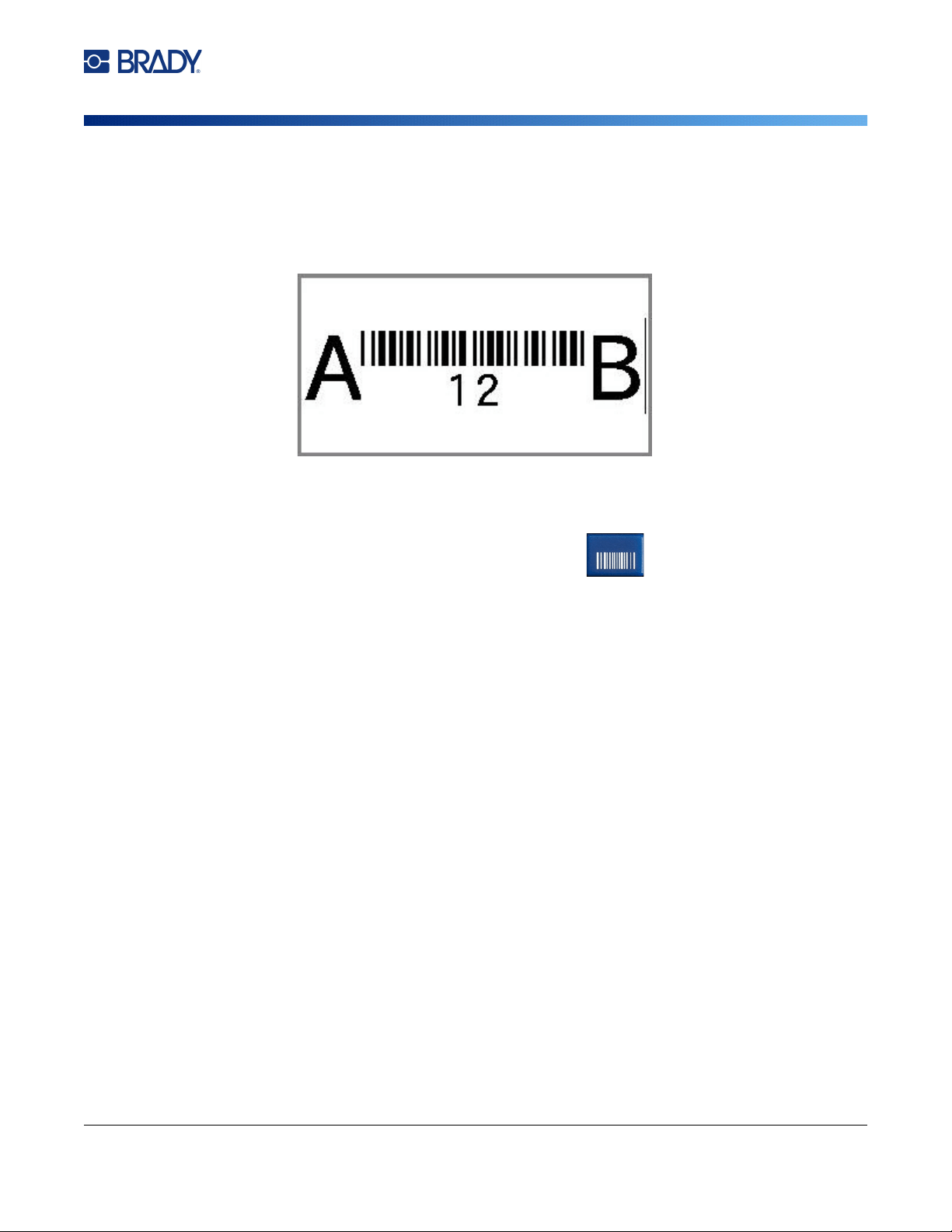
M710 User Manual 54
Editing Labels on the Printer
Serialization (Sequential Data)
3. Enter the barcode value. The steps are different depending on the type of barcode.
•
Linear barcodes (most symbologies):
The barcode displays on the screen as the data is
being entered.
a. Type the value. The image below shows the barcode placed within a line of text with
the human readable text below the barcode.
If the human readable text were set to None, the barcode data would appear in the
middle of the barcode as you are entering it, but would not be visible once you
finished.
b. When finished with the barcode entry, press . You can add text or other
elements to the label as normal.
•
2D barcodes like Data Matrix and QR:
The printer displays a data entry form for the barcode
value. Type the value and then tap
OK
.
Note: A shortcut to enter letters with diacritical marks (like à or Ë) is to type the base letter and then
use the navigation keys to select the character.
Edit Barcode Data
To edit barcode data:
1. Position the cursor on the barcode. The barcode mode automatically turns on.
2. Edit the barcode text.
The barcode mode automatically turns off when you move past the last character of the barcode, or
when you tap OK for a 2D barcode.
Serialization (Sequential Data)
The SERIAL key automatically adds a series of sequential numbers or letters to the labels. The Serial
function consecutively places the next number or letter in the defined sequence on individual labels.
The number of labels created is defined by the sequence values you enter, and displays in the upper
right corner of the touchscreen. Use print preview to view the sequence before printing. See “Preview”
on page 35.

M710 User Manual 55
Editing Labels on the Printer
Serialization (Sequential Data)
Sequences can be combined with other data on a label. Any data displayed on a label that includes a
sequence will be repeated on every label along with the sequential data.
How Serialization Work
Serialization is alphanumeric, with numbers from 0 to 9 and letters A-Z. Serialization can be simple or
linked, with a maximum of two sequences per label.
Note: You can incorporate serialized data into a barcode.
Serialization consists of a Start Value, End Value, and Increment. The Start Value is the number,
letter, or combination of numbers and letters that begin the serialization sequence. The End Value is
the termination point of the sequence.
The Increment is the value that is added to the previous number in the sequence to produce the next
sequence number. (You cannot have an increment value of 0.) For instance, a start value of 1, an end
value of 25, and an increment of 4 would produce 1, 5, 9, 13, 17, 21, 25.
Examples of Serialization
Simple Example
In a simple serialization, a sequence runs through its full range of numbers (0 to 9) or letters (A- Z), using
one number/letter for each label.
Example:
Start Value:1
End Value:10
Increment:1
Produces:1, 2, 3, 4, 5, 6, 7, 8, 9, 10
Simple Alphanumeric Example
You can combine letters and numbers in a single serialization. When the right-most character in the
Start Value reaches its maximum value (9, Z), the character immediately to the left is incremented, and
the right character cycles back to its minimum value (0, A)
Example:
Start Value:A1
End Value:D4
Increment:1
Produces:A1…A9, B0…B9, C0…C9, D0...D4
Advanced, Independent Example
In a multi-sequence serialization, where the second set of values is NOT dependent on the first set
(that is, the Linked box is NOT checked), the two sequences increment sequentially, independent of
each other.
Example: Two sequences that increment independently:
Sequence #1 Sequence #2

M710 User Manual 56
Editing Labels on the Printer
Serialization (Sequential Data)
Advanced, Dependent Example
In a multi-sequence “linked” serialization (the Linked box is checked), the second set of values is
dependent on the first set. The second sequence holds its initial value until the first sequence
completes, after which it moves to the next value.
Example: Two sequences that increment dependently.
Add Serialization
To add serialization to labels:
1. Position the cursor on the label where you want the serialization to display.
2. Press SERIAL.
3. Enter the values for the first (or only) sequence.
• In the Start Value field, enter the start value of the sequence. If the start value is larger than
the end value, the series will decrement automatically.
• In the End Value field, enter the end value of the sequence.
• In the Increment field, enter the amount to increment each value in the sequence. For
example, a sequence beginning with 1 with an increment of 2 yields: 1, 3, 5, 7, 9, and so on.
4. For a simple sequence, tap OK and you are done. If you wish to add a second sequence,
continue. The remaining steps result in one complex sequence on the labels. To have the two
sequences appear in different places on the label, see “To add multiple sequences, displayed
at different locations on the label:” on page 57.
5. Select the Add Seq 2 box.
6. Under Sequence #2, enter the Start Value, End Value, and Increment.
7. If you want the values to increment dependently, as described in “Advanced, Dependent
Example” on page 56, select Linked.
8. Tap OK. The sequence is placed on the labels and the total number of labels is shown in the
upper right corner of the touchscreen.
Note: Linked serializations do not have to display at the same position on the label. They can be in
separate locations within the label. See below.
Start Value:
1Start Value: A
End Value:
10 End Value: C
Increment:
1 Increment: 1
Produces: 1A, 2B, 3C, 4A, 5B, 6C, 7A, 8B, 9C, 10A, 1B,
2C, 3A, 4B, 5C …
Sequence #1 Sequence #2
Start Value:
1 Start Value: A
End Value:
10 End Value: C
Increment:
1 Increment: 1
Produces: 1A…10A, 1B…10B, 1C…10C
M710 User Manual 57
Editing Labels on the Printer
List (Importing Data)
To add multiple sequences, displayed at different locations on the label:
1. Position the cursor on the label where you want the first sequence to display.
2. Press SERIAL.
3. Enter the values for the first sequence.
• In the Start Value field, enter the start value of the sequence. If the start value is larger than
the end value, the series will decrement automatically.
• In the End Value field, enter the end value of the sequence.
• In the Increment field, enter the amount to increment each value in the sequence. For
example, a sequence beginning with 1 with an increment of 2 yields: 1, 3, 5, 7, 9, and so on.
4. Tap OK to return to the editing screen.
5. On the editing screen, navigate to the next sequence location (cursor position) on the label.
6. Press SERIAL. The values from the first sequence are already filled in.
7. Select the Add Seq 2 box.
8. In the Sequence #2 enter the start and end values for that sequence, as well as the increment.
9. Tap OK.
Edit a Sequence
You can change the serialization values after a sequence has been determined.
To edit the sequence values:
1. Press SERIAL.
The touchscreen displays the current sequence values.
2. Select the value fields to change and enter the new values.
3. When ready, select OK.
To delete a sequence:
In the editor, with the cursor just to the right of a value in the sequence, press the
backspace key.
List (Importing Data)
The List function enables you to produce multiple labels with variable information from a single,
formatted label (main document) and a structured data source.
The data source (or database) is a collection of organized, related data. It is often set up in the form of
a table, containing fields (columns) and records (rows). A field is one category of information for each
record, while the record is the combination of all the field information for one label.
For example, if you are going to print asset tags, they might include the asset number, serial number,
department, and brand. The data for each asset would be in a row and the columns would be for the
asset number, serial number, department, and brand.
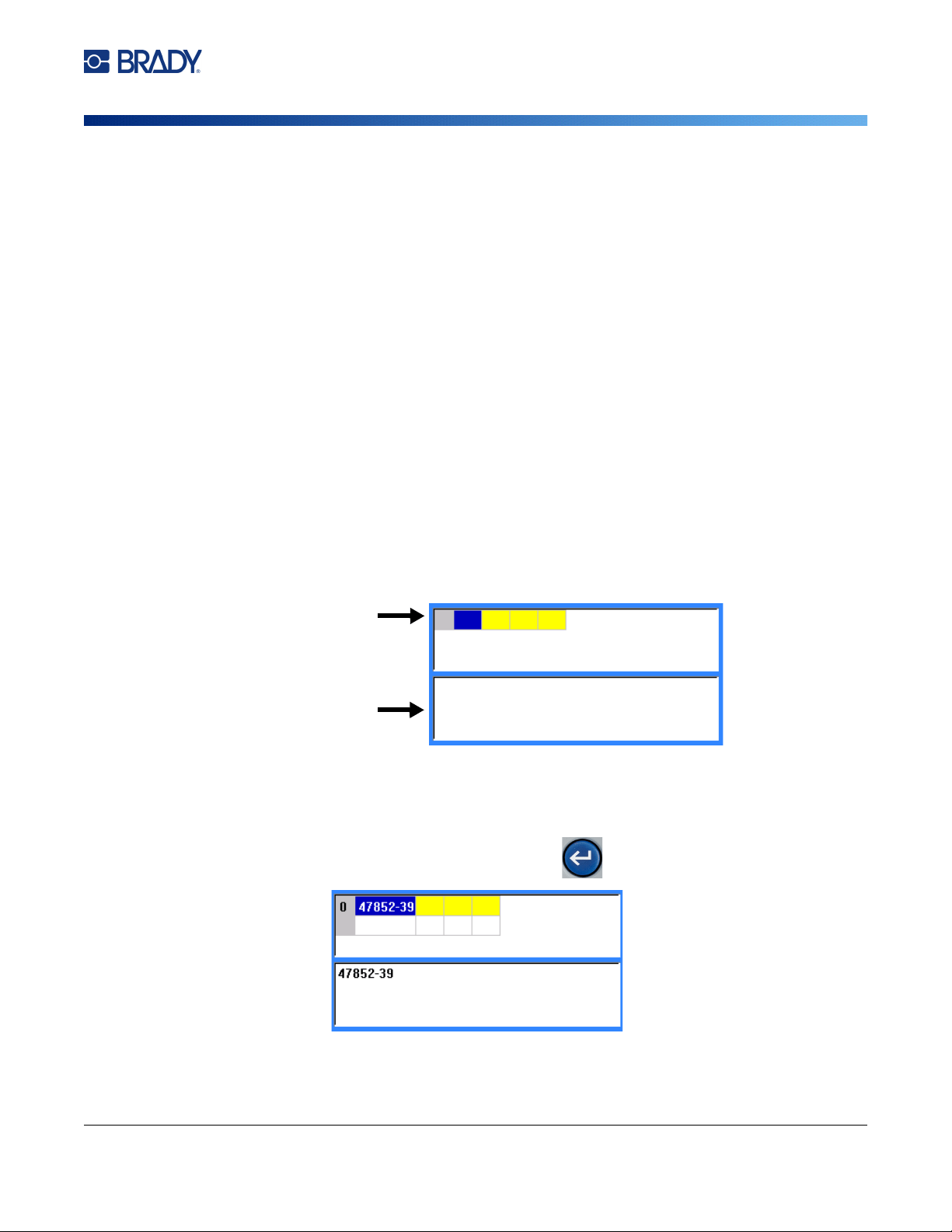
M710 User Manual 58
Editing Labels on the Printer
List (Importing Data)
When the merge is run, the system creates an output label for each record (row) in the data source.
The data in each column is placed in a different area on the label.
Setting up the Data Source
The data source must be a .csv file created in a spreadsheet or database program on a computer and
imported to the M710 printer using a USB drive. You can also create the .csv file directly on the printer.
If you have created the .csv file on a computer, you must import the file to the printer before you can
use the List function. See “Using Files from a USB Drive” on page 83 for information on importing files
using a USB drive.
To create the data source directly on the printer:
1. Press LIST.
2. Select Create.
3. Enter the number of fields (columns) the data source will contain.
In our asset tag example, you would have four fields: part number, barcode value, division,
and company name.
4. Select Continue.
The number of defined fields displays as blue and yellow squares at the top of the screen. The
blue field is the current field. The gray square displays the record number as data is entered
into the data source.
5. Use the navigation keys or double tap to select a field where you want to enter data.
The selected field will turn blue, indicating it is the active field in which the data is being
entered.
6. Enter the data for that particular field, then press .
7. Once all the data for the row is entered, select Next to move to the next row.
Number of
defined fields
(columns)
Field data
entry area
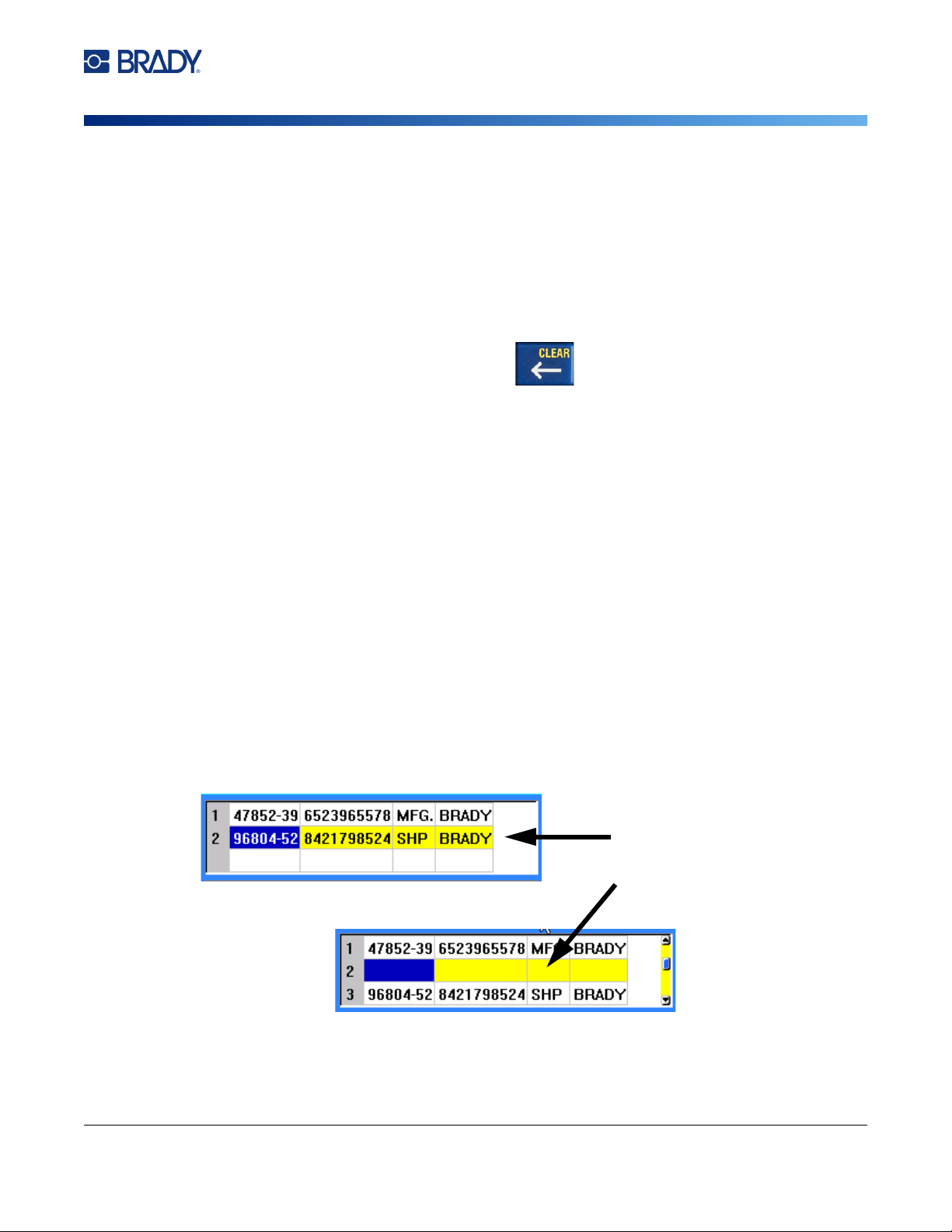
M710 User Manual 59
Editing Labels on the Printer
List (Importing Data)
8. Repeat steps 5 and 6 for each field in which you want to enter data. For information on moving
between rows, and on adding and removing rows, see “Working with Rows of Data” on
page 59
9. Select Save when finished. The printer offers the following options.
•
Internal:
Save the file on the printer. For details on providing a file name and navigating folders,
see
“Saving a File” on page 79
.
•
External:
Save the file to a USB drive inserted in the printer.
•
Cancel:
Cancels saving the file and returns you to the data editor with the data intact.
10. To exit the data source, press backspace.
A message displays asking if you want to exit without saving.
• If you have just saved the file, or if you want to start over without saving, tap
Yes
. The file closes
without saving.
• If you have not yet saved the file, tap
No
. The printer will return to the Save function. See step 9.
Note: If you cannot recall if you saved the file, tap No. Then, if you see the file name in the list of
files, select the name (to highlight it) and press Enter. A message indicates the file already
exists. Tap Yes to overwrite the file. This will ensure that your file has been saved. You are
returned to the editing screen.
• Tap
Cancel
if you do not want to exit the database.
Working with Rows of Data
To move between the rows of data:
• Select
Next
to move forward or
Prev
to move backward through the rows of data.
To insert a row between two rows of data:
1. Select any field in the row below the row that will be inserted.
2. Select Insert.
The row selected moves down and a new, blank row is inserted above it.
To remove a row in the data source:
1. Select any field in the row you want to delete.
Row selected
Row inserted
M710 User Manual 60
Editing Labels on the Printer
List (Importing Data)
2. Select Delete.
Merging Files
Fields from the data source merge into specific areas defined on the label.
To merge the data source with the label:
1. Create, or open, the label that will receive the data from the data source.
If using a pre-sized label supply, you must choose a supply that has areas pre-defined. If using
a continuous label supply, it is best to create the areas before proceeding with the merge,
although the software will prompt you to add areas during the merge. See “Add Label or Area”
on page 43.
2. With the label in the editing screen, press LIST.
3. Select Merge.
4. Select Internal or External to indicate where the data source file is stored.
5. Select the data source file and press . For help navigating files and folders, see Chapter
6: “File Management” on page 79.
6. If your label does not have the same number of defined areas as there are fields (columns) in
the data source, the software alerts you and gives you the option to add more areas.
• Tap
Add
if you want the printer to define as many areas on the label as there are fields (columns)
in the data source. Once the merge is complete, you can go back into the label and format the
added areas.
The data in the data source file is merged to the label. Each field displays in a different
area of one label. Each record (row of data) displays on a different label.
• Tap
Ignore
if you do not want to add additional areas.
The fields from the data source sequentially merge into the label, depending on how many
areas are defined on the label. If you have four fields in the data source but only two areas
defined on the label, the first two fields merge on to the label. The other fields are ignored
and will not display on the label. (If you want to choose which fields to merge onto the
label, use the advanced merge feature discussed below.)
Advanced Merge
Use the advanced merge feature when your database has more fields (columns) than you have areas
on the label and you want to control which fields will be used and in what order.
To merge only some fields in a database:
Note: If you don’t want to use all the columns of data, it is best to set up the desired number of areas
on the label ahead of time. See “Add Label or Area” on page 43.
1. With the label open, press List.
2. Tap Adv Merge.
3. Select Internal or External to indicate where the data source file is stored.
M710 User Manual 61
Editing Labels on the Printer
List (Importing Data)
4. Select the data source file and press . For help navigating files and folders, see Chapter
6: “File Management” on page 79.
5. The screen displays a form for you to assign fields (columns) to areas on the label. One area
is shown for each column in the data file. Your labels could have fewer or more areas. In each
box, specify which column (1, 2, 3, and so on) of data should be placed in that area on the
label.
If you have more columns of data than you need, just fill in as many areas as you need. For
example, if you have 4 columns of data, but only want to use 2 (and have 2 areas on the
label), then fill in the first 2 areas. In a later step you can tell the printer not to add areas to the
label.
6. If any records in the data file are blank (without data), a blank label will print for that record. If
you do not want blank labels to print, select the Ignore Blank Labels check box.
7. Tap OK.
8. If your label does not have the same number of defined areas as there are columns in the data
source, the software alerts you and gives you the option to add more areas.
• Tap
Add
if you want the printer to define as many areas on the label as there are columns in the
data source. Once the merge is complete, you can go back into the label and format the added
areas.
The data in the data source file is merged to the label. Each column displays in a different
area of one label. Each record (row of data) displays on a different label.
• Tap
Ignore
if you do not want to add additional areas.
The fields from the data source merge into the label, depending on how many areas are
defined on the label. If you have four columns in the data source but only two areas
defined on the label, the columns specified for the first two areas merge on to the label.
The other columns are ignored and will not display on the label.
Edit Data Source
You do not have to enter all records into the data source at one time. You can continue to add more
records to a saved data source as needed.
To add more records to an existing data source:
1. Press LIST.
2. Tap Edit.
3. Select Internal or External to indicate where the data source file is stored.
4. Select the data source file.
5. Enter field and record information as in “Setting up the Data Source” on page 58.
To edit data already in the data source:
1. Select the field to edit, then make the corrections according to normal editing procedures.
(See “Editing Text” on page 39.)
2. When finished, save the data.

M710 User Manual 62
5 Label Types
Label types provide templates that guide and control the layout for specific applications. Some label
types require specific label supplies. The label types available by pressing the LABEL TYPE key are
as follows:
• “General”
• “Wire Marker”
• “Flags”
• “Terminal Block, Patch Panel, 66-Block”
• “Face Plate”
• “110-Block, Bix Block”
•“Vial”
• “DesiStrip (Designation Strip)”
• “Breaker Box”
• “Safety Templates (North America)”
• “General Templates (Europe)”
• “Standard PipeMarker”
• “Arrow Tape”
• “Rollform PipeMarker”
Depending on the application chosen, a sub-menu or dialog box displays to collect information for
automatically formatting the specific label type.
The name of the specific label type being used is displayed on the touchscreen just above the image of
the label.
General
The General label type contains standard functions and formats used for most generic labels, but does
not provide templates as do other label types.
See Chapter 4: Editing Labels on the Printer beginning on page 38 for instructions on using the editing
tools for the General category of labels.
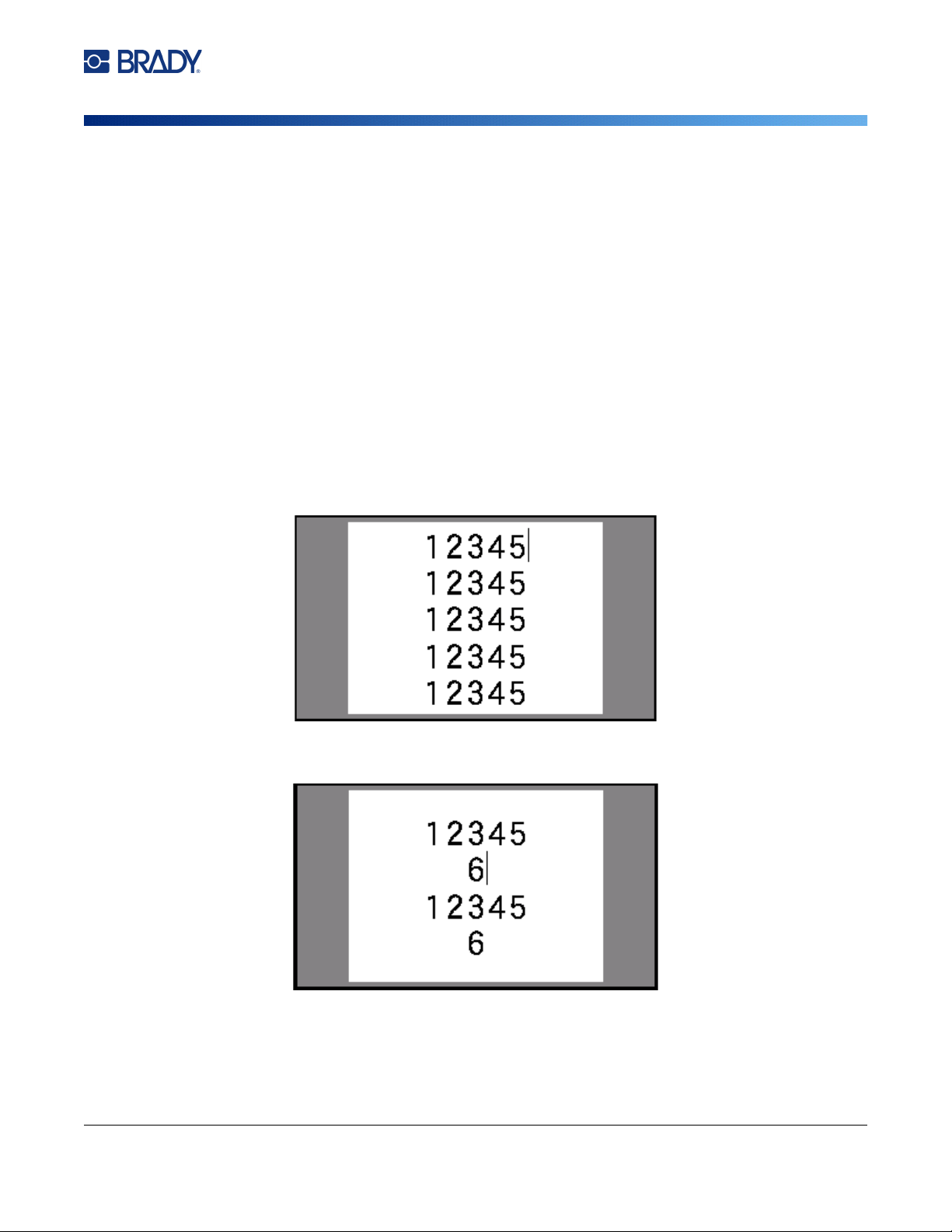
M710 User Manual 63
Label Types
Wire Marker
Wire Marker
The Wire Marker label type is designed to repeat entered data down the length of the label. The data
repeats as many times as possible, considering the font size and the wire size selected.
Pre-sized, self-laminating, or continuous label supplies can be used for wire marker labels.
To create a wire marker label:
1. Press LABEL TYPE.
2. Select Wire Marker.
3. Select the wire marker gauge and length.
Note: The label size is fixed by the gauge and size selected in the sub-menu, even if using
continuous label supply.
4. Enter the data.
The data is repeated down the wire marker label as many times as the length of the label
allows given the font size used. The smaller the font size, the more the data is repeated.
If you press ENTER to start a new line of text, a space opens below each line of repeated data
and begins to repeat the next line of text as you enter it.
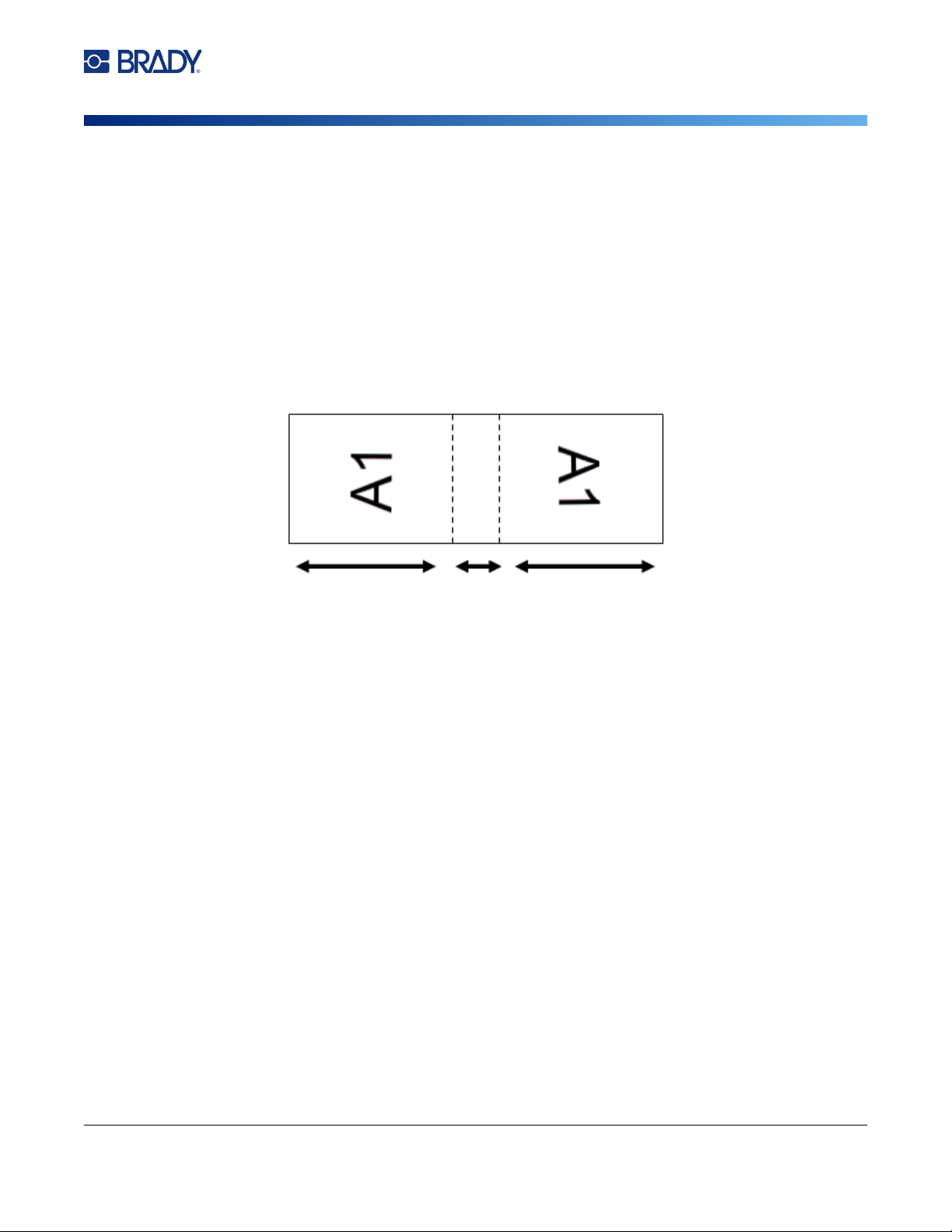
M710 User Manual 64
Label Types
Flags
Flags
A flag label wraps around a wire or cable, with the ends joined together to form a flag. The flag label
type is designed to work with continuous label supply or specific multi-area pre-sized labels.
To create a flag label:
1. Press LABEL TYPE.
2. Select Flags. The printer displays the settings screen for flags.
3. Select the desired layout.
4. If continuous label supply is installed, in the Flag Length field, enter the length of the flag (the
part that contains the text).
5. In the Cable Diameter field, enter the diameter of the wire or cable to which the flag will be
applied.
The range for the cable diameter is 0.25 inches to 8 inches. By entering the diameter of the
wire or cable, the system automatically calculates an additional length of label to allow
complete wrap of the wire or cable with additional label material left for the flag.
Flag
Length
Flag
Length
Cable
Diameter
(wraps
around
cable)
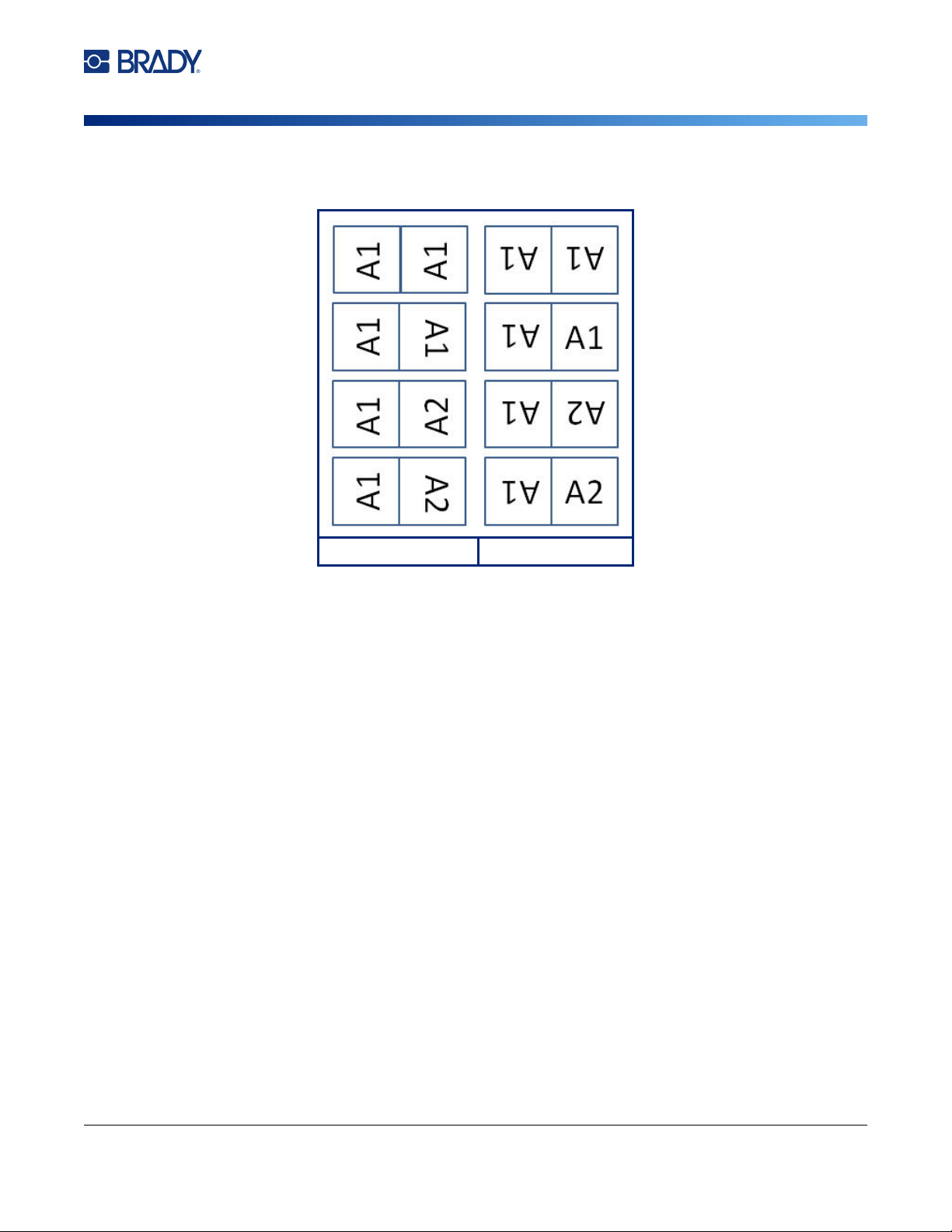
M710 User Manual 65
Label Types
Terminal Block, Patch Panel, 66-Block
6. Rotate the data if desired. The provided layouts orient the text parallel to the wire or cable. If
you want the text rotated 90º, select the Rotate check box.
7. When finished, tap OK.
8. On the editing screen, enter the text that will display on the flag. Depending on the layout you
chose, you may have to navigate to the second area to enter all the text.
• If the layout chosen puts the same text element on both sides of the flag, the printer
automatically duplicates the entered text for the other area, rotating according to the predefined
layout.
• If the layout chosen uses different text on each side of the flag, enter the text in the first area and
then navigate to the second area and enter text. The upper right of the touchscreen indicates
which area is currently visible. Use the NEXT AREA and FN + PREV AREA keys to navigate
between areas. See
“Go to Label or Area” on page 44
.
9. Press PREVIEW to view the labels before printing.
Terminal Block, Patch Panel, 66-Block
Terminal Block, Patch Panel, and 66-Block label types are designed to be used with continuous label
supply. If continuous label supply is not installed, these label types do not display in the menu. To
maintain correct spacing or add to the label prior to cutting, you can choose to disable feeding to cut
after printing.
To create terminal block, patch panel, or 66-Block labels:
1. Press LABEL TYPE.
2. Select Terminal Block, Patch Panel, or 66-Block. The printer displays the settings screen for
terminal block, patch panel, or 66-Block labels. All three types contain the same settings.
Original Layout Rotation Applied

M710 User Manual 66
Label Types
Terminal Block, Patch Panel, 66-Block
3. If you are going to set up a sequence to enter data, select Serialize to place a check mark in
the option box. If you will manually enter data, leave the box empty.
4. In the Terminal Repeat field, indicate the size of the gap between each terminal (with a
minimum of 0.2 inches).
5. In the Number of Terminals field, enter the number of terminals on the block for which the
label is intended. This field is not available if you selected Serialize. In that case the sequence
values determine how many labels to create.
6. When No Feed is selected, you can manually enter data for more blocks after serialized data
has been printed. (When finished printing, the printer will not feed the labels, so you can enter
data for more blocks. When done entering data, press the FEED key in order to position the
label at the cut position.)
7. In the Separator list, select None, Line, or Tic to mark the division between labels.
8. In the Orientation list, select either Vertical or Horizontal. See above.
9. When finished, tap OK.
10. If the Serialize option box is checked, the settings screen for sequences displays.
a. Set up the sequence or sequences.
For instructions on setting up the sequence, see “Add Serialization” on page 56. For
information about serialization see “Serialization (Sequential Data)” on page 54.
b. Tap OK.
The number of terminal blocks are created as labels with the serialization characters
displayed on each label.
11. If serialization was not used, the editor opens on label 1. Enter data for each label. For help
navigating labels see “Go to Label or Area” on page 44.
Note: Labels can be added or deleted, if serialization was not used. See “Add Label or Area” on
page 43 or “Delete Label or Area” on page 45.
12. Press PREVIEW to view the labels before printing.
Line Separator, Vertical Orientation Tic Separator, Horizontal Orientation
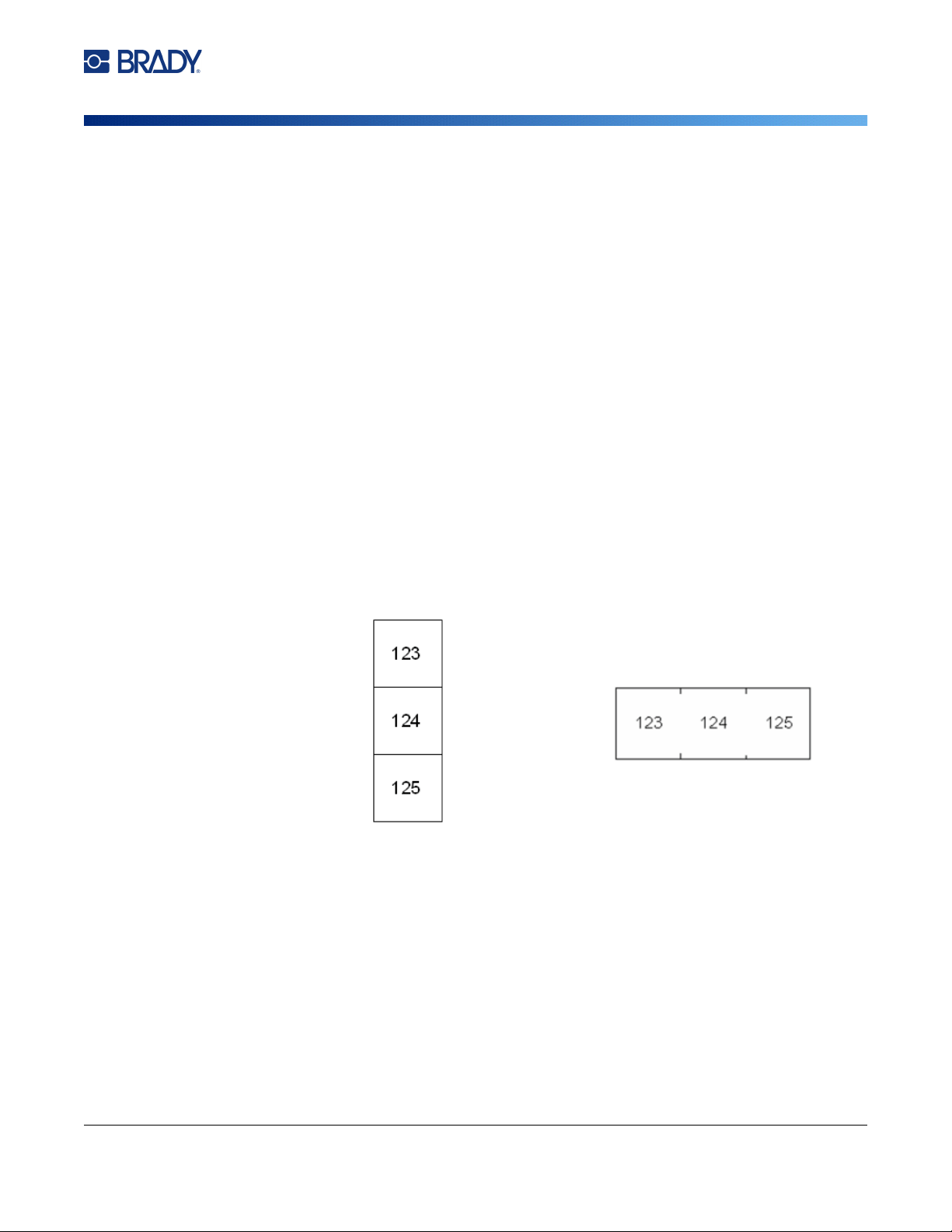
M710 User Manual 67
Label Types
Face Plate
Face Plate
The Face Plate label type is designed to be used with continuous label supply. If continuous label
supply is not installed, this label type does not display in the menu. To maintain correct spacing or add
to the label prior to cutting, you can choose to disable feeding to cut after printing.
To create face plate labels:
1. Press LABEL TYPE.
2. Select Face Plate. The printer displays the settings screen for face plate labels.
3. If you are going to set up a sequence to enter data, select Serialize to place a check mark in
the option box. If you will manually enter data, leave the box empty.
4. In the Distance Center to Center field, indicate the distance from the center of one label to
the center of the next. The minimum distance is 0.2 inches (5.08 mm).
5. In the Number of Ports field, enter the number of ports for which the label is intended. This
field is not available if you selected Serialize. In that case the sequence values determine how
many labels to create.
6. When No Feed is selected, you can manually enter data for more ports after serialized data
has been printed. (When finished printing, the printer will not feed the labels, so you can enter
data for more ports. When done entering data, press the FEED key in order to position the
label at the cut position.)
7. In the Separator list, select None, Line, or Tic to mark the division between labels.
8. In the Orientation list, select either Vertical or Horizontal. See above.
9. When finished, tap OK.
10. If the Serialize option box is checked, the settings screen for sequences displays.
a. Set up the sequence or sequences.
For instructions on setting up the sequence, see “Add Serialization” on page 56. For
information about serialization see “Serialization (Sequential Data)” on page 54.
b. Tap OK.
The number of terminal blocks are created as labels with the serialization characters
displayed on each label.
Line Separator, Vertical Orientation Tic Separator, Horizontal Orientation

M710 User Manual 68
Label Types
110-Block, Bix Block
11. If serialization was not used, the editor opens on label 1. Enter data for each label. For help
navigating labels see “Go to Label or Area” on page 44.
Note: Labels can be added or deleted, if serialization was not used. See “Add Label or Area” on
page 43 or “Delete Label or Area” on page 45.
12. Press PREVIEW to view the labels before printing.
110-Block, Bix Block
110-Block and Bix Block use continuous label supplies with widths of 0.625 or 0.475 inches (15.9 or
12.1 mm).
The 110-Block label type is based on user-selected pair configurations, with the length of the label
determined by the pair type selected. The label height uses a dedicated 110-Block label height of
0.475 inch (12.1 mm). The length of a 110-Block label is 7.5 inches (190.5 mm), with a total strip length
of 7.9 inches (200.7 mm). The number and formatting of areas is based on pair configuration and
serialization selected.
Bix Block template information is similar to the 110-block, with some variations on height and length of
strip. The label height uses a dedicated Bix Block part height of 0.625 inch (15.9 mm). The length of a
Bix Block label is 6.2 inches (157.5 mm) with a total strip length of 6.6 inches (167.6 mm).
To create 110- or Bix block labels:
1. Press LABEL TYPE.
2. Select 110-Block or Bix Block. The printer displays the settings screen for 110-block or Bix
block labels.
3. In the Block Type field, from the drop down list, select the pair configuration to use.
In the 110- and Bix Block applications, the number of areas created is based on the pair
configuration selected. Vertical and horizontal separator lines are automatically added.
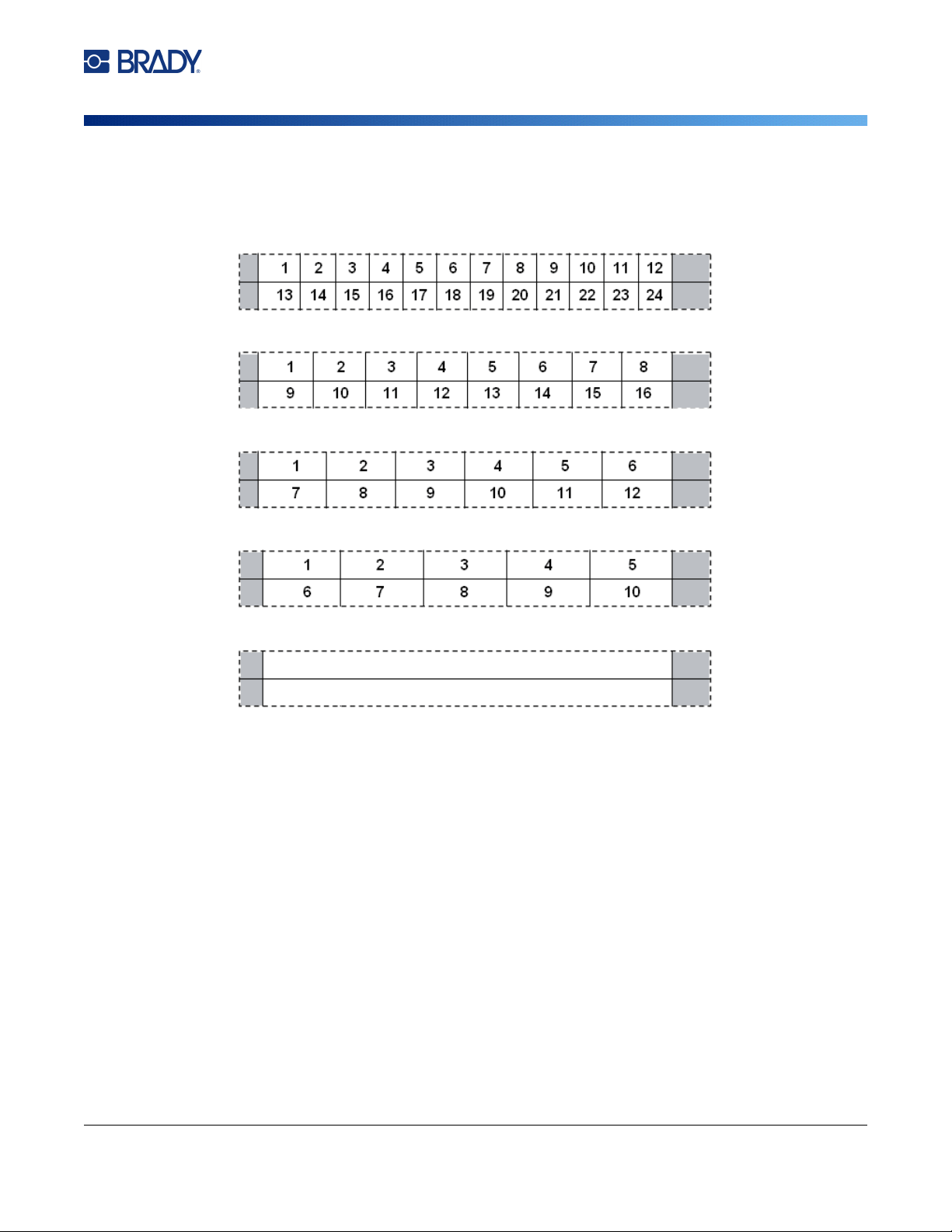
M710 User Manual 69
Label Types
110-Block, Bix Block
The following example displays the areas based on the Block Type selected (2-pair, 3-pair,
4-pair, 5-pair, or Blank). The blank strip is formatted as two areas covering the full printable
length of the strip.
4. In the Sequence Type field, from the drop down list, select if and how you want to add
sequential data to the label.
• If
None
is selected, the areas are blank and you can independently enter data in each area of
the strip.
•
Horizontal
increments one number per area, based on the start value.
2 Pair
3 Pair
4 Pair
5 Pair
Blank
Text entered in area 1 prints here.
Text entered in area 2 prints here.
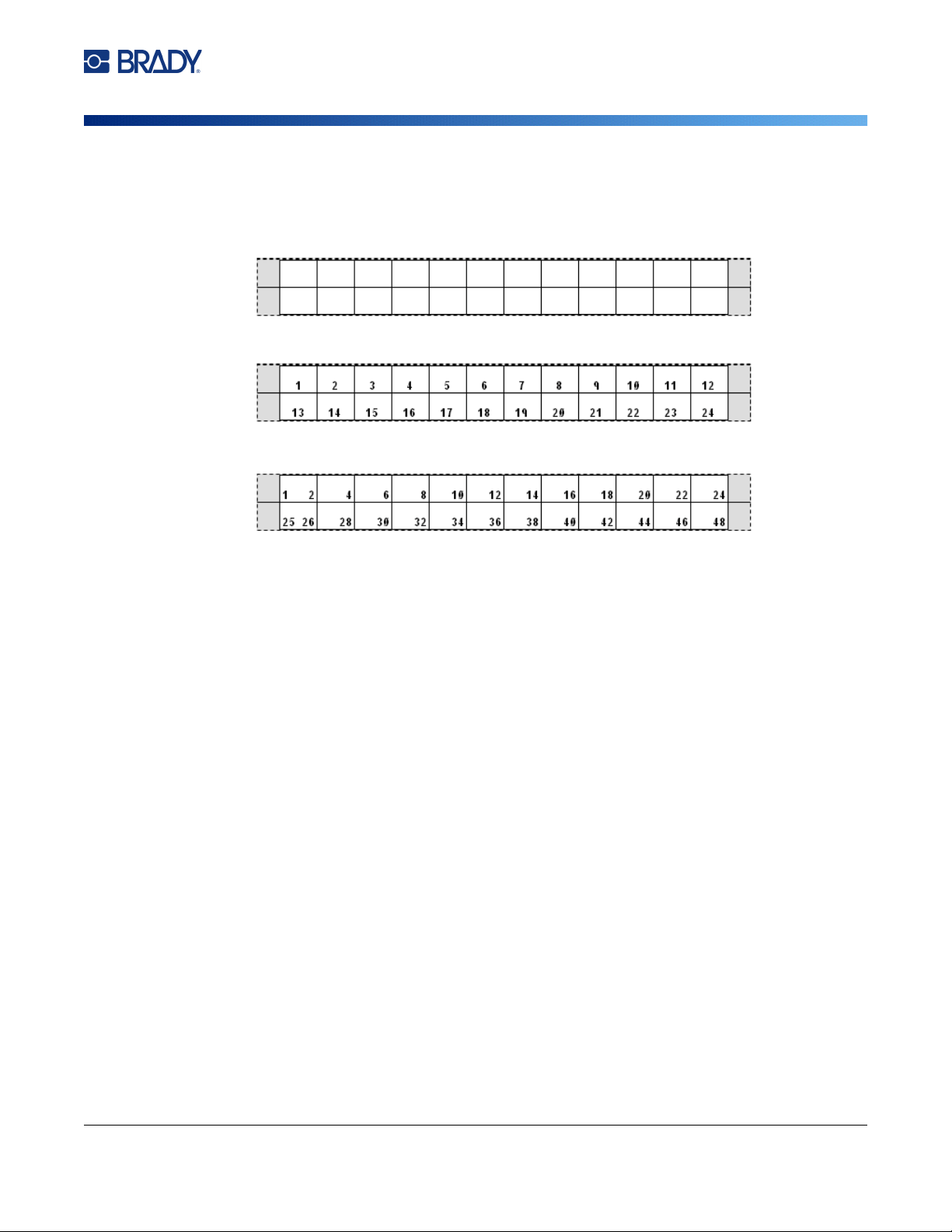
M710 User Manual 70
Label Types
Vial
•In
Backbone
serialization, the left-most area on each strip prints with two numbers. The first
number is left-justified; the second number is right-justified. All other areas print with one right-
justified number.
5. In the Start Value field (except when None is selected in the Sequence Type field), enter the
first number of the sequence.
6. In the # of Strips field, enter the number of strips (labels) to be created in the block
configuration chosen.
Note: If serializing the data, additional strips will continue the serialization from the last number of
the previous strip. Example: When requesting two strips of a 2-pair horizontal configuration,
the first strip will contain values 1-24, the second strip will contain numbers 25-48.
7. When finished, tap OK.
Vial
The Vial label type can be used with any continuous label supply except self-laminating or
Permasleeve. (If a self-laminating or Permasleeve label supply is installed, the Vial label type does not
display.) The Vial label type fixes the length of the label based on the vial size selected and formats the
data horizontally or vertically.
To create a vial label:
1. Press LABEL TYPE.
2. Select Vial, then select the vial size. The vial size determines the size of the label unless you
select Auto, in which case the label size automatically adjusts to the contents.
2 Pair: None
2 Pair: Horizontal
2 Pair: Backbone
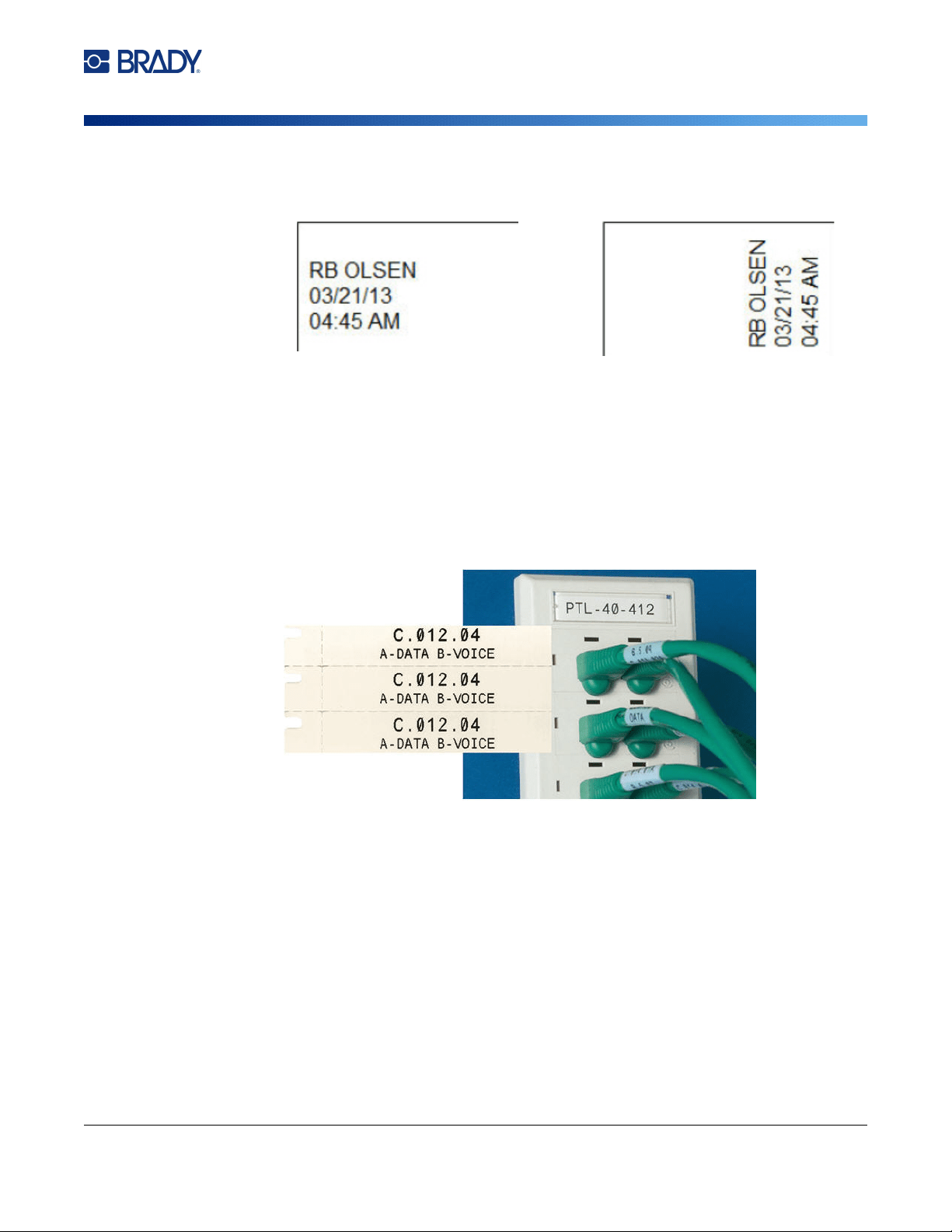
M710 User Manual 71
Label Types
DesiStrip (Designation Strip)
3. Enter the data to display on the vial label.
Use the rotation setting to change the orientation of the label. See “Rotation” on page 46.
Note: To create a duplicate label, refer to “Duplicate Label or Area” on page 45.
DesiStrip (Designation Strip)
A DesiStrip (Designation Strip) is a paper faceplate label that can rest over the keys of a phone or
switches in a breaker box, and so on.
To create a DesiStrip label:
1. Press LABEL TYPE.
2. Select DesiStrip.
3. Enter the length of an individual strip.
4. Tap OK.
5. Enter the data on the label.
Rotated 0 degrees
(horizontal on printed label)
Rotated 90 degrees
(vertical on printed label)
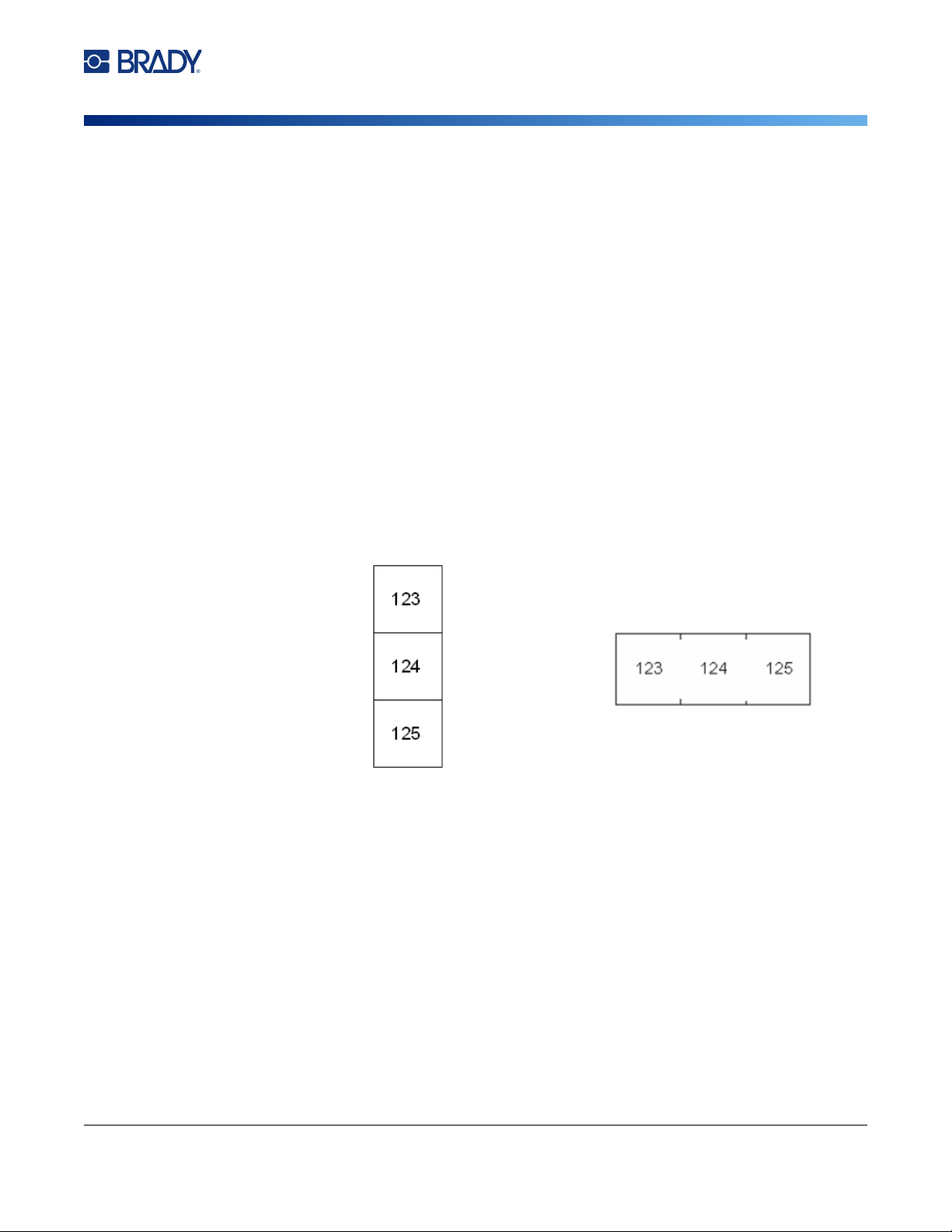
M710 User Manual 72
Label Types
Breaker Box
Breaker Box
Breakers are usually arranged in two columns or along one row, depending on geographic regions.
The breaker positions are numbered left-to-right or top-to-bottom, depending on label orientation. This
numbering system is universal across various competing manufacturers of breaker panels.
To create breaker box labels:
1. Press LABEL TYPE.
2. Select Breaker Box. The printer displays the settings screen for breaker box labels.
3. In the Spacing field, enter the width of a standard breaker.
4. In the Number of Breakers field, enter the number of breakers to be labeled.
This produces one continuous strip, separated by the Spacing width.
5. If the breakers contain different pole counts, select Variable Pole Count to place a check
mark in the option box. The printer uses the pole count to calculate the distance between
breakers to ensure accurate spacing. A single-pole breaker takes up only one space in the
electrical panel, while a double-pole takes up two.
6. In the Separator list, select None, Line, Tic, or All Borders to mark the division between labels.
In the Orientation list, select either Vertical or Horizontal. See above.
7. When finished, tap OK.
If Variable Pole Count is selected, the breaker box pole count screen displays. The number of
poles for each breaker defaults to 1.
8. For each breaker, enter the number of poles.
9. When finished, tap OK.
10. On the editing screen, enter the unique data that will display on the label for each breaker.
Each breaker is consigned to a single label, the number of labels designated by the number of
breakers defined. The number of labels in the upper right of the touchscreen. Use the NEXT
LABEL and FN + PREV LABEL keys to move to the different labels.
11. Press PREVIEW to view the labels before printing.
Line Separator, Vertical Orientation Tic Separator, Horizontal Orientation
M710 User Manual 73
Label Types
Safety Templates (North America)
Safety Templates (North America)
Safety Templates are designed for use with preprinted pre-sized and continuous labels. Other pre-
sized labels with a 2:1 length to height ratio can also be used. Continuous labels will have a length that
is twice the height.
If preprinted pre-sized labels are being used, only two templates are available and the template does
not prompt you for header information. The template automatically adjusts the width of the areas
depending on the width of the media.
For any other media used, you can choose from all six available templates. If the template contains
header information, you will be prompted to select a header.
To create a safety label:
1. Press LABEL TYPE.
2. Select NA Safety and then Safety Templates. The printer displays the settings screen for
safety templates.
3. Select the desired template.
4. Tap Set Graphics. The printer displays a screen for selecting graphics.
5. If the template chosen contains header information, use the left and right navigation keys to
select the desired header.
6. If the template chosen contains a graphic, tap Category and then tap the category of graphic
that you want to choose from. This changes the selection of graphics available under Graphic
#1.
7. Tap Graphic #1 and then scroll through the list to select the desired graphic.
8. Press .
9. If you want to switch to a different template, tap Set Type and go back to step 3.
10. When finished, tap OK.
11. The editor opens to enter text. If the template has more than one text area, use the area
navigation keys to access each area.
12. Press PREVIEW to view the label before printing.
General Templates (Europe)
When choosing General Templates you are presented with a grid outlining the different templates to
use for the safety label you want to produce. There are nine templates from which to choose. General
templates are designed for use with pre-sized or continuous labels.
To create a safety label with the general template:
1. Press LABEL TYPE.
2. Select EU Safety and then General Templates. The printer displays the settings screen for
general templates.
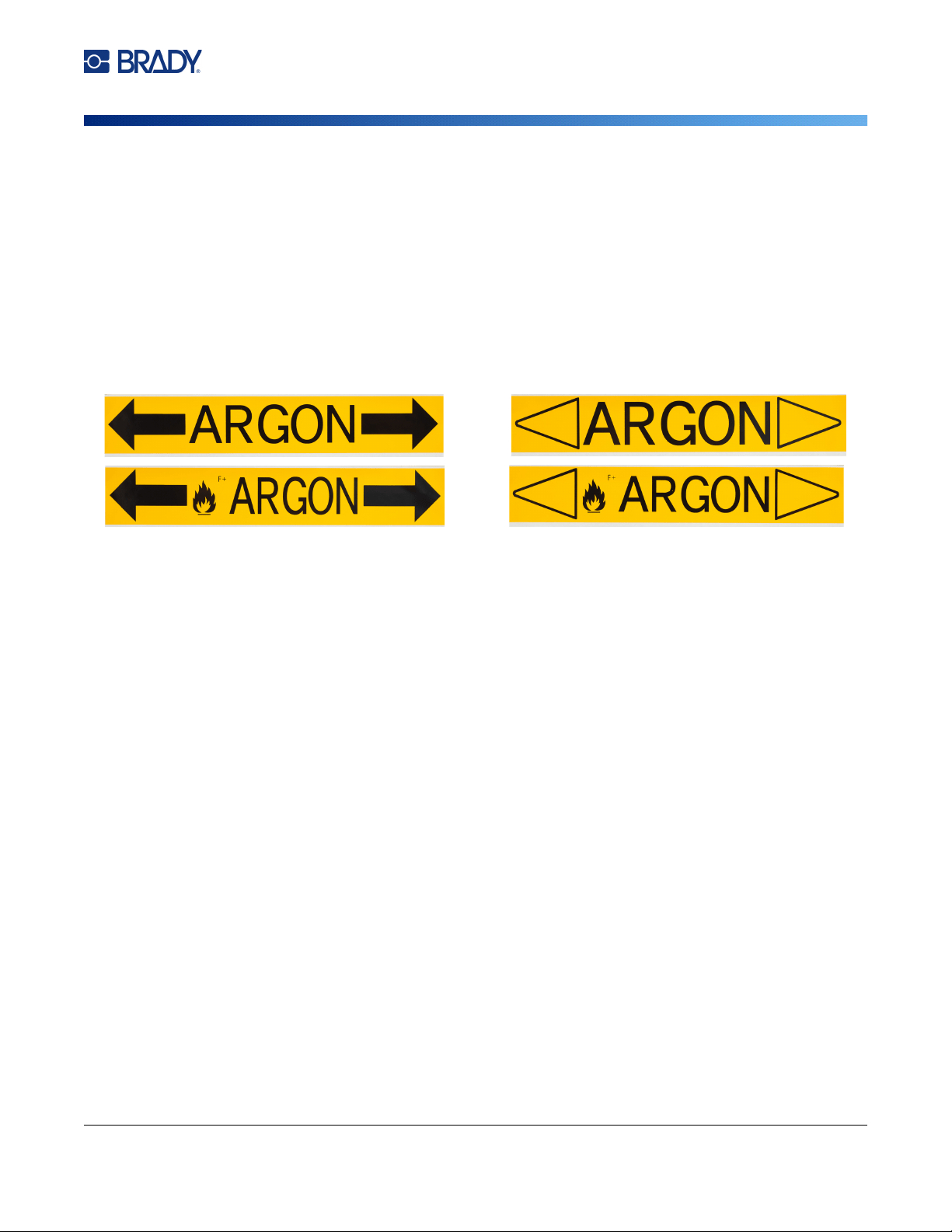
M710 User Manual 74
Label Types
Standard PipeMarker
3. Select the desired template.
4. For continuous labels, navigate to the Length field and enter the intended length of the label.
5. Tap OK.
6. Enter text or symbols in each area. For help editing see “Editing Text” on page 39 and
“Symbols” on page 49. For help navigating areas see “Go to Label or Area” on page 44.
7. Press PREVIEW to view the label before printing.
Standard PipeMarker
The Standard PipeMarker label type enables you to accurately label contents of pipes, conduits, and
ducts according to the approved standards in the specific country. Directional arrows can be included
on one or both ends of the pipe marker, indicating flow direction. These arrows are part of the
template.
Pipe markers are compatible with continuous label supplies only. If no continuous label supply is
installed when the Standard PipeMarker label type is selected, a message displays indicating
incompatible label supply and the Standard PipeMarker selection is canceled.
For EU pipe markers, make sure that you have selected a color standard in Setup, Label Type. See
“Label Type” on page 11.
To create a standard pipe marker label:
1. Press LABEL TYPE.
2. Select either NA Safety or EU Safety.
3. Select Standard PipeMarker. The printer displays the settings screen for standard pipe
markers. The settings displayed are different for North America and the European Union.
These differences are marked by NA and EU in the steps.
4. Fill in the first settings screen.
•
Pipe Contents [EU]:
In the
Pipe Contents
list, select the property of the chemical or
substance that flows through the pipe.
The printer displays the color of ribbon and label supply needed for the selected pipe
contents. This information is based on the color standard that you specified during setup.
See “Label Type” on page 11.
•
Pipe Contents [NA]:
Select the field and type in the name of the chemical or substance that
flows through the pipe. For example, water, steam, flammable gas, and so on.
•
Pipe Marker Arrow Ends [NA and EU]:
Select the desired arrows from the list.
M710 User Manual 75
Label Types
Arrow Tape
•
Comment 1 (optional) [NA]:
Enter any additional text that should display on the label. As the
field name suggests, this field is optional.
5. Proceed to the next screen.
• For NA, tap
Set Graphics
. Skip to step 8.
• For EU, tap
Set Text
.
6. For EU, fill in the text screen.
•
Product Name:
Enter the specific chemical or substance that flows through the pipe. For
example, if the P
ipe Contents
on the previous screen was
Low hazard liquid
, the
Product
Name
here might be
Cold Water Return
.
•
Comment 1 (optional):
Enter additional text that should display on the label.
•
Comment 2 (optional):
Enter another line of additional text that should display on the label.
7. For EU, tap Set Graphics.
8. Fill in the graphics screen.
a. In the # of Graphics list, select the number of graphics to display on the label. You can
add up to four graphics per label. If ‘0’ is selected, proceed to step e.
b. In the Category list, select the hazardous materials system that you want to use graphics
from.
c. Tap Graphic #1 and then select the desired graphic.
d. If you specified more than one graphic, select the remaining graphics in the same manner:
tap the graphic number and then the graphic.
e. Press .
Tip: You can always go back to the previous screen by selecting the lower left button on the
screen (Set Text or Set Contents).
9. Tap OK. The label displays in a preview mode on the screen. Use the navigation keys to view
the contents of the entire label.
Arrow Tape
The Arrow Tape label type uses continuous label supplies only. Arrow tape labels includes a single
graphic or arrow, rotated 90 degrees, repeated the length of the label. The label is wrapped around the
pipe rather than along the side of the pipe.
To create an arrow tape label:
1. Press LABEL TYPE.
2. Select either NA Safety or EU Safety.
3. Select Arrow Tape. The printer displays the settings screen for arrow tapes.
M710 User Manual 76
Label Types
Rollform PipeMarker
4.
In the
Pipe Contents
list, select the property of the chemical or substance that flows through the
pipe.
The printer displays the color of ribbon and label supply needed for the selected pipe contents.
This information is based on the color standard that you specified during setup. See “Label
Type” on page 11.
5. In the Pipe Diameter field, enter the diameter of the pipe to be labeled. Enter the pipe
diameter in inches or millimeters, depending on the units of measure selected in Setup,
Language. (See “Language” on page 8.)
6. In the Type list, select the type of graphic (arrow or symbol) to be placed on the label.
7. If Symbol is selected, tap Set Graphics. If Arrow is selected, skip to step 13.
8. (EU Only.) In the # of Graphics list, select the number of graphics to display on the label. You
can add up to four graphics per label.
9. In the Category list, select the hazardous materials system that you want to use graphics
from.
10. Tap Graphic #1 and then select the desired graphic.
11. (EU Only.) If you specified more than one graphic, select the remaining graphics in the same
manner: tap the graphic number and then the graphic.
12. Press .
Tip: You can always go back to the previous screen by selecting the lower left button on the
screen (Set Text or Set Contents).
13. Tap OK. The label displays in a preview mode on the screen. Use the navigation keys to view
the contents of the entire label.
Rollform PipeMarker
The Rollform PipeMarker label type uses only continuous media. Rollform pipe markers include one to
two lines of text, repeated the length of the pipe marker, alternating at 90 degree and 270 degree
rotation. You can add up to four graphics, placed in predetermined locations. Graphics are repeated
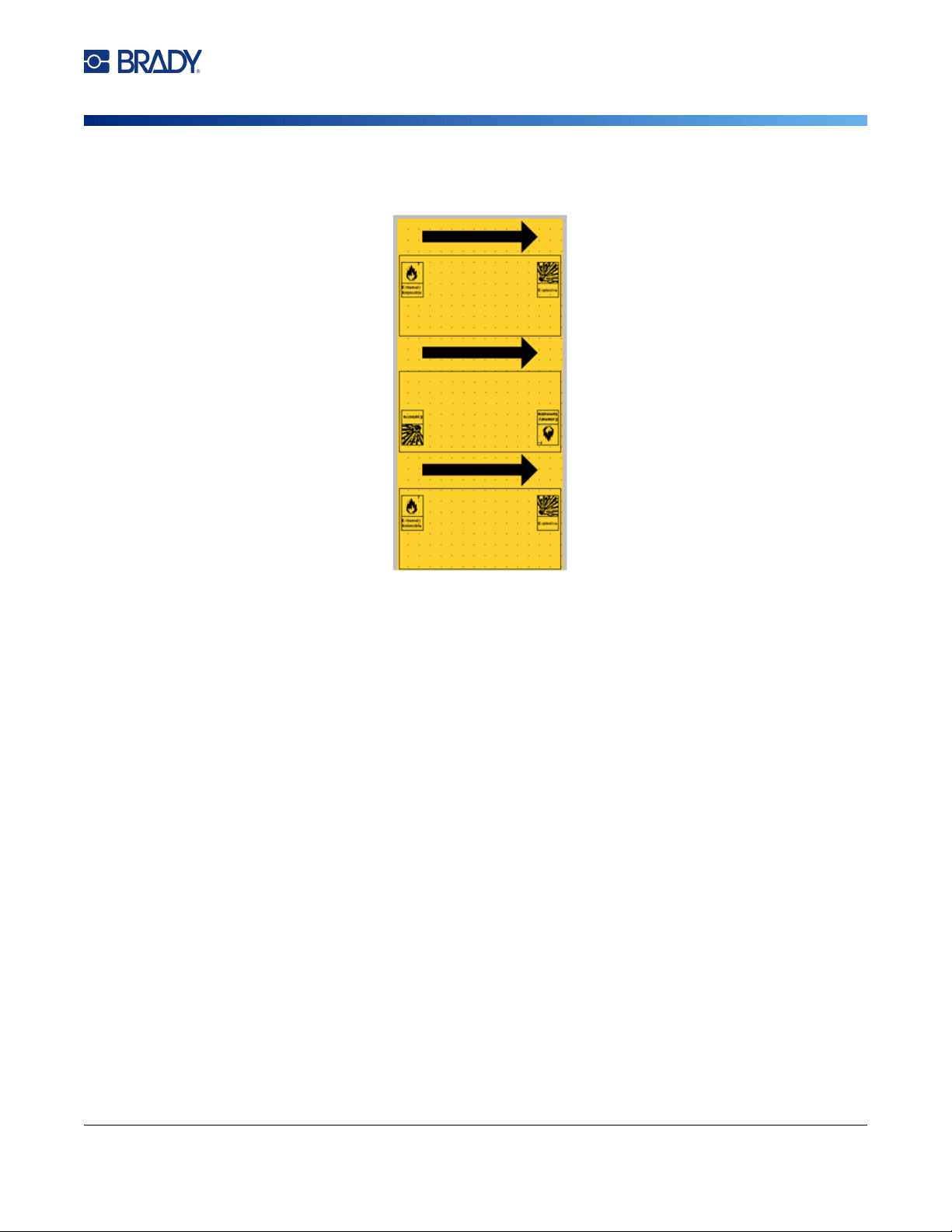
M710 User Manual 77
Label Types
Rollform PipeMarker
and rotated along the length of the pipe marker, as is the text. Like arrow tape labels, rollform pipe
markers are wrapped around the pipe to be labeled.
To create a rollform pipe marker:
1. Press LABEL TYPE.
2. Select either NA Safety or EU Safety.
3. Select Rollform PipeMarker. The printer displays the settings screen for rollform pipe
markers. The settings displayed are different for North America and the European Union.
These differences are marked by NA and EU in the steps.
4. Fill in the first settings screen.
•
Pipe Contents [EU]:
In the
Pipe Contents
list, select the property of the chemical or
substance that flows through the pipe.
The printer displays the color of ribbon and label supply needed for the selected pipe
contents. This information is based on the color standard that you specified during setup.
See “Label Type” on page 11.
•
Pipe Contents [NA]:
Select the field and type in the name of the chemical or substance that
flows through the pipe. For example, water, steam, flammable gas, and so on.
• Pipe Diameter: Enter the diameter of the pipe to be labeled. Enter the pipe diameter in
inches or millimeters, depending on the units of measure selected in Setup, Language.
(See “Language” on page 8.) The maximum that can be entered in the Pipe Diameter field
is 11 inches (279.4 mm).
The printer calculates the length of tape necessary to wrap around the circumference of
the pipe.
•
Comment 1 (optional) [NA]:
Enter any additional text that should display on the label. As the
field name suggests, this field is optional.
5. Proceed to the next screen.
Gas
Gas
Gas
M710 User Manual 78
Label Types
Rollform PipeMarker
• For NA, tap
Set Graphics
. Skip to step 8.
• For EU, tap
Set Text
.
6. For EU, fill in the text screen.
•
Product Name:
Enter the specific chemical or substance that flows through the pipe. For
example, if the P
ipe Contents
on the previous screen was
Low hazard liquid
, the
Product
Name
here might be
Cold Water Return
.
•
Comment 1 (optional):
Enter additional text that should display on the label.
7. For EU, tap Set Graphics.
8. Fill in the graphics screen.
a. In the # of Graphics list, select the number of graphics to display on the label. You can
add up to four graphics per label. If ‘0’ is selected, proceed to step e.
b. In the Category list, select the hazardous materials system that you want to use graphics
from.
c. Tap Graphic #1 and then select the desired graphic.
d. If you specified more than one graphic, select the remaining graphics in the same manner:
tap the graphic number and then the graphic.
e. Press .
Tip: You can always go back to the previous screen by selecting the lower left button on the
screen (Set Text or Set Contents).
9. Tap OK. The label displays in a preview mode on the screen. Use the navigation keys to view
the contents of the entire label.

M710 User Manual 79
6 File Management
A single label or a number of labels can be saved as a file, to be opened and reused at a later date.
Note: Labels using continuous and pre-sized label supplies cannot be combined in the same label
file. All labels in a label file must use the same label part number.
Saving Labels Created on the Printer
You can save labels as internal or external files.
• Internal files are labels stored directly on the printer.
• External files are labels stored on some external device, such as a USB drive.
File Naming Standards
To create a file on the M710 printer, the file must be given a name. Names can be up to 20 characters
long and can consist of letters, numbers, and spaces.
When creating files, remember this rule: You cannot have two files with the same name. If you do, the
most recent file with the name will overwrite the previous file with that name. A one-character
difference in the name creates a different file and will not overwrite a previous file.
Folders
To better organize your data, place similar label files into folders. Similar files could consist of all labels
for a specific project, or all files that use the same label supply, or specific label applications.
Instructions on creating or selecting a folder are within the instructions for saving a file below.
Saving a File
To save labels as a file:
1. Press FN + FILE.
2. Choose Save.
The memory location dialog box displays ONLY if an external source is attached to the printer.
3. If a USB drive is attached to the printer, the printer asks where to save the file. Tap Internal to
save directly to the printer or External to save to the attached external source.
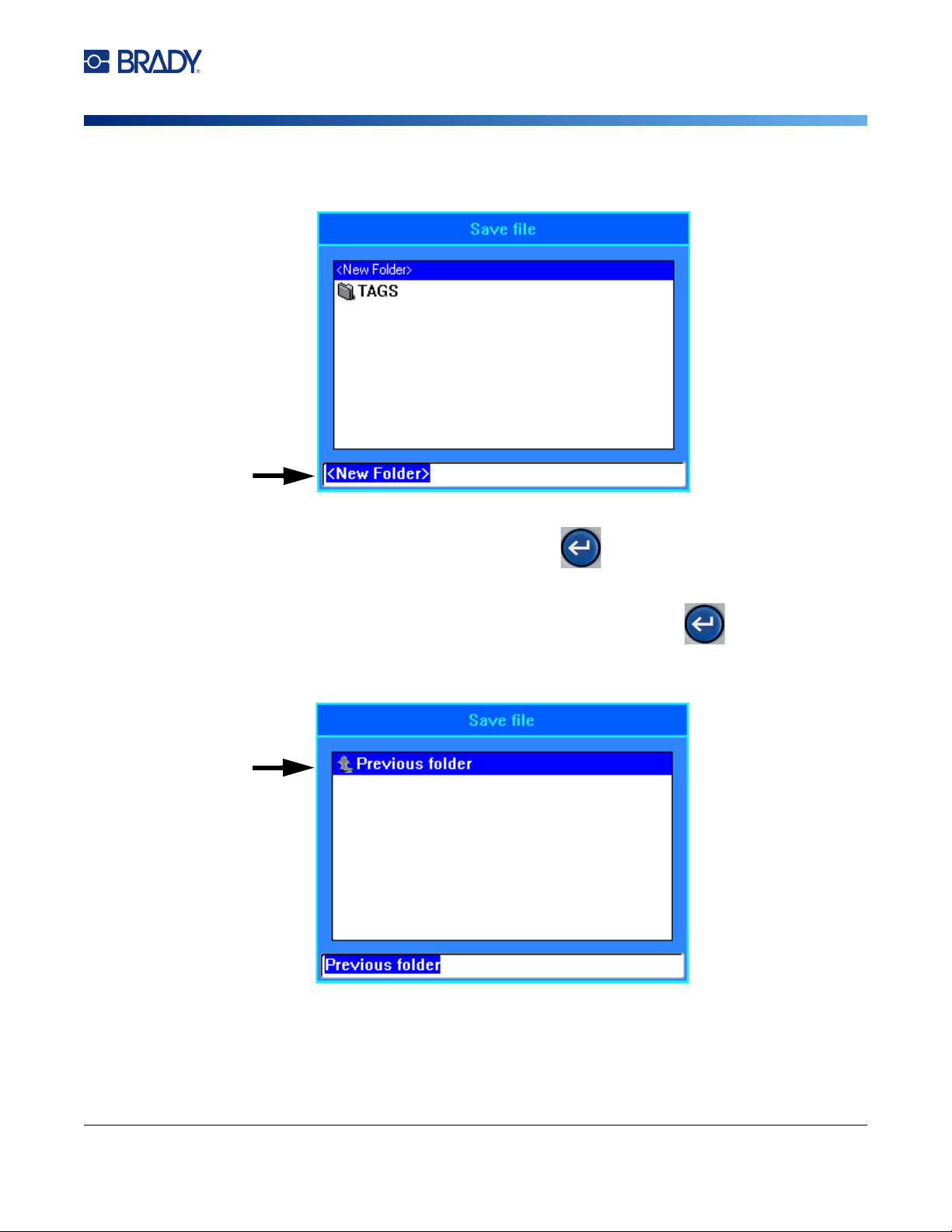
M710 User Manual 80
File Management
Saving Labels Created on the Printer
4. The Save file screen opens. At this point you can create a new folder to place the file in, select
an existing folder, or just save the file without organizing it into a folder.
•
To save the file without putting it in a folder:
With <New Folder> highlighted in the text
entry box, type a name for the file and press . Proceed to step 5.
•
To create a folder:
a. With <New Folder> highlighted in the text entry box, press .
b. Type a name for the folder and tap OK.
c. Double-tap Previous Folder in the top pane of the screen.
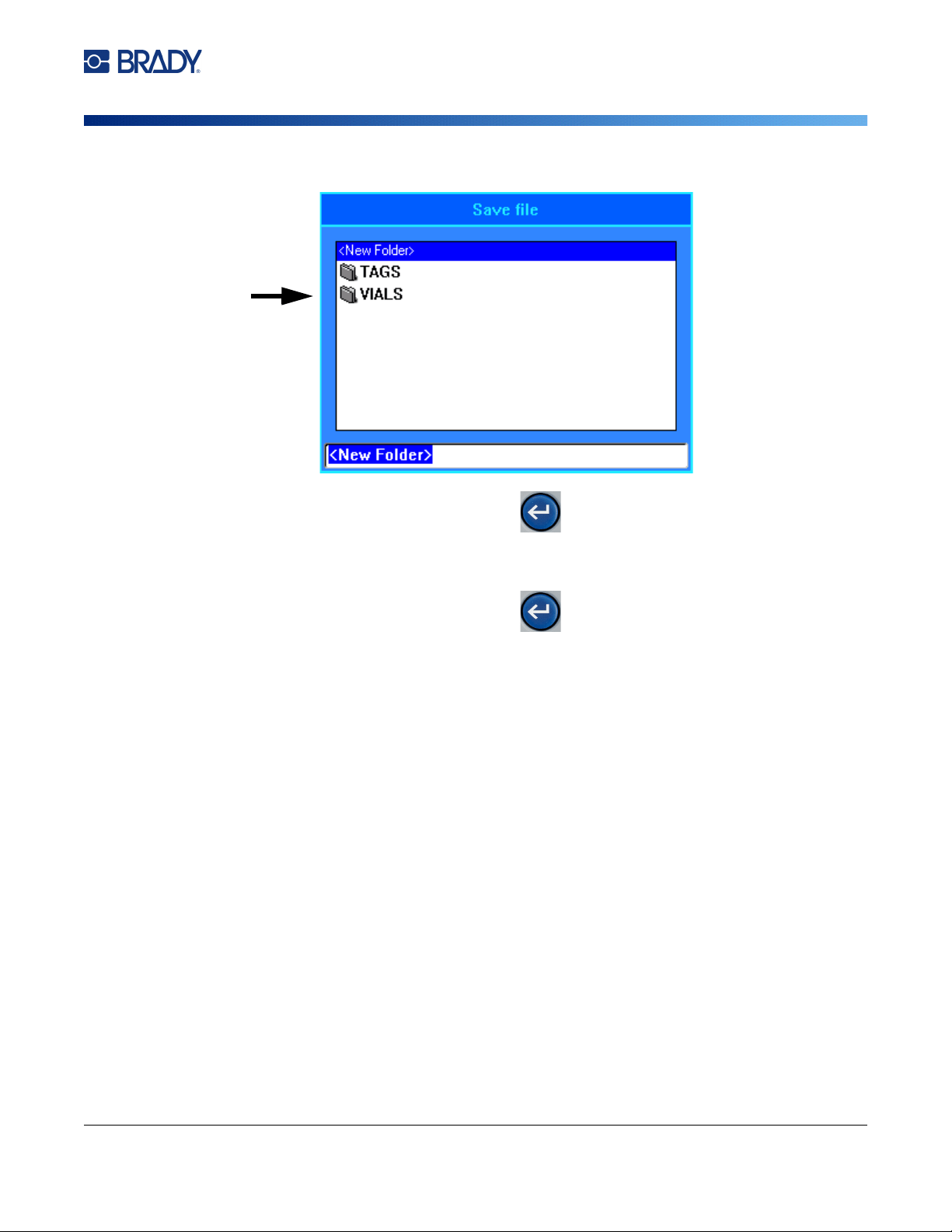
M710 User Manual 81
File Management
Storing Files Created with Brady Workstation Software
d. Double-tap the folder that you just created.
e. Type a name for the file and press . Proceed to step 5.
•
To choose an existing folder:
a. Double-tap the desired folder.
b. Type a name for the file and press .
5. If the name already exists, a message displays asking if you want to overwrite the existing file
with that name.
• To overwrite the existing file, select
Yes
.
• To go back and type a different file name, select
No
.
When the file is saved, you are returned to the editing screen with the saved file still displayed. If you
want to remove the saved file from the screen, press FN + CLEAR. This clears the data from the editor
so you can work on a different label, but does not delete the saved file. For more about the operation
of the CLEAR key see “Deleting Text” on page 39.
Storing Files Created with Brady Workstation Software
Storing files from Brady Workstation on the printer allows you to print later while disconnected from the
Brady Workstation computer.
Files from Brady Workstation are stored as print jobs which contain all the
information needed to print. Print jobs cannot be edited on the printer; they can only be printed.
Therefore
storing a print job this way also serves to prevent edits.
Follow the steps below to store a print job on the printer, then see “Opening a File” on page 82.
To store print jobs from Brady Workstation on the printer:
1. Make sure the printer is connected to the computer with the USB cable.
2. In Brady Workstation software, open the label file and go to the Print screen.
M710 User Manual 82
File Management
Opening a File
3. Select the M710 printer if it is not already selected.
4. Configure the print settings as desired. This includes number of copies, sorting, and advanced
settings such as cutting options. All these settings are saved with the file when it is stored on
the printer.
IMPORTANT! If you open the Advanced Settings screen, be sure that Print to Printer is selected.
This ensures a print job that the printer can read. If you choose Print to File, the
printer will not be able to read it.
5. Click the arrow on the PRINT button and select Store on Printer. The button name changes
to STORE.
6. Click STORE and enter a name for the print job.
7. The print job is now stored on the printer in internal memory. The label content, job name,
quantity, sorting, and cutting preferences specified when the job was stored are not editable.
Stored jobs in internal memory can only be printed or deleted.
Opening a File
To open a saved file:
1. Press FN + FILE.
2. Choose Open.
3. Select the location of the file (Internal or External).
A list of previously saved folders and files displays.
4. If the file is stored in a folder, double-tap the folder to open it.
5. Using the navigation keys, highlight the file to open and press .
You may see two types of files denoted by a pencil or printer icon.
•
:
These files, with names ending in .lbl, were created on an M710 printer. They open in the
editor and can be modified and printed.
•
:
These files, with names ending in .prn, were created with Brady Workstation and can only
be printed. When you select a .prn file, the printer asks if you want to print. Tap
Yes
.
Only one editable file (.lbl) can be displayed on the screen at a time. When opening a saved file, if the
editing screen contains other data, you are prompted to save the data before the screen is cleared. If
you decide to save the displayed data, the Save function is invoked and you are allowed to give the
data a file name before the requested file to open is displayed in the editor.
When opening a file, if the stored data does not fit on the installed label supply, an error message
displays. While you do not have to use the exact label part number used when saving the file, You
must use a label supply that can accommodate the data in the file being opened.
M710 User Manual 83
File Management
Deleting a File
Deleting a File
The editor does not have to be cleared before deleting a file. A file can be deleted with other data still
on the screen.
To delete a previously saved file:
1. Press FN + FILE.
2. Choose Delete.
3. Select the type of file you want to delete: Label, List, or Graphics.
4. Select the location of the file (Internal or External).
A list of previously saved folders and files displays.
5. If the file is stored in a folder, double-tap the folder to open it.
6. Using the navigation keys, highlight the file to delete and press .
A delete confirmation message displays.
7. Tap Yes to accept the deletion. The file is removed from the system and is no longer available
for use.
Note: Folders are deleted the same way as files, only the folders must be empty in order to delete.
Using Files from a USB Drive
You can use labels, .csv lists, or .bmp graphics created on a computer or a different M710 printer and
stored on a USB drive. Labels can be imported from a USB drive to the printer or you can open the
label file directly from the USB drive. Lists and graphics, however, must be imported to the printer
before they can be used. (For more information about using lists see “List (Importing Data)” on
page 57. For more information about using graphics see “Graphics” on page 50.)
Note: Software files cannot be imported to the printer.
Importing a File
To import a file created and stored on an external device:
1. Attach the external device to the printer.
2. Press FN and File.
3. Select Import. Import is only displayed if the external device is attached.
4. Select the type of file to import: Label, List, or Graphics.
5. Using folder and file navigation techniques, select the file to import from the external device.
Press or double-tap the file. For lists and graphics, the import is complete.
M710 User Manual 84
File Management
Using Files from a USB Drive
6. If importing a label file, on the Select Destination screen select the destination folder on the
printer where you want to store the imported file. Press or double-tap the folder.
Label files can be stored in any folder on the printer. However, list files (.csv) and graphic files
(.bmp) are stored in specific folders used by the List and Graphics functions. These folders are
unavailable to the user. When importing a list or a graphic, the destination screen does not
display.
Imported files retain the original file name the first time they are imported. If imported more than once,
" - Copy [#]" is attached to the file name (where # is a number indicating how many times the file has
been imported). This prevents a file from overwriting another file with the same name.
You can open an imported Label file through the File/Open function (see “Opening a File” on page 82).
List (.csv) files can be opened through the Merge feature of the List function.
Graphics (.bmp) files can be viewed and accessed through the Graphics function.
Exporting a File
Files created on the printer, or previously imported from an external device, can in turn be exported
back to an external device.
To export a file currently on the printer to an external device:
1. First, attach the external device to the printer.
2. Press FN and File.
3. Select Export.
4. Select the type of file to export: Label, List, or Graphics.
5. Using folder and file navigation techniques, select the file to export to the external device, and
press .
6. On the Select Destination screen, navigate to the destination folder where you want to store
the exported file on the external device.
7. In the field at the bottom of the screen that is automatically filled in with <New Folder>, enter
the name for the file to export, then press .

M710 User Manual 85
7 Maintenance
Installing Firmware Upgrades
Upgrades to firmware (printer system software) are available online. For information on how to locate
the current firmware version on your printer, see “Printer Configuration” on page 9.
Upgrading via Brady Workstation Software
The simplest way to upgrade firmware is to use Brady Workstation software.
To upgrade firmware from Brady Workstation:
1. Connect the printer to a computer that has Brady Workstation installed. The computer must be
connected to the internet.
2. Run the Brady Workstation software and open the Printers tool, which indicates when
upgrades are available.
3. See the help in the Printers tool for more details.
Upgrading via USB Drive
To upgrade firmware using a USB drive:
1. On a computer, go to the technical support website for your region. See “Technical Support
and Registration” on page iv.
2. Find firmware updates.
3. Find the most recent M710 firmware upgrade.
4. Download the firmware.
5. Save the downloaded file to a USB drive.
6. Connect the USB drive to the USB port on the printer. The printer recognizes the upgrade file
and displays a message on the touchscreen.
7. Follow the instructions on the touchscreen. When the upgrade is complete, the printer restarts.
Upgrading multiple M710 printers: Follow steps 1-4 above on the computer running Brady
Workstation software. Save the downloaded file on the computer, then use Brady Workstation to install
the upgrade on all printers. See the Printers tool help in Brady Workstation for details.
CAUTION! Do not interrupt printer power during an upgrade.

M710 User Manual 86
Maintenance
Updating the Printer Label Library
Upgrading via Computer Connection
To upgrade the firmware using a computer connection:
1. Use the USB cable to connect the printer to a computer with an internet connection.
2. On a computer, go to the technical support website for your region. See “Technical Support
and Registration” on page iv.
3. Find firmware updates.
4. Find the most recent M710 firmware upgrade.
5. Download the firmware.
6. Save the downloaded .msi file to your computer.
7. Double-click the .msi file.
8. Follow the prompts on the screen.
9. After the installation is finished, run the update utility.
a. Open the Windows Start menu.
b. Expand the Brady Corp folder.
c. Click M710 Firmware Update Utility.
10. Follow the prompts to connect the M710 printer to your computer, turn the printer on, then click
the Upgrade M710 button in the update utility.
11. Cycle power on the printer for the upgrades to effect.
Upgrading while the computer is offline: Follow steps 2-5 on the computer running Brady
Workstation software while it is connected to the internet. Save the downloaded file on the computer.
Later, when the computer is offline, use Brady Workstation to install the upgrade on the printer. See
the Printers tool help in Brady Workstation for details.
Updating the Printer Label Library
Printer Label Library files are included in a database of label and ribbon part information that enables
the printer to work optimally with various supplies.
Update Label Library files periodically to make sure the printer has data for any new label supplies.
Also, update if you have ordered a custom label supply from Brady and it came with new Label Library
files.
The simplest way to upgrade the printer’s Label Library files is to use Brady Workstation software.
To update Label Library files from Brady Workstation:
1. Connect the printer to a computer that has Brady Workstation installed. The computer must be
connected to the internet.
2. Run the Brady Workstation software and open the Printers tool, which indicates when
upgrades are available.
3. See the help in the Printers tool for more details.

M710 User Manual 87
Maintenance
Cleaning the Printer
To update Label Library files using a USB drive:
1. On a computer, go to the technical support website for your region. See “Technical Support
and Registration” on page iv.
2. Find firmware updates and the most recent M710 Printer Label Library update.
3. Download the database update.
4. Save the downloaded file to a USB drive.
5. Connect the USB drive to a USB port on the printer. The printer recognizes the upgrade file
and displays a message on the touchscreen.
6. Follow the instructions on the touchscreen. When the upgrade is complete, the printer restarts.
Updating multiple M710 printers: Follow steps 1-3 above on the computer running Brady
Workstation software. Save the downloaded file on the computer, then use Brady Workstation to install
the update on all printers. See the Printers tool help in Brady Workstation for details.
Cleaning the Printer
A cleaning kit is included in the printer package. This kit contains a disposable BMP71 cleaning card
which is designed to safely and effectively remove all dirt, ribbon ink residue, adhesive, and other
contaminants from the thermal printhead, platen roller, and paper path. The kit also includes a pre-
moistened cotton swab for cleaning the cutter blade and the sensors.
Cleaning the printer will improve print quality and legibility. It also increases output, machine life,
printer reliability and performance.
Cleaning Internal Components
Use the cleaning card to clean the printhead, platen roller, and label path.
To clean the printer:
1. Remove the ribbon cartridge and label roll. See “Loading Supplies” on page 16.
2. Moisten a cleaning card with isopropyl alcohol to the point where the card is saturated, but not
dripping.
3. Press FN + SETUP.
4. Choose Config.
5. Tap the Clean Printer button.
6. Follow the instructions on the screen.
7. Place the moistened cleaning card in the label compartment of the printer, inserting the edge
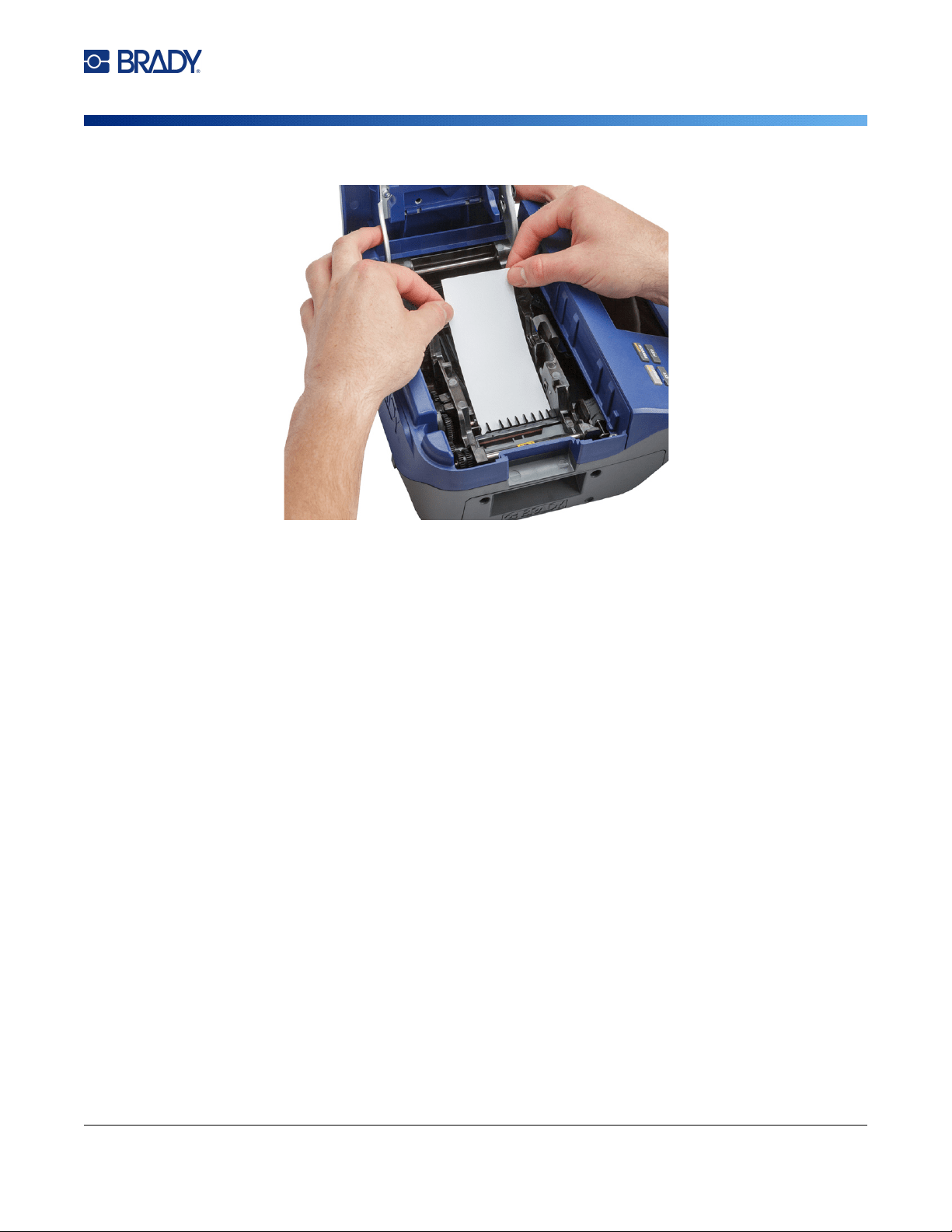
M710 User Manual 88
Maintenance
Cleaning the Printer
of the card up to the black line under the ribs.
8. Close the printer cover, ensuring that it latches.
9. Tap Continue to initiate the cleaning routine.
IMPORTANT! Allow 15 seconds for the printhead, platen roller, and label path to dry before
reloading labels and the ribbon cartridge.
Cleaning the Sensors
Dirty label sensors can result in errors because the printer cannot detect the labels or the position of
the labels.
To clean the sensors:
1. Pull up on the cover latch and open the print compartment cover.
2. Remove the ribbon cartridge and label roll. See “Loading Supplies” on page 16.
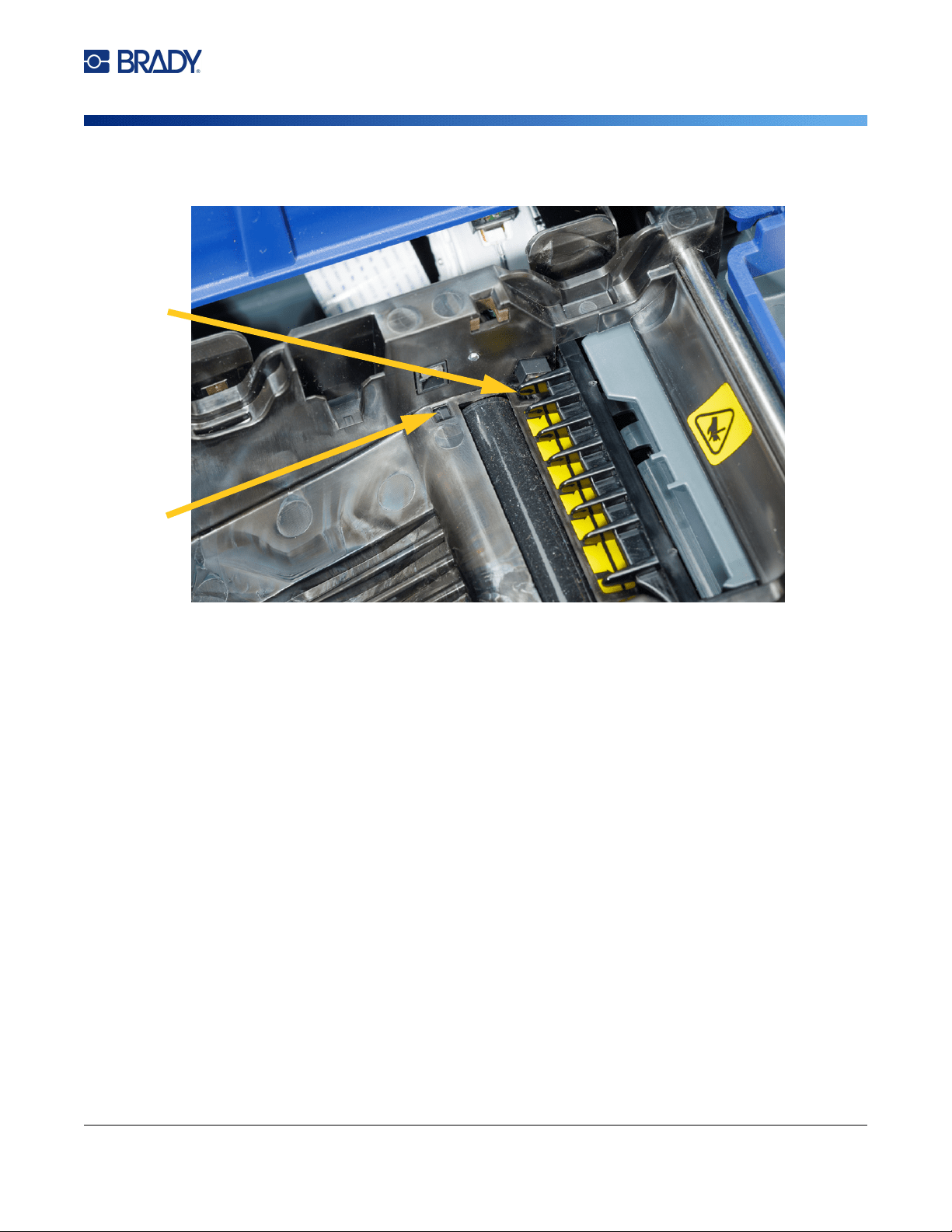
M710 User Manual 89
Maintenance
Cleaning the Printer
3. Using the pre-moistened cotton swab, gently wipe the sensors, located just before and below
the ribs.
4. Allow cleaned parts to dry before replacing ribbon and labels in the printer.
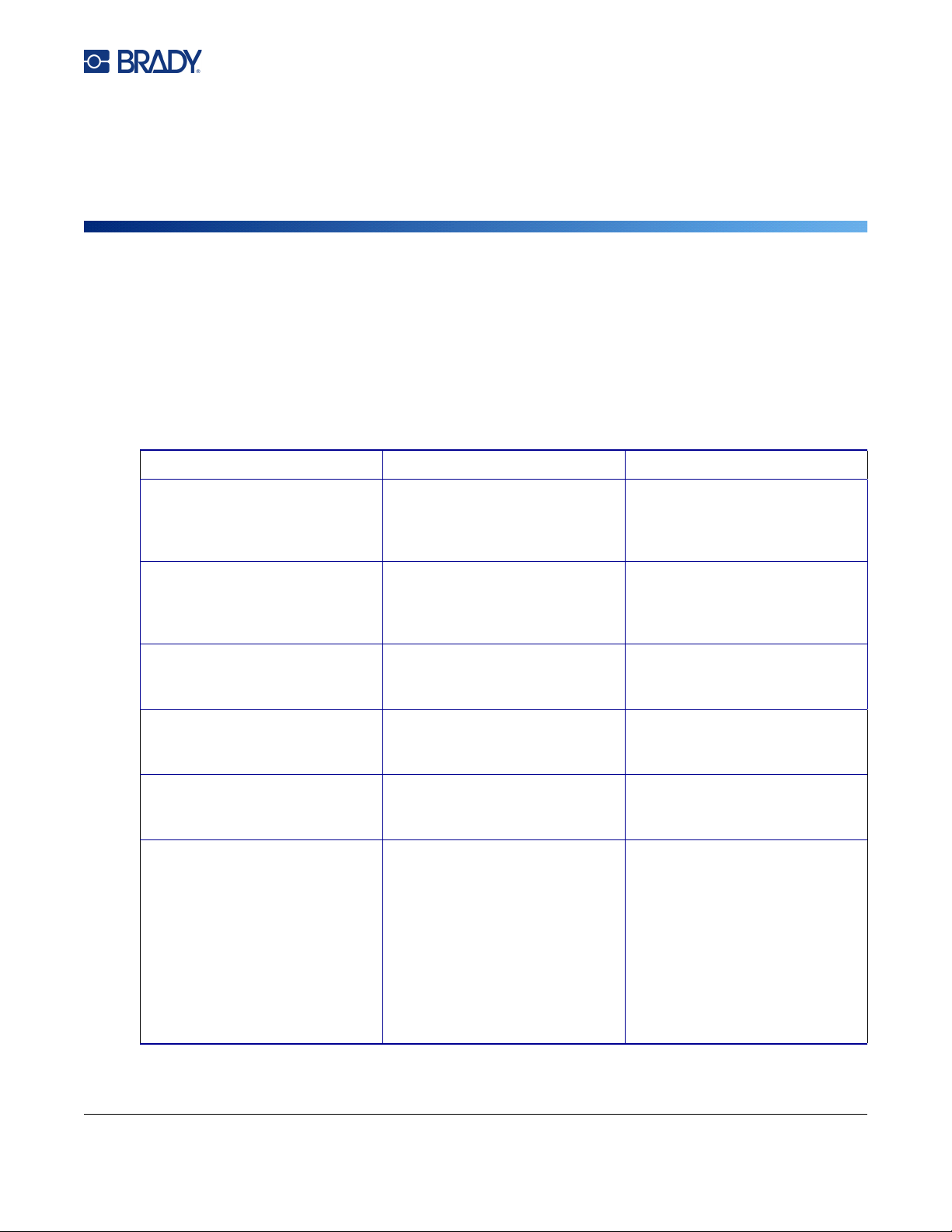
M710 User Manual 90
8 Troubleshooting
Use the following tables to troubleshoot and diagnose possible performance problems with your
printer. If the corrective action suggested does not work, contact Brady’s Technical Support Group.
See “Technical Support and Registration” on page iv.
Error Messages
Message Cause Corrective Action
Barcode exceeds height of
installed labels
The height specified in the
barcode settings is taller than
the label.
• Change the height setting for
barcodes. See “Barcode
Settings” on page 53.
• Install taller labels.
Barcode exceeds width of
installed labels
The barcode is wider than the
label.
• If the label is taller than it is
wide, try rotating the label. See
“Rotation” on page 46.
• Install wider labels.
Cover not closed Cover not closed. (A sensor
indicates when the printer cover
is fully latched.)
Push down firmly on cover until
you hear it latch. It should line
up evenly with printer case.
Cutter jam Label material is stuck in the
cutter blades.
Open the printer. Remove the
label supply. Clear the path of
the debris.
Data will not fit on installed
labels
The label supply is not the right
size for the amount of data on
the label.
Install a larger label supply. See
“Loading Labels” on page 16.
File incompatible with
installed labels
The label file was created for a
different label supply than is
installed.
Install the label supply that the
file was created for, or a similar
label supply.
When possible, the printer tells
you which label supply to install.
If the message does not specify
a label supply, try swapping a
continuous label supply with a
pre-sized label supply, or vice
versa.
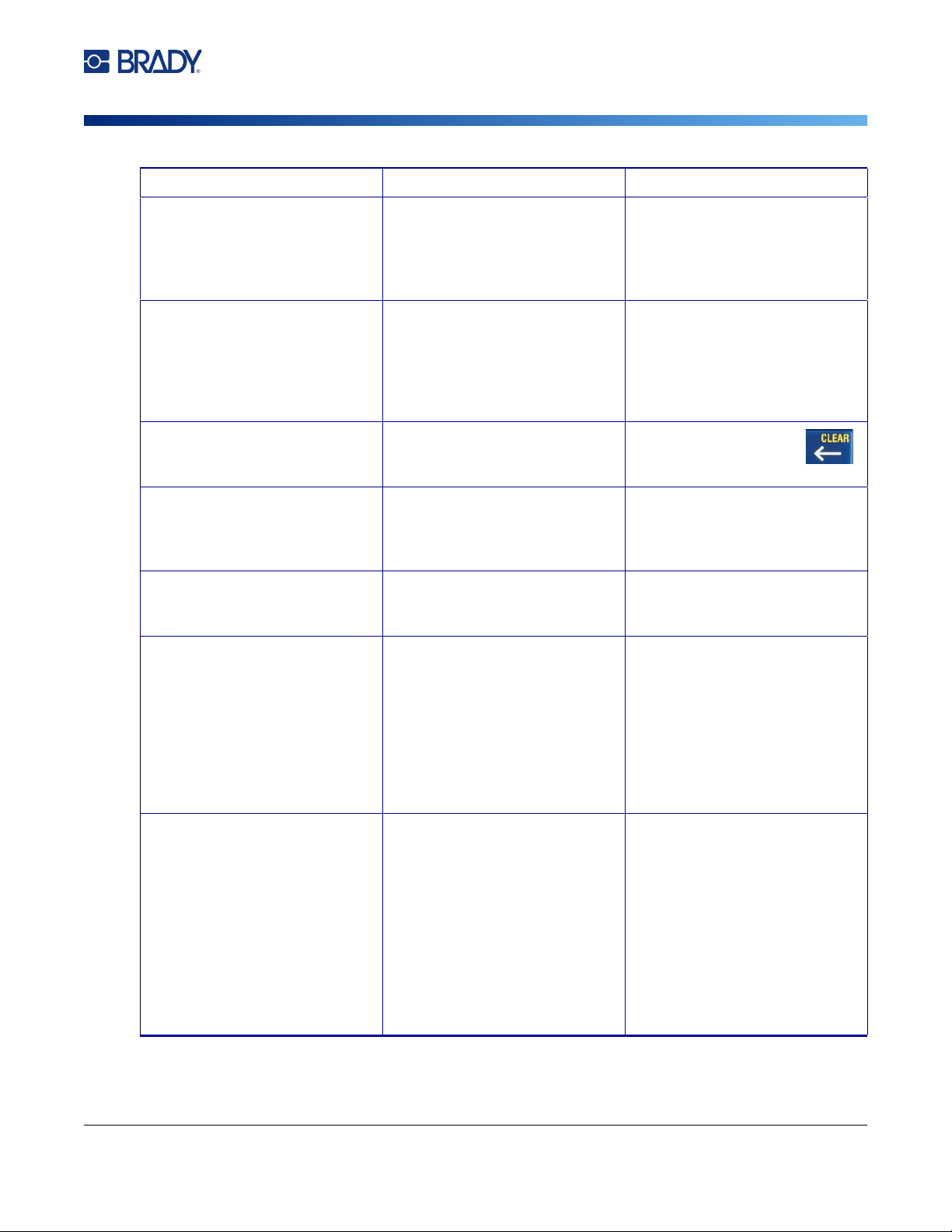
M710 User Manual 91
Troubleshooting
Error Messages
Head temperature outside
range
Printhead too hot Printhead has reached
maximum operating
temperature. Let printhead cool
down for approximately 10
minutes, then re-initiate print job.
Incompatible labels for
selected Label Type
The selected Label Type is not
compatible with the installed
label supply.
Install a label supply that is
compatible with the current label
type. The current label type is
shown above the label on the
touchscreen. See Chapter 5:
“Label Types” on page 62.
Invalid barcode character The character typed is not valid
data for the type of barcode.
Press the backspace key
and type a different character.
Invalid terminal repeat value
entered
The value entered is out of the
range.
The acceptable range is
between the minimum of 0.15
inch to the maximum of 40
inches.
Label and ribbon color are
identical
Ribbon color and label color are
the same. Printing will not be
visible.
Replace ribbon or label supply.
See “Loading Labels” on
page 16.
Label feed error The leading edge of the labels or
the notch between labels is not
detected. The label supply is
positioned incorrectly.
Reinstall the label supply
making sure that the leading
edge is securely under the ribs
(at least up to the black line),
and that the label supply covers
the sensors See “Loading
Labels” on page 16 and Figure
2-1“Make sure the sensors are
covered.” on page 18.
Out of labels The leading edge of the labels or
the notch between labels is not
detected. The label supply has
run out or is improperly installed.
Replace or reinstall the label
supply, making sure that the
label supply covers the sensors
See “Loading Labels” on
page 16 and Figure 2-1“Make
sure the sensors are covered.”
on page 18.
If the problem persists, follow
cleaning instructions shown in
“Cleaning the Sensors” on
page 88.
Message Cause Corrective Action
M710 User Manual 92
Troubleshooting
Error Messages
No labels detected
• The smart cell on the label roll
is not detected. No label roll is
installed, or the roll is
improperly installed so that the
smart cell does not align with
the reader.
• The leading edge of the labels
or the notch between labels is
not detected. The label supply
has run out or is improperly
installed.
Install, replace, or reinstall the
labels, making sure that the
smart cell is properly aligned
and that the label supply covers
the sensors See “Loading
Labels” on page 16 and Figure
2-1“Make sure the sensors are
covered.” on page 18.
Note: Bulk label cores cannot be
re-used. When installing bulk
labels, replace the core for each
new box of labels.
No ribbon detected The ribbon is not installed, or is
improperly installed.
Install a ribbon. See “Loading
Ribbon” on page 19. If the
problem persists, contact
Technical Support.
Out of ribbon The ribbon has run out, broken
or has excessive slack.
If the ribbon is used up or
broken, replace the ribbon with
one that is compatible with the
installed label supply. See
“Loading Ribbon” on page 19.
If the ribbon is slack, rotate the
top spool downward. See image
on page 19.
Print settings not optimized The printer does not have
necessary information about
label parameters because the
label is not included in the
Printer Label Library.
Update the Label Library. See
“Updating the Printer Label
Library” on page 86.
Ribbon not recommended for
installed labels
The installed ribbon is not
recommended for use with the
installed label supply.
Replace the ribbon with one that
is compatible with the installed
label supply, as indicated in the
error message on the printer.
Check your local Brady website
for ribbon and label supply
compatibility.
Message Cause Corrective Action
M710 User Manual 93
Troubleshooting
Other Issues
Other Issues
Hardware
Power On and Off (Printer not Working)
Problem Cause Corrective Action
Keypad works intermittently or
not at all.
One or more keys is stuck in
depressed state.
Identify any keys stuck in down
position. Repress key to unstick.
Cutter does not cut. Label material is stuck in the
cutter blades.
Open the cover. Remove the
ribbon. Remove the label supply.
Clear the path of the debris. See
“Loading Supplies” on page 16.
Problem Cause Corrective Action
Printer does not power up when
turned on.
Battery pack is not charged. Attach the AC adapter to the
printer and plug into an electrical
outlet. This will supply
immediate power while charging
the battery at the same time.
Screen freezes User interface error.
1. Press Power button to turn the
printer off.
If Power button does not shut
down printer:
2. Remove the AC adapter (if
using one).
3. Remove the battery pack, then
immediately re-insert.
4. Power ON the printer.
Printer frequently powers OFF.
Battery is low. Attach the AC adapter to the
printer and plug into an electrical
outlet. This will supply
immediate power while charging
the battery at the same time.
Auto shutoff timing. Adjust the shut off delay timing
in the Setup, Config menu. (See
“Printer Configuration” on
page 9.)
Printer not responding Battery is dead.
• Attach the AC adapter to
provide power to the printer
and charge the battery.
• Install a new battery.
M710 User Manual 94
Troubleshooting
Other Issues
Print Quality
Problem Cause Corrective Action
Poor quality printing
Battery pack may be worn out
and not properly holding a
charge.
Battery life is approximately one
to three years, depending on its
use and care. Order a
replacement battery pack.
Dust or adhesives
accumulated on the printhead.
Clean the printhead. (See
“Cleaning Internal Components”
on page 87.)
On continuous labels, the
roller may have left an
indentation in the label supply.
Turn on the No Backfeed option
in SETUP, Config.
See “Printer Configuration” on
page 9.
No print on the label The label or ribbon is not
loaded correctly.
Reinstall the labels and ribbon.
“Loading Supplies” on page 16.
Void areas or lines appear on
printed text
Ribbon wrinkling. With the ribbon installed, tension
the ribbon by rotating the rewind
spool (top spool) in a downward
direction until all slack is
removed. If the problem
persists, install a new ribbon.
Faint print on labels Ribbon not advancing
properly.
Remove the ribbon and rotate
the top spool downward. See
“Loading Ribbon” on page 19.
If the problem persists, install a
new ribbon.
M710 User Manual 95
Troubleshooting
Other Issues
Labels
Problem Cause Corrective Action
Printer will not feed labels,
labels are jammed in the printer.
The leading edge of the label
supply is either not straight or
not inserted up to the black
line under the ribs.
Remove the label supply. Use a
pair of scissors to cut off the
bent or damaged portion making
sure to cut a straight leading
edge. When reinstalling, make
sure the leading edge is
securely under the ribs (at least
up to the black line). See
“Loading Labels” on page 16.
If the problem persists, follow
cleaning instructions shown in
“Cleaning the Printer” on
page 87.
Extra space is included before
my label content when using a
continuous label supply.
The No backfeed option may
be set.
Clear the No backfeed option.
See “Printer Configuration” on
page 9.
M710 User Manual 96
Troubleshooting
Label Types & Label Supply
Label Types & Label Supply
Some label types require specific label supplies. Additionally, some label supplies require specific
ribbons. If the label supply installed in the printer is incompatible with the installed ribbon, an error can
occur. Check your local Brady website for ribbon and label supply compatibility.
Label Type Label Supply Size
General Continuous and pre-sized
Wire Marker Continuous, self-laminating, and
pre-sized
Flags Continuous and pre-sized flag
labels
Terminal Block, Patch Panel, 66-Block Continuous only
Face Plate Continuous only
110-Block, Bix Block Continuous only 0.625" (15.9mm) or 0.475
(12.1mm) widths
Vial Continuous only (not self-
laminating or PermaSleeve)
DesiStrip Continuous only
Breaker Box Continuous only
Safety Templates (North America) Continuous, preprinted pre-
sized, and pre-sized
Pre-sized labels must have a 2:1
width to height ratio.
General Templates (Europe) Continuous and pre-sized
Standard Pipemarker Continuous only
Arrow Tape Continuous only
Rollform Pipemarker Continuous only
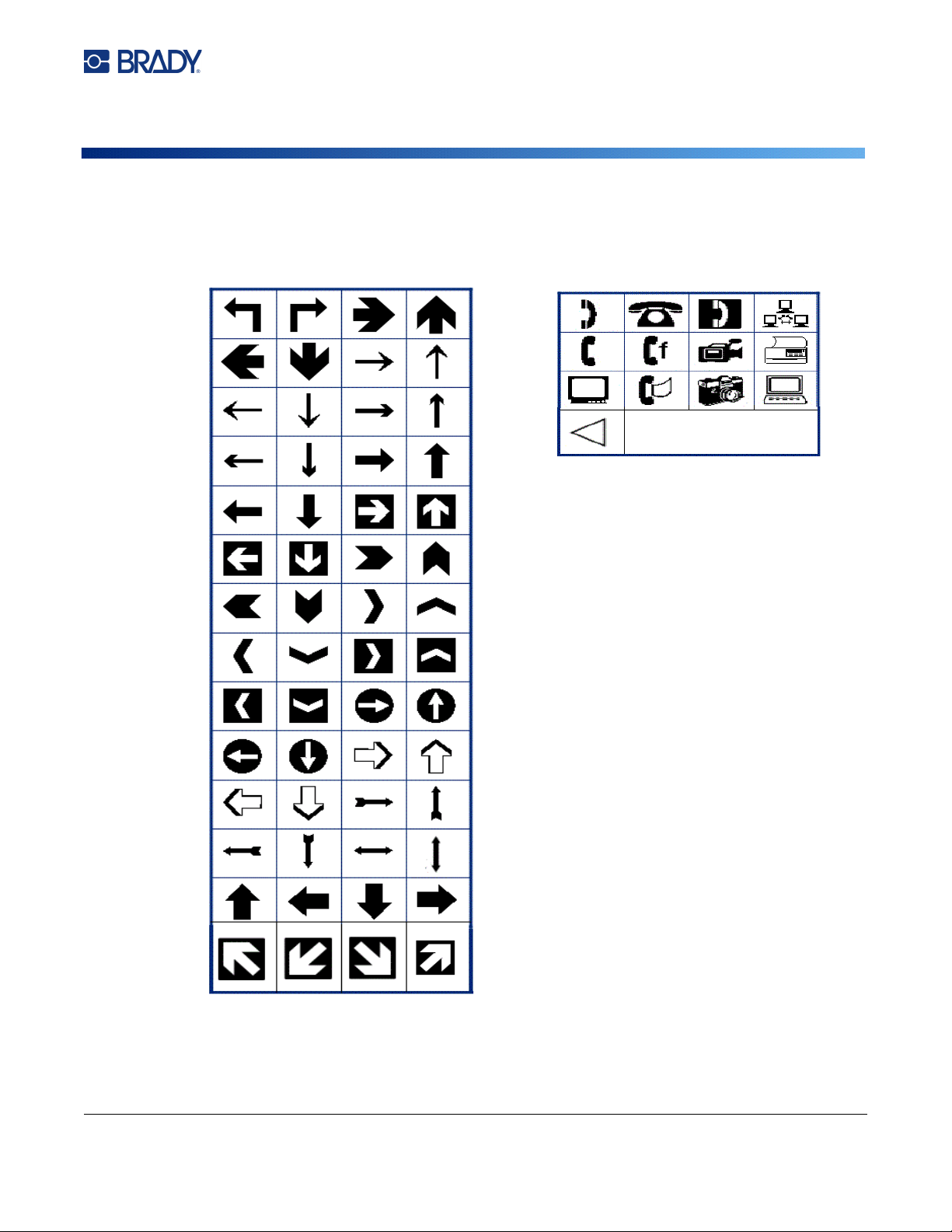
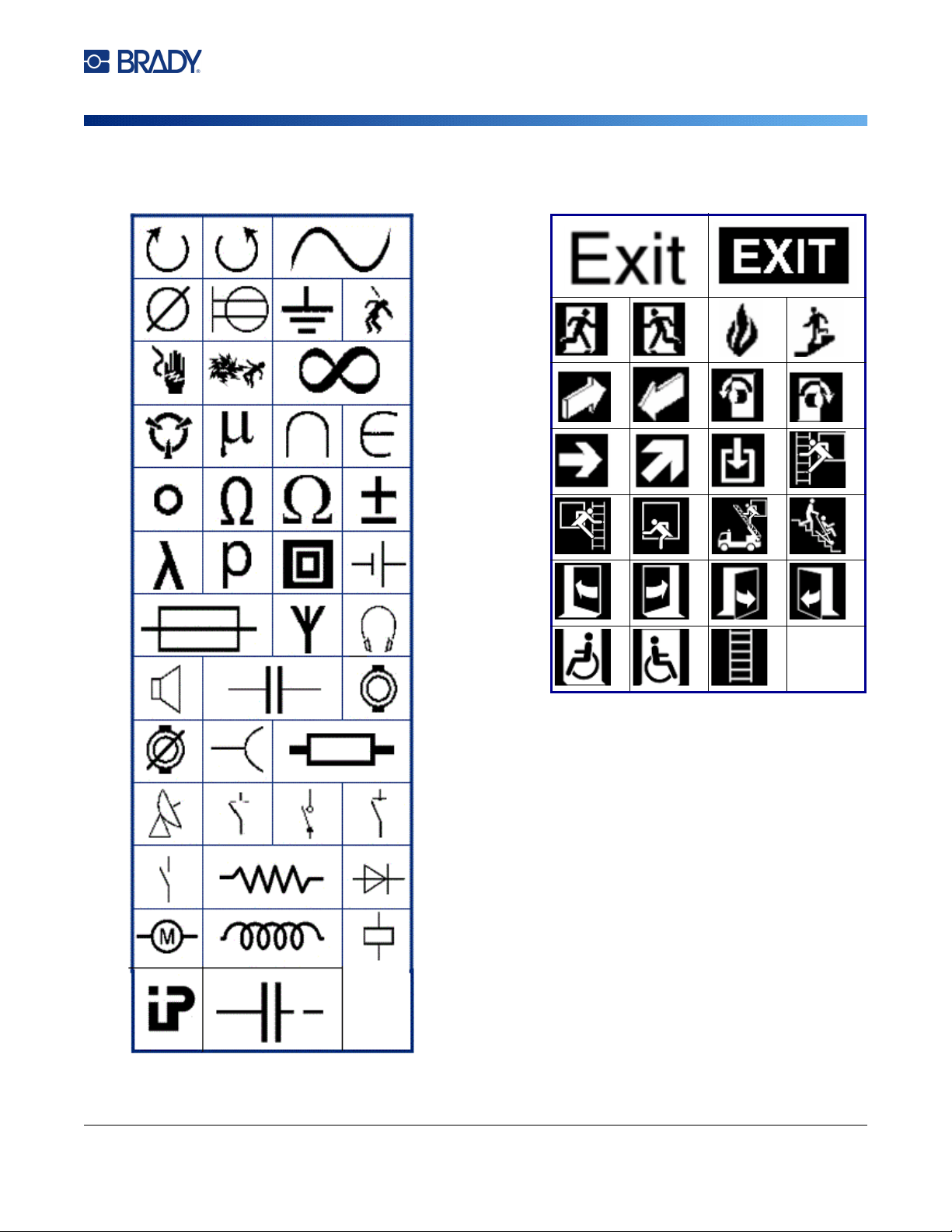
M610 Label Printer User Manual 98
Symbols
Electrical
Exit
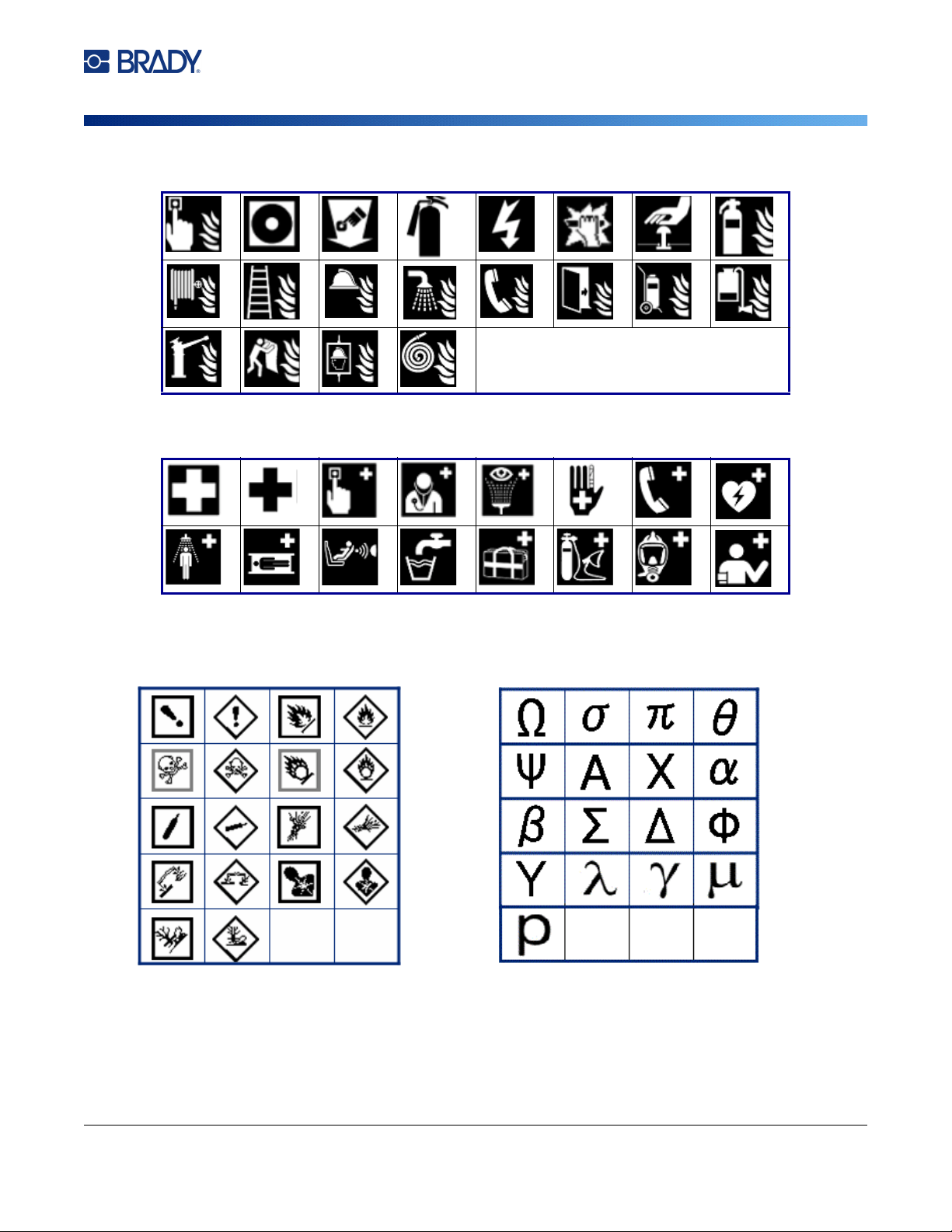
M610 Label Printer User Manual 99
Symbols
Fire
First Aid
CLP/GHS
Greek
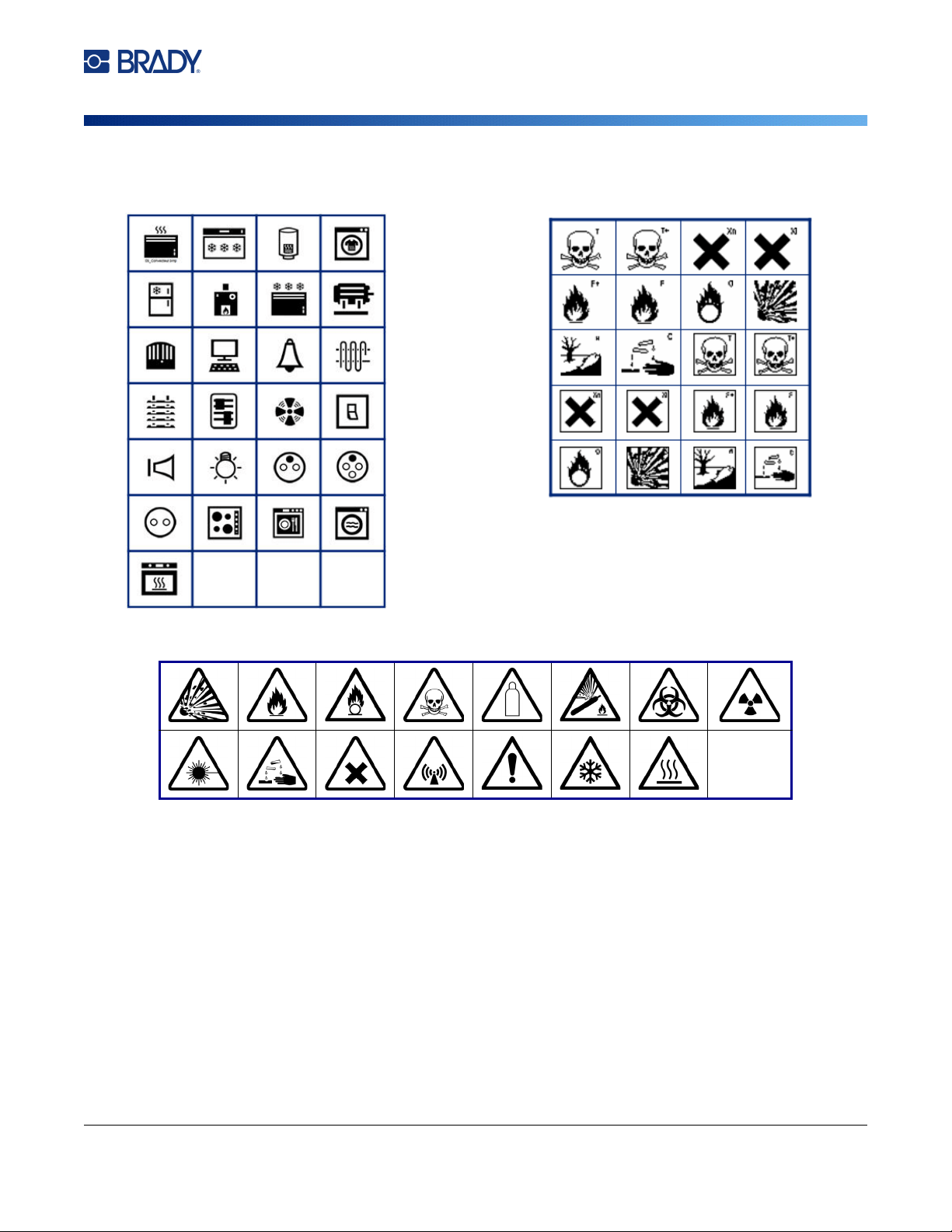
M610 Label Printer User Manual 100
Symbols
International
HSID
Home Electrical
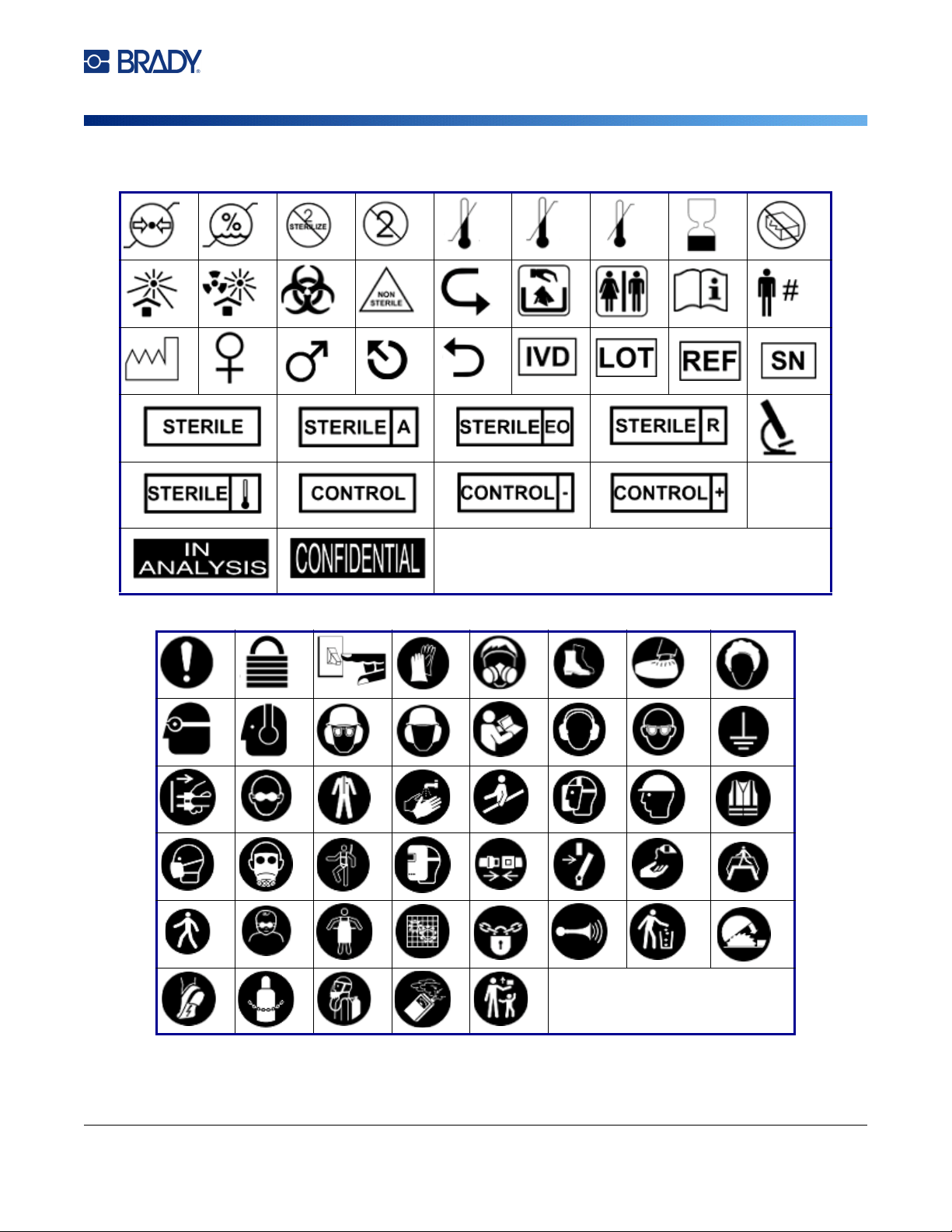
M610 Label Printer User Manual 101
Symbols
Laboratory
Mandatory
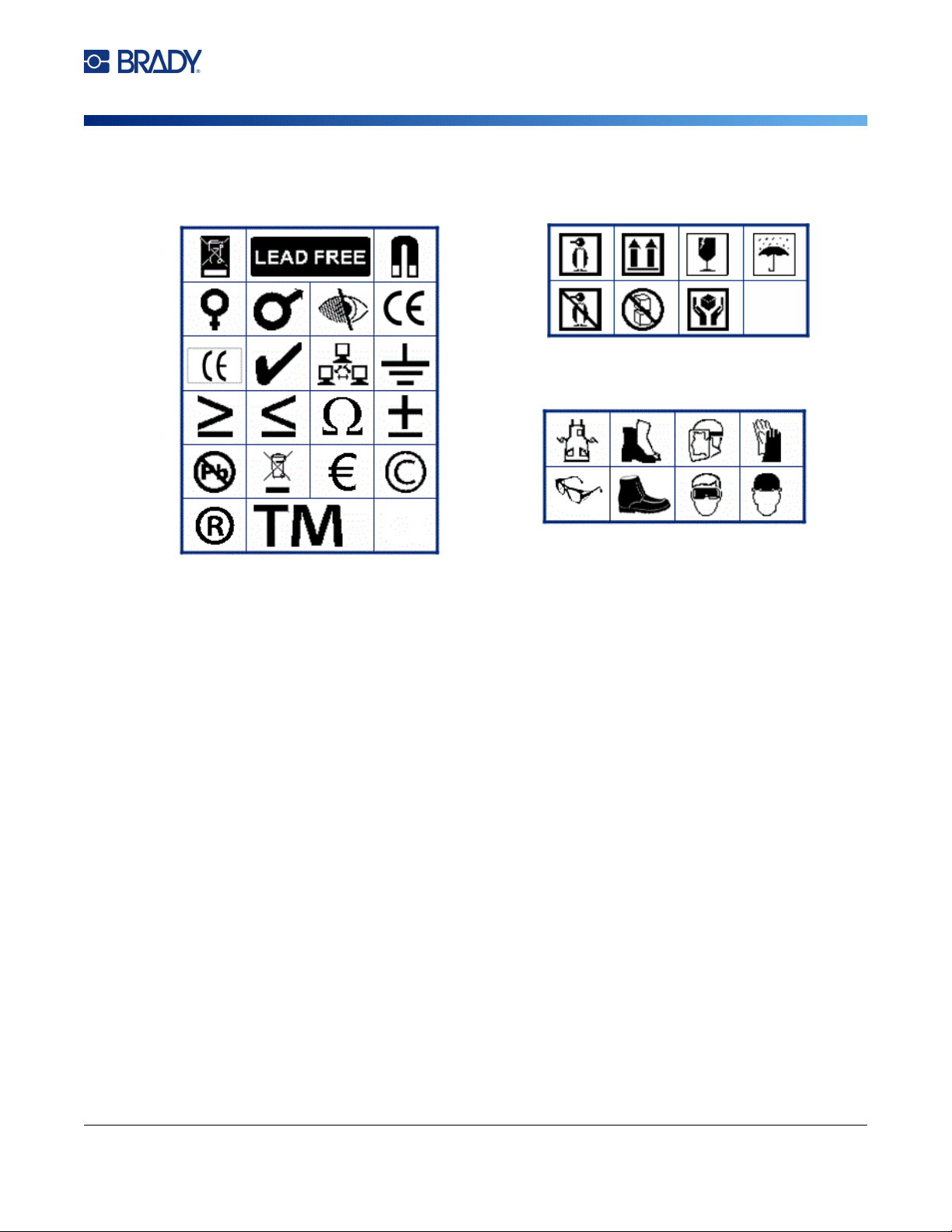
M610 Label Printer User Manual 102
Symbols
Miscellaneous
Packaging
PPE
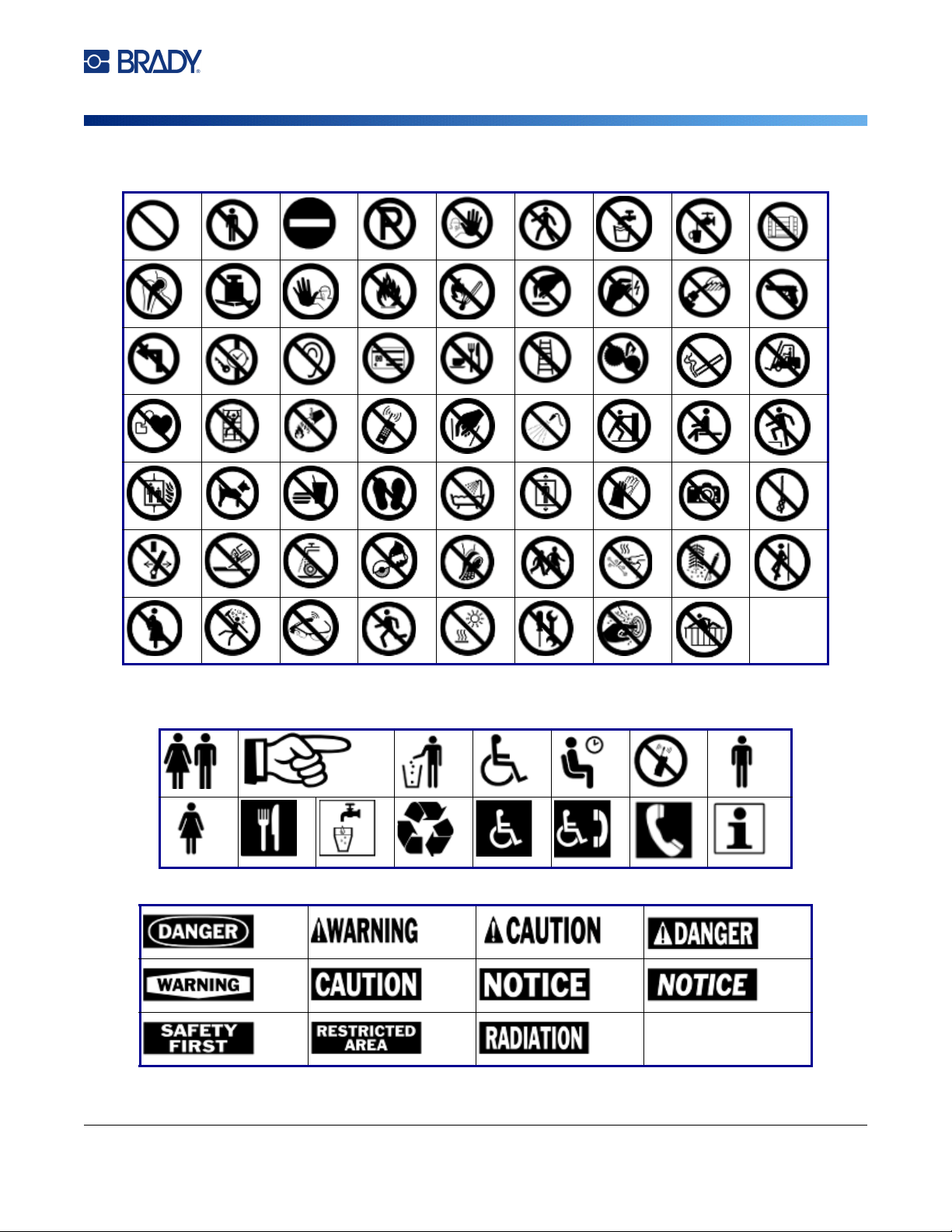
M610 Label Printer User Manual 103
Symbols
Prohibition
Public Info
Safety
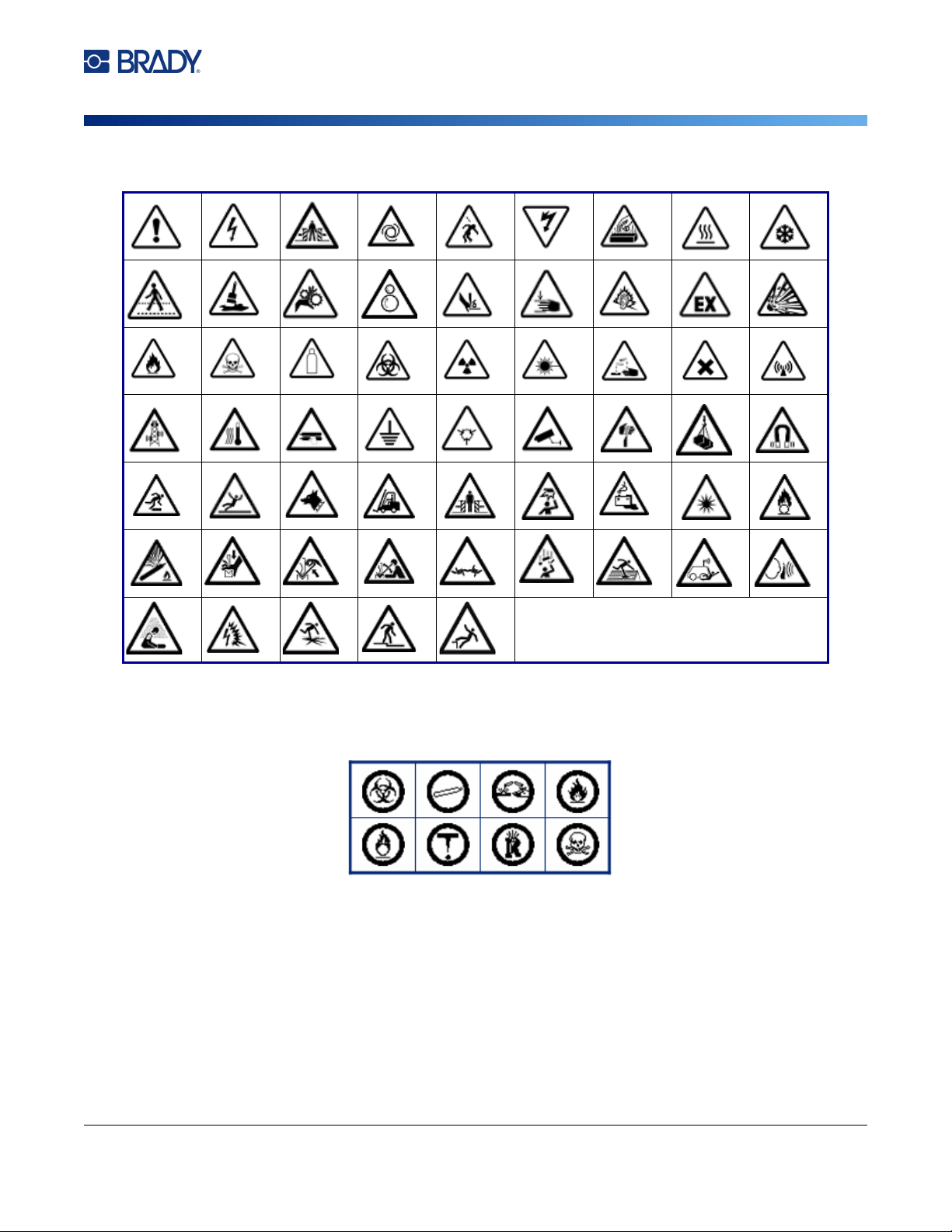
M610 Label Printer User Manual 104
Symbols
Warning
WHMIS
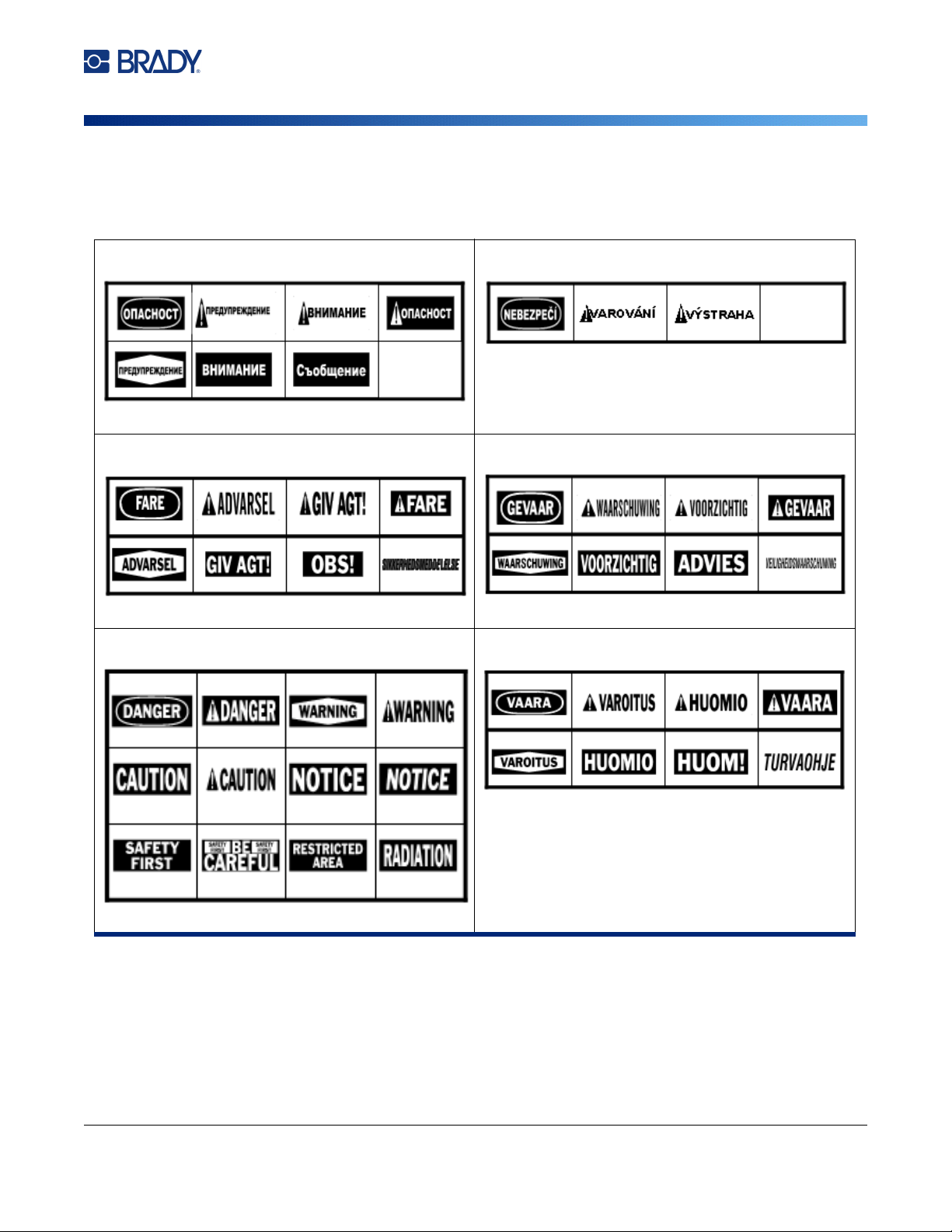
M610 Label Printer User Manual 105
Symbols
Safety Sign Headers
Safety sign headers are not available in all languages. If your printer is set to a language not included
below, the English sign headers will be available when selecting a safety symbol.
Bulgarian Czech
Danish Dutch
English Finnish
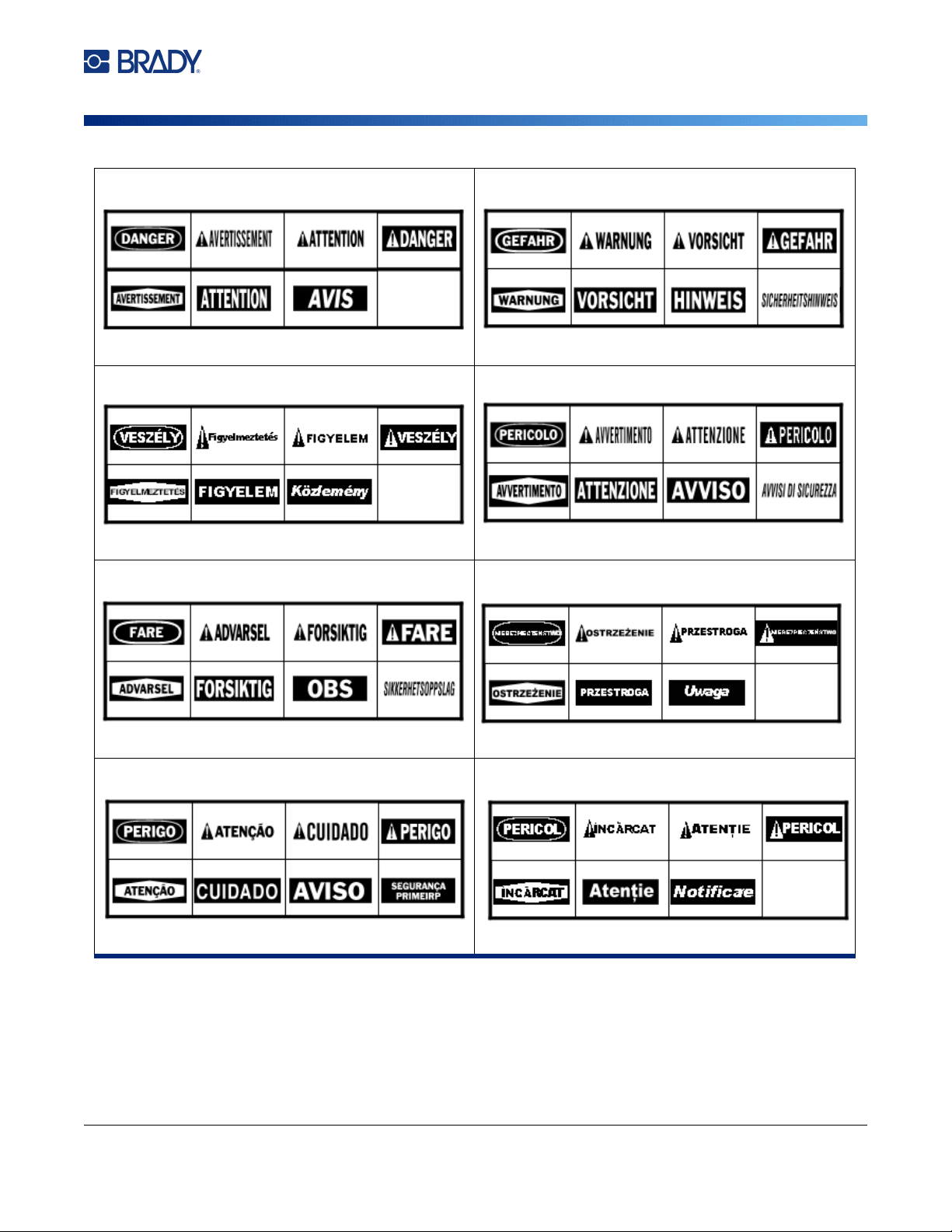
M610 Label Printer User Manual 106
Symbols
French German
Hungarian Italian
Norwegian Polish
Portuguese Romanian
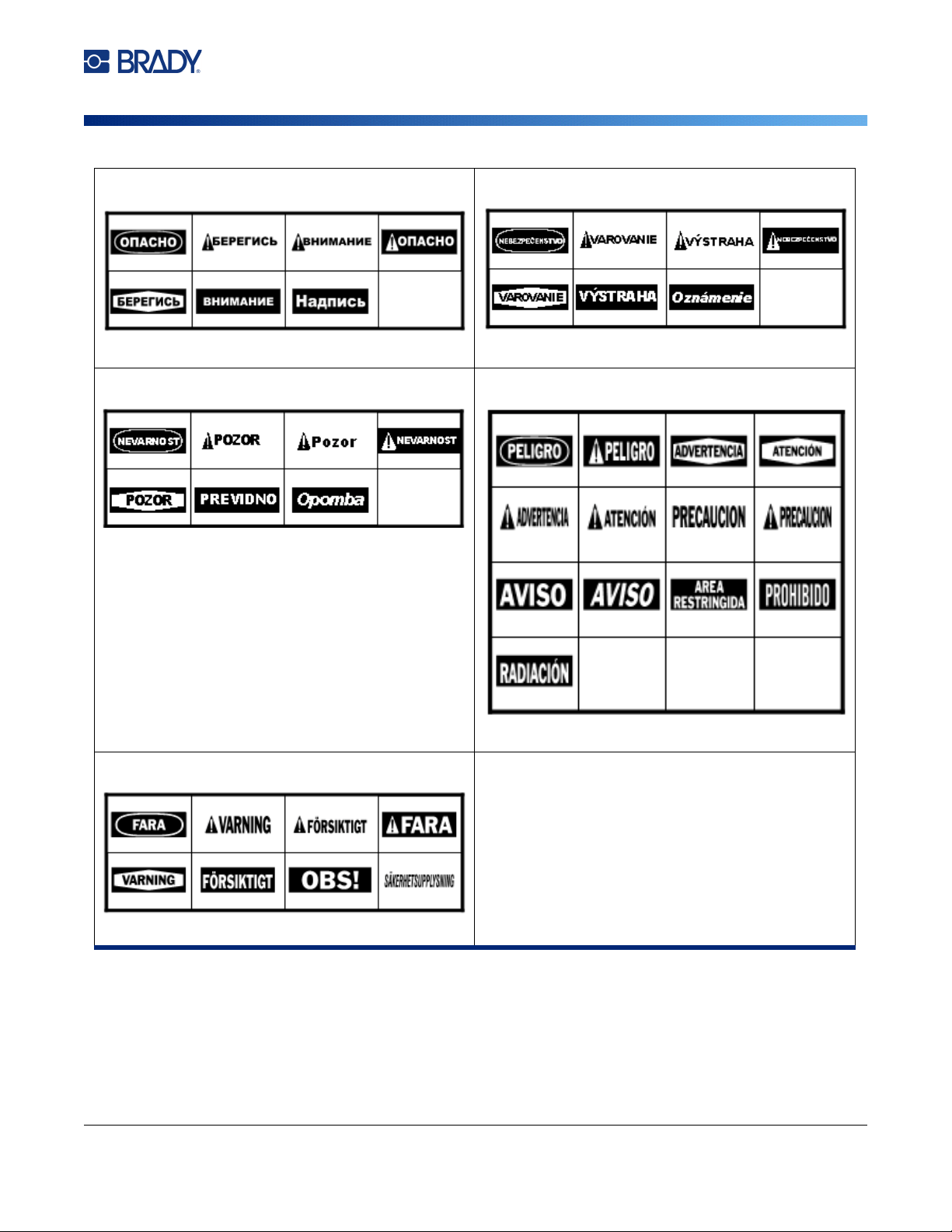
M610 Label Printer User Manual 107
Symbols
Russian Slovak
Slovenian Spanish
Swedish
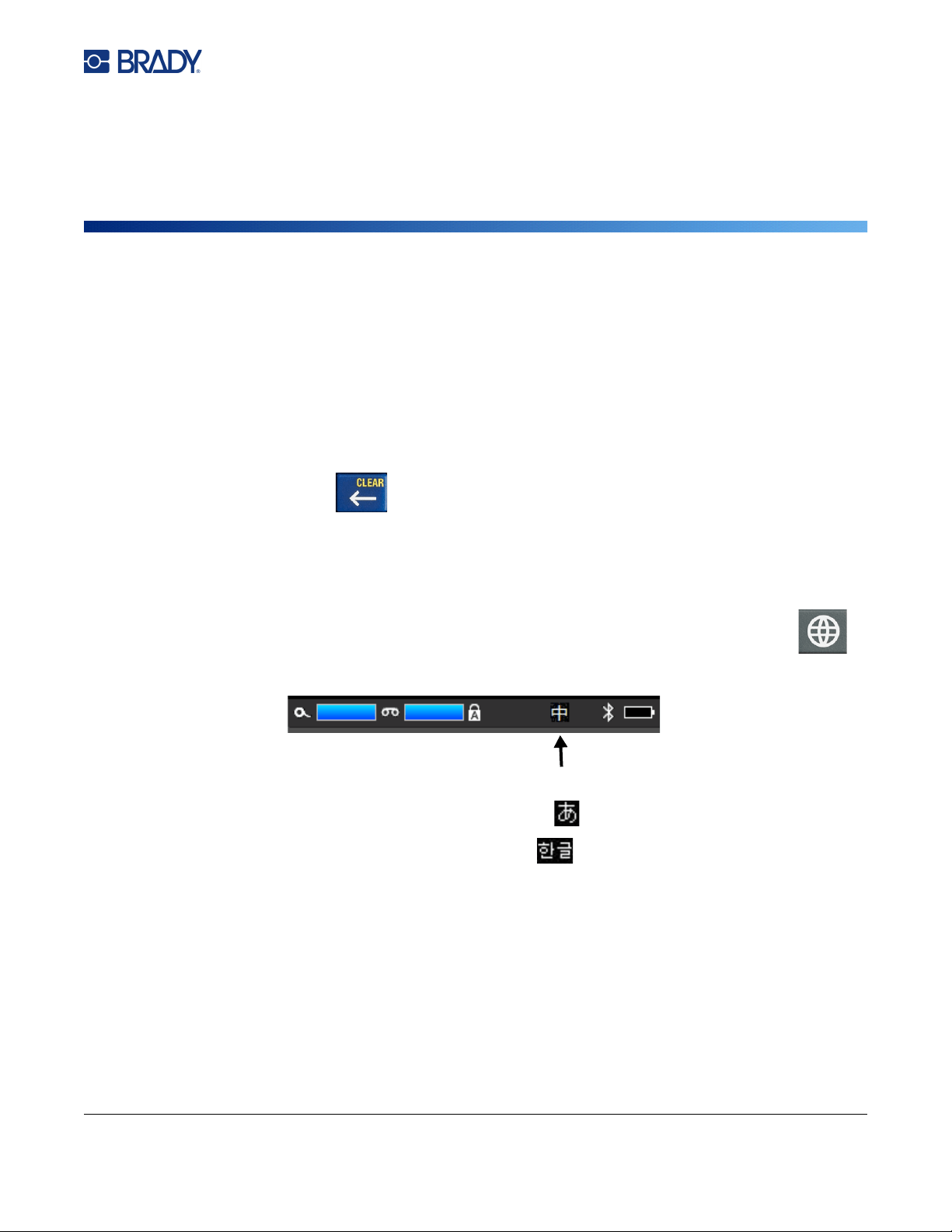
M710 User Manual 108
B Using IME for Asian Text
Printers shipped to certain regions come with an Input Method Editor (IME) for including Asian
language characters on labels. The IME converts text to one of the following languages as you type:
Chinese Simplified, Chinese Traditional, Japanese, or Korean.
To use IME:
1. In the Setup menu, make sure the font is set to the character set that you want to use:
Chinese, Korean, or Japanese. (Select Chinese for either simplified Chinese or traditional
Chinese.) See “Font” on page 11.
2. After setting the font and closing the font menu, clear all data from the labels.
a. Press FN + ,
b. Tap Clear All.
c. Tap Yes.
3. Return to the Setup menu and make sure the language is set to simplified Chinese, traditional
Chinese, Japanese, or Korean as desired. See “Language” on page 8.
4. Check the status bar to see whether the IME is active. If it is not, press the globe key to
switch to IME. Pressing the globe key toggles between typing the Latin letters on the keyboard
and using the IME.
For Japanese, the character in the status bar is .
For Korean, the character in the status bar is .
IME is active for Chinese.
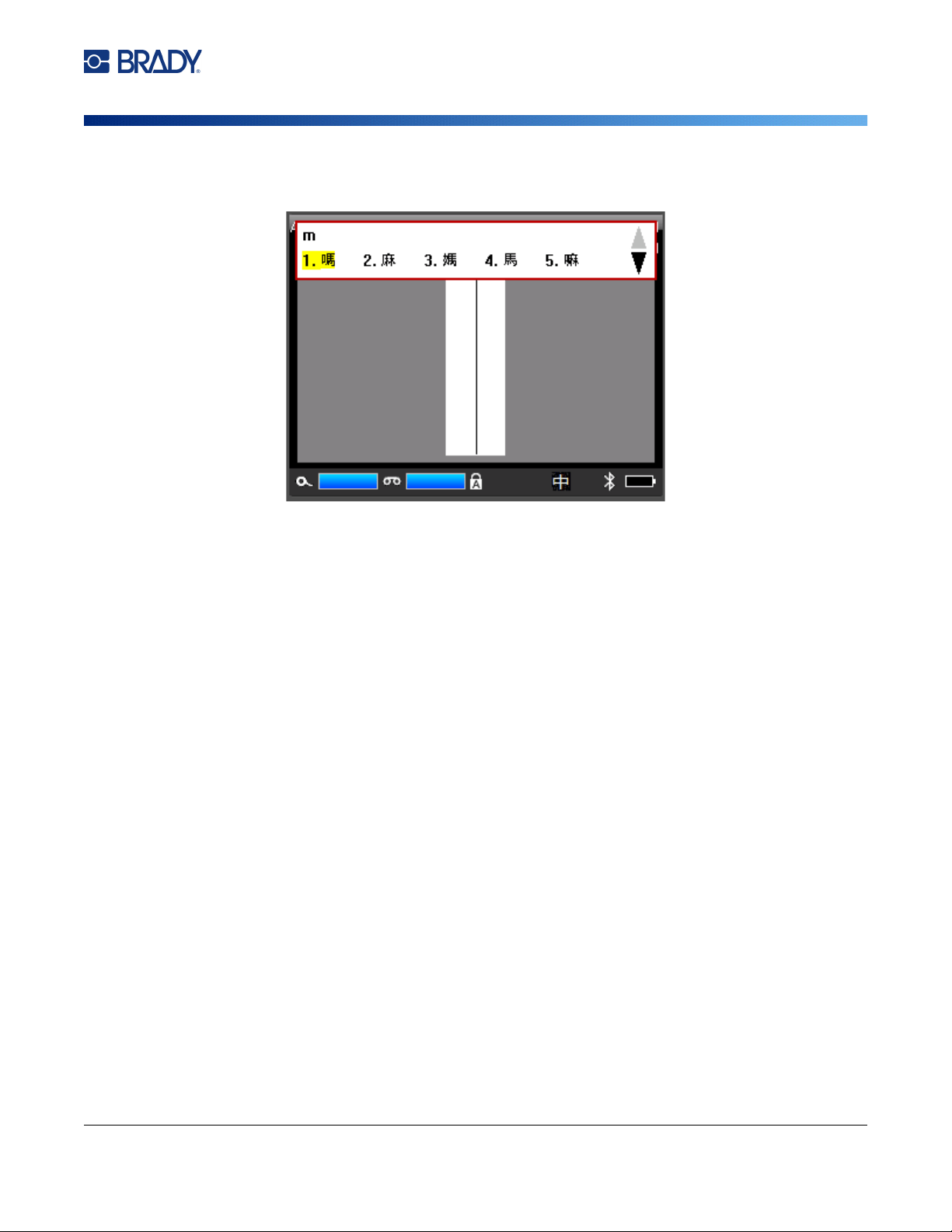
M710 User Manual 109
Using IME for Asian Text
5. Start typing and the printer displays a list of characters to choose from. For each letter typed,
the IME predicts a set of characters based on the entered text.
6. Tap the arrows on the right to see more characters. Tap the character that you want and it is
placed on the label.

M710 User Manual 110
C Regulatory Compliance
Agency Compliance and Approvals
United States
FCC Notice
Note: This equipment has been tested and found to comply with the limits for a Class A digital
device, pursuant to part 15 of the FCC Rules. These limits are designed to provide
reasonable protection against harmful interference when the equipment is operated in a
commercial environment. This equipment generates, uses, and can radiate radio frequency
energy and, if not installed and used in accordance with the instruction manual, may cause
harmful interference to radio communications.
Operation of this equipment in a residential area is likely to cause harmful interference in which case
the user will be required to correct the interference at his own expense.
Changes or modifications not expressly approved by the party responsible for compliance could void
the user's authority to operate the equipment.
This device complies with Part 15 of the FCC Rules. Operation is subject to the following two
conditions: (1) This device may not cause harmful interference and, (2) this device must accept any
interference received, including interference that may cause undesired operation.
Canada
Innovation, Science and Economic Development (ISED)
Canada ICES-003:
CAN ICES-3 (A)/NMB-3(A)
Mexico
IFT notice: La operación de este equipo está sujeta a las siguientes dos condiciones: (1) es posible
que este equipo o dispositivo no cause interferencia perjudicial y (2) este equipo o dispositivo debe
aceptar cualquier interferencia, incluyendo la que pueda causar su operación no deseada.
M710 User Manual 111
Regulatory Compliance
Agency Compliance and Approvals
Europe
RoHS Directive 2011/65/EU, 2015/863/EU
This product is CE marked and complies with the European Union's Directive 2011/65/EU OF THE
EUROPEAN PARLIAMENT AND OF THE COUNCIL of 8 June 2011 on the restriction of the use of
certain hazardous substances in electrical and electronic equipment.
EU Directive 2015/863 of 31 March 2015 (RoHS 3) amends Annex II to Directive 2011/65/EU of the
European Parliament and of the Council as regards the list of restricted substances.
Batteries Directive 2006/66/EC
This product contains a lithium ion rechargeable battery pack. The crossed-out
wheeled bin shown to the left is used to indicate 'separate collection' for all batteries
and accumulators in accordance with European Directive 2006/66/EC. Users of
batteries must not dispose of batteries as unsorted municipal waste. This Directive
determines the framework for the return and recycling of used batteries and
accumulators that are to be collected separately and recycled at end of life. Please
dispose of the battery according to your local regulations.
Notice to Recyclers
To remove the lithium ion battery pack:
1. Remove the back housing and locate the lithium ion battery pack.
2. Cut the red lead.
3. Cover the cut end (battery side of cut) with electrical tape.
4. Cut the remaining yellow and black leads in any order.
5. Dispose of in accordance with local regulations.
Turkey
Turkish Ministry of Environment and Forestry
(Directive on the Restriction of the use of certain hazardous substances in electrical and electronic
equipment).
Türkiye Cumhuriyeti: EEE Yönetmeliğine Uygundur
WARNING! This is a Class A product. In a domestic environment, this product
may cause radio interference in which case the user may be
required to take adequate measures.
Waste Electrical and Electronic Equipment Directive
In accordance with the European WEEE Directive, this device needs to be
recycled in accordance with local regulations.
M710 User Manual 112
Regulatory Compliance
Wireless Regulatory Information
China
China RoHS Hazardous Substance Table related to this product is available at
www.bradyid.com/M710compliance.
警 告
此为A级产品。在生活环境中,该产品可能会造成无线电干扰。在这种情况下,可能需要用户对干扰
采取切实可行的措施。
仅适用于海拔2000m以下地区安全使用仅适用于非热带气候条件下安全使用
Taiwan
Class A Statement
警告:為避免電磁⼲擾,本產品不應安裝或使⽤於住宅環境
Taiwan Restricted Substances Containment Status (RoHS Declaration) related to this product is
available at www.BradyID.com/M710compliance.
Importer:
⾹港商⾙迪⾹港有限公司
臺北市中⼭區南京東路 3 段 101 號 4 樓
BRADY CORPORATION HONG KONG LIMITED
4th Floor, No. 101, Section 3, Nanjing East Road, Zhongshan District, Taipei City
Wireless Regulatory Information
Applies only to the wireless printer model which supports Wi-Fi and Bluetooth wireless communication.
Regulatory markings, subject to country certification, are applied to host printer signifying Wi-Fi and
Bluetooth (radio) approvals have been obtained.
WARNING! Operation of the device without regulatory approval is illegal.
M710 User Manual 113
Regulatory Compliance
Wireless Regulatory Information
United States
Note: This equipment has been tested and found to comply with the limits for a Class A digital
device, pursuant to part 15 of the FCC Rules. These limits are designed to provide
reasonable protection against harmful interference when the equipment is operated in a
commercial environment. This equipment generates, uses, and can radiate radio frequency
energy and, if not installed and used in accordance with the instruction manual, may cause
harmful interference to radio communications.
Operation of this equipment in a residential area is likely to cause harmful interference in which case
the user will be required to correct the interference at own expense.
Changes or modifications not expressly approved by the party responsible for compliance could void
the user's authority to operate the equipment.
This device complies with Part 15 of the FCC Rules. Operation is subject to the following two
conditions: (1) This device may not cause harmful interference and, (2) this device must accept any
interference received, including interference that may cause undesired operation.
RF exposure guidelines: This equipment complies with FCC SAR exemption limits set forth for an
uncontrolled environment and properly used as instructed.
Canada
Innovation, Science and Economic Development (ISED)
CAN ICES-3 (A)/NMB-3(A)
This device complies with Industry Canada's license-exempt RSSs. Operation is subject to the
following two conditions:
1. This device may not cause interference; and
2. This device must accept any interference, including interference that may cause undesired
operation of the device.
RF exposure guidelines / Important note: This equipment complies with IC radiation exposure
exemption limits set forth for an uncontrolled environment and properly used as instructed.
Radio protocol WLAN IEEE 802.11b/g/n Bluetooth BLE
RF Operating Frequency 2.412 – 2.462 GHz 2.402 – 2.480 GHz
RF Output Power < +20dBm EIRP (100mW) < +20dBm EIRP (100mW)
Antenna Type \ Antenna Gain PCB trace antenna \ 2.3 dBi PCB trace antenna \ 2 dBi
Environmental Operation -40 to 85° C (-40° to 185° F)
Note: Be mindful of the maximum operating temperatures for the printer.
See “Physical and Environmental Characteristics” on page 2.
Environmental Storage -55 to 125° C (-67° to 257° F)
Note: Be mindful of the maximum storage temperatures for the printer.
See “Physical and Environmental Characteristics” on page 2.

M710 User Manual 114
Regulatory Compliance
Wireless Regulatory Information
Brazil
ANATEL notice:
Este equipamento não tem direito à proteção contra interferência prejudicial e não pode causar
interferência em sistemas devidamente autorizados..
Mexico
IFT notice:
"La operación de este equipo está sujeta a las siguientes dos condiciones: (1) es posible que este
equipo o dispositivo no cause interferencia perjudicial y (2) este equipo o dispositivo debe aceptar
cualquier interferencia, incluyendo la que pueda causar su operación no deseada."
European Union
This is a Class A product. In a domestic environment, this product may cause radio interference in
which case the user may be required to take adequate measures.
Radio Equipment Directive (RED) 2014/53/EC
a. Frequency band(s) in which the radio equipment operates; 2.402 GHz to 2.480 GHz
b. Maximum radio-frequency power transmitted in the frequency band(s) in which the radio
equipment operates; < +20dBm EIRP (100mW)
International
The Wi-Fi radio module used in Brady host printers comply with internationally recognized standards
covering human exposure to electromagnetic fields, i.e. EN 62311 "Assessment of electronic and
electrical equipment related to human exposure restrictions for electromagnetic fields (0 Hz - 300
GHz)".
Japan
MIC \ TELEC: 005-102490
MIC \ TELEC: 201-220017
当該機器には電波法に基づく、技術基準適合証明等を受けた特定無線設備を装着し ている。
Nigeria
Connection and use of this communications equipment is permitted by the Nigerian Communications
Commission.

M710 User Manual 115
Regulatory Compliance
Wireless Regulatory Information
South Africa
TA-2022/2146

M710 User Manual 116
D Licensing
QR Code Generator Library
QR Code Generator Library
Copyright © 2022 Project Nayuki. (MIT License)
https://www.nayuki.io/page/qr-code-generator-library
Permission is hereby granted, free of charge, to any person obtaining a copy of this software and
associated documentation files (the "Software"), to deal in the Software without restriction, including
without limitation the rights to use, copy, modify, merge, publish, distribute, sublicense, and/or sell
copies of the Software, and to permit persons to whom the Software is furnished to do so, subject to
the following conditions:
The above copyright notice and this permission notice shall be included in all copies or substantial
portions of the Software.
The Software is provided "as is", without warranty of any kind, express or implied, including but not
limited to the warranties of merchantability, fitness for a particular purpose and noninfringement. In no
event shall the authors or copyright holders be liable for any claim, damages or other liability, whether
in an action of contract, tort or otherwise, arising from, out of or in connection with the Software or the
use or other dealings in the Software.
RapidJSON
Copyright © 2015 THL A29 Limited, a Tencent company, and Milo Yip. All rights reserved.
If you have downloaded a copy of the RapidJSON binary from Tencent, please note that the
RapidJSON binary is licensed under the MIT License.
If you have downloaded a copy of the RapidJSON source code from Tencent, please note that
RapidJSON source code is licensed under the MIT License, except for the third-party components
listed below which are subject to different license terms. Your integration of RapidJSON into your own
projects may require compliance with the MIT License, as well as the other licenses applicable to the
third-party components included within RapidJSON. To avoid the problematic JSON license in your
own projects, it's sufficient to exclude the bin/jsonchecker/ directory, as it's the only code under the
JSON license.
A copy of the MIT License is included in this file.
Other dependencies and licenses:
Open Source Software Licensed Under the BSD License:
--------------------------------------------------------------------

M710 User Manual 117
Licensing
RapidJSON
The msinttypes r29
Copyright © 2006-2013 Alexander Chemeris
All rights reserved.
Redistribution and use in source and binary forms, with or without modification, are permitted provided
that the following conditions are met:
• Redistributions of source code must retain the above copyright notice, this list of conditions and the
following disclaimer.
• Redistributions in binary form must reproduce the above copyright notice, this list of conditions and
the following disclaimer in the documentation and/or other materials provided with the distribution.
• Neither the name of copyright holder nor the names of its contributors may be used to endorse or
promote products derived from this software without specific prior written permission.
THIS SOFTWARE IS PROVIDED BY THE REGENTS AND CONTRIBUTORS ``AS IS'' AND ANY
EXPRESS OR IMPLIED WARRANTIES, INCLUDING, BUT NOT LIMITED TO, THE IMPLIED
WARRANTIES OF MERCHANTABILITY AND FITNESS FOR A PARTICULAR PURPOSE ARE
DISCLAIMED. IN NO EVENT SHALL THE REGENTS AND CONTRIBUTORS BE LIABLE FOR ANY
DIRECT, INDIRECT, INCIDENTAL, SPECIAL, EXEMPLARY, OR CONSEQUENTIAL DAMAGES
(INCLUDING, BUT NOT LIMITED TO, PROCUREMENT OF SUBSTITUTE GOODS OR SERVICES;
LOSS OF USE, DATA, OR PROFITS; OR BUSINESS INTERRUPTION) HOWEVER CAUSED AND
ON ANY THEORY OF LIABILITY, WHETHER IN CONTRACT, STRICT LIABILITY, OR TORT
(INCLUDING NEGLIGENCE OR OTHERWISE) ARISING IN ANY WAY OUT OF THE USE OF THIS
SOFTWARE, EVEN IF ADVISED OF THE POSSIBILITY OF SUCH DAMAGE.
Open Source Software Licensed Under the JSON License:
--------------------------------------------------------------------
json.org
Copyright © 2002 JSON.org
All Rights Reserved.
JSON_checker
Copyright © 2002 JSON.org
All Rights Reserved.
Terms of the JSON License:
---------------------------------------------------
Permission is hereby granted, free of charge, to any person obtaining a copy of this software and
associated documentation files (the "Software"), to deal in the Software without restriction, including
without limitation the rights to use, copy, modify, merge, publish, distribute, sublicense, and/or sell
copies of the Software, and to permit persons to whom the Software is furnished to do so, subject to
the following conditions:
The above copyright notice and this permission notice shall be included in all copies or substantial
portions of the Software.
The Software shall be used for Good, not Evil.
THE SOFTWARE IS PROVIDED "AS IS", WITHOUT WARRANTY OF ANY KIND, EXPRESS OR
IMPLIED, INCLUDING BUT NOT LIMITED TO THE WARRANTIES OF MERCHANTABILITY,

M710 User Manual 118
Licensing
RapidJSON
FITNESS FOR A PARTICULAR PURPOSE AND NONINFRINGEMENT. IN NO EVENT SHALL THE
AUTHORS OR COPYRIGHT HOLDERS BE LIABLE FOR ANY CLAIM, DAMAGES OR OTHER
LIABILITY, WHETHER IN AN ACTION OF CONTRACT, TORT OR OTHERWISE, ARISING FROM,
OUT OF OR IN CONNECTION WITH THE SOFTWARE OR THE USE OR OTHER DEALINGS IN
THE SOFTWARE.
Terms of the MIT License:
--------------------------------------------------------------------
Permission is hereby granted, free of charge, to any person obtaining a copy of this software and
associated documentation files (the "Software"), to deal in the Software without restriction, including
without limitation the rights to use, copy, modify, merge, publish, distribute, sublicense, and/or sell
copies of the Software, and to permit persons to whom the Software is furnished to do so, subject to
the following conditions:
The above copyright notice and this permission notice shall be included in all copies or substantial
portions of the Software.
THE SOFTWARE IS PROVIDED "AS IS", WITHOUT WARRANTY OF ANY KIND, EXPRESS OR
IMPLIED, INCLUDING BUT NOT LIMITED TO THE WARRANTIES OF MERCHANTABILITY,
FITNESS FOR A PARTICULAR PURPOSE AND NONINFRINGEMENT. IN NO EVENT SHALL THE
AUTHORS OR COPYRIGHT HOLDERS BE LIABLE FOR ANY CLAIM, DAMAGES OR OTHER
LIABILITY, WHETHER IN AN ACTION OF CONTRACT, TORT OR OTHERWISE, ARISING FROM,
OUT OF OR IN CONNECTION WITH THE SOFTWARE OR THE USE OR OTHER DEALINGS IN
THE SOFTWARE.