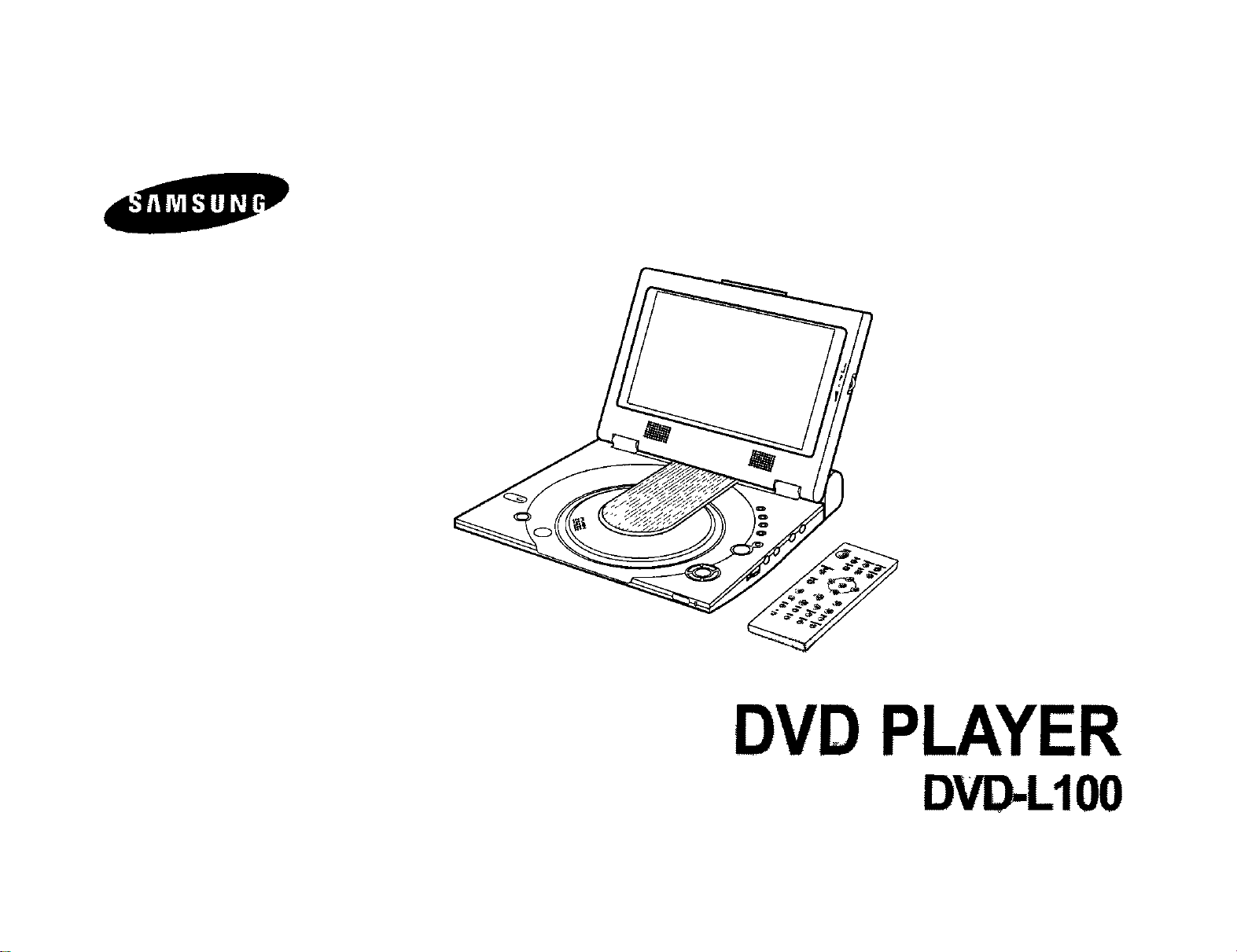
DVD PLAYER
DVD-L100
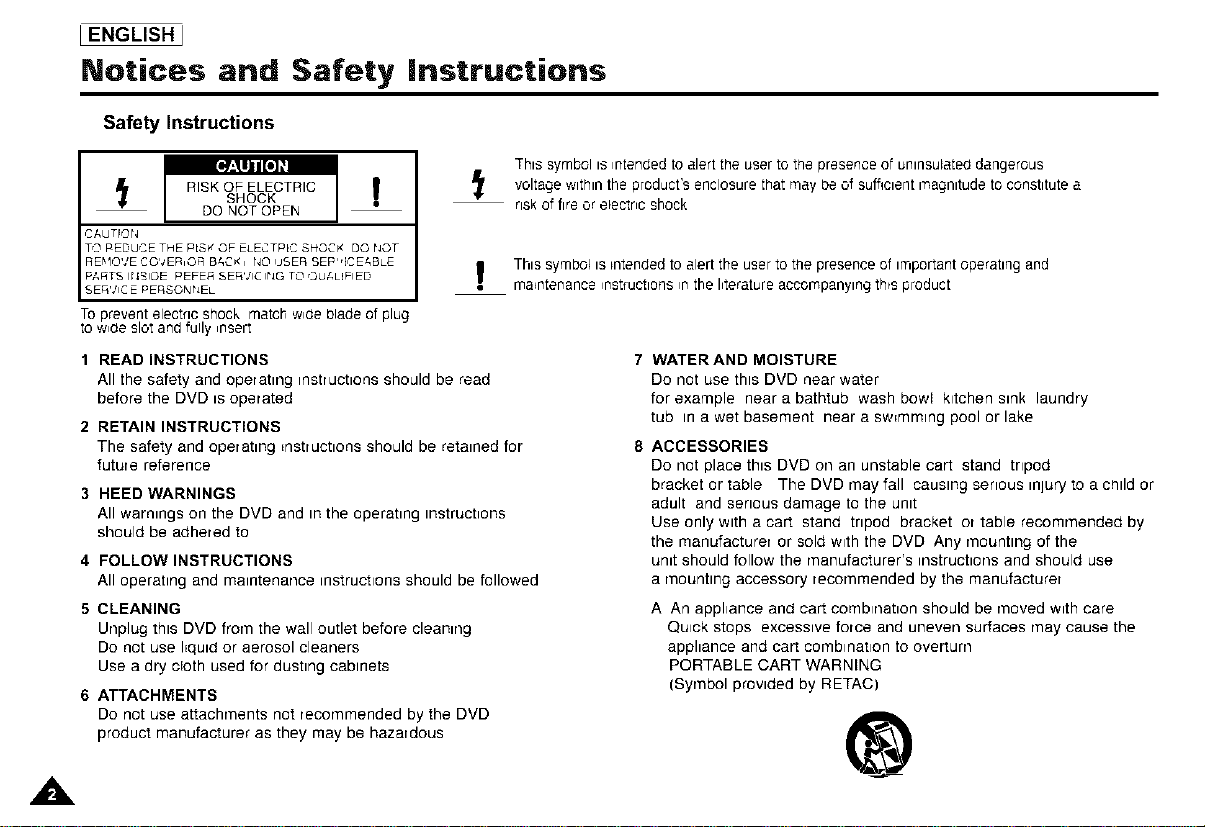
I ENGLISH _
Notices and Safety instructions
Safety Instructions
[#_,llll [o],'l
A
t RISK OF ELECTRICSHOCK
DO NOT OPEN
CAUTION
TO rEDUCE THE P_SKOF ELECTPLCSHOCK DOI;OT
RE_IO'dE COVERiOR B&C'_i NO USER SEP"ICE&BLE
PARTS IrlBlOE rEFER SER'dlCII;G TO QUALIFIED
SER'dlCEPERSONI;EL
TO prevent electric shock match w_de blade of plug
to w_de slot and fully _nsert
t
!
1 READ INSTRUCTIONS
All the safety and operating instructions should be read
before the DVD is operated
2 RETAIN INSTRUCTIONS
The safety and operating Enstructions should be retained for
future reference
3 HEED WARNINGS
All warnings on the DVD and in the operating instructions
should be adhered to
4 FOLLOW INSTRUCTIONS
All operating and maintenance instructions should be followed
5 CLEANING
Unplug this DVD from the wall outlet before cleaning
Do not use Nquld or aerosol cleaners
Use a dry cloth used for dusting cabinets
6 ATTACHMENTS
Do not use attachments not recommended by the DVD
product manufacturer as they may be hazardous
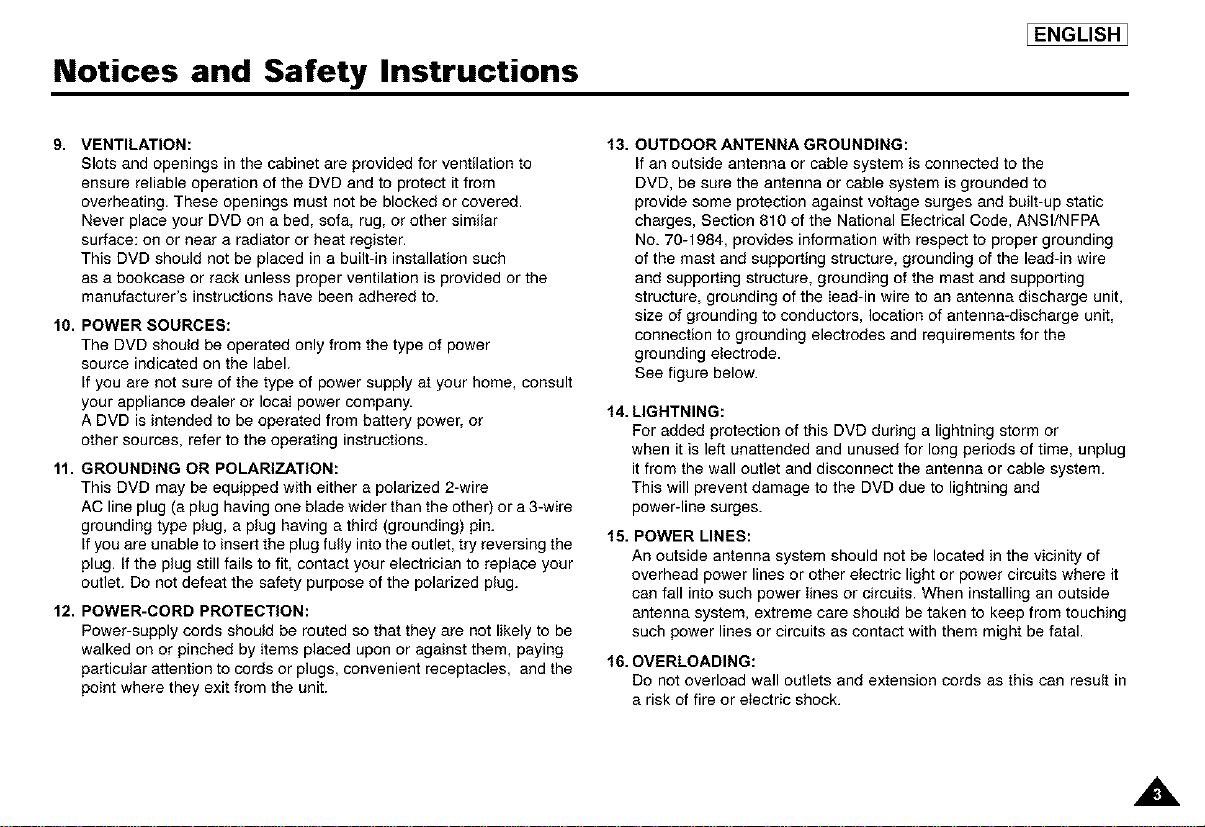
This symbol is _ntended to alert the user to the presence of unlnsulate_ dangerous
voltage within the product's enclosure that may be of sufficient rnagnltude to constitute a
risk of fire or electric shock
This symbol is _ntendedto alert the user to the presence of importantoperating and
maintenance _rlstructlonsrrlthe I_teratureaccompanying th_sproduct
WATER AND MOISTURE
Do not use this DVD near water
for example near a bathtub wash bowl kitchen sink laundry
tub in a wet basement near a swEmmlng pool or lake
ACCESSORIES
Do not place this DVD oil an unstable cart stand tripod
bracket or table The DVD rnay fall causing serious inlury to a child or
adult and serious damage to the unit
Use only with a cart stand tripod bracket or table recommended by
the manufacturer or sold with the DVD Any mounting of the
unit should follow the manufacturer's mstruchons and should use
a r'nountlng accessory recommended by the manufacturer
A An appl=ance and cart comb=nat_on should be rnoved w_th care
Quick stops excessive force and uneven surfaces may cause the
appliance and cart combination to overturn
PORTABLE CART WARNING
(Syrnbol provided by RETAC)
®
Notices and Safety Instructions
EENGLISHI
9. VENTILATION:
Slots and openings in the cabinet are provided for ventilation to
ensure reliable operation of the DVD and to protect it from
overheating. These openings must not be blocked or covered.
Never place your DVD on a bed, sofa, rug, or other similar
surface: on or near a radiator or heat register.
This DVD should not be placed in a built-in installation such
as a bookcase or rack unless proper ventilation is provided or the
manufacturer's instructions have been adhered to.
10. POWER SOURCES:
The DVD should be operated only from the type of power
source indicated on the label.
If you are not sure of the type of power supply at your home, consult
your appliance dealer or local power company.
A DVD is intended to be operated from battery power, or
other sources, refer to the operating instructions.
11. GROUNDING OR POLARIZATION:
This DVD may be equipped with either a polarized 2-wire
AC line plug (a plug having one blade wider than the other) or a 3-wire
grounding type plug, a plug having a third (grounding) pin.
If you are unable to insert the plug fully into the outlet, try reversing the
plug. If the plug still fails to fit, contact your electrician to replace your
outlet. Do not defeat the safety purpose of the polarized plug.
12. POWER-CORD PROTECTION:
Power-supply cords should be routed so that they are not likely to be
walked on or pinched by items placed upon or against them, paying
particular attention 1ocords or plugs, convenient receptacles, and the
point where they exit from the unit.
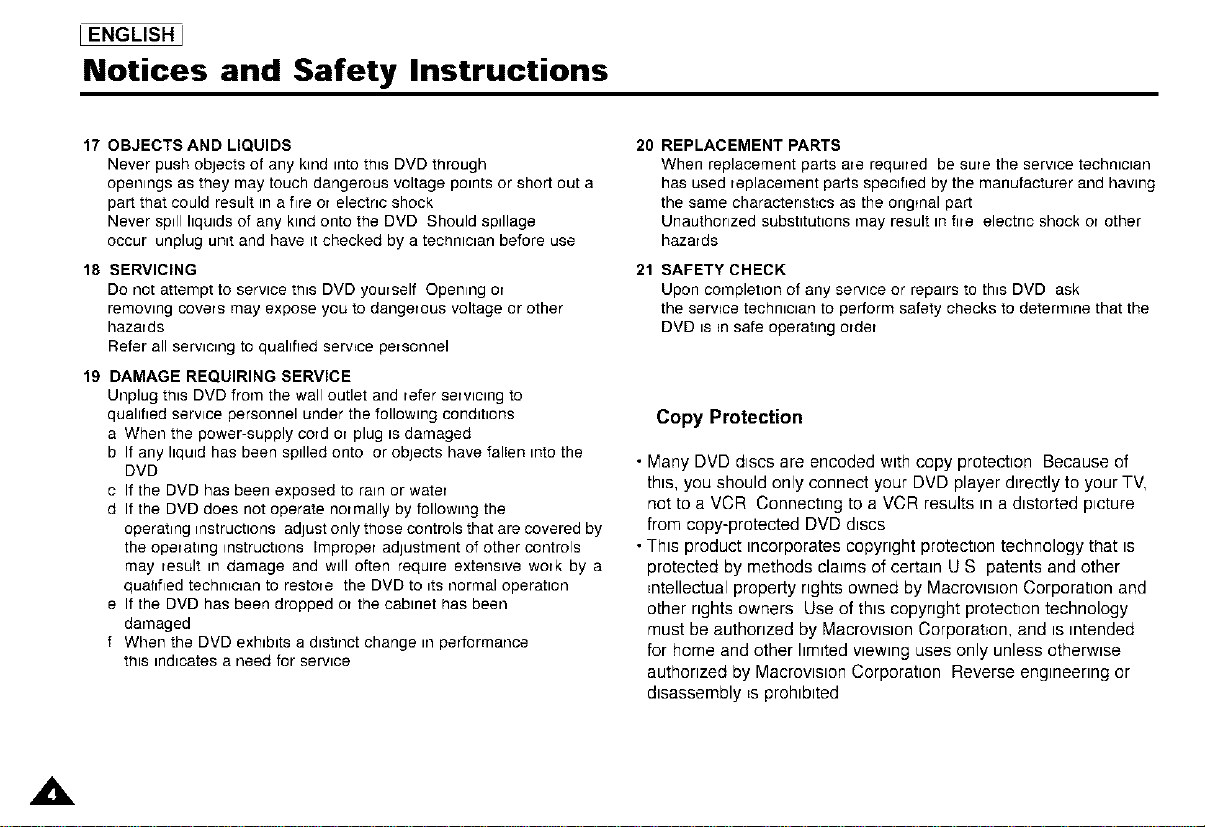
13. OUTDOOR ANTENNA GROUNDING:
If an outside antenna or cable system is connected to the
DVD, be sure the antenna or cable system is grounded to
provide some protection against voltage surges and built-up static
charges, Section 810 of the National Electrical Code, ANSl/NFPA
No. 70-1984, provides information with respect to proper grounding
of the mast and supporting structure, grounding of the lead-in wire
and supporting structure, grounding of the mast and supporting
structure, grounding of the lead-in wire to an antenna discharge unit,
size of grounding to conductors, location of antenna-discharge unit,
connection to grounding electrodes and requirements for the
grounding electrode.
See figure below.
14. LIGHTNING:
For added protection of this DVD during a lightning storm or
when it is left unattended and unused for long periods of time, unplug
it from the wall outlet and disconnect the antenna or cable system.
This will prevent damage to the DVD due 1olightning and
power-line surges.
15. POWER LINES:
An outside antenna system should not be located in the vicinity of
overhead power lines or other electric light or power circuits where it
can fall into such power lines or circuits. When installing an outside
antenna system, extreme care should be taken to keep from touching
such power lines or circuits as contact with them might be fatal.
f6. OVERLOADING:
Do not overload wall outlets and extension cords as this can result in
a risk of fire or eIectric shock.
A
I ENGLISH _
Notices and Safety Instructions
17 OBJECTS AND LIQUIDS
Never push objects of any kind into this DVD through
openings as they may touch dangerous voltage points or short out a
part that could result in a fire or electric shock
Never spill liquids of any kind onto the DVD Should spillage
occur unplug untt and have it checked by a technlctan before use
18 SERVICING
Do not attempt to service this DVD yourself Opening or
remowng covers may expose you to dangerous voltage or other
hazards
Refer all servicing to quahfled servEce personnel
19 DAMAGE REQUIRING SERVICE
Unplug this DVD from the wall outlet and refer servicing to
qualified service personnel under the following conditions
a When the power-supply cord or plug ts damaged
b If any hquld has been spilled onto or objects have fallen tnto the
DVD
c If the DVD has been exposed to rain or water
d If the DVD does not operate normally by following the
operating instructtons adjust only those controls that are covered by
the operating instructions improper adlustment of other controls
may result m damage and will often require extenstve work by a
quahfled techntotan to restore the DVD to tts normal operation
e If the DVD has been dropped or the cabinet has been
damaged
f When the DVD exhblts a distract change m performance
tins indicates a need for service
20 REPLACEMENT PARTS
When replacement parts are requ.ed be sure the service technician
has used replacement parts specified by the manufacturer and hawng
the same charactenst=cs as the ongmal part
Unauthonzed substitutions may result in rue electnc shock or other
hazards
21 SAFETY CHECK
Upon cornpletton of any service or repairs to thts DVD ask
the serwce techntctan to perform safety checks to deten'nne that the
DVD is in safe operating order
Copy Protection
• Many DVD dtscs are encoded with copy protection Because of
ths, you should only connect your DVD player dtrectly to your TV,
not to a VCR Connecbng to a VCR results tna dtstorted picture
from copy-protected DVD dtscs
•Thts product tncorporatescopynght protecbon technology that ts
protected by methods claims of certain U S patents and other
_ntellectualproperty rights owned by Macrovision Corporation and
other nghts owners Use of thts copyNght protechon technology
must be authonzed by Macrovtston Corporation, and is intended
for home and other hmtted wewtng uses only unless otherwtse
authorized by Macrovision Corporation Reverse engineering or
disassembly _sprohibited
A
Safety Information
Assuring the Finest Performance
This product is designed with the latest technology to provide trouble-free operation
If the pick-up lens or disk drive gets dirty, the video quality will decrease
_ENGLISH_
Moisture Condensation
Condensation may form inside this player under following conditions
• If warm air comes in contact with any cold parts inside the player
• If the player is located in a room with high humidity, and
• If the player is exposed to sudden temperature changes from cold to hot
When condensation forms inside the player, the player may not operate correctly
If this occurs, leave the player at room temperature until the inside of the player becomes dry
and operational
Laser Safety
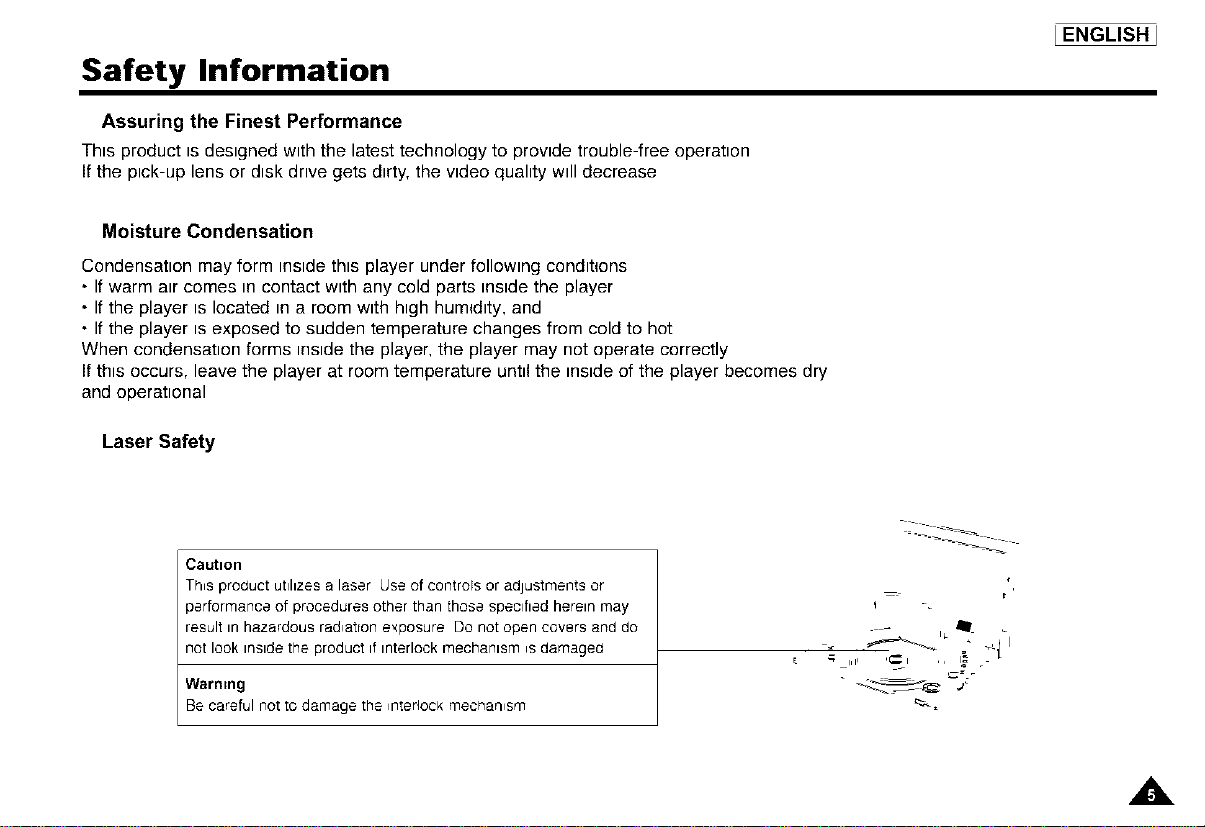
Caution
Th_sproduct utlhZes a laser Use of controls or adjustments or
performance of procedures other than those specified here_n may
result in hazardous rad_atron e_posure Do not open covers and do
not look inside the product if interlock mechanism _sdamaged
Warmng
Be careful not to damage the _nterlock mecr_an_sm
=-- _
=_
t'
A
I ENGLISH ]
Table of Contents
Features 8
Accessories 9
Disc Type and Characteristics 10
Description-Front Panel 12
Tour of the Remote Control 15
Connecting Headphones to the DVD 16
Connecting to an External Component (Input Select) 17
Connecting to a TV 18
Connecting to a Stereo Component 19
Using the AC adapter 22
Using the battery pack 24
Battery level display 25
Loading a DVD Disc 26
Using the Remote Control Unit 27
Viewing a Video from an External Component 28
Using the Search & Skip Functions 29
Using the Display Function 30
Repeat Play 31
Selecting the Audio Language 32
Selecting the Subtitle Language 33
Changing the Camera Angle 34
Using the Bookmark Function 35
Using the Zoom & 3D Sound Functions 36
MP3 Play 37
A
Table of Contents
[ENGLISH]
Memory Stick 39
DAM (DigitalAudio Manager) Playback 43
Memory Stick Removal 44
DPM (Digital Photo Manager) Playback 45
Slide Show 46
Slide Show Order 47
Photo View 48
Edit Photo 49
Using the Setup Menu 50
Setting Up the Language Features 51
Setting Up the Parental Control 53
Setting Up the Audio Options 54
Setting Up the Display Options 55
Cautionary Notes 56
Troubleshooting 61
Specifications 64
Warranty 65
A
I ENGLISH ]
Features
Plays DVD discs and audio CDs
• CD-R/RW discs containing MP3 files can be played.
10 in. LCD display and built-in stereo speakers
• With the built-in 10 in. LCD display and stereo speakers, you
can enjoy a DVD movie without requiring a separate TV.
Convenient 2-Way power supply
• You can use your DVD player virtually anywhere by using the
supplied AC adapter indoors and the battery pack
outdoors.
Compact size/light-weight design
• Compact and lightweight design makes the player easy to carry.
High-resolution image and high quality sound
• High-resolution LCD screen with 384,000 pixels provides a clear
picture.
• *_Phantom Virtual Surround Sound provides a fuller sound via two
built-in speakers.
AV input/output, optical digital output jack
• *2Dolby Digital 5.1-CH audio and *_DTSdigital audio can be
output throught the optical digital output jack. You can enjoy
unsurpassed surround sound when a Dolby DigitaI/DTS digital
surround processor or amplifier is connect to this jack.
• You can connect a VCR or camcorder to your DVD player
using the AV input/output jacks, or, you can connect to a TV for a
larger screen.
*_Is a registered trademark of LSI Logic, Inc.
.2 Manufactured under license from Dolby Laboratories. "Dolby",
"Pro Logic", and the double-D symbol (13[3)are trademarks of
Dolby Laboratories. Confidential unpublished works © 1992-1997.
Dolby Laboratories. Inc. All rights reserved.
*_"DTS" and "DTS Digital Out" are trademarks of Digital
Theater Systems, Inc.
Memory Stick
"Memory Stick" is a new compact, portable and versatile IC
(Integrated Circuit) recording medium with a data capacity that
exceeds a floppy disk.
AV-IN : For viewing a video from an external component such as a
VCR, camcorder etc...
NOTE:
• Please be advised to watch an external video at normal play
back speed, otherwise you may experience screen noise.
A
Accessories
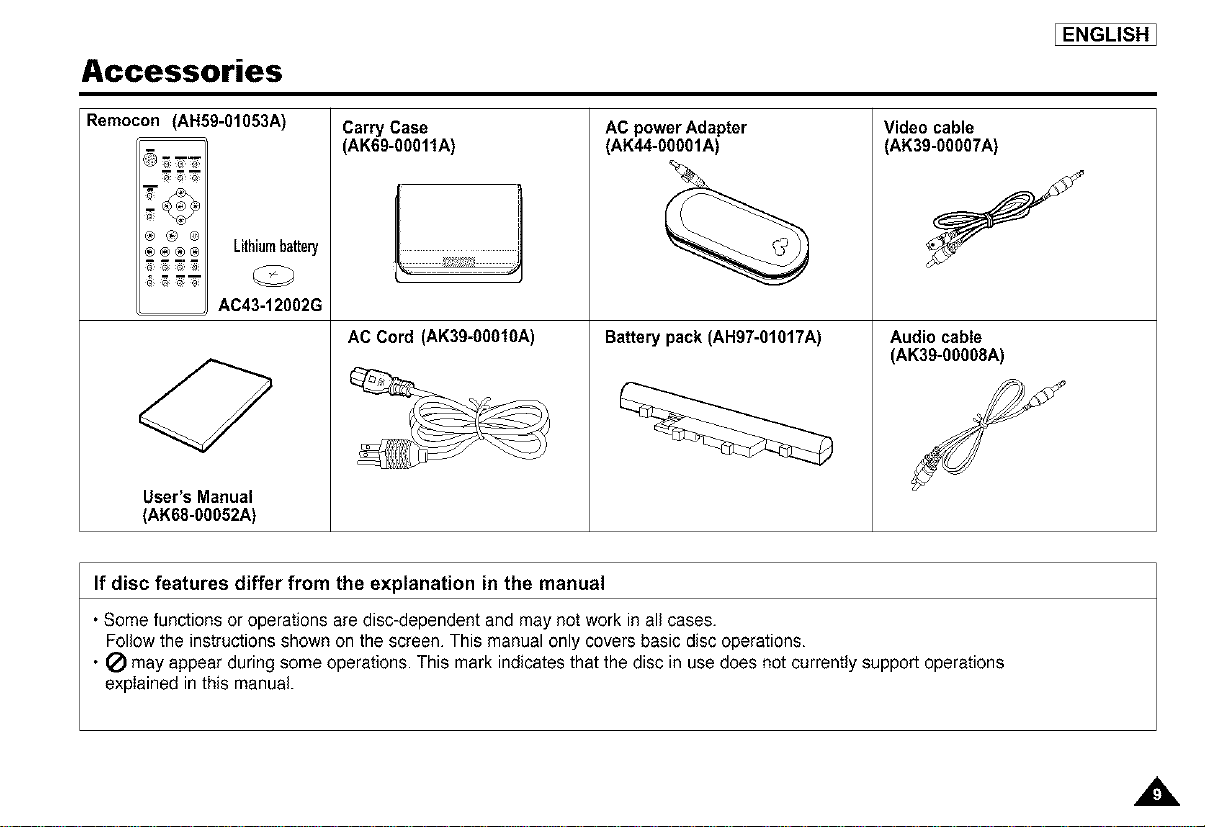
Remocon (AH59-01053A)
m--m
® ® ®
®® ®® LithiumbattePj
AC43-12002G
User's Manual
(AK68-00052A)
Carry Case
(AK69-00011A)
AC Cord (AK39=00010A)
AC power Adapter
(AK44-00001A)
Battery pack (AH97-01017A)
Video cable
(AK39-00007A)
Audio cable
(AK39-00008A)
EENGLISHI
If disc features differ from the explanation in the manual
• Some functions or operations are disc-dependent and may not work in all cases.
Follow the instructions shown on the screen. This manual only covers basic disc operations.
• Q may appear during some operations. This mark indicates that the disc in use does not currently support operations
explained in this manual.
a,
IENGLISHJ
Disc Type and Characteristics
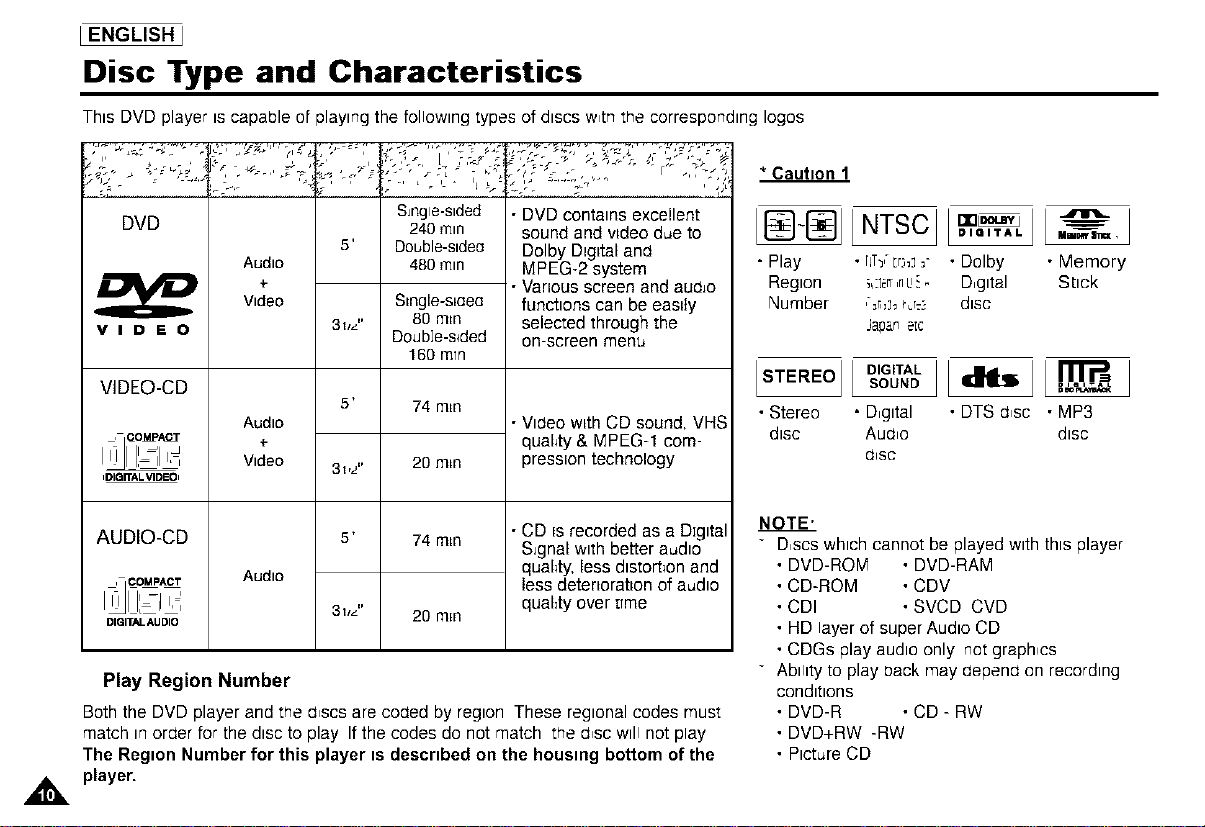
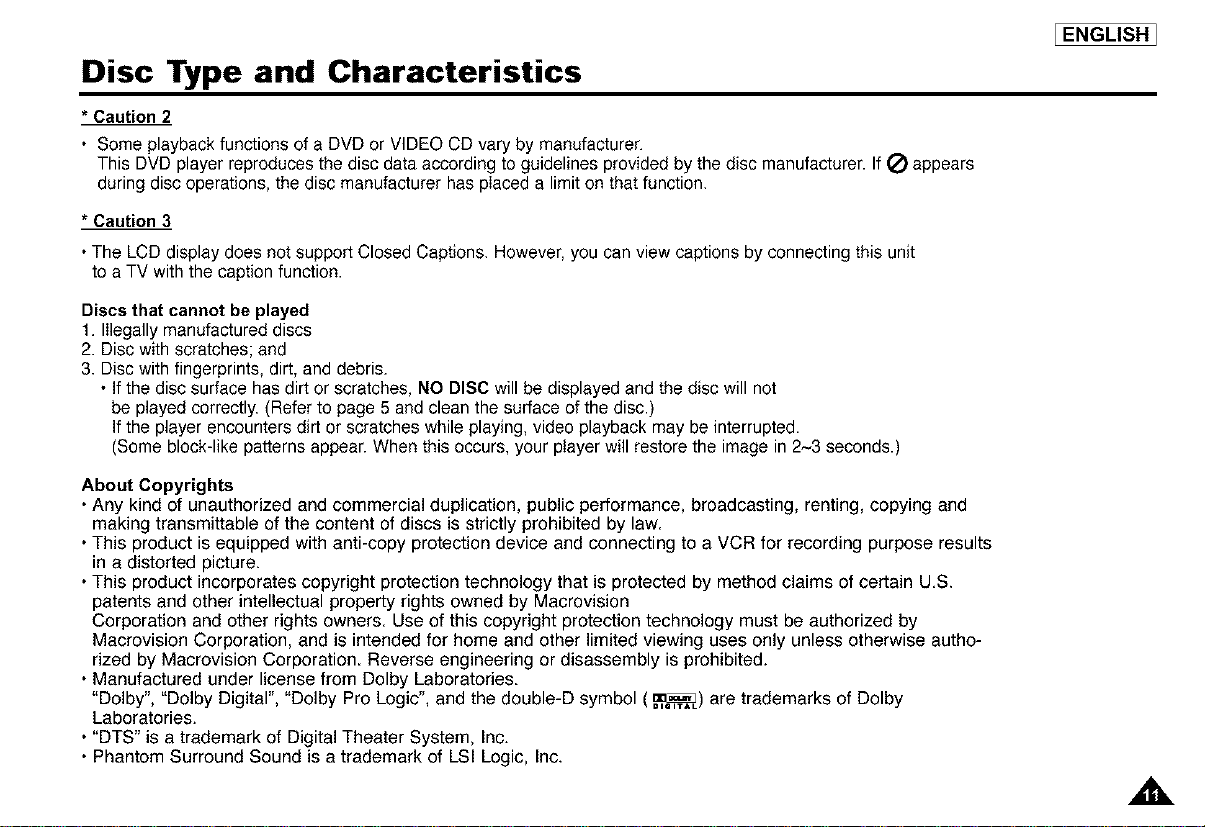
This DVD player IScapable of playing the following types of discs w_tnthe corresponding loges
DVD
VIDEO
VJDEO-CD
IDIQITAL VIDEOI
AUDIO-CD
DIGITJ_L AM DIO
Audio
.p
Video
Audio
÷
Video
Audio
S_ngle-slded
240 rTan
5' DoL,ble-sldeo
480rTan
3I/L I'
5'
3t,2"
5'
3ttz"
Smgle-sLaea
80 m_n
Doubie-s+ded
160 mTn
74 m_n
20 mm
74 mm
20 men
• DVD contains excellent
sound and video due to
Dolby Digital and
MPEG-2 system
•Vanous screen and aua_o
funcbons can be easdy
selected through the
on-screen menu
• VlOeowith CD sound, VHS
quahty & MPEG-1 com-
pression technology
•CD [s recorded as a Digital
S_gnalwith better audio
quahty, less distortion and
less deteeorabon of audio
quahty over ume
Play Region Number
Both the DVD player and the a_scsare coaed by region These regional codes must
match in oraer for the disc to play Ifthe codes do not match trle a_scwill not play
The Region Number for this player is described on the housing bottom of the
* Caution 1
INTSCJ[ I
• Play • rJT-_,Ir_J=- • Dolby • Memory
Region i_Esrr,rlu_. D,gltal Stick
Number ,=n,j_ PLr_5 disc
Japanate
J[at,,
• Stereo • D,gltal • DTS a_sc • MP3
disc Aua,o disc
(]lsc
NOTE'
" D,scs which cannot be played with this player
• DVD-ROM • DVD-RAM
• CD-ROM • CDV
• CDI • SVCD CVD
• HD layer of super Audio CD
• CDGs play audio only not graphics
" Ability to play oack may aepena on recording
conditions
• DVD-R • CD- RW
• DVD+RW -RW
• Picture CD
Disc Type and Characteristics
* Caution 2
• Some playback functions of a DVD or VIDEO CD vary by manufacturer.
This DVD player reproduces the disc data according to guidelines provided by the disc manufacturer. If Q appears
during disc operations, the disc manufacturer has placed a limit on that function.
* Caution 3
•The LCD display does net support Closed Captions. However, you can view captions by connecting this unit
to a TV with the caption function.
[ENGLISH]
Discs that cannot be played
1. Illegally manufactured discs
2. Disc with scratches; and
3. Disc with fingerprints, dirt, and debris.
• If the disc surface has dirt or scratches, NO DISC will be displayed and the disc will not
be played correctly. (Refer to page 5 and clean the surface of the disc.)
If the player encounters dirt or scratches while playing, video playback may be interrupted.
(Some block-like patterns appear. When this occurs, your player will restore the image in 2~3 seconds.)
About Copyrights
• Any kind of unauthorized and commercial duplication, public performance, broadcasting, renting, copying and
making transmittable of the content of discs is strictly prohibited by law.
• This product is equipped with anti-copy protection device and connecting to a VCR for recording purpose results
in a distorted picture.
• This product incorporates copyright protection technology that is protected by method claims of certain U.S.
patents and other intellectual property rights owned by Macrovision
Corporation and other rights owners. Use of this copyright protection technology must be authorized by
Macrovision Corporation, and is intended for home and other limited viewing uses only unless otherwise autho-
rized by Macrovision Corporation. Reverse engineering or disassembly is prohibited.
• Manufactured under license from Dolby Laboratories.
"Dolby", "Dolby Digital", "Dolby Pro Logic", and the double-D symbol (_) are trademarks of Dolby
Laboratories.
• "DTS" is a trademark of Digital Theater System, Inc.
• Phantom Surround Sound is a trademark of LSI Logic, Inc.
I ENGLISH J
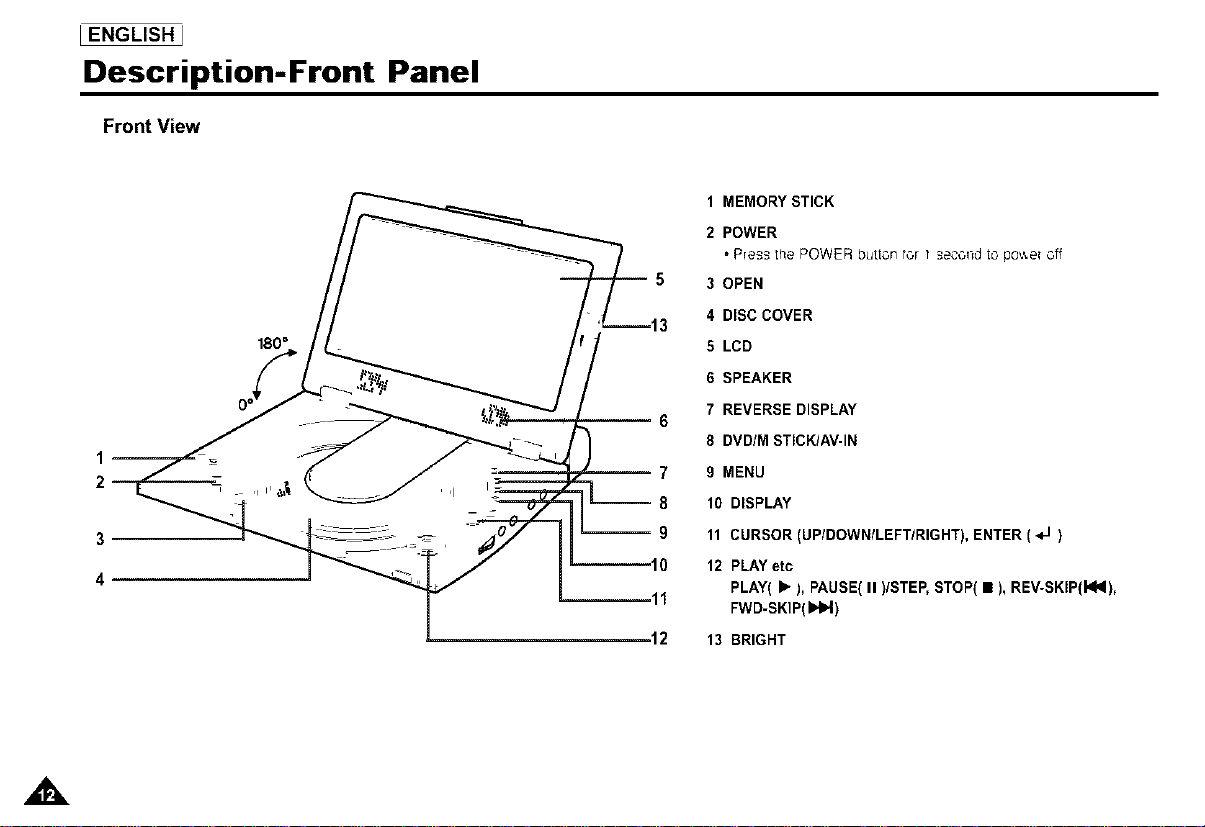
Description-Front Panel
180"
Front View
1 MEMORY STICK
2 POWER
P(e_ the POWER button tor I _eco(_dto po,,_e(off
3 OPEN
4 DISC COVER
E LCD
6 SPEAKER
7 REVERSE DISPLAY
--6
8 DVD/M STICK/AV-IN
7 9 MENU
-- 8 10 DISPLAY
-- 9 11 CURSOR (UP/DOWN/LEFTIRIGHT), ENTER ( _J )
10 12 PLAYetc
PLAY( • ), PAUSE( II )/STEP, STOP( • ), REV-SKIP(kN),
11 FWD-SKIP(b_l_l)
12 13 BRIGHT
Description-Front Panel
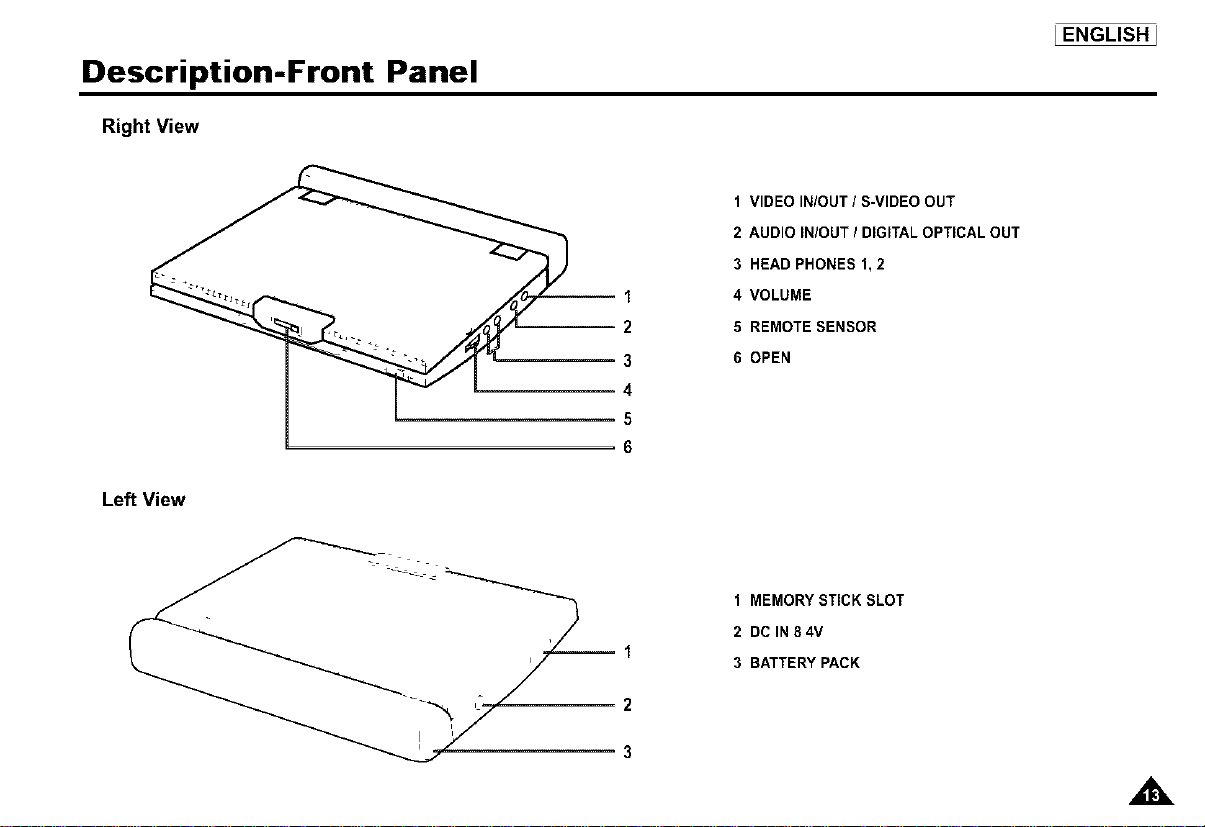
Right View
--1
2
3
4
5
6
1 VIDEO INIOUT / S-VIDEO OUT
2 AUDIO INIOUT I DIGITAL OPTICAL OUT
3 HEAD PHONES 1, 2
4 VOLUME
5 REMOTE SENSOR
6 OPEN
Left View
1
2
3
1 MEMORY STICK SLOT
2 DC IN 8 4V
3 BATTERY PACK
_ENGLISH_
I ENGLISH _
Description-Front Panel
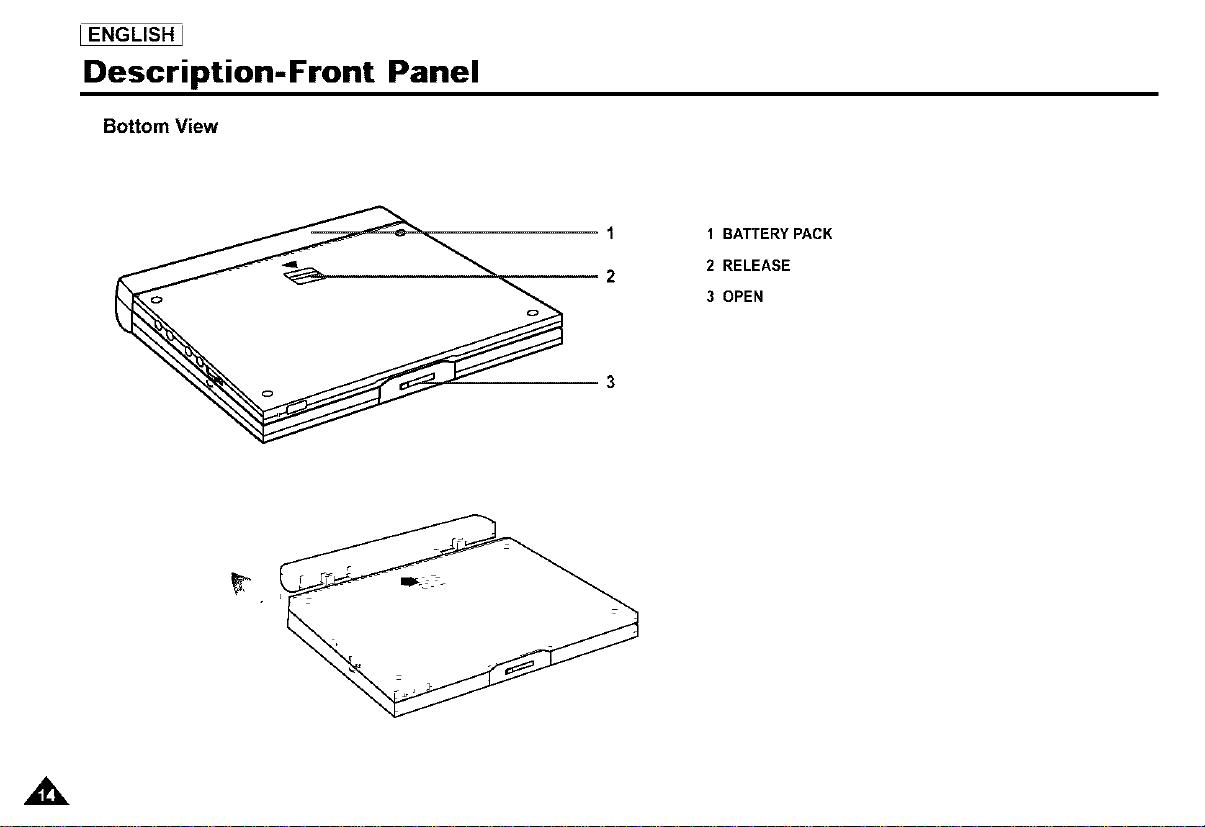
Bottom View
1
2
1 BATTERY PACK
2 RELEASE
3 OPEN
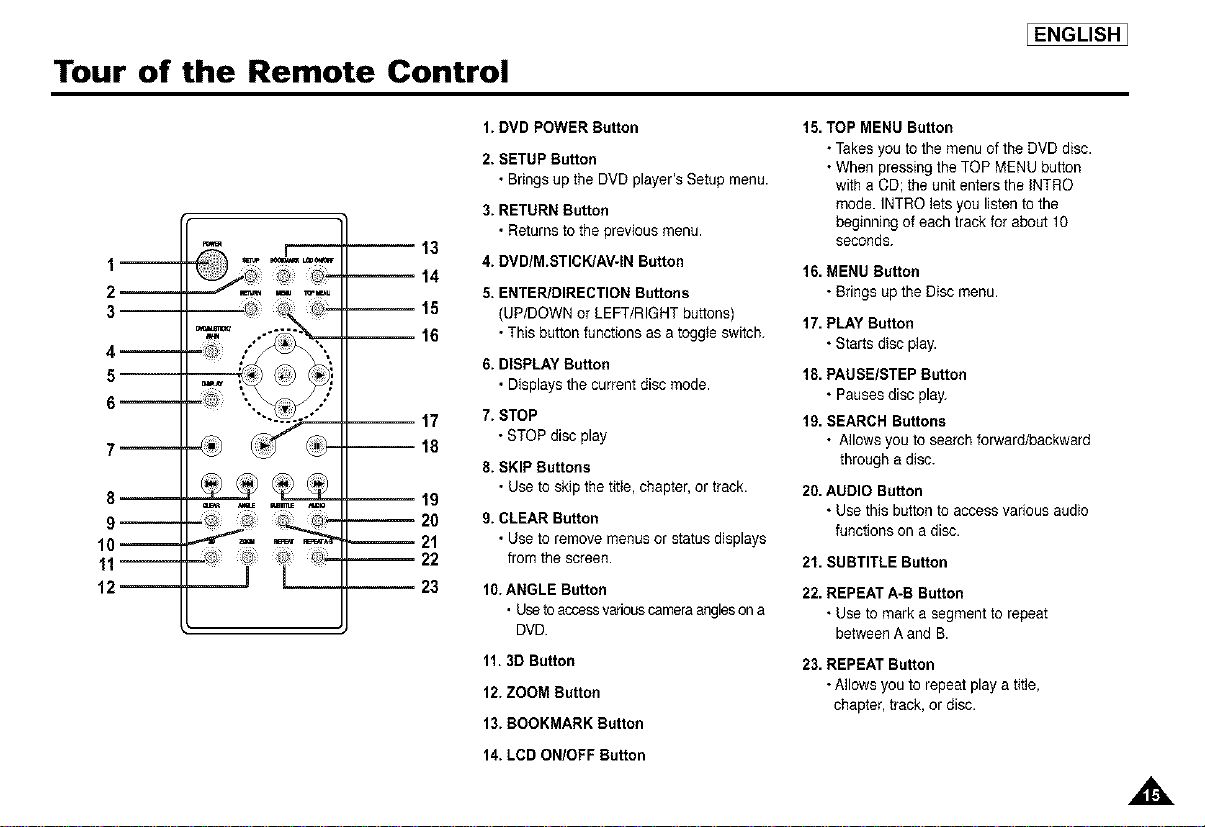
Tour of the Remote Control
IENGLISHI
1 m
2--
3
4--
5
6--
7--
8--
10-- --
11 -- ==" --
12
-- 13
-- 14
--15
-- 16
-- 17
-- 18
-- 19
-- 20
21
22
-- 23
1. DVD POWER Button
2. SETUP Button
• Bringsup the DVD player's Setup menu.
3. RETURN Button
• Returns to the previous menu.
4. BVD/M.STICK/AV-IN Button
5. ENTER/DIRECTION Buttons
(UP/DOWN or LEFT/RIGHT buttons)
• This button functions as a tcgg_eswitch.
6. DISPLAY Button
• Displays the current disc mode.
7. STOP
• STOP disc play
8. SKIP Buttons
• Use to skipthe tit_e,chapter, or track.
9. CLEAR Button
• Use to remove menus or status displays
from the screen.
10.ANGLE Button
• Usetoaccessvariouscameraanglesona
DVD.
11.3D Button
12. ZOOM Button
13. BOOKMARK Button
14. LCD ON/OFF Button
15.TOP MENU Button
• Takes you to the menu of the DVD disc.
• When pressing the TOP MENU button
with a CD; the unit enters the INTRO
mode. INTRO lets you listen to the
beginning of each track for about 10
seconds.
16. MENU Button
• Brings up the Disc menu.
17. PLAYButton
• Starts disc play.
18. PAUSE/STEP Button
• Pauses disc play.
19. SEARCH Buttons
• Allows you to search forward/backward
through a disc.
20.AUDIO Button
• Use this button to access various audio
functions on a disc.
21. SUBTITLE Button
22. REPEAT A-B Button
• Use to mark a segment to repeat
between A and B.
23. REPEAT Button
• Allows you to repeat play a title,
chapter, track, or disc.
I ENGLISH _
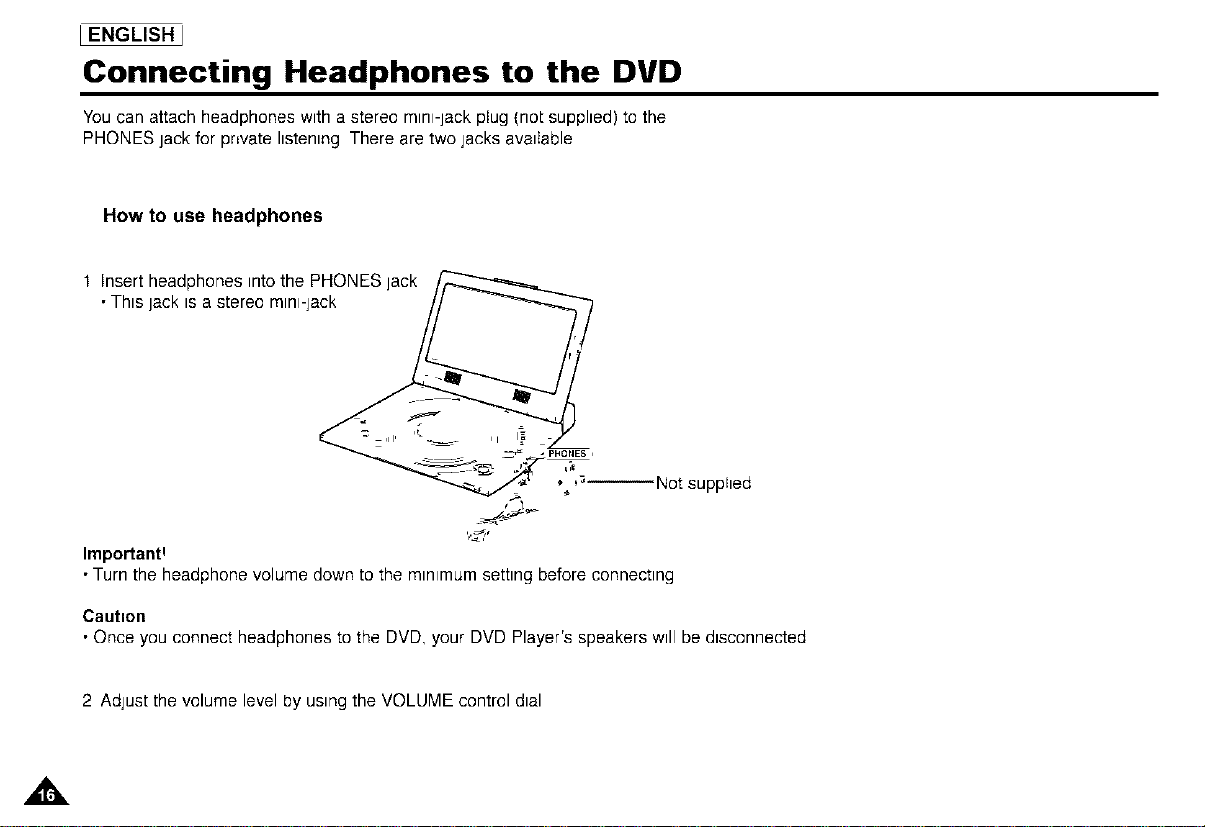
Connecting Headphones to the DVD
You can attach headphones with a stereo mini-jack plug {not supplied) to the
PHONES jack for prwate listening There are two jacks available
How to use headphones
t Insert headphones into the PHONES lack
• This jack is a stereo mini-jack
_-#c . pHONES,
_Z *,_'_--N°t supphed
Importan#
• Turn the headphone volume down to the minimum setting before connecting
Caution
• Once you connect headphones to the DVD, your DVD Player's speakers will be disconnected
2 Adjust the volume level by using the VOLUME control dial
,,&
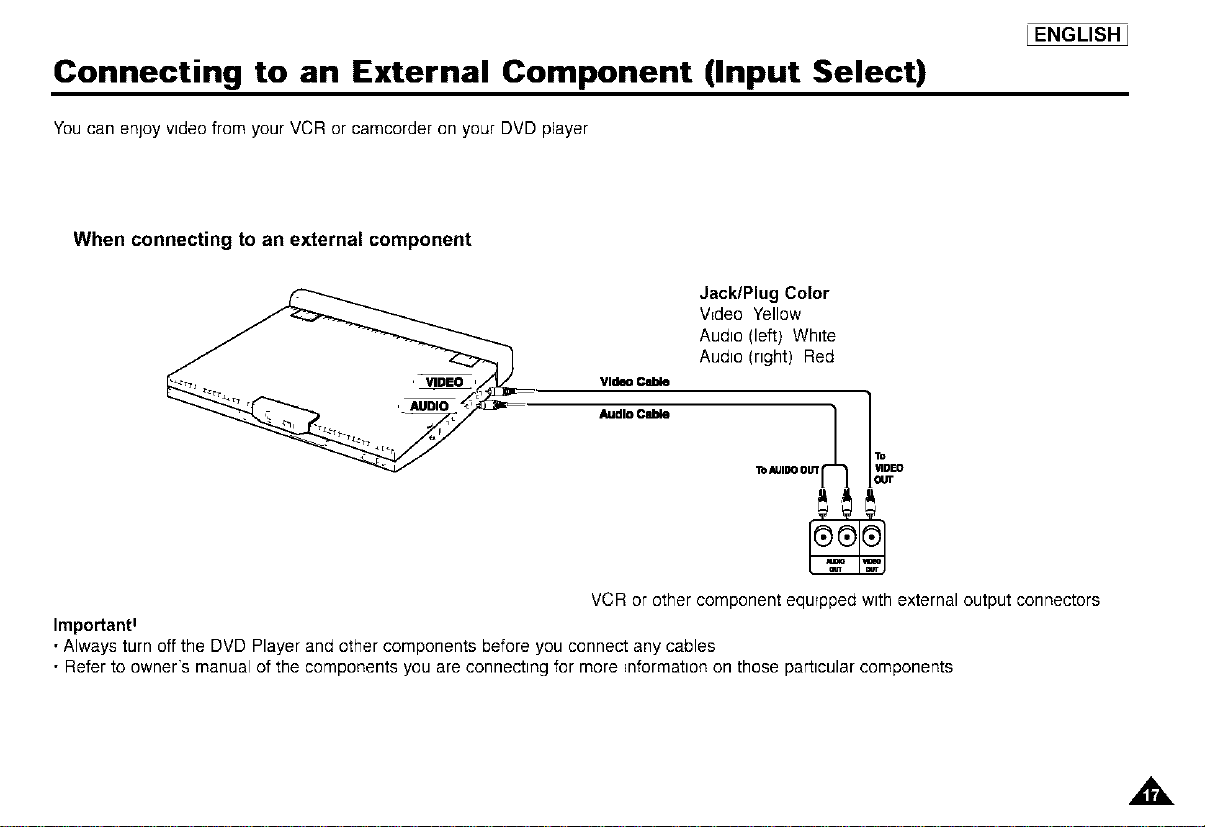
Connecting to an External Component (Input Select)
You can enjoy video from your VCR or camcorder on your DVD player
_ENGLISH_
When connecting to an external component
Video Cable
Audio Cable
Jack/Plug Color
V=deo Yellow
Audio (left) White
Audio (right) Red
VCR or other component equipped with external output connectors
Importan#
•Always turn off the DVD Player and other components before you connect any cables
• Refer to owner's manual of the components you are connecting for more _nformatlon on those particular components
A
I ENGLISH ]
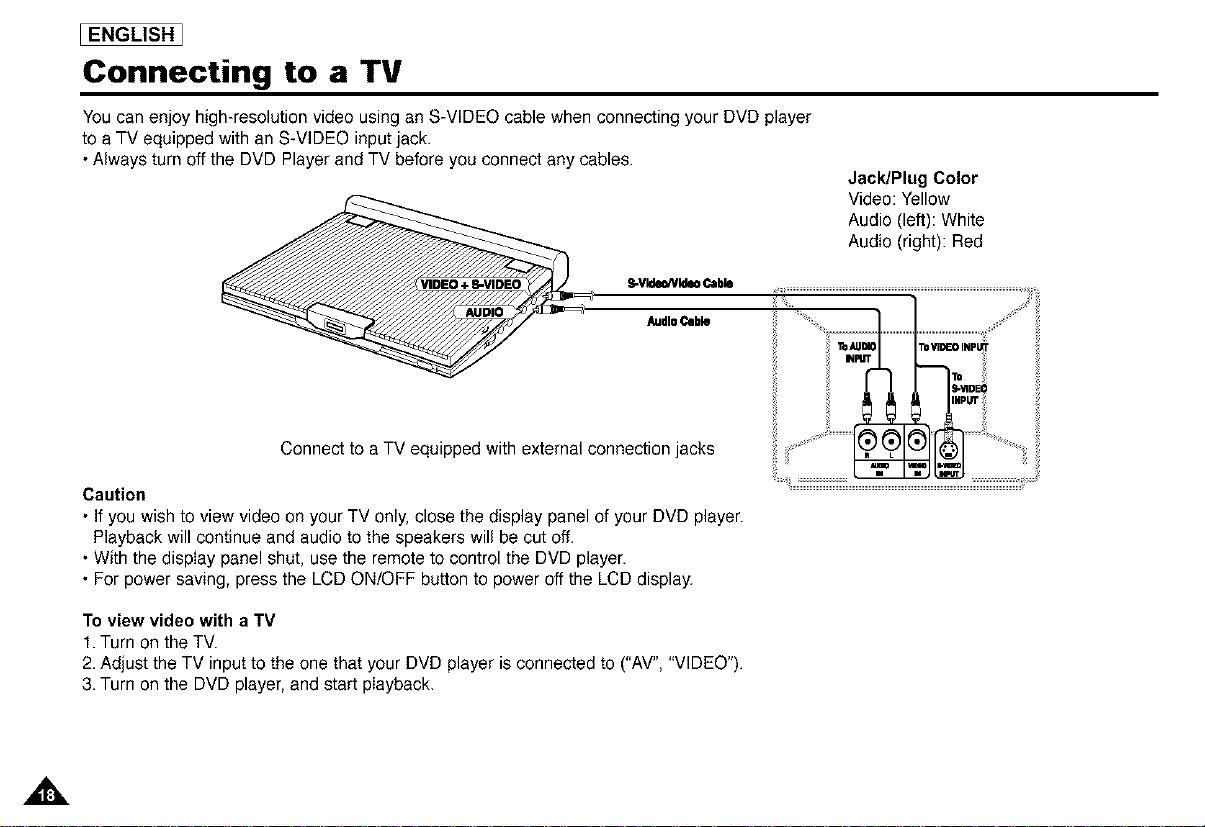
Connecting to a TV
You can enjoy high-resolution video using an S-VIDEO cable when connecting your DVD player
to aTV equipped with an S-VIDEO input jack.
• Always turn off the DVD Player and TV before you connect any cables.
Jack/Plug Color
Video: Yellow
Audio (left): White
Audio (right): Red
S-Vld_Nldm Cable
AudioCable
Connect to a TV equipped with external connection jacks
Caution
• If you wish to view video on your TV only, close the display panel of your DVD player.
Playback will continue and audio to the speakers will be cut off.
• With the display panel shut, use the remote to control the DVD player.
• For power saving, press the LCD ON/OFF button to power off the LCD display.
To view video with a TV
1. Turn on the TV.
2. Adjust the TV input to the one that your DVD player is connected to ("AV', "VIDEO").
3. Turn on the DVD player, and start pIayback.
,A
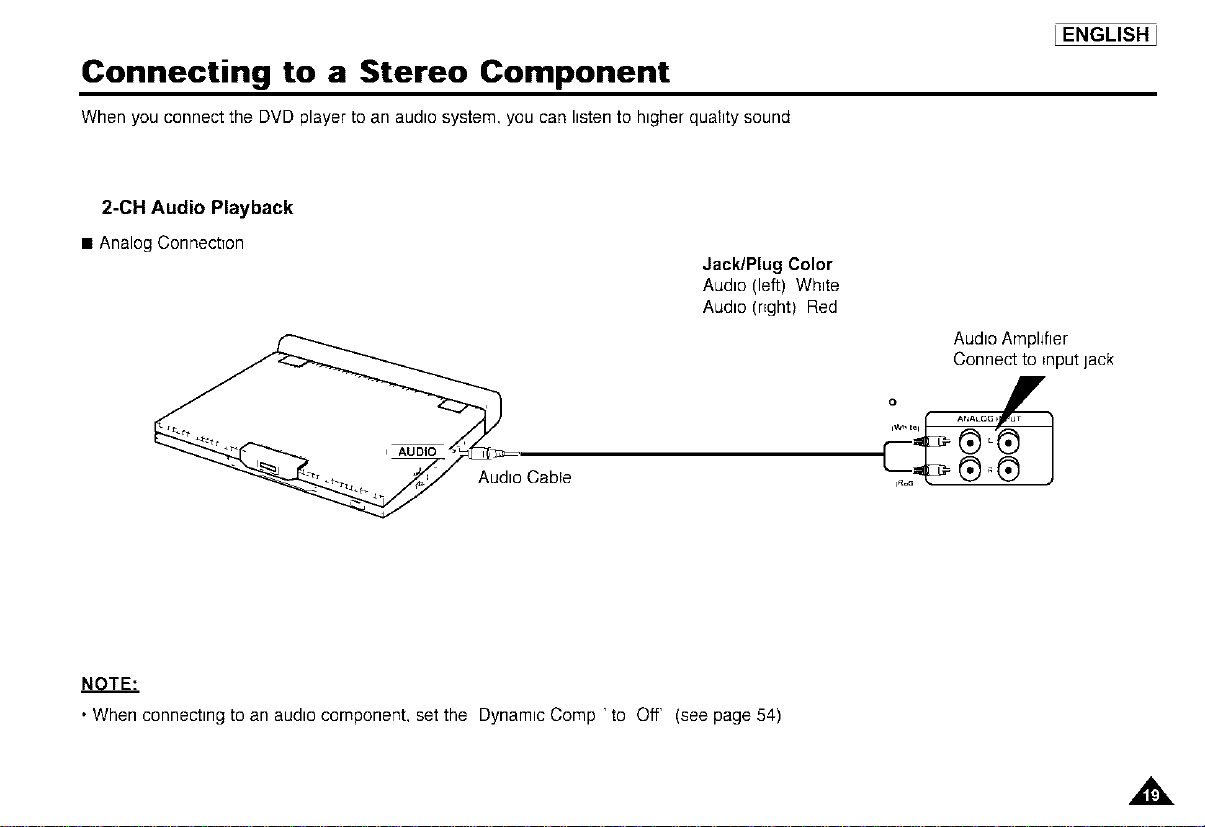
Connecting to a Stereo Component
When you connect the DVD player to an audto system, you can hsten to htgher quahty sound
_ENGLISH_
2-OH Audio Playback
• AnalogConnectTon
Jack/Plug Color
Audto (left) Whtte
Audto (nght) Red
Audto Amphfier
Connect to =nputlack
Audto Cable
NOTE."
• Whenconnecttngtoan audtocomponent,setthe DynamicComp'to Off' (seepage 54)
I ENGLISH ]
Connecting to a Stereo Component
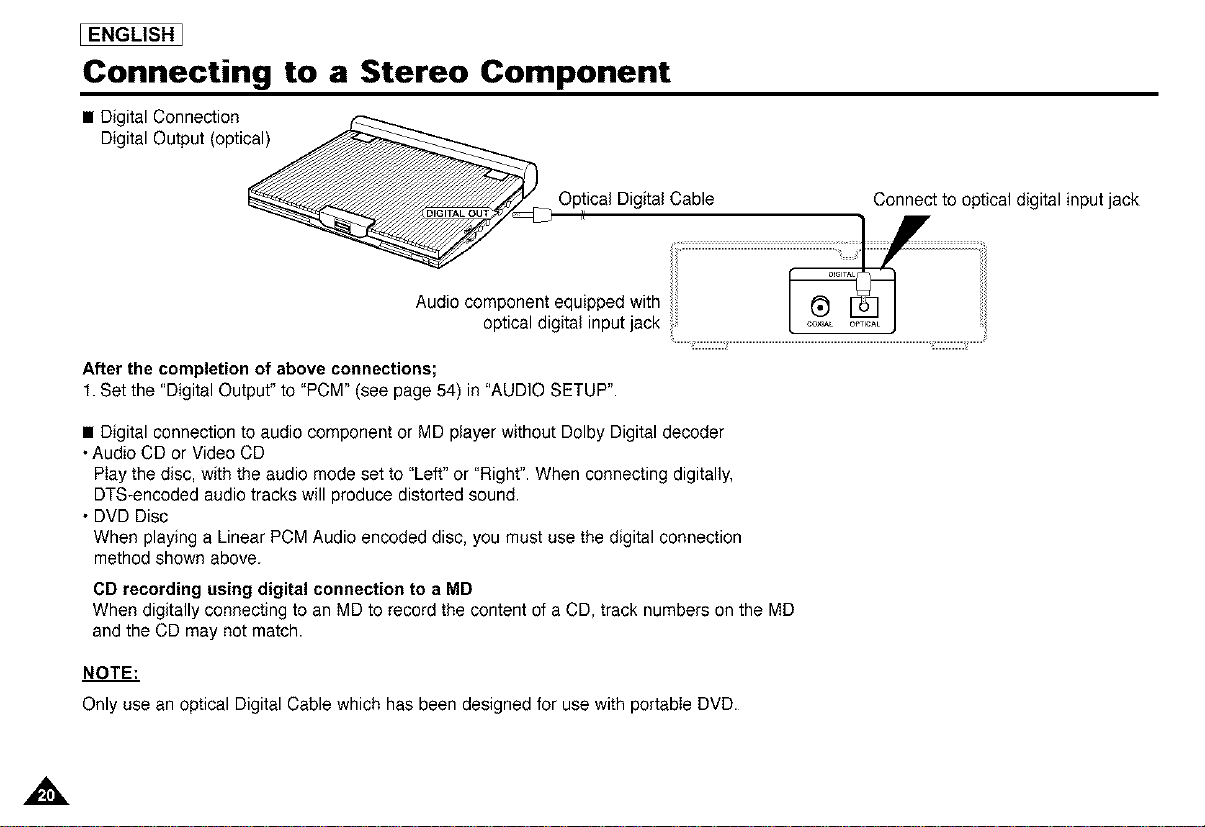
• Digital Connection
Digital Output (optical)
Optical Digital Cable
_J
Connect to optical digital input jack
Audio component equipped with
optical digital input jack
After the completion of above connections;
1. Set the "Digital Output" to "PCM" (see page 54) in "AUDIO SETUP".
• Digital connection to audio component or MD player without Dolby Digital decoder
• Audio CD or Video CD
Play the disc, with the audio mode set to "Left" or "Right". When connecting digitally,
DTS-encoded audio tracks will produce distorted sound.
• DVD Disc
When playing a Linear PCM Audio encoded disc, you must use the digital connection
method shown above.
CD recording using digital connection to a MD
When digitally connecting to an MD to record the content of a CD, track numbers on the MD
and the CD may not match.
NOTE:
Onlyusean opticalDigitalCablewhichhasbeen designedfor usewith portableDVD.
A
Connecting to a Stereo Component
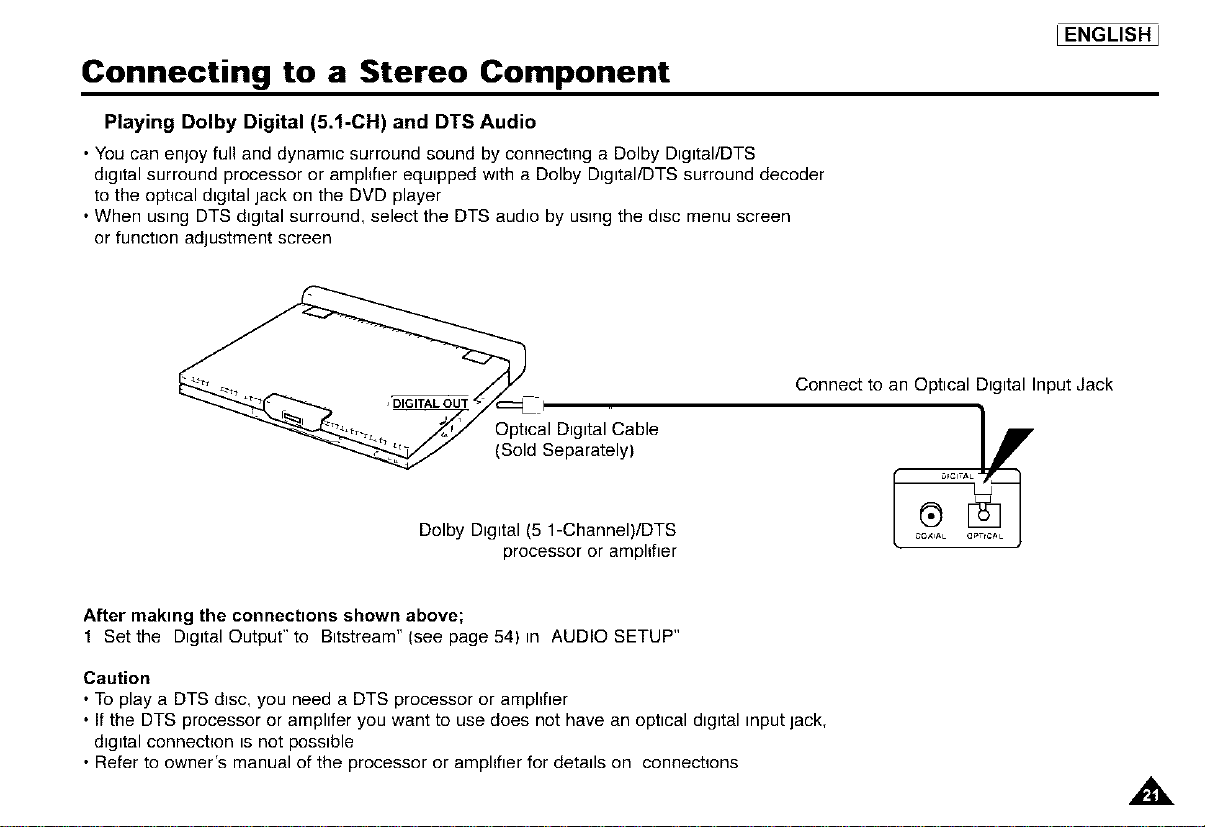
Playing Dolby Digital (5.1-CH) and DTS Audio
• You can enjoy full and dynamic surround sound by connecting a Dolby Digltal/DTS
digital surround processor or amphfier equipped with a Dolby Digltal/DTS surround decoder
to the optical digital jack on the DVD player
• When using DTS digital surround, select the DTS audio by using the disc menu screen
or function adjustment screen
_ENGLISH_
I
Optical Digital Cable
(Sold Separately)
Dolby Digital (5 1-Channel)/DTS
processor or amphfler
Connect to an Optical Digital Input Jack
After making the connections shown above;
1 Set the Digital Output" to Bitstream" (see page 54) in AUDIO SETUP"
Caution
• To play a DTS disc, you need a DTS processor or amphfler
• If the DTS processor or amphfer you want to use does not have an optical digital input jack,
digital connection is not possible
• Refer to owner's manual of the processor or amphfier for details on connections
I ENGLISH ]
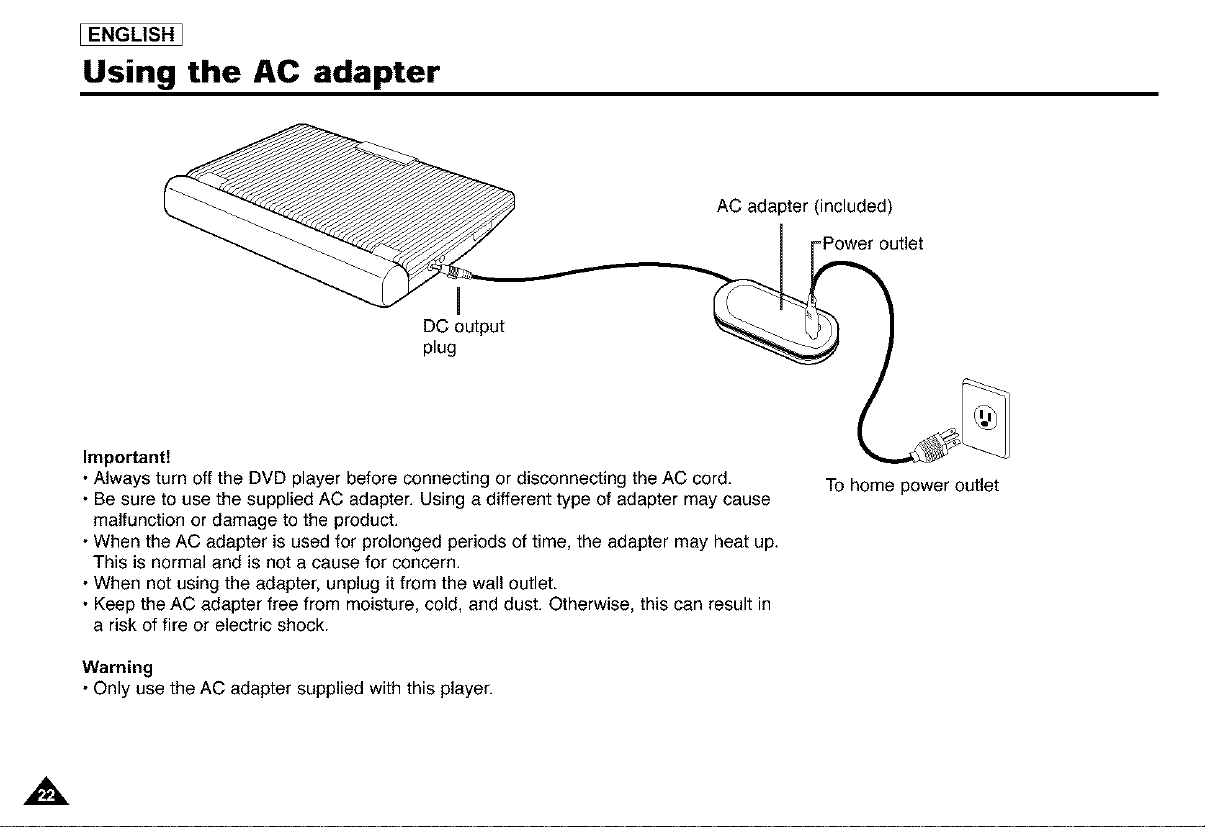
Using the AC adapter
AC adapter (included)
I
DC output
plug
Important!
• Always turn off the DVD player before connecting or disconnecting the AC cord.
• Be sure to use the supplied AC adapter. Using a different type of adapter may cause
malfunction or damage to the product.
• When the AC adapter is used for prolonged periods of time, the adapter may heat up.
This is normal and is not a cause for concern.
• When not using the adapter, unplug it from the wall outlet
• Keep the AC adapter free from moisture, cold, and dust. Otherwise, this can result in
a risk of fire or electric shock.
Warning
• Only use the AC adapter supplied with this player.
To home power outlet
A
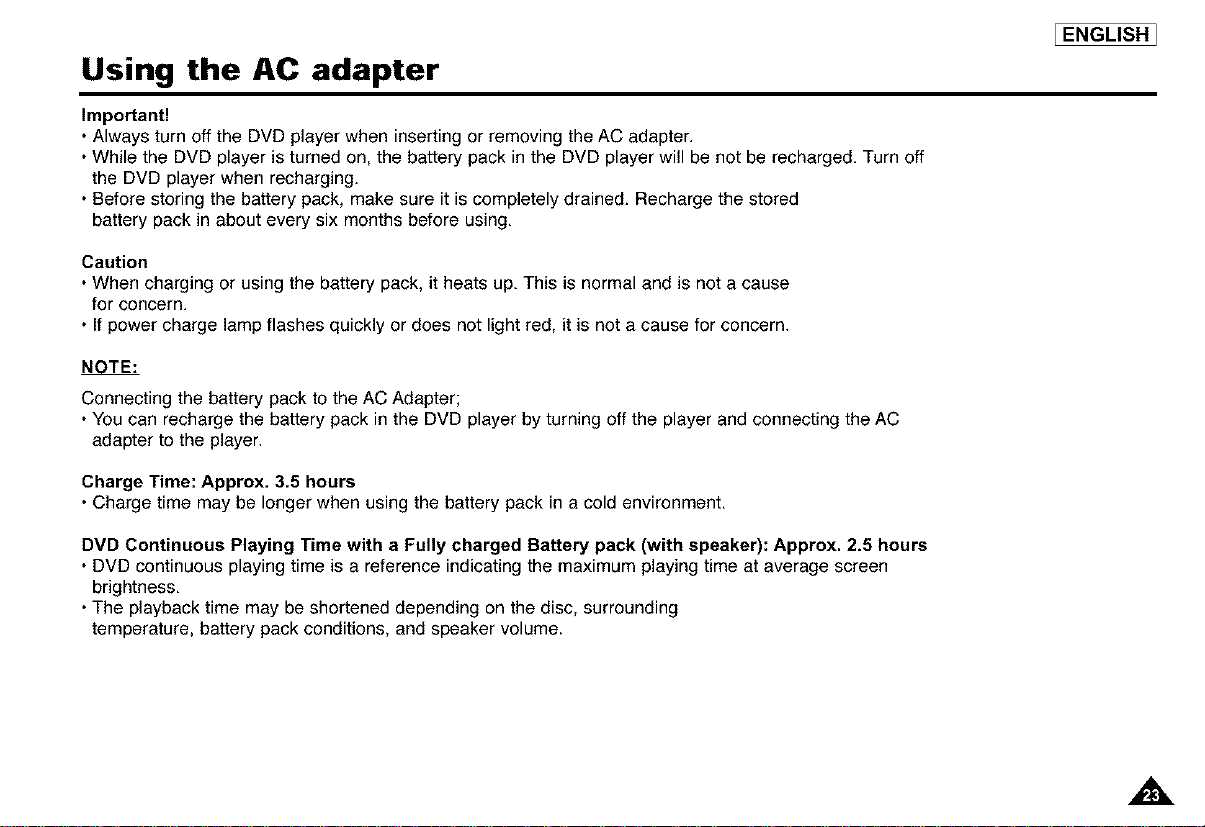
Using the AC adapter
Important!
• Always turn off the DVD player when inserting or removing the AC adapter
• While the DVD player is turned on, the battery pack in the DVD player will be not be recharged Turn off
the DVD player when recharging
• Before storing the battery pack, make sure it is completely drained Recharge the stored
battery pack in about every six months before using
Caution
• When charging or using the battery pack, it heats up This is normal and is not a cause
for concern
• If power charge lamp flashes quickly or does not light red, it is not a cause for concern
NOTE,"
Connecting the battery pack to the AC Adapter;
• You can recharge the battery pack in the DVD player by turning off the player and connecting the AC
adapter to the player
Charge Time: Approx. 3.5 hours
• Charge time may be longer when using the battery pack in a cold environment
DVD Continuous Playing Time with a Fully charged Battery pack (with speaker): Approx. 2.5 hours
• DVD continuous playing time is a reference indicating the maximum playing time at average screen
brightness
• The playback time may be shortened depending on the disc, surrounding
temperature, battery pack conditions, and speaker volume
EENGLISHI
A
I ENGLISH J
Using the battery pack
Important!
• When _nsert_ngthe battery pack, make sure that _t_s_nserted correctly
Otherwise your DVD player may malfunchen
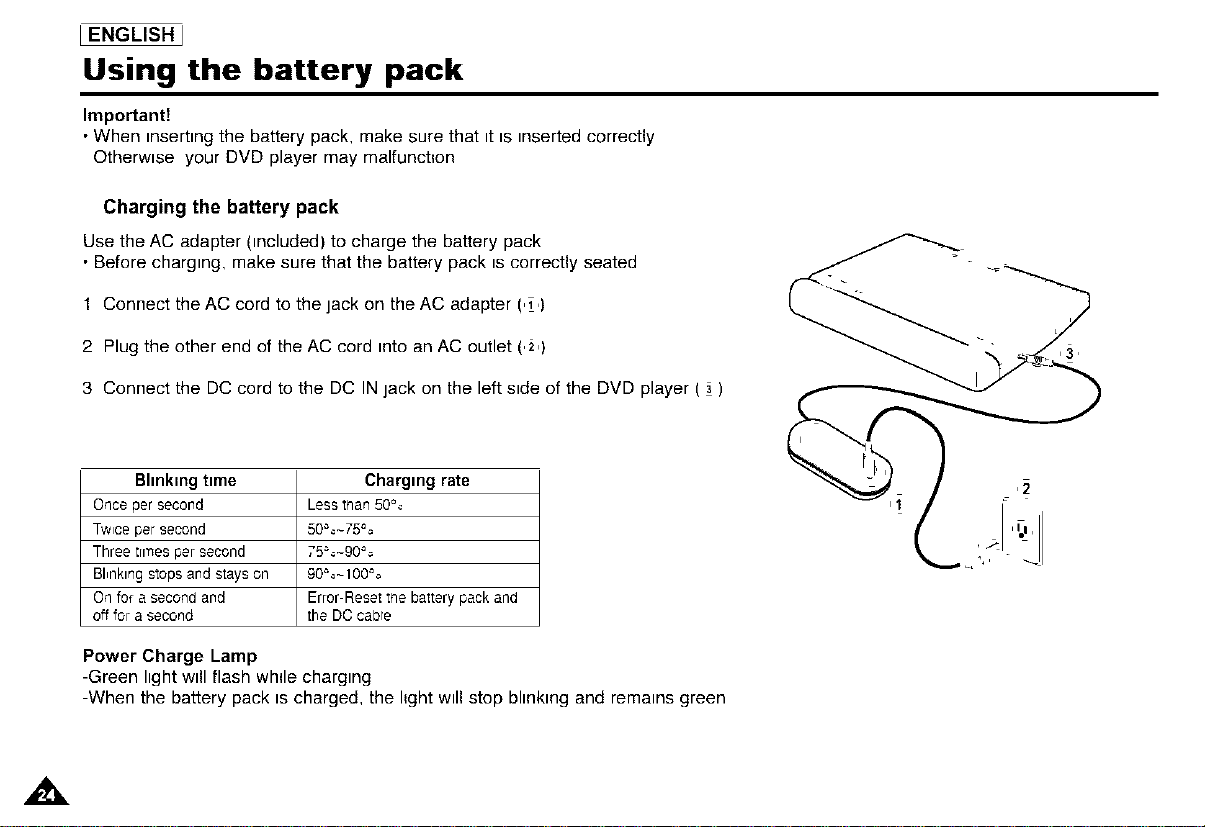
Charging the battery pack
Use the AC adapter (included) to charge the battery pack
• Before charging, make sure that the battery pack is correctly seated
1 Connect the AC cord to the jack on the AC adapter (,1,)
2 Plug the other end of the AC cord into an AC outlet (,2,)
3 Connect the DC cord to the DC IN jack on the left side of the DVD player ( 3 )
Blinking time Charging rate
Once per second Less than 50%
Twice per second 50%-75%
Three trrnes per second 75%-90%
Bl_nklngstops and stays on 90%-100%
On for a second and Error-Reset the battery pack and
off for a second the DC cabre
Power Charge Lamp
-Green light will flash whde charging
-When the battery pack is charged, the hght will stop blinking and remains green
IENGLISHI
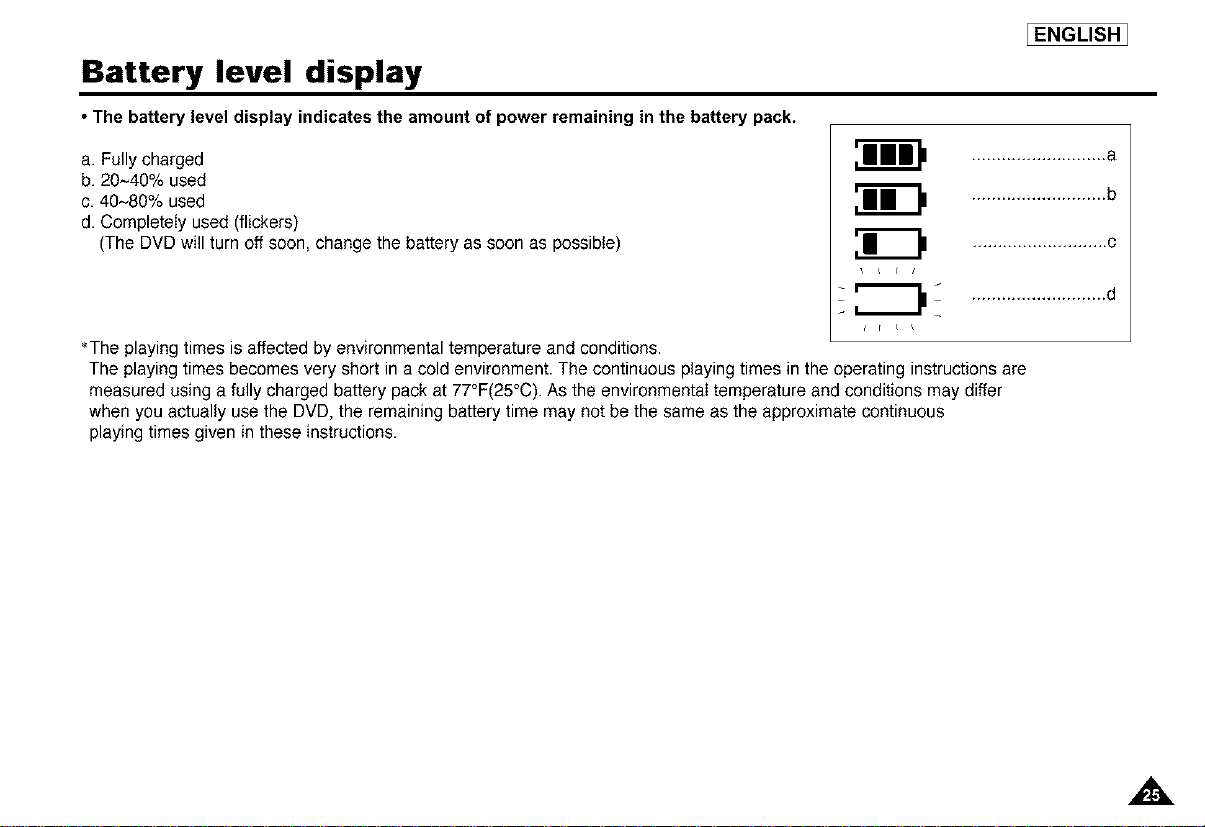
Battery level display
• The battery level display indicates the amount of power remaining
a. Fullycharged
b. 20~40% used
c. 40~80% used
d. Completely used (flickers)
(The DVD will turn off soon, change the battery as soon as possible)
in the battery pack.
........................... a
........................... b
........................... e
r L
_The playing times is affected by environmental temperature and conditions.
The playing times becomes very short in a cold environment. The continuous playing times in the operating instructions are
measured using a fully charged battery pack at 77°F(25°0). As the environmental temperature and conditions may differ
when you actually use the DVD, the remaining battery time may not be the same as the approximate continuous
playing times given in these instructions.
,,&
I ENGLISH ]
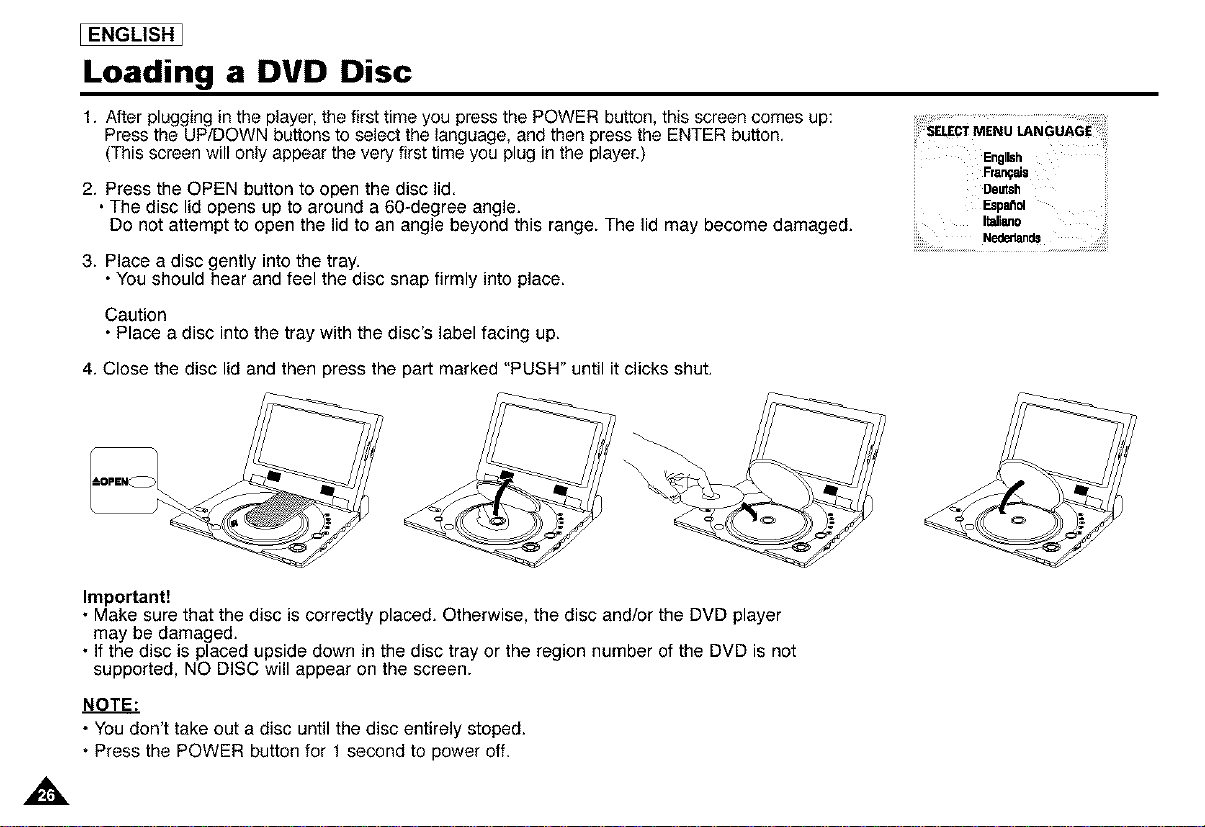
Loading a DVD Disc
1. After plugging in the player, the first time you press the POWER button, this screen comes up:
Press the UP/DOWN buttons to select the language, and then press the ENTER button.
(This screen will only appear the very first time you plug in the player.) Engl_h
Francis
2. Press the OPEN button to open the disc lid Deutsh
• The disc lid opens up to around a 60-degree angle. Bpanol
DO not attempt to open the lid to an angle beyond this range. The lid may become damaged. Italian0
Nededands
3. Place a disc gently into the tray.
• You should hear and feel the disc snap firmly into place.
Caution
• Place a disc into the tray with the disc's label facing up.
4. Close the disc lid and then press the part marked "PUSH" until it clicks shut.
A
Important[
• Make sure that the disc is correctly placed. Otherwise, the disc and/or the DVD player
may be damaged.
• If the disc is placed upside down in the disc tray or the region number of the DVD is not
supported, NO DISC will appear on the screen.
NOTE."
• You don't take out a disc until the disc entirely stoped.
• Press the POWER button for 1 second to power off.
Using the Remote Control Unit
_ENGLISH_
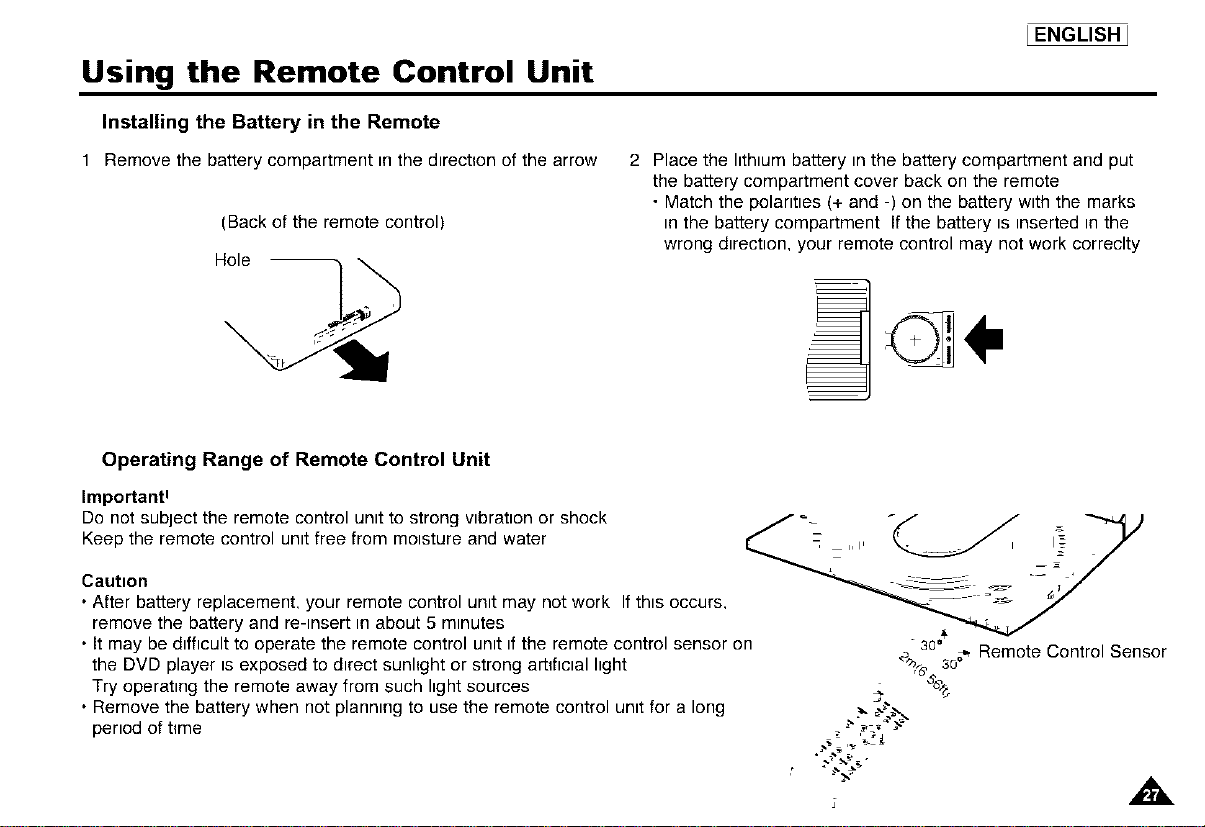
Installing the Battery in the Remote
1 Remove the batterycompartment inthe direction of the arrow
(Back of the remote control)
2 Place the lithium battery in the battery compartment and put
the battery compartment cover back on the remote
• Match the polarities (+ and -) on the battery with the marks
in the battery compartment If the battery is inserted in the
wrong direction your remote control may not work correclty
Operating Range of Remote Control Unit
Importan#
DO not subject the remote control unit to strong vibration or shock ____,. _ _//_
Keep the remote control unit free from moisture and water , _
Caution " ___
• After battery replacement your remote control unit may not work Ifthis occurs --_ k_
remove the battery and re-insert in about 5 minutes
• It may be difficult to operate the remote control unit if the remote control sensor on
the DVD player is exposed to direct sunlight or strong art#lclal light
Try operating the remote away from such light sources
• Remove the battery when not planning to use the remote control unit for a long
period of time
30 °
_"q_e30" Remote Control Sensor
I ENGLISH _
Viewing a Video from an External Component
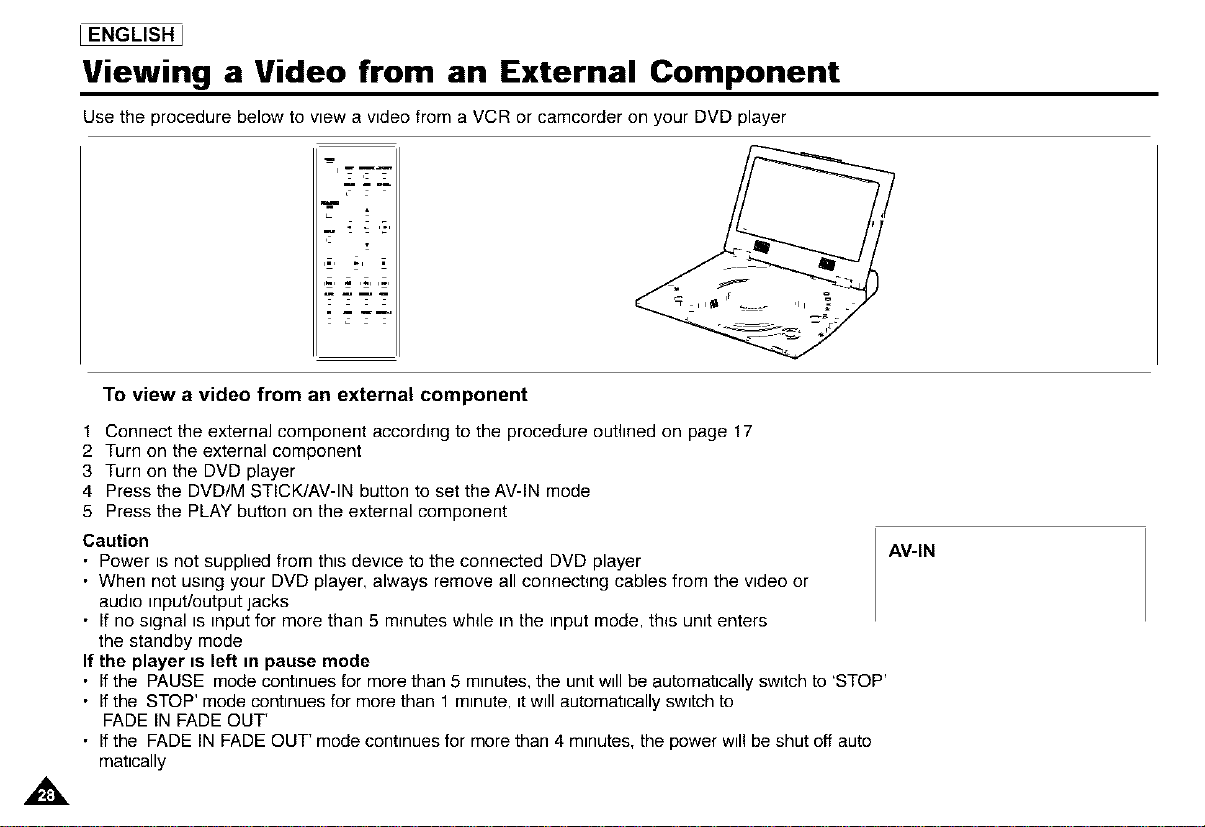
Use the procedure below to view a video from a VCR or camcorder on your DVD player
,- -,---!
• mm I
m g I
,F ,&
To view a video from an external component
1 Connect the external component according to the procedure outlined on page 17
2 Turn on the external component
3 Turn on the DVD player
4 Press the DVD/M STICK/AV-IN button to set the AV-IN mode
5 Press the PLAY button on the external component
Caution
• Power is not supplied from this device to the connected DVD player
• When not using your DVD player, always remove all connecting cables from the video or
audio input/output jacks
• If no signal is input for more than 5 m_nutes whde in the input mode, th_s unit enters
the standby mode
If the player is left in pause mode
• If the PAUSE mode continues for more than 5 minutes, the unit will be automatically switch to 'STOP'
• If the STOP' mode continues for more than 1 minute, it will automatically switch to
FADE IN FADE OUT'
• If the FADE IN FADE OUT' mode continues for more than 4 minutes, the power will be shut off auto
matically
AV-IN
Using the Search & Skip Functions
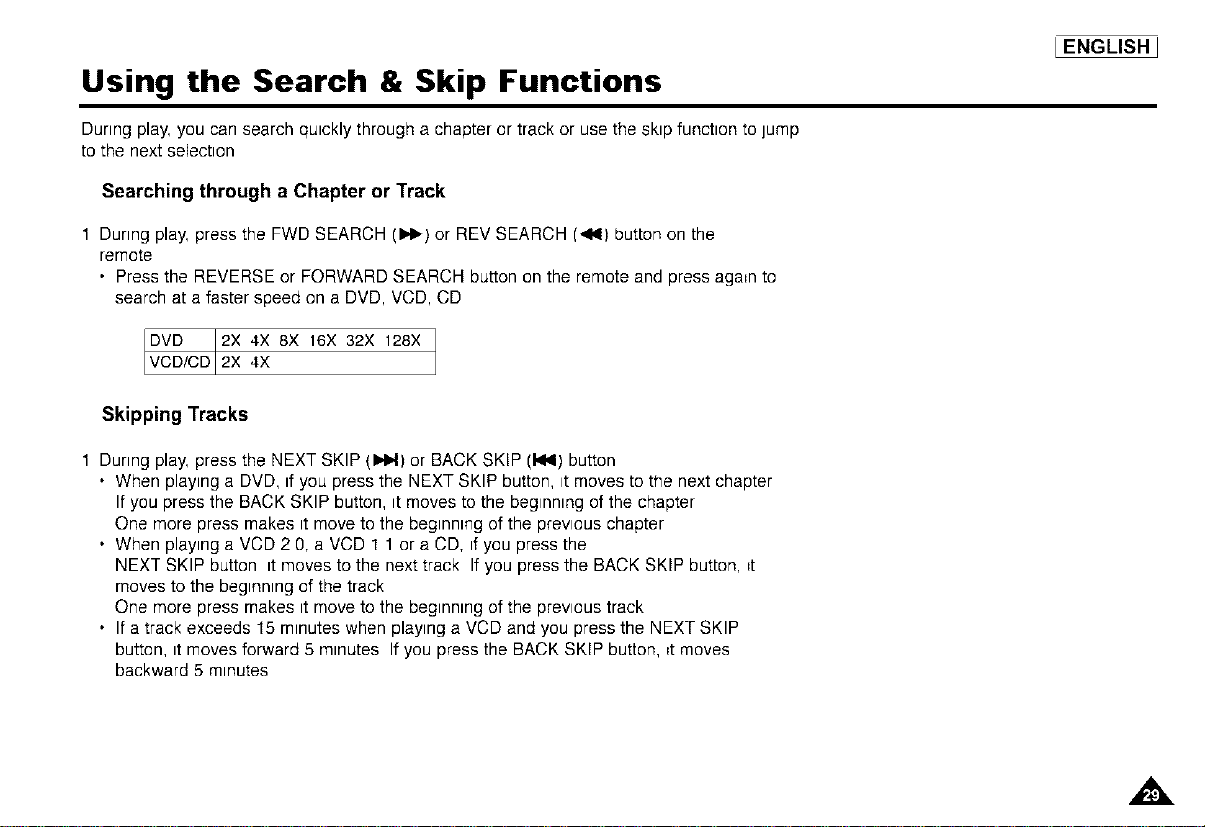
During play, you can search quickly through a chapter or track or use the skip function to jump
to the next selection
Searching through a Chapter or Track
1 During play, press the FWD SEARCH (1_1_)or REV SEARCH (44) button on the
remote
• Press the REVERSE or FORWARD SEARCH button on the remote and press again to
search at a faster speed on a DVD, VCD, CD
DVD 2X 4X 8X 16X 32X 128X
VCD/CD 2X 4X
Skipping Tracks
1 During play, press the NEXT SKIP {1_,1) or BACK SKIP (144) button
• When playing a DVD, if you press the NEXT SKIP button, it moves to the next chapter
If you press the BACK SKIP button, it moves to the beginning of the chapter
One more press makes it move to the beginning of the previous chapter
• When playing a VCD 2 O,a VCD 1 1 or a CD, if you press the
NEXT SKIP button it moves to the next track If you press the BACK SKIP button, _t
moves to the beginning of the track
One more press makes it move to the beginning of the previous track
• If a track exceeds 15 minutes when playing a VCD and you press the NEXT SKIP
button, it moves forward 5 minutes Ifyou press the BACK SKIP button, _tmoves
backward 5 minutes
_ENGLISH_
,A
IENGLISHJ
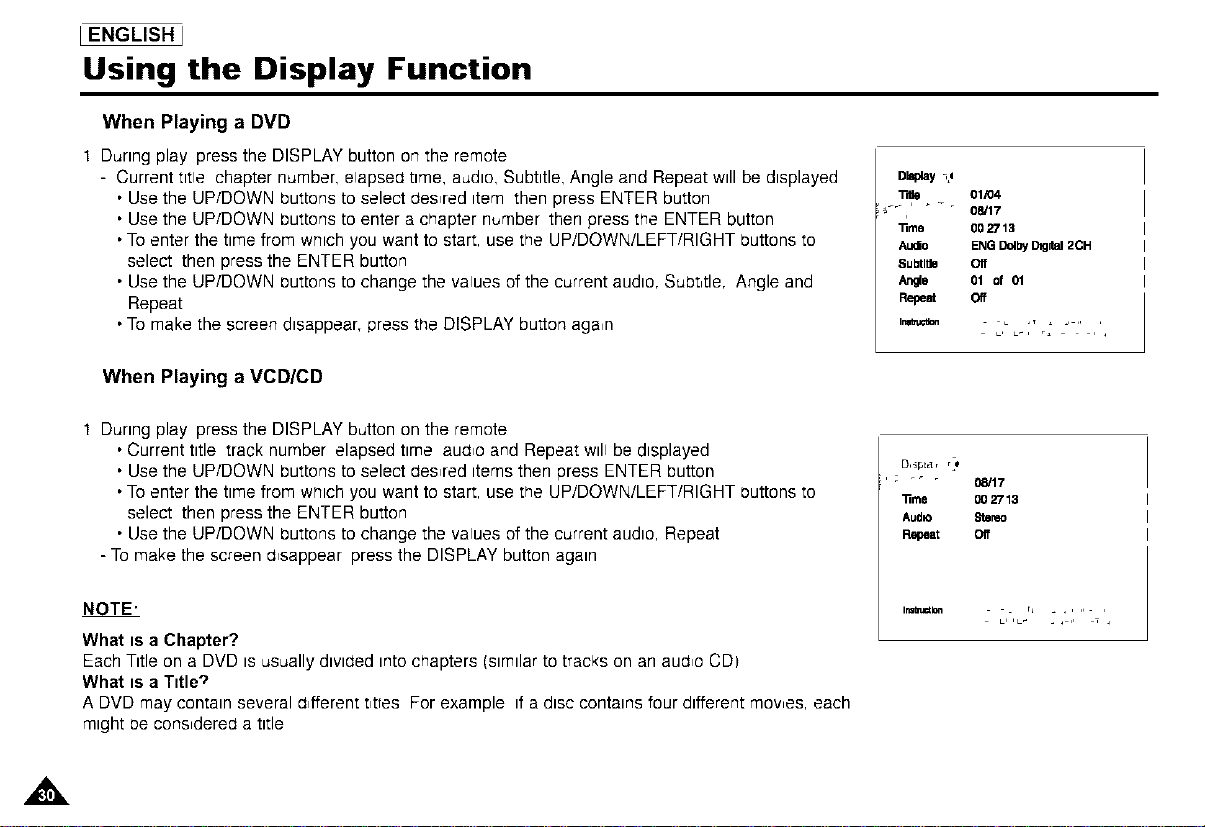
Using the Display Function
When Playing a DVD
1 During play press the DISPLAY button on the remote
- Current title chapter number, elapsea time, audio, Subtitle, Angle and Repeat will be displayed
• Use the UP/DOWN buttons to select Oes_reditem then press ENTER button
• Use the UP/DOWN buttons to enter a chapter number then press the ENTER button
• To enter the time from which you want to start, use the UP/DOWN/LEFT/RIGHT buttons to
select then press the ENTER button
• Use the UP/DOWN outtons to change the values of the current audio, Subt,tle, Angle and
Repeat
• To make the screen disappear, press the DISPLAY button aga,n
When Playing a VCD/CD
.Tdle. _ . 01/04
08/17
lime 00 2713
Audm ENGBofbyDtg_d2CH
Subtile Off
An_s 01 of 01
Repe_ Ce
'_ L,LL_:',: -' : ,',
1 During play press the DISPLAY button on the remote
• Current title track number elapsed time aua_o and Repeat will be displayed
• Use the UP/DOWN buttons to select aes_red items then press ENTER button
• To enter the time from which you want to start, use the UP/DOWN/LEFT/RIGHT outtons to
select then press the ENTER button
• Use the UP/DOWN buttons to change the values of the current audio, Repeat
- To make the screen a_sappear press the DISPLAY button again
NOTE'
What is a Chapter?
Each Title on a DVD is usually dlvlaed intochapters (similar to tracks on an aua_o CD)
What is a Title';'
A DVD may contain several a_fferentt_ttes For example if a disc contains four different mowes, each
might oe cons_derea a title
; "_ " 08/17
11rae 00 2713
Audio Stereo
Repeat Off
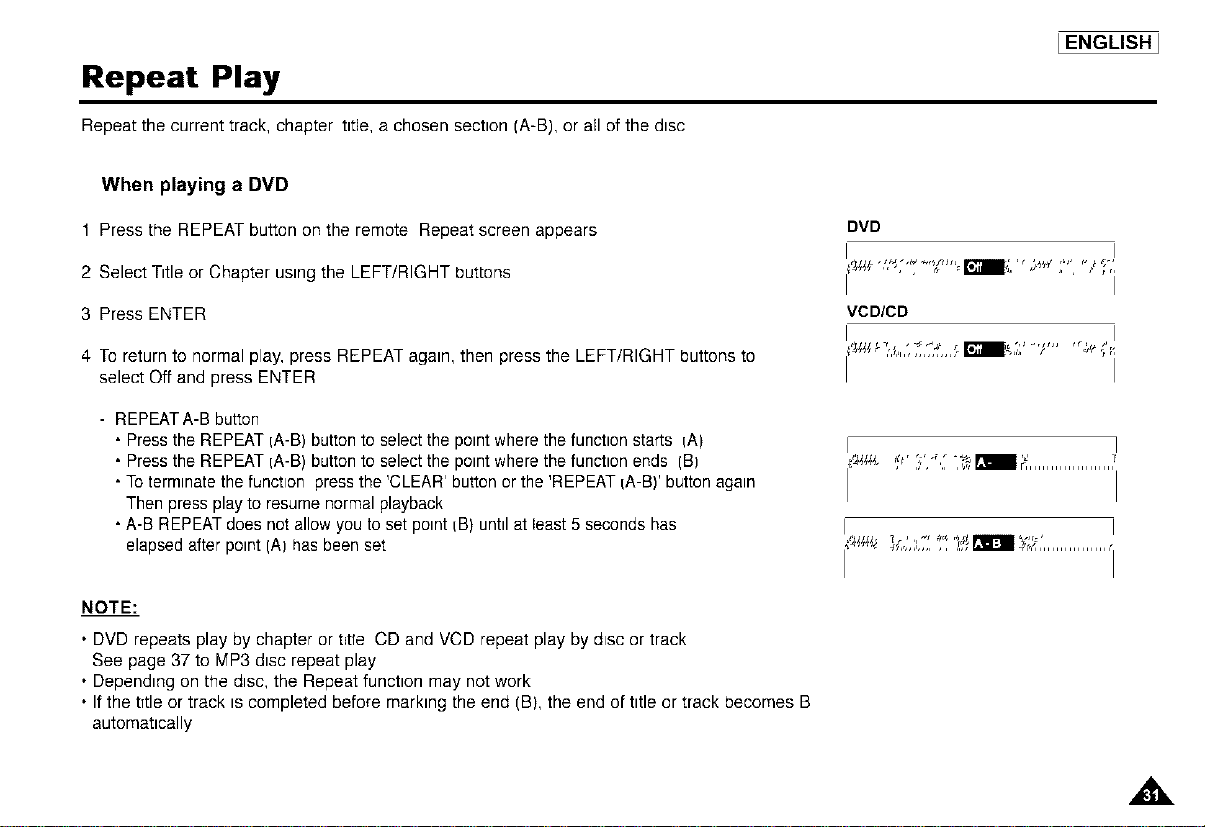
Repeat Play
Repeat the current track, chapter tttle, a chosen sectton (A-B), or all of the dtsc
LENGLISHI
When playing a DVD
1 Press the REPEAT button on the remote Repeat screen appears
2 Select Tttle or Chapter usmg the LEFT/RIGHT buttons
3 Press ENTER
4 To return to normal play, press REPEAT agam, then press the LEFT/RIGHT buttons to
select Off and press ENTER
- REPEATA-B button
• Press the REPEAT IA-B) button to select the potnt where the functton starts iA)
• Press the REPEAT IA-B) button to select the potnt where the functton ends (B)
• Totermtnate the functton press the 'CLEAR' button or the 'REPEAT IA-B)' buttonagam
Then press play to resume normal playback
• A-B REPEAT does not allow you to set pomt iB) unhl at least 5 seconds has
elapsed after point (A) has been set
NOTE:
• DVD repeats play by chapter or t_tfe CD and VCD repeat play by dtsc or track
See page 37 to MP3 dtsc repeat play
• Depending on the dtsc, the Repeat functton may not work
• If the tTtleor track ts completed before markmg the end (B), the end of tttle or track becomes B
automattcally
DVD
I I
VCD/CD
I
I
,,&
I ENGLISH _
Selecting the Audio Language
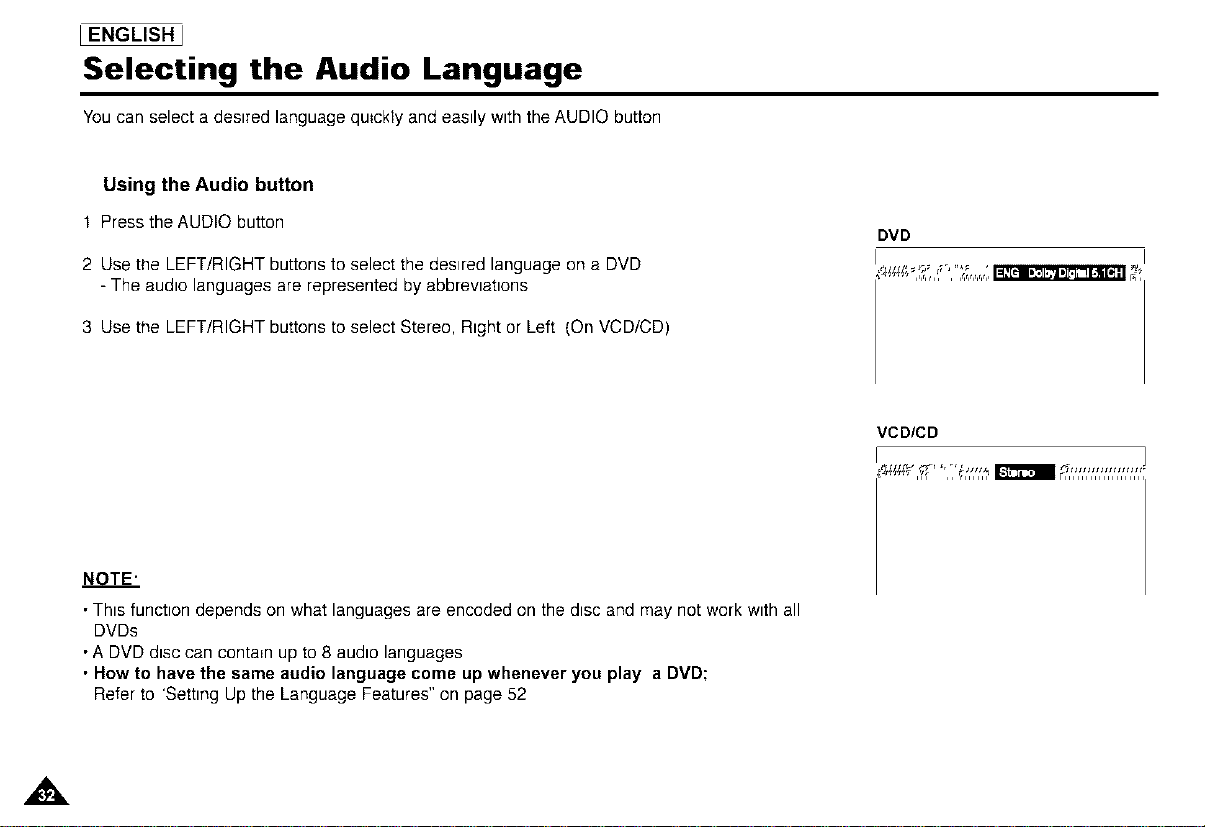
You can select a desired language quickly and easily with the AUDIO button
Using the Audio button
t PresstheAUDIObutton
2 Use the LEFT/RIGHT buttons to select the desired language on a DVD
- The audio languages are represented by abbreviations
3 Use the LEFT/RIGHT buttons to select Stereo, Right or Left {On VCD/CD)
DVD
I
'_ _,............... __,
NOTE'
• This function depends on what languages are encoded on the disc and may not work with all
DVDs
• A DVD disc can contain up to 8 audio languages
• How to have the same audio language come up whenever you play a DVD;
Refer to 'Setting Up the Language Features" on page 52
VCDICD
,,&
Selecting the Subtitle Language
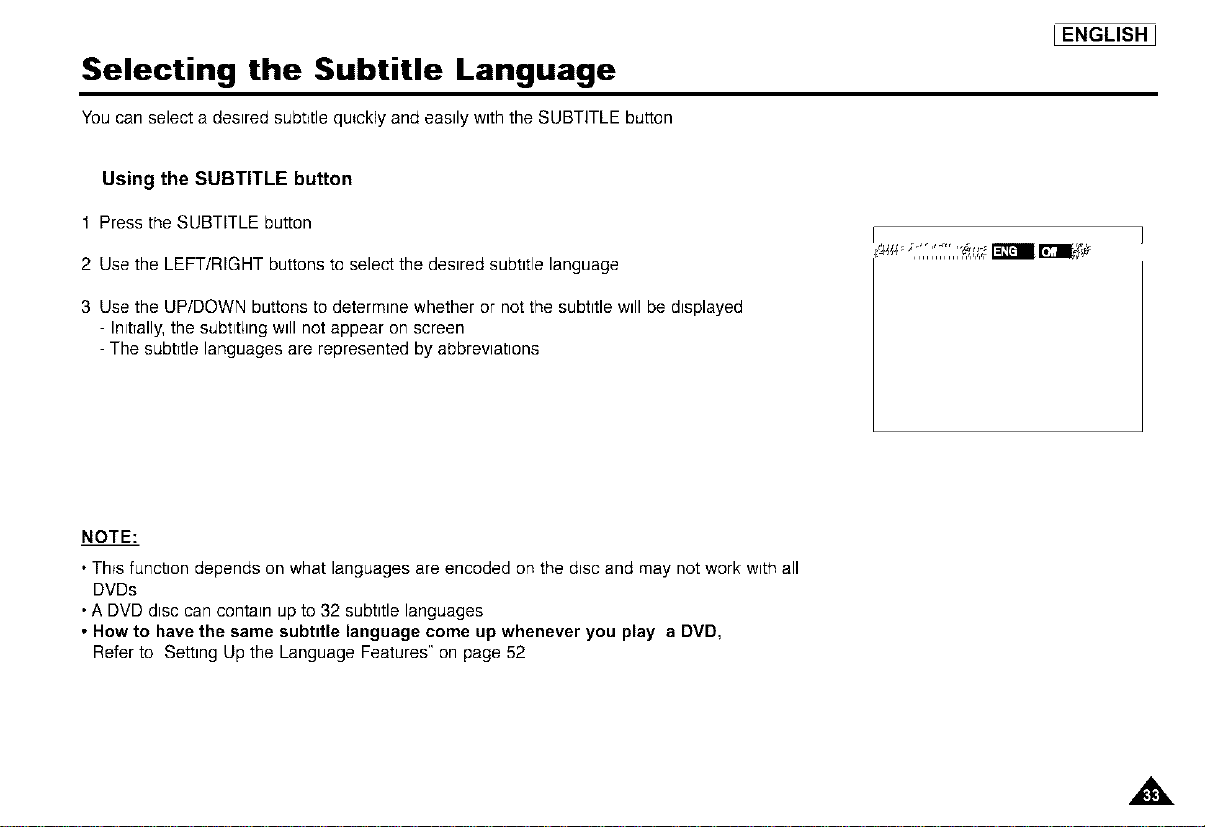
You can select a desired subtitle quickly and easily with the SUBTITLE button
IENGLISHJ
Using the SUBTITLE button
1 Press the SUBTITLE button
2 Use the LEFT/RIGHT buttons to select the desired subtitle language
3 Use the UP/DOWN buttons to determine whether or not the subtitle will be displayed
- InttTally,the subttthng will not appear on screen
-The subtTtlelanguages are represented by abbreviations
,................rmamI_L
NOTE:
• Th_sfunction depends on what languages are encoded on the dtsc and may not work wtth all
DVDs
•A DVD disc can contain up to 32 subtitle languages
• How to have the same subtttle language come up whenever you play a DVD,
Refer to Setting Up the Language Features" on page 52
,,&
_ENGLISHJ
Changing the Camera Angle
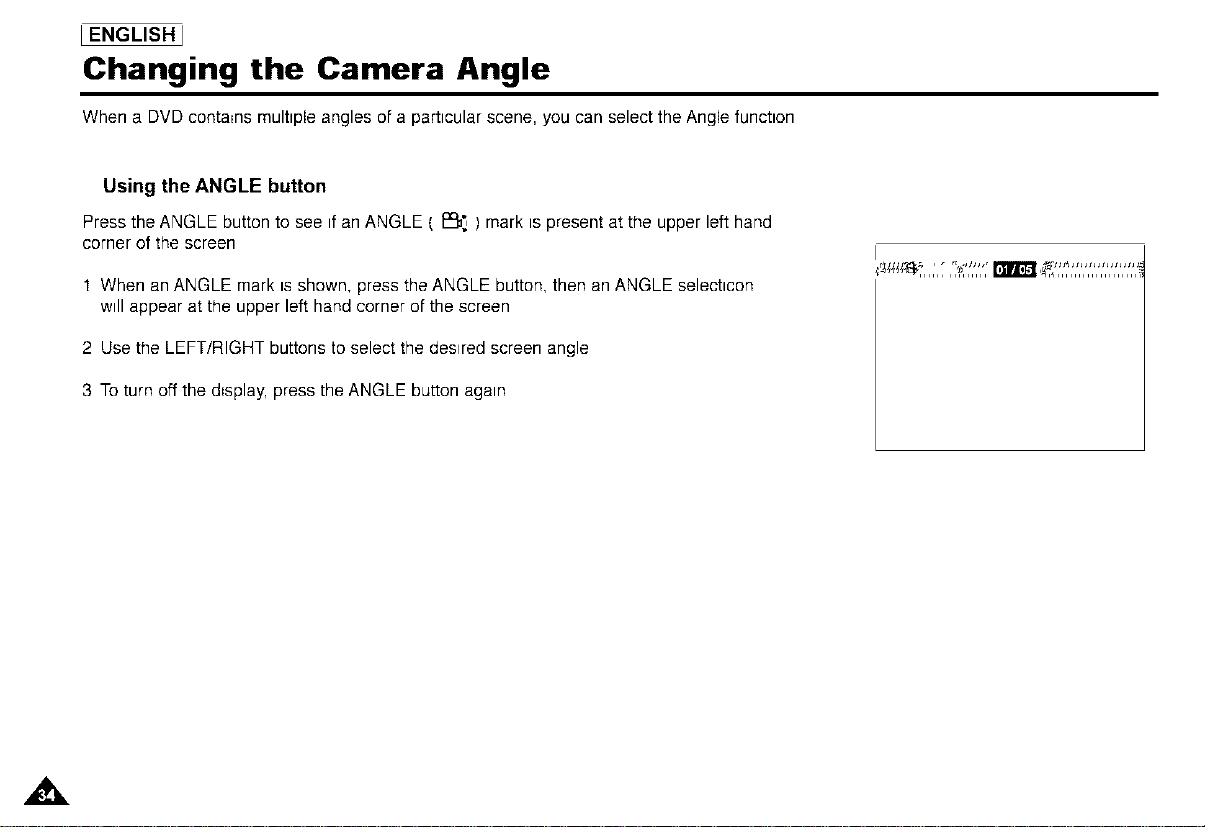
When a DVD contains multiple angles of a particular scene, you can select the Angle function
Using the ANGLE button
Press the ANGLE button to see if an ANGLE { _ ) mark is present at the upper left hand
corner of the screen
t When an ANGLE mark is shown, press the ANGLE button, then an ANGLE selectlcon
will appear at the upper left hand corner of the screen
2 Use the LEFT/RIGHT buttons to select the desired screen angle
3 To turn off the d_splay,press the ANGLE button again
I
Using the Bookmark Function
The Bookmark function lets you select parts of a DVD or VCD so that you can quickly find the
sectfon at a later t_me
LENGLISHJ
Using the Bookmark Function (DVD/VCD)
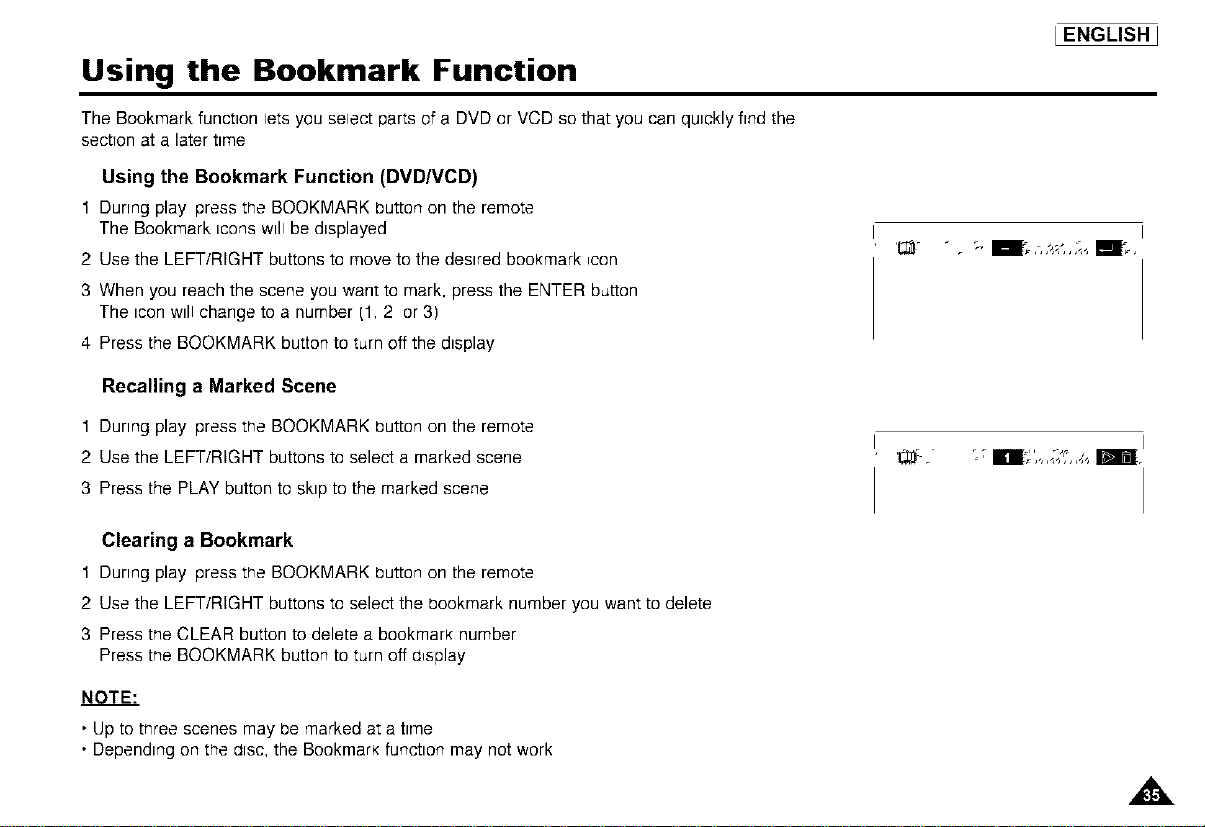
1 During play press trTe BOOKMARK button on the remote
The Bookmark icons will be displayed
2 Use the LEFT/RIGHT buttons to move to the desired bookmark _con
3 When you reach the scene you want to mark, press the ENTER button
The icon will change to a number (1, 2 or 3)
4 Press the BOOKMARK button to turn off the display
'r,_ _. '-' m%.'4",,*,/;,,,,m%
Recalling a Marked Scene
1 During play press tr7e BOOKMARK button on the remote
2 Use the LEFT/RIGHT buttons to select a marked scene
3 Press the PLAY button to skip to the marked scene
Clearing a Bookmark
1 During play press tr7e BOOKMARK button on the remote
2 Use the LEFT/RIGHT buttons to select the bookmark number you want to delete
3 Press trTeCLEAR button to delete a bookmark number
Press tt7eBOOKMARK button to turn off a_splay
NOTE."
•Upto tt7reescenesmay be markedata time
•Dependingon tr_ealsc,the Bookmarkfunctionmay notwork
,&
I ENGLISH J
Using the Zoom & 3D Sound Functions
Using the Zoom Function (DVDNCD)
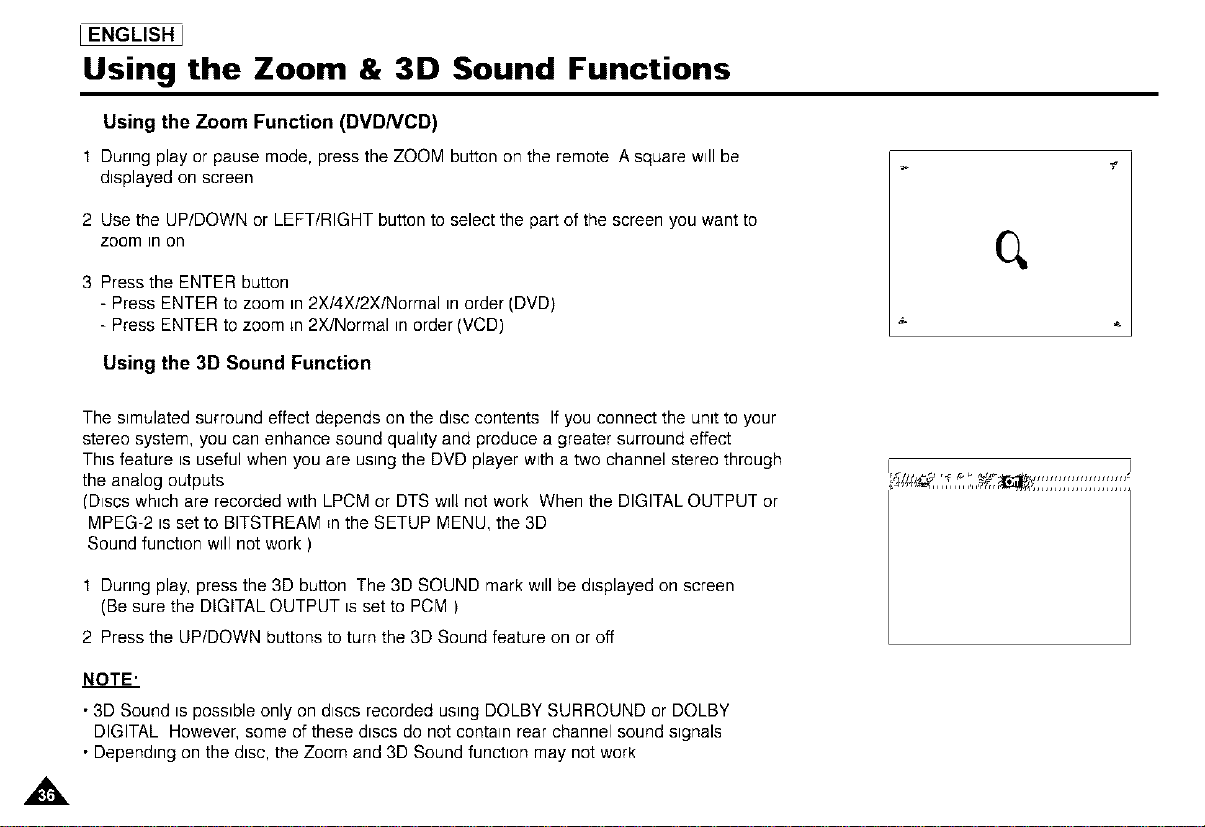
t During play or pause mode, press the ZOOM button on the remote A square will be
displayed on screen
2 Use the UP/DOWN or LEFT/RIGHT button to select the part of the screen you want to
zoom in on
3 Press the ENTER button
- Press ENTER to zoom in 2X/4X/2X/Normal in order (DVD)
- Press ENTER to zoom _n2X/Normal in order (VCD)
q
Using the 3D Sound Function
,&
The simulated surround effect depends on the disc contents If you connect the unit to your
stereo system, you can enhance sound quality and produce a greater surround effect
This feature is useful when you are using the DVD player with a two channel stereo through
the analog outputs
(Discs which are recorded with LPCM or DTS wll; not work When the DIGITAL OUTPUT or
MPEG-2 is set to BITSTREAM _nthe SETUP MENU, the 3D
Sound function will not work )
1 During play, press the 3D button The 3D SOUND mark will be displayed on screen
(Be sure the DiGiTAL OUTPUT is set to PCM )
2 Press the UP/DOWN buttons to turn the 3D Sound feature on or off
NOTE'
• 3D Sound is possible only on discs recorded using DOLBY SURROUND or DOLBY
DIGITAL However, some of these discs do not contain rear channel sound signals
• Depending on the disc, the Zoom and 3D Sound function may not work
MP3 Play
When an MP3 Dtsc ts tnserted;ntothe DVD PLAYER, the first song Ne of the first folder plays
IENGLISHJ
MP3 Play Function
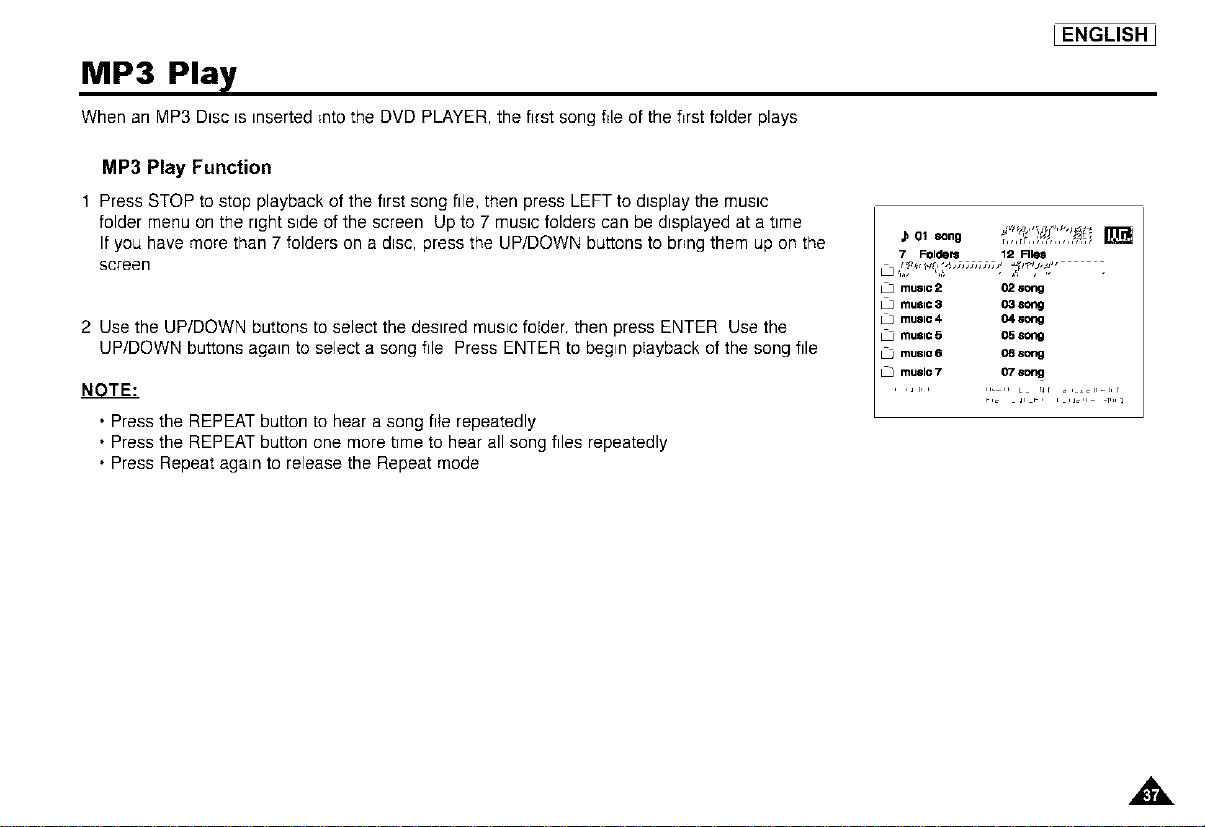
1 Press STOP to stop playback of the first song file, then press LEFT to dtsplay the mustc
folder menu on the right stde of the screen Up to 7 muste folders can be dtsplayed at a ttme
If you have more than 7 folders on a dtsc, press the UP/DOWN buttons to bring them up on the
screen
2 Use the UP/DOWN buttons to select the destred mustc folder, then press ENTER Use the
UP/DOWN buttons agatn to select a song file Press ENTER to begm playback of the song file
NOTE"
• Press the REPEAT button to hear a song fife repeatedly
• Press the REPEAT button one more tTmeto hear all song files repeatedly
• Press Repeat agam to release the Repeat mode
,n ,,n,%,n,r',
7 Folders 12 RleS
LJ music 2 02 song
LJ music3 03 song
LJ music4 04 song
LJ mu=lc5 05 song
LJ music6 06 song
L3 music 7 07 song
,_r,,
,,&
I ENGLISH J
MP3 Play
CD-R/MEMORY STICK/MP3 requirements
When playing CD-R MP3 discs please follow the recommendations below
• Your MP3 files should be ISO 9660 or JOLIET format
ISO 9660 format and Joliet MP3 files are compatible with Microsoft's DOS and Windows, and with Apple's Mac These two formats are the
most widely used
• When naming your MP3 files do not exceed 8 characters, and place " mp3" as the file extension
General name format of Title mp3 When composing your title, make sure that you use 8 characters or less, have no spaces in the name,
and avoid the use of special characters including { ,I,\,=,+)
• Use a decompression transfer rate of at least 128 Kbps when recording MP3 files
Sound quality with MP3 files basically depends on the rate of compression/decompression you choose Getting audio CD quality sound
requires an analog/digital sampling rate (conversion to MP3 format) of at least 128 Kbps and up to 160 Kbps However, choosing higher
rates, like 192 Kbps or more, only rarely give better sound quality
Conversely, files with sampling rates below 128 Kbps will not be played properly
• Do not try recording copyright protected MP3 files
Certain "secunzed" files are encrypted and code protected to prevent illegalcopying These files are of the following types Windows
MediaTH{registered trade mark of Microsoft Inc) and SDMP (registered trade mark of The SDMI Foundation) You cannot copy such flies
• Your DVD player only accepts one level of file directory
Consequently you must choose
-e_therto save all your MP3 recording files at the root of the disc,
-and/or create folders in the directory for each artist or music type (e g classical, rock, jazz, etc)
• Important The above recommendations cannot be taken as a guarantee that the DVD player will play MP3 recordings, or as an assur-
ance of sound quality
You should note that certain technologies and methods for MP3 file recording on CD-Rs prevent optimal
playback of these files on your DVD player (degraded sound quality and in some cases, inabilityof the player to read the files)
,&
IENGLISHJ
Memory Stick
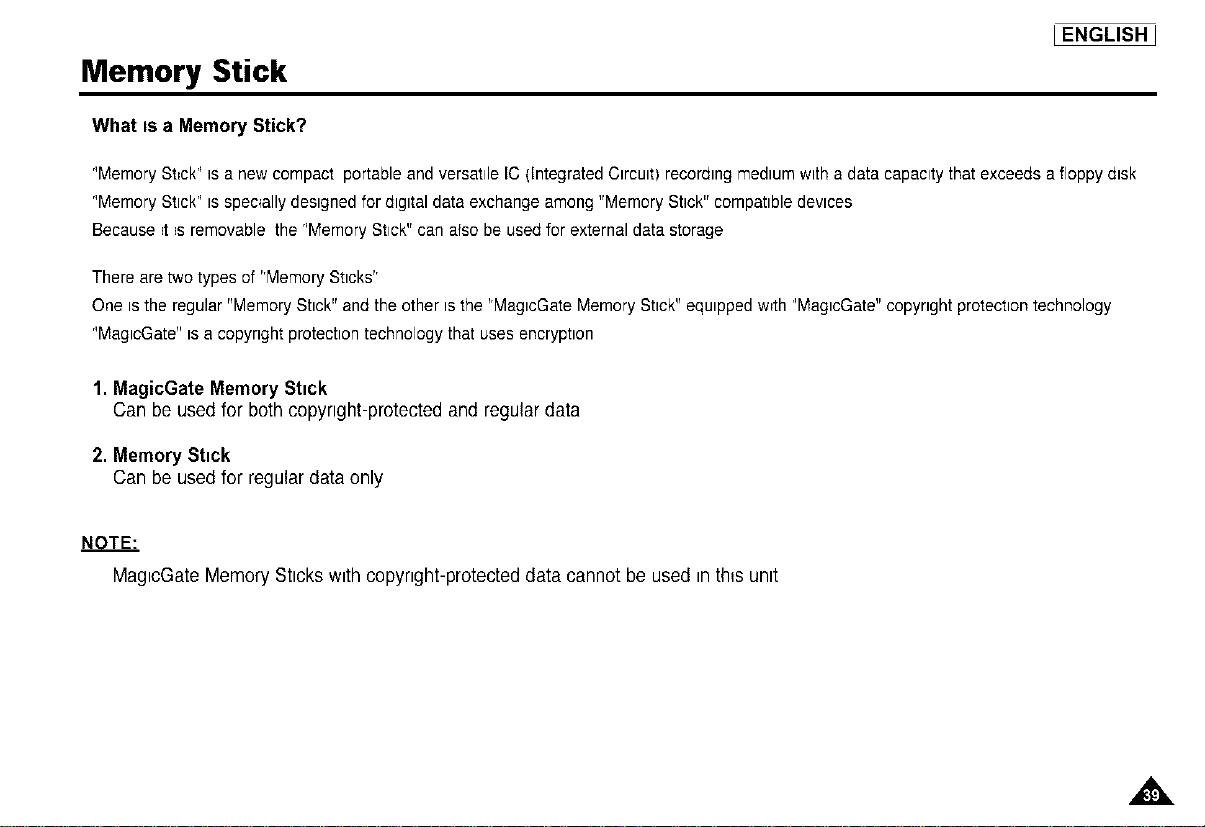
What is a Memory Stick?
r'MemoryStickr'is a new compact portable and versatile IC (Integrated Circuit) recording mediumwith a data capacity that exceeds afloppy disk
r'MemoryStickr'isspecially designed for digital data exchange among "Memory Stick" compatible devices
Because =t=sremovable the r'MemoryStick" can also be usedfor external data storage
There are two types of "Memory Sticks"
One isthe regular "Memory Stick" and the other isthe 'rMaglcGateMemory Stick" equipped w=thr'MaglcGate"copyright protection technology
r'MaglcGate"isa copyright protection technology that uses encryptlon
1. MagicGate Memory Stick
Can be used for both copynght-protected and regular data
2. Memory Stick
Can be used for regular data only
NOTE."
MaglcGate Memory Sticks with copynght-protecteddata cannot be used inth_sunit
,,&
I ENGLISH J
Memory Stick
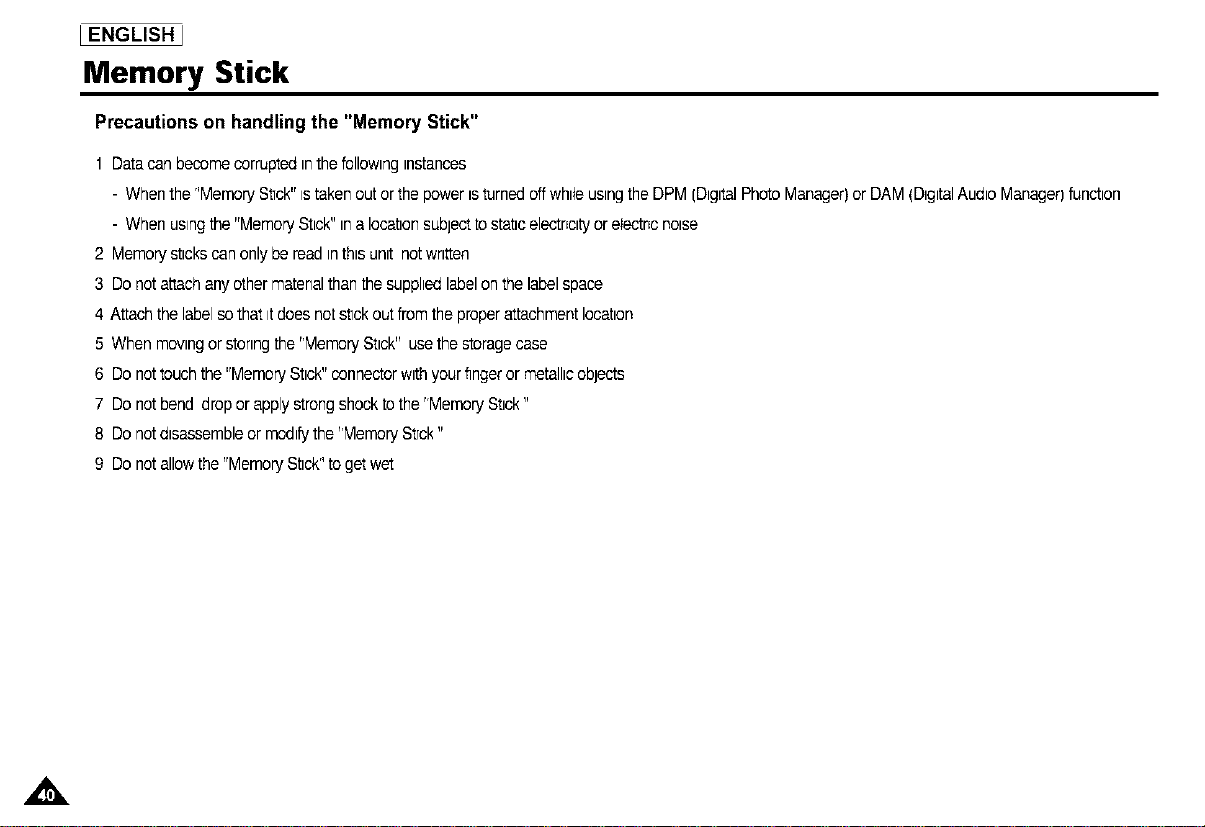
Precautions on handling the "Memory Stick"
1 Datacan becomecorruptedinthefollowinginstances
- Whenthe r'Memory StTck"tstakenout orthe poweristurnedoffwhile usingtheDPM(DigitalPhotoManager)or DAM(DigitalAudio Manager)function
- When ustngthe "MemoryStick"ina locationsubjecttostaticelectricityore)ectsonoise
2 Memorystickscanonly bereadtnthisunit notwritten
3 Do notattachanyother materialthanthe supphedlabelonthe labelspace
4 Attachthe labelsothatttdoes notstTckoutfromthe properattachmentlocation
5 When movingor storingthe"MemoryStick" usethe storagecase
6 Do nottouchthe "MemoryStick"connectorwithyourfingeror metallicobjects
7 Do notbend drop orapplystrongshocktothe "MemoryStick"
8 Do notdisassembleor modifythe "MemoryStTck"
9 Do notallowthe"MemoryStickr'toget wet
,,&
Memory Stick
IENGLISHJ
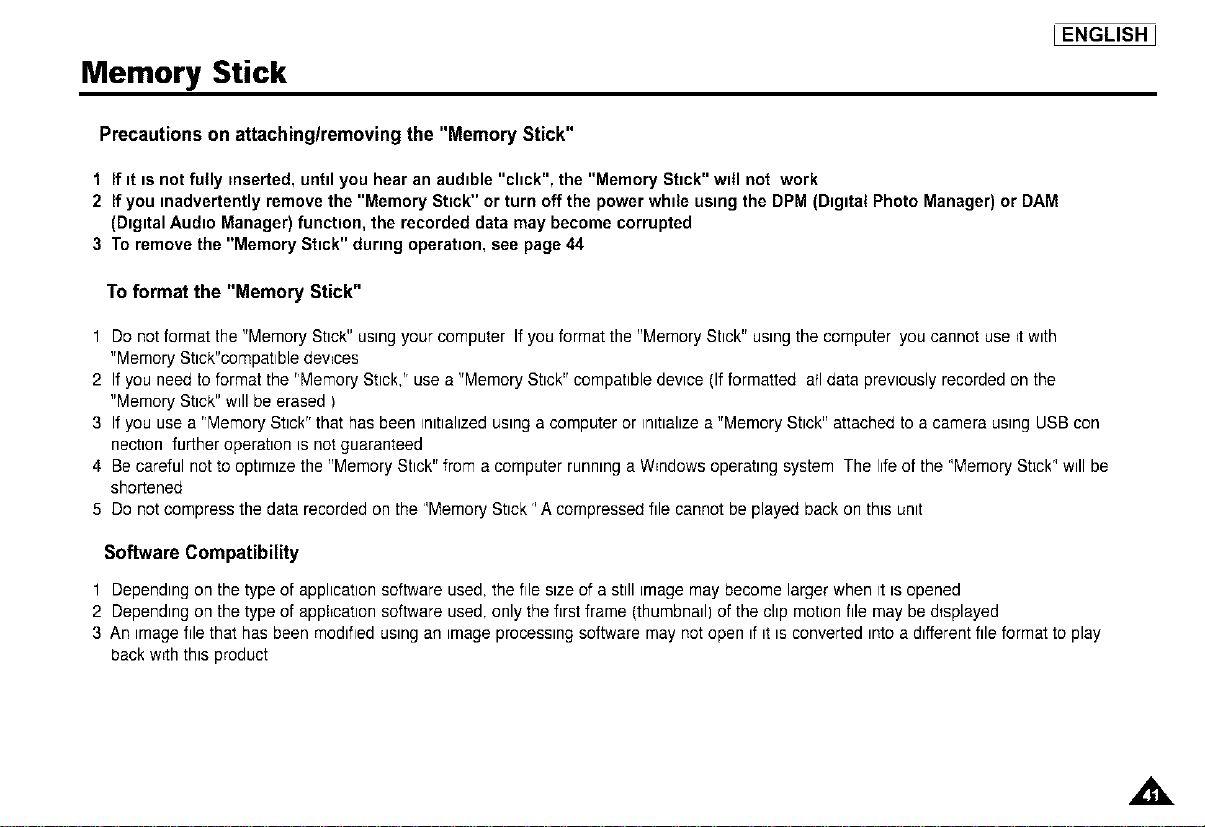
Precautions on attachinglremoving the "Memory Stick"
1 If it is not fully inserted, until you hear an audible "click", the "Memory Stick" will not work
2 If you inadvertently remove the "Memory Stick" or turn off the power while using the DPM (Digital Photo Manager) or DAM
(Digital Audio Manager) function, the recorded data may become corrupted
3 To remove the "Memory Stick" during operation, see page 44
To format the "Memory Stick"
1 Do not format the "Memory Stick" using your computer If you format the "Memory Stick" using the computer you cannot use =twith
"Memory Stick"compatible devices
2 Ifyou need to format the 'Memory Stick," use a "Memory Stick" compatible device (If formatted all data previously recorded on the
"Memory Stick" will be erased)
3 Ifyou use a 'Memory Stick" that has been initializedusinga computer or initializea "Memory Stick" attached to a camera using USB con
nectlon further operation isnot guaranteed
4 Be careful not to optimize the "Memory Stick" from a computer running a W=ndowsoperating system The life of the r'MemoryStickr'will be
shortened
5 Do not compress the data recorded on the r'MemoryStick r,A compressed file cannot be played back on this unit
Software Compatibility
1 Depending on the type of application software used, the file size of a still imagemay become larger when it isopened
2 Depending on the type of application software used, only the first frame (thumbnail) of the clip motion file may be displayed
3 An imagefile that has been modified using an image processing software may not open if itis converted intoa different file format to play
back w_ththis product
,tk
I ENGLISH _
Memory Stick
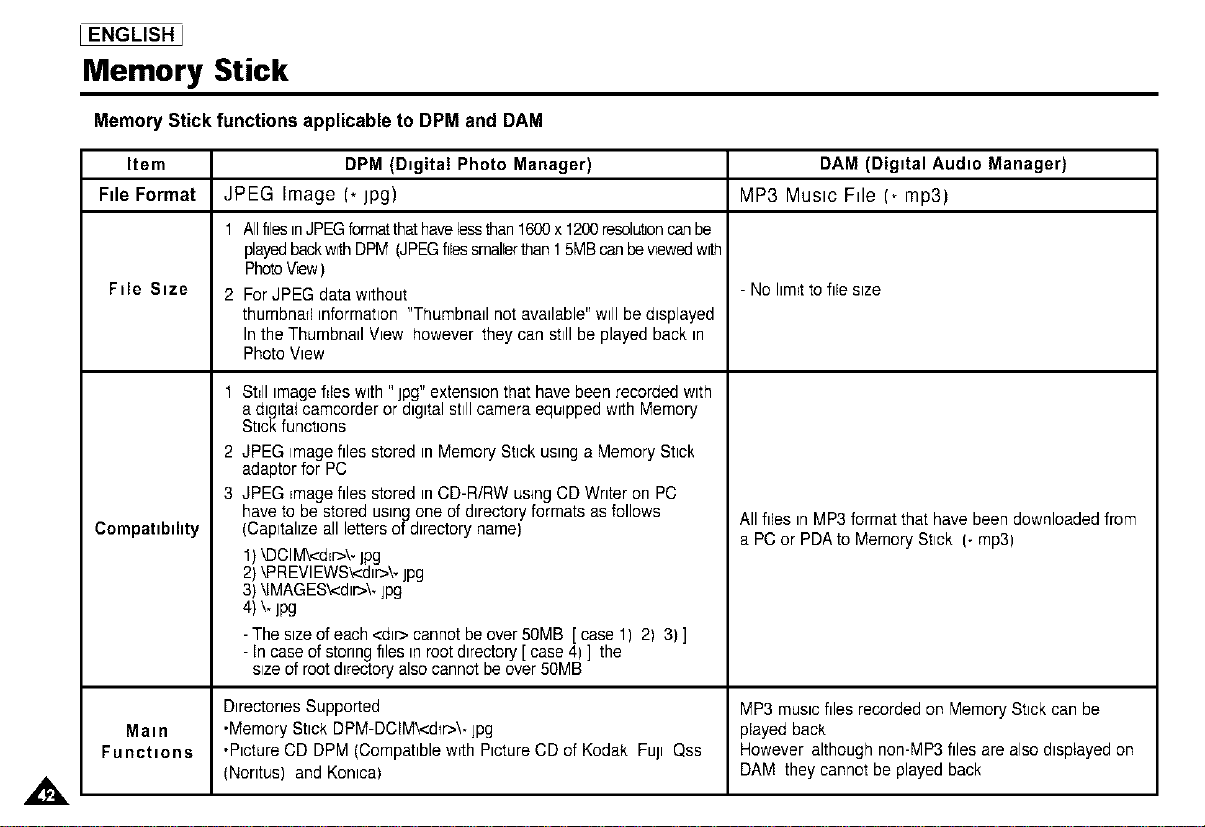
Memory Stick functions applicable to DPM and DAM
Item DPM (Digital Photo Manager) DAM (Digital Audio Manager)
File Format JPEG Image (* IPg) MP3 Music File (_ mp3)
1 AllfilesinJPEGformatthathavelessthan1600x 1200resolutioncanbe
playedbackw_ DPM (JPEGfliessmallerthan15MBcanbevewed with
PhotoV_ew)
File Size 2 For JPEG data without - No hm_tto file size
thumbnail information"Thumbnail not available" will be displayed
Inthe Thumbnail View however they can still be played back in
Photo View
1
A
Compatibility
Main
Functions
2
3
St_llimagefiles with "jpg" extension that have been recorded with
adlglta_camcorder or digital still camera equipped with Memory
Stickfunctions
JPEG imagefiles stored in Memory Stick using a Memory Stick
adaptor for PC
JPEG _magefiles stored inCD-R/RW using CD Writer on PC
haveto be stored using one of directory formats as follows
(Capitalize all lettersof directory name)
1)kDCliVS<dln>\.IPg
2) kPREVIEWS_dlr>\, jpg
3) klMAGES_dlr>\, jpg
4) \. IPg
- The size of each<dlr> cannot be over 50MB [ case 1) 2) 3) ]
- In case of storingfiles in rootdirectory [ case 4) ] the
size of root directoryalso cannotbe over 50MB
Directories Supported
•Memory Stick DPM-DCIM\<d_r>\.jpg
•Picture CD DPM (Compatible w_thPicture CD of Kodak Full Qss
(Nerltus) and Kenlca)
All files inMP3 format that have been downloaded from
a PC or PDA to Memory Stick (- rap3)
MP3 music files recordedon Memory Stick can be
played back
However although non-MP3files are also displayed on
DAM they cannot be played back
DAM (Digital Audio Manager) Playback
_ENGLISH_
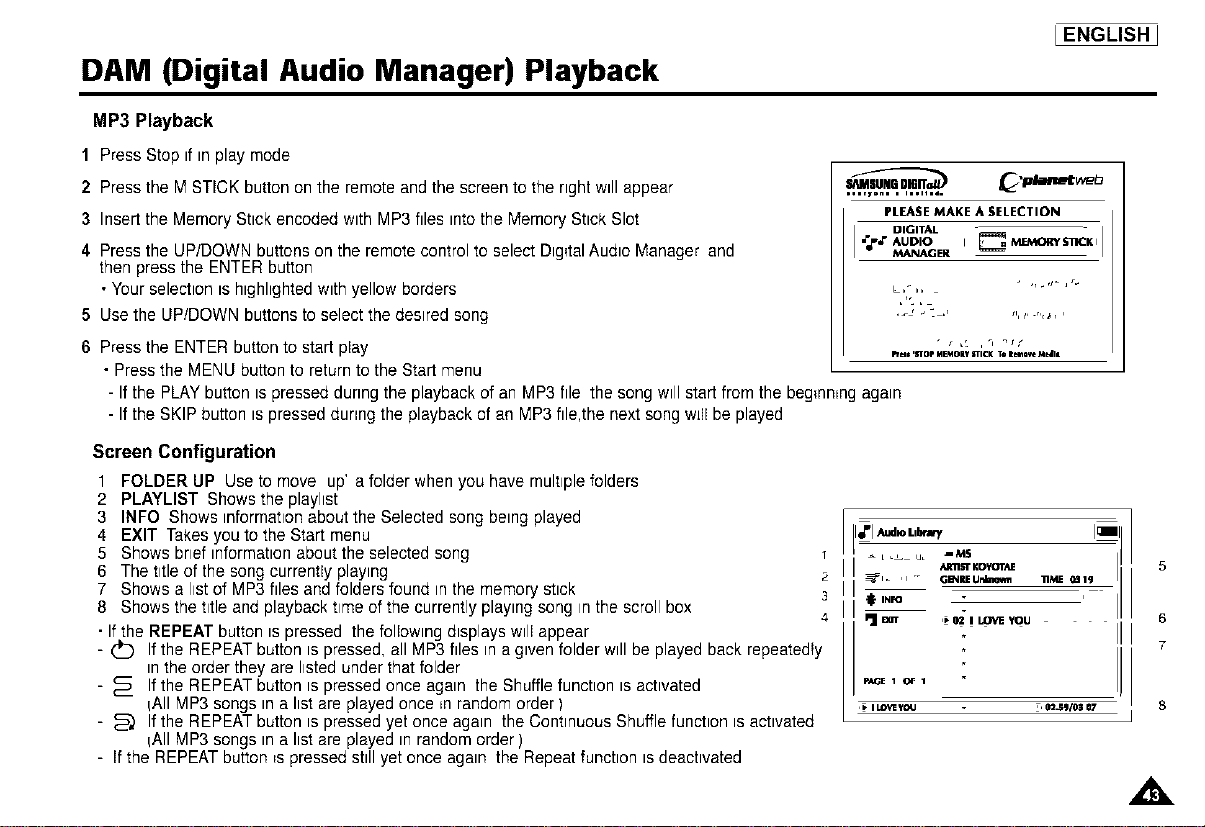
MP3 Playback
1 Press Stop if inplay mode
2 Press the M STICK button on the remote and the screen to the right will appear
3 Insert the Memory Stick encoded with MP3files intothe Memory Stick Slot
4 Pressthe UP/DOWN buttons on the remote control to select Dig_talAudio Manager and
then press the ENTER button
• Your selection ishighlighted with yellow borders
5 Use the UP/DOWN buttons to select the desired song
6 Press the ENTER button to start play
• Pressthe MENU button to return to the Start menu
•..,y°.. • ,..H.,=
PLEASE MAKE A SELECTION
DIGITAL
_' AUDIO
hm 'HOp M_Oiy friCK TO|mo,_ Medll
- If the PLAYbutton is pressed during the playback of an MP3 file the song will start from the begmmngagain
- If the SKIP button ispressed during the playbackof an MP3 hie,the next song will be played
Screen Configuration
1 FOLDERUP Usetomove up' afelderwhenyeuhevemultlplefelders
2 PLAYLIST Shows the playhst
3 INFO Shows informationabout the Selected song being played
4 EXIT Takesyou to the Start menu
5 Shows brief informationabout the selected song
6 The title of the song currently playing 2
7 Shows a list of MP3 files and folders found in the memory stick 3
8 Shows the title and playback time of the currently playing song inthe scroll box 4
• Ifthe REPEAT button ispressed the following displays will appear
- ___ If the REPEAT button is pressed, all MP3 files ina given folder will be played back repeatedly
in the order they are listed underthat folder
- _ If the REPEAT button is pressed once again the Shuffle function is activated
IAII MP3 songs ina list are played once _nrandom order )
- _ If the REPEAT button is pressed yet once again the Continuous Shuffle function isactivated
IAII MP3 songs ina list are played in random order )
- If the REPEAT button _spressed still yet once again the Repeat function isdeactivated
_l Aucho LlSrJrf i ,j
/LInl_[ KOYOTAJE
_'l_ ,i -- GE_lREUrdlmown _ME _llg
ImJmT ,_ 02 I LOVE YOU
p_E 1 {_'_ 1
5
s
7
8
I ENGLISH ]
Memory Stick Removal
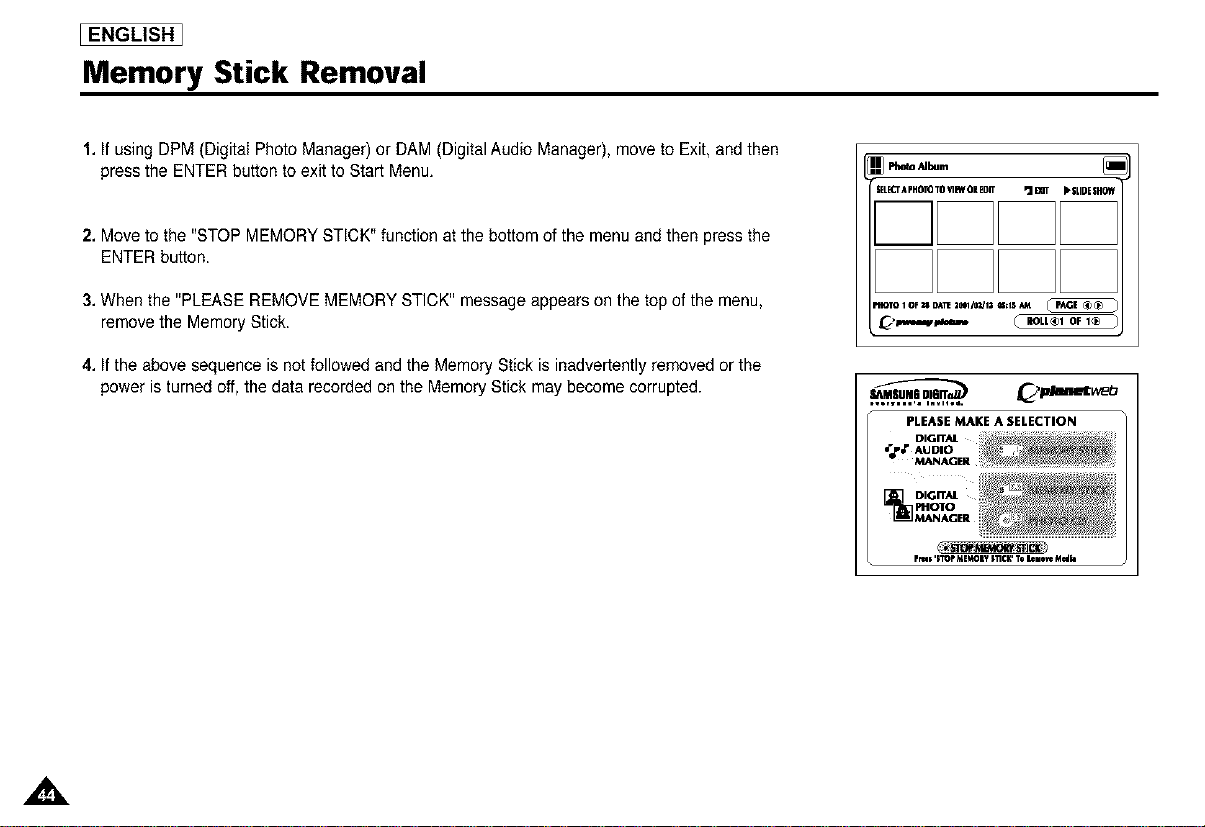
1, If using DPM (Digital Photo Manager) or DAM (Digital Audio Manager), move to Exit, and then
press the ENTER button to exit to Start Menu.
2, Move to the "STOP MEMORY STICK" function at the bottom of the menu and then press the
ENTER button.
3, When the "PLEASE REMOVE MEMORY STICK" message appears on the top of the menu,
remove the Memory Stick.
4, If the above sequence is not followed and the Memory Stick is inadvertently removed or the
power is turned off, the data recorded on the Memory Stick may become corrupted.
r _LB_TApH_ TO'flEW011EDrf _lmT _*|LIDE$H6_
MlOlO 1 OF _ &_'_ 2_M/_/13 U;IS MA
,,o,,,,°.. n.vHo_
PLEASE MAKE A SELECTION
DIGITAL
•_.z AUDIO
MANAGER
rruB ,iTOp ME_OIy I_C)_ To h,o_ M_b
_ENGLISH_
DPM (Digital Photo Manager) Playback
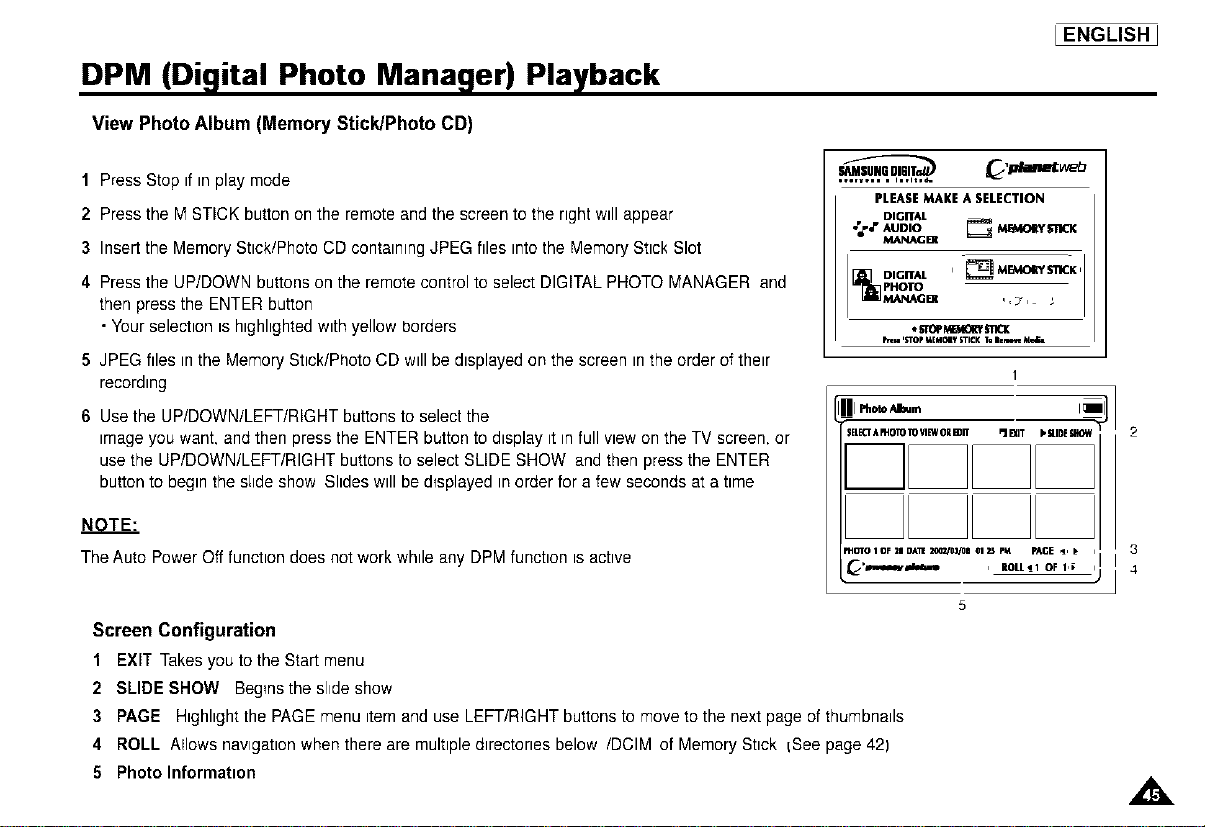
View Photo Album (Memory Stick/Photo CD)
1 Press Stop if inplay mode
2 Press the M STICK button on the remote and the screen to the right will appear
3 Insert the Memory Stick/Photo CD containing JPEG files into the Memory Stick Slot
4 Pressthe UP/DOWN buttons on the remote control to select DIGITAL PHOTO MANAGER and
then press the ENTER button
• Your selection is highlighted with yellow borders
5 JPEG files in the Memory Stick/Photo CD will be displayed on the screen inthe order of their
recording
6 Use the UP/DOWN/LEFT/RIGHT buttons to select the
image you want,and then press the ENTER button to display it in full view on the TV screen, or
use the UP/DOWN/LEFT/RIGHT buttons to select SLIDE SHOW and then press the ENTER
button to begin the s;ide show Slides will be d{splayed inorder for a few seconds at a time
NOTE."
The Auto Power Off function does not workwhile any DPM function is active
PLEASEMAKE A SELECTION
DIGITAL
DIGITAL I _ Mr_,_I[Y S'i_CKi
PHOTO
MANAG Bit ,,, _ ,_
* _0P MgACSff_nQ(
heu 'STOp_EMOIYSTICKT=I._ M=_.
llIl N,_ _,m
SELECT/.RHOTOTO'/IEWOil EDIT P] I_IT I, g.IOE glOM
_dO10 I OF zn DA_ _'OJ/O8 01 B PLt PACE ,_, I.
Screen Configuration
1 EXIT Takesyou tothe Start menu
2 SLIDE SHOW Begmsthe slide show
3 PAGE Highlight the PAGE menu itemand use LEFT/RIGHT buttons to move to the next page of thumbnails
4 ROLL Allows nawgabon when there are multiple directones below /DClM of Memory Stick iSee page 42)
5 Photo Informatmn
,tk
I ENGLISH _
Slide Show
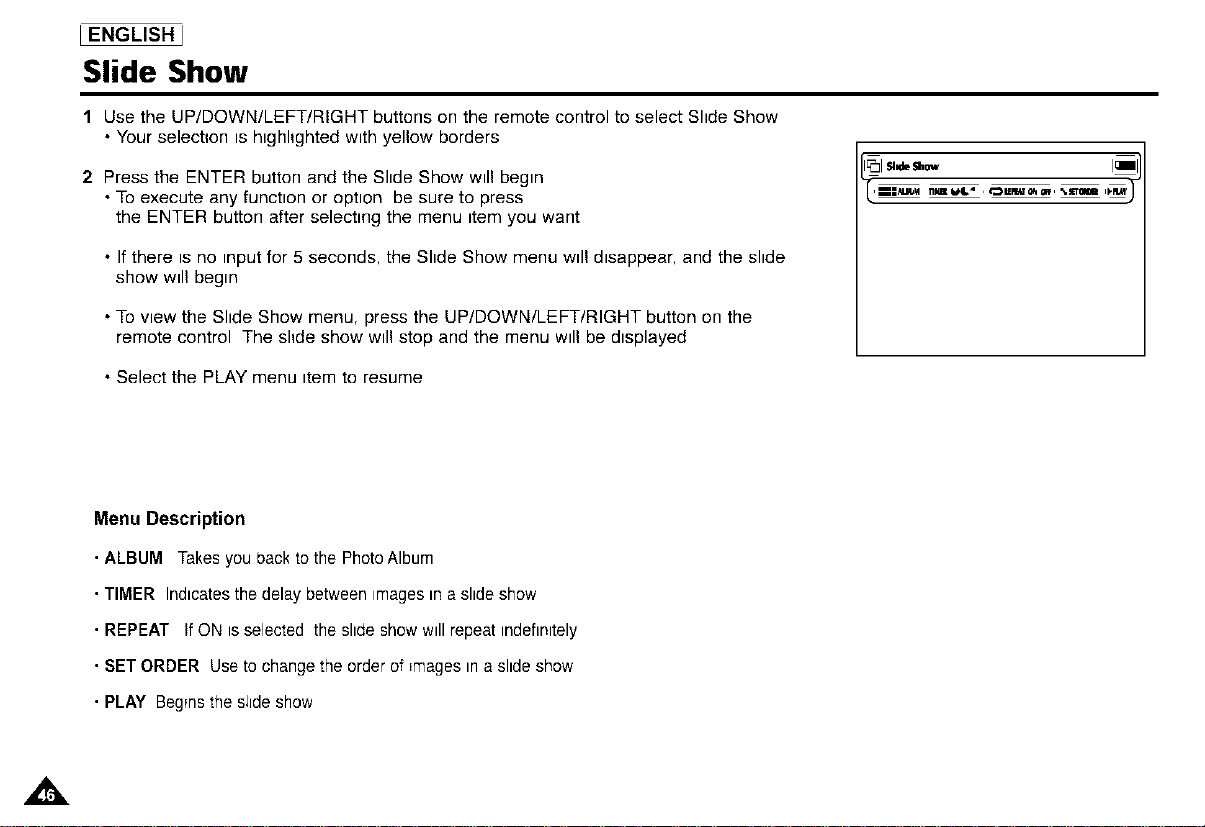
1 Use the UP/DOWN/LEFT/RIGHT buttons on the remote control to select Slide Show
• Your selection is hlghhghted with yellow borders
2 Press the ENTER button and the Slide Show will begin
• To execute any function or option be sure to press
the ENTER button after selecting the menu item you want
• If there is no input for 5 seconds, the Slide Show menu will disappear, and the slide
show will begin
• To view the Slide Show menu, press the UP/DOWN/LEFT/RIGHT button on the
remote control The slide show will stop and the menu will be displayed
E_I_'_ _'_ I_]
• Select the PLAY menu item to resume
Menu Description
• ALBUM Takes yeu back to the PhotoAlbum
• TIMER Indicates the delay between images in a slide show
• REPEAT If ON is selected the slide show will repeat indefinitely
• SET ORDER Useto change the order of =magesin a slide show
• PLAY Beginsthe s;ide show
,tk
_ENGLISH_
Slide Show Order
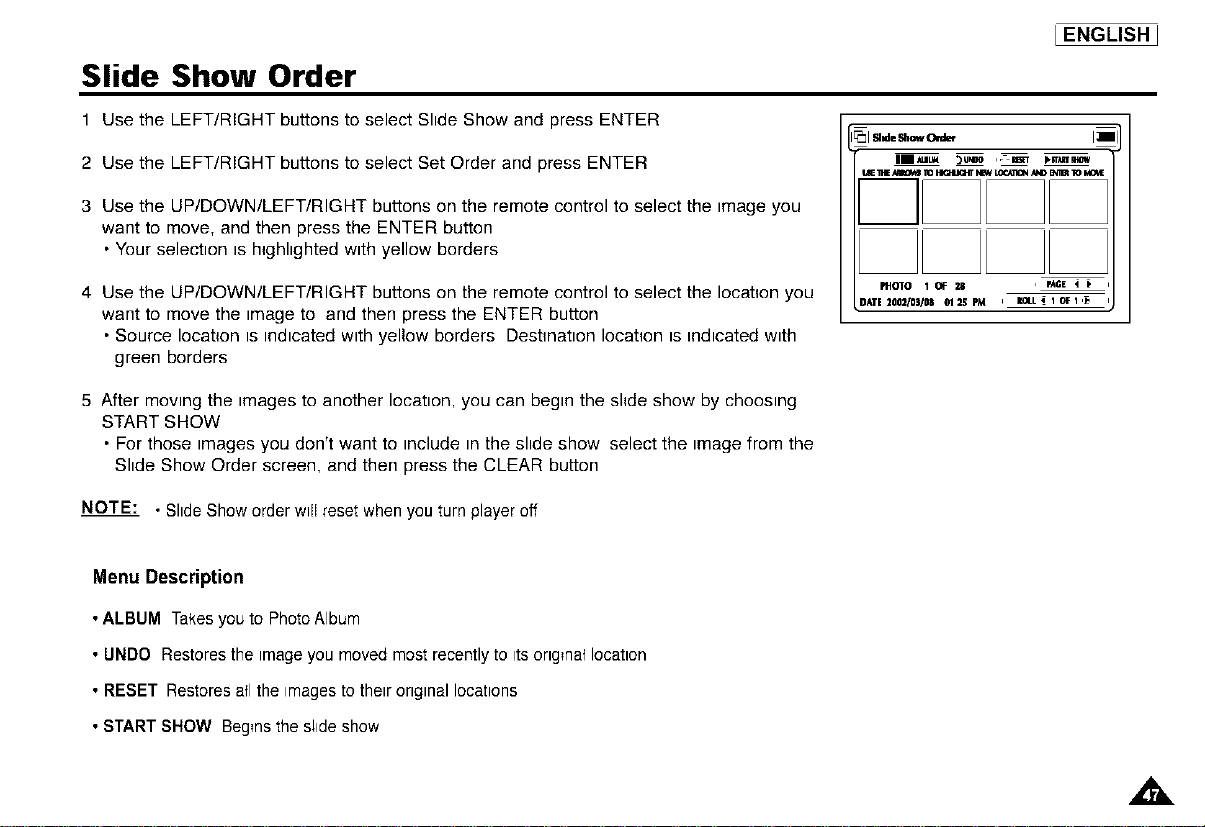
1 Use the LEFT/RIGHT buttons to select Slide Show and press ENTER
2 Use the LEFT/RIGHT buttons to select Set Order and press ENTER
3 Use the UP/DOWN/LEFT/RIGHT buttons on the remote control to select the image you
want to move, and then press the ENTER button
• Your selection is hghlighted with yellow borders
4 Use the UP/DOWN/LEFT/RIGHT buttons on the remote control to select the location you
want to move the tmage to and then press the ENTER button
• Source location ts mdtcated wtth yellow borders Destlnatton location ts mdtcated wtth
green borders
I,E 1NEB lO m I,I_VU_:/_I_ AI,mB*qlBI_ I=IQ_
PHOTO 1 OF 211 , PAGE _
[lATE 2002/031R _1 25 PM I I_L • I Of I _ I
5 After moving the images to another location, you can begin the slide show by choosing
START SHOW
• For those images you don't want to include in the slide show select the image from the
Shde Show Order screen, and then press the CLEAR button
NOTE: • Slide Show order will reset when you turn player off
Menu Description
• ALBUM Takes you to Photo Album
• UNDO Restores the imageyou moved most recently to ttsoriginal location
• RESET Restores all the tmagesto their original locations
• START SHOW Beginsthe silde show
A
I ENGLISH J
Photo View
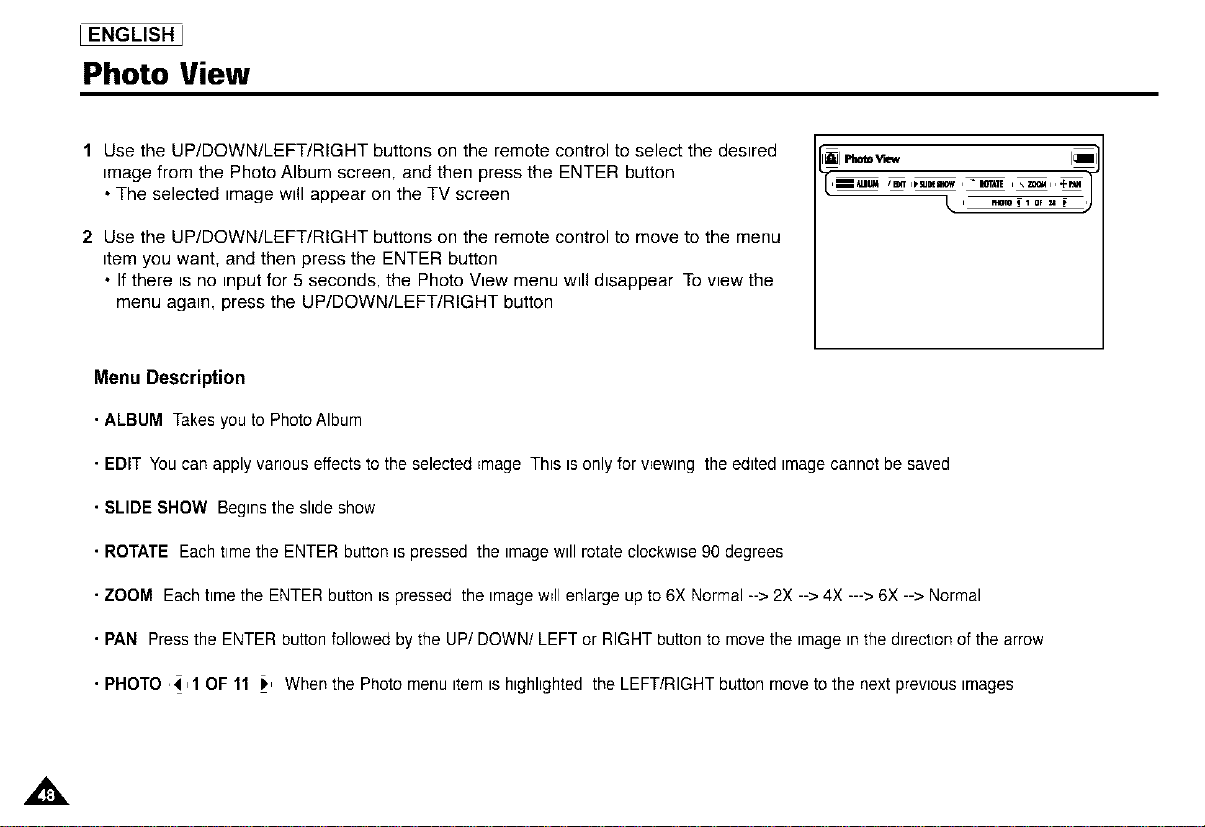
1 Use the UP/DOWN/LEFT/RIGHT buttons on the remote control to select the desired
image from the Photo Album screen, and then press the ENTER button
• The selected image will appear on the TV screen
2 Use the UP/DOWN/LEFT/RIGHT buttons on the remote control to move to the menu
item you want, and then press the ENTER button
• If there is no input for 5 seconds, the Photo View menu will disappear To view the
menu again, press the UP/DOWN/LEFT/RIGHT button
Menu Description
ALBUM Takesyouto PheteAlbum
EDIT You can apply various effects to the selected image This isonly for viewing the edited image cannot be saved
SLIDE SHOW Begins the slide show
ROTATE Each time the ENTER button is pressed the imagewill rotate clockwise 90 degrees
ZOOM Each time the ENTER button ispressed the imagew_llenlarge up to 6X Normal --> 2X --> 4X ---> 6X --> Normal
PAN Pressthe ENTER button followed by the UP/DOWN/LEFT or RIGHT button to move the image inthe direction of the arrow
PHOTO ,4,1 OF 11 !_, When the Photo menu item ishighlighted the LEFT/RIGHT button move to the next previous images
A
Edit Photo
_ENGLISH_
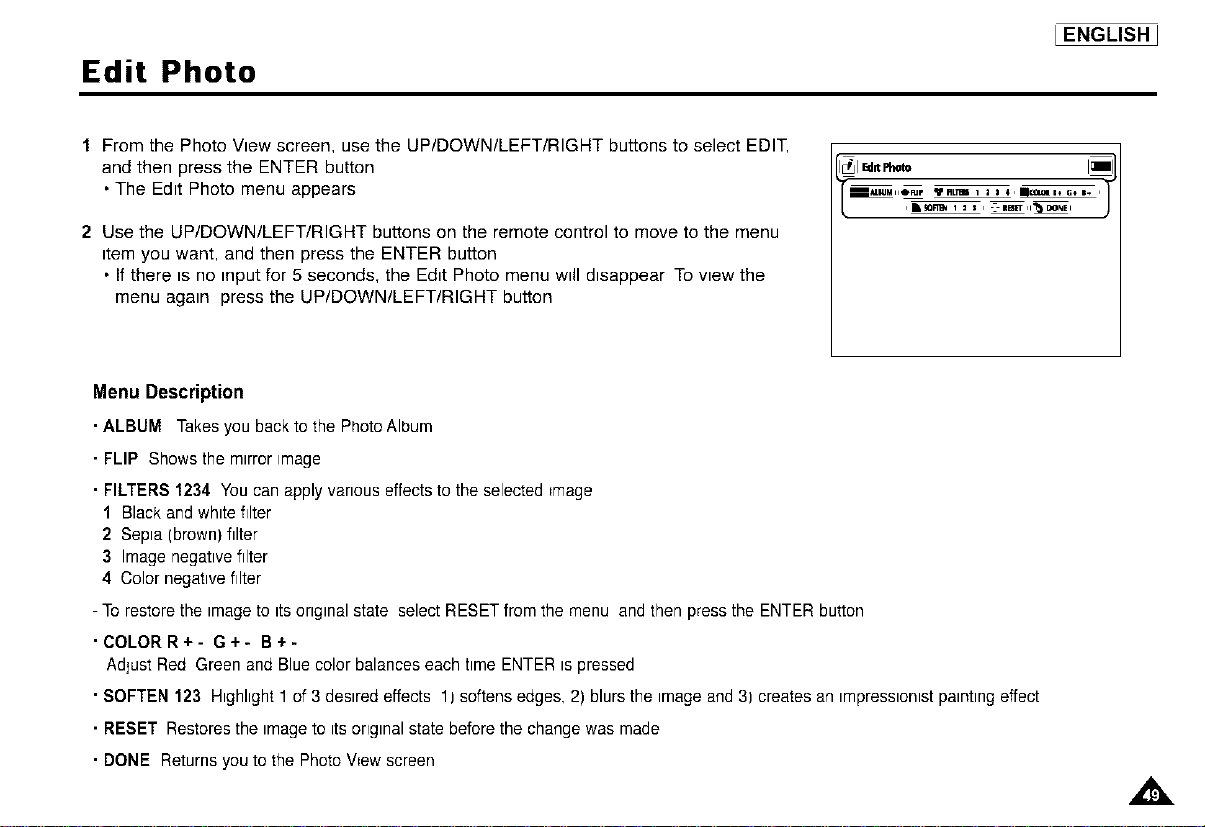
I From the Photo View screen, use the UP/DOWN/LEFT/RIGHT buttons to select EDIT,
and then press the ENTER button
• The Edit Photo menu appears
2 Use the UP/DOWN/LEFT/RIGHT buttons on the remote control to move to the menu
item you want, and then press the ENTER button
• If there is no input for 5 seconds, the Edit Photo menu will disappear To view the
menu again press the UP/DQWN/LEFT/RIGHT button
Menu Description
• ALBUM Takesyou back to the PhotoAlbum
• FLIP Shows the mirror image
• FILTERS1234 Youcan apply variouseffects to the selected =mage
1 Black and white filter
2 Sepia (brown) filter
3 Image negative filter
4 Color negative filter
- To restore the imageto itsoriginal state select RESET from the menu and then press the ENTER button
• COLORR+- G+- B+-
Adjust Red Green and Blue color balances each time ENTER ispressed
• SOFTEN 123 Highlight 1of 3 desired effects 11softens edges, 2) blurs the imageand 3) creates an impressionistpainting effect
• RESET Restores the imageto its original state before the change was made
• DONE Returns you to the Photo V=ewscreen
,tk
I ENGLISH
Using the Setup Menu
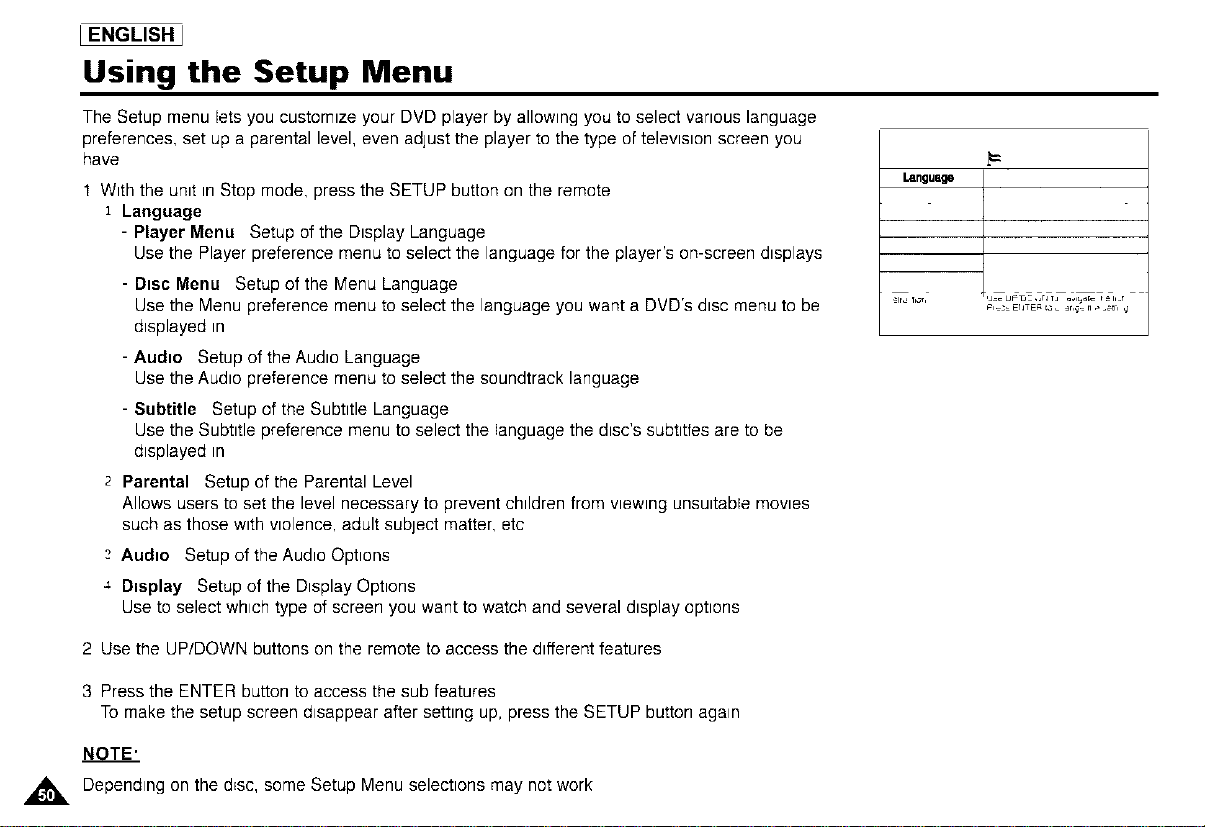
The Setup menu lets you customize your DVD player by allowing you to select various language
preferences, set up a parental level, even adjust the player to the type of television screen you
have
1 With the unit in Stop mode, press the SETUP button on the remote
1 Language
- PLayer Menu Setup of the Display Language
Use the Player preference menu to select the language for the player's on-screen displays
- Disc Menu Setup of the Menu Language
Use the Menu preference menu to select the language you want a DVD's disc menu to be
displayed in
- Audio Setup of the Audio Language
Use the Audio preference menu to select the soundtrack language
- Subtitle Setup of the Subtitle Language
Use the Subtitle preference menu to select the language the disc's subtitles are to be
displayed in
2 Parental Setup of the Parental Level
Allows users to set the level necessary to prevent children from viewing unsuitable movies
such as those with violence, adult subject matter, etc
2 Audio Setup of the Audio Options
4 Display Setup of the Display Options
Use to select which type of screen you want to watch and several display options
t=
Language
_,o,. ,J_uF_ _ _rHj _ _E=_ :,.T
2 Use the UP/DOWN buttons on the remote to access the different features
3 Press the ENTER button to access the sub features
To make the setup screen disappear after setting up, press the SETUP button again
NOTE'
Dependingon thed_sc,someSetupMenuselectionsmay notwork
Setting Up the Language Features
Ifyou set the player menu disc menu, audio and subtitle language in advance, they will come up
automattcally every ttme you watch a movte
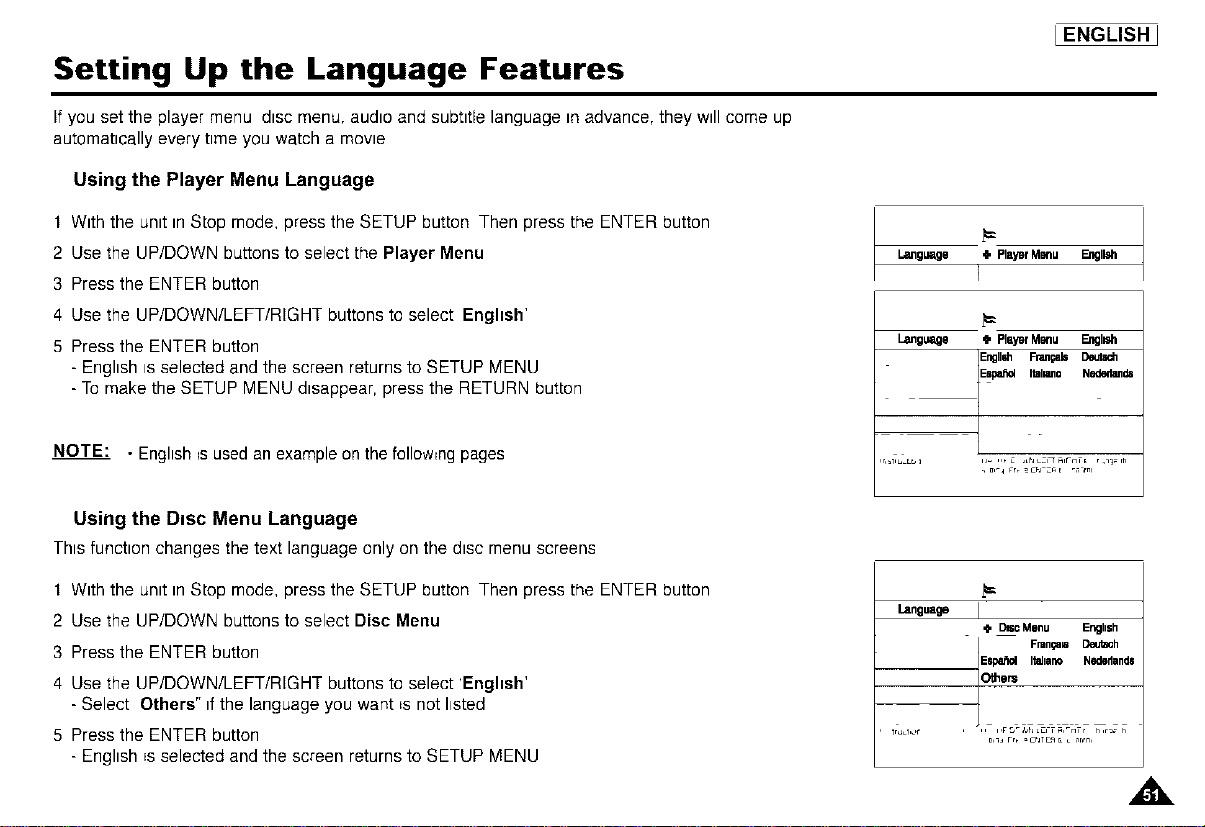
Using the Player Menu Language
1 With the unit in Stop mode, press the SETUP button Then press the ENTER button
2 Use the UP/DOWN buttons to select the Player Menu
3 Press the ENTER button
4 Use the UP/DOWN/LEFT/RIGHT buttons to select English'
5 Press the ENTER button
- English isselected and the screen returns to SETUP MENU
- To make the SETUP MENU disappear, press the RETURN button
NOTE: • English _sused an example on the following pages
LENGLISH_
language @PlayerMenu Englleh
F
Language @ PlayerMenu F.ngll_
Englld_ Frangals Deutsdl
Espa_d Italmno Nodedands
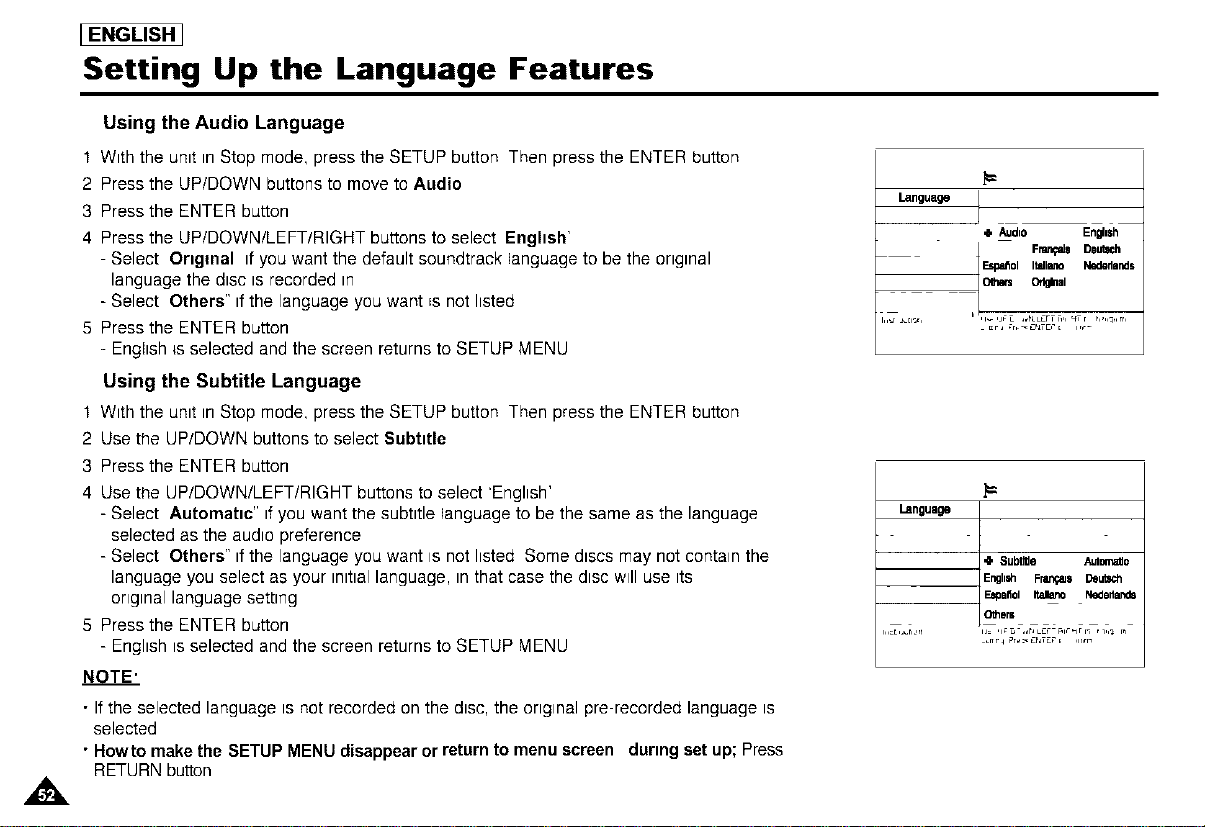
Using the Disc Menu Language
This functionchangesthe text languageonlyon the disc menuscreens
1 With the unit in Stop mode, press the SETUP button Then press the ENTER button
2 Use the UP/DOWN buttons to select Disc Menu
3 Press the ENTER button
4 Use the UP/DOWN/LEFT/RIGHT buttons to select 'English'
- Select Others" ifthe language you want _snot hsted
5 Press the ENTER button
- English _sselected and the screen returns to SETUP MENU
Language
@ Da_ Menu English
t Frangam Dea=ch
E6pat_ Itahano NOdedands
Others
i I F _JrJ LLI I H HIr _
[i,iJ Fr_ • E_JT F_ _ • ,lr,rn,
EENGLISH ]
Setting Up the Language Features
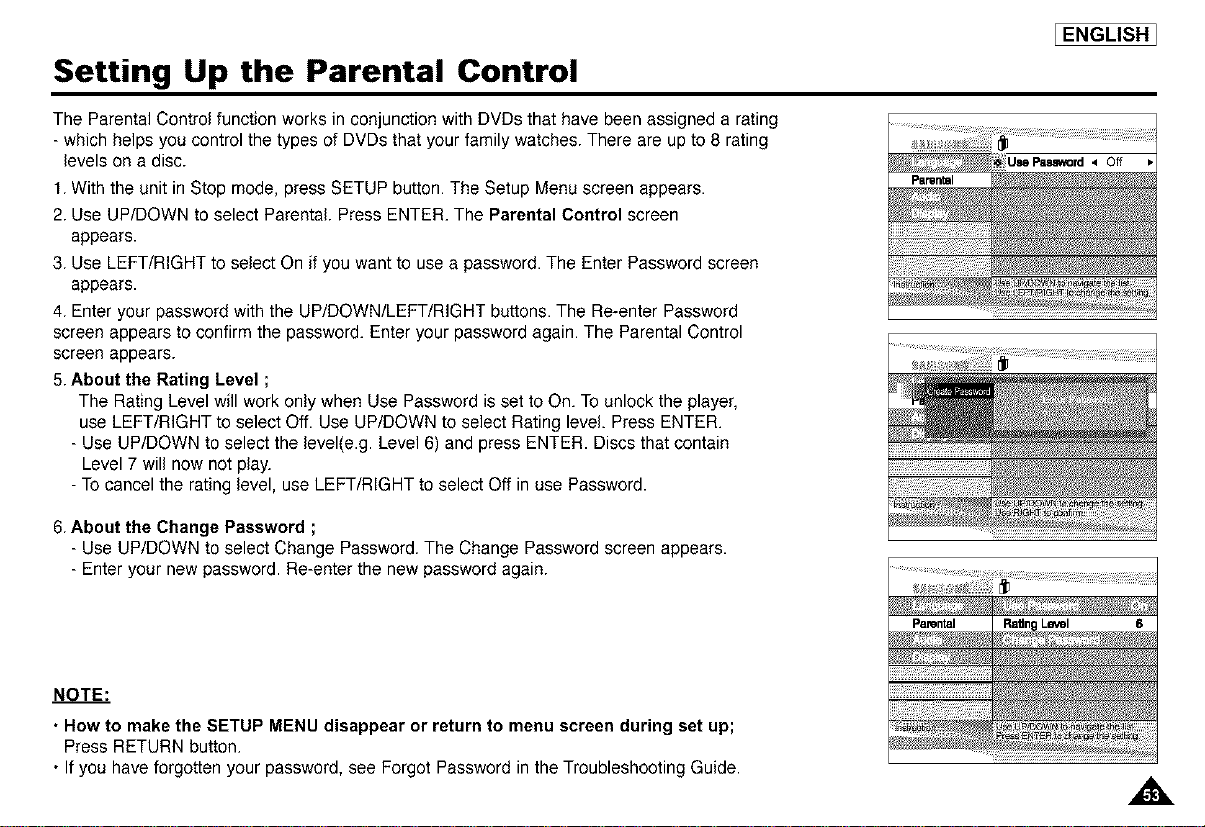
Using the Audio Language
1 With the unit in Stop mode, press the SETUP button Then press the ENTER button
2 Press the UP/DOWN buttons to move to Audio
3 Press the ENTER button
4 Press the UP/DOWN/LEFT/RIGHT buttons to select English'
- Select Original if you want the default soundtrack language to be the original
language the disc is recorded in
- Select Others" ifthe language you want _snot listed
5 Press the ENTER button
- English _sselected and the screen returns to SETUP MENU
Using the Subtitle Language
t With the unit in Stop mode, press the SETUP button Then press the ENTER button
2 Use the UP/DOWN buttons to select Subtitle
3 Press the ENTER button
4 Use the UP/DOWN/LEFT/RIGHT buttons to select 'English'
- Select Automatic" ifyou want the subtitle language to be the same as the language
selected as the audio preference
- Select Others" ifthe language you want is not listed Some discs may not contain the
language you select as your initiallanguage, in that case the disc will use its
original language setting
5 Press the ENTER button
- English is selected and the screen returns to SETUP MENU
NOTE'
• If the selected language is not recorded on the disc, the original pre-recorded language is
selected
• Hewto make the SETUP MENU disappear or return to menu screen during set up; Press
RETURN button
Language
@ Audio En_lsh
_al
t=
Language
@ SubtlHe Auton_c
EngliM1 Fran_aJ$ _utl_h
FJ_86Ol _ N_ofl_
01herb
L_r 4 _r_ChTErL ,,r,r_
Setting Up the Parental Control
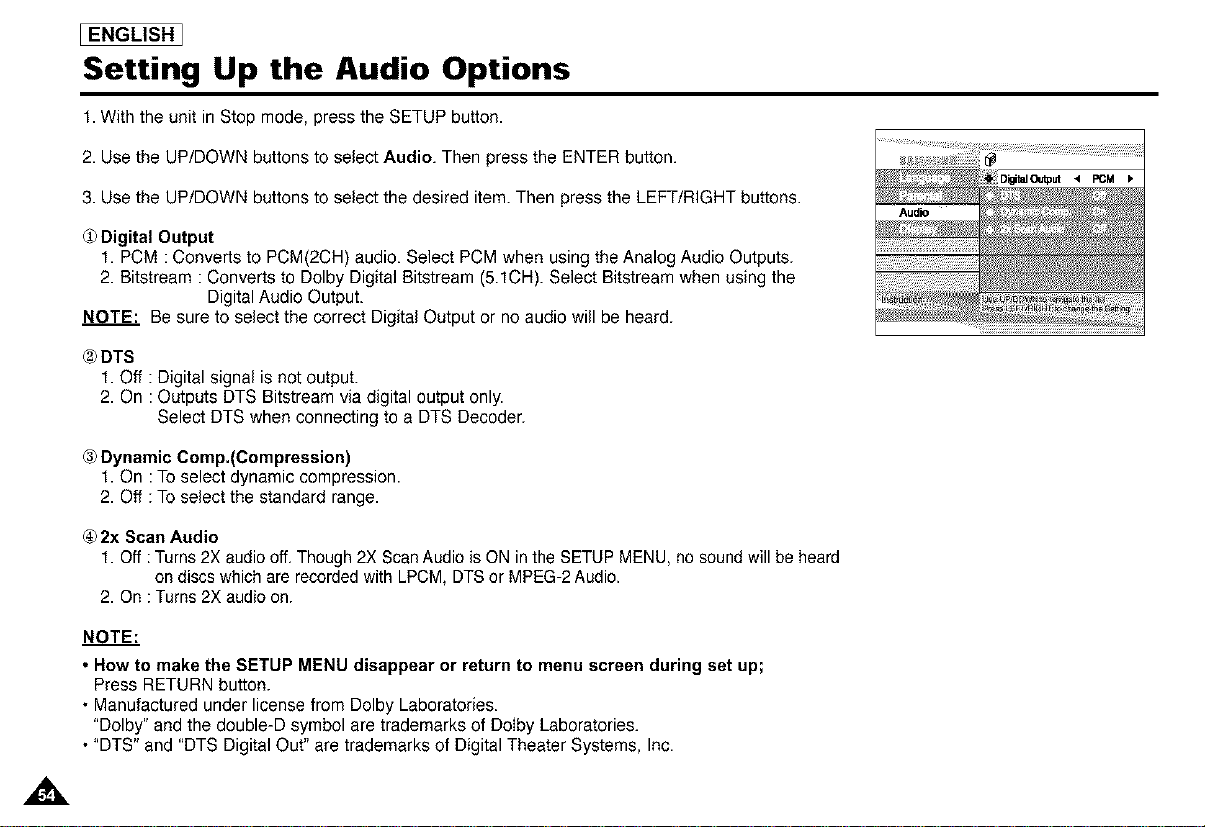
The Parental Control function works in conjunction with DVDs that have been assigned a rating
- which helps you control the types of DVDs that your family watches. There are up to 8 rating
levels on a disc.
1.With the unit in Stop mode, press SETUP button. The Setup Menu screen appears.
2. Use UP/DOWN to select Parental. Press ENTER. The Parental Control screen
appears.
3. Use LEFT/RIGHT to select On if you want to use a password. The Enter Password screen
appears.
4. Enter your password with the UP/DOWNtLEFT/RIGHT buttons. The Re-enter Password
screen appears to confirm the password. Enter your password again. The Parental Control
screen appears.
5. About the Rating Level ;
The Rating Level will work only when Use Password is set to On. To unlock the player,
use LEFT/RIGHT to select Off. Use UP/DOWN to select Rating level. Press ENTER.
- Use UP/DOWN to select the level(e.g. Level 6) and press ENTER. Discs that contain
Level 7 will now not play.
- To cancel the rating level, use LEFT/RIGHT to select Off in use Password.
6. About the Change Password ;
- Use UP/DOWN to select Change Password. The Change Password screen appears.
- Enter your new password. Re-enter the new password again.
NOTE."
• How to make the SETUP MENU disappear or return to menu screen during set up;
Press RETURN button.
• If you have forgotten your password, see Forgot Password in the Troubleshooting Guide.
[ENGLISH]
,,&
I ENGLISH ]
Setting Up the Audio Options
1. With the unit in Stop mode, press the SETUP button.
2. Use the UP/DOWN buttons to select Audio. Then press the ENTER button.
3. Use the UP/DOWN buttons to select the desired item. Then press the LEFT/RIGHT buttons.
(i) Digital Output
1. PCM : Converts to PCM(2CH) audio. Select PCM when using the Analog Audio Outputs.
2. Bitstream : Converts to Dolby Digital Bitstream (5.1CH). Select Bitstream when using the
Digital Audio Output.
NOTE.' Be sure to select the correct Digital Output or no audio will be heard.
(2)DTS
1. Off : Digital signal is not output.
2. On : Outputs DTS Bitstream via digital output only.
Select DTS when connecting to a DTS Decoder.
C3_Dynamic Comp.(Compression)
1. On : To select dynamic compression.
2. Off : To select the standard range.
(4)2x Scan Audio
1. Off : Turns 2X audio off. Though 2X Scan Audio is ON in the SETUP MENU, no sound will be heard
on discs which are recorded with LPCM, DTS or MPEG-2 Audio.
2. On : Turns 2X audio on.
NOTE."
• How to make the SETUP MENU disappear or return to menu screen during set up;
Press RETURN button.
• Manufactured under license from Dolby Laboratories.
"Dolby" and the double-D symbol are trademarks of DoIby Laboratories.
• "DTS" and "DTS Digital Out" are trademarks of Digital Theater Systems, Inc.
,,&
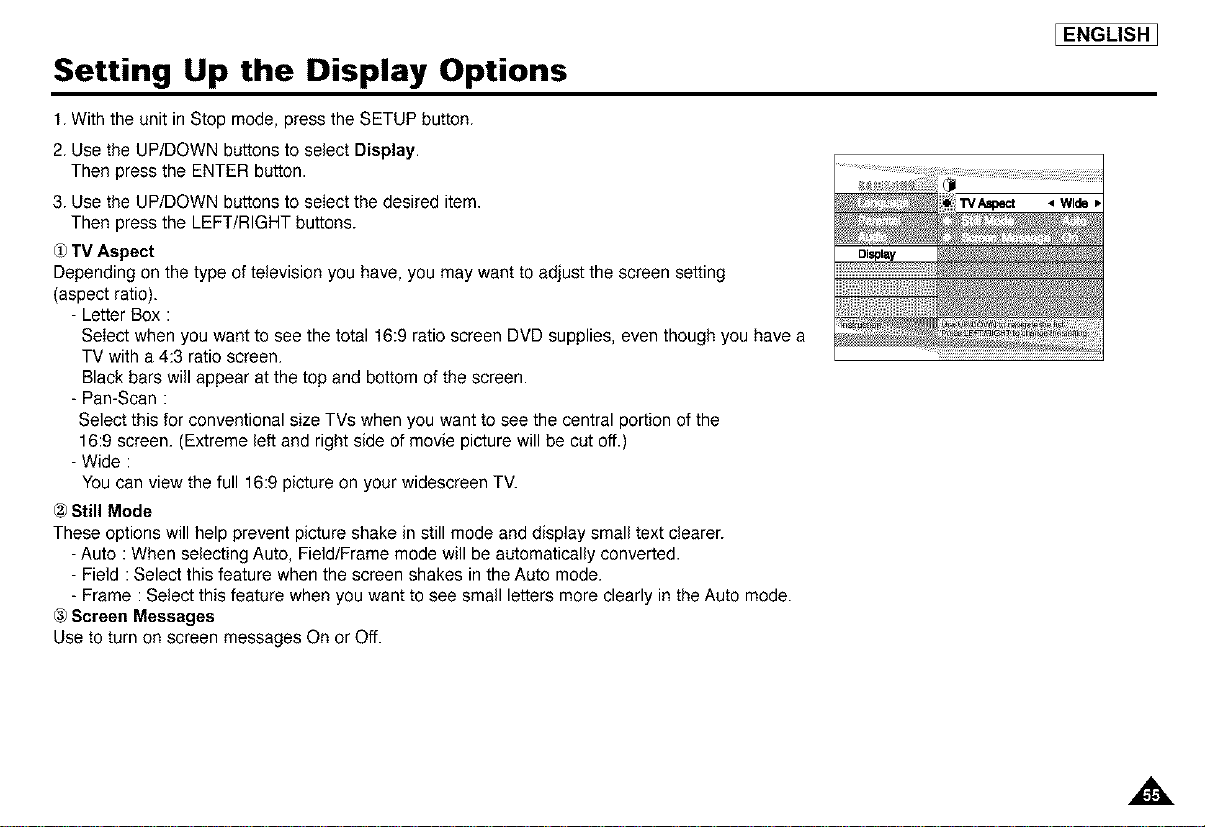
Setting Up the Display Options
1.With the unit in Stop mode, press the SETUP button.
2. Use the UP/DOWN buttons to select Display.
Then press the ENTER button.
3. Use the UP/DOWN buttons to select the desired item.
Then press the LEFT/RIGHT buttons.
(J)TV Aspect
Depending on the type of television you have, you may want to adjust the screen setting
(aspect ratio).
- Letter Box :
Select when you want to see the total 16:9 ratio screen DVD supplies, even though you have a
TV with a 4:3 ratio screen.
Black bars will appear at the top and bottom of the screen.
- Pan-Scan :
Select this for conventional size TVs when you want to see the central portion of the
16:9 screen. (Extreme left and right side of movie picture will be cut off.)
- Wide :
You can view the full 16:9 picture on your widescreen TV.
C2)Still Mode
These options will help prevent picture shake in still mode and display small text clearer.
- Auto : When selecting Auto, Field/Frame mode will be automatically converted.
- Field :Select this feature when the screen shakes in the Auto mode.
- Frame : Select this feature when you want to see small letters more clearly in the Auto mode.
® Screen Messages
Use to turn on screen messages On or Off.
IENGLISHI
I ENGLISH
Cautionary Notes
Cautions on Using the Player
• Avoid magnetic environments.
Using the player under strong fluorescent hght_ng, in a car, near a TV or magnetic obJect may deteriorate recorded images
• Be sure to remove the disc, turn off the player, and remove the battery pack after use
• If used near a broadcast station or power transmission tower, the video may become distorted due to interference.
• Do not drop the player or subject it to strong vibration or shock.
• Do not place the player near a lamp
Heat from the mcandesent light bulbs may cause deformation or malfunction
• Always observe the rules regulating the use of electrical devices on airplanes
• Do not expose this product to high temperature and humidity.
This product can be operated within temperature range of 50_F~86_F and humidity range of 30°°-80°°
Do not expose this product to direct sunhght or in a car with its windows closed Doing so may result in deformation of casing and
circuitry as well as cause fire or bodily injury
• Do not let water, sand, dust, or other foreign objects in the player. Avoid using or storing the player in a place where there
IS smoke, steam, or moisture.
Doing so may cause malfunction or mold on the pick-up lens Keep the player in a well-ventdated area
• When using the player in cold environments, the color LCD screen may not be visible immediately after the power
IS turned on.
This is not a malfunction Do not operate the player in temperatures below 50°F
• Be especially careful not to scratch the pick-up lens during loading/unloading of the disc, or cleaning.
Doing so may result in malfunction
Cautionary Notes
When Moving the Player
IENGLISHJ
• Be sure to remove the disc from the player before packing for moving.
It is recommended that you also remove the disc from the player and turn off the power when not using the player
Saving Power
• It is recommended that you turn off the power to the DVD player when not use If you are not going to use it for prolonged
period of time, unplug the power cord from the wall outlet
Maintenance of LCD Screen
• To keep the screen clean, turn off the power and then wipe with a soft cloth.
About LCD Screen
• This LCD panel is designed with the latest technology ensuring 99 99°0 of active plxels
That is less than 0 01°o of total plxels will have any defect (e g, always off or always on)
I ENGLISH
Cautionary Notes
Cautions on Using Battery pack
Danger!
Always follow the safety informat_onbelow when using the battery pack Otherwise, a short circuit, overheating, smoke, fire or
damage to the product may result
1 Never disassemble or modify the battery pack in any way Do not touch the terminal of the battery pack with a metal object
2 Do not let any metal object inside the battery pack
3 Do not place the battery pack in direct sunhght, dashboard of a vehicle, or hgh temperature
4 Do not expose the battery pack to water, fire, or heat
5 Always use the included AC adapter when charging the battery pack
6 Ths battery pack is designed exclusively for your portable DVD player Do not use it with other devices
Warning!
1 Do not drop or subject to strong vibration
2 Keep out of reach of children
3 The battery pack may leak fluid that is harmful to your eyes If this fluid gets in your eyes wash eyes immediately with large
amounts of running water and get medical attention immediately If the fluid gets on your skin or clothing, wash immediately with
water
Caution!
1 When not using the battery pack, remove it and store in a cool place
2 Do not use the AC adapter or battery pack for a prolonged period of time during recharging You might get a low temperature burn
3 Keep the battery pack free from smoke, steam, moisture, and dust
• Do not place the battery pack near a kitchen, heater, or any other place where there is smoke or steam Doing so may result in
fire or electric shock
• Avoid direct sunlight, heater, or high temperature place etc inside of a car It can cause explosion or fire Doing so may cause
a short circuit overheating, smoke, fire, or damage to the product
4 Using the battery pack under 32_F or over 86_F can cause reduced battery life
,&
Cautionary Notes
[ENGLISH]
After a Recharge, Store the Battery pack Separately.
• This battery pack is a lithium ion battery. Even when not in use, power will drain slowly. So use a fully charged
battery pack.
• Recharge until the charge lamp stays on green. A partial charging of the battery pack decreases the overall lifetime of the battery.
Cautions on Charging Battery pack
• Charge within the surrounding temperature range of 50°F~86°R Charging at a low surrounding temperature slows down the
charging time and decreases the battery pack. You cannot fully charge the battery pack at high temperture.
• If the DVD player is overheated and the battery pack's internal temperature goes up to a certain level, you will not be able to
charge the battery pack. (The lamp flashes quickly and the light does not come on.)
In this case, remove the battery pack. After the internal temperature reaches a safe level, charging will begin automatically.
• The battery pack becomes warm during recharge or use. This is normal and is not a cause for concern.
A hot battery pack may take longer to charge or may not be charged at all. Wait until the battery pack cools down before charging.
Battery pack Life and Use (Low Temperature)
• The lifetime of the battery pack is limited
Power is slowly drained even when not using. Though it varies for differing storage conditions, the battery pack stored unused for a
year has a much shorter lifetime.
If the battery pack does not last long even after a full charge, you might have to replace it with a new one.
• Total operating time of the battery pack becomes much shorter when used at temperature below 50°R
Electrical energy is discharged due to internal chemical action of the battery pack. A very low temperature may impede this chemical
action and shortens the total operating time.
Caution
• Be sure to use only the battery pack exclusively designed for your DVD player.
NOTE."
• When not using the DVD player,always turn off the power to conserve the battery pack. If the AC adapter is connected to
the player, charge the battery pack with the power to the player turned off.
A
I ENGLISH ]
Cautionary Notes
Cautions on Storing Battery pack
• Even when not in use, power is consumed continuously To reduce the power consumption, follow the procedure below.
1_Remove the battery pack from the DVD player after every use.
2. When not using the DVD player, turn off the power. If the player is left in the standby mode, power will be slowly drained
from the battery pack and the charging capacity will decrease.
3. Before storing the battery pack, completely drain the power by operating the player and store in a cool, dry place. If stored in a
hot place, the capacity of the battery pack will decrease.
4. The battery pack must be recharged and then used on the DVD player at least once every 6 months. This helps to prevent
the loss of capacity.
AC Adapter
The supplied AC adapter is compatible with 50/60Hz electrical system (110V~240V range). Use of the AC adapter depends on the
specific voltage requirements and electrical outlet design.
• Using the AC adapter near a radio may cause poor reception.
• Do not let any type of flammables, liquid, or metal objects in the adapter.
• The adapter is covered with an outer plastic sheath. Do not peel open the sheath.
• De not drop, jar, or shake the adapter.
• De not place in direct sunlight.
• Do not use in high temperature or cold and humid environments.
Cleaning and Maintenance
• Many plastic parts are used in this DVD player casing. Do not use volatile chemicals such as benzene or thinner. This might
damage the finish.
• Wipe the casing with a soft, dry cloth. For excessive dirt, use a cloth dampened in a diluted neutral detergent, and wipe again with a
soft, dry cloth.
• Wipe off fingerprints or dirt on the LCD screen using a soft, dry cloth.
A
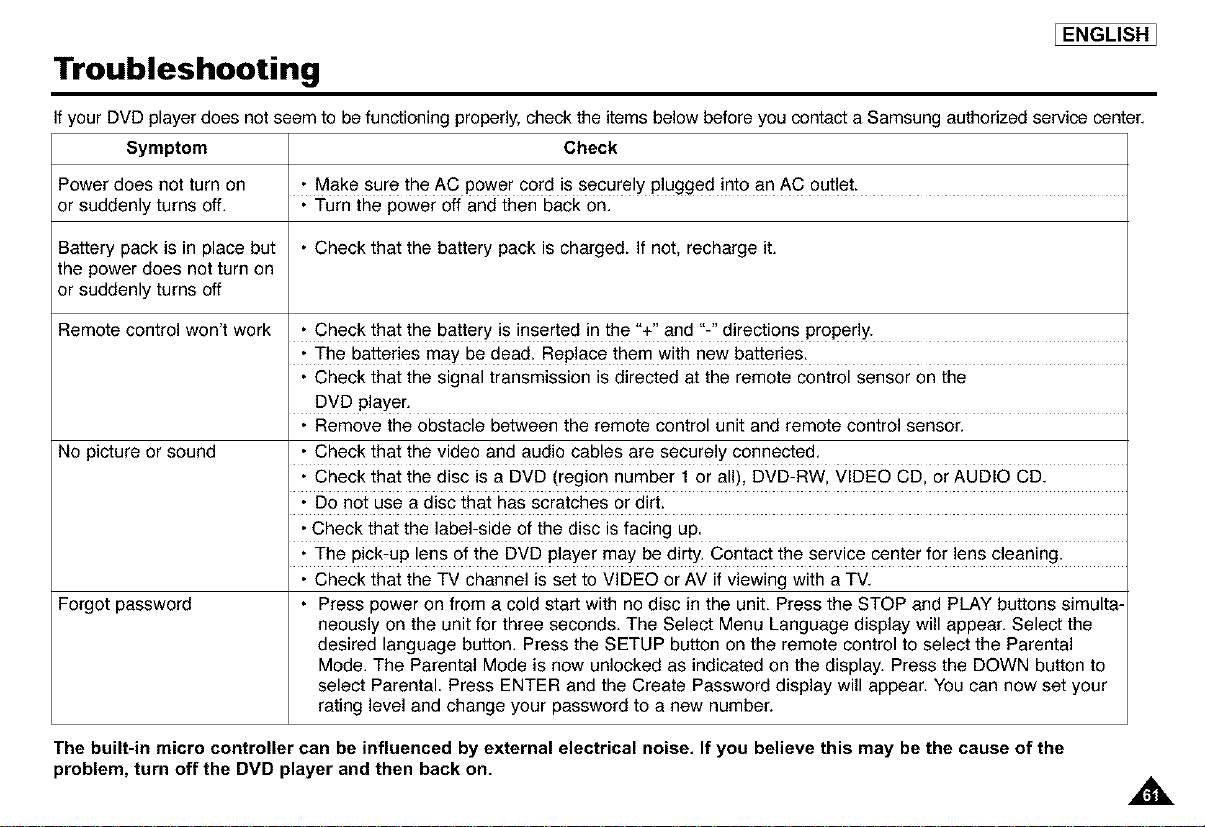
Troubleshooting
EENGLISHI
Ifyour DVD player does not seem to be functioning properly, check the items below before you contact a Samsung authorized service center
Symptom Check
Power does not turn on - Make sure the AC power cord is securelY Plugged into an AC out!e L
or suddenly turns off • Turn the power off and then back on
• Check that the battery pack is charged If not, recharge itBattery pack is in place but
the power does not turn on
or suddenly turns off
Remote control won't work
No picture or sound
Forgot password
• Check that the battery is inserted in the %" and "-" directions properly.
• The batteries may be dead. Replace them with new batterie&
• Check that the signal transmission is directed at the remote control sensor on the
DVD player.
• Remove the obstacle between the remote control unit and remote control sensor.
• Check that the video and audio cables are securely connected
• Check that the disc is a DVD (region number I or all), DVD RW, VIDEO CD, or AUDIO CD
• Do not use a disc that has scratches or dirtl
• Check that the iabe!-side of the disc is facing up
• The Pick-up lens of the DVD player may be dirty Contac t the service cente ! for !ens c!ean!ng t
• Check that the TV channel is set to VIDEO or AV if viewing with a TV
• Press power on from a cold start with no disc in the unit Press the STOP and PLAY buttons simulta-
neously on the unit for three seconds The Select Menu Language display will appear Select the
desired language button Press the SETUP button on the remote control to select the Parental
Mode The Parental Mode is now unlocked as indicated on the display Press the DOWN button to
select Parental Press ENTER and the Create Password display will appear You can now set your
rating level and change your password to a new number
The built-in micro controller can be influenced by external electrical noise, If you believe this may be the cause of the
problem, turn off the DVD player and then back on
A
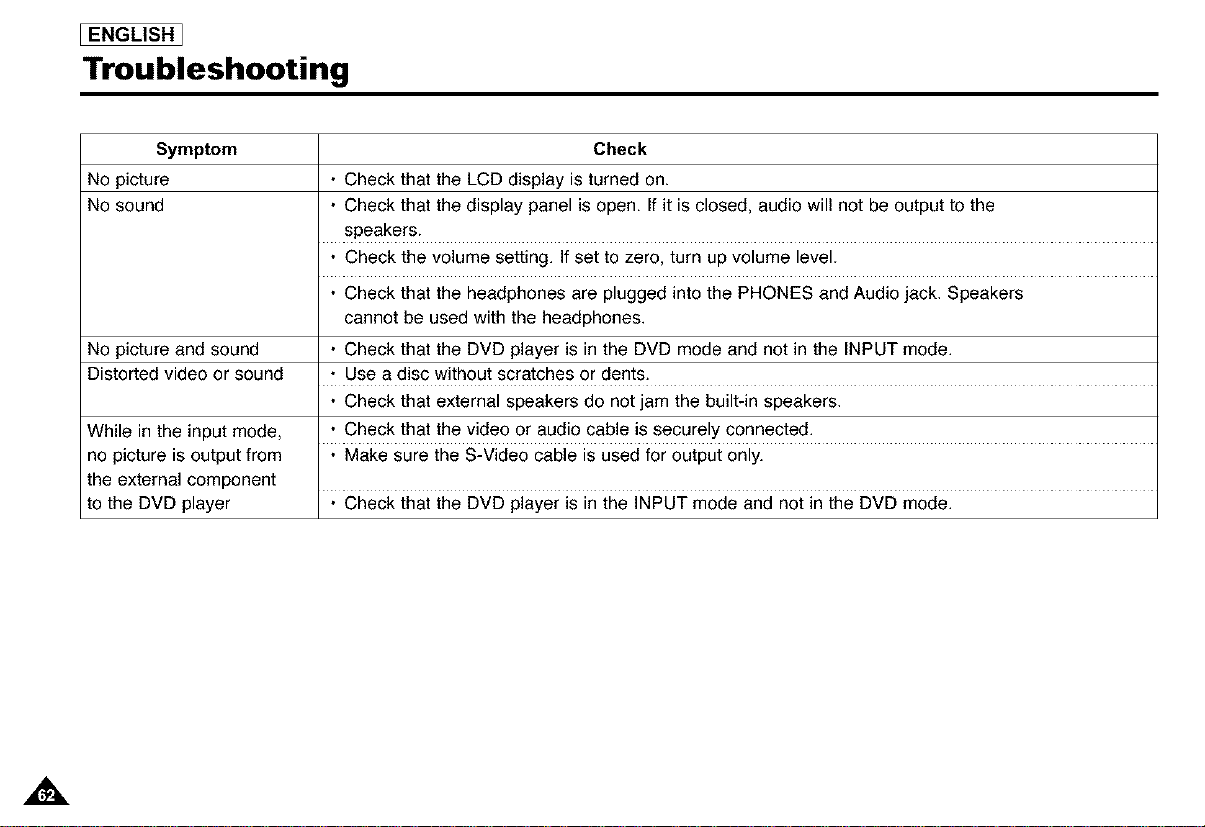
I ENGLISH ]
Troubleshooting
Symptom Check
No picture • Check that the LCD display is turned on.
No sound • Check that the display panel is open. If it is closed, audio will not be output to the
speakers.
• Check the volume setting. If set to zero, turn up volume level.
• Check that the headphones are plugged into the PHONES and Audio jack. Speakers
cannot be used with the headphones.
No picture and sound • Check that the DVD player is in the DVD mode and not in the INPUT mode.
Distorted video or sound • Use a disc without scratches or dents.
• Check that external speakers do not jam the built-in speakers.
While in the input mode, • Check that the video or audio cable is securely connected.
no picture is output from • Make sure the S-Video cable is used for output only.
the external component
to the DVD player • Check that the DVD player is in the INPUT mode and not in the DVD mode.
A
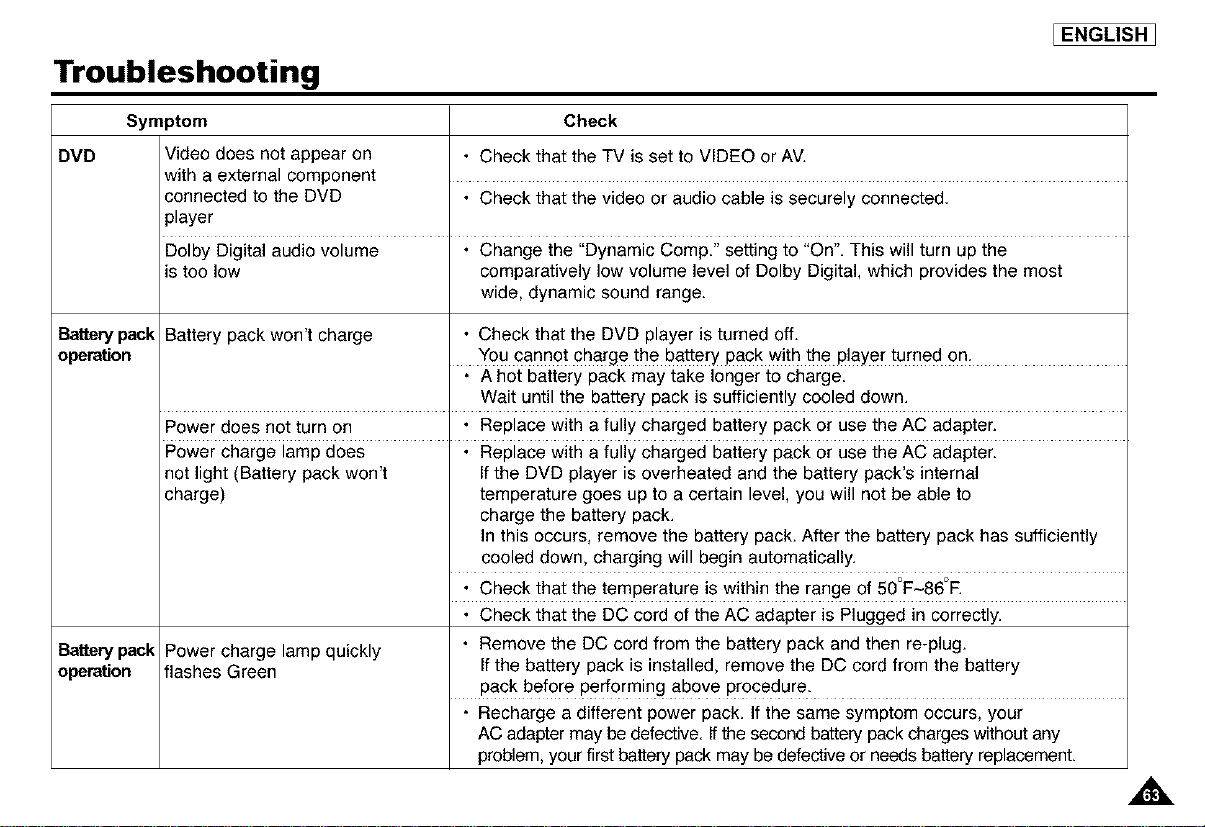
Troubleshooting
[ENGLISH]
DVD
B_ewp_k
o_ration
B_ewp_k
o_ration
Symptom Check
Video does not appear on • Check that the TV is set to VIDEO or AV.
with a external component
connected to the DVD • Check that the video or audio cable is securely connected.
player
Dolby Digital audio volume • Change the "Dynamic Comp/' setting to "On". This will turn up the
is too low comparatively low volume level of Dolby Digital, which provides the most
wide, dynamic sound range.
Battery pack won't charge • Check that the DVD player is turned off.
You £annot qharge the battery pack with the P!ayer turned on:
• A hot battery pack may take longer to charge.
Wait until the battery pack is sufficiently cooled down.
Power does not turn on • Replace with a fully charged battery pack or use the AC adapter.
POwer charge lamp does : Replace With a fully charged battery Pack Or use the AC adapterl
not light (Battery pack won't if the DVD player is overheated and the battery pack's internal
charge) temperature goes up to a certain level, you will not be able to
charge the battery pack.
In this occurs, remove the battery pack. After the battery pack has sufficiently
cooled down, charging will begin automatically.
• • • o o
• Check that the temperature Jswithin the range of 50 F~86 E
• Check that the DC cord of the AC adapter is Plugged in correctly.
Power charge lamp quickly • Remove the DC cord from the battery pack and then re-plug.
flashes Green if the battery pack is installed, remove the DC cord from the battery
pack before performing above procedure.
• Recharge a different power pack. if the same symptom occurs, your
AC adapter may be defective. Ifthe second battery pack charges without any
problem,your first battery pack may be defective or needs battery replacement.
A
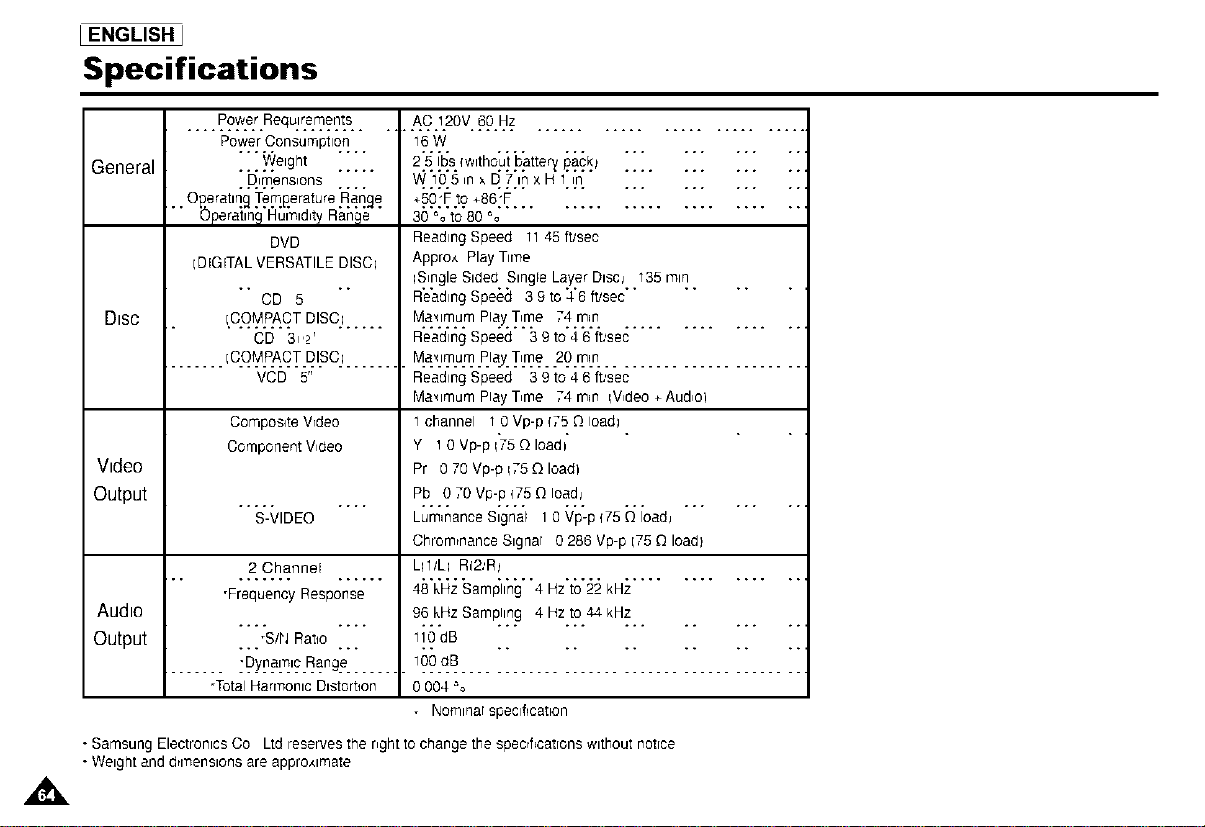
I ENGLISH
Specifications
General
.... Power Requ)reme[]ts
PowerConsumption
... !^!eight .....
. p.,.m.ens,ons
O£eratm£ Temperature Ran£e
DVD
IDIGITAL VERSATILE DlSCl
CD 5
... AC .1.20V.60.Hz ...........................
16W
2.5.L_S.Iw_tho.ut.battery.pac.k._ .............
W.Ip.5 ,n × q 7.I.nx 14I.,JI. ............
+.5.o:.F.t.o+86:.F........................
30 % to 80 %
ReadlngSpeed 1145 ft/sec
Appro,_ Play Tirqe
iS_ngle Sided Single Layer Discj 135 i'ntn
R'e'adlngSpeed 3 9 to
:1"6ft/sec
Dtsc ICO#_PACTDISC.I...... Ma_.,mumPlayT,me 74.rain ................
CD 3 z Reading Speed 3 9 to 4 6 ft.,sec
....... ICO#_4?AC].[_ISC.I....... M._.Ln_o .1_%v.T'_ _=..29.rotr! ........................
VCD 5" Reading Speed 3 9 to 4 6 ft.,sec
Maximum PlayT_me 74 mm iV_deo_Aud_ol
Composite Wdeo 1channel 1 0 Vp-p 175 O_Ioadl
Component Wdeo Y 10 Vp-p 1"75-QIoad_
Video Pr 0 70 Vp-p 175_QIoadl
Output Pb 0 70 Vp-p 175[3 toadj
................................
S-VIDEO Luminance Signal 10 Vp-p 175[3 Ioadj
Chrom_nanceStgnar 0 286 Vp-p 175_Qload}
2 Channel LII/L; RI2.,R_
-Frequency Response 48 kHz Samphng 4 Hz to 22 kHz
Audio 96 kHz Sampling 4 Rz to 44 kHz
Output "_'S/_J Rat,o .... liO'dB "'"
....... :9_[_[_'_.F_ng_....... _99.c_B.........................................
-Total Harl'qOnlCDlStorbon 0 004 %
• Nomlnar speclficabon
• Samsung Electronics Co Ltd reserves the nght to change the specifications without notice
• Weight and d_l'qenslonsare appro,_lmate
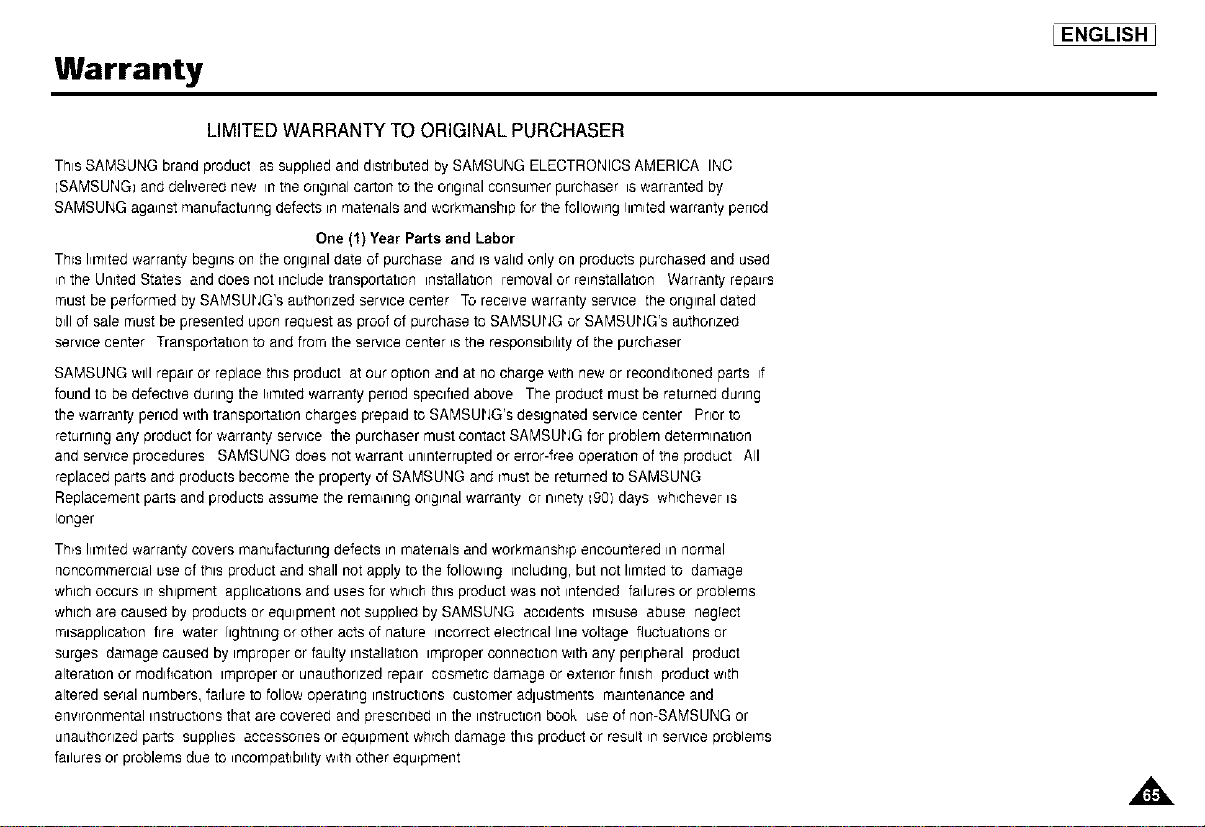
Warranty
IENGLISHJ
LIMITED WARRANTY TO ORIGINAL PURCHASER
This SAMSUNG brand product as supplied and distributed by SAMSUNG ELECTRONICS AMERICA INC
ISAMSUhJG}and dehvered new _nthe orgtnal carton to theongrnal consurqer purchaser _swarranted by
SAMSUNG against manufacturing defects in materialsand workmanship for the following I.'n_tedwarranty period
One (1) Year Parts and Labor
This I_l'qltedwarranty begins on the original date of purchase and is validonly on products purchased and used
_nthe United States and does not include transportation installation rerqoval or relnstallatlon Warranty repairs
must be performed by SAMSUfJG's authorized service center To receive warranty service the original dated
b_llof sale must be presented upon request as proof of purchase to SAMSUfJG or SAMSUfJG's authonzed
service center Transportation to and from the service center _sthe responslblhty of the purchaser
SAMSUNG will repair or replace this product at our option and at nocharge with new or reconditioned parts if
found to bedefective during the I_l'nltedwarranty period specified above The product must be returned during
the warranty period wdh transportatton charges prepatd to SAMSUfJG's desgnated service center Prior to
returning any product for warranty service the purchaser must contact SAMSUfJG for problem deterl'nlnatlon
and serwce procedures SAMSUNG does not warrant un_nterruptedor error-free operatton of tne product All
replaced parts and products become the property of SAMSUNG and Cnustbe returned to SAMSUNG
Replacement parts and products assume the remaining original warranty or n_nety1901days whichever is
longer
Th_sIlrqlted warranty covers manufacturing defects in materials and workmanshrp encountered in norl'nal
noncommerctal use of thts product and shall not apply to the follow_ng includtng,but not llmrted to damage
whch occurs in shipment apphcatlons and uses for which this product was not intended failures or problems
whch are caused by products or equipment not supphed by SAMSUNG acctdents rqtsuse abuse neglect
mlsapphcatlon fire water lightning or other acts of nature incorrect electrical hnevoltage fluctuations or
surges darqage caused by tmproperor faulty tnstallatrontmproperconnectton wdh any peripheral product
alteration or modification improper or unauthorized repair cosmetic damage or exterior finish product w_th
altered serial numbers, failure to follow operating instructions customer adlustments maintenance and
enwronmental instructions that are covered and prescribed in the instruction book use of non-SAMSUNG or
unauthorized parts supphes accessories or equipment whrch damage th,s product or result rn service problel'ns
failures or problems due to _ncompatlbllltyw_t_other equipment
SERVICE D_VISION
400 ValleyRoad, Suite201
Mt. Arlington, NJ 07856
wwwsamsungusa.com
lID
FORYOURNEARESTSAMSUNG
SERVICEOENTER°
DiAL1-800-8AMSUNG
AKBB418052A