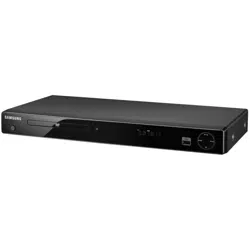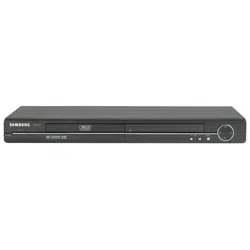
DVD Player
DVD-HD860
VIDEO
www.samsung.com
Important Safety Instructions
1) Readtheseinstructions.
2) Keeptheseinstructions.
3) Heedallwarnings.
4) Followall instructions.
5) Donotusethis apparatusnearwater.
6) Cleanonlywith drycloth.
7) Donotblockanyventilationopenings,Installin accordancewith the manufacturer'sinstructions.
8) Donotinstall nearanyheatsourcessuch asradiators,heatregisters,or otherapparatus(including
amplifiers)that produceheat.
9) Donotdefeatthe safetypurposeofthe polarizedor grounding-typeplug.A polarizedplug hastwo blades
withone widerthantheother.A groundingtypeplug hastwo bladesand a thirdgroundingprong.
Thewidebladeor thethirdprongare providedforyoursafety.Ifthe providedplugdoesnotfit intoyour
outlet,consultan electricianforreplacementofthe obsoleteoutlet.
10) Protectthepowercordfrombeingwalkedon or pinchedparticularlyatplugs,conveniencereceptacles,
and the pointwheretheyexitfrom the apparatus.
11)Only useattachments/accessoriesspecifiedbythe manufacturer.
Q9
12) Useonlywithcart, stand,tripod,bracket,or tablespecifiedbythe
manufacturer,or soldwiththe apparatus.
13) Unplugthis apparatus.Whena cart is used,usecautionwhenmovingthe
cart/apparatuscombinationto avoidinjuryfromtip-over.
14) Referall servicingtoqualifiedservicepersonnel.Servicingis requiredwhenthe
apparatushasbeendamagedinanyway,suchas power-supplycordor plug isdamaged,liquid hasbeen
spilledor objectshavefallenintotheapparatusthe apparatushasbeenexposedto rainor moisture,does
notoperatenormally,or hasbeendropped.
ENG-2
Precautions
TO REDUCETHE RISKOF ELECTRICSHOCK,DO NOT
REMOVETHECOVER(ORBACK).
NOUSER-SERVICEABLEPARTSARE INSIDE.REFER
SERVICINGTOQUALIFIEDSERVICEPERSONNEL.
This symbolindicates"dangerous
voltage"insidethe productthat
presentsa risk ofelectricshockor
personalinjury.
This symbolindicatesimportant
instructionsaccompanyingthe
product.
Do not install this equipment in a confined space such as a bookcase or similar unit.
WARNING : To prevent damage which may result in fire or electric shock hazard, do not expose
this appliance to rain or moisture.
Note to CATV system installer : This reminder is provided to call CATV system installer's attention to
Article 820-40 of the National Electrical Code (Section 54 of Canadian Electrical Code, Part I) that
provides guidelines for proper grounding and, in particular, specifies that the cable ground shall be
connected to the grounding system of the building as close to the point of cable entry as practical.
Caution : FCC regulations state that any unauthorized changes or modifications to this equipment may
void the user's authority to operate it.
FCCNOTE (for U.S.A):
This equipmenthasbeentestedand foundto complywith thelimitsfora ClassB digitaldevice,pursuantto
Part 15ofthe FCCrules.Theselimitsare designedto providereasonableprotectionagainstharmful
interferenceina residentialinstallation.This equipmentgenerates,usesandcan radiateradiofrequency
energyand,ifnot installedand usedin accordancewith theinstructions,maycause harmfulinterferenceto
radioor televisionreception,whichcanbe determinedbyturningthe equipmentoff and on.
Theuseris encouragedto tryto correctthe interferenceby oneor moreof thefollowingmeasures.
• Reorientorrelocatethereceivingantenna.
• Increasetheseparationbetweentheequipmentandreceiver.
•Connectthisequipmentintoanoutletonacircuitdifferentfromthattowhichthe receiverisconnected.
•Consultthedealeroranexperiencedradio/TVtechnicianfor help.
This classB digitalapparatusmeetsall requirementsofthe CanadianInterference--
CausingEquipmentRegulations.
ENG-3
CAUTION
THISPRODUCTUTILIZESALASER.USEOFCONTROLSORADJUSTMENTSOR
PERFORMANCEOFPROCEDURESOTHERTHANTHOSESPECIFIEDHEREINMAYRESULTIN
HAZARDOUSRADIATIONEXPOSURE.DONOTOPENCOVERANDDONOTREPAIRYOURSELE
REFERSERVICINGTOQUALIFIEDPERSONNEL.
Note:
• This unitcan beused only where the power supply isAC 120V,60Hz. Itcannot be usedelsewhere.
• This DVDplayer is designed andmanufacturedto respond to the Region Management Information.
Ifthe Region number of a DVDdisc does not correspond to the Region number of this DVDplayer,
the DVDplayercannot play the disc.
• The product unitaccompanying this user manual is licensedunder certain intellectual property rights
of certain third parties. In particular, this product is licensed under the following US patents:
5,991,715, 5,740,317, 4,972,484, 5,214,678, 5,323,396, 5,539,829, 5,606,618, 5,530,655,
5,777,992, 6,289,308, 5,610,985, 5,481,643, 5,544,247, 5,960,037, 6,023,490, 5,878,080, and
under US Published Patent Application No.2001-44713-A1.
This license is limited to private non-commercial use byend-user consumers for licensed contents.
No rights are grantedfor commercial use.The license does not cover any product unit other than this
product unit and the license does not extend to any unlicensedproduct unit or processconforming to
ISO/IEC 11172-3 or ISO/IEC 13818-3 used or sold in combination with this product unit.
The license only covers the use of this product unit to encode and/or decode audio filesconforming
to the ISO/IEC 11172-3 or ISO/IEC 13818-3. No rights are granted under this license for product
features or functions that do not conform to the ISO/IEC 11172-3 or ISO/IEC 13818-3.
Handling Cautions
• Beforeconnectingothercomponentstothisplayer,besureto turnthemalloff.
• Donot movethe playerwhileadiscisbeingplayed,orthediscmaybescratchedorbroken,andtheplayer's
internalparts maybe damaged.
• Donot putaflowervasefilledwithwateroranysmallmetalobjectsontheplayer.
• Becarefulnotto putyourhandintothe disctray.
• Donotplaceanythingotherthanthediscinthedisctray.
• Exteriorinterferencesuchaslightningandstaticelectricitycan affectnormaloperationofthis player.
Ifthis occurs,turntheplayeroff and on againwith thePOWERbutton,or disconnectandthen reconnectthe
ACpowercordto theACpoweroutlet.The playerwilloperatenormally.
• Besureto removethediscandturn offtheplayerafteruse.
• DisconnecttheACpowercordfromtheACoutletwhenyoudon'tintendto usethe playerforlong
periodsof time.
•Cleanthediscbywipinginastraightlinefromthe insidetothe outsideofthe disc.
Disc Storage
Becareful notto harmthe discbecausethedataon these discsis highlyvulnerableto theenvironment.
• Donot keepunderdirectsunlight.
• Keepinacoolventilatedarea.
•Storevertically.
• Keepinacleanprotectionjacket.
Maintenance of Cabinet
Forsafetyreasons,be sureto disconnecttheAC powercordfromtheAC outlet.
• Donot usebenzene,thinner,orothersolventsforcleaning.
•Wipethe cabinetwithasoft cloth.
ENG-4
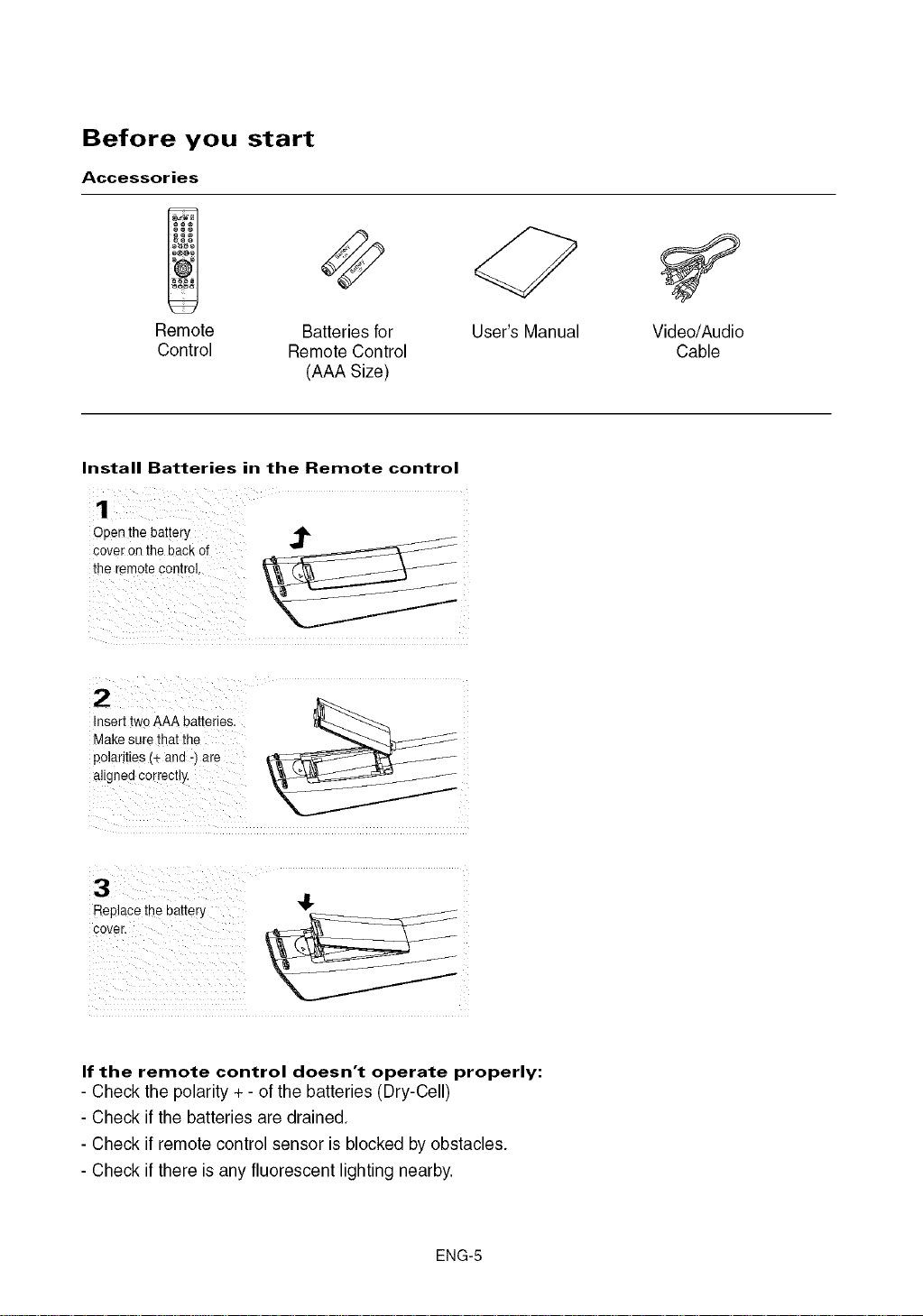
Before you start
Accessories
Remote Batteries for
Control Remote Control
(AAA Size)
User's Manual Video/Audio
Cable
Install Batteries in the Remote control
Ope n the bat!cry _'_ _
covet Onthe back of
the remote Control.
i2 ¸ U
Insert twoAAA batteries.
Make surethat the
polarities (+ and :) are
aligned correct y.
RevP_Cethe battery
If the remote control doesn't operate properly:
- Check the polarity + - of the batteries (Dry-Cell)
- Check if the batteries are drained.
- Check if remote control sensor is blocked by obstacles.
- Check if there is any fluorescent lighting nearby.
ENG-5
TABLEOFCONTENTS
Important Safety Instructions ............................................. 2
Precautions ........................................................... 3
Before you start ....................................................... 5
Chapter 1: Setup
General Features ........................................... 7
Disc Type and Characteristics ................................. 8
Description ................................................ 9
Tour of the Remote Control .................................. 11
Chapter 2: Connections
Choosing a Connection ..................................... 12
Chapter 3: Basic Functions
Playing a Disc ............................................ 20
Using the Search and Skip Functions .......................... 22
Using the Display Function .................................. 23
Using the Disc and Title Menu ................................ 24
Using the Function Menu .................................... 25
Repeat Play .............................................. 26
Slow Play ................................................ 27
Chapter 4: Advanced Functions
Adjusting the Aspect Ratio (EZ View) ........................... 28
Selecting the Audio Language ................................ 30
Selecting the Subtitle Language ............................... 31
Changing the Camera Angle ................................. 32
Using the Instant Replay/Skip Function ......................... 33
Using the Bookmark Function ................................ 34
Using the Zoom Function .................................... 36
Clips Menu for MP3/WMAJJPEG/CD Audio ...................... 37
Folder Selection ........................................... 37
MP3/WMA/CD Audio Playback................................ 38
Picture CD Playback ........................................ 40
Picture CD Playback for HD-JPEG ............................. 41
Chapter 5: Changing Setup Menu
Using the Setup Menu ...................................... 43
Setting Up the Language Features............................. 44
Setting Up the Audio Options ................................. 48
Setting Up the Display Options ................................ 50
Setting Up the Parental Control ............................... 53
Chapter 6: Reference
Troubleshooting ........................................... 55
Specifications ............................................. 57
ENG-6
SETUP
General Features
Excellent Sound
Dolby Digital, a technology developed by Dolby
Laboratories, provides crystal clear sound
reproduction.
Screen
Both regular and widescreen(16:9) pictures can be
viewed.
Slow Motion
An important scene can be viewed in slow motion.
Parental Control (DVD)
The parental control allows users to set the level
necessary to prohibit children from viewing harmful
movies such as those with violence, adult subject
matter, etc.
Various On-Screen Menu Functions
You can select various languages (Audio/Subtitle)
and screen angles while enjoying movies.
Progressive Scan
Progressive scanning creates an improved picture
with double the scan lines of a conventional
interlaced picture.
EZ VIEW (DVD)
Easy View enables picture adjustment to match your
TV's screen size (16:9 or 4:3).
Digital Photo Viewer (JPEG)
You can view Digital Photos on your TV.
Repeat
You can repeat a song or movie simply by pressing
the REPEAT button.
MP3/WMA
This unit can play discs created from MP3/WMA files.
Instant Replay (DVD)
This function is used to replay the previous 10
seconds of a movie from the current position.
Instant Skip (DVD)
This function skips playback ahead 10 seconds.
HDMI (High Definition Multimedia
Interface)
HDMI reduces picture noise by allowing a pure
digital video/audio signal path from the player to
yourTV.
Note
- Discs which cannot be played with this
player.
• DVD-ROM • DVD-RAM
• CD-ROM • CDV
• CDI • CVD
• Super Audio CD(except CD layer)
• CDGs play audio only, not graphics.
- Abili!y to play back may depend on recording
conditions.
• DVD-R, +R
• CD-RW
• DVD+RW, -RW (V mode)
- The unit may not play certain CD-R, CD-RW
and DVD-R due to the disc type or recording
conditions.
COPY PROTECTION
Many DVD discs are encoded with copy
protection. Because of this, you should only connect
your DVD player directly to your TV, not to a VCR.
Connecting to a VCR results in a distorted picture
from copy-protected DVD discs.
This product incorporates copyright protection
technology that is protected by methods claims of
certain U.S.patents and other intellectual property
rights owned by Macrovision Corporation and other
rights owners. Use of this copyright protection
technology must be authorized by Macrovision
Corporation, and is intended for home and other
limited viewing uses only unless otherwise authorized
by Macrovision Corporation. Reverse engineering or
disassembly is prohibited.
PROGRESSIVE SCAN OUTPUTS
(525p)
"CONSUMERS SHOULD NOTE THAT NOT ALL HIGH
DEFINITION TELEVISION SETS ARE FULLY
COMPATIBLE WITH THIS PRODUCT AND MAY
CAUSE ARTIFACTS TO BE DISPLAYED IN THE
PICTURE, IF 525 PROGRESSIVE SCAN PICTURE
PROBLEMS OCCUR, IT IS RECOMMENDED THAT
THE USER SWITCH THE CONNECTION TO THE
'STANDARD DEFINITION' OUTPUT. IF THERE ARE
QUESTIONS REGARDING YOUR TV SET
COMPATIBILITY WITH THIS MODEL 525p DVD
PLAYER, PLEASE CONTACT SAMSUNG'S
CUSTOMER SERVICE CENTER."
ENG-7
I SETUP
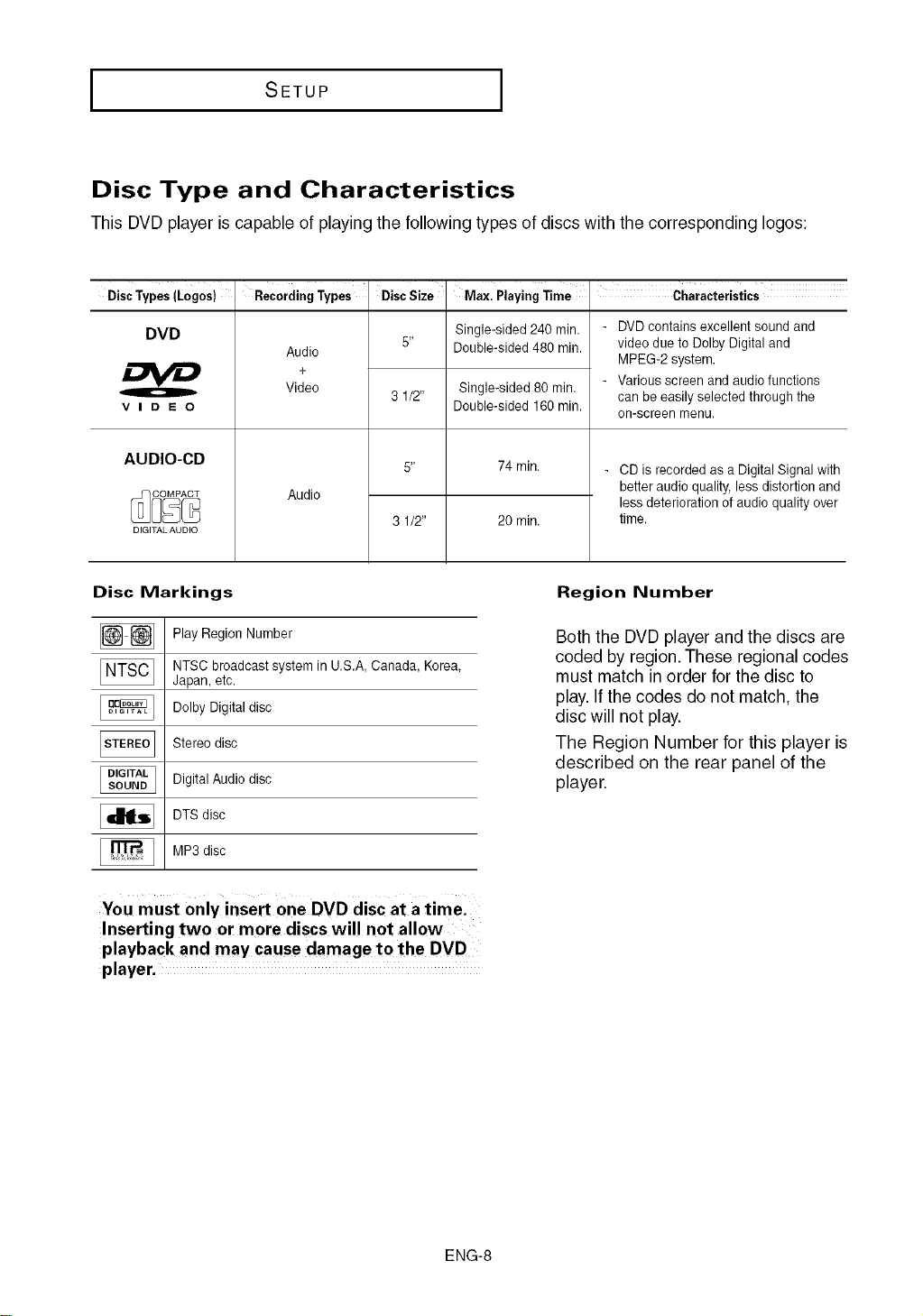
Disc Type and Characteristics
This DVD player is capable of playing the following types of discs with the corresponding Iogos:
i
DiscTypes(Loges) RecordingTypes
DVD
VIDEO
AUDIO-CD
DIGITAL AUDIO
Audio
+
Video
Audio
DiscSize
3 1/2"
Max. Playing lime
Single-sided 240 rain.
Double-sided 480 min.
Single-sided 80 min.
Double-sided 160min.
74 min.
20 min.
Characteristics
DVDcontains excellent sound and
video dueto Dolby Digital and
MPEG-2 system.
Various screen and audio functions
can be easily selected through the
on-screen menu.
CD is recorded as a Digital Signal with
better audio quality, lessdistortion and
less deterioration of audio quality over
time.
Disc Markings
Play Region Number
NTSC broadcast system in U.S.A, Canada, Korea,
Japan, etc.
Dolby Digital disc
Stereo disc
Digital Audio disc
DTS disc
MP3 disc
Region Number
Both the DVD player and the discs are
coded by region. These regional codes
must match in order for the disc to
play. If the codes do not match, the
disc will not play.
The Region Number for this player is
described on the rear panel of the
player.
You must 0nly insert one DVD disc at a timel
Inserting two or more discs will not allow
playback and may cause damage tothe DVD
player.
ENG-8
SETUP
Description
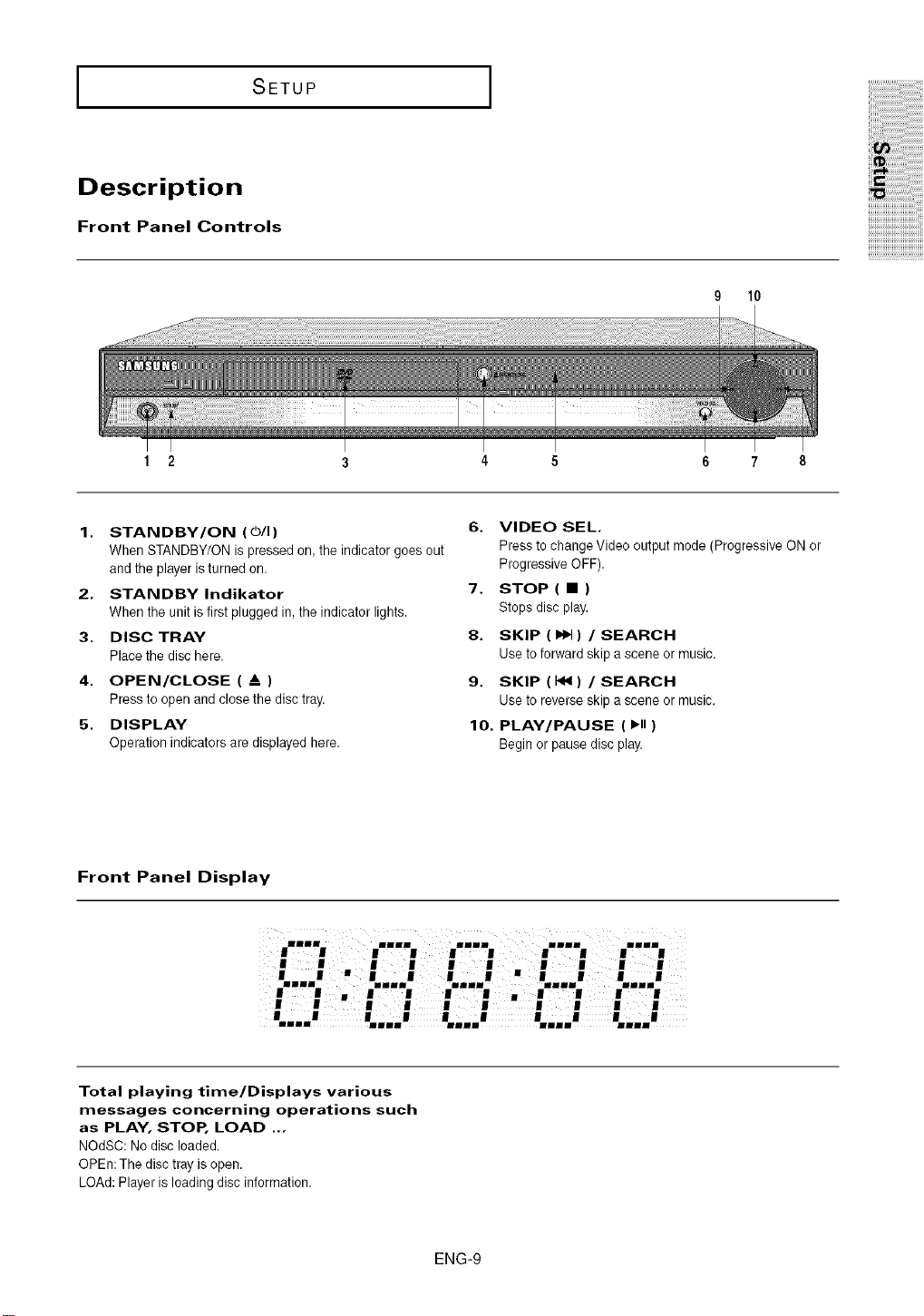
Front Panel Controls
9 10
1 2
4 5 6 7 8
1. STANDBY/ON (0/I)
When STANDBY/0N is pressed on,the indicator goes out
and the player ieturned on.
2. STANDBY Indikator
When the unit is first plugged in, the indicator lights.
3. DISC TRAY
Place the disc here.
4. OPEN/CLOSE ( A )
Press to open andclose the disc tray.
5. DISPLAY
Operation indicators are displayed here.
6. VIDEO SEL
Press to change Video output mode (Progressive ON or
Progressive OFF).
7. STOP ( • )
Stops disc play.
8. SKIP (_) / SEARCH
Use toforward skip a scene or music.
9. SKIP (_) / SEARCH
Use to reverse skip a scene or music.
10. PLAY/PAUSE ( ,ii )
Begin or pause disc play.
Front Panel Display
Illl illl |||1 Illl I1||
Total playing time/Displays various
messages concerning operations such
as PLAY, STOP, LOAD ...
NOdSC: No disc loaded.
OPEn:The disc tray is open.
LOAd: Player is loading disc information.
ENG-9
I SETUP I
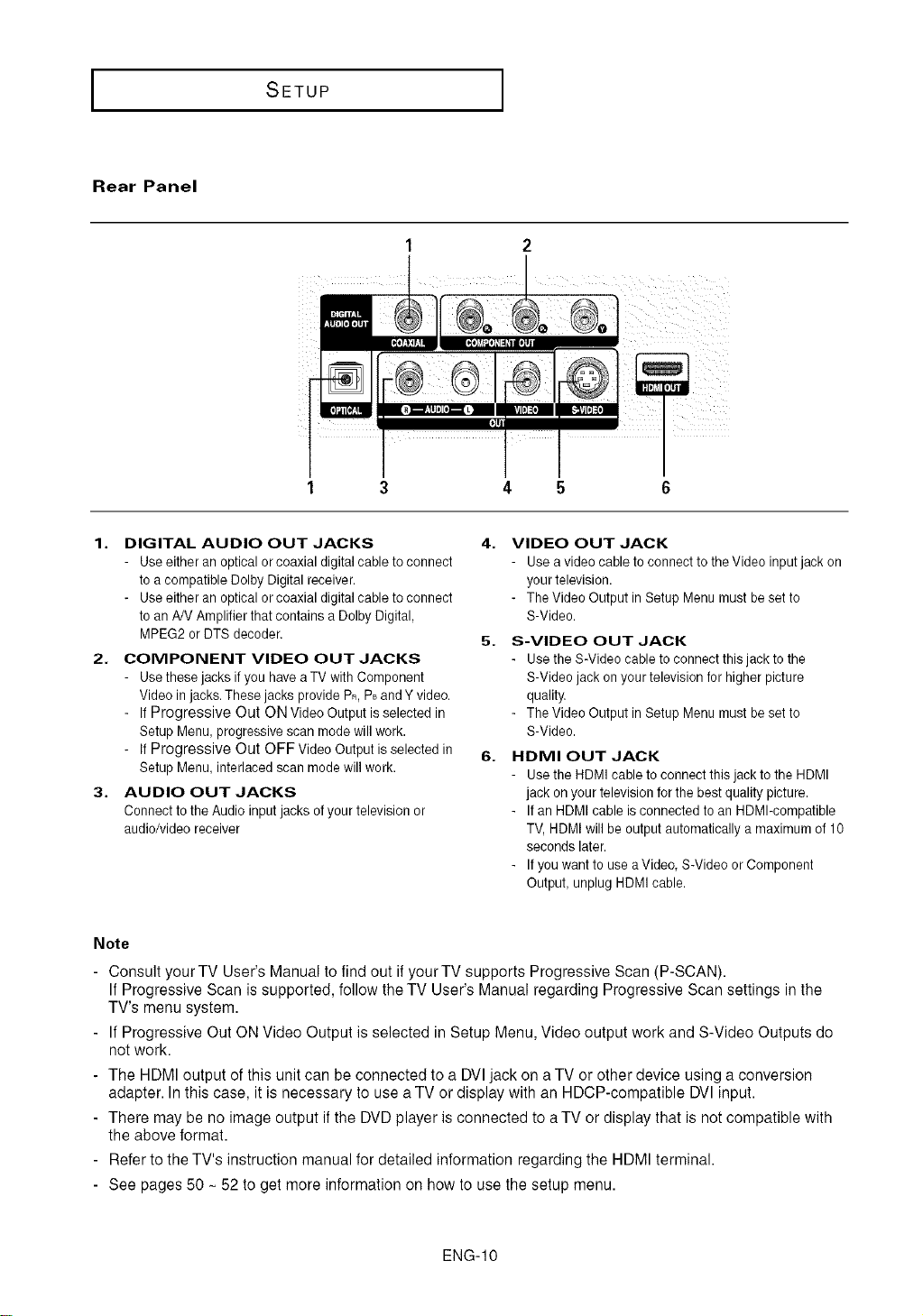
Rear Panel
1 2
1 3 4 5
1. DIGITAL AUDIO OUT JACKS
- Use either an optical or coaxial digital cable to connect
to a compatible Delby Digital receiver.
- Use either an optical or coaxial digital cable to connect
to an AN Amplifier that contains a Dolby Digital,
MPEG2 or DTS decoder,
2. COMPONENT VIDEO OUT JACKS
- Use these jacks ifyou have aTV with Component
Video in jacks.These jacks provide PR,P_andYvideo.
- If Progressive Out ON Video Output is selected in
Setup Menu, progressive scan mode will work.
- If Progressive Out OFF Video Output is selected in
Setup Menu, interlaced scan mode will work.
3. AUDIO OUT JACKS
Connect to the Audio input jacks of your television or
audio/video receiver
4. VIDEO OUT JACK
Use avideo cable to connect to the Video input jack on
yourtelevision.
- The Video Output in Setup Menu must beset to
S-Video.
5. S-VIDEO OUT JACK
Use the S-Video cable to connect this jack to the
S-Video jack on your television for higher picture
quality,
- The Video Output in Setup Menu must beset to
S-Video.
6. HDMI OUT JACK
Use the HDMI cable to connect this jack to the HDMI
jack onyour television for the best quality picture.
If an HDMI cable is connected to an HDMI-compatible
TV,HDMI will be output automatically a maximum of 10
seconds later.
If you want to use aVideo, S-Video or Component
Output, unplug HDMI cable.
Note
- Consult your TV User's Manual to find out if your TV supports Progressive Scan (P-SCAN).
If Progressive Scan is supported, follow the TV User's Manual regarding Progressive Scan settings in the
TV's menu system.
- If Progressive Out ON Video Output is selected in Setup Menu, Video output work and S-Video Outputs do
not work.
- The HDMI output of this unit can be connected to a DVIjack on a TV or other device using a conversion
adapter. In this case, it is necessary to use a TV or display with an HDCP-compatible DVl input.
- There may be no image output if the DVD player is connected to a TV or display that is notcompatible with
the above format.
- Refer to the TV's instruction manual for detailed information regarding the HDMI terminal.
- See pages 50 - 52 to get more information on how to use the setup menu.
ENG-IO
SETUP
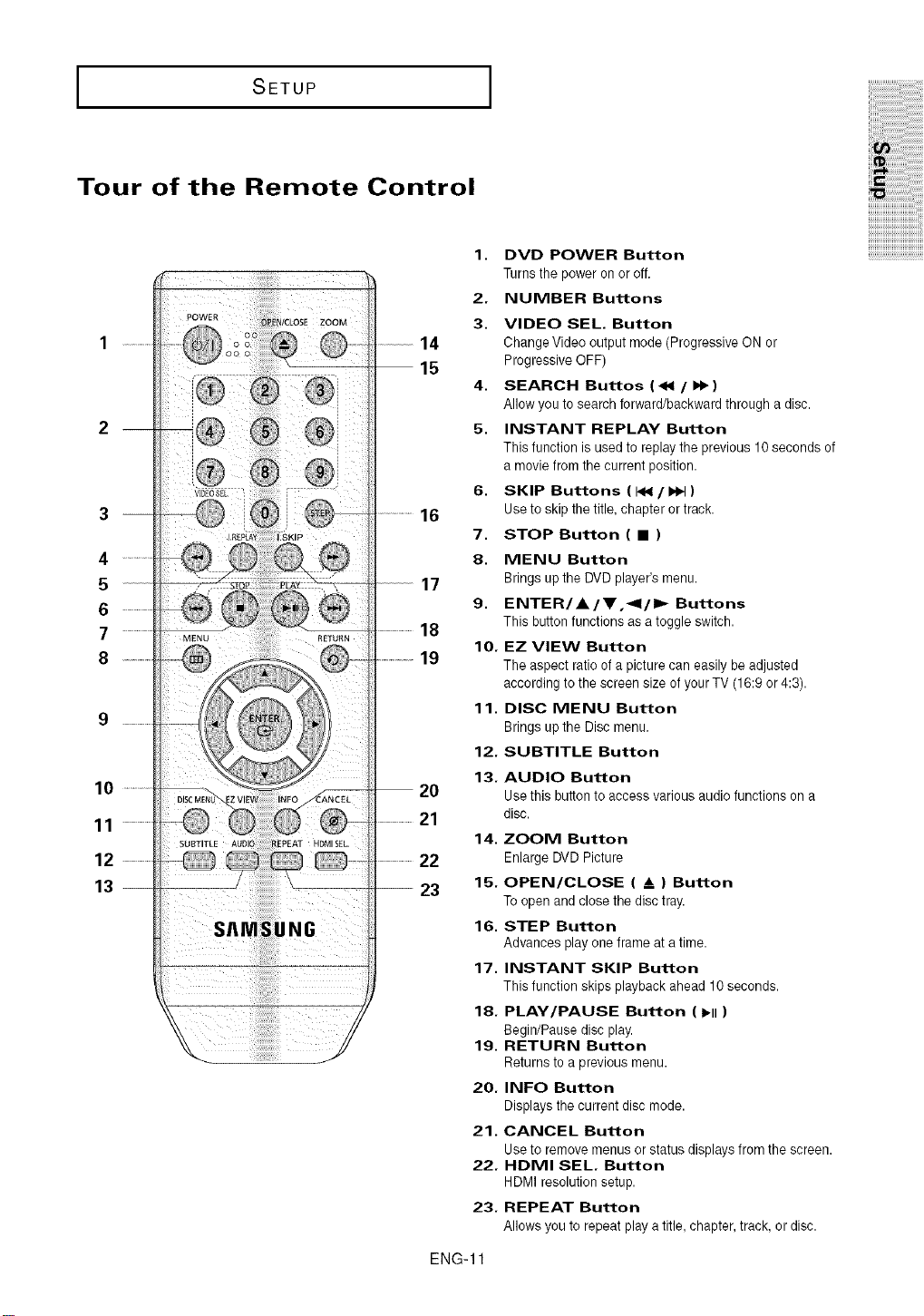
Tour of the Remote Control
4
5
6
7
8
10
11
12
13
12.
13.
2O
21
14.
22
-- 23 15.
21.
22.
23.
ENG-11
DVD POWER Button
Turns the power onor off.
NUMBER Buttons
VIDEO SEE. Button
Change Video output mode (Progressive ON or
Progressive OFF)
SEARCH Buttos ( _1 / I_ )
Allow you to search forward/backward through a disc.
INSTANT REPLAY Button
This function is used to replay the previous 10seconds of
a movie from the current position.
SKIP Buttons ( I_ / I_ )
Use to skip the title, chapter or track.
STOP Button ( • )
MENU Button
Brings up the DVD player's menu.
ENTER/A/V,_l/l=,_ Buttons
This button functions as a toggle switch.
EZ VIEW Button
The aspect ratio of a picture can easily beadjusted
according to the screen size of your TV (16:9 or 4:3).
DISC MENU Button
Brings up the Disc menu.
SUBTITLE Button
AUDIO Button
Use this button to access various audio functions on a
disc.
ZOOM Button
Enlarge DVD Picture
OPEN/CLOSE ( & ) Button
To open and close the disc tray.
STEP Button
Advances play one frame at a time.
INSTANT SKIP Button
This function skips playback ahead 10 seconds.
PLAY/PAUSE Button ( I_11)
Begin/Pause disc play.
RETURN Button
Returns to a previous menu.
INFO Button
Displays the current disc mode.
CANCEL Button
Use to remove menus or status displays from the screen.
HDMI SEE. Button
HDMI resolution setup.
REPEAT Button
Allows you to repeat play a title, chapter, track, or disc.
CONNECTIONS
Choosing a Connection
The following shows examples of connections commonly used to connect the DVD player with a TV
and other components.
Before Connecting the DVD Player
- Always turn off the DVD player, TV, and other components before you connect or disconnect any
cables.
- Refer to the user's manual of the additional components (such as a TV) you are connecting for
more information on those particular components.
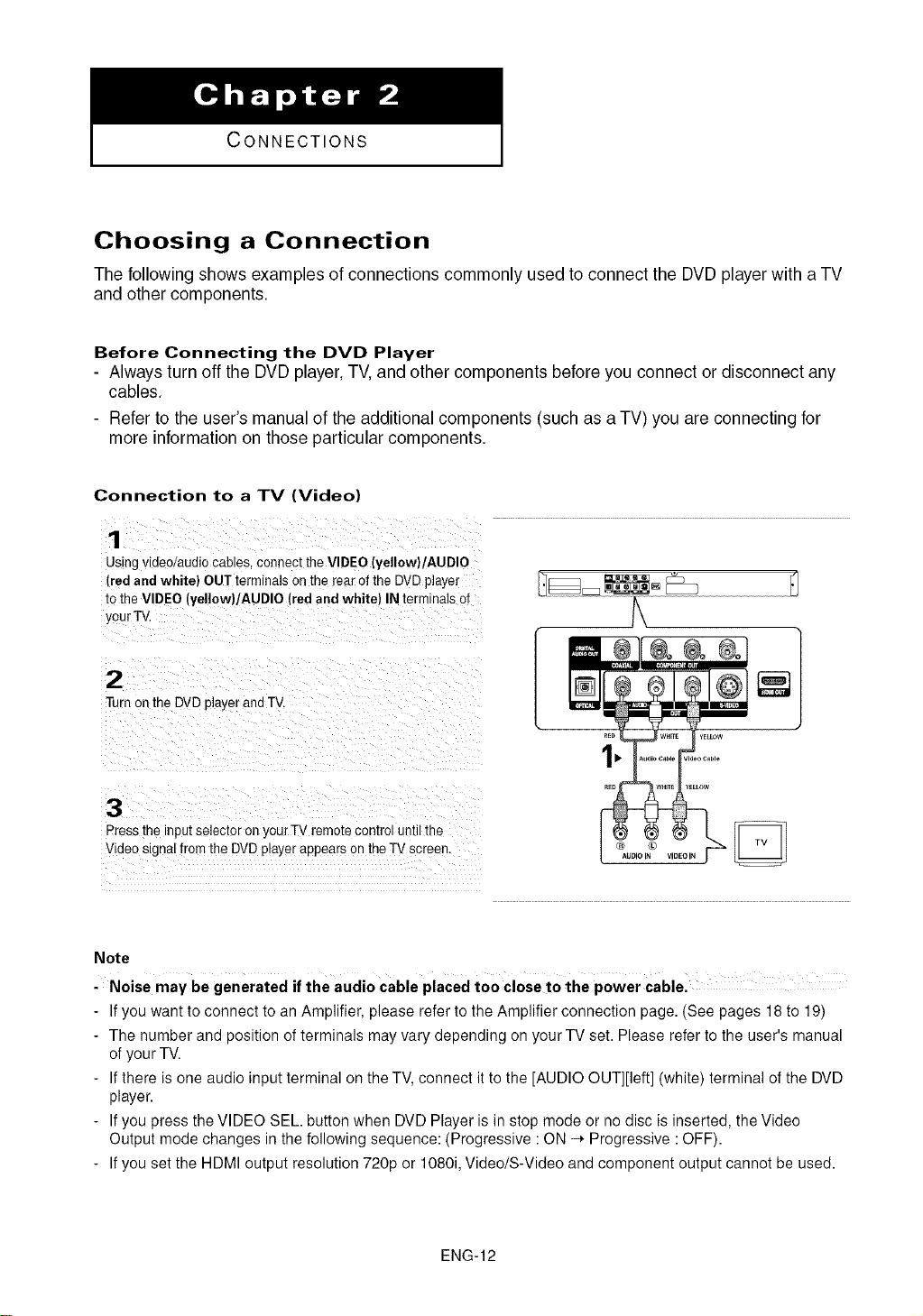
Connection to a TV (Video)
1
Usingvlaeo/audiocables,connecttheVIDEO(yellow)/AUDlO
(redandwhite) OUTterminalsonthe rearofthe DVDplayer
totheVIDEO(yellow)/AUDlO(redandwhite} INterminalsof
yourTV
2
Turnonthe DVDplayerandTV.
3
Pressme inputselectoronyourTVremotecontroluntilthe
VideosignalfromtheDVDplayerappearsontheTVscreen.
°l
AUDIO IN VIDEO IN
Note
-Noise may be generated if the audio cable placed to0 close to the power cable.
- Ifyou want to connect to an Amplifier, please refer to the Amplifier connection page. (See pages 18 to 19)
- The number and position of terminals may vary depending on your TV set. Please refer to the user's manual
of your TV.
- Ifthere is one audio input terminal on the TV, connect it to the [AUDIO OUT][left] (white) terminal of the DVD
player.
- Ifyou press the VIDEO SEL. button when DVD Player is in stop mode or no disc is inserted, the Video
Output mode changes in the following sequence: (Progressive : ON -_ Progressive :OFF).
- Ifyou set the HDMI output resolution 720p or 1080i, Video/S-Video and component output cannot be used.
ENG-12
CONNECTIONS
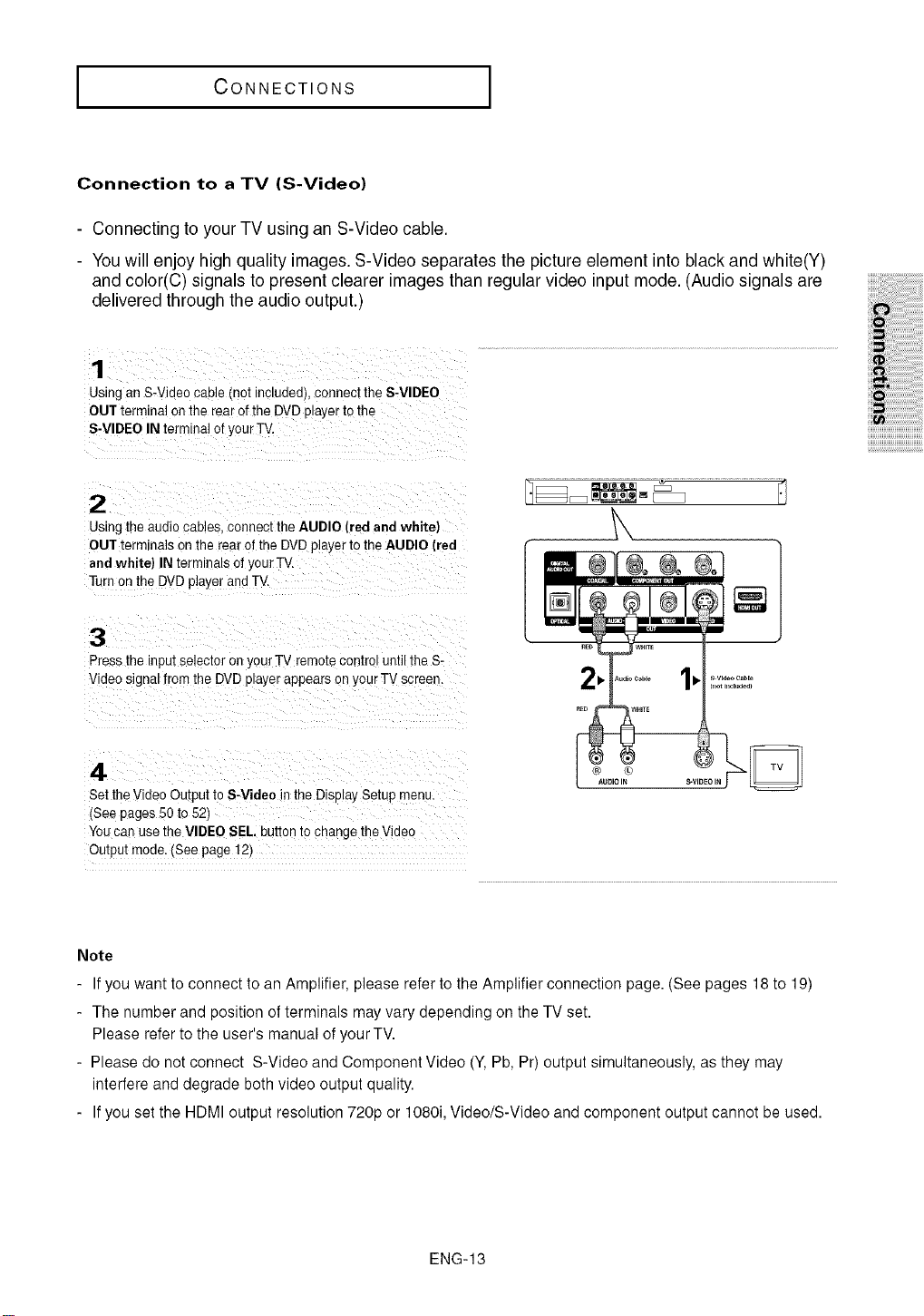
Connection to a TV (S-Video)
- Connecting to your TV using an S-Video cable.
- You will enjoy high quality images. S-Video separates the picture element into black and white(Y)
and color(C) signals to present clearer images than regular video input mode. (Audio signals are
delivered throughthe audio output.)
Using an S-Video cable (not ncludedl connecl the S-VIDEO
OUT terminal on the rear of the DVD player tothe
S-VIDEO IN terminal ofyour TV.
2
Using ti_eaudio cabJes,connect the AUDIO [red and white)
OUT term nals onthe rearof the DVDplayer io the AUDIO (red
and white} IN terminals of your TV
Turn on the DVDplayer and TV.
3
Press the input selector on your TV remote centre until the S-
Video signal from the DVD player appears on your TV screen.
4
Set the Video Output to S-Video in the Diselay Setup menu.
t'Seepages 50 to 52)
You can use the VIDEO SEL, bUII0nIo cnange theVidec
Output mode. (See page 12)
Note
- Ifyou want to connect to an Amplifier, please refer to the Amplifier connection page. (See pages 18 to 19)
- The number and position of terminals may vary depending on the TV set.
Please refer to the user's manual of your TV.
- Please do not connect S-Video and Component Video (Y, Pb, Pr) output simultaneously, as they may
interfere and degrade both video output quality.
- Ifyou set the HDMI output resolution 720p or 1080i, Video/S-Video and component output cannot be used.
ENG-13
I CONNECTIONS I
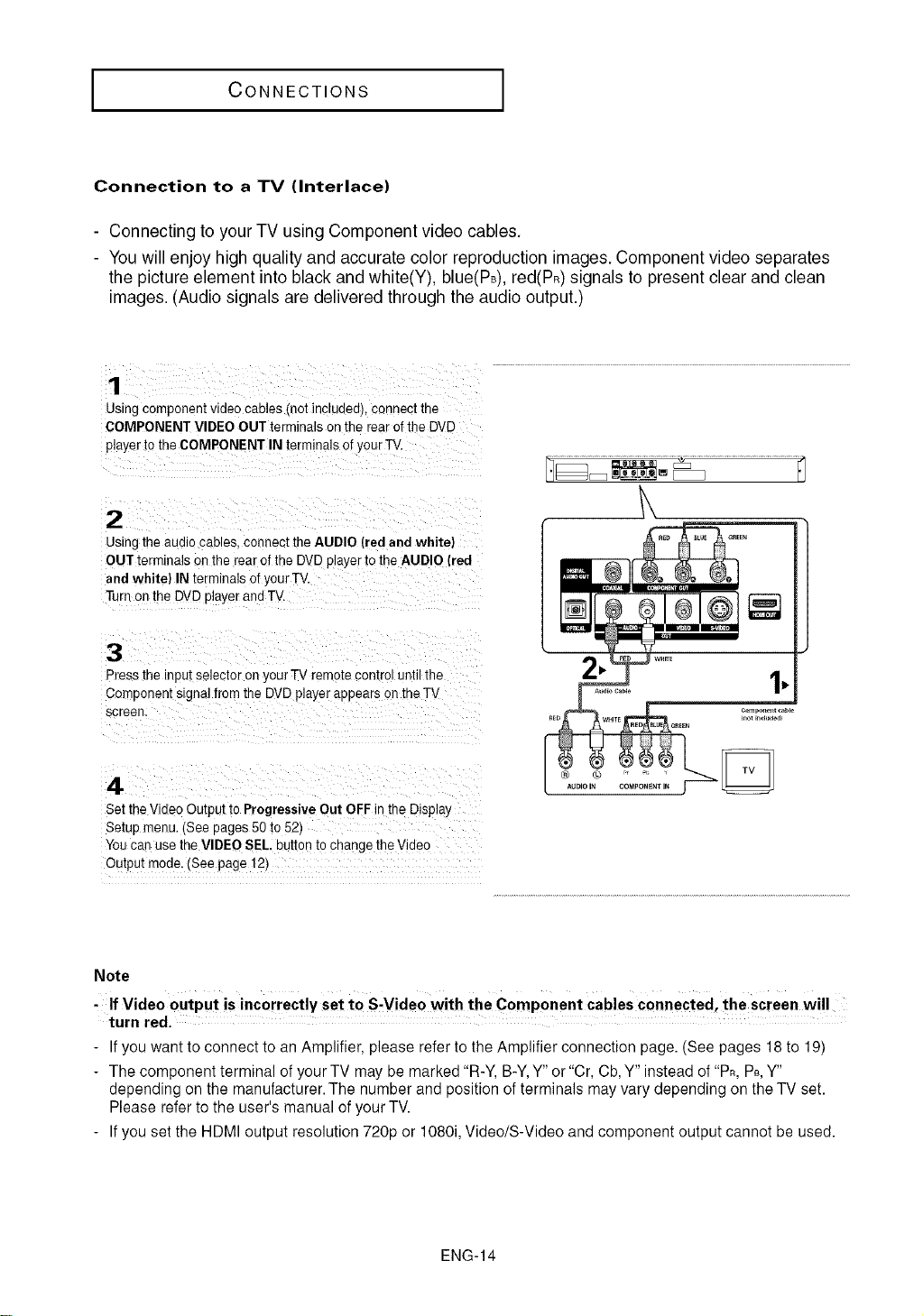
Connection to a TV (Interlace)
- Connecting to your TV using Component video cables.
- You will enjoy high quality and accurate color reproduction images. Component video separates
the picture element into black and white(Y), blue(PB),red(PR)signals to present clear and clean
images. (Audio signals are delivered through the audio output.)
1
Usingcomponent video cables not inc_uaea),connect the
COMPONENT VIDEO OUT terminals on the rear ofthe DVD
player to the COMPONENT IN terminals ofyour TV.
2
Usingthe audio cables, connect the AUDIO (red and white]
OUT terminals on the rear of the DVD playerto the AUDIO (red
and white) IN terminals of yourTV.
Turf on the DVDplayer and TV.
3
Pressthe input selector on your TV remote control until the
Component signal from the DVDplayer appears onthe TV
screen.
4
Set theVideo Output to Progressive Out OFF in the Displa}
Setup menu. (See pages 50 t¢ 52t
You car" use the VIDEO SEL, button tochange the Video
Output mode. (See page 12)
Note
, If Video output is incorrectly set t0 S-Video with the ComPonent cables Connected, the screen will
turn red.
- Ifyou want to connect to an Amplifier, please refer to the Amplifier connection page. (See pages 18 to 19)
- The component terminal of your TV may be marked "R-Y, B-Y,Y" or "Cr, Cb,Y" instead of "PR,PB,Y"
depending on the manufacturer. The number and position of terminals may vary depending on theTV set.
Please refer to the user's manual of your TV.
- Ifyou set the HDMI output resolution 720p or 1080i, Video/S-Video and component output cannot be used.
ENG-14
CONNECTIONS
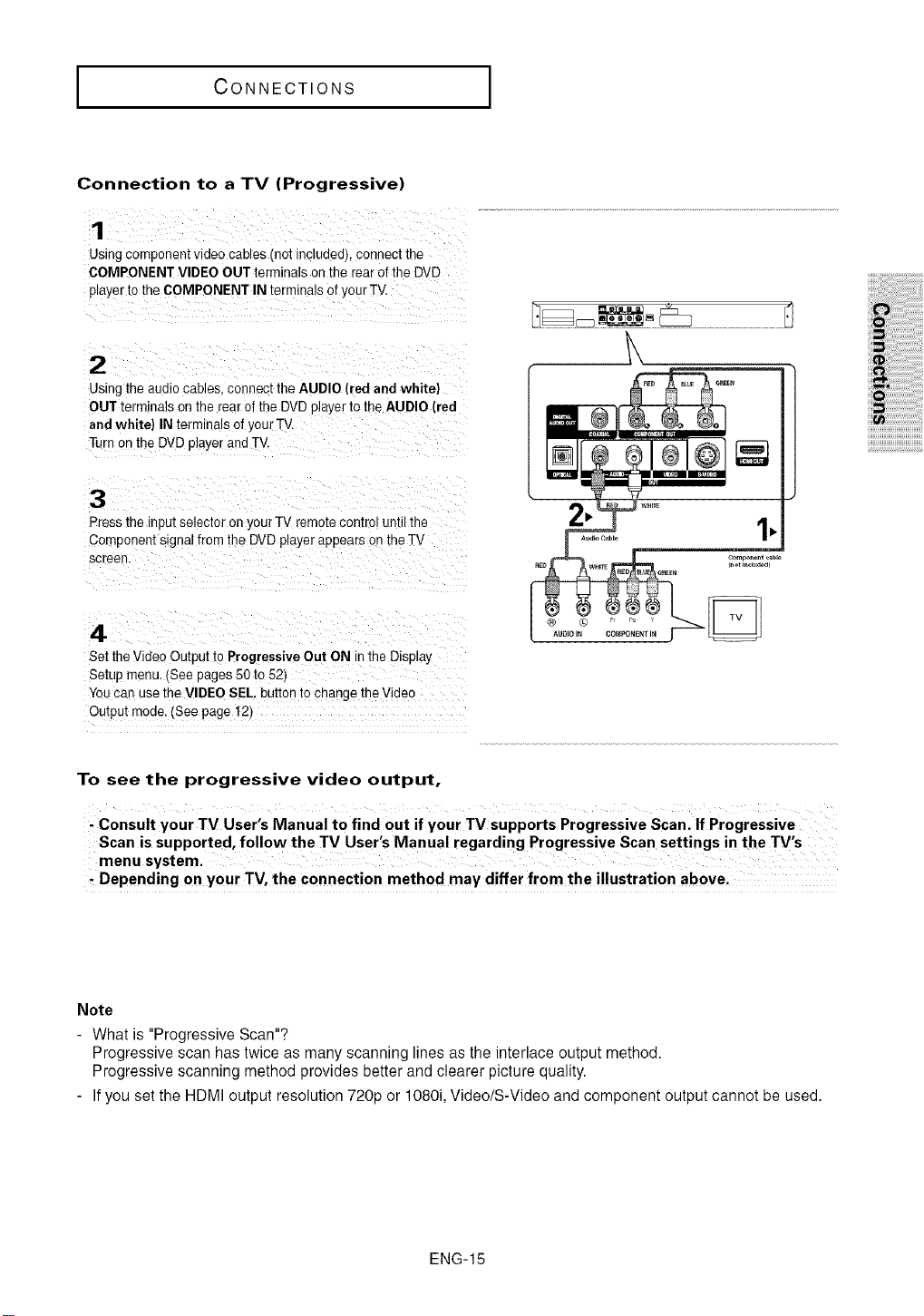
Connection to a TV (Progressive)
1
Using component video cables (not mcludedl connect the
COMPONENT VIDEO OUT terminals on the rearof the DVD
player to the COMPONENT IN terminals of yourTV.
2
Using the audio cables, connect the AUDIO (red and white)
OUT term hale onthe rear of the DVDplayer to the AUDIO (red
and white) IN terminals ofyour TV
TL"non the DVDplayer andTV.
3
Press the input selector on your TV remote control until the
Comeonen[ signal from the DVD player appears on theTV
screen
4
Set the Video Output to Progressive Out ON mIne Displa_
Setup menu. (See pages 50to 52t
You can use the VIDEO SEL, button to change theVideo
Output mode. (See page 12)
To see the progressive video output,
Consult your TV User's Manual to find out if your TV supports Progressive Scan. If Progressive
Depending on your TV, the connection method may differ from the illustration above.
Note
- What is "Progressive Scan"?
Progressive scan has twice as many scanning lines as the interlace output method.
Progressive scanning method provides better and clearer picture quality.
- Ifyou set the HDMI output resolution 720p or 1080i, Video/S-Video and component output cannot be used.
ENG-15
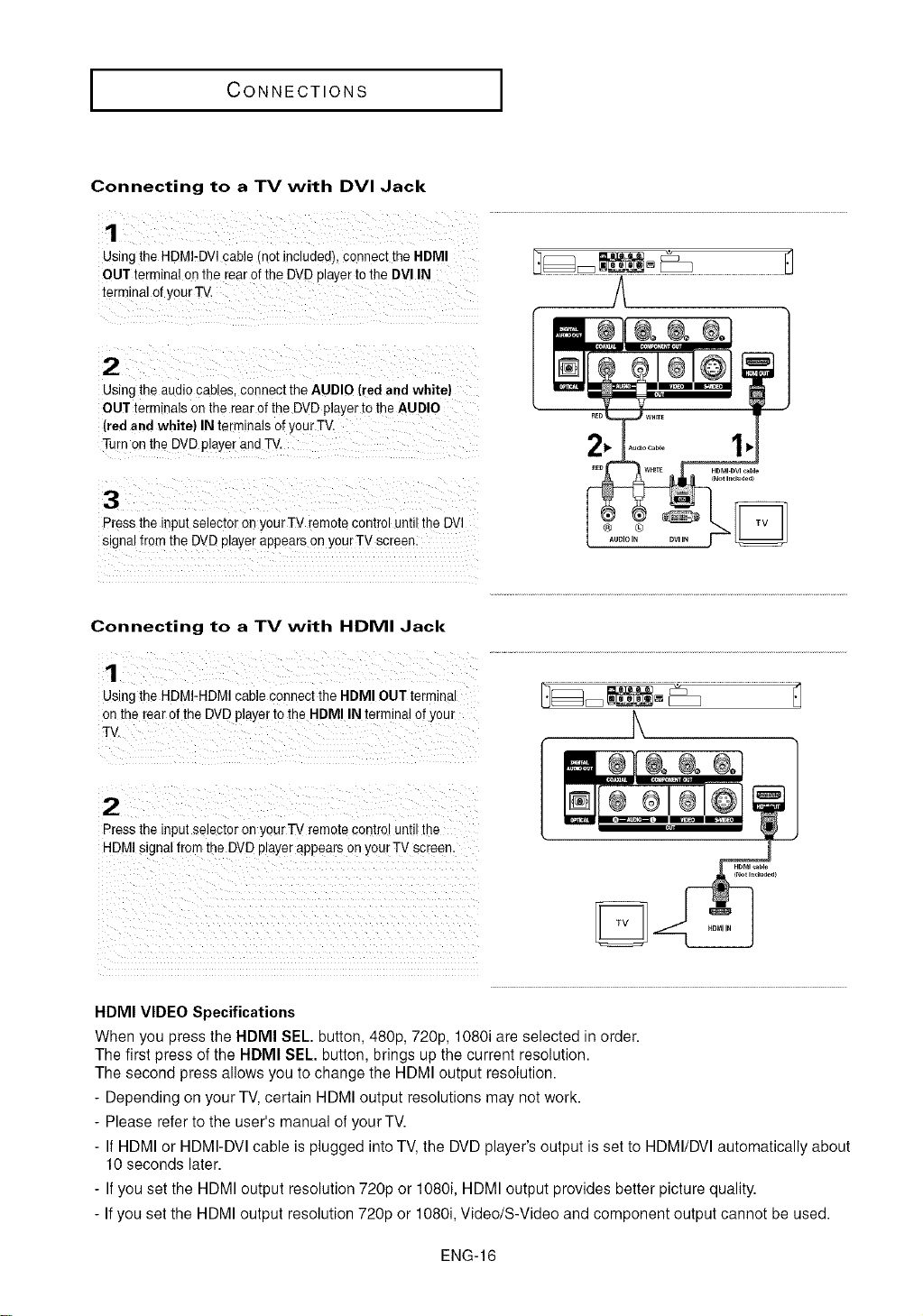
I CONNECTIONS
Connecting to a TV with DVI Jack
Using the HDMI-DVI cable (not included), connect the HDMI
OUT terminal Onthe rear ofthe DVDplayer to the DVI IN
terminal 0f y0urTV.
Using the audio cables, connect the AUDIO (red and white)
OUT terminals on the rearof the DVDplayer to the AUDIO
(red and white) IN terminals of Y0UrTV.
Turn onthe DVDplayer and TV,
If
Press the input selector on yourTV [emote control until the DVI
signal from the DVDplayer appears on your TV screen:
Connecting to a TV with HDMI Jack
1
UsingtheHDMI-HDMIcablec)nnecttheHDMIOUTtermina
onthe rearofthe DVDplayertotheHDMIIN terminalofyou/
TV.
2
Presstheinputselectoror yourTVremotecontroluntilthe
HDMIsignalfromtheDVDolayerappearsonyourTVscreen.
HDMI VIDEO Specifications
When you press the HDMI SEL. button, 480p, 720p, 1080i are selected in order.
The first press of the HDMI SELº button, brings up the current resolution.
The second press allows you to change the HDMI output resolution.
- Depending on your TV, certain HDMI output resolutions may not work.
- Please refer to the user's manual of your TV.
- IfHDMI or HDMI-DVI cable is plugged into TV, the DVD player's output is set to HDMI/DVI automatically about
10 seconds later.
- Ifyou set the HDMI output resolution 720p or 1080i, HDMI output provides better picture quality.
- Ifyou set the HDMI output resolution 720p or 1080i, Video/S-Video and component output cannot be used.
ENG-16
CONNECTIONS
•HDMI (High Definition Multimedia Interface)
HDMI is an interface to enable the digital transmission of video and audio data with just a single connector.
Using HDMI. the DVD player transmits a o_gitalvideo and audio signal and displays a wvid picture on a TV
having an HDMI input jack.
• HDMI connection description
HDMI connector- Both uncompressed video data and digital audio data (LPCM or Bit Stream data
Though the player uses a HDMI cable, the player outputs only a pure digital signal to the TV
IfTV does not support HDCP (High-bandwidth Digital content protectlon}, snow noise appears on the
screen.
• Why does Samsung use HDMI?
Analog TVs require an analog video/audio signal. However. when playing a DVD, the data transmitted to a
TV is digital. Therefore either a digital-to-analog converter lin the DVD player) or an analog-to-digitaJ
converter (in the TV) is required. During this conversion, the picture quality is degraded due to noise and
signal loss. DVl technology is superior because t "equlres no D/A conversion and is a pure digital signal
from the player to your TV.
• What is the HDCP?
HDCP (High-bandwidth Digital Content Protection_ is a system for protecting DVD content outputted wa
DVl from being copied. It provides a secure digital link between a video source (PC, DVD. etc) and a
display device (TV, projector, etc) Content is encrypted at the source device to prevent unauthorized
copies from being made.
iiiiiiiiiiiiiiiiiiiiiiiiiiiiiiiiiiiiiiii
iii !ii!ii!ii!ii!ii!ii!ii!iiiii!ilili!i!i!ii!i!!il
ENG-17
CONNECTIONS
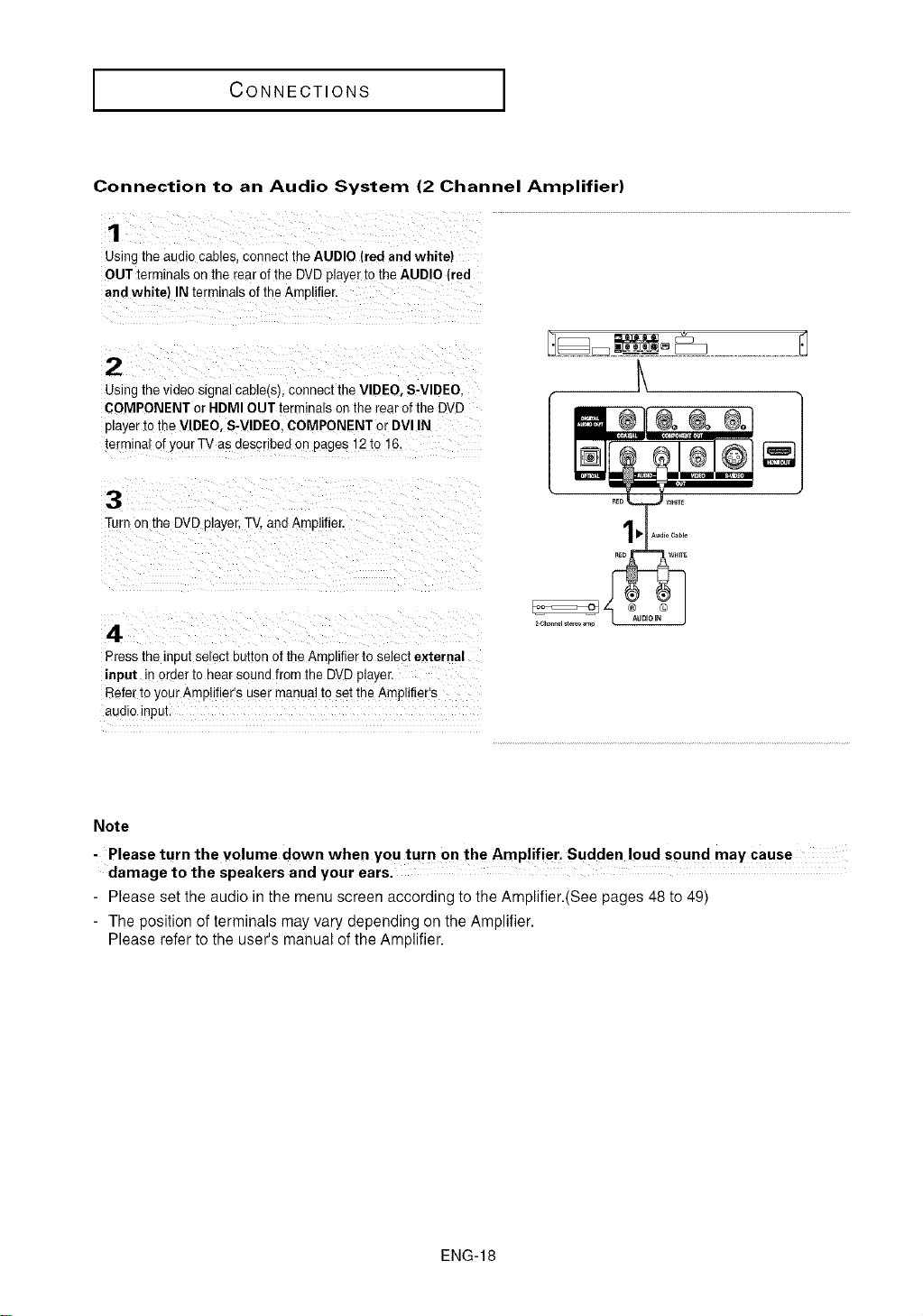
Connection to an Audio System (2 Channel Amplifier)
1
Using the audio cables, connect the AUDIO (red and white)
OUT terminals on the rear of the DVDplayer to the AUDIO (red
and white) IN terminals of theAmolifier.
2
Using the video signal cable(s), connect the VIDEO, S-VIDEO,
COMPONENT or HDMI OUT terminals onthe rear of the DVD
player to the VIDEO, S-VIDEO. COMPONENT or DVl IN
terminal of yourTV as describee on pages 12 to 16.
3
Turn on the DVD player,TV, and Amplifier.
4
Press the inout se ect button of the Amolifier to select external
input in order to hear sound from the DVDplayer.
Refer io your Amplifier's user manual to set the Amplifier's
audio inpui.
°°1
Note
-Please turn the volume down when you turn on the Amp!ifier. Sudden loud sound may cause
damage to the speakers and your ears.
- Please set the audio inthe menu screen according to the Amplifier.(See pages 48 to 49)
- The position of terminals may vary depending on the Amplifier.
Please refer to the user's manual of the Amplifier.
ENG-18
CONNECTIONS
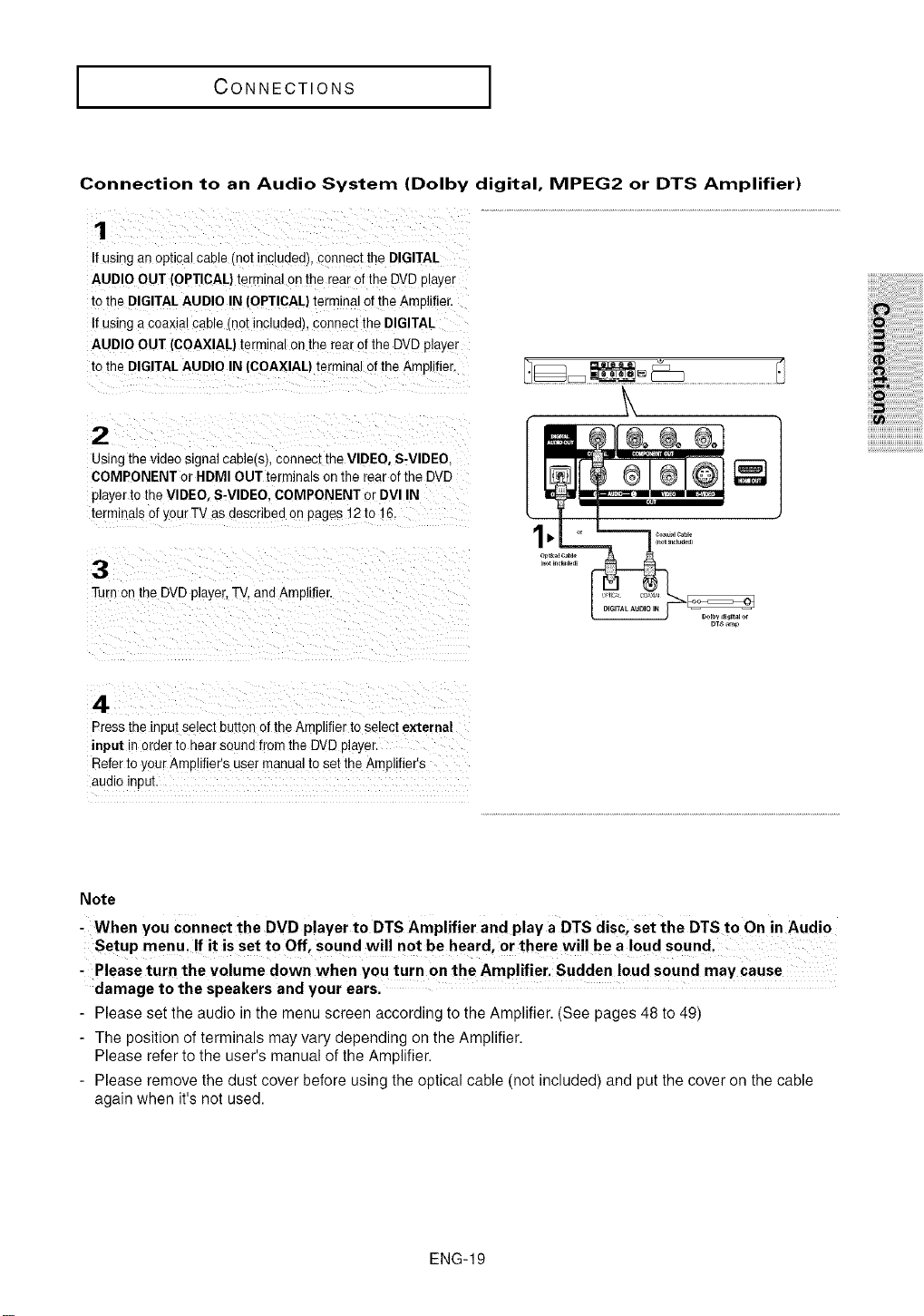
Connection to an Audio System (Dolby digital, MPEG2 or DTS Amplifier)
1
If using an optical cable (not includedL connect the DIGITAL
AUDIO OUT (OPTICAL)terminal on the rearof the DVD player
to tie DIGITAL AUDIO IN (OPTICAL} terminal of the AmDlifie_
If using acoaxial cable mot included), connect the DIGITAL
AUDIO OUT (COAXIAL} terminal on the rear of the DVDplayer
to the DIGITAL AUDIO IN (COAXIAL} terminal of the Amplifier.
2
Using the video signal cable(s), connect the VIDEO, S-VIDEO,
COMPONENT or HDMI OUT terminals on the rear of the DVD
player to the VIDEO, S-VIDEO. COMPONENT or DVI IN
terminals ofyour TV as described on pages 12to 16.
3
Turn on the DVD player,TV. and Amplifier.
\
4
Press the mpu_select button of the Amplifier toselect external
input n oraer to hear sound from the DVD _layer.
Refer to your Amplifier's user manual to set the Amplifier's
audio indus.
Note
-When you connect the DVD player to DTS Amplifier and play a DTS discl set the DTS to On in Audio
Setup menu, If it isset to Off, sound will notbe heard, or there will be a loud sound,
-Please turn the volume down when you turn on the Amplifier, Sudden loud sound may Cause
damage to the speakers and your ears.
- Please set the audio in the menu screen according to the Amplifier. (See pages 48 to 49)
- The position of terminals may vary depending on the Amplifier.
Please refer to the user's manual of the Amplifier.
- Please remove the dust cover before using the optical cable (not included) and put the cover on the cable
again when it's not used.
ENG-19
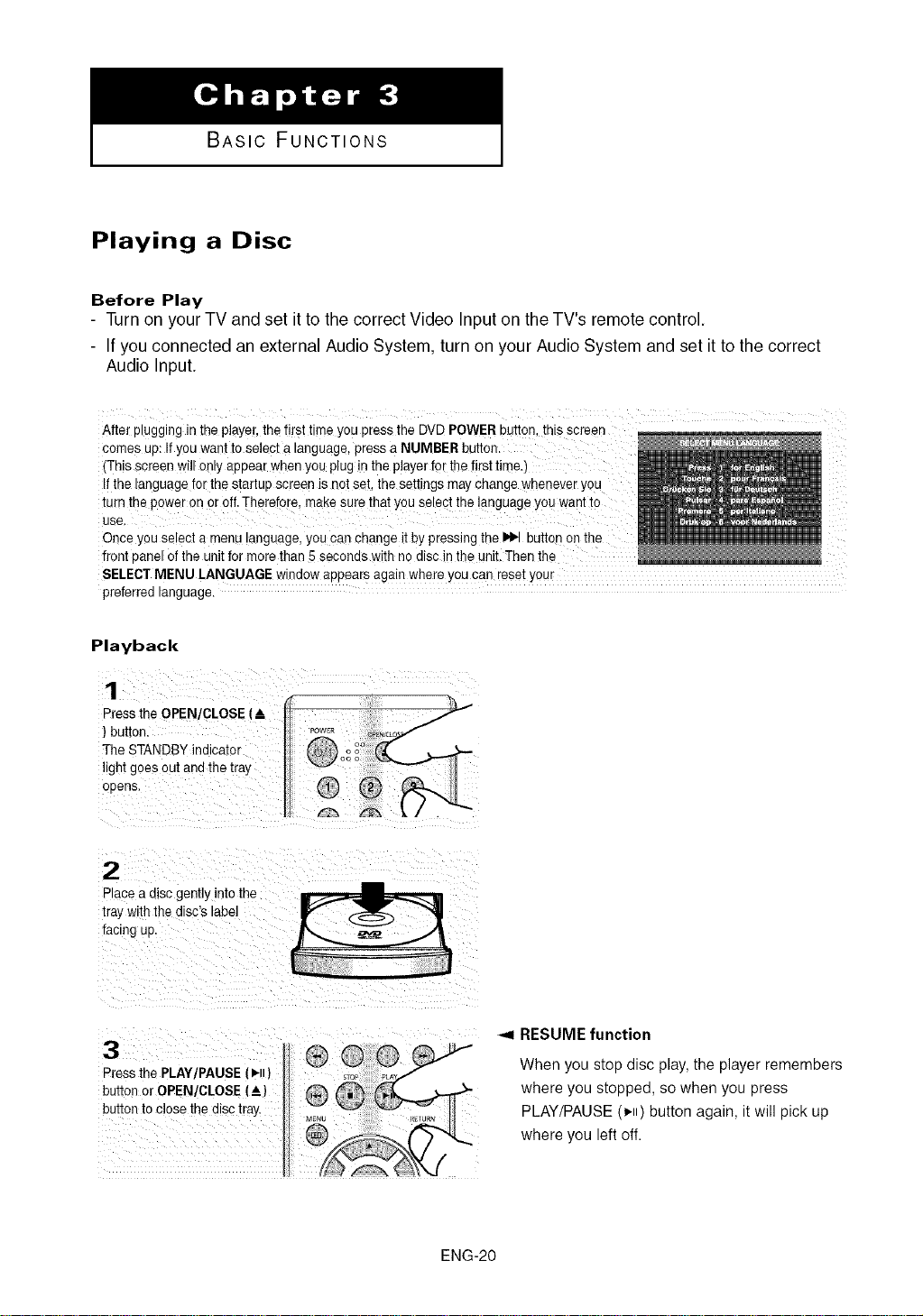
BASIC FUNCTIONS
Playing a Disc
Before Play
- Turn on your TV and set it to the correct Video Input on the TV's remote control.
- If you connected an external Audio System, turn on your Audio System and set it to the correct
Audio Input.
comes up: Ifyou want to select a language, press a NUMBER button.
(Thisscreen will only appear when you plug in the player for the first time.)
Ifthe language forthe startup screen is notset, the settings may change whenever you
turn the power on Or off.ThereDre, make sure that you select the language you want to
use,
Once you select a menu language, you can change it by pressing the _ button on the
front panel ofthe unit for more than 5 seconds with no disc in the unit.Then the
SELECTMENU LANGUAGE window appears again where you can reset your
preferred language.
Playback
Press the OPEN/CLOSE (&
) button.
The STANDBY indicator
light goes out and the tray
oDens.
2
Place a disc gently into the
tray with the disc's label
facing up.
3
Press the PLAY/PAUSE (,,)
button or OPEN/CLOSE (A)
button to close the disc traj.
•.4 RESUME function
When you stop disc play, the player remembers
where you slopped, so whet you press
PLAY/PAUSE _,,_button again, it will pick up
where you left off.
ENG-20
BASIC FUNCTIONS
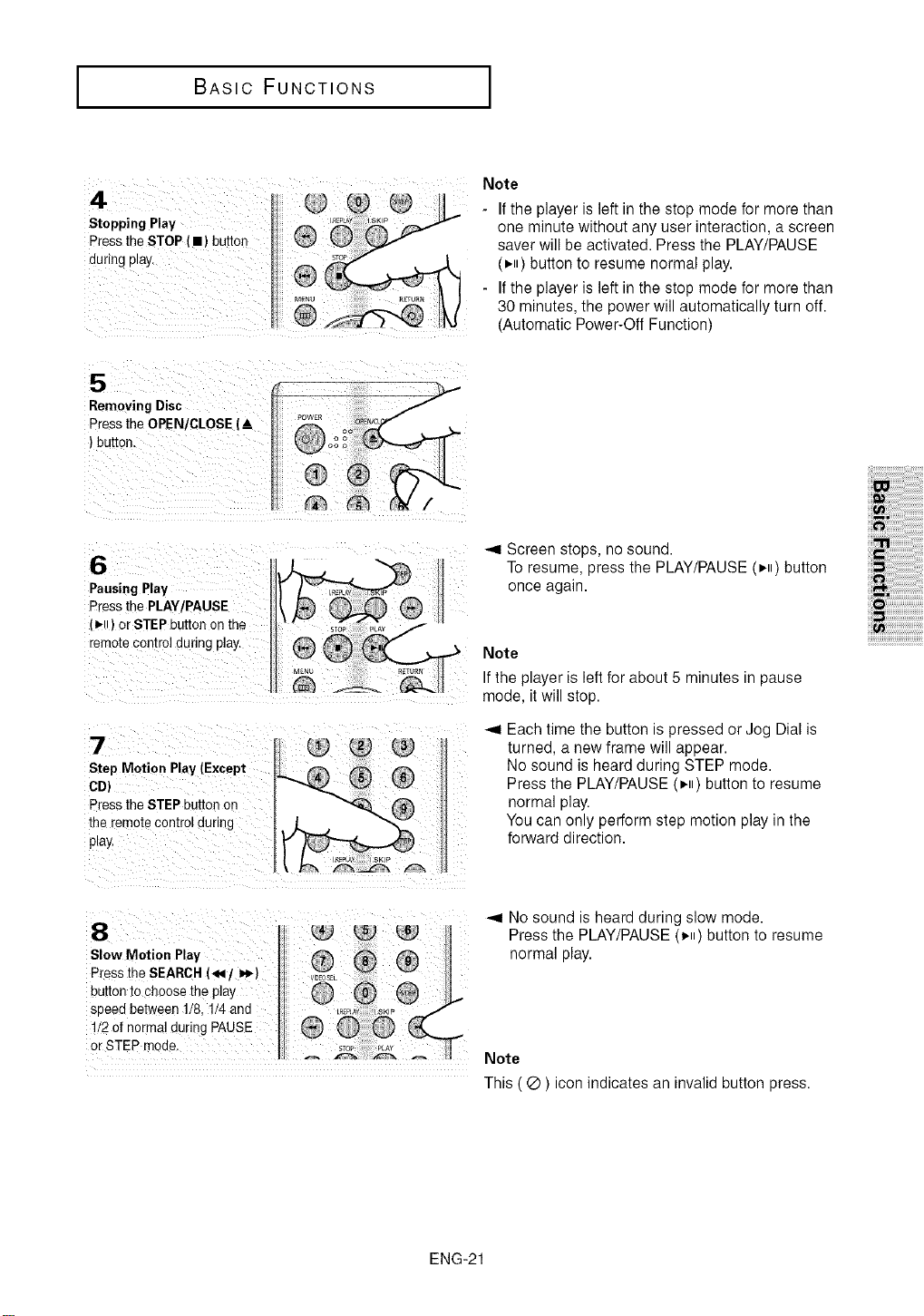
4
Stopping Play
PresstheSTOP(• ) button
aunngpla_
Note
- Ifthe player is left in the stop mode for more than
one minute without any user interaction, a screen
saver will be activated. Press the PLAY/PAUSE
(_-,) button to resume normal play.
- Ifthe player is left in the stop mode for more than
30 minutes, the power will automatically turn off.
(Automatic Power-Off Function)
5
RemovingDisc
PresstheOPE_I/CLOSE(&
)button.
6
PausingPlay
PressthePLAY/PAUSE
(),,) or STEPbuttononthe
remotecontrolduringplay.
Step Motion Play (Except
CD)
Press the STEP button on
me remote control during
plat,
_.9Screen stops, no sound.
To resume, press the PLAY/PAUSE (_,,) button
once again.
Note
If the player is left for about 5 minutes in pause
mode, it will stop.
Each time the button is pressed or Jog Dial is
turned, a new frame will appear.
No sound is heard during STEP mode.
Press the PLAY/PAUSE (_,,) button to resume
normal play.
You can only perform step motion play in the
forward direction.
iii_ii!iiiiiiiii!iiiiiiiiiiiiil
iii_;i!;ii;ii;ii;iii!!!!!!!!!!!!!
iilCi;;iiiiiiiiiiiiiiiiiiiiiiiiiii!!!!!
ii!_iiiiiiiiiiiiiiiiiiiiiiiiiii
8
Slow Motion Play
Pressthe SEARCH (4,_/I,_)
button to choose the play
speed between 1/8, 1/4and
1/2of normal during PAUSE
or STEP mode.
-,I No sound is heard during slow mode.
Press the PLAY/PAUSE (_,) button to resume
normal play.
Note
This ( Q ) icon indicates an invalid button press.
ENG-21
I BASIC FUNCTIONS
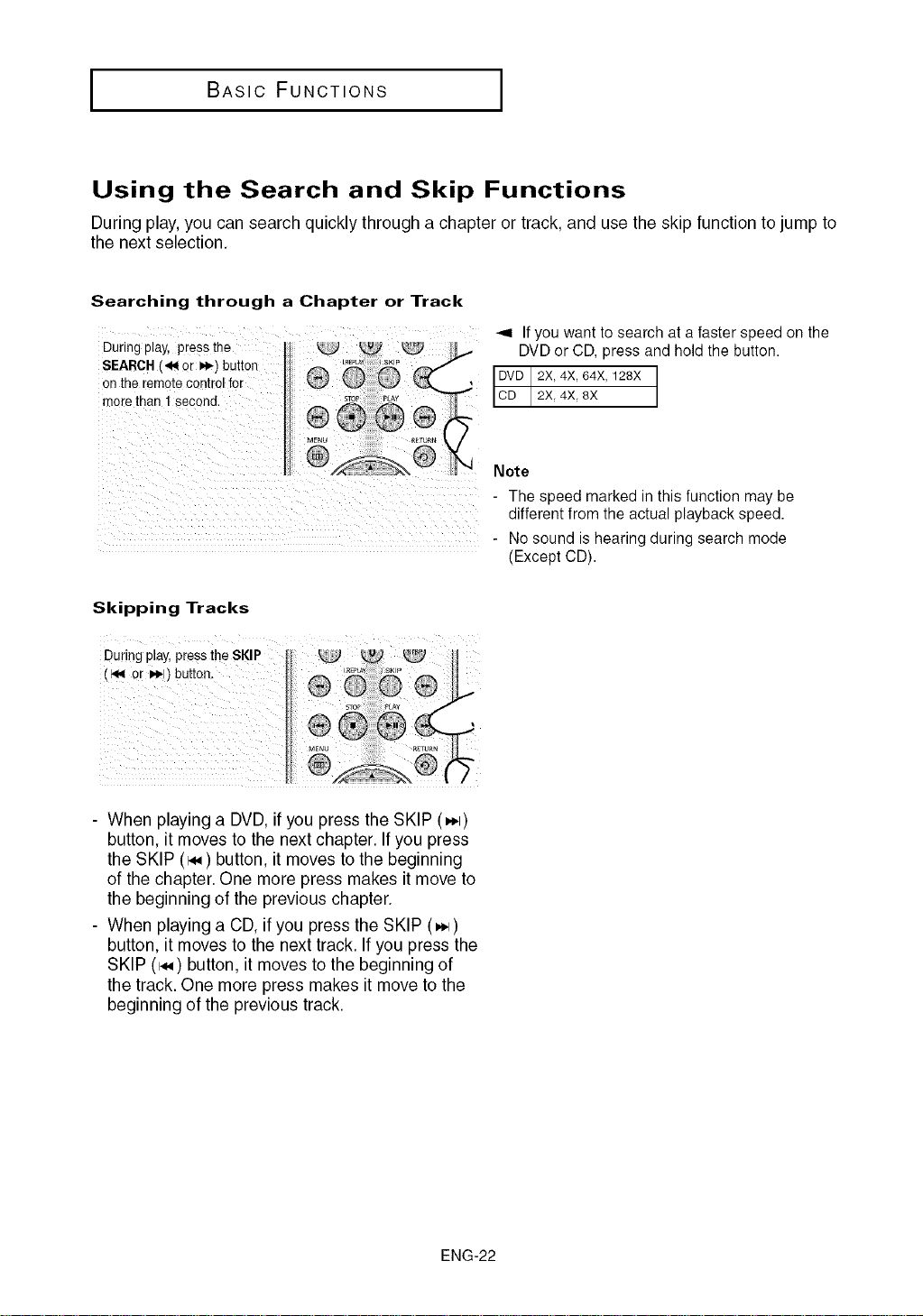
Using the Search and Skip Functions
During play, you can search quickly through a chapter or track, and use the skip function to jump to
the next selection.
Searching through a Chapter or Track
During pray, press the
SEARCH (41 or I_i_)button
onthe remote control for
more than 1 second.
-,4 Ifyouwantto searchat a fasterspeedon the
DVDor CD,pressand holdthebutton.
DVD 2X, 4X, 64X, 128X
CD 2X 4X 8X
Note
- The speed marked in this function may be
different from the actual playback speed.
- No sound is hearing during search mode
(Except CD).
Skipping Tracks
kJ _......43
During play,press the SKIP tu_2_
- When playing a DVD,if you press the SKIP (_,l)
button, it moves to the next chapter. If you press
the SKIP (i,_) button, it moves to the beginning
of the chapter. One more press makes it move to
the beginning of the previous chapter,
- When playing a CD, if you press the SKIP (_l)
button, it moves to the next track. If you press the
SKIP (_) button, it moves to the beginning of
the track. One more press makes it move to the
beginning of the previous track.
ENG-22
BASIC FUNCTIONS
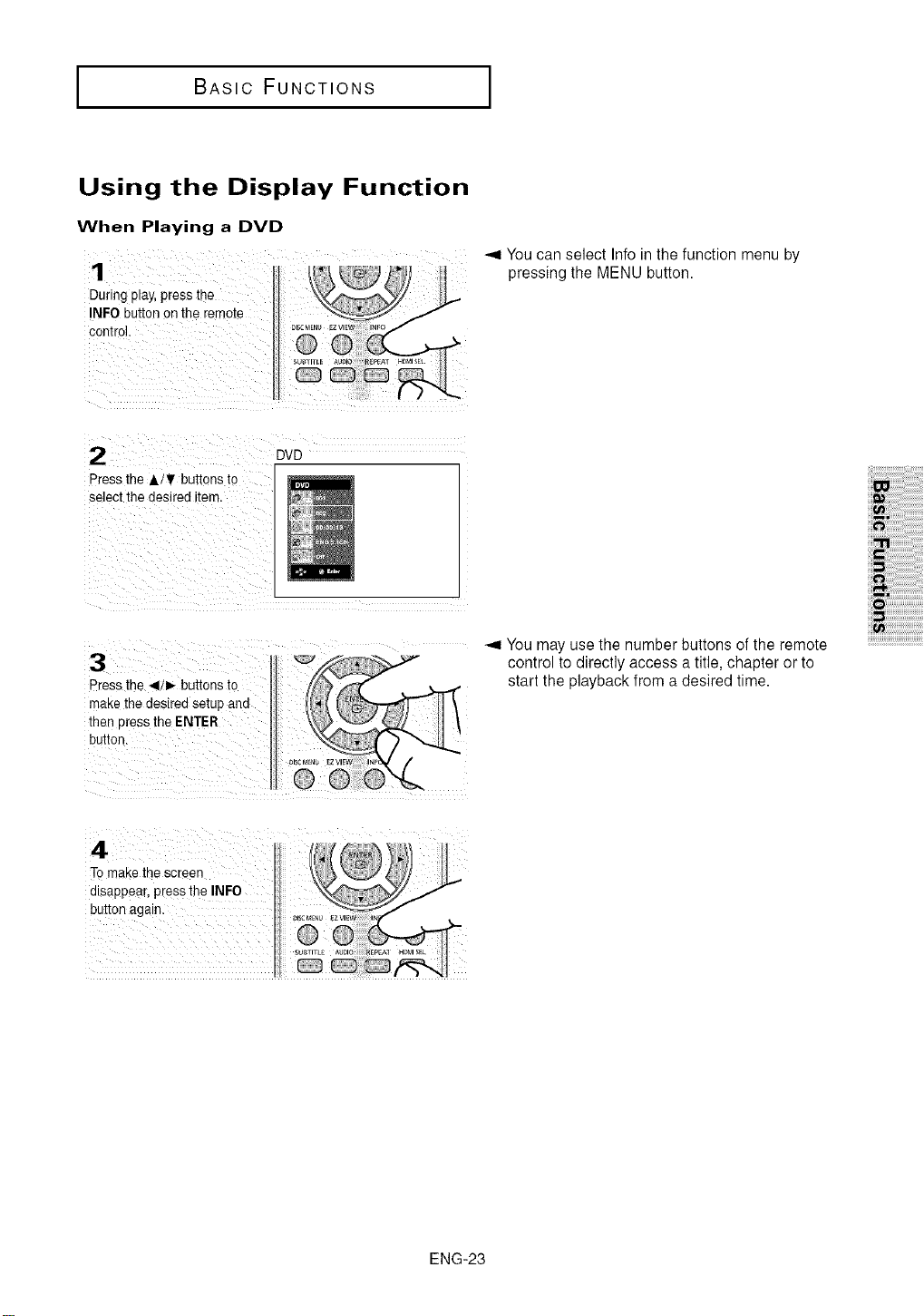
Using the Display Function
When Playing a DVD
1
Duringplay,pressthe
INFO3uttonontheremote
control
_,9You can select Info in the function menu by
pressing the MENU button.
2
Pressthe &/¥ buttonsto
se]eclthedesireditei_"
Press the _lilb- buttons to
make the desired setup and
then press the ENTER
DVD
-.4 You may use the number buttons of the remote
control to directly access a title, chapter or to
start the playback from a desired time.
;;i_iiii;ii;ii;ii;il;ii;ii;ii;ii;ii;ii;i
iii_ii!i!ililiiiiiiiiiiiiiiiiiiiiii
iii_i,i,iiiiiiiiii!!iiiiiiiiiiii
iilCi;;iiiiiiiiiiiiiiiiiiiiiiiiiiiii
ii!_iiiiiiiiiiiiiiiiiiiiiiiii_
4 _. ,,
Tomake,hesc 00
disappear,pressthe NF0
buttonagan
D_u
OTTLI
ENG-23
I BASIC FUNCTIONS
Note
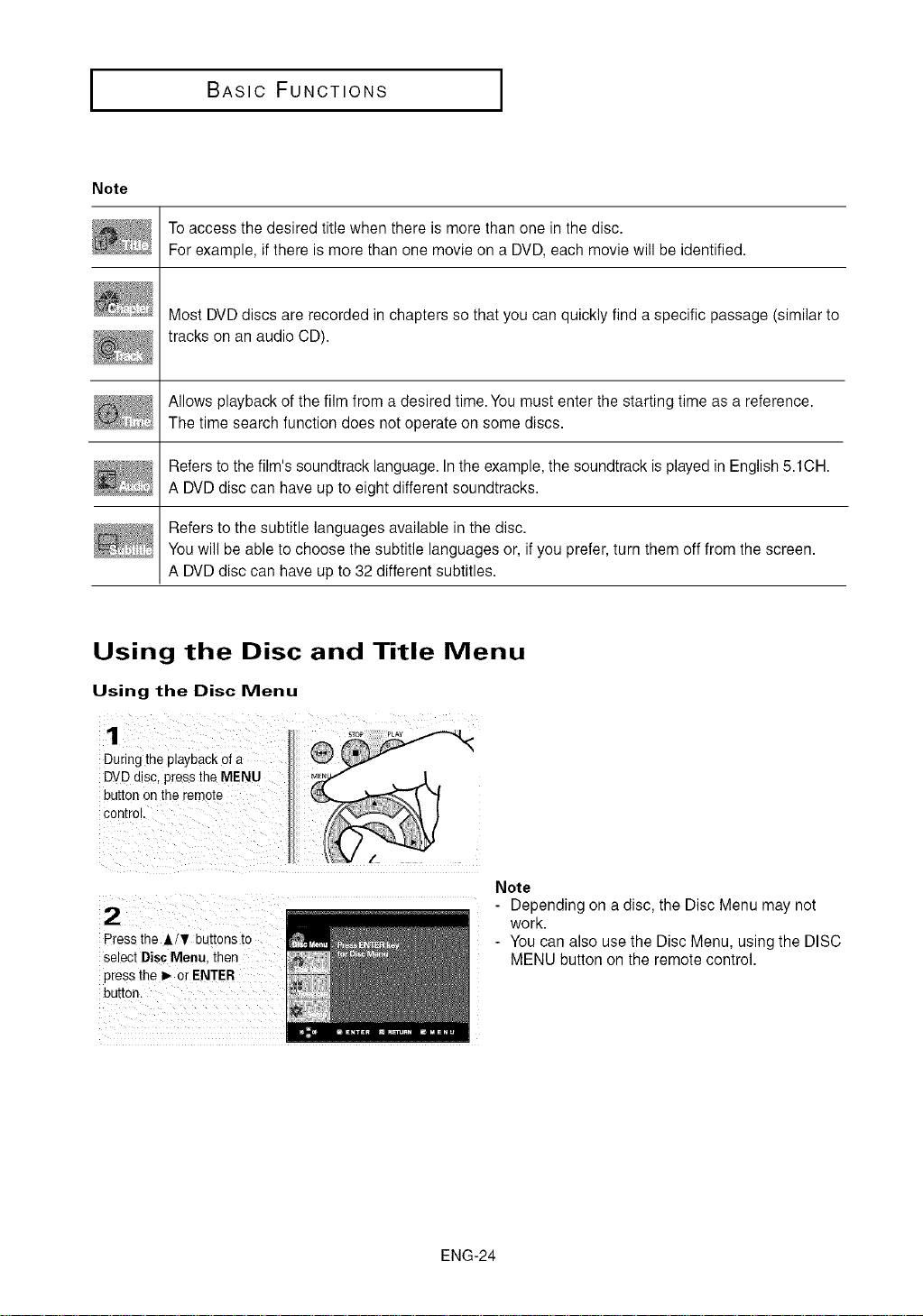
Toaccess the desired title when there is more than one in the disc.
For example, if there is more than one movie on a DVD, each movie will be identified.
Most DVD discs are recorded in chapters so that you can quickly find a specific passage (similar to
tracks on an audio CD).
Allows playback of the film from a desired time.You must enter the starting time as a reference.
The time search function does not operate on some discs.
Refers to the film's soundtrack language. In the example, the soundtrack is played in English 5.1CH.
A DVD disc can have up to eight different soundtracks.
Refers to the subtitle languages available in the disc.
You will be able to choose the subtitle languages or, if you prefer, turn them off from the screen.
A DVD disc can have up to 32 different subtitles.
Using the Disc and Title Menu
Using the Disc Menu
1
Duringtne ptaybackofa
DVDatsc,presstheMENU
buttonontheremo[e
con[roI.
2
Pressthe A/¥ buttonsto
selectDiscMenu.then
pressthe I_ orENTER
buEor
Note
- Depending on a disc, the Disc Menu may not
work.
- You can also use the Disc Menu, using the DISC
MENU button on the remote control.
ENG-24
BASIC FUNCTIONS
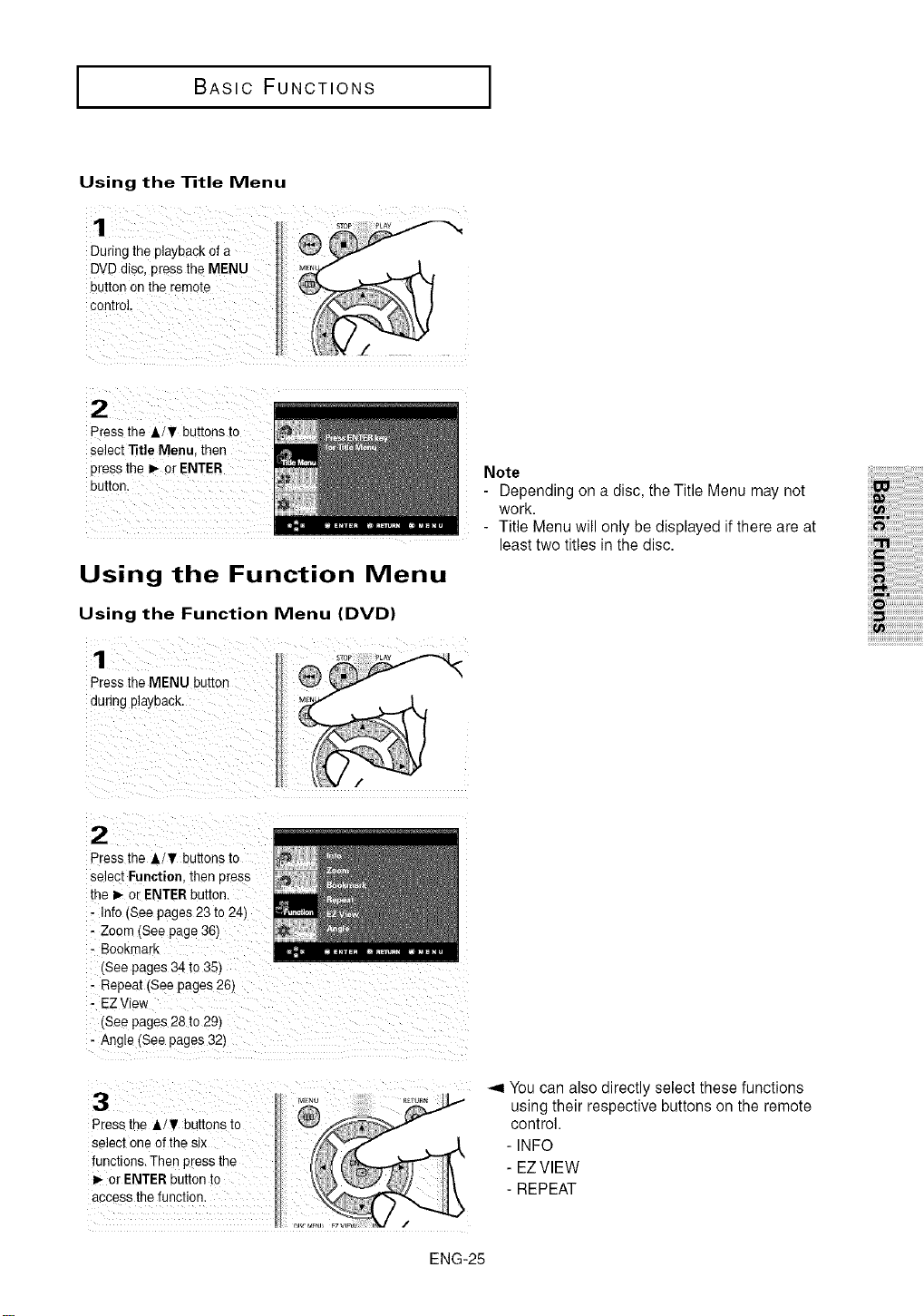
Using the Title Menu
During the playback of a
DVDdisc, press the MENU
button on the remote
control.
press the A/T buttons to
select _tle Menu, then
press the !_ or ENTER Note
- Depending on a disc, the Title Menu may not
work.
- Title Menu will only be displayed if there are at
least two titles in the disc.
Using the Function Menu
Using the Function Menu (DVD)
Press the MENU butlon
during playback.
;;;_iiiiiiiii;i;iiiiiiiiiiiiiii
iii_iiiiiiiiiiiiiiiiiiiiiil
iilCi;;iiiiiiiiiiiiiiiii;;;;i!
iii_iiiiiiiiiiiiiiiiiiiii!iiii_
2
Press the A/V buttons to
select Function. ther Dress
the _- or ENTER button.
- Info (See pages 23 to 24)
- Zoom (See page 36)
- Bookmark
(See pages 34 to 35)
- Repeat (See pages 26)
• EZ View
(See pages 28 to 29)
- Angle (See pages 32)
3
Press the A/V buttons to
select one of the stx
functions. Then press the
I_ or ENTER button to
access the function
-,q You can also directly select these functions
using their respective buttons on the remote
control.
- INFO
- EZVIEW
- REPEAT
ENG-25
I BASIC FUNCTIONS
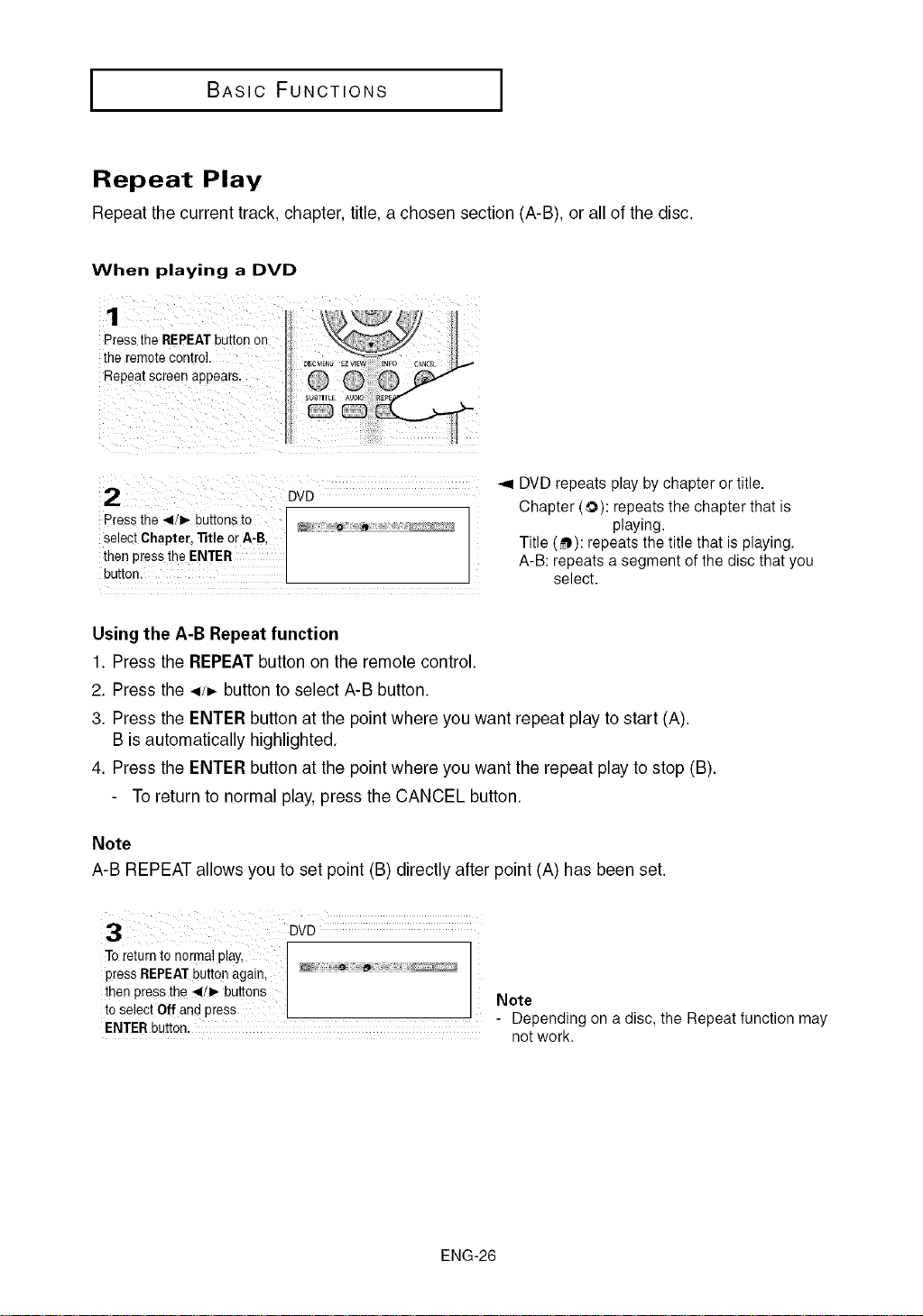
Repeat Play
Repeat the current track, chapter, title, a chosen section (A-B), or all of the disc.
When playing a DVD
Press the REPEATbutton or
the remote control,
Repeat screen appears,
2 DVD
Press the 4/_ buttons to
select Chapter 13tieor A-B
then Dress the ENTER
button.
-,_ DVD repeats play by chapter or title.
Chapter (0): repeats the chapter that is
playing.
Title (_): repeats the title that is playing.
A-B: repeats a segment of the disc that you
select.
Using the A-B Repeat function
1. Press the REPEATbutton on the remote control.
2. Press the ./=,. button to select A-B button.
3. Press the ENTER button at the point where you want repeat play to start (A).
B is automatically highlighted.
4. Press the ENTER button at the point where you want the repeat play to stop (B).
To return to normal play, press the CANCEL button.
Note
A-B REPEAT allows you to set point (B) directly after point (A) has been set.
3 DVD
To return to normal play, ....................................
press REPEATbutton again, I I
then PreSsthe _1/I,- buttens
to se ect Off and press Note
- Dependingon a disc,the Repeatfunctionmay
ENTER button,
notwork.
ENG-26
BASIC FUNCTIONS
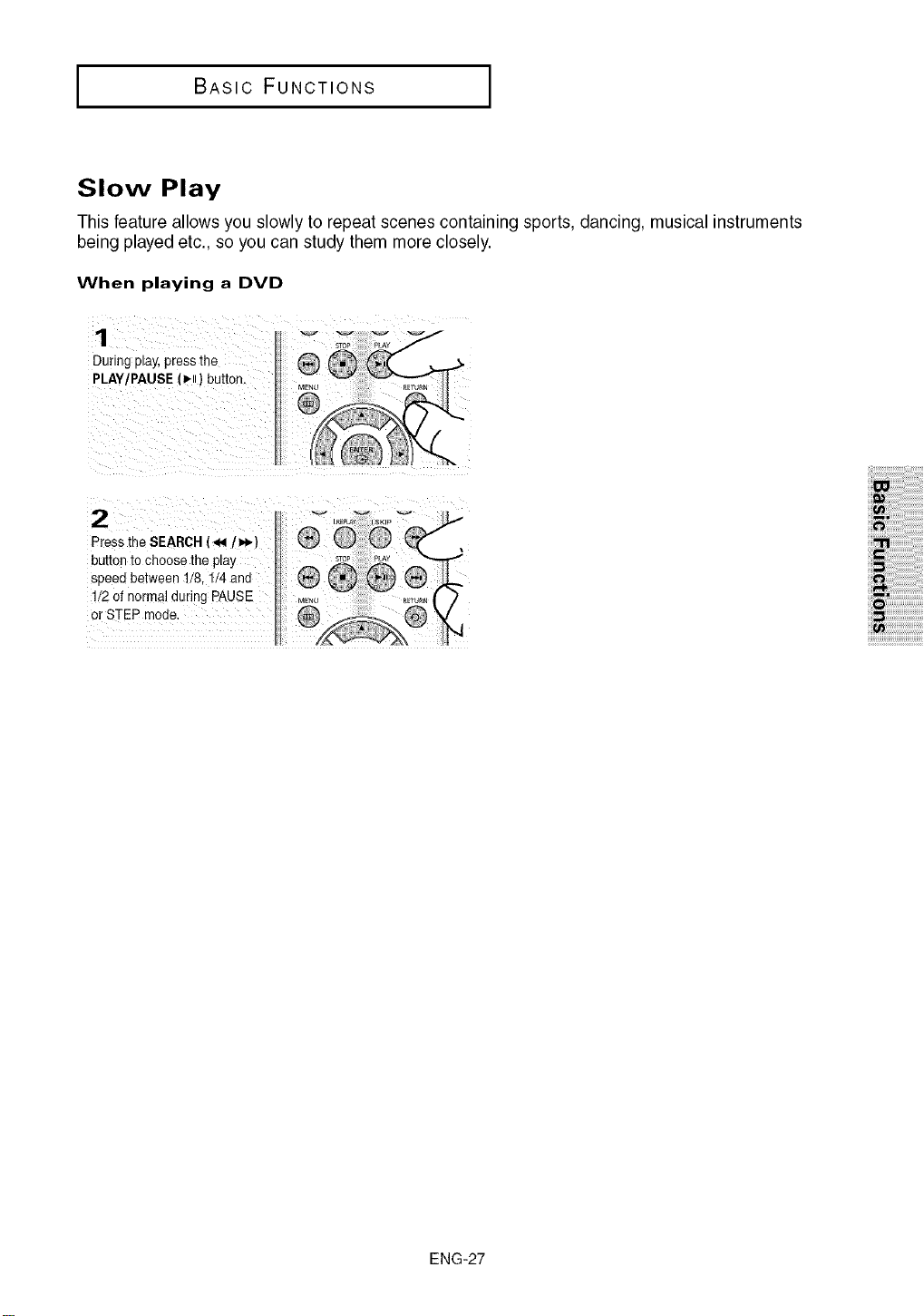
Slow Play
This feature allows you slowly to repeat scenes containing sports, dancing, musical instruments
being played etc., so you can study them more closely.
When playing a DVD
1
During pray,press the
PLAY/PAUSE (1,-,)button.
2
Press the SEARCH (_1/_1_1
button to choose the play
speed between 1/8.1/4 and
1/2 of normal duriqg PAUSE
or STEP mode.
;;i_iiii;ii;ii;ii;il;ii;ii;ii;ii;ii;ii;i
iii_ii!i!i;iiiiiiiiiiiiiiiiiiiiiiiiiiiiiiiiii
iliiii_;iiii;i;i;i;i;i;i;ii_i_!iiiiiiiiiiii
iilCi;;iiiiiiiiiiiiiiiiiiiiiiiiiiiii
ii!_iiiiiiiiiiii!iiiiiiiiiiiiiiiiiiiiiiiiiii_
ENG-27
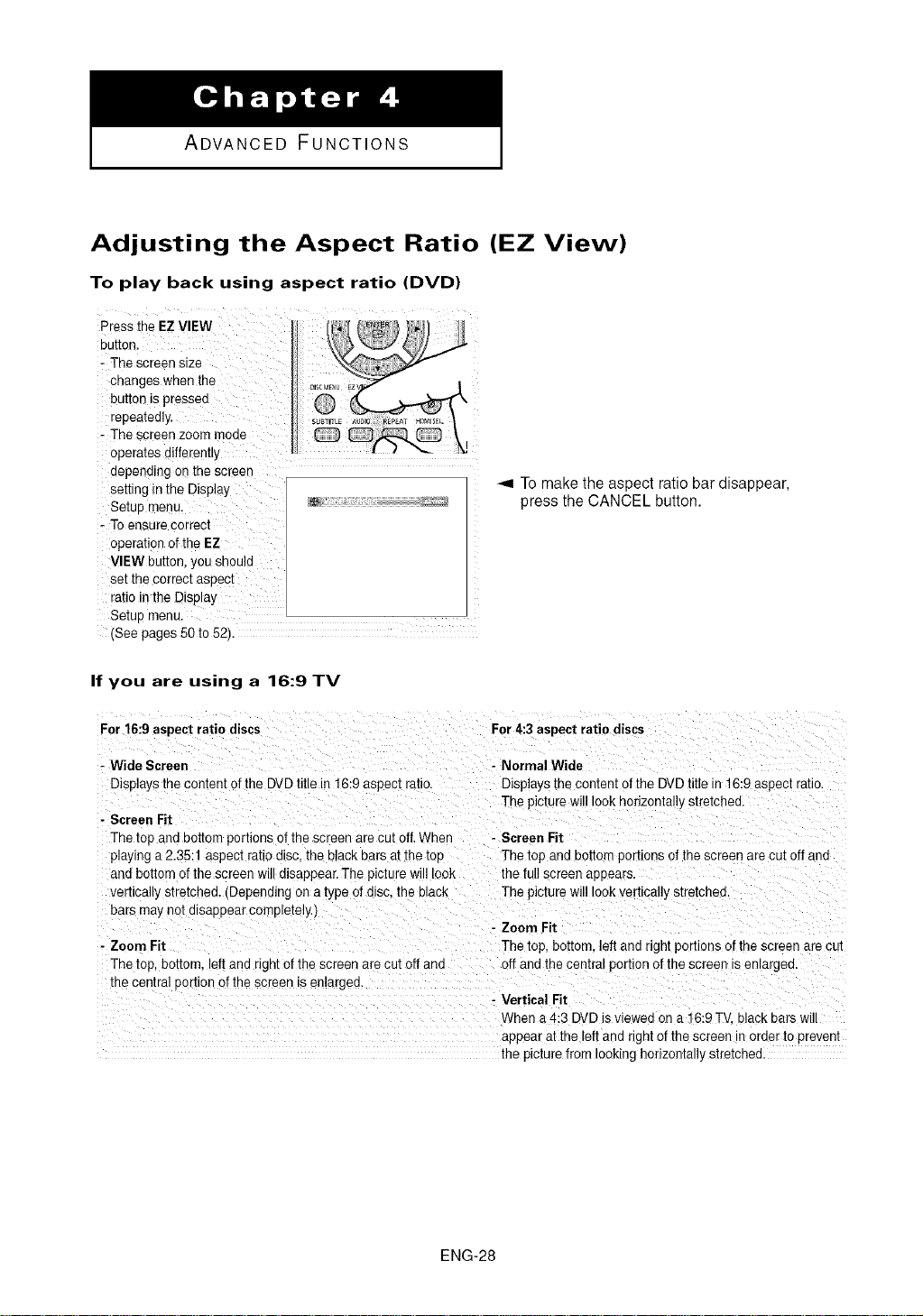
ADVANCED FUNCTIONS
Adjusting the Aspect Ratio (EZ View)
To play back using aspect ratio (DVD)
Press the EZVIEW ':_ ;_ '
button, ii
,- The Screen size
changes when the
button is pressed
repeatedly.
- ]'he screen zoom mode
Operatesdifferently
depending onthe screen
setting in the DisPlay
Setup menu.
- Toensure correct
operation of the EZ
VIEW button, y0u should
set the correct aspect
ratio in the Display
Setup menu.
(See pages 50 to 52).
_,9 To make the aspect ratio bar disappear,
press the CANCEL button.
If you are using a 16:9 TV
For 16:9 aspect ratio discs For 4:3 aspect ratio discs
- Zoom Fit
The top. bottom, left and right of the screen are cut oft and
the central eortionof the screen isenlarged
- Wide Screen - Normal Wide
Displays the content of the DVDtitle in 16:9 aspect ratio. Displays the content of the DVDtitle in 16:9 aspect ratio.
The pictL"swi look hodzontally stretched.
- Screen Fit
The top and bottom portions of the screen are cut off.When - Screen Fit
playing a 2.35:1 aspect ratio disc the black ears at the toe The iop and bottom portions of the screen are cut off ana
and bottom ofthe screen will d_sappear.The picture will look the full screen aeeears.
vertically stretched. (Depending on a type of disc the Lack The pictL"ewill look vertically stretcheu.
bars may no[ alsapuear completely.)
- Zoom Fit
The top, bottom, left and rign[ portions ofthe screen are cur
off and thecentra portion ofthe screen is enlargea.
- Vertical Fit
When a4:3 DVDis viewed on a 16:9 TV olacKears will
appear at the left and right ofthe screen in order to preven[
the picture from looking horizontally stretchec
ENG-28
ADVANCED FUNCTIONS
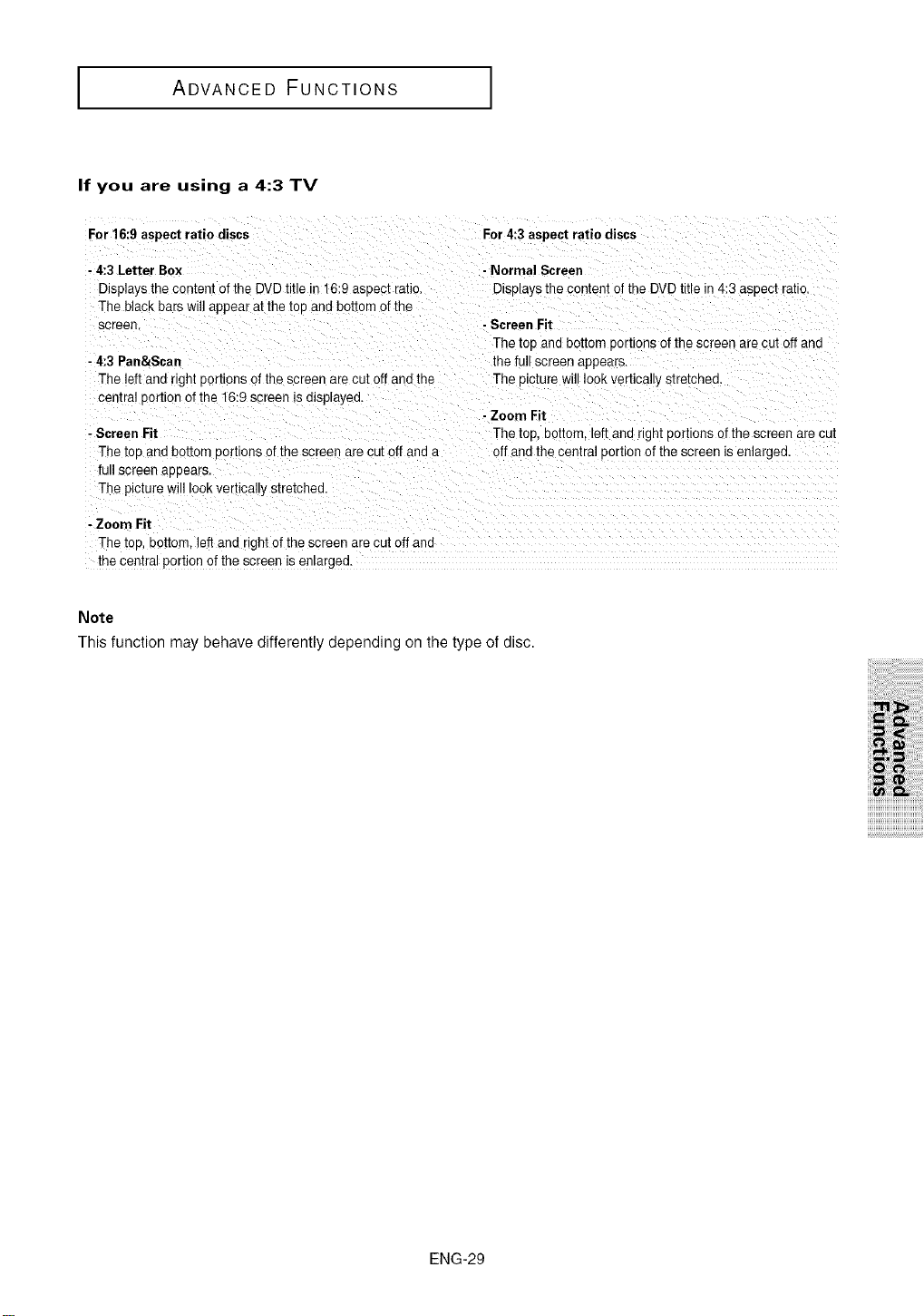
If you are using a 4:3 TV
For 16:9aspect ratio discs For 4:3 aspect ratio discs
- 4:3 Letter Box - Normal Screen
Displays the content of the DVDtitle in 16:9 asoect ratio. Displays the content of tne DVD titlein 4:3 aspec[ rauo.
The black bars will appear at the toe and bottom of the
screen. - Screen Fit
The toe and bottom portions of the screen are cut off and
- 4:3 Pan&Sca n the full screen appears.
The left and right uortions of the screen are cut off and the The eicture will look vertical y stretched.
central portion of the 16:9screen is displayed.
- Zoom Fit
- Screen Fit The toe. DehOrn.left and right portions el the screen are cut
The toe and bottom oortions ot the screen are cur off and a off anc the central uortion of the screen is enlarged.
fu screen aeeears.
The p_cturewill look vertically stretched
- Zoom Fit
The too. bottom, left and right of thescreen are cut off and ....
me cenlra_portion of thescreen is enlarged
Note
This function may behave differently depending on the type of disc.
i_iii!i_i_i_!i!_ii_ii_ii_ii_ii_ii_i!ii!i!!!_!i!i!i!ii!ii!ii!ii!ii!ii!ii!ii!ii!ii!ii!ii
iiii ii ii! iiiiiii
ENG-29
I ADVANCED FUNCTIONS
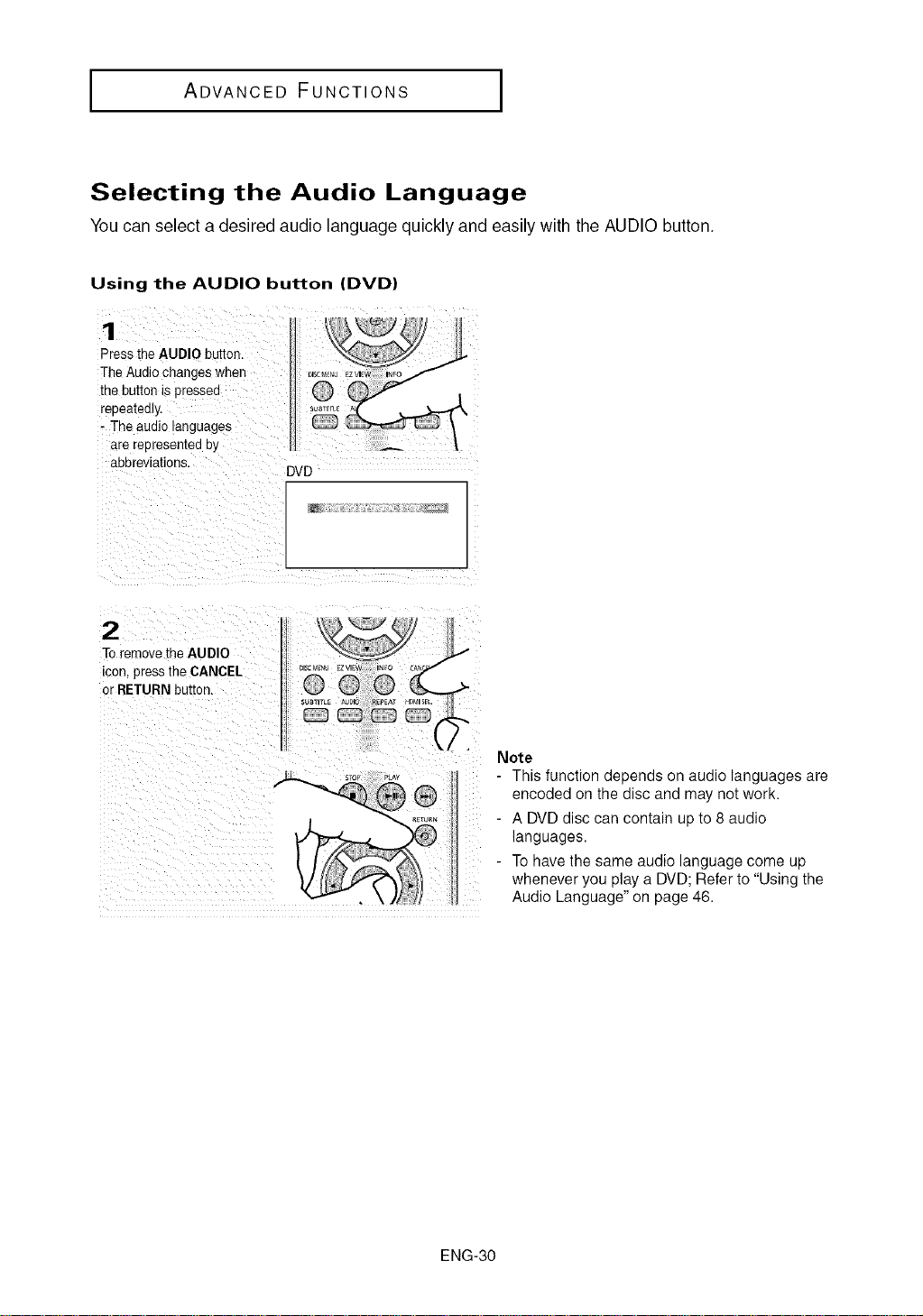
Selecting the Audio Language
You can select a desired audio language quickly and easily with the AUDIO button.
Using the AUDIO button (DVD)
1
PresstheAUDIObutton.
TheAudiochangeswhen
thebuttonispressed
reoeatediy,
- Theaue_olanguages
arerepresentedb_
abbreviations,
DVD
2
ToremovetheAUDIO
con presstheCANCEL
or RETURNbutton.
Note
- This function depends on audio languages are
encoded on the disc and may not work.
- A DVD disc can contain up to 8 audio
languages.
- To have the same audio language come up
whenever you play a DVD; Refer to "Using the
Audio Language" on page 46.
ENG-30
ADVANCED FUNCTIONS I
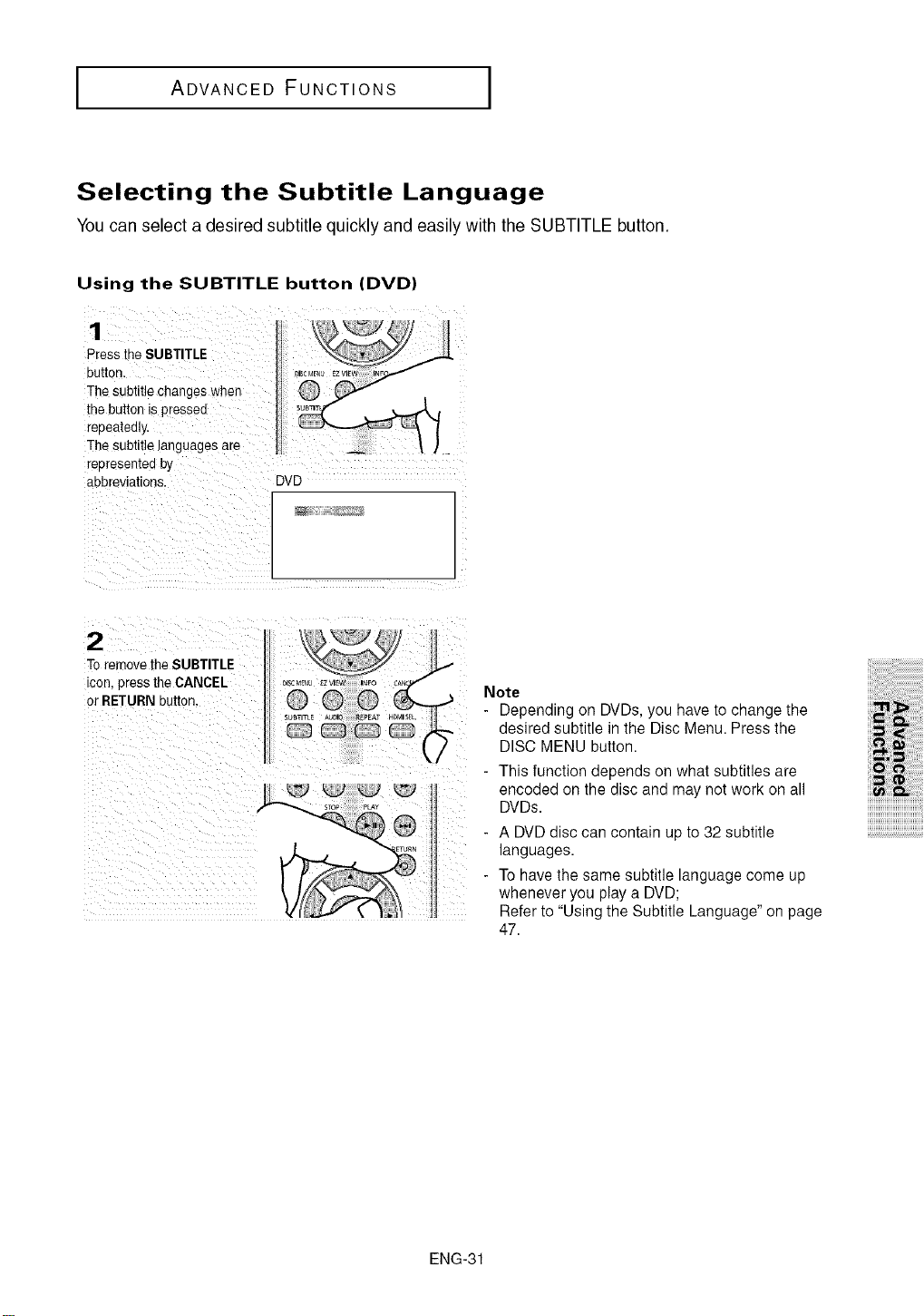
Selecting the Subtitle Language
You can select a desired subtitle quickly and easily with the SUBTITLE button.
Using the SUBTITLE button (DVD)
Press the SUBTITLE
button.
The subtitle changes when
the button is pressed
repeatedly,
The subtitle languages are
representedby
abbreviations, DVD
2
ToremovetheSUBTITLE
cot,,presstheCANCEL
or RETURNbutton
Note
- Depending on DVDs, you have to change the
desired subtitle in the Disc Menu. Press the
DISC MENU button.
- This function depends on what subtitles are
encoded on the disc and may not work on all
DVDs.
A DVD disc can contain up to 32 subtitle
languages.
To have the same subtitle language come up
whenever you play a DVD;
Refer to "Using the Subtitle Language" on page
47.
i_iii!i_i_i_!i!_ii_ii_ii_ii_ii_ii_i!ii!i!!!_!i!i!i!ii!ii!ii!ii!ii!ii!ii!ii!ii!ii!ii!ii
iiii ii ii! iiiiiii
ENG-31
I ADVANCED FUNCTIONS I
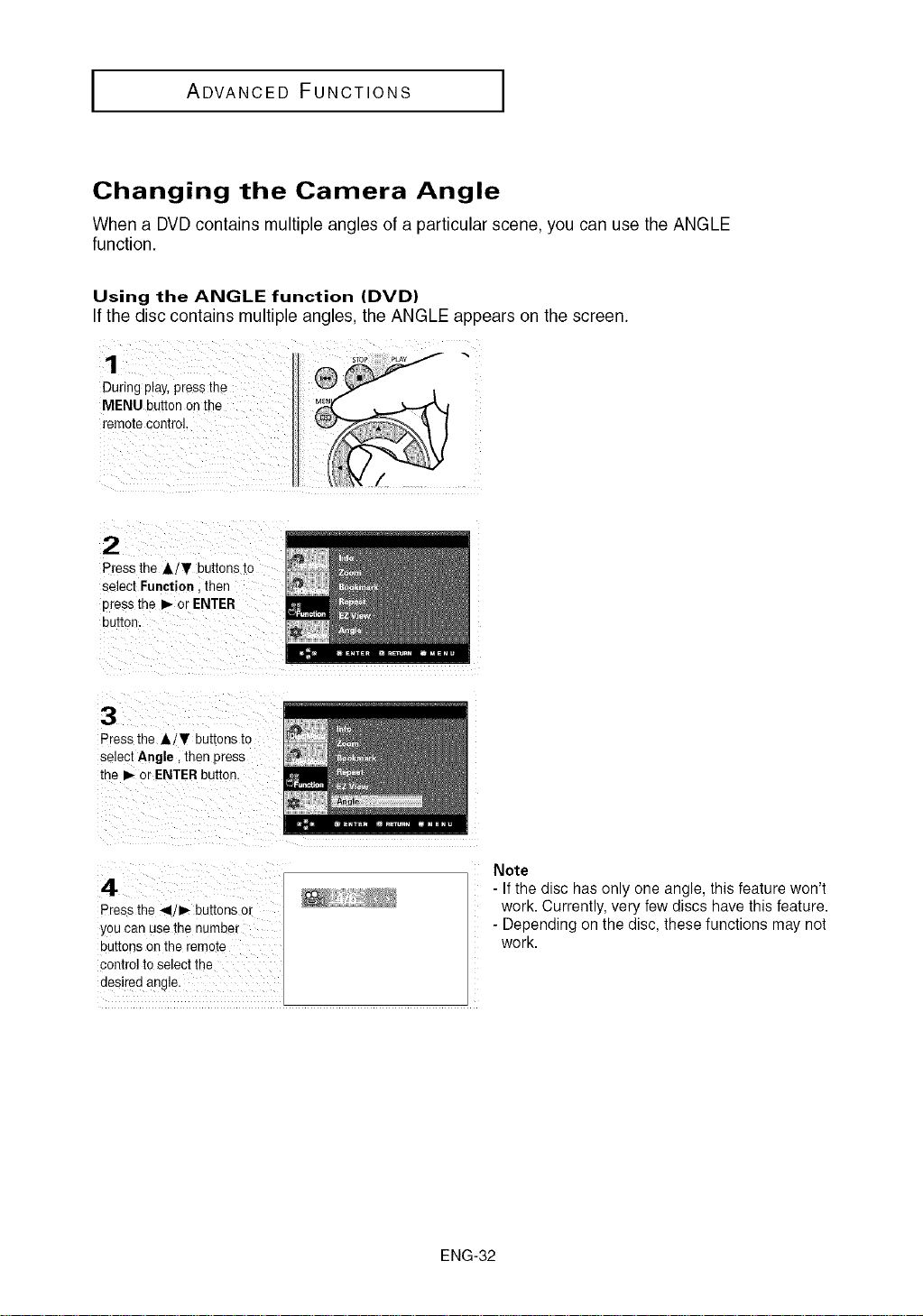
Changing the Camera Angle
When a DVD contains multiple angles of a particular scene, you can use the ANGLE
function.
Using the ANGLE function (DVD)
If the disc contains multiple angles, the ANGLE appears on the screen.
:uli!: _,ay :ies: t_: _
MENU button Onthe _
2
Press the ,L/T buttons to
select Function then
3tess the I_ or ENTER
3UIIOn.
3
Press the Jl,, T buttons to
select Angle, then Dress
the I_ or ENTERbutton.
4
Press the 4j I_ buttons or
you can use the number
buttons on the remote
control toselect the
desired angle.
Note
- Ifthe disc has only one angle, this feature won't
work. Currently, very few discs have this feature.
- Depending on the disc, these functions may not
work.
ENG-32
ADVANCED FUNCTIONS
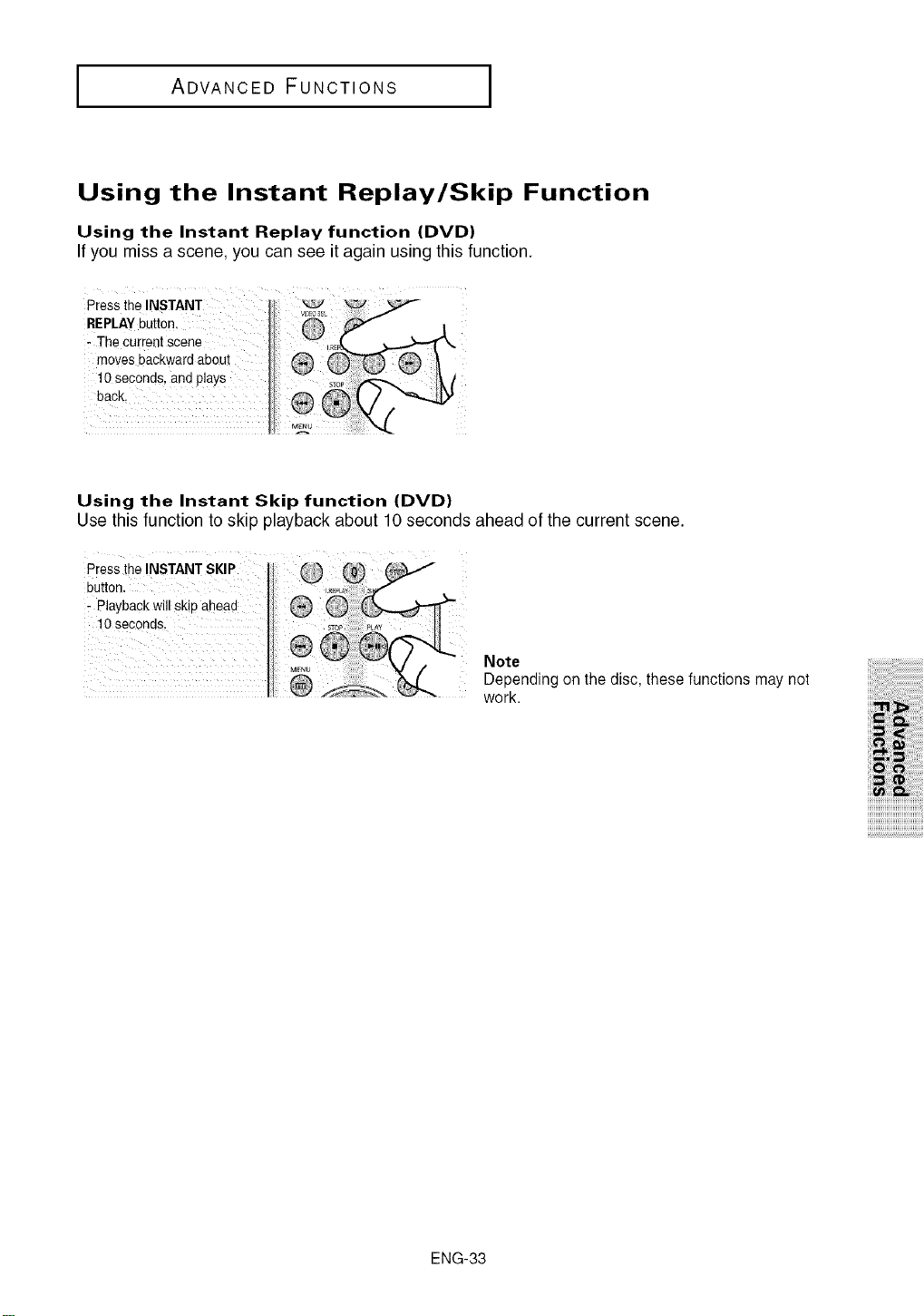
Using the Instant Replay/Skip Function
Using the Instant Replay function (DVD)
If you miss a scene, you can see it again using this function.
Press the INSTANT
REPLAYbutton, kj _
: The Current scene
moves backward about
10 Seconds, and plays
Using the Instant Skip function (DVD)
Use this function toskip playbackabout 10 seconds ahead of thecurrent scene.
Press tne INSTANT SKIP
button.
- Playbackwil skiDahead
10 seconds.
Note
Depending on the disc, these functions may not
work.
i_iii!i_i_i_!i!_ii_ii_ii_ii_ii_ii_i!ii!i!!!_!i!i!i!ii!ii!ii!ii!ii!ii!ii!ii!ii!ii!ii!ii
iiii ii ii! iiiiiii
ENG-33
I ADVANCED FUNCTIONS I
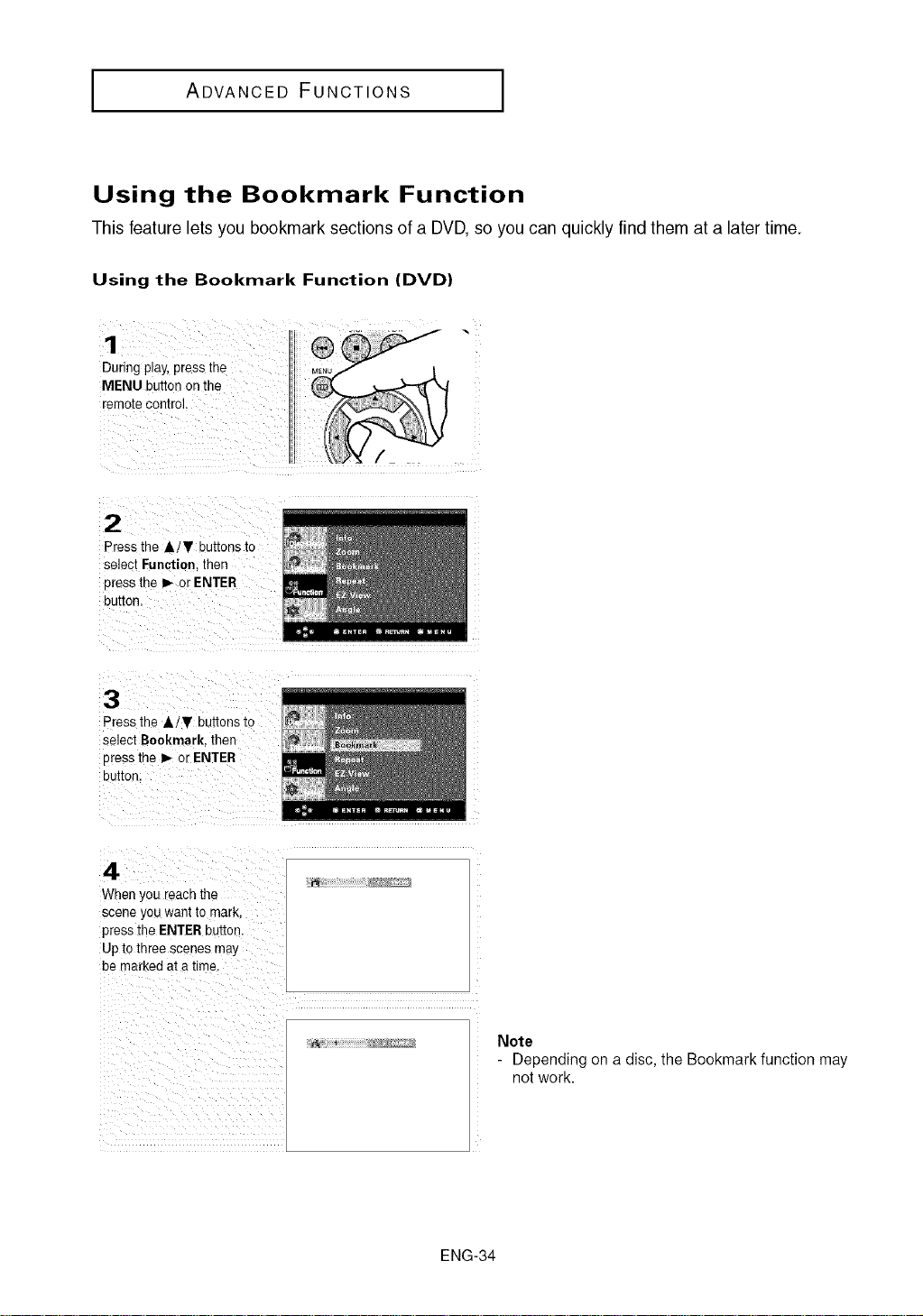
Using the Bookmark Function
This feature lets you bookmark sections of a DVD, so you can quickly find them at a later time.
Using the Bookmark Function (DVD)
1
3uring play,press the
MENU button on the
"emotecontrol.
2
Press the &/T buttons to
select Function. then
Dress the _ or ENTER
DUIIOn,
3
Press the J,/T buttons to
select Bookmark. then
press the I_ or ENTER
OUIIOR.
4
When you reacn the
scene you want to mark.
press the ENTER button.
Upto three scenes may
be marked at a t_me.
r_
Note
- Depending on a disc, the Bookmark function may
not work.
ENG-34
ADVANCED FUNCTIONS I
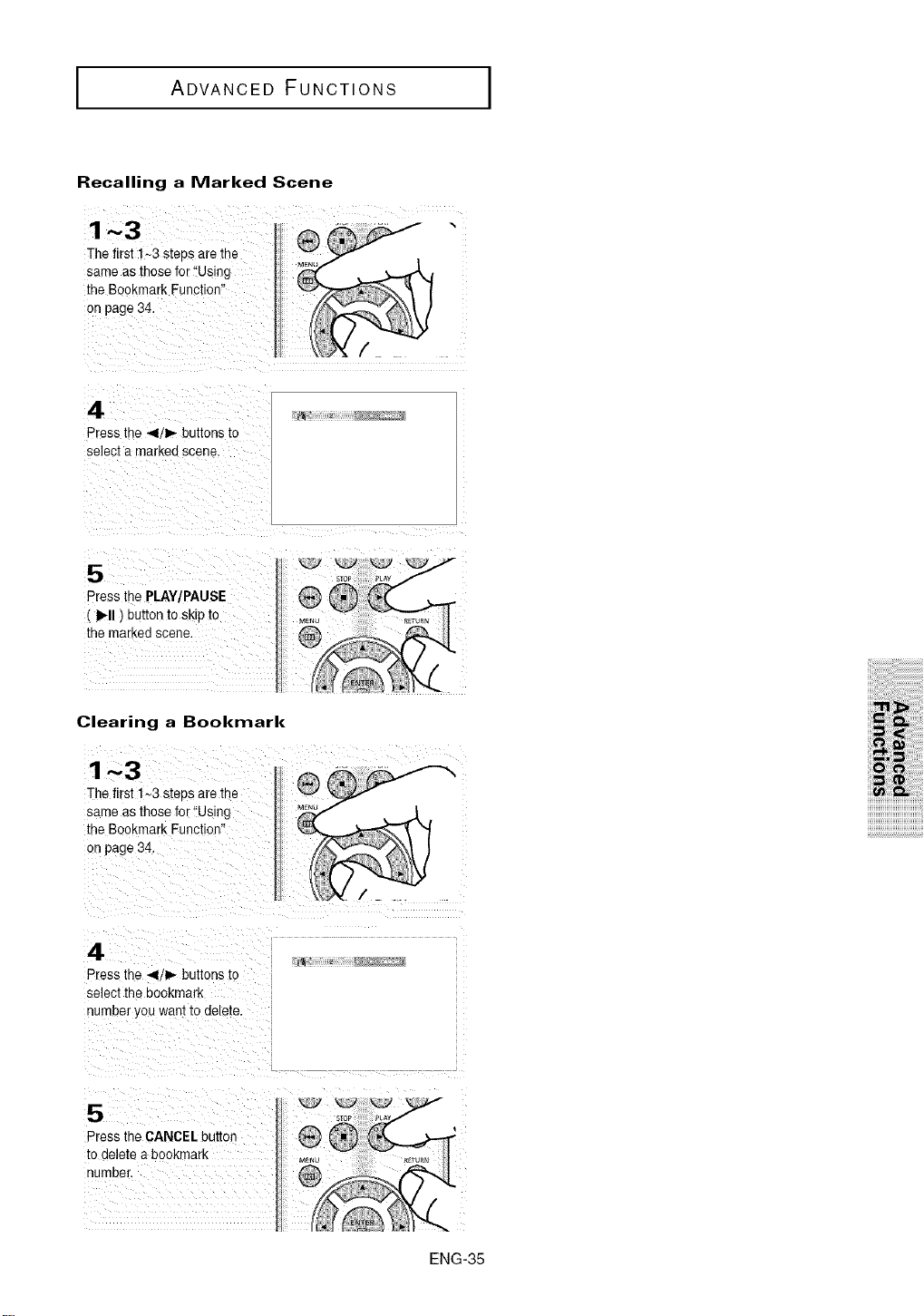
Recalling a Marked Scene
Press the 4/1_ buttons to
select a marked scene.
Perss the PLAY/PAUSE
( I_11) butt0n to Skipto M[,_,
the marked scene
Clearing a Bookmark
1~3
The first 1-3 steos are me
same as those for"Us r j
the Bookmark Function"
on page 34.
i_iii!i_i_i_!i!_ii_ii_ii_ii_ii_ii_i!ii!i!!!_!i!i!i!ii!ii!ii!ii!ii!ii!ii!ii!ii!ii!ii!ii
iiii ii ii! iiiiiii
4
Press the 41/1_ buttons to
select the bookmark
numDe)you wantto aele[e.
5
Press the CANCEL button
todelete a bookmarK
number.
ENG-35
I ADVANCED FUNCTIONS
Using the Zoom Function
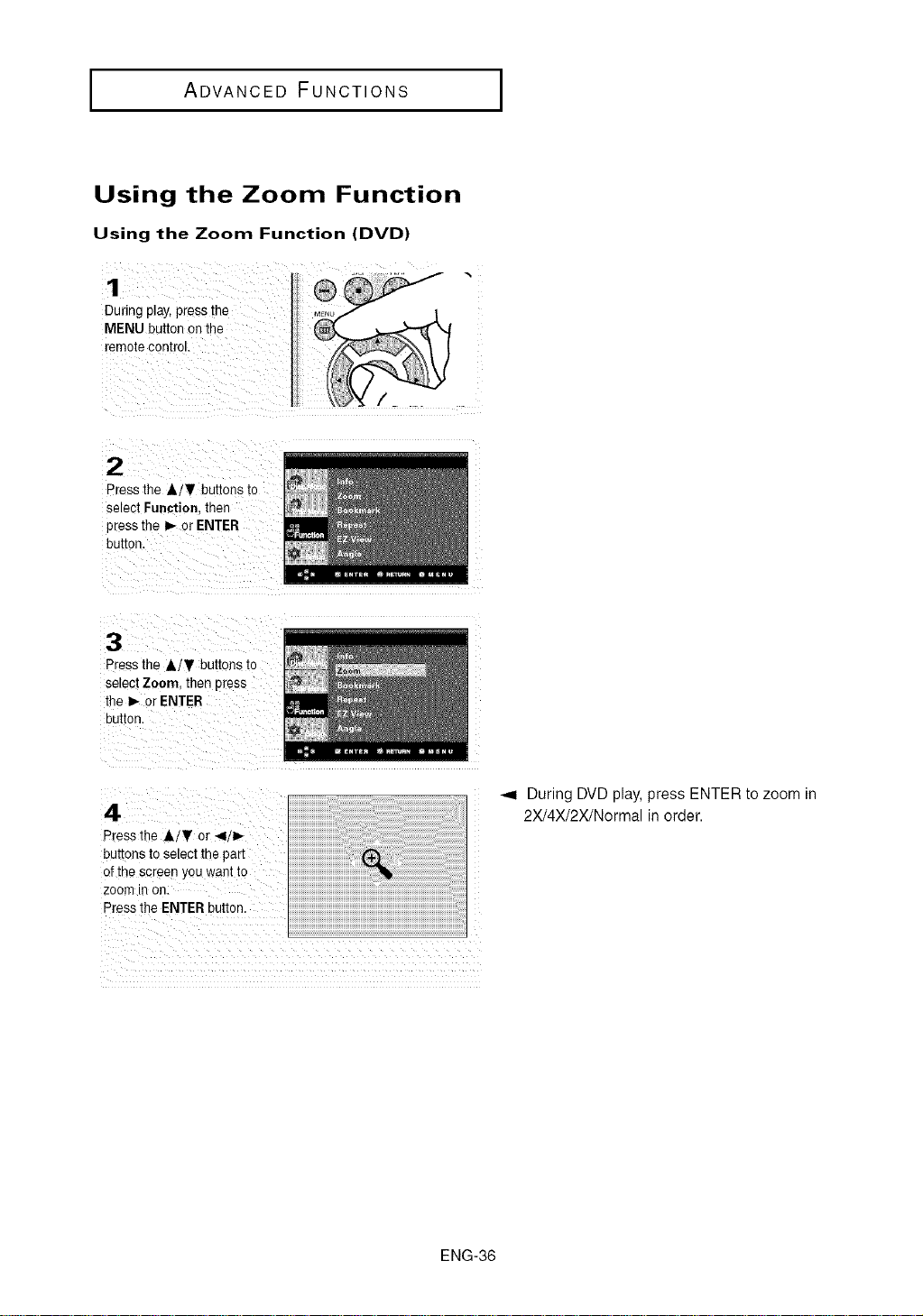
Using the Zoom Function (DVD)
1
During play,press the
MENU button on me
remote control.
2
Pressthe AiT bu[tons to
select Function. then
press the I_ or ENTER
button.
3
Press the A/V buttons to
setect Zoom. then press
the I_ or ENTER
button.
4
Press the &/V or 4/_,-
bu_zonsto select the part
of the screen you want to
zoom In on,
Press the ENTER button,
-.4 During DVD play, press ENTER to zoom in
2X/4X/2X/Normal in order.
ENG-36
ADVANCED FUNCTIONS
Clips Menu for MP31WMAIJPEGICD Audio
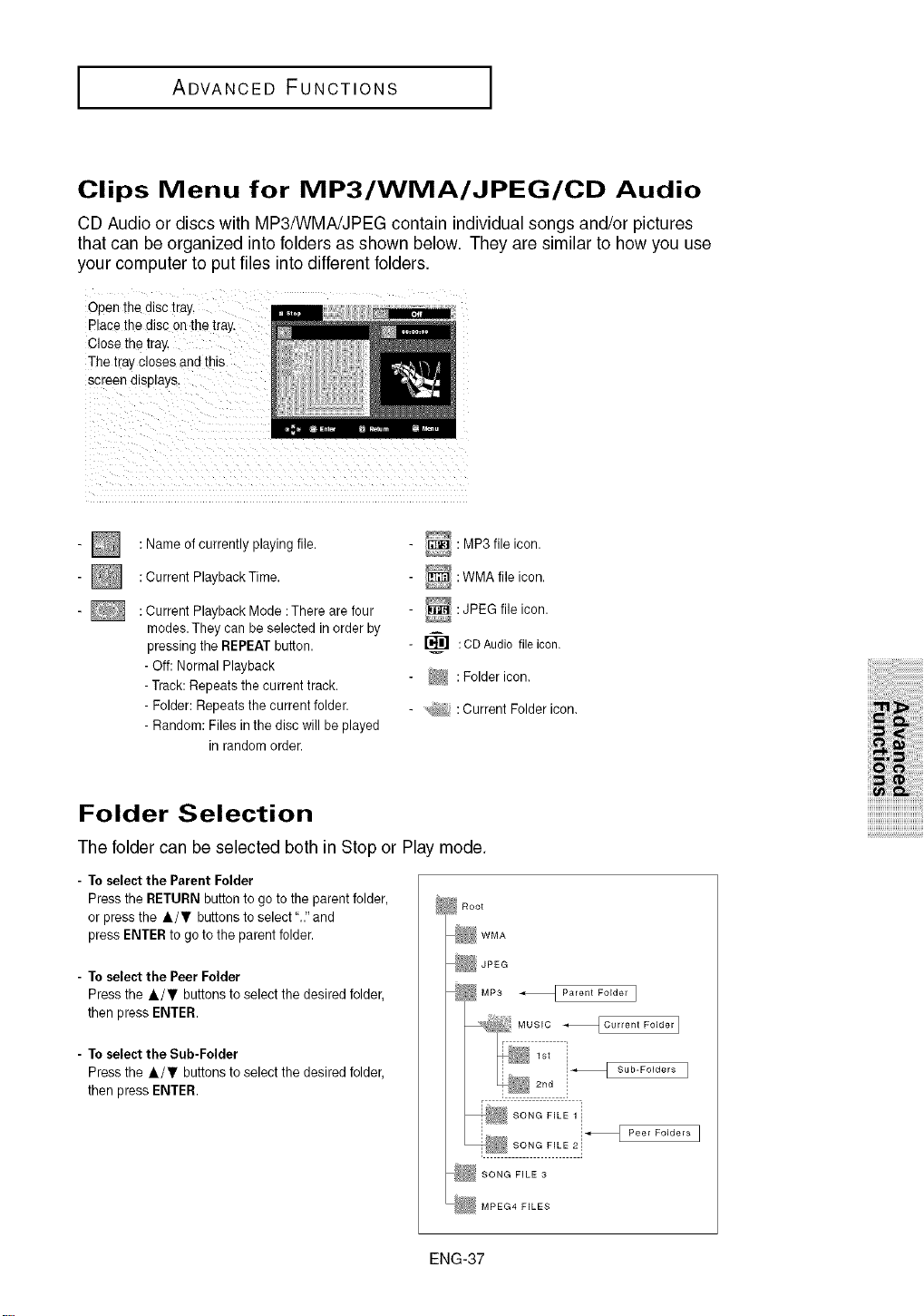
CD Audio or discs with MP3/WMA/JPEG contain individual songs and/or pictures
that can be organized into folders as shown below. They are similar to how you use
your computer to put files into different folders.
Open the disc tray.
Place the disc on the tray.
Close the tray.
The tray closes and this
screen d_sp_ays.
- _ :Name of currently playing
file.
- [] :Current Playback
Time.
- :Current Playback Mode :There are four
modes.They can be selected in order by
pressing the REPEATbutton.
- Off: Normal Playback
- Track: Repeats the current track.
- Folder: Repeats the current folder.
- Random: Files in the discwill beplayed
in random order.
: MP3 file icon.
_: WMA file icon.
:JPEG file icon.
L_ :CDAudiofile icon.
_4 :Folder icon.
: Current Folder icon.
Folder Selection
The folder can be selected both in Stop or Play mode.
- To select the Parent Folder
Press the RETURN button to go to the parent folder.
or press the A/, buttons to select ".."and
press ENTERto go to the parent folder.
- To select the Peer Folder
Press the Jl,/T buttons to select the desired folder,
then press ENTER.
- To select the Sub-Folder
Press the A/_' buttons to select the desired folder,
then press ENTER.
_ W MA
3_JPEG
MP3 _ Parent Folder ]
os,o ......
1st
i
SONG FILE 1 [
SONG FiLE 3
_ MPEG4 FILES
i_iii!i_i_i_!i!_ii_ii_ii_ii_ii_ii_i!ii!i!!!_!i!i!i!ii!ii!ii!ii!ii!ii!ii!ii!ii!ii!ii!ii
iiii ii ii! iiiiiii
_:
ENG-37
I ADVANCED FUNCTIONS I
MP3/WMA/CD Audio Playback
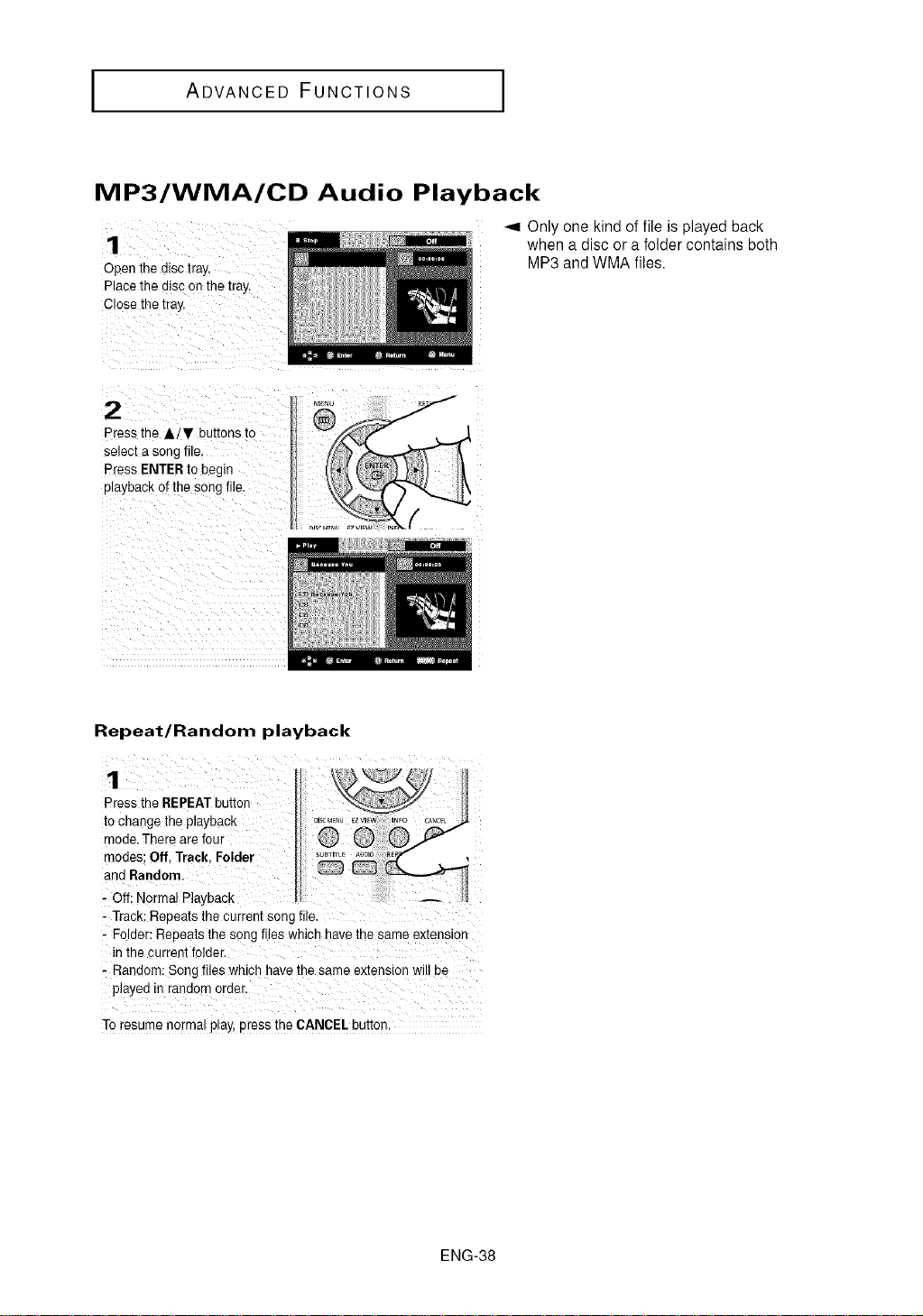
1
Open the disc tra,..
Place the disc on the tray.
Close theiray.
_,9 Only one kind of file is played back
when a disc or a folder contains both
MP3 and WMA files.
Press the A/T buttons to
select a song file.
Press ENTER to begin
playback of the song file.
Repeat/Random playback
Press the REPEATbutton
to change the playback
mode. There are four
modes; Off, Track, Folder
and Random.
•-Off; Nerma! Playback
--Track:Repeats the Current song file.
- Folder: Repeats the song files which have the same extension
in the current folder.
: Random: Song tiles which have the same extension wil! be
To resume normal play, press the CANCEL button:
ENG-38
ADVANCED FUNCTIONS J
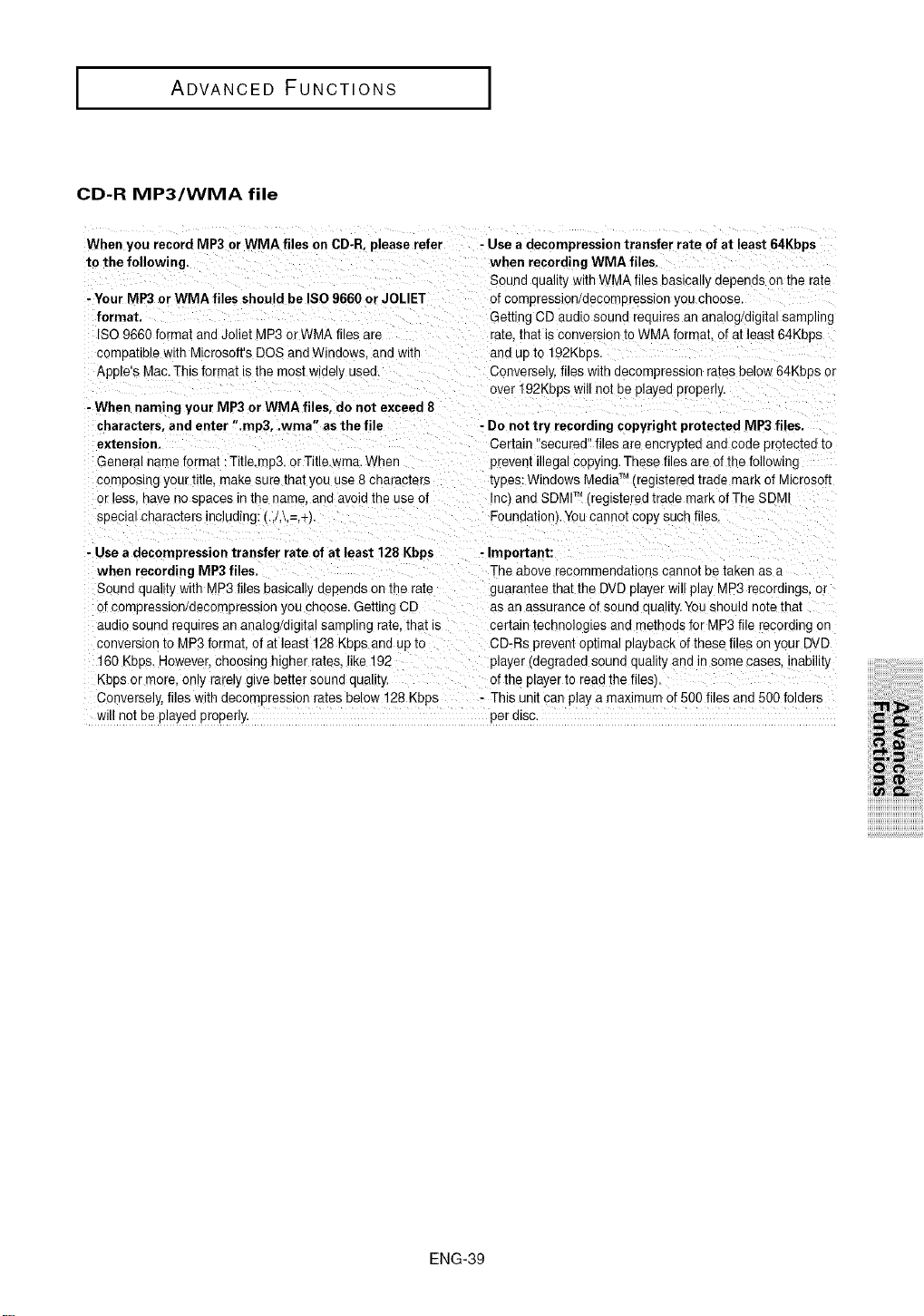
CD-R MP3/WMA file
When you record MP3 orWMA files on CD-R, please refer
to the following.
- Your MP3 or WMA files should be ISO 9660 or JOLIET
format.
ISO 9660 format and Joliet MP3 o_WMA files are
comeatible wth Microsofts DOS and Windows. and with
Apple's Mac.This format _sthe most widey usee.
- When naming your MP3 or WMA files, do not exceed 8
characters, and enter ".rap3, .wma" as the file
extension.
General name format :Title.rap3. orTitle._ ma.When
composing your title, make sure that you use 8 characters
or less. nave nosoaces in the name. and avoid the use of
seecial characters including: (.,/,\,=,+).
- Use a decompression transfer rate of at least 64Kbps
when recording WMA files.
Sound quality with WMA files bastcalydepends on the rate
of compression/decompresston you choose
Getting CD audio sound reeuires an analog/digital sampling
tale. that is convereior toWMA format, of at feast64Kbps
ane UDto 192Kbes.
Conversely, files with eecompreseton rates below 64Kbps or
over 192Kbps will not be playea propeny
- Do nottry recording copyright protected MP3 files,
Certain "secured" files are encrypted and code protectea to
prevent illegal copying. These files are of the followlr
iypes: Windows MediaTM (regis[eree iraee mark of Microsoft
Inc and SDMr M(registered trade mark of The SDIV
Foundation}. You cannot copy such files
- Use a decompression transfer rate of at least 128 Kbps - Important:
when recording MP3 files. The above recommendations cannot betaken as a
Sound quality with MP3 files basically depends on the rate guarantee that the DVD player will play MP3 recordings, or
of compression/decompresston you choose. Getting CD as an assurance ofsound quaH[y.You should no[e that
audio sound requires an analog/digital sampling rate. that is certain technologtes ana methods for MP3 file recording on
conversion to MP3 format, of at least 128 Kbps ane up io CD-Rs prevent optimal playback of these files onyour DVD
160 Kbee. Hey.ever,choosing higher rates, ike 192 player (degraded sound quality and in some cases, nability
Kbps or more. onty rarefygive better sound quality,, of the player to read the files,
Conversely, files with decompression rates below 128 Kbps - This unit can play a maximum of 500 files and 500 folders
will not be played properly, per alsc.
ENG-39
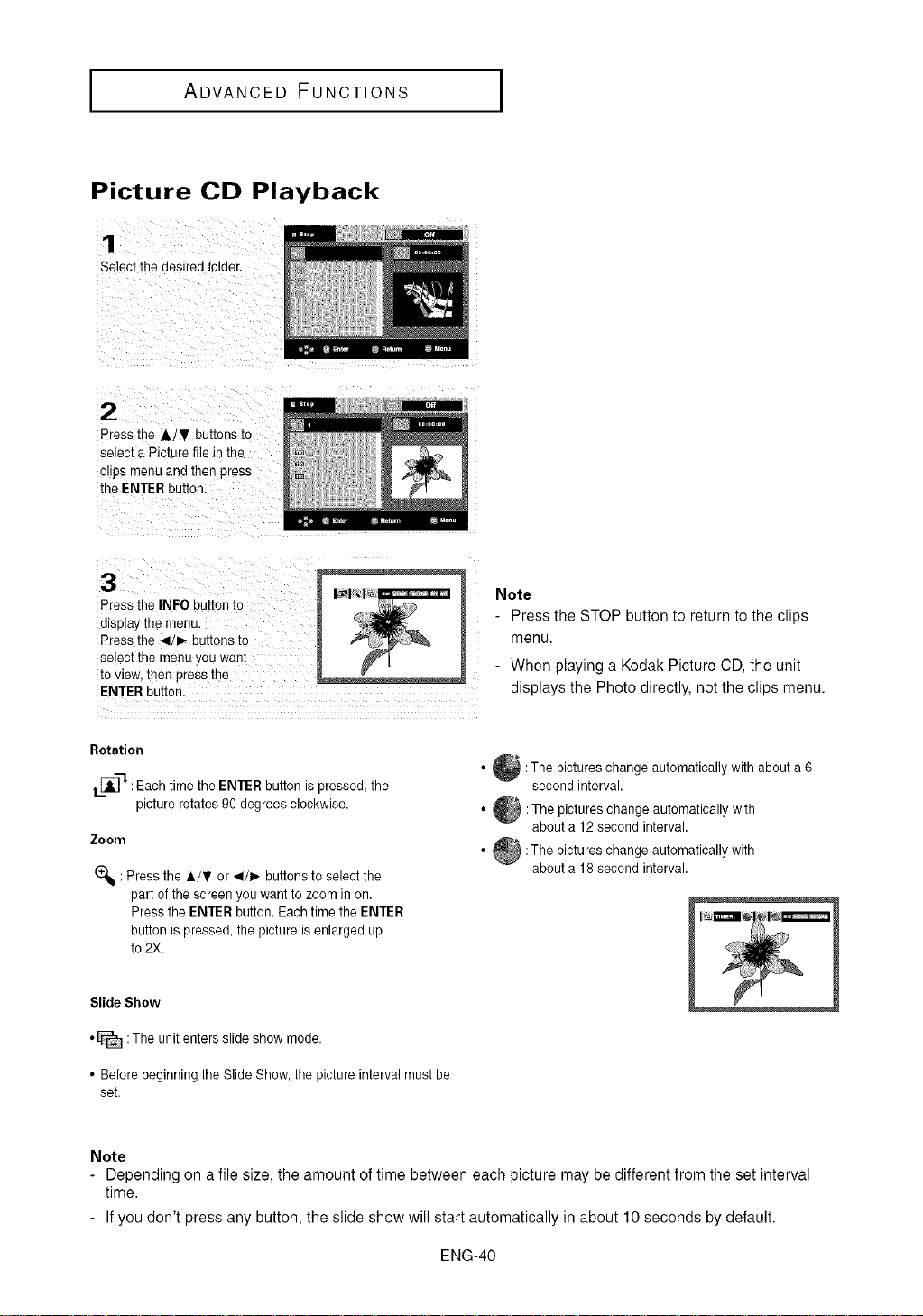
I ADVANCED FUNCTIONS
Picture CD Playback
1
Select the desired folder.
2
Press tne A/_I' buttons to
select a Picture file inthe
clips menu and then press
the ENTER button
3
Press the INFO button to
displa_ the menu,
Press the _1/_,-buttons to
select the menu you warn
to vie_ then press the . , .....
ENTER button....
Note
- Press the STOP button to return to the clips
menu.
- When playing a Kodak Picture CD, the unit
displays the Photo directly, not the clips menu.
Rotation
i ['_-]--1:Each time the ENTER button is pressed, the
picture rotates 90 degrees clockwise.
Zoom
(_: Press the &/, or _1/1_buttons to select the
part of the screen you want to zoom in on.
Press the ENTER button. Each time the ENTER
button is pressed, the picture is enlarged up
to 2X.
:The pictures change automatically with about a
6
second interval.
• :The pictures change automatically with
about a 12 second interval.
@ :The pictures change automatically
with
about a 18 second interval.
Slide Show
• _ :The unit enters slide show mode.
• Beforebeginning the SlideShow, the picture interval must be
set.
Note
- Depending on a file size, the amount of time between each picture may be different from the set interval
time.
- Ifyou don't press any button, the slide show will start automatically in about 10 seconds by default.
ENG-40
ADVANCED FUNCTIONS I
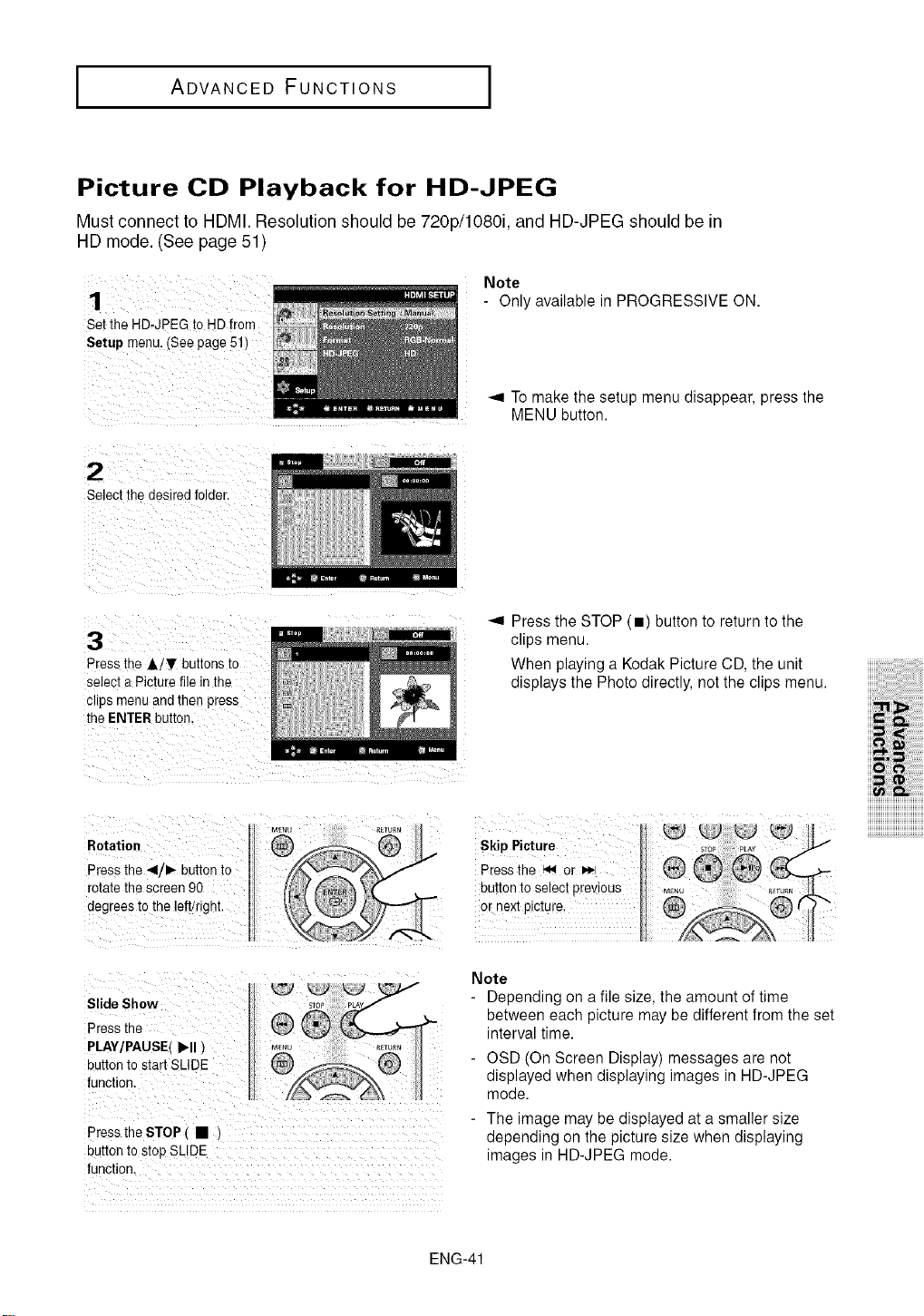
Picture CD Playback for HD-JPEG
Must connect to HDMI. Resolution should be 720p/1080i, and HD-JPEG should be in
HD mode. (See page 51)
Set the HD-JPEG to HD from
Setup menu. {see page 5!)
Note
- Only available in PROGRESSIVE ON.
_,9 To make the setup menu disappear, press the
MENU button.
Select the desired folder.
Press the A/T buttons to
Select a Picture file in the
clips menu and then press
the ENTER button.
Press the STOP (m) button to return to the
clips menu.
When playing a Kodak Picture CD, the unit
displays the Photo directly, not the clips menu.
Rotation
Press the 41/_- button to
rotate the screen 90
degrees to the left/right.
Skip Picture
Presstile _ or
button to select previous
or next poture
))))))))))))))))))))))))))))))))))))))))_
))))))))))))))))))))))))))))))))))))))))_
))))))))))))))))))))))))))))))))))))))))_
))))))))))))))))))))))))))))))))))))))))_
)))))))))))))))))))))))))))))))))))))))ill
Slide Show
Press the
PLAY/PAUSE( I_11)
uuEento start SLIDE
function.
Pressthe STOP, • )
button to stop SLIDE
function.
Note
Depending on a file size. the amount of time
between eact" _)lcturemay De different from the set
interval time.
OSD On Screen Display) messages are not
alsplayed when display(ng images in HD-JPEG
qqocle.
The mage may Dedlsplayeo at a smaller size
depenclmg on me picture size when displaying
mages in HD-JPEG mooe.
ENG-41
ADVANCED FUNCTIONS
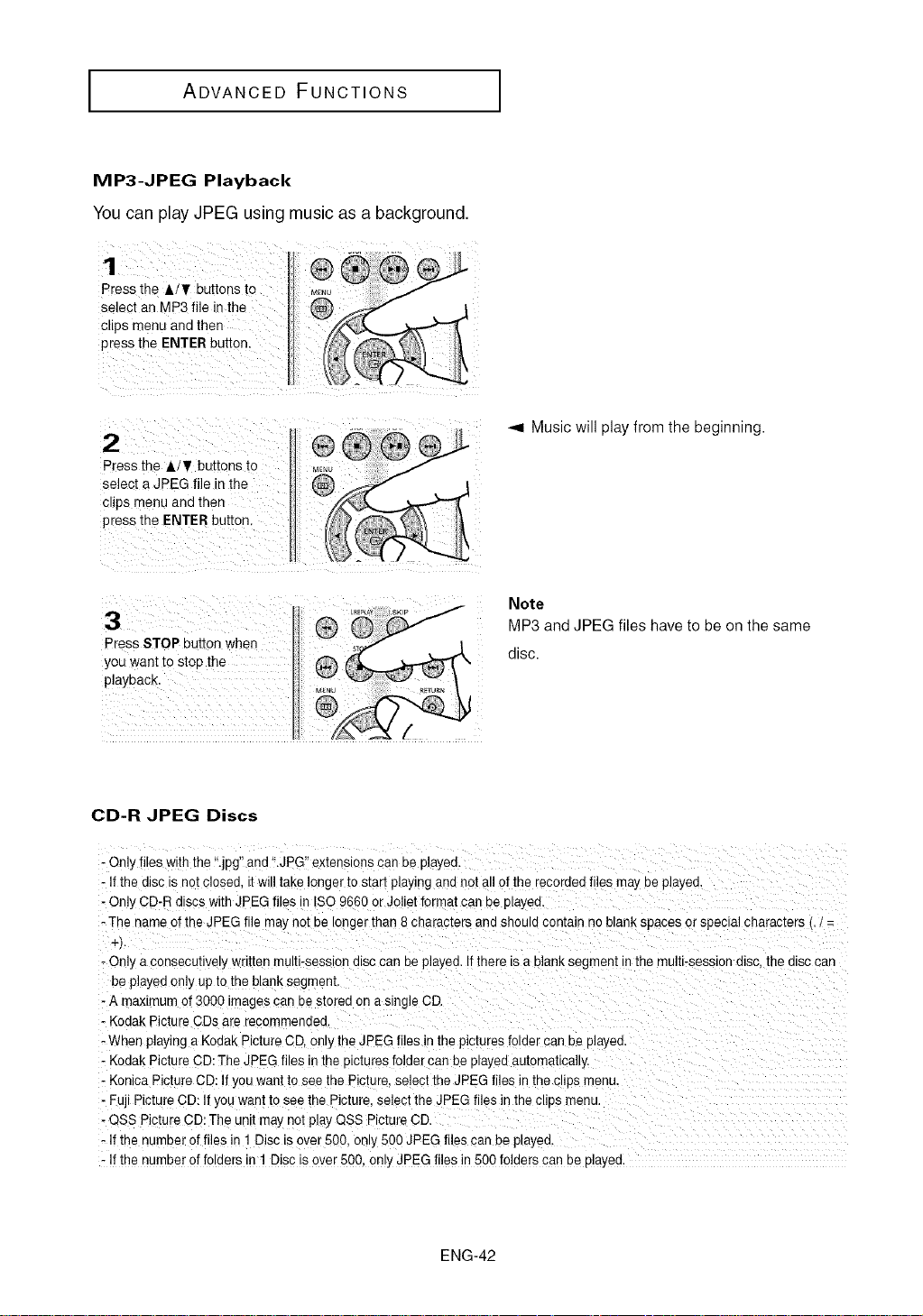
MP3-JPEG Playback
You can play JPEG using music as a background.
Press the A/'Y buttons to ,<.o
se!eot an MP3 file inthe
clips menu and then
press the ENTER button:
k
Press the A/Y buttons to _E,_u - -_
Select a JPEG file in the
Clipsmenu and then
press the ENTER button
;I:i ¸¸ ®
yoeuwant to Stop the
playback,
Music will play from the beginning.
Note
MP3 and JPEG files have to be on the same
disc.
CD-R JPEG Discs
- Only files withthe ".jpg" and".JPG" extensions can be played.
- If the disc is not closed, itwill take longer to start playing and not all of the recorded files may be played.
- On% CD-R discs with JPEG files in ISO 9660 or Joliet format can be playea.
- The name of the JPEG file may not be longer than 8 characters and should contain no blank spaces or special characters
- Only a consecutively written multi-session disc can be played. If there is a blank segment inthe multi-session disc. the disc can
be played only upio the blank segment.
- A maximum of 3000 images can Destored on a single CD.
- Kodak Picture CDs are recommenaed
- When playing a Kodak Picture CD. on },the JPEG files in the pictures folder can DeDlayea.
- Kodak Picture CD:The JPEG files in the pictures folder can be played automatically.
- KonJcaPicture CD: If you want to see the Picture. select the JPEG f les in theclips menu.
- Fuji Picture CD: It you want tosee the Picture. select the JPEG files in theclips menu.
- QSS Picture CD:The unit may qot play QSS Picture CD.
- It the number of files in 1 Disc is over 500. on%500JPEG files can be played.
- It the number of folders in 1 Disc is over 500. on_ JPEG files in 500 folders can be playea
ENG-42
CHANGINGSETUPMENU
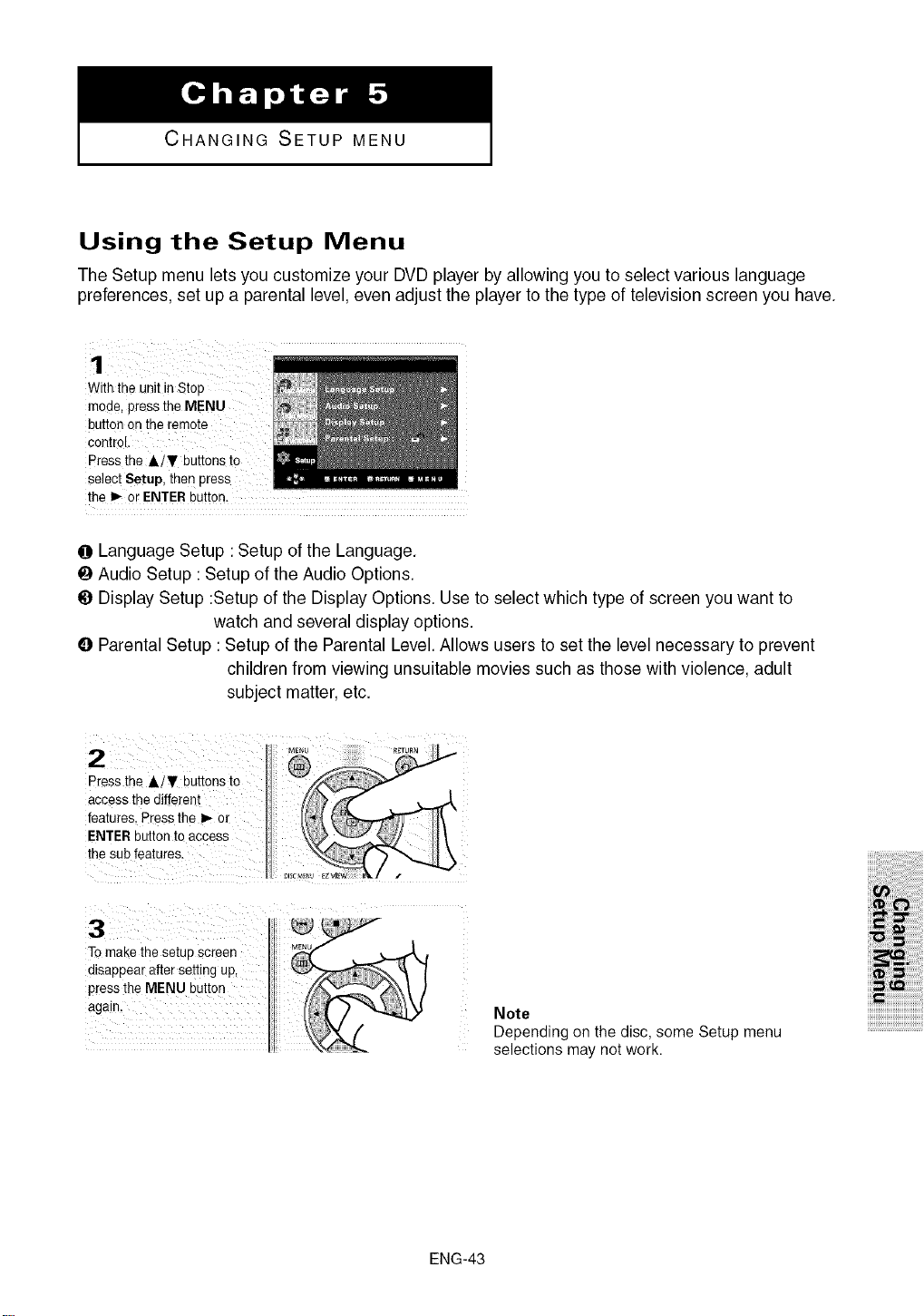
Using the Setup Menu
The Setup menu lets you customize your DVD player by allowing you to select various language
preferences, set up a parental level, even adjust the player to the type of television screen you have.
With the unit in Stop
mode, press the MENU
button on the remote
control.
Press the Ai_F buttons tO
select Setup, then press
the 1_or ENTERbutton.
O Language Setup :Setup of the Language.
O Audio Setup : Setup of the Audio Options.
@ Display Setup :Setup of the Display Options. Use to select which type of screen you want to
watch and several display options.
0 Parental Setup : Setup of the Parental Level. Allows users to set the level necessary to prevent
children from viewing unsuitable movies such as those with violence, adult
subject matter, etc.
2
Press the A/T buttons to
access the different
features. Pressthe I_ or
ENTER button to access
me sub features.
3
To make the setuE screen
alsappear after setting up,
press the MENU button
a£atr
Note
Depending on the disc, some Setup menu
selections may not work.
iiiiiiM!!_i!i_ii!ii!ii!ii!ii!ii!i_!!_!__!__!i_!__!__!__!_i!__i_ii_ii_ii_ii_i_i_ii_iiiii
iiiii i!i! i i!!i!iiiiiiiiiiiiiiii!i!! !!!!!!!!!i
iiii_iii!_iiiill
i_iiiiiiil;_iiiiiiiii
iiii iiiiiii !;i!;i!;i!;i!;i!;i!;i!;i!;
ijjjjjjjjjjjjjjjjjjjjjjjjjjjjjjjjjjj
ENG-43
I CHANGING SETUP MENU I
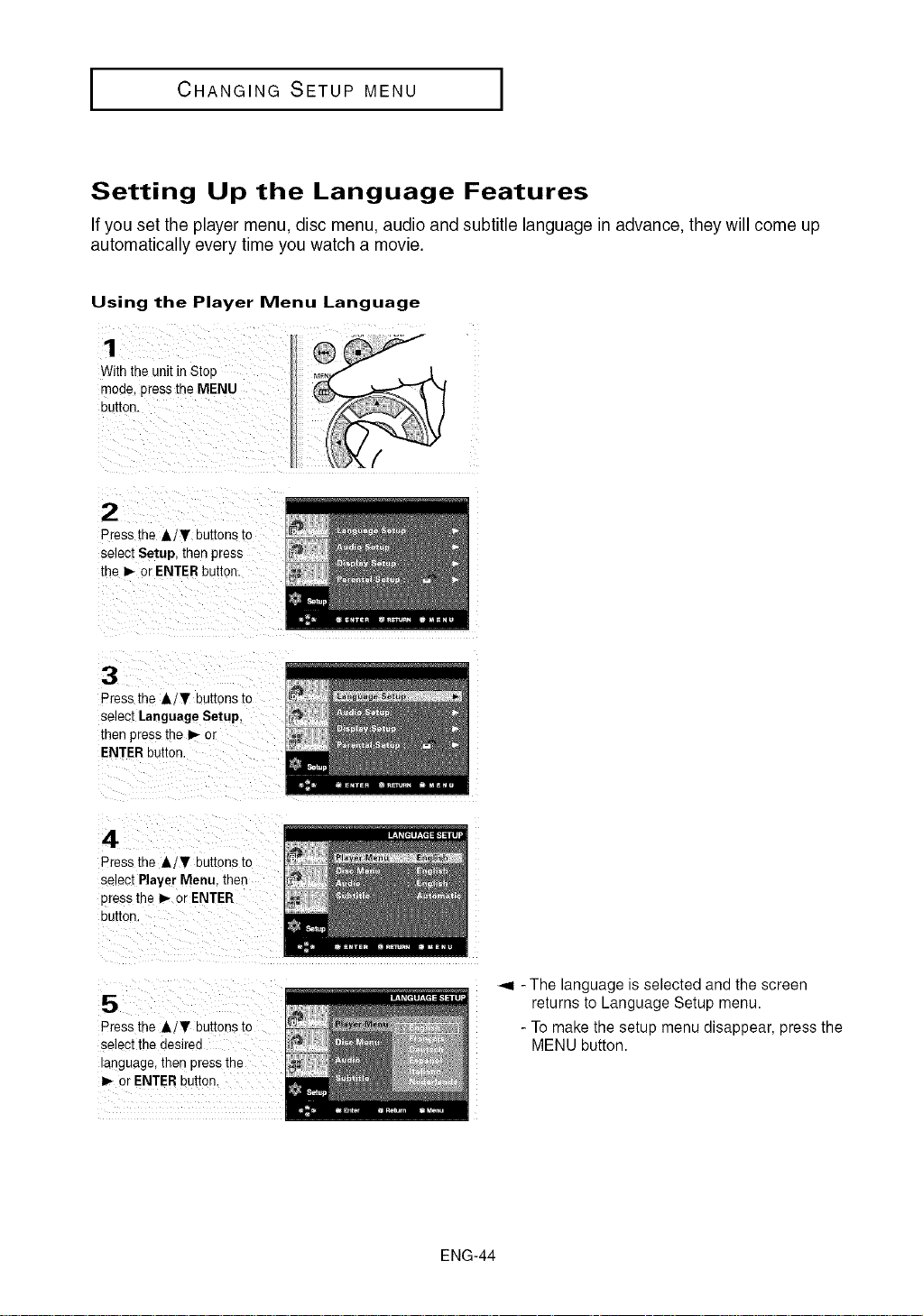
Setting Up the Language Features
If you set the player menu, disc menu, audio and subtitle language in advance, they will come up
automatically every time you watch a movie.
Using the Player Menu Language
With the unit inStop
moae, press the MENU
DUIIOB,
2
Press the A/V buttons to
select Setup, then press
the P,,-or ENTER button.
3
Press the A/W' buttons to
select Language Setup,
then press the _ or
ENTERbutton.
4
Press the A/Y buttons to
selecl Player Menu. then
press the I_ or ENTER
OUIIOq.
5
Press the A/T buttons io
select the desired
anguage, then press the
D,-or ENTER button.
-,_ -The language is selected and the screen
returns to Language Setup menu.
- To make the setup menu disappear, press the
MENU button.
ENG-44
CHANGINGSETUPMENU
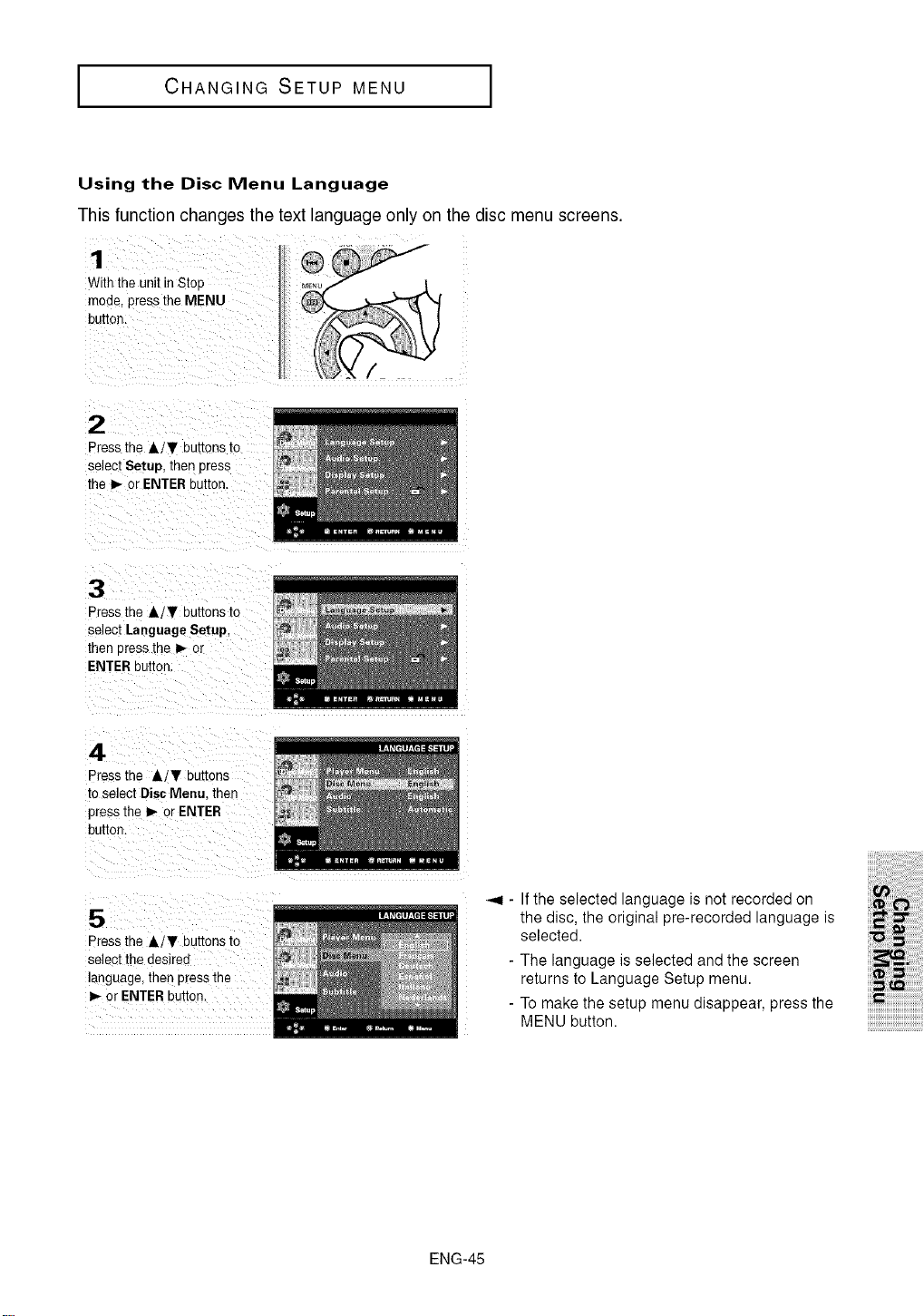
Using the Disc Menu Language
This function changes the text language only on the disc menu screens.
1
With the unil in Stop
mode, pressthe MENU
buttor
2
Press the A/¥ DuEonsIO
seJectSetup, then Dress
me _ or ENTERbutton.
3
Press the A/T buttons to
select Language Setup,
men Dress the I_ or
ENTER button
4
Pressthe A/T buttons
to select DiscMenu. then
press the I_ or ENTER
buttor
5
Press the &/T buttons to
semct tl"_desirec
language, ther oress me
P,-or ENTER Duiton
-,,I - If the selected language is not recorded on
the disc, the original pre-recorded language is
selected.
The language is selected and the screen
returns to Language Setup menu.
Tomake the setup menu disappear, press the
MENU button.
iiiiiiM!!_i!i_ii!ii!ii!ii!ii!ii!i_!!_!__!__!i_!__!__!__!_i!__i_ii_ii_ii_ii_i_i_ii_iiiii
iiiii i!i! i i!!i!iiiiiiiiiiiiiiii!i!! !!!!!!!!!i
i!ii_!!!!_iiiill
i_iiiiiiil;_iiiiiiiii
iiii_iiiiiii_!;i!;i!;i!;i!;i!;i!;i!;i!;
ENG-45
J CHANGING SETUP MENU J
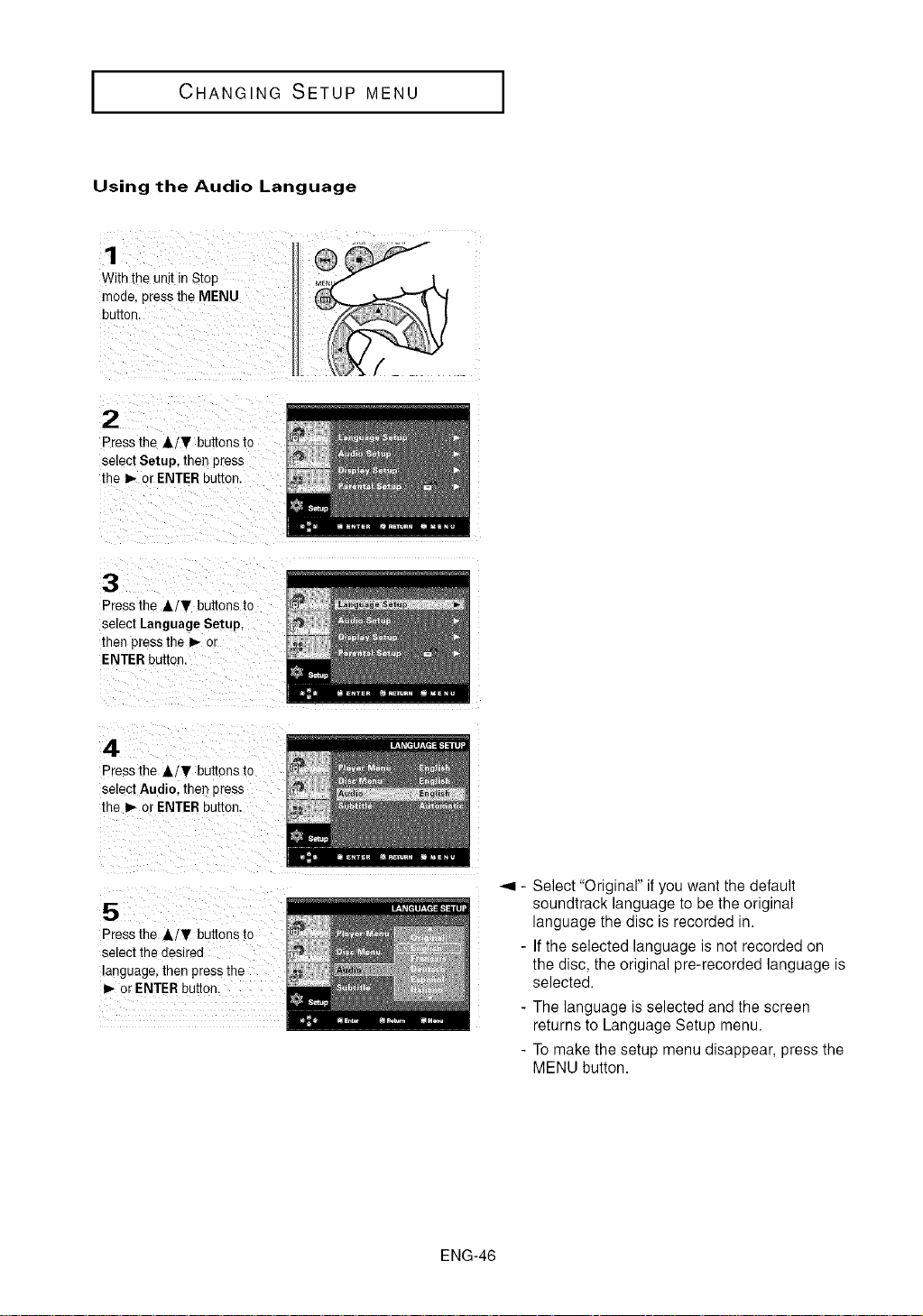
Using the Audio Language
1
Withthe unitin Stop
moae,presstheMENU
button.
2
3resstheA/T buttonsto
selectSetup,thenpress
the I_ or ENTERDu[Ion.
3
Pressthe A/T buttons to
select Language Setup,
then press the _- or
ENTER button.
4
3ressthe A/T buttonsto
selectAudio.thenpress
the I_ or ENTERDUTIOn.
5
_ress the AiT buttons to
select the aeslrea
language,then press the
or ENTER button.
_,9 - Select "Originar' if you want the default
soundtrack language to be the original
language the disc isrecorded in.
- Ifthe selected language is not recorded on
the disc, the original pre-recorded language is
selected.
- The language is selected and the screen
returns to Language Setup menu.
- To make the setup menu disappear, press the
MENU button.
ENG-46
I CHANGINGSETUPMENU
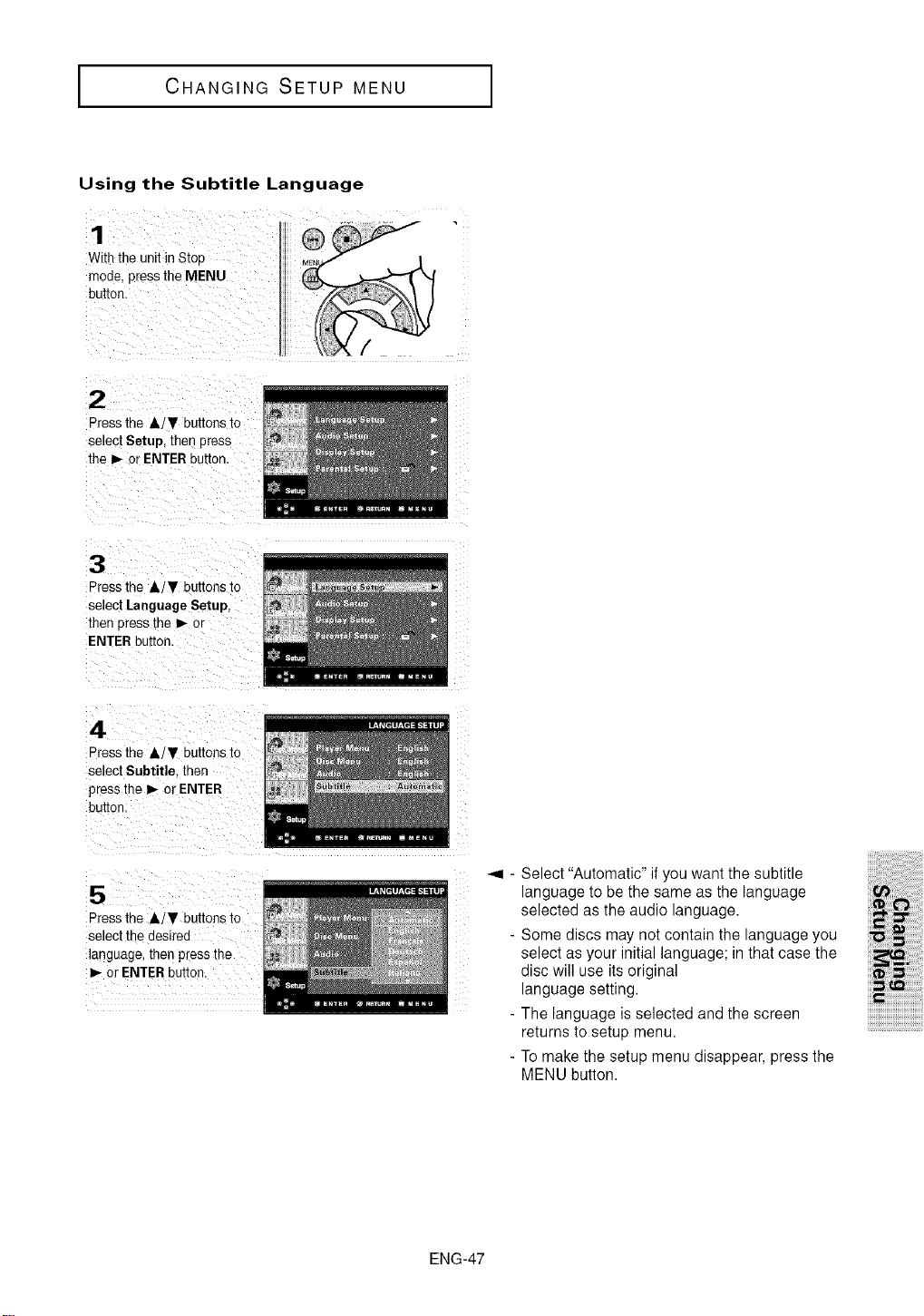
Using the Subtitle Language
1
Withtheunitin Stoc
mode.presstheMENU
button.
2
Pressthe A/T buttonsto
seleclSetup,thencress
the I_ or ENTERbutton.
3
Pressrne A/T buiions to
select Language Setup,
then cress the _ or
ENTER button.
4
Pressthe A/T buttonsto
selectSubtitle. [hen
pressthe_- or ENTER
button.
5
Pressthe &/T buttons to
selecl the desired
language, ther pressthe
or ENTER button.
ii
ii
i?i
Select "Automatic" if you want the subtitle
language to be the same as the language
selected as the audio language.
- Some discs may not contain the language you
select as your initial language; in that case the
disc will use its original
language setting.
- The language is selected and the screen
returns to setup menu.
- To make the setup menu disappear, press the
MENU button.
ENG-47
I CHANGING SETUP MENU
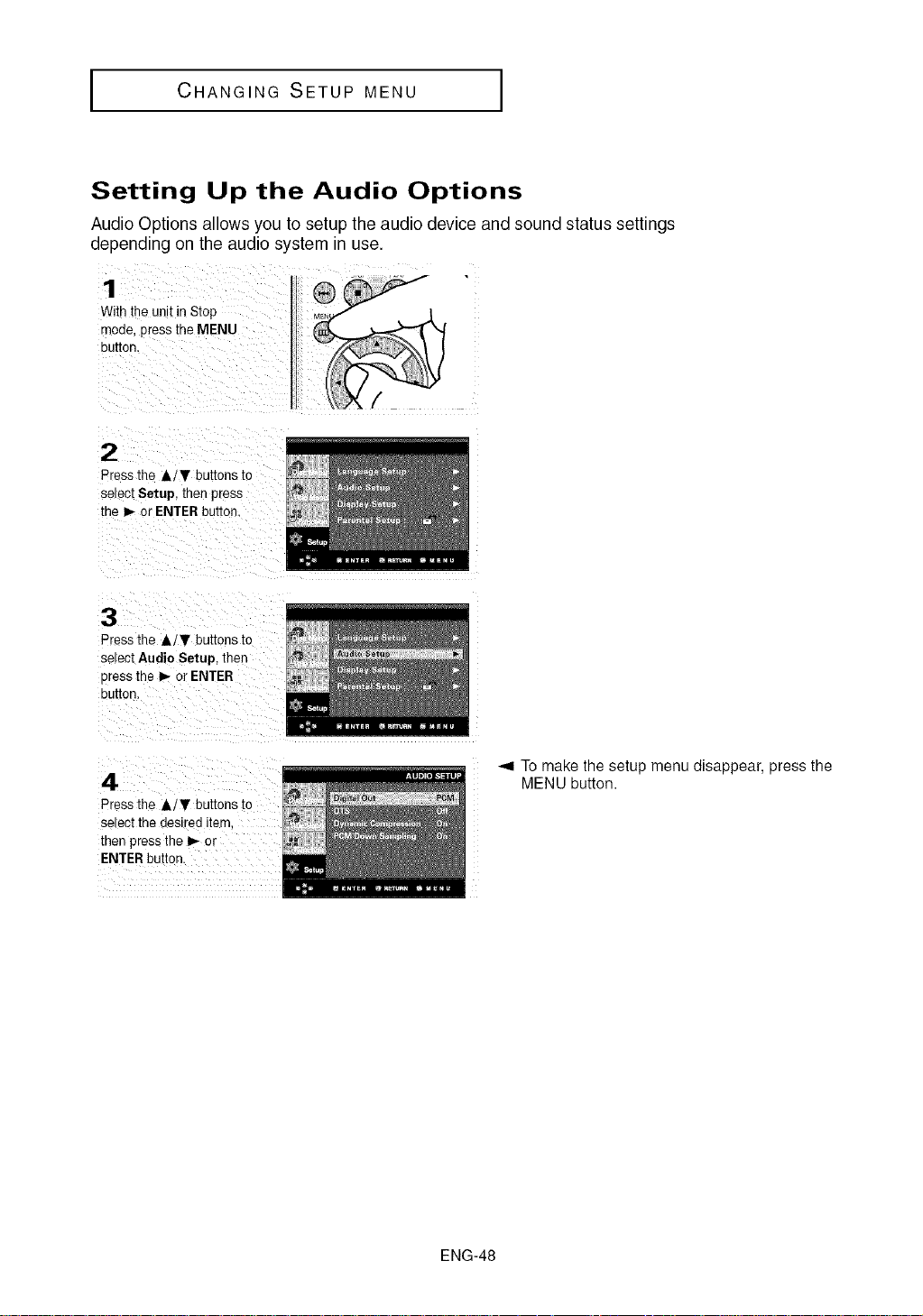
Setting Up the Audio Options
Audio Options allows you to setup the audio device and sound status settings
depending on the audio system in use.
1
With the unitin Stop
mooe, press the MENU
button,
2
Press the &iT buttons to
setecl Setup, then press
the P,-oJ ENTER button.
3
Pressthe A/V buttons to
setect Audio Setup, ther
press the I_ or ENTER
button.
4
Press the Air buttons to
select the desired item.
then press the _,- or
ENTERbutton.
_,9 To make the setup menu disappear, press the
MENU button.
ENG-48
CHANGINGSETUPMENU
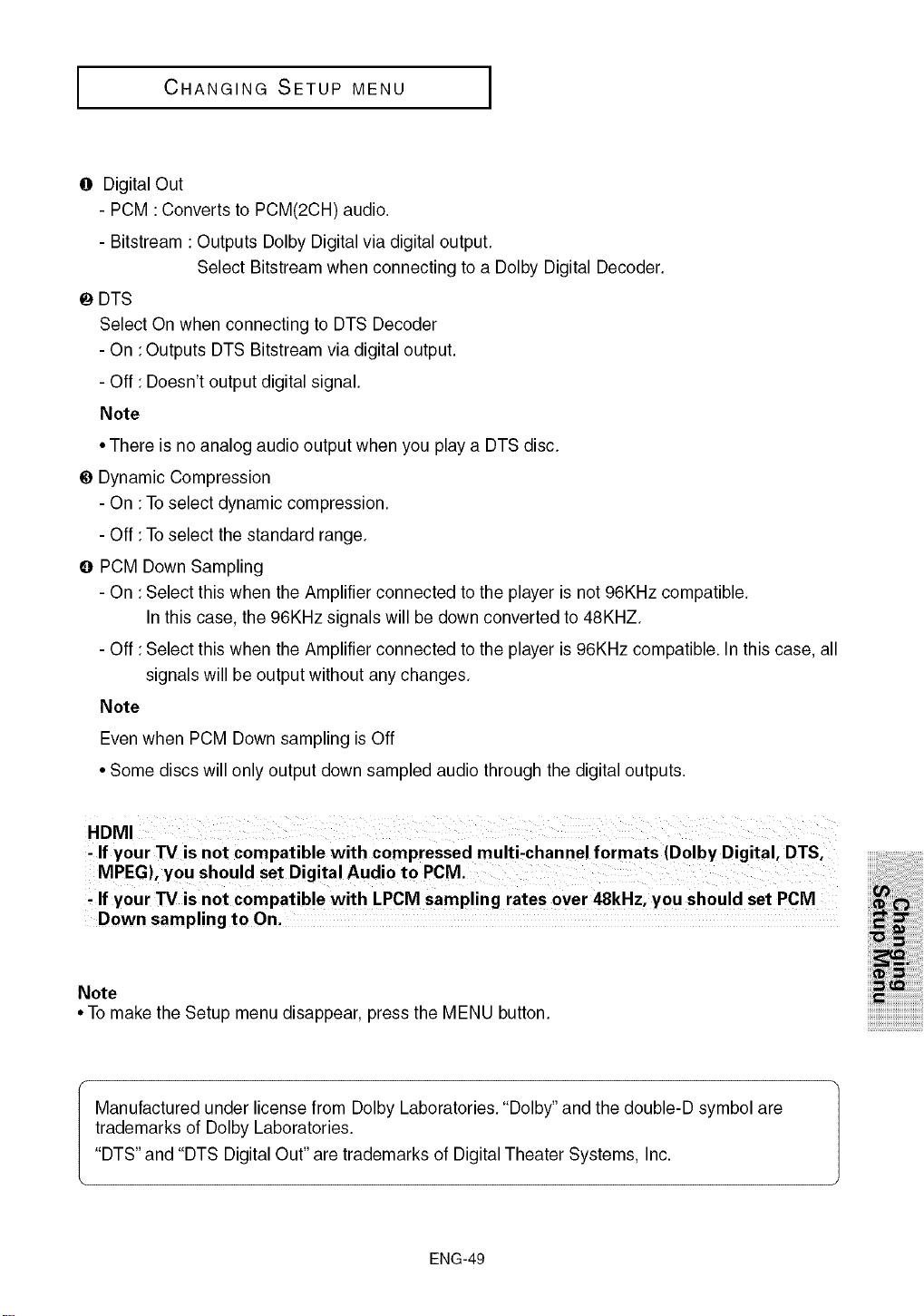
@ Digital Out
- PCM :Converts to PCM(2CH) audio.
- Bitstream :Outputs Dolby Digital via digital output.
Select Bitstream when connecting to a Dolby Digital Decoder.
_) DTS
Select On when connecting to DTS Decoder
- On :Outputs DTS Bitstream via digital output.
- Off : Doesn't output digital signal.
Note
•There is no analog audio output when you play a DTS disc.
_) Dynamic Compression
- On :To select dynamic compression.
- Off :To select the standard range.
0 PCM Down Sampling
- On :Select this when the Amplifier connected to the player is not 96KHz compatible.
In this case, the 96KHz signals will be down converted to 48KHZ.
- Off :Select this when the Amplifier connected to the player is 96KHz compatible. In this case, all
signals will be output without any changes.
Note
Even when PCM Down sampling is Off
• Some discs will only output down sampled audio through the digital outputs.
, If your TVis not compatible with compressed multi-channel formats (Dolby Digital, DTS,
MPEG), you should set Digital Audio to PCM.
_lf your TV isnot compatible with LPCM sampling rates over 48kHz, you should set PCM
Down sampling to On,
Note
• To make the Setup menu disappear, press the MENU button.
i 'i! i! i i!!i!iiiiiiiiiiiiiiii!i!! !!!!!!!!!i
iiii iiiiiii !;i!;i!;i!;i!;i!;i!;i!;i!;
...................................._///////////////////////////////////___
Manufactured under license from Dolby Laboratories. "Dolby" and the double-D symbol are
trademarks of Dolby Laboratories.
"DTS" and "DTS Digital Out" are trademarks of Digital Theater Systems, Inc.
ENG-49
CHANGINGSETUPMENU
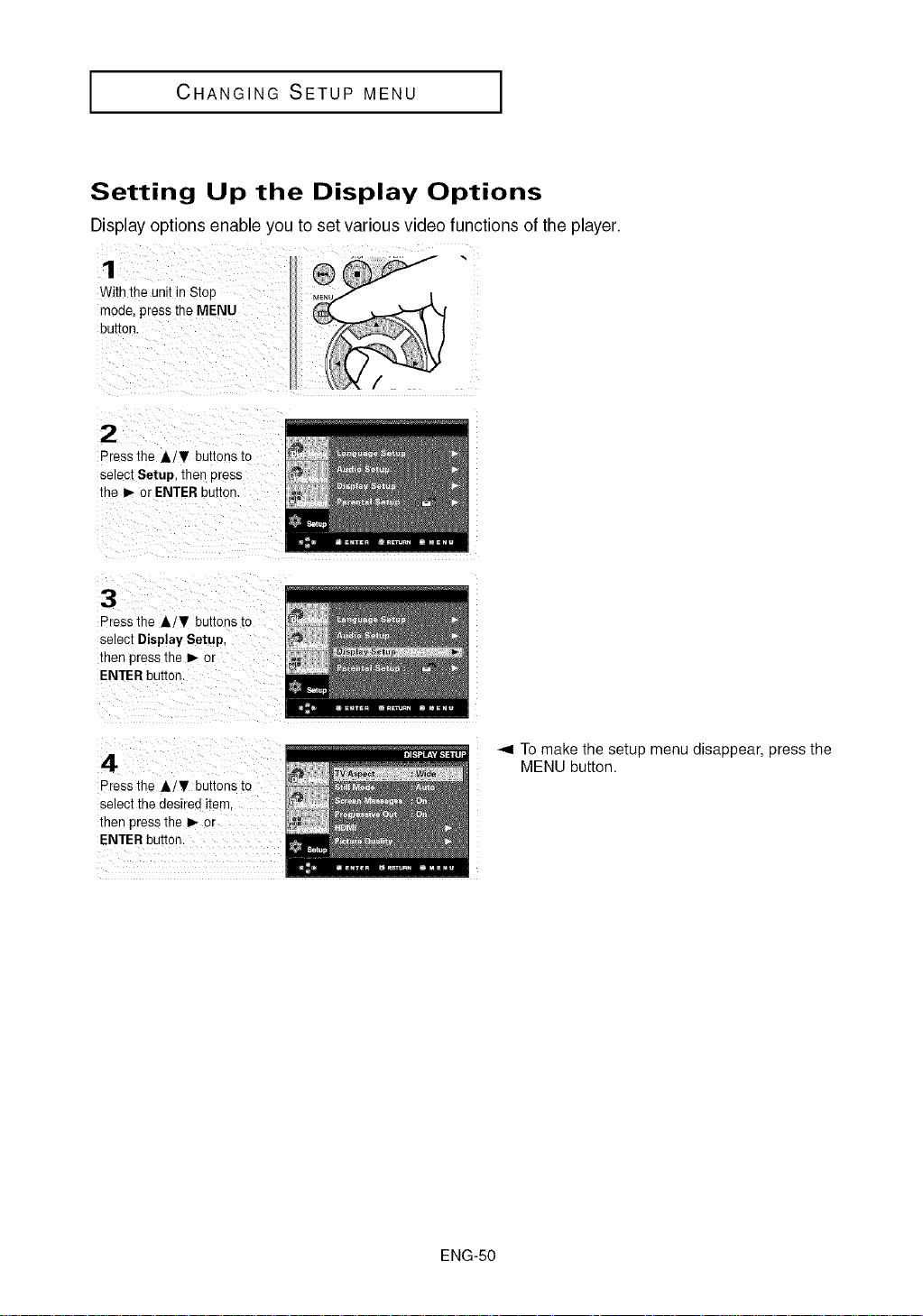
Setting Up the Display Options
1
With the unit in Stop
moae, press theMENU
button
Display options enable you to set various video functions of the player.
N"
2
Press the Jl,i_' buttons to
setect Setup, then oress
the I_ or ENTERbutton.
3
Press the Air buttons to
select Display Setup,
then press the _- or
ENTER button.
4
Press the J,iV buttons to
setect the des[red item.
then press the _ or
ENTER button.
To make the setup menu disappear, press the
MENU button.
ENG-50
I CHANGING SETUP MENU I
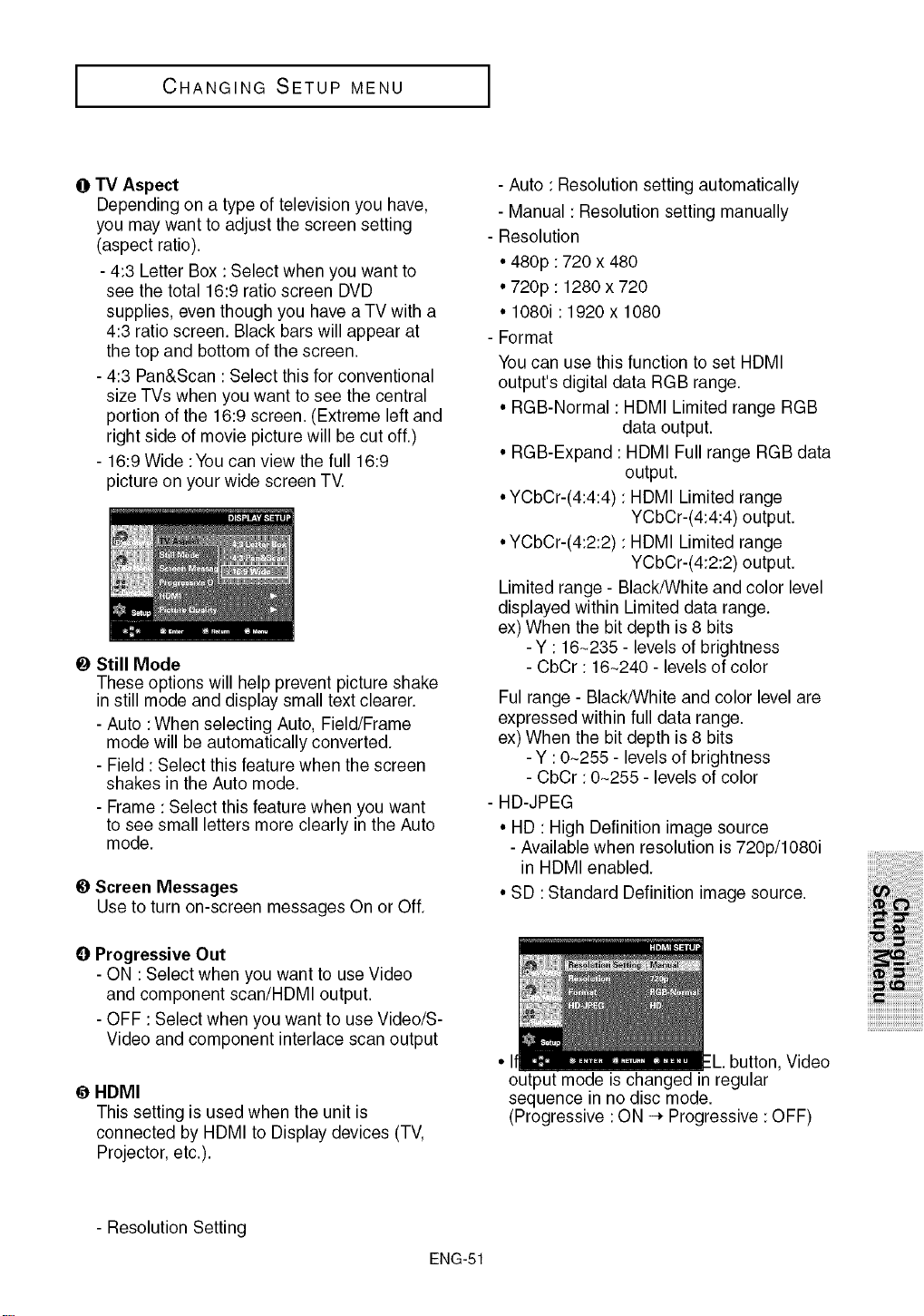
@TV Aspect
Depending on a type of television you have,
you may want to adjust the screen setting
(aspect ratio).
- 4:3 Letter Box :Select when you want to
see the total 16:9 ratio screen DVD
supplies, even though you have a TV with a
4:3 ratio screen. Black bars will appear at
the top and bottom of the screen.
- 4:3 Pan&Scan : Select this for conventional
size TVs when you want to see the central
portion of the 16:9 screen. (Extreme left and
right side of movie picture will be cut off.)
- 16:9 Wide :You can view the full 16:9
picture on your wide screen TV.
_) Still Mode
These options will help prevent picture shake
in still mode and display small text clearer.
- Auto :When selecting Auto, Field/Frame
mode will be automatically converted.
- Field : Select this feature when the screen
shakes in the Auto mode.
- Frame : Select this feature when you want
to see small letters more clearly in the Auto
mode.
_) Screen Messages
Use to turn on-screen messages On or Off.
0 Progressive Out
- ON :Select when you want to use Video
and component scan/HDMI output.
- OFF :Select when you want to use Video/S-
Video and component interlace scan output
HDMI
This setting is used when the unit is
connected by HDMI to Display devices (TV,
Projector, etc.).
- Auto : Resolution setting automatically
- Manual :Resolution setting manually
Resolution
• 480p :720 x 480
• 720p : 1280 x 720
• 1080i : 1920 x 1080
Format
You can use this function to set HDMI
output's digital data RGB range.
• RGB-Normal : HDMI Limited range RGB
data output.
• RGB-Expand : HDMI Full range RGB data
output.
• YCbCr-(4:4:4) :HDMI Limited range
YCbCr-(4:4:4) output.
• YCbCr-(4:2:2) :HDMI Limited range
YCbCr-(4:2:2) output.
Limited range - Black/White and color level
displayed within Limited data range.
ex) When the bit depth is 8 bits
-Y : 16~235 - levels of brightness
- CbCr : 16~240 - levels of color
Ful range - Black/White and color level are
expressed within full data range.
ex) When the bit depth is 8 bits
- Y : 0~255 - levels of brightness
- CbCr : 0~255 - levels of color
HD-JPEG
• HD : High Definition image source
- Available when resolution is 720p/1080i
in HDMI enabled.
• SD :Standard Definition image source.
• It -L. button, Video
output mode is changed in regular
sequence in no disc mode.
(Progressive :ON -* Progressive :OFF)
iiiiiiM!!_i!i_ii!ii!ii!ii!ii!ii!i_!!_!__!__!i_!__!__!__!_i!__i_ii_ii_ii_ii_i_i_ii_iiiii
iiiii i!i! i i!!i!iiiiiiiiiiiiiiii!i!! !!!!!!!!!i
iiii iiiiiii !;i!;i!;i!;i!;i!;i!;i!;i!;
ijjjjjjjjjjjjjjjjjjjjjjjjjjjjjjjjjjj
- Resolution Setting
ENG-51
I CHANGING SETUP MENU I
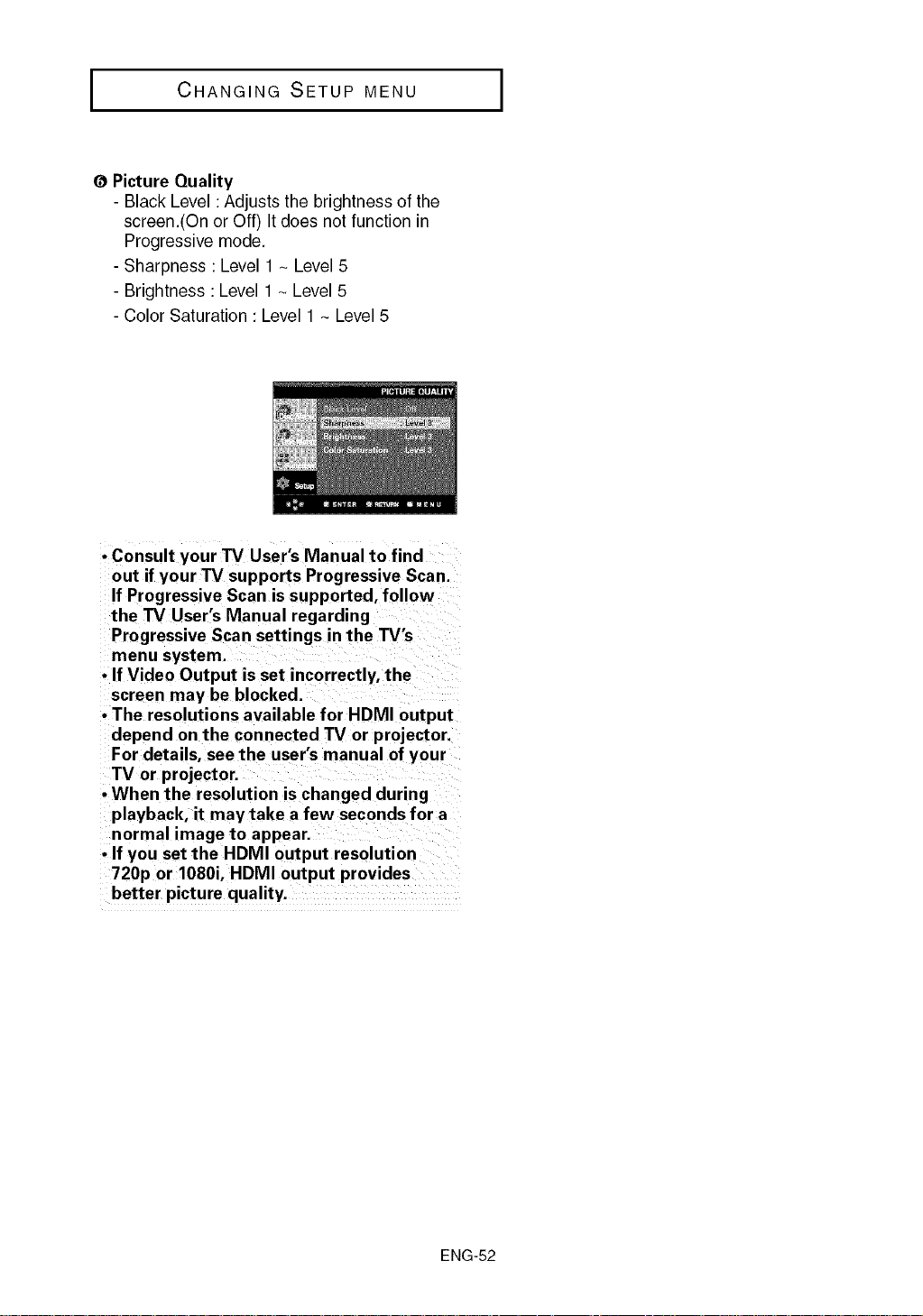
(_ Picture Quality
- Black Level :Adjusts the brightness of the
screen.(On or Off) It does not function in
Progressive mode.
- Sharpness : Level 1 ~ Level 5
- Brightness :Level 1 ~ Level 5
- Color Saturation : Level 1 ~ Level 5
• Consult your TV User's Manual to find
out if your TV supports Progressive Scan.
If Progressive Scan is supported, follow
the TV User's Manual regarding
Progressive Scan settings in the TV's
menu system.
• If Video Output is set incorrectly, the
screen may be blocked.
• The resolutions available for HDMI output
depend on the connected TV or projector.
For details, see the user's manual of your
TV or projector.
• Wh enthe resolution is changed during
playback, it may take a few seconds for a
normal image to appear.
• If you set the HDMI output resolution
720p or 1080i, HDMI output provides
better picture quality.
ENG-52
J CHANGING SETUP MENU J
Setting Up the Parental Control
The Parental Control function works in conjunction with DVDs that have been assigned a rating,
which helps you control the types of DVDs that your family watches. There are up to 8 rating levels
on a disc.
Setting Up the Rating Level
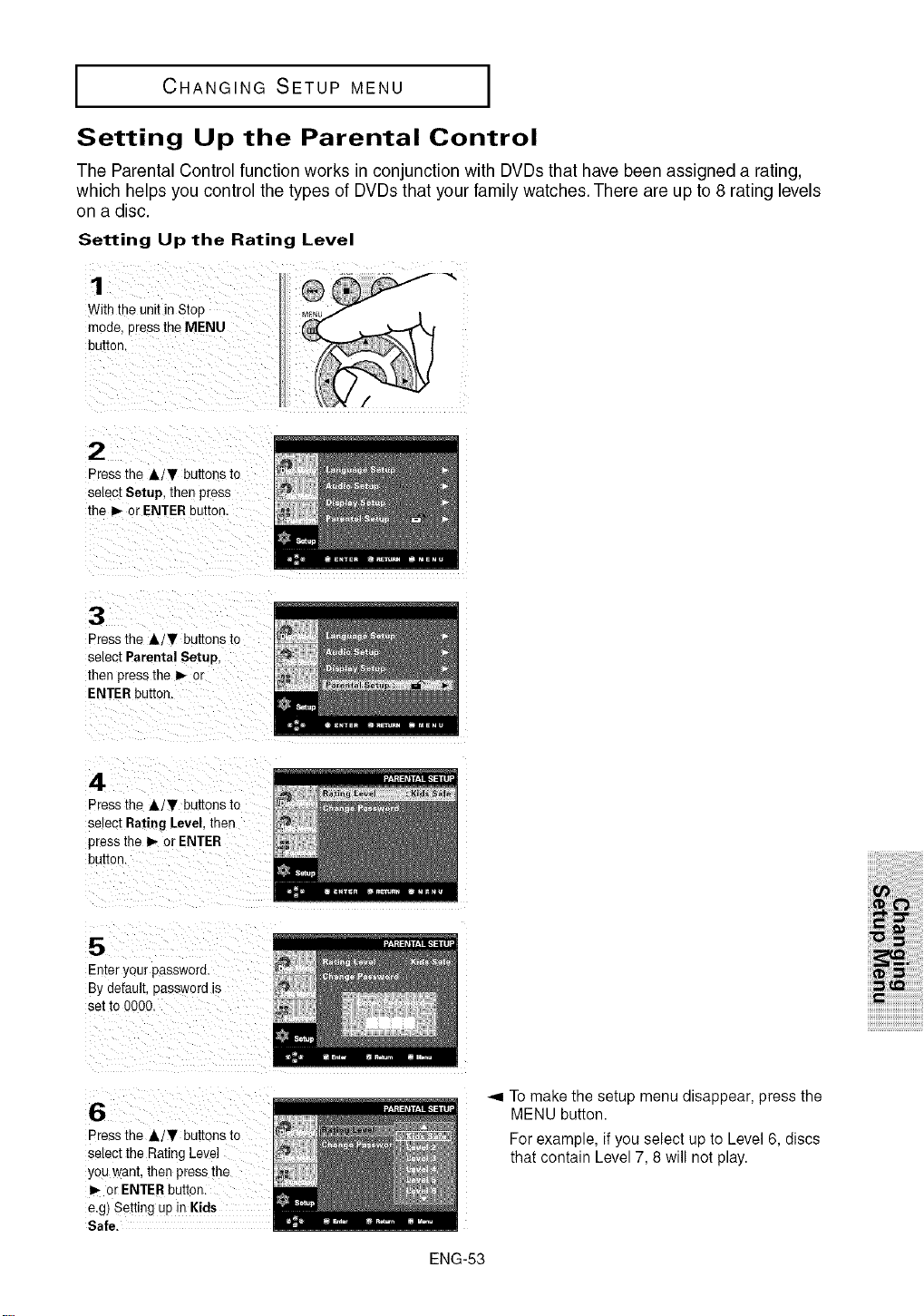
1
With the unitin Stop
mode. Dress the MENU
button
Press the Air buttons to
setect Setup, then press
the b,-or ENTERbutton.
3
Press the Air buttons to
select Parental Setup,
then press the _ or
ENTER button.
4
Press the A/_' buttons to
setect Rating Level.then
press the I_ or ENTER
button
5
Enter your passwora.
By default, password is
set to 0000.
iiiiiiM!!_i!i_ii!ii!ii!ii!ii!ii!i_!!_!__!__!i_!__!__!__!_i!__i_ii_ii_ii_ii_i_i_ii_iiiii
iiiii i!i! i i!!i!iiiiiiiiiiiiiiii!i!! !!!!!!!!!i
i!ii_!!!!_iiiill
i_iiiiiiil;_iiiiiiiii
iiii_iiiiiii_!;i!;i!;i!;i!;i!;i!;i!;i!;
ijjjjjjjjjjjjjjjjjjjjjjjjjjjjjjjjjjj
6
Press the A/T buttons to
select the Rating Leve
you want. then press the
or ENTER button.
e.g) Setting up in Kids
Safe
ENG-53
Tomake the setup menu disappear, press the
MENU button.
For example, if you select up to Level 6, discs
that contain Level 7, 8 will not play.
I CHANGING SETUP MENU I
Changing the Password
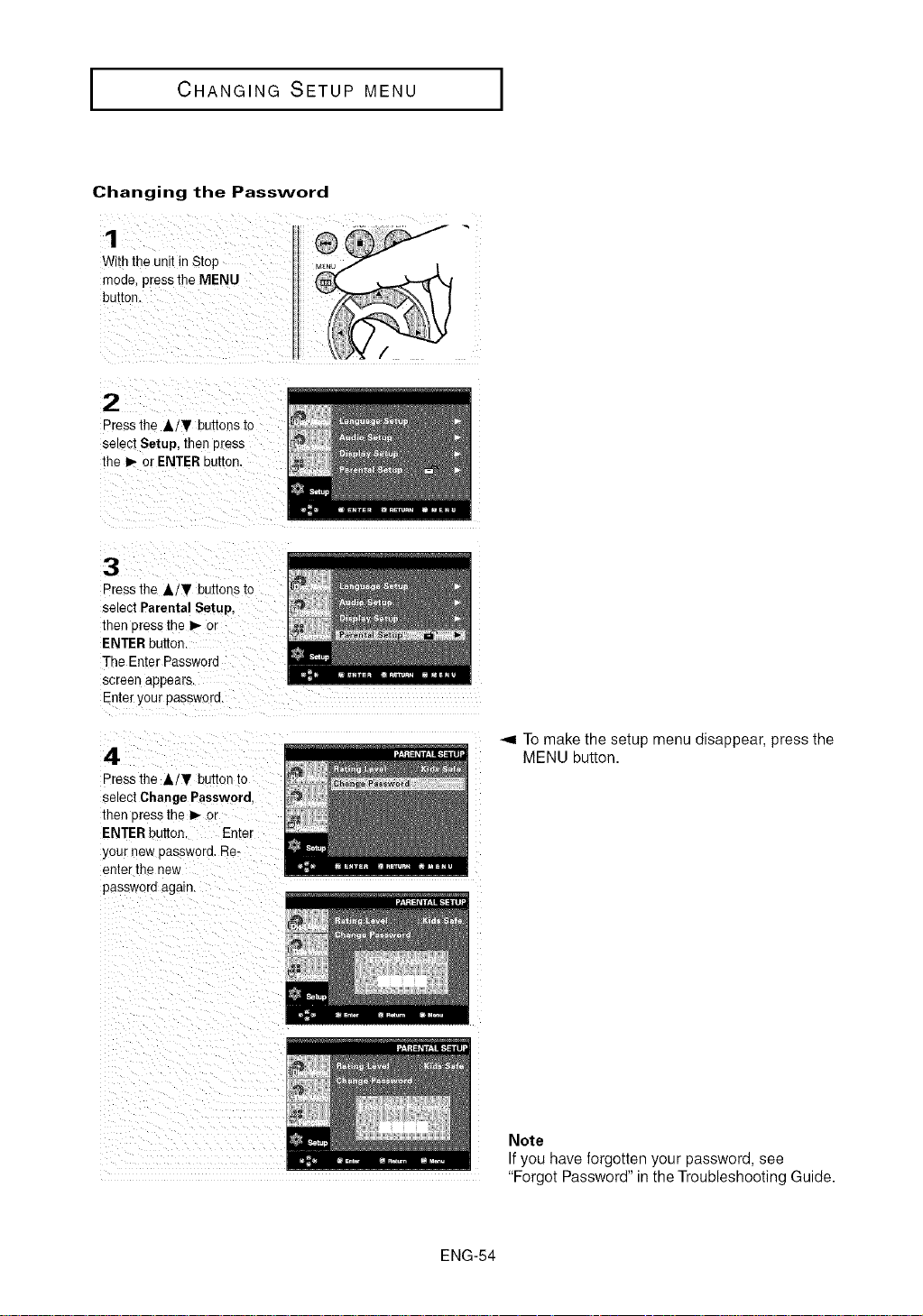
1
Withthe unit inStop
rnoae,press the MENU
button
2
Pressthe Ai, buttons to
setect Setup, then oress
the _ or ENTER button.
3
Press the Air buttons to
setect Parental Setup
then 3tess the I_ or
ENTERbutton.
The Enter Password
screen appears.
Enter your passwora.
4
Pressthe A/V bu_on _o
select Change Password.
then 3ress the I_ 3r
ENTERbutton. Enter
your new password. Re-
en[er the new
oassworo again.
Tomake the setup menu disappear, press the
MENU button.
Note
Ifyou have forgotten your password, see
"Forgot Password" in the Troubleshooting Guide.
ENG-54
REFERENCE
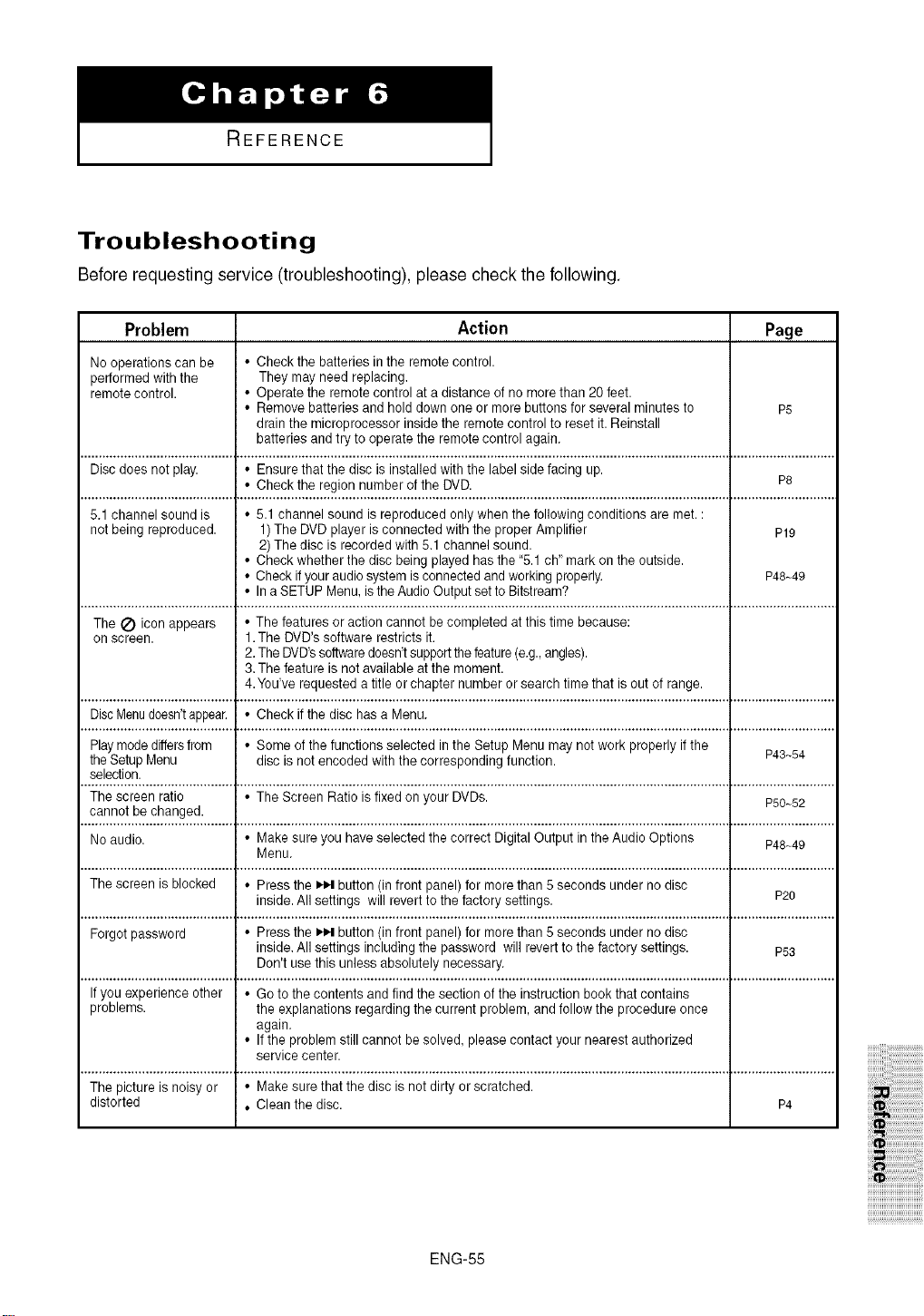
Troubleshooting
Before requesting service (troubleshooting), please check the following.
Problem Action Page
No operations can be • Check the batteries in the remote control.
performed with the They may need replacing.
remote control. • Operate the remotecontrol at a distance of no more than 20 feet.
• Remove batteries and hold down one or more buttons for several minutes to P5
drain the microprocessor inside the remotecontrol to reset it. Reinstall
batteries and try to operate the remote control again.
Discdoes not play. • Ensure that the disc is installed with the label side facing up.
• Check the region number of the DVD. P8
5.1 channel sound is • 5.1 channel sound is reproduced only when the following conditions are met. :
notbeing reproduced. 1) The DVD player is connected with the proper Amplifier P19
2) The disc is recorded with 5.1 channel sound.
• Check whether the disc being playedhas the "5.1 ch" mark on the outside.
• Check ifyour audio system isconnected and working properly. P48~49
• Ina SETUP Menu, isthe Audio Outputset to Bitstream?
The _) icon appears • The features or action cannot becompleted at this time because:
on screen. 1.The DVD's software restricts it.
2.The DVD'ssoftware doesn'tsupportthefeature(e.g.,angles).
3.The feature is not available atthe moment.
4.You've requested atitle or chapter number or search time that is out of range.
DiscMenudoesn'tappear. • Check if the disc has a Menu.
Playmodediffersfrom • Some of the functions selected inthe Setup Menu may not work properly if the P43~54
theSetup Menu disc is not encoded withthe corresponding function.
selection.
The screen ratio • The Screen Ratio is fixed on your DVDs. P50~52
cannot be changed.
Noaudio. • Make sure you have selected the correct Digital Output in the Audio Options P48~49
Menu.
The screen is blocked • Press the _ button (in front panel) for more than 5 seconds under no disc
inside. All settings will revertto the factory settings. P20
Forgot password • Press the _ button (in front panel) for more than 5 seconds under no disc
inside. All settings including the password will revertto the factory settings. P53
Don't use this unless absolutely necessary.
Ifyou experience other • Go to the contents and find the section of the instruction book that contains
problems, the explanations regarding the current problem, and follow the procedure once
again.
• If the problem still cannot be solved, please contact your nearest authorized
service center.
The picture is noisy or • Make sure that the disc is not dirty or scratched.
distorted • Clean the disc. P4
ENG-55
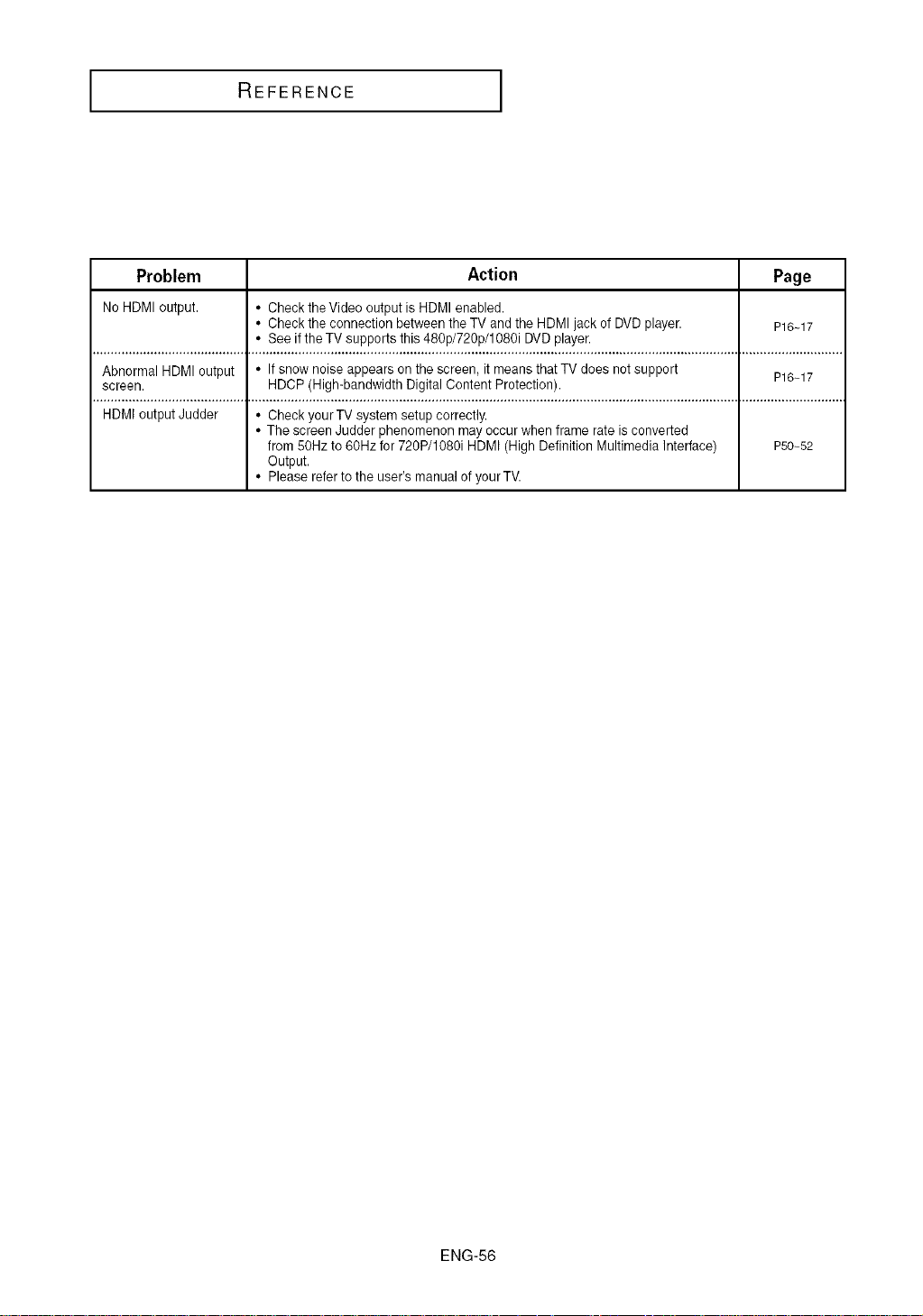
REFERENCE
Problem Action Page
No HDMI output. • Check the Video output is HDMI enabled.
• Check the connection between the TV and the HDMIjack of DVDplayer. P16-17
• See if the TV supports this 480p/720p/1080i DVDplayer.
Abnormal HDMI output • If snow noise appears on the screen, it means that TV does notsupport P16-17
screen. HDCP (High-bandwidth Digital Content Protection).
HDMI output Judder • Check your TV system setup correctly.
• The screen Judder phenomenon may occur when frame rate is converted
from 50Hz to 60Hz for 720P/1080i HDMI (High Definition Multimedia Interface) P50_52
Output.
• Please referto the user's manual of your TV.
ENG-56
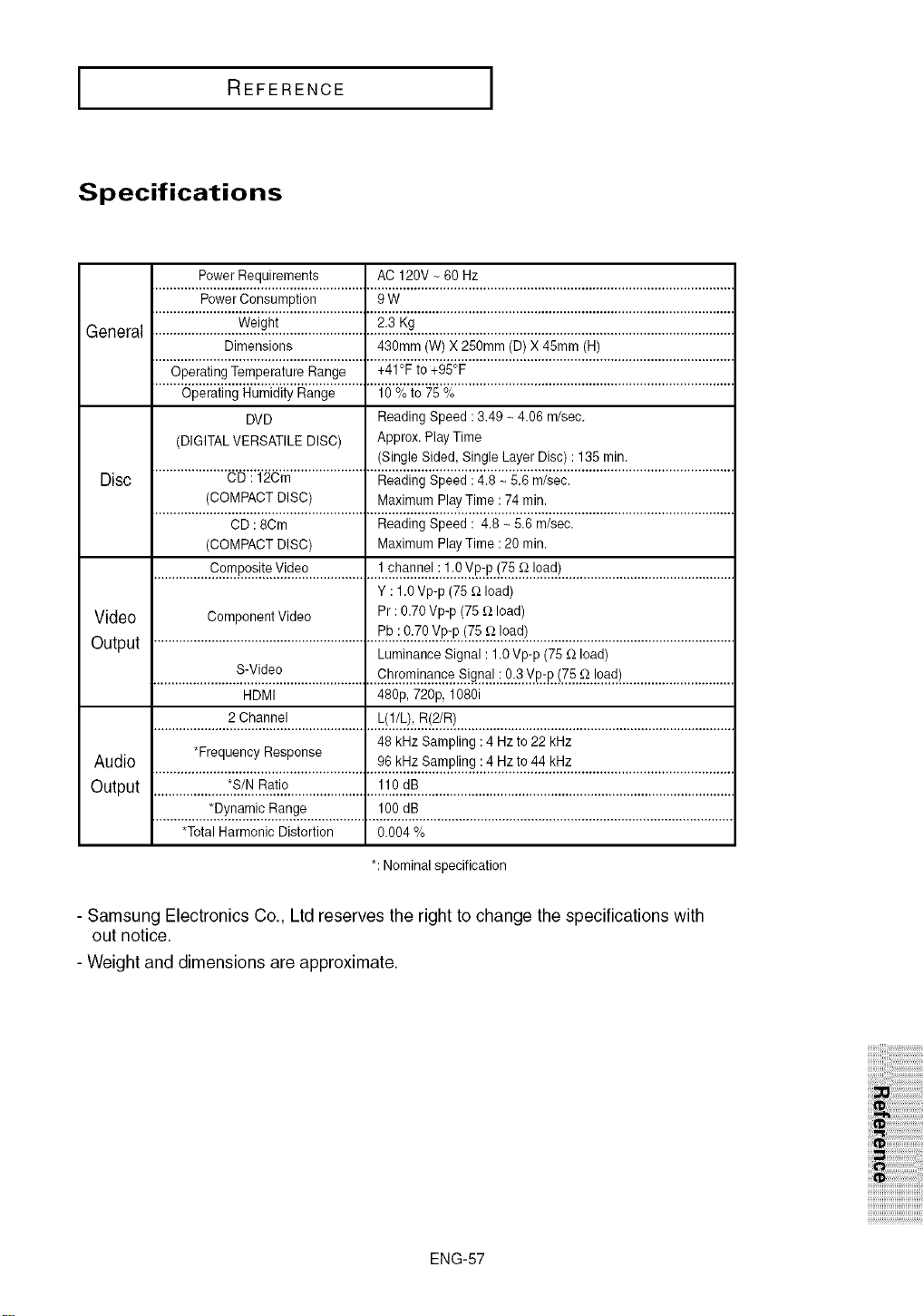
I REFERENCE
Specifications
General
Disc
Video
Output
Audio
Output
Power Requirements AC 120V _ 60 Hz
Power Consumption 9W
Weight 2.3 Kg
Dimensions 430mm (W) X 250mm (D) X 45ram (H)
Operating Temperature Range +41°F to +95°F
Operating Humidity Range 10 % to 75 %
DVD Reading Speed :3.49 _ 4.06 m/sec.
(DIGITALVERSATILE DISC) Approx. Play Time
(Single Sided, Single Layer Disc) : 135min.
CD :12Cm Reading Speed :4.8 _ 5.6 m/sec.
(COMPACT DISC) Maximum PlayTime :74 min.
CD : 8Cm Reading Speed : 4.8 ~ 5.6 m/sec.
(COMPACT DISC) Maximum PlayTime :20 min.
................_o_r_.p.o_!!_.v!c_o...................!..ct_nqeL:..!.l.9.v_:R.!7L£.!o_d!...............................................
Y : 1.0Vp-p (75 f_ load)
Component Video Pr: 0.70Vp-p (75 f_load)
Pb :0.70 Vp-p (75 _ load)
Luminance Signal: 1.0Vp-p (75 f_load)
.......................Sy!deo..........................Ch_t[z_!n_n£e..S!_n_t.:.9..S..V£:p.!7#._.!o_d)..............................
HDMI 480p, 720p, 1080i
2 Channel L(1/L), R(2/R)
48 kHz Sampling : 4 Hzto 22 kHz
*Frequency Response 96 kHz Sampling : 4 Hz to 44 kHz
....................._S(.N.R.at.io.........................J.l.0..dB.......................................................................................
*Dynamic Range 100 dB
*Total Harmonic Distortion 0.004 %
*:Nominal specification
- Samsung Electronics Co., Ltd reserves the right to change the specifications with
out notice.
- Weight and dimensions are approximate.
ENG-57
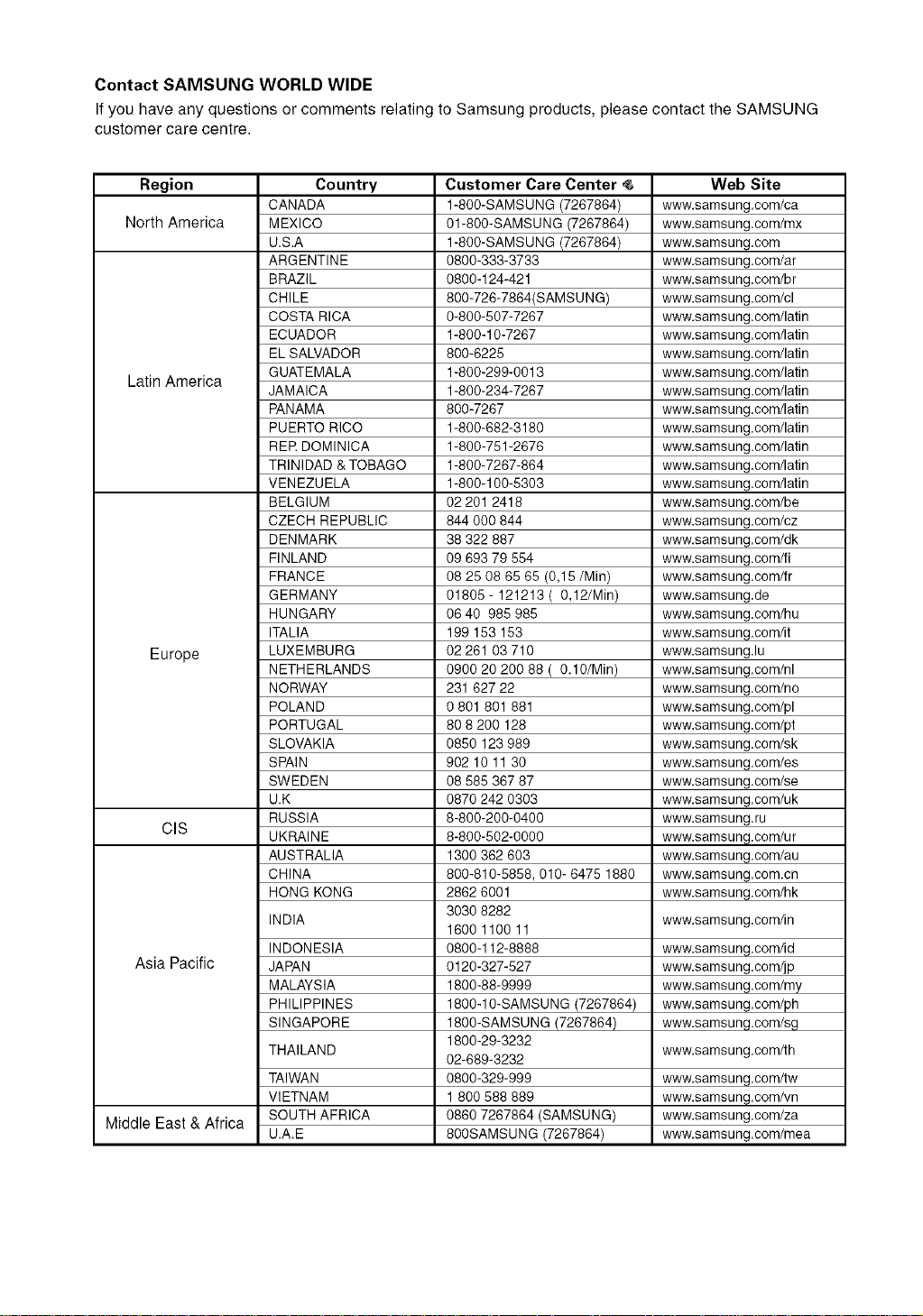
Contact SANISUNG WORLD WIDE
Ifyou have any questions or comments relating to Samsung products, please contact the SAMSUNG
customer care centre.
Region
North America
LatinAmerica
Europe
CIS
Asia Pacific
Middle East & Africa
Country
CANADA
MEXICO
U.S.A
ARGENTINE
BRAZIL
CHILE
COSTA RICA
ECUADOR
EL SALVADOR
GUATEMALA
JAMAICA
PANAMA
PUERTO RICO
RER DOMINICA
TRINIDAD & TOBAGO
VENEZUELA
BELGIUM
CZECH REPUBLIC
DENMARK
FINLAND
FRANCE
GERMANY
HUNGARY
ITALIA
LUXEMBURG
NETHERLANDS
NORWAY
POLAND
PORTUGAL
SLOVAKIA
SPAIN
SWEDEN
U.K
RUSSIA
UKRAINE
AUSTRALIA
CHINA
HONG KONG
INDIA
INDONESIA
JAPAN
MALAYSIA
PHILIPPINES
SINGAPORE
THAILAND
TAIWAN
VIETNAM
SOUTH AFRICA
U.A.E
Customer Care Center
1-800-SAMSUNG (7267864)
01-800-SAMSUNG (7267864)
1-800-SAMSUNG (7267864)
0800-333-3733
0600-124-421
800-726-7864(SAMSUNG)
0-800-507-7267
1-800-10-7267
800-6225
1-800-299-0013
1-800-234-7267
800-7267
1-800-682-3180
1-800-751-2676
1-800-7267-864
1-800-100-5303
02 201 2418
844 000 844
38 322 887
09 693 79 554
08 25 08 65 65 (0,15/Min)
01805 - 121213 (0,12/Min)
06 40 985 985
199 153 153
02261 03710
0900 20 200 88 (0.10/Min)
231 627 22
0 801 801 881
80 8 200 128
0850 123 989
902 10 11 30
08 585 367 87
0870 242 0303
6-800-200-0400
8-800-502-0000
1300 362 603
800-810-5858, 010- 6475 1880
2862 6001
3030 8282
1600 1100 11
0800-I 12-8888
0120-327-527
1800-88-9999
1800-10-SAMSUNG (7267864)
1800-SAMSUNG (7267864)
1800-29-3232
02-689-3232
0800-329-999
1 800 588 889
0860 7267864 (SAMSUNG)
800SAMSUNG (7267864)
Web Site
www.samsung.com/ca
www.samsung.com/mx
www.samsung.com
www.samsung.com/ar
www.samsung.com/br
www.samsung.com/cl
www.samsu ng.com/latin
www.samsu ng.com/latin
www.samsu ng.com/latin
www.samsu ng.com/latin
www.samsu ng.com/latin
www.samsu ng.com/latin
www.samsu ng.com/latin
www.samsung.com/latin
www.samsu ng.com/latin
www.samsu ng.com/latin
www.samsung.com/be
www.samsung.com/cz
www.samsung.com/dk
www.samsung.com/fi
www.samsung.com/fr
www.samsung.de
www.samsung.com/hu
www.samsung.com/it
www.samsung.lu
www.samsung.com/nl
www.samsung.com/no
www.samsung.com/pl
www.samsung.com/pt
www.samsung.com/sk
www.samsung.com/es
www.samsung.com/se
www.samsung.com/uk
www.samsung.ru
www.samsung.com/ur
www.samsung.com/au
www.samsung.com.cn
www.samsung.com/hk
www.samsung.com/in
www.samsung.com/id
www.samsung.com/jp
www.samsung.com/my
www.samsung.com/ph
www.samsung.com/sg
www.samsung.com/th
www.samsung.com/tw
www.samsung.com/vn
www.samsung.com/za
www.samsung.com/mea
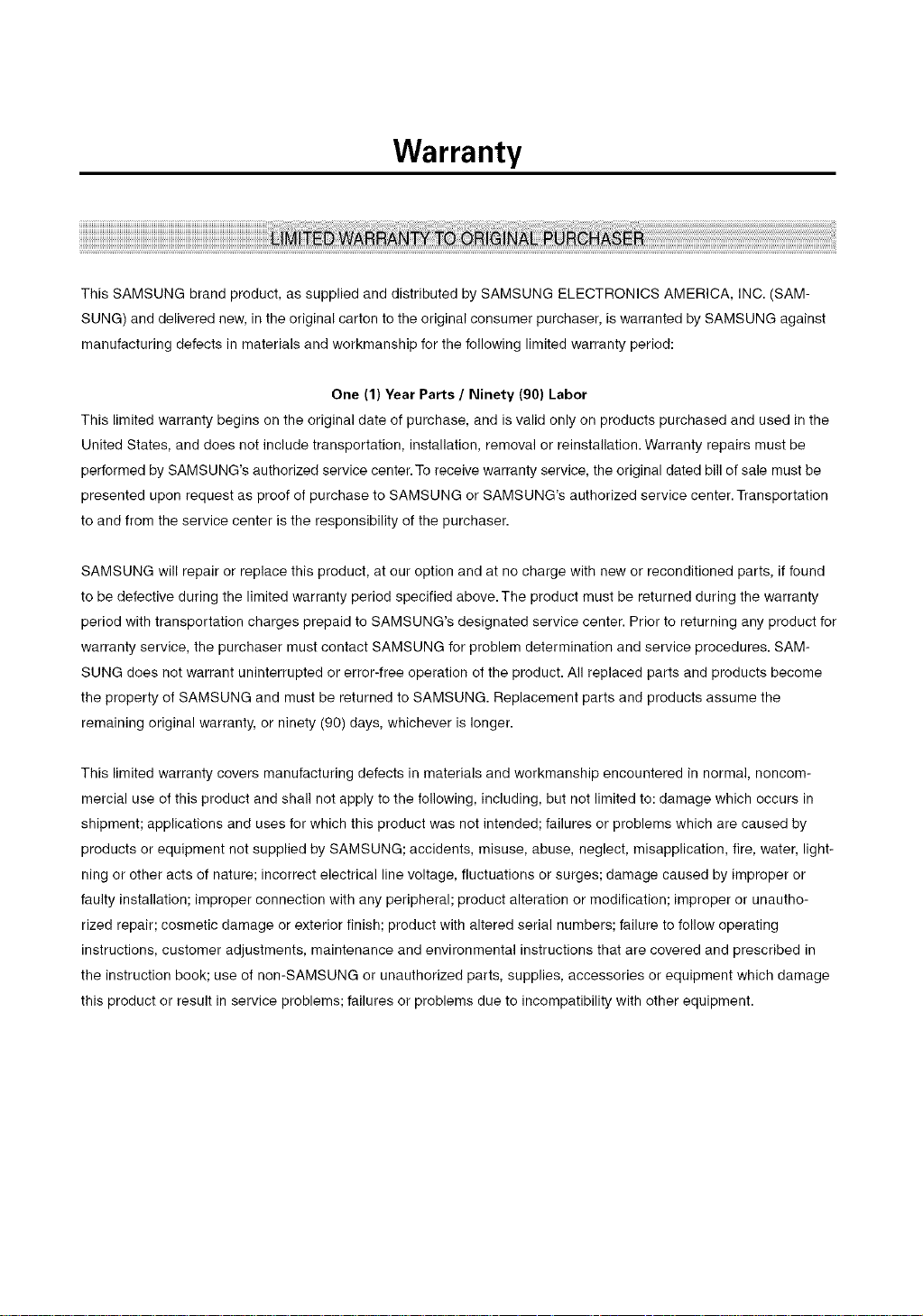
Warranty
This SAMSUNG brand product, as supplied and distributed by SAMSUNG ELECTRONICS AMERICA, INC. (SAM-
SUNG) and delivered new, in the original carton to the original consumer purchaser, is warranted by SAMSUNG against
manufacturing defects in materials and workmanship for the following limited warranty period:
One (1) Year Parts / Ninety (90} Labor
This limited warranty begins on the original date of purchase, and is valid only on products purchased and used in the
United States, and does not include transportation, installation, removal or reinstallation. Warranty repairs must be
performed by SAMSUNG's authorized service center. To receive warranty service, the original dated bill of sale must be
presented upon request as proof of purchase to SAMSUNG or SAMSUNG's authorized service center. Transportation
to and from the service center is the responsibility of the purchaser.
SAMSUNG will repair or replace this product, at our option and at no charge with new or reconditioned parts, if found
to be defective during the limited warranty period specified above. The product must be returned during the warranty
period with transportation charges prepaid to SAMSUNG's designated service center. Prior to returning any product for
warranty service, the purchaser must contact SAMSUNG for problem determination and service procedures. SAM-
SUNG does not warrant uninterrupted or error-free operation of the product. All replaced parts and products become
the property of SAMSUNG and must be returned to SAMSUNG. Replacement parts and products assume the
remaining original warranty, or ninety (90) days, whichever is longer.
This limited warranty covers manufacturing defects in materials and workmanship encountered in normal, noncom-
mercial use of this product and shall not apply to the following, including, but not limited to: damage which occurs in
shipment; applications and uses for which this product was not intended; failures or problems which are caused by
products or equipment not supplied by SAMSUNG; accidents, misuse, abuse, neglect, misapplication, fire, water, light-
ning or other acts of nature; incorrect electrical line voltage, fluctuations or surges; damage caused by improper or
faulty installation; improper connection with any peripheral; product alteration or modification; improper or unautho-
rized repair; cosmetic damage or exterior finish; product with altered serial numbers; failure to follow operating
instructions, customer adjustments, maintenance and environmental instructions that are covered and prescribed in
the instruction book; use of non-SAMSUNG or unauthorized parts, supplies, accessories or equipment which damage
this product or result in service problems; failures or problems due to incompatibility with other equipment.

Contact SAMSUNG WORLD WIDE
If you have any questions or comments relating to Samsung products,
please contact the SAMSUNG customer care centre.
_, 1-800-SAMSUNG (7267864)/www.samsung.com
Samsung Electronics America,Inc.
105 Challenger Road
Ridgefield Park, NJ 07660-0511
1-800-SAMSUNG (7267864)
www.samsung.com
AK68-00955A(01 )