struction anual
DIGITAL AUDIO
_w
www.samsgng.com
AK68-01002A-00
Warning
TO REDUCE THE RiSK OF ELECTRIC SHOCK DO NOT
.......,_.,_REMOVE THE COVER(OR BACK).
¢_ NO USER-SERVICEABLE PARTS ARE INSIDE. REFER
SERVICING TO QUALIFIED SERVICE PERSONNEL.
This symbol indicates "dangerous voltage"
inside the product that presents a risk of
electric shock or personal injury.
This symbol indicates important instructions
accompanying the product.
Do not install this equipment in a confined space such as a
bookcase or similar unit.
WARNING : To prevent damage which may result in fire or
electric shock hazard, do not expose this appliance to rain
or moisture.
CAUTION : DVD RECORDERS USE AN INVISIBLE
LASER BEAM WHICH CAN CAUSE HAZARDOUS
RADIATION EXPOSURE IF DIRECTED.
BE SURE TO OPERATE RECORDER CORRECTLY AS
INSTRUCTED.
CAUTION
THIS PRODUCT UTILIZES A LASER.
USE OF CONTROLS OR ADJUSTMENTS OR
PERFORMANCE OF PROCEDURES OTHER THAN
THOSE SPECIFIED HEREIN MAY RESULT IN
HAZARDOUS RADIATION EXPOSURE.
DO NOT OPEN COVERS AND DO NOT REPAIR
YOURSELR REFER SERVICING TO QUALIFIED
PERSONNEL.
CAUTIONS
Caution: To prevent electric shock, match wide blade of
plug to wide slot, fully insert.
Attention: Pour eviter les chocs electriques, introduire la
tame la plus large de la fiche dans la borne correspondante
de la prise et pousser jusqu au fond.
This product satisfies FCC regulations when shielded
cables and connectors are used to connect the unit to other
equipment. To prevent electromagnetic interference with
electric appliances, such as radios and televisions, use
shielded cables and connectors for connections.
FCC NOTE (for U.S.A):
This equipment has been tested and found to comply with
the limits for a Class B digital device, pursuant to Part 15 of
2 - English
the FCC Rules. These limits are designed to provide
reasonable protection against harmful interference in a
residential installation. This equipment generates, uses
and can radiate radio frequency energy and, if not installed
and used in accordance with the instructions, may cause
harmful interference to radio communications. However,
there is no guarantee that interference will not occur in a
particular installation. If this equipment does cause harmful
interference to radio or television reception, which can be
determined by turning the equipment off and on, the user
is encouraged to try to correct the interference by one or
more of the following measures:
• Reorient or relocate the receiving antenna.
• Increase the separation between the equipment and
receiver.
• Connect the equipment into an outlet on a circuit different
from that to which the receiver is connected.
• Consult the dealer or an experienced radio/TV technician
for help.
Caution: FCC regulations state that any unauthorized
changes or modifications to this equipment may
void the user's authority to operate it.
NOTE
This unit can be used only where the power
supply is AC I20V, 60Hz. It cannot be used
elsewhere.
This DVD Recorder is designed and
manufactured to respond to the Region
Management Information.
If the Region number of a DVD disc does
not correspond to the Region number of
this DVD Recorder, the DVD Recorder
cannot play the disc.
This device is protected by U.S. Patent
Nos.4,631,603;4,577,216;4,819,098;4,907,
093; and 6,516,132.This product
incorporates copyright protection
technology that is protected by U.S. patents
and other intellectual property rights.Use of
this copyright protection technology must
be authorized by Macrovision,and is
intended for home and other limited viewing
uses only unless otherwise authorized by
Macrovision.Reverse engineering or
disassembly is prohibited.
f
DANGER - VISIBLE AND INVISIBLE LASER RADIATION WHEN OPEN.
AVOID DIRECT EXPOSURE TO BEAM.
CAUTION - VISIBLE AND INVISIBLE LASER RADIATION WHEN OPEN.
AVOID EXPOSURE TO BEAM.
A*TFENTION - RAYONNEMENT LASER VISIBLE ST INVISIBLE EN CAS SOUVERTURE,
EXPOSITION DABGEREUSE AU EAISCEAU.
ADVARSEL - SYNLIG OG USYNLIG LASERSTRi_,LING VED _,BNING.
UNDG,_ UDS/ETTELSE FOR STRALING.
VARO t - AVATTAESSA OLET ALTTIINA NAKYVAA JA NAKYMATON
LASERS,_,TEILYLLE. b,L,k KATSO S,kTEESEEN.
VARNING - SYNLIG OCH OSYNLIG LASERSTRALNING N,_R SENNA DEL
/_R OPPNAD. BETRAKTA EJ STRALEN.
ADVARSEL - SYNLIG OG USYNLIG LASBRSTR,&LING NAR DEKSEL APNES.
UNNG/_ EKSPONERING FOR STR,_,LEN.
VORSICHT - SICHTSAREUNDUNSICHTBARELASERSTRAHLUNG, WENNABBECKUNG
GEOFFNET NICHT BEM STBAHL AUSSETZEN
Precaution
| important Safety instructions
Read these operating instructions carefully before using
the unit. Follow all the safety instructions listed below.
Keep these operating instructions handy for future
reference.
1 ) Read these instructions.
2) Keep these instructions.
3) Heed all warnings.
4) Follow all instructions.
5) Do not use this apparatus near water.
6) Clean only with dry cloth.
7) Do not block any ventilation openings, Install in
accordance with the manufacturer's instructions.
8) Do not install near any heat sources such as
radiators, heat registers, stoves, or other apparatus
(including amplifiers) that produce heat.
9) Do not defeat the safety purpose of the polarized or
grounding- type plug. A polarized plug has two
blades with one wider than the other. A grounding-
type plug has two blades and a third grounding
prong. The wide blade or the third prong are
provided for your safety, if the provided plug does
not fit into your outlet, consult an electrician for
replacement of the obsolete outlet.
10) Protect the power cord from being walked on or
pinched particularly at plugs, convenience
receptacles, and the point where they exit from the
apparatus.
11) Only use attachments/accessories specified by the
manufacturer.
12) Use only with the cart, stand, tripod, bracket, or
table specified by the manufacturer, or sold with
the apparatus. When a cart is used, use caution
when moving the cart/apparatus combination to
avoid injury from tip-over.
13) Unplug this apparatus during lightning storms or
when unused for long periods of time.
14) Refer all servicing to qualified service personnel.
Servicing is required when the apparatus has been
damaged in any way, such as a power-supply cord
or plug is damaged, liquid has been spilled or
objects have fallen into the apparatus, the
apparatus has been exposed to rain or moisture,
does not operate normally, or has been dropped.
| Handling Cautions
. Before connecting other components to this
recorder, be sure to turn them all off.
. Do not move the recorder while a disc is being
played, or the disc may be scratched or broken, and
the recorder's internal parts may be damaged.
• Do not put a flower vase filled with water or any
small metal objects on the recorder.
• Be careful not to put your hand into the disc tray.
• Do not place anything other than the disc in the disc
tray.
• Exterior interference such as lightning and static
electricity can affect normal operation of this
recorder. If this occurs, turn the recorder off and on
again with the POWER button, or disconnect and
then reconnect the AC power cord to the AC power
outlet.
The recorder will operate normally.
• Be sure to remove the disc and turn off the recorder
after use.
• Disconnect the AC power cord from the AC outlet
when you don't intend to use the recorder for tong
periods of time.
• Clean the disc by wiping in a straight line from the
inside to the outside of the disc.
| Maintenance of Cabinet
For safety reasons, be sure to disconnect the AC
power cord from the AC outlet.
• Do not use benzene, thinner, or other solvents for
cleaning.
• Wipe the cabinet with a soft cloth.
| Disc Handling
• Use discs with regular
shapes. If an irregular disc
tJ
(a disc with a special
shape) is used, this DVD
Recorder may be damaged.
X
• Avoid touching the surface of a
disc where recording is
performed.
DVD-RAM, DVD-RW and DVD-R
= Clean with an optional DVD-RAM/PD
disc cleaner (LF-K200DCA1 where
available).Do not use cleaners or cloths
for CDs to clean DVD-RAM/DVD-
RW/DVD-R discs.
DVD-Video, CD
• Wipe off dirt or contamination on the disc with a soft
cloth.
Cautio .oQ_handl _ ' discs
• Do not write on the printed side with a ball-point pen
or pencil.
English - 3
• Do not use record cleaning sprays or antistatic. Also,
do not use volatile chemicals, such as benzene or
thinner.
• Do not apply labels or stickers to discs. (Do not use
discs fixed with exposed tape adhesive or leftover
peeled-off stickers.)
• Do not use scratch-proof protectors or covers.
• Do not use discs printed with label printers available
on the market.
• Do not load warped or cracked discs.
| Disc Storage
Be careful not to harm the disc because the data on
these discs is highly vulnerable to the environment.
• Do not keep under direct sunlight.
• Keep in a cool ventilated area.
• Store vertically.
• Keep in a clean protection jacket.
• If you move your DVD Recorder suddenly from a
cold place to a warm place, condensation may
generate on the operating parts and lens and cause
abnormal disc playback. When this occurs, do not
connect the plug to the power outlet. Wait for two
hours, then insert the disc and try to playback again.
It will work properly when condensation has
evaporated.
| Disc Specifications
DVD-Video
, A digital versatile disc (DVD) can contain up to 135-
minutes of images, 8-language audio and 32 subtitle
languages. It is equipped with MPEG-2 picture
compression and Dolby 3D surround sound, allowing
you to enjoy vivid and clear theater quality images in
the comfort of your own home.
• When switching from the first layer to the second
layer of a double-layered DVD Video disc, there may
be momentary distortion in the image and sound.
This is not a malfunction of the unit.
• Once a DVD-R/-RW recorded in Video Mode is
finalized, it becomes DVD-Video.
Audio CD
, An audio disc on which 44.1 kHz PCM Audio is
recorded
• Plays CD-DA format audio CD-R and CD-RW discs.
The unit may not be able to play some CD-R or CD-
RW discs due to the condition of the recording.
CD-P,/-RW
• Only CD-R discs with MP3 files recorded with
ISO9660 or JOLIET format can be played back
4 - English
• Only MP3 files with the ".mp3", ".MP3" extension
can be used.
• For MP3 files recorded with a VBR(Variable Bit
Rates), from 32 Kbps to 320 Kbps, the sound may
cut in out.
• Playable bitrate range is from 56Kbps to 320Kbps.
• The unit can handle a maximum of 1000 files and
folders.
• Only JPEG files with the ".jpg", ".JPG" extension can
be used.
• The unit can handle a maximum of 1000 files and
folders.
• Maximum size of progressive JPEG is 3M pixels.
• MOTION JPEG is not supported.
• Use a 700MB(8O minutes) CD-R/-RW disc.
If possible, do not use a 80OMB(90 minutes) or
above disc, as the disc may not play back.
• If the CD-R/-RW disc was not recorded as a closed
session, you may experience a delay in the early
playback time, and all recorded files may not play.
• Some CD-R/-RW discs may not be playable with this
unit, depending on the device which was used to
burn them.
For contents recorded on CD-R/-RW media from
CDs for your personal use, playability may vary
depending on contents and discs.
DVD-R Disc Pla ,,,,,
• Once a DVD-R recorded in Video Mode is finalized,
it becomes DVD-Video.
• You can record onto the available space on the disc
and perform editing functions such as giving titles to
discs and programs and erasing programs before
finalizing.
• When programming is erased from a DVD-R, that
space does not become available. Once an area on
a DVD-R is recorded on, that area is no longer
available for recording, whether the recording is
erased or not.
• It takes about 30 seconds for the unit to complete
recording management information after recording
finishes.
• This product optimizes the DVD-R for each
recording. Optimizing is carried out when you start
recording after inserting the disc or turning on the
unit. Recording onto the disc may become
impossible if optimizing is carried out too many
times.
• Playback may be impossible in some cases due to
the condition of recording.
• This unit can play back DVD-R discs recorded and
finalized with a Samsung DVD video recorder. It may
not be able to play some DVD-R discs depending on
the disc and the condition of the recording.
DVD-RW Disc Pla
• Recording and playback can be performed on DVD-
RW discs in both the Video and VR Modes.
• Once a DVD-RW recorded in VR Mode or Video mode
is finalized, you cannot perform addtional recording.
• Once a DVD-RW recorded in Video Mode is finalized,
it becomes DVD-Video.
• In both modes, playback can be performed before and
after finalization, but additional recording, deleting and
editing can not be performed after finalization.
• If you want to record the disc in VR Mode and then
record in V Mode, be sure to execute Format.
Be careful when executing Format because all the
recorded data may be lost.
• A DVD-RW blank disc is initialized to VR Mode when
first initialized.
• DVD-RW (VR mode)
- This is a format that is used for recording data on a
DVD-RW disc. You can record multiple titles, edit,
delete, partial delete, create a playlist, etc.
- A disc that is recorded in this mode wilt not play in
standard DVD players.
• DVD-RW (Video mode)
- This is a format that is used for recording data on a
DVD-RW or DVD-R disc. The disc can be played by
an existing DVD player once it has been finalized.
- If a disc that has been recorded in Video Mode by a
different maker's recorder but has not been finalized,
it cannot be played or additionally be recorded by
this recorder.
• DVD-RAM discs come with or without a cartridge.
For this product, we recommend DVD-RAM discs that
come without cartridges.
• You cannot play a DVD-RAM in most DVD players
due to compatibility issues.
• Only DVD-RAM standard Version 2.0. discs can be
played in this unit.
• For cartridge type DVD-RAM discs, remove the
cartridge and use the disc only.
Protection
• Many DVD discs are encoded with copy protection.
Because of this, you should only connect your DVD
Recorder directly to your TV, not to a VCR.
Connecting to a VCR results in a distorted picture
from copy-protected DVD discs.
• This product incorporates copyright protection
technology that is protected by methods claims of
certain U.S. patents and other intellectual property
rights owned by Macrovision Corporation and other
rights owners. Use of this copyright protection
technology must be authorized by Macrovision
Corporation, and is intended for home and other
limited viewing uses only unless otherwise
authorized by Macrovision Corporation. Reverse
engineering or disassembly is prohibited
This DVD Recorder can allow you to protect the
contents of your discs, as described below.
, Program-protected: See page 73 "Locking a Title"
, Disc-protected: See page 85 "Disc Protection"
;{."DVD-RAM/DVD-RW/DVD-R discs that are
incompatible with the DVD-VIDEO format cannot be
played with this product.
;!: For more information on DVD recording compatibility,
consult your DVD-RW/DVD-R manufacturer.
;{-"If poor quality DVD-RW/DVD-R discs are used, your
recordings may fail.
_not use t he fo!,!_,!ng discs!
, LD, CD-G, CD-I, CD-ROM and DVD-ROM discs
should not be used in this product.
[Note]
Disc types that can be played :
CDICD-RICD-RWIMP31JPEGIDVD-VideolDVD-
RAM/DVD-RW/DVD-R.
DVD+Rt+RW cannot record, but the finalized +Rt+RW
can be played.
For a DVD-R/DVD-RW disc, which has been recorded
in Video Mode on another component, it can play only
when finalized.
, Some commercial discs and DVD discs purchased
outside your region may not be playable with this
product. When these discs are played, either "No
disc." or "Please check the regional code." will be
displayed.
, If your DVD-RW disc is an illegal copy or is not in
DVD video format, it may also not be playable.
High Speed Recording discs can be used in this unit.
, Not all brands of discs wilt be compatible with this
unit.
, The latest firmware upgrade to improve recording &
playback quality can be downloaded from our web
site. (Download Center at www.samsung.com)
, If disc compatibility problems continue, or there is an
issue upgrading your recorder, contact the Call Center
at 1-800-SAMSUNG.
English - 5
Contents
Getting Started
Warning ................................... 2
Precaution ................................. 3
ImportantSafety Instructions ...................... 3
Handling Cautions .............................. 3
Maintenanceof Cabinet .......................... 3
Disc Handling.................................. 3
Disc Storage .................................. 4
Disc Specifications.............................. 4
General Features ........................... 8
Before Reading the Instruction Manual .......... 9
How to use the DVD Recorder ................. 9
Description ................................ 11
Front Panel .................................. 11
Front Panel Display ............................ 11
Rear Panel ................................... 12
Unpacking ................................ 12
Accessories .................................. 12
Tourof the Remote Control ...................... 13
Connect!n9 & Settin UP
Quick Overview ............................ 14
Step I : Connecting the Antenna cable ......... 15
Antenna + DVD Recorder + TV : No Cable box ...... 15
Antenna + Cable box + DVD Recorder+ TV :Cable box
with many scrambled channels ................... 16
Antenna + DVD Recorder + Cable box +TV : Cable box
with a few scrambledchannels ................... 17
Step 2 : Connecting the Video Cable ........... 18
Connectingto a Video inputjack .................. 18
Connectingto an S-videoinputjack ............... 19
Connectingto Componentvideoinputjacks(Y,PB,PR) 20
Step 3 : Connecting the Audio cable ............ 21
Connectingto your TV .......................... 21
Connectingto a stereoamplifierwith analog
inputjacks ................................... 22
Connectingto an AV amplifier with a digital
inputjack .................................... 23
Step 4 : Connecting External Devices ........... 24
Connectinga VCR, Set-TopBox(STB)
or DVD Player to the AV 1 INjacks ................ 24
Connectinga Camcorderto the AV 2 IN jacks ....... 25
Connectinga Camcorderto the DV IN jack .......... 26
Step 5 : Connecting the Power Cord ............ 27
Step 6 : Preparing the Remote Control .......... 27
System Setup
Using the Setup Menu ....................... 28
Initial Setup ............................... 29
1. OSD Language Setup ........................ 29
2. Clock Set .................................. 29
3. Channel Set ................................ 31
4. Setting Up the Audio Options ................... 32
5. Setting Up the TV Aspect ..................... 34
System Setting ............................ 35
CM Skip Time Setting ........................... 35
EP Mode Time Setting .......................... 36
AutomaticChapter Creation ...................... 36
Quick RecordingSetting ........................ 37
Language Setting .......................... 38
Video (Display) Setting ...................... 39
Parental Control ............................ 40
Before Recording .......................... 43
Recordable discs .............................. 43
Recording Formats ............................ 44
Record Mode ................................. 44
Unrecordable video ............................ 44
About INFO button ............................. 45
Checking the available disc space
(Disc Information) .............................. 45
6 - English
Recordingthe currentTV programyou are
watching ................................. 45
Recordingfrom External Equipment ............ 47
Copyingfrom a Camcorder ................... 48
Makinga OneTouchRecording(OTR) .......... 49
Settinga Timer Recording .................... 50
FlexibleRecording(for Timer Recordingonly) .... 51
Editingthe ScheduledRecordList ............. 51
Deletingthe ScheduledRecordList ............ 52
Recordingthe ScheduledRecordList ........... 53
Before Playing ............................. 54
Region code (DVD-Video only) ................... 54
Disc types that can be played .................... 54
Discs that cannot be played ...................... 54
Playinga Disc ............................. 55
Using the Disc Menu & Title Menu ................ 56
Using the Search Functions ...................... 56
Slow Motion Play .............................. 57
Step Motion Play .............................. 57
About ANYKEY ............................... 57
Using the Repeat Function ...................... 58
Selecting the Subtitle ........................... 60
Selecting the Audio language .................... 60
Changing the Camera Angle ..................... 61
Zooming-in ................................... 61
Using Bookmarks ............................. 62
Using Markers ................................ 63
Playingan Audio CD/MP3 ................... 64
Playing an Audio CD (CD-DA)/MP3 ............... 64
Playinga Picture CD ........................ 67
Playingthe Title List ......................... 68
Deleting a Section of a Title ..................... 74
Advanced Editing(Playlist) ................... 76
Creating a Ptaylist ............................. 76
Playing Entries in the Ptaylist .................... 77
Renaming a Ptaylist Entry ....................... 78
Editing a Scene for the Ptaylist ................... 79
Copying a Playlist Entry to the Playtist .............. 82
Deleting a Ptaylist Entry from the Playlist ............ 83
Disc Manager ............................. 84
Editing the Disc Name .......................... 84
Disc Protection ................................ 85
Formatting a Disc .............................. 85
Deleting All Title Lists ........................... 86
Finalizing a Disc ............................... 87
Unfinalizing a Disc (VNR mode) ................. 88
Troubleshooting............................ 89
Solutionto Error Message .................... 93
Specification .............................. 95
Warranty ................................. 96
Basic Editing (Title List) ...................... 72
Renaming(Labeling)a Title ...................... 72
Locking(Protecting)a Title ....................... 73
Deletinga Title ............................... 73
English - 7
GeneralFeatures
The DVD-R130 allows you to record and play high quality
digital video on DVD-RW/DVD-R discs. You can record
and edit digital video on DVD-RW/DVD-R discs as if they
were VCR tapes.
High quality digital audio and video recording
and playback
Record up to 8-hours of video or images with a 4.7 GB
DVD-RW/DVD-Rdisc, depending on the recording mode.
High quality progressive scan
Progressive scanning provides high resolution and flicker
free video.
The 10-bit 54-MHz DAC and 2D Y/C Separating Circuitry
provides the highest video playback and recording quality.
(See page 20.)
A variety of functions with an easy-to-use
user interface
The integrated menu system and the messaging function
allow you to perform desired operations both easily and
conveniently. With a DVD-RW disc, you can edit recorded
images, create a ptaylist, and edit video in a specific
sequence according to your requirements.
Selectable Record Mode
You can set your recorder to one of five different recording
speeds, each varying in recording quality and length. EP
mode yields the most recording time, LP & SP modes
provide less recording time with higher quality recording,
and XP mode gives you the highest quality recording.
There's also the FR (Flexible Recording) mode that lets
you record with the best picture quality possible for the
recording time and remaining space on the disc in timer
recording.
Automated Quality Adjustment for Timer
Recording
If FR mode is selected, the video quality is adjusted
automatically so that all video for the scheduled time can
be recorded onto the free disc space. (See page 51 .)
Create a DVD video title using a DVD-RW/DVD-R
disc
With the DVD-R130, you can create your own DVD video
title on 4.7 GB DVD-RW/DVD-Rdiscs.
Copying data from a digital camcorder using
a DV input jack
Record digital camcorder video onto DVD-RW, DVD-R
discs using the DV input jack (IEEE 1394-4pin). (See
page 48.)
8 - English
BeforeReaclingthe
:l°st,ucti0.¸¸M :,
Make sure to check the following before reading the
user's manual.
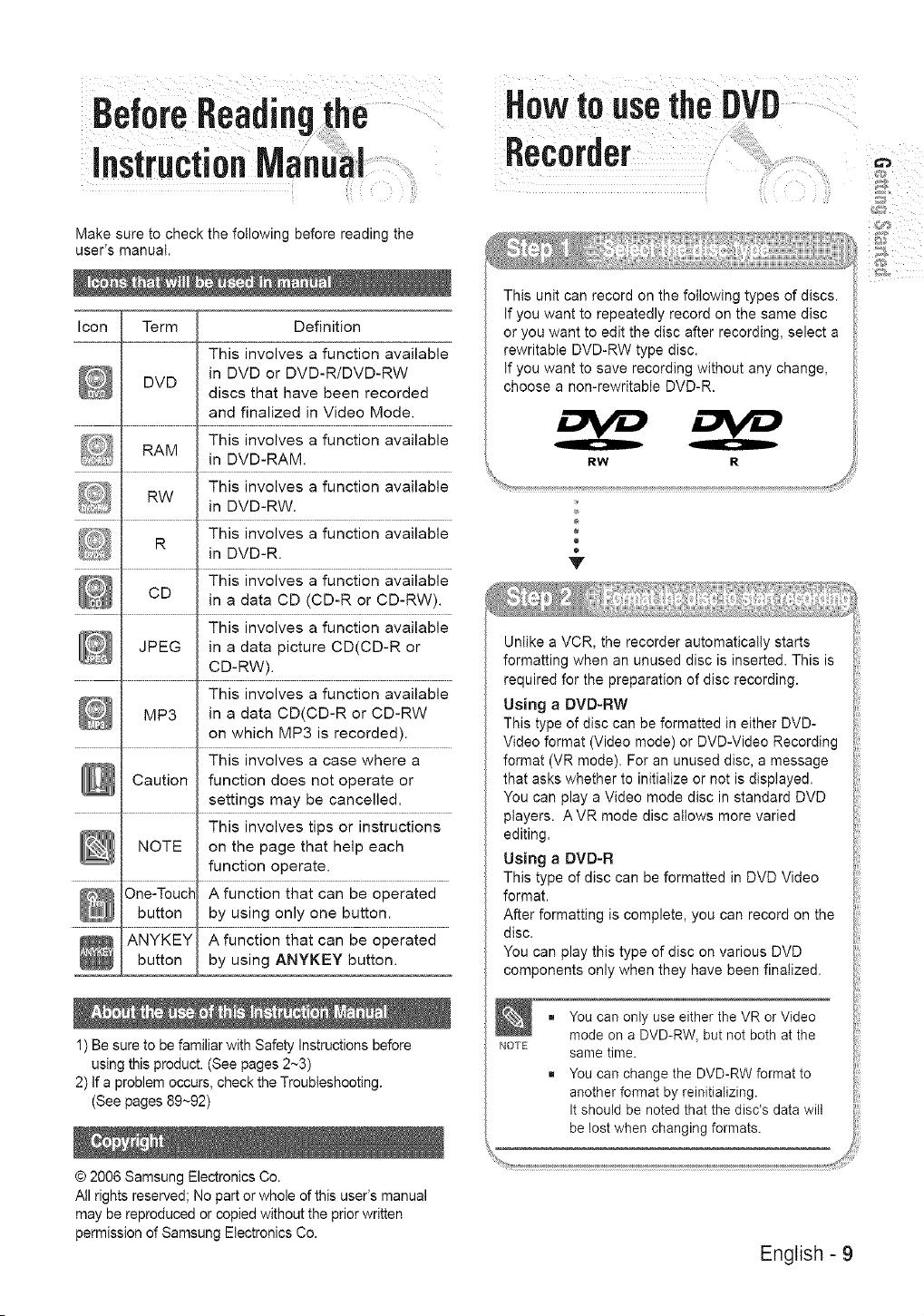
Icon Term Definition
This involves a function available
in DVD or DVD-R/DVD-RW
DVD
discs that have been recorded
and finalized in Video Mode.
This involves a function available
RAM
in DVD-RAM
This involves a function available
RW
in DVD-RW.
This involves a function available
R
in DVD-R.
This involves a function available
CD in a data CD (CD-R or CD-RW).
This involves a function available
JPEG in a data picture CD(CD-R or
CD-RW).
This involves a function available
MP3 in a data CD(CD-R or CD-RW
on which MP3 is recorded).
This involves a case where a
Caution function does not operate or
settings may be cancelled.
This involves tips or instructions
NOTE on the page that help each
function operate.
A function that can be operated
by using only one button.
A function that can be operated
button by using ANYKEY button.
1) Be sure to be familiar with Safety Instructions before
using this product. (See pages 2~3)
2) If a problem occurs, check the Troubleshooting.
(See pages 89~92)
Howto usetheBVD
Recorder
This unit can record on the following types of discs.
If you want to repeatedly record on the same disc
or you want to edit the disc after recording, select a
rewritable DVD-RW type disc.
If you want to save recording without any change,
choose a non-rewritable DVD-R.
4,
Unlike a VCR, the recorder automatically starts
formatting when an unused disc is inserted. This is
required for the preparation of disc recording.
Using a DVD-RW
This type of disc can be formatted in either DVD-
Video format (Video mode) or DVD-Video Recording
format (VR mode). For an unused disc, a message
that asks whether to initialize or not is displayed.
You can play a Video mode disc in standard DVD
players. AVR mode disc allows more varied
editing.
Using a DVD-R
This type of disc can be formatted in DVD Video
format.
After formatting is complete, you can record on the
disc.
You can play this type of disc on various DVD
components only when they have been finalized.
NOTE
You can only use either the VR or Video
mode on a DVD-RW_ but not both at the
same time.
You can change the DVD-RW format to
another format by reinitializing.
It should be noted that the disc's data will
be lost when changing formats.
ii'il
:i'll
© 2006 Samsung Electronics Co.
All rights reserved; No part or whole of this user's manual
may be reproduced or copied without the prior written
permission of Samsung Electronics Co.
English - 9
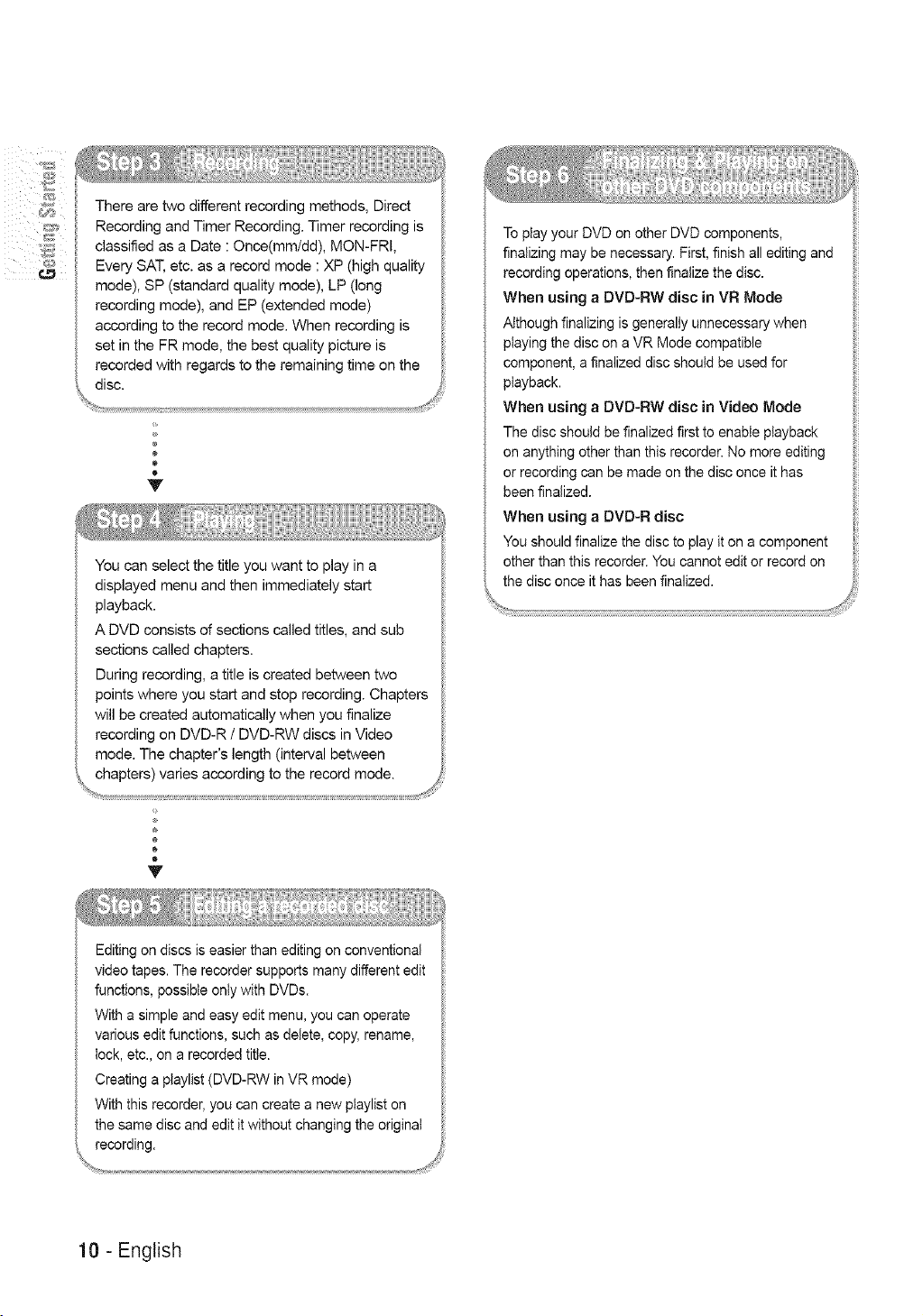
There are two different recording methods, Direct
Recording and Timer Recording. Timer recording is
classified as a Date : Once(mm/dd), MON-FRI,
Every SAT, etc. as a record mode : XP (high quality
mode), SP (standard quality mode), LP (long
recording mode), and EP (extended mode)
according to the record mode. When recording is
set in the FR mode, the best quality picture is
recorded with regards to the remaining time on the
Y
You can select the title you want to play in a
displayed menu and then immediately start
playback.
A DVD consists of sections called titles, and sub
sections called chapters.
During recording, a title is created between two
points where you start and stop recording. Chapters
will be created automatically when you finalize
recording on DVD-R / DVD-RW discs in Video
mode. The chapter's length (interval between
Editing on discs is easier than editing on conventional
video tapes. The recorder supports many different edit
functions, possible only with DVDs.
With a simple and easy edit menu, you can operate
various edit functions, such as delete, copy, rename,
lock, etc., on a recorded title.
Creating a playlist (DVD-RW in VR mode)
With this recorder, you can create a new ptaylist on
the same disc and edit it without changing the original
recording.
%..., .......................................................................................................................................................................................................,.J_
10 - English
To play your DVD on other DVD components,
finalizing may be necessary. First, finish all editing and
recording operations, then finalize the disc.
When using a DVD-RW disc in VR Mode
Although finalizing is generally unnecessary when
playing the disc on a VR Mode compatible
component, a finalized disc should be used for
playback.
When using a DVD-RW disc in Video Mode
The disc should be finalized first to enable playback
on anything other than this recorder. No more editing
or recording can be made on the disc once it has
been finalized.
When using a DVD-R disc
You should finalize the disc to play it on a component
other than this recorder. You cannot edit or record on
Description
G"3
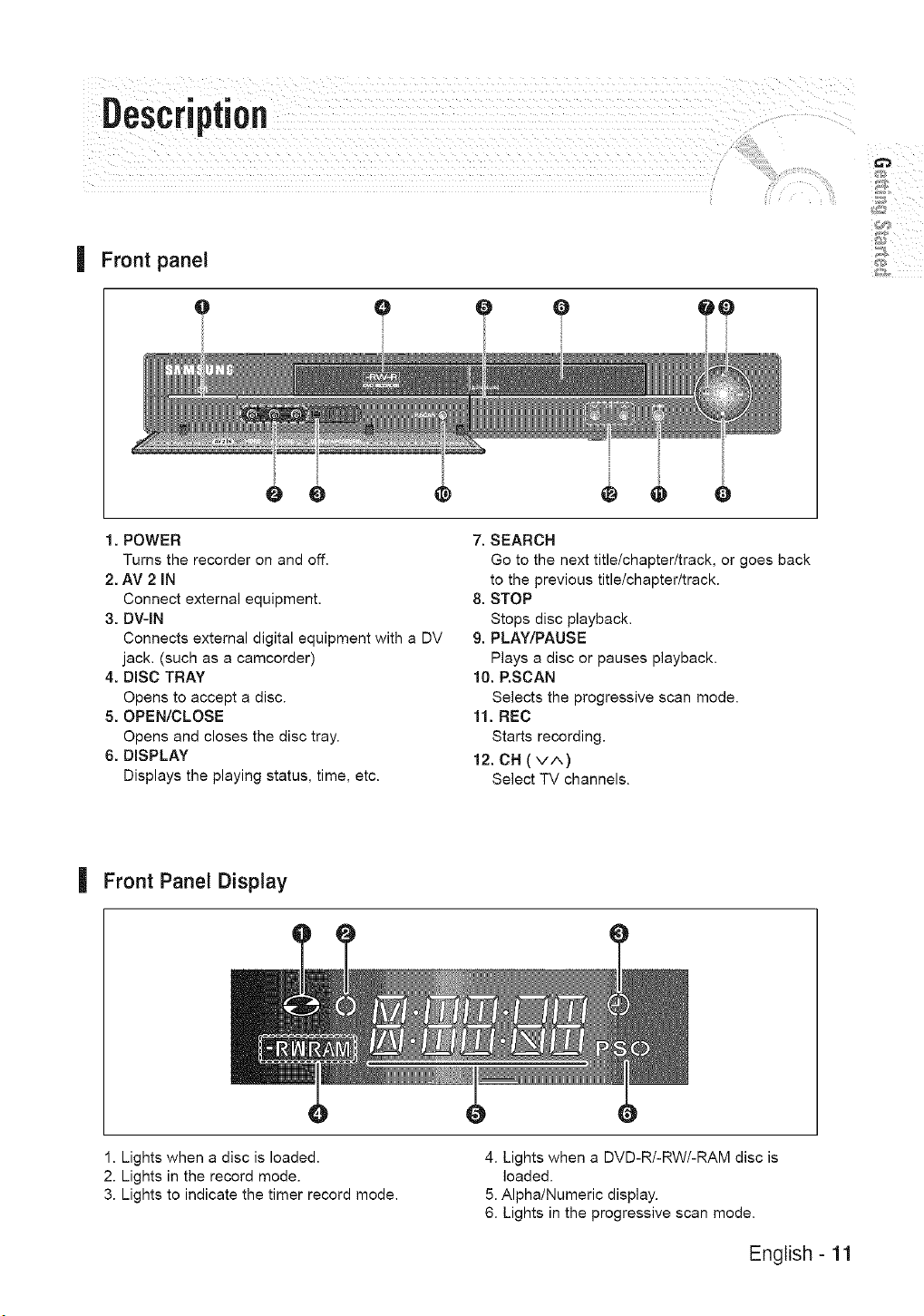
Front panel
e
O O tO
_D
1. POWER
Turns the recorder on and off.
2. AV 2 iN
Connect external equipment.
3. DV-IN
Connects external digital equipment with a DV
jack. (such as a camcorder)
4. DiSC TRAY
Opens to accept a disc.
5. OPEN/CLOSE
Opens and closes the disc tray.
6. DISPLAY
Displays the playing status, time, etc.
7. SEARCH
Go to the next title/chapter/track, or goes back
to the previous title/chapter/track.
8. STOP
Stops disc playback.
9. PLAY/PAUSE
Plays a disc or pauses playback.
10. P.SCAN
Selects the progressive scan mode.
11. REC
Starts recording.
12. CH (v/',)
Select TV channels.
| Front Panel Display
1. Lights when a disc is loaded.
2. Lights in the record mode.
3. Lights to indicate the timer record mode.
4. Lights when a DVD-R/-RW/-RAM disc is
loaded.
5. Alpha/Numeric display.
6. Lights in the progressive scan mode.
English - 11
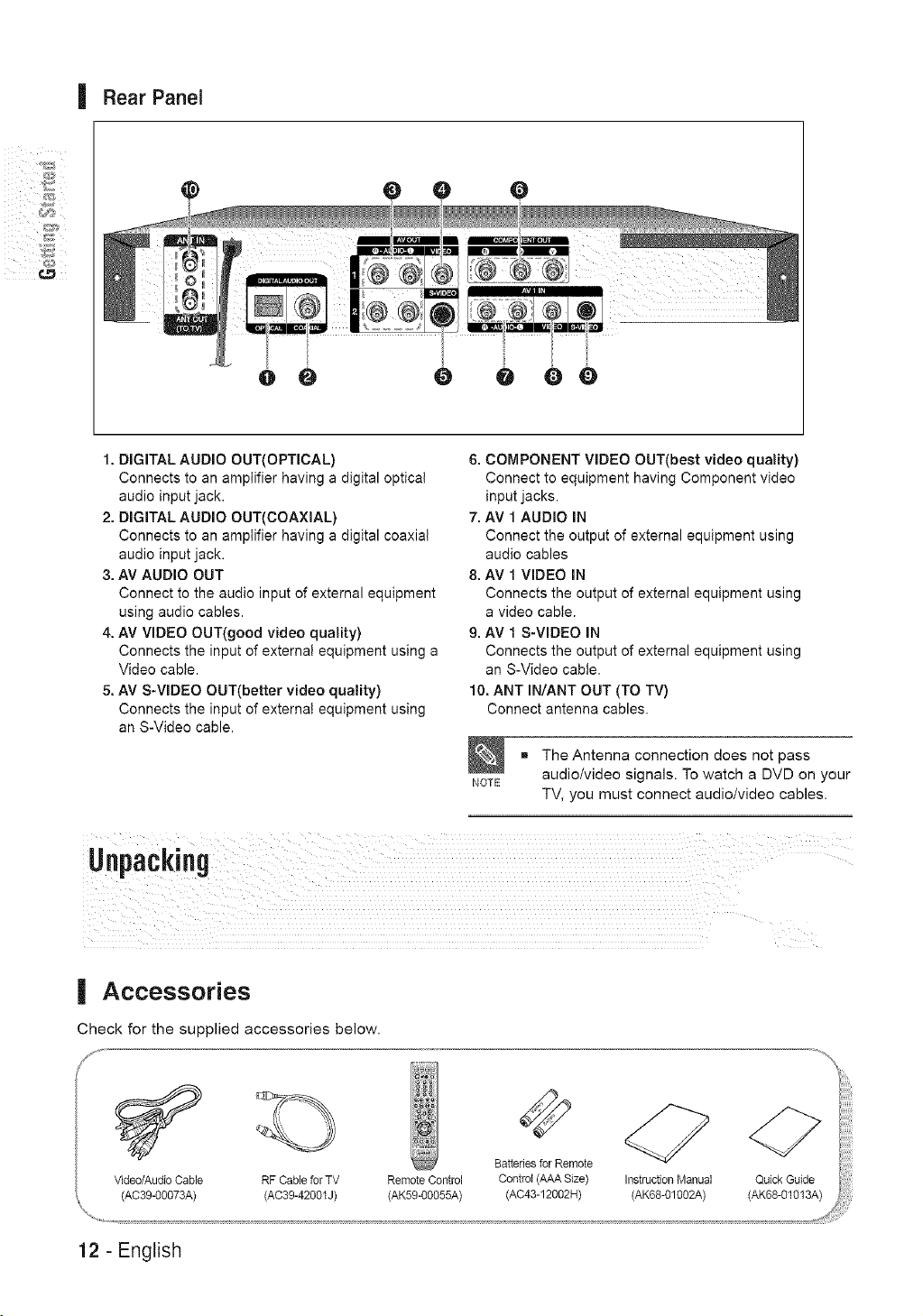
| Rear Panel
@
6 oo
1. DIGITAL AUDIO OUT(OPTICAL)
Connects to an amplifier having a digital optica!
audio input jack.
2. DIGITAL AUDIO OUT(COAXIAL)
Connects to an amplifier having a digital coaxial
audio input jack.
3. AV AUDIO OUT
Connect to the audio input of external equipment
using audio cables.
4. AV VIDEO OUT(good video quality)
Connects the input of external equipment using a
Video cable.
5. AV S-VIDEO OUT(better video quality)
Connects the input of external equipment using
an S-Video cable.
6. COMPONENT VIDEO OUT(best video quality)
Connect to equipment having Component video
input jacks.
7. AV 1 AUDIO IN
Connect the output of external equipment using
audio cables
8. AV 1 VIDEO IN
Connects the output of external equipment using
a video cable.
9. AV 1 S-VIDEO IN
Connects the output of external equipment using
an S-Video cable.
10. ANT IN/ANT OUT (TO TV)
Connect antenna cables.
NOTE
The Antenna connection does not pass
audio/video signals. To watch a DVD on your
TV, you must connect audio/video cables.
| Accessories
Check for the supplied accessories below.
12 - English
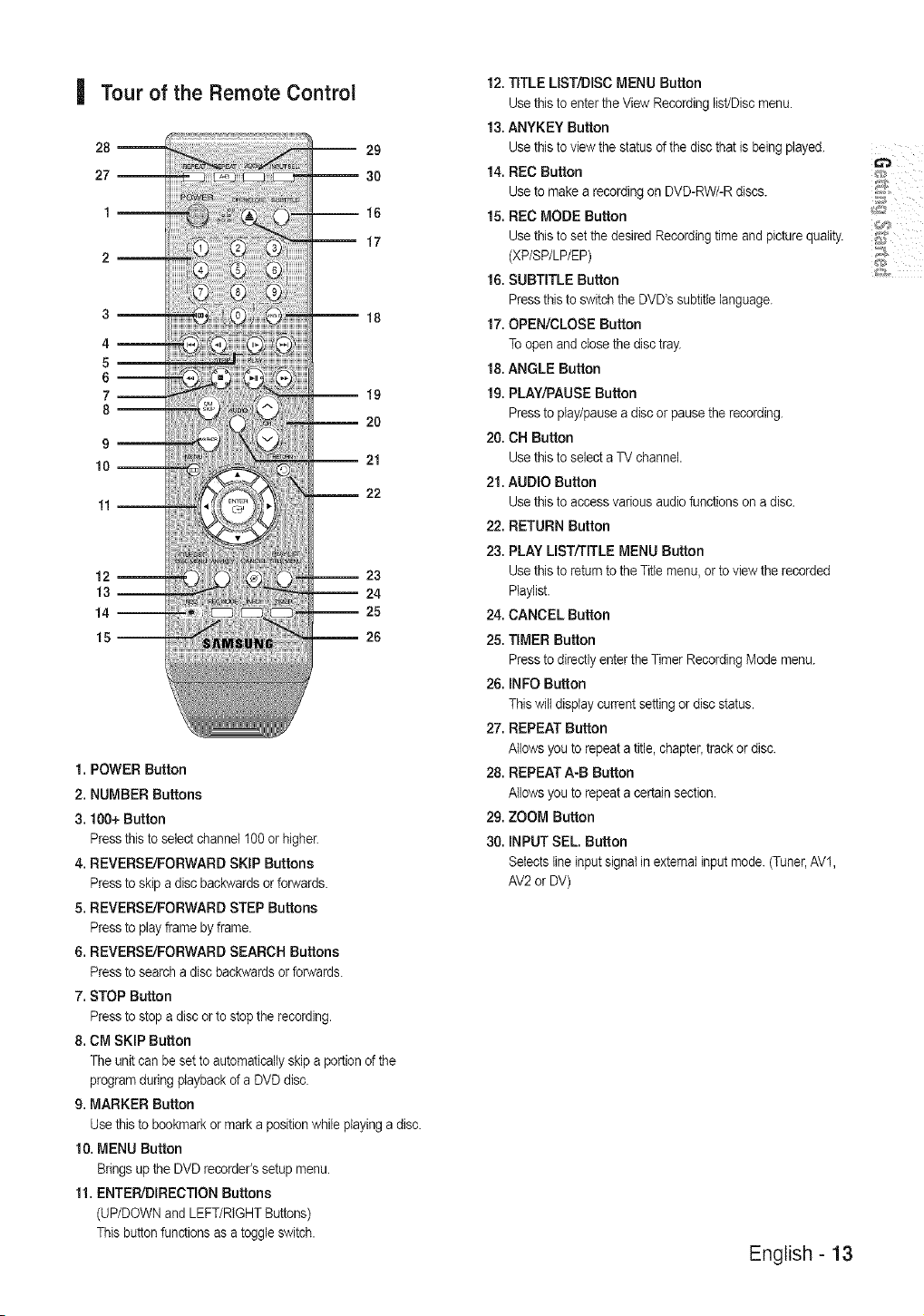
Tour of the RemoteControl
28_
27--
3
4_
5_
6--
7_
8--
9
10--
12_
13--
14--
15--
-- 16
17
18
-- 19
20
-- 21
22
-- 23
24
-- 25
26
1. POWER Button
2. NUMBER Buttons
3.100+ Button
Pressthistoselect channet 100or higher.
4. REVERSE/FORWARD SKIP Buttons
Pressto skip a disc backwards orforwards.
5. REVERSE/FORWARD STEP Buttons
Pressto play frame by frame.
6. REVERSE/FORWARD SEARCH Buttons
Press to search a disc backwards or forwards.
7. STOP Button
Pressto stop a disc or to stop the recording.
8. CM SKIP Button
The unit can be setto automaticallyskip a portion of the
program during playback of a DVD disc.
9. MARKER Button
Usethis to bookmarkor mark a position while playing a disc.
10. MENU Button
Brings up the DVD recorder's setup menu.
11. ENTER/DIRECTION Buttons
(UP/DOWN and LEFT/RIGHT Buttons)
This buttonfunctions as a toggle switch.
12. TITLE LIST/DISC MENU Button
Use thisto enter the View Recording list/Disc menu.
13. ANYKEY Button
Use this to view the status of the disc that is being played.
14. REC Button
Use to make a recordingon DVD-RW/-R discs.
15. REC MODE Button
Use this to set the desired Recordingtime and picture quality.
(XP/SP/LP/EP)
16. SUBTITLE Button
Press this to switch the DVD's subtitle language.
17. OPEN/CLOSE Button
Toopen and closethe disc tray.
18. ANGLE Button
19. PLAY/PAUSE Button
Press to play/pause a disc or pause the recording.
20. CH Button
Use this to select a TV channel.
21. AUDIO Button
Use this to access various audio functions on a disc.
22. RETURN Button
23. PLAY LIST/TITLE MENU Button
Use this to return to the Title menu, or to view the recorded
Piaylist.
24. CANCEL Button
25. TIMER Button
Press to directly enter the Timer Recording Mode menu.
26. INFO Button
Thiswill display current setting or disc status.
27. REPEAT Button
Allows youto repeat a title, chapter,track or disc.
28. REPEAT A-B Button
Allows youto repeat a certain section.
29. ZOOM Button
30. INPUT SEL. Button
Selects line input signet in external input mode. (Tuner,AV1,
AV2or DV)
English - 13
erringUp
This section _nvolves various methods of
connecting the DVD Recorder to other external
components and setting required initial modes.
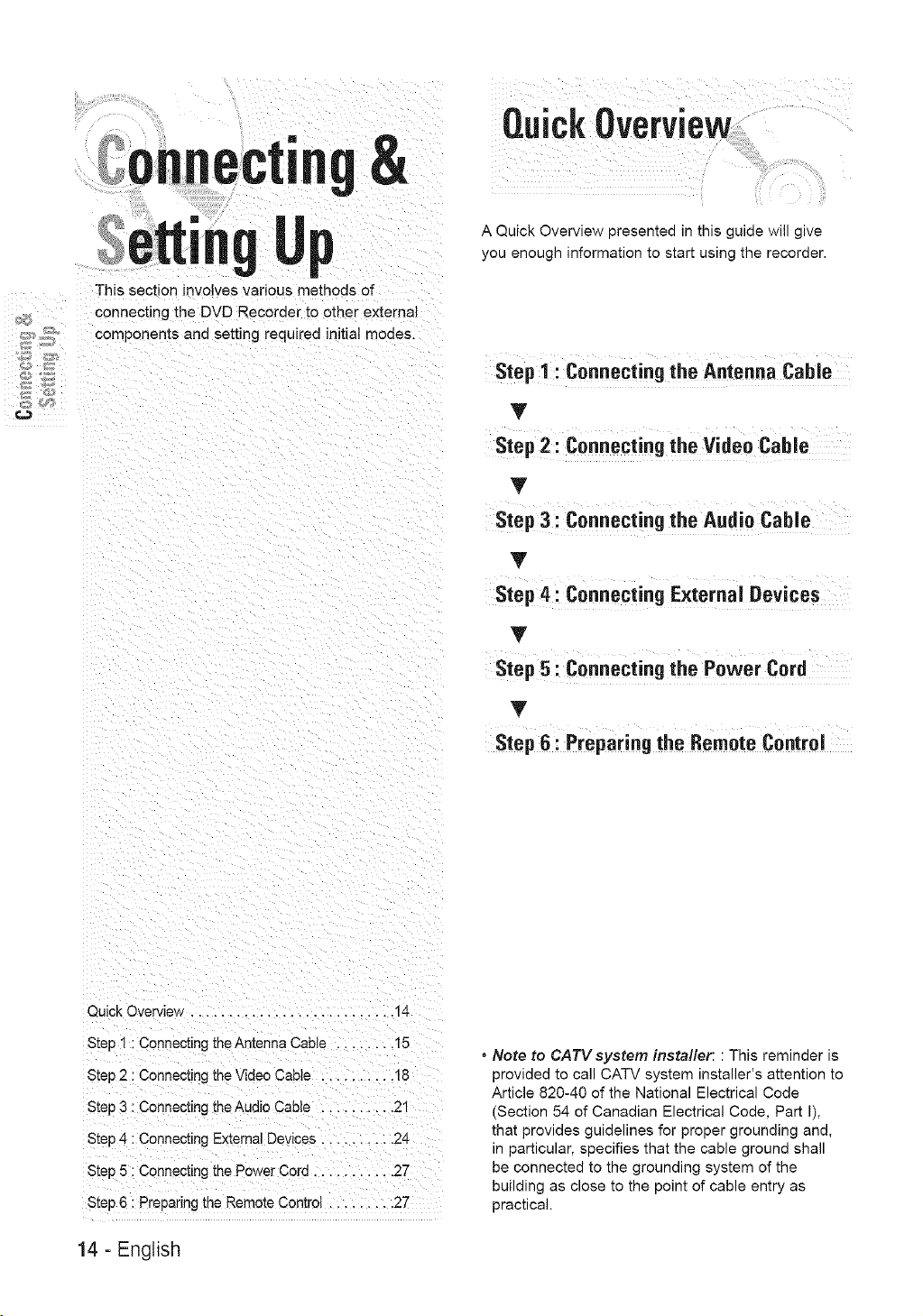
A Quick Overview presented in this guide will give
you enough information to start using the recorder,
Step 1: Connecting the Antenna CabJo
T
Stop 2 : Connecting the Video Cable
T
step3:connoct ngthoA.d oCob o
T
Step 4 : Connecting ExternaJDevices
T
Stop 5: Connectingthe Power Cord
T
Step6 : Preparingthe RemoteControJ
Quick Overview .............................
Step 1 : Connecting theAntenna Cable ........ 15
Step 2 : Connecting the Video Cable .......... 18
Step 3 : Connecting the Audio Cable .......... 21
Step 4 : Connecting External Devices .......... 24
Step 5 : Connecting the Power Cord ........... 27
Step 6 : Preparing LheRemote Control ......... 27
14 - English
* Note to CATVsystem installer: : This reminder is
provided to call CATV system installer's attention to
Article 820-40 of the National Electrical Code
(Section 54 of Canadian Electrical Code, Part I),
that provides guidelines for proper grounding and,
in particular, specifies that the cable ground shall
be connected to the grounding system of the
building as close to the point of cable entry as
practical.
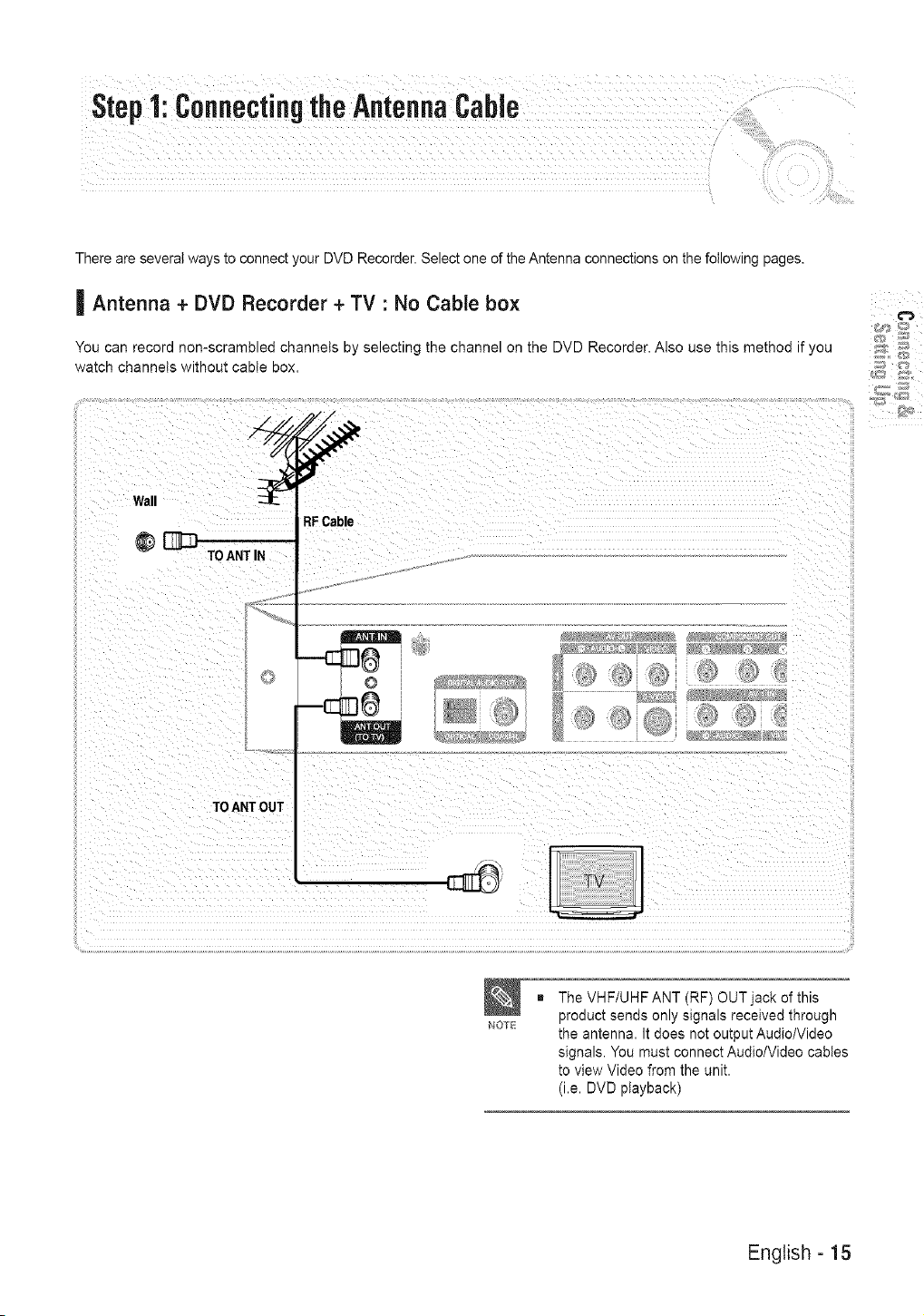
ThereareseveralwaystoconnectyourDVDRecorder.SelectoneoftheAntennaconnectionsonthefollowingpages.
| Antenna + DVD Recorder + TV : No Cable box
You can record non-scrambled channels by selecting the channel on the DVD Recorder. Also use this method if you
watch channels without cable box.
Wall
@C2
TOANT IN
TOANTOUT
RFCable
/
NOTE
The VHF/UHF ANT (RF) OUT jack of this
product sends only signals received through
the antenna. It does not output Audio/Video
signals. You must connect Audio/Video cables
to view Video from the unit.
(i.e. DVD playback)
English - 15
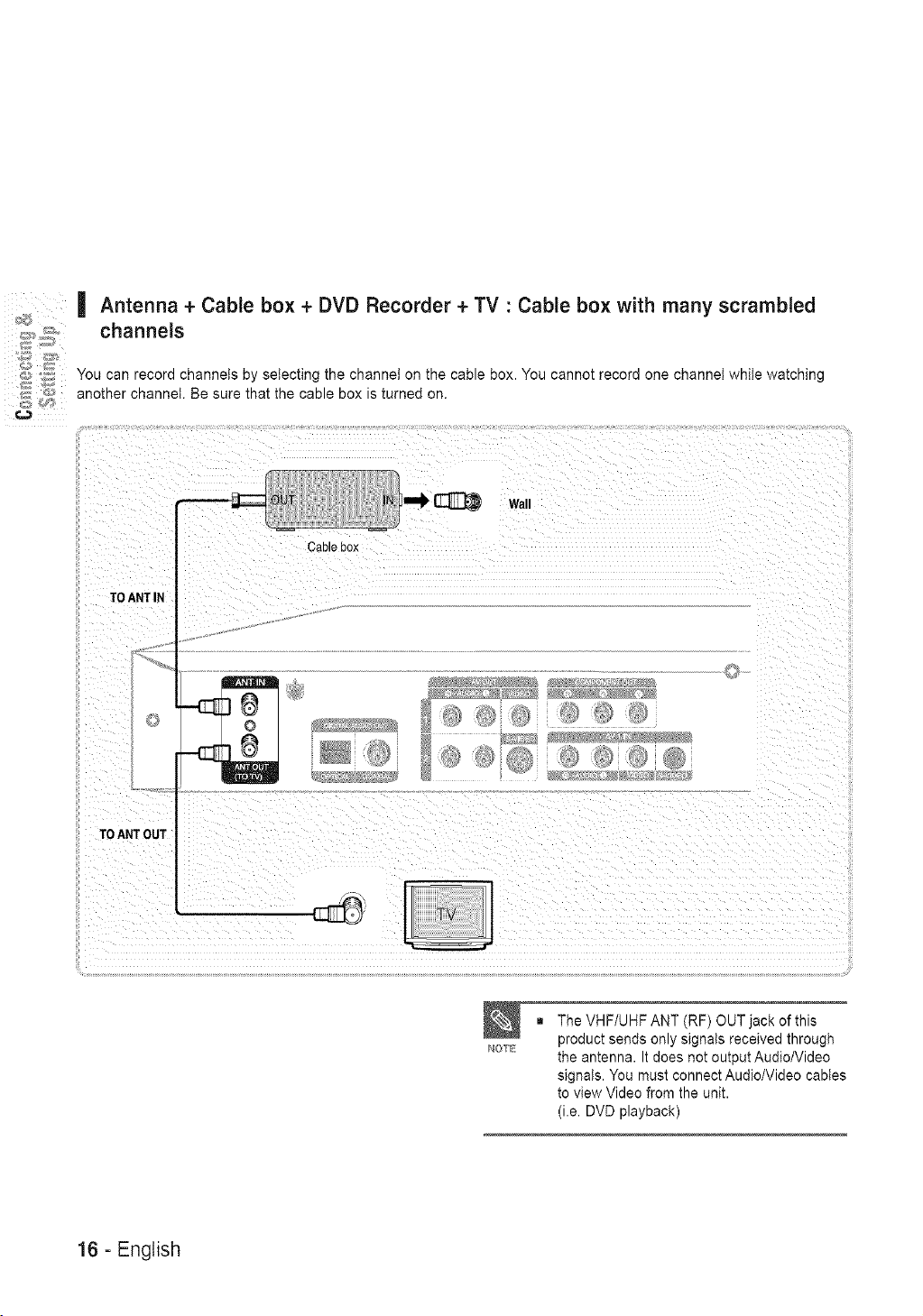
| Antenna + Cable box + DVD Recorder + TV : Cable box with many scrambled
channels
'7; You can record channels by selecting the channel on the cable box. You cannot record one channel while watching
_,;_ another channel. Be sure that the cable box is turned on.
Wall
TO ANT IN
TOANT OUT
Cab _pox
NOTE
The VHF/UHF ANT (RF) OUT jack of this
product sends only signals received through
the antenna. It does not output Audio/Video
signals. You must connect Audio/Video cables
to view Video from the unit.
(i.e. DVD playback)
16 - English
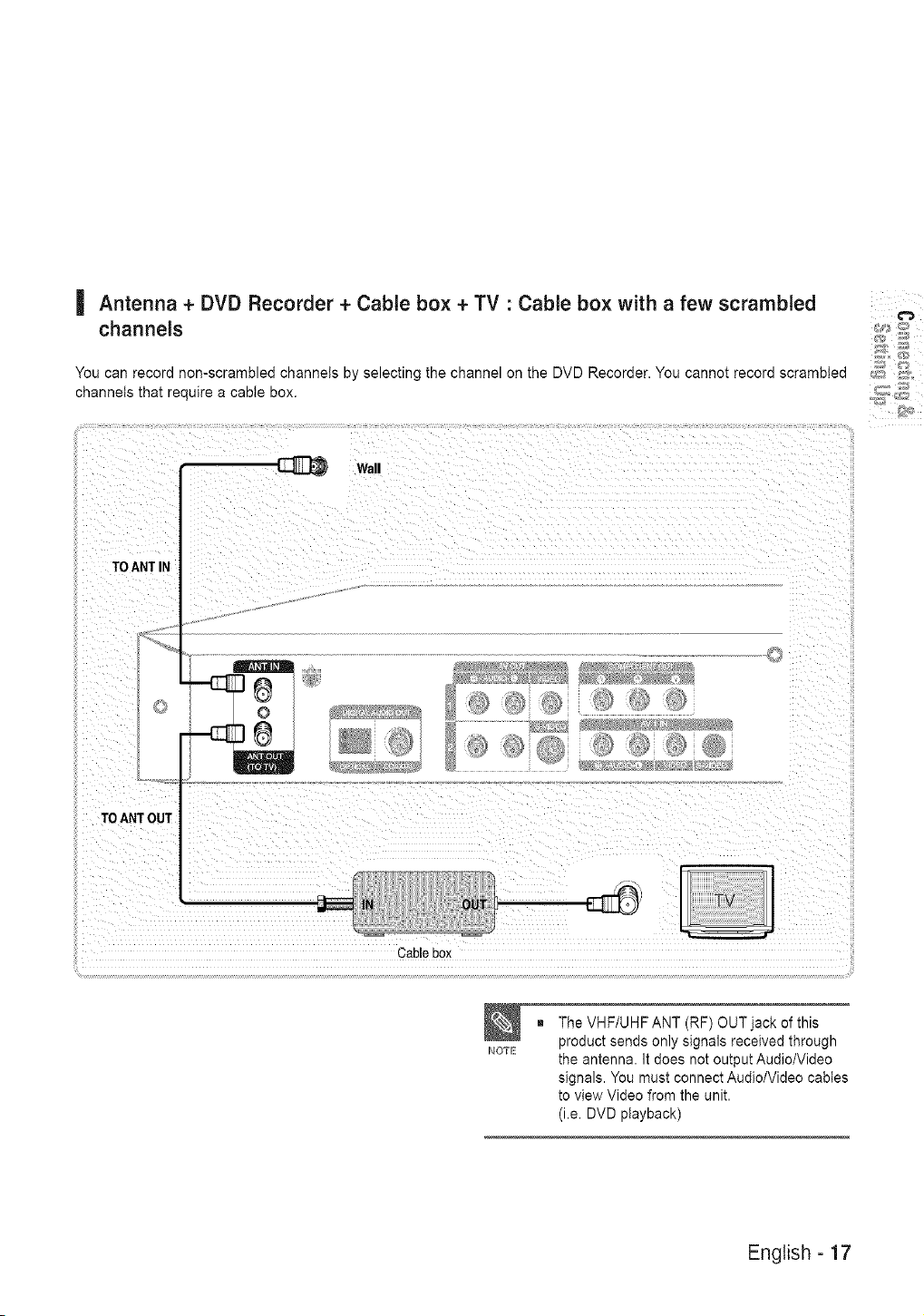
| Antenna + DVD Recorder + Cable box + TV : Cable box with a few scrambled
channels
You can recora non-scramolea channels Dy selecting the channel on the DVD Recorder. You cannot record scrambled
channets that require a cabte box.
Wall
TO ANTIN
"TOANTOUT_I _
Cablebox
NOTE
The VHF/UHF ANT (RF) OUT jack of this
product sends only signals received through
the antenna. It does not output Audio/Video
signals. You must connect Audio/Video cables
to view Video from the unit.
(i.e. DVD playback)
English - 17
_ i i iiiiiiii iiiiiiii iiiiiiii iiiii iii iiiiiiii iiiiiiii i_i,¸¸¸¸¸¸::i
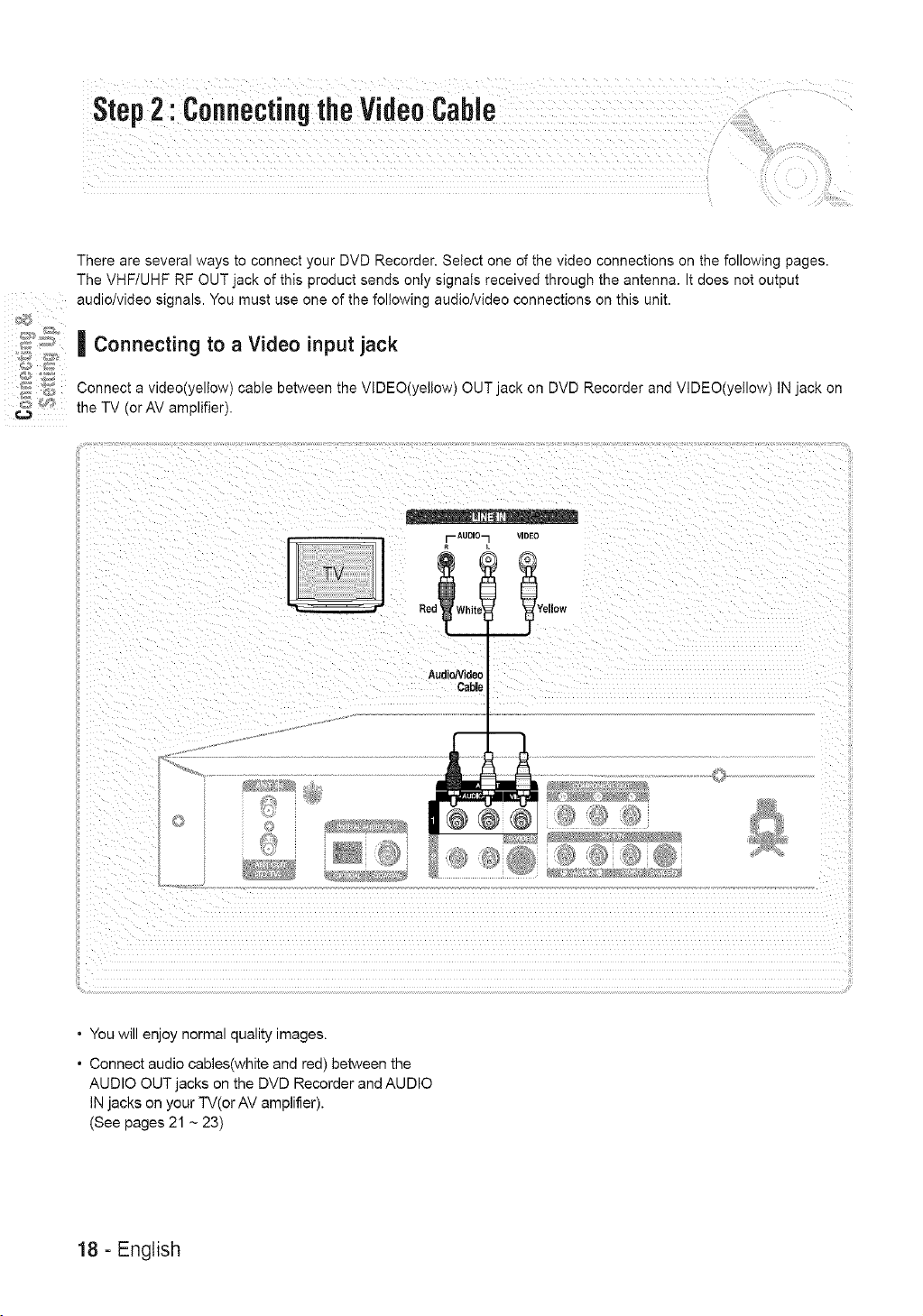
There are several ways to connect your DVD Recorder. Select one of the video connections on the following pages.
The VHF/UHF RF OUT jack of this product sends only signals received through the antenna. It does not output
audio/video signals. You must use one of the following audio/video connections on this unit.
;::; _._ | Connecting to a Video input jack
_.;_ Connect a video(yellow) cabte between the VIDEO(yellow) OUT jack on DVD Recorder and VIDEO(yellow) IN jack on
the TV (or AV amplifier).
_ AUDIO_
R
Red hi
AudioNideo
Cable
VIDEO
_Yellow
• You will enjoy normal quality images.
• Connect audio cables(white and red) between the
AUDIO OUT jacks on the DVD Recorder and AUDIO
IN jacks on your TV(or AV amplifier).
(See pages 21 ~ 23)
18 - English
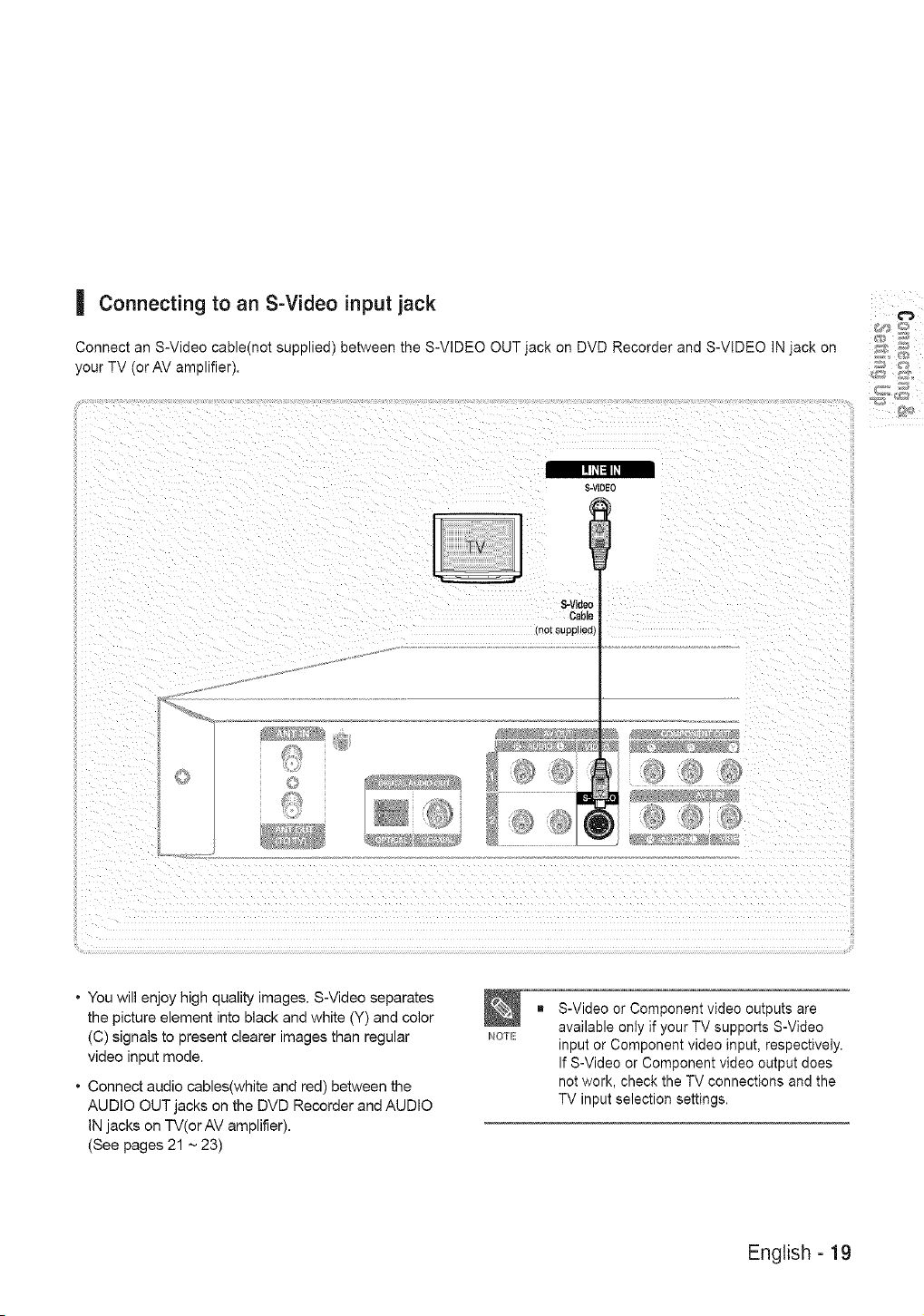
| Connectingto an S-Video input jack
Connect an S-Video cable(not supplied) between the S-VIDEO OUTjack on DVD Recorder and S-VIDEO IN jack on
your TV (or AV amplifier).
111_.141_1
S-VIDEO
S-Video
Cable
mo[suppl_eo_
4
• You will enjoy high quality images. S-Video separates
the picture element into black and white (Y) and color
(C) signals to present clearer images than regular
video input mode.
• Connect audio cables(white and red) between the
AUDIO OUT jacks on the DVD Recorder and AUDIO
IN jacks on IV(or AV amplifier).
(See pages 21 ~ 23)
NOTE
S-Video or Component video outputs are
available only if your TV supports S-Video
input or Component video input, respectively.
If S-Video or Component video output does
not work, check the TV connections and the
TV input selection settings.
English - 19
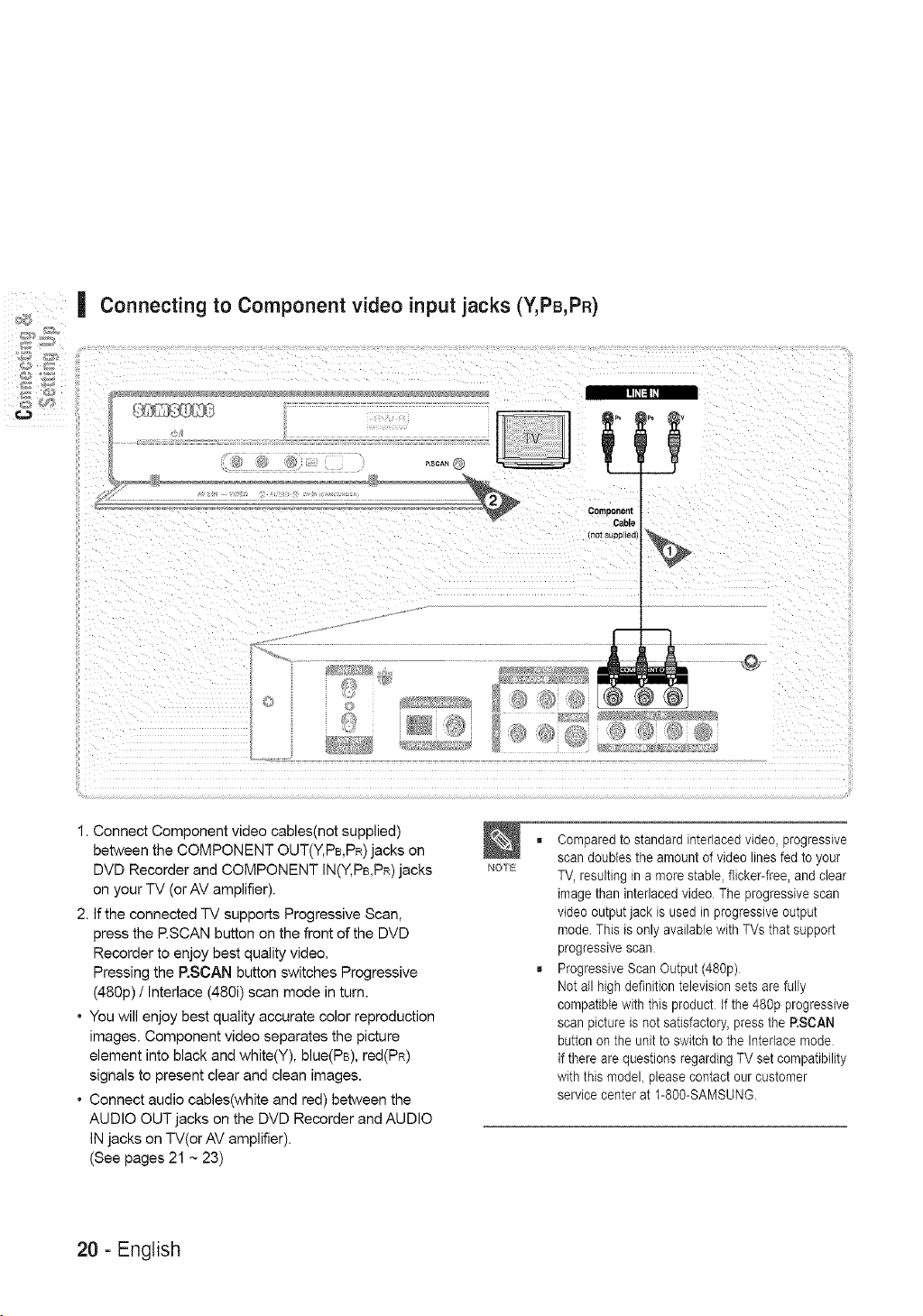
Connecting to Componentvideo input jacks (Y,PB,PR)
P.SCAN
Comoooenl
Cable
not suoo lea
I. Connect Component video cables(not supplied)
between the COMPONENT OUT(Y, PB,PR)jacks on
DVD Recorder and COMPONENT IN(Y, PB,PR)jacks
on your TV (orAV amplifier).
2. If the connected TV supports Progressive Scan,
press the RSCAN button on the front of the DVD
Recorder to enjoy best quality video.
Pressing the P.SCAN button switches Progressive
(480p) / Interlace (480i) scan mode in turn.
• You will enjoy best quality accurate color reproduction
images. Component video separates the picture
element into black and white(Y), blue(PB), red(PR)
signals to present clear and clean images.
• Connect audio cables(white and red) between the
AUDIO OUT jacks on the DVD Recorder and AUDIO
IN jacks on TV(or AV amplifier).
(See pages 21 ~ 23)
NOTE
= Compared to standard interlaced video, progressive
scan doubles the amount of video lines fed to your
TV, resulting in a more stable, flicker-free, and clear
image than interlaced video The progressive scan
video output jack is used in progressive output
mode This is only available with TVs that support
progressive scan
= Progressive Scan Output (480p)
Not all high definition television sets are fully
compatible with this product If the 480p progressive
scan picture is not satisfactory, press the P.SCAN
button on the unit to switch to the Interlace mode
If there are questions regarding TV set compatibility
with this model, please contact our customer
service center at 1-800-SAMSUNG
20 - English
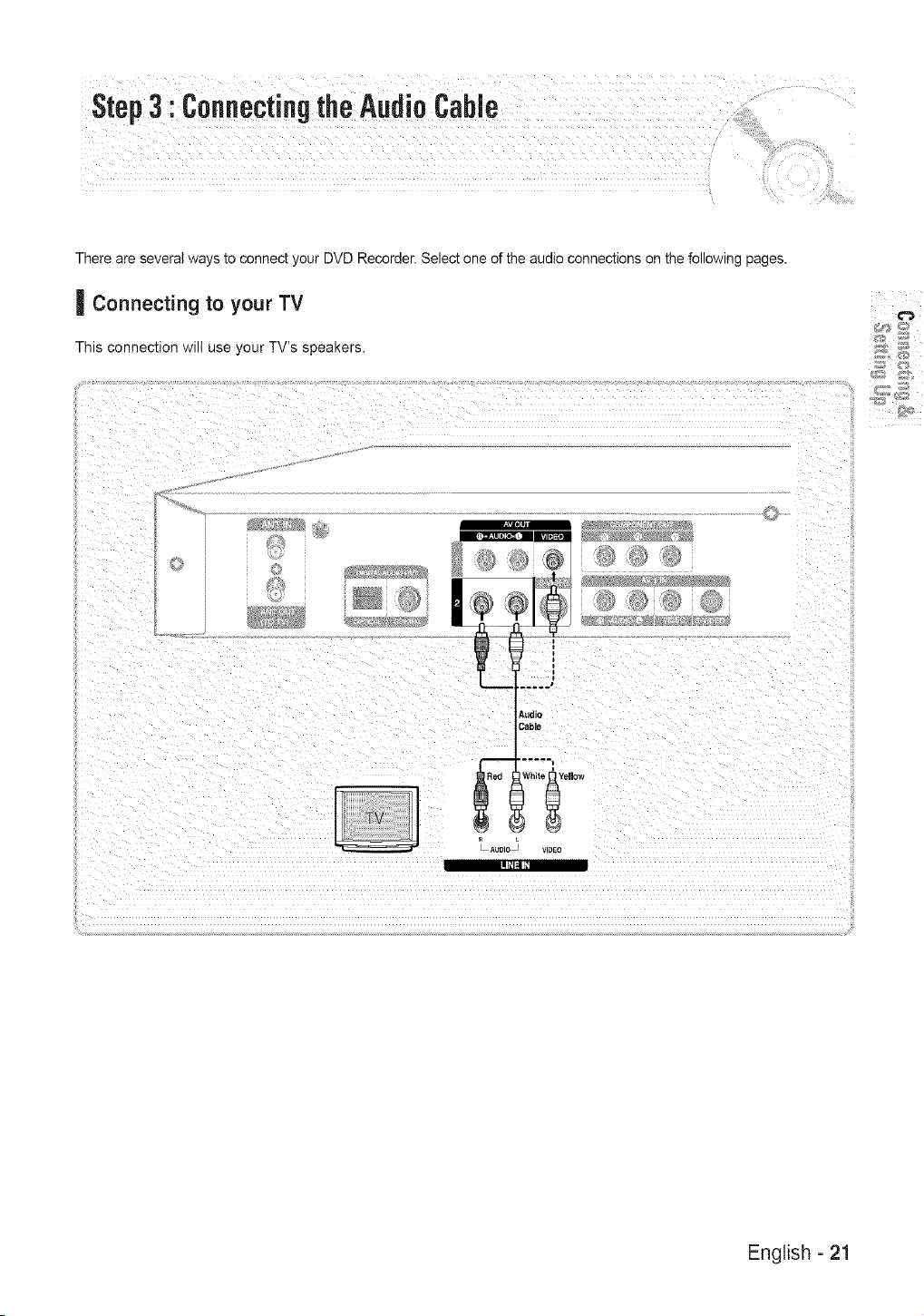
There are several ways to connect your DVD Recorder. Select one of the audio connections on the following pages.
| Connecting to your TV
This connection will use your TV's speaKers
'r]'
mm
Audio
Cable
_14i
English - 21
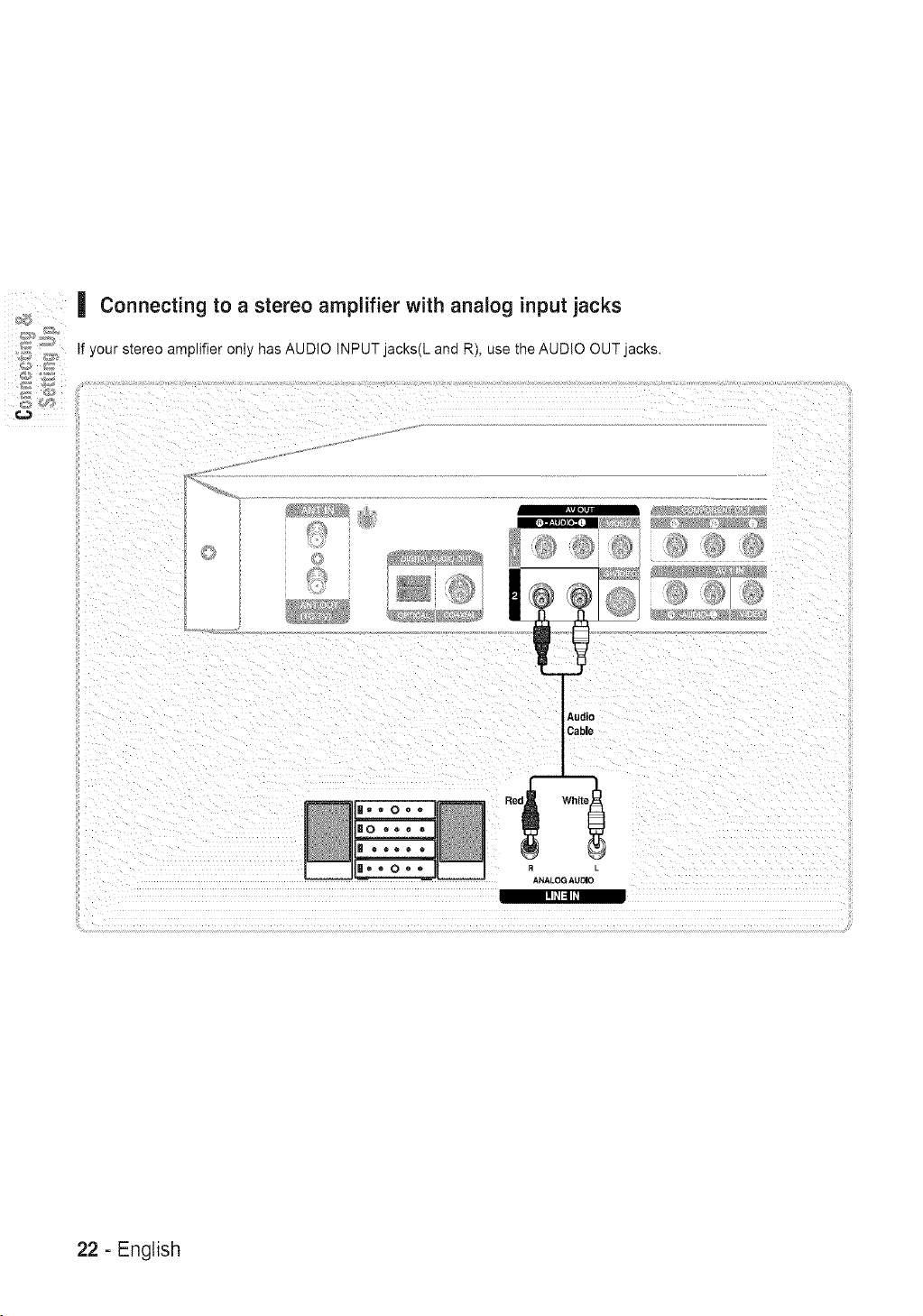
Connecting to a stereo amplifier with analog input jacks
If your stereo amplifier only has AUDIO iNPUT jacks(L and R), use the AUDIO OUT aCKS.
t'il.],
m
@@
Audio
Cable
ANALOGAUDIO
[ll_[:ll_l
22 - English
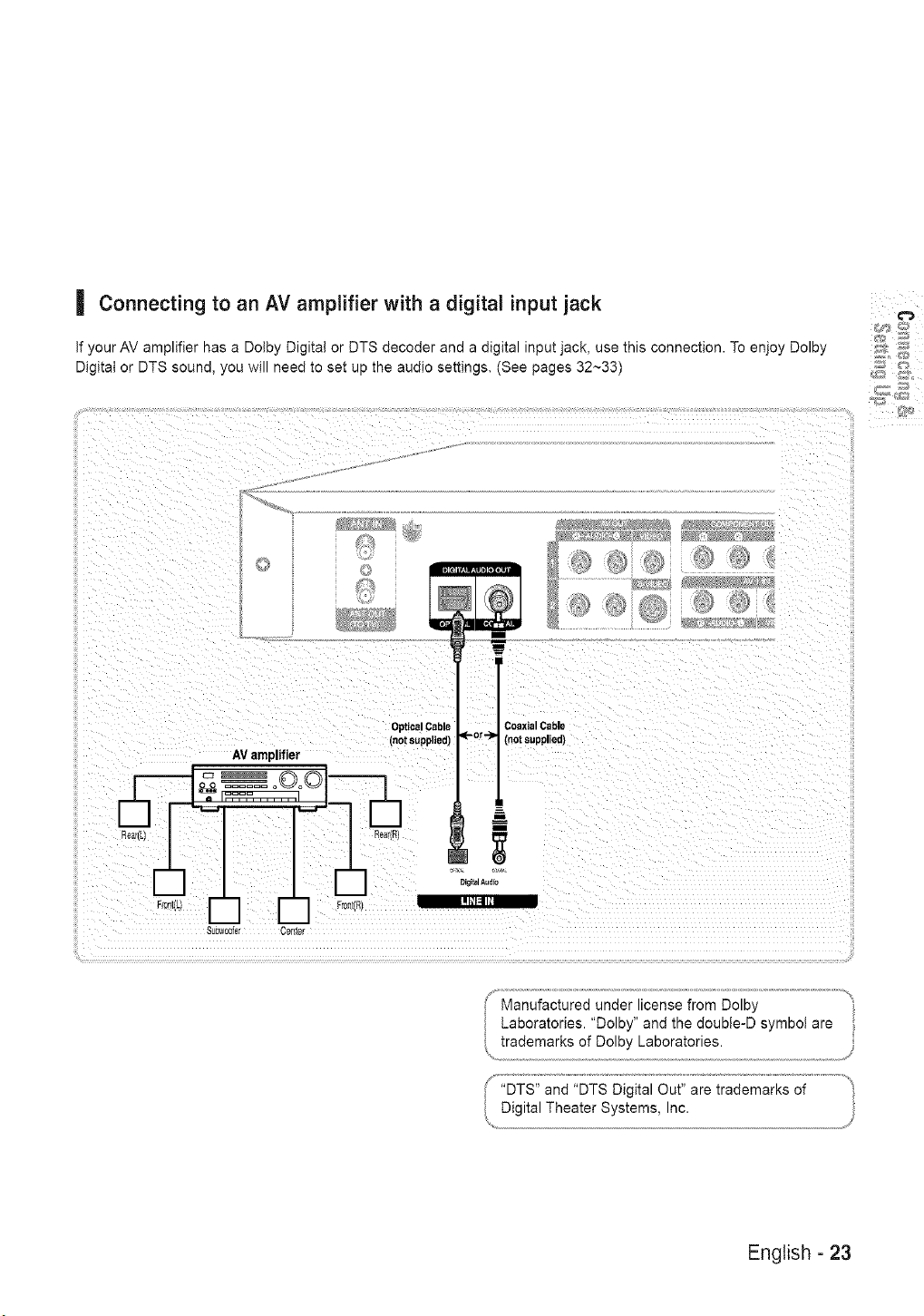
| Connectingto an AV amplifier with a digital input jack
If your AV amplifier has a Dolby Digital or DTS decoder and a digital input jack, use this connection. To enjoy Dolby
Digitat or DTS sound, you will need to set up the audio settings, (See pages 32~33)
iii
Optical Cable Coaxial Cable
(notsupplied) (notsupplied)
AVamplifier
oOo®l---n
__x_ Jo_ ! _.x_
c'ot_tlL Rollt/Ri Dig;mlAud_
I!l_l:llltl
SU_'_00IeT Cet_te_
Laboratories. "Dolby" and the double-D symbol are
( "DTS" and "DTS Digital Out" are trademarks of
Digital Theater Systems, Inc.
......... /f'
English - 23

i i iiiiiiii iiiiiiii iiiiiiii iiiii iii iiiiiiii iiiiiiii ii,¸i¸¸¸
This allows you to connect your DVD Recorder to other external devices and view or record their outputs.
| Connecting a VCR, Set-Top Bo×(STB) or DVD Player to the AV 1 IN jacks
_:; _:_ Connecting a VCR or external device to the AV1 IN jacks of the DVD Recorder.
;,:_' _;:_: You can record from connected equipment (VCR, STB or DVD Player).
o
€_
@@
AudioNideo
Cable
_AUDIO _ VIDEO
_-_ or --_
S-VideoCable
(notsupplied)
I
.CR
STB
S-VIDEO
24 - English
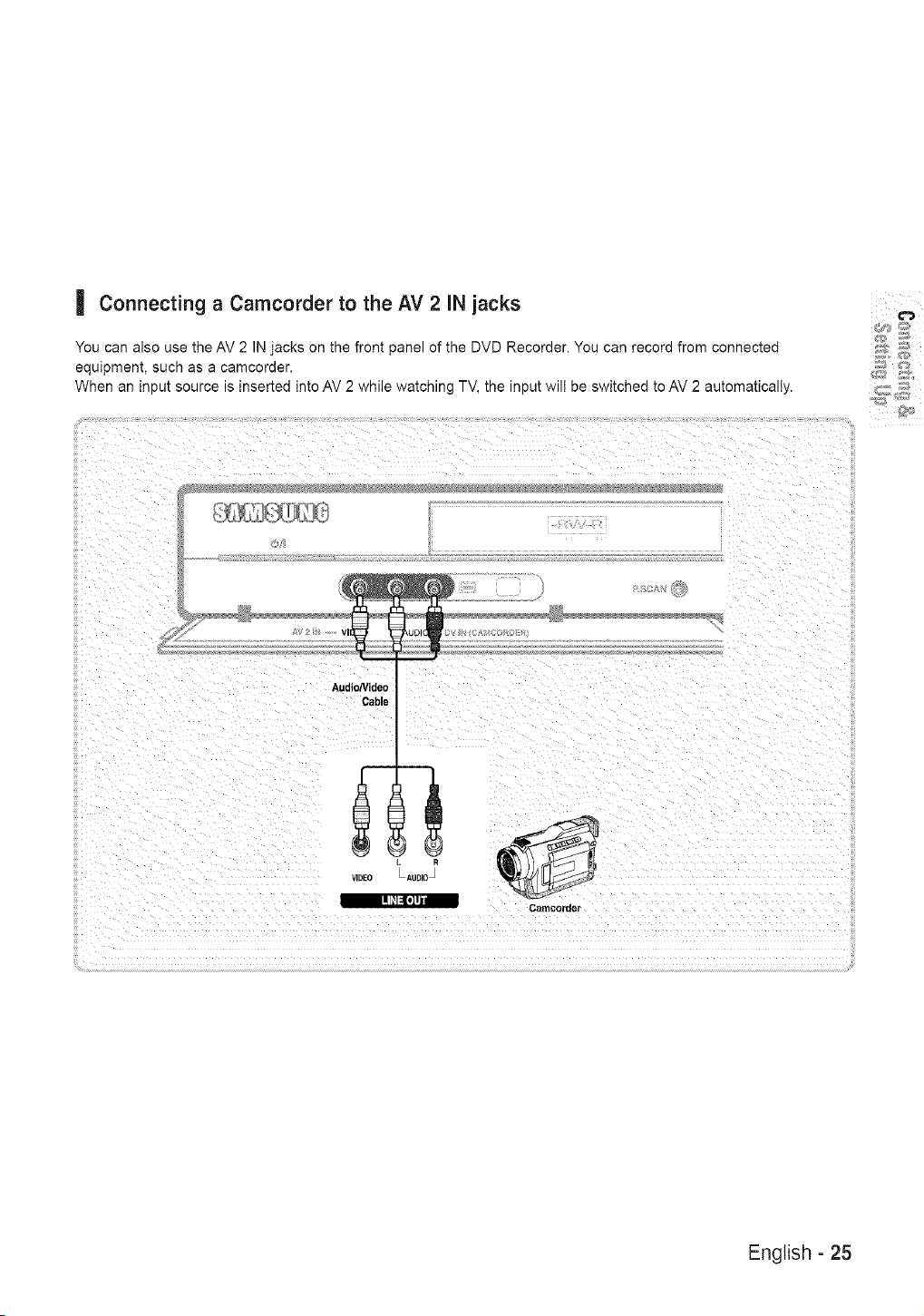
| Connectinga Camcorderto the AV 2 iN jacks
You can also use the AV 2 IN jacks on the front panel of the DVD Recorder. You can record from connected
equipment, such as a camcorder.
When an input source is inserted into AV 2 while watching TV, the input will be switched to AV 2 automatically.
!
!
Audio/Video
Cable
VIDEO L A[JDIO_
Csmcordet
I! [ll4ll]ltl
English - 25
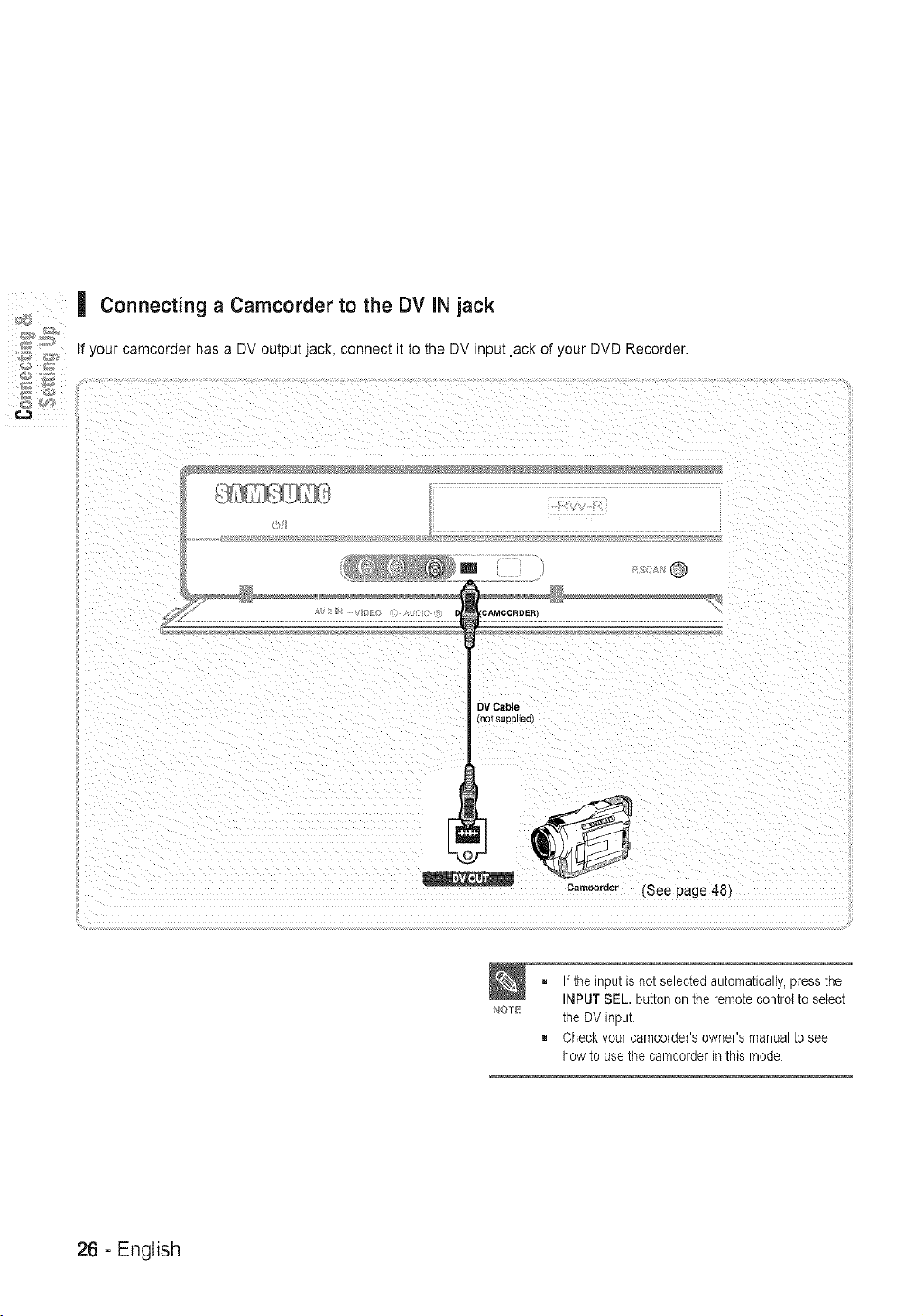
Connecting a Camcorder to the DViN jack
If your camcoraer nae a DV ou_pu_.tacK, connec_ it _o the DV nput jack of. our DVD Recorder.
m
DVCable
NOTE
Camcorder (See page 48)
,, If the input is not selected automatically, press the
INPUT eEL. button on the remote control to select
the DV input
= Check your camcorder's owner's manual to see
how to use the camcorder in this mode
26 - English
Step5:Connectingthe
PowerCor
After all connections are complete, plug the power cord
in the walt outlet.
"Auto" appears in the panel display. This means
that the current time is being set automatically
(Auto Program) through the antenna under
connection and also the channel is being set.
The setup may take a few minutes.
When the DVD Recorder operates normally, the current time
is automatically set and displayed in the front pane] display.
NOTE
= After the current time is set automatically, the
recorder will perform Auto Channel Memory for
about 3 minutes, tf power is on before finishing
the Auto Channel Memory process, Auto
Channel Memory wilt stop.
In this case, do Auto Channel Memory from
MENU(see page 31).
Step6: Preparingthe
Remot control .......
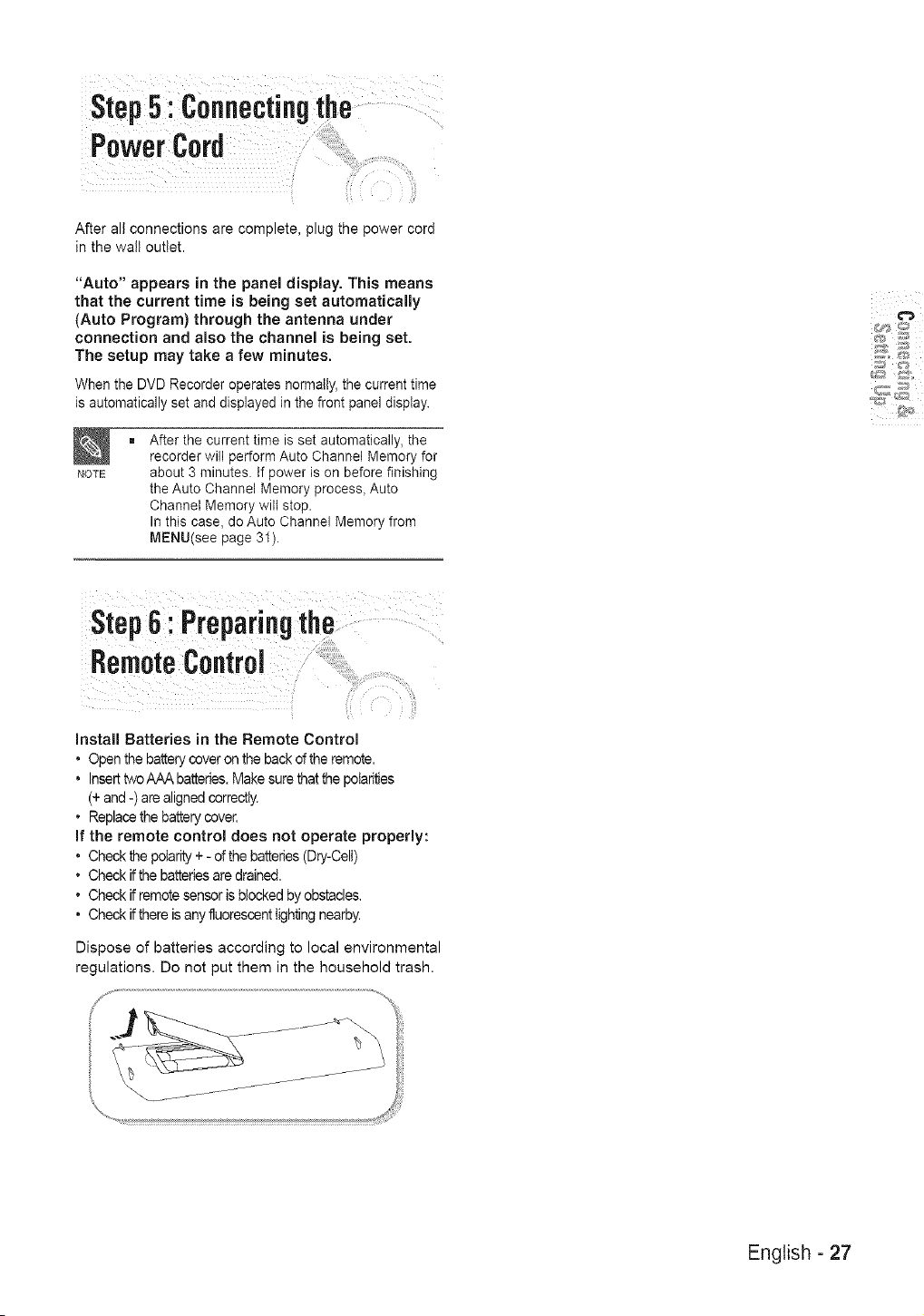
Install Batteries in the Remote Control
* Open the battery cover on the back of the remote.
* Insert two AAA batteries. Make sure that the polarities
(+ and -) are aligned correctly.
, Replace the battery cover.
if the remote control does not operate properly:
* Check the polarity + - of the batteries (Dry-Cell)
, Check if the batteries are drained.
, Check if remote sensor is blocked by obstacles.
* Check if there is any fluorescent lighting nearby.
Dispose of batteries according to local environmental
regulations. Do not put them in the household trash.
English - 27
ystem
Usingthe SetupMenu
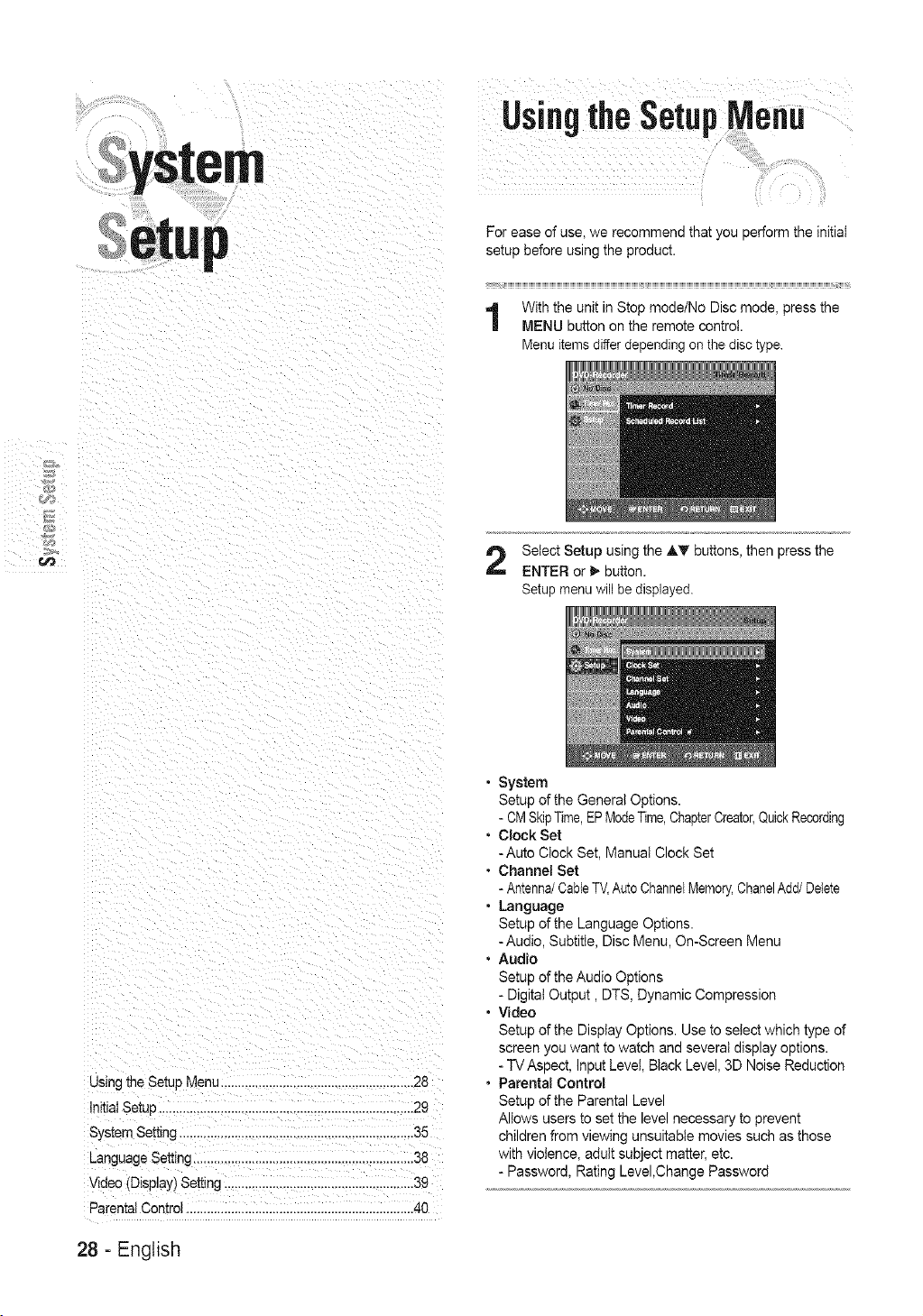
For ease of use, we recommend that you perform the initiat
setup before using the product.
With the unit in Stop mode/No Disc mode, press the
MENU button on the remote control.
Menu items differ depending on the disc type.
Select Setup using the _" buttons, then press the
ENTER or _ button.
Setup menu will be displayed.
Using the Setup Menu ...................................................... 28
Initial Setup ..................................................... 29
System Setting .................................................. 35
Language Setting ................................................................38
Video (Display) Setting ......................................................39
Parental Control ....................................................................
=
=
=
System
Setup of the General Options.
- CM SkipTime,EPModeTime,ChapterCreator,Quick Recording
Clock Set
-Auto Clock Set, Manuat Clock Set
Channel Set
- Antenna/CableTV,Auto ChannelMemory,ChanelAdd/Delete
Language
Setup of the Language Options.
-Audio, Subtitle, Disc Menu, On-Screen Menu
Audio
Setup of the Audio Options
- Digital Output, DTS, Dynamic Compression
Video
Setup of the Display Options. Use to select which type of
screen you want to watch and several display options.
- TV Aspect, Input Level, Black Level, 3D Noise Reduction
Parental Control
Setup of the Parental Level
Allows users to set the level necessary to prevent
children from viewing unsuitable movies such as those
with violence, adult subject matter, etc.
- Password, Rating Level,Change Password
28 - English
If you connected an external Audio System, turn on your
Audio System and select AUX, CD or DVD.
The OSD (On-Screen Display) displayed on the screen
may vary depending on conditions such as the disc type
and whether the disc has been inserted or not.
| 1. OSD Language Setup
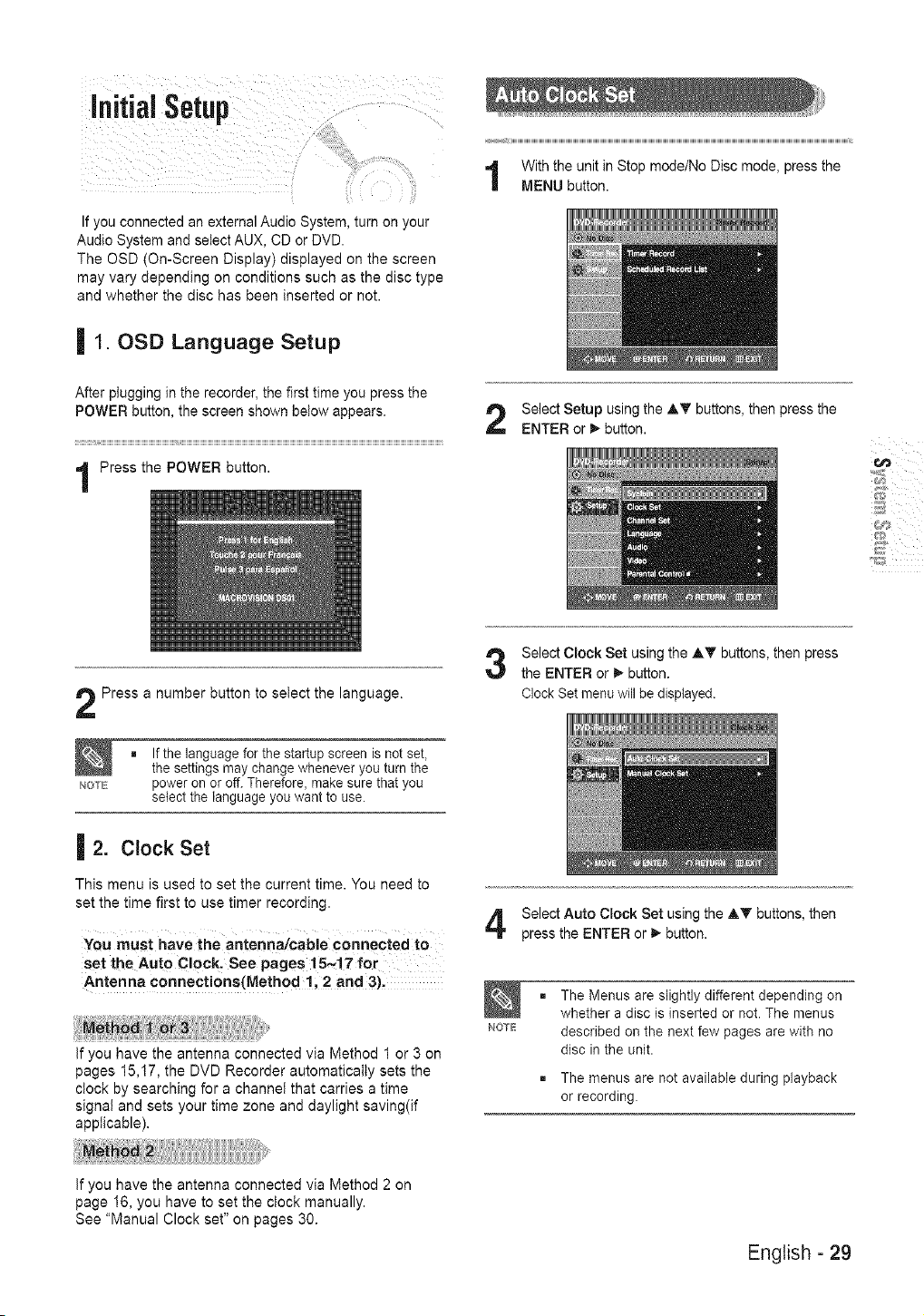
After plugging in the recorder, the first time you press the
POWER button, the screen shown below appears.
Press the POWER button.
With the unit in Stop mode/No Disc mode, press the
MENU button.
Select Setup using the AT buttons, then press the
ENTER or _" button.
"1_]jI
Press a number button to select the language.
m If the language for the start@ screen is not set,
the settings may change whenever you turn the
NOTE power on or off. Therefore, make sure that you
select the language you want to use.
| 2. Clock Set
This menu is used to set the current time. You need to
set the time first to use timer recording.
You must have the antenna/cable connected to
set the Auto Clock. See pages 15_17 for
Antenna connections(Method 1, 2 and 3).
If you have the antenna connected via Method 1 or 3 on
pages 15,17, the DVD Recorder automatically sets the
clock by searching for a channel that carries a time
signal and sets your time zone and daylight saving(if
applicable).
Select Clock Set using the ,_T buttons, then press
the ENTER or _ button.
Clock Set menu will be displayed.
Select Auto Clock Set using the ,_ buttons, then
press the ENTER or _, button.
NOTE
The Menus are slightly different depending on
whether a disc is inserted or not. The menus
described on the next few pages are with no
disc in the unit.
The menus are not available during playback
or recording.
If you have the antenna connected via Method 2 on
page 16, you have to set the clock manually.
See "Manual Clock set" on pages 30.
English - 29
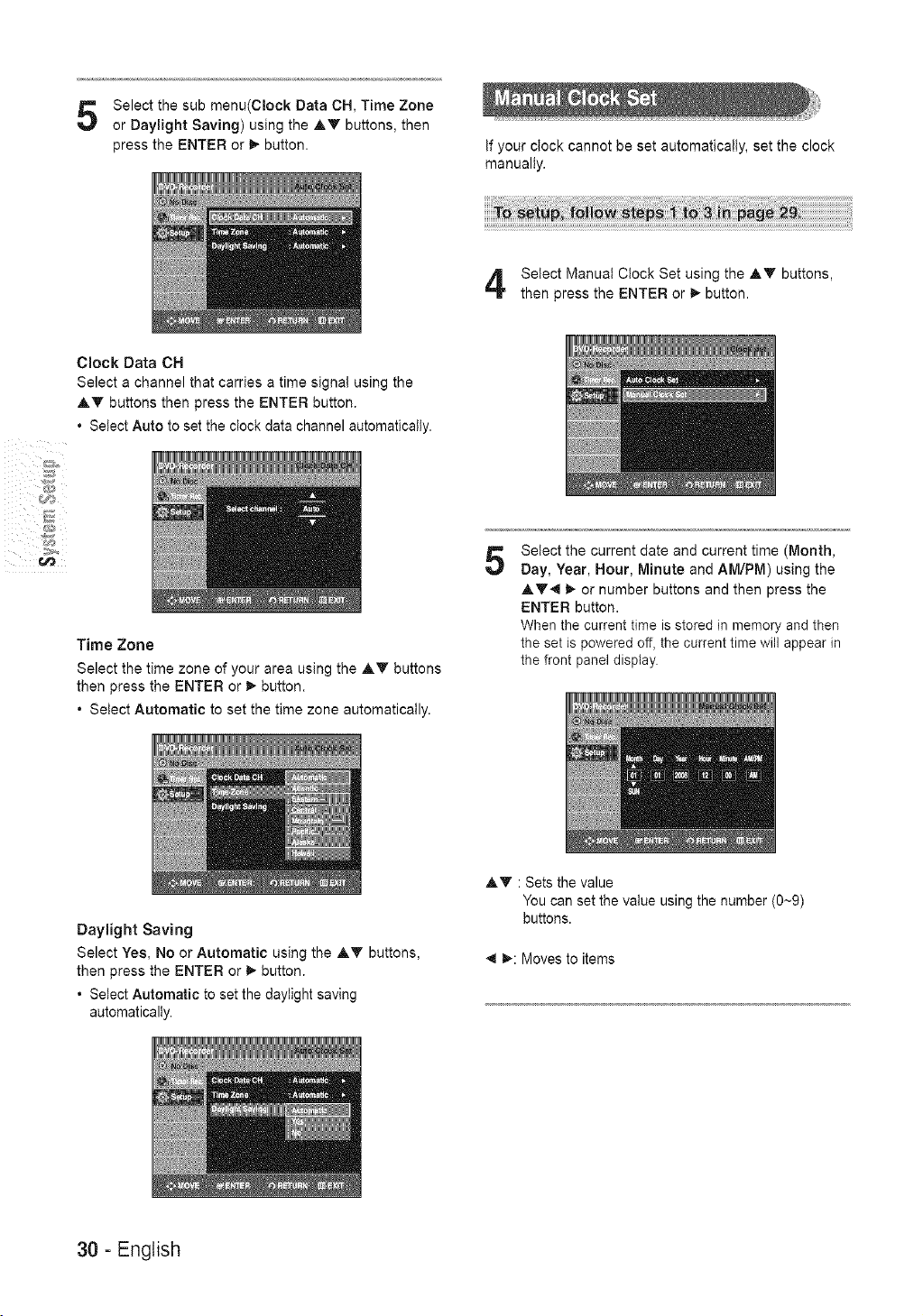
Select the sub menu(Clock Data CH, Time Zone
or Daylight Saving) using the AY buttons, then
press the ENTER or D,-button. If your clock cannot be set automatically, set the clock
manually.
Select Manual Clock Set using the ,&Y buttons,
then press the ENTER or _,- button.
Clock Data CH
Select a channel that carries a time signa! using the
• .Y buttons then press the ENTER button.
• Select Auto to set the clock data channel automatically.
Time Zone
Select the time zone of your area using the AY buttons
then press the ENTER or _- button.
* Select Automatic to set the time zone automatically.
5
Select the current date and current time (Month,
Day, Year, Hour, Minute and AM/PM) using the
• .Y4 _- or number buttons and then press the
ENTER button.
When the current time is stored in memory and then
the set is powered off, the current time will appear in
the front panel display.
Daylight Saving
Select Yes, No or Automatic using the AY buttons,
then press the ENTER or _- button.
* Select Automatic to set the daylight saving
automatically.
AY : Sets the value
You can set the value using the number (0-_9)
buttons.
_1 _: Moves to items
30 - English
| 3. Channe( Set
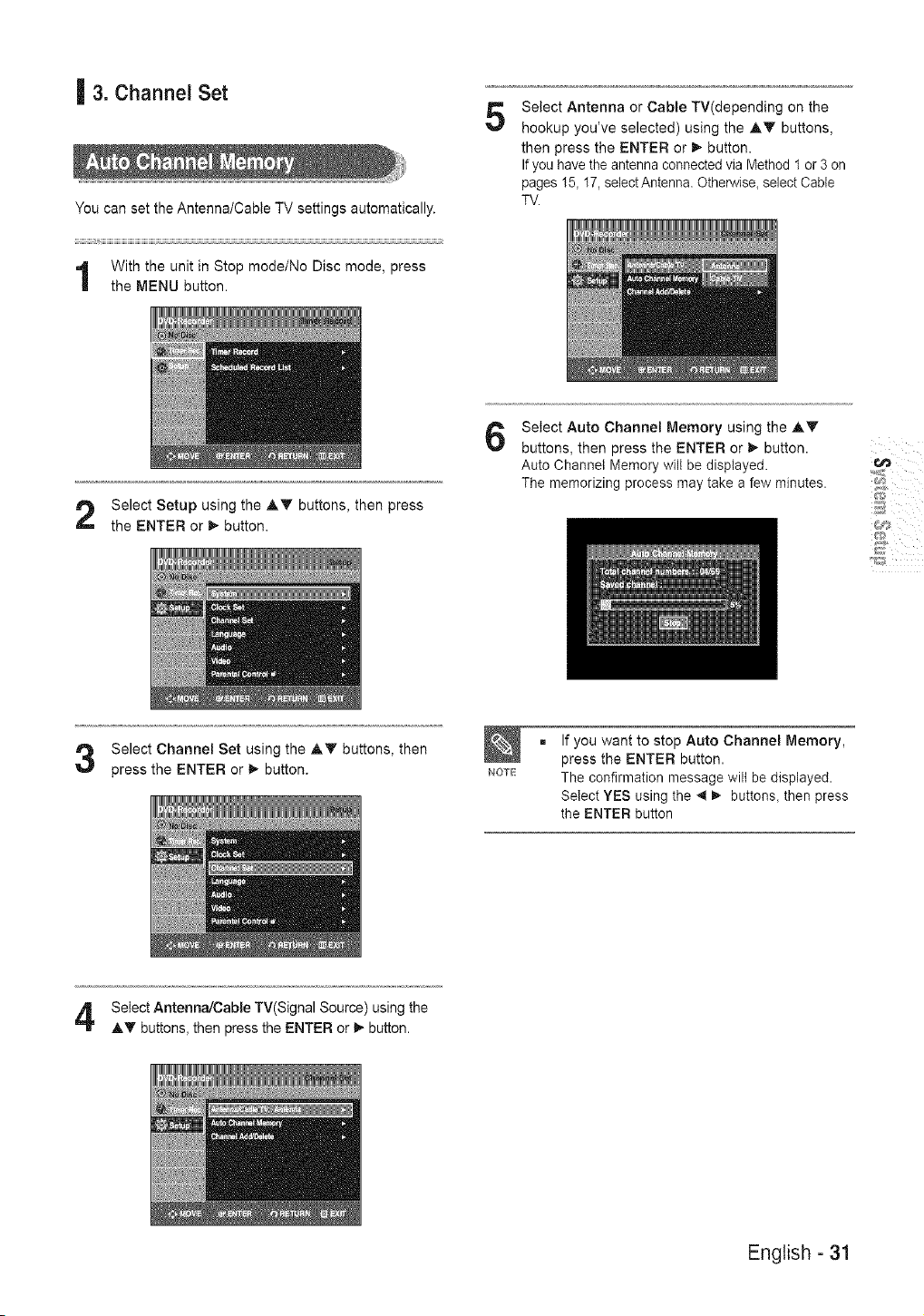
You can set the Antenna/Cable TV settings automatically.
With the unit in Stop mode/No Disc mode, press
the MENU button.
5
Select Antenna or Cable TV(depending on the
hookup you've selected) using the AY buttons,
then press the ENTER or _ button.
If you have the antenna connected via Method 1 or 3 on
pages 15, 17, select Antenna. Otherwise, select Cable
TV.
Select Setup using the AV buttons, then press
the ENTER or _, button.
6
Select Auto Channel Memory using the _,T
buttons, then press the ENTER or m,,button.
Auto Channel Memory will be displayed.
The memorizing process may take a few minutes.
"1_]jI
Select Channel Set using the AY buttons, then
press the ENTER or _, button. NOTE
If you want to stop Auto Channel Memory,
press the ENTER button.
The confirmation message wilt be displayed.
Select YES using the *_ _- buttons, then press
the ENTER button
Select Antenna/Cable TV(Signal Source) using the
AT buttons, then press the ENTER or D,-button.
English - 31
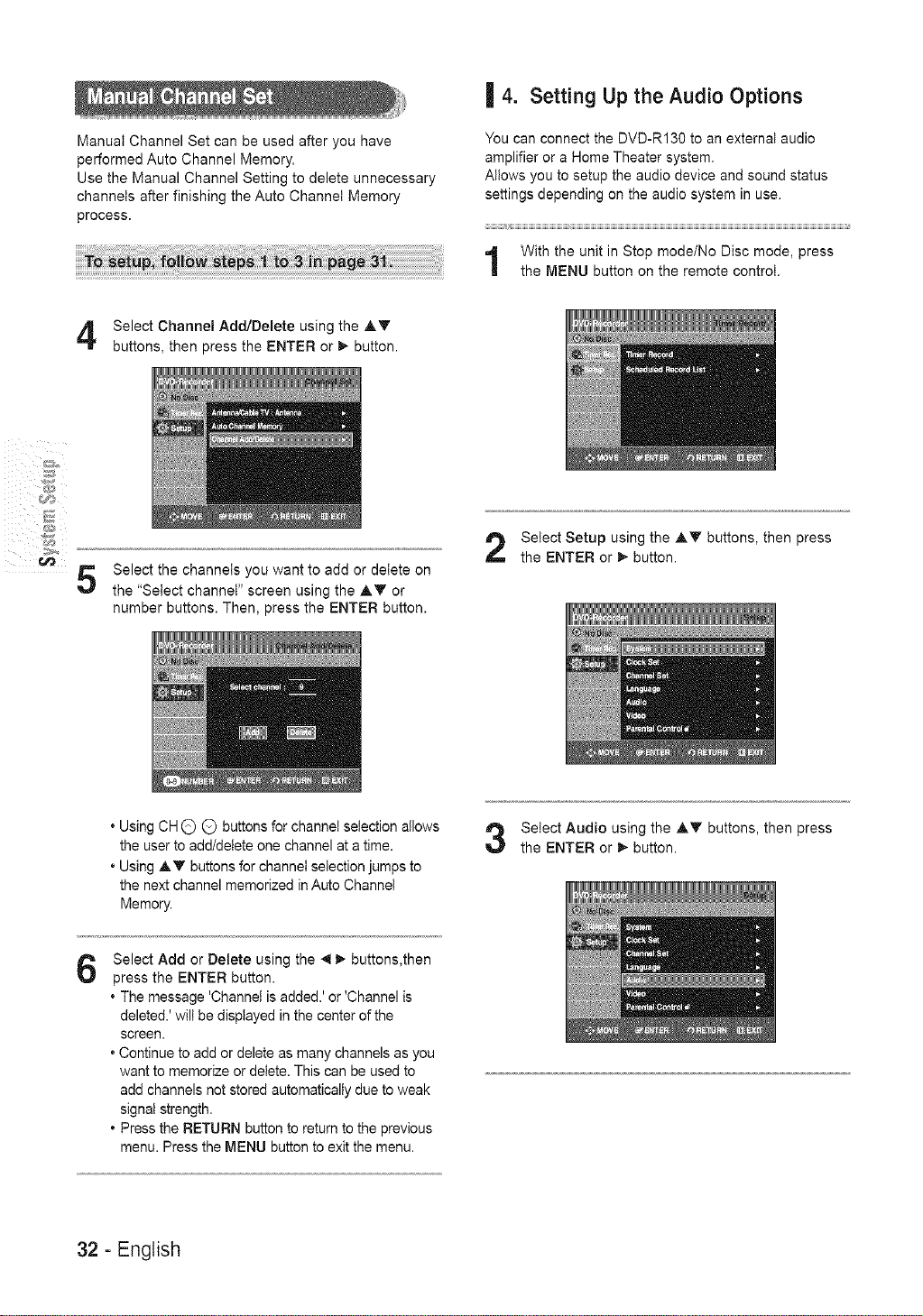
Manuat Channel Set can be used after you have
performed Auto Channel Memory.
Use the Manual Channel Setting to delete unnecessary
channels after finishing the Auto Channet Memory
process.
| 4. Setting Up the Audio Options
You can connect the DVD-R130 to an external audio
amplifier or a Home Theater system.
Allows you to setup the audio device and sound status
settings depending on the audio system in use.
With the unit in Stop mode/No Disc mode, press
the MENU button on the remote control.
Select Channel Add/Delete using the ,&Y
buttons, then press the ENTER or _,-button.
5
Select the channels you want to add or delete on
the "Select channel" screen using the ,&Y or
number buttons. Then, press the ENTER button.
Select Setup using the ,&Y buttons, then press
the ENTER or _,- button.
• Using CH G Q buttons for channel selection allows
the user to add/delete one channel at a time.
• Using Ay buttons for channel selection jumps to
the next channel memorized in Auto Channet
Memory.
Select Audio using the ,&_ buttons, then press
the ENTER or _, button.
6
Select Add or Delete using the _1 _,-buttons,then
press the ENTER button.
• The message 'Channel is added.' or 'Channel is
deleted.' will be displayed in the center of the
screen.
• Continue to add or delete as many channels as you
want to memorize or delete. This can be used to
add channels not stored automatically due to weak
signal strength.
• Press the RETURN button to return to the previous
menu. Press the MENU button to exit the menu.
32 - English
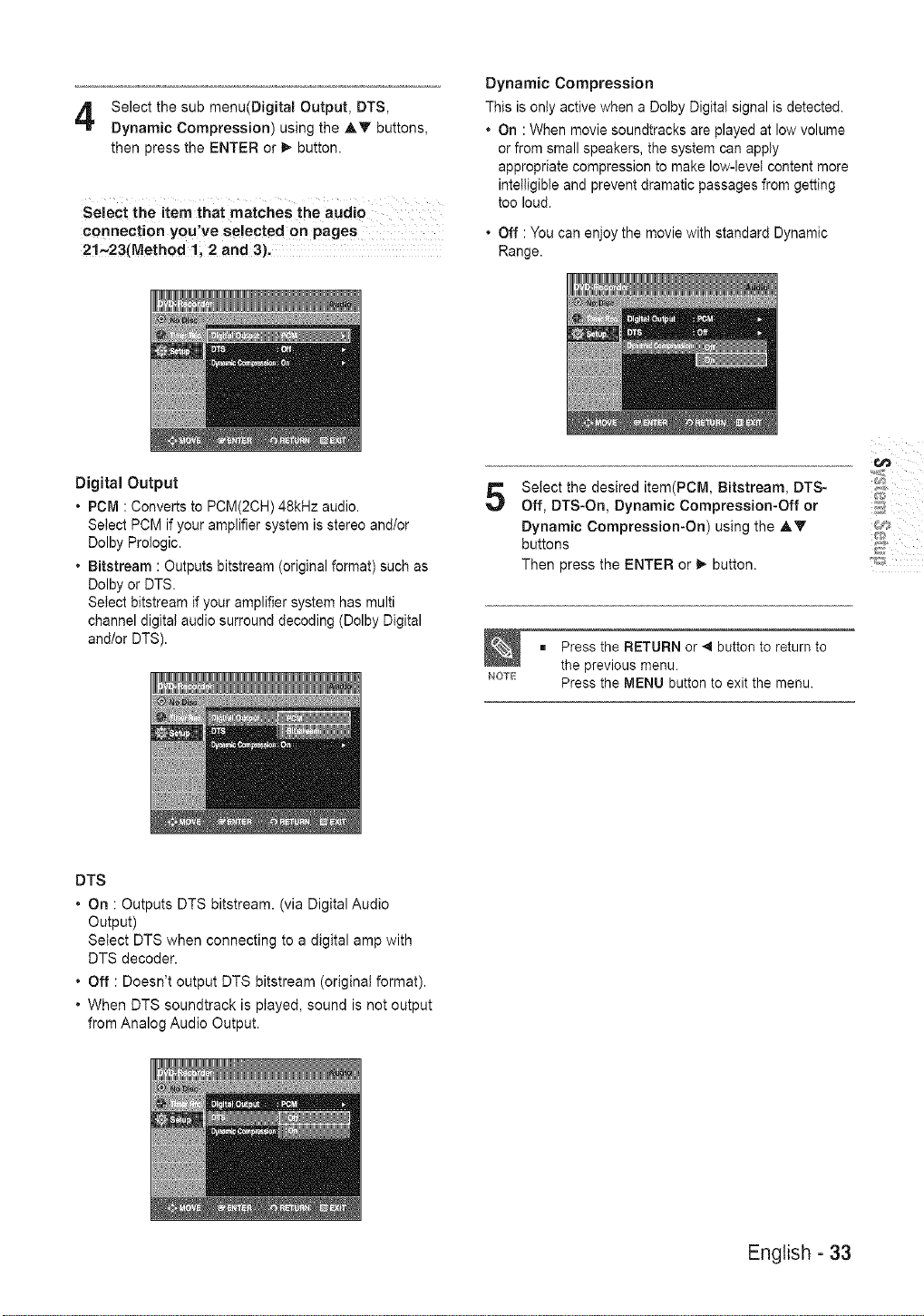
Select the sub menu(Digital Output, DTS,
Dynamic Compression) using the AY buttons,
then press the ENTER or _- button.
Select the item that matches the audio
connection you've seiected on pages
21~23(Method 1, 2 and 3).
Dynamic Compression
This is only active when a Dolby Digital signal is detected.
• On : When movie soundtracks are played at low volume
or from small speakers, the system can apply
appropriate compression to make low-level content more
intelligible and prevent dramatic passages from getting
too loud.
• Off : You can enjoy the movie with standard Dynamic
Range.
Digital Output
• PCM : Converts to PCM(2CH) 48kHz audio.
Select PCM if your amplifier system is stereo and/or
Dolby Prologic.
• Bitstream : Outputs bitstream (original format) such as
Dolby or DTS.
Select bitstream if your amplifier system has multi
channel digital audio surround decoding (Dolby Digital
and/or DTS).
5
Select the desired item(PCM, Bitstream, DTS-
Off, DTS-On, Dynamic Compression-Off or
Dynamic Compression-On) using the AY
buttons
Then press the ENTER or _ button.
= Press the RETURN or _ button to return to
the previous menu.
_or'E Press the MENU button to exit the menu.
DTS
• On : Outputs DTS bitstream. (via Digital Audio
Output)
Select DTS when connecting to a digital amp with
DTS decoder.
• Off : Doesn't output DTS bitstream (original format).
• When DTS soundtrack is played, sound is not output
from Analog Audio Output.
English - 33
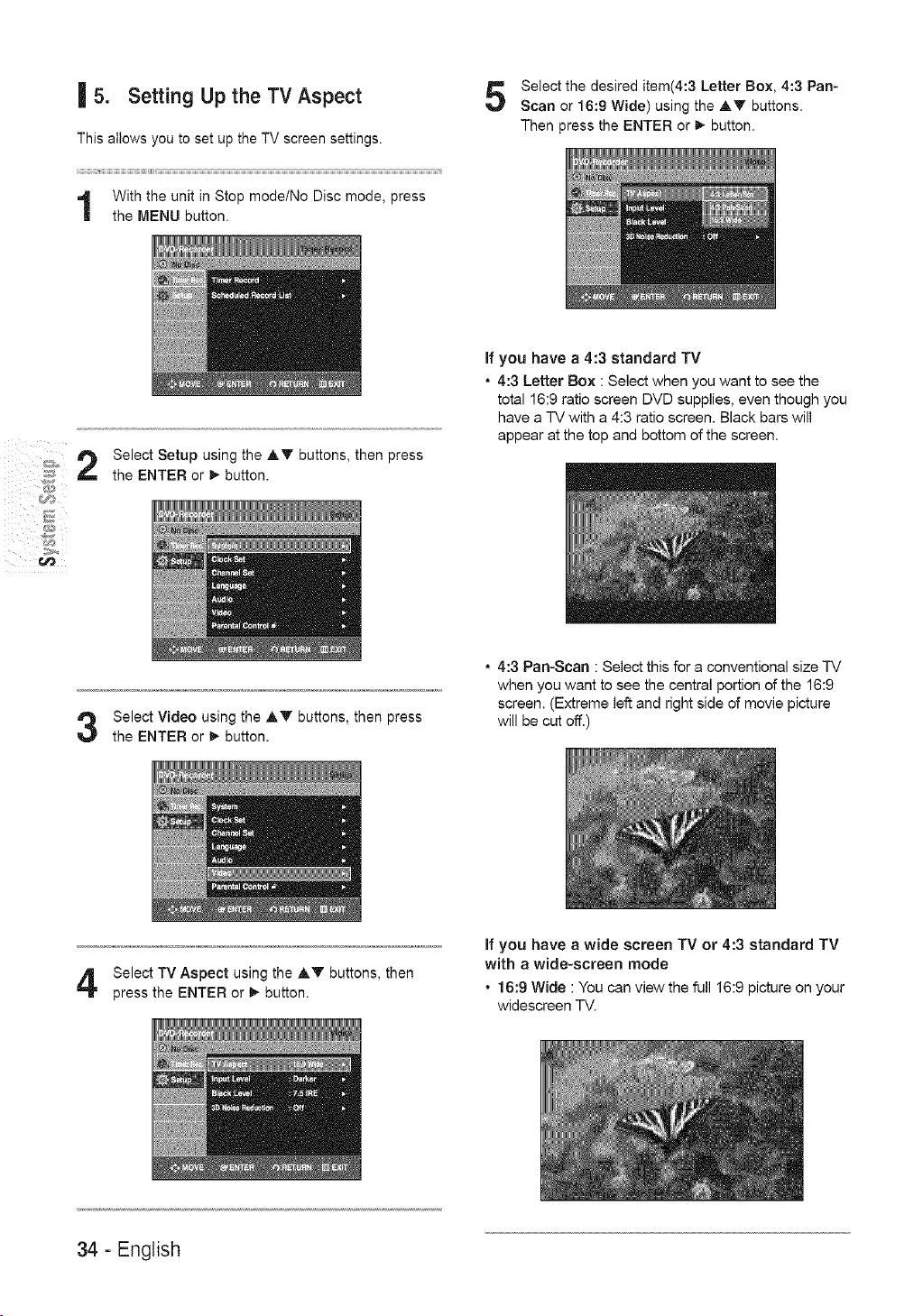
| 5. Setting Up the TV Aspect
This allows you to set up the TV screen settings.
With the unit in Stop mode/No Disc mode, press
the MENU button.
Select the desired item(4:3 Letter Box, 4:3 Pan-
Scan or 16:9 Wide) using the Ay buttons.
Then press the ENTER or _, button.
Select Setup using the ,&Y buttons, then press
the ENTER or _,-button.
If you have a 4:3 standard TV
• 4:3 Letter Box : Select when you want to see the
total 16:9 ratio screen DVD supplies, even though you
have a TV with a 4:3 ratio screen. Black bars will
appear at the top and bottom of the screen.
Select Video using the ,&V buttons, then press
the ENTER or _, button.
• 4:3 Pan-Scan : Select this for a conventional size TV
when you want to see the central portion of the 16:9
screen. (Extreme left and right side of movie picture
will be cut off.)
Select TV Aspect using the A'V buttons, then
press the ENTER or _,-button.
If you have a wide screen TV or 4:3 standard TV
with a wide-screen mode
• 16:9 Wide : You can view the full 16:9 picture on your
widescreen TV.
34 - English
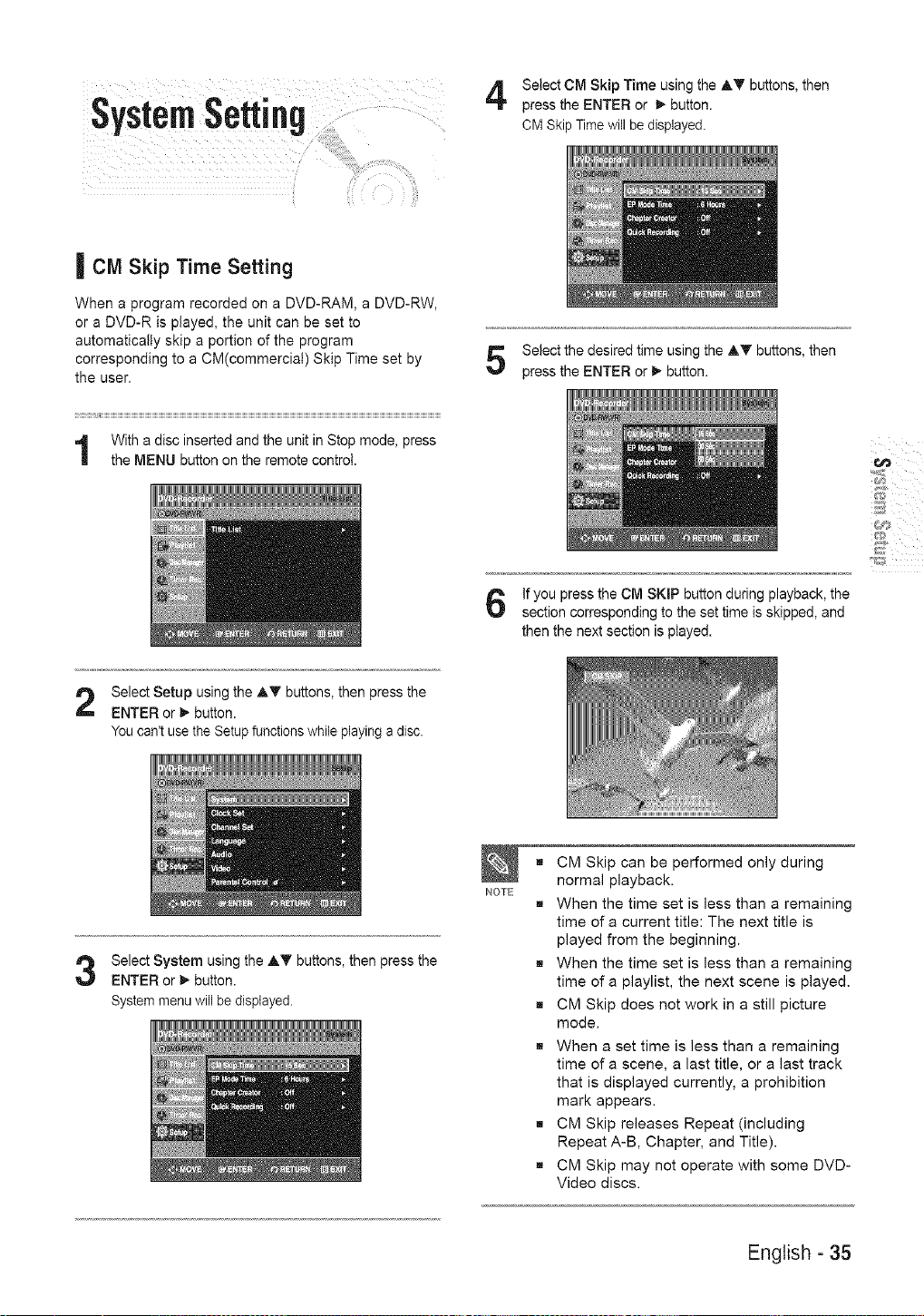
Select CM Skip Time using the AT buttons, then
press the ENTER or _ button.
CM Skip Time will be displayed.
| CM Skip Time Setting
When a program recorded on a DVD-RAM, a DVD-RW,
or a DVD-R is played, the unit can be set to
automatically skip a portion of the program
corresponding to a CM(commercial) Skip Time set by
the user.
Select the desired time using the AT buttons, then
press the ENTER or _ button.
if you press the CM SKiP button during playback, the
section corresponding to the set time is skipped, and
then the next section is played.
NOTE
Select Setup using the AT buttons, then press the
ENTER or _ button.
You can't use the Setup functions while playing a disc.
Select System using the AT buttons, then press the
ENTER or _ button.
System menu will be displayed.
g CM Skip can be performed only during
normal playback.
g When the time set is less than a remaining
time of a current title: The next title is
played from the beginning.
g When the time set is less than a remaining
time of a playlist, the next scene is played.
g CM Skip does not work in a still picture
mode.
g When a set time is less than a remaining
time of a scene, a last title, or a last track
that is displayed currently, a prohibition
mark appears.
g CM Skip releases Repeat (including
Repeat A-B, Chapter, and Title).
g CM Skip may not operate with some DVD-
Video discs.
English - 35
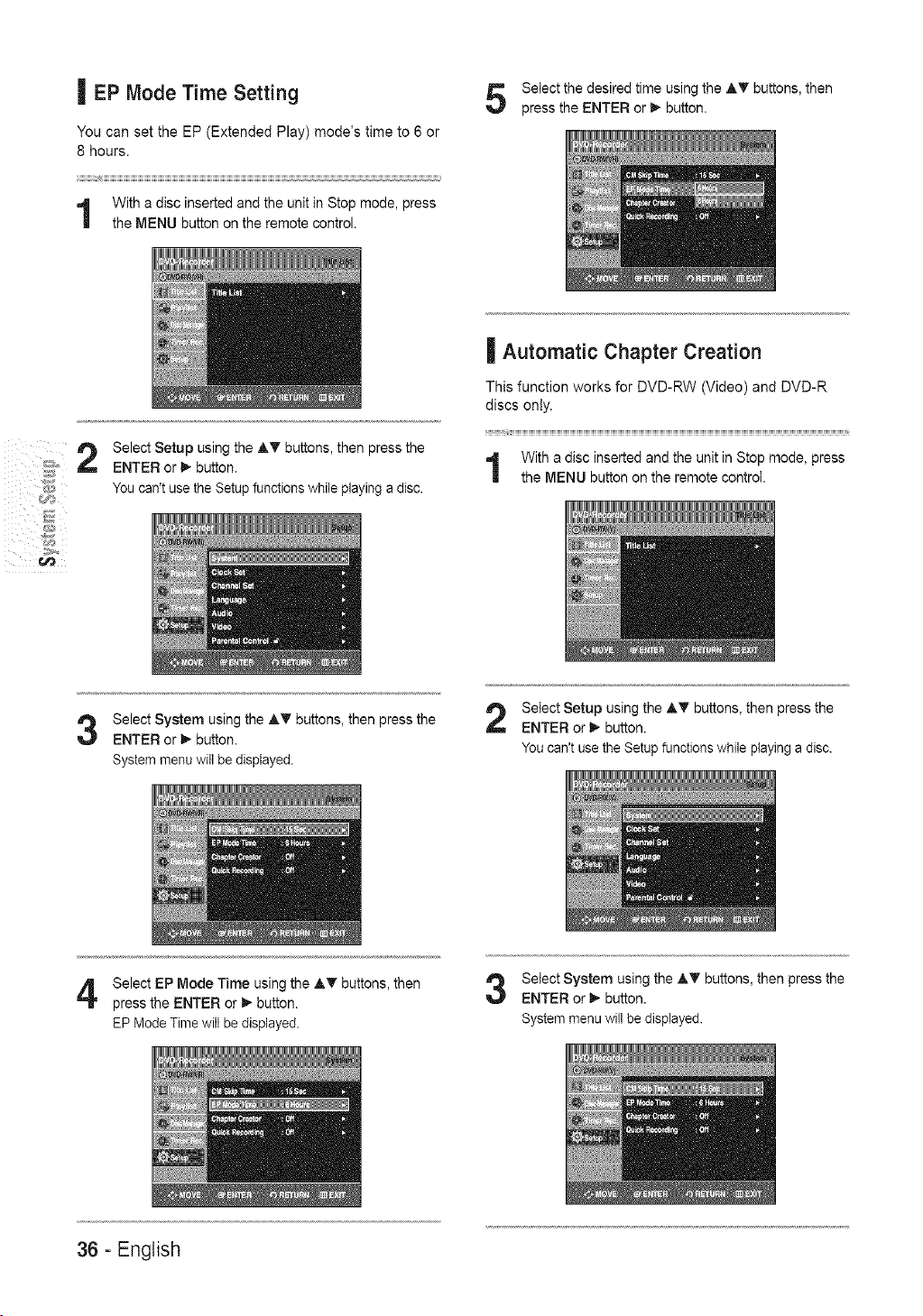
| EP Mode Time Setting
You can set the EP (Extended Play) mode's time to 6 or
8 hours.
With a disc inserted and the unit in Stop mode, press
the MENU button on the remote control.
Select the desired time using the A_' buttons, then
press the ENTER or I_ button.
Select Setup using the A_' buttons, then press the
ENTER or 1_button.
You can't use the Setup functions while playing a disc.
| Automatic Chapter Creation
This function works for DVD-RW (Video) and DVD-R
discs only.
With a disc inserted and the unit in Stop mode, press
the MENU button on the remote controI.
Select System using the A_' buttons, then press the
ENTER or 1_button.
System menu will be displayed.
Select Setup using the A_ buttons, then press the
ENTER or 1_ button.
You can't use the Setup functions while playing a disc.
Select EP Mode Time using the A_' buttons, then
press the ENTER or _- button.
EP Mode Time will be displayed.
Select System using the A_' buttons, then press the
ENTER or 1_ button.
System menu will be displayed.
36 - English
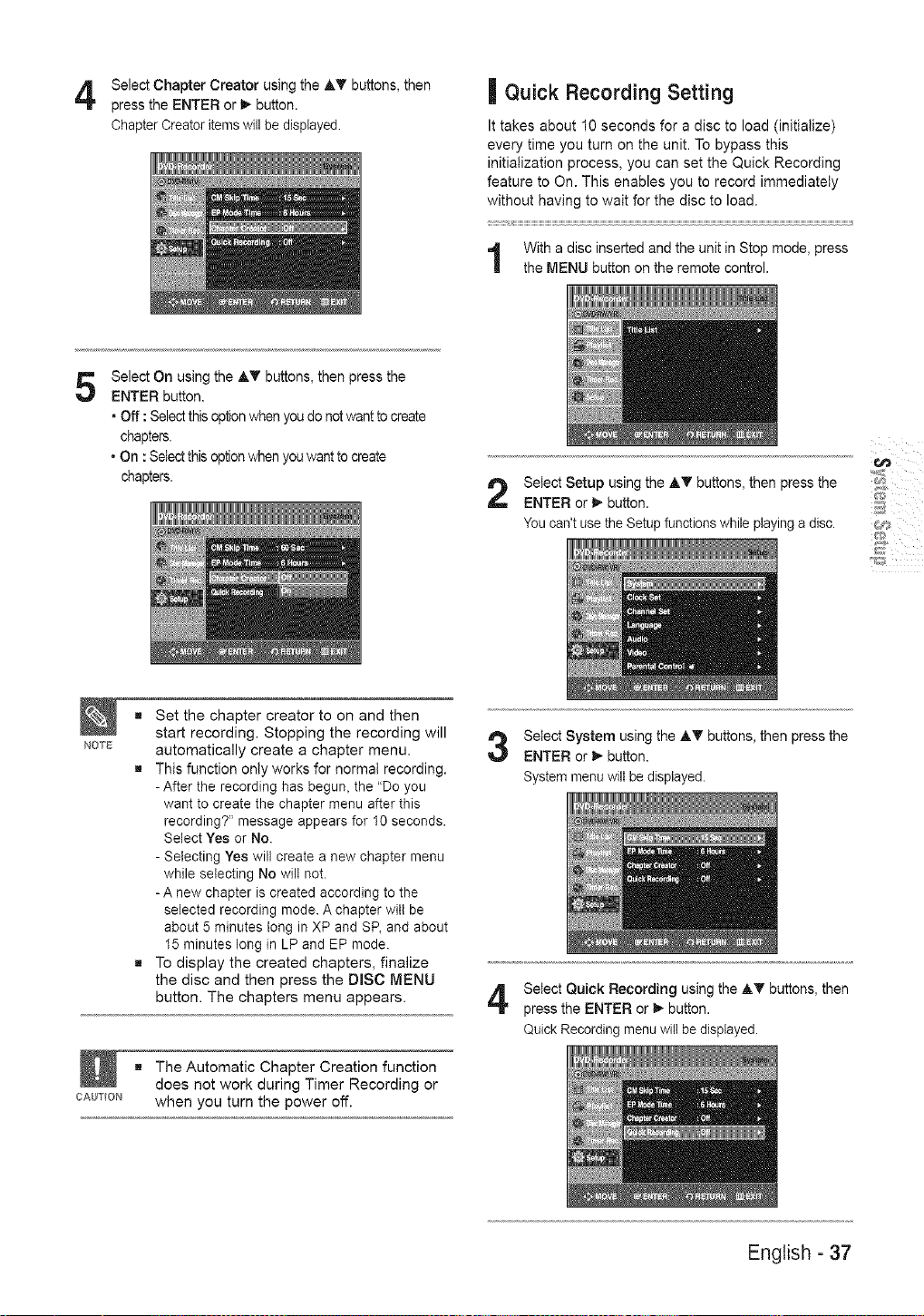
Select Chapter Creator using the AT buttons, then
press the ENTER or _ button.
Chapter Creator items will be displayed.
| Quick Recording Setting
It takes about 10 seconds for a disc to load (initialize)
every time you turn on the unit. To bypass this
initialization process, you can set the Quick Recording
feature to On. This enables you to record immediately
without having to wait for the disc to load.
With a disc inserted and the unit in Stop mode, press
the MENU button on the remote control.
5
Select On using the AT buttons, then press the
ENTER button.
• Off : Select this option when you do not want to create
chapters.
• On : Select this option when you want to create
chapters.
NOTE
Select Setup using the AT buttons, then press the
ENTER or 1_ button.
You can't use the Setup functions while playing a disc.
"1_]jI
g Set the chapter creator to on and then
start recording. Stopping the recording will
automatically create a chapter menu.
g This function only works for normal recording.
- After the recording has begun, the "Do you
want to create the chapter menu after this
recording?" message appears for 10 seconds.
Select Yes or No.
- Selecting Yes will create a new chapter menu
while selecting No will not.
- A new chapter is created according to the
selected recording mode. A chapter witl be
about 5 minutes long in XP and SP, and about
15 minutes long in LP and EP mode.
g To display the created chapters, finalize
the disc and then press the DISC MENU
button. The chapters menu appears.
g The Automatic Chapter Creation function
does not work during Timer Recording or
CAm"ON when you turn the power off.
Select System using the AT buttons, then press the
ENTER or 1_ button.
System menu will be displayed.
Select Quick Recording using the AT buttons, then
press the ENTER or 1_button.
Quick Recording menu will be displayed.
English - 37
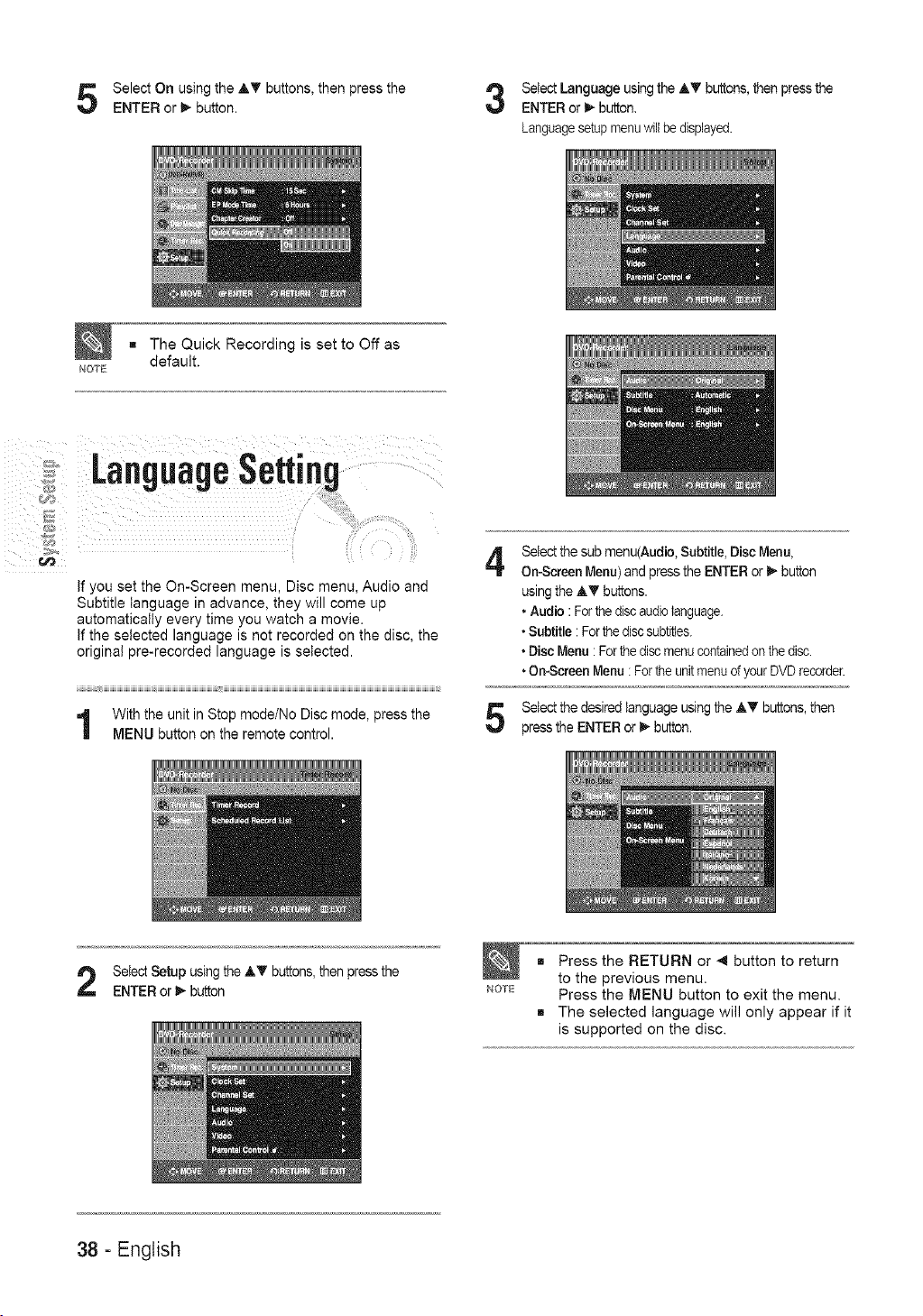
Select On using the AT buttons, then press the
ENTER or I_ button.
The Quick Recording is set to Off as
default.
NO_E
Select Language using the AT buttons, then press the
ENTER or 1_button.
Languagesetupmenuwiltbe displayed.
,K¸¸ ii!
'i/ _ _!!_i'_
If you set the On-Screen menu, Disc menu, Audio and
Subtitle language in advance, they will come up
automatically every time you watch a movie.
If the selected language is not recorded on the disc, the
original pre-recorded language is selected.
With the unit in Stop mode/No Disc mode, press the
MENU button on the remote control.
4
Select the sub menu(Audio, Subtitle,Disc Menu,
On-Screen Menu) and press the ENTER or I_ button
using the AV buttons.
• Audio:For thedisc audio language.
• Subtitle : For the discsubtitles.
• Disc Menu: Forthe disc menucontainedon the disc.
• On-Screen Menu : For the unitmenu of your DVD recorder.
Select the desired language using the A_' buttons, then
press the ENTER or I_ button.
Select Setup using the A_' buttons, then press the
ENTER or I_ button
NOTE
Press the RETURN or _ button to return
to the previous menu.
Press the MENU button to exit the menu.
The selected language will only appear if it
is supported on the disc.
38 - English
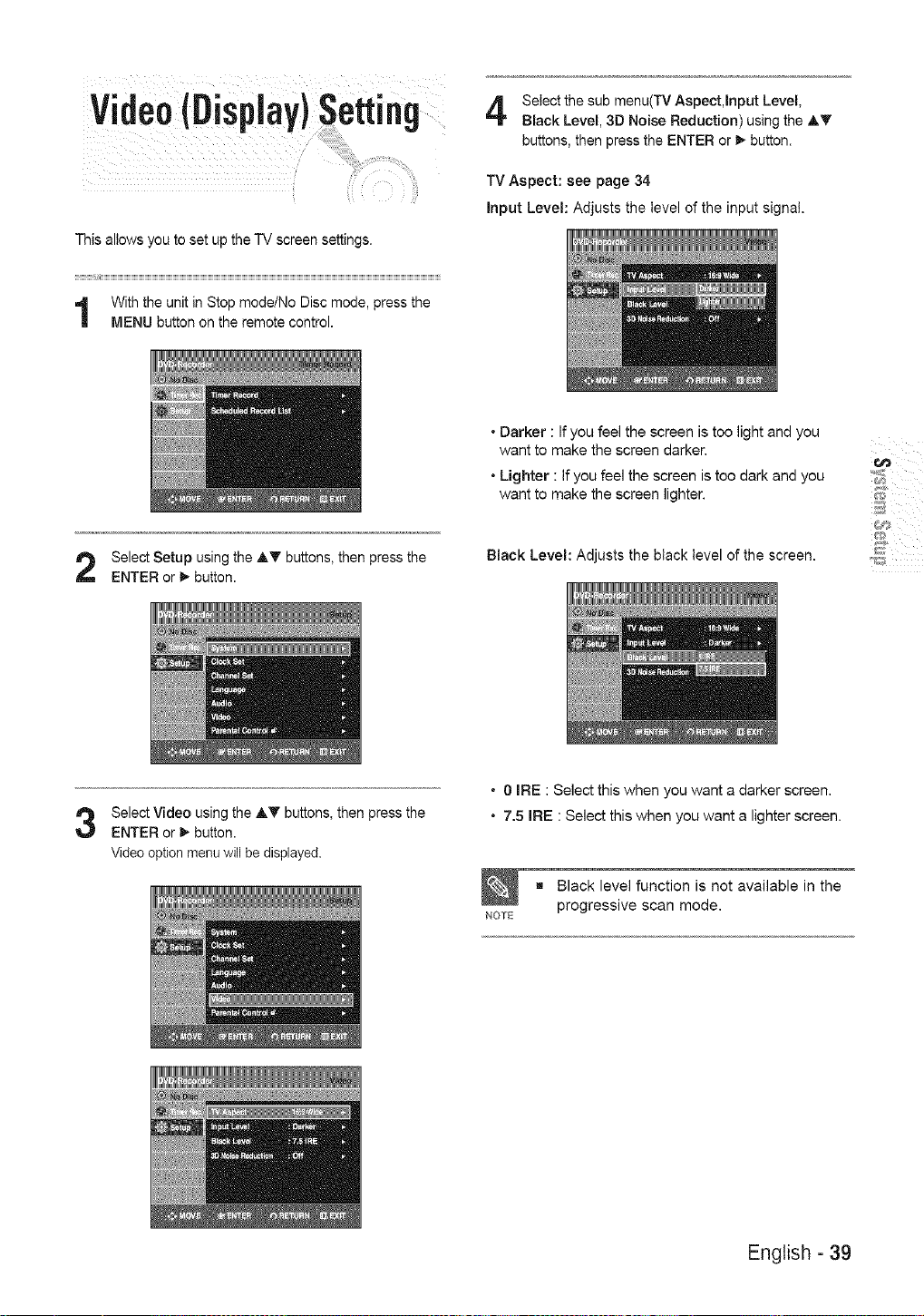
This allows you to set up the IV screen settings.
Select the sub menu(TV Aspect,Input Level,
Black Level, 3D Noise Reduction) using the AT
buttons, then press the ENTER or _ button.
TV Aspect: see page 34
Input Level: Adjusts the level of the input signal.
Select Setup using the AT buttons, then press the
ENTER or _ button.
• Darker : If you feel the screen is too light and you
want to make the screen darker.
• Lighter : If you feel the screen is too dark and you
want to make the screen lighter.
Black Level: Adjusts the black level of the screen.
Select Video using the AT buttons, then press the
ENTER or I_ button.
Video option menu will be displayed.
• 0 IRE : Select this when you want a darker screen.
• 7.5 raRE: Select this when you want a lighter screen.
g Black level function is not available in the
NOTE progressive scan mode.
English - 39

3D Noise Reduction (motion adaptive noise
reduction)
The Parental Control function works in conjunction with
DVDs that have been assigned a rating - which helps you
control the types of DVDs that your family watches. There
are up to 8 rating levels on a disc.
• On : Provides a cleaner picture through noise
reduction (for recording).
• Off : Normal
Use the AT buttons to select the desired item. Then
press the ENTER or _ button.
Press the RETURN or 4 button to return
to the previous menu.
Press the MENU button to exit the menu.
IRE: Short for the Institute of Radio
Engineers, An IRE unit is a relative unit of
measure equaling 1/140th of the peak-to-
peak (p-p) video amplitude.
With the unit in Stop mode/No Disc mode, press the
MENU button on the remote control.
Select Setup using the AT buttons, then press the
ENTER or _ button.
Select Parental Control using the AT buttons, then
press the ENTER or _ button.
40 - English
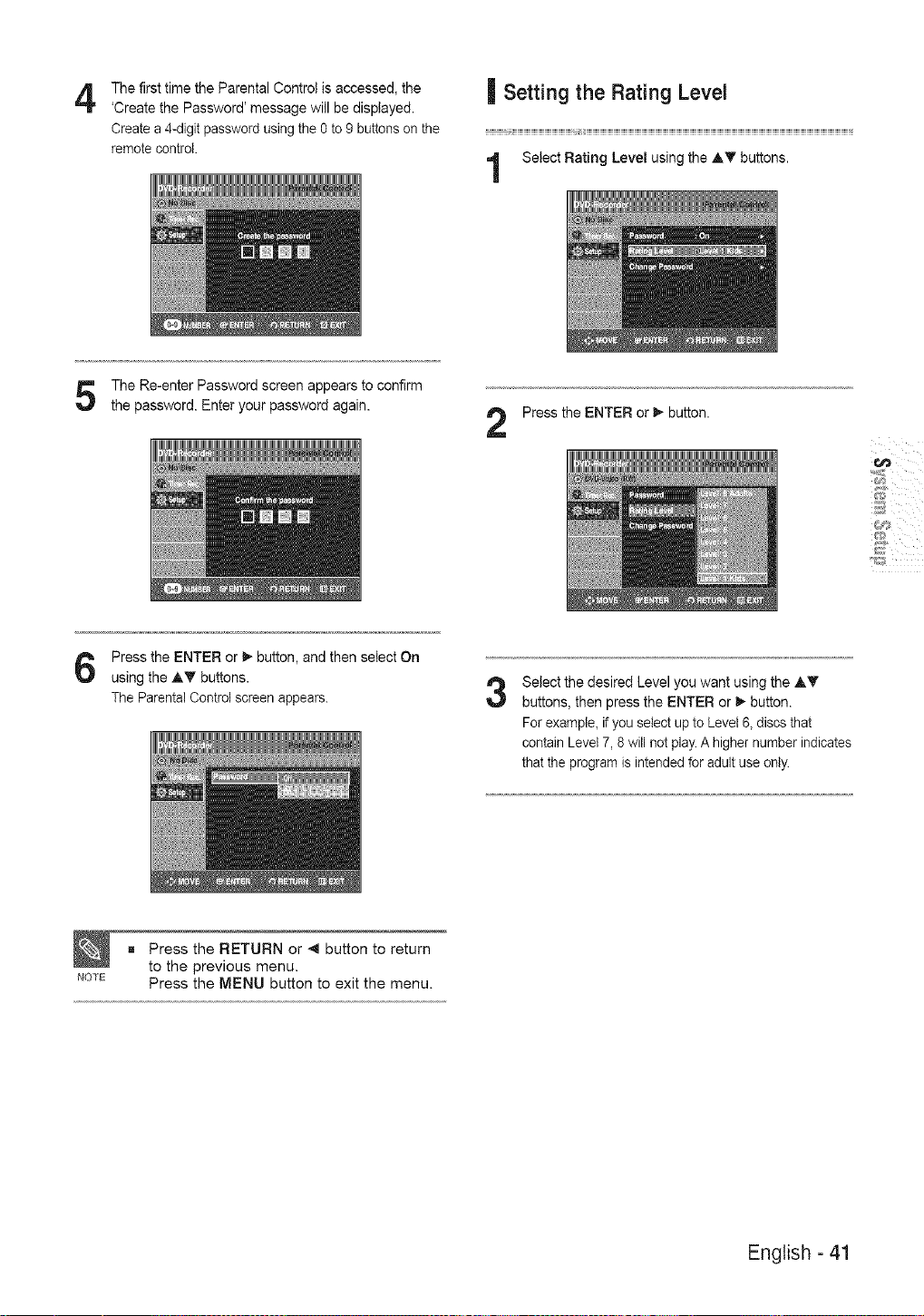
4
The first time the Parental Control is accessed, the
'Create the Password' message will be displayed.
Create a 4-digit password using the 0 to 9 buttons on the
remote control.
| Setting the Rating Level
Select Rating Level using the AT buttons.
The Re-enter Password screen appears to confirm
the password. Enter your password again.
Press the ENTER or _,-button.
Press the ENTER or _ button, and then select On
using the AT buttons.
The Parental Control screen appears.
Press the RETURN or _ button to return
to the previous menu.
_OTE Press the MENU button to exit the menu.
3
Select the desired Level you want using the AT
buttons, then press the ENTER or _- button.
For exampte, if you select up to Level 6, discs that
contain Level 7, 8 will not play. A higher number indicates
that the program is intended for adult use only.
English - 41
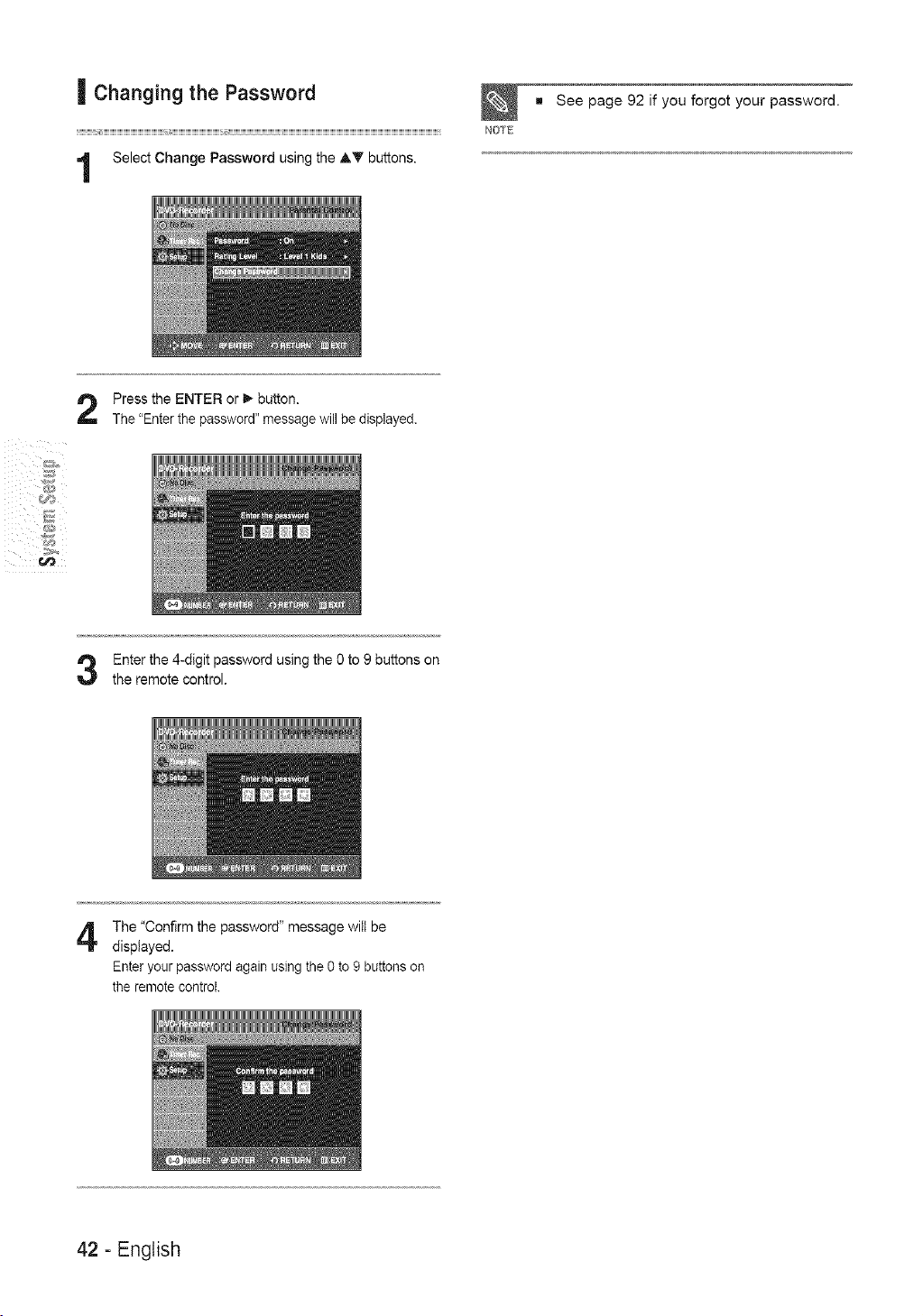
| Changingthe Password
Select Change Password using the AT buttons.
See page 92 if you forgot your password.
NOTE
Press the ENTER or _ button.
The "Enter the password" message will be displayed.
Enter the 4-digit password using the 0 to 9 buttons on
the remote control.
The "Confirm the password" message wilt be
displayed.
Enter your password again using the 0 to 9 buttons on
the remote control.
42 - English
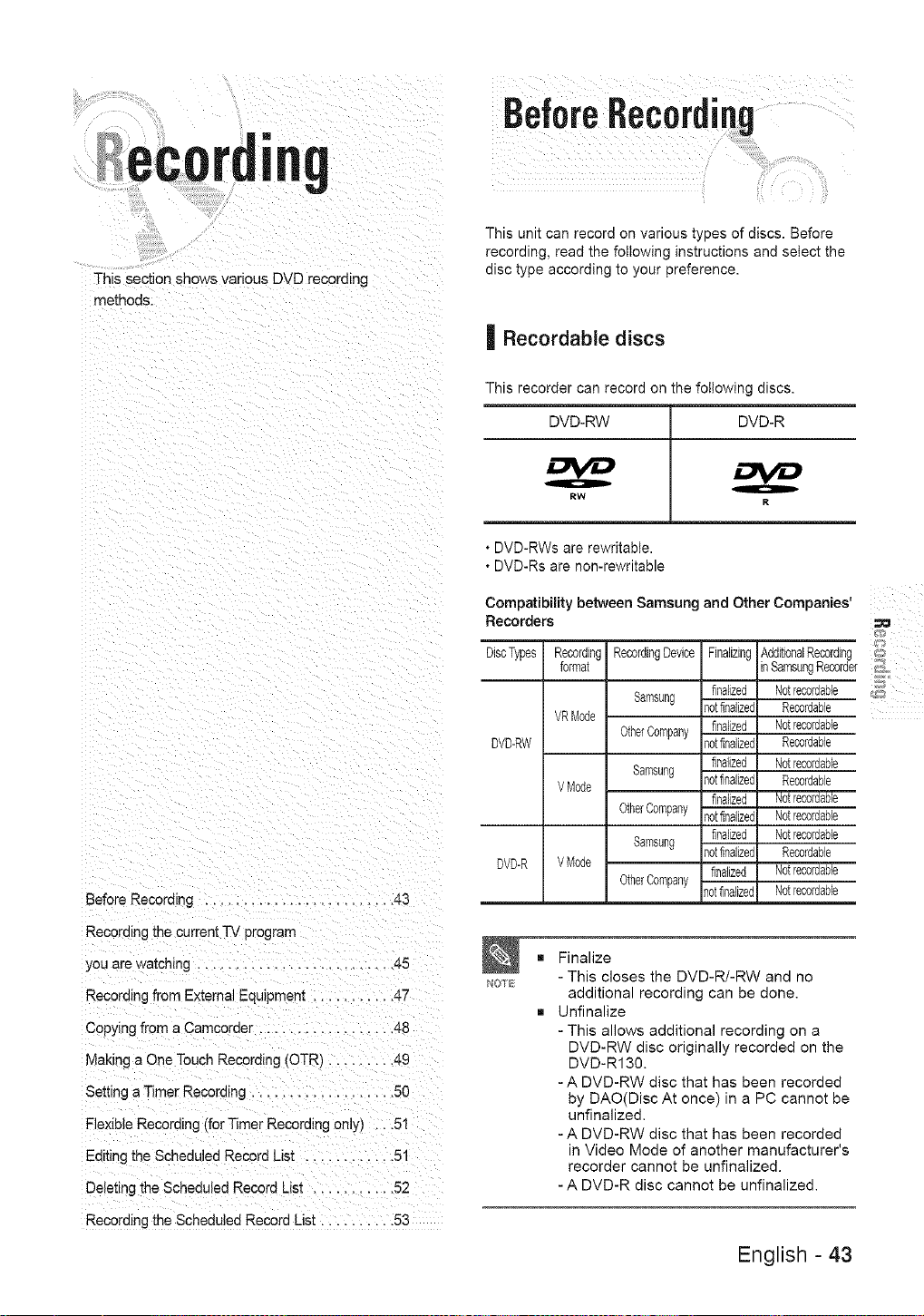
This section snows various DVD recording
methods.
Before Recording ....................... 43
Recording the current TV program
you are watching .......................... 45
Recording from External Equlpmem ........... 47
Copying from a Camcorder .................. 48
Making a One Touch Recording (OTR ....... 49
Setting a Timer Recording ................... 50
Flexible Recording {for Timer Recording only, ...51
Editing the Scheduled Record List ............ 51
Deleting the Scheduled Record List ........... 52
Recording the Scheduled Record List .......... 53
BeforeRecording
a _¸
This unit can record on various types of discs. Before
recording, read the following instructions and select the
disc type according to your preference.
| Recordable discs
This recorder can record on the following discs.
DVD-RW DVD-R
RW
R
* DVD-RWs are rewritable.
* DVD-Rs are non-rewritable
Compatibility between Samsung and Other Companies'
Recorders
DiscTypes RecordingRecordingDevice FinalizingAdditionalRecording
format inSamsungRecorde
Samsang finalized Notrecordable
totfinalized Recordable
VRMode
OtherCompany finalized Notrecordable
DVD-RW totfinalized Recordable
finalized Notrecordable
Samsung lotfinalized Recordable
V Mode
finalized Notrecordable
OtherCompany totfinalized Notrecordable
finalized Notrecordable
Samsung lotfinalized Recordable
DVD-R VMode
finalized Notrecordable
OtherCompany
lotfinalized Notrecordable
NOTE
m Finalize
- This closes the DVD-R/-RW and no
additional recording can be done.
m Unfinalize
- This allows additional recording on a
DVD-RW disc originally recorded on the
DVD-R130.
- A DVD-RW disc that has been recorded
by DAO(Disc At once) in a PC cannot be
unfinalized.
- A DVD-RW disc that has been recorded
in Video Mode of another manufacturer's
recorder cannot be unfinalized.
- A DVD-R disc cannot be unfinalized.
English - 43
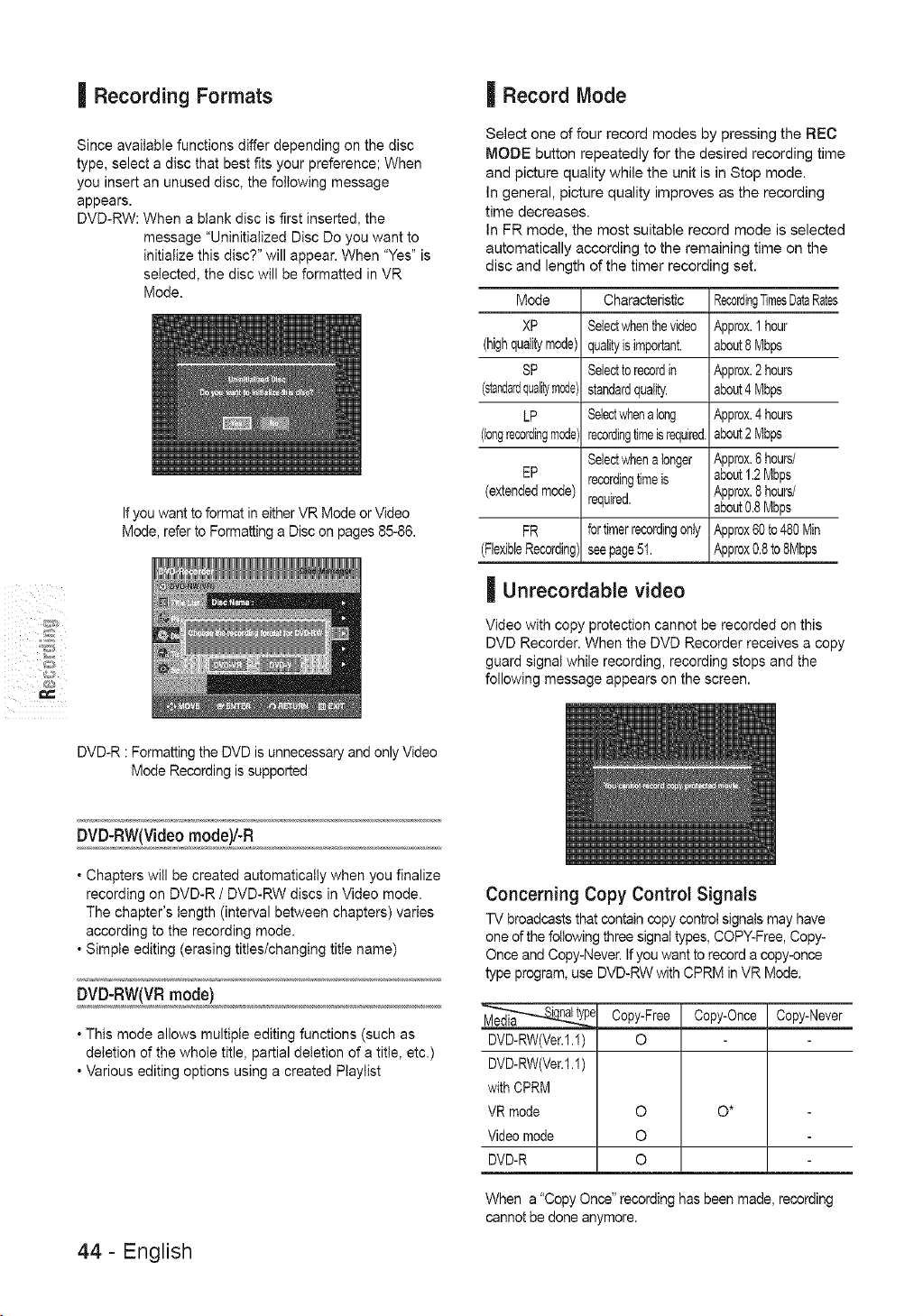
| Recording Formats
Since available functions differ depending on the disc
type, select a disc that best fits your preference; When
you insert an unused disc, the following message
appears.
DVD-RW: When a blank disc is first inserted, the
message "Uninitialized Disc Do you want to
initialize this disc?" will appear. When "Yes" is
selected, the disc will be formatted in VR
Mode.
If you want to format in either VR Mode or Video
Mode, refer to Formatting a Disc on pages 85-86.
DVD-R : Formatting the DVD is unnecessary and only Video
Mode Recording is supported
| Record Mode
Select one of four record modes by pressing the REC
MODE button repeatedly for the desired recording time
and picture quality while the unit is in Stop mode.
In general, picture quality improves as the recording
time decreases.
In FR mode, the most suitable record mode is selected
automatically according to the remaining time on the
disc and length of the timer recording set.
Mode
XP
(highqualitymode)
SP
(standardqualitymode)
LP
(longrecordingmode'
EP
(extendedmode'
FR
(FlexibleRecording'
Characteristic
Selectwhenthevideo
qualityis important.
Selectto recordin
standardquality.
Select_,_ena long
recordingtimeisrequired.
Selectwhena longer
recordingtimeis
required.
fortimerrecordingonly
seepage51.
| Unrecordable video
RecordingTimesDataRates
Approx.1 hour
about8 Mbps
Approx.2 hours
about4 Mbps
Approx.4 hours
about2 Mbps
Approx.6 hours/
about1.2Mbps
Approx.8 hours/
about0.8 Mbps
Approx60to 480Nin
Approx0.8to 8Mbps
Video with copy protection cannot be recorded on this
DVD Recorder. When the DVD Recorder receives a copy
guard signal while recording, recording stops and the
following message appears on the screen.
DVD-RW(Videomode)l-R
. Chapters will be created automatically when you finalize
recording on DVD-R / DVD-RW discs in Video mode.
The chapter's length (interval between chapters) varies
according to the recording mode.
. Simple editing (erasing titles/changing title name)
DVD-RW(VRmode)
. This mode allows multiple editing functions (such as
deletion of the whole title, partial deletion of a title, etc.)
. Various editing options using a created Ptaytist
44- English
Concerning Copy Control Signals
TV broadcasts that contain copy control signals may have
one of the following three signal types, COPY-Free, Copy-
Once and Copy-Never. If you want to record a copy-once
type program, use DVD-RW with CPRM in VR Mode.
_-_ Copy-Free Copy-Once Copy-Never
DVD-RW(Ver.I.I ) O
DVD-RW(Ver.I.I )
with CPRM
VR mode O O*
Video mode O
DVD-R O
When a "Copy Once" recording has been made, recording
cannot be done anymore.
ContentProtectionforRecordableMedia (CPRM)
CPRM is a mechanism that ties a recording to the media on
which it is recorded, it is supported by some DVD recorders,
but not by many DVD players. Each blank recordaNe DVD
has a unique 64-bit media ID etched in the BCA. When
protected content is recorded onto the disc, it can be
encrypted with a 56-bit C2 (Cryptomeda) cipher derived from
the media ID.
During playback, the ID is read from the BCA and used to
generate a key to decrypt the contents of the disc.
If the contents of the disc are copied to other media, the ID witl
be absent or wrong and the data witl not be decryptable.
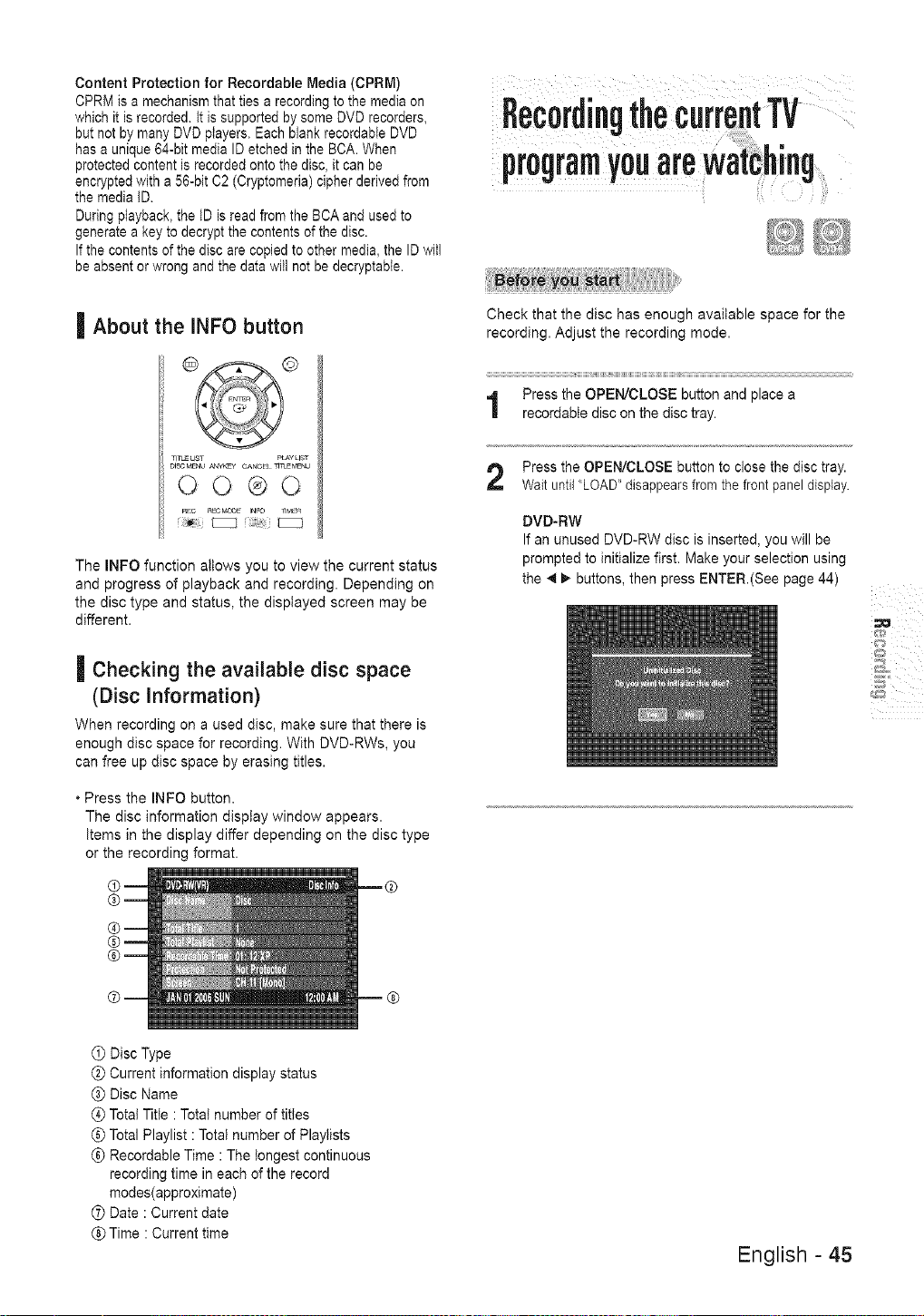
| About the INFO button
TITL_LIST pLAYLIST
DlSCMENU _TKE¥ CANCEl _T_EMENU
00®0
The INFO function allows you to view the current status
and progress of playback and recording. Depending on
the disc type and status, the displayed screen may be
different.
| Checking the available disc space
(Disc Information)
When recording on a used disc, make sure that there is
enough disc space for recording. With DVD-RWs, you
can free up disc space by erasing titles.
* Press the INFO button.
The disc information display window appears.
items in the display differ depending on the disc type
or the recording format.
,0C0rdi,g
pr0gr0,Y0°oro
Check that the disc has enough available space for the
recording. Adjust the recording mode.
Press the OPEN/CLOSE button and place a
recordabte disc on the disc tray.
Press the OPEN/CLOSE button to close the disc tray.
Wait until LOAD" disappears from the front panel display.
DVD-RW
If an unused DVD-RW disc is inserted, you will be
prompted to initialize first. Make your selection using
the 4 _ buttons, then press ENTER(See page 44)
(_ Disc Type
Current information display status
(_ Disc Name
Total Title : Total number of titles
Total Playlist : Total number of Playlists
Recordable Time : The longest continuous
recording time in each of the record
modes(approximate)
Date : Current date
_Time : Current time
English - 45
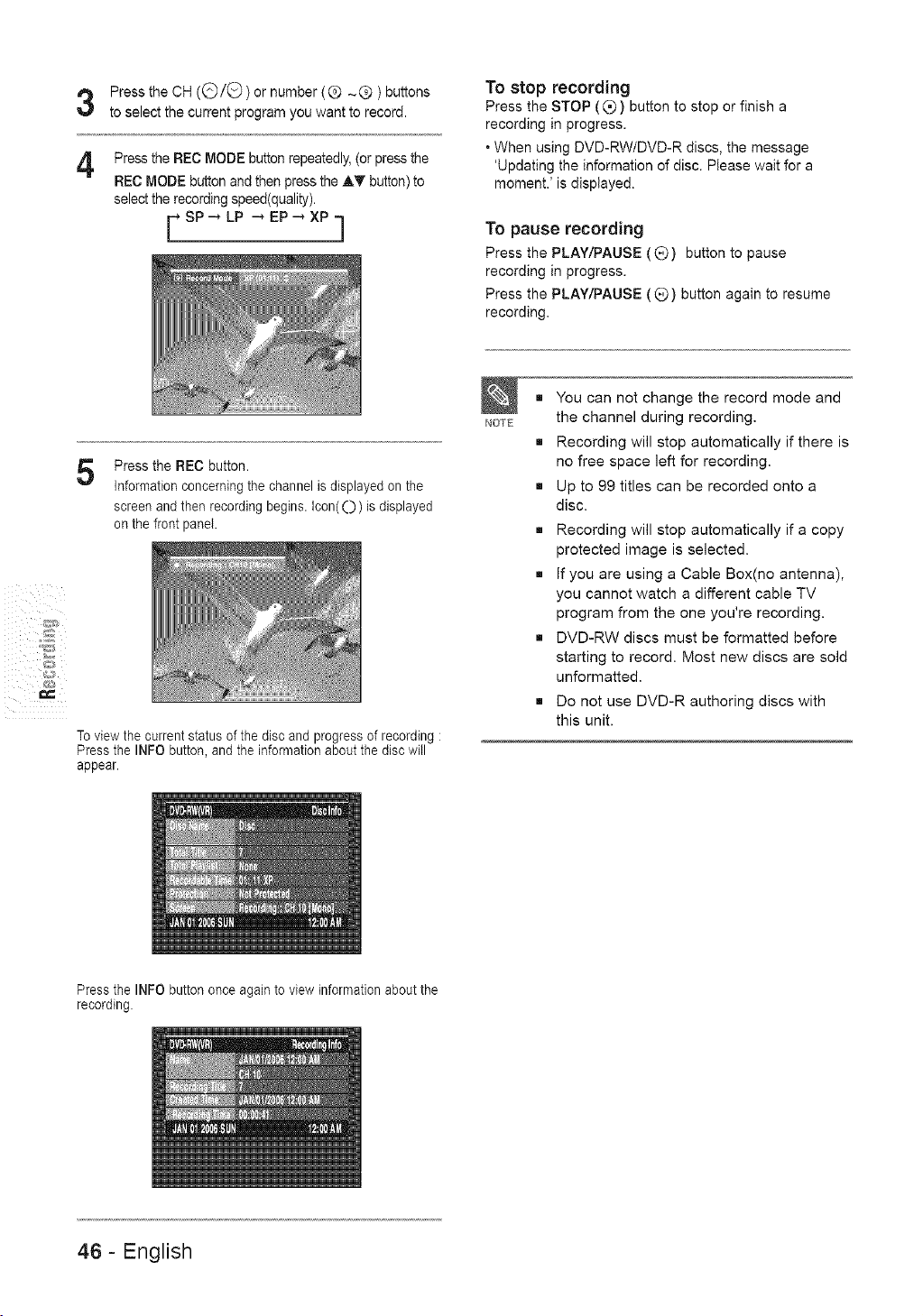
Press the CH ((_/G) or number ( @ ~Q ) buttons
to select the current program you want to record.
Press the REC MODE button repeatedly, (or press the
REC MODE button and then press the AT button) to
select the recording speed(quality).
sP- LPEP- xP-,
| J
To stop recording
Press the STOP (@) button to stop or finish a
recording in progress.
• When using DVD-RW/DVD-R discs, the message
'Updating the information of disc. Please wait for a
moment.' is displayed.
To pause recording
Press the PLAY/PAUSE (Q) button to pause
recording in progress.
Press the PLAY/PAUSE (_)) button again to resume
recording.
5
Press the REC button.
information concerning the channel is displayed on the
screen and then recording begins, icon( ())is displayed
on the front panel.
To view the current status of the disc and progress of recording :
Press the INFO button, and the information about the disc will
appear.
NOTE
= You can not change the record mode and
the channel during recording.
= Recording will stop automatically if there is
no free space left for recording.
= Up to 99 titles can be recorded onto a
disc.
= Recording will stop automatically if a copy
protected image is selected.
= If you are using a Cable Box(no antenna),
you cannot watch a different cable TV
program from the one you're recording.
= DVD-RW discs must be formatted before
starting to record. Most new discs are sold
unformatted.
= Do not use DVD-R authoring discs with
this unit.
Press the INFO button once again to view information about the
recording.
46- English
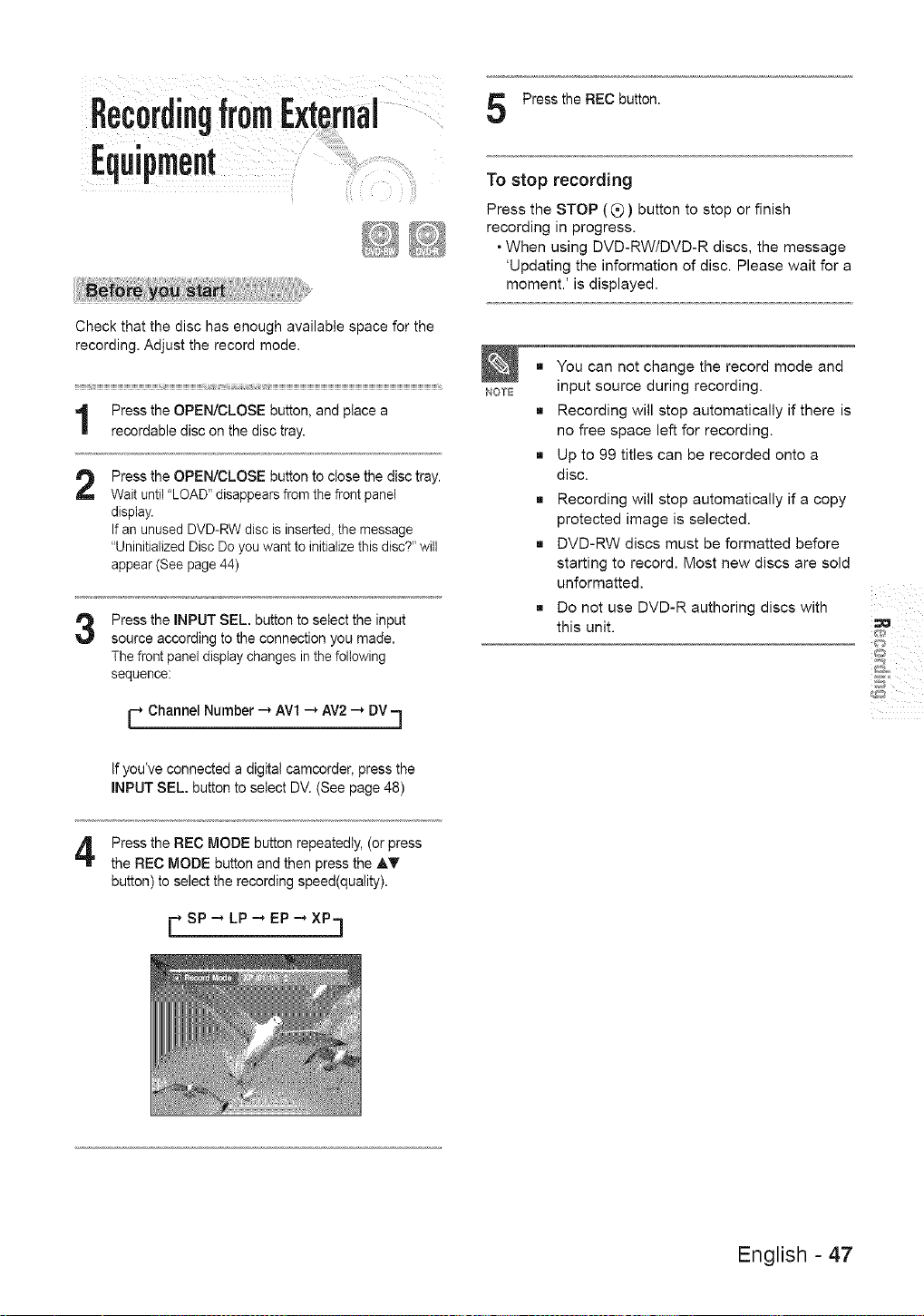
Check that the disc has enough available space for the
recording. Adjust the record mode.
Press the OPEN/CLOSE button, and place a
recordable disc on the disc tray.
2
Press the OPEN/CLOSE button to ctose the disc tray.
Wait until "LOAD" disappears from the front panel
display.
If an unused DVD-RW disc is inserte& the message
"Uninitialized Disc Do you want to initialize this disc?" will
appear (See page 44)
3
Press the INPUT SEL. button to setect the input
source according to the connection you made.
The front panel display changes in the following
sequence:
Channel Number _ AV1 _ AV2 _ DV--]
Press the REC button.
To stop recording
Press the STOP ((_) button to stop or finish
recording in progress.
* When using DVD-RW/DVD-R discs, the message
'Updating the information of disc. Please wait for a
moment.' is displayed.
NOTE
m You can not change the record mode and
input source during recording.
m Recording will stop automatically if there is
no free space left for recording.
m Up to 99 titles can be recorded onto a
disc.
m Recording will stop automatically if a copy
protected image is selected.
m DVD-RW discs must be formatted before
starting to record. Most new discs are sold
unformatted.
m Do not use DVD-R authoring discs with
this unit.
If you've connected a digital camcorder, press the
INPUT SEL. button to select DV. (See page 48)
Press the REC MODE button repeatedly, (or press
the REC MODE button and then press the AT
button) to select the recording speed(quality).
[-* SP _ LP .-* EP .-* XP..]
English - 47
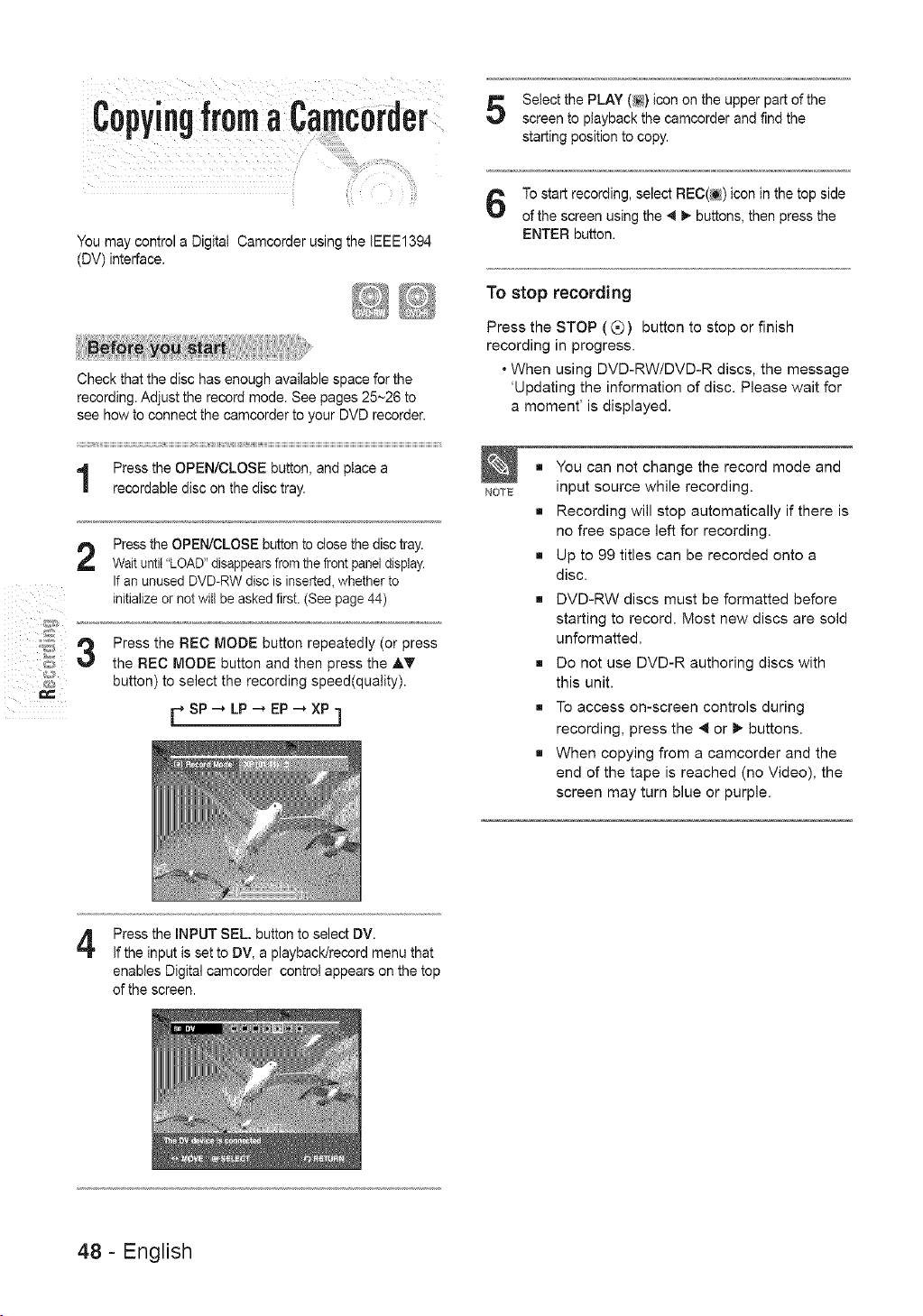
Copyingfroma Camcorder
You may control a Digital Camcorder using the IEEE1394
(DV) interface.
Check that the disc has enough available space for the
recording. Adjust the record mode. See pages 25~26 to
see how to connect the camcorder to your DVD recorder.
Press the OPEN/CLOSE button, and place a
recordable disc on the disc tray.
2
Press the OPEN/CLOSE button to close the disc tray.
Wait until "LOAD" disappearsfrom the front panel display.
If an unused DVD-RW disc is inserted, whether to
initialize or not will be asked first. (See page 44)
Press the REC MODE button repeatedly (or press
the REC MODE button and then press the AT
button) to select the recording speed(quality).
FSP_ LP_ EP_XP ]
Select the PLAY (_) icon on the upper part of the
screen to playback the camcorder and find the
starting position to copy.
To start recording, select REC(_) icon in the top side
of the screen using the 4 _ buttons, then press the
ENTER button.
To stop recording
Press the STOP ((_) button to stop or finish
recording in progress.
. When using DVD-RW/DVD-R discs, the message
'Updating the information of disc. Please wait for
a moment' is displayed.
NOTE
= You can not change the record mode and
input source while recording.
= Recording will stop automatically if there is
no free space left for recording.
= Up to 99 titles can be recorded onto a
disc.
= DVD-RW discs must be formatted before
starting to record. Most new discs are sold
unformatted.
= Do not use DVD-R authoring discs with
this unit.
= To access on-screen controls during
recording, press the _ or 1_ buttons.
= When copying from a camcorder and the
end of the tape is reached (no Video), the
screen may turn blue or purple.
4
Press the INPUT SEL. button to select DV.
If the input is set to DV, a playback/record menu that
enables Digital camcorder control appears on the top
of the screen.
48- English
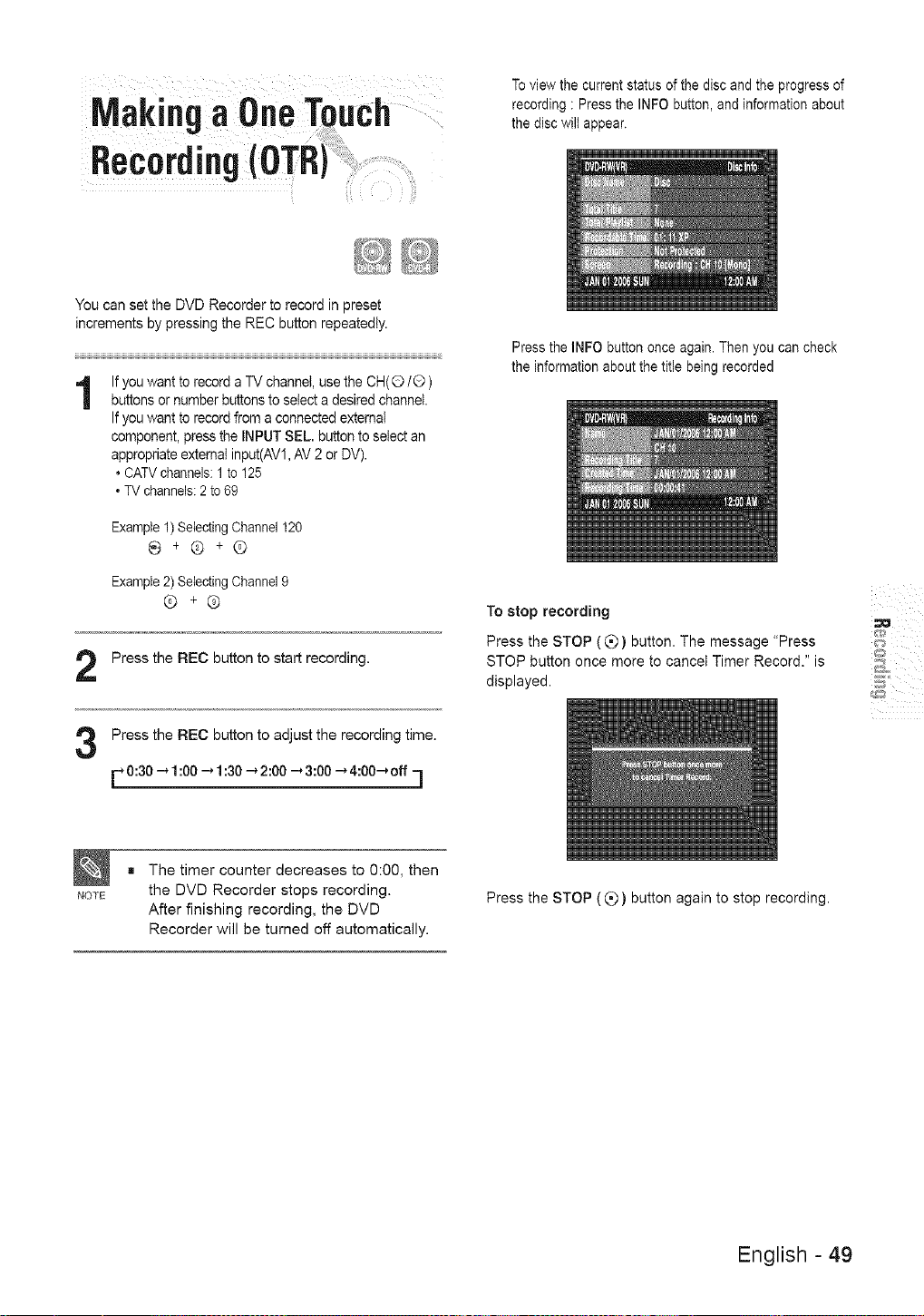
Recording(O
To view the current status of the disc and the progress of
recording : Press the INFO button, and information about
the disc wilt appear.
You can set the DVD Recorder to record in preset
increments by pressing the REC button repeatedly.
If you want to record a TV channel, use the CH(© / (D)
buttons or number buttons to select a desired channel.
If you want to record from a connected external
component, press the INPUT SEL. button to select an
appropriate external input(AV1, AV 2 or DV).
* CATV channels: 1 to 125
* TV channels: 2 to 69
NOTE
Example 1) SelectingChannel 120
®+®+©
Example 2) SelectingChannel 9
®+®
Press the REC button to start recording.
Press the REC button to adjust the recording time.
0:30 _ 1:00 .-* 1:30 _ 2:00 .-* 3:00 _ 4:00.-* off 1
Press the INFO button once again. Then you can check
the information about the title being recorded
To stop recording
Press the STOP ( Q ) button. The message "Press
STOP button once more to cancel Timer Record." is
displayed.
The timer counter decreases to 0:00, then
the DVD Recorder stops recording.
After finishing recording, the DVD
Recorder will be turned off automatically.
Press the STOP ( _ ) button again to stop recording.
English - 49
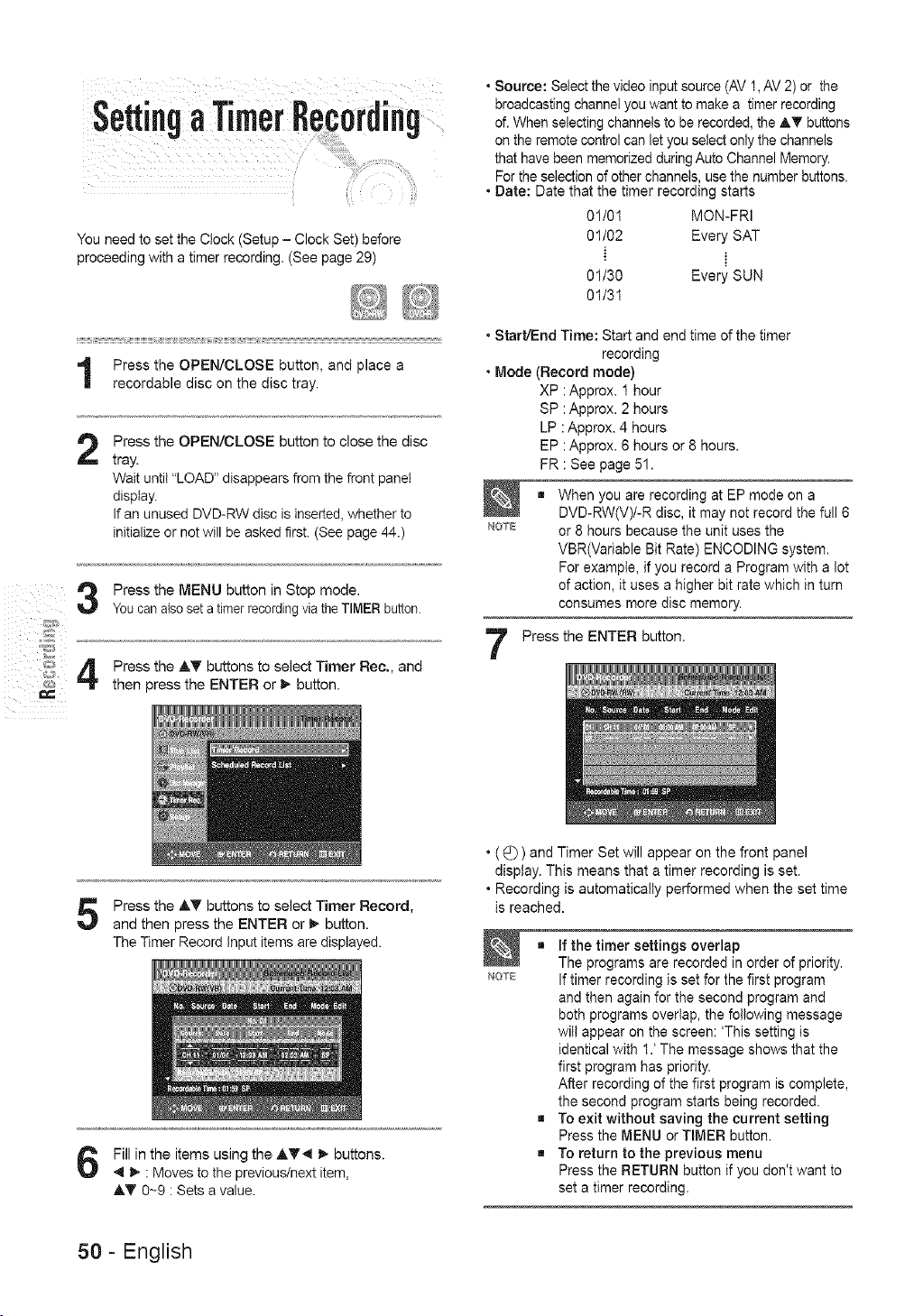
Setti.gaTimerRecordi,g
i!i
You need to set the Clock (Setup - Clock Set) before
proceeding with a timer recording. (See page 29)
Press the OPEN/CLOSE button, and place a
recordable disc on the disc tray.
2
Press the OPEN/CLOSE button to close the disc
tray.
Wait until "LOAD" disappears from the front panel
display.
If an unused DVD-RW disc is inserted, whether to
initialize or not will be asked first. (See page 44.)
Press the MENU button in Stop mode.
You can also set a timer recordingvia the TIMER button.
Press the AT buttons to select Timer Rec., and
then press the ENTER or _, button.
Press the AT buttons to select Timer Record,
and then press the ENTER or _ button.
The Timer Record Input items are displayed.
Fill in the items using the ,_.T4 _- buttons.
_1 _ : Moves to the previous/next item,
AY 0-9 : Sets a value.
• Source: Select the video input source (AV 1, AV 2) or the
broadcasting channel you want to make a timer recording
of. When selecting channels to be recorded, the AT buttons
on the remote control can let you select only the channels
that have been memorized during Auto Channel Memory.
For the selection of other channels, use the number buttons.
• Date: Date that the timer recording starts
01/01 MON-FRI
01/02 Every SAT
01/30 Every SUN
01/31
• Start/End Time: Start and end time of the timer
recording
• Mode (Record mode)
XP : Approx. 1 hour
SP : Approx. 2 hours
LP : Approx. 4 hours
EP : Approx. 6 hours or 8 hours.
FR : See page 51.
NOTE
When you are recording at EP mode on a
DVD-RW(V)/-R disc, it may not record the full 6
or 8 hours because the unit uses the
VBR(Variable Bit Rate) ENCODING system.
For example, if you record a Program with a lot
of action, it uses a higher bit rate which in turn
consumes more disc memory.
Press the ENTER button.
• ( Q ) and Timer Set will appear on the front panel
display. This means that a timer recording is set.
• Recording is automatically performed when the set time
is reached.
NOTE
m If the timer settings overlap
The programs are recorded in order of priority.
If timer recording is set for the first program
and then again for the second program and
both programs overlap, the following message
will appear on the screen: 'This setting is
identical with 1.' The message shows that the
first program has priority.
After recording of the first program is complete,
the second program starts being recorded.
m To exit without saving the current setting
Press the MENU or TIMER button.
m To return to the previous menu
Press the RETURN button if you don't want to
set a timer recording.
50- English
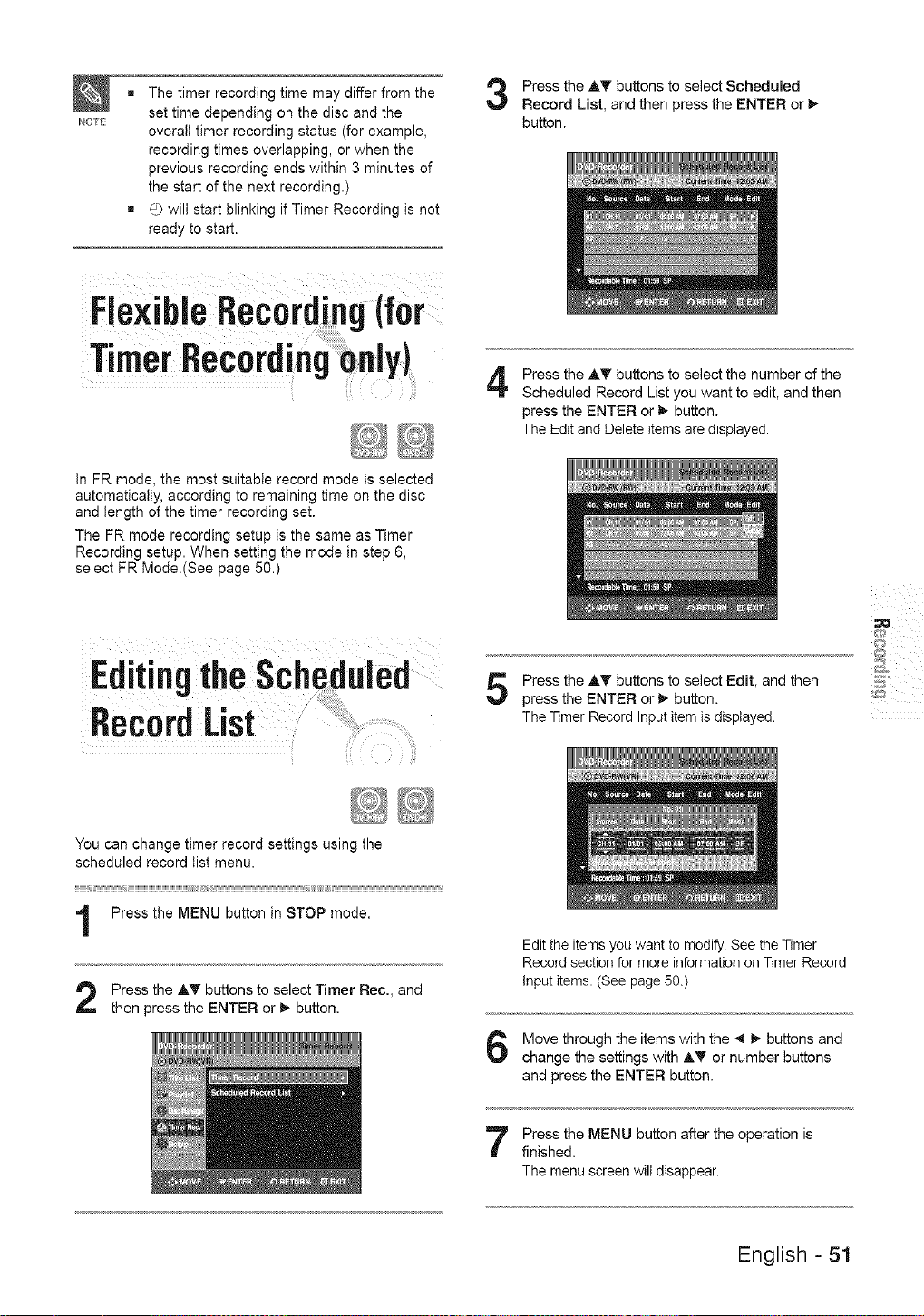
NOTE
g The timer recording time may differ from the
set time depending on the disc and the
overall timer recording status (for example,
recording times overlapping, or when the
previous recording ends within 3 minutes of
the start of the next recording.)
g Q_will start blinking if Timer Recording is not
ready to start.
Press the AT buttons to select Scheduled
Record List, and then press the ENTER or t,-
button.
Fle×ibleRecording(for
Timer RecorBingOnly}
Press the AT buttons to select the number of the
Scheduled Record List you want to edit, and then
press the ENTER or _ button.
The Edit and Delete items are displayed.
In FR mode, the most suitable record mode is selected
automatically, according to remaining time on the disc
and length of the timer recording set.
The FR mode recording setup is the same as Timer
Recording setup. When setting the mode in step 6,
select FR Mode.(See page 50.)
Editingthe Scheduled
RecordList
Press the AT buttons to select Edit, and then
press the ENTER or _ button.
The Timer Record Input item is displayed.
You can change timer record settings using the
scheduled record list menu.
Press the MENU button in STOP mode.
Press the AT buttons to select Timer Rec., and
then press the ENTER or t,- button.
Edit the items you want to modify. See the Timer
Record section for more information on Timer Record
Input items. (See page 50.)
Move through the items with the _11_ buttons and
change the settings with A_ or number buttons
and press the ENTER button.
Press the MENU button after the operation is
finished.
The menu screen will disappear.
English - 51
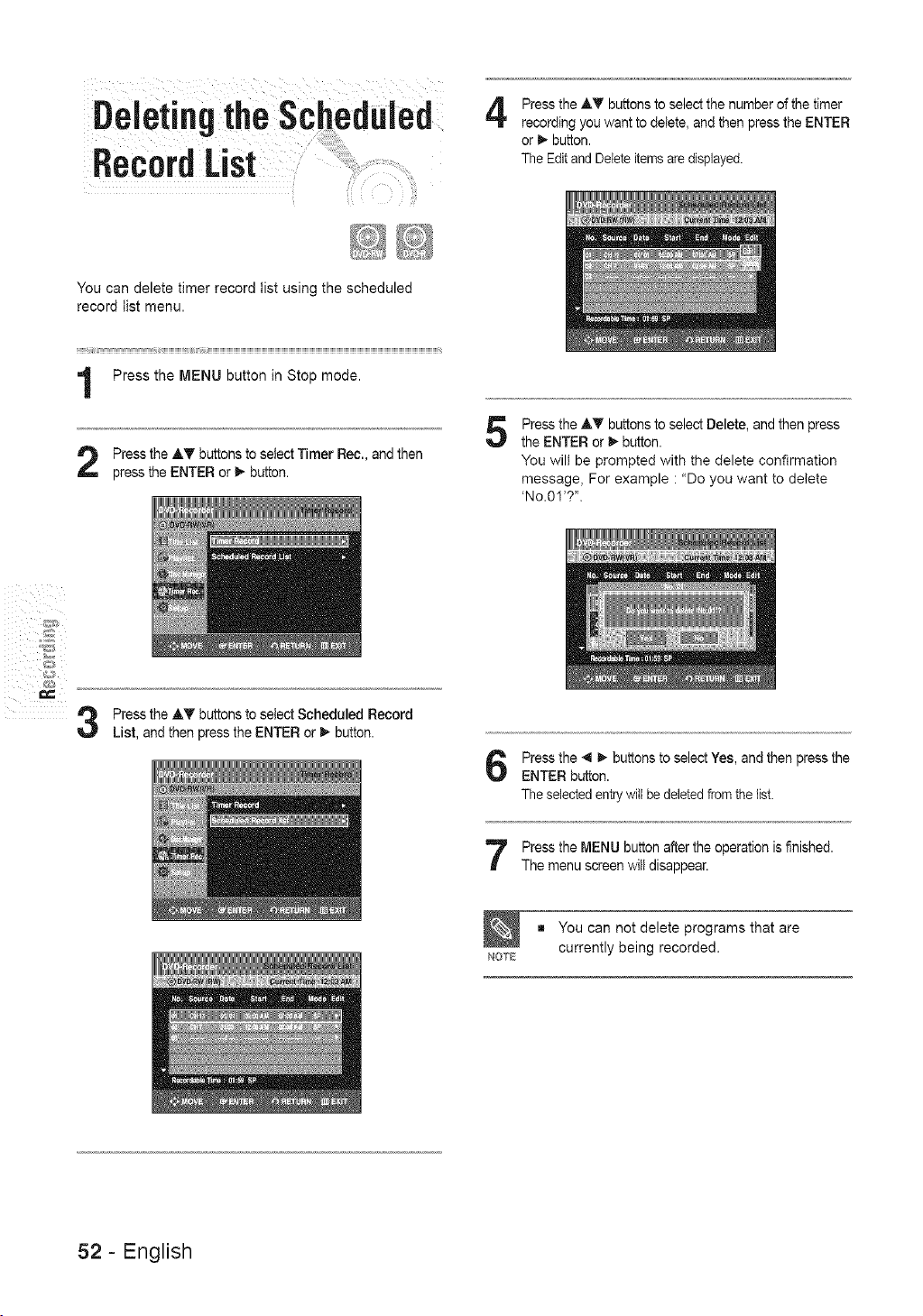
Deleting!he Scheduled
You can delete timer record list using the scheduled
record list menu.
Press the AT buttons to select the number of the timer
recording you want to delete, and then press the ENTER
or _ button.
The Edit and Delete items are displayed•
Press the AT buttons to select Timer Ree., and then
press the ENTER or D,-button.
5
Press the AT buttons to select Delete, and then press
the ENTER or m,,button.
You will be prompted with the delete confirmation
message, For example • "Do you want to delete
'No.01'?".
3
Press the AT buttons to select Scheduled Record
List, and then press the ENTER or _ button.
Press the _ _- buttons to select Yes, and then press the
ENTER button.
The selected entry will be deleted from the list.
Press the MENU button after the operation is finished.
The menu screen will disappear.
You can not delete programs that are
_OTE currently being recorded.
52- English
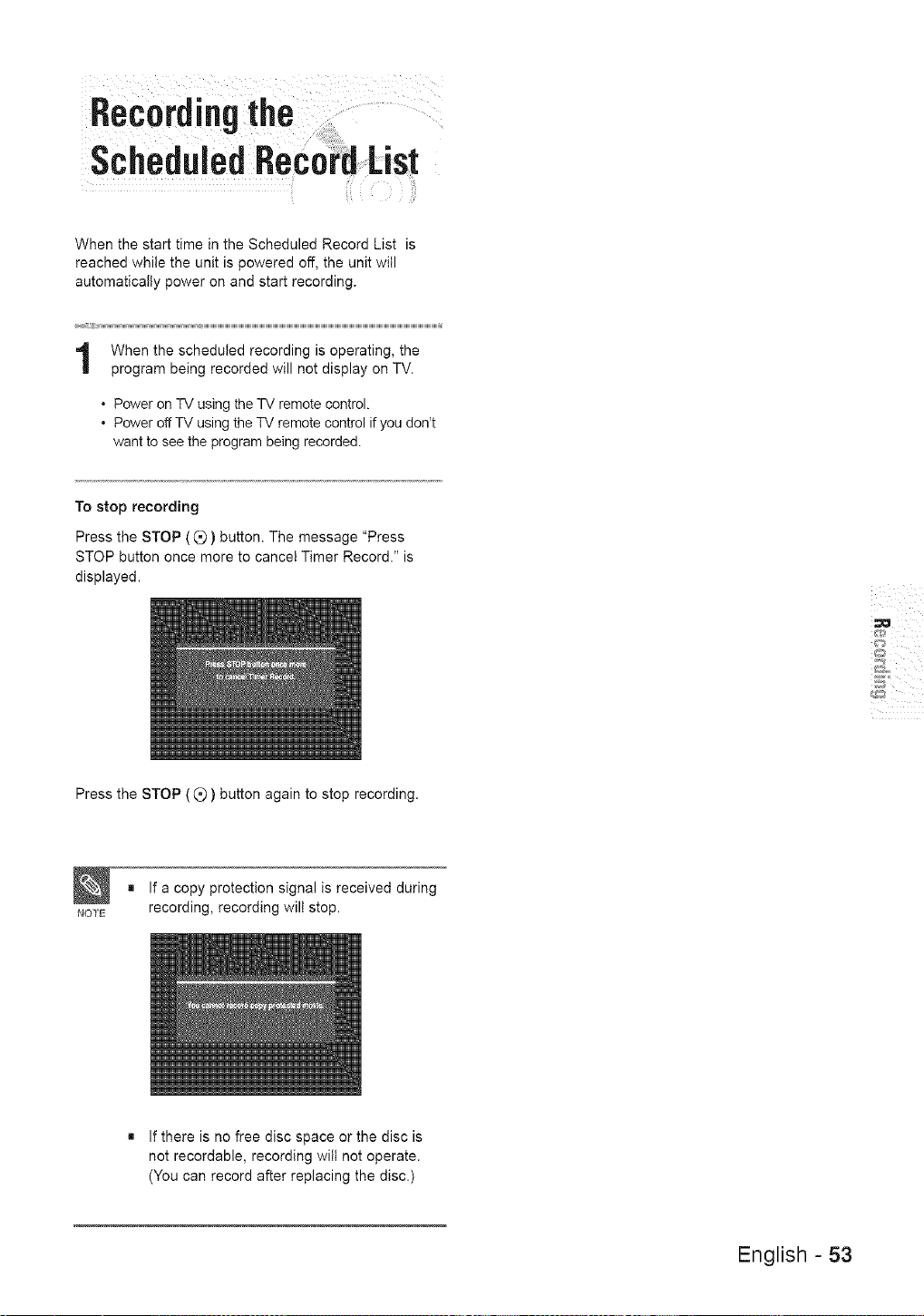
,ooordi.t,
sch,a.I,a, c
When the start time in the Scheduled Record List is
reached while the unit is powered off, the unit will
automatically power on and start recording.
:::::::::_Ji_i_i_,,............................................................................................UHHHHHHHHHHHHHHHHHHHHHHHHHHHHHHHHHHHHHHHHHHHHHHHHHHHHHHHHHHHHHHHHHHHHHHHHHHHHHHHHHHHHHHHHHHHHHHHHHHHHHHHHHHHHHHHHH[_
When the scheduled recording is operating, the
program being recorded will not display on TV.
. Power on TV using the TV remote control.
. Power off TV using the TV remote control if you don't
want to see the program being recorded.
To stop recording
Press the STOP (Q) button. The message "Press
STOP button once more to cancel Timer Record." is
displayed.
Press the STOP ((_) button again to stop recording.
NOTE
= If a copy protection signal is received during
recording, recording wilt stop.
= If there is no free disc space or the disc is
not recordable, recording will not operate.
(You can record after replacing the disc.)
English - 53
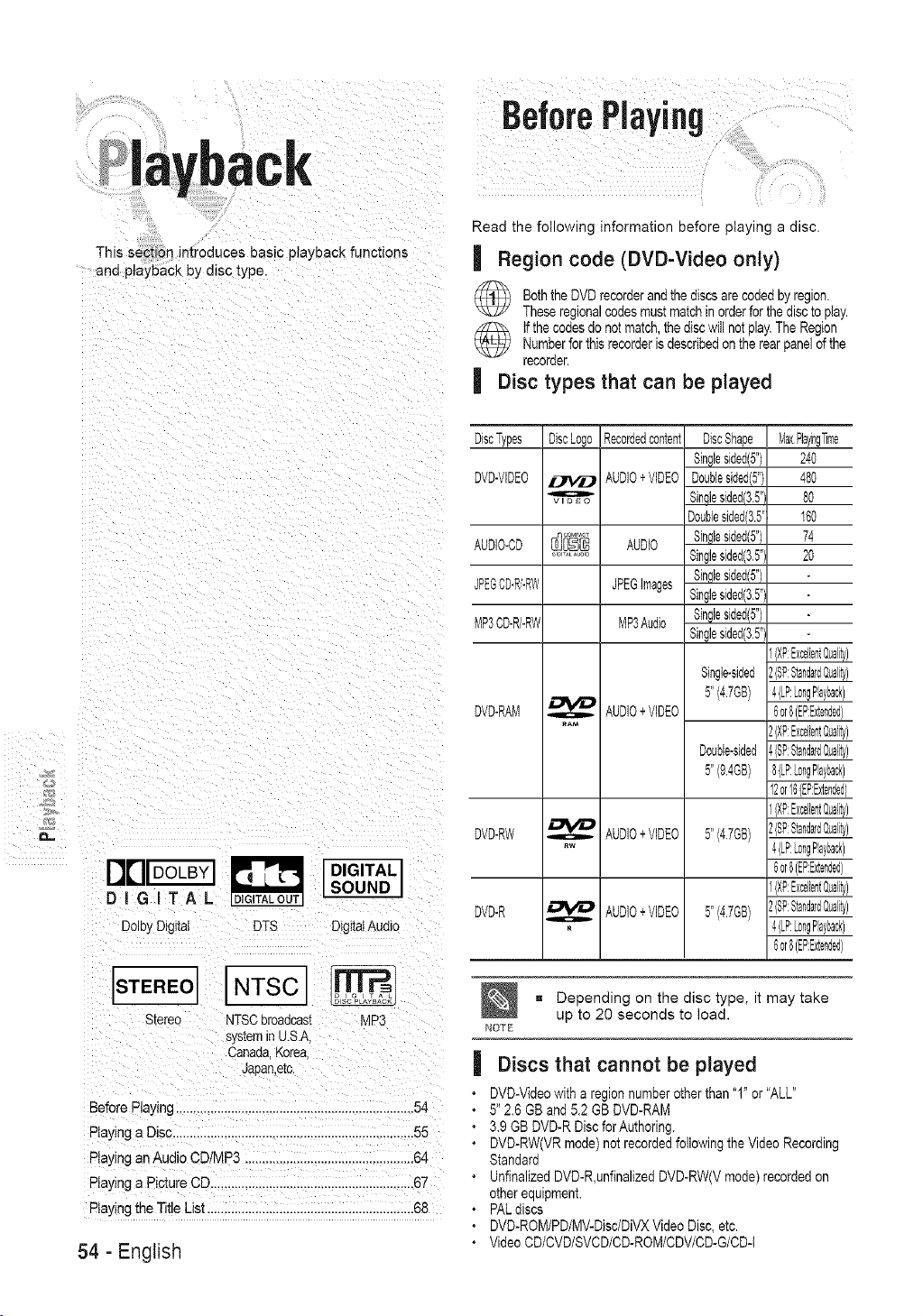
This section introduces basic pla} back functions
and playback by disc type,
Read the following information before playing a disc.
| Region code (DVD-Video only)
Boththe DVD recorderand the discsare coded by region.
Theseregionalcodes must match in orderfor the discto play.
tfthe codes do not match, the disc willnot play.The RegionNumberfor this recorderis describedon the rearpanelof the
recorder.
| Disc types that can be played
D.=
Dolby Digital DTS
DIGITALJ
SOUND _
DigitalAudio
STE"EOI"TSO]
Stereo NTSCbroadcast MP3
sys[emin U.S.A
Canada.Korea
Japan.e[c.
Before Playing ................................................................... 54
Playing a Disc.................................................................... 55
Playing an Audio CDIMP3 .................................................64
Playing a Picture CD ...........................................................67
Ptaytng the Title List ............................................................68
54 - English
DiscTypes DiscLogo Recordedcontent
BVB-VIDEO _ AUDIO+ VIDEO
-,0
VIDEO
AUDIO-OD_ AUDIO
_IGI_ALAUXIn
JPEGCD-Ri-RW JPEGImages
MP3DD-R/-RW MP3Audio
DVD-RAM _ AUDIO+ VIDEO
o
_AM
DVD-RW _ AUDIO+ VIDEO
r4w
DVD-R AUDIO+ VIDEO
R
DiscShape
Singlesided(5")
Doublesided(5")
SJnqJesided(3.5"i
Doublesided(3.5"
Singlesided(5")
Singlesided(3.5":
Singlesided(5")
Singlesided(35":
Singlesided(5")
Singlesided(3.5":
Single-sided
5"(4.7GB)
Double-sided
5"(9.4GB)
5"(4.7GB)
5"(4.7GB)
Max,RayrngTrrre
24O
480
80
160
74
20
4(LP:LongPayback)
6or8(EP:Extended}
2(XP:ExcelientQuality)
4(SP:StandardQuality)
8(LP:LongPayback)
12or16(EP:Extended)
2(SP:StandardQuality)
4(LP:LongPayback)
6or8(EP:Extended}
1(XP:ExcelientQuality)
2(SP:StandardQuality)
4(LP:LongPayback)
6or8(EP:Extended}
a Depending on the disc type, it may take
up to 20 seconds to load.
NOE
| Discs that cannot be played
• DVD-Video with a region number other than "1" or "ALL"
• 5" 2.6 GB and 5.2 GB DVD-RAM
• 3.9 GB DVD-R Disc forAuthoring.
• DVD-RW(VR mode) not recordedfollowing the Video Recording
Standard
• Unfinalized DVD-R,unfinalizedDVD-RW(V mode) recorded on
other equipment.
• PAL discs
• DVD-ROM/PD/MV-Disc/DiVXVideo Disc, etc.
• Video CD/CVDISVCDICD-ROMICDV/CD-GICD-t
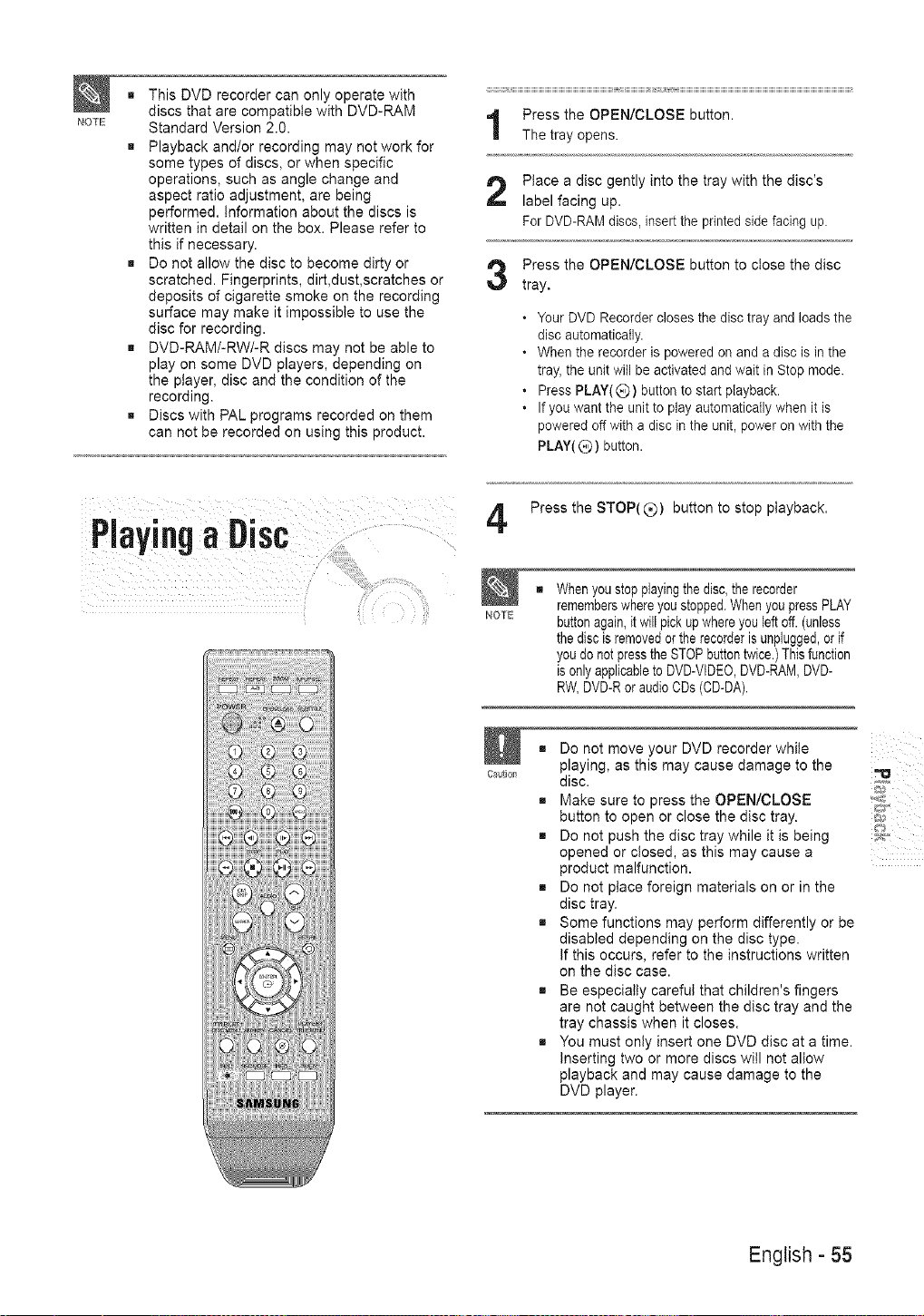
NOTE
m This DVD recorder can only operate with
discs that are compatible with DVD-RAM
Standard Version 2.0.
m Playback and/or recording may not work for
some types of discs, or when specific
operations, such as angle change and
aspect ratio adjustment, are being
performed. Information about the discs is
written in detail on the box. Please refer to
this if necessary.
m Do not allow the disc to become dirty or
scratched. Fingerprints, dirt,dust,scratches or
deposits of cigarette smoke on the recording
surface may make it impossible to use the
disc for recording.
m DVD-RAM/-RW/-R discs may not be able to
play on some DVD players, depending on
the player, disc and the condition of the
recording.
m Discs with PAL programs recorded on them
can not be recorded on using this product.
Place a disc gently into the tray with the disc's
label facing up.
For DVD-RAM discs, insert the printed side facing up.
Press the OPEN/CLOSE button to close the disc
tray,
• Your DVD Recorder closes the disc tray and loads the
disc automaticaUy.
• When the recorder is powered on and a disc is in the
tray, the unit witl be activated and wait in Stop mode.
• Press PLAY(C0 button to start piayback.
• If you want the unit to play automaticaUy when it is
powered off with a disc in the unit, power on with the
PLAY( Q ) button.
Piayi.g aDisc
4
NOTE
Ca_t}oI_
Press the STOP(_) button to stop playback.
Whenyou stopplayingthe disc,the recorder
rememberswhere you stopped.When you pressPLAY
buttonagain,it will pick up whereyou left off. (unless
the disc is removedor the recorderis unplugged,or if
youdo not press the STOPbutton twice.)This function
is only applicableto DVD-VIDEO,DVD-RAM,DVD-
RW,DVD-R or audioCDs (CD-DA).
Do not move your DVD recorder while
playing, as this may cause damage to the
disc.
Make sure to press the OPEN/CLOSE
button to open or close the disc tray.
Do not push the disc tray while it is being
opened or closed, as this may cause a
product malfunction.
Do not place foreign materials on or in the
disc tray.
Some functions may perform differently or be
disabled depending on the disc type.
If this occurs, refer to the instructions written
on the disc case.
Be especially careful that children's fingers
are not caught between the disc tray and the
tray chassis when it closes.
You must only insert one DVD disc at a time.
Inserting two or more discs will not allow
playback and may cause damage to the
DVD player.
ii i i
English - 55
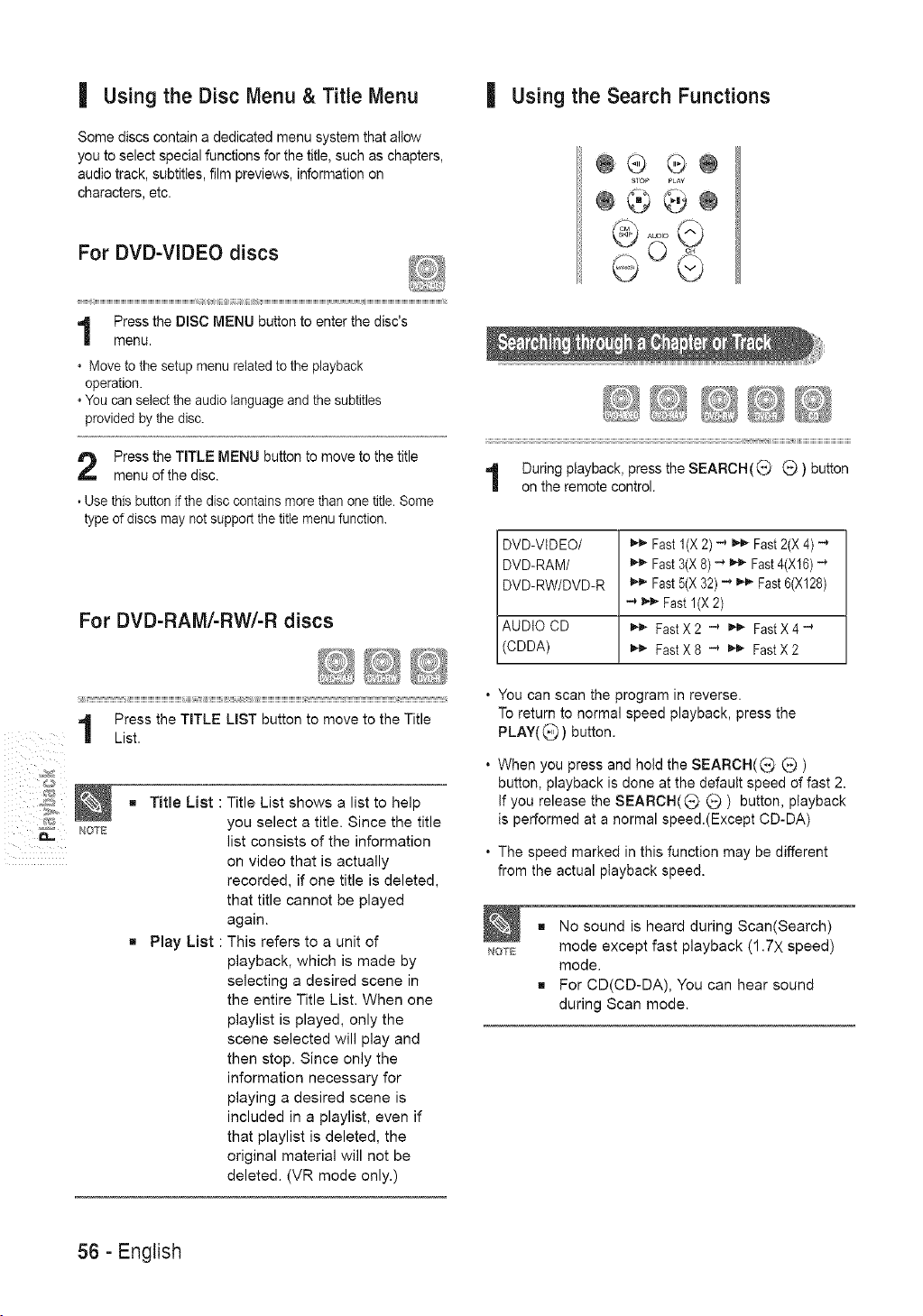
_ NOTE
| Using the Disc Menu & Title Menu
Some discs contain a dedicated menu system that allow
you to select special functions for the title, such as chapters,
audio track, subtitles, film previews, information on
characters, etc.
For DVD-VIDEO discs
Press the DISC MENU button to enter the disc's
menu.
. Move to the setup menu related to the playback
operation.
. You can select the audio language and the subtitles
provided by the disc.
Press the TITLE MENU button to move to the title
menu of the disc.
• Use this button if the disc contains more than one title. Some
type of discs may not support the title menu function.
For DVD-RAM/-RW/-R discs
Press the TITLE LIST button to move to the Title
List.
Titme List : Title List shows a list to help
you select a title. Since the title
list consists of the information
on video that is actually
recorded, if one title is deleted,
that title cannot be played
again.
Play List : This refers to a unit of
playback, which is made by
selecting a desired scene in
the entire Title List. When one
playlist is played, only the
scene selected will play and
then stop. Since only the
information necessary for
playing a desired scene is
included in a playlist, even if
that playlist is deleted, the
original material will not be
deleted. (VR mode only.)
| Using the Search Functions
STOP PLAY
DVD-VIDEO/ _ Fast l(X 2) _ _ Fast2(X 4) -'1
DVD-RAM/ _" Fast 3(X 8) -_ _'_ Fast 4(X16) _
DVD-RW/DVD-R _ Fast 5(X 32) _ _'_ Fast 6(X128)
_ Fast l(X 2)
AUDIO CD _ Fast X 2 _ _'_ FastX 4 _
(CDDA) _'_ Fast X 8 _ t-_. Fast X 2
• You can scan the program in reverse.
To return to normal speed playback, press the
PLAY((_ ) button.
• When you press and hold the SEARCH((_ (_)
button, playback is done at the default speed of fast 2.
If you release the SEARCH((_) _ ) button, playback
is performed at a normal speed.(Except CD-DA)
• The speed marked in this function may be different
from the actual playback speed.
NOTE
g No sound is heard during Scan(Search)
mode except fast playback (1.7X speed)
mode.
g For CD(CD-DA), You can hear sound
during Scan mode.
56 - English
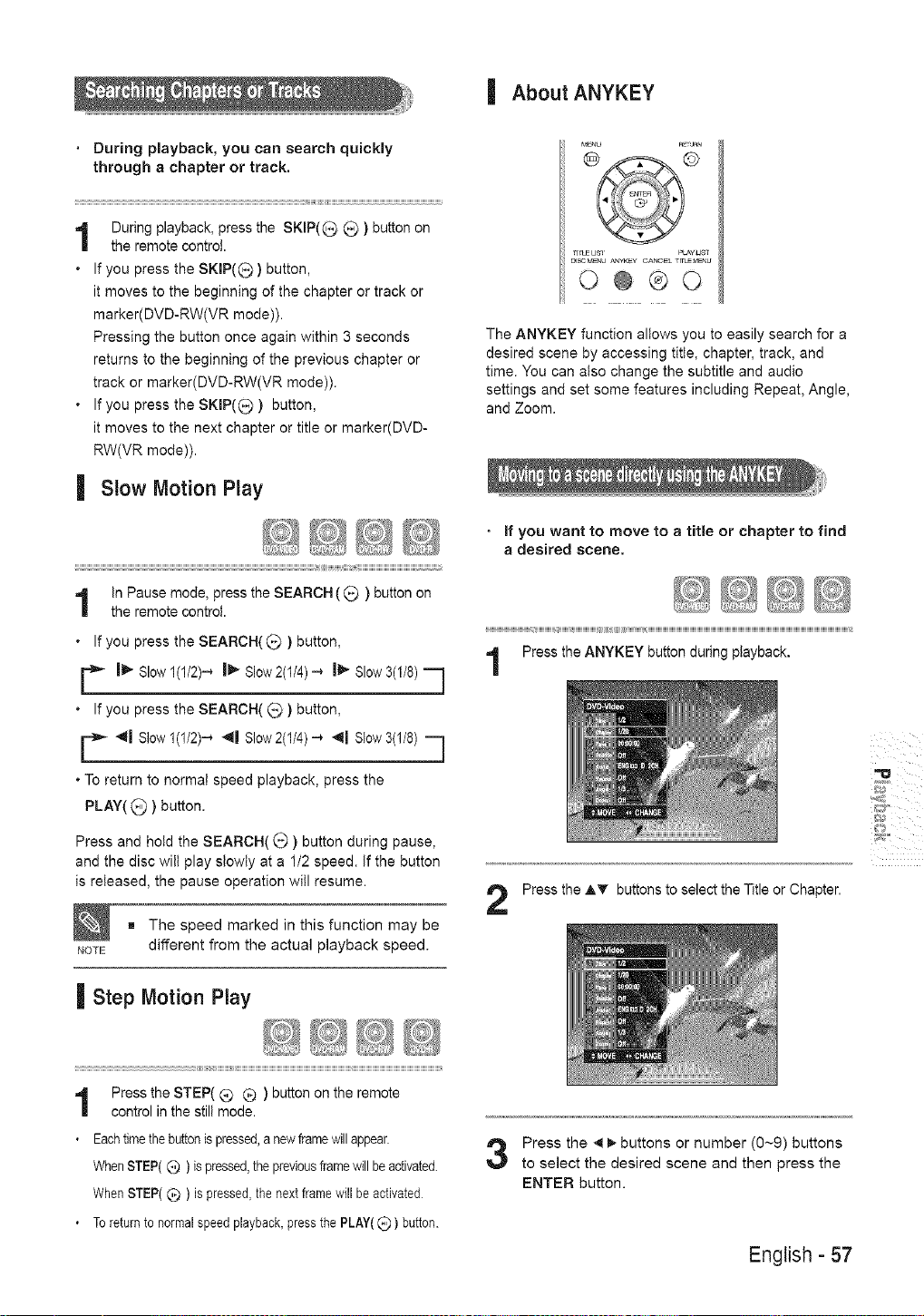
| About ANYKEY
During playback, you can search quickly
through a chapter or track.
............................................................................................................................................................................................................................_Ji_"JiHiHiHiHiHHH_;" "J
During playback, press the SKIP(_ _ ) button on
the remote control.
* If you press the SKIP(G ) button,
it moves to the beginning of the chapter or track or
marker(DVD-RW(VR mode)).
Pressing the button once again within 3 seconds
returns to the beginning of the previous chapter or
track or marker(DVD-RW(VR mode)).
* If you press the SKIP(_;_ ) button,
it moves to the next chapter or title or marker(DVD-
RW(VR mode)).
| Slow Motion Play
iiiiiiiii_i_i_iiiii iiiiiiiiiiiiiiiiiiiiiiiiiiiiiiiiiiiiiiiiiiiiiiii_
In Pause mode, press the SEARCH ((_)) button on
the remote control.
* If you press the SEARCH(Q ) button,
C I1_ Slow I(I/2)_ I1_ Siow2(1/4)_ I!_ Siow3(I/8) q
* If you press the SEARCH( _ ) button,
r _1_ Slow 1(1/2)_ "_1 Slow 2(1/4)-, *_l Slow 3(1/8) -7
* To return to norma! speed playback, press the
PLAY((_) button.
Press and hold the SEARCH( O ) button during pause,
and the disc will play s!owly at a 1/2 speed. If the button
is released, the pause operation will resume.
The speed marked in this function may be
_,_OTE different from the actual playback speed.
| Step Motion Play
i[[[[
Press the STEP( Q Q ) button on the remote
control in the still mode.
. Eachtime the buttonis pressed,a new framewill appear.
WhenSTEP( G ) is pressed,the previousflamewill be activated.
WhenSTEP( Q ) is pressed,the nextframe will be activated
. To returnto normalspeed playback,press the PLAY((_) button.
TI_LCLIST _LmLIST
DISCt_atU _U,,VK_V CANC_ Tn'L__t_U
O@ O
The ANYKEY function allows you to easily search for a
desired scene by accessing title, chapter, track, and
time. You can also change the subtitle and audio
settings and set some features including Repeat, Angle,
and Zoom.
• if you want to move to a title or chapter to find
a desired scene.
Press the ANYKEY button during playback.
Press the _r buttons to select the Title or Chapter.
Press the _ _, buttons or number (0~9) buttons
to select the desired scene and then press the
ENTER button.
English - 57
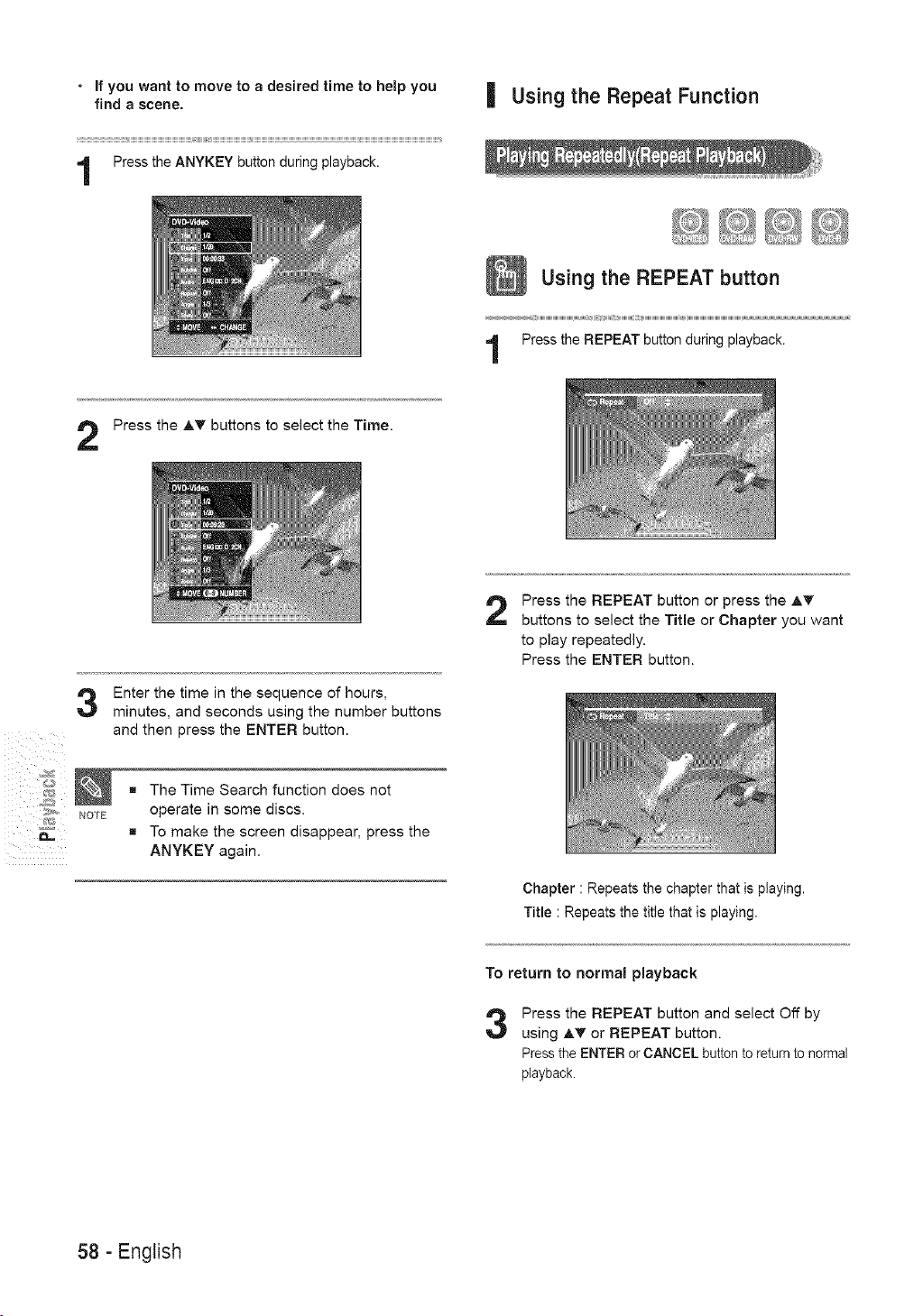
• If you want to move to a desired time to help you
find a scene.
Press the ANYKEY button during playback.
| Using the Repeat Function
Using the REPEAT button
Press the REPEAT button during playback.
Press the A_r buttons to select the Time.
Enter the time in the sequence of hours,
minutes, and seconds using the number buttons
and then press the ENTER button.
Press the REPEAT button or press the A_'
buttons to select the Title or Chapter you want
to play repeatedly,
Press the ENTER button.
NOTE
The Time Search function does not
operate in some discs.
To make the screen disappear, press the
ANYKEY again.
Chapter : Repeats the chapter that is playing.
Title : Repeats the title that is playing.
To return to normal playback
Press the REPEAT button and select Off by
using _ or REPEAT button.
Press the ENTER or CANCEL button to return to normal
playback.
58 - English
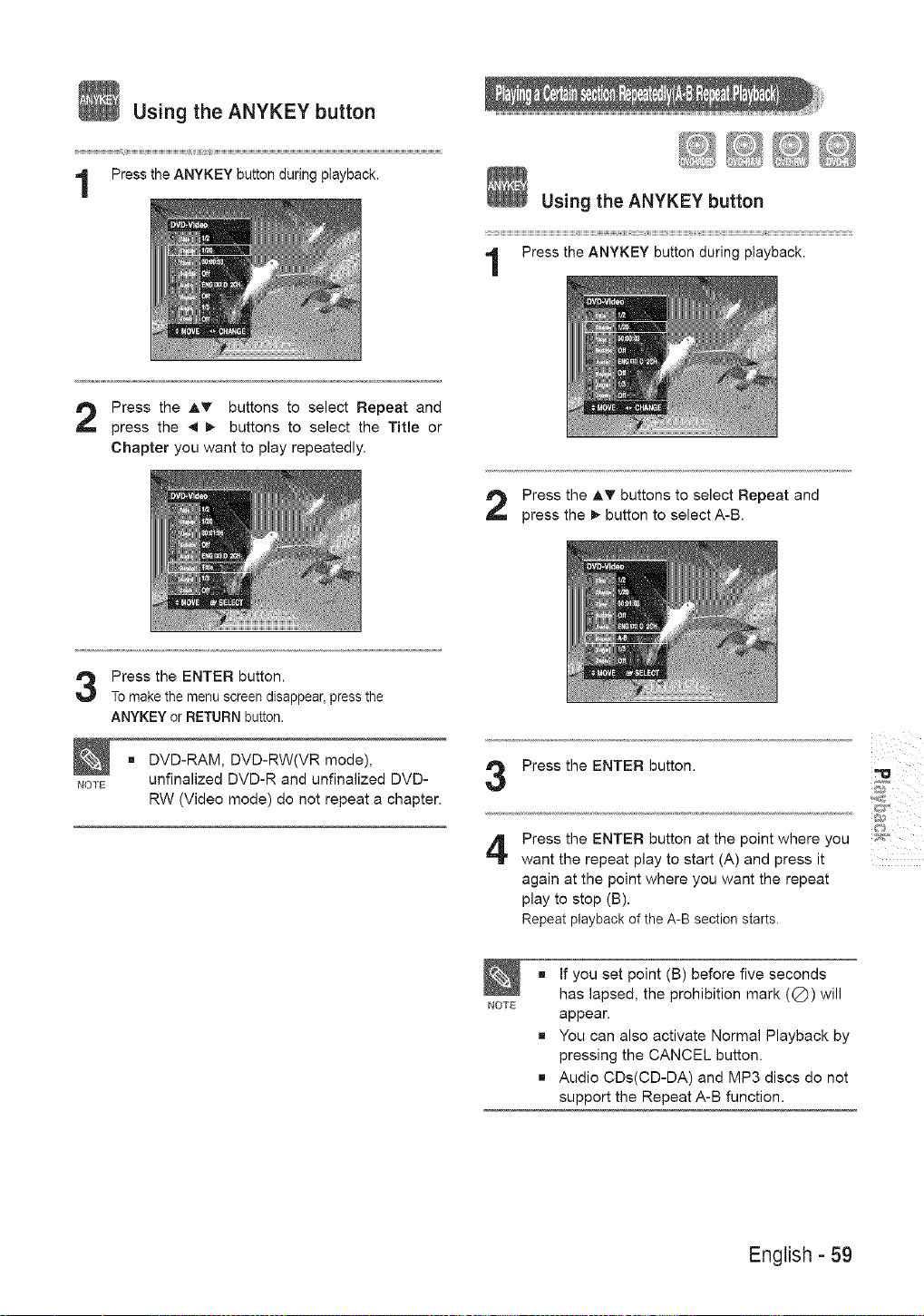
Usingthe ANYKEY button
Press the ANYKEY button during playback.
_2 :_ _ ._!_
Using the ANYKEY button
Press the ANYKEY button during playback.
Press the AT buttons to select Repeat and
press the _ _. buttons to select the Title or
Chapter you want to play repeatedly.
Press the AT buttons to select Repeat and
press the 1_button to select A-B.
Press the ENTER button.
To make the menu screen disappear, press the
ANYKEY or RETURN button.
NOTE
g DVD-RAM, DVD-RW(VR mode),
unfinalized DVD-R and unfinalized DVD-
RW (Video mode) do not repeat a chapter.
Press the ENTER button.
Press the ENTER button at the point where you
want the repeat play to start (A) and press it
again at the point where you want the repeat
play to stop (B).
Repeat playback of the A-B section starts.
NOTE
g If you set point (B) before five seconds
has lapsed, the prohibition mark (Q) will
appear.
g You can also activate Normal Playback by
pressing the CANCEL button.
g Audio CDs(CD-DA) and MP3 discs do not
support the Repeat A-B function.
English - 59
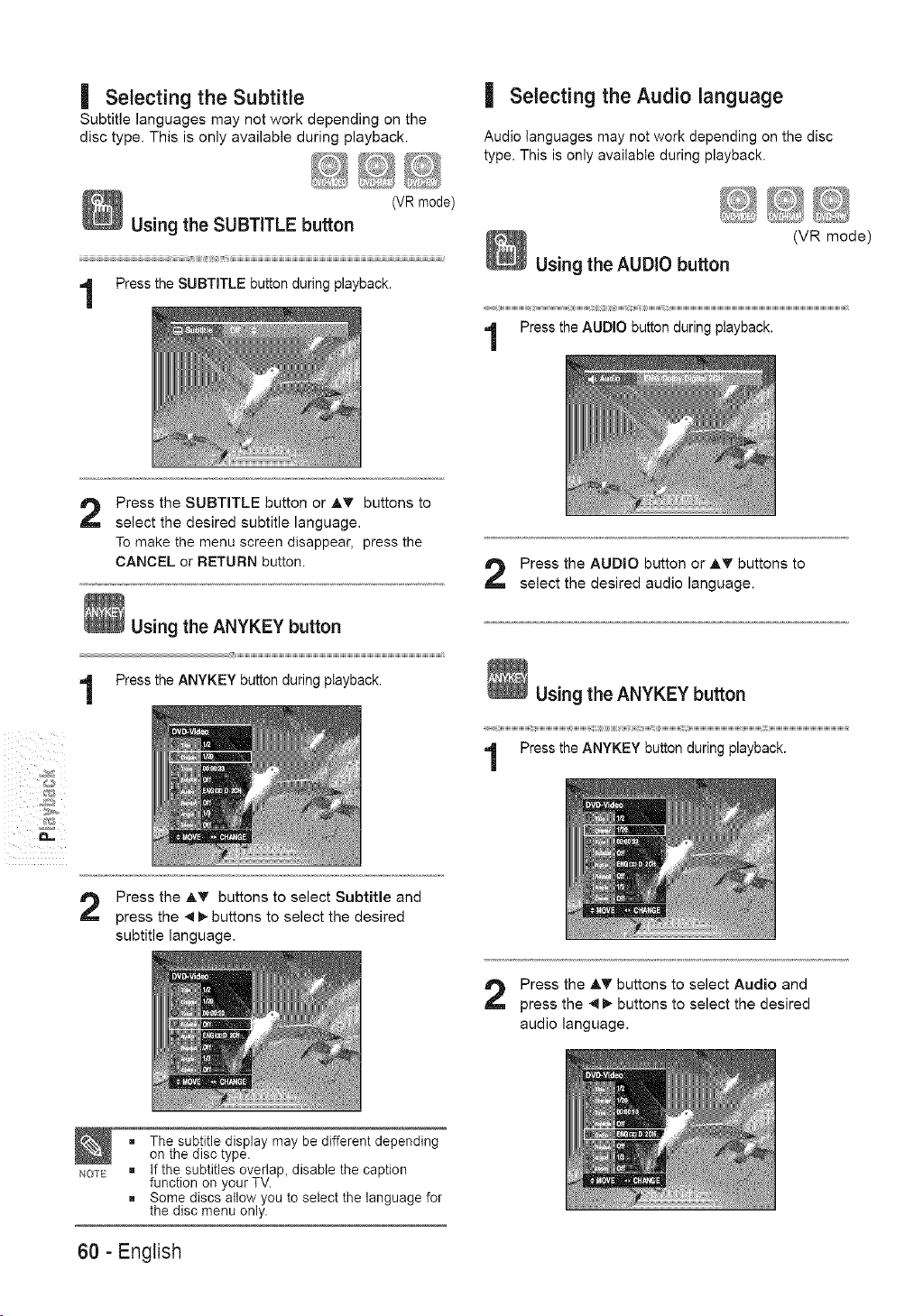
| Selecting the Subtitle
Subtitle languages may not work depending on the
disc type. This is only available during playback.
(VR mode)
Using the SUBTITLE button
Press the SUBTITLE button during playback.
| Selecting the Audio language
Audio languages may not work depending on the disc
type. This is only available during playback.
(VR mode)
Using the AUDIObutton
r
Press the AUDIO button during playback.
4_
Press the SUBTITLE button or AT buttons to
select the desired subtitle language.
To make the menu screen disappear, press the
CANCEL or RETURN button.
1
Press the _ buttons to select Subtitle and
press the _ 1_buttons to select the desired
subtitle language.
NOTE
Press the AUDIO button or AT buttons to
select the desired audio language.
Press the _,_" buttons to select Audio and
press the _ I_ buttons to select the desired
audio language.
= The subtitle display may be different depending
on the disc type.
= If the subtitles overlap_ disable the caption
function on your TV.
= Some discs allow you to select the language for
the disc menu only.
60 - English
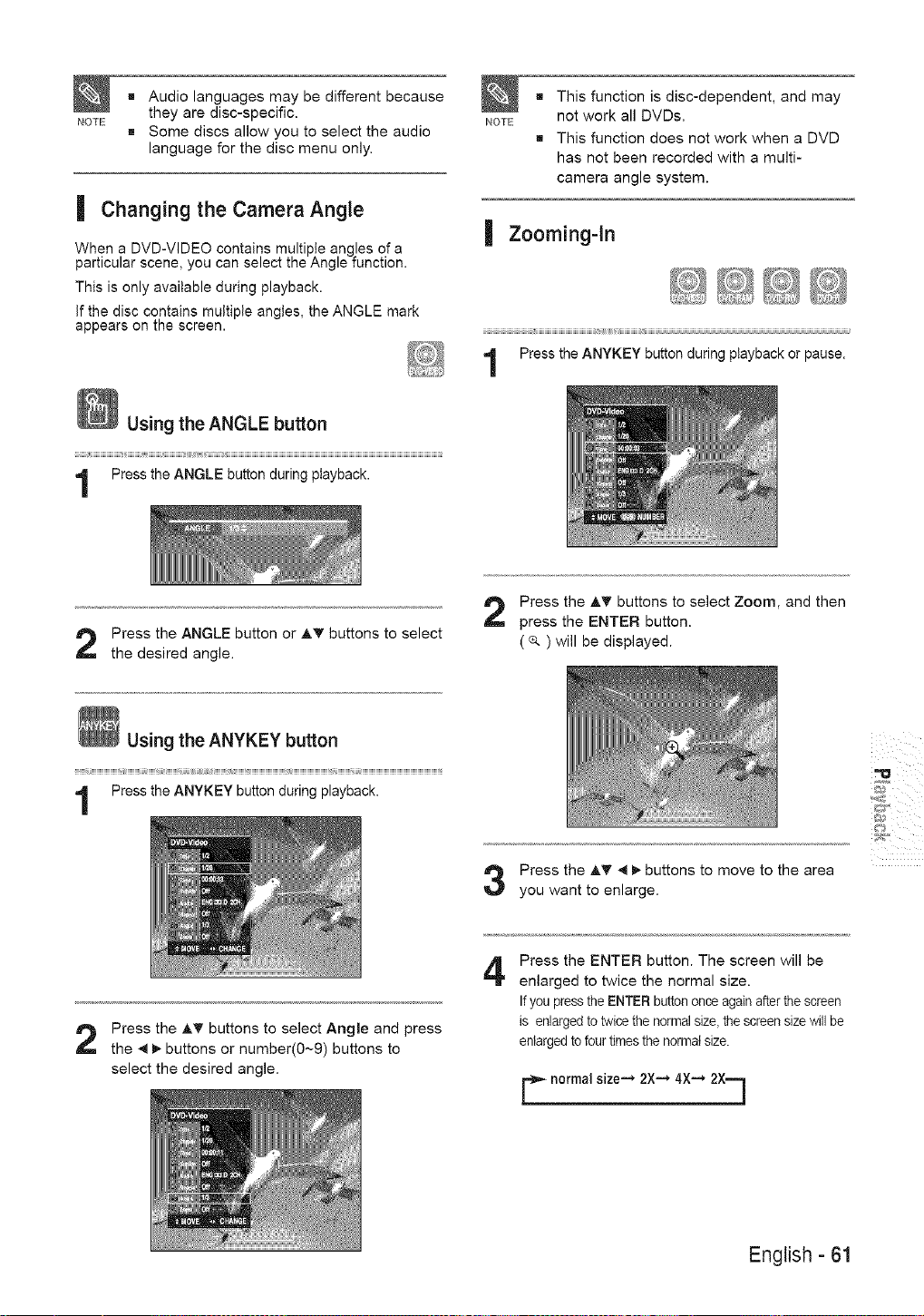
NOTE
g Audio languages may be different because
they are disc-specific.
g Some discs allow you to select the audio
language for the disc menu only.
| Changing the Camera Angle
When a DVD-VIDEO contains multiple angles of a
particular scene, you can select the Angle function.
This is only available during playback.
If the disc contains multiple angles, the ANGLE mark
appears on the screen.
NOTE
g This function is disc-dependent, and may
not work all DVDs.
g This function does not work when a DVD
has not been recorded with a multi-
camera angle system.
Press the ANGLE button or AT buttons to select
the desired angle.
Press the A_' buttons to select Zoom, and then
press the ENTER button.
( _, ) will be displayed.
Using the ANYKEY button
Press the ANYKEY button during playback.
Press the _,_ _ _. buttons to move to the area
you want to enlarge.
ii i i
Press the A_' buttons to select Angle and press
the _ _. buttons or number(0--9) buttons to
select the desired angle.
4
Press the ENTER button. The screen will be
enlarged to twice the normal size.
If you pressthe ENTER button once again after the screen
is enlarged to twice the normal size,the screen size will be
enlarged to four times the normalsize.
C normal size--_ 2X-* 4X-* 2Xq
English - 61
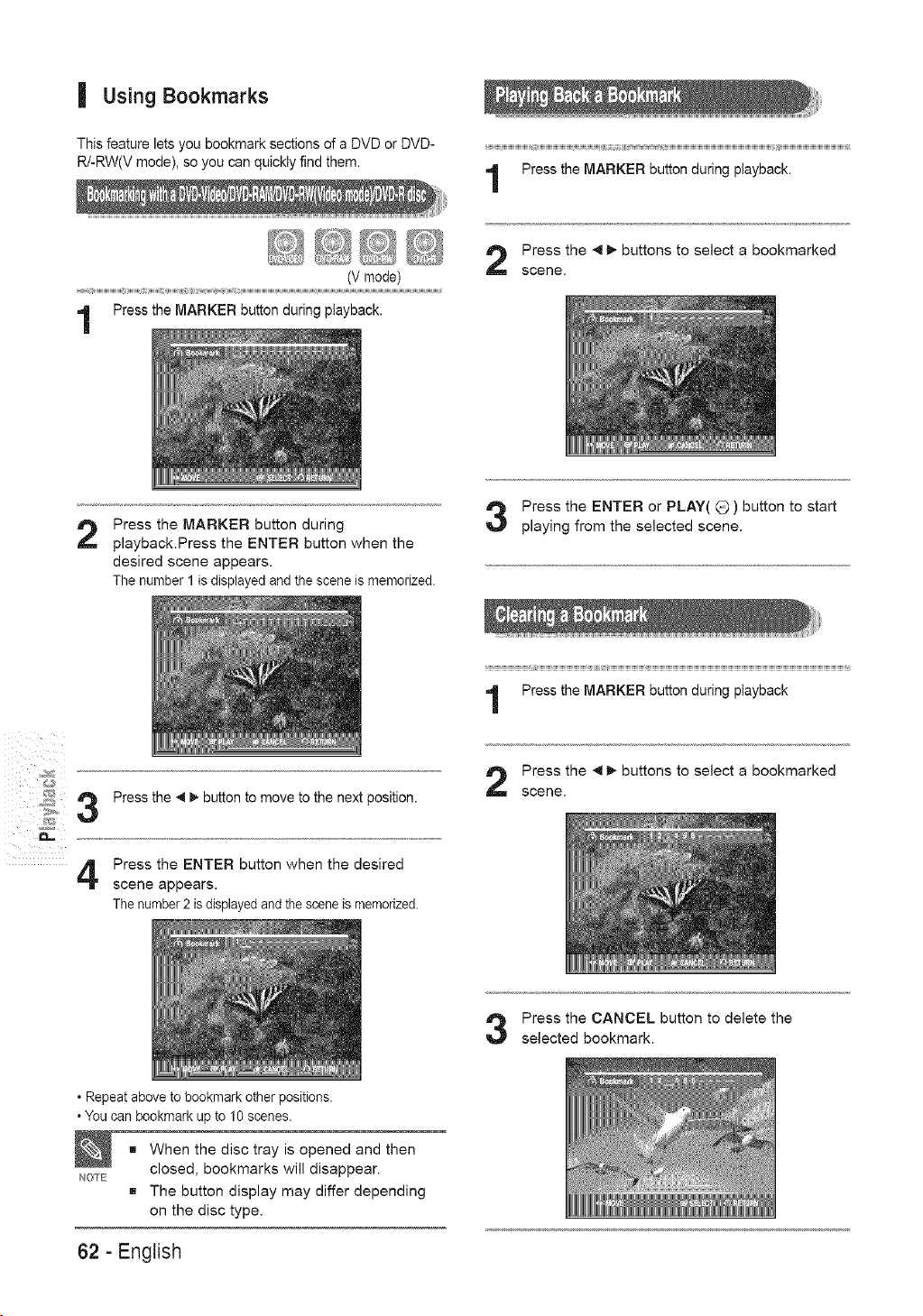
| Using Bookmarks
This feature lets you bookmark sections of a DVD or DVD-
R/-RW(V mode), so you can quickly find them.
Press the MARKER button during playback.
1
(V mode)
Press the MARKER button during playback.
Press the _1_,- buttons to select a bookmarked
scene.
2
Press the MARKER button during
playback.Press the ENTER button when the
desired scene appears.
The number 1 is displayed and the scene is memorized.
Press the ENTER or PLAY(_) ) button to start
playing from the selected scene.
Press the MARKER button during playback
_&S;;2
4
Press the _ _. button to move to the next position.
Press the ENTER button when the desired
scene appears.
The number 2 is displayedand the scene is memorized.
Press the _1_,- buttons to select a bookmarked
scene.
Press the CANCEL button to delete the
selected bookmark.
, Repeat above to bookmark other positions.
• You can bookmark up to 10 scenes.
NOTE
When the disc tray is opened and then
closed, bookmarks will disappear.
The button display may differ depending
on the disc type.
62 - English
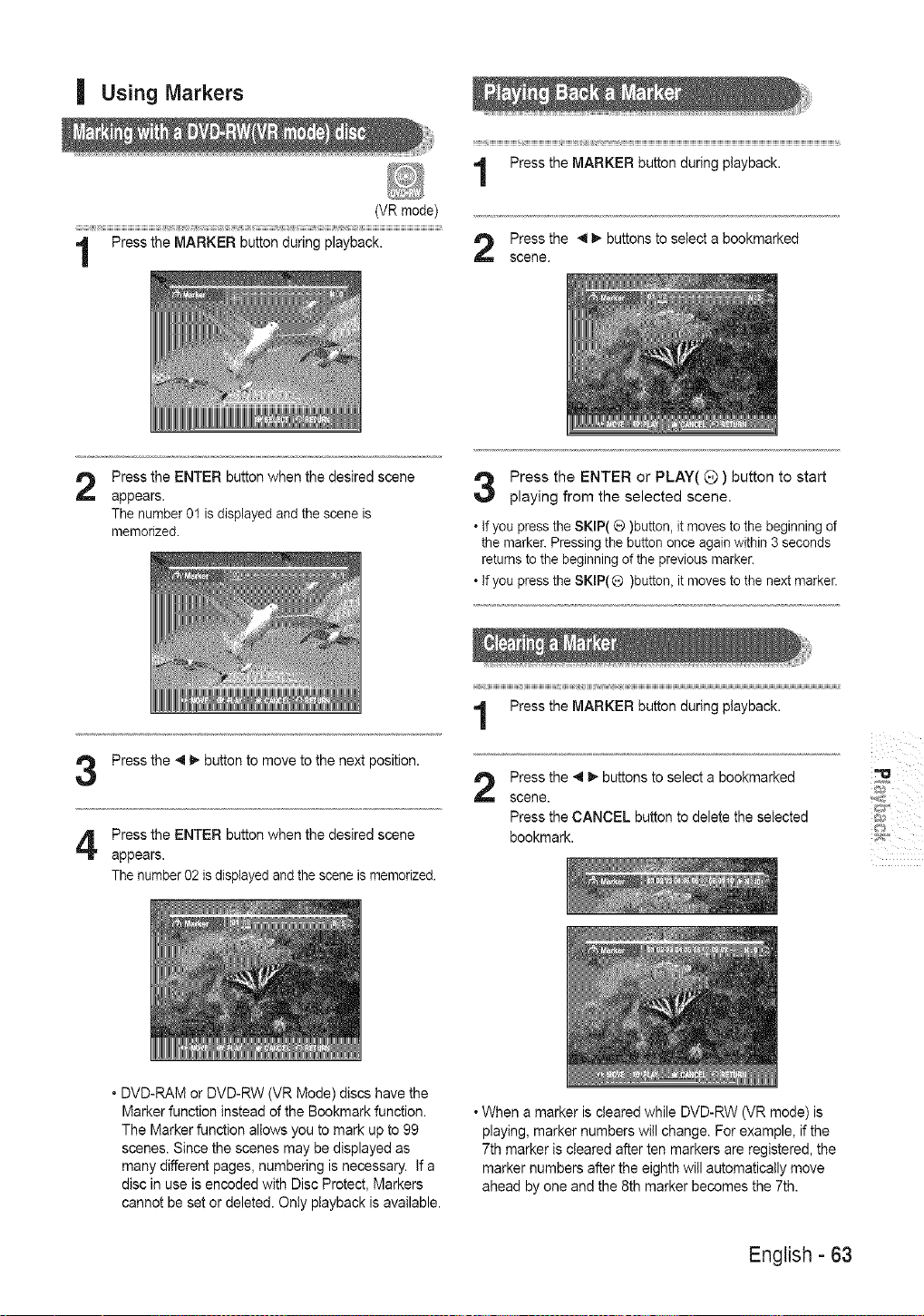
I Using Markers
(VR mode)
t ,,,
Press the MARKER button during playback.
Press the _1b,-buttons to select a bookmarked
scene.
2
Press the ENTER button when the desired scene
appears.
The number 01 is displayed and the scene is
memorized.
Press the ENTER or PLAY( O ) button to start
playing from the selected scene,
• tf you press the SKIP( (_)button, it moves to the beginning of
the marker. Pressing the button once again within 3 seconds
returns to the beginning of the previous marker.
• If you press the SKIP( ® )button, it moves to the next marker.
Press the _1b,-button to move to the next position.
Press the ENTER button when the desired scene
appears.
The number 02 isdisplayed and the scene is memorized.
Press the MARKER button during playback.
Press the _1 _ buttons to select a bookmarked
scene.
Press the CANCEL button to delete the selected
bookmark.
• DVD-RAM or DVD-RW (VR Mode) discs have the
Marker function instead of the Bookmark function.
The Marker function allows you to mark up to 99
scones. Since the scenes may be displayed as
many different pages, numbering is necessary. If a
disc in use is encoded with Disc Protect, Markers
cannot be set or deleted. Onty playback is available.
* When a marker is cleared while DVD-RW (VR mode) is
playing, marker numbers will change. For example, if the
7th marker is cleared after ten markers are registered, the
marker numbers after the eighth will automatically move
ahead by one and the 8th marker becomes the 7th.
English - 63
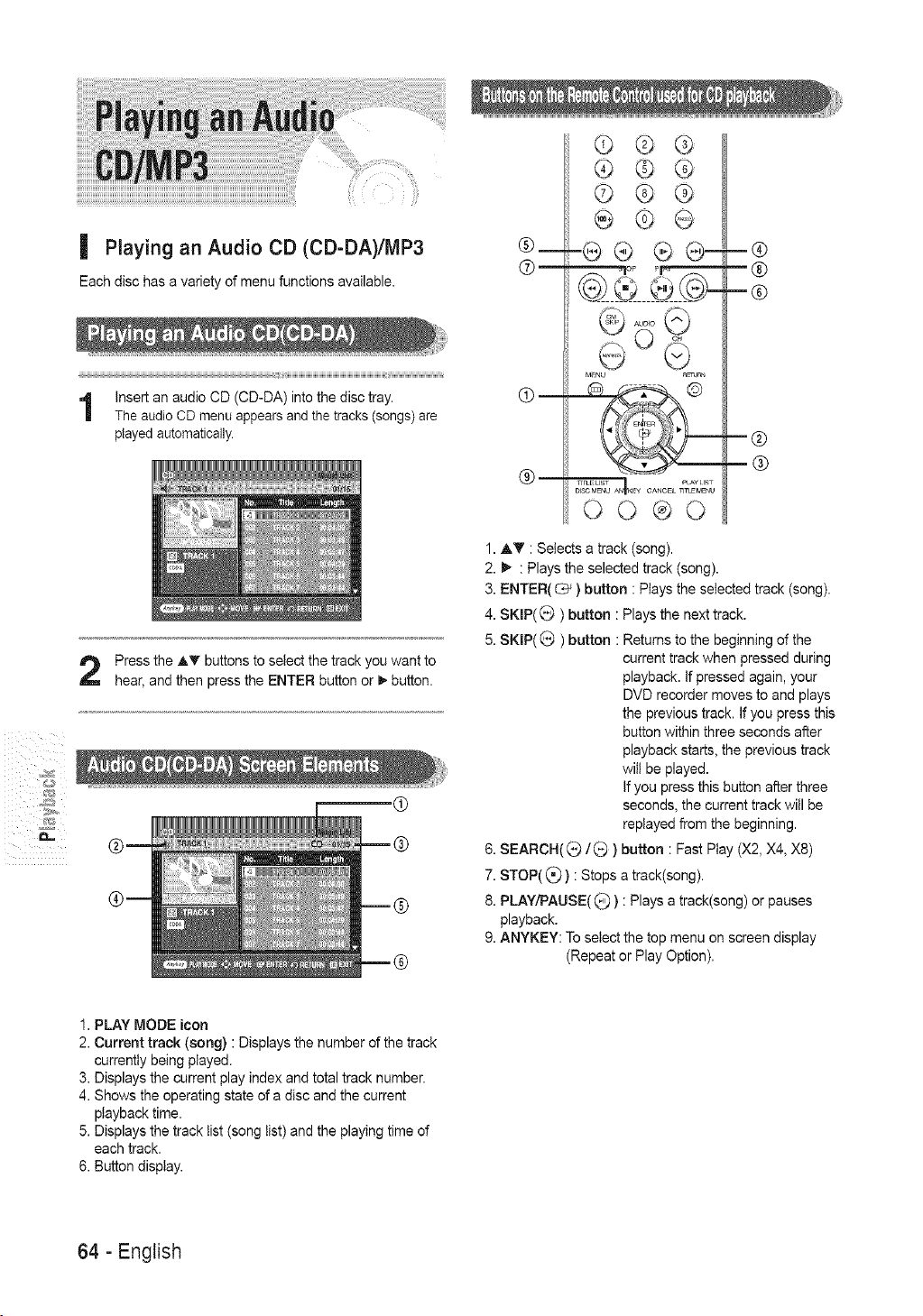
| PJaying an Audio CD (CD-DA)/MP3
Each disc has a variety of menu functions available.
ThelnSertan audio CD (CD-DA)audioCD menu appears andint° the disctraY.the tracks (songs) are
played automatically.
PresShear,and thenthe A_ buttOnSpress the ENTER button ort° select the track you button.Wantto
©--
@®@
©®@
@@@
® @
=@® ®®-
00®0
=®
=®
1. AT : Selects a track (song).
2. I_ : Plays the selected track (song).
3. ENTER( Cb' ) button : Plays the selected track (song).
4. SKIP(® ) button : Plays the next track.
5. SKIP( _ ) button : Returns to the beginning of the
current track when pressed during
playback, if pressed again, your
DVD recorder moves to and plays
the previous track. If you press this
button within three seconds after
playback starts, the previous track
wilt be played.
if you press this button after three
seconds, the current track will be
replayed from the beginning.
6. SEARCH((_/_ ) button : Fast Play (X2, X4, X8)
7. STOP((_)) : Stops a track(song).
& PLAY/PAUSE((_) : Plays a track(song) or pauses
playback.
9. ANYKEY: To select the top menu on screen display
(Repeat or Play Option).
1. PLAY MODE icon
2. Current track (song) : Displays the number of the track
currently being played.
& Displays the current play index and total track number.
4. Shows the operating state of a disc and the current
playback time.
& Displays the track tist (song list) and the playing time of
each track.
& Buttondisplay.
64 - English
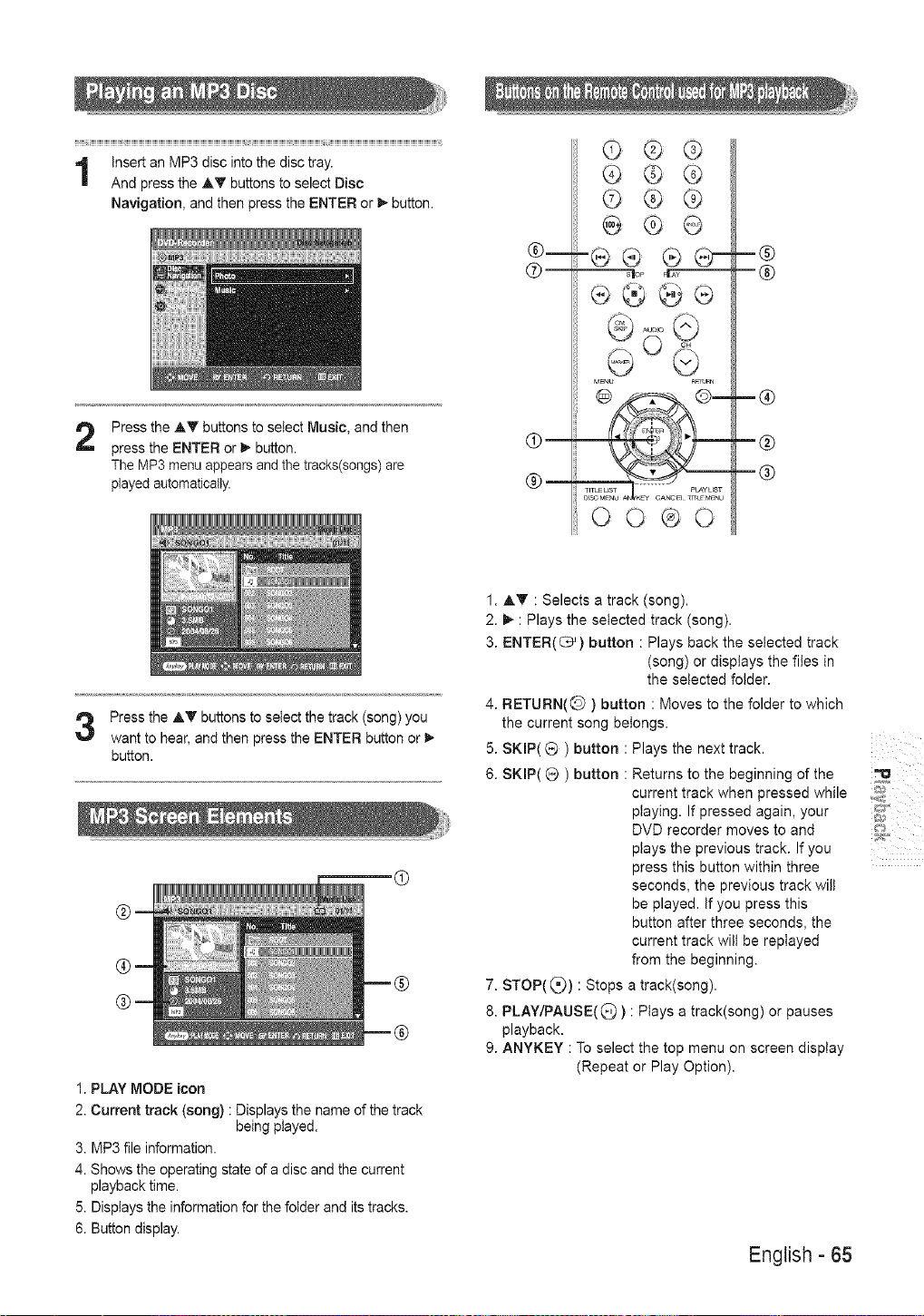
Insert an MP3 disc into the disc tray.
And press the AT buttons to select Disc
Navigation, and then press the ENTER or _, button.
Press the A_" buttons to select Music, and then
press the ENTER or _ button.
The MP3 menu appears and the tracks(songs) are
played automatically.
©
@
®
©@@
@@@
©®®
@ @
-@®
®®®®
MENU a_t_RN
00®0
m®
®
-®
m@
m®
Press the AT buttons to select the track (song) you
want to hear, and then press the ENTER button or
button.
@
1. PLAY MODE icon
2. Current track (song) : Displays the name of the track
being played.
3. MP3 file information.
4. Shows the operating state of a disc and the current
playback time.
5. Displays the information for the folder and its tracks.
6. Button display.
1. AT : Selects a track (song).
2. _ : Plays the selected track (song).
3. ENTER(_ ) button : Plays back the selected track
(song) or displays the files in
the selected folder.
4. RETURN(Q ) button : Moves to the folder to which
the current song belongs.
5. SKIP( @ ) button : Plays the next track.
6. SKIP( Q ) button : Returns to the beginning of the
current track when pressed while
playing. If pressed again, your
DVD recorder moves to and
plays the previous track. If you
press this button within three
seconds, the previous track wilt
be played. If you press this
button after three seconds, the
current track will be replayed
from the beginning.
7. STOP((_) : Stops a track(song).
8. PLAY/PAUSE((_) ) : Plays a track(song) or pauses
playback.
9. ANYKEY : To select the top menu on screen display
(Repeat or Play Option).
English - 65
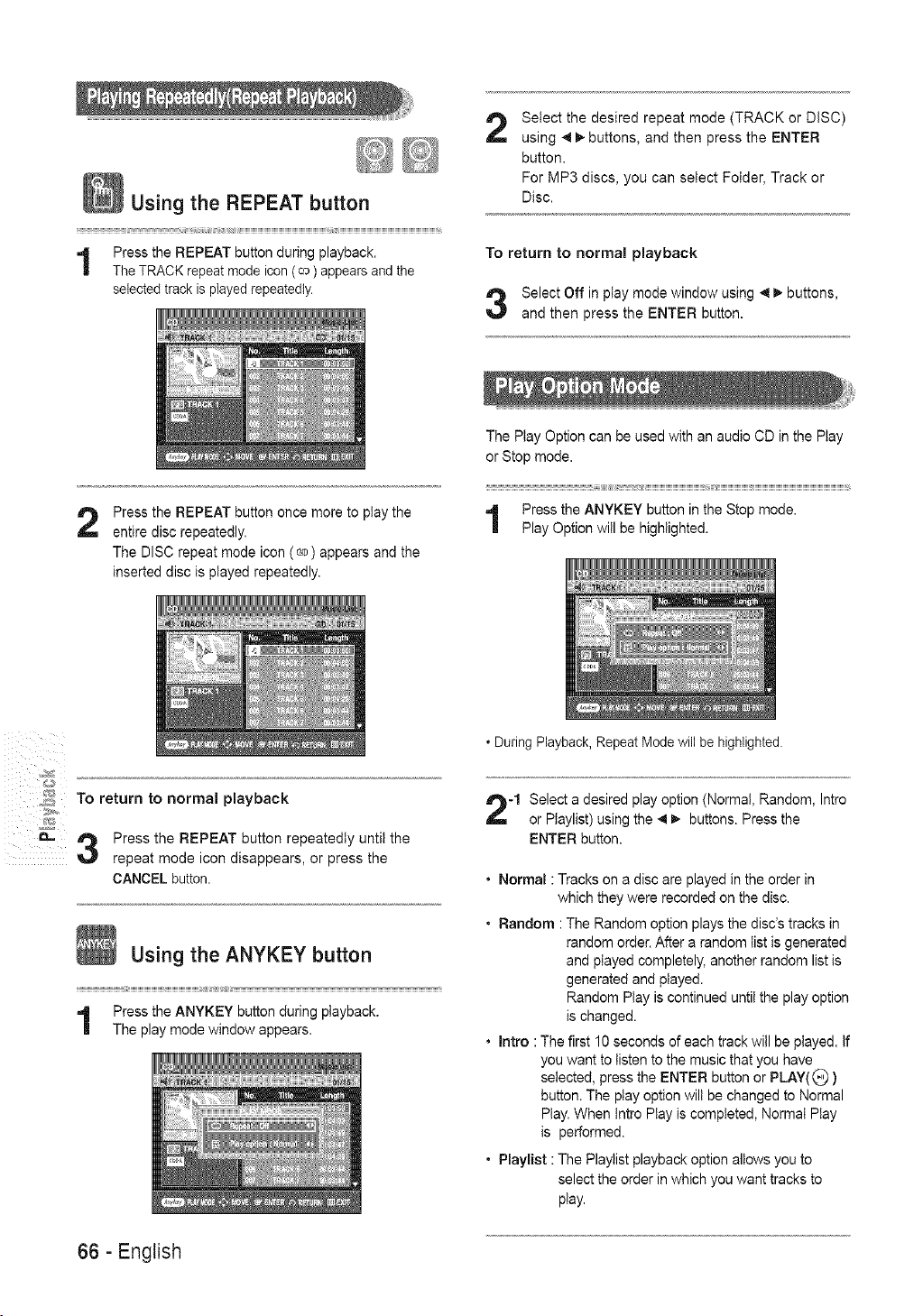
Using the REPEAT button
Press the REPEAT button during playback.
The TRACK repeat mode icon (co) appears and the
selected track is played repeatedly.
2
Select the desired repeat mode (TRACK or DISC)
using _ _. buttons, and then press the ENTER
button.
For MP3 discs, you can select Folder, Track or
Disc.
To return to normal playback
Select Off in p(ay mode window using 4 _, buttons,
and then press the ENTER button.
2
Press the REPEAT button once more to play the
entire disc repeatedly.
The DISC repeat mode icon (_,) appears and the
inserted disc is played repeatedly.
The Play Option can be used with an audio CD in the Play
or Stop mode.
...................................................................................................._j_j_?__j)__
Press the ANYKEY button in the Stop mode.
Play Option will be highlighted.
• During Playback, Repeat Mode will be highlighted.
,;s;_ TO return to normal playback
_ 3 Press the REPEAT button repeatedly until the
repeat mode icon disappears, or press the
CANCEL button.
Using the ANYKEY button
Press the ANYKEY button during playback.
The play mode window appears.
-1 Select a desired play option (Normal, Random, Intro
or Playlist) using the _ _ buttons. Press the
ENTER button.
• Normal : Tracks on a disc are played in the order in
which they were recorded on the disc.
• Random : The Random option plays the disc's tracks in
random order. After a random list is generated
and played completely, another random list is
generated and played.
Random Play is continued until the play option
is changed.
• Intro : The first 10 seconds of each track will be played. If
you want to listen to the music that you have
selected, press the ENTER button or PLAY(_ )
button. The play option wilt be changed to Normal
Play. When tntro Play is completed, Normat Play
is performed.
• Playlist : The Playlist playback option allows you to
select the order in which you want tracks to
play.
66 - English
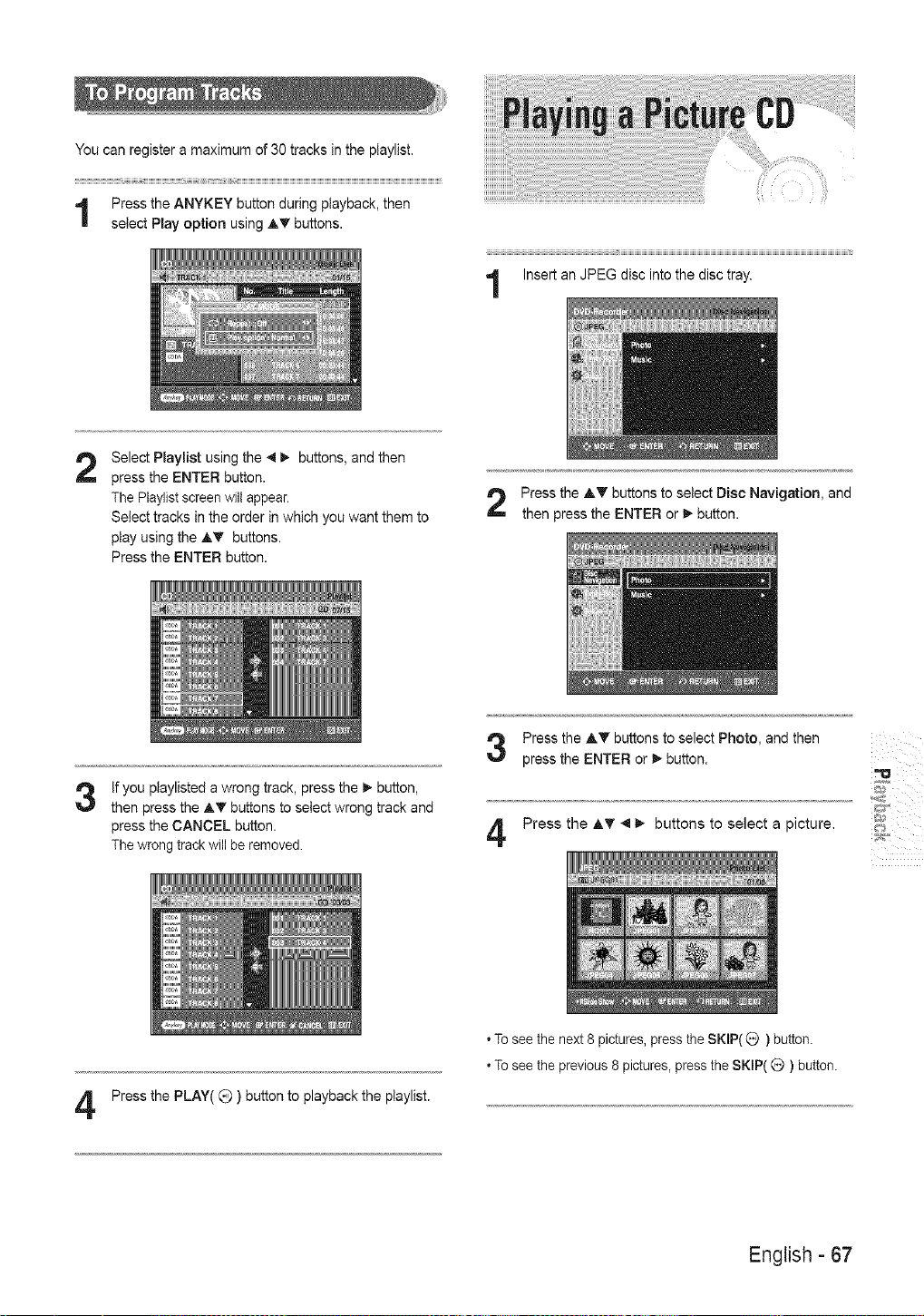
You can register a maximum of 30 tracks in the playlist.
Press the ANYKEY button during playback, then
setect PLay option using AT buttons.
Insert an JPEG disc into the disc tray.
2
Select Playlist using the _ _ buttons, and then
press the ENTER button.
The Playlist screen will appear.
Select tracks in the order in which you want them to
play using the ,_T buttons.
Press the ENTER button.
Press the A'_' buttons to select Disc Navigation, and
then press the ENTER or _,-button.
3
If you playlisted a wrong track, press the _, button,
then press the AT buttons to select wrong track and
press the CANCEL button.
The wrong track will be removed.
Press the A_ buttons to select Photo, and then
press the ENTER or _, button.
4
Press the AT _1_,- buttons to select a picture.
4
Press the PLAY( @ ) button to playback the playlist.
• To see the next 8 pictures, press the SKIP((_) button.
• To see the previous 8 pictures, press the SKIP( Q ) button.
English - 67
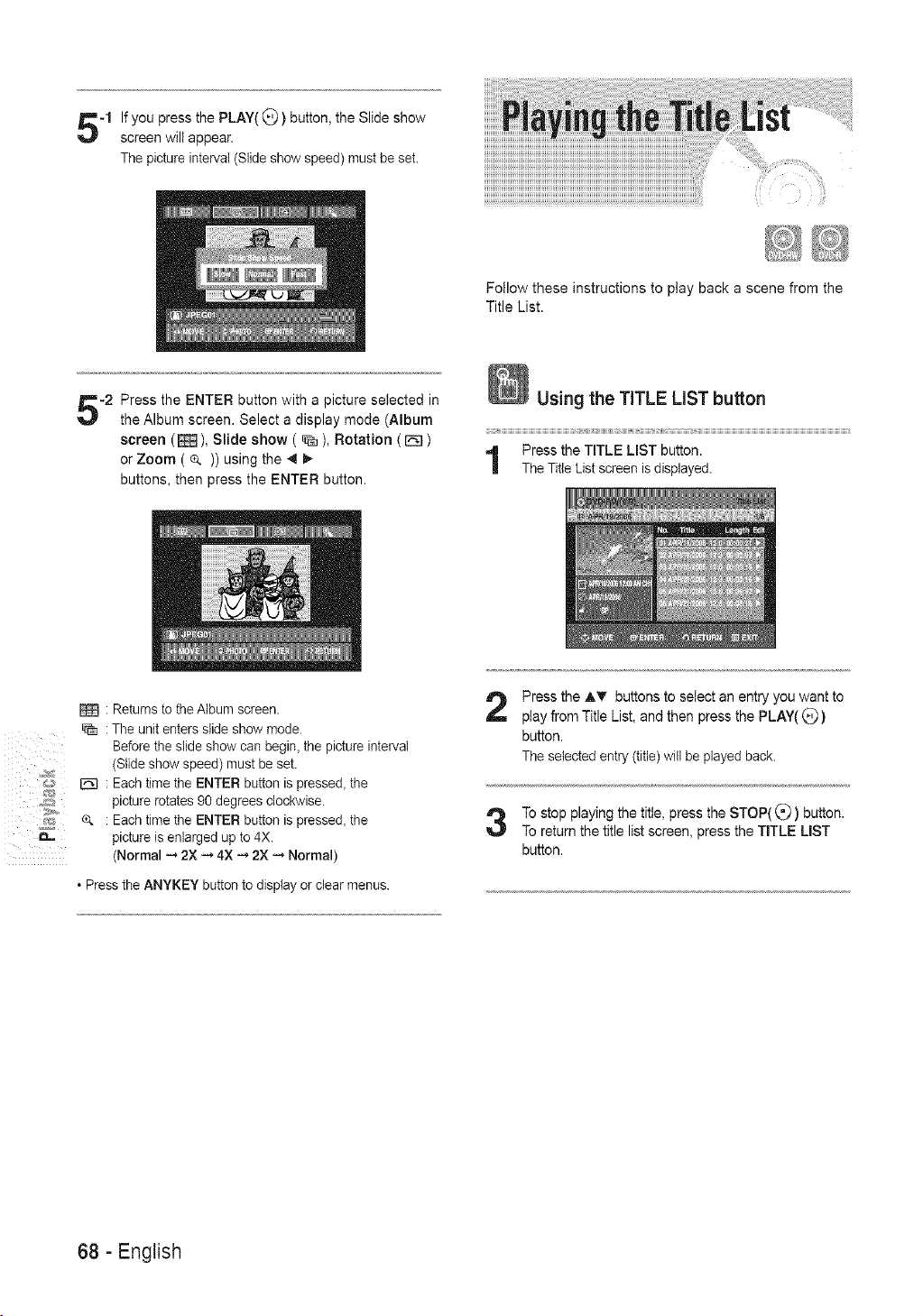
-1 If you press the PLAY( _ ) button, the Slide show
screen will appear.
The picture interval (Slide show speed) must be set.
Follow these instructions to ptay back a scene from the
Title List.
-2 Press the ENTER button with a picture selected in
the Album screen. Select a display mode (Album
screen (_), Slide show ( _ ), Rotation ( I_ )
or Zoom ( e. )) using the 4
buttons, then press the ENTER button.
_&5;;2
: Returns to the Album screen.
: The unit enters slide show mode.
Before the slide show can begin, the picture interval
(Slide show speed) must be set.
: Each time the ENTER button is pressed, the
picture rotates 90 degrees clockwise.
% • Each time the ENTER button is pressed, the
picture is enlarged up to 4X.
(Normal .._ 2X .-.+4X .._2X .-.+Normal)
. Press the ANYKEY button to display or clear menus.
Press the A'_ buttons to select an entry you want to
play from Title List, and then press the PLAY((_)
button.
The selected entry (title) witl be played back.
To stop playing the title, press the STOP((_) button.
To return the title list screen, press the TITLE LIST
button.
68 - English
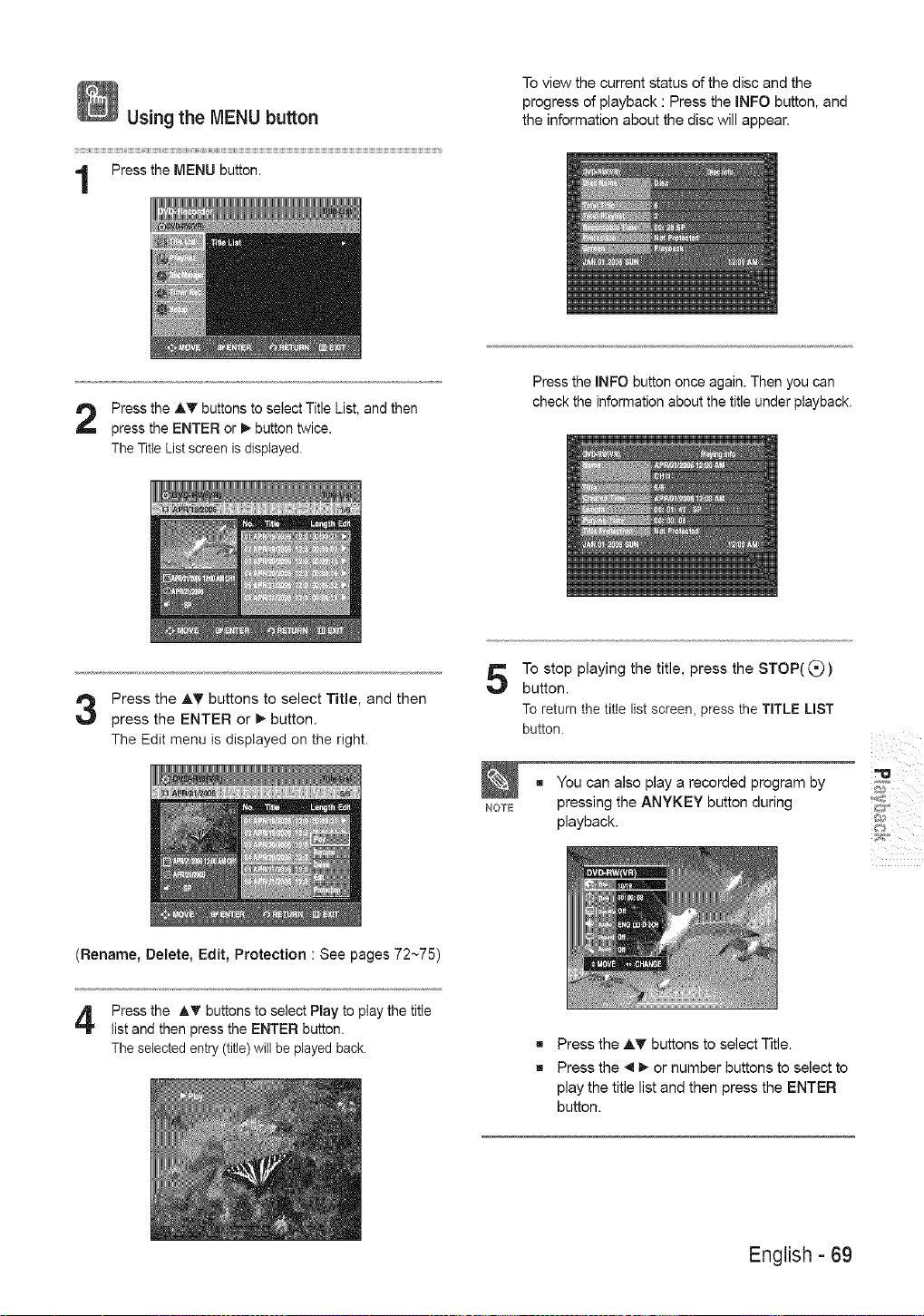
Using the MENU button
ii
Press the MENU button.
To view the current status of the disc and the
progress of playback : Press the mNFO button, and
the information about the disc will appear.
Press the AT buttons to select Title List, and then
press the ENTER or _ button twice.
The Title List screen is displayed.
Press the INFO button once again. Then you can
check the information about the title under playback.
Press the AT buttons to select Titme, and then
press the ENTER or I_ button.
The Edit menu is displayed on the right.
(Rename, Delete, Edit, Protection : See pages 72~75)
To stop playing the title, press the STOP((_)
button.
To return the title list screen, press the TITLE LIST
button.
NOTE
g You can also play a recorded program by
pressing the ANYKEY button during
playback.
Press the AT buttons to select Play to play the title
list and then press the ENTER button.
The selected entry (title) will be played back.
Press the AT buttons to select Title.
Press the _11_or number buttons to select to
play the title list and then press the ENTER
button.
English - 69
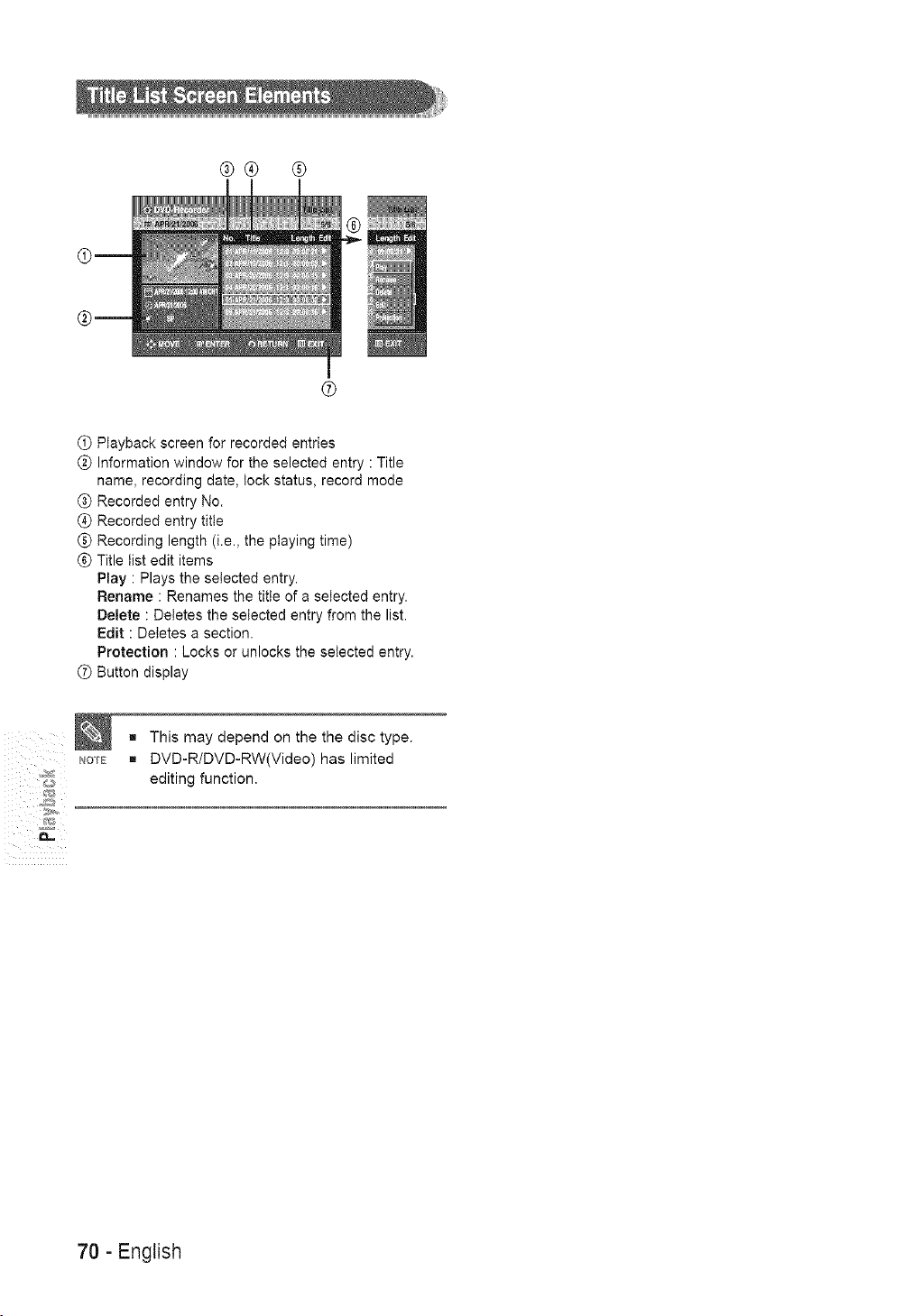
®® ®
®
Playback screen for recorded entries
Q Information window for the selected entry : Title
name, recording date, lock status, record mode
Recorded entry No.
Recorded entry title
Recording length (i.e., the playing time)
Title list edit items
Play : Plays the selected entry.
Rename : Renames the title of a selected entry.
Delete : Deletes the selected entry from the list.
Edit : Deletes a section.
Protection : Locks or unlocks the selected entry.
Button display
NOTE
g This may depend on the the disc type.
g DVD-R/DVD-RW(Video) has limited
editing function.
70 - English
This section introduces basic functions of DVD
editing.
Basic Editing (Title List_ .................. 72
Advance Editing (Playiist) ................. 76
Disc Manager .......................... 84
Title List
A title is a section of recorded video and audio.
Title List shows a list to help you select a title.
Since the title list consists of the information on m
stream that is actually recorded, if one title is deleted, ¢_]_-
that title cannot be played again. _;_
This refers to a unit of playback, which is made by
selecting a desired scene in the entire Title List.
When one piayiist is played, only the scene selected
by the user will play and then stop. Since only the
information necessary for playing a desired scene is
included in a ptayiist, even if that playtist is deleted,
the original recorded title will not be deleted.
Recording or editing might not be completed if an
error such as a sudden power failure occurs.
Please be aware that material that has been
damaged cannot be retrieved.
English - 71
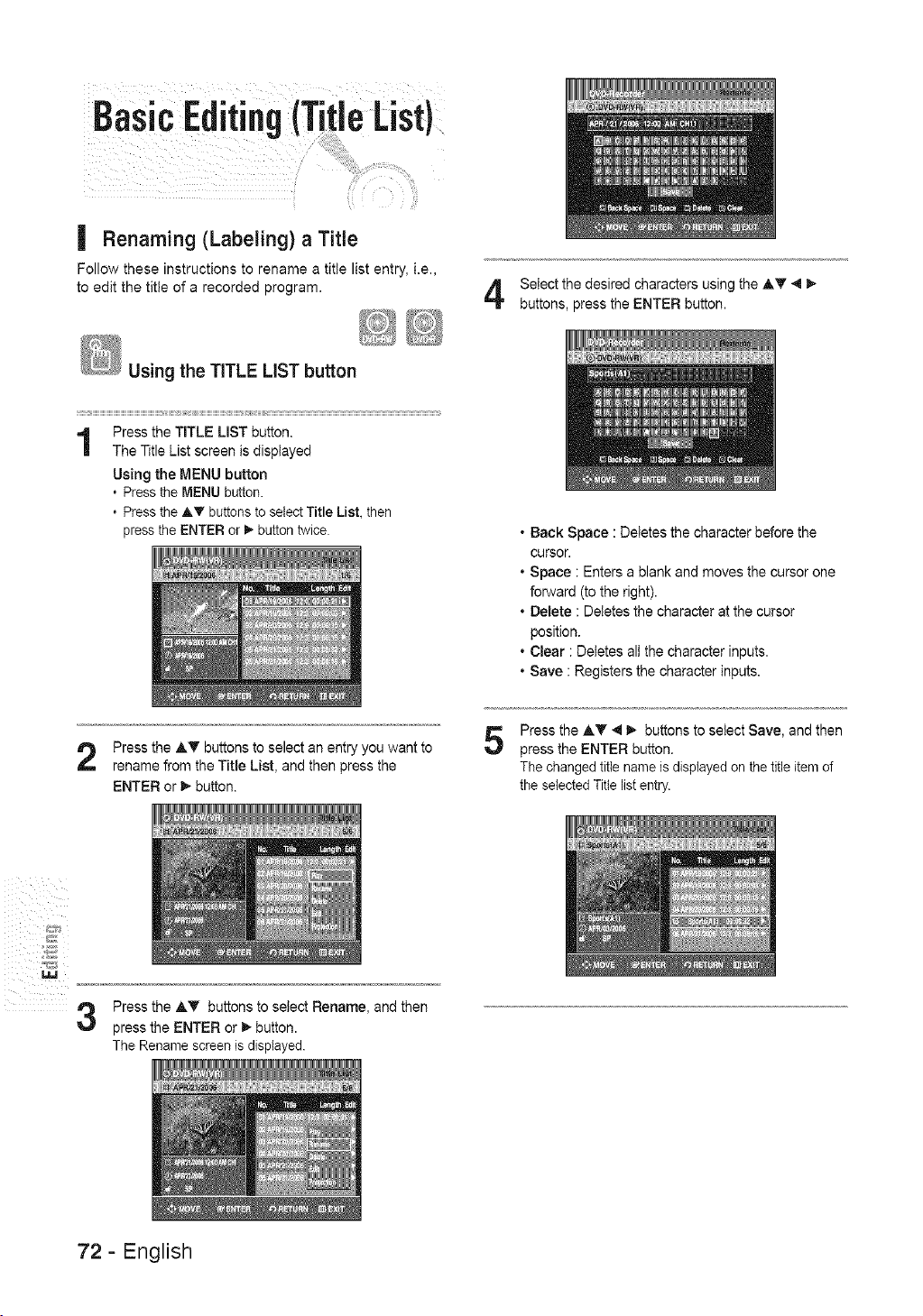
Basi Editing (Tjtie List)
| Renaming (Labeling) a Title
Follow these instructions to rename a title list entry, i.e.,
to edit the title of a recorded program.
Using the TITLE LiST button
Press the TITLE LIST button.
The Title List screen is displayed
Using the MENU button
, Press the MENU button.
, Press the Ay buttons to select Title List, then
press the ENTER or _ button twice.
Select the desired characters using the AT _l _,
buttons, press the ENTER button.
* Back Space : Deletes the character before the
cursor.
* Space : Enters a blank and moves the cursor one
forward (to the right).
* Delete : Deletes the character at the cursor
position.
* Clear : Deletes all the character inputs.
* Save : Registers the character inputs.
Press the AT buttons to select an entry you want to
rename from the Title List, and then press the
ENTER or _ button.
5
Press the AT 4 I_ buttons to select Save, and then
press the ENTER button.
The changed title name is displayed on the title item of
the selected Title list entry.
iiil i i i_
%
3
Press the AT buttons to select Rename, and then
press the ENTER or _ button.
The Rename screen is displayed.
72- English
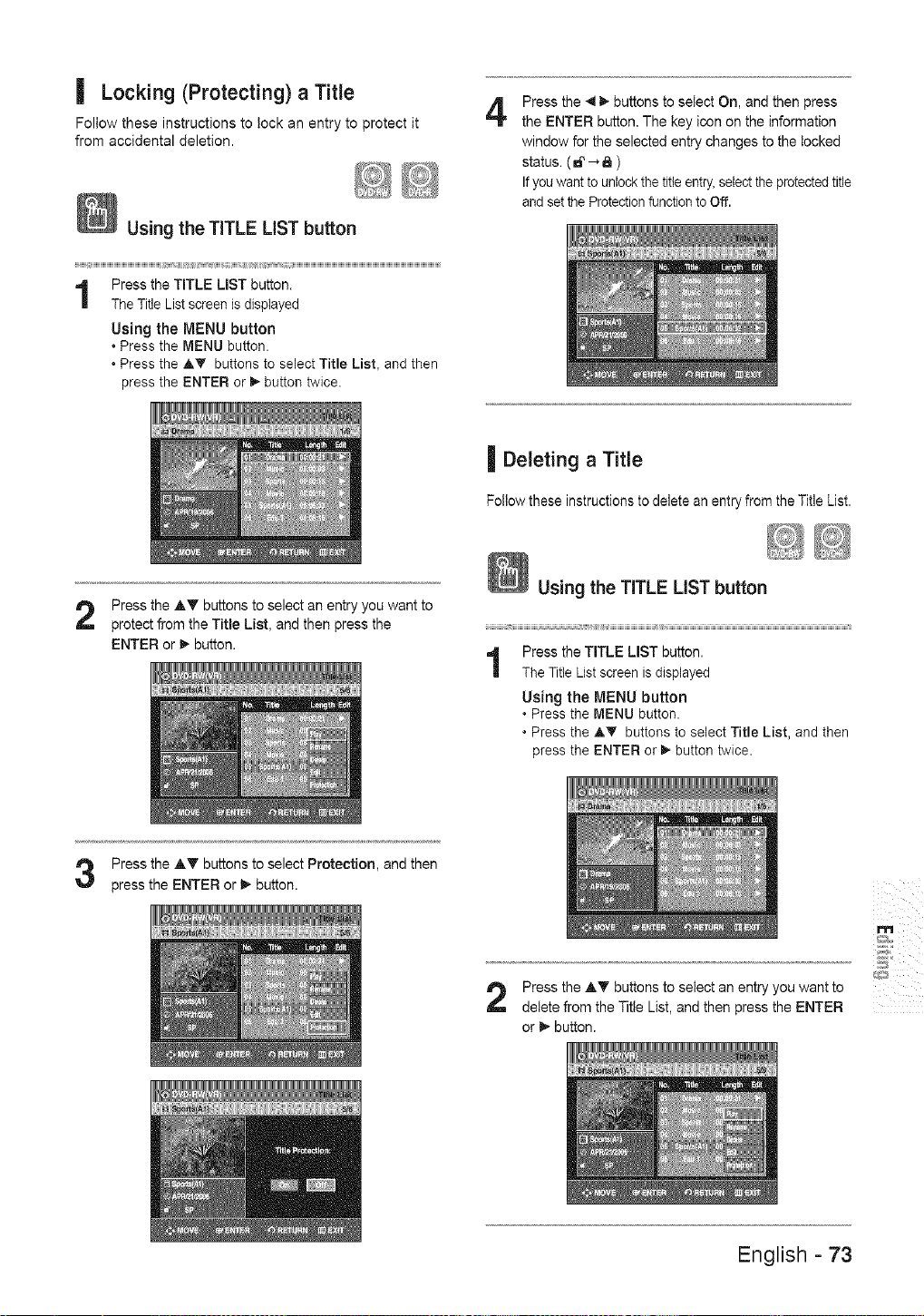
| Locking (Protecting) a Title
Follow these instructions to lock an entry to protect it
from accidental deletion.
Using the TITLE LIST button
Press the TITLE LIST button.
The Title List screen is displayed
Using the MENU button
, Press the MENU button•
• Press the AT buttons to select Title List, and then
press the ENTER or I_ button twice.
4
Press the 4 I_ buttons to select On, and then press
the ENTER button. The key icon on the information
window for the selected entry changes to the locked
status. ( _t' _ _ )
If you want to unlock the title entry,select the protected title
and set the Protectionfunction to Off.
Press the AT buttons to select an entry you want to
protect from the Title List, and then press the
ENTER or _- button.
| Deleting a Title
Follow these instructions to delete an entry from the Title List.
Using the TITLE LIST button
1
Press the TITLE LIST button.
The Title List screen is displayed
Using the MENU button
, Press the MENU button•
* Press the AT buttons to select Title List, and then
press the ENTER or I_ button twice.
Press the AT buttons to select Protection, and then
press the ENTER or I_ button.
Press the AT buttons to select an entry you want to
delete from the Title List, and then press the ENTER
or I_ button.
m
ii/ iiiii _iiiii
English - 73
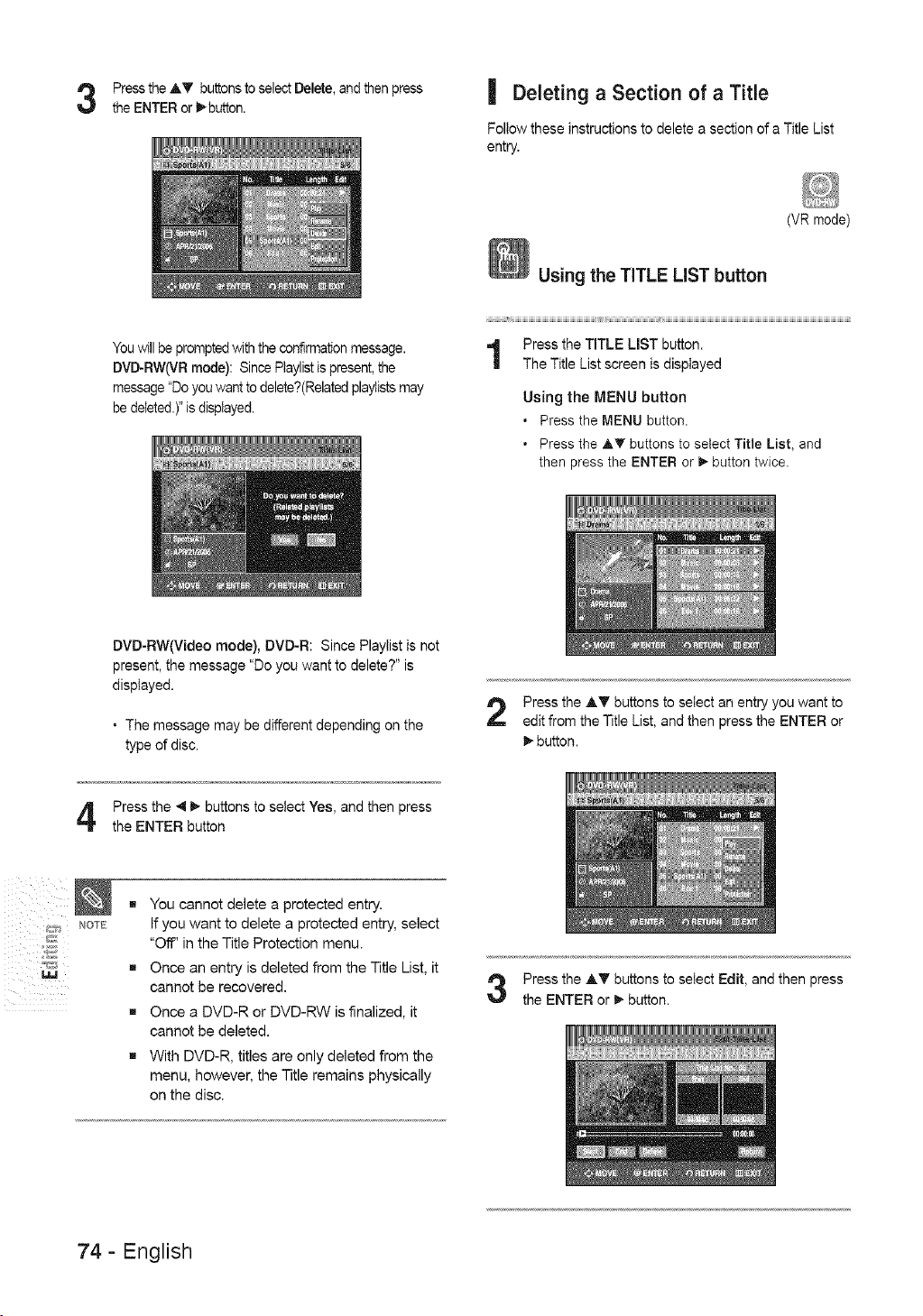
Press the AT buttons to select Delete, and then press
the ENTER or l_-button.
| Deleting a Section of a Title
Follow these instructions to delete a section of a Title List
entry.
(VR mode)
You will be prompted with the confirmation message.
DVD-RW(VR mode): Since Playlistis present, the
message "Do you want to delete?(Related playtistsmay
be deleted.)" is displayed.
Using the TITLE LIST button
_HHHHHHHHHHHHHHHHHHHHHHHHHHHHHHHHHHHHHHHWi_i_i_i_i_HHHHHHHHHHHHHHHHHHHHHHHHHHHHHHHHHHHHHHHHHHHHHHHHHHHHHHHHHHHHHHHHHHHHHHHHHHHHHHHHHHHHHHHH
Press the TITLE LIST button.
The Title List screen is displayed
Using the MENU button
, Press the MENU button.
• Press the AV buttons to select Title List, and
then press the ENTER or 1_button twice.
DVD-RW(Video mode), DVD-R: Since Playtist is not
present, the message "Do you want to delete?" is
displayed.
• The message may be different depending on the
type of disc.
Press the AT buttons to select an entry you want to
edit from the Title List, and then press the ENTER or
t,-button.
Press the _11_ buttons to select Yes, and then press
the ENTER button
iiil i i i_
NOTE
g You cannot delete a protected entry.
If you want to delete a protected entry, select
"Off' in the Title Protection menu.
g Once an entry is deleted from the Title List, it
cannot be recovered.
g Once a DVD-R or DVD-RW is finalized, it
cannot be deleted.
g With DVD-R, titles are only deleted from the
menu, however, the Title remains physically
on the disc.
Press the A'_' buttons to select Edit, and then press
the ENTER or t,- button.
74- English
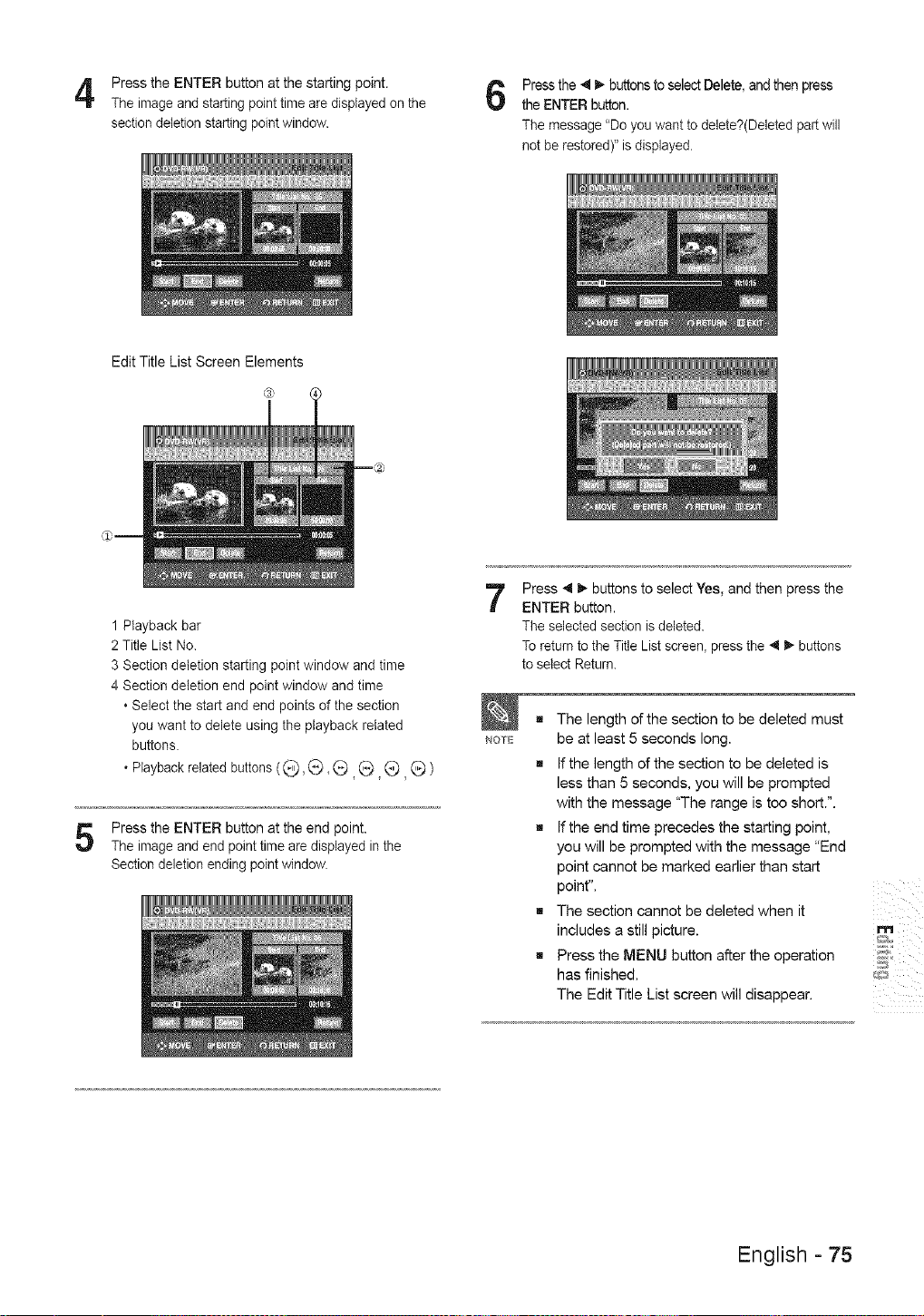
Press the ENTER button at the starting point.
The image and starting point time are displayed on the
section deletion starting point window.
Press the 4 I_ buttons to select Delete, and then press
the ENTER button.
The message "Do you want to delete?(Deleted part will
not be restored)" is displayed.
Edit Title List Screen Elements
1 Playback bar
2 Title List No.
3 Section deletion starting point window and time
4 Section deletion end point window and time
• Select the start and end points of the section
you want to delete using the playback related
buttons.
• Playback related buttons ((_, G, G (_: (_, _ )
Press the ENTER button at the end point.
The image and end point time are displayed in the
Section deletion ending point window.
7
NOTE
Press 4 I_ buttons to select Yes, and then press the
ENTER button.
The selected section is deleted.
To return to the Title List screen_ press the _l _- buttons
to select Return.
The length of the section to be deleted must
be at least 5 seconds long.
g If the length of the section to be deleted is
less than 5 seconds, you will be prompted
with the message "The range is too short.".
g If the end time precedes the starting point,
you will be prompted with the message "End
point cannot be marked earlier than start
point".
g The section cannot be deleted when it
includes a still picture.
m Press the MENU button after the operation
has finished.
The Edit Title List screen will disappear.
m
5
English - 75
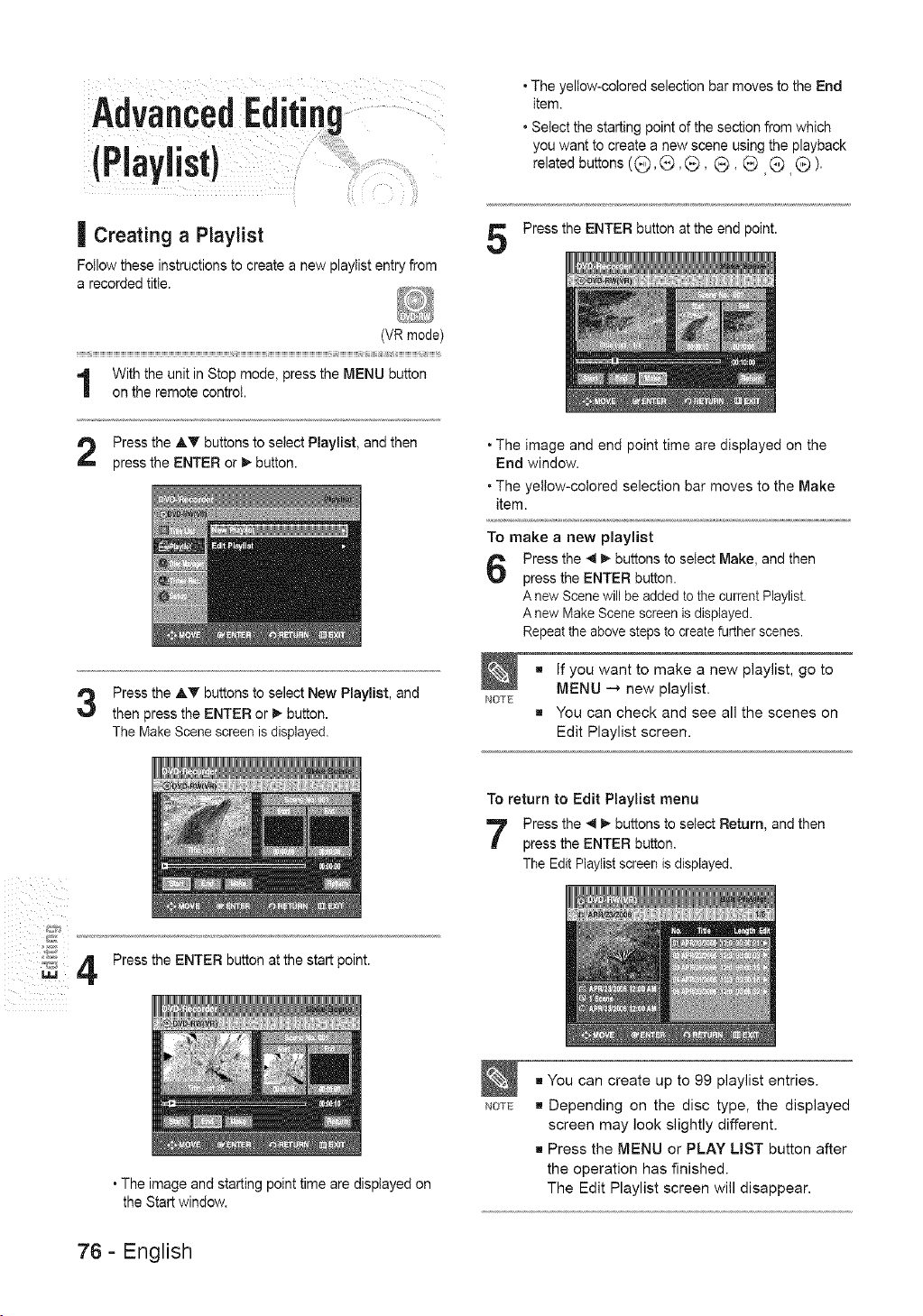
AdveneedEditing
IPl0
| Creating a Playlist
Followthese instructionsto create a new playtistentryfrom
a recorded title.
• The yellow-colored selection bar moves to the End
item.
• Select the starting point of the section from which
you want to create a new scene using the playback
related buttons ((_, _, (_, _, _ G _ ).
Press the ENTER button at the end point.
(VR mode)
i
With the unit in Stop mode, press the MENU button
on the remote control.
Press the AT buttons to select Playlist, and then
press the ENTER or _ button.
Press the AT buttons to select New Playlist, and
then press the ENTER or _ button.
The Make Scene screen is displayed.
• The image and end point time are displayed on the
End window.
• The yellow-colored selection bar moves to the Make
item.
To make a new playlist
Press the 4 I_ buttons to select Make, and then
press the ENTER button.
A new Scene will be added to the current Playlist.
A new Make Scene screen is displayed.
Repeat the above steps to create further scenes.
NOTE
g If you want to make a new playlist, go to
MENU _ new playlist.
g You can check and see all the scenes on
Edit Playlist screen.
iiil i i i_
_ff
_ 4
Press the ENTER button at the start point.
• The image and starting point time are displayed on
the Start window.
To return to Edit Playlist menu
Press the 4 I_ buttons to select Return, and then
press the ENTER button.
The Edit Playlist screen is displayed.
NOTE
g You can create up to 99 playlist entries.
g Depending on the disc type, the displayed
screen may look slightly different.
g Press the MENU or PLAY LIST button after
the operation has finished.
The Edit Playlist screen will disappear.
76- English
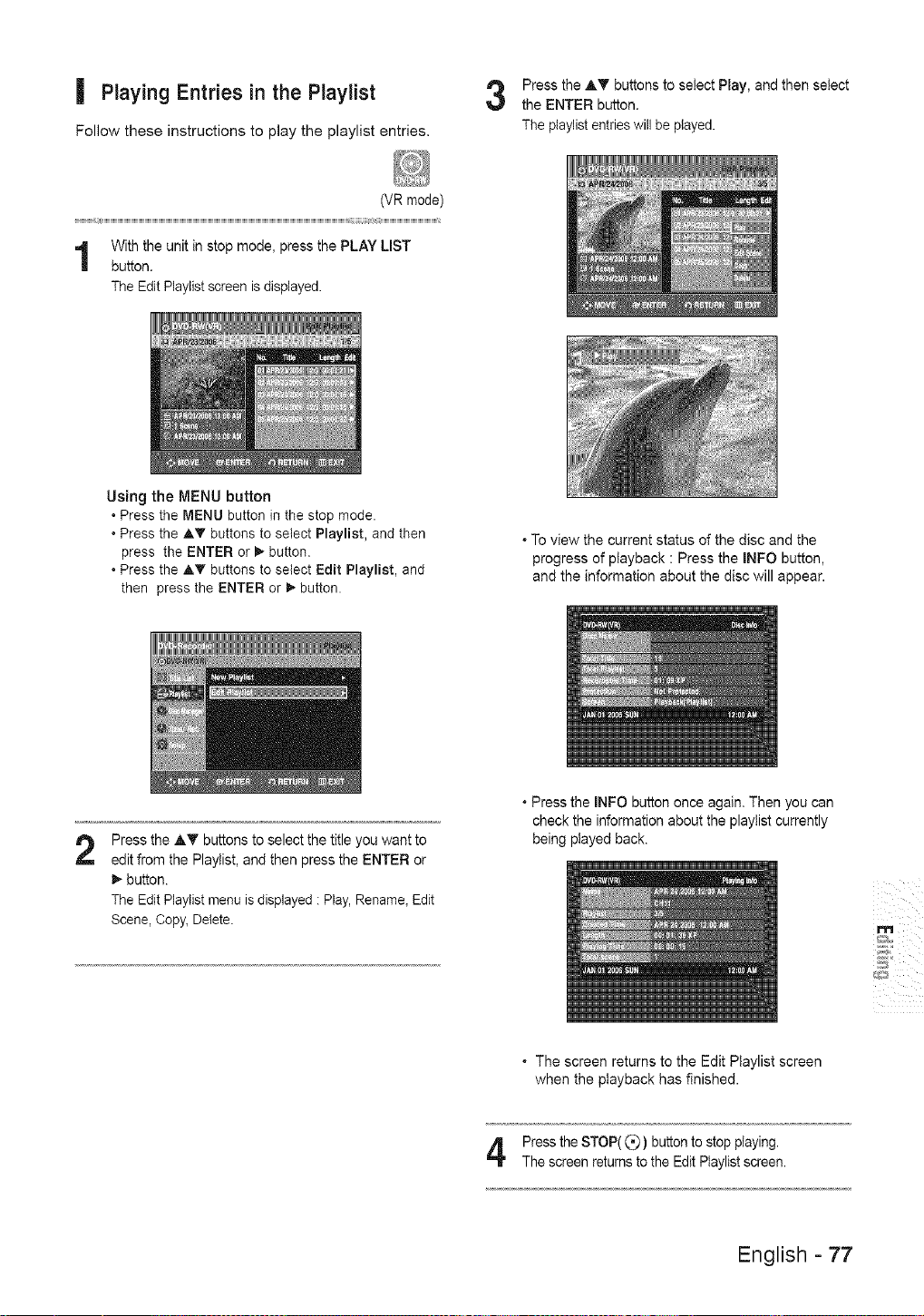
| Playing Entries in the Playlist
Follow these instructions to play the playlist entries.
Press the AT buttons to select Play, and then select
the ENTER button.
The playlist entries will be played.
(VR mode)
With the unit in stop mode, press the PLAY LIST
button.
The Edit Playlist screen is displayed.
Using the MENU button
• Press the MENU button in the stop mode.
• Press the ,&_' buttons to select Playlist, and then
press the ENTER or _,,button.
• Press the A_' buttons to select Edit Playlist, and
then press the ENTER or _ button.
* To view the current status of the disc and the
progress of playback : Press the INFO button,
and the information about the disc will appear.
2
Press the AT buttons to select the title you want to
edit from the Playlist, and then press the ENTER or
button.
The Edit Playlist menu is displayed : Play, Rename, Edit
Scene, Copy, Delete.
* Press the INFO button once again. Then you can
check the information about the playtist currently
being played back.
m
* The screen returns to the Edit Playlist screen
when the playback has finished.
Pressthe STOP((_) buttonto stopplaying.
Thescreenreturnsto the EditPlaylistscreen.
English - 77
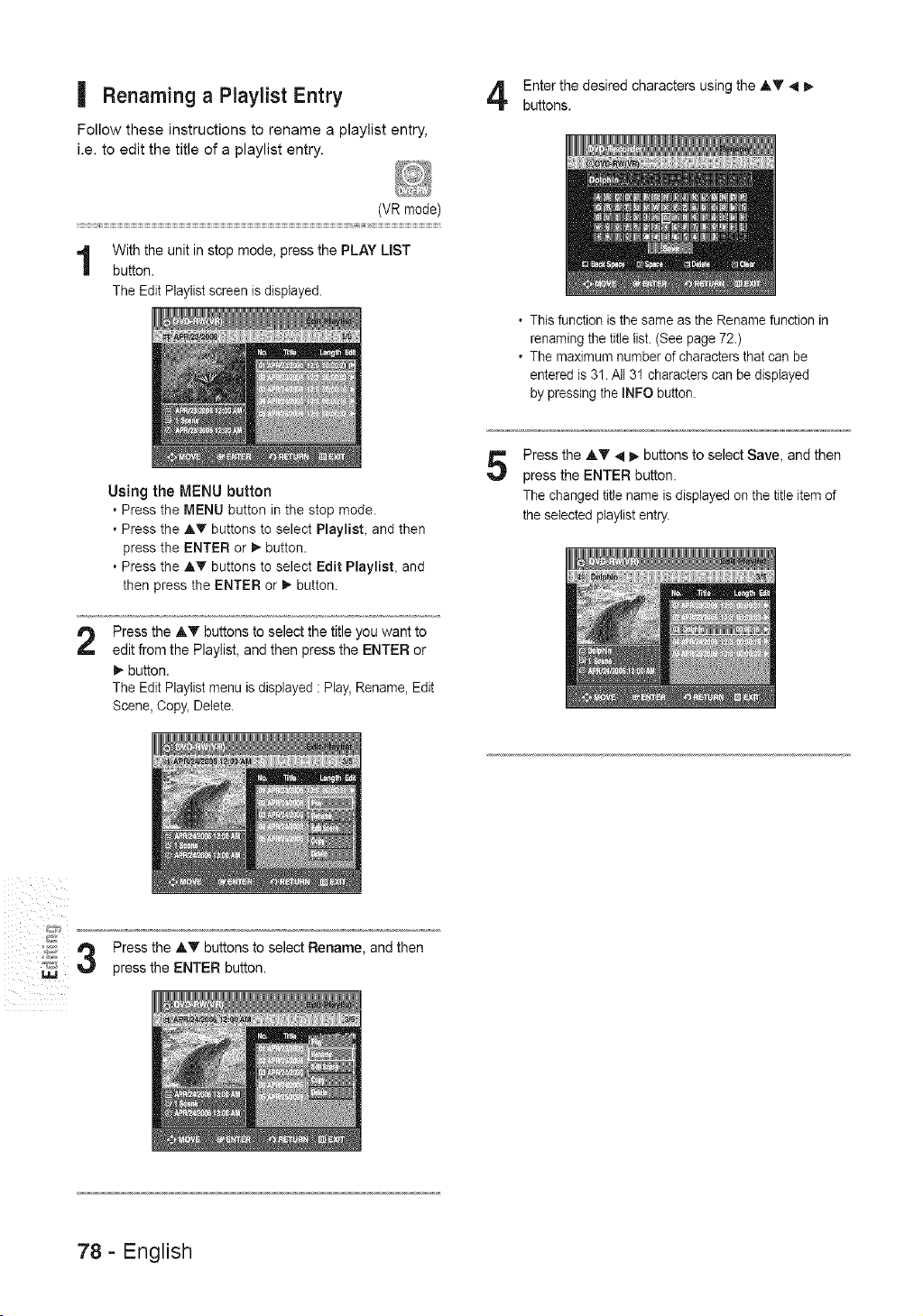
| Renaminga Playlist Entry
Follow these instructions to rename a playlist entry,
i.e. to edit the title of a playlist entry.
Enter the desired characters using the AT _11_
buttons.
(VR made)
With the unit in stop mode, press the PLAY LIST
button.
The Edit Playlist screen is displayed.
• This function is the same as the Rename function in
renaming the title list. (See page 721)
• The maximum number of characters that can be
entered is 31. All 31 characters can be displayed
by pressing the INFO button.
2
Using the MENU button
. Press the MENU button in the stop mode.
• Press the AT buttons to select Playlist, and then
press the ENTER or _ button.
• Press the A_' buttons to select Edit PlaylisL and
then press the ENTER or _- button.
Press the AT buttons to select the title you want to
edit from the Playiist, and then press the ENTER or
_,-button.
The Edit Playtist menu is displayed : Play, Rename, Edit
Scene, Copy, Delete.
5
Press the AT _ _ buttons to select Save, and then
press the ENTER button.
The changed title name is displayed on the title item of
the selected playlist entry.
iiiill i_
Press the ,_ buttons to select Rename, and then
press the ENTER button.
78- English
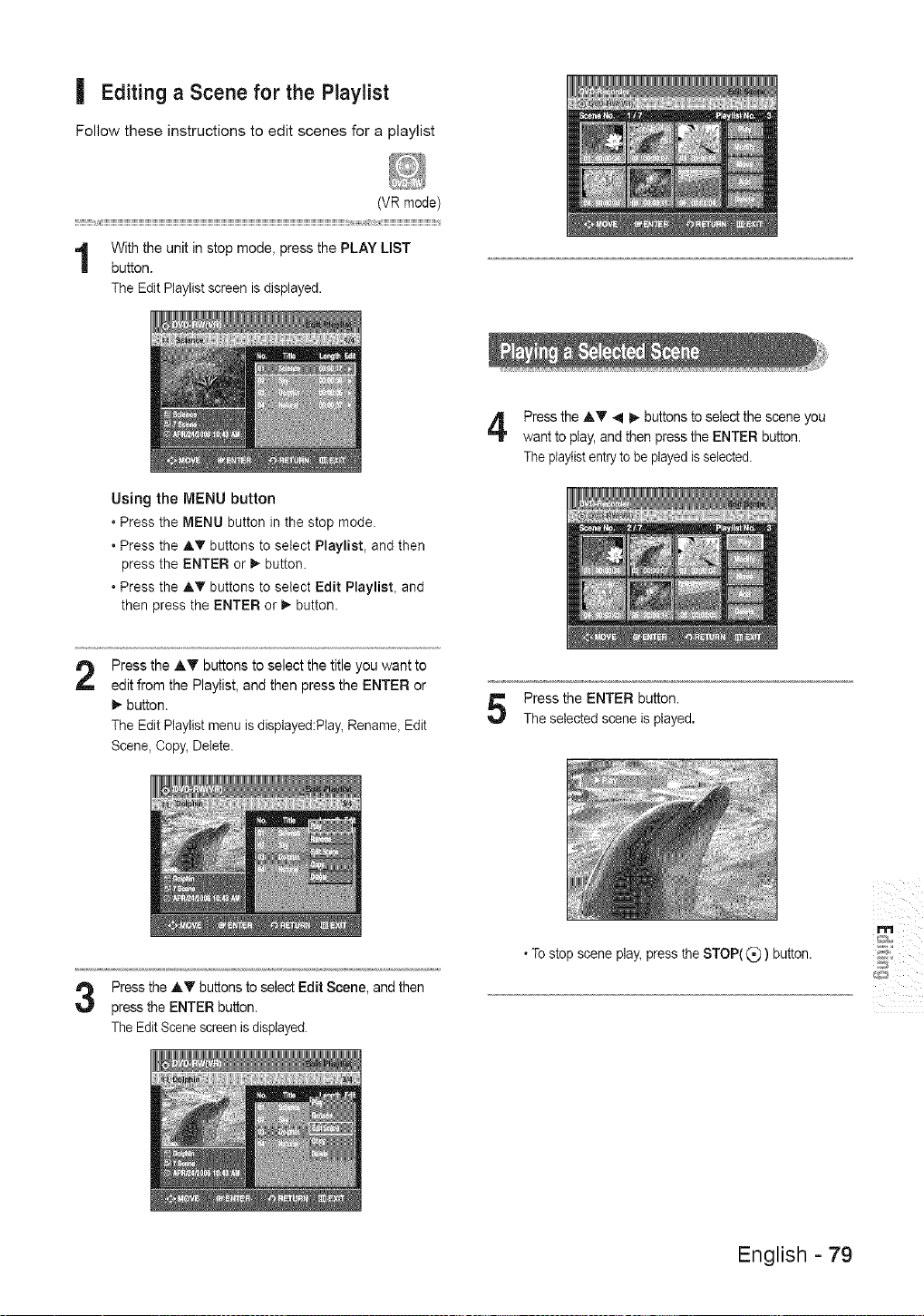
| Editing a Scene for the Playlist
Follow these instructions to edit scenes for a playlist
(VR mode)
With the unit in stop mode, press the PLAY LIST
button.
The Edit Playlist screen is displayed.
Using the MENU button
• Press the MENU button in the stop mode.
, Press the A_' buttons to select Playlist, and then
press the ENTER or _',button.
• Press the _,T buttons to select Edit Playlist, and
then press the ENTER or 1_button,
Press the _,T _1 t,- buttons to select the scene you
want to play, and then press the ENTER button.
The ptaytistentry to be played is selected.
2
Press the AT buttons to select the title you want to
edit from the Playtist, and then press the ENTER or
t,- button.
The Edit Playlist menu is displayed:Play, Rename, Edit
Scene, Copy, Delete.
Press the ENTER button.
The selected scene is played.
Press the ,_T buttons to select Edit Scene, and then
press the ENTER button.
The Edit Scene screen is displayed.
• To stop scene play, press the STOP((_J) button.
m
English - 79
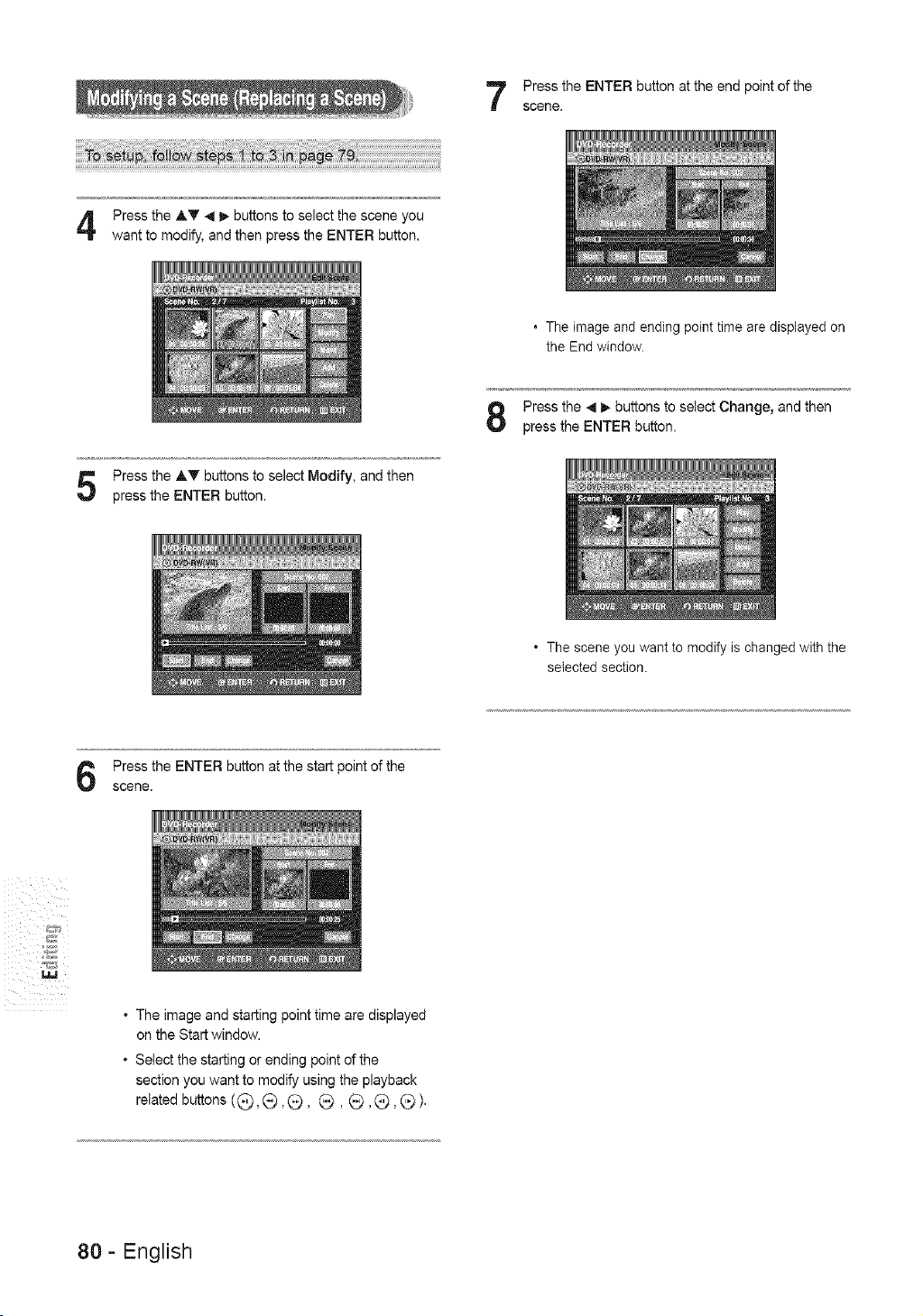
Press the ENTER button at the end point of the
scene.
Press the AT _ I_ buttons to select the scene you
want to modify, and then press the ENTER button.
. The image and ending point time are displayed on
the End window.
Press the 4 I_ buttons to select Change, and then
press the ENTER button.
Press the AT buttons to select Modify, and then
press the ENTER button.
o The scene you want to modify is changed with the
selected section.
Press the ENTER button at the start point of the
scene.
iiil i i i_
. The image and starting point time are displayed
on the Start window.
. Select the starting or ending point of the
section you want to modify using the playback
related buttons ((_,(_) ,(_ , _, (_ ,_, _).
80- English

g Depending disc type, the displayed screen
may look slightly different.
No'rE
Press the A'V 411_buttons to select the scene you
want to move (change the position), and then press
the ENTER button.
4
Press the AT 4 1_buttons to select the scene that
wilt have a new scene inserted before it, and then
press the ENTER button.
A yellow selection window is displayed on the scene to
be added as the new scene.
Press the AT buttons to select Move, then press the
ENTER button.
Press the AT buttons to select Add, then press the
ENTER button.
A yellow selection window is displayed on the scene to
be moved.
Press the AT 4 1_buttons to select the position to
which you want to move the selected scene, and
then select the ENTER button.
The selected scene is moved to the selected position.
Press the ENTER button at the starting point of the
scene.
m
5
• The image and starting point time are displayed on
the Start window.
. Select the end point of the section where you want
to add the new scene using the playback related
buttons (@,(_),@, @, @, @, @ ).
English - 81
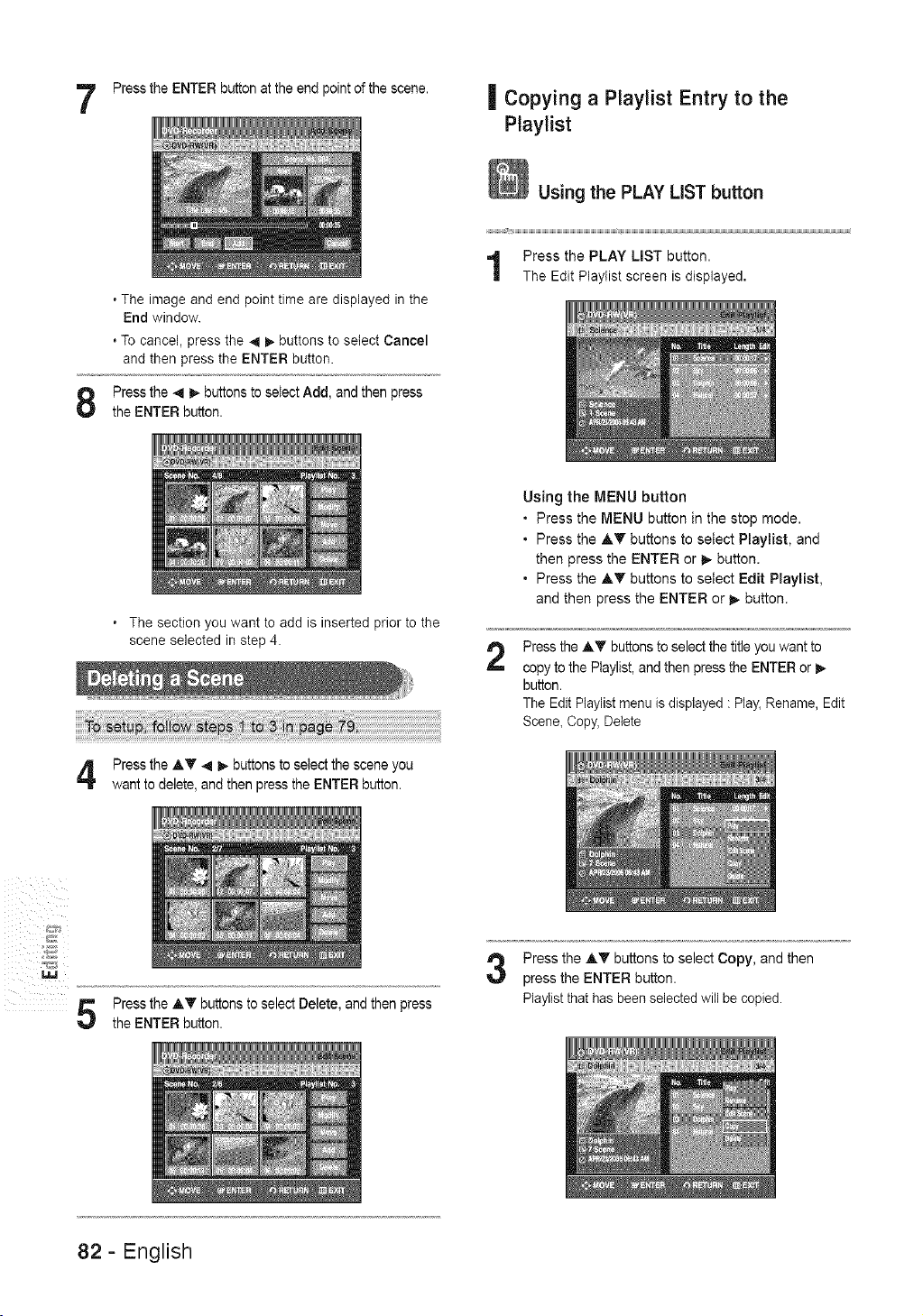
Press the ENTER button at the end point of the scene.
| Copying a Ptaylist Entry to the
Playlist
• The image and end point time are displayed in the
End window.
. To cancel, press the 4 _. buttons to select Cancel
and then press the ENTER button.
Press the 4 1_ buttons to select Add, and then press
the ENTER button.
Using the PLAY LiST button
Press the PLAY LIST button.
The Edit Playlist screen is displayed.
The section you want to add is inserted prior to the
scene selected in step 4.
2
Press the AT _ 1_ buttons to select the scene you
want to delete, and then press the ENTER button.
Using the MENU button
• Press the MENU button in the stop mode.
• Press the AT buttons to seiect Playlist, and
then press the ENTER or _,-button.
• Press the AT buttons to select Edit Playlist,
and then press the ENTER or I_ button.
Press the A_ buttons to select the title you want to
copy to the Playlist, and then press the ENTER or I_
button.
The Edit Playlist menu is displayed : Play, Rename, Edit
Scene, Copy, Delete
5
Press the A'V buttons to select Delete, and then press
the ENTER button.
Press the A_ buttons to select Copy, and then
press the ENTER button.
Playlist that has been selected will be copied.
82- English
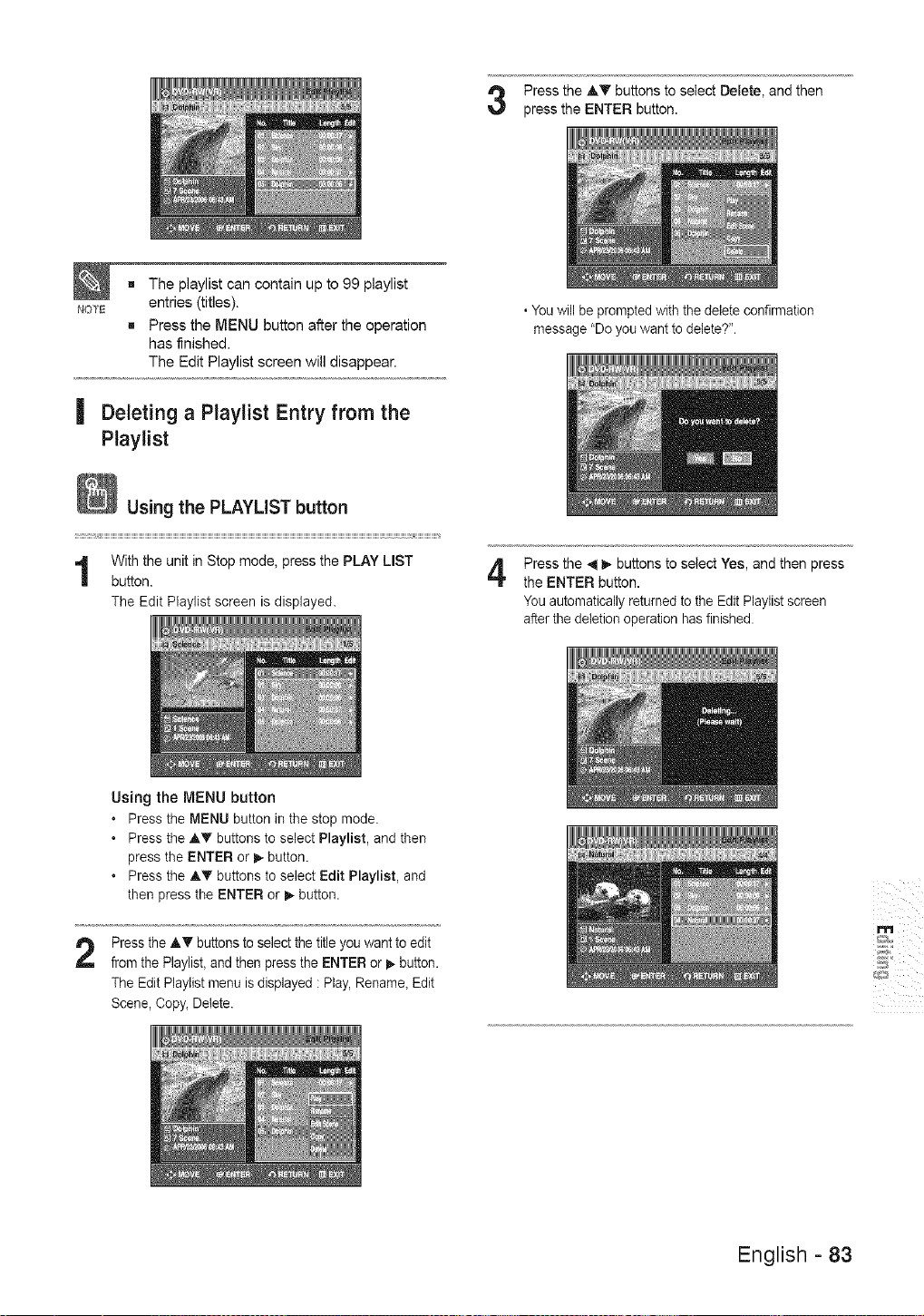
NOTE
Press the AT buttons to select DeLete, and then
press the ENTER button.
g The playlist can contain up to 99 playlist
entries (titles).
g Press the MENU button after the operation
has finished.
The Edit Playlist screen will disappear.
| Deleting a Playlist Entry from the
Playlist
, You will be prompted with the delete confirmation
message "Do you want to delete'?".
Using the PLAYLIST button
r;
With the unit in Stop mode, press the PLAY LIST
button.
The Edit Playlist screen is displayed.
Press the 4 !_ buttons to select Yes, and then press
the ENTER button.
You automatically returned to the Edit Playlist screen
after the deletion operation has finished.
2
Using the MENU button
• Press the MENU button in the stop mode.
• Press the AT buttons to select Playlist, and then
press the ENTER or _ button.
, Press the AT buttons to select Edit Playlist, and
then press the ENTER or I_ button.
Press the AT buttons to select the title you want to edit
from the Playlist, and then press the ENTER or _ button.
The Edit Playlist menu is displayed : Play, Rename, Edit
Scene, Copy, Delete.
m
5
English - 83
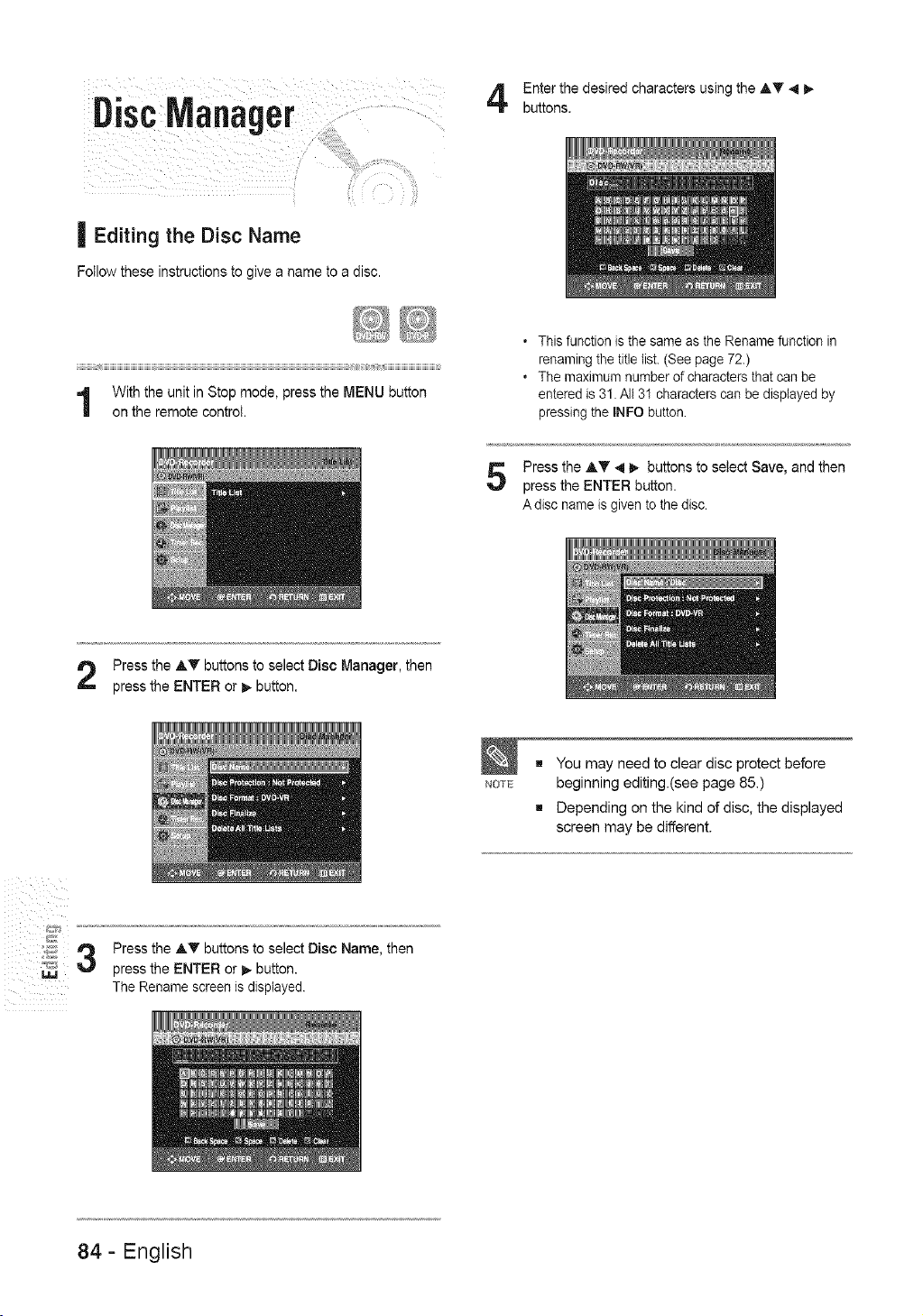
A Enter the desired characters using the AT _1D,-
buttons.
| Editing the Disc Name
Follow these instructions to give a name to a disc.
With the unit in Stop mode, press the MENU button
on the remote control.
• This function is the same as the Rename function in
renaming the title list. (See page 72.)
. The maximum number of characters that can be
entered is 31. All 31 characters can be displayed by
pressing the INFO button.
Press the AT _1_ buttons to select Save, and then
press the ENTER button.
A disc name is given to the disc.
Press the AT buttons to select Disc Manager, then
press the ENTER or _,- button.
NOTE
g You may need to clear disc protect before
beginning editing.(see page 85.)
g Depending on the kind of disc, the displayed
screen may be different.
iiiill i_
%
Press the AT buttons to select Disc Name, then
press the ENTER or I_ button.
The Rename screen is displayed.
84- English
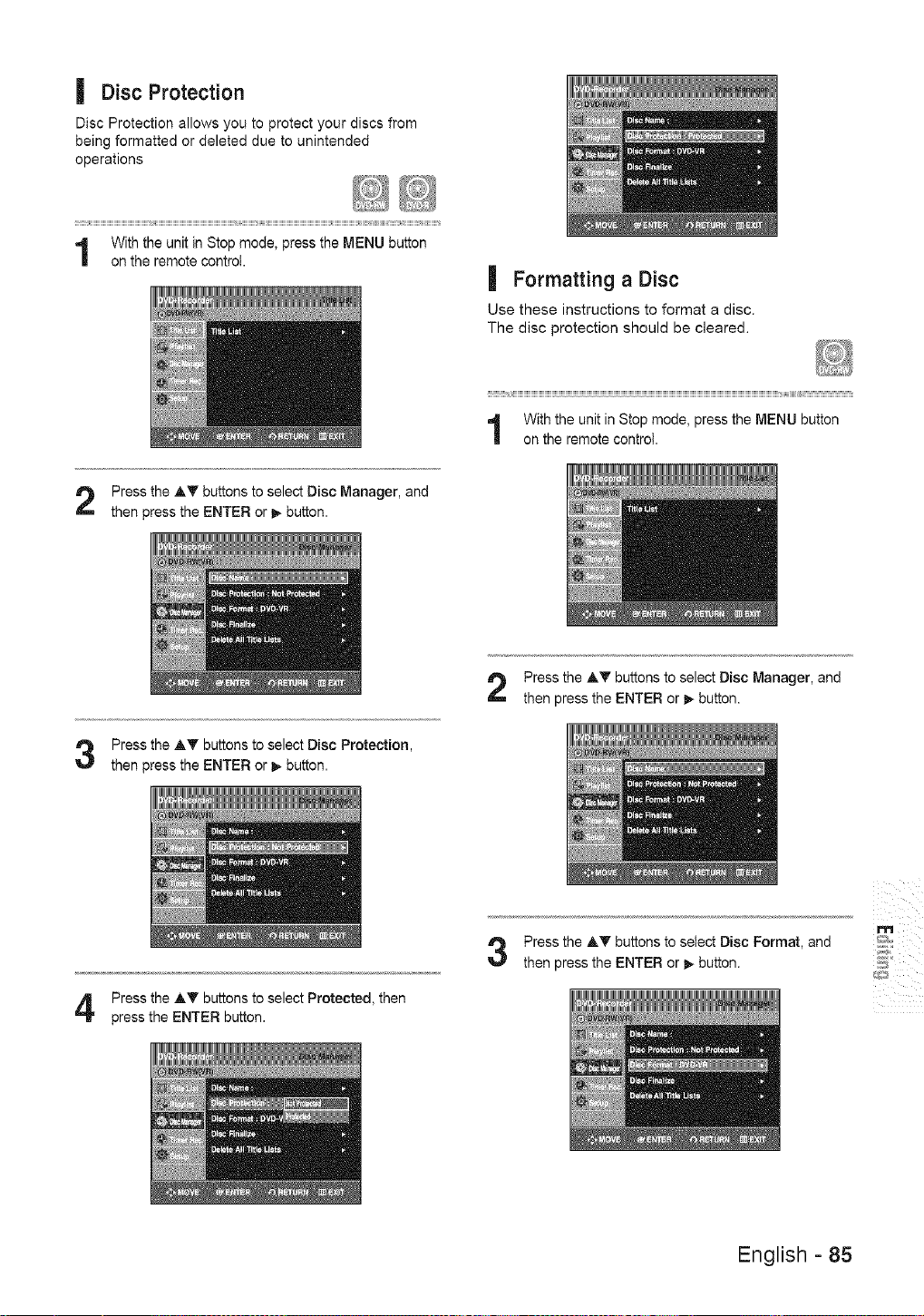
| Disc Protection
Disc Protection allows you to protect your discs from
being formatted or deleted due to unintended
operations
:::::::::::_jIHHHHHHHHHHHHHHHHHHHHHHHHHHH_jIHHHHHHHHHHHHHHHHHHHHHHHHHHHHHHHHHHHH_j_HHHHH_I_jIHIHHHHHHHHHHHHHHHHHHHHHHHHHHHHH_jIHHHHHHHHHHH_jI_I_IH_I_I_I_I_I_I_j_HHHHH_H_HHH_
With the unit in Stop mode, press the MENU button
on the remote control.
| Formatting a Disc
Use these instructions to format a disc.
The disc protection should be cleared.
With the unit in Stop mode, press the MENU button
on the remote control.
Press the AT buttons to select Disc Manager, and
then press the ENTER or _- button.
Press the A_" buttons to select Disc Protection,
then press the ENTER or _ button.
Press the AT buttons to select Disc Manager, and
then press the ENTER or _,-button.
Press the AT buttons to select Protected, then
press the ENTER button.
Press the AT buttons to select Disc Format, and
then press the ENTER or _ button.
m
English - 85
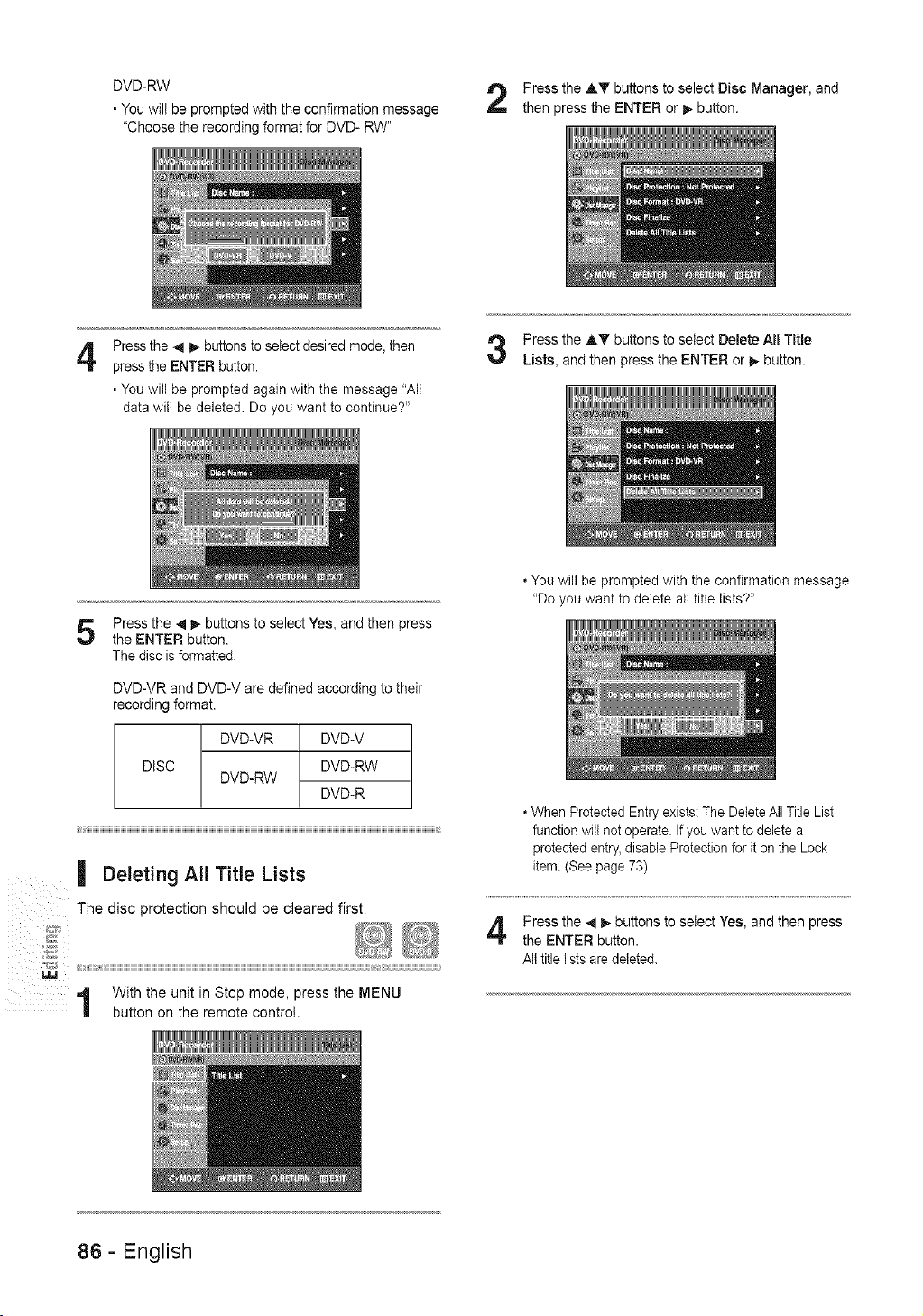
DVD-RW
• You will be prompted with the confirmation message
"Choose the recording format for DVD- RW"
Press the AT buttons to select Disc Manager, and
then press the ENTER or _, button.
4
Press the 4 _,- buttons to select desired mode, then
press the ENTER button.
. You will be prompted again with the message "All
data will be deleted. Do you want to continue?"
Press the AT buttons to select Delete All Title
Lists, and then press the ENTER or t,- button.
Press the _1b,- buttons to select Yes, and then press
the ENTER button.
The disc is formatted.
DVD-VR and DVD-V are defined according to their
recording format.
DISC
DVD-VR DVD-V
DVD-RW
DVD-RW
DVD-R
| Deleting All Title Lists
The disc protection should be cleared first.
1 With the unit in Stop mode, press the MENU
button on the remote control.
. You will be prompted with the confirmation message
"Do you want to delete all title lists?".
. When Protected Entry exists: The Delete All Title List
function will not operate. If you want to delete a
protected entry, disable Protection for it on the Lock
item. (See page 73)
Press the _11_ buttons to select Yes, and then press
the ENTER button.
AIt title lists are deleted.
86- English
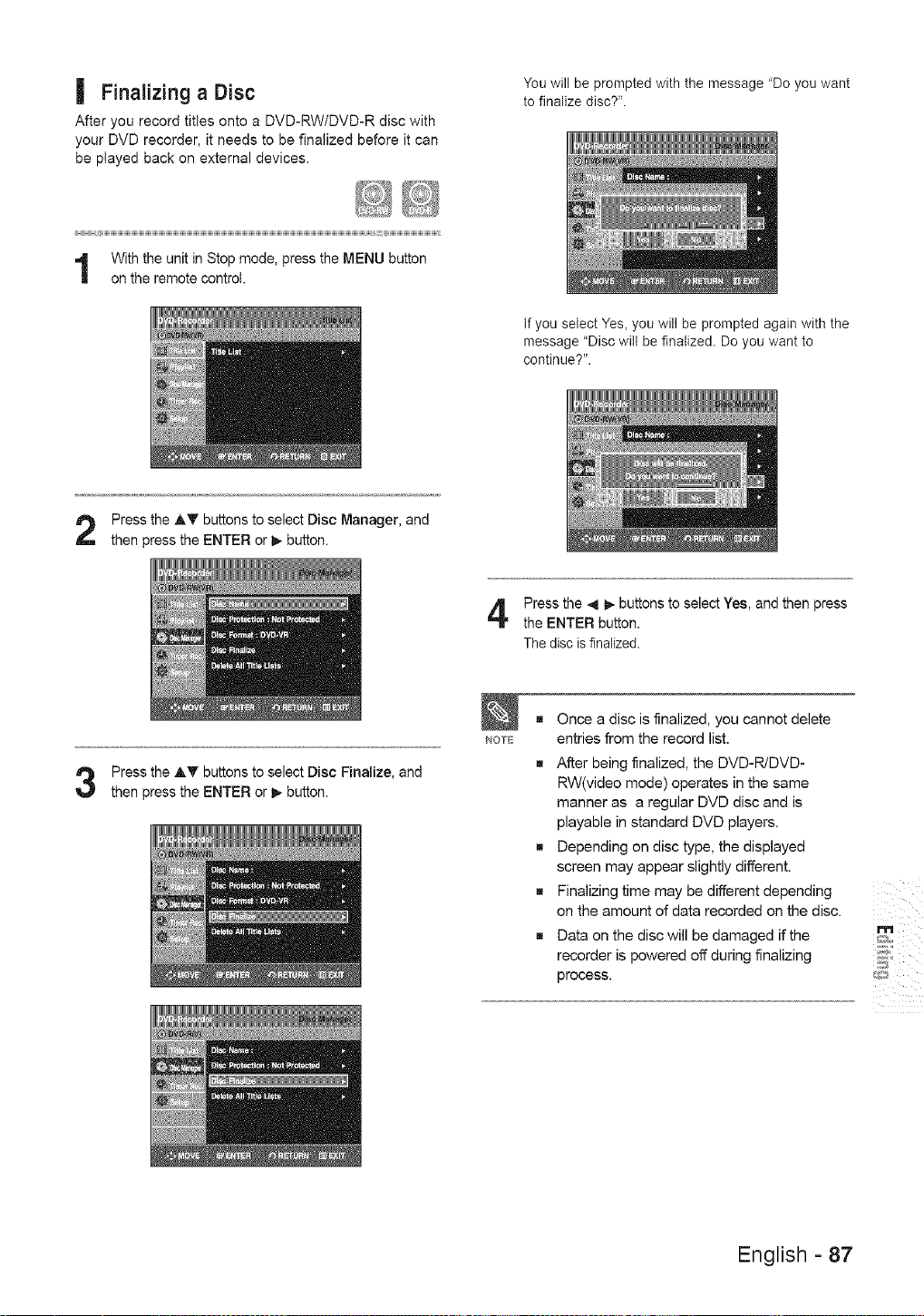
| Finalizinga Disc
After you record titles onto a DVD-RW/DVD-R disc with
your DVD recorder, it needs to be finalized before it can
be played back on external devices.
You will be prompted with the message 'Do you want
to finalize disc?".
With the unit in Stop mode, press the MENU button
on the remote control.
If you select Yes, you will be prompted again with the
message "Disc will be finalized. Do you want to
continue?".
Press the AT buttons to select Disc Manager, and
then press the ENTER or I_ button.
Press the _11_ buttons to select Yes, and then press
the ENTER button.
The disc is finalized.
Press the A'_' buttons to select Disc Finalize, and
then press the ENTER or I_ button.
NOTE
Once a disc is finalized, you cannot delete
entries from the record list.
After being finalized, the DVD-R/DVD-
RW(video mode) operates in the same
manner as a regular DVD disc and is
playable in standard DVD players.
Depending on disc type, the displayed
screen may appear slightly different.
Finalizing time may be different depending
on the amount of data recorded on the disc.
Data on the disc will be damaged if the
recorder is powered off during finalizing
process.
ii i i
m
English - 87
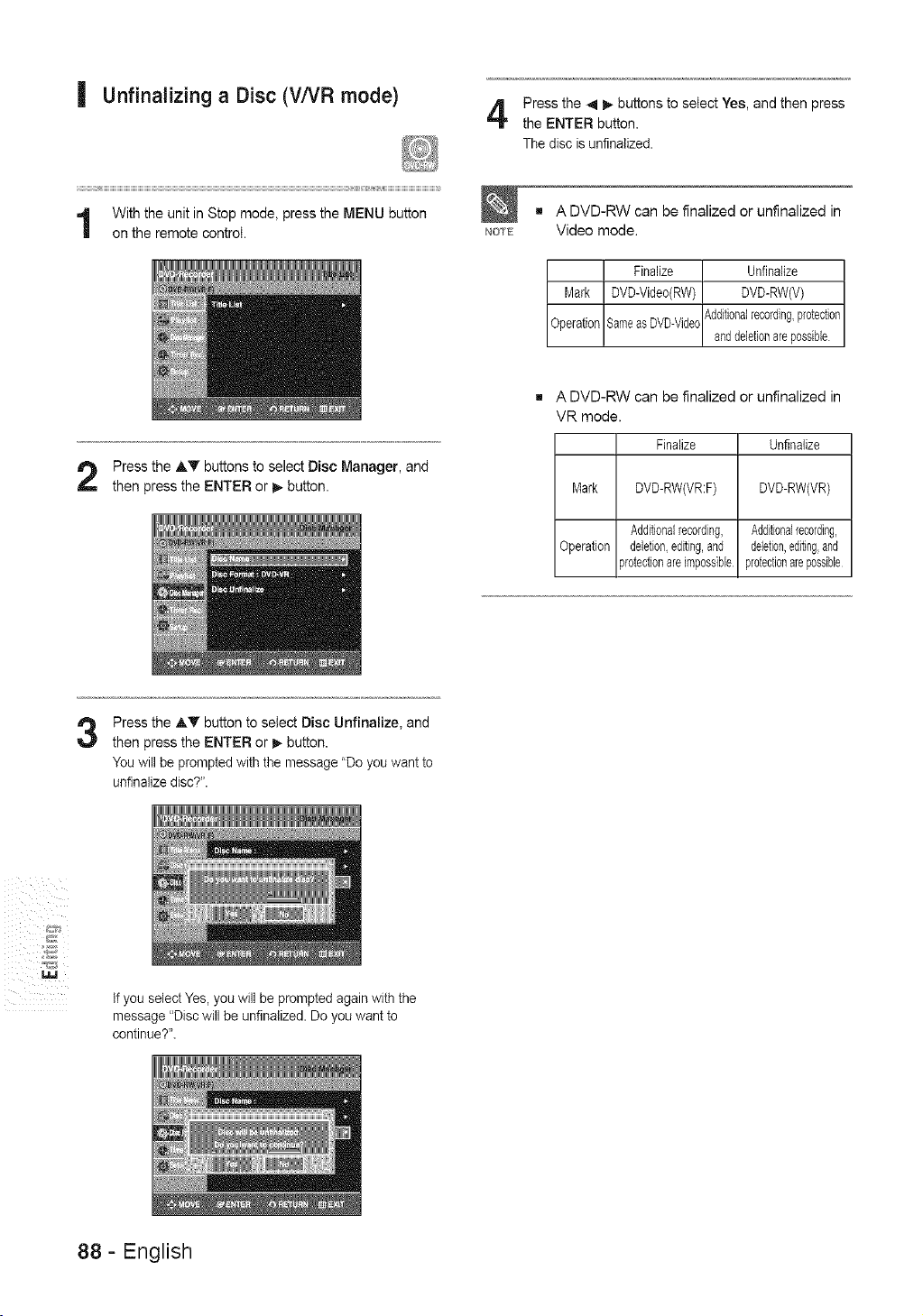
| Unfinalizing a Disc (VNR mode)
Press the 4 i_ buttons to select Yes, and then press
the ENTER button.
The disc is unfinalized.
NOTE
g A DVD-RW can be finalized or unfinalized in
Video mode.
Finalize Unfinalize
Mark DVD-Video(RW) DVD-RW(V)
OperationSameasDVD-Videc_,dditionalrecording,protection
anddeletionarepossible
Press the AT buttons to select Disc Manager, and
then press the ENTER or I_ button.
g A DVD-RW can be finalized or unfinalized in
VR mode.
Finalize Unfinalize
Mark DVD-RW(VR:F) DVD-RW(VR)
Additionalrecording, Additionalrecording,
Operation deletion,editing,and ddetion,editingand
,rotectionareimpossible protectionarepossible
Press the ,_T button to select Disc Unfinalize, and
then press the ENTER or _ button.
You will be prompted with the message "Do you want to
unfinalize disc?".
iiiill i_
%,%
%3
If you select Yes, you will be prompted again with the
message "Disc will be unfinalized. Do you want to
continue?".
88- English
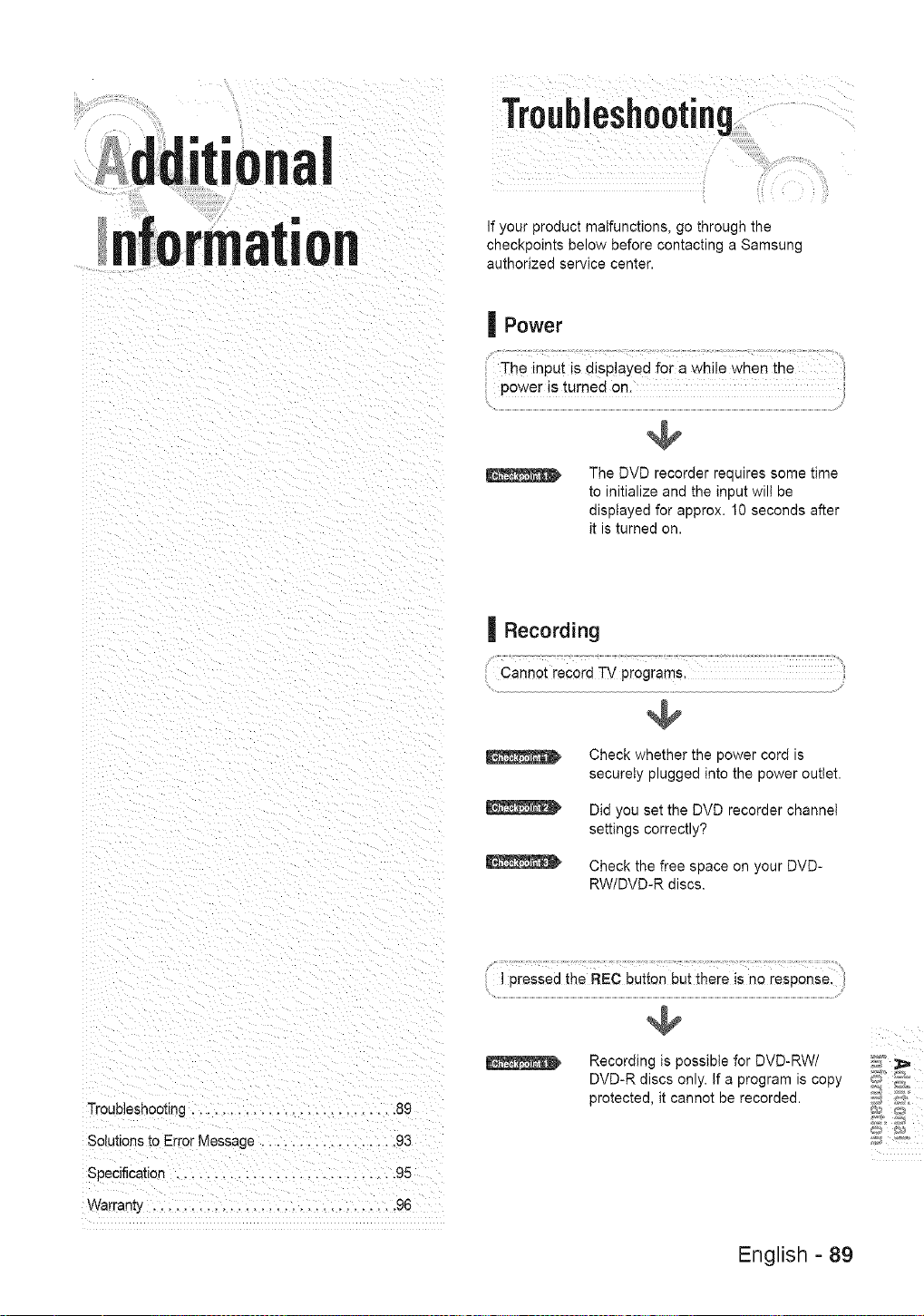
"onal
rmatJ
Troubleshooting
If your product malfunctions, go through the
checkpoints below before contacting a Samsung
authorized service center.
| Power
power is turned on.
The DVD recorder requires some time
to initialize and the input will be
displayed for approx. 10 seconds after
it is turned on.
| Recording
Cannot record TV programs,
Check whether the power cord is
securely plugged into the power outlet.
Did you set the DVD recorder channel
settings correctly?
Check the free space on your DVD-
RW/DVD-R discs.
Troubleshooting ........................... 8c
Solutions to Error Message .................. 93
Specification ............................. 95
Warrant], ............................... 96
_!'ttl
I pressed the REC button but there is no response
Recording is possible for DVD-RW/
DVD-R discs only. If a program is copy
protected, it cannot be recorded.
English - 89
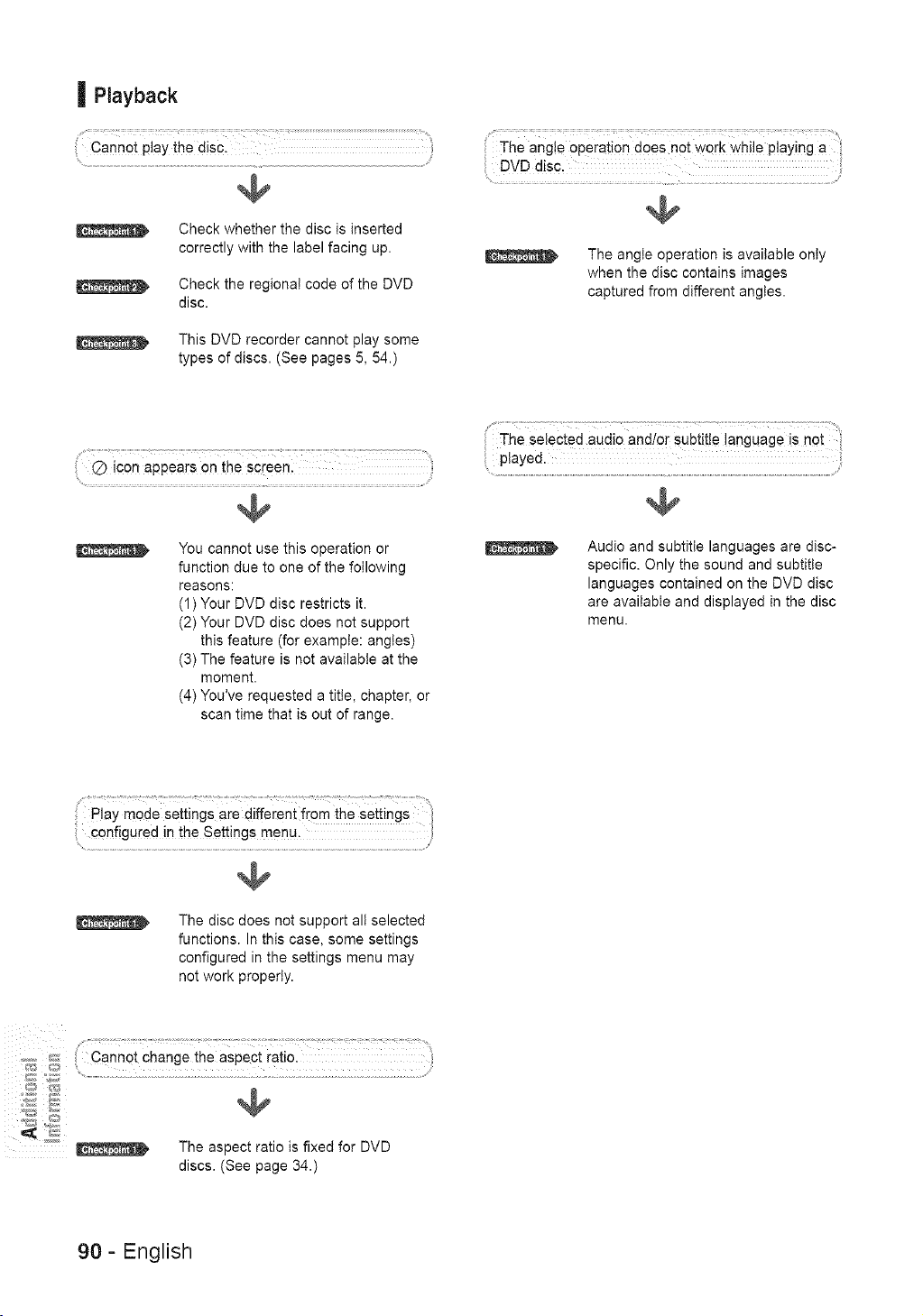
| Ptayback
Cannot play the disc.
Check whether the disc is inserted
correctly with the label facing up.
Check the regiona! code of the DVD
disc.
This DVD recorder cannot play some
types of discs. (See pages 5, 54.)
The ang!e operation does not work while playing a
DVD disc.
The angle operation is available only
when the disc contains images
captured from different angles.
(2) icon appears on the screen.
You cannot use this operation or
function due to one of the following
reasons:
(1) Your DVD disc restricts it.
(2) Your DVD disc does not support
this feature (for example: angles)
(3) The feature is not available at the
moment.
(4) You've requested a title, chapter, or
scan time that is out of range.
The selected audio and/or subtitle language is not
Audio and subtitle languages are disc-
specific. Only the sound and subtitle
languages contained on the DVD disc
are available and displayed in the disc
menu.
Play mode settings are different from the settings
configured in the Settings menu.
The disc does not support all selected
functions. In this case, some settings
configured in the settings menu may
not work properly.
,_,_J,_::; Cannot change the aspect ratio.
The aspect ratio is fixed for DVD
discs. (See page 34.)
90- English
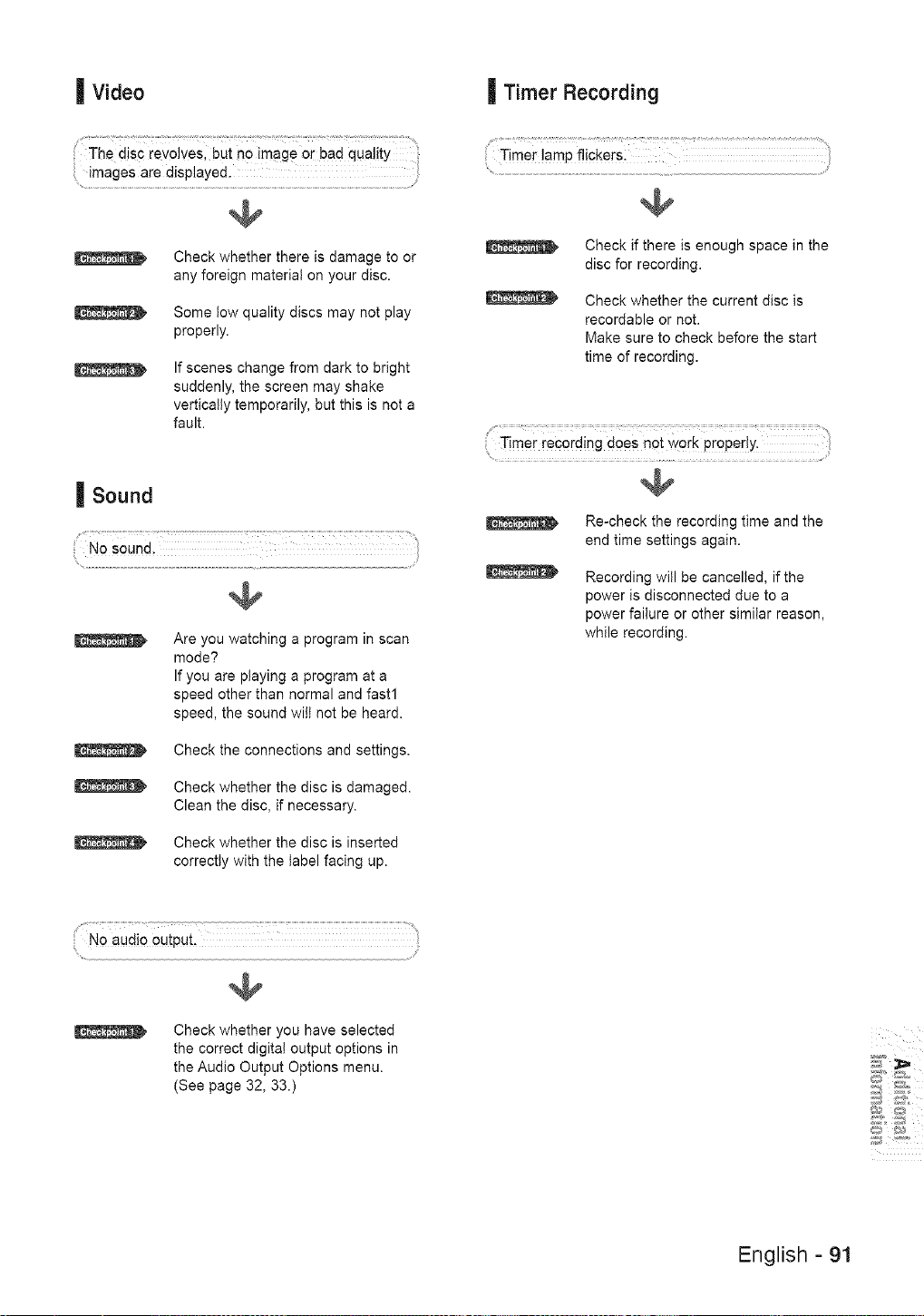
| Video | Timer Recording
The disc revolves, but no image or bad quality
images are displayed. ...............
@
Check whether there is damage to or
any foreign material on your disc.
Some low quality discs may not play
properly.
If scenes change from dark to bright
suddenly, the screen may shake
vertically temporarily, but this is not a
fault.
| Sound
No sound.
Are you watching a program in scan
mode?
If you are playing a program at a
speed other than normal and fast1
speed, the sound wilt not be heard.
Check the connections and settings.
Check whether the disc is damaged.
Clean the disc, if necessary.
Check whether the disc is inserted
correctly with the label facing up.
Timer !amp flickers:
Check if there is enough space in the
disc for recording.
Check whether the current disc is
recordable or not.
Make sure to check before the start
time of recording.
Timer recording does not work properly.
Re-check the recording time and the
end time settings again.
Recording will be cancelled, if the
power is disconnected due to a
power failure or other similar reason,
while recording.
J
Check whether you have selected
the correct digital output options in
the Audio Output Options menu.
(See page 32, 33.)
English- 91
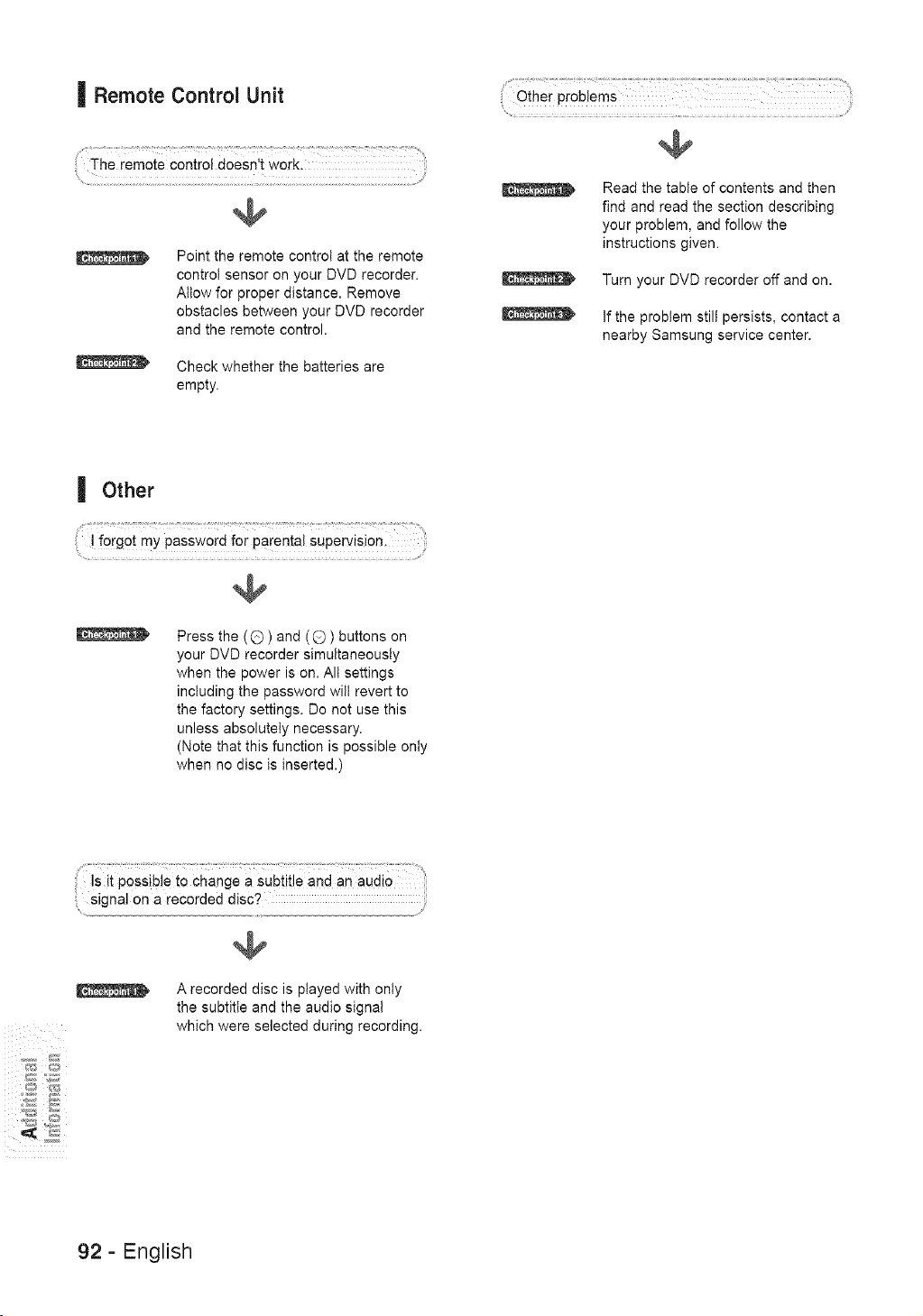
| RemoteControJUnit
The remote control doesn't work.
F
@
Point the remote control at the remote
control sensor on your DVD recorder.
Allow for proper distance. Remove
obstacles between your DVD recorder
and the remote control.
Check whether the batteries are
empty.
@
Read the table of contents and then
find and read the section describing
your problem, and follow the
instructions given.
Turn your DVD recorder off and on.
If the problem still persists, contact a
nearby Samsung service center.
| Other
@
Press the (G) and (Q) buttons on
your DVD recorder simultaneously
when the power is on. All settings
including the password will revert to
the factory settings. Do not use this
unless absolutely necessary.
(Note that this function is possible only
when no disc is inserted.)
@
A recorded disc is played with only
the subtitle and the audio signal
which were selected during recording.
92- English
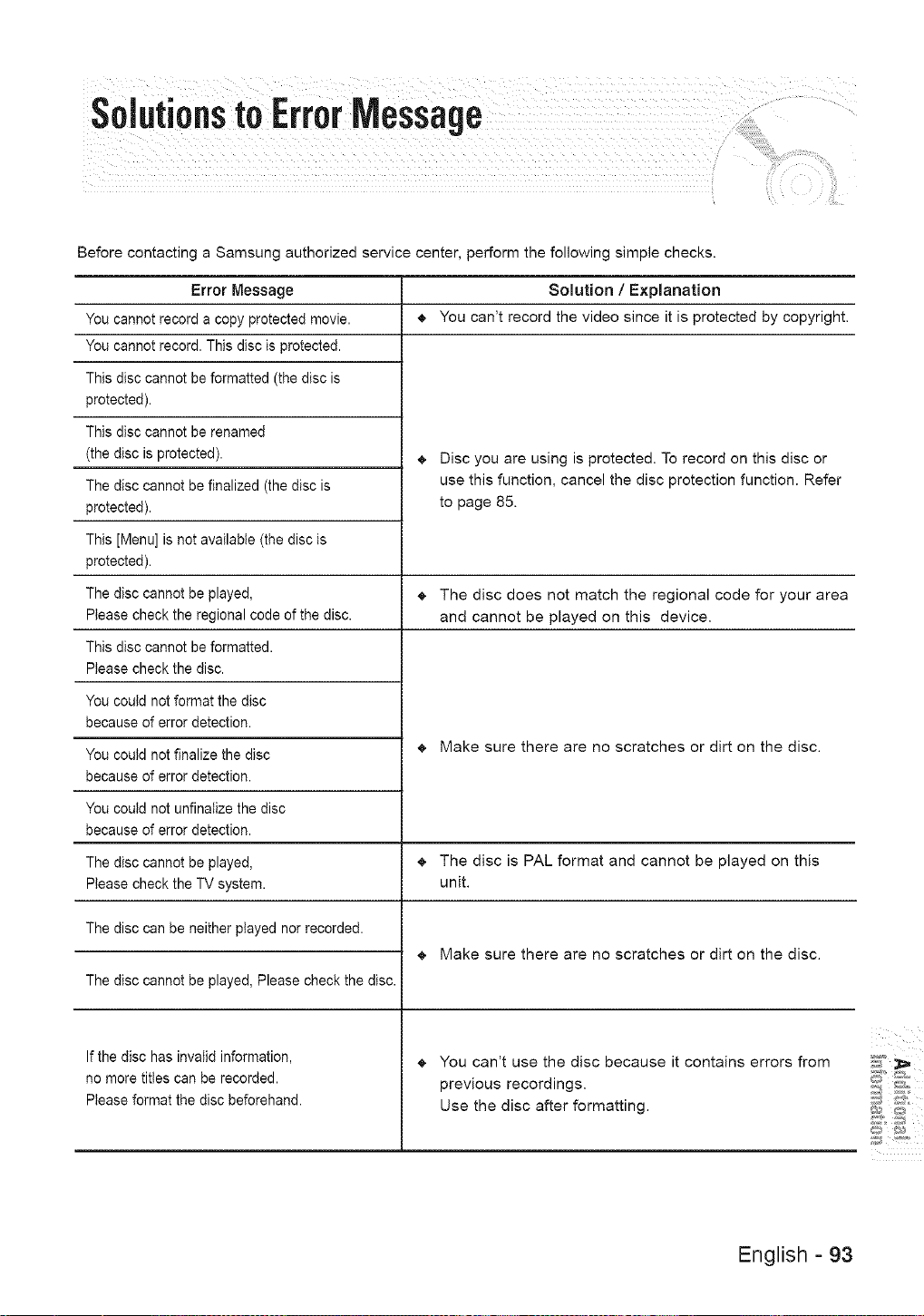
Before contacting a Samsung authorized service center, perform the following simple checks.
Error Message
You cannot record a copy protected movie.
You cannot record. This disc is protected.
This disc cannot be formatted (the disc is
protected).
This disc cannot be renamed
(the disc is protected).
The disc cannot be finalized (the disc is
protected).
This [Menu] is not available (the disc is
protected).
The disc cannot be played,
Please check the regional code of the disc.
This disc cannot be formatted.
Please check the disc.
You could not format the disc
because of error detection.
You could not finalize the disc
because of error detection.
You could not unfinalize the disc
because of error detection.
The disc cannot be played,
Please check the TV system.
Solution / Explanation
,_ You can't record the video since it is protected by copyright.
_, Disc you are using is protected. To record on this disc or
use this function, cancel the disc protection function. Refer
to page 85.
_, The disc does not match the regional code for your area
and cannot be played on this device.
_, Make sure there are no scratches or dirt on the disc.
_, The disc is PAL format and cannot be played on this
unit.
The disc can be neither played nor recorded.
The disc cannot be played, Please check the disc.
_, Make sure there are no scratches or dirt on the disc.
_, You can't use the disc because it contains errors from
previous recordings.
Use the disc after formatting.
If the disc has invalid information,
no more titles can be recorded.
Please format the disc beforehand.
English - 93
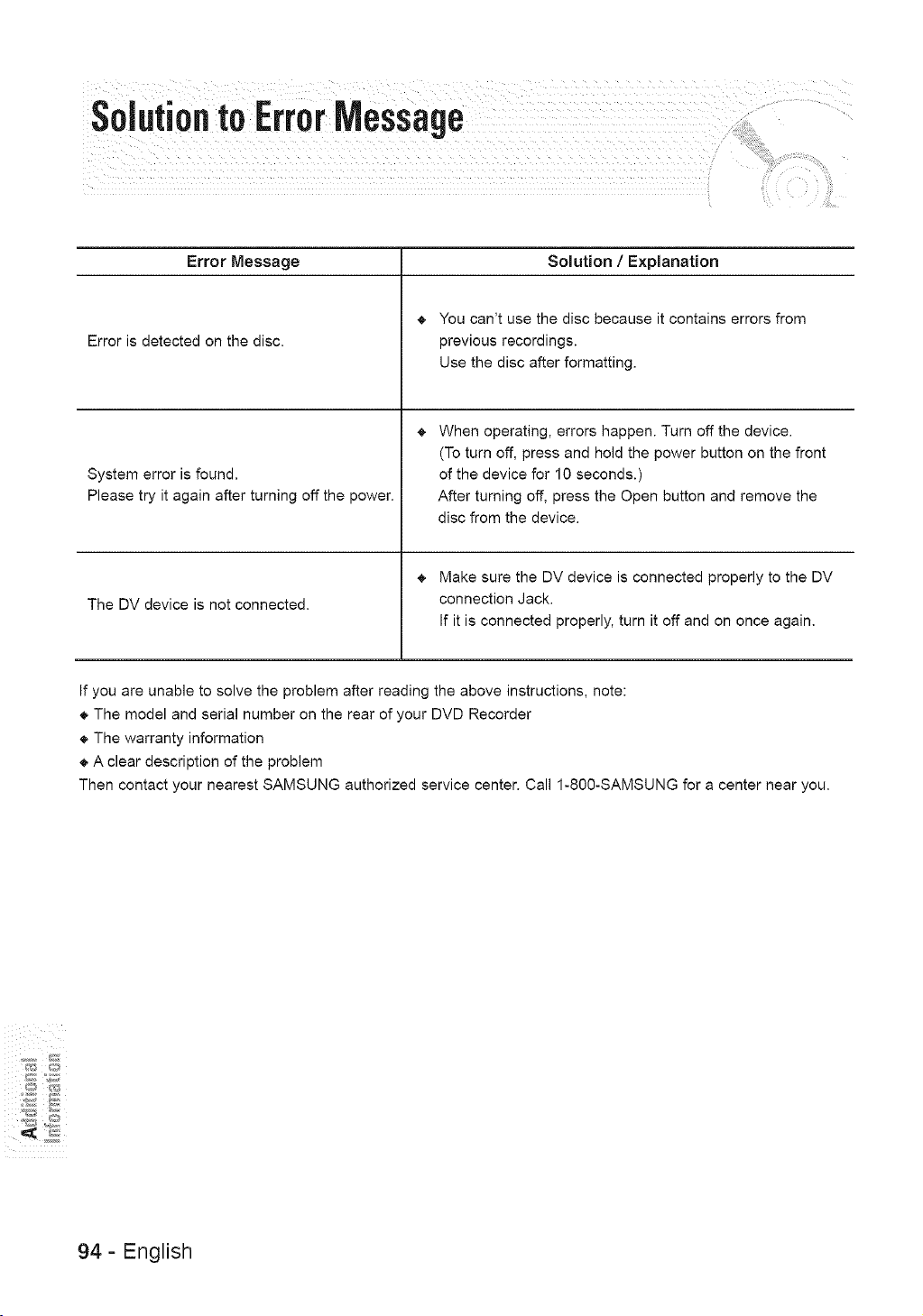
SoJutiontoError Message
Error Message Solution / Explanation
Error is detected on the disc.
System error is found.
Please try it again after turning off the power.
The DV device is not connected.
_, You can't use the disc because it contains errors from
previous recordings.
Use the disc after formatting.
_, When operating, errors happen. Turn off the device.
(To turn off, press and hold the power button on the front
of the device for 10 seconds.)
After turning off, press the Open button and remove the
disc from the device.
,_ Make sure the DV device is connected properly to the DV
connection Jack.
If it is connected properly, turn it off and on once again.
If you are unable to solve the problem after reading the above instructions, note:
,_ The model and serial number on the rear of your DVD Recorder
,_ The warranty information
_, A clear description of the problem
Then contact your nearest SAMSUNG authorized service center. Call 1-800-SAMSUNG for a center near you.
94- English
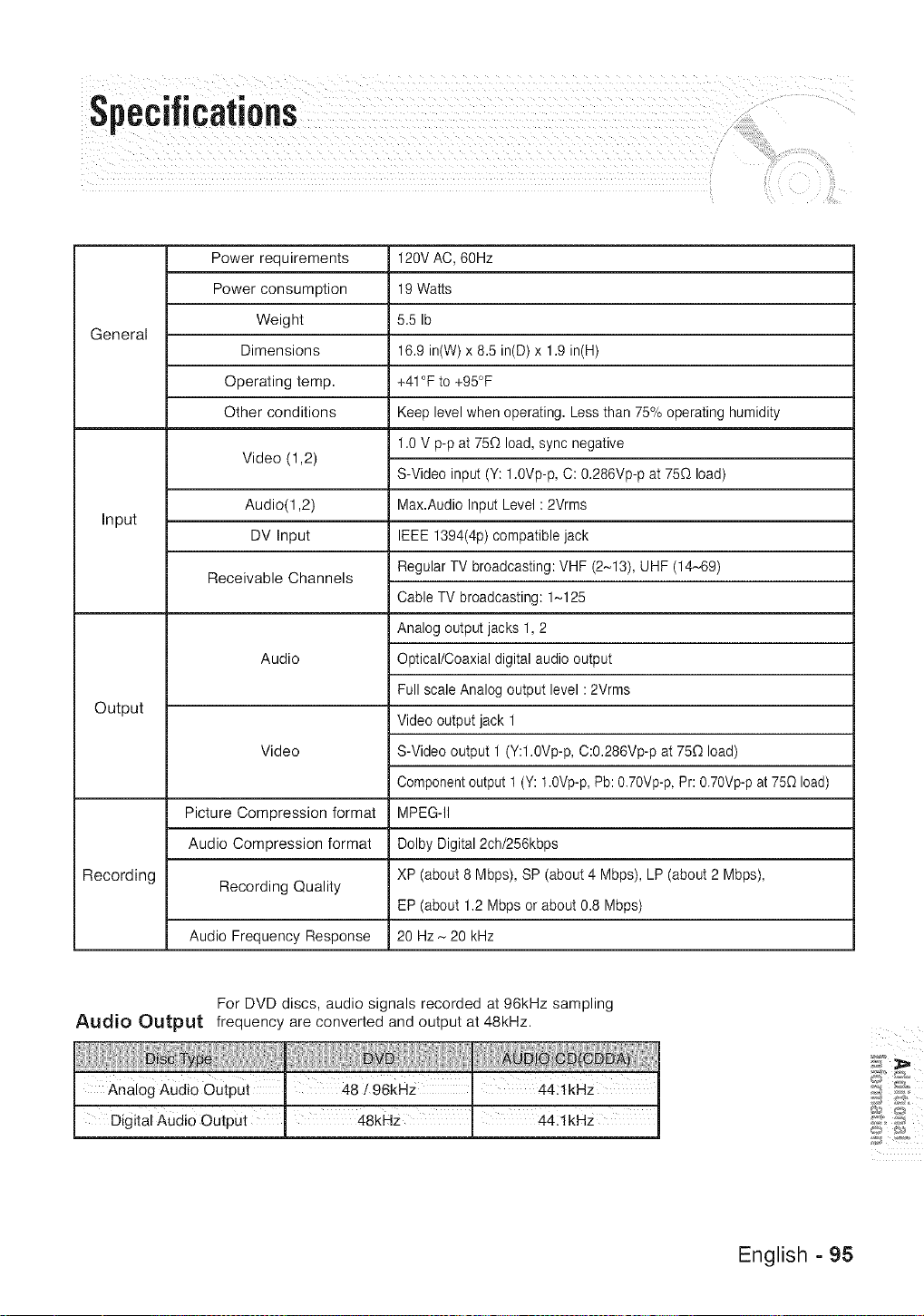
Specif .....
Power requirements
Power consumption
Weight
General
Dimensions
Operating temp.
Other conditions
Input
Output
Video (1,2)
Audio(1,2)
DV Input
Receivable Channels
Audio
Video
Picture Compression format
Audio Compression format
Recording
Recording Quality
Audio Frequency Response
120V AC, 60Hz
19 Watts
5.5 Ib
16.9 in(W) x 8.5 in(D) x 1.9 in(H)
+41°F to +95°F
Keep level when operating. Less than 75% operating humidity
1.0 V p-p at 75£Qload, sync negative
S-Video input (Y: 1.0Vp-p, C: 0.286Vp-p at 75£Qload)
Max.Audio Input Level : 2Vrms
IEEE 1394(4p) compatible jack
Regular TV broadcasting: VHF (2~13), UHF (14~69)
Cable TV broadcasting: 1~125
Analog output jacks 1, 2
Optical/Coaxial digital audio output
Full scale Analog output level : 2Vrms
Video output jack 1
S-Video output 1 (Y:l.0Vp-p, C:0.286Vp-p at 75£Qload)
Component output 1 (Y: 1.0Vp-p, Pb: 0.70Vp-p, Pr: 0.70Vp-p at 750 load)
MPEG-II
Dolby Digital 2ch/256kbps
XP (about 8 Mbps), SP (about 4 Mbps), LP (about 2 Mbps),
EP (about 1.2 Mbps or about 0.8 Mbps)
20 Hz ~ 20 kHz
For DVD discs, audio signals recorded at 96kHz sampling
Audio Output frequency are converted and output at 48kHz.
Analog Audio Output u 48 / 96kHZ . 44:lkHZ
Digital Audio OutpUt I 48kNz I 4-4_lkHz
English - 95
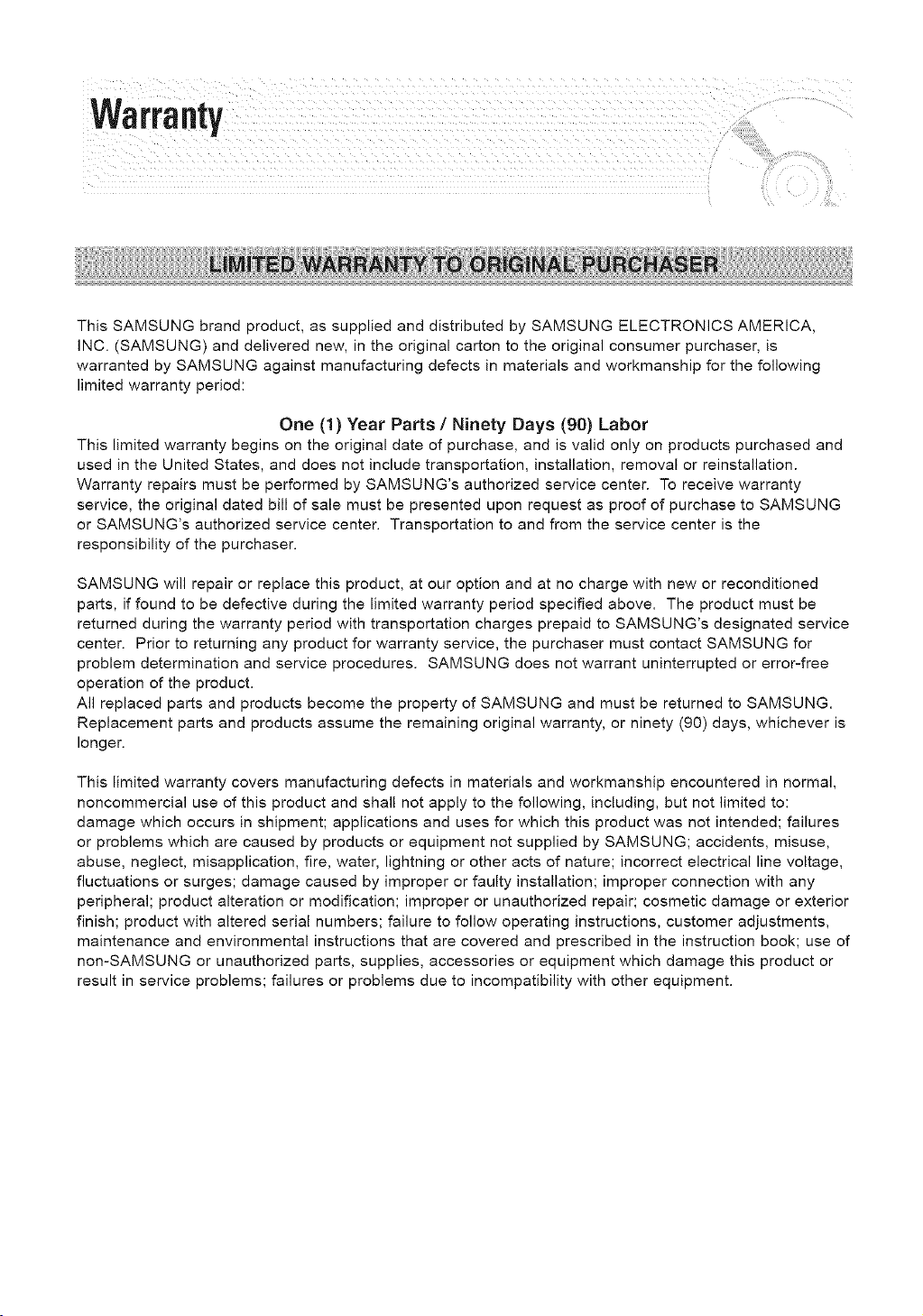
L¸ _i
This SAMSUNG brand product, as supplied and distributed by SAMSUNG ELECTRONICS AMERICA,
INC. (SAMSUNG) and delivered new, in the original carton to the original consumer purchaser, is
warranted by SAMSUNG against manufacturing defects in materials and workmanship for the following
limited warranty period:
One (1) Year Parts / Ninety Days (90) Labor
This limited warranty begins on the original date of purchase, and is valid only on products purchased and
used in the United States, and does not include transportation, installation, removal or reinstallation.
Warranty repairs must be performed by SAMSUNG's authorized service center. To receive warranty
service, the original dated bill of sale must be presented upon request as proof of purchase to SAMSUNG
or SAMSUNG's authorized service center. Transportation to and from the service center is the
responsibility of the purchaser.
SAMSUNG will repair or replace this product, at our option and at no charge with new or reconditioned
parts, if found to be defective during the limited warranty period specified above. The product must be
returned during the warranty period with transportation charges prepaid to SAMSUNG's designated service
center. Prior to returning any product for warranty service, the purchaser must contact SAMSUNG for
problem determination and service procedures. SAMSUNG does not warrant uninterrupted or error-free
operation of the product.
All replaced parts and products become the property of SAMSUNG and must be returned to SAMSUNG.
Replacement parts and products assume the remaining original warranty, or ninety (90) days, whichever is
longer.
This limited warranty covers manufacturing defects in materials and workmanship encountered in normal,
noncommercial use of this product and shall not apply to the following, including, but not limited to:
damage which occurs in shipment; applications and uses for which this product was not intended; failures
or problems which are caused by products or equipment not supplied by SAMSUNG; accidents, misuse,
abuse, neglect, misapplication, fire, water, lightning or other acts of nature; incorrect electrical line voltage,
fluctuations or surges; damage caused by improper or faulty installation; improper connection with any
peripheral; product alteration or modification; improper or unauthorized repair; cosmetic damage or exterior
finish; product with altered serial numbers; failure to follow operating instructions, customer adjustments,
maintenance and environmental instructions that are covered and prescribed in the instruction book; use of
non-SAMSUNG or unauthorized parts, supplies, accessories or equipment which damage this product or
result in service problems; failures or problems due to incompatibility with other equipment.
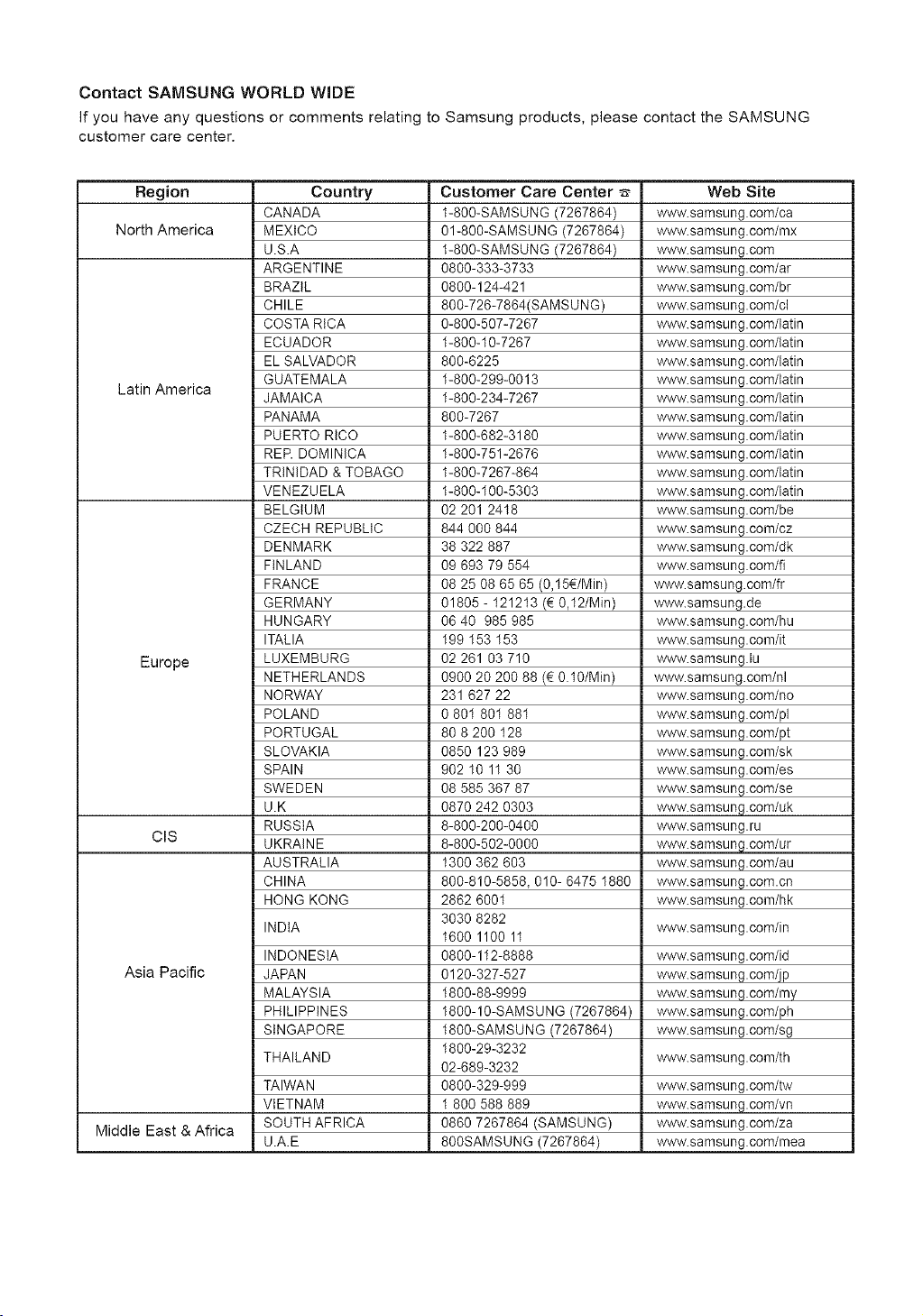
ContactSAMSUNGWORLDWIDE
IfyouhaveanyquestionsorcommentsrelatingtoSamsungproducts,pleasecontacttheSAMSUNG
customercarecenter.
Region
North America
Latin America
Europe
ClS
Asia Pacific
Middle East & Africa
Country
CANADA
MEXICO
U.S.A
ARGENTINE
BRAZIL
CHILE
COSTA RICA
ECUADOR
EL SALVADOR
GUATEMALA
JAMAICA
PANAMA
PUERTO RICO
REP. DOMINICA
TRINIDAD & TOBAGO
VENEZUELA
BELGIUM
CZECH REPUBLIC
DENMARK
FINLAND
FRANCE
GERMANY
HUNGARY
ITALIA
LUXEMBURG
NETHERLANDS
NORWAY
POLAND
PORTUGAL
SLOVAKIA
SPAIN
SWEDEN
U.K
RUSSIA
UKRAINE
AUSTRALIA
CHINA
HONG KONG
INDIA
INDONESIA
JAPAN
MALAYSIA
PHILIPPINES
SINGAPORE
THAILAND
TAIWAN
VIETNAM
SOUTH AFRICA
U.A.E
Customer Care Center
1-800-SAMSUNG (7267864)
01-800-SAMSUNG (7267864)
1-800-SAMSUNG (7267864)
0800-333-3733
0800-124-421
800-726-7864(SAMSUNG)
0-800-507-7267
1-800-10-7267
800-6225
1-800-299-0013
1-800-234-7287
800-7267
1-800-682-3180
1-800-751-2676
1-800-7287-864
1-800-100-5303
02 201 2418
844 000 844
38 322 887
09 893 79 554
08 25 08 65 85 (0,15_/Min)
01805 - 121213 (_ 0,12/Min)
06 40 985 985
199 153 153
02 261 03 710
0900 20 200 88 (€ 0.10/Min)
231 627 22
0 801 801 881
80 8 200 128
0850 123 989
902 10 11 30
08 585 367 87
0870 242 0303
8-800-200-0400
8-800-502-0000
1300 362 603
800-810-5858, 010- 6475 1880
2862 6001
3030 8282
1600 1100 11
0800-112-8888
0120-327-527
1800-88-9999
1800-10-SAMSUNG (7267864)
1800-SAMSUNG (7267864)
1800-29-3232
02-689-3232
0800-329-999
1 800 588 889
0860 7267864 (SAMSUNG)
800SAMSUNG (7267864)
Web Site
www.samsung.com/ca
www.samsung.oom/mx
www.samsung.oom
www.samsung.com/ar
www.samsung.com/br
www.samsung.com/cl
www.sa msu ng.com/latin
www.samsung.com/latin
www.samsung.com/latin
www.sa rnsu ng.com/latin
www.sa rnsu ng.com/latin
www.sa msu ng.com/latin
www.sa msu ng.com/latin
www.samsung.com/latin
www.sa msu ng.com/latin
www.samsung.com/latin
www.samsung.com/be
www.samsung.oorn/oz
www.samsung.com/dk
www.samsung.com/fi
www.sarnsung.com/fr
www.samsung.de
www.samsung.com/hu
www.samsung.com/it
www.samsung.lu
www.samsung.com/nl
www.samsung.com/no
www.samsung.com/pl
www.samsung.com/pt
www.samsung.com/sk
www.samsung.com/es
www.samsung.com/se
www.samsung.com/uk
www.samsung.ru
www.samsung.com/ur
www.samsung.com/au
www.samsung.oom.cn
www.samsung.com/hk
www.samsung.com/in
www.samsung.com/id
www.samsung.com/jp
www.samsung.com/my
www.samsung.com/ph
www.samsung.com/sg
www.samsung.com/th
www.samsung.com/tw
www.samsung.oom/vn
www.samsung.com/za
www.sarnsung.com/mea
HEADQUARTERS
105ChallengerRoad,RidgefieldPark,
N.J.07660-0511
TEL:1-800-SAMSUNG
SERVICEDIVISION
400ValleyRoad_Suite201
MountArlington_NJ07856
1-800-SAMSUNG(1-800-7267864)
www.sanlsung.com
AK68-01002A-00