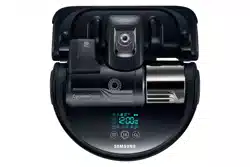

POWERbot
User manual
SR20K9350W
✴
Series
•Beforeoperatingthisunit,pleasereadtheinstructionscarefully.
•Forindooruseonly.
2016-02-03 오후 8:23:52

ENGLISH-02
Contents
03
Safety information
08
Installation
Accessories/Installationnote
10
Charging
Automaticcharging/Recharging/Low
battery(Lo)
12
Installing the Virtual guard
PartnameoftheVirtualguard/Inserting
batteries
14
Using POWERbot
Selectingcleaningmode
16
Using the remote control
Power/Recharging/Suctionpower/
Additionalfunction/Manualcleanmode&
Directioncontrol/Pointcleaning
18
Name of each part
Top/Bottom/Displaypanel
19
Setting time/schedule
Settingthetime/Settingtheschedule
20
Cleaning and maintaining
Cleaningthedustbin/Cleaningthesensorsand
thecamera/CleaningthePetbrush/Cleaningthe
Drivingwheel
22
Samsung Smart Home App
Preparingthenetwork/UsingtheSamsungSmart
Homeapp
30
Notes and cautions
Charging/Inuse/Cleaningandmaintenance/About
battery/AbouttheIrDAsensor
32
Information codes
33
Troubleshooting
35
Warnings about battery
36
Open Source Announcement
37
Specifications
2016-02-03 오후 8:23:52
ENGLISH-03
Safety information
SAFETY INFORMATION
WARNING
•Beforeoperatingtheappliance,pleasereadthismanualthoroughlyandretainit
foryourreference.
WARNING
•Becausethesefollowingoperatinginstructionscovervariousmodels,the
characteristicsofyourvacuumcleanermaydifferslightlyfromthosedescribedin
thismanual.
CAUTION/WARNING SYMBOLS USED
WARNING
Indicates that a danger of death or serious injury exists.
CAUTION
Indicates that a risk of personal injury or material damage exists.
OTHER SYMBOLS USED
NOTE
Indicates that the following text contains additional important
information.
This Smart Robot vacuum supports from Samsung Smart Home.
More detailed information, please visit Samsung.com/Smarthome.
Indicates that a detachable supply unit.
2016-02-03 오후 8:23:52

ENGLISH-04
Safety information
IMPORTANT SAFETY INSTRUCTIONS
When using an electrical appliance, basic precautions should be observed, including the
following:
READ ALL INSTRUCTIONS BEFORE USING YOUR POWERbot.
Unplug from outlet when not in use and before conducting maintenance.
WARNING: to reduce the risk of fire, electric shock, or injury:
GENERAL
•Useonlyasdescribedinthismanual.
•DonotoperatePOWERbotorCharger/dockingstationifithasbeendamagedinany
way.
•Ifthevacuumcleanerisnotworkingasitshould,hasbeendropped,damaged,left
outdoors,ordroppedinwater,returnittoacustomercarecenter.
•DonothandletheCharger/dockingstationorPOWERbotwithwethands.
•Useonlyondry,indoorsurfaces.
•Thisappliancecanbeusedbychildrenagedfrom8yearsandaboveandpersonswith
reducedphysical,sensoryormentalcapabilitiesorlackofexperienceandknowledge
iftheyhavebeengivensupervisionorinstructionconcerninguseoftheapplianceina
safewayandunderstandthehazardsinvolved.
•Childrenshallnotplaywiththeappliance.Cleaningandusermaintenanceshallnotbe
madebychildrenwithoutsupervision.
BATTERY Charger / docking station
•Donotmodifythepolarizedplugtofitanon-polarizedoutletorextensioncord.
•Donotuseoutdoorsoronwetsurfaces.
•UnplugtheCharger/dockingstationfromtheoutletwhennotinuseandbefore
servicing.
•UseonlytheCharger/dockingstationsuppliedbythemanufacturertorecharge.
•Donotusewithadamagedcordorplugoraloosepoweroutlet.
•Donotpullorcarrybythecord,usethecordasahandle,closethedooronthecord,
orpullthecordaroundsharpedgesorcorners.Keepthecordawayfromheated
surfaces.
•Donotuseextensioncordsoroutletswithinadequatecurrentcarryingcapacity.
•Donotunplugbypullingonthecord.Tounplug,grasptheplug,notthecord.
•Donotmutilateorincineratebatteriesastheywillexplodeathightemperatures.
•DonotattempttoopentheCharger/dockingstation.Repairsshouldonlybecarried
outbyaqualifiedcustomercarecenter.
2016-02-03 오후 8:23:52

ENGLISH-05
•DonotexposetheCharger/dockingstationtohightemperaturesorallowmoistureor
humidityofanykindtocomeintocontactwiththecharger/dockingstation.
POWERbot
•Donotpickuphardorsharpobjectssuchasglass,nails,screws,coins,andetc.
•Donotusewithoutafilterinplace.Whenservicingtheunit,neverputfingersorother
objectsintothefanchamberincasetheunitaccidentallyturnson.
•Donotputanyobjectsintoopenings.Donotusewithanyopeningsblocked;keep
openingsfreeofdust,lint,hair,andanythingthatmayreduceairflow.
•Donotpickuptoxicmaterials(chlorinebleach,ammonia,draincleaner,etc.).
•Donotpickupanythingthatisburningorsmoke,suchascigarettes,matches,orhot
ashes.
•Donotusetopickupflammableorcombustibleliquidssuchasgasoline,noruseon
areaswheretheymaybepresent.
•Locationswithcandlesordesklampsonthefloor.
•Locationswithunattendedfires(fireorembers).
•Locationswithdistilledalcohol,thinner,ashtrayswithburningcigarettes,etc.
•DonotusePOWERbotinanenclosedspacefilledwithvapoursgivenoffbyoilbased
paint,paintthinner,mothproofingsubstances,flammabledust,orotherexplosiveor
toxicvapours.
•Leaksfrombatterycellscanoccurunderextremeusageortemperatureconditions.
Iftheliquidgetsonskin,washquicklywithwater.Iftheliquidgetsintotheeyes,
flushthemimmediatelywithcleanwaterforaminimumof10minutes.Seekmedical
attention.
•ForinformationonSamsung’senvironmentalcommitmentsandproductspecific
regulatoryobligationse.g.REACHvisit:samsung.com/uk/aboutsamsung/
samsungelectronics/corporatecitizenship/data_corner.html
SR9300K_EN_DJ68-00743E-00_EU.indd 5 2016-02-03 오후 8:23:52
ENGLISH-06
WARNING
Power related
f Pleasepreventanyriskofelectricshockor
fire.
– Donotdamagethepowercord.
– Donotpullthepowercordtoohardortouch
thepowerplugwithwethands.
– Donotuseapowersourceotherthan
100-240V~andalsodonotuseamultioutlet
tosupplypowertonumberofdevicesatthe
sametime.(Donotleavethecordcarelesslyon
thefloor.)
– Donotuseadamagedpowerplug,powercord
orloosepoweroutlet.
f Cleandustoranyforeignmattersonthepin
andcontactpartofthepowerplug.
– Thereisariskofelectricshockormalfunction.
WARNING
Before use
f DonotusePOWERbotnearcombustible
materials.
– Placenearcandle,desktoplamps,fireplaceor
nearcombustiblematerialssuchasgasoline,
alcohol,thinnersetc.
f ThePOWERbotisintendedforhousehold
usethereforedonotuseitinanattic,
basement,storage,industrialbuilding,outof
indoorspace,placeswithmoisture(suchas
bathroom,laundry),onthetableorshelves.
– ThePOWERbotcanbedamagedor
malfunction.
f InstalltheVirtualguardinfrontofdangerous
areas(suchasstairsorrailings)toprevent
damagingtheproductorgettinginjured.
– Foryoursafety,alwayskeepthecliffsensor
clean.
f BesurePOWERbotdoesnotpassthroughor
touchanykindofliquids.
– ThePOWERbotcanbeseverelydamagedand
itmaycontaminateotherareasifthewheels
passthroughliquid.
f Donotspillanyliquidsonthedockingstation.
– Thereisariskoffireorelectricshock.
f Donotusethedockingstationforanything
otherthanitsintendedpurpose.
– Thereisariskoffireorseveredamagetothe
dockingstation.
f Alwayskeepthecliffsensorcleanforyour
safety.
WARNING
In use
f Ifanyabnormalsounds,smellsorsmoke
comefromPOWERbot,immediatelyshut
offtheemergencyswitchatthebottomof
POWERbotandcontactaservicecenter.
WARNING
Cleaning and
maintenance
f Whenpowercordisdamaged,contacta
servicecentertogetitreplacedbycertified
repairman.
– Thereisariskoffireorelectricshock.
f PleasecheckwithaSamsungElectronics
servicecenterwhenexchangingbatteries.
– Usingbatteriesfromotherproductscancause
malfunction.
Safety information
2016-02-03 오후 8:23:52
ENGLISH-07
CAUTION
Before use
f InsertthedustbinbeforeusingPOWERbot.
f Openroomdoorsbeforecleaninginorder
tohaveallroomscleanedandinstalla
Virtualguardinfrontofentryway,balconies,
bathrooms,orotherareaswherePOWERbot
mayfall.
f Becarefulwiththefollowingsforproper
automaticrecharging.
– Alwaysturnonthepowerofthedocking
station.
– InstallthedockingstationwherePOWERbot
caneasilyfind.
– Donotleaveanyobjectinfrontofthedocking
station.
f Wheninstallingthedockingstation,donot
leavethecordcarelesslyonthefloorsince
POWERbotmaygettangledbyit.
f DonotusePOWERbotonblackcolored
floors.
– ThePOWERbotmaynotbeabletooperate
normally.
f DonotpickupPOWERbotbythedustbin
holder.
f Donotplaceanyobjectswithin0.5mtoboth
sidesand1mtothefrontofthedocking
station.
f Makesurethedockingstation'scharging
contactisnotdamagedorhaveanyforeign
mattersonit.
f Donotinstallthedockingstationinanarea
withadarkfloor.
– Iftheflooraroundthedockingstationisdark,
rechargingishindered.
f Moveanyobstaclesthatmaydisturb
POWERbot'smovement(suchaschildren's
indoorswingorslides)beforecleaning.
CAUTION
In use
f UsingPOWERbotonthickcarpetmay
damagebothPOWERbotandthecarpet.
– ThePOWERbotcannotpassovercarpetthatis
thickerthan1cm.
f DonotusePOWERbotontablesorother
highsurfaces.
– Thereisariskofdamageifitfalls.
f ThePOWERbotmaybumpintochair,desk
legsthereforemovethemawayforfasterand
efficientcleaning.
f WhenPOWERbotisoperating,donotliftitup
orcarryittoanotherarea.
f DonotholdbydrivingwheelsofPOWERbot
whencarryingittoanotherarea.
f DonotputanyobjectsontopofPOWERbot
sinceitmaycausemalfunction.
f Removeanylargepapersorplasticbags
immediatelywhenusingPOWERbotsince
theymayblocktheintake.
f Donotaimtheredpointerdirectlyatpeople
oranimals.
CAUTION
Cleaning and
maintenance
f PreventanydamagetoPOWERbotby
complyingthefollowings.
– DonotcleanPOWERbotbysprayingwater
directlyontoitorusebenzene,thinner,acetone
oralcoholtocleanit.
f DonotdisassembleorrepairPOWERbot.
Thisshouldonlybedonebyacertified
repairman.
f Alwayskeeptheobstaclesensorandcliff
sensorclean.
– Ifforeignmatteraccumulates,sensorsmay
malfunction.
2016-02-03 오후 8:23:53
ENGLISH-08
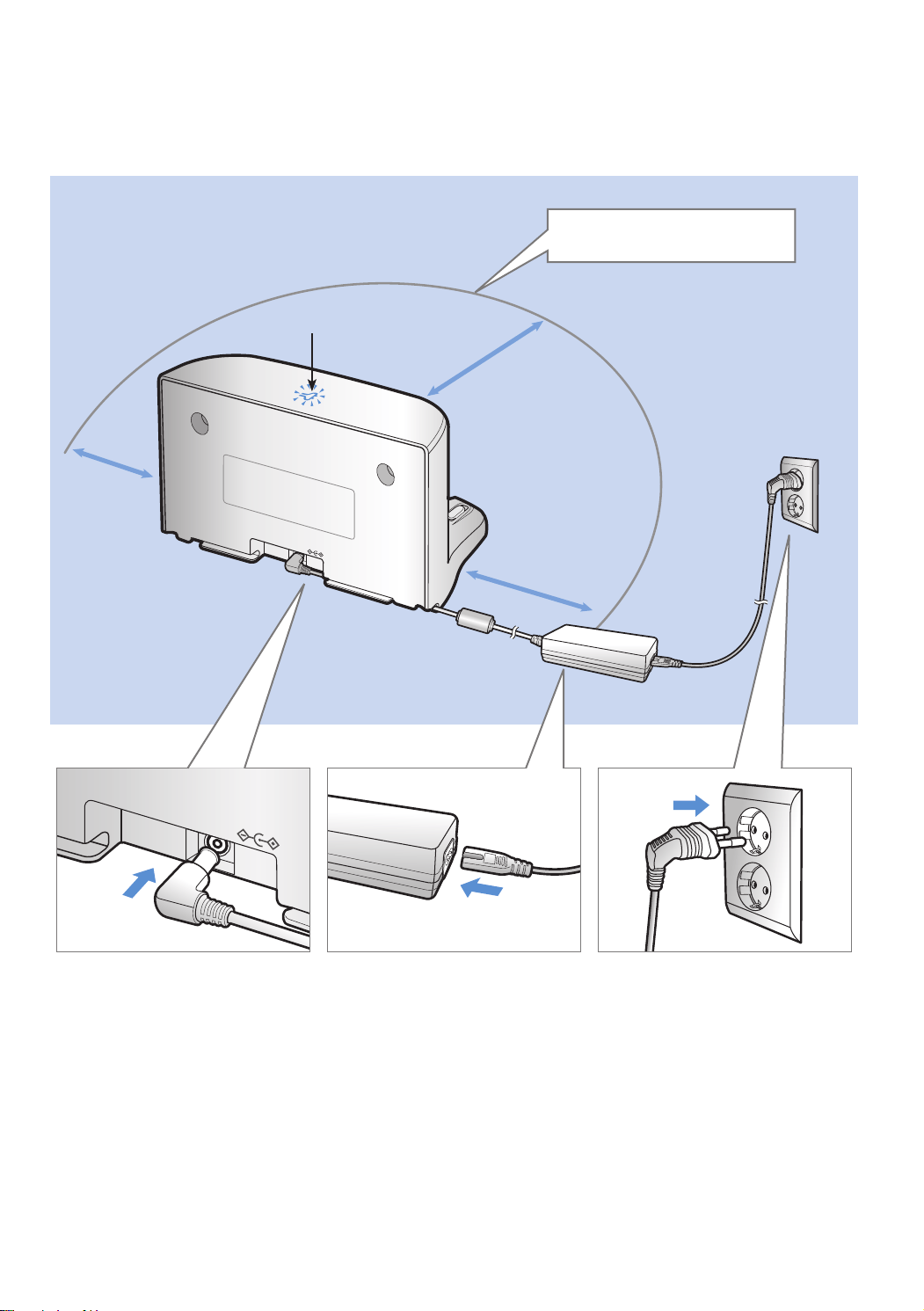
1
Connect the
adapter jack
to the docking
station
2
Connect the
power cord to
the adapter
Whenusingtheadapter,
thesidewiththesticker
attachedmustfacedown.
3
Connect the
power plug to
the outlet
Powerlamp(Red)willturn
on.
Installation
Power of the docking station must be on at all times.
DC-IN
DC-IN
Powerlamp(Red)
About1m
About0.5m
About0.5m
Installitinaplacewithoutobstacles
anddangeroffalling.
Do not install the docking station in a narrow
passage or near a door.
2016-02-03 오후 8:23:53
ENGLISH-09
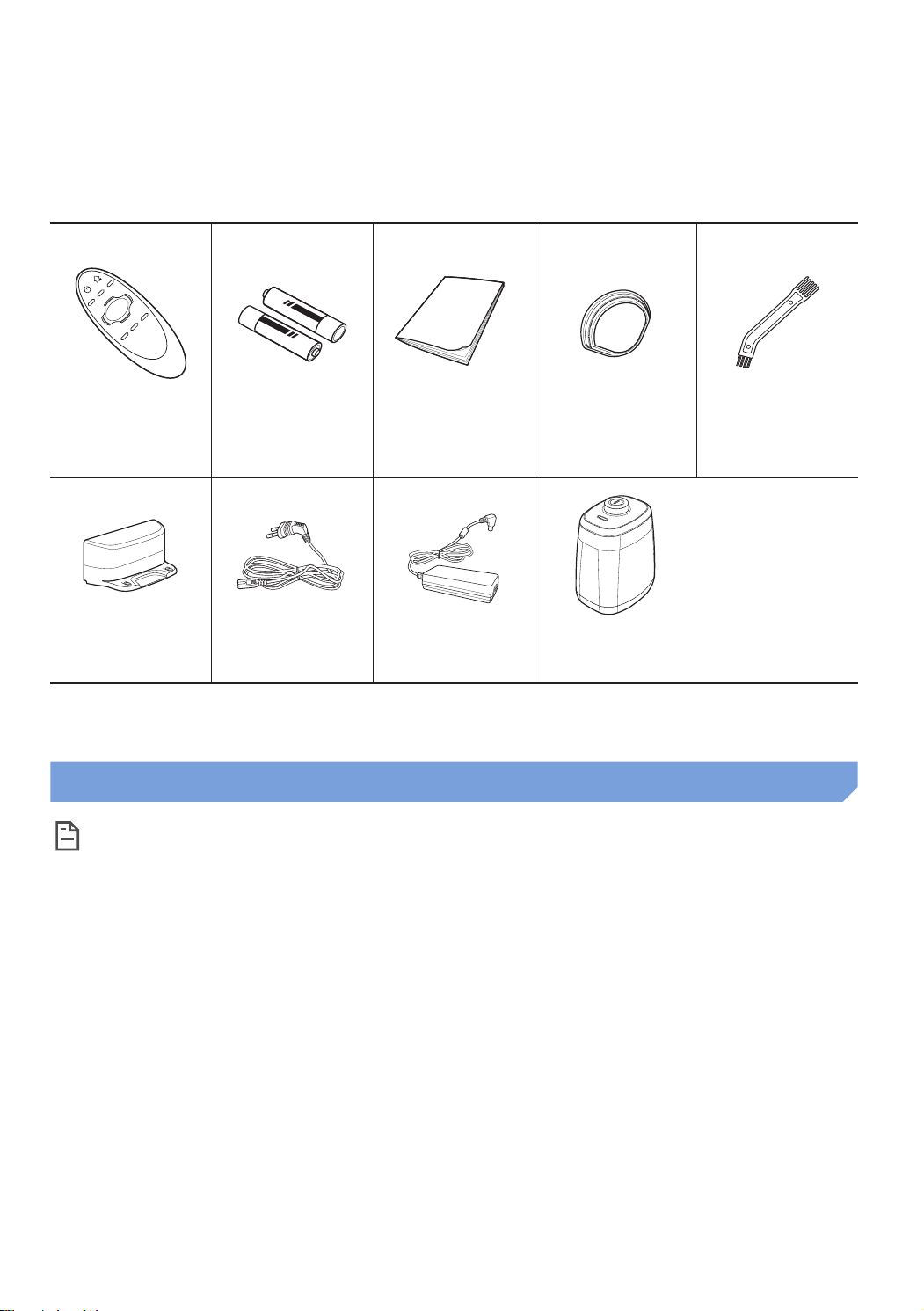
Accessories
Remote control Batteries (AAA
type)
User manual Spare filter Cleaning brush
Docking station
Power cord
Adapter Virtual guard
Installation note
Note
f Installthedockingstationinaplacewherethefloorandwallarelevel.
f Itisbesttoinstallthedockingstationalongthegrainofwoodenfloors.
f Iftheemergencyswitchisoff,POWERbotwillnotchargeevenifitisdockedonthedockingstation.
f Alwaysturnonthepowerofthedockingstation.
– Ifpowerisnotsuppliedtothedockingstation,POWERbotcannotfinditandcannotautomatically
recharge.
– IfPOWERbotisleftdetachedfromthedockingstation,thebatterywilldrainnaturally.
f IfPOWERbotisinenergy-savingmode,powerwillnotcomeoneveniftheemergencyswitchis
turnedoffandthenon.Pressandholdthe[Start/Stop]buttononPOWERbot.
2016-02-03 오후 8:23:53
ENGLISH-10
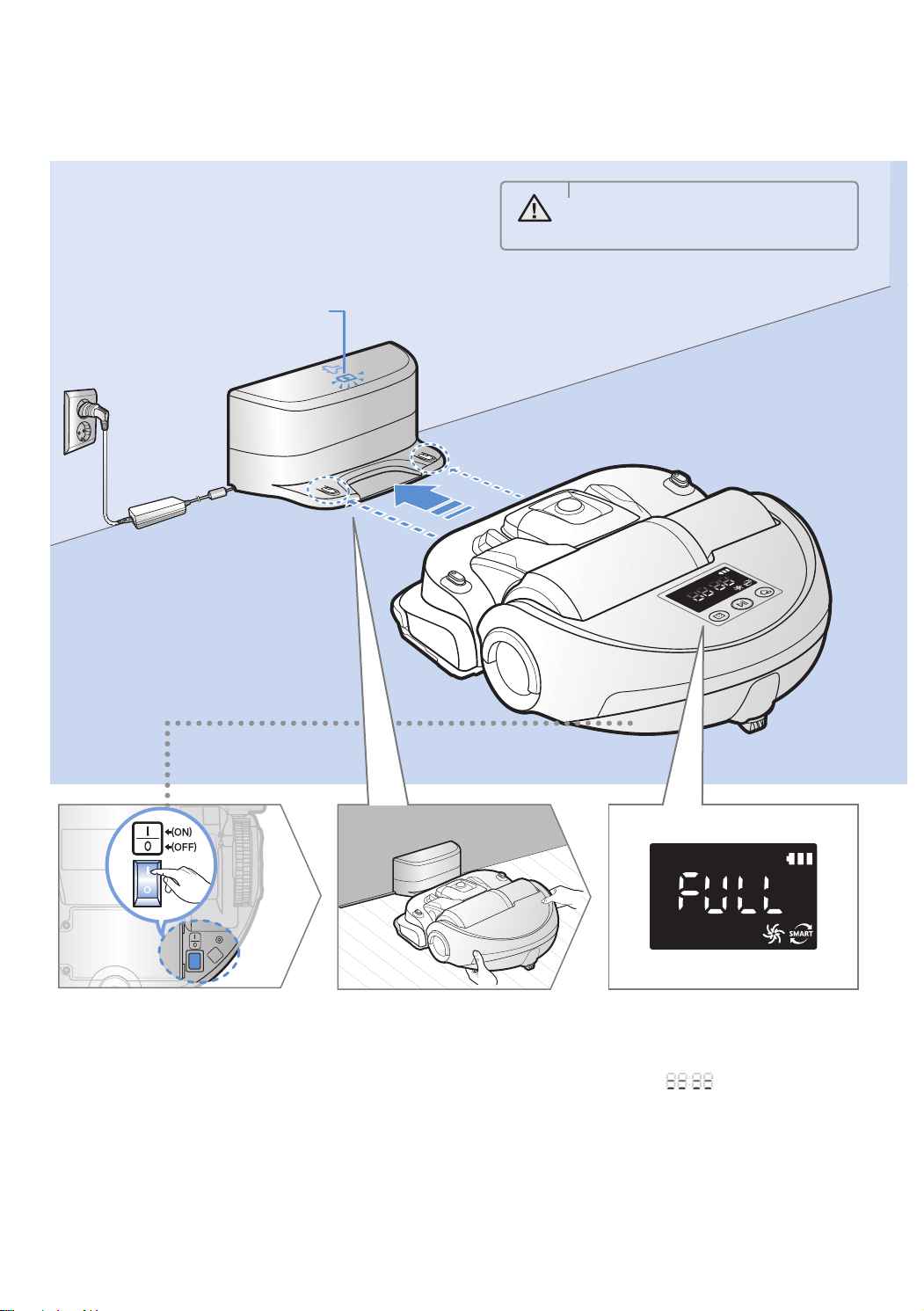
Charginglampduringcharging(green)
It takes approximately 240 minutes to
completely charge when charging for the
first time after purchase and can be used for
approximately 30 minutes in Max mode.
Charging
1
Turn on the
emergency switch
on the bottom
Youmustturnonthe
emergencyswitchtoturnon
POWERbot.
2
Manually charge
POWERbot by
placing it on the
docking station
Makesurechargepinsof
POWERbotandthedocking
stationisaligned.
3
Check the
charging status
“
”willturnon
accordingtocharging
progressand"FULL"will
turnonwhenchargingis
complete.
WARNING
•Ratedinputvoltageofthisproduct
is100-240V~.
2016-02-03 오후 8:23:54
ENGLISH-11
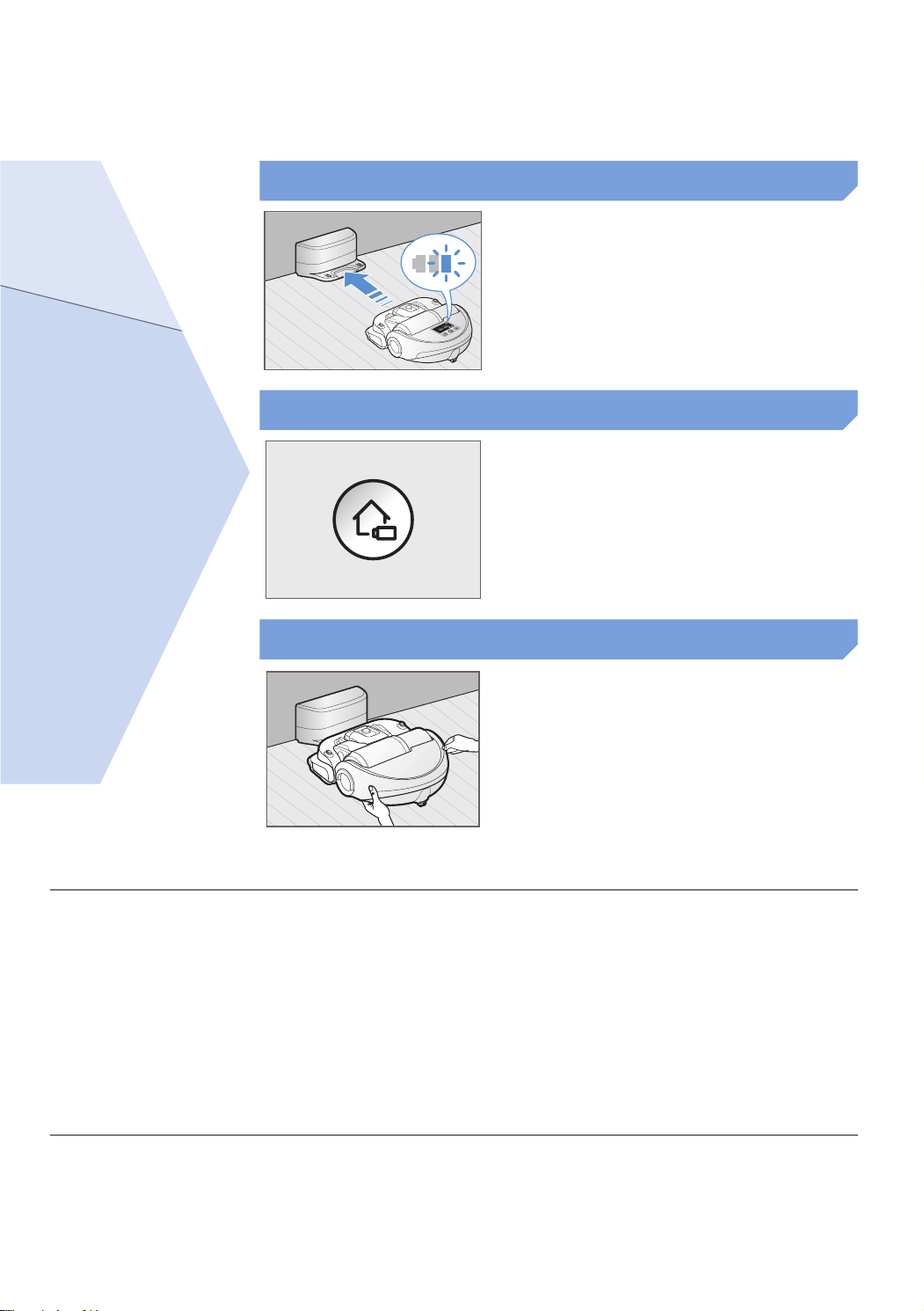
When the battery indicator blinks
during cleaning, POWERbot will
return to the docking station to
charge itself automatically.
Automatic charging
You may command POWERbot to
recharge at the docking station
while it is in cleaning process.
Recharging
Manually charge POWERbot by
placing it on the docking station.
Low battery (Lo)
Steps to take if recharging is not being executed
Check the installation status of the
docking station when:
fdockingstationislocatedinaplacewhere
POWERbotcannoteasilyaccess
fdistanceofthedockingstationandPOWERbotis
over5mapart
– ItmaytakealongtimeforPOWERbottoreturnto
thedockingstationforrecharging
Manually charge POWERbot when:
fdockingstationislocatedinacorner
fbatteryisfullyexhausted
fPOWERbotisstuckbyobstacles(furnitureetc.)
fPOWERbotcan'tclimbthresholdneardocking
station(HeightofthethresholdthatPOWERbotcan
climb:about2.0cmandbelow)
fBatteryindicatorblinksand"Lo"isdisplayed
fPOWERbotissetonSpotcleanorManualclean
mode
2016-02-03 오후 8:23:54
ENGLISH-12
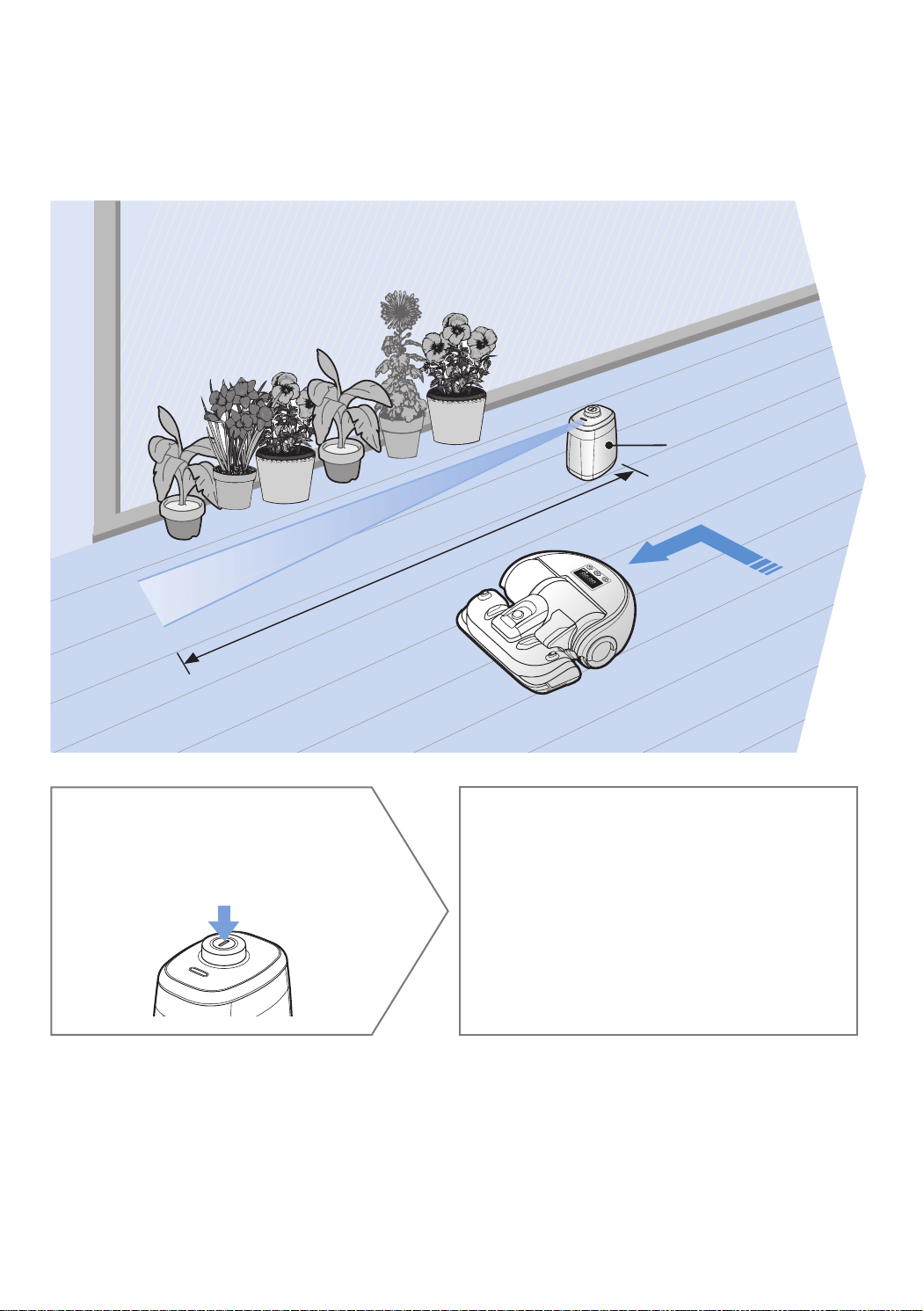
Installing the Virtual guard
Infrared ray from the Virtual guard will restrict POWERbot from approaching certain
area.
Virtualguard
1
Press the Power
button to turn it on
Powerlamp(Red)willblink.
2
Install the Virtual guard
where you want to restrict
POWERbot's entrance
Makesurethatdistancesensorisfacing
atthedesireddirectionyouwantto
createainvisiblebarrier(whichwillrestrict
POWERbot'sapproach).
The distance of virtual wall is 2.5 m at minimum and may differ
depending on surroundings and movement status of POWERbot.
Minimum 2.5 m
2016-02-03 오후 8:23:54
ENGLISH-13
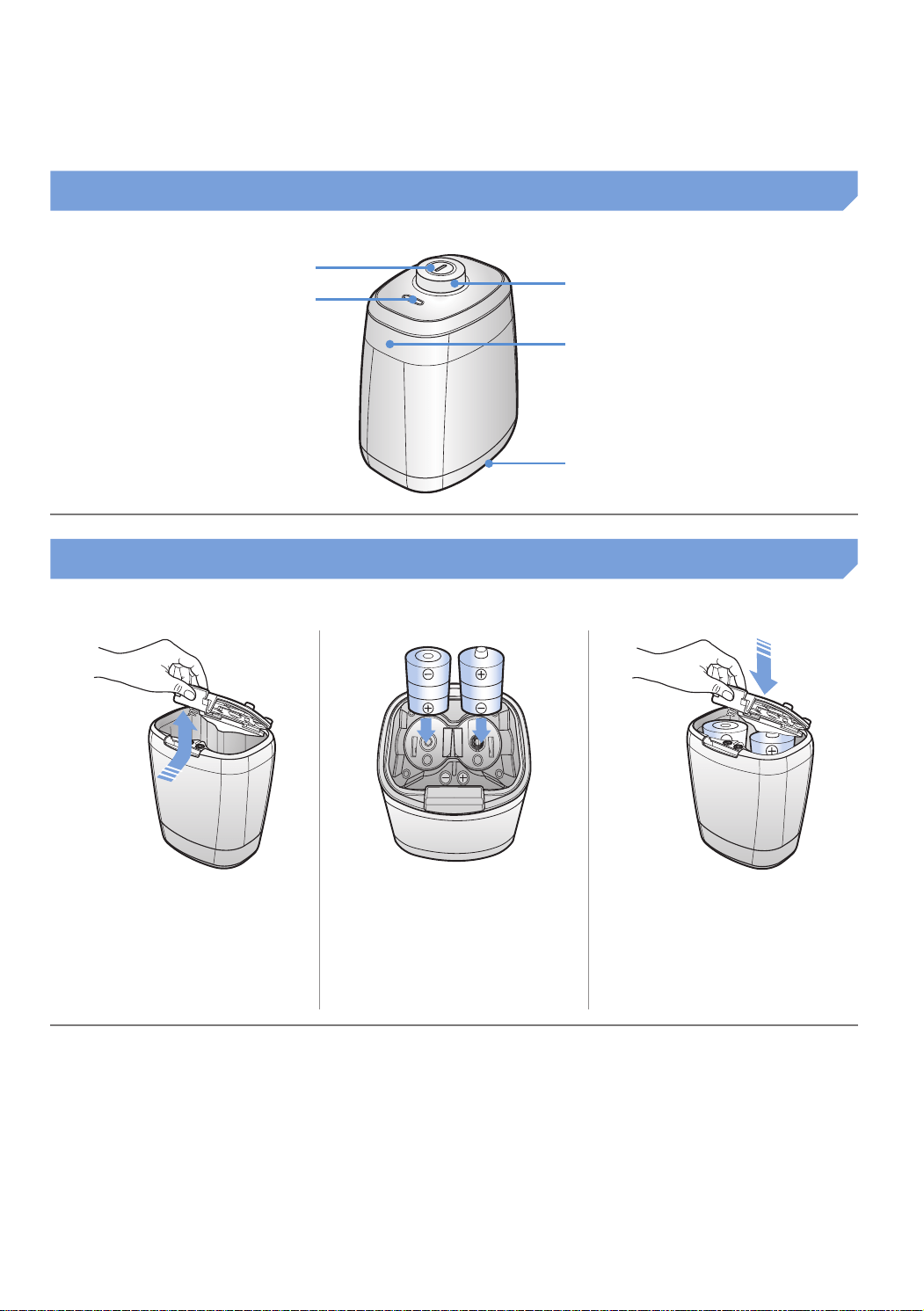
Part name of the Virtual guard
Power button
Distance detection sensor
(Infrared ray sensor)
Power lamp
Poweron:Redlampblinks
Poweroff:Lampisoff
POWERbot detection sensor
Battery cover
Inserting batteries
BatteriesforVirtualguardmustbepurchasedseparately.
1
Open the battery cover
of the Virtual guard by
pressing the locking
tab and lift it up.
2
Insert the alkaline
batteries (D type)
as shown in the
illustration (check the
+, - polarity).
3
Insert the tip of the
cover into the slot and
push the other end to
close the battery cover.
✻ Specification:typeD(LR20)batteries
2016-02-03 오후 8:23:54
ENGLISH-14
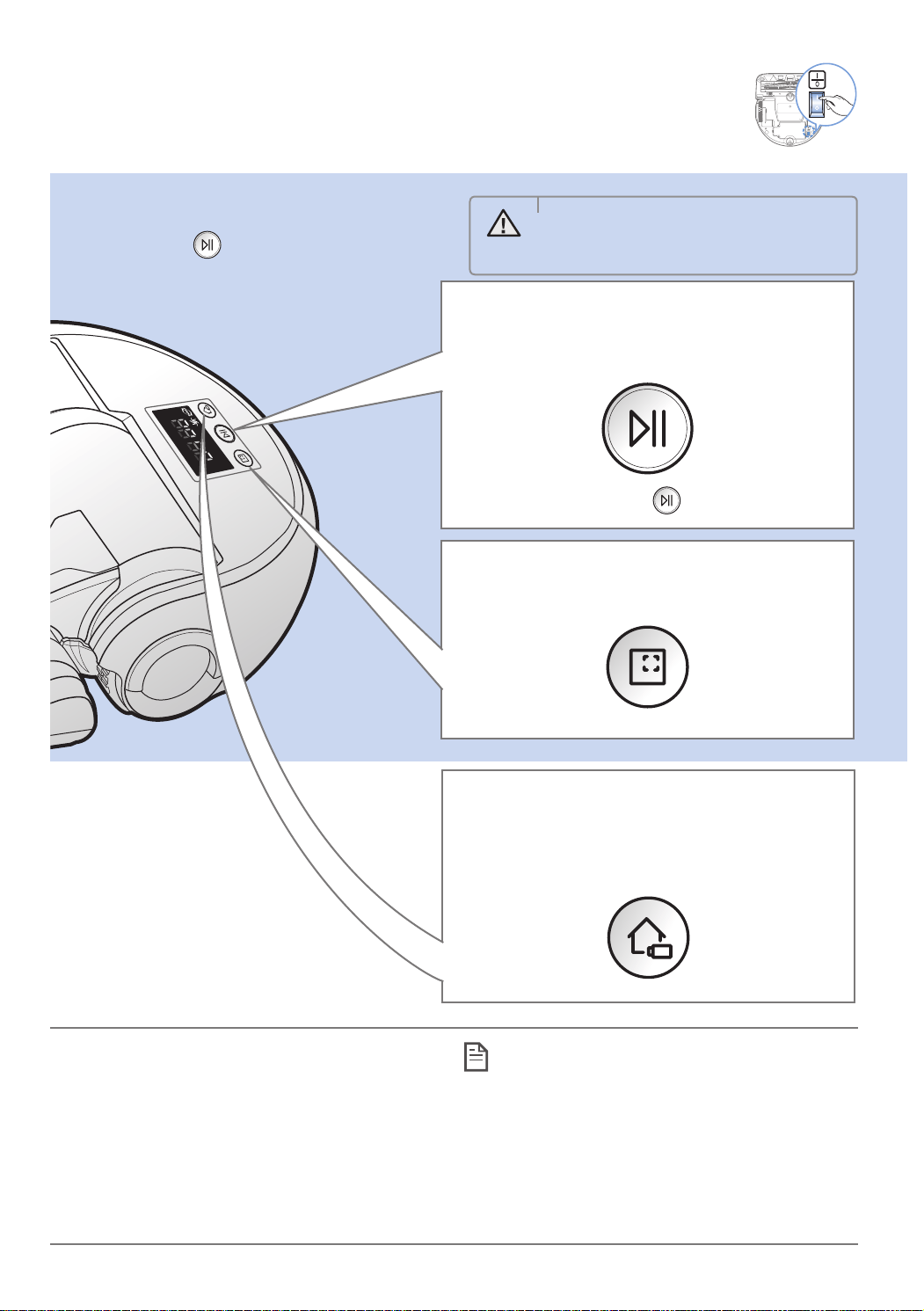
Using POWERbot
You must turn on the emergency switch before using POWERbot.
Turning the power on/off
Press the
button for more than
3 second
Using Auto clean mode
ThePOWERbotmovesandcleansautomatically
untilitcleansentirespaceonce.
✻ Stopcleaning:Pressthebutton
Recharging
YoumaycommandPOWERbottorechargeatthe
dockingstationautomaticallywhileitisincleaning
process.
Using Spot clean mode
ThePOWERbotcleansalocalizedareaintensely.
WARNING
•WhenPOWERbotisnotusedfor
30minutes,itwillreturntothedocking
stationtochargeitselfautomatically.
Location recognizing function
fIfturningoffthePOWERbotandturningitback
on,thePOWERbotwillsearchthelocationthatit
stoppedpreviouslyandthencleantheareawhere
wasnotcleanedbefore.
– Whenthelocationrecognizingfunctionoperates,
thePOWERbotsearchesthecurrentlocation.
– Ifthesearchingisfailedmorethan3times,the
POWERbotwillstarttocleanfromthebeginning.
Note
f Startthecleaningagainattheareawithin1m
aroundwherethePOWERbotstopped.
– Ifyoustartthecleaningattheareamorethan
1mfromwherethePOWERbotstopped,
itisdifficulttosearchthelocationandthe
POWERbotmaycleantheareawhereitalready
cleaned.
2016-02-03 오후 8:23:55
ENGLISH-15
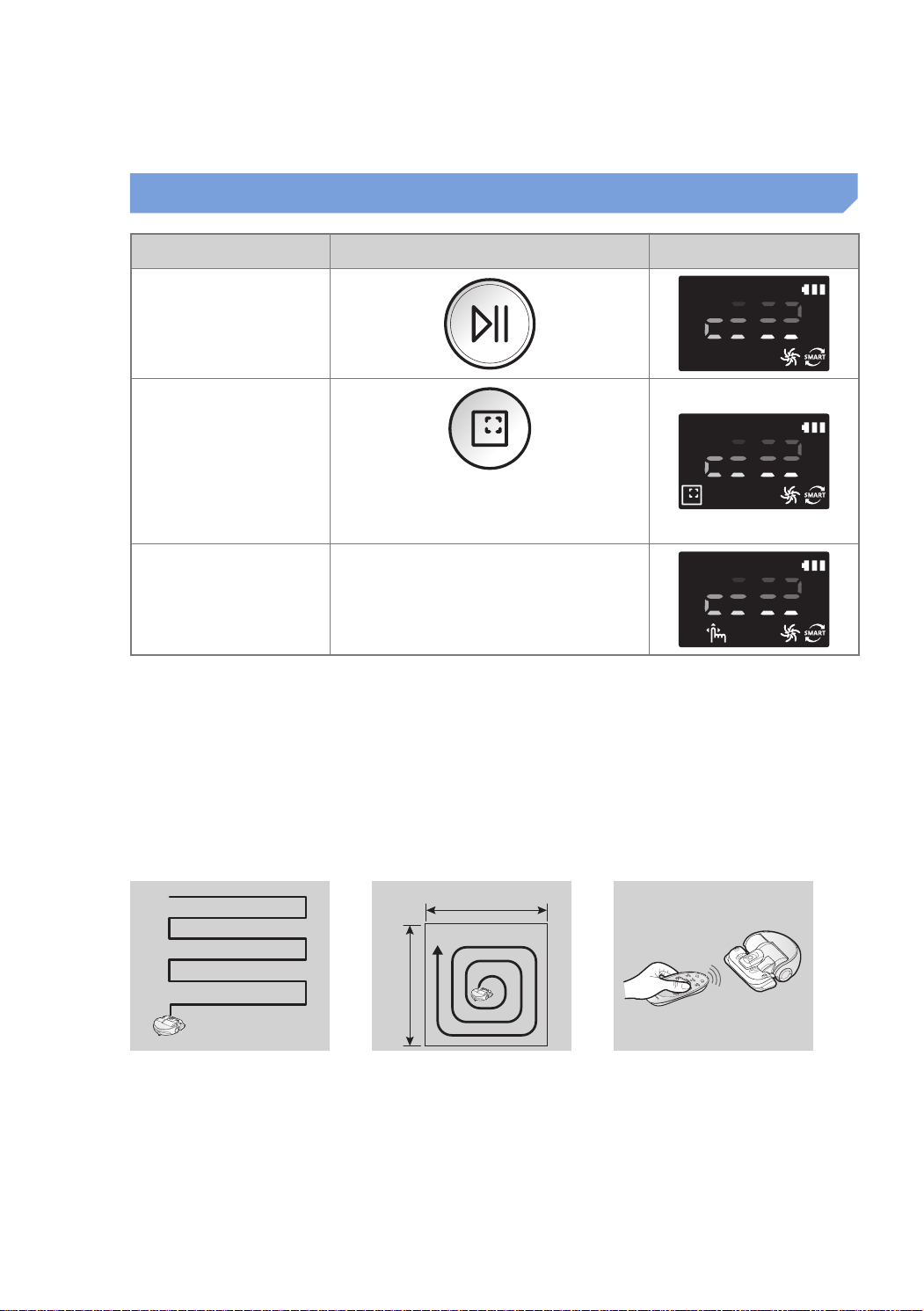
Cleaning mode How to select Displayed icon
Auto clean
Spot clean
✻ Spotcleanmodecanbeselectedonly
bypressingthisbuttononthemain
bodyofthePOWERbot.
Manual clean
✻ Manualcleanmodecanbeselected
bythedirectioncontrolbuttonsofthe
remotecontrol.
✻ Whencleaningisdonewithin15minutesinAutocleanmode,thePOWERbotwillrepeatcleaning
onemoretime.
✻ WhendustintakeisdetectedinSpot/Manualcleanmode,suctionofthePOWERbotwillbecome
stronger.
✻ IfthePOWERbotfailstoreturntothedockingstation,itwillbeturnedintotheenergy-savingmode.
Thenthedisplaypanelofthemainbodywillbeturnedoff.Press[Start/Stop]or[Power]buttonto
canceltheenergy-savingmode.
✻ Chargingandcleaningtimescandifferaccordingtoconditionsofuse.
Cleaning method for each modes
About1.5m
About1.5m
Auto clean
Cleansautomaticallyuntilentire
spaceiscleanedonce.
Spot clean
Cleansalocalizedarea
intensely.Itcanbeusedto
cleanbreadorcookiecrumbs.
Manual clean
YoucanmovePOWERbotwith
theremotecontroltocleanthe
desiredspot.
Selecting cleaning mode
SR9300K_EN_DJ68-00743E-00_EU.indd 15 2016-02-03 오후 8:23:55
ENGLISH-16
Using the remote control
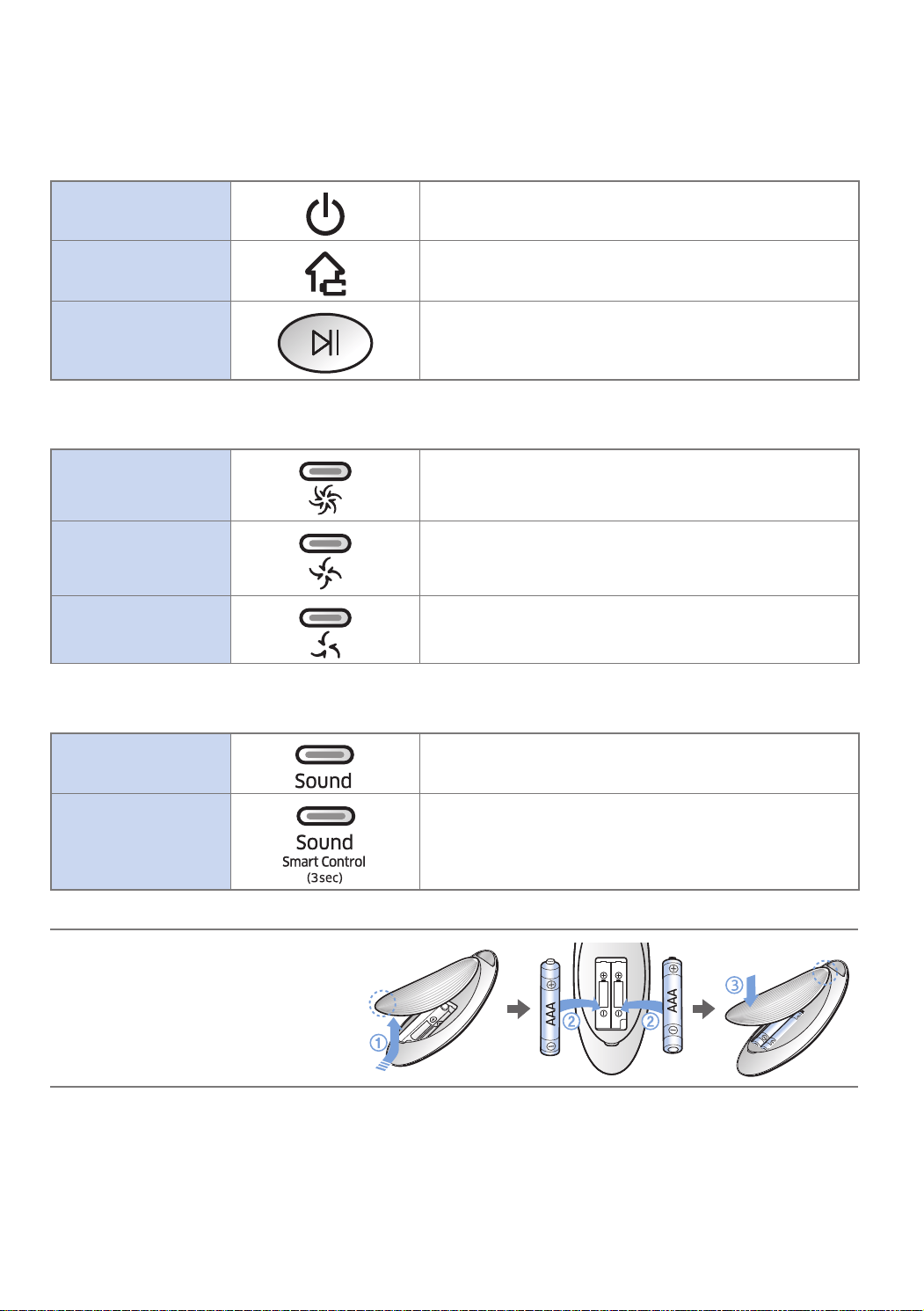
1 Power / Recharging / Start/Stop
Power
TurnPOWERbot'spoweron/off
Recharging
SelecttorechargePOWERbotatthedockingstation
automatically
Start/Stop
Selecttostartorstopcleaningprocess
2 Suction power
Max mode
Selecttocleanwiththestrongestsuctionpower
Normal mode
Selecttocleanwithmoderatesuctionpower
Quiet mode
Selecttocleanwithloweroperationnoise
3 Additional function
Sound
Eachtimeyoupressthisbutton,SoundEffects→Muteis
selectedinthissequence.
Smart control
Selecttoturnonoroffthesmartcontrol
✻ Press[Sound]buttonfor3seconds..
✻ Wi-Ficonnectionshouldbedonetocontrolthe
POWERbotusingSamsungSmartHomeapp.
✻ Thepreviouslyselectedsettingwillnotchangeeveniftheemergencyswitchisturnedoffandthenon.
Inserting batteries
Openthebatterycoverbyliftingitup
whilepressingthelockingtaband
insertthebatteriesasshowninthe
illustration.Then,closethecoveruntil
itclicksintoplace.
2016-02-03 오후 8:23:56
ENGLISH-17
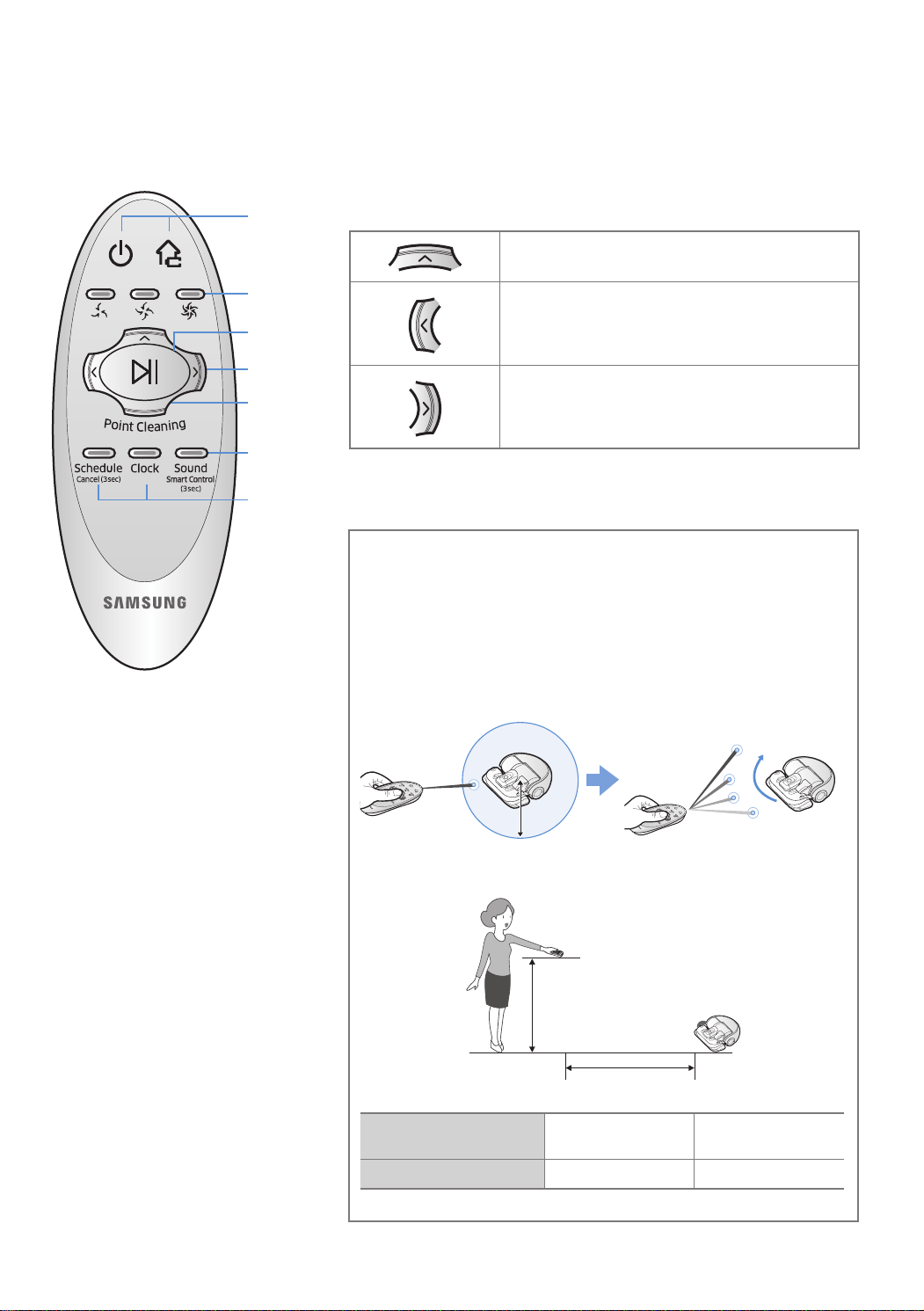
You can use the remote control to point and clean
the desired spot while the POWERbot is in cleaning
process.
Point the red light on the floor within 1 m around POWERbot's
location.
PressandholdthePointcleaningbuttontomovetheredlightto
thedesiredspot.ThePOWERbotwillfollowthelightwhilecleaning.
1 m
Operating distance of the remote control
Heightoftheremote
control
Operatingdistance
Height of the remote
control
1m1.5m
Operating distance About2mAbout2.5m
5 Point cleaning
4 Manual clean mode & Direction
control
Selecttomoveforward
Selecttoturnleft
Selecttoturnright
✻ Movingbackwardisnotavailable.
Referto
page19
1
1
2
4
3
5
2016-02-03 오후 8:23:56
ENGLISH-18
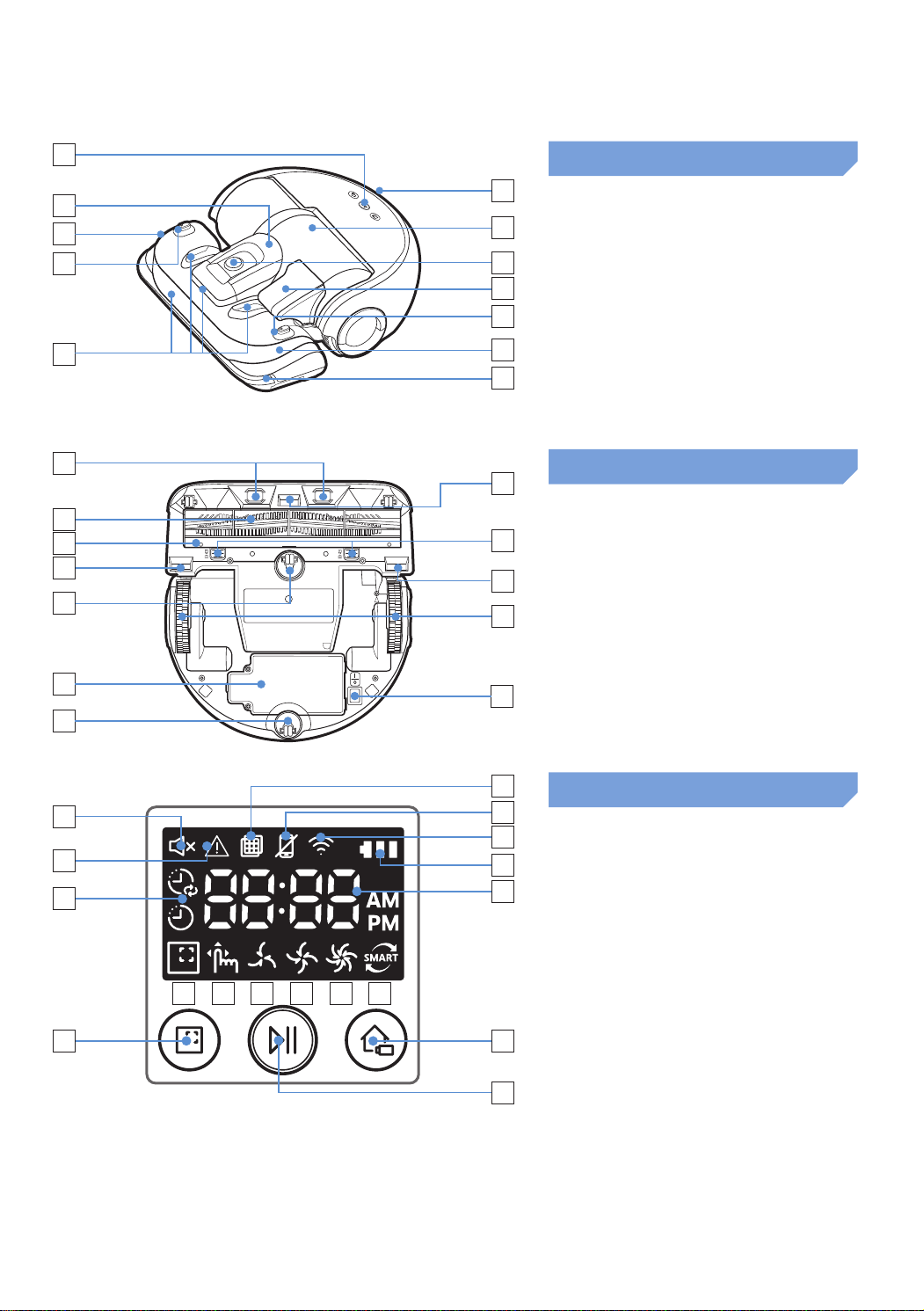
Name of each part
1
5
2
3
4
6
3
3
4
7
8
9
Top
1.Displaypanel
2.Dustbinholder
3.Remotecontrolsignalreceiver
4.Virtualguardsensor
5.Obstaclesensor
6.Dustbin
7.Camera
8.Dustbinhandle
9.Bumpersensor
1
4
2
6
5
5
4
7
4
8
9
3
Bottom
1.Chargepins
2.Petbrush
3.Petbrushcover
4.Cliffsensor
5.Roller
6.Batterycover
7.Petbrushcoverbutton
8.Drivingwheel
9.Emergencyswitch
13 149 121110
6
16
17
3
4
5
8
1
7
2
15
Display panel
1.Mute
2.InformationIndicator
3.Filterinspection
4.SmartControlOff/Onindicator
5.Wi-Fi
6.Batteryindicator
7.One-time/Dailyschedule
8.Numberdisplay
9.Spotcleanmode
10.Manualcleanmode
11.Quietmode
12.Normalmode
13.Maxmode
14.Dustsensor
15.Spotcleaningbutton
16.Start/Stopbutton
17.Rechargingbutton
2016-02-03 오후 8:23:57
ENGLISH-19
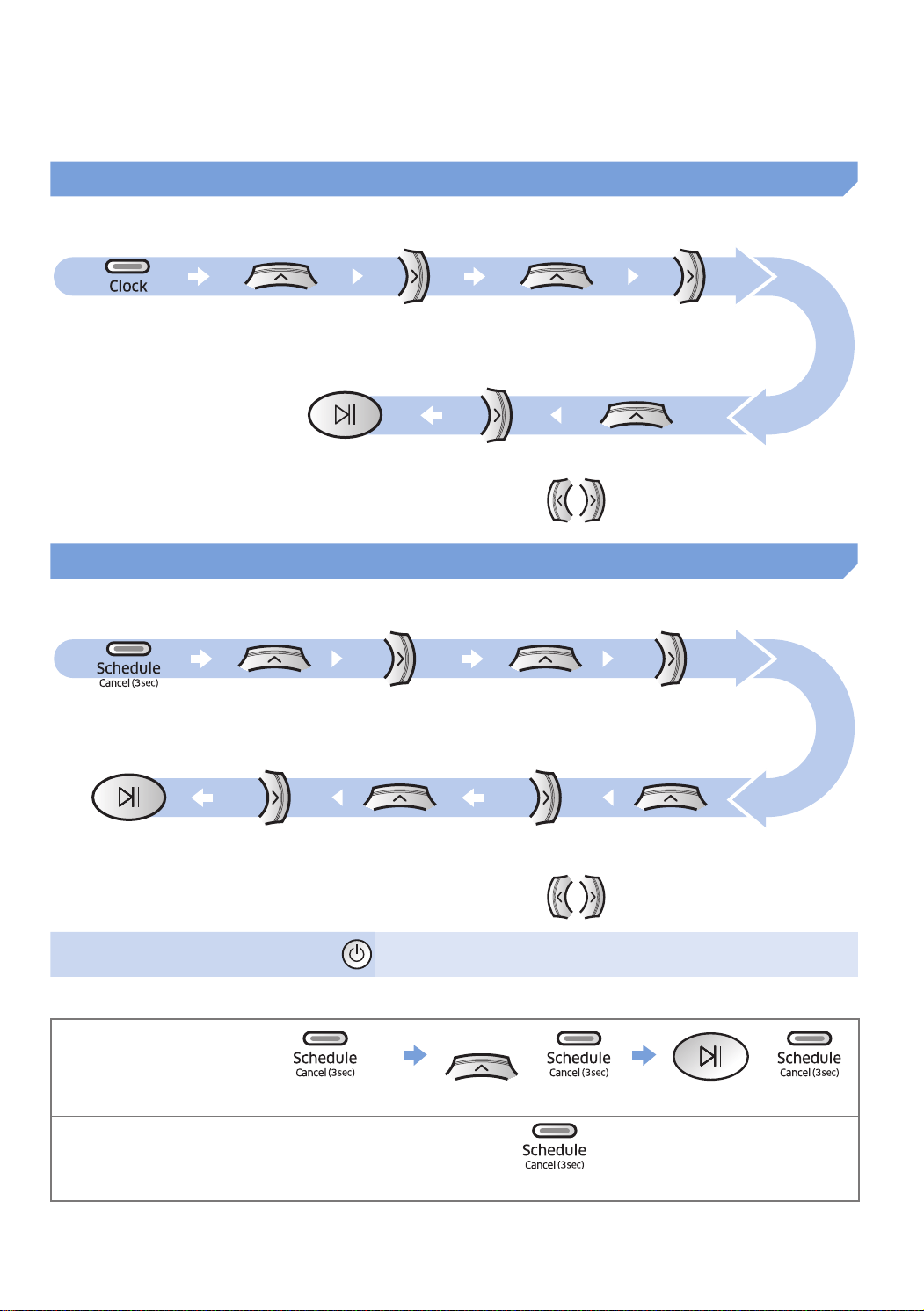
Setting time/schedule
Only Auto clean mode can be scheduled.
Setting the time
YoumustsetthecurrenttimebeforeusingtheOne-time/dailyschedule.
Start setting Select "Hour" Select "Minute"
Select "AM/PM"Setting complete
Skip to previous, next setting
Setting the schedule
Setting/cancellingtheschedulecanonlybedonewhilePOWERbotisdockedonthedockingstation.
Start setting Select "One-time" or
"Daily" schedule
Select "Hour"
Select "Minute"Select "AM/PM"Setting complete
Skip to previous, next setting
Cancelling during setup
fSettingwillbecanceledautomaticallywhenthere'snoinput
for7seconds
Cancelling One-time/Daily schedule
When both One-time/
Daily schedule is set
oror
Pressfor3sec.SelectthescheduleCancelcomplete
When either one of
One-time or Daily
schedule is set
Pressfor3sec.
2016-02-03 오후 8:23:57
ENGLISH-20
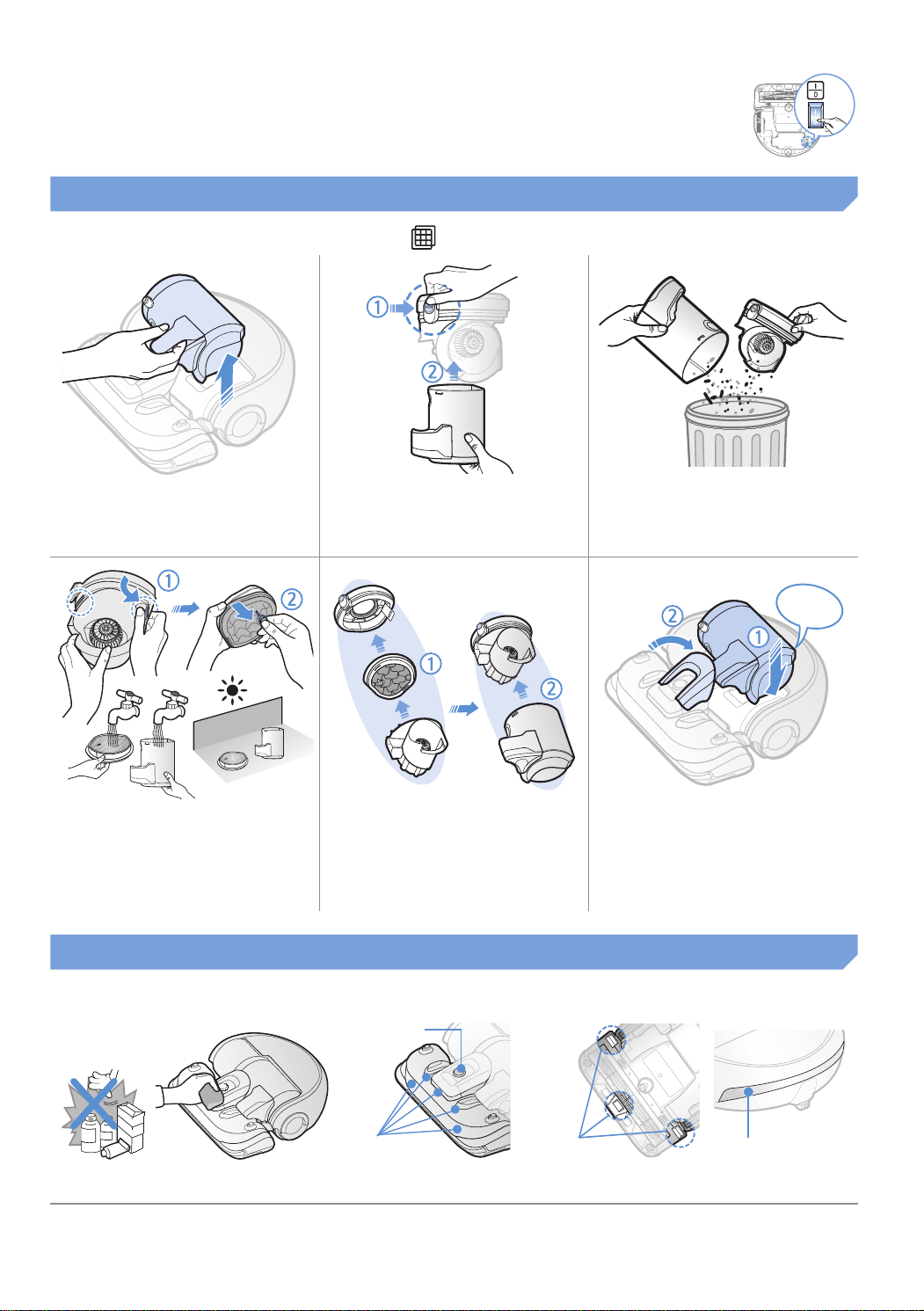
Cleaning and maintaining
You must turn off the emergency switch before cleaning POWERbot.
Cleaning the dustbin
Cleanthedustbinwhenfilterinspectionindicator()turnsonorifthere'stoomuchdustinthedustbin.
1
Remove the dustbin
2
Remove the dustbin
cover
3
Remove dust in the
dustbin and cyclone
unit
"Click"
4
Detach the cyclone unit
from the dustbin cover
then wash the dustbin
and the filter
5
Reassemble the
dustbin
6
Reinsert the dustbin
into the main body until
it clicks
Cleaning the sensors and the camera
Lightly wipe with soft cloth. Do not use water or cleaning solutions.
Camera
Frontsensor
window
Rearsensor
window
Cliffsensors
2016-02-03 오후 8:23:59
ENGLISH-21
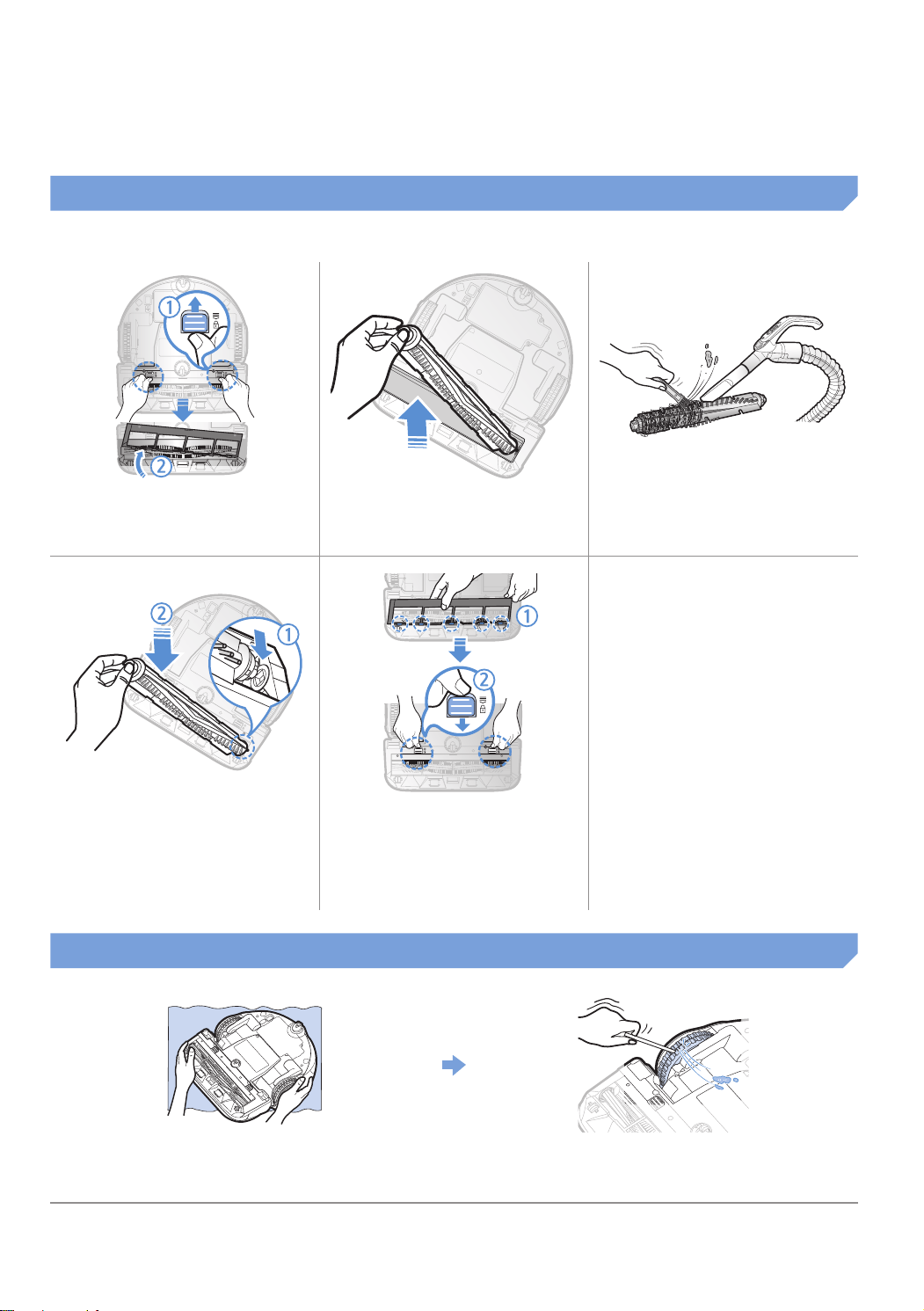
Cleaning the Pet brush
1
Remove the Pet brush
cover
2
Remove the Pet brush
3
Clean the Pet brush
ON
OFF
4
Reassemble the Pet
brush
5
Reassemble the Pet
brush cover
Cleaning the Driving wheel
1
Putasoftclothonthefloorandplace
POWERbotupside-down.
2
Useabluntrodortweezerstoremovethe
foreignmatters.
2016-02-03 오후 8:24:00

ENGLISH-22
Samsung Smart Home App
Preparing the network
Setting up the wireless router
fThisproductsupportsonlyDHCP(DynamicHostConfigurationProtocol).PleasecheckiftheDHCPserver
optionfunctionofawirelessrouterisactivated.
fThesupportedtypesofauthorization/encryptionofthewirelessrouterareWEP-OPEN,WPA-PSK/TKIPand
WPA2-PSK/AES801.11n.
– WPA2-PSK/AESisrecommendedtobeused.
fThequalityofconnectionofthewirelessnetworkmaybeinfluencedbythesurroundingwirelessenvironment.
fWhenyourInternetserviceproviderhaspermanentlyregisteredanMACaddress(auniqueidentification
number)ofyourPCormodem,yourPOWERbotmaybeunavailabletobeconnectedtotheInternet.Askyour
InternetserviceproviderabouttheproceduretoconnectanapparatusotherthanaPCtotheInternet.
fIfyourinternetserviceproviderrequiresyourIDorpasswordtoconnecttotheinternet,yourPOWERbotmay
notbeabletoconnecttotheinternet.Inthiscase,youmustenteryourIDorpasswordwhenconnectingto
theinternet.
fTheconnectiontotheInternetmaybeimpossiblebecauseofissuesoffirewall.AskyourInternetservice
providerforresolvingtheissue.
fSomewirelessroutersmayconveyanabnormalDomainNameServer(DNS)addresseveniftheInternetisnot
connected.Inthiscase,inquiretheproviderofthepertinentwirelessrouterandyourInternetserviceprovider.
fIfyoustillcannotconnecttotheInternetevenaftertryingtheprocedureinformedbyyourInternetservice
provider,pleaseaskanagencyorservicecenterofSamsungElectronics.
Note
f Pleaserefertotheusermanualofthepertinentwirelessrouterwithoutaccessproblems.
f SamsungPOWERbotssupportonlyWi-Fi2.4Ghz.
f SamsungPOWERbotssupportthecommunicationprotocolofthemethodsofIEEE802.11b/g/n
andWi-FiDirect.(SamsungElectronicsrecommendstouseIEEE802.11n.)
f AwirelessrouterwithnoauthorizationofWi-Fimaybeunavailabletobeconnectedtothe
POWERbot.
f WhenthepowerissuppliedandthePOWERbotisdockedonthedockingstation,thePOWERbot
willbeconnectedtotheserverandthencheckifthereissoftwareupdates.Ifthereisthelatest
software,itwillbeautomaticallydownloadedandupdated.
f If“UP”isdisplayedonthedisplaypanelwhilethePOWERbotischarging,itmeansthattheupdate
isinprogress.Pleasewaitforcompletingtherebooting.
f Iftheproductregistrationisnotdone,pleasefollowthefollowinginstructions:
– Refertothepopupmessageandretrytheregistraionprocedure.
– CheckiftheUPnPoptionofthewirelessrouterisavailableandretrytheregistrationprocedure.
– Checkiftheoperatingmodeofthewirelessrouterisaroutermodeandretrytheregistrationprocedure.
– IfyouhavemorethantwoPOWERbot,turnofftheotherstoregistertheone.Theconnectionmustbeone
toone.
– IfthereisawirelessrouterwhichhasthesameSSIDaroundyourrouter,anormalregistrationcannotbe
guaranteed.
– SetauniqueSSIDandpasswordforthewirelessrouterandthenregistertheproduct.
2016-02-03 오후 8:24:00
ENGLISH-23
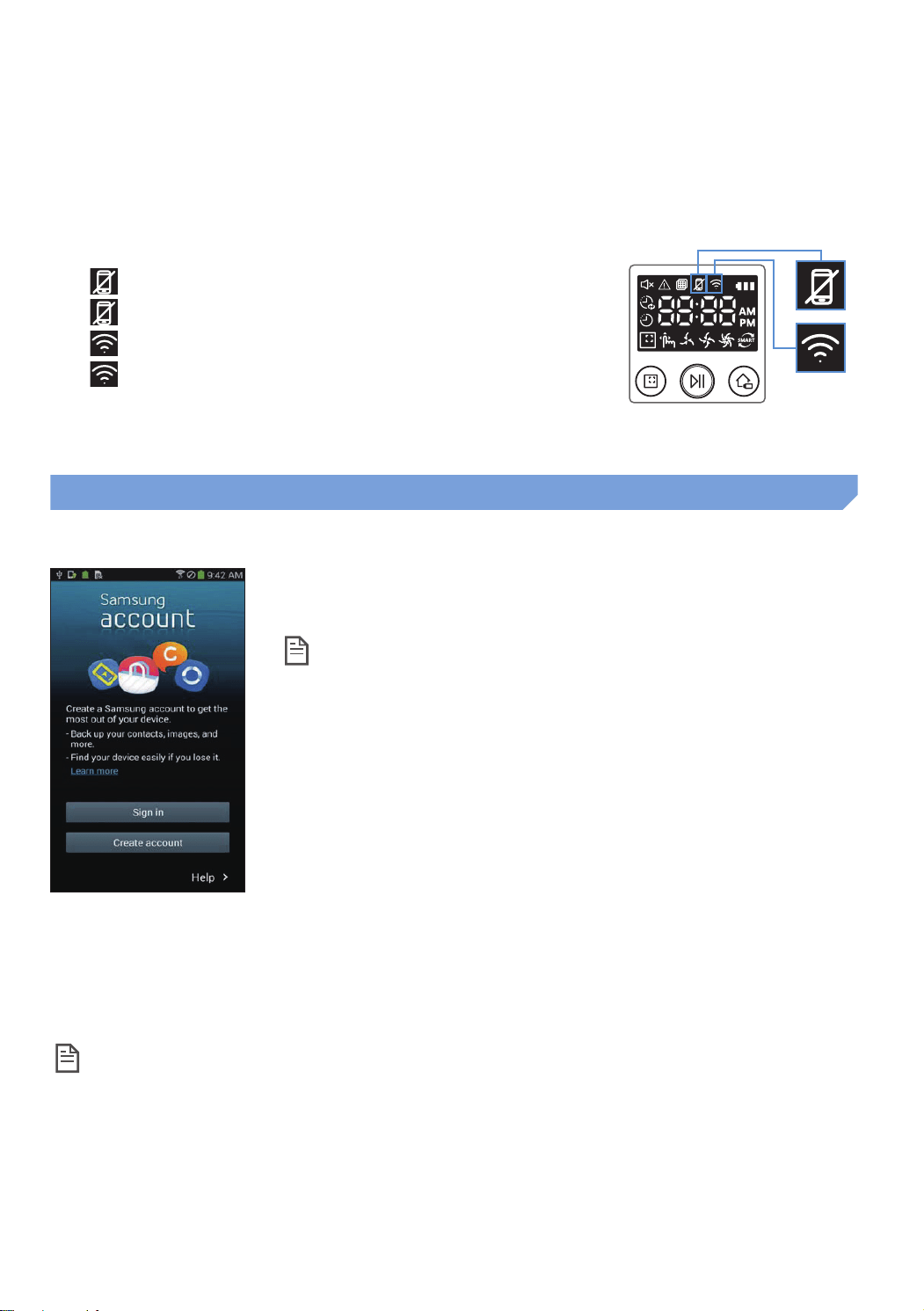
Using the Samsung Smart Home app
Creating your Samsung account
IfyouwanttousetheSamsungSmartHomeapp,pleaseregisteryour
SamsungaccountinSamsungaccountapp.
Note
f Ifyoudonotsetauto-logintotheSamsungSmartHomeappandrun
theapp,thescreenofSamsungaccountappearsonetimeatfirst.
f IfyouareauserofaSamsungsmartphone,registeryourSamsung
accountinthesettingsofthesmartphone,andthentheautomatic
logingetssetwithoutanyotherloginprocesses,andyoucanusethe
Samsungsmarthomeappimmediately.
Downloading Samsung Smart Home app
YoucandownloadtheSamsungSmartHomeappbysearchingfor“SamsungSmartHomeApp”attheGoogle
PlayStore,SamsungGalaxyAppsandAppleAppstore.
Note
f SamsungSmartHomeappsarecompatiblewithselectedSamsungGalaxySandSamsungNote
seriesdevices.
– supportAndroid™(2)4.0(sinceGalaxyS2)orhigherandiOS7orhigher
– Applicationmustbedownloaded.Internetconnectionrequired.Datachangesmayapply.
– AndroidisatrademarkofGoogleInc
– TheUIofSamsungSmartHomeAppmaychangewithoutadvancenoticeforimprovementofproductuse
andperformance.
f SamsungSmartHomeServicedoesnotguaranteeanormaloperationunderfirewallenvironment.
f IfthePOWERbotandsmartphonearenotconnectedtothesamewirelessrouter,responsedelay
mayoccuraccordingtonetworkenvironment.
f SmartcontrolandWi-Fiindicator
–
On:Smartcontrolislocked.(Onlytheremotecontrolisavailable.)
–
Off:Smartcontrolisallowed.
–
Off:ThePOWERbotisconnectingtothewirelessrouter.
–
On:ThePOWERbotisconnectedtothewirelessrouter.
f IfSmartcontrolislocked,youcannotuseSamsungSmartHomeApp.
2016-02-03 오후 8:24:00
ENGLISH-24
Samsung Smart Home App
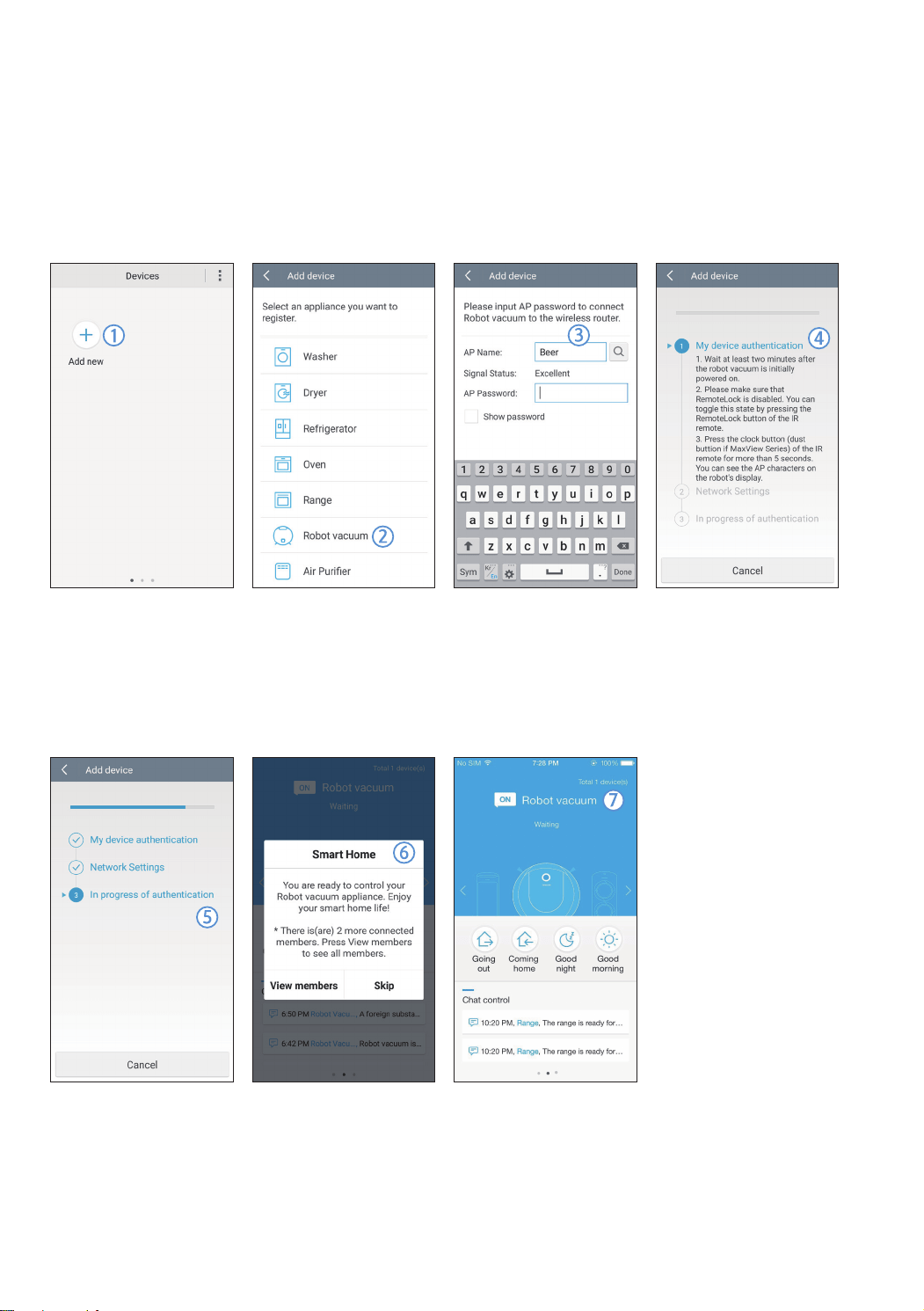
Registering the product (Easy-Setup)
RegistertheproducttotheSamsungSmartHomeServicebeforeusingtheSamsungSmartHomeapp.
Android
1.PresstheAddnewicononthedevicelistscreenoftheSamsungSmartHomeapptostarttheregistrationof
theproduct.
2.SelecttheRobotvacuumicon.
3.Entertheinformationofthewirelessroutertobeconnected.
4.SetthePOWERbotaccordingtotheguidanceonthescreen.
– ToturnontheAPmodeimmediately,press[Clock]buttonformorethan5seconds.
5.Then,theregistrationwillproceedautomatically.
6.Themessagewillappearwhentheregistrationcomplete.
7.Whentheproductregistrationiscomplete,themainscreenoftheSamsungSmartHomeappwillappear.
✻ Iftheproductregistrationisfailed,refertopage22.
2016-02-03 오후 8:24:02
ENGLISH-25
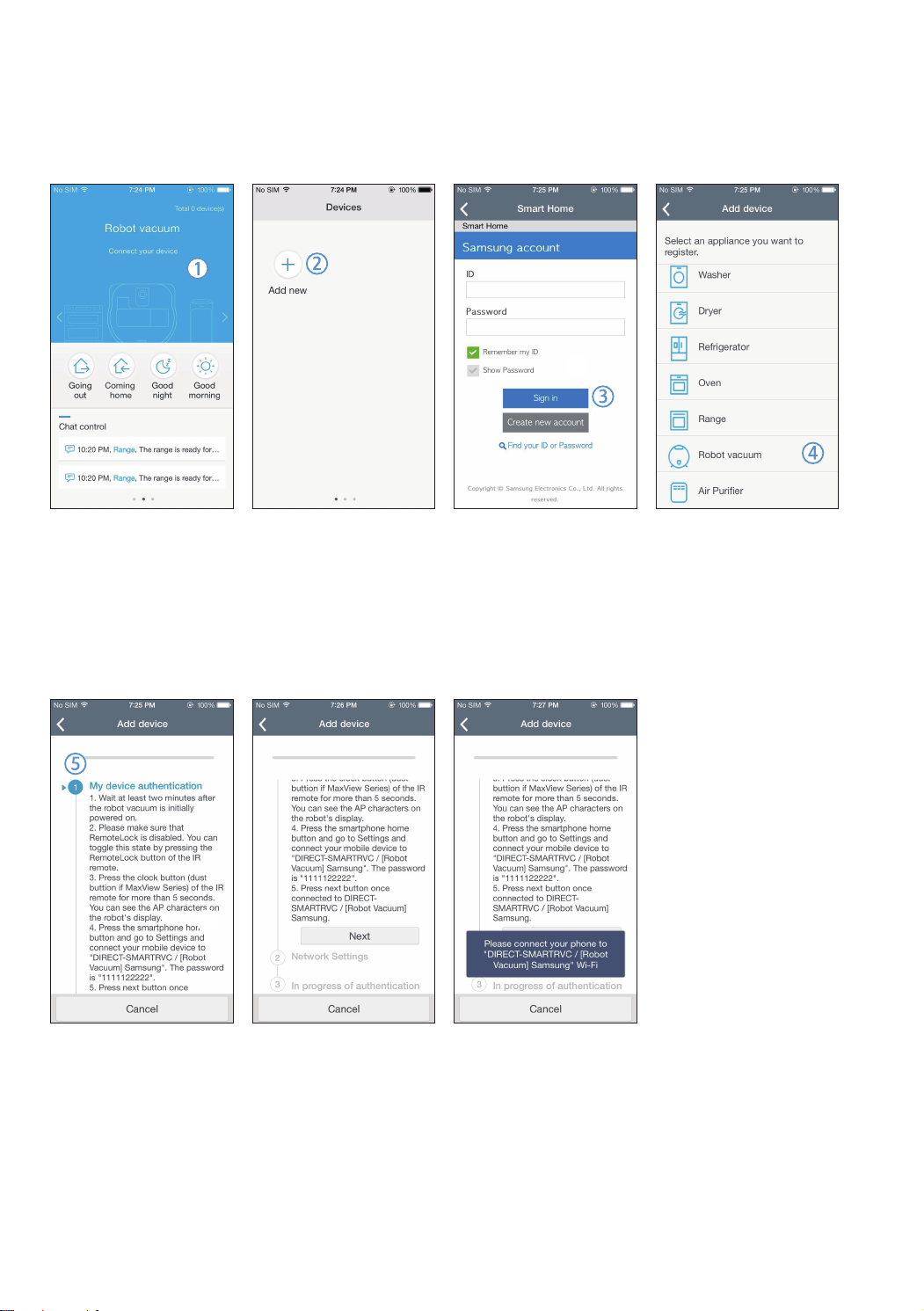
iOS
1.RunSamsungSmartHomeapp..
2.MovetotheleftscreenandthenpresstheAddnewicononthedevicelistscreentostarttheregistrationof
theproduct.
3.Enterthesamsungaccountandthenpress[Signin]button.
– ForiPhone,yourIDandpasswordisnotsavedsothatyouneedtosignineverytimeyouuseSamsung
SmartHomeapp.
4.Select[Robotvacuum]icon.
5.Presstheclockbuttonoftheremotecontrollerformorethan5seconds.
– APwillappearonthedisplaypanel.
SR9300K_EN_DJ68-00743E-00_EU.indd 25 2016-02-03 오후 8:24:05
ENGLISH-26
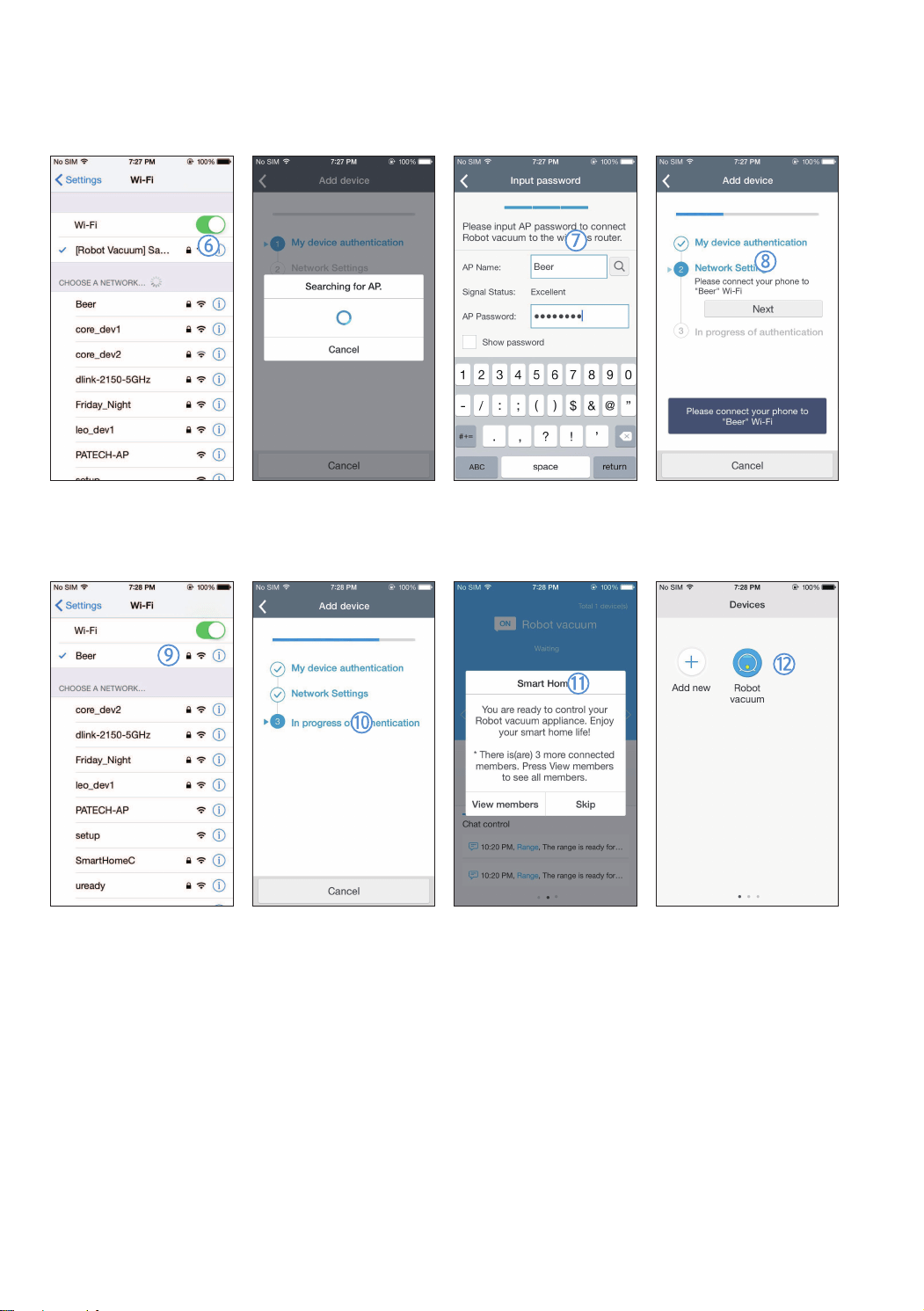
Samsung Smart Home App
6.RuntheSettingsappofyouriPhoneandthenconnectto[RobotVacuum]Samsungonthelist.
7.EnterIDandpasswordofthewirelessrouterwhichwillbeconnectedandthenpress[Next]button.
8.Theconnectionbetweenthesmartphoneandtherobotvacuumisinprogress.
9.RuntheSettingsappofyouriPhoneandthenconnecttothewirelessrouterwhichwillbeconnectedonthe
Wi-Filist.
10.Theconnectionbetweenthewirelessrouterandtherobotvacuumisinprogress.
11.Whentheproductregistrationiscompleted,themessagewillappear.
12.Whentheproductregistrationiscompleted,Robotvacuumiconisaddedonthedevicelist.
2016-02-03 오후 8:24:06
ENGLISH-27
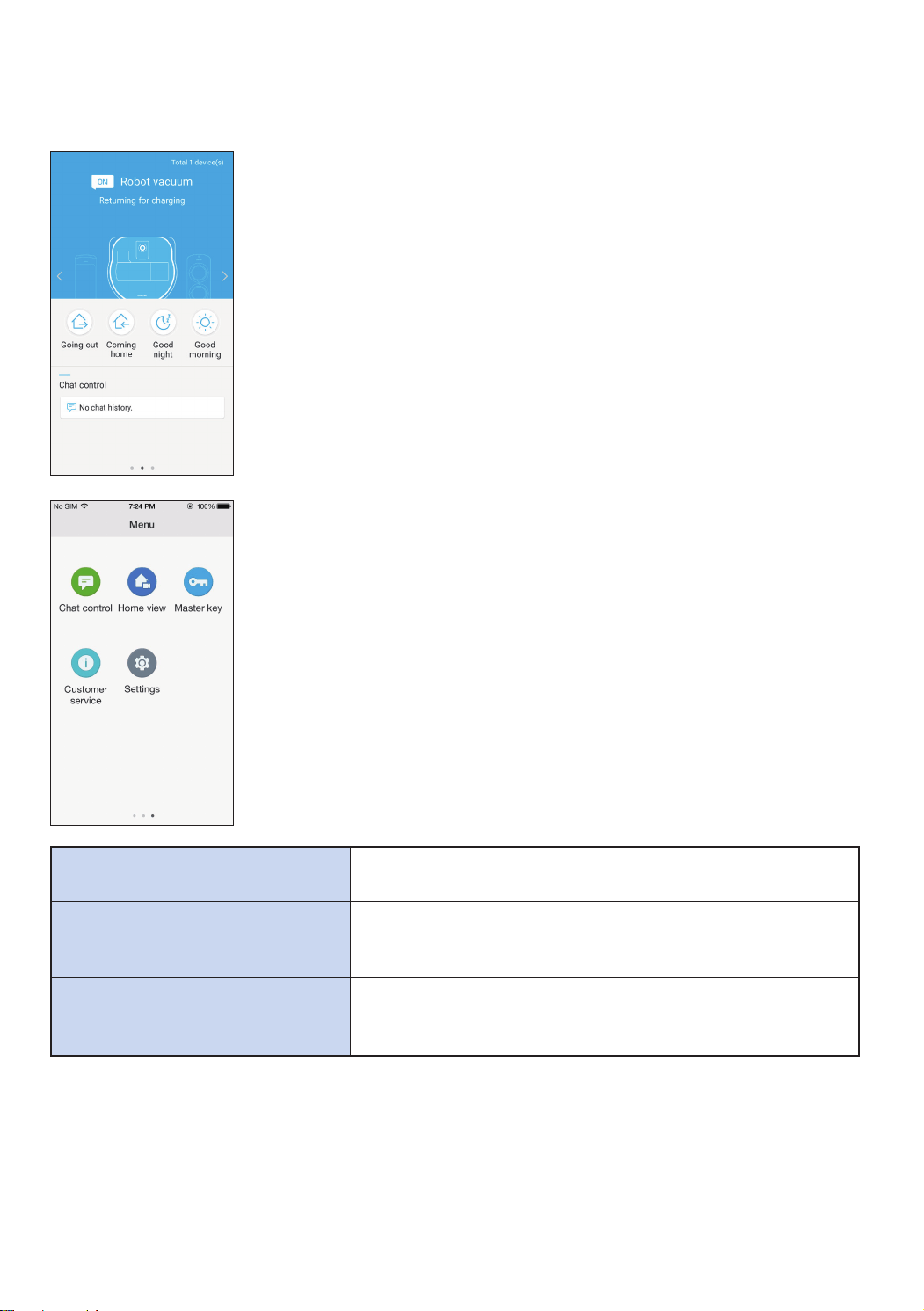
Main screen
fSelecttheRobotvacuumicononthemainscreen,andyoucanmovetothe
POWERbotcontrolscreen.
fYoucancontrolyoursmarthomeappliancesmadebySamsungElectronics
byGoingout,Cominghome,Goodnight,andGoodmorningicons.
fHomeviewfunctionisnotsupportedforaPOWERbot.
User menu screen
fYoucancontrolthesmarthomeappliancesmadebySamsungElectronics
withChatcontrolandMasterkeyfunctions.
Chat control
fYoucancontrolthesmarthomeappliancesorcheckaboutthe
statusofthemconveniently.
Master key
fYoucancontrolseveralhomeappliancesatonceusingthe
masterkeys(Goingout,Cominghome,Goodnight,Good
morning).
Customer service
fYoucanseethemanualoftheproduct.
fWhenaproductisoutoforder,youcanconsultwithour
customercenterandrequestforanafter-salesservice.
2016-02-03 오후 8:24:06
ENGLISH-28
Samsung Smart Home App
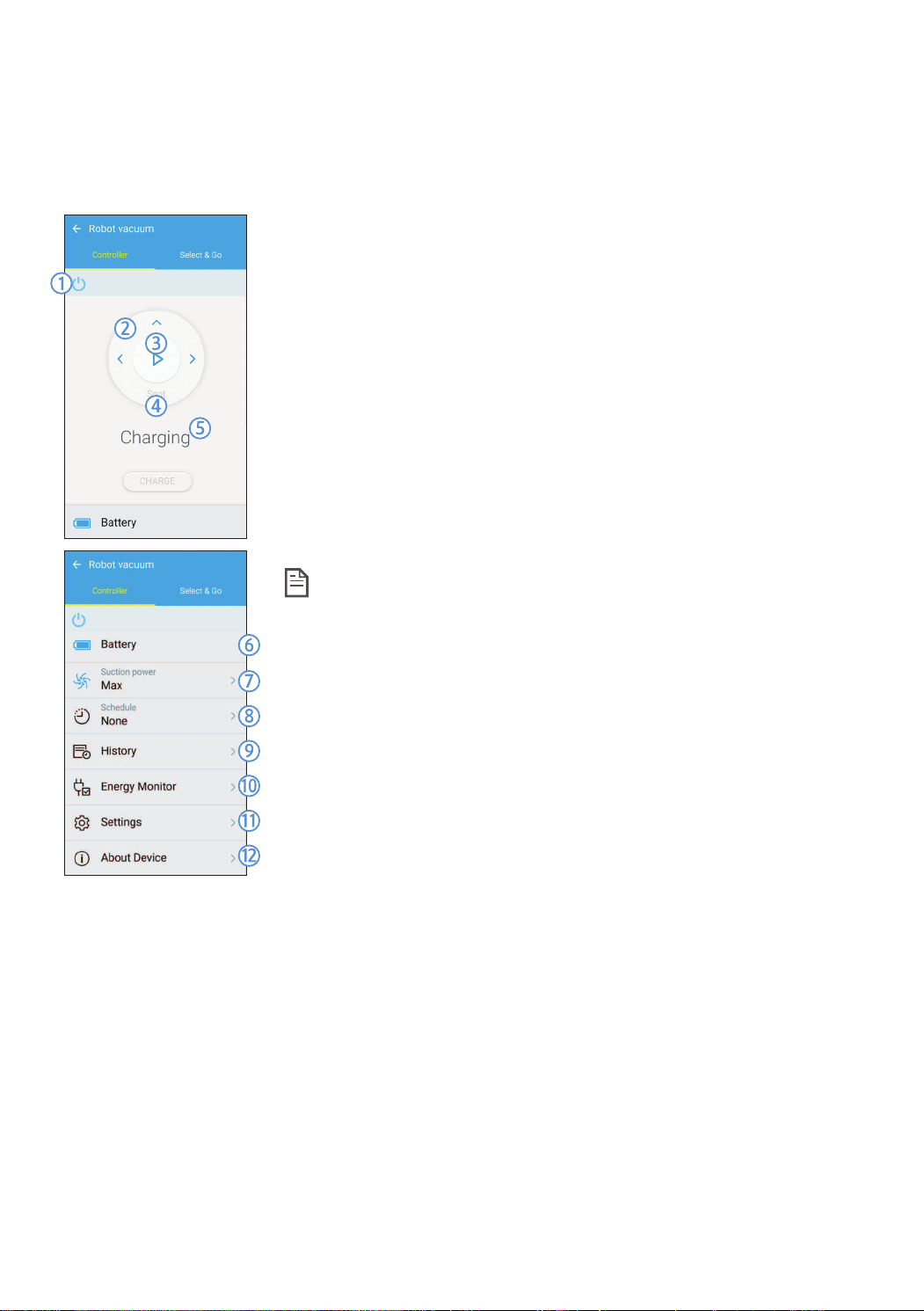
Controlling POWERbot
WhenaccessingtheSamsungSmartRobotvacuumapp,thecontrolscreenwillappear.
1.Poweron/off
2.ManualcleanmodeandDirectioncontrol(forwardmovement,leftturn,
rightturn)
3.Autocleanmodestart/stop
4.Spotcleanmode
5.Currentstatusindicator
6.Batterystatus
7.Suctionpower
8.Schedule(Youcansetthedesiredtimeforeachdate.)
▶ ThePOWERbotoperatesbysynchronizingthesettimeinthenetwork.
9.Cleaninghistorycheck
10.Energymonitor(DisplaysthepowercunsumptionofthePOWERbot.)
11.Options(Settings,CustomerService)
12.Deviceinformaation
Note
f AscheduledcleaningrunsonlywhenthePOWERbotisdockedon
thedockingstation.
2016-02-03 오후 8:24:07
ENGLISH-29
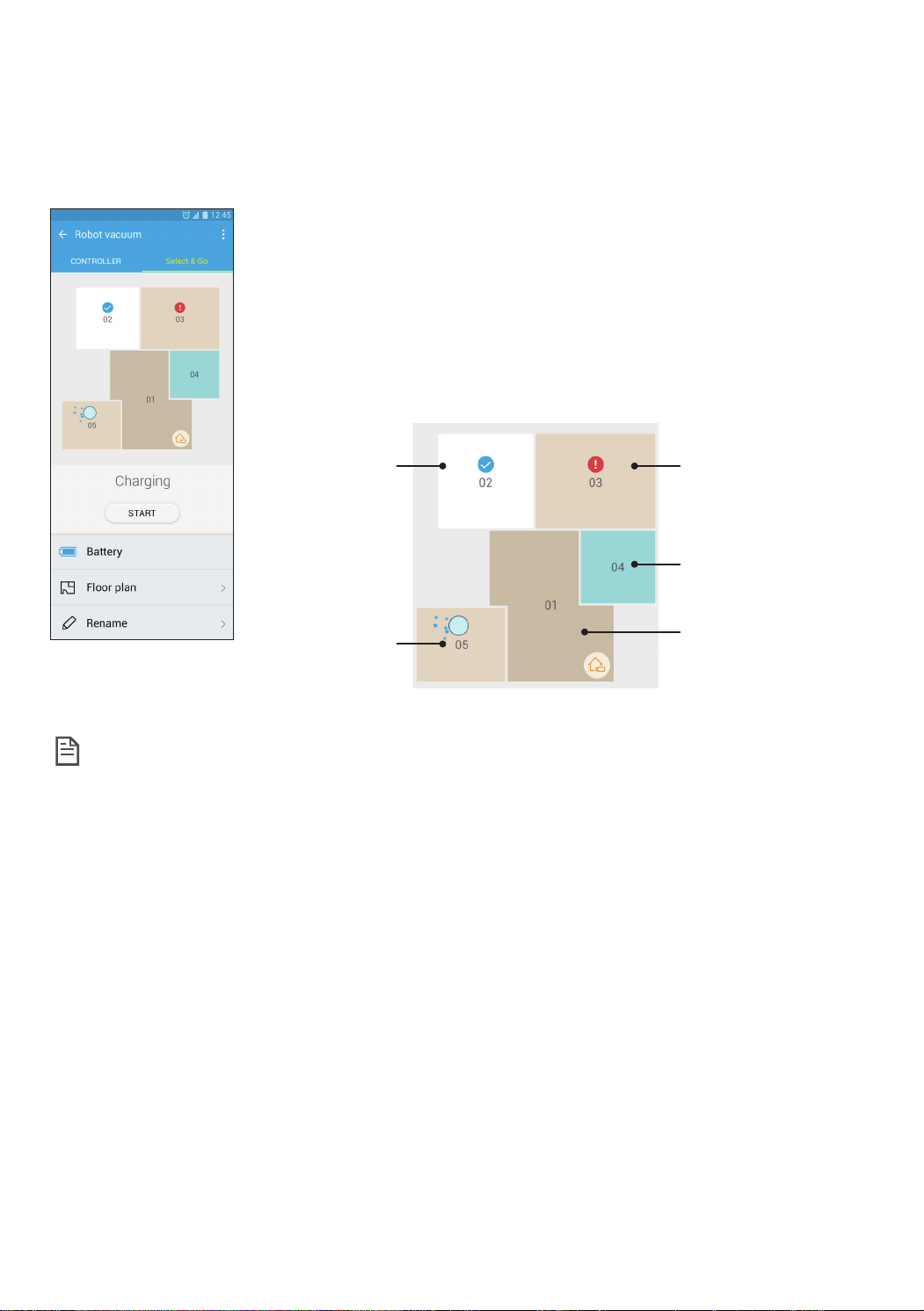
Using Select & Go
AfeaturethatallowstheusertoselectandcleanspecificareasusingtheSamsungSmartHomeapp.
1.CleaningMapandCleaningFloorplan
fCleaningMaprepresentstheareasthePOWERbotmovedwhilecleaning.
fCleaningFloorplanisanartificiallydelineatedrepresentationofCleaning
Map.
2.AreaCleaning
fIncludesconfigurablelabelsforeachoftheareas.
fSelectareastocleanandtapStarttoclean.
fEacharea’sstatusisindicatedonthemap.
Completed
Progressing
Canceled,Erroroccurred
Selected
Notselected
Note
f PrecautionsforSettingCleaningFloorplan
– Placethechargingstationflushtoawallinanopenarea.
– Removeobstaclesfromthefloor(rugs,towels,chairs,mats,toys,etc.).
– Removeobstaclesalongthepathstotheareastobeincludedinthefloorplan.
– Ifpossible,closealldoorswithhighsills(veranda,balcony,etc.).
– Ensuretheareastobeincludedinthefloorplanarewellilluminated.
f CautionsforUsingAreaCleaning
– AreaCleaningcancommenceonlywhenPowerbotisbeingcharged.
– AreaCleaningwillnotfunctionproperlyiftheactualstation’slocationandorientationdonotmatchthe
locationandorientationinthefloorplanselected.
– AreaCleaningfeaturemaynotfunctionproperlydependingonthestateofthefloorand/orplacementor
obstaclesintheconcernedarea.
– AreasonafloorplanareareasartificiallydelineatedbyPowerbotandmaynotincludealltherooms.
– MapgenerationandSelect&Gomaynotbeavailableonareascoveredinsomecarpets.
– TheremaybethedifferencebetweenfloorplansaccordingtostatusofPowerboteventheenvironmentis
same.
– TheusercanselectandusethedesiredfloorplanbyFloorplanmenu.
2016-02-03 오후 8:24:07

ENGLISH-30
Notes and cautions
Charging
Note
f Ifthebatteryoverheatsduringcharging,it
maytakelongertocharge.
f Whenautomaticchargingisnotworking,
pleasecheckthefollowings.
– Turntheemergencyswitch(onthebottomof
POWERbot)offandonagain.
– Unplugthedockingstation'spowerplugand
thenplugitbackon.
– Checkwhetherthereisanyforeignmatterin
thechargepinsandcleanPOWERbotandthe
chargepinsofthedockingstationwithadry
clothorrag.
– Checkforanyobstaclessuchasreflective
objects,chairs,etc.nearthedockingstation.
f IfPOWERbotisleftdetachedfromthe
dockingstation,thebatterywilldrainnaturally.
– TrytokeepPOWERbotbeingchargedonthe
dockingstation.(Turnofftheemergencyswitch
andleavethedockingstationunpluggedwhen
planningtoleavethehouseforlongperiodsof
timebygoingonabusinesstriporvacation,
etc.,)
In use
Note
f ThePOWERbotmaygetcaughton
thresholds,etc.duringcleaning.
– Torestartoperation,shutofftheemergency
switch,movePOWERbottoanareawhereit
canmoveeasilyandthenturnonthepower
again.
f ThePOWERbotcannotcompletelyclean
areasitcannotenter,suchascorners,
betweenthewallandsofa,etc.
– Pleaseuseanothercleaningtooltocleanthem
regularly.
f ThePOWERbotcannotvacuumclumpsof
dirt,sosomemayremainonthefloorafter
cleaning.
– Pleaseuseanothercleaningtooltocleanthem
regularly.
f IfthebatterybecomeslowduringAutoclean
mode,POWERbotwillrechargeandfinish
cleaningtheremainingareaafterrecharging.
(Repeatcleaningfrequency:1time)
f YoucannotselectandexecuteSpotclean
modewhilecharging.
f IfyoupressManualclean/Pointcleaning
buttonwhilecharging,thePOWERbotwillbe
detachedfromthedockingstationandthen
turnintothestandbymode.
f DonotliedownaroundthePOWERBOTthat
isrunning.
– YourhairmaybecaughtinthePetbrush,
resultinginphysicalinjury
Cleaning and maintenance
Note
f Ifyouwashedthedustbinandfilterwithwater
– Dustbin:Completelywipeoutthewater.
– Filter:Completelydryitinashadebeforeuse.
Caution
f Watchyourfingerwhenattachingor
detachingthefilter,sincetheymaygetstuck
inthedustbin'sintake.
f Toavoidblockagesbyforeignmatter,donot
lettoothpicks,cottonswabsetc.frombeing
vacuumedbyPOWERbot.
f Ifitisdifficulttoremoveforeignmattersfrom
thePetbrush,contactaservicecenter.
2016-02-03 오후 8:24:07

ENGLISH-31
f SincethePetbrushremovesdirtfromthe
floorduringcleaning,foreignmatterssuchas
thread,longhair,etc.maygetcaughtinit.
Thereforecheckandcleanitregularly.
About battery
Note
f PurchasebatteriesatauthorizedSamsung
centersandcheckforthesymbol(
)
whichisstuckonthebatteryandthemodel
namebeforepurchasing.
f ThisbatteryisexclusiveforSamsung
ElectronicsPOWERbot;donotuseitforany
otherproduct.
f Donotdisassembleormodifyit.
f Donotthrowthebatteryoutinfireorheatit
up.
f Donotconnectanymetallicobjecttothe
chargingcontacts(+,-).
f Storeitinindoor(at0°C~40°C).
f Ifthebatterymalfunctions,donot
disassembleityourself;contactyournearest
servicecenter.
f Batterychargingtimeandusagetimemay
decreasethemorethebatteryisused.Ifthe
battery’slifespanhasbeenexceeded,haveit
replacedataservicecenter.
f Thebatterywarrantyperiodis6monthsfrom
thedateofpurchase.
About the IrDA sensor
Caution
f Theinfraredsignaltransmissionmaynot
besmoothinlocationsexposedtohalogen
lampsorinoutdoorlocations.
f ThePOWERbotuses3typesofinfrared
devicesandadevicemaynotworkinfrontof
anotherdevicewithahigherpriority.
– InfraredsignalPriority:Remotecontrol>Virtual
guard>Dockingstation
f WhencontrollingPOWERbotwiththeremote
control,POWERbotmaycrosstheinvisible
barriersetbytheVirtualguardandenterthe
areayoudon'twantittoenter,sinceremote
control'ssignalhasahigherpriority.
f Differentinfraredsignalsmayinterferewith
oneanotherandcausemalfunctiontothe
devicesiftheyareusedtogetherinasmall
spaceorinaclosedistance.
f InstalltheVirtualguardawayfromthedocking
stationasautochargingmaybeinterruptedif
theVirtualguardisnearthedockingstation.
f IfmorethanonePOWERbotsareused
simultaneously,theymaymalfunctiondueto
interferenceoftheinfraredsignals.
2016-02-03 오후 8:24:07
ENGLISH-32
Information codes
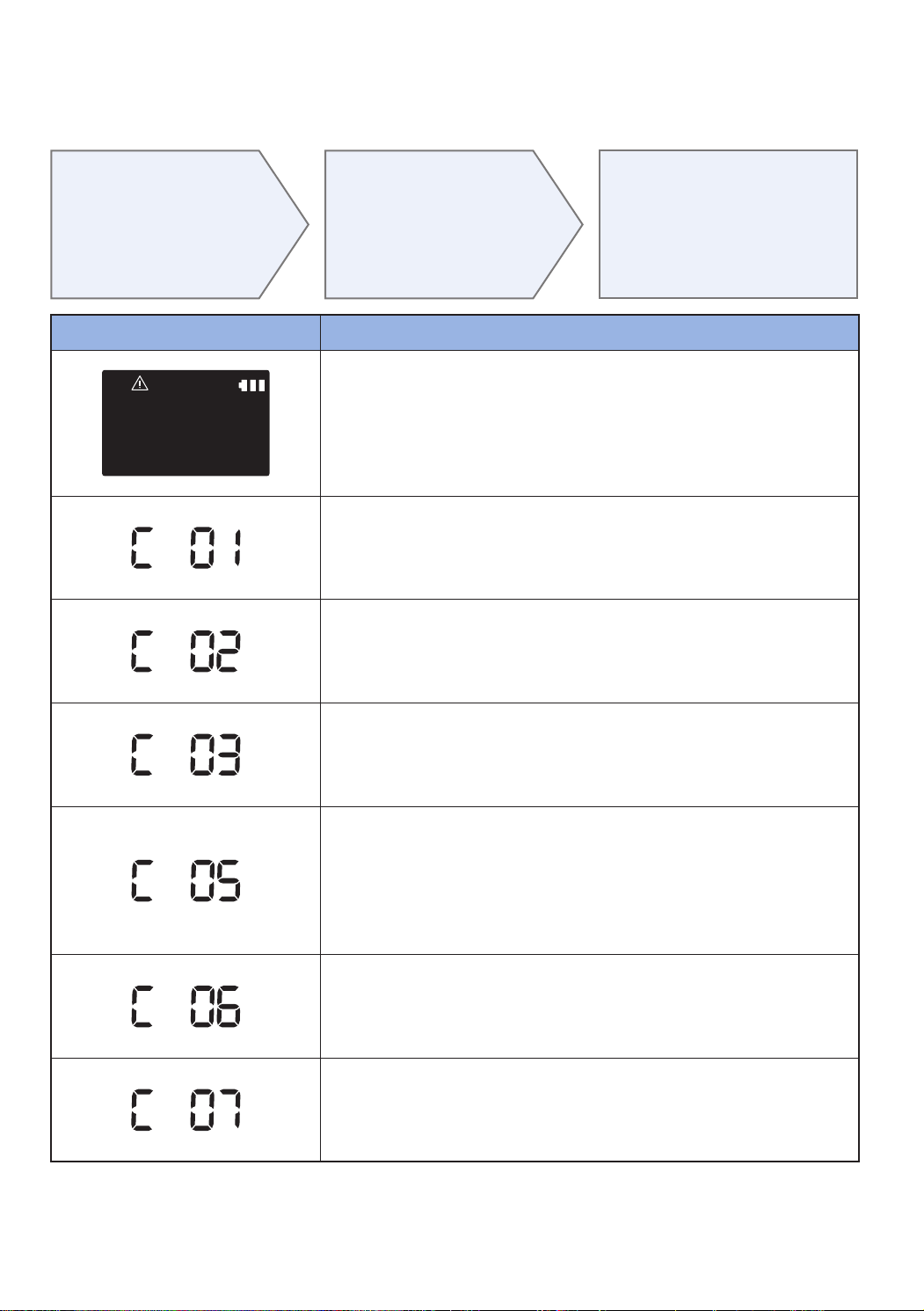
1
Below information
codes appear on
the display panel
2
Turn off the
emergency switch
and check the below
instructions and take
appropriate action
3
Information code
will disappear
when you turn on
the emergency
switch
Information codes Checklist
The POWERbot is caught, stuck or trapped while
moving around.
fTurnofftheemergencyswitchandmovethePOWERbottoanother
area.
Foreign matter caught in the Pet brush.
fTurnofftheemergencyswitchandremovetheforeignmatterfromthe
Petbrush.
Foreign matter caught in the left Driving wheel.
fTurnofftheemergencyswitchandremovetheforeignmatterfromthe
Drivingwheel.
Foreign matter caught in the right Driving wheel.
fTurnofftheemergencyswitchandremovetheforeignmatterfromthe
Drivingwheel.
Bumper sensor needs to be checked.
fTurnofftheemergencyswitchandturnitbackon.
fWheninformationcodedoesnotdisappear,checkifthere'sanysmall
foreignmatterbetweenthebumperandthemainbody.Ifthereis,pull
thebumperslightlyandremovetheforeignmatter.
Foreign matter accumulated on the obstacle sensor.
fTurnofftheemergencyswitchandcleanthefrontandrearsensor
withasoftcloth.
Foreign matter accumulated on the cliff sensor.
fTurnofftheemergencyswitchandcleanthecliffsensorwithasoft
cloth.
2016-02-03 오후 8:24:08

ENGLISH-33
Troubleshooting
Symptom Checklist
The POWERbot is not
working at all.
fCheckiftheemergencyswitchison.
fCheckifalltheiconsaredisplayedondisplaypanel.
fCheckifthebatteryofPOWERbotisdepleted.
– When"Lo"isdisplayed,carryPOWERbottothedockingstationtochargeit.
fReplacethebatteries(AAAtype)whentheremotecontrollerisnotworking.
The POWERbot
is stopped during
cleaning process.
fWhen"Lo"isdisplayedonthedisplaypanel,carryPOWERbottothedocking
stationtochargeit.
fWhenPOWERbotisstuckbytheobstaclessuchascord,thresholdetc,pickit
uptoremoveitfromtheobstacle.
– Ifanyfabricsorstringsarecaughtinthedrivewheel,turnofftheemergency
switchandremovethefabricsorstringsbeforeusingitagain.
Suction power is weak.
fIfthe"Filterinspectionindicator"ison,turnofftheemergencyswitchandclean
thedustbin.
fWhenthere'stoomuchdustinthedustbin,suctionpowermaygetweakened.
Turnofftheemergencyswitchandemptythedustbin.
fIftheintake(onbottomofPOWERbot)isblockedbyforeignmatters,turnoff
theemergencyswitchandremoveforeignmatterfromtheintake.
fWhennoisesuddenlyincrease,turnofftheemergencyswitchandemptythe
dustbin.
The POWERbot cannot
find the docking
station.
fCheckifthere'spowerfailureorwhetherthepowerplugisunplugged.
fRemoveanyobstaclesaroundthedockingstationthatmaydisturbPOWERbot
fromreturningtothedockingstation.
fWhenthere'sforeignmattersonthechargepinsthataffectscharging,clean
theforeignmatter.
The POWERbot passes
through the Virtual
guard.
fIfthebatteriesaredepleted,replacethem.(2typeD(LR20)batteries)
fIfthelampisoff,checkiftheVirtualguardisturnedoffandturniton.
The POWERbot
suddenly cleans
diagonally.
fCheckifthedockingstationisinstalledalongthegrainofwoodenfloorsor
tiles.
fItmaycleanindiagonaldirectionformovingtoanotherareainshortestroute,
oritmadecontactwithanyobstaclesinthatangle,orifitwaschargedatthe
chargedatanangle,orgrainofthewooden/tilefloorisinthatdirection.
Point cleaning is not
working.
fIfyoupointtheredlightdirectlyonPOWERbot,itmaynotmovetodesired
direction.
– Pointtheredlightonthefloorwithin39in(1m)aroundPOWERbot.
✻ Donotusethepointcleaningunderdirectsunlight,brightlightorondark
floors.
"Filter inspection
indicator" is on even
after the dustbin has
been emptied.
fUsePOWERbotafterturningofftheemergencyswitchandthenturningitback
on.
fEmptythedustbinagainandre-cleanthefilterthoroughly.
2016-02-03 오후 8:24:08

ENGLISH-34
Symptom Checklist
POWERbot moves
around at the same
place.
fDustsensormodeison.
– Thedustsensormodeisonbydefault.WhenthePOWERbotpassesthrougha
dustyarea,itmovesaroundthatareatofocusoncleaning.
fPOWERbotmovesaroundanareaandthe"DUST"isonthedisplaypanel
eventhoughthere'snodustatthesurroundingarea.
– CheckifforeignmattersarecaughtbetweenthedustbinandPetbrushand
thenremovethem.
POWERbot does not
clean a certain area.
fCheckifthedockingstationisinstallednearanarrowpassageordoor,and
reinstallitintheotherareas.
– Ifthedockingstationisinstallednearanarrowpassageordoor,the
POWERbotcannotpassthroughthepassageordoorsill.
The battery usage time
of the Virtual guard is
too short.
fCheckifyou'reusingmanganesedrycellbatteriesandreplacethebatteries
withnewones.(2typeD(LR20)batteries)
I have installed the
Samsung Smart
Home app, but, the
POWERbot fails to be
connected.
fYoucanusetheproductafterconnectingthewirelessrouterandthe
POWERbotthroughEasy-Setupaccordingtotheprocedure.
I fail to log into the
Samsung account.
fCheckyourIDandpasswordonthescreenoftheSamsungaccount.
There appears a
message saying there
is a failure during
Easy-Setup.
fYoumayhavefailedtemporarilyduetothedistancefromthewirelessrouteror
otherobstacles.Pleasetryagainafterawhile.
The products do not
work even though
the smart phone is
normally connected to
the POWERbot.
fTurnofftheSamsungSmartHomeappandthenrunitagain,ordisconnect
thesmartphonefromthewirelessrouterandthenconnectitagain.Orturnoff
thepowersupplyofthePOWERbot,turniton,waitforaminuteorlonger,and
thenruntheSmartHomeappagain.
The functions of the
Samsung Smart Home
App do not work.
fCheckiftheSmartcontrolblockingfunctionofthePOWERbotisset.(When
theSmartcontrolislocked,theWi-Fiindicatoristurnedoff.)
The Samsung Smart
Robot Vacuum App
fails to get started.
fCheckifthePOWERbotisconnectedtothewirelessrouter.
POWERbot is not
connected to Wi-Fi.
fCheckthesettingstatusofthewirelessrouter.
Location recognizing
function does not
operate.
fOperatethePOWERbotagainneartheareawhereitstoppedpreviously.
fIfthePOWERbotdoesnotrecognizethesurroundingenvironmentorstarts
thecleaningattheareamorethan1maroundwhereitstopped,thesearching
maybedifficult.
Troubleshooting
2016-02-03 오후 8:24:08
ENGLISH-35
Warnings about battery
WARNING
Youmustnotremove(orattempttoremove)thebatteryincorporatedinthisproductonyour
own.Toreplacethebattery,youmustcontactyourserviceprovideroranindependentqualified
professional.These instructions have been prepared for the exclusive use of your service
provider or independent qualified professional.
FORYOUROWNSAFETY,DONOTATTEMPTTOREMOVETHEBATTERYONYOUROWNOR
DISPOSEOFITINFIRE.DONOTDISASSEMBLE,CRUSHORPUNCTURETHEBATTERY.
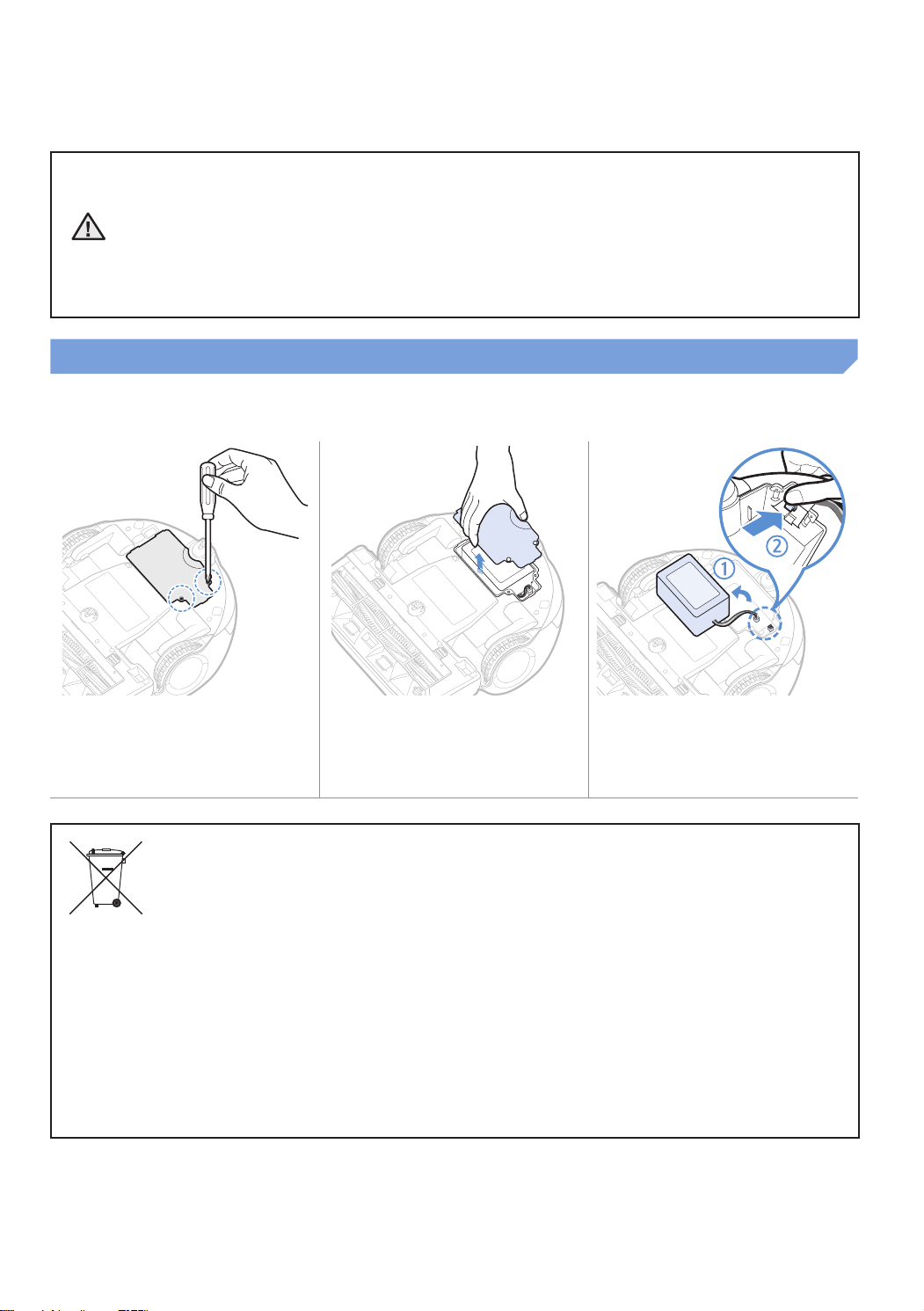
How to remove the battery
RemovePOWERbotfromthecharger/dockingstationfordisassembling.
YoumustturnoffPOWERbotforsafetybeforedisassembling.
1
Lay down and invert
POWERbot and then
remove 2 screws.
2
Remove the dustbin
cover
3
Remove the battery
from the slot and
disconnect the
connector.
Correct disposal of batteries in this product
(Applicable in countries with separate battery return systems.)
Themarkingonthebattery,manualorpackagingindicatesthatthebatteryinthisproductshouldnotbe
disposedofwithotherhouseholdwaste.Wheremarked,thechemicalsymbolsHg,CdorPbindicatethat
thebatterycontainsmercury,cadmiumorleadabovethereferencelevelsinECDirective2006/66.
Thebatteryincorporatedinthisproductisnotuserreplaceable.Forinformationonitsreplacement,
pleasecontactyourserviceprovider.Donotattempttoremovethebatteryordisposeitinafire.Donot
disassemble,crush,orpuncturethebattery.Ifyouintendtodiscardtheproduct,thewastecollectionsite
willtaketheappropriatemeasuresfortherecyclingandtreatmentoftheproduct,includingthebattery
SR9300K_EN_DJ68-00743E-00_EU.indd 35 2016-02-03 오후 8:24:08
ENGLISH-36
Open Source Announcement
Thesoftwareincludedinthisproductcontainsopensourcesoftware.Youmayobtainthecomplete
correspondingsourcecodeforaperiodofthreeyearsafterthelastshipmentofthisproductbysendinganemail
tomailto:[email protected].
ItisalsopossibletoobtainthecompletecorrespondingsourcecodeinaphysicalmediumsuchasaCD-ROM;
aminimalchargewillberequired.
ThefollowingURLhttp://opensource.samsung.com/opensource/VR_TZ_01/seq/1leadstothedownloadpage
ofthesourcecodemadeavailableandopensourcelicenseinformationasrelatedtothisproduct.Thisofferis
validtoanyoneinreceiptofthisinformation.
2016-02-03 오후 8:24:08

ENGLISH-37
Specifications
Classification Item Detail information
Mechanical
specifications
(POWERbot)
Size
(DepthxHeightxLength)
378mmx135mmx362mm
Weight4.9kg
Sensor
Ceilingshaperecognition(Visionarymappingplus
TM)
ButtontypeofPOWERbotTouchtype
Power specifications
Powervoltage100-240V~,50Hz/60Hz
Powerconsumption250W(Maxmode)
BatteryspecificationsLithiumion21.6V/97.2Wh
Cleaning
ChargingtypeAutomaticcharging/Manualcharging
CleaningmodeAuto,Spot,Manual
SchedulingfunctionOne-timeschedule,Dailyschedule
ChargingtimeApproximately240minutes
Cleaningtime
(Onthebasisofhardfloor)
Maxmode
Approximately
30minutes
Normalmode
Approximately
60minutes
Quietmode
Approximately
90minutes
✻ Forproductimprovementpurposes,designandspecificationsoftheproductaresubjecttochangewithout
priornotice.
✻ Chargingandcleaningtimesmaydifferaccordingtoconditionsofuse.
✻ Thisvacuumcleaneriscompliantwiththefollowingregulations:
– RTTEDirective:1999/5/EC
– ElectromagneticCompatibilityDirective:2004/108/EEC
– LowVoltageDirective:2006/95/EC
The offi cial Declaration of conformity may be found at http://www.samsung.com, go to Support
PleasesearchProductSupportandenterthemodelname.
2016-02-03 오후 8:24:08

ENGLISH-38
Memo
2016-02-03 오후 8:24:08

ENGLISH-39
Memo
2016-02-03 오후 8:24:08

DJ68-00743E-00
2016-02-03 오후 8:24:08
