CZUR Shine Series Scanner – Setup Guide
1. Package Contents
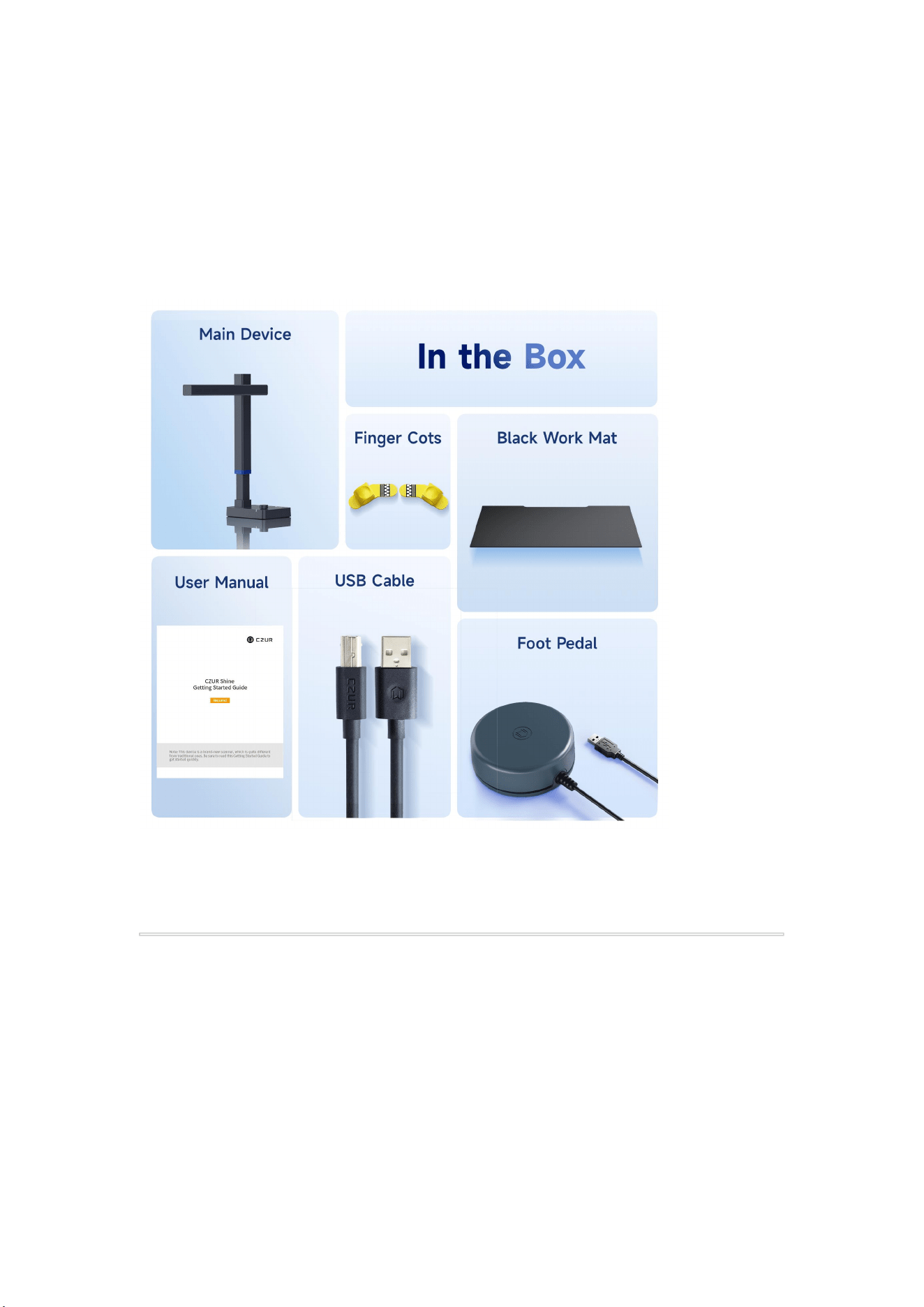
Please check the box and make sure the following items are included:
If anything is missing or damaged upon delivery, please contact your seller or CZUR
customer service as soon as possible.
2. Hardware Setup
1. Placement
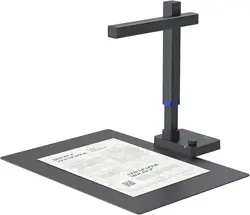
Lay the scan mat on a flat surface.
Place the scanner on the mat, centered and facing you.
2. Connect Power and PC
Use the USB cable to connect the scanner directly to your computer (avoid USB
hubs).
3. Connect the Foot Pedal (Optional)
Plug the foot pedal into the port at the base of the scanner for hands-free triggering.
3. Software Installation
1. Download the Software
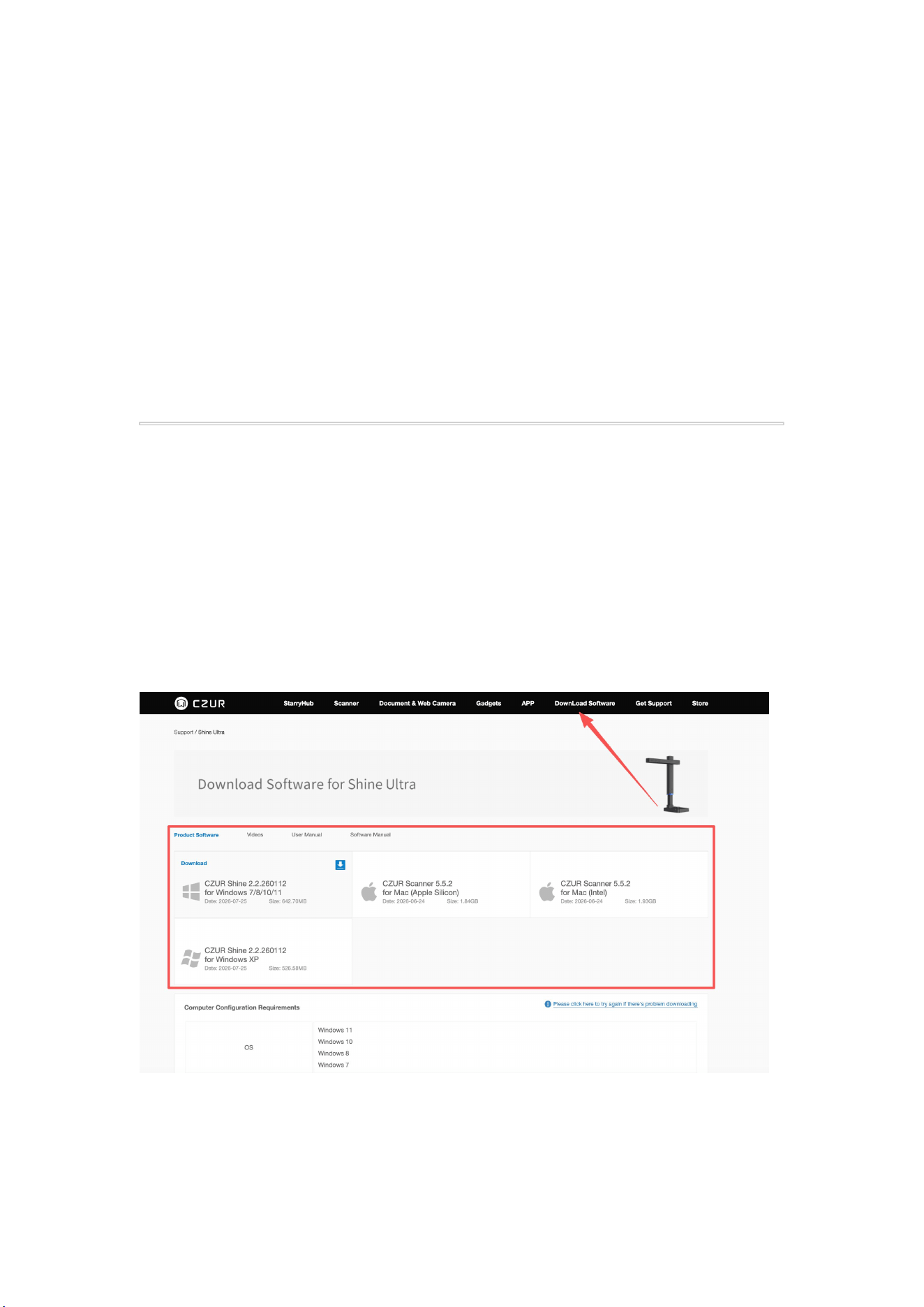
Visit CZUR Official Website: https://www.czur.com/
Go to the Download page, select your scanner model, and choose the operating
system compatible with your device to download the software.
Download and install the CZUR Scanner Software.
Installation Notice:
If your antivirus software or security program blocks the installation or operation of the

software, please add the software to your antivirus whitelist or allowlist before
proceeding.
2. First Launch
Open the software and follow the on-screen instructions to select language and
complete setup.
The software will automatically detect the connected scanner.
4. First-Time Use
1. Launch the Software
Double-click the “CZUR Scanner” icon on your desktop.
Check that the device status shows “Connected” in the top right corner.
2. Enter the Serial Number
On the first launch, the software will prompt you to enter your scanner’s Serial
Number.
You can find this number on a label located on the bottom of the scanner.
Enter it exactly as shown, including any letters or dashes
Serial Number Error:Please check that the serial number has been entered correctly
and that all letters and numbers are accurate. Some characters, such as I (letter) and 1
(number), can be easily confused. Please note that the serial number does not contain
the number 1 (one).
3. Set Preferences
Choose a scanning mode (Flat Document, Curved Book, Auto-Split, etc.).
Select a color mode (Color, Grayscale, Black & White).
Choose the output format (JPG, PDF, Word, Excel, etc.).

4. Place Your Document/Book
Position your document in the center of the scan mat, fully within the capture area.
For books, use the finger cots to hold pages down; the software will automatically
remove finger images.
Tips:
For Shine800A3 Pro, Shine Ultra, and Shine Ultra Pro
:
The scanner pole can be
raised or lowered to accommodate different scanning sizes. When scanning A3-size
documents, please raise the pole to the higher position to ensure the entire document is
within the camera's field of view and captured completely.
5. Start Scanning
Click the capture button in the software or press the foot pedal to scan.
After scanning, use the software to crop, rotate, remove fingers, or apply OCR text
recognition.
5. Tips & Notes
Ensure the scanning environment is well-lit, avoiding strong backlight.
Regularly check the CZUR website for software updates to improve performance.
6. Troubleshooting
- Device Not Detected
Ensure the USB connection is secure.
Try a different USB port or cable.
Confirm the latest CZUR Scanner software is installed.
- Blurry Scan Results
Keep the document stable during scanning.

Make sure the scan mat is flat and the document is positioned correctly.
Check the following settings:
- Flat Single Page mode: Make sure “Smart Black Edge Optimization” is unchecked.
- Facing Pages mode: Make sure both “Auto Page Mending” and “Smart Black Edge
Optimization” are unchecked.