
Online User's Guide
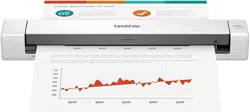
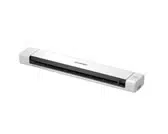
DSmobile DS-635
DSmobile DS-640
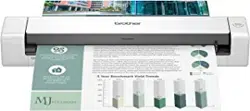
DSmobile DS-740D
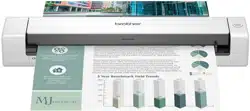
DSmobile DS-940DW
© 2019 Brother Industries, Ltd. All rights reserved.

Table of Contents
Before You Use Your Brother Machine ............................................................................................... 1
Definitions of Notes ........................................................................................................................................ 2
Trademarks .................................................................................................................................................... 3
Important Note ............................................................................................................................................... 4
Introduction to Your Brother Machine................................................................................................. 5
About This Machine ....................................................................................................................................... 6
Control Panel Overview ................................................................................................................................. 9
Charge the Battery ....................................................................................................................................... 13
Paper Handling.................................................................................................................................... 14
Document Specifications.............................................................................................................................. 15
Acceptable Documents ...................................................................................................................... 16
Unacceptable Documents .................................................................................................................. 18
Carrier Sheet Recommendations ....................................................................................................... 19
Notes for Using Carrier Sheets .......................................................................................................... 20
Load Documents .......................................................................................................................................... 21
Load Standard Size Document .......................................................................................................... 22
Load a Plastic Card ............................................................................................................................ 23
Load Non-standard Size Document ................................................................................................... 24
Use the Output Guide......................................................................................................................... 26
Scan...................................................................................................................................................... 28
Before Scanning........................................................................................................................................... 29
Scan Using the Scan Functions on Your Brother Machine .......................................................................... 30
Save Scanned Documents on Your Computer................................................................................... 31
Save Scanned Documents to a Memory Card ................................................................................... 32
Web Services for Scanning on Your Network (Windows 7, Windows 8.1 and Windows 10) ............. 34
Restrict Scan Functions from External Devices ................................................................................. 37
Scan from Your Computer (Windows) ......................................................................................................... 38
Scan Using Nuance
™
PaperPort
™
14SE or Other Windows Applications......................................... 39
Scan Using Windows Photo Gallery or Windows Fax and Scan........................................................ 45
Scan Using Kofax Power PDF Standard v3 ....................................................................................... 49
Scan Using Brother iPrint&Scan (Windows) ...................................................................................... 50
Scan from Your Computer (Mac).................................................................................................................. 51
Scan Using Brother iPrint&Scan (Mac) .............................................................................................. 52
Scan Using Apple Image Capture (ICA Driver) .................................................................................. 53
Scan Using Kofax Power PDF Standard for Mac v3 .......................................................................... 57
Using AirPrint Scanning ..................................................................................................................... 58
Scan Using Brother iPrint&Scan for Mobile ................................................................................................. 61
Brother iPrint&Scan for Mobile Devices ............................................................................................. 62
Scan Using Presto! BizCard......................................................................................................................... 63
Network ................................................................................................................................................ 64
Supported Basic Network Features ............................................................................................................. 65
Network Management Software and Utilities ............................................................................................... 66
Learn about Network Management Software and Utilities ................................................................. 67
Additional Methods of Configuring Your Brother Machine for a Wireless Network ...................................... 68
Home > Table of Contents
i

Before Configuring Your Brother Machine for a Wireless Network..................................................... 69
Configure Your Machine for a Wireless Network Using the One-Push Method of Wi-Fi Protected
Setup
™
(WPS).................................................................................................................................... 70
Configure Your Machine for a Wireless Network Using the PIN Method of Wi-Fi Protected
Setup
™
(WPS).................................................................................................................................... 71
Use Wireless Direct............................................................................................................................ 73
Use Infrastructure Mode..................................................................................................................... 76
Advanced Network Features........................................................................................................................ 80
Synchronize Time with the SNTP Server Using Web Based Management ....................................... 81
Security ................................................................................................................................................ 86
Network Security Features........................................................................................................................... 87
Manage Your Network Machine Securely Using SSL/TLS................................................................. 88
Brother iPrint&Scan for Windows and Mac...................................................................................... 99
Brother iPrint&Scan Overview.................................................................................................................... 100
Troubleshooting ................................................................................................................................ 101
Error and Maintenance Indications ............................................................................................................ 102
Service Call Indications .................................................................................................................... 105
Document Jam ........................................................................................................................................... 106
If You Are Having Difficulty with Your Machine .......................................................................................... 108
Scanning and Other Problems ......................................................................................................... 109
AirPrint Scanning Problems ............................................................................................................. 115
Network Problems ............................................................................................................................ 116
Check the Serial Number ........................................................................................................................... 124
Reset Your Brother Machine ...................................................................................................................... 125
Routine Maintenance ........................................................................................................................ 127
Clean Your Brother Machine ...................................................................................................................... 128
Clean the Outside of the Machine .................................................................................................... 129
Clean the Scanner and Rollers ........................................................................................................ 130
Calibrate Your Brother Machine ................................................................................................................. 132
Supplies ..................................................................................................................................................... 134
Pack and Ship Your Brother Machine ........................................................................................................ 135
Remove and Dispose the Battery .............................................................................................................. 136
Machine Settings............................................................................................................................... 138
Change Machine Settings from Your Computer......................................................................................... 139
Change Machine Settings Using Web Based Management ............................................................ 140
Change the Machine Settings Using Remote Setup ........................................................................ 144
Appendix............................................................................................................................................ 153
Specifications ............................................................................................................................................. 154
Brother Help and Customer Support.......................................................................................................... 159
Home > Table of Contents
ii

Home > Before You Use Your Brother Machine > Definitions of Notes
Definitions of Notes
We use the following symbols and conventions throughout this User's Guide:
CAUTION
CAUTION indicates a potentially hazardous situation which, if not avoided, may
result in minor or moderate injuries.
IMPORTANT
IMPORTANT indicates a potentially hazardous situation which, if not avoided, may
result in damage to property or loss of product functionality.
NOTE
NOTE specifies the operating environment, conditions for installation, or special
conditions of use.
Tips icons indicate helpful hints and supplementary information.
Bold Bold style identifies buttons on the machine's control panel or computer screen.
Italics Italicized style emphasizes an important point or refers you to a related topic.
Related Information
• Before You Use Your Brother Machine
2

Home > Before You Use Your Brother Machine > Trademarks
Trademarks
Brother is either a trademark or a registered trademark of Brother Industries, Ltd.
Microsoft, Windows, Windows Server, Internet Explorer, Word, Excel, PowerPoint and Microsoft Edge are either
registered trademarks or trademarks of Microsoft Corporation in the United States and/or other countries.
Apple, AirPrint, App Store, Mac, Safari, iPad, iPhone, iPod touch and macOS are trademarks of Apple Inc.,
registered in the United States and other countries.
Kofax, PaperPort and Power PDF, are trademarks or registered trademarks of Kofax in the U.S. and/or other
countries. All other trademarks are the trademarks or registered trademarks of their respective owners.
Wi-Fi
®
and Wi-Fi Alliance
®
are registered trademarks of Wi-Fi Alliance
®
.
WPA
™
, WPA2
™
, Wi-Fi Protected Setup
™
and Wi-Fi Protected Setup
™
logo are trademarks of Wi-Fi Alliance
®
.
Android and Google Play are trademarks of Google LLC.
microSD Logo is a trademark of SD-3C LLC.
The Bluetooth
®
word mark is a registered trademark owned by the Bluetooth SIG, Inc. and any use of such
marks by Brother Industries, Ltd. and related companies is under license. Other trademarks and trade names are
those of their respective owners.
Each company whose software title is mentioned in this manual has a Software License Agreement specific to its
proprietary programs.
Any trade names and product names of companies appearing on Brother products, related documents
and any other materials are all trademarks or registered trademarks of those respective companies.
Related Information
• Before You Use Your Brother Machine
3

Home > Before You Use Your Brother Machine > Important Note
Important Note
• The latest manuals are available at support.brother.com/manuals.
• Check support.brother.com for Brother driver and software updates.
• To keep your machine performance up to date, check
support.brother.com for the latest firmware upgrade.
Otherwise, some of your machine's functions may not be available.
• Do not use this product outside the country of purchase as it may violate the wireless telecommunication and
power regulations of that country.
• Not all models are available in all countries.
• In this User's Guide, illustrations of the DSmobile DS-940DW are used, unless otherwise specified.
• The screens in this User's Guide are for illustration purposes only and may differ from the actual screens.
• Unless otherwise specified, the screens in this manual are from Windows 10 and macOS v10.12.x. Screens
on your computer may vary depending on your operating system.
• The contents of this guide and the specifications of this product are subject to change without notice.
Related Information
• Before You Use Your Brother Machine
4

Home > Introduction to Your Brother Machine > About This Machine
About This Machine
>> DSmobile DS-635/DSmobile DS-640
>> DSmobile DS-740D
>> DSmobile DS-940DW
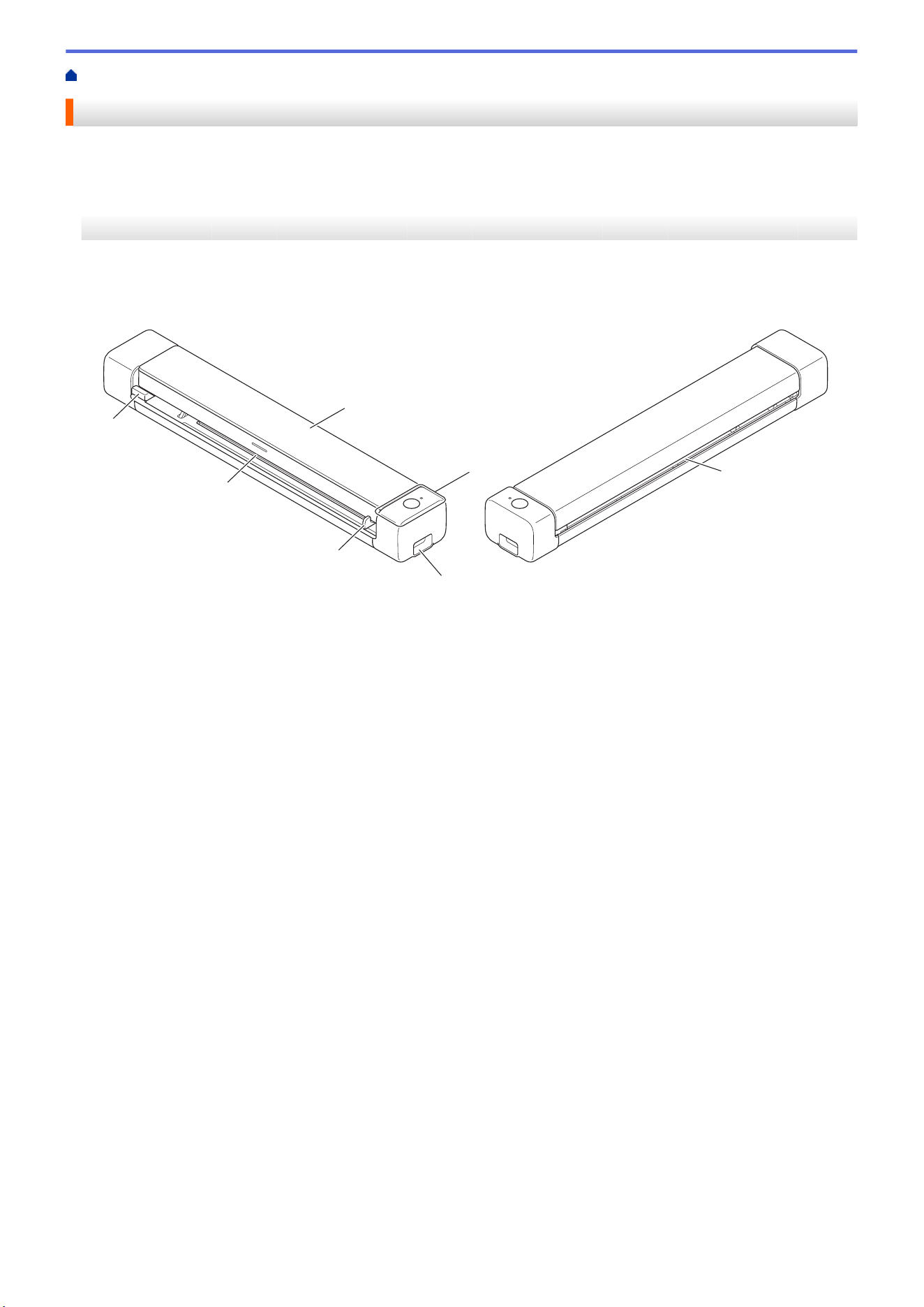
DSmobile DS-635/DSmobile DS-640
2
1
3
7
5
4
6
1. Top Cover
2. Control Panel
3. USB 3.0 (Micro) Port (for connecting to a computer)
4. Document Guide
5. Feeder Slot
6. Left Edge of the Feeder Slot
7. Paper Output Slot
6
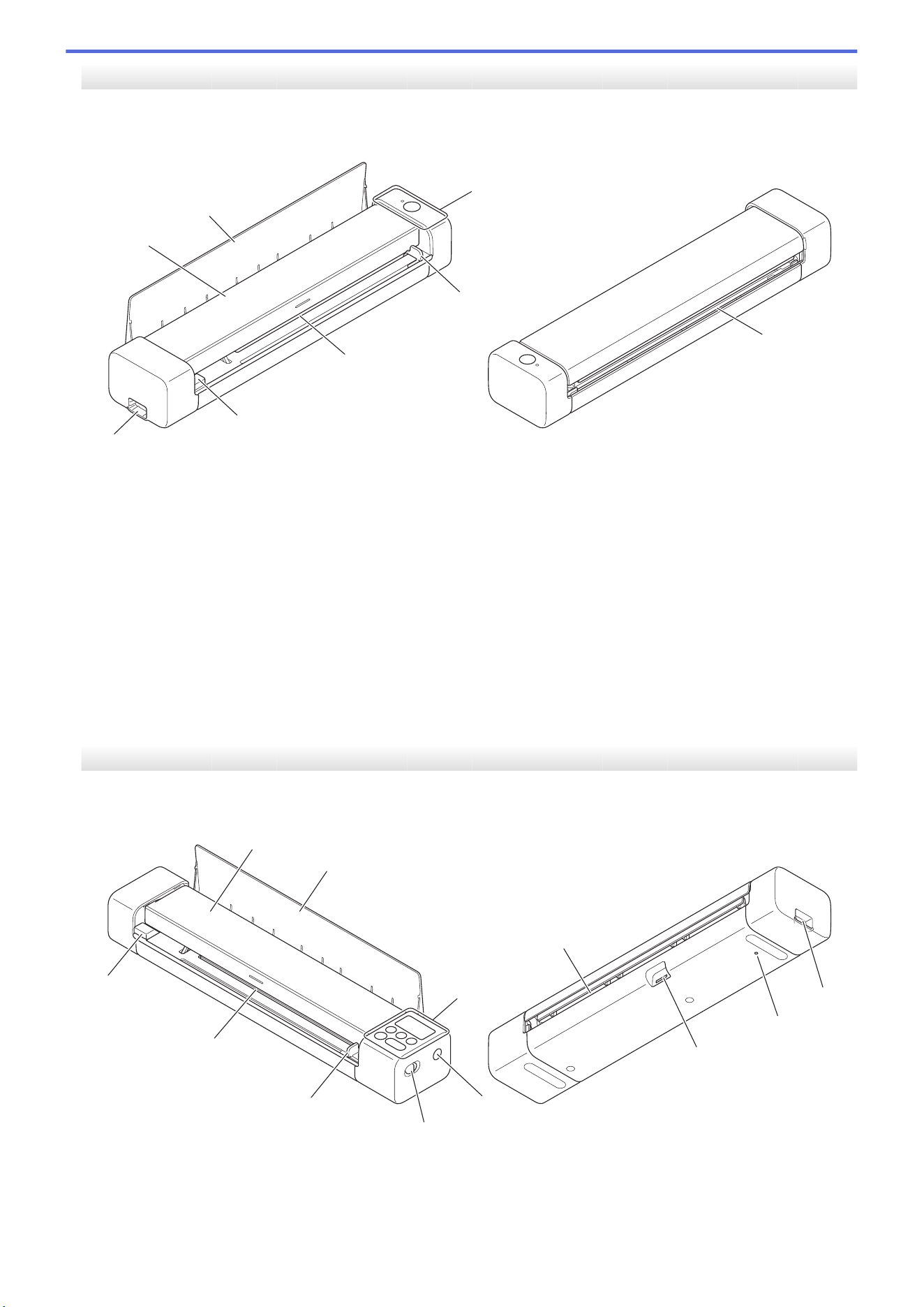
DSmobile DS-740D
3
6
5
4
7
2
1
8
1. Top Cover
2. Output Guide
3. Control Panel
4. Document Guide
5. Feeder Slot
6. Left Edge of the Feeder Slot
7. USB 3.0 (Micro) Port (for connecting to a computer)
8. Paper Output Slot
DSmobile DS-940DW
3
4
10
11
12
5
7
6
8
1
2
9
1. Top Cover
2. Output Guide
7

3. Control Panel
4. WPS Button
5. Mode Select Switch
• microSD Mode
• USB Mode
• Wi-Fi Mode
6. Document Guide
7. Feeder Slot
8. Left Edge of the Feeder Slot
9. Paper Output Slot
10. Memory Card Slot
11. Reboot Button
12. USB 3.0 (Micro) Port (for connecting to a computer)
Related Information
• Introduction to Your Brother Machine
8
Home > Introduction to Your Brother Machine > Control Panel Overview
Control Panel Overview
>> DSmobile DS-635/DSmobile DS-640/DSmobile DS-740D
>> DSmobile DS-940DW
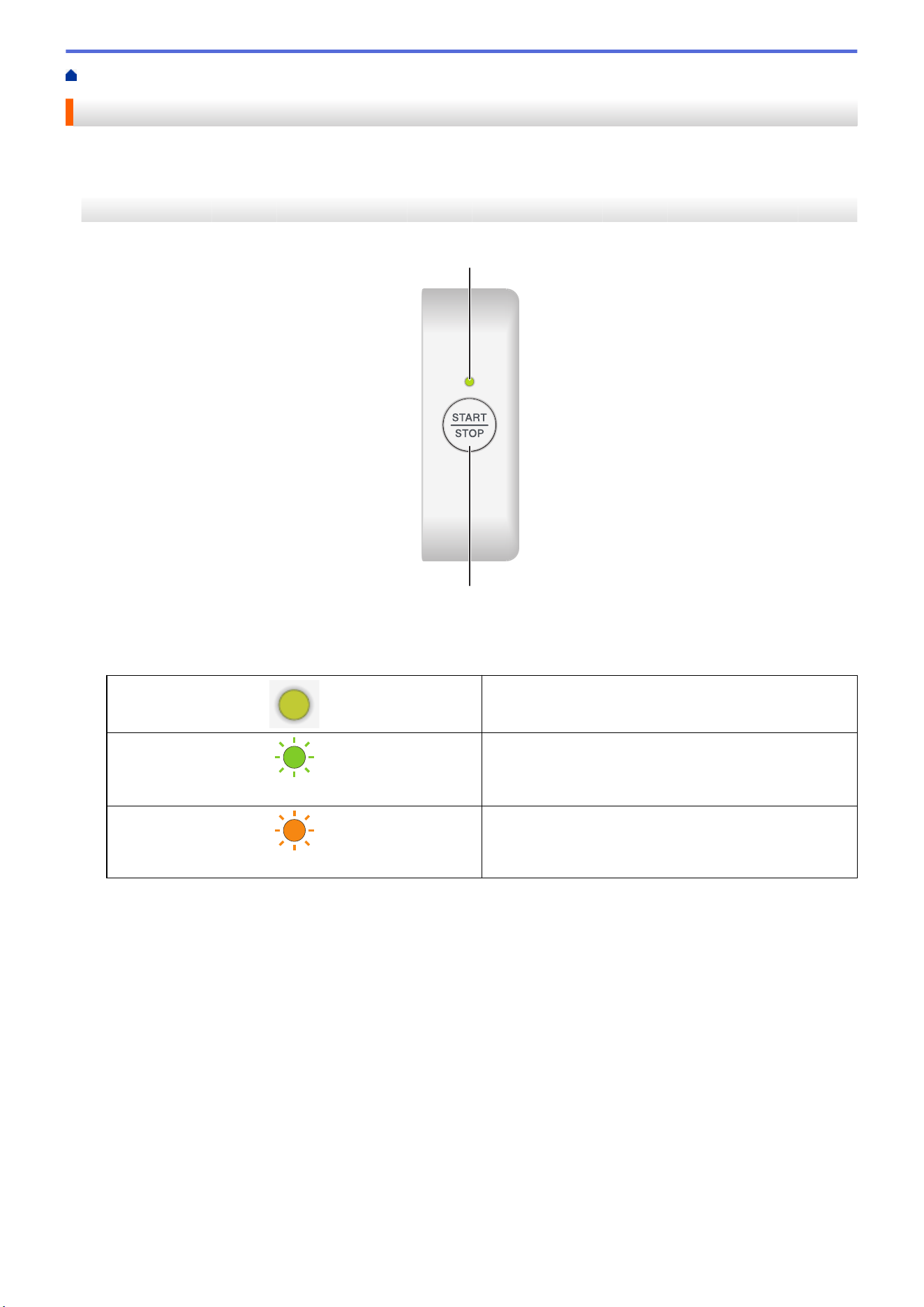
DSmobile DS-635/DSmobile DS-640/DSmobile DS-740D
1
2
1. Power/Scan LED
Indicates the machine's status.
The machine is in Ready Mode.
(blinking)
• The machine is scanning.
• Remote Setup is in progress.
• The machine is starting up.
(blinking)
An error has occurred.
2. START/STOP Button
Press to start or stop scanning.
9
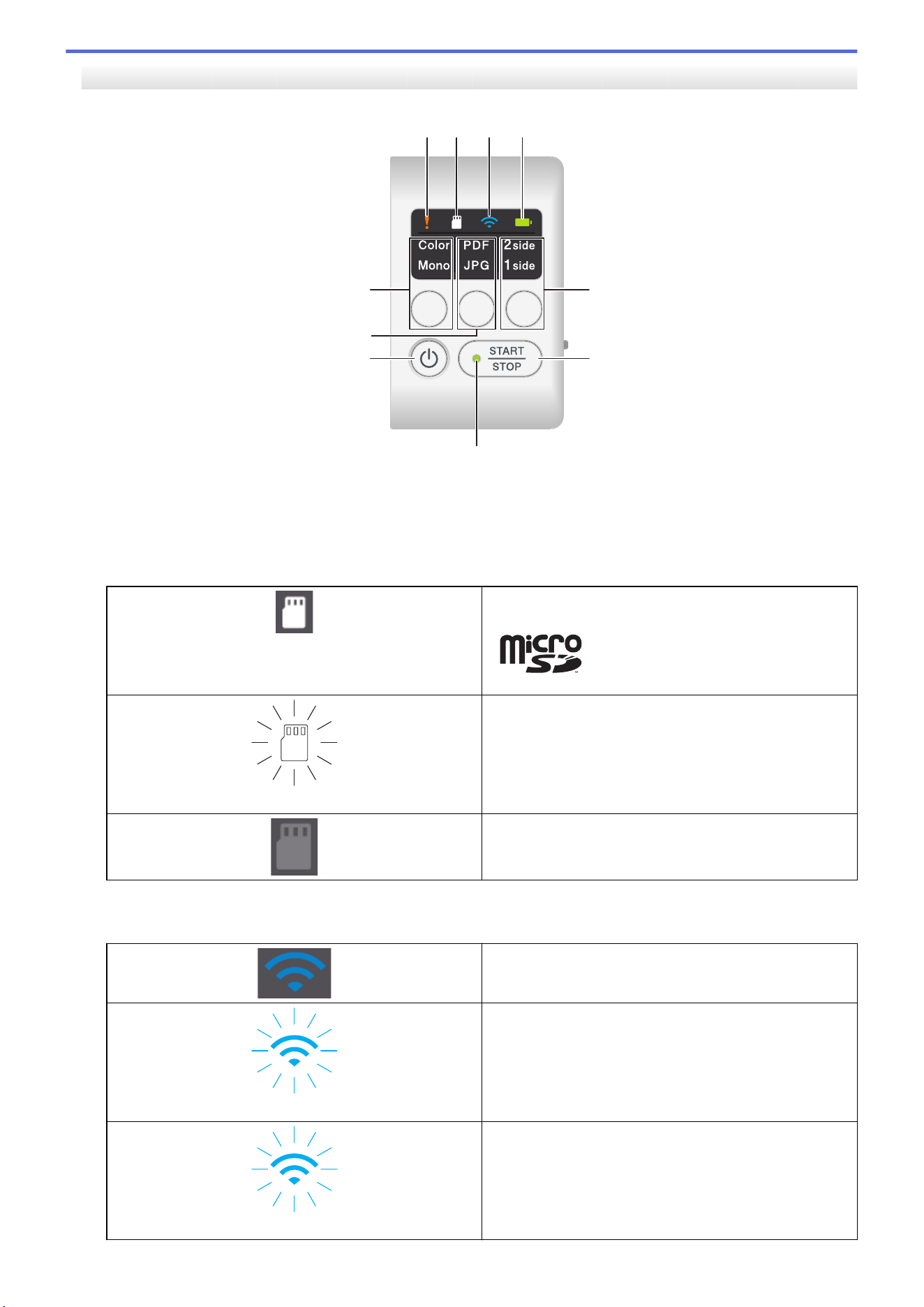
DSmobile DS-940DW
1 2 3 4
8
5, 612, 13
79
10, 11
1. Error LED
Blinks when the machine detects an error.
2. SD Card LED
Indicates the microSD memory card status when the machine is in microSD Mode.
microSD memory card is inserted.
(blinking)
microSD memory card is not inserted.
The machine is not in microSD Mode.
3. Wi-Fi LED
Indicates the wireless network status when the machine is in Wi-Fi Mode.
Wireless network is connected.
(blinking)
Your machine is connecting to the wireless network.
(blinking slowly)
Wi-Fi settings are not configured.
10
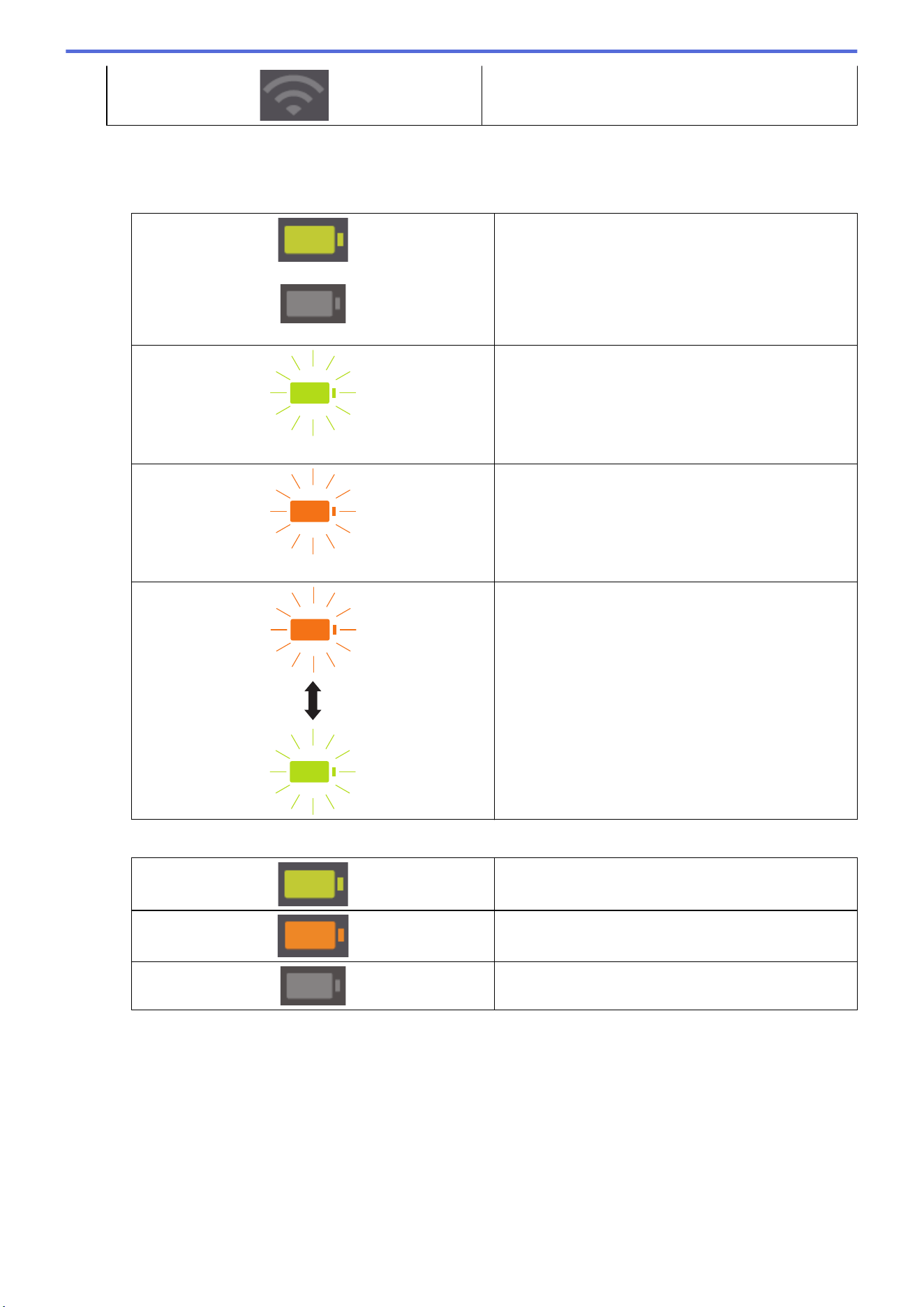
The machine is not in Wi-Fi Mode.
4. Battery LED
Indicates the rechargeable Li-ion battery status.
• When the machine is connected to the computer using a USB cable
(When the machine is turned on.)
(When the machine is turned off.)
Battery is fully charged.
(blinking)
The machine is charging the battery.
(blinking)
Battery Low. The machine is charging the battery.
A battery error has occurred.
• When the machine is not connected to the computer using a USB cable (The battery does not charge)
The machine is turned on and the battery power is
consumed.
Battery Low. The machine is turned on and the
battery power is consumed.
The machine is turned off or the battery has no
remaining power.
11
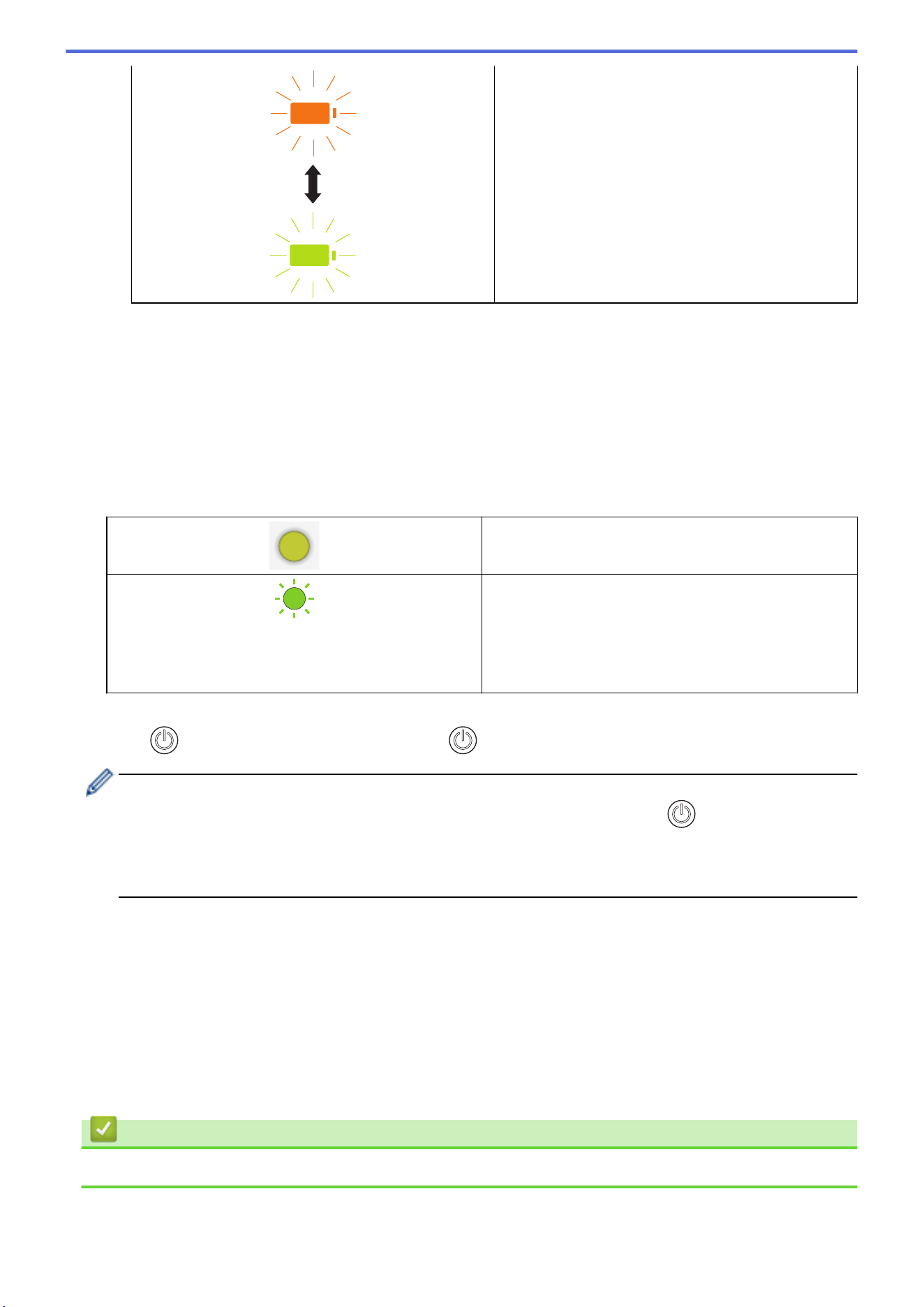
A battery error has occurred.
5. 2side/1side LED
Indicates the scan option selected in microSD Mode.
6. 2side/1side Switching Button
Press to change the scan mode (2-sided Scan or single-sided Scan) in microSD Mode.
7. START/STOP Button
Press to start or stop scanning.
8. Power/Scan LED
Indicates the machine's status.
The machine is in Ready Mode.
(blinking)
• The machine is scanning.
• Remote Setup is in progress.
• The machine is preparing to charge the battery.
• The machine is starting up.
• The machine is shutting down.
9. Power Button
Press to turn on the machine.Press and hold to turn off the machine.
If the machine is connected to the computer using a USB cable and the battery is not fully charged, the
machine turns off and goes into Battery Charge Mode when you press and hold . (The Battery LED
blinks.)
The machine turns off after the battery is fully charged or when the USB cable is disconnected from the
machine or computer.
10. PDF/JPEG LED
Indicates the scan option selected in microSD Mode.
11. PDF/JPEG Switching Button
Press to change the scanning file format (PDF or JPEG) in microSD Mode.
12. Color/Mono LED
Indicates the scan option selected in microSD Mode.
13. Color/Mono Switching Button
Press to change the scan mode (color or black and white) in microSD Mode.
Related Information
• Introduction to Your Brother Machine
12
Home > Introduction to Your Brother Machine > Charge the Battery
Charge the Battery
Related Models: DSmobile DS-940DW
The scanner charges the rechargeable Li-ion battery when it is powered on, but will charge the battery faster
when the scanner powered off.
1. Make sure that your computer is on.
2. Connect the USB cable to your scanner's USB port.
3. Connect the USB cable to your computer.
The battery starts charging automatically.
The Battery LED blinks in green or orange while the battery is charging, and turns off or lights in green when
charging is complete.
• Charging stops if the temperature is higher than the recommended operating temperature. For more
information, see Related Information: Specifications.
• If you do not use the scanner for a long period, fully charge the battery at least once every three months
to prolong the battery life.
• If you do not use the scanner for a long period, store it in a cool, dry place at a consistent temperature.
Related Information
• Introduction to Your Brother Machine
Related Topics:
• Specifications
13


Home > Paper Handling > Document Specifications > Acceptable Documents
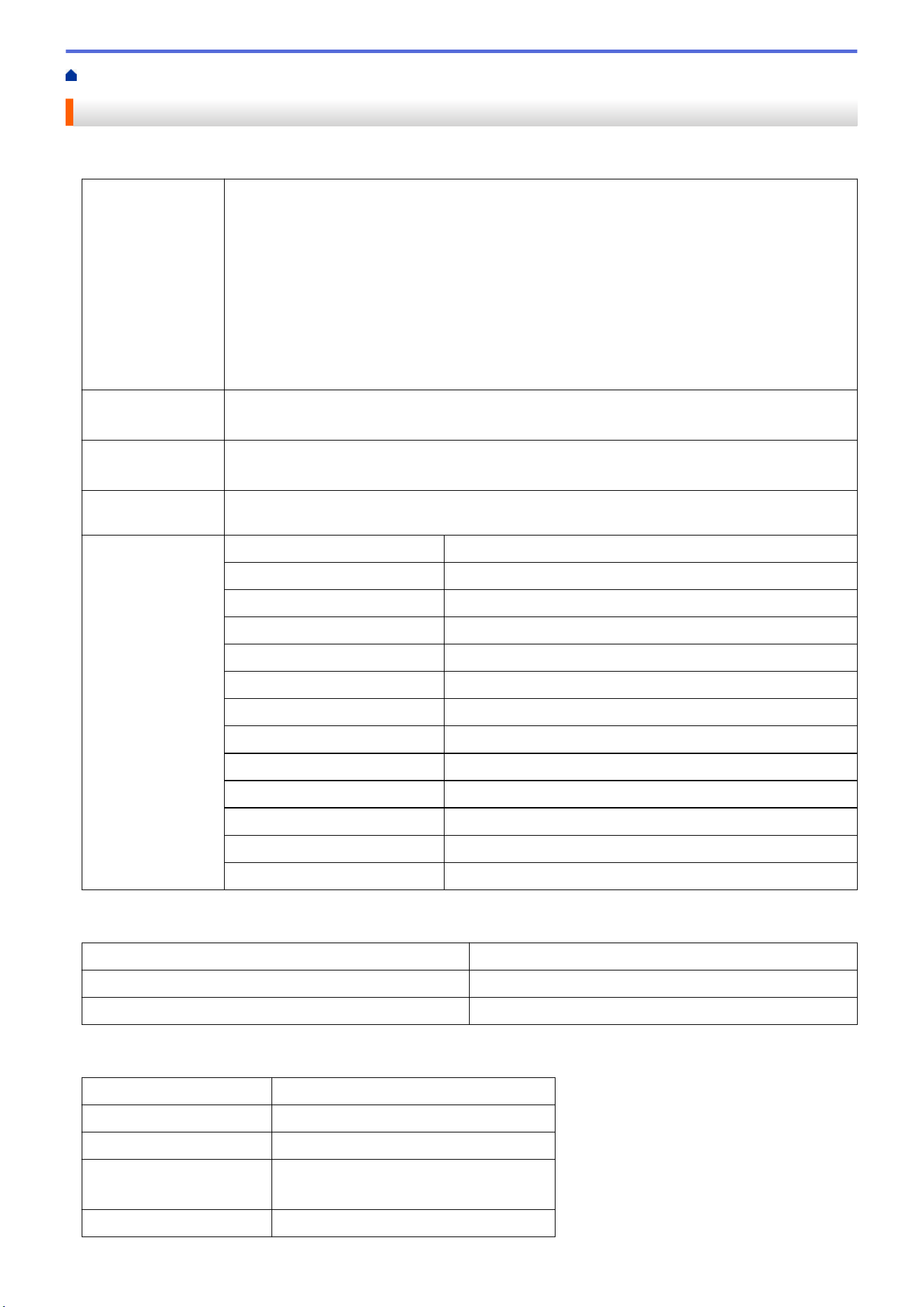
Acceptable Documents
Standard Paper
Size DSmobile DS-635/DSmobile DS-640:
• 3.4 in. x 2.0 in. to 72 in. x 8.5 in. (86.4 mm x 50.8 mm to 1828.8 mm x 215.9 mm)
DSmobile DS-740D/DSmobile DS-940DW:
• Single-sided Scan
3.4 in. x 2.0 in. to 72 in. x 8.5 in. (86.4 mm x 50.8 mm to 1828.8 mm x 215.9 mm)
• 2-sided Scan
3.4 in. x 2.0 in. to 16 in. x 8.5 in. (86.4 mm x 50.8 mm to 406.48 mm x 215.9 mm)
• Output Guide
4.13 in. x 2.91 in. to 11.69 in. x 8.5 in. (105 mm x 74 mm to 297 mm x 215.9 mm)
Weight
9.3 lb to 72 lb (35 g/㎡ to 270 g/㎡)
Output Guide (DSmobile DS-740D/DSmobile DS-940DW): 13.9 lb to 21.3 lb (52 g/㎡ to 80 g/㎡)
Thickness 1.58 mil to 11.02 mil (0.04 mm to 0.28 mm)
To scan thinner documents, use the Carrier Sheet (not included).
Maximum Number
of Pages
1 page (1 sheet)
Standard Paper
Size
A4 8.3 in. x 11.7 in. (210 mm x 297 mm)
A5 5.8 in. x 8.3 in. (148 mm x 210 mm)
A6 4.1 in. x 5.8 in. (105 mm x 148 mm)
B5 7.2 in. x 10.1 in. (182 mm x 257 mm)
B6 5 in. x 7.2 in. (128 mm x 182 mm)
Legal 8.5 in. x 14 in. (215.9 mm x 355.6 mm)
Mexican Legal 8.5 in. x 13.38 in. (215.9 mm x 339.9 mm)
India Legal 8.46 in. x 13.58 in. (215 mm x 345 mm)
Letter 8.5 in. x 11 in. (215.9 mm x 279.4 mm)
Executive 7 1/4 in. x 10 1/2 in. (184.1 mm x 266.7 mm)
Folio 8 1/2 in. x 13 in. (215.9 mm x 330.2 mm)
Index Card 5 in. x 8 in. (13 cm x 20 cm)
Business Card 3.5 in. x 2.4 in. (90 mm x 60 mm)
Non-standard Size Paper
Photo
4 in. x 6 in. (10 cm x 15 cm)
Photo L 3.5 in. x 5 in. (9 cm x 13 cm)
Photo 2L 5 in. x 7 in. (13 cm x 18 cm)
Plastic Card
Size (ISO)
3.37 in. x 2.13 in. (85.6 mm x 53.98 mm)
Material Plastic (PET)
Type Plastic card such as a store card.
Thickness Up to 0.05 in. (1.24 mm) (with embossing)
Up to 0.04 in. (1 mm) (without embossing)
Maximum Number of Cards One card
16

Home > Paper Handling > Document Specifications > Unacceptable Documents
Unacceptable Documents
The following types of documents may not be scanned successfully:
• Documents with paper clips or staples
• Documents with wet ink
• Fabrics, metallic sheets, or overhead projector sheets
• Glossy or mirrored media
• Documents that exceed recommended thicknesses
IMPORTANT
The damage caused by using any unacceptable documents with your Brother machine may not be covered
under warranty.
Related Information
• Document Specifications
18
Home > Paper Handling > Document Specifications > Carrier Sheet Recommendations
Carrier Sheet Recommendations
Brother recommends using a Carrier Sheet (not included) to scan the following documents:
• Documents with a carbon sheet attached
• Documents written in pencil
• Documents narrower than 2 in. (50.8 mm)
• Documents shorter than 3.4 in. (86.4 mm)
• Pages thinner than 1.57 mil (0.04 mm)
• Documents of uneven thickness, such as envelopes
• Documents with large wrinkles or curls
• Bent or damaged documents
• Documents that use tracing paper
• Documents that use coated paper
• Photographs (photographic paper)
• Documents printed on perforated paper
• Documents printed on unusually-shaped paper (not square or rectangle)
• Documents with photos, notes, or stickers attached to them
• Documents that use carbonless paper
• Documents that use loose-leaf paper or any paper with holes in it
CAUTION
To avoid cutting yourself, do not slide or scrape your hand or fingers along the edge of the Carrier Sheet.
IMPORTANT
• To avoid warping the Carrier Sheet, do not place the Carrier Sheet in direct sunlight or in an area subject
to high temperatures and high humidity.
• To avoid damaging the Carrier Sheet, do not bend or pull it. Do not use a damaged Carrier Sheet, as it
may produce incorrect scan results.
Related Information
• Document Specifications
Related Topics:
• Supplies
19

Home > Paper Handling > Document Specifications > Notes for Using Carrier Sheets
Notes for Using Carrier Sheets
• To avoid document jams, do not load the Carrier Sheet (not included) upside down. See the instructions
printed on the Carrier Sheet itself for more information.
• To avoid document jams, do not put several small documents into the Carrier Sheet at the same time. Insert
only one document into the Carrier Sheet at a time.
• Do not write on the Carrier Sheet, as the writing may be seen in scanned documents. If the Carrier Sheet
becomes dirty, wipe it with a dry cloth.
• Do not leave documents in the Carrier Sheet for extended periods of time; the printing on the documents may
bleed through onto the Carrier Sheet.
• If you use any of the Unacceptable Documents and damage your Brother machine, it may not be
covered under warranty.
Related Information
• Document Specifications
Related Topics:
• Supplies
20

Home > Paper Handling > Load Documents
Load Documents
IMPORTANT
• Insert only one page into the scanner at a time. Insert the next page only after the first one is completely
scanned. Inserting more than one page at a time may cause your scanner to malfunction.
• Make sure documents with ink or correction fluid are completely dry.
• DO NOT pull on the document while it is feeding.
• DO NOT use paper that is curled, wrinkled, folded, ripped, stapled, paper-clipped, pasted, or taped.
• DO NOT use cardboard or fabric.
• Make sure there is enough space behind the Paper Output Slot. The scanned document is ejected from
the rear of the scanner.
• (DSmobile DS-740D/DSmobile DS-940DW) To eject the paper from the top of the scanner, open the
Output Guide.
• Load Standard Size Document
• Load a Plastic Card
• Load Non-standard Size Document
• Use the Output Guide
21
Home > Paper Handling > Load Documents > Load Standard Size Document
Load Standard Size Document
(DSmobile DS-740D/DSmobile DS-940DW) If you scan the index card or business card, confirm the Output
Guide is closed.
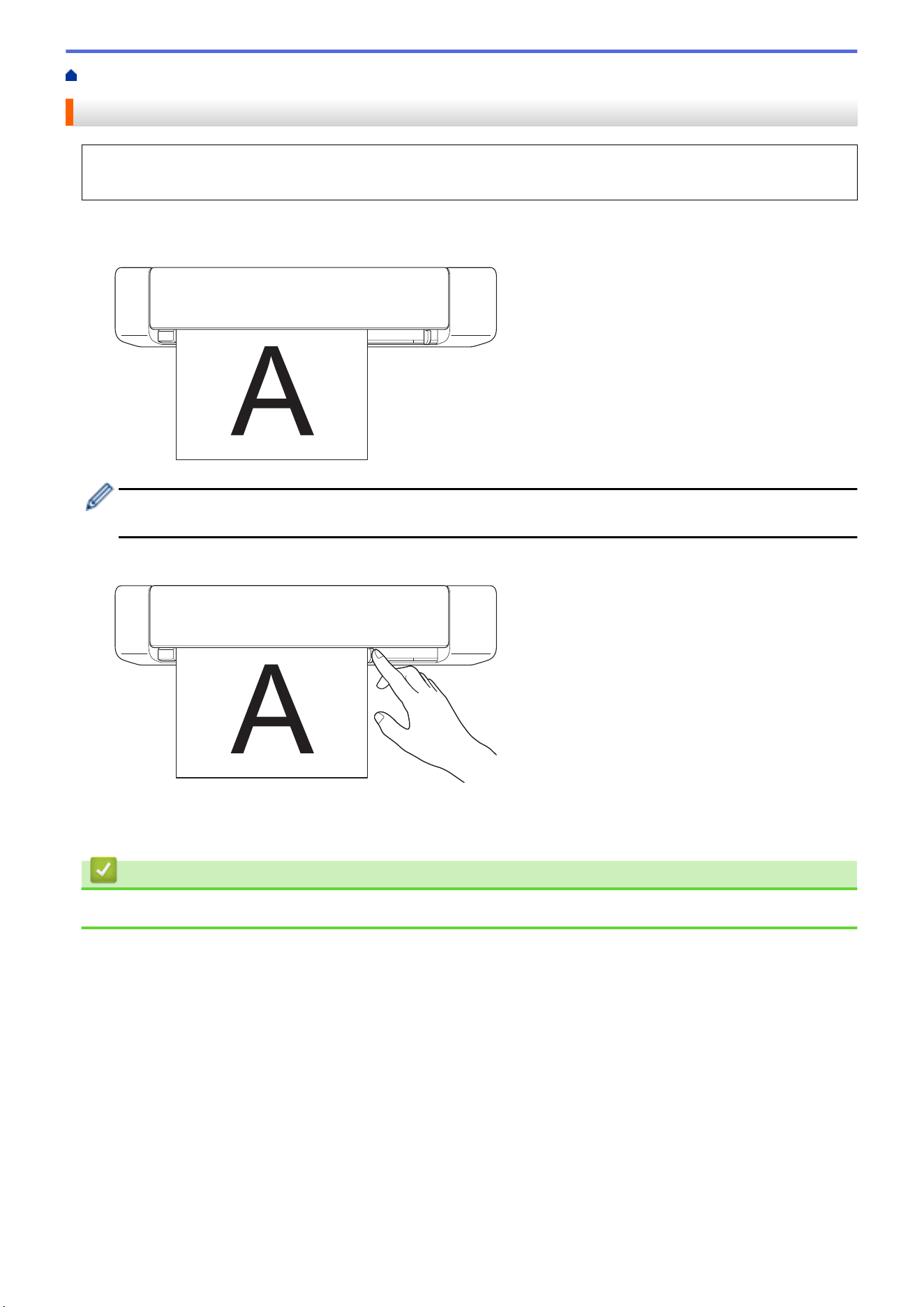
1. Set your document face up in the Feeder Slot and align the left edge of the page with the Left Edge of the
Feeder Slot.
(DSmobile DS-740D/DSmobile DS-940DW) When you perform 2-sided scanning, insert the first page face
up into the Feeder Slot.
2. Slide the Document Guide until it touches the right side of the document.
3. Gently insert the document until you feel its top edge touch the inside of the scanner.
(DSmobile DS-940DW) When the machine is in microSD Mode, scanning begins automatically.
Related Information
• Load Documents
22
Home > Paper Handling > Load Documents > Load a Plastic Card
Load a Plastic Card
• Load only one plastic card at a time.
• Load the plastic card long edge first.
• Certain types of plastic cards may be scratched when scanned. To prevent damage to the card, we
recommended using the Carrier Sheet.
• If the surface of the card is dirty with grease marks (for example, fingerprints) or similar, wipe the dirt off
before scanning.
• Certain types of embossed cards may not scan correctly.
• (DSmobile DS-740D/DSmobile DS-940DW) Confirm the Output Guide is closed.
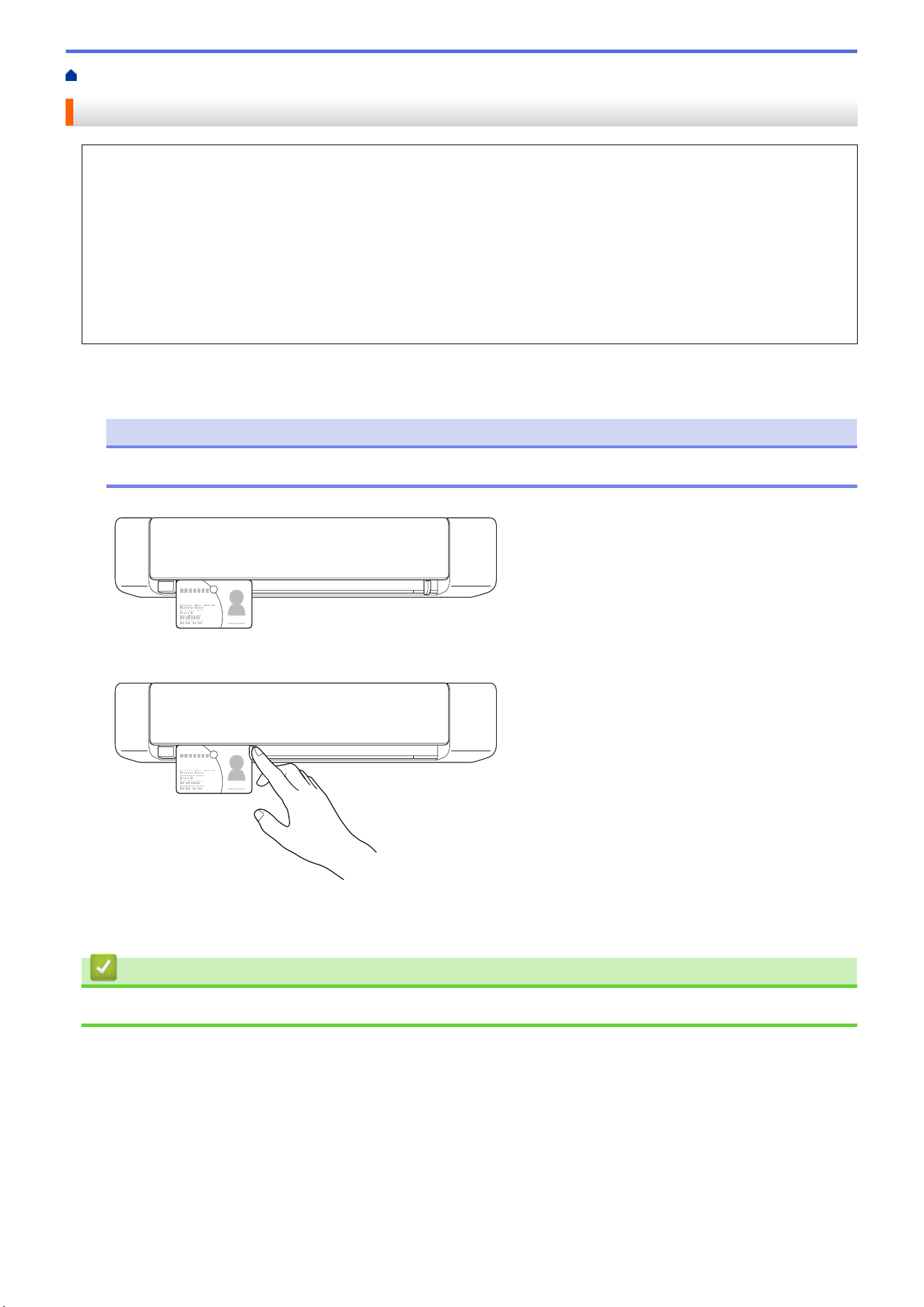
1. Set the card top edge first into the Feeder Slot and align the left edge of the card with the Left Edge of the
Feeder Slot.
NOTE
If you insert an embossed card, make sure to insert it embossed side up into the Feeder Slot.
2. Slide the Document Guide until it touches the right side of the card.
3. Gently insert the card until you feel its top edge touch the inside of the scanner.
(DSmobile DS-940DW) When the machine is in microSD Mode, scanning begins automatically.
Related Information
• Load Documents
23
Home > Paper Handling > Load Documents > Load Non-standard Size Document
Load Non-standard Size Document
• Make sure documents with ink or correction fluid are completely dry.
• Non-standard documents can include receipts, newspaper clippings, and photos.
• (DSmobile DS-740D/DSmobile DS-940DW) Confirm the Output Guide is closed.
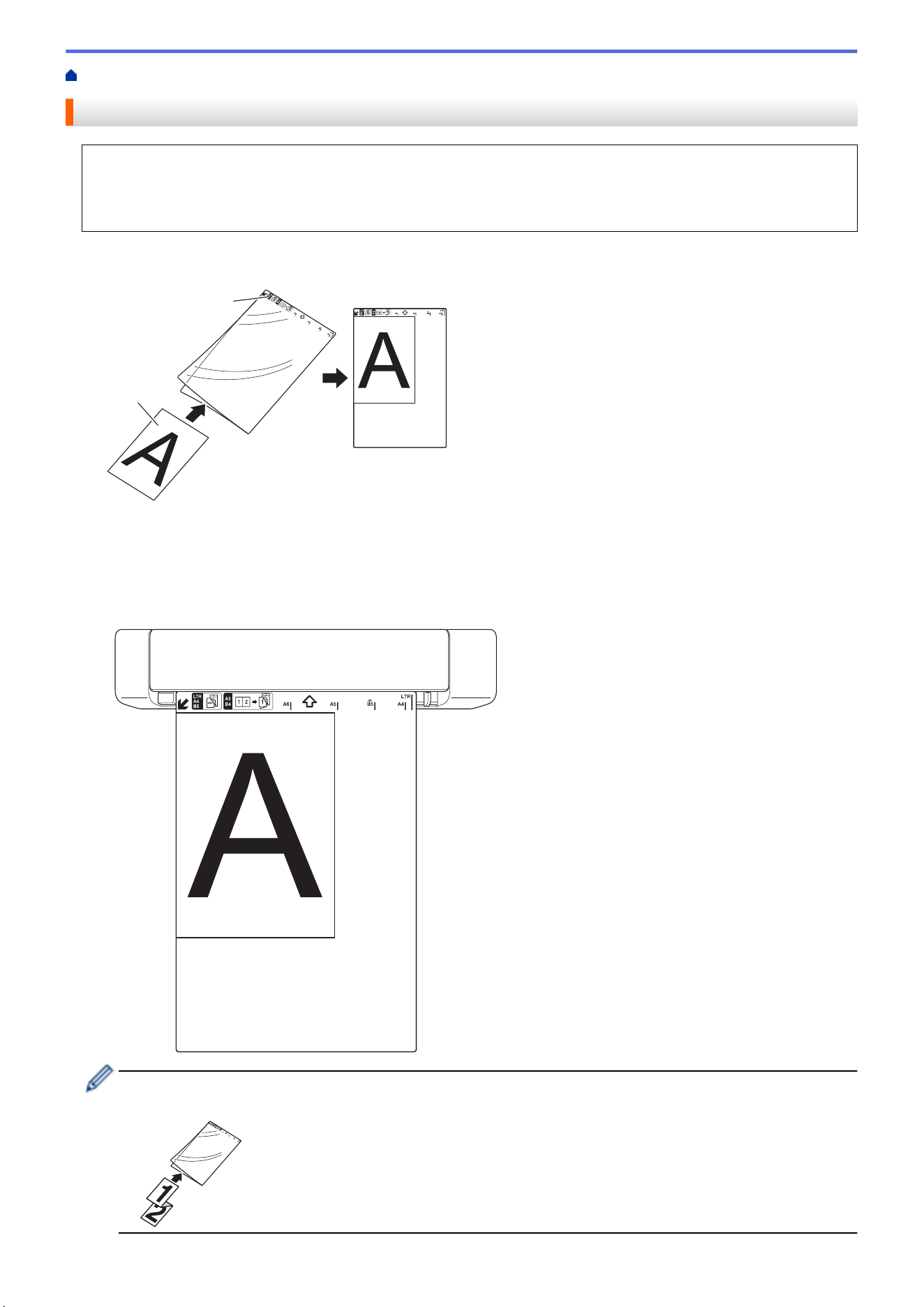
1. Set the document you want to scan in the left corner of the Carrier Sheet and align the top of the document
with the top left corner of the Carrier Sheet.
a
b
a. Document is Face Up
b. Carrier Sheet Header is Face Up
2. Set the Carrier Sheet, face up with the header first in the Feeder Slot and align the left edge of the Carrier
Sheet with the Left Edge of the Feeder Slot.
If the receipt is longer than the Carrier Sheet, you can fold the receipt in two places so that it overlaps when
you insert it into the Carrier Sheet.
24
Home > Paper Handling > Load Documents > Use the Output Guide
Use the Output Guide
Related Models: DSmobile DS-740D/DSmobile DS-940DW
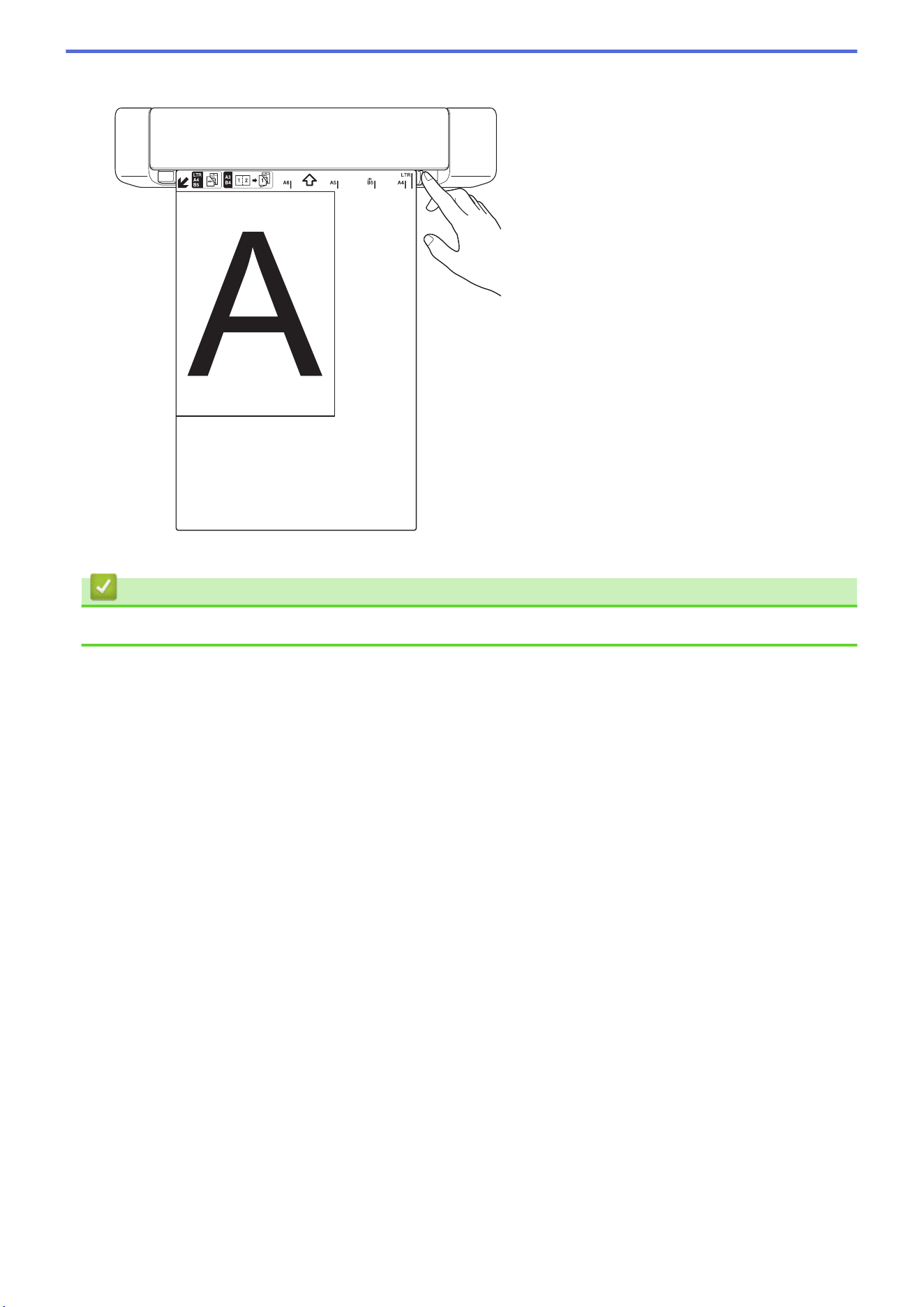
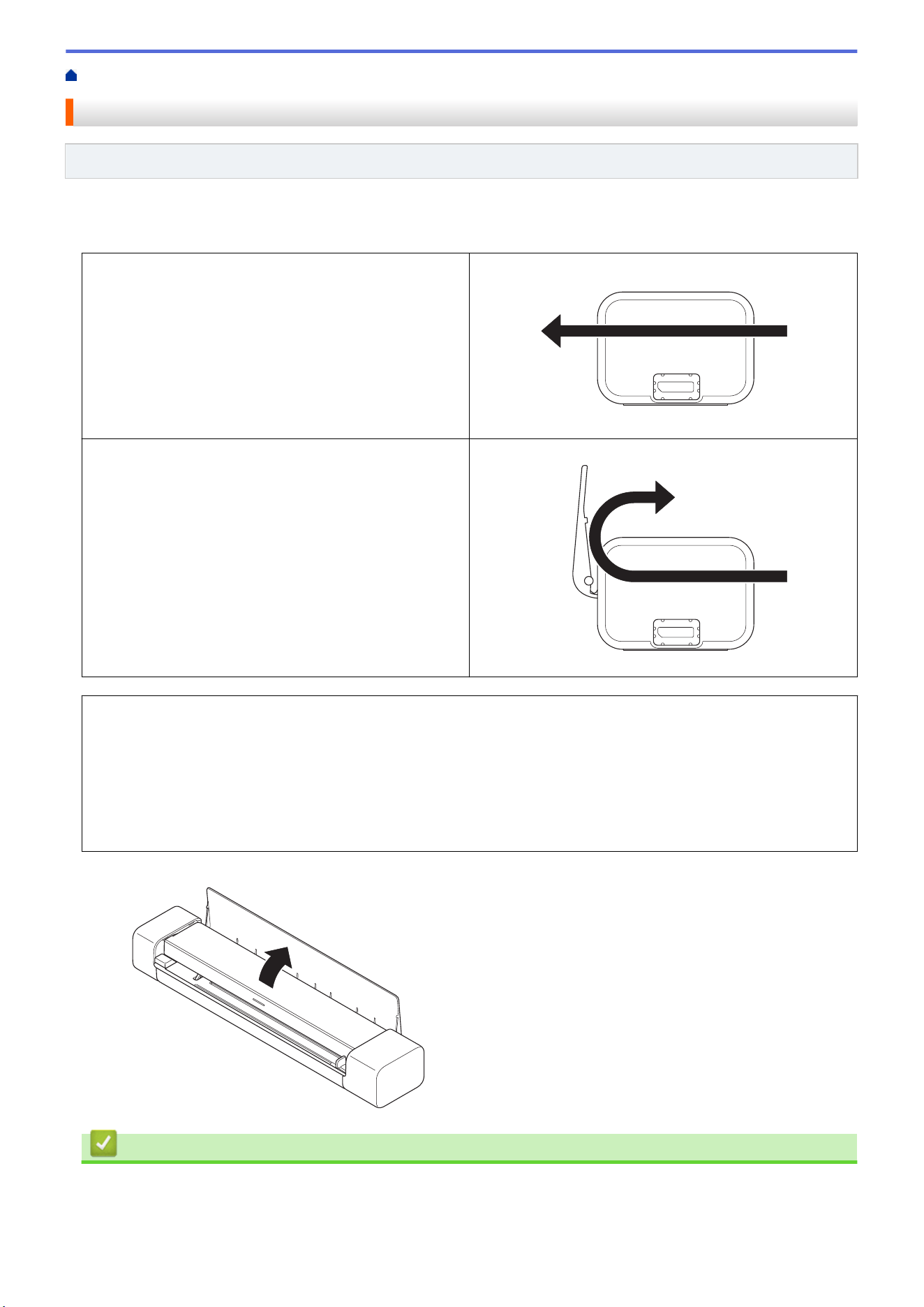
Use the Output Guide if there is not enough space behind the scanner.
The scanned document is ejected as follows:
When the Output Guide is closed.
When the Output Guide is open.
• Confirm the paper size and weight can be used to scan documents using the Output Guide.
See Related Information: Acceptable Documents.
• Do not use the Carrier Sheet with the Output Guide.
• Do not scan plastic cards using the Output Guide.
• For better scan results, when scanning documents in high or low temperatures and humidity, we
recommend not using the Output Guide.
• Open the Output Guide to support scanned documents.
Related Information
• Load Documents
26



Home > Scan > Before Scanning
Before Scanning
Before scanning, confirm the following:
• Make sure you have installed the scanner driver. For more information about installing the scanner driver, see
the Quick Setup Guide.
• If your Brother machine is connected via a USB cable, make sure the cable is physically secure.
(DSmobile DS-940DW) When using the wireless feature, make sure the scanner is turned on and is
connected to the same network as your computer.
29

Home > Scan > Scan Using the Scan Functions on Your Brother Machine
Scan Using the Scan Functions on Your Brother Machine
• Save Scanned Documents on Your Computer
• Save Scanned Documents to a Memory Card
• Web Services for Scanning on Your Network (Windows 7, Windows 8.1 and Windows
10)
• Restrict Scan Functions from External Devices
30
Home > Scan > Scan Using the Scan Functions on Your Brother Machine > Save Scanned Documents on
Your Computer
Save Scanned Documents on Your Computer
>> DSmobile DS-635/DSmobile DS-640/DSmobile DS-740D
>> DSmobile DS-940DW
DSmobile DS-635/DSmobile DS-640/DSmobile DS-740D
Use Brother iPrint&Scan to change scan settings, such as resolution, file size or scan type. Go to your model's
Downloads page at support.brother.com to download the latest application.
1. Load your document.
2. Press START/STOP on the control panel.
The machine starts scanning.
DSmobile DS-940DW
Use Brother iPrint&Scan to change scan settings, such as resolution, file size or scan type. Go to your model's
Downloads page at support.brother.com to download the latest application.
If the machine and computer are connected wirelessly, configure the Scan to PC settings using Remote
Setup.
1. Slide the Mode Select Switch to or .
2. Load your document.
3. Press START/STOP on the control panel.
The machine starts scanning.
Related Information
• Scan Using the Scan Functions on Your Brother Machine
Related Topics:
• Brother iPrint&Scan for Windows and Mac
31
Home > Scan > Scan Using the Scan Functions on Your Brother Machine > Save Scanned Documents to a
Memory Card
Save Scanned Documents to a Memory Card
Related Models: DSmobile DS-940DW
You must format the microSD memory card first using a computer.
1. Slide the Mode Select Switch to .
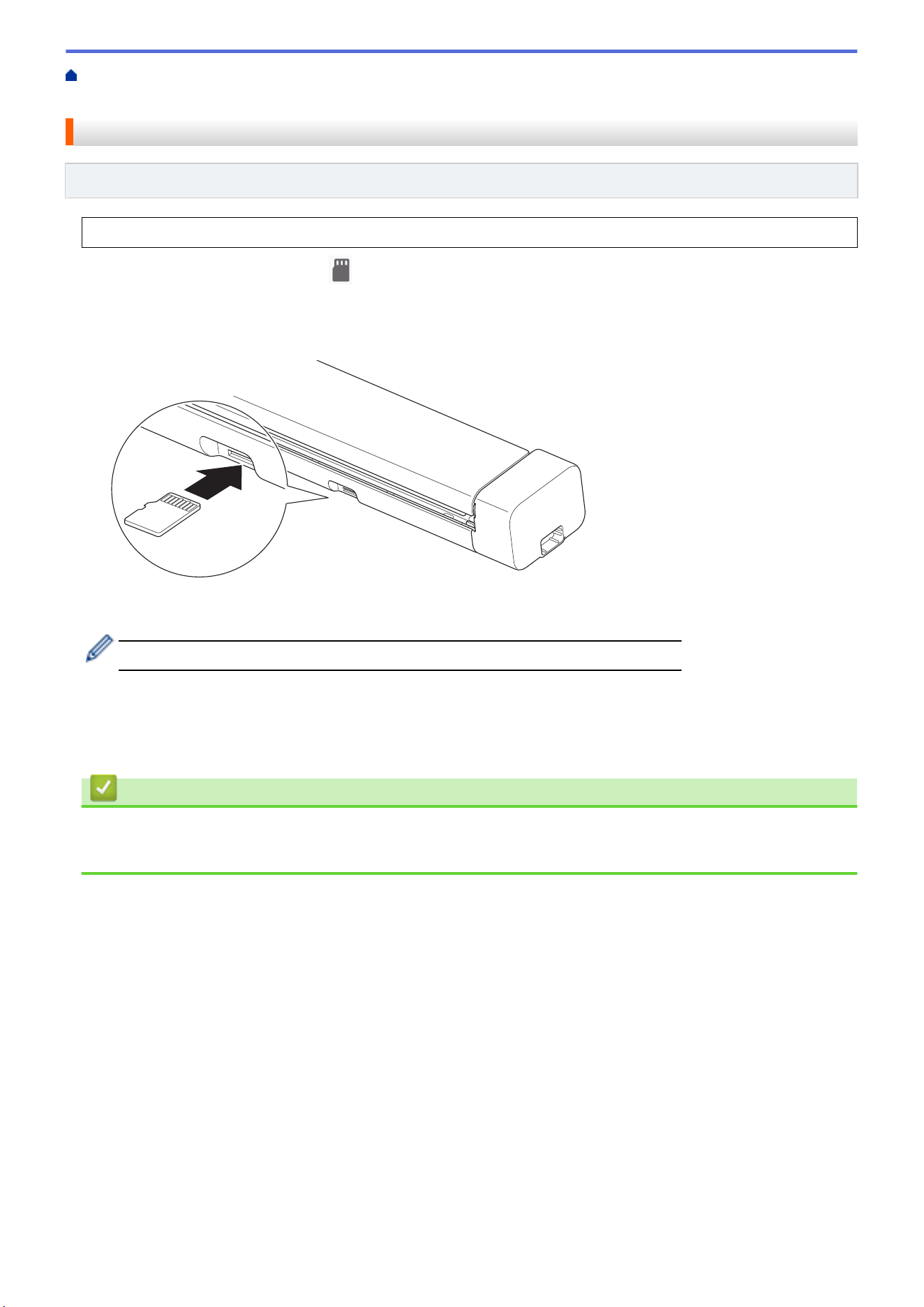
2. Gently insert the microSD memory card into the scanner's Memory Card Slot with the metal contact points
facing upward.
The SD Card LED lights in white.
3. Adjust the scan settings by pressing the Color/Mono, PDF/JPEG, or 2side/1side Switching Buttons on the
control panel as needed.
Use Remote Setup to change scan settings, such as document size, or resolution.
4. Load your document.
The machine starts scanning automatically.
When finished, the scanned image is stored on the microSD memory card.
Related Information
• Scan Using the Scan Functions on Your Brother Machine
• Access Scanned Images on the Memory Card
32
Home > Scan > Scan Using the Scan Functions on Your Brother Machine > Save Scanned Documents to a
Memory Card > Access Scanned Images on the Memory Card
Access Scanned Images on the Memory Card
Related Models: DSmobile DS-940DW
Make sure you slide the Mode Select Switch to and insert the microSD memory card into the Memory Card
Slot.
>> Windows
>> Mac
Windows
1. Connect the machine to your computer using a USB cable.
2. Access the folder on the microSD memory card.
3. Double-click Brother, and select the image you want.
Mac
1. Connect the machine to your computer using a USB cable.
2. The Photos application launches automatically and the scanned images on the microSD memory card
appear.
Related Information
• Save Scanned Documents to a Memory Card
33

Home > Scan > Scan Using the Scan Functions on Your Brother Machine > Web Services for Scanning on
Your Network (Windows 7, Windows 8.1 and Windows 10)
Web Services for Scanning on Your Network (Windows 7, Windows 8.1
and Windows 10)
Related Models: DSmobile DS-940DW
The Web Services protocol enables Windows 7, Windows 8.1 and Windows 10 users to scan using a Brother
machine on the network. You must install the driver via Web Services.
• Use Web Services to Install Drivers Used for Scanning (Windows 7, Windows 8.1 and
Windows 10)
• Configure Scan Settings for Web Services (Windows)
34
Home > Scan > Scan Using the Scan Functions on Your Brother Machine > Web Services for Scanning on
Your Network (Windows 7, Windows 8.1 and Windows 10) > Use Web Services to Install Drivers Used for
Scanning (Windows 7, Windows 8.1 and Windows 10)
Use Web Services to Install Drivers Used for Scanning (Windows 7,
Windows 8.1 and Windows 10)
Related Models: DSmobile DS-940DW
Use Web Services to monitor scanners on the network.
• Make sure you have installed the Brother software and drivers.
• Verify that the host computer and the Brother machine are on the same subnet, or that the router is
correctly configured to pass data between the two devices.
• You must configure the IP address on your Brother machine before you configure this setting.
1. Do one of the following:
• Windows 10
Click
> Windows System > Control Panel. In the Hardware and Sound group, click Add a device.
• Windows 8.1
Move your mouse to the lower-right corner of your desktop. When the menu bar appears, click Settings >
Change PC settings > PC and devices > Devices > Add a device.
The machine's Web Services Name appears.
• Windows 7
Click
(Start) > Control Panel > Network and Internet > View network computers and devices.
The machine's Web Services Name appears with the scanner icon.
Right-click the machine you want to install.
• The Web Services Name for the Brother machine is your model name and the MAC Address (Ethernet
Address) of your machine (for example, Brother XXX-XXXXX (model name) [XXXXXXXXXXXX] (MAC
Address / Ethernet Address)).
• Windows 8.1/Windows 10
Move your mouse over the machine name to display the machine's information.
2. Do one of the following:
• Windows 8.1/Windows 10
Select the machine you want to install, and then follow the on-screen instructions.
• Windows 7
Click Install in the displayed menu.
To uninstall drivers, click Uninstall or (Remove device).
Related Information
• Web Services for Scanning on Your Network (Windows 7, Windows 8.1 and Windows 10)
35

Home > Scan > Scan Using the Scan Functions on Your Brother Machine > Web Services for Scanning on
Your Network (Windows 7, Windows 8.1 and Windows 10) > Configure Scan Settings for Web Services
(Windows)
Configure Scan Settings for Web Services (Windows)
Related Models: DSmobile DS-940DW
1. Do one of the following:
• Windows 10
Click
> Windows System > Control Panel. In the Hardware and Sound group, click View devices
and printers.
• Windows 8.1
Move your mouse to the lower-right corner of your desktop. When the menu bar appears, click Settings,
and then click Control Panel. In the Hardware and Sound group, click View devices and printers.
• Windows 7
Click
(Start) > Devices and Printers.
2. Right-click the machine icon, and then select Scan profiles....
The Scan profiles... dialog box appears.
3. Select the scan profile you want to use.
4. Make sure the scanner selected in the Scanner list is a Brother machine that supports Web Services for
scanning, and then click the Set as Default button.
5. Click Edit....
The Edit Default Profile dialog box appears.
6. Select the Source, Paper size, Color format, File type, Resolution (DPI), Brightness and Contrast
settings.
7. Click the Save Profile button.
These settings will be applied when you scan using the Web Services protocol.
If you are prompted to select a scanning application, select Windows Fax and Scan or Windows Photo Gallery
from the list.
Related Information
• Web Services for Scanning on Your Network (Windows 7, Windows 8.1 and Windows 10)
36
Home > Scan > Scan Using the Scan Functions on Your Brother Machine > Restrict Scan Functions from
External Devices
Restrict Scan Functions from External Devices
Related Models: DSmobile DS-940DW
This feature allows you to restrict scan functions from external devices. When you restrict scan functions from
external devices, users cannot use those scan functions.
We recommend using Microsoft Internet Explorer 11 or later/Microsoft Edge for Windows, and Safari 12 or
later for Mac. Make sure that JavaScript and Cookies are always enabled in whichever browser you use. If a
different web browser is used, make sure it is compatible with HTTP 1.0 and HTTP 1.1.
1. Slide the Mode Select Switch to .
2. Start your web browser.
3. Do one of the following:
• When using Wireless Direct
Type "https://192.168.118.1" in your browser's address bar.
• When using infrastructure mode
Type "https://machine's IP address" in your browser's address bar (where "machine's IP address" is the
machine's IP address).
For example:
https://192.168.1.2
If the machine prompts you for a password, type it, and then click
. If you have not previously set your
own password, type the default login password. The default password for managing machine settings is
either:
• the password located on the bottom of the machine and marked "Pwd".
• initpass
4. Click the Scan tab.
5. Click the Scan from PC menu in the left navigation bar.
6. Disable the Pull Scan option.
7. Click Submit.
Related Information
• Scan Using the Scan Functions on Your Brother Machine
Related Topics:
• Check the IP Address of Network Devices
• Use Wireless Direct
• Use Infrastructure Mode
37

Home > Scan > Scan from Your Computer (Windows)
Scan from Your Computer (Windows)
There are several ways you can use your computer to scan documents on your Brother machine. Use the
software applications provided by Brother, or use your favorite scanning application.
•
Scan Using Nuance
™
PaperPort
™
14SE or Other Windows Applications
• Scan Using Windows Photo Gallery or Windows Fax and Scan
• Scan Using Kofax Power PDF Standard v3
• Scan Using Brother iPrint&Scan (Windows)
38
Home > Scan > Scan from Your Computer (Windows) > Scan Using Nuance
™
PaperPort
™
14SE or Other
Windows Applications
Scan Using Nuance
™
PaperPort
™
14SE or Other Windows Applications
You can use the Nuance
™
PaperPort
™
14SE application, which is included in the scanner driver, for scanning.
For detailed instructions on using each application, click the application's Help menu, and then click Getting
Started Guide in the Help ribbon.
The instructions for scanning in these steps are for Nuance
™
PaperPort
™
14SE. For other Windows
applications, the steps will be similar. Nuance
™
PaperPort
™
14SE supports both TWAIN and WIA drivers;
the TWAIN driver (recommended) is used in these steps.
1. Load your document.
2. Start Nuance
™
PaperPort
™
14. Do one of the following:
• Windows 10
Click
> Nuance PaperPort 14 > PaperPort.
• Windows 8.1
Click
(PaperPort).
• Windows 7
Click
(Start) > All Programs > Nuance PaperPort 14 > PaperPort.
3. Click the Desktop menu, and then click Scan Settings in the Desktop ribbon.
The Scan or Get Photo panel appears on the left side of the screen.
4. Click Select.
5. From the available Scanners list, select TWAIN: TW-Brother XX-XXXXX (where XXXXX is the model name
of your machine). To use the WIA driver, select the Brother driver that has "WIA" as the prefix.
6. Select the Display scanner dialog box check box in the Scan or Get Photo panel.
7. Click Scan.
The Scanner Setup dialog box appears.
39
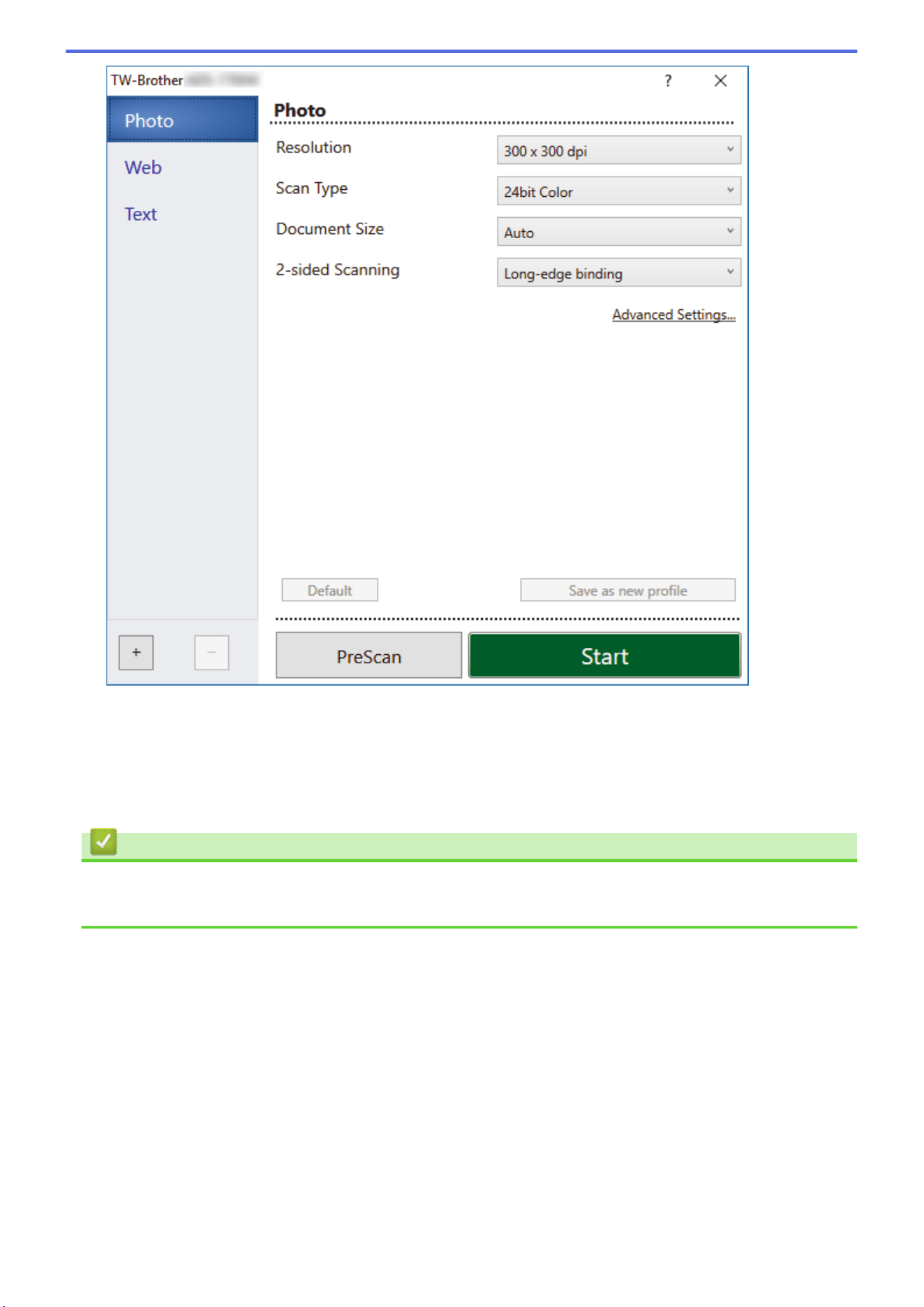
8. Adjust the settings in the Scanner Setup dialog box, if needed.
9. Click the Document Size drop-down list, and then select your document size.
10. Click PreScan to preview your image and crop unwanted portions before scanning.
11. Click Start.
The machine starts scanning.
Related Information
• Scan from Your Computer (Windows)
• TWAIN Driver Settings (Windows)
40
Home > Scan > Scan from Your Computer (Windows) > Scan Using Nuance
™
PaperPort
™
14SE or Other
Windows Applications > TWAIN Driver Settings (Windows)
TWAIN Driver Settings (Windows)
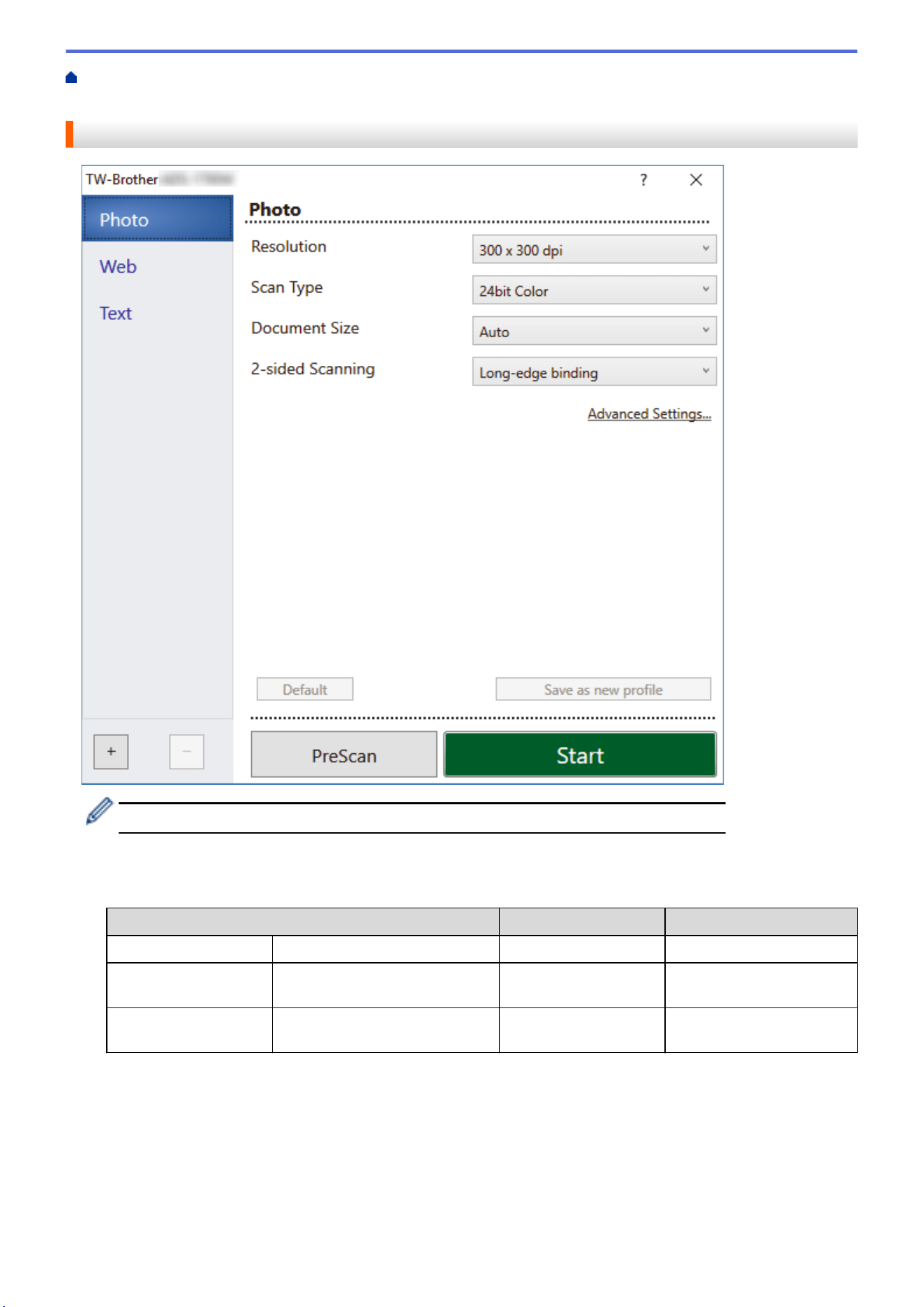
• Note that the item names and assignable values will vary depending on the machine.
1. Scan
Select the Photo, Web, or Text option depending on the type of document you want to scan.
Scan (Image Type)
Resolution Scan Type
Photo Use for scanning photo images. 300 x 300 dpi 24bit Color
Web Use for attaching the scanned
image to web pages.
100 x 100 dpi 24bit Color
Text Use for scanning text
documents.
200 x 200 dpi Black & White
2. Resolution
Select a scanning resolution from the Resolution drop-down list. Higher resolutions produce a finer scanned
image but consume more memory and increase transfer time.
3. Scan Type
Select from a range of scan color depths.
41
• Auto
Automatically detects whether the document uses color and generates a scanned image of it. For
documents that mix color and black and white pages, color pages will be scanned in Color mode, while
black and white pages will be scanned in Black & White mode.
• Black & White
Use for text or line art images.
• Gray (Error Diffusion)
Use for photographic images or graphics. (Error Diffusion is a method for creating simulated grayscale
images without using true gray dots. Black dots are put in a specific pattern to give a gray
appearance.)
• True Gray
Use for photographic images or graphics. This mode is more accurate because it uses up to 256
shades of gray.
• 24bit Color
Use to create an image with the most accurate color reproduction. This mode uses up to 16.8 million
colors to scan the image, but it requires the most memory and has the longest transfer time.
4. Document Size
Select the exact size of your document from a selection of preset scan sizes. If you select Custom, the
Custom Document Size dialog box appears and you can specify the document size.
(DSmobile DS-635/DSmobile DS-640/DSmobile DS-740D) Auto is not available for scanning at resolutions
greater than 400 x 400 dpi.
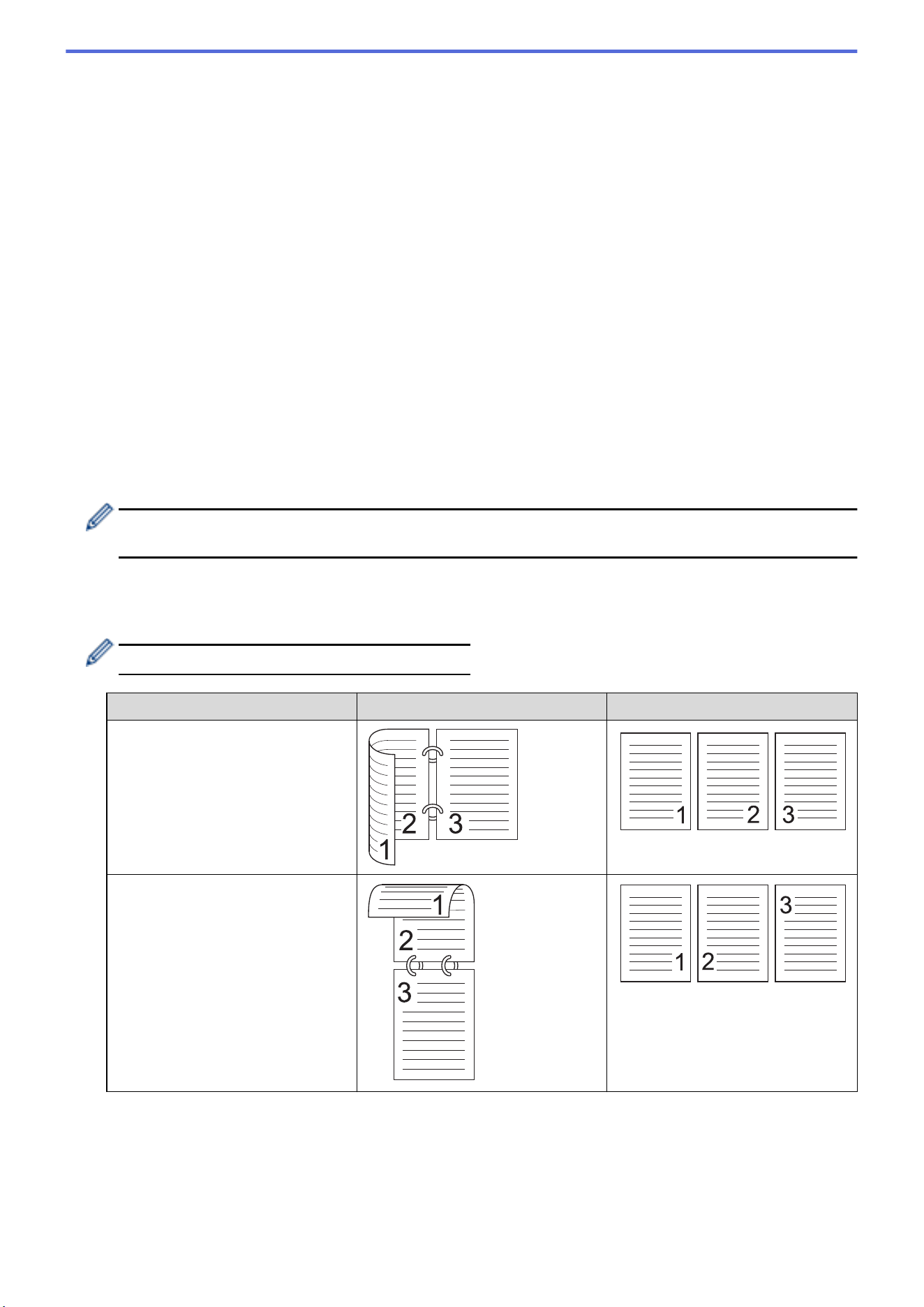
5. 2-sided Scanning (DSmobile DS-740D/DSmobile DS-940DW)
Scan both sides of the document. Select Long-edge binding or Short-edge binding depending on the
layout of your original to make sure the data file created appears correctly in the scanned document.
2-sided Scanning is not available for Long Paper.
2-sided Scan Setting Original Layout Scan Result
Long-edge binding
Short-edge binding
6. Advanced Settings...
Configure advanced settings by clicking the Advanced Settings... button in the Scanner Setup dialog box.
• Document Correction
- Cropping
• Auto Deskew
42

Set the machine to correct document skewing automatically.
- Auto Deskew feature is automatically set to On if you select Auto for the Document Size.
- (DSmobile DS-635/DSmobile DS-640/DSmobile DS-740D) Auto Deskew is not available for scanning
at resolutions greater than 400 x 400 dpi.
• Detect End of Page
Detects the end of page and automatically adjusts the size of a page when the length of the
document is shorter than the Document Size selected.
• Margin Settings
This feature allows you to add or remove a specific margin at the edge of the image. A positive
value decreases the size of the scanned image when it is output and a negative value increases
the size of the scanned image when it is output.
Margin Settings is available only when Document Size is set to Auto.
- Rotate Image
Changes the direction of the document based on the text orientation when Auto is selected.
- Edge Fill
Fill in the edges on four sides of the scanned image using the selected color and range.
- Auto Color Detect Adjust
When scan type Auto is selected, you can adjust the detection level of color. Increasing the slider
value makes the machine more likely to determine that a given document is a color document.
- Skip Blank Page
Remove the document's blank pages from the scanning results.
• Image Quality
- Diffusion Adjustment -Gray
This function adjusts the brightness and contrast to create gray images.
Only available when the Scan Type is Gray (Error Diffusion).
Brightness
Set the Brightness level by moving the slider to the right or left to lighten or darken the image. If
the scanned image is too light, set a lower brightness level and scan the document again. If the
image is too dark, set a higher brightness level and scan the document again. You can also type a
value in the field to set the brightness.
Contrast
Increase or decrease the Contrast level by moving the slider to the right or left. An increase
emphasizes dark and light areas of the image, while a decrease reveals more details in gray areas.
You can also type a value in the field to set the contrast.
- Color Tone Adjustment
Allows you to adjust the brightness, contrast and gamma during True gray and color scanning.
- Background Processing
• Remove Bleed-through / Pattern
Prevent any visible text or images from the other side of the document from appearing on the
scan.
• Remove Background Color
Remove the base color of documents to make the scanned data more legible.
- Color Drop
Select a color to remove from the scanned image.
- Edge Emphasis
Make the characters of the original sharper.
43

The following items can be selected when scanning color or gray images:
- Color Tone Adjustment
- Edge Emphasis
• B&W Image Quality
- B&W Threshold Adjustment
This setting allows you to adjust the image quality when scanning in Black & White mode. Larger
values increase the amount of black in the scanned image, while smaller values increase the amount
of white. Use this setting to improve the quality of documents scanned using the OCR (Optical
Character Recognition) technology.
- Character Correction
Correct any broken or incomplete characters in the original to make them easier to read.
Character Correction can be selected when scanning black and white images.
- B&W Inversion
This feature allows you to create a black and white inverted version of the scanned image.
• Feed Control
- Layout
Allows you to scan a two-page document combined into one page, or scan a one-page document
divided into two pages.
- Carrier Sheet Mode
Use the Carrier Sheet (not included) to scan the following document types:
• Important documents (photos, contracts)
• Thin paper (receipts)
• Irregularly-shaped paper (clippings)
- Continuous Scan
Select this option to scan additional documents using the same settings when a scan has been
completed.
• Additional Functions
- Barcode Detection
The machine reads the barcode printed on the scanned image. Specify the barcode type and
detection area.
• Barcode Detection is available when Layout is Off.
• To scan and read barcodes, use a third-party application. The TWAIN driver alone cannot convert
barcodes into data.
- JPEG Compression
Changes the quality of the JPEG file to be saved.
This function is available only when using a third-party application with Disk File mode.
Related Information
• Scan Using Nuance
™
PaperPort
™
14SE or Other Windows Applications
44
Home > Scan > Scan from Your Computer (Windows) > Scan Using Windows Photo Gallery or Windows
Fax and Scan
Scan Using Windows Photo Gallery or Windows Fax and Scan
Windows Photo Gallery or Windows Fax and Scan applications are other options that you can use for scanning.
These applications use the WIA scanner driver.
1. Load your document.
2. Launch your scanning application. Do one of the following:
• Windows Photo Gallery (Windows 7)
Click File > Import from Camera or Scanner.
• Windows Fax and Scan
Click File > New > Scan.
3. Select the scanner you want to use.
4. Click Import or OK.
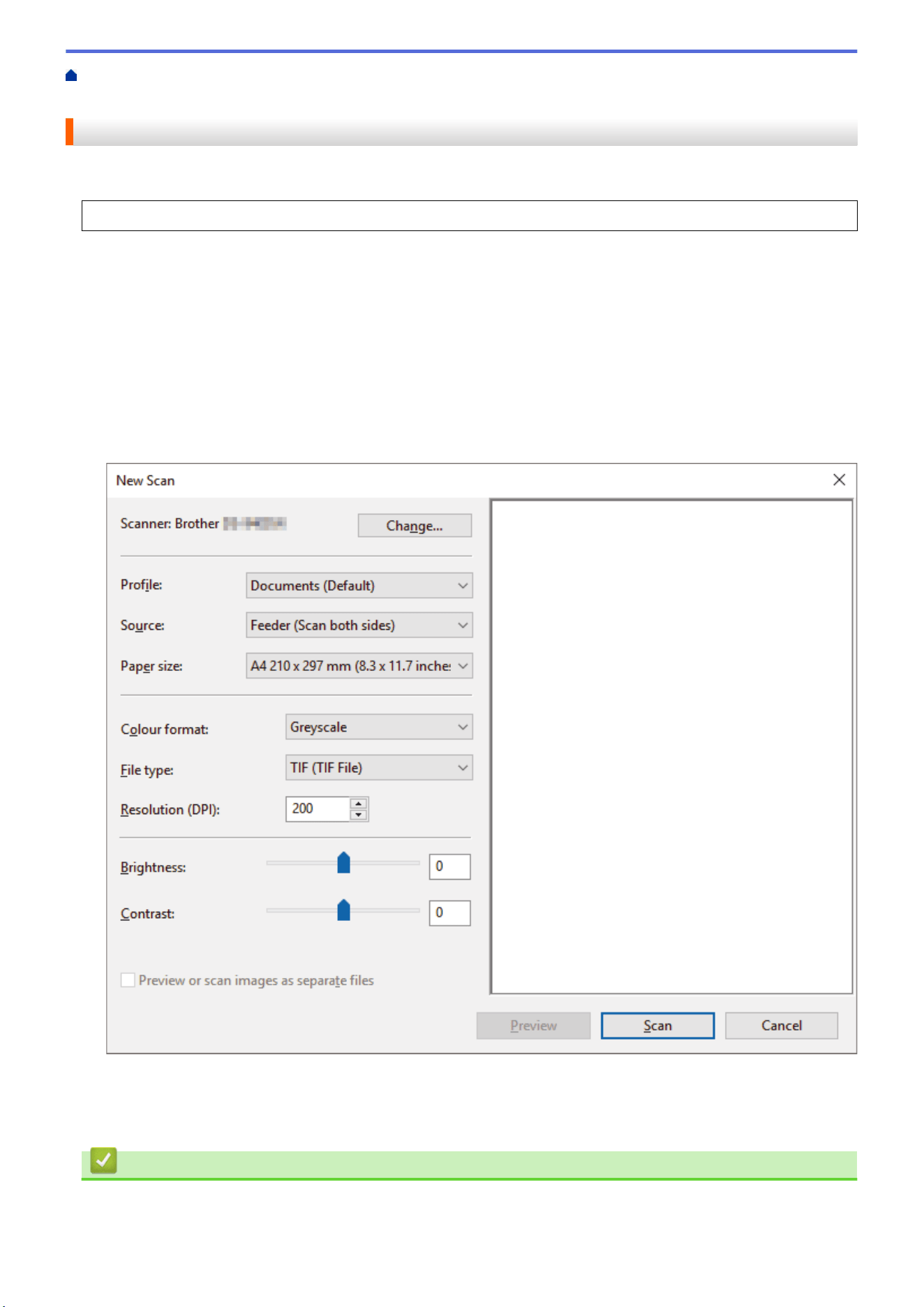
The New Scan dialog box appears.
5. Adjust the settings in the Scanner Setup dialog box, if needed.
6. Click Scan.
The machine starts scanning.
Related Information
• Scan from Your Computer (Windows)
45

Home > Scan > Scan from Your Computer (Windows) > Scan Using Windows Photo Gallery or Windows
Fax and Scan > WIA Driver Settings (Windows)
WIA Driver Settings (Windows)
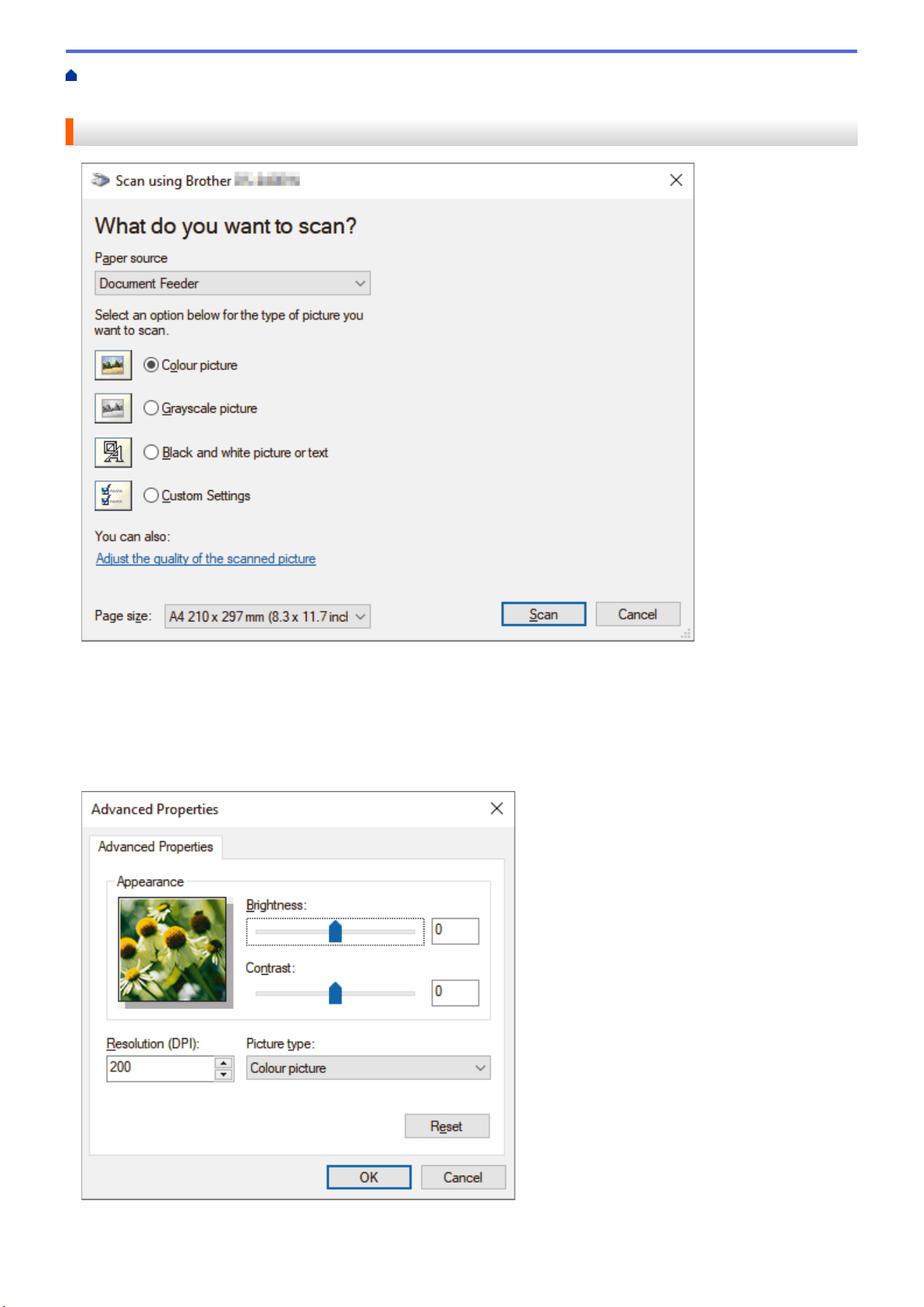
1. Paper source
You can select Document Feeder only.
2. Picture Type (Image Type)
Select Color picture, Grayscale picture, Black and white picture or text, or Custom Settings for the type
of document you want to scan.
To change advanced settings, click the Adjust the quality of the scanned picture link.
47

1. Brightness
Set the Brightness level by moving the slider to the right or left to lighten or darken the image. If the scanned
image is too light, set a lower brightness level and scan the document again. If the image is too dark, set a
higher brightness level and scan the document again.
2. Contrast
Increase or decrease the Contrast level by moving the slider to the right or left. An increase emphasizes dark
and light areas of the image, while a decrease reveals more details in gray areas. You can also type a value
in the field to set the contrast level.
3. Resolution (DPI)
Select a scanning resolution from the Resolution (DPI) list. Higher resolutions produce a finer scanned
image but consume more memory and increase transfer time.
4. Picture type
Select or change the type of document you want to scan.
Related Information
• Scan Using Windows Photo Gallery or Windows Fax and Scan
48

Home > Scan > Scan from Your Computer (Windows) > Scan Using Kofax Power PDF Standard v3
Scan Using Kofax Power PDF Standard v3
You can use the Kofax Power PDF application for scanning. It converts the scanned PDF data into other formats
including Microsoft Word, Microsoft Excel, Microsoft PowerPoint, images and more. If you are asked to enter the
serial number when installing the software, check the label attached to the scanner. Within the application, see
the Kofax Power PDF Help menu, for more information.
Related Information
• Scan from Your Computer (Windows)
49
Home > Scan > Scan from Your Computer (Windows) > Scan Using Brother iPrint&Scan (Windows)
Scan Using Brother iPrint&Scan (Windows)
Use Brother iPrint&Scan for Windows to scan from your computer. Go to your model's Downloads page at
support.brother.com to download it.
1. Start Brother iPrint&Scan. Do one of the following:
• Windows 10
Click
> Brother > Brother iPrint&Scan.
• Windows 8.1
Click Brother iPrint&Scan.
• Windows 7
Click
(Start) > All Programs > Brother iPrint&Scan.
2. If your Brother machine is not selected, click the Select your Machine button, and then follow the on-screen
instructions to select your Brother machine.
3. Click the Scan icon, and then follow the on-screen instructions to scan your documents.
Related Information
• Scan from Your Computer (Windows)
Related Topics:
• Brother iPrint&Scan Overview
50

Home > Scan > Scan from Your Computer (Mac)
Scan from Your Computer (Mac)
There are several ways you can use your Mac to scan documents on your Brother machine. Use the software
applications provided by Brother or your favorite scanning application.
• Scan Using Brother iPrint&Scan (Mac)
• Scan Using Apple Image Capture (ICA Driver)
• Scan Using Kofax Power PDF Standard for Mac v3
• Using AirPrint Scanning
51

Home > Scan > Scan from Your Computer (Mac) > Scan Using Brother iPrint&Scan (Mac)
Scan Using Brother iPrint&Scan (Mac)
Use Brother iPrint&Scan for Mac to scan from your computer. Download and install Brother iPrint&Scan from the
App Store.
1. In the Finder menu bar, click Go > Applications, and then double-click the iPrint&Scan icon.
The Brother iPrint&Scan screen appears.
2. If your Brother machine is not selected, click the Select your Machine button, and then follow the on-screen
instructions to select your Brother machine.
3. Click the Scan icon, and then follow the on-screen instructions to scan your documents.
Related Information
• Scan from Your Computer (Mac)
Related Topics:
• Brother iPrint&Scan Overview
52

Home > Scan > Scan from Your Computer (Mac) > Scan Using Apple Image Capture (ICA Driver)
Scan Using Apple Image Capture (ICA Driver)
Download and install the ICA driver at support.brother.com. You can also scan directly using the Image Capture
application.
Related Information
• Scan from Your Computer (Mac)
• Scan Using Apple Image Capture
• ICA Driver Settings
53
Home > Scan > Scan from Your Computer (Mac) > Scan Using Apple Image Capture (ICA Driver) > Scan
Using Apple Image Capture
Scan Using Apple Image Capture
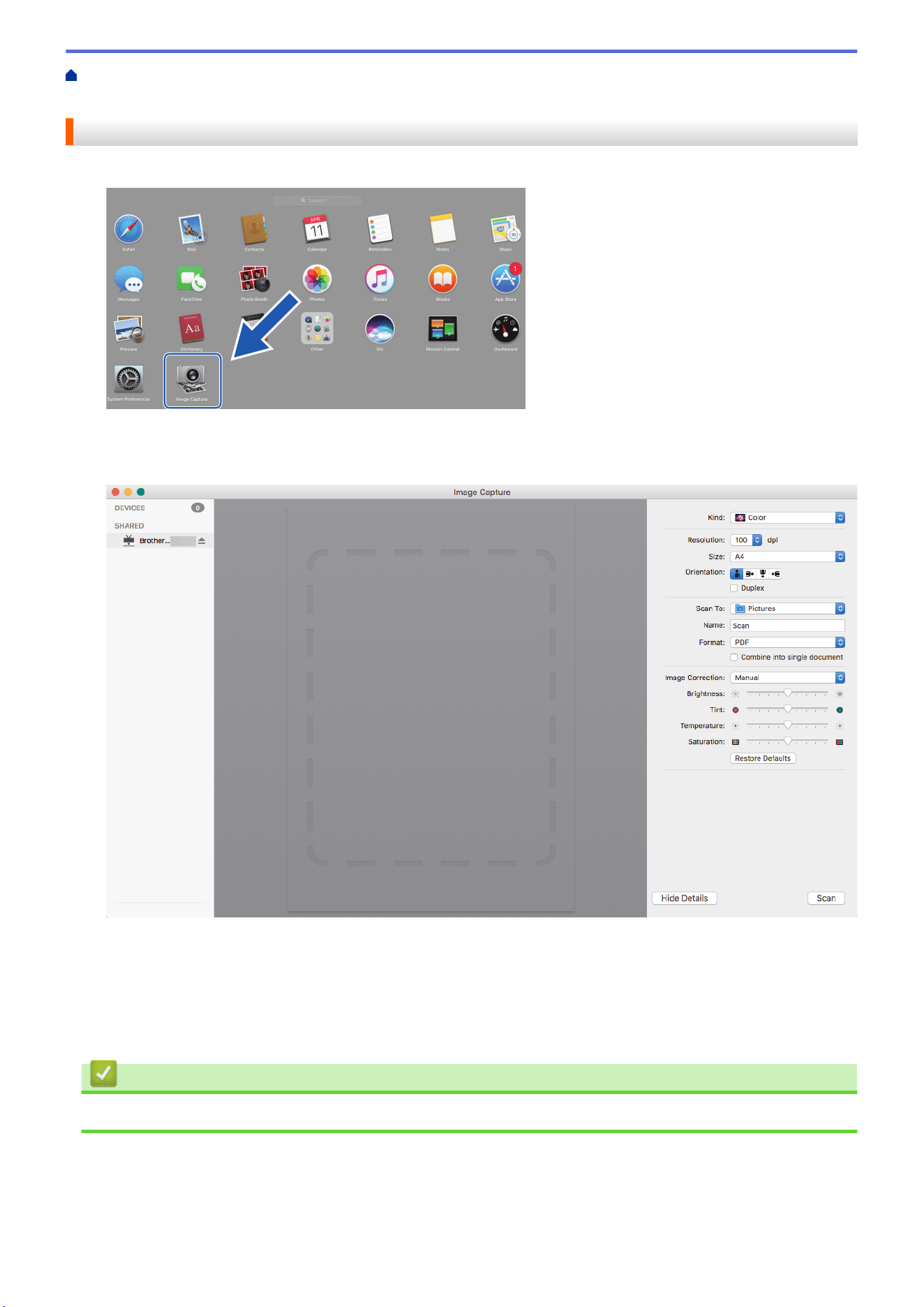
1. Launch the Image Capture application.
2. Select the machine from the list on the left side of the screen.
If you connected the Brother machine to your Mac with a USB cable, you will see the machine in the
DEVICES area. If connected via a network, you will see it in the SHARED area.
3. Load your document.
4. Select the size of your document.
5. Select the destination folder or destination application from the Scan To pop-up menu.
6. Click Scan.
The machine starts scanning.
Related Information
• Scan Using Apple Image Capture (ICA Driver)
54
Home > Scan > Scan from Your Computer (Mac) > Scan Using Apple Image Capture (ICA Driver) > ICA
Driver Settings
ICA Driver Settings
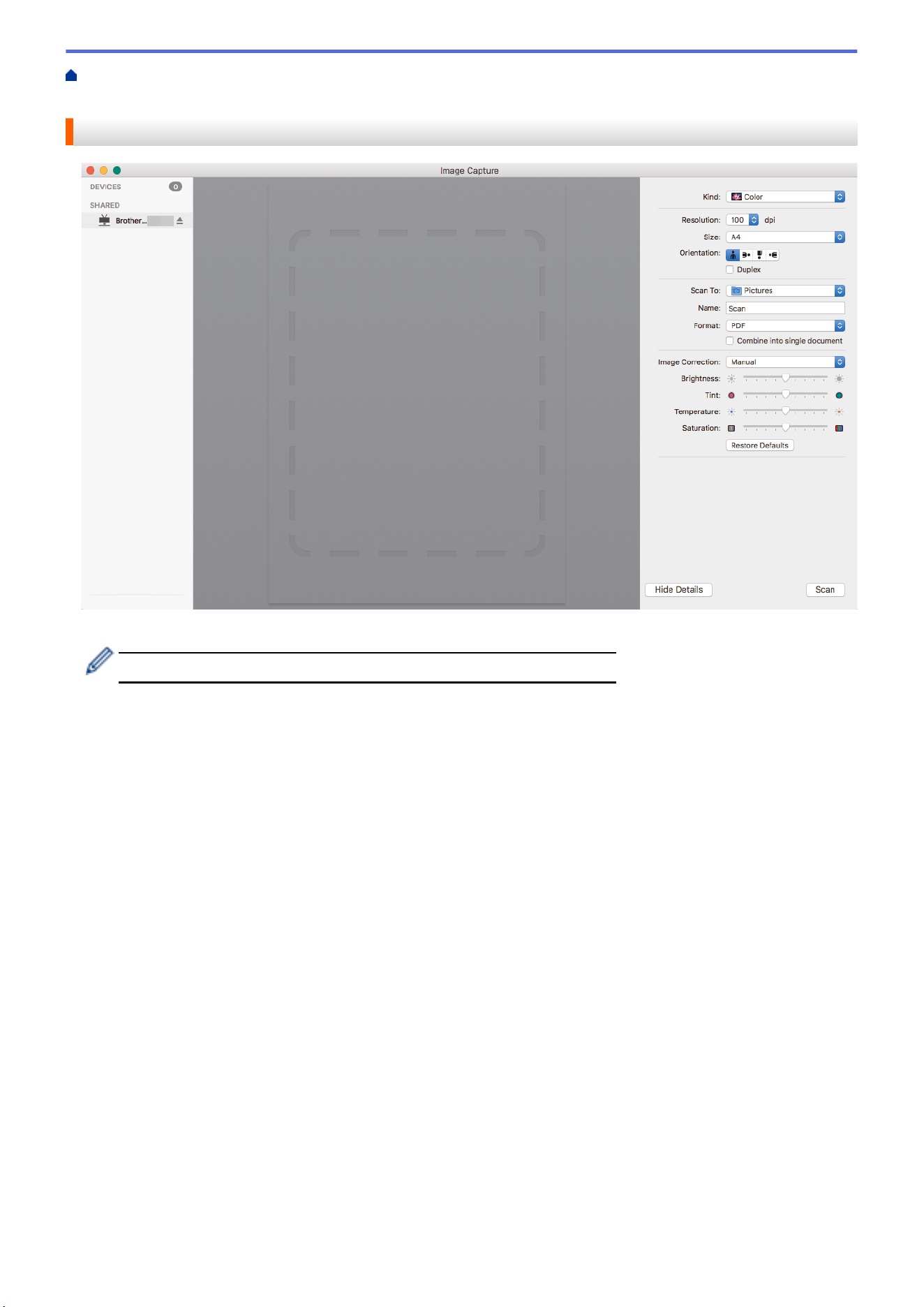
To adjust image capture settings, click Show Details.
Item names and assignable values may vary depending on the machine.
1. Kind
Allows you to select from Color, Black&White, or Text.
2. Resolution
Specifies the document resolution you want.
3. Scan Size/Size
Specifies the paper size of the document.
4. Orientation
Specifies the orientation of the document.
5. Duplex (supported models only)
Allows you to select the Duplex check box to perform 2-sided (duplex) scanning.
6. Scan To
Specifies the destination folder or destination application.
7. Name
Allows you to enter the prefix text used for the name of the scanned image.
8. Format
Specifies the file format of the scanned data.
9. Combine into single document
Allows you to scan a document as one item and save it as one file when selecting PDF or TIFF for the file
format.
10. Image Correction
Depending on the Kind option selected, it allows you to configure the following settings:
55


Home > Scan > Scan from Your Computer (Mac) > Scan Using Kofax Power PDF Standard for Mac v3
Scan Using Kofax Power PDF Standard for Mac v3
Use the Kofax Power PDF application for scanning. It converts the scanned PDF data into other formats
including Microsoft Word, Microsoft Excel, Microsoft PowerPoint, images and more. If you are asked to enter the
serial number when installing the software, check the label attached to the scanner. See the Kofax Power PDF
Help menu for more information.
This application may not available in some countries.
Related Information
• Scan from Your Computer (Mac)
57


Home > Scan > Scan from Your Computer (Mac) > Using AirPrint Scanning > Before Using AirPrint
Scanning
Before Using AirPrint Scanning
Related Models: DSmobile DS-940DW
Before using AirPrint Scanning, add your Brother machine to the scanner list on your Mac.
• To use this feature, make sure your machine has the latest firmware. To check for the latest firmware
upgrade, visit support.brother.com.
• Make sure your Brother machine and Mac are connected either wirelessly or via a USB cable.
1. Select System Preferences from the Apple menu.
2. Click Printers & Scanners.
3. Click the + icon below the Scanners pane on the left.
The Add screen appears.
4. Select your Brother machine, and then select Brother DS-XXXXX from the Use pop-up menu.
5. Click Add.
Related Information
• Using AirPrint Scanning
59

Home > Scan > Scan from Your Computer (Mac) > Using AirPrint Scanning > Scan Using AirPrint
Scanning
Scan Using AirPrint Scanning
Related Models: DSmobile DS-940DW
Before scanning, make sure your Brother machine is in the scanner list on your Mac.
1. Load your document.
2. Select System Preferences from the Apple menu.
3. Click Printers & Scanners.
4. Select your Brother machine from the scanner list.
5. Click the Open Scanner… button.
The Scanner screen appears.
6. Select the destination folder or destination application.
7. Click Show Details to change the scanning settings if needed.
8. Click Scan.
Related Information
• Using AirPrint Scanning
60


Home > Scan > Scan Using Brother iPrint&Scan for Mobile > Brother iPrint&Scan for Mobile Devices
Brother iPrint&Scan for Mobile Devices
Related Models: DSmobile DS-940DW
Use Brother iPrint&Scan to scan from various mobile devices.
• For Android
™
Devices:
Brother iPrint&Scan allows you to use features of your Brother machine directly from your Android
™
device.
Download and install Brother iPrint&Scan from the Google Play
™
Store app.
• For all iOS supported devices including iPhone, iPad and iPod touch:
Brother iPrint&Scan allows you to use your Brother machine's features directly from your iOS device.
Download and install Brother iPrint&Scan from the App Store.
For more information, visit
support.brother.com/ips.
Related Information
• Scan Using Brother iPrint&Scan for Mobile
Related Topics:
• Brother iPrint&Scan for Windows and Mac
62

Home > Scan > Scan Using Presto! BizCard
Scan Using Presto! BizCard
Presto! BizCard lets you manage the information from scanned business cards, such as names, companies,
phone/fax numbers, mailing, and email addresses, on your computer. Scan or import your business cards and
Presto! BizCard automatically saves the data and image for each card. Different viewing modes are available for
searching, editing, creating, and sorting.
Related Information
• Scan
63

Home > Network > Supported Basic Network Features
Supported Basic Network Features
Related Models: DSmobile DS-940DW
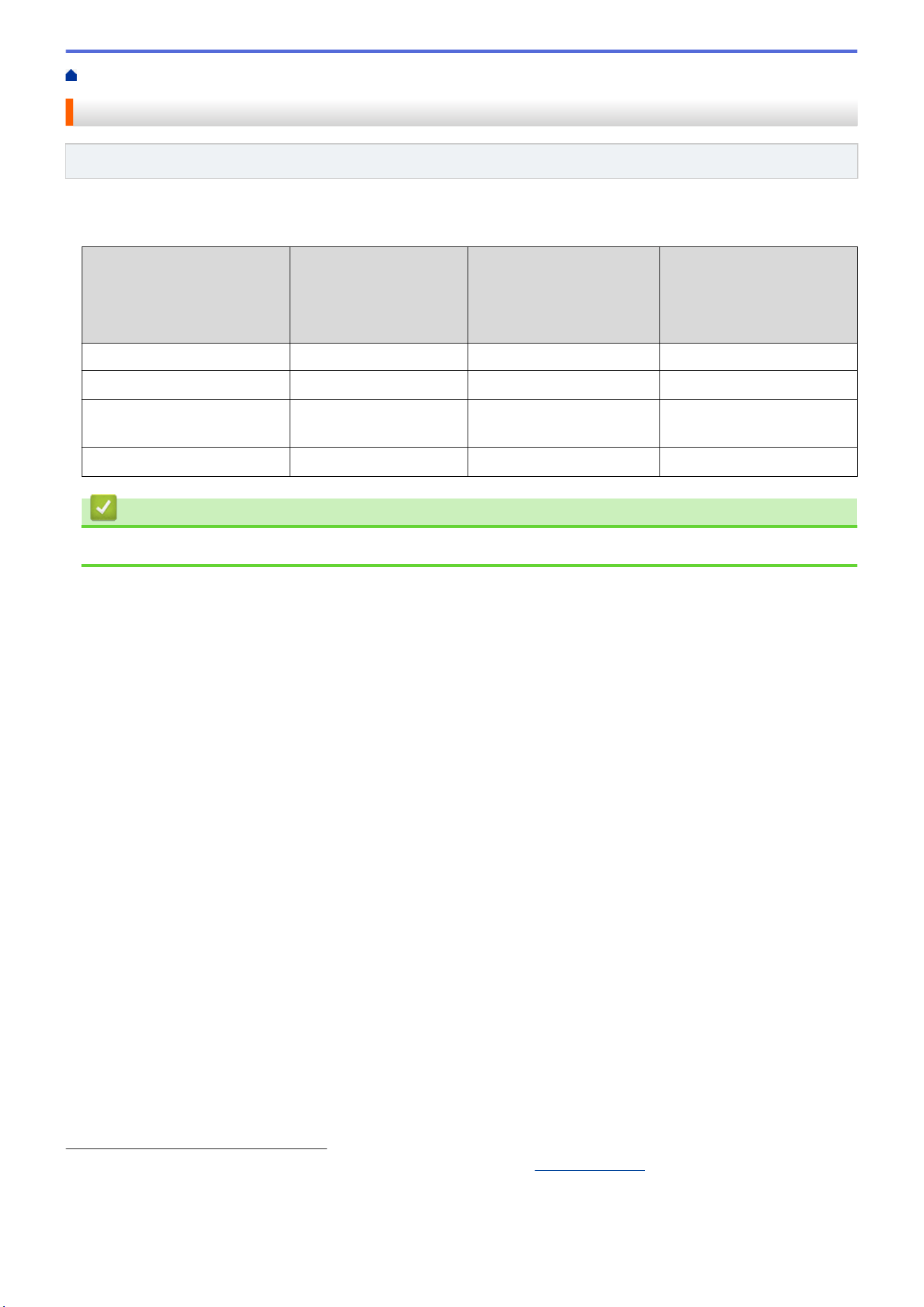
The machine supports various features depending on the operating system. Use this table to see which network
features and connections are supported by each operating system.
Operating Systems
Windows 7 (SP1)
Windows 8.1
Windows 10
Windows Server 2012
Windows Server 2012 R2
Windows Server 2016
Windows Server 2019
macOS v10.12.x
macOS v10.13.x
macOS v10.14.x
Scanning Yes Yes Yes
BRAdmin Light
1 2
Yes Yes
Web Based Management
(supported models only)
2
Yes Yes Yes
Remote Setup
2
Yes Yes
Related Information
• Network
1
BRAdmin Light is available as a download from your model's Downloads page at support.brother.com.
2
The default password for managing machine settings is either:
• the password located on the bottom of the machine and marked "Pwd".
• initpass
We recommend you change it to protect your machine from unauthorized access.
65


Home > Network > Network Management Software and Utilities > Learn about Network Management
Software and Utilities
Learn about Network Management Software and Utilities
Related Models: DSmobile DS-940DW
Web Based Management (supported models only)
Web Based Management is a utility that uses a standard web browser to manage your machine using the Hyper
Text Transfer Protocol (HTTP) or Hyper Text Transfer Protocol over Secure Socket Layer (HTTPS). Type your
machine's IP address into your web browser to access and change your scanner settings.
BRAdmin Light (Windows) (supported models only)
BRAdmin Light is a utility for the initial setup of Brother network-connected devices. This utility can search for
Brother products on your network, view the status and configure the basic network settings, such as IP address.
Go to your model's Downloads page at support.brother.com to download the latest version of Brother's
BRAdmin Light.
• If using Windows Firewall, or the firewall function of an anti-spyware or antivirus application, temporarily
disable them. When you are sure you can scan, configure the software settings by following the
manufacturer's instructions.
Remote Setup (Windows and Mac)
Remote Setup is a program for configuring many machine and network settings from either a Windows or a Mac
application. When you start this application, the settings on your machine are automatically downloaded to your
computer and displayed on your computer screen. If you change the settings, you can upload them directly to the
machine.
This utility can be used with either a USB or a network connection.
Related Information
• Network Management Software and Utilities
Related Topics:
• Check the IP Address of Network Devices
67

Home > Network > Additional Methods of Configuring Your Brother Machine for a Wireless Network
Additional Methods of Configuring Your Brother Machine for a Wireless
Network
Related Models: DSmobile DS-940DW
• Before Configuring Your Brother Machine for a Wireless Network
• Configure Your Machine for a Wireless Network Using the One-Push Method of Wi-Fi
Protected Setup
™
(WPS)
• Configure Your Machine for a Wireless Network Using the PIN Method of Wi-Fi Protected
Setup
™
(WPS)
• Use Wireless Direct
• Use Infrastructure Mode
68

Home > Network > Additional Methods of Configuring Your Brother Machine for a Wireless
Network > Before Configuring Your Brother Machine for a Wireless Network
Before Configuring Your Brother Machine for a Wireless Network
Related Models: DSmobile DS-940DW
Before attempting to configure a wireless network, confirm the following:
• Before configuring wireless settings, you must know your Network Name (SSID) and Network Key
(Password).
If you do not know this security information, contact the router manufacturer, your system administrator, or
your Internet provider.
• To achieve optimum results with normal everyday document scanning, place the Brother machine as close to
the wireless access point/router as possible with minimal obstructions. Large objects and walls between the
two devices and interference from other electronic devices can affect the data transfer speed of your
documents.
Due to these factors, wireless may not be the best method of connection for all types of documents and
applications.
Related Information
• Additional Methods of Configuring Your Brother Machine for a Wireless Network
69
Home > Network > Additional Methods of Configuring Your Brother Machine for a Wireless
Network > Configure Your Machine for a Wireless Network Using the One-Push Method of Wi-Fi Protected
Setup
™
(WPS)
Configure Your Machine for a Wireless Network Using the One-Push
Method of Wi-Fi Protected Setup
™
(WPS)
Related Models: DSmobile DS-940DW
If your wireless access point/router supports Wi-Fi Protected Setup
™
(WPS), you can use WPS from your
machine to configure your wireless network settings.
Routers or access points that support WPS are marked with this symbol:
1. Slide the Mode Select Switch to .
The Wi-Fi LED blinks.
2. Press and hold the WPS button on your machine for two seconds.
The Wi-Fi LED starts to blink more rapidly.
3. Press the WPS button on your wireless access point/router.
If your machine is connected successfully, the Wi-Fi LED stop blinking and becomes lit.
You have completed the wireless network setup. To install drivers and software necessary for operating your
machine, go to your model's Downloads page at
support.brother.com.
To configure additional Network Settings, use the Web Based Management. See Related Information: Access
Web Based Management.
Related Information
• Additional Methods of Configuring Your Brother Machine for a Wireless Network
Related Topics:
• Access Web Based Management
70
Home > Network > Additional Methods of Configuring Your Brother Machine for a Wireless
Network > Configure Your Machine for a Wireless Network Using the PIN Method of Wi-Fi Protected Setup
™
(WPS)
Configure Your Machine for a Wireless Network Using the PIN Method
of Wi-Fi Protected Setup
™
(WPS)
Related Models: DSmobile DS-940DW
If your wireless access point/router supports WPS, you can use the Personal Identification Number (PIN) Method
to configure your wireless network settings.
The PIN Method is one of the connection methods developed by the Wi-Fi Alliance
®
. By submitting a PIN
created by an Enrollee (your machine) to the Registrar (a device that manages the wireless LAN), you can set up
the wireless network and security settings. For more information on how to access WPS mode, see the
instructions provided with your wireless access point/router.
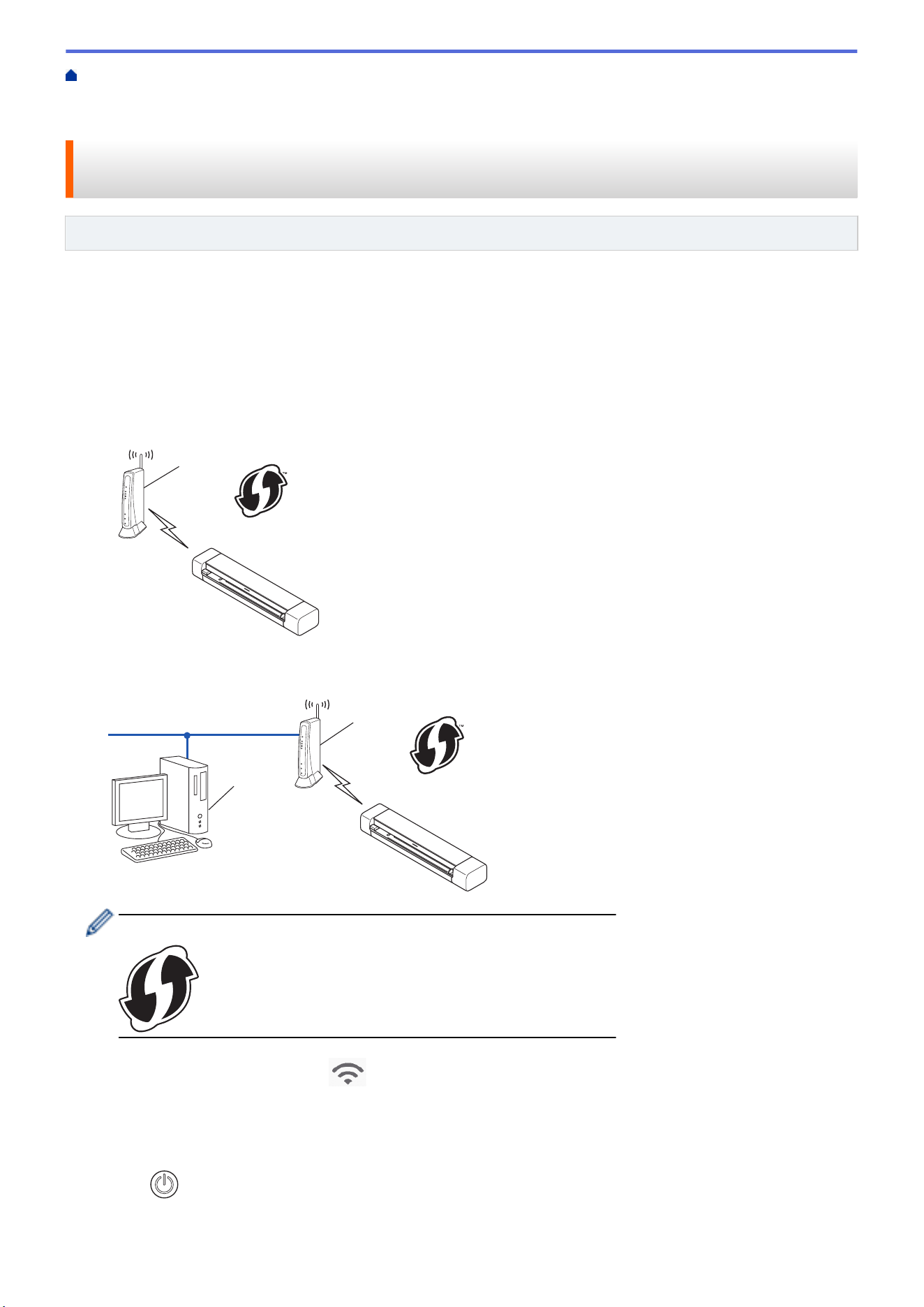
Type A
Connection when the wireless access point/router (1) doubles as the Registrar.
1
Type B
Connection when another device (2), such as a computer, is used as the Registrar.
1
2
Routers or access points that support WPS are marked with this symbol:
1. Slide the Mode Select Switch to .
The Wi-Fi LED starts to blink.
2. Press and hold the WPS button on your machine for two seconds.
The Wi-Fi LED blinks rapidly.
3. Press
.
The Wi-Fi LED blinks normally.
71
4. Using a computer connected to the network, in your browser's address bar, type the IP address of the device
you are using as the Registrar. (For example: http://192.168.1.2)
5. Go to the WPS settings page and type the PIN indicated on the label attached to the machine, and then
follow the on-screen instructions.
• The Registrar is usually the wireless access point/router.
• The settings page will differ depending on the brand of wireless access point/router. For more detailed
information, see the instructions supplied with your wireless access point/router.
If using a Windows 7, Windows 8.1, or Windows 10 computer as a Registrar, complete the following
steps:
6. Do one of the following:
• Windows 10
Click
> Windows System > Control Panel. In the Hardware and Sound group, click Add a device.
• Windows 8.1
Move your mouse to the lower right corner of your desktop. When the menu bar appears, click Settings >
Control Panel > Hardware and Sound > Devices and Printers > Add a device.
• Windows 7
Click
(Start) > Devices and Printers > Add a device.
• To use Windows 7, Windows 8.1, or Windows 10 computer as a Registrar, you must register it to your
network in advance. For more detailed information, see the instructions supplied with your wireless
access point/router.
• If you use Windows 7, Windows 8.1, or Windows 10 as a Registrar, you can install the scanner driver
after the wireless configuration by following the on-screen instructions. To install the full driver and
software package, see the Quick Setup Guide.
7. Select your machine and click Next.
8. Type the PIN indicated on the label attached to the machine, and then click Next.
9. (Windows 7 only) Select your network, and then click Next.
10. Click Close.
If your wireless device is connected successfully, the Wi-Fi LED on the machine lights up.
Related Information
• Additional Methods of Configuring Your Brother Machine for a Wireless Network
72

Home > Network > Additional Methods of Configuring Your Brother Machine for a Wireless Network > Use
Wireless Direct > Scan from Your Wireless Device Using Wireless Direct
Scan from Your Wireless Device Using Wireless Direct
Related Models: DSmobile DS-940DW
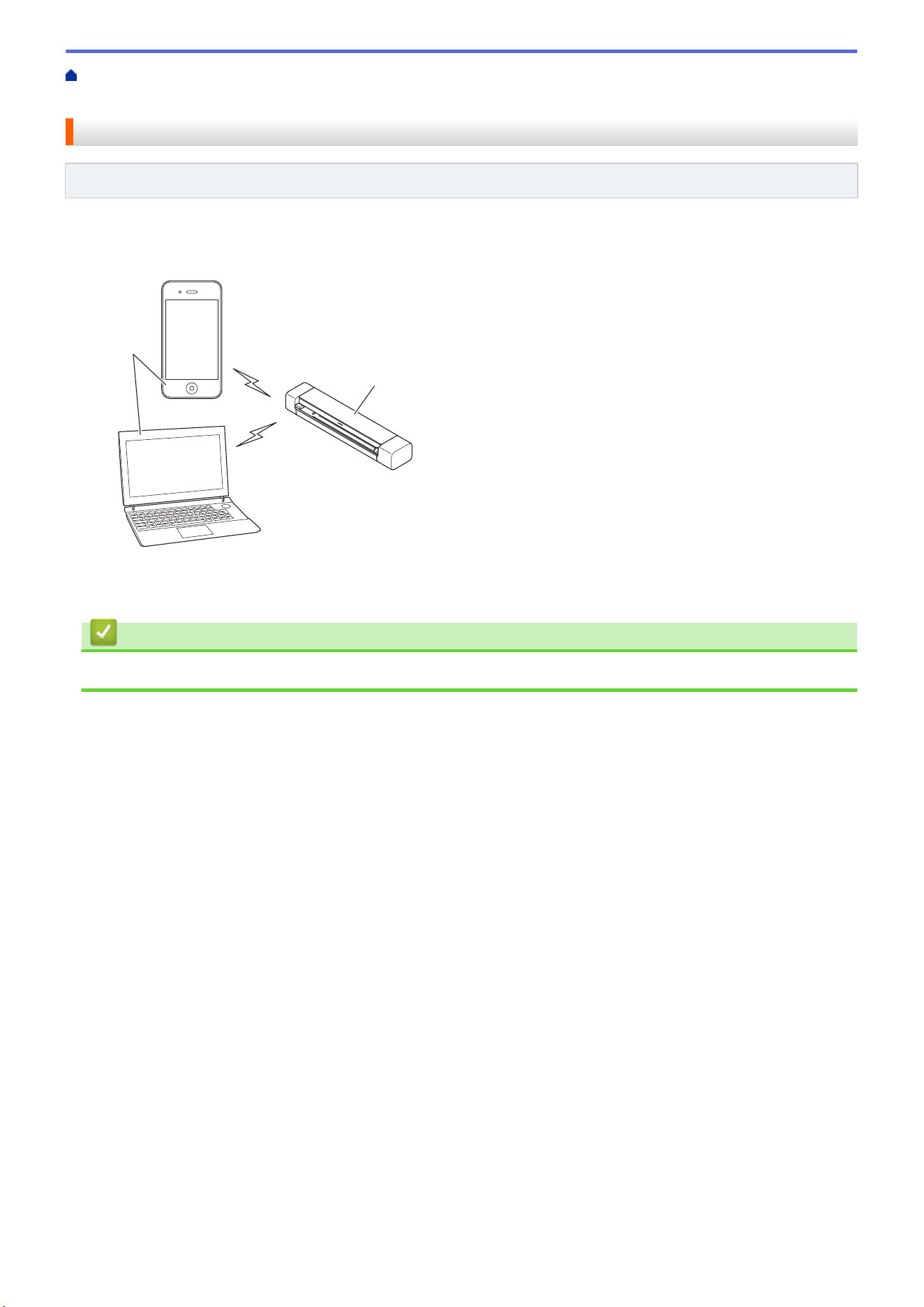
Wireless Direct allows you to configure a secured wireless network between your Brother machine and your
wireless device (computer, smartphone, tablet, or similar), without using a wireless router/access point. You can
configure a wireless network by manually setting a Network Name (SSID) and Network Key (Password).
2
1
1. Wireless devices
2. Your Brother machine
Related Information
• Use Wireless Direct
74
Home > Network > Additional Methods of Configuring Your Brother Machine for a Wireless Network > Use
Wireless Direct > Configure Your Wireless Direct Network
Configure Your Wireless Direct Network
Related Models: DSmobile DS-940DW
1. Slide the Mode Select Switch to .
2. Activate the Wi-Fi function on your wireless device and search for the scanner.
3. Select the scanner's SSID (Network Name) (DIRECT-xxDS-940DW_BRxxxx) on your wireless device.
4. Enter the Network Key (Password) when prompted.
SSID and Network Key are printed on the label attached to the scanner.
Related Information
• Use Wireless Direct
75

Home > Network > Additional Methods of Configuring Your Brother Machine for a Wireless Network > Use
Infrastructure Mode > Scan from Your Wireless Device Using Infrastructure Mode
Scan from Your Wireless Device Using Infrastructure Mode
Related Models: DSmobile DS-940DW
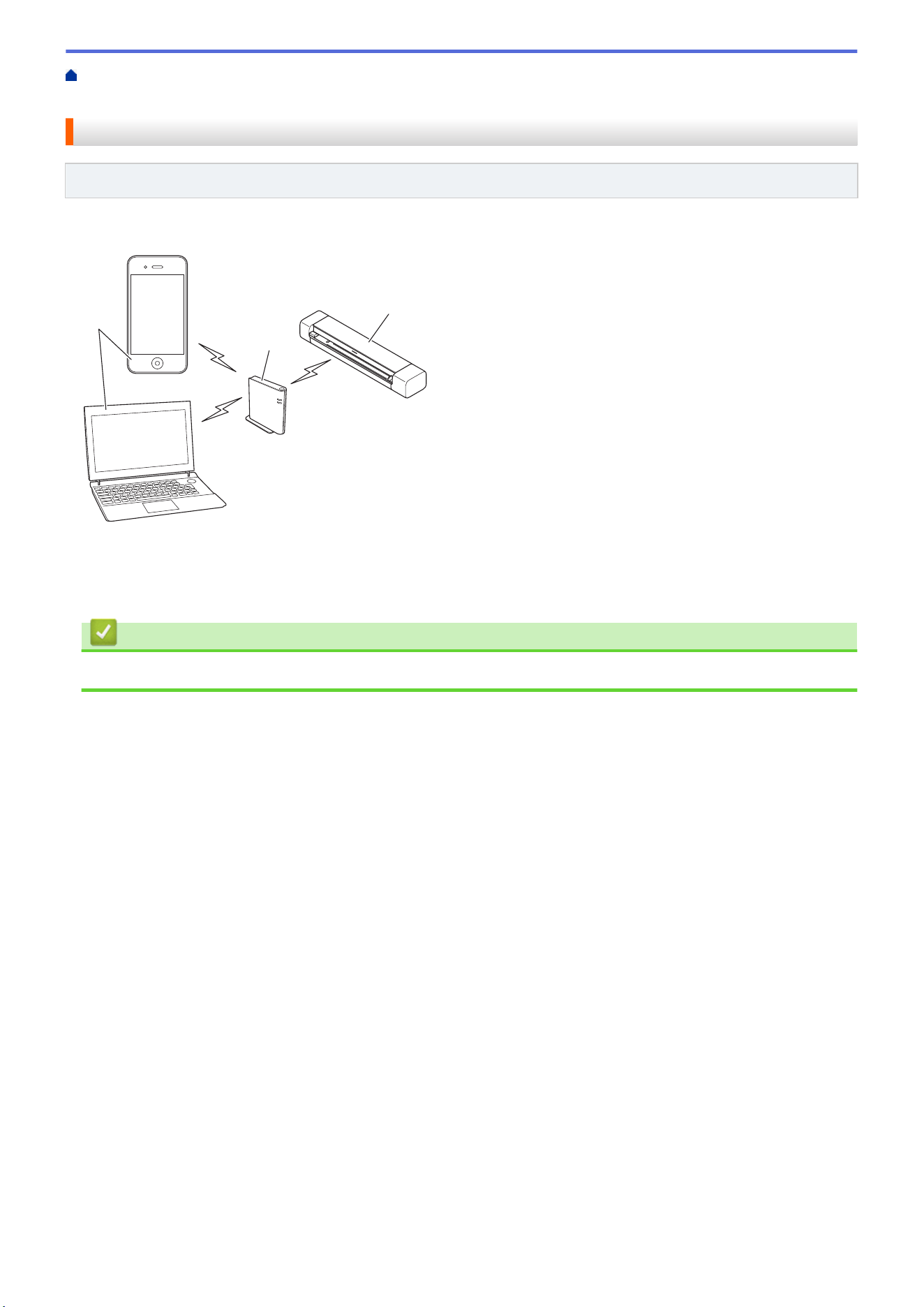
You can connect your wireless device (computer, smartphone, tablet, or similar) to your scanner via a wireless
router/access point.
3
2
1
1. Wireless devices
2. Wireless router/access point
3. Your Brother machine
Related Information
• Use Infrastructure Mode
77
Home > Network > Additional Methods of Configuring Your Brother Machine for a Wireless Network > Use
Infrastructure Mode > Configure Wi-Fi Settings in Infrastructure Mode
Configure Wi-Fi Settings in Infrastructure Mode
Related Models: DSmobile DS-940DW
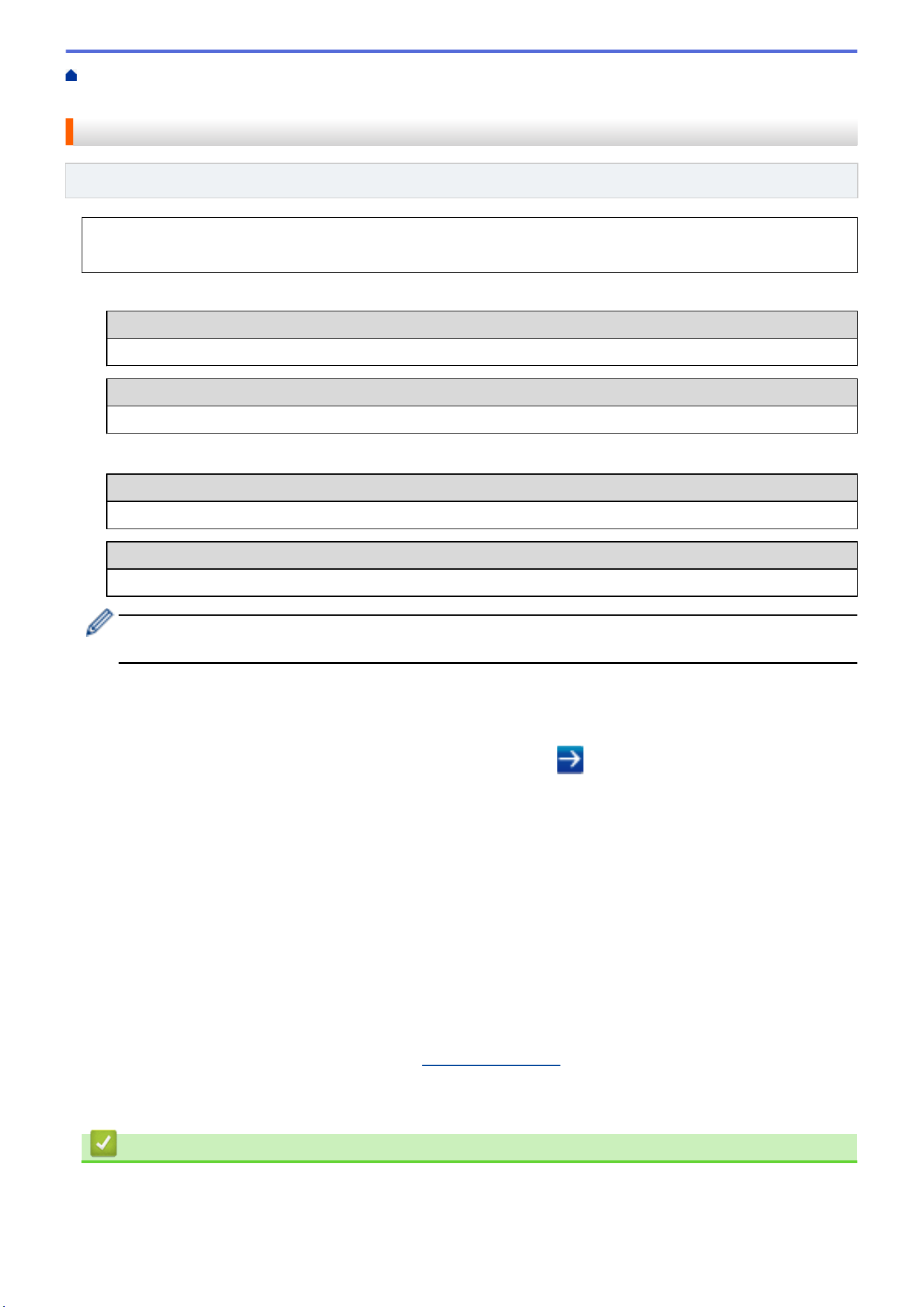
Before configuring your machine, we recommend writing down your wireless network settings. You will need
this information before you continue with the configuration.
1. Check and write down the current wireless network settings.
Network Name (SSID)
Network Key (Password)
For example:
Network Name (SSID)
HELLO
Network Key (Password)
12345
If your router uses WEP encryption, enter the Network Key (Password) used as the first WEP key. Your
Brother machine supports the use of the first WEP key only.
2. Connect the scanner to your computer using Wireless Direct.
3. Start your web browser.
4. Type "https://192.168.118.1" in your browser's address bar.
If the machine prompts you for a password, type it, and then click
. If you have not previously set your
own password, type the default login password. The default password for managing machine settings is
either:
• the password located on the bottom of the machine and marked "Pwd".
• initpass
5. Click the Network tab.
6. Click Wireless.
7. Click the Wireless (Setup Wizard) menu in the left navigation bar.
8. Click the Start Wizard button.
Wireless Setup Wizard starts automatically.
9. Follow the on-screen instructions to complete the wireless network setup.
You have completed the wireless network setup. To install drivers and software necessary for operating your
machine, go to your model's Downloads page at
support.brother.com.
To configure additional Network Settings, use the Web Based Management. See Related Information: Access
Web Based Management.
Related Information
• Use Infrastructure Mode
78



Home > Network > Advanced Network Features > Synchronize Time with the SNTP Server Using Web
Based Management
Synchronize Time with the SNTP Server Using Web Based Management
Related Models: DSmobile DS-940DW
The Simple Network Time Protocol (SNTP) is used to synchronize the time used by the machine for
authentication with the SNTP time server. You can automatically or manually synchronize the machine's time with
the Coordinated Universal Time (UTC) provided by the SNTP time server.
• Configure Date and Time Using Web Based Management
• Configure the SNTP Protocol Using Web Based Management
81
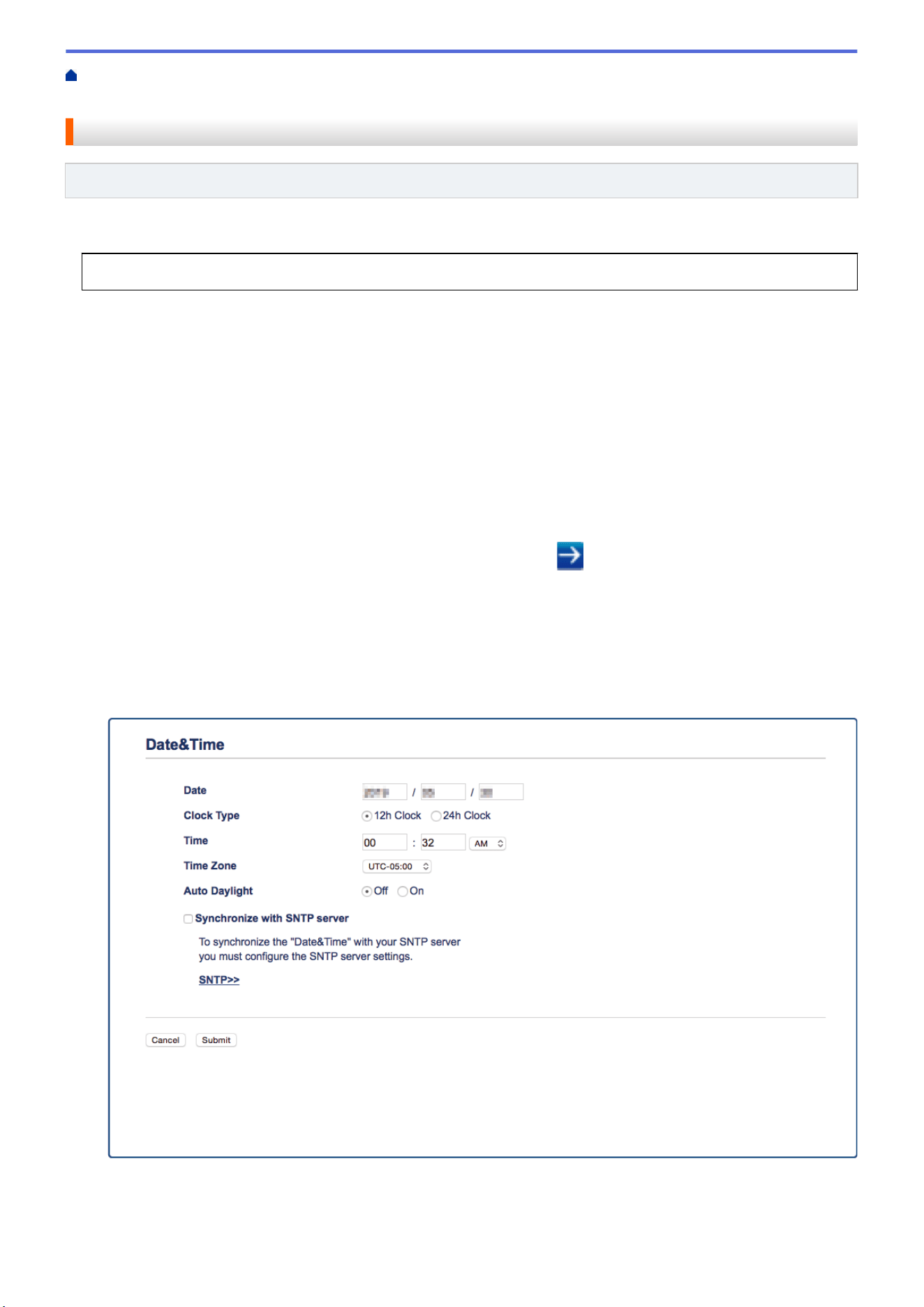
Home > Network > Advanced Network Features > Synchronize Time with the SNTP Server Using Web
Based Management > Configure Date and Time Using Web Based Management
Configure Date and Time Using Web Based Management
Related Models: DSmobile DS-940DW
Configure the date and time to synchronize the time used by the machine with the SNTP time server.
This feature is not available in some countries.
1. Start your web browser.
2. Do one of the following:
• When using Wireless Direct
Type "https://192.168.118.1" in your browser's address bar.
• When using infrastructure mode
Type "https://machine's IP address" in your browser's address bar (where "machine's IP address" is the
machine's IP address).
For example:
https://192.168.1.2
If the machine prompts you for a password, type it, and then click
. If you have not previously set your
own password, type the default login password. The default password for managing machine settings is
either:
• the password located on the bottom of the machine and marked "Pwd".
• initpass
3. Click the Administrator tab.
4. Click Date&Time in the left navigation bar.
5. Select the time difference between your location and UTC from the Time Zone drop-down list.
For example, the time zone for Eastern Time in the USA and Canada is UTC-05:00.
6. Select the Synchronize with SNTP server check box.
82

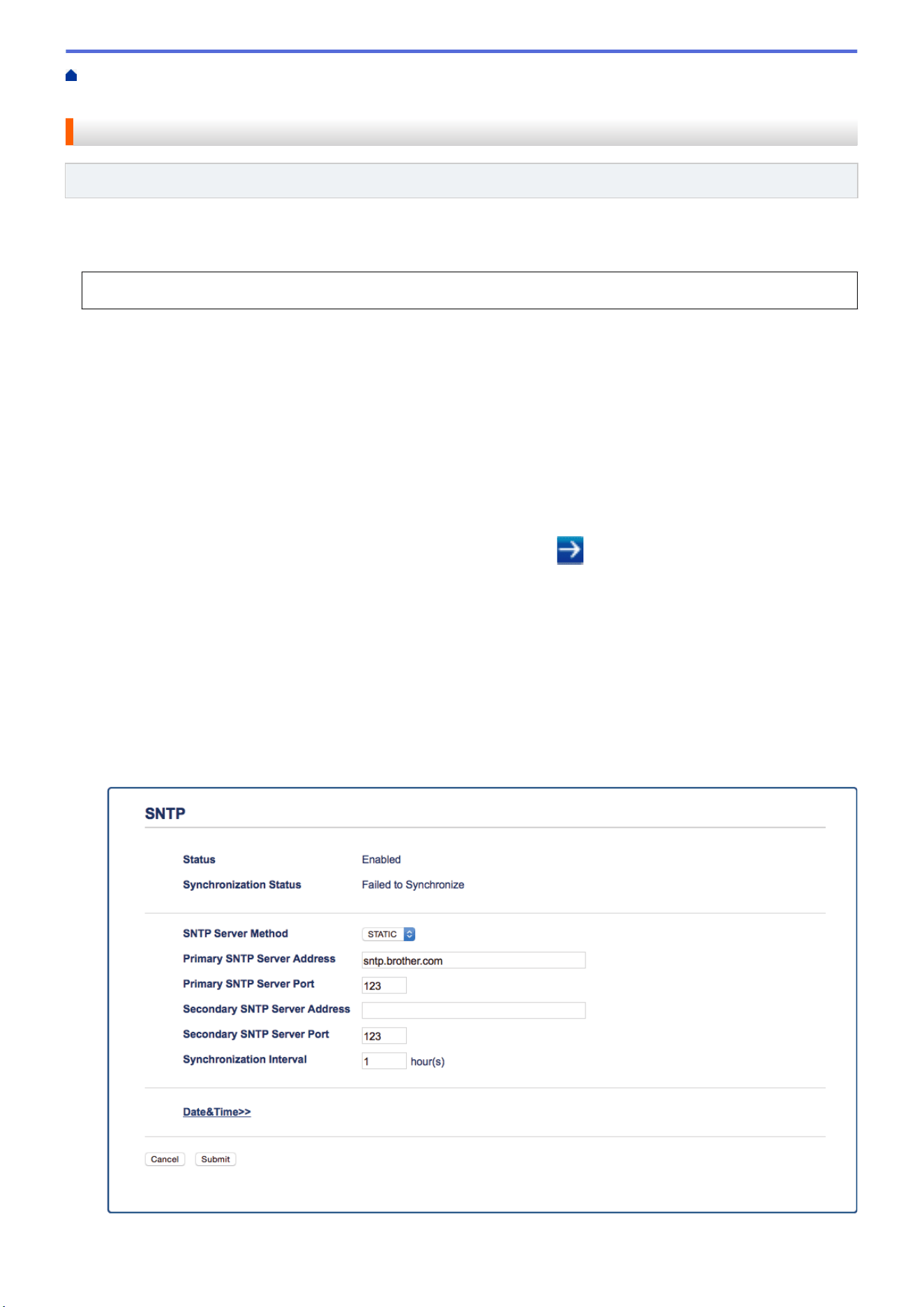
Home > Network > Advanced Network Features > Synchronize Time with the SNTP Server Using Web
Based Management > Configure the SNTP Protocol Using Web Based Management
Configure the SNTP Protocol Using Web Based Management
Related Models: DSmobile DS-940DW
Configure the SNTP protocol to synchronize the time the machine uses for authentication with the time kept by
the SNTP time server.
This feature is not available in some countries.
1. Start your web browser.
2. Do one of the following:
• When using Wireless Direct
Type "https://192.168.118.1" in your browser's address bar.
• When using infrastructure mode
Type "https://machine's IP address" in your browser's address bar (where "machine's IP address" is the
machine's IP address).
For example:
https://192.168.1.2
If the machine prompts you for a password, type it, and then click
. If you have not previously set your
own password, type the default login password. The default password for managing machine settings is
either:
• the password located on the bottom of the machine and marked "Pwd".
• initpass
3. Click the Network tab.
4. Click the Protocol menu in the left navigation bar.
5. Select the SNTP check box to activate the settings.
6. Restart your Brother machine to activate the configuration.
7. Next to the SNTP check box, click Advanced Setting and configure your settings as needed.
84

Option Description
Status Displays whether the SNTP protocol is enabled or disabled.
Synchronization Status Confirm the latest synchronization status.
SNTP Server Method Select AUTO or STATIC.
• AUTO
If you have a DHCP server in your network, the SNTP server will obtain
the address from that server automatically.
• STATIC
Type the address you want to use.
Primary SNTP Server
Address
Secondary SNTP Server
Address
Type the server address (up to 64 characters).
The secondary SNTP server address is used as a backup to the primary
SNTP server address. If the primary server is unavailable, the machine will
contact the secondary SNTP server.
Primary SNTP Server Port
Secondary SNTP Server
Port
Type the port number (1-65535).
The secondary SNTP server port is used as a backup to the primary SNTP
server port. If the primary port is unavailable, the machine will contact the
secondary SNTP port.
Synchronization Interval Type the number of hours between server synchronization attempts (1-168
hours).
8. Click Submit.
Related Information
• Synchronize Time with the SNTP Server Using Web Based Management
Related Topics:
• Check the IP Address of Network Devices
85




Home > Security > Network Security Features > Manage Your Network Machine Securely Using SSL/
TLS > Certificates and Web Based Management
Certificates and Web Based Management
Related Models: DSmobile DS-940DW
• Supported Security Certificate Features
• Import and Export a CA Certificate
• Manage Multiple Certificates
• Create a Self-signed Certificate
• Install the Self-signed Certificate for Windows users with Administrator Rights
• Import and Export the Self-signed Certificate on your Brother Machine
89

Home > Security > Network Security Features > Manage Your Network Machine Securely Using SSL/
TLS > Certificates and Web Based Management > Supported Security Certificate Features
Supported Security Certificate Features
Related Models: DSmobile DS-940DW
Your Brother machine supports the use of multiple security certificates, which allows secure management,
authentication, and communication with the machine.
The machine can use SSL/TLS communication and supports the following types of security certificates:
• Pre-installed certificate
Your machine has a pre-installed self-signed certificate. This certificate enables you to use SSL/TLS
communication without creating or installing a different certificate.
The pre-installed self-signed certificate protects your communication up to a certain level. We recommend
using a certificate that is issued by a trusted organization for better security.
• Self-signed certificate
This machine issues its own certificate. Using this certificate, you can easily use the SSL/TLS communication
without creating or installing a different certificate from a CA.
• Certificate from a Certificate Authority (CA)
There are two methods for installing a certificate from a CA. If you already have a certificate from a CA or if
you want to use a certificate from an external trusted CA:
- When using a Certificate Signing Request (CSR) from this machine.
- When importing a certificate and a private key.
• Certificate Authority (CA) Certificate
To use a CA certificate that identifies the CA and owns its private key, you must import that CA certificate
from the CA before configuring the security features of the Network.
• If you are going to use SSL/TLS communication, we recommend contacting your system administrator
first.
• When you reset the machine back to its default factory settings, the certificate and the private key that
are installed will be deleted. If you want to keep the same certificate and the private key after resetting
the machine, export them before resetting, and then reinstall them.
Related Information
• Certificates and Web Based Management
90

Home > Security > Network Security Features > Manage Your Network Machine Securely Using SSL/
TLS > Certificates and Web Based Management > Import and Export a CA Certificate
Import and Export a CA Certificate
Related Models: DSmobile DS-940DW
1. Start your web browser.
2. Do one of the following:
• When using Wireless Direct
Type "https://192.168.118.1" in your browser's address bar.
• When using infrastructure mode
Type "https://machine's IP address" in your browser's address bar (where "machine's IP address" is the
machine's IP address).
For example:
https://192.168.1.2
If the machine prompts you for a password, type it, and then click
. If you have not previously set your
own password, type the default login password. The default password for managing machine settings is
either:
• the password located on the bottom of the machine and marked "Pwd".
• initpass
3. Click the Network tab.
4. Click the Security tab.
5. Click CA Certificate.
6. Do one of the following:
• To import a CA Certificate, click Import CA Certificate. Browse to select the file you want to import.
• To export a CA Certificate, select the certificate you want to export and click Export.
7. Click Submit.
Related Information
• Certificates and Web Based Management
Related Topics:
• Check the IP Address of Network Devices
91

Home > Security > Network Security Features > Manage Your Network Machine Securely Using SSL/
TLS > Certificates and Web Based Management > Manage Multiple Certificates
Manage Multiple Certificates
Related Models: DSmobile DS-940DW
The multiple certificate feature allows you to use Web Based Management to manage each certificate installed
on your machine. In Web Based Management, navigate to the CA Certificate screen to view certificate content,
delete, or export your certificates.
You can store up to seven CA certificates to use SSL.
We recommend storing one certificate fewer than allowed, reserving an empty spot in case of certificate
expiration. When a certificate expires, import a new certificate into the reserved spot, and then delete the expired
certificate. This ensures that you avoid configuration failure.
Related Information
• Certificates and Web Based Management
92

Home > Security > Network Security Features > Manage Your Network Machine Securely Using SSL/
TLS > Certificates and Web Based Management > Create a Self-signed Certificate
Create a Self-signed Certificate
Related Models: DSmobile DS-940DW
1. Start your web browser.
2. Do one of the following:
• When using Wireless Direct
Type "https://192.168.118.1" in your browser's address bar.
• When using infrastructure mode
Type "https://machine's IP address" in your browser's address bar (where "machine's IP address" is the
machine's IP address).
For example:
https://192.168.1.2
If the machine prompts you for a password, type it, and then click
. If you have not previously set your
own password, type the default login password. The default password for managing machine settings is
either:
• the password located on the bottom of the machine and marked "Pwd".
• initpass
3. Click the Network tab.
4. Click the Security tab.
5. Click the Certificate menu in the left navigation bar.
6. Click Create Self-Signed Certificate.
7. Enter a Common Name and a Valid Date.
• The length of the Common Name is less than 64 bytes. Enter an identifier, such as an IP address, node
name, or domain name to use when accessing this machine through SSL/TLS communication. The node
name is displayed by default.
• A warning will appear if you use the IPPS or HTTPS protocol and enter a different name in the URL than
the Common Name that was used for the self-signed certificate.
8. Select your setting from the Public Key Algorithm drop-down list. The default setting is RSA(2048bit).
9. Select your setting from the Digest Algorithm drop-down list. The default setting is SHA256.
10. Click Submit.
11. Click the Network tab.
12. Click the Protocol menu in the left navigation bar.
13. Click HTTP Server Settings.
14. Select the certificate you want to configure from the Select the Certificate drop-down list.
15. Click Submit.
16. Click Yes to restart your machine.
The self-signed certificate is created and saved in your machine's memory.
To use SSL/TLS communication, the self-signed certificate must be installed on your computer.
Related Information
• Certificates and Web Based Management
Related Topics:
• Check the IP Address of Network Devices
93
Home > Security > Network Security Features > Manage Your Network Machine Securely Using SSL/
TLS > Certificates and Web Based Management > Install the Self-signed Certificate for Windows users with
Administrator Rights
Install the Self-signed Certificate for Windows users with Administrator
Rights
Related Models: DSmobile DS-940DW
The following steps are for Microsoft Internet Explorer. If you use another web browser, consult the
documentation for your web browser to get help with installing certificates.
1. Do one of the following:
• Windows 10/Windows Server 2016/Windows Server 2019
Click
> Windows Accessories.
• Windows 8.1
Right-click the
(Internet Explorer) icon on the taskbar.
• Windows 7
Click
(Start) > All Programs.
• Windows Server 2012/Windows Server 2012 R2
Click (Internet Explorer), and then right-click the (Internet Explorer) icon that appears on the
taskbar.
2. Right-click Internet Explorer, and then click Run as administrator.
If the More option appears, click More.
If the User Account Control screen appears, click Yes.
3. Do one of the following:
• When using Wireless Direct
Type "https://192.168.118.1" in your browser's address bar.
• When using infrastructure mode
Type "https://machine's IP address" in your browser's address bar to access your machine (where
"machine's IP address" is the machine's IP address or the node name that you assigned for the
certificate).
4. Click Continue to this website (not recommended).
5. Click Certificate error, and then click View certificates.
94
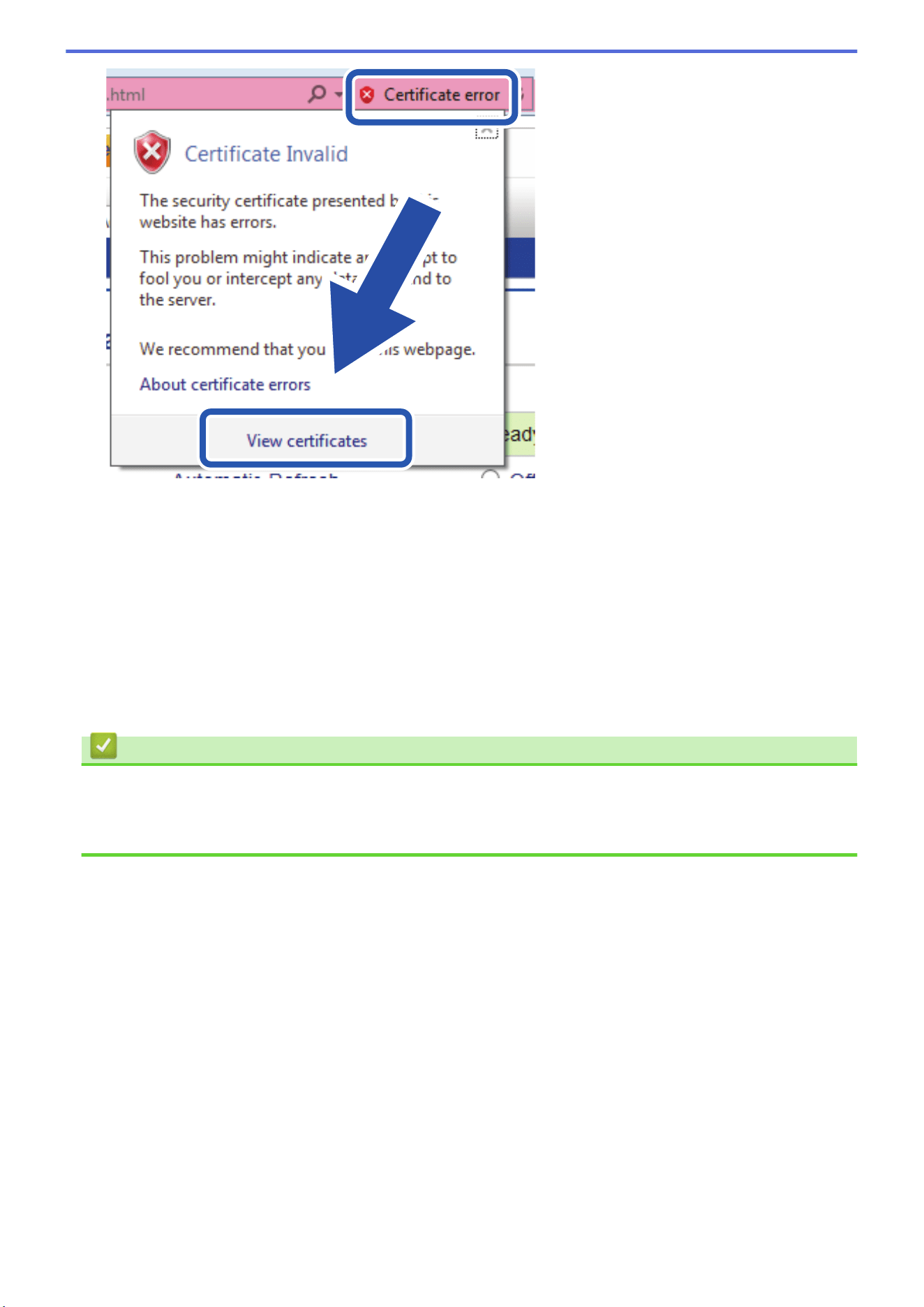
6. Click Install Certificate….
7. When the Certificate Import Wizard appears, click Next.
8. Select Place all certificates in the following store, and then click Browse….
9. Select Trusted Root Certification Authorities, and then click OK.
10. Click Next.
11. Click Finish.
12. Click Yes, if the fingerprint (thumbprint) is correct.
13. Click OK.
The self-signed certificate is now installed on your computer, and SSL/TLS communication is available.
Related Information
• Certificates and Web Based Management
Related Topics:
• Check the IP Address of Network Devices
95

Home > Security > Network Security Features > Manage Your Network Machine Securely Using SSL/
TLS > Certificates and Web Based Management > Import and Export the Self-signed Certificate on your
Brother Machine
Import and Export the Self-signed Certificate on your Brother Machine
Related Models: DSmobile DS-940DW
You can store the self-signed certificates on your Brother machine and manage them by importing and exporting.
• Import the Self-signed Certificate
• Export the Self-signed Certificate
96

Home > Security > Network Security Features > Manage Your Network Machine Securely Using SSL/
TLS > Certificates and Web Based Management > Import and Export the Self-signed Certificate on your
Brother Machine > Import the Self-signed Certificate
Import the Self-signed Certificate
Related Models: DSmobile DS-940DW
1. Start your web browser.
2. Do one of the following:
• When using Wireless Direct
Type "https://192.168.118.1" in your browser's address bar.
• When using infrastructure mode
Type "https://machine's IP address" in your browser's address bar (where "machine's IP address" is the
machine's IP address).
For example:
https://192.168.1.2
If the machine prompts you for a password, type it, and then click
. If you have not previously set your
own password, type the default login password. The default password for managing machine settings is
either:
• the password located on the bottom of the machine and marked "Pwd".
• initpass
3. Click the Network tab.
4. Click the Security tab.
5. Click the Certificate menu in the left navigation bar.
6. Click Import Certificate and Private Key.
7. Browse to the file you want to import.
8. Type the password if the file is encrypted, and then click Submit.
The self-signed certificate is imported to your machine.
To use SSL/TLS communication, the self-signed certificate must also be installed on your computer. For more
information, contact your network administrator.
Related Information
• Import and Export the Self-signed Certificate on your Brother Machine
Related Topics:
• Check the IP Address of Network Devices
97
Home > Security > Network Security Features > Manage Your Network Machine Securely Using SSL/
TLS > Certificates and Web Based Management > Import and Export the Self-signed Certificate on your
Brother Machine > Export the Self-signed Certificate
Export the Self-signed Certificate
Related Models: DSmobile DS-940DW
1. Start your web browser.
2. Do one of the following:
• When using Wireless Direct
Type "https://192.168.118.1" in your browser's address bar.
• When using infrastructure mode
Type "https://machine's IP address" in your browser's address bar (where "machine's IP address" is the
machine's IP address).
For example:
https://192.168.1.2
If the machine prompts you for a password, type it, and then click
. If you have not previously set your
own password, type the default login password. The default password for managing machine settings is
either:
• the password located on the bottom of the machine and marked "Pwd".
• initpass
3. Click the Network tab.
4. Click the Security tab.
5. Click the Certificate menu in the left navigation bar.
6. Click Export shown with Certificate List.
7. If you want to encrypt the file, type a password in the Enter password field.
If the Enter password field is blank, your output file will not be encrypted.
8. Type the password again in the Retype password field, and then click Submit.
9. Click Save.
The self-signed certificate is exported to your computer.
You can also import the self-signed certificate to your computer.
Related Information
• Import and Export the Self-signed Certificate on your Brother Machine
Related Topics:
• Check the IP Address of Network Devices
98

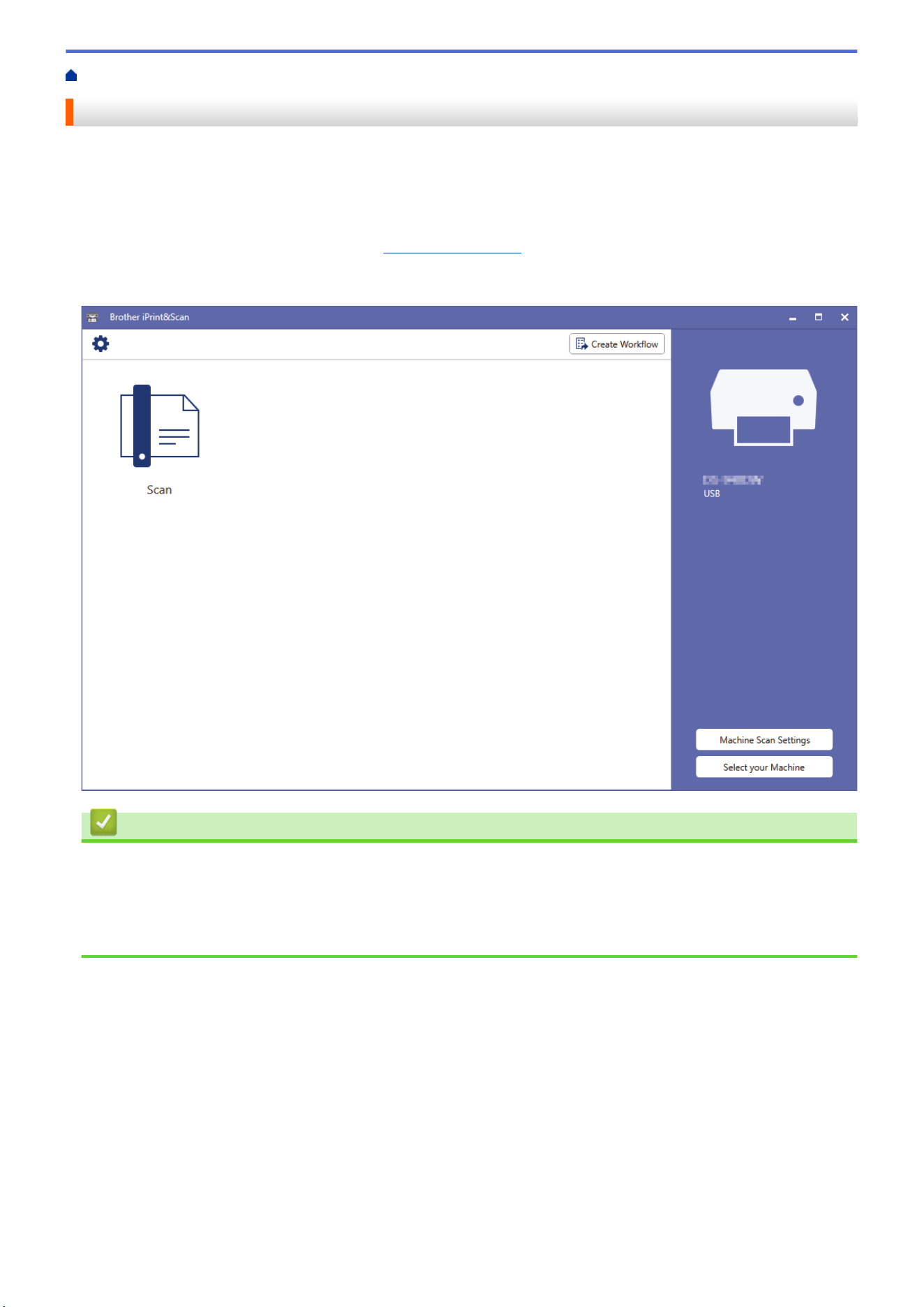
Home > Brother iPrint&Scan for Windows and Mac > Brother iPrint&Scan Overview
Brother iPrint&Scan Overview
Use Brother iPrint&Scan for Windows and Mac to scan from your computer.
The following screen shows an example of Brother iPrint&Scan for Windows. You can use it to scan documents
and check your machine’s status. The actual screen may differ depending on the version of the application.
• Windows
Go to your model's Downloads page at
support.brother.com to download the latest application.
• Mac
Download and install Brother iPrint&Scan from the App Store.
Related Information
• Brother iPrint&Scan for Windows and Mac
Related Topics:
• Scan Using Brother iPrint&Scan (Windows)
• Scan Using Brother iPrint&Scan (Mac)
100

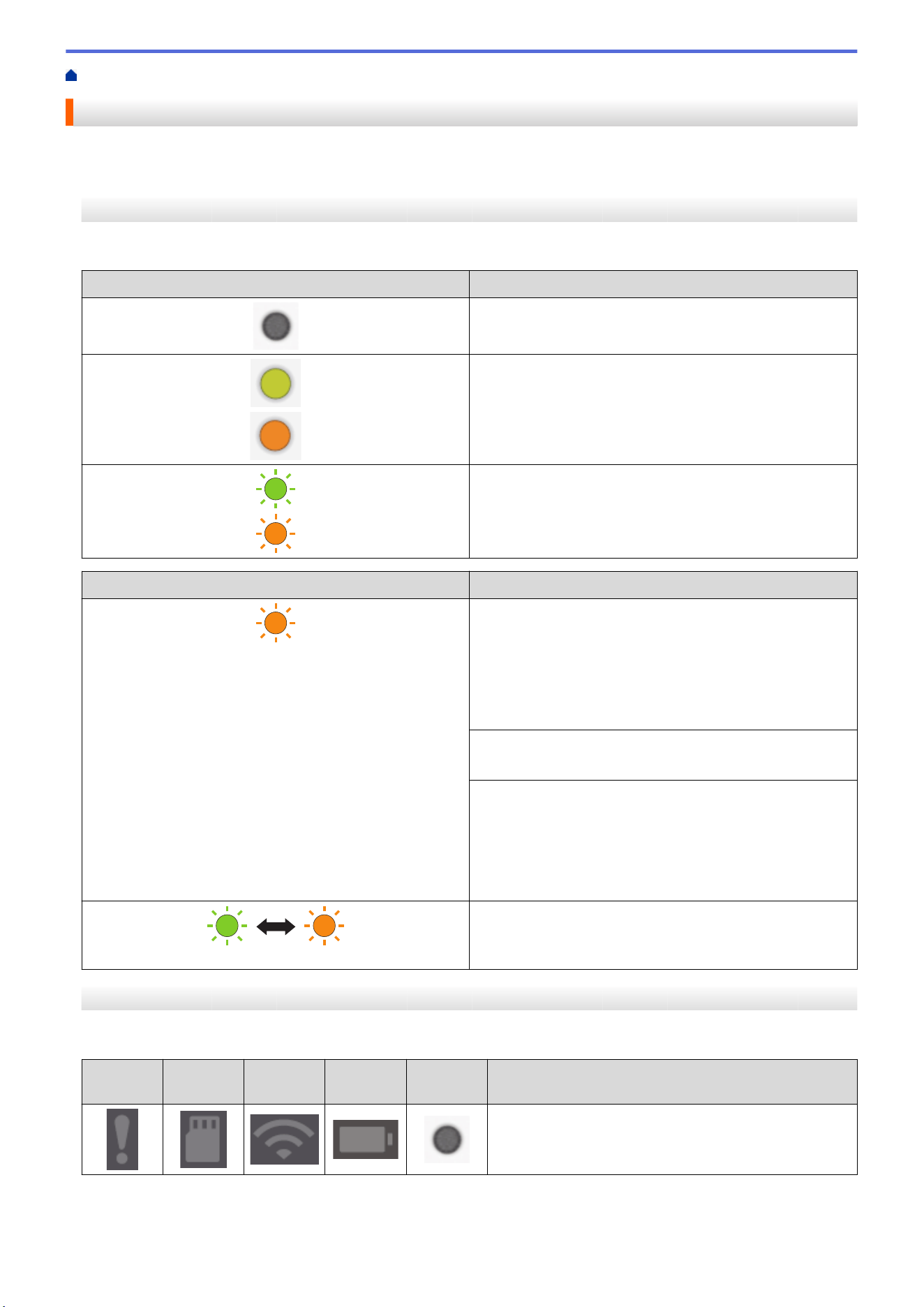
Home > Troubleshooting > Error and Maintenance Indications
Error and Maintenance Indications
>> DSmobile DS-635/DSmobile DS-640/DSmobile DS-740D
>> DSmobile DS-940DW
DSmobile DS-635/DSmobile DS-640/DSmobile DS-740D
The LED indications on the control panel are explained in this table.
Power/Scan LED Description
The LED is off.
The LED is lit in the color shown.
The LED is blinking in the color shown.
Power/Scan LED Machine Status
Document Jam
Clear the document jam.
If scanning a long document, select Long Paper from the
Scan Size or Document Size drop-down list.
When inserting an embossed card, make sure to insert it
embossed side up into the Feeder Slot.
Top Cover Open
The Top Cover is open. Close the Top Cover.
Insufficient Storage Space
When using the Scan to PC function, there may not be
enough memory in the destination folder for the scanned
data. Press START/STOP to clear the error. Make sure
that there is enough space in the destination folder to
save the scanned data.
Updating the Firmware
Firmware update in progress. Wait for the update to
complete.
DSmobile DS-940DW
The LED indications on the control panel are explained in this table.
Error LED
SD Card
LED
Wi-Fi LED Battery
LED
Power/
Scan LED
Description
The LED is off.
102
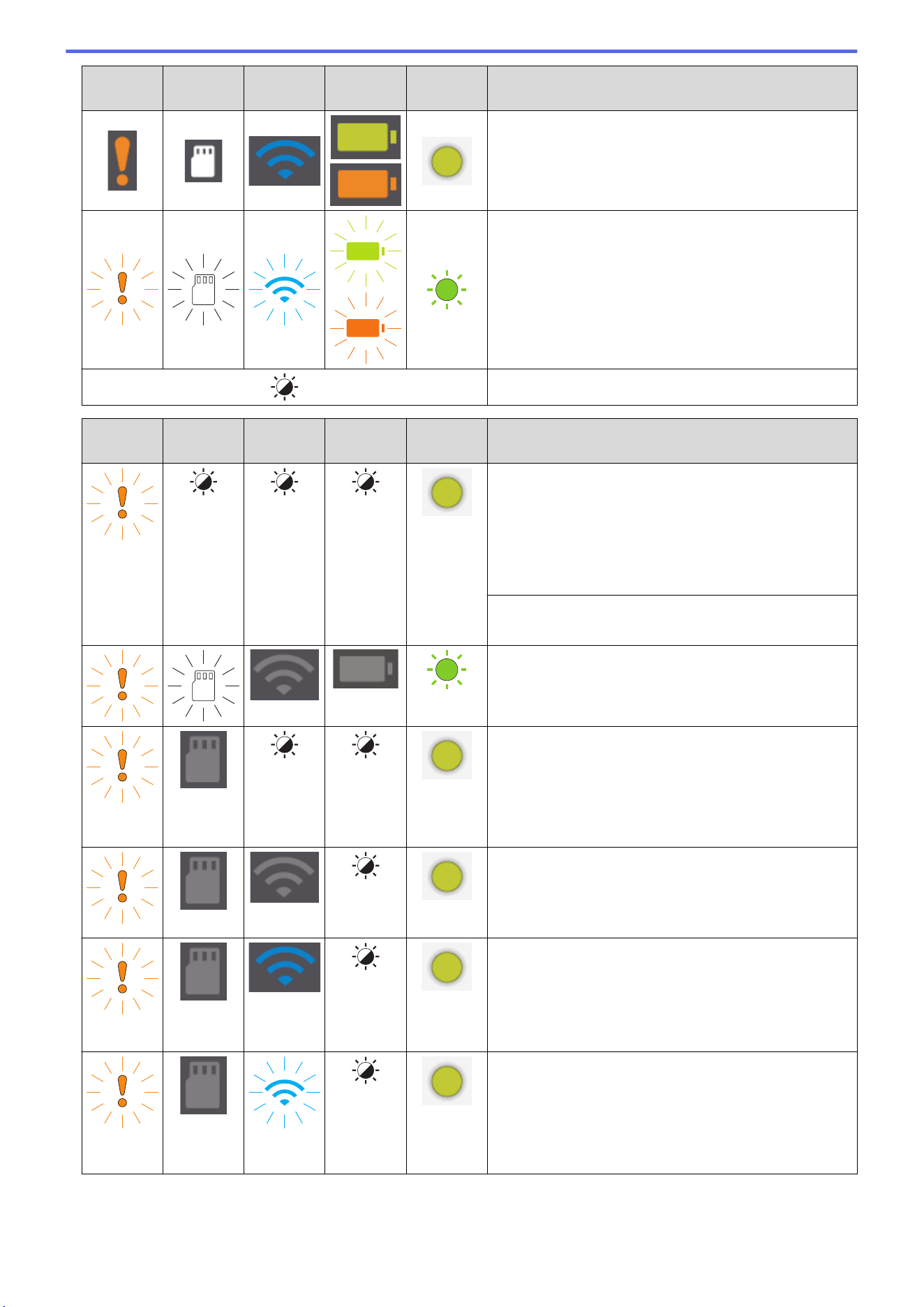
Error LED SD Card
LED
Wi-Fi LED Battery
LED
Power/
Scan LED
Description
The LED is lit in the color shown.
The LED is blinking in the color shown.
The LED can be off, lit, or blinking in any color.
Error LED SD Card
LED
Wi-Fi LED Battery
LED
Power/
Scan LED
Machine Status
Document Jam
Clear the document jam.
If scanning a long document, select Long Paper from
the Scan Size or Document Size drop-down list.
When inserting an embossed card, make sure to insert
it embossed side up into the Feeder Slot.
Top Cover Open
The Top Cover is open. Close the Top Cover.
Updating the Firmware
Firmware update in progress. Wait for the update to
complete.
Insufficient Storage Space
When using the Scan to PC function, there may not be
enough memory in the destination folder for the
scanned data. Press START/STOP to clear the error.
Make sure that there is enough space in the
destination folder to save the scanned data.
Access Error
Scan to PC
The USB cable is not connected to the machine.
Connect the USB cable.
Access Error
Scan to PC
The Scan to PC settings were not configured in
Remote Setup.
Configure the Scan to PC settings in Remote Setup.
(blinking
slowly)
Wireless Network Connection Error
Press START/STOP to clear the error. Confirm the
network settings.
103
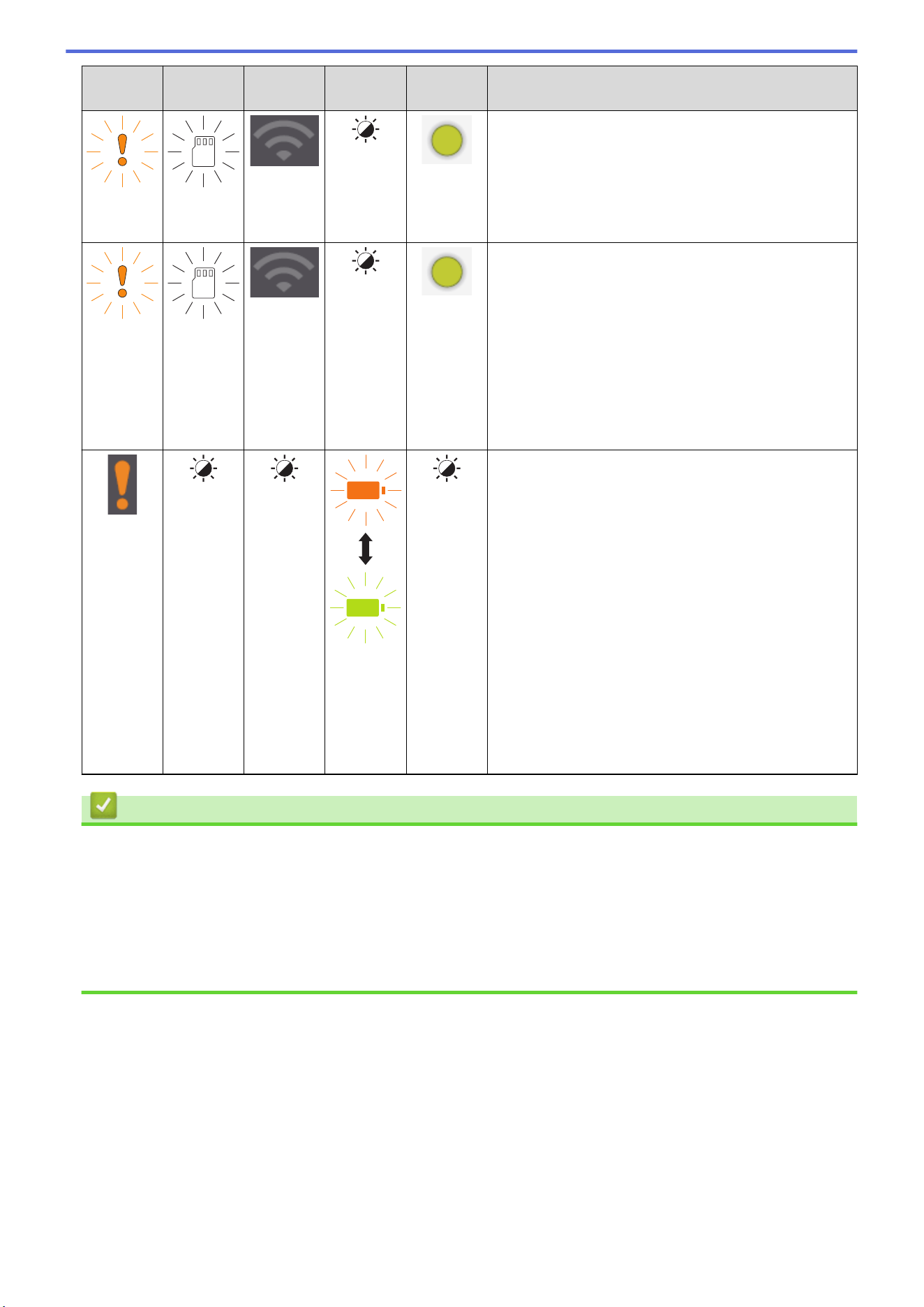
Error LED SD Card
LED
Wi-Fi LED Battery
LED
Power/
Scan LED
Machine Status
(blinking
slowly)
(blinking
rapidly)
Unsupported Memory Card
An unsupported memory card is inserted into the
Memory Card Slot.
• Remove the memory card and insert the supported
microSD memory card.
• Format the microSD memory card on the computer.
(blinking
rapidly)
Too Many Files on the Memory Card
Your machine cannot save files to a memory card if the
card contains too many files.
Press START/STOP to clear the error. Remove the
microSD memory card, and then do one of the
following:
• Delete unused files or folders from the microSD
memory card, and then try again.
• Use a microSD memory card that has available
space.
Battery Error
Battery error has occurred.
• The internal temperature of the machine or of its
battery is too high or too low. Wait until the
temperature returns to normal and the LED stops
flashing.
• Turn off the machine, and then turn it on again. If it
is not restored, contact your Brother dealer or
Brother Customer Service.
• Connect the USB cable to your scanner and your
computer to use the scanner. Make sure the USB
cable is securely connected.
• If the error cannot be cleared, contact your local
Brother office.
See Related Information: Brother Help and
Customer Support.
Related Information
• Troubleshooting
• Service Call Indications
Related Topics:
• Document Jam
• Brother iPrint&Scan for Windows and Mac
• Brother Help and Customer Support
104
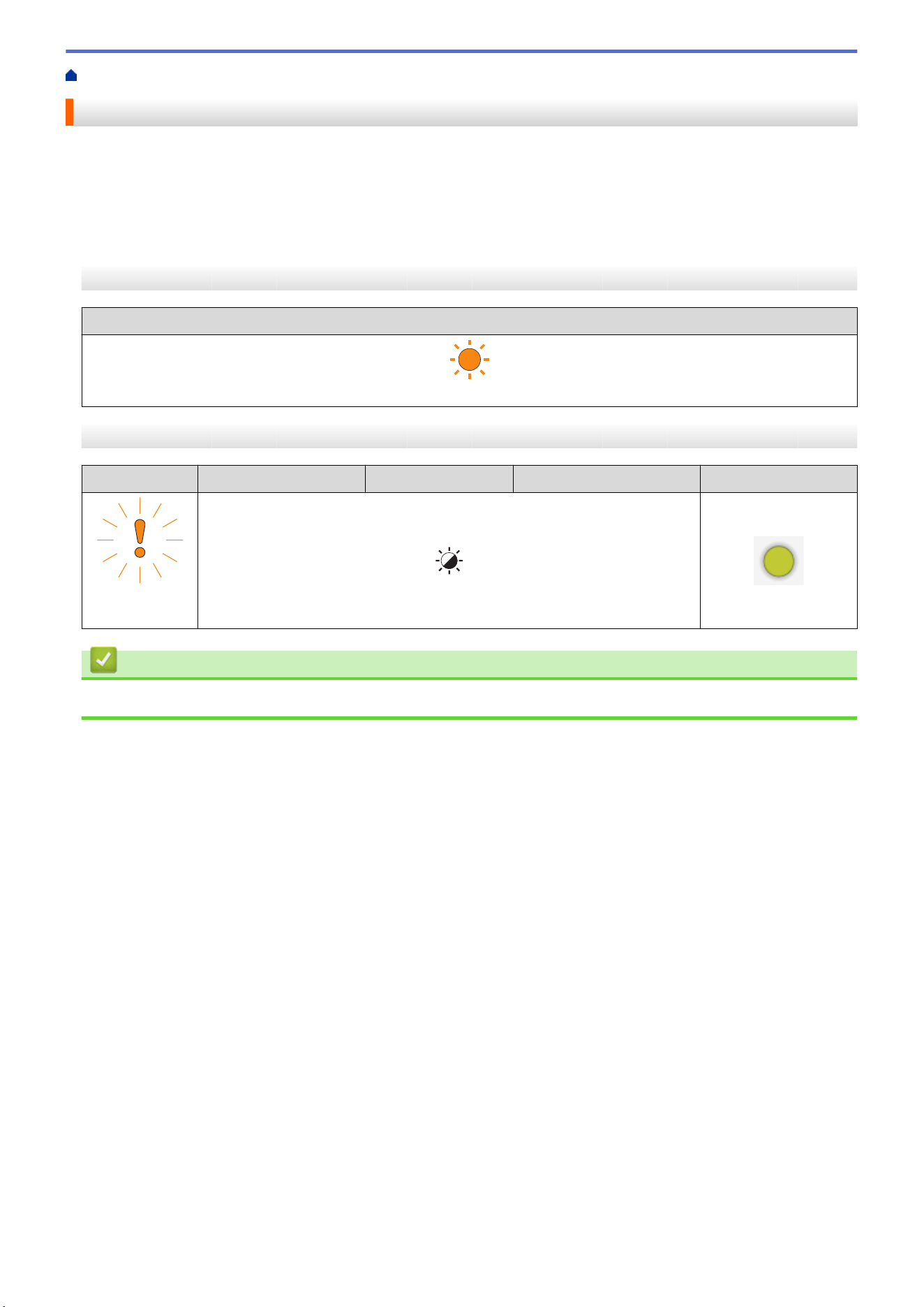
Home > Troubleshooting > Error and Maintenance Indications > Service Call Indications
Service Call Indications
If there is an error that you cannot clear yourself, the machine's LEDs will indicate the need for a service call as
shown.
If you see the service call indication shown, contact your Brother dealer or Brother Customer Service.
>> DSmobile DS-635/DSmobile DS-640/DSmobile DS-740D
>> DSmobile DS-940DW
DSmobile DS-635/DSmobile DS-640/DSmobile DS-740D
Power/Scan LED
(blinking rapidly)
DSmobile DS-940DW
Error LED
SD Card LED Wi-Fi LED Battery LED Power/Scan LED
(blinking
rapidly)
Related Information
• Error and Maintenance Indications
105
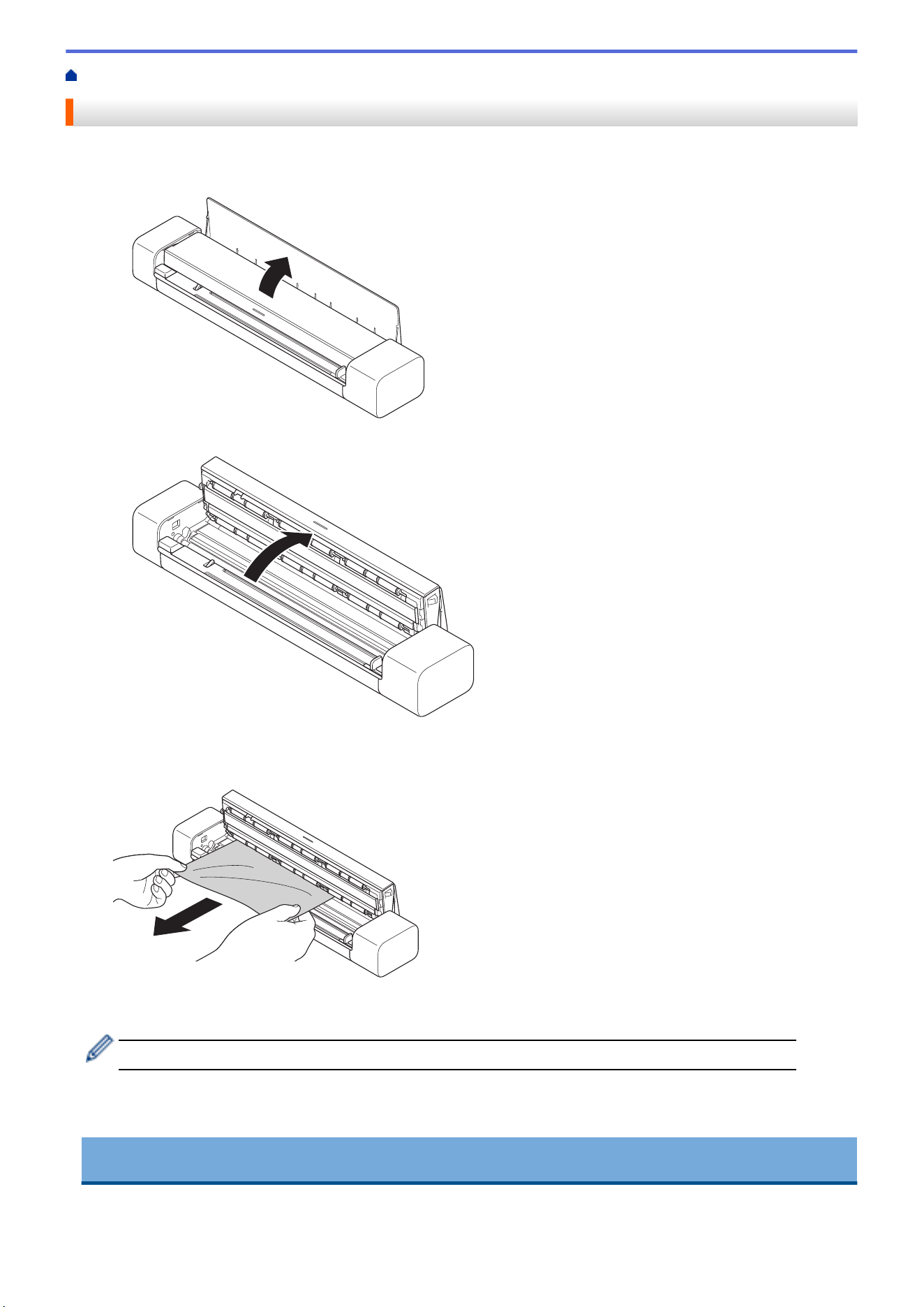
Home > Troubleshooting > Document Jam
Document Jam
A document can jam if it is not inserted or fed correctly, or if it is too long.
1. (DSmobile DS-740D/DSmobile DS-940DW) Open the Output Guide.
2. Open the Top Cover.
3. Gently pull the jammed document out of the machine.
Check for ripped paper inside the machine. Remove any paper scraps you find inside the machine.
4. Close the Top Cover.
5. (DSmobile DS-740D/DSmobile DS-940DW) Close the Output Guide.
IMPORTANT
• To avoid damage to the jammed document, DO NOT pull the document out before opening the Top
Cover.
106

• To avoid future document jams, do the following:
- Close the Top Cover correctly by pushing it gently in the center.
- Configure the settings for your document correctly.
- Make sure your document is acceptable for the machine.
- Load your document correctly.
- When using long paper, to avoid a paper jam, you must select the Long Paper option from the
Document Size menu.
Related Information
• Troubleshooting
Related Topics:
• Error and Maintenance Indications
• Acceptable Documents
• Load Documents
107

Home > Troubleshooting > If You Are Having Difficulty with Your Machine
If You Are Having Difficulty with Your Machine
You can correct most problems yourself. If you think there is a problem with your machine, check the topics
below. If you need additional help, visit support.brother.com for the latest FAQs & Troubleshooting tips.
Using non-Brother supplies may affect the scan quality, hardware performance, and machine reliability.
• Scanning and Other Problems
• AirPrint Scanning Problems
• Network Problems
108
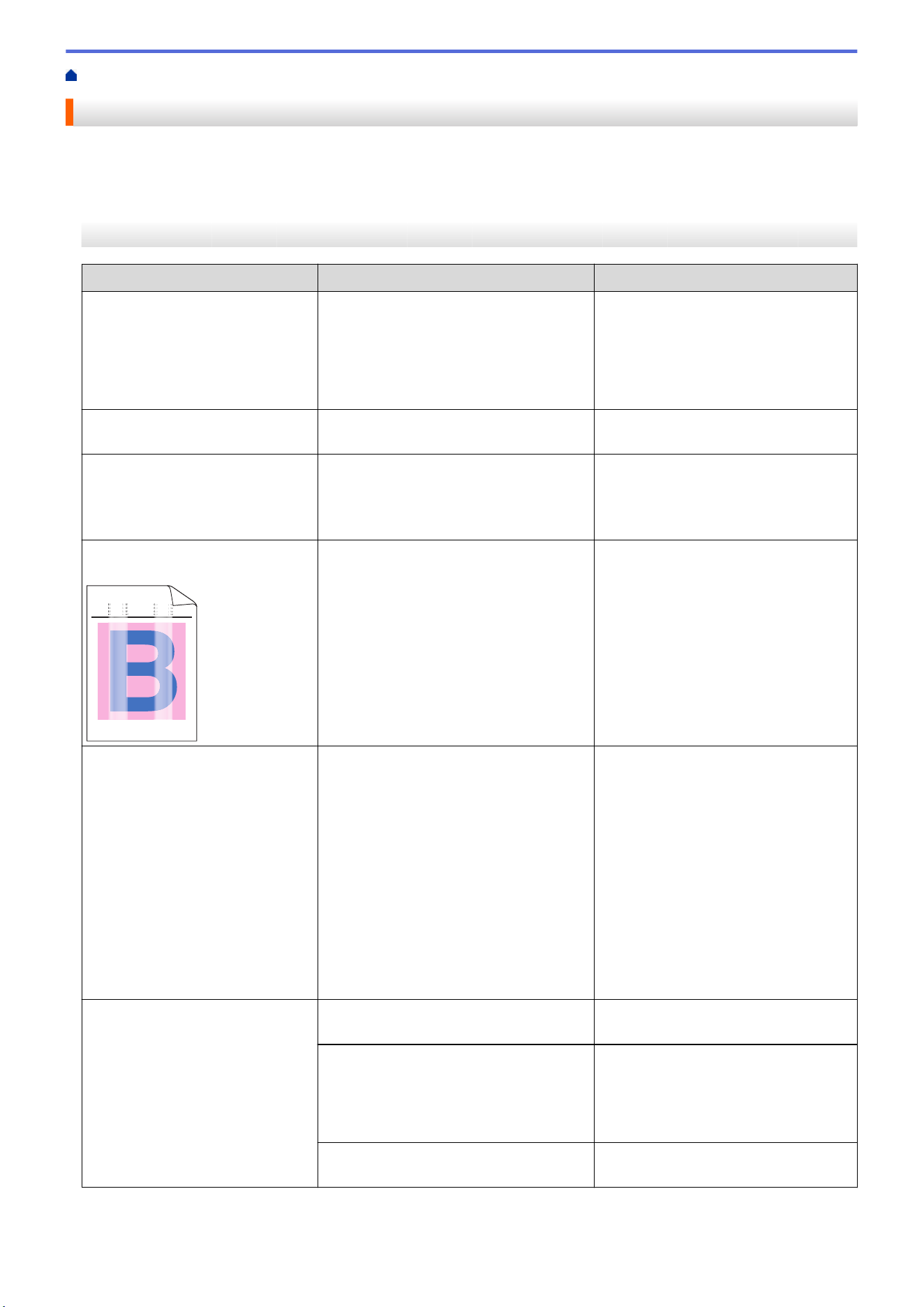
Home > Troubleshooting > If You Are Having Difficulty with Your Machine > Scanning and Other Problems
Scanning and Other Problems
>> Scanning Difficulties
>> Software Difficulties
>> Other Difficulties
Scanning Difficulties
Difficulties
Cause Suggestions
TWAIN or WIA errors appear
when starting to scan. (Windows)
The TWAIN or WIA driver has not been
selected as the primary source in your
scanning application.
Make sure the Brother TWAIN or WIA
driver is selected as the primary
source in your scanning application.
For example, in Nuance
™
PaperPort
™
14SE, click Scan Settings > Select.
Select the Brother TWAIN/WIA driver.
ICA errors appear when starting to
scan. (Mac)
The machine is not selected from the
DEVICES area or SHARED area.
Make sure your Brother machine is
selected.
Vertical lines are seen in the
scanned image.
Paper dust has accumulated on the
surface of the glass strips.
Clean the glass strips inside the
machine.
See Related Information: Clean the
Scanner and Rollers.
White vertical lines or white strips
appear on the scanned image.
ABCDEFGHIJKLMNOPQRSTUVWXYZ. 0123456789. abcdefghijklmnopqrstuvwxyz.
ABCDEFGHIJKLMNOPQRSTUVWXYZ. 0123456789. abcdefghijklmnopqrstuvwxyz.
ABCDEFGHIJKLMNOPQRSTUVWXYZ. 0123456789. abcdefghijklmnopqrstuvwxyz.
ABCDEFGHIJKLMNOPQRSTUVWXYZ. 0123456789. abcdefghijklmnopqrstuvwxyz.
ABCDEFGHIJKLMN
ABCDEFGHIJKLMN
ABCDEFGHIJKLMN
ABCDEFGHIJKLMN
ABCDEFGHIJKLMN
ABCDEFGHIJKLMN
ABCDEFGHIJKLMN
OPQRSTUVWXYZ.
OPQRSTUVWXYZ.
OPQRSTUVWXYZ.
OPQRSTUVWXYZ.
OPQRSTUVWXYZ.
OPQRSTUVWXYZ.
OPQRSTUVWXYZ.
OPQRSTUVWXYZ.
OPQRSTUVWXYZ.
OPQRSTUVWXYZ.
ABCDEFGHIJKLMN
ABCDEFGHIJKLMN
ABCDEFGHIJKLMN
ABCDEFGHIJKLMN
ABCDEFGHIJKLMN
ABCDEFGHIJKLMN
ABCDEFGHIJKLMN
OPQRSTUVWXYZ.
OPQRSTUVWXYZ.
OPQRSTUVWXYZ.
OPQRSTUVWXYZ.
OPQRSTUVWXYZ.
OPQRSTUVWXYZ.
OPQRSTUVWXYZ.
OPQRSTUVWXYZ.
OPQRSTUVWXYZ.
OPQRSTUVWXYZ.
ABCDEFGHIJKLMN
ABCDEFGHIJKLMN
ABCDEFGHIJKLMN
ABCDEFGHIJKLMN
ABCDEFGHIJKLMN
ABCDEFGHIJKLMN
ABCDEFGHIJKLMN
OPQRSTUVWXYZ.
OPQRSTUVWXYZ.
OPQRSTUVWXYZ.
OPQRSTUVWXYZ.
OPQRSTUVWXYZ.
OPQRSTUVWXYZ.
OPQRSTUVWXYZ.
OPQRSTUVWXYZ.
OPQRSTUVWXYZ.
OPQRSTUVWXYZ.
ABCDEFGHIJKLMN
ABCDEFGHIJKLMN
ABCDEFGHIJKLMN
ABCDEFGHIJKLMN
ABCDEFGHIJKLMN
ABCDEFGHIJKLMN
ABCDEFGHIJKLMN
OPQRSTUVWXYZ.
OPQRSTUVWXYZ.
OPQRSTUVWXYZ.
OPQRSTUVWXYZ.
OPQRSTUVWXYZ.
OPQRSTUVWXYZ.
OPQRSTUVWXYZ.
OPQRSTUVWXYZ.
OPQRSTUVWXYZ.
OPQRSTUVWXYZ.
cdefghijklmnop
cdefghijklmnop
cdefghijklmnop
cdefghijklmnop
cdefghijklmnop
cdefghijklmnop
cdefghijklmnop
cdefghijklmnop
qrstuvwxyz.
qrstuvwxyz.
qrstuvwxyz.
qrstuvwxyz.
qrstuvwxyz.
qrstuvwxyz.
qrstuvwxyz.
qrstuvwxyz.
cdefghijklmnop
cdefghijklmnop
cdefghijklmnop
cdefghijklmnop
cdefghijklmnop
cdefghijklmnop
cdefghijklmnop
cdefghijklmnop
qrstuvwxyz.
qrstuvwxyz.
qrstuvwxyz.
qrstuvwxyz.
qrstuvwxyz.
qrstuvwxyz.
qrstuvwxyz.
qrstuvwxyz.
cdefghijklmnop
cdefghijklmnop
cdefghijklmnop
cdefghijklmnop
cdefghijklmnop
cdefghijklmnop
cdefghijklmnop
cdefghijklmnop
qrstuvwxyz.
qrstuvwxyz.
qrstuvwxyz.
qrstuvwxyz.
qrstuvwxyz.
qrstuvwxyz.
qrstuvwxyz.
qrstuvwxyz.
cdefghijklmnop
cdefghijklmnop
cdefghijklmnop
cdefghijklmnop
cdefghijklmnop
cdefghijklmnop
cdefghijklmnop
cdefghijklmnop
qrstuvwxyz.
qrstuvwxyz.
qrstuvwxyz.
qrstuvwxyz.
qrstuvwxyz.
qrstuvwxyz.
qrstuvwxyz.
qrstuvwxyz.
The scanner is near a light source or in
direct sunlight.
Make sure the scanner is located
away from any direct light sources.
My scanned images have black
lines running through them, blank
spaces, or are of overall poor
quality.
This problem occurs if the scanner is not
calibrated correctly or if a foreign object,
such as a paper clip or ripped paper, is
stuck in the scanner.
1. Make sure that the Feeder Slot is
clear. If foreign objects are found,
remove them from your scanner.
2. Calibrate your scanner.
If scan quality is not improved after
you calibrate your scanner:
1. Clean the scanner.
2. Calibrate your scanner again.
See Related Information: Clean the
Scanner and Rollers.
See Related Information: Calibrate
Your Brother Machine.
The scanned image is missing.
The Document Guide is not adjusted to
fit the width of the document.
Gently adjust the Document Guide to
fit the width of your document.
The settings are not appropriate for your
document. For example, a Letter/A4-
sized document was fed when
Executive/A5 Letter was selected as the
document size.
Make sure the document size settings
are appropriate for your document.
Configure the margin settings and
adjust the scanning position.
- Configure the margin settings and
adjust the scanning position.
109

Difficulties Cause Suggestions
The scanned image is missing or
has blank spaces when Auto is
selected as the document size.
Paper dust has accumulated on the
surface of the glass strips inside the
machine.
Clean the glass strips inside the
machine.
See Related Information: Clean the
Scanner and Rollers.
Calibration needs to be performed. Perform the calibration.
See Related Information: Calibrate
Your Brother Machine.
The scanned image is skewed. The Document Guide is not adjusted to
fit the width of the document.
Gently adjust the Document Guide to
fit the width of your document.
The Long Paper setting is selected. Select a setting other than Long
Paper.
The document was curled. Straighten the curled document and
scan again.
The embossed card was inserted with
the embossed side down.
Remove the embossed card and then
reinsert it, embossed side up, into the
Feeder Slot.
The document is not inserted straight. Insert the document straight.
The plastic card is scanned with the
short edge first.
Scan the plastic card with the long
edge first.
The Output Guide is open.
(DSmobile DS-740D/
DSmobile DS-940DW)
Close the Output Guide.
Scanning is too slow. The resolution is not appropriate for your
document.
Decrease the scanner resolution.
If a cable other than a USB 3.0 (Micro)
cable is used, the scanning speed may
become slow.
Use USB 3.0 (Micro) cable.
The document was not fed. Your media is too thin or too thick. Make sure your media is acceptable
for the machine.
See Related Information: Acceptable
Documents.
Remote Setup is in progress. Cancel Remote Setup.
The document was curled. Straighten the curled document and
scan again.
The document is jammed. Your document is not acceptable for the
machine.
Make sure your document is
acceptable for the machine. See
Related Information: Acceptable
Documents.
The document was curled. Straighten the curled document and
scan again.
The Output Guide is open.
(DSmobile DS-740D/
DSmobile DS-940DW)
Close the Output Guide.
Confirm the paper weight is
appropriate for scanning with the
Output Guide.
See Related Information: Acceptable
Documents.
The scan quality is poor. Paper dust has accumulated on the
surface of the glass strips inside the
machine.
Clean the glass strips inside the
machine.
See Related Information: Clean the
Scanner and Rollers.
Calibration needs to be performed. Perform the calibration.
110
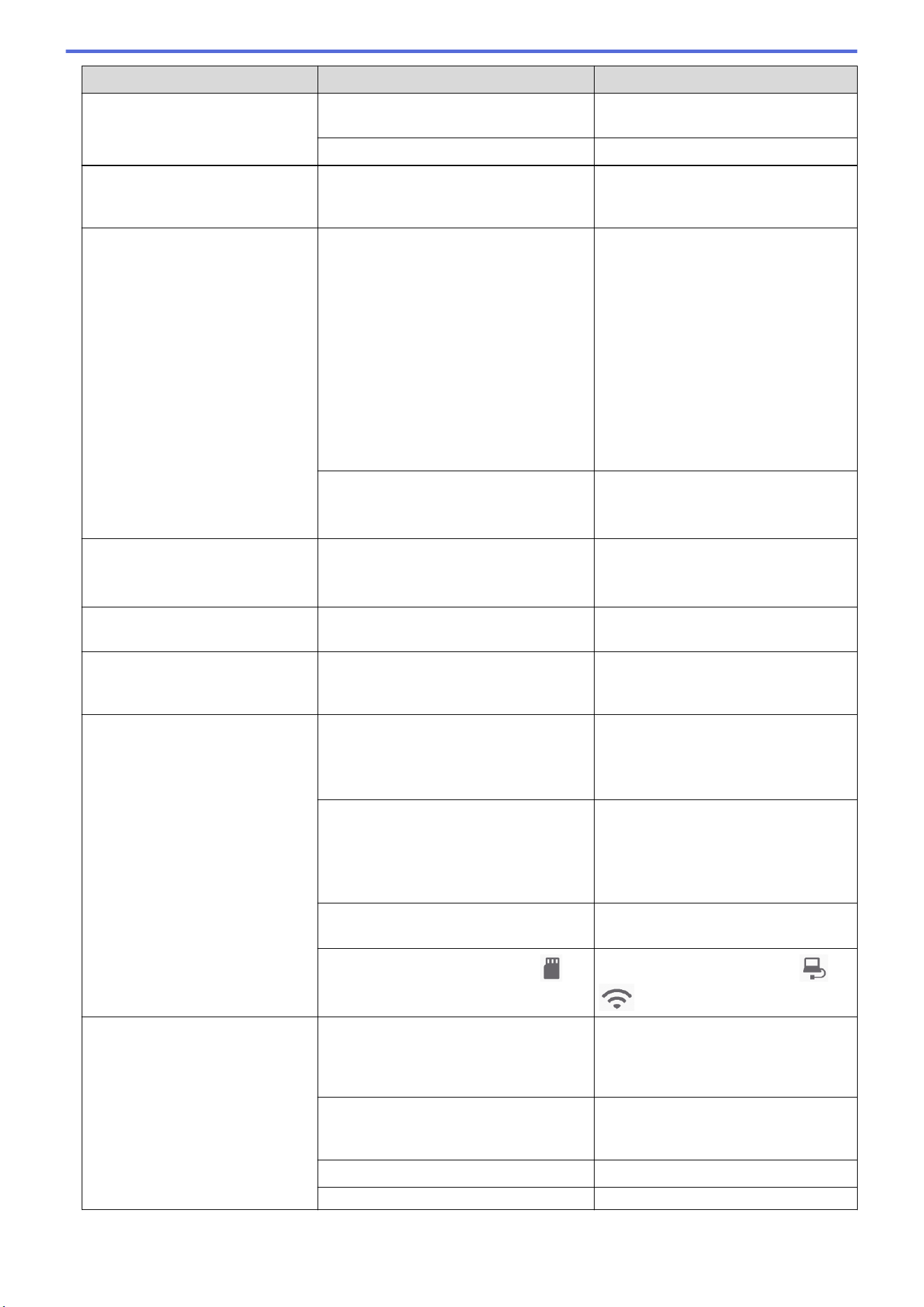
Difficulties Cause Suggestions
The scan quality is poor. See Related Information: Calibrate
Your Brother Machine.
The scanner resolution is too low. Increase the scanner resolution.
Bleedthrough is seen in the
scanned data.
The settings are not appropriate for the
type of document being scanned.
Select the Remove Bleed-through /
Pattern / Remove Background Color
check box.
Colors in the scanned data are
dark.
The settings are not appropriate for the
type of document being scanned.
Do one of the following:
• Select the Remove Bleed-through /
Pattern / Remove Background
Color check box, and then scan
from your computer.
• Increase the Brightness, and then
scan from your computer.
• Increase the Contrast, and then
scan from your computer.
• Change the Scan Type to Gray or
Color, and then scan from your
computer.
Calibration needs to be performed.
Perform the calibration.
See Related Information: Calibrate
Your Brother Machine.
A page that is not a blank page is
skipped.
• The document is too faint.
• Skip Blank Page is set to On.
Set Skip Blank Page to Off.
Alternatively, reduce the Skip Blank
Page sensitivity.
Cannot scan a long document. Long Paper is not selected for the
document size.
Select Long Paper for the document
size.
Cannot scan.
(DSmobile DS-940DW)
The Pull Scan option in the Scan from
PC dialog box in Web Based
Management is disabled.
Enable the Pull Scan option.
Cannot scan to a computer from
the machine.
Scanning application (for example,
Brother iPrint&Scan) is not installed on
the computer.
Install a scanning application (for
example, Brother iPrint&Scan).
See Related Information: Brother
iPrint&Scan for Windows and Mac.
The settings are not configured within
the scanning application (for example,
Brother iPrint&Scan).
Configure the settings using a
scanning application (for example,
Brother iPrint&Scan).
See Related Information: Brother
iPrint&Scan for Windows and Mac.
The Scan to PC settings were not
configured in Remote Setup.
Configure the Scan to PC settings in
Remote Setup.
The Mode Select Switch is set to .
(DSmobile DS-940DW)
Set the Mode Select Switch to or
.
The plastic card is jammed. The machine was turned on with the
plastic card inserted.
Remove the plastic card. To prevent
the card from getting jammed again,
do not leave the card inserted in the
machine.
The embossed card was inserted with
the embossed side down.
Remove the embossed card and then
reinsert it, embossed side up, into the
Feeder Slot.
The plastic card is not inserted straight. Insert the plastic card straight.
The Output Guide is open. Close the Output Guide.
111
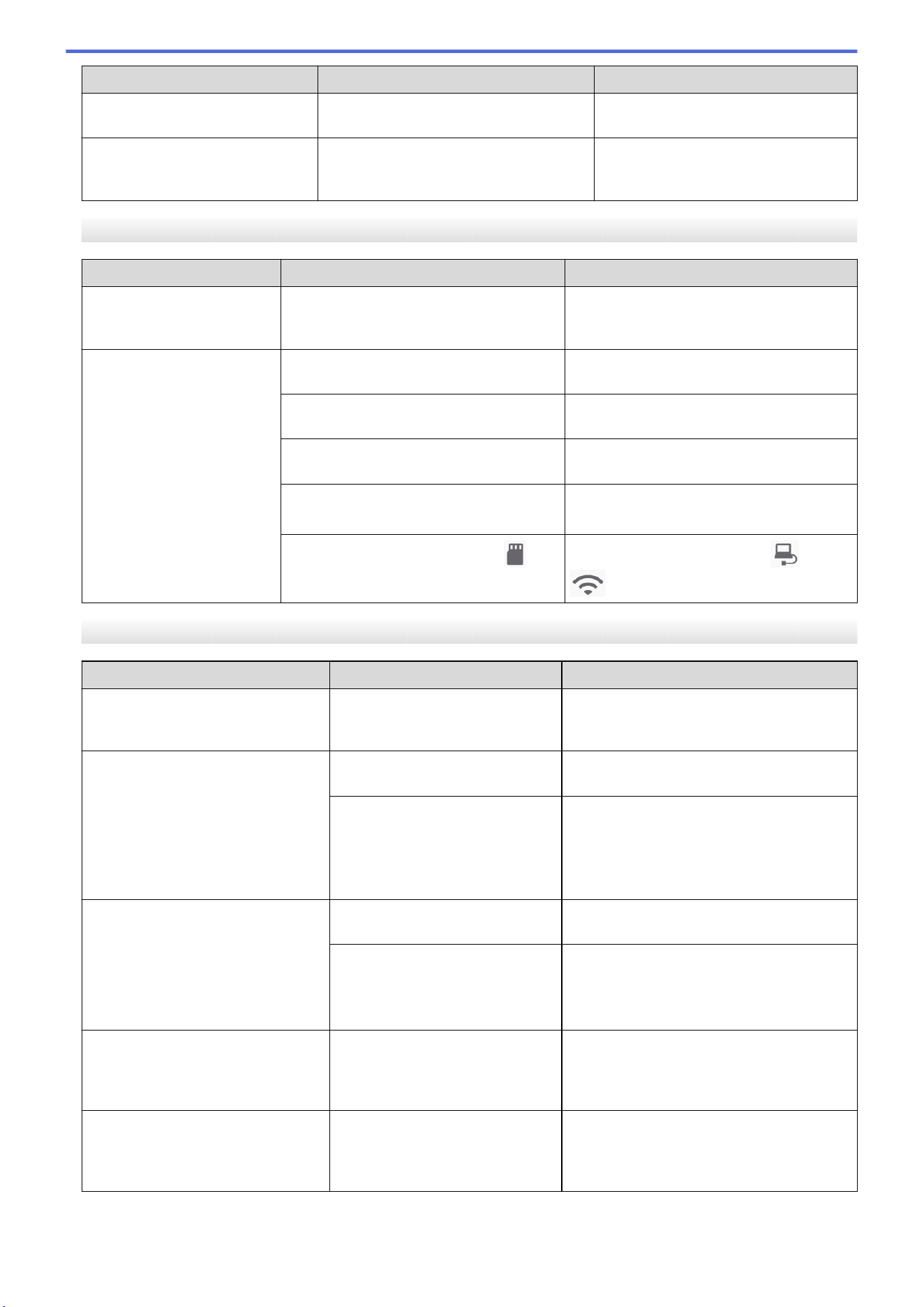
Difficulties Cause Suggestions
The plastic card is jammed. (DSmobile DS-740D/
DSmobile DS-940DW)
The plastic card was not fed. The embossed card was inserted with
the embossed side down.
Remove the embossed card and then
reinsert it, embossed side up, into the
Feeder Slot.
Software Difficulties
Difficulties
Cause Suggestions
Cannot save the settings in
Remote Setup or Web
Based Management.
The machine is processing the settings. Wait until the machine finishes processing,
and then try again.
Cannot start Remote Setup. The machine is not connected to your
computer.
Connect the machine to your computer,
and then try again.
An error is occurring. Clear all errors, check the status is Ready
on Remote Setup and then try again.
The machine is scanning. Wait until scanning has finished and try
again.
The machine is turned off.
(DSmobile DS-940DW)
Turn on the machine, and then try again.
The Mode Select Switch is set to .
(DSmobile DS-940DW)
Set the Mode Select Switch to or
.
Other Difficulties
Difficulties
Cause Suggestions
I want to use a USB hub. A USB hub may not be able to
supply enough power to the
scanner.
Use your scanner without connecting it to a
USB hub.
The machine is not turned on. The USB cable is not connected
correctly.
Make sure the USB cable is securely
connected to your scanner and computer.
The battery is low.
(DSmobile DS-940DW)
Connect the USB cable to your scanner
and computer to charge the battery.
You must charge the battery sufficiently for
the scanner to turn on. Turn off the scanner
until the battery is fully charged.
Your computer cannot find the
machine via USB interface.
The scanner driver is not
installed.
Install the scanner driver.
The USB cable is not connected
correctly.
Make sure the USB cable is securely
connected to your scanner and computer.
Disconnect the USB cable and then
reconnect it to your scanner and computer.
My scanner gets warm. It is normal for your scanner to
became warm after prolonged
use.
If there is an odor coming from the scanner
or the scanner feels a little bit hot to the
touch, immediately disconnect the USB
cable from your scanner and computer.
My scanner cannot be turned on or
turns off immediately.
(DSmobile DS-940DW)
• The battery has no remaining
power.
• The battery is low.
Do one of the following:
• Connect the USB cable to your scanner
and your computer to use the scanner. If
you cannot turn on the scanner when
112
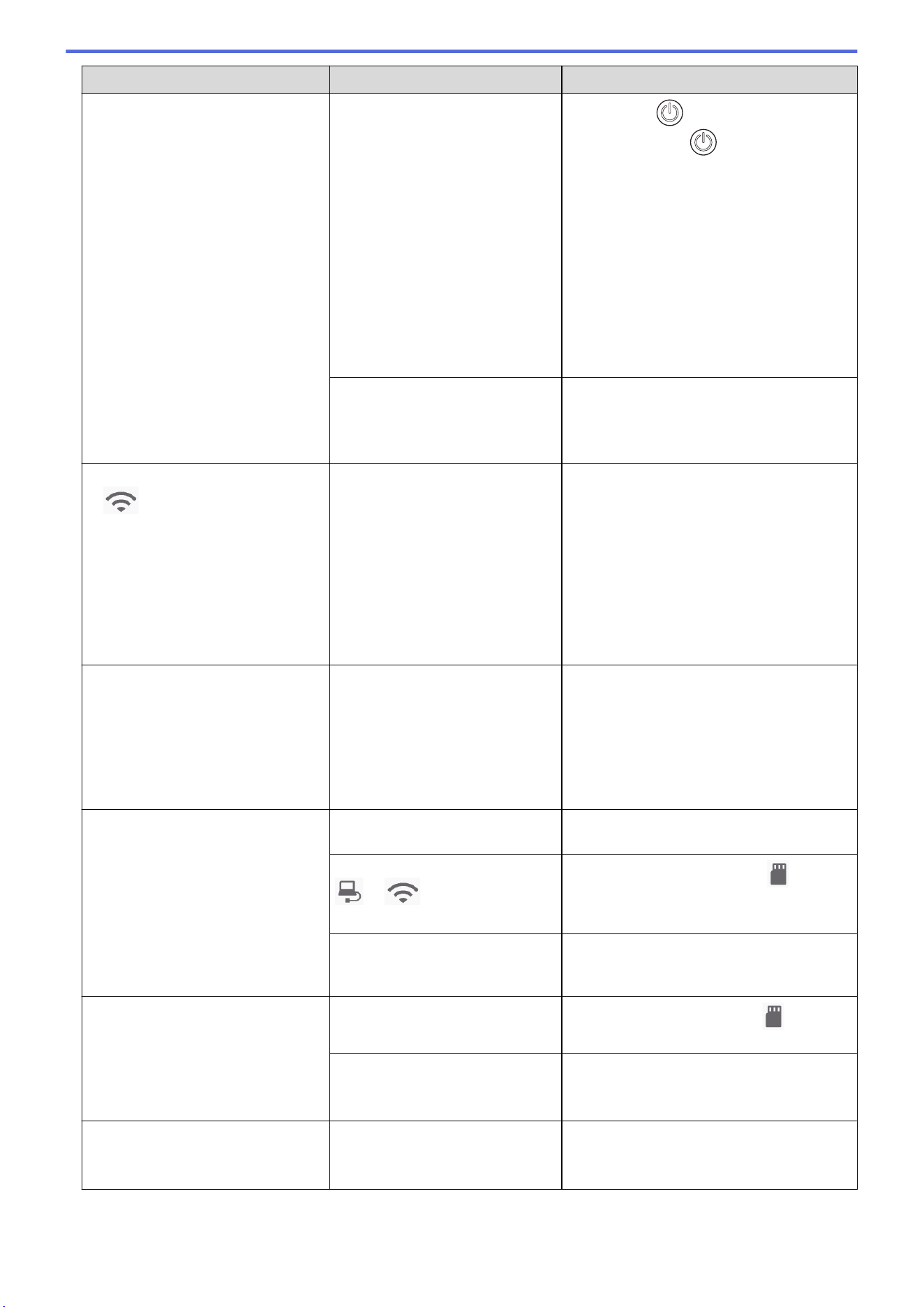
Difficulties Cause Suggestions
My scanner cannot be turned on or
turns off immediately.
(DSmobile DS-940DW)
you press , wait for two minutes,
and then press again.
• Turn off the scanner and connect the
USB cable to your scanner and your
computer until the battery is fully
charged. Try to scan again.
• Make sure the USB cable is securely
connected to your scanner and
computer.
• If the error cannot be cleared, contact
your local Brother office.
See Related Information: Brother Help
and Customer Support.
The internal temperature of the
machine or its battery is either too
high or too low.
(DSmobile DS-940DW)
The machine will be automatically restored
when the temperature returns to normal.
When I set the Mode Select Switch
to , the Wi-Fi LED does not
turn on.
(DSmobile DS-940DW)
The battery is low. • Connect the USB cable to your scanner
and your computer to charge the
battery.
• Make sure the USB cable is securely
connected to your scanner and
computer.
• If the error cannot be cleared, contact
your local Brother office.
See Related Information: Brother Help
and Customer Support.
I cannot charge the battery.
(DSmobile DS-940DW)
- • Make sure the USB cable is securely
connected to your scanner and
computer.
• If the error cannot be cleared, contact
your local Brother office.
See Related Information: Brother Help
and Customer Support.
My computer cannot access the
machine's microSD memory card
via the USB cable.
(DSmobile DS-940DW)
The USB cable is not connected
to your computer.
Connect the USB cable to your scanner
and your computer.
The Mode Select Switch is set to
or .
(DSmobile DS-940DW)
Set the Mode Select Switch to .
A document is being scanned.
(DSmobile DS-940DW)
When the scanning is finished, wait for the
memory card's folder to appear on your
computer screen.
When I access the machine's
memory card, scanned images are
not displayed on the screen.
(DSmobile DS-940DW)
Your scanner is not in mass
storage mode.
Set the mode select switch to to
change to mass storage mode.
Your scanner is scanning a
document.
(DSmobile DS-940DW)
Access the memory card again when
scanning is complete.
The machine cannot update the
firmware due to the battery error.
(DSmobile DS-940DW)
The internal temperature of the
machine or its battery is either too
high or too low.
Wait until the temperature returns to
normal, and then try again.
113

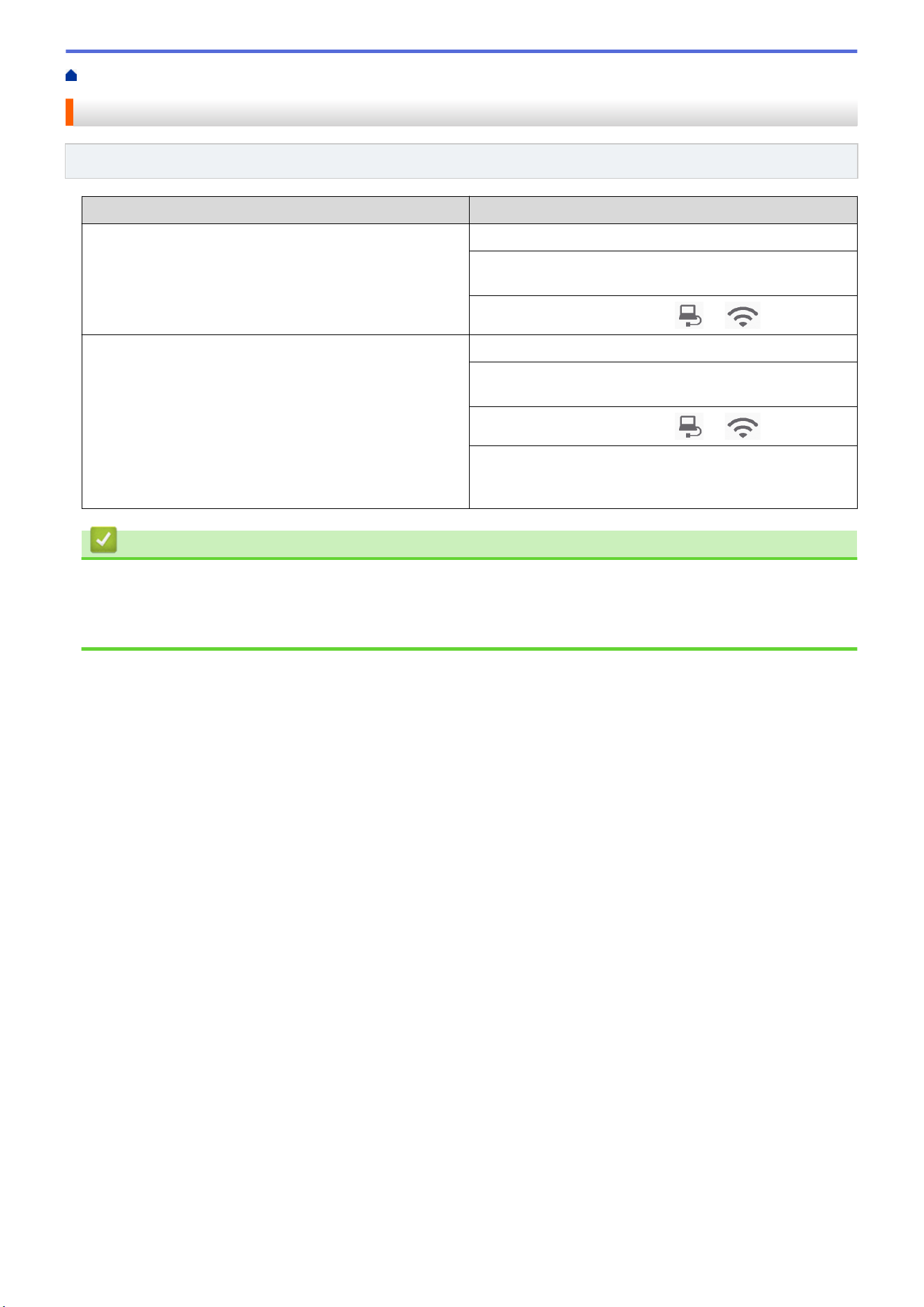
Home > Troubleshooting > If You Are Having Difficulty with Your Machine > AirPrint Scanning Problems
AirPrint Scanning Problems
Related Models: DSmobile DS-940DW
Difficulty Suggestions
My Brother machine is not displayed in the scanner list. Make sure your Brother machine is turned on.
Make sure your machine and your Mac are correctly
connected to the same network.
Set the Mode Select Switch to or .
I cannot scan. Make sure your Brother machine is turned on.
Make sure your machine and your Mac are correctly
connected to the same network.
Set the Mode Select Switch to or .
Make sure the scan feature is enabled from Network >
Protocol > AirPrint Scanning in Web Based
Management.
Related Information
• If You Are Having Difficulty with Your Machine
Related Topics:
• Access Web Based Management
115

Home > Troubleshooting > If You Are Having Difficulty with Your Machine > Network Problems
Network Problems
Related Models: DSmobile DS-940DW
• If You Cannot Complete the Wireless Network Setup Configuration
• Your Scanner Cannot Be Detected on the Network During Installation
• Your Brother Machine Cannot Scan over the Network
• If You Want to Check that Your Network Devices are Working Correctly
116
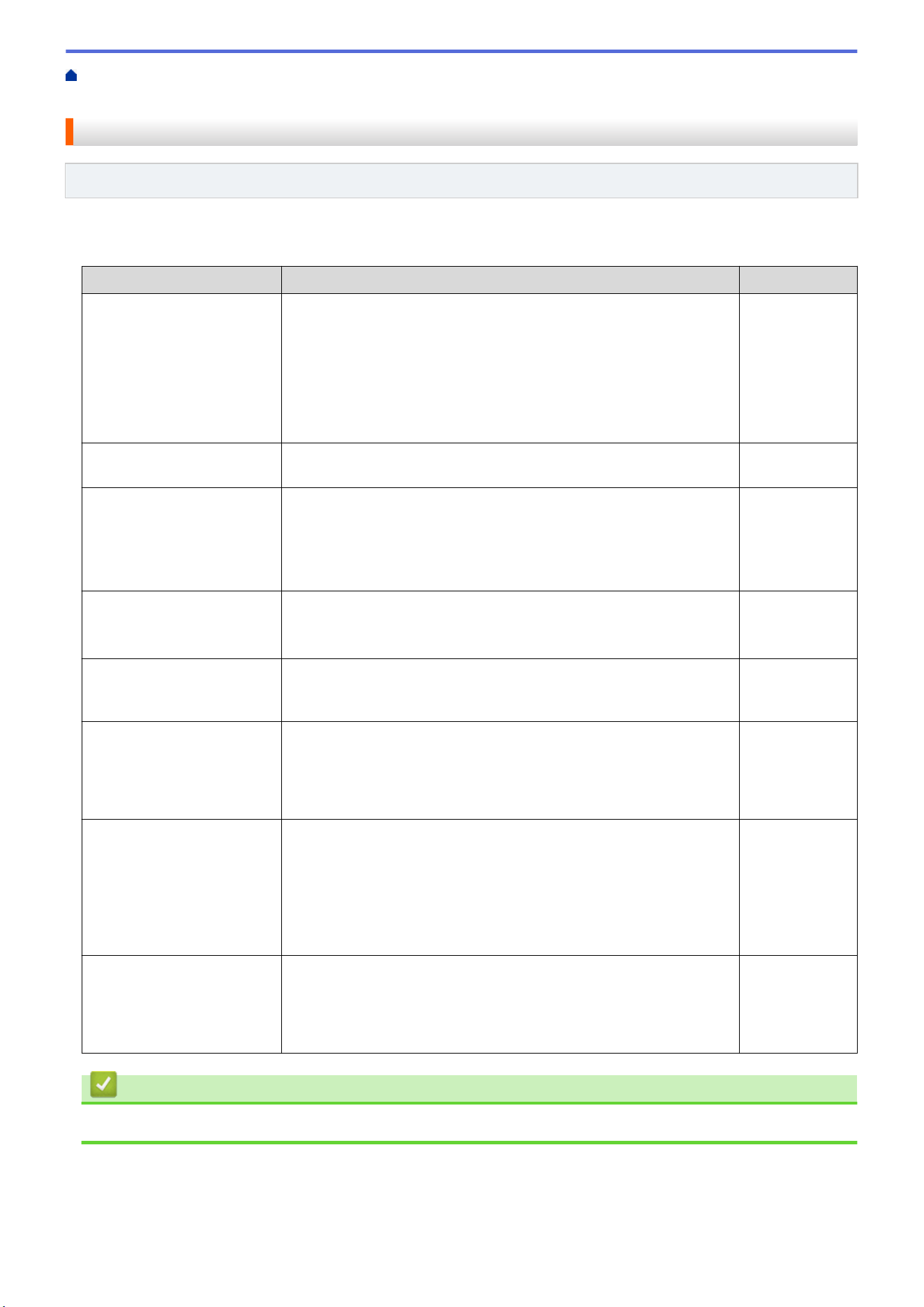
Home > Troubleshooting > If You Are Having Difficulty with Your Machine > Network Problems > If You
Cannot Complete the Wireless Network Setup Configuration
If You Cannot Complete the Wireless Network Setup Configuration
Related Models: DSmobile DS-940DW
Turn your wireless router off and back on. If that does not resolve the problem, try to configure the wireless
settings again. If this still does not resolve the problem, use the Actions listed in this table.
Cause
Action Interface
Your security settings (SSID/
Network Key (Password))
are not correct.
Confirm your security settings.
• The manufacturer’s name or model number of the wireless
access point/router may be used as the default security settings.
• See the instructions supplied with your wireless access point/
router for information on how to find the security settings.
• Ask the manufacturer of your wireless access point/router, your
Internet provider, or your network administrator.
Wireless
Your Brother machine's MAC
address is not allowed.
Confirm that the Brother machine's MAC Address is allowed in the
filter. The address is printed on your product label.
Wireless
Your wireless access point/
router is in stealth mode (not
broadcasting the SSID).
• Enter the correct Network Name (SSID) and Network Key
(Password) manually.
• Check the Network Name (SSID) and Network Key (Password)
in the instructions supplied with your wireless access point/router
and reconfigure the wireless network setup.
Wireless
Your security settings (SSID/
Password) are not correct.
Confirm the Network Name (SSID) and Network Key (Password).
The SSID and Network Key are printed on the label attached to the
scanner.
Wireless Direct
Your Brother machine is
placed too far from your
wireless device.
Move your Brother machine within about 3.3 feet (1 meter) of the
wireless device when you configure the Wireless Direct network
settings.
Wireless Direct
There are some obstructions
(walls or furniture, for
example) between your
machine and the wireless
device.
Move your Brother machine to an obstruction-free area. Wireless Direct
There is a wireless
computer, Bluetooth
®
-
supported device,
microwave oven, or digital
cordless phone near the
Brother machine or the
wireless device.
Move other devices away from the Brother machine or the wireless
device.
Wireless Direct
If you have checked and
tried all of the actions, but
still cannot complete the
Wireless Direct
configuration.
Turn your Brother machine off and back on. Then try to configure the
Wireless Direct settings again.
Wireless Direct
Related Information
• Network Problems
117
Home > Troubleshooting > If You Are Having Difficulty with Your Machine > Network Problems > Your
Scanner Cannot Be Detected on the Network During Installation
Your Scanner Cannot Be Detected on the Network During Installation
Related Models: DSmobile DS-940DW
Cause Action
Your computer is not connected to
the network.
Make sure your computer is connected to a network, for example, a Wireless
LAN environment or has Internet access. For further support, contact your
network administrator.
Your machine is not connected to
the network.
If the Error LED on the Control Panel blinks in orange, it indicates an error status.
Make a note of the error status and then correct the error.
See Related Information: Error and Maintenance Indications.
You use security software. • In the installer dialog box, search for the Brother machine again.
• Allow access when the alert message of the security software appears during
the Brother Device installation.
• The following port numbers are used for Brother network features:
- Network scanning, Remote Setup
Port number 5566/Protocol TCP
- Network scanning (Brother iPrint&Scan)
Port number 54921/Protocol TCP
- BRAdmin Light
Port number 161/Protocol UDP
• For more information about security software, see Related Information: Your
Brother Machine Cannot Scan over the Network .
The privacy separator on your Wi-
Fi router is enabled.
Disable the privacy separator.
Your Brother machine is placed
too far from the Wireless access
point/router.
Place your Brother machine within about 3.3 feet (1 meter) of the Wireless
access point/router when you configure the wireless network settings.
There are some obstructions
(walls or furniture, for example)
between your machine and the
Wireless access point/router.
Move your Brother machine to an obstruction-free area, or closer to the Wireless
access point/router.
There is a wireless computer,
Bluetooth
®
-supported device,
microwave oven, or digital
cordless phone near the Brother
machine or the Wireless access
point/router.
Move all the devices away from the Brother machine or Wireless access point/
router.
Related Information
• Network Problems
Related Topics:
• Your Brother Machine Cannot Scan over the Network
• If You Want to Check that Your Network Devices are Working Correctly
• Error and Maintenance Indications
118

Home > Troubleshooting > If You Are Having Difficulty with Your Machine > Network Problems > Your
Brother Machine Cannot Scan over the Network
Your Brother Machine Cannot Scan over the Network
Related Models: DSmobile DS-940DW
Cause Action
You did not select Accept in the
security alert dialog box during
the Brother Device installation
applications’ start-up process,
or when using the scanning
features.
If you did not select Accept in the security alert dialog box, the firewall function of
your security software may be denying access. Some security software may block
access without showing a security alert dialog box.
To allow access, see your security software instructions or ask the manufacturer.
Your security software blocks
your machine's access to the
network. (The Network
scanning feature does not
work.)
• Windows
Configure the third-party Security/Firewall Software to allow Network scanning.
To add port 54925 for Network scanning, type the information below:
- in Name:
Type any description, for example Brother NetScan.
- in Port number:
Type 54925.
- in Protocol:
UDP is selected.
See the instruction manual that came with your third-party Security/Firewall
Software or contact the software manufacturer.
• Mac
Reinstall the driver.
Your security software blocks
your machine's access to the
network.
The following port numbers are used for Brother network features:
• Network scanning, Remote Setup
Port number 5566/Protocol TCP
• Network scanning (Brother iPrint&Scan)
Port number 54921/Protocol TCP
• BRAdmin Light
Port number 161/Protocol UDP
For information about how to open the port, see the security software instructions or
ask the manufacturer.
Your Brother machine was not
assigned an available IP
address.
Confirm the IP address and the Subnet Mask.
Verify that both the IP addresses and Subnet Masks of your computer and the
Brother machine are correct and located on the same network.
For more information about how to verify the IP address and the Subnet Mask, ask
your network administrator.
See Related Information: Check the IP Address of Network Devices.
You cannot connect the Brother
machine to the network using
wireless capabilities.
If the Error LED on the Control Panel blinks in orange, it indicates an error status.
Make a note of the error status and then correct the error.
If you have checked and tried all of the actions, but your Brother machine still cannot scan, uninstall the Brother
software and drivers and reinstall them.
Related Information
• Network Problems
Related Topics:
• Your Scanner Cannot Be Detected on the Network During Installation
119


Home > Troubleshooting > If You Are Having Difficulty with Your Machine > Network Problems > If You
Want to Check that Your Network Devices are Working Correctly
If You Want to Check that Your Network Devices are Working Correctly
Related Models: DSmobile DS-940DW
Check Action
Check that your Brother
machine, access point/router,
or network hub is turned on.
Check the following:
• Your Brother machine is connected to the computer using the USB cable correctly
or the rechargeable Li-ion battery is charged enough, and the machine is turned
on.
• The access point/router or hub is turned on and its connection status LED button is
blinking.
• All protective packaging has been removed from the machine.
• The Top Cover is completely closed.
Check your Brother
machine’s network settings,
such as IP address, or the
connection status.
• For Web Based Management
Start Web Based Management and access your Brother machine. When the Web
Based Management screen appears, click the Network tab, and then click
Network Status in the left navigation bar.
• If the Error LED on the Control Panel blinks in orange, it indicates an error status.
Make a note of the error status and then correct the error.
See Related Information: Error and Maintenance Indications.
Check that you can "ping" the
Brother machine from your
computer.
Ping the Brother machine from your computer using the IP address or the node name
in the Windows command prompt or Mac Terminal application:
ping <ipaddress> or <nodename>.
• Successful: Your Brother machine is working correctly and connected to the same
network as your computer.
• Unsuccessful: Your Brother machine is not connected to the same network as your
computer.
• Confirm that the IP address and the Subnet Mask are set correctly.
If you have checked and tried all of the actions but you are still having problems, see the instructions supplied
with your wireless access point/router to find the SSID and the Network Key (Password) information and set
them correctly.
Related Information
• Network Problems
• Check the IP Address of Network Devices
Related Topics:
• Your Brother Machine Cannot Scan over the Network
• Your Scanner Cannot Be Detected on the Network During Installation
• Error and Maintenance Indications
121
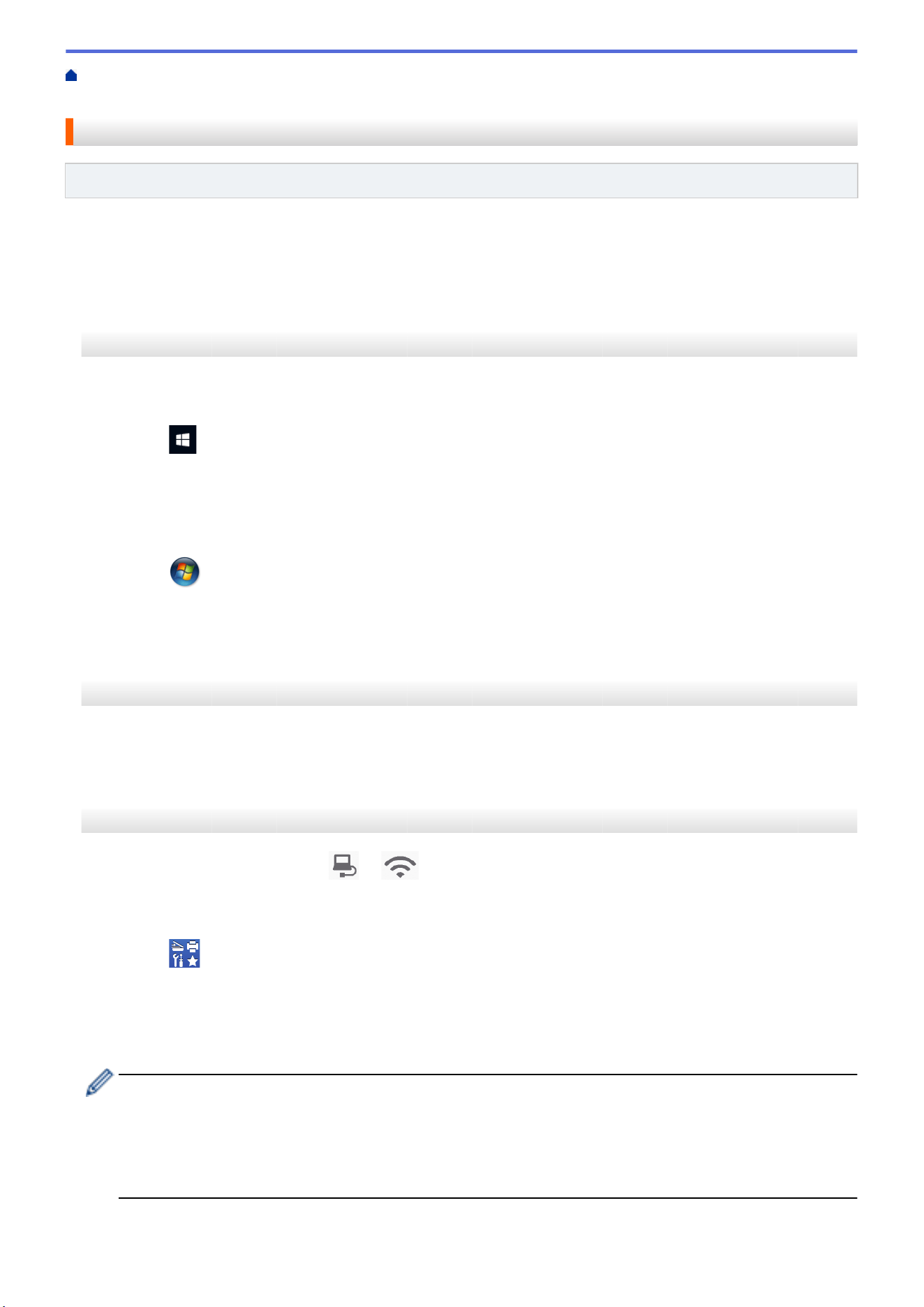
Home > Troubleshooting > If You Are Having Difficulty with Your Machine > Network Problems > If You
Want to Check that Your Network Devices are Working Correctly > Check the IP Address of Network Devices
Check the IP Address of Network Devices
Related Models: DSmobile DS-940DW
Check the IP addresses of both your computer and your Brother machine, and then confirm whether the network
is operating correctly.
>> Configure the IP Address on your computer (Windows)
>> Configure the IP Address on your computer (Mac)
>> Configure the IP Address using Remote Setup
Configure the IP Address on your computer (Windows)
1. Do one of the following:
• Windows 10
Click
> Windows System > Command Prompt.
• Windows 8.1
Move your mouse to the lower-right corner of your desktop. When the menu bar appears, click Search >
Command Prompt.
• Windows7
Click /(Start) > All Programs > Accessories > Command Prompt.
2. Type "ipconfig" and then press the Enter key on your keyboard.
3. Confirm the values for the IPv4 address and subnet mask.
4. Type "exit" and then press the Enter key on your keyboard.
Configure the IP Address on your computer (Mac)
1. Select System Preferences from the Apple menu.
2. Click Network > Advanced > TCP/IP.
3. Confirm the values for the IPv4 address and subnet mask.
Configure the IP Address using Remote Setup
1. Slide the Mode Select Switch to
or .
2. Do one of the following:
• Windows
Click
Brother Utilities on your desktop, and then click the drop-down list and select your model
name (if not already selected). Click Tools in the left navigation bar, and then click Remote Setup.
• Mac
In the Finder menu bar, click Go > Applications > Brother, select your model name and then double-
click the Remote Setup icon.
Type the password if required. If you have not previously set your own password, type the default login
password.
The default login password is either:
• the password located on the bottom of the machine and marked "Pwd".
• initpass
3. Click the WLAN menu in the left navigation pane.
122

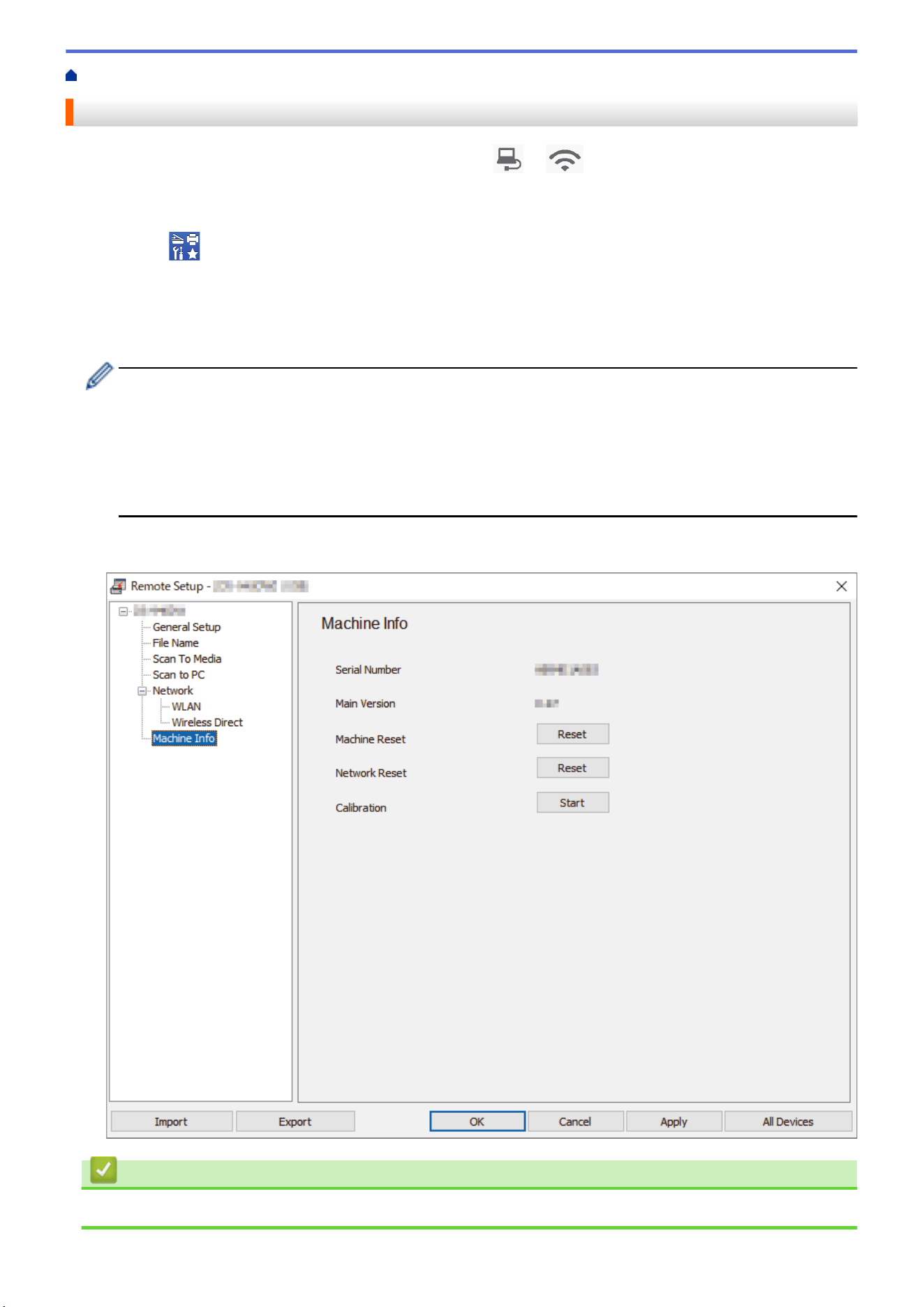
Home > Troubleshooting > Check the Serial Number
Check the Serial Number
1. (DSmobile DS-940DW) Slide the Mode Select Switch to or .
2. Do one of the following:
• Windows
Click
Brother Utilities on your desktop, and then click the drop-down list and select your model
name (if not already selected). Click Tools in the left navigation bar, and then click Remote Setup.
• Mac
In the Finder menu bar, click Go > Applications > Brother, select your model name and then double-
click the Remote Setup icon.
(DSmobile DS-940DW)
When your machine is connected via a Network, type the password if required. If you have not previously
set your own password, type the default login password.
The default login password is either:
• the password located on the bottom of the machine and marked "Pwd".
• initpass
3. Click the Machine Info menu in the left navigation pane.
The window displays the Serial Number (the example below uses Windows).
Related Information
• Troubleshooting
124
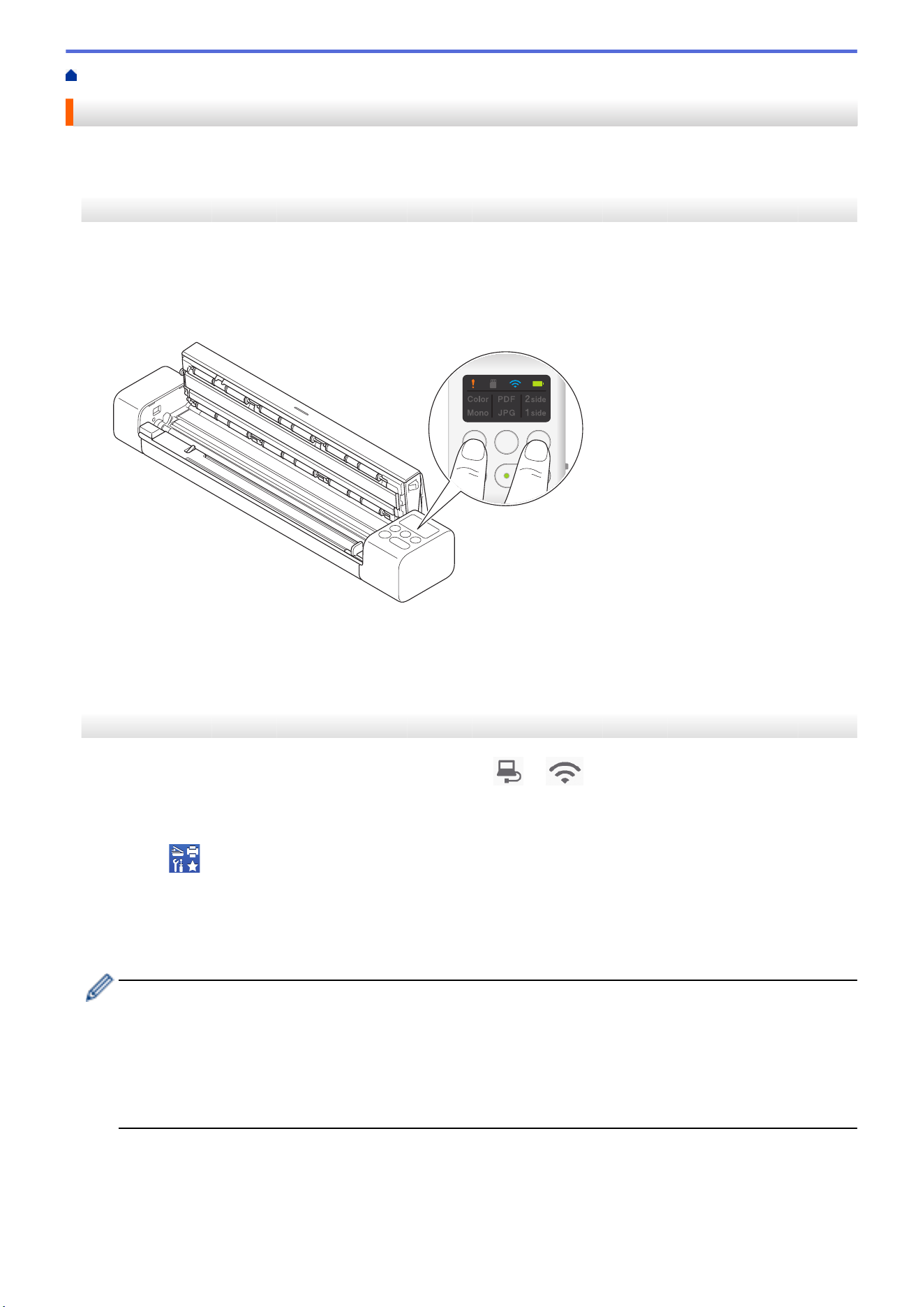
Home > Troubleshooting > Reset Your Brother Machine
Reset Your Brother Machine
>> Reset Network Settings on the Machine (DSmobile DS-940DW)
>> Reset Machine Settings using Remote Setup
Reset Network Settings on the Machine (DSmobile DS-940DW)
1. Confirm that the scanner is turned on.
2. Open the Output Guide.
3. Open the Top Cover.
4. Press and hold both the Color/Mono Switching Button and the 2side/1side Switching Button for five seconds.
The Color/Mono, PDF/JPEG, and 2side/1side LED indicators light for one second. The network settings will
be restored to the factory settings.
5. Close the Top Cover.
6. Close the Output Guide.
Reset Machine Settings using Remote Setup
1. (DSmobile DS-940DW) Slide the Mode Select Switch to or .
2. Do one of the following:
• Windows
Click
Brother Utilities on your desktop, and then click the drop-down list and select your model
name (if not already selected). Click Tools in the left navigation bar, and then click Remote Setup.
• Mac
In the Finder menu bar, click Go > Applications > Brother, select your model name and then double-
click the Remote Setup icon.
(DSmobile DS-940DW)
When your machine is connected via a Network, type the password if required. If you have not previously
set your own password, type the default login password.
The default login password is either:
• the password located on the bottom of the machine and marked "Pwd".
• initpass
3. Click the Machine Info menu in the left navigation pane.
4. Click the Reset button in the Machine Reset option.
5. Press OK to confirm.
The machine settings will be restored to the factory settings.
125



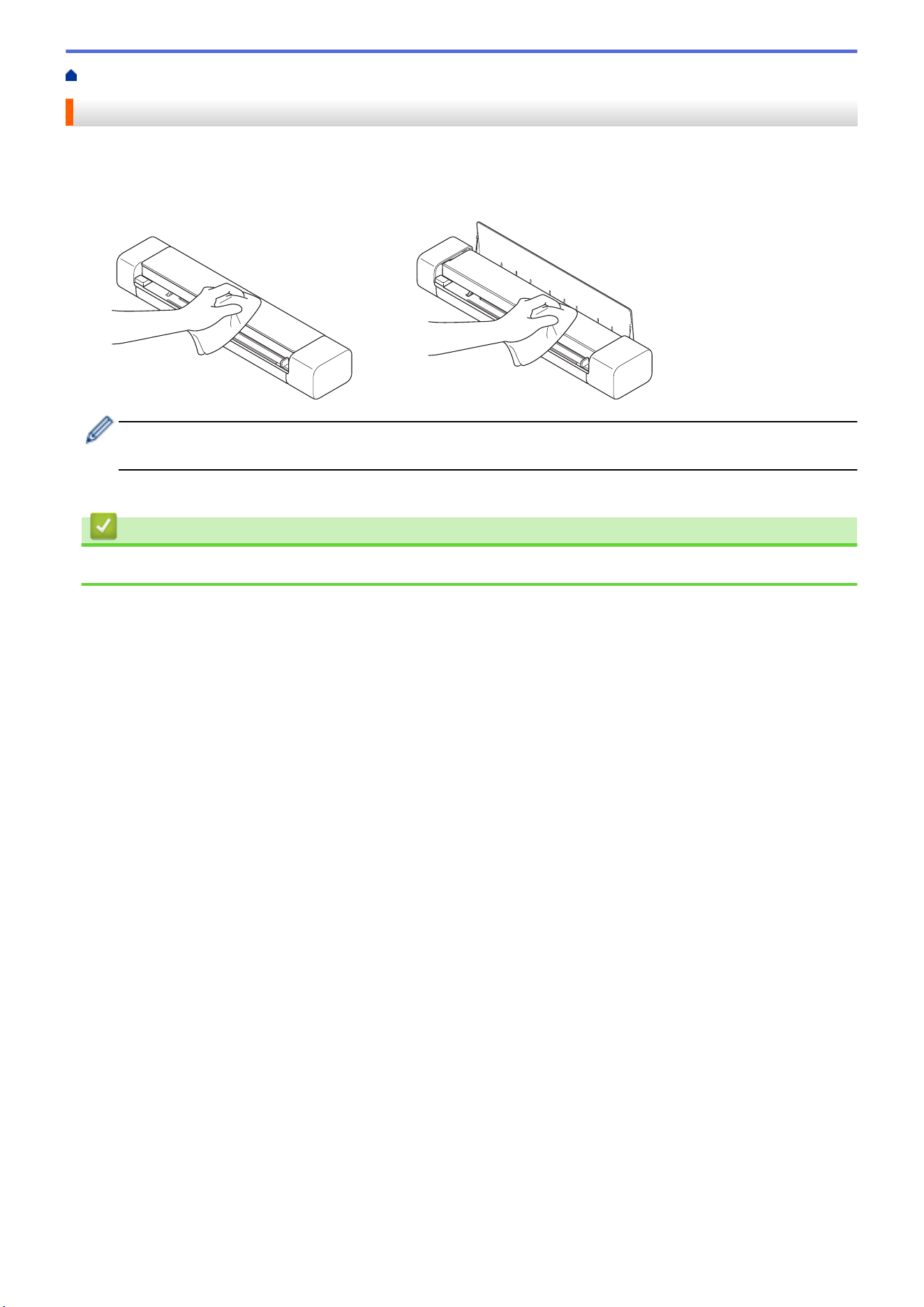
Home > Routine Maintenance > Clean Your Brother Machine > Clean the Outside of the Machine
Clean the Outside of the Machine
1. (DSmobile DS-940DW) Turn off the machine.
2. Disconnect the USB cable from both your scanner and your computer.
3. Wipe the outside of the scanner with a dry, soft, lint-free cloth to remove dust.
Wipe the outside of the machine first with a cloth lightly dampened with water or diluted detergent, and then
with a dry cloth, if needed.
4. Reconnect the USB cable to your scanner and your computer.
Related Information
• Clean Your Brother Machine
129
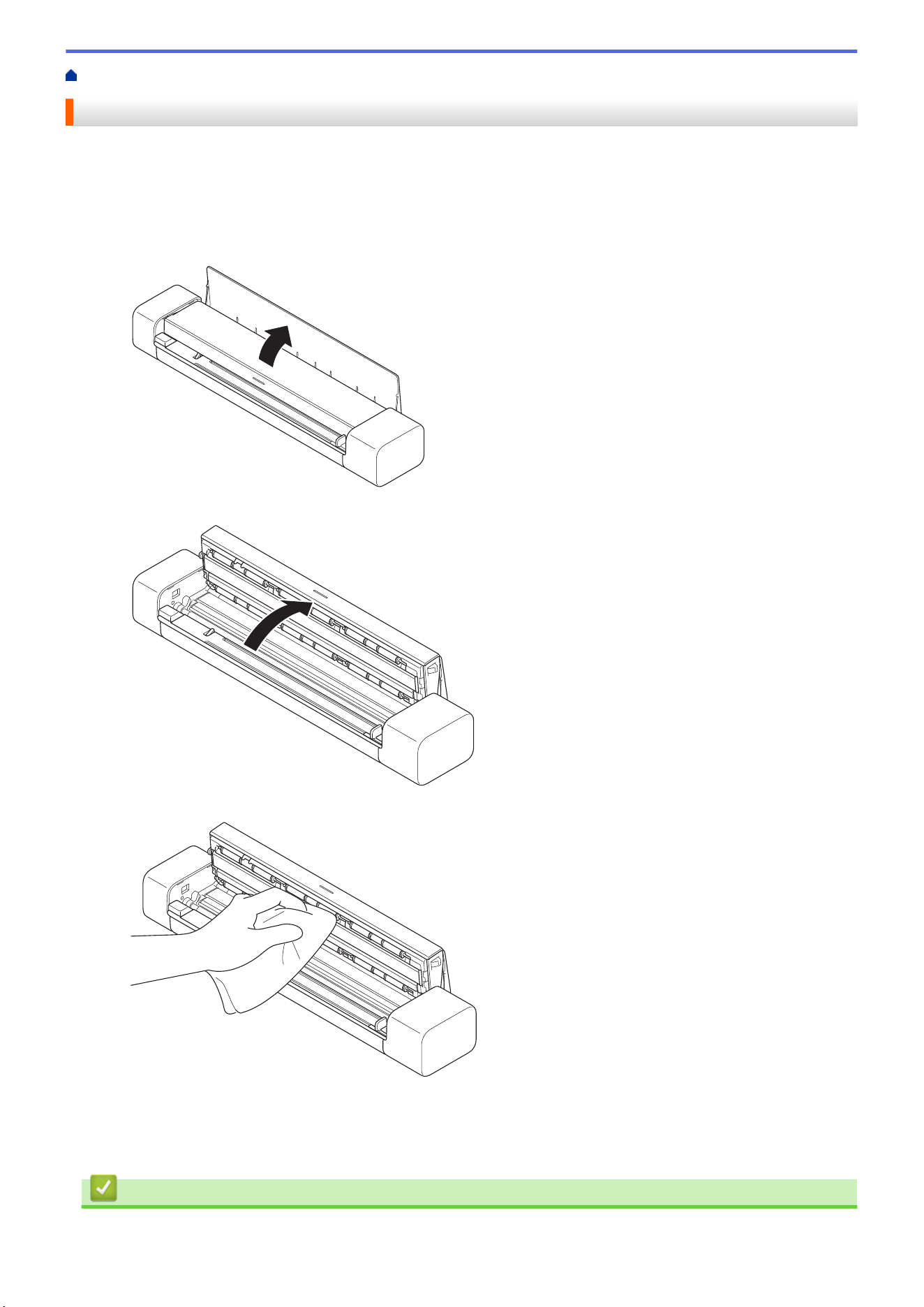
Home > Routine Maintenance > Clean Your Brother Machine > Clean the Scanner and Rollers
Clean the Scanner and Rollers
A spot of dirt or correction fluid on the glass strip may cause poor quality scans. Clean the scanner and rollers if
a vertical line appears in the scanned data or if areas are missing in the scanned data.
1. (DSmobile DS-940DW) Turn off the machine.
2. Disconnect the USB cable from both your scanner and your computer.
3. (DSmobile DS-740D/DSmobile DS-940DW) Open the Output Guide.
4. Open the Top Cover.
5. Gently wipe the glass strips and rollers with a dry, soft, lint-free cloth.
6. Close the Top Cover.
7. (DSmobile DS-740D/DSmobile DS-940DW) Close the Output Guide.
8. Reconnect the USB cable to your scanner and your computer.
Related Information
• Clean Your Brother Machine
130

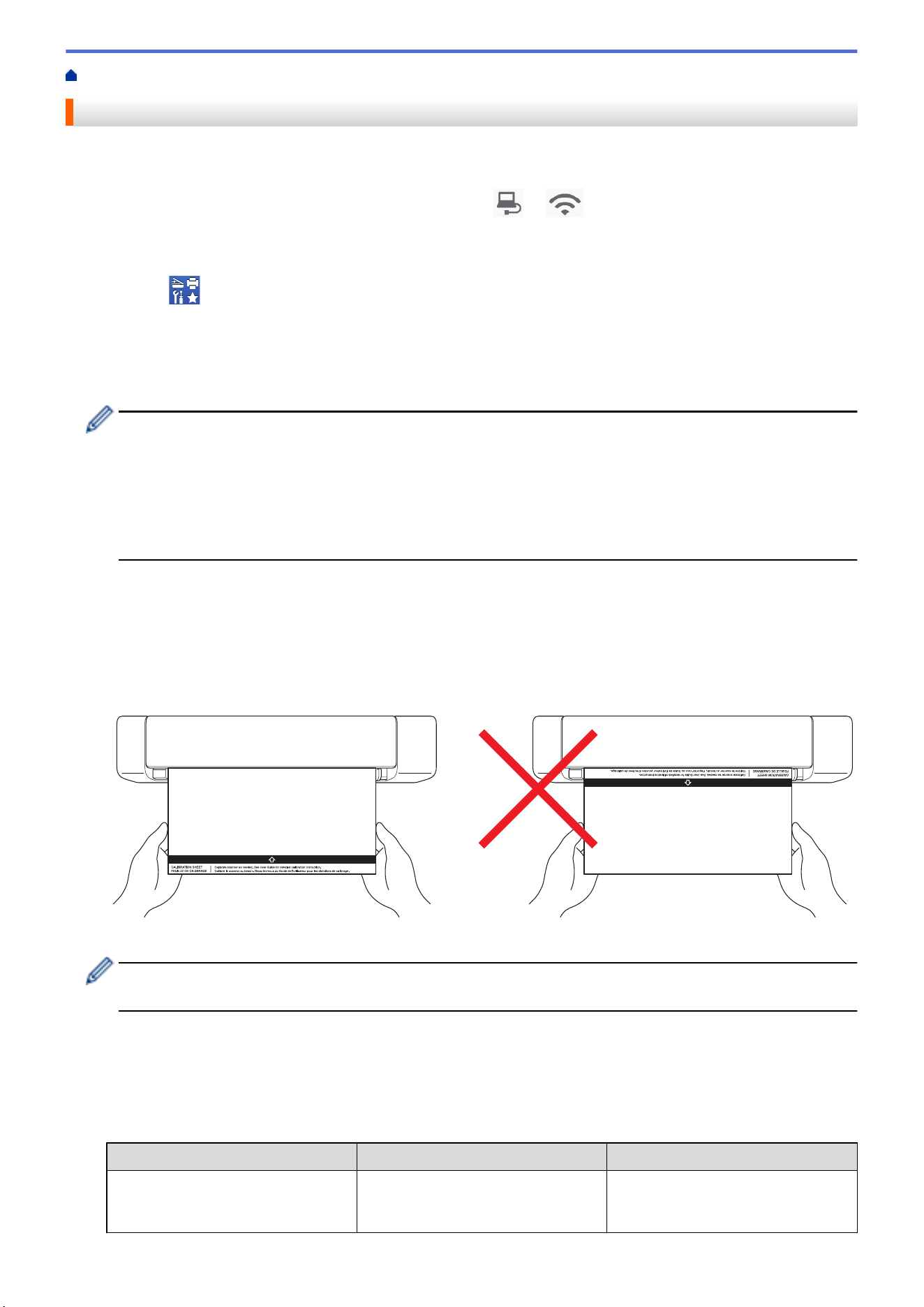
Home > Routine Maintenance > Calibrate Your Brother Machine
Calibrate Your Brother Machine
Calibrate your scanner only if the scanned images start to look fuzzy, the color looks abnormal (darker than
normal), or if the scanner has been stored without being used for a long time.
1. (DSmobile DS-940DW) Slide the Mode Select Switch to or .
2. Do one of the following:
• Windows
Click
Brother Utilities on your desktop, and then click the drop-down list and select your model
name (if not already selected). Click Tools in the left navigation bar, and then click Remote Setup.
• Mac
In the Finder menu bar, click Go > Applications > Brother, select your model name and then double-
click the Remote Setup icon.
(DSmobile DS-940DW)
When your machine is connected via a Network, type the password if required. If you have not previously
set your own password, type the default login password.
The default login password is either:
• the password located on the bottom of the machine and marked "Pwd".
• initpass
3. Click the Machine Info menu in the left navigation pane.
4. Click the Start button in the Calibration option.
5. Click OK.
6. Hold the edges of the calibration sheet (supplied with the scanner) and insert it into the Feeder Slot as shown
below.
Hold only the edges of the calibration sheet and be careful not to touch the white or black areas. Leaving
marks or fingerprints on this sheet can cause errors in calibration.
7. Click OK in the Remote Setup window.
The scanner starts feeding the calibration sheet, and then the calibration result appears on the computer
screen.
8. When the Remote Setup displays a confirmation message, click OK.
If the calibration or scanning results are unsuccessful, try the following solutions:
Difficulties
Cause Suggestions
Vertical line appears. The environmental temperature has
changed during calibration.
Make sure the temperature is the
same during scanner use and
recalibration.
132

Difficulties Cause Suggestions
The scanner may have vibrated
during calibration.
Place the scanner on a flat, stable
surface and recalibrate.
• Dust on the paper path.
• Dust on the calibration sheet.
• Clean the paper path and try to
scan again.
• Clean the paper path or
calibration sheet. And then
Recalibrate the scanner.
Vertical band appears. • Dust or fingerprint on the paper
path.
• Dust, fingerprint, or scratch on
the calibration sheet.
• Clean the paper path and try to
scan again.
• Clean the paper path or use a
new calibration sheet. And then
recalibrate the scanner.
Color is different from normal. • An incorrect calibration sheet is
used.
• The temperature is too high or
too low.
• There is a problem with the
computer's USB port.
• Recalibrate the scanner using
the correct calibration sheet.
• Recalibrate the scanner.
• Change to other USB port, and
then recalibrate the scanner.
The calibration sheet is too short. The calibration sheet has been cut
or inserted incorrectly.
Recalibrate the scanner using the
correct calibration sheet.
Related Information
• Routine Maintenance
133
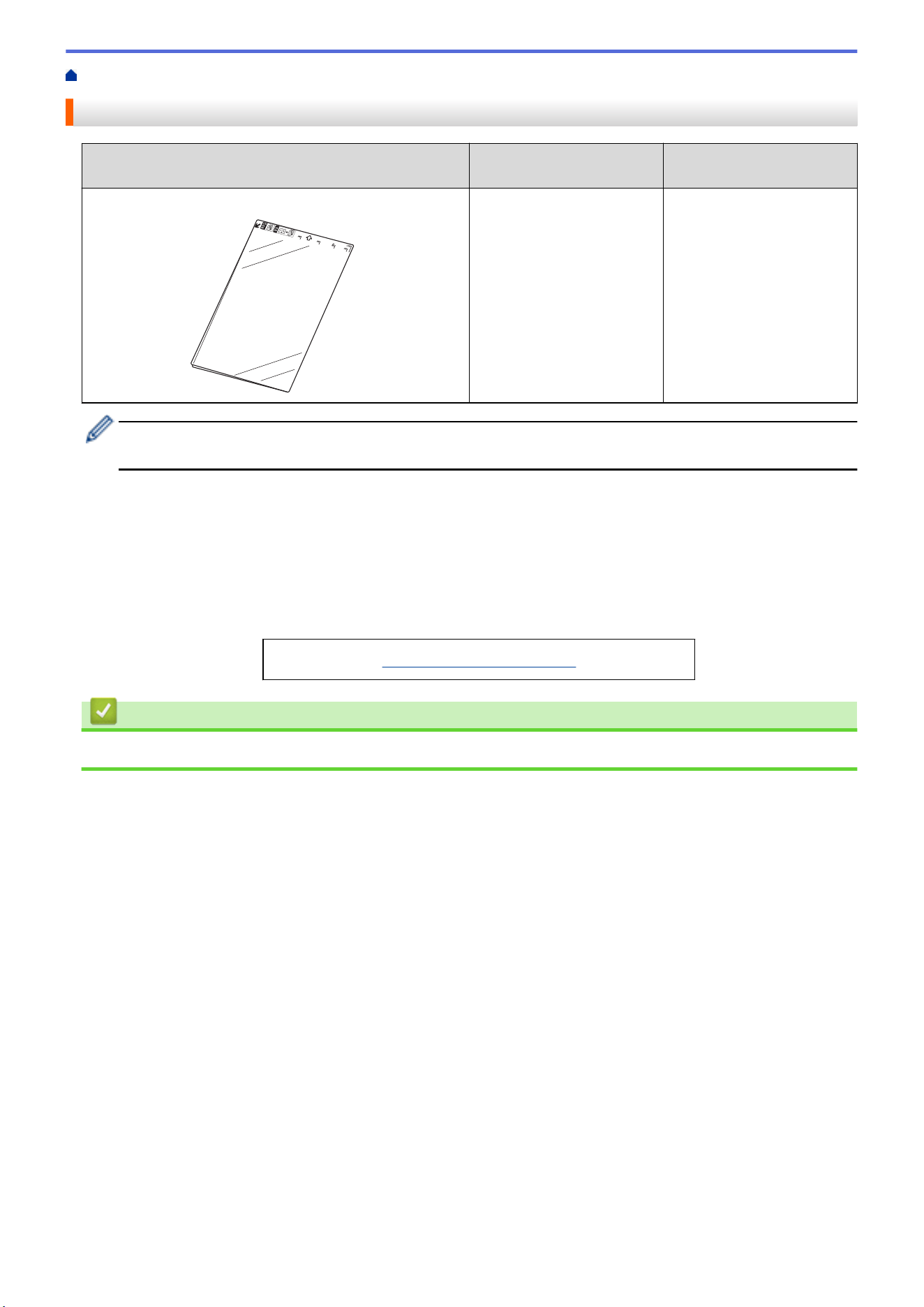
Home > Routine Maintenance > Supplies
Supplies
Part Name Part No. Standard Replacement
Cycle
Carrier Sheet CS-A3401 500 times
The Standard Replacement Cycle may vary depending on the usage environment, type of documents, and
how often documents are scanned.
These parts are available through Brother retailers. If you cannot find the part you need and you have a Visa,
MasterCard, Discover, or American Express credit card, you can order parts directly from Brother. Visit us online
for a complete selection of the Brother parts and supplies that are available for purchase.
In USA:
1-877-552-MALL (1-877-552-6255)
1-800-947-1445 (assistance via fax)
www.brothermall.com
Related Information
• Routine Maintenance
134
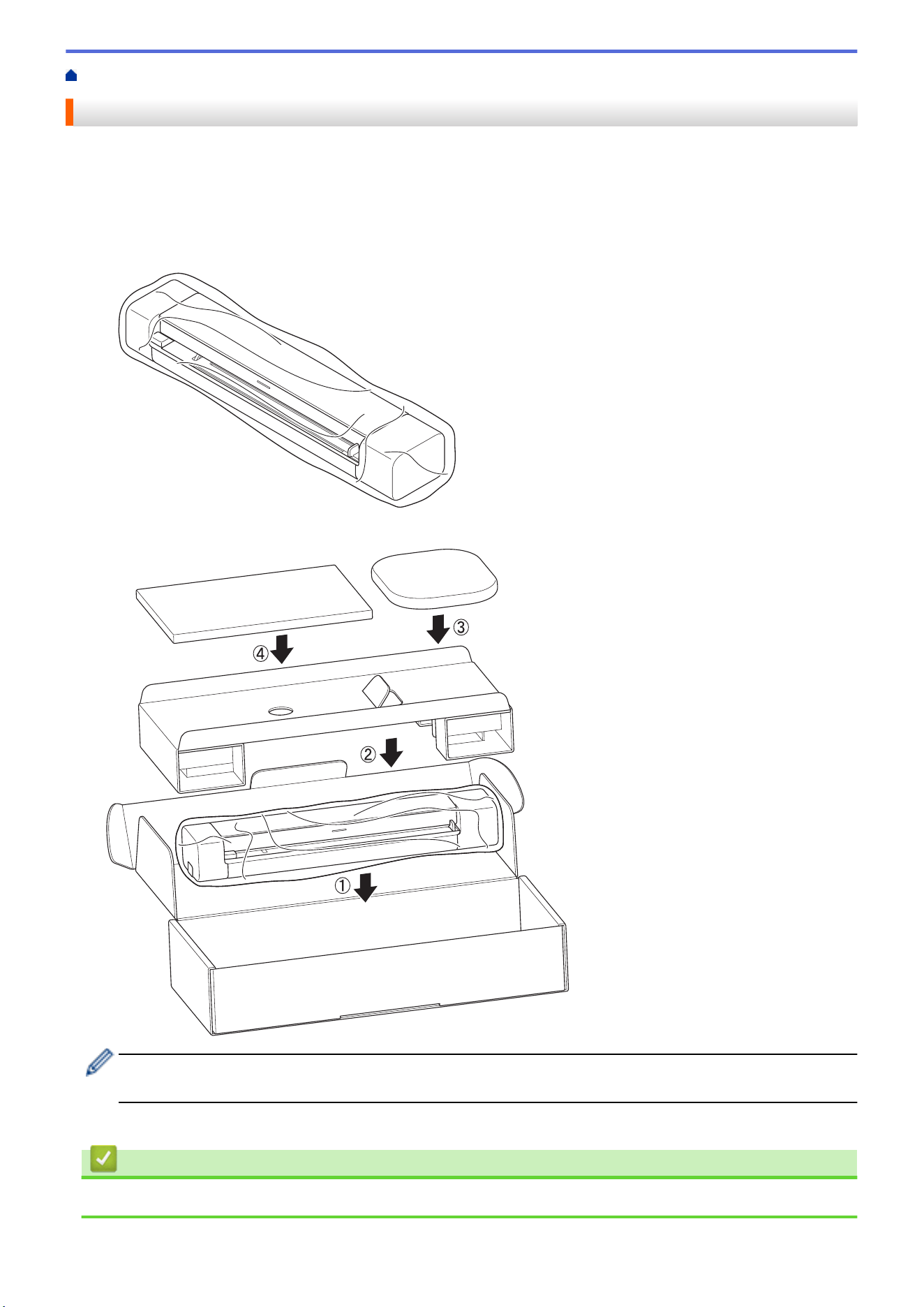
Home > Routine Maintenance > Pack and Ship Your Brother Machine
Pack and Ship Your Brother Machine
When you transport the machine, use the packing materials that came with your machine. If you do not pack the
machine correctly, any damage that may occur in transit may not be covered by your warranty.
The machine should be adequately insured with the carrier.
1. (DSmobile DS-740D/DSmobile DS-940DW) Close the Output Guide.
2. Wrap the machine in the original bag.
3. Pack the machine and the printed materials in the original carton with the original packing material as shown.
If you are returning your machine to Brother as part of the Exchange Service, pack only the machine. Keep
all the separate parts and printed materials to use with your “Exchange” machine.
4. Close the carton and tape it shut.
Related Information
• Routine Maintenance
135
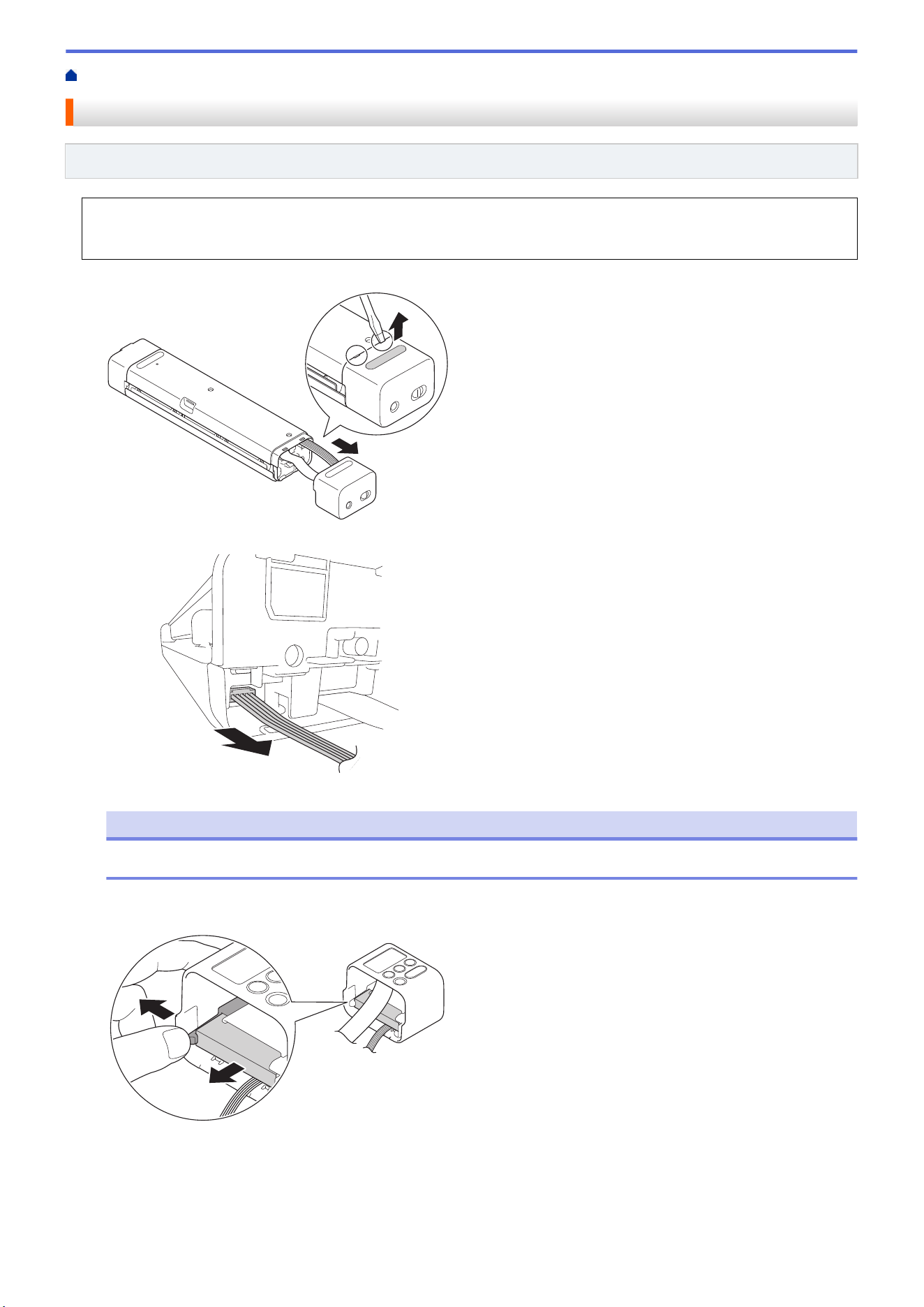
Home > Routine Maintenance > Remove and Dispose the Battery
Remove and Dispose the Battery
Related Models: DSmobile DS-940DW
• We do not recommend removing the rechargeable Li-ion battery unless you are disposing of the machine.
• Before removing the battery, turn the machine off, and then disconnect the USB cable from the machine.
1. Place the machine face down on a flat surface and remove the Side Cover using a flathead screwdriver.
2. Disconnect the battery connector from the Printed Circuit Board Assembly (PCBA).
NOTE
Do not disconnect the Flexible Flat Cable (FFC).
3. Push the release tab (as illustrated) to remove the battery from the Side Cover.
4. Cover the battery terminals with tape and dispose of it according to your local recycling laws.
136




Home > Machine Settings > Change Machine Settings from Your Computer > Change Machine Settings
Using Web Based Management
Change Machine Settings Using Web Based Management
Related Models: DSmobile DS-940DW
• What is Web Based Management?
• Access Web Based Management
• Set or Change a Login Password for Web Based Management
140
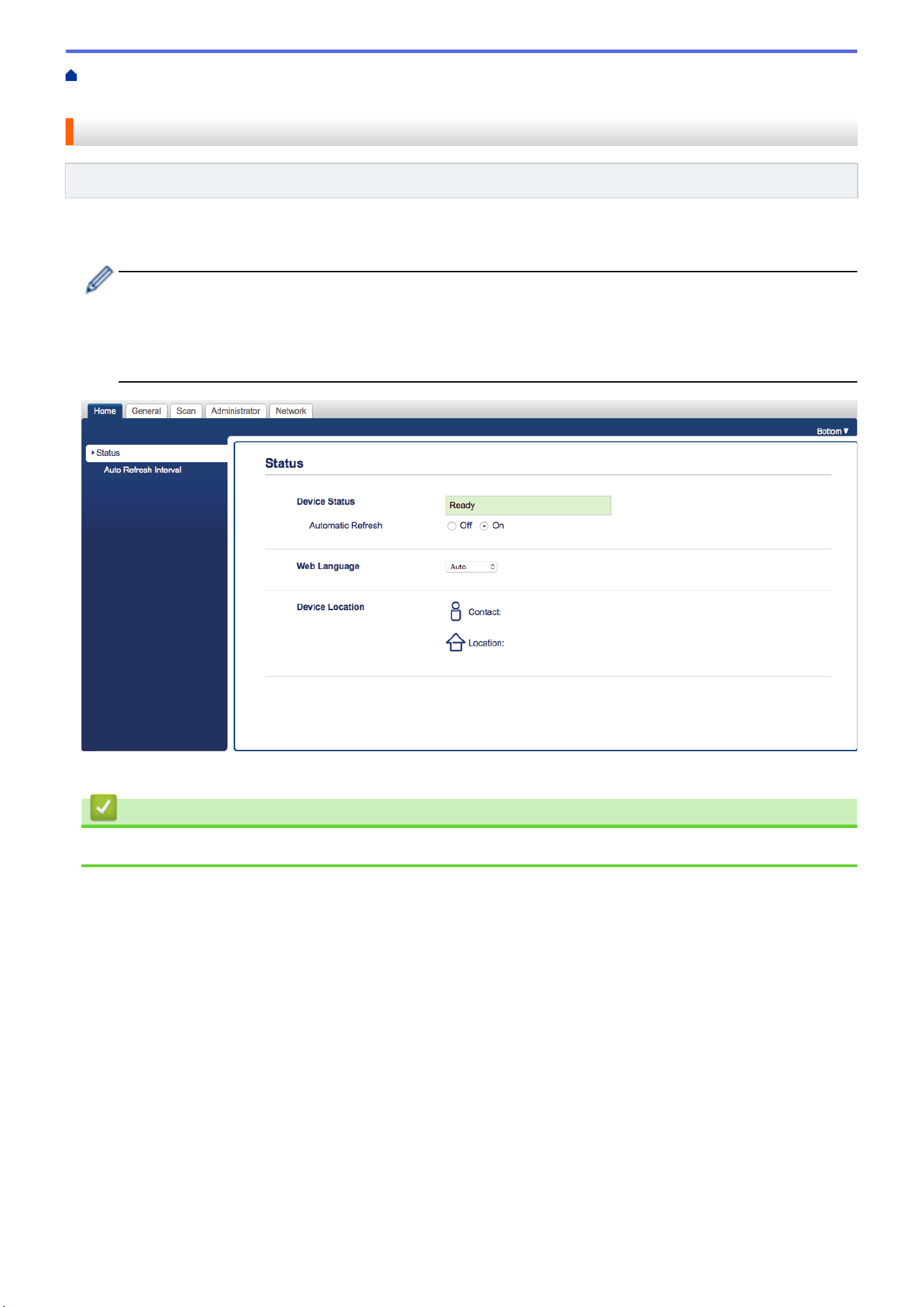
Home > Machine Settings > Change Machine Settings from Your Computer > Change Machine Settings
Using Web Based Management > What is Web Based Management?
What is Web Based Management?
Related Models: DSmobile DS-940DW
Web Based Management is a utility that uses a standard web browser to manage your machine using the Hyper
Text Transfer Protocol (HTTP) or Hyper Text Transfer Protocol over Secure Socket Layer (HTTPS).
• We recommend using Microsoft Internet Explorer 11 or later/Microsoft Edge for Windows, and Safari 12
or later for Mac. Make sure that JavaScript and Cookies are always enabled in whichever browser you
use.
• You must use the TCP/IP protocol on your network and have a valid IP address registered to the scan
server and your computer.
• Your screen may differ slightly from the screen shown.
Related Information
• Change Machine Settings Using Web Based Management
141
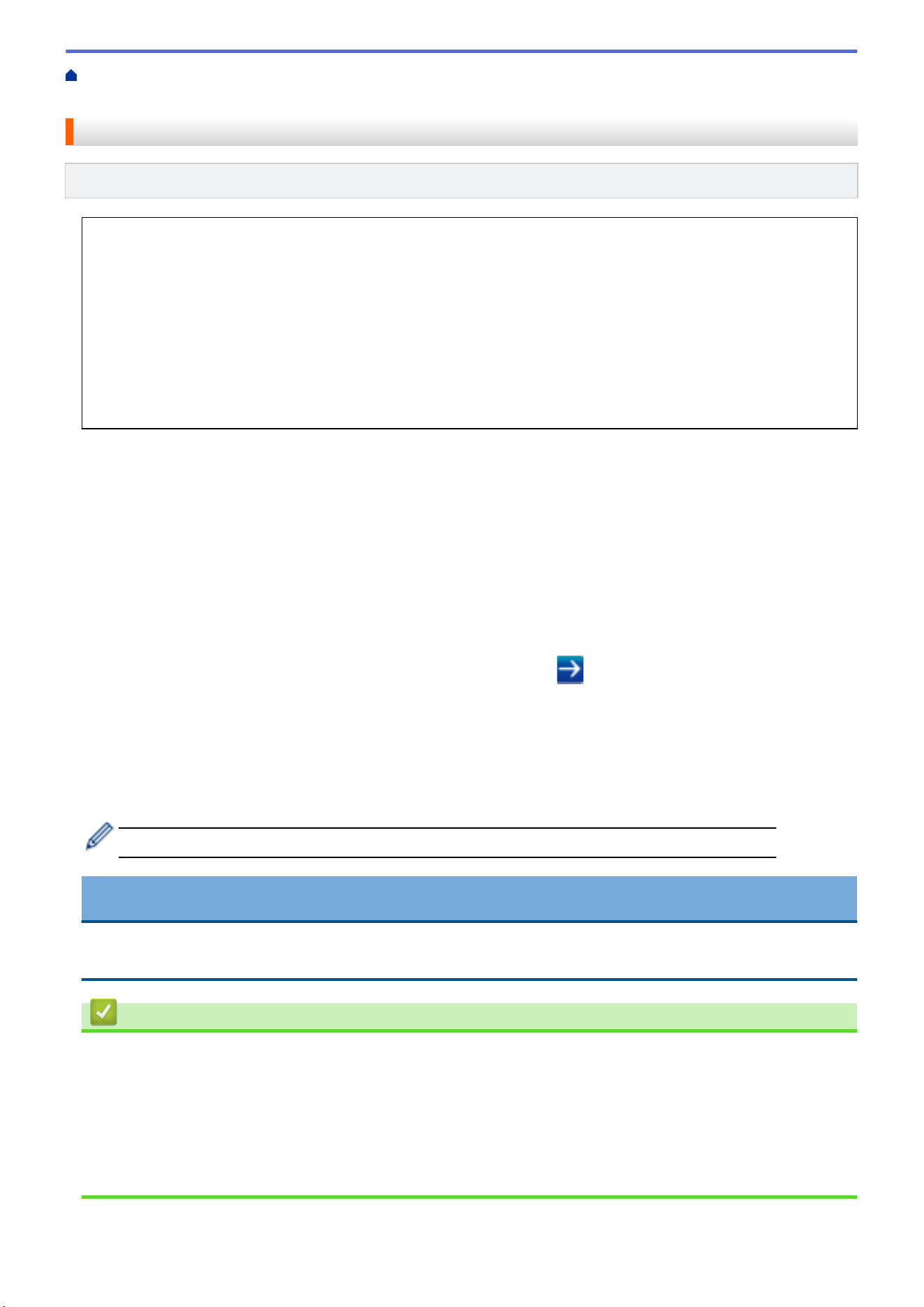
Home > Machine Settings > Change Machine Settings from Your Computer > Change Machine Settings
Using Web Based Management > Access Web Based Management
Access Web Based Management
Related Models: DSmobile DS-940DW
• We recommend using the HTTPS security protocol when configuring settings using Web Based
Management.
• When you use HTTPS for Web Based Management configuration, your browser will display a warning
dialog box. To avoid displaying the warning dialog box, you can install a self-signed certificate to use
SSL/TLS communication. For more detailed information, see Related Information.
• The default password for managing machine settings is either:
- the password located on the bottom of the machine and marked "Pwd".
- initpass
We recommend you change it to protect your machine from unauthorized access.
1. Start your web browser.
2. Do one of the following:
• When using Wireless Direct
Type "https://192.168.118.1" in your browser's address bar.
• When using infrastructure mode
Type "https://machine's IP address" in your browser's address bar (where "machine's IP address" is the
machine's IP address).
For example:
https://192.168.1.2
If the machine prompts you for a password, type it, and then click
. If you have not previously set your
own password, type the default login password. The default password for managing machine settings is
either:
• the password located on the bottom of the machine and marked "Pwd".
• initpass
You can now change your machine settings.
If the password is entered incorrectly three times, you will not be able to log in for three minutes.
IMPORTANT
If you change the protocol settings, you must restart the machine after clicking Submit to activate the new
configuration.
Related Information
• Change Machine Settings Using Web Based Management
Related Topics:
• Certificates and Web Based Management
• Create a Self-signed Certificate
• Install the Self-signed Certificate for Windows users with Administrator Rights
• Check the IP Address of Network Devices
142
Home > Machine Settings > Change Machine Settings from Your Computer > Change Machine Settings
Using Web Based Management > Set or Change a Login Password for Web Based Management
Set or Change a Login Password for Web Based Management
Related Models: DSmobile DS-940DW
We recommend changing the default login password to prevent unauthorized access to Web Based
Management.
1. Start your web browser.
2. Do one of the following:
• When using Wireless Direct
Type "https://192.168.118.1" in your browser's address bar.
• When using infrastructure mode
Type "https://machine's IP address" in your browser's address bar (where "machine's IP address" is the
machine's IP address).
For example:
https://192.168.1.2
3. Do one of the following:
• If you have previously set your own password, type it, and then click
.
• If you have not previously set your own password, type the default login password and then click .
The default login password is either:
- the password located on the bottom of the machine and marked "Pwd".
- initpass
4. Click the Administrator tab.
5. Type the password you want to use in the Enter New Password field (8 to 32 characters).
6. Retype the password in the Confirm New Password field.
7. Click Submit.
8. After configuring the settings, click
to log off.
Related Information
• Change Machine Settings Using Web Based Management
Related Topics:
• Check the IP Address of Network Devices
143

Home > Machine Settings > Change Machine Settings from Your Computer > Change the Machine Settings
Using Remote Setup
Change the Machine Settings Using Remote Setup
The Remote Setup program lets you configure many of your Brother machine's settings from your computer.
When you start Remote Setup, the settings on your Brother machine will be downloaded to your computer and
displayed on your screen. If you change the settings on your computer, you can upload them directly to the
machine.
• Remote Setup (Windows)
• Remote Setup (Mac)
144

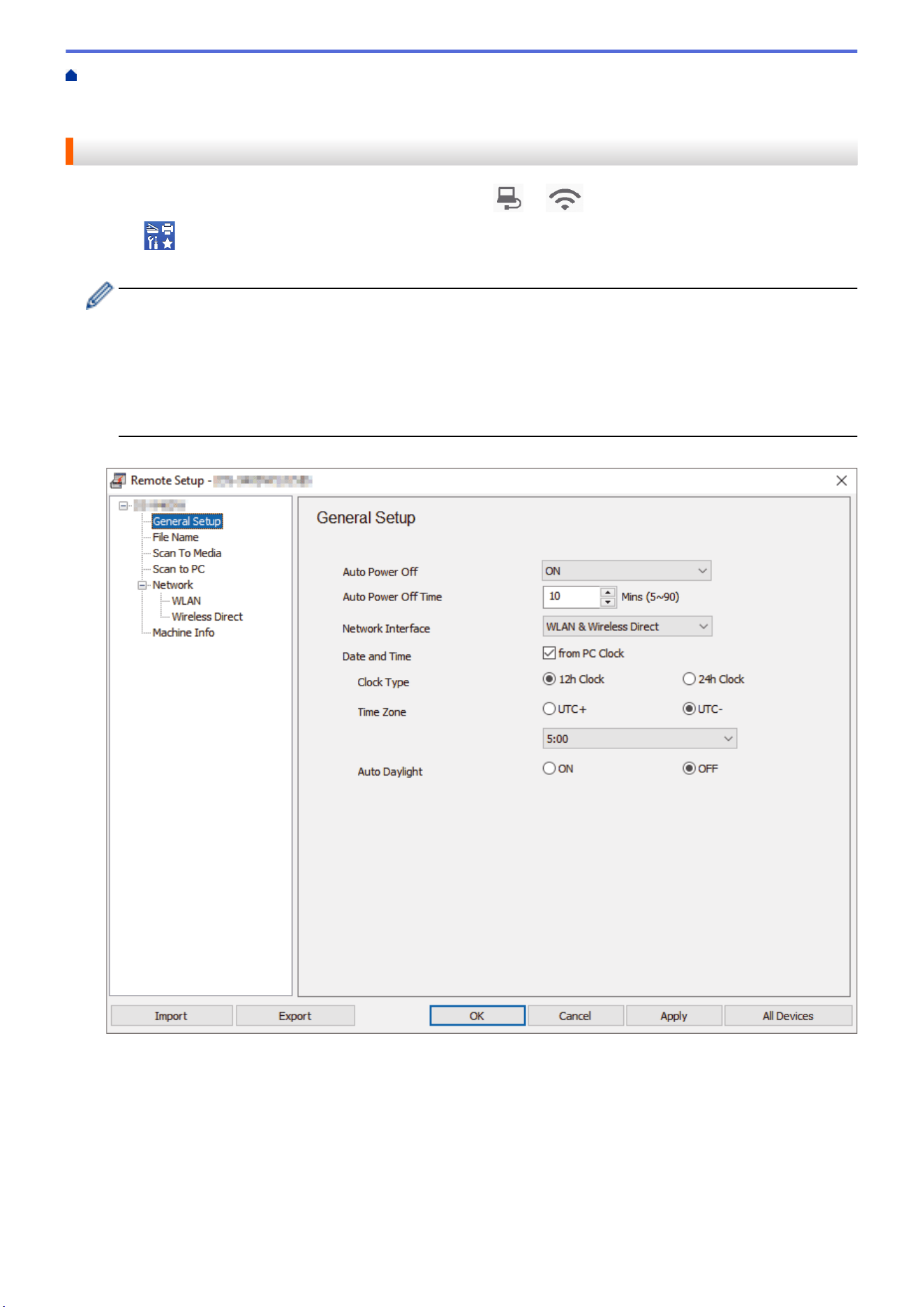
Home > Machine Settings > Change Machine Settings from Your Computer > Change the Machine Settings
Using Remote Setup > Remote Setup (Windows) > Set Up the Brother Machine Using Remote Setup
(Windows)
Set Up the Brother Machine Using Remote Setup (Windows)
1. (DSmobile DS-940DW) Slide the Mode Select Switch to or .
2. Click
Brother Utilities on your desktop, and then click the drop-down list and select your model name (if
not already selected). Click Tools in the left navigation bar, and then click Remote Setup.
(DSmobile DS-940DW)
When your machine is connected via a Network, type the password if required. If you have not previously
set your own password, type the default login password.
The default login password is either:
• the password located on the bottom of the machine and marked "Pwd".
• initpass
3. Configure the settings as needed.
• Your screen may differ from the screen shown.
• (DSmobile DS-940DW) When the machine and computer are connected wirelessly, select Scan to PC in
the navigation tree and configure scan settings to enable scanning from the START/STOP button on the
machine.
Export
Click to save the current configuration settings to a file.
Import
Click to import a file and read its settings.
146

OK
Click to start uploading data to the machine, and then exit the Remote Setup Program. If an error message
appears, confirm that your data is correct, and then click OK
Cancel
Click to exit the Remote Setup Program without uploading data to the machine.
Apply
Click to upload data to the machine without exiting the Remote Setup Program.
4. Click OK.
• If your computer is protected by a firewall and is unable to use Remote Setup, you may need to configure the
firewall settings to allow communication through port numbers 52515-52614.
• If using Windows Firewall and you installed the scanner driver, the necessary firewall settings have already
been set.
Related Information
• Remote Setup (Windows)
147
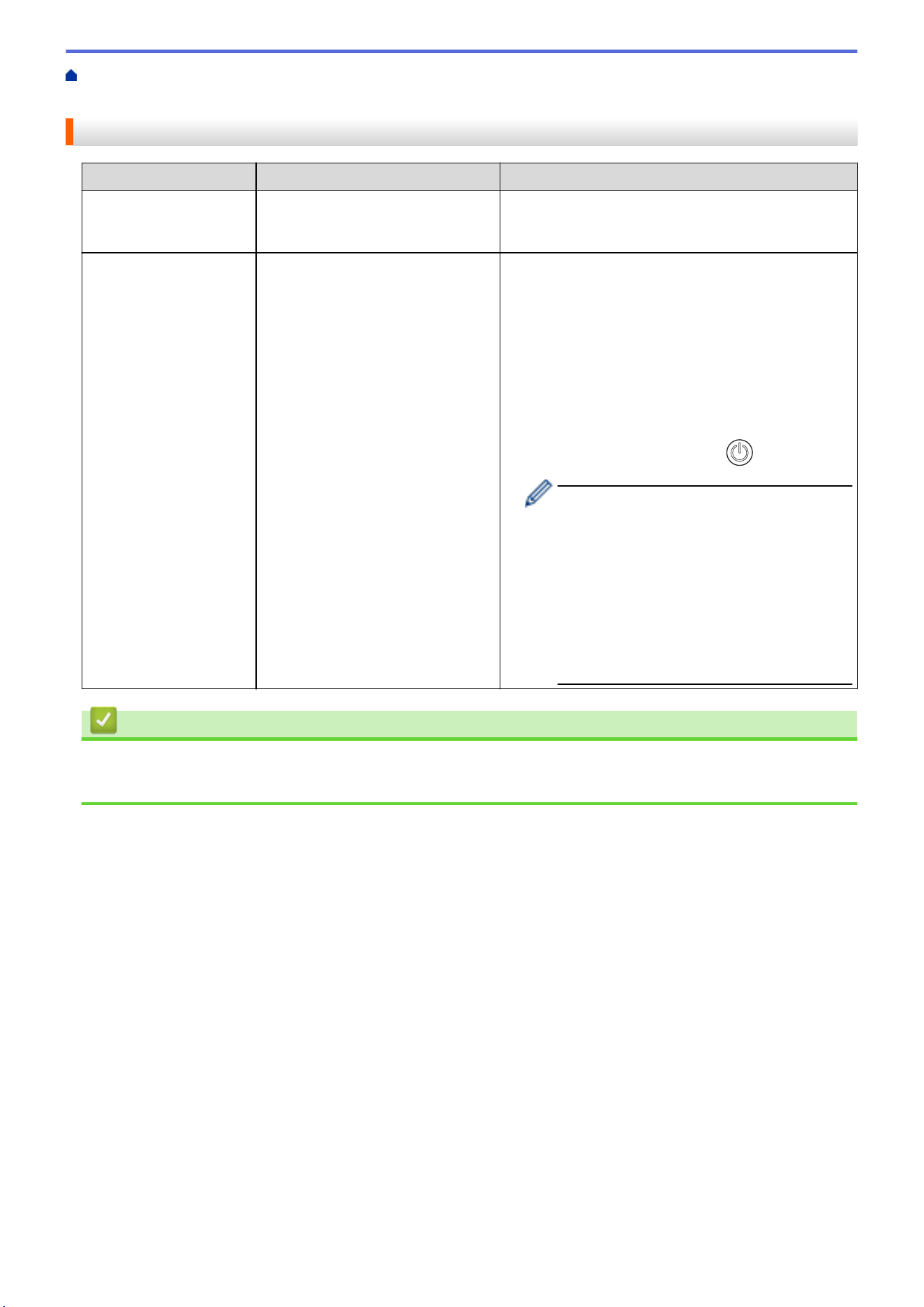
Home > Machine Settings > Change Machine Settings from Your Computer > Change the Machine Settings
Using Remote Setup > Remote Setup (Windows) > Change the General Settings Using Remote Setup
Change the General Settings Using Remote Setup
Purpose Operation (Windows/Mac) Description
Set the Date and Time
(DSmobile DS-940DW)
General Setup > Date and Time Set the date and time. If you set Auto Daylight to On,
the time will be adjusted forward one hour in the
spring and adjusted backward one hour in the fall.
Set the Machine to
Power Off Automatically
General Setup > Auto Power Off
General Setup > Auto Power Off
Time
Select how long the machine must wait before it
automatically turns itself off. The Auto Power Off
feature can save power consumption.
• (DSmobile DS-635/DSmobile DS-640/
DSmobile DS-740D)
To turn on the machine after the Auto Power Off
feature has turned it off, press START/STOP.
• (DSmobile DS-940DW)
To turn on the machine after the Auto Power Off
feature has turned it off, press
.
(DSmobile DS-940DW)
If the machine is connected to the computer
using a USB cable and the battery is not fully
charged, the machine automatically turns
itself off and goes into Battery Charge Mode
when the specified time elapses. (The
Battery LED blinks.)
The machine turns off after the battery is fully
charged or when the USB cable is
disconnected from the machine or computer.
Related Information
• Remote Setup (Windows)
• Remote Setup (Mac)
148

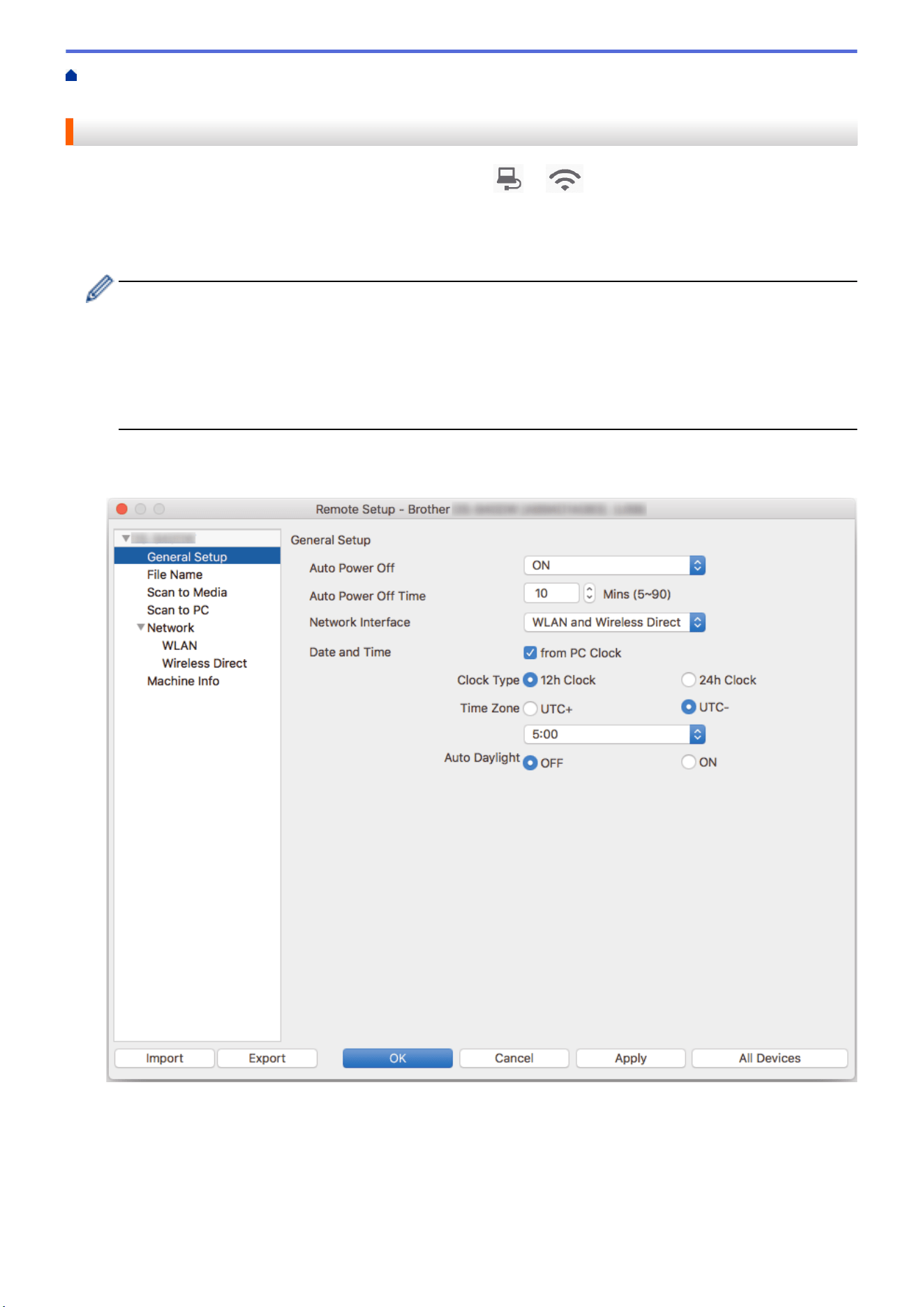
Home > Machine Settings > Change Machine Settings from Your Computer > Change the Machine Settings
Using Remote Setup > Remote Setup (Mac) > Set Up the Brother Machine Using Remote Setup (Mac)
Set Up the Brother Machine Using Remote Setup (Mac)
1. (DSmobile DS-940DW) Slide the Mode Select Switch to or .
2. In the Finder menu bar, click Go > Applications > Brother, select your model name, and then double-click
the Remote Setup icon.
If the Discover Devices dialog box appears, select your model name and then click Connect.
(DSmobile DS-940DW)
When your machine is connected via a Network, type the password if required. If you have not previously
set your own password, type the default login password.
The default login password is either:
• the password located on the bottom of the machine and marked "Pwd".
• initpass
The Remote Setup Program window appears.
3. Configure the settings as needed.
• Your screen may differ from the screen shown.
• (DSmobile DS-940DW) When the machine and computer are connected wirelessly, select Scan to PC in
the navigation tree and configure scan settings to enable scanning from the START/STOP button on the
machine.
Export
Click to save the current configuration settings to a file.
150

Import
Click to import a file and read its settings.
OK
Click to start uploading data to the machine, and then exit the Remote Setup Program. If an error message
appears, confirm that your data is correct, and then click OK.
Cancel
Click to exit the Remote Setup Program without uploading data to the machine.
Apply
Click to upload data to the machine without exiting the Remote Setup Program.
4. Click OK.
Related Information
• Remote Setup (Mac)
151
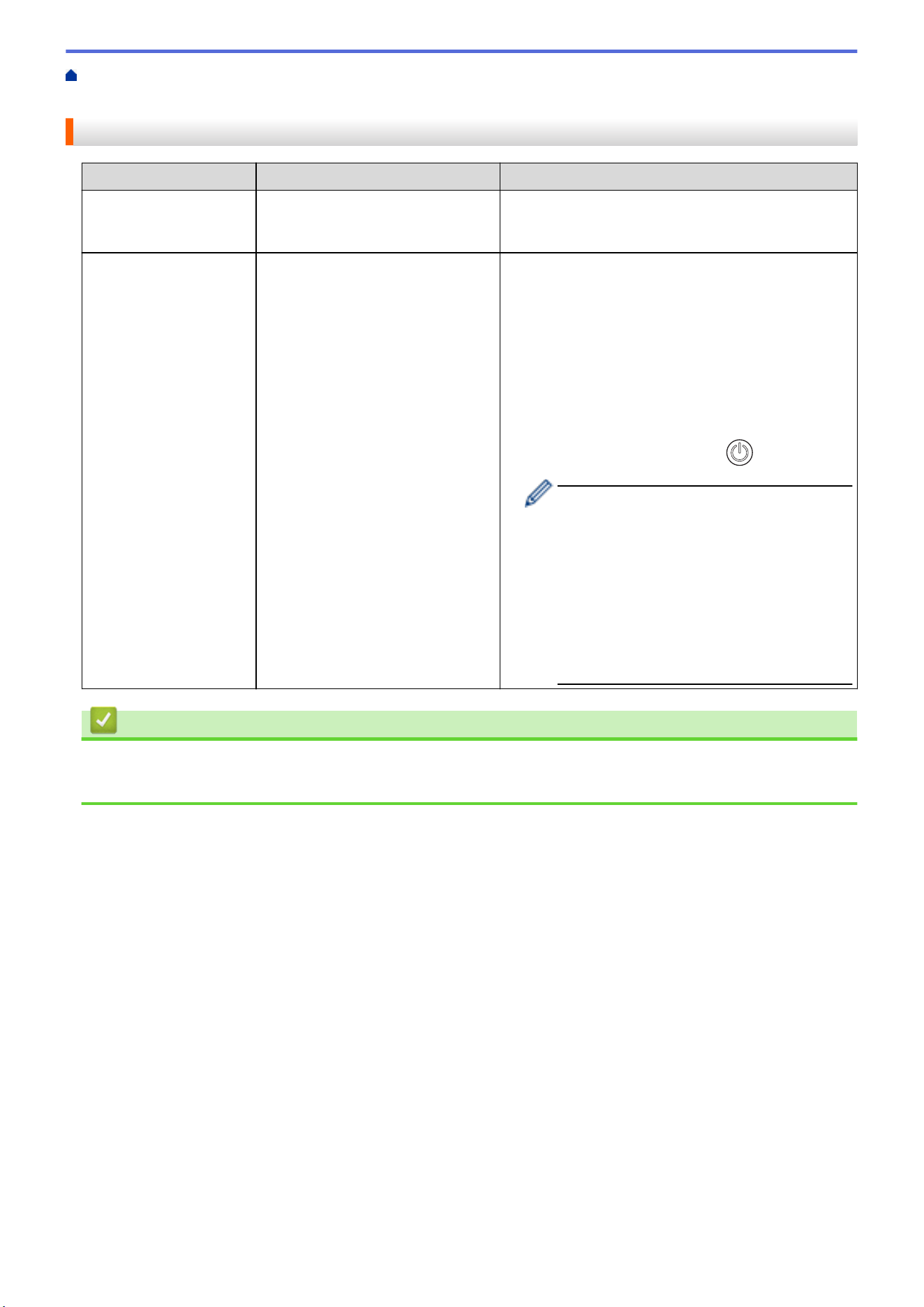
Home > Machine Settings > Change Machine Settings from Your Computer > Change the Machine Settings
Using Remote Setup > Remote Setup (Mac) > Change the General Settings Using Remote Setup
Change the General Settings Using Remote Setup
Purpose Operation (Windows/Mac) Description
Set the Date and Time
(DSmobile DS-940DW)
General Setup > Date and Time Set the date and time. If you set Auto Daylight to On,
the time will be adjusted forward one hour in the
spring and adjusted backward one hour in the fall.
Set the Machine to
Power Off Automatically
General Setup > Auto Power Off
General Setup > Auto Power Off
Time
Select how long the machine must wait before it
automatically turns itself off. The Auto Power Off
feature can save power consumption.
• (DSmobile DS-635/DSmobile DS-640/
DSmobile DS-740D)
To turn on the machine after the Auto Power Off
feature has turned it off, press START/STOP.
• (DSmobile DS-940DW)
To turn on the machine after the Auto Power Off
feature has turned it off, press
.
(DSmobile DS-940DW)
If the machine is connected to the computer
using a USB cable and the battery is not fully
charged, the machine automatically turns
itself off and goes into Battery Charge Mode
when the specified time elapses. (The
Battery LED blinks.)
The machine turns off after the battery is fully
charged or when the USB cable is
disconnected from the machine or computer.
Related Information
• Remote Setup (Windows)
• Remote Setup (Mac)
152

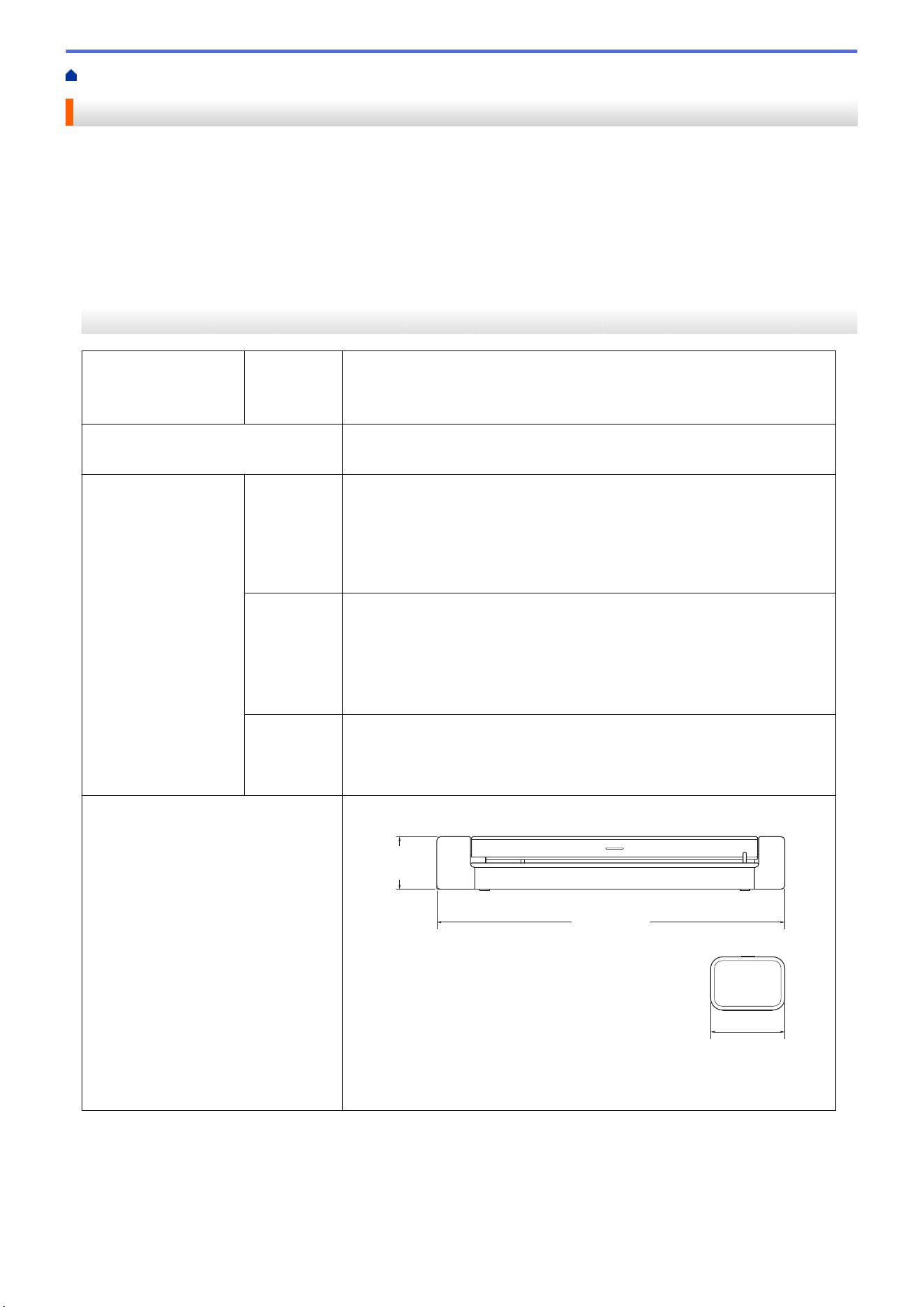
Home > Appendix > Specifications
Specifications
>> General Specifications
>> Document Specifications
>> Scanner Specifications
>> Rechargeable Li-ion Battery (DSmobile DS-940DW)
>> Interface Specifications
>> Network Specifications (DSmobile DS-940DW)
>> Supported Protocols and Security Features (DSmobile DS-940DW)
>> Computer Requirements Specifications
General Specifications
Memory Capacity
Standard DSmobile DS-635/DSmobile DS-640: 128 MB
DSmobile DS-740D: 256 MB
DSmobile DS-940DW: 512 MB
Power Source DSmobile DS-635/DSmobile DS-640/DSmobile DS-740D: USB bus-power
DSmobile DS-940DW: USB bus-power/rechargeable Li-ion battery
Power Consumption
1
Scanning DSmobile DS-635/DSmobile DS-640: Approx. 2.6 W
DSmobile DS-740D: Approx. 3.3 W
DSmobile DS-940DW:
• Approx. 4.6 W (Wi-Fi Mode)
• Approx. 4.2 W (USB Mode)
Ready DSmobile DS-635/DSmobile DS-640: Approx. 1.4 W
DSmobile DS-740D: Approx. 1.4 W
DSmobile DS-940DW
2
:
• Approx. 2.3 W (Wi-Fi Mode)
• Approx. 1.6 W (USB Mode)
Power Down
DSmobile DS-635/DSmobile DS-640: Approx. 0.01 W
DSmobile DS-740D: Approx. 0.01 W
DSmobile DS-940DW
2
: Approx. 0.11 W
Dimensions DSmobile DS-635/DSmobile DS-640:
1.45 in.
(36.8 mm)
1.99 in.
(50.6 mm)
11.85 in.
(301 mm)
DSmobile DS-740D:
154
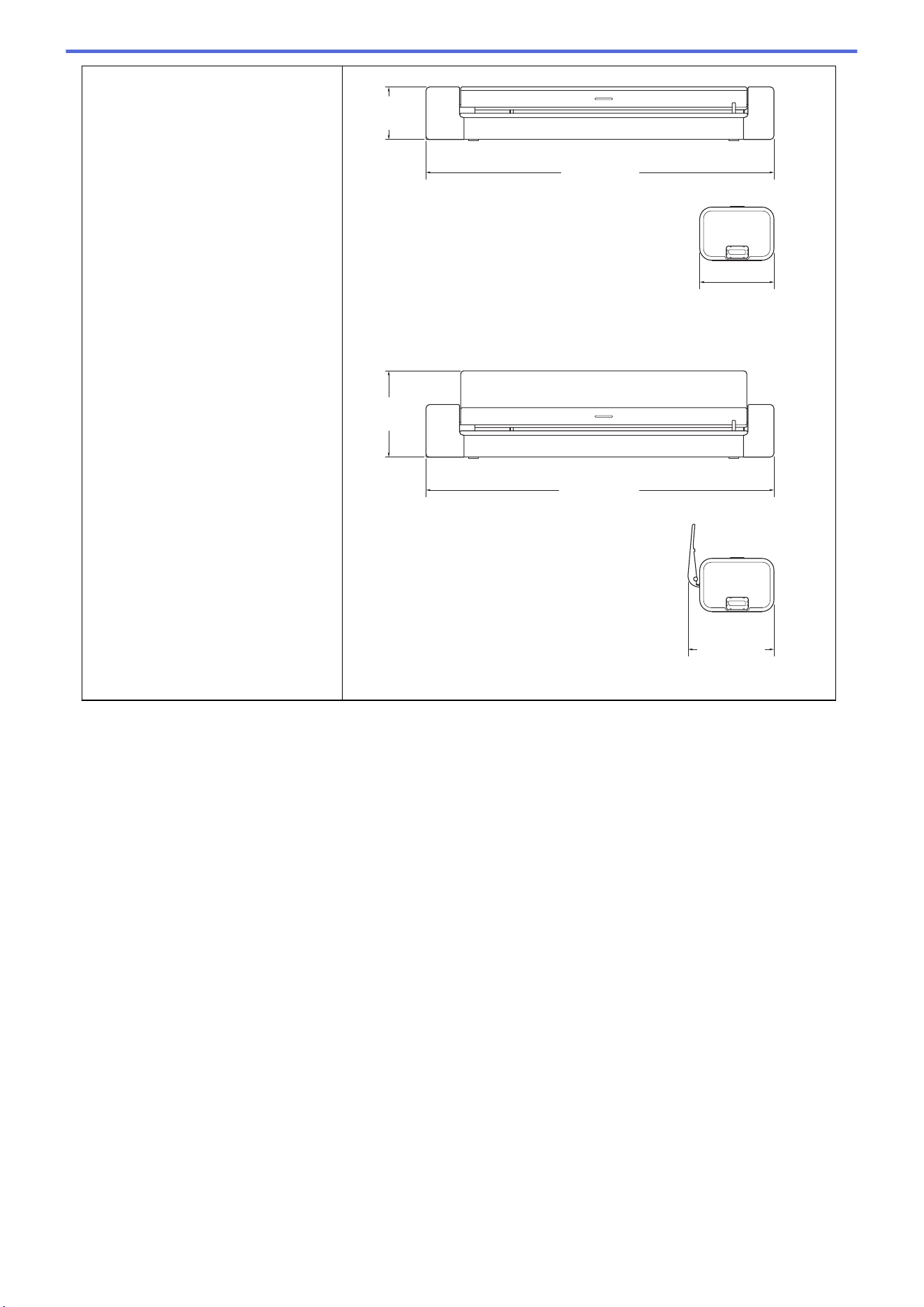
1.78 in.
(45.3 mm)
2.93 in.
(74.4 mm)
2.48 in.
(63 mm)
11.85 in.
(301 mm)
2.89 in.
(73.4 mm)
11.85 in.
(301 mm)
DSmobile DS-940DW:
155
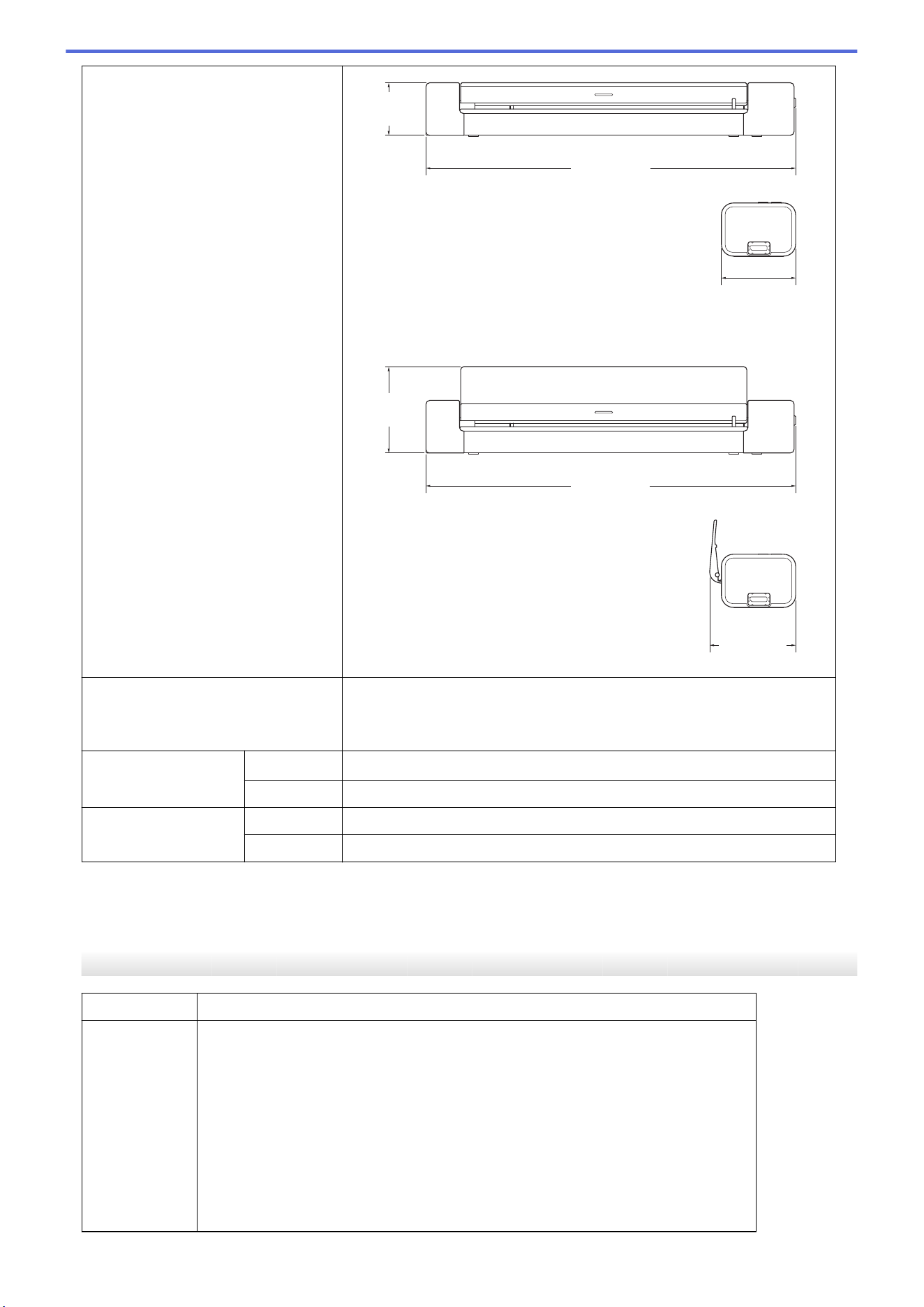
1.79 in.
(45.4 mm)
2.93 in.
(74.3 mm)
2.48 in.
(63.1 mm)
12.56 in.
(319 mm)
2.89 in.
(73.4 mm)
12.56 in.
(319 mm)
Weights DSmobile DS-635/DSmobile DS-640: Approx. 1.03 lbs (466 g)
DSmobile DS-740D: Approx. 1.43 lbs (646 g)
DSmobile DS-940DW: Approx. 1.54 lbs (699 g)
Temperature Operating
41°F to 95°F (5°C to 35°C)
3
Storage -4°F to 140°F (-20°C to 60°C)
Humidity Operating 20% to 80%
Storage 10% to 90%
1
Measured when the machine is connected to the USB interface.
2
(DSmobile DS-940DW) Measured when the rechargeable Li-ion battery is fully charged.
3
(DSmobile DS-940DW) Charging stops when the temperature of the specifications is exceeded.
Document Specifications
Paper Type
Photo, Paper, Card (embossed), Business Card, Receipt
Document Size DSmobile DS-635/DSmobile DS-640:
• 3.4 in. x 2.0 in. to 72 in. x 8.5 in. (86.4 mm x 50.8 mm to 1828.8 mm x 215.9 mm)
DSmobile DS-740D/DSmobile DS-940DW:
• Single-sided Scan
3.4 in. x 2.0 in. to 72 in. x 8.5 in. (86.4 mm x 50.8 mm to 1828.8 mm x 215.9 mm)
• 2-sided Scan
3.4 in. x 2.0 in. to 16 in. x 8.5 in. (86.4 mm x 50.8 mm to 406.48 mm x 215.9 mm)
• Output Guide
4.13 in. x 2.91 in. to 11.69 in. x 8.5 in. (105 mm x 74 mm to 297 mm x 215.9 mm)
156
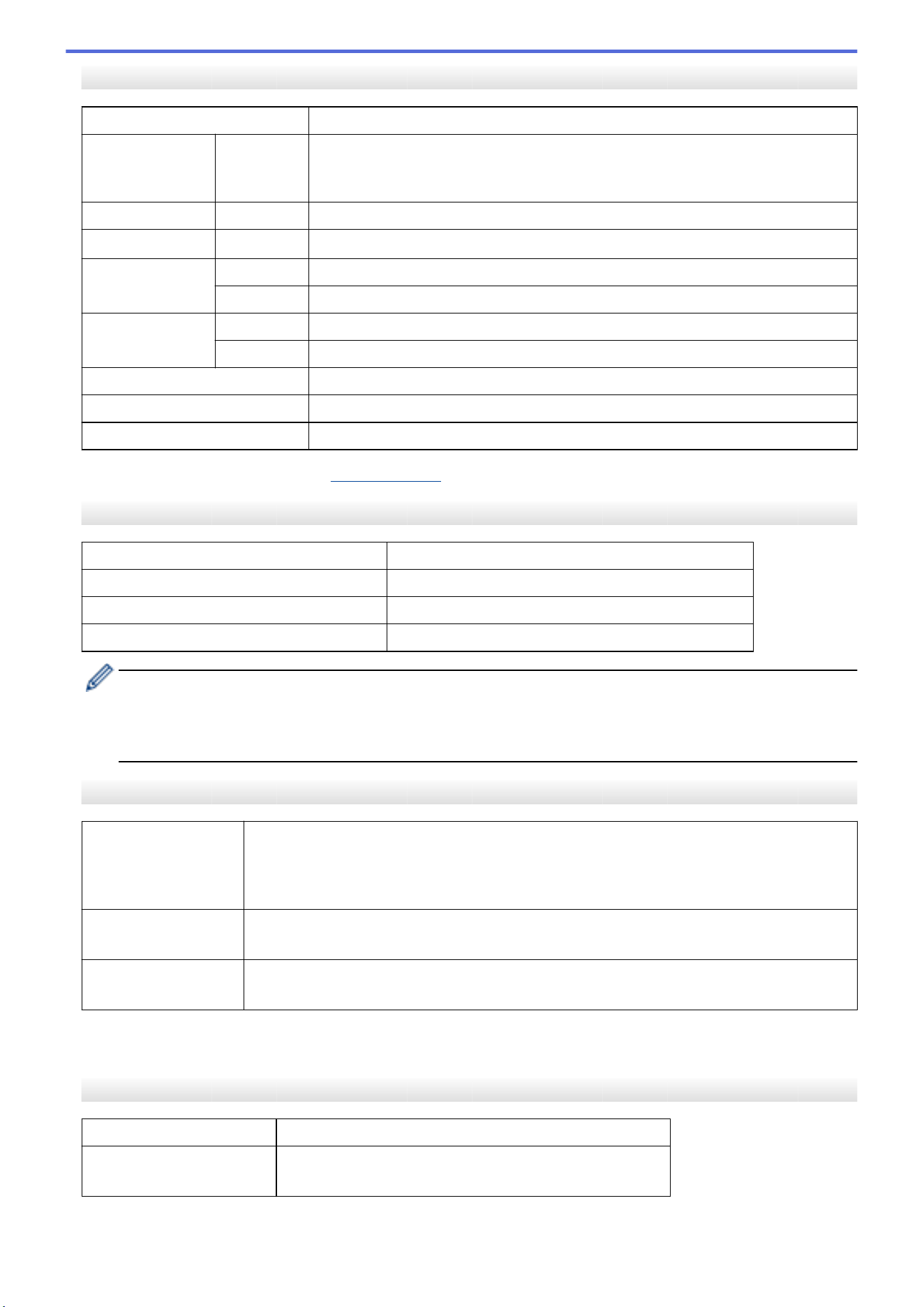
Scanner Specifications
Color/Black Yes/Yes
TWAIN Compliant Windows Windows 7 (SP1) / Windows 8.1 / Windows 10
Windows Server 2012 / Windows Server 2012 R2 / Windows Server 2016 /
Windows Server 2019
WIA Compliant Windows Windows 7 (SP1) / Windows 8.1 / Windows 10
ICA Compliant Mac
macOS v10.12.x / v10.13.x / v10.14.x
1
Color Depth Input 48 bit color processing
Output 24 bit color processing
Resolution Interpolated Up to 1200 x 1200 dpi
Optical Up to 600 x 600 dpi
Scanning Width Up to 8.5 in. (215.9 mm)
Gray Scale 256 levels
Max. Speed See your model’s page on your local Brother website.
1
For the latest macOS driver updates, visit support.brother.com.
Rechargeable Li-ion Battery (DSmobile DS-940DW)
Charging Time
2.6 hours
Continuous Standby Time 10 minutes (when the Auto Power Off feature is active)
Scannable Number of Sheets (WLAN ON) 200 sheets
Scannable Number of Sheets (WLAN OFF) 320 sheets
• The numbers described in the Rechargeable Li-ion Battery table may differ depending on the
documents scanned and on environmental factors, such as temperature and the charging and
discharging method.
• For longer battery life, turn the scanner off when you are not using it.
Interface Specifications
USB
USB 3.0
1
Use a USB 3.0 cable (Standard A/Micro B) or USB 2.0 interface cable (Standard A/Micro B)
that is no more than 6 feet (2.0 meters) long.
Memory Card
(DSmobile DS-940DW)
microSD memory card: 2 GB - 32 GB (SDHC)
Wireless LAN
(DSmobile DS-940DW)
IEEE 802.11b/g/n (Infrastructure mode)
IEEE 802.11g (Wireless Direct)
1
Your machine has a USB 3.0 interface. The machine can also be connected to a computer that has a USB 2.0 interface.
Third-party USB ports are not supported.
Network Specifications (DSmobile DS-940DW)
Wireless Network Security
WEP 64/128 bit, WPA-PSK (TKIP/AES), WPA2-PSK (AES)
Setup Support Utility WPS
WLAN Assistant
157
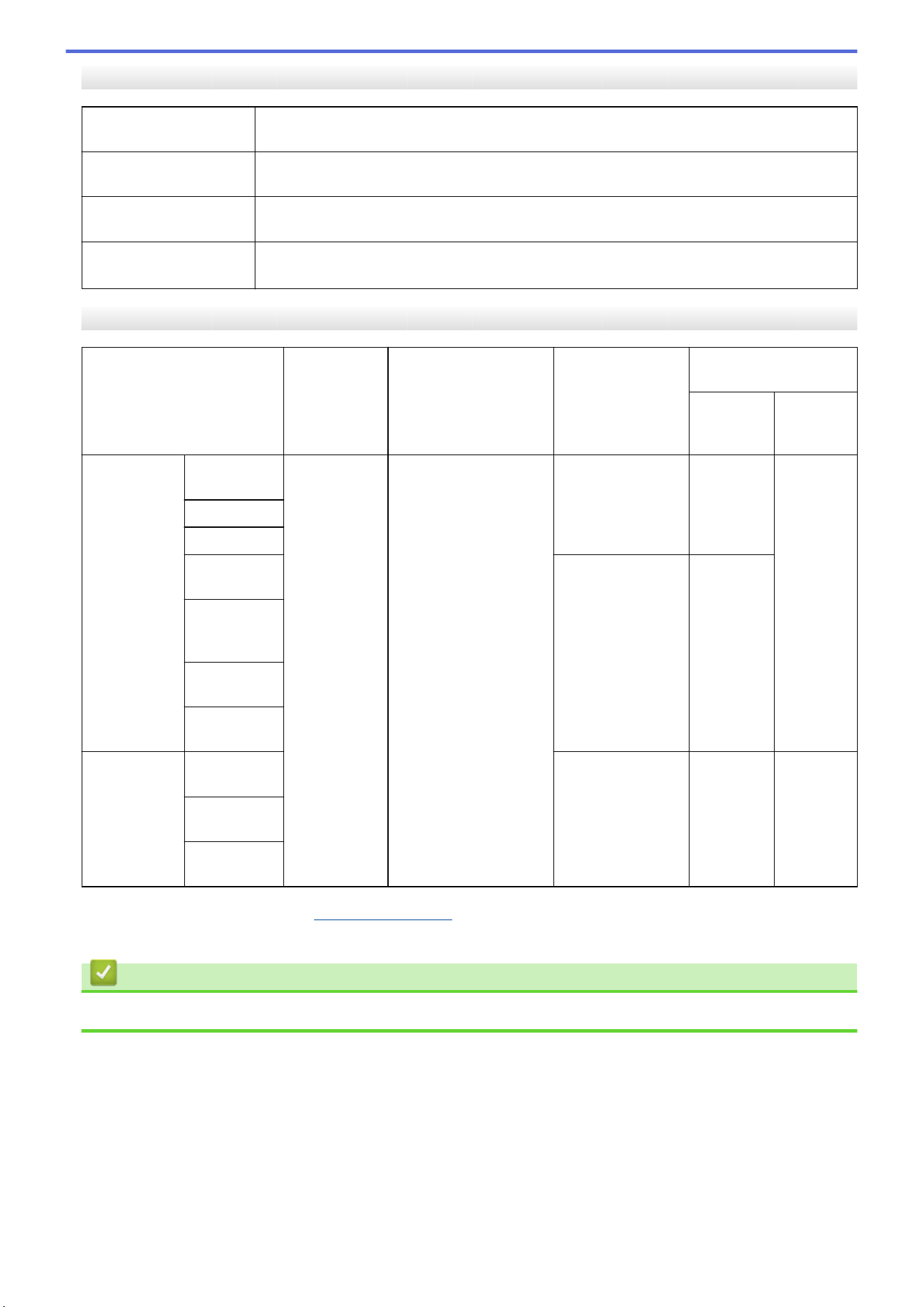
Supported Protocols and Security Features (DSmobile DS-940DW)
Protocol (IPv4) DHCP, APIPA (Auto IP), WINS/NetBIOS, DNS Resolver, mDNS, SNMPv1/v2c, ICMP, Web
Services (Scan), HTTP/HTTPS server, LLMNR responder, SNTP Client
Protocol (IPv6) RA, DNS Resolver, mDNS, LLMNR responder, Web Services (Scan), SNTP Client, HTTP/
HTTPS server, ICMPv6
Network Security
(Wireless)
SSL/TLS (HTTPS)
Wireless Certification
Wi-Fi Certification Mark License (WPA
™
/WPA2
™
- Personal), Wi-Fi Protected Setup
™
(WPS) Identifier Mark License
Computer Requirements Specifications
Computer Platform &
Operating System Version
Supported
PC Software
Functions
PC Interface Processor
Minimum Speed
Hard Disk Space to
Install
For
Drivers
For
Applicatio
ns
Windows
Operating
System
Windows 7
(SP1)
Scanning USB
(DSmobile DS-635/
DSmobile DS-640/
DSmobile DS-740D)
USB/Wireless
802.11b/g/n
(DSmobile DS-940DW)
32bit (x86) or 64bit
(x64) processor
70 MB Drivers,
Installer
and
Software:
1.4 GB
Windows 8.1
Windows 10
Windows
Server 2012
64bit (x64)
processor
70 MB
Windows
Server 2012
R2
Windows
Server 2016
Windows
Server 2019
Mac
Operating
System
macOS
v10.12.x
Intel
®
Processor
30 MB Drivers
and
Software:
600 MB
macOS
v10.13.x
macOS
v10.14.x
For the latest driver updates, visit support.brother.com. All trademarks, brand and product names are property of
their respective companies.
Related Information
• Appendix
158

Home > Appendix > Brother Help and Customer Support
Brother Help and Customer Support
IMPORTANT
For technical help, you must call the country where you bought the machine. Calls must be made from
within that country.
>> FAQs (Frequently Asked Questions)
>> For Customer Service
>> Ordering Accessories and Supplies
FAQs (Frequently Asked Questions)
For more information on your Brother machine, visit the Brother support website at support.brother.com. For
additional help and tips, go to your model's FAQs & Troubleshooting page; for the latest drivers and software,
go to your model's Downloads page.
For Customer Service
In USA:
www.brother-usa.com/support (Self-Service/Email/Chat)
1-877-BROTHER (1-877-276-8437)
In Canada:
www.brother.ca/support
(Self-Service Videos, Email, Chat, Facebook and Twitter Help)
Service Center Locator (USA only)
For the location of a Brother authorized service center, call 1-877-BROTHER (1-877-276-8437) or visit
www.brother-usa.com/service.
Service Center Locations (Canada only)
For the location of a Brother authorized service center, visit www.brother.ca/support.
Ordering Accessories and Supplies
For best quality results use only genuine Brother supplies, which are available at most Brother retailers. If you
cannot find the supplies you need and have a Visa, MasterCard, Discover, American Express credit card, or
PayPal account, you can order directly from Brother. Visit us online for a complete selection of the Brother
accessories and supplies that are available for purchase.
NOTE
In Canada, only Visa and MasterCard are accepted.
In USA:
1-877-552-MALL (1-877-552-6255)
1-800-947-1445 (assistance via fax)
www.brothermall.com
159