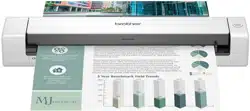

BR-Receipts
User's Guide
Version B
USENG

Copyright
©2019 Brother Industries, Ltd. All Rights Reserved.
PDFlib (C) 1997-2009, PDFlib GmbH and Thomas Merz.
JPEGlib (C) 1998 Independent JPEG Group.
QuickBooks SDK 13.0 © 2013. The copyright and its proprietary rights reserved by Intuit Inc.
Tiff G3 Lib License
Copyright (c) 1988-1997 Sam Leffler
Copyright (c) 1991-1997 Silicon Graphics, Inc.
Permission to use, copy, modify, distribute, and sell this software and its documentation for any
purpose is hereby granted without fee, provided that (i) the above copyright notices and this
permission notice appear in all copies of the software and related documentation, and (ii) the
names of Sam Leffler and Silicon Graphics may not be used in any advertising or publicity
relating to the software without the specific, prior written permission of Sam Leffler and Silicon
Graphics.
THE SOFTWARE IS PROVIDED "AS-IS" AND WITHOUT WARRANTY OF ANY KIND,
EXPRESS, IMPLIED OR OTHERWISE, INCLUDING WITHOUT LIMITATION, ANY WARRANTY
OF MERCHANTABILITY OR FITNESS FOR A PARTICULAR PURPOSE.
IN NO EVENT SHALL SAM LEFFLER OR SILICON GRAPHICS BE LIABLE FOR ANY SPECIAL,
INCIDENTAL, INDIRECT OR CONSEQUENTIAL DAMAGES OF ANY KIND, OR ANY
DAMAGES WHATSOEVER RESULTING FROM LOSS OF USE, DATA OR PROFITS,
WHETHER OR NOT ADVISED OF THE POSSIBILITY OF DAMAGE, AND ON ANY THEORY
OF LIABILITY, ARISING OUT OF OR IN CONNECTION WITH THE USE OR PERFORMANCE
OF THIS SOFTWARE.
Tesseract Copyright
A. This product is created by NewSoft Technology Corporation. Copyright © 2016, NewSoft
Technology Corporation. All rights reserved.
B. This product incorporates the tesseract-ocr engine, and includes portions of code which have
been modified by NewSoft Technology Corporation subject to the terms of the Apache License
version 2.0.
Copyright [2016] [NewSoft Technology Corporation]
Licensed under the Apache License, Version 2.0 (the "License"); you may not use this file except
in compliance with the License. You may obtain a copy of the License at
http://www.apache.org/licenses/LICENSE-2.0
Unless required by applicable law or agreed to in writing, software distributed under the License
is distributed on an "AS IS" BASIS, WITHOUT WARRANTIES OR CONDITIONS OF ANY KIND,
either express or implied. See the License for the specific language governing permissions and
limitations under the License.
i

OpenCV Copyright
OpenCV (Open Source Computer Vision) is a library of programming functions for real-time
image processing. OpenCV is released under the liberal BSD license.
Copyright (c) <2016>, <NewSoft Technology Corporation> All rights reserved.
Redistribution and use in source and binary forms, with or without modification, are permitted
provided that the following conditions are met:
○ Redistributions of source code must retain the above copyright notice, this list of
conditions and the following disclaimer.
○ Redistributions in binary form must reproduce the above copyright notice, this list of
conditions and the following disclaimer in the documentation and/or other materials
provided with the distribution.
THIS SOFTWARE IS PROVIDED BY THE COPYRIGHT HOLDERS AND CONTRIBUTORS "AS
IS" AND ANY EXPRESS OR IMPLIED WARRANTIES, INCLUDING, BUT NOT LIMITED TO,
THE IMPLIED WARRANTIES OF MERCHANTABILITY AND FITNESS FOR A PARTICULAR
PURPOSE ARE DISCLAIMED. IN NO EVENT SHALL THE COPYRIGHT HOLDER OR
CONTRIBUTORS BE LIABLE FOR ANY DIRECT, INDIRECT, INCIDENTAL, SPECIAL,
EXEMPLARY, OR CONSEQUENTIAL DAMAGES (INCLUDING, BUT NOT LIMITED TO,
PROCUREMENT OF SUBSTITUTE GOODS OR SERVICES; LOSS OF USE, DATA, OR
PROFITS; OR BUSINESS INTERRUPTION) HOWEVER CAUSED AND ON ANY THEORY OF
LIABILITY, WHETHER IN CONTRACT, STRICT LIABILITY, OR TORT (INCLUDING
NEGLIGENCE OR OTHERWISE) ARISING IN ANY WAY OUT OF THE USE OF THIS
SOFTWARE, EVEN IF ADVISED OF THE POSSIBILITY OF SUCH DAMAGE.
Trademarks
- IBM, PC, and VGA are registered trademarks of International Business Machines Corporation.
- Microsoft, Windows and Windows Server are either registered trademarks or trademarks
of Microsoft Corporation in the United States and/or other countries.
- PDFlib is a registered trademark of PDFlib GmbH.
- Any trade names and product names of companies appearing on Brother products, related
documents and any other materials are all trademarks or registered trademarks of those respective
companies.
(C) 2009-2016 NewSoft Technology Corporation. All rights reserved.
SN: 180120-02-01-W-E-081916-06
ii

Table of Contents
General Information 1
Features ......................................................................................................................... 2
System Requirements .................................................................................................... 2
Overview 3
Getting Started 7
Menu Bar ........................................................................................................................ 7
Command Toolbar .................................................................................................................... 7
Folder View .................................................................................................................... 8
Status Bar ........................................................................................................................ 9
List View ....................................................................................................................... 10
Image View .................................................................................................................. 10
Edit View .......................................................................................................................11
Working with BR-Receipts 12
Setting Up BR-Receipts ............................................................................................... 12
Collecting Receipts ...................................................................................................... 14
Scanning Receipts ............................................................................................... 14
Importing Receipts ............................................................................................... 17
Creating Receipts Manually ................................................................................. 18
Using Receipt Templates ....................................................................................................... 18
Select Vendor ............................................................................................................ 18
New Template................................................................................................................. 19
Manual Input ........................................................................................................ 21
Modify Template .............................................................................................................
21
Delete Template ............................................................................................................. 22
Apply Another Template ................................................................................................ 23
Field Categorizing ........................................................................................................ 23
Editing Receipts ........................................................................................................... 24
Searching for Receipts ................................................................................................. 24
Creating Reports .......................................................................................................... 25
Menu Commands 26
File Menu ..................................................................................................................... 26
Edit Menu ..................................................................................................................... 27
View Menu ................................................................................................................... 27
Receipt Menu ............................................................................................................... 28
Help Menu .................................................................................................................... 28
iii
1
General Information
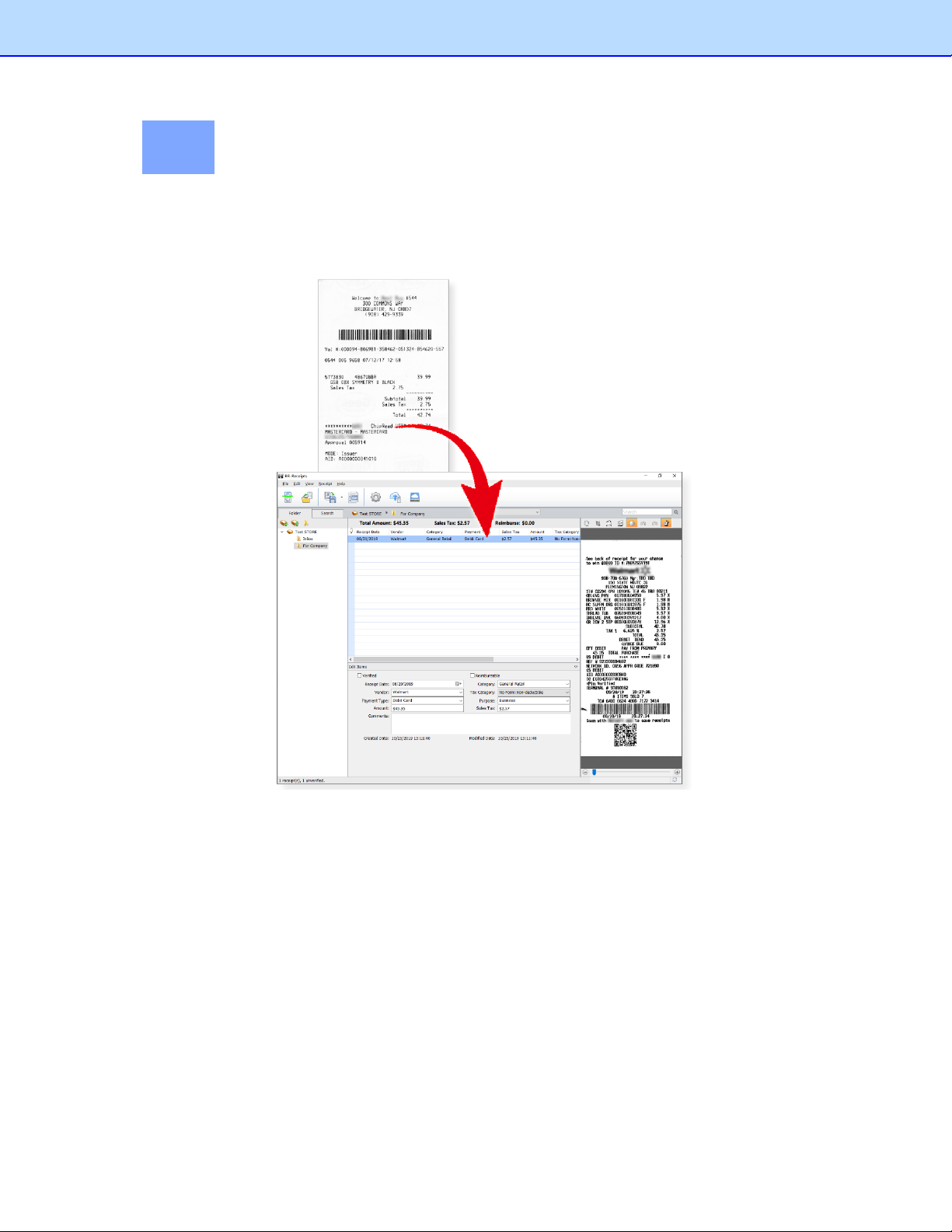
BR-Receipts processes receipts by reading the information from scanned images and categorizing it
using field recognition. You can edit, view items and track expenses by building and maintaining a
database of all the information.
1
Features
• Import receipts from files to build and maintain a database of all the information.
• Export receipt images or data to the cloud from BR-Receipts.
• Scan receipts to keep detailed records.
• Apply an existing template or create a new template to batch process receipts when
importing or scanning.
• Read the information and categorize the data by field recognition.
• Create reports to view and track expenses.
System Requirements
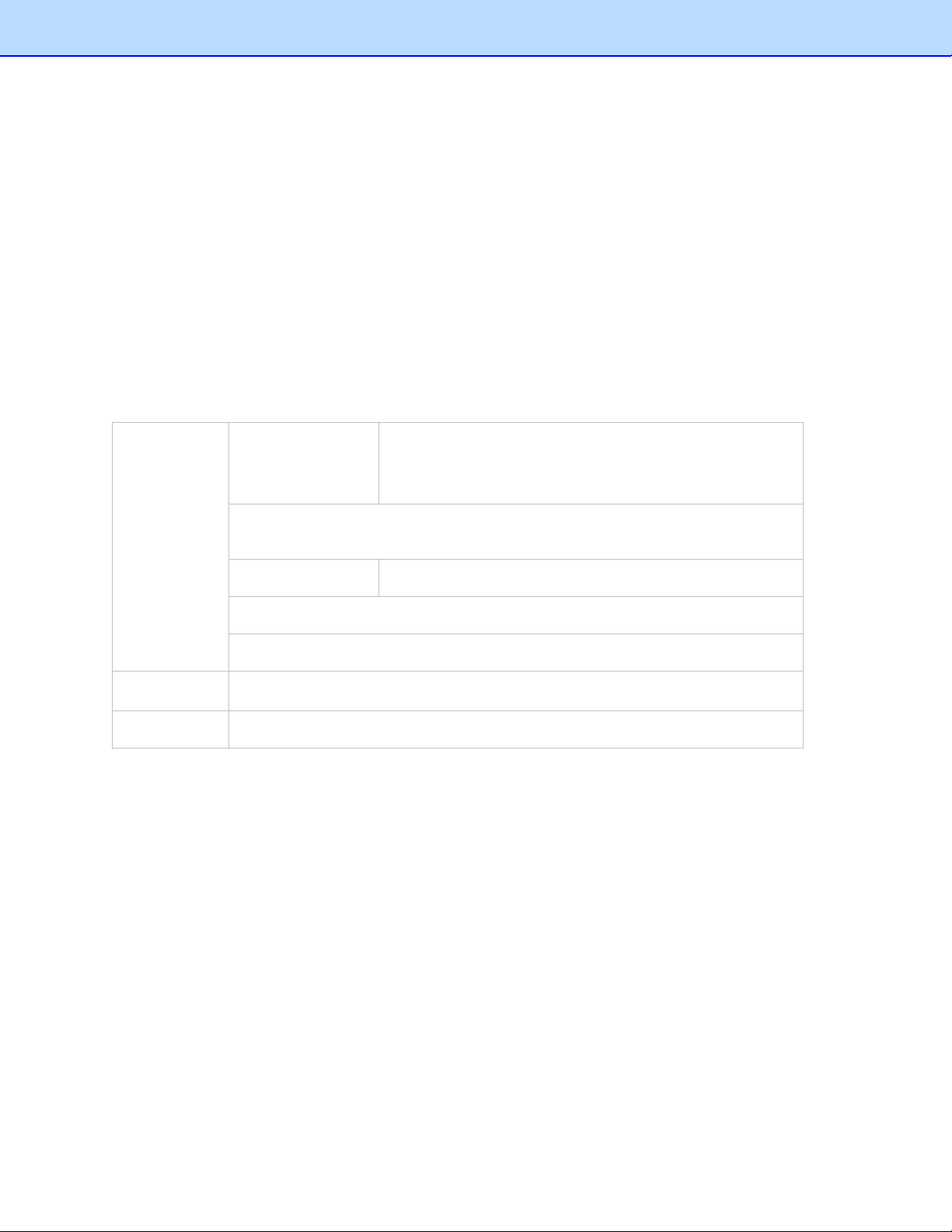
Computer
Operating System
Windows 7 (32/64-bit), Windows 8.1 (32/64-bit),
Windows 10 (32/64-bit), Windows Server 2012,
Windows Server 2012 R2, Windows Server 2016,
Windows Server 2019
The CPU and memory must meet the minimum requirements to run the operating
system. For more information, visit the relevant Microsoft website.
Display SVGA (1024 x 768) or better.
A minimum of 512 MB free hard disk space for installing the program.
A USB port for scanner connection.
Scanner
A USB port for computer connection.
Receipts
Receipts must be in reasonably good condition to be readable by the scanner.
2
2
Overview
The following descriptions and instructions will help you get started:
1. Create a Receipt Box
Create a receipt box to build a database of your receipts. You can import, scan, manually create,
and paste receipts into the receipt box.
2. Scan
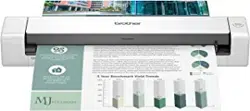
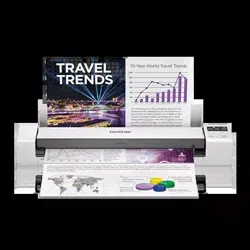
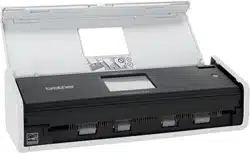
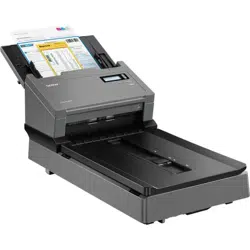
Put the receipt in the scanner and begin scanning. The scanning progress bar displays the
scanning status.
3. Use a Template
If your receipts have common information such as where they originated, how goods and
services were paid for, and who is responsible for them, you can use a template for batch
processing. For more information, see Using Receipt Templates
.
4. Field Categorizing
Use the field categorizing feature to sort receipt information using field recognition. Click in
Image View, drag a rectangle to highlight a section of the receipt, right-click the selected receipt
section and select the field type: Receipt Date, Amount, Sales Tax, Vendor, or Payment Type
(or drag the selected section directly to the desired field) to activate field recognition. A dialog box
will ask if you agree with the OCR results. Click OK to add the results to the desired field, or click
Cancel to discard the results and try again.
5. Export To
You can save specific receipts or all the receipts in a folder as a file in CSV, PDF, QIF,
QuickBooks (IIF), or the Turbo Tax (TXF) format. Use the file format best suited to your needs.
a. Click on the toolbar, or select Export to File from the File menu, to open the Export
to File dialog box.
b. Select All Receipts or Selected Receipts to control which receipts will be exported.
c. Click Settings to set up the export style. The Export dialog box will display the file type
(only applies to CSV format).
• Include a header line - Select Include a header line to have the field names exported.
• Header Language - Select the header language from the list.
• Encoding - Select a type from the list to specify a file encoding format.
3
• Delimited by - Under Delimited by, select Comma, Tab, or Space to choose the
character that will separate fields in the exported file.
• Select with double quotes to have the information for each field enclosed in quotation
marks.
d. When you select export to QIF, a dialog box will open to let you manage Quicken Accounts
first. You can import available Quicken accounts, or you can edit or delete accounts. When
the Quicken accounts are ready, enter a file name and click Continue to finish.
NOTE: In order to export to a QIF file, you must first create a QIF file using the Export to QIF
setting in Quicken.
e. When you select Export to QuickBooks, you must enter Debit Account and Credit Account
details to continue.
6. Export to Cloud
To export to cloud, do one of the following:
• Right-click a receipt box or folder and choose Export to Cloud from the context menu.
• Select a receipt box or folder and click on the toolbar.
• Choose Export to Cloud from the File menu to open the BOL log in dialog box.
Enter an e-mail address and password to connect your Brother Online (BOL) account.
appears, indicating that you can now send receipt images to the cloud from your local computer.
You can click to monitor the uploading status. When you export successfully, will appear
in the status bar.
NOTE: If you select a receipt box to upload, all the folders in this receipt box will be uploaded.
7. Create Reports
Reports let you see where receipts originated, how goods and services were paid for, and who is
responsible for receipts. For more information, see Creating Reports
.
8. Set up the Quicken Export File for BR-Receipts
4
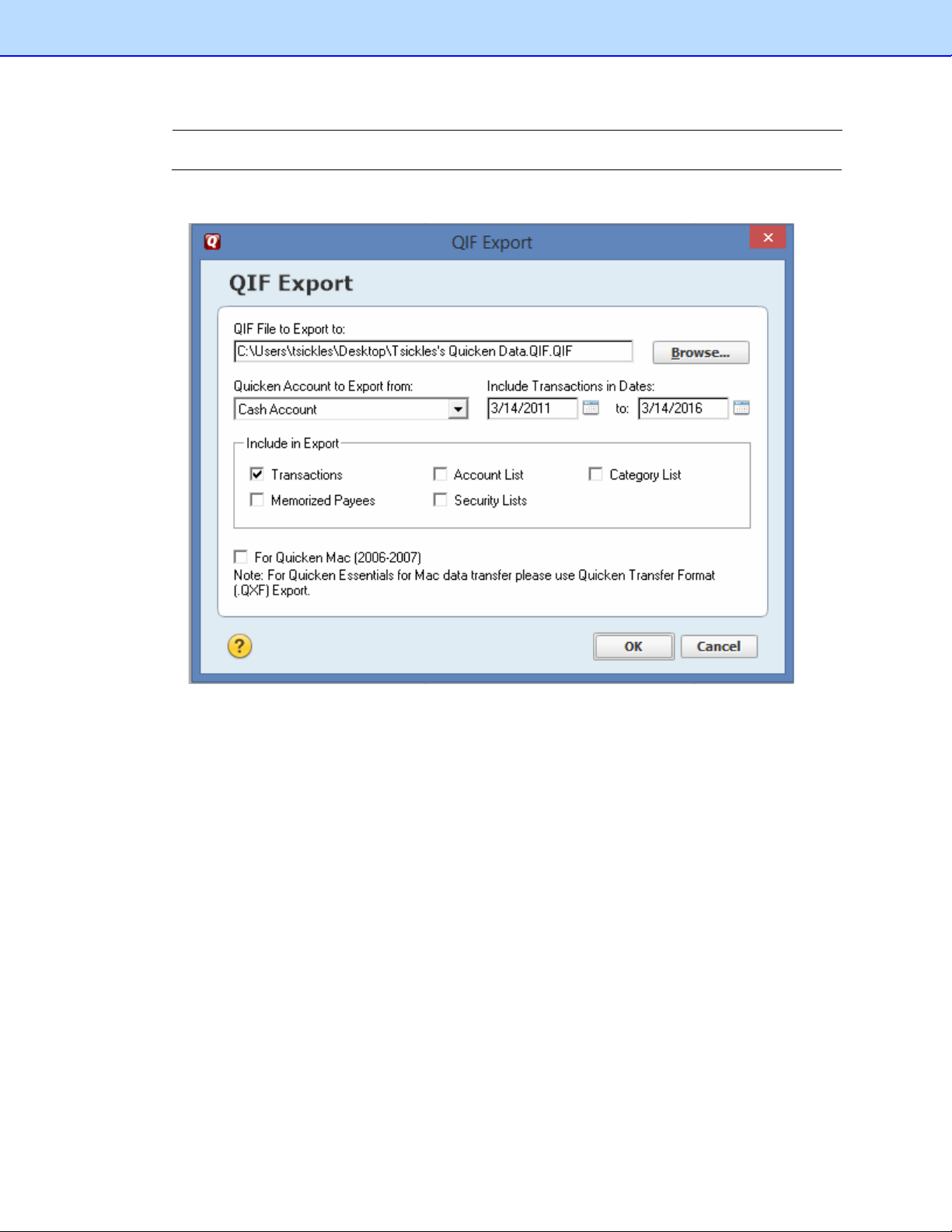
NOTE: Quicken supports importing BR-Receipt data into a cash, business or investment based
account.
Before starting, open Quicken and specify the correct account and select File Export QIF file.
Specify the location to export the file, select the Quicken Account and any other items to include
in the export and press OK.
9. Export BR-Receipts into Quicken using the QIF format.
a. Specify the QIF format by selecting File/Export to File.
b. Select Manage Quicken Accounts and select the Import button.
c. Select the file specified in QIF File to Export to and press OK
d. Press the Continue button and name the export file to something different than what was
used for the QIF File to Export and press save.
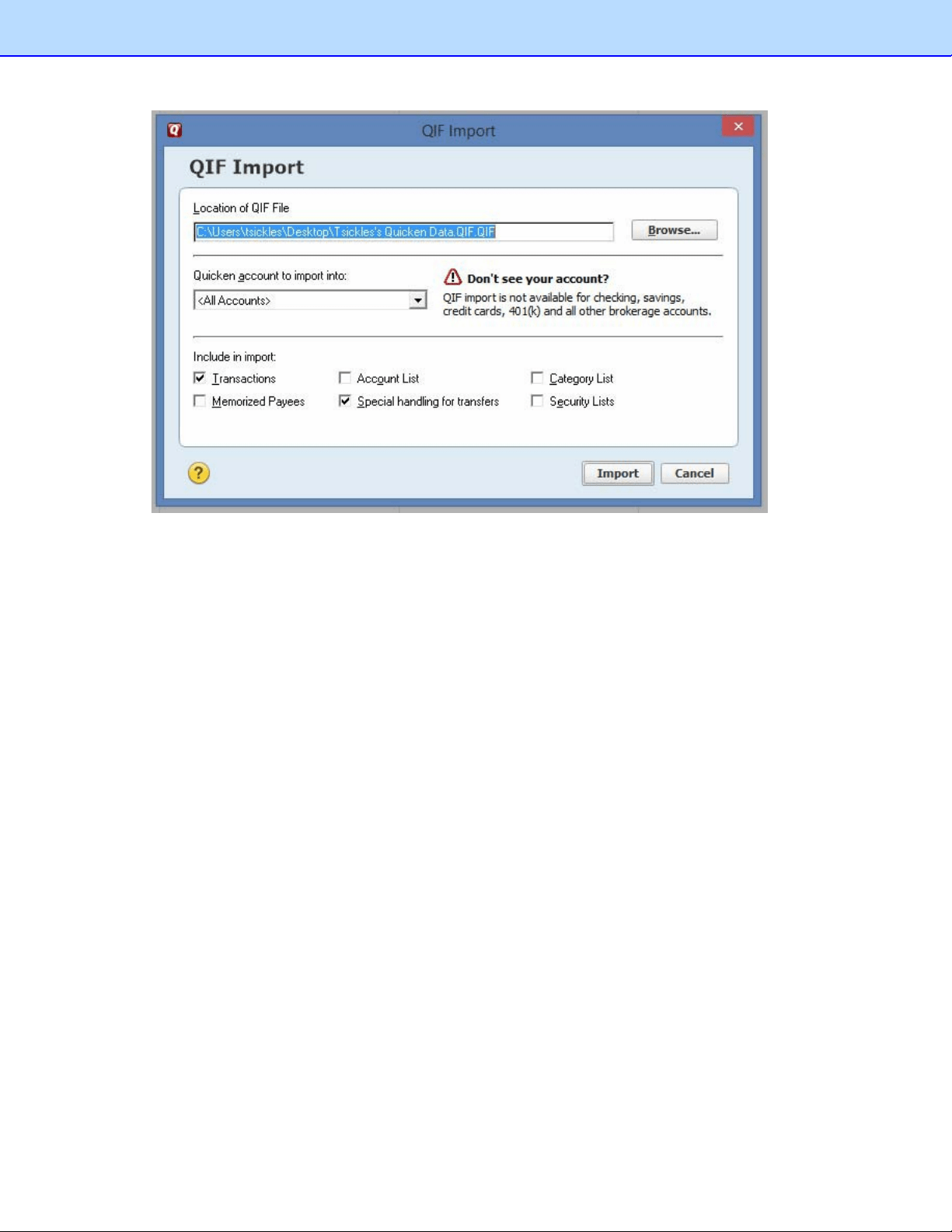
e. Open Quicken and select File/File Import/QIF and select the file created you exported from
BR-Receipts and the Quicken account to import into and any other items to import and
press the import button.
5
6
3
Getting Started
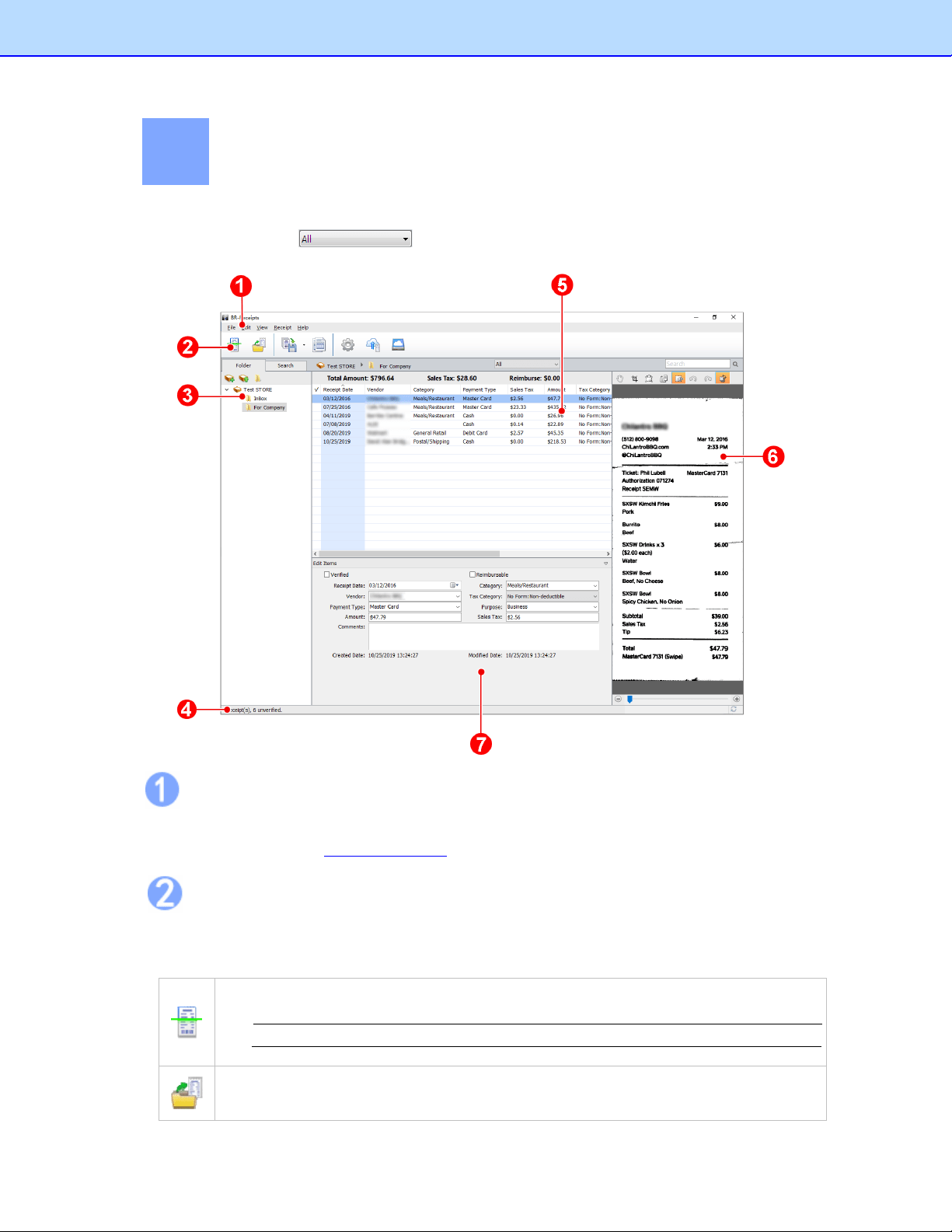
From the BR-Receipts screen, you can view file folders, a list of all receipts, an image of the selected
receipt, and the recognized data. You can control which receipts are displayed in the list by clicking
the All drop-down list and selecting Recently Added (receipts updated in the last
three days), or Unverified.
Menu Bar
The Menu bar provides the commands you use to perform program functions within BR-Receipts. For
more information, see the Menu Commands
section.
Command Toolbar
The Command toolbar displays the most commonly-used commands. Click an icon to execute the
command.
Scan Receipt: Scan receipts to the currently selected folder.
NOTE: This feature only applies to folders.
Import Receipt Images: Import receipts to the currently selected folder.
7
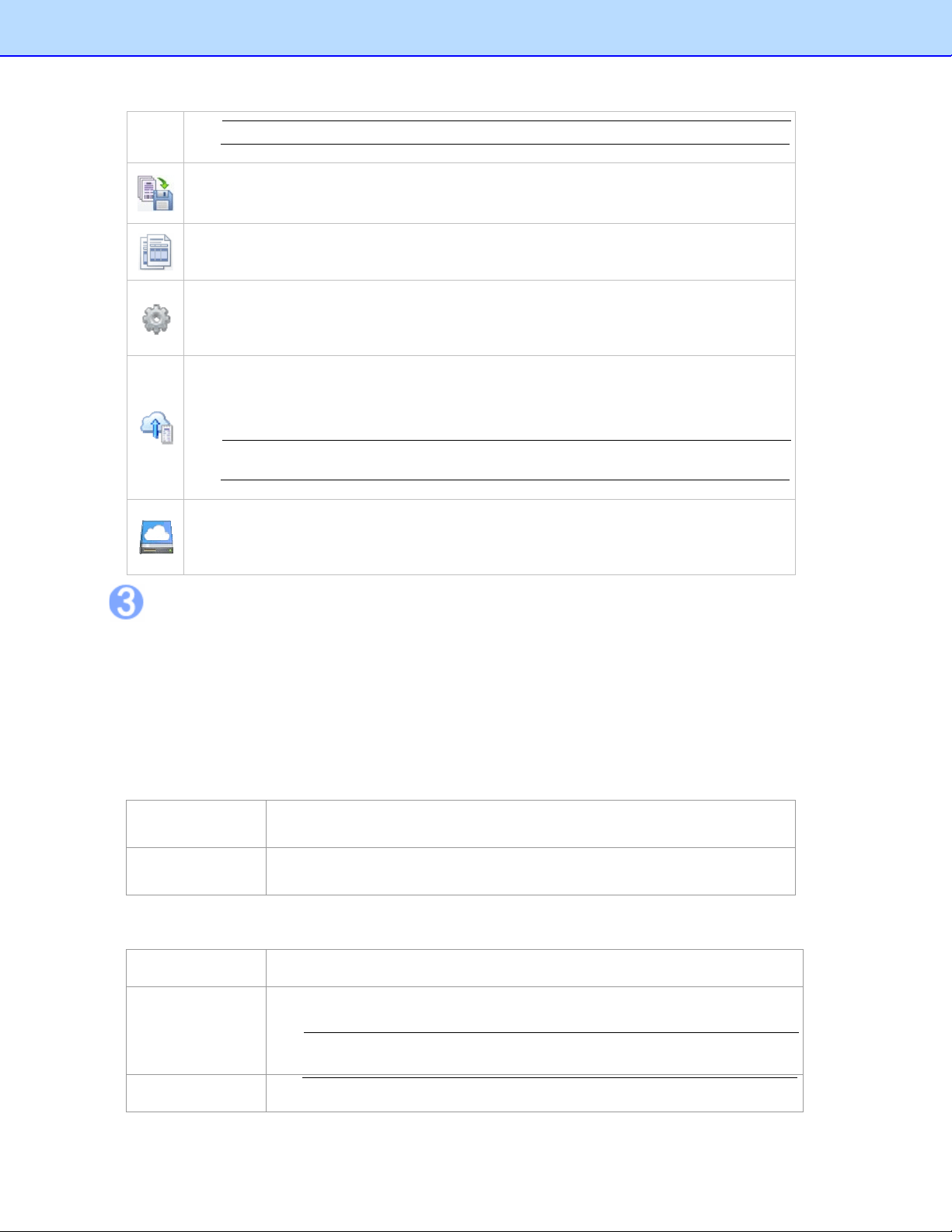
NOTE: This feature only applies to folders.
Export to File: Export receipt images to file.
Create Report: Create a data report for the selected receipts.
Settings: Enter your BOL account information, user profile, defined field values and
user interface language to personalize your program and provide easy access when
you upload scanned receipt images.
Export to Cloud: Enter an e-mail address and password to log in and select a receipt
box or a folder, then send scanned receipt images to the cloud from your local
computer.
NOTE: If you select a receipt box to upload, all the folders in this receipt box will be
uploaded.
Link to Brother Online Receipts service: Click to open the BOL webpage and view
the files you have uploaded, if the account information is not saved in the Settings
, you
will have to enter the account information first.
Folder View
Folder view includes a Folder section and a Search section.
Click the Folder tab to view the Folder section, where you can create a receipt box, open a file, and
create a new folder.
Click the Search tab to view the Search section, where you can select a category and fill in the
keyword, receipt date, amount, and vendor fields, and then click Start Search to find a specific
receipt.
Right-click the blank area to view these commands:
New Receipt
Box...
Create a receipt box.
Open Receipt
Box...
Open a receipt box that already exists.
Right-click a receipt box to view these commands:
New Folder
Create a folder.
Rename Box
Change the name of the receipt box.
NOTE: The receipt box name can be no more than 150 characters.
Save As... Save the receipt box under another name.
8
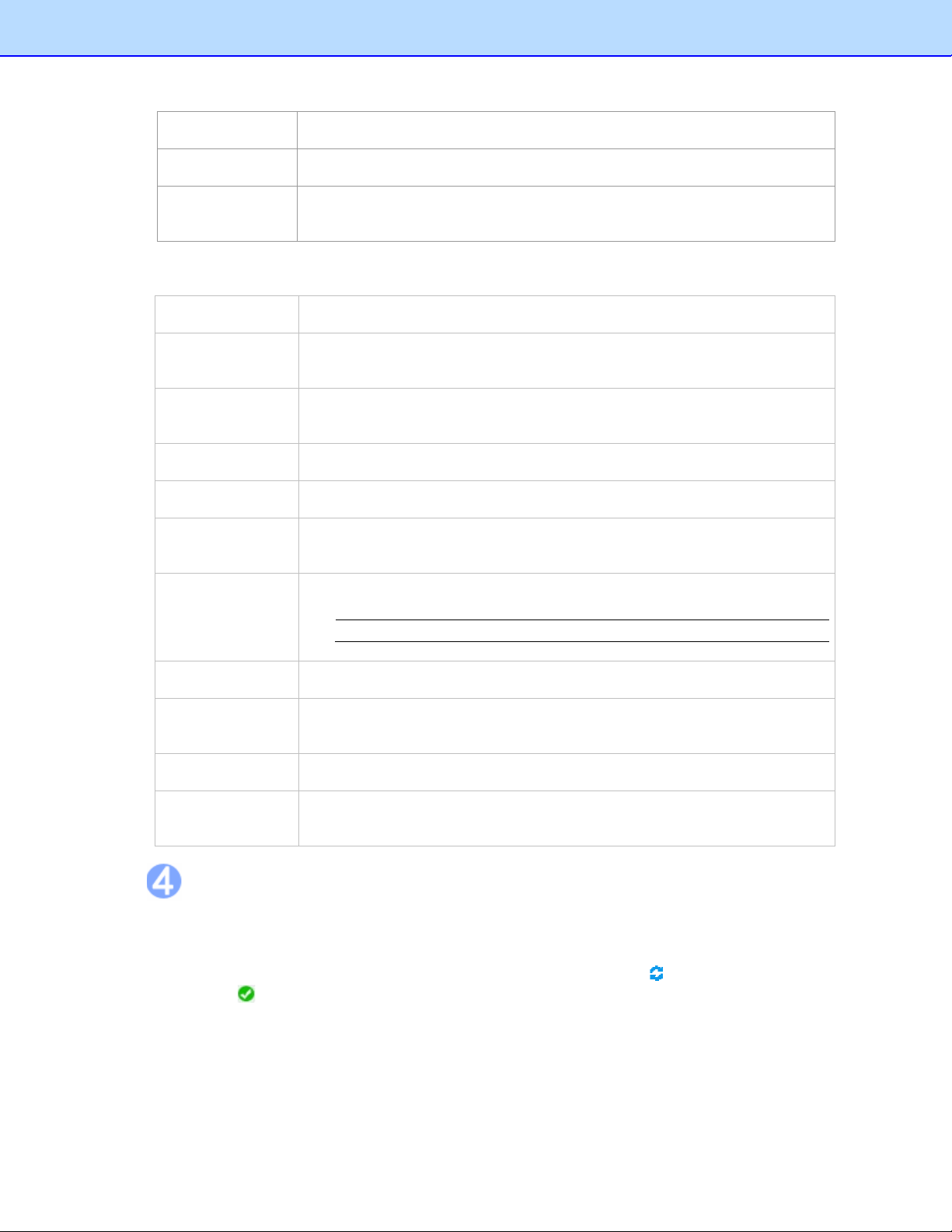
Set Location
Choose a receipt box location from the menu.
Close
Close the receipt box and all the folders under it.
Export to Cloud
Enter an e-mail address and password to log in, select a receipt box, and
send the receipt image to the cloud from your local computer.
Right-click a folder in the Folder section to view these folder commands:
Scan Receipt... Scan receipts to the currently selected folder.
Import Receipt
Images...
Import receipts to the currently selected folder.
Manually Create
a New Receipt
Create a new receipt and save it as a record.
Paste Receipt Paste a copied receipt to a folder.
Verify All Mark the folders as having been edited and approved.
Mark All as
Unverified
Mark the folders as not having been edited and approved.
Rename Folder
Change the name of a folder.
NOTE: The folder name can be no more than 184 characters.
Delete Folder
The folder and all of its contents will be erased from the database.
Export to File
Save specific receipts or all receipts in the folder as a
file in CSV, PDF, QIF,
IIF, or TXF format.
Create Report Choose folders and generate reports.
Export to Cloud
Enter an e-mail address and password to log in, select a receipt box, and
send the receipt image to the cloud from your local computer.
Status Bar
The Status bar displays the current number of receipts, the unverified receipts and the processing
status when you upload files to BOL.
To view status when you upload receipt images or data to the cloud, click . When you export a file
successfully, appears in the status bar.
9
List View
The List View window displays information about the selected folder. It displays the receipt data in
columns as three totals: Total Amount, Reimburse, and Sales Tax.
Each receipt will be listed along with the data. To search for a receipt, type a keyword in the search
bar , press the Enter key and the best-matched receipts will be listed. Click on
a record to select it, or hold down the Shift key while clicking to choose multiple records. The first
selected receipt will be displayed in the image view window. You can drag receipts to other folders.
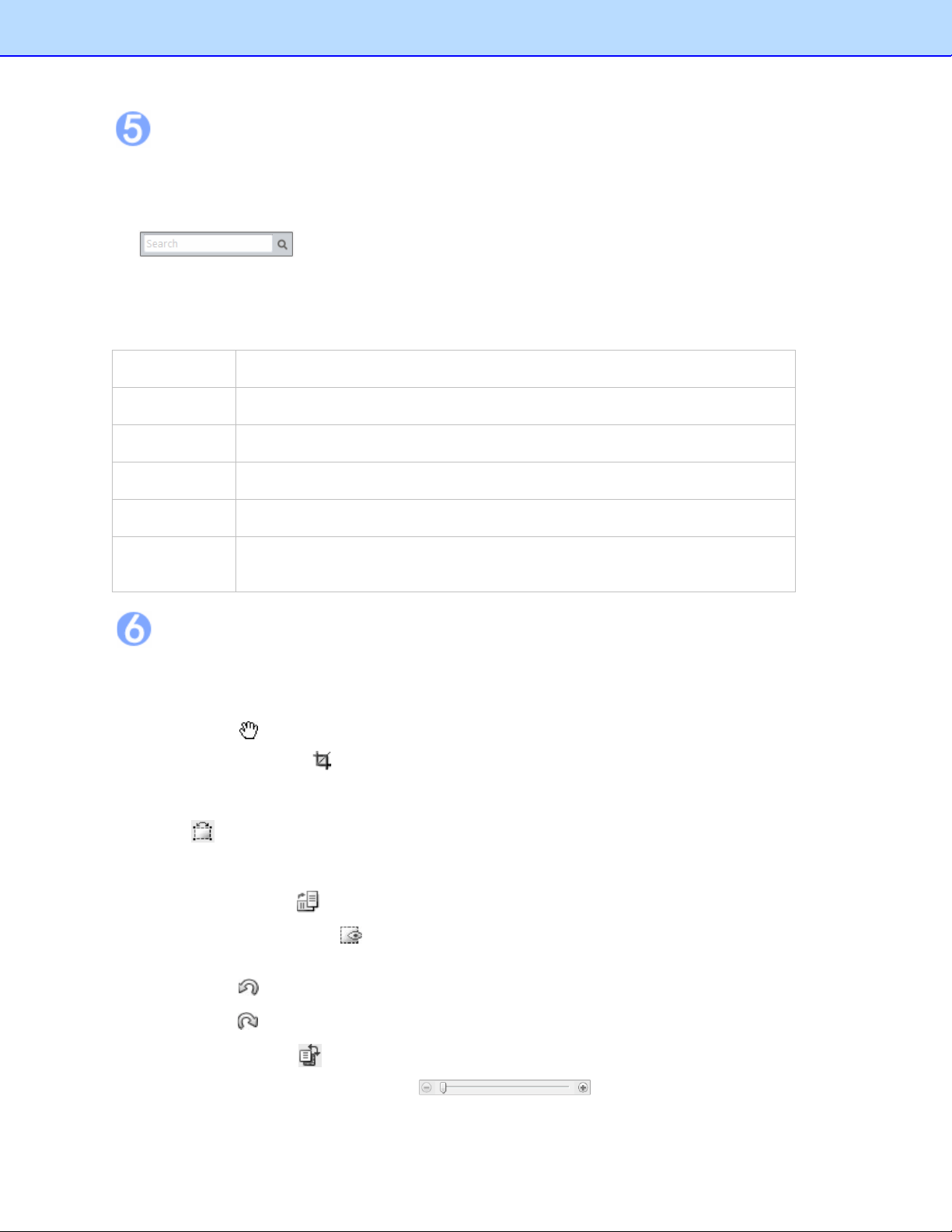
Right-click a receipt to see these commands:
Cut (Ctrl+X) Copy and remove the selected receipt.
Copy (Ctrl+C) Copy the selected receipt.
Paste (Ctrl+V) Insert the contents of the clipboard.
Delete Delete the selected receipt.
Verify Mark the receipt as having been edited and approved.
Mark as
Unverified
Mark the receipt as not having been edited and approved.
Image View
The Image View window displays the selected receipt. You can rotate the image before recognition, if
needed.
Use the following commands to refine your images and make the OCR process more accurate:
• Move: Click to move the image.
• Crop the image: Click , select a portion of the image, and when the pointer changes to a
scissors icon, click it. The image will be cropped.
• Deskew image: Straighten an image that was skewed during scanning.
Click and a blue line will appear on the image.
Drag the line close to an edge that is supposed to be horizontal or vertical, and then drag either
side of the blue line along the edge. When ready, release the mouse.
• Rotate image: Click to rotate an image clockwise 90 degrees.
• Recognize the field: Click and drag a rectangle to select an area, right-click the selected
area to select the field type and perform OCR on the selection.
• Undo: Click to undo the last operation performed on an image file.
• Redo: Click to redo the last operation performed on an image file.
• Switch Image: Click to switch between the clean image and the original image.
• Zoom In or Zoom Out: Use the slider to change the magnification of
the image.
10
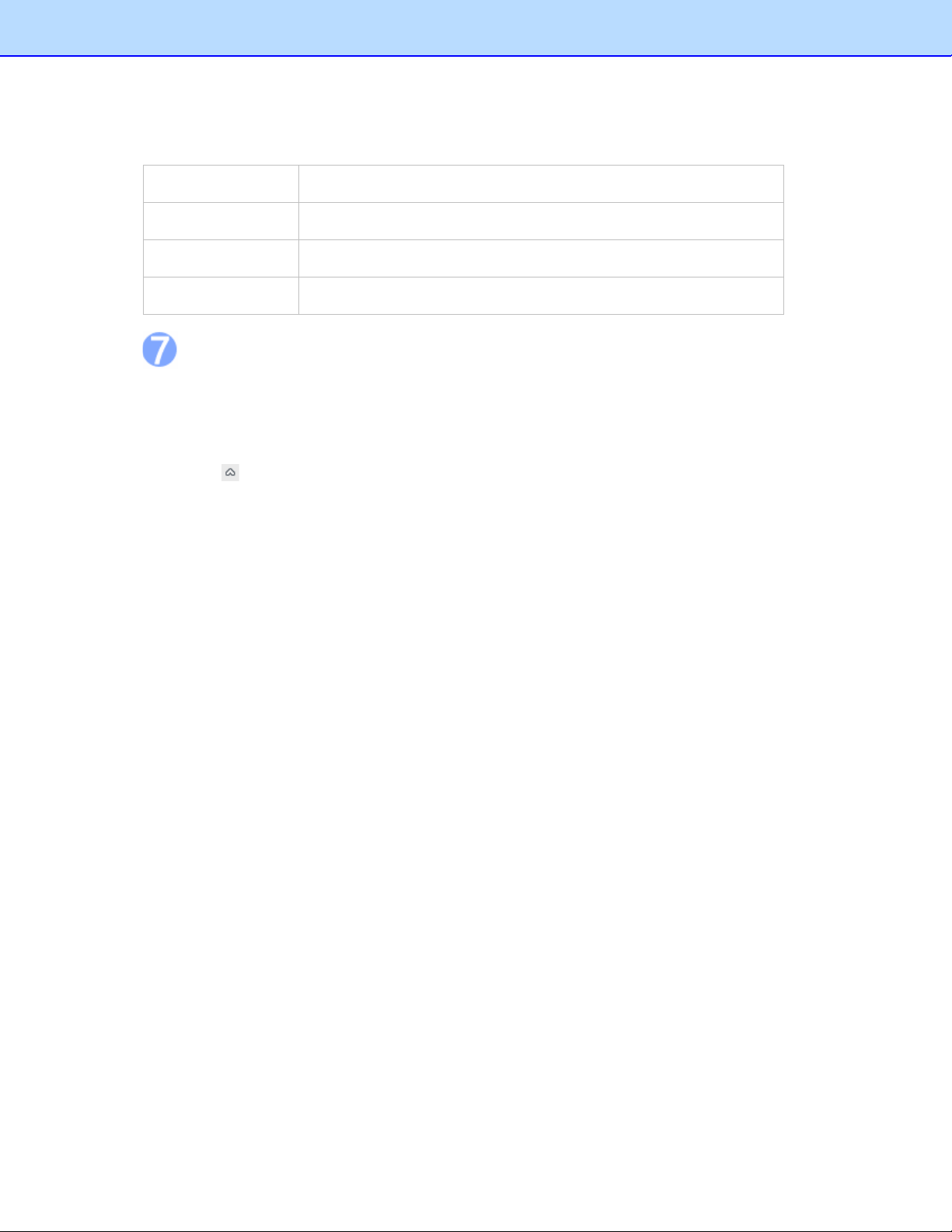
Right-click on an empty area to view these commands:
Zoom In Increase magnification.
Zoom Out Reduce magnification.
Fit into Window Adjust the image width to match the current window.
Rotate image Rotate an image clockwise 90 degrees.
Edit View
To edit the receipt, do one of the following:
• Click Edit Items from the View menu.
• Double-click a receipt.
• Click in the bottom of the List View section.
The Created Date and Modified Date cannot be edited.
11
4
Working with BR-Receipts
BR- Receipts is designed to help you organize and track your expenses. Once you start scanning and
saving your receipts, use these basic functions to keep your database current.
Setting Up BR-Receipts
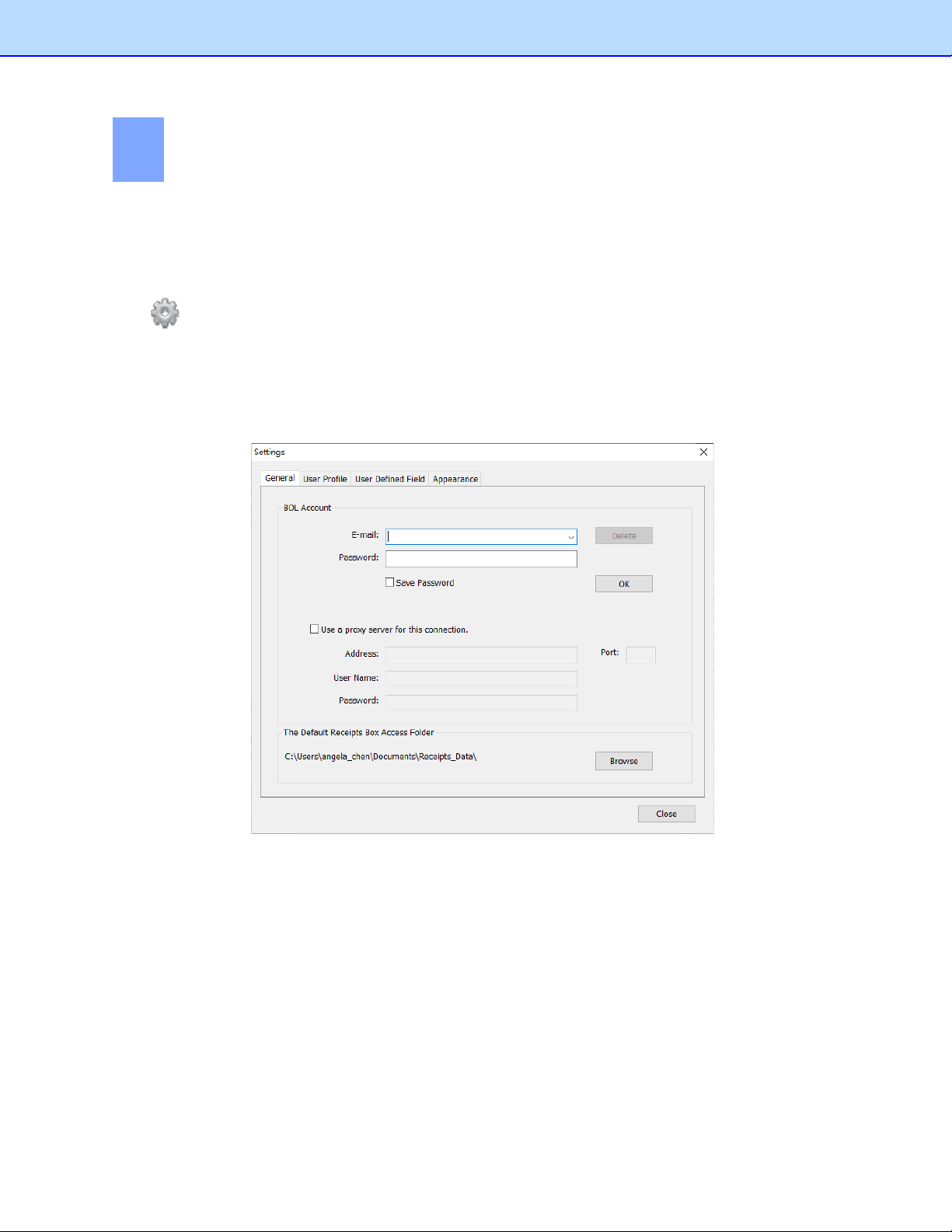
Click on the toolbar or click the File menu and select Settings, and then enter your BOL account
information, user profile and defined field values, and the user interface language to personalize your
program.
General: Type your e-mail address and password, select Save Password and then click OK to save
the account information, providing easy access when you send receipt images to the cloud from your
computer.
In addition to uploading from your computer, you can add a proxy to upload your receipt images or
data. Select Use a proxy server for this connection, and then type the proxy address, user name,
password, and port to enable the proxy.
Click Browse to specify a receipt box path. When you create a receipt box, the receipt box will be
placed under the path specified in the Settings. When you open a receipt box, you can open the
receipt box under the specified path, and the next time you start BR-Receipts, the default receipt box
path will be the path specified.
12
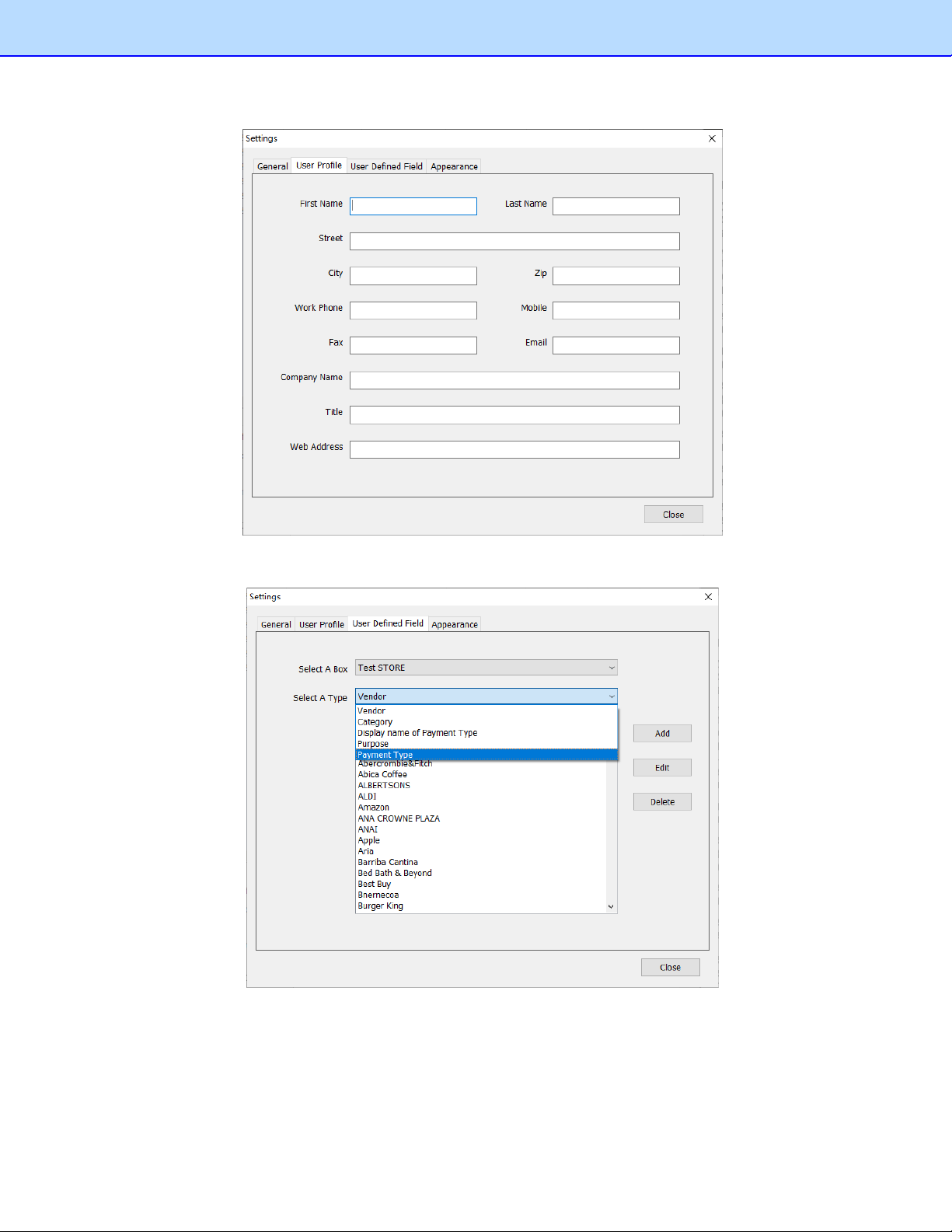
User Profile: Type your user information to speed up future searches.
User Defined Field: Select a receipt box and choose a type of field you want to update. The items
under the selected type will be displayed as a list.
• Click Add to open a dialog box, type the item name, and click OK to add the item to the
selected list.
• Click Edit to change an item name in the selected list.
• Click Delete to remove an item from the selected list.
13
You can add an item to a type list and define it as belonging to this type, then similar field content will
be categorized to this type when encountered during field categorizing. For example, you can add
Credit Card to the Display name of Payment Type list, so that when the keyword Credit Card is
recognized during field categorizing, it will be placed under the Display name of Payment Type field.
To import a CSV file that contains multiple items, click the File menu and select Import User Defined
Field.
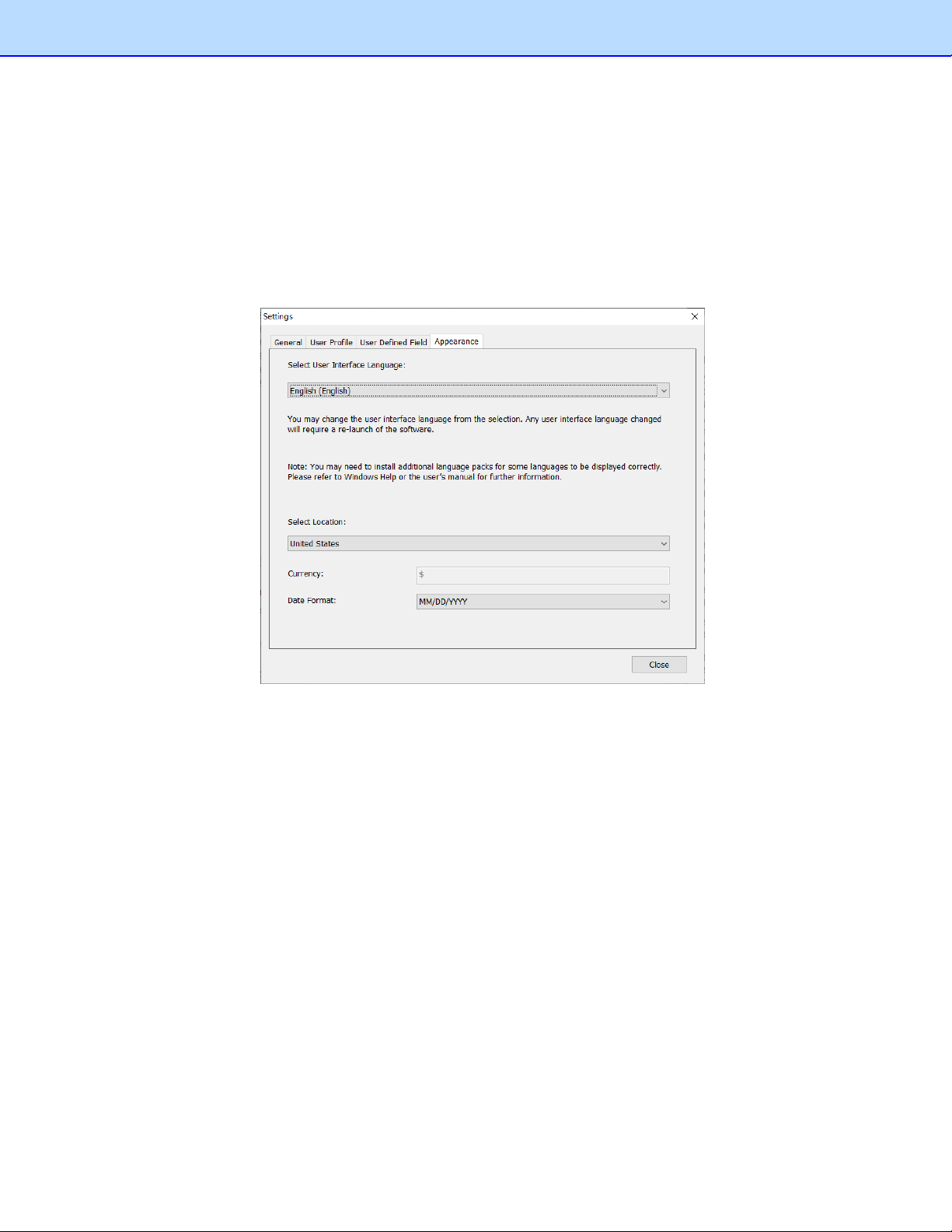
Appearance: Select a user interface language and location for easier management.
Select User Interface Language: Select a language for your program.
Select Location: Select a location to set up the currency type and date format for your receipts. For
example, if you select United States, the currency unit will be US Dollars $, and the date format will be
mm/dd/yyyy. When you create a receipt box, the currency type and date format of the receipts in this
box will be formatted based on the selected location. You can change the location by right-clicking the
receipt box and choosing Set Location.
Collecting Receipts
Use your scanner to digitize receipts and store them in a database. Receipts can also be added from
another database, or from image files.
Scanning Receipts
For the most powerful results when using BR-Receipts, it is important to configure your folders
properly.
1. Click the File menu and select Scan Settings....
14
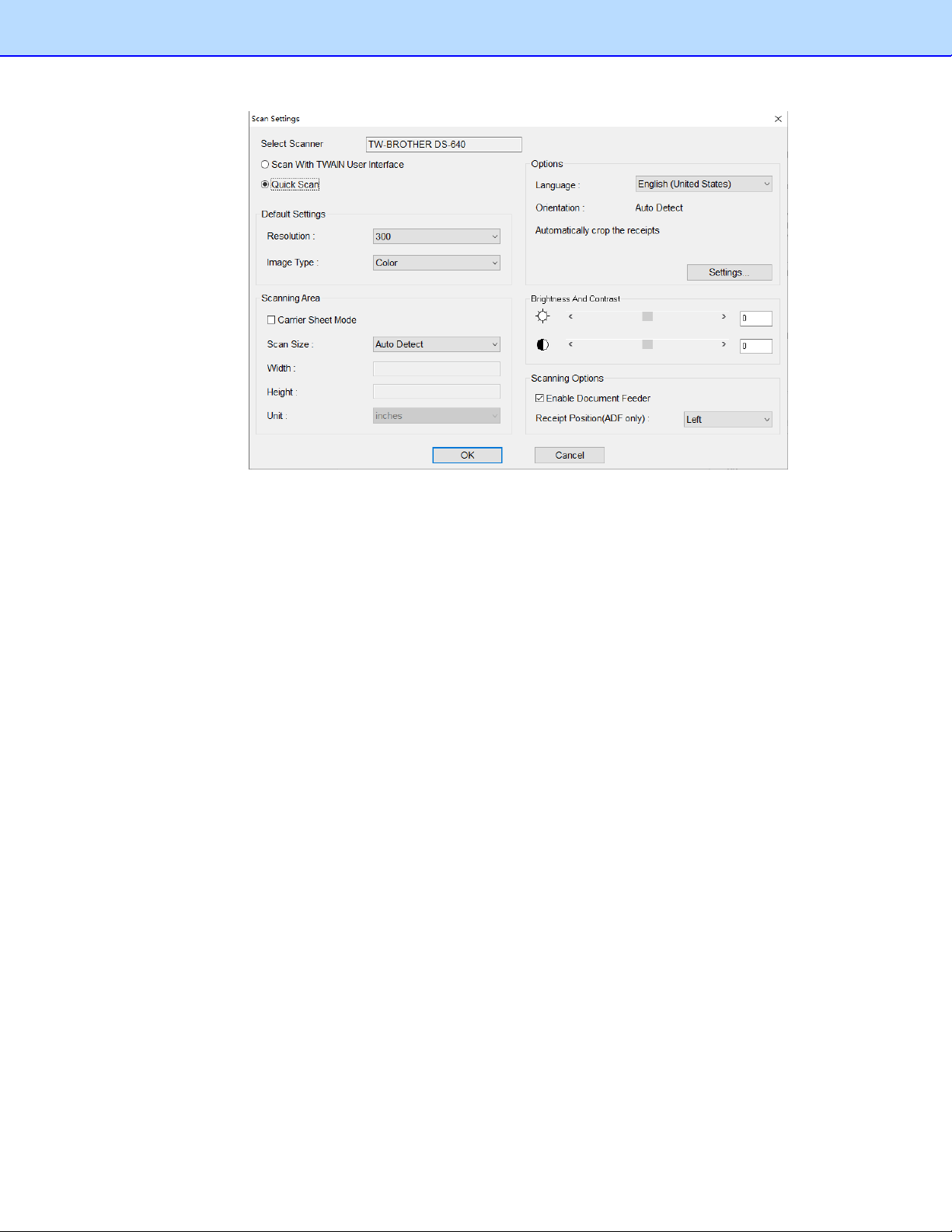
2. Choose your preferred scanning style:
Select Scan With TWAIN User Interface if you want to use the scanner's TWAIN interface for
scanning.
Select Quick Scan (the default setting) to have scanning begin as soon as you click OK. Quick
Scan uses the settings defined in this screen, as follows:
• Resolution: 300 dpi (dots per inch) will have the best recognition performance in most
cases.
• Image type: The default setting is Color. Set the Image type to Gray when scanning
black and white receipts.
• Carrier Sheet Mode: Select Carrier Sheet Mode when scanning a receipt in a Carrier
Sheet, Scan Size, Width, Height and Unit fields are unavailable when using a Carrier
Sheet.
15
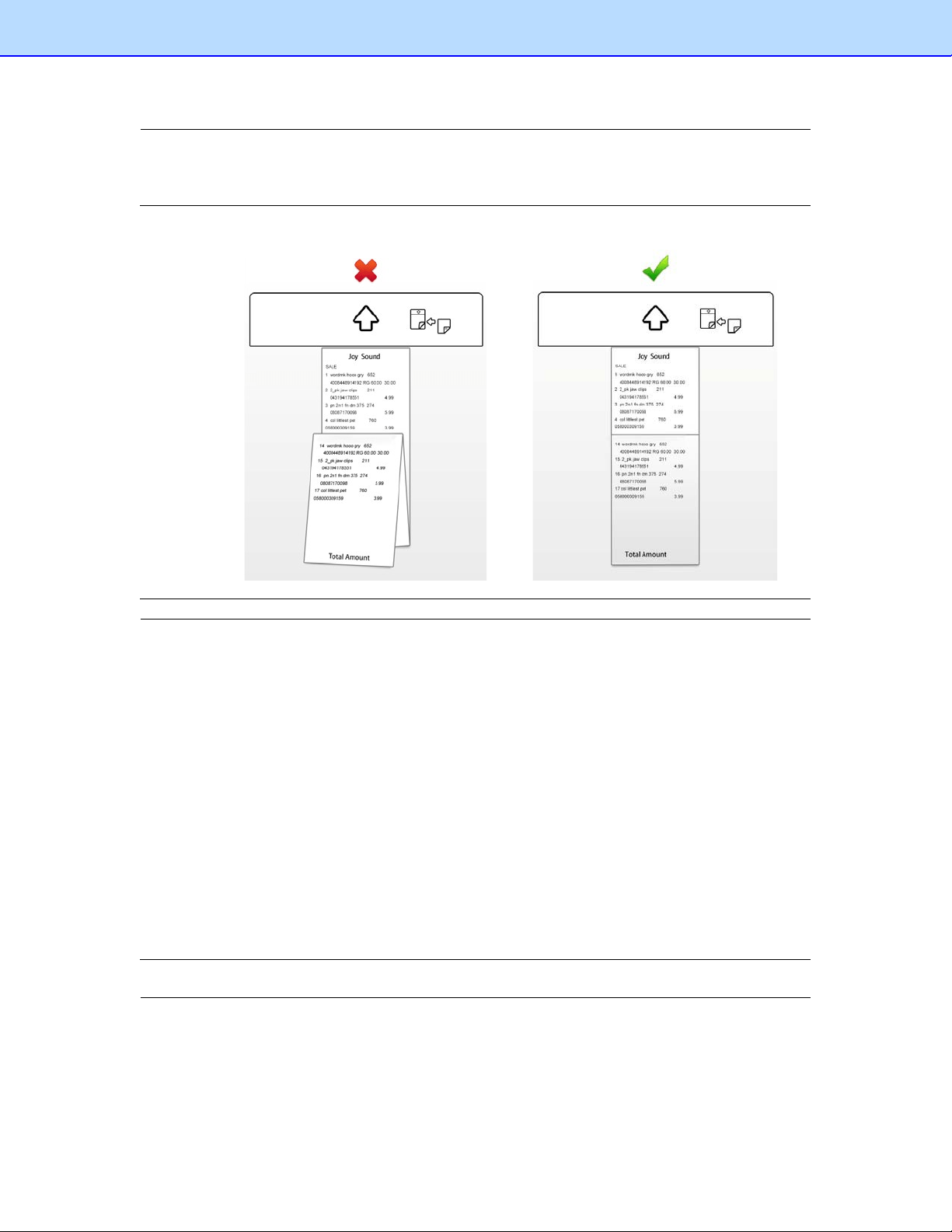
NOTE: When you select "Carrier Sheet Mode", the software automatically skips scanning the
header of the carrier sheet. The width of the header depends on the scanner you are using. If you
are scanning a long receipt, fold the receipt to fit to the carrier sheet with title and total amount
items shown. Do not skew the paper when folding.
NOTE: Carrier sheets may differ depending on your scanner model.
• Scan Size: The default setting is Auto Detect. Select User Defined from the
drop-down list to customize the width, height, and unit.
• Orientation: The default setting is Auto Detect. Click Settings to select other options
from the list.
• Enable Document Feeder: Select this check box if you want to use an automatic
document feeder (ADF). To use this option, the selected scanner must have an ADF
function.
• Receipt Position (ADF only): Select Left, Right, or Center from the drop-down list if
you want BR-Receipts to tell you where you have placed the receipt in the scanner’s
document feeder.
• Brightness And Contrast: Drag the sliders to adjust the contrast and brightness of the
scanned image. Threshold: When you select Black and White from the Image Type
drop-down list, the threshold slider will appear.
3. Click OK.
NOTE: The settings may differ depending on your scanner, and some features are only available
for specific scanners.
When you finish configuring your scan settings, you can start scanning receipts.
4. Put a receipt into your scanner. If you have several drivers available, click the File menu and
select Select Scanner..., and then specify a driver for your scanner from the Select Scanner
dialog box.
16
5. Click the File menu and select Scan Receipt... (or right-click a receipt box in the Folder View
section and select Scan Receipt...).
6. The Choose template screen will open. Select a template or create a new template to
batch-process your receipts. For more information, see Using Receipt Templates
.
7. When the scanner finishes scanning the receipt, you can click in Image View and drag a
rectangle to select an area, right-click the selected area and select the field type from Receipt
Date, Amount, Sales Tax, Vendor and Payment Type, or drag the selected area directly to the
desired field to recognize it.
Importing Receipts
You can import receipts saved as image files.
1. Click the File menu and select Import Receipt Images... (or right-click a folder in the Folder
View section and select Import Receipt Images...).
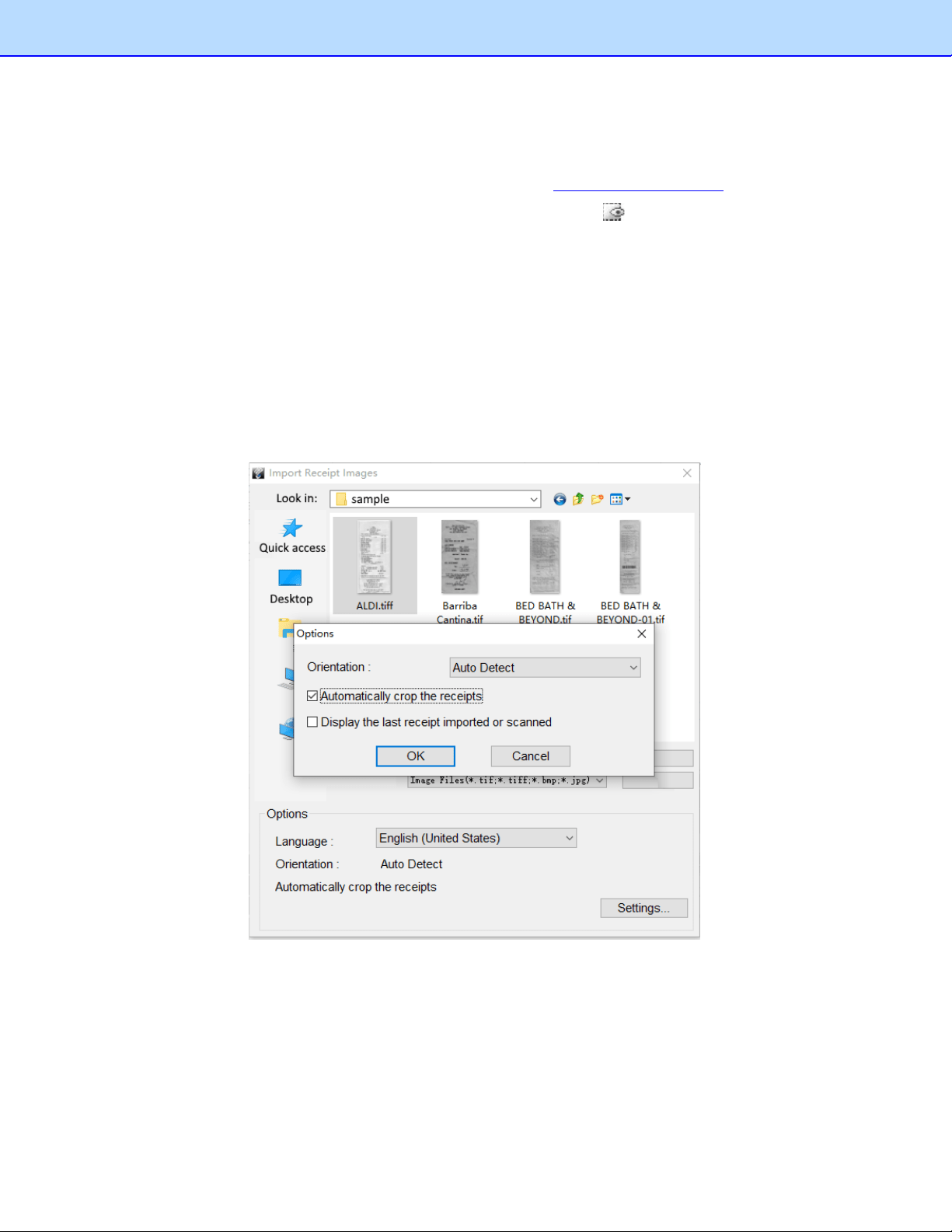
2. In the dialog box, select one or more image files to import, choose the receipt language from the
drop-down list and click Settings to open the Options dialog box to configure your receipts before
importing.
• Auto Detect: Select to have BR-Receipts check to see how the receipt is positioned.
• Rotate left 90 degrees/Rotate right 90 degrees: You may need to rotate the scanned
receipt images before recognition.
• Rotate 180 degrees, or Do not rotate: If your receipts are displayed upside down, you
can rotate them 180 degrees. If the images are correct, select Do not rotate.
The three options above are in the Orientation drop-down list.
17

• Automatically crop the receipts: Select to have BR-Receipts crop images
automatically during importing.
• Display the last receipt imported or scanned: Select to display the last receipt
imported or scanned. If this option is not selected, the most recently opened receipt will
be displayed.
• Click OK to finish.
3. Click Open, the Choose template screen will open. Select a template or create a new template to
batch-process your receipts. For more information, see Using Receipt Templates
.
4. The image data will be added to the current receipt database.
Creating Receipts Manually
If your receipt is not in good condition or is unreadable by the scanner, you can manually add the
receipt record to the database.
1. Click the Receipt menu and select Manually Create a New Receipt, (or right-click a receipt box
and select Manually Create a New Receipt). A set of empty fields will open in Edit mode,
allowing you to enter text.
2. In Edit view, you can select or type receipt information in each field to create or reconstruct the
receipt.
Using Receipt Templates
If your receipts share common data such as where the receipts originated, how goods and services
were paid for, and who is responsible for them, you can use a template for batch processing.
A template consists of a top area (the top part of the receipt), and a bottom area (the lowest part of the
receipt).
When you scan or import receipts, a dialog box will open to ask if you want to apply an existing
template, create a new template, or manually enter the receipt information. You can choose a different
command for each receipt.
Select Vendor
Select a template from the vendor folder in the left pane. Select a template style and click OK to apply
it to your receipt.
18
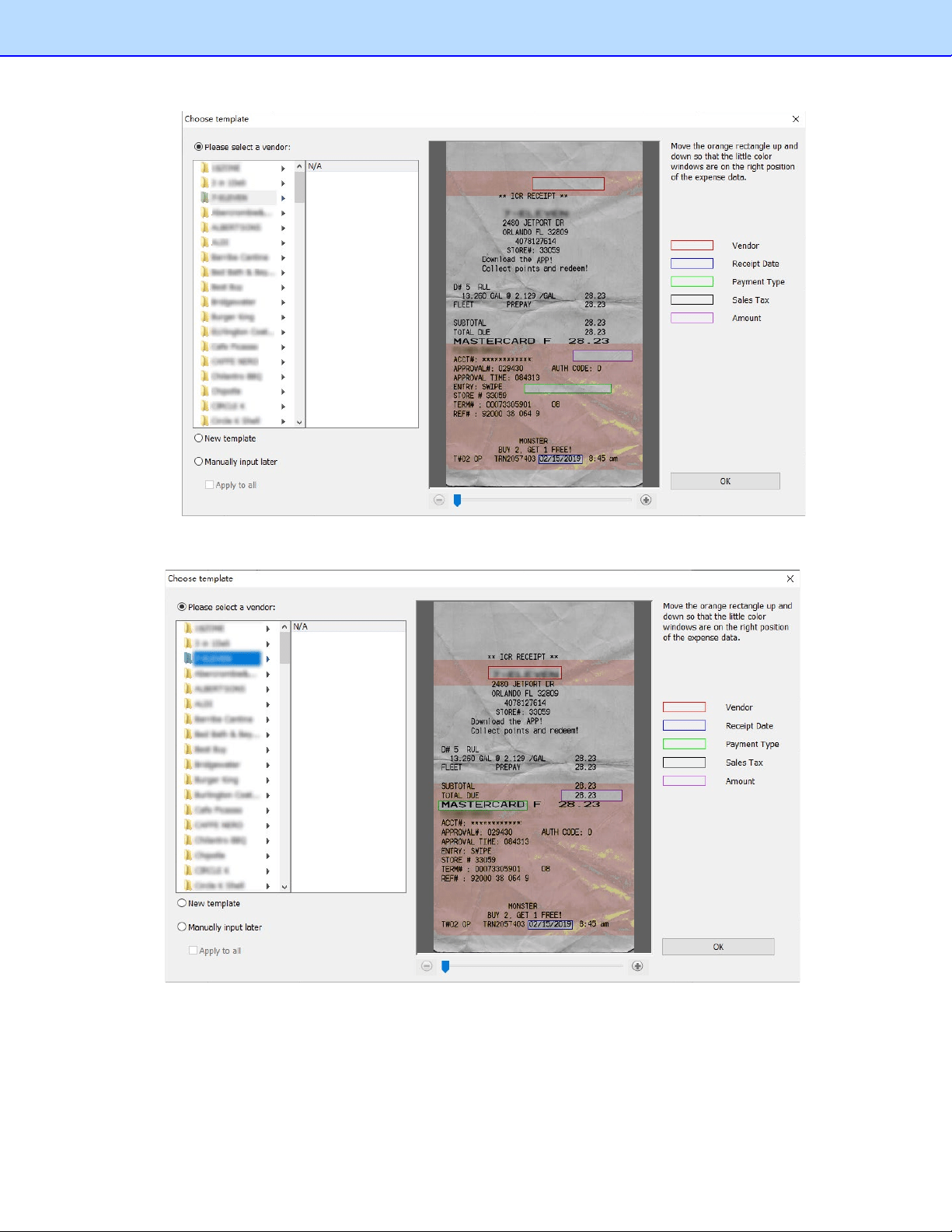
You can also move the orange rectangle or the color window separately to accurately match the
correspond units.
New Template
Create templates to apply to your receipts. Create a different template for each vendor to help
organize your receipts.
19
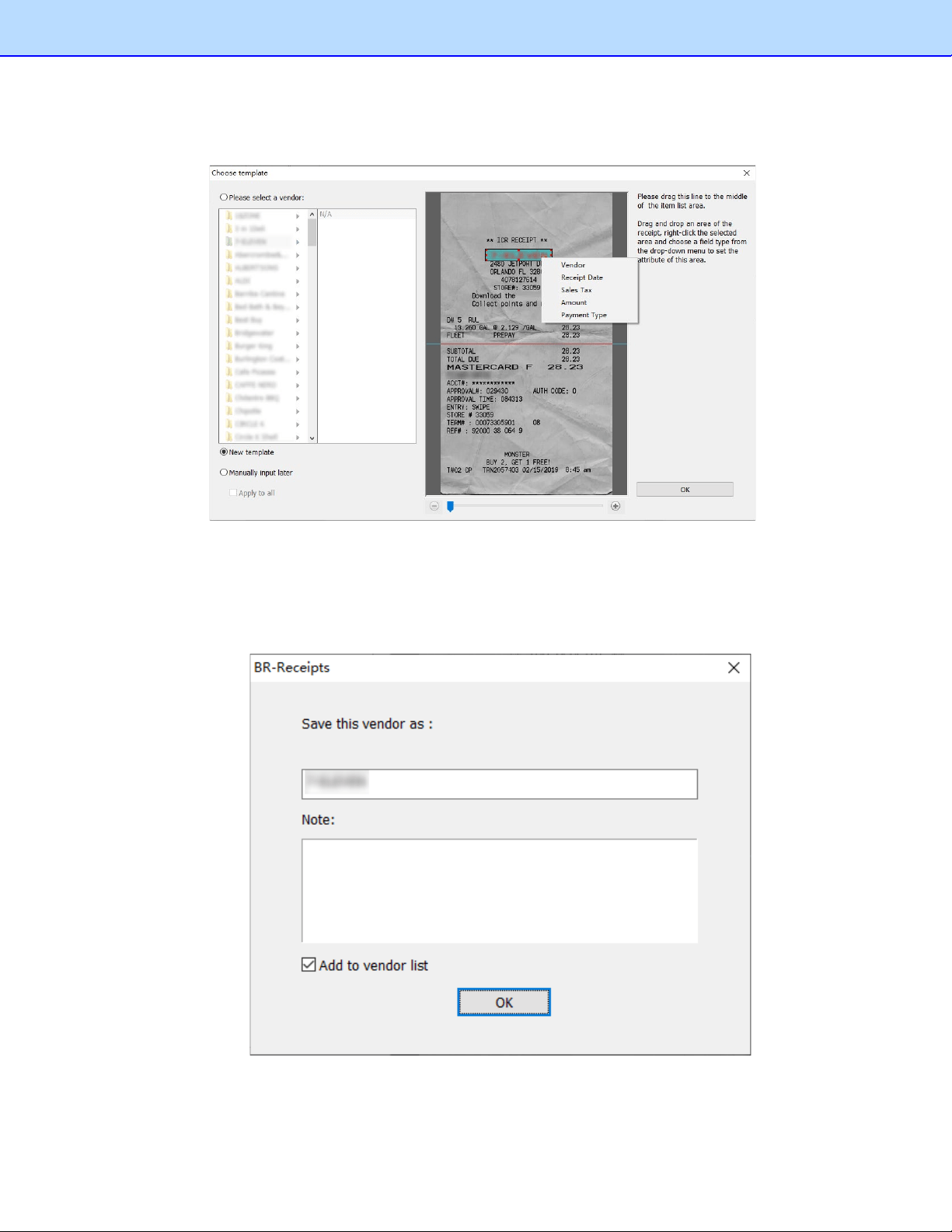
1. Click New template the receipt image will be displayed with a red bar. Click and drag the red bar
to separate the top and bottom areas of the receipt. Drag to select an area of the receipt,
right-click the selected area, and choose a field type from the pop-up menu to verify this area.
2. Set the expense data attributes this way.
Drag a rectangle to select an area, right-click the area and choose a field type. Each data unit
must be mapped to a separate field type. If you choose a data unit that is being used, the previous
field type will be removed. Make sure your selections are accurate for the best OCR results.
3. When the field verification finished, name the template, add notes to the template, and then click
OK to save it.
20
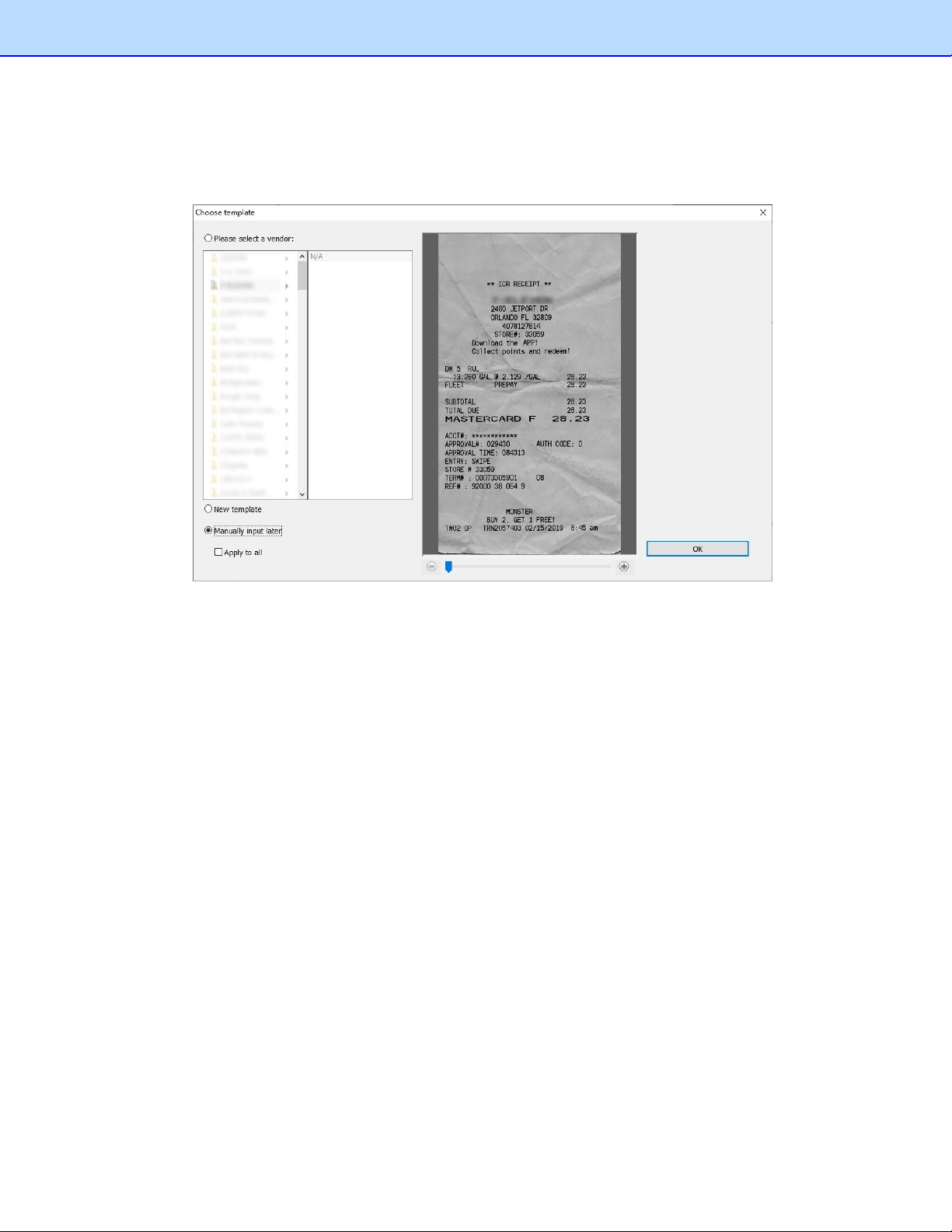
Manual Input
Click Manually input later to ignore all the templates. You can manually type your receipt’s field
information in Edit view. Check Apply to all, and all the receipts will be imported or scanned without
applying a template.
Modify Template
To edit the template applied to a receipt, select the receipt, click the Receipt menu, and then select
Modify template.
The Modify template screen appears with a template that has been assigned to the selected receipt.
If you have verified an area of this receipt as a field, the field type in the menu list will be unavailable
and cannot be applied to another data unit.
21
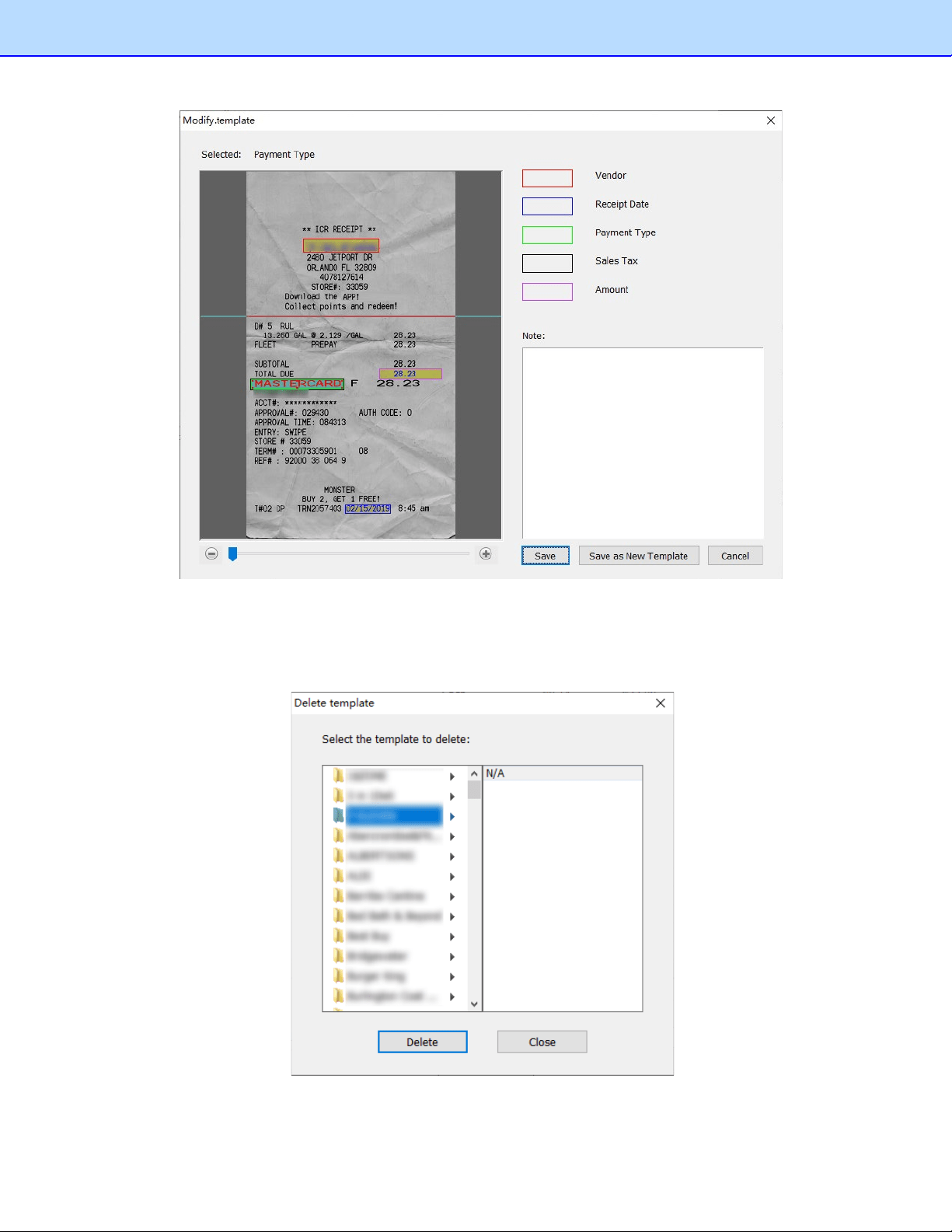
Delete Template
To delete the template, click the Receipt menu and select Delete template. A dialog box will open.
Click Delete to remove the template from your computer.
22
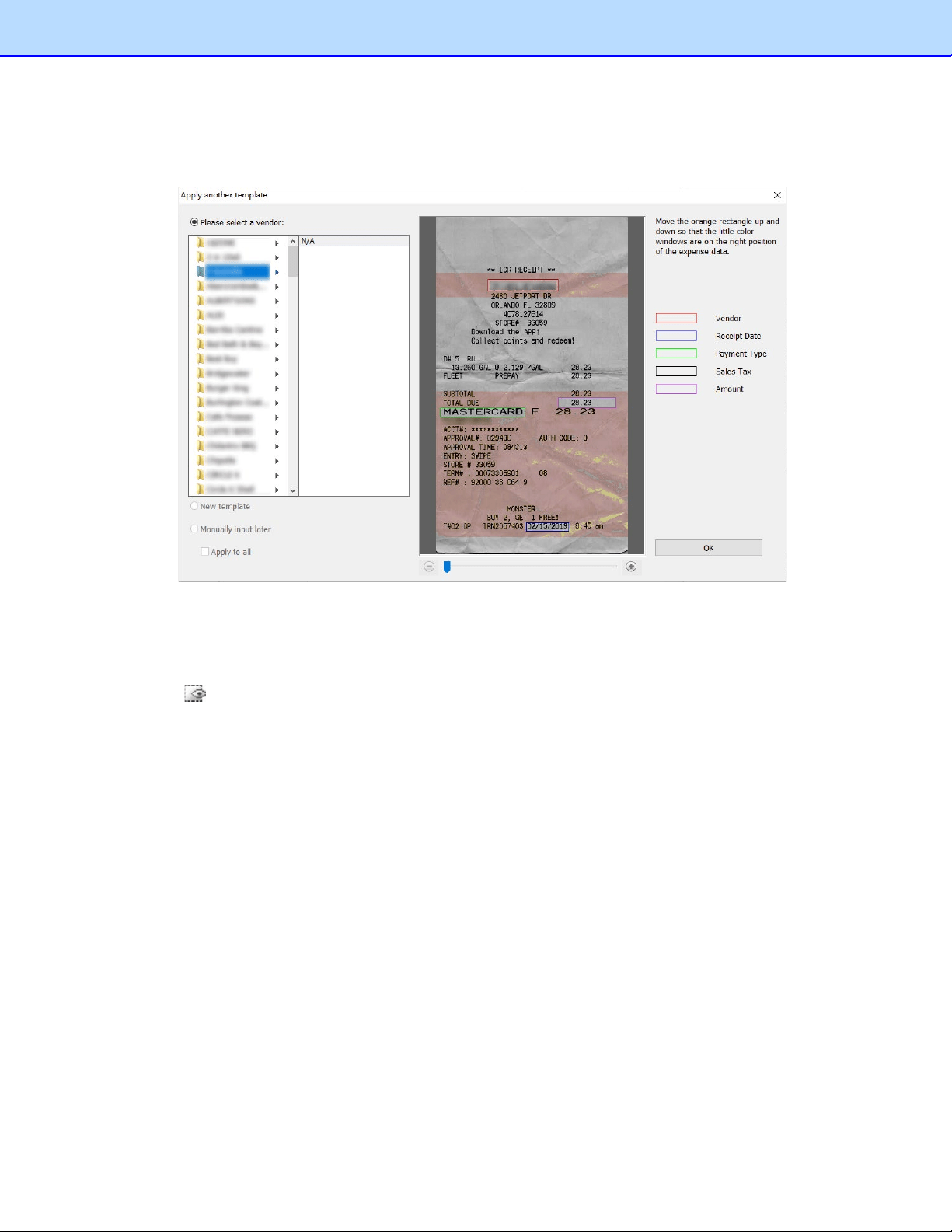
Apply Another Template
To give your receipt another template, click the Receipt menu and select Apply another template. A
dialog box will open.
Field Categorizing
Field categorizing lets you sort receipt information by field.
Click in Image View, drag a rectangle to select an area, right-click the selected area and select
the field type from Receipt Date, Amount, Sales Tax, Vendor, or Payment Type (or drag the
selected area directly to the desired field) to recognize it.
23
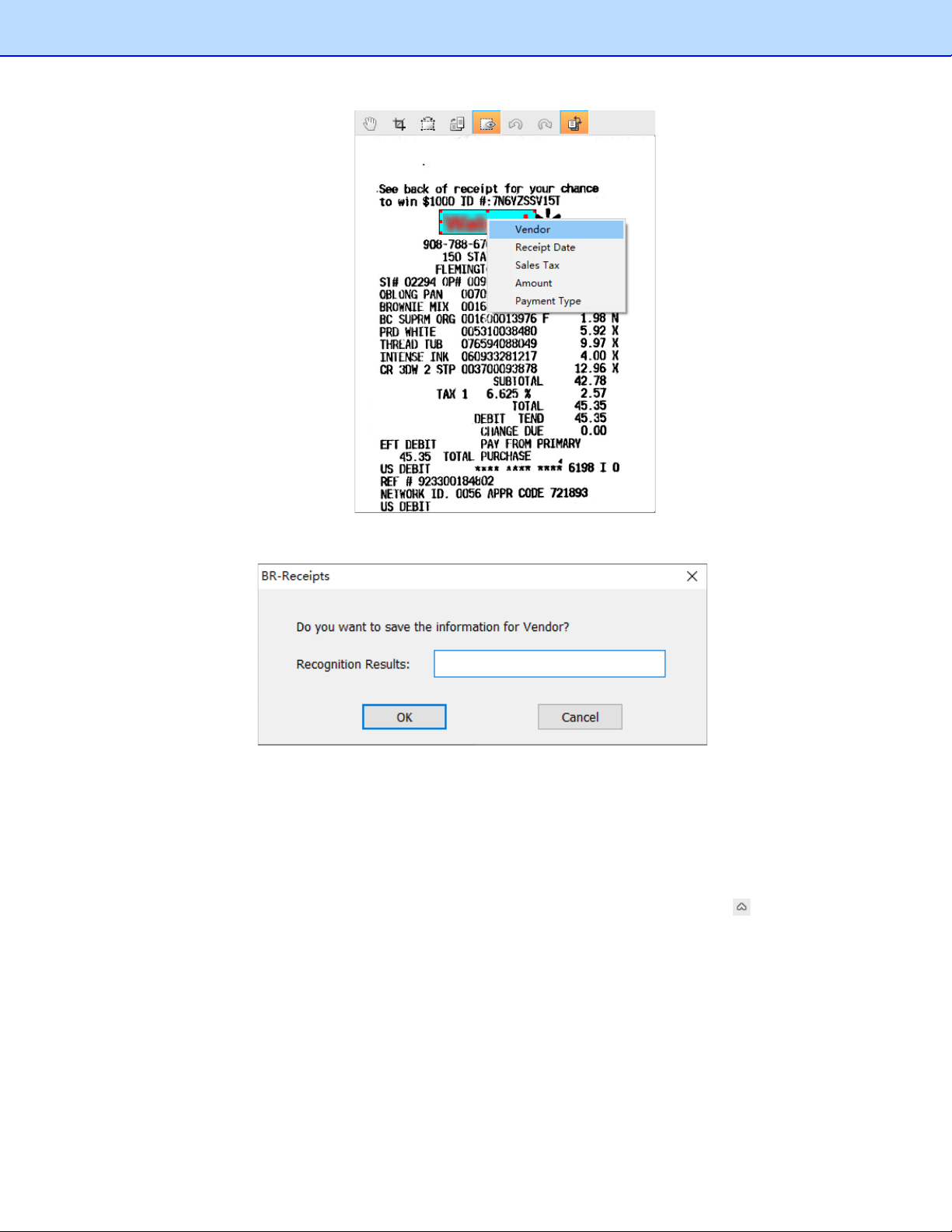
A dialog box will ask if you agree with the OCR results, click OK to put the results into the desired field
or click Cancel to discard it.
When finished, the receipt and the data will be displayed and you can check and edit the data. This is
called the verification process. You can mark a receipt as verified, or you can come back and verify it
later when you have time.
Editing Receipts
In addition to verifying the receipts, you can also make changes and add comments or other
information. Click the View menu and select Edit Items, (or double-click a receipt, or click in the
bottom of the List View section). In Edit Items, if an item is purchased for others, you can select
Reimbursable to record the charge that should be reimbursed to you.
Searching for Receipts
You can type keywords and specify a category, receipt date, amount, or vendor in the Search section
to quickly find all receipts that match your query. The search results will be shown in List View and
Image View.
24

Creating Reports
After all of your receipts are entered and edited in BR-Receipts, you can generate reports that will
show the data in an organized way. Select options as described below, and then click Create Report.
1. Click the Receipt menu and select Create Report... (or click on the toolbar or right-click a
folder and choose Create Report...). The Report Wizard appears.
2. Type a title for your report in the Title field. Select the Show Subheader check box to display a
subheader.
3. The default Reporting Type is Expense. To change to a Spending Report, select Spending.
• In the Spending by drop-down list whatever is selected determines how receipt
information is summarized. For example, if Payment Type is selected, the report
information will be summarized by the payment type in the first field; if Vendor is
selected, the report will be summarized by vendor names in the first field.
4. In the Formatting section:
• Select Include Cover Page if you want a cover page that includes receipt date, user
profile and summary.
• Select Include Receipt if you want your report to display groups by spending type, with
detailed information for each group.
• Select Include Image if you want the receipt images to be printed in the report.
5. When finished, click Continue.
25
5
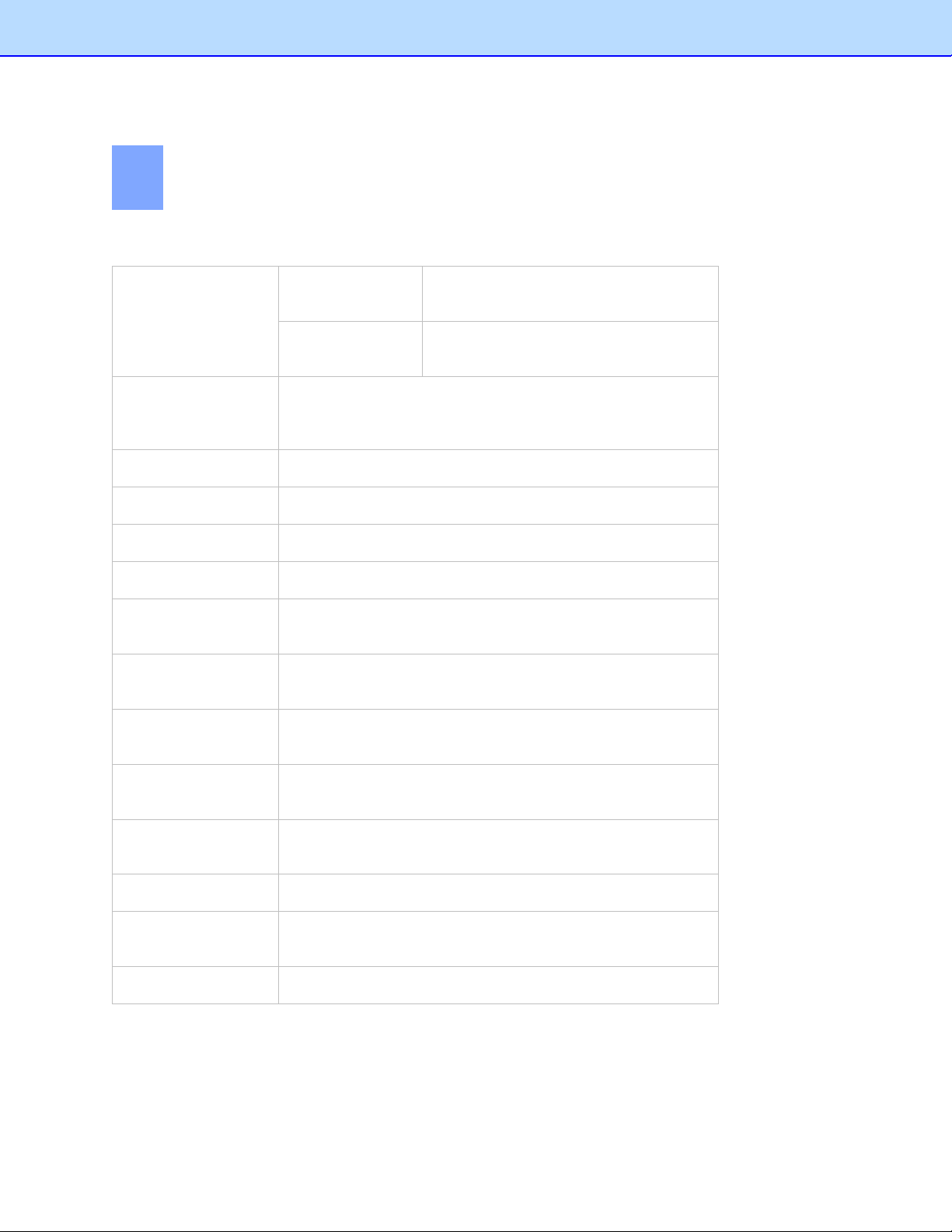
Menu Commands
File Menu
New
New Receipt Box Create a new receipt box whose
properties you can determine yourself.
New Folder Create an empty folder in the selected
receipt box.
Open...(Ctrl+O)
Open a receipt box under a specified path. This receipt box
path can be specified under the General tab in the Settings
screen.
Save As...(Ctrl+S) Save the selected receipt box with a new name.
Close Close the selected receipt box.
Scan Receipt... Scan receipts to the currently selected folder.
Scan Settings... Configure the scan settings.
Select Scanner... Select a driver for your scanner, or a different scanner
connected to your computer.
Import Receipt
Images...
Import receipts to the currently selected folder.
Import User Defined
Field...
Import a CSV file with customized items of different types in
multiple fields.
Export to File Save the receipts as a file in CSV, PDF, QIF, IIF, or TXF
format, or export your data to a third party application.
Export Receipt
Image to File...
Export receipt images to file. The supported file formats are
JPG, TIF, and BMP.
Export to Cloud Upload receipt images or data to cloud.
Settings... Save available BOL accounts, specify the box path, enter
user profile details, and define the field values for the receipts.
Exit Close BR-Receipts.
26
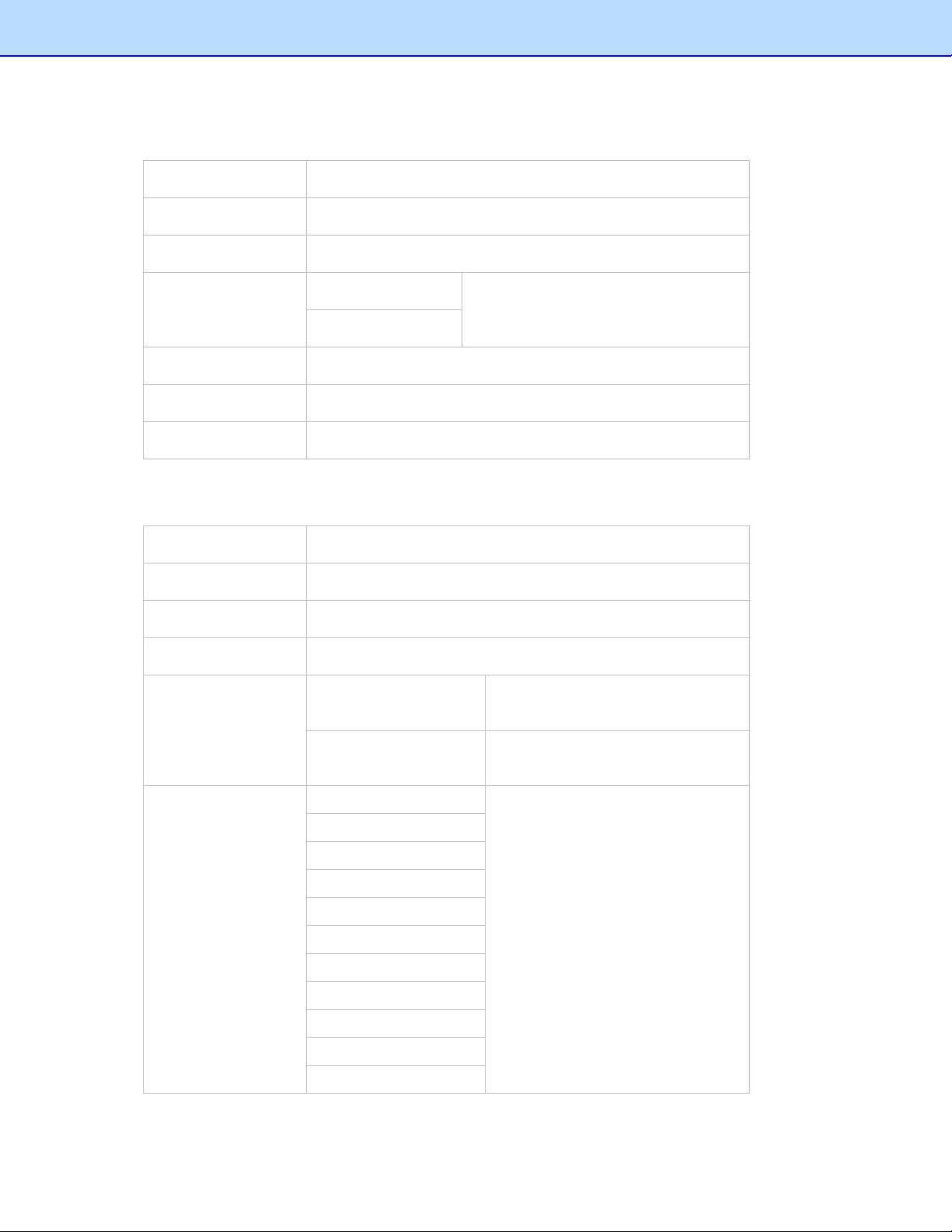
Edit Menu
Cut (Ctrl+X)
Cut the selected receipt. (You can choose more than one.)
Copy (Ctrl+C)
Copy the selected receipt. (You can choose more than one.)
Paste (Ctrl+V)
Insert any copied or cut information.
Delete Receipt
Delete either a receipt or a folder.
Folder
Select All (Ctrl+A)
Select all receipts in the current folder.
Unselect All
Cancel all the selection in the current folder.
Invert Selection
Select the unchecked receipts in the current folder.
View Menu
Edit Items Hide or display Edit View.
Zoom In Increase magnification.
Zoom Out Reduce magnification.
Fit into Window Adjust the image size to the current window.
Rotate Image Rotate right 90 degrees Rotate the selected image
clockwise 90 degrees.
Rotate left 90 degrees Rotate the selected image
counterclockwise 90 degrees.
Sort By Verified Sort the receipts by the selected
field.
Vendor
Category
Receipt Date
Payment Type
Sales Tax
Amount
Purpose
Created Date
Modified Date
Reimburse
27
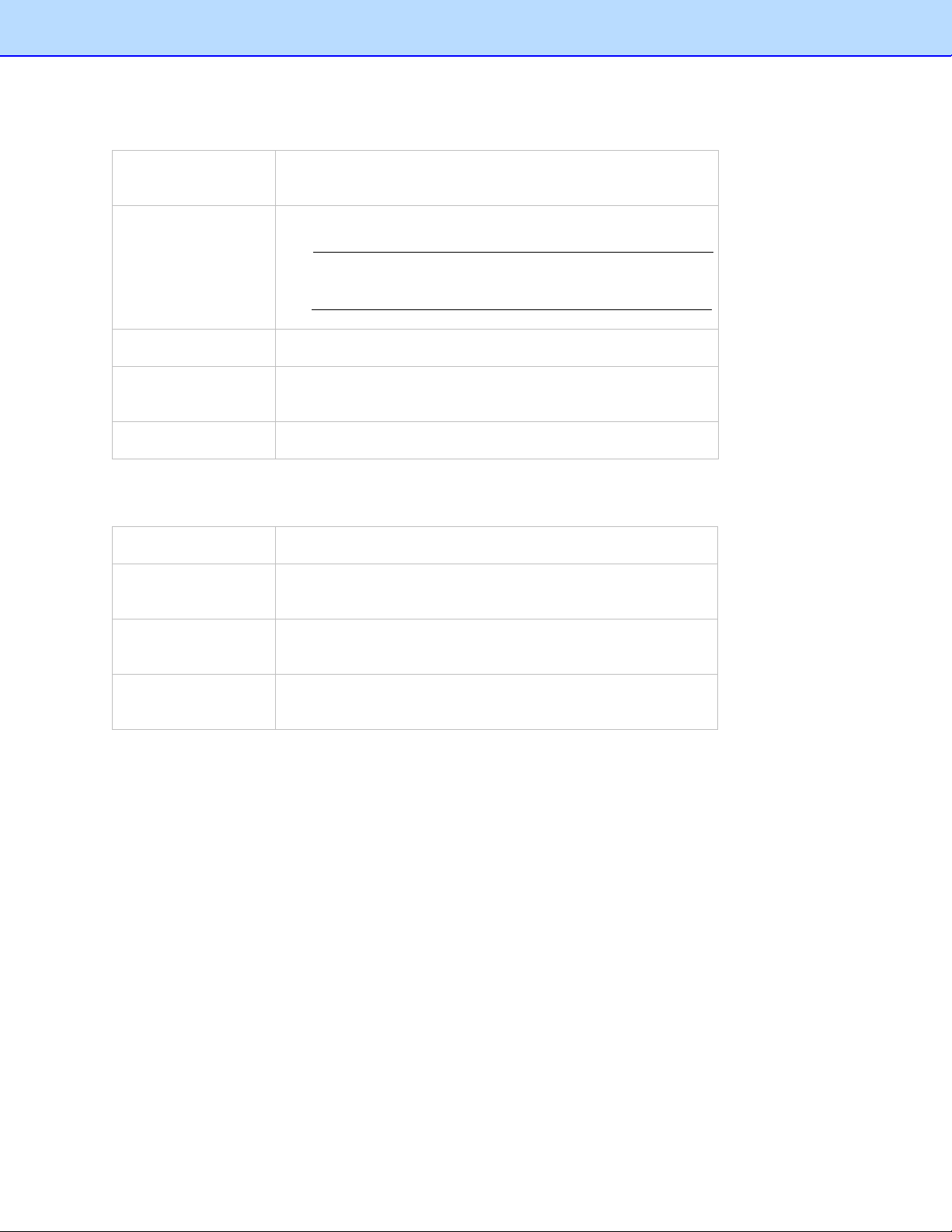
Receipt Menu
Manually Create a
New Receipt
Create a receipt in the current folder.
Modify template
Edit the template applied to this receipt.
NOTE: An error message will appear if the receipt was
not applied to any template, or if OCR is being performed
on the receipt.
Delete template Remove an existing template from the program.
Apply another
template
Choose another template to re-recognize your receipt.
Create Report... Make a report from the data on the selected receipts.
Help Menu
Using Help Show the BR-Receipts Help documentation.
Link to Brother
Website
Open the Brother webpage.
Check for Latest
Version
Check for the latest version of BR-Receipts.
About
BR-Receipts...
Display information about BR-Receipts.
28