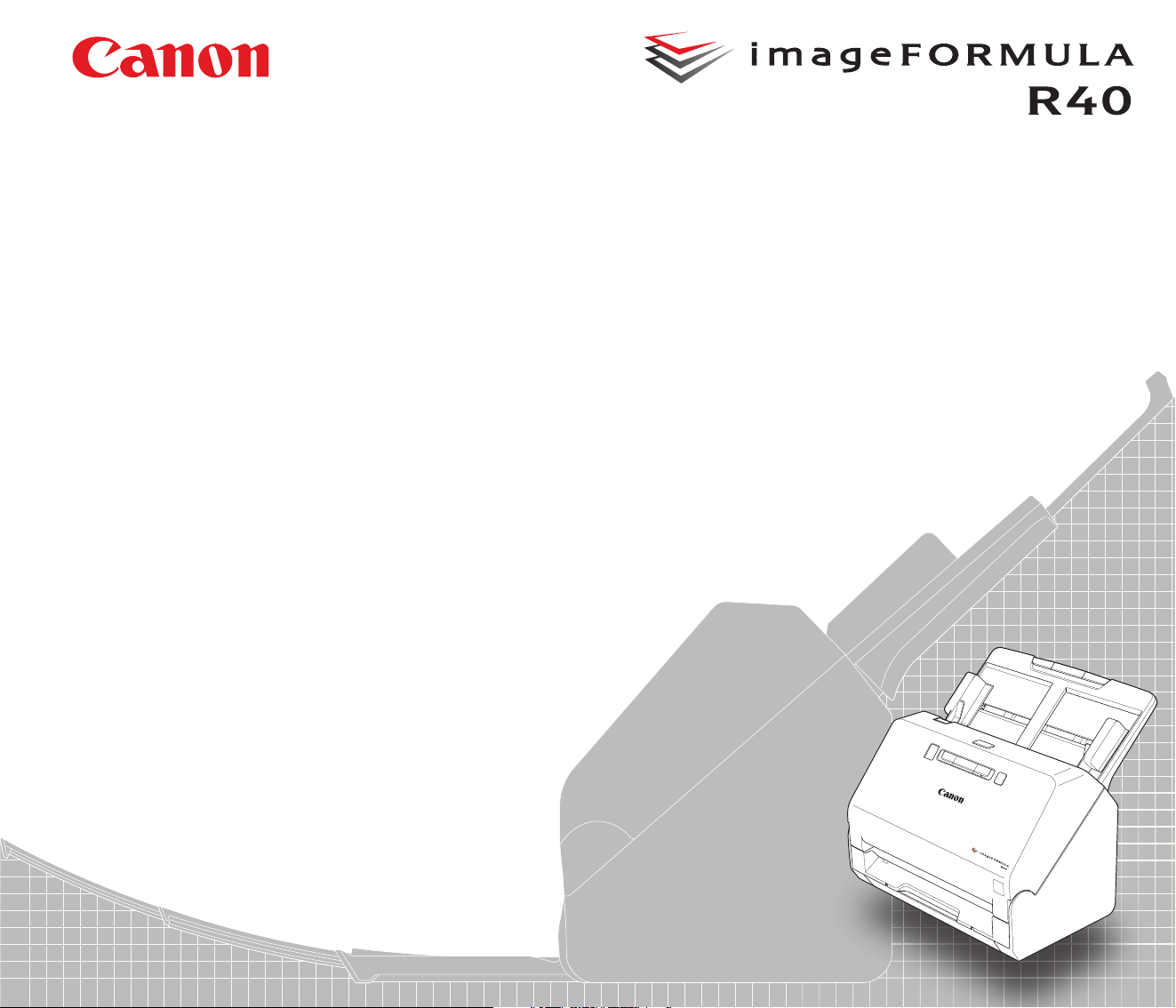
User Manual
• Please read this manual before operating this
scanner.
• After you finish reading this manual, store it in a safe
place for future reference.

2
FCC REGULATIONS (For 120V model)
Document Scanner, Model 6130190
Note: This equipment has been tested and found to comply with the
limits for a Class B digital device, pursuant to Part 15 of the FCC
Rules. These limits are designed to provide reasonable protection
against harmful interference in a residential installation. This
equipment generates, uses, and can radiate radio frequency energy
and, if not installed and used in accordance with the instructions, may
cause harmful interference to radio communications. However, there
is no guarantee that interference will not occur in a particular
installation. If this equipment does cause harmful interference to radio
or television reception, which can be determined by turning the
equipment OFF and ON, the user is encouraged to try to correct the
interference by one or more of the following measures:
– Reorient or relocate the receiving antenna.
– Increase the separation between the equipment and receiver.
– Connect the equipment into an outlet on a circuit different from that
to which the receiver is connected.
– Consult the dealer or an experienced radio/TV technician for help.
Use of shielded cable is required to comply with Class B limits in
Subpart B of Part 15 of FCC Rules.
Do not make any changes or modifications to the equipment unless
otherwise specified in the manual. If such changes or modifications
should be made, you could be required to stop operation of the
equipment.
Canon U.S.A. Inc.
ONE CANON PARK, MELVILLE, NY 11747, U.S.A.
Tel. No. 1-800-652-2666
ENERGY STAR
®
Office Equipment Program
This program is for U.S.A and Canada.
As an ENERGY STAR
®
Partner, CANON
ELECTRONICS INC. has determined that this
machine meets the ENERGY STAR
®
Program
guidelines for energy efficiency.
The ENERGY STAR
®
Office Equipment Program is
an international program that promotes energy saving through the use
of computers and other office equipment. The program backs the
development and dissemination of products with functions that
effectively reduce energy consumption. It is an open system in which
business proprietors can participate voluntarily. The targeted products
are office equipment, such as computers, monitors, printers, fax,
machine, copiers, and scanners. The standards and logos are uniform
among participating nations.
This model doesn’t provide setting options for power management.
Only for European Union and EEA (Norway, Iceland and
Liechtenstein)
This symbol indicates that this product is not to be disposed
of with your household waste, according to the WEEE
Directive (2012/19/EU) and national legislation. This
product should be handed over to a designated collection
point, e.g., on an authorized one-for-one basis when you
buy a new similar product or to an authorized collection site for
recycling waste electrical and electronic equipment (EEE). Improper
handling of this type of waste could have a possible negative impact
on the environment and human health due to potentially hazardous
substances that are generally associated with EEE. At the same time,
your cooperation in the correct disposal of this product will contribute
to the effective usage of natural resources. For more information
about where you can drop off your waste equipment for recycling,
please contact your local city office, waste authority, approved WEEE
scheme or your household waste disposal service. For more
information regarding return and recycling of WEEE products, please
visit www.canon-europe.com/weee
.

3
Model Names
The following name may be provided for the safety regulations in each
sales region of the Document Scanner.
R40: Model 6130190
Reproduction Warning
This device is designed to be used in a legal manner, in accordance
with all applicable laws, including, but not limited to, counterfeit and
copyright laws, as well as laws pertaining to national security.
Any person(s) found to have reproduced any of the following materials
(regardless of whether such reproduction was intentional or not) for
the purpose of misrepresenting such material as the original may be
prosecuted in accordance with the applicable laws and regulations.
• Paper money or bank notes (domestic and foreign)
• Postage stamps, revenue stamps, or other similar stamps
• Stock certificates, bond certificates, promissory notes, cheques, or
other valuable certificates
• Passports, licenses, or other certificates or documents issued by
government officials or agencies
This is not an exhaustive list.
Canon is not responsible for how this scanner is used by an individual.
Please note that certain intellectual property is protected by copyright
law, and copyrighted items may not be reproduced without the
express permission of the copyright holder except for personal or
household use under limited circumstances.
Trademarks
• Canon and the Canon logo are registered trademarks, of Canon Inc.
in the United States and may also be trademarks or registered
trademarks in other countries.
• imageFORMULA is a trademark of CANON ELECTRONICS INC.
• Microsoft, Windows, PowerPoint, and SharePoint are registered
trademarks or trademarks of Microsoft Corporation in the United
States and other countries.
• Microsoft product screen shot(s) reprinted with permission from
Microsoft Corporation.
• OS X and macOS are the trademarks of Apple Inc., registered in the
U.S. and other countries.
• ENERGY STAR
®
is a registered trademark of the United States
Environmental Protection Agency.
• Other product and company names herein may be the trademarks
of their respective owners. However, the
TM
and
®
symbols are not
used in this document.
Copyright
Copyright 2019 by CANON ELECTRONICS INC. All rights reserved.
No part of this publication may be reproduced or transmitted in any
form or by any means, electronic or mechanical, including
photocopying and recording, or by any information storage or retrieval
system without the prior written permission of CANON
ELECTRONICS INC.

4
Disclaimers
The information in this document is subject to change without notice.
CANON ELECTRONICS INC. MAKES NO WARRANTY OF ANY
KIND WITH REGARD TO THIS MATERIAL, EITHER EXPRESS OR
IMPLIED, EXPECT AS PROVIDED HEREIN, INCLUDING WITHOUT
LIMITATION, THEREOF, WARRANTIES AS TO MARKETABILITY,
MERCHANTABILITY, FITNESS FOR A PARTICULAR PURPOSE
OF USE OR NON-INFRINGEMENT. CANON ELECTRONICS INC.
SHALL NOT BE LIABLE FOR ANY DIRECT, INCIDENTAL, OR
CONSEQUENTIAL DAMAGES OF ANY NATURE, OR LOSSES OR
EXPENSES RESULTING FROM THE USE OF THIS MATERIAL.
CANON ELECTRONICS INC. IS NOT LIABLE FOR THE STORAGE
AND HANDLING OF DOCUMENTS SCANNED WITH THIS
PRODUCT, OR THE STORAGE AND HANDLING OF RESULTING
SCANNED IMAGE DATA.
IF YOU INTEND TO DISCARD THE ORIGINALS OF SCANNED
DOCUMENTS, YOU THE CUSTOMER ARE RESPONSIBLE FOR
INSPECTING THE SCANNED IMAGES AND VERIFYING THAT
DATA IS INTACT.
THE MAXIMUM LIABILITY OF CANON ELECTRONICS INC.
UNDER THIS WARRANTY IS LIMITED TO THE PURCHASE PRICE
OF THE PRODUCT COVERED BY THE WARRANTY.
5
Introduction
Thank you for purchasing the Canon imageFORMULA Document
Scanner.
Please read the following manuals carefully and familiarize yourself
with the functions of the scanner before use to ensure you sufficiently
understand the functions and make the most of the scanner’s
capabilities. After reading the manuals, store them in a safe place for
future reference.
Manuals for the Scanner
Documentation for this scanner consists of the following manuals.
● Product Safety Guide
Before using the scanner, be sure to read and follow these
instructions.
● Setup Guide
This describes setup procedures for the scanner. Read this manual
when you first use the scanner.
● User Manual (this manual)
This manual contains the operating procedures of the scanner.
(PDF electronic manual only)
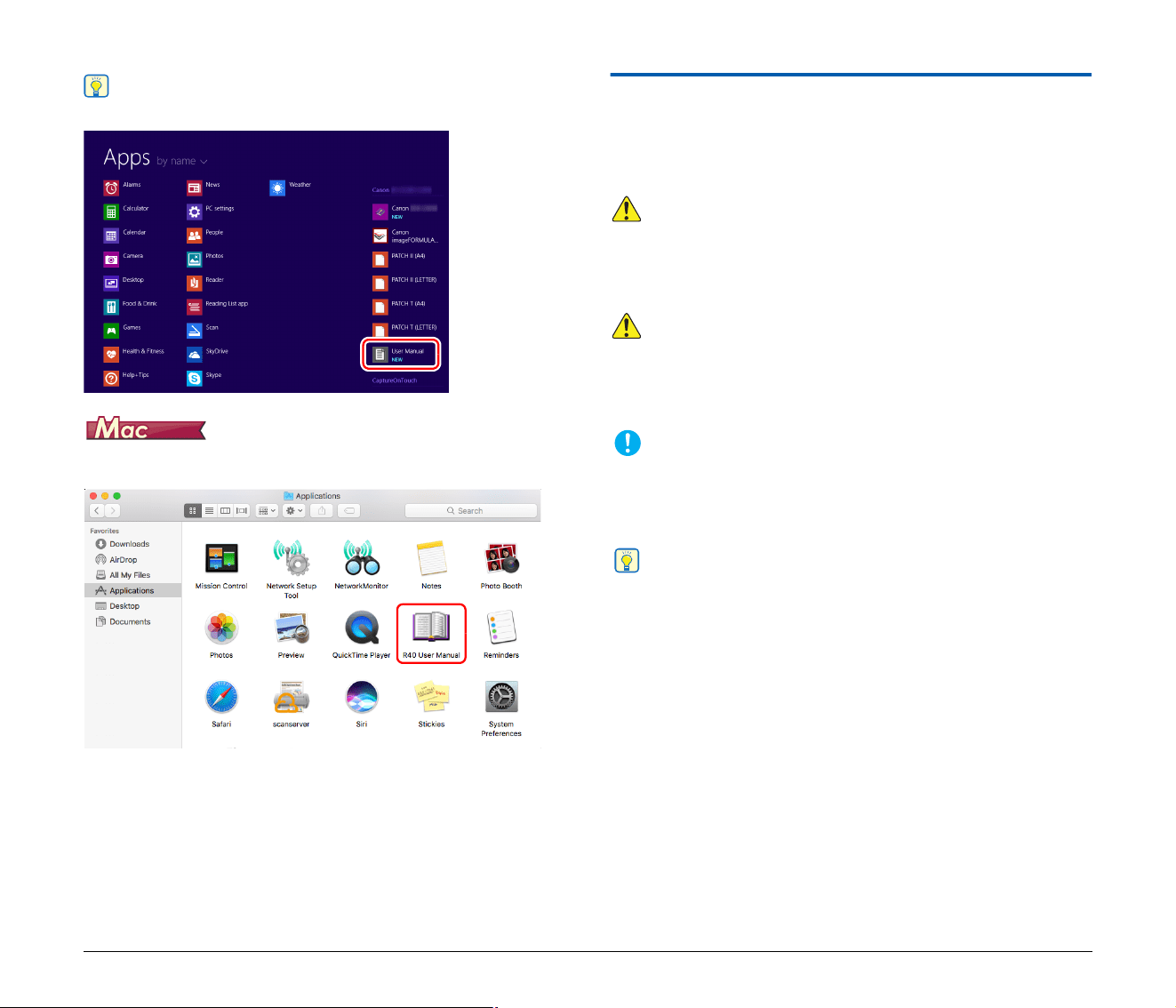
• If you are using Windows, the User Manual (electronic manual) will
be registered to the following location when the software is installed.
6
Hint
In Windows 8.1, it is registered at the following location.
• If you are using macOS, the User Manual (electronic manual) will be
registered to the following location.
Symbols Used in This Manual
The following symbols are used in this manual to explain procedures,
restrictions, handling precautions, and instructions that should be
observed for safety.
WARNING
Indicates a warning concerning operations that may lead to death
or injury to persons if not performed correctly. To use the scanner
safely, always pay attention to these warnings.
CAUTION
Indicates a caution concerning operations that may lead to injury to
persons, or damage to property if not performed correctly. To use
the scanner safely, always pay attention to these cautions.
IMPORTANT
Indicates operational requirements and restrictions. Be sure to
read these items carefully to operate the scanner correctly, and
avoid damaging the scanner.
Hint
Indicates a clarification of an operation, or contains additional
explanations for a procedure. Reading these notes is highly
recommended.

7
Table of Contents
Introduction ......................................................................... 5
Symbols Used in This Manual...................................................... 6
Before Using the Scanner............................ 8
System Requirements of Software............................... 8
Turning the Power ON................................................... 9
Turning Off the Power ............................................................. 9
Important Safety Instructions..................................... 10
Installation Location .............................................................. 10
AC Adapter............................................................................ 10
Moving the Scanner .............................................................. 11
Handling................................................................................ 11
Disposal ................................................................................ 12
When sending the scanner for repairs .................................. 12
Features of the Scanner.............................................. 13
Names and Functions of Parts ................................... 15
Basic Operation ......................................... 18
Documents ................................................................... 18
How to Place Documents............................................ 20
Scanning multiple documents ............................................... 20
Placing Cards........................................................................ 21
Scanning with Carrier Sheets................................................ 22
Setting the Long Document Mode......................................... 23
Detecting a document double feed ....................................... 26
Scanning methods ..................................... 29
Scanning with CaptureOnTouch ................................ 29
What is CaptureOnTouch?.................................................... 29
Setting the Scanner Driver.......................................... 30
Configuration and Functions of the Scanner Driver .............. 30
Setting Basic Scanning Conditions ....................................... 33
More Advanced Scanning Methods
(Batch Separation)....................................................... 50
Batch Separation (Insert blank page).................................... 50
Batch separation using patch code sheets ........................... 50
Maintenance .............................................. 53
Daily Maintenance........................................................ 53
Cleaning the Scanner............................................................ 53
Cleaning the Inside of the Scanner ....................................... 53
Cleaning the Sensor Glass and the Rollers .......................... 53
Adjusting the Reduction Ratio............................................... 55
Replacing Consumable Parts................................................ 57
Auto Power Off Setting.......................................................... 62
Removing the Document Feed Tray ..................................... 63
About the Canon imageFORMULA Driver Setting Tool ........ 63
Troubleshooting ........................................ 65
Common Problems and Solutions.............................. 65
Software Troubleshooting........................................... 68
Useful tips..................................................................... 69
Clearing a Paper Jam................................................... 71
Uninstalling the Software ............................................ 73
Appendix .................................................... 74
Specifications............................................................... 74
Replacement parts ................................................................ 75
Dimensions............................................................................ 75
Index...............................................................................76
8
Before Using the Scanner
System Requirements of Software
To use the scanner, your computer must satisfy the following system
requirements.
Computer
CPU: Intel Core 2 Duo 1.66GHz or faster
Intel Core i7 2.3GHz or faster
Memory: 1 GB or more
8 GB or more
Hard disk: 3 GB or more available space required for
installation of all software
USB interface: Hi-Speed USB2.0
Monitor: Resolution of 1024 × 768 (XGA) or better
recommended.
Operating system
• Microsoft Windows 7 Service Pack 1 or later (32-bit and 64-bit
editions)
• Microsoft Windows 8.1 (32-bit and 64-bit editions)
• Microsoft Windows 10 (32-bit and 64-bit editions)
• macOS 10.12
• macOS 10.13
• macOS 10.14
• macOS 10.15
This is the environment as of October 2019.
For the latest software support information, go to the Products page
on the Canon website.
Other requirements
• A TWAIN-compatible application that is compatible with the above
operating systems.
• .NET Framework 4.5 or later (Windows only)
IMPORTANT
• Use the USB interface provided as standard with your computer.
However, normal operation is not guaranteed with all USB
interfaces, even if present as standard equipment on the computer.
For details, consult your local authorized Canon dealer.
• Scanning speeds are lower if your computer’s standard USB
interface is USB Full-Speed (equal to USB 1.1.)
• The USB cable you are using should be the one originally included
with the scanner.
• If the CPU, memory, interface card, and other specifications do not
satisfy the installation requirements, the scanning speed may be
greatly reduced and transmission may take a long time.
• Even if the computer satisfies the system requirements, the
scanning speed may vary, depending on the specification of the
computer and the environment.
• The scanner drivers provided with the scanner do not necessarily
operate on all TWAIN-compatible applications. For details, contact
your application software retailer.
• In Windows 10 tablet mode, the software may disrupt the display.
Precautions for Use in 64-bit Operating Systems
(Windows only)
• The TWAIN driver supplied with this product supports scanning with
32bit applications only.
• Even with 32-bit applications, not all TWAIN compliant applications
are guaranteed to operate.
• Scanning speed may vary depending on the specifications of your
computer.
9
Turning the Power ON
The power of the scanner can be turned ON and OFF with the power
button on the front of the scanner.
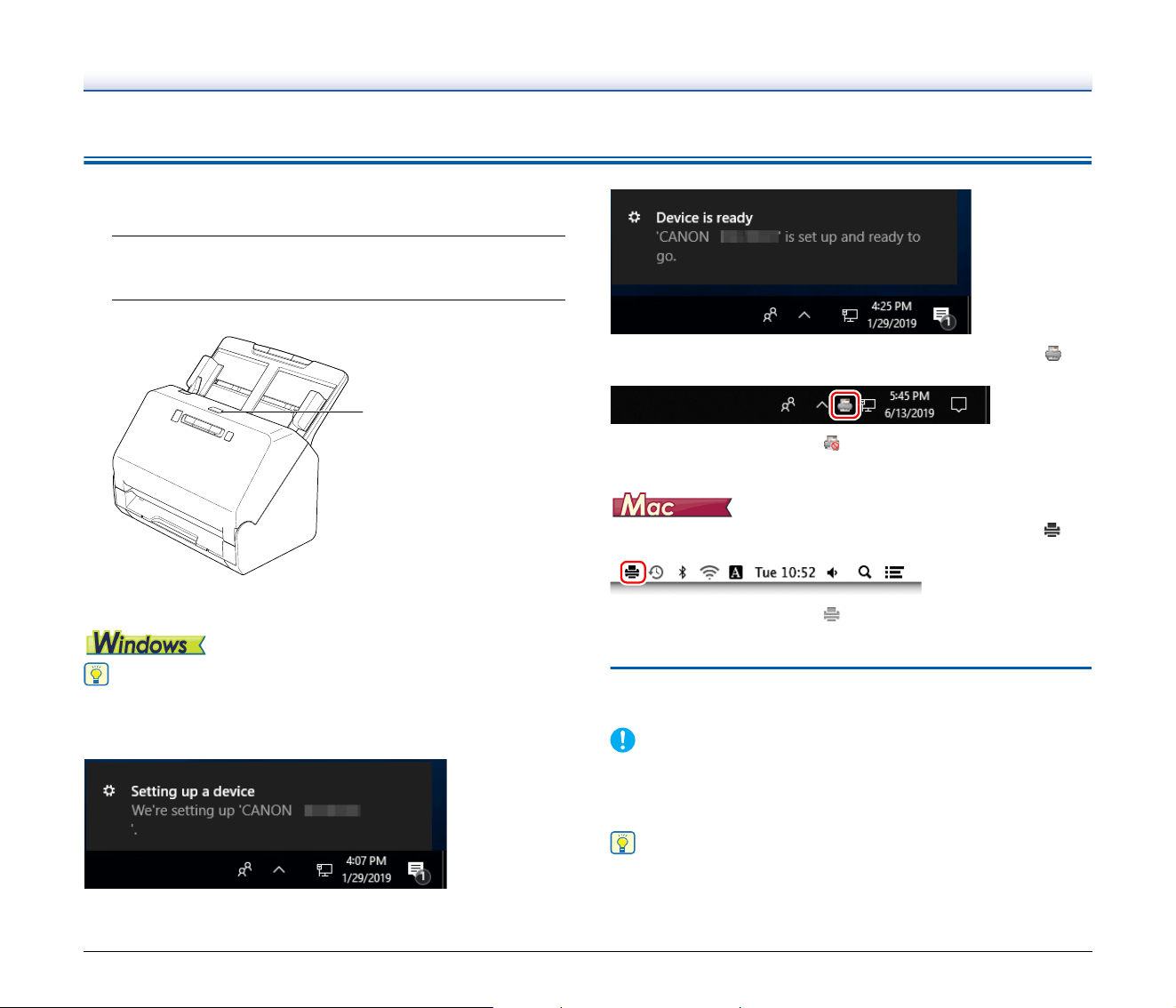
1
Make sure that the scanner and computer are connected
properly.
2
Press the power button.
The power button lights blue when the power turns ON.
Hint
A balloon message such as shown below appears on the task bar. If
you wait a while, automatic scanner recognition will end and the
scanner will become ready to use.
When the scanner is properly connected to the computer, the
(CaptureOnTouch) icon appears on the taskbar as follows.
If the taskbar icon appears as , the scanner is not properly
connected to the computer. Check the status of the power switch and
USB cable.
When the scanner is properly connected to the computer, the
(CaptureOnTouch) icon appears on the taskbar as follows.
If the taskbar icon appears as , the scanner is not properly
connected to the computer. Check the status of the power switch and
USB cable.
Turning Off the Power
Press and hold the power button until the indicator goes out.
IMPORTANT
• After turning the scanner off, wait at least 10 seconds before turning
it back on.
• If you will not be using the scanner for an extended period, you
should disconnect the power cord from the AC outlet for safety.
Hint
The scanner’s auto power off setting is enabled by default, and the
scanner will turn off automatically if it is not operated for 4 hours.
For details on how to disable this setting, see "Auto Power Off Setting"
on p. 62.
Power button
10
Important Safety Instructions
To ensure the safe operation of this scanner, be sure to read the
safety warnings and precautions described below.
Installation Location
The performance of this scanner is affected by the environment in
which it is installed. Make sure that the location where the scanner is
installed meets the following environmental requirements.
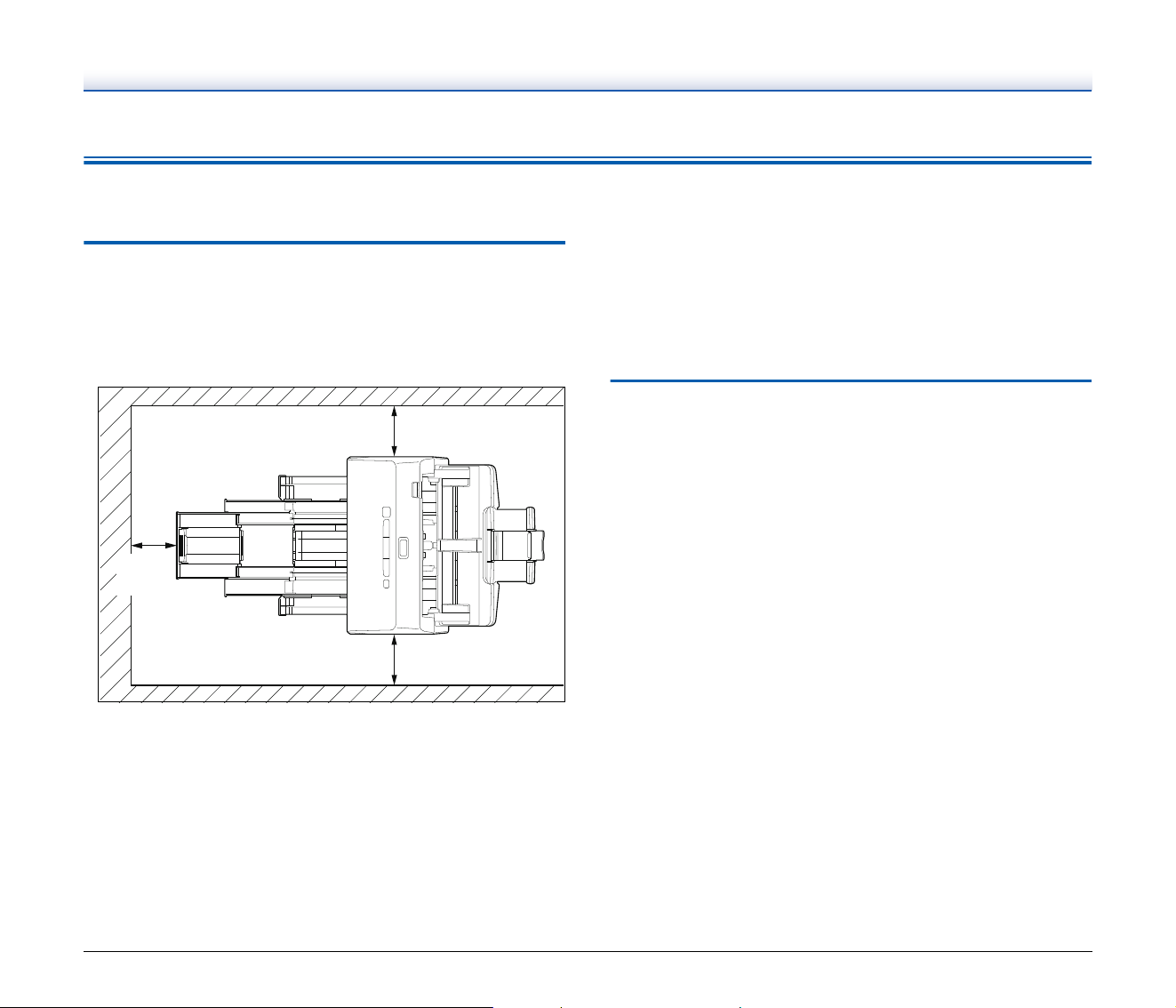
● Provide adequate space around the scanner for operation,
maintenance, and ventilation.
● Provide adequate space in front of the scanner for documents
output after being scanned.
● Avoid installing the machine in direct sunlight. If this is unavoidable,
use curtains to shade the scanner.
● Avoid locations where a considerable amount of dust accumulates
as dust may adversely affect the inside of the scanner.
● Avoid warm or humid locations, such as in the vicinity of a water
faucet, water heater, or humidifier. Avoid locations where ammonia
gas is emitted. Avoid locations near volatile or flammable materials,
such as alcohol or paint thinner.
● Avoid locations that are subject to vibration.
● Avoid exposing the scanner to rapid changes in temperature. If the
room in which the scanner is installed is cold but rapidly heated,
water droplets (condensation) may form inside the scanner. This
may result in a noticeable degradation in scanning quality. The
following conditions are recommended for optimal scanning quality:
Room temperature: 10 °C to 32.5 °C (50 °F to 90.5 °F)
Humidity: 20% to 80% RH
● Avoid installing the scanner near equipment that generates a
magnetic field (e.g. speakers, televisions, or radios.)
AC Adapter
● Connect only to a power outlet of the rated voltage and power
supply frequency (120 V, 60 Hz or 220-240 V, 50/60 Hz depending
on your region).
● Do not connect other electrical equipment to the same power outlet
to which the scanner is connected. Also, when using an extension
cord, make sure that the extension cord is rated for the current
requirements of the scanner.
● Never try to take the AC adapter apart or modify it in any way, as
this is dangerous.
● The power cord may become damaged if it is often stepped on or if
heavy objects are placed on it.
● Do not use the power cord while it is coiled.
● Do not pull directly on the power cord. When disconnecting the
power cord, grasp the plug and remove it from the outlet.
● Keep the area around the power cord clear of objects so that the
power cord can be disconnected easily in an emergency.
● Do not use an AC adapter other than the one provided with the
scanner. Do not use the AC adapter provided with the scanner with
other products.
● If you have any questions regarding the power supply, contact your
local authorized Canon dealer or service representative for further
information.
100mm
(3.94")
100mm (3.94")
100mm (3.94")
11
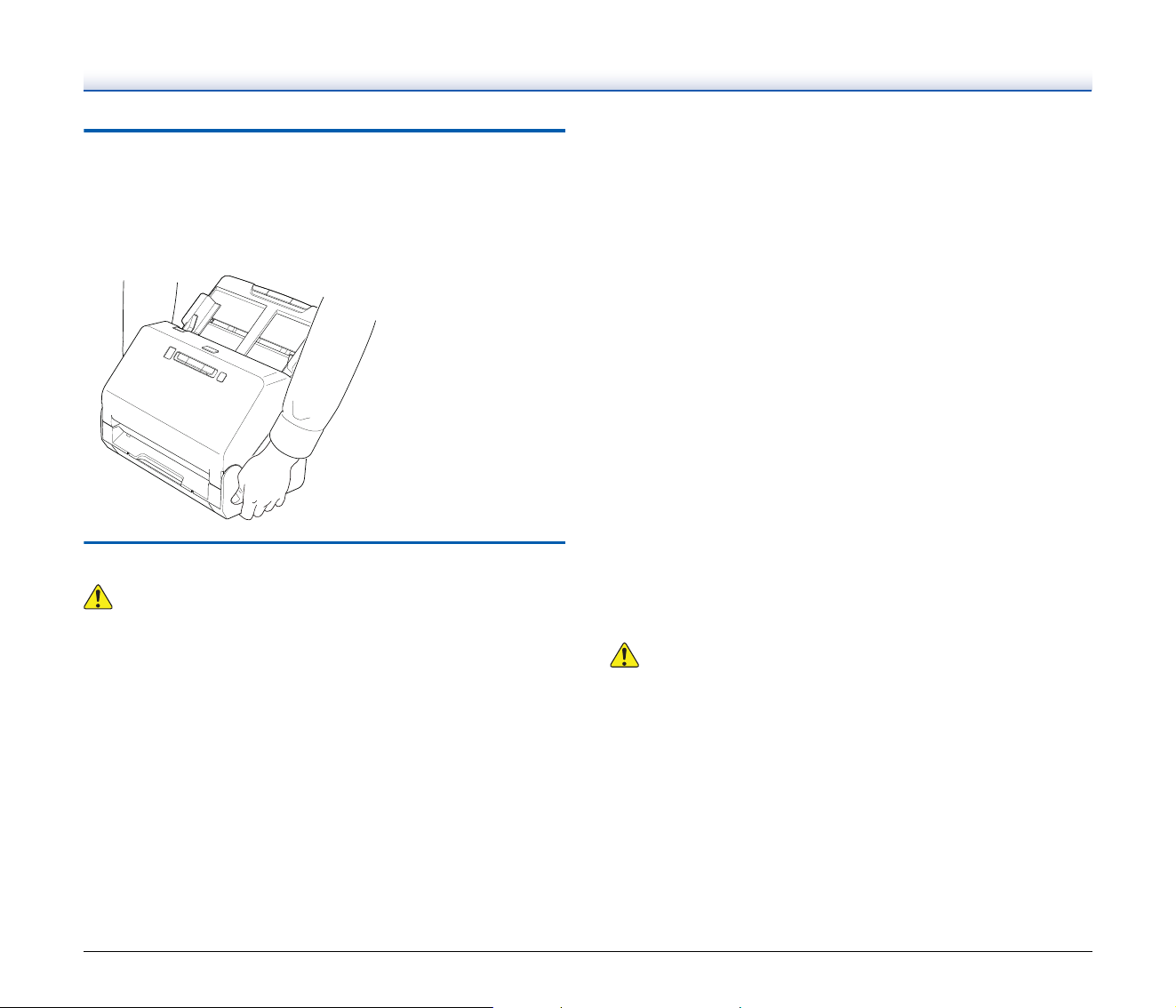
Moving the Scanner
● When moving the scanner, always hold it with both hands to avoid
dropping it.
● Make sure to disconnect the interface cable and AC adapter before
moving the scanner. If the scanner is transported with these items
connected, the plugs and connectors may be damaged.
Handling
WARNING
Note the following precautions whenever using the scanner. Failure to
do so may result in a fire or electric shock.
● Never use alcohol, benzene, paint thinner, aerosol sprays, or any
other highly flammable substance near the scanner.
● Do not cut, damage, or modify the power cord. Do not place heavy
objects on the power cord, and do not pull or excessively bend the
power cord.
● Never connect the power cord when your hands are wet.
● Do not connect the scanner to a multi plug power strip.
● Do not knot or coil the power cord as this may result in a fire or
electric shock. When connecting the power cord, make sure that the
power plug is securely and completely inserted into the power
outlet.
● The supplied power cord set is intended for use with this scanner
only. Do not use it with other electronic equipment. In addition, do
not use power cord sets other than the one supplied with the
scanner. Doing so may result in fire or electric shock.
● Do not take the scanner apart or modify it.
● Never try to take the AC adapter apart or modify it in any way, as
this is dangerous.
● Do not use flammable spray near the scanner.
● When cleaning the scanner, push the power button to turn it OFF
and disconnect the power cord from the power supply.
● Clean the scanner using a slightly dampened cloth which has been
well wrung out. Never use alcohol, benzene, paint thinner, or any
other flammable substances.
● If the scanner makes strange noises, or gives off smoke, heat, or
strange odors, or the scanner does not function or other
abnormalities occur when you use the machine, immediately push
the power button to turn it off, and disconnect the power plug from
the power outlet. Then, contact your local authorized Canon dealer
or service representative to have the unit serviced.
● Do not drop the scanner, or subject it to impact or strong shock.
Should the scanner ever become damaged, immediately push the
power button to turn it OFF, and disconnect the power plug from the
power outlet. Then, contact your local authorized Canon dealer or
service representative to have the unit serviced.
● Before moving the scanner, be sure to push the power button to turn
it OFF, and disconnect the power plug from the power outlet
CAUTION
● Do not install the scanner on a surface that is unstable or tilted, or
in an area subject to excessive vibrations, as this may cause the
scanner to fall, resulting in personal injury or damage to the
scanner.
● Never place small metal objects such as staples, paper clips, or
jewelry on the scanner. These items may fall into the scanner, and
cause a fire or electric shock. Should such objects ever fall inside
the scanner, immediately push the power button to turn it OFF, and
disconnect the power plug from the power outlet. Then, contact
your local authorized Canon dealer or service representative to
have the unit serviced.
● Do not install the scanner in a humid or dusty location. Doing so
might cause a fire or electric shock.

12
● Do not place objects on top of the scanner. Such objects may tip or
fall over, resulting in personal injury.
● Connect only to a power outlet of the rated voltage and power
supply frequency (120 V, 60 Hz or 220-240 V, 50/60 Hz depending
on your region). Doing so might cause a fire or electric shock.
● When unplugging the power cord, grasp it firmly by its plug. Do not
pull directly on the power cord, as this may damage or expose the
cord’s internal wiring, resulting in a fire or electric shock.
● Leave sufficient space around the power plug so that it can be
unplugged easily. If objects are placed around the power plug, you
will be unable to unplug it in an emergency.
● Do not allow water or flammable substances (alcohol, paint thinner,
benzene, etc.) to spill into the scanner, as this may result in a fire or
electric shock. Doing so might cause a fire or electric shock.
● Push the power button to turn the scanner OFF for safety when not
using the scanner for a long period of time, such as overnight. Also,
push the power switch to turn it OFF, and disconnect the power cord
from the power outlet for safety when the machine will not be used
for an extended period of time, such as during consecutive
holidays.
● Do not wear loose clothing or jewelry that may get caught in the
scanner while you are using it, as this may result in personal injury.
Be extra careful of neckties and long hair. If anything becomes
caught in the scanner, immediately disconnect the power cord to
stop the scanner.
● Be careful when loading paper into the scanner and when removing
jammed paper, as it is possible to cut your hand on the edge of a
sheet of paper.
Disposal
When disposing of this scanner, be sure to follow all local ordinances
and laws or consult with the retailer who sold you the scanner.
When sending the scanner for repairs
When a request is made for repairs, the scanner needs to be sent to
the specified address. When sending the scanner, use the packing
box in which it came. Firmly secure the scanner with packaging
material when you place it in the packing box.

13
Features of the Scanner
The main features of the scanner are described below.
● Compact Design
The scanner has a compact size of 291 mm (11.46") (W) × 250 mm
(9.84") (D) × 245 mm (9.65") (H).
● Fast Document Feeding
Documents can be scanned at a speed of up to 40 pages per
minute (A4 size, 200dpi).
● High Image Quality
The 600 dpi optical resolution sensor incorporated in the scanner
enables documents to be scanned with high image quality.
● USB 2.0 Interface
The scanner supports Hi-Speed USB 2.0.
● Color/Grayscale Support
Documents can be scanned in 24-bit color or 256-level grayscale.
● Supports a Variety of Scanning Modes
The scanner supports the following scanning modes, depending on
the document type:
• Single-sided or double-sided scanning (with Skip Blank Page
function)
• Continuous or single sheet feed
● Card Scan
You can scan business or ID cards.
● Paper Size Detection
The scanner automatically detects the size of a scanned document
and eliminates any unnecessary space around the edges of the
image when storing the image, even when storing a document of
irregular size.
● Auto Color Detection
The scanner detects whether the scanned document is in color,
grayscale, or black and white, and saves the image accordingly.
● Full Auto Mode
A Full Auto Mode is provided in CaptureOnTouch and the scanner
driver to allow scanning under automatically determined conditions.
Scanning conditions such as the color mode and page size are set
automatically based on the document being scanned.
● Auto Resolution Detection
When enabled in the CaptureOnTouch or scanner driver settings,
this function detects the content of documents and determines the
scanning resolution automatically.
● Deskew
The scanner is equipped with a deskew function that straightens
images before saving them when documents are scanned askew.
The scanned images are straightened, as opposed to the actual
document sheets.
● Ultrasonic Double Feed Detection
Ultrasonic waves are used to detect pages that are fed at the same
time as well as the space between pages. Scanning stops if a
double feed is detected.
● Double Feed Detection Ignore
When a double feed is detected, the DFR button on the operation
panel is lit. You can continue scanning by pressing the DFR button.
● Text Enhancement Modes
The scanner is equipped with an Advanced Text Enhancement
Mode to enhance the text of documents with dark or uneven
backgrounds, and an Advanced Text Enhancement II mode to
enhance the text when both the text and background are light.
These modes may not work, depending on the type of document.
● Color Drop-out
The scanner is equipped with a Color Drop-out function that
enables you to specify a color for the scanner to omit from the
scanned image during black and white or grayscale scanning.
● Skip Blank Page Function
The scanner is equipped with a Skip Blank Page function that
enables you to scan a document without storing images of blank
pages, regardless of whether each page of the document is two-
sided or one-sided. Both sides are scanned, but saving the image
is skipped for scan images judged to be from a blank page.
● Prescan Function
The scanner is equipped with a Prescan function that allows you to
adjust the contrast and brightness of a prescanned image and then
send the adjusted image to the application software, without
needing to scan the document again.

14
● Character/Line Emphasis Function
If characters and lines in scanned images are not clearly visible, you
can use this function to adjust their thickness during scanning.
● Start Scanning from the Operating Panel
You can start scanning by launching CaptureOnTouch with the
operating panel buttons. By default, two One Touch buttons are
assigned to Job Nos. 1 and 2, which allows you to easily scan a
document by just following the instructions on the screen.
● Software Updates
The latest software information is periodically acquired from the
Internet, and the software is automatically updated. For details, see
the help of CaptureOnTouch.
● Auto Start
The scanner is equipped with an auto start function, which enables
scanning to be automatically started when a document placed in the
feeder is detected.
● Sleep Mode
The scanner is designed to save energy by automatically entering
the sleep mode if 10 minutes elapse without scanning or another
operation being performed.
Hint
Some functions may not be available depending on the software you
are using.
15
Names and Functions of Parts
Front View (With the Eject Tray Pushed In)
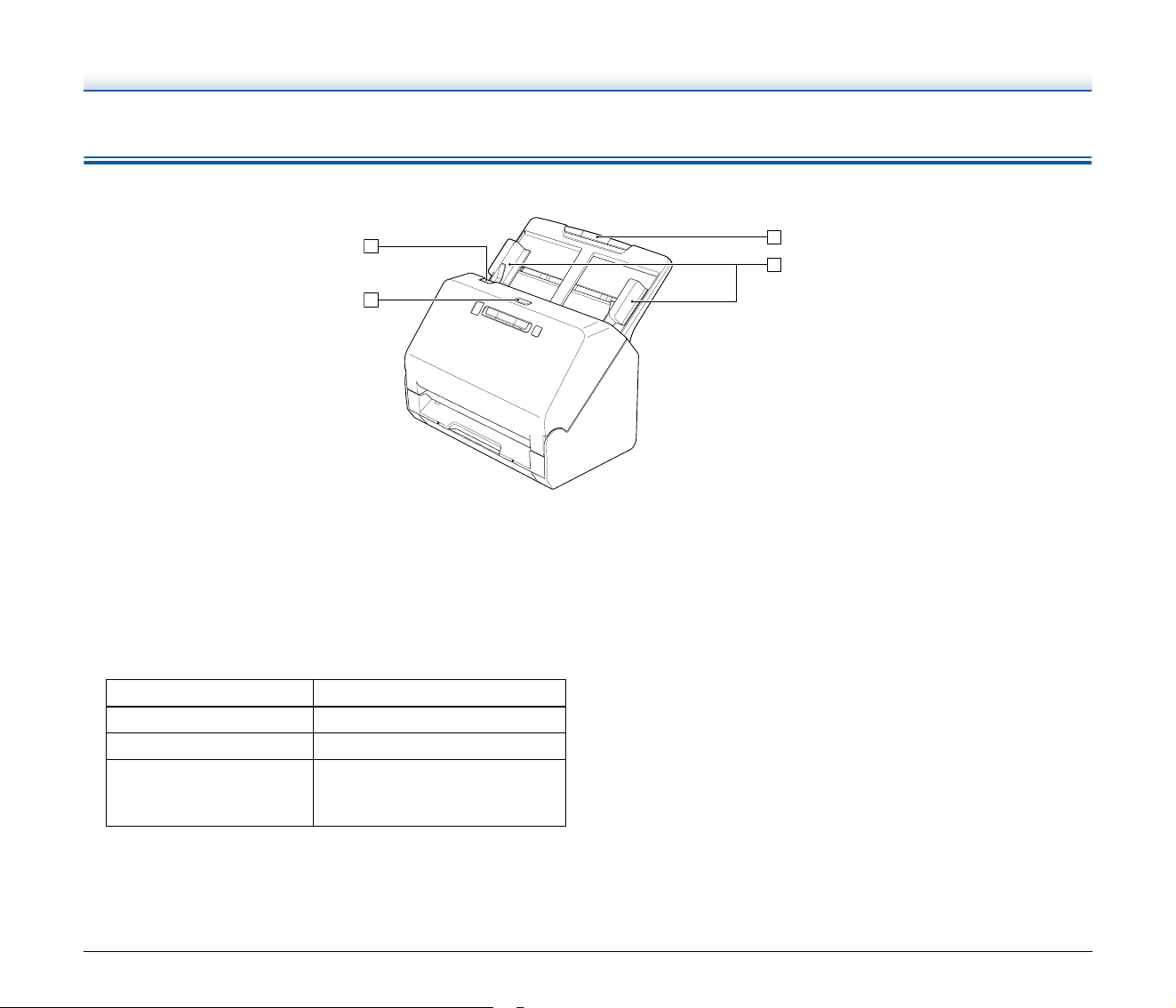
A OPEN Lever
Pull this toward you to open the front unit.
B Power button
Press this to turn on the scanner. When pressed, the power
indicator is lit.
Press this button again to turn off the power.
The power button lights or flashes as follows depending on the
scanner status.
C Document Feed Tray
Place the document.
D Document Guides
Align the document guides with both edges of the document to
ensure that the document feeds straightly.
Power Button Indication Description
Lit Power is on
Flashing (slowly) Sleep mode
Flashing (quickly)
An error (paper jam, front unit is
open, double feed, etc.) has
occurred
16
Front View (With the Eject Tray Pulled Out)
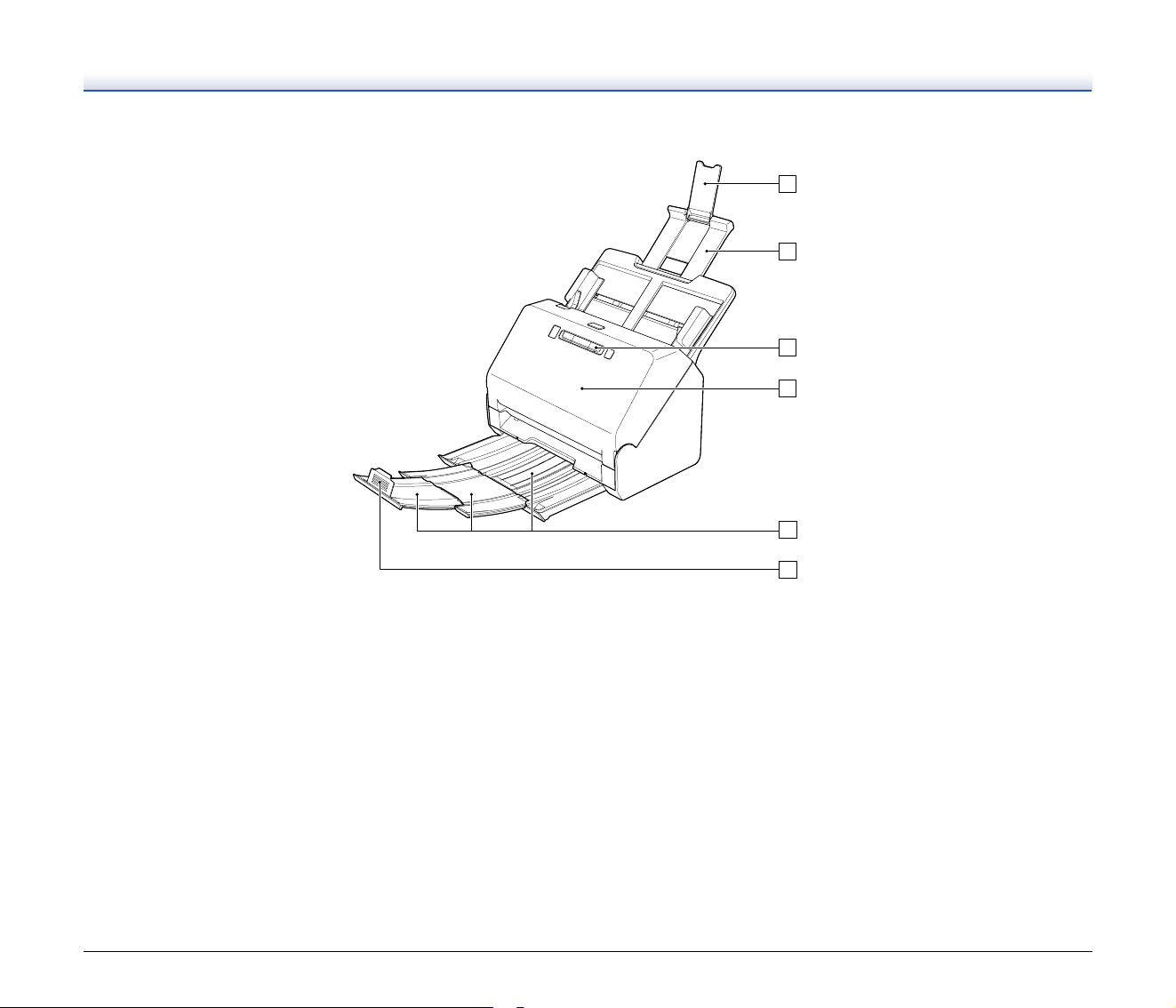
A Feed Extension Support
Open this when placing long paper in the scanner.
B Feed Support
Pull this out to support loaded documents.
C Operating Panel
A range of scanning operations can be performed with this, such
as starting and stopping scans, executing registered jobs, and
cancelling double feed detection. (See p. 17)
D Front Unit
Open this when cleaning the inside of the scanner or replacing
rollers.
E Document Eject Tray
Pull this out to scan documents. Scanned documents are output
here.
When scanning multiple documents of varying sizes at one time,
pulling out and lifting up this tray locks the angle of the tray, so the
documents ejected onto the tray are aligned.
F Document Eject Stopper
This prevents the document coming out of the document eject tray
and aligns the leading edges of the ejected document. It can be
moved to any position on the document eject tray to match the
length of the document.
17
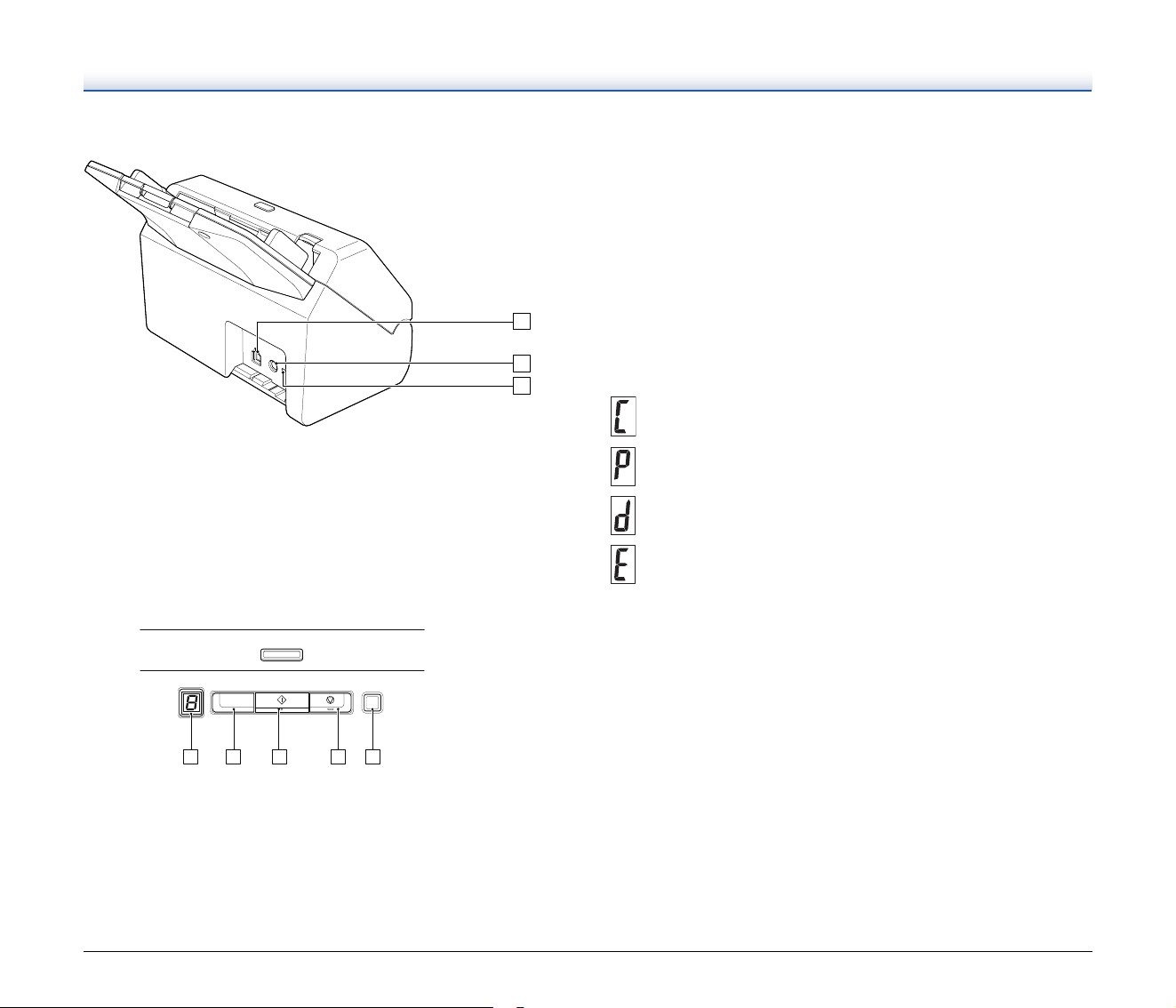
Back View
A USB Connector
Connect the supplied USB cable to this connector.
B Power Connector
Connect the supplied AC adapter to this connector.
C Theft Prevention Hole (Security Slot)
Connect an anti-theft key chain or the like.
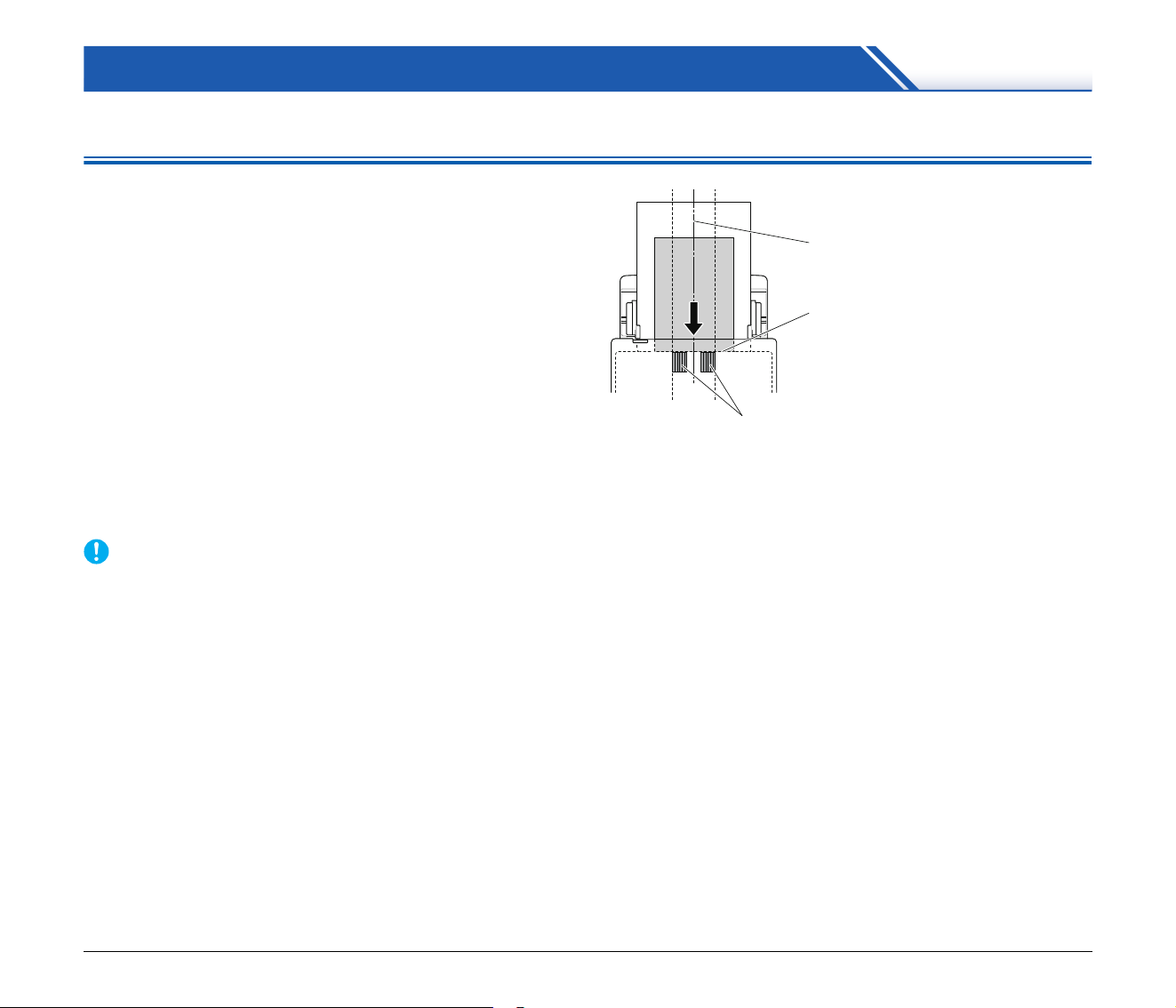
Operating Panel
A Job No. Indicator
Displays the number of the job selected with the operating panel.
B Job Select Button
This selects registered jobs. Every time the button is pressed, the
Job No. displayed in the Job No. Indicator changes.
C Start Button
This executes the job displayed in the Job No. Indicator.
D Stop Button
This stops active jobs.
E DFR (Double Feed Release) Button
This is lit when a document double feed is detected. Pressing this
button cancels the double feed detection function, allowing you to
continue scanning.
Displayed Error Codes
When a scanning error occurs, the following error codes are displayed
in the Job No. Indicator.
: displayed when the front unit is open.
: displayed when a paper jam is detected.
: displayed when a double feed is detected while scanning.
: displayed for other errors.
18
Basic Operation
Documents
The scanner can scan documents ranging in size from business cards
to LTR/A4. The document sizes that this scanner can scan are shown
below.
Plain Paper
Size
Width: 50.8 mm to 216 mm (2" to 8.5")
Length: 54 mm to 356 mm (2.1" to 14") (You can scan
documents up to 3,000 mm (118.1") long by setting the
scanner to the Long Document mode.)
Paper thickness
27 to 209 g/m
2
(7 to 56 lb bond) 0.04 mm to 0.25 mm (0.00157"
to 0.00984")
Loading capacity
A4 size or smaller: 60 sheets (80g/m
2
(22 lb bond))
Larger than A4 size: 40 sheets (80g/m
2
(22 lb bond))
Make sure stacks do not exceed 6 mm in height for either of the
above.
IMPORTANT
The documents to be scanned must satisfy certain criteria. Read the
following items carefully.
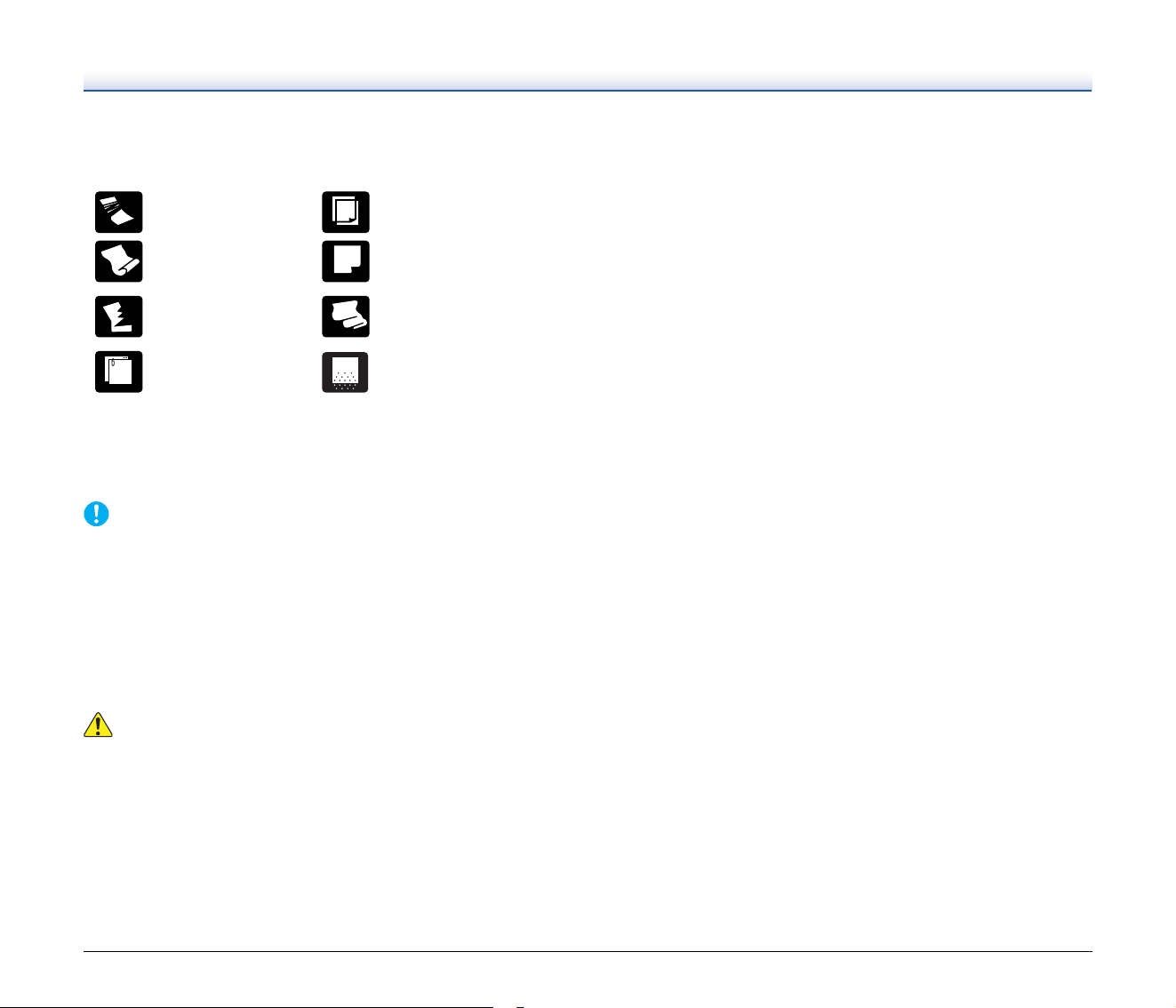
• When scanning multiple documents of different sizes, place the
documents so that they cover the entire span of the feed rollers by
aligning the centers and leading edges of the documents.
• It is recommended that documents exceeding 356 mm (14") size
are fed one sheet at a time.
• Scanning documents before the ink is dry can cause problems with
the scanner. Always make sure that the ink on a document is dry
before scanning it.
• Scanning documents that are written in pencil or similar material
may make the rollers and scanning glass dirty, which can lead to
smudges on the scanned image and transfer the dirt to subsequent
documents. Always clean the internal parts of the scanner after
scanning such documents.
• When scanning a two-sided document that is printed on thin paper,
the image on the opposite side of each page may show through. In
this case, adjust the scanning intensity in the application software
before scanning the document.
• Laminated documents may not be scanned correctly, depending
on the document.
Feed roller
Align the leading edges
Align the centers
19
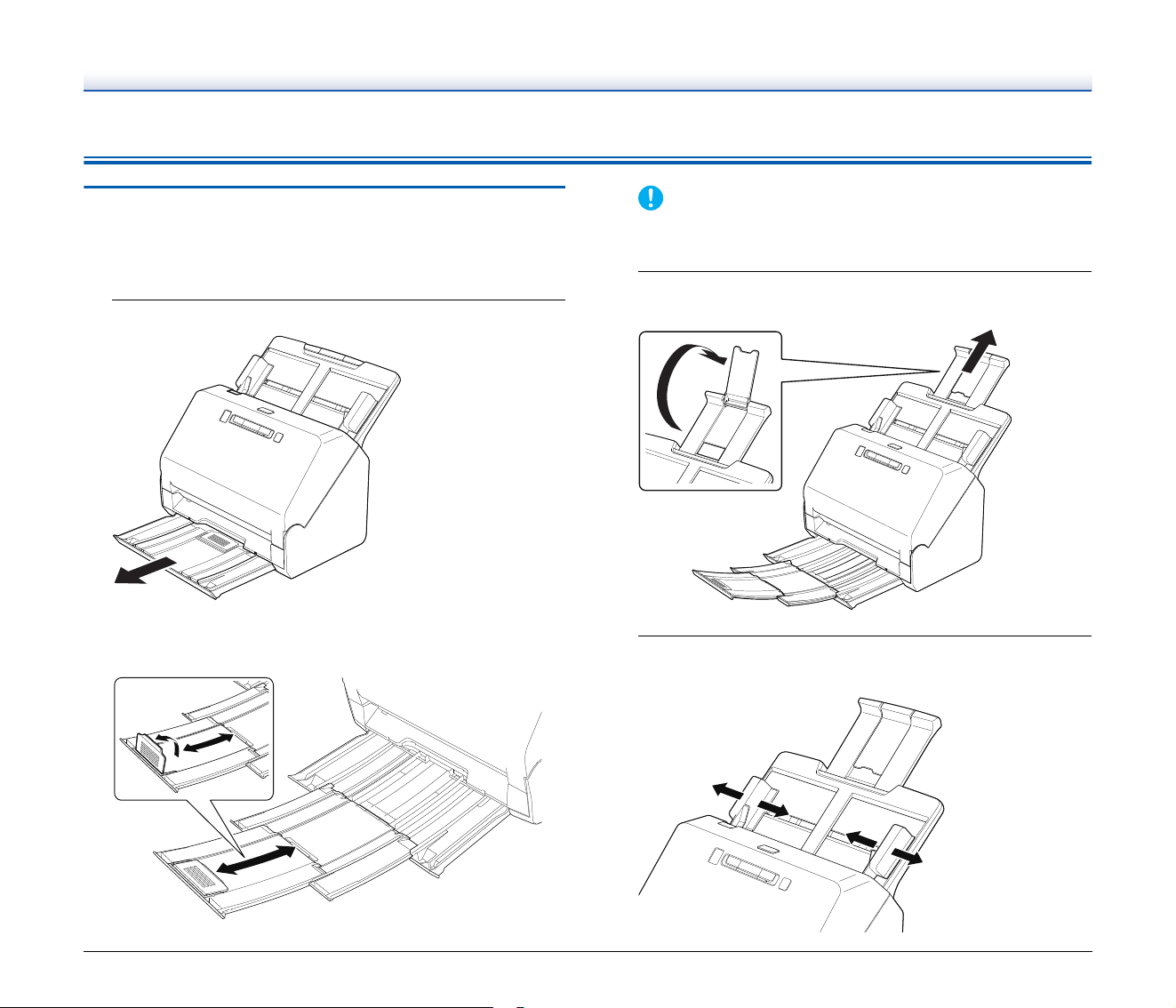
• Scanning the following types of documents can cause a paper jam
or malfunction. To scan such a document, make a photocopy of the
document and then scan the photocopy.
Business Card
Size: 50 mm x 85 mm (1.97" x 3.35") or larger
Paper thickness: 255 g/m
2
(68 lb bond) 0.3 mm (0.0118") or
smaller
IMPORTANT
If a stack of business cards cannot be fed properly, reduce the
number of cards in the stack.
Card (plastic)
Size: 54 mm x 86 mm (2.12" x 3.37") (ISO standard)
Card thickness: 1.4 mm (0.055") or smaller
Orientation: Horizontal feeding only
Embossed cards can be scanned.
Loading capacity: 3 cards (non-embossed), 1 card (embossed)
CAUTION
• When scanning cards, place them to be fed horizontally. If you
place cards to be fed vertically, they may not be ejected properly,
and cards that get jammed may be damaged when you remove
them.
• Embossed cards may not be able to be scanned correctly,
depending on the type of embossment.
• When scanning cards, clear the [Detect by Ultrasonic] check box
in the [Feeding] tab on the scanner driver settings screen. (See
p. 26)
There are creases or
fold lines.
Carbon paper
There are curls. The surface is coated.
There are tears.
Extremely thin document
such as semi-transparent
thin paper.
There are clips or
staples.
Documents with excessive
paper dust particles.
20
How to Place Documents
Scanning multiple documents
Standard paper feeding should be used when scanning multiple
documents of a standard size at one time. Standard paper feeding
enables multiple documents to be fed while separating each page.
1
Pull out the document eject tray.
The document eject tray can be adjusted to 3 lengths. Pull out the
document eject tray according to the length of the document. Also,
erect the document eject stopper on the front edge if necessary.
IMPORTANT
Pull the document eject tray forward according to the various
lengths.
2
Pull out the feed support.
Open the feed extension support when placing long documents.
3
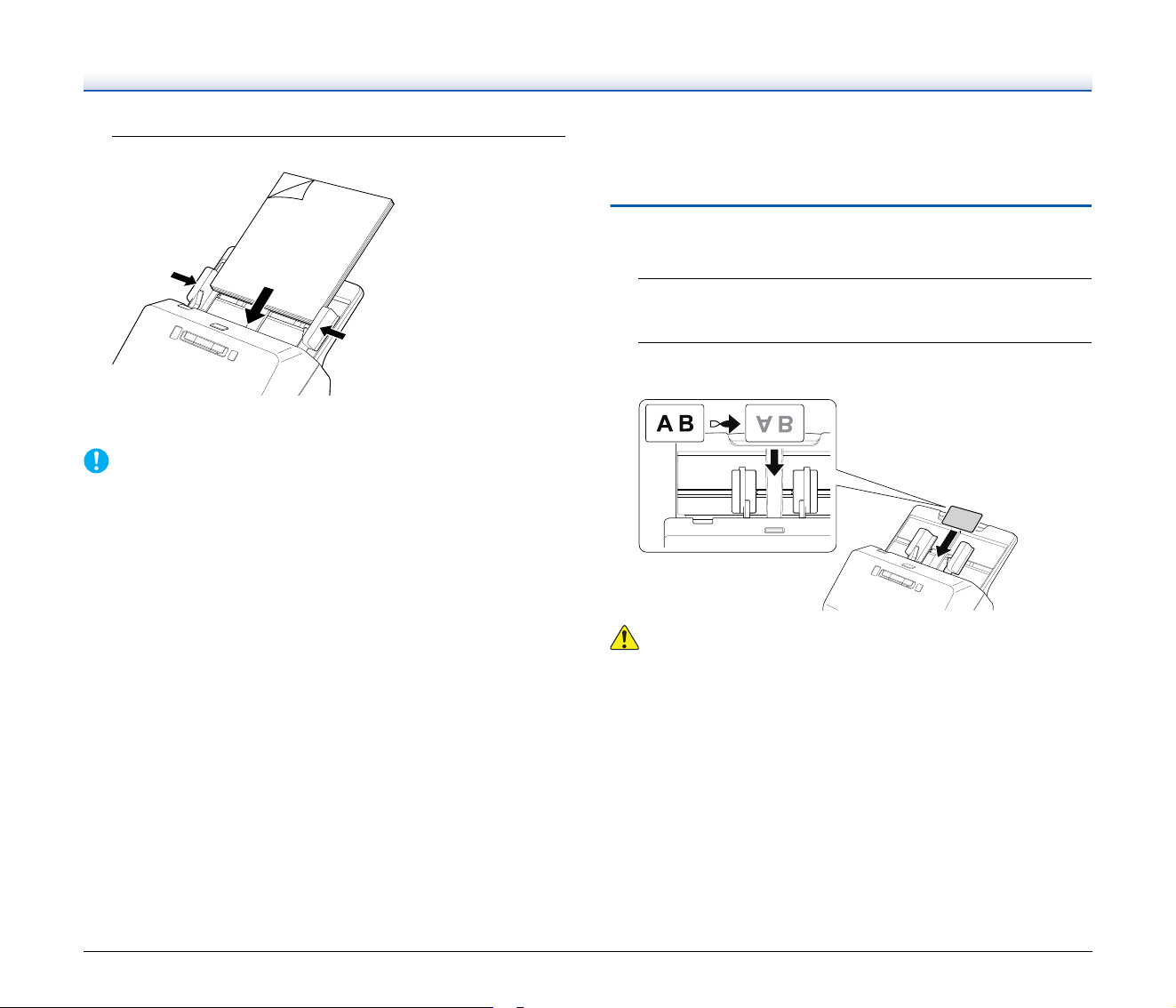
Adjust the document guides to fit the width of the
document to be scanned.
21
4
Place the document.
After placing the document, align the document guides with both
edges of the document.
IMPORTANT
• When placing documents into the feed tray, take care not to cut
your hand on the edges of the paper.
• Before you place a document, check to make sure it does not
contain paper clips, staples, or other small metal objects. These
items may cause a fire or electrical shock, damage the document,
or cause a paper jam or scanner malfunction.
• Do not wear loose clothing or jewelry that may get caught in the
scanner while you are using it, as this may result in personal injury.
Be extra careful of neckties and long hair. If anything gets caught in
the scanner, immediately turn OFF the power switch, and
disconnect the power cord from the power outlet to stop scanning.
• Always smooth out any folds or curls in your documents before
placing them into the feeder. If the leading edge of a document is
curled, it may cause a paper jam.
• If feeding stops due to a system error or paper jam while the
scanner is scanning, resolve the problem, make sure that the
scanned image of the last page that was successfully fed has been
stored, and then resume scanning the remaining document pages.
• After you finish scanning, push in the document eject tray to prevent
damage to the scanner while it is not being used.
• When scanning multiple page documents that are fastened
together, such as invoices, place the documents so that the edge
that is fastened together is facing down.
• If double-feeding occurs, press the scanner's DFR button to
continue the scan, or clear the [Detect by Ultrasonic] check box in
the [Feeding] tab on the scanner driver settings screen. (See p. 26)
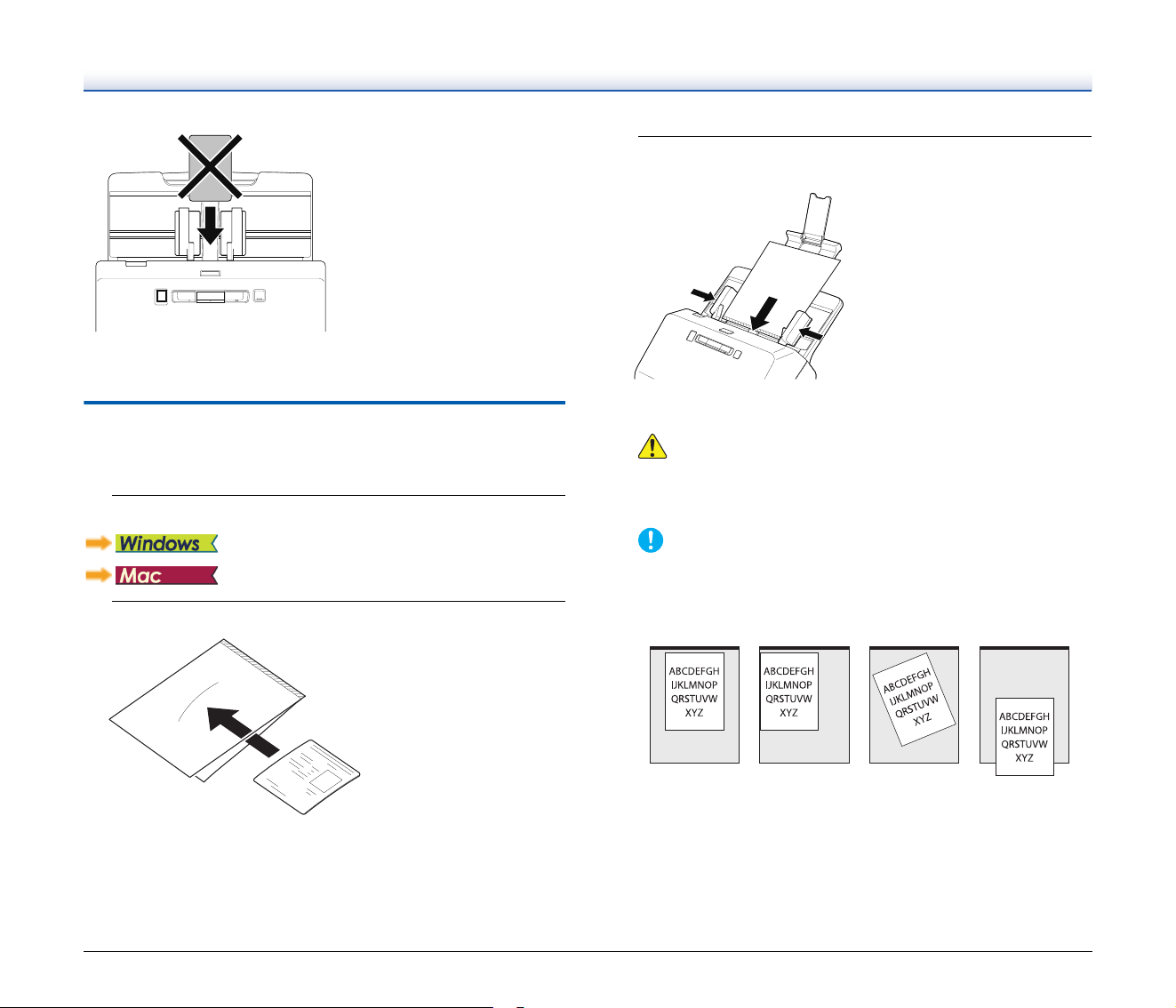
Placing Cards
When scanning cards, place one card at a time horizontally.
1
Adjust the document guides to fit the width of the card to
be scanned.
2
Place the card horizontally, with the reverse side facing
you, and the top of the card facing down.
CAUTION
• Place the cards one at a time.
• When scanning cards, place them to be fed horizontally. If you
place cards to be fed vertically, they may not be ejected properly,
and cards that get jammed may be damaged when you remove
them.
22
• When scanning cards, clear the [Detect by Ultrasonic] check box in
the [Feeding] tab on the scanner driver settings screen. (See p. 26)
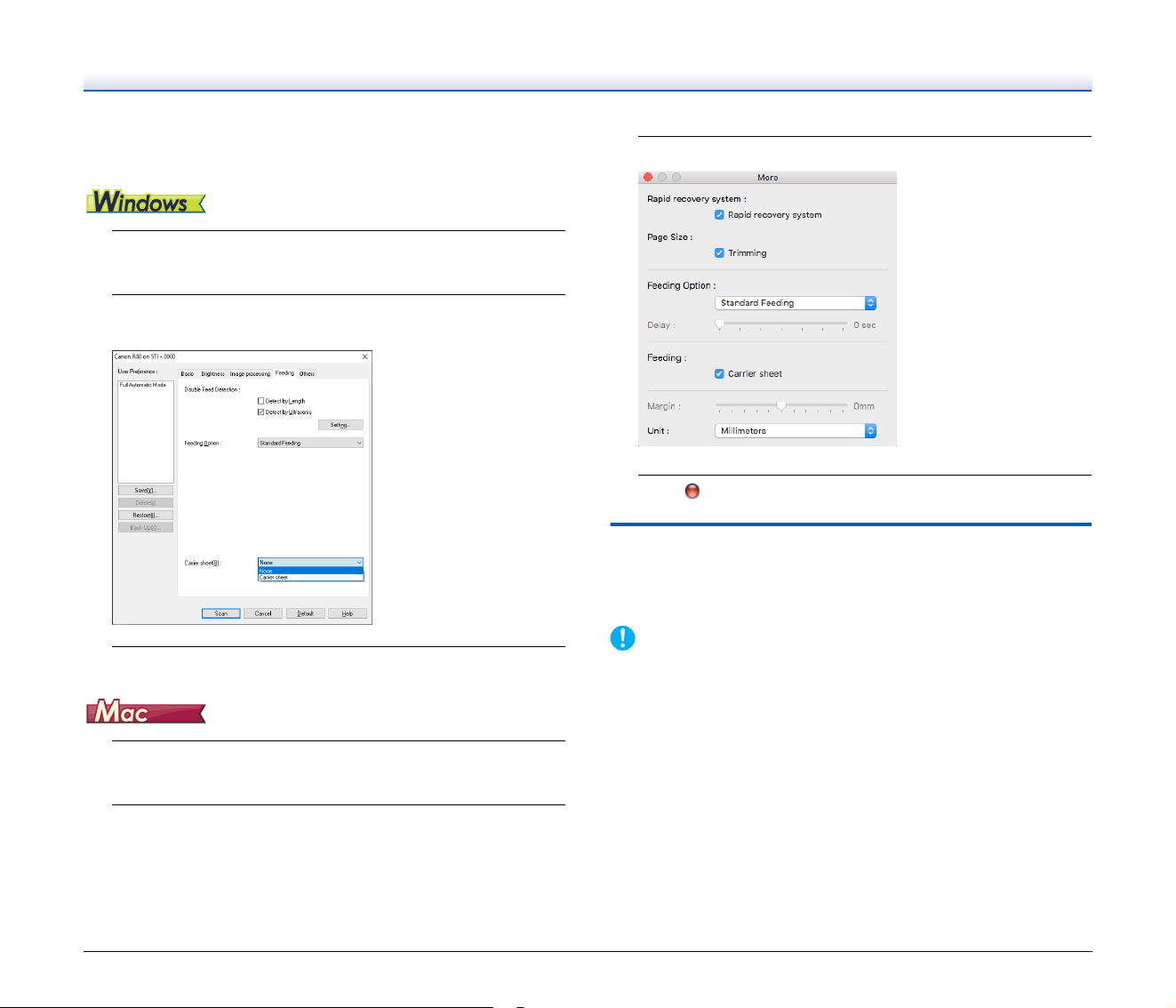
Scanning with Carrier Sheets
To prevent damage to a document while scanning it, insert it into an
optional carrier sheet before loading it in the scanner.
1
Set the scanning conditions.
2
Insert the document into the carrier sheet.
.
3
Load the document with the sealed end of the carrier
sheet as the leading edge.
After placing the document, align the document guides with both
edges of the document.
CAUTION
If the document is not placed properly inside the carrier sheet,
you may get a document jam or not get a scan image as
intended.
IMPORTANT
• Insert documents straight into the center of the carrier sheet.
Proper scanning will not be possible if the document is too
close to either side, tilted, or protruding from the carrier sheet.
• The maximum thickness that can be scanned is 127g/m
2
. If the
thickness exceeds 127g/m
2
, the scanner may break down due
to problems such as paper jam.
• As a rough guide, replace the carrier sheet after 1,000 scanning
operations with a single 80g/m
2
(22 lb bond) sheet inserted.
Carrier sheet is a consumable item. Replace it with a new one
when necessary, if there is visible damage or smudging.
Yes No No No
23
• When using carrier sheet for legal sized document, the scanner
must be set to long document mode. (See p. 23)
1
Open the scanner driver's Detail Settings screen. (See
p. 30)
2
Open the [Feeding] tab, and set [Carrier sheet] to [Carrier
sheet].
3
Click the [OK] button to close the settings screen.
1
Open the scanner driver's Detail Settings screen. (See
p. 32)
2
Click the [More] button.
The scanner driver's Detail Settings screen opens.
3
Select the [Carrier sheet] check box.
4
Click to close the dialog box.
Setting the Long Document Mode
The length of documents that can be scanned with the scanner is
normally 356 mm (14"), but you can scan documents up to 3,000 mm
(118.1") long by setting the scanner to the Long Document mode.
IMPORTANT
By selecting the Long Document mode and setting the [Page Size]
on the scanner driver settings screen to Auto-detection, documents
of up to 3,000 mm (118.1") in length can be scanned. Note the
following when using the Long Document mode:
• When scanning in the Long Document mode, if the document is
placed on the scanner in a skewed position, it may hit the edges of
the feeding area and be damaged. Be careful to place the
document so that it is not skewed.
• When scanning with the Long Document mode, paper jam
detection may react slowly, resulting in damage to the document.
Be careful to avoid paper jams.
• When scanning long documents, scan the documents one at a time.
24
• When scanning large-sized documents with the Long Document
mode, scanning may be slower. Errors also occur due to memory
shortage, and scanning may be disabled.
IMPORTANT
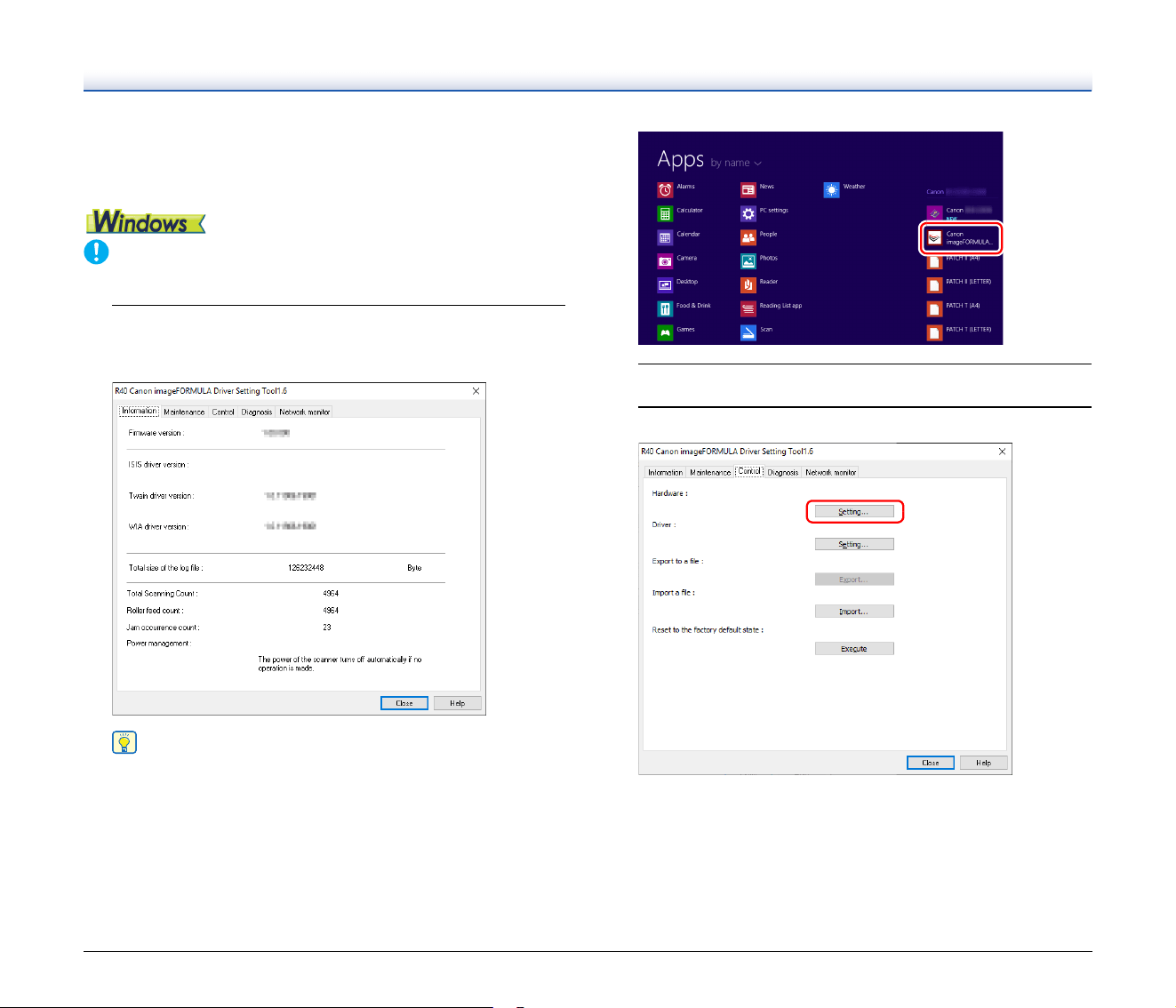
Log on to Windows as an Administrator.
1
Click the Start button, and then click [Canon R40], and
[Canon imageFORMULA Driver Setting Tool].
imageFORMULA Driver Setting Tool starts.
Hint
In Windows 8.1, it is registered at the following location.
2
Click the [Control] tab.
3
Click the [Setting] button of [Hardware].
25
4
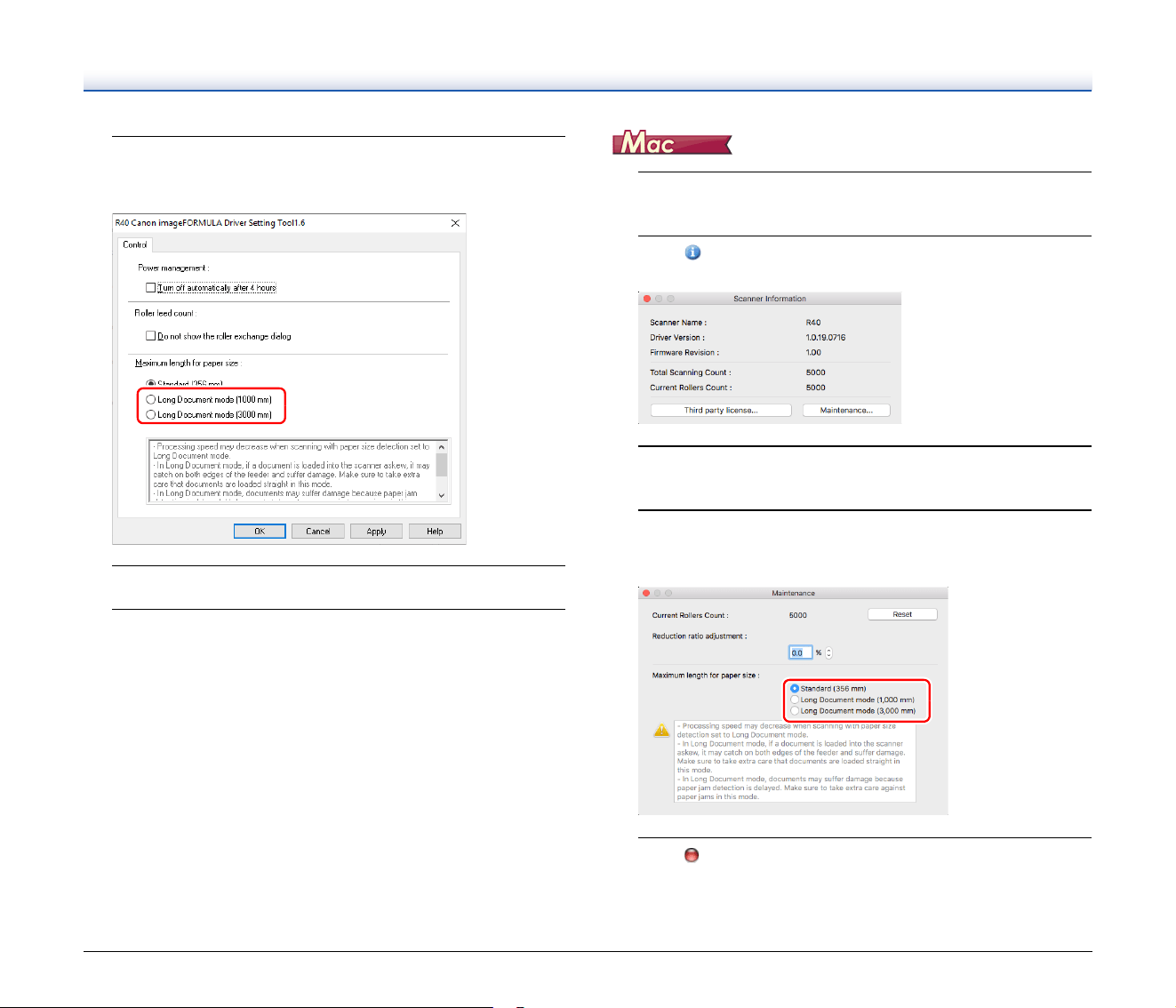
Select [Long Document mode (1000 mm)] or [Long
Document mode (3000 mm)] depending on the length of
the document.
5
Click [OK].
6
Click [Close] to close the imageFORMULA Driver Setting
Tool.
1
Open the scanner driver's Detail Settings screen. (See
p. 32)
2
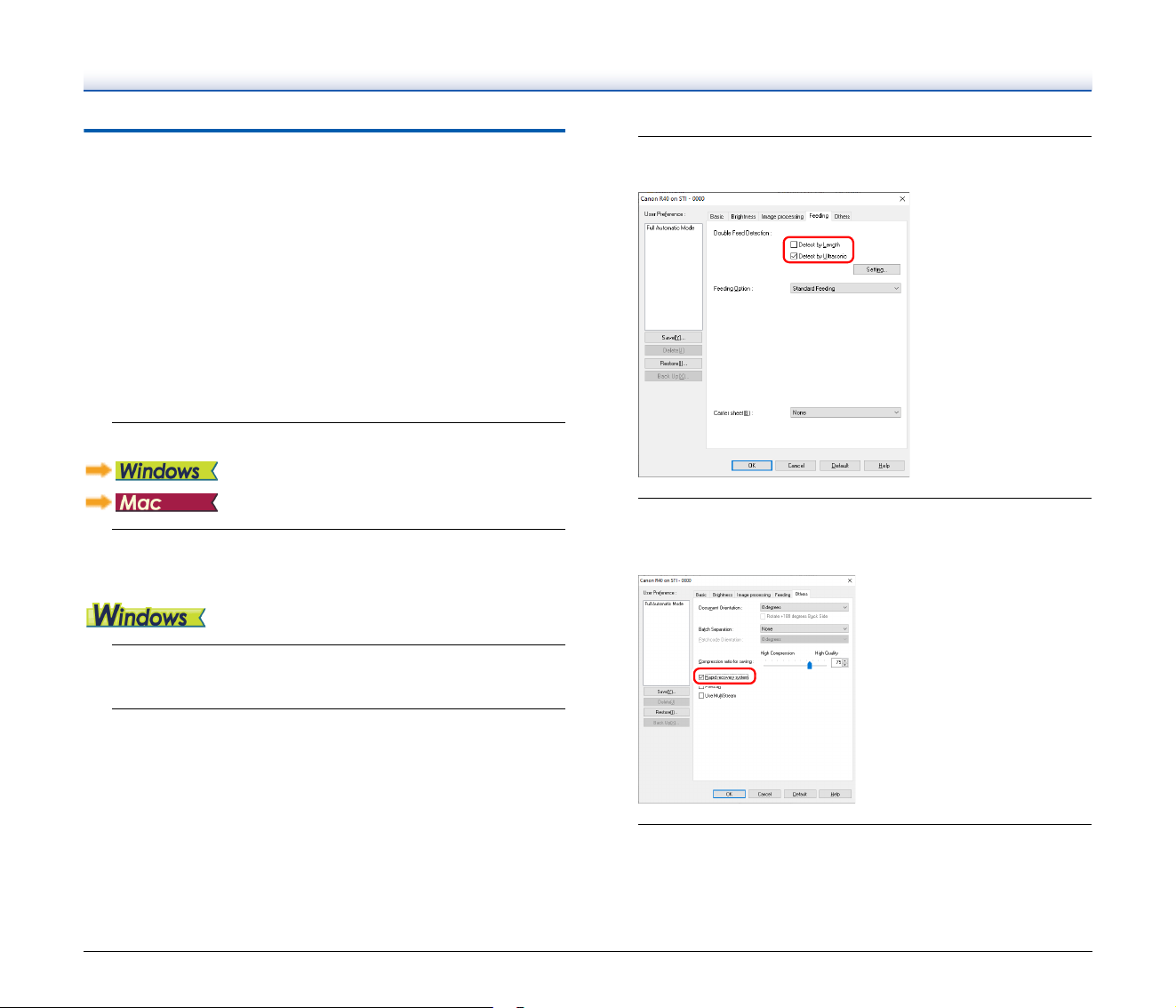
Click to display the [Scanner Information] dialog box.
The [Scanner Information] dialog box appears.
3
Click [Maintenance].
The [Maintenance] dialog box appears.
4
Select [Long Document mode (1,000 mm)] or [Long
Document mode (3,000 mm)] depending on the length of
the document.
5
Click to close the dialog box.
26
Detecting a document double feed
This scanner includes a function to detect document double feeds. By
using this function, the scanner will automatically stop when it detects
that multiple documents have been fed at the same time. You can also
specify whether to save the scanned image after scanning has
finished and continue scanning the document (double feed detection
ignore function).
To use the double feed detection function, you must first open the
scanner driver settings screen and enable double feed detection. It is
also necessary to set [Rapid recovery system] to use the double feed
detection ignore function.
Setting procedure
1
Set the scanning conditions.
2
Place the document as described in the “Scanning
multiple documents” procedure on p. 20.
1
Open the scanner driver's Detail Settings screen. (See
p. 30)
2
Click the [Feeding] tab.
3
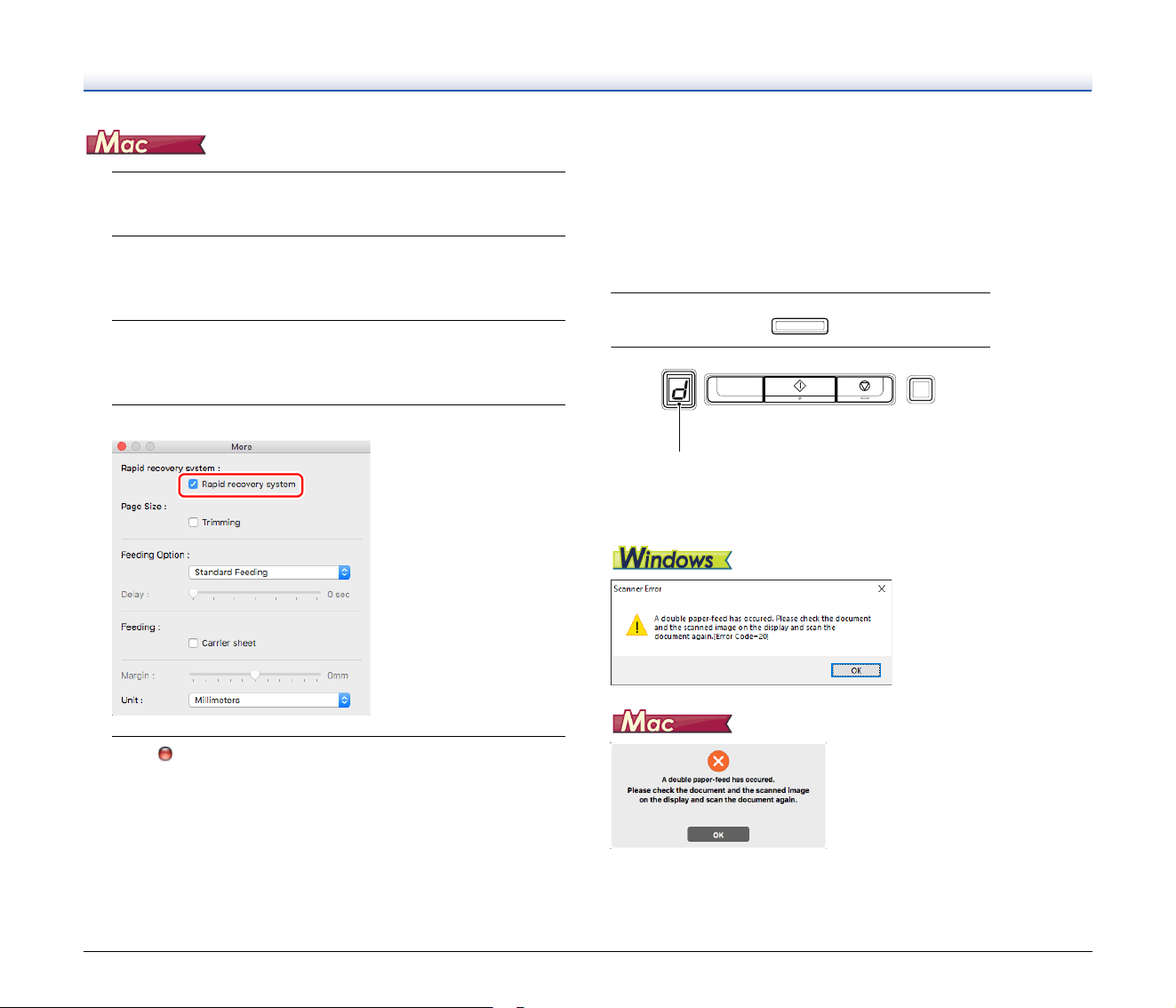
Select either the [Detect by Length] or the [Detect by
Ultrasonic] check box (or both).
4
To use the double feed detection ignore function, open
the [Others] tab and select the [Rapid recovery system]
check box.
5
Click the [OK] button and close the settings screen.
27
1
Open the scanner driver's Detail Settings screen. (See
p. 32)
2
Select the [Double Feed Detection] check box, and then
select any one of [Detect by Ultrasonic], [Detect by
Length], and [Detect by Ultrasonic and Length].
3
Click the [More] button when the Double Feed Detection
Ignore function is also used.
The scanner driver's Detail Settings screen opens.
4
Select the [Rapid recovery system] check box.
5
Click to close the dialog box.
What to do when a double feed is
detected
When not using the double feed detection ignore function
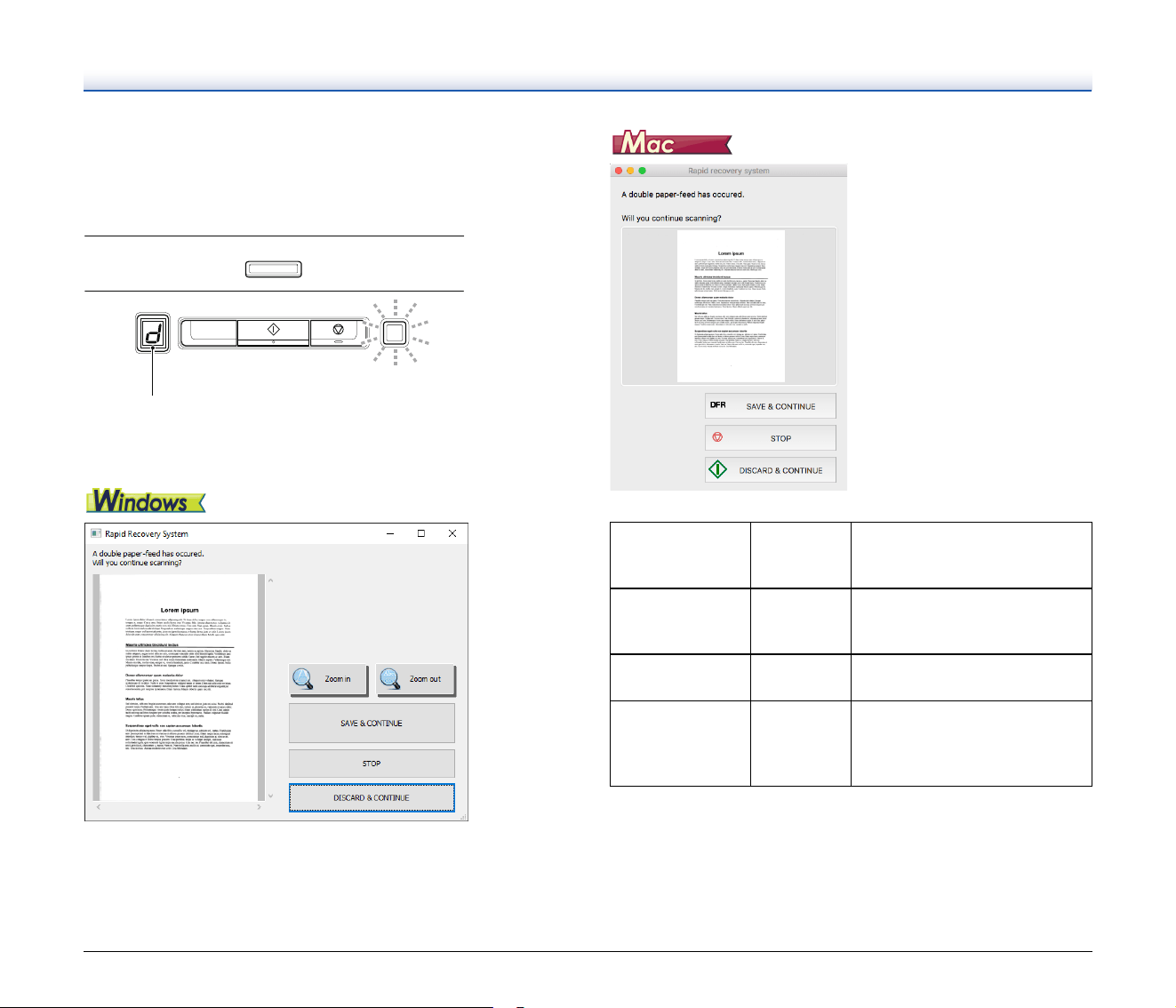
If a document double feed is detected during scanning, document
feeding stops when the double fed documents are ejected. When this
happens, the following error code is displayed in the Job No. Indicator
of the operating panel.
Also, a message screen is displayed to notify you that a double feed
has been detected.
When this happens, stop the scanning in the application and then
scan the documents again.
Double feed detection error code
28
When using the double feed detection ignore function
If a document double feed is detected during scanning, document
feeding stops when the double fed documents are ejected. The
following error code is displayed in the Job No. Indicator of the
operating panel, and the DFR button lights.
Also, the [Rapid Recovery System] screen appears to enable you to
specify whether to continue scanning.
Double feed detection error code
Buttons of
[Rapid Recovery
System] Screen
Buttons of
Operating
Panel
Description
[SAVE &
CONTINUE]
DFR button
Saves the preview image as a
scanned image and scans the
rest of the document.
[STOP] Stop button
Discards the preview image and
stops scanning.
[DISCARD &
CONTINUE]
Start button
Discards the preview image and
continues scanning. Place the
double fed document again
before clicking this button.
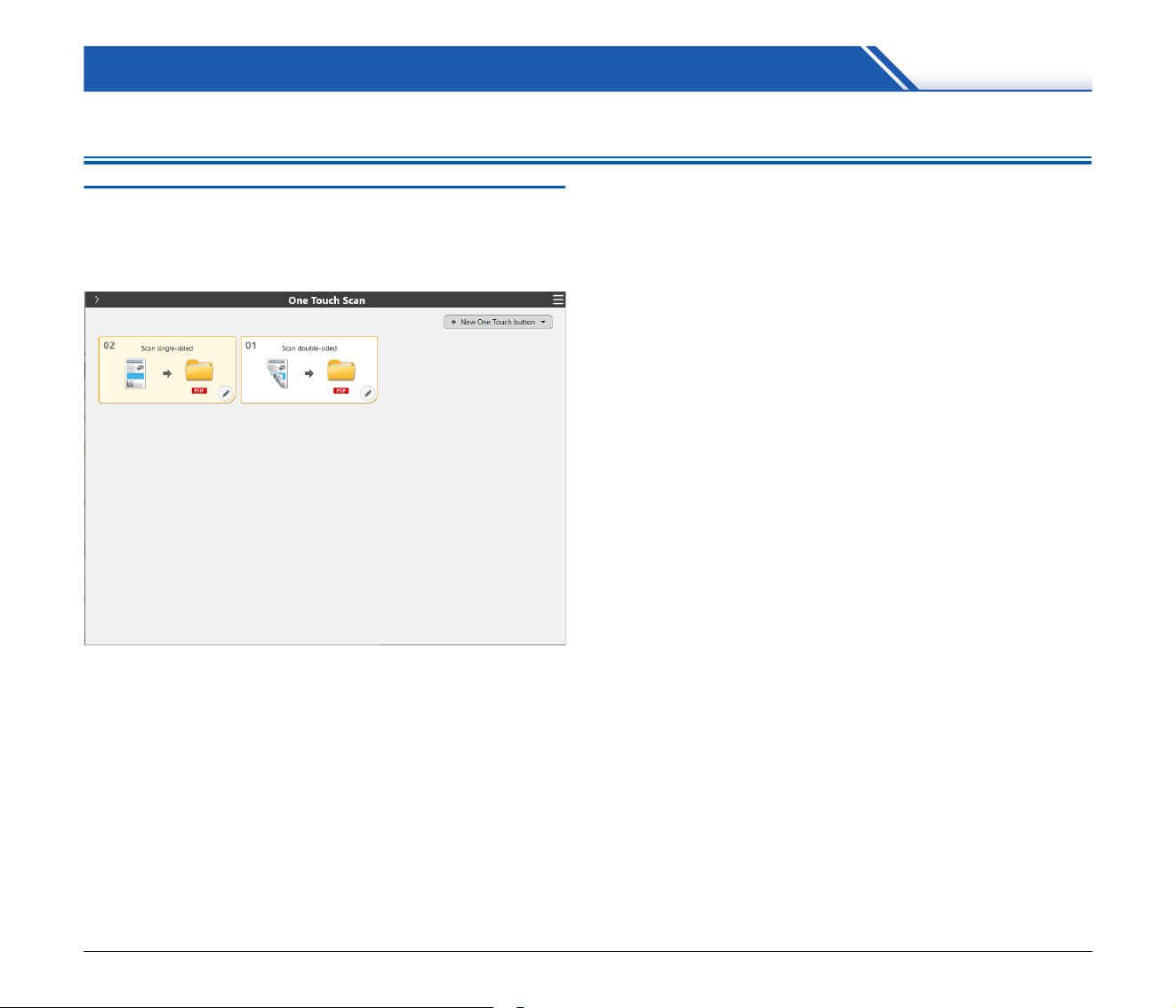
29
Scanning methods
Scanning with CaptureOnTouch
What is CaptureOnTouch?
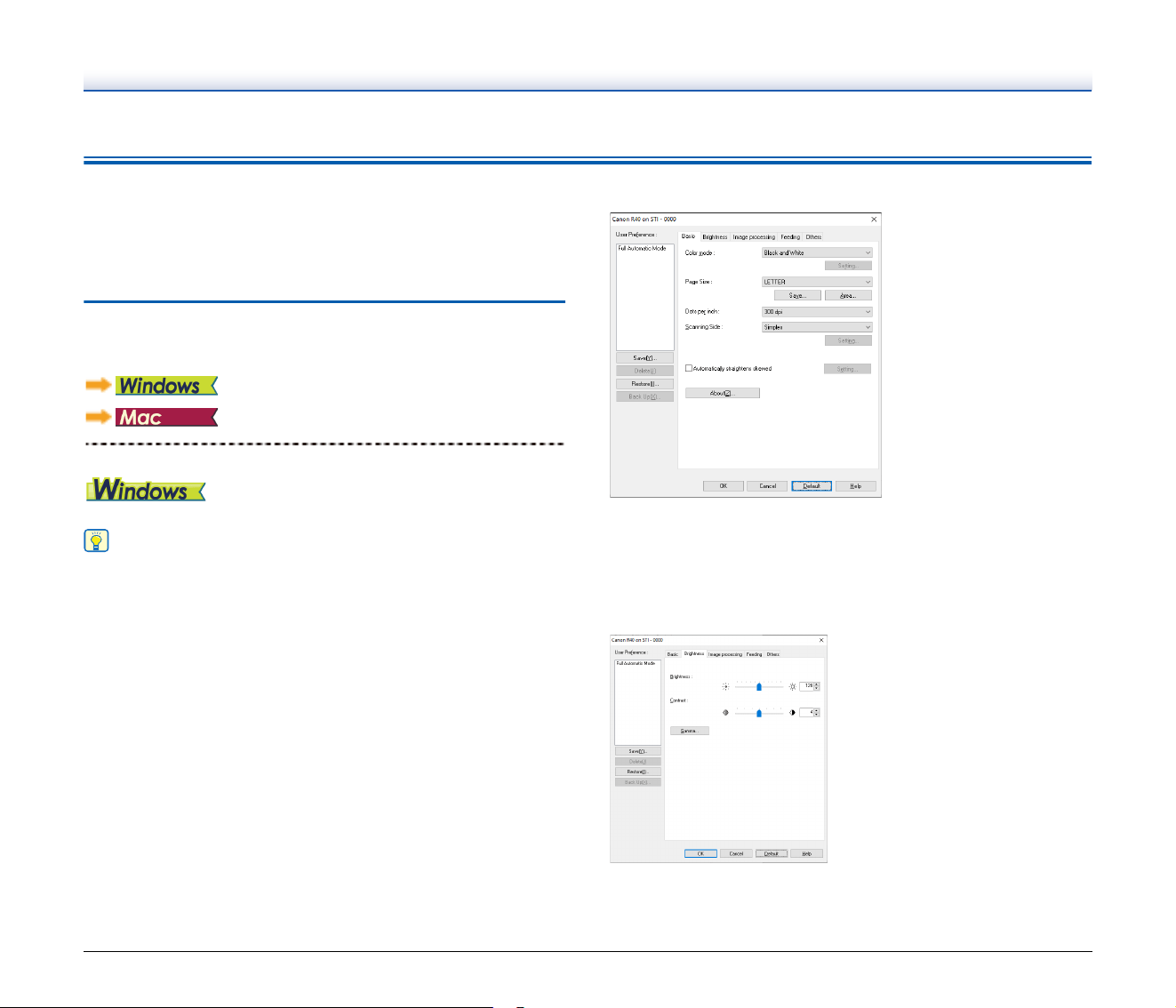
CaptureOnTouch is a scanning application that enables you to scan a
document with a simple operation merely by selecting the screen
panel.
For details about the operations and functions, see the help of
CaptureOnTouch.
30
Setting the Scanner Driver
When you scan a document in a TWAIN compatible application, open
the scanner driver and configure the scanning conditions and other
settings.
This section describes the configuration and functions of the scanner
driver.
Configuration and Functions of the
Scanner Driver
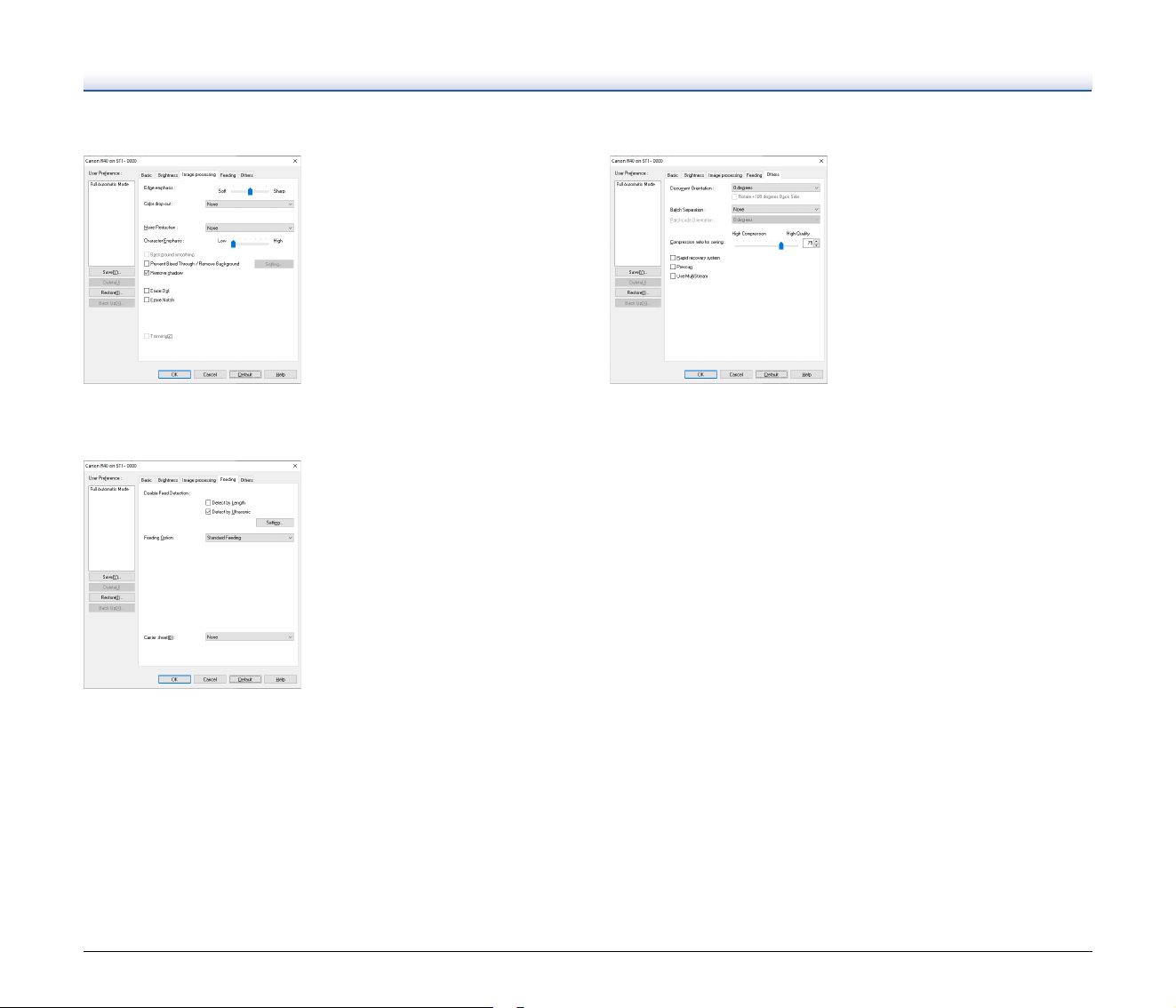
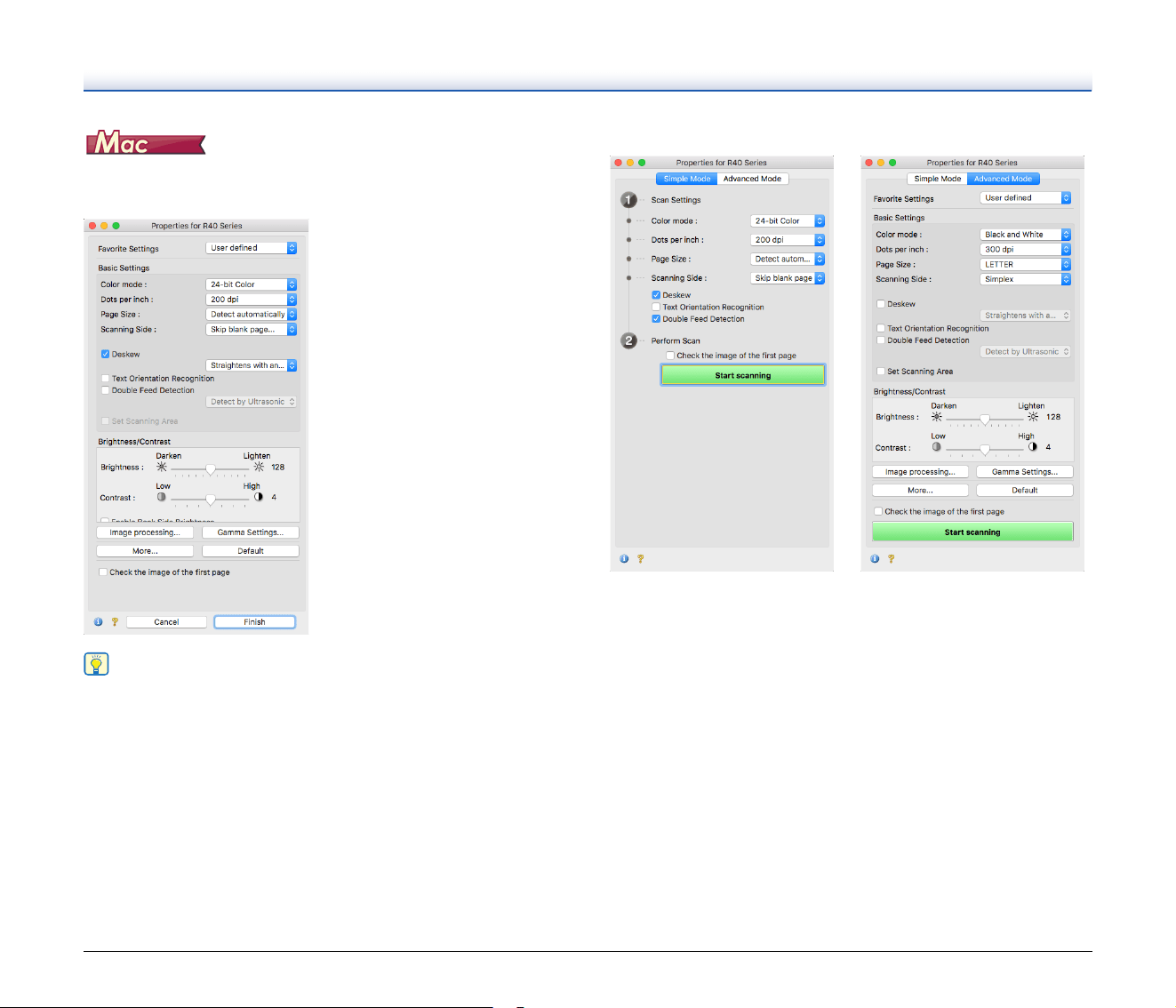
The scanner driver consists of the following tabs.
Hint
For details on the setting screen, see the Help of the scanner driver.
Click the [Help] button of the driver to display help related to the
corresponding tab or dialog box.
[Basic] tab
Configure basic scanning conditions such as the mode, page size,
resolution, and scanning side.
In addition, you can click the [Area] button and specify the area to be
scanned.
[Brightness] tab
Adjust the brightness and contrast of scanned images.
In addition, you can also click [Gamma] and set the gamma correction
value for scanned images.
31
[Image processing] tab
Set the processing method for scanned images.
[Feeding] tab
Specify scanner operations related to document feeding.
[Others] tab
Configure special scan method and image processing settings.
32
When the scanner driver is opened from CaptureOnTouch, the
following settings screen of the scanner driver appears.
Hint
When the Advanced Settings screen is called from some
applications, the Advanced Settings screen may have the Simple
mode and Advanced mode.
Simple Mode Advanced Mode
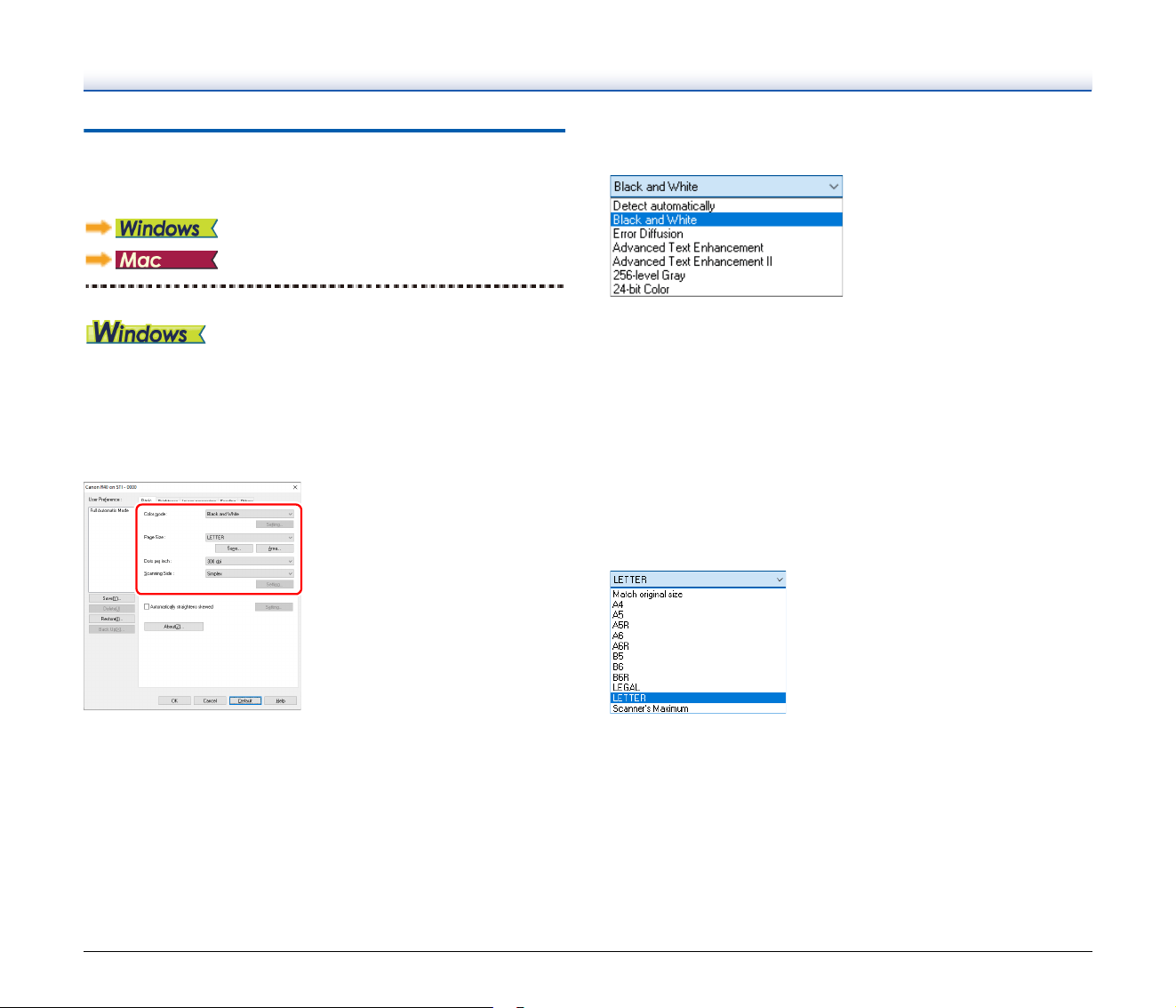
33
Setting Basic Scanning Conditions
This section provides an overview of the basic setting items that are
the minimum requirements when configuring the scanner settings.
Confirming Basic Conditions for
Scanning
When you scan a document, make sure you confirm the [Color mode],
[Page Size], [Dots per inch], and [Scanning Side] basic conditions in
the Basic settings dialog box.
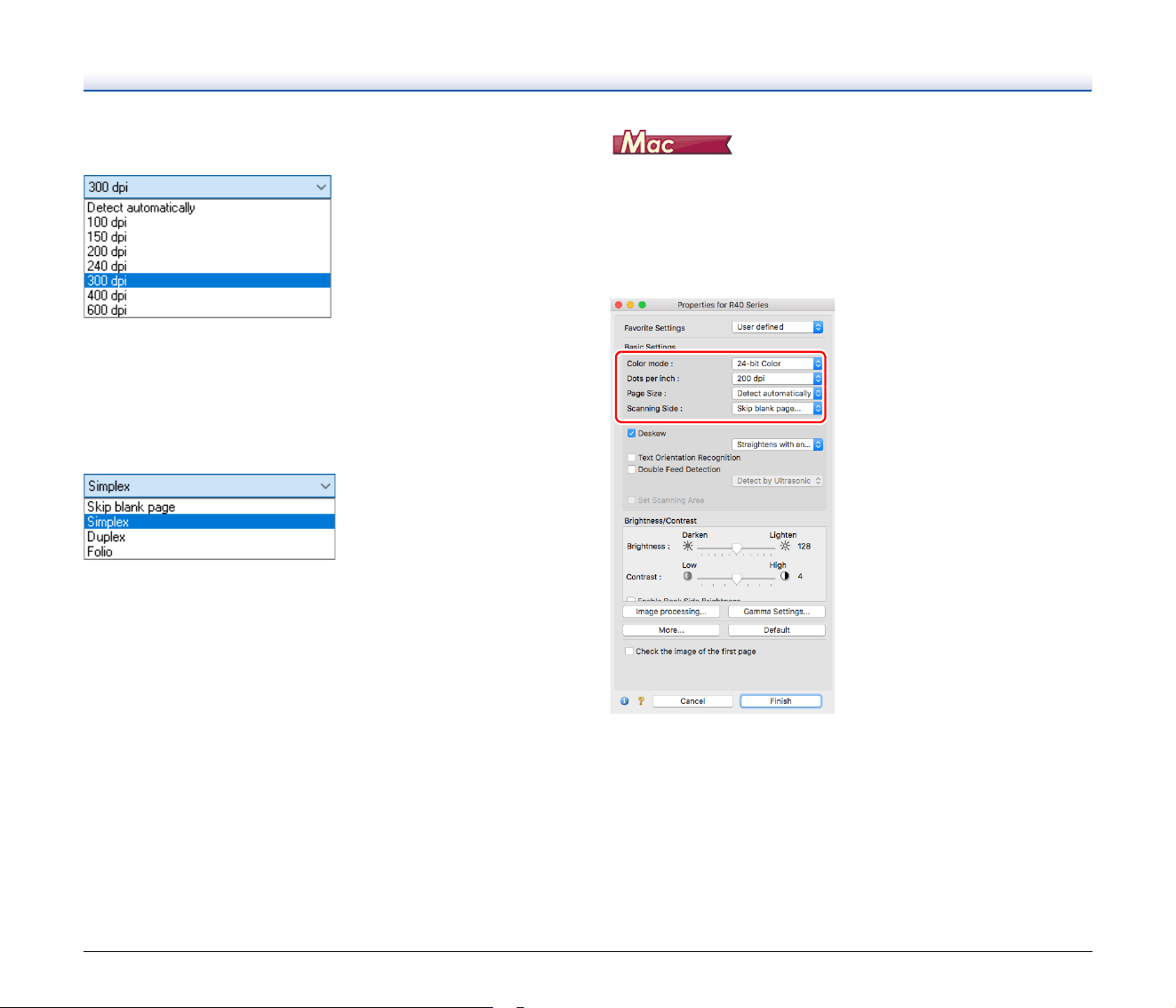
Color mode
Select the scanning mode.
• [Advanced Text Enhancement] and [Advanced Text Enhancement
II] remove or process the background color and background
surrounding text to enhance the text for easy reading. When
[Advanced Text Enhancement II] is selected, you can make the text
in scanned images easier to read by adjusting the contrast on the
[Brightness] tab.
• [Detect automatically] detects whether the document is in color,
grayscale, or black and white. You can configure advanced settings
related to the detection method by clicking [Setting]. For details, see
the Help.
Page Size
Select the page size that matches the document to be scanned.
If [Match original size] is selected, the edges of the document are
detected and images that match the size of the document are saved.
34
Dots per inch
Select the scanning resolution.
• Higher resolutions provide clearer images but result in larger file
sizes and slower scanning.
• When [Detect automatically] is specified, the resolution is detected
automatically from the content printed in the document.
Scanning Side
Select which of the sides of the document to scan.
If the scanning side is set to [Skip blank page], the images of blank
pages are deleted when images are saved.
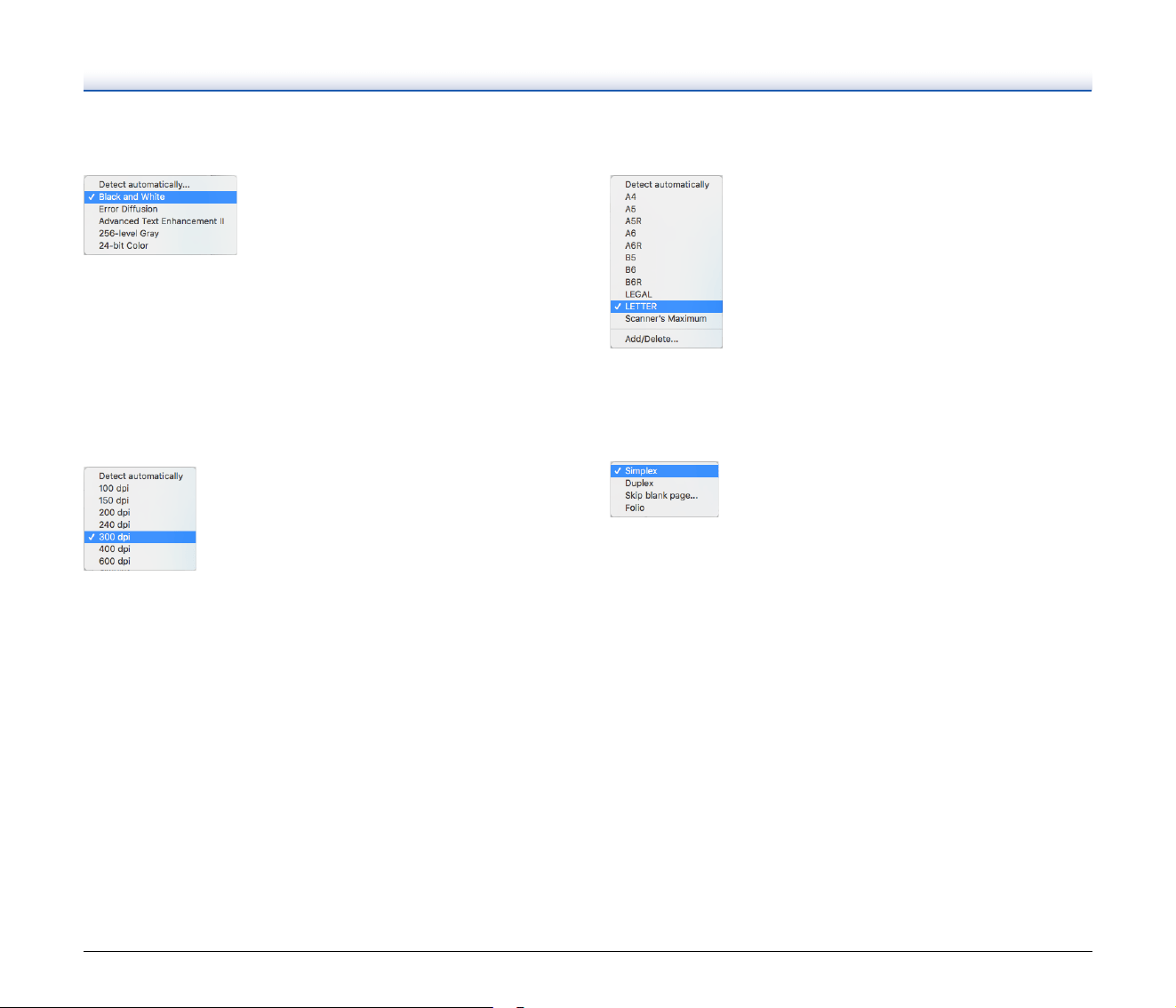
Confirming Basic Conditions for
Scanning
When you scan a document, make sure you confirm the [Color mode],
[Dots per inch], [Page Size], and [Scanning Side] basic conditions in
the settings screen of the scanner driver.
35
Color mode
Select the scanning mode.
• [Advanced Text Enhancement II] removes or processes the
background color and background surrounding text to enhance the
text for easy reading.
• [Detect automatically] detects whether a document is color,
grayscale, or black and white based on its content. When this is
selected, you can configure detailed settings for the detection
method. Refer to the Help for details.
Dots per inch
Select the scanning resolution.
• Higher resolutions provide clearer images but result in larger file
sizes and slower scanning.
• When [Detect automatically] is specified, the resolution is detected
automatically from the content printed in the document.
Page Size
Select the page size that matches the document to be scanned.
If [Detect automatically] is selected, the edges of the document are
detected and images that match the size of the document are saved.
Scanning Side
Select which of the sides of the document to scan.
If the scanning side is set to [Skip blank page], the images of blank
pages are deleted when images are saved.
36
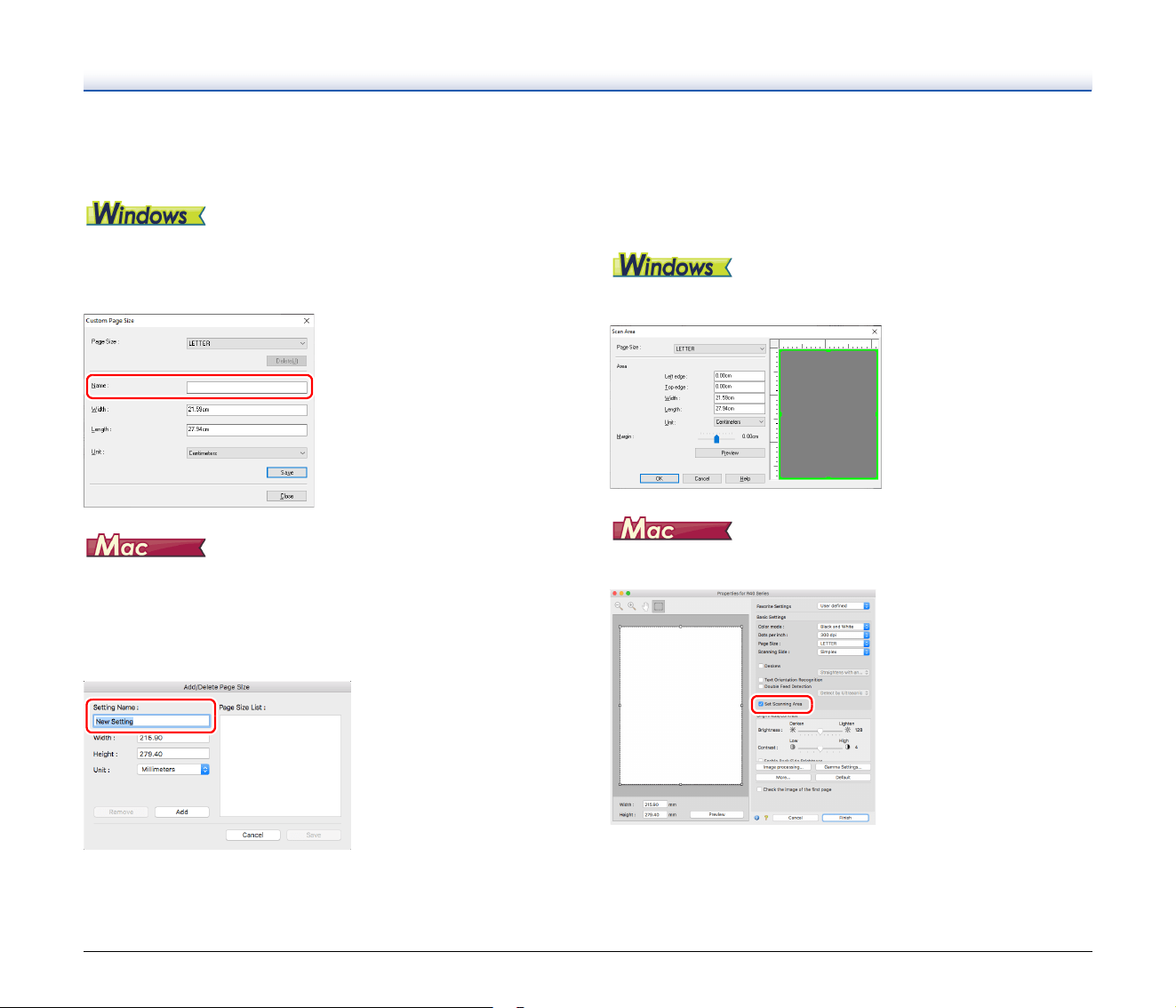
Scanning Documents of Unregistered
Page Sizes
You can register a non-standard page size that has not been
registered as a page size by naming and registering it as a custom
page size in the Custom Paper Size dialog box, which is opened from
the [Save] button on the [Basic] tab.
Configuring the following settings allows you to scan a document of an
unregistered page size.
When scanning a document of a non-standard page size, select [Add/
Delete] for [Page Size] to display the [Add/Delete Page Size] dialog
box. Name and register the unregistered page size in [Page Size].
Specifying the Scan Area
Configure the following settings when you want to specify the area of
the document to be scanned.
Specifying an area
Specify the area of the document to be scanned in the Scan Area
dialog box, which is opened from the [Area] button on the [Basic] tab.
Select the [Set Scanning Area] check box and then specify the area of
the document to be scanned.
Also, if you scan the document when [Check the image of the first
page] is selected, only one page of the document is scanned and the
corresponding scanned image is displayed in the preview window.
37
Configuring Scanner Settings According
to Purpose
Set the scanning conditions according to the scanning purpose.
When you want to delete the images of the blank pages in
two-sided documents
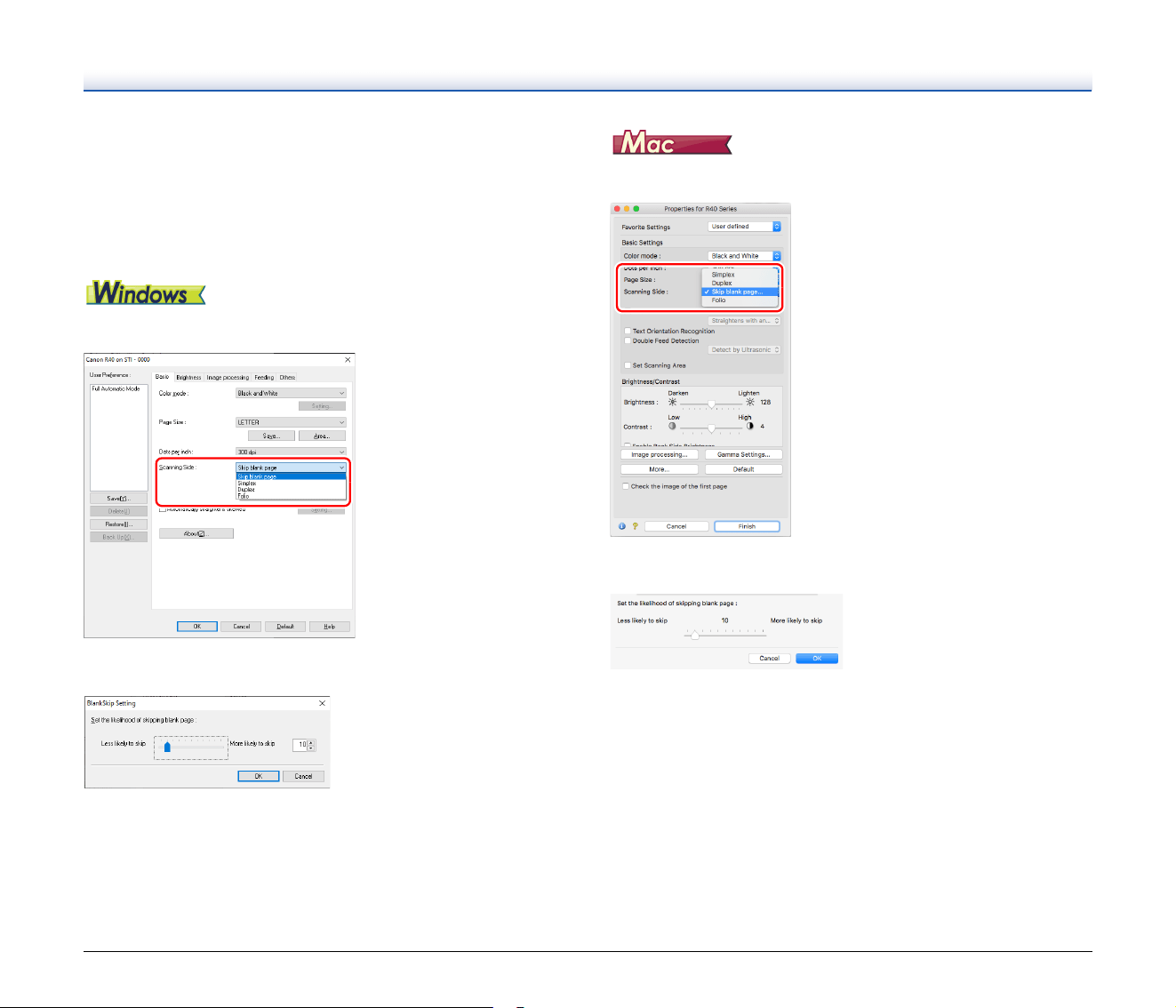
Set the scanning side setting to [Skip Blank Page] on the [Basic] tab
to delete the images of the blank pages in the document.
If [Skip Blank Page] is selected, the [Setting] button is enabled, and
you can adjust the level for judging whether pages are blank.
Set the scanning side setting to [Skip blank page] to delete the images
of the blank pages in the document.
If [Skip blank page] is selected, you can adjust the level for judging
whether pages are blank.
38
When you do not want to scan colored lines and text
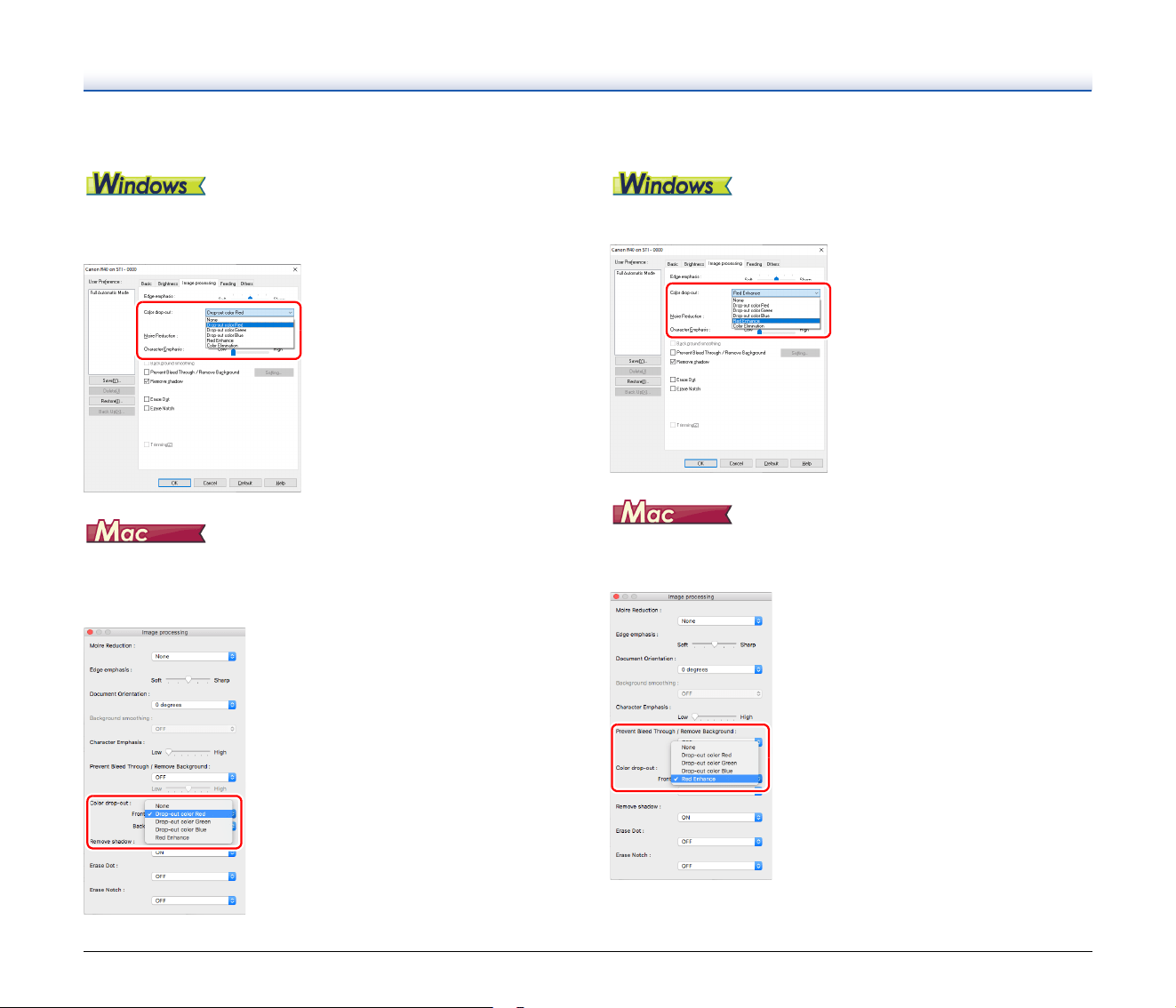
Specify the color (red, green, blue, all colors) to be ignored (dropped
out) in the color drop-out settings on the [Image processing] tab, and
that color will be removed from the scanned image.
Click [Image processing], and when a dialog box opens, specify the
color (red, blue, or green) to be ignored (dropped out) in [Color
dropout], and that color will not be scanned.
When you want to enhance red
Specify [Red Enhance] in the color dropout settings on the [Image
processing] tab, and red will be enhanced in the scanned image.
Click [Image processing], and when a dialog box opens, specify [Red
Enhance] for [Color drop-out]. This will enhance the red-color part of
the document.
39
When you want to enhance contours in images
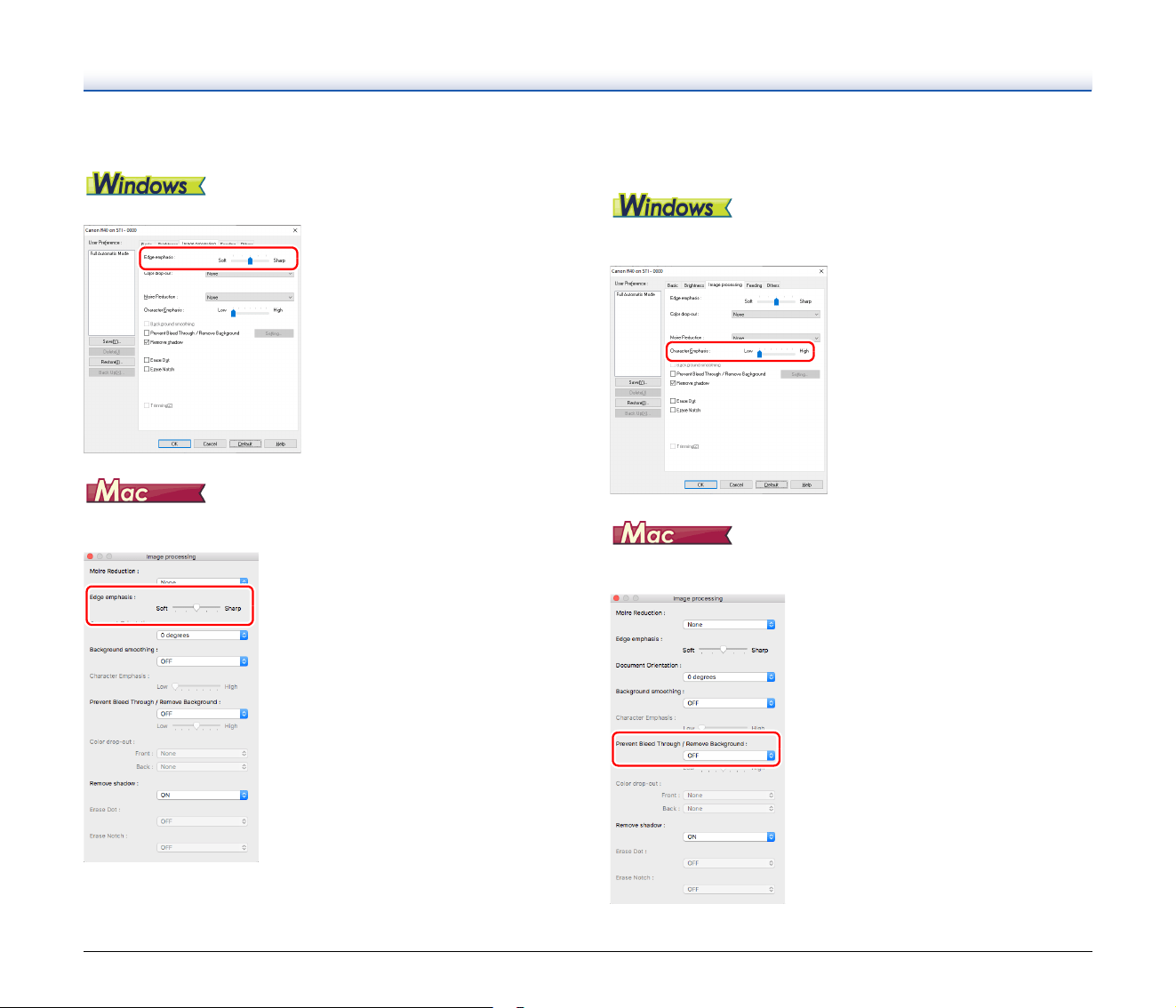
Adjust the edge emphasis setting on the [Image processing] tab.
Click [Image processing] and adjust the edge emphasis settings in the
dialog box which appears.
When you want to make lines and text in scanned images
thicker or thinner
Drag the [Character Emphasis] slider in the [Image processing] tab to
make lines and text in the scanned images thicker or thinner.
Click [Image processing], and in the dialog box that appears adjust
letter and line thickness settings.
40
When you want to enhance text that is difficult to read
because of factors such as the background of the
scanned document
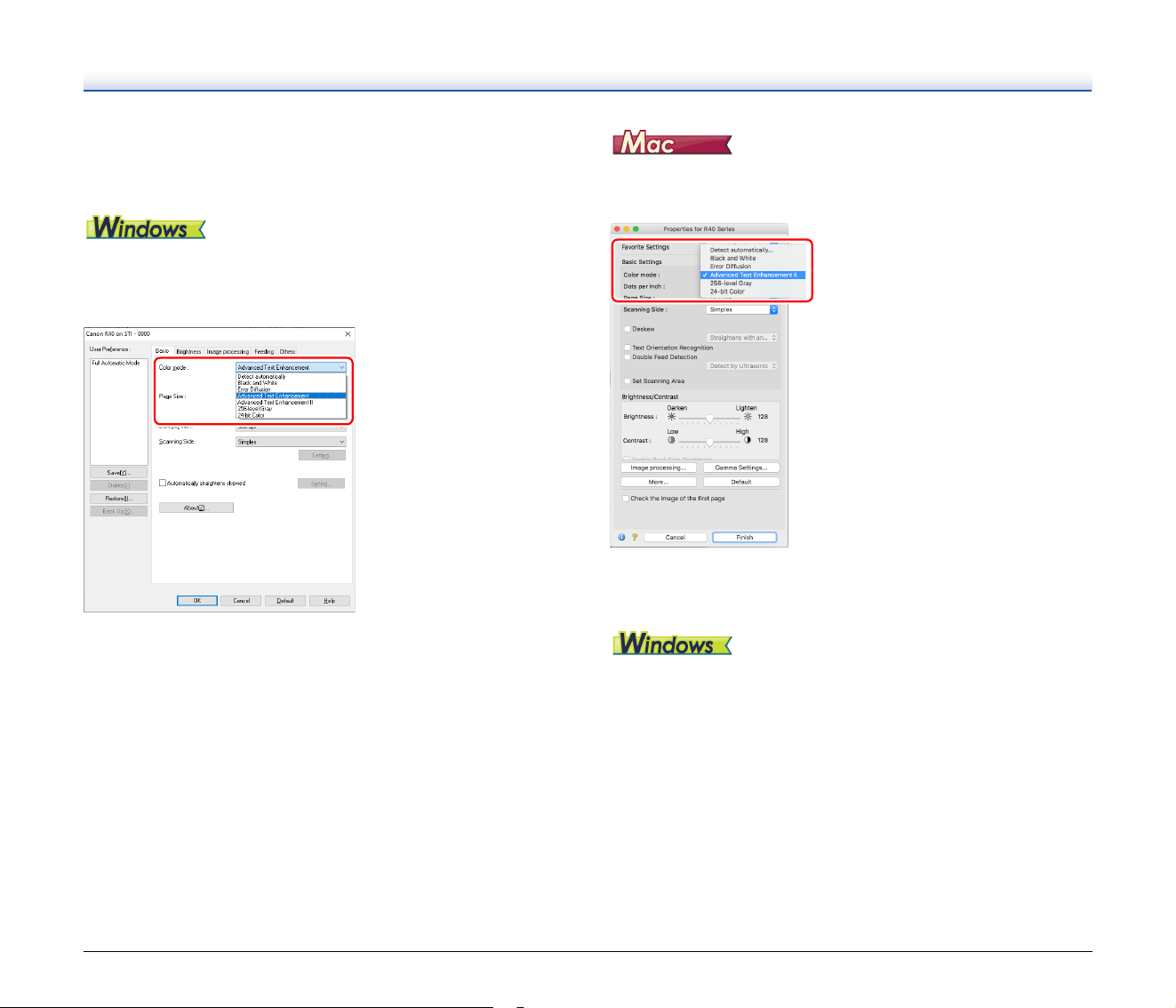
Select [Advanced Text Enhancement] or [Advanced Text
Enhancement II] in the mode setting on the [Basic] tab. The
background behind the text is removed or processed so that the text
is emphasized for better readability.
• Advanced Text Enhancement is suitable for a document with a light
background color or a document with a non-uniform background
(such as a pattern). If the background is uniform, it is removed where
it surrounds the text, and if the background is non-uniform, it is
processed to enhance text readability.
• Advanced Text Enhancement II is suitable for scanning a document
with a uniform background color and light text and background. If the
background is non-uniform, such as a pattern, the background may
not be able to be completely removed and the text may become
difficult to read. If necessary, you can make the text in scanned
images easier to read by adjusting the contrast on the [Brightness]
tab.
Select [Advanced Text Enhancement II] in the [Color mode] setting.
The background behind the text is removed or processed so that the
text is emphasized for better readability.
When you want to detect multiple pages fed at the same
time
Select the [Double Feed Detection] check box on the [Feeding] tab.
You can enable either one or both of [Detect by Ultrasonic] and
[Detect by Length].
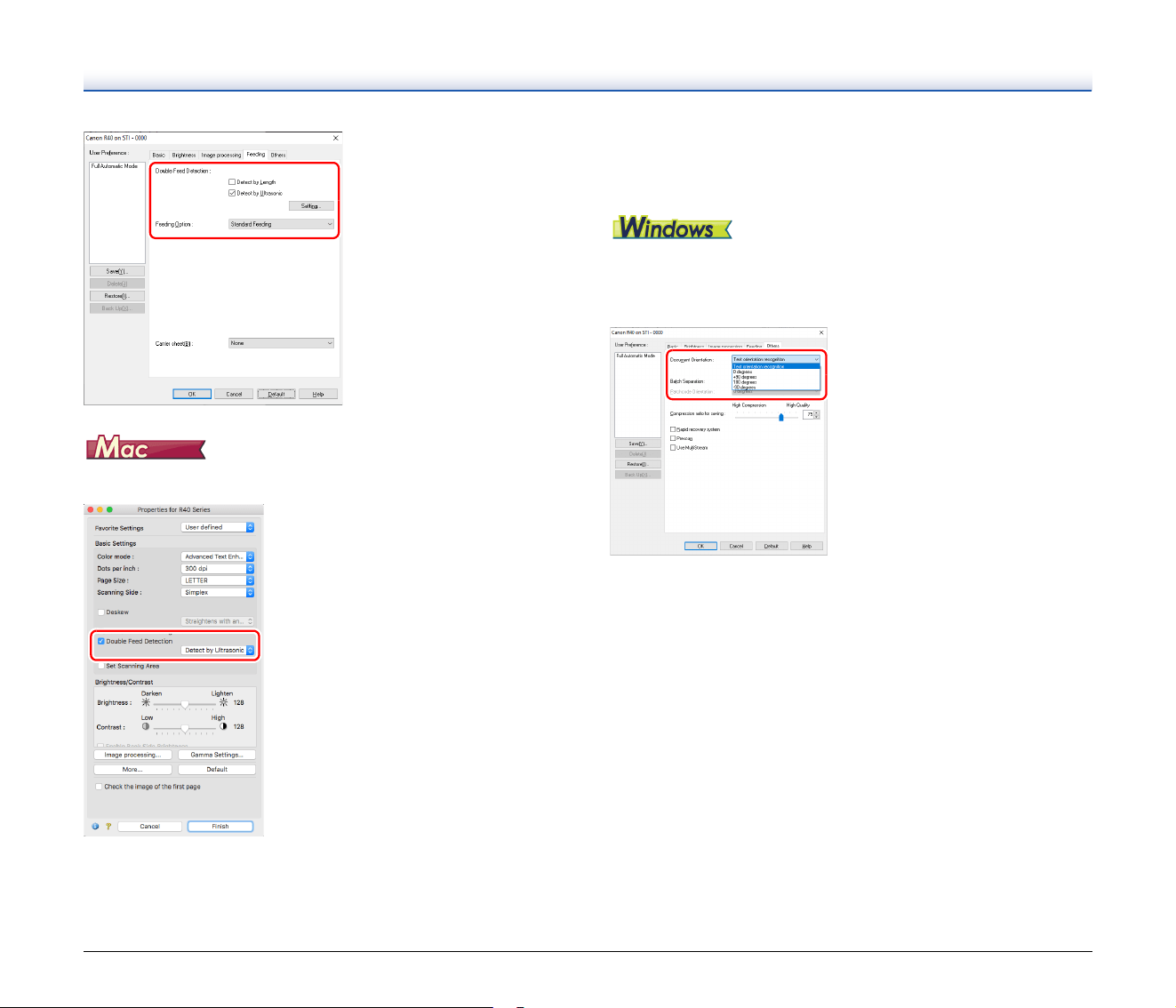
41
Select the [Double Feed Detection] check box.
When you want to match the orientation of images to the
text when scanning a mixture of pages with different text
orientations
Select [Text orientation recognition] in [Document Orientation] on the
[Others] tab. The text orientation on each page is detected, and the
scanned image is rotated in 90-degree increments to correct the
orientation.
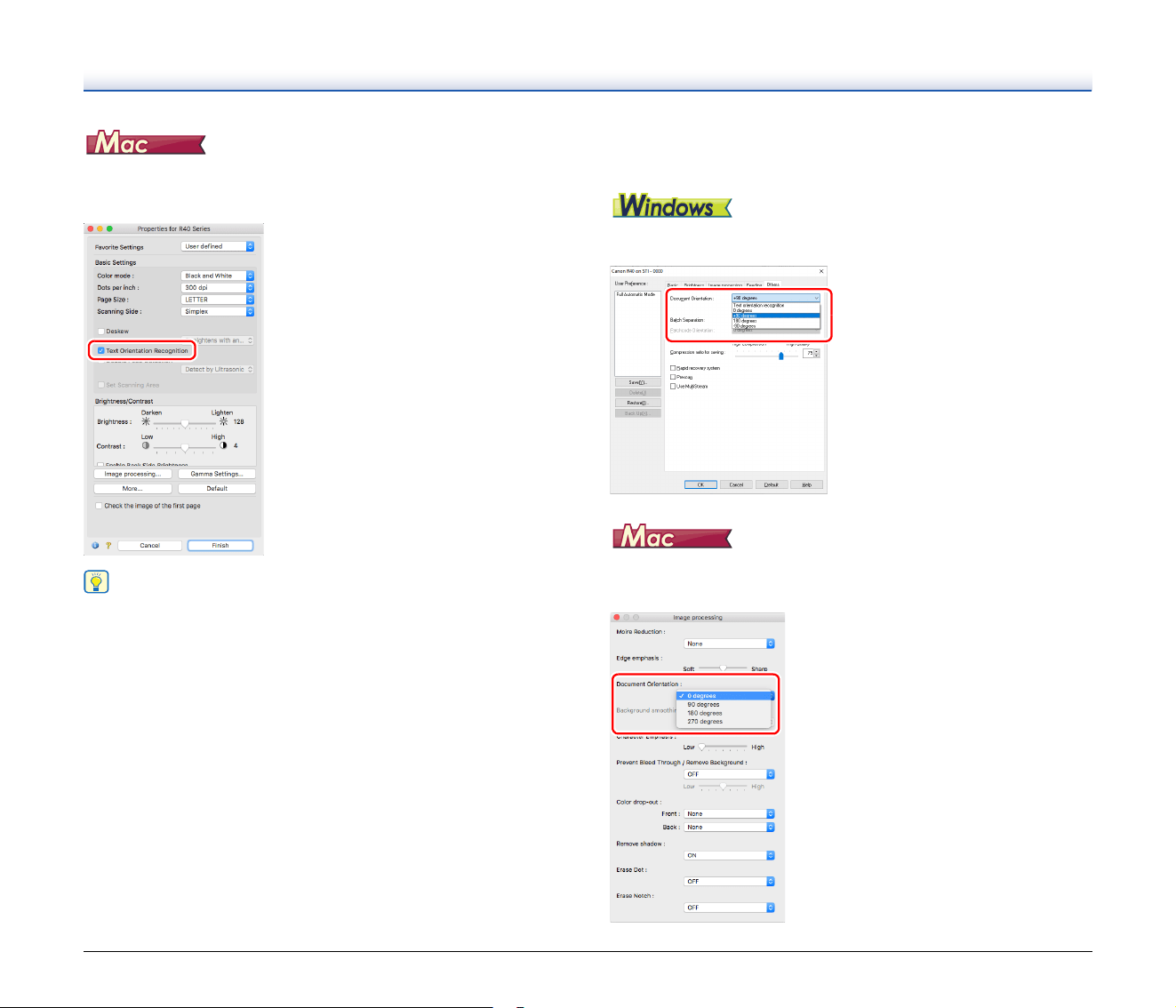
42
Select the [Text Orientation Recognition] check box. The text
orientation on each page is detected, and the scanned image is
rotated in 90-degree increments to correct the orientation.
Hint
When the [Text Orientation Recognition] check box is selected,
[Document Orientation] is unavailable.
When you want to rotate the images of a document placed
horizontally to correct the orientation
Specify the rotation angle in [Document Orientation] on the [Others]
tab.
Click [Image processing] and specify the rotation angle in [Document
Orientation] in the dialog box that appears.
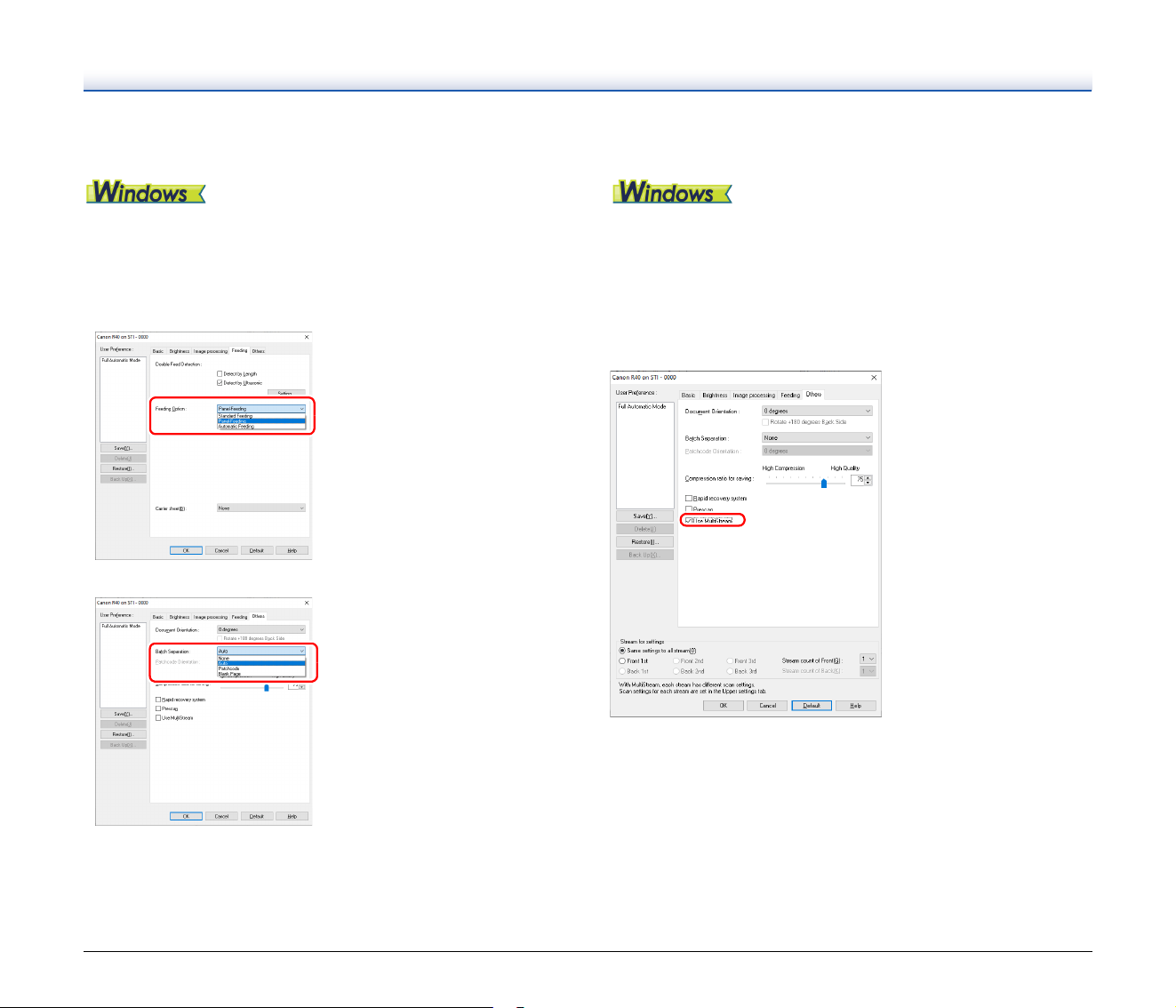
43
When you want to use batch separation for scanning
When you want to divide and scan a document, you can separate a
batch at the timing with which each next document is placed and
scanned. (Only enabled for applications that support batch
separation.) In this case, set the scanner driver as follows.
• Set [Feeding Option] on the [Feeding] tab to [Panel-Feeding] or
[Automatic Feeding].
• Set [Batch Separation] on the [Others] tab to [Auto].
When [Batch Separation] is set to [Auto], the batch is separated after
the next document is placed and scanning is continued.
For more details about [Blank Page] and [Patchcode], see “Batch
separation using patch code sheets” on p. 50
When you want to use multistream settings for scanning
Multi-stream allows you to output multiple different scanned images
with a single scan operation, and output scanned images with different
scanning conditions for each of the front and back pages (multistream
settings).
When you want to use the multistream settings for scanning, select
the [Use MultiStream] checkbox on the [Others] tab to display the
setting items related to multistream, and then configure the setting
items in the following order.
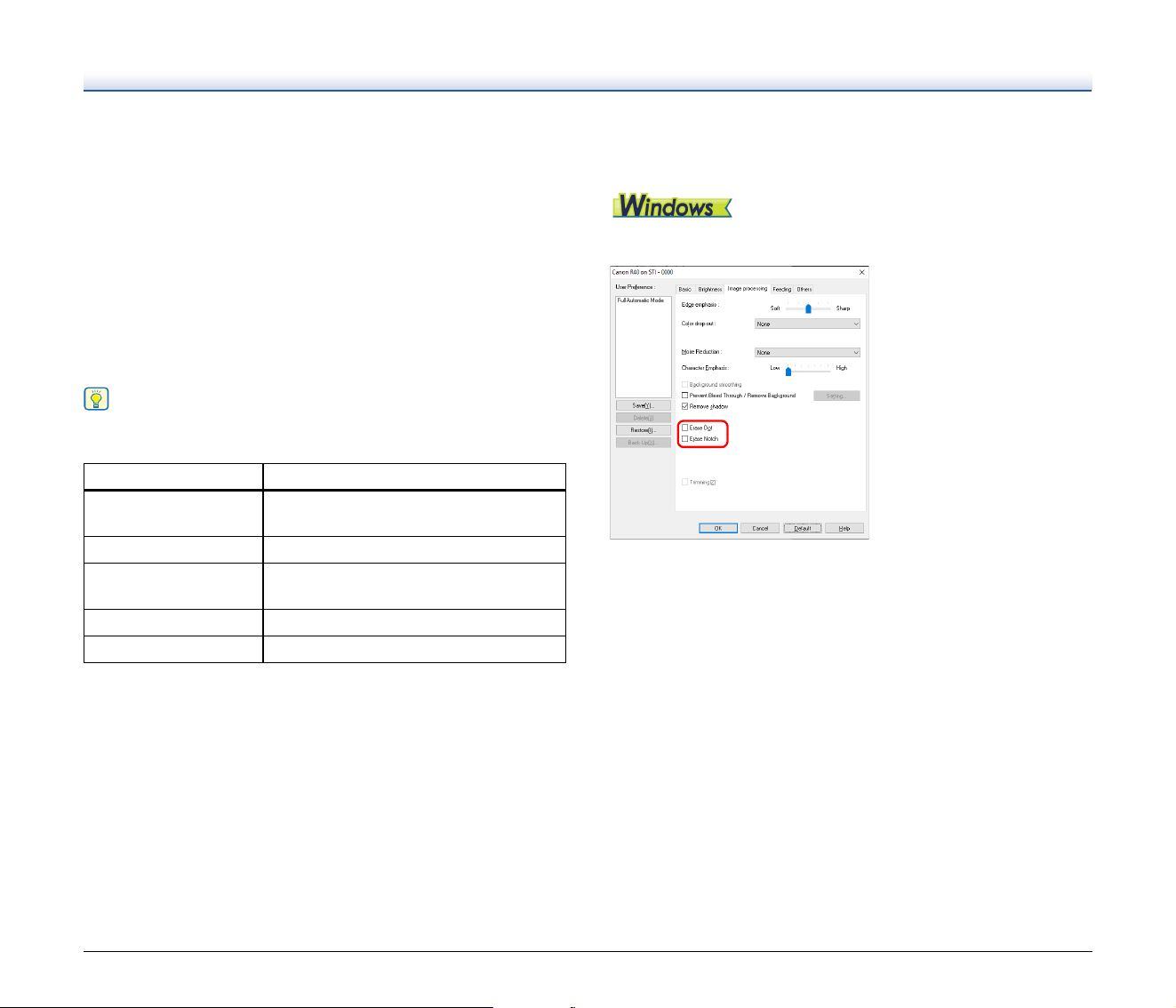
44
A When you want to specify different scanning conditions for the front
and back pages of a document, select [Both] for [Scanning Side] on
the [Basic] tab in advance.
B Specify the number of scanning conditions to apply in [Stream
count of Front]. Up to three can be specified.
C Select [Front 1st], and then open the other tabs and set the
scanning conditions. Depending on the value specified for [Stream
count of Front], configure the remaining [Front 2nd] and [Front 3rd]
in the same way.
D When specifying the scanning conditions of the back, configure the
settings in the same way as described in B to C. In this case,
specify [Stream count of Back], and then set the scanning
conditions for each of [Back 1st] to [Back 3rd].
Hint
The following shows the setting conditions that can be set in the
multistream settings.
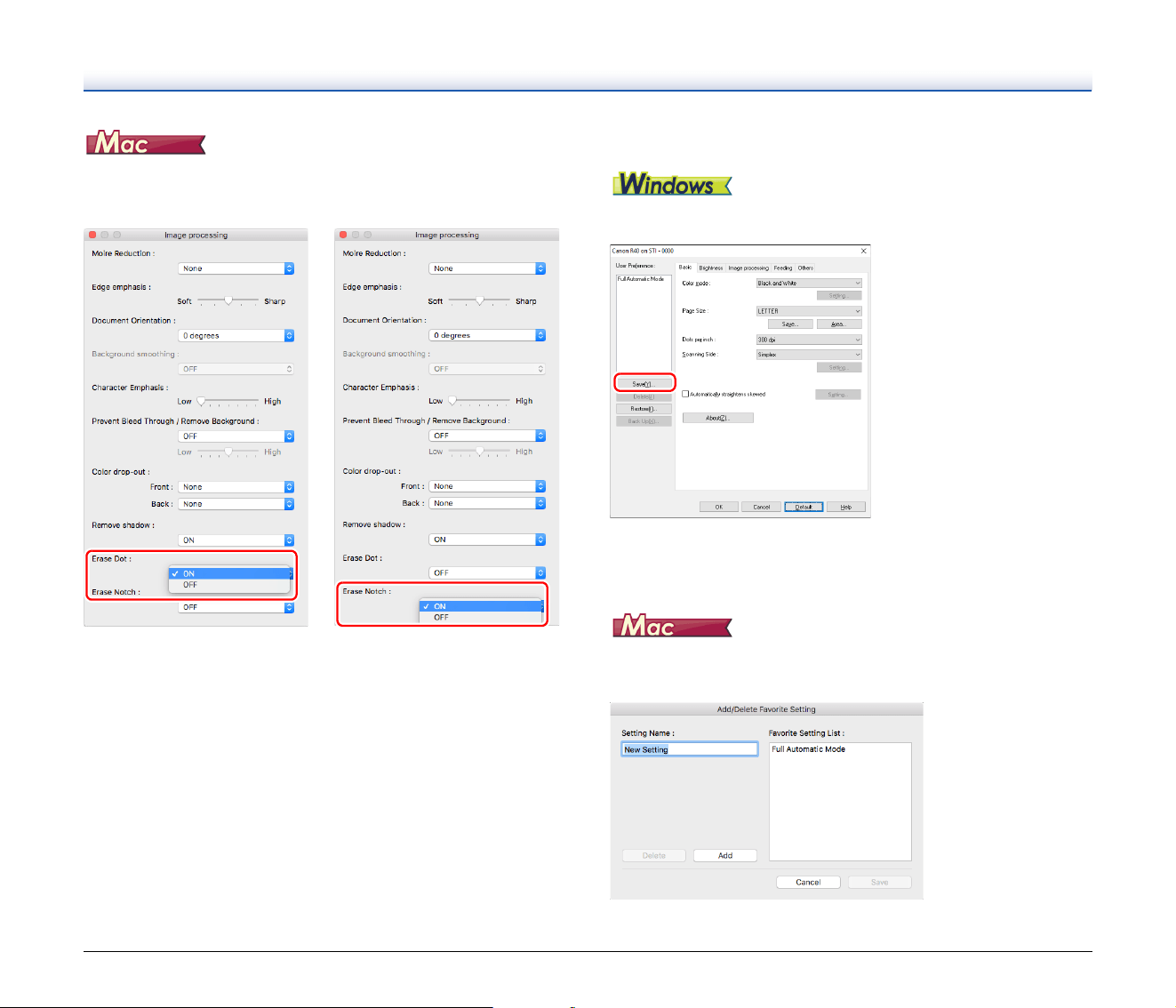
When you want to remove dots and notches that appear
in documents
You can remove dots and notches protruding from object outlines that
appear in documents from scanned images.
• Select the [Erase Dot] check box to automatically remove isolated
black dots (3 x 3 dot size) from white backgrounds (or white dots
from black backgrounds).
• Select the [Erase Notch] check box to remove notches that protrude
from object outlines in scanned images.
Tab Items that can be set
[Basic] tab
[Color mode] and [Dots per inch]
(excluding [Auto-detection] for both)
[Brightness] tab [Brightness] and [Contrast]
[Image processing] tab
[Edge emphasis], [Color dropout], and
[Character Emphasis]
[Feeding] Tab None (all disabled)
[Others] Tab None (only [Use MultiStream] is enabled)
45
Click [Image processing] and select [ON] for [Erase Dot] or [Erase
Notch] in the dialog box that appears.
• When [ON] is selected for [Erase Dot], the isolated 3x3 black dots on
white backgrounds (or isolated 3x3 white dots on black
backgrounds) are erased automatically.
• When [ON] is selected for [Erase Notch], the portions (notches)
protruding outside the contours are erased from the scanned
images.
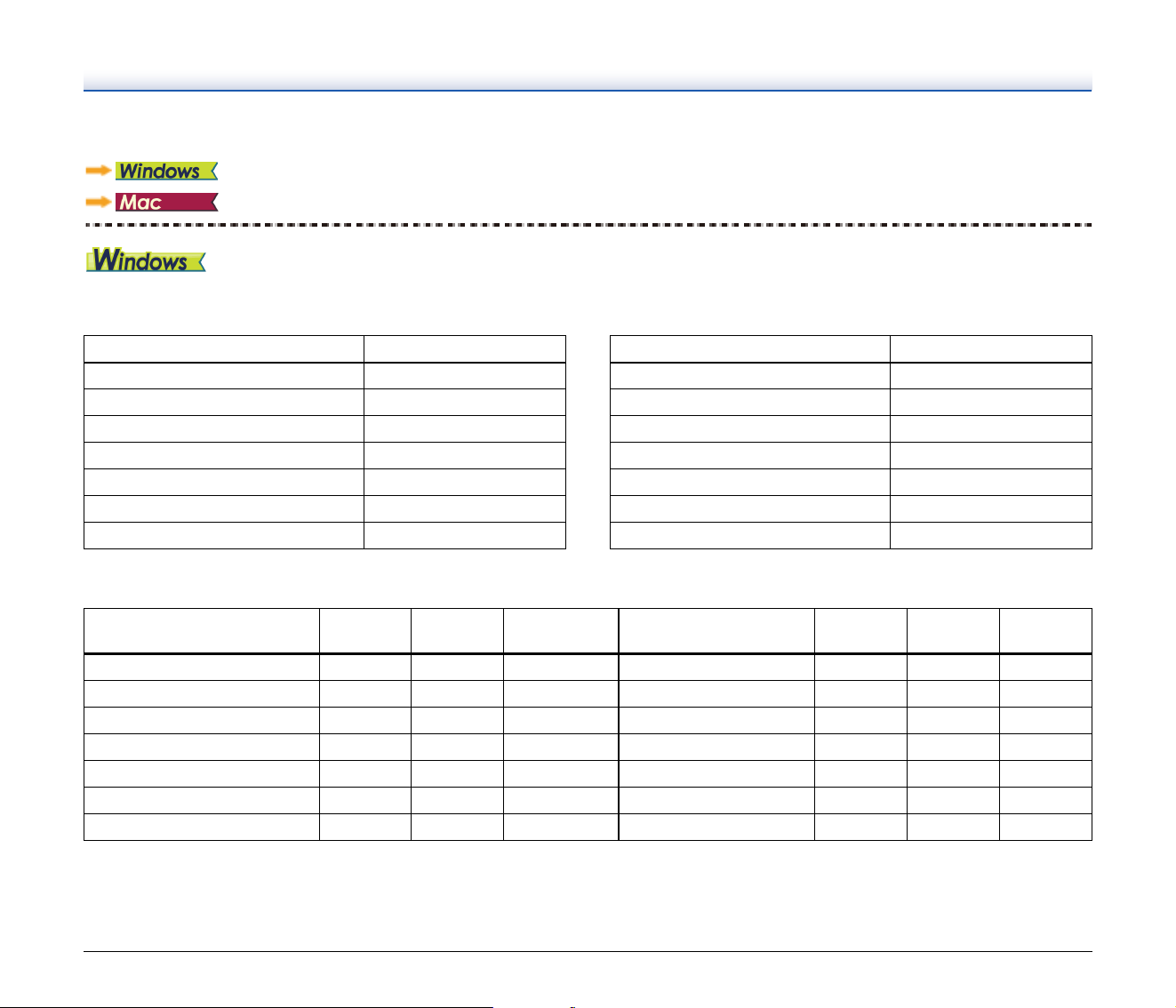
When you want to save a scanner driver setting
When you finish configuring a setting, click the [Save] button of [User
Preference] to save the setting.
The saved setting is registered to the list. You can delete a setting
from the list with the [Delete] button, and save or load a configuration
file with the [Back Up] or [Restore] button.
When you finish configuring a setting, select [Add/Delete] of [Favorite
Settings] to save the setting.

46
Clicking the [Add] button registers the current setting to [Favorite
Setting List]. Use the [Delete] button to delete a setting from the list.
47
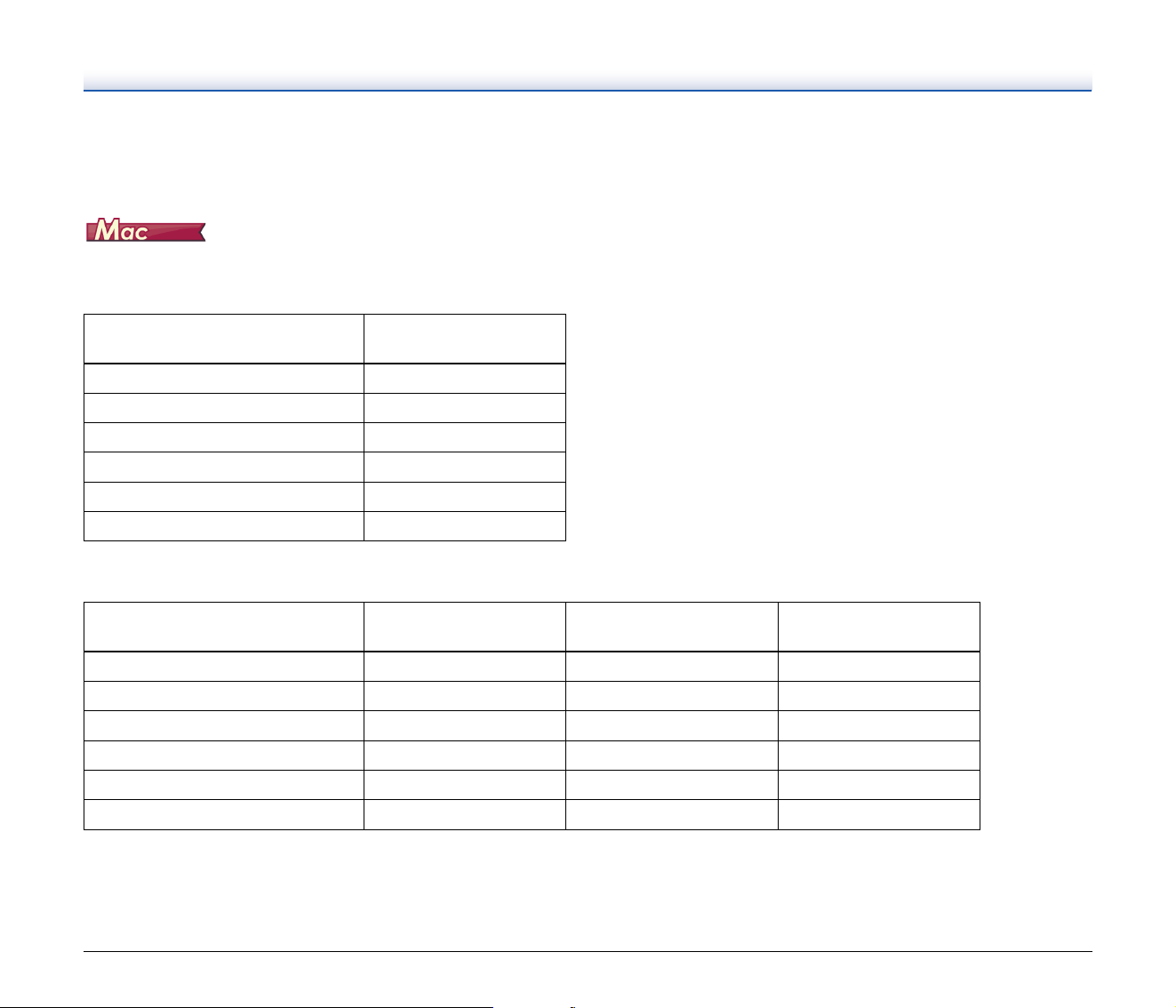
Function Restrictions Depending on Color Mode Setting
Some of the setting items in each of the driver tabs are disabled as follows depending on the setting for [Color Mode] on the [Basic] tab.
[Brightness] tab
(: Available for setting)
[Others] Tab
(: Available for setting)
[Image processing] tab
(: Available for setting)
1)
Not available for setting if all of the following conditions in the [Auto Image Type Detection Settings] dialog box are met.
• [Detection mode] is not set to [Color or Gray]
• [Mode in case of binary] in the [Settings for in case of binary] tab is set to [Advanced Text Enhancement] or [Advanced Text Enhancement II]
Setting value Contrast
Detect Automatically
Black and White
Error Diffusion
Advanced Text Enhancement
Advanced Text Enhancement II
256-level Gray
24-bit Color
Setting value Prescan
Detect Automatically
Black and White
Error Diffusion
Advanced Text Enhancement
Advanced Text Enhancement II
256-level Gray
24-bit Color
Setting value
Edge
emphasis
Color
drop-out
Background
smoothing
Prevent Bleed Through /
Remove Background
Erase Dot
Erase
Notch
Character
Emphasis
Detect Automatically
1)
1) 2)
2) 3)
3) 3)
3)
Black and White
Error Diffusion
Advanced Text Enhancement
Advanced Text Enhancement II
256-level Gray
24-bit Color
48
2)
Not available for setting if either one of the following two conditions are met.
• [Detection mode] in the [Auto Image Type Detection Settings] dialog box is set to [Color or Gray]
• [Mode in case of binary] in the [Settings for in case of binary] tab is set to [Error Diffusion]
3)
Not available for setting if [Detection mode] is set to [Color or Gray] in the [Auto Image Type Detection Settings] dialog box.
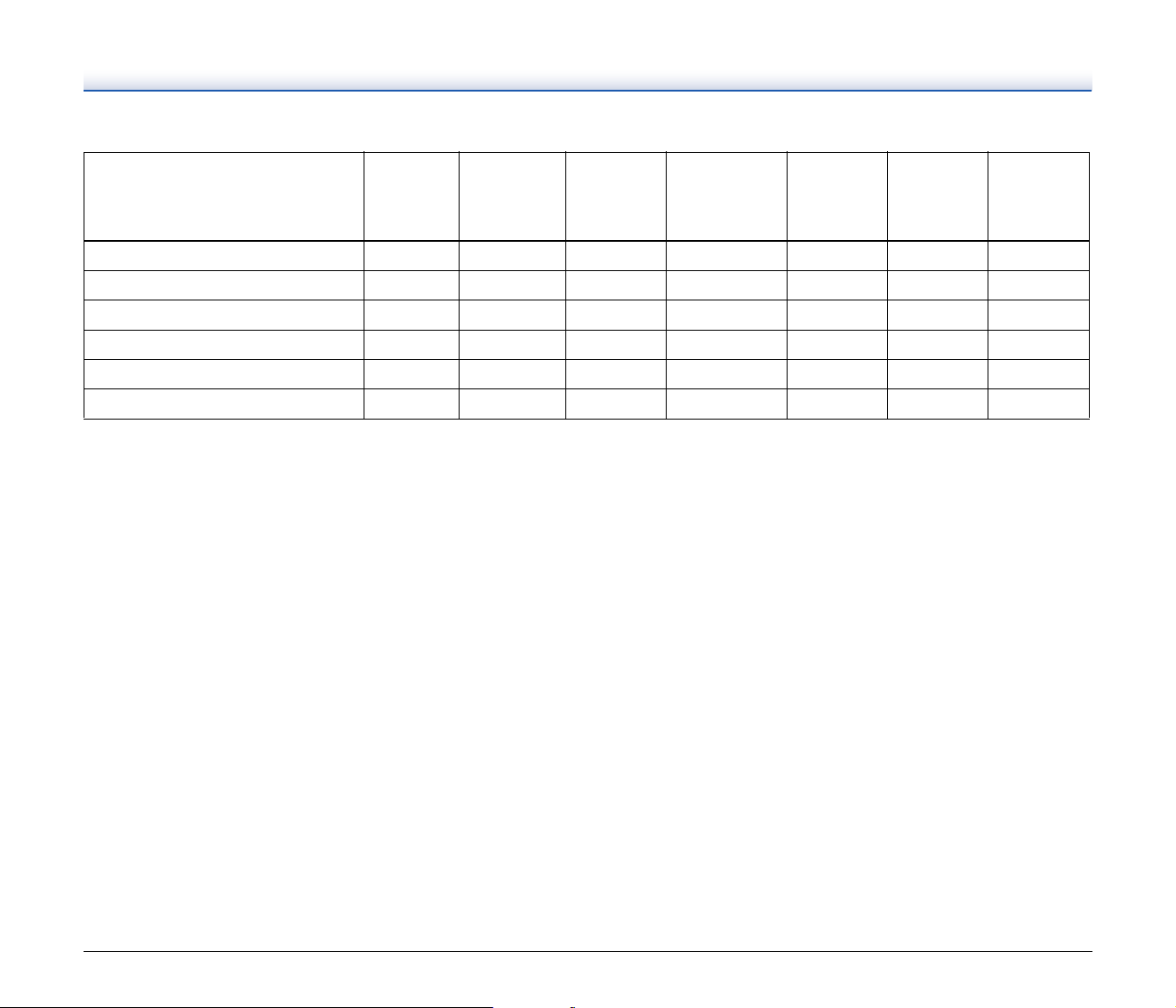
Some of the setting items are disabled as follows depending on the setting for [Color Mode] in the settings screen of the scanner driver.
Simple Mode
: Available for setting
Advanced Mode
: Available for setting
Setting value
Check the image of the
first page
Detect automatically
Black and White
Error Diffusion
Advanced Text Enhancement II
256-level Gray
24-bit Color
Setting value
Enable Back Side
Brightness
Enable Back Side
Contrast
Check the image of the
first page
Detect automatically
Black and White
Error Diffusion
Advanced Text Enhancement II
256-level Gray
24-bit Color
49
Advanced mode (Image processing dialog)
: Available for setting
1) Cannot be set if the [Detect automatically] setting matches the conditions below
• [Detection Mode] is not set to [Color or Gray]
Setting value
Edge
emphasis
Background
smoothing
Character
Emphasis
Prevent Bleed
Through /
Remove
Background
Color
drop-out
Erase Dot
Erase
Notch
Detect automatically
1)
1)
Black and White
Error Diffusion
Advanced Text Enhancement II
256-level Gray
24-bit Color
50
More Advanced Scanning Methods (Batch Separation)
Batch Separation (Insert blank page)
Recognizes blank pages as batch separators and performs batch
separation (automatic file separation) when documents containing
blank pages are scanned.
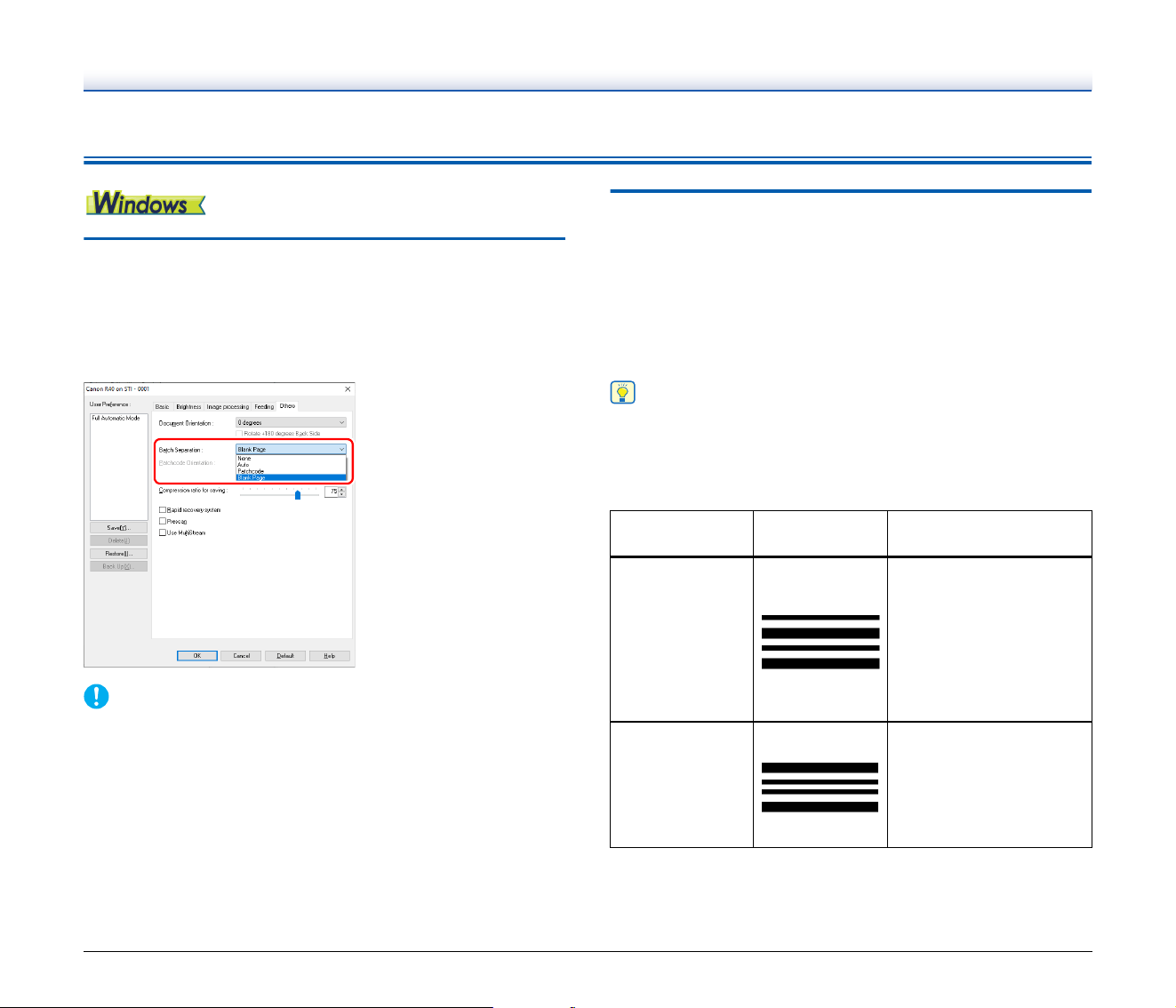
On the [Others] tab, select [Blank Page] from the Batch Separation
dropdown list.
IMPORTANT
• When [Simplex] is selected in [Scanning Side], blank pages on the
scanned side will be recognized as separators. When [Duplex],
[Skip blank page], or [Folio] is selected in [Scanning Side],
document pages will be recognized as separators when both sides
of a page are blank.
• Images of pages recognized as separators will not be saved.
Batch separation using patch code
sheets
This scanner supports batch separation (automatic file separation)
functions by using patchcodes.
By tucking patchcode sheets supplied with this scanner into a
document and scanning it, the scanner can automatically separate
files by images of documents containing patchcode sheets (or
documents after the patchcode sheet).
Hint
Patchodes are included with this product in PDF format. Applications
that can read PDF files are required to use this function.
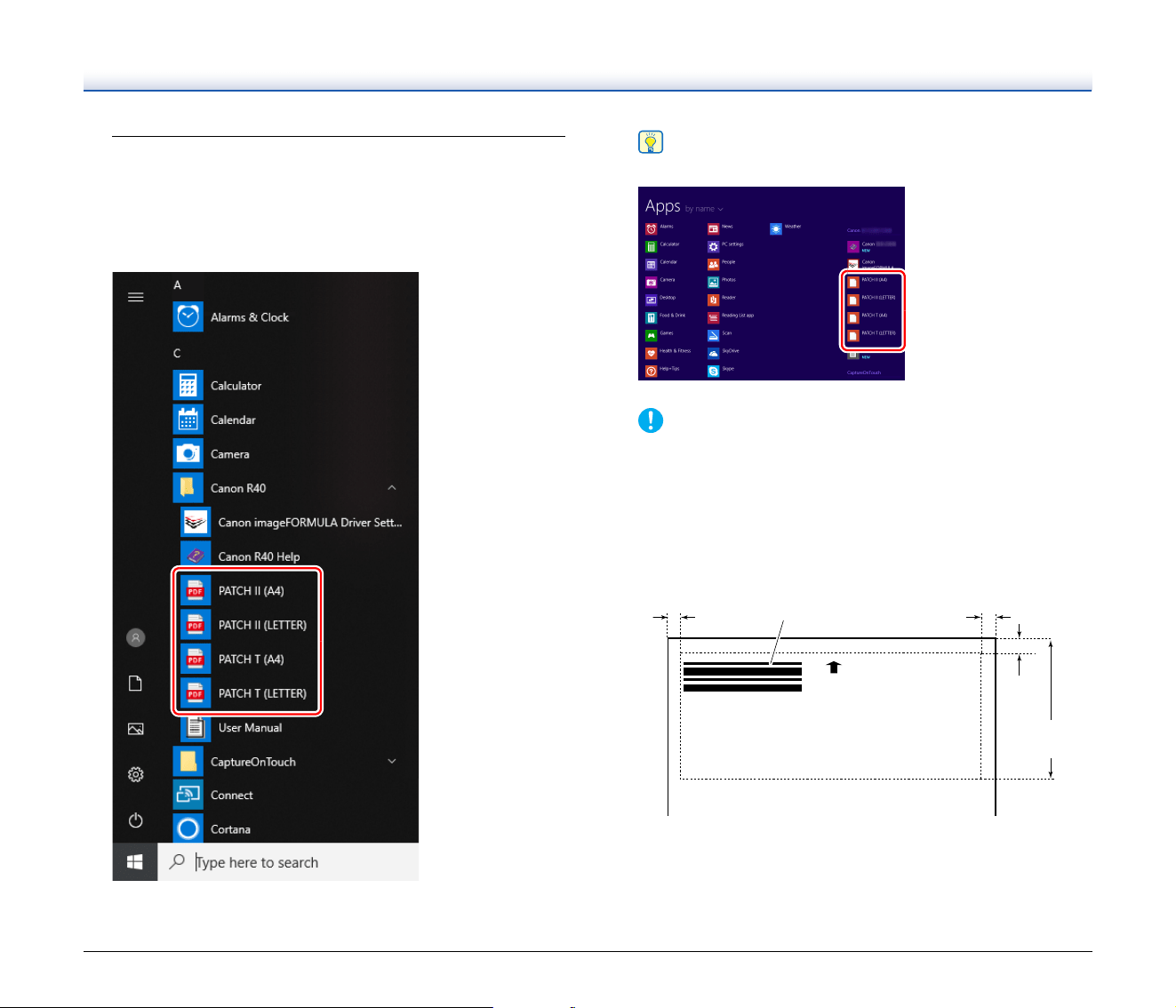
The following patchcodes are installed together with the scanner
driver as PDF files.
The following operations are performed when using patchcodes for
scanning.
Type of
Patchcode
Pattern Description
PATCH T
(FILE A)
Files are separated from
the page after the page
printed with this patchcode.
You specify in the
application whether to
include the page printed
with the patchcode in the
scanned image.
PATCH II (FILE B)
Files are separated from
the page printed with this
patchcode. The page with
the printed patchcode is
always included in the
scanned image.
51
1
Print patchcode with a printer.
Click [Start] – [Canon R40] and then select [Patchcode] from the
menu.
Patchcodes can be printed in A4 and letter (LTR) sizes. Open the
application and print a patchcode that is the same size as the
document to be scanned.
Hint
In Windows 8.1, it is registered at the following location.
IMPORTANT
• Patchcodes must be printed in their normal size. If patchcodes
are enlarged or reduced, they may not be recognized correctly.
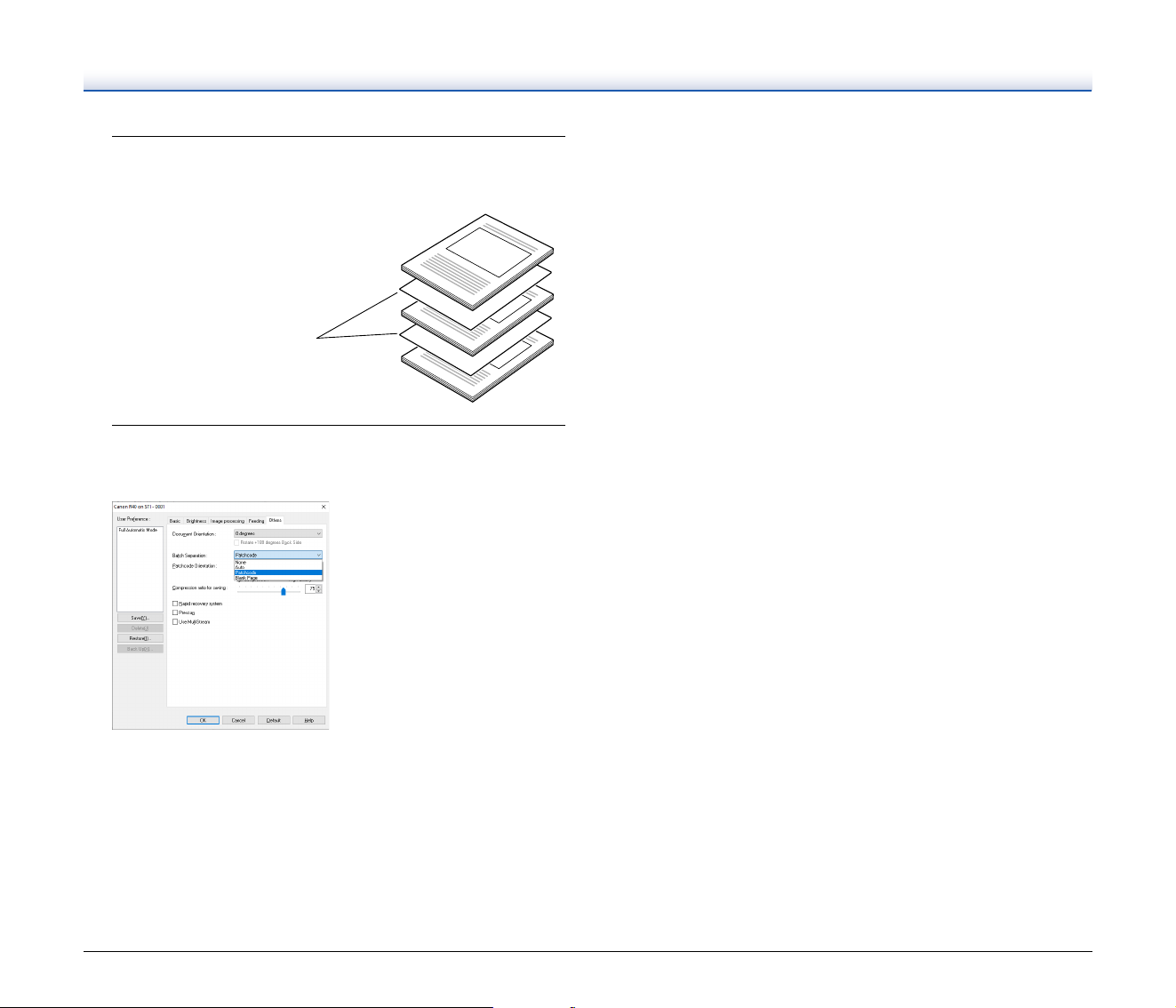
• When copying provided patchcodes to create different sized
patchcodes, ensure that the patchcode fits inside the effective
range shown in the following diagram. Also, when copying
patchcodes, ensure that they are the same size and shade as
the original.
• Keep the patchcode sheet clean. Take particular care to keep
the patchcode detection range area clean. Also, do not bend,
fold or crease the sheet.
Patchcode
(effective range for detecting patchcodes)
5 mm (0.2") 5 mm (0.2")
5 mm
(0.2")
94 mm
(3.7")
52
2
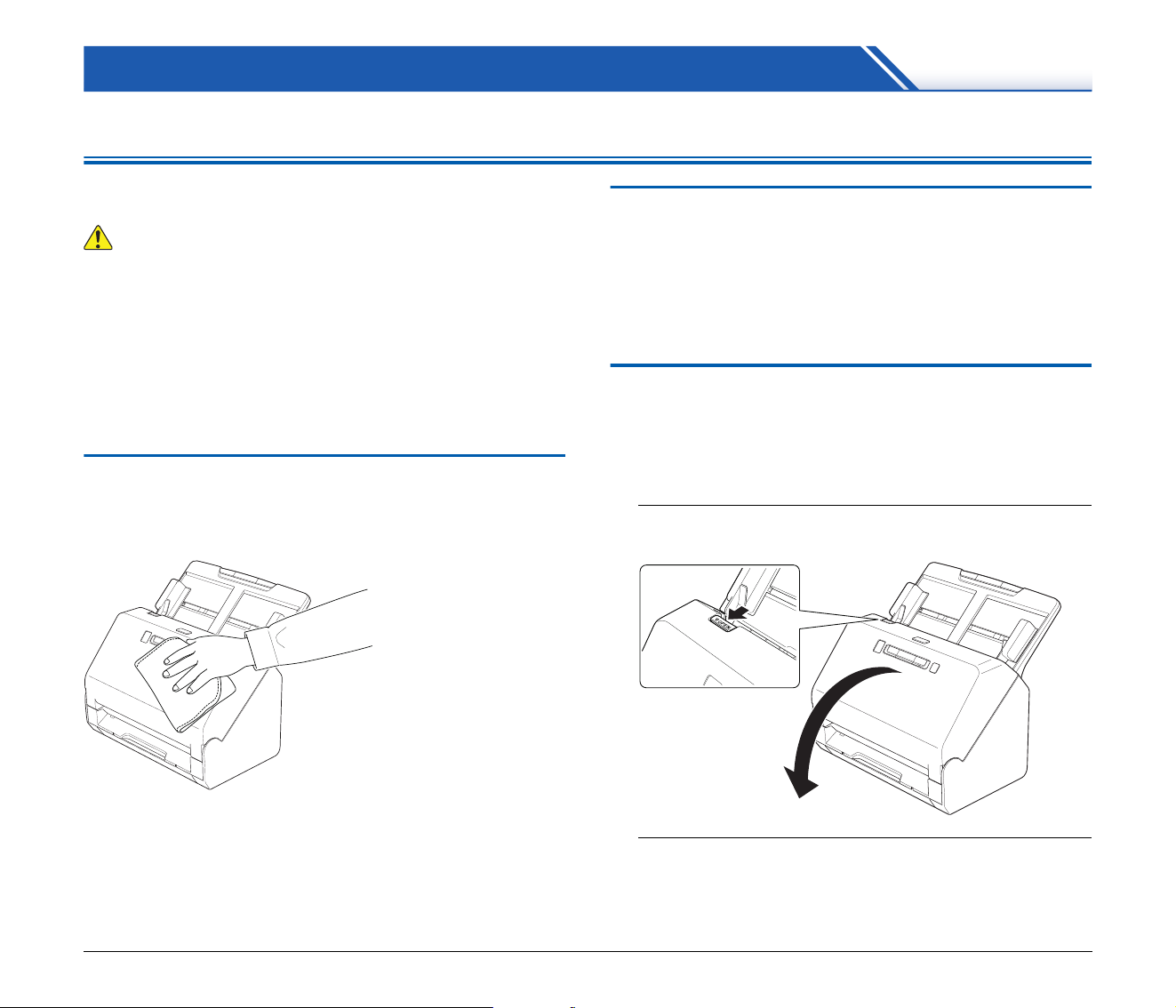
Place the documents in the scanner after inserting the
patchcode sheet in front of the page that separates the
files.
3
In an application, open the scanner driver settings screen
and select [Patchcode] in [Batch Separation] on the
[Others] tab.
Insert the patchcode sheets at
the beginning of documents to
change file separation.
53
Maintenance
Daily Maintenance
Clean the scanner on a regular basis, as described below, to maintain
peak scanning quality.
CAUTION
• When cleaning the scanner and the inside of the scanner, turn OFF
the power switch and disconnect the power cord from the power
outlet.
• Do not use spray cleaners to clean the scanner. Precision
mechanisms, such as the light source, may get wet, and cause a
malfunction.
• Never use paint thinner, alcohol, or other organic solvents to clean
the scanner. The exterior of the scanner may become deformed,
discolored, or melted. It may also cause a fire or electric shock.
Cleaning the Scanner
To clean the outside of the scanner, wipe off any dirt with a cloth that
has been dampened with water and thoroughly wrung out, and then
wipe the scanner dry with a clean dry cloth.
Cleaning the Inside of the Scanner
Dust or paper particles inside the scanner may cause lines or
smudges to appear on scanned images. Use compressed air to
periodically clean dust and paper particles from the document feed
opening and the inside of the scanner. After finishing a large scanning
job, turn OFF the scanner and then clean out any paper particles
remaining inside the scanner.
Cleaning the Sensor Glass and the
Rollers
If scanned images contain streaks, or if the scanned documents
become dirty, the sensor glass or rollers inside the scanner may be
dirty. Clean them periodically.
1
Pull the OPEN lever and pull open the front unit toward
you.
2
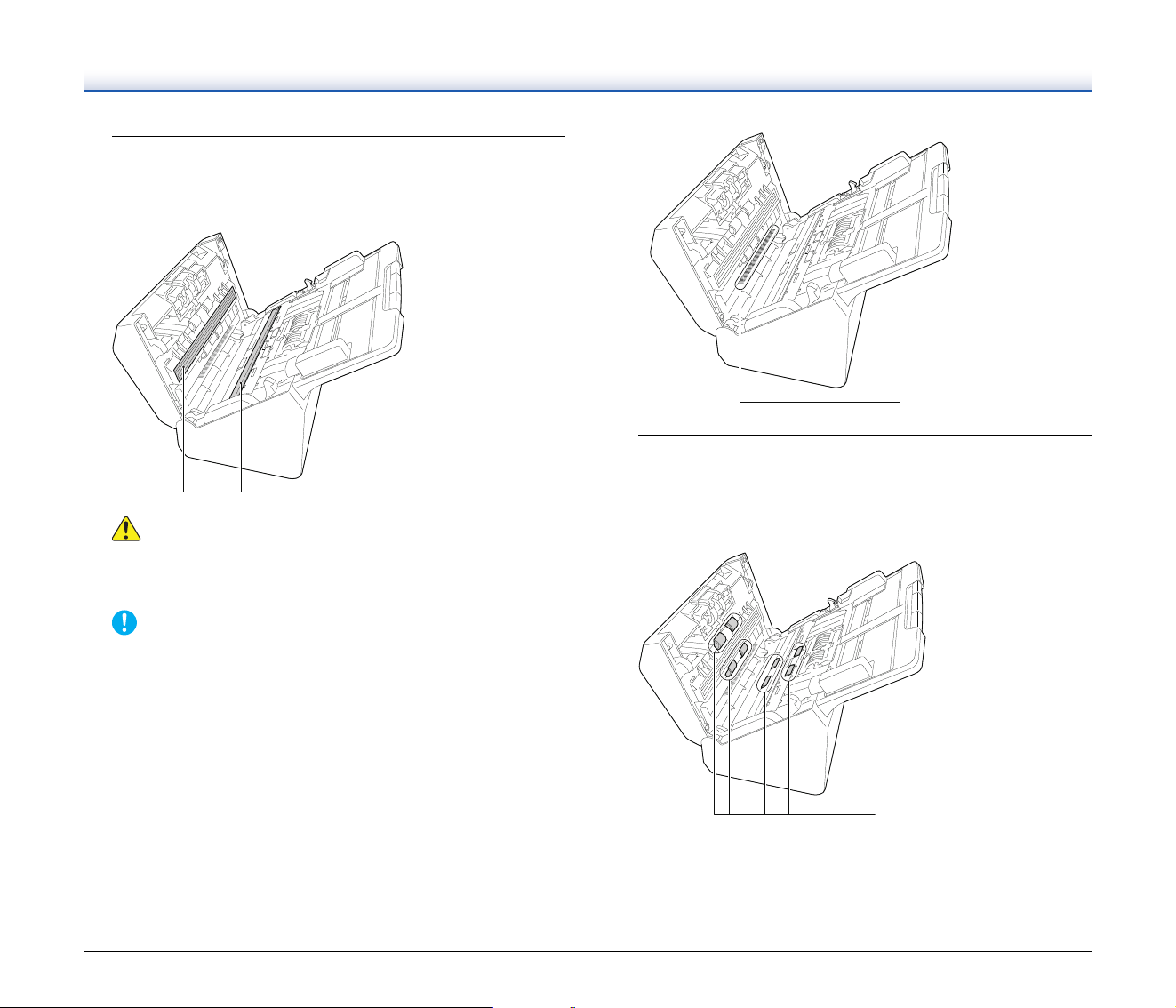
Use compressed air to remove dust and paper particles
from the inside of the scanner.
54
3
Wipe any dirt off the scanning glass.
Wipe any dirt off the scanning glass with a cloth that has been
dampened with water and thoroughly wrung out, and then wipe
the glass dry with a clean, dry and soft cloth.
CAUTION
Do not spray water or neutral detergent directly on the scanner.
Precision mechanisms, such as the light source, may get wet,
and cause a malfunction.
IMPORTANT
• Scratches on the sensor glass may cause marks on the images,
as well as feeding errors. If there are scratches on the sensor
glass, contact your local authorized Canon dealer or service
representative.
• Take care to ensure the anti-static brush in the front unit does
not become deformed.
4
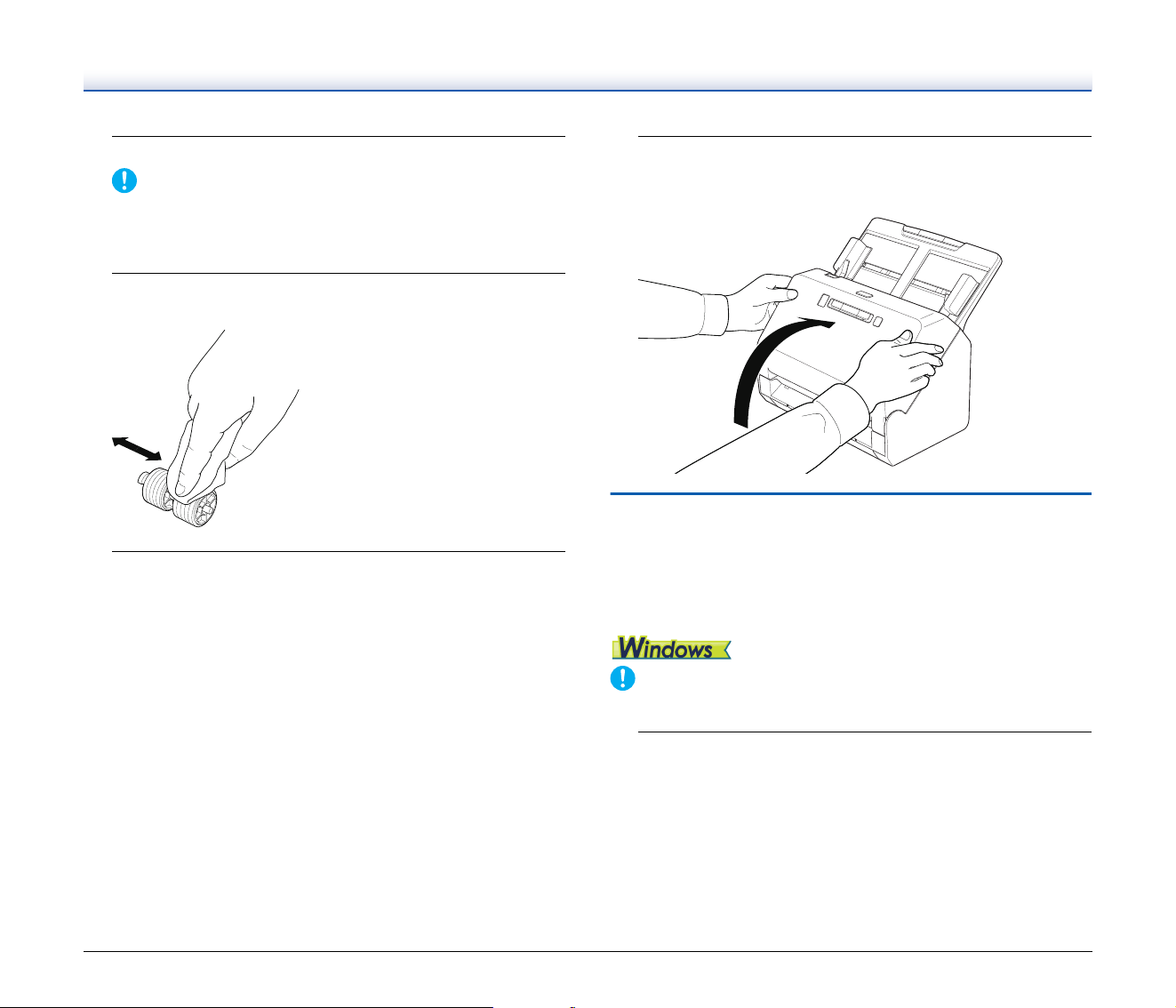
Clean the rollers.
Clean the rollers while turning them.
Wipe the rollers with a cloth that has been dampened with water
and thoroughly wrung out, and then use a clean, dry and soft cloth
to wipe away any moisture.
Scanning Glass
Anti-Static brush
Rollers
55
5
Remove the retard roller and feed roller. (See p. 58, p. 59)
IMPORTANT
Remove the retard roller and feed roller from the scanner to clean
them, and be sure to reattach them to the scanner when cleaning
is finished.
6
Wipe the removed rollers with a cloth that has been
dampened with water and thoroughly wrung out.
7
Reattach the retard roller and feeding roller. (See p. 58,
p. 59)
8
Close the front unit by gently pushing it up on both sides
until it clicks into place. Make sure that the front unit is
completely closed by pushing until you hear a click.
Adjusting the Reduction Ratio
As the rollers installed in the scanner wear out, scanned images may
become stretched in the vertical direction. If this happens, you can
reduce the amount of stretching of the image by adjusting the
reduction ratio.
IMPORTANT
Log on to Windows as an Administrator.
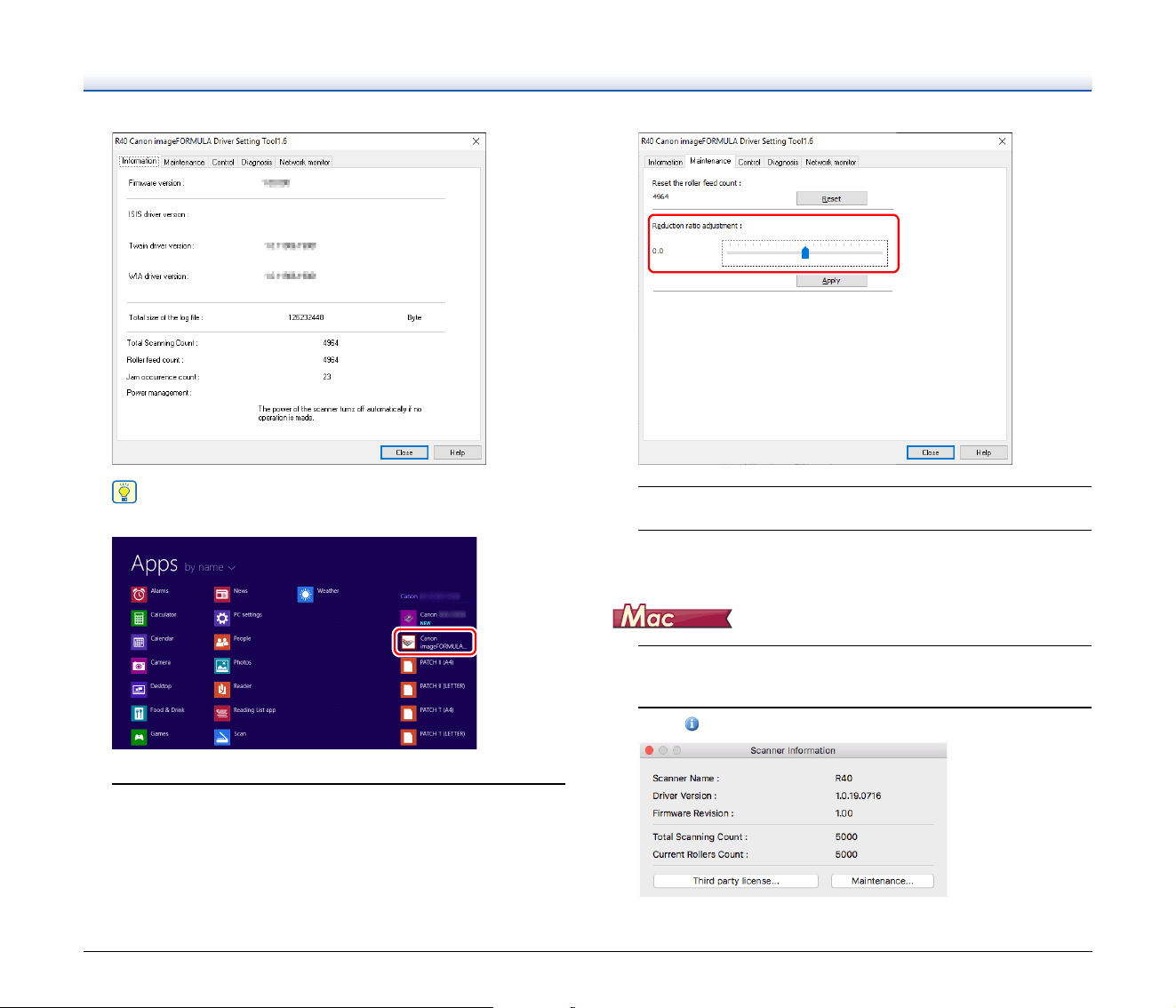
1
Click the Start button, and then click [Canon R40] and
[Canon imageFORMULA Driver Setting Tool].
imageFORMULA Driver Setting Tool starts.
56
Hint
In Windows 8.1, it is registered at the following location.
2
Click the [Maintenance] tab and then move the slider to
change the value of [Reduction ratio adjustment].
The adjustment value can be set within the range from -3.0% to
3.0%.
3
Click [Apply].
4
Click [Close] to close the imageFORMULA Driver Setting
Tool.
1
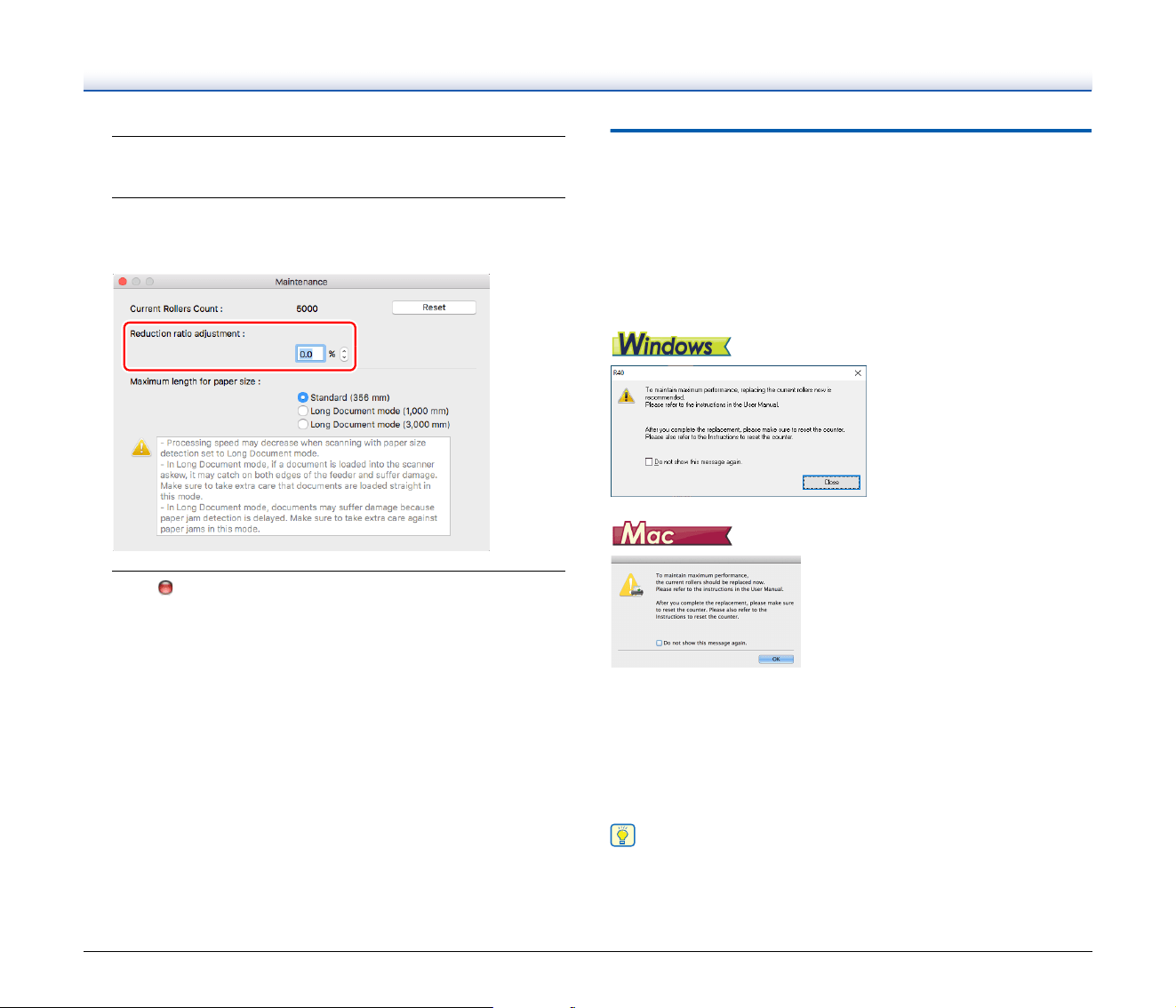
Open the scanner driver's Detail Settings screen. (See
p. 32)
2
Click to display the [Scanner Information] dialog box.
57
3
Click [Maintenance] to display the [Maintenance] dialog
box.
4
Change the value of [Reduction ratio adjustment].
The adjustment value can be set within the range from -3.0% to
3.0%.
5
Click to close the dialog box.
Replacing Consumable Parts
The two rollers (feed roller and retard roller) installed in the scanner
are consumable parts. The feed roller and retard roller wear with
scanning. If the feed roller and retard roller are worn, documents may
not feed correctly and paper jams and double feeds may occur.
When more than 200,000 pages have been fed (total number of pages
fed by the scanner), a message prompting you to replace the rollers is
displayed when the computer is started.
If this message begins to be displayed at startup, purchase an
exchange roller kit and replace the worn parts with the consumable
parts included in the kit (feed roller and retard roller). See p. 75 for
details about the exchange roller kit.
Furthermore, the counter in the scanner that records the number of
pages fed also needs to be reset when you replace the rollers. (See
p. 60)
Hint
Even before it becomes time to replace the rollers, scanned images
may become stretched in the vertical direction due to wear of the
rollers. If this happens, adjust the reduction ratio. (See p. 55)
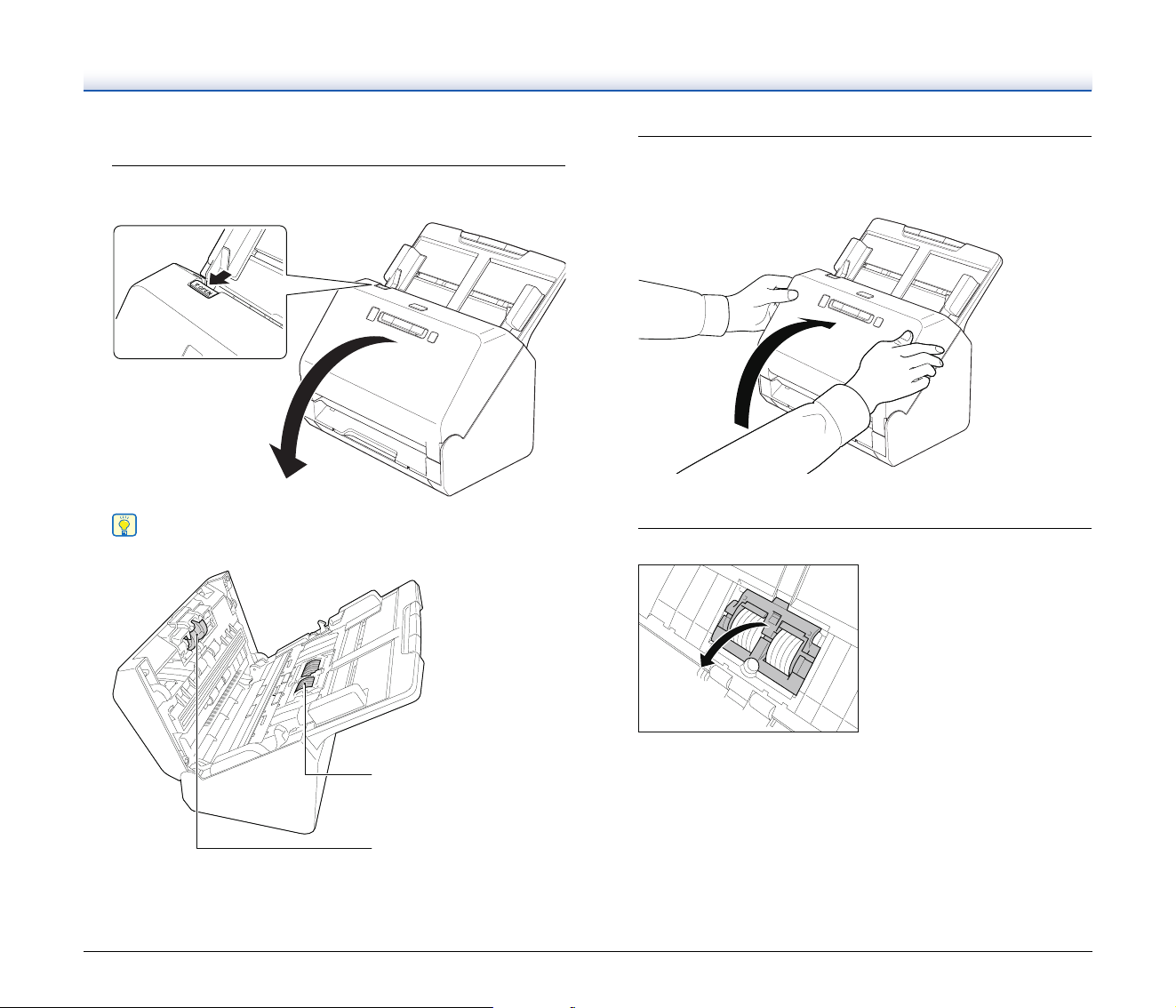
58
Opening and Closing the Front Unit
1
Pull the OPEN lever and pull open the front unit toward
you.
Hint
The location of each of the consumable parts is shown below.
2
When closing the front unit, make sure that it is
completely closed by gently pressing the left and right
until you hear a click.
Replacing the Feed Roller
1
Open the roller cover.
Retard roller (inside
the front unit)
Feed Roller
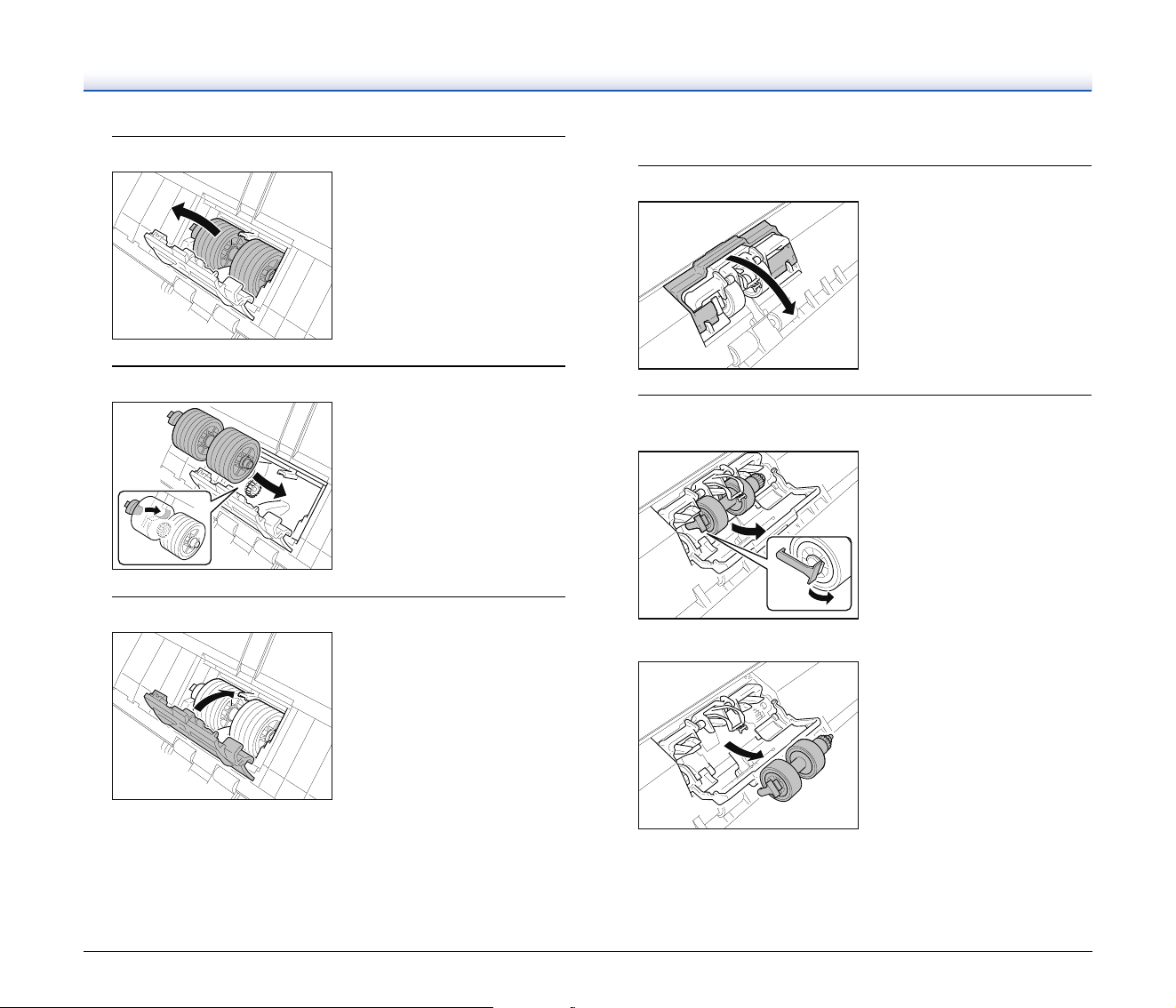
59
2
Remove the feed roller.
3
Install the new feed roller.
4
Close the roller cover.
Replacing the Retard Roller
1
Open the roller cover.
2
Pull the left lever that secures the retard roller to the
scanner, and remove the roller.
▼
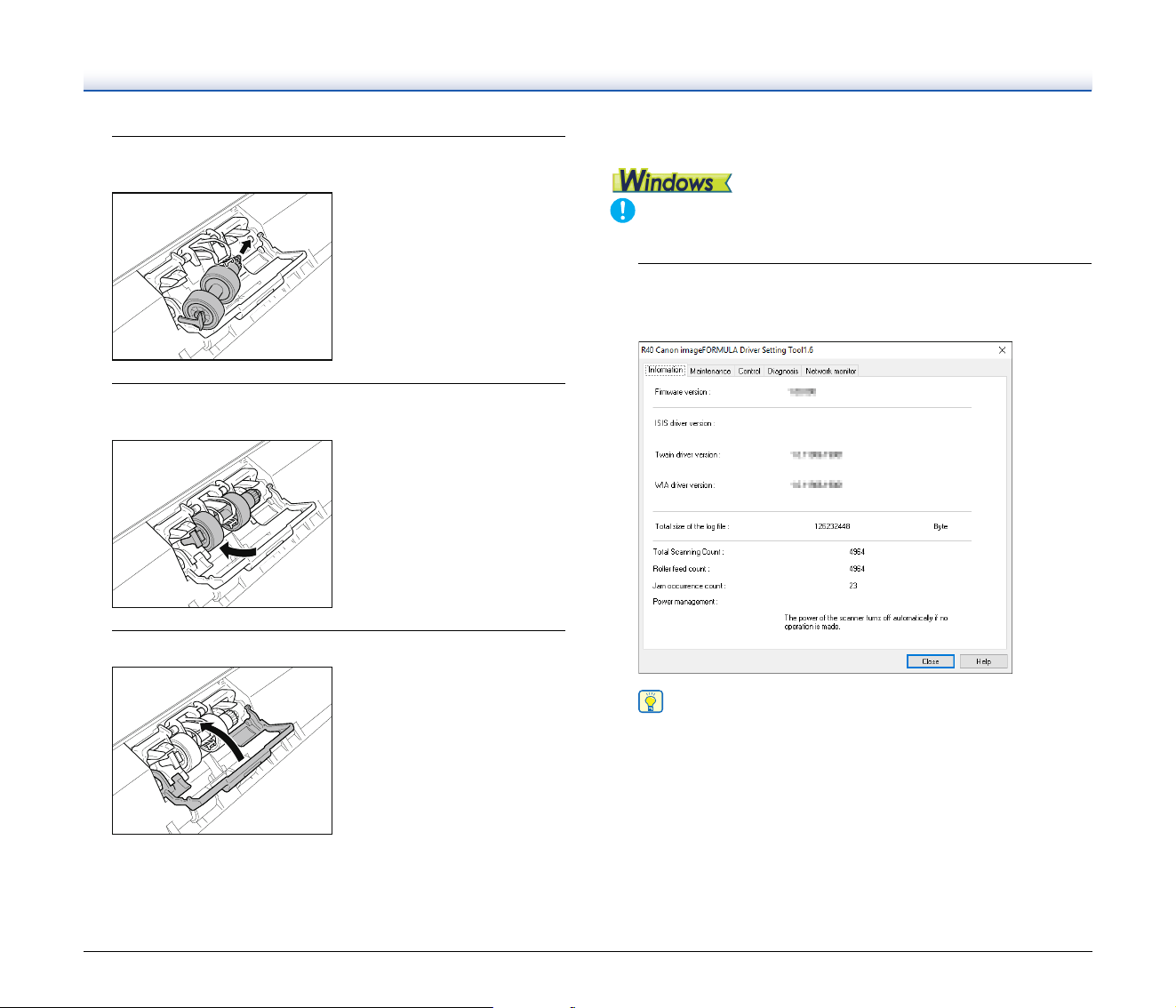
60
3
Install the new retard roller by inserting the right side
first.
4
Push the left side of the retard roller to secure it to the
scanner.
5
Close the roller cover.
Resetting the counter
IMPORTANT
Log on to Windows as an Administrator.
1
Click the Start button, and then click [Canon R40], and
[Canon imageFORMULA Driver Setting Tool].
imageFORMULA Driver Setting Tool starts.
Hint
In Windows 8.1, it is registered at the following location.
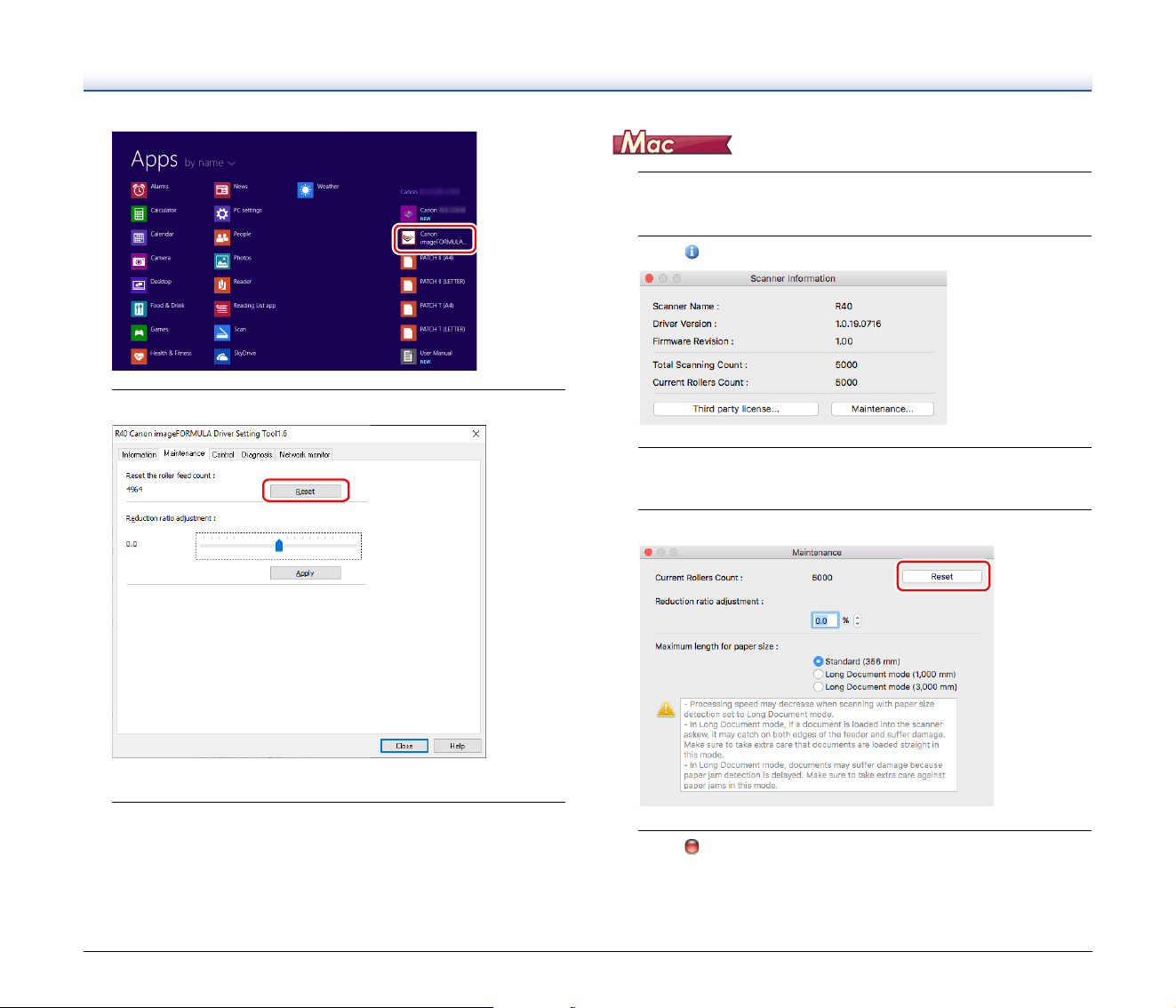
61
2
Click the [Maintenance] tab and then select [Reset].
The counter resets.
3
Click [Close] to close the imageFORMULA Driver Setting
Tool.
1
Opens the scanner driver's Detail Settings screen. (See
p. 32)
2
Click to display the [Scanner Information] dialog box.
3
Click [Maintenance] to display the [Maintenance] dialog
box.
4
Click [Reset].
5
Click to close the dialog box.
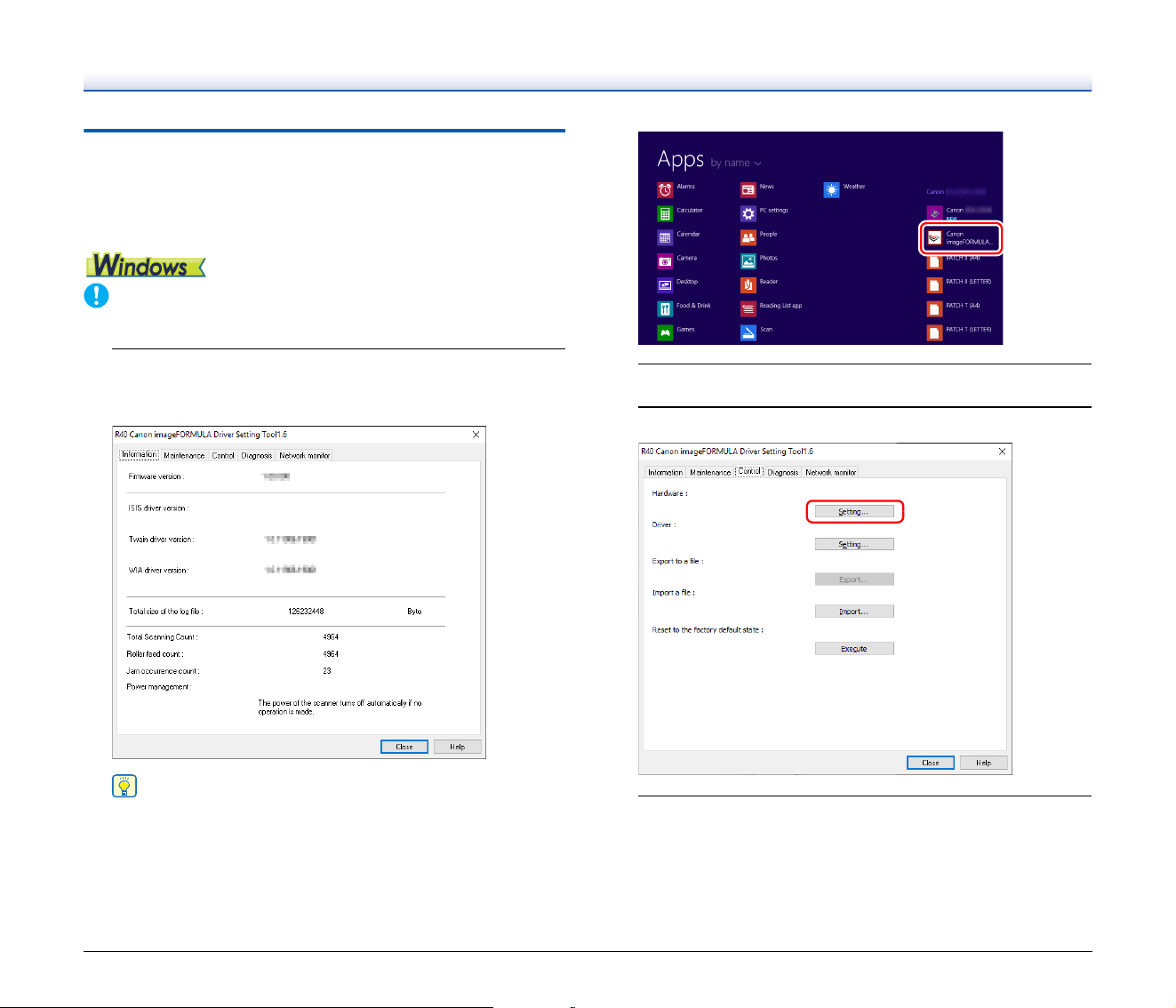
62
Auto Power Off Setting
The scanner automatically turns off if 4 hours elapse without scanning
or another operation being performed.
To disable this setting, follow the procedure below.
IMPORTANT
Log on to Windows as an Administrator.
1
Click the Start button, and then click [Canon R40], and
[Canon imageFORMULA Driver Setting Tool].
imageFORMULA Driver Setting Tool starts.
Hint
In Windows 8.1, it is registered at the following location.
2
Click the [Control] tab.
3
Click the [Setting] button of [Hardware].
4
Clear the [Turn off automatically after 4 hours] check box.
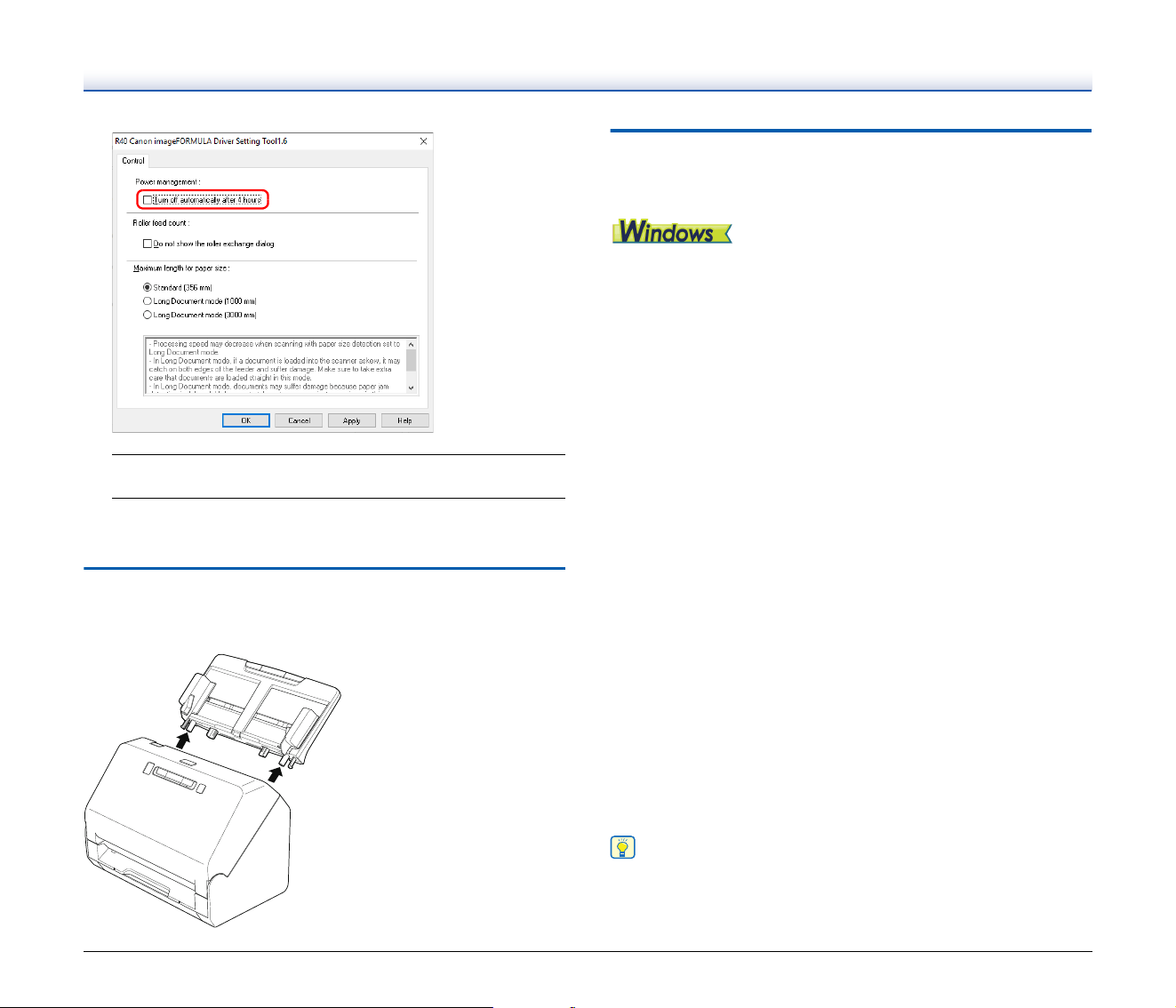
63
5
Click [OK].
6
Click [Close] to close the imageFORMULA Driver Setting
Tool.
Removing the Document Feed Tray
When you will store or otherwise not use the scanner for a long period
of time, remove the document feed tray.
About the Canon imageFORMULA
Driver Setting Tool
What is Canon imageFORMULA Driver
Setting Tool?
The Canon imageFORMULA Driver Setting Tool can be used to
check the information of the scanner, or to configure the maintenance
settings.
Canon imageFORMULA Driver Setting Tool consists of the following
tabs.
[Information] tab
You can check the firmware’s version information and scanner
information.
[Maintenance] tab
You can reset the counter of the roller, or carry out the shrinkage rate
control.
[Control] tab
You can carry out the control settings of hardware and drivers, and
perform the read or write of the control settings.
From the configuration of the hardware, you can set the automatic
power-off function.
[Diagnosis] tab
You can output or delete the log file.
Start-up of the Canon imageFORMULA
Driver Setting Tool
Click the Start button, then click [Canon R40] - [Canon
imageFORMULA Driver Setting Tool] in that order.
Canon imageFORMULA Driver Setting Tool will start.
Hint
In Windows 8.1, it is registered at the following location.
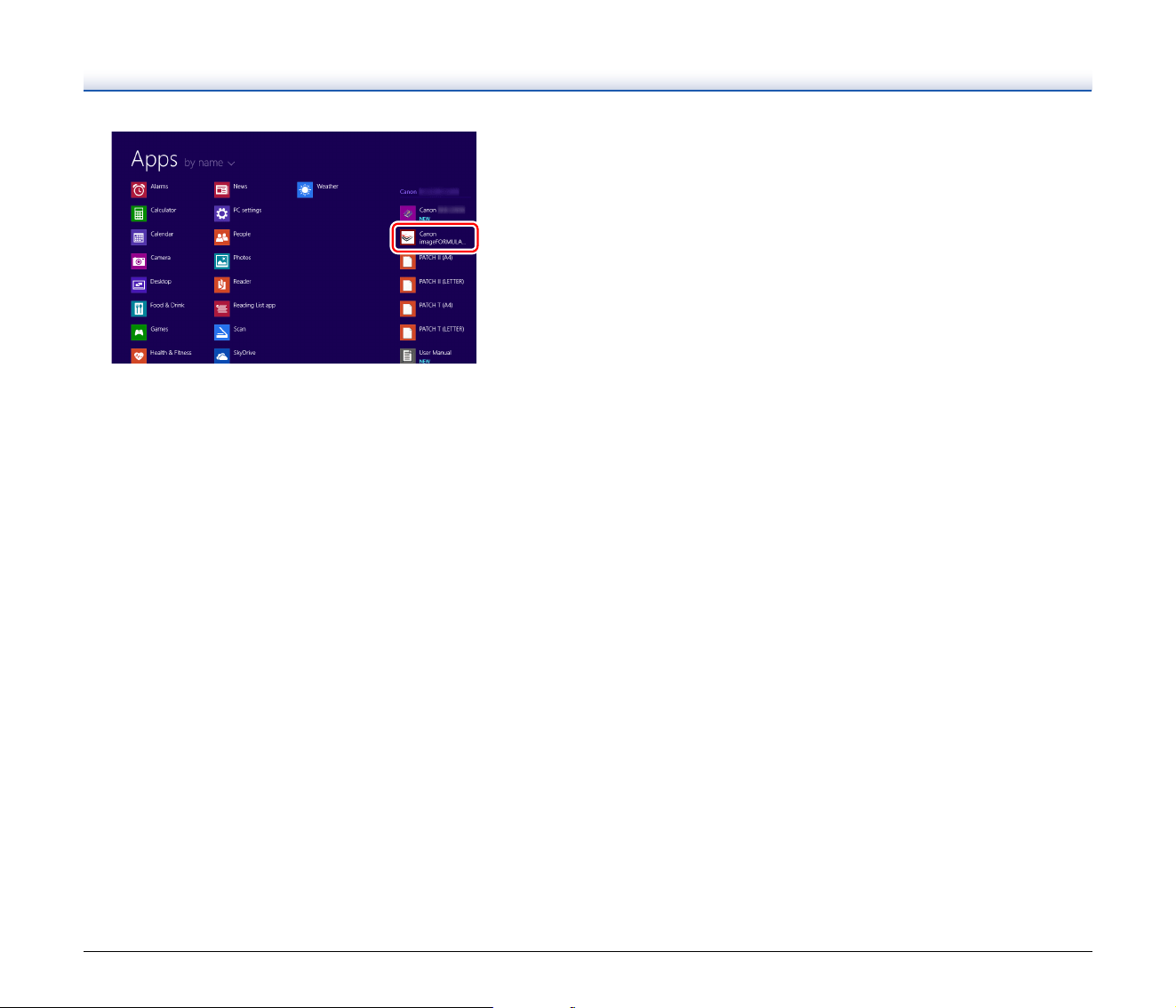
64

65
Troubleshooting
Common Problems and Solutions
This section provides recommended solutions to common problems.
If you have a problem that is not solved by the following, contact your
local authorized Canon dealer.
Problem 1 The scanner will not turn on.
Solutions Confirm that the AC adapter is plugged firmly into a
power outlet.
Problem 2 The scanner is not recognized.
Solutions (1) Confirm that the scanner is properly connected to
the computer with a USB cable.
(2) Confirm that the scanner is turned on. See the
previous problem (1) if the scanner does not turn
on.
(3) The computer’s USB interface may not support the
scanner. The scanner cannot be guaranteed to
work with all USB interfaces.
(4) Confirm that the supplied USB cable is used to
connect the scanner to the computer. The scanner
cannot be guaranteed to work with all available
USB cables.
(5) If the scanner is connected to the computer via a
USB hub, try removing the hub and connecting
directly to the computer.
Problem 3 Documents feed askew (scanned images are
slanted).
Solutions (1) Align the document guides to fit the documents as
closely as possible, and load the documents so that
they feed straightly.
(2) Open the document feed extension support and
place the document.
(3) Enable [Automatically straightens skewed] in the
scanner driver settings.
(4) If many pages have been scanned since roller
cleaning, clean the rollers. If documents still feed
askew, roller replacement or other maintenance
may be needed. See “Maintenance” on p. 53 for
roller replacement procedures.
Problem 4 Documents are not scanned according to the
settings configured in the scanner driver.
Solutions When you scan using [Select document] panel
registered with CaptureOnTouch, the CaptureOnTouch
settings have priority over the scanner driver settings.
Edit settings in the [Select document] panel, or create a
new [Select document] panel using the desired
scanning conditions.
Problem 5 If white lines or streaks appear in scanned images.
Solutions Clean both sides of the scanner glass, and the rollers.
If a sticky substance such as glue or correction fluid is
found, carefully wipe with just enough pressure to clean
the area where the lines appear. If the problem cannot
be solved by cleaning, the internal glass may be
scratched. Contact your local authorized Canon dealer.
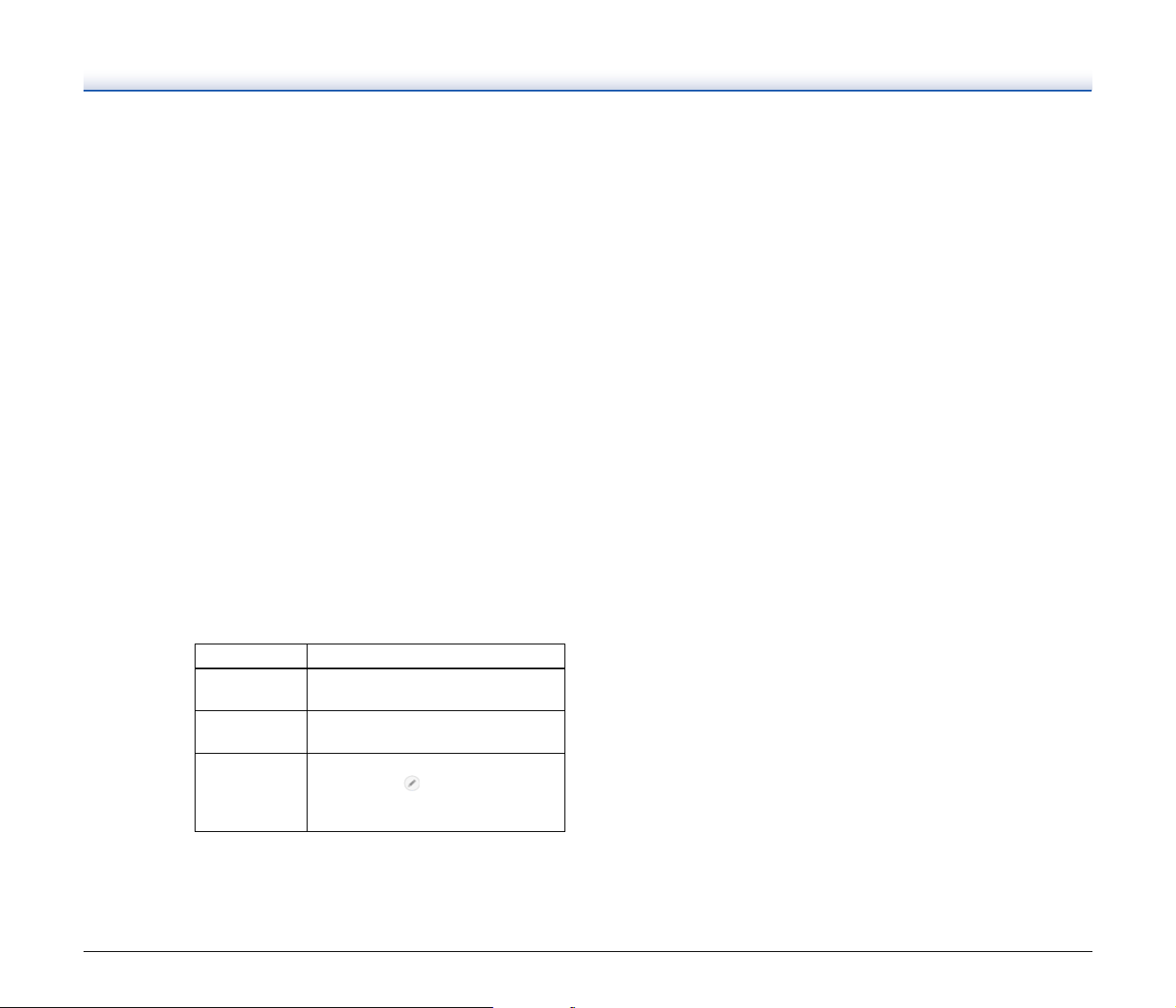
66
Problem 6 Pages are missing.
Solutions When the scanner driver’s [Scanning Side] setting is
[Skip Blank Page], documents with very little black may
be unintentionally skipped. Decrease the Set the
likelihood of skipping blank page value ("When you
want to delete the images of the blank pages in two-
sided documents" on p. 37) or set the [Scanning Side]
to another mode, such as simplex or duplex.
If pages are skipped due to the document double
feeding, see "Problem 7 Documents jam (or double-
feed)."
Problem 7 Documents jam (or double-feed).
Solutions (1) If the roller has been installed correctly, clean it if
necessary.
(2) Proper scanning may not be possible when
document pages stick together due to static
electricity. Fan the documents before you load
them.
(3) Manually feed the scanner one page at a time.
Problem 8 Multiple pages of scanned images cannot be saved
to a single file.
Solutions • Depending on the file format, multiple scanned image
pages cannot be saved as a single file with
CaptureOnTouch.
File type Processing for multiple pages
BMP, JPEG
Scanned images are always saved one
page per file.
PPTX
Multi-page images are always saved to
a single file.
TIFF, PDF
You can save multiple pages to a single
file by clicking and selecting [Save
all pages as one file] in the displayed
dialog box.
Problem 9 All of the placed documents have been scanned,
but the scanned image does not appear on the
application.
Solutions When [Panel-Feeding] or [Automatic Feeding] is
selected as the feeding method on the scanner driver's
Detail Settings screen, a scanning operation will not
continue after all of the documents are fed, as the
scanner awaits additional documents to be fed. You
can finish the operation and send the scanned images
to the application by pressing the Stop button on the
operating panel.
Problem 10 Memory becomes insufficient and scanning stops.
Solutions If you configure scanning conditions that use a large
amount of the computer’s memory, scanning may stop
because of insufficient memory. Although this depends
on the computer’s memory size, the possibility of
insufficient memory increases if any of the following
scanning conditions overlap.
• [Color Mode] is set to [24-bit Color]
• A large page size (e.g. Legal) is specified as the
[Page Size]. Alternatively, the page size is set to
[Scanner’s Maximum].
• A high resolution (600dpi etc.) is specified for [Dots
per inch].
If an error message appears due to insufficient memory
while scanning is in progress, exit the application,
change the scanning conditions (e.g. reduce the
resolution or page size) and then try scanning again. In
addition, the amount of memory used can be contained
by turning off [Moire Reduction] and [Prevent Bleed
Through/Remove Background] if they are set to on.
Problem 11 Double-feeding occurs when scanning a document
with multiple pages.
Solutions Press the scanner's DFR button to continue the scan,
or clear the [Detect by Ultrasonic] check box on the
scanner driver settings screen. (See p. 26)

67
Problem 12 The size detection and deskew functions fail.
Solutions When [Carrier sheet] is set to [Carrier sheet] in the
[Feeding] tab of the scanner driver settings screen and
you scan a document with black edges without
inserting it in a carrier sheet, the size detection and
deskew functions may fail. In such cases, disable the
size detection and deskew functions, or set [Carrier
sheet] to [None] in the [Feeding] tab.

68
Software Troubleshooting
This section describes troubleshooting problems and solutions for
operating the supplied software (CaptureOnTouch).
If scanning is too slow
(1) Close other running programs, if any.
(2) Scanning can be slowed down by memory shortage caused by
memory-resident applications such as anti-virus programs. Close
such memory-resident programs if necessary to free up memory
space.
(3) When insufficient hard disk space is available, the scanner may
be unable to create the necessary temporary files for scanned
data. Delete unneeded data on the hard disk to free up more
space.
(4) Scanning is slow if the computer’s USB port is not Hi-Speed USB
2.0 compliant.
(5) If using a common USB cable that is not Hi-Speed USB 2.0
compliant, replace the cable with the supplied compliant cable.
(6) When the scanner is connected to the computer via a USB hub
that is not Hi-Speed USB 2.0 compliant, remove the hub and
connect the scanner directly to the computer.
If scanned image files cannot be opened in an application
(1) Scanned images saved as multi-page TIFF files can be opened
only by programs that support this file format.
(2) Images saved as compressed TIFF files (single- as well as multi-
page) can only be opened by programs that support the
compressed format. This can occur with programs that are not
compatible with CaptureOnTouch. In this case, select “None” as
the image file compression format before scanning.
There is a display glitch on the UI screen of CaptureOnTouch.
Depending on the computer that you are using, a display glich may
occur on the UI screen when there are too many Scan mode panels,
Select output panels, or One Touch buttons. Delete any panels and
buttons that you will not use.
69
Useful tips
Here are some useful tips for scanning documents.
Where are scanned images saved? Can the save destination be
changed?
All destination locations can be changed to other folders.
Both Standard Scanning and One Touch Scan save the output to the
destination set in the [Select output] panel.
How are the scan settings configured?
By clicking the Edit button ([ ]) in the [Select document] panel, you
can edit the scan settings when the [Select document edit screen]
opens.
How do I save multiple pages in one file, or save one file per
page?
When scanned images are saved in BMP (PICT) or JPEG format,
each image is always saved in a separate file.
When scanned images are saved in PDF or TIFF format, you can
specify multi- or single-page files. See also “Problem 8” in “Common
Problems and Solutions”.
Can I copy or back up scanner setting configurations?
The setting configurations can be backed up and restored using [Back
Up/Restore] on the [Maintenance] tab on the [Settings] dialog box.
The setting configurations can be backed up and restored using [Back
Up/Restore] on the [Basic settings] tab on the [Settings] dialog box.
What rules apply to scanned image file names?
For both Standard Scanning and One Touch Scan, the file names of
scanned images are set based on the settings in the [Select output]
panel. This screen opens when you click the Edit button ([ ]) in the
[Select output] panel.
Click the [Detail Settings] button on this screen. You can set the file
names of scanned images by setting all or some of the three items
shown below.
A sample file name is displayed as the [File name] in the [File name
settings] dialog box.
How do I scan cards?
Set a card in landscape orientation in the scanner. Specify the same
size as the card (or [Auto]), then scan. For details, see p. 21.
How do I print scanned data?
• For both Standard Scanning and One Touch Scan, select [Print] in
the [Select output] panel.
• To use this function, you need to install a plug-in.
• The plug-in can be installed by selecting its checkbox when installing
CaptureOnTouch.
I want to save to other folders
• In CaptureOnTouch, destinations other than [Save to folder] are
provided as a plug-in.
• By installing the plug-in, the scanned image can be printed, attached
in an e-mail, or shared using various cloud services.
• The plug-in can be installed by selecting its checkbox when installing
CaptureOnTouch.
• The available output destinations vary depending on the installed
plug-in.
How can I attach scanned data to an e-mail (or send it as e-mail)?
• For both Standard Scanning and One Touch Scan, select [Attach to
E-mail] in the [Select output] panel.
Setting Description
File name
Any specified text string to be included in the file
name.
Add date and
time
Appends the date and time to file names. Select
the date format from the list box. YYYY = year,
MM = month, and DD = day of month. The time
is appended after the date.
Add counter to
file name
Append serial numbers in the order of scanned
image saving. Specify the number of digits and
starting number.

70
• To use this function, you need to install a plug-in.
• The plug-in can be installed by selecting its checkbox when installing
CaptureOnTouch.
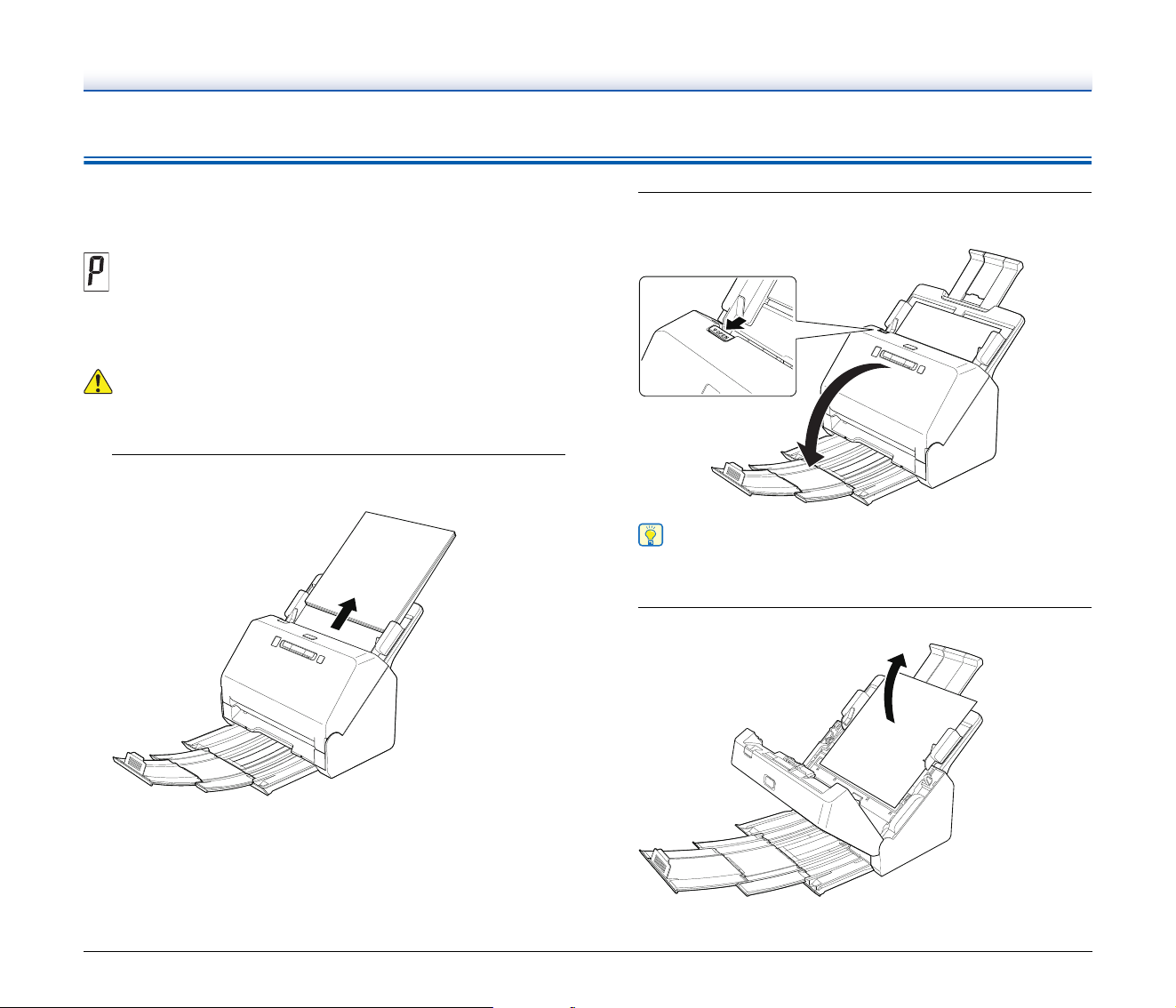
71
Clearing a Paper Jam
When paper jams are detected during scanning, the following error
codes are displayed in the scanner’s display panel and scanning is
interrupted.
When a paper jam or double feed occurs during scanning, use the
following procedures to clear them.
CAUTION
Be careful when removing jammed paper. take care not to cut your
hand on the edges of the paper.
1
Remove any documents that have been left in the feed
Tray.
2
Pull the OPEN lever and pull open the front unit toward
you.
Hint
The “C” error code appears in the operating panel when the front
unit is open.
3
Remove the jammed document.
Paper jam error code
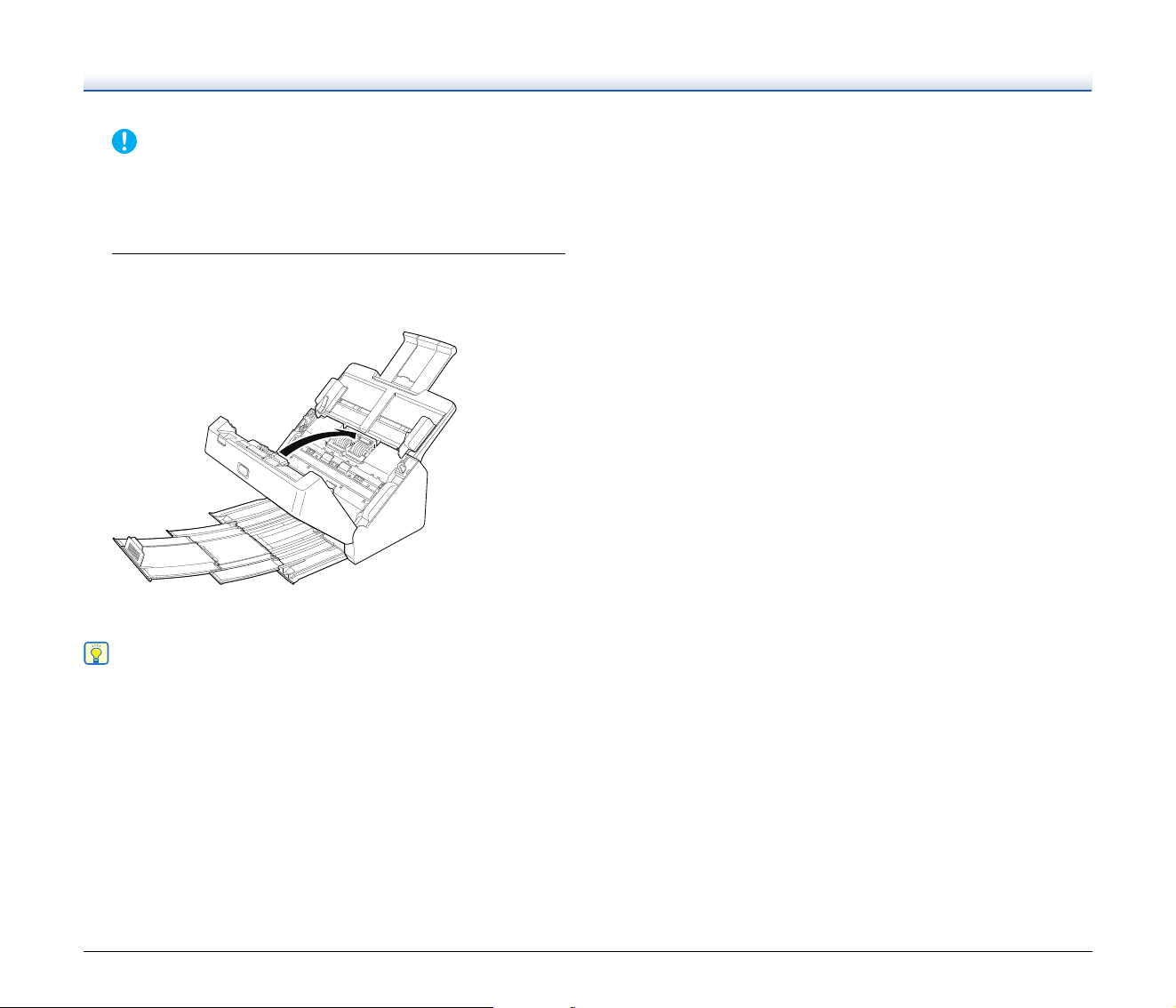
72
IMPORTANT
Make sure to pull the document out carefully, without applying too
much force. If the jammed paper tears while you are pulling it out,
make sure to remove any remaining pieces from inside the
scanner.
4
Close the front unit by gently pushing it up on both sides
until it clicks into place. Make sure that the front unit is
completely closed by pushing until you hear a click.
After removing the jammed paper, check to see if the last page
was scanned correctly, and then continue scanning.
Hint
When the [Rapid recovery system] check box is enabled in the
scanner driver settings screen, you can resume a scanning operation
even if it is interrupted by a paper jam by removing the document and
resuming from the document that was being fed when the interruption
occurred.
As the image of the document that was being fed at the time of the
interruption may not be saved in such cases, be sure to verify the last
scanned image before resuming the operation.
73
Uninstalling the Software
If the TWAIN driver or CaptureOnTouch is not operating normally,
follow the procedure below to uninstall them. Then, re-install the
software. See Setup Guide.
IMPORTANT
Log on to Windows as an Administrator.
1
From the Windows task bar, click the [Start] button and
then [Control Panel].
2
Click [Uninstall a program].
The [Uninstall or change a program] dialog box appears.
3
From the Programs list, select the software you want to
remove and then click [Remove].
The delete confirmation screen appears.
4
Click [Yes].
Uninstallation of the software is now complete.
No uninstaller is provided for OS X drivers. To uninstall, use Finder
to delete the following files.
/Library/Image Capture/TWAIN Data Sources/R40
/Applications/CaptureOnTouch

74
Appendix
Specifications
Main Unit
Type Desktop sheetfed scanner
Scanning Document Size
Plain Paper
Size: Width: 50.8mm to 216 mm (2" to 8.5")
Length: 54 mm to 356 mm (2.1" to 14") (You can
scan documents up to 3,000 mm (118.1") long by
setting the scanner to the Long Document mode.)
Paper weight: 27 to 209 g/m
2
(7 to 56 lb bond) 0.04 mm to 0.25
mm (0.00157" to 0.00984")
Loading capacity:
A4 size or smaller: 60 sheets (80g/m
2
(22 lb
bond))
Larger than A4 size: 40 sheets (80g/m
2
(22 lb
bond))
Make sure stacks do not exceed 6 mm in height for
either of the above.
Business Card
Size: 50 mm x 85 mm (1.97" x 3.35") or larger
Paper thickness:
255 g/m
2
(68 lb bond) 0.3 mm (0.0118") or smaller
Card
Size: 54 mm x 86 mm (2.12" x 3.37") (ISO standard)
Card thickness: 1.4 mm (0.055") or smaller
Orientation: Horizontal feeding only
Embossed cards can be scanned.
Loading capacity:
3 cards (non-embossed), 1 card (embossed)
Scanning Sensor Contact image sensor
Light source LED
Scanning Side Simplex/duplex
Scanning modes Black and White, Error Diffusion, 256-level
Grayscale, Advanced Text Enhancement,
Advanced Text Enhancement II, 24-bit Color
Scanning resolution (Primary Scan Lines x Secondary Scan Lines)
100 x 100dpi/150 x 150dpi/200 x 200dpi/
240×240dpi/300 x 300dpi/400 x 400dpi/600 x
600dpi
Scanning Speed (Conditions: Core i7 3.4GHz CPU, 16 GB memory,
A4 document size)
Grayscale Simplex 200dpi 40 pages/min
300dpi 40 pages/min
Duplex 200dpi 80 images/min
300dpi 80 images/min
24-bit Color Simplex 200dpi 30 pages/min
300dpi 20 pages/min
Duplex 200dpi 60 images/min
300dpi 40 images/min
Interface Hi-Speed USB 2.0
Other functions Folio scanning, double feed detection ignore
External Dimensions
291 mm (11.46")(W) x 250 mm (9.84") (D) x 245
mm (9.65") (H) (With the feed tray attached and
the document eject tray pushed in)
291 mm (11.46")(W) x 600 mm (23.62")(D) x
382
mm (15.04")(H) (With the feed tray attached and
the document eject tray pulled out)
Weight (without AC adapter)
Approximately 2.8 kg (6.17 lb)
Power Supply (using AC adapter)
DC24V 0.7A
Power Consumption
Scanning: Maximum 22W or less
In the Sleep mode: Maximum 1.7W or less
With power switch OFF: Maximum 0.5W or less
Noise Not more than 48 dB
Operating Environment
Temperature: 10°C to 32.5°C (50°F to 90.5°F)
Humidity: 20% to 80% RH
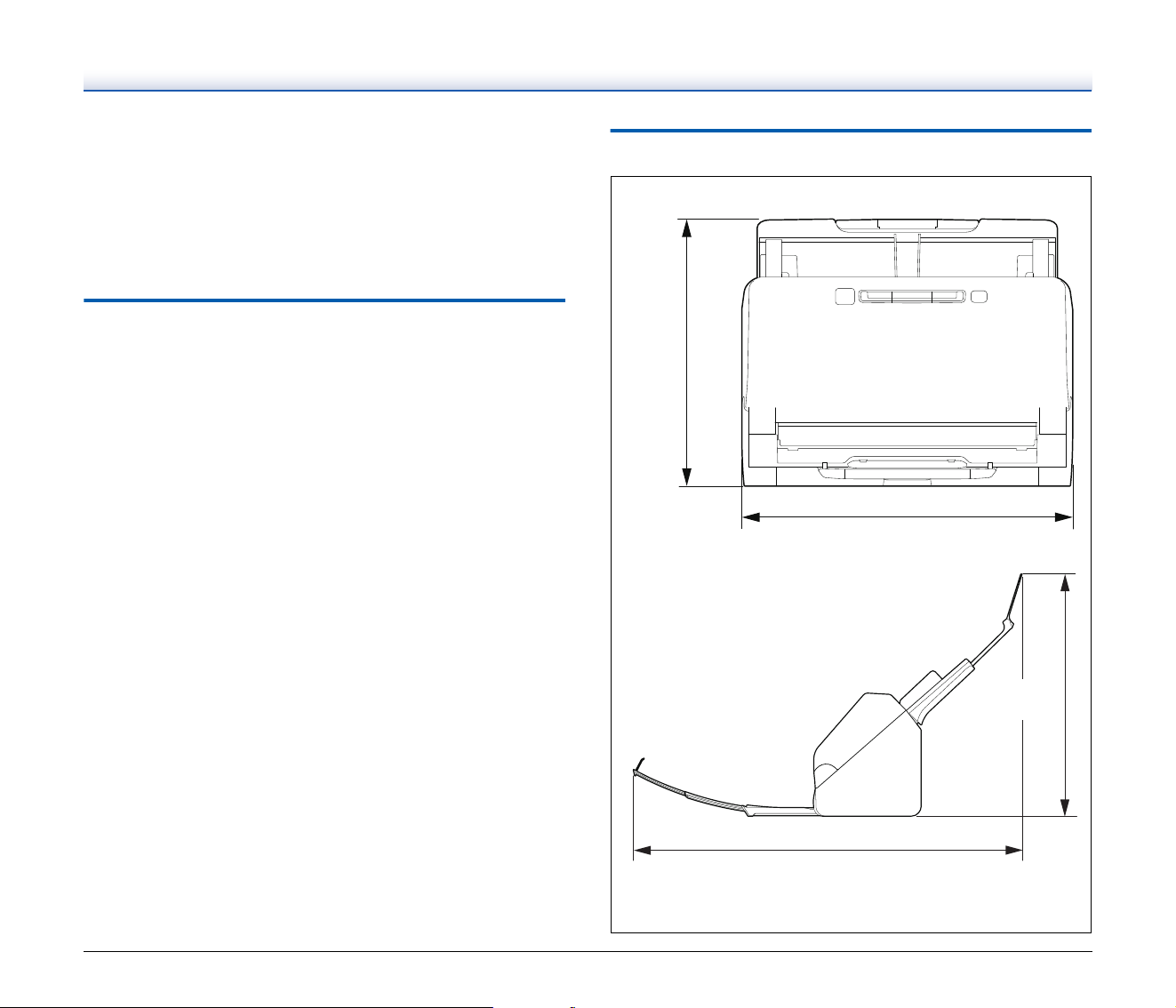
75
AC Adapter (100 to 240 V type)
Model Number MG1-5039 (24V)
Input AC100 to 240V, 50/60 Hz, 1.06 to 0.6 A
Output DC24V 2.0A
Weight Approximately 0.3kg (0.66 lb)
Specifications are subject to change without notice due to product
improvements.
Replacement parts
Exchange roller kit (product code: 0697C003)
Kit to replace the rollers (feed roller, retard roller).
• For the replacement procedure, see “Replacing Consumable Parts”
on p. 57.
• Contact your local authorized Canon dealer or service
representative for detailed information about the replacement parts.
Dimensions
245 mm
(9.65")
291 mm (11.46")
600 mm (23.62")
382 mm
(15.04")

76
Index
A
Adjusting the Reduction Ratio .................................................... 55
Advanced Mode(Mac)
................................................................ 32
Auto Power Off
........................................................................... 62
B
Batch separation ..................................................................43, 50
C
CaptureOnTouch ........................................................................ 29
Card
Loading method
................................................................... 21
Care and cleaning
...................................................................... 53
Carrier sheet
.............................................................................. 22
Counter
...................................................................................... 60
Custom paper size
..................................................................... 36
D
DFR button ................................................................................. 17
Document
................................................................................... 18
Card
..................................................................................... 21
Loading method
................................................................... 20
Double Feed Detection
.............................................................. 26
F
Feed roller ............................................................................57, 58
Front unit
.................................................................................... 58
J
Job No. display ........................................................................... 17
Job Select button
....................................................................... 17
L
Long Document Mode ................................................................ 23
M
Multi-stream setting .................................................................... 43
O
Operating Panel ......................................................................... 17
P
Paper jam ................................................................................... 71
Power supply
................................................................................ 9
R
Reduction ratio adjustment ......................................................... 55
Resetting the counter
................................................................. 60
Retard roller
......................................................................... 57, 59
Roller
.......................................................................................... 54
Cleaning
............................................................................... 53
Replace
................................................................................ 57
S
Scan area ................................................................................... 36
Scanner driver
............................................................................ 30
Basic settings
....................................................................... 33
Settings suitable for intended use
........................................ 37
Scanning glass
........................................................................... 54
Cleaning
............................................................................... 53
Start Button
................................................................................ 17
Stop Button
................................................................................. 17
U
Uninstall ...................................................................................... 73

CANON ELECTRONICS INC.
3-5-10 SHIBAKOEN, MINATO-KU, TOKYO 105-0011, JAPAN
CANON U.S.A. INC.
ONE CANON PARK, MELVILLE, NY 11747, U.S.A.
CANON CANADA INC.
8000 Mississauga Road Brampton, Ontario L6Y 5Z7, CANADA
CANON EUROPA N.V.
BOVENKERKERWEG 59, 1185 XB AMSTELVEEN, THE NETHERLANDS
CANON AUSTRALIA PTY. LTD.
BUILDING A, THE PARK ESTATE, 5 TALAVERA ROAD, MACQUARIE PARK, NSW 2113, AUSTRALIA
CANON SINGAPORE PTE. LTD.
1 FUSIONOPOLIS PLACE, #15-10, GALAXIS, SINGAPORE 138522
CANON KOREA BUSINESS SOLUTIONS INC.
BS TOWER, 607 TEHERAN-RO, GANGNAM-GU, SEOUL, KOREA
CANON INDIA PVT. LTD
7TH FLOOR, TOWER B DLF CYBER TERRACES DLF PHASE III GURGAON - 122002 HARYANA, INDIA
PUB. 6T3-0068-E1.00 © CANON ELECTRONICS INC. 2019