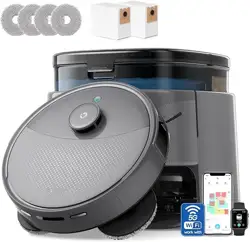
Self-cleaning Smart Vacuum Cleaner with Integrated
Sweeping and Mopping Functions
Lefant M3 User Manual
1
Please read this instruction manual carefully before using the product and keep it in a safe place for future reference.
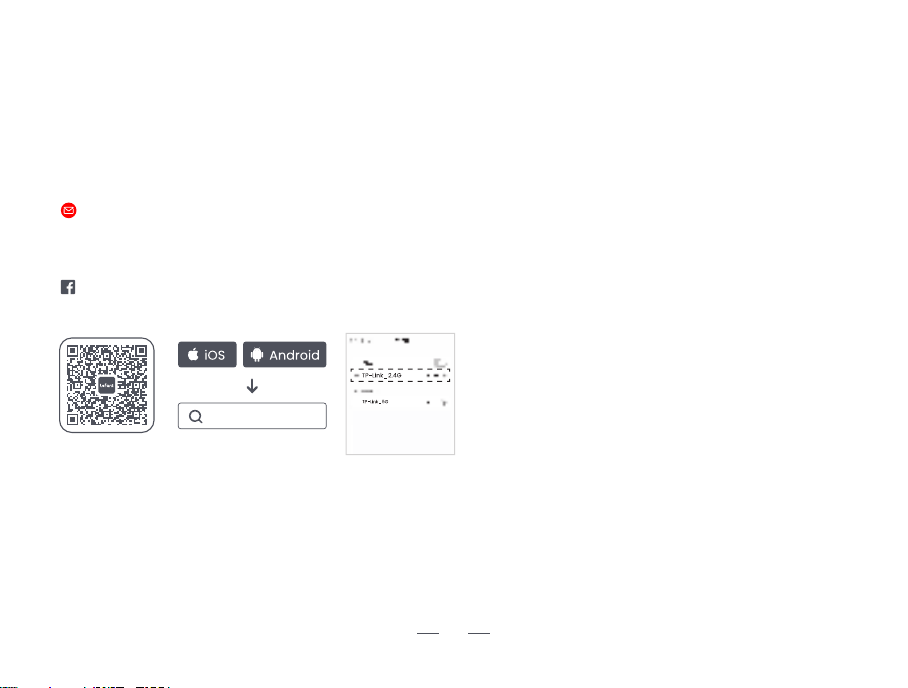
You can scan the QR code or download the "Lefant" app from the app store to connect to the robot and unlock more features.
Thank you for choosing Lefant.
This manual will guide you to fully understand and quickly install the robotic vacuum cleaner (hereinafter referred to as "the
robot"). It will also provide detailed information on usage and maintenance to help you have the best product experience.
If you encounter situations not properly addressed in this user manual, please contact our after - sales service. We'll solve your
specific problems. For more information, please visit the official website of Lefant ROBOTICS: www.lefant.com, or send an email
to the following email address:
The product shown in the illustrations may differ from the actual appearance. Please refer to the physical product for details.
Kind Reminder:
・After the installation of the robot, please follow the instructions on the mobile app to complete registration, logging in,
and network configuration.
・Before configuring the network, please ensure that your phone and home network are connected.
・The WiFi wireless connection of this product supports 2.4GHz, 2.4GHz/5GHz and 5GHz frequency band networks.
Lefant
Other countries: [email protected]
Facebook: @LEFANTOFFICIAL

Safety Information
Precautions
• This product is only used for floor cleaning in home environments. Do not use it outdoors (such as on an open balcony), on
non-floor surfaces (such as sofas), or in commercial or industrial environments.
• Please clean or maintain the self-cleaning dust collection charging base station (hereinafter referred to as the "base station")
and the robot when the base station is powered off and the robot is turned off.
• Do not use the robot and the base station as toys, or ride or stand on them. When the robot or the base station is in operation,
please supervise children and pets and keep them as far away as possible.
• Do not use this product in a room where infants or young children are sleeping.
• Do not allow children, or people with physical, mental or sensory impairments to use or operate this product.
• If using it in a suspended environment (such as a duplex floor), be sure to use a sturdy physical barrier to prevent personal
injury or property damage caused by the accidental fall of the robot.
• Do not let the limbs or other body parts of people or pets get close to the rotating position of the robot's brush head or put
them into the gaps of the machine to avoid injury.
• Before use, please clean up scattered wires and other sundries on the floor, and move away objects that are easy to tip over,
fragile, valuable, and potentially dangerous to avoid being entangled, stuck, dragged, or knocked over by the robot, which may
cause personal injury or property damage.
• Please ensure that there is no standing water on the floor where the robot operates, otherwise it may cause the robot to get
water damaged.
• Do not use it to clean any burning objects (such as unextinguished cigarette butts, matches, ashes, etc.) or any flammable and
explosive items (such as lighters, gasoline, toner and powder used in printers or copiers, etc.).
• Before use, please ensure that components such as the dust bin, filter, dust bag, side brush, mop, main brush, and main brush
cover are installed in place.
• Do not use the product without a dust bag.
• Be careful of scalding by hot water. Do not touch the water outlet of the base station.
• Do not use any liquid to douse the robot and the base station.
• Do not use it to clean long-haired carpets (some dark-colored carpets may not be cleaned properly).
• If the product is damaged in any way, do not use it and contact the official after-sales service in a timely manner for a solution.
2
• Do not store or use it in an environment with a temperature
higher than 40°C, lower than 0°C, or where there is any liquid
or viscous substance on the floor.
• Do not use any disinfectant other than the official cleaning
solution, otherwise it may cause serious damage to the robot
and the base station.
• Do not place any objects on the robot, the base station, or
at the dust collection port of the base station, and do not
cover or block them with any items (including dust covers).
• Please avoid having hard or sharp objects (such as
renovation waste, glass, nails, etc.) on the floor where the
robot operates, otherwise it may scratch the robot and the
floor.
• Be sure to place the base station on a horizontal hard floor
indoors, and keep the robot, the base station, and the power
cord away from open flames, heat sources (such as
radiators), and areas that are wet, have water, are narrow, or
may leave the robot suspended.
• Please put away fragile items and sundries placed on the
floor (such as vases, mirrors, plastic bags, etc.) to avoid
damage to valuable items in the home when the robot is
blocked during operation or slightly touched.
• Do not place low objects such as floor mats and shoes at
positions like the stairway that may cause the robot to fall,
otherwise it may interfere with the normal operation of the
robot's anti-fall sensor and cause the robot to fall.
• Please use this product in accordance with the instructions
in the manual. Any losses and damages caused by improper
use, or any indirect losses caused by the use, misuse, or
inability to use this product shall be borne by the user.
SAVE THESE INSTRUCTIONS
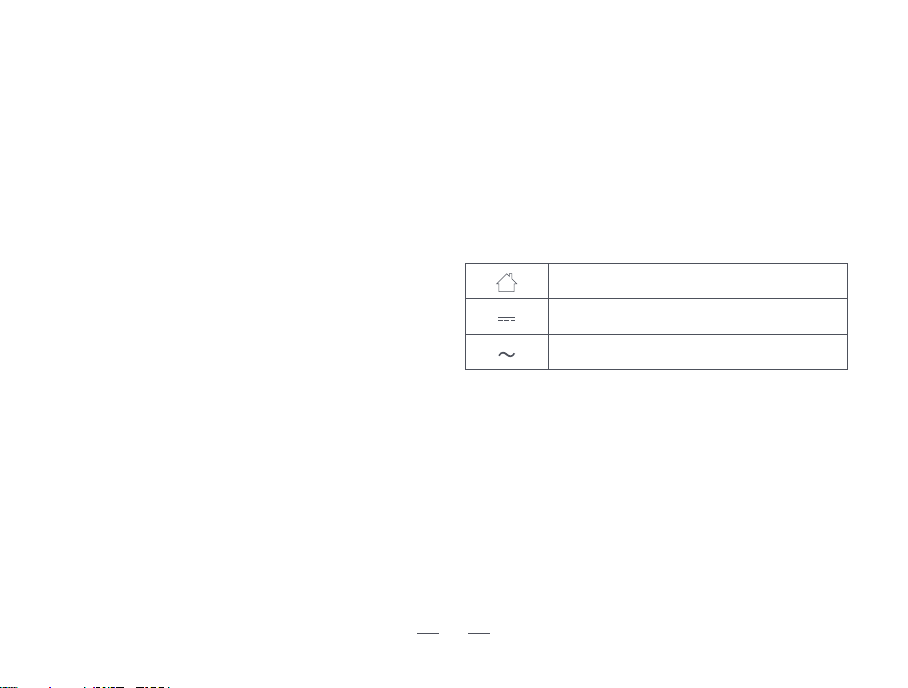
For indoor use only
Direct current
Alternating current
To satisfy RF exposure requirements, a separation
distance of 20 cm or more should be maintained
between this device and persons during device
operation.
To ensure compliance, operations at closer than this
distance is not recommended. The antenna used for this
transmitter must not be co-located in conjunction with
any other antenna or transmitter.
3

This marking indicates that this product should not be disposed of with other household waste throughout the EU.
To prevent possible harm to the environment or human health from uncontrolled waste disposal, recycle it
responsibly to promote the sustainable reuse of material resources. To recycle your used device, please use the
return and collection systems or contact the retailer where the product was purchased. They can safely recycle
this product.
Correct Disposal of this Product
Federal Communications Commission (FCC) Interference Statement
This device complies with Part 15 of the FCC Rules.
Operation is subject to the following two conditions:
(1) This device may not cause harmful interference,
and (2) this device must accept any interference received,
including interference that may cause undesired operation.
FCC Caution:
Any changes or modifications not expressly approved by the
party responsible for compliance could void the user 5s
authority to operate this equipment.
RF exposure warning
This equipment complies with FCC radiation exposure limits
set forth for an uncontrolled environment.This equipment
must be installed and operated in accordance with provided
instructions and the antenna(s) used for this transmitter
must be installed antenna(s) used for this transmitter must
be installed to provide a separation distance of at least 20
cm from all persons and must not be collocated or operating
in conjunction with any other antenna or transmitter.
This equipment has been tested and found to comply with
the limits for a Class B digital device, pursuant to Part 15 of the
FCC Rules.
These limits are designed to provide reasonable protection
against harmful interference in a residential installation. This
equipment generate, uses and can radiate radio frequency
energy and, if not installed and used in accordance with the
instructions, may cause harmful interference to radio
communications.
However, there is no guarantee that interference will not
occur in a particular installation. If this equipment does cause
harmful interference to radio or television reception, which
can be determined by turning the equipment off and on, the
user is encouraged to try to correct the interference by one of
the following measures:
• Reorient or relocate the receiving antenna.
• Increase the separation between the equipment and
receiver.
• Connect the equipment into an outlet on a circuit different
from that to which the receiver is connected.
• Consult the dealer or an experienced radio/TV technician
for help.
4

- English:
This device contains licence-exempt transmitter(s)/receiver(s) that comply with Innovation, Science and Economic
Development Canada’s licence-exempt RSS(s). Operation is subject to the following two conditions:
(1) This device may not cause interference.
(2) This device must accept any interference, including interference that may cause undesired operation of the device.
Any changes or modifications not expressly approved by the party responsible for compliance could void the user's authority
to operate the equipment.
RF exposure statement:
The equipment complies with IC Radiation exposure limit set forth for uncontrolled environment. This equipment should be
installed and operated with minimum distance 20cm between the radiator and your body.
- French:
Cet appareil contient des émetteurs / récepteurs exemptés de licence conformes aux RSS (RSS) d'Innovation, Sciences et
Développement économique Canada. Le fonctionnement est soumis aux deux conditions suivantes:
(1) Cet appareil ne doit pas causer d'interférences.
(2) Cet appareil doit accepter toutes les interférences, y compris celles susceptibles de provoquer un fonctionnement
indésirable de l'appareil.
Tout changement ou modification non expressément approuvé par la partie responsable de la conformité pourrait annuler
l'autorité de l'utilisateur à utiliser l'équipement.
Déclaration d'exposition RF:
L'équipement est conforme à la limite d'exposition aux radiations de la IC établie pour un environnement non contrôlé. Cet
équipement doit être installé et utilisé avec une distance minimale de 20cm entre le radiateur et votre corps.
IC Caution:
5

Battery and Charging
6
• This product is only compatible with the charging base station specially provided by the manufacturer.
• Be sure to confirm and use a qualified power source with reliable grounding. Otherwise, there is a risk of electric shock and
other hazards.
• If there is no power source with reliable grounding, please have a professional electrician rectify it before using this product.
• Do not disassemble, repair, or modify the battery and the charging base station without authorization.
• If the charging base station is not going to be used for an extended period, unplug the power plug.
• Do not dispose of used batteries casually. They should be handed over to a professional recycling institution for proper
disposal.
• Do not use any third-party batteries, chargers, charging cables, or charging docks, etc.
• Do not wipe or clean the charging pins of the charging base station with wet wipes, damp cloths, or wet hands.
• Use this product in an environment where the power supply voltage matches the voltage marked on the base station.
• When transporting the product, ensure it is powered off and turned off, and it is recommended to use the original packaging
box for packaging.
• Do not use a power cord that is not included with the product. Otherwise, it may cause smoking, overheating, or even a fire.
• If the usage area is prone to thunderstorms or the power supply voltage is unstable, etc., it is advisable to take appropriate
protective measures.
• Using this product with any type of power converter is prohibited. Otherwise, the warranty will become invalid immediately,
and there may be potential dangers.
• Do not use a damaged power cord. If the power cord is damaged (including breakage, fracture, etc.), stop using it
immediately and contact the customer service promptly.
• If the robot will not be used for a long time, fully charge it, turn it off, and store it in a cool, dry place. Charge it at least once
every month to prevent the battery from being over-discharged.
Product Introduction
A
7
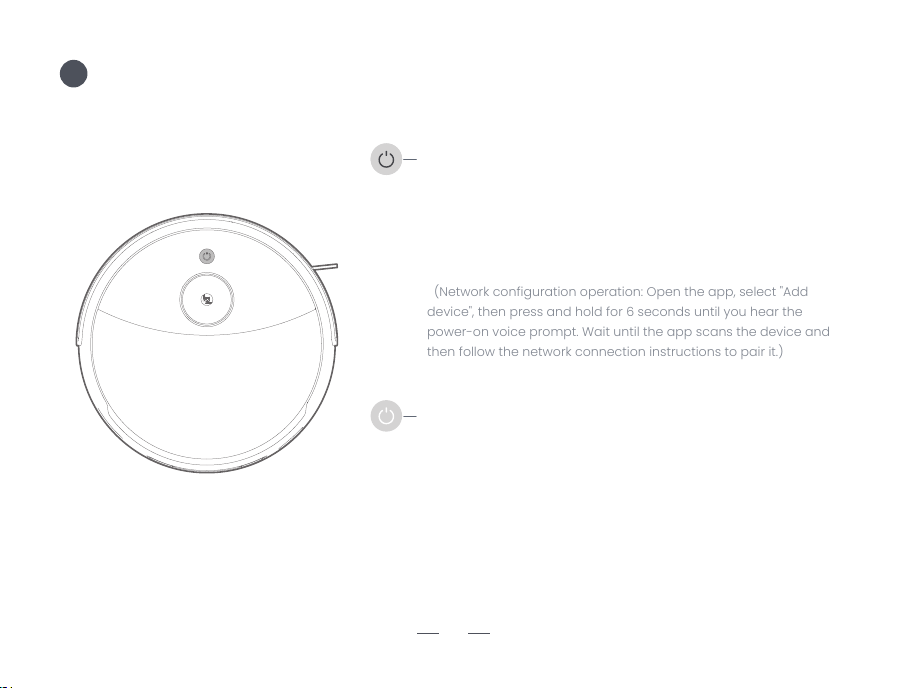
1. Press and hold for 3 seconds: Power on
(The robot will automatically power on when charging.)
2. Single click: Start or pause
3. Double click: Automatically return for charging
4. Press and hold for 6 seconds: Enter the network configuration state
5. Press and hold for 12 seconds: Power off
Button Operation
Explanation of Button Light Effects
1. Purple light breathing: Charging (Battery level < 50%)
2. Blue light breathing: Charging (Battery level> 50%)
3. Blue light flashing: The robot enters the network configuration state
4. Red light staying on: The robot automatically returns for charging
due to low battery level
(Network configuration operation: Open the app, select "Add
device", then press and hold for 6 seconds until you hear the
power-on voice prompt. Wait until the app scans the device and
then follow the network connection instructions to pair it.)
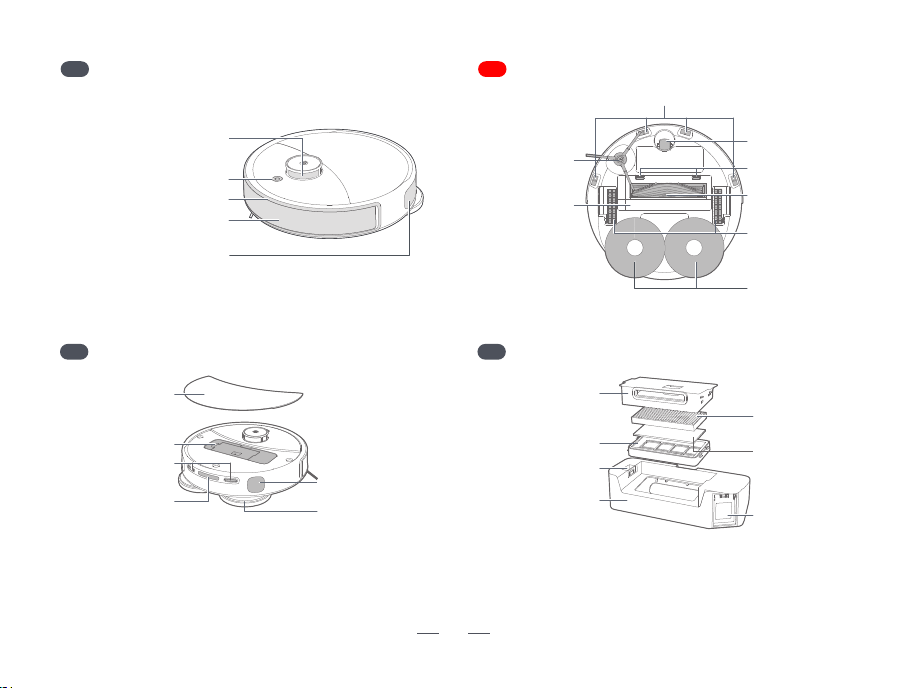
Start/Pause Button
Obstacle Avoidance Sensor
Collision Avoidance Strip
Laser Navigation Sensor
Anti-fall Sensor
Mop
Universal Wheel
Side Brush
Driving Wheel
Main Brush
Cover Clip
Main Brush Cover
Main Brush
Dust Collection Port
Lifting and Rotating
Floor Mopping Module
Air Exhaust Outlet
Robot (Bottom View)
A2
Robot (Top View)
A1
Robot (Below the Face Cover)
A3 A4 Dust Box
8
Rear - facing
Perception
Charging Contact
Dust Box
Magnetic
Upper Cover
High-efficiency
Filter Screen
Filter Cotton
Filter Screen Bracket
Dust box body
Upper Cover
of the Dust Box
Dust Collection Inlet
Dust Box Buckle
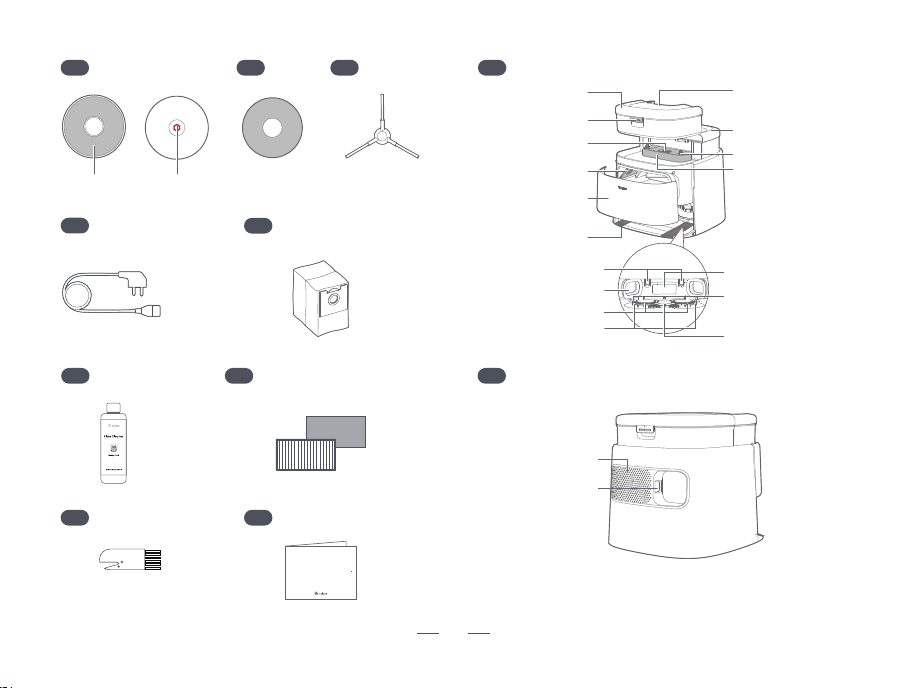
Air Exhaust Outlet
A10
Water Tank Handle
Water Tank Buckle
Waste Water Tank
Seal Ring
Water Suction Port
Clean Water Tank
Dust Collection Port
Washing Plate
Base Station
Signal Transmission Area
Air - Drying Air Outlet
Power Interface
Charging Spring Contact
Dust Collection
Chamber Cover
Water Outlet
Dust Bag Slot
Base Station
Bottom Plate
Cleaning Fluid Box
Sealing Plug
A14
Base Station
A15
Base Station (Back Side)
A6
Mop
A8
Power Cord
A9
Disposable Dust
Collection Bag
Cleaning Fluid
A11 High-efficiency Filter Screen
& Filter Cotton
A12
Cleaning Brush
A5
Sticking Area Mop Installation Shaft
Mop Bracket
A7
Side Brush
A13
User Manual
User Manual
9
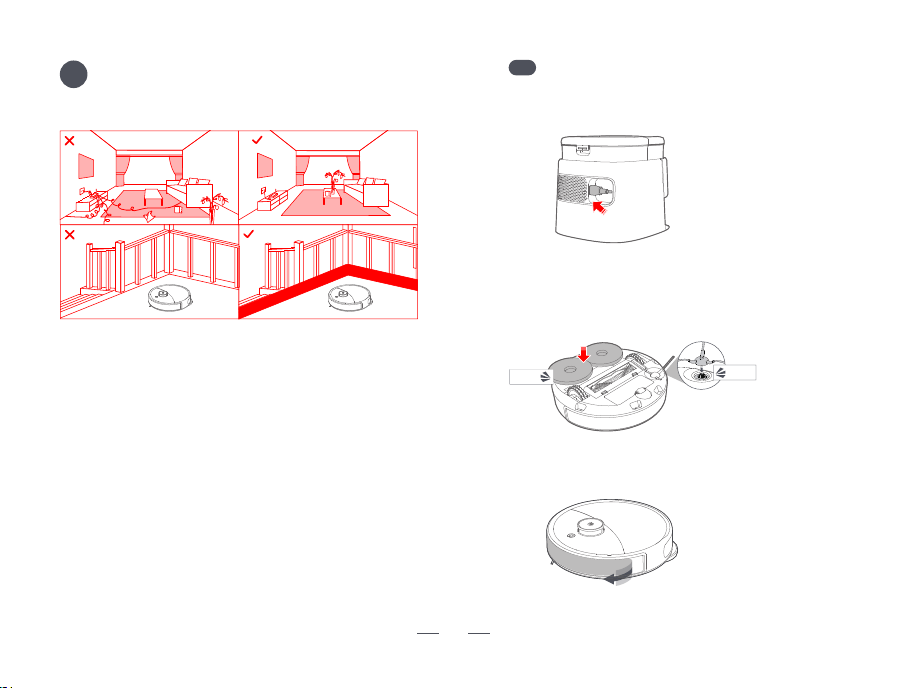
Product Installation
B
Special Tip
1. Please clean up the sundries such as scattered wires, hard
objects and sharp objects (such as iron nails and glass) on the
floor before starting, and move away the items that are easy to tip
over, fragile, valuable and those that may cause danger. Avoid the
robot from getting entangled, stuck, dragged or knocked over,
which may lead to personal injury or property damage.
2. If using this product in a suspended environment, make sure to
use a firm physical barrier to prevent personal injury or property
damage caused by the accidental fall of the robot.
3. Before use, ensure that there is no accumulated water on the
floor, and do not wash the main unit with water to prevent the
robot from being damaged due to water penetration.
Tips:
* It is recommended to follow the robot throughout the first cleaning process and
assist in handling some possible minor problems. After dealing with these problems,
the robot can smoothly carry out autonomous cleaning in subsequent cleanings.
* Do not let the robot suck up hard objects or sharp objects (such as decoration
waste, glass, iron nails, etc.), otherwise it may scratch the robot and the floor.
B1 Preparation Work
1. Press the power cord firmly into place as shown
in the illustration.
3. Remove the protective film of the robot.
2. Align and install the mop mounting shaft and the
side brush onto the robot. When you hear a "click" sound,
it indicates that the installation is in place.
Click
Click
10
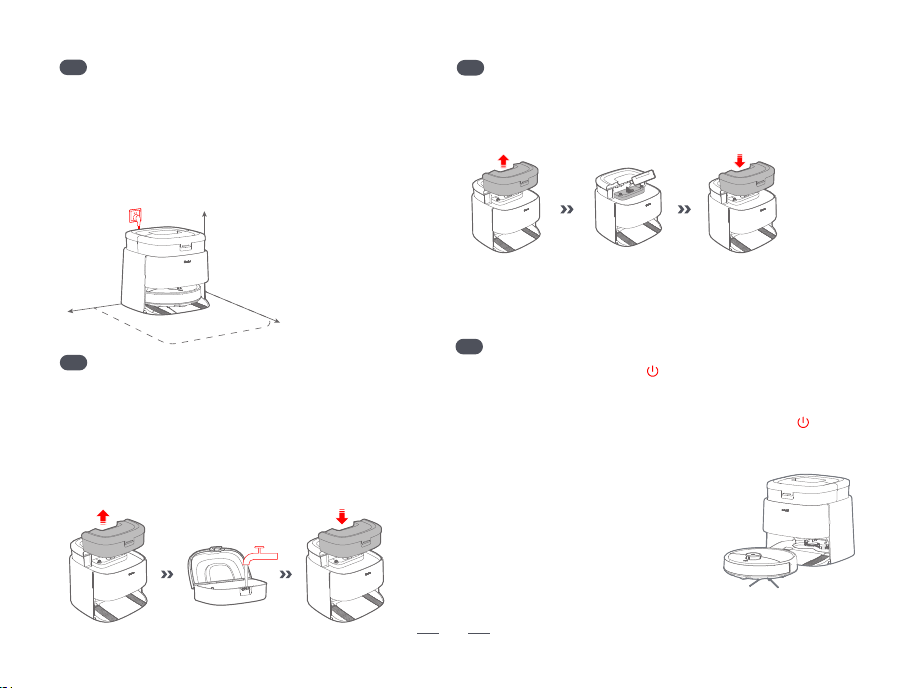
B2
Base Station Installation
B3
Watering the Clean Water Tank
B4 Adding Cleaning Solution
Lift the clean water tank upward, open the upper cover of the
water tank and add clean water. After adding water, tightly close
the upper cover of the water tank and install the clean water tank
back into the base station. Please ensure that the water tank is
fully installed in place.
*Do not pour hot water into the tank, as it may cause the tank to deform. Do
not add cleaning solution to the tank, as it may result in an excessively high
concentration of the cleaning solution, affecting the normal use of the robot.
Please place the base station on a flat surface and insert the
power cord to connect it to the power socket.Ensure that there
are no objects within a range of 0.5 meters on both sides of the
charging station and within a range of 1.5 meters in front of it to
prevent the signal from being blocked. Do not place reflective
objects such as floor mirrors around the charging station to avoid
the influence of signal reflection on the use of the product.
>0.5m
(1.64’)
>0.5m
(1.64’)
>1.5m
(4.92’)
1. Remove the clean water tank, open the sealing plug of the cleaning
solution box and pour the cleaning solution into the cleaning solution
box. After adding the solution, close the sealing plug and install the
water tank back into the base station.
B5
Power On and Charge
Press and hold the power button ( ) to turn on the device. After
waiting for the power indicator light to stay constantly on and for the
voice prompt, place the robot in front of the base station. Make sure
that the base station is powered on. Press the power button ( )
twice briefly, and the robot will automatically return to the base
station for charging. For daily use, keep the robot in a charged state
to maintain the battery performance.
During charging:
* When the battery level is less than 50%, the purple light breathes.
* When the battery level is greater than 50%, the blue light breathes.
Tips:
* When the robot is charged while it is turned off,
it will automatically turn on during the charging process.
* It may not be possible to turn on the robot when the battery is low.
Please place the robot directly into the base station for charging.
11
Attention:
* Do not add any non-official cleaning solutions or disinfectants, otherwise it may
cause damage to the product.
* If there is no need to use the floor cleaning solution in daily use, this step can be
skipped.
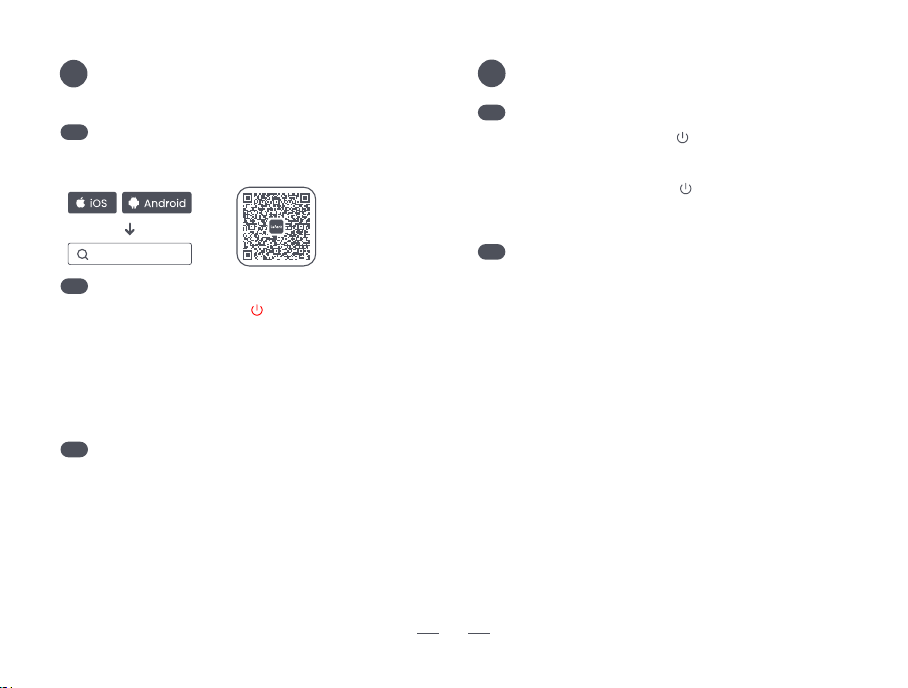
1. Press and hold the power button ( ) for 3 seconds to power on.
The power indicator light will turn on, and the robot will enter the
standby state.
2. Press and hold the power button ( ) for 12 seconds to power
off, and this task will come to an end.
C3
C2
Download and
Connect The APP
C
Product Use Instructions
D
1. Search for "Lefant" in the app store.
2. Scan the QR code to download and install the Lefant app.
C1
Download the App
Enter The Network Configuration Mode
Open the home page of the mobile app, then click the "Add Device"
button or the "+" button. Add your device as prompted on the page.
Add Device
Lefant
Press and hold the power button ( ) for 6 seconds until you hear
the voice prompt "Entering network configuration mode".
At the same time, the power indicator light starts to flash slowly
in blue, indicating that the robot has entered the network
configuration mode.
Note: When the router's configuration is modified, the password is forgotten, or
for other reasons that cause the mobile phone to be unable to connect to the
robot, you can repeat this step to re - add the device.
Note:
* Due to the upgrade and update of the mobile app, there may be slight
differences between the actual operation and the above description. Please follow
the guidance in the mobile app for operation.
* The WiFi wireless connection of this product supports 2.4GHz, 2.4GHz/5GHz, and
5GHz frequency band networks.
* If the robot is in the waiting - to - connect state for more than 3 minutes, the WiFi
function will be automatically turned off. To connect again, please re - enter the
network - configuration mode.
Note: The robot cannot be powered off while it is being charged.
D1
Power on/Power off
D2
Start Cleaning
12
Briefly press the power button to start the cleaning, and the robot will
dynamically plan the cleaning route. By default, after mapping along
the walls, it will adopt the method of filling in a zigzag (bow-shaped)
path to efficiently cover and clean each room one by one.
Notes:
* To ensure that the robot can return to the base station smoothly, it is
recommended to let the robot start automatically from the charging state.
During the cleaning process, do not move the base station.
* If the robot's battery level is too low, please charge it first before starting the
cleaning.
* Before cleaning, please tidy up all kinds of wires on the floor (including the*
power cord of the base station) and valuable items to avoid electrical power
outages, damage to items, or wire entanglement caused by the robot
dragging during cleaning.
* If the cleaning time is less than 5 minutes, a new map will not be created, nor
will it overwrite the original map.
* When the battery level is insufficient during the cleaning process, the robot
will automatically return to the base station for charging. After the battery level
reaches 80%, it will automatically return to the interruption point to continue
cleaning.
* When the robot is cleaning, the mop will rise by default and only vacuum the
carpet. If you need to avoid the carpet, you can set it in the mobile app.
* Before starting each cleaning task, you can select the pure sweeping or
sweeping and mopping mode on the app.

D5
Do Not Disturb Mode
D6
Charging
D9
Clean the mop
D7
Dust Collection
D8
Air Dry
D3
Pause
D4
Auto-sleep Mode
13
When the robot is in operation, press the power button ( ) briefly
once to pause. Press the power button ( ) briefly twice to make
the robot return to the charging dock for charging. In the paused
state, press the power button ( ) briefly once to resume cleaning.
Alternatively, place the paused robot back into the base station to
terminate the cleaning task.
If the robot remains unoperated for more than 5 minutes, it will
automatically enter the dormant state. You can wake it up by
pressing any key. When the battery level is lower than 70%, the robot
will shut down after 24 hours of standby. When the battery level is
lower than 30%, it will shut down 10 minutes after going into dormancy.
The default factory setting for the do-not-disturb time period is
from 22:00 to 08:00. You can use the mobile app to modify this
do-not-disturb time period or turn it off. Additionally, you can
separately set whether the robot should initiate cleaning tasks,
automatically resume cleaning, perform dust collection, wash and
dry the mop, as well as turn on or off the voice broadcast and
indicator lights during the do-not-disturb time period.
When starting a cleaning task in the sweeping and mopping
mode, the robot will clean the mop first and then start the
cleaning. The time interval for the mop to return for washing can
be selected according to your needs on the app. After the mop is
washed, the robot will automatically return to the relay point to
continue cleaning. You can manually control the robot to return
and wash the mop through the mobile app. When the mop is
being washed, you can stop the mop - washing process in the
device settings of the app.
After the cleaning is completed, the robot will automatically return
to the base station for charging. Press the power button ( ) twice
briefly, and the robot will automatically return to the base station
for charging. When it is charging, the button indicator light will flash
in a breathing pattern and turn off when it is fully charged.
Note: If the robot fails to find the base station, it will automatically return to
the starting position. Please manually place the robot back on the base
station for charging.
After the robot finishes cleaning, it will return to the base station
and automatically detect whether dust collection is required. Or
you can manually start and pause the dust collection process
through the mobile phone app.
Note:
* Do not manually initiate dust collection multiple times in quick succession.
* Ensure that the dustbin cover and the disposable dust bag are properly
installed before using the dust collection function.
After the robot completes the cleaning task, it will return to the
base station to clean the mop and then air-dry it automatically.
Note:
* To ensure that the robot can return to the base station to clean the mop
properly, it is advisable to let the robot start automatically from the charging state.
* During the cleaning process, do not move the base station, so as not to affect
the robot's return to the base station.
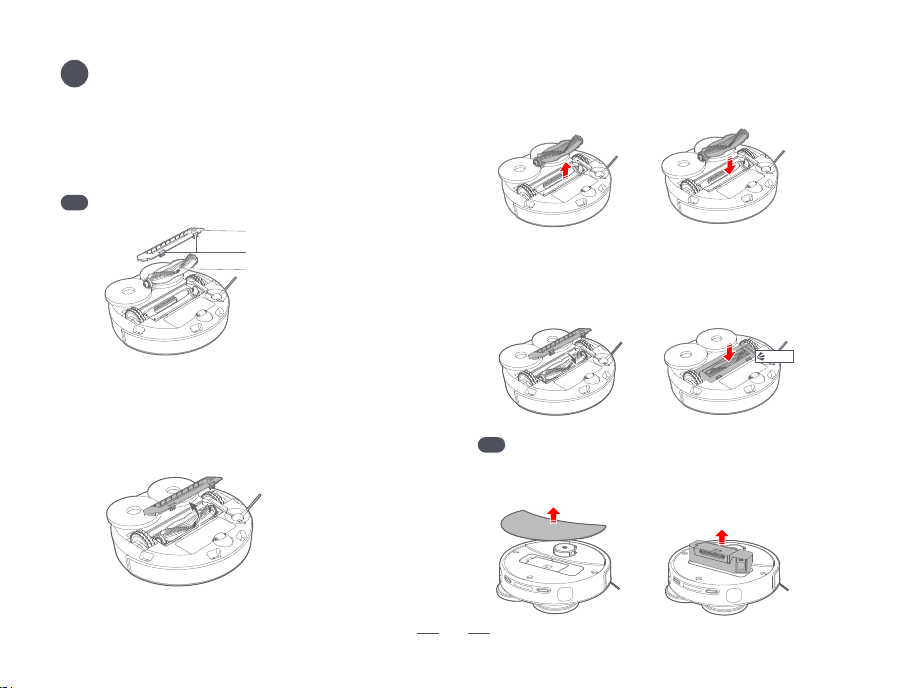
Main Brush Cover
Main Brush Cover Clip
Main Brush
Daily Maintenance
E
E1
Main Brush
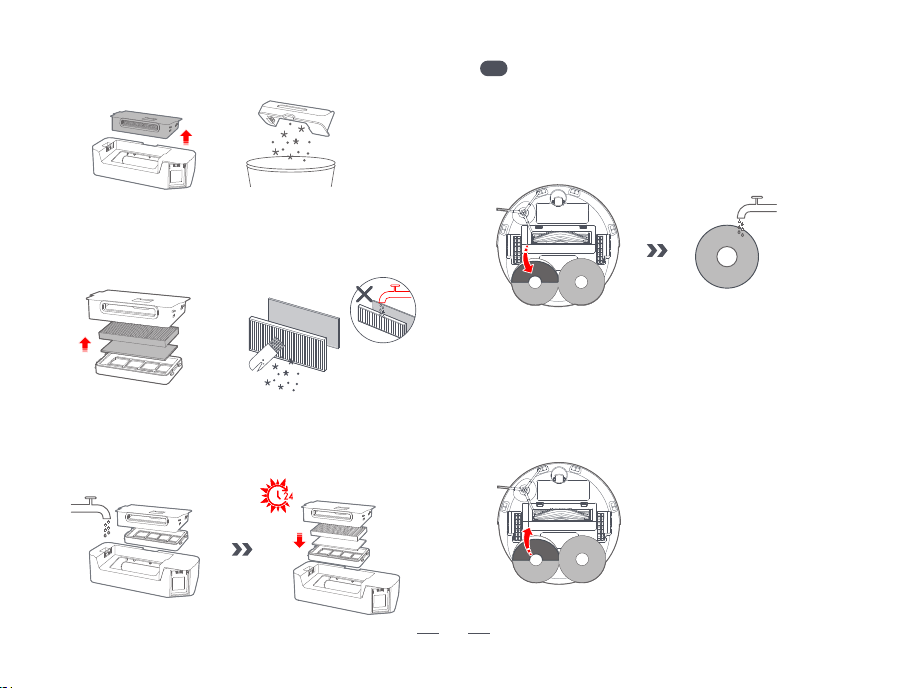
1.Remove the magnetic suction upper cover, and then lift out the
dustbin upwards.
Click
E2
Dust Box
Note:
* Before cleaning or maintaining the base station and the robot, make sure to
power off the base station and turn off the robot.
* The frequency of component replacement is determined by the actual
usage situation. In case of abnormal wear, the components should be
replaced in a timely manner to avoid affecting the cleaning effect.
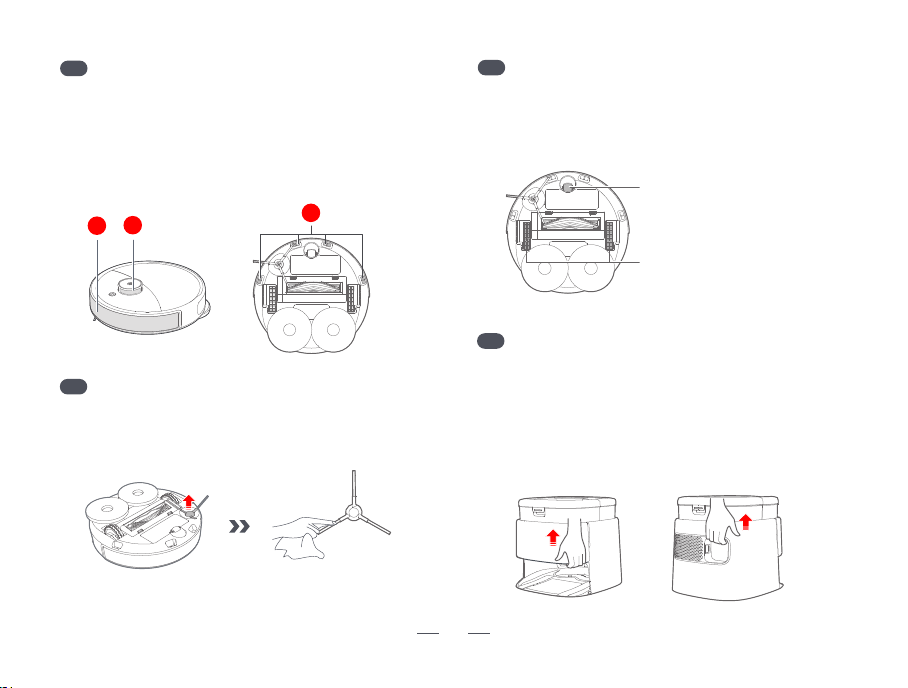
1. Flip the robot over, squeeze the buckle of the main brush
cover and remove the main brush cover upwards.
2. Lift the main brush upward as shown in the illustration. After
taking it out, remove the hair or dirt entangled on the main
brush.After cleaning, put the main brush back into the robot and
install it in place.
3. Install the main brush cover back onto the robot. Ensure that
the main brush cover is inserted into the corresponding slot, and
then press the main brush cover down firmly. When you hear a
"click" sound, it indicates that the installation is in place.
14
E3
Mop
15
2. Take out the filter bracket assembly and dump the garbage
in the dustbin.
3. Take out the high-efficiency filter and filter cotton from the filter
bracket assembly, and clean the high-efficiency filter and filter
cotton with a cleaning brush. Do not wash them with water.
4. The main body of the dustbin and the filter bracket can be
washed with water. After washing, let them dry in the sun for at
least 24 hours until they are completely dry, and then reinstall
them in sequence for use.
Note: If the mop is severely dirty, it will lead to a decline in the cleaning effect.
Please clean the mop regularly. Or, replace the mop with a new one on your
own according to the degree of wear and tear of the mop.
1. Remove the mop from the mop bracket, clean the mop and let it
dry completely in the sun.
2. After it is dried, align and install the mop onto the mop bracket.
Make sure it is firmly attached.
2
3
1
E4
Main Unit Sensor
E5
Side Brush
16
Wipe and clean each sensor of the main unit with a soft dry cloth,
including :
1. Obstacle avoidance sensor.
2. Laser navigation sensor.
3. Anti-fall sensor (It is recommended to clean the anti-fall sensor
once a week to prevent dust from blocking and affecting the
signal).
Pull the side brush upwards with force to remove it. After cleaning
the side brush, reinstall it. Replace the side brush with a new one
on your own according to the actual degree of wear and tear.
Universal Wheel
Driving Wheel
E6
Components of the Main Unit
E7
Move the Base Station
It can be cleaned as needed according to the actual
usage situation. When cleaning, please wipe the universal
wheels and driving wheels of the robot with a soft dry
cloth.
When it is necessary to move the base station, please grasp the
power supply groove on the back with one hand and the inner
side of the front with the other hand, and lift it up as shown in the
illustration. Do not directly lift the base plate of the base station,
the water tank, the handle of the water tank or the cover plate of
the dust collection bin for moving to avoid the risk of the base
station slipping off and falling.
E8
Waste Water Tank
E9
Charging Spring Contact
E10
Replace the Disposable Dust Collection Bag
17
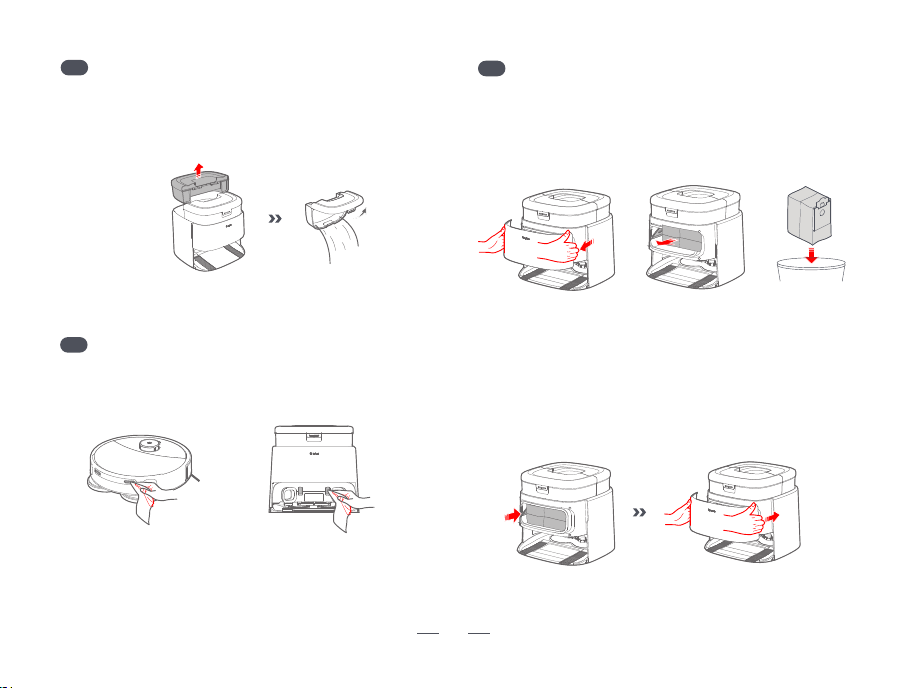
Take out the wastewater tank. After pouring out the wastewater,
connect tap water to clean it thoroughly. After cleaning, wipe off
the water stains on the surface with a soft dry cloth and put the
tank back into the base station. Please ensure that the tank is
installed in place.
Wipe and clean the charging contacts of the main unit and the
base station with a soft dry cloth.
1. Hold the cover plate of the dust collection bin with both hands
and then open it outward. Take out the disposable dust bag
along the direction of the arrow and discard it. When taking it out,
do not let the garbage leak inside the dust collection bin, and
keep the inside of the bin clean.
2. Insert the new disposable dust bag into the card slot as shown
in the illustration. Make sure to insert the disposable dust bag all
the way to the bottom to prevent garbage from leaking and
damaging the base station. After installation, spread the dust
bag flat. Then install the cover plate of the dust collection bin in
place to ensure it is fully fixed and sealed.
Click
Click
18
E11
Cleaning Tray Assembly
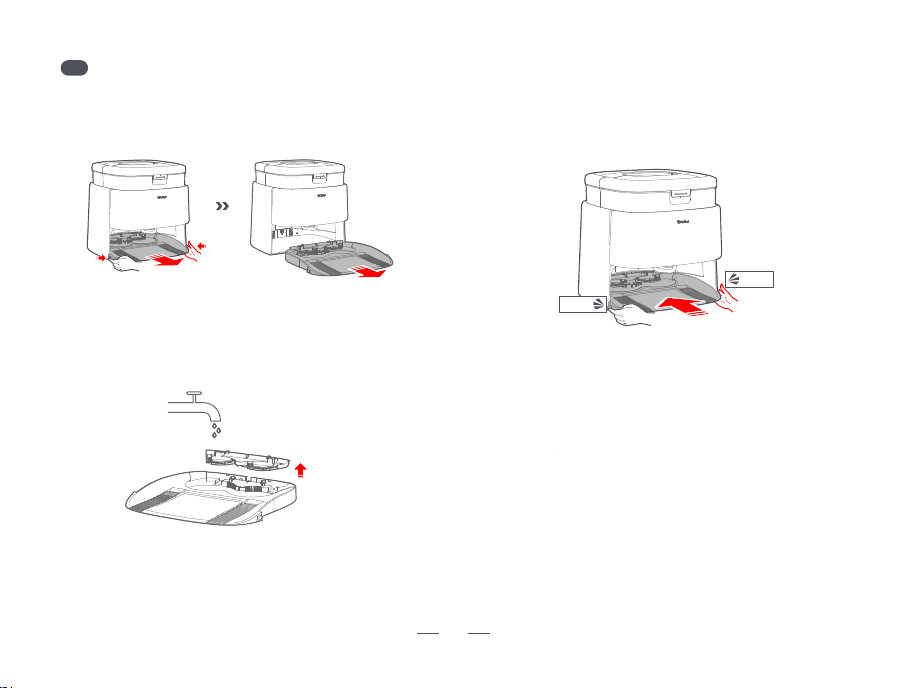
1. Press the buttons on both sides of the cleaning tray
simultaneously, and pull out the cleaning tray assembly outward
as shown in the illustration.
2. Wash the cleaning tray and the filter screen of the cleaning tray
thoroughly with water, and let them dry completely in the air.
3. Install the cleaning tray assembly back into the base station.
Ensure that the cleaning tray assembly is placed flat against the
bottom of the base station and facing it directly, then push it all
the way in. Please confirm that you can release your hand after
hearing a "click" sound, which indicates that it is installed in place.
Basic Parameters
Environmental Protection Instructions
Robotic Vacuum Cleaner
Product Model M3
Wireless Connection WiFi Smart Quick Connection
Rated Power of the Main Unit
14.4V
Operating Voltage
of the Main Unit
85W
Charging Time < 4 hours
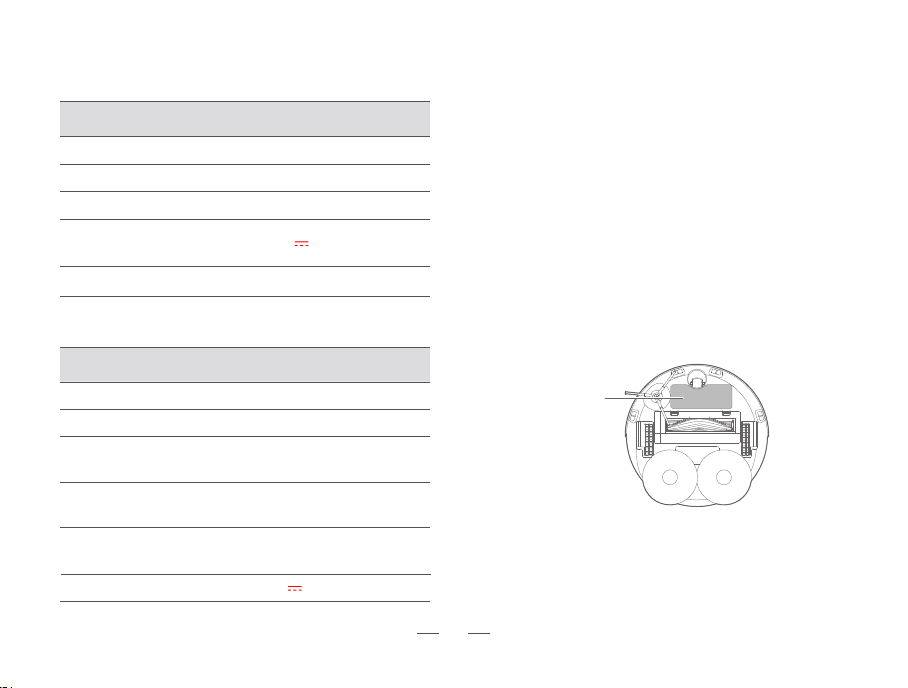
Steps to Remove the Battery
* The following information is only applicable when disposing of this robot
and is not a part of the daily operation instructions.
Reminders:
• When disassembling the battery, make sure the battery is fully depleted and
the robot is disconnected from the charging dock.
• Please remove the entire battery pack at once. Do not damage the battery
pack casing to avoid short - circuits or leakage of hazardous substances.
• If the battery has exudate and you accidentally come into contact with it,
rinse the affected area with plenty of clean water and seek medical attention
immediately.
Battery Cover
*The maximum power measured during the hot water cloth washing function.
Product Model
J5
Power Input
100V–240V~ 50–60Hz
Rated Input Power
(Charging + Air-drying State)
100W
Rated Input Power
(Dust Collection State)
1000W
Rated Input Power
(Hot Water Cloth Washing)*
900W
Rated Output
20V
2A
Self-Cleaning Dust Collection Charging Base Station
19
The chemical substances contained in the lithium-ion battery
built into this product may cause environmental pollution.
Please remove the battery before scrapping the product and
hand it over to a professional battery recycling station for
centralized disposal.
1. Let the robot run until it is completely out of power and
automatically shuts down without charging.
2. Make sure the robot is turned off.
3. Remove the screws of the battery cover on the bottom shell of
the robot.
4. Open the battery cover.
5. After taking out the battery, pull out the connector plug of the
battery.
- The obstacle - avoidance sensor, anti - fall sensor and
other main unit sensors may be dirty. Please wipe them clean
with a soft dry cloth to ensure that the surfaces of the sensors
are clean and unobstructed.
- Check whether the doors of the rooms are open. Please
make sure that the doors of the rooms to be cleaned are
open before starting the cleaning.
- Check whether there are steps or thresholds higher than 2
centimeters (0.8 inches) in the cleaning area. The robot
cannot climb over high steps.
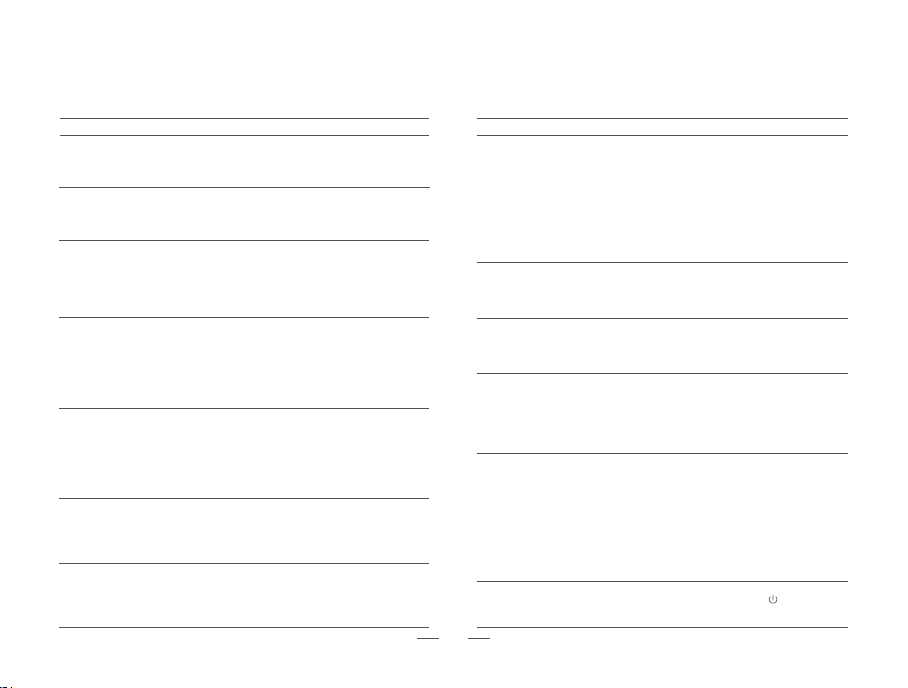
Frequently Asked Questions
During the use of the product, if the following problems arise, you can check and refer to the relevant information to solve the malfunction issues.
If you can't eliminate the malfunctions according to the operations in the table, you can contact the official after-sales service.
Solutions
Problem Type
Solutions
Problem Type
20
The dust collection
effect is poor or there
is an abnormal noise
during dust collection.
It cannot automatically
collect dust.
It is unable to
clean the mop.
Unable to Power On
Unable to Charge
Unable to Return
to Base Station
Unusual Noise
During Cleaning
Robot Misses
Areas During Cleaning
Robot Returns to
Base Station with
Insufficient Battery
but Doesn't
Resume Cleaning
Unable to
Connect to WiFi
Reduced Cleaning
Performance or
Dust Shedding
- Battery power is insufficient. Please dock with the base station to
charge before use.
- Battery temperature is too low or too high. Please use it in an
environment of 0 - 40°C (32°F - 104°F).
- The base station is not powered. Please confirm that both ends of
the base station power cord are properly plugged in.
- Poor contact. Please clean the charging contacts of the base
station and the robot.
- The robot did not start cleaning from the base station.
- There are too many obstacles near the base station, which affect
the robot's return. Please clear the surrounding obstacles.
- If the base station was moved or lost power while the robot was
performing a cleaning task, manually place the robot back on the
base station or check if the base station is powered on.
- The dust box is full. Please clean the dust box.
- The filter is clogged. Please clean the filter or replace it with a
new one.
- The main brush is entangled with foreign objects. Please clean
the main brush.
- The mop is not pasted smoothly. Please paste it smoothly again.
- The environment is relatively dirty. It is recommended to use the
mobile phone app to switch the mop washing interval to improve
the cleaning effect.
- The filter screen, dust collection air duct, dust collection
port, dust collection air inlet, dust bin and dust bag are
blocked. Please clean them.
- The cover plate of the dust collection chamber is not
properly installed. Please confirm that it is installed in place.
- The robot will not actively collect dust when it automatically
returns to the base station during the Do Not Disturb period. It
is recommended to adjust the cleaning time, the time of the
Do Not Disturb mode, or manually start the dust collection.
- There is no water in the clean water tank or it is not installed
properly. Please check and deal with it.
- The sewage tank is full or not installed properly. Please check
and deal with it.
- The cleaning tray assembly or the cleaning tray is not
installed or not installed in place. Please check and deal with it.
- The robot will not actively collect dust when it automatically
returns to the base station during the Do Not Disturb period. It
is recommended to adjust the cleaning time, the time of the
Do Not Disturb mode, or manually start the dust collection.
- Please press and hold the power button ( ) for 12 seconds
to turn off the device, and then turn it on again.
- The WiFi network password is incorrect. Please ensure that the
password of the connected WiFi network is correct.
- The WiFi signal is weak. Please make sure the robot is within an area
with good WiFi signal coverage.
- The WiFi connection is abnormal. Please long - press the robot's
power button for 6 seconds to re - enter the network - configuration
mode, and use the latest version of the mobile app to connect again.
- The omnidirectional wheel has accumulated dust or been
entangled by fine substances like hair during cleaning. It is
recommended to use a screwdriver to pry out and clean it thoroughly.
- Foreign objects may be entangled on the main brush, side brush or
drive wheel. Please pause the robot, check and clean.
- Hard objects may have entered the dust box. Please check the dust
box and its opening and clean the foreign objects.
- Please confirm that the robot is not in the Do Not Disturb mode, as
it will not automatically resume cleaning in this mode.
- Manually charging the robot or placing it back on the base
station will not trigger it to resume cleaning.
The robot has an
abnormal cleaning
performance.
The self-cleaning
effect of the mop
is not good.

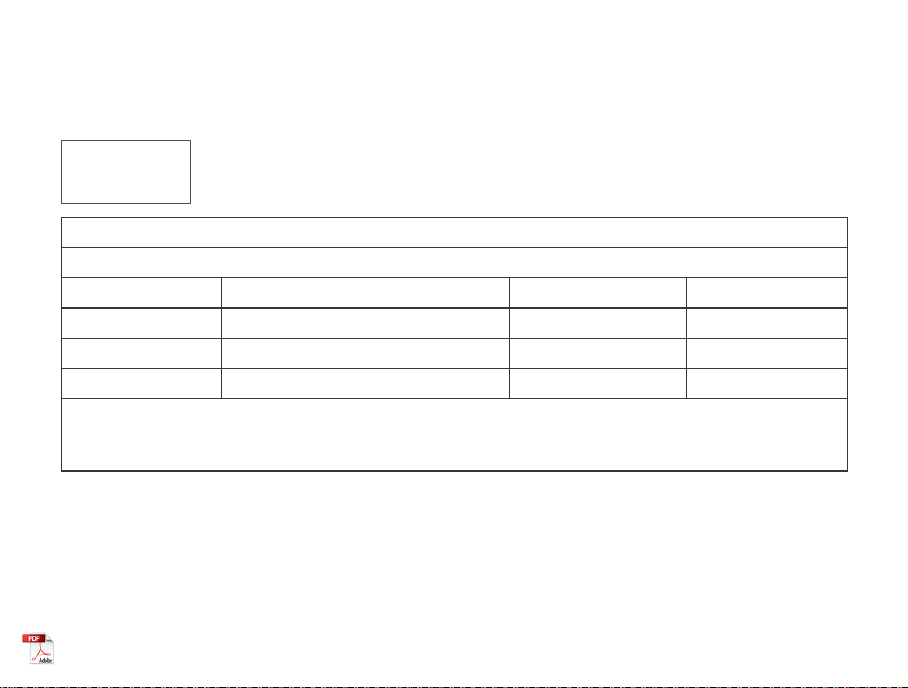
Warranty
This warranty covers the repair or replacement of the malfunction device at our company’s discretion for a period of
1-year. In addition this certificate is void if altered. The serial number must be provided as well as all accessories to be
eligible for warranty coverage. Please kindly fill in below form accurately and completely.
Important:
When returning this device, carefully pack the product to avoid damage in shipping. Damage in shipping is not covered by the Warranty and
shall be the sole responsibility of Buyer. Damage or loss not covered by this Warranty or occurring outside the warranty period will require a fee
to cover the cost of handling and shipping. All such fees and costs shall be the sole responsibility of Buyer.
Exclusion
Unless agreed in writing, the warranty will not apply if the defects relate to:
• Consumable parts such as filters, or brushes etc, that are subject to normal wear and tear, and require regular maintenance and/or
replacement to ensure the proper functioning of your unit.
• Defects caused by rough or inappropriate handling or use or damage caused by accident, misuse, neglect, fire, water, lighting or other acts
of nature, external sources such as weather, electrical outages or power surges.
• Improper operation or maintenance, use not in accordance with the product instructions or connection to improper voltage supply.
• Accident, abuse, misapplication, or any unauthorized repair, modification, or disassembly of the product.
• Any failure to adequately package the product for transportation.
• Use of parts not in accordance with the product instructions.
• Use of parts and accessories other than those produced or recommended by our company.
• Use in a commercial environment as the product is designed for residential use only.
• Consequential and incidental damages.
• Any product(s) purchased from unauthorized dealers/resellers.
• Products used outside the country of purchase.
• Lost and/or stolen products.
Order Number:
Serial Number:
Date of Purchase:

Building 2, Fashion Brand Industrial Park, E'Bu Town,
Shenzhen-Shanwei Special Cooperation Zone, Shenzhen, Guangdong, China.
Shenzhen USEER Robotics Co., Ltd.
Website:
Email:
Facebook:
Community:
www.lefant.com
Other countries: [email protected]
@LEFANTOFFICIAL
facebook.com/groups/Lefantofficalcommunity
Official website
