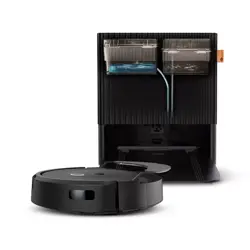
Combo
robot
Auto Wash
dock
Roomba
®
Plus 405
Owner's Guide
3Roomba® Plus 405 Combo robot + AutoWash™ dock Owner’s Guide For more information, visit global.irobot.com2
EN
EN
Getting started
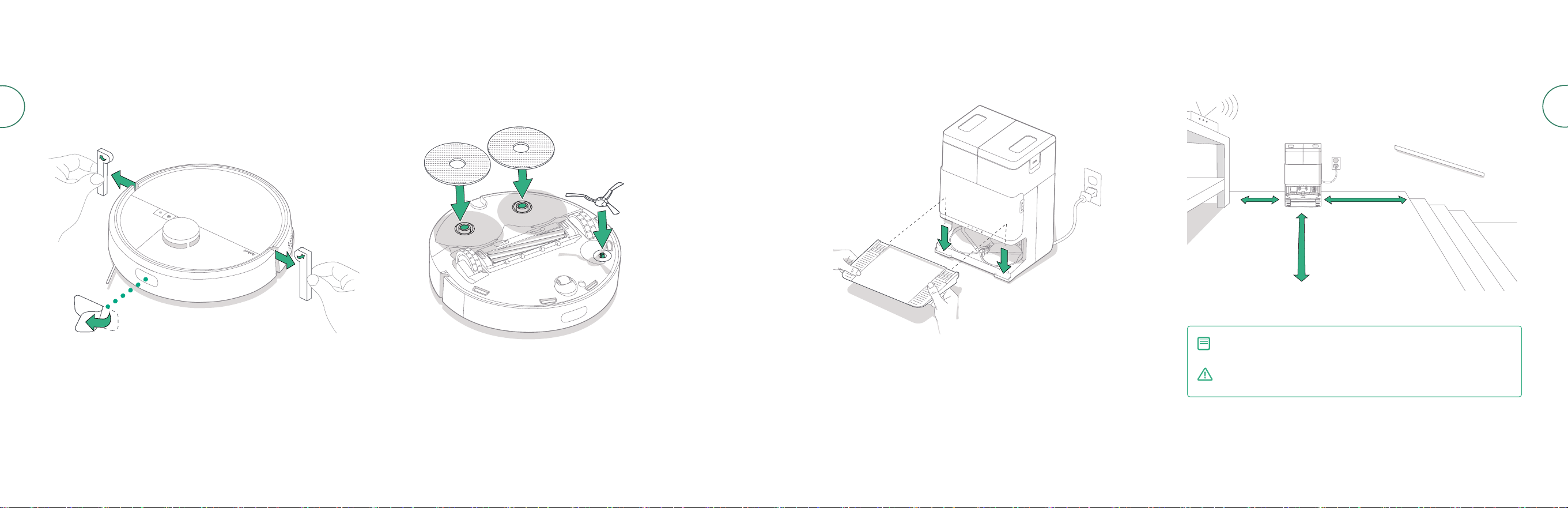
1 Remove foam inserts behind bumper
2 Install the Edge-Sweeping Brush and mop pads
Align the Edge-Sweeping Brush and press down until you hear a click.
3 Install the dock ramp
Install the removable ramp by aligning with the dock. Press down to snap
into place.
4 Place the dock on hard surface ooring
Good Wi-Fi® Coverage
1.5 ft (0.5 m)
both sides
4 ft (1.2 m)
from stairs
4 ft (1.2 m) in front
NOTE: Do not place it in direct sunlight. Ensure the area around the
dock is free of clutter to improve docking performance.
WARNING: To prevent the risk of your robot falling down stairs, ensure
that your dock is placed at least 4 feet (1.2 meters) away from stairs.
5Roomba® Plus 405 Combo robot + AutoWash™ dock Owner’s Guide For more information, visit global.irobot.com4
EN
EN
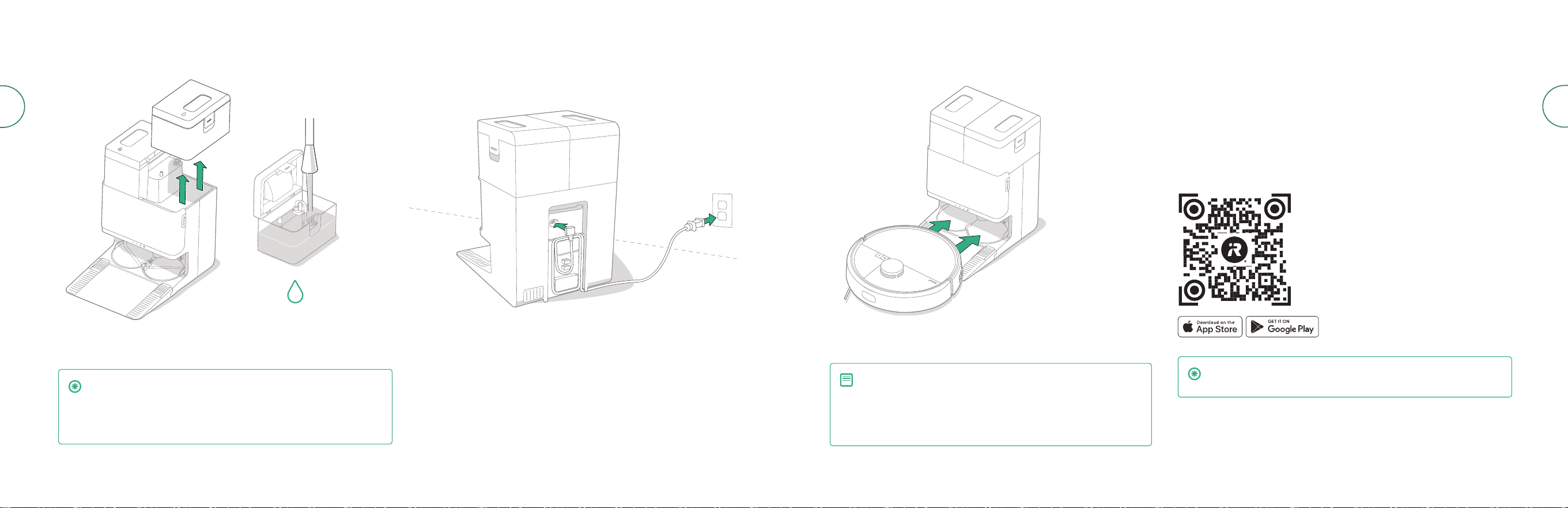
1 Prepare the clean water tank
-MAX-
-MAX-
Remove clean water tank from the dock. Fill the clean water tank (right) with water
and compatible cleaning solution if desired.
IMPORTANT: Only certain cleaning solutions can be safely used with
your robot. A full list of compatible cleaning solutions can be found
on http://answers.irobot.com/s/roomba-combo-cleanser or by
visiting the app. Please do not use other cleaning solutions or bleach-
based products.
2 Plug in the dock
Plug the power cord into the wall. Wrap the cord back so it won’t get in the way of
the robot as it comes and goes.
3 Wake up the robot
Place your robot in front of the dock, then slide it toward the dock, lining up the
metal charging contacts. After a few minutes, a sound will let you know it’s awake.
NOTE: Your robot comes with a partial charge, but we recommend
that you charge the robot for up to 4 hours prior to starting the
rst cleaning.
To remove your robot from the dock, slide the robot towards you
and then lift.
4 Download the Roomba® Home App
Scan the QR code with the camera on your mobile device or nd the Roomba®
Home App in your app store. The app will guide you through steps to setup your
robot. Once your robot is set up in the app, you’ll be able to:
• Control when, where, and how you clean
• Create automatic cleaning schedules
• Set custom cleaning preferences
• Unlock digital features
• Access tips, tricks, and answers to commonly asked questions
IMPORTANT: Read enclosed safety information guide rst before
using your robot.
7Roomba® Plus 405 Combo robot + AutoWash™ dock Owner’s Guide For more information, visit global.irobot.com6
EN
EN
12
13
11
8
8
9
10
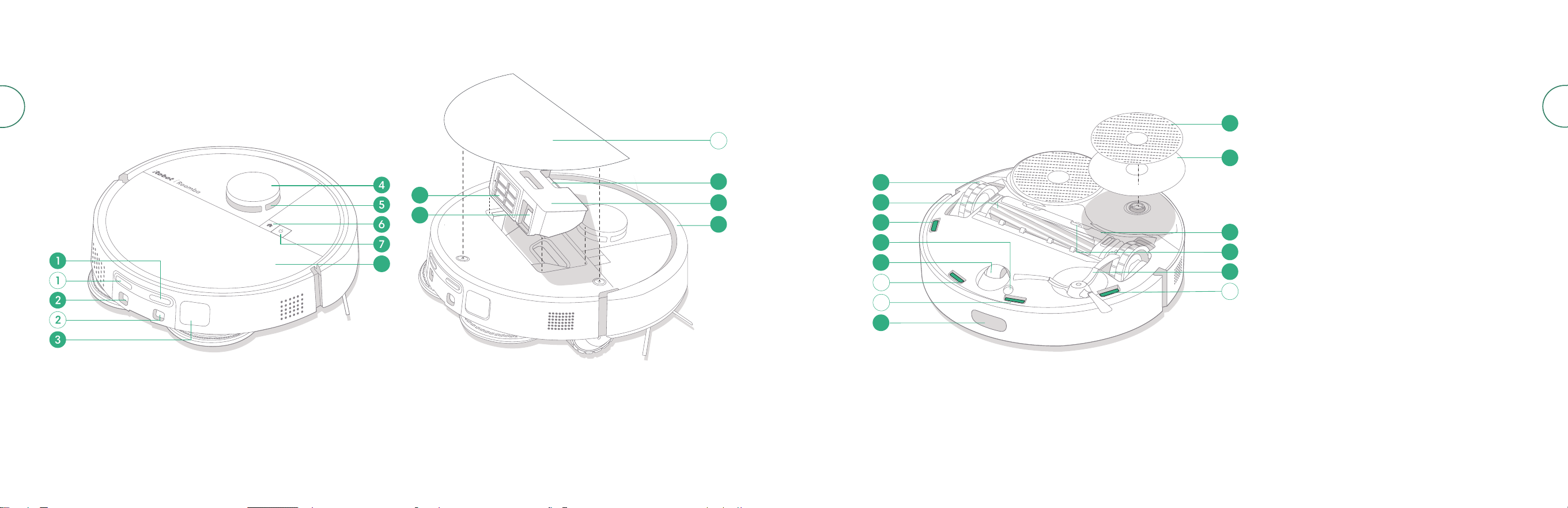
About your Roomba® Plus 405 Robot
Top View
Bottom View
1 Charging Contacts
2 Dock Alignment Guides
3 Debris Evacuation Port
4 LiDAR Detector Bumper
5 ClearView™ LiDAR
6 Home Button
7 Power Button
8 Robot Top Cover
9 Filter
10 AutoEmpty™ Port or Debris
Evacuation Port
11 Bin Release Button
12 Bin
13 Bumper
14 Wheel
15 Multi-Surface Brush
16 Cli Sensors
17 Floor Type Sensor
18 Caster Wheel
19 Docking Sensor
20 Mop Pad
21 Mop Pad Plate
22 Brush Cover
23 Brush Cover Release Tab
24 Edge-Sweeping Brush
14
15
16
17
18
19
20
21
22
23
24
16
16
16
9Roomba® Plus 405 Combo robot + AutoWash™ dock Owner’s Guide For more information, visit global.irobot.com8
EN
EN
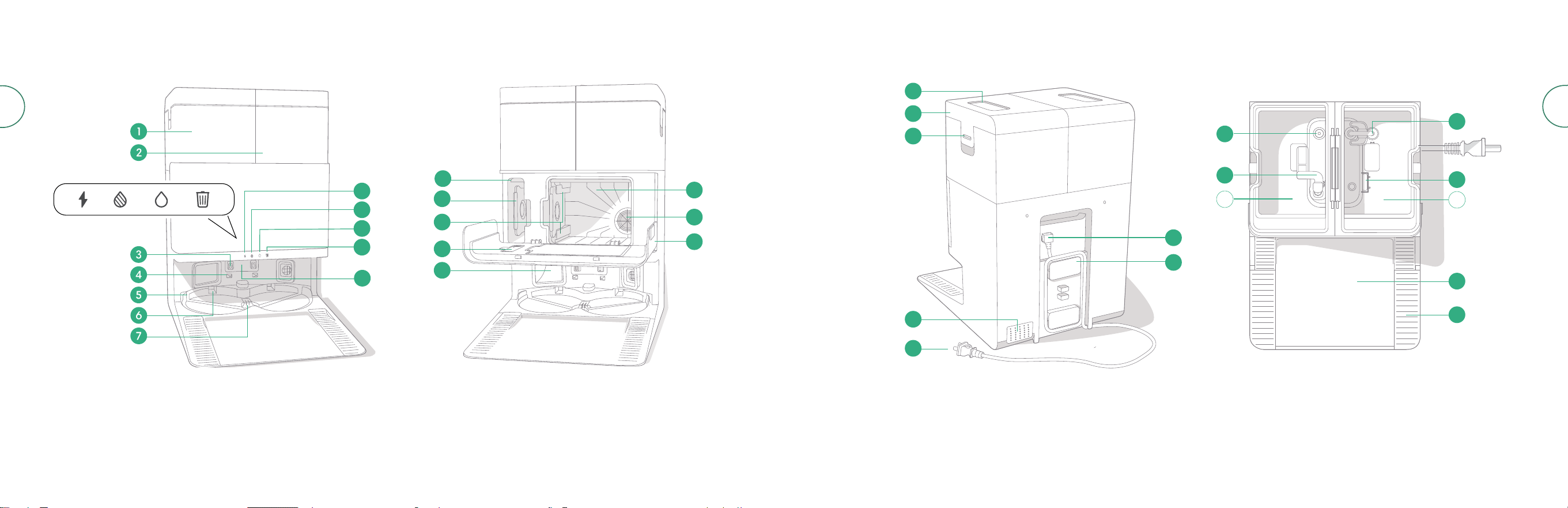
21 Water Tank Handle
22 Water Tank Lid
23 Water Tank Latch
24 Exhuast Vent
25 Removable Power Cord
26 Cord Attachment
27 Cord Wrap
28 Water Entry Point
29 Dirty Water Float
30 Clean Water Tubing
31 Clean Water Float
32 Removeable Ramp
33 Wheel Track
12
13
14
16
17
15
19
18
20
21
22
23
24
26
28
30
31
32
33
29
1
25
27
2
11
8
9
10
About your AutoWash™ Dock
Front View
1 Dirty Water Tank
2 Clean Water Tank
3 Charging Contacts
4 Dock Alignment Guides
5 AutoWash™ Water Inlet
6 AutoWash™ Pad Dry recess
7 AutoWash™ Water Drain
8 Trash Indicator
9 Dirty Water Tank LED Indicator
10 Clean Water Tank LED Indicator
11 Charging LED Indicator
12 IR Window
13 Debris Bag Storage
14 Extra Debris Bag
15 Debris Bag Guide Rails
16 Cleaning Brush Accessory
17 Debris Evacuation Port
18 Main Debris Cubby
19 Dock Filter
20 Cubby Door
Top ViewRear View
11Roomba® Plus 405 Combo robot + AutoWash™ dock Owner’s Guide For more information, visit global.irobot.com10
EN
EN
Cleaning
Button Controls
Dock Cleaning LED Indicators
Solid red: Dust bag full, missing, or improperly installed
Solid red: dirty water tank full, missing, or improperly installed
Solid red: clean water tank empty, missing, or improperly installed
Cleaning Pattern
Your robot will automatically explore and clean your home in neat rows. It
will return to the dock at the end of a cleaning routine, or whenever it needs
to recharge.
Tips:
• Remove excess clutter from oors before cleaning.
• Use your robot frequently to maintain well-conditioned oors.
After 90 minutes of inactivity o the dock, your robot will automatically end its
cleaning. If you are unsure if it is nished or paused, visit the Roomba® Home App
to check on its status.
Spot clean
Tap button two times to spot clean a designated area. After spot clean is
complete, your robot will end the job. Press To send it back to its dock.
AutoEmpty™
Your robot will automatically empty its dust bin at the end of every
cleaning routine.
NOTE: It is highly recommended to use the Roomba® Home App
for cleaning control. The mobile app can be used to clean specic
rooms, setup cleaning routines, and create automations/schedules.
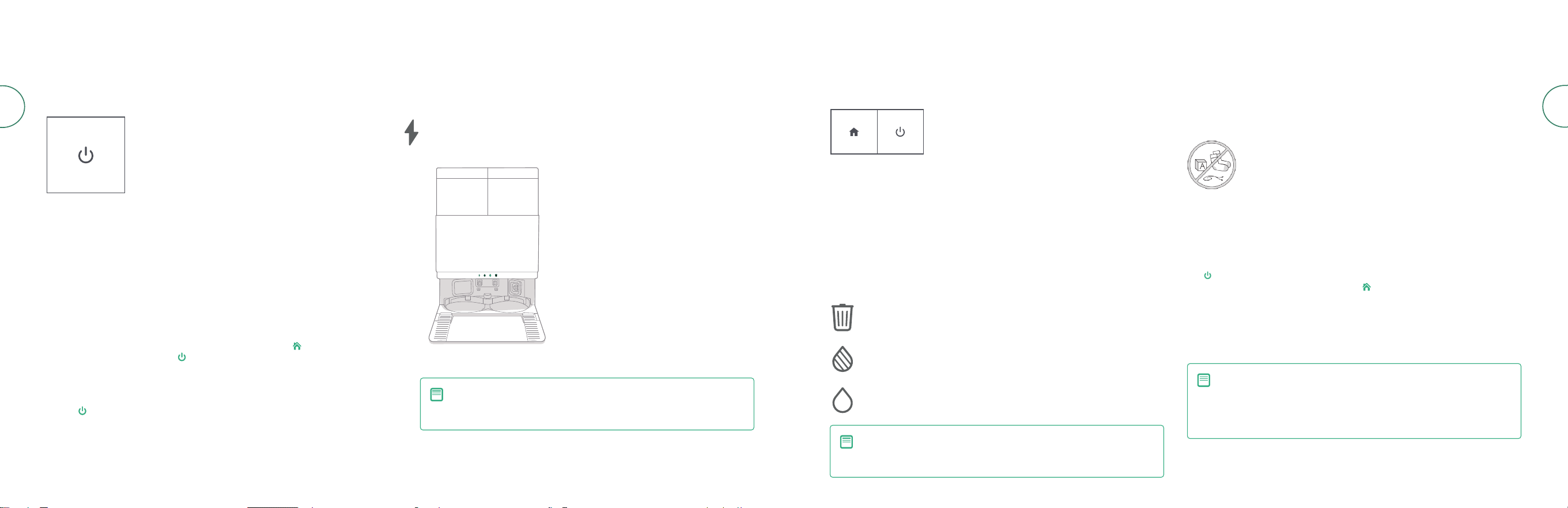
HOME button: Tap to send the robot home
Press when running to pause
Press when paused to dock
Press when docking to stop
POWER button: Tap to Start / Pause / Resume a job
Hold for 3 seconds to turn on
Hold for 10 seconds to turn o
NOTE: Roomba robots are generally designed to be used on most
oor types for vacuuming. We do not recommend using mopping
functions on unsealed hardwood oors and certain laminate/vinyl
planks due to potential water damage to the ooring and/or suboor.
For more info, please visit global.irobot.com..
Charging
Power Icon Indicator
Charging during a cleaning routine
Your robot will return to the dock whenever it needs to recharge. Once it is
suciently charged, it will then resume cleaning where it left o.
Standby mode
Your robot uses a small amount of power whenever it is on the dock. You can put it
in a further-reduced power state when not in use by pressing for 10 seconds. To
exit low power mode short press button.
Storing your robot
For long-term storage, turn o your robot by removing it from the dock and
holding for 10 seconds. Store in a cool, dry place.
Dock Charging LED Indicators
Solid White: When the robot is fully
charged or in the process of charging.
While the dock is automatically
emptying the bin, during washing or
drying cycles, and when the dock is in
standby mode.
POWER Button
White - Fully charged and connected
Flashing White - Return to dock to charge
Pulsing White - Charging (low battery) -
If you try to start cleaning while robot is charging
with low battery, it will display a pulsing white light
Flashing Red - Low battery/Error
On: Robot on dock charging
O: robot not on dock, robot not charging, or dock is asleep
NOTE: Software updates may adjust the actual LED behavior on the
robot and/or dock. Please visit global.irobot.com for the most up-to-
date information.
13Roomba® Plus 405 Combo robot + AutoWash™ dock Owner’s Guide For more information, visit global.irobot.com12
EN
EN
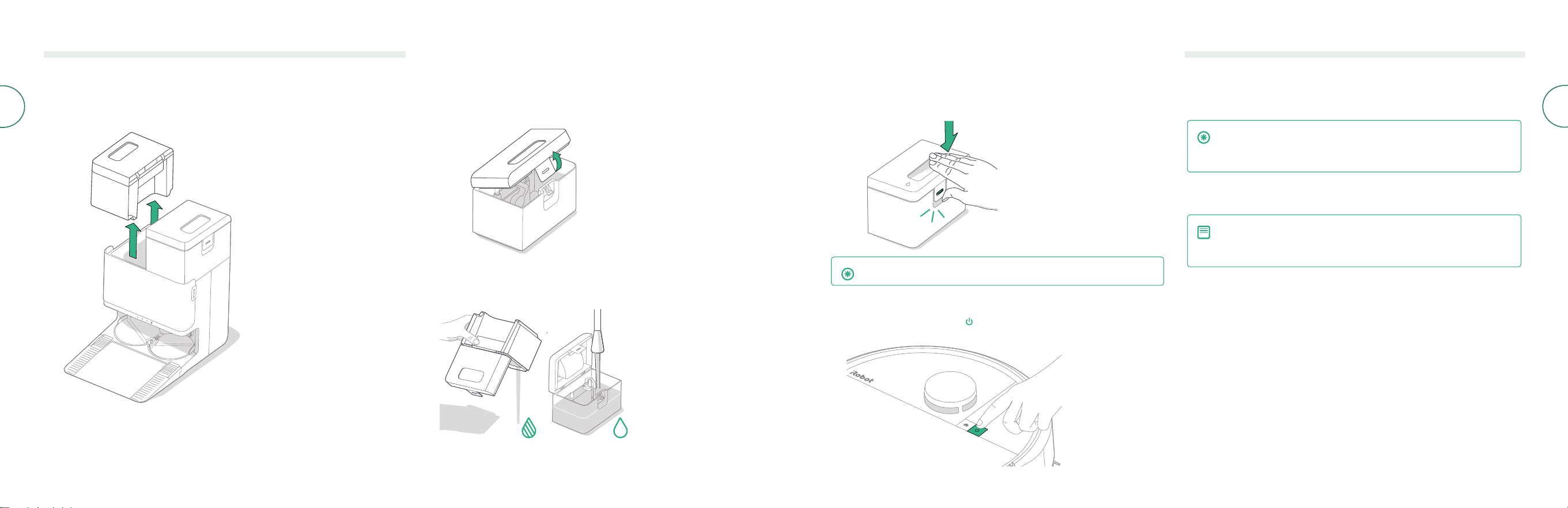
1 Lift to remove the tank that requires maintenance.
2 Lift the latch on the tank to open.
-MAX-
3 Empty the Dirty Tank. Fill the Clean Tank with water.
-MAX-
4 Close and latch the water tank lids. Place tanks back on the dock.
IMPORTANT: Ensure the latch is properly closed before reinstalling.
5 With mop pads attached, return the robot to the AutoWash™ dock
and use the app or press the button on your robot.
Starting a cleaning routine from your dock
If the clean water tank and dirty water tanks are ready, skip to step 5. If the Clean
Tank or Dirty Tank LED Indicators are on:
Pad Washing and Pad Drying
Your robot will return to its dock for pad washing as needed during cleaning
routines and then again when cleaning is complete.
Pad drying will only take place at the end of its cleaning routine.
IMPORTANT: Do not interrupt the robot while Pad Washing is active.
It is normal to hear noises throughout this process as the pads spin
and the Pad Washing Basin is lled and drained.
Once complete, the dock will proceed to dry the mop pads by blowing hot
air over them.
NOTE: The drying process can last for a few hours. You can choose
from dierent drying times in the app. You may hear a low hum
coming from the dock while the dryer is active.
Visit the Roomba® Home app to manually start Pad Washing, start or stop Pad
Drying, or to customize pad washing settings.
15Roomba® Plus 405 Combo robot + AutoWash™ dock Owner’s Guide For more information, visit global.irobot.com14
EN
EN
Care and maintenance for your robot
To keep your robot at optimal performance, make sure you periodically perform the following basic care &
maintenance. There are additional instructional videos in the Roomba® Home App. If you notice your robot
picking up less debris from your oor, empty the bin, clean the lter, and clean the brushes.
Part Care Frequency Replacement Frequency*
Dust bin
Clean bin as needed
-
Filter
Clean once a week (twice a week if
you have a pet)
Every 3-6 months
Edge-Sweeping Brush
Clean every 2 weeks or as needed
Every 3-6 months
Multi-surface brush
Clean once a week
Every 6-12 months
Front caster wheel
Clean every 2 weeks or as needed
-
Charging contacts
Clean every 2 weeks or as needed
-
Sensors
Clean once a month or as needed
-
Mop pad
Auto cleans after mopping
Every 180 hours of cleaning
Brush cover
Inspect every 6 months
Replace if worn or damaged
* Replacement frequency may vary. Parts should be replaced if visible wear appears. If you think you need a replacement part,
please contact iRobot Customer Care for more information.
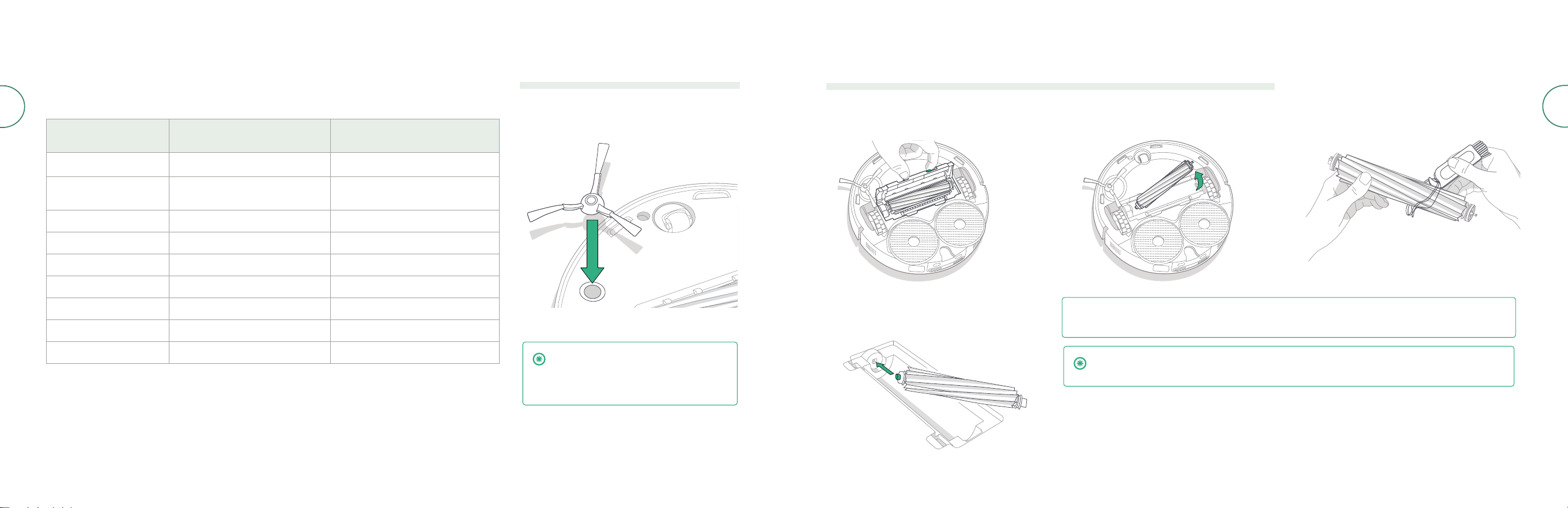
Cleaning the Edge-Sweeping Brush
Pull to remove the edge-sweeping brush. Remove
any hair or debris using the cleaning brush, then
reinstall the edge-sweeping brush.
IMPORTANT: It is recommended to
replace the edge-sweeping brush
every 3–6 months for optimal cleaning
performance.
Cleaning the Multi-Surface Brush
NOTE: For instructions to perform a deeper cleaning of the multi-surface brush, see
global.irobot.com
IMPORTANT: It is recommended to replace the multi-surface brush every 6-12 months for an
optimal cleaning performance.
1 Press the brush cover release tabs and lift to
remove brush cover.
2 Remove the multi-surface brush.
3 Remove any hair debris from the multi-surface
brush using the cleaning brush.
4 Reinstall the multi-surface brush and
brush cover in the robot.
17Roomba® Plus 405 Combo robot + AutoWash™ dock Owner’s Guide For more information, visit global.irobot.com16
EN
EN
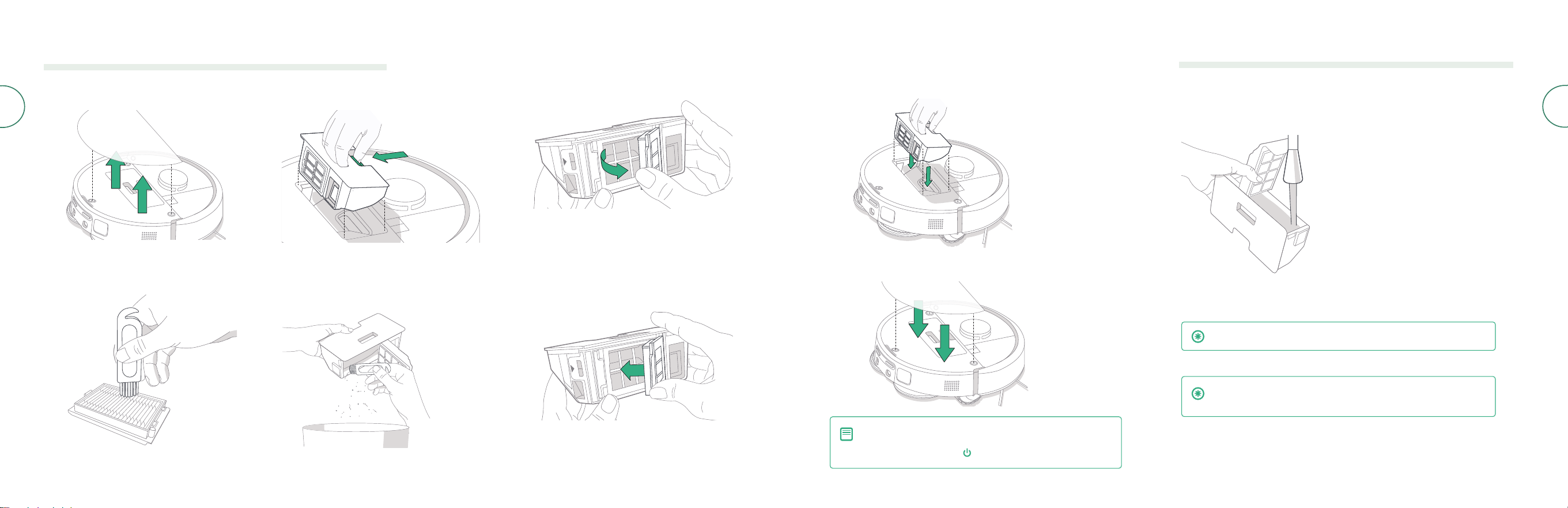
7 Place bin back in the robot.
8 Return robot top cover
Washing the Bin
1 Release the bin, remove the lter, and open the bin door.
2 Rinse the dust bin using warm water.
3 Make sure bin is completely dry. Reinsert lter and place bin back in
the robot.
IMPORTANT: The bin is not dishwasher safe.
1 Remove robot top cover by lifting up.
2 Press the dust bin release buttons to
remove dust bin.
3 Remove lter.
4 Clean debris from lter with cleaning brush.
5 Open bin door. Empty and clean dust bin with
cleaning brush or a clean cloth. Close Bin door.
6 Reinsert lter.
IMPORTANT: To achieve optimal performance with your robot
and dock, clean and/or replace your robot’s lter as needed.
Cleaning the Filter and Bin
NOTE: If you place your robot on the dock by hand, it will
not empty automatically. In this case, use the Roomba®
Home App or hold the button down for 2-5 seconds.
19Roomba® Plus 405 Combo robot + AutoWash™ dock Owner’s Guide For more information, visit global.irobot.com18
EN
EN
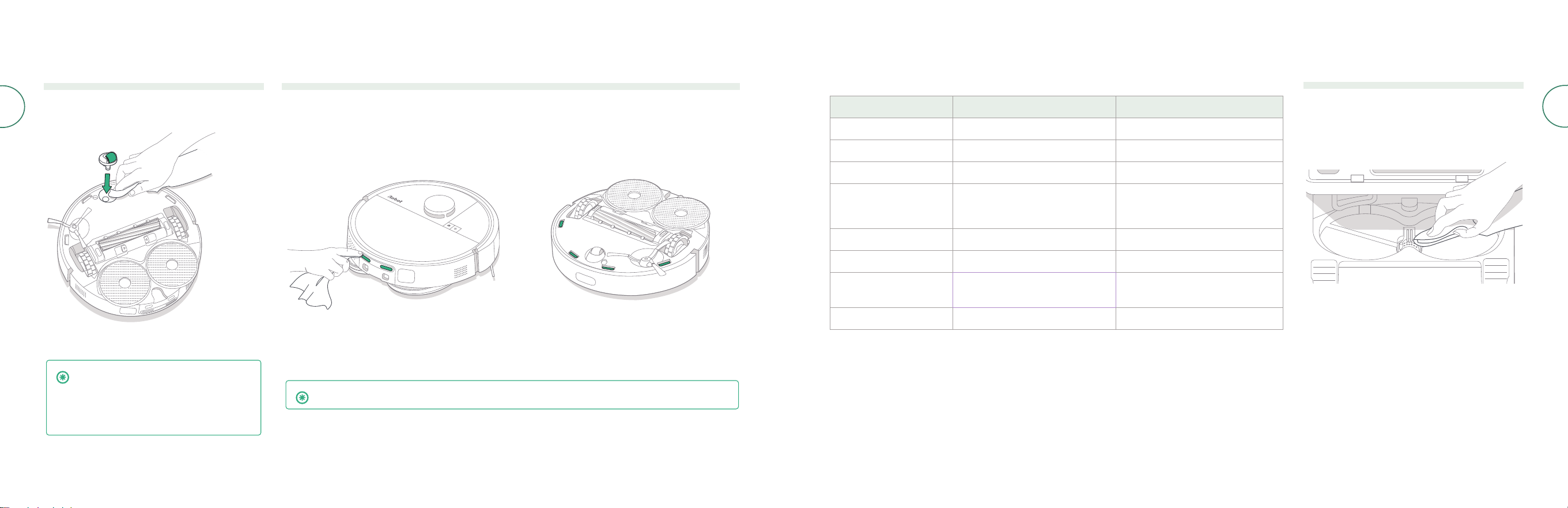
Cleaning the Front Caster Wheel
Use the cleaning brush to remove hair and debris
from the front caster wheel.
Cleaning the Charging Contacts, and Sensors
Remove the robot from the dock and wipe charging contacts and sensors with a clean, dry cloth or lightly
dampened melamine foam.
CHARGING CONTACTS SENSORS
IMPORTANT: A front wheel clogged with
hair and debris could result in damage
to your oor. If the wheel is not spinning
freely after you have cleaned it, please
contact Customer Care.
IMPORTANT: Do not spray cleaning solution or water onto the sensors or sensor openings.
Care and maintenance for your dock
To keep your dock running at optimal performance, perform the procedures on the following pages.
Part
Care Frequency
Replacement Frequency*
Charging contacts
Clean once a month
-
Sensors
Clean once a month
-
IR window
Clean once a month
-
Bags -
Bags should be replaced when full -
prompted by the LED indicator on the
dock and/or Roomba® Home App
Clean tank
Rinse and refresh water as needed
-
Dirty tank
Rinse and empty as needed
-
Pad washing basin, Liquid
overow basin
Clean if visibly dirty, once a month -
Ramp
Clean if visibly dirty
-
* Replacement frequency may vary. Parts should be replaced if visible wear appears. If you think you need a replacement part,
please contact iRobot Customer Care for more information.
Cleaning the Pad Washing System
1 Wipe out the Pad Washing Basin with a clean
dry cloth. Ensure there are no obstructions in the
drainage port. Mild soap and a sponge may be
used for stubborn debris.
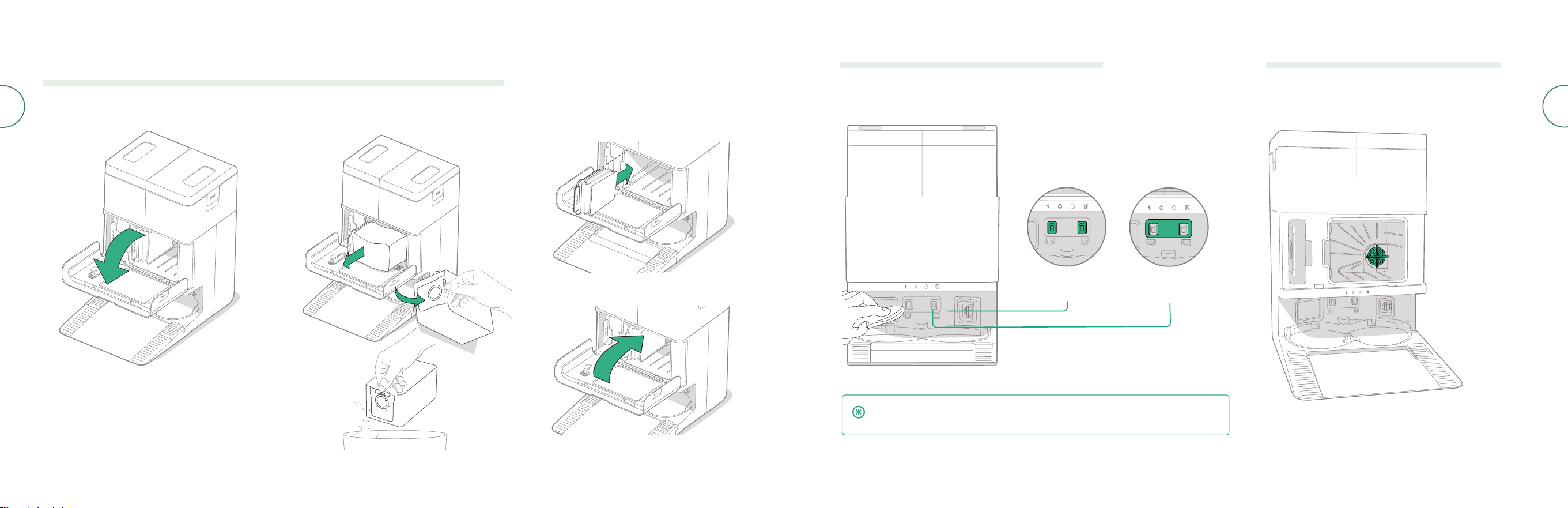
21Roomba® Plus 405 Combo robot + AutoWash™ dock Owner’s Guide For more information, visit global.irobot.com20
EN
EN
1 Pull the cubby door towards you and
down to open.
2 Slide the card out. When pulled, the bag will self-
seal so dust and debris cannot escape.
3 Install a new bag by sliding the card into the
guide rails.
4 correctly aligned.
Replacing the Bag
Cleaning the Charging Contacts and IR Window
Inspect the components to make sure that they are clear of
debris. Wipe with a clean, dry cloth.
IMPORTANT: Do not spray cleaning solution or water onto the sensors or
sensor openings.
IR
WINDOW
CHARGING
CONTACTS
Removing Debris from Dock Filter
Inspect dock lter for any lint or debris build-up, and
wipe with a clean dry cloth to remove.
23Roomba® Plus 405 Combo robot + AutoWash™ dock Owner’s Guide For more information, visit global.irobot.com22
EN
EN
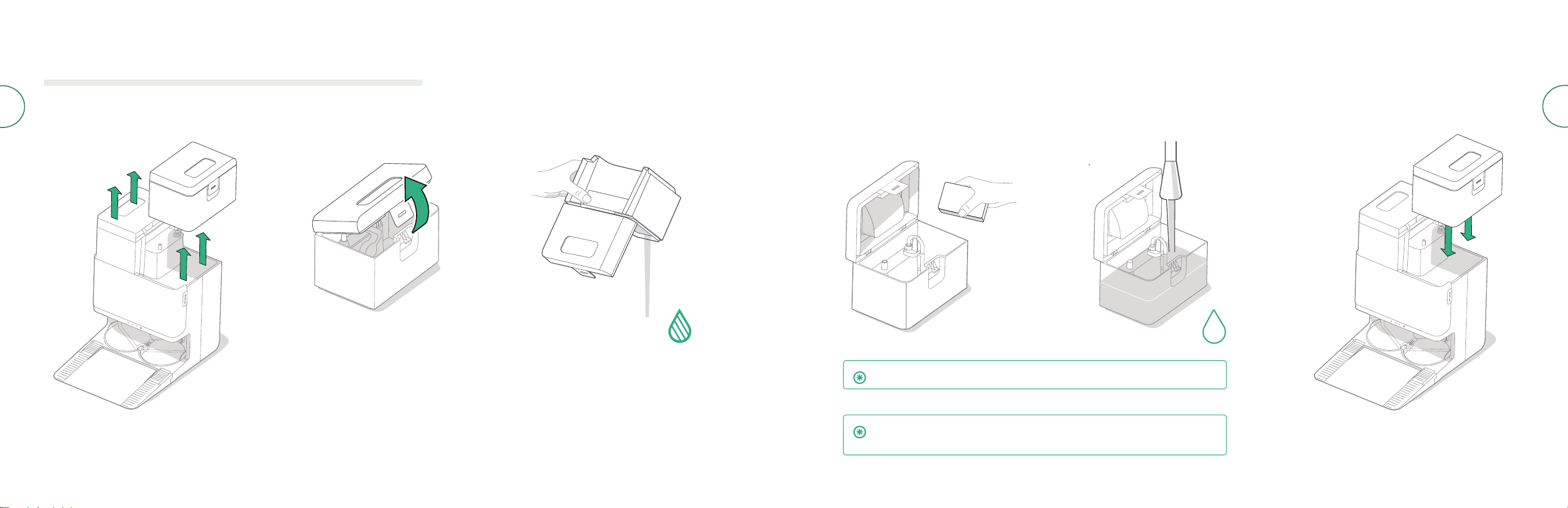
4 Rinse both water tanks using warm water.
Mild soap and a sponge may be used for
stubborn debris.
-MAX-
5 Rell the clean water tank with water. Leave the
dirty water tank empty.
-MAX-
-MAX-
6 Reinsert both water tanks
1 Remove both water tanks.
2 Lift the latch on the water tanks to open.
-MAX-
3 Empty Dirty Water tank.
IMPORTANT: Water tanks are not dishwasher safe.
Washing the Water Tanks
IMPORTANT: Ensure the latch is properly closed on the water tanks before
reinstalling.
For more information, visit global.irobot.com24
EN
Troubleshooting
Troubleshooting your robot
Your robot will alert you if something is wrong with a voice announcement or
audio alert. The Roomba® Home App will also provide notications with steps to
troublehoot any issues.
If you are unsure if the robot is nished or paused, consult the Roomba® Home
app to check on its status.
Factory Reset
To factory reset press for 5 seconds and then (within 5 seconds) press +
for 5 seconds.
BATTERY SAFETY & SHIPPING
WARNING: Lithium ion batteries and products that contain lithium ion
batteries are subject to stringent transportation regulations. If you
need to ship this product for service, travel or any other reason, you
MUST follow the below shipping instructions.
• Battery MUST be turned o before shipping.
• Turn o the battery by removing the robot from the dock and holding down the
button for 10 seconds. Press the bumper in for 10 seconds while holding the
button. All indicators will then turn o.
• Package the robot securely for shipping.
If you need further assistance, please visit your Roomba® Home app, contact our
Customer Care team or visit global.irobot.com.
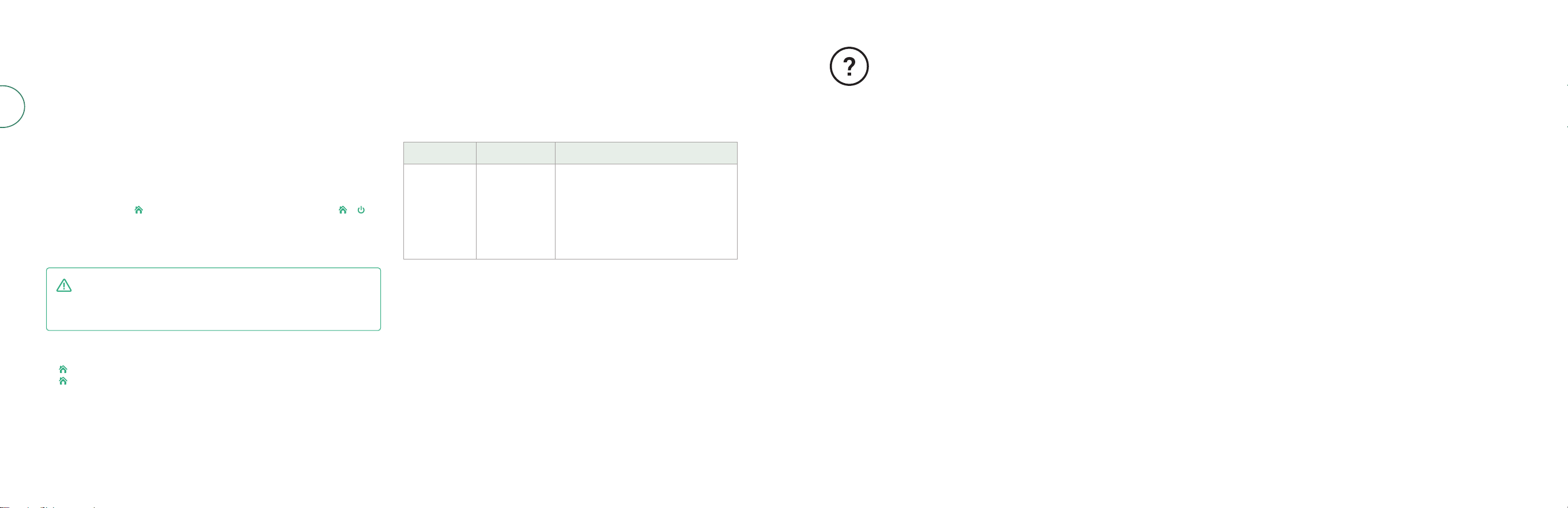
Troubleshooting your dock
Your dock will tell you if something is wrong via LED indicators on the front of the
canister and through the Roomba® Home App. If the dock is not performing as
expected, check the Roomba® Home app for errors.
LED indicator
Common error
How to x
Solid red
Bag
full or missing
Replace bag if it is full or missing.
Make sure that the bag is
securely inserted.
If problem persists, remove any debris
from the port on the bottom of your
robot and dock.
This product has been equipped with a thermal protector designed to protect
against damage due to overheating. If the protector operates, the motor will
stop running. If this happens, unplug the unit, allow it to cool for 30 minutes, clear
any obstructions from the evacuation port and evacuation tube, then plug the
unit back in.
Need further assistance? We’re here to help.
Download the Roomba® Home App or visit global.irobot.com for product support or to
contact your local support center. If you need further assitance in the US & Canada, call the
US Customer Care team at (877) 855-8593.
iRobot USA Customer Care Hours
Monday to Friday, 9AM — 9PM Eastern Time
Saturday and Sunday 9AM — 6PM Eastern Time
4851435 vA
WC# 4851435 vA
Satety Information
Please see the safety guide that came with your robot, or visit global.irobot.com

©2025 iRobot Corporation, 8 Crosby Drive, Bedford, MA 01730 USA. All rights reserved. iRobot,
Roomba, and Roomba Combo are registered trademarks of iRobot Corporation. AutoEmpty and
AutoWash are trademarks of iRobot Corporation. Wi-Fi and the Wi-Fi logo are registered trademarks
of Wi-Fi Alliance. Apple and App Store are trademarks of Apple Inc., registered in the U.S. and other
countries. Google Play is a trademark of Google LLC.