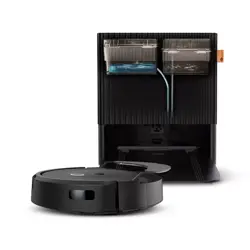
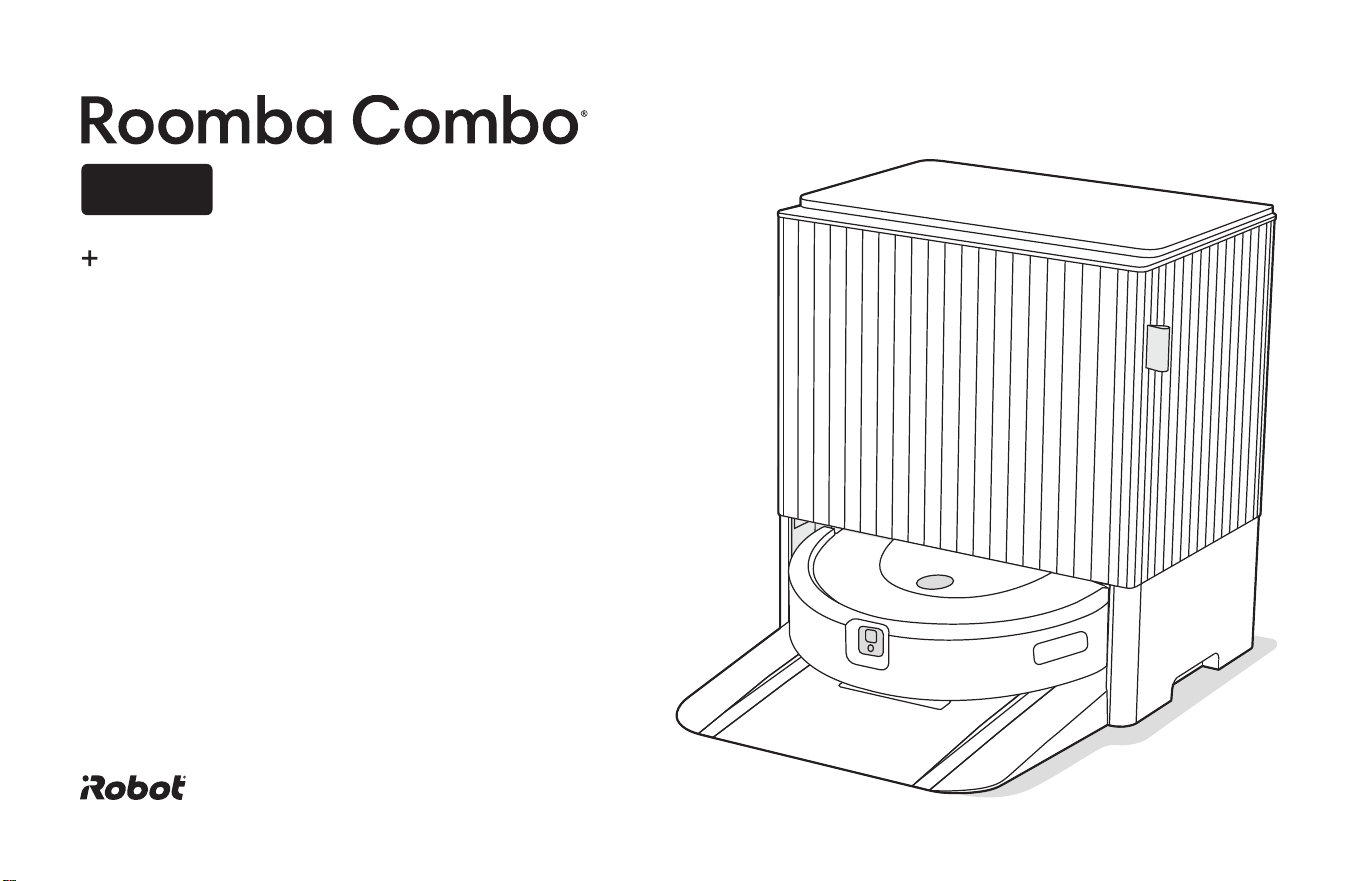
Owner's Guide
10 Max
robot
AutoWash
dock
1Roomba Combo® 10 Max + AutoWash dock Owner’s Guide
EN
Safety information
Important safety information
This owner’s guide includes information for Regulatory Model(s): Robot: RCA-Y2 | Dock: ADL-N1 | Battery: ABL-F, ABL-D2Ax, ABL-D2Bx (x = 1 or 2) |
Robot Radio Module: 6233E-UUB
SAVE THESE INSTRUCTIONS
WARNING: When using an electrical appliance, basic precautions should always be followed, including the following:
READ ALL INSTRUCTIONS
WARNING: to reduce the risk of injury or damage, read and follow the safety precautions when setting up, using, and maintaining your robot.
This appliance is not intended for use by persons (including children) with reduced physical, sensory or mental capabilities, or lack of
experience and knowledge, unless they have been given supervision or instruction concerning use of the appliance by a person responsible
for their safety. Children should be supervised to ensure that they do not play with the appliance.
This is the safety alert symbol. It is used to alert you to potential physical injury hazards.
Obey all safety messages that follow this symbol to avoid possible injury or death.
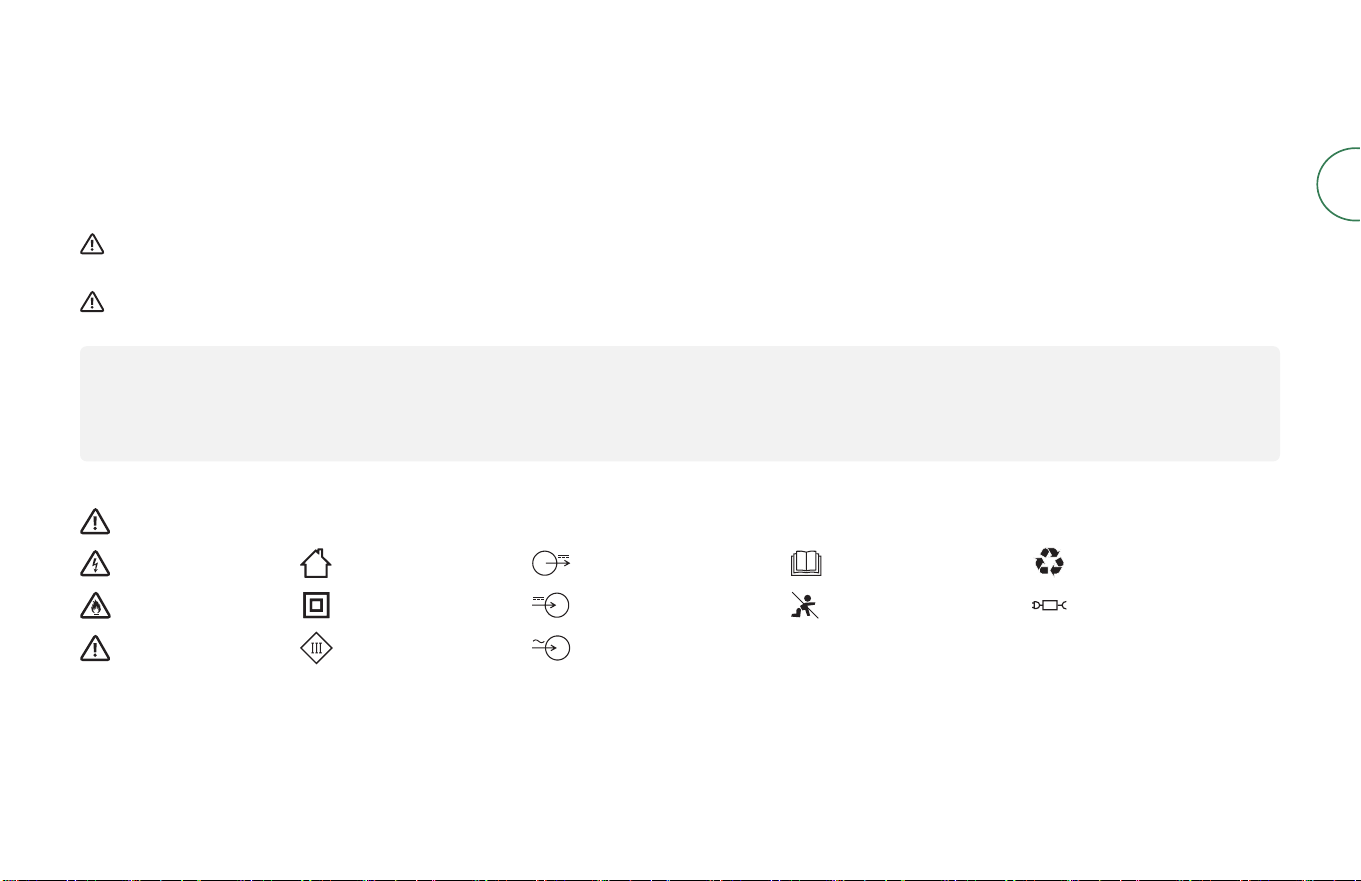
Risk of electric shock For indoor use only Rated power output, d.c. Read operator’s manual General symbol for recycling
Risk of re
Class II equipment Rated power input, d.c.
Keep out of
reach ofchildren
Separate Supply Unit
Caution Class III equipment Rated power input, a.c.
For more information, visit global.irobot.com2
EN
WARNING: Indicates a hazardous situation that, if not avoided, could result
in death or serious injury.
CAUTION: Indicates a hazardous situation that, if not avoided, could result
in minor or moderate injury.
NOTICE:
Indicates a hazardous situation that, if not avoided, could result in
property damage.
GENERAL
WARNING
• This product comes with a region approved power supply cord and is
designed to be plugged into a standard household AC power outlet only.
Do not use any other power supply cord. For replacement cords, please
contact Customer Care to ensure proper selection of country specic
power supply cord.
• Do not disassemble or open this product other than instructed in
the Owner’s Guide. There are no user serviceable parts inside. Refer
servicing to qualied service personnel.
• Risk of electric shock use indoors in dry location only.
• Do not handle this product with wet hands.
• Do not place anything hazardous or ammabile on top of your
robot or dock.
• This product is not a toy. Small children and pets should be supervised
when your robot is operating. Do not sit or stand on your robot or dock.
• Do not sit or stand on this product.
• Store and operate this product in room temperature environments only.
• Do not use unauthorized chargers. Use of an unauthorized charger
could cause the battery to generate heat, smoke, catch re, or explode.
• If the room to be cleaned contains a balcony, a physical barrier should
be used to prevent access to the balcony and ensure safe operation.
• If the room to be cleaned contains equipment, such as a stove, fan,
portable heater, or humidier, remove the equipment before operation.
There is a risk of injury, accident or malfunction if the robot comes in
contact with and pushes the equipment.
• Do not allow your robot or dock to become wet.
• Clean cli sensors for buildup.
• Do not use the Mopping Pad Plate as a handle to lift or move the robot.
• Be aware that oors may be slippery after wet cleaning with your robot.
CAUTION
• Do not operate the robot in areas with exposed electrical outlets or gas
shut-o valves in the oor.
• Do not use this device to pick up sharp objects, glass, or anything that is
burning or smoking.
• Be aware that the robot moves on its own. Take care when walking in the
area that the robot is operating in to avoid stepping on it.
• If the device passes over a power cord and drags it, there is a chance an
object could be pulled o a table or shelf. Before using this device, pick
up objects like clothing, loose papers, pull cords for blinds or curtains,
power cords, and any fragile objects. Extinguish candles. Shut o
portable heaters.
• Perform the required maintenance as per the Owner’s Guide to ensure
safe operation of the robot and dock.
• If the robot is operating on a oor with stairs, please remove any clutter
from the top step.
NOTICE
• Do not allow your robot or dock to become wet.
• The failure to maintain cleanliness of charger contacts could result in
loss of ability for the robot to charge the battery and the contacts to
become hot to the touch.
• Before running your robot on hard oors, please test your robot on a
small section of the hard oor to ensure that it is compatible. Using your
robot on a hard oor that is not compatible could result in damage
to your oor. Contact your hard oor manufacturer with questions on
compatibility.
• Before running your robot on carpets or rugs, ensure that the carpets or
rugs are compatible with the dual multi-surface rubber brushes on your
robot, otherwise known as beater bars. Using your robot on a carpet
3Roomba Combo® 10 Max + AutoWash dock Owner’s Guide
EN
or rug that is not compatible could result in damage to your carpet
or rug. Contact your carpet or rug manufacturer with questions on
compatibility.
DOCK
WARNING
• Do not use if the cord or plug is damaged. If appliance is not working as
it should, has been dropped, damaged, left outdoors or dropped into
water, return it to a service center.
• Always disconnect your robot from the dock before cleaning or
maintaining it.
• Do not use the dock as a step.
• Do not put any object into openings. Do not use with any opening
blocked; keep free of dust, lint, hair and anything that may reduce
air ow.
• To properly maintain your dock, do not place foreign objects in your
Debris Evacuation Port and ensure that it is clear of debris.
• In order to avoid a hazard due to inadvertent resetting of the thermal
cut-out, this appliance must not be supplied through an external
switching device, such as a timer, or connected to a circuit that is
regularly switched on and o by the utility.
• Do not allow liquids to get on or into the dock.
• Do not pour any liquids into the device and do not immerse in water.
• Do not use outdoors or on wet surfaces.
• Do not allow to be used as a toy. Close attention is necessary when used
by or near children.
• Use only as described in this manual.
• To reduce the risk of electric shock, unplug your dock before cleaning.
• Keep the dock and power cord away from heated surfaces.
• To avoid accidental contact with or ingestion of the cleaning solution, do
not allow children to remove the tanks from the dock.
• Full tank is heavy. To avoid risk of injury, take additional care when
inserting or removing the tanks. Do not allow children to insert or
remove the tank.
• To prevent the risk of your robot falling down stairs, ensure that the dock
is placed at least 1.2 metres (4 feet) away from stairs.
NOTICE
• Product may not be used with any type of power converter. Use of power
converters will immediately void the warranty.
• If you live in an area prone to electrical storms, it is recommended that
you use additional surge protection. Your dock may be protected with a
surge protector in the event of severe electrical storms.
• Do not use without a dust bag and/or lters in place.
CLEANING SOLUTION
WARNING
• Household cleaning products are safe when used and stored according
to the instructions on the label. Always be sure to read and follow the
directions carefully.
• Only use authorised cleaning solutions found on answers.irobot.com/s/
roomba-combo-cleanser
• For cleaning solution warnings, please refer to the outer box and
solution bottle.
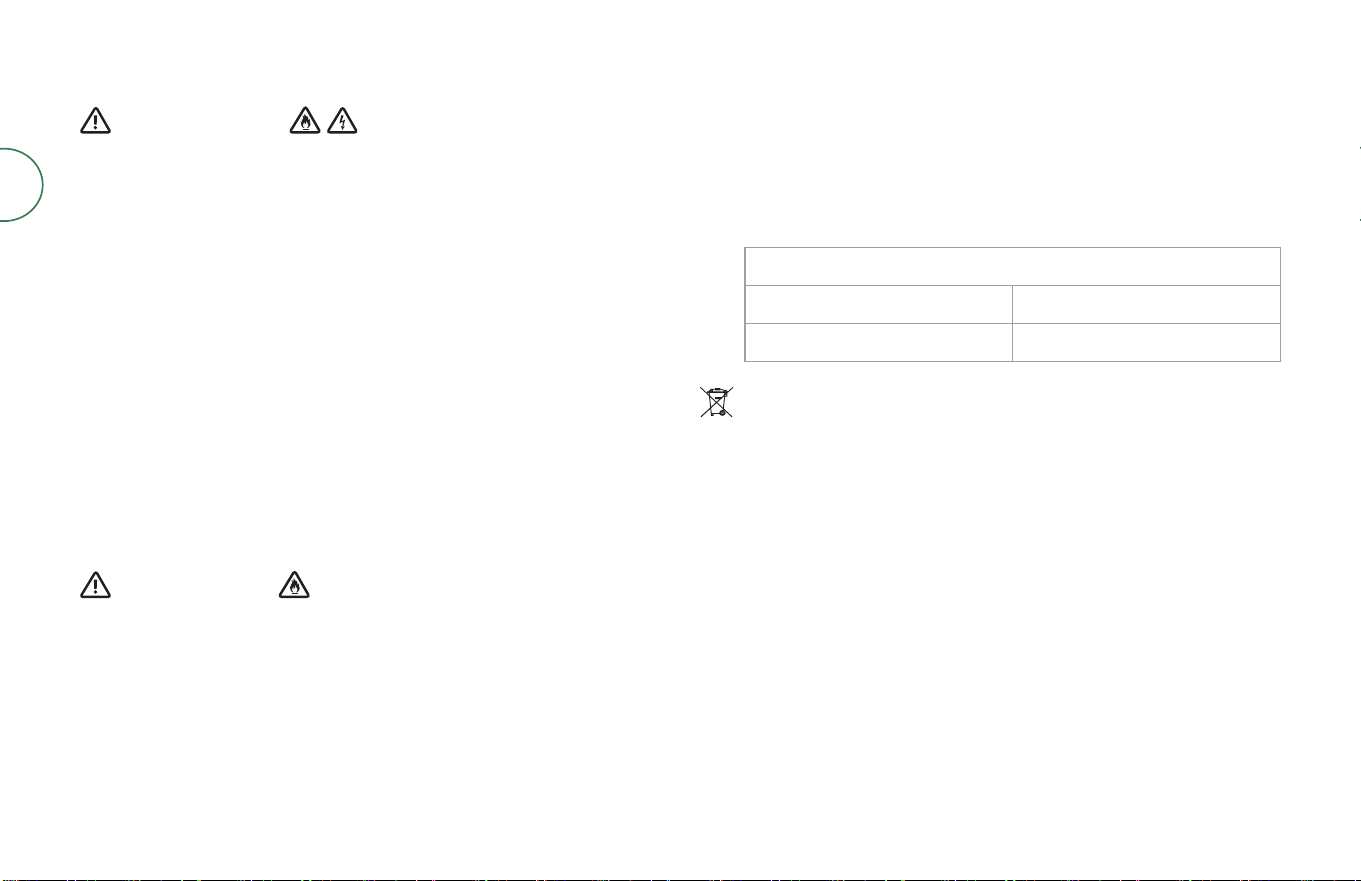
Keep away from children
Keep away from eyes. If product gets into eyes rinse
thoroughly with water.
Rinse hands after use
For more information, visit global.irobot.com4
EN
BATTERY
WARNING
• Do not open, crush, heat above 80°C (176°F) or incinerate. Follow the
Owner’s Guide instructions for proper use, maintenance, handling
and disposal.
• Do not short-circuit the Battery by allowing metal objects to contact the
battery terminals or by immersing it in liquid. Do not subject batteries to
mechanical shock.
• Lithium ion batteries and products that contain lithium ion batteries are
subject to stringent transportation regulations. If you need to post this
product (with the Battery included) for service, travel or any other reason,
you must refer to the Troubleshooting section of your Owner’s Guide or
contact Customer Care for postage instructions.
• Periodically inspect the battery pack for any sign of damage or leakage.
Do not charge damaged or leaking battery packs. Do not allow the
liquid to come into contact with skin or eyes. If contact has been made,
wash the aected area with large amounts of water and seek medical
advice. Place the Battery in a sealed plastic bag and recycle or dispose
of it safely according to local environmental regulations or return it to
your local authorised iRobot Service Center for disposal.
• Keep the battery pack clean and dry. Wipe the cell/battery terminals
with aclean dry cloth if they become dirty.
CAUTION
• Battery usage by children should be supervised. Seek medical advice
immediately if a cell or a battery has been swallowed.
NOTICE
• The battery pack must be removed from the robot before recycling
or disposal.
• For best results, only use the Lithium Ion Battery that comes with
the robot.
• Do not use non-rechargeable batteries. Use only the rechargeable
battery supplied with the product. For replacement, purchase identical
iRobot battery or contact iRobot Customer Care for alternative
battery options.
• Always charge and remove the battery from your robot and accessories
before long-term storage.
ADL-N1
NOMINAL ELECTRICAL CHARACTERISTICS
Input voltage: 100-127 V
Input frequency: 50/60 Hz
Output voltage: 19.5 VDC
Current output: 1.25 A
This symbol on the battery indicates that the battery must not be disposed
of with unsorted common municipal waste. As the end-user, it is your
responsibility to dispose of the end-of-life battery in your appliance in an
environmentally sensitive manner as follows:
(1) returning it to the distributor/dealer from whom you purchased the
product; or
(2) depositing it in a designated collection point.
The separate collection and recycling of end-of-life batteries at the time
of disposal will help to conserve natural resources and to ensure that it is
recycled in a manner that protects human health and the environment.
For more information, please contact your local recycling oce or the
dealer from whom you originally purchased the product. Failure to properly
dispose of end-of-life batteries may result in the negative potential eects
on the environment and human health due to the substances in the
batteries and accumulators.
For battery recycling go to call2recycle.org or call 1-800-822-8837.
5Roomba Combo® 10 Max + AutoWash dock Owner’s Guide
EN
Get started
1 Download the iRobot Home App
Scan the QR code with the camera on your mobile device or nd the iRobot Home
App in your app store.
• Follow step-by-step instructions to set up your robot.
• Complete setup in the app to allow your robot to identify and avoid obstacles
in real time.
• Set an automatic cleaning schedule and customize cleaning preferences.
• Create smart maps to tell your robot where, when and how to clean.
• Access to tips, tricks, and answers to commonly asked questions. Follow step-
by-step instructions to set up your robot.
IMPORTANT: Read enclosed safety information guide rst before
using your robot.
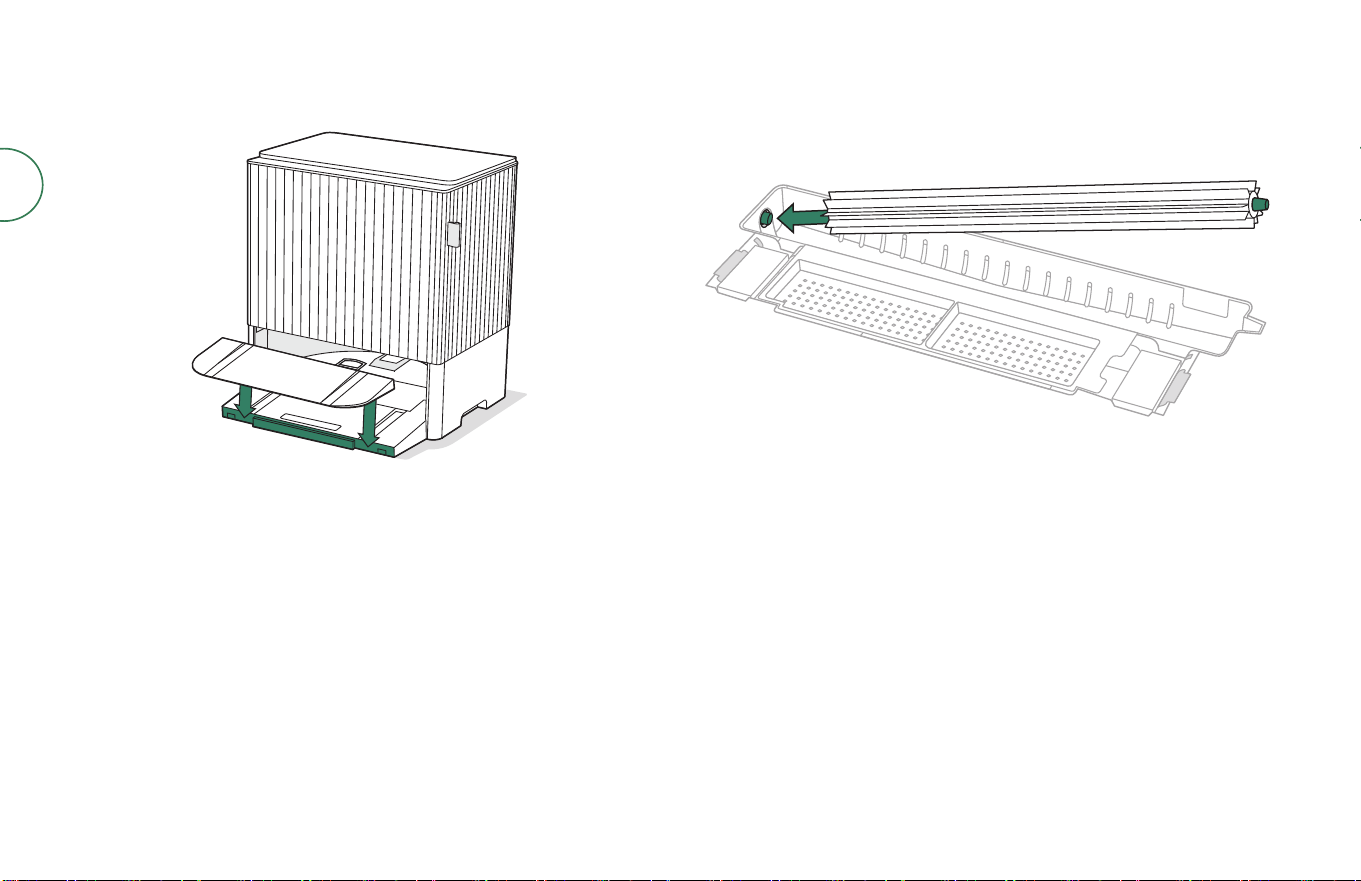
2 Position the dock
Good Wi-Fi® Coverage
1.5 ft (0.5 m)
both sides
4 ft (1.2 m)
from stairs
4 ft (1.2 m) in front
• Position your dock on hard surface ooring, near an outlet, in an area with
good WiFi® coverage.
• Do not place it in direct sunlight.
• Ensure the area around the dock is free of clutter to improve docking
performance.
WARNING: To prevent the risk of your robot falling down stairs, ensure
that your dock is placed at least 4 feet (1.2 meters) away from stairs.
For more information, visit global.irobot.com6
EN
3 Install the dock ramp
• Install the removable ramp by aligning with the dock.
• Press down to snap into place.
4 Install the Pad Washing Roller
• Remove stickers from Pad Washing Filter.
• Install Pad Washing Roller from left to right by aligning the roller peg into place.
7Roomba Combo® 10 Max + AutoWash dock Owner’s Guide
EN
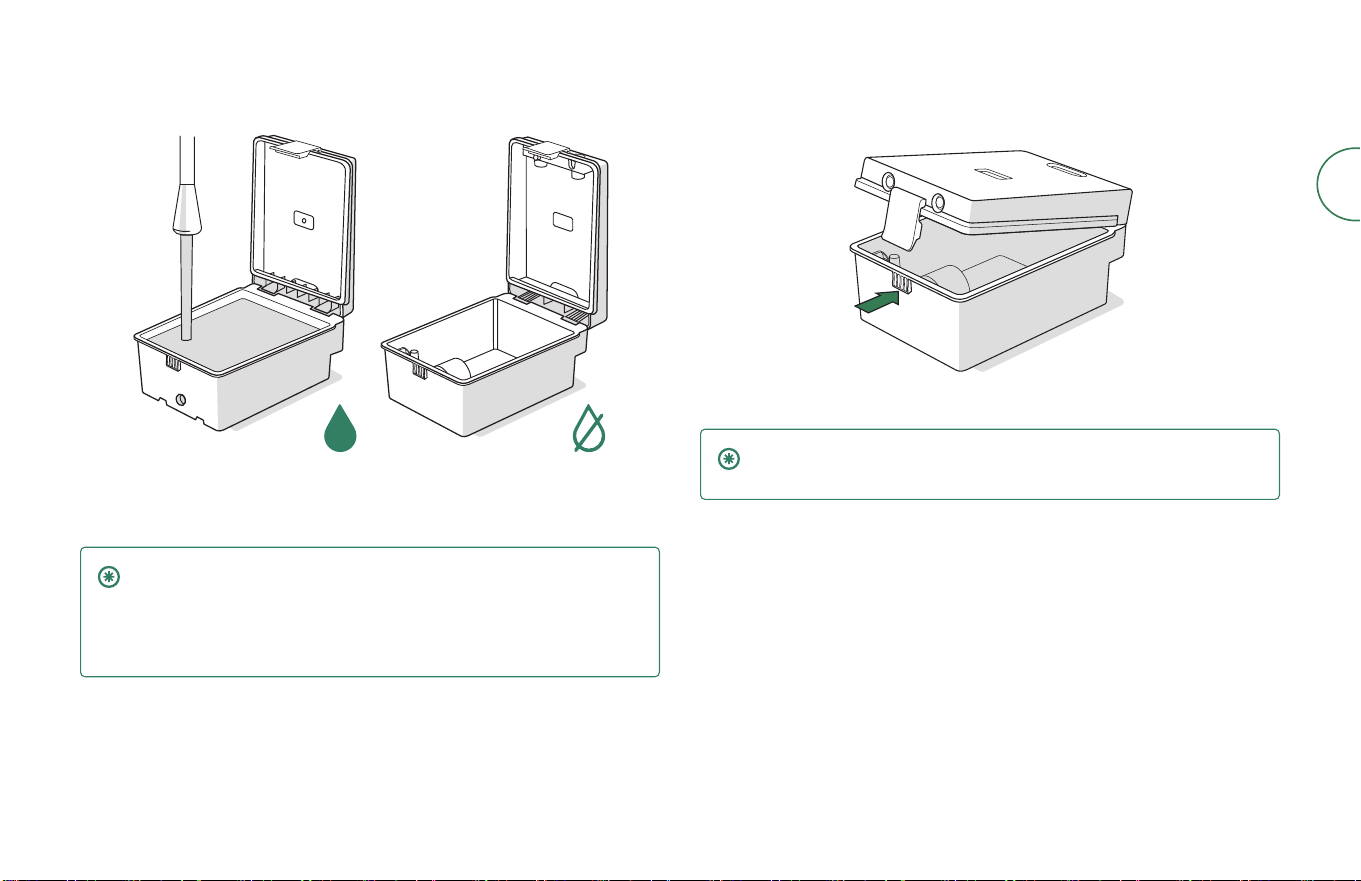
5 Prepare the Clean and Dirty tanks
• Remove both tanks from the dock.
• Fill the Clean Tank (left) with water or compatible cleaning solution.
IMPORTANT: Only certain cleaning solutions can be safely used with
your robot. A full list of compatible cleaning solutions can be found
on http://answers.irobot.com/s/roomba-combo-cleanser or by
visiting the app. Please do not use other cleaning solutions or bleach-
based products.
• Both the Clean Tank and Dirty tank are shipped unlatched. You must latch both
tanks before initial use.
• Reinstall the tanks.
IMPORTANT: Ensure the latch is properly closed on the tank before
reinstalling.
For more information, visit global.irobot.com8
EN
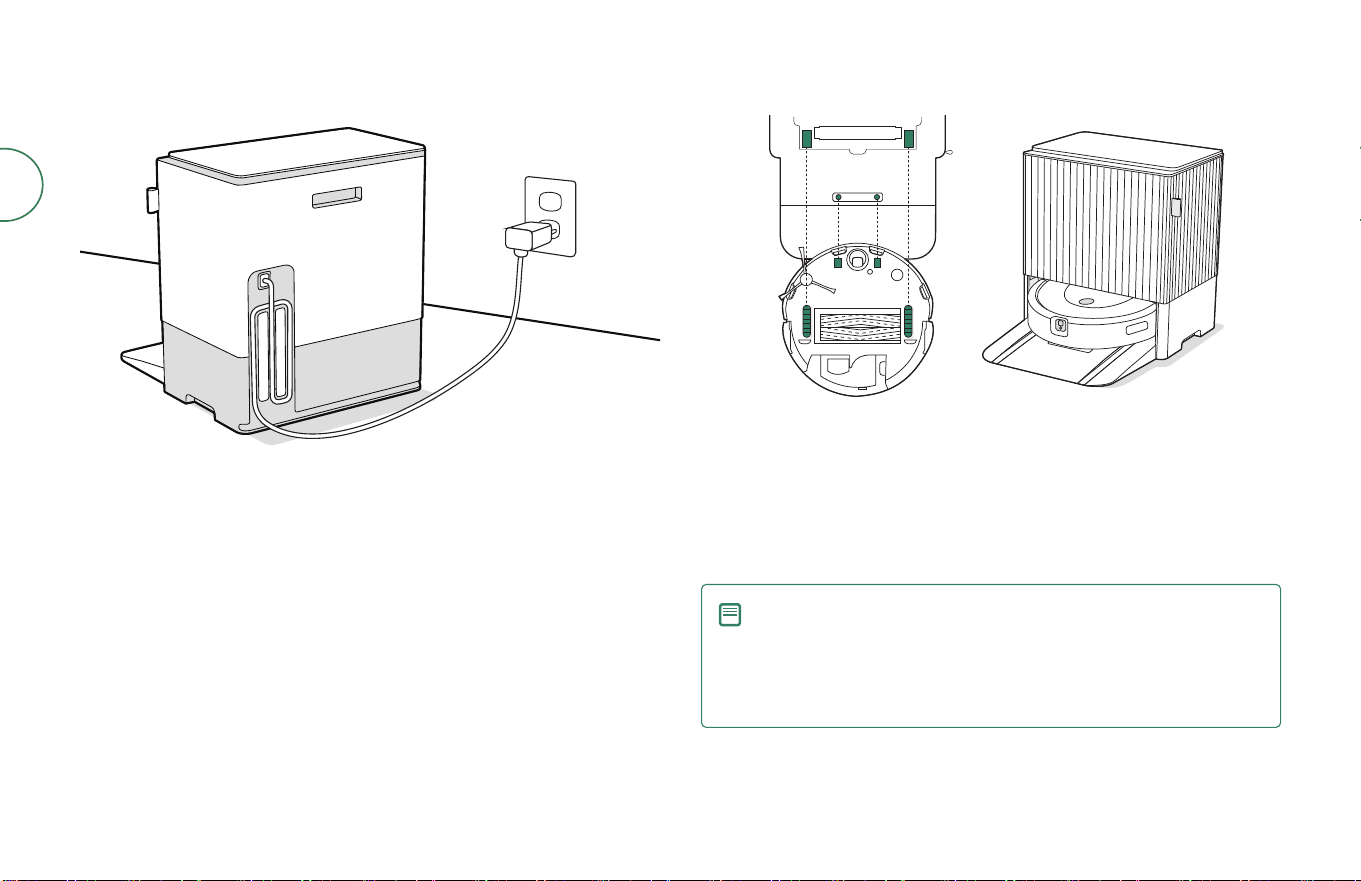
6 Plug in the dock
• Plug the power cord into the dock, then into the wall.
• Wrap the cord back so it won’t get in the way of the robot as it comes and goes.
7 Wake up the robot
• Place your robot on the dock with the camera facing out.
• Make sure the metal charging contacts are lined up and the wheels are placed
over the wheel switches.
• The charging LED indicator on the dock will briey illuminate when the robot is
docked correctly.
• After two full minutes your robot will chime when ready and display a solid or
slowly lling white ring around its button.
NOTE: Your robot comes with a partial charge, but we recommend
that you charge the robot for 3 hours prior to starting the rst
cleaning job.
If the light ring is swirling white, the robot is not ready and is
still waking up.
9Roomba Combo® 10 Max + AutoWash dock Owner’s Guide
EN
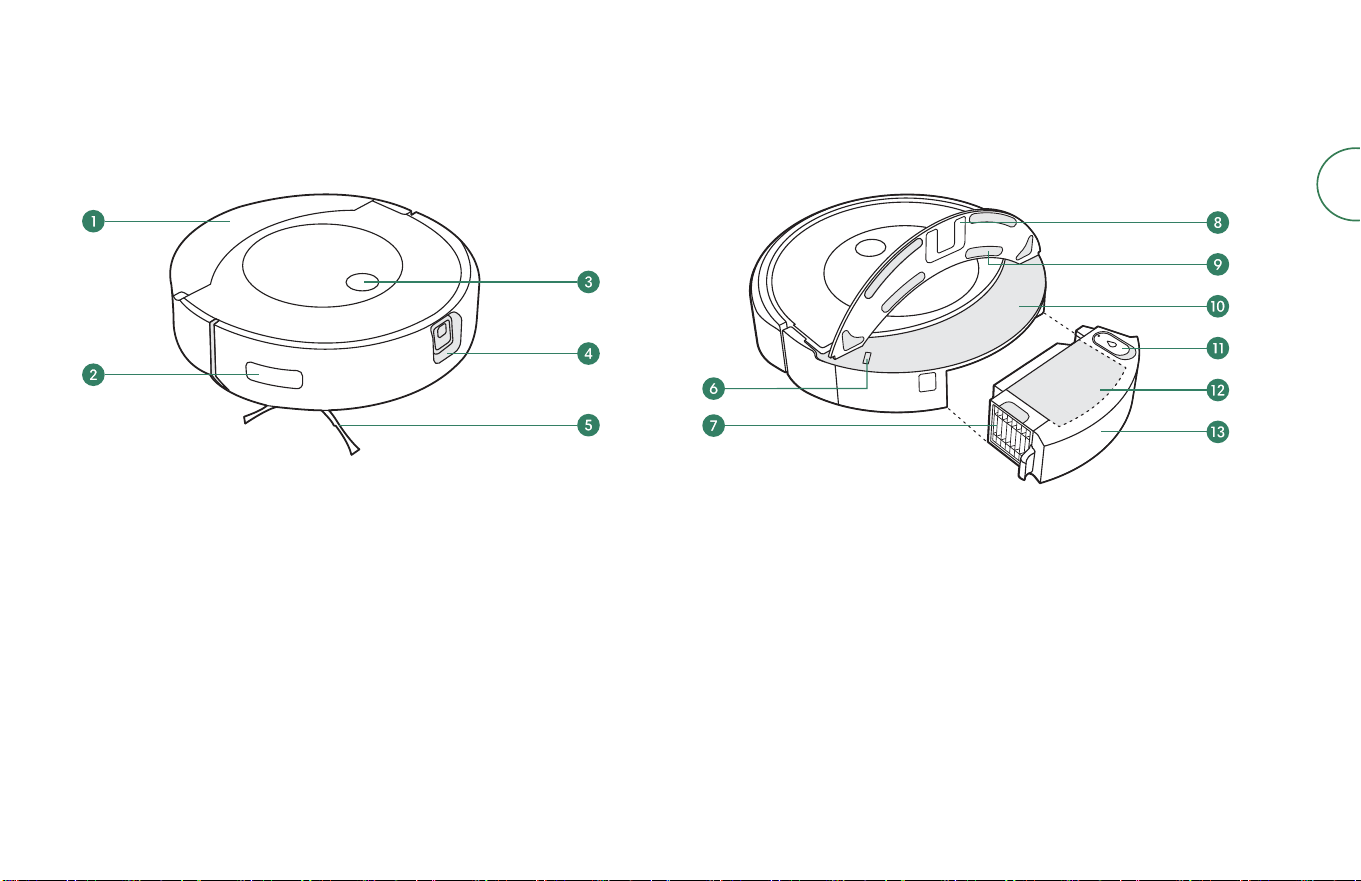
About your robot
Top view
1 Mopping pad plate
2 Wall follow sensor
3 Clean button
4 Camera
5 Edge-sweeping brush
6 IR pad sensor
7 Filter
8 Pad track
9 Pad attachments
10 Pad shelf
11 Tank cap
12 Dust bin
13 Water tank
For more information, visit global.irobot.com10
EN
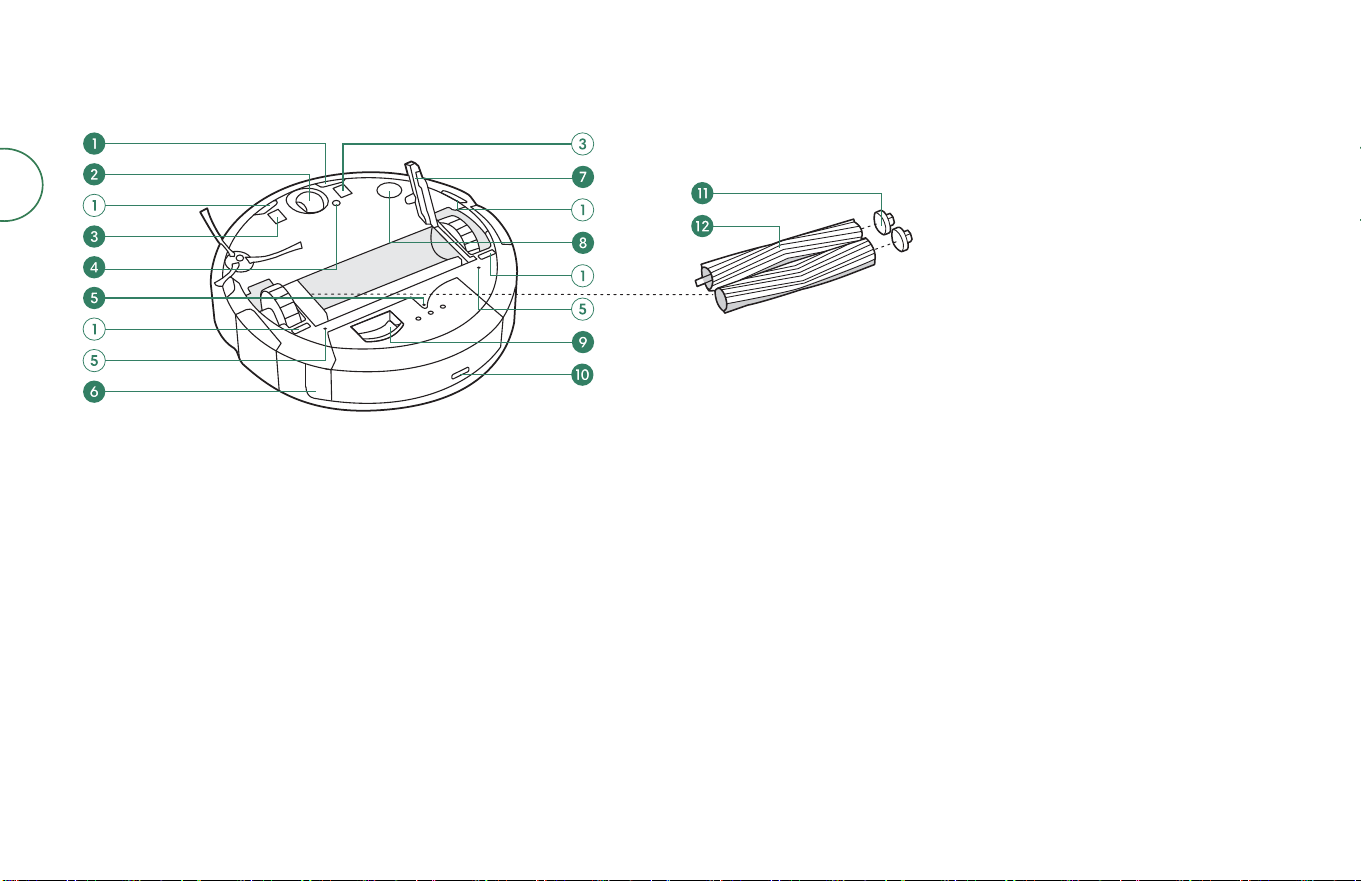
6
Bottom view
1 Cli sensors
2 Front caster wheel
3 Charging contacts
4 Floor type sensor
5 Nozzle
6 Bin release button
7 Brush frame release tab
8 Floor tracking sensor
9 Debris evacuation port
10 Rell port
11 Brush caps
12 Multi-surface brushes
11Roomba Combo® 10 Max + AutoWash dock Owner’s Guide
EN
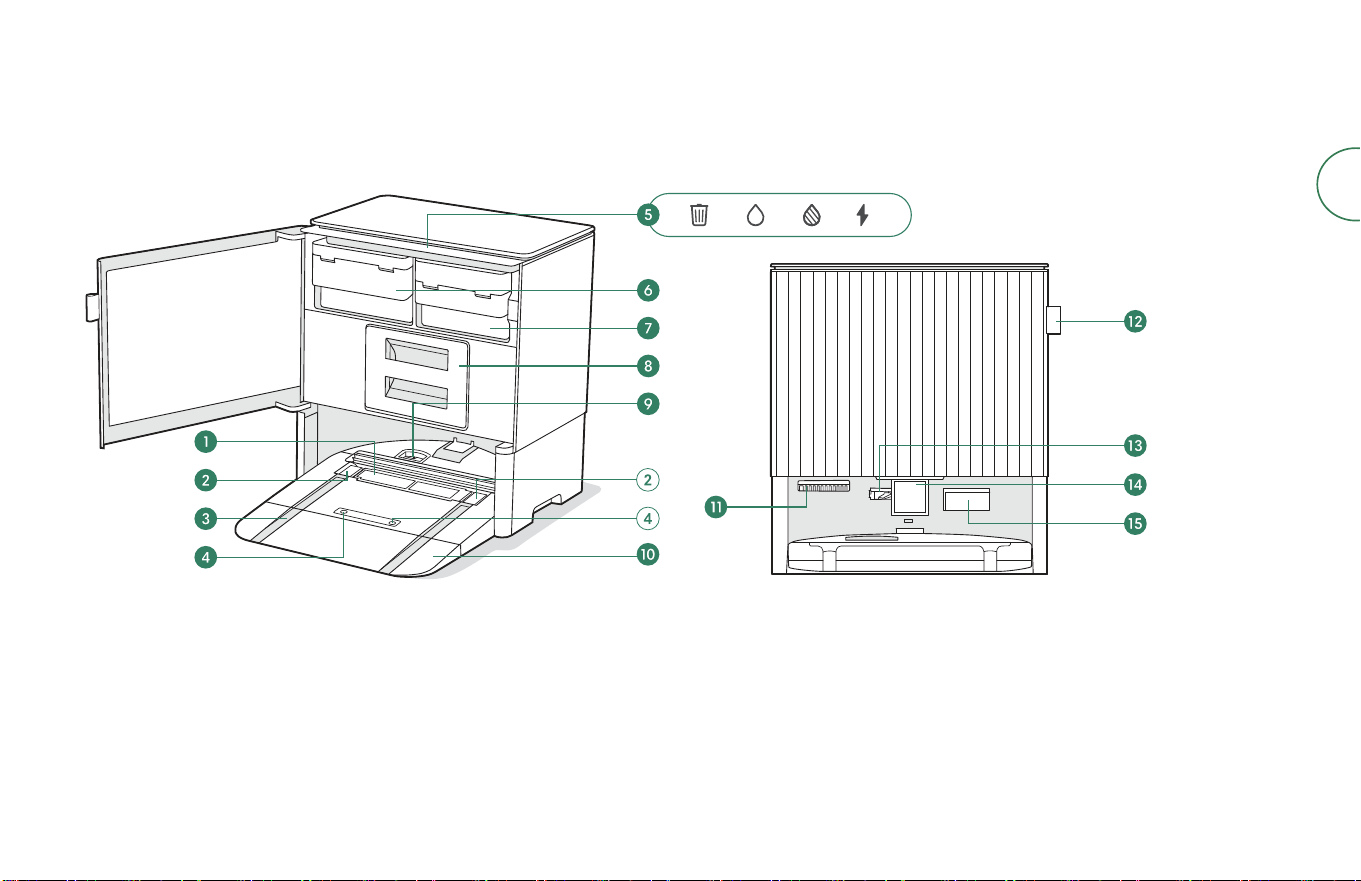
About your dock
Front view
1 Pad washing system
2 Wheel switch
3 Wheel track
4 Charging contact
5 LED indicators
6 Clean tank
7 Dirty tank
8 Debris bag drawer
9 Debris evacuation port
10 Removable ramp
11 Forced air outlet
12 Pull tab
13 Rell nozzle
14 Visual docking target
15 IR window
For more information, visit global.irobot.com12
EN
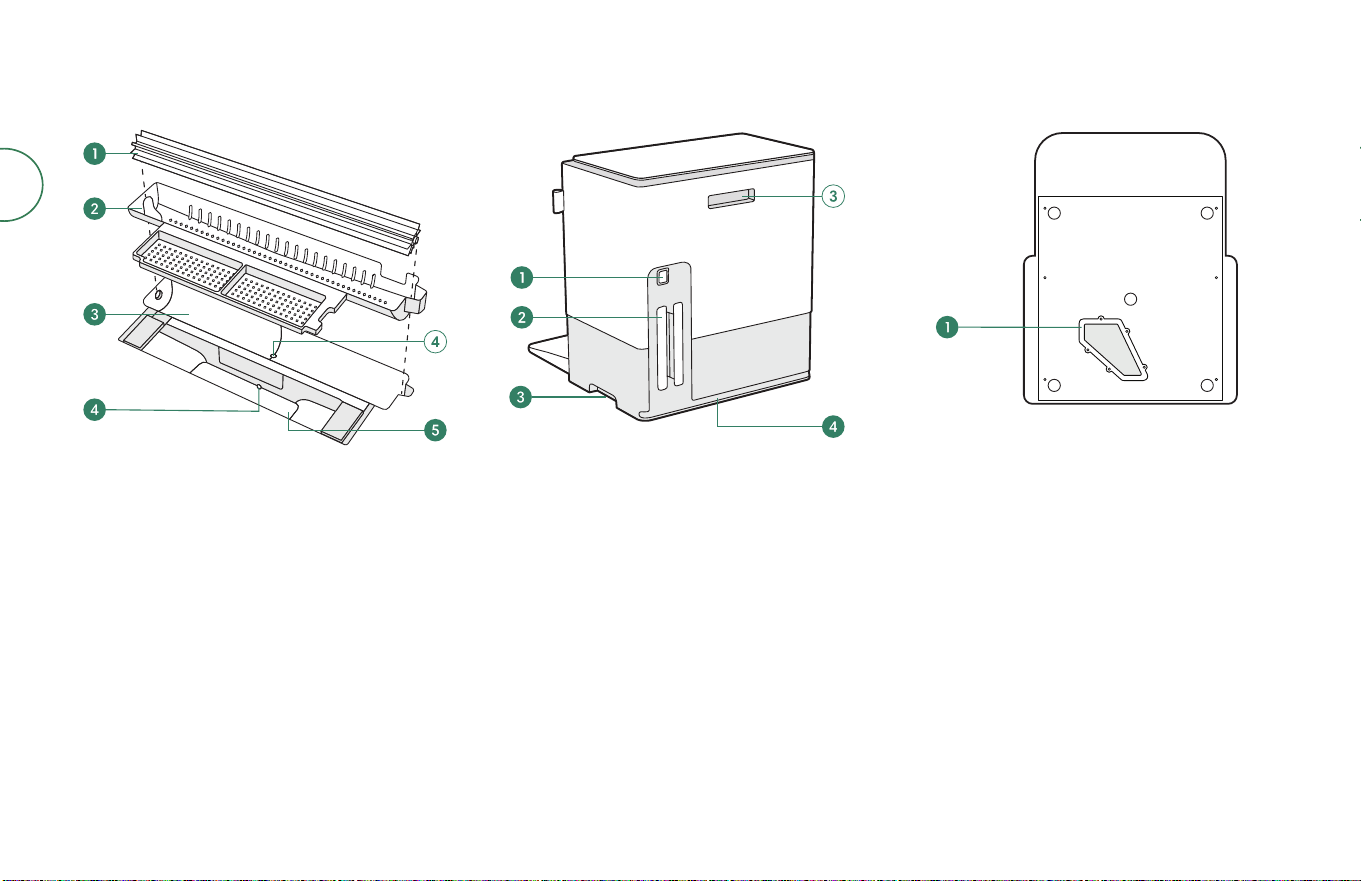
Back view Bottom view
1 Cord attachment
2 Cord wrap
3 Carrying handle
4 Cord management channel
1 Debris tube access panel
Pad Washing System view
1 Pad washing roller
2 Pad washing lter
3 Pad washing basin
4 Drainage port
5 Liquid overow basin
13Roomba Combo® 10 Max + AutoWash dock Owner’s Guide
EN
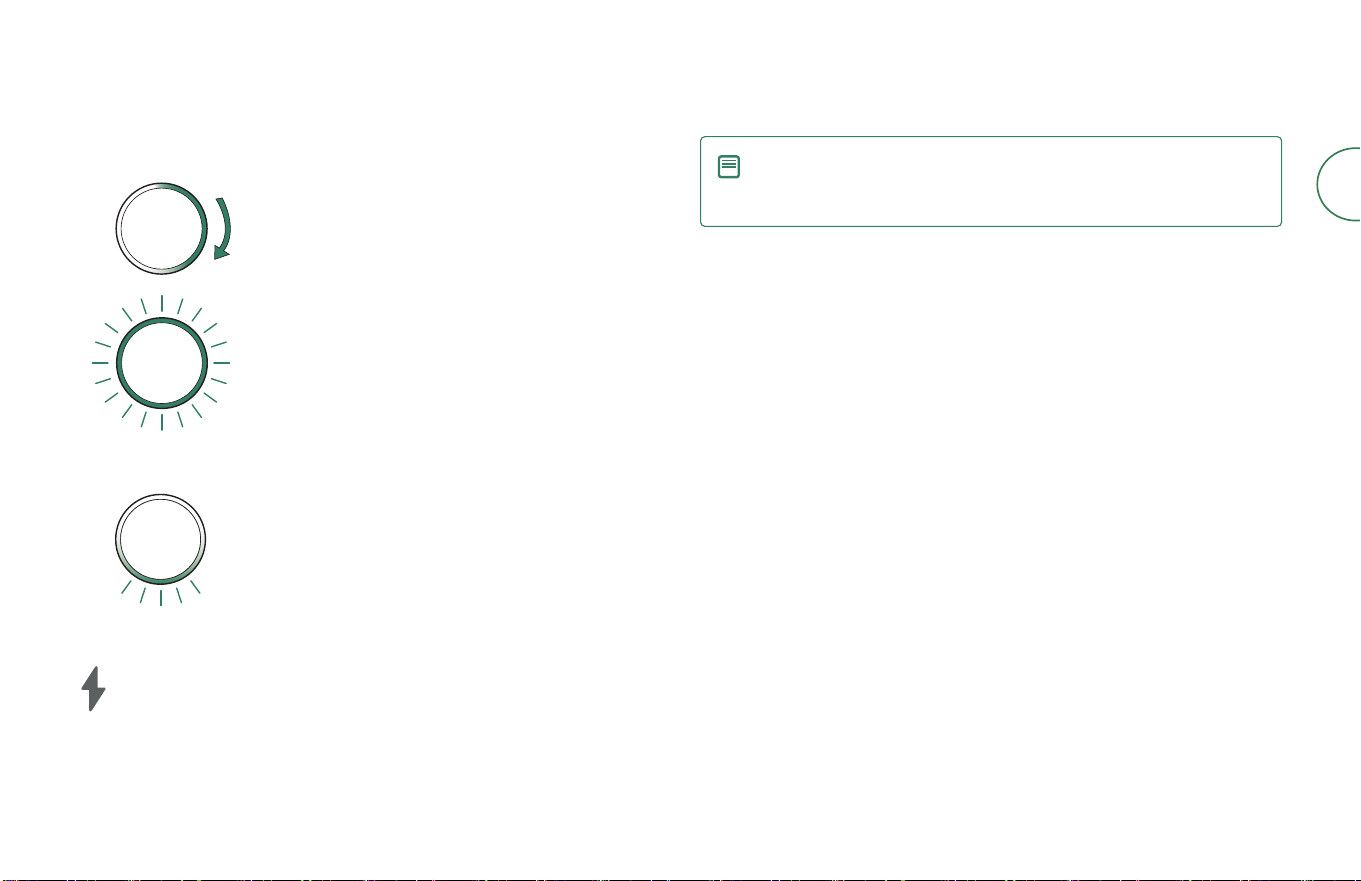
Charging
Light Ring: Charging in progress
Sweeping white: charging
• Percentage charged is indicated by the size of the
solid white
• For example, if half the light ring is solid, it’s
50% charged
Pulsing red: charging, low battery
Light Ring: Charging complete
Solid white: fully charged
Pulsing white at rear: fully charged and asleep
Dock Charging LED indicator
On: Robot on dock charging
O: robot not on dock, robot not charging, or dock is asleep
NOTE: After 60 seconds, the dock will sleep and the Charging LED
indicator will turn o. To check the status, tap the Clean button on
your robot or visit the iRobot Home app.
Charging during a cleaning job
You robot will return to the dock whenever it needs to recharge. Once the robot is
suciently charged, it will then resume the cleaning job where it left o.
Standby mode
The robot uses a small amount of power whenever it is on the dock. You can put
the robot in a further-reduced power state when not in use. For instructions and
more details on this Reduced Power Standby Mode, refer to the FAQ page on
our website.
Storing your robot
For long-term storage, turn o the robot by removing it from the dock and holding
down the clean button for 3 seconds with one wheel o the ground. Store the
robot in a cool, dry place.
For more information, visit global.irobot.com14
EN
Cleaning
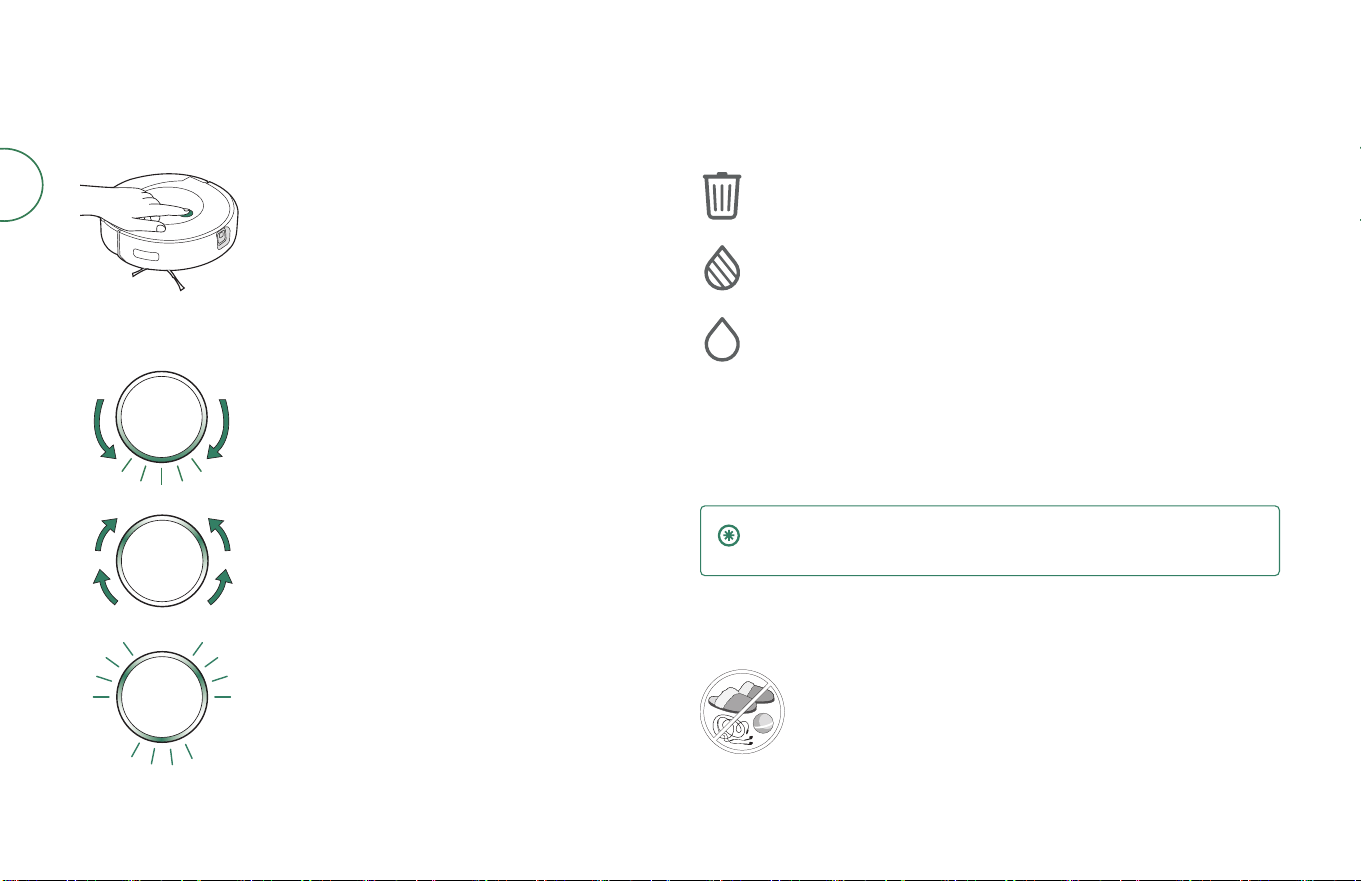
Clean button controls
Tap to Start / Pause / Resume a job
Hold for 2-5 seconds to end a job and send the robot
back to its dock
Light Ring: Cleaning
Sweeping red toward rear: robot bin needs to
be emptied
Blue marching forward: robot seeking dock
Flashing blue: Dirt Detect™ mode engaged
Dock LED Indicators while cleaning
Solid red: bag full, missing, or improperly installed
Solid red: dirty tank full, missing, or improperly installed
Solid red: clean tank empty, missing, or improperly installed
Cleaning pattern
Once your robot creates a map of your home, it will automatically explore and
clean in neat rows, avoiding obstacles by using its front-facing camera.
IMPORTANT: The robot is unable to navigate in complete darkness.
Turn on lights or open blinds to help the robot navigate.
You robot will return to the dock. You robot will return to the dock at the end of a
cleaning job and whenever it needs to empty the bin, ll the water tank, wash the
pad, or recharge. Once complete, it will resume the cleaning job where it left o.
Your robot is able to recognize and avoid objects. However, it is still
recommended to remove excess obstacles before cleaning.
15Roomba Combo® 10 Max + AutoWash dock Owner’s Guide
EN
After 90 minutes of inactivity o the dock, the robot will automatically end its
cleaning job. If you are unsure if the robot is nished or paused, visit the iRobot
Home App to check on its status.
Dirt Detect™
When your robot detects an especially dirty area, it will engage Dirt Detect™
mode, moving in a forward/backward motion to clean the area more thoroughly.
The light ring indicator will ash blue when Dirt Detect™ mode is engaged.
Vacuuming
Starting a vaccum only cleaning job from your robot
1
Detach the mopping pad before starting a vacuum job.
2
Return the robot to the dock and press the Clean button on your robot.
NOTE: When starting a vacuum only cleaning job from the iRobot
Home app, you do not need to empty the tank or remove the
mopping pad.
If you start a cleaning job from o the dock, the robot will still end its
job on the dock. If it can’t nd its dock, it will end wherever it started
in your home.
Vacuuming and mopping
Your robot is able to both vacuum and mop at the same time.
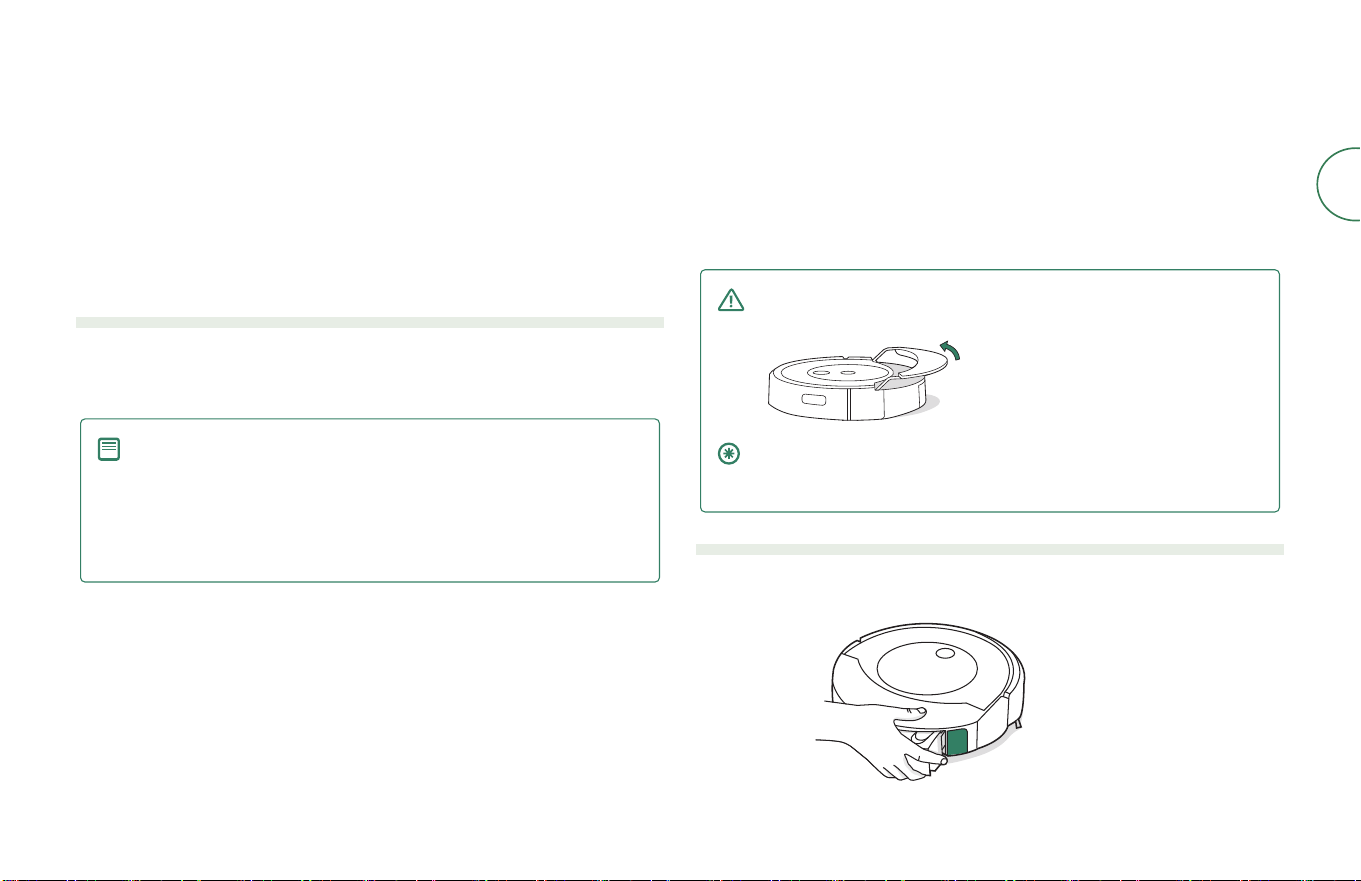
When your robot detects carpet during it’s cleaning job, it will lift and tuck the
mopping pad away.
Your dock will rell your robot’s tank as needed and wash its mopping pad when
the job is complete.
WARNING: To prevent damaging your robot, do not manually stow
the mopping pad plate onto the pad shelf.
IMPORTANT: After completing your mopping and vacuum cleaning
job, make sure to empty the robot bin water tank and replace the
mopping pad.
Starting a vacuum and mop cleaning job from your robot
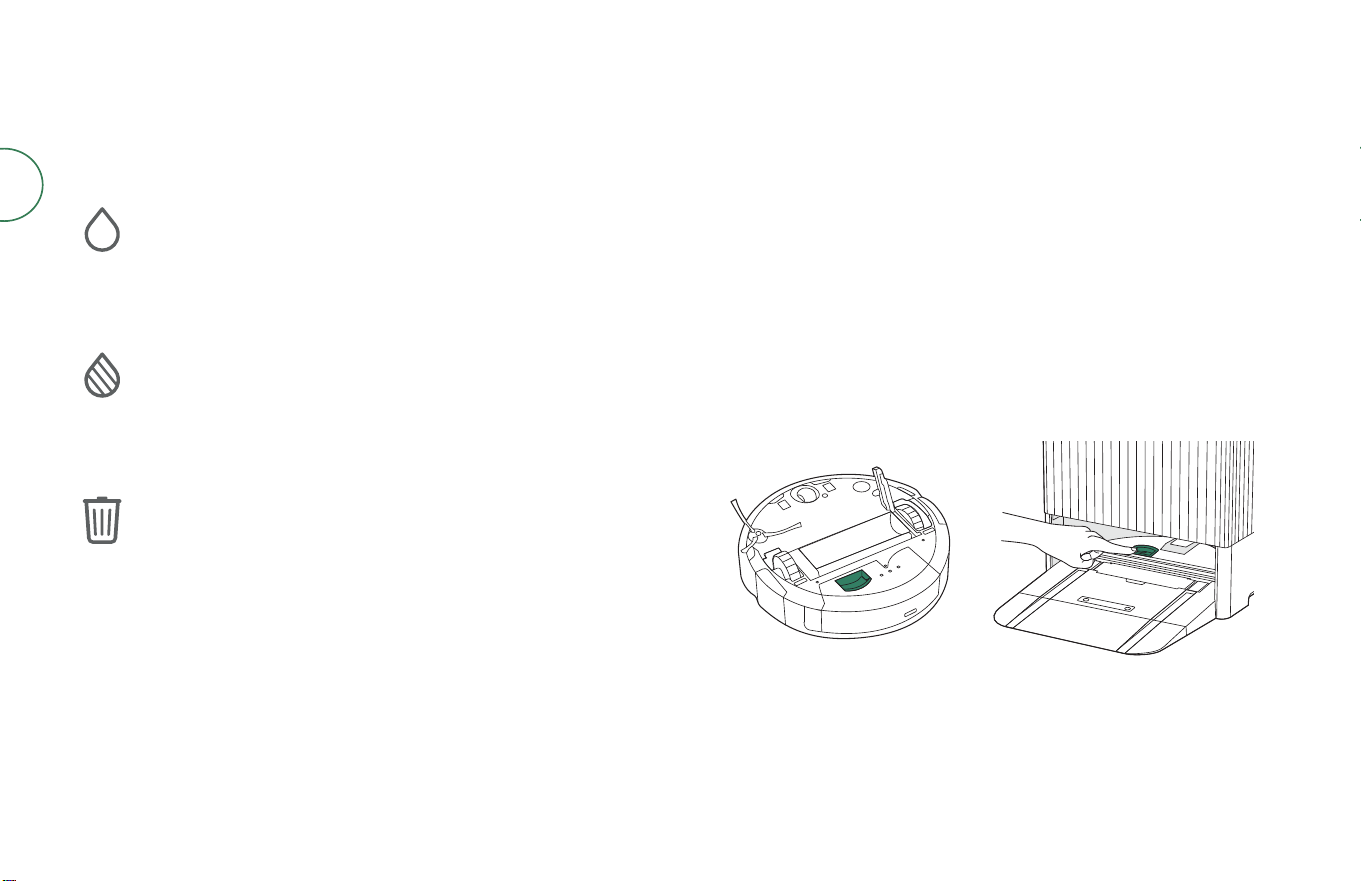
1
Press bin release button to remove bin.
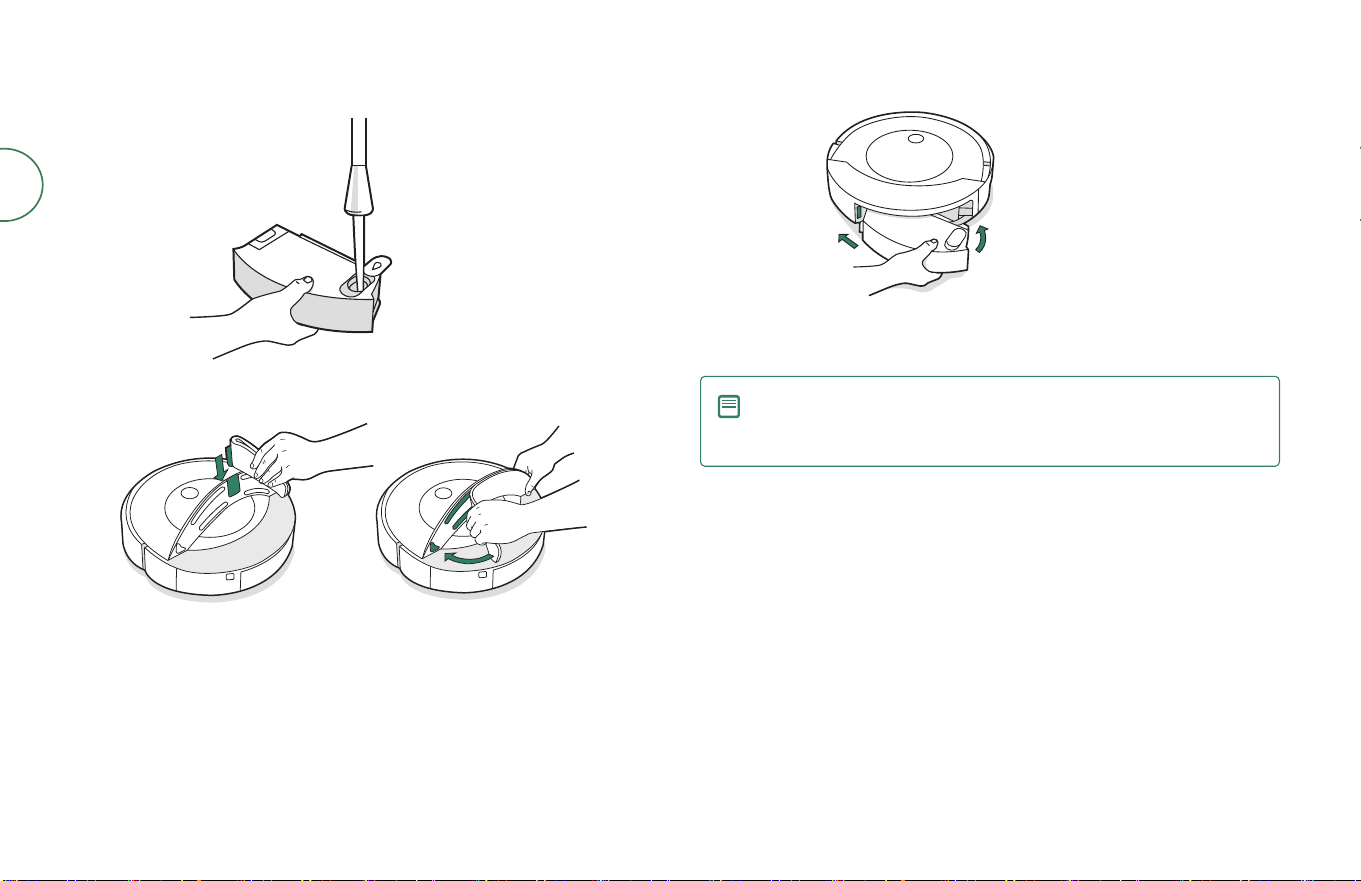
For more information, visit global.irobot.com16
EN
2
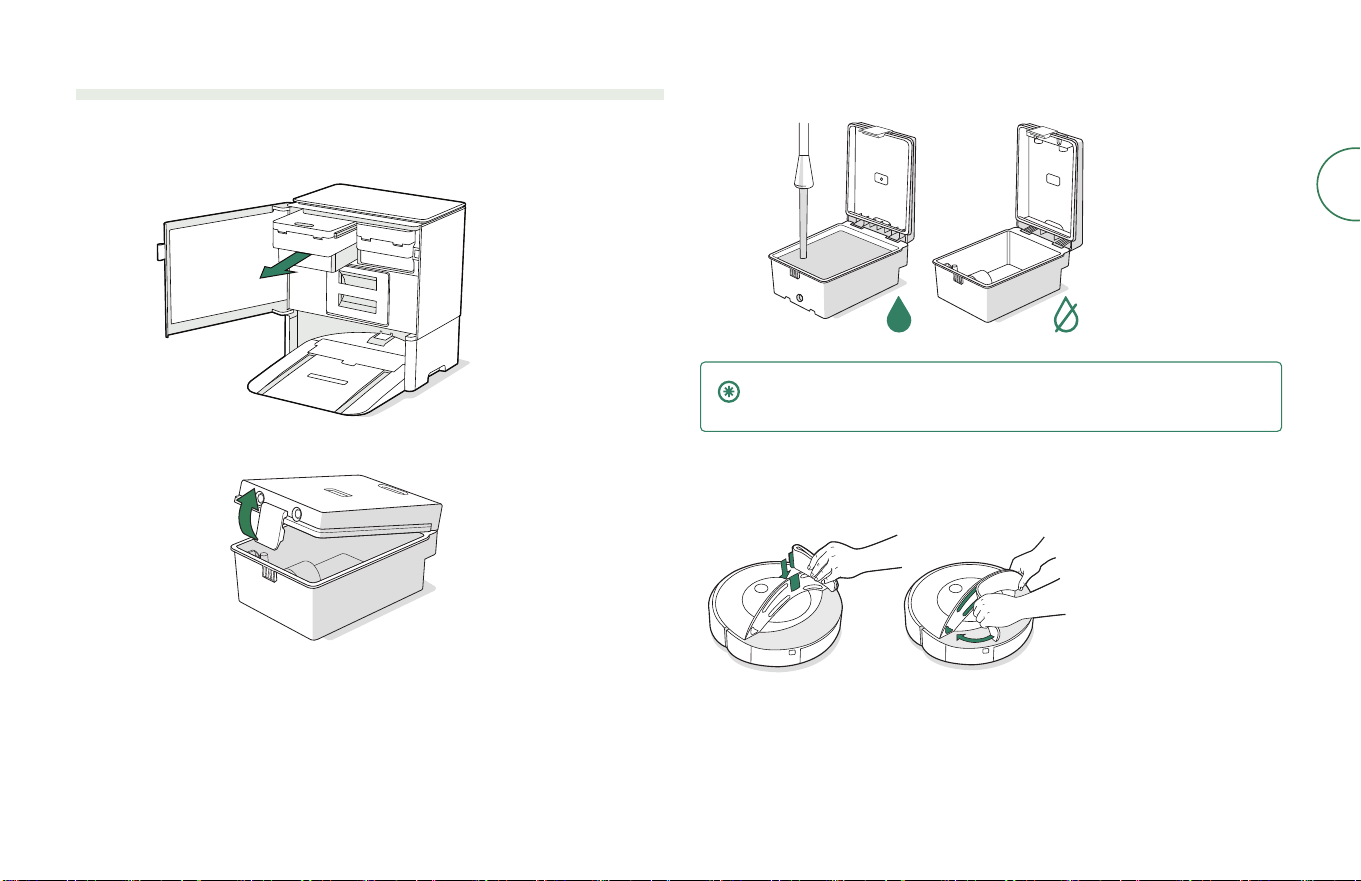
Fill tank with water or compatible cleaning solution.
3
Attach mopping pad.
4
Place bin back in the robot.
5
Place on the oor or return the robot to the dock and press the Clean button
on your robot.
NOTE: If you start a cleaning job from o the dock, the robot will still
end its job on the dock. If it can’t nd its dock, it will end wherever it
started in your home.
17Roomba Combo® 10 Max + AutoWash dock Owner’s Guide
EN
Starting a vacuum and mop cleaning job from your dock
If the Clean Tank or Dirty Tank LED Indicators are on:
1
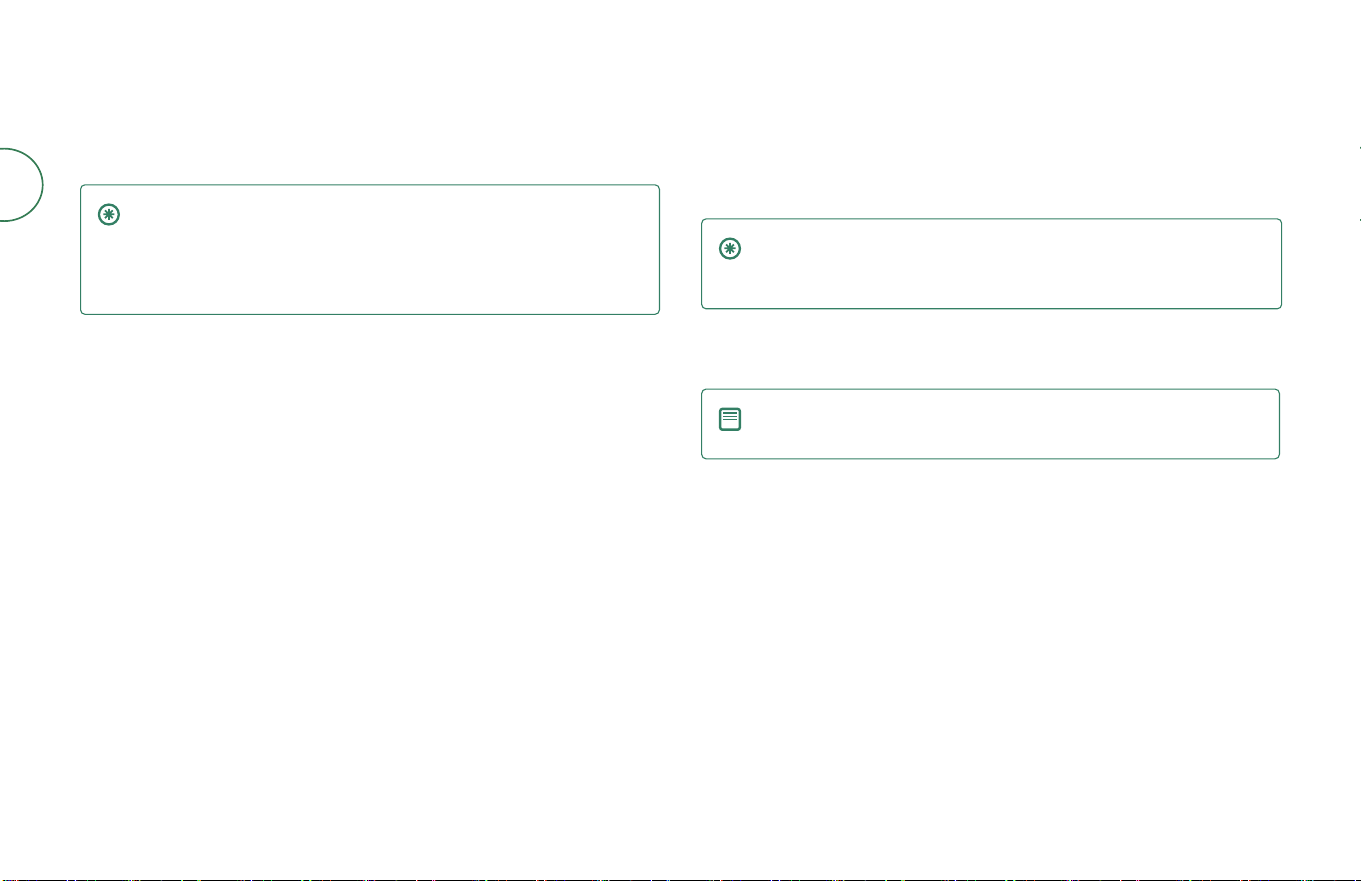
Use pull tab to open door. Remove the tank that requires maintenance.
2
Lift the latch on the tank to open.
3
Fill the Clean Tank with water.Empty the Dirty Tank.
IMPORTANT: Ensure the latch is properly closed on the tank before
reinstalling.
4
Place tanks back in the dock and close the door, making sure it is
completely closed.
5
Attach mopping pad to robot.
6
Return the robot to the AutoWash dock and press the Clean button on
your robot.
For more information, visit global.irobot.com18
EN
If tanks are ready for cleaning and LED indicators are not on:
1
Attach mopping pad to robot.
2
Return the robot to the dock and press the Clean button on your robot.
IMPORTANT: Only certain cleaning solutions can be safely used
with your robot. A full list of compatible cleaning solutions can be
found on http://answers.irobot.com/s/roomba-combo-cleanser
or by visiting the app. Please do not use other cleaning solutions or
bleach-based products.
Pad Washing
At the end of a cleaning job, the dock will wash and dry the mopping pad. The
robot will lower the mopping pad and drive back and forth over the Pad Washing
Roller. This process will take several minutes.
IMPORTANT: Do not interrupt the robot while Pad Washing is active.
It is normal to hear noises throughout this process as the dock spins
the Pad Washing Roller and lls/drains the Pad Washing Basin.
Once complete, the dock will proceed to dry the mopping pad by blowing air.
NOTE: The drying process will last for a few hours. You may hear a
low hum coming from the dock while the dryer is active.
Visit the iRobot Home app to manually start or stop Pad Washing and Drying or to
customize pad washing settings.
19Roomba Combo® 10 Max + AutoWash dock Owner’s Guide
EN
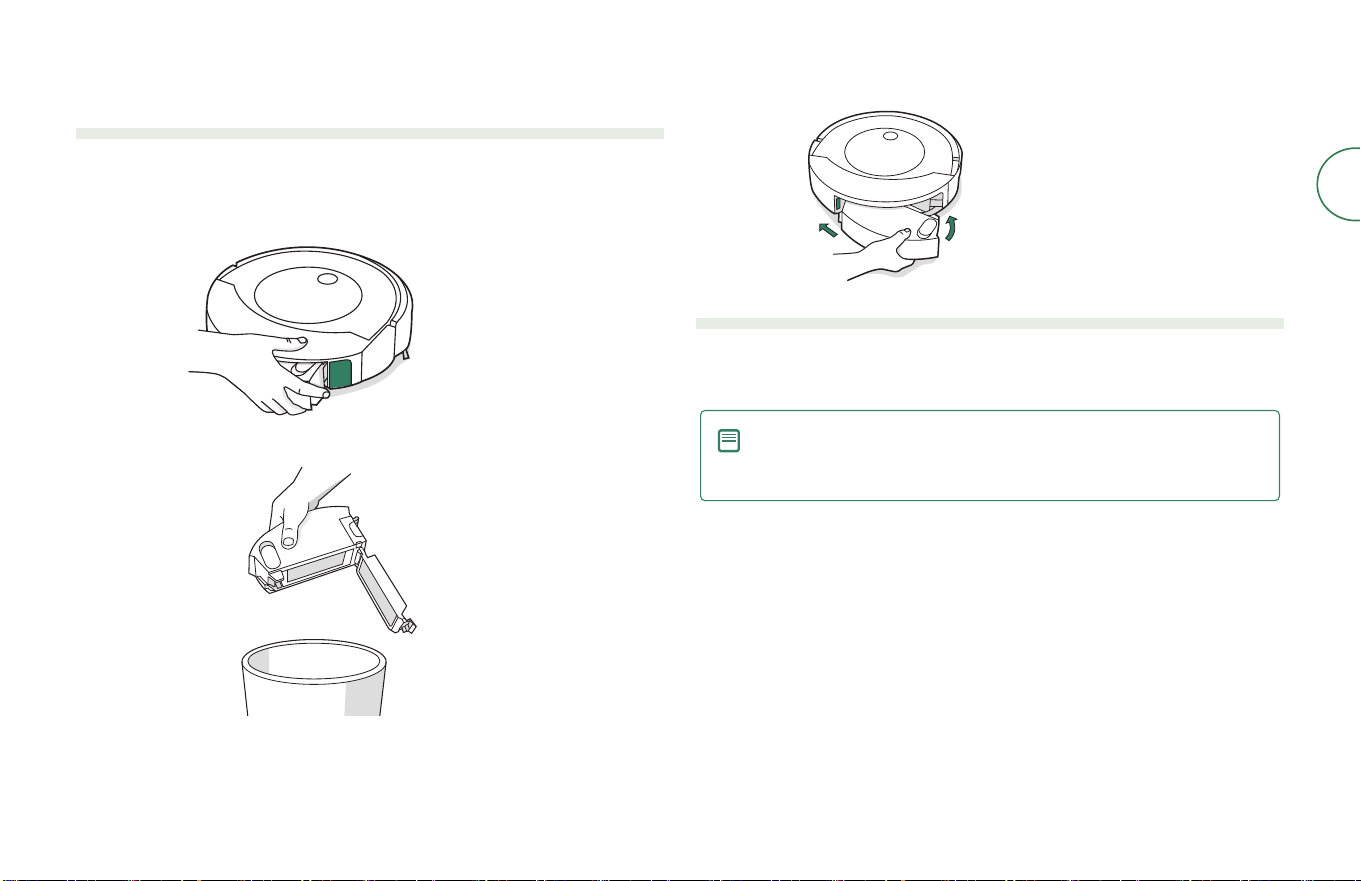
Emptying the bin
Emptying the bin from your robot
When your robot senses that its bin needs to be emptied, the light ring indicator
will illuminate in a red sweeping motion toward the rear.
1
Press bin release button to remove bin.
2
Open bin door to empty bin.
3
Place bin back in the robot.
Emptying the bin from your dock
While cleaning, your robot will automatically return to the dock to empty its bin.
Once complete, it will resume the cleaning job where it left o.
NOTE: If you place your robot on the dock by hand, it will not empty
automatically. In this case, use the iRobot Home App or hold the
clean button down for 2-5 seconds.
For more information, visit global.irobot.com20
EN
Care and maintenance for your robot
To keep your robot at optimal performance, make sure you periodically perform the following care &
maintenance. There are additional instructional videos in the iRobot Home App. If you notice the robot picking
up less debris from your oor, empty the bin, clean the lter, and clean the brushes.
Part
Care Frequency
Replacement Frequency*
Bin
Wash bin as needed
-
Charging contacts
Clean every 2 weeks
Filter
Clean once a week (twice a week if you
have a pet). Do not wash
Every 2 months
Edge-sweeping brush and
Multi-surface Brushes
Clean once a month Every 12 months
Front caster wheel
Clean every 2 weeks
Every 12 months
Full bin sensor Clean every 2 weeks -
Sensor, Camera window, and
Pad shelf
Clean once a month -
Mopping pad Wash manually as needed
As needed
Dispose in household waste when
no longer usable
* Replacement frequency may vary. Parts should be replaced if visible wear appears. If you think you need a replacement part,
please contact iRobot Customer Care for more information.
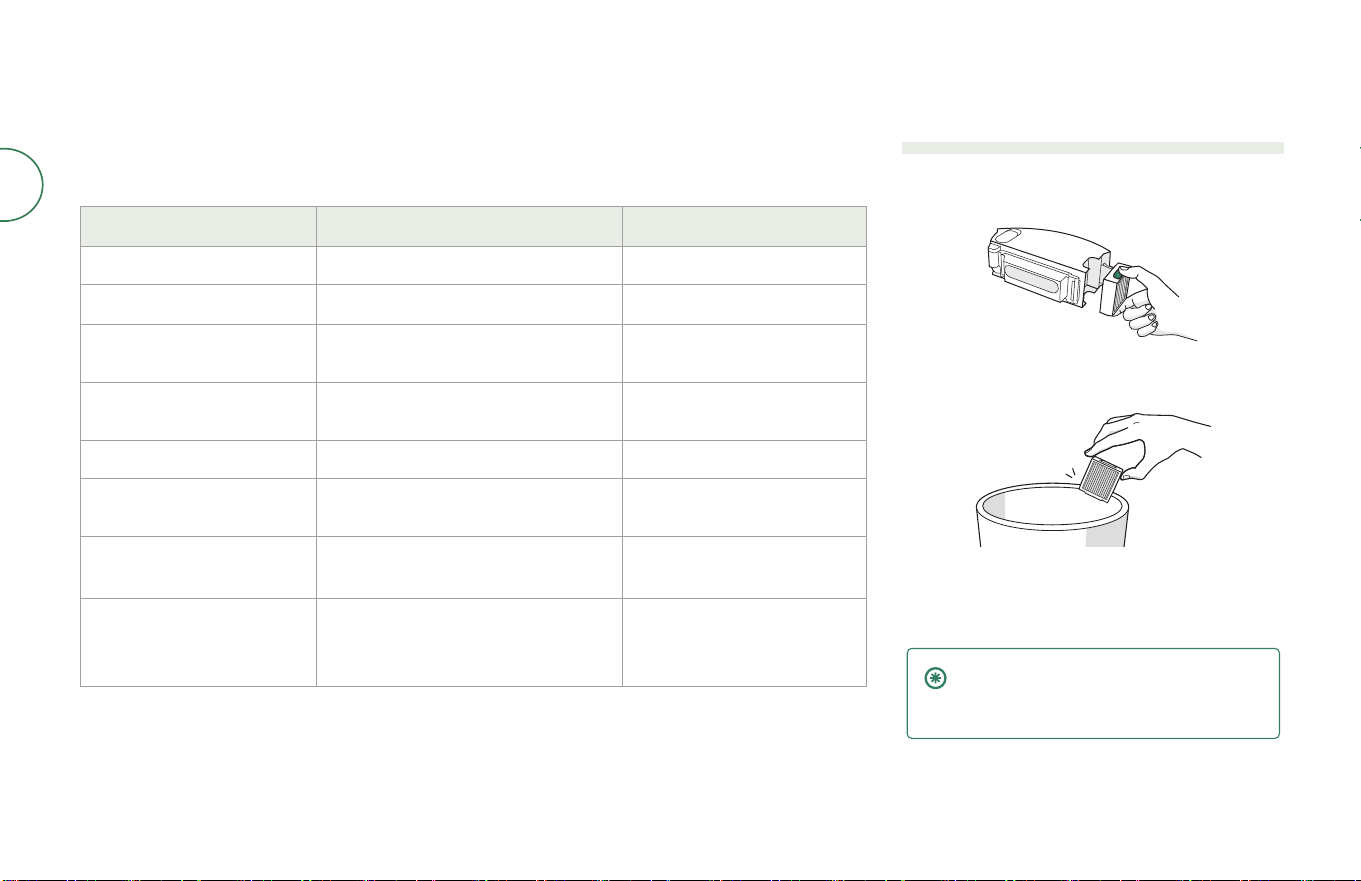
Cleaning the lter
1
Remove the bin. Remove the lter by grasping
both ends and pulling out.
2
Remove debris by tapping the lter against your
trash container.
3
Reinsert lter with ridged grips facing out. Place
bin back in the robot.
IMPORTANT: The robot will not run if the
lter is not installed correctly. Replace
the lter every two months.
21Roomba Combo® 10 Max + AutoWash dock Owner’s Guide
EN
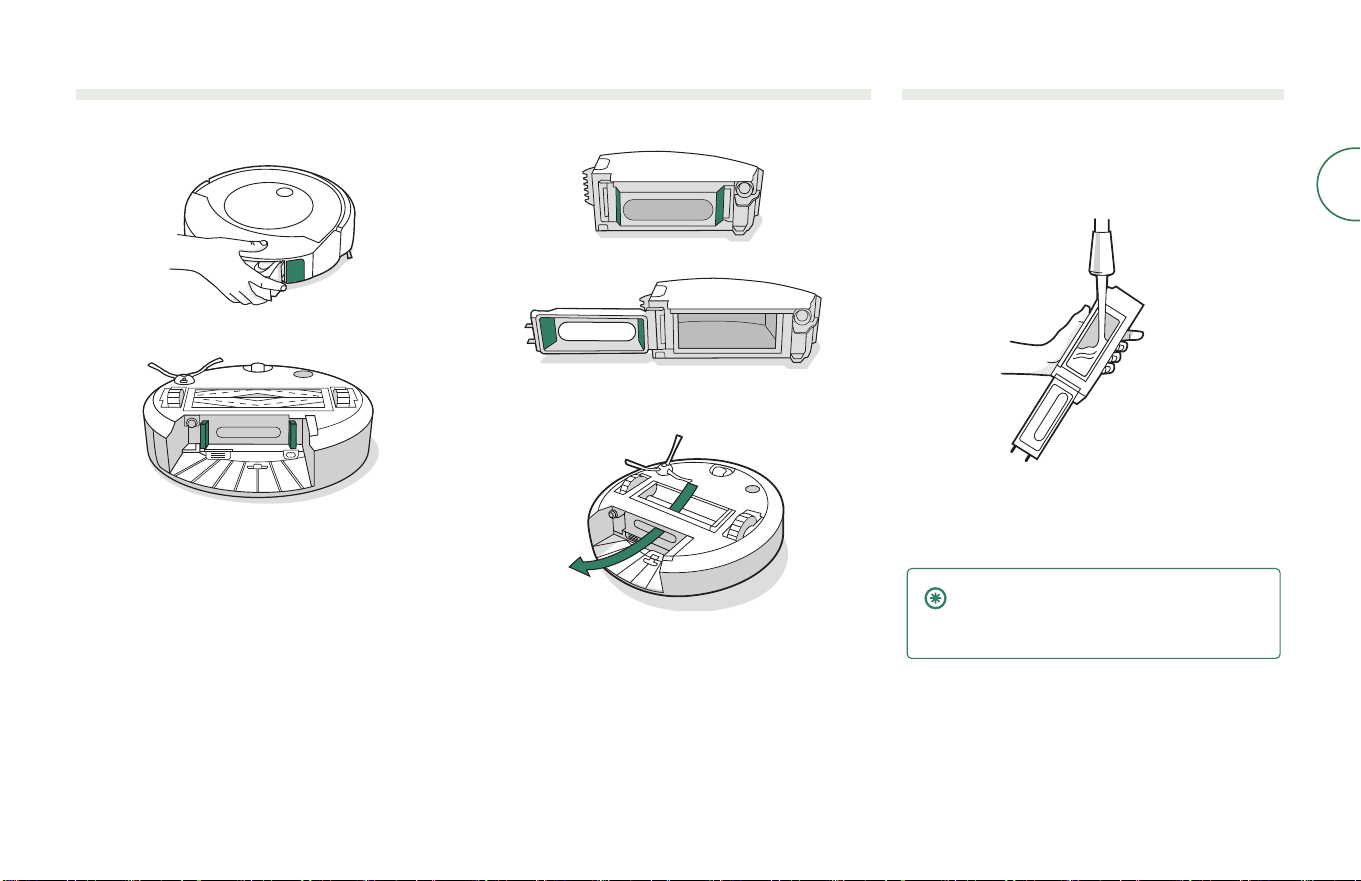
Cleaning the full bin sensors
1
Remove and empty the bin.
2
Wipe the inner sensors with a clean, dry cloth.
3
Wipe the bin door with a clean, dry cloth.
Closed door
Open door
4
Clear any debris from the vacuum path
Washing the bin
1
Release the bin, remove the lter, and open
the bin door.
2
Rinse the dust bin and water tank using
warm water.
3
Make sure bin is completely dry. Reinsert lter
and place bin back in the robot.
IMPORTANT: The bin is not dishwasher
safe. Do not wash the lter. Remove the
lter before washing the bin.
For more information, visit global.irobot.com22
EN
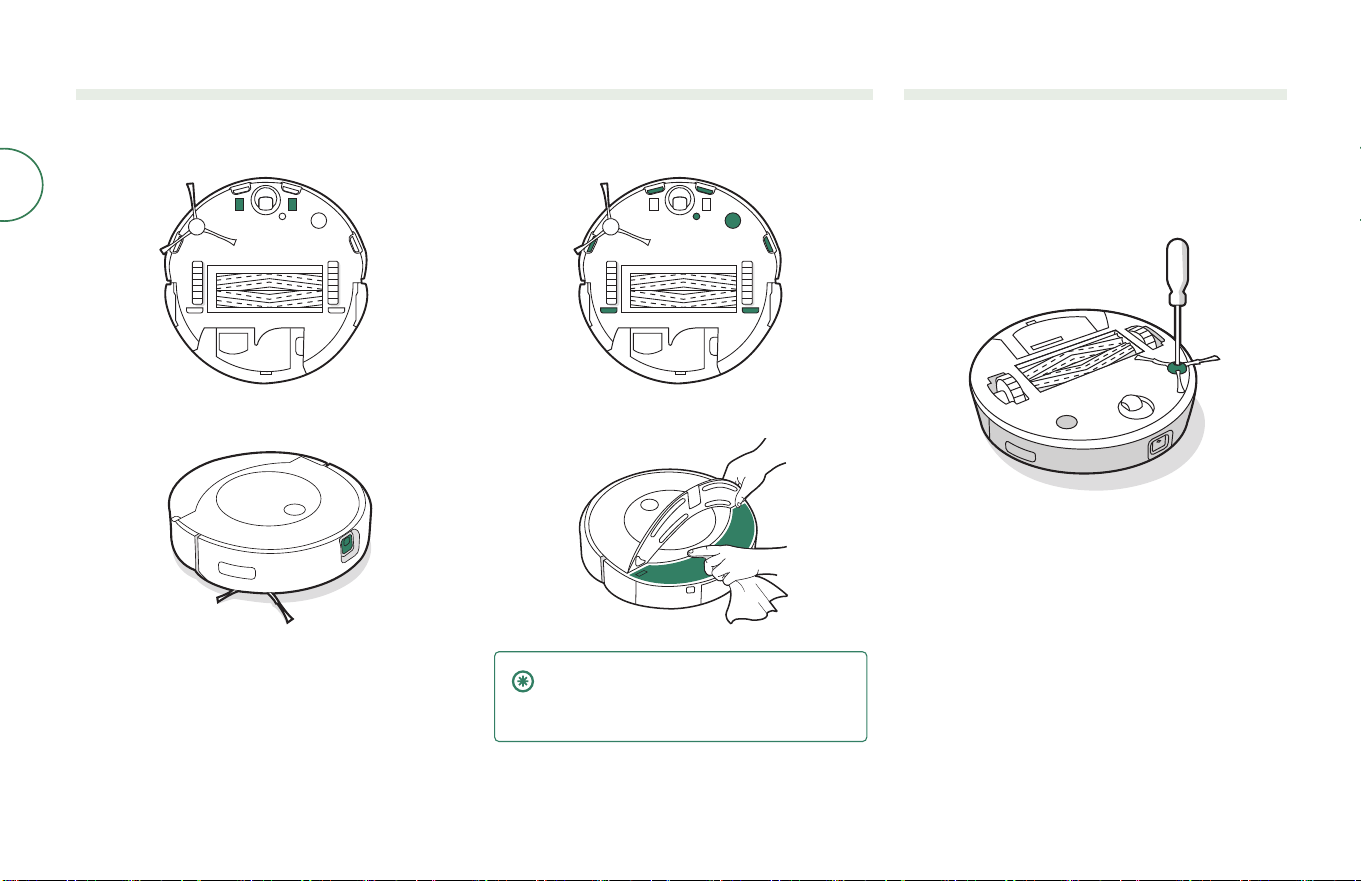
Cleaning the charging contacts, sensors, camera window, and pad shelf
Wipe components with a clean, dry cloth.
CHARGING CONTACTS
CAMERA WINDOW
SENSORS
PAD SHELF & IR PAD SENSOR
IMPORTANT: Do not spray cleaning
solution or water onto the sensors or
sensor openings.
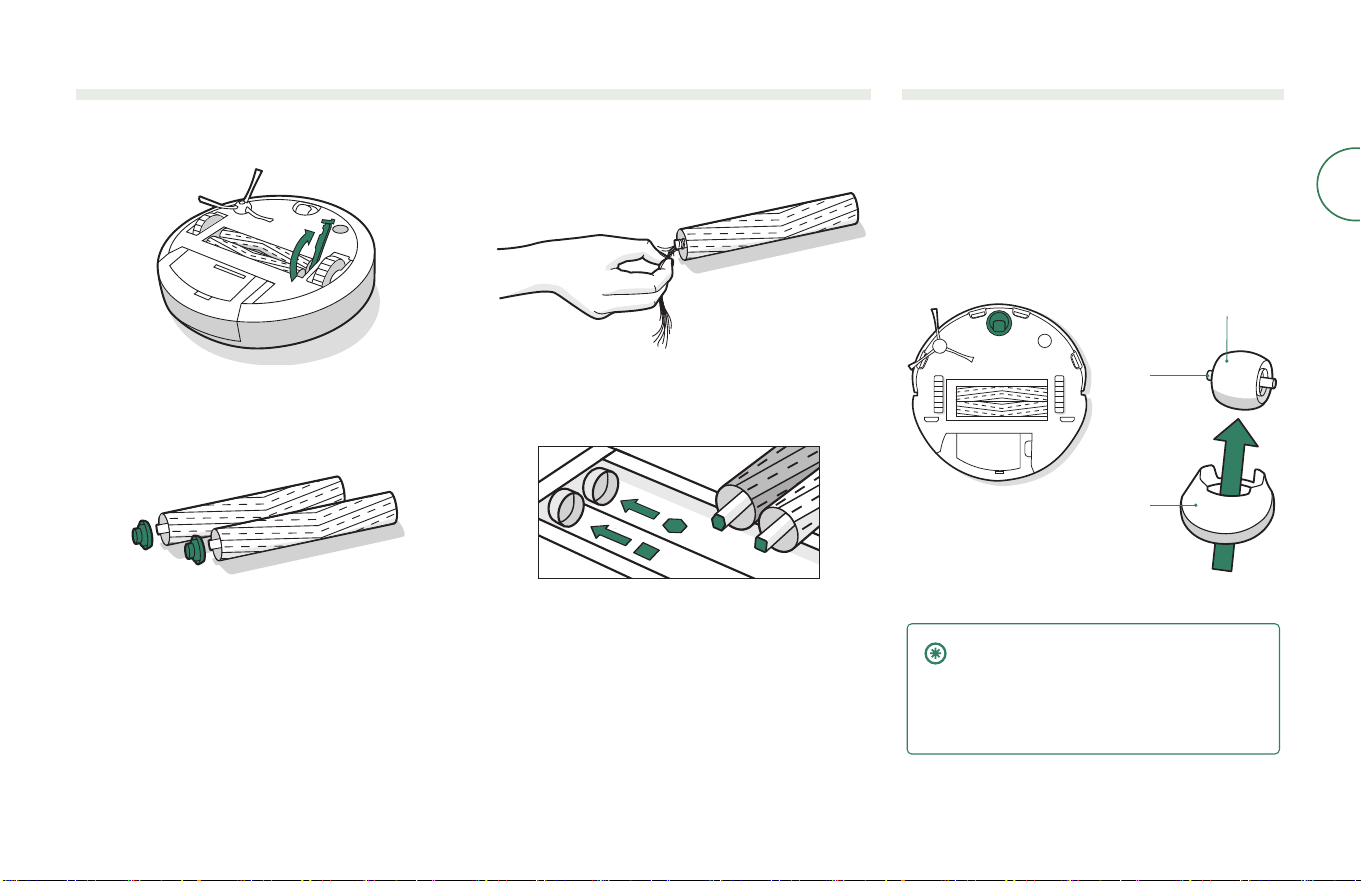
Cleaning the Edge-Sweeping Brush
1
Use a small screwdriver to remove the screw
holding the edge-sweeping brush in place.
2
Pull to remove the edge-sweeping brush.
Remove any hair or debris, then reinstall
the brush.
23Roomba Combo® 10 Max + AutoWash dock Owner’s Guide
EN
Cleaning the dual Multi-Surface Brushes
1
Pinch the brush frame release tab, lift the tab,
and remove any obstructions.
2
Remove the brushes from the robot. Remove the
end caps from the ends of the brushes. Remove
any hair or debris that has collected beneath the
caps. Reinstall the brush caps.
3
Remove any hair or debris from the square and
hexagonal pegs on the opposite side of the
brushes. Replace end caps.
4
Reinstall the brushes in the robot. Match the
shape of the brush pegs with the shape of the
brush icons in the cleaning head module.
Cleaning the front caster wheel
1
Pull rmly on the front wheel module to remove it
from the robot.
2
Pull rmly on the wheel to remove it from
its housing.
3
Remove any debris from inside the wheel cavity.
4
Reinstall all parts when nished. Make sure the
wheel clicks back into place.
Wheel
Axle
Housing
IMPORTANT: A front wheel clogged with
hair and debris could result in damage
to your oor. If the wheel is not spinning
freely after you have cleaned it, please
contact Customer Care.
For more information, visit global.irobot.com24
EN
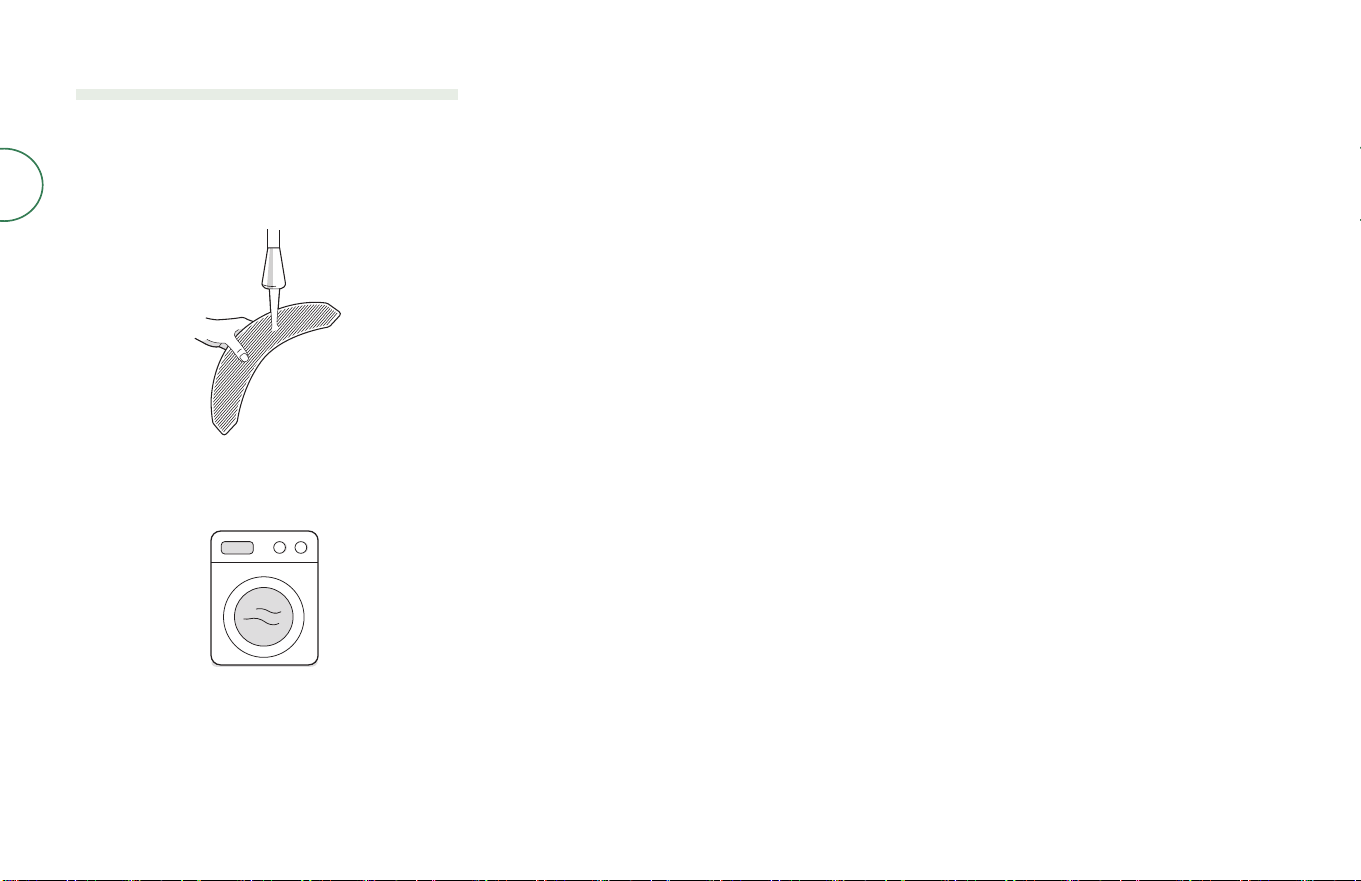
Cleaning the mopping pad
You can clean your mopping pads two ways: either
by hand washing, or in a washing machine.
HAND WASHING
Thoroughly wash the pad with warm water.
MACHINE WASHING
Wash using the warm cycle, then air dry. Do not put
in dryer. Do not wash with delicates.
25Roomba Combo® 10 Max + AutoWash dock Owner’s Guide
EN
Care and maintenance for your dock
To keep your dock running at peak performance, perform the procedures on the following pages.
Part
Care Frequency
Replacement Frequency*
Bags -
Bags should be replaced when
prompted by the LED indicator or the
iRobot Home app
Charging contacts
Clean every 2 weeks
-
Sensors, IR window, Visual
docking target
Clean once a month -
Clean tank
Rinse and refresh water as needed
-
Dirty tank
Rinse and empty as needed
-
Pad washing basin, Liquid
overow basin
Clean if visibly dirty, once a month, or
as indicated by iRobot Home app
-
Pad washing roller
Clean if visibly dirty, once a month, or
as indicated by iRobot Home app
12 months or when prompted by the
iRobot Home app
Ramp
Clean if visibly dirty
-
* Replacement frequency may vary. Parts should be replaced if visible wear appears. If you think you need a replacement part,
please contact iRobot Customer Care for more information.
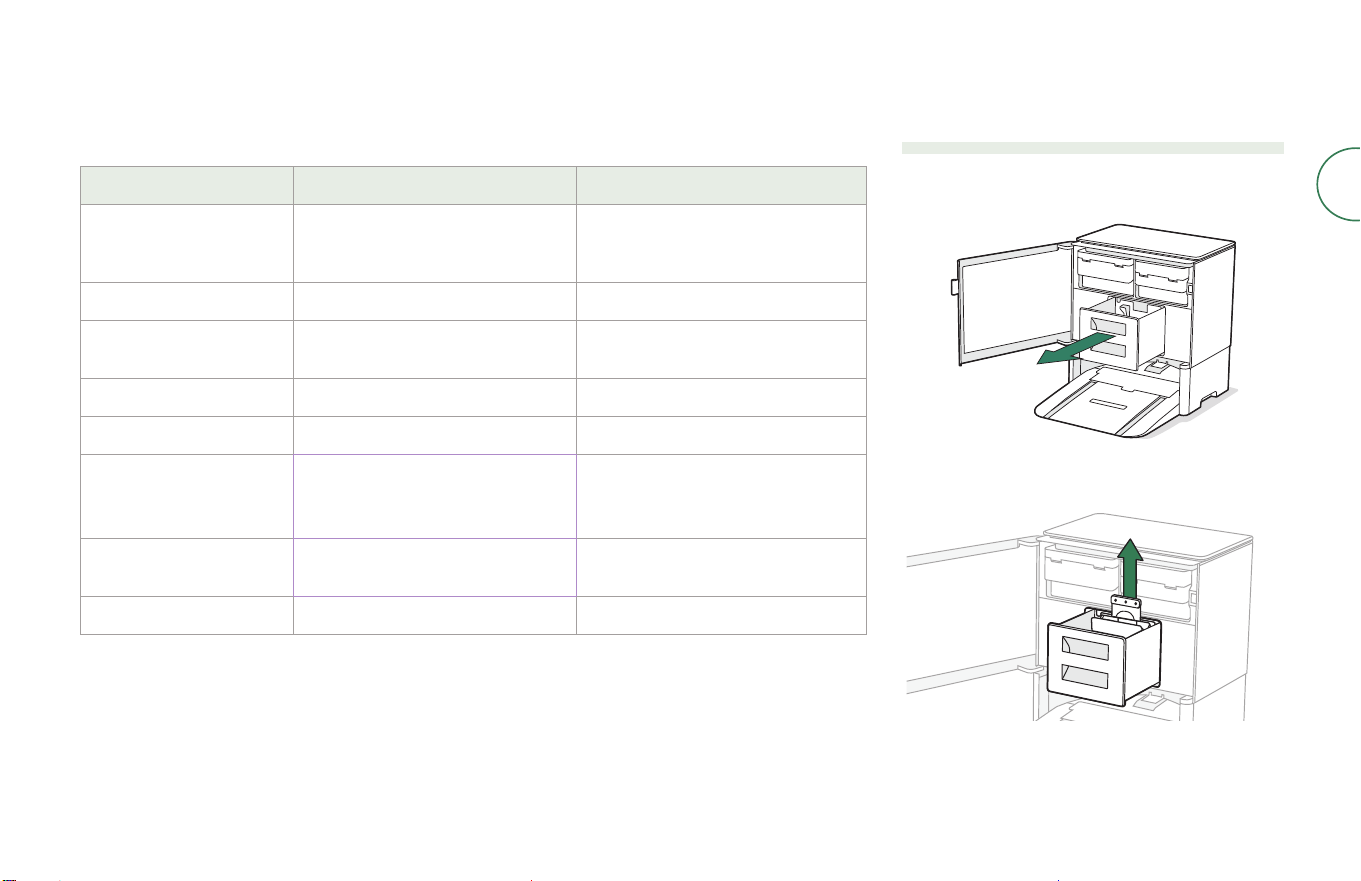
Replacing the bag
1
Use pull tab to open door and remove Debris
Bag Drawer.
2
Pull up on the card to remove the bag from the
canister. Discard the used bag.
For more information, visit global.irobot.com26
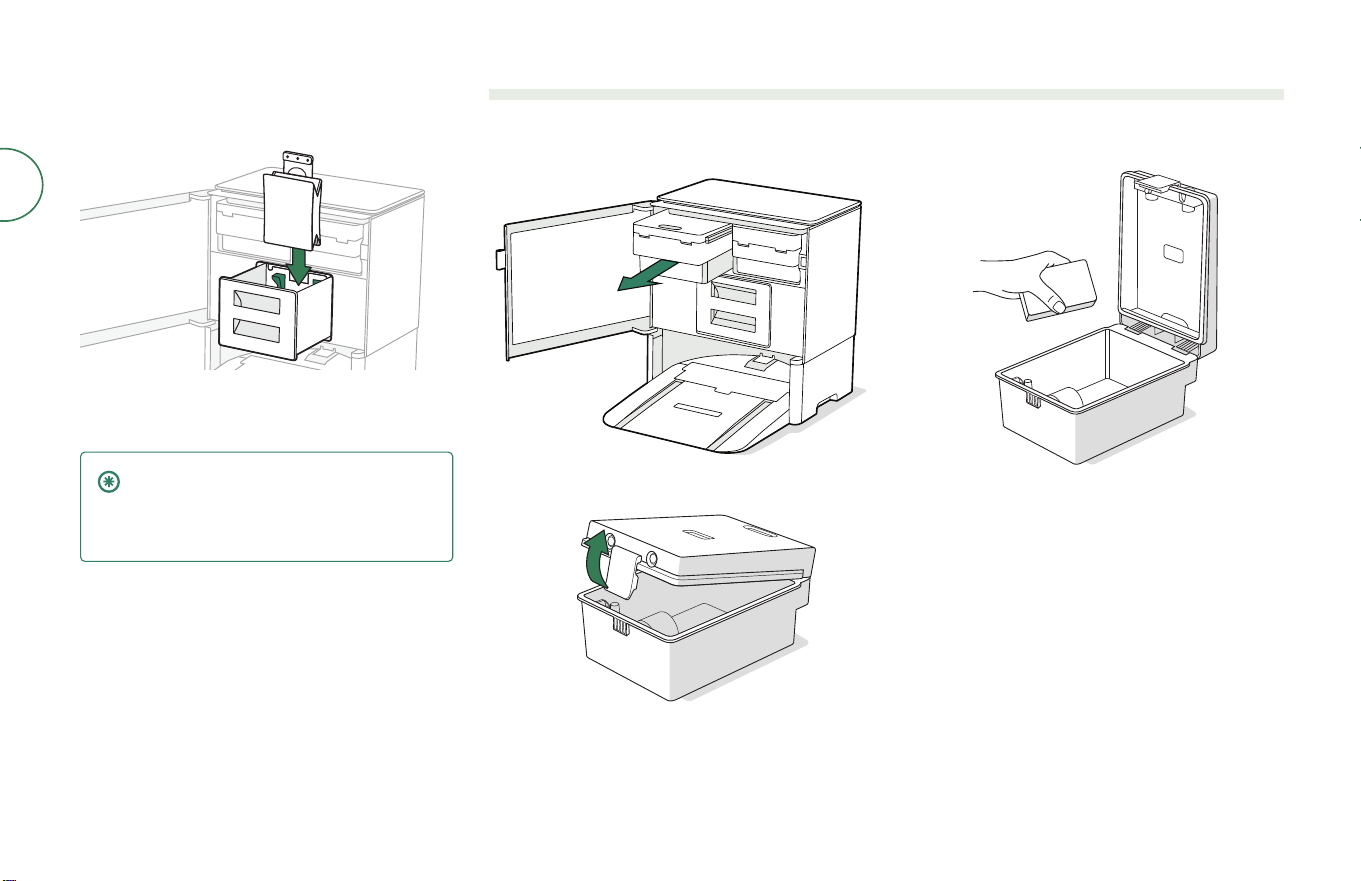
EN
3
Install a new bag, sliding the plastic card into
the guide rails. This will seal the bag so dust and
debris cannot escape.
4
Reinstall the Debris Bag Drawer and close the
door making sure it is completely closed.
IMPORTANT: To achieve optimal
performance with your robot and dock,
clean and/or replace your robot’s
lter as needed.
Washing the tanks
1
Use pull tab to open door. Remove the Clean
and Dirty tanks.
2
Lift the latch on the tanks to open.
3
Rinse the tanks using warm water. Mild soap and
a sponge may be used for stubborn debris.
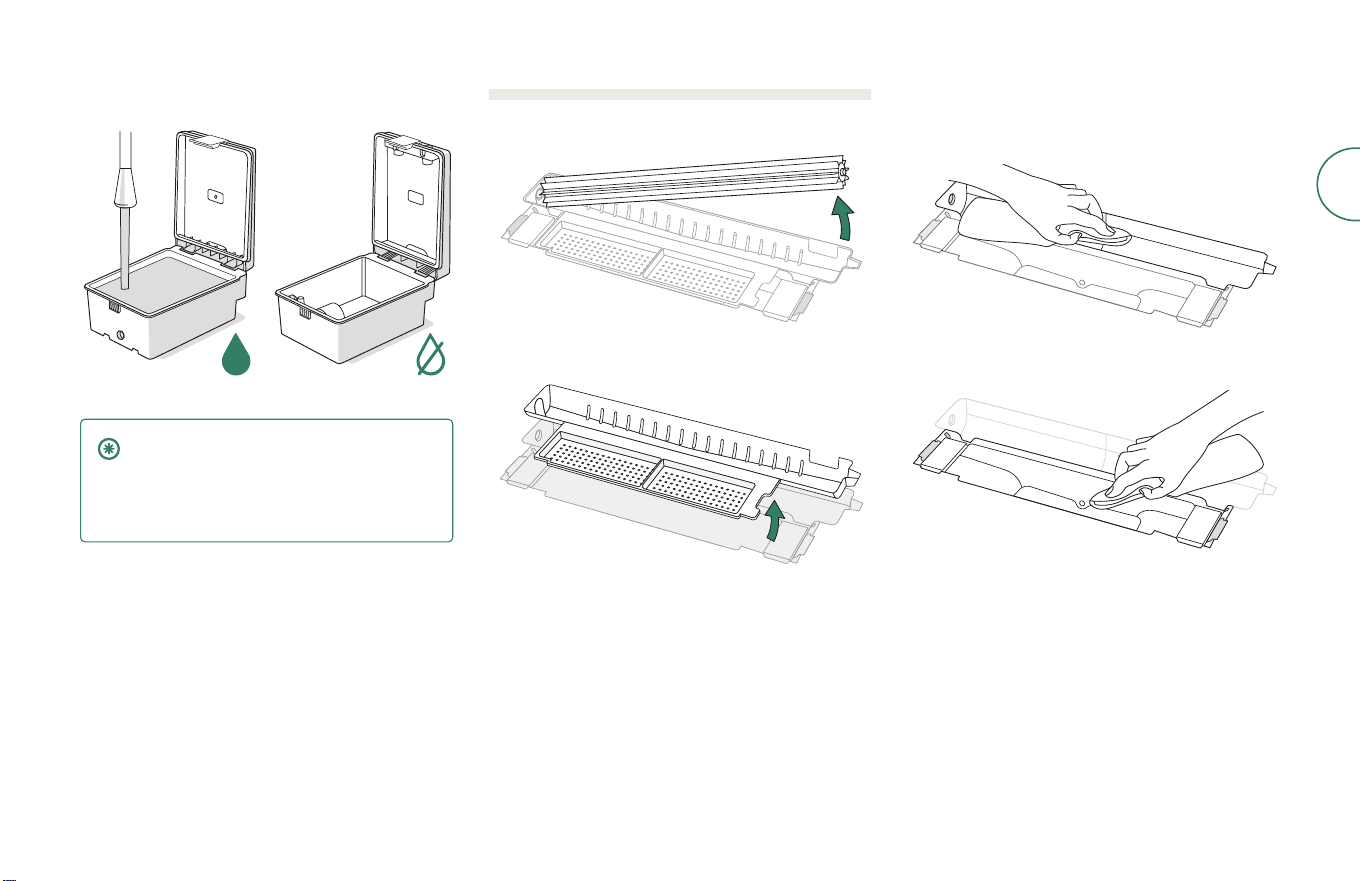
27Roomba Combo® 10 Max + AutoWash dock Owner’s Guide
EN
4
Rell the Clean Tank with water. Leave the Dirty
Tank empty. Place both tanks back in the dock.
IMPORTANT: Ensure the latch is
properly closed on the tank before
reinstalling.
Tanks are not dishwasher safe.
Cleaning the Pad Washing System
1
Remove the Pad Washing Roller.
2
Remove the Pad Washing Filter.
3
Wipe out the Pad Washing Basin with a clean
dry cloth. Ensure there are no obstructions in the
drainage port. Mild soap and a sponge may be
used for stubborn debris.
4
Repeat step 3 for the Liquid Overow Basin.
5
Wash the lter and roller under warm water. Mild
soap and a sponge may be used for stubborn
debris. Pat dry before reinstalling.
6
Reinstall the lter.
For more information, visit global.irobot.com28
EN
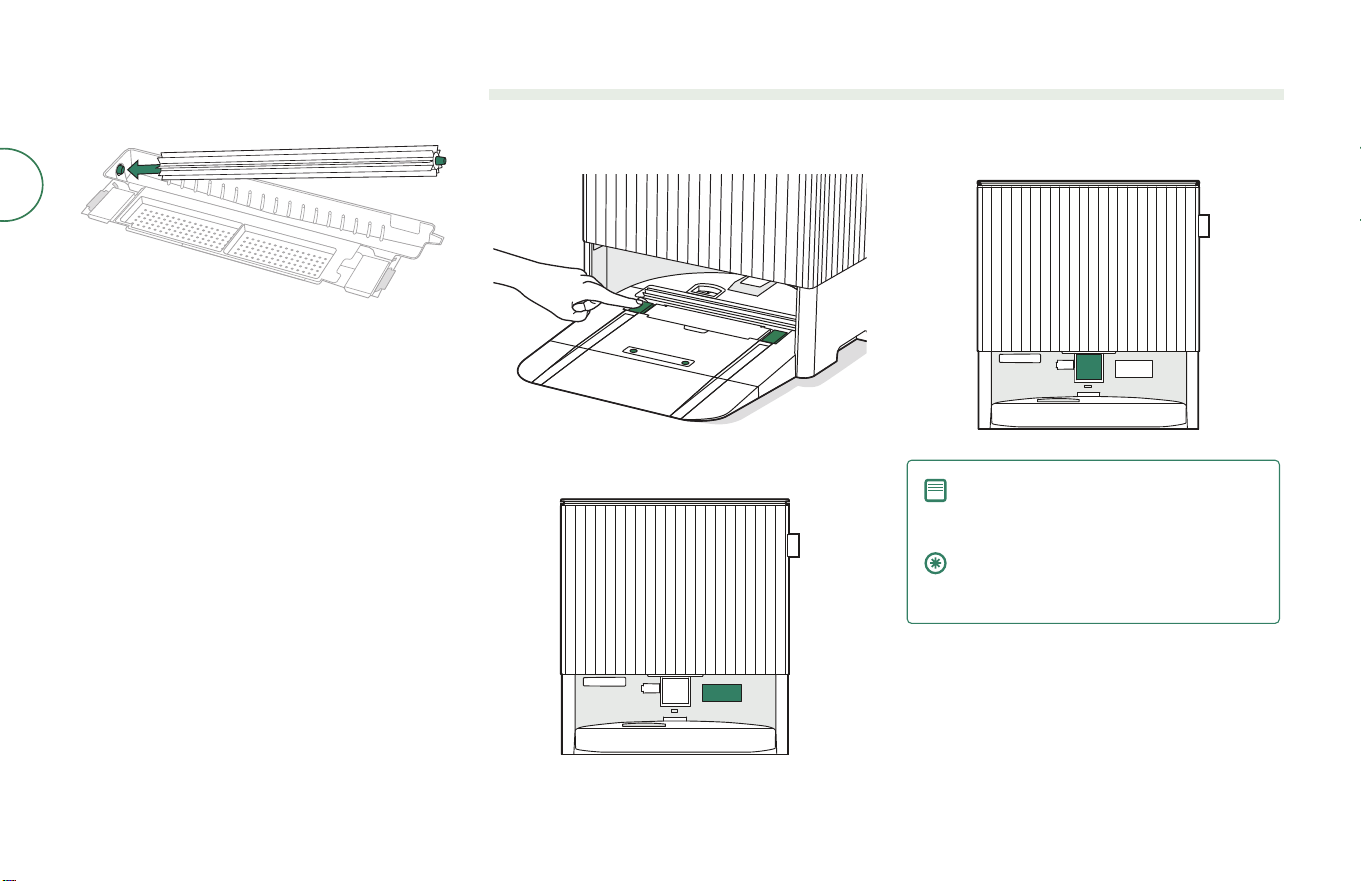
7
Reinstall the roller by aligning the Pad Washing
Roller peg into place.
Cleaning the charging contacts, IR window, and visual docking target
Inspect the components to make sure that they are clear of debris. Wipe with a clean, dry cloth.
CHARGING CONTACTS
IR WINDOW
VISUAL DOCKING TARGET
NOTE: To expose the charging
contacts, press and hold the
wheel switches.
IMPORTANT: Do not spray cleaning
solution or water onto the sensors or
sensor openings.
29Roomba Combo® 10 Max + AutoWash dock Owner’s Guide
EN
Troubleshooting your robot
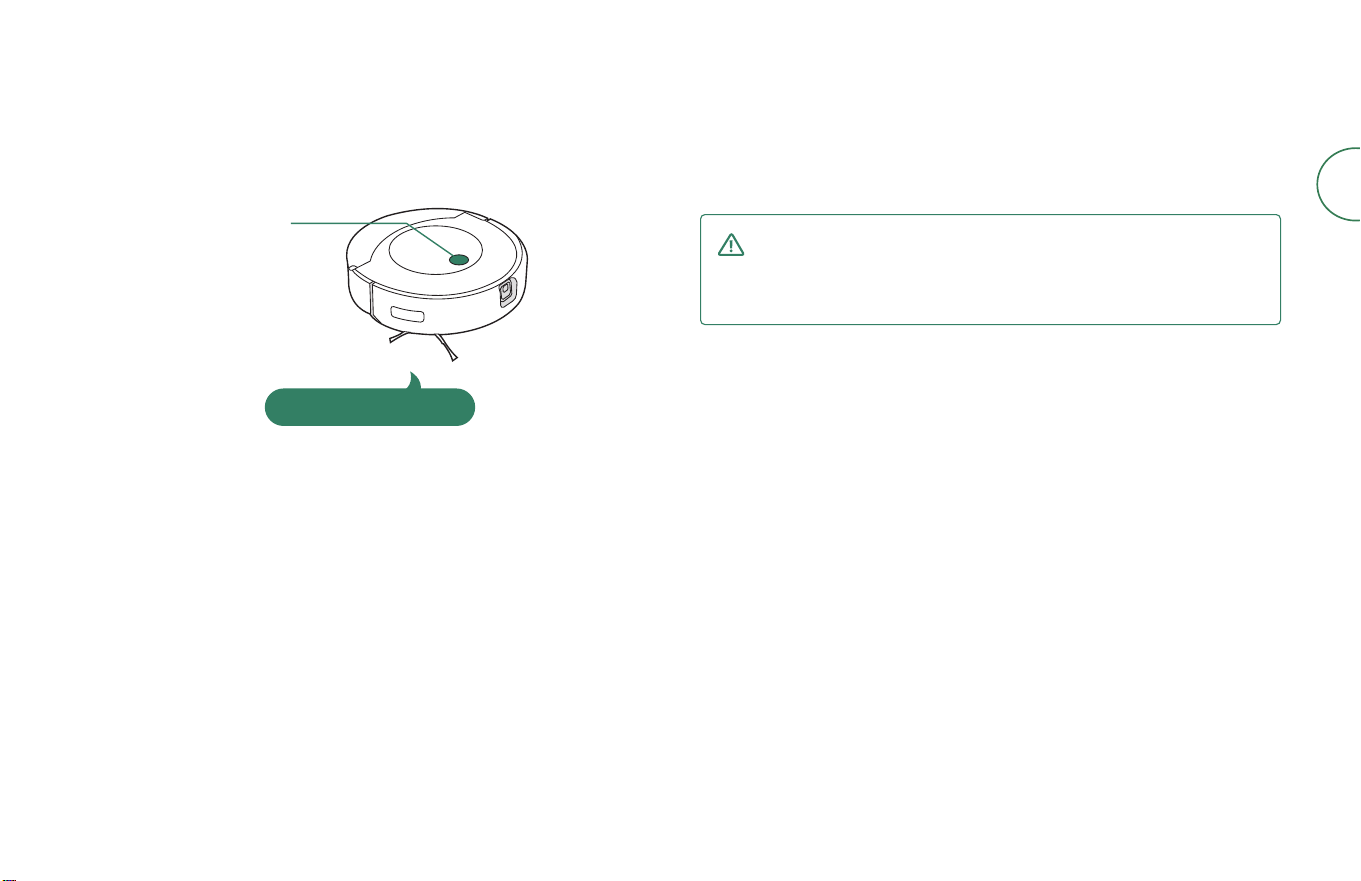
Your robot will tell you something is wrong by playing an audio alert and turning
the light ring indicator red. Press the clean button for details. Check the iRobot
Home App for further support.
Red light ring
Low battery. Please charge.
BATTERY SAFETY & SHIPPING
For best results, only use the iRobot Lithium Ion Battery that comes with your robot.
WARNING: Lithium ion batteries and products that contain lithium
ion batteries are subject to stringent transportation regulations. If
you need to ship this product for service, travel or any other reason,
you MUST follow the below shipping instructions.
• Battery MUST be turned o before shipping.
• Turn o the battery by removing the robot from the charging station and
holding down the clean button for 3 seconds with one wheel o the ground. All
indicators will turn o.
• Package the robot securely for shipping.
If you need further assistance, contact our Customer Care team or visit http://
global.irobot.com .
For more information, visit global.irobot.com30
EN
Troubleshooting your dock
Your dock will tell you if something is wrong via the LED indicators on the top of
the dock. If the dock is not performing as expected, check the iRobot Home app
for errors.
Clean Tank LED indicator
Solid red: clean tank empty, missing, or improperly installed
1
Fill the tank if it is empty with water or compatible cleaning solution.
2
Make sure the tank is installed properly.
Dirty Tank LED indicator
Solid red: dirty tank full, missing, or improperly installed
1
Empty the tank if it is full.
2
Make sure the tank is installed properly.
Dirt Disposal LED indicator
Solid red: bag full, missing, or improperly installed; debris drawer
improperly installed
1
Replace bag if it is full or missing.
2
Make sure the bag is securely inserted and debris drawer is installed
properly.
Dirt Disposal LED indicator (continued)
Flashing red: clog in the dock evacuation path
1
With your robot on the dock, hold the Clean button down for 2-5 seconds or
use the iRobot Home App to manually empty the bin
Proceed to step 2 if the error is not resolved.
2
Remove the bin from your robot. Clear any debris from the bin and Debris
Evacuation Port. Reinstall the bin.
Push down the Debris Evacuation Port on the dock, and ensure there are no
obstructions in the path. Remove any visible debris.
Repeat step 1. Proceed to step 3 if the error is not resolved.
31Roomba Combo® 10 Max + AutoWash dock Owner’s Guide
EN
3
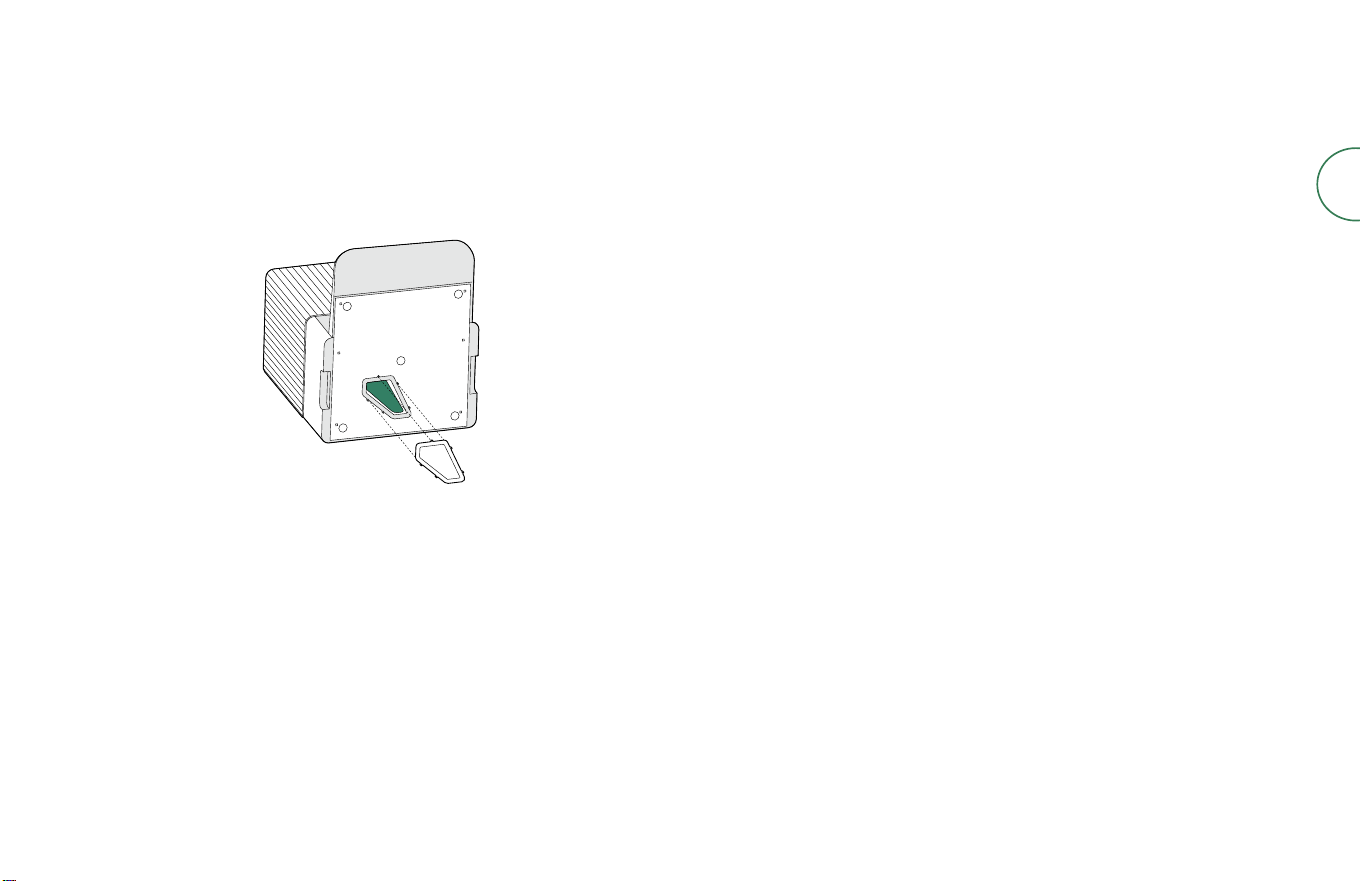
Unplug the dock from the wall. Remove both tanks.
Place the dock on its side, remove the Debris Tube Access Panel, and inspect
the tube for debris. If necessary, clear any debris from the tube
Replace the access panel, and repeat step 1. Contact Customer Care if the
error is not resolved.
This product has been equipped with a thermal protector designed to protect
against damage due to overheating. If the protector operates, the motor will
stop running. If this happens, unplug the unit, allow to cool for 30 minutes, clear
any obstructions from the evacuation port and evacuation tube, and plug the
unit back in.

For more information, visit global.irobot.com32
EN
Regulatory information
FCC SUPPLIER’S DECLARATION OF CONFORMITY
iRobot Corporation Roomba Combo® robot model: RCA-Y2
AutoWash dock Model: ADL-N1
Roomba Combo® robot
Contains FCC ID: 2AATL-6233E-UUB and contains IC: 12425A-6233EUUB
This device complies with part 15 of the FCC Rules and ICES-003(B) / NMB-003(B).
Operation is subject to the following two conditions: (1) This device may not cause
harmful interference, and (2) This device must accept any interference received,
including interference that may cause undesired operation.
This device complies with Industry Canada license-exempt RSS standard(s).
Operation is subject to the following two conditions: (1) This device may not
cause interference, and (2) This device must accept any interference, including
interference that may cause undesired operation of the device.
Changes or modications not expressly approved by iRobot Corporation could
void the user’s authority to operate the equipment.
• This equipment has been tested and found to comply with the limits for
a Class B digital device, pursuant to part 15 of the FCC Rules as well as
CAN ICES-003(B) / NMB-003(B) Rules. These limits are designed to provide
reasonable protection against harmful interference in a residential installation.
This equipment generates, uses and can radiate radio frequency energy and, if
not installed and used in accordance with the instructions, may cause harmful
interference to radio communications. However, there is no guarantee that
interference to radio communication will not occur in a particular installation.
If this equipment does cause harmful interference to radio or television
reception, which can be determined by turning the equipment o and on, the
user is encouraged to try to correct the interference by one or more of the
following measures:
• Reorient or relocate the receiving antenna.
• Increase the separation between the equipment and receiver.
• Connect the equipment into an outlet on a circuit dierent from that to
which the receiver is connected.
• Consult the dealer or an experienced radio/TV technician for help.
• Under Industry Canada regulations, this radio transmitter may only operate
using an antenna of a type and maximum (or lesser) gain approved for the
transmitter by Industry Canada. To reduce potential radio interference to other
users, the antenna type and its gain should be so chosen that the equivalent
isotropically radiated power (e.i.r.p.) is not more than the necessary for
successful communication.
• FCC Radiation Exposure Statement: This product complies with FCC §2.1091(b)
for mobile device RF exposure limits, set forth for an uncontrolled environment
and is safe for the intended operation as described in this manual. Per FCC
requirements, maintain a distance of more than 8 inches (20 cm) between any
person and the host device (Roomba robot).
• ISED Radiation Exposure Statement: This product complies with the Canadian
Standard RSS-102 for mobile device RF exposure limits, set forth for an
uncontrolled environment and is safe for the intended operation as described
in this manual. Per ISED requirements, maintain a distance of more than 8
inches (20 cm) between any person and the robot.
Brazil Radio
For more information, see the ANATEL website: www.anatel.gov.br. This equipment
is not entitled to protection against harmful interference and must not cause
interference in duly authorized systems.
RCA-Y2: This product contains the 6233E-UUB board Anatel approval code
193 6 6 -22-1147 0 .
Brazil Battery Recycling
Please be sure to dispose the battery properly when necessary. Please discard it at
a recycling center or contact our Support Team for more information.
33Roomba Combo® 10 Max + AutoWash dock Owner’s Guide
EN
Mexico Radio
For use in Mexico, the operation of this equipment is subject to the following two
conditions: (1) this equipment or device may not cause harmful interference and
(2) this equipment or device must accept any interference, including interference
that may cause undesired operation.
RCA-Y2 IFT: NEIRRV23-27863
Argentina Radio
RCA-Y2 CONTAINS
C-28835
iRobot Corporation, 8 Crosby Drive, Bedford, MA 01730 USA
https://global.irobot.com
For battery recycling go to call2recycle.org or call
1-800-822-8837.

For more information, visit global.irobot.com34
EN
IMPORTADOR:
Nestek de México S.A. de C.V.
Calle Emiliano Zapata No. 42, Col. Ex Hacienda Doña Rosa, Lerma de Villa-
da, Edo de Mex, C.P. 52000
Información a Clientes Tel: 01 800 716 7138
Correo: irobot@nestek.com.mx
Horario de Atención: lunes a viernes de 9:00 am a 18:30 pm
CENTRO AUTORIZADO DE SERVICIO:
TYSSA Tecnología y Servicio
Av. Guadalupe No. 150 Col. Guadalupe Proletaria Deleg. Gustavo A. Madero,
Ciudad de México, C.P. 07670
Tel: 01 800 5037 866
Correo: servicio.ir[email protected]
Horario de Atención: lunes a viernes de 9:00 am a 18:00 pm
Para Mexico Solamente
ONLY INCLUDE THIS PAGE IN ESXL DOCUMENTS
35Roomba Combo® 10 Max + AutoWash dock Owner’s Guide
EN
©2024 iRobot Corporation, 8 Crosby Drive, Bedford, MA 01730 USA. All rights reserved.
iRobot and Roomba Combo are registered trademarks of iRobot Corporation. Dirt Detect is
a trademark of the iRobot Corporation. Wi-Fi and the Wi-Fi logo are registered trademarks of
Wi-Fi Alliance. Apple and App Store are trademarks of Apple Inc., registered in the U.S. and
other countries. Google Play is a trademark of Google LLC.

Don't return to store. Let us help.
Download the iRobot Home app or visit global.irobot.com for product support or to
contact your local support center. If you need further assitance in the US & Canada,
call the US Customer Care team at (877) 855-8593.
iRobot USA Customer Care Hours
Monday to Friday, 9AM — 9PM Eastern Time
Saturday and Sunday 9AM — 6PM Eastern Time
4842448 vB
WC# 4842448 vB