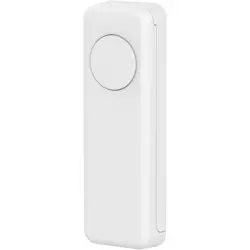
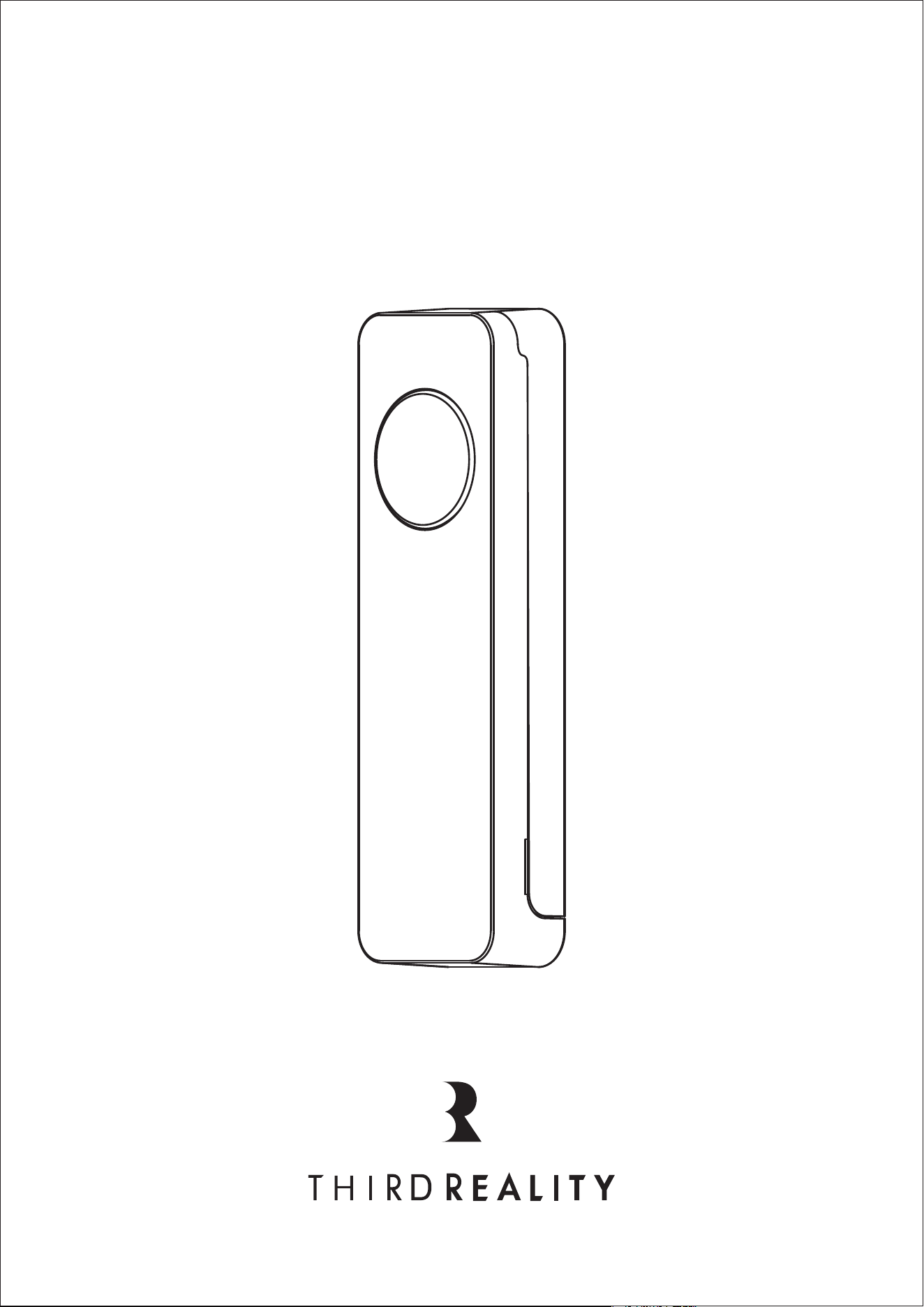
Smart Button
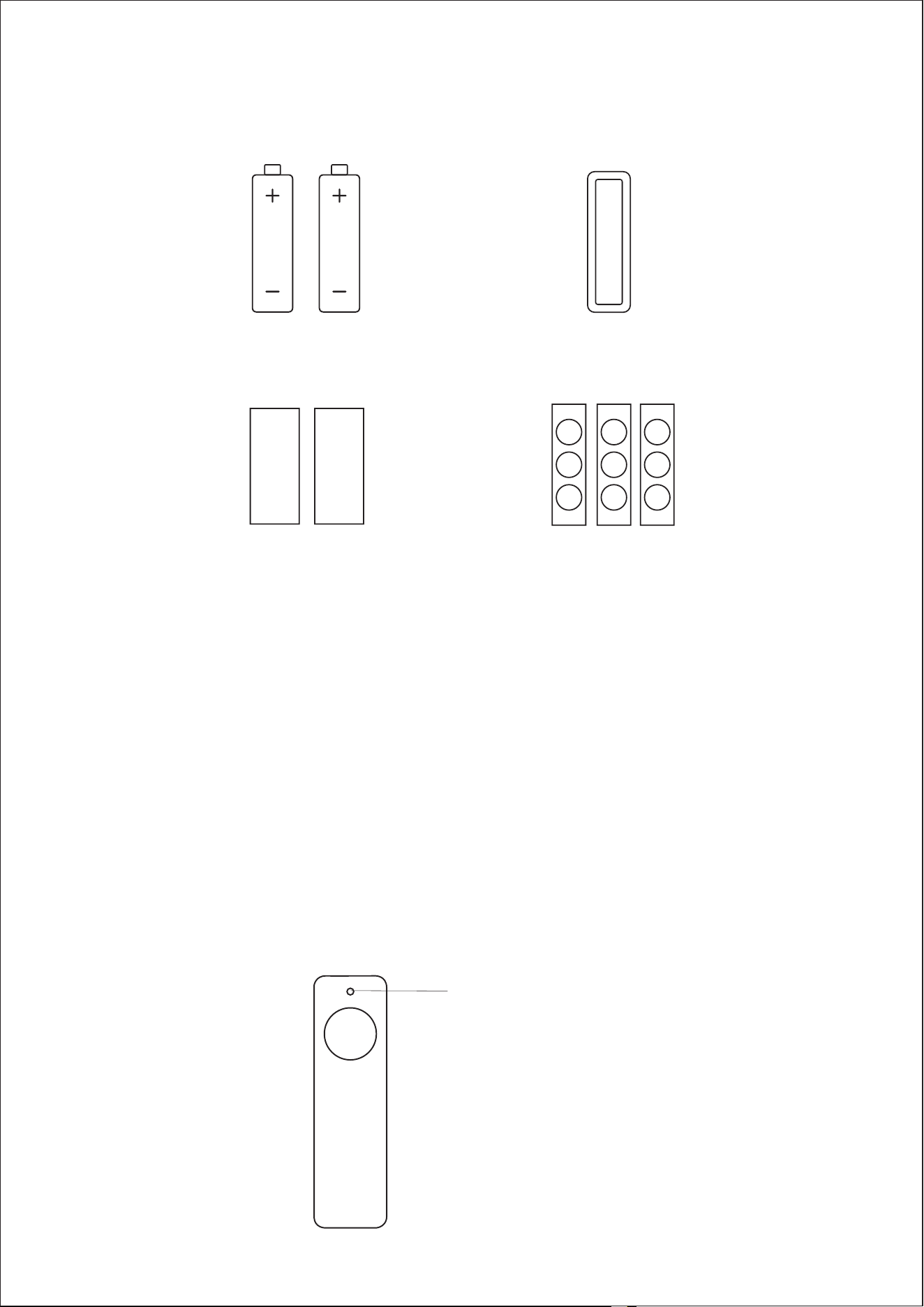
Mounting Kit
LED Status
ZigBee Pairing: fast blinking in blue
Echo ZigBee pairing: fast blinking in blue and red
Off-line: slow blinking in red
Low power: double blinking in red
LED Indicator
1
Magnet Sticker x 2 Icon Sticker x 9
AAA Battery x 2
Double-sided Tape
To switch mode between standard ZigBee mode and Echo ZigBee mode by
pressing the reset button for 5 times within 5 seconds.
*
Setting up your Smart Button
Follow instructions to set up your compatible ZigBee hub.
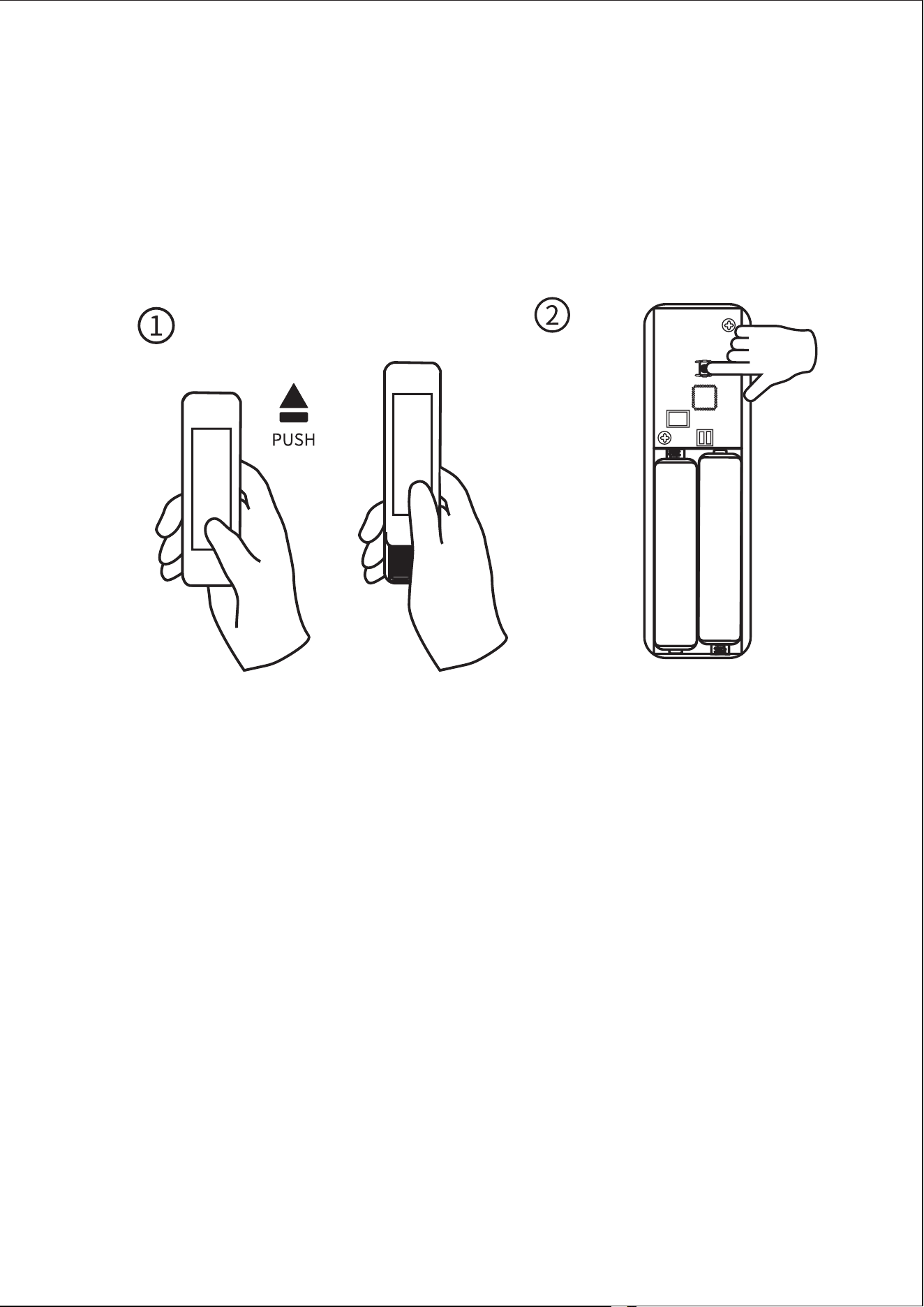
Slide the battery cover out (figure 1) and remove the bat-
tery insulation sheet.
The LED indicator flashes rapidly in blue, indicating that
the Smart Button is in pairing mode by default.
*If the Smart Button is not in paring mode, press and hold
the reset button for 5 seconds (Figure 2) until the LED indi-
cator flashes rapidly in blue, indicating that it is in pairing
mode.
Configure the Smart Button with your ZigBee hub.
Close the Smart Button's battery cover.
After the pairing is completed, you can create routines in
the corresponding smart home App or platform to control
other connected devices.
THIRDREALITY Smart Button supports three control set-
tings: Pressed, Double Pressed and Held.
1.
2.
3.
4.
5.
6.
2
Install your Smart Button
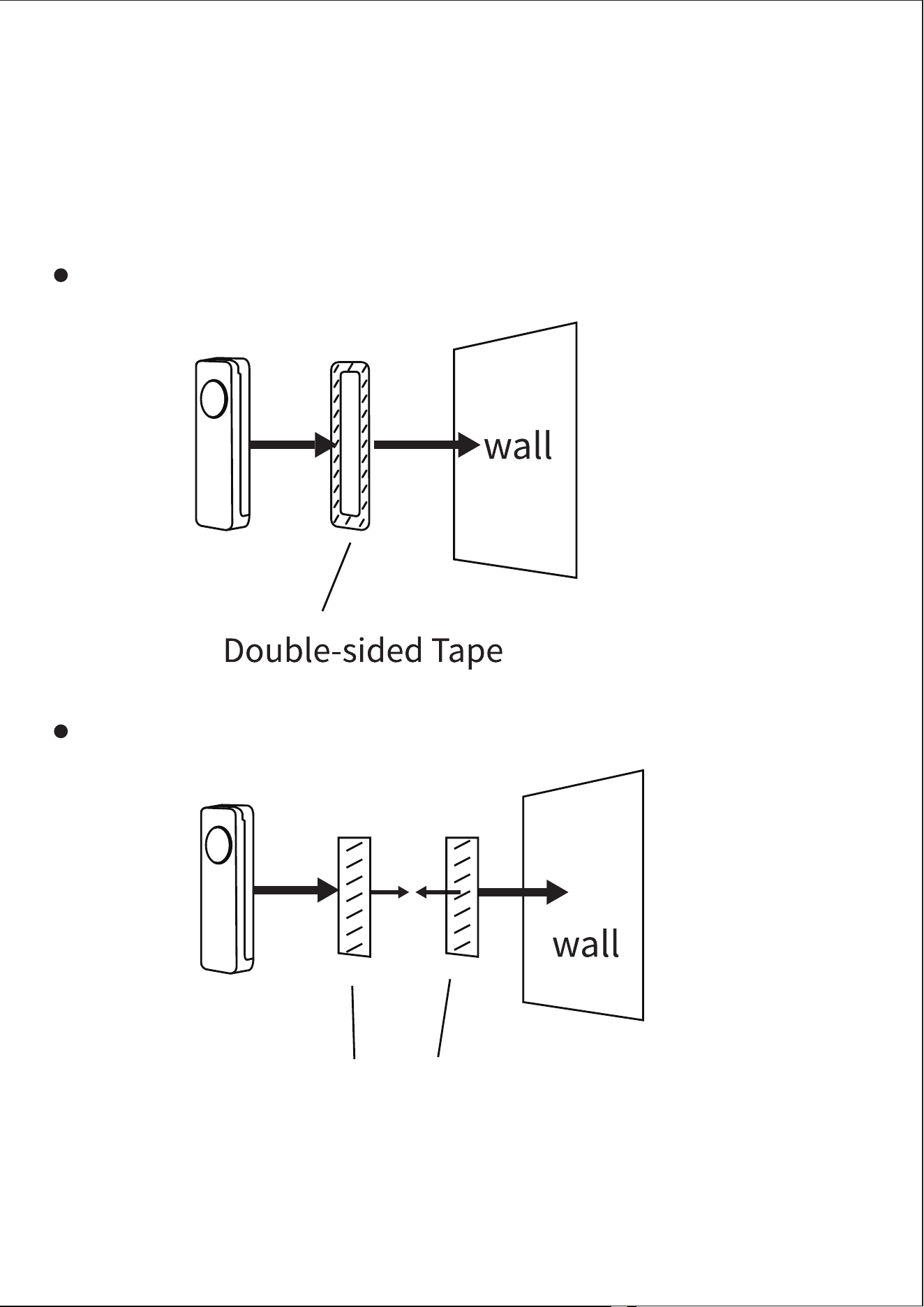
We provide two different installation methods, place your
Smart Button according to your requirement.
Using the double-sided tape that included:
Using the magnet stickers that included:
*Note: Smart Button is designed for indoor use only.
3
Magnet Stickers
Pairing with Different Brands of Hubs
1. Pairing with Hubitat
Pairing steps:
Website: http://find.hubitat.com/
Remove the battery cover of the Smart Button, remove the
battery insulation sheet, the LED indicator flashes quickly
in blue, indicating the Smart Button is in pairing mode.
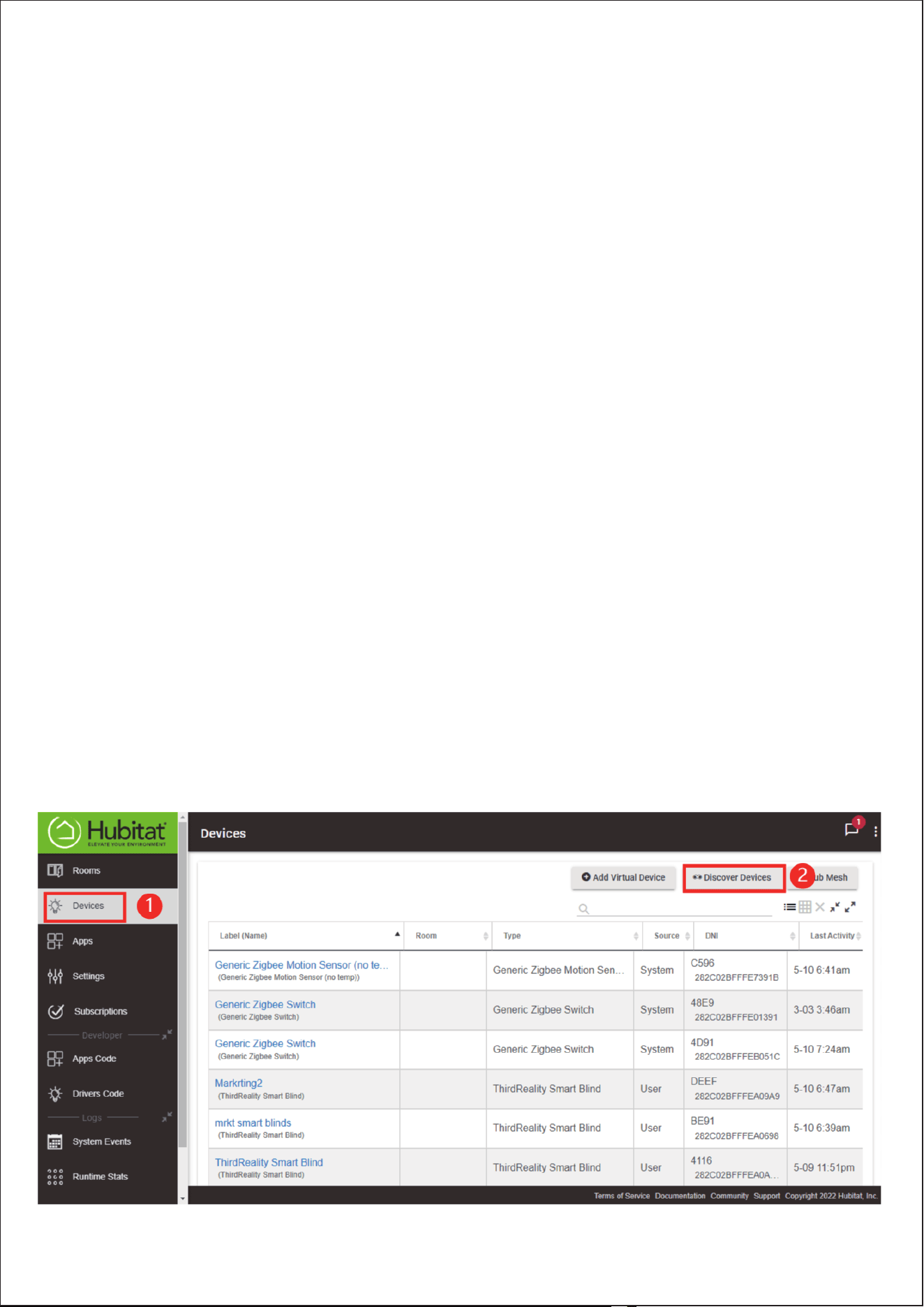
Visit your Hubitat Elevation hub device page from your
web browser, select the Devices menu item from the side-
bar, then select Discover Devices in the upper right.
1)
2)
Before pairing, check for updates to make sure the firm-
ware of the hub is up to date.
4
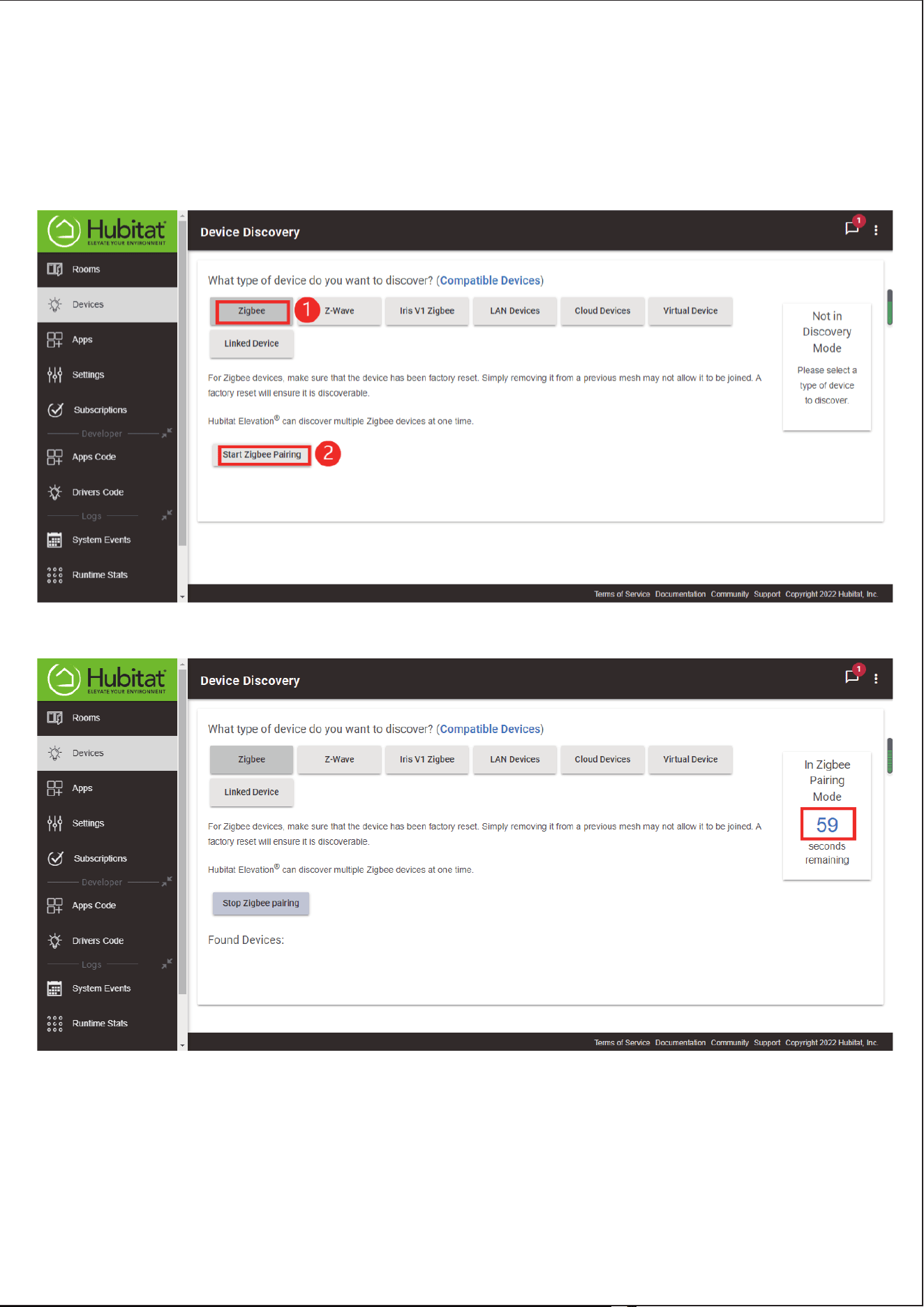
Click Start ZigBee Pairing button after you select a ZigBee
device type, the Start ZigBee Pairing button will put the
hub into ZigBee pairing mode for 60 seconds.
3)
5
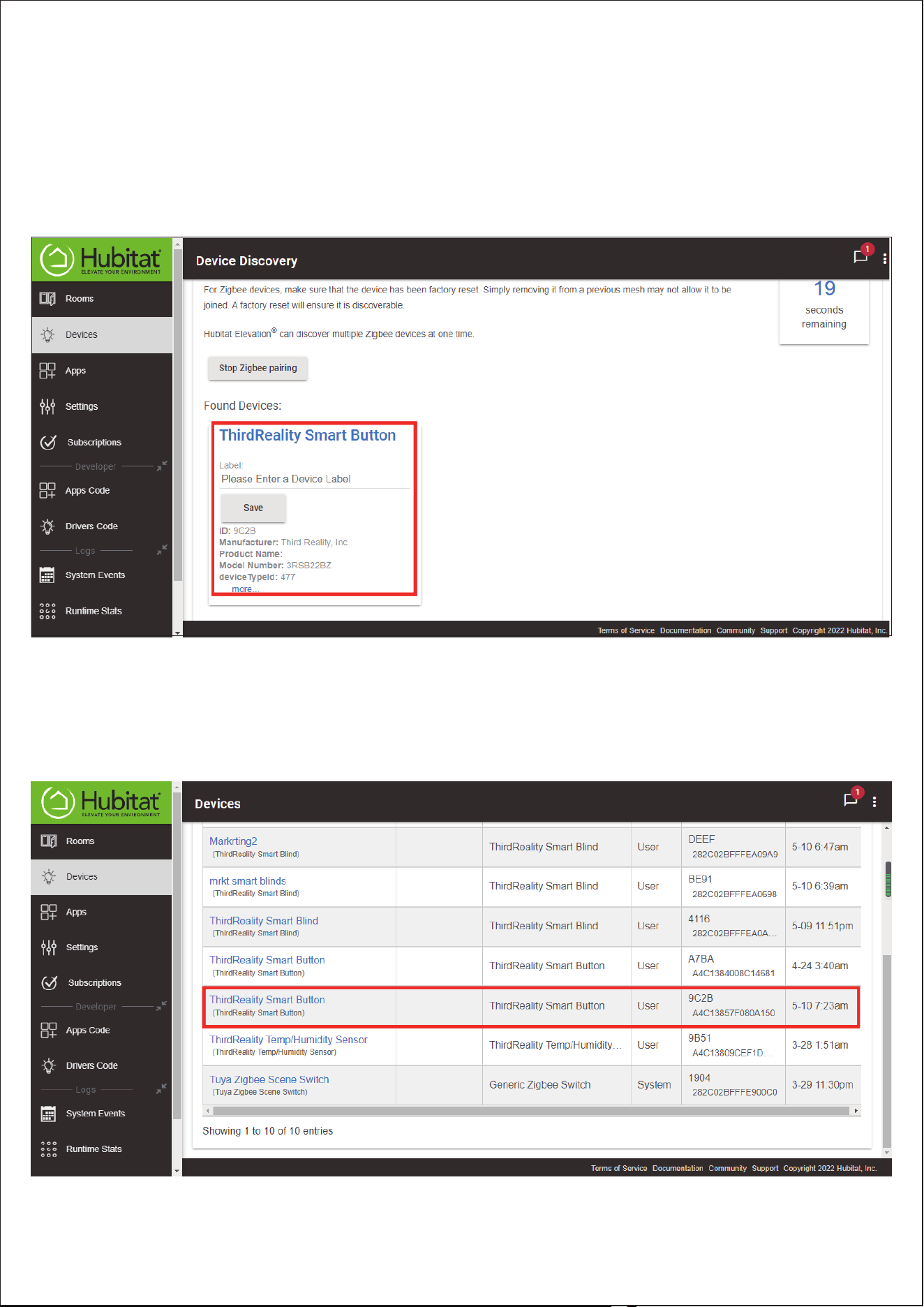
After being paired successfully, it will be showed on page
as on page as "ThirdReality Smart Button", you can
rename it if needed, then tap "save".
4)
Now you can see the Smart Button on the Devices page.
5)
6
2. Pairing with Home Assistant through ZHA
Pairing steps:
Remove the battery cover of the Smart Button, remove the
battery insulation sheet, the LED indicator flashes quickly
in blue, indicating the Smart Button is in pairing mode.
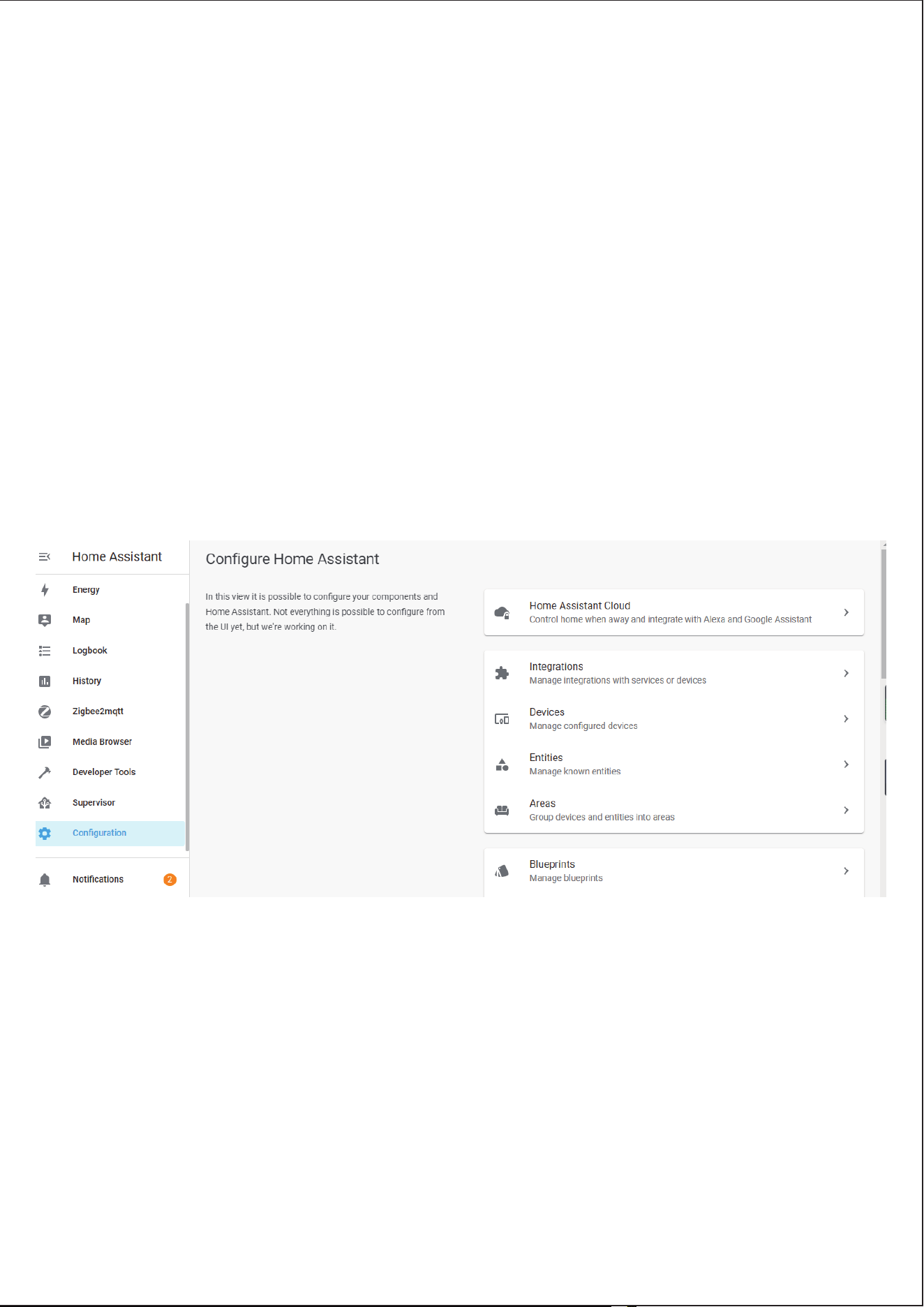
Make sure Home Assistant Integrations ZigBee Home Au-
tomation Setup is ready, then go to "Configuration" page,
click "integration".
1)
2)
7
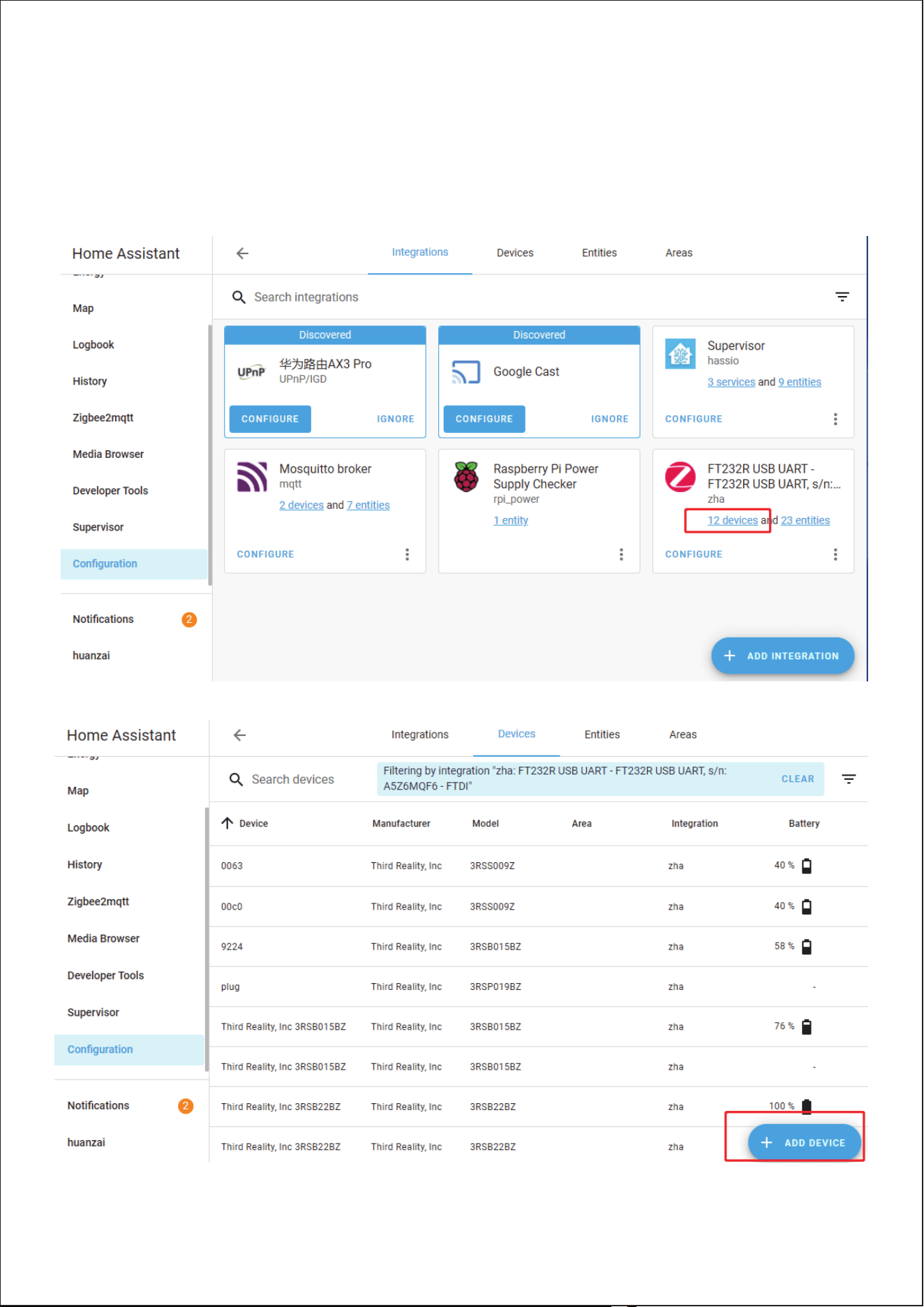
Then click the "Devices" on the ZigBee item, the click "Add
Devices".
3)
8
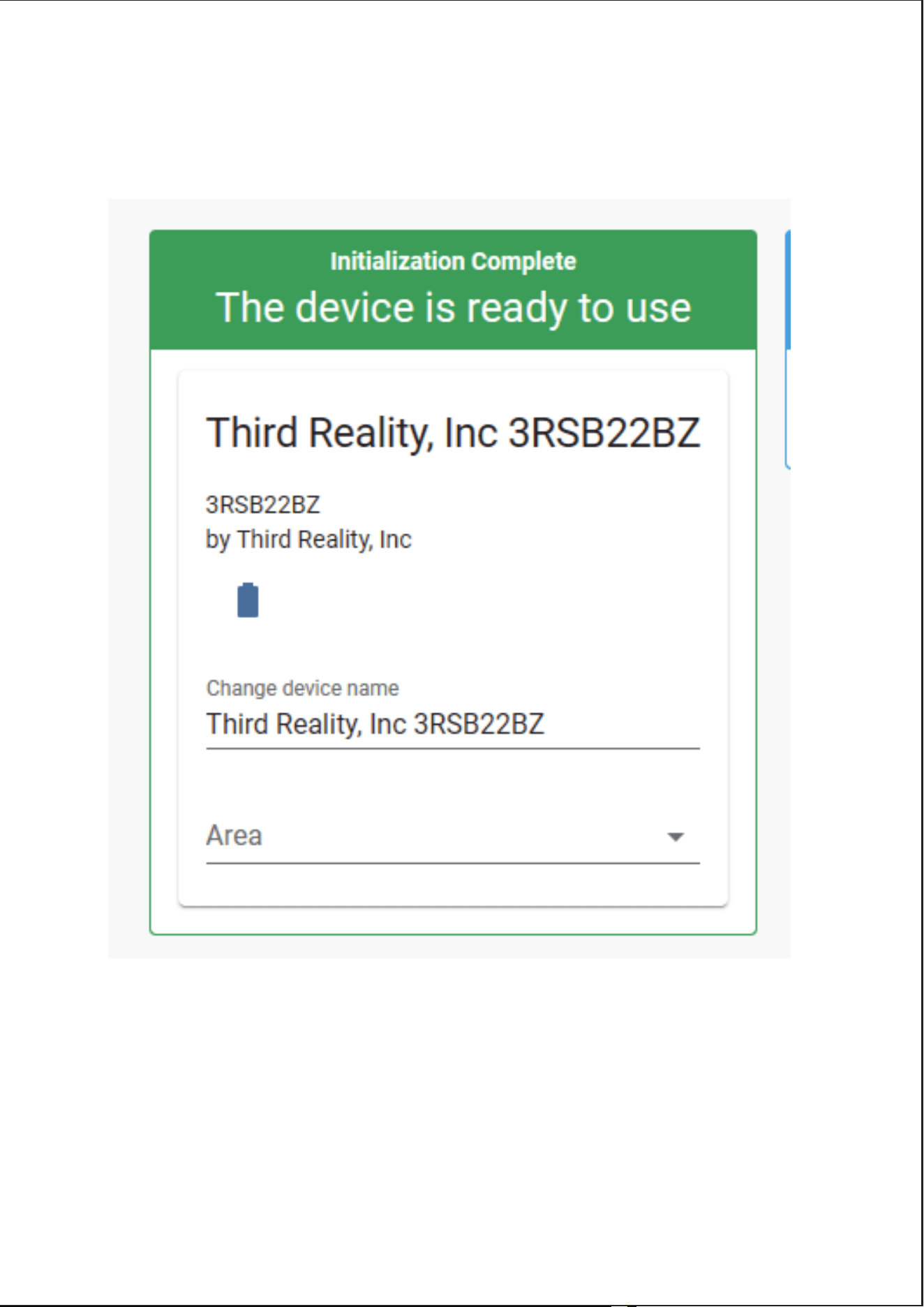
After the pairing is successful, it will show as "Third Reali-
ty, Inc 3RSB22BZ" on the page.
4)
9
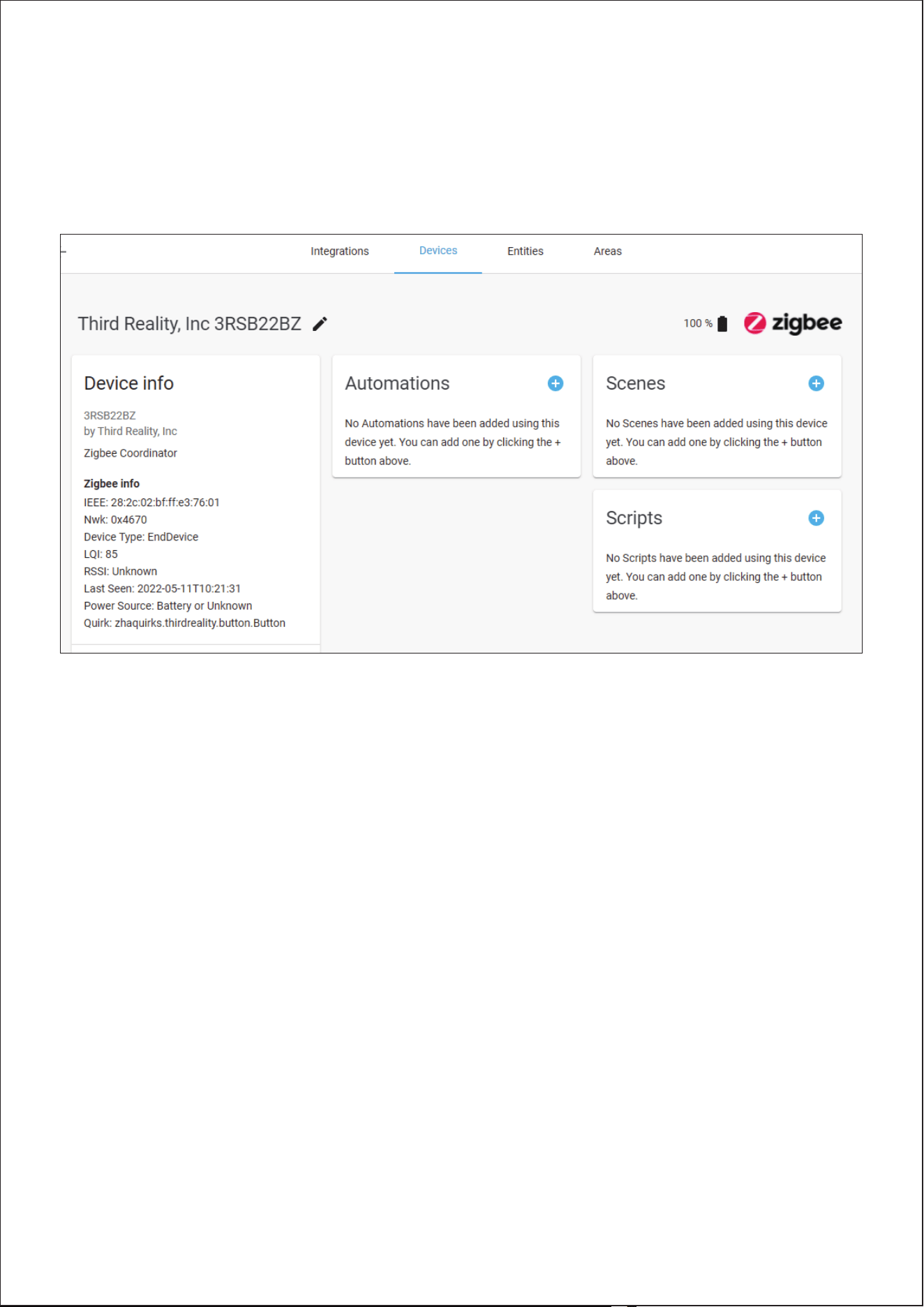
Back to "Devices" page, then you can find the Smart
Button added before. Click to enter in the control interface
to set the Smart Button.
5)
10
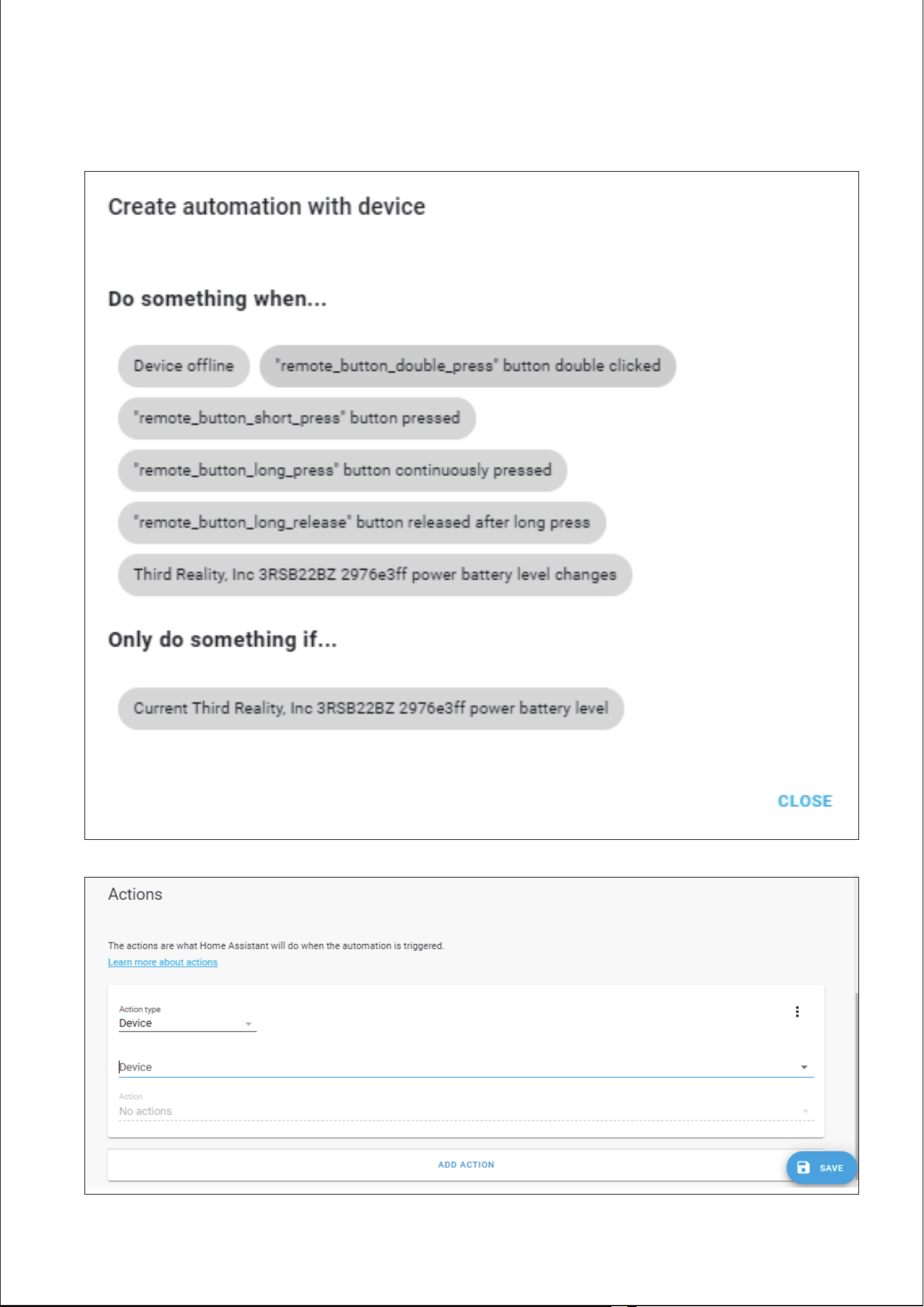
Click the "+" belongs to Automation and then you can add
different actions to Third Reality Smart Button.
6)
11
3. Pairing with Third Reality
Pairing steps:
ZigBee Hub Prepare: Third Reality Smart Hub
App: Third Reality App
Remove the battery cover of the Smart Button, remove the
battery insulation sheet, the LED indicator flashes quickly
in blue, indicating the Smart Button is in pairing mode.
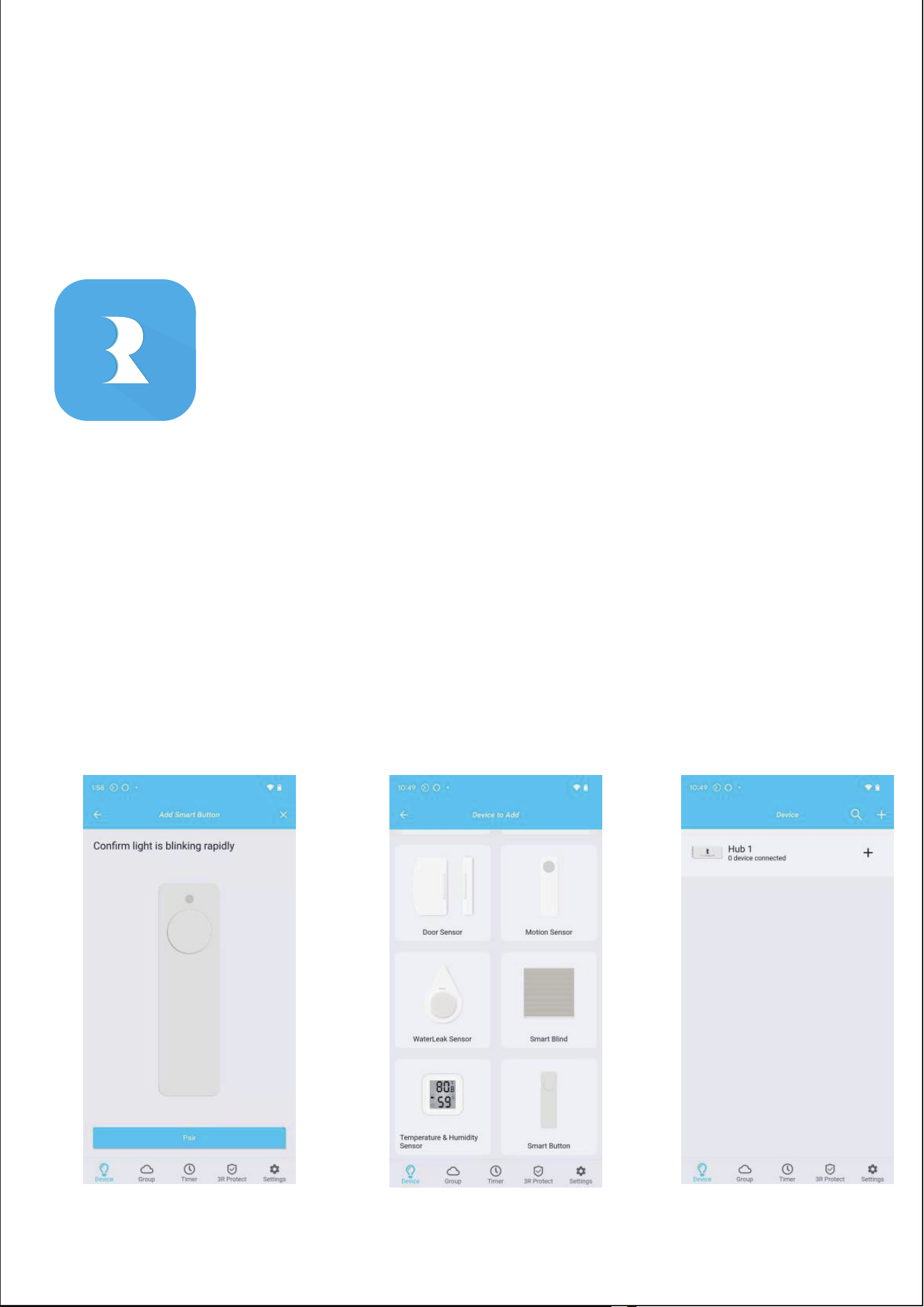
Open Third Reality App, go to device page, tap "+" belongs
to the Hub, choose "Smart Button" , then click "Pair".
1)
2)
12
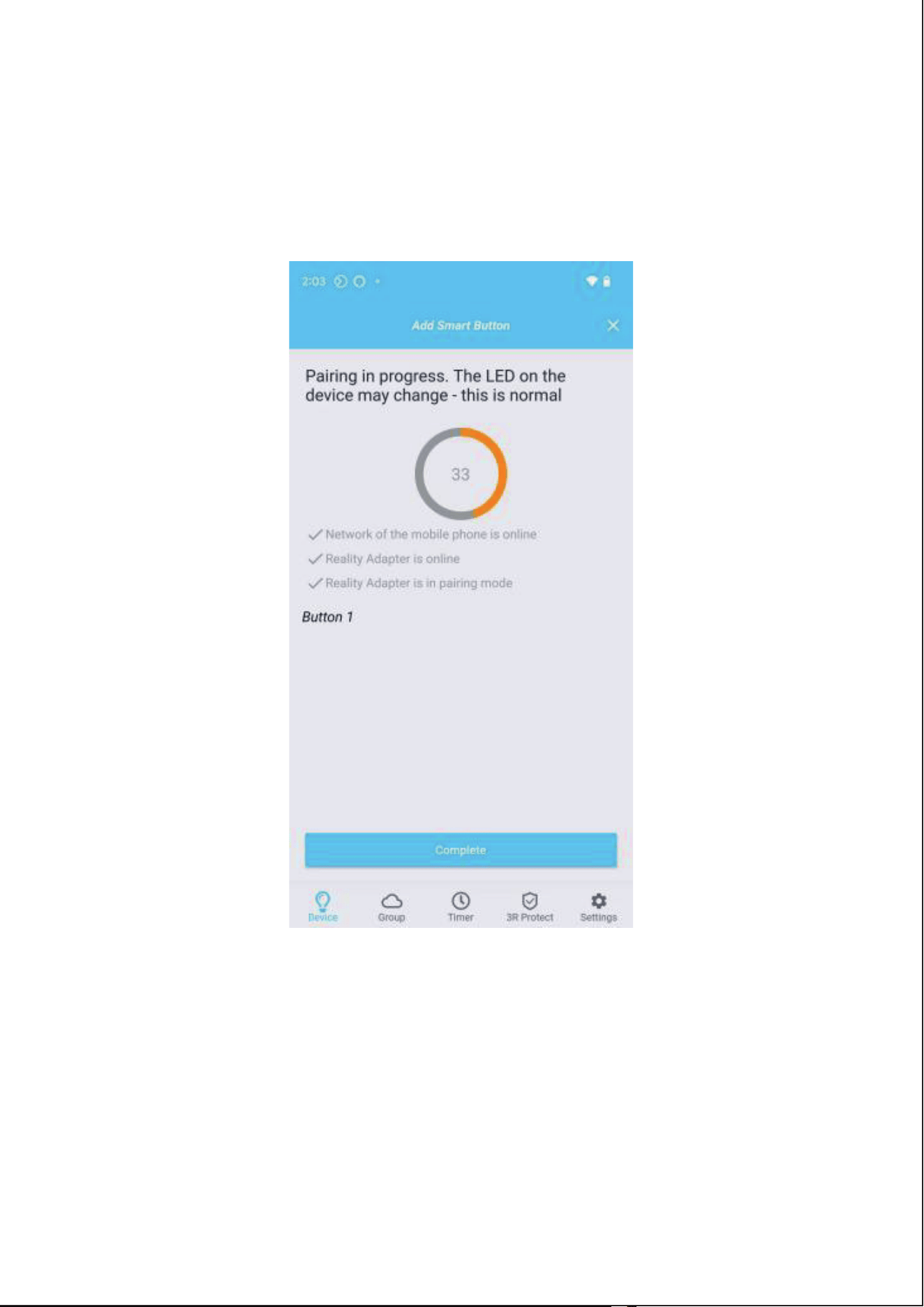
After the pairing is completed, tap "Complete", then back
to main interface
3)
13
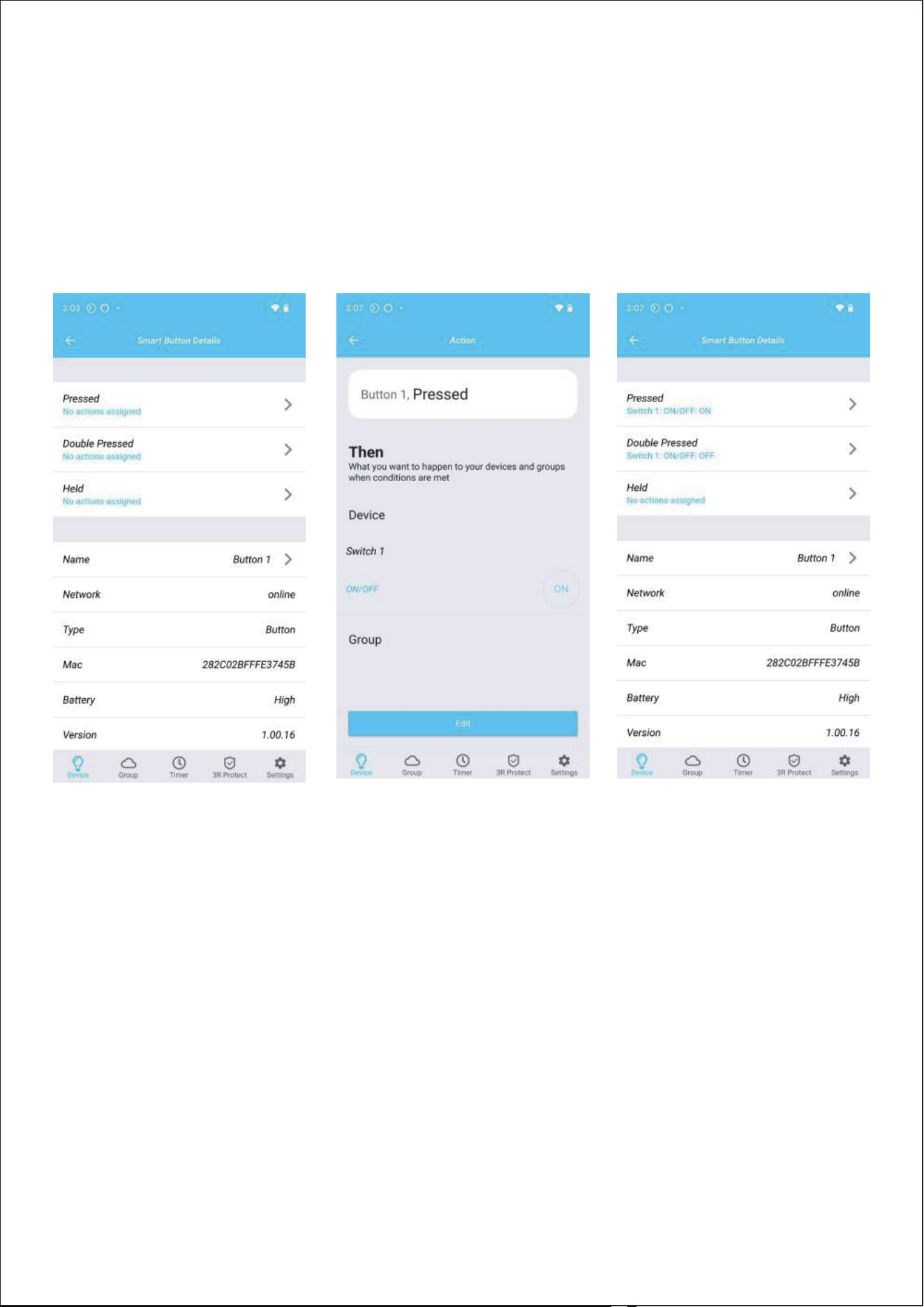
Tap "Smart Button" icon on device page, you can see the
details, such as Battery, History Records etc. Then click
Pressed / Double Pressed / Held, you can create different
scenes.
4)
14
15
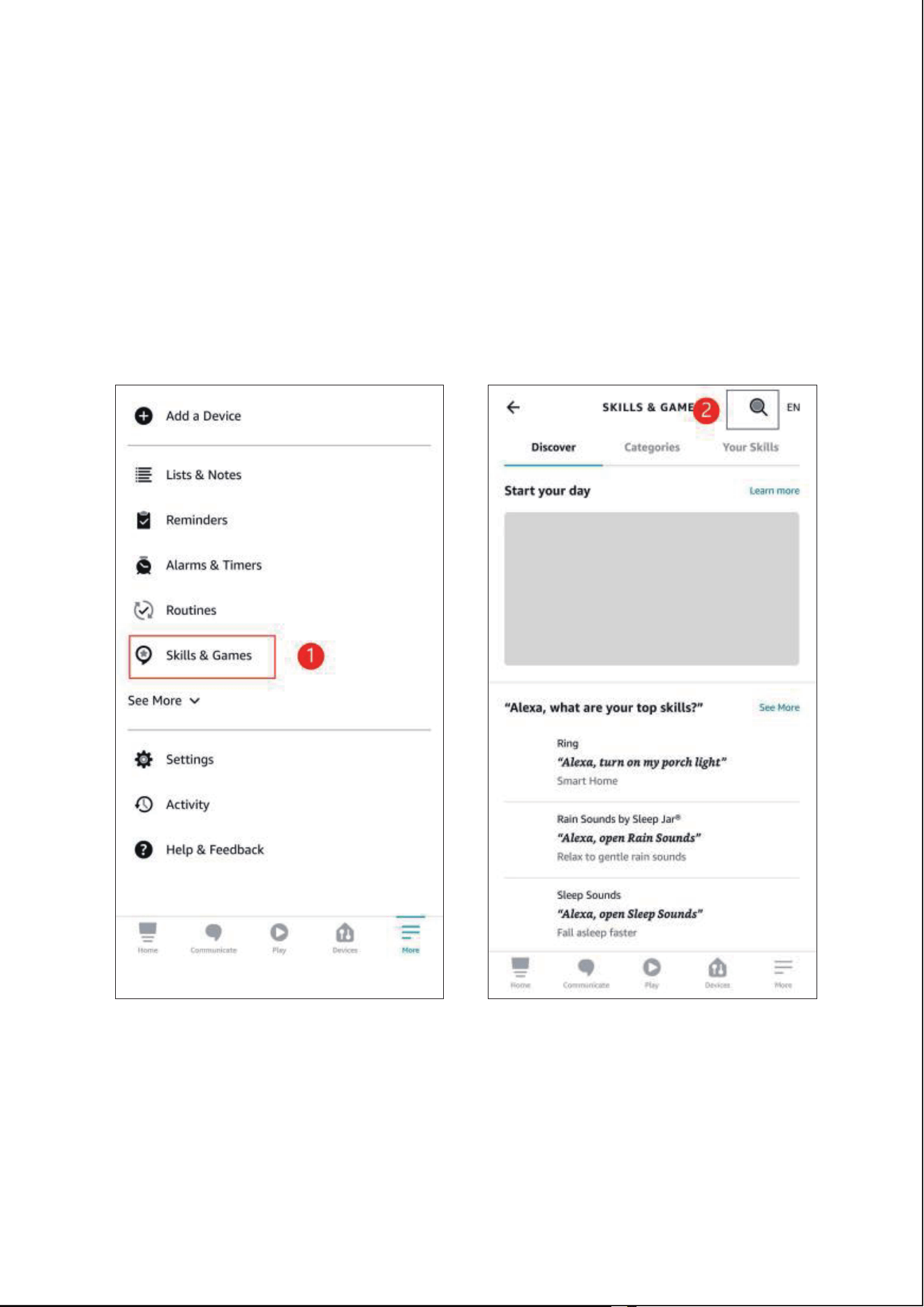
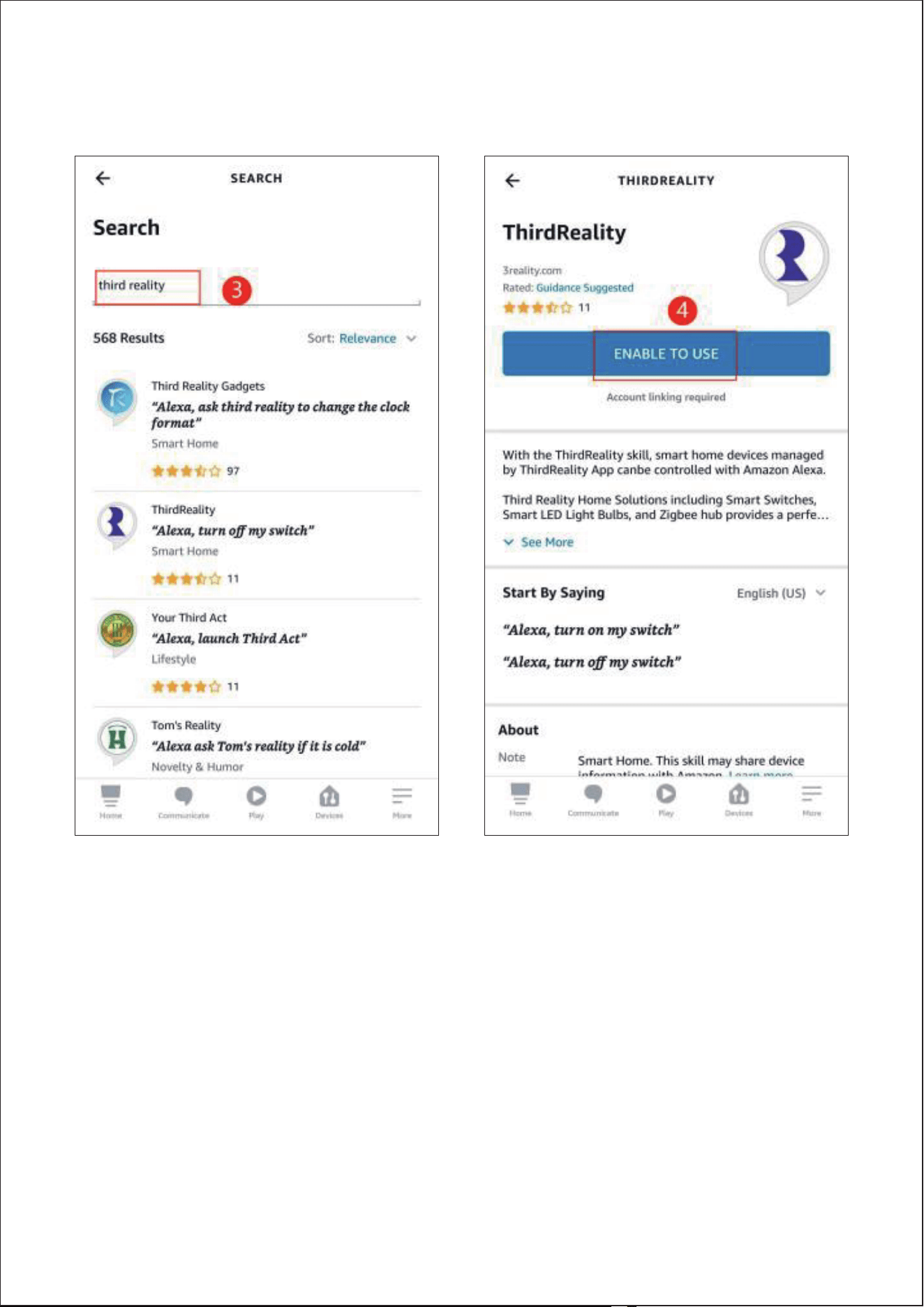
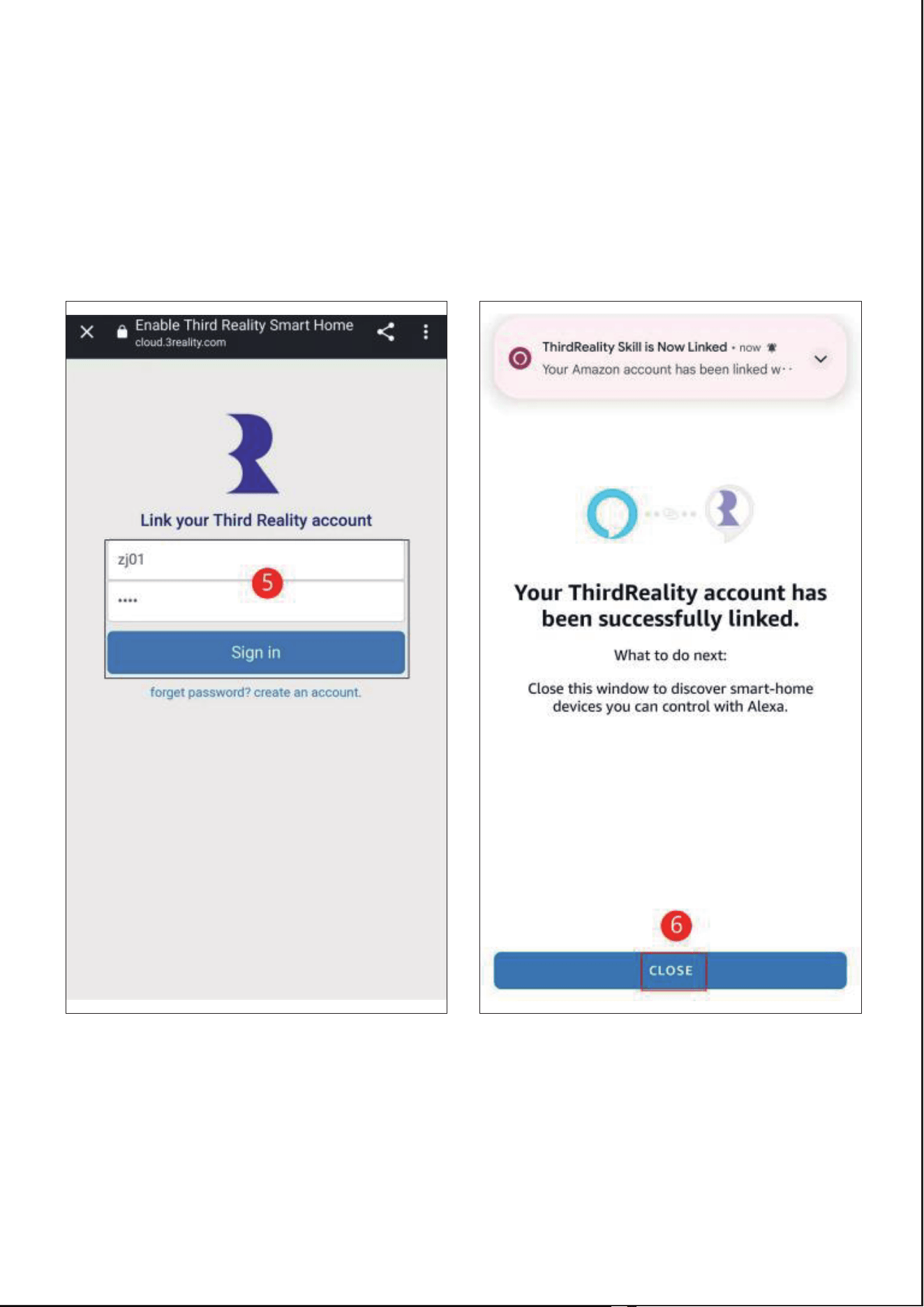
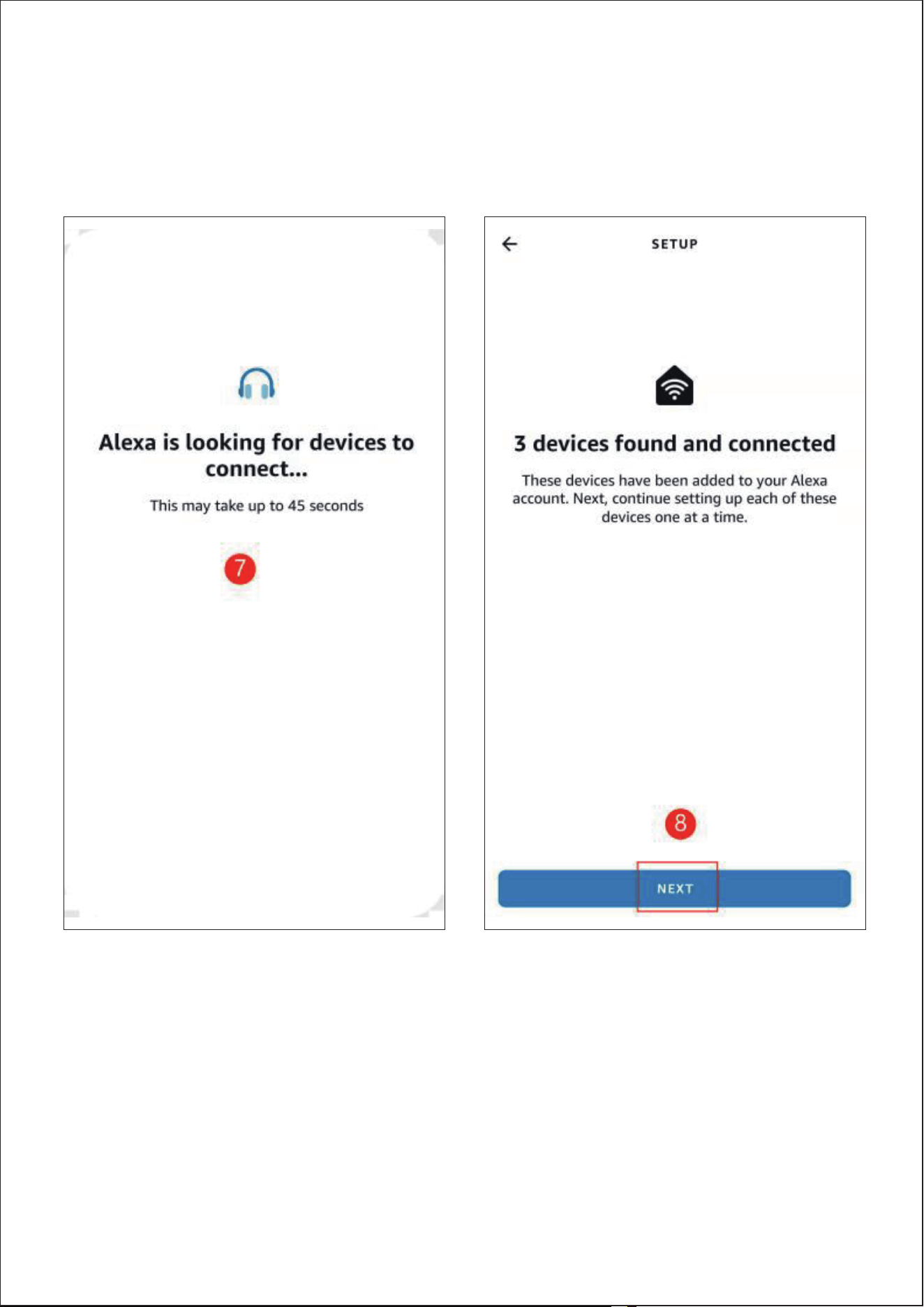
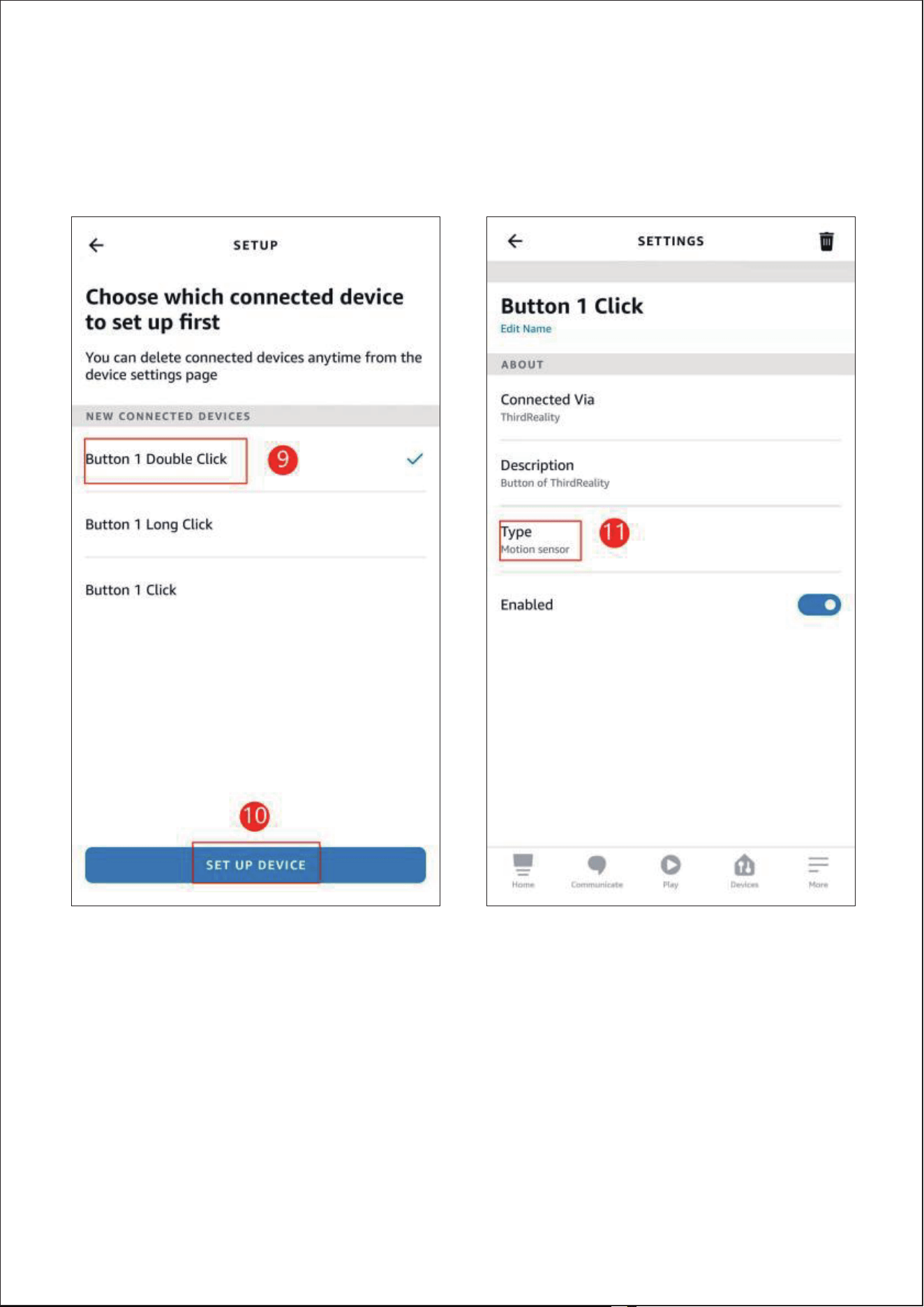
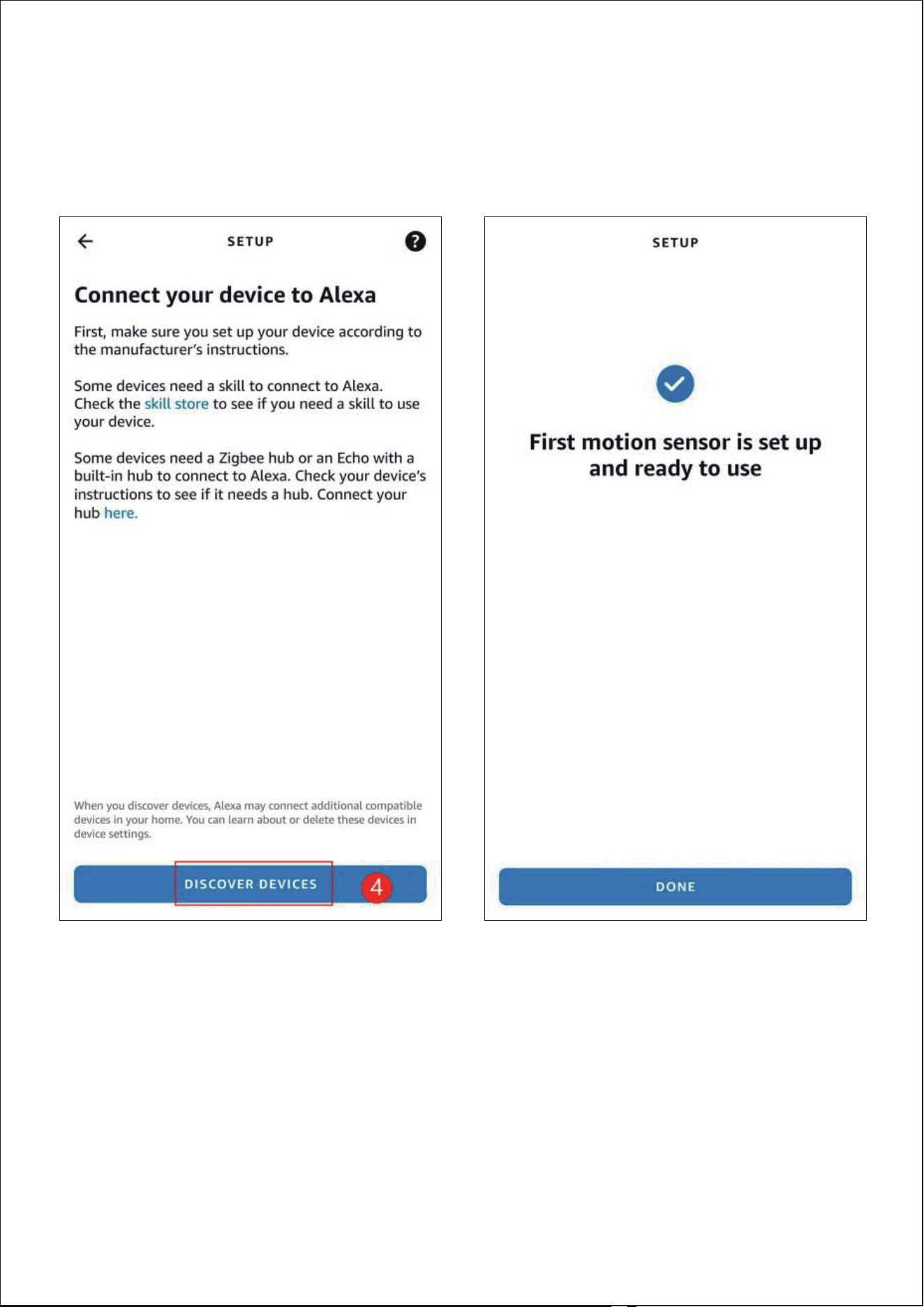
Or you can enable Third Reality SkillX to Alexa, follow the
prompts and tap "DISCOVER DEVICES" in Alexa app, it will
be recognized as 3 motion sensors as "Button 1 Click",
"Button 1 Double Click" and "Button 1 Long Click", then
you can create routines to control other devices with the
Smart Button.
5)
16
17
18
19

Pairing with Amazon Echo
App: Amazon Alexa App
20
Pairing with Echo devices with built-in ZigBee hubs such As
Echo V4, Echo Plus V1 & V2, Echo Studio, Echo Show 10(Gen2 &
Gen3), and Eero 6 & 6 pro.
Ask Alexa to check for updates before pairing.
Remove the battery cover of the Smart Button, remove the
battery insulation sheet and install the batteries, the LED
indicator blinks quickly in blue. The Smart Button is in
standard ZigBee pairing mode.
To switch mode between standard ZigBee mode and Echo
ZigBee mode by pressing the reset button for 5 times
within 5 seconds.
1)
2)
3)
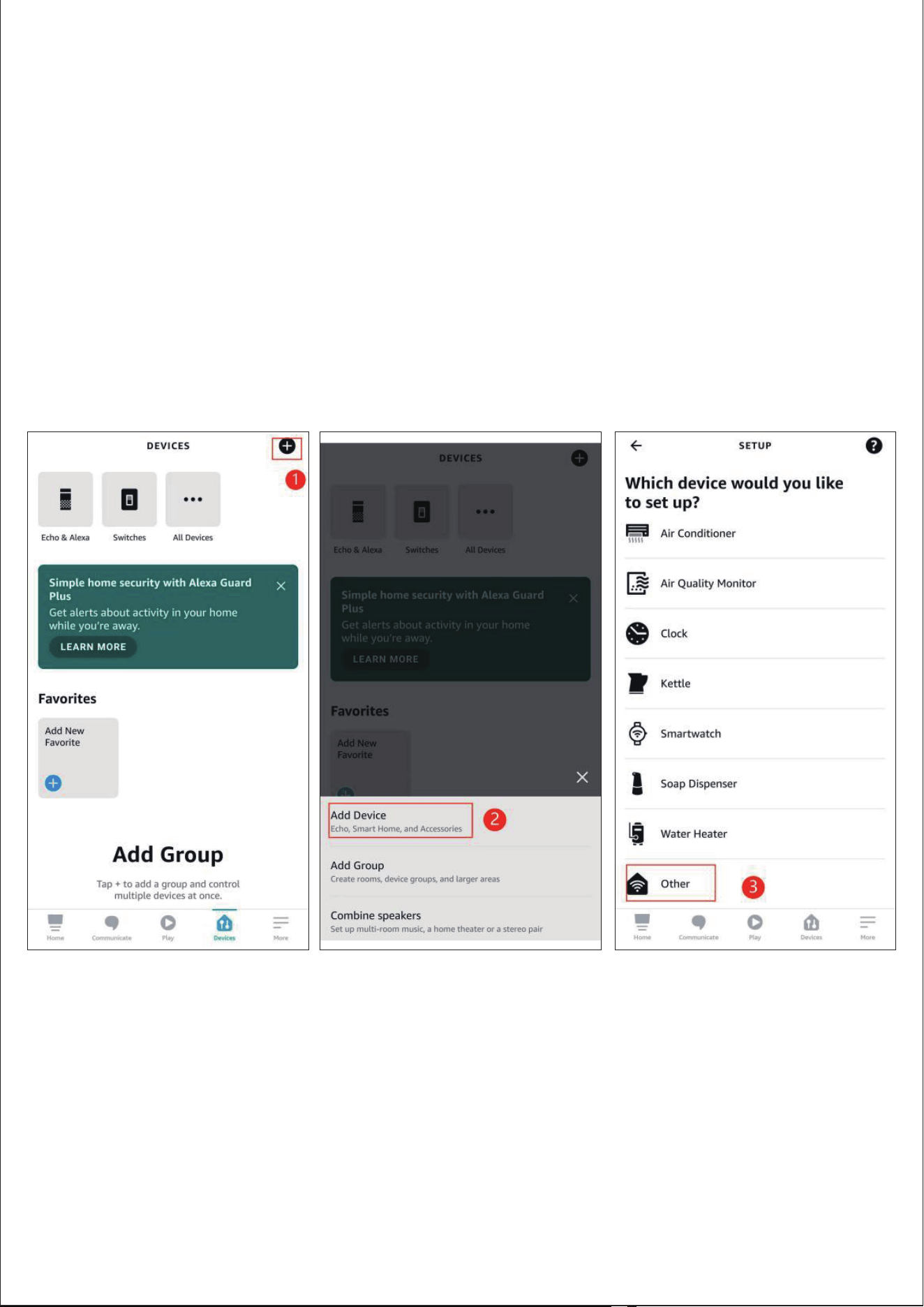
Ask Alexa to discover devices, or open Alexa App, go to
device page, tap "+" on top right, choose "Add Device",
scroll down to the bottom and tap "other", tap "DISCOVER
DEVICES", the Smart Button will be paired with your Echo
device in a few seconds, it is recognized as a motion
sensor.
4)
21
22
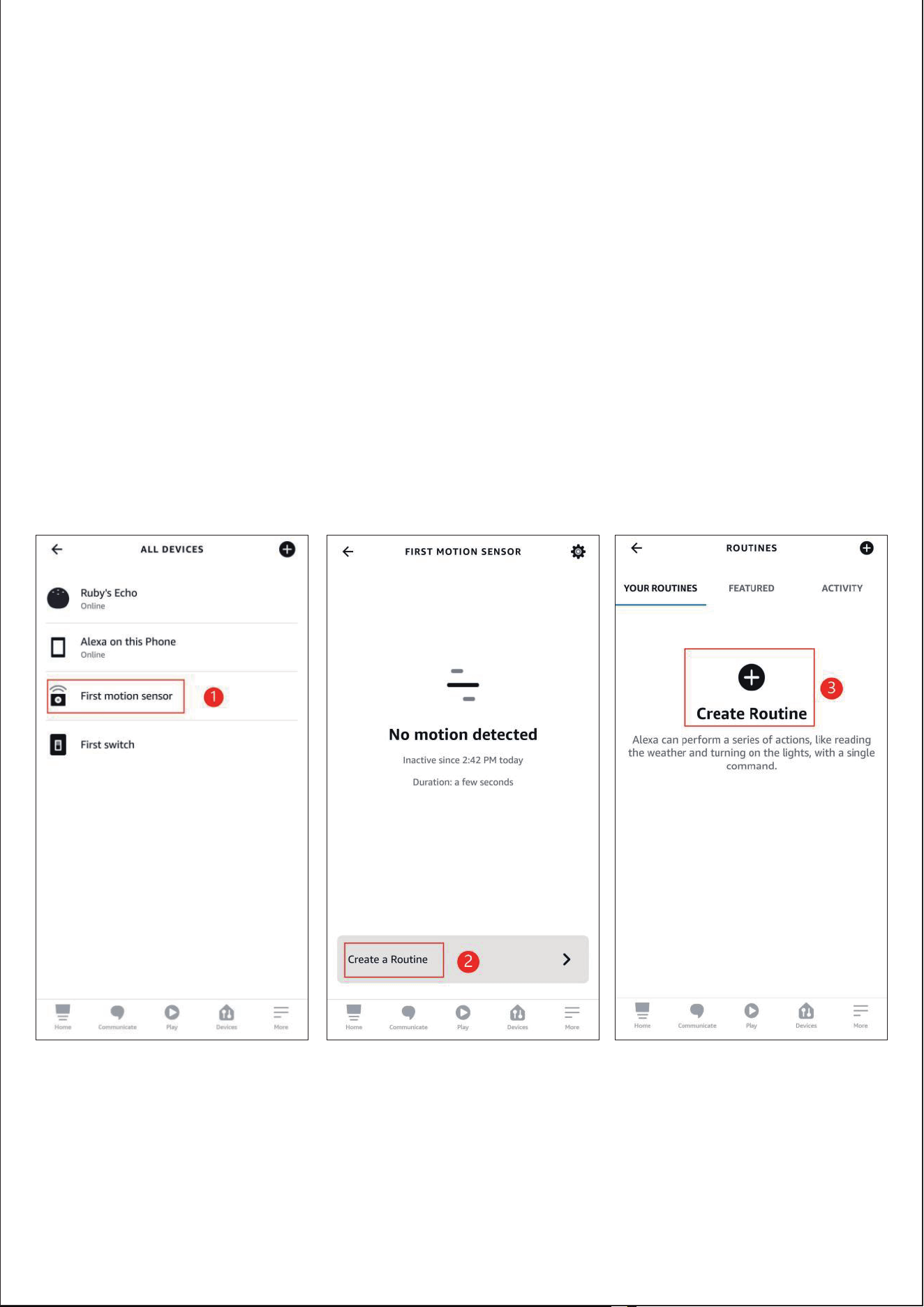
Tap "First Motion Sensor" in all devices list to open the
Smart Button device page, you can create routines with it
to control other devices.
* Please be aware of that since Alexa sees Smart Button as
a motion sensor which has a cool down time of 30 sec-
onds, in this case Smart Button can be triggered only once
within 30 seconds.
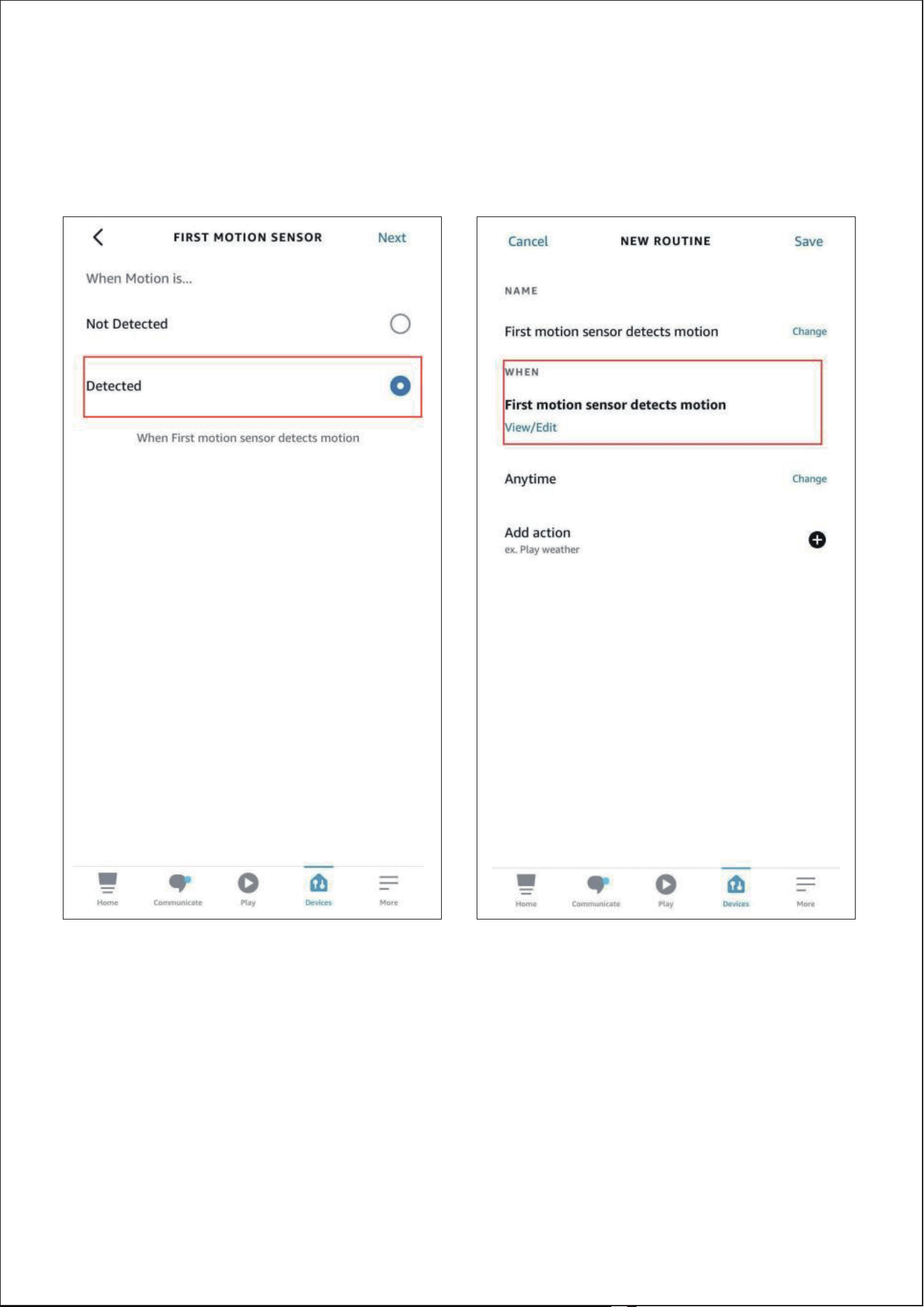
* Please make sure you create 2 same routines for both
"motion detected" and "motion not detected", in order to
avoid routine conflict.
5)
23
24

FAQ
How to factory reset the Smart Button?
Remove the back cover of the Smart Button, press and
hold the reset button on the back for 3 seconds, the LED
indicator will flashes quickly, now it has been factory reset
and in pairing mode.
How to change between 2 ZigBee pairing modes?
To switch mode between standard ZigBee mode and Echo
ZigBee mode by pressing the reset button for 5 times
within 5 seconds. When the LED indicator blinks quickly in
blue and red, it is in ZigBee pairing mode for Echo devices.
When the LED indicator blinks quickly in blue, it is in
ZigBee pairing mode for other ZigBee hubs like SmartTh-
ings Hub etc..
1)
2)
25

26
FCC regulatory conformance
This device complies with part 15 of the FCC rules. Operation is
subject to the following two conditions: (1) this device may not
cause harmful interference, and (2) this device must accept
any interference received, including interference that may
cause undesired operation.
Changes or modifications not expressly approved by the party
responsible for compliance could
void the user’s authority to operate the equipment.
NOTE: This equipment has been tested and found to comply
with the limits for a Class B digital device, pursuant to part 15
of the FCC Rules. These limits are designed to provide reason-
able protection against harmful interference in a residential
installation. This equipment generates uses and can radiate
radio frequency energy and, if not installed and used in accor-
dance with the instructions, may cause harmful interference to
radio communications. However, there is no guarantee that
interference will not occur in a particular installation. If this
equipment does cause harmful interference to radio or televi-
sion reception, which can be determined by turning the equip-
ment off and on, the user is encouraged to try to correct the
interference by one or more of the following measures:

RF Exposure
Limited Warranty
‐Reorient or relocate the receiving antenna.
‐Increase the separation between the equipment and receiv-
er.
‐Connect the equipment into an outlet on a circuit different
from that to which the receiver is connected.
‐Consult the dealer or an experienced radio/TV technician for
help important announcement.
NOTE: The manufacturer is not responsible for any radio or TV
interference caused by unauthorized modifications to this
equipment. Such modifications could void the user’s authori-
ty to operate the equipment.
This equipment complies with FCC radiation exposure limits
set forth for an uncontrolled environment.
This transmitter must not be co-located or operating in con-
junction with any other antenna or transmitter.
For limited warranty, please visit www.3reality.com/device-
support
For customer support, please contact us at info@3reality.com
or visit www.3reality.com
For help and troubleshooting related to Amazon Alexa, visit
the Alexa app.
27