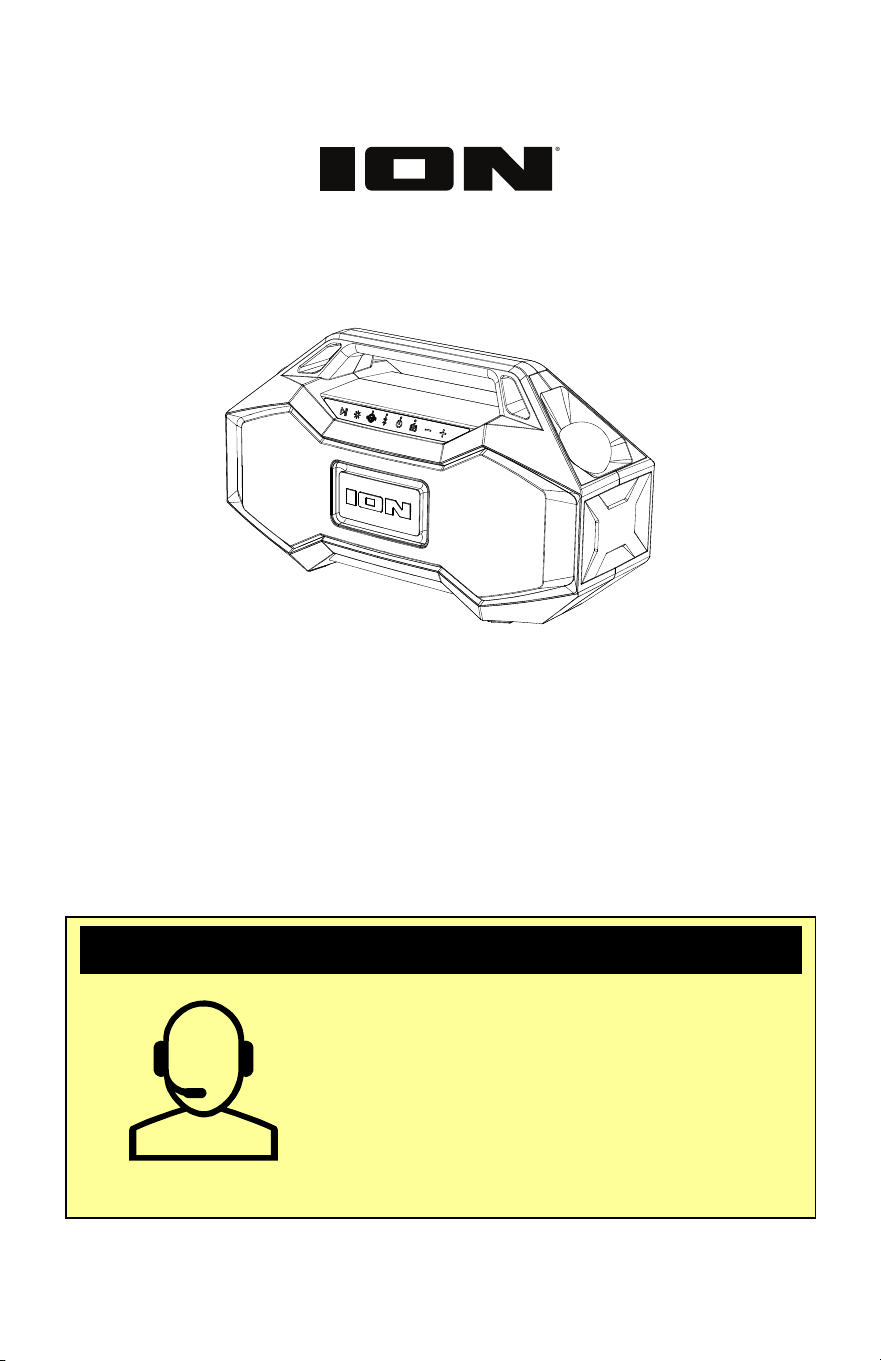
Party Rocker
™
Go
User Guide English ( 2 – 8 )
Guía del usuario Español ( 9 – 15 )
Guide d’utilisation Français ( 16 – 22 )
Appendix English ( 23 )
SUPPORT / SOPORTE / ASSISTANCE
ionaudio.com/support
Tap or click for technical support.
Toque o haga clic para obtener
soporte técnico.
Appuyez ou cliquez pour obtenir
une assistance technique.
2
User Guide (English)
Introduction
Thank you for purchasing the Party Rocker™ Go Speaker. At ION, your entertainment is as
important to us as it is to you. That’s why we design our products with one thing in mind—to
make your life more fun and more convenient.
Note: Before you first use the product, please fully charge the batteries. Your unit was
purposely shipped with a reduced battery charge to ensure safe transit. For optimal charging,
power off the speaker while charging.
Use the included micro-USB cable to connect the unit to a power adapter connected to a
power outlet and let it charge for up to 4 hours. This helps ensure the longest life for your
battery.
Box Contents
Party Rocker™ Go
Micro-USB Cable (3.2 ft / 100cm)
Quickstart Guide
Support
For the latest information about this product (documentation, technical specifications, system
requirements, compatibility information, etc.) and product registration, visit ionaudio.com.
For additional product support, visit ionaudio.com/support.
Setup
Outdoor Use and Care
Though Party Rocker™ Go is water-resistant and able to tolerate splashing water, please
review the tips below to get the best performance from your Party Rocker™ Go:
• Bring Party Rocker™ Go indoors during extreme weather.
• Please do not place Party Rocker™ Go in standing water.
• Please do not connect the power adapter to a Party Rocker™ Go in a wet environment.
Make sure the power input, power adapter, and power outlet are all completely dry before
making any connections.
• WARNING: Keep any non-water-resistant devices (phones, music players, etc.) in a dry
place where they will not be affected by water and cause a risk of electric shock.
3
Charging & Battery Information
For the quickest charging time, power off Party Rocker™ Go and use the included micro-USB
cable to connect the speaker to a USB power adapter (DC 5V 2A, not included) connected to
a power outlet, or your computer (powered on).
The LED (located above the Power Button) will appear solid red when charging, even if the
speaker is powered off. The LED will turn off when charging is complete. When the Party
Rocker™ Go battery is low, the LED will flash red three times every 60 seconds; If voice
prompts are turned on, you will also hear “Battery Low”.
If no audio is played through the Party Rocker™ Go speaker for 15 minutes, the unit will power
off automatically to conserve battery life.
Features
Front Panel
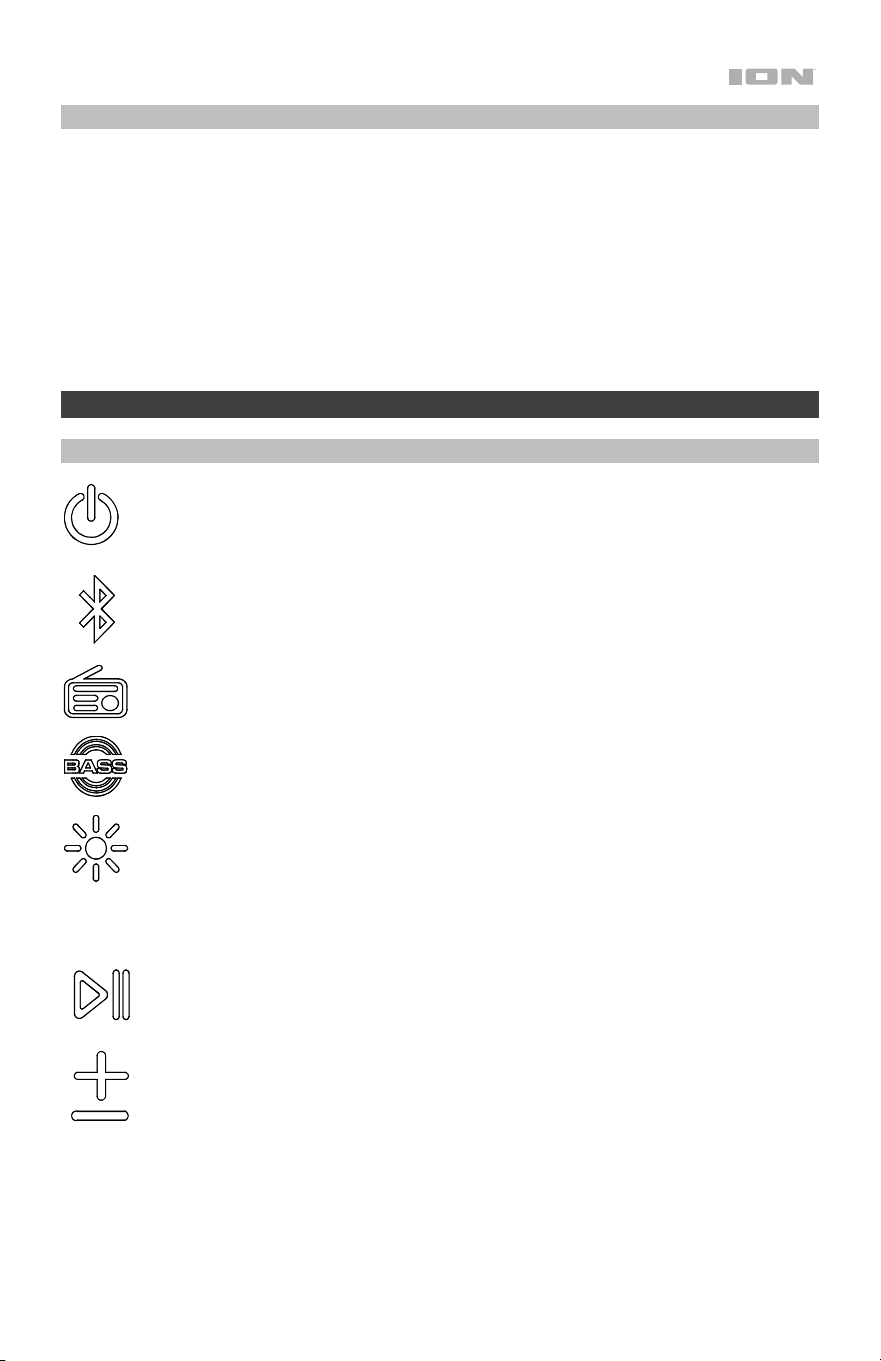
Power Button: Press and hold this button to turn Party Rocker™ Go on and off. The
LED above the button will light up solid white when the speaker is powered on.
Double-press this button to disable or enable voice prompts.
Bluetooth
®
Button: Press and hold this button to disconnect a Bluetooth device.
See Operation > Bluetooth Connecting with Party Rocker™ Go to learn how to
connect a Bluetooth device.
Radio Button: Press this button to turn on the FM Radio. See Operation > Using
the Radio for more information.
Bass Boost Button: Press this button to enhance the speaker’s bass frequency
response.
Lights Button: Press this button to cycle through lighting the bass radiator,
subwoofers, dome LEDs, and ground LEDs as listed below. Press and hold to switch
between Beat Sync and Color Cycle modes.
• Off
• Bass Radiator LED
• Bass Radiator LED + subwoofer LEDs
• Bass Radiator LED + subwoofer LEDs + dome LEDs + ground LEDs
Play/Pause Button: Press this button to play and pause Bluetooth audio.
Volume Up/Down Buttons: Press these buttons to adjust the speaker’s volume.
Press and hold + or – to navigate Bluetooth tracks.
4
Rear Panel
Note: Use your fingernail to release the protective rubber panel on the back of Party Rocker™
Go to access the Rear Panel:
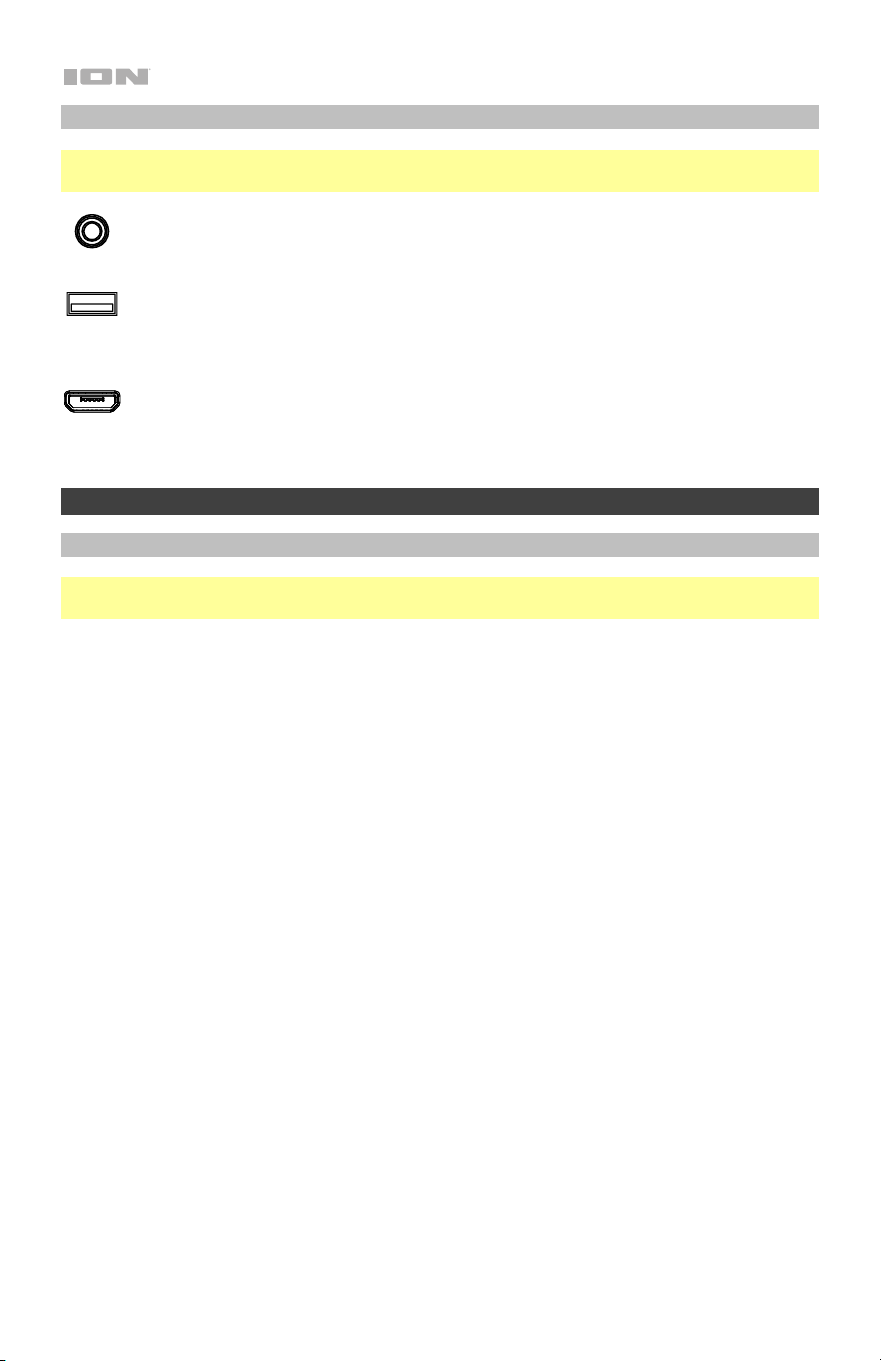
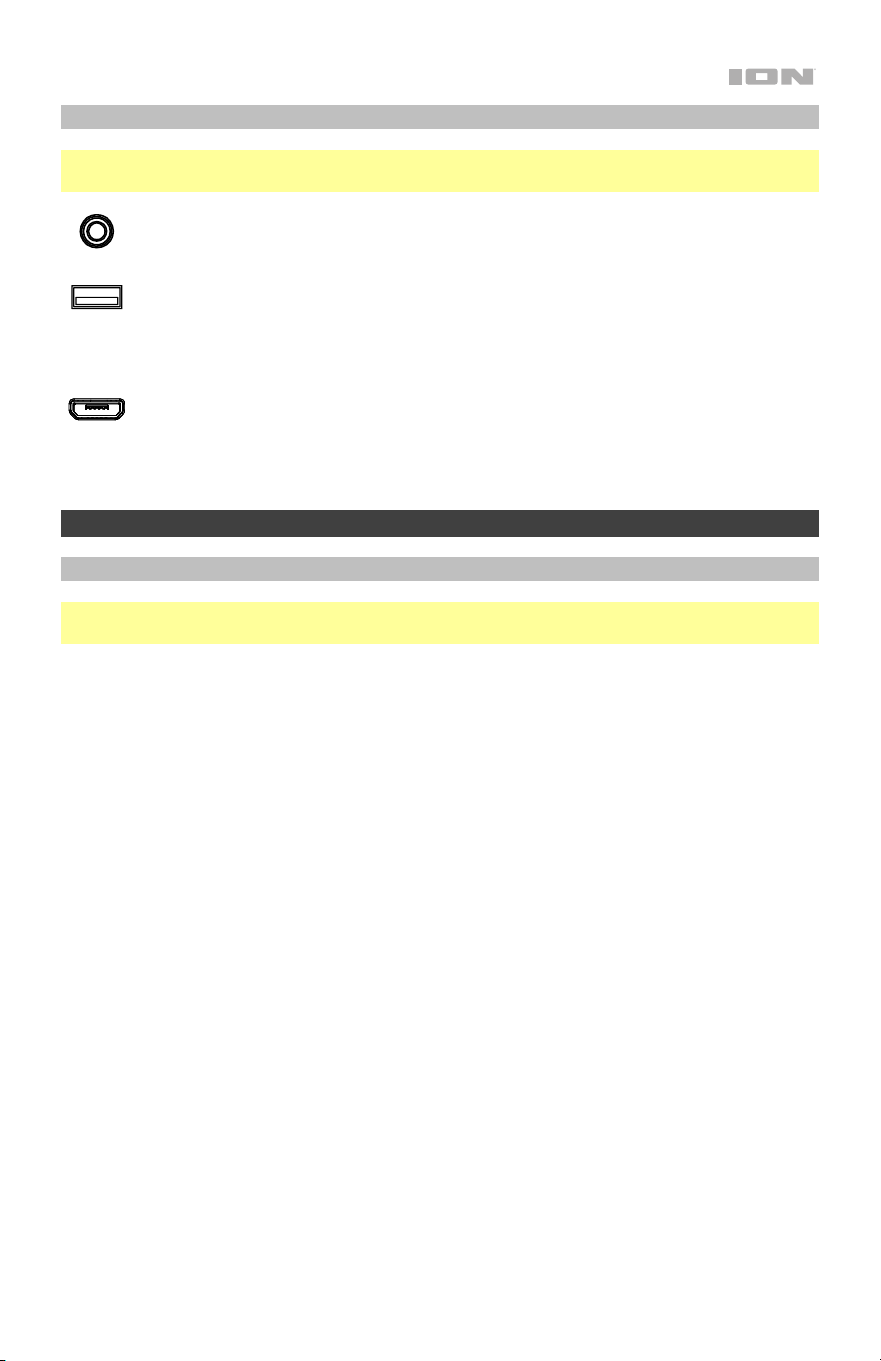
Aux Input: Connect an MP3 or other audio player to Party Rocker™ Go here using a
1/8 inch (3.5 mm) auxiliary cable (not included). See Operation > Connecting an
A
udio Device using the Aux Input for more information.
USB Charging Port: Party Rocker™ Go includes a power bank function, which
allows you to charge a smartphone, tablet, or other device using the unit’s internal
battery (Capacity: 4000mAh/10.8v 43.2Wh) by connecting a cable here. See
Operation > Using the USB Charge Port for more information.
Micro-USB Charging Port: Connect the included micro-USB cable to Party Rocker
Go here, then connect the other end to to a USB power adapter and plug it into a
power outlet, or your computer (powered on).
Operation
App Control
IMPORTANT: To ensure the best possible experience with the app, use the most current
Android OS or iOS on your device.
Follow these steps to download the free app on your device:
1. Open the Apple App Store or Google Play on your device. Then, search for the ION
Sound XP™ app.
2. Follow the on-screen instructions to download and install the app. Once downloaded,
the ION Sound XP™ app will appear on your device's home screen.
3. Connect your device to Party Rocker™ Go via Bluetooth. See the Bluetooth Connecting
with Party Rocker™ Go to learn how to do this.
4. Open the ION Sound XP™ app. If prompted, allow the app to access your device's
Bluetooth and Location Services.
5. Tap to select Add A Product on the screen. The app will scan and find Party Rocker™ Go.
If you are having issues connecting, tap Help with setting up? for additional tips.
6. Select the Party Rocker™ Go icon to go to the next screen, where you can use the app to
control various functions of the speaker such as:
• Volume: Adjust the speaker's volume.
• EQ: Adjust the speaker's equalization.
• FM Radio: Save station presets and fine-tune the station frequency.
• Voice Prompts: Enable or disable the voice prompts.
• Lights: Change the light modes.
• Volume: Adjust the speaker’s volume.
• Battery Life: Check the speaker’s battery life status.
• Support: Visit ionaudio.com, contact Technical Support, and view Warranty
information and Frequently Asked Questions.

5
Bluetooth Connecting with Party Rocker™ Go
1. Turn on Party Rocker™ Go by holding down the Power button for 2 seconds. Party Rocker™
Go will automatically enter Bluetooth pairing mode.
2. Navigate to your device’s Bluetooth setup screen, find Party Rocker Go, and connect.
When connected, the Bluetooth LED will be lit solid blue and you will hear “Connected” (if
voice prompts are enabled).
Note: Do not connect to iSP147_BLE; this is reserved exclusively for connecting to the
ION Sound XP™ app. If you experience trouble in connecting, select “Forget this Device”
on your Bluetooth device and try to connect again.
3. Now you can use the buttons on the front panel to control audio playback:
• Press and quickly release the Play/Pause button to play or pause the current track.
• Press and quickly release the Volume Up button to increase the volume by one
increment.
• Press and quickly release the Volume Down button to decrease the volume by one
increment.
• Press and hold the Volume Up button to skip to the next track.
• Press and hold the Volume Down button to revert to the beginning of the current
track. Repeat this action within 1 second to skip to the previous track.
4. To disconnect, turn off Bluetooth from your device’s Bluetooth settings, or press and hold
the Bluetooth button until the Bluetooth LED turns off.
Stereo-Link™: Syncing multiple speakers
1. Be sure to disconnect Bluetooth devices before attempting to pair speakers using Stereo-
Link™. Press and hold the Bluetooth button to do this.
2. Double-press the Bluetooth button on each Party Rocker™ Go speaker. The Bluetooth
LEDs will begin to rapidly flash blue to indicate they are attempting to link. Please allow 10
to 30 seconds for the speakers to link.
Note: Speakers should be within 50’ (15 m) of each other to properly link. The closer the
speakers are, the faster they will link.
Note: To exit Stereo-Link™ mode, double-press the Bluetooth button again.
3. Once the speakers are linked, the secondary speaker's Bluetooth LED will be lit solid blue,
and the primary speaker's Bluetooth LED will slowly blink blue to indicate it is searching
for a Bluetooth device to pair with.
4. Navigate to your device's Bluetooth settings menu and select Party Rocker Go to
connect. When the connection is successful, you will hear "Bluetooth Connected" from the
primary speaker (if voice prompts are enabled). When audio playback begins, you will hear
it through both speakers.
5. To exit Stereo-Link™ mode, double-press the Bluetooth button on both Party Rocker™
Go speakers. You will hear "Bluetooth disconnected" from the primary speaker to indicate
the link has been broken (if voice prompts are enabled.)
Tip: Party Rocker™ Go can sync audio with other Stereo-Link™-compatible ION Audio
speakers. To find out more, visit ionaudio.com.
Note: Pressing and holding the Power button on the primary speaker while in Stereo-
Link™ mode will power off all connected speakers. Party Rocker™ Go speakers powered
off in Stereo-Link™ mode will automatically enter Stereo-Link™ mode the next time they
are powered on and begin searching for secondary speakers to connect to.
6
Bluetooth Dual Connect
This feature allows you to connect two devices to one Party Rocker™ Go via Bluetooth
simultaneously.
Note: This feature does not work in Stereo-Link mode.
1. Connect your Bluetooth device “A” to Party Rocker™ Go as seen in Bluetooth
Connecting with Party Rocker™ Go.
2. Connect your Bluetooth device “B” to Party Rocker™ Go by navigating to the Bluetooth
settings menu on device “B” and selecting Party Rocker Go. Connecting device “B” will
not disrupt the music that is playing from device “A”.
Note: If play is pressed on device “B’s” media player app, the music on device “A” will pause,
and the music on device “B” will play through Party Rocker Go. If play is pressed on device
“A’s” media player app, the music on device “B” will pause, and the music on device “A” will
play through Party Rocker Go.
Bluetooth Call Answering
Party Rocker™ Go can receive incoming calls and act as a speakerphone for connected
Bluetooth devices. Incoming calls will pause Bluetooth audio and play the device’s ringtone
until the call is either answered or rejected:
To reject an incoming call, Press and hold the Play/Pause button for two seconds.
To answer an incoming call, press the Play/Pause button and then quickly release it.
During a call, press the Volume Up/Down buttons to adjust the volume of the caller.
When you wish to end a call, press the Play/Pause button. Bluetooth audio will resume
playing at this time.
Connecting an Audio Device Using the Aux Input
1. Connect a 1/8” (3.5 mm) auxiliary cable to the input on the rear panel of Party Rocker™ Go
and connect the other end to an audio device such as an MP3 or CD player. The speaker
will automatically switch the audio source to Aux mode but will maintain all Bluetooth
connections.
2. Press play on your device’s music player. Use the Volume Up/Down buttons to adjust the
Aux volume.
Note: Party Rocker™ Go speaker volume controls act independently from your connected
device. Lower the volume on your device if signal distortion occurs.
3. Disconnect the Aux cable to exit Aux mode. Party Rocker™ Go will revert to the audio
mode it was in before the Aux connection, Bluetooth or Radio.
7
Using the Radio
1. Press the Radio button to turn on the FM radio. The LED above the button will light up
solid white. Party Rocker™ Go will pause Bluetooth audio but maintain the connection.
2. Press and hold the Volume Up button to tune to the next strongest station signal. Press
and hold the Volume Down button to tune to the previous strongest station. If voice
prompts are enabled, you will hear the station’s frequency number read aloud. For
example, upon tuning to 101.5 FM, you will hear the voice prompt: “One oh one point
five.”
3. Use the ION Sound XP™ app to save a station to one of six preset slots. See Operation >
App Control to learn how to download and use the app as a remote control for your Party
Rocker™ Go speaker.
4. Press and then quickly release the Play/Pause button to cycle through the six station
presets. All presets are set to the factory default 87.5 FM.
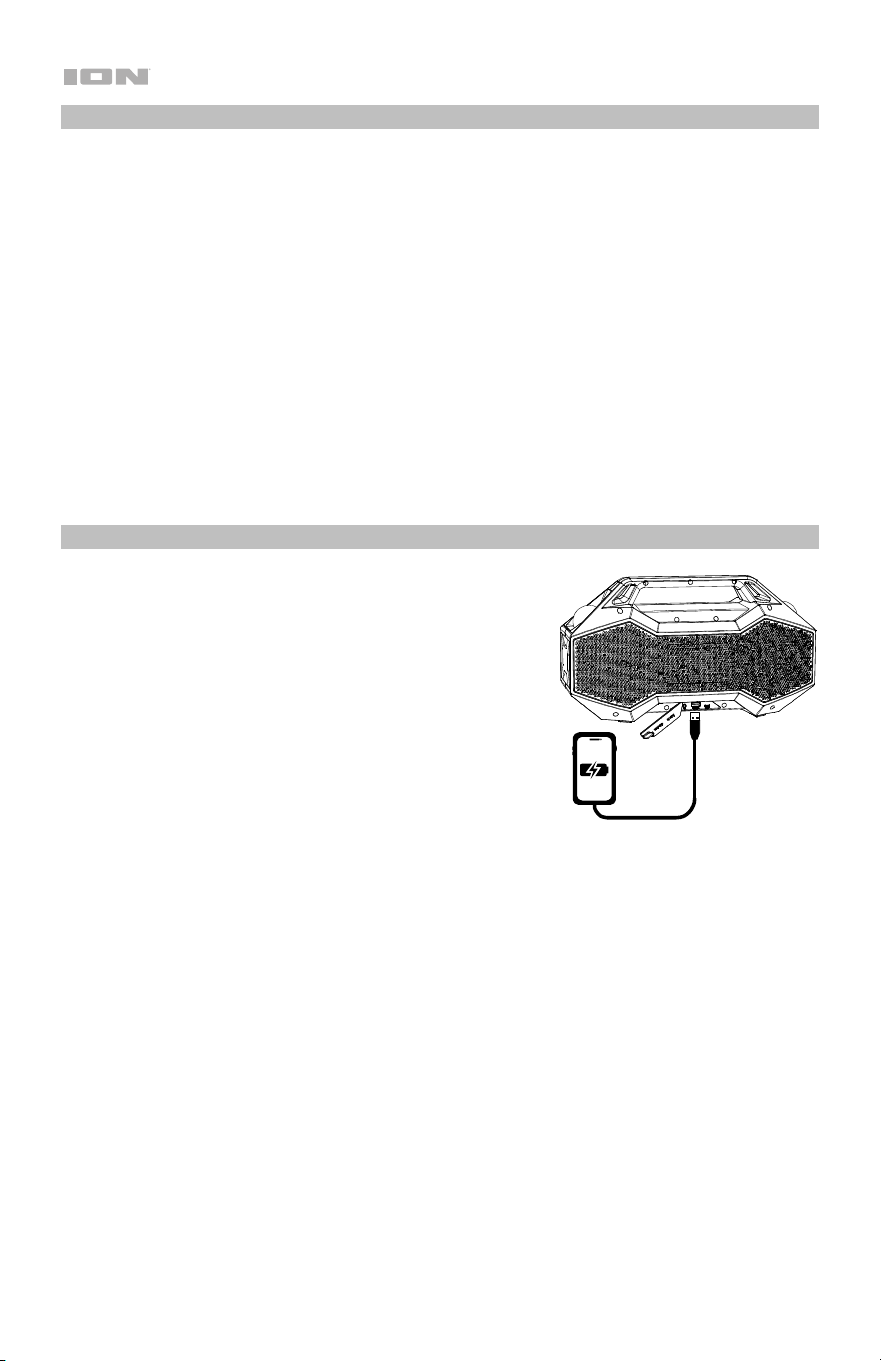
Using the USB Charge Port
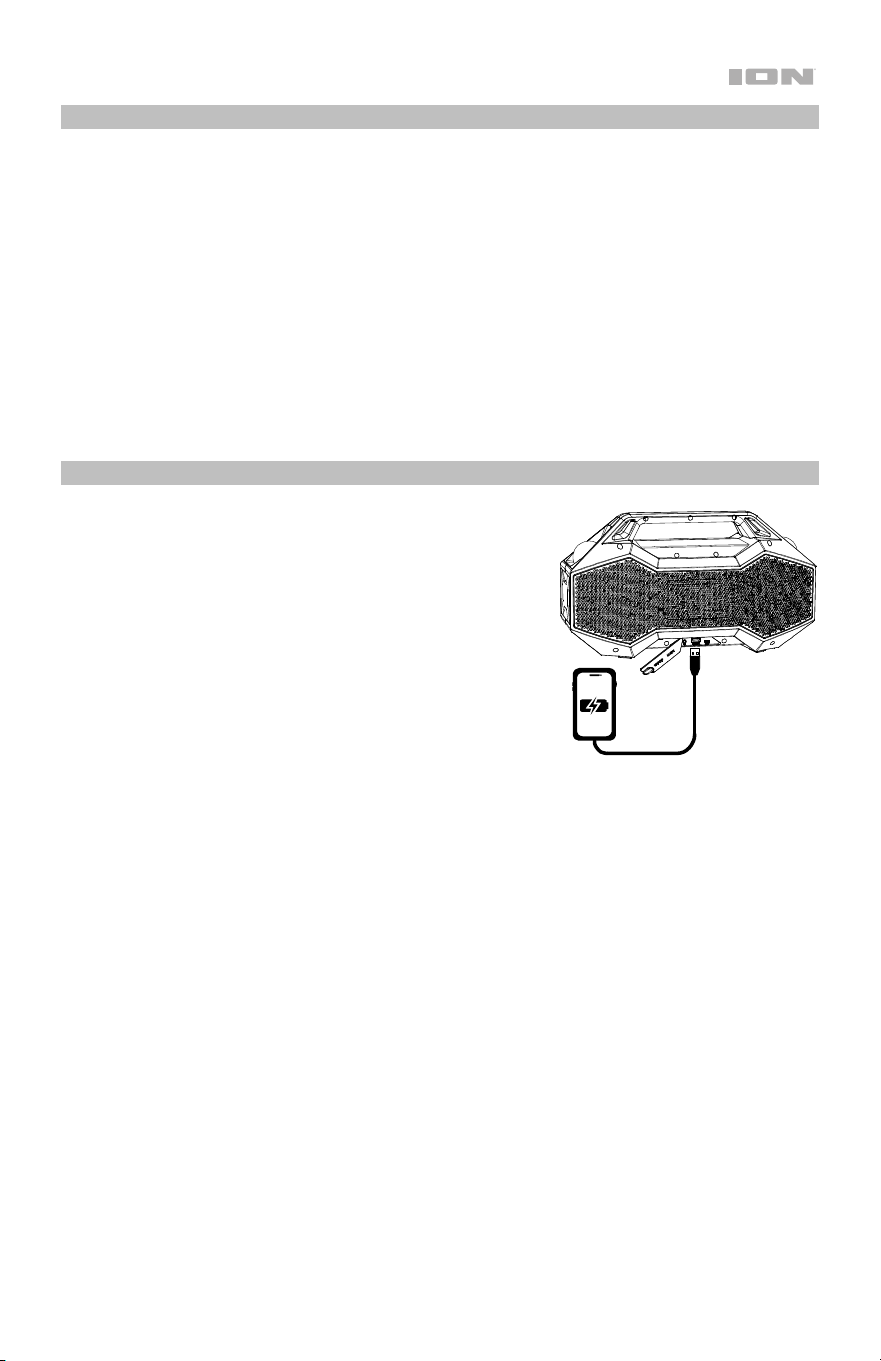
To use the USB charge port:
1. Connect a USB type-A cable to the USB Charge Port
on the rear panel of your Party Rocker™ Go speaker
(see image).
2. Connect the other end of the cable to the charging input
on your smartphone, tablet, or other compatible device.

8
Troubleshooting
If the unit is not charging: Make sure the micro-USB cable is properly connected to the
power input, the power adapter and the power outlet.
If the sound is distorted: Try lowering the volume control of your sound source.
If there is too much bass: Try adjusting the tone or EQ control on your sound source to lower
the bass level. This will allow you to play the music louder before clipping (distortion) occurs.
If you cannot connect your audio device to Party Rocker™ Go via Bluetooth:
• Have your audio device (e.g., smartphone or tablet) and Party Rocker™ Go as close
together as possible while trying to connect. Make sure both the audio device and Party
Rocker™ Go are unobstructed by walls, furniture, etc.
• Reset the Bluetooth connection on Party Rocker™ Go to disconnect Party Rocker™ Go
from any other audio device and restart the search process. If this does not work right
away, power off Party Rocker Go and then power it back on. See Bluetooth Connecting
with Party Rocker™ Go for more information.
• Reset the Bluetooth connection on your audio device by turning Bluetooth off and back
on. You can find this under the Bluetooth menu in the Settings for your phone or other
audio device.
If this does not work, and you have connected to Party Rocker™ Go before, find Party
Rocker™ Go in the list of available or previously connected devices in your audio
device's Bluetooth menu, tap the "gear" or “i” icon located next to it and then select
Unpair or Forget. Turn Party Rocker™ Go off and back on and try pairing again once it
reappears in your available devices list.
Note: If Party Rocker™ Go has been paired to another audio device recently that is still
within range, you may need to repeat this process with that audio device to fully
disconnect.
If you experience audio dropouts while playing music from a Bluetooth device, this may
be happening because your unit is trying to link to another speaker. This can occur if you
power off a speaker that was linked to your unit or if you have just turned on your unit and it is
in Stereo-Link™ mode. To stop the audio dropouts, exit Stereo-Link™ mode by double-
pressing the Bluetooth button. Alternatively, you can wait for your unit to link to another
speaker if there is one within range.
If you would like to stop your speaker from automatically linking when you power it on,
make sure you double-press the Bluetooth button to exit Stereo-Link™ mode before you
power it off.

9
Guía del usuario (Español)
Introducción
Gracias por comprar el altavoz Party Rocker™ Go. En ION, su entretenimiento es tan
importante para nosotros como para usted. Por eso es que diseñamos nuestros productos
con una sola cosa en mente—hacer que su vida sea más divertida y cómoda.
Nota: Antes de utilizar por primera vez el producto, cargue completamente la batería. Su
unidad se despachó intencionalmente con una carga reducida de la batería por razones de
seguridad en el tránsito.
Utilice el cable Micro-USB incluido para conectar la unidad a un adaptador de corriente
conectado a una toma de corriente y permita que la unidad se cargue durante hasta 4 horas.
Esto contribuye a asegurar la vida útil más larga de su batería.
Contenido de la caja
Party Rocker™ Go
Cable micro-USB (3.2 pulg./100cm)
Guía de inicio rápido
Soporte
Para obtener la información más reciente acerca de este producto (documentación,
especificaciones técnicas, requisitos de sistema, información de compatibilidad, etc.) y
registrarlo, visite ionaudio.com.
Para obtener soporte adicional del producto, visite ionaudio.com/support.
Uso y cuidado a la intemperie
Aunque el altavoz Party Rocker™ Go es resistente al agua y capaz de tolerar salpicaduras, lea
las sugerencias que se incluyen a continuación para obtener el mejor rendimiento del altavoz
Party Rocker™ Go:
• Traiga al altavoz Party Rocker™ Go bajo techo durante condiciones meteorológicas
extremas.
• No coloque el altavoz Party Rocker™ Go sobre agua estancada.
• No conecte el cable de alimentación al altavoz Party Rocker™ Go en un ambiente
húmedo. Asegúrese de que la entrada para la entrada de alimentación, el cable de
alimentación y la toma de corriente estén completamente secos antes de realizar cualquier
conexión.
• ADVERTENCIA: Coloque los dispositivos no resistentes al agua (teléfonos, reproductores
de música, etc.) en un lugar seco donde no sean afectados por el agua y causen un riesgo
de electrocución.
10
Carga
Para lograr una carga más rápida, apague el altavoz Party Rocker™ Go y utilice el cable micro
USB incluido para conectar el altavoz a un adaptador de corriente USB (5 V de CC, 2A, no
incluido) conectado a un tomacorriente, o a su computadora (encendida).
El LED (ubicado encima del botón de encendido) se encenderá permanentemente de color
rojo durante la carga, incluso si el altavoz está apagado. El LED se apagará una vez finalizada
la carga. Cuando le quede poca carga a la batería del Party Rocker™ Go, los LED
parpadearán de color rojo tres veces cada 60 segundos; si los avisos de voz están
encendidos, también escuchará “Battery Low”.
Si no se reproduce audio a través del altavoz Party Rocker™ Go durante 15 minutos, la
unidad se apagará automáticamente para ahorrar energía.
Características
Panel frontal
Botón de encendido: Mantenga pulsado este botón para activar o desactivar el
Party Rocker
TM
Max. El LED encima del botón se encenderá permanentemente de
color blanco cuando el altavoz este encendido. Pluse este botón dos veces para
activar o desactivar los avisos de voz.
Botón Bluetooth
®
: Mantenga pulsado este botón para desconectar a un
dispositivo Bluetooth. Consulte Funcionamiento > Conexión Bluetooth con el
altavoz Party Rocker™ Go para aprender a conectar un dispositivo Bluetooth.
Botón Radio: Pulse este botón para encender la radio FM.
Consulte Funcionamiento > Usando la radio para aprender más.
Botón Bass Boost: Pulse este botón para mejorar la ecualización y el volumen de
los graves.
Botón de iluminación: Pulse este botón para alternar entre la iluminación del
radiador de graves, subwoofers, LED del domo y LED de la base como se
enumera a continuación.
• Desactivado
• LED del radiador de graves
• LED del radiador de graves + LED del subwoofer
• LED del radiador de graves + LED del subwoofer + LED del domo + LED de
la base
Reproducir/Pausa: Pulse este botón para reproducir o hacer pausa en una pista
de un dispositivo Bluetooth conectado.
Subir/bajar volumen: Pluse estos botones para ajustar el volume del altavoz.
Mantenga pulsado Subir y bajar volumen para navegar las pistas de Bluetooth.
11
Panel trasero
Nota: Utilice su uña para abrir el panel protector de goma de la parte trasera del Party
Rocker™ Go a fin de acceder al panel trasero:
Entrada auxiliar: conecte aquí un reproductor de audio con un cable auxiliar de 3,5
mm (1/8 pulg.; que se vende por separado). Consulte Funcionamiento > Cómo
conectar un reproductor de audio con la entrada auxiliar para aprender más.
Puerto de carga USB: Party Rocker™ Go incluye una función de banco de
energía, que le permite cargar un teléfono inteligente, tableta u otro dispositivo
usando la batería interna (Capacidad: 4000mAh/10.8v 43.2Wh) de la unidad
conectando un cable aquí. Consulte Funcionamiento > Uso del puerto de carga
USB para obtener más información.
Puerto de carga micro-USB: Para lograr una carga más rápida, apague el altavoz
Party Rocker™ Go y utilice el cable micro USB incluido para conectar el altavoz a
un adaptador de corriente USB (5 V de CC, 2A, no incluido) conectado a un
tomacorriente, o a su computadora (encendida).
Funcionamiento
Control de aplicación
IMPORTANTE: Para asegurarse la mejor experiencia posible con la aplicación, utilice el
Android OS o IOS más actualizado en su dispositivo.
Siga los pasos indicados a continuación para descargar la aplicación a su dispositivo:
1. En su dispositivo, vaya a la tienda de aplicaciones respectiva de Apple o Google Play.
Luego busque la aplicación gratuita ION Sound XP™.
2. Siga las instrucciones que aparecen en la pantalla para descargar e instalar la aplicación.
Una vez descargada, la aplicación ION Sound XP™ aparecerá en la pantalla de inicio de
su dispositivo.
3. Conecte su dispositivo al altavoz Party Rocker™ Go mediante Bluetooth. Consulte
Conexión Bluetooth con el altavoz Party Rocker™ Go para saber cómo hacer esto.
4. Abra la aplicación ION Sound XP™. Si se le pide elegir, permita a la aplicación acceder a
los servicios de Bluetooth y ubicación de su dispositivo.
5. Toque para seleccionar Add A Product en la pantalla. La aplicación escaneará y
encontrará Party Rocker™ Go.
Si tiene problemas para conectarse, toque ¿Necesita ayuda para la configuración? Para
obtener consejos adicionales.
6. Seleccione el icono del altavoz Party Rocker™ Go para ir a la siguiente pantalla, donde
puede controlar la configuración del altavoz desde su dispositivo:
• Ecualización: Ajustar la ecualización del altavoz.
• Radio FM: Reproducir la radio, cambiar estaciones y editar presets
• Avisos de voz: Activar o desactivar los avisos de voz.
• Luces: Cambiar el modo de iluminación.
• Volumen: Ajuste el volumen del altavoz.
• Vida útil de la batería: Verifique la vida útil de la batería del altavoz.
• Soporte: Visite ionaudio.com, contáctese con soporte técnico y obtenga información
sobre la garantía y preguntas frecuentes.

12
Conexión Bluetooth con el altavoz Party Rocker™ Go
1. Encienda el Party Rocker™ Go manteniendo pulsado el botón Power durante 2
segundos. El Party Rocker™ Go entrará automáticamente al modo de apareamiento de
Bluetooth.
2. Navegue a la pantalla de configuración Bluetooth de su dispositivo, busque Party Rocker
Go, y conéctelo.
Nota: No se conecte con iSP147_BLE; está reservado exclusivamente para conectar la
aplicación ION Sound XP™. Si tiene problemas para conectarse, seleccione "Forget this
Device" (Olvidar este dispositivo) en su dispositivo Bluetooth e intente conectarse
nuevamente.
3. Ahora puede utilizar los botones del panel delantero para controlar la reproducción de
audio:
• Pulse y suelte rápidamente el botón de subir volumen para aumentar el volumen en
un incremento.
• Pulse y suelte rápidamente el botón de bajar volumen para disminuir el volumen en
un incremento.
• Mantenga pulsado el botón de subir volumen para saltar a la pista siguiente.
• Mantenga pulsado el botón de bajar volumen para volver al comienzo de la pista
actual. Repita esta acción antes de que transcurra 1 segundo para saltar a la pista
anterior.
4. Para desconectarlo, apague el Bluetooth desde los ajustes Bluetooth de su dispositivo o
mantenga pulsado el botón Bluetooth.
Stereo-Link™: Sincronización de varios altavoces
1. Asegúrese de desconectar los dispositivos Bluetooth antes de intentar aparear los
altavoces utilizando Stereo-Link™. Mantenga pulsado el botón Bluetooth para comenzar
el proceso.
2. Pulse el botón Bluetooth dos veces en cada uno de los dos altavoces Party Rocker™ Go.
Los LED Bluetooth comenzarán a parpadear rápidamente de color azul para indicar que
están intentando enlazarse. Espere de 10 a 30 segundos hasta que se enlacen los
altavoces.
3. Una vez enlazados los altavoces, el LED Bluetooth del altavoz secundario queda
encendido de color azul y el LED Bluetooth del altavoz principal parpadea lentamente de
color azul para indicar que está buscando un dispositivo Bluetooth con el cual enlazarse.
4. Acceda al menú de ajustes Bluetooth de su dispositivo y seleccione el Party Rocker Go
para conectarse. Una vez que la conexión sea exitosa, escuchará la frase “Bluetooth
Connected” desde el altavoz principal (si están activados los avisos de voz). Cuando
comience la reproducción de audio, la escuchará a través de ambos altavoces.
5. Para salir del modo Stereo-Link™ pulse dos veces el botón Bluetooth en ambos
altavoces Party Rocker™ Go. Escuchará el mensaje “Bluetooth disconnected” desde el
altavoz principal el cual indica que finalizó el enlace (si están activados los avisos de voz)
Consejo: El altavoz Party Rocker™ Go puede sincronizar audio con otros altavoces de
ION Audio compatibles con Stereo-Link™. Para conocer más, visite ionaudio.com.
Nota: Mantener pulsado el botón de encendido en el altavoz principal estando en modo
Stereo-Link™ causará que se apaguen todos los altavoces conectados. Los altavoces
Party Rocker™ Go que se apaguen estando en modo Stereo-Link™ entrarán a dicho
modo automáticamente la próxima vez que se enciendan y comenzarán a buscar
altavoces secundarios con los cuales conectarse.

13
Conexión Bluetooth doble
Esta característica le permite conectar dos dispositivos a un Party Rocker™ Go
simultáneamente mediante Bluetooth.
Nota: Esta característica no funciona en modo Stereo-Link™.
1. Conecte su dispositivo Bluetooth “A” al Party Rocker™ Go como se muestra en Conexión
Bluetooth con el altavoz Party Rocker™ Go.
2. Conecte su dispositivo Bluetooth “B” al Party Rocker™ Go accediendo al menú de ajustes
Bluetooth del dispositivo “B” y seleccionando Party Rocker Go. La conexión del
dispositivo "B" no perturbará la música que se está reproduciendo desde el dispositivo
"A".
Nota: Si se pulsa el botón de reproducción en la aplicación de reproducción de música
del dispositivo B, la música del dispositivo A se pone en pausa y se reproduce la música
del dispositivo B a través del Party Rocker™ Go.
Si se pulsa el botón de reproducción en la aplicación de reproducción de medios de "A",
la música del dispositivo "B" se pone en pausa y la música del dispositivo "A" se
reproduce a través del Party Rocker™ Go.
Cómo atender llamadas mediante Bluetooth
El Party Rocker™ Go puede recibir llamadas entrantes y actuar como un teléfono de manos
libres para los dispositivos Bluetooth conectados. Las llamadas entrantes ponen en pausa el
audio Bluetooth y hacen reproducir el tono de llamada del dispositivo hasta que la llamada se
atiende o se rechaza:
Para rechazar una llamada entrante, mantenga pulsado el botón de reproducción/pausa
durante dos segundos.
Para atender una llamada entrante, pulse el botón de reproducción/pausa y luego suéltelo
rápidamente.
Durante una llamada, pulse los botones de subir/bajar volumen para ajustar el volumen de
su interlocutor.
Cuando desee finalizar una llamada, pulse el botón de reproducción/pausa. En este
instante, se reanudará la reproducción del audio Bluetooth.
Cómo conectar un reproductor de audio con la entrada auxiliar
1. Conecte un cable auxiliar de 3,5 mm (1/8 pulg.) a la entrada ubicada en el panel trasero
del Party Rocker™ Go y conecte el otro extremo a un dispositivo de audio, como por
ejemplo, un reproductor de MP3 o CD. El altavoz cambiará automáticamente la fuente de
audio al modo Aux pero mantendrá todos los conexiones Bluetooth.
2. Inicie la reproducción en el reproductor de música de su dispositivo. Utilice los botones
Subir y bajar volumen para ajustar el volumen auxiliar.
Nota: Los controles de volumen del altavoz Party Rocker™ Go actúan
independientemente de su dispositivo conectado. Baje el volumen de su dispositivo si se
produce distorsión en la señal.
3. Para salir del modo auxiliar, simplemente desconecte el cable auxiliar y el altavoz
regresará al modo Bluetooth.
14
Usando la Radio
1. Pulse el botón Radio para encender la radio FM. El LED sobre el botón se iluminará en
blanco fijo. Party Rocker™ Go pausará el audio Bluetooth pero mantendrá la conexión.
2. Mantenga pulsado Subir volumen para sintonizar la estación siguiente con buena señal.
Mantenga pulsado Bajar volumen para sintonizar la estación anterior con buena señal. Si
las indicaciones de voz están habilitadas, escuchará leer en voz alta el número de
frecuencia de la estación. Por ejemplo, al sintonizar 101.5 FM, escuchará el mensaje de
voz: "Uno oh uno punto cinco".
3. Utilizar la aplicación ION Sound XP™ para guardar una estación en una de las seis
ranuras para presets. Consulte Funcionamiento > Control de aplicación para aprender
cómo descargar y utilizar la aplicación como un control remoto para su altavoz Party
Rocker™ Go.
4. Pulse y luego suelte rápidamente el botón Reproducir/Pausa para recorrer los seis
presets de estaciones. Todos los presets sintonizan el valor predeterminado de fábrica de
87.5 FM.
Uso del puerto de carga
Para usar el puerto de carga USB:
1. Conecte un cable USB tipo A al puerto de carga USB
en el panel posterior de su altavoz Party Rocker™ Go
(ver imagen).
2. Conecte el otro extremo del cable a la entrada de
carga de su teléfono inteligente, tableta u otro
dispositivo compatible.

15
Solución de problemas
Si la unidad no se carga: Asegúrese de que el cable micro-USB esté conectado
correctamente a la entrada de corriente, al adaptador y al tomacorriente. Si utiliza el panel
solar para prolongar la vida útil de la batería entre cargas, asegúrese de colocar la unidad en
un área que reciba al menos 3 horas de luz solar directa.
Si el sonido está distorsionado: Pruebe bajando el control de volumen de su fuente de
sonido o instrumento musical. Pruebe también reduciendo el volumen general del Party
Rocker™ Go.
Si los graves son demasiado fuertes: Intente ajustando el control de tono o ecualización de
su Party Rocker™ Go o fuente de sonido para reducir el nivel de graves. De esta forma podrá
reproducir la música con más volumen antes de que se produzca el recorte (distorsión).
Si no puede conectar su dispositivo de audio al Party Rocker Go mediante Bluetooth:
• Mantenga su dispositivo de audio (por ej., teléfono inteligente [smartphone] o tableta) y el
Party Rocker™ Go lo más cerca posible entre sí al realizar la conexión. Asegúrese que
tanto el dispositivo de audio como el Party Rocker™ Go no estén obstruidos por
paredes, muebles, etc.
• Reinicie la conexión Bluetooth del Party Rocker™ Go para desconectarlo Party Rocker™
Go Speaker de cualquier otro dispositivo de audio y reinicie el proceso de búsqueda. Si
esto no funciona en seguida, apague el Party Rocker™ Go y luego vuelva a encenderlo.
Para más información, consulte Conexión Bluetooth con el altavoz Party Rocker™
Go.
• Reinicie la conexión Bluetooth de su dispositivo de audio apagando el Bluetooth y luego
volviendo a encenderlo. Puede encontrar esta opción dentro del menú Bluetooth en los
ajustes de su teléfono o dispositivo de audio.
Si esto no funciona y ya se había conectado al Party Rocker™ Go anteriormente, busque
Party Rocker™ Go en la lista de dispositivos disponibles o previamente conectados en el
menú Bluetooth de su dispositivo de audio, toque el icono de engranaje o "i" ubicado
junto a él y luego seleccione Desaparear u Olvidar. Apague el Party Rocker™ Go, luego
vuelva a encenderlo e intente aparearlo nuevamente una vez que vuelva a aparecer en su
lista de dispositivos disponibles.
Nota: Si Party Rocker™ Go ya ha sido recientemente apareado con otro dispositivo de
audio que aún se encuentre dentro del alcance, es posible que tenga que repetir este
proceso con ese dispositivo de audio para desconectarlo completamente.
Si experimenta cortes en el audio al reproducir música desde un dispositivo Bluetooth,
es posible que esto suceda debido a que su unidad está intentando enlazarse con otro
altavoz. Esto puede ocurrir si apaga un altavoz que estaba enlazado con su unidad o si acaba
de encender su unidad y la misma se encuentra en modo Stereo-Link™. Para detener los
cortes de audio, salga del modo Stereo-Link™ pulsando dos veces el botón Bluetooth.
Como alternativa, puede esperar a que su unidad se enlace con otro altavoz Party Rocker™
Go si es que hay uno dentro del alcance.
Si desea impedir que su unidad se enlace automáticamente cuando la enciende,
asegúrese de pulsar dos veces el botón Link para salir del modo Stereo-Link™ antes de
apagarlo.
16
Guide d’utilisation (Français)
Présentation
Merci d’avoir fait l’acquisition de l’enceinte Party Rocker
MC
Go. Chez ION, votre divertissement
est aussi important pour nous qu’il l’est pour vous. C’est pourquoi nous concevons nos
produits avec une seule chose en tête — rendre la vie plus amusante et plus pratique.
Remarque : Veuillez vous assurer d'avoir complètement chargé la batterie du produit avant sa
première utilisation. L’appareil a été expressément expédié avec une charge de batterie
réduite afin d’assurer un transport sécuritaire.
Veuillez utiliser le câble micro-USB et l’adaptateur d’alimentation fournis pour brancher
l’appareil à une prise secteur et le laisser se recharger jusqu'à 4 heures. Ceci permettra de
maximiser la durée de vie de la batterie.
Contenu de la boîte
Party Rocker
MC
Go
Cable micro-USB de 30 cm chacune
Guide d’utilisation rapide
Assistance
Pour les toutes dernières informations concernant la documentation, les spécifications
techniques, la configuration requise, la compatibilité et l’enregistrement du produit, veuillez
visiter ionaudio.com.
Pour de l’assistance supplémentaire, veuillez visiter ionaudio.com/support.
Utilisation extérieure et entretien
Bien que l’enceinte Party Rocker
MC
Go soit résistant à l'eau et tolère les éclaboussures, les
conseils ci-dessous qui vous permettront de tirer le maximum de votre Party Rocker
MC
Go:
• L'enceinte Party Rocker
MC
Go doit être rentrée à l'intérieur lors de conditions
météorologiques extrêmes.
• Veuillez ne pas placer l’enceinte Party Rocker
MC
Go dans l'eau stagnante.
• Veuillez ne pas utiliser l'adaptateur de rechargement avec l’enceinte Party Rocker
MC
Go
lorsqu'elle se trouve dans un environnement humide. Veuillez vous assurer que l'entrée
pour adaptateur de rechargement, l'adaptateur de rechargement et la prise secteur
soient tous complètement secs avant d'effectuer tout raccordement.
• MISE EN GARDE : Gardez tout appareil non étanche (téléphones, lecteurs, etc.) dans un
endroit sec à l'abri des éclaboussures et des risques de décharges électriques.
17
Rechargement
Pour un rechargement plus rapide, mettez la Party Rocker
MC
Go hors tension et utilisez le
câble de rechargement micro-USB fourni afin de brancher l’enceinte à un adaptateur
d’alimentation USB (CC 5V 2A, fourni) puis à une prise secteur, ou un ordinateur sous tension.
La DEL (situé au-dessus de la touche d'alimentation) devient rouge lors du rechargement de la
batterie, même si l'enceinte est hors tension. Cette DEL s'éteint lorsque le rechargement est
terminé. Lorsque la batterie de la Party Rocker
MC
Go est faible, la DEL rouge clignote trois fois
toutes les 60 secondes. Si les messages vocaux sont activés, vous entendrez également
« Battery Low ».
Si aucun son n'est diffusé par la Party Rocker
MC
Go pendant plus de 15 minutes, l'appareil
s'éteindra automatiquement pour économiser de l'énergie.
Caractéristiques
Panneau avant
Touche d’alimentation : Maintenir cette touche enfoncée permet de mettre
l’enceinte Party Rocker
MC
Go sous et hors tension. El LED encima del botón se
encenderá permanentemente de color blanco cuando el altavoz esté encendido.
Appuyez deux fois sur ce bouton pour désactiver ou activer les invites vocales.
Bluetooth
®
: Maintenez ce bouton enfoncée pour déconnecter un appareil
Bluetooth. Voir Jumelage d'un appareil Bluetooth pour savoir comment
procéder.
Radio : Appuyez sur ce bouton pour allumer la radio FM. Voir Fonctionnement >
Utiliser la radio pour savoir plus.
Bass Boost: Appuyer sur cette touche permet d’augmenter simultanément
l'égalisation et le volume des basses.
Sélecteur du mode d’éclairage : Appuyer sur cette touche pour allumer les DEL du
radiateur passif, du haut-parleur d'extrêmes graves, du dôme et les DEL inférieures
comme indiqué ci-dessous. Maintenir la touche du mode d’éclairage enfoncée pour
basculer entre les modes Beat Sync et Color Cycle.
• Éteintes
• DEL du radiateur passif allumées
• DEL du radiateur passif + DEL du haut-parleur des graves allumées
• DEL du radiateur passif + DEL du haut-parleur d'extrêmes graves + DEL du
dôme + DEL inférieures allumées
Lancer/interrompre la lecture: Appuyer sur cette touche permet de lancer ou
d’interrompre la lecture d'une piste sur un appareil Bluetooth connecté.
Volume haut/pas: Appuyez sur ces boutons pour régler le volume du haut-parleur.
Maintenez enfoncée Volume haut ou Volume pas pour parcourir les pistes
Bluetooth.
18
Panneau arrière
Remarque : Utilisez votre ongle pour retirer le protecteur en caoutchouc du panneau arrière
de la Party Rocker
MC
Go :
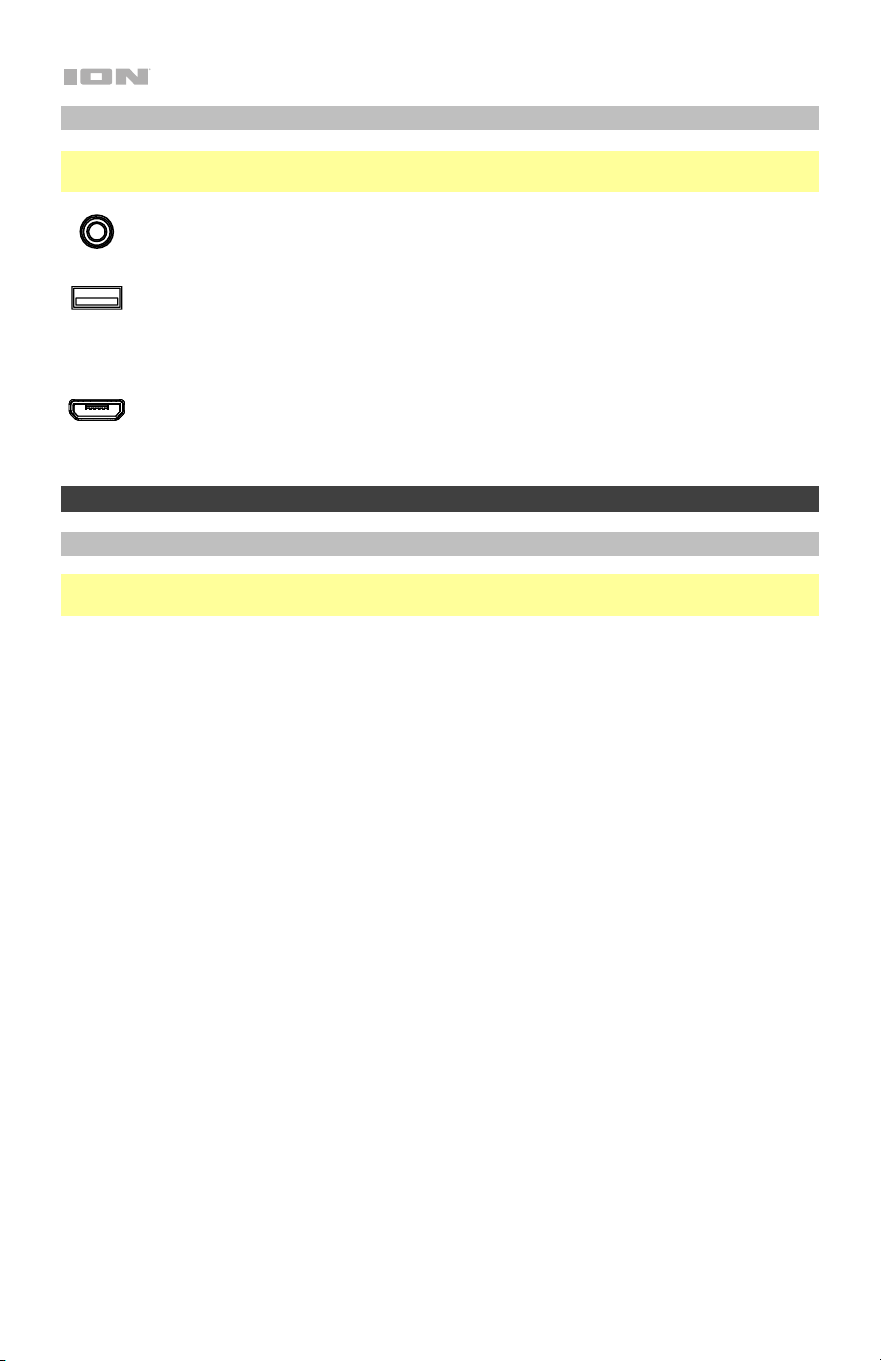
Entrée auxiliaire (3,5 mm, symétrique) :
Cette entrée stéréo permet de brancher un
lecteur de disques compacts, lecteur MP3 ou autres sources audio. Voir Fonctionnement
> Connexion d'un appareil audio à l'aide de l'entrée Aux pour savoir plus.
Port de rechargement USB : Party Rocker™ Go comprend une fonction de
banque d'alimentation, qui vous permet de charger un smartphone, une tablette ou
un autre appareil à l'aide de la batterie interne (capacité : 4000mAh/10.8v 43.2Wh)
de l'appareil en connectant un câble ici. Voir Fonctionnement > Utilisation du
port de charge USB pour savoir plus.
Port de rechargement micro-USB : utilisez le câble de rechargement micro-USB
fourni afin de brancher l’enceinte un adaptateur d’alimentation USB (CC 5V 2A, fourni)
puis à une prise secteur, ou un ordinateur sous tension.
Fonctionnement
Contrôle d'application
IMPORTANT : Afin de profiter de la meilleure expérience possible avec l’application, assurez-
vous d’avoir la toute dernière version de Android OS ou de iOS sur votre appareil.
Veuillez suivre les étapes ci-dessous afin de télécharger l’application sur votre appareil :
1. Accédez au Apple App Store ou à Google Play à partir de votre appareil. Recherchez
l’application ION Sound XP
MC
.
2. Suivez ensuite les consignes à l'écran afin de la télécharger et de l'installer. Une fois
téléchargée, l’application ION Sound XP
MC
s’affiche sur la fenêtre d’accueil de votre
appareil.
3. Connectez votre appareil à l’enceinte Party Rocker
MC
Go via Bluetooth. Voir Jumelage
d'un appareil Bluetooth pour savoir comment procéder.
4. Ouvrez l'application ION Sound XP
MC
. Si vous y êtes invité, autorisez l'application à
accéder aux services Bluetooth et de localisation de votre appareil.
5. Appuyez sur pour sélectionner Add A Product sur l'écran. L'application va scanner et
trouver l’enceinte Party Rocker
MC
Go.
Si vous éprouvez des problèmes de connexion, appuyez sur « Help with setting up? »
afin d'obtenir des conseils supplémentaires.
6. Sélectionnez l'icône Party Rocker
MC
Go pour passer à la fenêtre suivante, où vous pouvez
utiliser l'application pour contrôler diverses fonctions de l’enceinte comme :
• Égalisation : Ce réglage permet d’ajuster l'égalisation de l’enceinte.
• Messages vocaux : Ce réglage permet d’activer et de désactiver les messages vocaux.
• Éclairage : Ce réglage permet de modifier le mode d’éclairage.
• FM Radio : Ce réglage permet d’écouter la radio, de changer la station et de modifier
les préréglages.
• Volume : Réglez le volume du haut-parleur.
• Autonomie de la batterie : Cette option permet de vérifier l’autonomie de la batterie
de l'enceinte.
• Assistance technique : Ce réglage permet d’accéder à ionaudio.com, de contacter
l’assistance technique et de consulter les informations de garantie et les questions
fréquemment posées.

19
Jumelage d'un appareil Bluetooth
1. Mettez l'enceinte Party Rocker
MC
Go sous tension en maintenant la touche d'alimentation
enfoncée pendant 2 secondes L'enceinte entrera automatiquement en mode de jumelage
Bluetooth.
2. Accédez à l'écran de configuration de votre appareil Bluetooth, recherchez « Party
Rocker Go » et lancez le jumelage. Une fois connectés, l’icône Bluetooth sur l’écran et la
DEL sous la touche Bluetooth cessent de clignoter et vous entendrez « Connected » (si les
messages vocaux sont activés).
Remarque : Ne vous connectez pas à iSP147_BLE ; ceci est exclusivement réservé à la
connexion à l'application ION Sound XP™. Si vous rencontrez des problèmes lors de la
connexion, sélectionnez "Oublier cet appareil" sur votre appareil Bluetooth et essayez de
vous connecter à nouveau.
3. Vous pouvez maintenant utiliser les touches du panneau avant pour commander la lecture
audio :
• Appuyez et relâchez rapidement la touche Volume + pour augmenter le volume par
incrément.
• Appuyez et relâchez rapidement la touche Volume - pour diminuer le volume par
incrément.
• Maintenez la touche Volume + enfoncée afin de passer à la piste suivante.
• Maintenez la touche Volume - enfoncée afin de revenir au début de la piste en cours.
Répétez cette action en moins d'une seconde pour passer à la piste précédente.
4. Pour vous déconnecter, désactivez Bluetooth à partir des paramètres Bluetooth de votre
appareil, ou maintenez enfoncé le bouton Bluetooth jusqu'à ce que le DEL Bluetooth
s'éteigne.
20
Stereo-Link™: Synchroniser plusieurs enceintes
1. Veillez à déconnecter tout appareil Bluetooth avant d'essayer de raccorder deux enceintes
avec Stereo-Link
MC
en maintenant la touche Bluetooth.
2. Appuyez deux fois sur la touche Bluetooth sur chacune des enceintes Party Rocker
MC
Go.
Les DEL Bluetooth deviendront bleues et commenceront à clignoter rapidement afin
d'indiquer qu'elles tentent de se raccorder. Le raccordement des enceintes peut prendre
de 10 à 30 secondes.
Remarque : Les haut-parleurs doivent être à moins de 50' (15 m) l'un de l'autre pour se
synchroniser correctement. Plus les enceintes sont proches, plus elles se synchroniseront
rapidement.
3. Une fois les enceintes raccordées, la DEL Bluetooth bleue de l'enceinte secondaire cesse
de clignoter, et la DEL Bluetooth bleue de l'enceinte principale clignote lentement afin
d'indiquer qu'elle recherche un autre appareil Bluetooth à jumeler.
4. Accédez au menu des paramètres Bluetooth de votre appareil et sélectionnez Party
Rocker Go pour le jumeler. Lorsque la connexion est établie, l'enceinte principale émet
« Bluetooth Connected » si les messages vocaux sont activés. Lorsque la lecture audio
commence, vous entendez le signal par le biais des deux enceintes.
5. Pour quitter le mode Stereo-Link
MC
, appuyez deux fois sur la touche Bluetooth des deux
enceintes Party Rocker™ Go. Lorsque la connexion est supprimée, l'enceinte principale
émet « Bluetooth Disconnected » si les messages vocaux sont activés.
Conseil : La Party Rocker
MC
Go peut synchroniser l'audio d'autres enceintes ION qui
disposent du mode Stereo-Link™. Pour en savoir plus, visitez ionaudio.com.
Remarque : Maintenir la touche d'alimentation de l'enceinte principale en mode Stereo-
Link
MC
permet d'éteindre toutes les enceintes raccordées. L'enceinte Party Rocker
MC
Go
éteinte en mode Stereo-Link
MC
passera automatiquement en mode Stereo-Link
MC
lorsqu'elle sera rallumée et commencera à rechercher des enceintes secondaires
auxquelles se connecter.
Dual Connect Bluetooth
Cette fonctionnalité vous permet de connecter simultanément deux appareils à une Party
Rocker
MC
Go via la connexion Bluetooth.
Remarque : Cette fonction ne fonctionne pas en mode Stereo-Link
MC
.
1. Jumelez votre appareil Bluetooth « A » à la Party Rocker
MC
Go comme indiqué dans la
section Jumelage d'un appareil Bluetooth à la Party Rocker
MC
Go.
2. Jumelez votre appareil Bluetooth « B » à la Party Rocker
MC
Go en accédant au menu des
paramètres Bluetooth de l'appareil « B » et en sélectionnant Party Rocker Go. La
connexion à l'appareil « B » ne perturbera pas la musique diffusée à partir de l'appareil
« A ».
Remarque : Lorsque la lecture est activée sur l'appareil « B », la musique de l'appareil « A »
est interrompue et la musique de l'appareil « B » sera jouée via la Party Rocker
MC
Go.
Lorsque la lecture est activée sur l'appareil « A », la musique de l'appareil « B » est
interrompue et la musique de l'appareil « A » sera jouée via la Party Rocker
MC
Go.

21
Appels Bluetooth
La Party Rocker
MC
Go peut recevoir des appels et faire office de haut-parleur pour les
appareils Bluetooth connectés. Lors d'appels entrants, l'enceinte interrompt l'audio Bluetooth
et diffuse la sonnerie de l'appareil jusqu'à ce que l'appel soit pris ou rejeté :
Pour rejet un appel entrant, maintenez la touche pour lancer et interrompre la lecture
enfoncée pendant deux secondes.
Pour prendre un appel entrant, appuyez puis relâchez rapidement la touche pour lancer et
interrompre la lecture.
Pendant un appel, appuyez sur les touches du Volume pour régler le volume de
l'interlocuteur.
Pour mettre fin à l'appel, appuyez sur la touche pour lancer et interrompre la lecture. La
lecture Bluetooth reprendra aussitôt.
Connexion d'un appareil audio à l'aide de l'entrée Aux
1. Brancher un câble auxiliaire de 3,5 mm à l’entrée du panneau arrière de la Party Rocker
MC
Go et brancher l’autre extrémité à un appareil audio tel qu’un lecteur MP3 ou CD. Le haut-
parleur basculera automatiquement la source audio en mode Aux mais maintiendra toutes
les connexions Bluetooth.
2. Appuyez sur la touche de lecture sur votre appareil. Utilisez les Boutons de volume
haut/pas pour régler le volume de l’entrée auxiliaire.
Remarque : Les commandes de volume des enceintes Party Rocker
MC
Go agissent
indépendamment de celle de l'appareil auxiliaire. Réduisez le volume sur l'appareil
auxiliaire en cas de distorsion.
3. Pour quitter le mode auxiliaire, débranchez simplement le câble auxiliaire et l'enceinte
reviendra en mode Bluetooth.
Utiliser la radio
1. Appuyez sur la touche Radio pour allumer la radio FM. La LED au-dessus du bouton
s'allumera en blanc fixe. Party Rocker™ Go
mettra en pause l'audio Bluetooth mais
maintiendra la connexion.
2. Appuyez sur la touche Volume haut pour passer à la station radio suivante ayant un signal
clair. Appuyez sur la touche Volume pas pour passer à la station radio précédente ayant
un signal clair. Si les invites vocales sont activées, vous entendrez le numéro de fréquence
de la station lu à haute voix. Par exemple, lors du réglage sur 101,5 FM, vous entendrez
l'invite vocale : "Un oh un virgule cinq".
3. Utiliser l'application ION Sound XP
MC
pour programmer une station dans l'un des dix
emplacements prédéfinis. Veuillez consulter la section Fonctionnement > Utilisation de
l'application pour savoir comment télécharger et utiliser l'application comme
télécommande pour l'enceinte Party Rocker
MC
Go.
4. Appuyer puis relâcher rapidement la touche pour Lancer/interrompre la lecture pour
faire défiler les dix préréglages de station. Tous les préréglages sont réglés sur 87,5 FM
par défaut.
22
Utilisation du port de charge USB
Pour utiliser le port de charge USB :
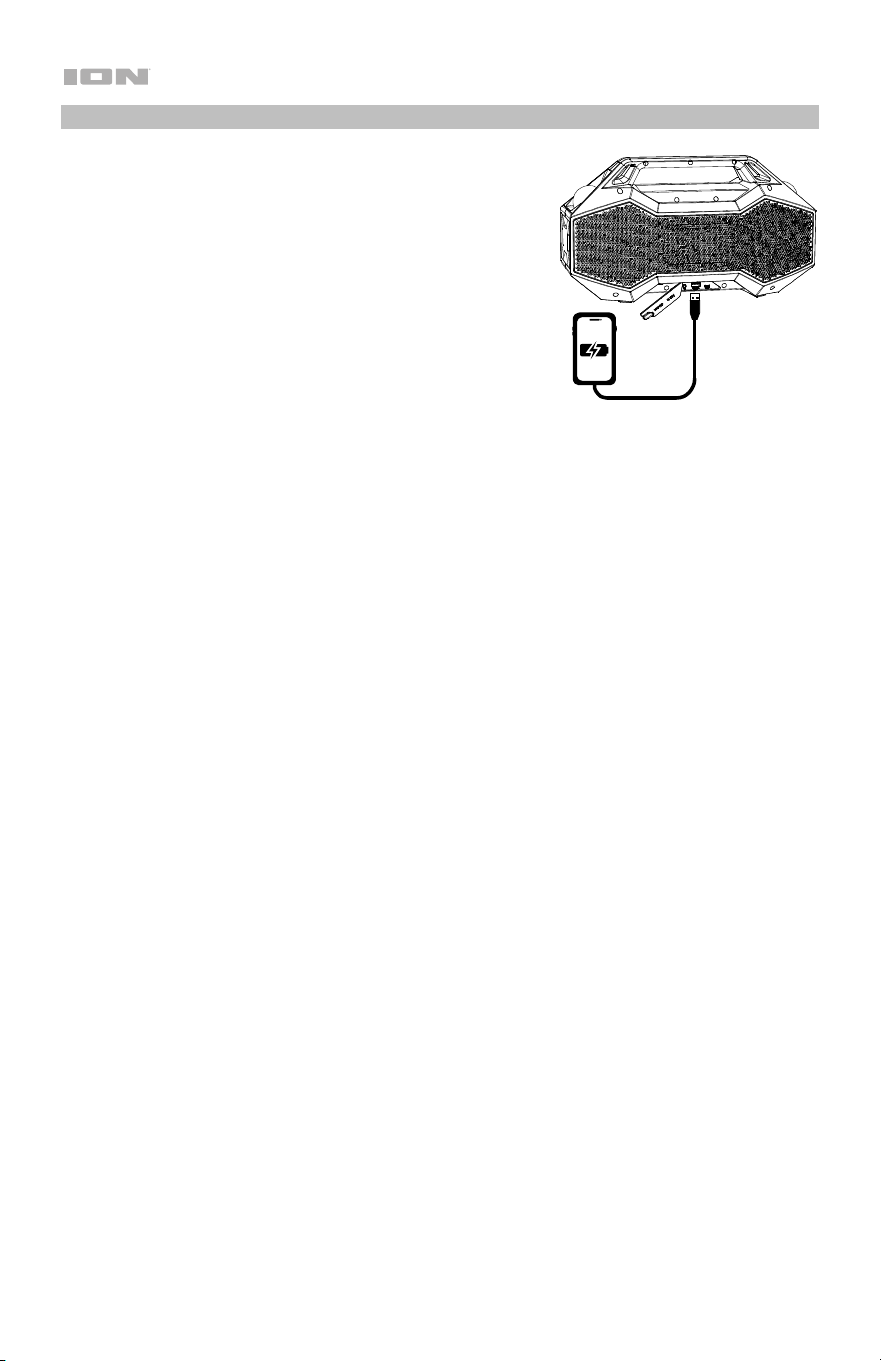
1. Connectez un câble USB de type A au port de charge
USB sur le panneau arrière de votre enceinte Party
Rocker™ Go (voir image).
2. Connectez l'autre extrémité du câble à l'entrée de
charge de votre smartphone, tablette ou autre appareil
compatible.

23
Dépannage
Si l’appareil ne se recharge pas : Veuillez vous assurer que le câble micro-USB est
correctement branché à l’entrée d’alimentation, à l’adaptateur d’alimentation et à une prise
secteur. Si vous désirez utiliser le panneau solaire afin de prolonger l’autonomie de la batterie
entre les charges, veuillez placer l’appareil dans un endroit exposé à la lumière directe du
soleil pendant au moins 3 heures par jour.
Lorsqu'il y a de la distorsion : Essayez de diminuer le volume sur l'appareil d'entrée audio ou
l'instrument de musique. Essayez également de diminuer le volume de l'enceinte Party
Rocker
MC
Go.
Lorsqu'il y a trop de basses fréquences : Essayez de régler le niveau de tonalité et
d'égalisation de l'enceinte Party Rocker
MC
Go ou de la source d'entrée audio afin de diminuer
le niveau des basses fréquences. Cela vous permettra d'augmenter le volume de la musique
avant que l'écrêtage se produise.
Si vous ne pouvez connecter votre appareil audio à l'enceinte Party Rocker
MC
Go par
connexion Bluetooth :
• Veillez à ce que votre appareil audio (p. ex., téléphone intelligent ou tablette) et l'enceinte
Party Rocker
MC
Go soient le plus près possible l’un de l’autre lors du jumelage. Veillez
également à ce qu’aucun obstacle ne se trouve entre l’appareil audio et l'enceinte Party
Rocker
MC
Go, comme des murs, des meubles, etc.
• Réinitialisez la connexion Bluetooth sur l'enceinte Party Rocker
MC
Go afin de supprimer
toute connexion à l'enceinte Party Rocker
MC
Go et recommencer le processus de
recherche d’appareil. Si cela ne fonctionne pas immédiatement, mettez l'enceinte Party
Rocker
MC
Go hors tension et de nouveau sous tension. Veuillez consulter la section
Jumelage d'un appareil Bluetooth afin d’en savoir plus.
• Réinitialisez la connexion Bluetooth sur l’appareil audio en désactivant et réactivant la
connexion Bluetooth. Vous pouvez effectuer ceci à partir du menu Bluetooth dans les
réglages de votre téléphone intelligent ou autre appareil audio.
Si cela ne fonctionne pas et que vous avez déjà connecté votre appareil à la l'enceinte
Party Rocker
MC
Go auparavant, veuillez rechercher l'enceinte Party Rocker
MC
Go dans la
liste des appareils disponibles ou précédemment connectés dans le menu Bluetooth de
votre appareil audio, puis appuyer sur l'icône engrenage ou « i » située à côté de
« Oublier cet appareil ». Mettez l'enceinte Party Rocker
MC
Go hors tension et de nouveau
sous tension et réessayez de la jumeler une fois qu’elle apparaît dans la liste des
appareils disponibles.
Remarque : Si l'enceinte Party Rocker
MC
Go a été récemment jumelée à un autre appareil
audio qui est toujours dans son champ de portée, il se peut que vous deviez répéter ce
processus avec cet appareil audio afin de supprimer la connexion.
Si vous éprouvez des pertes audio lorsque vous écoutez de la musique à partir d’un
appareil Bluetooth, il se peut que l'enceinte Party Rocker
MC
Go tente de se connecter à une
autre enceinte. Ceci peut se produire lorsque vous éteignez une enceinte reliée à l'enceinte
Party Rocker
MC
Go ou lorsque vous venez tout juste d’allumer celle-ci et qu’elle est en mode
Stereo-Link
MC
. Pour supprimer les pertes audio, quittez le mode Link en appuyant deux fois sur
la touche Bluetooth. Vous pouvez également attendre qu’elle se connecte à une autre
l'enceinte Party Rocker
MC
Go s'il y en a une à sa portée.
Si vous souhaitez éviter que l’enceinte tente de se connecter automatiquement lorsque
vous la mettez sous tension, assurez-vous d’appuyer deux fois sur la touche Bluetooth
pour quitter le mode Stereo-Link
MC
avant de la mettre hors tension.
24
Appendix (English)
Technical Specifications
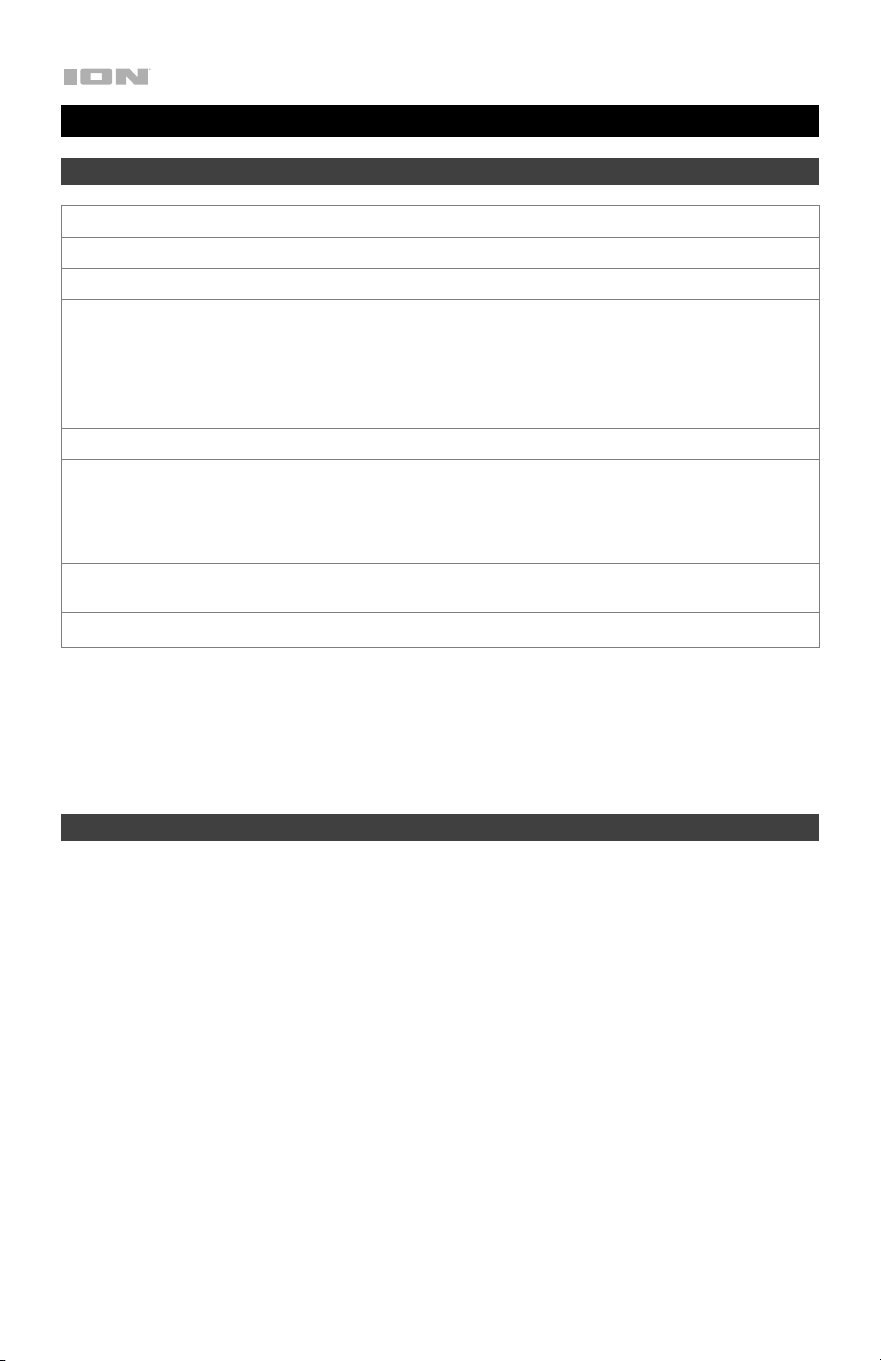
Output Power
60 W (peak)
Frequency Response
115 Hz – 15 kHz
Drivers
2 x 3.5” (89 mm)
Bluetooth Specifications Profile: A2DP, AVRCP
Bluetooth Version: 5.3
Range: Up to 100 feet (30.5 m) *
Stereo-Link™ Range: Up to 100 ft. (30.5 m) between
speakers
Water Resistance Class
IPX5
Battery Capacity: 4000mAh/10.8v 43.2Wh
Battery life: Up to 20 hours (at 20% volume, lights on) **
Charge Time: Up to 4 Hours (using 5V, 2A USB power
adapter)
Dimensions
(width x depth x height)
14.69" x 5.91" x 8.32" (37.31mm x 15mm x 21.13mm)
Weight
5.73 lbs. (2.6 kg)
Specifications are subject to change without notice.
* Bluetooth and wireless reception and range are affected by walls, obstructions, and movement. For
optimal performance, place the product so it is unobstructed by walls or furniture and is raised off the
ground.
** Battery life may vary based on temperature, age, and volume usage of product.
Trademarks & Licenses
ION Audio is a trademark of inMusic Brands, Inc., registered in the U.S. and other countries.
The Bluetooth word mark and logos are owned by the Bluetooth SIG, Inc. and any use of such marks by
ION Audio is under license.
App Store is a trademark of Apple Inc., registered in the U.S. and other countries.
Android and Google Play are registered trademarks of Google Inc. All other product names, company
names, trademarks, or trade names are those of their respective owners.

ionaudio.com
Manual Version 1.1
