THINKCAR
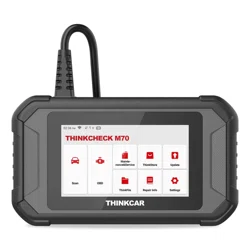
THINKCHECK M70
Quick Start Manual
EN
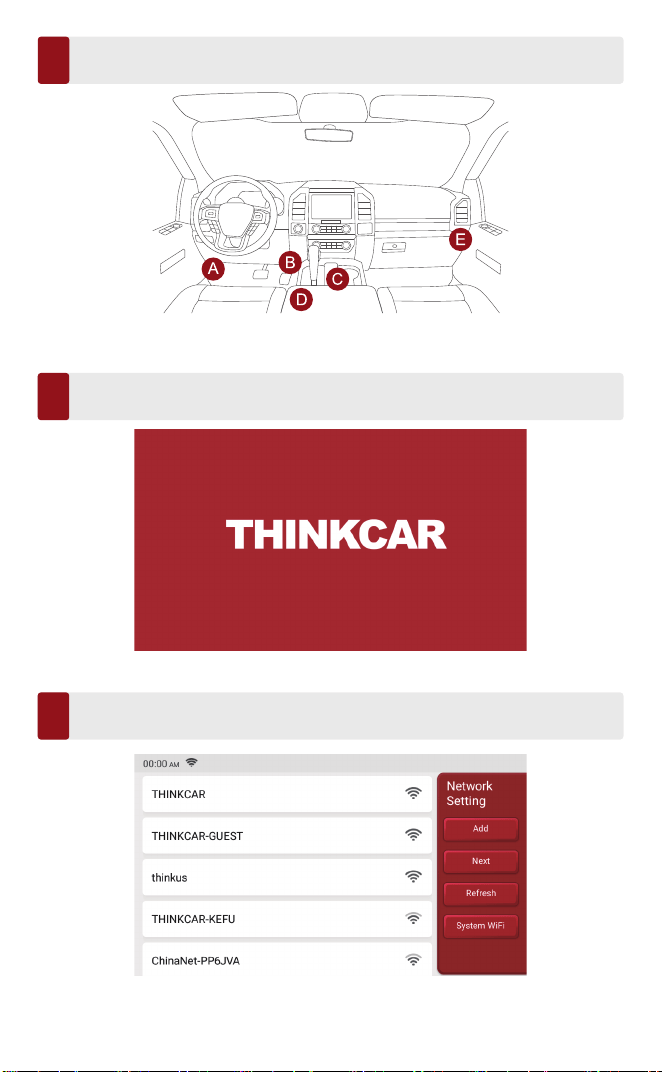
Connect the THINKCHECK M70 with your vehicle through the
OBDII port
Usually, the OBD port is located under the dashboard, above the pedal on the driver’s
side. The five locations shown in the picture are common OBDII port locations.
Turn on the THINKCHECK M70
After connecting with the car, the screen will display as shown in the picture.
Connect Wi-Fi
The system will automatically search all available Wi-Fi networks and you can choose
the Wi-Fi needed. Notice the “Wi-Fi” must be set before use.
1
2
3
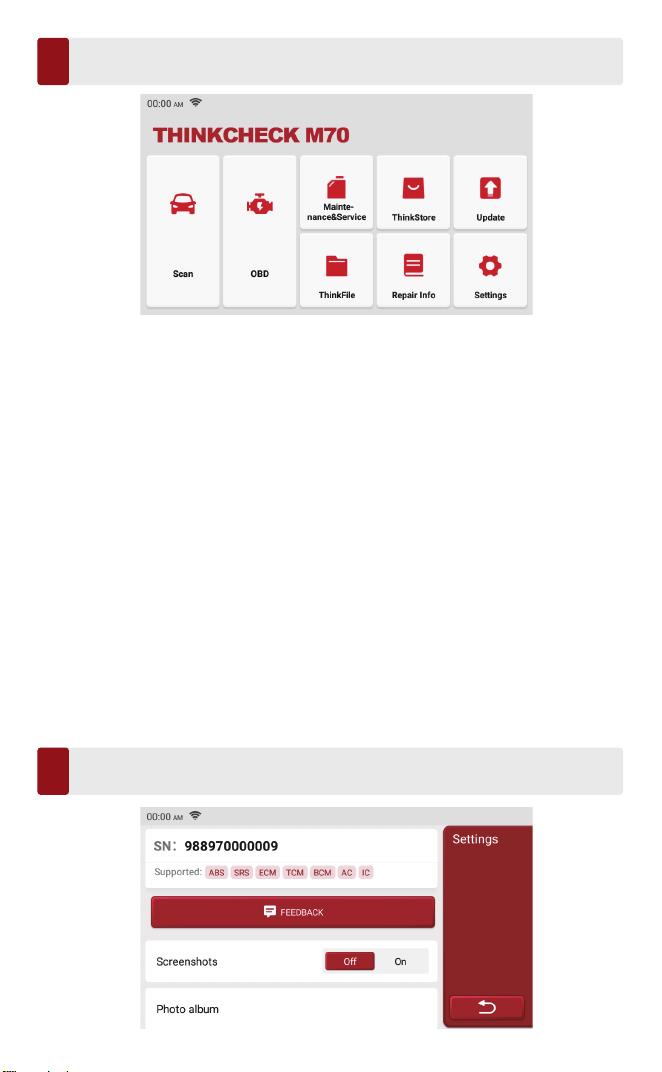
The THINKCHECK M70 main unit has the following 8 functions:
1. Scan: Read/clear enhanced manufacturer trouble codes, read/graph enhanced live
data for ABS+SRS+ECM+TCM+BCM+AC+IC.
2. OBD: Support 10 modes.
3. Maintenance & Service: Four free options service resets from total 28 resets.
4. ThinkStore: Display related products, please contact the dealer if necessary.
5. Update: This module allows you to update the diagnostic software & App and set
frequently used software.
6. ThinkFile: It is used to record and establish the files of the diagnosed vehicles. The
files are created based on the vehicle VIN and check time, including all
diagnostic-related data such as diagnostic reports, data stream records and
screenshots.
7. Repair Info: It includes 4 items, a fault code database, a list of vehicles able to be
diagnosed, videos, a learning course. The maintenance technician can quickly refer
to the explanation of the fault codes, and understand all the vehicles that can be
diagnosed through the tool. The videos contain equipment usage, maintenance and
diagnosis guides. The learning course demonstrates how tools are operated. These
four functions help technicians quickly grasp the equipment use and improve
diagnostic efficiently.
8. Settings: Common system settings can be made here to modify and add
information.
Settings
5
Functions Description
4

Here we list some common questions and answers related to this tool.
Q: Why does it have no responses when connected to a vehicle?
A: Check whether the connection with the vehicle diagnostic interface is normal,
whether the ignition switch is on, and whether the tool supports the vehicle.
Q: Why does the system stop while reading the data stream?
A: This may be caused by loose diagnostic connection. Please unplug the connector
and reconnect it firmly.
Q: Communication error with vehicle ECU?
A: Please confirm:
1. Whether diagnostic connector is correctly connected.
2. Whether ignition switch is ON.
3. If all checks are normal, please send vehicle year, make, model and VIN number
to us by Feedback function.
Q: Why does the screen flash when the engine ignition starts?
A: It is normal and caused by electromagnetic interference.
Q: How to upgrade the system software?
A: 1. Start the tool and ensure a stable Internet connection.
2. Go to "Settings" -> “App Update”, click "OTA" and then click “check version” to
enter the system upgrade interface.
3. Complete the process by following the instructions on the screen step by step. It
may take a few minutes. After successfully completing the upgrade, the tool will
automatically restart and enter the main interface.
You can do some basic set up on this page. Include Wi-Fi, screen brightness,
language, time zone, and so on.
Feedback: You can feedback the diagnostic software/app bugs to us for analysis
and improvements.
Screenshots: Turn on this switch to take a screen capture.
Screen floating window: Turn on this switch to record the screen operation video.
Network: Set the connectable Wi-Fi network.
Firmware fix: Used to update the firmware.
Language: Select the tool language from the languages displayed on the
interface.
Time zone: Choose the time zone of the current location, then the system will
automatically configure the time according to the time zone you chose.
FAQ
6

This warranty applies only to users and distributors who purchase THINKCHECK INC
www.thinkcarus.com THINKCHECK M70 products through normal procedures. Provide
free warranty within one year. THINKCHECK INC warrants its electronic products for
damages caused by defects in materials or workmanship. Damages to the equipment
or components caused by abusing, unauthorized modification, using for non-designed
purposes, operation in a manner not specified in the instructions, etc.are not covered
by this warranty. The compensation for dashboard damage caused by the defect of this
equipment is limited to repair or replacement. THINKCHECK does not bear any
indirect and incidental losses. THINKCHECK will judge the nature of the equipment
damage according to its prescribed inspection methods. No agents, employees or
business representatives of THINKCHECK are authorized to make any confirmation,
notice or promise related to THINKCHECK products.
Service Line: 1-833-692-2766
Customer Service Email: [email protected]
Official Website: www.thinkcarus.com
Products tutorial, videos, FAQ and coverage list are available on Thinkcar official
website.
Follow us on
@thinkcar.official @ObdThinkcar
Warranty Terms
7
THINKCAR
THINKCHECK M70
Manual de inicio rápido
ES
Conecte el THINKCHECK M70 con su vehículo a través del puerto
OBDII
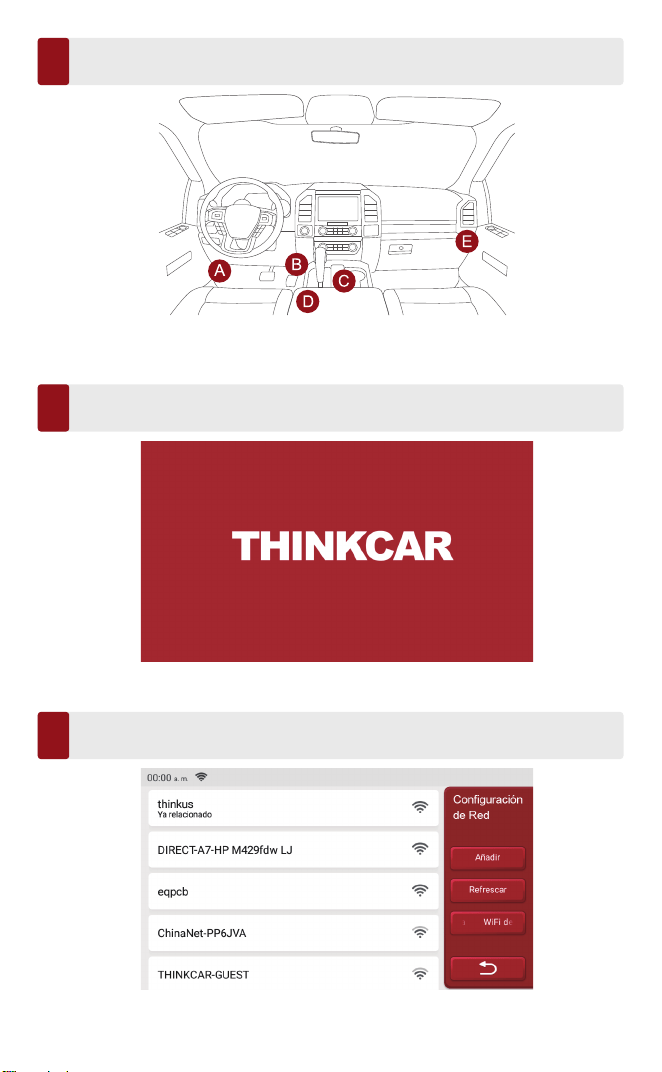
Por lo general, el puerto OBD se encuentra debajo del tablero de instrumentos, un
pedal en el lado del conductor. Las cinco ubicaciones que se muestran en la
ilustración son ubicaciones de puertos OBDII comunes.
Encienda la THINKCHECK M70
Después de conectarse con el automóvil, la pantalla se mostrará como se muestra en
la figura.
El sistema buscará automáticamente todas las redes Wi-Fi disponibles y usted puede
elegir la Wi-Fi necesaria. Aviso: Se debe configurar la conexión Wi-Fi antes de usar.
1
2
Conectar Wi-Fi
3
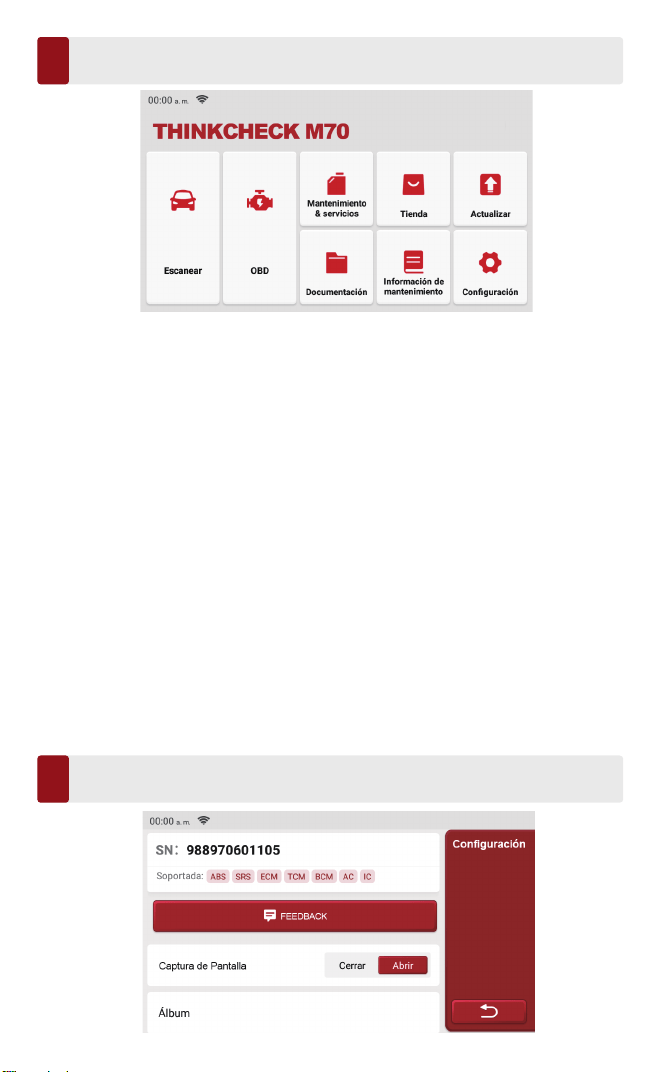
La computadora host THINKCHECK M70 tiene las siguientes 8 funciones:
1. Escanear: Lectura / borrado avanzado del código de falla del fabricante, lectura /
gráfica de datos en tiempo real mejorada para ABS + SRS + ECM + TCM + BCM +
AC + IC
2. OBD: Apoya 10 modos.
3. Mantenimiento & servicios: Cuatro restauraciones del servicio de opción gratuita
de un total de 28 restauraciones.
4. Tienda: Mostrar productos relacionados, póngase en contacto con el distribuidor si
es necesario.
5. Actualizar: Este módulo le permite actualizar el software y la aplicación de
diagnóstico y configurar el software de uso frecuente.
6. Documentación: Se utiliza para registrar y establecer el archivo de los vehículos
diagnosticados. El archivo se crea en función del VIN del vehículo y el tiempo de
verificación, incluidos todos los datos relacionados con el diagnóstico, como informes
de diagnóstico, registros de flujo de datos y capturas de pantalla.
7. Información de mantenimiento: Incluye 4 artículos, una base de datos de códigos
de avería, una mesa de vehículos capaces de ser diagnosticados, videos, un curso
de aprendizaje. El técnico de mantenimiento puede consultar rápidamente la
explicación de los códigos de falla y comprender todos los vehículos que se pueden
diagnosticar a través de la tabla. Los videos contienen guías de uso de equipos,
guías de mantenimiento y diagnóstico. El curso de aprendizaje demuestra cómo se
operan las herramientas. Estas cuatro funciones ayudan a los técnicos a comprender
rápidamente el uso del equipo y mejorar la eficiencia del diagnóstico.
8. Configuración: Aquí se pueden realizar configuraciones comunes del sistema para
modificar y agregar información.
las funciones Descripciones
Configuración
5
4

Aquí enumeramos algunas preguntas y respuestas comunes relacionadas con esta
herramienta.
P: ¿Por qué no responde cuando se conecta a la computadora de un automóvil?
R: Compruebe si la conexión con la toma de diagnóstico del vehículo es normal, si el
interruptor de encendido está encendido y si la herramienta es compatible con el
automóvil.
P: ¿Por qué el sistema se detiene mientras lee el flujo de datos?
R: Esto puede deberse a dongles de diagnóstico sueltos. Desenchufe el dongle y
vuelva a conectarlo firmemente.
P: ¿Error de comunicación con la ECU del vehículo?
R: Por favor confirme:
1. Si los dongles de diagnóstico están conectados correctamente.
2. Si el interruptor de encendido está en ON.
3. Si todas las comprobaciones son normales, envíenos el año, la marca, el modelo
y el número de VIN del vehículo mediante la función Feedback.
P: ¿Por qué parpadea la pantalla del host cuando se inicia el encendido del motor?
R: Es normal y está causado por interferencias electromagnéticas.
P: ¿Cómo actualizar el software del sistema?
R: 1. Inicie la herramienta y asegúrese de una conexión a Internet estable.
2. Vaya a "Configuración" -> "Actualización de la aplicación", haga clic en "OTA" y
luego haga clic en "Verificar versión" para ingresar a la interfaz de actualización
del sistema.
3. Complete el proceso siguiendo las instrucciones en la pantalla paso a paso. Es
posible que tarde unos minutos en función de la velocidad de Internet. por favor
sea paciente. Después de completar con éxito la actualización, la herramienta se
reiniciará automáticamente y entrará en la interfaz principal.
Preguntas y respuestas
6
Puede realizar una configuración básica en esta página. Incluido Wi-Fi, brillo de la
pantalla, idioma, zona horaria, etc.
Feedback: le permite enviarnos sus comentarios sobre los errores del software /
aplicación de diagnóstico para analizarlos y mejorarlos.
Capturas de pantalla: active este interruptor para realizar una captura de pantalla.
Ventana de flojo de pantalla: active este interruptor para grabar el vídeo de
funcionamiento de la pantalla.
Red: establezca la red WI-FI que se puede conectar.
Actualización de firmware: se utiliza para actualizar el firmware.
Idioma: seleccione el idioma de la herramienta entre los idiomas que se muestran
en la interfaz.
Zona horaria: elija la zona horaria de la ubicación actual, luego el sistema
configurará automáticamente la hora de acuerdo con la zona horaria que elija.

Esta garantía se aplica únicamente a los usuarios y distribuidores que compren
productos THINKCHECK INC www.thinkcarus.com THINKCHECK M70 mediante
procedimientos normales. En el plazo de un año a partir de la fecha de entrega,
THINKCHECK garantiza sus productos electrónicos por daños causados por defectos
de materiales o mano de obra. Los daños al equipo o componentes debido a abuso,
modificación no autorizada, uso para propósitos no diseñados, operación de una
manera no especificada en las instrucciones, etc., no están cubiertos por esta
garantía. La compensación por daños en el tablero de instrumentos causados por el
defecto de este equipo se limita a la reparación o reemplazo. THINKCHECK no
soporta pérdidas indirectas e incidentales. THINKCHECK juzgará la naturaleza del
daño del equipo de acuerdo con sus métodos de inspección prescritos. Ningún
agente, empleado o representante comercial de THINKCHECK está autorizado a
realizar ninguna confirmación, aviso o promesa relacionada con los productos de
THINKCHECK.
Línea de servicio: 1-833-692-2766
Correo electrónico de servicio al cliente: [email protected]
Sitio web oficial: www.thinkcarus.com
Tutorial de productos, videos, preguntas frecuentes y lista de cobertura están
disponibles en el sitio web oficial de Thinkcar.
Síganos en
@thinkcar.official @ObdThinkcar
Términos de garantia
7
