B5K
-1095_ref_K_En_00
T
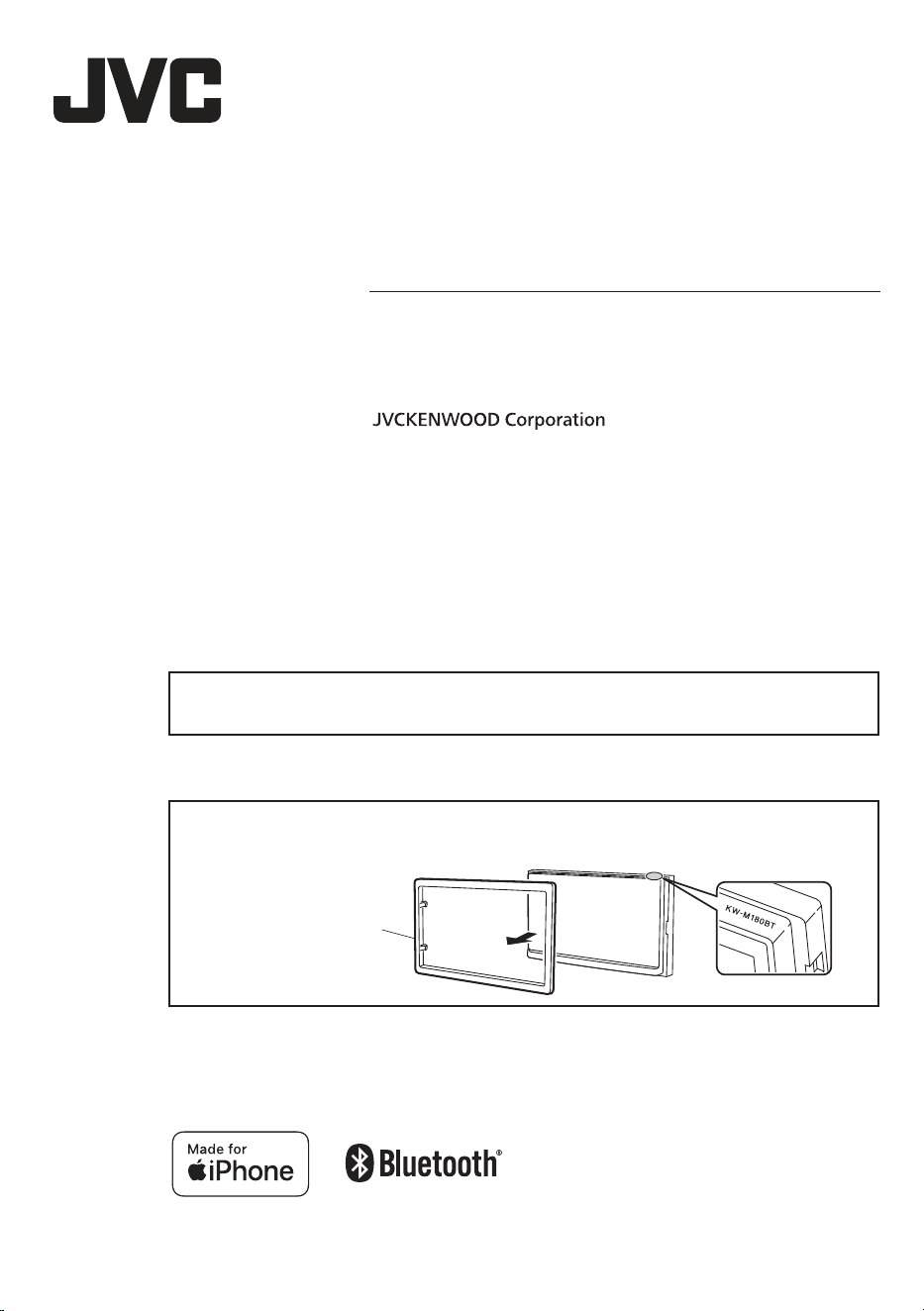
rim plate
KW-M180BT
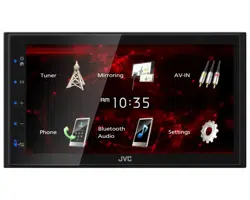
MONITOR WITH RECEIVER
INSTR
UCTION MANUAL
• U
pdated information (the latest Instruction Manual, etc.) is available from
<https://www.jvc.net/cs/car/>.
M
odel name indication position
See “Removing the trim plate” (P.19)
© 2023 JVCKENWOOD Corporation
3-12, Moriyacho, Kanagawa-ku, Yokohama-shi, Kanagawa, 221-0022, Japan
2
Before
use
B
e
f
ore use
.......................................
..........................................
2
How t
o read this manual
................................................................................... 2
Prec
auti ons ................................................................................................................ 2
Getting Started ....................................................................... 3
Clo
ck settings
........................................................................................................... 3
Basi
cs
.......................................................................................... 4
Fun
ctions of the Buttons on the Front Panel
...................................... 4
Comm
on operations
........................................................................................... 4
H
OME
screen descriptions
.............................................................................. 5
Sou
rce control screen
......................................................................................... 5
Tuner ...........................................................................................6
Tun
er Basic Operation......................................................................................... 6
Presetting stations ................................................................................................ 6
Tuner Setup
................................................................................................................ 6
USB .............................................................................................. 7
Prep
aration
................................................................................................................. 7
Pla
yback operations
............................................................................................. 7
iPho
ne
........................................................................................ 8
Prep
aration
................................................................................................................. 8
Pla
yback operations ............................................................................................. 8
Mirr
oring
................................................................................... 9
Prep
aration
................................................................................................................. 9
Mir
roring operations............................................................................................ 9
Ext
ernal Components
........................................................10
U
s
i
ng external audio/video players
.........................................................10
R
e
a
r view camera
.................................................................................................10
Reverse with ATT
..................................................................................................10
Blue
tooth
................................................................................ 11
Reg
ister your smartphone to the unit
...................................................11
Blu
etooth Setup
....................................................................................................11
Re
ce
ive a phone call
..........................................................................................12
Mak
e a phone call ................................................................................................12
Playing Bluetooth Audio Device
................................................................ 13
Con
trolling Audio
................................................................14
Cont
rolling General Audio
.............................................................................14
Equali
zer Control
..................................................................................................14
S
pe
aker / X’over setup
...................................................................................... 15
Lis
tening Position DTA ......................................................................................15
Sound Eect
............................................................................................................15
Rem
ote control
.....................................................................16
Functions of the Remote control Buttons
...........................................16
Inst
allation
..............................................................................17
Bef
ore Installation
................................................................................................ 17
I
ns
talling the unit
.................................................................................................18
Abo
ut this Unit
...................................................................... 22
More information
................................................................................................ 22
Troub lesho oting
.................................................................................................. 23
C
opy
rights
................................................................................................................24
Spec
ications
........................................................................................................ 25
Cont
ents
How t
o read this manual
• The p
anels shown in this guide are examples used to
provide clear explanations of the operations. For this
reason, they may be dierent from the actual panels.
• In op
eration procedures, bracket shape indicates the
key or button you should control.
< >: indicates the name of panel buttons.
[ ]: indicates the name of touch keys
! Thi
s symbol on the product means there
are important operating and maintenance
instructions in this manual.
Be sure to carefully read instructions in this
manual.
Precautions
#
WARN
ING
Ñ To pr
event injury or re, take the
following precautions:
• To pr
event a short circuit, never put or leave any
metallic objects (such as coins or metal tools) inside
the unit.
• Do no
t watch or x your eyes on the unit’s display
when you are driving for any extended period.
• If you experience problems during installation,
consult your JVC dealer.
Ñ Pre
cautions on using this unit
• W
he
n you purchase optional accessories, check with
your JVC dealer to make sure that they work with
your model and in your area.
• You c
an select a language to display menus, audio
le tags, etc. See Getting Started (P.3)
• The R
adio Data System or Radio Broadcast Data
System feature won’t work where the service is not
supported by any broadcasting station.
Ñ Pro
tecting the monitor
• To pr
otect the monitor from damage, do not operate
the monitor using a ballpoint pen or similar tool with
the sharp tip.
Ñ Cleaning the Unit
If the front panel of this unit is stained, wipe it with
a dry soft cloth such as a silicon cloth. If the front
panel is stained badly, wipe the stain o with a cloth
moistened with neutral cleaner, then wipe it again
with a clean soft dry cloth.
! CAU
TION
• App
laying spray cleaner directly to the unit may aect
its mechanical parts. Wiping the front panel with a hard
cloth or using a volatile liquid such as thinner or alcohol
may scratch the surface or erase screened print.
Ñ How t
o reset your unit
If th
e unit or the connected unit fails to operate
properly, reset the unit.
Reset button
Battery Installation..............................................................................................16
3
English |
Getting Started
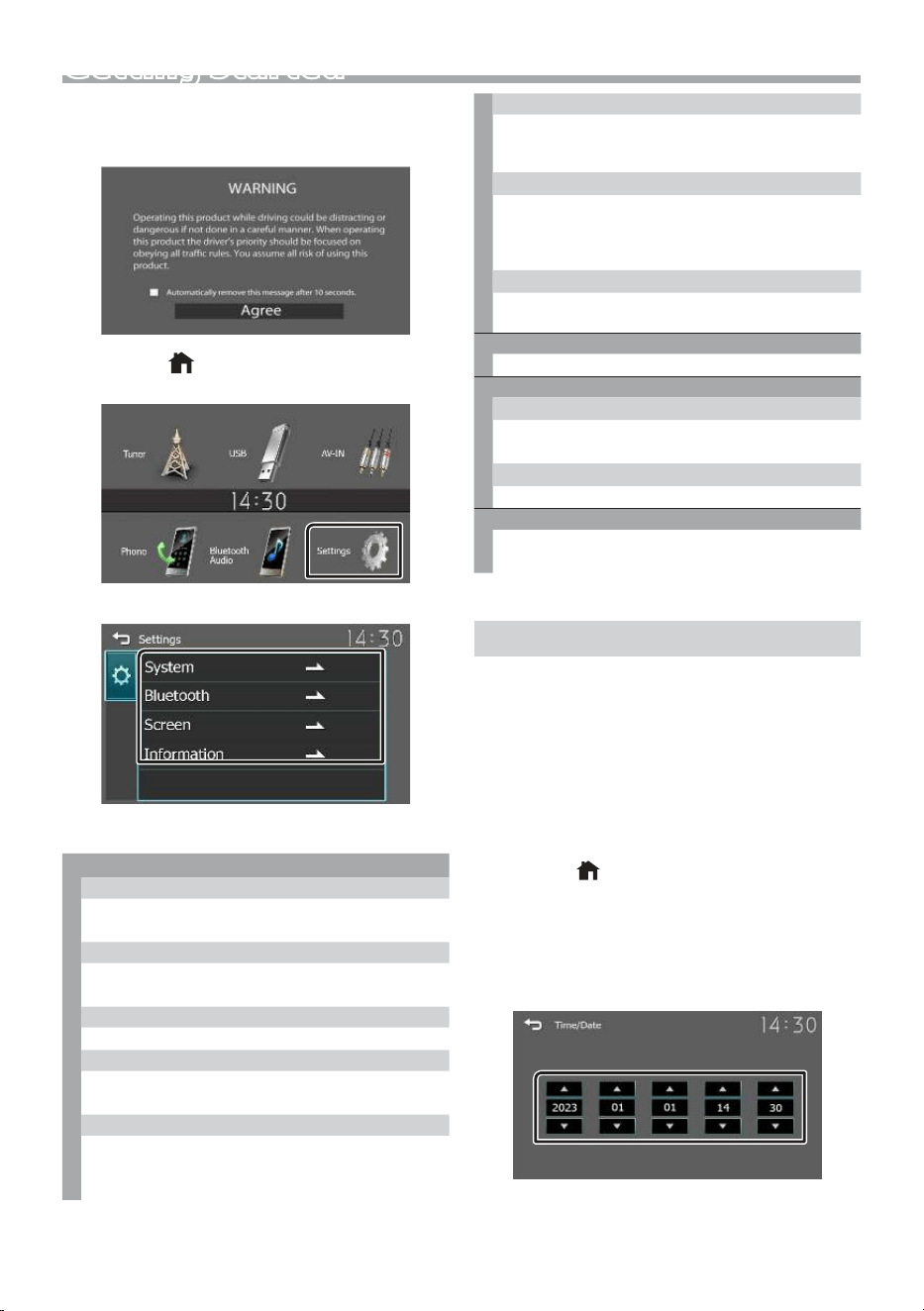
1 Turn the ignition key of your car to ACC.
The unit is turned on, please read the warning and
press “Agree” to enter the screen.
2 Press the < > button.
3 Touch [Settings].
4 Touch the corresponding key and set the value.
[System]
[Beep Tone]
Activates or deactivates the key-touch tone.
“ON” (Default), “OFF”
[Language]
Select the language used for the control screen
and setting items. Default is “English”.
[Time/Date]
Adjust the clock time. (P.3)
[Clock Mode]
Select the time display format.
[12hr] (Default) / [24hr]
[Parking Guidelines]
You can display parking guidelines to enable
easier parking when you shift the gear to the
reverse (R) position. Default is “ON”.
[Guidelines SETUP]
If you select [ON] for [Parking Guidelines], you can
adjust the parking guidelines. See To adjust the
parking guidelines (P.10).
[Reverse with ATT (-20dB)]
When the gear is shifted to the reverse (R)
position, the volume of the device is adjusted.
Default is “ON”. See To adjust the Reverse with
ATT (P.10).
[System Reset]
Touch [System Reset] and then touch [YES] to set
all the settings to the initial default settings.
[Bluetooth]
Displays the Bluetooth Settings screen. (P.11)
[Screen]
[Dimmer]
Select the dimmer mode.
“High” (Default) / “Mid” / “Low”
[Demo]
Select the demonstration mode. Default is “ON”.
[Information]
Displays the software version and model number
of this unit
5 Touch [6].
Clock settings
1 Press the <
> button.
2 Touch [Settings].
3 Touch [System].
4 Touch [Time/Date].
Clock screen appears.
5
Touch [R] or [S] to set the clock time.
6 Touch [6].
Ñ
Synchronizing the clock time with FM
RBDS/RDS
Activate [RBDS Clock Sync]/[RDS Clock Sync].
See Tuner Setup (P.6).
Ñ Adjusting the clock manually
✎ NOTE
• Deactivate [RBDS Clock Sync]/[RDS Clock Sync]
before adjusting the clock.
4
BasicsBasics
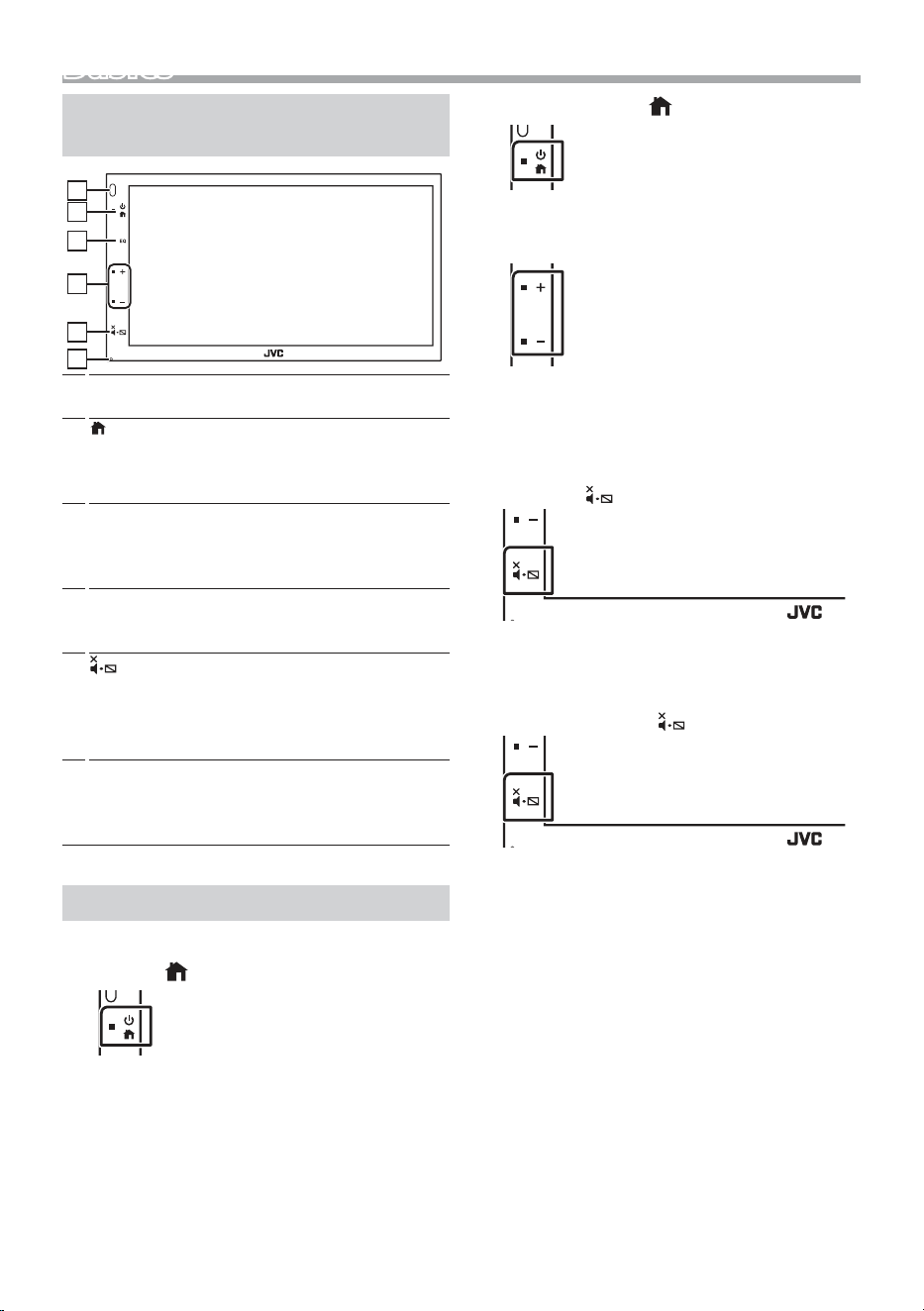
Functions of the Buttons on the
Front Panel
1
2
3
4
5
6
1
Remote Sensor
• Receives the remote control signal.
2
(HOME)
• Displays the HOME screen. (P.5)
• Press and hold turns the power o.
• When the power o, turns the power on.
3
EQ
• Displays the Audio screen.* (P.14)
* The Audio screen is not displayed during SETUP
screen or on the list screen etc,
4
+ , – (Volume)
• Adjusts volume. The volume will go up until 15
when you keep pressing [ + ].
5
(MUTE, Display o)
• Mutes/restores the sound.
• Press and hold turns the screen o.
When the screen is o, touch the display to turn
on the screen.
6
Reset
• If the unit or the connected unit fails to operate
properly, the unit returns to factory settings
when this button is pressed.
Common operations
Ñ Turning on the power
1 Press the <
> button.
Ñ Turning o the power
1 Press and hold the < > button.
Ñ Adjusting the volume
1 Press the <+> or <–> button.
✎
NOTE
• The volume will go up until 15 when you keep
pressing [ + ].
Ñ Mutes the sound
1 Press the <
> button.
To restore the sound, touch the button again, or
adjust the volume.
Ñ Turn o the screen
1 Press and hold the <
> button.
To turn on the screen, touch the display.
5
English |
Basics
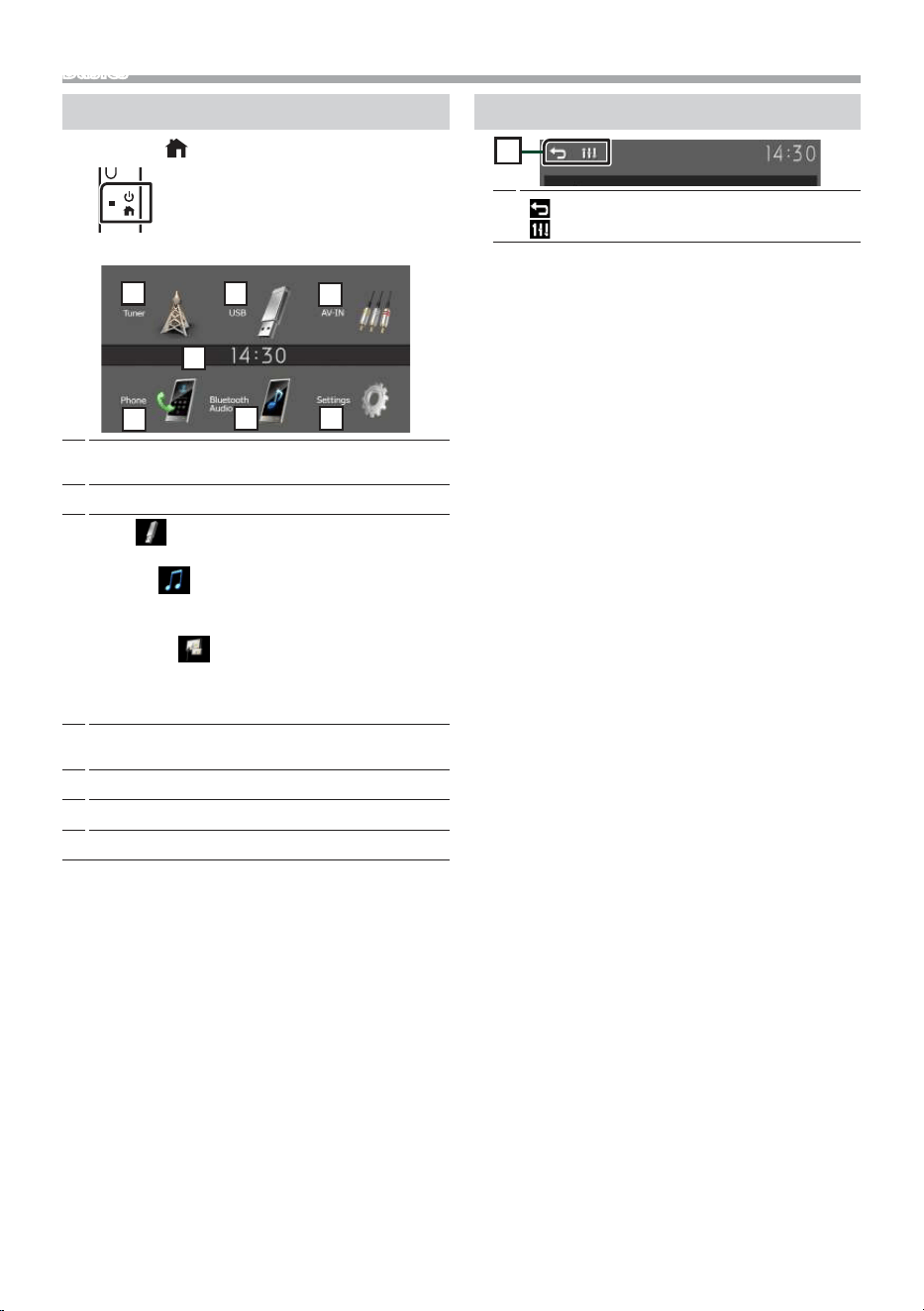
HOME screen descriptions
1 Press the <
> button.
HOME screen appears.
2
5
3
6
4
7
1
1
Clock display
Touch to displays the Clock screen.
2
Switches to the Tuner broadcast. (P.6)
3
[USB]
Plays les on a USB device. (P.7)
[iPhone]
Plays an iPhone. (P.8)
• When iPhone is connected.
[Mirroring]
Displays the Mirroring screen. (P.9)
• When android device with “Mirroring OB for
JVC” application installed is connected.
4
Switches to an external component connected to
the AV-IN input terminal. (P.10)
5
Displays the Hands Free screen. (P.12)
6
Plays a Bluetooth audio player. (P.13)
7
Displays the SETUP screen. (P.3)
Source control screen
1
[
] : Returns to previous screen.
[ ] : Displays the Audio screen. (P.14)
1
6
Tuner
Tuner
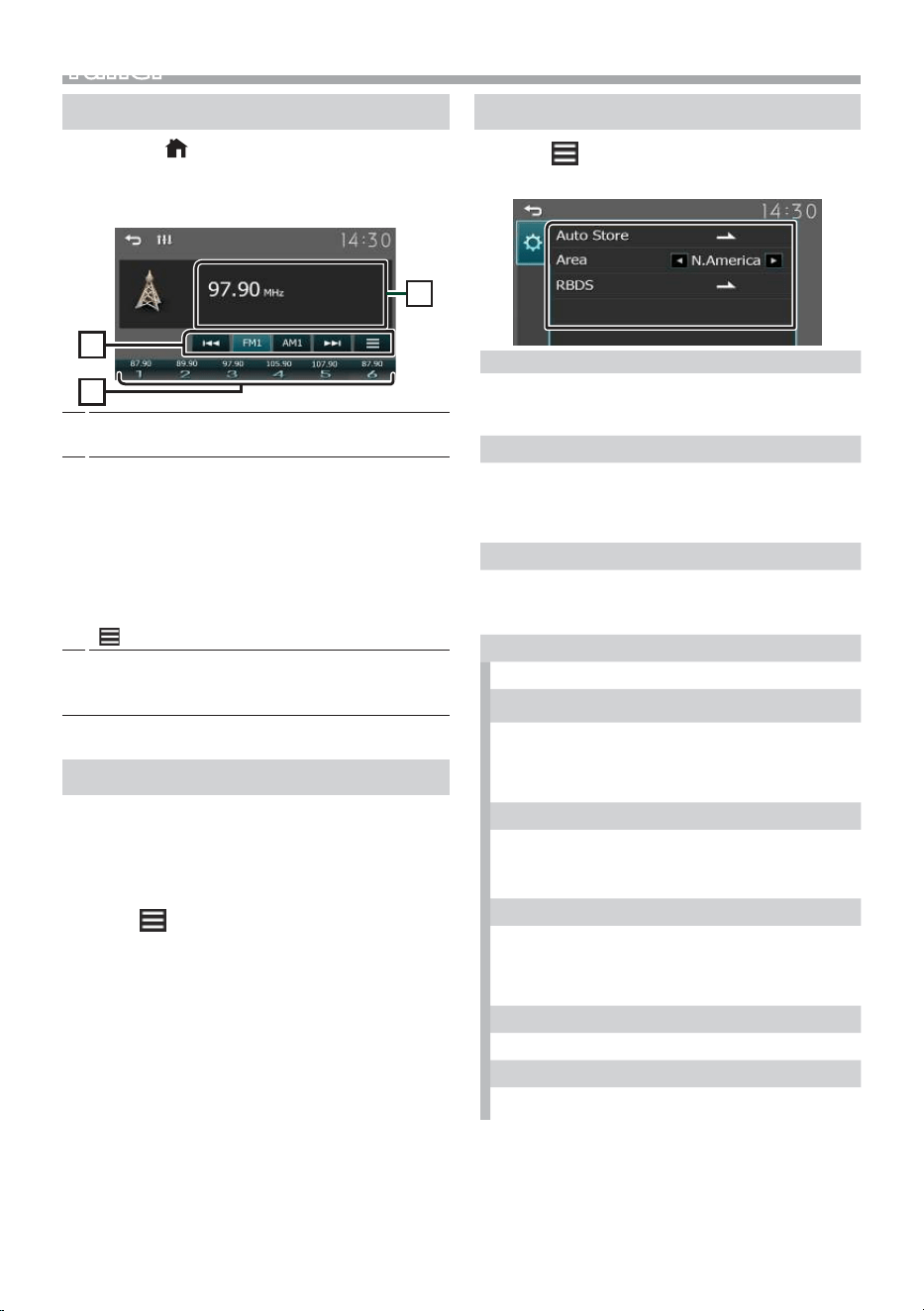
Tuner Basic Operation
1 Press the <
> button.
2
Touch [Tuner].
Ñ Source control screen
2
1
3
1
Displays the information of the current station:
PS name, Frequency, PTY Genre, Indicator Items
2
[FM] : Switches the FM band.
“FM1”, “FM2”, “FM3”
[AM] : Switches the AM band.
“AM1”, “AM2”
[E] [F] : Tunes in a station with good
reception automatically.
Touch and hold to switch to the next
frequency manually.
[
] : Displays the Tuner Setup screen. (P.6)
3
Recalls the memorized station.
When touched for 2 seconds, stores the current
receiving station in memory.
Presetting stations
Ñ Auto memory
You can preset 6 stations for the current band (FM1/
FM2/FM3/AM1/AM2).
1 Touch [FM] or [AM] to select the band.
2 Touch [
].
3 Touch [Auto Store].
The local stations with the strongest signals are
found and stored automatically.
Ñ Manual memory
You can store the current receiving station in
memory.
1 Tune in to a station you want to preset.
2 Touch and hold [#] (#:1-6) in which you want to
store the station.
Ñ Recalling the preset station
1 Touch [#] (#:1-6).
Tuner Setup
1 Touch [
].
2
Set each item as follows.
[Auto Store]
Automatically searches and stores the 6 stations with
the strongest signals for the selected band.
“Auto Store” appears.
[Area]
“N.America”(Default): AM/FM intervals:10 kHz/200
kHz.
“S.America”: AM/FM intervals: 10 kHz/50 kHz.
“Europe”: AM/FM intervals: 9 kHz/50 kHz.
[Local Seek] *
2
Tunes in only to the stations with sucient signal
strength. (LOC indicator lights up.) “ON”, “OFF”
(Default)
[RBDS] *
1
*
3
/[RDS] *
2
*
3
Displays the RBDS/RDS Settings screen.
[AF] *
2
When station reception is poor, automatically
switches to the station that is broadcasting the
same program over the same Radio Data System
network. “ON” (Default), “OFF”
[TA]
Switches to the trac information automatically
when the trac bulletin starts. (TI indicator lights
up.) “ON”, “OFF” (Default)
[RBDS Clock Sync] *
1
/[RDS Clock Sync] *
2
Synchronizing the Radio Broadcast Data System/
Radio Data System station time data and this unit’s
clock.
“ON” (Default), “OFF”
[PTY]
Select a program type.
[PTY Seek]
Searches for a program by program type.
*1 To use the function, it is necessary to set [Area] to
[N.America]/[S.America].
*2 To use the function, it is necessary to set [Area] to
[Europe].
*3 FM only
3 Touch [6].
7
English |
USB
Preparation
Ñ Connecting a USB device
1 Remove the cap of the USB terminal.
2
Connect the USB device with the USB cable.
The unit reads the device and playback starts.
Ñ To disconnect the USB device:
1 Press the <
> button.
2 Touch a source other than [USB].
3 Detach the USB device.
Ñ Usable USB device
This unit can play MPEG1/ MPEG2/ MPEG4/ H.264/
MKV/ MP3/WMA/ AAC/ WAV/ FLAC/ OGG files stored
in a USB mass storage class device. (P.22)
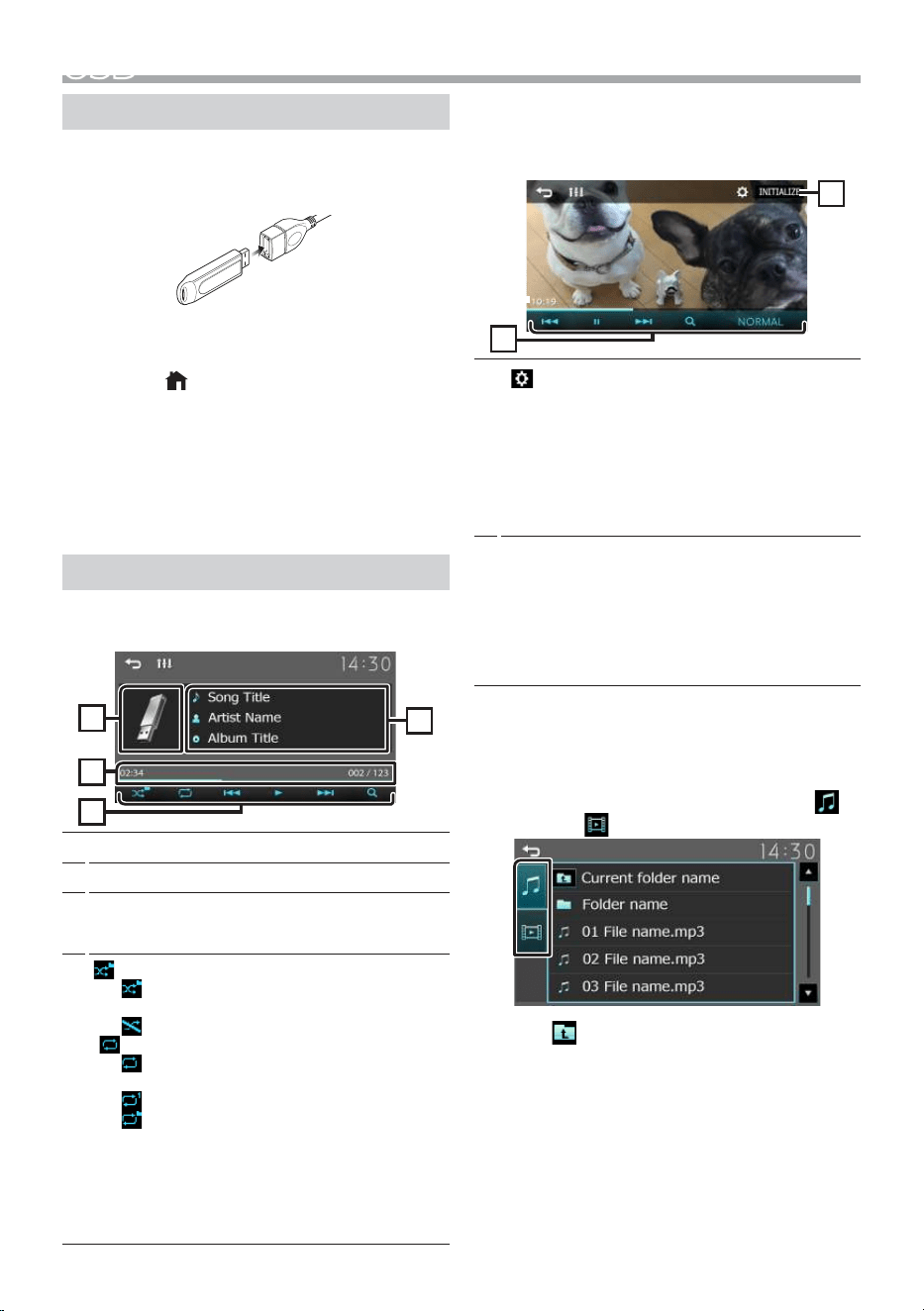
Playback operations
Ñ Control the music you are listening to on
the source control screen.
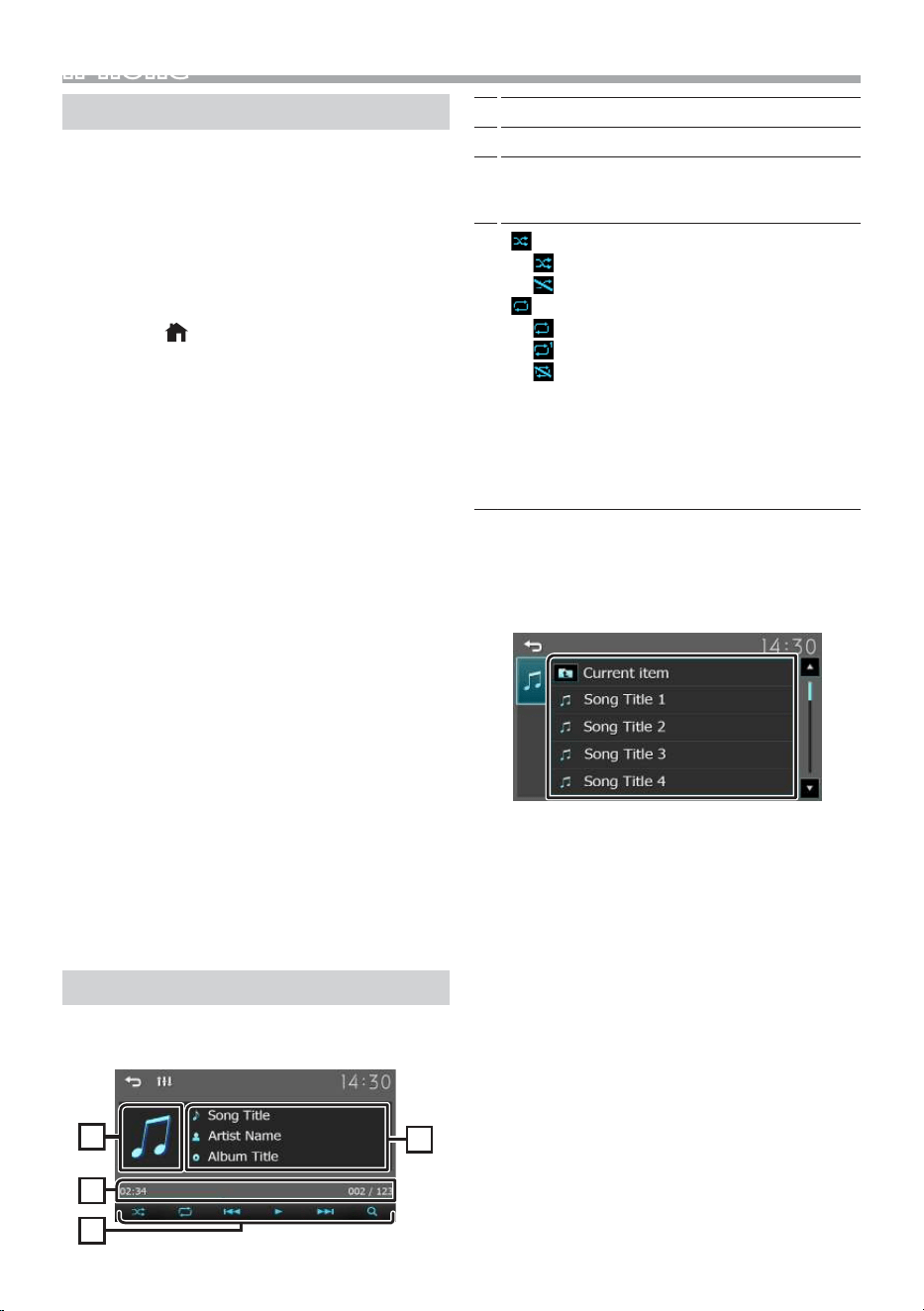
1
4
3
2
1
The jacket of the currently playing le is displayed.
2
Displays the information of the current le.
3
Playing time/File number
Play time bar : For conrmation of current playing
position.
4
] : Selects Random playback mode.
: Randomly plays all les in the current
folder.
(Default): Normal playback.
[ ] : Selects Repeat playback mode.
(Default): Repeats all les in the USB
device.
: Repeats the current le.
: Repeats all les in the current folder.
[U], [H] : Plays or pauses.
[E], [F] : Searches the previous/next
content.
Touch and hold to fast forward or fast
backward.
[1] : Searches le. (P.7)
Ñ For Video playback
1 When the operation buttons are not displayed
on the screen, touch the display.
5
6
5
[
] : You can adjust image quality in video
screen.
[Brightness] : Adjusts the brightness. (0 to
10)
[Contrast] : Adjusts the contrast. (0 to 10)
[Color] : Adjusts the color. (0 to 10)
[Tint] : Adjusts the tint. (0 to 10)
[INITIALIZE] : To clear the adjustment.
6
[U], [H] : Plays or pauses.
[E], [F] : Searches the previous/next
content.
Touch and hold to fast forward or fast
backward.
[1] : Searches le. (P.7)
[NORMAL]/[16:9]/[4:3] : Select a screen mode.
Ñ Selecting a track in a list (Searches le)
1 Touch [1].
2 Select whether you search by audio files [
],
video files [ ].
3 Touch [ ] to moves to the upper hierarchy.
4 Touch the desired folder.
When you touch a folder its contents are displayed.
• Touch [6] to moves to the upper hierarchy.
5 Touch desired item from the content list.
Playback starts.
✎ NOTE
• The source control screen appears when you touch
[6] at the top hierarchy.
8
iPhoneiPhone
Preparation
Ñ Connecting iPhone
• For details about connecting iPhone, see page
21 .
1 Remove the cap of the USB terminal.
2
Connect the iPhone.
The unit reads the device and playback starts.
Ñ To disconnect the iPhone
1 Press the <
> button.
2
Touch a source other than [iPhone].
3 Detach the iPhone.
Ñ Connectable iPhone
The following models can be connected to this unit.
Made for
• iPhone 14 Pro Max
• iPhone 14 Pro
• iPhone 14 Plus
• iPhone 14
• iPhone 13 Pro Max
• iPhone 13 Pro
• iPhone 13
• iPhone 13 mini
• iPhone 12 Pro Max
• iPhone 12 Pro
• iPhone 12
• iPhone 12 mini
• iPhone SE (2nd
generation)
• iPhone 11 Pro Max
• iPhone 11 Pro
• iPhone 11
• iPhone XS Max
• iPhone XS
• iPhone XR
• iPhone X
• iPhone 8 Plus
• iPhone 8
• iPhone 7 Plus
• iPhone 7
• iPhone SE
• iPhone 6s Plus
• iPhone 6s
✎ NOTE
• If you start playback after connecting the iPhone,
the music that has been played by the iPhone is
played rst.
• Cap the USB terminal whenever not using.
Playback operations
Ñ Control the music you are listening to on
the source control screen.
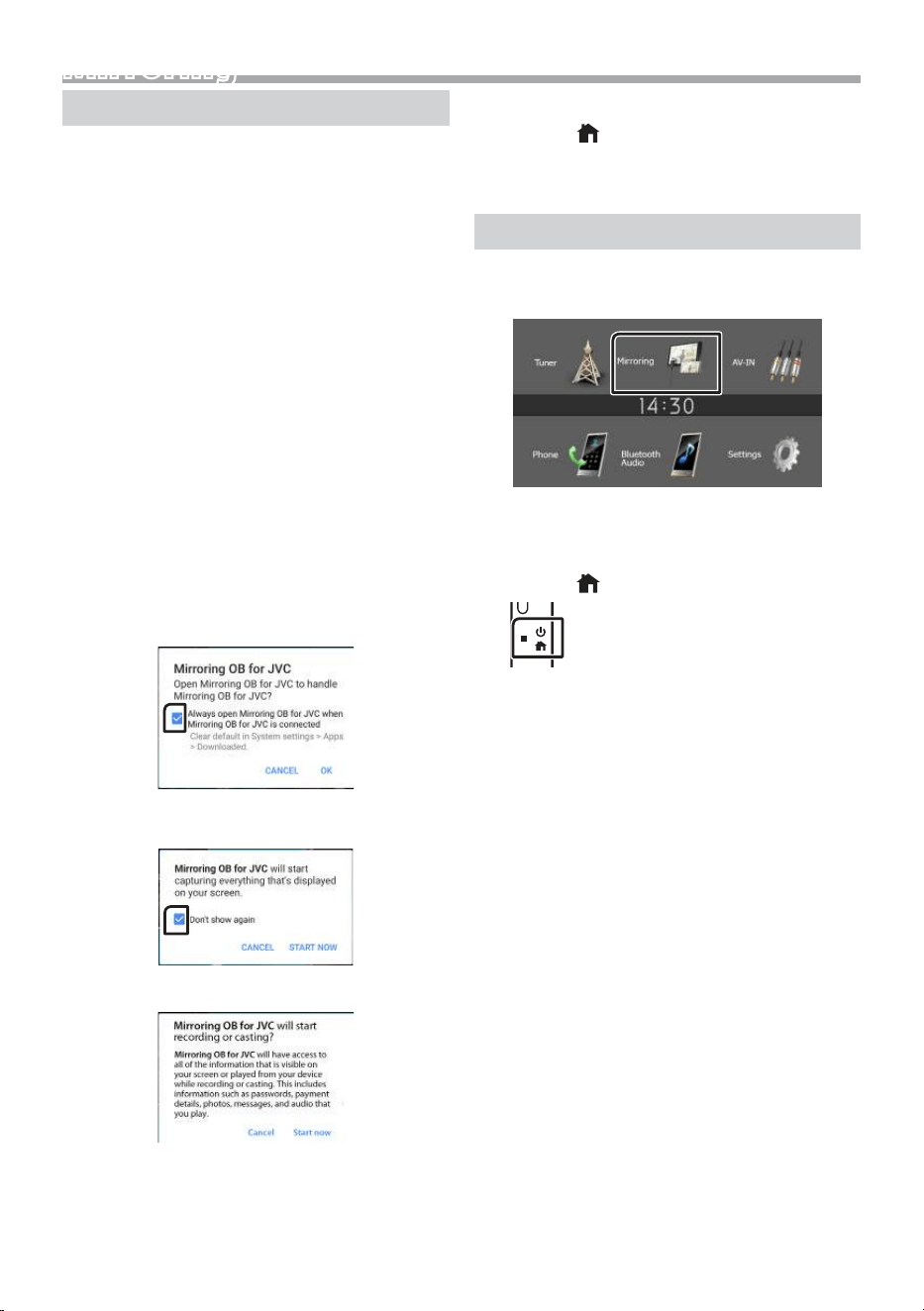
1
4
3
2
1
Artwork (Shown if the track contains artwork)
2
Displays the information of the current le.
3
Playing time/File number
Play time bar : For conrmation of current playing
position.
4
[
] : Selects Random playback mode.
: Functions the same as Shue Songs.
: Random o
[ ] : Selects Repeat playback mode.
: Functions the same as Repeat All.
: Functions the same as Repeat One.
: Repeat o
[U], [H] : Plays or pauses.
[E], [F] : Searches the previous/next
content.
Touch and hold to fast forward or fast
backward.
[1] : Searches content. (P.8)
Ñ Selecting a content in a list
1 Touch [1].
2
Touch desired item.
When you touch a category its contents are
displayed.
3 Touch desired item from the content list.
Playback starts.
• Touch [6] to moves to the upper hierarchy.
✎ NOTE
• The source control screen appears when you touch
[6] at the top hierarchy.
9
English |
M
irroring
M
irroring
Preparation
You can display and control the App on the unit
while your smartphone is connected to the USB
terminal.
✎ N
OTE
• P
air your smartphone with the unit via Bluetooth.
See Register your smartphone to the unit
(P.11) and Connect the Bluetooth device.
Ñ C
ompatible Android smartphone
• A
ndroid version 7.0 or later
• B
luetooth support
✎ N
OTE
• T
his unit may not work for some Android
smartphone’s.
Ñ Connecting Android smartphone
1 Download Mirroring App from Google Play.
Install the latest version of the Mirroring application
“Mirroring OB for JVC” on your Android.
2 R
emove the cap of the USB terminal.
3 Connect the Android
smartphone. (P.21)
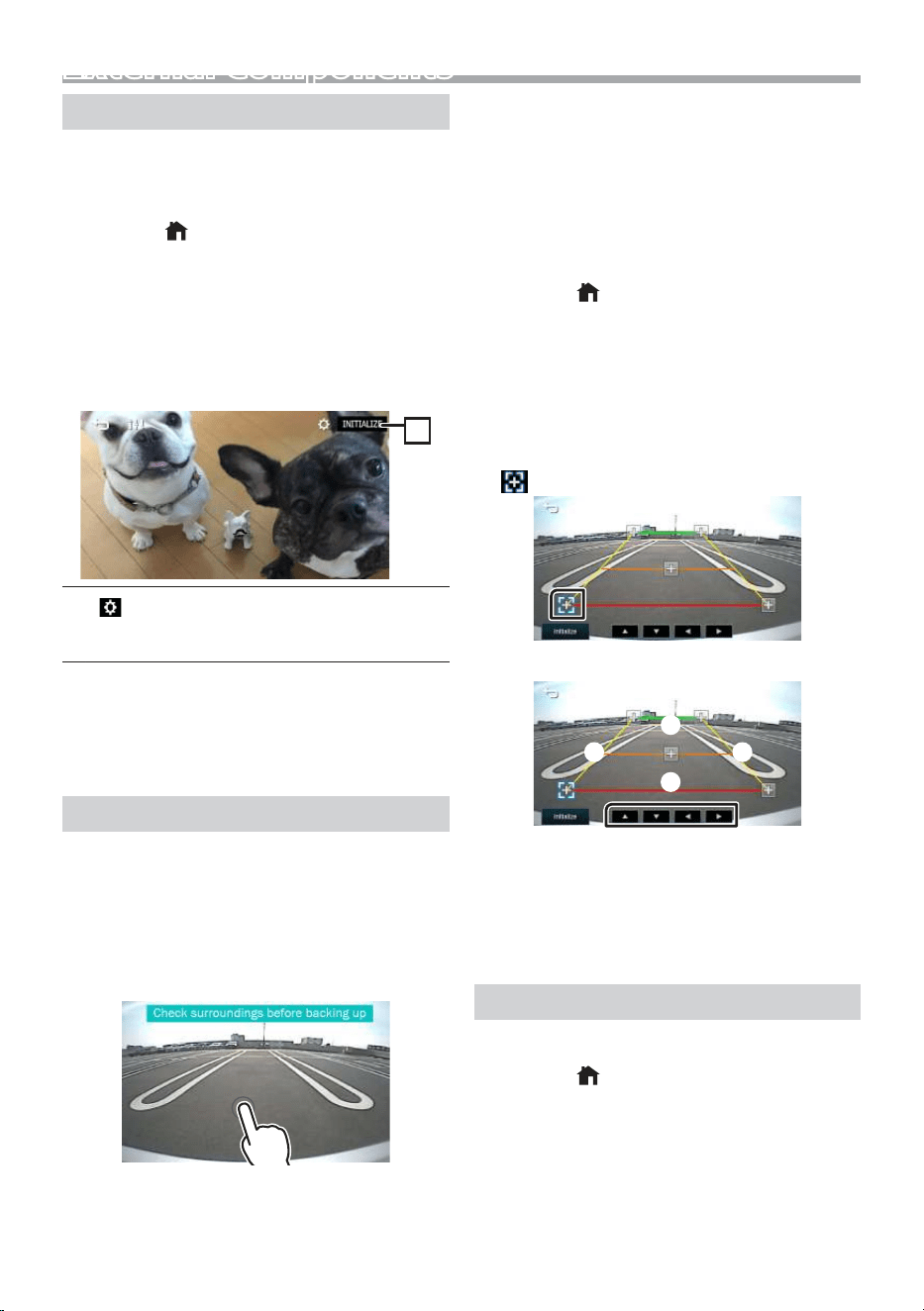
4 L
aunch Mirroring App on your Android
Smartphone.
1) T
ouch to check mark.
2) T
ouch “OK” to start Mirroring App.
3) T
ouch to check mark.
or
)
t
he authorization prompt only for android
ve
rsion 10.0 or above.
4) T
ouch “START NOW” to start capturing your
Android screen.
5 S
tart to enjoy Mirroring.
Ñ T
o disconnect the Android smartphone
1 Press the <
> button.
2 T
ouch a source other than [Mirroring].
3
D
etach the Android smartphone.
M
irroring operations
Ñ M
irroring Operation
1 T
ouch [Mirroring].
• Y
ou can display the same screen of the Android
device on the monitor of the unit.
Ñ T
o turn o the Mirroring
1 P
ress the <
> b
utton.
• HOME screen appears.
10
External ComponentsExternal Components
Using external audio/video players
Ñ Starting playback
1 Connect an external component to the AV-IN
input terminal. (P.20)
2
Press the <
> button.
3 Touch [AV-IN].
4
Turn on the connected component and start
playing the source.
Ñ For Video playback
1 When the operation buttons are not displayed
on the screen, touch the display.
1
1
[
] : You can adjust image quality in video
screen.
[INITIALIZE] : To clear the adjustment.
✎ NOTE
• When the picture from the rear view camera is
displayed on the AV-IN screen, the picture output
from the Visual Output terminal disappears.
Rear view camera
To use a rear view camera, the REVERSE lead
connection is required. For connecting a rear view
camera. (P.20)
Ñ Displaying the picture from the rear
view camera
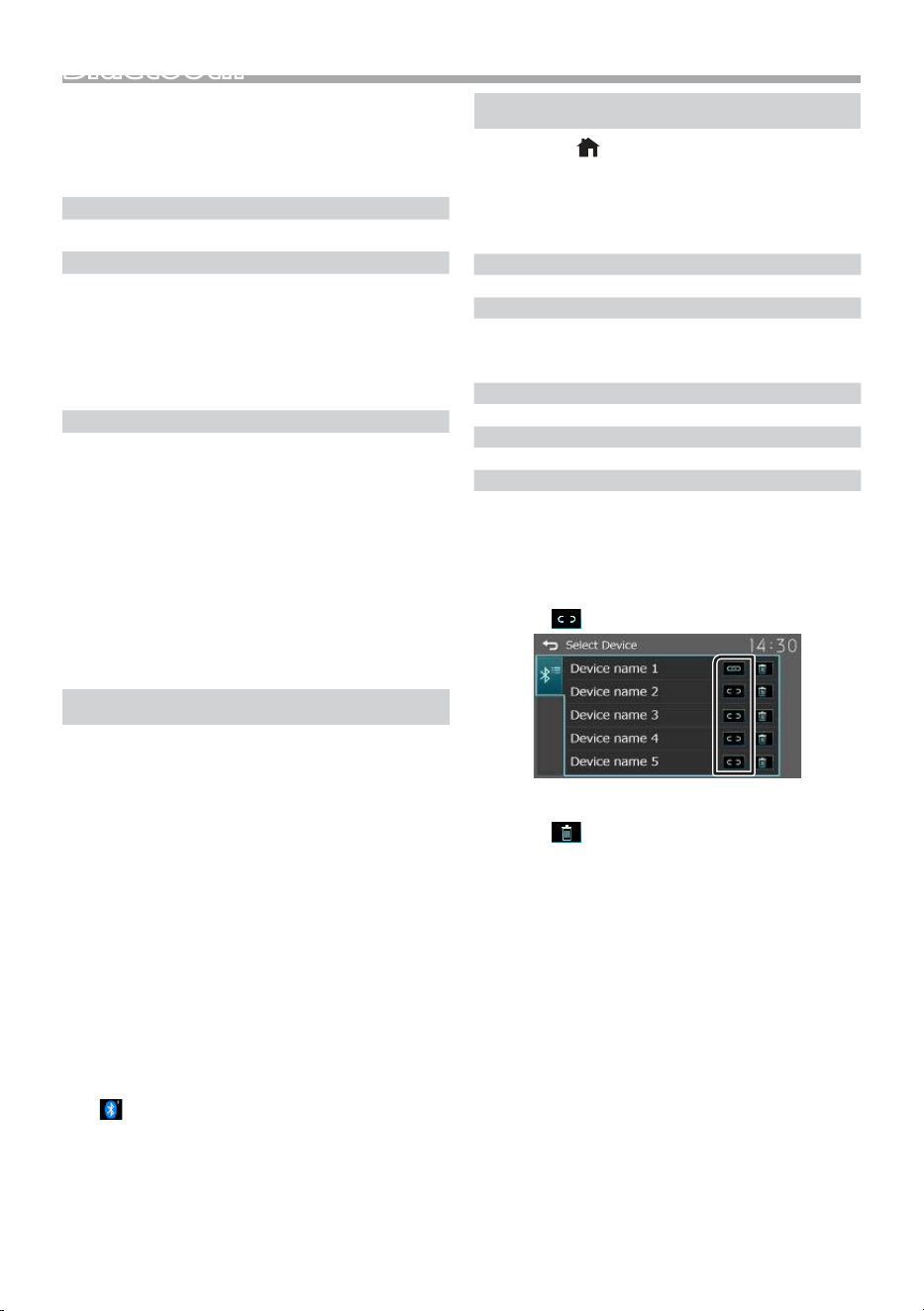
The rear view screen is displayed when you shift the
gear to the reverse (R) position.
• The rst touch removes the Caution, and the
second touch closes the Camera Screen.
Ñ To adjust the parking guidelines
✎ NOTE
• Install the rear view camera in the appropriate
position according to the instruction manual
supplied with the rear view camera.
• When adjusting the parking guidelines, make sure
to apply the parking brake to prevent the car from
moving.
1 Press the <
> button.
2
Touch [Settings].
3 Touch [System].
4
Touch [T] or [U] of [Parking Guidelines] and set
to [ON].
5 Touch [Guidelines SETUP].
6 Adjust the parking guidelines by selecting the
[
] mark.
7 Adjusting the position of the selected mark.
A
B
C D
Make sure that lines A and B are horizontally
parallel, and that lines C and D are of the same
length.
✎ NOTE
• Touch [Initialize] and then touch [Yes] to set all the
marks to their initial default position.
Reverse withATT(-20dB)
When the gear is shifted to the reverse (R) position,
the volume of the device is adjusted.
1 Press the <
> button.
2 Touch [Settings].
3 Touch [System].
4 Touch [Reverse with ATT].
5 Touch [T] or [U] set to [ON/OFF].
✎ NOTE
• The settings value is ON (default)
11
English |
Bluetooth
Ñ About the Bluetooth smartphone and
Bluetooth audio player
This unit conforms to the following Bluetooth
specifications:
Version
Bluetooth Ver.5.0
Prole
Smartphone/ Cell-phone:
HFP (V1.6) (Hands Free Prole)
PBAP (Phonebook Access Prole)
Audio player:
A2DP (Advanced Audio Distribution Prole)
AVRCP (V1.5) (Audio/Video Remote Control Prole)
Sound codec
SBC
AAC
Ñ About mobile phones compatible with
Phone book Access Prole (PBAP)
If your mobile phone supports PBAP, you can
display the following items on the touch panel
screen when the mobile phone is connected.
• Phone book (up to 1000 entries)
• Dialed calls, received calls, and missed calls (up to 50
entries in total)
Register your smartphone to the unit
You can use your Bluetooth smartphone when
paired to this unit.
You can register up to 8 Bluetooth devices.
• You can pair the device and the unit using SSP
(Secure Simple Pairing) which only requires
conrmation.
• One device can be connected at a time.
• When you register a new Bluetooth device,
disconnect the Bluetooth device currently
connected and then register the new device.
• A new device cannot be registered if there are 8
registered Bluetooth units. Delete unnecessary
registration. (P.11)
1
Turn on the Bluetooth function on your
smartphone/cell-phone.
2 Search the unit (“KW-M180BT”) from your
smartphone/cell-phone.
If a PIN code is required, enter the PIN code (“0000”).
• appears when the Bluetooth smartphone is
connected.
Ñ Disconnecting the device
• Turn o the Bluetooth function from your
smartphone/cell-phone.
• Turn o the ignition switch.
Bluetooth Setup
1 Press the <
> button.
2
Touch [Settings].
3 Touch [Bluetooth].
4 Touch the corresponding key and set the value.
[Select Device]
Connect the Bluetooth device.
[Phone Auto Answer]
Set the automatic response time to pick-up an
incoming call.
“OFF” (Default) / “ON”
[Device Name]
The Bluetooth device name of this unit is displayed.
[Pin Code]
Displays the PIN code.
[Device address]
Displays the device address.
Ñ Connect the Bluetooth device
1 Touch [Select Device] on the Bluetooth Setup
screen.
2 Touch [
] of the device you want to connect.
To delete the registered Bluetooth device
1 Touch [
] on the Select Device screen.
Bluetooth
12
Bluetooth
Receive a phone call
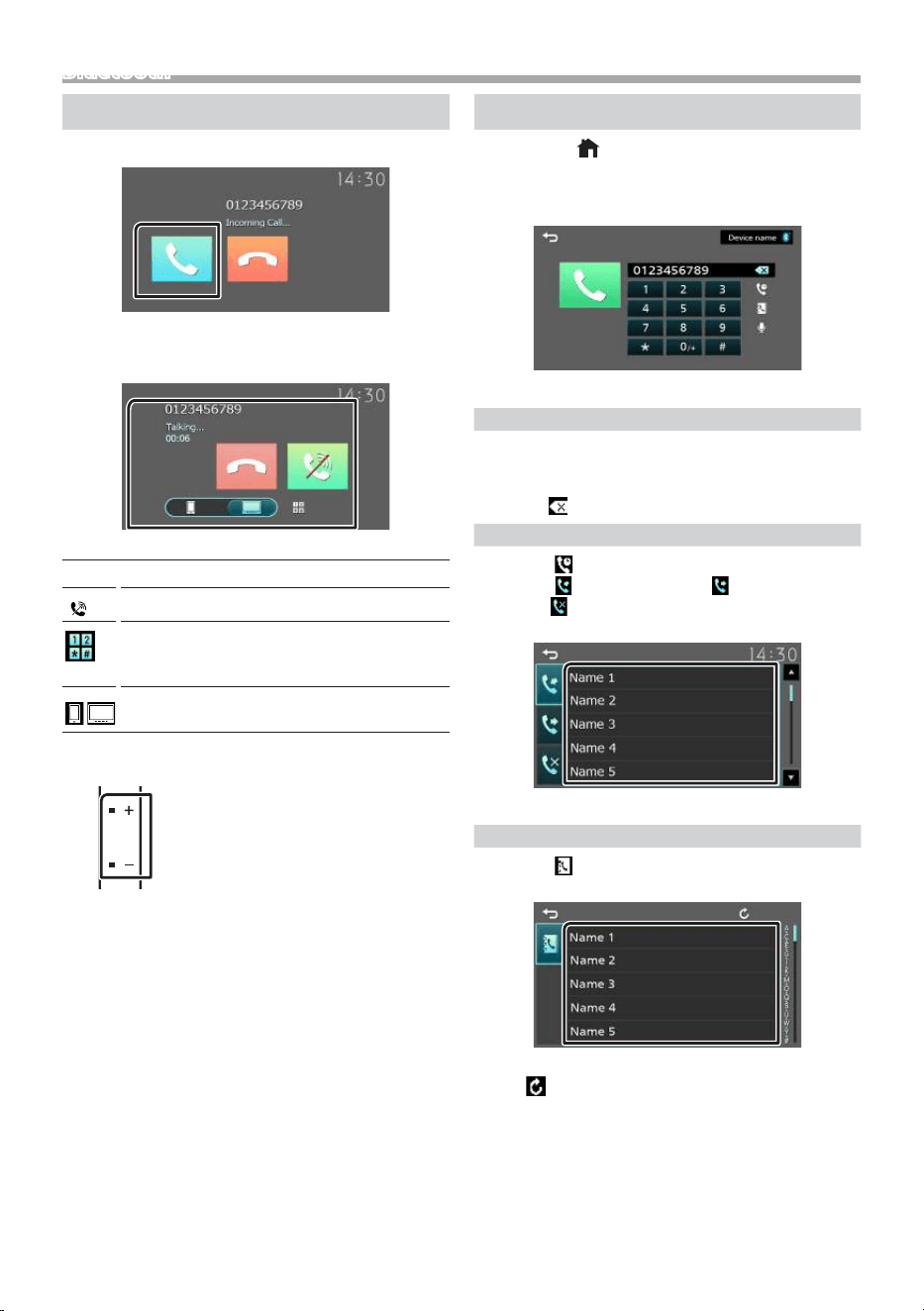
1 Touch [Û].
• [Ý] : Reject an incoming call.
Ñ Operations during a call
[Ý]
Ending a call
[
]
Mute your voice
You can send tones by touching desired keys
on the screen.
• Touch [6] to close the window.
Switches the speaking voice output between
smartphone/cell-phone and speaker.
Adjust the receiver volume
Press the <+> or <–> button.
Make a phone call
1 Press the <
> button.
2
Touch [Phone].
3 See the table below for each operation method.
Call by entering a phone number
1) Enter a phone number with number keys.
2) Touch [Û].
Make a call
• Touch [
] to delete the last entry.
Call using call records
1) Touch [
].
2) Touch [ ] (Incoming Calls), [ ] (Outgoing
Calls), [ ] (Missed Calls).
3) Select the phone number from the list.
Make a call
Call using the phonebook
1) Touch [
].
2) Select the name from the list.
Make a call
• [
] : Updates the phonebook. Touch this
button after you have made a change
to the phonebook of your smartphone/
cell-phone.
13
English |
Bluetooth
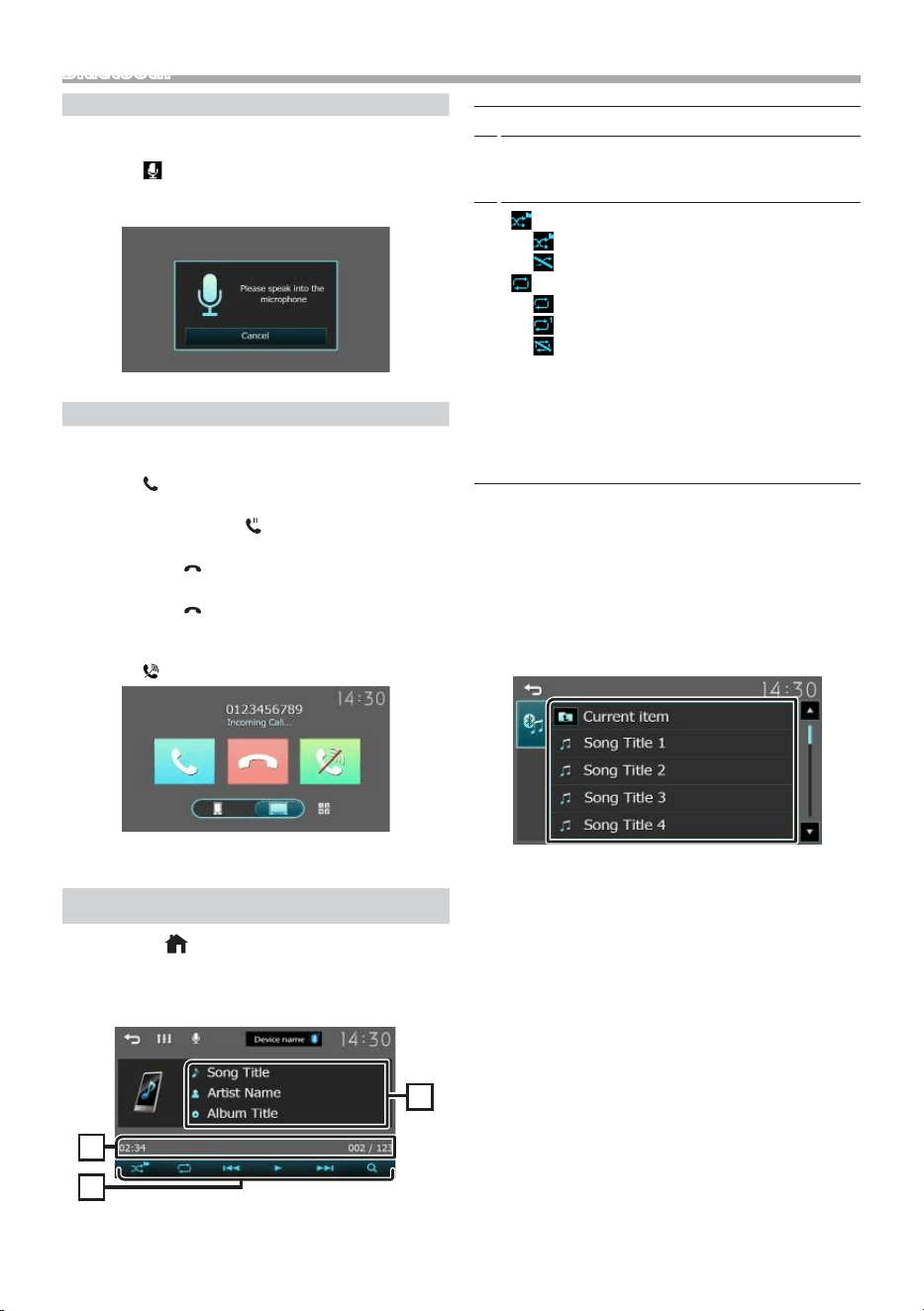
Call by voice
You can make a voice call using the voice
recognition function of the Bluetooth smartphone.
1) Touch [
].
2) Say the name registered in the Bluetooth
smartphone.
• Touch [Cancel] to cancel voice dialing.
Call Waiting
When you receive a new call while talking on the
phone:
1) Touch [
] , the current call is put on hold and
you can answer the newly received call.
2) Each time you touch [ ], the caller will change
to the other one.
3) If you touch [ ] during call waiting, reject an
incoming call.
4) If you touch [ ], when someone is on hold, the
current call will end to be swtiched to the call
waitng on hold .
5) Touch [ ] mute your voice
Playing Bluetooth Audio Device
1 Press the <
> button.
2 Touch [Bluetooth Audio].
Ñ Source control screen
1
3
2
1
Displays the information of the current le.
2
Playing time/File number
Play time bar : For conrmation of current playing
position.
3
[
] : Selects Random playback mode.
: Randomly plays all les.
: Random o
[ ] : Selects Repeat playback mode.
: Repeats all les.
: Repeats the current le.
: Repeat o
[U], [H] : Plays or pauses.
[E], [F] : Searches the previous/next
content.
Touch and hold to fast forward or fast
backward.
[1] : Searches le. (P.13)
✎ NOTE
• Operations and display indications may dier
according to their availability on the connected
device.
Ñ Selecting a content in a list
1 Touch [1].
2 Touch desired item.
When you touch a category its contents are
displayed.
3 Touch desired item from the content list.
Playback starts.
• Touch [6] to moves to the upper hierarchy.
✎ NOTE
• The source control screen appears when you touch
[6] at the top hierarchy.
14
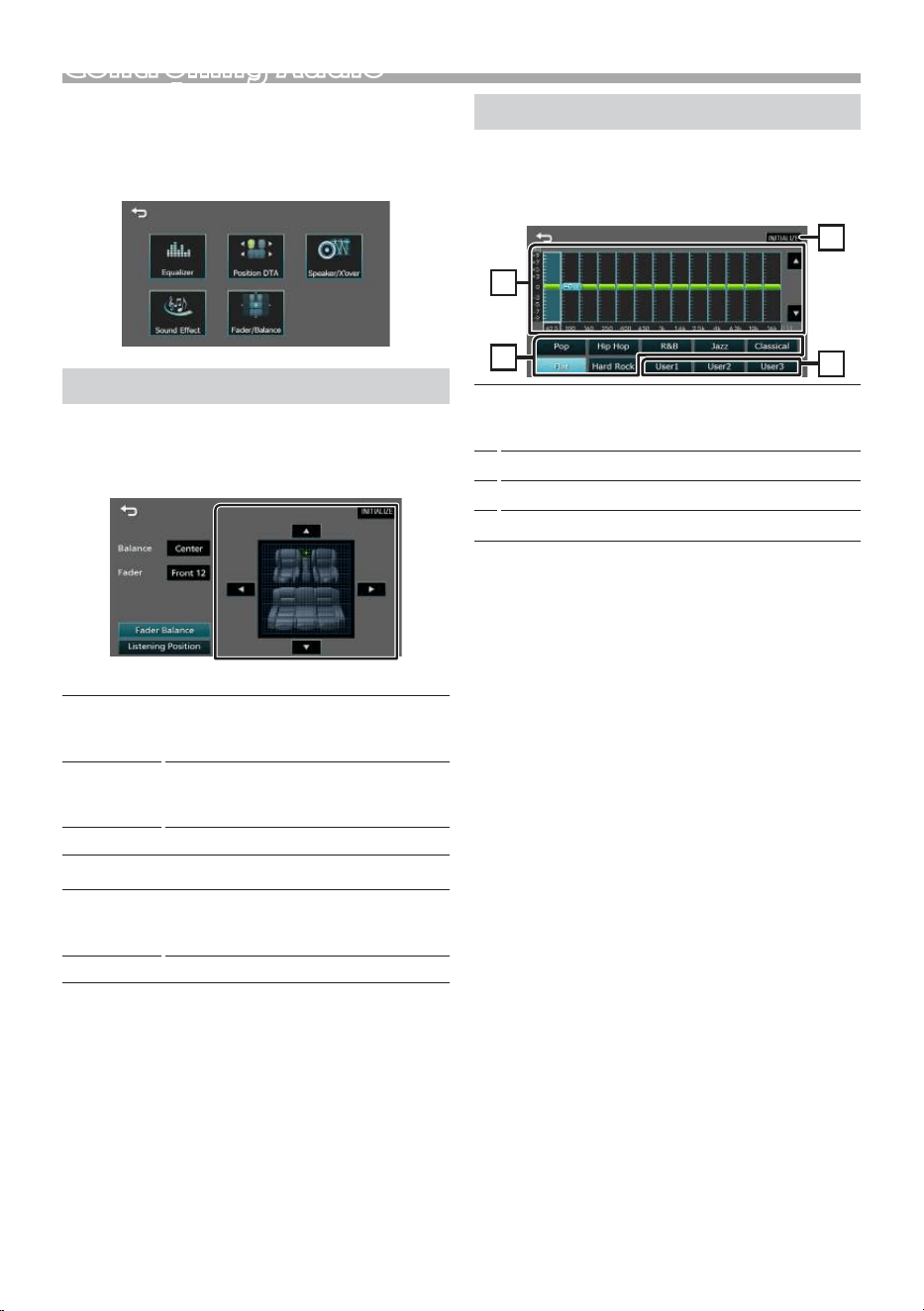
Controlling Audio
You can adjust various settings such as audio
balance or subwoofer level.
1 Press the <EQ> button.
2
See the below for each operation method.
Controlling General Audio
1 Press the <EQ> button.
2 Touch [Fader / Balance].
3 Set each item as follows.
[Fader Balance]
Balance
[T] [U]
Adjust the left and right volume
balance.
15 (left) to 15 (right)
Fader
[R] [S]
Adjust the front and rear volume
balance.
15 (front) to 15 (rear)
[INITIALIZE]
To clear the adjustment.
[Listening Position]
[.]
Select a listening position from “Front
Left”, “Front All”, “Front Right”, and
“Middle”.
[INITIALIZE]
To clear the adjustment.
Equalizer Control
1 Press the <EQ> button.
2
Touch [Equalizer].
3 Set each item as follows.
1
2
3
4
1
You can select frequency bar and adjust its level.
(-9 to +9)
• The adjustments are stored.
2
To recall the preset equalizer curve.
3
Recalls the memorized EQ curve.
4
Initialize the current EQ curve.
Controlling Audio
15
English |
Controlling Audio
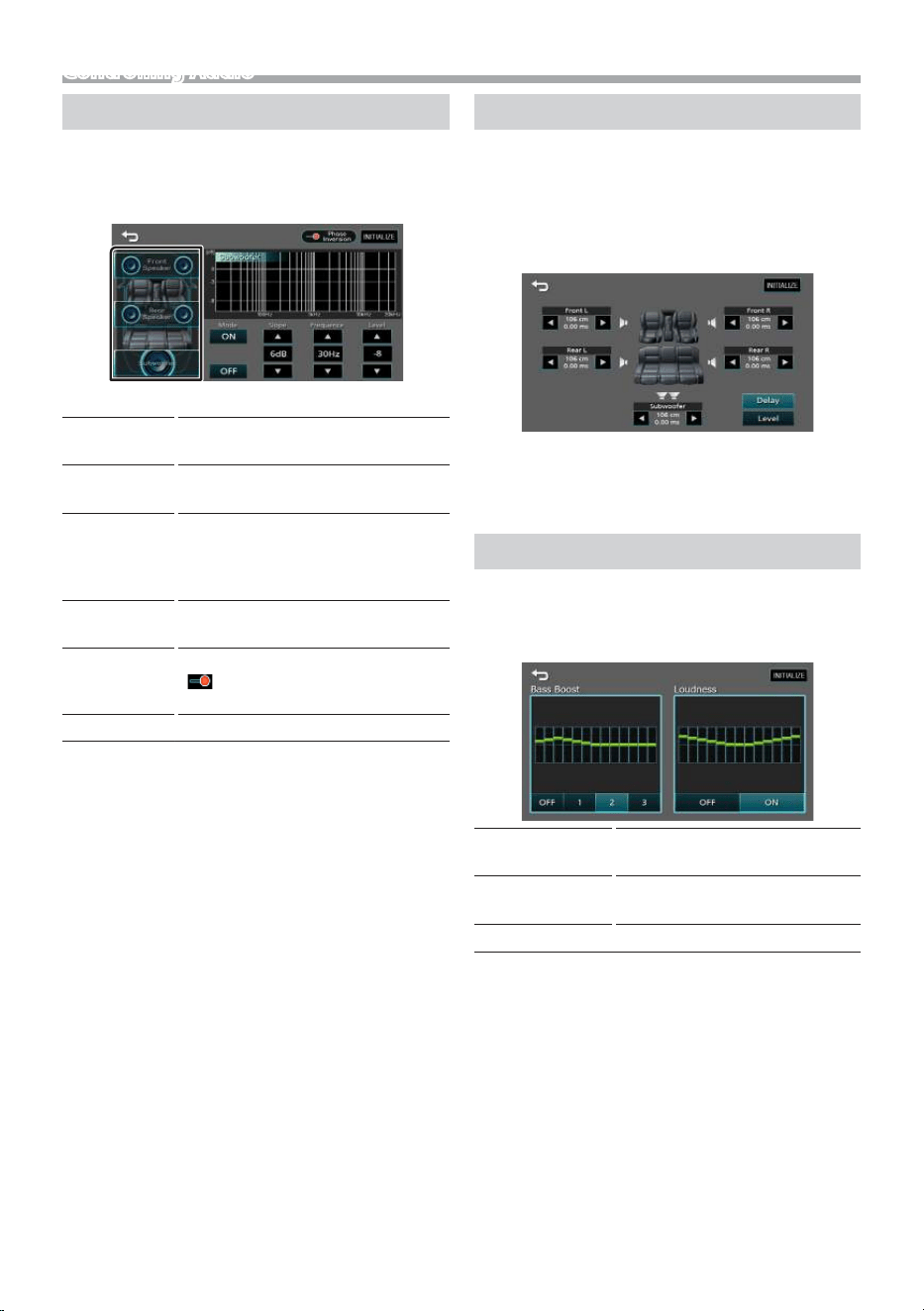
Speaker / X’over setup
1 Press the <EQ> button.
2
Touch [Speaker / X’over].
3 Touch the speaker to set up.
4 Set each item as follows.
Mode
[OFF], [ON]
[ON] : Filter adjustment.
[OFF] : Turns o the lter.
Slope
[R] [S]
Set a crossover slope.
Frequence
[R] [S]
• High Pass Filter adjustment. (When
Front or Rear is selected)
• Low Pass Filter adjustment. (When
Subwoofer is selected)
Level
[R] [S]
Adjust the gain of the front speaker,
rear speaker, or subwoofer.
Phase
Inversion
Set the phase of subwoofer output.
[
] to shift the phase 180 degrees.
(When Subwoofer is selected)
[INITIALIZE]
To clear the adjustment.
Listening Position DTA
1 Press the <EQ> button.
2
Touch [Position DTA].
3 Touch [Delay].
4
Touch [T] or [U] to adjust the delay time of the
selected speaker.
5 Touch [Level].
6
Touch [T] or [U] to adjust the sound level of the
selected speaker.
Sound Eect
1 Press the <EQ> button.
2 Touch [Sound Effect].
3 Set each item as follows.
Bass Boost
[OFF], [1], [2], [3]
Set the amount of bass boost
Loudness
[OFF], [ON]
Set the amount of boost of low
and high tones.
[INITIALIZE]
To clear the adjustment.
16
Remote control
This unit can be operated using the remote control.
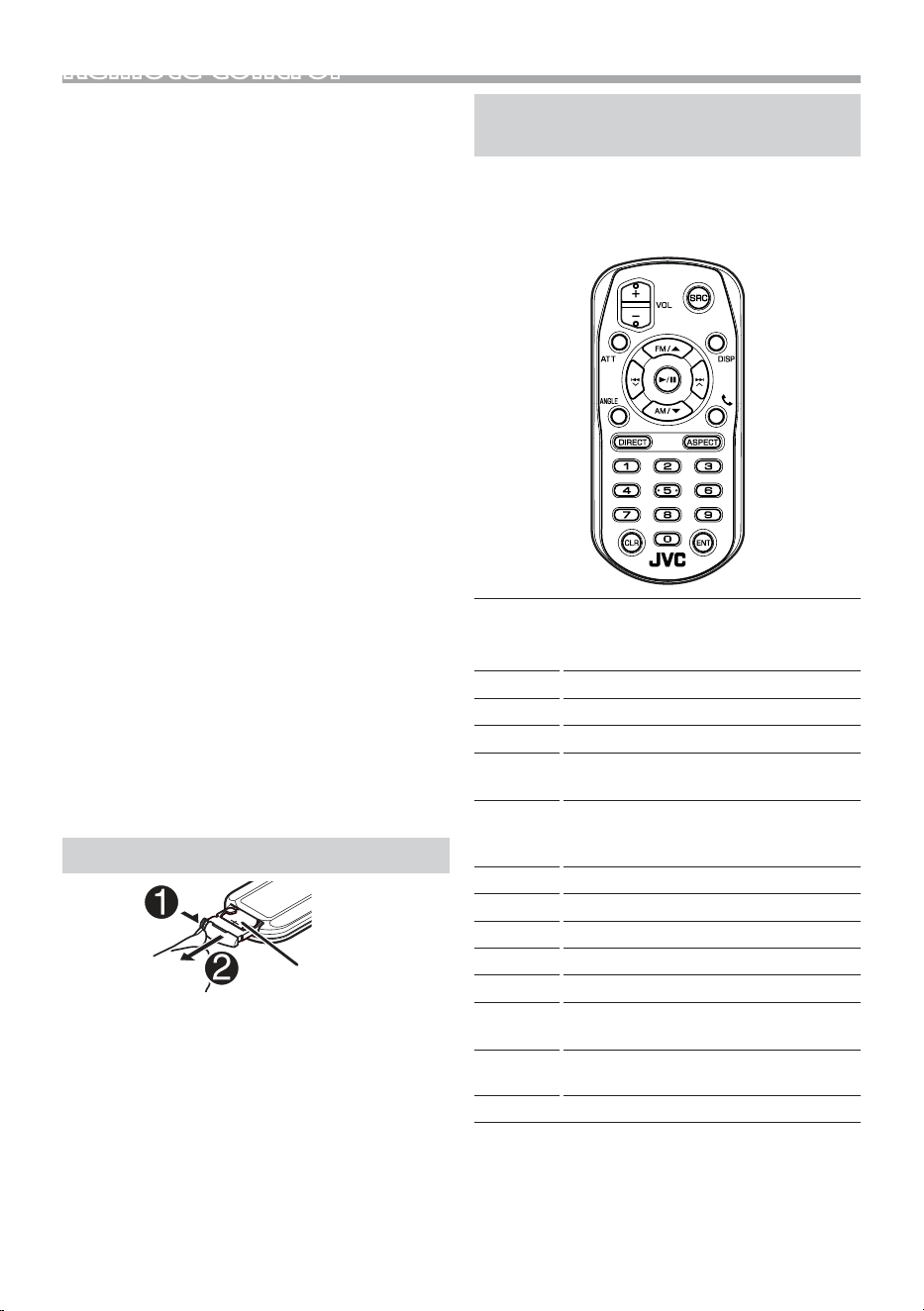
The remote control RM-RK258 (optional accessory)
can be used.
Functions of the Remote control
Buttons
• Aim the remote control directly at the remote sensor
on the faceplate.
• DO NOT expose the remote sensor to bright light
(direct sunlight or articial lighting).
#WARNINGS
• Do not ingest the battery, Chemical Burn Hazard
The remote control supplied with this product
contains a coin/button cell battery. If the coin/
button cell battery is swallowed, it can cause severe
internal burns in just 2 hours and can lead to death.
Keep new and used batteries away from children. If
the battery compartment does not close securely,
stop using the product and keep it away from
children.
If you think batteries might have been swallowed or
placed inside any part of the body, seek immediate
medical attention.
#CAUTION
• Risk of re or explosion if the battery is replaced by
an incorrect type. Ensure to replace only with the
same type.
• Risk of re, explosion or the leakage of ammable
liquid or gas if the battery is left in an extremely
high temperature surrounding environment and/
or subjected extremely low air pressure. The battery
pack or batteries shall not be exposed to excessive
heat such as sunshine, re or the like.
• Risk of re, explosion or the leakage of ammable
liquid or gas if the battery is disposed into re or a
hot oven, recharged, shorted, mechanically crushed
or cut of the battery.
• If spilled uid comes in contact with your eyes or on
clothing, immediately rinse with water and consult
a physician.
Battery Installation
CR2025 (+side)
• Use a commercially available button battery
(CR2025).
• Insert the battery with the + and – poles aligned
properly.
–If the eectiveness of the remote controller
decreases, replace the battery.
SRC
• Switches to the source to be played.
• In hands-free mode, hangs up the
phone
VOL + –
Adjusts the volume.
ATT
Mutes/restores the sound
DISP
Not used.
FM/R
AM/S
During tuner source, select FM/ AM band
to be received.
E 2
F 3
Selects the track or le to be played. For
the tuner sources, switches to broadcast
stations received by the unit
ANGLE
Not used
K
Plays or pauses.
Û
When a call comes in, answers the call.
DIRECT
Not used.
ASPECT
Not used.
Numeric
Keypad
Not used.
CLR
Clears the telephone number input on
the Phone screen.
ENT
Not used.
17
English |
InstallationInstallation
Before Installation
Before installation of this unit, please note the
following precautions.
#WARNINGS
• If you connect the ignition wire (red) and the battery
wire (yellow) to the car chassis (ground), you may
cause a short circuit, that in turn may start a re.
Always connect those wires to the power source
running through the fuse box.
• Do not cut out the fuse from the ignition wire (red)
and the battery wire (yellow). The power supply
must be connected to the wires via the fuse.
#CAUTION
• Install this unit in the console of your vehicle.
Do not touch the metal part of this unit during and
shortly after the use of the unit. Metal part such as
the heat sink and enclosure become hot.
NOTE
• Mounting and wiring this product requires skills and
experience. For best safety, leave the mounting and
wiring work to professionals.
• Make sure to ground the unit to a negative 12V DC
power supply.
• Do not install the unit in a spot exposed to direct
sunlight or excessive heat or humidity. Also avoid
places with too much dust or the possibility of water
splashing.
• Do not use your own screws. Use only the screws
provided. If you use the wrong screws, you could
damage the unit.
• If your car’s ignition does not have an ACC position,
connect the ignition wires to a power source that
can be turned on and o with the ignition key. If you
connect the ignition wire to a power source with a
constant voltage supply, such as with battery wires,
the battery may be drained.
• If the console has a lid, make sure to install the unit
so that the front panel will not hit the lid when
closing and opening.
• If the fuse blows, rst make sure the wires aren’t
touching to cause a short circuit, then replace the
old fuse with one with the same rating.
• Insulate unconnected wires with vinyl tape or other
similar material. To prevent a short circuit, do not
remove the caps on the ends of the unconnected
wires or the terminals.
• Secure the wires with cable clamps and wrap vinyl
tape around the wires that comes into contact with
metal parts to protect the wires and to prevent short
circuit.
• Connect the speaker wires correctly to the terminals
to which they correspond. The unit may be
damaged or fail to work if you share the ¤ wires or
ground them to any metal part in the car.
• When only two speakers are being connected to
the system, connect the connectors either to both
the front output terminals or to both the rear output
terminals (do not mix front and rear). For example,
if you connect the ¢ connector of the left speaker
to a front output terminal, do not connect the ¤
connector to a rear output terminal.
• After the unit is installed, check whether the brake
lamps, blinkers, wipers, etc. on the car are working
properly.
• Mount the unit so that the mounting angle is 30°
or less.
• Do not press hard on the panel surface when installing
the unit to the vehicle. Otherwise scars, damage, or
failure may result.
• Reception may drop if there are metal objects near
the Bluetooth antenna.
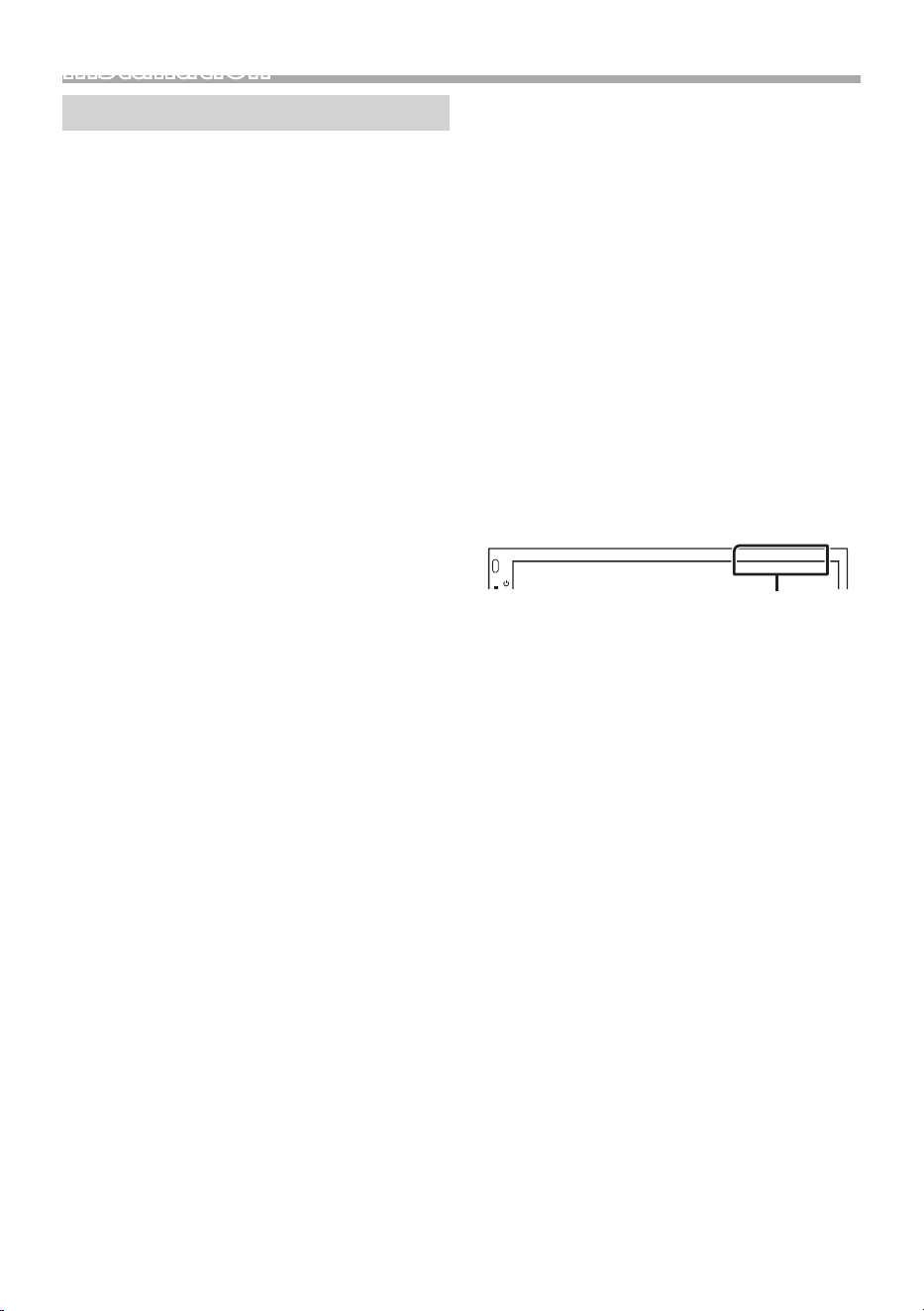
Bluetooth antenna unit
18
Installation
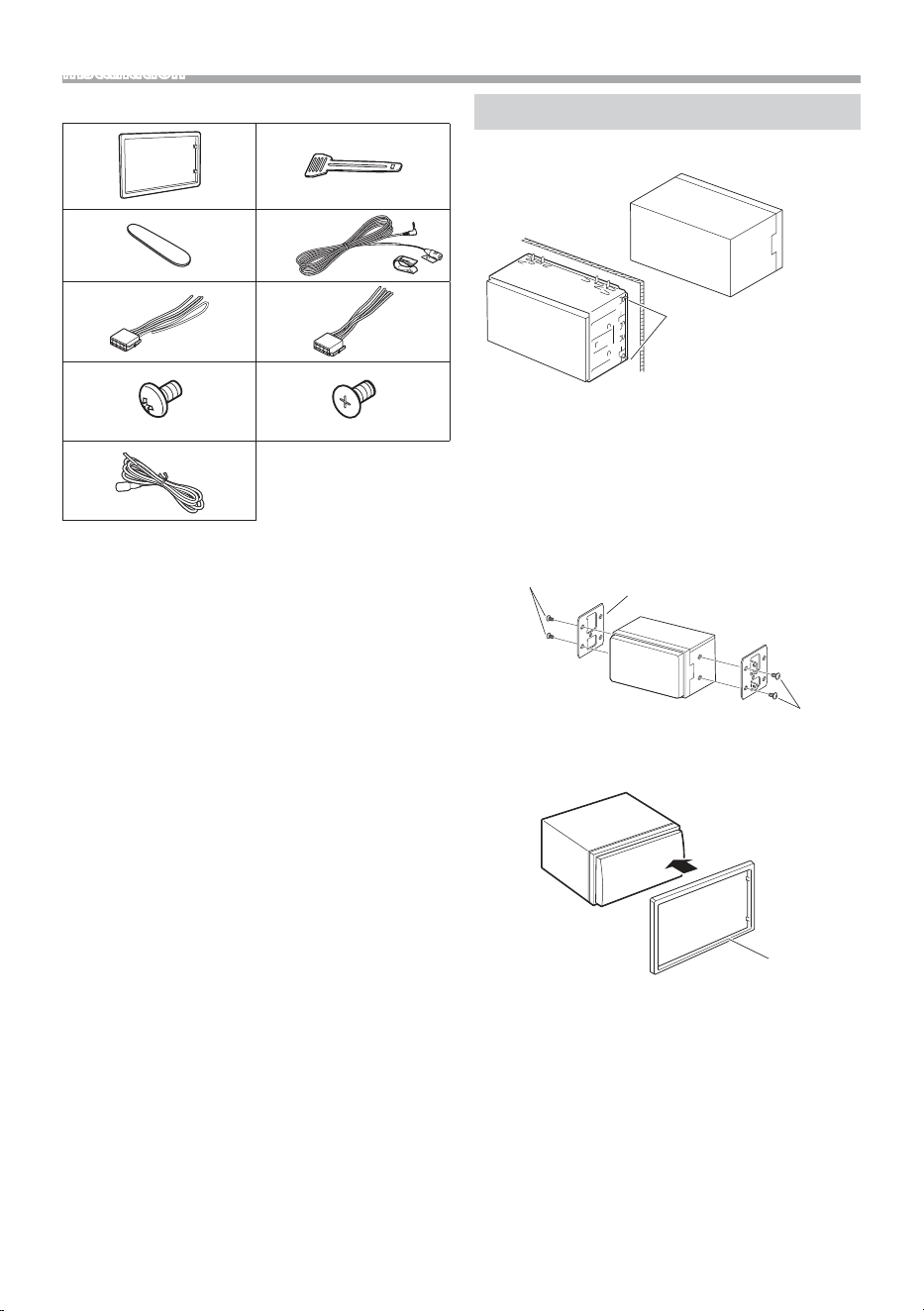
Ñ Supplied accessories for installation
1
x1
2
x2
3
x1
4
(3 m)
x1
5
x1
6
x1
7
(M5 × 6 mm)
x6
8
(M5 × 8 mm)
x6
9
(2 m)
x1
Ñ Installation procedure
1) To prevent a short circuit, remove the key from
the ignition and disconnect the ¤ terminal of the
battery.
2) Make the proper input and output wire
connections for each unit.
3) Connect the wire on the wiring harness.
4) Take Connector B on the wiring harness and
connect it to the speaker connector in your vehicle.
5) Take Connector A on the wiring harness and
connect it to the external power connector on your
vehicle.
6) Connect the wiring harness connector to the unit.
7) Install the unit in your car.
8) Reconnect the ¤ terminal of the battery.
9) Press the reset button.
Installing the unit
Ñ Non-Japanese cars
Bend the tabs of the
mounting sleeve with
a screwdriver or similar
utensil and attach it in
place.
✎ NOTE
• Make sure that the unit is installed securely in place.
If the unit is unstable, it may malfunction (eg, the
sound may skip).
Ñ Japanese cars (North America, South
America sales area only)
7 or 8
7 or 8
Car Bracket
Ñ Trim plate
1) Attach accessory 1 to the unit.
1
19
English |
Installation
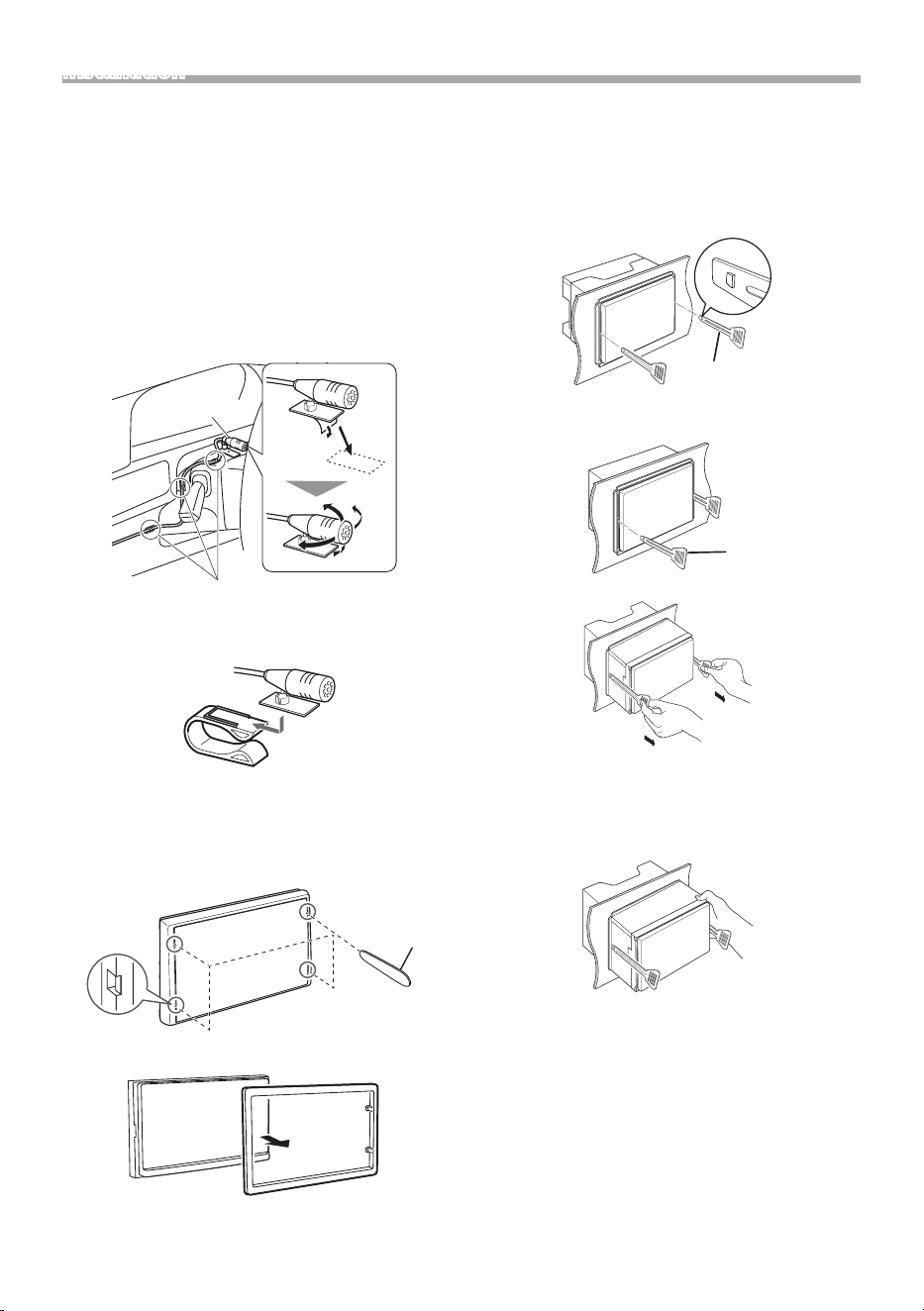
Ñ Microphone unit
1) Check the installation position of the microphone
(accessory 4).
2) Clean the installation surface.
3) Remove the separator of the microphone
(accessory 4), and stick the microphone to the
place shown below.
4) Wire the microphone cable up to the unit with it
secured at several positions using tape or other
desired method.
5) Adjust the direction of the microphone (accessory
4) to the driver.
4
Fix a cable with a commercial item of tape.
✎ NOTE
• Swap the clips if necessary.
Ñ Removing the trim plate
1) Use the extraction key (accessory 3) to lever out
the four tabs (two on the left part, two on the right
part).
3
2) Pull the trim plate forward.
Ñ Removing the unit
1) Remove the trim plate by referring to step 1 in
“Removing the trim plate”.
2) Insert the extraction key (accessory 2) deeply into
the slot as shown. (The protrusion at the tip of the
extraction key must face toward the unit.)
2
3) With the inserted extraction key secured, insert the
other extraction key into the slot.
2
4) Pull out the unit halfway.
✎ NOTE
• Be careful to avoid injury from the catch pins on
the extraction key.
5) Pull the unit all the way out with your hands, being
careful not to drop it.
20
Installation
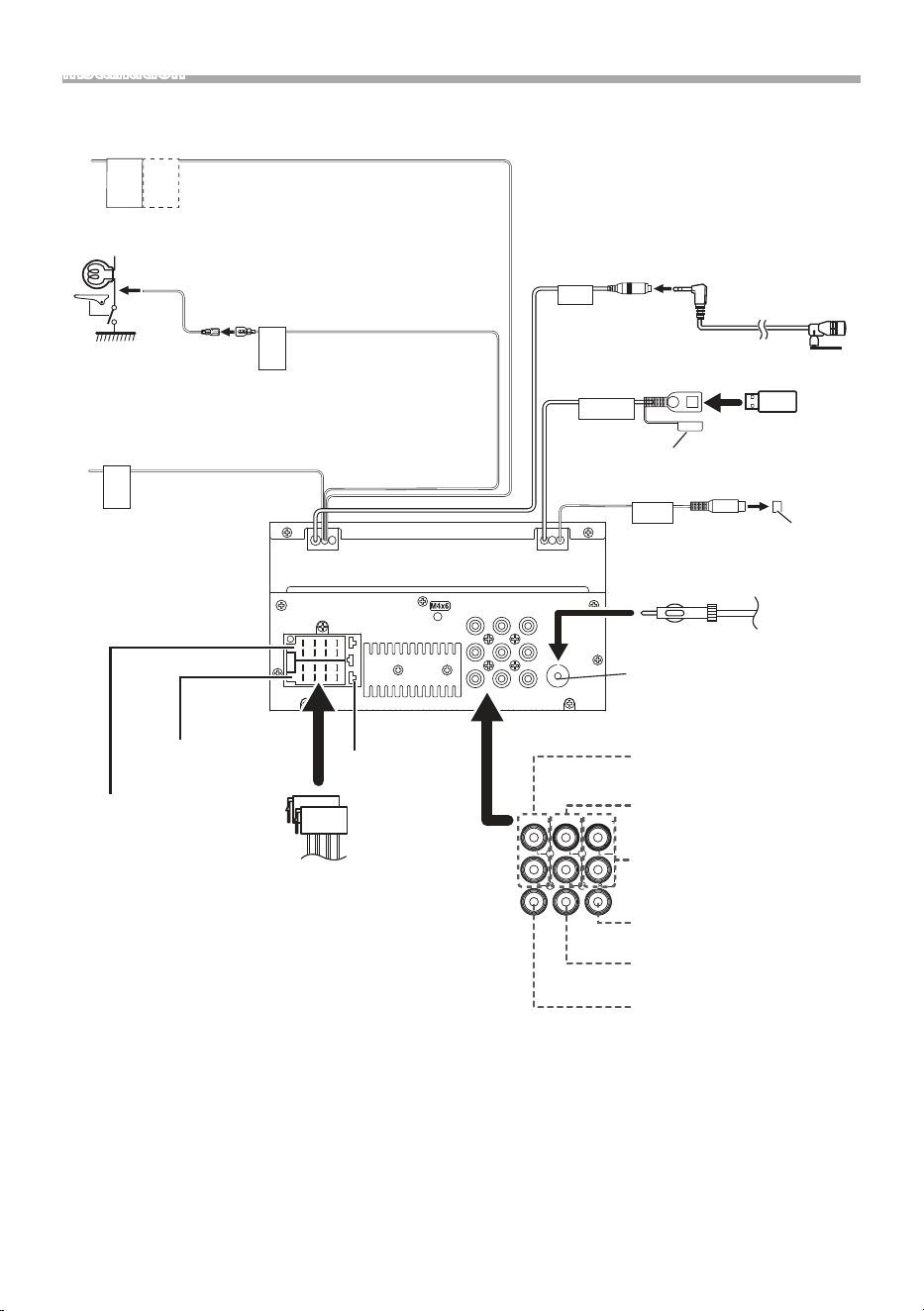
Ñ Connecting wires to terminals
[1]
USB maximum power supply current :
DC 5 V = 1.5A
[2]
Sold separately
ANT
CAM IN VIDEO OUT VIDEO IN
AV IN
L
R
FRONT OUTREAR OUT
M4x6
5V
=
1.5A
MIC
SUB
WOOFER
REVERSE
STEERING
WHEEL
REMOTE
INPUT
REMOTE
CONT
2 4 6 8
1 3 5 7
2 4 6 8
1 3 5 7
PRK SW
Connect to the vehicle’s
parking brake detection
switch harness.
For best safety, be sure to
connect the parking sensor.
Light Green (Parking sensor wire)
Accessory 9: Extension cable
Purple/White (Reverse sensor wire)
Accessory 4:
Bluetooth Microphone
To steering remote
To use the steering wheel remote control feature,
you need an exclusive remote adapter (not
supplied) matched to your car.
Connect to vehicle’s reverse
lamp harness when using the
optional rear view camera.
Light Blue/Yellow (Steering remote control wire)
Fuse (15A)
Subwoofer Preout
Cap
Cap
FM/AM antenna input
FM/AM
antenna
Connector A
Connector B
USB device
[2]
USB terminal
[1]
(1.0 m)
Accessory 5
Accessory 6
FRONT OUTREAR OUT
VIDEO OUTVIDEO INCAM IN
AV IN
Rear Audio Preout
(Left; White, Right; Red)
AV-IN audio input
(Left; White, Right; Red)
Front Audio Preout
(Left; White, Right; Red)
Visual Output (Yellow)
Rear view camera input (Yellow)
AV-IN visual input (Yellow)
1.5A
21
English |
Installation
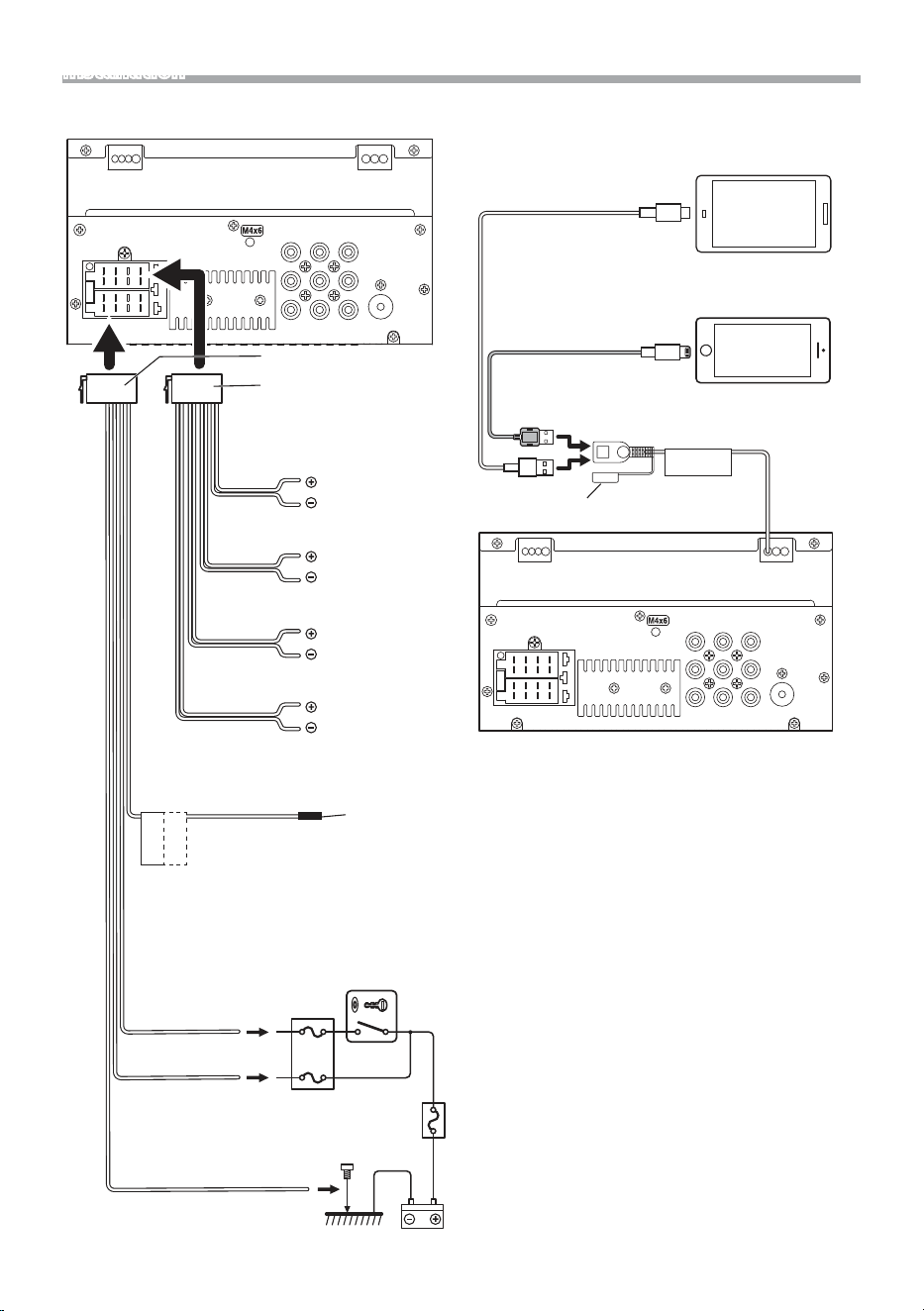
Ñ Connecting an iPhone/Android
ANT
CAM IN VIDEO OUT VIDEO IN
AV IN
L
R
FRONT OUTREAR OUT
M4x6
2 4 6 8
1 3 5 7
2 4 6 8
1 3 5 7
P.CONT
ANT.CONT
Accessory 6
Accessory 5
Blue
(Power control/ Antenna control wire)
Connect either to the power control
terminal when using the optional power
amplier, or to the power terminal for
the booster amplier of the lm-type or
short pole type antenna.
(Max. 150mA, 12V)
White/Black
Gray/Black
Green/Black
Purple/Black
Speaker impedance: 4-8 Ω
Purple
Green
Gray
White
To front left speaker
To front right
speaker
To rear left speaker
To rear right
speaker
Cap
Red (Ignition wire)
Black (Ground wire) ¤
(To car chassis)
Yellow (Battery wire)
Ignition key switch
Car fuse box
ACC
Battery
[1]
USB maximum power supply current :
DC 5 V =
[2]
Sold separately
ANT
CAM IN VIDEO OUT VIDEO IN
AV IN
L
R
FRONT OUTREAR OUT
M4x6
5V
=
1.5A
USB cable
[2]
Android smartphone
[2]
Cap
USB terminal
[1]
(1.0 m)
Lightning-USB cable
[2]
iPhone
[2]
22
About this Unit
More information
Ñ Usable USB device
NOTE
• When the USB device is connected to this unit, it can
be charged through the USB cable.
• Install the USB device in the place where it will not
aect safe driving.
• You cannot connect a USB device via a USB hub and
Multi Card Reader.
• Take backups of the audio les used with this unit.
The les may be erased depending on the operating
conditions of the USB device.
We shall have no compensation for any damage
arising from any erased data.
• No USB device comes with this unit. You need to
purchase a commercially available USB device.
• Cap the USB terminal whenever not using.
Ñ Playable Audio les
Audio format Bit rate/
(Bit count)
Sampling
frequency
MP3 (.mp3) 16 – 320kbps,
VBR
16 – 48 kHz
WMA (.wma) 16 – 320kbps 16 – 48 kHz
AAC-LC (.m4a) 16 – 320kbps 16 – 48 kHz
Linear PCM (WAVE)
(.wav)
(16/24 bit) 8 – 192 kHz
FLAC (.ac) (16/24 bit) 8 – 192 kHz
Vorbis (.ogg) (16/24 bit) 8 – 192 kHz
• This unit can show ID3 Tag Version 1.0/1.1/2.2/2.3/2.4
(for MP3).
NOTE
• WMA and AAC of which is covered with DRM cannot
be played.
• Although the audio les are complied with the
standards listed above, the play may be impossible
depending on the types or conditions of media or
device.
Ñ Acceptable Video les
Video
format
Video codec Audio codec
MPEG-1
(.mpg, .mpeg)
MPEG-1 MPEG Audio Layer 2
MPEG-2
(.mpg, .mpeg)
MPEG-2 MPEG Audio Layer 2
MPEG-4
(.mp4, .avi)
MPEG-4
(SP,ASP)
MP3, AAC-LC (2ch)
H.264/MPEG-
4 AVC (.mp4,
mkv, avi, .v,
.f4v)
H.264/MPG-4
AVC
(BP/MP/HP)
MP3, AAC (2ch)
MKV (.mkv) Video Format
follows H.264/
MPEG-4 AVC,
MPEG4, XVID
MP3, AAC, Vorbis,
FLAC
About this Unit
Ñ Usable USB device
This unit can play MPEG1/ MPEG2/ MPEG4/ H.264/
MKV/ MP3/WMA/ AAC/ WAV/ FLAC/ OGG files stored
in a USB mass storage class device.
• File system: FAT16/FAT32 /NTFS/ exFAT
• This unit can recognize a total of 9,999 les and
320 folders (a maximum of 9,999 les per folder).
• The maximum number of characters:
– Folder names : 70 characters
– File names : 70 characters
– Tag : 70 characters

23
English |
About this Unit
Troubleshooting
What appears to be trouble is not always serious.
Check the following points before calling a service
center.
• For operations with the external components, refer
also to the instructions supplied with the adapters
used for the connections (as well as the instructions
supplied with the external components).
Ñ General
No sound comes out of the speakers.
• Adjust the volume to the optimum level.
• Check the cords and connections.
The unit does not work at all.
• Reset the unit. (P.2)
The remote controller does not work.
• Replace the battery.
Ñ USB
While playing a track, sound is sometimes
interrupted.
• The tracks are not properly copied into the USB
device. Copy the tracks again, and try again.
Ñ iPhone
No sound comes out of the speakers.
• Disconnect the iPhone, then connect it again.
• Select another source, then reselect “iPhone”.
The iPhone does not turn on or does not work.
• Check the connecting cable and its connection.
• Update the rmware version of iPhone.
• Charge the battery of iPhone.
• Reset the iPhone.
Sound is distorted.
• Deactivate the equalizer either on this unit or the
iPhone.
A lot of noise is generated.
• Turn o (uncheck) “VoiceOver” on the iPhone. For
details, visit <https://www.apple.com>.
Ñ Tuner
Automatic presetting does not work.
• Store stations manually. (P.6)
Static noise while listening to the radio.
• Connect the antenna rmly.
Ñ AV-IN
No picture appears on the screen.
• Turn on the video component if it is not on.
• Connect the video component correctly.
Ñ Bluetooth
Phone sound quality is poor.
• Reduce the distance between the unit and the
Bluetooth mobile phone.
• Move the car to a place where you can get a better
signal reception.
The sound is interrupted or skipped while using
a Bluetooth audio player.
• Reduce the distance between the unit and the
Bluetooth audio player.
• Turn o, then turn on the unit. (When the sound is
not yet restored) connect the player again.
The connected audio player cannot be
controlled.
• Check whether the connected audio player supports
AVRCP (Audio/Video Remote Control Prole).
The Bluetooth device does not detect the unit.
• Search from the Bluetooth device again.
• If you are connected to another Bluetooth device,
disconnect the Bluetooth connection.
The unit does not pair with the Bluetooth
device.
• Turn o, then turn on the Bluetooth device.
• Disconnect the Bluetooth device currently
connected and then register the new device.
(P.11)

24
About this Unit
Copyrights
• The Bluetooth® word mark and logos are registered
trademarks owned by the Bluetooth SIG, Inc. and any
use of such marks by JVCKENWOOD Corporation is
under license. Other trademarks and trade names are
those of their respective owners.
• Use of the Made for Apple badge means that an
accessory has been designed to connect specically
to the Apple product(s) identied in the badge and
has been certied by the developer to meet Apple
performance standards. Apple is not responsible for
the operation of this device or its compliance with
safety and regulatory standards. Please note that the
use of this accessory with an Apple product may aect
wireless performance.
• Apple, iPhone and Lightning are trademarks of Apple
Inc., registered in the U.S. and other countries.
• Android is a trademark of Google LLC.
• Microsoft and Windows Media are either registered
trademarks or trademarks of Microsoft Corporation in
the United States and/or other countries.
• THIS PRODUCT IS LICENSED UNDER THE MPEG-4 VISUAL
PATENT PORTFOLIO LICENSE FOR THE PERSONAL
AND NON-COMMERCIAL USE OF A CONSUMER FOR (¡)
ENCODING VIDEO IN COMPLIANCE WITH THE MPEG-
4 VISUAL STANDARD (“MPEG-4 VIDEO”) AND/OR (¡¡)
DECODING MPEG-4 VIDEO THAT WAS ENCODED BY
A CONSUMER ENGAGED IN A PERSONAL AND NON-
COMMERCIAL ACTIVITY AND/OR WAS OBTAINED
FROM A VIDEO PROVIDER LICENSED BY MPEG LA TO
PROVIDE MPEG-4 VIDEO. NO LICENSE IS GRANTED OR
SHALL BE IMPLIED FOR ANY OTHER USE. ADDITIONAL
INFORMATION INCLUDING THAT RELATING TO
PROMOTIONAL, INTERNAL AND COMMERCIAL USES
AND LICENSING MAY BE OBTAINED FROM MPEG LA, LLC.
SEE HTTP://WWW.MPEGLA.COM.
• THIS PRODUCT IS LICENSED UNDER THE AVC PATENT
PORTFOLIO LICENSE FOR THE PERSONAL USE OF A
CONSUMER OR OTHER USES IN WHICH IT DOES NOT
RECEIVE REMUNERATION TO (¡)ENCODE VIDEO IN
COMPLIANCE WITH THE AVC STANDARD (“AVC VIDEO”)
AND/OR (¡¡)DECODE AVC VIDEO THAT WAS ENCODED BY
A CONSUMER ENGAGED IN A PERSONAL ACTIVITY AND/
OR WAS OBTAINED FROM A VIDEO PROVIDER LICENSED
TO PROVIDE AVC VIDEO. NO LICENSE IS GRANTED OR
SHALL BE IMPLIED FOR ANY OTHER USE. ADDITIONAL
INFORMATION MAY BE OBTAINED FROM MPEG LA, L.L.C.
SEE HTTP://WWW.MPEGLA.COM
• libFLAC
Copyright (C) 2000-2009 Josh Coalson
Copyright (C) 2011-2013 Xiph.Org Foundation
–Redistribution and use in source and binary forms,
with or without modication, are permitted provided
that the following conditions are met:
–Redistributions of source code must retain the above
copyright notice, this list of conditions and the
following disclaimer.
–Redistributions in binary form must reproduce the
above copyright notice, this list of conditions and the
following disclaimer in the documentation and/or
other materials provided with the distribution.
Neither the name of the Xiph.org Foundation nor the
names of its contributors may be used to endorse or
promote products derived from this software without
specic prior written permission.
THIS SOFTWARE IS PROVIDED BY THE COPYRIGHT
HOLDERS AND CONTRIBUTORS ``AS IS’’ AND ANY
EXPRESS OR IMPLIED WARRANTIES, INCLUDING,
BUT NOT LIMITED TO, THE IMPLIED WARRANTIES OF
MERCHANTABILITY AND FITNESS FOR A PARTICULAR
PURPOSE ARE DISCLAIMED. IN NO EVENT SHALL THE
FOUNDATION OR CONTRIBUTORS BE LIABLE FOR ANY
DIRECT, INDIRECT, INCIDENTAL, SPECIAL, EXEMPLARY,
OR CONSEQUENTIAL DAMAGES (INCLUDING, BUT NOT
LIMITED TO, PROCUREMENT OF SUBSTITUTE GOODS
OR SERVICES; LOSS OF USE, DATA, OR PROFITS; OR
BUSINESS INTERRUPTION) HOWEVER CAUSED AND ON
ANY THEORY OF LIABILITY, WHETHER IN CONTRACT,
STRICT LIABILITY, OR TORT (INCLUDING NEGLIGENCE OR
OTHERWISE) ARISING IN ANY WAY OUT OF THE USE OF
THIS SOFTWARE, EVEN IF ADVISED OF THE POSSIBILITY
OF SUCH DAMAGE.
• libogg
Copyright (c) 2002, Xiph.org Foundation Redistribution
and use in source and binary forms, with or without
modication, are permitted provided that the following
conditions are met:
–Redistributions of source code must retain the above
copyright notice, this list of conditions and the
following disclaimer.
–Redistributions in binary form must reproduce the
above copyright notice, this list of conditions and the
following disclaimer in the documentation and/or
other materials provided with the distribution.
–Neither the name of the Xiph.org Foundation nor the
names of its contributors may be used to endorse or
promote products derived from this software without
specic prior written permission.
THIS SOFTWARE IS PROVIDED BY THE COPYRIGHT
HOLDERS AND CONTRIBUTORS ``AS IS’’ AND ANY
EXPRESS OR IMPLIED WARRANTIES, INCLUDING,
BUT NOT LIMITED TO, THE IMPLIED WARRANTIES OF
MERCHANTABILITY AND FITNESS FOR A PARTICULAR
PURPOSE ARE DISCLAIMED. IN NO EVENT SHALL THE
FOUNDATION OR CONTRIBUTORS BE LIABLE FOR ANY
DIRECT, INDIRECT, INCIDENTAL, SPECIAL, EXEMPLARY,
OR CONSEQUENTIAL DAMAGES (INCLUDING, BUT NOT
LIMITED TO, PROCUREMENT OF SUBSTITUTE GOODS
OR SERVICES; LOSS OF USE, DATA, OR PROFITS; OR
BUSINESS INTERRUPTION) HOWEVER CAUSED AND ON
ANY THEORY OF LIABILITY, WHETHER IN CONTRACT,
STRICT LIABILITY, OR TORT (INCLUDING NEGLIGENCE OR
OTHERWISE) ARISING IN ANY WAY OUT OF THE USE OF
THIS SOFTWARE, EVEN IF ADVISED OF THE POSSIBILITY
OF SUCH DAMAGE.

25
English |
About this Unit
NOTE
• Although the eective pixels for the liquid crystal
panel is given as 99.99% or more, 0.01% of pixels
may not light or may light incorrectly.
• Specications subject to change without notice.
Specications
Ñ Bluetooth section
Technology
: Bluetooth Ver.5.0
Frequency
: 2.4 – 2.48 GHz
Maximum Communication range
: Line of sight approx. 10m (32.8 ft)
Audio Codec
: SBC
: AAC
Profile (Multi Profile support)
: HFP (V1.6) (Hands Free Prole)
: A2DP (Advanced Audio Distribution Prole)
: AVRCP (V1.5) (Audio/Video Remote Control Prole)
: PBAP (Phonebook Access Prole)
Ñ FM tuner section
Frequency Range (step)
: 87.9 MHz – 107.9 MHz (200 kHz)
Usable Sensitivity
: 16.2 dBf
: 1.8 μV/75 Ω (S/N : 30 dB)
Frequency Response
: 30 Hz – 14 kHz
S/N Ratio
: 50 dB (MONO)
Stereo Separation
: 35 dB (1 kHz)
Ñ AM tuner section
Frequency Range (step)
: 530 – 1700 kHz (10 kHz)
Usable Sensitivity
: 99 μV (40 dBμ)
Ñ Video section
Color System of External Video Input
: NTSC/PAL
External Video Input Level (RCA jacks)
: 1 Vp-p/ 75 Ω
External Video Input Level (RCA jacks, AV-IN)
: 1 Vp-p/ 75 Ω
External Audio Max Input Level (RCA jacks, AV-IN)
: 1.5 V/ 25 kΩ
Video Output Level (RCA jacks)
: 1 Vp-p/ 75 Ω
Ñ Monitor section
Picture Size
: 6.75 inches (diagonal) wide
: 151.8 mm (W) × 79.7 mm (H)
5-15/16 × 3-1/8 inch
Display System
: Transparent TN LCD panel
Drive System
: TFT active matrix system
Number of Pixels
: 1,152,000 (800H x 480V x RGB)
Effective Pixels
: 99.99 %
Pixel Arrangement
: RGB striped arrangement
Back Lighting
: LED
Ñ USB interface section
USB Standard
: USB 2.0 High Speed
Compatible Devices
: Mass storage class
File System
: FAT16/FAT32 /NTFS/ exFAT
Maximum Power Supply Current
: DC 5 V
1.5A
D/A Converter
: 24 Bit
Audio Decoder
: MP3/ WMA/ WAV/ AAC/ FLAC
Video Decoder
: MPEG1/ MPEG2/ MPEG4/ H.264/ MKV
Frequency Response
: 192 kHz : 20 – 20,000 Hz
: 96 kHz : 20 – 20,000 Hz
: 48 kHz : 20 – 20,000 Hz
: 44.1 kHz : 20 – 20,000 Hz

26
About this Unit
Ñ FCC CAUTION
Changes or modications not expressly approved by
the party responsible for compliance could void the
user’s authority to operate the equipment.
NOTE
• This equipment has been tested and found to
comply with the limits for a Class B digital device,
pursuant to Part 15 of the FCC Rules. These limits are
designed to provide reasonable protection against
harmful interference in a residential installation.
• This equipment may cause harmful interference to
radio communications, if it is not installed and used
in accordance with the instructions. However, there
is no guarantee that interference will not occur in a
particular installation. If this equipment does cause
harmful interference to radio or television reception,
which can be determined by turning the equipment
o and on, the user is encouraged to try to correct
the interference by one or more of the following
measures:
– Reorient or relocate the receiving antenna.
– Increase the separation between the equipment
and receiver.
– Connect the equipment into an outlet on a
circuit dierent from that to which the receiver is
connected.
– Consult the dealer or an experienced radio/TV
technician for help.
Ñ Audio section
Maximum Power (Front & Rear)
: 45 W × 4
Full Bandwidth Power (Front & Rear)
Full Bandwidth Power (at less than 1% THD)
: 16 W × 4
Preout Level (V)
: 2 V/ 10 kΩ
Preout Impedance
: 1.4 kΩ
Speaker Impedance
: 4 – 8 Ω
Equalizer
: 13 Band
Band
Frequency: 62.5/100/160/250/400/630/1k/1.6k/2.5k/
4k/6.3k/10k/16k Hz
Level: -9 – +9 dB
HPF
Frequency: Through / 30/40/50/60/70/80/90/100/
120/150/180/220/250 Hz
Slope: -6/-12/-18/-24 dB/Oct.
Gain: -8/-7/-6/-5/-4/-3/-2/-1/0 dB
LPF
Frequency: 30/40/50/60/70/80/90/100/120/150/180/
220/250 Hz / through
Slope: -6/-12/-18/-24 dB/Oct.
Gain: -8/-7/-6/-5/-4/-3/-2/-1/0 dB
Position
Front / Rear /Subwoofer Delay
: 0 – 20.01 ft (0.03 or 0.04 ft Step)
Gain: -8 – 0 dB
Ñ General
Operating Voltage
: 12V DC car battery
Installation Dimensions (W × H × D)
: 182 × 112 × 75 mm
7-3/16 × 4-7/16 × 2-15/16 inch
Main Unit Installation size (W × H × D)
: 178 × 100 × 75 mm (w/o sleeve)
7-1/16 × 3-15/16 × 2-15/16 inch
Weight
: 1.2 kg (2.7 lbs)
(Including Sleeve and Trim plate)

27
English |
About this Unit
This transmitter must not be co-located or operated in
conjunction with any other antenna or transmitter.
Ñ ISED CAUTION
This device contains licence-exempt transmitter(s)/
receiver(s) that comply with Innovation, Science and
Economic Development Canada’s licence-exempt
RSS(s).
Operation is subject to the following two conditions:
(1) This device may not cause interference.
(2) This device must accept any interference, including
interference that may cause undesired operation of
the device.
# CAUTION
This equipment complies with FCC/ISED radiation
exposure limits set forth for an uncontrolled
environment and meets the FCC radio frequency (RF)
Exposure Guidelines and RSS-102 of the ISED radio
frequency (RF) Exposure rules. This equipment should
be installed and operated keeping the radiator at least
20cm or more away from person’s body.
Supplier’s Declaration of Conformity
Trade Name: JVC
Products: MONITOR WITH RECEIVER
Model Name: KW-M180BT
Responsible Party: JVCKENWOOD USA
CORPORATION
4001 Worsham Avenue,
Long Beach, CA 90808, U.S.A.
PHONE: 1-800-252-5722
THIS DEVICE COMPLIES WITH PART 15 OF THE FCC
RULES. OPERATION IS SUBJECT TO THE FOLLOWING
TWO CONDITIONS:
(1) THIS DEVICE MAY NOT CAUSE HARMFUL
INTERFERENCE, AND
(2) THIS DEVICE MUST ACCEPT ANY INTERFERENCE
RECEIVED, INCLUDING INTERFERENCE THAT MAY
CAUSE UNDESIRED OPERATION.
• Contains Transmitter Module
Contient un module émetteur
FCC ID: 2AB7S-YL5045K00
• Contains Transmitter Module
Contient un module émetteur
IC: 11888A-YL5045K00
Ñ Información acerca de la eliminación
de equipos eléctricos y electrónicos
al nal de la vida útil (aplicable a los
países que hayan adoptado sistemas
independientes de recogida de residuos)
Los productos con el símbolo de un contenedor
con ruedas tachado no podrán ser desechados
como residuos domésticos.
Los equipos eléctricos y electrónicos al nal de la
vida útil, deberán ser reciclados en instalaciones
que puedan dar el tratamiento adecuado a
estos productos y a sus subproductos residuales
correspondientes. Póngase en contacto con su
administración local para obtener información sobre
el punto de recogida más cercano. Un tratamiento
correcto del reciclaje y la eliminación de residuos
ayuda a conservar los recursos y evita al mismo
tiempo efectos perjudiciales en la salud y el medio
ambiente.
Ñ Para cumplimiento de la IFT:
La operación de este equipo esta sujeta a las
siguientes dos condiciones:
(1) es posible que este equipo o dispositivo no cause
interferencia perjudicial y
(2) este equipo o dispositivo debe aceptar cualquier
interferencia, incluyendo la que pueda causar su
operación no deseada.