Instruction Manual
All-in-one Hi-Fi System
RD-D328B


Contents
Safety Warnings ...................................................................................................................5
Unpacking .............................................................................................................................7
Product Overview ................................................................................................................8
Front View ....................................................................................................................................................... 8
Top View ..........................................................................................................................................................8
Bottom View ..................................................................................................................................................9
Remote Control ............................................................................................................................................9
Operating Your Remote Control ......................................................................................10
Replace the Remote Control Battery ................................................................................................. 10
Remote Control Operation Range ....................................................................................11
Connections ........................................................................................................................ 11
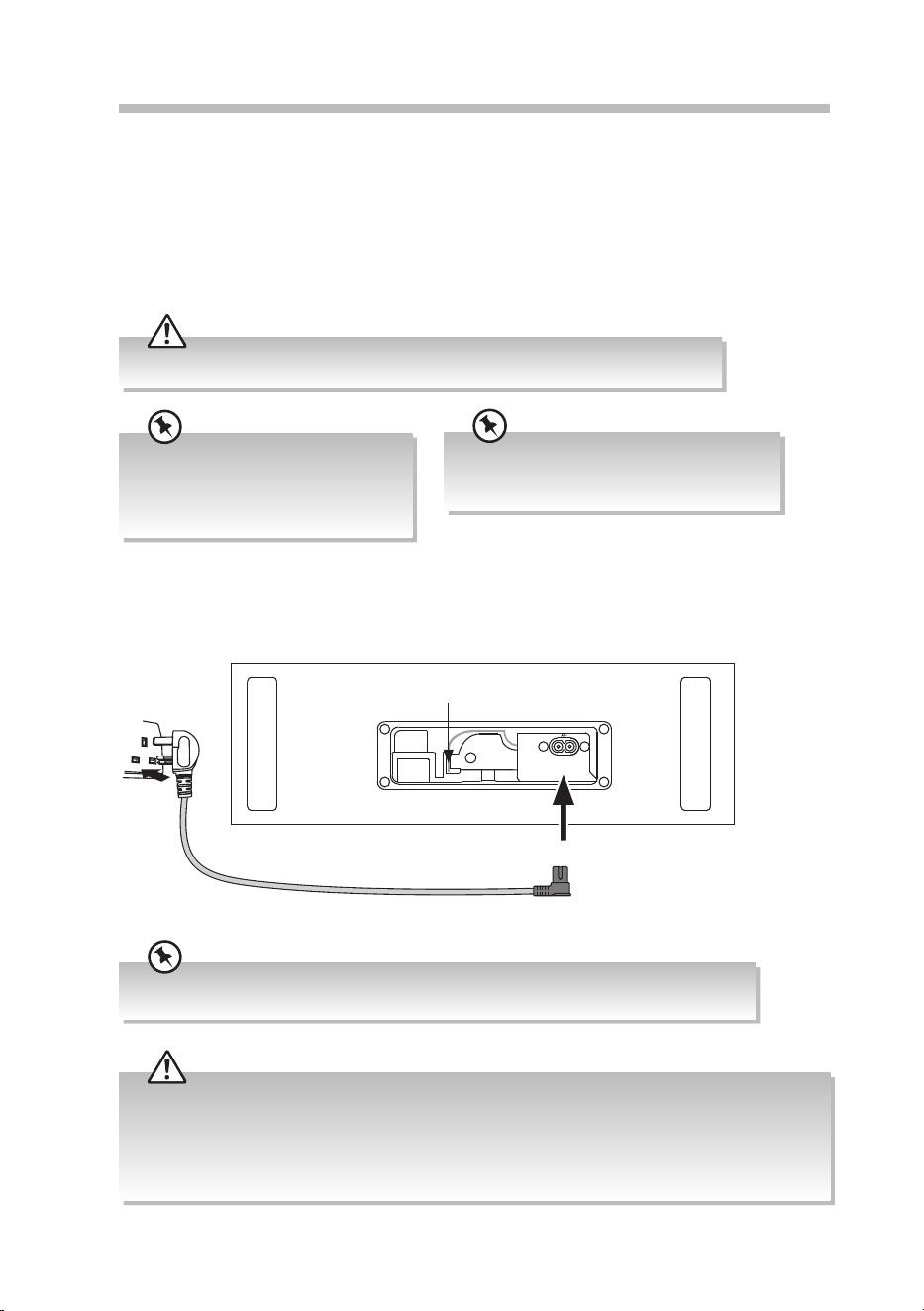
Using the AUX Connection.....................................................................................................................11
Turning the Radio On for the First Time ..........................................................................12
Charging from the USB Socket .........................................................................................13
Basic Operating ..................................................................................................................14
Switching ON/OFF .....................................................................................................................................14
Selecting Modes .........................................................................................................................................14
Adjusting the Speaker Level Settings and Eects .........................................................................14
Automatically Setting the Clock ..........................................................................................................15
Adjust the Display Brightness ...............................................................................................................15
Clock Operation .................................................................................................................15
Setting the Clock ........................................................................................................................................15
Turning ON/OFF time automatic synchronization ........................................................................15
Setting the Timer ...................................................................................................................................... 16
Activate and Deactivate the Timer .................................................................................................... 16
Setting the Sleep Timer ...........................................................................................................................17
System Reset ................................................................................................................................................17
Software version ........................................................................................................................................17
DAB Operation ...................................................................................................................18
DAB Full Scan .............................................................................................................................................. 18
Manually Tuning In DAB Radio Stations ............................................................................................19
DRC Setting ..................................................................................................................................................19
Saving Preset Stations ..............................................................................................................................19
Recalling a Preset Station .......................................................................................................................19
DAB Display Modes .................................................................................................................................. 20
FM Operation ......................................................................................................................21
Auto Scan ..................................................................................................................................................... 21
Manual Tune ............................................................................................................................................... 21
Scan Setting ................................................................................................................................................ 21
Audio Setting ............................................................................................................................................. 21
Saving Preset Stations ............................................................................................................................. 22
Recalling a Preset Station ...................................................................................................................... 22
FM Display Modes ..................................................................................................................................... 23
CD/MP3 Operation ............................................................................................................ 24

Compatible Disc Types ........................................................................................................................... 24
Playback ........................................................................................................................................................ 24
To Skip Search or Search and Play ...................................................................................................... 25
Selecting an Album (for MP3 disc) ..................................................................................................... 25
Repeat Playback ........................................................................................................................................ 25
Text Display During Playback ............................................................................................................... 25
Programme Play ........................................................................................................................................ 26
iPod / iPhone / iPad Operation .........................................................................................27
Bluetooth® Operation ....................................................................................................... 28
NFC Operation ................................................................................................................... 28
USB Operation ................................................................................................................... 29
AUX Operation .................................................................................................................. 29
Maintenance ...................................................................................................................... 30
Cleaning the Unit ...................................................................................................................................... 30
Handling Discs ........................................................................................................................................... 30
Cleaning Discs ............................................................................................................................................ 30
Storing Discs ............................................................................................................................................... 30
Hints and Tips .....................................................................................................................31
Product Fiche and Specifications .....................................................................................33
Useful Information and Licences ..................................................................................... 34

5
Safety Warnings
Ventilation
• To prevent the risk of electric shock or
re hazard due to overheating, ensure
that curtains and other materials do not
obstruct the ventilation vents.
• A minimum distance of 5 cm around the
unit should be maintained to allow for
sucient ventilation.
• Do not install or place this unit in a
bookcase, built-in cabinet or in another
conned space. Ensure the unit is well
ventilated.
Safety
• Always disconnect the unit from the mains
supply before connecting / disconnecting
other devices or moving the unit.
• Unplug the unit from the mains socket
during a lightning storm.
• In the interests of safety and to avoid
unnecessary energy consumption,
never leave the unit switched on while
unattended for long periods of time, e.g.
overnight, while on holiday or while out of
the house. Switch it o and disconnect the
mains plug from the mains socket.
Mains Cable
• Make sure the unit or unit stand is not
resting on top of the mains cable, as the
weight of the unit may damage the mains
cable and create a safety hazard.
• If the mains cable is damaged it must be
replaced by the manufacturer, its service
agent, or similarly qualied persons in
order to avoid a hazard.
Interference
• Do not place the unit on or near appliances
which may cause electromagnetic
interference. If you do, it may adversely
aect the operating performance of the
unit, and cause a distorted picture or
sound.
Batteries
• Batteries used in the remote control for this
unit are easily swallowed by young children
and this is dangerous.
• Keep loose batteries away from young
children and make sure that the battery
holder tray is secure in the remote control.
Seek medical advice if you believe a cell
has been swallowed.
• Read all the instructions carefully before
using the unit and keep them for future
reference.
• Retain the manual. If you pass the unit
onto a third party make sure to include this
manual.
• Check that the voltage marked on the
rating label matches your mains voltage.
Damage
• Please inspect the unit for damage after
unpacking.
• Do not continue to operate the unit if you
are in any doubt about it working normally,
or if it is damaged in any way - switch o,
withdraw the mains plug and consult your
dealer.
Location of Unit
• The unit must be placed on a at stable
surface and should not be subjected to
vibrations.
• Do not place the unit on sloped or unstable
surfaces as the unit may fall o or tip over.
• The mains socket must be located near the
unit and should be easily accessible.
• This unit is designed for indoor, domestic
use only.
Temperature
• Avoid extreme degrees of temperature,
either hot or cold. Place the unit well away
from heat sources such as radiators or gas /
electric res.
• Avoid exposure to direct sunlight and other
sources of heat.
Naked Flames
• Never place any type of candle or naked
ame on the top of or near the unit.
Moisture
• To reduce the risk of re, electric shock or
product damage, do not expose this unit
to rain, moisture, dripping or splashing.
No objects lled with liquids, such as
vases, should be placed on the unit. Do
not operate the unit with wet hands, near
water or other liquid.
• If you spill any liquid into the unit, it can
cause serious damage. Switch it o at the
mains immediately. Withdraw the mains
plug and consult your dealer.
6
• Please dispose of batteries correctly by
following the guidance in this manual.
• Do not expose the battery to direct
sunlight or sources of excessive heat.
• Attention should be drawn to the
environmental aspects of battery disposal.
Supervision
• Children should be supervised to ensure
that they do not play with the unit.
• Never let anyone especially children push
anything into the holes, slots or any other
openings in the case - this could result in a
fatal electric shock.
Class 1 Laser Product
• This unit utilises a
laser. Use of controls,
adjustments or
performance of
procedures other than those specied
herein may result in hazardous radiation
exposure.
• Before moving the unit, ensure the disc
tray is empty.
• Always remove the disc when the unit is
not in use.
• Failure to do so will risk severely damaging
the disc and the unit.
• Do not stack devices, heat from other
devices may aect the performance of the
unit.
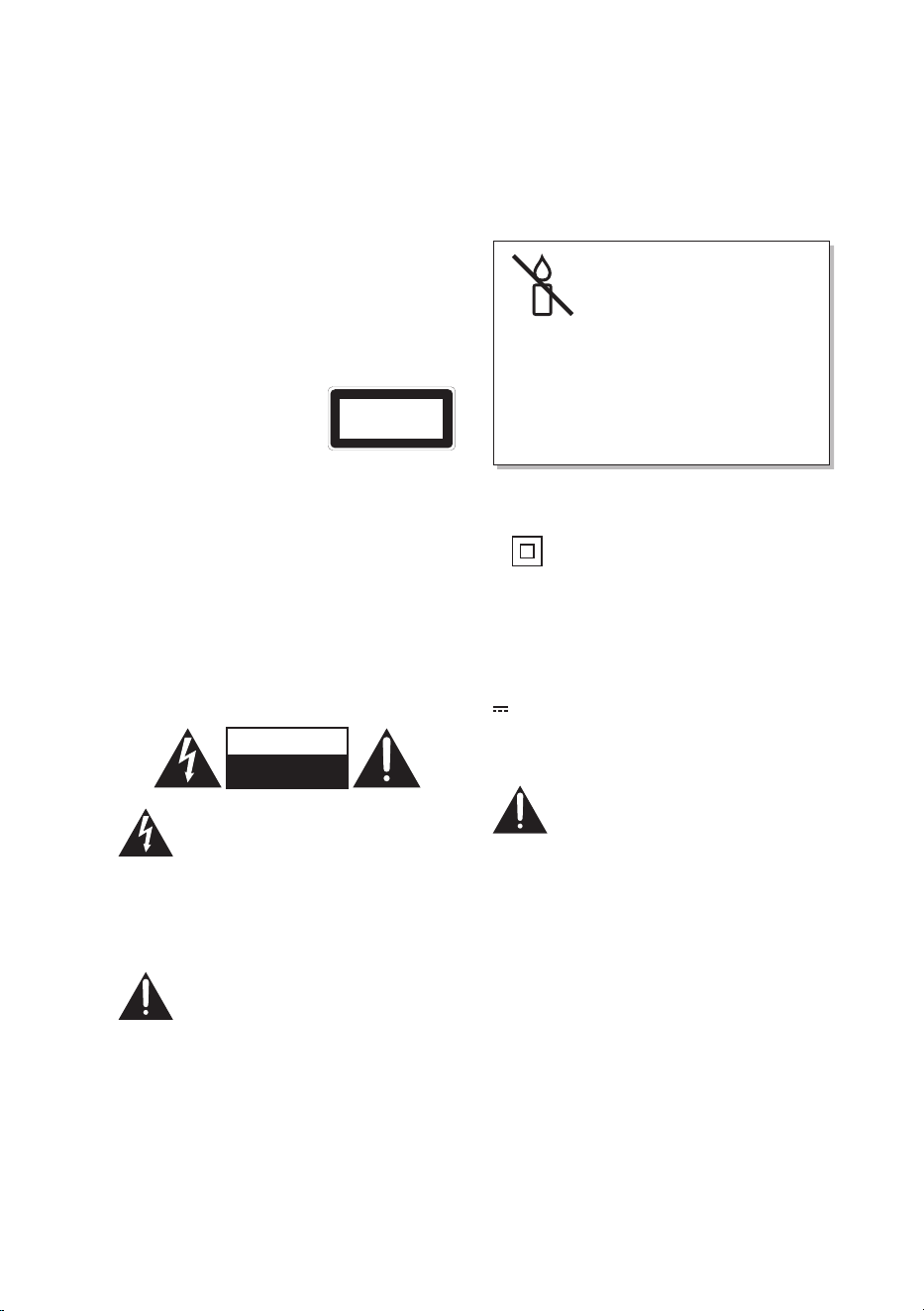
CAUTION
RISK OF ELECTRIC SHOCK
DO NOT OPEN
The lightning ash with arrowhead
symbol, within an equilateral
triangle, is intended to alert the
user to the presence of uninsulated
“dangerous voltage” within the
unit’s enclosure that may be of
sucient magnitude to constitute a
risk of electric shock.
The exclamation point within an
equilateral triangle is intended to
alert the user to the presence of
important operating and
maintenance (servicing)
instructions in the manual
accompanying the unit.
Service
• To reduce the risk of electric shock, do not
remove screws. The unit does not contain
any user-serviceable parts. Please leave all
maintenance work to qualied personnel.
• Do not open any xed covers as this may
expose dangerous voltages.
Maintenance
• Ensure to unplug the unit from the mains
socket before cleaning.
• Do not use any type of abrasive pad or
abrasive cleaning solutions as these may
damage the unit’s surface.
• Do not use liquids to clean the unit.
To prevent the
spread of re, keep
candles or other
open ames away
from this product
at all times.
• This equipment is a Class II or double
insulated electrical appliance. It has
been designed in such a way that it
does not require a safety connection
to electrical earth.
~ AC voltage: This symbol indicates that the
rated voltage marked with the symbol is AC
voltage.
DC voltage: This symbol indicates that the
rated voltage marked with the symbol is DC
voltage.
CLASS 1
LASER PRODUCT
The mains plug is used as
disconnect device, the disconnect
device shall remain readily
operable.
7
Unpacking
Remove all items from the packaging. Retain the packaging. If you dispose of it please do so
according to local regulations.
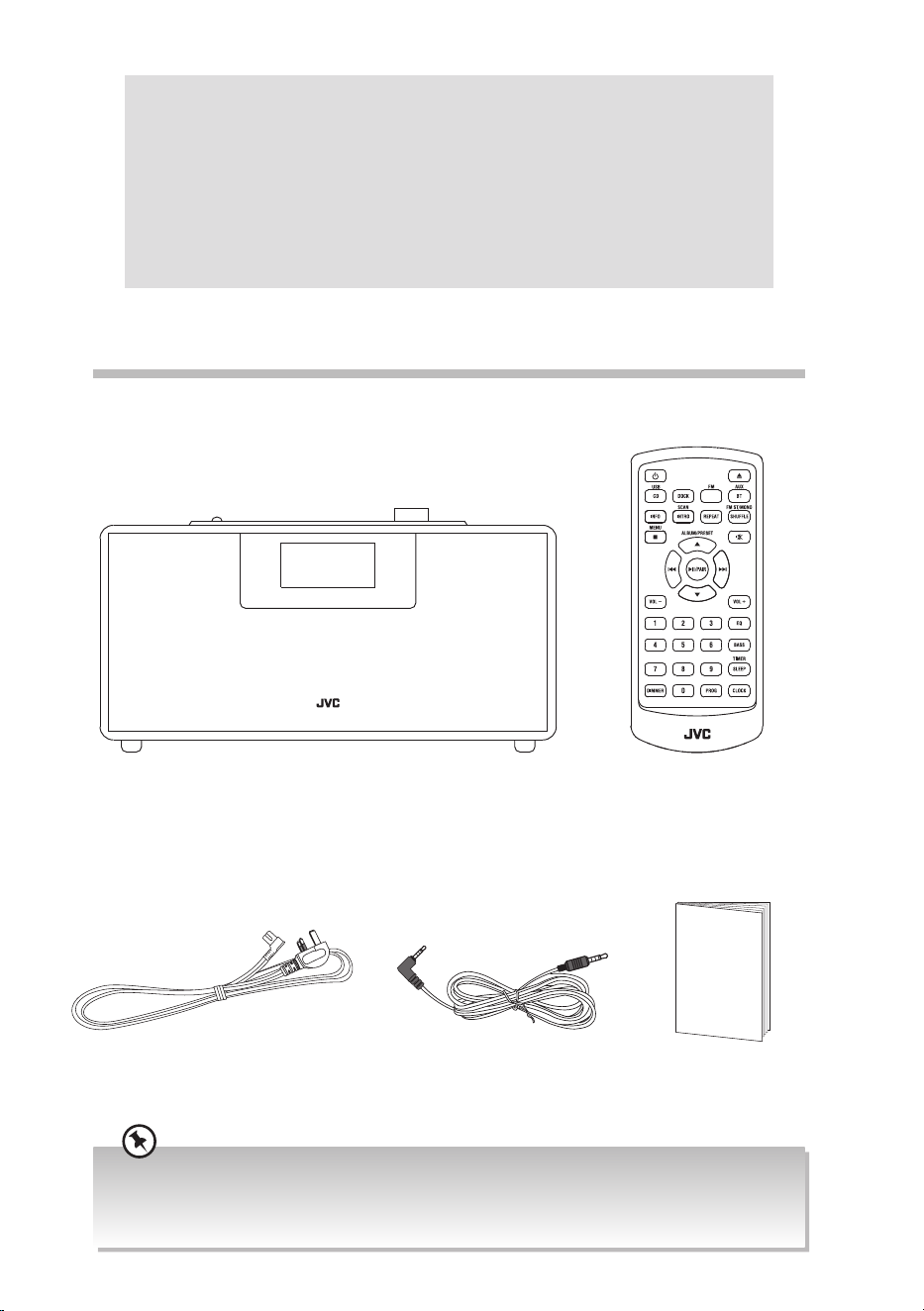
The following items are included:
Thank you for purchasing your new product.
We recommend that you spend some time reading this instruction manual
in order that you fully understand all the operational features it oers. You
will also nd some hints and tips to help you resolve any issues.
Read all the safety instructions carefully before use and keep this
instruction manual for future reference.
Main Unit Remote Control
Instruction ManualMains Cable 3.5 mm to 3.5 mm stereo
audio cable
Instruction
Manual
DAB
• If items are missing, or damaged please contact Partmaster (UK only). Tel: 0344 800 3456 for assistance.
• If you require additional assistance:
For UK, please call our UK Call Centre on 0344 561 1234.
For Ireland, please call our Ireland Call Center on 1 890 818 575.
8
Product Overview
Front View
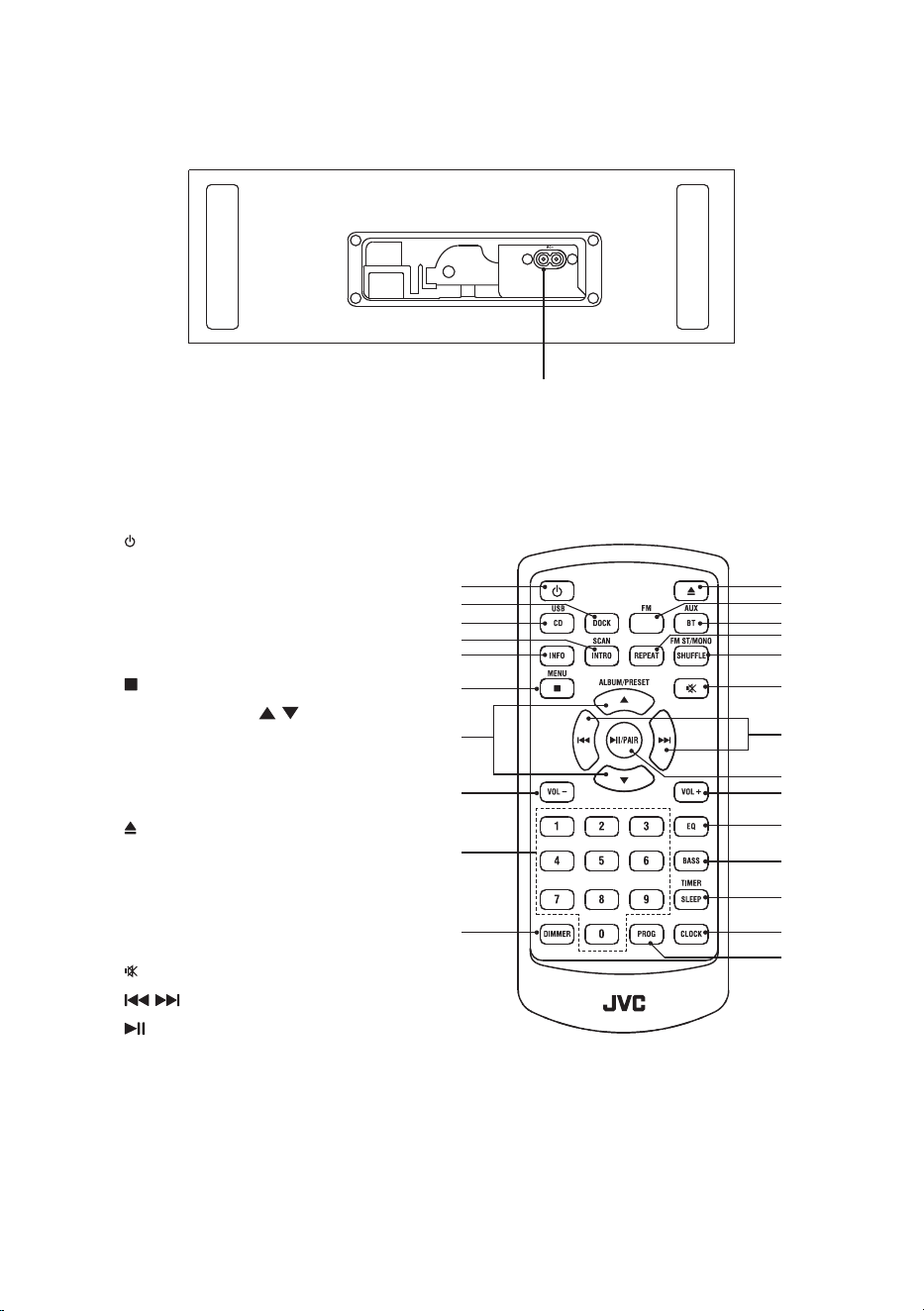
1. Display
2. Speaker
1. NFC Sensor
2. USB Socket
3. Docking station (Note: Open the Docking
lid fully to 90° when inserting devices to
prevent ngers from being pinched.)
4. AUX Socket
5. EQ Button
6. ANT. (Aerial)
7. PRESET 1/2/3 Button
2
1
Top View
8. STANDBY Button
9. SOURCE Button
10. CD Compartment
11. Button
12. PROG/SCAN Button
13. –VOLUME+ Dial
14. EJECT Button
15. /PAIR Button
16. Button
5 6 7 8 9 10 11 12 13 14
15
16
1 2 3 4
9
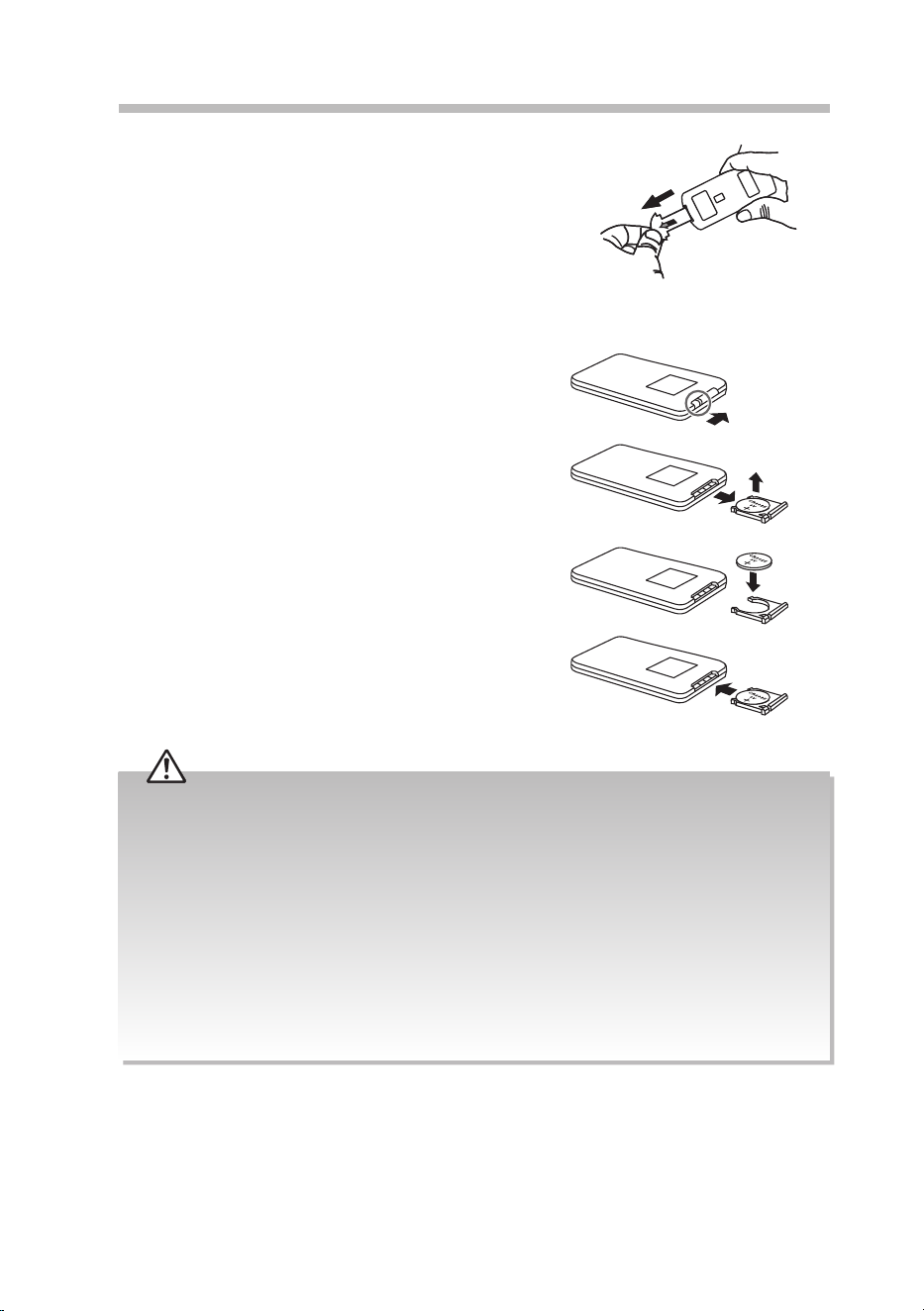
1. Button
2. DOCK Button
3. CD/USB Button
4. INTRO/SCAN Button
5. INFO Button
6. /MENU Button
7. ALBUM/PRESET / Button
8. VOL– Button
9. 0-9 Button
10. DIMMER Button
11. Button
12. DAB/FM Button
13. BT/AUX Button
14. REPEAT Button
15. SHUFFLE/FM ST/MONO Button
16. Button
17. / Button
18. /PAIR Button
19. VOL+ Button
20. EQ Button
21. BASS Button
22. SLEEP/TIMER Button
23. CLOCK Button
24. PROG Button
1. AC~ Socket
Bottom View
1
1
11
12
13
14
15
16
17
18
19
20
21
22
23
24
3
4
2
5
6
7
8
9
10
DAB
Remote Control
Replace the Remote Control Battery
Operating Your Remote Control
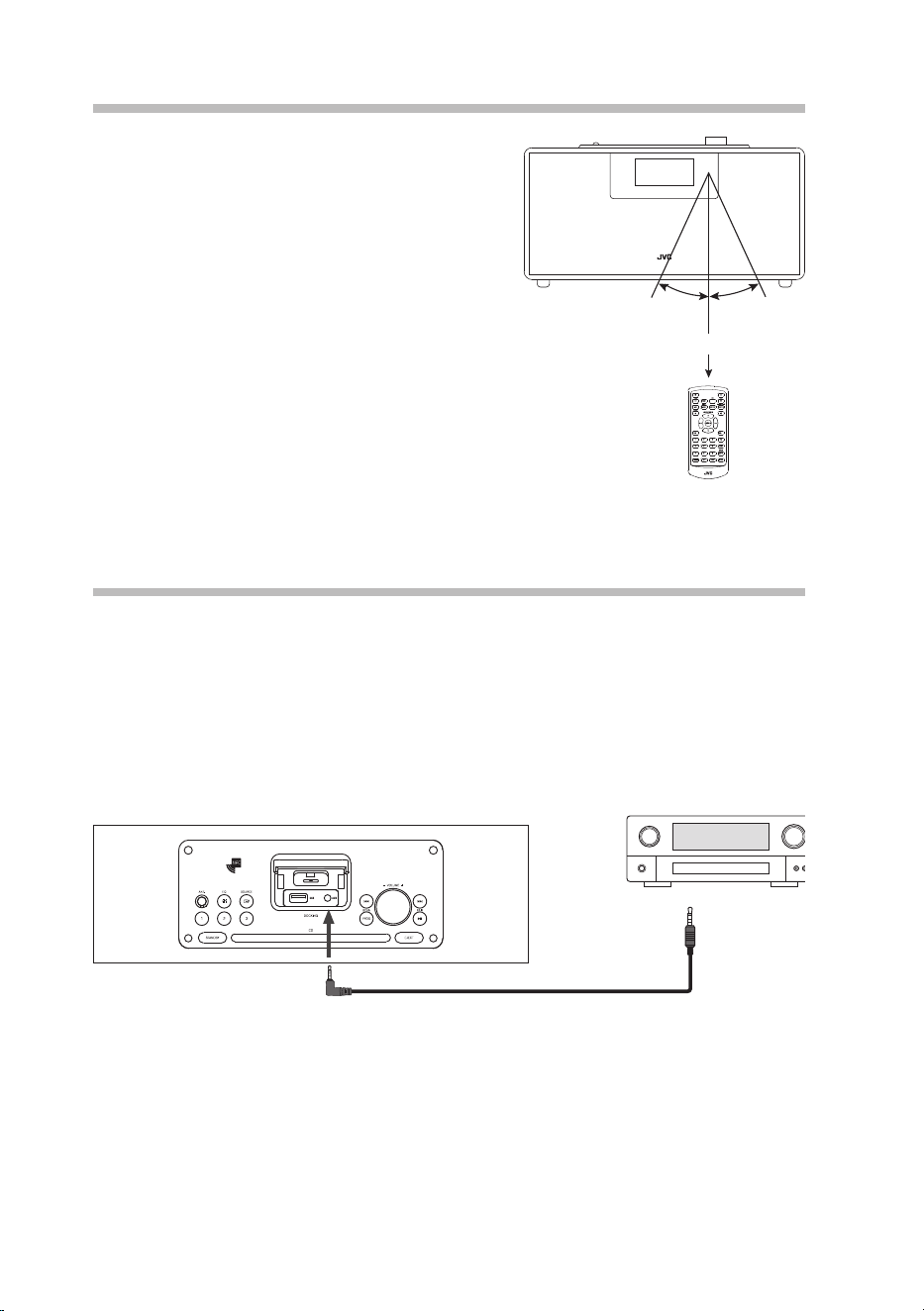
When you rst time use remote control, remove
the protective tab to activate the remote control
battery.
1. Pull out the battery tray.
2. Remove the old battery
3. Replace new CR2025 battery into the battery
tray with correct polarity as indicated.
4. Insert the battery tray back into the slot.
Handling the Remote Control
• Take care of your ngernails when you slide and pull the battery release tab.
• Do not drop the remote control.
• Do not allow anything to impact the remote control.
• Do not spill water or liquid on the remote control.
• Do not place the remote control on a wet object.
• Remove the battery from the remote control when not in use for a long period of time, as corrosion or
battery leakage may occur and result in physical injury, and/or property damage, and/or re.
• When the battery is exhausted, the remote control will not function.
• Small button cell batteries such as the one used in the remote control are easily swallowed by young
children and this is dangerous. Keep loose button cells away from young children and make sure that
the battery is secure in the remote control. Seek medical advice if you believe a battery cell has been
swallowed.
10
Remote Control Operation Range
• The remote control sensor on the front unit is
sensitive to the remote control’s commands up
to a maximum of 5 metres away and within a
maximum of a 40° arc.
• Please note that the operating distance may
vary depending on the brightness of the room.
DAB
20° 20°
Max. 5 m
11
Connections
Using the AUX Connection
Connect the AUX socket at the top of the unit to the line output sockets on the auxiliary
equipment using a 3.5 mm to 3.5 mm stereo audio cable (included), as illustrated.
Auxiliary
Equipment
3.5 mm to 3.5 mm stereo
audio cable (included)
Top View of the Unit
12
Turning the Radio On for the First Time
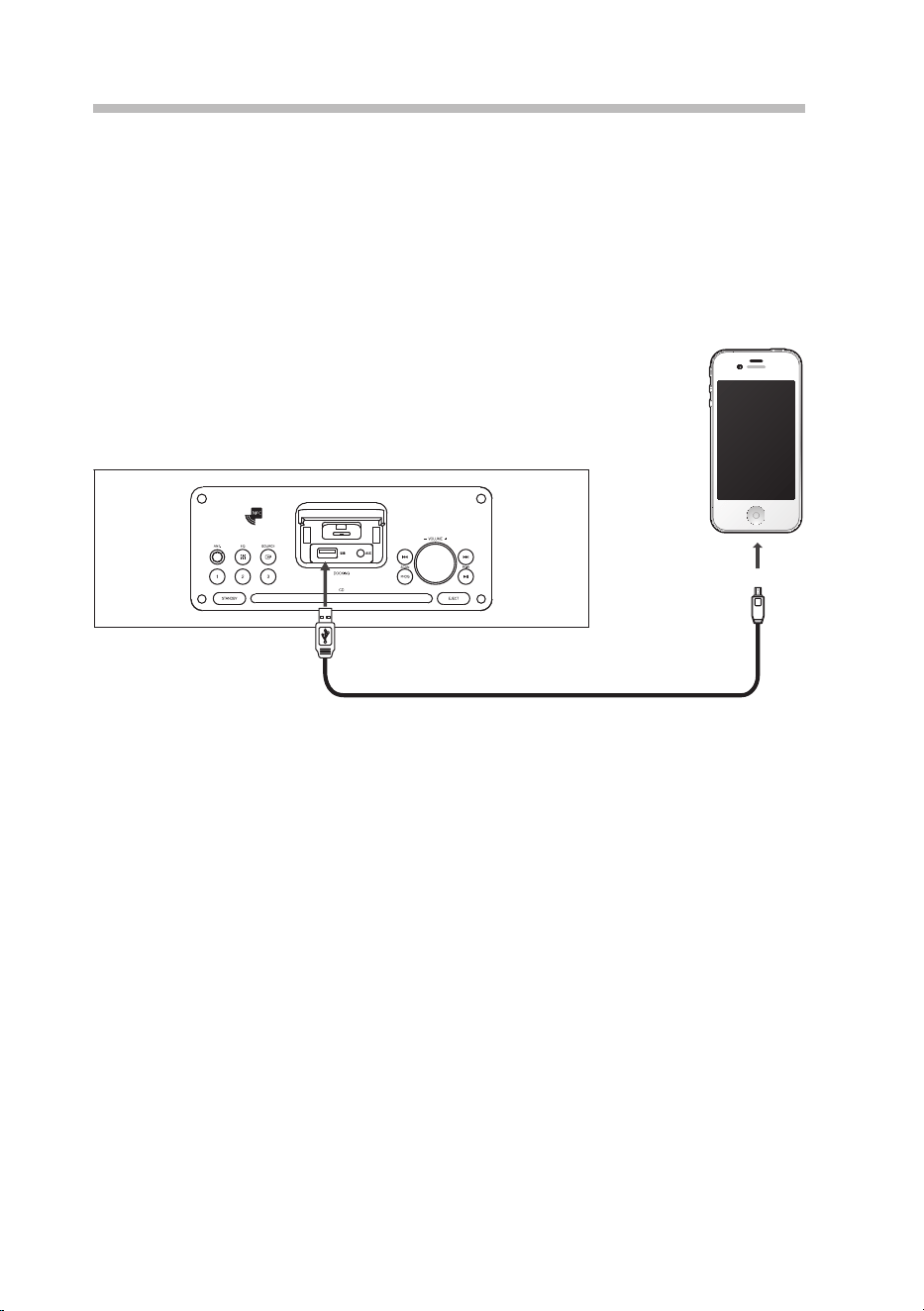
1. Fully extend the aerial before plugging the unit into the mains.
2. Connecting the unit to any other power source may damage the unit. Unwind the
mains cable to its full length. Connect the end of the cable to the AC~ Socket at the rear
of the unit and then connect the mains to the mains socket. Make sure the mains cable
is rmly inserted into the mains socket. The unit is now connected and ready to use.
3. The unit’s clock will be synchronized with the local current time from the radio in
STANDBY mode after it is connected with the mains power.
Ensure all connections are connected before connecting to the mains power socket.
Extend the aerial before switching to
DAB mode for the rst time. This will
ensure that the initial scan captures all
stations in your area.
Remove the mains plug from the mains socket if you want to switch the unit o completely.
• Ensure all audio connections of the unit are connected before connecting to the mains power socket.
• Make sure the mains plug is rmly inserted into the mains socket.
• To switch the unit o completely, remove the mains plug from the mains socket.
• Please turn the unit o completely to save energy when not in use.
• Use the mains cable as the disconnect device. The disconnect device shall remain readily operable.
You can hook the power cable into the groove
at the bottom of the unit as indicated by the
arrow in the diagram below.
Groove
To the mains socket
13
Charging from the USB Socket
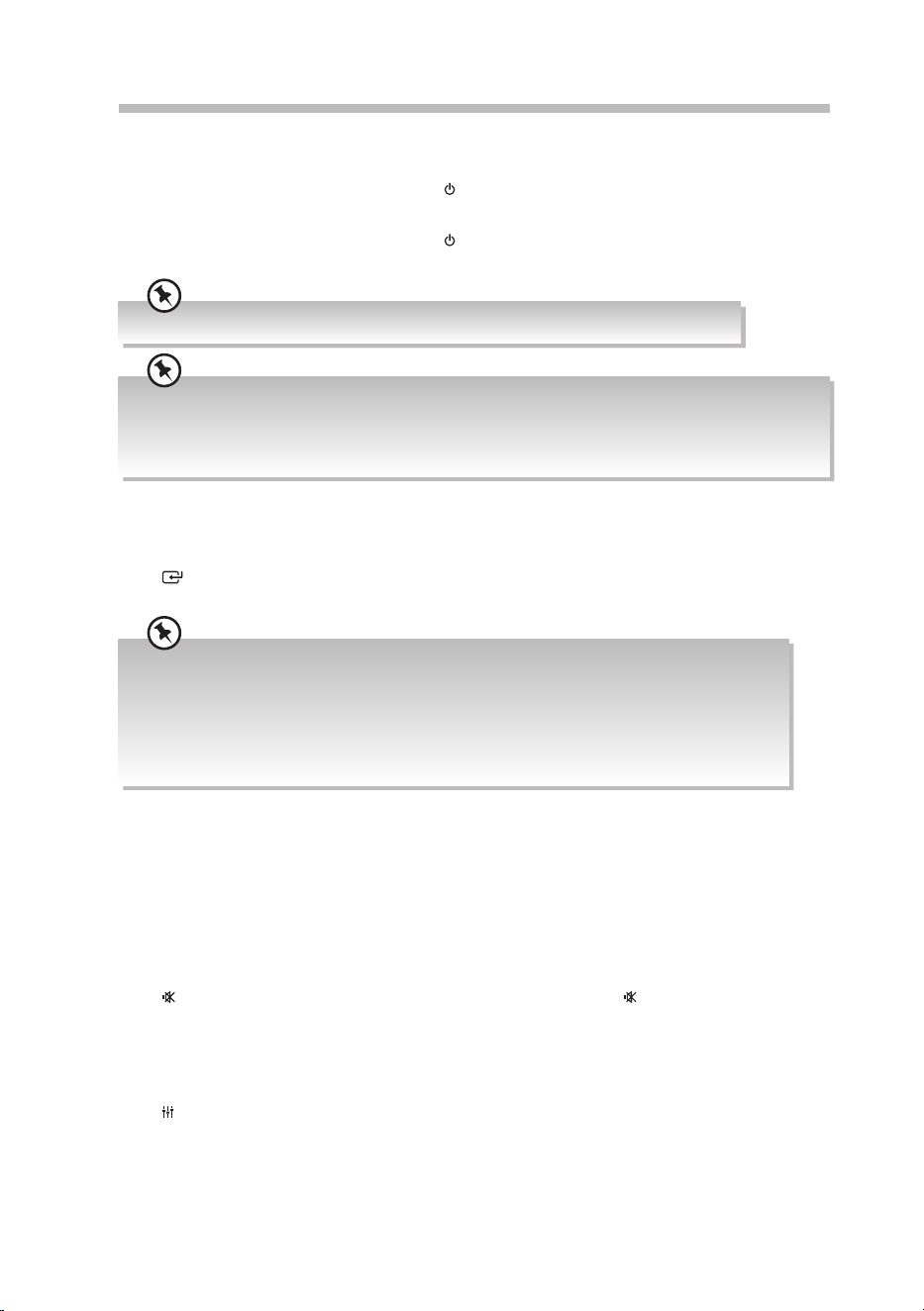
The USB socket is designed only for charging mobile devices (e.g. MP3 player, mobile
phone, etc). It supplies 5V DC at a charging current of up to 1300 mA (1.3A).
Use a USB cable (not included) to connect mobile device to the USB socket of the unit and
the mobile device will start charging.
Top View of the Main Unit
Mobile device
USB cable (not included)
14
Basic Operation
Switching ON/OFF
• Press STANDBY button on the unit or button on the remote control to switch on the
unit.
• Press STANDBY button on the unit or button on the remote control to switch the unit
back to STANDBY mode. The display will show the time clock.
Remove the mains plug from the mains socket if you want to switch the unit o completely.
• The unit will switch to the last selected source, and save memory of the last selected sound level from
5-20. For any level selected outside this range, the unit will then x on the default level of 5.
• The unit will automatically go to Standby mode after 15 minutes if it has no audio playback. Press
Standby button to resume.
Selecting Modes
Press SOURCE button on the unit repeatedly to switch between DAB, FM, BT, DISC,
USB, DOCK and AUX mode.
Alternatively, you can directly press the followings buttons on the remote control to switch to your
desired mode:
• press DAB/FM button on the remote control to switch between DAB and FM mode.
• press CD/USB button on the remote control to switch between DISC and USB mode.
• press BT/AUX button on the remote control to switch between BT and AUX mode.
• press DOCK button on the remote control to switch to DOCK mode.
Adjusting the Speaker Level Settings and Eects
Adjusting the Volume
Turn the –VOLUME+ dial on the unit, or press VOL+/VOL– button on the remote control to
increase/decrease the volume.
Mute Sound
Press button on the remote control to turn the sound o. Press button again, or turn
the –VOLUME+ dial, or press VOL+/VOL– button on the remote control to resume normal
listening.
Preset Equalizer
Press EQ button on the unit or EQ button on the remote control repeatedly to select
CLASSIC, ROCK, JAZZ, FLAT and POP.
Bass Settings
Press BASS button on the remote control to switch between BASS ON and BASS OFF.
15
Automatically Setting the Clock
The clock can be set and updated automatically if the unit receives DAB/FM signals in your
location. In order for the clock to synchronise to the current local time you must leave it on
DAB or FM station for a short period of time.
Adjust the Display Brightness
Press the DIMMER button repeatedly to select the LCD light level of the display.
Clock Operation
Setting the Clock
Manual setting the clock can only be done in STANDBY mode.
1. In STANDBY mode, press the CLOCK button on the remote control until the hour digits
are ashing.
2. Press the / button to adjust the hour digits while ashing, then press the /PAIR
button to conrm, then the minute digits will ash.
3. Press the / button to adjust the minute digits while ashing, then press the /
PAIR button to conrm.
4. Press and hold the /PAIR button to select 12-hour or 24-hour mode.
5. Each activated state will be cleared if any buttons are not pressed in about 15 seconds.
Turning ON/OFF time automatic synchronization
• When in STANDBY mode, press and hold the MENU button on the remote control.
Press the / button on the remote control to select ON or OFF mode.
• When in OFF mode, set the time manually.
• When in ON mode, the time will be synchronized according to all input source (e.g.
DAB/FM radio) for automatic synchronization.
When the time is manually tuned, the time synchronization function will be automatically turned OFF.
While in STANDBY mode, you may press and hold the MENU button on remote control to switch on the
time synchronization function again.
16
Setting the Timer
The clock must be correctly set for the timer to operate correctly.
1. In STANDBY mode, press the SLEEP/TIMER button on the remote control. TIMER 1,
and “ ” will ash on the display. Press the / button to select TIMER 1/TIMER 2.
Press the /PAIR button to conrm. “SET OFF” will ash on the display.
2. Press the / button to select SET OFF/SET ON, then press the /PAIR button to
conrm. The hour digits will ash on the display.
3. Press the / button to adjust the hour digits, and then press the /PAIR button to
conrm. The minute digits will ash on the display.
4. Press the / button to adjust the minute digits, and then press the /PAIR button
to conrm, “BUZZER“ will ash on the display
5. Press the / button to select BUZZER, DISC, USB, DOCK, FM and DAB mode, and
then press the /PAIR button to conrm. The volume level will ash on the display.
6. Press the / button to adjust the volume, and then press the /PAIR button on
the remote control to conrm. TIMER 2, and “ ” will ash on the display.
7. Repeat steps 1-6 to set the timer. The display will show “SETUP OK“, and then the
current time. And “ / ” will appear on the display.
Activate and Deactivate the Timer
Press the SLEEP/ TIMER button on the remote control to enter TIMER settings.
To deactivate the timer, select TIMER 1/TIMER 2, and then select SET OFF. “ / ” disappear
on the display.
To activate the alarm, select TIMER 1/TIMER 2, and then select SET ON. “ / ” disappear on
the display.
SNOOZE function
When the timer rings, press any button on the unit or remote control to enter SNOOZE
mode.
Stop Alarm Ring
While in SNOOZE mode, press any button twice on the unit or remote control. The timer
will stop, and it will not aect the timer settings.
17
Setting the Sleep Timer
Use the sleep timer to turn the system o after a certain number of minutes in play mode.
By setting the sleep timer, you can fall asleep to music and know that your system will turn
o by itself rather than play all night.
1. When in ON mode, press the SLEEP/TIMER button on the remote control repeatedly
to view the dierent sleep timer settings. The number of minutes shown will display in
this sequence:
SLEEP 90 SLEEP 60
OFF SLEEP 15
SLEEP 30
2. The system is now set to turn o after the number of minutes you have set. The display
will show “ ” icon.
3. Press the SLEEP/TIMER button to show the reminding time till the unit switches o
minutes and return back to previous screen.
4. To cancel the sleep timer press the SLEEP/TIMER button repeatedly until “OFF” shows
on the display.
System Reset
There may be times when you need to reset your unit back to the factory settings especially
when you have moved house. If you experience reception problems you may want to reset
and try again. If you move to another part of the country and pick up the local and national
DAB/FM stations in that area, your previously tuned channels may no longer be available.
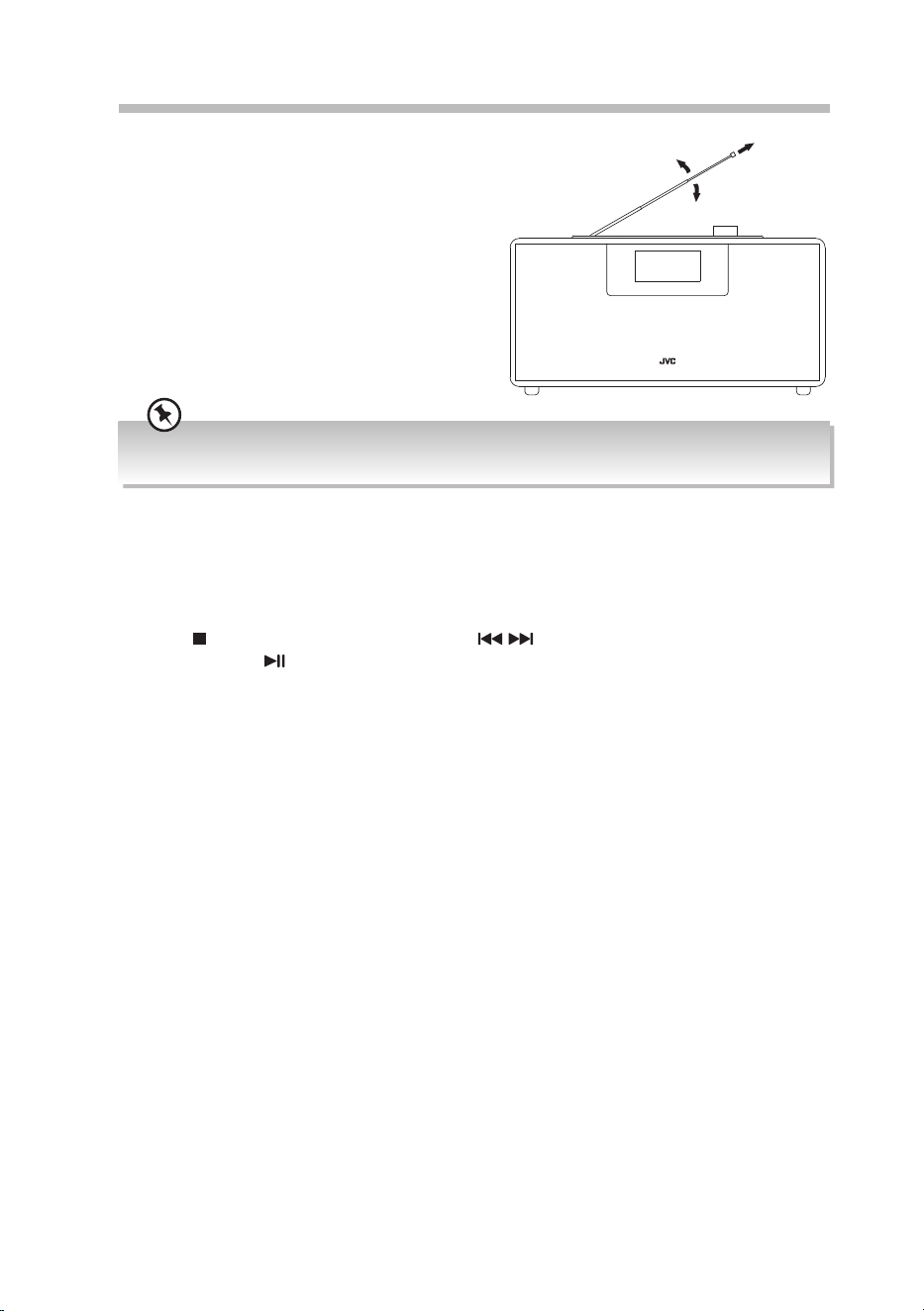
1. When in FM or DAB mode, press the /MENU button on the remote control.
2. Press the / button to select SYSTEM, and then press the /PAIR button to
conrm.
3. Press the / button to select RESET, and then press the /PAIR button to conrm.
4. Press the / button to select Y, and then press the /PAIR button to conrm.
5. The display will show RESTART, and proceed system reset. All the stored stations will
be cleared.
Software version
This information may be requested when dealing with technical support issues.
1. When in FM or DAB mode, press the /MENU button on the remote control.
2. Press the / button to select SYSTEM, and then press the /PAIR button to
conrm.
3. Press the / button to select SW VER, and then press the /PAIR button to
conrm.
18
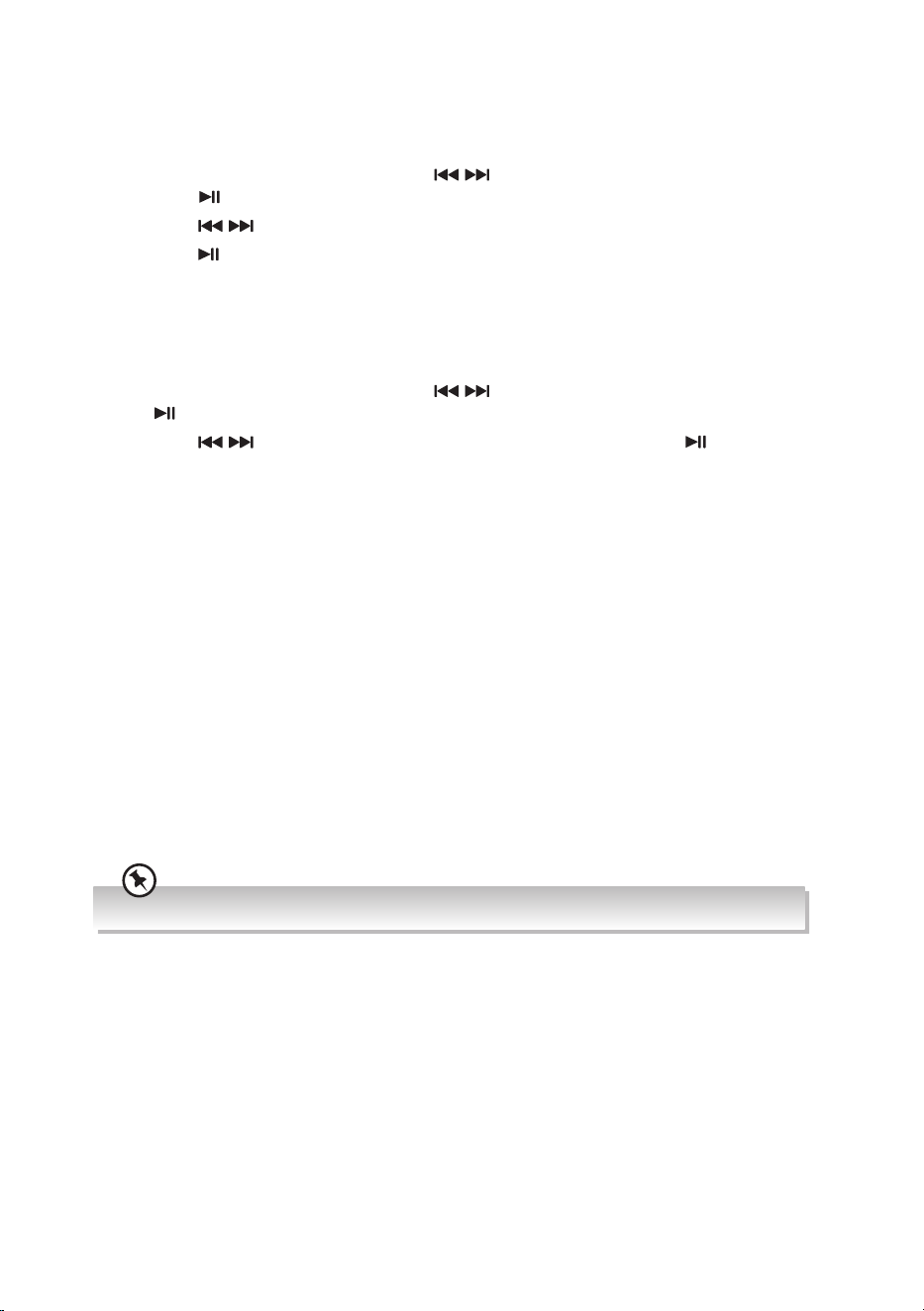
DAB Operation
The rst time you use DAB, make sure the aerial
is fully extended before selecting DAB mode,
because your radio will automatically scan
for DAB radio stations. If the aerial is not fully
extended your radio will not tune in properly.
During the scan, the display will show ”SCAN
##%” that indicates the stations that have been
found so far.
Once the scan has nished, the unit will show the
total number of the station, and then broadcast
the rst alphanumerically found station.
The clock will be updated automatically if you can receive DAB/FM signal in your location. In order to
synchronize to the current local time, you must leave it on the DAB/FM station for a period of time.
DAB Full Scan
The FULL SCAN will search for the entire DAB Band III channels. After the scan has nished,
the rst alphanumerically found station will be automatically selected.
1. Press /MENU button, and then press the / button to select FULL SCAN, and
then press the /PAIR button to conrm.
2. During the scan, the display will show SCAN ##%.
3. Once the scan has nished, the unit will show the total number of the station, and then
broadcast the rst alphanumerically found station.
19
Manually Tuning In DAB Radio Stations
As well as the auto scan function, you can manually tune them in. You will need to know
which multiplex the station you are looking for is in.
1. Press MENU button, and then press the / button to select MANUAL, and then
press the /PAIR button to conrm.
2. Press the / button to select DAB stations from 5A to 13F.
3. Press the /PAIR button to conrm.
DRC Setting
You can set the DRC (Dynamic Range Compression) to High, Low or O. This will reduce
the volume of loud sounds and increase the volume of quiet sounds.
1. Press MENU button, and then press the / button to select DRC, and then press
the /PAIR button to conrm.
2. Press the / button to select HIGH / LOW / OFF, and then press the /PAIR
button to conrm.
Saving Preset Stations
You can store up to 3 of your favourite stations to the memory. This will enable you to
access your favourite stations quickly and easily.
Presets 1 -3
To store a preset, you must rst be listening to the station that you would like to save. If
you want to store the station in preset positions 1 - 3 press and hold the Preset (1, 2 or 3)
buttons for 2 seconds. The words “Stored” will show on the display.
Recalling a Preset Station
Recall Presets 1-3
To recall preset stations that are stored in positions 1-3 just press the PRESET 1, 2 or 3
button.
If you choose a preset that hasn’t been allocated a station, “Empty“ will be displayed.
20
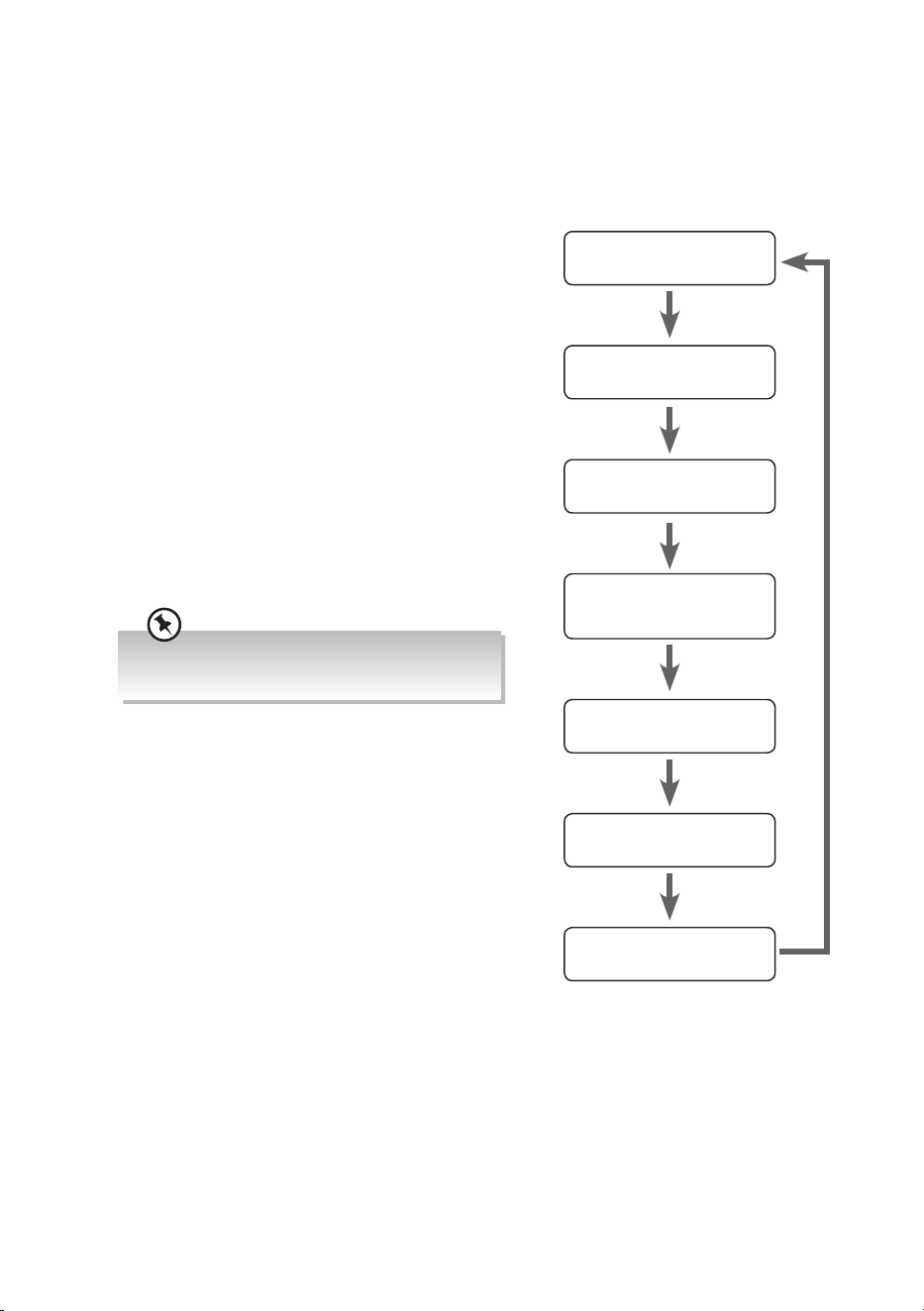
DAB Display Modes
Every time you press INFO on the unit, the display
will cycle through the following display modes.
The information is displayed on the lower segment of
the display.
DLS (Dynamic Label Segment)
Dynamic label segment is a scrolling message that
the broadcaster may include with their transmissions.
The message usually includes information, such as
program details etc.
Programme Type
This describes the style of the programme that is
being broadcast.
Multiplex Name / Frequency
A multiplex is a collection of radio stations that are
bundled and transmitted on one frequency. There
are national and local multiplexes. Local ones contain
stations that are specic to that area.
The frequency of the present station will be
displayed.
DAB – unlike normal radio, groups together several
radio stations and transmits them on one frequency.
Signal Error/ Signal Strength
The error is shown as a number. If the number is 0,
it means the signal received is error free and the
signal strength is strong. If the error rate is high, it
is recommended to reposition the radio aerial or
reposition the unit.
The display will show a slide bar to indicate the signal
strength, the stronger the signal, the longer the bar
will be from left to right.
Bit Rate / Codec / Channels
The display will show the digital audio bit rate being
received with additional information about the audio
codec and channel conguration.
Time
The broadcaster (Radio station) provides clock
information automatically.
Date
This displays the current date provided automatically
by the broadcaster.
Multiplex Name /
Frequency
Bit Rate / Codec /
Channels
Time
Date
DLS
Programme Type
Signal Error / Signal
Strength
21
FM Operation
Auto Scan
While listening to an FM station, press and hold the / button to perform auto scan.
Once a station has been found, the scanning will stop automatically.
Manual Tune
To tune FM frequency manually, press the / button repeatedly until your desired
frequency is reached.
Each turn will adjust the frequency by 0.05MHz. If reception is still poor, adjust the position of
the DAB/FM aerial or try moving the radio to another location.
Scan Setting
In the SCAN menu you can choose if you want your radio to tune to Strong Stations Only
or select All Stations, and it will try to tune to all stations, however some may be very weak.
1. In FM mode, press MENU to display the FM menu.
2. Press the / button to select SCAN and then press the /PAIR button to conrm.
3. Press the / button to select between STRONG and WEAK, and then press the /
PAIR button to conrm.
Audio Setting
If you nd that the station you are listening is not clear, you can select to listen to it in
MONO this can often clear up some of the static.
1. In FM mode, press MENU to display the FM menu.
2. Press the / button to select AUDIO and then press the /PAIR button to conrm.
3. Press the / button to select between STEREO and MONO, and then press the /
PAIR button to conrm.
22
Saving Preset Stations
You can store up to 3 of your favourite stations to the memory. This will enable you to
access your favourite stations quickly and easily.
Presets 1 -3
To store a preset, you must rst be listening to the station that you would like to save. If
you want to store the station in preset positions 1 - 3 press and hold the PRESET (1, 2 or 3)
buttons for 2 seconds. The words “Stored” will show on the display.
Recalling a Preset Station
Recall Presets 1-3
To recall preset stations that are stored in positions 1-3 just press the PRESET 1, 2 or 3
buttons.
If you choose a preset that hasn’t been allocated a station, “Empty“ will be displayed.
23
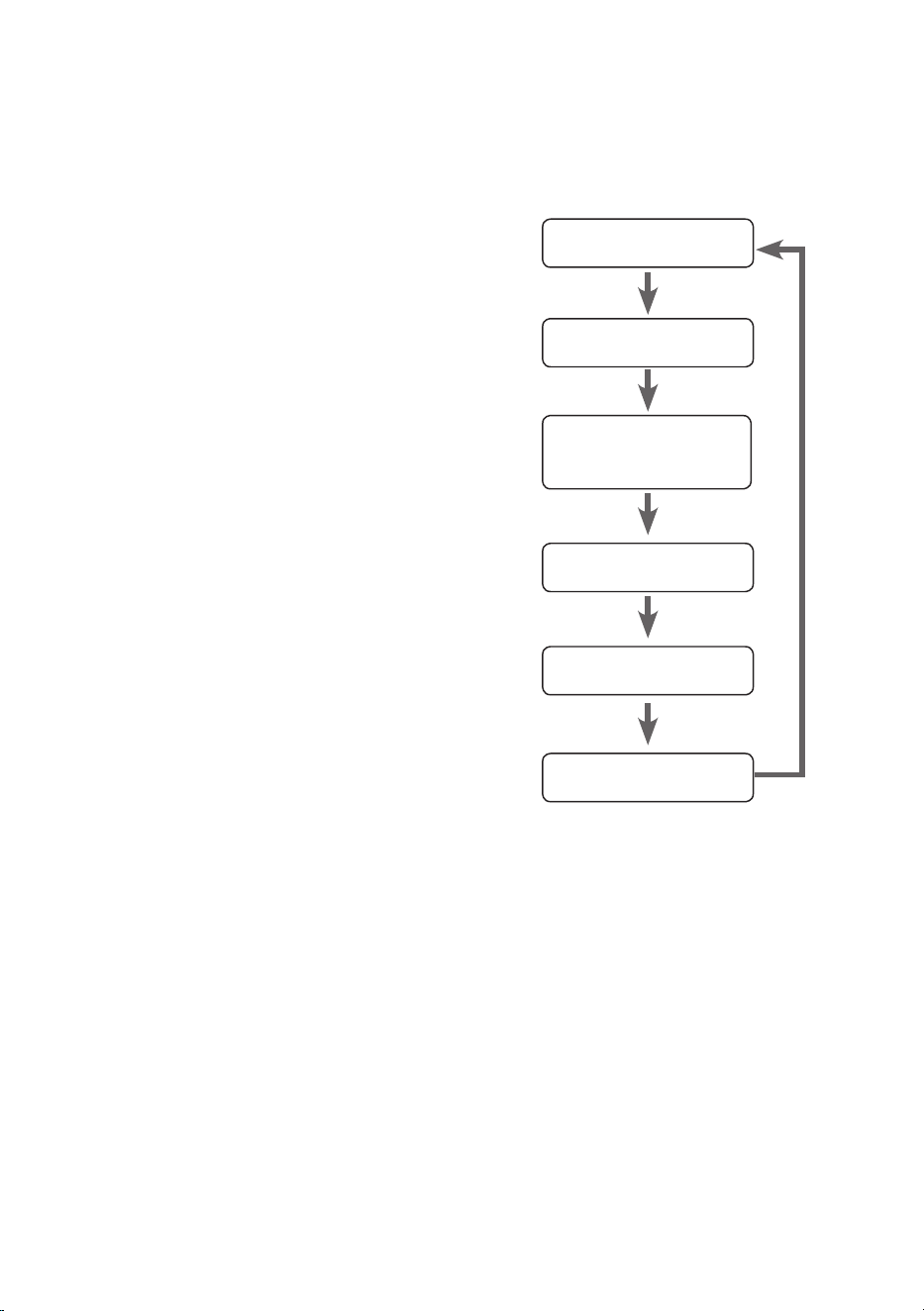
FM Display Modes
Every time you press INFO on the unit, the display will cycle through the following display
modes.
The information is displayed on the lower segment of the display.
Radio Text
The broadcaster can include a message that displays
information about the current programme.
Programme Type
This describes the “Style” or “Genre” of music that is
being broadcast.
Station Name / Frequency
When an RDS station is received, the name of that
station will be displayed, or if not the frequency will
be displayed.
Audio Mode
The display will show the audio mode (STEREO or
MONO) of the current station.
Clock
The broadcaster (Radio station) provides clock
information automatically.
Date
This displays the current date provided automatically
by the broadcaster.
Radio Text
Programme Type
Station Name /
Frequency
Audio Mode
Clock
Date
24
CD/MP3 Operation
Compatible Disc Types
Disc Types Disc Logo Recorded Content
CD-R (CD Recordable - Audio/MP3) AUDIO / MP3
CD-RW (CD-Rewritable - Audio/MP3) AUDIO / MP3
AUDIO-CD (Compact Disc Digital Audio) AUDIO
• Some recorded les may not be able to be played due to the type and format of disc or condition of
the recording.
• If you are having trouble playing a certain disc, it is recommended to use USB input instead for best
MP3 playback.
Press the SOURCE button on the unit or the CD button on the remote control to select
the DISC source. The word “DISC” will be showed on the display.
Playback
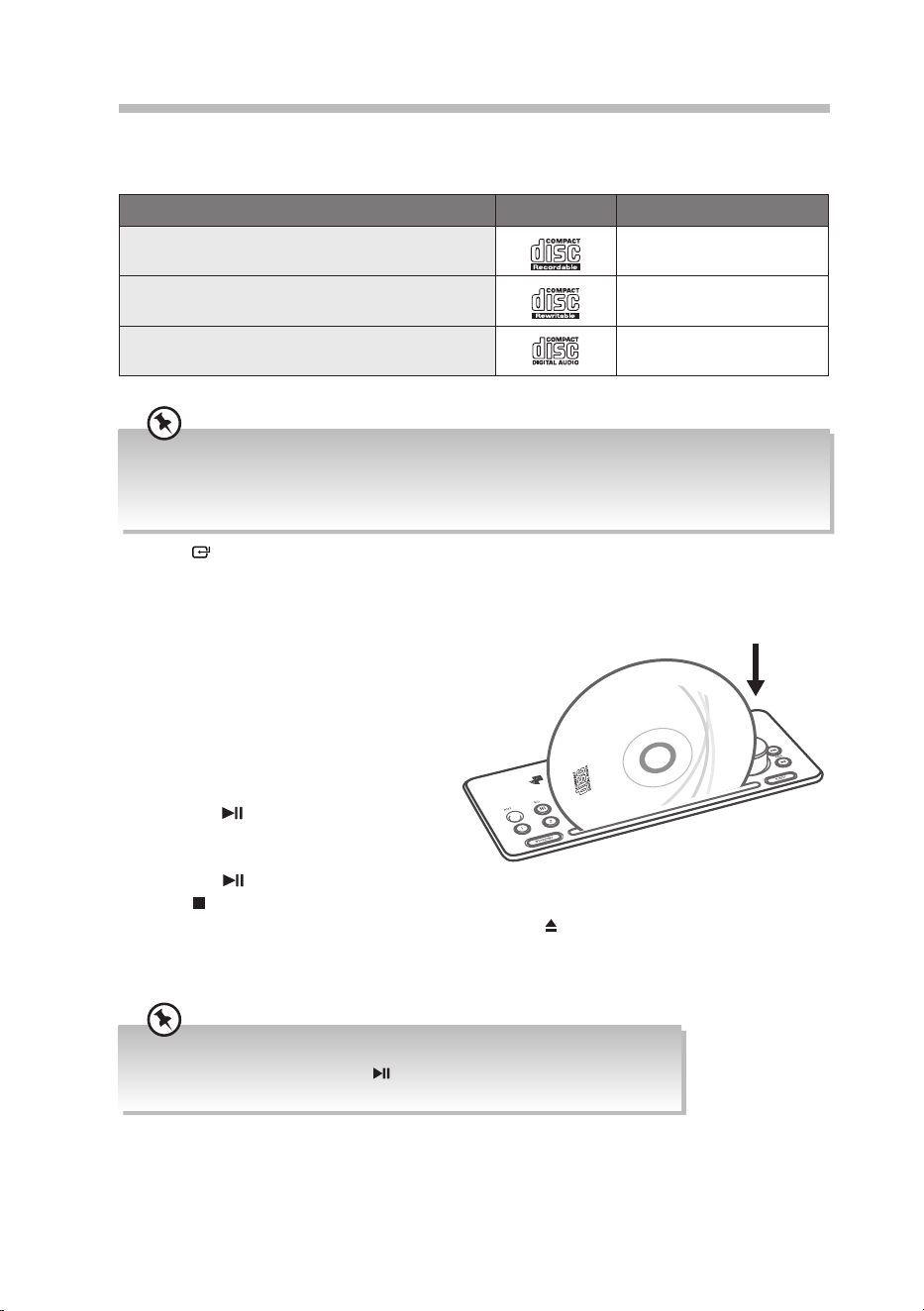
1. Place the CD on the CD compartment
slot of the unit.
2. Your CD will be slid into the unit once it
is detected by the unit.
3. The unit will read the disc and play it
automatically.
4. Press the /PAIR button to conrm to
pause the playback, play pause time will
ash on the display. To resume playback,
press the /PAIR button.
5. Press /MENU on the unit to stop the
disc playing. Press the EJECT button on the unit or button on the remote control if
you want to remove the disc.
6. If an unreadable disc is inserted, the display will show the “DISC ERR”. Take the disc out
from the unit.
• If there is no disc, the display will show “NO DISC”.
• If in stop mode, please press the
/PAIR button to start playing the disc.
• Take care not to clip your ngers while inserting the CD.

25
To Skip Search or Search and Play
• Press once or more to skip to beginning of the current track or the previous track.
• Press once or more to skip forward to the next track.
• Press and hold the / button to search for the position that you intend to start
playing. Release to resume normal playback.
Selecting an Album (for MP3 disc)
• Press ALBUM/PRESET / on the remote control to select the next / previous album,
and play the rst track of this album.
• If the playing has ended, press ALBUM/PRESET / to select the next / previous
album.
Repeat Playback
ONE and ALL Repeat Play
• CD Disc
Press the REPEAT button repeatedly to set the function. The selected mode will show
on the display.
RPT ONE : Repeat the same track.
RPT ALB : Repeats all tracks in a folder (if a folder is displayed)
RPT ALL : Repeat all tracks.
RPT OFF : Turns o REPEAT.
• Random playback
Press the SHUFFLE button repeatedly to set the function. The selected mode will show
on the display.
SHUFFLE : Repeat the same track.
SHUF OFF : Turns o SHUFFLE.
Intro Playback
Press the INTRO/SCAN button on the remote control. The unit will play the rst 10 seconds
of each track.
Press the INTRO/SCAN button again to resume normal playback.
Text Display During Playback
CD Disc
Repeatedly press INFO to show the current track number and single elapsed time / single
remain time / total elapsed time / total remain time.
MP3 Disc
• If the track playing contains ID3 information, when playback begins, the le name will
scroll on the screen automatically. Repeatedly press INFO to show the current track
number and single elapsed time.
• If the track playing has no ID3 information, press INFO to show the current track and
track of time.

26
Programme Play
You can programme up to 20 tracks to play in any desired order.
1. Make sure the disc is inserted and the unit is in STOP, and in CD mode.
2. Press the PROG button on the remote to enter MEMORY mode.
3. Press the number (0-9) buttons or the / button on the remote control to select
the track you wish to preset.
4. Press PROG to store.
5. Repeat steps 3-4 to program more tracks.
6. Once programming is complete, press the /PAIR button to start programme play.
7. Press once to stop programme play. Press twice to clear programme. The display
will show “PRG CLR”. Repeat the program steps above to re-enter the new program
les.
27
iPod / iPhone / iPad Operation
This unit can support the following iPod/iPhone/iPad models.
Type Support Model
iPhone • iPhone 5
• iPhone 5s
• iPhone 5c
• iPhone 6
• iPhone 6 Plus
• iPhone 7
• iPhone 7 Plus
• iPhone 8
• iPhone 8 Plus
• iPhone X
iPod • iPod touch (5th generation)
• iPod nano (7th generation)
iPad • iPad Air
• iPad mini with Retina display
• iPad mini
• iPad (4th generation)
Note: Not compatible with iPad Pro 12.9-inch.
1. Press the SOURCE button on the unit or the DOCK button on the remote control to
select the DOCK source. The word “DOCK” will be showed on the display.
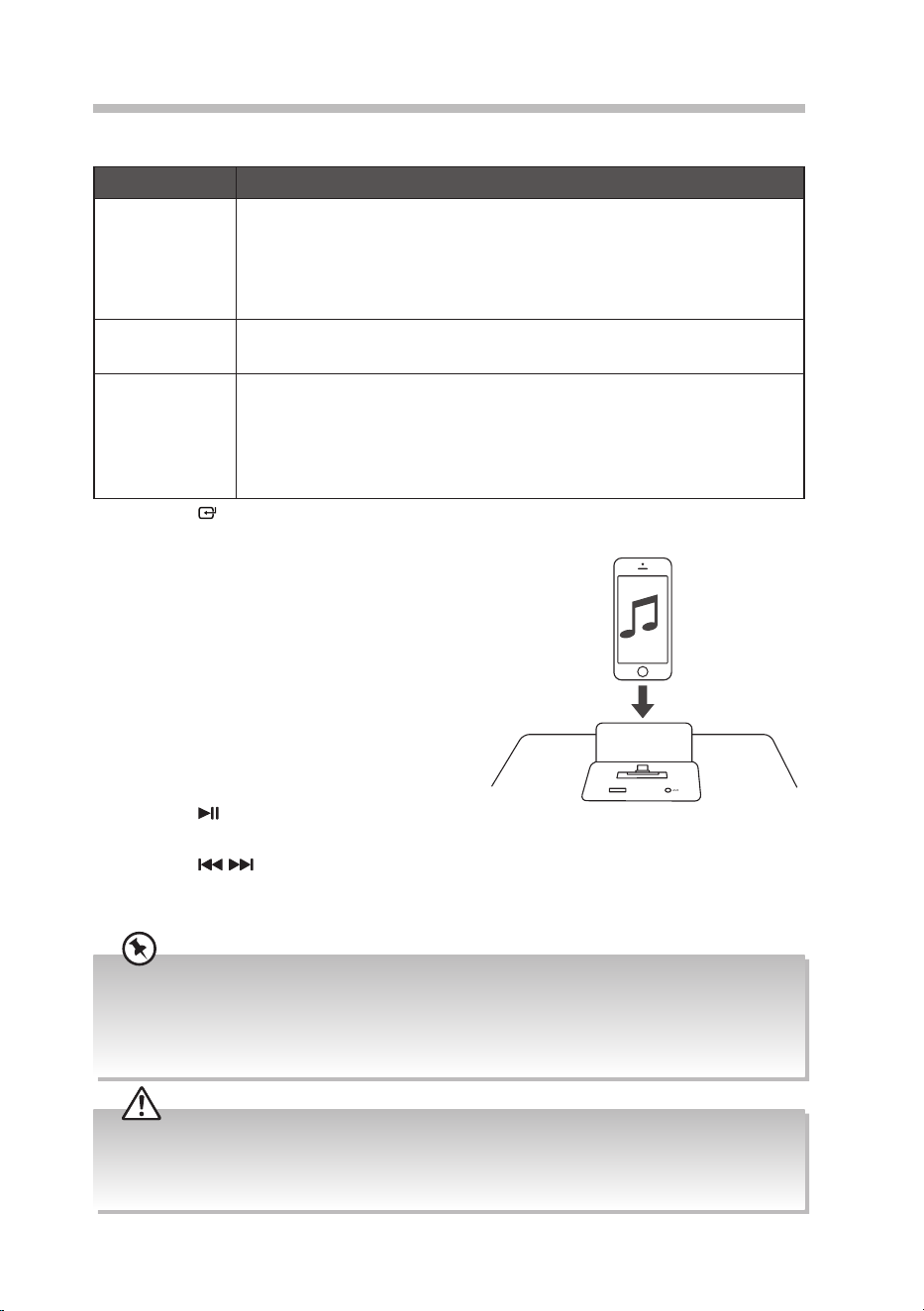
2. Insert your device to the dock.
3. If the iPhone/iPod/iPad is connected, the
unit will start playback, it will take around 10
seconds to allow the unit to identify the iPod/
iPhone/iPad. The iPod/iPhone/iPad battery
will start to charge automatically and will
continue charging.
4. Select your desired music, or videos, etc., and
play the connected iPod/iPhone/iPad as usual.
You can use either the iPod/iPhone/iPad or:
• Press the /PAIR button to start/pause
playback.
• Press the / button on the remote control to select the previous/next track.
• Turn the –VOLUME+ dial on the unit, or press VOL+/VOL– button on the remote
control to increase/decrease the volume.
• To control the menu operation of iPad series, iPhone series, iPod touch series and iPod nano 7th
generation, you need to enter the music menu on your iPod/iPhone/iPad rst.
• This manual provides the basic instructions of menu navigation on iPod/iPhone/iPad. For advance
operations, please refer to your iPod/iPhone/iPad instructions.
• Remove the protective case from your device for the best docking connection.
• The unit cannot show any music information of your iPod/iPhone/iPad. Please view the music
information from your iPod/iPhone/iPad display.
• To avoid damaging your iPod/iPhone/iPad or the unit, please take care when inserting and removing
your iPod/iPhone/iPad from the dock.
28
Bluetooth® Operation
The unit has a Bluetooth® function that can receive a signal within 8 metres.
Pairing the unit with a Bluetooth® device to listen to music:
1. Press the SOURCE button on the unit or press BT button on the remote control to
select BT mode.
2. Activate your Bluetooth® device and select the search mode.
3. “RD-D328B” will appear on your Bluetooth® device.
4. Select “RD-D328B” and enter “0000” for the password if necessary. The unit will prompt
“Paired”.
5. To disconnect the Bluetooth® function,
• Switch to another function on the unit.
• Disable the function from your Bluetooth® device. The Bluetooth® device will be
disconnected from the unit after it prompts “Disconnected”.
• Press and hold the /PAIR button on the remote control. The Bluetooth® device
will be disconnected from the unit after it prompts “Pairing“.
If your Bluetooth® device supports A2DP, play music via your device.
If your Bluetooth® device supports AVRCP, use supplied remote control to control play.
To pause/resume playback, press the /PAIR button.
To skip to a track, press the / button.
Turn –VOLUME+ dial on the unit, or press VOL+/VOL– button on the remote control to
increase or decrease the volume.
• If the signal strength is weak, your Bluetooth receiver may disconnect, but it will re-enter pairing mode
automatically.
• For better signal reception, remove any obstacles between the unit and the Bluetooth device.
• Compatibility with all devices and media types is not guaranteed.
• Some mobile phones with the Bluetooth function may connect and disconnect as you make and end
calls. This is not an indication of a problem with your unit.
NFC Operation
NFC is a one touch way of pairing your NFC device via Bluetooth to your speaker.
1. Activate NFC on your mobile device.
2. Place the NFC sensor area on the device close to the unit’s NFC sensor area (it will work
best within 10 mm) to connect your device to the unit.
3. Place the NFC sensor area on the device close to the unit’s NFC sensor area again to
disconnect Bluetooth connection.
29
USB Operation
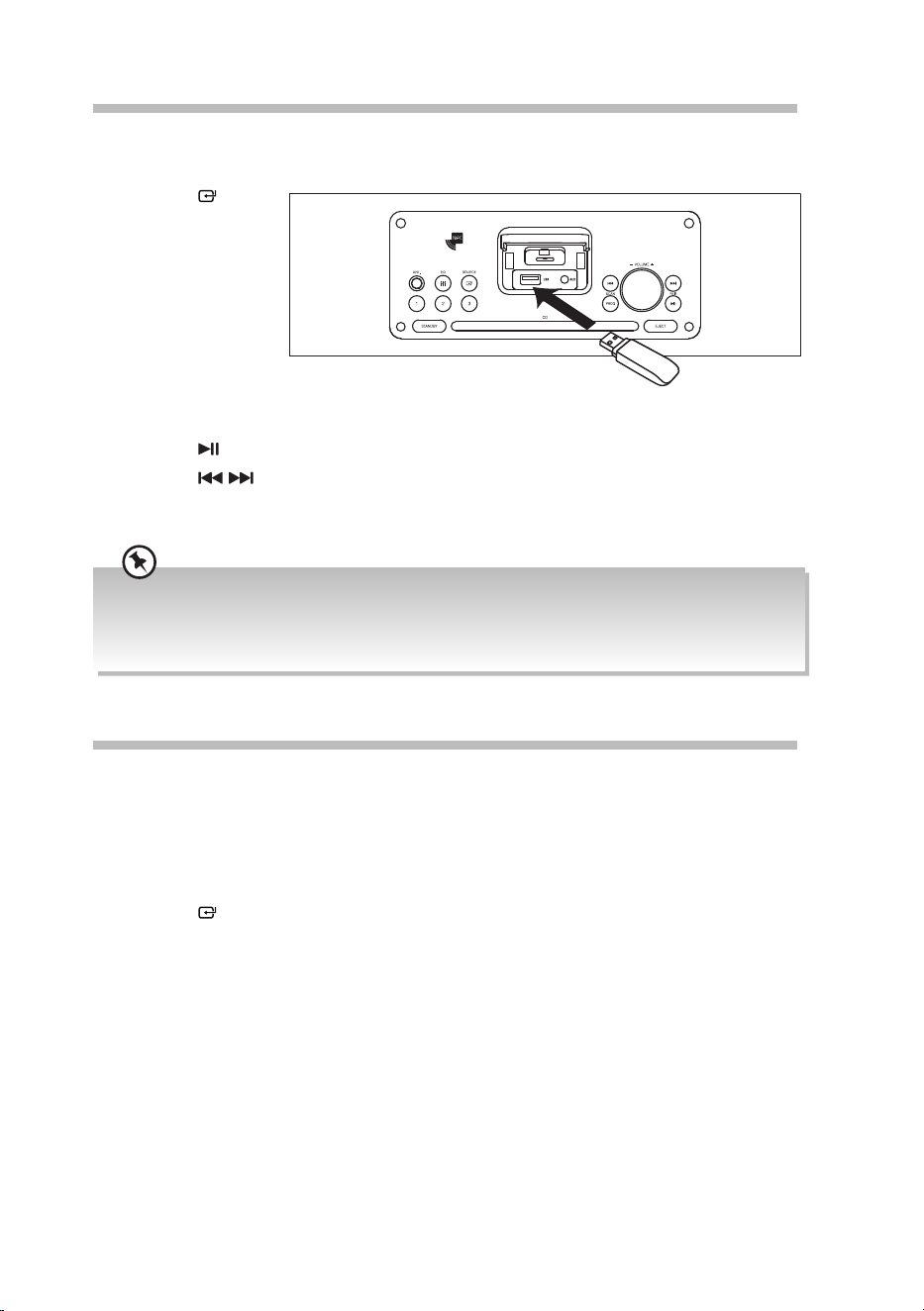
By connecting a USB mass storage device (including USB ash memory, USB ash players
or memory cards) to this unit, you can enjoy the device’s stored music through the unit.
1. Press the
SOURCE button
on the unit or USB
button on the
remote control
to select the USB
source. The word
“USB” will be
showed on the
display. If there is
no USB device connected, the display will show “No USB”.
2. Press the /PAIR button to pause/resume playback.
3. Press the / button to select next/previous album, and play the rst track.
4. Turn –VOLUME+ dial on the unit, or press VOL+/VOL– button on the remote control
to increase or decrease the volume.
• The player supports the USB music le format of MP3 only.
• The unit can support USB devices with up to 32 GB of memory.
• The unit may not be compatible with all USB devices, this is not an indication of a problem with the
unit.
AUX Operation
Before connecting to the mains socket, use a 3.5 mm to 3.5 mm stereo audio cable
(included) to connect to your external audio device through the AUX socket at the top of
the unit.
1. Connect unit to the mains socket with the mains cable. Press on the unit to switch the
unit on.
2. Press the SOURCE button on the unit or AUX button on the remote control to
select AUX mode.
3. You may operate your audio device directly for playback features.
4. Turn –VOLUME+ dial on the unit, or press VOL+/VOL– button on the remote control
to increase or decrease the volume.
30
Maintenance
Cleaning the Unit
Ensure the unit is fully unplugged from the mains socket before cleaning.
• To clean the unit, wipe the case with a slightly moist, lint-free cloth.
• Do not use any cleaning uids containing alcohol, ammonia or abrasives.
• Do not spray aerosol at or near the unit.
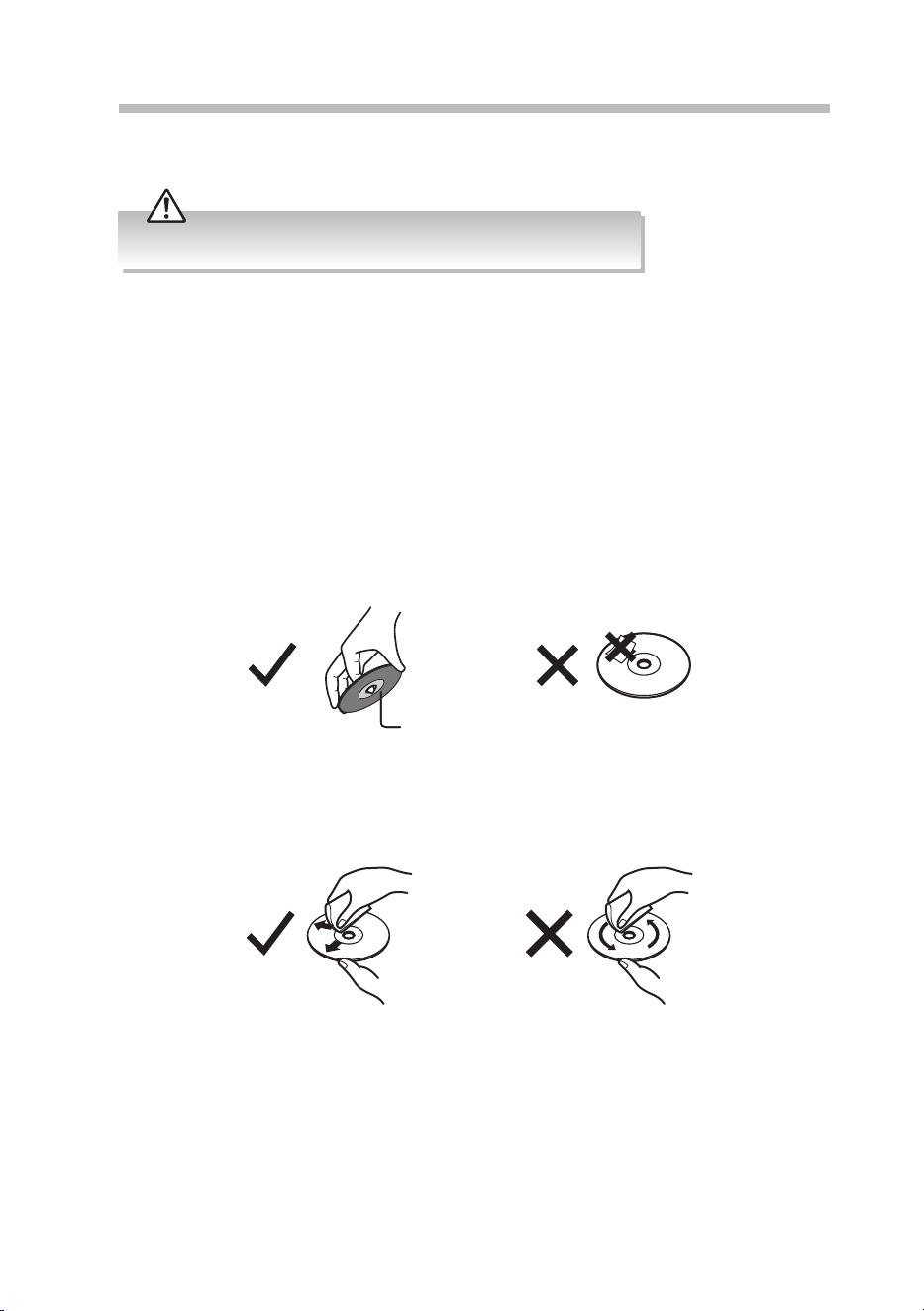
Handling Discs
• Do not touch the playback side of the disc.
• Do not attach paper or tape to the disc.
Cleaning Discs
• Fingerprints and dust on the disc cause sound deterioration. Wipe the disc from the
centre outwards with a cloth. Always keep the disc clean.
Playback side
• If you cannot wipe o the dust with a soft cloth, wipe the disc lightly with a slightly
moistened cloth and nish with a dry cloth.
• Do not use any type of solvent such as thinner, benzine, commercially available
cleaners or antistatic spray. They may damage the disc.
Storing Discs
• Do not store discs in places subjected to direct sunlight or near heat sources.
• Do not store discs in places subjected to moisture and dust such as a bathroom or near
a humidier.
• Storing discs vertically in a case, stacking discs or placing objects on discs outside of
their cases may cause warping.
31
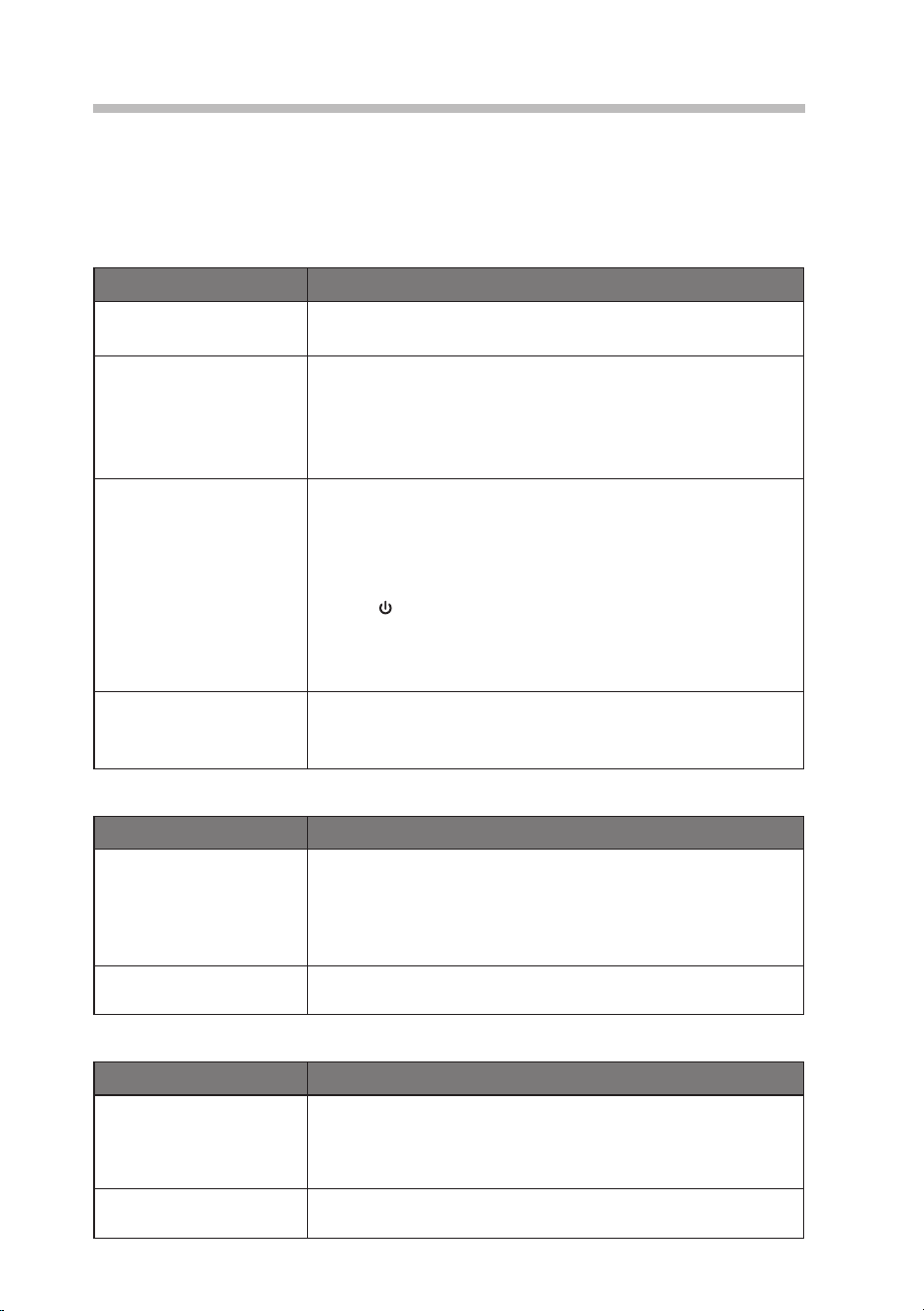
Hints and Tips
If a problem does occur, it may often be due to something very minor. The following table
contains various tips. If you require additional assistance
• For UK, please call our UK Call Centre on 0344 561 1234.
• For Ireland, please call our Ireland Call Center on 1 890 818 575.
General
Problem Solution
No power. • Ensure the mains plug is connected.
• Make sure that you select the ON mode.
The remote control is
not function.
• Use the remote control near the unit.
• Point the remote control at the remote sensor on the unit.
• Replace the battery in the remote control with a new one.
• Remove any obstacles between the remote control and
the unit.
No sound from the unit. Please try either one of the solutions below:
• Make sure that the unit is not muted. Turn –VOLUME+ dial
on the unit, or press VOL+/VOL– button on the remote
control to increase or decrease the volume. on the unit to
resume normal listening.
• Press on the unit to switch the unit to standby mode.
Then press the button again to switch the unit on.
• Unplug the unit from the mains socket, then plug them
again. Switch on the unit.
The unit does not
respond when pressing
any buttons.
• The unit may freeze up during use. Switch the unit o and
then on again at the mains socket to reset the unit.
CD
Problem Solution
Disc in place but the unit
won’t play.
• Make sure you’ve selected CD mode.
• Make sure the disc label is facing up.
• Make sure the disc is clean.
• PAUSE mode may be activated, deactivate it.
• Disc may be damaged or dirty; check and clean the disc.
Disc skips. • Make sure the unit is on a secure spot. Vibrations or jarring
can cause the disc to skip.
Radio DAB/FM
Problem Solution
Poor radio reception. • Make sure the DAB/FM aerial is fully extended.
• Electrical interference in your home can cause poor
reception. Move the unit away from them (especially those
with motors and transformers).
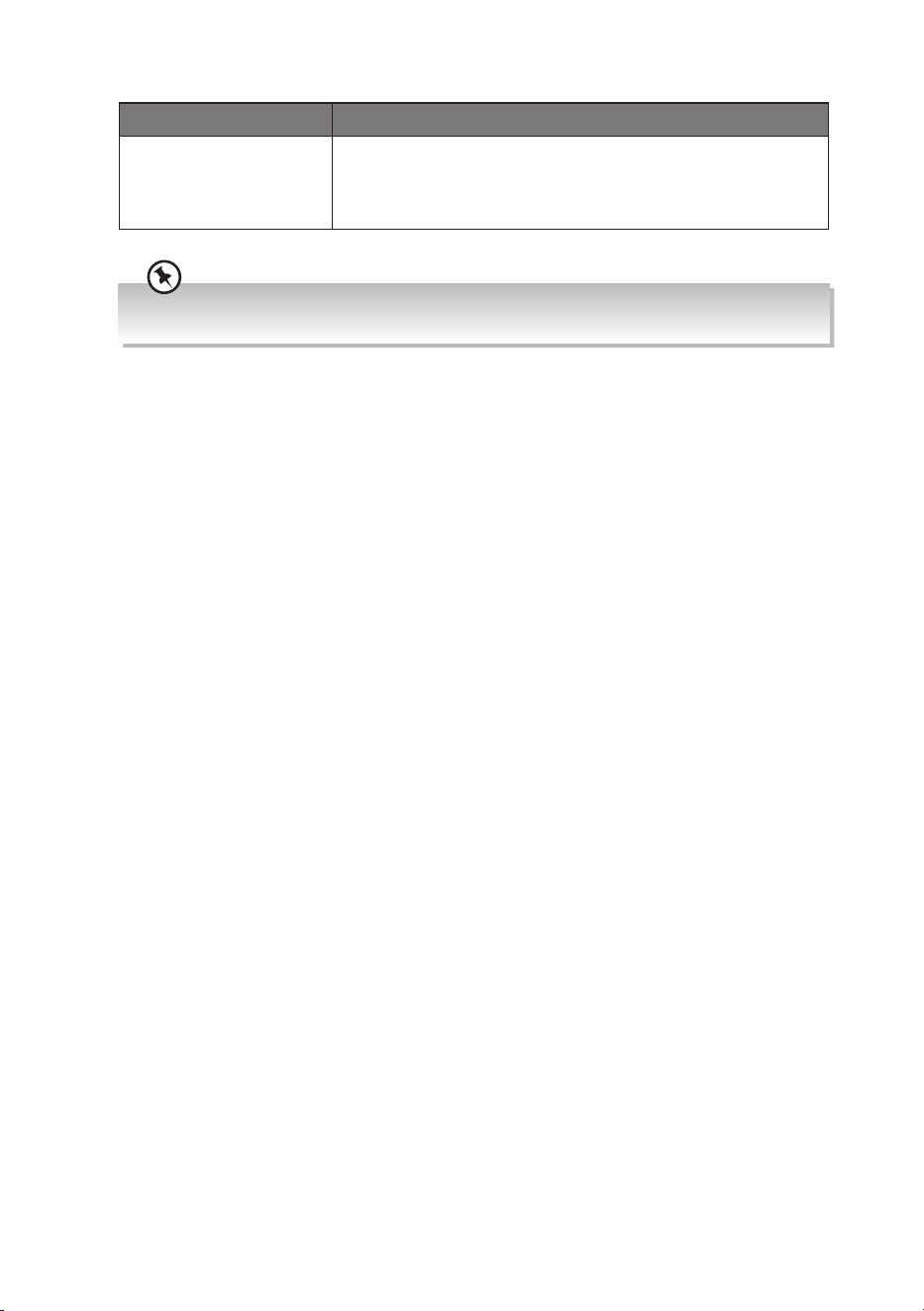
Desired station not
found.
• Weak signal. Search manually.
• If reception is still poor, adjust the position of the aerial.
32
Bluetooth®
Problem Solution
I cannot nd “RD-D328B”
on my Bluetooth® device.
• Ensure the Bluetooth® function is activated on your
Bluetooth® device.
• Ensure you have paired your unit with the Bluetooth®
device.
If any functional abnormality is encountered, unplug the unit from the mains socket and reconnect it
again.
33
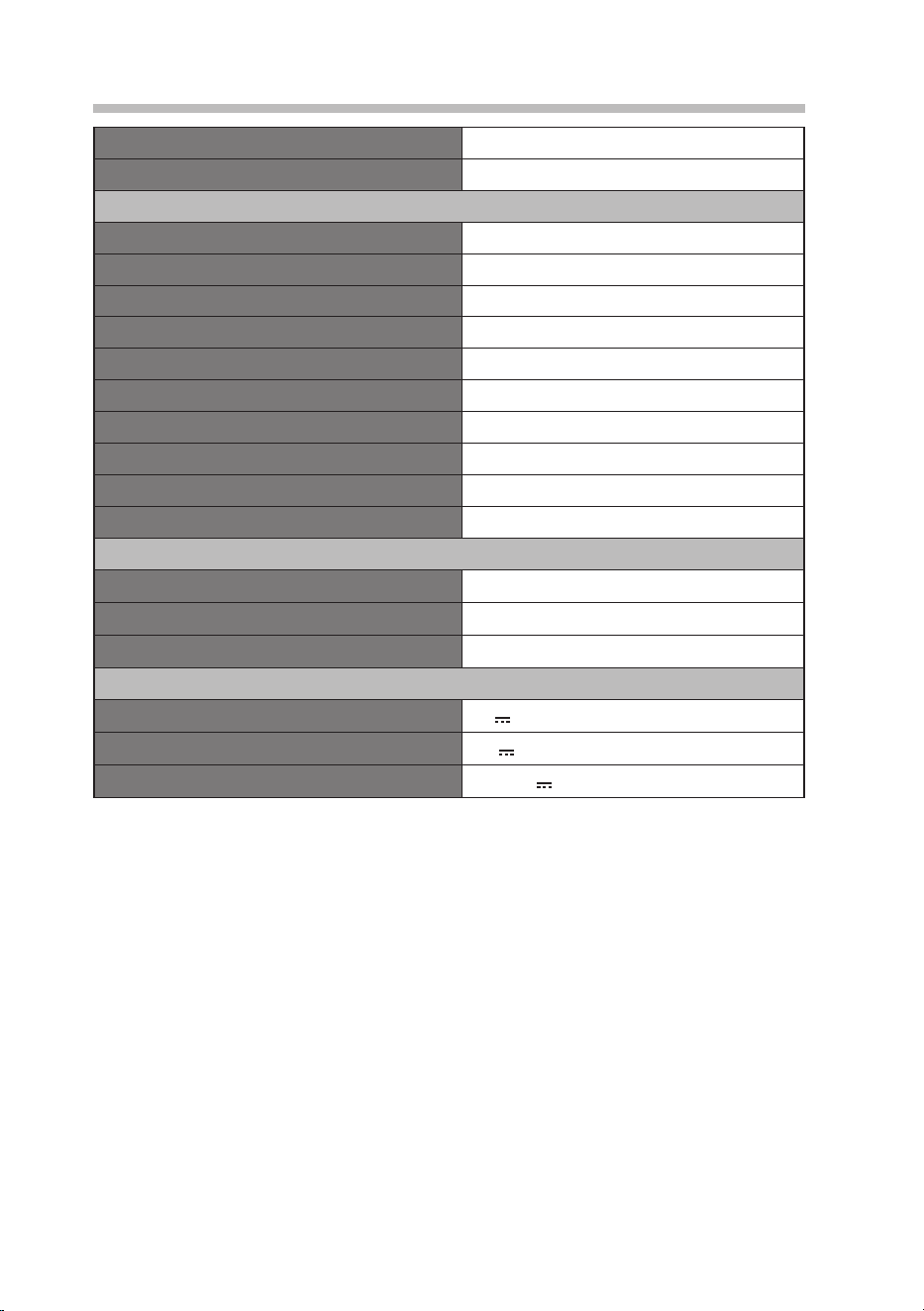
Product Fiche and Specifications
Brand JVC
Model RD-D328B
System Section
Power requirements AC220 - 240 V~ 50/60 Hz
Power Consumption 30 W
Output Power (Max.) 10 W × 2
Total harmonic distortion 1% (1kHz)
Audio input sensitivity 700 mV
Frequency response 45 Hz - 20 KHz
Tuning range 87.5 - 108.0 MHz
DAB/DAB+ 174.928 - 239.200 MHz
Net Weight 2.4 kg
Unit Dimension (W) × (D) × (H) 340 mm × 108 mm × 182 mm
Bluetooth®
Version V4.2
Maximum power transmitted 5 dBm
Frequency bands 2402 - 2480 MHz
USB Charging
Lightning Only Charging 5V 2.1A Max
USB Only Charging 5V 1.3A Max
USB and Lightning in parallel Total 5V 2.1A Max
Features and specications are subject to change without prior notice.
34
Useful Information and Licences
Visit Partmaster.co.uk today for the easiest way to buy electrical
spares and accessories. With over 1 million spares and accessories
available we can deliver direct to your door the very next day. Visit www.partmaster.co.uk or
call 0344 800 3456 (UK customers only). Calls charged at National Rate.
The symbol on the product or its packaging indicates that this product
must not be disposed of with your other household waste. Instead, it is
your responsibility to dispose of your waste equipment by handing it over
to a designated collection point for the recycling of waste electrical and
electronic equipment. The separate collection and recycling of your waste
equipment at the time of disposal will help conserve natural resources and
ensure that it is recycled in a manner that protects human health and the
environment.
For more information about where you can drop o your waste for
recycling, please contact your local authority, or where you purchased your
product.
All trademarks are the property of their respective owners and all rights are acknowledged.
For general information about appliances,
and handy hints and tips check out Kit Guides at
teamknowhow.com or
call UK: 0344 561 1234 Ireland: 1890 818 575
The Bluetooth® word mark and logos are registered trademarks owned by Bluetooth SIG,
Inc. and any use of such marks by DSG Retail Limited is under license. Other trademarks and
trade names are those of their respective owners and all rights are acknowledged.
“Made for iPod,” “Made for iPhone,” and “Made for iPad”
mean that an electronic accessory has been designed
to connect specically to iPod, iPhone, or iPad,
respectively, and has been certied by the developer
to meet Apple performance standards. Apple is not responsible for the operation of this
device or its compliance with safety and regulatory standards. Please note that the use of
this accessory with iPod, iPhone, or iPad may aect wireless performance. iPad, iPhone,
iPod, iPod classic, iPod nano, iPod touch, and Retina are trademarks of Apple Inc., registered
in the U.S. and other countries. iPad Air, iPad mini, and Lightning are trademarks of Apple
Inc.
*Not compatible with iPad Pro 12.9-inch.
This radio is future-ready because it contains DAB, FM and
DAB+ which is a future technology standard being adopted
across Europe


(IB-RD-D328B-180523V2)
Dear Customer,
This apparatus is in conformance with the valid European directives compatibility and
electrical safety.
European representative of the manufacturer is:
DSG Retail Ltd. (co. no. 504877)
1 Portal Way, London, W3 6RS, UK
For Help and Support Call
UK: 0344 561 1234
Ireland: 1890 818 575
The product is distributed and warranted exclusive by DSG Retail Ltd.
“JVC” is the trademark of JVC KENWOOD Corporation,
used by DSG Retail Ltd. under license.
