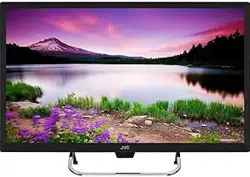

LT-32N370Z
32
INPUT
Safety warning
Important Safety Instructions
Electronic Program Guide
PVR File System
16
17
Lock Menu
18
19
21
21
22
25
23
24
20
15
14
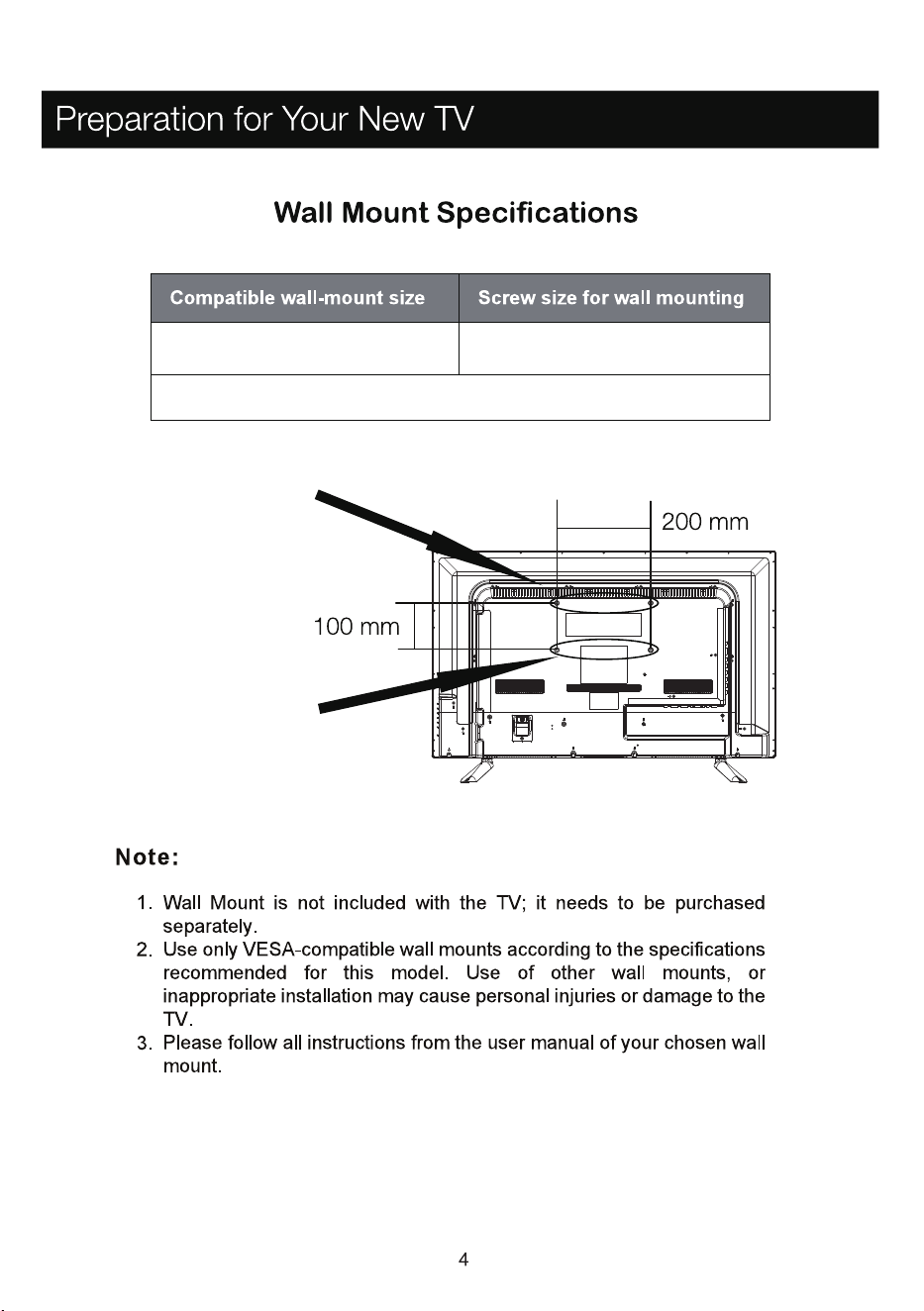
Wall Mount Specifications
11
11
11
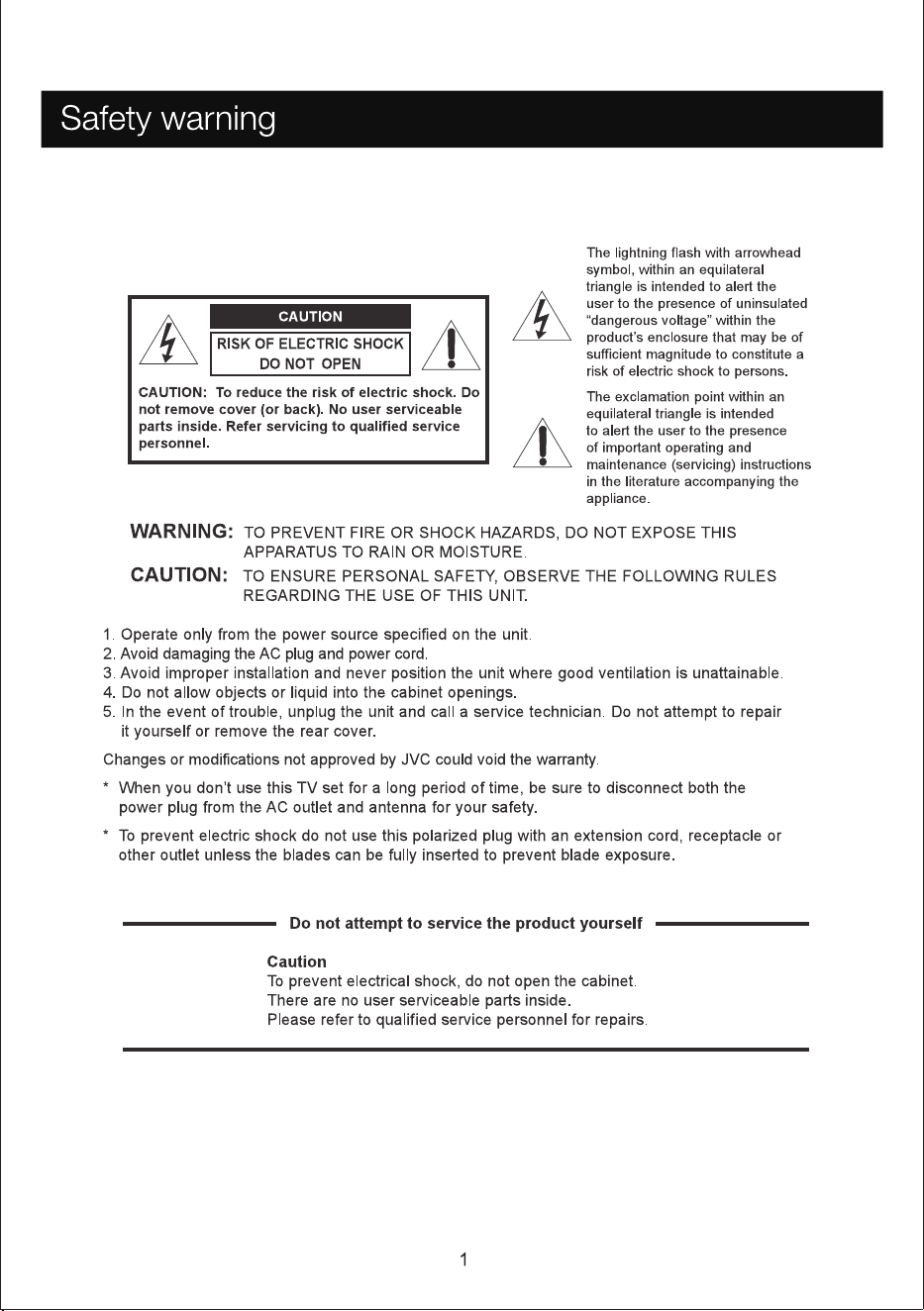
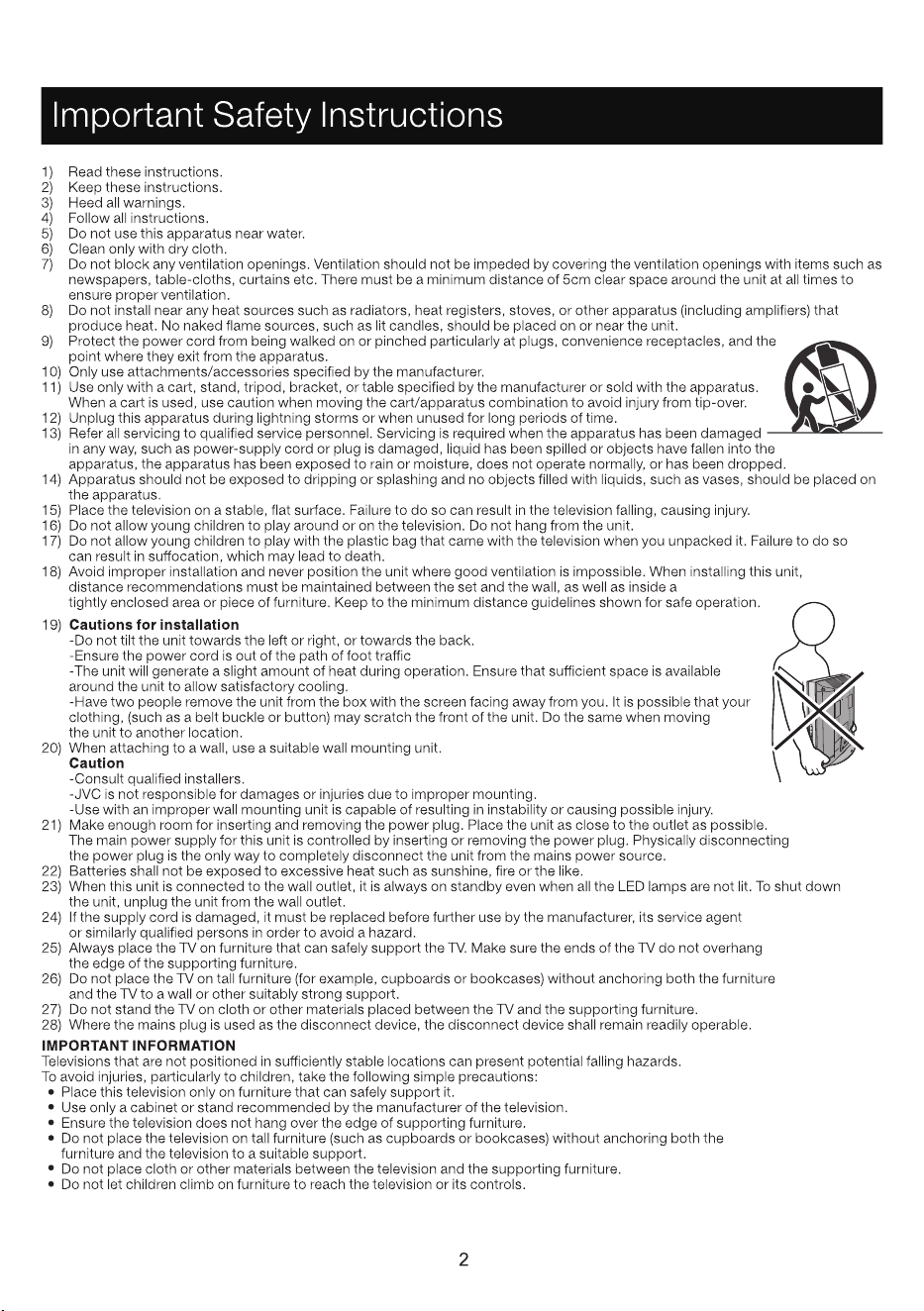
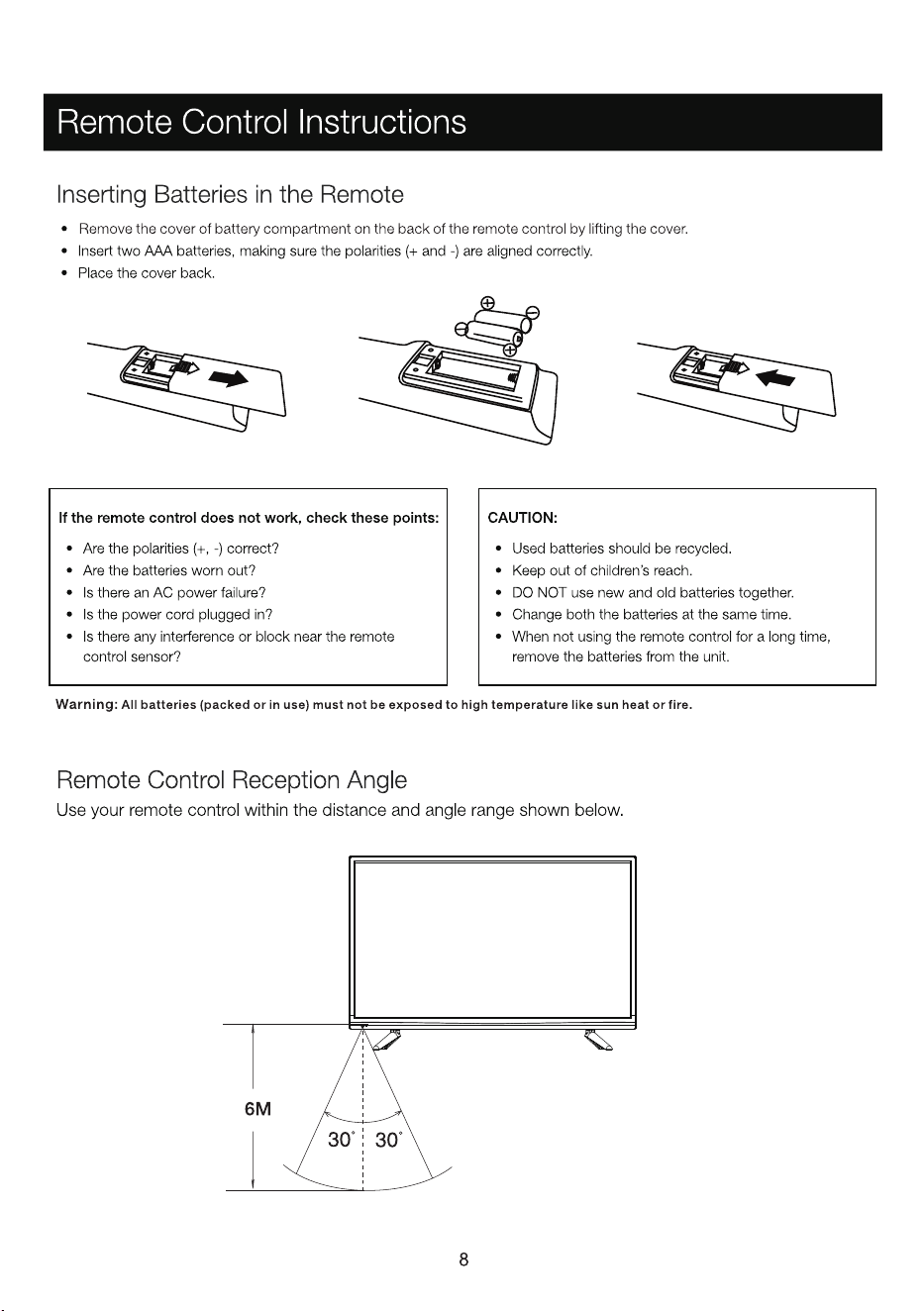
AAA BATTERIES
TV STAND SCREWS
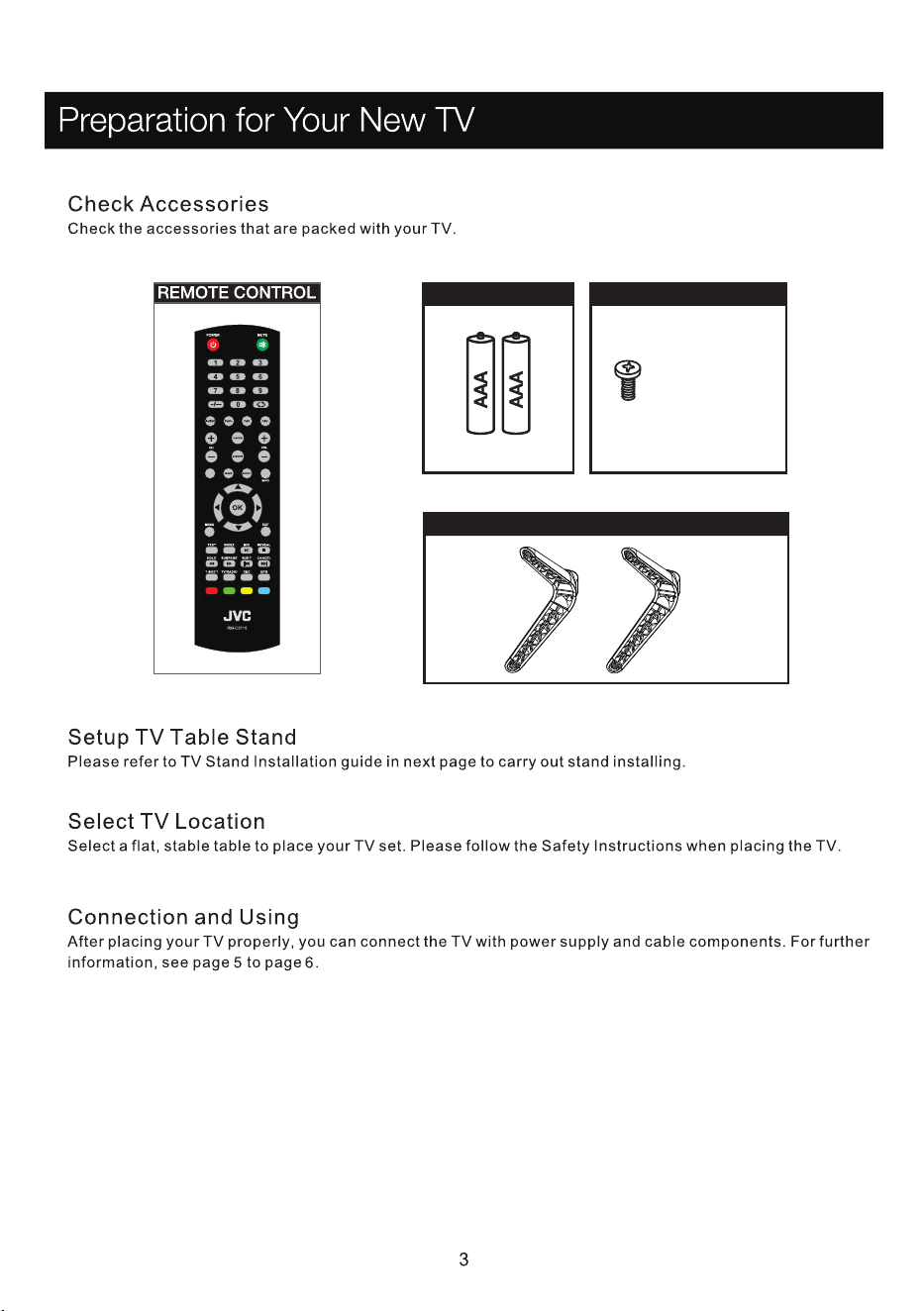
TV STAND BASE
SCREWS
M4 x 16mm, 4pcs
INPUT
Model No.LT-32N370Z
M6 Screws, length 16mm
M6 Screws, length 10mm
M6 screws, length 10mmx2pcs*
M6 screws, length 16mmx2pcs*
VESA 100*200
* The length of the screw specified is only a recommendation; actual length required can
vary depending on the type of wall mount used.
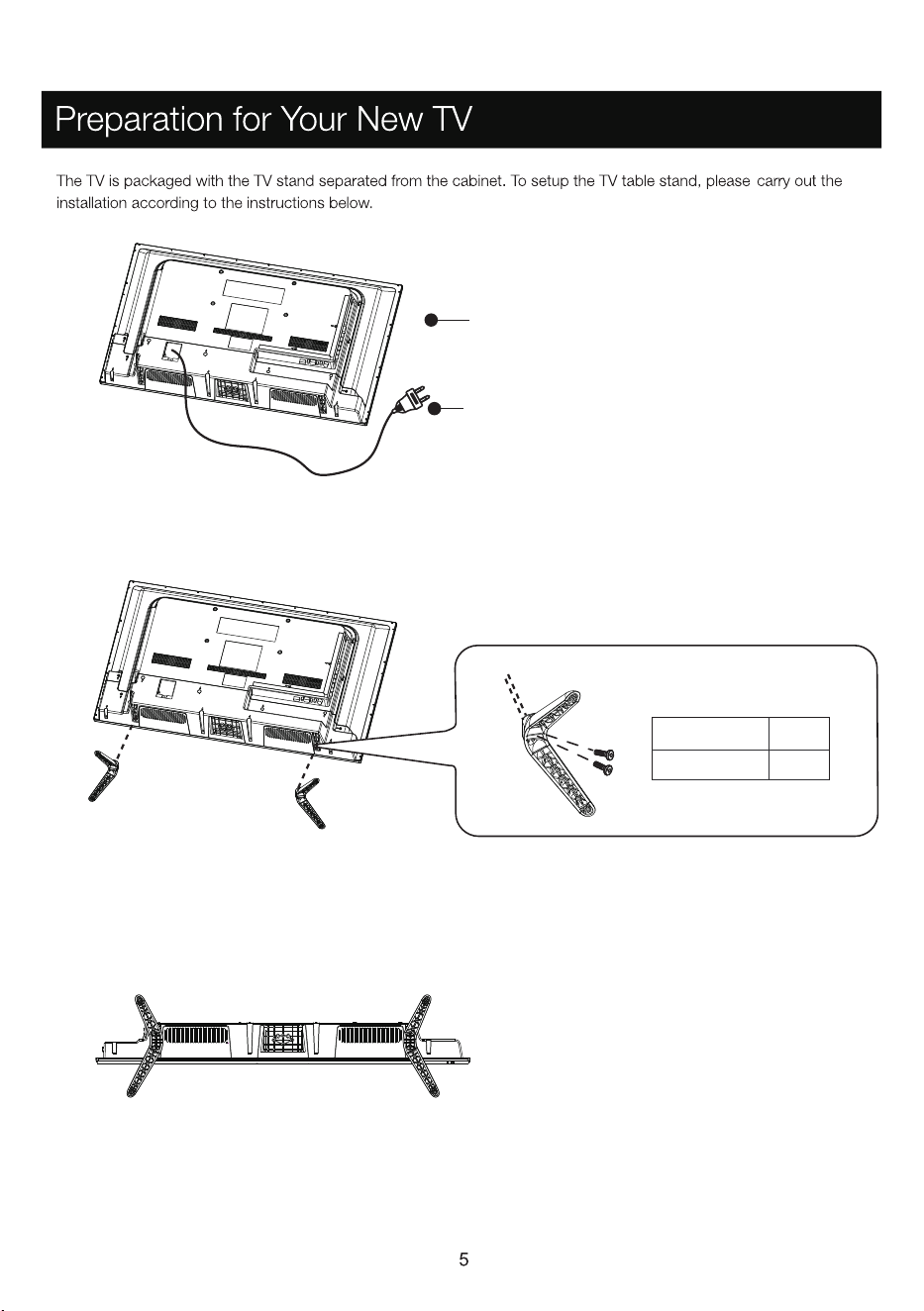
Please take note of the base direction:
The bottom view of the TV (Front cabinet faces down)
M4 x 16mm
Pedestal Screws
Quantity
4pcs
The panel can be scratched easily, so please:
1. Choose an absolutely flat surface to place the TV on.
2. Use soft cloth to face the TV panel,
Do not put TV on the table directly.
Always unplug the AC cord first when installing/removing
the stand.
Step One
IMPORTANT: Place a soft cloth on a table and place the TV face
down on the cloth. This is to prevent the panel from being
cracked or damaged.
Step Two
Take the base. Please align the screw holes of the base and
the TV, and then insert the 4 screws into the 4 holes on the
base and tighten them.
CVBS HDMI1 HDMI2
CVBS
R
L
HDMI3
COAX
RF
PC
Audio
in
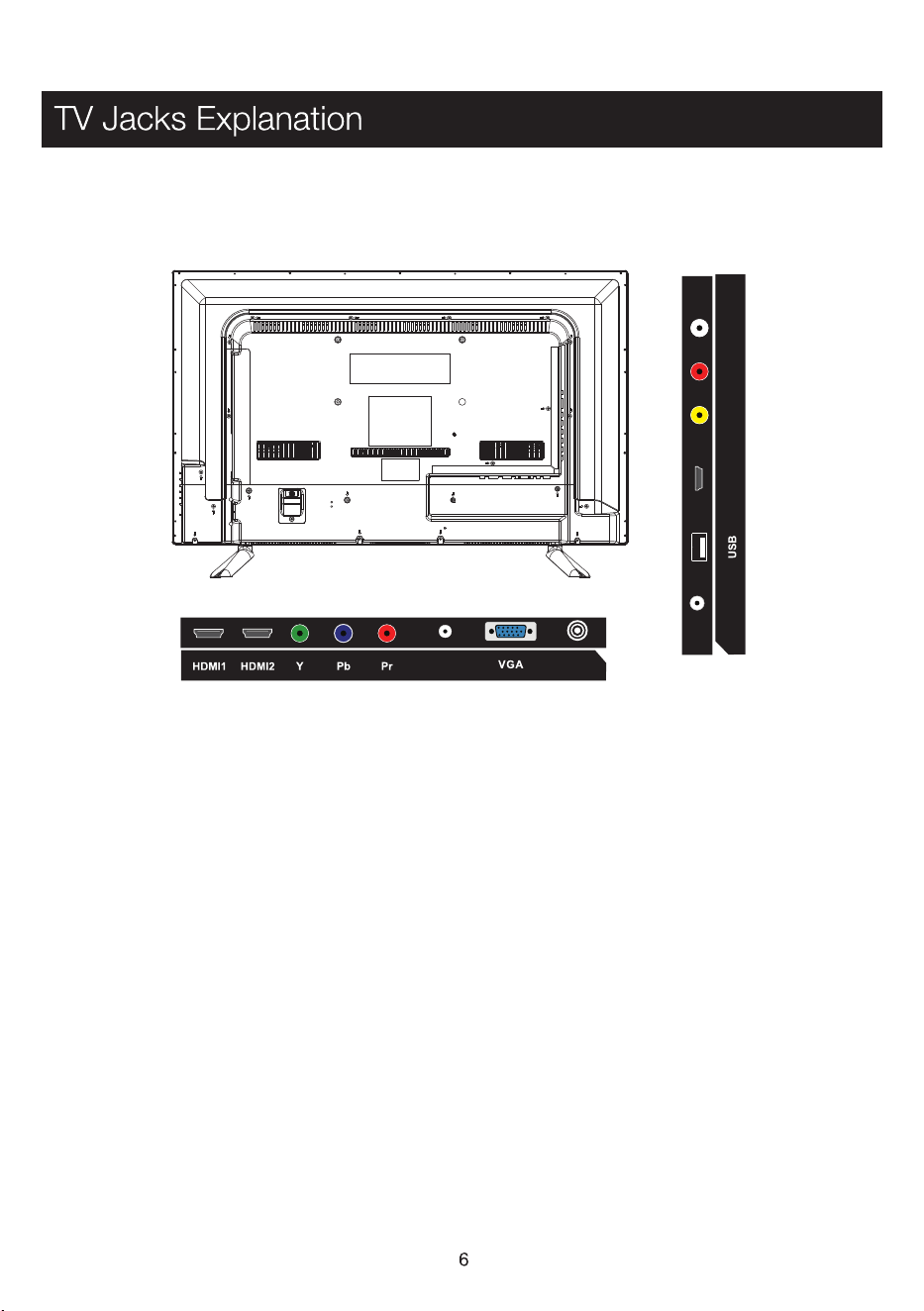
YPbPr:
Connect a device that has component video jacks, such as a DVD player.
HDMI1, 2, 3: (High-Definition Multimedia Interface) It provides an uncompressed digital connection that
carries both video and audio data by way of an integrated mini-plug cable.
VGA: Connect your computer or other device with a VGA output to this jack using a 15-pin, D-sub cable.
PC Audio in: Use to obtain sound when a PC is connected to TV. Use 3.5mm stereo mini-pin cable to connect PC to TV.
USB: Connect USB device, such as flash disk to access media function of TV.
RF: Connect to receive the signal from your antenna or cable via coaxial cable .
COAX: Digital TV sound output.
CVBS,R/L:
Connect an AV device that has composite video jacks, such as a VCR or DVD player.
AUDIO-IN R:
Right audio channel connection. the right audio connector is usually red.
AUDIO-IN L:
Left audio channel connection. The left audio connector is usually white.
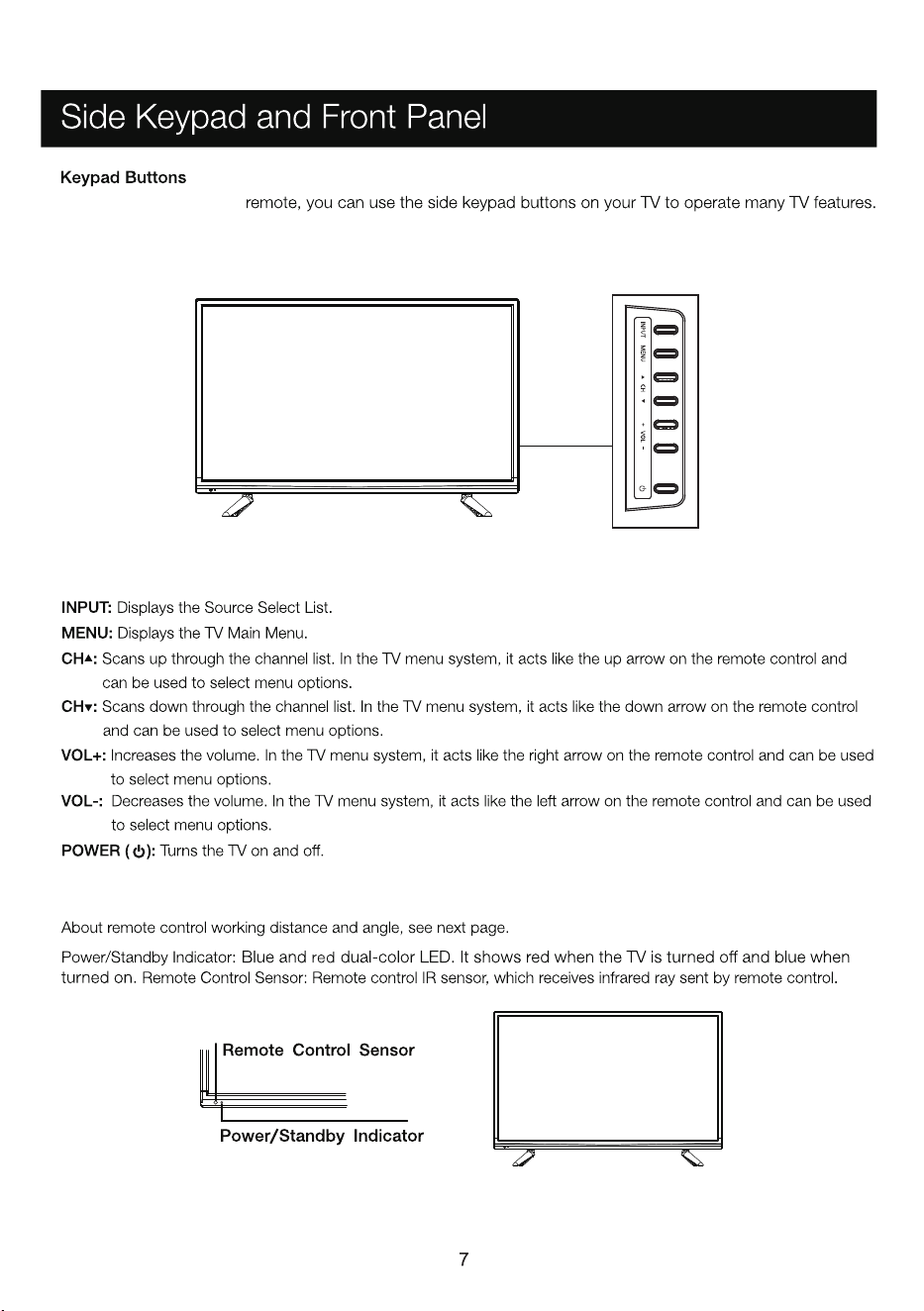
Front Panel
If
you cannot locate your
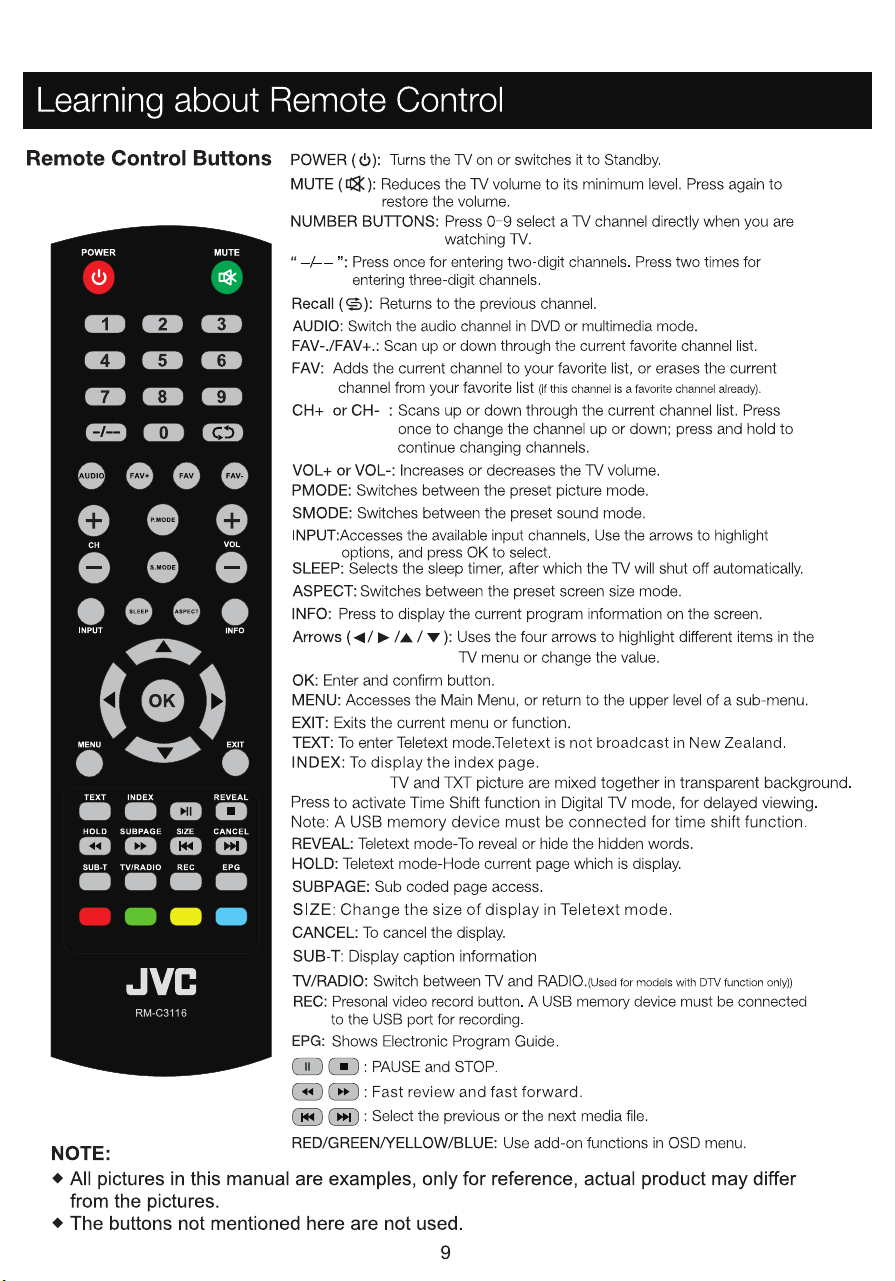
MIX/T-SHIFT:
MIX/T-SHIFT
10
Move
Select
ENTER
Exit
EXIT
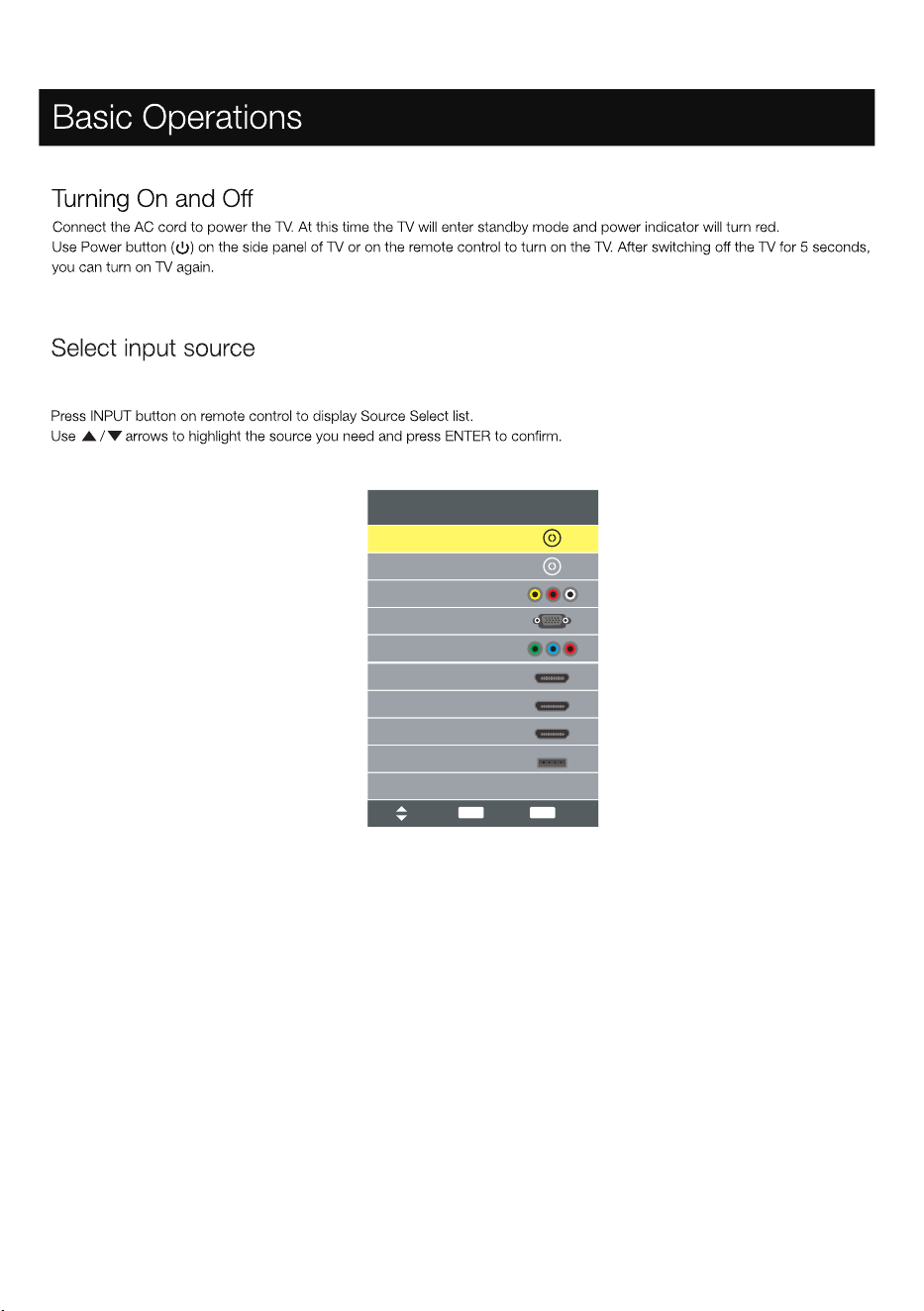
Input Source
AV
DTV
ATV
HDMI1
HDMI2
Media
PC
HDMI3
YPbPr
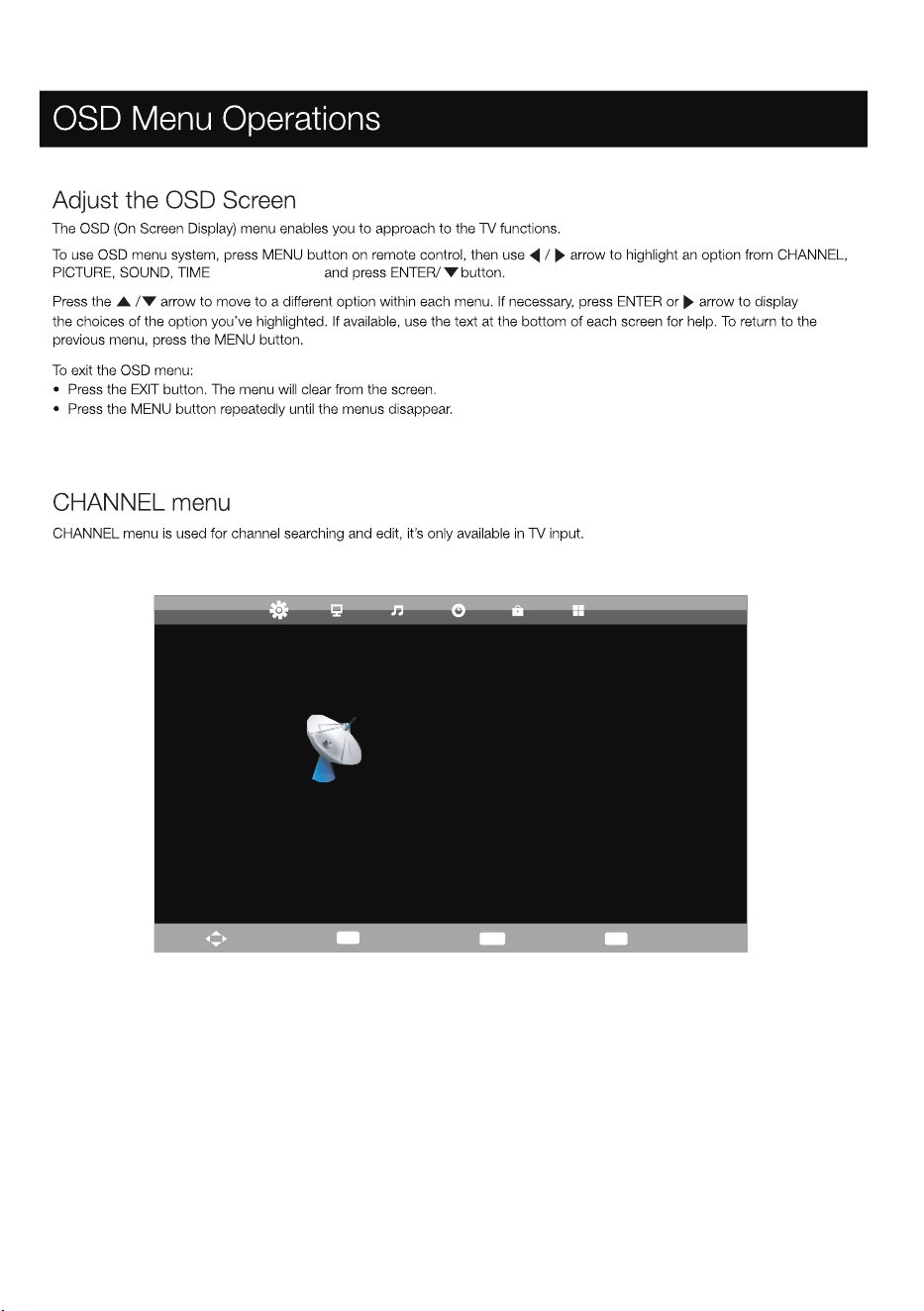
Press MENU on the remote. Select CHANNEL from the Main menu. Press the ENTER button to proceed to CHANNEL menu.
11
, Lock or Setup
Move
MENU
Return
ENTER
Select
EXIT
Exit
CHANNEL
Auto Tuning
ATV Manual Tuning
DTV Manual Tuning
Programme Edit
Signal Information
Schedule List
2%... 422.00 MHz TV
TV
DTV
Radio
:
:
:
0 Programme
0 Programme
0 Programme
Please press MENU key to exit
Data
:
0 Programme
12
•
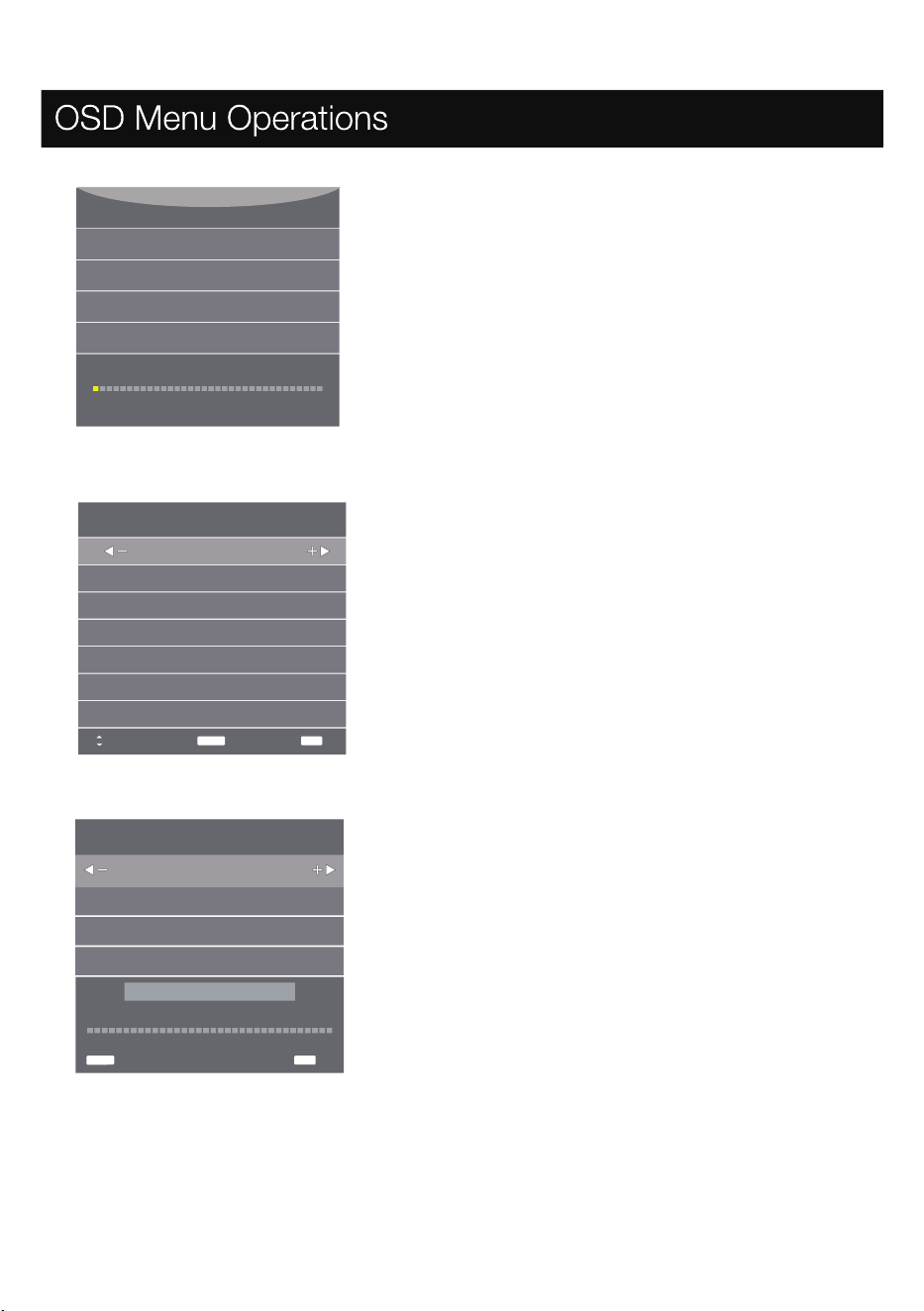
ATV Manual tuning: search the channel manually.
You can customise the color/sound system, frequency of channel.
•
Channel tuning: search channel automatically.
You can stop searching with MENU button.
•
DTV Manual tuning: search the channel manually.
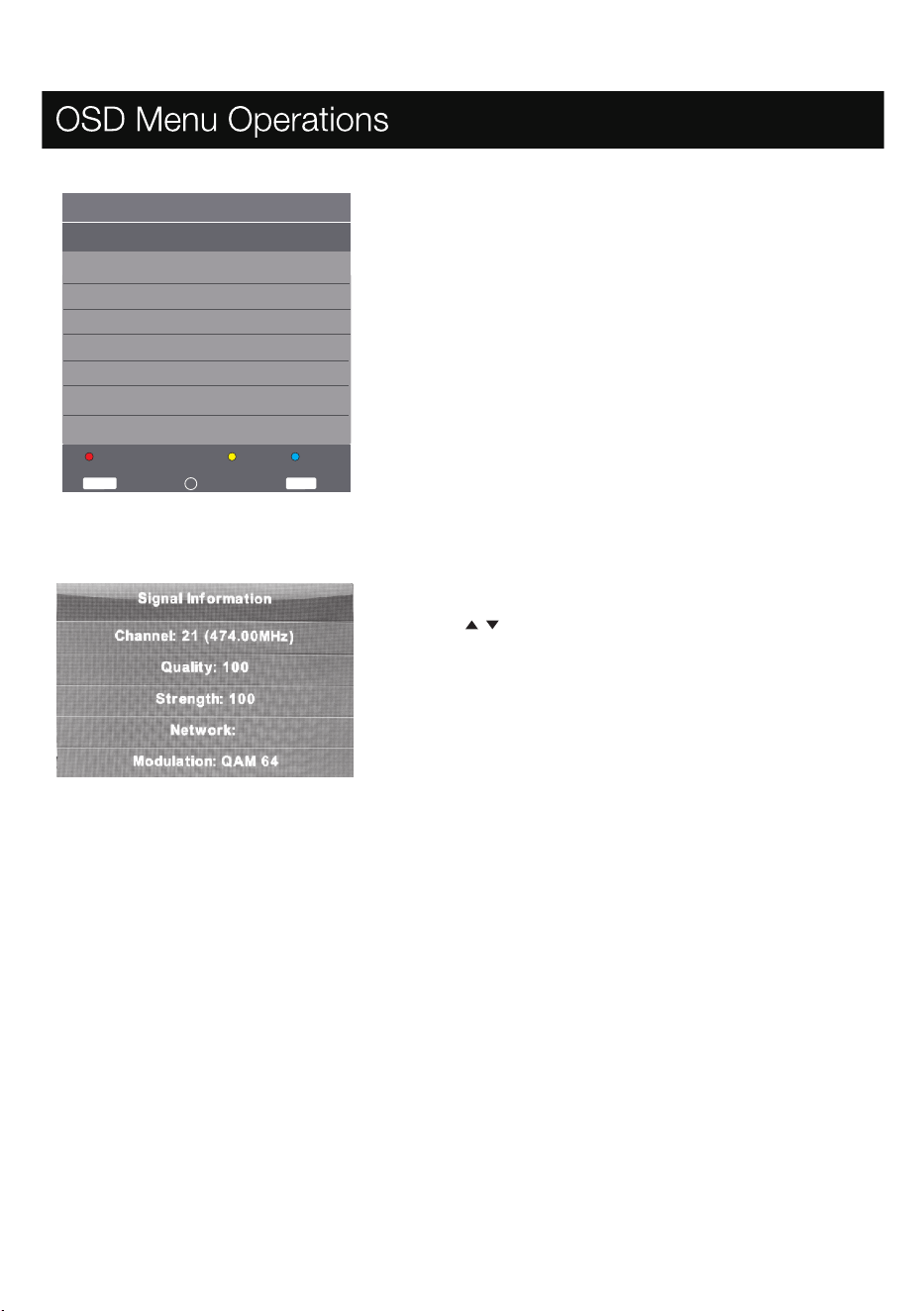
Use the arrows button to select DTV Manual Tuning, then press Enter
button to enter sub-menu,
ATV Manual Tuning
Current CH 1
Color System PAL
Sound System BG
Fine-Tune 422.75MHz
AFC on
Search
NO SIGNAL
Bad Freq: 436.50 MHz Good
DTV Manual Tuning
UHF CH 21
MENU Back EXIT Exit
Move
EXIT ExitMENU Back
Channel Tuning
•
Schedule List
Show the Schedule list, it is available under DTV source.
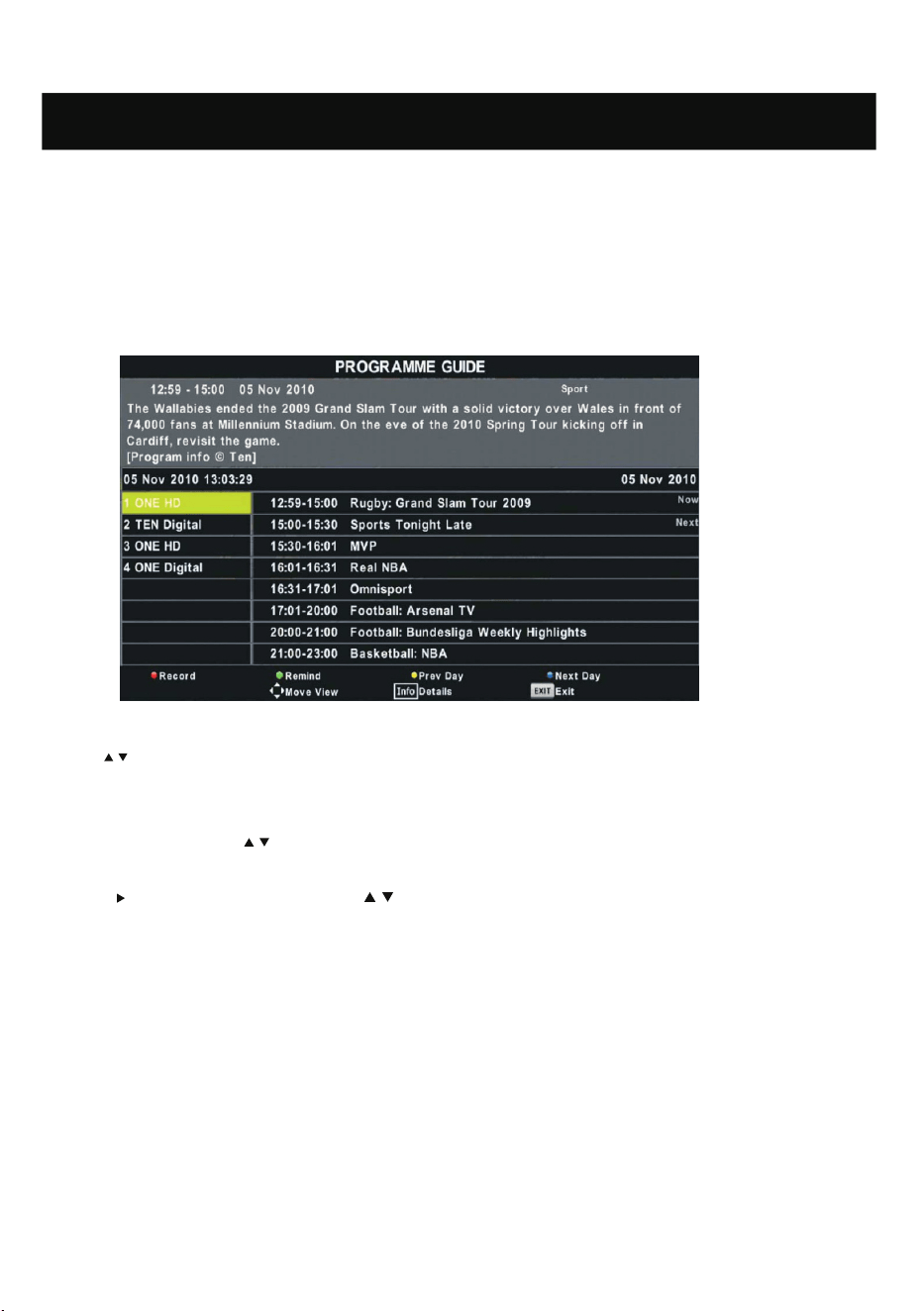
Programme Edit: via color buttons you can edit the programme,
You can also add or erase the channel to the favorite channel list
via FAV button on remote control.
functions include delete, skip channel, etc.
•
•
Signal Information
Press button to select signal information, then press the
Enter button to see the detailed information about the signal.
Only available when there is
signal under DTV.
/
13
Programme Edit
Delete
Skip
Move
FAV
FAV
EXIT BackENTER Select
6.To exit out of the EPG menu, press the EXIT button.
2.Before you can view any EPG information, you have to 'activate' every channel for which you want to view program information. To do this,
use the / buttons to select a channel, then press [ ENTER ] to confirm.
5.Use the buttons to enter the time list, and use the / buttons to scroll through the time slots.
3.To check programs to be broadcast on a different date, use the Yellow/Blue button to select the date, the program on the previous/next day
will be displayed.
4.Go to the channel and use the / buttons to select the channel for which you want to view
information. After a brief moment, the program information will appear on the second bar.
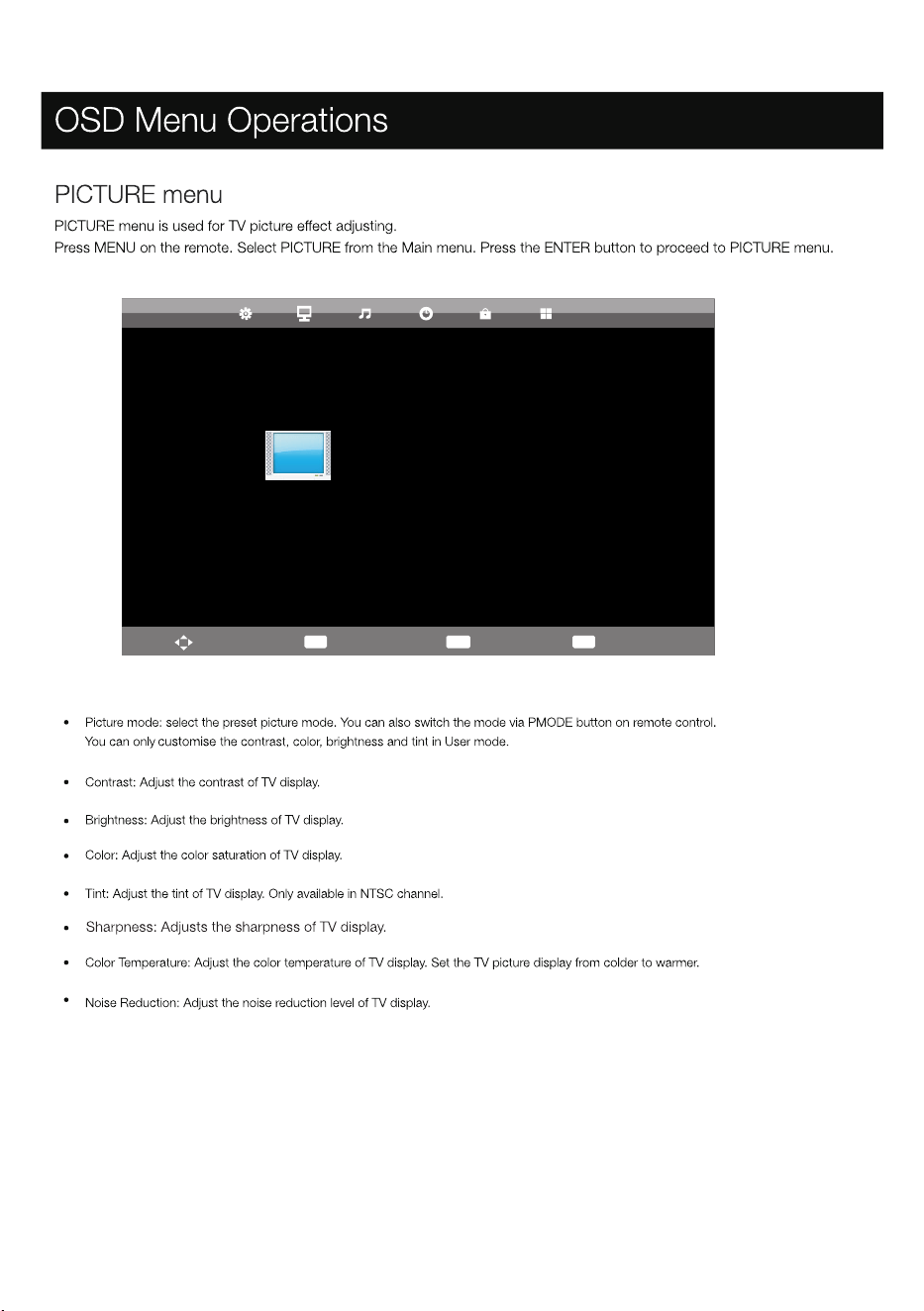
EPG stands for Digital Electronic Program Guide. It is supplied by the program providers and offers
information about the programs to be broadcast. You can access it in digital mode by pressing the EPG
button on the remote control.
1.Press the EPG button to bring up the EPG interface (below).
The second bar from the top will display the current date and time. On the list below, the channel you are
currently watching will be highlighted.
Press the RED button to switch to PVR mode. Here, you can set the time to record your chosen program.
Press the GREEN button to set a reminder for a particular program.
Press the YELLOW button to set the previous day’s information.
Press the BLUE button to set the next day’s information.
OSD Menu Operations
14
15
Move
MENU
Return
ENTER
Select
EXIT
Exit
PICTURE
Picture Mode Standard
Contrast
Brightness
Colour
Tint
Sharpness
Colour Temp Normal
Noise Reduction Middle
50
50
50
50
50
16
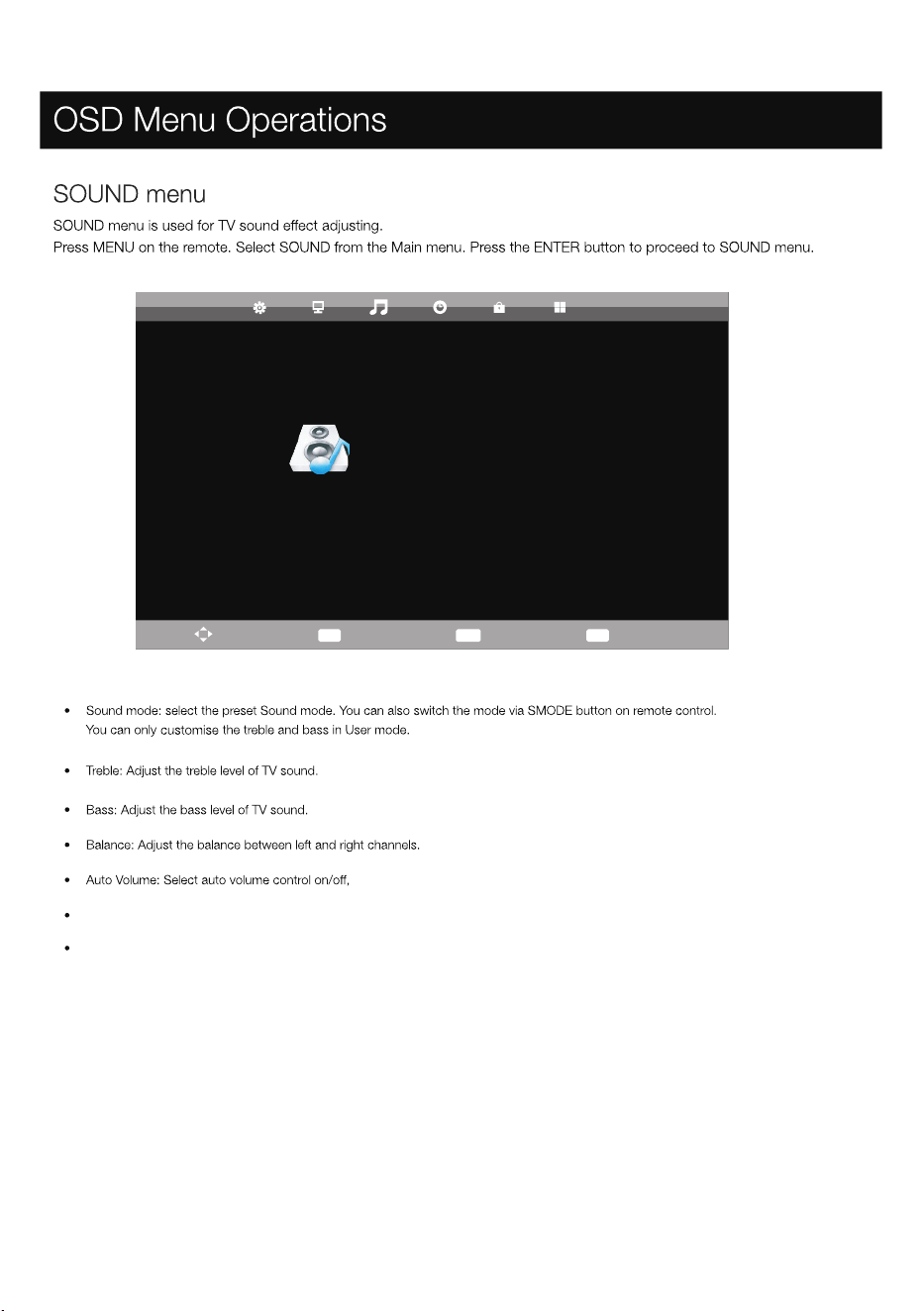
SPDIF: Select three modes area available including Auto, PCM and Off.
AD Switch: Enter the AD Switch sub-menu, then select this option to adjust AD volume.
Move
MENU
Return
EXIT
Exit
SOUND
Sound Mode
Treble
Bass
Balance
Auto Volume
SPDIF Mode
AD Switch
Standard
50
50
0
Off
PCM
Off
Select
ENTER
This limits the volume fluctuation between different channels.
17
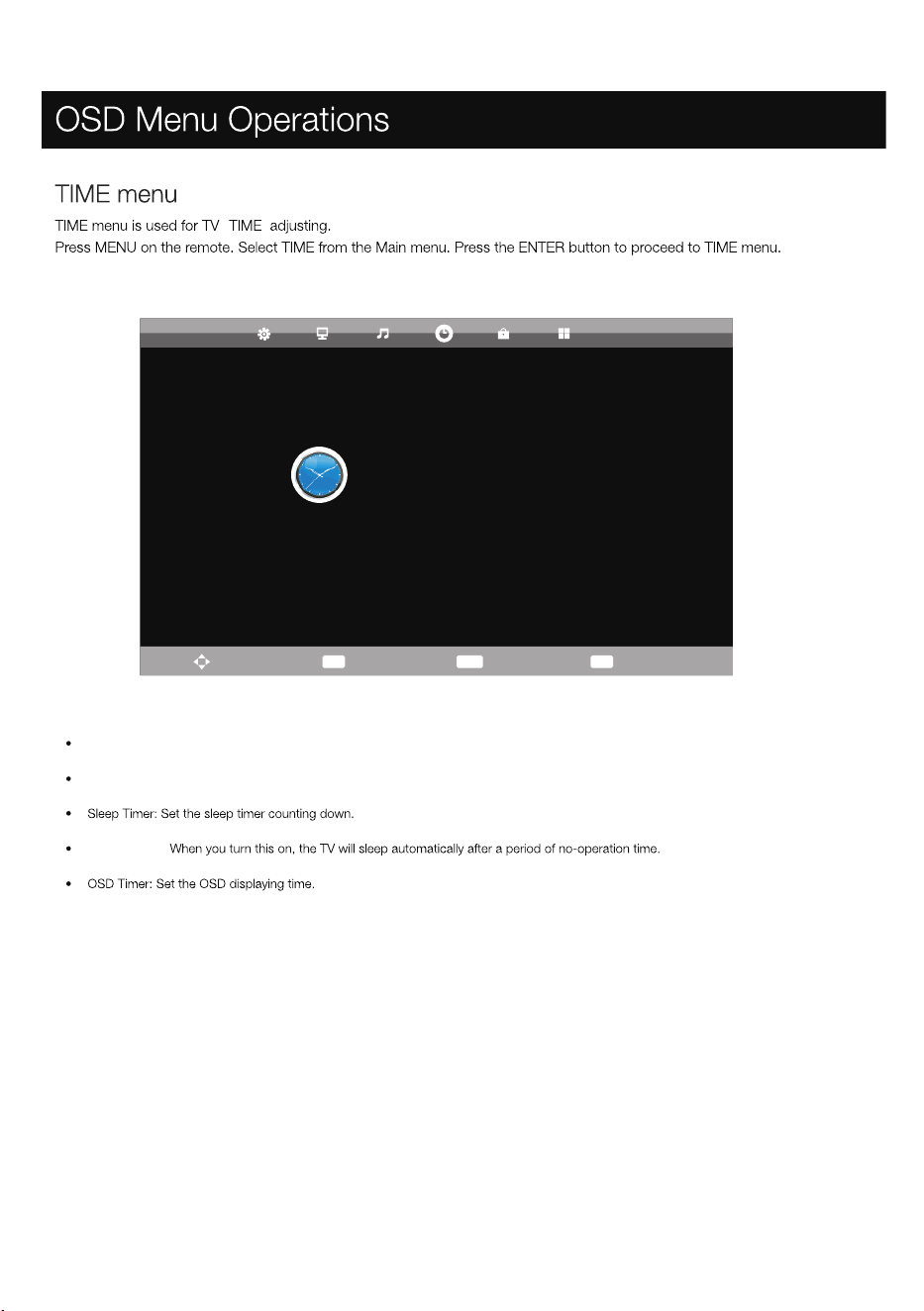
Auto Standby:
Time Zone: Showing the country’s time zone.
Clock: Set the TV clock.
Move
MENU
Return
ENTER
Select
EXIT
Exit
TIME
Clock
Sleep Timer
Auto Standby
Off
4H
OSD Timer
15 S
20/Jul 13:12
Time Zone
GMT+1
18
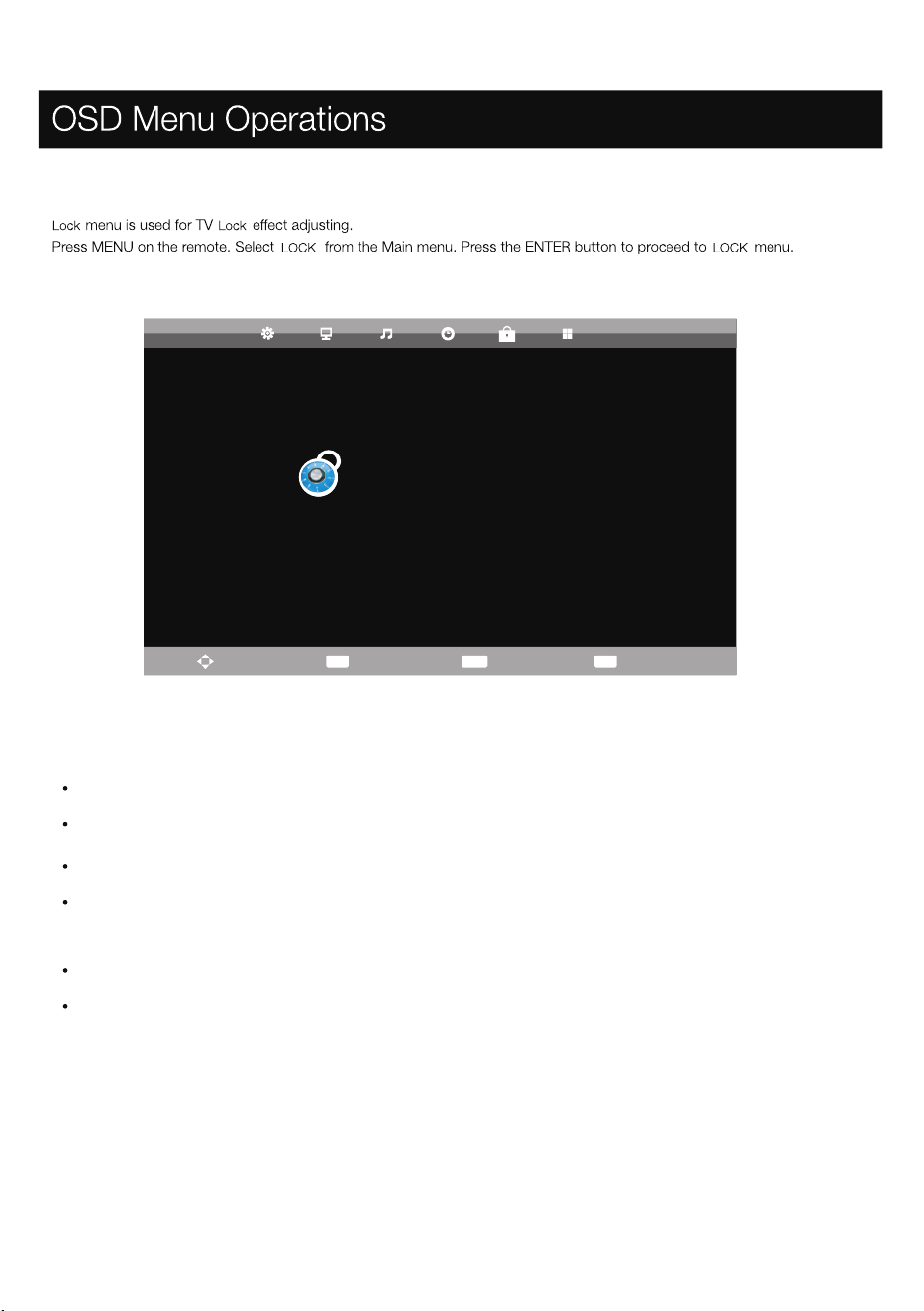
Set Password: To set your own password, first enter the old password, and then enter your new password twice.
Lock System press ENTER button to enter, input password, default password is 0000.
LOCK MENU
Parental Guidance: You can set the parental control function to suit viewing for children of all ages. Choose the categories
in the sub menu.
Block Program: To enter “Block Program ” menu, select the program you want to “Lock” , and press the “Green” button.
Key Lock: You can set to lock or unlock the keypad.
Clock: Set the TV clock.
Move
MENU
Return
ENTER
Select
EXIT
Exit
Lock System
Set Password
Block Program
Parental Guidance NO BLOCK
LOCK
Key Lock Off
Off
19
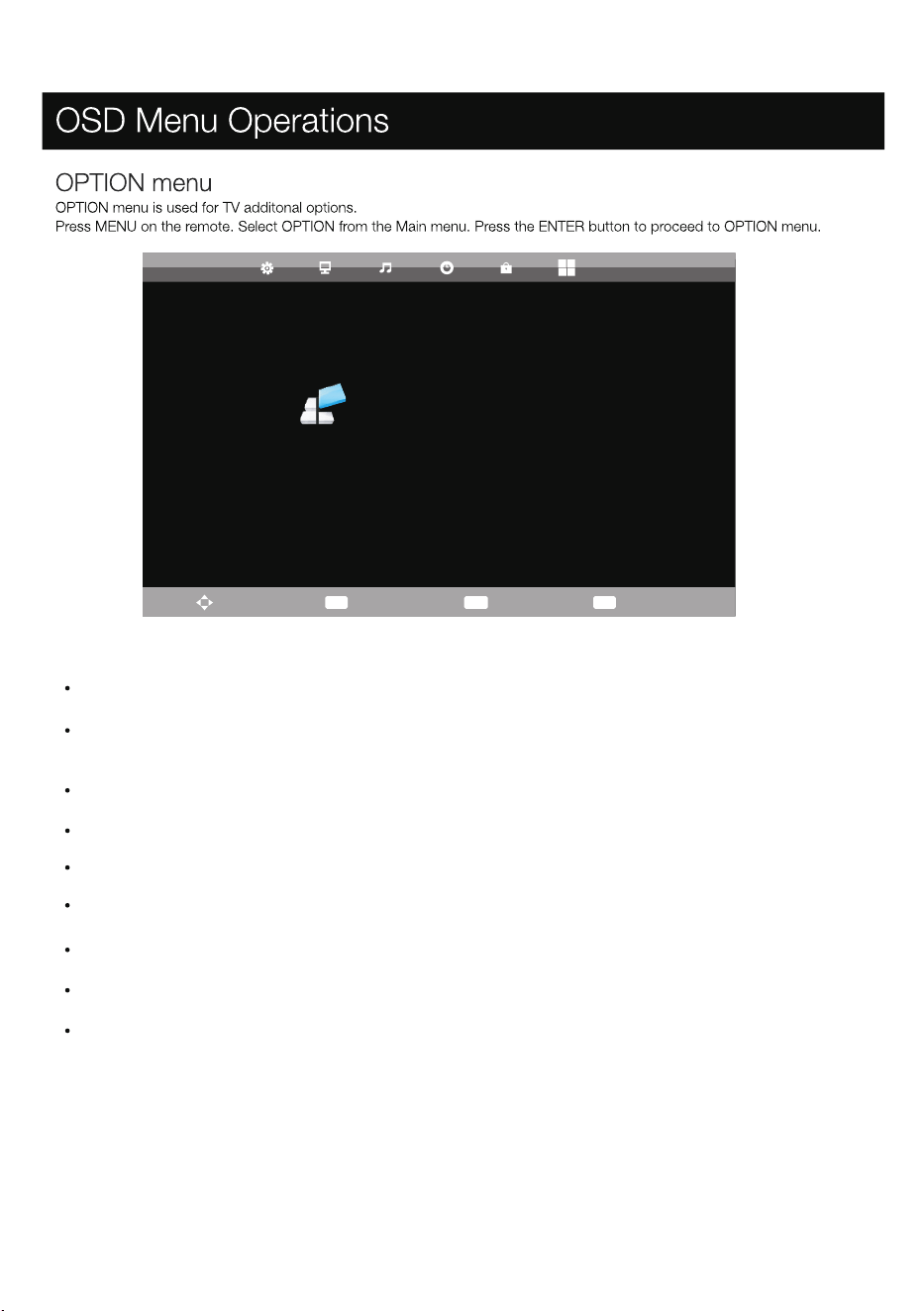
TT Language/Audio Language/Subtitle Language Select your desired teletext language/ the primary:
audio language /the primary subtitle language.
Hearing impaired: This function is for the Hearing Impaired, when the status is on, you can see subtitles in the programs.
Aspect Ratio: To select between the available modes: Auto, 4:3, 16:9, Zoom1, Zoom2 and Full Screen.
PVR File System: To Check and format your USB Disk to be compatible with the PVR file system of this model.
OSD Language Select your desired OSD language.:
Blue Screen: To turn the blue screen on/off. If the Blue Screen is turned on, the TV will display a blue background when there is no signal input.
First Time Installation: To set relevant options, including OSD language, country and tuning.
Reset: Press ENTER button to enter a dialogue, select Yes to restore factory default.
Software Update (USB): Update the firmware of this model. (Please contact Customer Service to see if an update is available)
Move
MENU
Return
ENTER
Select
EXIT
Exit
SETUP
PVR File System
First Time Installation
Reset
Software Update(USB)
TT Language
west
Hearing Impaired
Off
Blue Screen
Off
Aspect Ratio
Auto
OSD Language
English
Audio Languages
English
Subtitle Language
English
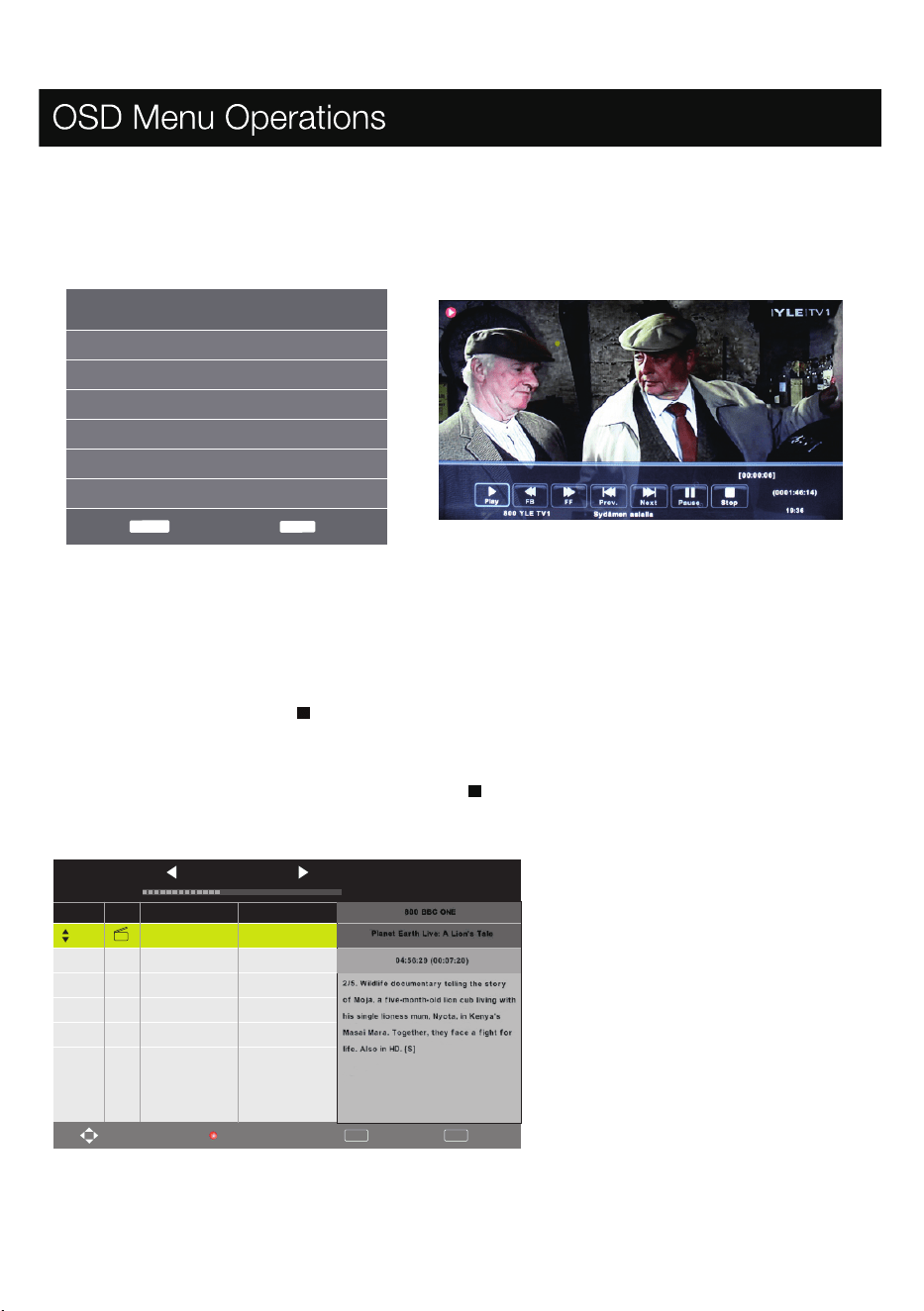
PVR File System
To Check and format your USB Disk to be compatible with the PVR file system of this model. Select "Check PVR File System" to
check your USB Disk. Select "Format" to format your USB Disk to be compatible with this model. Select "Free Record Limit" to
set the record limit for your USB Disk.
2.Select the DTV program and channel you wish to record.
4.If you wish to stop the recording, press [ ] button and the recording will stop.
IMPORTANT NOTE:
For any type of recording with this televsion, you must have plugged a USB device into the appropriate USB port at the back of the television to
record on.
1.Please insert the external high-speed storage devices, insert must be formatted before.
3.Press [REC ] button to enter PVR mode and start recording. PVR control bar on the
screen shown above. You can select the appropriate settings required.
You could change the mode of Recording menu by ENTER button.
Instant one-touch recording and playback
remote control to activate the PVR
In DTV mode and with a USB device properly plugged in, press the REC button on the
when watching the recording.
INDEX: Display the Recorder List menu, or press to change
Display the recorded list
the way of arranging programs.
DISPLAY: Display the information of the program you recorded.
RED button: Delete the program you select.
ENTER button: Play the program you select.
1/1
Delete
Recorded List
(39% Used)
04:43 16 Dec
Programme Title Date
1
Entertaiment
13/12/2012
Move
ENTER
Play
EXIT
Exit
function for instant recording of the channel you are watching. Press [ ] button to stop recording, and use the INDEX button to
enter the recorder list. Once you are in PVR mode, use the arrow keys at the bottom of the screen
Select Disk
Check PVR File System Start
USB Disk
Format
Time Shift Size
Speed
C:
Free Record Limit 6Hr.
MENU
Back
ENTER Select
20
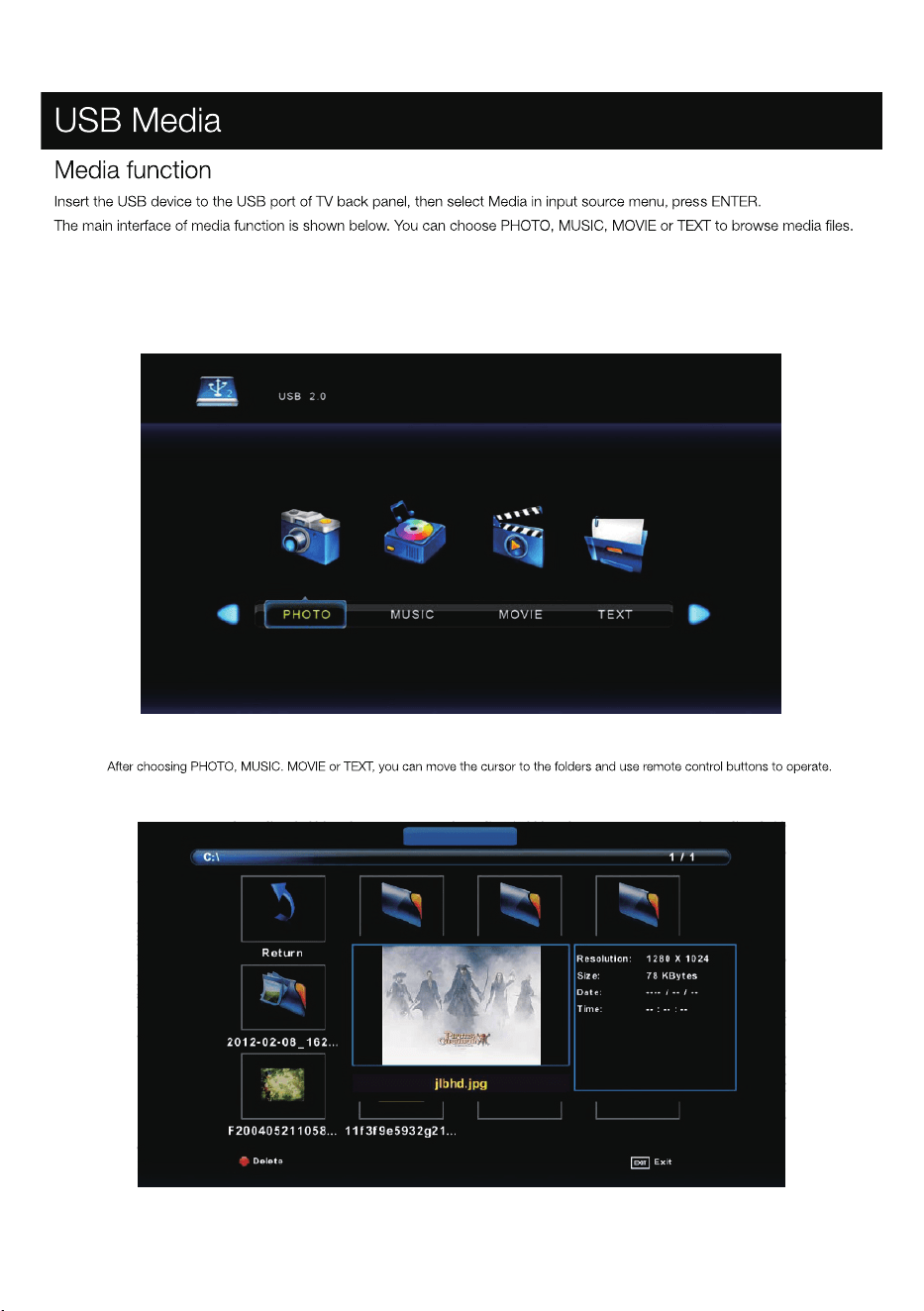
21
PHOTO
photo
Maximum size of USB device that can be connected :1TB
USB file systems supported: FAT32, Hi Speed FS, NTFS(NTFS compressed file is
not supported),
File formats that can be played: AVI, MPEG, TS, MKV, MP3, AAC, JPG, JPEG
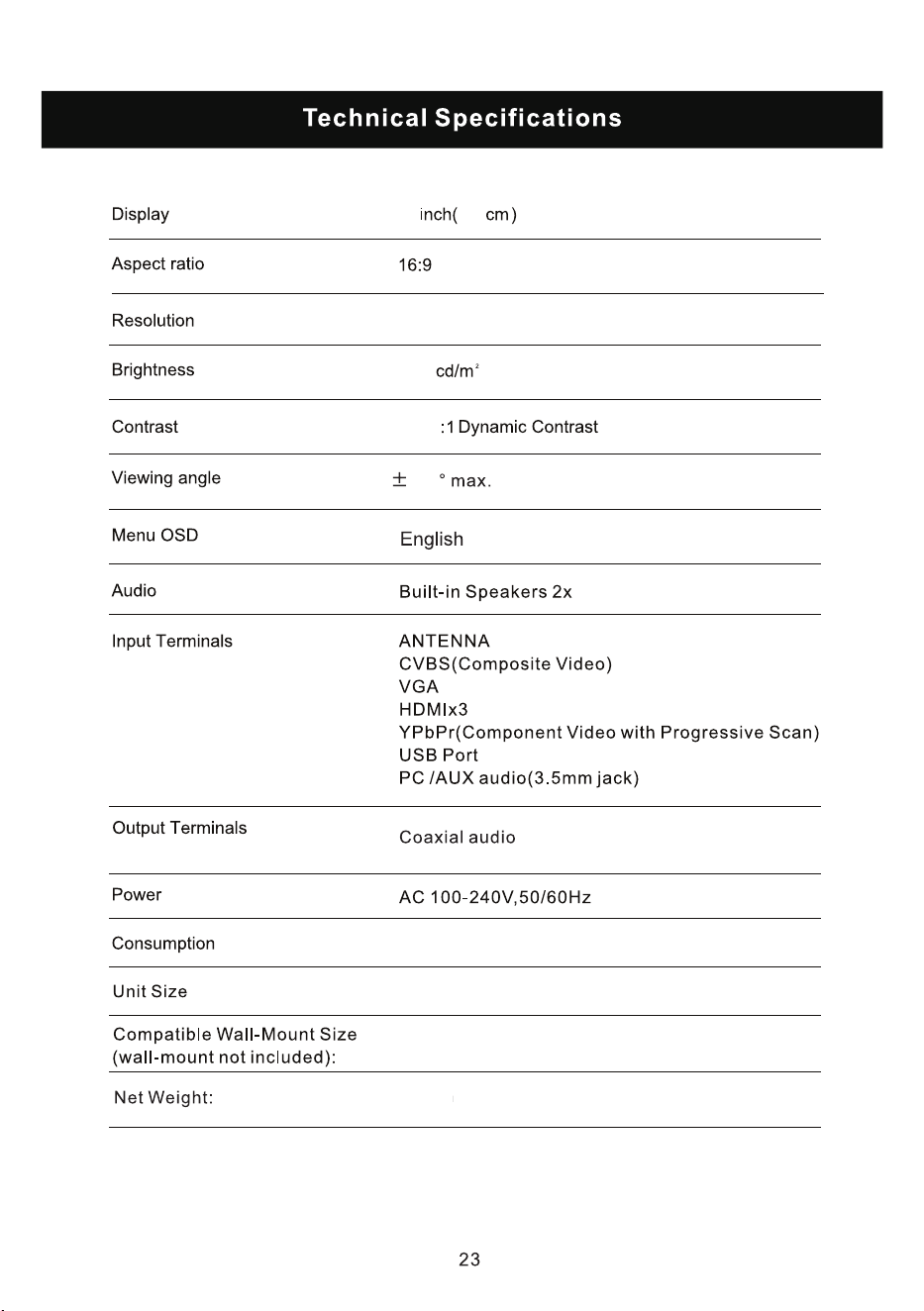
32
80
1366x768
200
5000
176
8W
65W
200x100mm(WxH)
4.7kg
733x494x201mm(LxHxW))
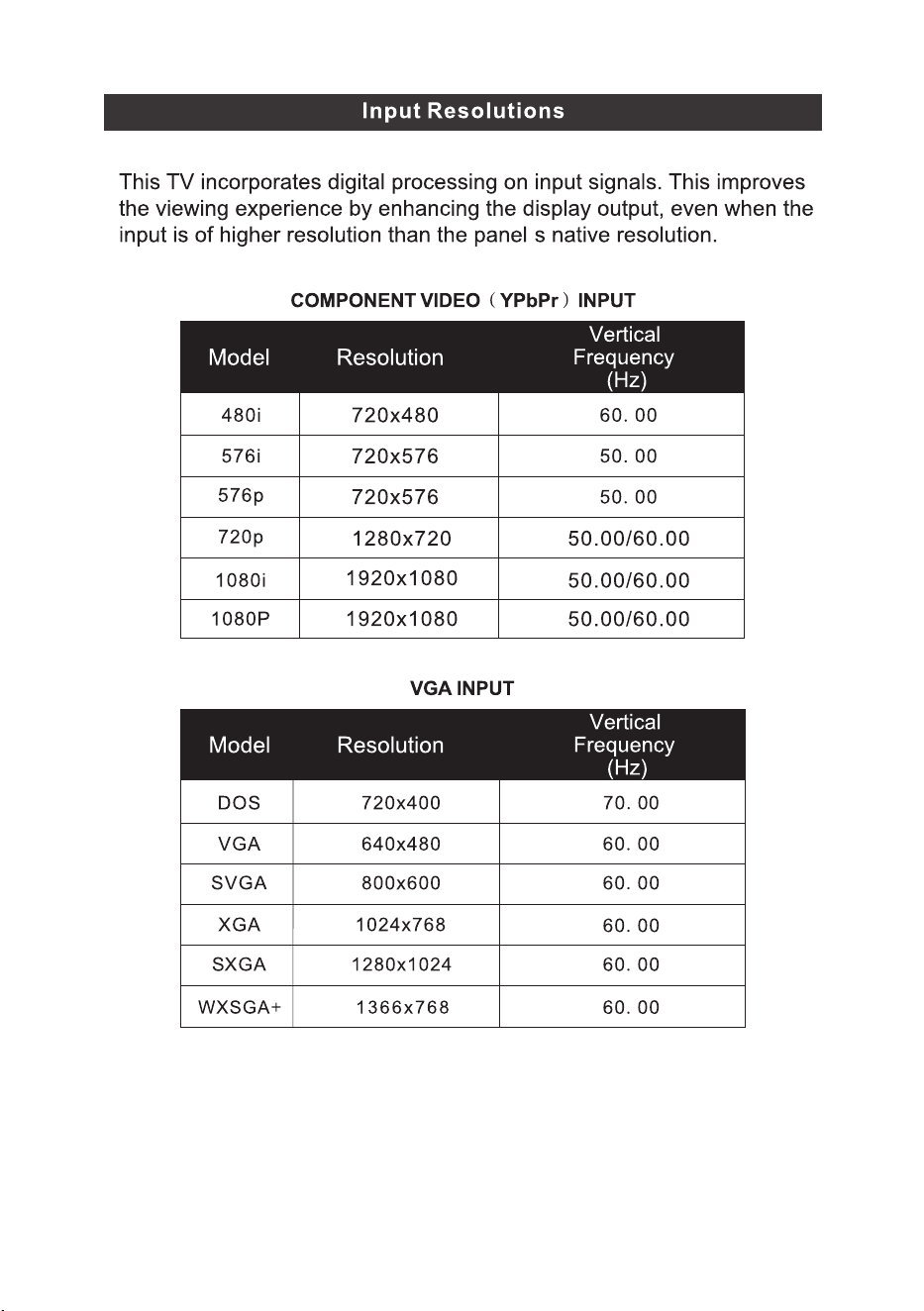
23
,
24