Instruction Manual
24” / 32” NON-SMART LED HD TV
LT-24C490
LT-32C490


Contents
1 Safety Warnings ...........................................................................................................................................................................4
2 Preparation ...................................................................................................................................................................................7
Unpacking the TV ...............................................................................................................................................................................................................7
Installing / Removing the Base Stand .........................................................................................................................................................................8
− Installing the Base Stand ......................................................................................................................................................................................8
− Mounting the TV to a Wall ................................................................................................................................................................................... 8
Front View and Bottom View Controls .....................................................................................................................................................................10
Rear View and Sockets ....................................................................................................................................................................................................11
Installing Batteries in the Remote Control ..............................................................................................................................................................12
Remote Control Operation Range ..............................................................................................................................................................................12
Remote Control .................................................................................................................................................................................................................13
Joystick Function Button ...............................................................................................................................................................................................15
3 Connections ................................................................................................................................................................................ 16
Making Video and Audio Connections .....................................................................................................................................................................16
Connecting an AV Device Using an HDMI Cable...................................................................................................................................................16
− Connecting a Soundbar - HDMI ARC (Audio Return Channel) ...........................................................................................................17
Connecting an AV Device Using Composite Cable ..............................................................................................................................................17
Connecting an Audio Receiver ....................................................................................................................................................................................18
Connecting to Network ..................................................................................................................................................................................................18
Connecting Headphones ...............................................................................................................................................................................................19
4 Initial Setup ................................................................................................................................................................................20
Turning the TV On for the First Time ........................................................................................................................................................................ 20
− Target Region Setting (UK only) ..................................................................................................................................................................... 22
− Eco Friendly / Auto Standby Function ......................................................................................................................................................... 22
− Selecting the Input Source ............................................................................................................................................................................... 22
− Channel Selection .............................................................................................................................................................................................. 22
− Listening to the Radio (Radio Mode) ............................................................................................................................................................ 23
− Display Channel Information .......................................................................................................................................................................... 23
− Volume Adjustment ............................................................................................................................................................................................ 23
5 Customising TV Settings ...........................................................................................................................................................24
Picture Setting .................................................................................................................................................................................................................. 24
Sound Setting ................................................................................................................................................................................................................... 26
− Stereo / Dual Sound Reception (ATV Mode) .............................................................................................................................................. 27
− Speaker Sound Output Selection (DTV Mode) ......................................................................................................................................... 27
Time Settings..................................................................................................................................................................................................................... 28
Channel Setting (TV, DTV or Radio Mode) .............................................................................................................................................................. 30
− Auto Tuning ........................................................................................................................................................................................................... 30
− DTV Manual Tuning..............................................................................................................................................................................................31
− ATV Manual Tuning ..............................................................................................................................................................................................31
− DTV Smart Retune ............................................................................................................................................................................................... 32
− Channel Edit (ATV / DTV Mode) ...................................................................................................................................................................... 33
− Signal Information (DTV Mode) ...................................................................................................................................................................... 34
− CI (Common Interface) (DTV Mode) .............................................................................................................................................................. 35
− Recorded List (DTV Mode) ................................................................................................................................................................................ 36
− Schedule List (DTV Mode) ................................................................................................................................................................................ 37
Option Setting .................................................................................................................................................................................................................. 38
− OSD Language ...................................................................................................................................................................................................... 38
− Audio Language (DTV Mode) .......................................................................................................................................................................... 38
− Subtitle Language (DTV Mode) ...................................................................................................................................................................... 39
− Subtitle (DTV Mode) ........................................................................................................................................................................................... 40
− Hearing Impaired ................................................................................................................................................................................................. 40
− Country .....................................................................................................................................................................................................................41
− HDMI CEC (Consumer Electronics Control) .................................................................................................................................................41

Lock Setting ....................................................................................................................................................................................................................... 42
− Lock System ........................................................................................................................................................................................................... 42
− Set Password ......................................................................................................................................................................................................... 43
− Block Channel .......................................................................................................................................................................................................44
− Parental Guidance ............................................................................................................................................................................................... 45
System Setting .................................................................................................................................................................................................................. 46
− Network Setting ................................................................................................................................................................................................... 46
− PVR File System (DTV Mode) ............................................................................................................................................................................ 47
− Software Upgrade (USB) (DTV Mode) .......................................................................................................................................................... 47
− Network Upgrade ................................................................................................................................................................................................ 47
− Standby Scan ......................................................................................................................................................................................................... 48
− First Time Installation ......................................................................................................................................................................................... 48
6 Using the Features .....................................................................................................................................................................49
EPG (Electronic Programme Guide) (DTV or Radio Mode) ............................................................................................................................... 49
− Switch On / O EPG ............................................................................................................................................................................................. 49
− Select a Programme ........................................................................................................................................................................................... 49
Red Button (Interactive Services) ............................................................................................................................................................................... 50
− Accessing the Information ............................................................................................................................................................................... 50
7 Entertainment ............................................................................................................................................................................51
Connecting a USB Storage Device ..............................................................................................................................................................................51
Viewing Video ....................................................................................................................................................................................................................51
Listening to Music ............................................................................................................................................................................................................ 52
Viewing Photos ................................................................................................................................................................................................................. 53
8 PVR (Personal Video Recorder) .................................................................................................................................................54
Time Shift Function ......................................................................................................................................................................................................... 54
Recording DTV Programme onto a USB Storage Device .................................................................................................................................. 55
Timer Programming ....................................................................................................................................................................................................... 56
Playing Recorded Programme ................................................................................................................................................................................... 57
9 Other Information ......................................................................................................................................................................58
Maintenance .........................................................................................................................................................................58
Hints and Tips .......................................................................................................................................................................58
Display Modes ................................................................................................................................................................................................................... 60
− HDMI Mode ........................................................................................................................................................................................................... 60
Product Fiche and Specications ...............................................................................................................................................................................61
Remote Control Codes ................................................................................................................................................................................................... 62
− Sky Codes ............................................................................................................................................................................................................... 62
− Virgin Media Codes (TiVo box) ....................................................................................................................................................................... 62
− BT Vision .................................................................................................................................................................................................................. 62
Useful Information and Licences ............................................................................................................................................................................... 62
Declaration of Conformity (RED) ................................................................................................................................................................................ 63
3
1 Safety Warnings
• Read all the instructions carefully before using the unit
and keep them for future reference.
• Retain the manual. If you pass the unit onto a third
party make sure to include this manual.
• Check that the voltage marked on the rating label
matches your mains voltage.
• WARNING: Never let people (including children) with
reduced physical, sensory or mental capabilities or lack
of experience and / or knowledge use electrical devices
unsupervised.
• To avoid danger of suffocation, keep plastic bags out of
reach of babies, children and domestic animals.
• Carefully attach the stand to the TV. If the stand is
provided with screws, tighten the screws firmly to
prevent the TV from tilting. Do not over tighten the
screws and mount the stand rubbers properly.
Damage
• Please inspect the unit for damage after unpacking.
• Do not continue to operate the unit if you are in any
doubt about it working normally, or if it is damaged
in any way - switch off, withdraw the mains plug and
consult your dealer.
Location of Unit
• The unit must be placed on a flat stable surface and
should not be subjected to vibrations.
• Do not place the unit on sloped or unstable surfaces
as the unit may fall off or tip over causing serious
personal injury or death.
• The mains socket must be located near the unit and
should be easily accessible.
• This unit is designed for indoor, domestic use only.
• Use this TV set at an altitude of less than 2000 meters
above sea level, in dry locations and in regions with
moderate or tropical climates.
Many injuries, particularly to children, can be avoided by
taking simple precautions such as;
• Using cabinets or stands recommended by the
manufacturer of the television set.
• Only use furniture that can safely support the
television set.
• Ensuring the television set is not overhanging the edge
of the supporting furniture.
• Not placing the television set on tall furniture (for
example, cupboards or bookcases) without anchoring
both furniture and the television set to a suitable
support.
• Not standing the television set on cloth or other
materials placed between the television and
supporting furniture.
• Educating children about the dangers of climbing
on furniture to reach the television set or its controls.
If your existing television set is being retained and
relocated, the same considerations as above should be
applied.
Wall Mounting
• Read the TV and wall mount instructions before
mounting your TV on the wall.
• For TVs over 40” in size, wall mounting requires 2
people to lift and position the TV on to the wall mount.
• The wall mount bracket is not supplied, they can be
purchased from your dealer.
• Do not install the TV on a ceiling or an inclined wall.
• Only use the screws supplied with the wall mount
bracket when attaching the TV to the bracket. See your
TV instructions for screw type.
• Tighten the wall mount screw firmly to prevent the TV
from falling. Do not over tighten the screws.
• If you are in any doubt how to mount your TV, contact
a professional.
Temperature
• Avoid extreme degrees of temperature, either hot or
cold. Place the unit well away from heat sources such
as radiators or gas / electric fires.
• Avoid exposure to direct sunlight and other sources of
heat.
Naked Flames
• Never place any type of candle or naked flame on the
top of or near the unit.
Moisture
• To reduce the risk of fire, electric shock or product
damage, do not expose this unit to rain, moisture,
dripping or splashing. No objects filled with liquids,
such as vases, should be placed on the unit.
• If you spill any liquid into the unit, it can cause serious
damage. Switch it off at the mains immediately.
Withdraw the mains plug and consult your dealer.
Ventilation
• To prevent the risk of electric shock or fire hazard
due to overheating, ensure that curtains and other
materials do not obstruct the ventilation vents.
• Do not install or place this unit in a bookcase, built-in
cabinet or in another confined space. Ensure the unit is
well ventilated.
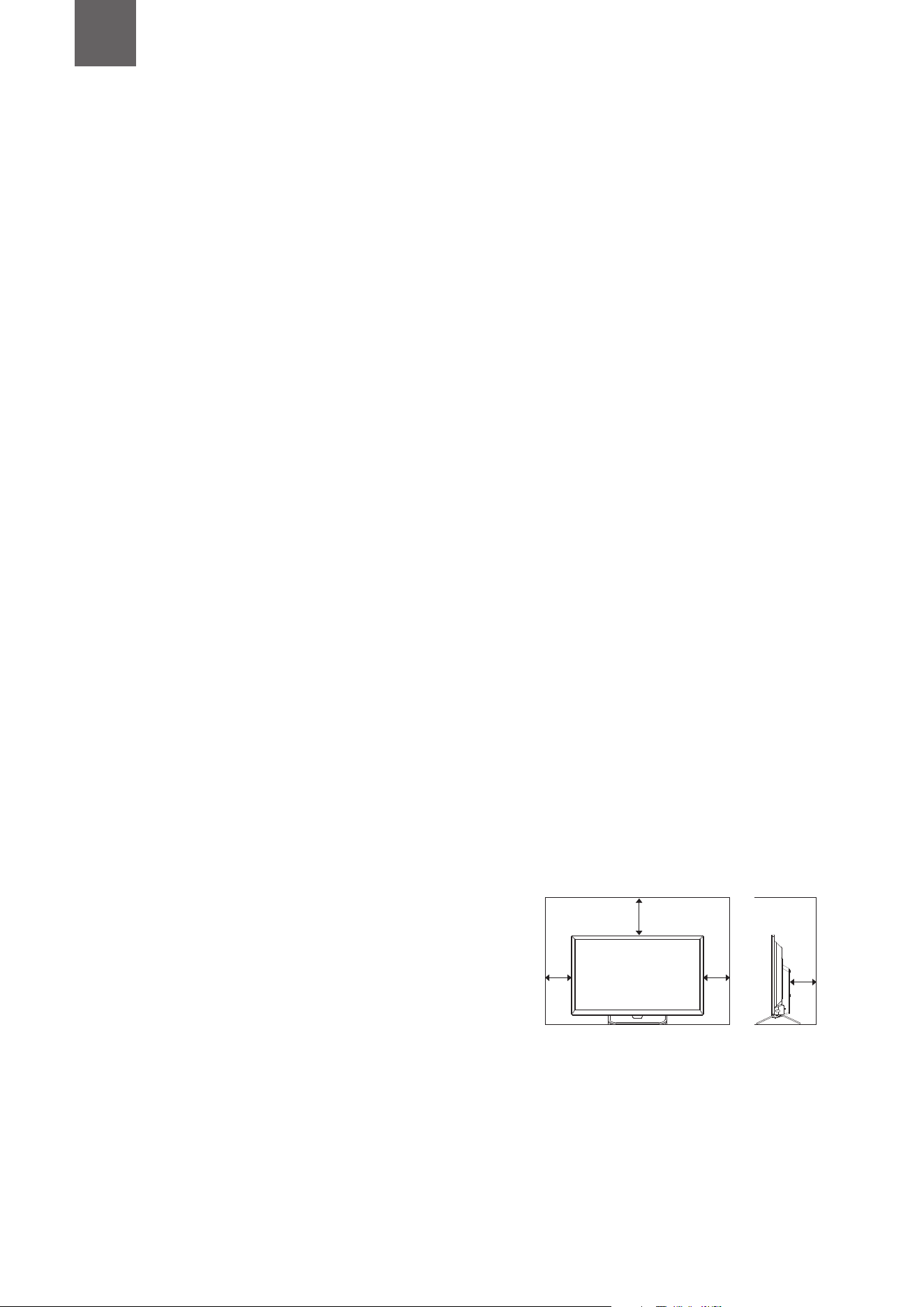
• Make sure that there is a gap of at least 10 cm on both
sides and a gap of 20 cm at the top.
10 cm 10 cm
20 cm
10 cm
Safety
• Always disconnect the unit from the mains supply
before connecting / disconnecting other devices or
moving the unit.
• Unplug the unit from the mains socket during a
lightning storm.
Chapter
1

1
Safety Warnings
4
Mains Cable
• Make sure the unit or unit stand is not resting on top of
the mains cable, as the weight of the unit may damage
the mains cable and create a safety hazard.
• A damaged power cord/plug can cause fire or give you
an electric shock. Handle the power cord by the plug,
do not unplug the TV by pulling the power cord.
• Never touch the power cord/plug with wet hands as
this could cause a short circuit or electric shock.
• Never make a knot in the power cord or tie it with
other cords.
• If the mains cable is damaged it must be replaced
by the manufacturer, its service agent, or similarly
qualified persons in order to avoid a hazard.
Interference
• Do not place the unit on or near appliances which may
cause electromagnetic interference. If you do, it may
adversely affect the operating performance of the unit,
and cause a distorted picture or sound.
Optimum viewing
• View the unit in moderate light to prevent eye strain. It
is recommended to watch the unit from a distance
3-7 times that of the screen height.
LCD screen
• The LCD screen is manufactured using high-precision
technology. However, some tiny black points and /
or bright points (red, blue or green in colour) may
constantly appear on the LCD screen. These points
are generated in the manufacturing process and are
normal.
Screen Burn
• A characteristic of Plasma and TV Panels is that
displaying the same image for a long time may cause
a permanent after-image to remain on the screen. This
is called screen burn. Most pictures shown on the unit
will be constantly moving and fill the screen.
• Examples of images that you need to watch out for are
as follows (this is not an all-inclusive list):
1. Black Bars: If black bars appear at the left / right or
top / bottom of the screen, it is recommended to
change the format so that the picture fills the entire
screen.
2. TV Channel Logos: e.g. Shopping channel logos
and pricing displays - especially if they are bright
and stationary. Moving or low-contrast graphics are
less likely to cause ageing of the screen.
3. Time Displays
4. Teletext: Do not view a stationary page for long
periods of time.
5. TV Menus
6. Pause Mode: Do not leave the screen in pause
mode for long periods of time, e.g. when watching
videos.
• To prevent screen burn if viewing any of the above for
long periods of time, reduce contrast and brightness
when viewing. Once burn-in occurs it will never
disappear completely.
Earphones
• Listening to loud sounds for prolonged periods of time
may permanently damage your hearing.
• Before putting on earphones, turn the volume down
then put the earphones on and slowly increase the
volume until you reach a comfortable listening level.
Standby
• The
button on the remote control does not switch
off the unit completely. The unit will continue to draw
electricity from the mains supply while in standby. In
the interests of safety and to avoid unnecessary energy
consumption, never leave the unit in standby while
unattended for long periods of time, e.g. overnight,
while on holiday or while out of the house. Disconnect
the mains plug from the mains socket.
Batteries
• Batteries used in the remote control for this unit
are easily swallowed by young children and this is
dangerous.
• Keep loose batteries away from young children and
make sure that the battery holder tray is secure in the
remote control. Seek medical advice if you believe a
cell has been swallowed.
• Please dispose of batteries correctly by following the
guidance in this manual.
• Do not dispose of batteries in fire or with hazardous or
flammable materials.
• The batteries shall not be exposed to excessive heat
such as sunshine, fire or the like.
Supervision
• Children should be supervised to ensure that they do
not play with the unit and the remote control.
• Never let anyone especially children push anything
into the holes, slots or any other openings in the case -
this could result in a fatal electric shock.
Earthing
• Apparatus connected to the protective earthing of the
building installation through the MAINS connection
or through other apparatus with a connection to
protective earthing - and to a television distribution
system using coaxial cable, may in some circumstances
create a fire hazard. Connection to a television
distribution system has therefore to be provided
through a device providing electrical isolation below a
certain frequency range (galvanic isolator,
see EN 60728-11).
CAUTION
RISK OF ELECTRIC SHOCK
DO NOT OPEN
The lightning flash with arrowhead symbol,
within an equilateral triangle, is intended to
alert the user to the presence of uninsulated
“dangerous voltage” within the unit’s
enclosure that may be of sufficient
magnitude to constitute a risk of electric
shock.
The exclamation point within an equilateral
triangle is intended to alert the user to the
presence of important operating and
maintenance (servicing) instructions in the
manual accompanying the unit.
1
Safety Warnings
5
Service
• To reduce the risk of electric shock, do not remove
screws. The unit does not contain any user-serviceable
parts. Please leave all maintenance work to qualified
personnel.
• Do not open any fixed covers as this may expose
dangerous voltages.
Maintenance
• Ensure to unplug the unit from the mains socket before
cleaning.
• Do not use any type of abrasive pad or abrasive
cleaning solutions as these may damage the unit’s
surface.
• Do not use liquids to clean the unit.
• The wall socket plug is used as a disconnect device, the
disconnect device should be readily accessible.
•
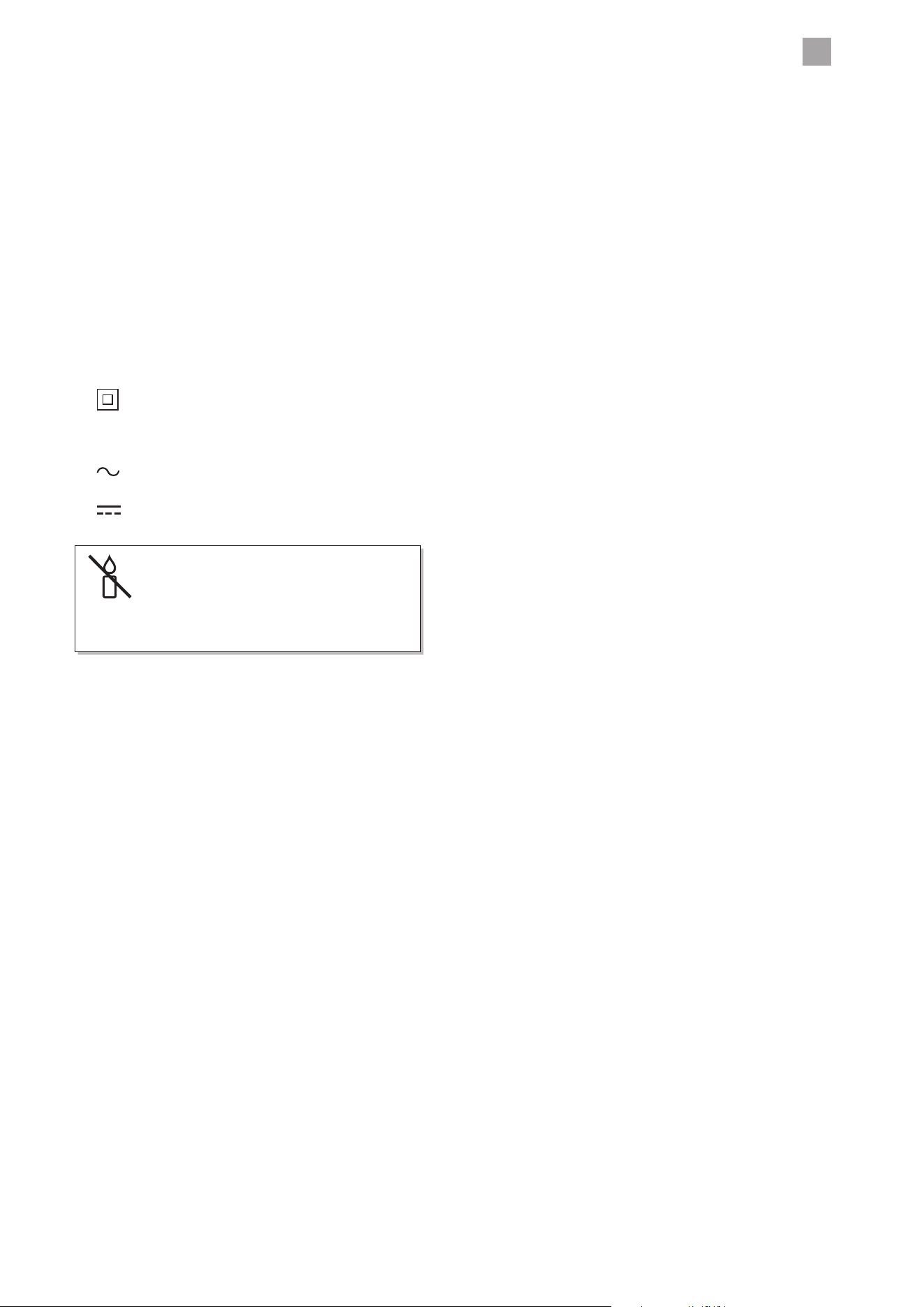
This equipment is a Class II or double insulated
electrical appliance. It has been designed in such
a way that it does not require a safety connection
to electrical earth.
•
AC voltage: This symbol indicates that the rated
voltage marked with the symbol is AC voltage.
•
DC voltage: This symbol indicates that the rated
voltage marked with the symbol is DC voltage.
To prevent the spread of fire,
keep candles or other open
flames away from this product
at all times.
6
2 Preparation
Unpacking the TV
Remove all packaging from the TV. Retain the packaging. If you dispose of it please do so according to local regulations.
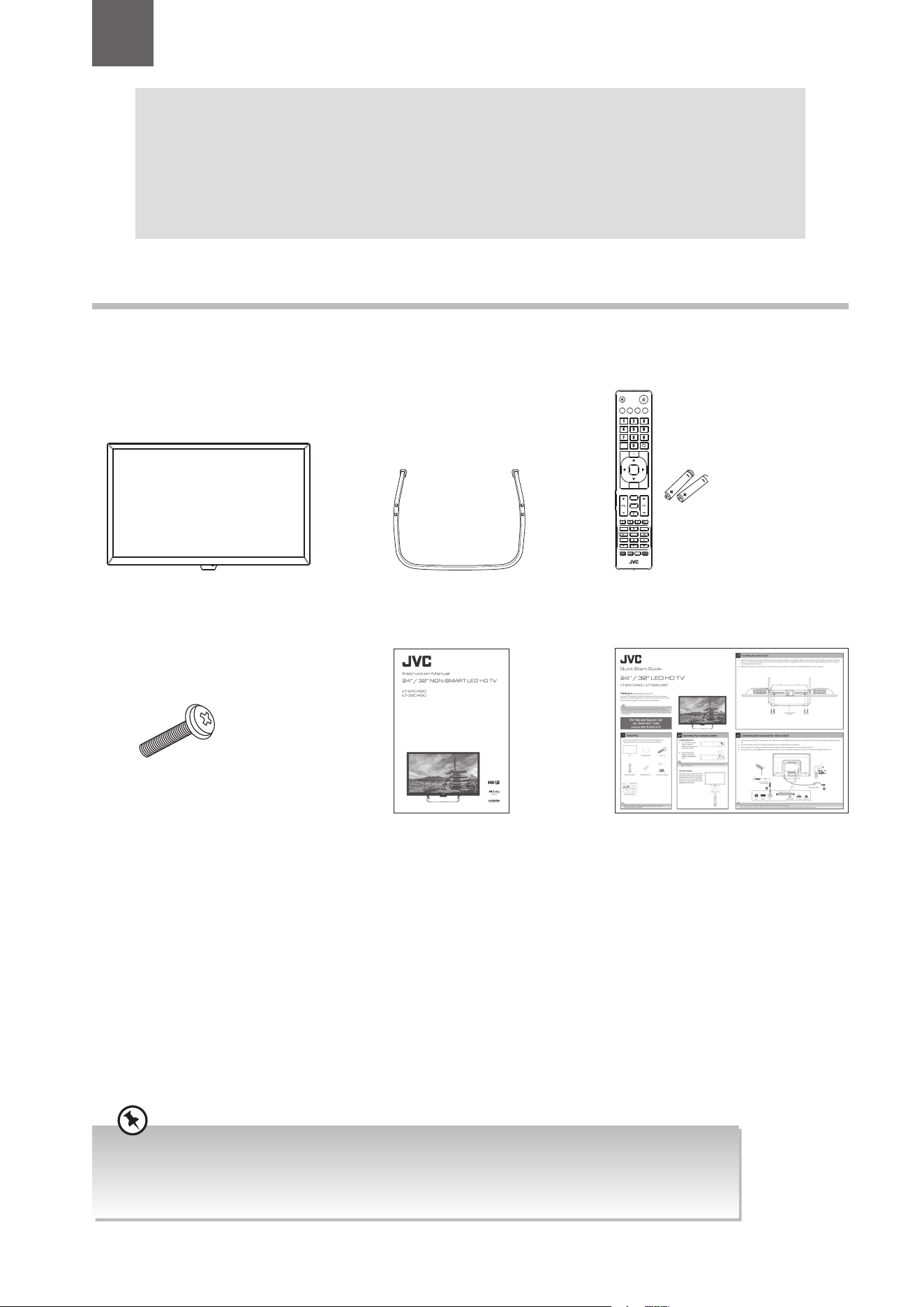
The following items are included:
Thank you for purchasing your new JVC TV.
Your new TV has many features and incorporates the latest technology to enhance your viewing
experience. We recommend that you spend some time reading this instruction manual so that you fully
understand these features. You will also find some hints and tips to help you resolve any issues.
Read all the safety instructions carefully before use and keep this instruction manual for future reference.
Chapter
2
Instruction Manual Quick Start Guide
Remote Control /
AAA Batteries x 2
TV Stand Base
SETUP
ANGLE
ZOOM STEP
MENU
TEXT
CANCEL
AUDIO
MIX
OK
SIZE
ASPECT S.MODE P.MODE GUIDE
LIST
PROG
MENU INPUT
BACK
EXIT
OK
S
TITLE
TV.RD
FAV
HOLD REVEAL SUBPAGE INDEX
GOTO SLOW REPEAT A-B
TV
Screw x 4
• If items are missing, or damaged please contact Partmaster (UK only). Tel: 0344 800 3456 for assistance.
• if you require additional assistance:
For UK, please call our UK Call Centre on 0344 561 1234.
For Ireland, please call our Ireland Call Center on 0818 810 575.
2
Preparation
7
1. Disconnect all cables connected to the TV.
2. Lay the TV down on a flat surface with the back side facing up, and ideally at the edge of a table so that the base of the TV
slightly overhangs on it. Please make sure a soft cushioned material (such as a towel or thick piece of foam) is placed beneath
the screen. Leave the protective bag on your TV until you have fully attached the TV stand.
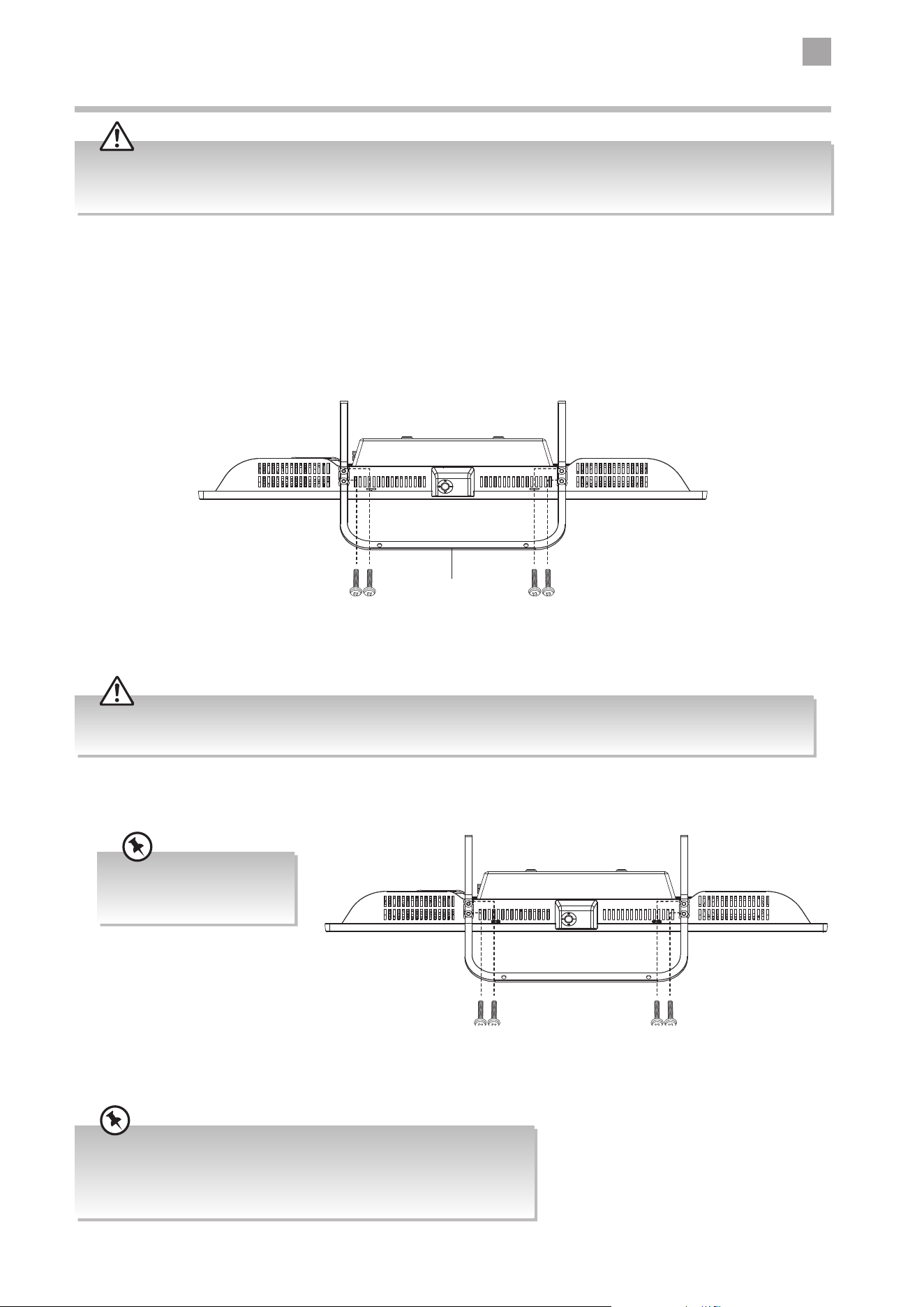
Installing the Base Stand
Attach the TV stand to the TV. Align the screw holes, then secure with a screw driver (not included) using the 4 screws provided.
Installing / Removing the Base Stand
The LCD display is very fragile, and must be protected at all times when installing and removing the base stand. Be sure that
no hard or sharp object, or anything that could scratch or damage the LCD display, comes into contact with it. DO NOT exert
pressure on the front of the TV at any time because the screen could crack.
• Please read this instruction manual carefully while setting up your TV.
• If you require additional assistance:
For UK, please call our UK Call Centre on 0344 561 1234.
For Ireland, please call our Ireland Call Center on 0818 810 575.
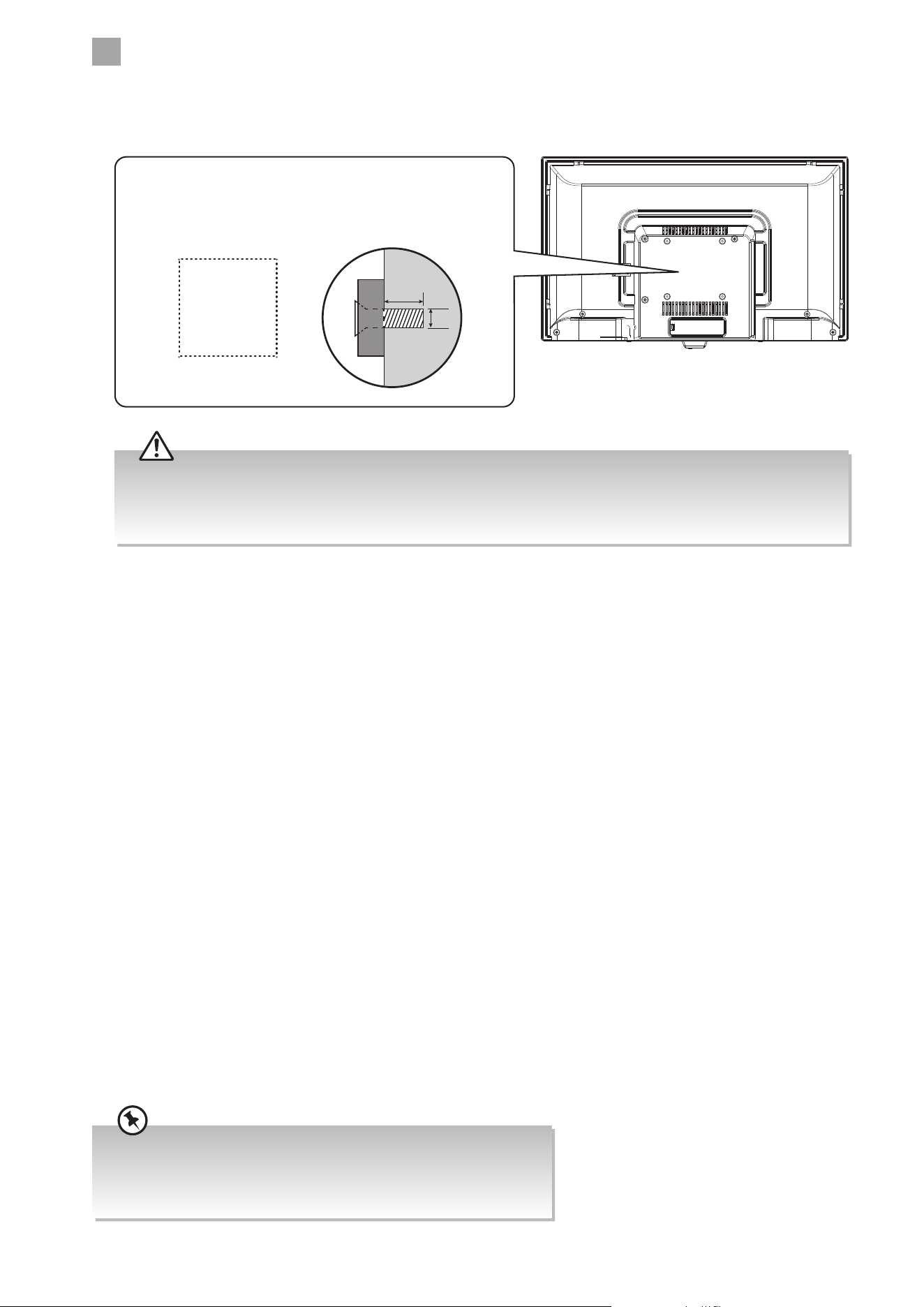
1. To remove the stand assembly, untighten the screws holding the stand assembly at the bottom of the TV. Remove the stand
assembly.
• Remove the stand assembly before mounting the TV onto the wall.
• If you are wall mounting your TV you may wish to buy a 90° HDMI adapter. This will help with your cable management.
Keep all the spare screws
should you want to use the
stand assembly option.
Mounting the TV to a Wall
TV Stand Base Front
(included)
2
8
Preparation
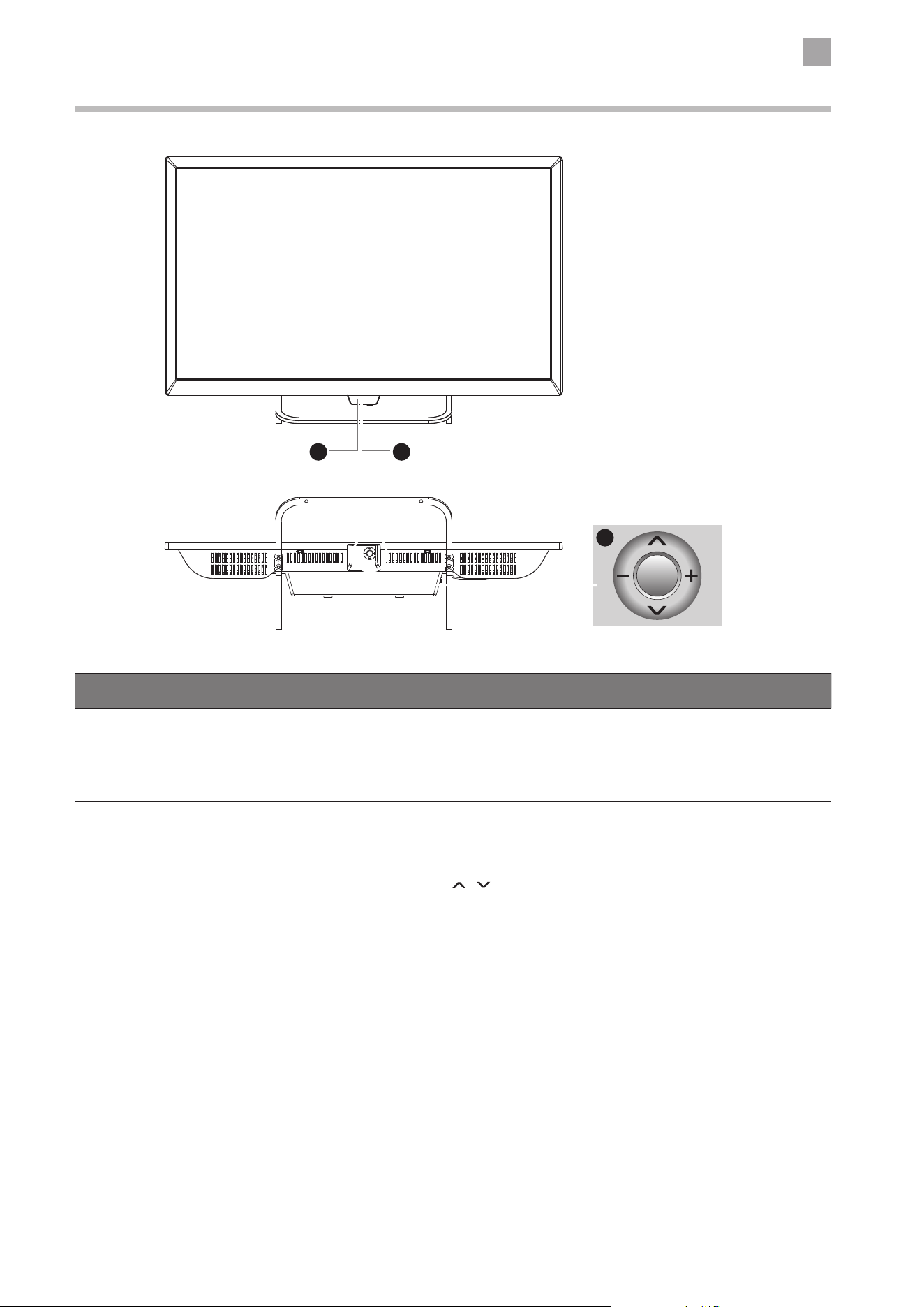
2. This TV is designed to be wall-mounted with a standard mounting kit (sold separately) designed for flat-panel TVs. Mount this
TV according to the instructions included in the mounting kit. Due to space restrictions, we recommend that you make all
connections (refer to page 15-18 and page 50 for details) before mounting on to the wall.
• Please read this instruction manual carefully while setting up your TV.
• If you require additional assistance:
For UK, please call our UK Call Centre on 0344 561 1234.
For Ireland, please call our Ireland Call Center on 0818 810 575.
• Some models of TV are provided 4 screws inside the mounting holes. Be sure to use these supplied screws with your
mounting kit when attaching the mounting hooks to the TV set. The supplied screws are designed for the TV. Use of
screws other than those supplied may result in internal damage to the TV set or cause it to fall, etc.
• Before mounting on the wall, untighten the screws inside the mounting holes.
100 mm
100 mm
Four mounting holes
(size 4x5 PWB screw)
M4
4-5mm
TV Weight (Without Stand):
LT-24C490: 2.2 kg
LT-32C490: 3.5 kg
2
Preparation
9
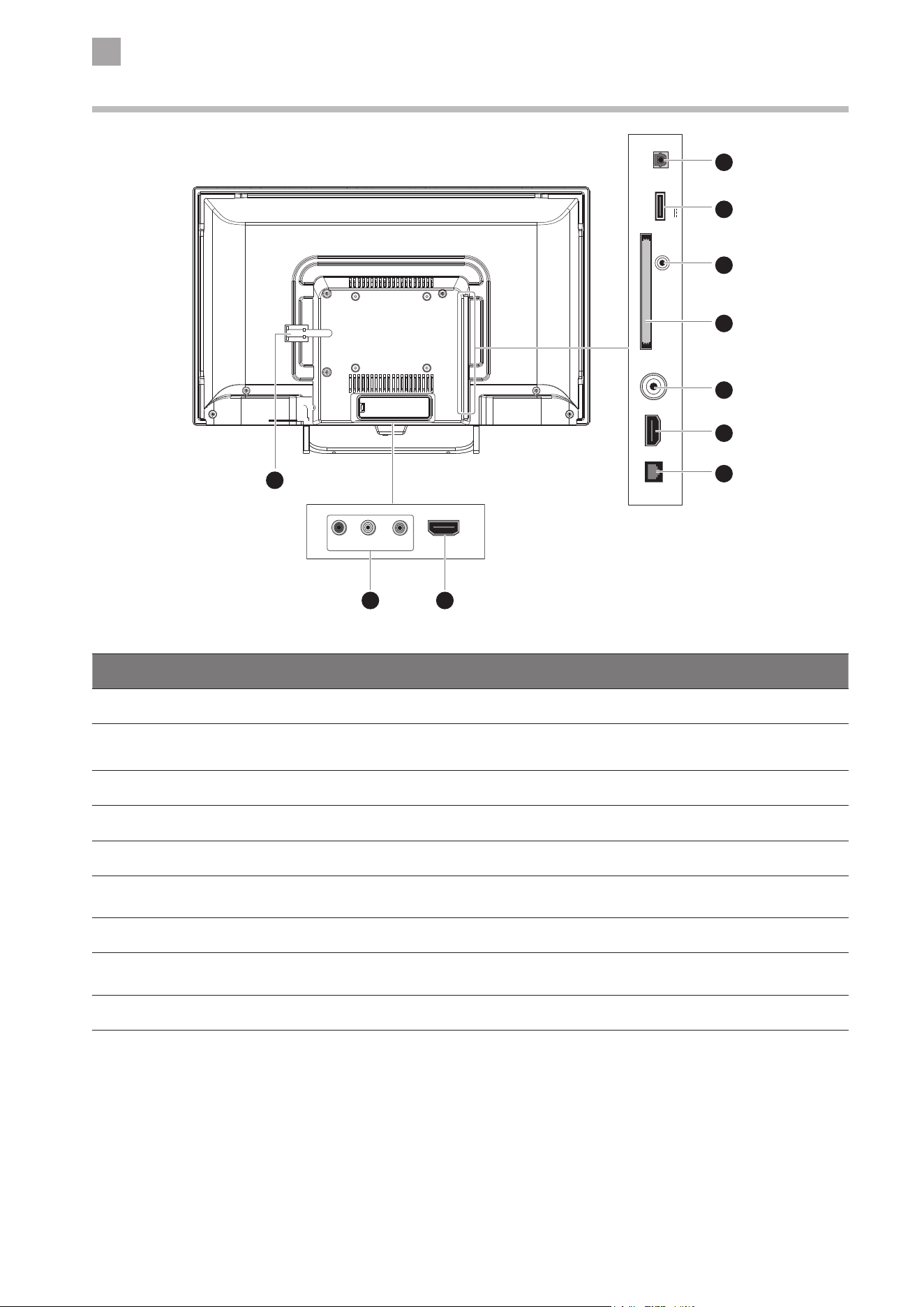
Front View and Bottom View Controls
Item Description
1 POWER LED
Illuminates red when the TV is in standby mode. The LED will blink in red, confirming
that a timer recording programme has started in standby mode.
2 IR (Infrared Receiver)
Receives IR signals from the remote control.
Do not put anything near the sensor, as its function may be affected.
3 Joystick Function Button
• In STANDBY mode, press to switch the TV on from standby mode.
• In ON mode, press and hold then select "Yes" and press again to switch the TV back
to standby mode.
• Press to display the input sources menu.
• Move up and down (
/ ) to select a channel or select among different input
signal sources.
• Move left and right (+ / –) to adjust the volume or access the selection on the input
source menu.
1 2
3
2
10
Preparation
Rear View and Sockets
Item Description
1 Digital Output Connects to the audio socket on the digital/standard 5.1 audio system.
2 USB
Allows the insertion of a USB storage device to play video, audio and photo files (USB
mode) and record DTV programmes on to a USB storage device.
3 HEADPHONES Connects to the headphones.
4 COMMON INTERFACE Allows the insertion of a Common Access Module.
5 RF Aerial Connects to the aerial socket on the wall with the RF coaxial cable.
6 HDMI1(ARC) / HDMI2
Connects to a High-Definition (HD) signal output device, such as a set-top box, blu-ray
disc player or AV receiver.
7 LAN Connects your TV to the internet router by an Ethernet cable.
8 VIDEO / AUDIO (L/R)
Connects to the Composite VIDEO and AUDIO (L/R) output sockets on external video
devices.
9 Cable Tie Bundle the connecting cables to prevent stepping on them before wall mounting.
HDMI1(ARC)R L VIDEO
LAN RF
COMMON INTERFACE (CI)
HEADPHONES
USB
5V 500mA
Digital Output
HDMI2
1
2
4
3
5
6
7
68
9
2
Preparation
11
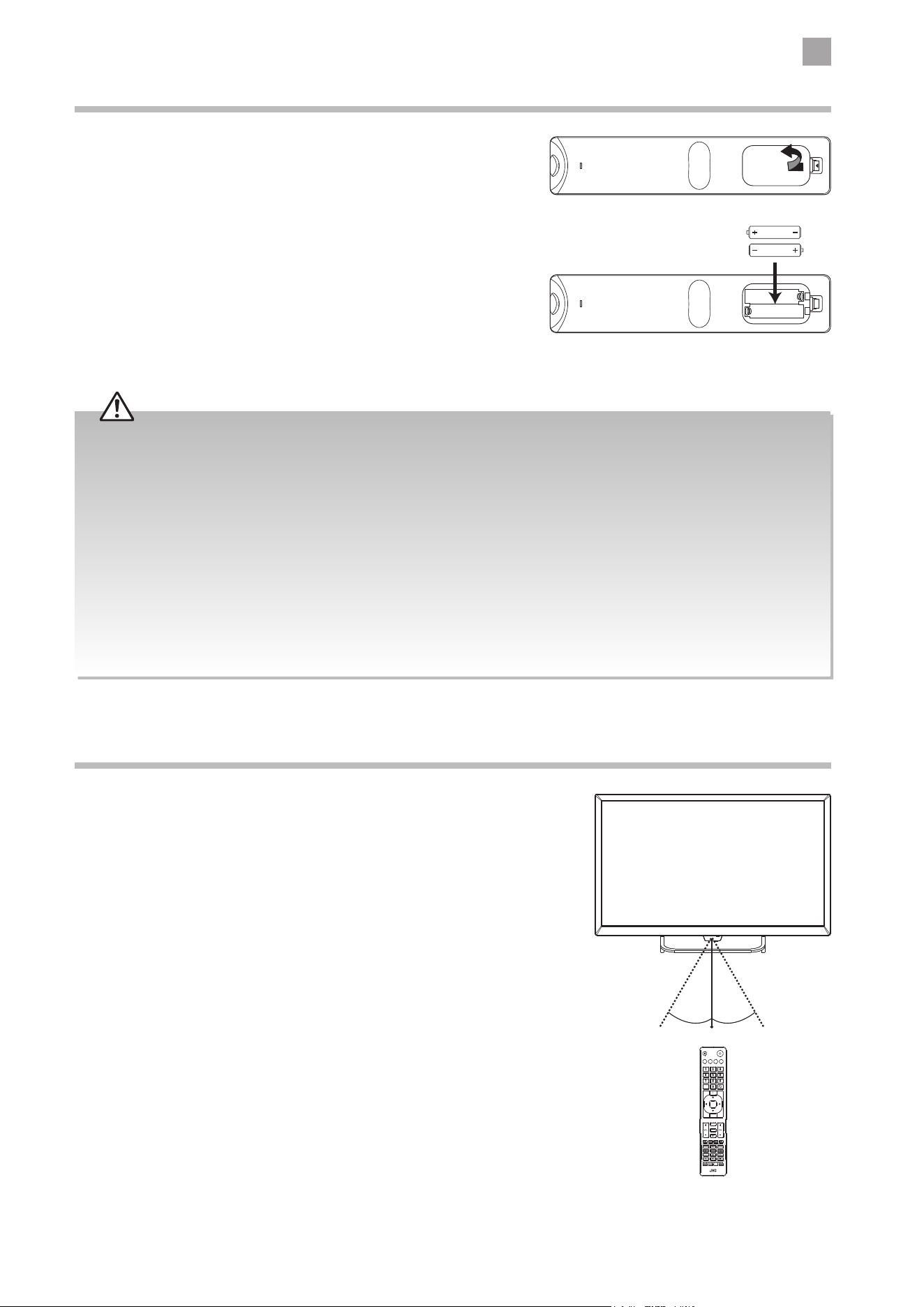
Remote Control Operation Range
Point the remote control at the TV no more than 5 metres from the
remote control sensor on the TV and within 60° in front of the TV.
The operating distance may vary depending on the brightness of the
room.
Installing Batteries in the Remote Control
1. Press and lift the back cover to open the battery compartment of the
remote control.
2. Insert two AAA size batteries. Make sure the (+) and ( - ) ends of
the batteries match the (+) and ( - ) ends indicated in the battery
compartment.
3. Close the battery compartment cover.
SETUP
ANGLE
ZOOM STEP
MENU
TEXT
CANCEL
AUDIO
MIX
OK
SIZE
ASPECT S.MODE P.MODE GUIDE
LIST
PROG
MENU INPUT
BACK
EXIT
OK
S
TITLE
TV.RD
FAV
HOLD REVEAL SUBPAGE INDEX
GOTO SLOW REPEAT A-B
30° 30°
5M
Handling the Batteries
• Improper or incorrect use of batteries may cause
corrosion or battery leakage, which could cause fire,
personal injury or damage to property.
• Only use the battery type indicated in this manual.
• When the batteries are exhausted, the remote will
not function. Replace both batteries at the same time
with new ones.
• Do not install new batteries with used ones and do
not mix different types of batteries.
• Do not dispose of used batteries as domestic waste.
Dispose of them in accordance with local regulations.
Handling the Remote Control
• Take care of your fingernails when you press and hold
the battery release tab.
• Do not drop or cause impact to the remote control.
• Do not spill water or any liquid on the remote control.
• Do not place the remote control on a wet object.
• Do not place the remote control under direct sunlight
or near sources of excessive heat.
• Remove the battery from the remote control when
not in use for a long period of time, as it could
cause corrosion or battery leakage and may result
in physical injury and/or property damage including
fire.
2
12
Preparation
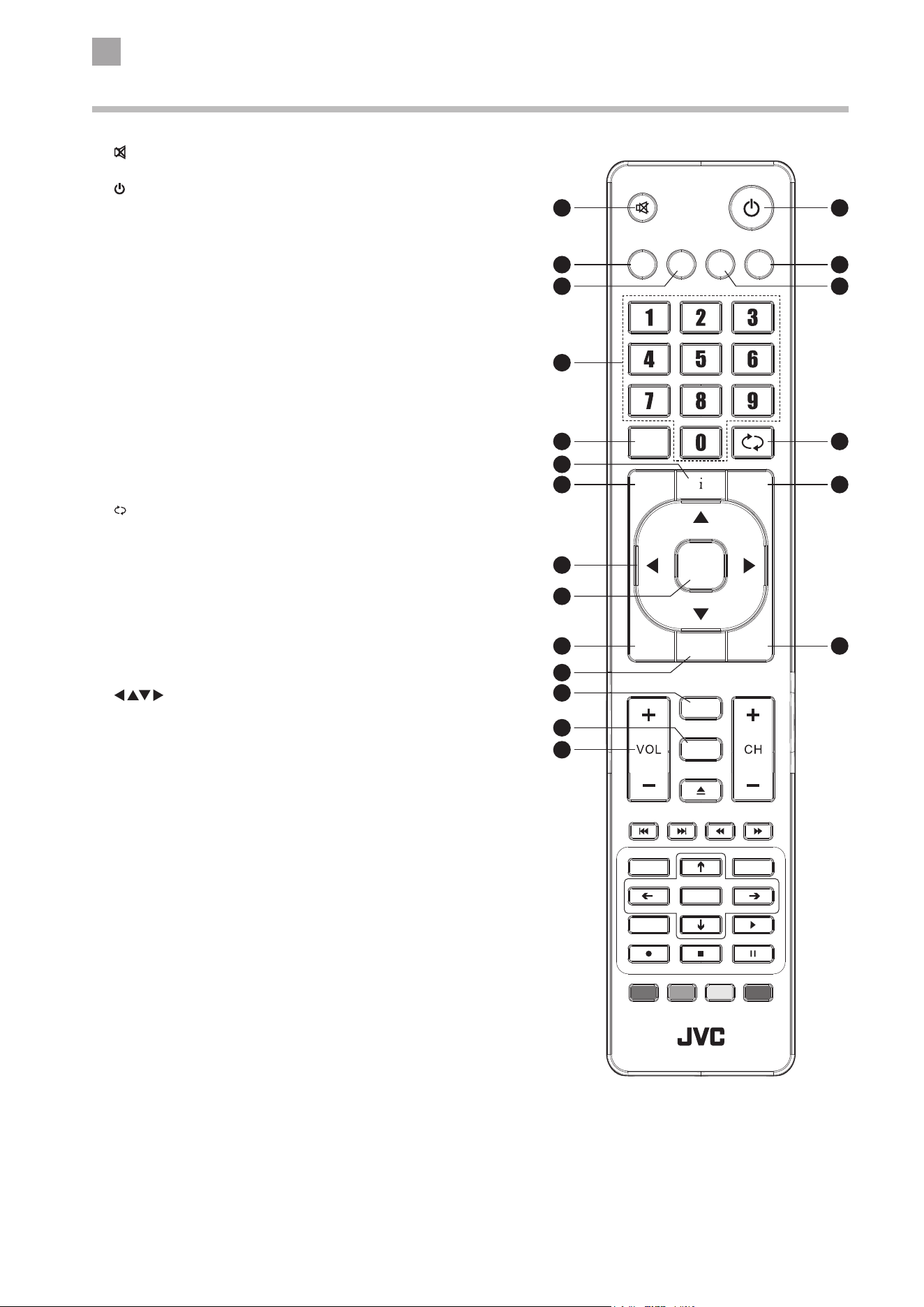
1.
Mute and restore your TV sound.
2.
Switch the TV between on and standby mode.
3. ASPECT
Watch the screen in various formats: Auto / 4:3 / 16:9 / Zoom /
Subtitle / SmartZoom.
4. S.MODE
Select sound mode: Standard / Music / Movie / Sport / User.
5. GUIDE
Displays the EPG Electronic Programme Guide. (DTV mode)
TITLE
No function.
6. P.MODE
Select picture mode: Standard / Movie / User / Dynamic.
7. 0-9 Number Button
Press to select a programme.
8. LIST
Display the channel list. (ATV / DTV mode)
9.
(RECALL)
Return to the previous viewing channel. (ATV / DTV mode)
10. i
Display the present channel information such as the current
time and channel name. (ATV / DTV mode)
11. MENU
Display the OSD (On Screen Display) menu.
12. INPUT
Select among the dierent input signal sources:
DTV / ATV / HDMI1 / HDMI2 / AV / USB
13.
Allows you to navigate the OSD menus and adjust the system
settings to your preference.
14. OK
Conrm the selection in the OSD menus.
15. BACK
Return to the previous menu in the OSD menus.
16. PROG
Display the channel edit menu. (ATV / DTV mode)
17. Exit
Exit the OSD menu.
18. TV.RD
A short-cut to switch input source to TV / Digital radio channels.
ANGLE
No function.
19. FAV
Display the favourite channel list. (ATV / DTV mode)
SETUP
No function.
20. VOL + / –
Adjust the volume.
Remote Control
SETUP
ANGLE
ZOOM STEP
MENU
TEXT
CANCEL
AUDIO
MIX
OK
SIZE
ASPECT S.MODE P.MODE GUIDE
LIST
PROG
MENU INPUT
BACK
EXIT
OK
S
TITLE
TV.RD
FAV
HOLD REVEAL SUBPAGE INDEX
GOTO SLOW REPEAT A-B
1
3
8
11
15
20
13
14
16
18
19
10
7
4
2
5
9
12
17
6
2
Preparation
13
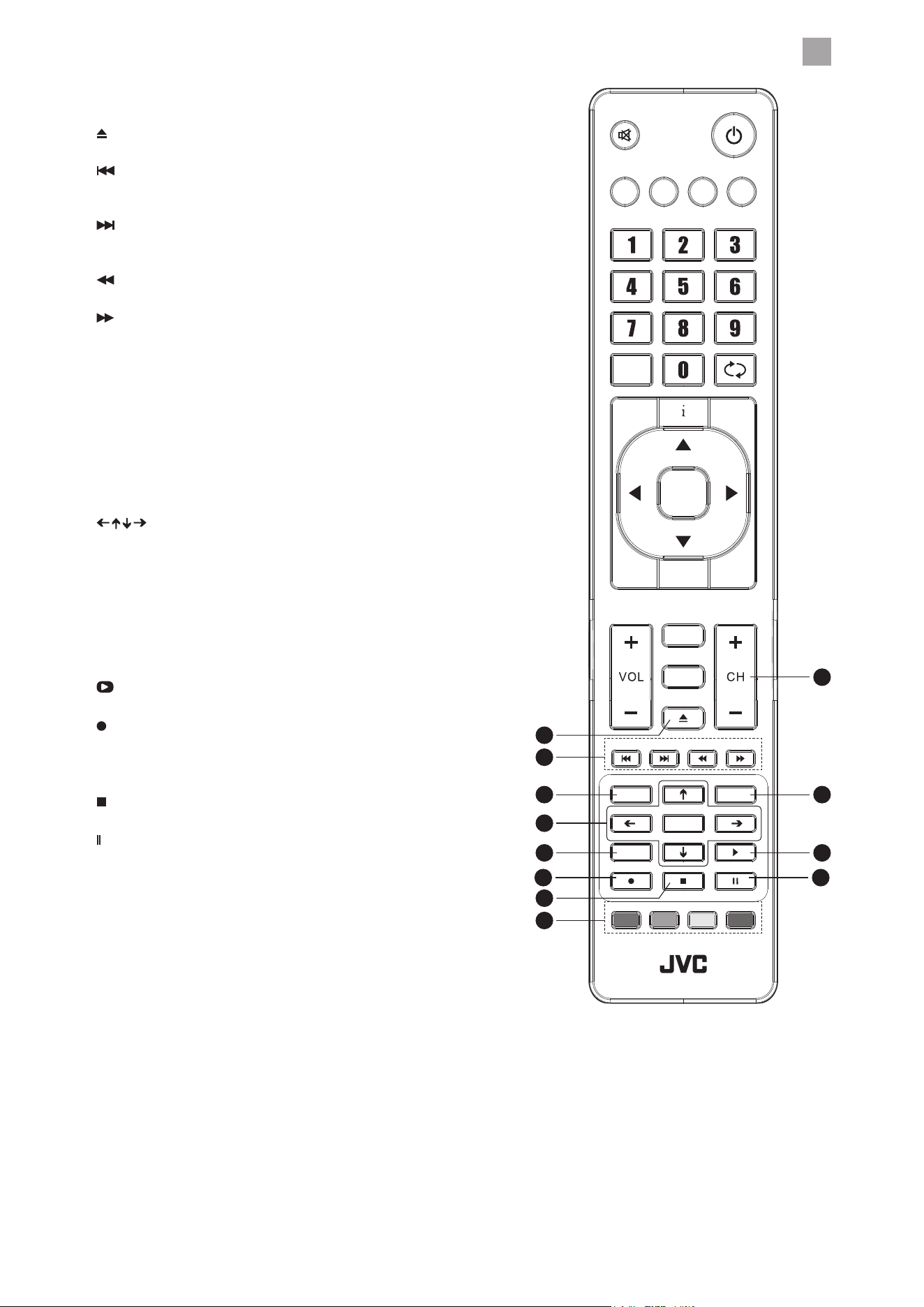
21. CH + / –
Select a channel.
22.
No function.
23.
To skip to the beginning of the previous chapter / track /
photo. (USB mode)
Skip to the beginning of the next chapter / track / photo.
(USB mode)
Reverse playback rapidly. (USB mode)
Advance playback rapidly. (USB mode)
HOLD / REVEAL / SUBPAGE / INDEX
No function.
24. TEXT
Turn on and o the teletext function. (DTV mode)
MENU
No function.
25. S (Subtitle)
Display subtitles which are broadcast with the programme.
(DTV mode)
26.
/ CANCEL / SIZE
No function.
OK / MIX
No function.
27. AUDIO
• Turn on / o the Audio Description function (only
applicable when the TV programme has this feature).
(DTV mode)
• Select Stereo / Dual Sound Reception. (ATV mode)
28.
PLAY
Start playback. (USB mode)
29.
REC
Record the current programme. (DTV mode).
ZOOM
No function.
30.
Stop
Stop the playback or recording. (USB / DTV mode)
31.
(Pause)
• Pause playback. (USB mode)
• Start the time-shift function (DTV mode)
STEP
No function.
32. Coloured buttons
• Access the TELETEXT items. (DTV mode)
• Access menu options.
GOTO (RED)
No function.
SLOW (GREEN)
No function.
REPEAT (YELLOW)
No function.
A–B (BLUE)
No function.
SETUP
ANGLE
ZOOM STEP
MENU
TEXT
CANCEL
AUDIO
MIX
OK
SIZE
ASPECT S.MODE P.MODE GUIDE
LIST
PROG
MENU INPUT
BACK
EXIT
OK
S
TITLE
TV.RD
FAV
HOLD REVEAL SUBPAGE INDEX
GOTO SLOW REPEAT A-B
24
27
29
26
23
32
22
30
21
25
28
31
2
14
Preparation
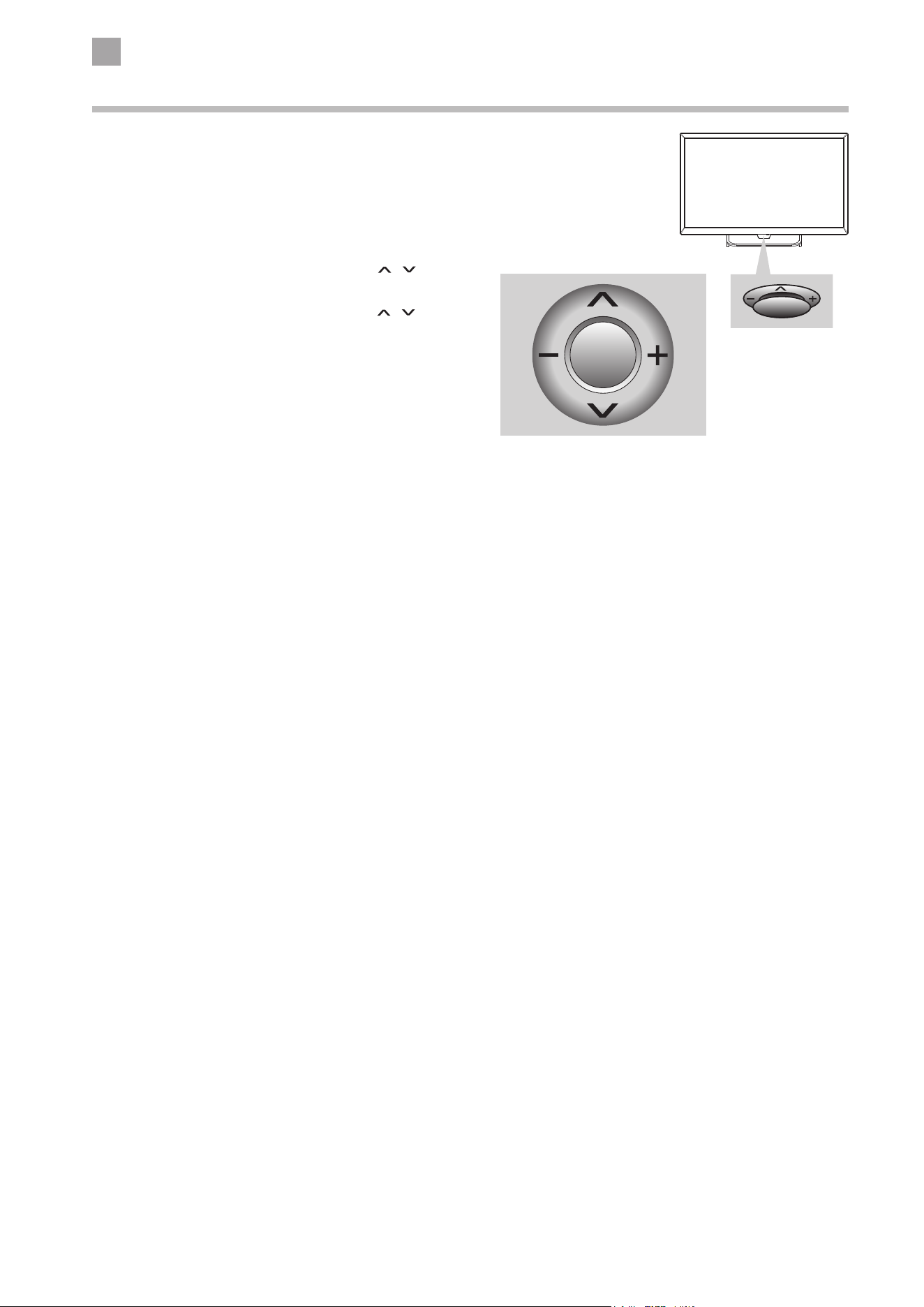
Joystick Function Button
The button under the TV frame is like a joystick. You can simply
operate the TV functions by pressing or moving the button.
• Press the button to switch the TV on.
• Press and hold the button then select "Yes" and press the
button again to turn the TV to standby.
• To change input source, press the button to access the INPUT
SOURCE menu. Move the button up / down (
/ ) to select
the source, then move left and right (+ / –) to confirm.
• To change channel, move button up / down (
/ ).
• To adjust the volume, move the button left and right (+ / –).
15
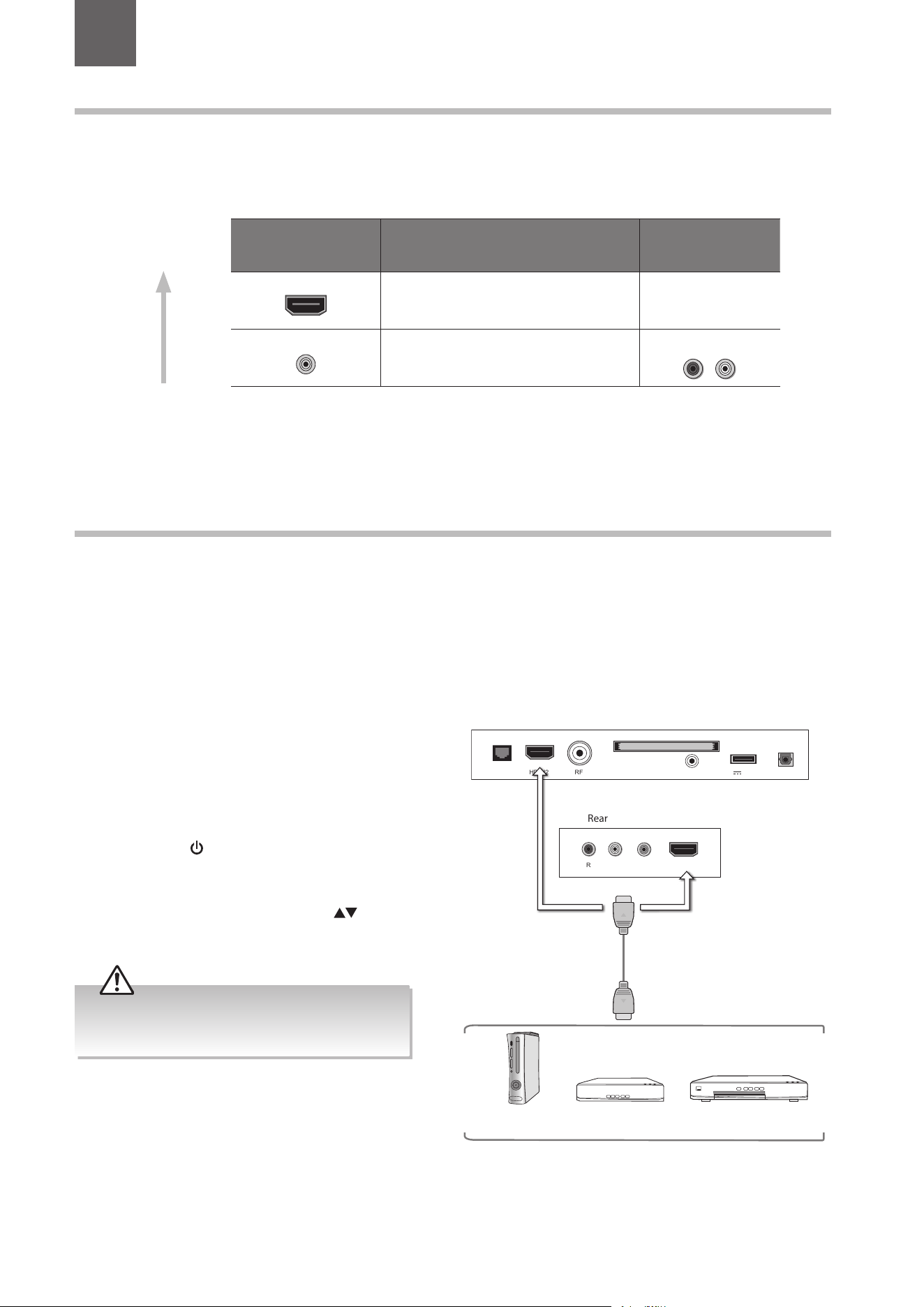
Connecting an AV Device Using an HDMI Cable
• This TV can accept High-Definition Multimedia Interface (HDMI) supports HDCP (High-Bandwidth Digital Content Protection)
Protocol.
• This TV has a total of 2 HDMI input sockets, please make sure the correct input source is selected and corresponds to your
connected HDMI input socket.
• When you connect to the output of an HD ready player (blu-ray disc player, game console, set-top box or computer) switch to
the HDMI function and the TV will automatically detect the resolution used by the HDMI source.
• To get the best picture quality, adjust the blu-ray disc player, game console or set-top box output resolution up to 1920 x
1080p.
1. Use an HDMI cable to connect the TV’s HDMI input
socket to the external AV device’s HDMI output socket.
2. Plug the connected devices into the mains socket
before switching on the TV.
3. Press the center of joystick function button under the
TV frame or the
button on the remote control to
turn on your TV.
4. Press the INPUT button on the remote control to
display the Input Source menu. Use the
buttons
on the remote control to select HDMI 1 / HDMI 2 and
then press the OK button to confirm.
Making Video and Audio Connections
Not all AV devices have the ability to connect to a TV, please refer to the owner’s manual of your AV device for compatibility and
connection procedures.
When connecting any external AV device, do not connect the mains cable to the mains socket until all other connections are
complete.
Signal Type
Separate Audio
Connection Required
HDMI1
HDMI
(480i/480p/576i/576p/720p/1080i/1080p*)
No
VIDEO
Composite Video
Yes
R L
Best Video
Performance
3 Connections
Chapter
3
*1080i/1080p: Although this TV is compatible with a 1080i/1080p input, it is possible that
the screen may not display the exact resolution and consequently the picture
quality will be adjusted accordingly.
Although this TV is able to connect to an HDMI
device, it is possible that some devices may not
operate correctly.
LAN RF
COMMON INTERFACE (CI)
HEADPHONES
USB
5V 500mA
Digital Output
HDMI2
HDMI1(ARC)R L VIDEO
Rear Right Side View of TV
Rear Bottom View of TV
HDMI Cable
(not included)
Blu-ray Player / DVD Player /
Recorder
Set-top BoxGame Console
3
Connections
16
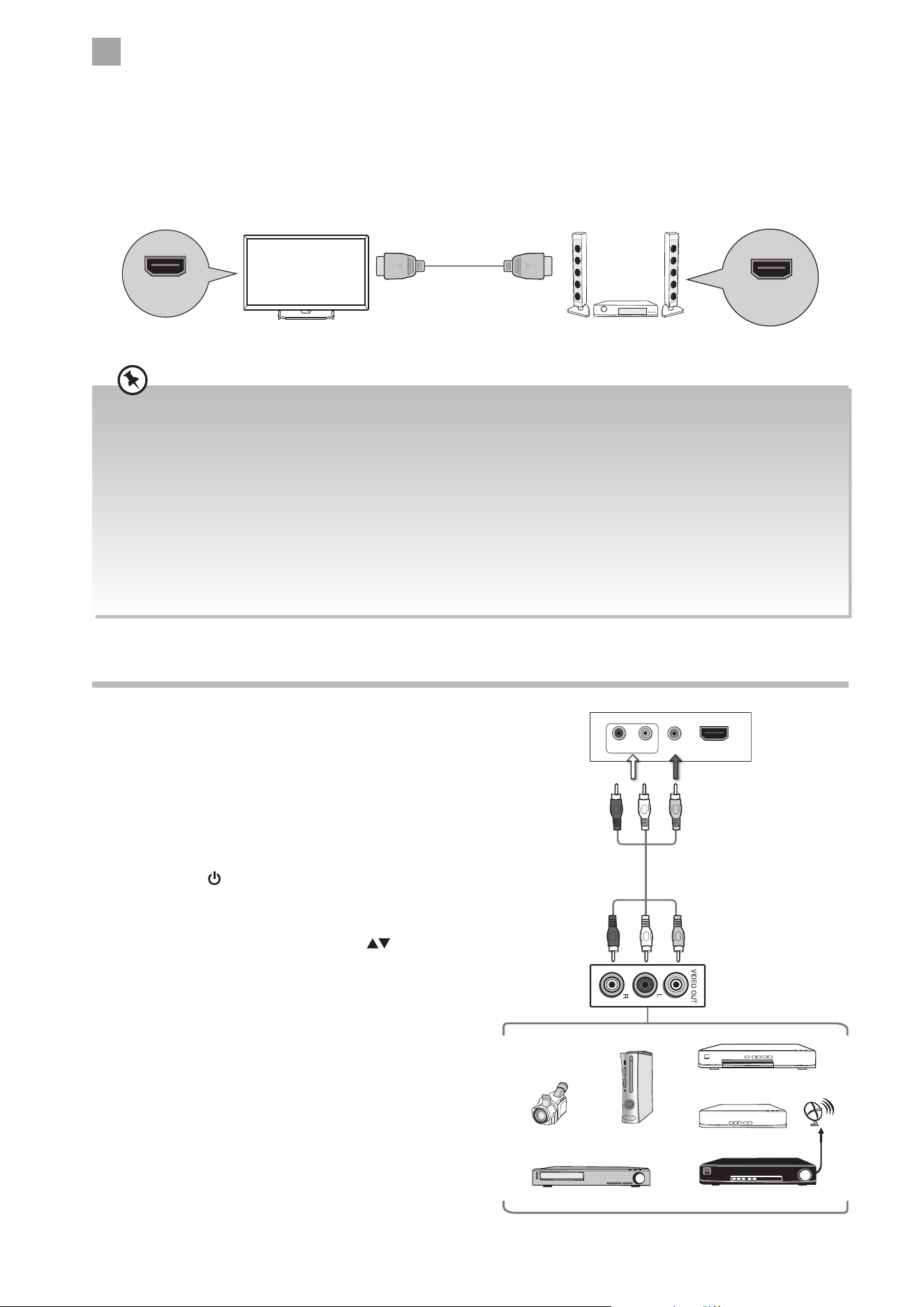
Connecting a Soundbar - HDMI ARC (Audio Return Channel)
The ARC (Audio Return Channel) function allows you to send audio from your ARC-compliant TV to ARC-compliant audio devices
(e.g. soundbar) through a single HDMI connection.
To enjoy the ARC function, please ensure your ARC-compliant audio devices are connected by an HDMI cable that support the
ARC function to the HDMI 1(ARC) socket of your ARC-compliant TV. When correctly set up, you can use your TV remote control to
adjust the volume output (VOL +/– and MUTE) of the connected audio device.
• Ensure that audio device is HDMI CEC and ARC compliant and that the TV is connected to the device using an HDMI cable
attached to HDMI-ARC connectors.
• The HDMI 1 connector is HDMI Audio Return Channel (ARC) compliant. Use it to output digital audio to an HDMI home
theater system.
• If the ARC-compliant audio devices do not support sound that TV outputs, such as Dolby Digital, or Dolby Digital Plus,
then ARC function will not work and there may be no sound from ARC-compliant audio devices. In this case, additional
connection with digital optical cable is necessary.
• The HDMI CEC feature has different trade names on different brands. The compatibility performance may vary with
different CEC-enabled devices.
• Please refer to your ARC-compliant devices' guidebook for more details on the operation of the HDMI ARC function.
• Ensure HDMI CEC is On (refer to page 40 for details on HDMI CEC).
TV HDMI-ARC compliant device
HDMI port with
ARC Function
HDMI Cable
(not included)
HDMI 1(ARC)
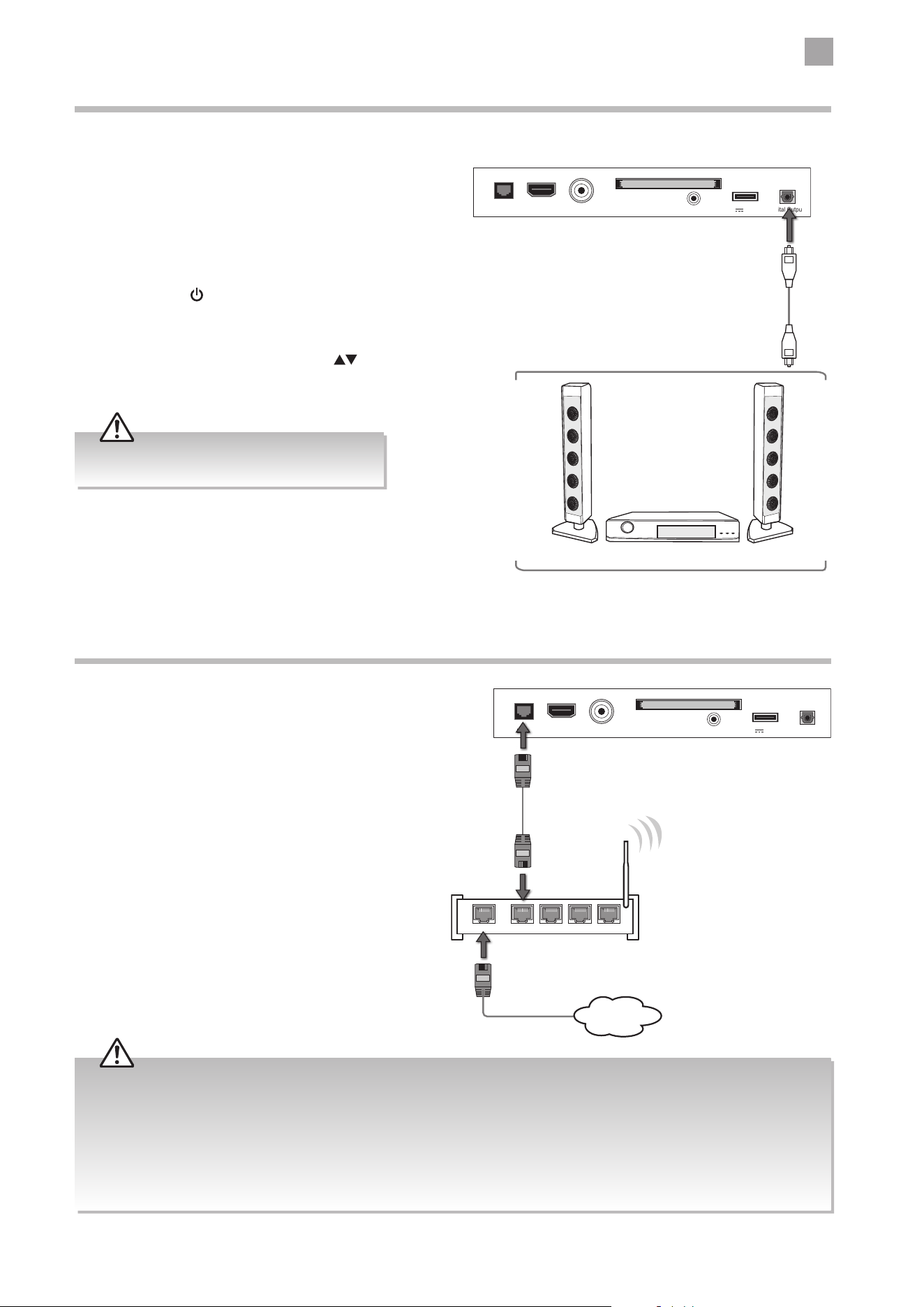
Connecting an AV Device Using Composite Cable
1. Use an AV cable to connect the TV’s AV IN input
sockets to the external AV device’s composite audio /
video output sockets.
(VIDEO = yellow, Audio Left = white, and
Audio Right = red)
2. Plug the connected devices into the mains socket
before switching on the TV.
3. Press the center of joystick function button under the
TV frame or the
button on the remote control to
turn on your TV.
4. Press the INPUT button on the remote control
to display the Input Source menu. Use the
buttons on the remote control to select AV and
then press the OK button to confirm.
AV Cable
(not included)
Yellow (Video)
Red (R)
White (L)
Yellow (Video)
Red (R)
White (L)
HDMI1(ARC)R L VIDEO
Rear Bottom View of TV
Video Camera
VCR
DVD Player / Recorder
Set-top Box
Game Console
Satellite Receiver
Satellite
antenna
cable
3
Connections
17
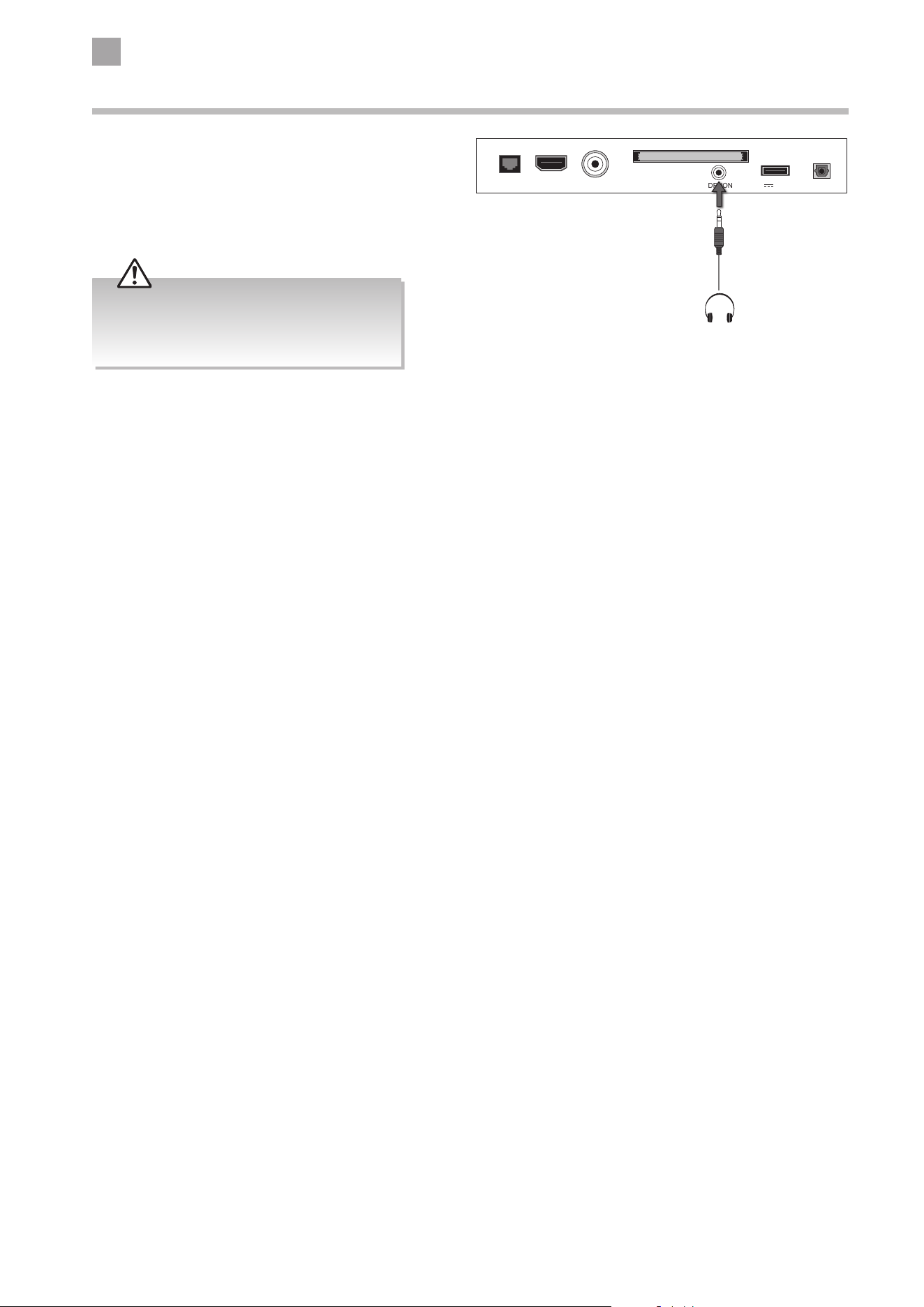
Connecting an Audio Receiver
For better sound quality, you may want to play the audio through your multi-channel audio receiver.
1. Use an optical cable to connect the TV’s Digital
Audio Output (optical) socket to an external audio
receiver’s audio input socket.
2. Plug the connected devices into the mains socket
before switching on the TV.
3. Press the center of joystick function button under the
TV frame or the
button on the remote control to
turn on your TV.
4. Press the INPUT button on the remote control to
display the Input Source menu. Use the
buttons
on the remote control to select the desired input
source and then press the OK button to confirm.
The TV’s volume will not be affected. You may
control the audio level via the Audio Receiver.
Audio Receiver
Rear Right Side View of TV
LAN RF
COMMON INTERFACE (CI)
HEADPHONES
USB
5V 500mA
Digital Output
HDMI2
Optical Cable
(not included)
Connecting to Network
Connects your TV to the internet router by an
Ethernet cable. It allows access to some IP channels
that are available on T2 products. These are accessible
through the normal EPG / channel list. It can also
allow access to Red button plus services on some TVs.
Wired a Network Connection
Use an LAN or Ethernet cable (CAT5 or better with
RJ45 connector) to connect the TV’s LAN socket to the
corresponding port on your router.
• This unit cannot be connected to a standalone modem directly. A router or a modem incorporated with a router has to be
used.
• When plugging or unplugging the LAN cable, hold the plug portion of the cable. When unplugging, do not pull on the
LAN cable but unplug while pressing down on the lock.
• Do not connect a modular phone cable to the LAN socket.
• Since there are various connection configurations, please follow the specifications and instructions of your
telecommunication carrier, Internet service provider, and router setting guidebook.
1WAN 2 3 4
Rear Right Side View of TV
LAN RF
COMMON INTERFACE (CI)
HEADPHONES
USB
5V 500mA
Digital Output
HDMI2
Ethernet Cable
(not included)
Internet
3
Connections
18
Connecting Headphones
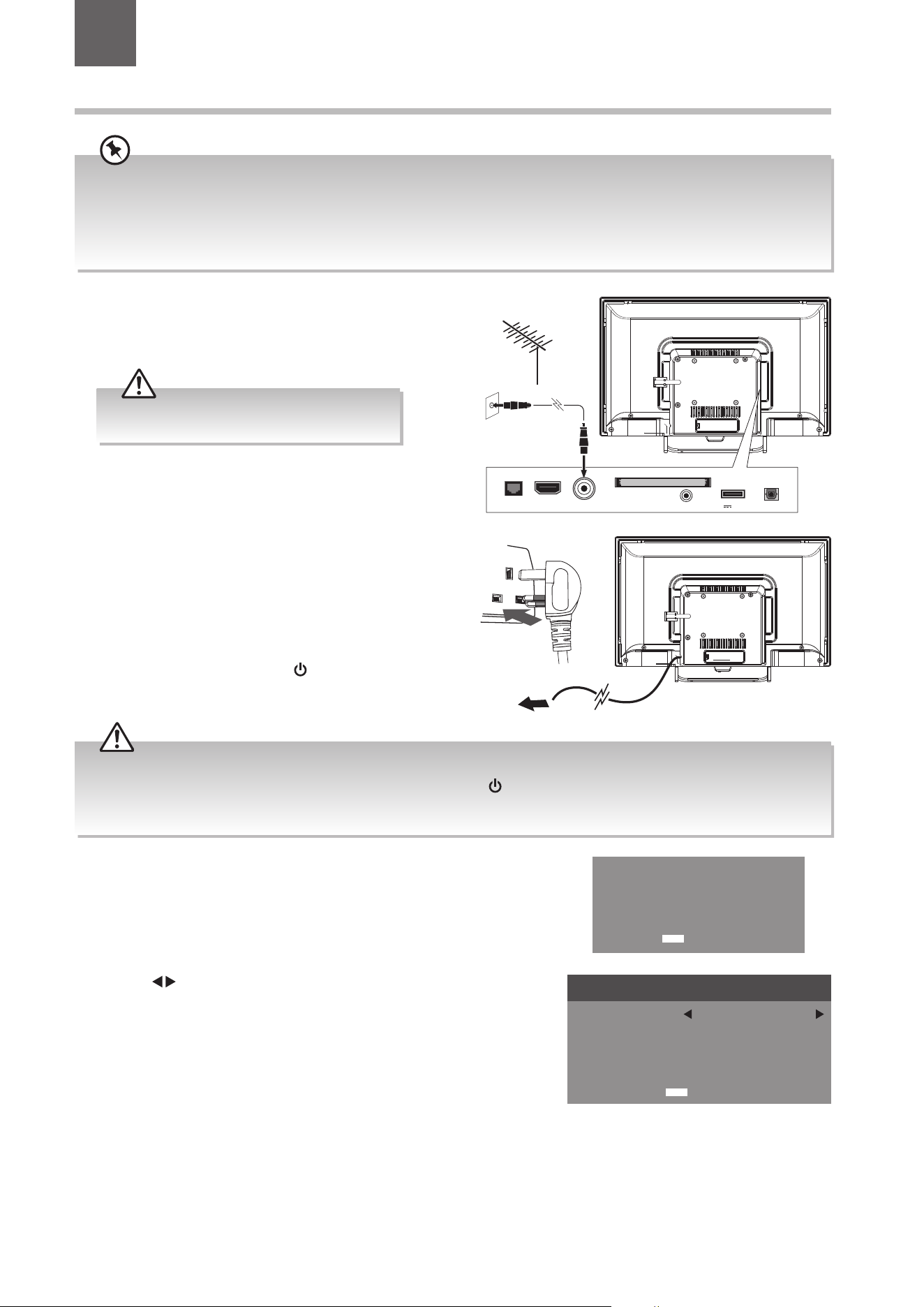
Connect your headphones to the TV’s HEADPHONES
socket.
Before putting on the headphones, turn the volume
down then put the headphones on and slowly
increase the volume until you reach a comfortable
listening level.
Long-term exposure to loud music may cause
hearing damage. It is best to avoid extreme
volume when using headphones, especially for
extended periods.
Rear Right Side View of TV
LAN RF
COMMON INTERFACE (CI)
HEADPHONES
USB
5V 500mA
Digital Output
HDMI2
Earphones Cable
(not included)
19
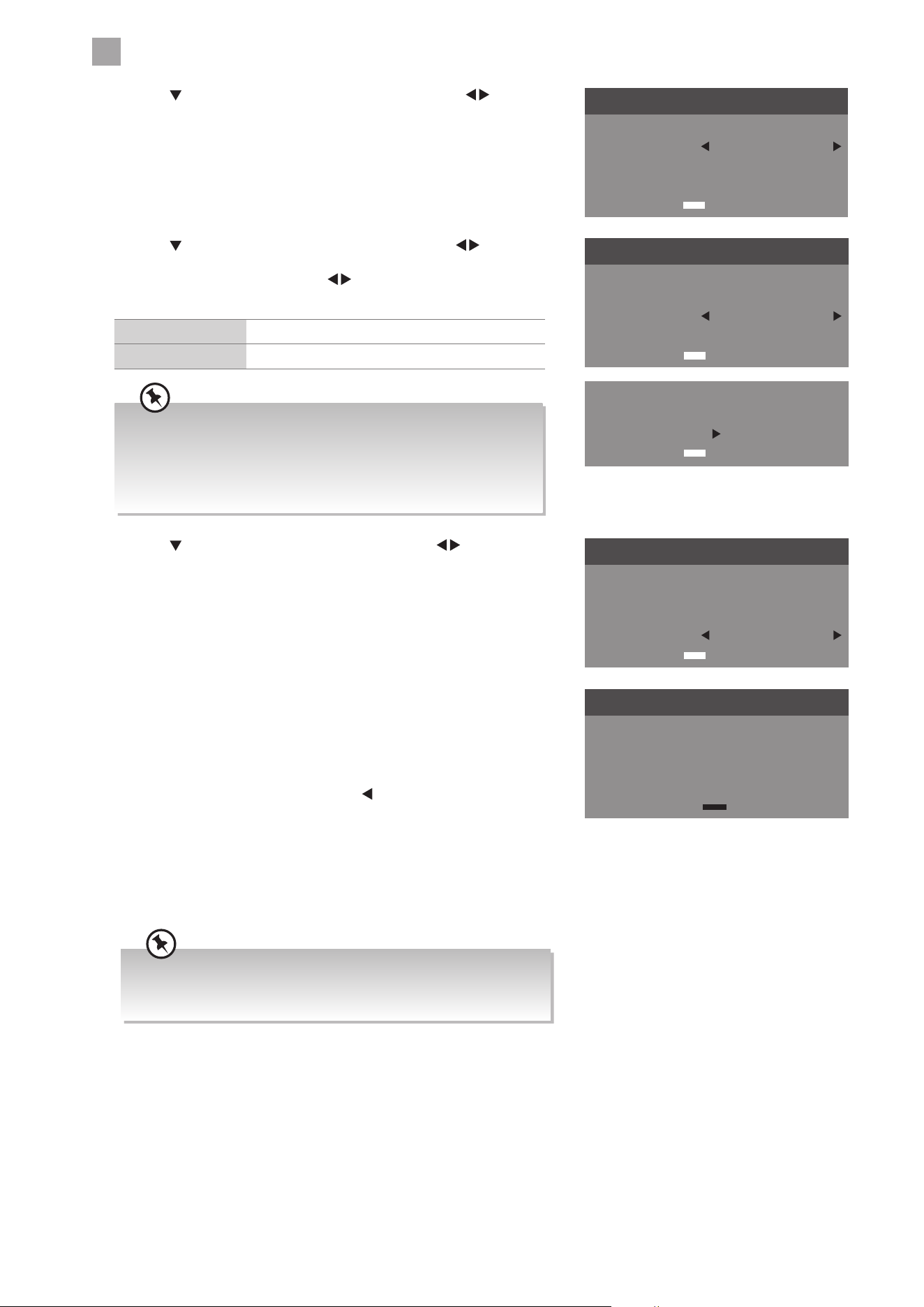
1. Connect one end of the RF coaxial cable to the
aerial socket on the wall and the other end of the
cable to the RF (75Ω) socket at the rear right side
of your TV.
6. Press the
buttons to select the country where you will operate the
TV. Press the OK button to confirm.
Turning the TV On for the First Time
2. Connect the mains cable to the mains socket after
you have completed all the connections.
3. At this stage, the TV switches to standby mode. The
red LED indicator will illuminate on the front panel of
the TV.
4. In standby mode, press the center of joystick function
button under the TV frame or the
button on
the remote control to turn on your TV. The red LED
indicator will turn off.
5. The first time you turn the TV on, it will go straight into the First Time
Installation menu. Please ensure the aerial is plugged in and then press
the OK button. (If you have already installed the TV using the Quick Start
Guide, please go to the section “Selecting the Input Source” on the next
page.)
LAN RF
COMMON INTERFACE (CI)
HEADPHONES
USB
5V 500mA
Digital Output
HDMI2
RF coaxial cable
(not included)
OR
4 Initial Setup
Chapter
4
Do not connect the TV to the mains supply
until you have completed all the connections.
• Always disconnect the TV from the mains socket when not in use for a long period of time.
• The center of joystick function button under the TV frame or the
button on the remote control is only used for
switching the TV into standby, it does not disconnect the TV from the mains power. To completely disconnect the mains
power, please remove the mains plug from the mains socket.
• This instruction manual explains the basic instructions for operating this unit. Unless otherwise stated, all operations
described are based on remote control use.
• When an item in main menu is displayed gray, it means that the item is not available or cannot be adjusted.
• If you are going to watch TV using a set-top box, simply connect your TV and set-top box via a HDMI cable and select
HDMI in the Input Source menu.
First Time Installation
Please ensure aerial is plugged in!
Confirm
OK
First Time Installation
Country UK
Confirm
OK
OSD Language English
Home/Store Mode Home Mode
Tune Type DTV
To the mains
socket
4
Initial Setup
20
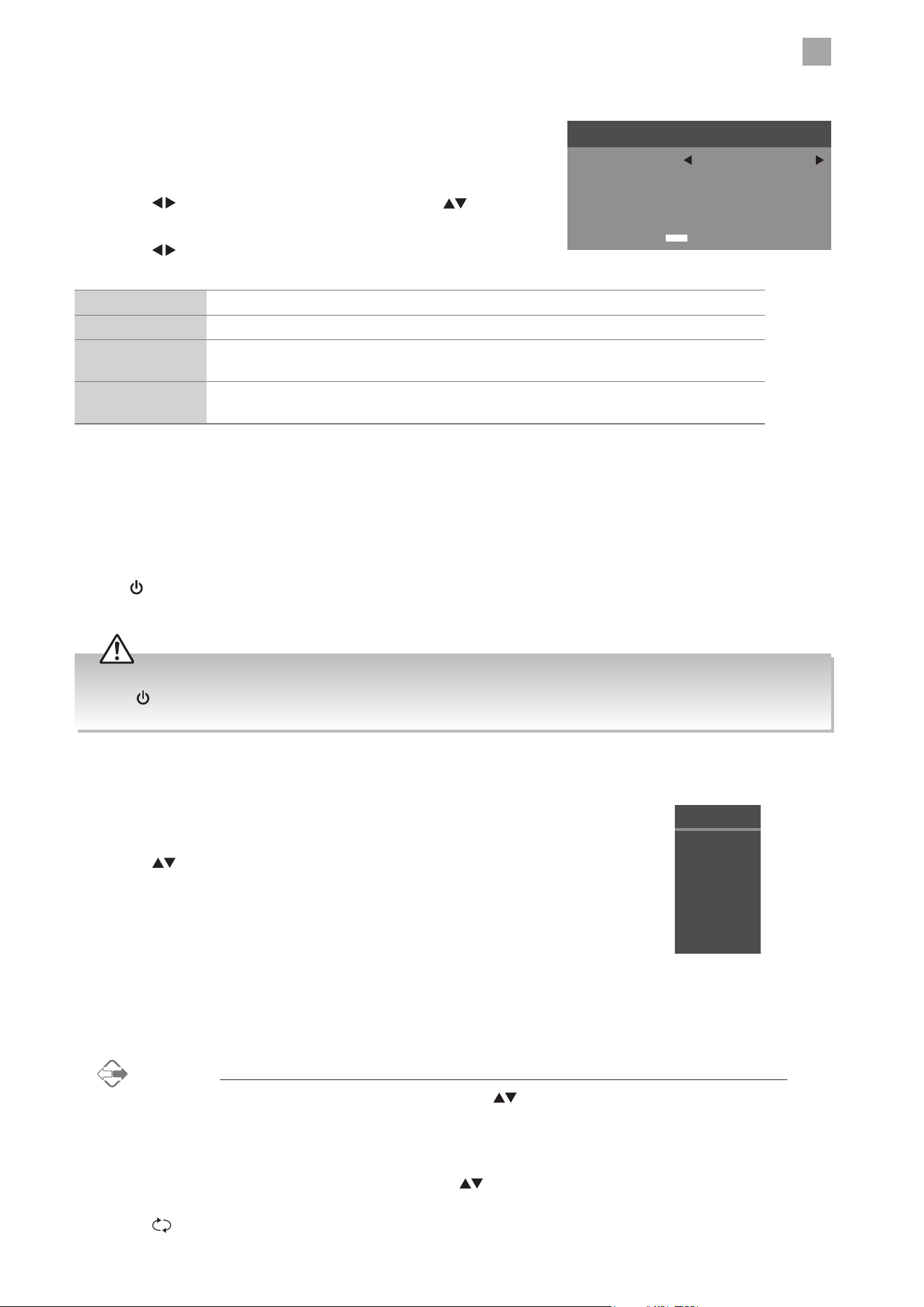
If you are going to watch TV using a set-top box, press the EXIT
button on the remote control then skip this section. Then press the
INPUT button on the remote control to select HDMI mode.
10. Channel tuning will commence. This operation may take a few minutes.
The display will show the progress of the tuning and the number of
channels found.
11. If you select DTV + ATV and you want to skip the DTV tuning during
scanning, press the MENU button to interrupt the tuning half way. A
pop-up screen will be displayed, press the
button to select YES to
confirm. You may repeat the above step if you also want to skip the ATV
tuning.
12. After tuning is complete, the channels are arranged in a preset order. If
you wish to skip channels, modify the preset order or rename channels,
select Channel Edit under the Channel menu (refer to page 32 for
details).
• For the best picture quality in your home environment, we
recommend setting the TV to Home Mode.
• In Store Mode, the default Picture Mode under the PICTURE
menu is set as Dynamic (refer to page 23 for details) and the
Backlight is set as 10 (refer to page 23 for details).
8. Press the button to select Home/Store Mode. Press the buttons
to select your desired mode and then press the OK button. A pop-up
message will be displayed. Press the
buttons to select Ye s to confirm
or No to cancel. Press the OK button to return to the Mode Select menu.
Home Mode Intended for use in home environment.
Store Mode Intended for use in retail environment.
9. Press the
button to select Tune Type, then press the buttons to
select DTV / AT V / DTV + ATV. Press the OK button to confirm.
First Time Installation
Country UK
Confirm
OK
OSD Language English
Home/Store Mode Home Mode
Tune Type DTV
Channel Tuning
TV Channel(s)
DTV UHF 36
DTV Channel(s)
Radio Channel(s)
Data Channel(s)
0
0
0
0
First Time Installation
Country UK
Confirm
OK
OSD Language English
Home/Store Mode Home Mode
Tune Type DTV
Store mode Selected.
Confirm
OK
Are you sure?
Yes No
7. Press the button to select OSD Language, then press the buttons
to select your desired language to be displayed on the menu. The default
on-screen menu language is set as English. Press the OK button to
confirm.
First Time Installation
Country UK
Confirm
OK
OSD Language English
Home/Store Mode Home Mode
Tune Type DTV
4
Initial Setup
21
Selecting the Input Source
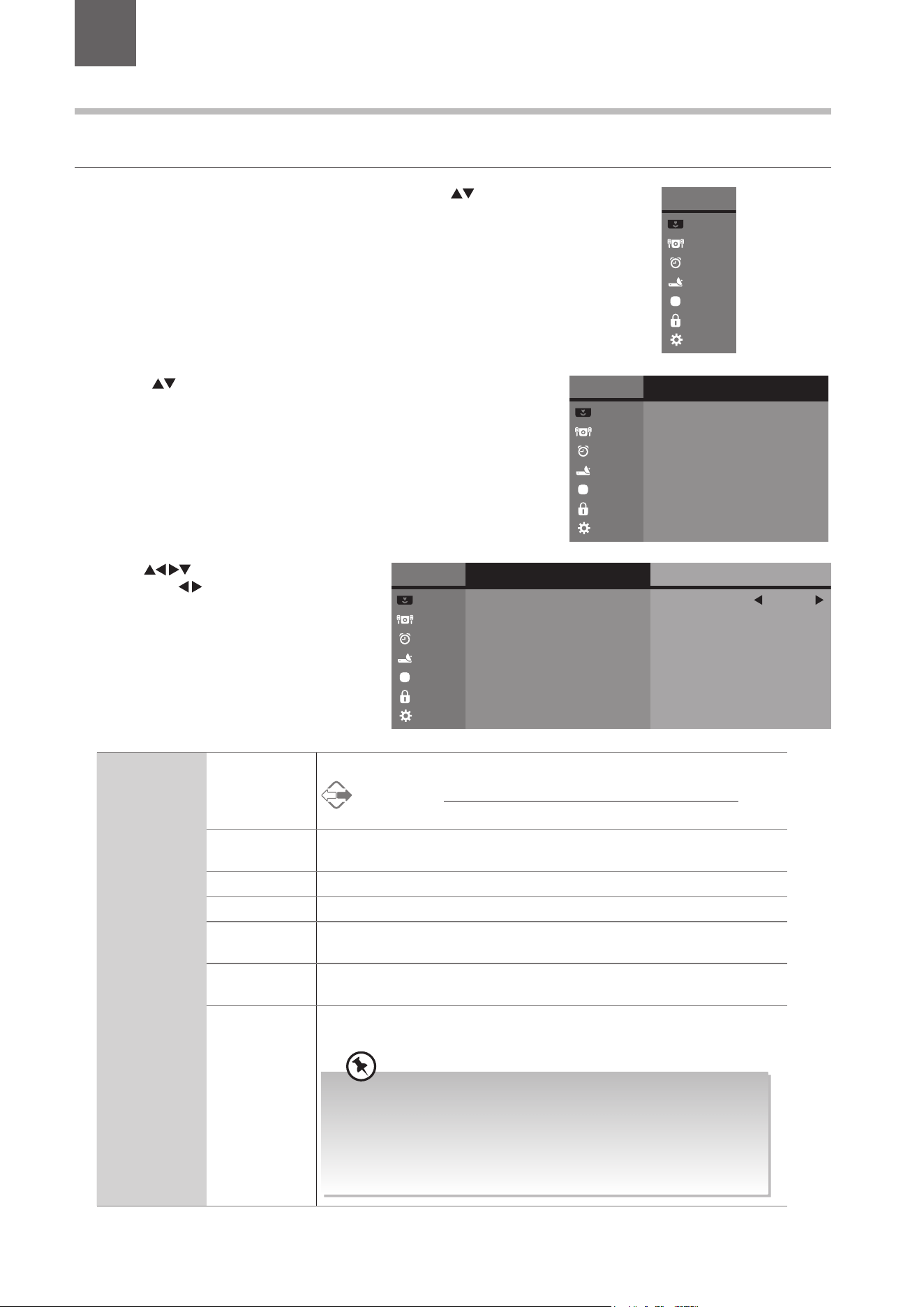
1. Press the INPUT button on the remote control to display the Input
source list.
2. Press the
buttons to select the input source that you want: DTV /
ATV / HDMI 1 / HDMI 2 / AV / USB.
3. Press the OK button to confirm your selection. If you do not press the OK
button to confirm, the TV will automatically confirm the selected input
source within 4 seconds.
Channel Selection
• Press the CH + / – buttons on the remote control repeatedly or the 0-9 buttons to select the channel.
Alternative
Press the LIST button to enter the Channel List. Then use the buttons to highlight and select the channel.
Press the OK button to view the selected channel.
• If a blocked channel is selected, the password screen will be displayed. Press the 0-9 buttons to enter the password, the
channel will then be unlocked (refer to page 42 for details on Block Channel).
• Press the FAV button to view the Favourite List. Then use the
buttons to highlight and select the channel. Press the OK
button to view the selected channel (refer to page 32 for details on Channel Edit).
• Press the
button to return to the previously viewed channel.
Target Region Setting (UK only)
During tuning your TV may have received signals from more than one
transmitter. If this has occurred the Target Region Setting screen will be
displayed. This will enable you to select the correct regional transmission for
the local news service that you require.
1. Press the
buttons to select the Country then press the buttons
to select Primary Region / Secondary Region / Tertiary Region.
2. Press the
buttons to select your preferred region then press the OK
button to confirm.
Country Code This will be shown as GBR for the UK.
Primary Region This will show the regional country (e.g. England, Wales, Scotland, NI).
Secondary Region
This will allow you to set the region for your local news service on BBC and ITV (e.g. London,
Beds and Cambs etc).
Tertiary Region
You may receive signals from more than one transmitter within the Secondary Region, (e.g
Beds and Cambs may have Luton or Sandy Heath).
Eco Friendly / Auto Standby Function
The latest eco-friendly power saving technology will automatically switch the TV into standby mode if the TV is left on and idle
for 4 hours or it does not receive an input signal for serveral minutes. A reminder screen will pop up and count down before the
switches to standby mode. Once the TV is switched to standby mode, the red LED indicator will illuminate on the front panel of
the TV.
Press the
button on the remote control to turn on your TV. The red LED indicator will turn off and a pop up message will be
prompt on the screen AFTER wake up from standby.
Input Source
DTV
ATV
HDMI 1
AV
HDMI 2
USB
• Always disconnect the TV from the mains socket when not in use for a long period of time.
• The
button on the remote control is only used for switching the TV into standby, it does not disconnect the TV from the
mains power. To completely disconnect the mains power, please remove the mains plug from the mains socket.
Choose Your Prefered Region
Country
Primary Region
Secondary Region
Tertiary Region
UK
England
London
Cambridge
Confirm
OK

4
Initial Setup
22
Listening to the Radio (Radio Mode)
• In DTV mode, press the TV.RD button to switch between DTV and Digital radio channel.
• Press the CH
/ buttons on the remote control repeatedly to change the radio stations.
Alternative
Press the LIST button to enter the Channel List. Then use the buttons to highlight and select the station.
Press the OK button to listen to the selected station.
• Press the GUIDE button to see all the stations in the Programme Guide (refer to page 48 for details on EPG).
Display Channel Information
Press the i button to view the current information.
Volume Adjustment
• Press the VOL + or – button on the side panel of the TV or on the remote control to adjust the volume.
• If you wish to switch the sound off, press the
button. You can turn the volume down while your TV is in mute mode. Press
the VOL – button, you will see the volume level reduce, but you won’t hear anything at the moment. To listen to your TV at
the new lower level, press the
button again or VOL + button.
23
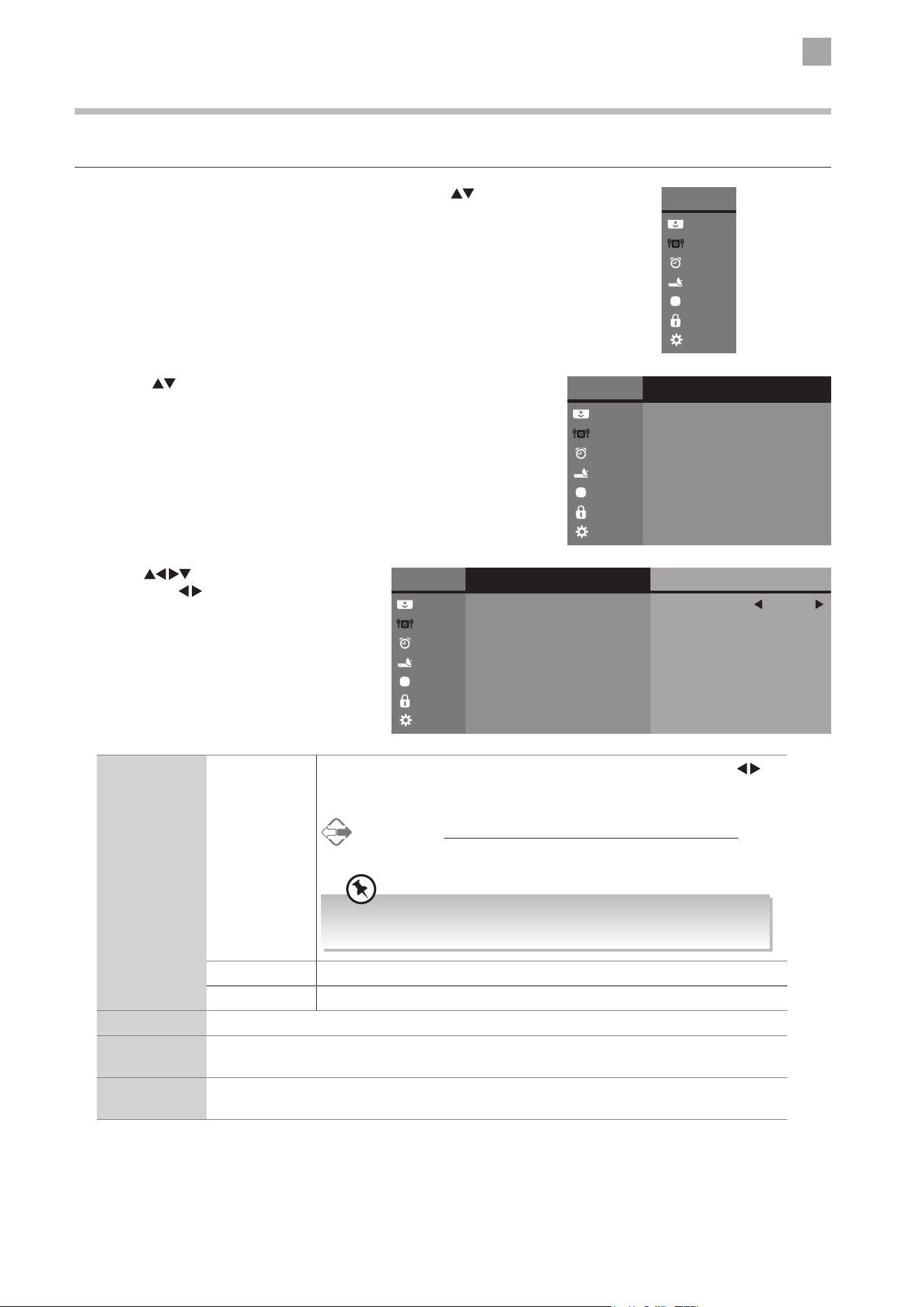
3. Use the
buttons navigate the options
and press the
buttons to adjust each
option’s setting.
2. Press the
buttons and then press the OK button to select the picture
options.
5 Customising TV Settings
Chapter
5
Picture Setting
Allows you to set your preferred picture mode.
1. Press the MENU button to display the Main Menu. Press the
buttons
to select the PICTURE menu and then press the OK button.
Main Menu
Picture
Sound
Time
Channel
Option
Lock
System
Main Menu
Picture
Sound
Time
Channel
Option
Lock
System
Picture
Picture Setting
Colour Temperature
Aspect Ratio
Noise Reduction
Standard
Nature
Auto
Low
Main Menu
Picture
Sound
Time
Channel
Option
Lock
System
Picture
Picture Setting
Colour Temperature
Aspect Ratio
Noise Reduction
Standard
Nature
Auto
Low
Picture Setting
Mode
Contrast
Brightness
Colour
Standard
50
50
50
50
50
7
Sharpness
Tint
Backlight
Picture Setting Mode Select among picture mode: Standard / Movie / User / Dynamic.
Alternative
You may press the P.MODE button to select the picture mode directly.
Contrast Adjusts the difference between light and dark levels in the picture (for User
mode).
Brightness Increases or decreases the amount of white in the picture (for User mode).
Colour Controls the colour intensity (for User mode).
Sharpness Adjusts the level of crispness in the edges between light and dark areas of the
picture (for User mode).
Tint (For NTSC
format)
Adjusts the balance between red and green levels
(Tint is only available for NTSC signal reception).
Backlight Adjusts the backlight setting of your TV. This controls the brightness and
display performance of the screen.
Increasing the backlight setting will increase the brightness and
display performance of the screen. The higher the setting is, the
higher the power consumption. You can select from 1-10 to strike a
balance between the picture brightness / display performance / power
consumption. Reducing the backlight setting will help you reduce
power consumption and thus save money by reducing electricity bills.

5
Customising TV Settings
24
Colour
Temperature
Select among colour temperature: Nature / Warm / User / Cool.
Adjusts the colour components independently to achieve a warm or cool colour (for User mode).
• Red: Increases red tint
• Green: Increases green tint
• Blue: Increases blue tint
Aspect Ratio
Allows you to watch the screen in various picture formats: Auto / 4:3 / 16:9 / Zoom / Subtitle /
SmartZoom. (Except USB mode)
Alternative
You may press the ASPECT button to select the aspect ratio directly.
Noise Reduction Select to reduce the noise level of the connected device: Off / Low / Middle / High.
4. Press the BACK button or the MENU button to return to the previous menu.
5. Press the EXIT button to return to normal TV viewing.
5
Customising TV Settings
25
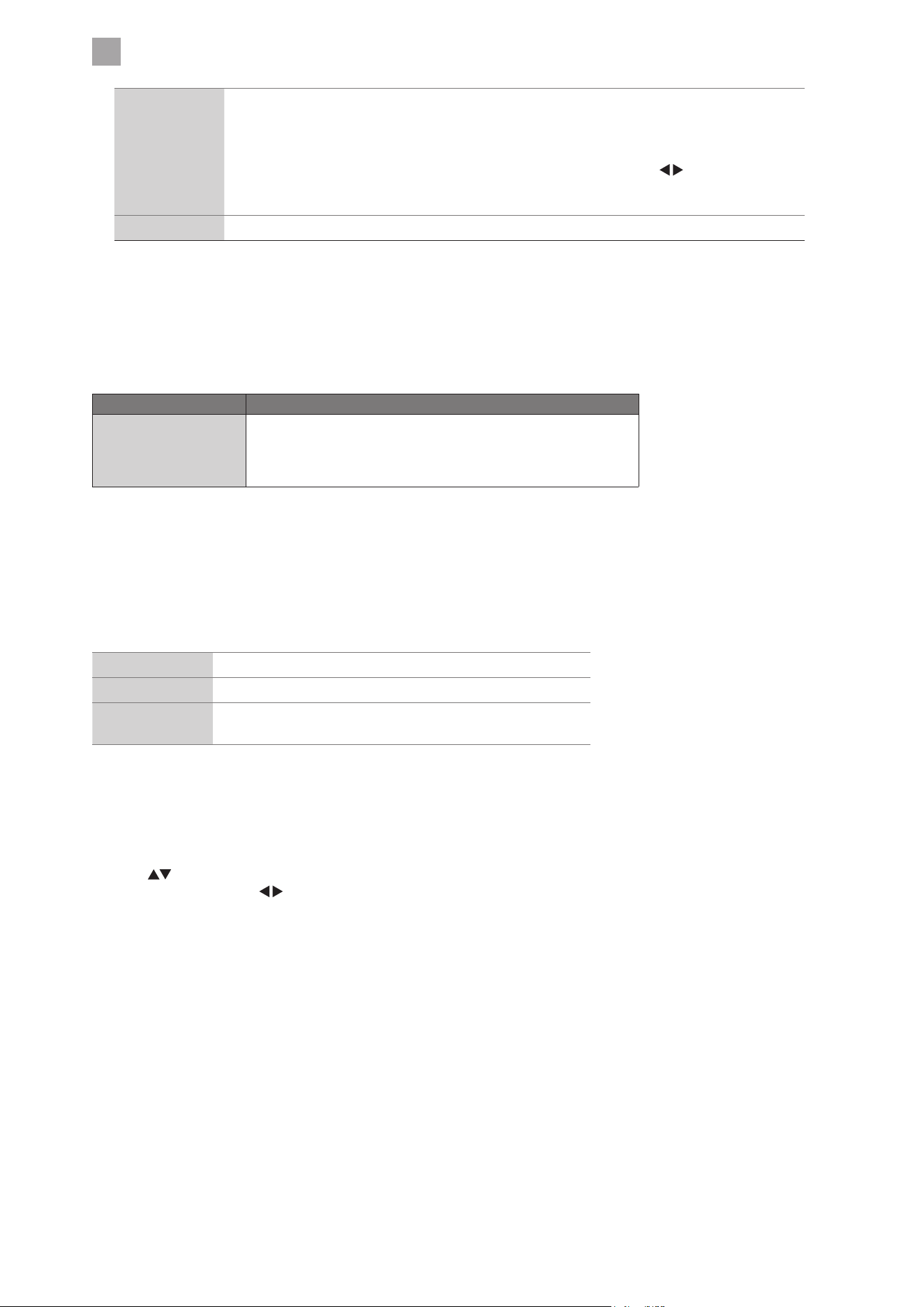
3. Use the
buttons navigate the options
and press the
buttons to adjust each
option’s setting.
2. Press the
buttons and then press the OK button to select the sound
options.
Sound Setting
Allows you to select an audio-enhancement technique.
1. Press the MENU button to display the Main Menu. Press the
buttons
to select the Sound menu and then press the OK button.
Main Menu
Picture
Sound
Time
Channel
Option
Lock
System
Main Menu
Picture
Sound
Time
Channel
Option
Lock
System
Sound
Sound Setting
Balance
Auto Volume
Surround Sound
Standard
50
Off
Off
PCM
AD Switch
Digital Output
Main Menu
Picture
Sound
Time
Channel
Option
Lock
System
Sound Sound Setting
Sound Setting
Balance
Auto Volume
Surround Sound
Standard
50
Off
Off
PCM
AD Switch
Digital Output
Mode
Bass
Treble
Standard
50
50
Sound Setting Mode You can select this function when Surround Sound switch off. Press the
buttons to select an audio-enhancement technique: Standard / Music / Movie
/ Sports / User.
Alternative
You may press the S.MODE button to select the sound mode directly.
To get a better sound effect, you may need to adjust the sound
settings depending on the type of program you are watching.
Treble Controls the relative intensity of higher pitched sounds. (for User mode)
Bass Controls the relative intensity of lower-pitched sounds. for User mode)
Balance Adjusts the relative volume of the speakers in a multiple speaker system.
Auto Volume Volume levels are automatically controlled (e.g., advertisements tend to be louder than the
programmes).
Surround
Sound
Delivers an immersive virtual surround sound experience over front facing speaker configurations,
complete with rich bass, high frequency detail and clear dialogue.
5
Customising TV Settings
26
AD Switch
(for DTV mode)
Audio Description is an auxiliary audio function that provides an additional audio track for visually
challenged persons. This function handles the Audio Stream for the AD (Audio Description), when
it is sent along with the main audio from the broadcaster.
• Set to “Off” for normal broadcasting sound coming out from speakers.
• Set to “On” to activate the description sound track if available. Press the
buttons to adjust
the AD volume. The availability of Audio Description sound track is indicated by the visually
impaired icon "V.I." in the information banner.
Digital Output Selects the digital audio output mode: PCM / Auto.
4. Press the BACK button or the MENU button to return to the previous menu.
5. Press the EXIT button to return to normal TV viewing.
Stereo / Dual Sound Reception (ATV Mode)
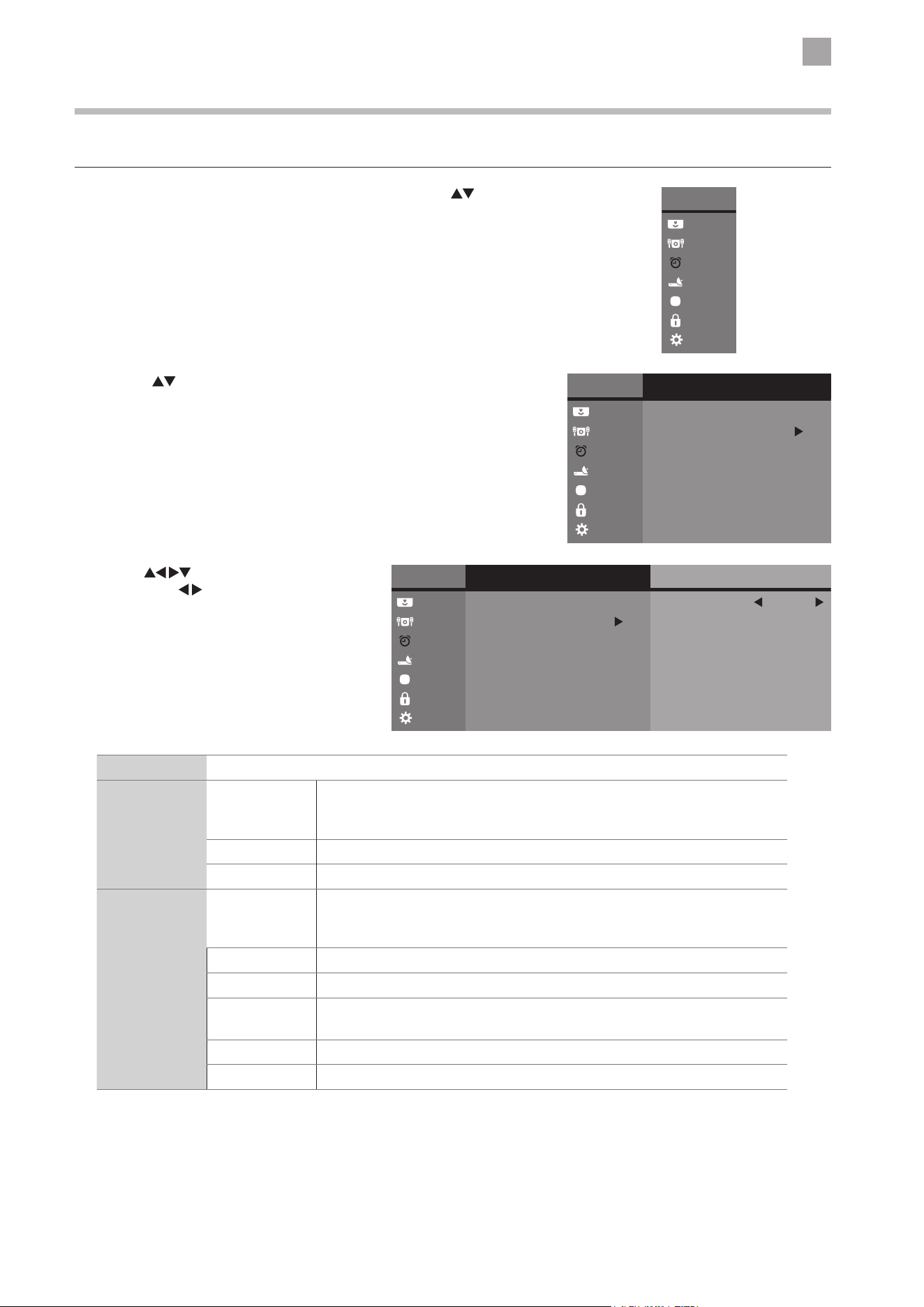
When a programme is selected, press the AUDIO button to display the sound information for the selected station.
Broadcast On Screen Display
Mono
Stereo
Dual
MONO / NICAM MONO
MONO / NICAM STEREO
MONO / NICAM DUAL I, NICAM DUAL II, NICAM DUAL I+II
Mono sound selection
If the stereo signal is weak, you can switch to mono by pressing the AUDIO button. In mono reception, the clarity of sound is
improved. To switch back to stereo, press the AUDIO button again.
Language selection for dual language broadcast
If a programme can be received in two languages (dual language), you can switch to NICAM DUAL I, NICAM DUAL II, NICAM
DUAL I+II or MONO by pressing the AUDIO button repeatedly.
NICAM DUAL I
Sends the primary broadcast language to the loudspeakers
NICAM DUAL II
Sends the secondary broadcast language to the loudspeakers
NICAM DUAL I+II
Sends the primary and secondary broadcast languages to the
loudspeakers
Speaker Sound Output Selection (DTV Mode)
While watching a DTV programme, you can press the AUDIO button to
display the audio language list (only applicable when the TV programme has
this feature).
Press the
buttons to select an audio language or audio format if
available and then press the
buttons to select sound track between
L/R (Stereo), L/L (Mono Left) and R/R (Mono Right). Press the OK button to
confirm and exit.
5
Customising TV Settings
27
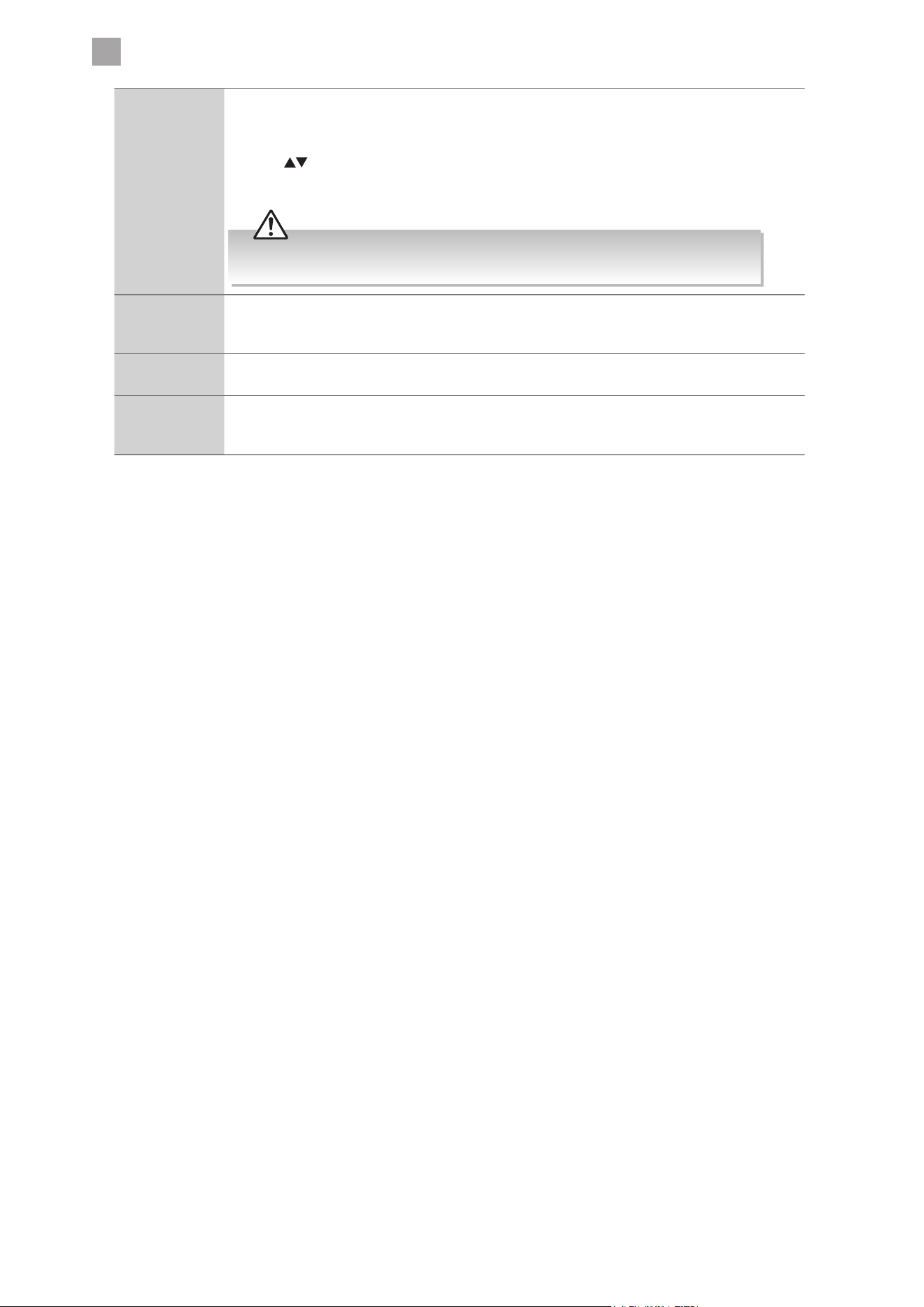
3. Use the
buttons navigate the options
and press the
buttons to adjust each
option’s setting.
2. Press the
buttons and then press the OK button to select the sound
options.
Time Settings
Allows you to adjust power on / off time, sleep timer, auto standby, OSD Timer and time zone.
1. Press the MENU button to display the Main Menu. Press the
buttons
to select the Time menu and then press the OK button.
Main Menu
Picture
Sound
Time
Channel
Option
Lock
System
Main Menu
Picture
Sound
Time
Channel
Option
Lock
System
Time
Time Zone
Clock
Off Time
On Time
Sleep Timer
16:21
Off
On
30 sec
GMT+0
Auto Standby (4h)
OSD Timer
Off Time
Mode
Hour
Minute
Off
0
0
Main Menu
Picture
Sound
Time
Channel
Option
Lock
System
Time
Time Zone
Clock
Off Time
On Time
Sleep Timer
16:21
Off
On
30 sec
GMT+0
Auto Standby (4h)
OSD Timer
Clock The clock is set automatically when receiving a digital signal.
Off Time Mode Allows you to set the off time that will automatically switch off the TV. Select
from the following off time options: Off / Once / Every Day / Mon-Fri /
Mon-Sat / Sat-Sun / Sun.
Hour Sets the hours (0-23) to switch off the TV.
Minute Sets the minutes (0-59) to switch off the TV.
On Time Mode Allows you to set the on time that will automatically switch on the TV and tune
to the source, channel and volume you select. Select from the following on
time options: Off / Once / Every Day / Mon-Fri / Mon-Sat / Sat-Sun / Sun.
Hour Sets the hours (0-23) to switch on the TV.
Minute Sets the minutes (0-59) to switch on the TV.
Source Selects the input source that would become active when the TV is turned on:
DTV / Radio / Data / ATV / HDMI 1 / HDMI 2 / AV.
Channel Selects a specific channel that would become active when the TV is turned on.
Volume Selects a volume that would become active when the TV is turned on.
5
Customising TV Settings
28
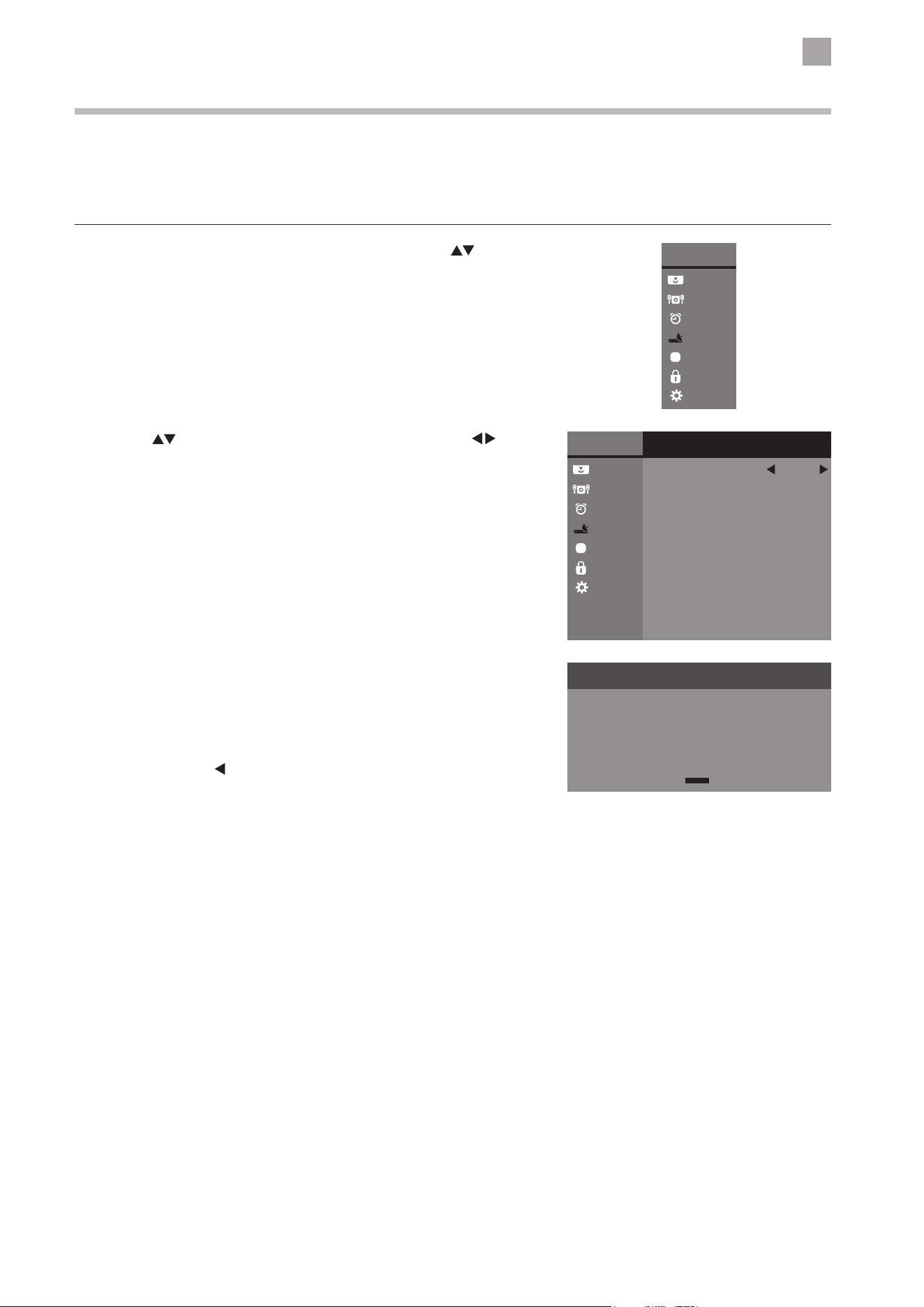
Sleep Timer The sleep timer automatically switches the TV to standby after the preset time has elapsed. The
clock will be set automatically when receiving a digital signal. Time must be set before using Sleep
Timer function.
Press the
buttons to select a period of time after which the TV automatically switches to
standby mode: Off / 10 / 20 / … / 180 / 240 min. The timer begins to count down from the
number of minutes selected.
If you turn the TV off after setting the sleep timer, the sleep timer setting will be
erased.
Auto Standby
(4 h)
The unit will automatically switch to standby mode 4 hours after the last time the remote control
was used. A reminder screen will pop up and count down before the unit switches to standby
mode. To save energy you should always turn the auto standby function back to "ON".
OSD Timer You can select a time that your on-screen menus will be displayed: Off / 10 / 20 / 30 / 60 seconds.
If you select Off the menu will remain on the screen until you press a button to remove it.
Time Zone When you select a Time Zone city, the TV time is set by the time offset information based on Time
Zone and GMT (Greenwich Mean Time) which is received with the broadcast signal and the time is
set automatically by a digital signal.
4. Press the BACK button or the MENU button to return to the previous menu.
5. Press the EXIT button to return to normal TV viewing.
5
Customising TV Settings
29
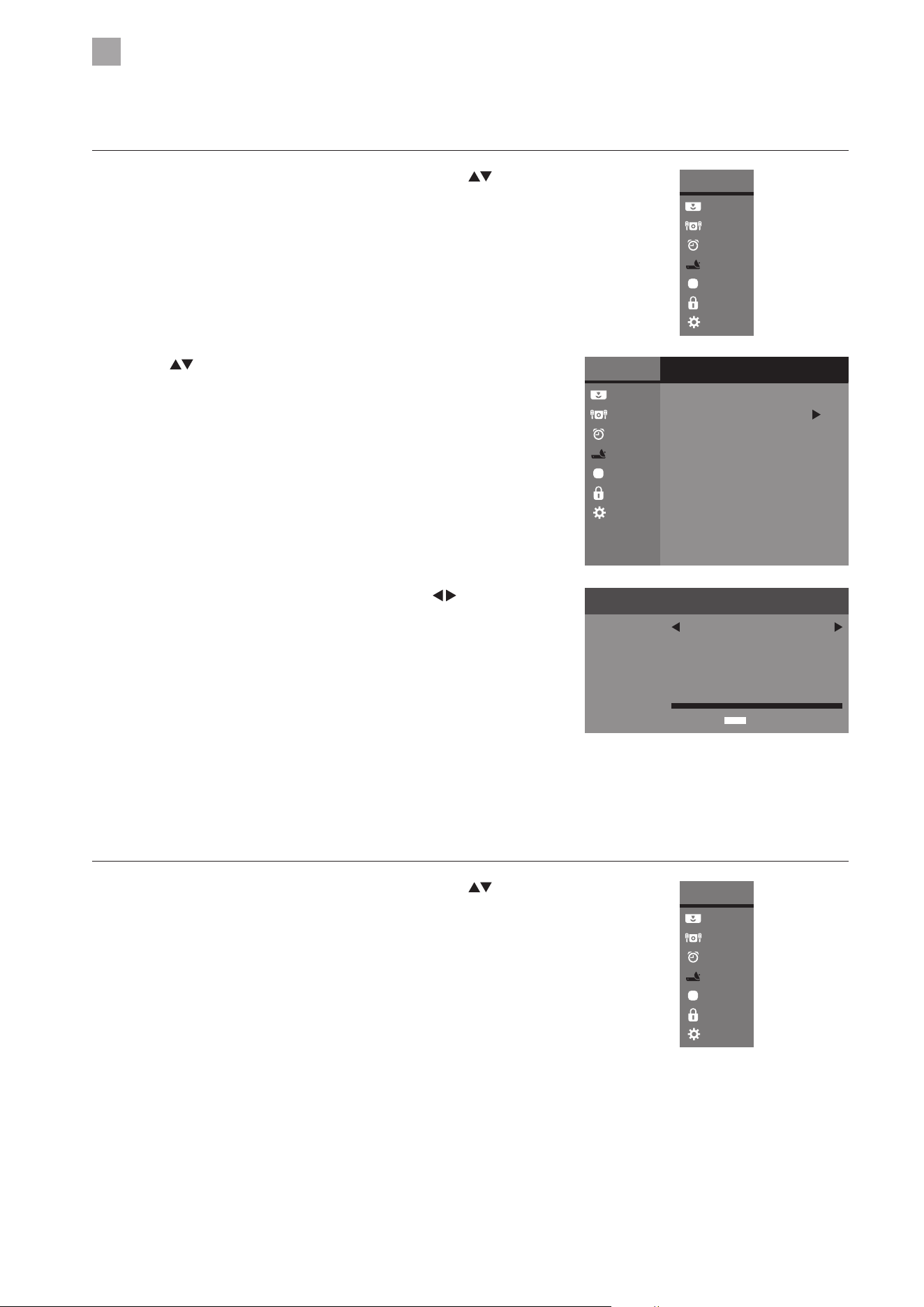
3. Channel tuning will commence. This operation may take a few minutes.
The display will show the progress of the tuning and the number of
channels found.
4. If you select DTV + ATV and you want to skip the DTV tuning, press the
MENU button to interrupt the tuning half way. A pop-up screen will be
displayed, press the
button to select YES to confirm. You will then go
straight to ATV tuning. You may repeat the above step if you also want to
skip the ATV tuning.
5. During DTV tuning, your TV may have received signals from more than
one transmitter. If this has occurred, the Target Region Setting screen
will be displayed. Please refer to the section "Target Region Setting" on
page 21 for details.
6. After tuning is complete, the channels are arranged in a preset order. If
you wish to skip channels, modify the preset order or rename channels,
select Channel Edit under the Channel menu (refer to page 32 for
details).
2. Press the
buttons to select Auto Tuning and then press the
buttons to select DTV / AT V / DTV+ATV. Press the OK button to confirm.
Channel Setting (TV, DTV or Radio Mode)
Auto Tuning
Use this to automatically find and store all available channels. This is normally recommended if some channels have been added
or removed by the broadcaster or if you have moved.
1. Press the MENU button to display the Main Menu. Press the
buttons
to select the Channel menu and then press the OK button.
Main Menu
Picture
Sound
Time
Channel
Option
Lock
System
Main Menu
Picture
Sound
Time
Channel
Option
Lock
System
Channel
CI Information
Auto Tuning
DTV Manual Tuning
ATV Manual Tuning
DTV Smart Retune
DTV
Recorded List
Schedule List
Channel Edit
Signal Information
Channel Tuning
TV Channel(s)
DTV UHF 36
DTV Channel(s)
Radio Channel(s)
Data Channel(s)
0
0
0
0
5
Customising TV Settings
30
3. The DTV Manual Tuning screen will pop up. Press the
buttons
to select the desired UHF channel and then press the OK button to
commence the search of that channel. When the signal has been tuned,
the picture and signal strength will be displayed on the screen.
4. Press the MENU button to return to the previous menu.
5. Press the EXIT button to return to normal TV viewing.
2. Press the
buttons to select DTV Manual Tuning and then then press
the OK button.
DTV Manual Tuning
Allows you to make manual fine tuning adjustments to the channel under DTV mode.
1. Press the MENU button to display the Main Menu. Press the
buttons
to select the Channel menu and then press the OK button.
Main Menu
Picture
Sound
Time
Channel
Option
Lock
System
Main Menu
Picture
Sound
Time
Channel
Option
Lock
System
Channel
CI Information
Auto Tuning
DTV Manual Tuning
ATV Manual Tuning
DTV Smart Retune
DTV
Recorded List
Schedule List
Channel Edit
Signal Information
Confirm
OK
DTV Manual Tuning
UHF CH
Signal
DTV
Radio
Data
56
0
0
0
ATV Manual Tuning
Allows you to make manual fine tuning adjustments if the channel reception is poor under ATV mode.
1. Press the MENU button to display the Main Menu. Press the
buttons
to select the Channel menu and then press the OK button.
Main Menu
Picture
Sound
Time
Channel
Option
Lock
System
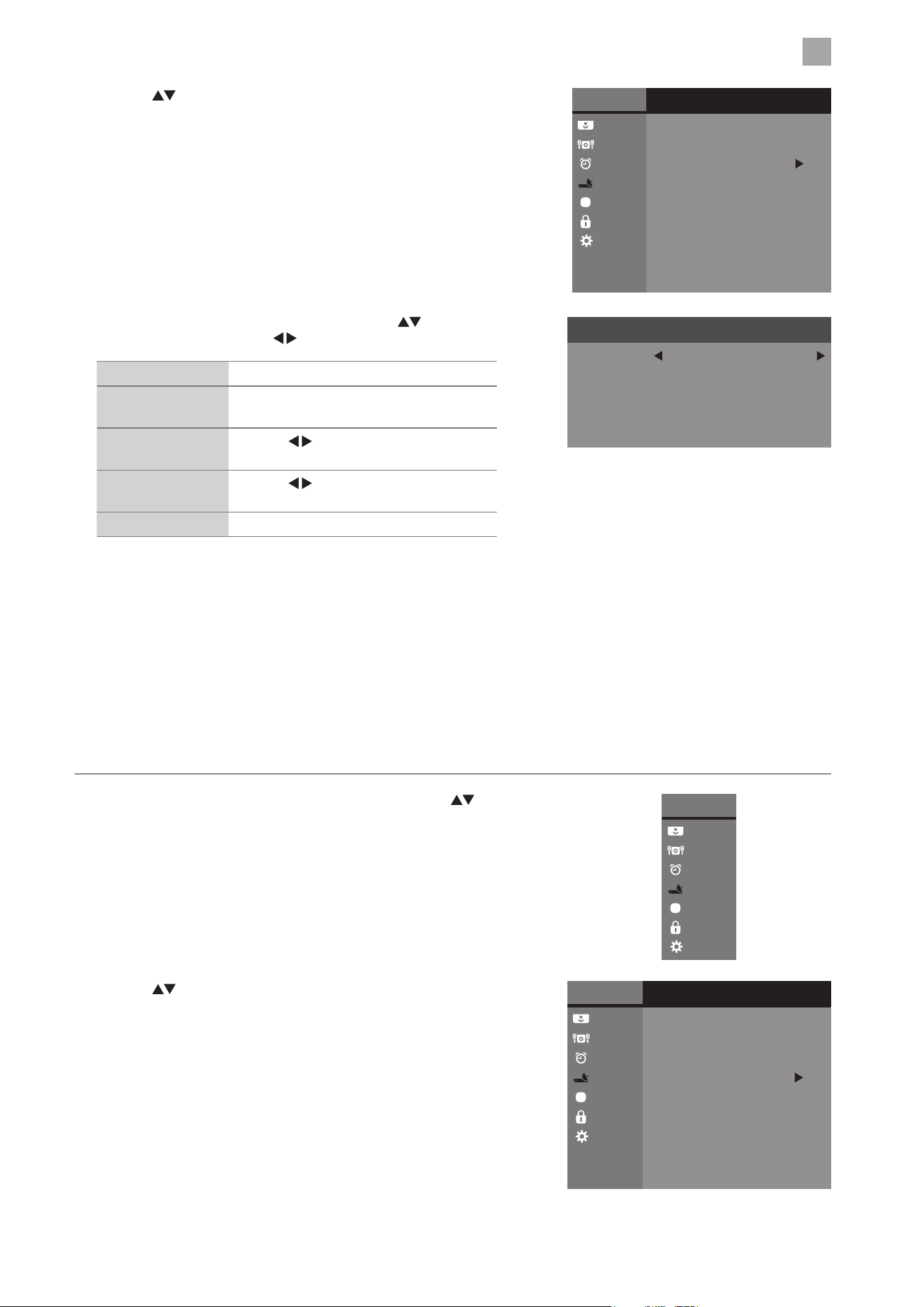
5
Customising TV Settings
31
2. Press the
buttons to select DTV Smart Retune and then then press
the OK button.
2. Press the
buttons to select ATV Manual Tuning and then press the
OK button.
Main Menu
Picture
Sound
Time
Channel
Option
Lock
System
Channel
CI Information
Auto Tuning
DTV Manual Tuning
ATV Manual Tuning
DTV Smart Retune
DTV
Recorded List
Schedule List
Channel Edit
Signal Information
3. The ATV Manual Tuning screen will pop up. Use the buttons to select
the following options and the
buttons to adjust the setting.
Storage To Presets the channel number.
System
Selects the sound system: I / DK / L (for
SECAM) / M / BG.
Auto Tune
Press the
buttons to start the auto
tuning.
Fine-Tune
Press the
buttons to make manual fine
tuning adjustments.
Frequency Displays the current tuned frequency.
4. After finishing the manual tuning adjustment of a channel, press the
RED button to save your channel before tuning the next channel.
5. Press the MENU button to return to the previous menu.
6. Press the EXIT button to return to normal TV viewing.
DTV Smart Retune
This feature allows you to scan for TV channels. When new channels are found they are automatically added to your channel list
without removing any channels or affecting your favourites list.
1. Press the MENU button to display the Main Menu. Press the
buttons
to select the Channel menu and then press the OK button.
ATV Manual Tuning
Storage To
Frequency 471.25 MHz
System
Auto Tune
Fine Tune
1
I
0
0
Main Menu
Picture
Sound
Time
Channel
Option
Lock
System
Main Menu
Picture
Sound
Time
Channel
Option
Lock
System
Channel
CI Information
Auto Tuning
DTV Manual Tuning
ATV Manual Tuning
DTV Smart Retune
DTV
Recorded List
Schedule List
Channel Edit
Signal Information
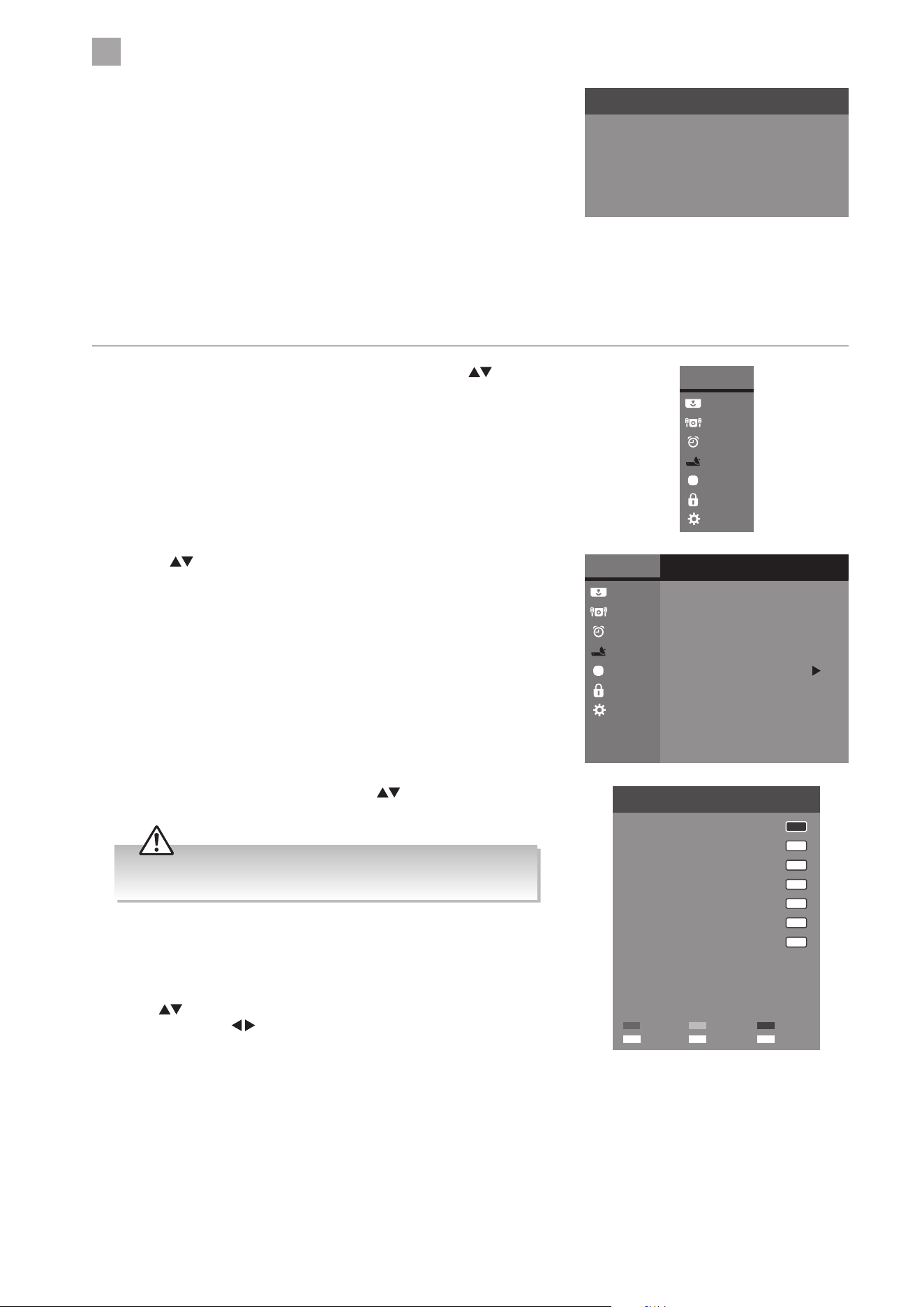
5
Customising TV Settings
32
a. Delete
Press the RED button to delete the selected channel.
b. Rename (ATV channels)
Press the GREEN button to rename the selected channel. Press
the
buttons to select the characters to represent the station
name. Press the buttons to move to the next character and
then press the GREEN button again to confirm the new name.
c. Skip
Press the BLUE button to select the channels that you want to skip
when you are selecting channels. Press the BLUE button again to
undo it.
d. FAV (Favourite)
Press the FAV button to set the selected channel as one of the
favourite programmes. Press the FAV button again to undo it.
2. Press the
buttons to select Channel Edit and then press the OK
button.
3. The Channel Tuning screen will pop up and commence the search of
that channel. When the signal has been tuned, the picture and signal
strength will be displayed on the screen.
4. Press the MENU button to return to the previous menu.
5. Press the EXIT button to return to normal TV viewing.
Channel Tuning
TV Channel(s)
DTV VHF
DTV Channel(s)
Radio Channel(s)
Data Channel(s)
0
0
0
0
Channel Edit (ATV / DTV Mode)
Allows you to edit TV channel information in the Channel List.
1. Press the MENU button to display the Main Menu. Press the
buttons
to select the CHANNEL menu and then press the OK button.
Main Menu
Picture
Sound
Time
Channel
Option
Lock
System
Main Menu
Picture
Sound
Time
Channel
Option
Lock
System
Channel
CI Information
Auto Tuning
DTV Manual Tuning
ATV Manual Tuning
DTV Smart Retune
DTV
Recorded List
Schedule List
Channel Edit
Signal Information
3. A Channel Edit screen will pop up. Press the buttons to select
the programme you want to edit.
Channel Edit
1 BBC ONE
2 BBC TWO
70 CBBC Channel
724 Capital FM
DTV
DTV
DTV
DTV
Radio
117 The Space
Data
1 C-24
ATV
71 CBeebies
Confirm
OK
Favourite
FAV
Return
BACK
Delete SkipRename
All channels (DTV and ATV) are listed, please ensure that you edit
the correct channel.
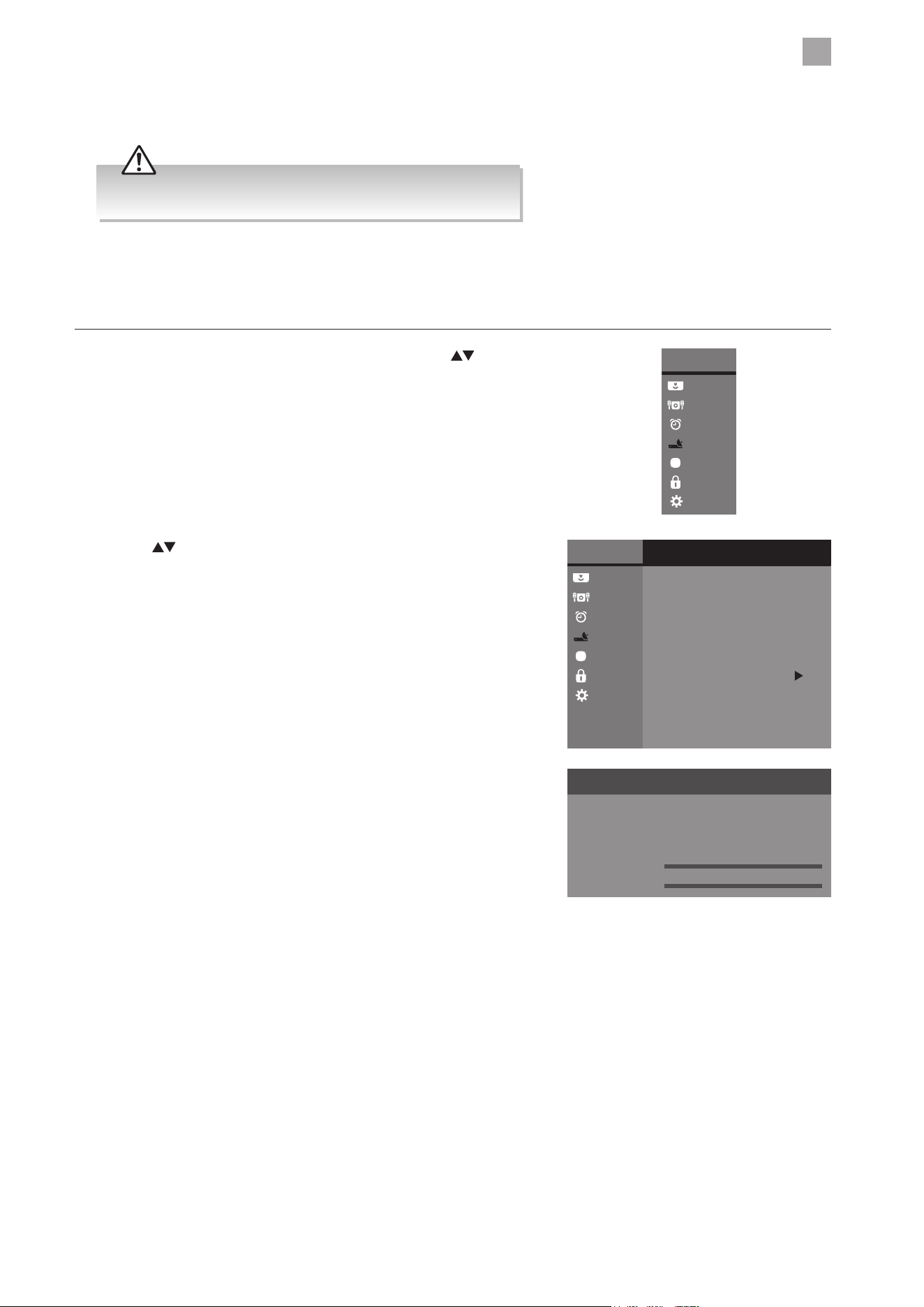
5
Customising TV Settings
33
2. Press the
buttons to select Signal Information and then press the
OK button to view the signal information.
4. Press the MENU button to return to the previous menu.
5. Press the EXIT button to return to normal TV viewing.
Care should be taken when editing the position of digital channels
as this may affect EPG and reminder settings.
Signal Information (DTV Mode)
Allows you to view the signal information.
1. Press the MENU button to display the Main Menu. Press the
buttons
to select the Channel menu and then press the OK button.
Main Menu
Picture
Sound
Time
Channel
Option
Lock
System
Main Menu
Picture
Sound
Time
Channel
Option
Lock
System
Channel
CI Information
Auto Tuning
DTV Manual Tuning
ATV Manual Tuning
DTV Smart Retune
DTV
Recorded List
Schedule List
Channel Edit
Signal Information
3. Press the BACK or MENU button to return to the previous menu.
4. Press the EXIT button to return to normal TV viewing.
Signal Information
Network East Midlands
Channel 54
Frequency 738.00 MHz
Quality
Level
100%
58%
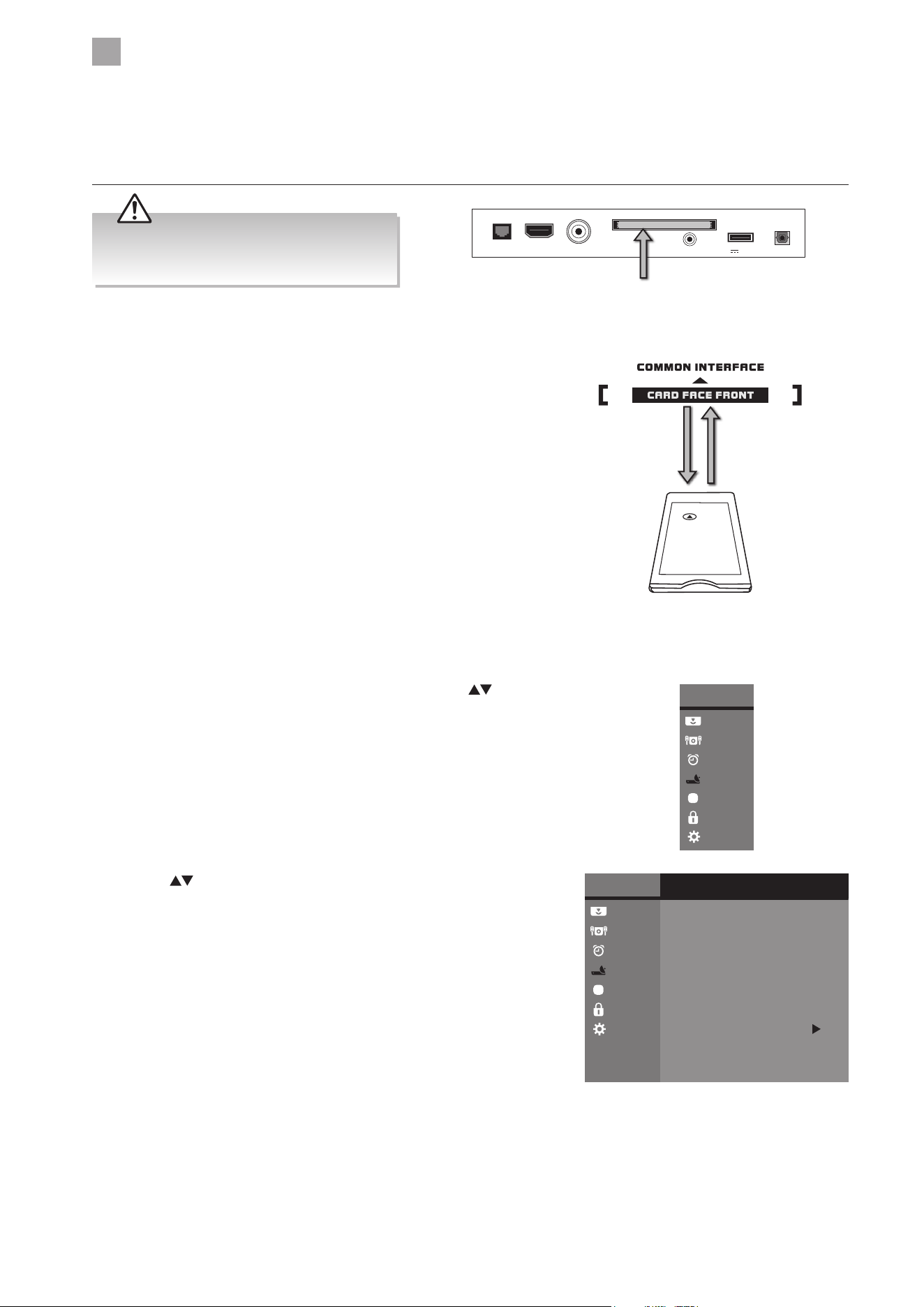
5
Customising TV Settings
34
2. Press the
buttons to select CI Information and then press the OK
button.
This feature is not available in all countries.
To insert the Common Access Module
1. Before you insert the Common Access Module, ensure that the TV is
switched off and the viewing card is inserted in accordance with the
Service Provider’s instructions.
2. Insert the Common Access Module into the slot. Flip the Common Access
Module to another side and try again if you feel resistance.
3. Switch the TV on.
To remove the Common Access Module
1. Before you remove the Common Access Module, ensure that the TV is
switched off.
2. Pull the Common Access Module from the slot.
3. Switch the TV on.
To view the module information
1. Press the MENU button to display the Main Menu. Press the buttons
to select the Channel menu and then press the OK button.
CI (Common Interface) (DTV Mode)
The common interface allows the use of a Common Access Module to enable you to view scrambled (pay to view) services. These
services are provided by TopUp TV (UK only) and others. The Common Access Module and viewing card can be obtained from the
service provider.
Rear Right Side View of TV
LAN RF
COMMON INTERFACE (CI)
HEADPHONES
USB
5V 500mA
Digital Output
HDMI2
CI (Common Interface)
Allows the Common Access Module to be inserted
and access the content that has been encrypted.
Common Access
Module
Do not repeatedly insert or remove the
Common Access Module as this may damage
the interface and cause a malfunction.
Main Menu
Picture
Sound
Time
Channel
Option
Lock
System
Main Menu
Picture
Sound
Time
Channel
Option
Lock
System
Channel
CI Information
Auto Tuning
DTV Manual Tuning
ATV Manual Tuning
DTV Smart Retune
DTV
Recorded List
Schedule List
Channel Edit
Signal Information
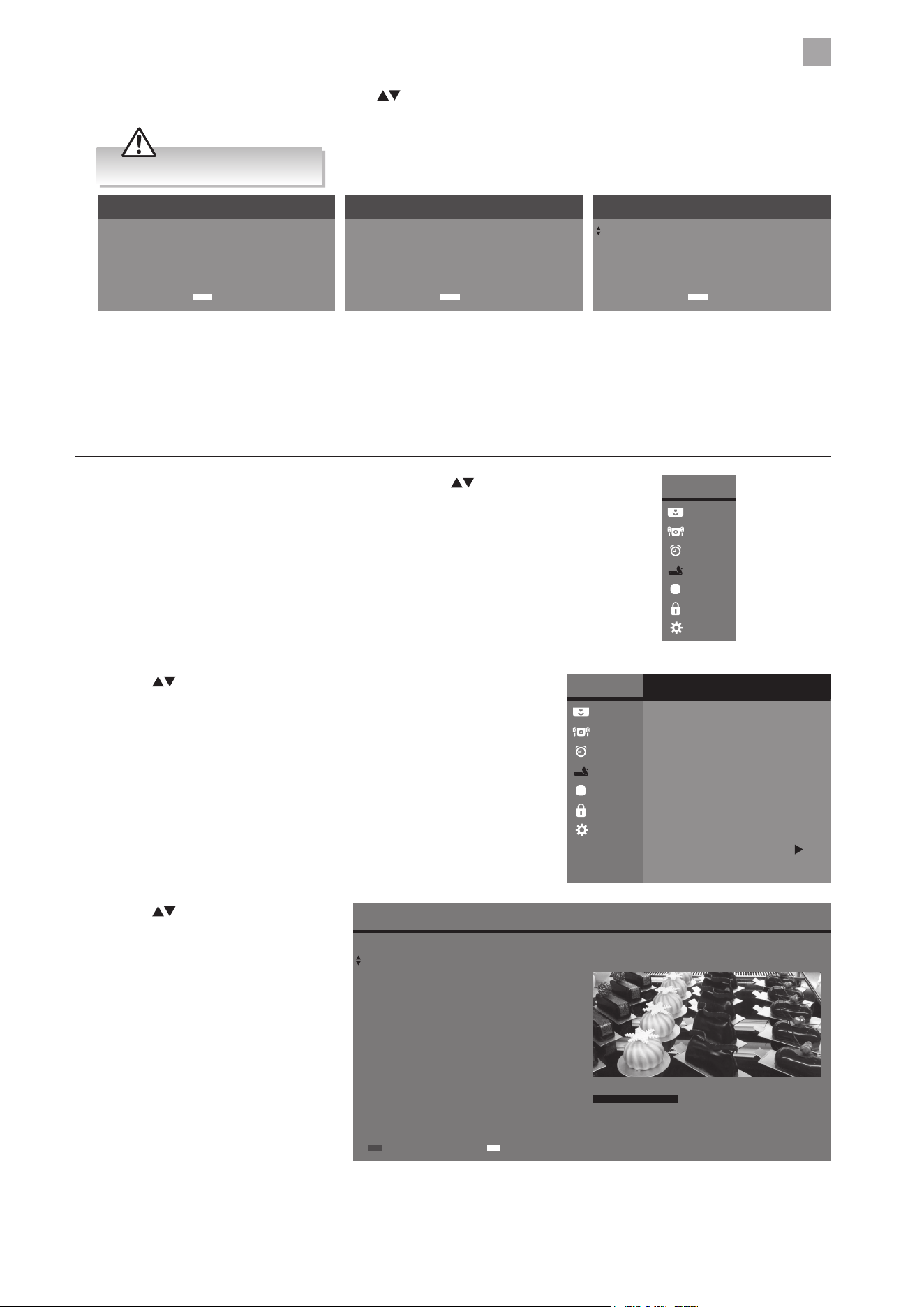
5
Customising TV Settings
35
4. Press the EXIT button to return to normal TV viewing.
Recorded List (DTV Mode)
Views the recorded programmes in the Recorded List.
1. Press the MENU button to display the Main Menu. Press the
buttons
to select the Channel menu and then press the OK button.
2. Press the
buttons to select Recorded List and then press the OK
button to display the Recorded List.
3. A CI Information message will pop up. Press the
buttons then press the OK button to display the module information,
smart card information, language, software download. Press the OK button to confirm.
Main Menu
Picture
Sound
Time
Channel
Option
Lock
System
Main Menu
Picture
Sound
Time
Channel
Option
Lock
System
Channel
CI Information
Auto Tuning
DTV Manual Tuning
ATV Manual Tuning
DTV Smart Retune
DTV
Recorded List
Schedule List
Channel Edit
Signal Information
CI CAM List
Top Up TV
Confirm
OK
CI Information
Module Information
Smart Card Information
Language
Software Download
Confirm
OK
Module Information
Serial number: 11410734418445
SAP number: 902422R08
Manufacturer: SCM Microsystems
SW version: Top Up TV 1 03 002
Return
EXIT
This screen is for illustration only.
3. Press the buttons to navigate
the list. Press the OK button to watch
the selected programme or the
RED button to delete the desired
programme.
Recorded List
LCN Channel Program/Service Baking World Record Date
10:12 14 / 02 / 2019
1
5
BBC 1 Lon...
five
Delete
Baking World
The Streets of San Fran...
Each episode focuses on a specific discipline of baking, which
become progressively more difficult as the series unfolds.
Every episode features three types of challenges: The Signature
Challenge; The Technical Challenge; and The Showstopper
Challenge.
15:14 / 0:58:14
Select
OK
4. Press the EXIT button to return to normal TV viewing.
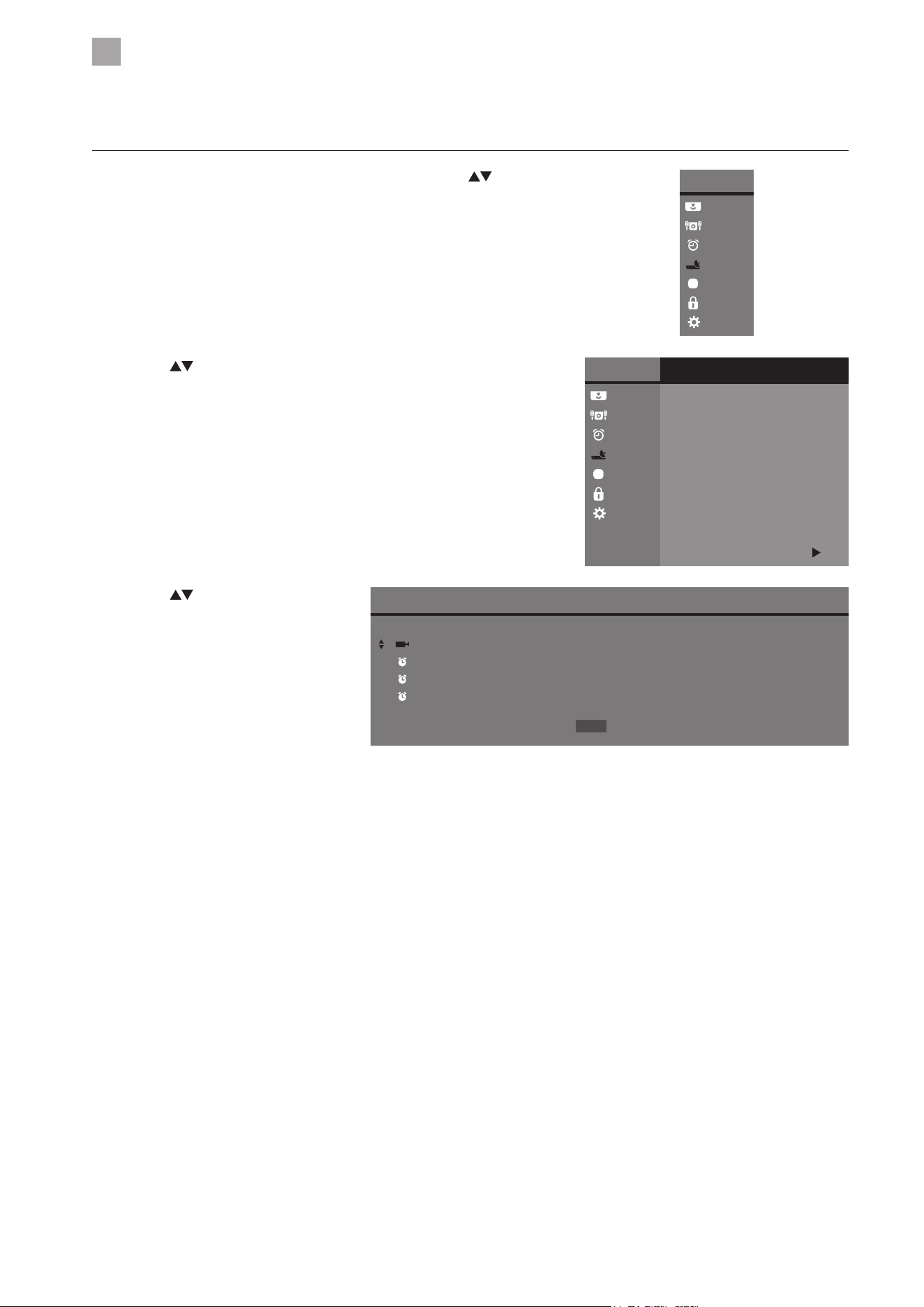
5
Customising TV Settings
36
3. Press the
buttons to navigate the
list. Press the RED button to delete the
desired scheduled programme.
2. Press the
buttons to select Schedule List and then press the OK
button to display the Schedule List.
Schedule List (DTV Mode)
Views the preset reminders or scheduled recordings in the Schedule list.
1. Press the MENU button to display the Main Menu. Press the
buttons
to select the Channel menu and then press the OK button.
Main Menu
Picture
Sound
Time
Channel
Option
Lock
System
Main Menu
Picture
Sound
Time
Channel
Option
Lock
System
Channel
CI Information
Auto Tuning
DTV Manual Tuning
ATV Manual Tuning
DTV Smart Retune
DTV
Recorded List
Schedule List
Channel Edit
Signal Information
Schedule List 20:43 19 / 11 / 2019
Time Date Channel Name Programme Title
09:43 Mon 20 / 11 / 2019 BBC One 24 Hours in A&E
15:23 Tue 21 / 11 / 2019 CBeeies Honey
12:25 Wed 22 / 11 / 2019 Kids 4 Cook with Fanny
20:43 Fri 24 / 11 / 2019 BBC Three Rock n Roll
Delete
4. Press the EXIT button to return to normal TV viewing.
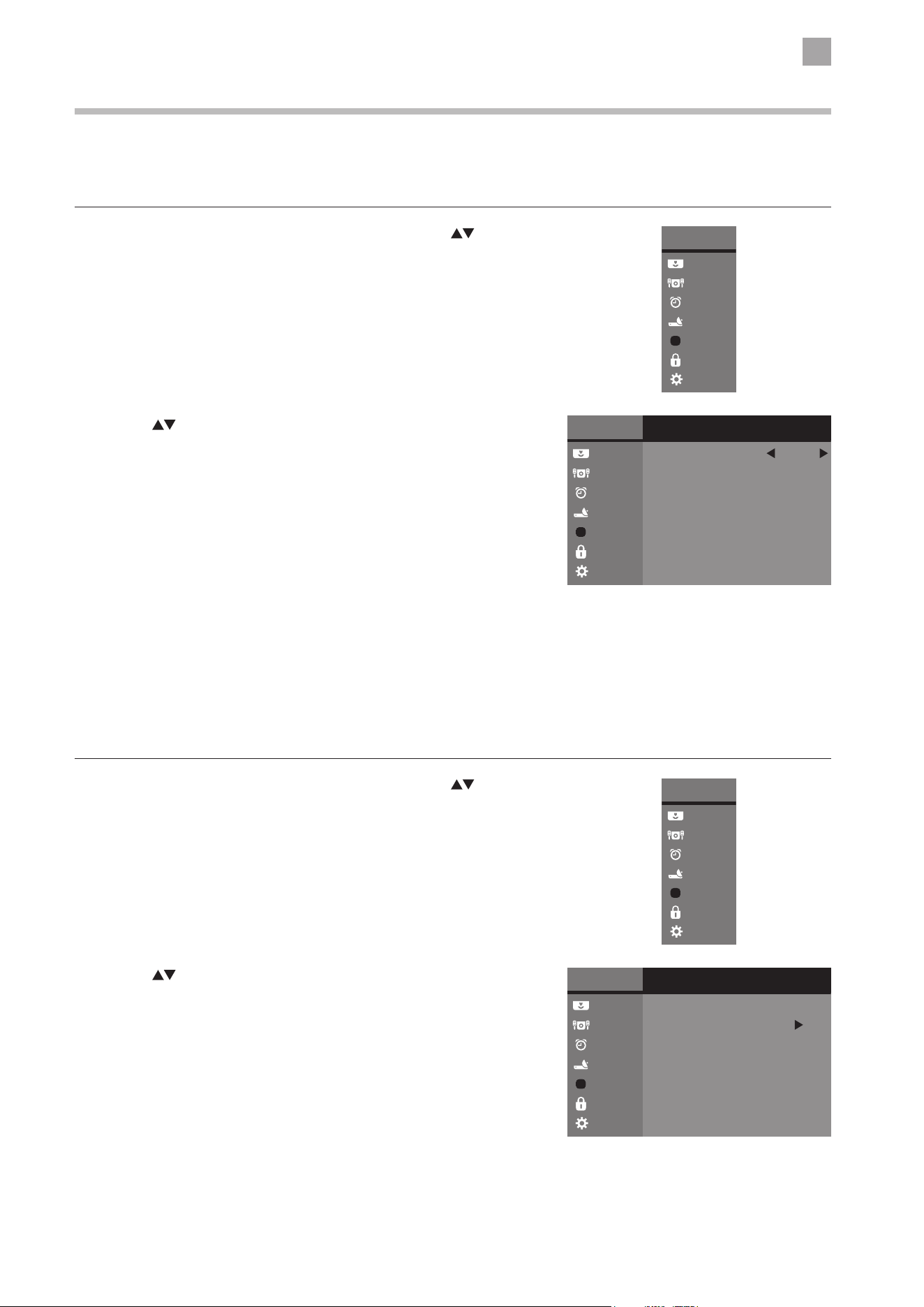
5
Customising TV Settings
37
2. Press the
buttons to select Audio Language and then press the OK
button. The default audio language is English.
3. Press the BACK or MENU button to return to the previous menu.
4. Press the EXIT button to return to normal TV viewing.
Audio Language (DTV Mode)
Allows you to select your desired audio language. (Available for digital channels if multiple audio languages are broadcast.)
1. Press the MENU button to display the Main Menu. Press the
buttons
to select the Option menu and then press the OK button.
2. Press the
buttons to select OSD Language and then press the OK
button. The default on-screen menu language is English.
Option Setting
OSD Language
Allows you to select your desired on screen menu language.
1. Press the MENU button to display the Main Menu. Press the
buttons
to select the Option menu and then press the OK button.
Main Menu
Picture
Sound
Time
Channel
Option
Lock
System
Main Menu
Picture
Sound
Time
Channel
Option
Lock
System
Main Menu
Picture
Sound
Time
Channel
Option
Lock
System
Option
HDMI_CEC
OSD Language
Audio Language
Subtitle Language
Subtitle
English
Hearing Impaired
Country
Off
Off
UK
Main Menu
Picture
Sound
Time
Channel
Option
Lock
System
Option
HDMI_CEC
OSD Language
Audio Language
Subtitle Language
Subtitle
English
Hearing Impaired
Country
Off
Off
UK
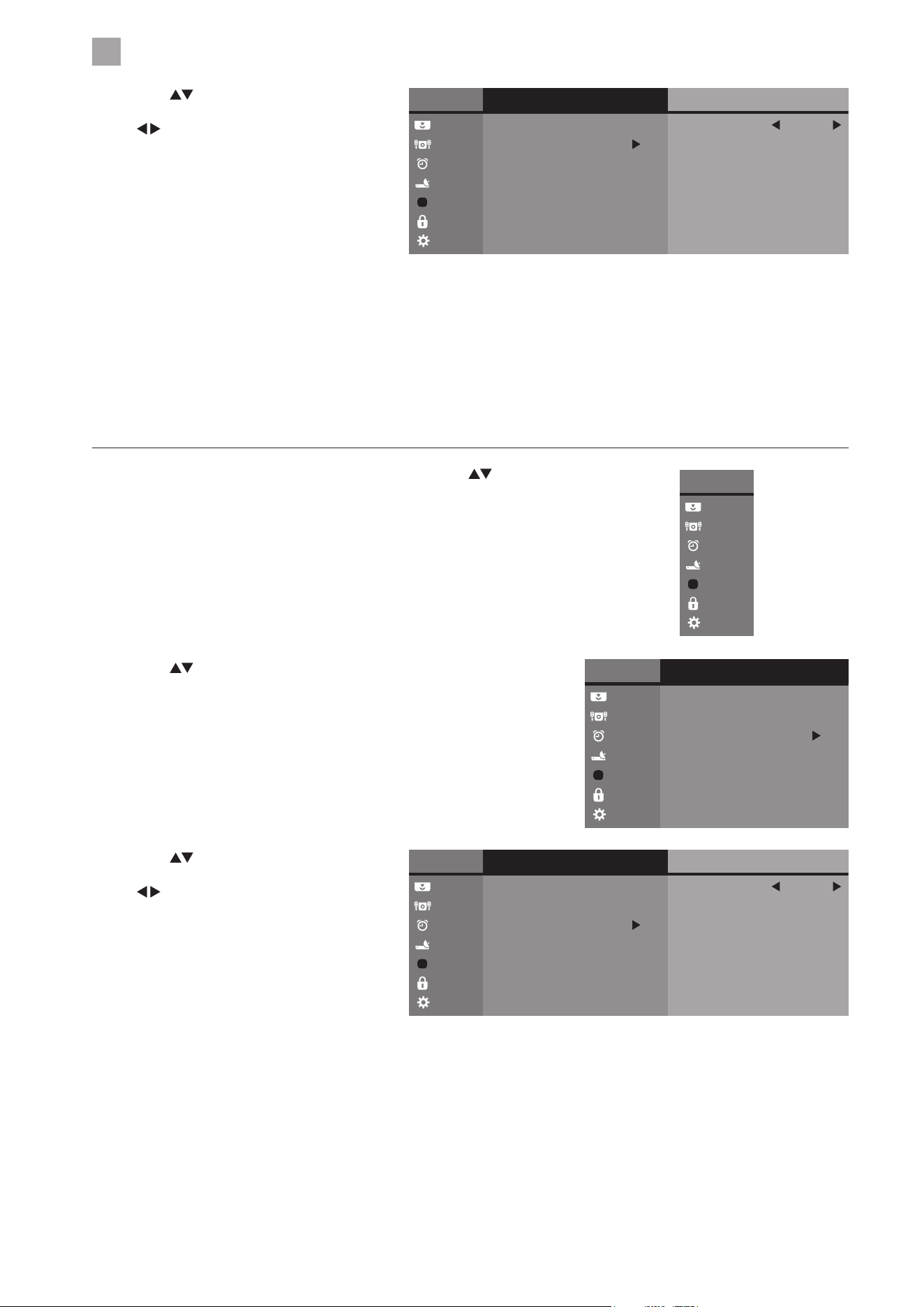
5
Customising TV Settings
38
2. Press the
buttons to select Subtitle Language and then press the
OK button. The default on-screen menu language is English.
3. Press the
buttons to select the Primary
/ Secondary Audio Language and then press
the
buttons to select your desired audio
language. Press the OK button to confirm.
Main Menu
Picture
Sound
Time
Channel
Option
Lock
System
Option
HDMI_CEC
OSD Language
Audio Language
Subtitle Language
Subtitle
English
Hearing Impaired
Country
Off
Off
UK
Audio Language
Primary
Secondary
English
English
4. Press the BACK or MENU button to return to the previous menu.
5. Press the EXIT button to return to normal TV viewing.
Subtitle Language (DTV Mode)
Allows you to select your desired subtitle language or turn off the subtitle. (Available for digital channels if multiple subtitle
languages are broadcast.)
1. Press the MENU button to display the Main Menu. Press the
buttons
to select the Option menu and then press the OK button.
Main Menu
Picture
Sound
Time
Channel
Option
Lock
System
Main Menu
Picture
Sound
Time
Channel
Option
Lock
System
Option
HDMI_CEC
OSD Language
Audio Language
Subtitle Language
Subtitle
English
Hearing Impaired
Country
Off
Off
UK
3. Press the buttons to select the Primary /
Secondary Subtitle Language and then press
the
buttons to select your desired subtitle
language. Press the OK button to confirm.
Main Menu
Picture
Sound
Time
Channel
Option
Lock
System
Option
HDMI_CEC
OSD Language
Audio Language
Subtitle Language
Subtitle
English
Hearing Impaired
Country
Off
Off
UK
Subtitle Language
Primary
Secondary
English
English
4. Press the BACK or MENU button to return to the previous menu.
5. Press the EXIT button to return to normal TV viewing.
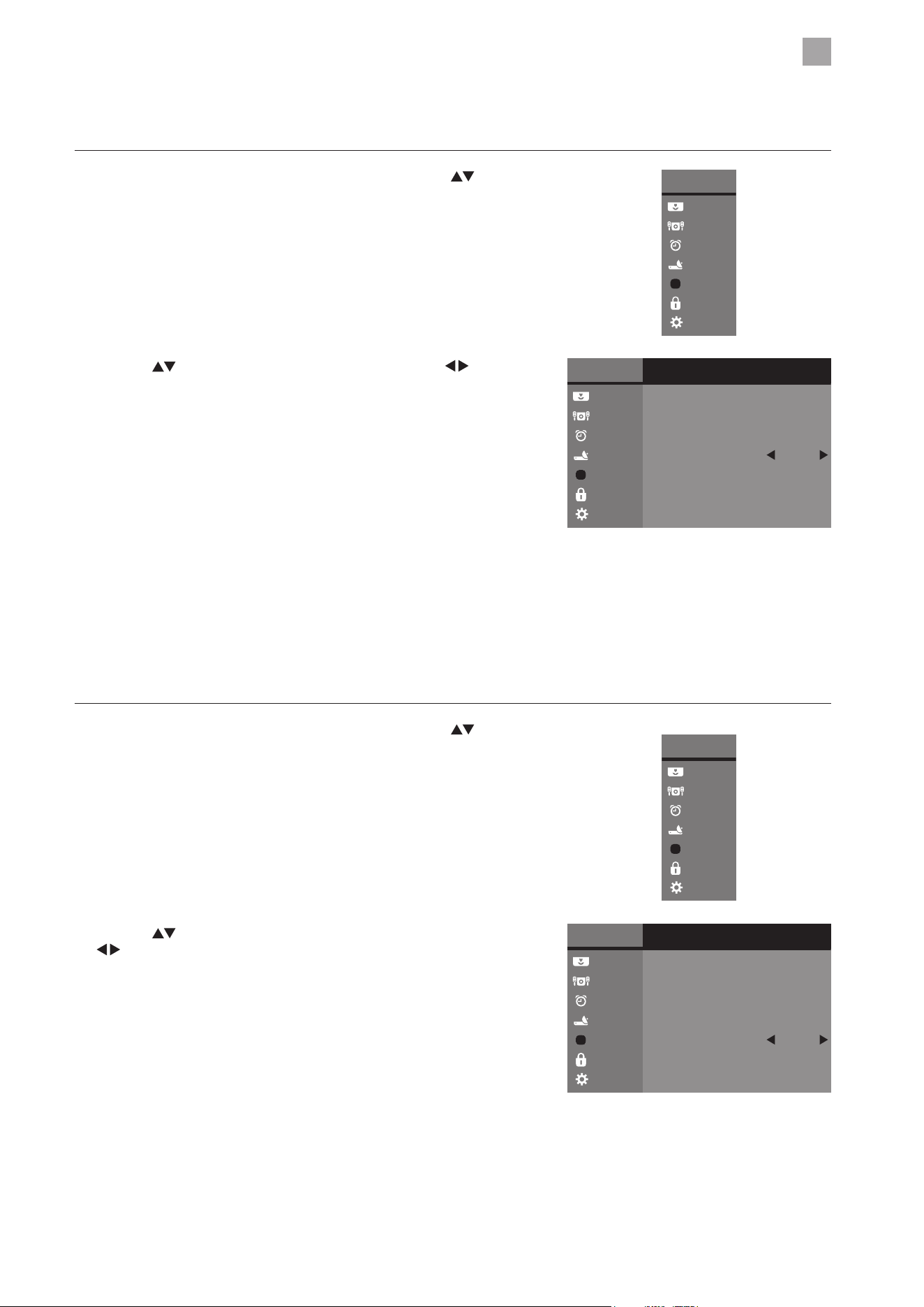
5
Customising TV Settings
39
2. Press the
buttons to select Hearing Impaired and then press the
buttons to select On / Off.
Main Menu
Picture
Sound
Time
Channel
Option
Lock
System
Main Menu
Picture
Sound
Time
Channel
Option
Lock
System
Option
HDMI_CEC
OSD Language
Audio Language
Subtitle Language
Subtitle
English
Hearing Impaired
Country
Off
Off
UK
2. Press the buttons to select Subtitle and then press the buttons
to turn On / Off the subtitle.
Subtitle (DTV Mode)
Allows you to turn on or off the subtitle. (Only applicable when the TV programme has this feature.)
1. Press the MENU button to display the Main Menu. Press the
buttons
to select the Option menu and then press the OK button.
Main Menu
Picture
Sound
Time
Channel
Option
Lock
System
Main Menu
Picture
Sound
Time
Channel
Option
Lock
System
Option
HDMI_CEC
OSD Language
Audio Language
Subtitle Language
Subtitle
English
Hearing Impaired
Country
Off
Off
UK
3. Press the BACK or MENU button to return to the previous menu.
4. Press the EXIT button to return to normal TV viewing.
Hearing Impaired
Shows information for the hearing-impaired in some programmes. (For DTV channels only if available.)
1. Press the MENU button to display the Main Menu. Press the
buttons
to select the Option menu and then press the OK button.
3. Press the BACK or MENU button to return to the previous menu.
4. Press the EXIT button to return to normal TV viewing.
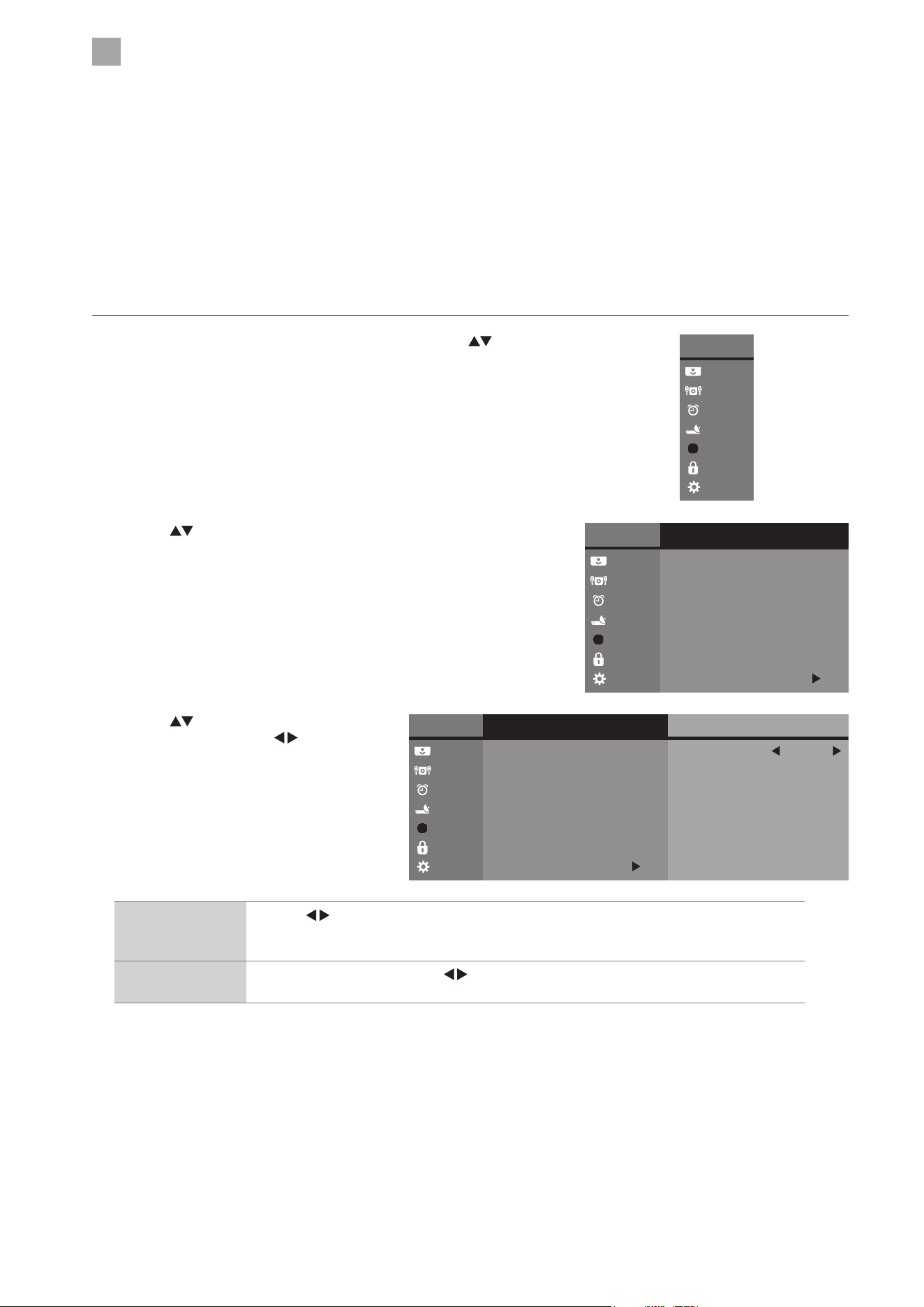
5
Customising TV Settings
40
2. Press the
buttons to select HDMI_CEC and then press the OK
button.
Country
This shows the country you selected in auto tuning. If you want to change the country, please refer to Auto Tuning on page 29.
HDMI CEC (Consumer Electronics Control)
Allows you to command and control two or more CEC-enabled devices, that are connected through HDMI, by using only one
of the remote controls (e.g. controlling a TV set, set-top box and DVD player using only the remote control of the TV). CEC also
allows individual CEC-enabled devices to command and control each other without user intervention.
Make sure that your CEC-compliant device is connected to your TV using a HDMI cable and the correct HDMI input source is
selected prior to using this function. (Some HDMI cables may not support HDMI-CEC functions.)
1. Press the MENU button to display the Main Menu. Press the
buttons
to select the Option menu and then press the OK button.
Main Menu
Picture
Sound
Time
Channel
Option
Lock
System
Main Menu
Picture
Sound
Time
Channel
Option
Lock
System
Option
HDMI_CEC
OSD Language
Audio Language
Subtitle Language
Subtitle
English
Hearing Impaired
Country
Off
Off
UK
3. Press the buttons to select the following
options and then press the
buttons to
adjust the setting.
HDMI_CEC
CEC
ARC
On
Off
Main Menu
Picture
Sound
Time
Channel
Option
Lock
System
Option
HDMI_CEC
OSD Language
Audio Language
Subtitle Language
Subtitle
English
Hearing Impaired
Country
Off
Off
UK
CEC Press the buttons to select On to enable CEC, or select Off to disable the function. This
will allow you to control other CEC enabled devices (connected via HDMI) using your TV
remote control.
ARC When CEC is set to On, press the
buttons to select On to enable to send audio to ARC-
compliant audio devices or select Off to disable the function.
4. Press the BACK or MENU button to return to the previous menu.
5. Press the EXIT button to return to normal TV viewing.
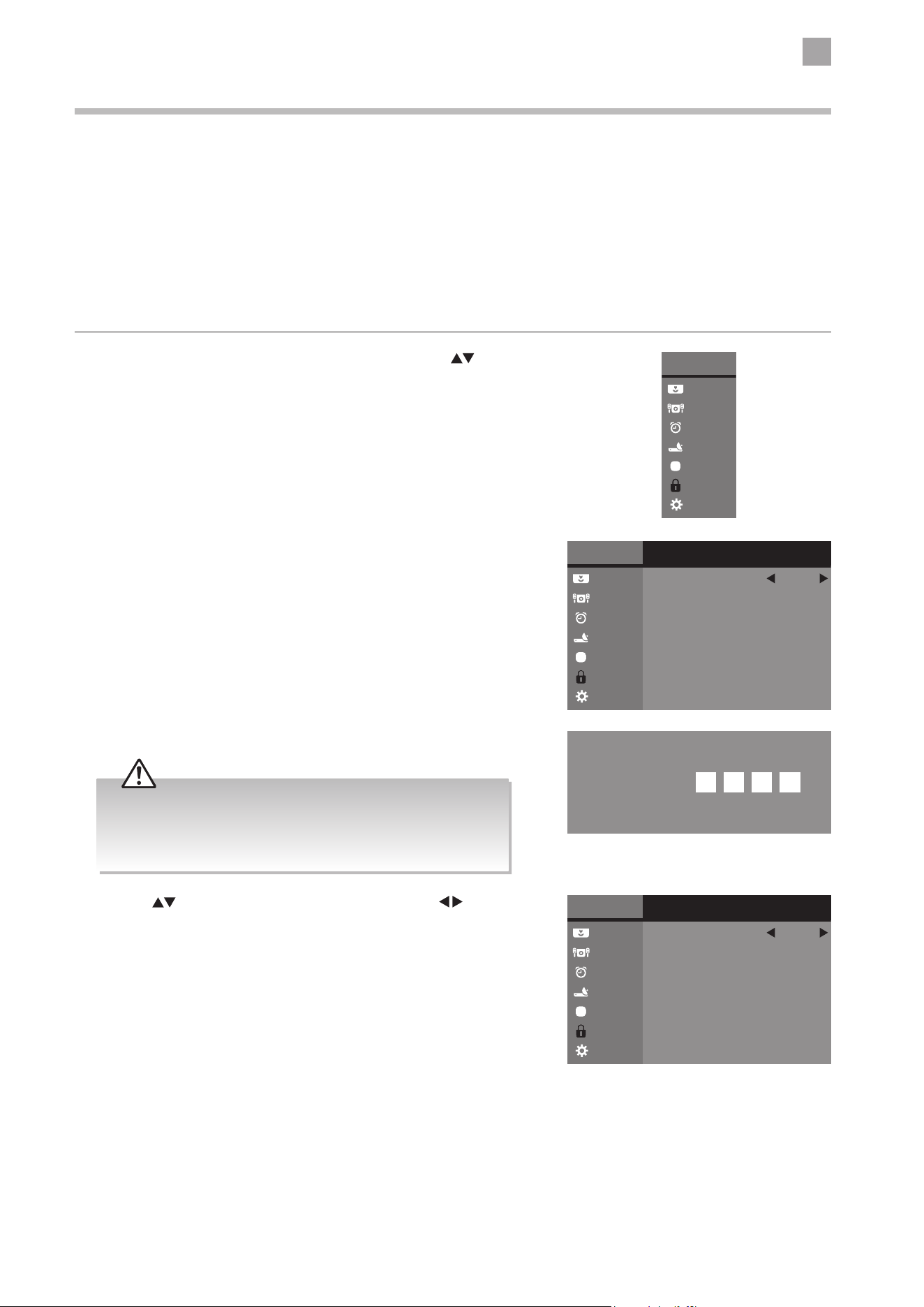
5
Customising TV Settings
41
2. Press the OK button to select Lock System.
Lock Setting
To access the LOCK menu, you must enter the password. Enter the default password “0000” for first time use. To change the
password, please refer to the section “Set Password”.
Lock System
The Lock System is designed to prevent accidental re-tuning of the TV / losing of channels and to prevent children from watching
unsuitable programmes.
The Lock System must be set to On for this function to operate. If the Lock System is set to On, a valid password must be entered
when you access Auto Tuning / Manual Tuning / First Time Installation.
1. Press the MENU button to display the Main Menu. Press the
buttons
to select the Lock menu and then press the OK button.
Main Menu
Picture
Sound
Time
Channel
Option
Lock
System
Main Menu
Picture
Sound
Time
Channel
Option
Lock
System
Option
Lock System
Set Password
Block Channel
Parental Guidance
Off
Off
3. Use the 0-9 buttons to input a 4-digit password to enter the LOCK menu.
Enter Password
• The default password is “0000”.
• If you change the password, be sure to remember the new
password! If you forget the new password, enter the master
password“9527”.
4. Press the buttons to select Lock System and then the buttons to
select On / Off.
If the Lock System is set to On, a valid password must be entered when you
access Auto Tuning / Manual Tuning / First Time Installation.
Main Menu
Picture
Sound
Time
Channel
Option
Lock
System
Option
Lock System
Set Password
Block Channel
Parental Guidance
Off
Off
5. Press the BACK or MENU button to return to the previous menu.
6. Press the EXIT button to return to normal TV viewing.
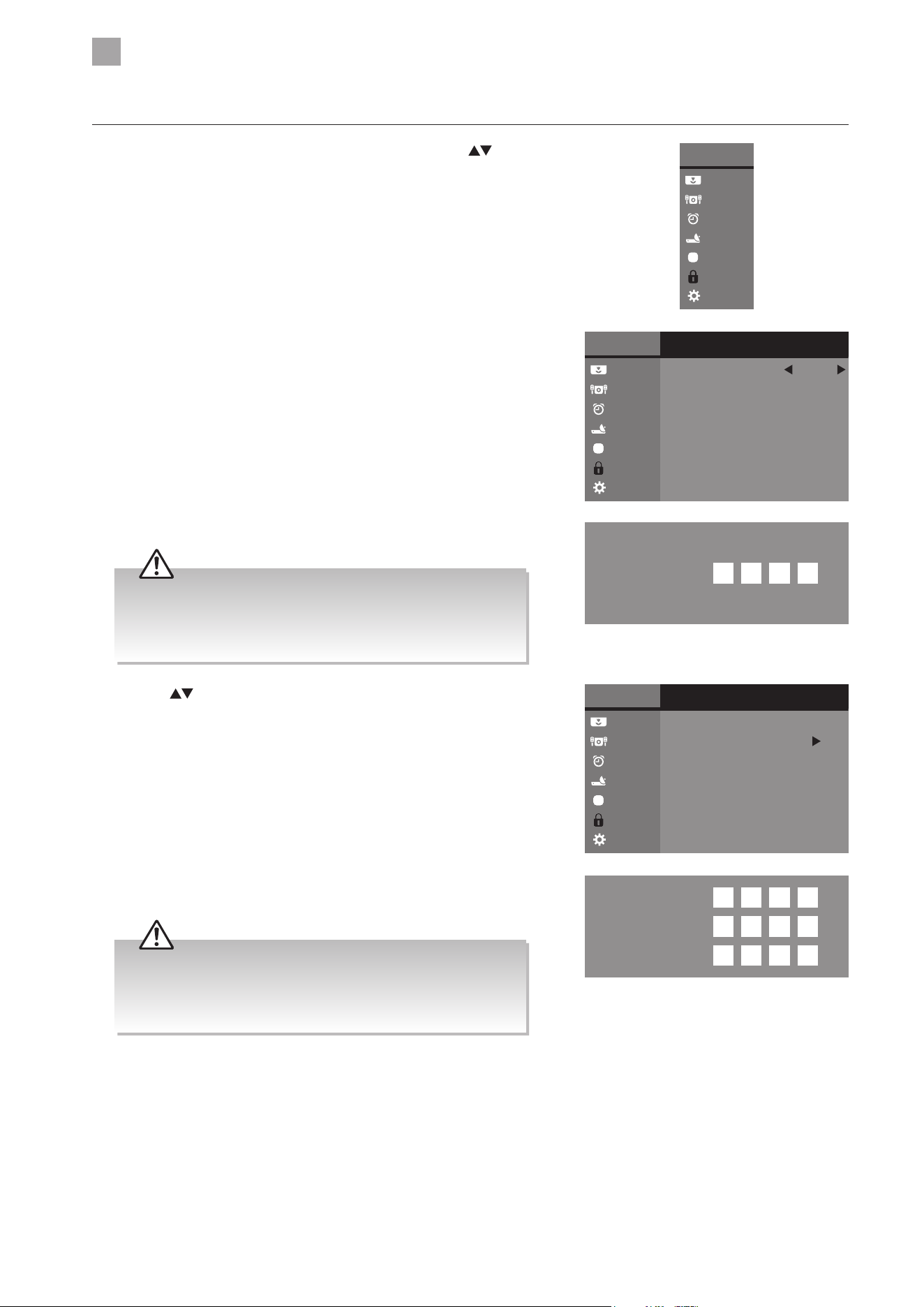
5
Customising TV Settings
42
3. Use the 0-9 buttons to input a 4-digit password to enter the LOCK menu.
2. Press the OK button to select Lock System.
Set Password
1. Press the MENU button to display the Main Menu. Press the buttons
to select the Lock menu and then press the OK button.
Main Menu
Picture
Sound
Time
Channel
Option
Lock
System
Main Menu
Picture
Sound
Time
Channel
Option
Lock
System
Option
Lock System
Set Password
Block Channel
Parental Guidance
Off
Off
Enter Password
Old Password
New Password
Confirm Password
• The default password is “0000”.
• If you change the password, be sure to remember the new
password! If you forget the new password, enter the master
password“9527”.
• The default password is “0000”.
• If you change the password, be sure to remember the new
password! If you forget the new password, enter the master
password“9527”.
4. Press the buttons to select Set Password and then press the OK
button.
Main Menu
Picture
Sound
Time
Channel
Option
Lock
System
Option
Lock System
Set Password
Block Channel
Parental Guidance
Off
Off
5. Use the 0-9 buttons to input the old password and then input the new
4-digit password. Re-enter new password for confirmation.
6. Press the BACK or MENU button to return to the previous menu.
7. Press the EXIT button to return to normal TV viewing.
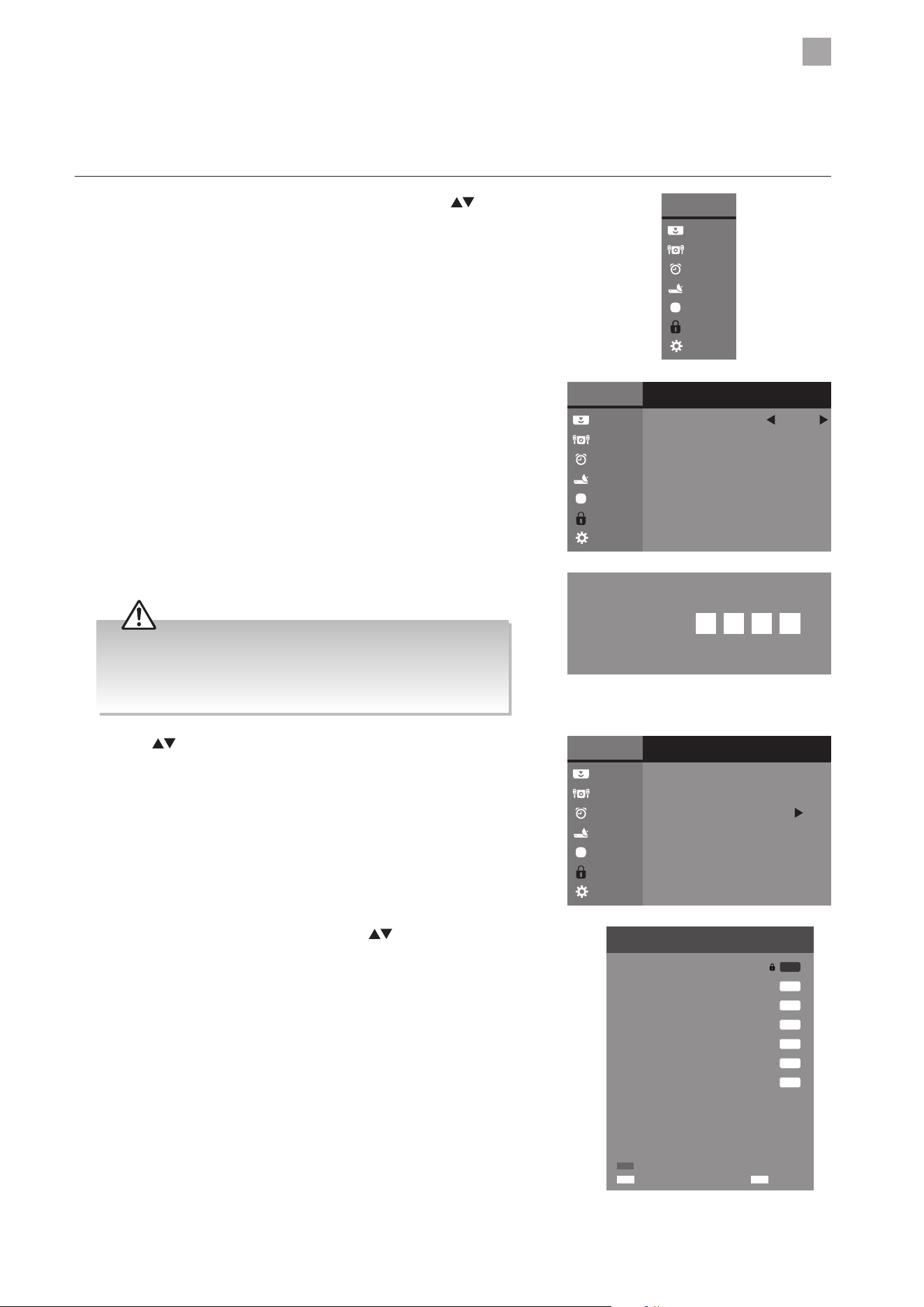
5
Customising TV Settings
43
2. Press the OK button to select Lock System.
Block Channel
Block Channel is designed to prevent children from watching unsuitable programmes.
When a channel is blocked, a valid password must be entered.
1. Press the MENU button to display the Main Menu. Press the
buttons
to select the Lock menu and then press the OK button.
Main Menu
Picture
Sound
Time
Channel
Option
Lock
System
Main Menu
Picture
Sound
Time
Channel
Option
Lock
System
Option
Lock System
Set Password
Block Channel
Parental Guidance
Off
Off
Enter Password
• The default password is “0000”.
• If you change the password, be sure to remember the new
password! If you forget the new password, enter the master
password“9527”.
3. Use the 0-9 buttons to input a 4-digit password to enter the LOCK menu.
4. Press the
buttons to select Block Channel and then press the OK
button.
Main Menu
Picture
Sound
Time
Channel
Option
Lock
System
Option
Lock System
Set Password
Block Channel
Parental Guidance
Off
Off
5. A Block Channel screen will pop up. Press the buttons to select
a channel. Press the GREEN button on the remote control to block or
unblock the channel.
6. Press the BACK or MENU button to return to the previous menu.
7. Press the EXIT button to return to normal TV viewing.
Move
Block Channel
1 BBC ONE
2 BBC TWO
70 CBBC Channel
724 Capital FM
DTV
DTV
DTV
DTV
Radio
117 The Space
Data
1 C-24
ATV
71 CBeebies
Confirm
OK
Return
BACK
Lock / Unlock
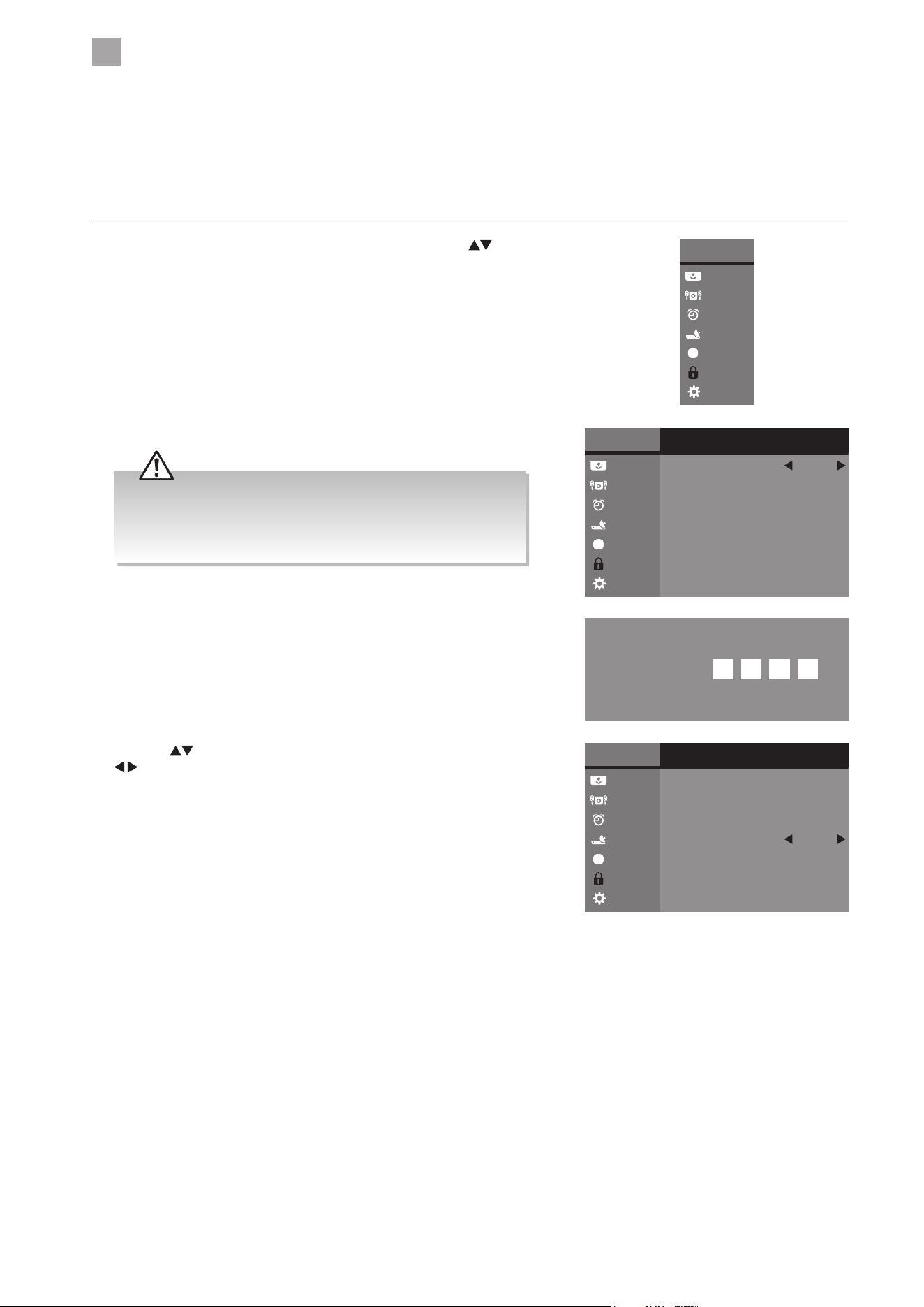
5
Customising TV Settings
44
• The default password is “0000”.
• If you change the password, be sure to remember the new
password! If you forget the new password, enter the master
password“9527”.
Parental Guidance
This function allows you to set up blocking schemes to block specific channels and ratings. It operates according to information
from the broadcasting station, therefore if the signal has incorrect information, this function will not operate.
This TV is programmed to remember the last option set even if the TV is switched off.
When a programme is locked or rated, a valid password must be entered.
1. Press the MENU button to display the Main Menu. Press the
buttons
to select the Lock menu and then press the OK button.
Main Menu
Picture
Sound
Time
Channel
Option
Lock
System
Main Menu
Picture
Sound
Time
Channel
Option
Lock
System
Option
Lock System
Set Password
Block Channel
Parental Guidance
Off
Off
Enter Password
2. Press the OK button to select Lock System.
3. Use the 0-9 buttons to input a 4-digit password to enter the LOCK menu.
4. Press the
buttons to select Parental Guidance and then press the
buttons to select an age rating: Off, 4-18.
Main Menu
Picture
Sound
Time
Channel
Option
Lock
System
Option
Lock System
Set Password
Block Channel
Parental Guidance
Off
Off
5. Press the BACK or MENU button to return to the previous menu.
6. Press the EXIT button to return to normal TV viewing.
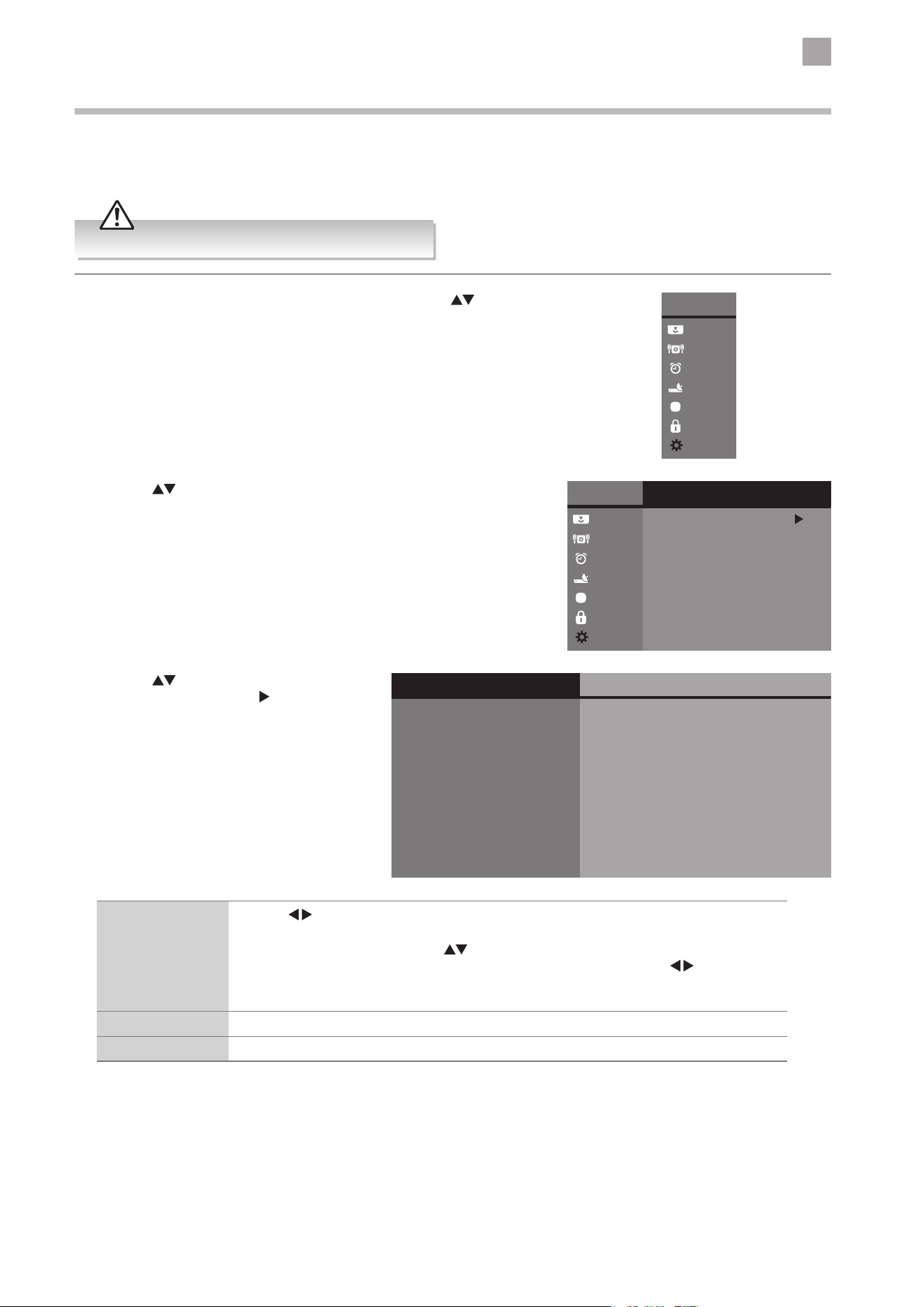
5
Customising TV Settings
45
2. Press the
buttons to select Network Setting and then press the OK
button to enter the network setting sub-menu.
System Setting
Network Setting
Adjust all your network setting and check your connection if you are having connection problems.
Manual setup is recommended for advanced users only.
1. Press the MENU button to display the Main Menu. Press the buttons
to select the System menu and then press the OK button.
Main Menu
Picture
Sound
Time
Channel
Option
Lock
System
Main Menu
Picture
Sound
Time
Channel
Option
Lock
System
System
Network Setting
PVR File System
Software Update
Network Upgrade
Standby Scan Off
First Time Installation
3. Press the buttons to select the following
options, and then press the
button or 0-9
buttons to adjust each option’s setting or the
OK button to select the options.
Network
Configuration
Network Info
Network Test
IP Configuration
Acquire IP Address
Subnest Mask
Auto
100 . 148 . 107 . 110
Default Gateway
100 . 148 . 107 . 110
Acquire DNS Address
Auto
DNS Server
100 . 148 . 107 . 110
100 . 148 . 107 . 110
A8 A6 48 A8 A6 48
Connected
MAC Address
IP Address 100 . 148 . 107 . 110
Configuration Press the buttons to select Auto or Manual in Acquire IP Address and Acquire DNS
Address.
If Manual mode is selected, use the
buttons to select IP Address, Subnest Mask,
Default Gateway and DNS Server. Then press the OK button, and use the
buttons and
0-9 buttons to enter the values.
It also display IP Address and MAC Address in IP Config menu.
Network Info Display the network information.
Network Test Press to test the network.
4. Press the BACK or MENU button to return to the previous menu.
5. Press the EXIT button to return to normal TV viewing.
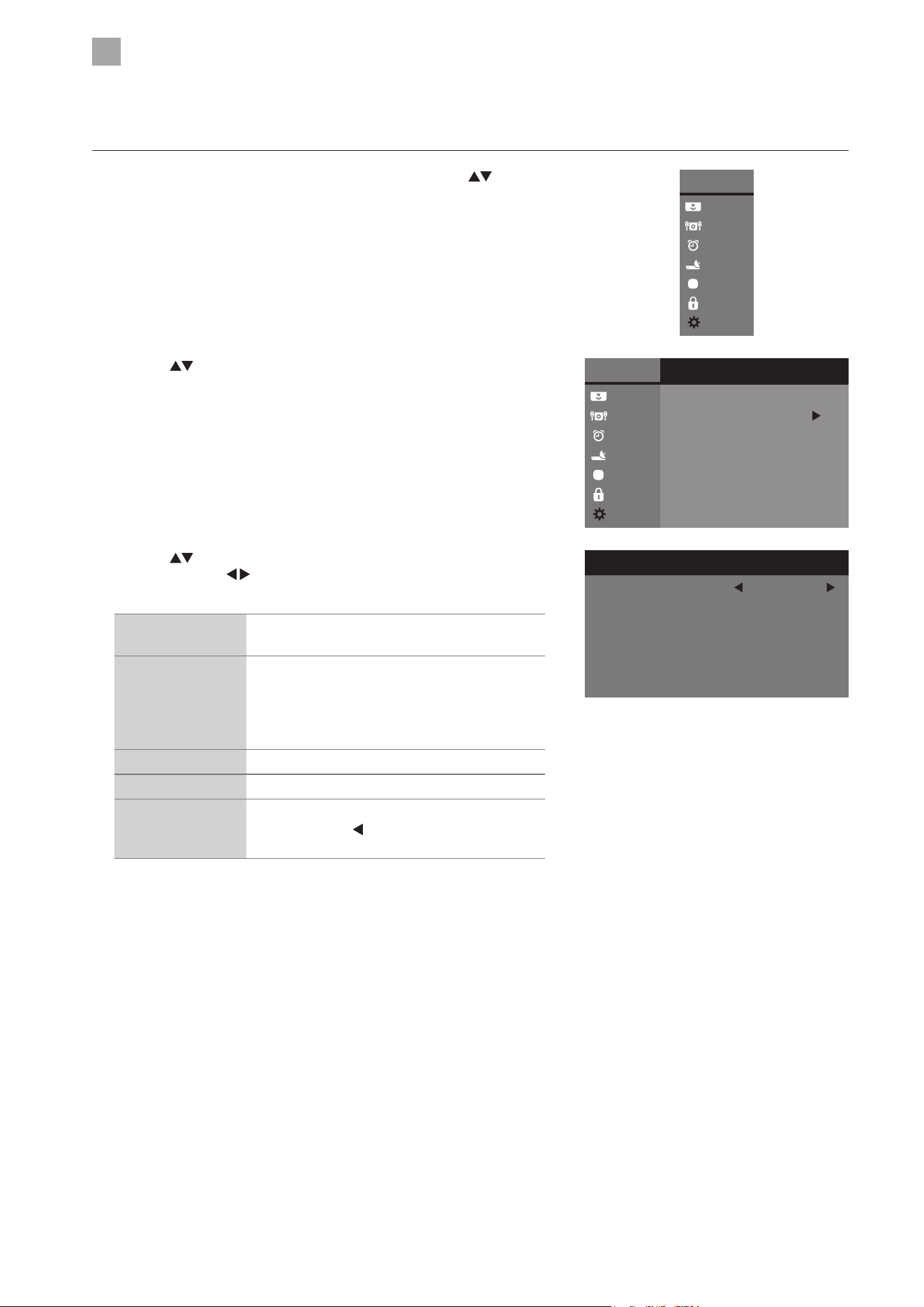
5
Customising TV Settings
46
3. Press the
buttons to select the following PVR File System options
and then press the
buttons to adjust the settings. Press the MENU
button to return to the previous menu.
Select Disk Selects the disk where you want to store your
recorded content.
Start early / End
late
A feature of adding extra recording time to the
beginning or ending of a programme, so that you
do not miss any part of the programme. Time can
be select among: None / 1 / 3 / 5 / 10 / 15 / 30 /
45 Minutes.
Time Shift Size Adjusts your preferred time shift file size.
HDD Information Shows the space of your USB storage device.
Format HDD Press the OK button, a pop-up window will
display. Press the
button to select "Yes " and
then press the OK button to start formatting.
4. Press the BACK or MENU button to return to the previous menu.
5. Press the EXIT button to return to normal TV viewing.
Software Upgrade (USB) (DTV Mode)
This function is only for servicing purposes. Any update information for this TV (if any) will be available at the following website or
contact the our call centre:
• For UK, www.knowhow.com or call our UK Call Centre on 0344 561 1234.
• For Ireland, www.knowhow.ie or call our Ireland Call Center on 0818 810 575.
Network Upgrade
This function is only for servicing purposes. Any update information for this TV (if any) will be available at the following website or
contact the our call centre:
• For UK, www.knowhow.com or call our UK Call Centre on 0344 561 1234.
• For Ireland, www.knowhow.ie or call our Ireland Call Center on 0818 810 575.
2. Press the
buttons to select PVR File System and then press the OK
button.
PVR File System (DTV Mode)
Allows you to select your preferences in the PVR File System.
1. Press the MENU button to display the Main Menu. Press the
buttons
to select the System menu and then press the OK button.
Main Menu
Picture
Sound
Time
Channel
Option
Lock
System
Main Menu
Picture
Sound
Time
Channel
Option
Lock
System
System
Network Setting
PVR File System
Software Update
Network Upgrade
Standby Scan Off
First Time Installation
PVR File System
Select Disk
Start early
End late
Time Shift Size
HDD Information
Format HDD
USB1
3 min
512 MB
3 min
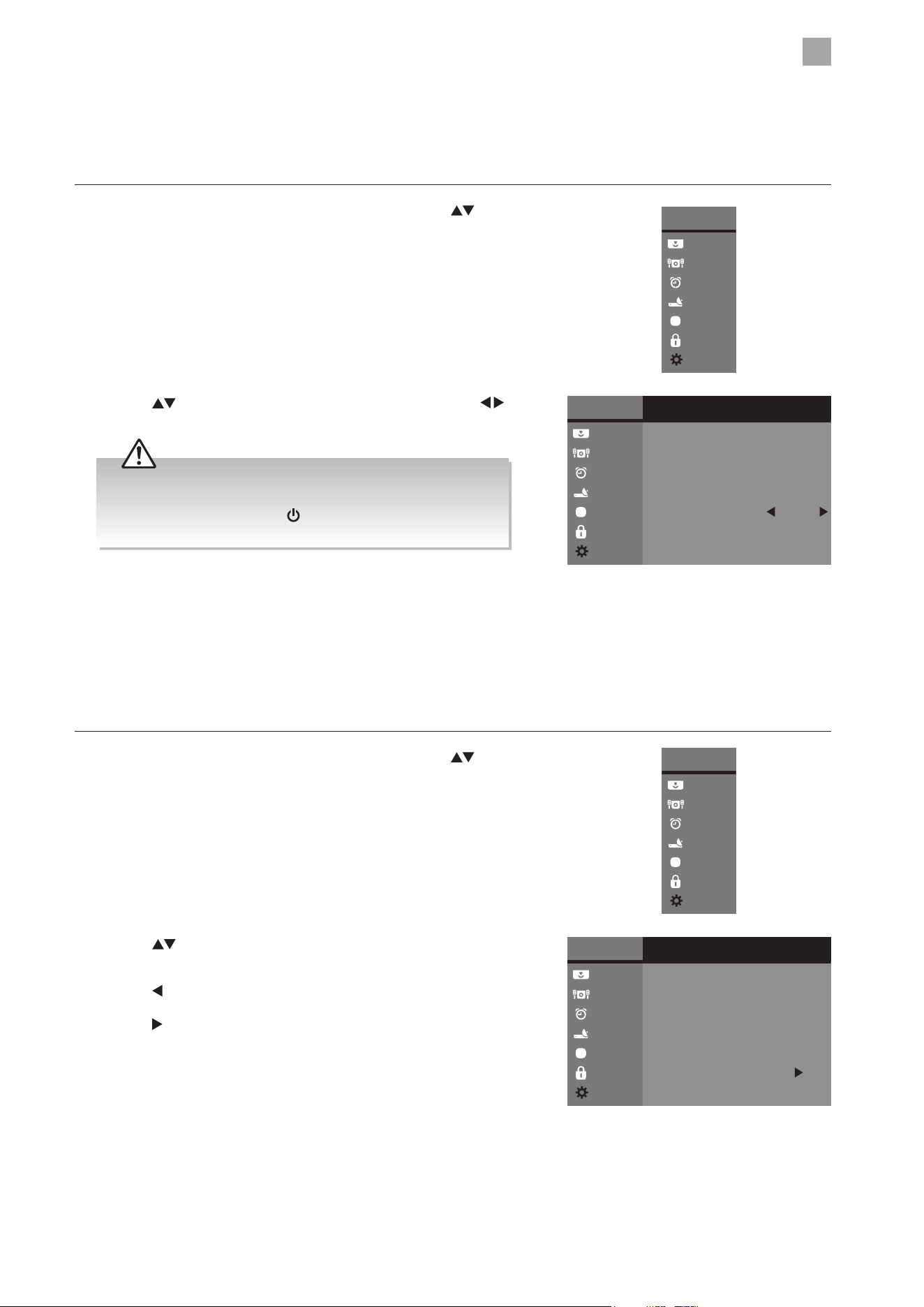
5
Customising TV Settings
47
2. Press the
buttons to select First Time Installation and then press
the OK button.
3. Press the
button to select “Ye s ”. The TV will turn off and restart after a
few seconds.
Press the
button to select "No" to cancel and return to the previous
menu.
2. Press the
buttons to select Standby Scan and then press the
buttons to select On / Off.
Standby Scan
When the TV is put into standby mode a standby scan will be performed, during this process the TV will scan for new channel
information and automatically update the channel list if any changes are found, both the visual and audio functions will be off,
once the scan is complete the TV will stay in standby mode.
1. Press the MENU button to display the Main Menu. Press the
buttons
to select the System menu and then press the OK button.
Main Menu
Picture
Sound
Time
Channel
Option
Lock
System
Main Menu
Picture
Sound
Time
Channel
Option
Lock
System
System
Network Setting
PVR File System
Software Update
Network Upgrade
Standby Scan Off
First Time Installation
3. Press the BACK or MENU button to return to the previous menu.
4. Press the EXIT button to return to normal TV viewing.
First Time Installation
Restores all settings to the factory defaults.
1. Press the MENU button to display the Main Menu. Press the
buttons
to select the System menu and then press the OK button.
Main Menu
Picture
Sound
Time
Channel
Option
Lock
System
Main Menu
Picture
Sound
Time
Channel
Option
Lock
System
System
Network Setting
PVR File System
Software Update
Network Upgrade
Standby Scan Off
First Time Installation
4. Press the BACK or MENU button to return to the previous menu.
5. Press the EXIT button to return to normal TV viewing.
During the processing of scanning in standby mode, the LED
will blink in red, and the joystick function button can't operate
to wake up the TV. Press the
button on the remote control to
switch on the TV.
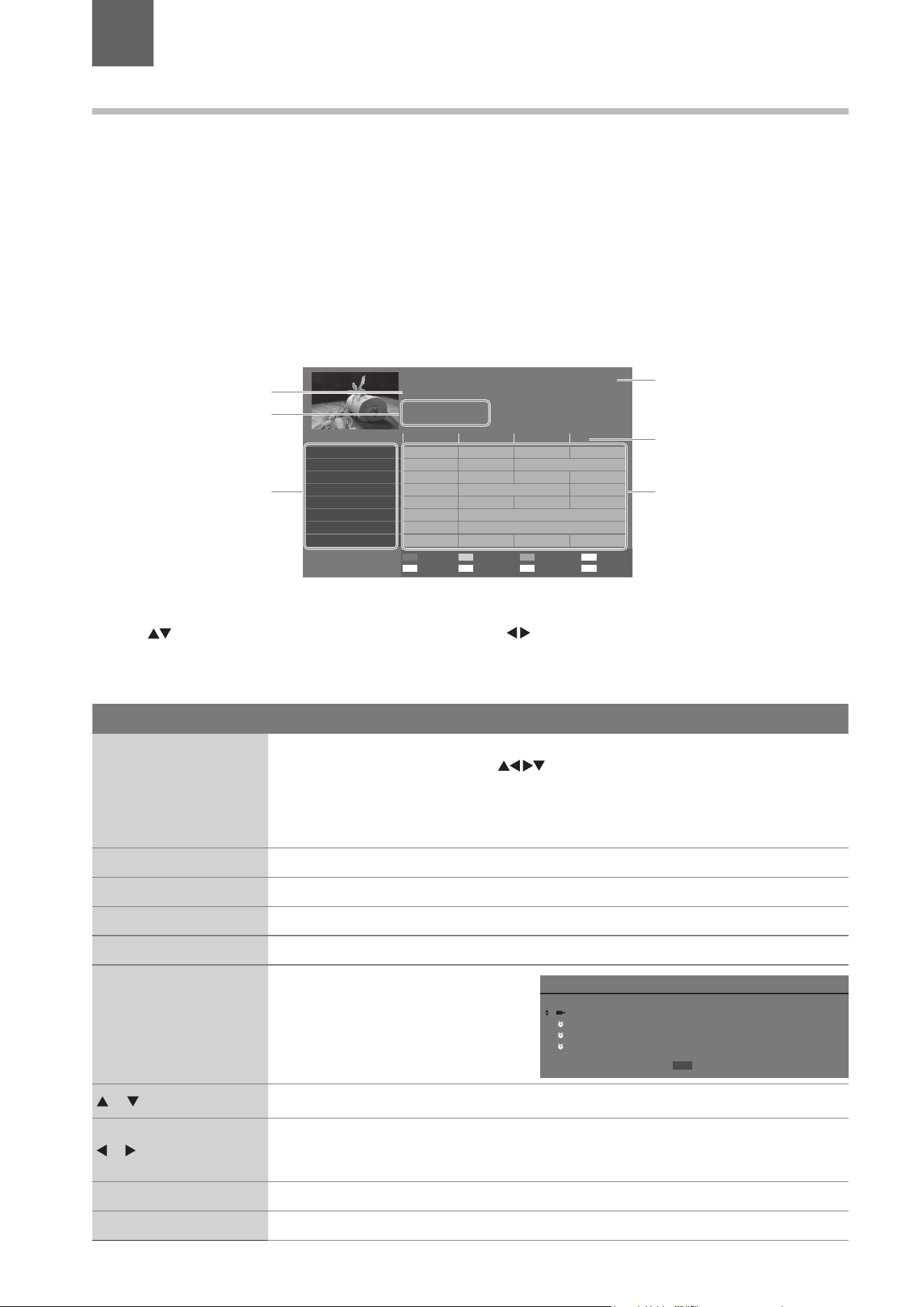
48
EPG (Electronic Programme Guide) (DTV or Radio Mode)
This system has an Electronic Programme Guide (EPG) to help you navigate through all the possible viewing options.
The EPG supplies information such as programme listings, start and end times for all available services. In addition, detailed
information about the programme is often available in the EPG (the availability and amount of programme information will vary,
depending on the particular broadcaster).
This function can be used only when the EPG information is broadcast by broadcasting companies.
The EPG displays the programme details for the next 7 days.
Switch On / Off EPG
1. Press the GUIDE button to switch on EPG.
2. Press the GUIDE button or the EXIT button again to switch off EPG and return to normal TV viewing.
Select a Programme
Press the buttons to select the desired channel and then press the buttons to select the desired programme. Press the
OK button to confirm.
Button Functions in a 7-Day Guide
Remote Control Button Function
RED (Timer)
• Display the Recorder or Reminder setting menu.
• In Recorder or Reminder, press the
buttons to adjust the settings and then press the
OK button to confirm the settings. After confirmation, press the INDEX button, the Schedule
List will then be displayed with your preset reminders shown. Press the INDEX button to return
to the EPG. The TV will automatically tune to the selected programme when it starts.
• Delete the selected preset reminder in the Schedule List.
GREEN (Jump to Now) Jump to current programme of your desired channel.
YELLOW (Prev Day) View the schedule of the previous day in EPG.
BLUE (Next Day) View the schedule of the next day in EPG.
i Press to display detailed information of the selected programme (if available).
INDEX (Schedule List)
• View the preset reminders in the
Schedule List.
• Press again to return to the EPG.
or
Press to select a channel / programme / preset reminder.
or
• Switch between channel window or programme window in EPG.
• Switch between Recorder or Reminder setting window.
• Adjust the settings in Recorder or Reminder menu.
OK View the selected programme information.
GUIDE / EXIT Switch off the EPG.
Schedule List 20:43 19 / 11 / 2019
Time Date Channel Name Programme Title
09:43 Mon 20 / 11 / 2019 BBC One 24 Hours in A&E
15:23 Tue 21 / 11 / 2019 CBeeies Honey
12:25 Wed 22 / 11 / 2019 Kids 4 Cook with Fanny
20:43 Fri 24 / 11 / 2019 BBC Three Rock n Roll
Delete
6 Using the Features
Chapter
6
73 CBBC HD
Dennis the Menace First Dates Family GuyHardtalk
PROGRAMME GUIDE
HARDtalk
15:05 - 15:40 20/03/2019
Entertainment
14:30
80 BBC NEWS
13:55
20/03/2019
Exit
Timer
List
Jump to now
Select CH
Prev Day
Info
Next Day
15:00 15:30 16:00
80 BBC NEWS
New: A Haunting Holiday Horrors: Caught on CameraWestminster Hall
101 BBC ONE HD
Room 101 Room 101 24 Hours in A&EBBC News
102 BBE TWO HD
One Born Every Minute New: Big Brother’sThis is BBC TWO
105 Pick
News at Three First Dates Mock TestingCome Dine with Me
120 Channel 4+1
New: Big BrotherSupershoppers
135 More 4
New: The Baby Boomers’ Guide toNew: Selling House...
160 Channel 5
Dennis the Menace Sex Diaries: Trans... Road WarsNew: Our Dream...
INDEX OK i
current channel number
and channel name
current time and date
programme time
programme information
channel no. and
channel name
current programme title,
time, date, catagery

6
Using the Features
49
Red Button (Interactive Services)
Red button services are available on BBC TV and Radio channels. The services are gradually changing to an internet based service
rather than the conventual over air (though your aerial). To make the most out of the Red Button services make sure your TV is
connected to the internet.
Accessing the Information
1. In DTV mode press the TEXT button to display the main information page. You
may see slightly different looking pages depending if your TV is accessing the
page over air or via the internet.
2. Follow the instructions on the interactive services page and move around the
page by pressing the
, OK, RED, GREEN, YELLOW, BLUE or 0-9 buttons
etc.
To change digital teletext services, you will need to exit the current text service
and change channels. Then enter the text service on the newly selected channel.
Alternative
You may press the RED button to display the interactive services information when you see a red "press " logo
in the top right corner of the screen (e.g. BBC services). This will now display the Red Button menu and available
information categories.
To access the pages, use navigation buttons to highlight item required and press the OK button to select.
Follow on screen prompts for other functions.
3. Press the TEXT button to exit.
Over Air Red Button Services
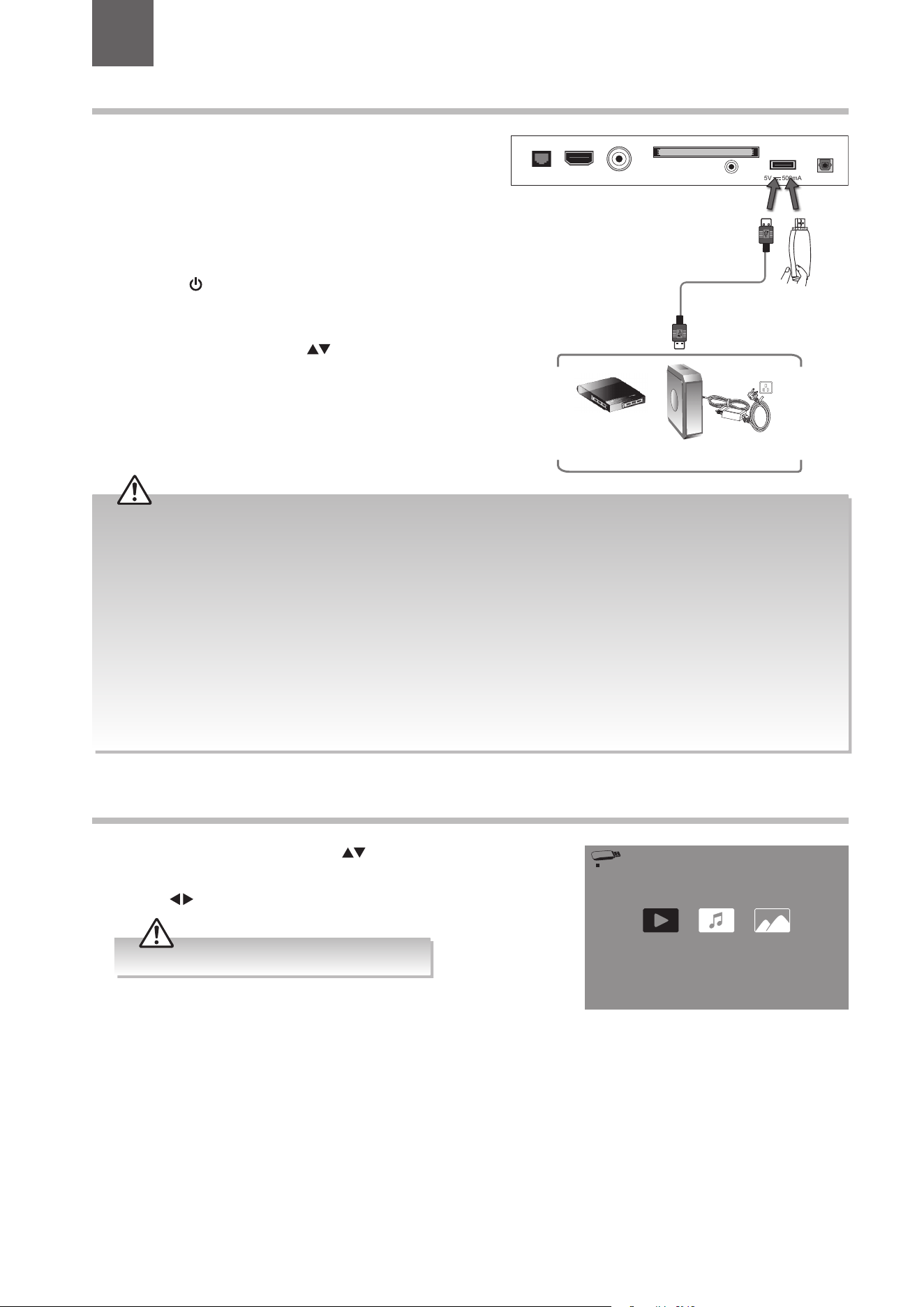
50
Connecting a USB Storage Device
1. Switch off the TV before connecting any USB storage device.
2. Connect the supplied USB extension cable and your USB
storage device to the USB port of your TV.
3. Plug the connected devices into the mains socket before
switching on the TV.
4. Press the center of joystick function button under the TV
frame or the
button on the remote control to turn on your
TV and your USB storage device.
5. Press the INPUT button on the remote control to display
the Input Source menu. Use the
buttons on the remote
control to select USB and then press the OK button to
confirm.
• If a hard disk is used, make sure its mains adapter is connected to the mains supply.
• If a USB hub is used, make sure its mains adapter is connected to the mains supply as the total current consumption may
exceed 500mA.
• The maximum supported storage space of the hard disk is 1 TB.
• The file system only supports FAT32 format.
• If you want to store the video streaming of a DTV programme, the transfer rate of the USB storage device must not be less
than 5MB/s, otherwise the picture and sound of the programme will be affected and a warning statement will be shown
on the screen. If this happens, please upgrade your USB storage device.
• The TV screen will be blank temporarily as it will take time to start up and stabilise the connected hard disk. This is normal
and the starting time may vary depending on the brand and the memory size of the connected hard disk.
• Disconnect the USB storage device if it is not in use.
• Supports USB2.0 only.
7 Entertainment
Chapter
7
Rear Side View of TV
LAN RF
COMMON INTERFACE (CI)
HEADPHONES
USB
5V 500mA
Digital Output
HDMI2
USB Cable
(not included)
USB
Storage
Device
Adapter
Portable
hard Disk
USB Hub
Viewing Video
1. Press the INPUT button then press the buttons to select the USB
mode and then press the OK button.
2. Press the
buttons to select Video and then press the OK button.
2 3 41
Music PhotoVideo
Some video file formats will not be supported.
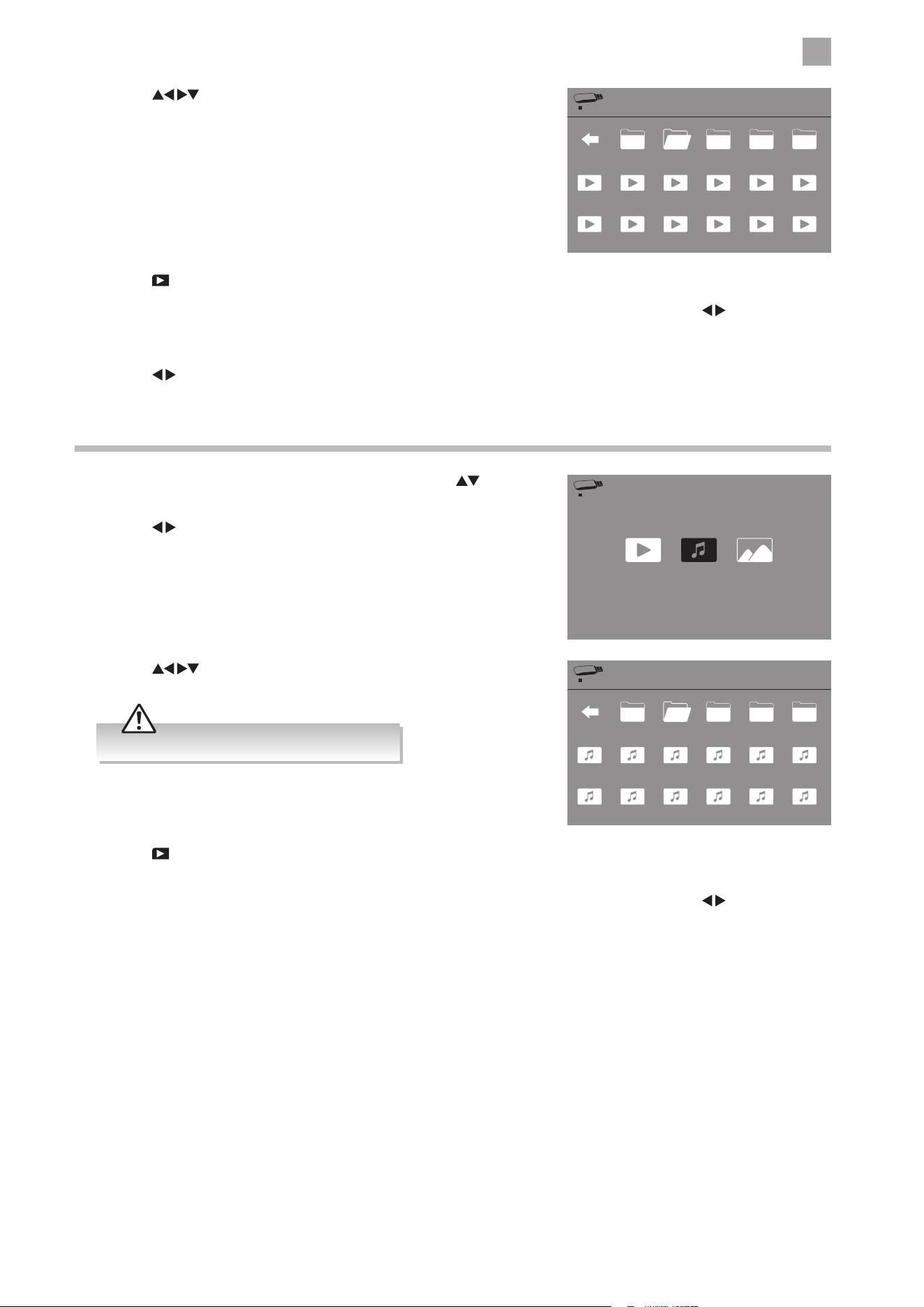
7
Entertainment
51
3. Press the
buttons to navigate in the folder and then press the
OK button to confirm. A tick will be displayed at corner.
4. Press the PLAY button to start playing the video.
5. The function bar will display for a while or press the i button to display the function bar again. Press the
buttons and then
press the OK button to select the function: Stop / Play (Pause) / Rev / FF / Previous / Next / Slow Motion / Repeat (Repeat All /
Repeat Off / Repeat 1) / Play List / Info.
6. Press the
buttons and then Press the EXIT button to return to the previous menu.
Listening to Music
1. Press the INPUT button on the remote control then press the
buttons to select the USB mode and then press the OK button.
2. Press the
buttons to select Music and then press the OK button.
2 3 41
Music PhotoVideo
2 3 41
/File/disk01/
_MSTPVR Spring Summer Autumn Winter
Crazy02.mp3 Forever.mp3 Hymn01.mp3 Hymn02.mp3 Hymn03.mp3
LittleBird.mp3 LoveSong.mp3
Crazy01.mp3
Hymn04.mp3 My Girl.mp3 Sky.mp3 RnR.mp3
3. Press the buttons to navigate in the folder and then press the
OK button to confirm. A tick will be displayed at corner.
2 3 41
/File/disk01/
_MSTPVR Spring Summer Autumn Winter
Farewell.mov Funny.mov Goodshow.mov Leisure.mov Luxury.mov
Juicy.mov MyLord.mov
Delicious.mov
Jesus.mov National.mov Winwin.mov Yummy.mov
Some audio file formats will not be supported.
4. Press the PLAY button to start playing the music. The music information (Title / Album / Artist / Year / Sample Frequency /
Bit Rate) will be displayed in player window.
5. The function bar will display for a while or press the i button to display the function bar again. Press the
buttons and then
press the OK button to select the function: Stop / Play (Pause) / Rev / FF / Previous / Next / Repeat (Repeat Off / Repeat 1 /
Repeat All) / Play List.
6. Press the EXIT button to return to the previous menu.
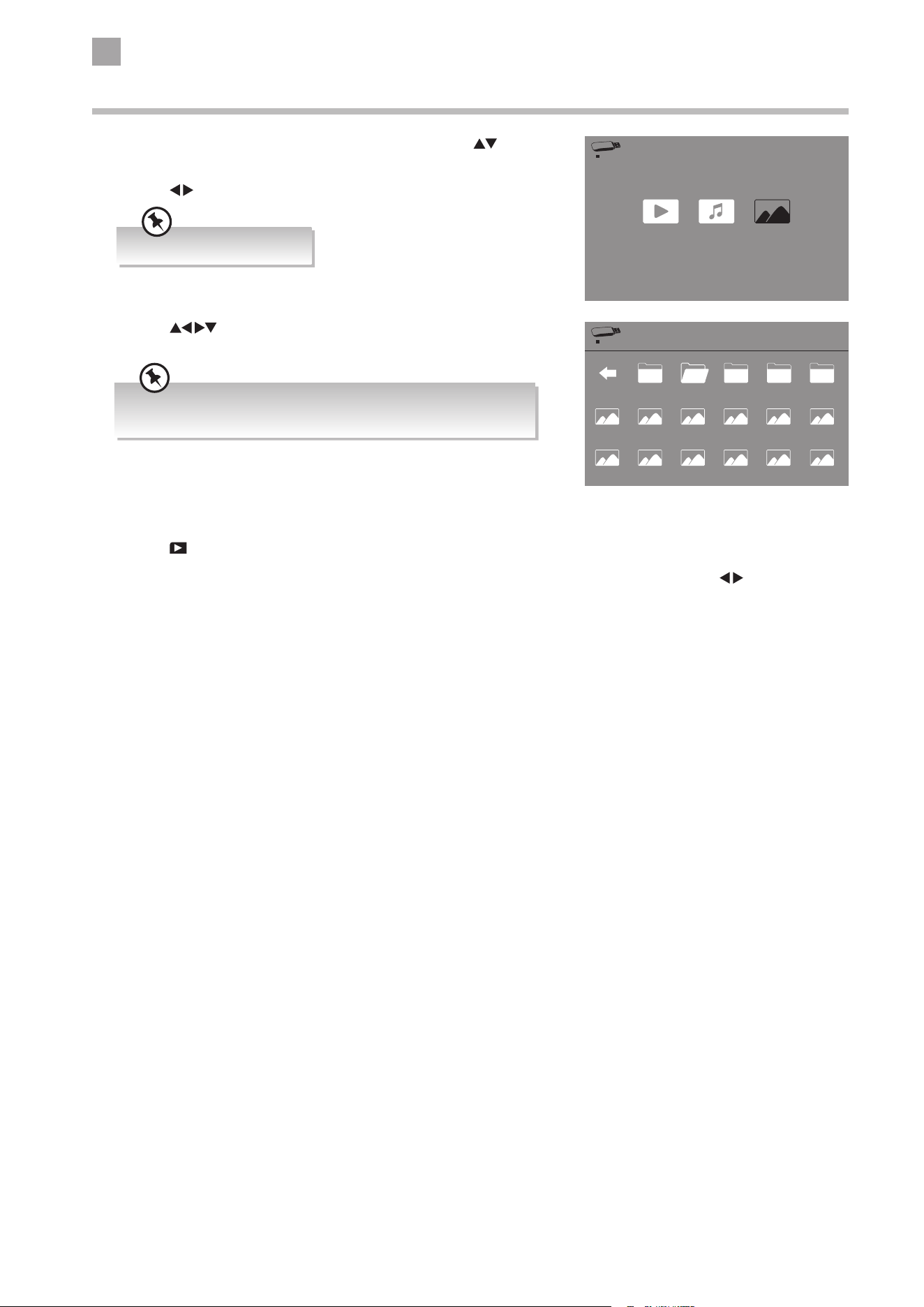
7
Entertainment
52
4. Press the
PL AY button to start viewing the photo.
5. The function bar will display for a while or press the i button to display the function bar again. Press the
buttons and
then press the OK button to select the function: Stop / Play (Pause) / Rotate / Zoom / Previous / Next / Repeat (Off / Repeat 1 /
Repeat All) / Play List / Info / BG Music.
6. Press the EXIT button to return to the previous menu.
3. Press the
buttons to navigate in the folder and then press the
OK button to confirm. A tick will be displayed at corner..
If this folder also contains music files, you can select a music track
to play at the same time you view your photos.
Viewing Photos
1. Press the INPUT button on the remote control then press the
buttons to select the USB mode and then press the OK button.
2. Press the
buttons to select Photo and then press the OK button.
2 3 41
Music PhotoVideo
2 3 41
/File/disk01/
_MSTPVR Spring Summer Autumn Winter
Bread02.jpg Bread03.jpg Bread04.jpg Cake01.jpg Cake02.jpg
Dessert01.jpg Dessert02.jpg
Bread01.jpg
Cake03.jpg Dessert03.jpg Gathering.jpg Zoo01.jpg
Supported file formats: JPG.
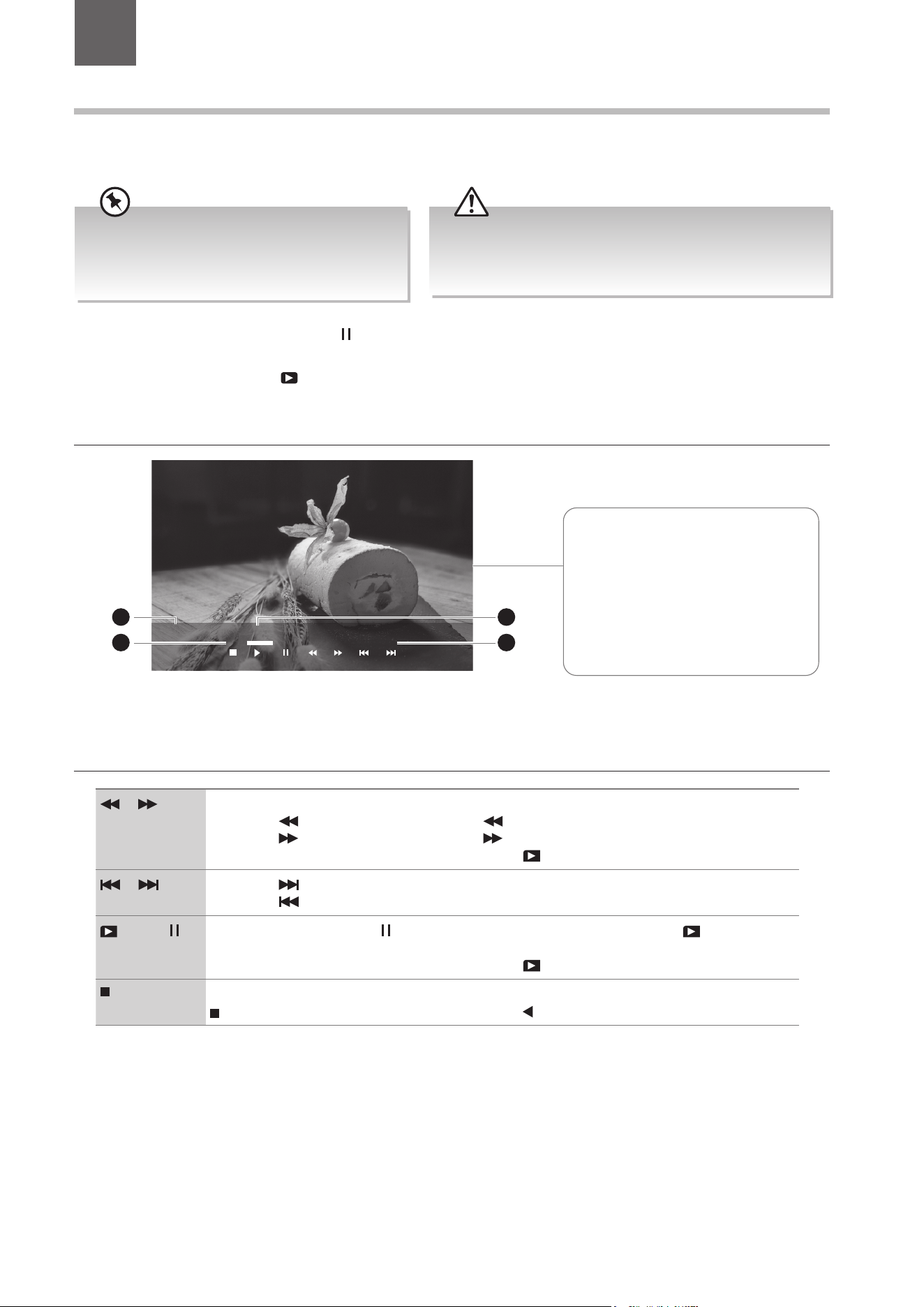
53
Time Shift Function
This function allows you to pause live TV. The picture will pause and the programme will begin recording so you will not miss any
of the programme. You need to have a USB storage device attached to the USB socket for Time Shift Recording to work.
Using the Remote Control
You can shift playback to any point of the virtually recorded programme.
or When playing,
• Press the
button repeatedly to speed up x 2 / x 4 / x 8 / x 16 / x 32.
• Press the
button repeatedly to speed up x 2 / x 4 / x 8 / x 16 / x 32.
• During fast forward / fast backward state, press the
PL AY button to return to normal playback.
or • Press the button to jump about 30 seconds forward.
• Press the
button to jump about 30 seconds back.
PLAY or • During playback, press the button to display a still screen and then press the PLAY button
again to resume playback.
• During fast forward / fast backward state, press the
PL AY button to return to normal playback.
If you want to exit the PVR Time Shift progress bar and return to the current live broadcast, press the
button. A pop up menu will be displayed. Press the button to select YES to stop Time Shift.
During normal TV viewing, you may press the button to pause the live programme if you want to go out for a while (e.g. going
to the bathroom / kitchen). The PVR Time Shift progress bar will be displayed on the screen.
When you have returned, press the
PLAY button to play the missed broadcast programme.
The video and sound may have a little bit of delay or be out-of-sync for a few seconds when the unit starts to playback the missed
broadcast programme. It will soon turn to normal.
• Time Shift Mode and Recording functions may
not work if the signal strength is weak.
• Stop the time shift function before switching to
another input source.
If the transfer rate of the USB storage device is too slow for
recording or time shift function, a warning statement will be
shown on the screen. If this happens, please upgrade your USB
storage device. The minimum transfer speed is 5MB/s.
8 PVR (Personal Video Recorder)
Chapter
8
Stop Pause Rev FFPlay Previous Next
CH 24 Hoby C Yummy!
10:2802:25
The ‘PVR Time Shift Progress Bar’
1 Current channel and name
2 Current programme
3 Indicates the time lagging behind
the live broadcast (PVR reviewing)
4 Indicates the available recording
time on your USB storage device
4
2
3
1
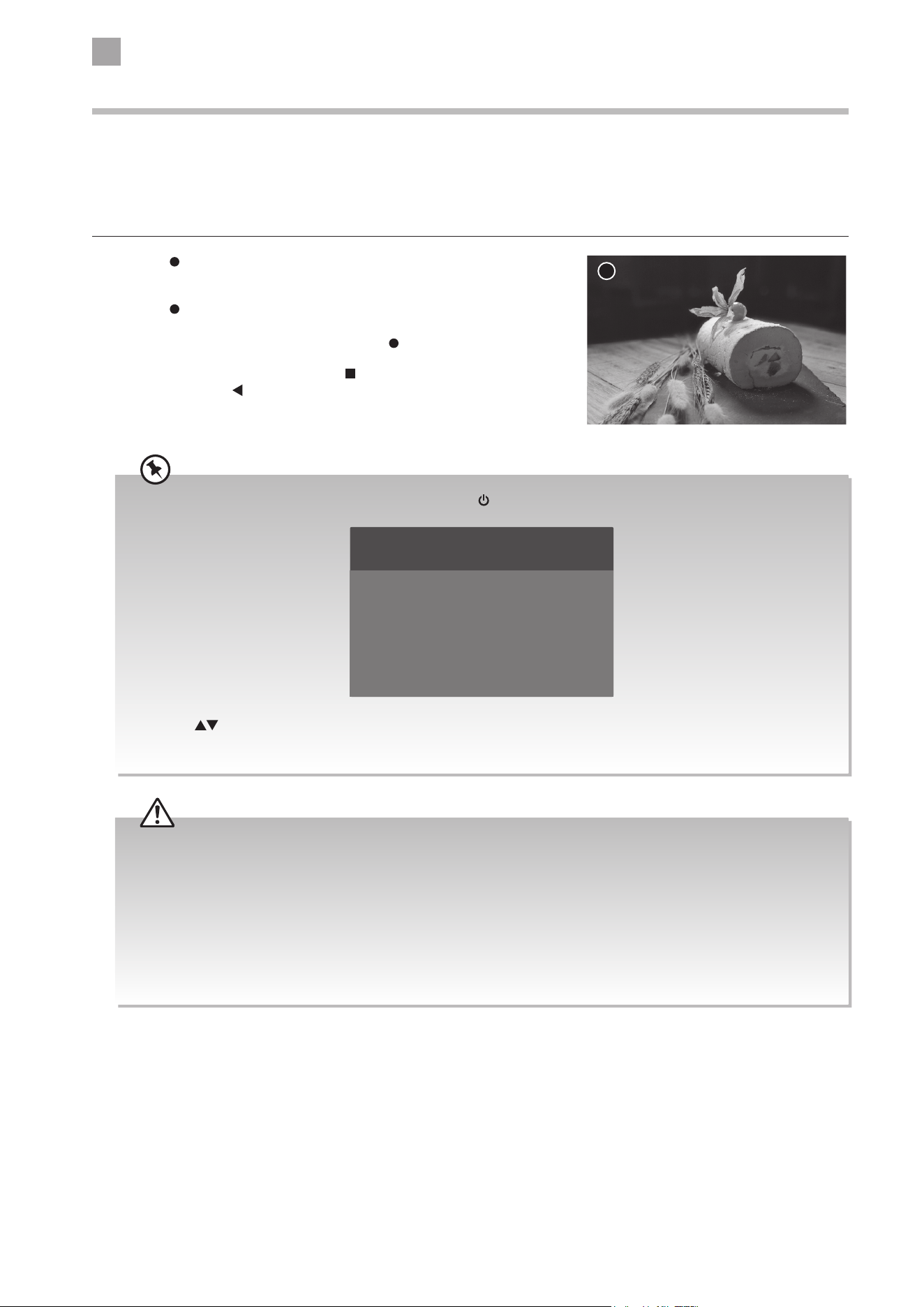
8
PVR (Personal Video Recorder)
54
Recording DTV Programme onto a USB Storage Device
Use this function to record the DTV programme you are watching on the main screen and save it for future viewing.
The recording from timer programme or direct recording may have a little bit of delay when it starts to record the broadcast
programme.
Please make sure the USB device is inserted. If not, a warning message will pop up.
1. Press the
button to record the programme that you are currently
watching. The recording progress bar will appear later.
2. Press the
button again, the recording progress bar will disappear
and the REC logo will be displayed at the top left corner. If you want to
display the recording progress again, press the
button.
3. If you want to stop recording, press the
button. A pop up menu to be
displayed, press the
button to select YES to stop recording.
Yummy.ts
Stop Pause Rev
00 : 00 : 26 / 00 : 03 : 48
FF Previous Next Slow Repeat Play List Info
REC
• Recording will stop automatically when the disk is full.
• When Start early and End late are set (for more details, please refer to the section PVR File System (DTV Mode) on
page 46), the start time and end time will be the time plus the additional minutes.
• If scheduled time slots are next to each other and there is more than one minute between the end time of the first
schedule and the start time of the next schedule, programmed recording will be performed as scheduled.
• If scheduling times overlap, priority will be given to the programmed recording which starts first. When the
programmed recording that started first ends, recording will switch to the next scheduled programme. At this time,
depending on how far the scheduling times overlap, the beginning section of the next scheduled programme may
not be recorded.
If you want to turn off your TV during recording, press the button. A dialogue will display.
Press the
buttons to select your desired option and then press the OK button to confirm.
If you select the middle option in the box, the screen will turn off but the recording will still in progress, the LED
indicator will flash red.
The recording is still in progress.
Do you want to switch off the TV?
Yes, Stop recording and switch off the TV.
Yes, turn off the screen and sound,
but keep recording the programme.
NO
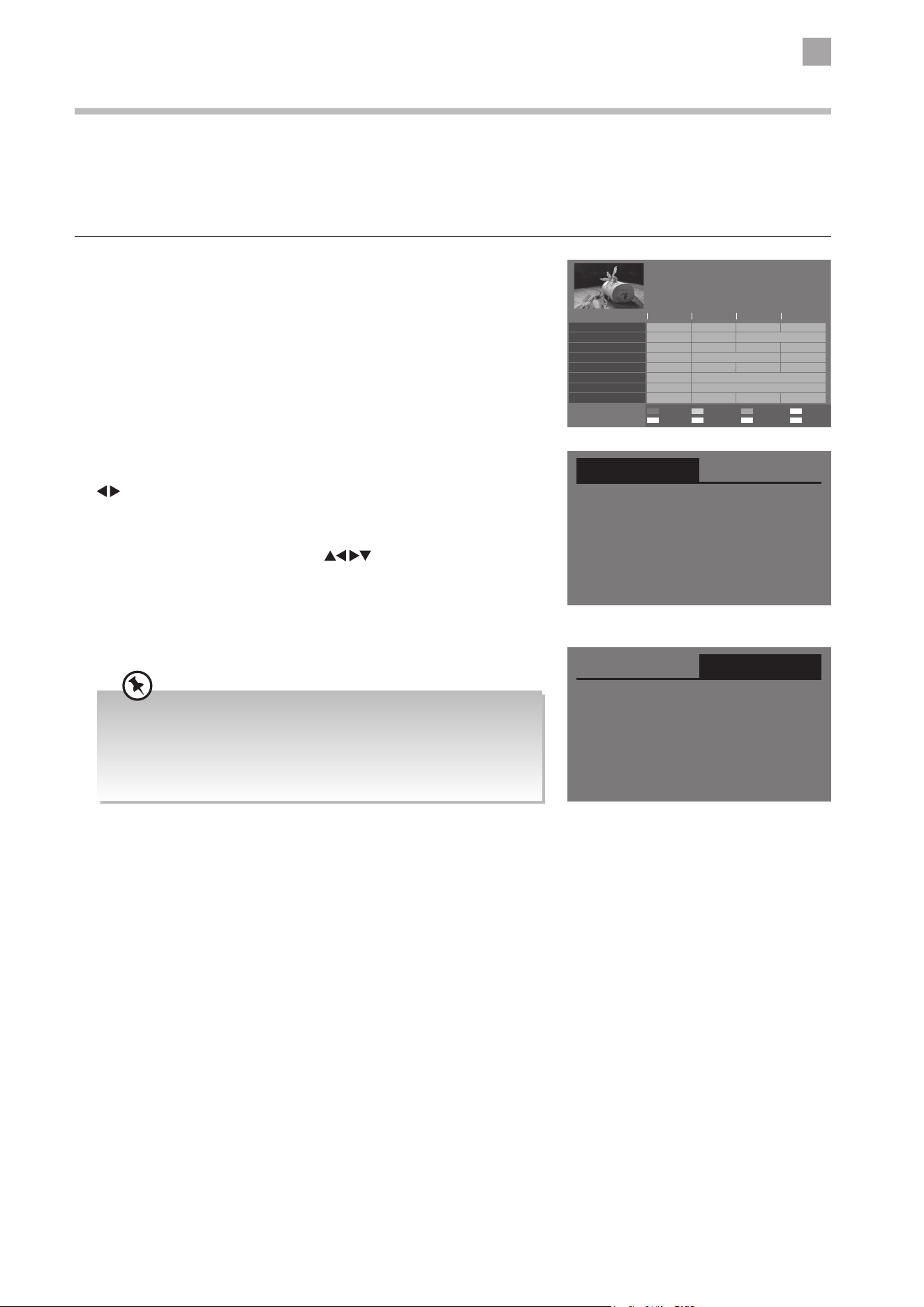
8
PVR (Personal Video Recorder)
55
2. Press the RED button on the remote control while on the selected
programme, the Recorder or Reminder menu will be displayed. Press the
buttons to select Recorder (recording programme) or Reminder (auto
tune to select programme on preset timing).
3. The recording time for the selected programme will be automatically set. If
you want to adjust manually, press the
buttons to select the settings
in the Recorder menu or Reminder menu for the Channel, Date, Start Hour,
Start Min, End Hour (for recording only), End Min (for recording only) and
Mode (Once, Every Day, Weekly).
4. After finishing all setting, press the the OK button to confirm your settings at
Mode option.
Timer Programming
This function is used to perform scheduled recording.
The recording from timer programme or direct recording may have a little bit of delay when it starts to record the broadcast
programme.
Please make sure the USB device is inserted. If not, a warning message will pop up.
1. Press the GUIDE button on the remote control. The EPG menu will appear.
73 CBBC HD
Dennis the Menace First Dates Family GuyHardtalk
PROGRAMME GUIDE
HARDtalk
15:05 - 15:40 20/03/2019
Entertainment
14:30
80 BBC NEWS
13:55
20/03/2019
Exit
Timer
List
Jump to now
Select CH
Prev Day
Info
Next Day
15:00 15:30 16:00
80 BBC NEWS
New: A Haunting Holiday Horrors: Caught on CameraWestminster Hall
101 BBC ONE HD
Room 101 Room 101 24 Hours in A&EBBC News
102 BBE TWO HD
One Born Every Minute New: Big Brother’sThis is BBC TWO
105 Pick
News at Three First Dates Mock TestingCome Dine with Me
120 Channel 4+1
New: Big BrotherSupershoppers
135 More 4
New: The Baby Boomers’ Guide toNew: Selling House...
160 Channel 5
Dennis the Menace Sex Diaries: Trans... Road WarsNew: Our Dream...
INDEX OK i
• If you want to review all schedule, you can either select Schedule
List under Channel menu or press the INDEX button in the EPG
menu.
• If a programme recording starts when the TV is in standby mode,
the LED indicator will flash red.
Recorder Reminder
Channel 124 CBeebies HD
Date 20
Start Hour 12
Start Min 21
End Hour 12
End Min 45
Mode Once
(recorder list)
Recorder Reminder
Channel 124 CBeebies HD
Date 20
Start Hour 12
Start Min 21
Mode Once
(reminder list)
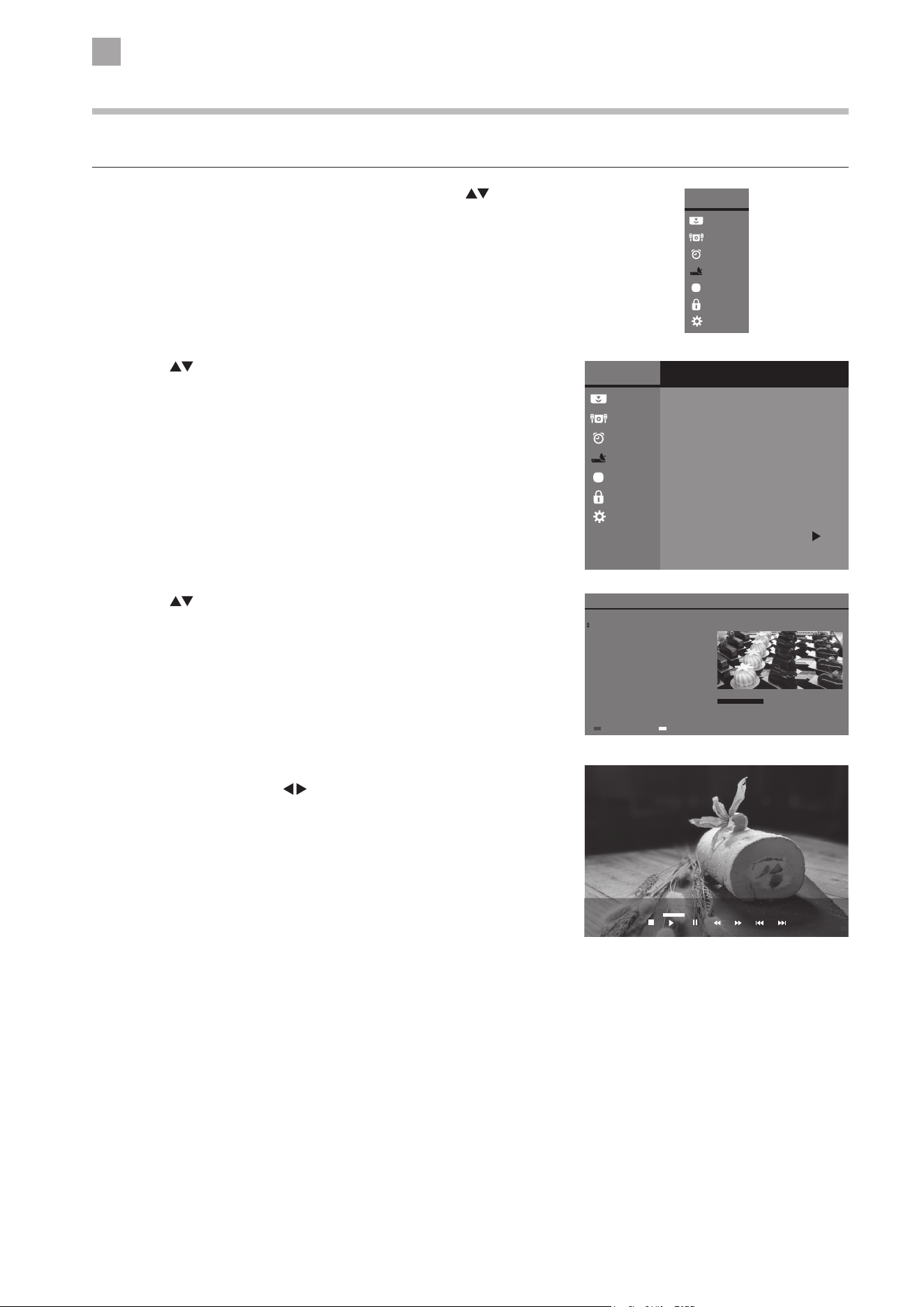
8
PVR (Personal Video Recorder)
56
4. The function bar will display for a while. Press the i button to display the
function bar again. Press the
buttons and then press the OK button
to select the function: Stop / Play / Pause / Rev / FF / Previous / Next.
Playing Recorded Programme
You can play a recorded programme from the recorded programme list.
1. Press the MENU button to display the main menu. Press the
buttons
to select the Channel and then press the OK button.
2. Press the
buttons to select Recorded List and then press the OK
button. The Recorded List will be displayed.
Main Menu
Picture
Sound
Time
Channel
Option
Lock
System
3. Press the buttons to select the recorded programme and then
press the OK button to view. Press the RED button to delete the desired
programme.
Recorded List
LCN Channel Program/Service Baking World Record Date
10:12 14 / 02 / 2019
1
5
BBC 1 Lon...
five
Delete
Baking World
The Streets of San Fran...
Each episode focuses on a specific discipline of baking, which
become progressively more difficult as the series unfolds.
Every episode features three types of challenges: The Signature
Challenge; The Technical Challenge; and The Showstopper
Challenge.
15:14 / 0:58:14
Select
OK
Main Menu
Picture
Sound
Time
Channel
Option
Lock
System
Channel
CI Information
Auto Tuning
DTV Manual Tuning
ATV Manual Tuning
DTV Smart Retune
DTV
Recorded List
Schedule List
Channel Edit
Signal Information
Stop Pause Rev FFPlay Previous Next
CH 24 Hoby C Yummy!
10:2802:25
57
1. Use a soft dry cloth to wipe away the dust from the screen and surfaces.
2. If the surfaces are extremely dirty, clean the TV with a cloth which has been
dipped in a slightly soapy water. Wring the cloth until it is almost dry, then use it
to wipe the TV.
3. Ensure there is no excess water on the screen. Allow any water or dampness to
evaporate before switching the TV on.
Maintenance
Careful and regular cleaning can prolong the life of your TV.
Hints and Tips
The following table contains various hints and tips to get the best performance from your TV. If you require additional assistance:
• For UK, please call our UK Call Centre on 0344 561 1234.
• For Ireland, please call our Ireland Call Center on 0818 810 575.
The TV does not operate properly.
The TV does not respond when
pressing any buttons
• The TV may freeze up during use. Disconnect the mains plug from the mains socket
for a few minutes. Reconnect the mains plug and try to operate it again as usual.
TV cannot be switched on
• Check that the TV is connected to the mains supply is switched on.
• Make sure all connected AV devices are switched off before switching on your TV.
The remote control does not work
• Check to see if there are any objects between the TV and the remote control
causing an obstruction. Ensure that you are pointing the remote control directly at
the TV.
• Ensure that the batteries are installed with the correct polarity (+ to +, - to -).
• Install new batteries.
Power is suddenly turned off
• Check the power of the TV. The mains supply maybe interrupted.
• Check if the sleep timer is set.
• Check whether the Auto Standby is activated.
Can't view Saorview channels
• Check that you have selected the correct country when tuning in your TV. For ROI
select Ireland.
• You will only receive Saorview channels in ROI, retune your TV making sure to select
Ireland as your country.
The video function does not work.
No Picture & No Sound
• Check whether the TV is switched on.
• Try another channel. The problem may be caused by the broadcaster.
Picture appears slowly after
switching on
• This is normal, the image is muted during the TV startup process. Please contact
your service centre, if the picture has not appeared after five minutes.
No or poor colour or poor picture
• Adjust the settings in the Picture menu.
• Try another channel. The problem may be caused by the broadcaster.
• Check if the video cables are connected properly.
Horizontal / Vertical bar or picture
shaking
• Check for local interference such as an electrical appliance or power tool.
Poor reception on some channels
• Station or cable channel may be experiencing problems, tune to another station.
• Station signal is weak, reposition the aerial for better reception.
• Check for sources of possible interference.
Lines or streaks in pictures • Check aerial (Change the position of the aerial.)
Hints and Tips
9 Other Information
Chapter
9
Be sure to press the button on the remote control to turn off the TV. Disconnect the mains cable from the mains socket
before any cleaning.
Never use alcohol, benzine, paint-thinner, cleaning fluid or other chemicals.
Do not use compressed air to remove dust.
9
Others Information
58
No pictures when connecting HDMI • Check if the input source is HDMI 1 / HDMI 2.
Picture appears in wrong ratio
• Adjust the Aspect Ratio settings in the PICTURE menu or press the ASPECT button
on the remote control.
The audio function does not work.
Picture OK but no sound
• Press the VOL + / – buttons.
• Sound muted? Press the
button.
• Try another channel. The problem may be caused by the broadcaster.
No output from one of the speakers • Adjust the Balance settings in the Sound menu.
Unusual sound from inside the TV
• A change in ambient humidity or temperature may result in an unusual noise when
the TV is switched on or off and does not indicate a fault with the TV.
No sound when connecting HDMI • Check if the input source is HDMI 1 / HDMI 2.
Audio noise • Keep the RF coaxial cable away from other connected cables.
Distorted sound
• Adjust the Sound Mode in the Sound menu, depending on the type of program
you are watching.
• If still have distorted sound, switch off the Surround Sound in Sound menu, then
re-adjust the Sound Mode in the Sound menu.
Password
Lost password
• Select the Set Password setting in the Lock menu, then enter the following master
password “9527”. The master password clears your previous password and allows
you to enter a new password.
Channels are not recording.
Not all channels record
• You can only record free to air channels.
• You may have you run out of space on your USB storage device. Delete some files or
use another USB storage device.
• Check that there were no recording conflicts from scheduled series recordings.
FAQs (Frequently Asked Questions)
Why have I lost some / all of my
channels?
• It happens sometimes if you have a weak signal. Usually it just means you’ll need to
re-scan your digital box or TV. Don’t worry, it is easy to do. And once you’ve done
it, you should get all the TV channels available to you. If problems persist you may
need to get your aerial checked. Talk to your retailer or contact your local aerial
installer.
Why do I get ‘blocking’ on my digital
picture?
• In most cases, blocking is caused by a reception problem – either the signal is too
weak or there is some kind of interference. Talk to your retailer or contact your local
aerial installer.
• Blocking can also be caused by a digital signal that is too strong. If you are still
experiencing blocking and the signal is strong, consult your local aerial installer for
advice.
Can I watch TV using a portable set-
top aerial?
• Some, but only a few, homes may be able to use a set top aerial. However, for a
much better reception, we strongly recommend that you use a rooftop aerial.
• If you do not have access to a rooftop aerial – for example, if you rent a flat and
the aerial is the responsibility of your landlord, or if you’re using a second TV in
the bedroom and don’t want the hassle and expense of using extension cables,
a set top aerial may be your only option.
What type of aerial do I need?
• If you are installing a new aerial, we recommend a wideband rooftop aerial rather
than a loft aerial. Loft aerials generally receive a weaker digital signal and are more
likely to get interference from other electrical devices at home. We suggest you
have an aerial survey done before getting an aerial upgrade.
• Talk to your retailer or contact your local aerial installer.
9
Others Information
59
Display Modes
The screen resolution has been optimised during production for the display modes listed below.
Although this TV is compatible with a 1080i/1080p input, it is possible that the screen may not display the exact resolution this
resolution and consequently the picture quality will be adjusted accordingly.
HDMI Mode
Resolution Vertical Frequency (Hz) Aspect Ratio
480I: 1440 x 480 60
Auto / 4:3 / 16:9 / Zoom / Subtitle /
SmartZoom
480P: 720 x 480 60
576I: 1440 x 576 50
576P: 720 x 576 50
720P: 1280 x 720
50
60
1080I: 1920 x 1080
50
60
1080P: 1920 x 1080
24
50
60
9
Others Information
60
Product Fiche and Specifications
Brand JVC
Model LT-24C490 LT-32C490
Standby Power Consumption 0.40 W 0.40 W
Display Resolution 1366 pixels (horizontal) x 768 pixels (vertical)
Panel System 24 inch LED Panel 32 inch LED Backlit LCD Panel
Television System PAL I / SECAM L / BG / DK
Peak Luminance (On-Mode/
Home Mode)
70%
Power Source 100-240V~50/60Hz
Off Power Consumption N/A
Operating Temperature 0°C – 40°C
Operating Humidity 10% – 80%
Mercury Content (mg) 0.0 mg
Presence of Lead *
(Please refer to *2 under this table)
3
Reference Period 2010/1062 – 2020
Speaker Power 3 W + 3 W 8 W + 8 W
Dimension (W x D x H) with base 555.5 x 179.7 x 373.3 mm 735.8 x 203.9 x 474.2 mm
Weight (Net) 2.4 kg 3.9 kg
Inputs / Output
HDMI 2
Common Interface 1
AV 1
Digital Audio Output (Optical) 1
USB 1
Aerial 1
Headphone (3.5mm) 1
LAN (Internet Connection) 1
Features and specifications are subject to change without prior notice.
*1 Energy consumption per year based on the power consumption of the television operating 4 hours per day for 365 days. The
actual energy consumption will depend on how the television is used.
*2 This television contains lead in certain parts or components where no technology alternatives exist in accordance with
existing exemption clauses under the RoHS Directive.
9
Others Information
61
Remote Control Codes
Sky Codes
The codes for controlling your TV using a Sky Remote Control (rev. 10 or later) are 3456, 3460, 3830, 3859. For instruction on
how to use the code, see your Sky instruction manual.
Virgin Media Codes (TiVo box)
The codes for controlling your TV using a Virgin Media Remote Control is 0699. For instruction on how to use the code see your
Virgin Media instruction manual.
BT Vision
The codes for controlling your TV using a BT Vision Remote Control is 2788. For instruction on how to use the code see your BT
Vision instruction manual.
Useful Information and Licences
The symbol on the product or its packaging indicates that this product must not be disposed of with your other
household waste. Instead, it is your responsibility to dispose of your waste equipment by handing it over to a
designated collection point for the recycling of waste electrical and electronic equipment. The separate collection
and recycling of your waste equipment at the time of disposal will help conserve natural resources and ensure
that it is recycled in a manner that protects human health and the environment.
For more information about where you can drop off your waste for recycling, please contact your local authority,
or where you purchased your product.
Notes for Battery Disposal
The batteries used with this product contain chemicals that are harmful to the environment. To preserve our
environment, dispose of used batteries according to your local laws or regulations. Do not dispose of batteries
with normal household waste.
For more information, please contact the local authority or your retailer where you purchased the product.
The terms HDMI, HDMI High-Definition Multimedia Interface, HDMI Trade dress and the HDMI Logos are trademarks or registered
trademarks of HDMI Licensing Administrator, Inc.
The “HD Ready” logo is a trademark of DIGITALEUROPE.
All trademarks are the property of their respective owners and all rights are acknowledged.
MPEG-2 NOTICE
Any use of this product in any matter other than personal use that complies with the MPEG-2 standard for encoding video
information for packaged media is expressly prohibited without a license under applicable patents in the MPEG-2 Patent Portfolio,
which license is available from MPEG LA, LLC, 6312 S. Fiddlers Green Circle, Suite 400E, Greenwood Village, Colorado, 80111 U.S.A.
Dolby Audio
Manufactured under license from Dolby Laboratories. Dolby, Dolby Audio, and the double-D symbol are trademarks of Dolby
Laboratories Licensing Corporation.
All the support you need.
Currys.co.uk
Whether it’s a tech emergency or you need plain good advice, we’re always on hand to help,
call (UK) 0344 5611234 or (Ireland) 0818 810 575.
Visit Partmaster.co.uk today for the easiest way to buy electrical spares and accessories. With over
1 million spares and accessories available we can deliver direct to your door the very next day. Visit
www.partmaster.co.uk or call 0344 800 3456 (UK customers only). Calls charged at National Rate.

9
Others Information
62
Hereby, Currys Group Limited, declares that this TV is in compliance with Directive 2014/53/EU. The
full text of the EU declaration of conformity is available at the following internet address:
https://www.currys.co.uk/
Click on HELP & SERVICES/Repairs & maintenance/Product Manuals and enter the model
number.
Declaration of Conformity (RED)
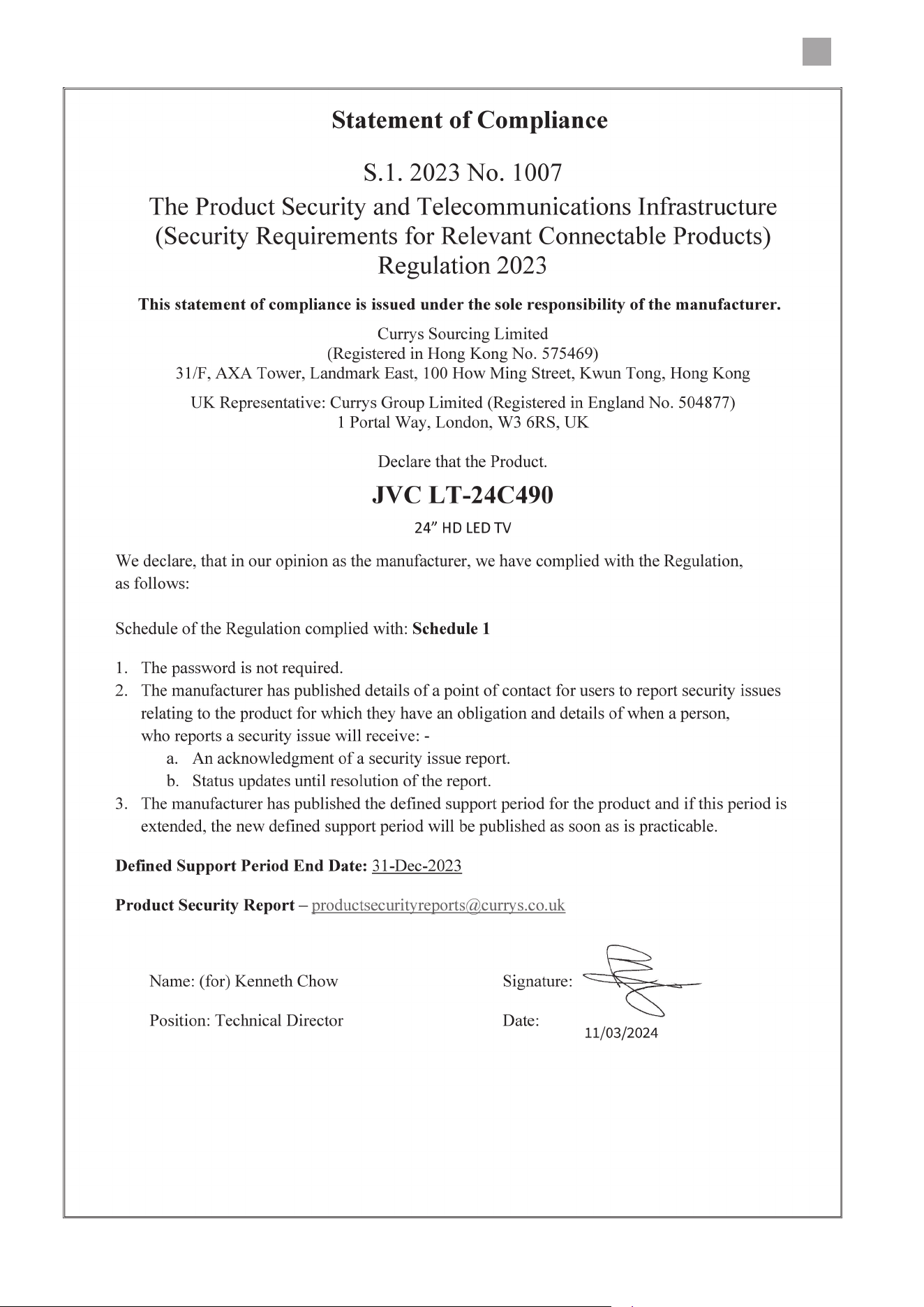
9
Others Information
63
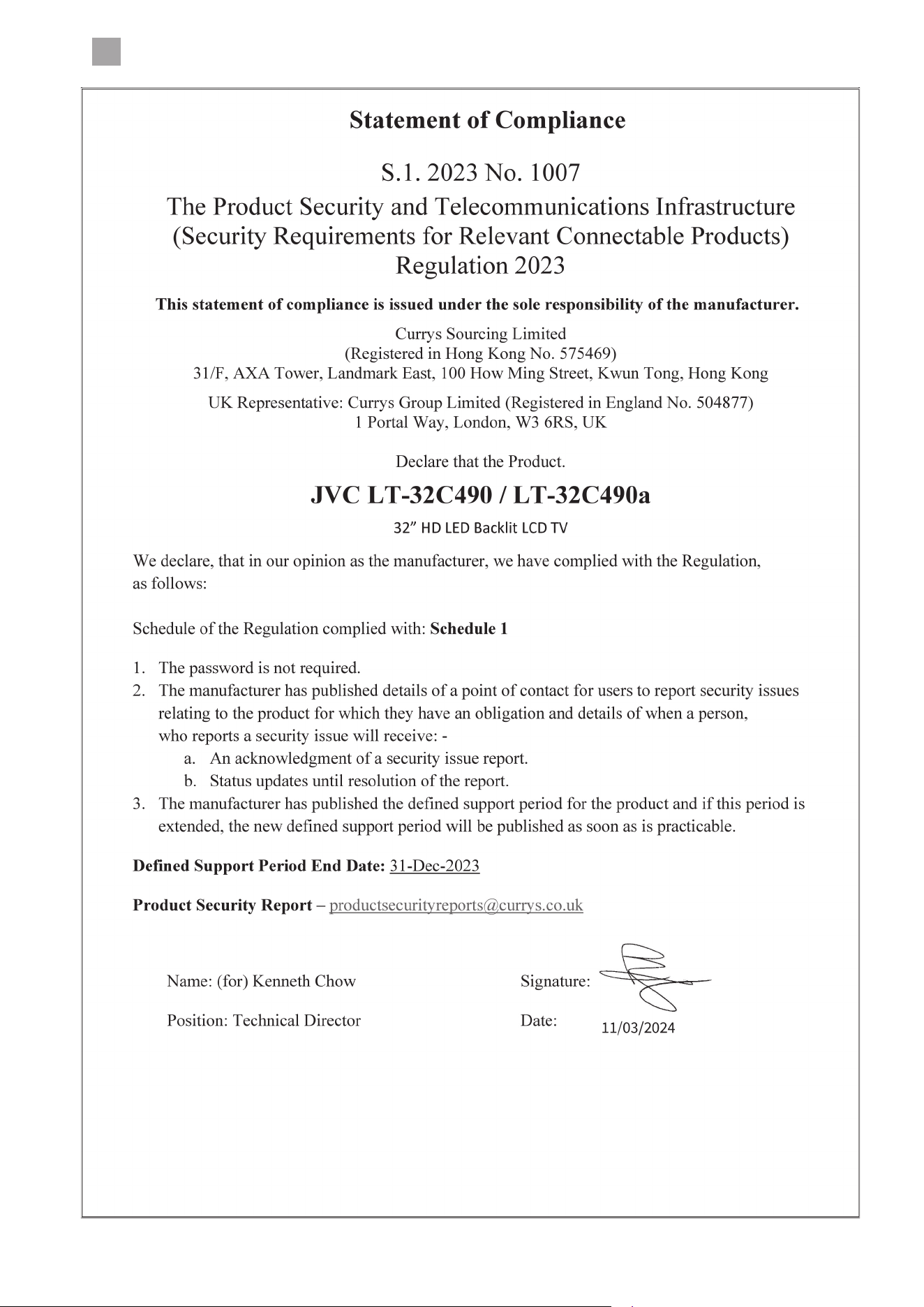
9
Others Information
64


(IB-LT-24C490_32C490-250106V14)
This product is distributed and warranted exclusively by Currys Group Limited.
“JVC” is the trademark of JVCKENWOOD Corporation, used by Currys Group Limited under license.
Dear Customer,
This apparatus is in conformance with the valid European directives compatibility and electrical
safety.
UK Representative and Responsible Person
Currys Group Limited (No. 504877)
1 Portal Way, London, W3 6RS, UK
https://www.currys.co.uk
EU Representative and Responsible Person
Currys Ireland Limited (No. 259460)
3rd Floor Office Suite, Omni Park SC,
Santry, Dublin 9, Republic of Ireland
https://www.currys.ie
UK & EU Contact details: business.standards@currys.co.uk
For Help and Support Call
UK: 0344 561 1234
Ireland: 0818 810 575